
Log in to Student Success Hub, learn your way around, and understand the terminology used in the app.
- Log In to Student Success Hub
Log in to the account that your school's Student Success Hub administrator has created for you. - Get Oriented in Student Success Hub
Learn how to get around the Student Success Hub app. - Student Success Hub Terminology Quick Reference
Before we dive into the details of how to make the most of Student Success Hub, here's a handy reference for some commonly used terms.
Log In to Student Success Hub
Log in to the account that your school's Student Success Hub administrator has created for you.
- Check for the welcome email with login information.
- Follow the link in the email.
- Complete the login process that your school requires.
After you're logged in, check the app name in the navigation bar to make sure that you're in the Student Success Hub app.

See something else? Click and search for and then select Student Success Hub.
Get Oriented in Student Success Hub
Learn how to get around the Student Success Hub app.

- Tab navigation
-
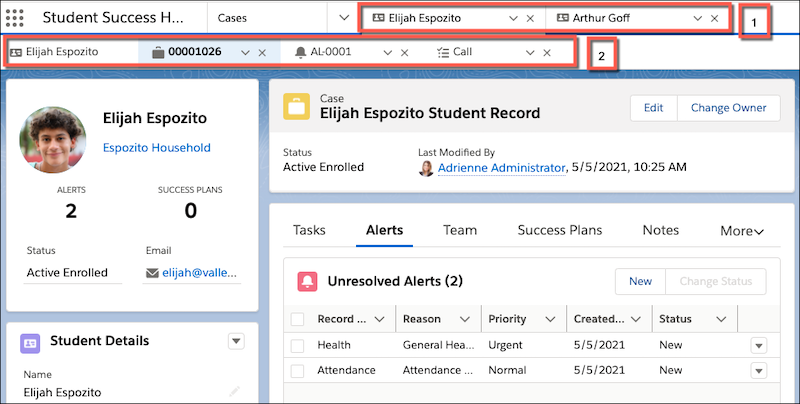
As you work through your caseload, you can open records for multiple students as either workspace tabs or subtabs. Workspace tabs [1] keep the items that you're actively working on scannable and accessible. As you click links to view record details, subtabs [2] open. The highlighted tab in the subtab row tells you which item you're viewing in the browser window.
- Three-column workspace
-
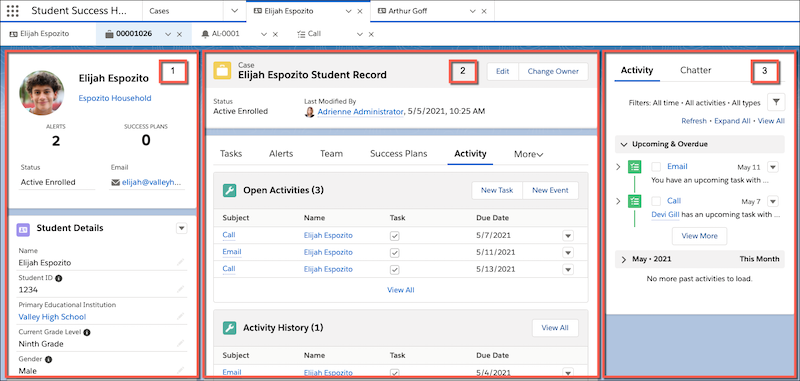
When viewing student record Cases, the column on the left features personal and academic details about the student [1]. And the column on the right features a compact activity feed showing what's coming up [3]. The middle column keeps related lists front and center, giving you a 360-degree view of Alerts, Success Plans, success team information, Notes, and more [2].
- Quick access to student lists in split-view mode
-
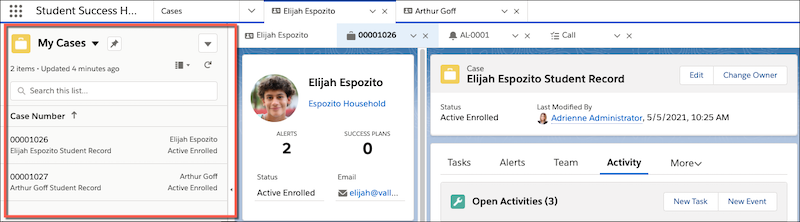
When you need to locate a student's record, you often consult a list of your students. Switch into split-view mode to take a quick peek at your student lists and open the desired record in a new tab. Then exit split-view mode to return to the full-screen, maximum real estate view of your workspace.
- Utility bar with Notes
-
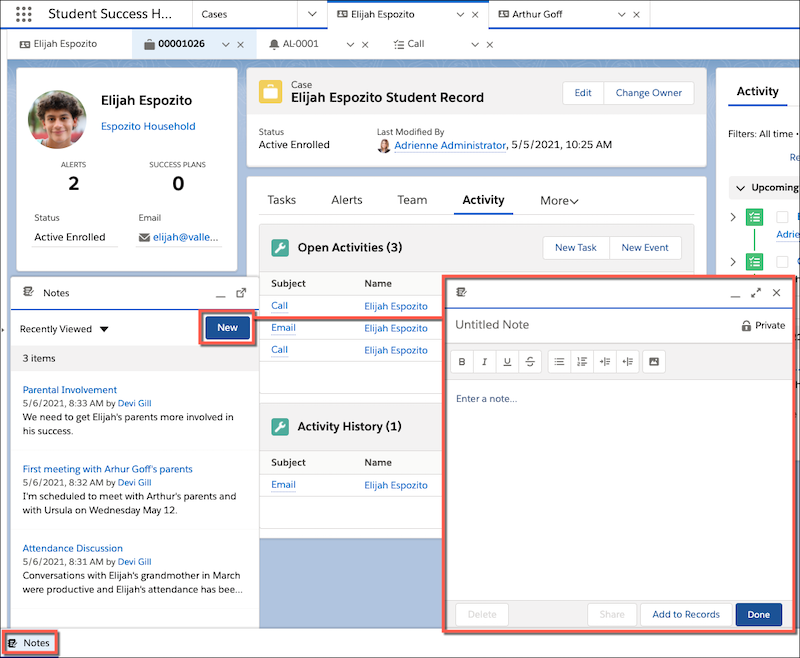
The utility bar is a fixed footer that gives you one-click access to your Notes. Utilities open in a window over the app. Open the Notes scratchpad over the workspace to quickly jot down a case note.
Student Success Hub Terminology Quick Reference
Before we dive into the details of how to make the most of Student Success Hub, here's a handy reference for some commonly used terms.
- Case
- A type of record that holds all support-related data for a student, such as Notes, Alerts, Success Plans, and Tasks. Also known as a "student record." Your school may use other types of Case records to track non-student support services, such as IT Help Desk tickets.
- Contact
- A record that holds academic or personal data about a person that you want to keep track of with Student Success Hub, such as a student, faculty member, tutor, parent or guardian, and so on. A Contact can be assigned to a success team but doesn't have permission to log in to Student Success Hub.
- Portal
- In orgs that are licensed for student users and Experience Cloud sites, a portal is the online collaboration space where students go to connect with their success teams, schedule appointments with support staff members, and stay up-to-date on their tasks.
- Student Record
- A type of Case record that holds all support-related data for a student, such as Notes, Alerts, Success Plans, and Tasks. Technically, it's a "student record Case record," but that's quite a mouthful, so we often shorten it to "student record."
- Success Team
- A team of people serving in support roles for a student. Success teams can consist of both Contacts and Users.
- User
- Someone involved with day-to-day student support who is typically assigned to success teams. Users have permission to access Student Success Hub and can log in.