
Salesforce comes out-of-box with one email and one phone field. This is a great start, but often people have more than one phone and email. NPSP adds several custom phone and email fields, so that you can track a Contact's business and personal emails, as well as mobile, office, and home phones. NPSP also lets you specify a Preferred Email and Preferred Phone.

When you specify a Preferred Phone or Preferred Email, NPSP automatically copies your selection into the standard Salesforce Phone or Email field. For example, if you select "Mobile" as the Preferred Phone, NPSP copies the value from the Mobile Phone field into the standard Phone field.
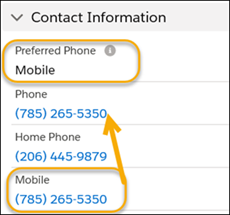
Benefits of setting a Preferred Phone and Preferred Email include:
- The ability to display a Contact's preferred contact information in reports, list views, and related lists.
- The ability to use Mass Email and Request Updates features.
To update a Contact's Preferred Phone or Preferred Email: