Configure sharing rules for learners to grant them the required read and write access to their service appointment records, and read access to their case records.
Editions Needed
| Available in: Lightning Experience |
| Available in: Enterprise, Performance, Unlimited, and Developer Editions with Education Cloud |
| User Permissions Needed |
|
| To enable learners to access appointments: |
Education Cloud Full Access |
- From Setup, in the Quick Find box, enter Digital Experiences, and then select Settings.
- In the Sharing Sets section, click New.
- Enter a label and name, and if needed, a description. Salesforce shows the label on the user interface. The sharing set name is the unique name that the API uses.
- Add the profile that you created for the appointment Experience site.
- In the Select Objects section, add the Service Appointment object.
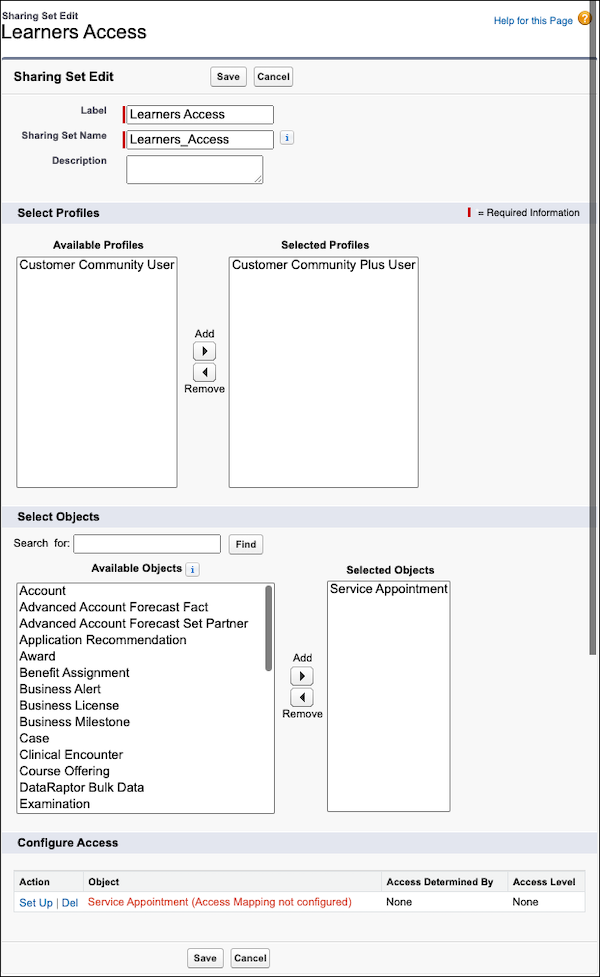
- In the Configure Access section, click Set Up.
- Select the Contact.Account user.
- Select the Account target.
- Select the Read/Write access level.
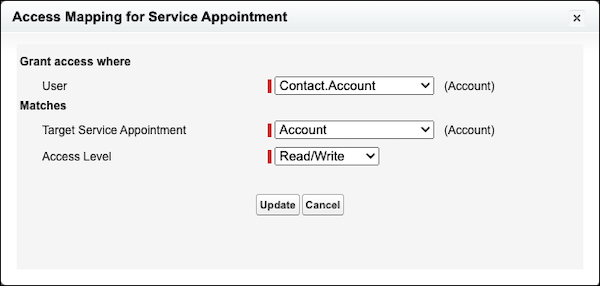
- Click Update.
- On the Sharing Set page, add the Case object.
- In the Configure Access section, click Set Up next to the Case object.
- Select the Contact user.
- Select the Account.PersonContact target.
- Select the Read Only access level.
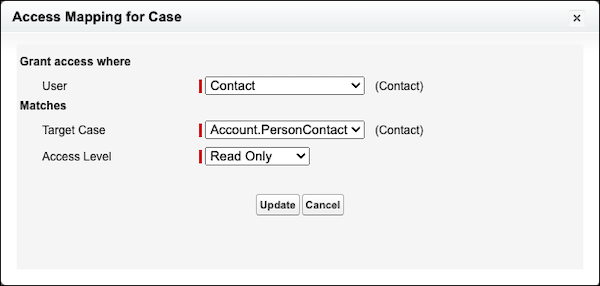
- Click Update.
- Save your changes.
