
Launch a screen flow on a benefit assignment record to compare potential mentors for a mentee and to assign a mentor to the benefit assignment.

Important To run the screen flow, users need the permission set for mentoring facilitators. See Set Up Mentoring Facilitators.
| User Permissions Needed | |
|---|---|
| To compare and assign mentors: | Education Cloud Full Access |
| Available in: Lightning Experience |
| Available in: Enterprise, Performance, Unlimited, and Developer Editions with Education Cloud |
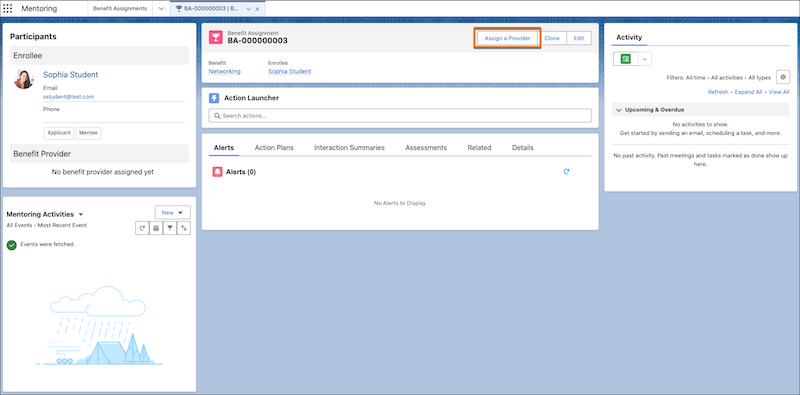
- On a mentee's benefit assignment record page, click Assign a Provider.
- Select up to three providers to compare, and then click Next.
- Select a mentor, and then click Next.
- Review your selection, and then click Next.
- Click Done to exit the screen flow.