
Some organizations use a model where case managers share ownership of the client relationship. In this model, a variety of case managers deliver services to a client during the service period. Create sharing rules to let different case managers edit a client's case-related data.
Here are a couple of examples of ways you could set up your case manager sharing rules.
- Example: Set Up Case Manager Sharing Rules
If your case managers share ownership of client relationships, use sharing rules to grant edit permissions to all case managers. Before you get started, it's a good idea to map out which objects case managers need to edit. - Example: Set Up Program Manager Sharing Rules
If your program managers share ownership of programs, use sharing rules to extend edit permissions to all program managers. It's a good idea to map out which objects program managers need to edit.
Example: Set Up Case Manager Sharing Rules
If your case managers share ownership of client relationships, use sharing rules to grant edit permissions to all case managers. Before you get started, it's a good idea to map out which objects case managers need to edit.
This table shows an example of sharing rules you can set up for objects that program managers typically access to manage client relationships.
|
Object |
Rule Label |
Owned by |
Share with |
Access Level |
|---|---|---|---|---|
|
Action Items |
Review Action Items |
Creator |
All Case Managers |
Read/Write |
|
Assessments |
Review Assessment |
Creator |
All Case Managers |
Read/Write |
|
Client Alerts |
Review Client Alert |
Creator |
All Case Managers |
Read/Write |
|
Client Notes |
Review Client Note |
Creator |
All Case Managers |
Read/Write |
|
Program Engagements |
Edit Program Engagements |
Creator |
All Case Managers |
Read/Write |
|
Service Deliveries |
Edit Service Deliveries |
Creator |
All Case Managers |
Read/Write |
|
Accounts |
Edit Accounts |
Creator |
All Case Managers |
Read/Write |
|
Cases |
Edit Cases |
Creator |
All Case Managers |
Read/Write |
|
Contacts |
Edit Contacts |
Creator |
All Case Managers |
Read/Write |
- Define a Public Group of Case Managers
To grant the appropriate access to case managers who share ownership of client relationships, first define a public group. - Create a Case Manager Sharing Rule
Learn how to create a sharing rule that shares Client Alerts written and owned by any case manager in the org with all case managers in the public group.
Define a Public Group of Case Managers
To grant the appropriate access to case managers who share ownership of client relationships, first define a public group.
-
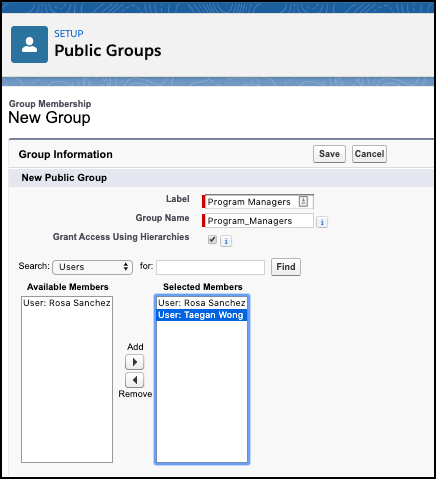
In Setup, enter Public Groups in the Quick Find box, then click Public Groups.
-
Click New.
-
Name your Public Group Case Managers.
-
In the Search dropdown list, choose Users.
-
Select the Users to add to the Case Manager Public Group and click Add.
-
Click Save.

Next, define sharing rules for this group.
Create a Case Manager Sharing Rule
Learn how to create a sharing rule that shares Client Alerts written and owned by any case manager in the org with all case managers in the public group.
To create a sharing rule that shares Client Alerts written and owned by any case manager in the org with all case managers in the public group:
-
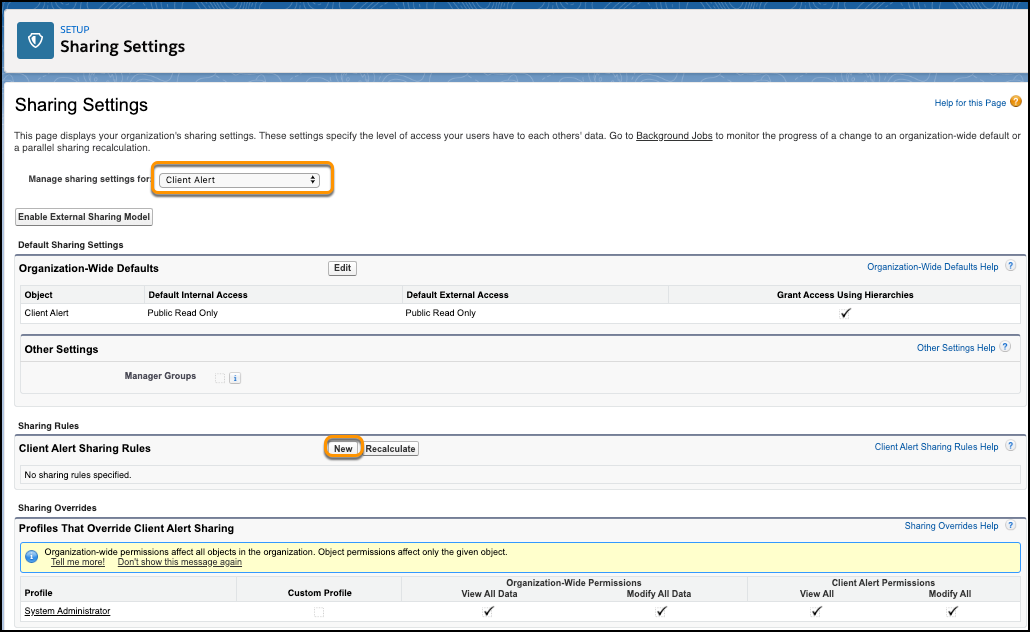
In Setup, enter Sharing Settings in the Quick Find box, then click Sharing Settings. This is the same page used to define org-wide defaults.
-
In the Manage sharing settings for dropdown list, choose Client Alert.
This shows the org-wide defaults and sharing rules for a single object at a time, which is handy if you have many custom objects.
-
In the Client Alert Sharing Rules area, click New.
-
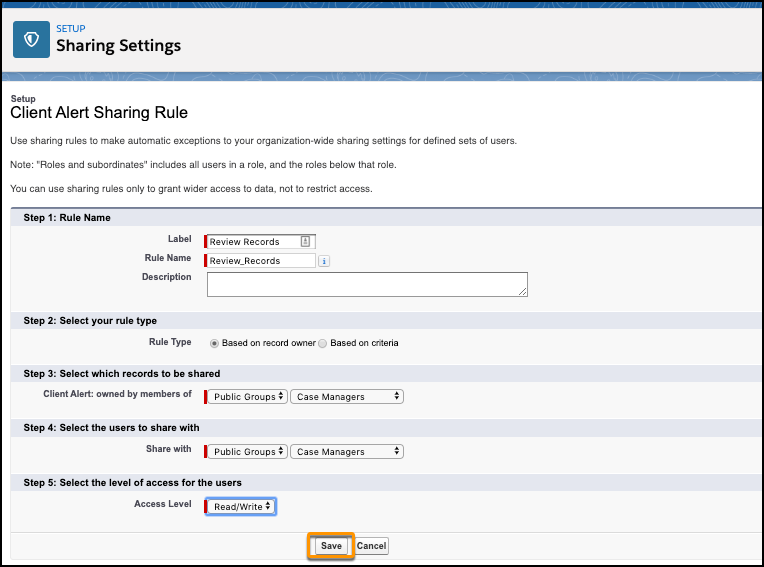
In the Label field, enter Review Records.
The Rule Name populates automatically.
-
For the Rule Type, select Based on record owner.
-
In the Select which records to be shared section, select Public Groups, then choose Case Managers.
-
In the Select users to share with section, select Public Groups, then choose Case Managers.
-
In the Select the level of access for the users section, select Read/Write.
-
Click Save.
Repeat these steps to set up sharing rules for Action Items, Assessments, Case Plans, Client Notes, Goals, Program Engagements, Service Deliveries, Accounts, Cases, and Contacts.
Example: Set Up Program Manager Sharing Rules
If your program managers share ownership of programs, use sharing rules to extend edit permissions to all program managers. It's a good idea to map out which objects program managers need to edit.
This table shows an example of sharing rules you can set up for objects that program managers typically access.
|
Object |
Rule Label |
Owned by |
Share with |
Access Level |
|---|---|---|---|---|
|
Programs |
Edit Programs |
Creator |
All Program Managers |
Read/Write |
|
Program Engagements |
Edit Program Engagements |
Creator |
All Program Managers |
Read/Write |
|
Program Cohorts |
Edit Program Cohorts |
Creator |
All Program Managers |
Read/Write |
|
Services |
Edit Services |
Creator |
All Program Managers |
Read/Write |
|
Service Deliveries |
Edit Service Deliveries |
Creator |
All Program Managers |
Read/Write |
- Define a Public Group of Program Managers
To grant the appropriate access to program managers who share program ownership, first define a public group. - Create a Program Manager Sharing Rule
Create a sharing rule that allows all program managers to access programs owned by any program manager.
Define a Public Group of Program Managers
To grant the appropriate access to program managers who share program ownership, first define a public group.
-
In Setup, enter Public Groups in the Quick Find box, then click Public Groups.
-
Click New.
-
Name your Public Group Program Managers.
-
In the Search dropdown list, choose Users.
-
Select the Users to add to the Case Manager Public Group and click Add.
-
Click Save.
Next, define sharing rules for this group.
Create a Program Manager Sharing Rule
Create a sharing rule that allows all program managers to access programs owned by any program manager.
To create a rule that shares programs written and owned by any program manager in the org with all program managers:
-
In Setup, enter Sharing Settings in the Quick Find box, then click Sharing Settings.
-
In the Manage sharing settings for dropdown list, choose Programs.
-
In the Program Sharing Rules area, click New.
-
In the Label field, enter Review Records.
The Rule Name populates automatically.
-
For the Rule Type, select Based on record owner.
-
In the Select which records to be shared section, select Public Groups, then choose Program Managers.
-
In the Select users to share with section, select Public Groups, then choose Program Managers.
-
In the Select the level of access for the users section, select Read/Write.
-
Click Save.
Repeat these steps for Programs Engagements, Program Cohorts, Services, and Service Deliveries.