Design territories that include a mix of contiguous and noncontiguous areas in Territory
Planning. Give all your sales and service reps opportunities to meet customers in person and
remotely when you limit assignments within an area. Indicate whether to assign more or fewer units
or containers to an area relative to others within the focus.
Required Editions
| Available in: both Salesforce Classic (not available in all orgs) and Lightning Experience |
| Available in: Professional, Enterprise, Performance, Unlimited, and Developer Editions with Web Services API enabled |
| User Permissions Needed |
| To modify alignments: |
SF Maps Territory Planning permission set
OR
SF Maps Territory Planning for Sales Planning permission set (after you purchase Sales Planning)
|
-
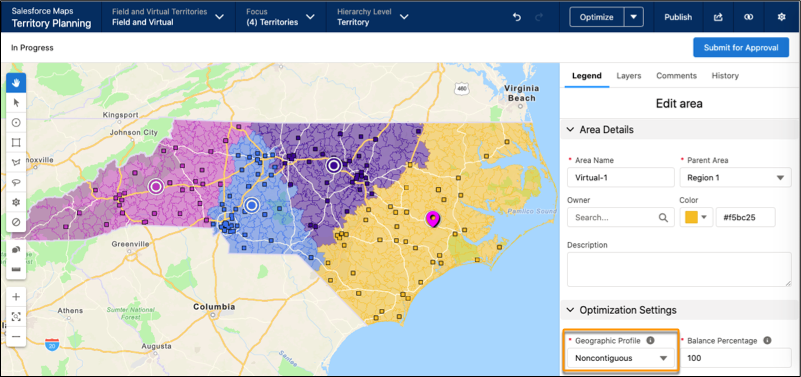
Open an alignment and set the focus. Select an area or a container that you want to set up
for virtual meetings.
-
Set the geographic profile to Noncontiguous. If you want to assign
more or fewer units or territories to an area relative to others within the focus, change the
balance percentage. For example, to assign the territory 10% more units relative to other
territories in the focus, enter 110. To assign 15% fewer units, enter
85.
-
Repeat the previous step for at least one more area or territory.
-
Save your changes.
-
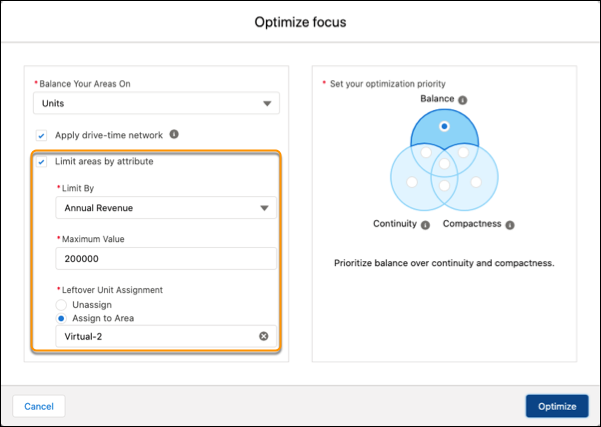
Click Optimize. To ensure that all your reps get a share of
assignments, limit assignments to areas by an attribute such as annual revenue.
-
Set your optimization priority, then optimize your focus.
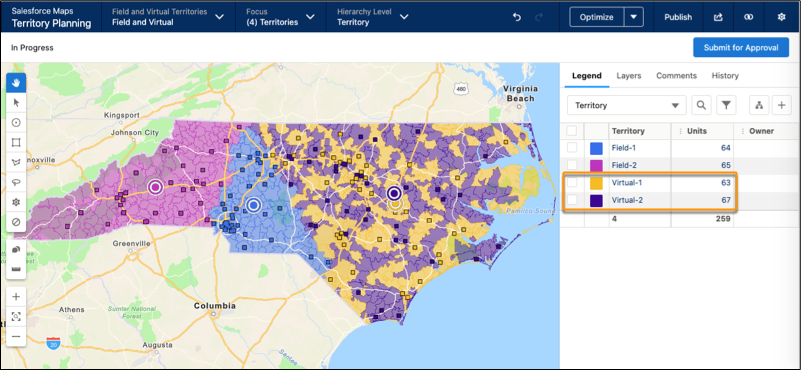
The optimized focus with your contiguous and noncontiguous areas appears on the
map.