# admin Sales Cloud (sales) - Full Documentation
# About Advanced Currency Management
Advanced currency management allows you to manage dated exchange rates within opportunities using Salesforce. Dated exchange rates allow you to map a conversion rate to a specific date range.
### Required Editions
Available in: both Salesforce Classic and Lightning Experience
Available in: Group, Professional, Enterprise, Performance, Unlimited, and Developer Editions
User Permissions Needed
To enable advanced currency management:
Customize Application
To view currencies:
View Setup and Configuration
To change currencies:
Customize Application
For example, the exchange rate on January 1 was 1 USD to 1.39 AUD, but on February 1, it changed to 1 USD to 1.42 AUD. Your opportunities that closed between January 1 and February 1 use the first exchange rate (1 = 1.39), while opportunities that closed after February 1 used the second exchange rate (1 = 1.42).
Dated exchange rates are defined using a start date and a conversion rate. Each rate is in effect until either the end of time or the day before the next start date for that currency. The time between one start date and the next start date is called the exchange rate date range. These ranges can be as small as a day and as large as all time.
To enable or disable advanced currency management, see [Enabling or Disabling Advanced Currency Management](https://help.salesforce.com/s/articleView?id=sales.administration_enable_advanced_currency_management.htm&release=264.0.0&type=5 "Turn on advanced currency management.").
When advanced currency management is first enabled, your existing exchange rates automatically become the first set of dated exchange rates. These rates are valid for all time, until you define another set of exchange rates.
If you disable advanced currency management, all currency conversions use the static conversion rate. See [Edit Conversion Rates](https://help.salesforce.com/articleView?id=editing_conversion_rates.htm&language=en_US).
## Advanced Currency Management Considerations
- Dated exchange rates are used for opportunities, opportunity products, opportunity product schedules, campaign opportunity fields, opportunity splits, and reports related to these objects and fields. Dated exchange rates are not used in forecasting, currency fields in other objects, or currency fields in other types of reports. Dated exchange rates are also not used when calculating formula fields with a formula return type of “Currency.”
- Salesforce orgs with advanced currency management support roll-up summary fields between two advanced currency management objects. For example, roll-up summary fields are supported from an opportunity line item object to its opportunity object, because both are advanced currency management enabled. However, if you enable advanced currency management, you can’t create roll-up summary fields that calculate currency on the opportunity object rolling up to the account object. You also can’t filter on the opportunity currency field on the account object. All existing currency-related roll-up summary fields on the opportunity object that summarize objects that don’t support dated exchange rates are disabled and their values are no longer calculated. If your org enables advanced currency management, delete any currency roll-up summary fields using opportunities and accounts or opportunities and custom objects.
- Campaign opportunity fields use dated exchange rates when calculating the amount in the campaign currency. However, they don’t use dated exchange rates when converting those amounts to the user currency.
- Cross-object formulas always use the static conversion rate for currency conversion.
- If advanced currency management is enabled, you can't bind Visualforce pages that use `` or `` components to currency fields that support advanced currency management.
- **[Enable or Disable Advanced Currency Management](https://help.salesforce.com/s/articleView?id=sales.administration_enable_advanced_currency_management.htm&release=264.0.0&type=5)**
Turn on advanced currency management.
#### See Also
- [Manage Multiple Currencies](https://help.salesforce.com/s/articleView?id=sales.admin_currency.htm&release=264.0.0&type=5 "Give your sales team the ability to use multiple currencies in opportunities, forecasts, quotes, reports, and other data.")
- [Activate and Deactivate Currencies](https://help.salesforce.com/s/articleView?id=sales.activating_and_deactivating_currencies.htm&release=264.0.0&type=5 "For orgs with multiple currencies, specify which currencies are supported by activating or deactivating currencies.")
- [Administrator setup guide: Using Multiple Currencies](https://resources.docs.salesforce.com/latest/latest/en-us/sfdc/pdf/salesforce_using_multiple_currencies.pdf)
# About Data Optimization and Performance in Salesforce Spiff
Designer and the commission engine share the same underlying logic, which means the decisions you make during configuration directly affect statement performance at scale.
## Designer and the Commission Engine
Designer and the commission engine are foundationally similar but serve different purposes. Designer uses the commission engine to show calculation results in real-time, much like a spreadsheet. The commission engine calculates statements in isolation, with a fixed amount of memory and time allocated to each statement.
This table shows the key characteristics of each.
| Designer | Commission Engine |
| --- | --- |
| Shows calculation results in real-time as you build, similar to a spreadsheet. | Generates finalized commission statements, each calculated in isolation from the others. |
| Uses the commission engine under the hood, so its behavior reflects what the engine does in production. | Processes statements in no guaranteed order — one rep's statement doesn't block or influence another's. |
| Timeout errors in Designer signal that the same logic creates performance pressure in production. | Each statement receives a fixed allocation of memory and processing time. |
| Timeout or memory errors in Designer are a signal to optimize, but they don't always indicate a problem with statement calculation. Because Designer limits are lower, you might see errors in Designer that don't appear when the same logic runs as a statement. | If a statement exceeds its allocation, contact Salesforce Support to request an increase to the memory or time limits. |
| A good early-stage proxy for production performance — if it times out in Designer, it struggles in the engine. For larger, more complex plans, Designer errors might be unavoidable. In those cases, successful statement calculation is the appropriate target, as Designer success is not always achievable or required. | Only the data stored in Capture Trace is available for reporting. Turning off trace on a field removes it from reports and exports. |
Because Designer operates under lower memory and processing limits than the commission engine, a timeout in Designer is a useful signal to investigate and optimize — but it doesn't always mean statement calculation will fail. For smaller configurations, a timeout in Designer often indicates the same logic will struggle at statement scale. For larger or more complex plans, Designer timeouts might occur even when the equivalent statement calculates successfully.
When a statement exceeds its memory or time allocation, two paths are available: contact Salesforce Support to request a resource increase, or optimize the plan logic and data filters. In practice, a resource increase is often the fastest resolution when the issue is discovered close to a payroll run. Optimization addresses the underlying cause and is the recommended follow-up if a resource increase alone doesn't resolve the issue, or as a longer-term strategy to reduce statement resource consumption.
For example, consider that you build a calculated field on the Opportunities object that uses a `sum()` function to aggregate year-to-date annual recurring revenue (ARR) across all closed opportunities for a rep. When you preview a statement in Designer for a single rep with two years of history, the calculation times out. If a timeout happens in Designer, the commission has the same problem — and likely at greater scale — when it processes statements for your entire rep population in a single run. The fix is to optimize the calculation before moving to production: turn off trace on the `sum()` field, encapsulate it as a separate worksheet calculation, or replace the full-history scan with a filtered data range.

Tip Test complex calculations in Designer before rolling them out to production. Timeouts in Designer are a signal to investigate your logic and data filters, but statement calculation success is the production benchmark. For larger plans, Designer timeouts might persist even when statements calculate correctly.
## Where to Focus Optimization Efforts
Performance improvements in Spiff come from three areas: how data enters the system, how plan logic processes that data, and which fields are configured to appear on the statement page. Addressing all three together produces the best results.
Focus your optimization efforts across these three layers.
- **Data layer.** Optimize data filters, reduce record volumes through upstream filtering (in source systems), and understand the schema and relationships between your objects. See [Optimize Data Filter Performance in Salesforce Spiff](https://help.salesforce.com/s/articleView?id=sales.spiff_data_filter_performance.htm&release=264.0.0&type=5 "Well-structured data filters are the single most effective way to improve commission calculation performance in Salesforce Spiff. Apply filters in the right order, limit record volumes early, and avoid patterns that force the commission engine to do unnecessary work.") and [Reduce Commission Engine Load with Upstream Data Changes](https://help.salesforce.com/s/articleView?id=sales.spiff_upstream_data.htm&release=264.0.0&type=5 "Preparing data in Salesforce before it syncs into Spiff reduces the work the commission engine performs. Addressing data structure, type conversions, and crediting logic upstream produces faster, more maintainable commission calculations.").
- **Plan logic layer.** Encapsulate calculations, disable trace where it isn't needed, and use lookup tables and dynamic logic instead of hard-coded values or complex nested formulas. See [Use Encapsulation in Salesforce Spiff Calculations](https://help.salesforce.com/s/articleView?id=sales.spiff_encapsulation.htm&release=264.0.0&type=5 "Encapsulation is isolating a segment of a commission calculation into a separate, named calculated field. This technique reduces memory use, simplifies debugging, improves readability, and makes your configuration easier to maintain as business rules change.") and [Use Lookup Tables and Dynamic Logic in Salesforce Spiff](https://help.salesforce.com/s/articleView?id=sales.spiff_dynamic_logic.htm&release=264.0.0&type=5 "Hard-coded values and long chains of if() statements are difficult to maintain and create risk when business rules change. Lookup tables, worksheet calculations, and statement periods give you flexible, dynamic commission logic that adapts to changing inputs without requiring changes to your plan configuration.").
- **Statement page configuration.** Limit fields on the statement page to what reps actively need to see, and remove intermediate calculations and diagnostic fields from the rep-facing view. The commission engine runs every visible field for every statement — even fields that the engine wouldn't otherwise encounter in the calculation path.
## Performance Principles
Keep these guiding principles in mind throughout your implementation.
- Start optimization on day one, and revisit it regularly. Retrofitting performance improvements into an existing configuration is harder than building them in from the start. Plan logic and data volumes change over time, so build performance review into your regular plan maintenance cycle — not just your initial implementation.
- Consolidate and aggregate data before it reaches the engine. Structure your data so that reps work with a meaningful, manageable set of obligations — not hundreds or thousands of individual records. Aggregating and consolidating data upstream, before it syncs into Spiff, reduces complexity for both reps and the commission engine. For specific techniques to control what data syncs into Spiff, see [Optimize Data Filter Performance in Salesforce Spiff](https://help.salesforce.com/s/articleView?id=sales.spiff_data_filter_performance.htm&release=264.0.0&type=5 "Well-structured data filters are the single most effective way to improve commission calculation performance in Salesforce Spiff. Apply filters in the right order, limit record volumes early, and avoid patterns that force the commission engine to do unnecessary work.").
- Understand your data volumes over time. A configuration that performs well at launch can degrade as record counts grow. Plan for archival and review projected volumes with your data team.
- Limit statement page fields to what reps need. Every field selected on the statement page is run by the engine for every statement, regardless of whether the calculation path would otherwise reach it. Remove intermediate calculations and internal tracking fields from the rep-facing view.
- Turn on trace only where it serves a purpose. Trace stores data and consumes memory and calculation time. Turn it on for fields that reps need to see on their statements or that Comp Admins require for reporting. Turn it off for intermediate calculations, relationship traversals, and any field that doesn't need to appear in rep views or exports.
- Avoid hard-coded values. Store variable amounts in worksheet fields and use lookup tables so that the logic stays maintainable as business rules change.
# Accelerators in Salesforce Spiff
An accelerator in Salesforce Spiff helps your sales team amplify their earnings when they achieve outstanding results. Spiff provides multiple options for implementing accelerator rates in your commission plans.
### Required Editions
Available in: both Salesforce Classic (not available in all orgs) and Lightning Experience
Available in: Enterprise, Unlimited, and Developer Editions
Available for an additional cost in: Professional Edition with Web Services API Enabled
Consider a commission structure where a rep earns a percentage of ARR from each deal they close in a given period. Accelerators attached to these rates help motivate reps to strive for higher levels of performance by showing the potential for increased earnings.
The simplest option for implementing an accelerator in Spiff is creating a range table and referencing the table within an accelerator function. A range table provides a fair and transparent commission structure for different levels of performance. Consider this example range table.
| Tier | Sales Range | Rate |
| --- | --- | --- |
| 1 | $0 to $50,000 | 4% |
| 2 | $50,000 to $100,000 | 8% |
| 3 | More than $100,000 | 12% |
These methods are most commonly used for applying accelerators.
- Tier payout, in which all sales for the period are commissioned at the maximum achieved rate. This means that the highest level of achievement a rep gets during a period determines the commission rate for all deals closed by that rep in that period. For example, a rep brings in $80,000 in total sales in a given period, which qualifies for Tier 2 with an 8% rate. All sales are commissioned at that 8% rate, resulting in $6,400 in commission.
- Marginal payout, in which the amount within each tier is commissioned at the applicable rate. For the rep that earned $80,000 in sales, the first $50,000 is commissioned at a 4% rate. The remaining $30,000 is commissioned at an 8% rate, resulting in a total of $4,400 commission.
- **[Create a Range Table for an Accelerator](https://help.salesforce.com/s/articleView?id=sales.spiff_accelerator_create.htm&release=264.0.0&type=5)**
To implement a commission accelerator in Salesforce Spiff, create a range table and reference the table within an accelerator function.
- **[Create a Tier Payout Rule for an Accelerator](https://help.salesforce.com/s/articleView?id=sales.spiff_accelerator_tier_payout.htm&release=264.0.0&type=5)**
Create a simple line-by-line tier payout rule based on a range table in Salesforce Spiff.
- **[Create a Marginal Payout Rule for an Accelerator](https://help.salesforce.com/s/articleView?id=sales.spiff_accelerator_marginal_payout.htm&release=264.0.0&type=5)**
Create a simple line-by-line marginal payout rule based on a range table in Salesforce Spiff.
- **[Considerations for Accelerator Functions in Salesforce Spiff](https://help.salesforce.com/s/articleView?id=sales.spiff_accelerator_functions.htm&release=264.0.0&type=5)**
Salesforce Spiff provides several functions that support accelerators, including `mamount()`, `mpercent()`, `range_lookup()`, and `tier_payout`.
- **[Accumulated Variables in Accelerator Functions](https://help.salesforce.com/s/articleView?id=sales.spiff_accelerator_accumulated_variable.htm&release=264.0.0&type=5)**
An accumulated variable is often used with the initial\_value argument in the `mamount()` and `mpercent()` accelerator functions in Salesforce Spiff.
- **[Create an Accumulated Variable for a Marginal Payout Function](https://help.salesforce.com/s/articleView?id=sales.spiff_accelerator_accumulated_variable_create.htm&release=264.0.0&type=5)**
Create an accumulated variable for the initial\_value argument in the `mamount()` and `mpercent()` accelerator functions in Salesforce Spiff.
- **[Mixed Commission Rates in an Rep Statement](https://help.salesforce.com/s/articleView?id=sales.spiff_accelerator_mixed.htm&release=264.0.0&type=5)**
If your company uses a marginal payout, calculating commission rates in Salesforce Spiff can be complicated and result in mixed rates from different tiers.
# Accept an Invitation for Salesforce to Salesforce
If a business partner sent you an invitation to connect using Salesforce to Salesforce, you can accept or reject that invitation by following these steps.
### Required Editions
Available in: Salesforce Classic
Available in: Contact Manager, Group, Professional, Enterprise, Performance, Unlimited, and Developer Editions
User Permissions
Needed
To accept or reject an invitation to connect using Salesforce to
Salesforce:
Manage Connections

Important Salesforce to Salesforce is scheduled for retirement as of Spring ’27. See [Salesforce to Salesforce Retirement](https://help.salesforce.com/s/articleView?id=005103355&type=1&language=en_US).
1. Click the link in the invitation email to go to the Salesforce login page.
2. Log in as the System Administrator or as a user with the “Manage Connections” permission.
3. Review the details of the invitation.
4. Click **Accept** or **Decline**.
If you aren't sure whether you want to accept or decline, click **Decide Later**. The invitation displays on the Connections tab with a connection status of Invitation Received. You can easily accept or decline it at a later date.
When you accept or reject an invitation, the company that invited you receives an email notifying them of your decision. The content of that email can be configured by changing the appropriate email template.
#### See Also
- [Salesforce to Salesforce](https://help.salesforce.com/s/articleView?id=sales.business_network_intro.htm&release=264.0.0&type=5 "Salesforce to Salesforce makes it easy for businesses using Salesforce to share records and get updated data on shared records. For example, you can share lead and opportunity data with partners. Salesforce to Salesforce lets your business partners easily integrate your data with their Salesforce records. You can see all of your sharing activity, manage your entire pipeline, share data across multi-tiered partnerships, and integrate your business processes with updates received from your partners using workflow and assignment rules.")
- [Guidelines for Using Salesforce to Salesforce](https://help.salesforce.com/s/articleView?id=sales.business_network_tips.htm&release=264.0.0&type=5 "Review some guidelines for using Salesforce to Salesforce.")
- [Connect with Your Business Partners using Salesforce to Salesforce](https://help.salesforce.com/s/articleView?id=sales.partner_survey_setup.htm&release=264.0.0&type=5 "Using Connection Finder, you can find out which business partners use Salesforce. Then, you can invite them to connect with you to share data using Salesforce to Salesforce. From the Connections tab, you can manage your Salesforce to Salesforce connections and connection templates.")
# Accept Records Forwarded from a Connected Organization
With Salesforce to Salesforce, you can select which type of records you want to accept from a connected organization that shares them. You can’t accept forwarded records on the Salesforce mobile app.
### Required Editions
Available in: Salesforce Classic
Available in: Contact Manager, Group, Professional, Enterprise, Performance, Unlimited, and Developer Editions
User Permissions
Needed
To accept shared records:
Read and Edit on the object
To view records shared by a connection:
Manage Connections or have access to the list view

Important Salesforce to Salesforce is scheduled for retirement as of Spring ’27. See [Salesforce to Salesforce Retirement](https://help.salesforce.com/s/articleView?id=005103355&type=1&language=en_US).

Note To be able to accept records of a certain type of object, your organization must first subscribe to that object.
1. Select the tab of the record type you are accepting. For example, the Leads tab.
2. View a connections list view. For example, on the Leads tab, in the **Leads from Connections** section, select a list view from the drop-down list.
3. For accounts, contacts, and opportunities, click **Accept** next to the record you want to accept. For cases, leads and custom objects, select the type of records to accept, then click **Accept**. In most cases, if you accept a parent record, any related or child records forwarded with it are automatically accepted.
You can assign an accepted record to yourself, another user, a queue, or, if it is a lead or case, use your organization's assignment rules to automatically assign it. If the record is a child of another record you have accepted, you can assign it to the parent record when accepting it.
When you accept an opportunity, you have the option to relate the opportunity to an object and a price book, and to relate the opportunity to a new account or opportunity, or to use an existing account or opportunity. If you create a new opportunity or account, you can also set the owner of that record. When you accept an account, you have the option relate the account to another object and to create a new account, or to use an existing account. If you create a new account, you can also set the owner of that record. When you accept a contact, you have the option relate the contact to another object and to create a new account or contact, or to use an existing account or contact. If you create a new contact or account, you can also set the owner of that record. When you accept a case, lead or custom object, you have option to relate the case, lead or custom object to another object and to assign the lead or custom object to a new owner.
If you select the **Assign using active assignment rule** option and no assignment rule criteria is met, the record is assigned to the Default owner of the record type. When you accept a product, you have the option to create a new product or relate the product to an existing product. If you accept a parent and its child record, the name of the parent is displayed in the child’s Parent Record Name column. If the record is a parent record or has no parent record, this column is blank. When you accept a record that has a public attachment, the attachment is automatically accepted if you select the Share With Connections option next to it.
If validation rules prevent you from accepting shared records, create a validation rule with the Received Connection Name field not equal to null; this will ignore validation rules for records you accept from your connections. To create this rule, use the following formula:
`IF(OR(ISNEW(), ISNULL(Id)), if(ConnectionReceivedId =null, TRUE, FALSE),NOT(AND(ISCHANGED(ConnectionReceivedId), NOT(ConnectionReceivedId = null))))`
You should also create a similar rule for any Apex trigger that has validation checks.
#### See Also
- [Subscribe to Objects with Salesforce to Salesforce](https://help.salesforce.com/s/articleView?id=sales.business_network_subscribe_to_objects.htm&release=264.0.0&type=5 "When you are connected to a business partner using Salesforce to Salesforce, you can subscribe to objects that your business partner has published. When you subscribe to an object, you map it to an object in your organization. Standard objects must map to standard objects in your organization, but you can map custom objects to any custom object. For example, if your business partner has published a custom object named Prospects, you can map that to a custom object named Client.")
- [Share Records Using Salesforce to Salesforce](https://help.salesforce.com/s/articleView?id=sales.business_network_managing_leads.htm&release=264.0.0&type=5 "Once you’ve created a connection to another Salesforce organization, you can share records and updated data with them. You control the type of records you share with your connected organizations by selecting which objects and fields to publish. Your connected organizations don’t have direct access to records that you’re sharing. They have a record in their organization that is connected to your record through Salesforce to Salesforce. Any updates to the shared information on either record are reflected on the other record.")
- [Guidelines for Using Salesforce to Salesforce](https://help.salesforce.com/s/articleView?id=sales.business_network_tips.htm&release=264.0.0&type=5 "Review some guidelines for using Salesforce to Salesforce.")
# Access and Update Buyer Relationship Map
Learn how to access the Buyer Relationship Map and update it to visualize contacts across company levels.
### Required Editions
Available in: Lightning Experience
Available in: Enterprise, Performance, Unlimited Editions with Sales, and Agentforce 1 Sales Edition
User Permissions
Needed
To create and edit contacts:
Create and Edit on Contact
Contacts associated with the opportunity or account that have a seniority level and department group assigned are automatically shown on the map. These steps are for contacts that don’t meet that criteria.
1. Access the map from any opportunity or account’s action menu.
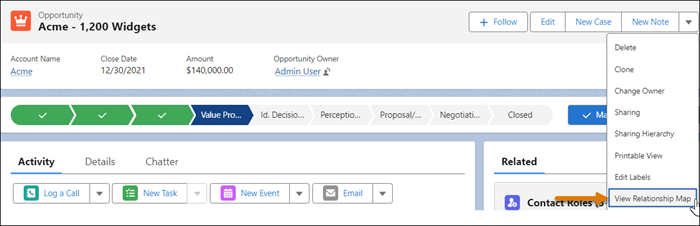
2. To add a contact to the map, do one of the following.
- If the Relationship Map is for an account, click a contact tile at the required level under a department group. In the side panel, click **Add Contact**. Upon saving the contact details, the contact is added to the map.
- If the Relationship Map is for an opportunity and the contact isn’t associated with it, click **Add Contact Role** in the side panel to add an opportunity contact role. After you add the role, the contact appears in **Incomplete Contacts** in the side panel. Edit the contact's details to assign a seniority level and department group so it appears on the map.
- If the contact is already associated with the opportunity or account, open **Incomplete Contacts** in the side panel. Find the contact to add, and then choose how to apply the Seniority Level and Department Group. To apply them from a specific tile, select the contact tile where you want to place the contact, and then click **Update contact**. To manually select them, click **Edit contact**, and then edit the contact's details in the side panel.
- If a contact was previously removed from the Relationship Map, find it in the **Removed from Map** section. To add the contact back to the map, select it, and then click **Add back to map**.
Contacts added to the same level in a department group are grouped on the map.
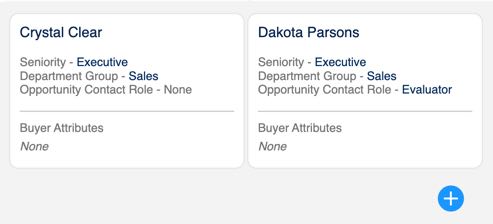
3. To edit a contact, do one of the following.
- If the contact is shown on the map, select the contact, and then click **Edit** in the side panel. Update the contact's details, and then click **Save**.
- If the contact isn’t shown on the map, open **Incomplete Contacts** in the side panel. Next to the contact, click **Edit contact**. Update the contact's details, and then click **Save**.
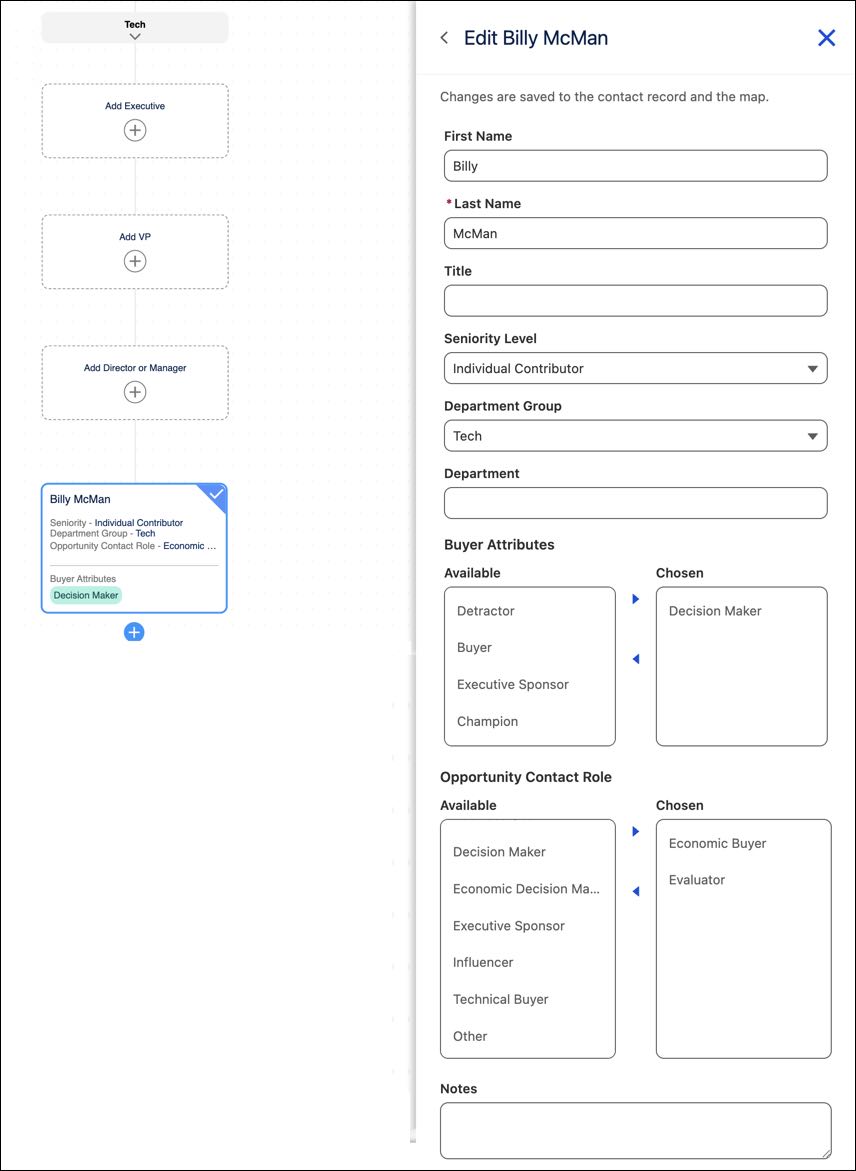
4. To remove a contact from the map, do one of the following.
- To delete the contact only from the map, select the contact, and then click **Remove**. Select **Remove from Relationship Map Only**, and then click **Remove**.
- To delete the contact from the opportunity or account, select the contact, and then click **Remove**. Select **Remove from Opportunity/Account**, and then click **Remove**.
#### See Also
- [How Automatic Contact Enhancements Works with the Buyer Relationship Map](https://help.salesforce.com/s/articleView?id=sales.contacts_buyer_rel_map.htm&release=264.0.0&type=5 "Automatic Contact Enhancements helps keep buyer relationship maps up-to-date so that you always have the most robust contact information without any manual data entry. Automatic Contact Enhancements uses generative AI to identify buyer attributes, department group, and seniority level from a user’s email activity. These values are then added to the contact and shown in the buyer relationship map.")
- [_Object Reference for the Salesforce Platform:_ Contact](https://developer.salesforce.com/docs/atlas.en-us.object_reference.meta/object_reference/sforce_api_objects_contact.htm)
# Access Einstein Coach Outside of a Sales Program
Receive feedback from Einstein Coach on a sales pitch whenever and as often as you like by accessing Einstein Coach in the Guidance Center. Get help perfecting your sales pitch at your convenience, as many times as is necessary.
### Required Editions
Available in: Lightning Experience
Available with Einstein for Sales with an Enablement add-on in Performance and Unlimited Editions and for an extra cost in Enterprise Edition
User Permissions Needed
To get feedback from Einstein Coach:
Take Enablement Programs
AND
Use Einstein Coach
1. Open the Guidance Center by clicking the Trailhead icon in the global navigation bar.
2. Scroll down and find the Einstein Coach tile.
3. Click **Get Feedback**.
4. Search for and select the product you want to practice a pitch for. Or to move forward without selecting a product, click **Skip This Step**.

Tip Selecting a product allows Einstein Coach to provide you with better and more specific feedback. Einstein Coach receives access to that product's data and uses it to better analyze your product pitch.
5. Record your sales pitch. Make sure the pitch includes only one speaker and is recorded using Zoom Meetings, Google Meet, or Microsoft Teams. Calls recorded outside of these supported video recording providers aren’t supported.
6. Select your recording from the dropdown menu.
Recordings can take time to appear in the dropdown menu. If you recorded a single-user video call by using a supported recording provider and don’t see your recording, verify that the recording has a finished transcript available in the video call’s record.
7. Click **Request Feedback from Einstein**.
8. Review the feedback you received.
The feedback you receive from Einstein Coach isn't saved. To refer to it again, consider copying and pasting the feedback to another location or taking a screenshot. At the end of the exercise you can rate how helpful the feedback you received was and then try another pitch. The feedback you provide on this exercise is shared with Salesforce so we can continue improve the use of Einstein Coach.
# Access Enablement Site Content on Mobile Devices
Learners can access enablement site content from anywhere using the Trailhead GO app on their iOS, iPadOS®, or Android™ device. Learners can earn badges and points in the app.
### Required Editions
Available in: Enterprise, Performance, and Unlimited Editions
User Roles
This topic supports these enablement site roles:
Learners
The steps to access enablement site content from the Trailhead GO app depend on the authentication provider that your enablement site uses.
## Access with Salesforce Identity for Enablement
If you’re logging in to an enablement site that uses Salesforce Identity for Enablement authentication, follow the [link that you receive from your Salesforce admin](https://help.salesforce.com/s/articleView?id=sales.mth_trailhead_go_sifm_login.htm&release=264.0.0&type=5 "If your enablement site uses Salesforce Identity for Enablement authentication, users can access content in the Trailhead GO mobile app only by following a correctly formatted login URL. Create a link in the required format, test the link to verify that it works correctly, and share it with your users.").
After you log in, you can access only your enablement site—you can’t switch to access Trailhead content using the same credentials. To switch to Trailhead content, log out of the app, and then log back in with your Trailhead credentials.
## Access with Trailblazer.me (TBID)
If you’re logging in to an enablement site that uses TBID authentication, complete these steps.
1. Log in to the app with your Salesforce username and password.
2. Click **More**.
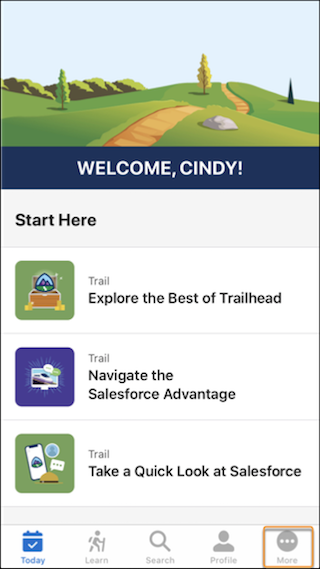
3. Click your name.
4. From the org picker, select your enablement site's subdomain name, and click **Continue**.
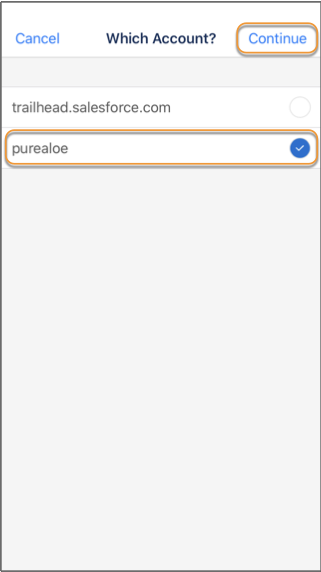
To switch to public Trailhead content, follow the same steps, but select the trailhead.salesforce.com domain instead.

Note If you switch your enablement site's authentication provider from TBID to Salesforce Identity for Enablement, learners can notice issues with the org picker in Trailhead GO. For more information, check out [Request to Switch Your Authentication Provider](https://help.salesforce.com/s/articleView?id=sales.mth_identity_change.htm&release=264.0.0&type=5 "If you selected Trailblazer.me (TBID) for your enablement site’s authentication provider, you can submit a Salesforce Customer Support case to request to switch to Salesforce Identity for Enablement. If you already selected Salesforce Identity for Enablement for your enablement site’s authentication provider, you can’t request to switch it to TBID.").
#### See Also
- [Authenticate Users to an Enablement Site on Mobile Devices (Salesforce Identity for Enablement)](https://help.salesforce.com/s/articleView?id=sales.mth_trailhead_go_sifm_login.htm&release=264.0.0&type=5 "If your enablement site uses Salesforce Identity for Enablement authentication, users can access content in the Trailhead GO mobile app only by following a correctly formatted login URL. Create a link in the required format, test the link to verify that it works correctly, and share it with your users.")
- [Considerations for Selecting an Authentication Provider](https://help.salesforce.com/s/articleView?id=sales.mth_considerations_for_choosing_mytrailhead_identity.htm&release=264.0.0&type=5 "To help you determine which authentication provider is right for your company’s enablement site, review how each provider affects your learning and enablement strategy. We recommend that all new enablement sites choose Salesforce Identity for Enablement.")
- [Request to Switch Your Authentication Provider](https://help.salesforce.com/s/articleView?id=sales.mth_identity_change.htm&release=264.0.0&type=5 "If you selected Trailblazer.me (TBID) for your enablement site’s authentication provider, you can submit a Salesforce Customer Support case to request to switch to Salesforce Identity for Enablement. If you already selected Salesforce Identity for Enablement for your enablement site’s authentication provider, you can’t request to switch it to TBID.")
# Access Inbound Email Snapshots
Access your snapshots to troubleshoot inbound email issues.
### Required Editions
Available in: Lightning Experience and Salesforce Classic
Available in: All Editions except for Database.com
User Permissions Needed
To request, view, download, and delete email snapshots:
Modify All Data
1. To enable inbound email snapshots, contact Salesforce.
2. To access inbound email, from Setup, enter Email Snapshots in the Quick Find box, then select **Email Snapshots**.
# Access Migrated Configurations and Add Einstein Activity Capture Features
Now that your settings are moved, get familiar with the productivity-boosting features available to your users through Einstein Activity Capture and decide what you want to set up. Or you can adjust your previous sync settings.
### Required Editions
User Permissions Needed
To access the Lightning Sync migration tool:
Manage Users
AND
Manage Lightning Sync
AND
Customize
Application
After your Lightning Sync settings are moved, you can access and update your migrated configurations from Einstein Activity Capture settings in Setup. To see certain features, your users must have the Einstein Activity Capture permission.
- Users can access features that were available with Lightning Sync without the Einstein Activity Capture permission. Users see those features as soon as you update and save configurations.
- To access Einstein Activity Capture features that weren’t available in Lightning Sync, such as Einstein Email Insights, users must have the Einstein Activity Capture permission.
Get to Einstein Activity Capture settings by following the link from the Lightning Sync page in Setup. Or, from Setup, in the Quick Find box, enter Einstein Activity Capture, and then select **Settings**.
From the Settings page, click the Configurations tab. Your former Lightning Sync configurations, which are now Einstein Activity Capture configurations, are listed there. Open the configurations that you want to update. Then update settings or features. Here’s a list of options.
1. Update any contact or event sync settings that you were using with Lightning Sync. These changes roll out to users as soon as you save the configuration. If the change affects your users’ workflow, we recommend that you notify users before you save the configuration. For example, if event sync was turned off during migration because [a Lightning Sync setting wasn’t supported](https://help.salesforce.com/s/articleView?id=sales.lightning_sync_move_steps_check.htm&type=5&language=en_US), you can notify users to prepare their calendars, and then turn on sync for all events.
1. Open the configuration that you want to update.
2. Enable the Events option.
3. Select a sync direction for events. You can use the same sync direction that you used with Lightning Sync, or select a new one.
4. On the Advanced Sync Settings tab, consider setting Filter by End Date to TODAY. Doing so prevents all of users’ Outlook events from the past 180 days from syncing to Salesforce. If you had any other event filters and sync settings on your Lightning Sync configuration, those items are already enabled on the migrated configuration. Adjust as-needed.
5. Save the configuration.
2. Automatically show emails on the activity timeline of relevant Salesforce contacts, leads, accounts, contracts, opportunities, and quotes. The Einstein Activity Capture permission is required to roll out this change to users.
1. Open the configuration that you want to update.
2. Enable the Email option.
3. Save the configuration.
3. Show relevant [Einstein Email Insights](https://help.salesforce.com/articleView?id=sales.einstein_sales_setup_enable_email_insights.htm&type=5&language=en_US) in the activity timeline and on email detail pages in Salesforce. The Einstein Activity Capture permission is required to roll out this change to users.
4. [Exclude users from adding emails or events](https://help.salesforce.com/articleView?id=sales.aac_add_excluded_addresses_for_org.htm&type=5&language=en_US) from specific users or companies to Salesforce. The Einstein Activity Capture permission is required to roll out this change to users.
5. Set default [activity sharing](https://help.salesforce.com/articleView?id=sales.aac_set_default_activity_sharing.htm&type=5&language=en_US). This Einstein Activity Capture permission is required to roll out this change to users.
When you’re ready, finish your migration by assigning Einstein Activity Capture permissions to any users who still don’t have it.
# Access Salesforce for Outlook Settings and Tools (Retiring)
Access Salesforce for Outlook settings and tools through the system tray application.
### Required Editions
Available with the purchase of Sales Cloud or Government Cloud in: Personal, Contact Manager, Professional, Enterprise, Performance, Unlimited, and Developer Editions

Important Full product retirement for Salesforce for Outlook is scheduled on January 30, 2027. See [Salesforce for Outlook Retirement](https://help.salesforce.com/s/articleView?id=000393445&type=1&mode=1&language=en_US). To keep integrating Microsoft Outlook with Salesforce, check out our next-generation products: the Outlook integration and Einstein Activity Capture. See [Move from Salesforce for Outlook (Retiring) to the Next-Generation Products](https://help.salesforce.com/articleView?id=outlookcrm_sfo_move_parent.htm&language=en_US).
After you install Salesforce for Outlook, an icon  appears in your Microsoft® Windows system tray.

From the system tray icon, you can:
- [Sync Outlook and Salesforce items](https://help.salesforce.com/s/articleView?id=sales.outlookcrm_sync.htm&release=264.0.0&type=5 "Stop duplicating your contacts, events, and tasks in Outlook and Salesforce and start syncing between the two systems with Salesforce for Outlook.")
- [View your sync log](https://help.salesforce.com/s/articleView?id=sales.outlookcrm_log.htm&release=264.0.0&type=5 "The sync log records troubleshooting information for Salesforce for Outlook, including the number of records that had errors and the number of records that were created, updated, or deleted during sync.")
- [Resolve your unresolved synced items](https://help.salesforce.com/s/articleView?id=sales.outlookcrm_unresolved_items.htm&release=264.0.0&type=5 "Einstein Activity Capture, Lightning Sync, Salesforce for Outlook (Retiring), and Email to Salesforce let you integrate the work you do from your email and calendar applications with Salesforce. Microsoft or Google items that aren’t automatically associated with Salesforce records appear in My Unresolved Items. Sales reps can review the unresolved items and associate them manually.")
- [Manage your Salesforce for Outlook configuration](https://help.salesforce.com/s/articleView?id=sales.outlookcrm_personal_configs.htm&release=264.0.0&type=5 "Depending on whether your administrator lets you change your settings, customize Salesforce for Outlook to fit your specific needs.")
- [Manage which Outlook items sync with Salesforce](https://help.salesforce.com/s/articleView?id=sales.outlookcrm_sync_categories.htm&release=264.0.0&type=5 "Manage your contacts, events, and tasks using Outlook categories to get your Outlook items to sync with Salesforce the way you want—by either selecting the items you want to sync, or syncing all your items, and selecting the items you want to prevent from syncing.")
- [Change your login information](https://help.salesforce.com/s/articleView?id=sales.outlookcrm_settings.htm&release=264.0.0&type=5 "If your Salesforce username or password changes, you need to update your login information in Salesforce for Outlook.")
- [Hide alerts](https://help.salesforce.com/s/articleView?id=sales.outlookcrm_alerts.htm&release=264.0.0&type=5 "If you don’t want to see system tray alerts for sync and other errors, you can hide them.")
- [View errors](https://help.salesforce.com/s/articleView?id=sales.outlookcrm_errors.htm&release=264.0.0&type=5 "Whenever Salesforce for Outlook has problems syncing your data, the system tray icon changes to an error icon, and the status text at the top of the system tray shortcut menu displays the number of errors.")
- [Change your sync folders](https://help.salesforce.com/s/articleView?id=sales.outlookcrm_change_folders.htm&release=264.0.0&type=5 "If you want to sync contacts, events, and tasks between Microsoft® Outlook® and Salesforce, you can set up Salesforce for Outlook to sync items in the Outlook folders of your choice.")
- Access the Salesforce for Outlook online help
Access the System Tray Application
- If you don't see the icon, restart the application by double-clicking the Salesforce for Outlook shortcut on your desktop or the application in your computer's Programs directory (**Start** | **All Programs** | **salesforce.com** | **Salesforce for Outlook**).
- If the icon is disabled (), you need to start Outlook.
- If you don’t see the icon, click the arrow next to the system tray and drag the Salesforce for Outlook icon to the system tray.
- **[View the Salesforce for Outlook (Retiring) Sync Log](https://help.salesforce.com/s/articleView?id=sales.outlookcrm_log.htm&release=264.0.0&type=5)**
The sync log records troubleshooting information for Salesforce for Outlook, including the number of records that had errors and the number of records that were created, updated, or deleted during sync.
- **[Change Your Salesforce for Outlook (Retiring) Login Information](https://help.salesforce.com/s/articleView?id=sales.outlookcrm_settings.htm&release=264.0.0&type=5)**
If your Salesforce username or password changes, you need to update your login information in Salesforce for Outlook.
- **[Change Your Salesforce for Outlook (Retiring) Sync Folders](https://help.salesforce.com/s/articleView?id=sales.outlookcrm_change_folders.htm&release=264.0.0&type=5)**
If you want to sync contacts, events, and tasks between Microsoft® Outlook® and Salesforce, you can set up Salesforce for Outlook to sync items in the Outlook folders of your choice.
- **[Hide Salesforce for Outlook (Retiring) Alerts](https://help.salesforce.com/s/articleView?id=sales.outlookcrm_alerts.htm&release=264.0.0&type=5)**
If you don’t want to see system tray alerts for sync and other errors, you can hide them.
- **[View Salesforce for Outlook (Retiring) Errors](https://help.salesforce.com/s/articleView?id=sales.outlookcrm_errors.htm&release=264.0.0&type=5)**
Whenever Salesforce for Outlook has problems syncing your data, the system tray icon changes to an error icon, and the status text at the top of the system tray shortcut menu displays the number of errors.
- **[Remove Customer Data from Your Salesforce for Outlook (Retiring) Logs](https://help.salesforce.com/s/articleView?id=sales.outlookcrm_remove_logs.htm&release=264.0.0&type=5)**
If you’re required to delete customer data from Salesforce, in addition to removing records, you’re required to delete the Salesforce for Outlook logs saved to your computer.
# Access the Mileage Administration Implementation Guide
Get full details for simplifying activity and distance tracking in timesheets when your reps rely on Salesforce Maps for visiting customers. Specify distance parameters that qualify for reimbursements and establish an approval process for timesheets. Your reps then get to spend more time building business with customers and less time on administrative tasks.
### Required Editions
Download [Salesforce Maps Mileage Administration Implementation Guide](https://resources.docs.salesforce.com/rel1/doc/en-us/static/pdf/salesforce_maps_mileage_administration_implementation_guide.pdf) in English.
# Access the Trailmaker Apps
Users with permission to access Trailmaker Content, Trailmaker Release, or Trailmaker Settings can access the apps through the enablement site user menu.
### Required Editions
Available in: Enterprise, Performance, and Unlimited Editions
User Roles
This topic supports these enablement site
roles:
Salesforce Admins
Content Creators
Release Managers
Localization Team or Vendor
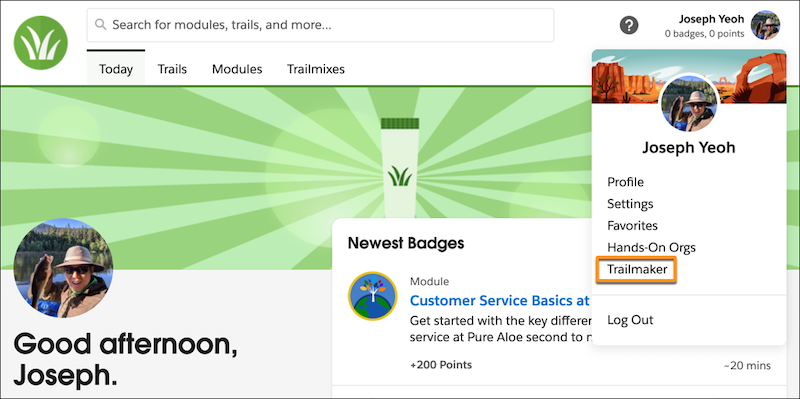
After a user logs in to your enablement site, they can access the Trailmaker apps by clicking their avatar and selecting Trailmaker.
Then, depending on the user’s enabled permissions, they can access the individual apps from separate tabs.
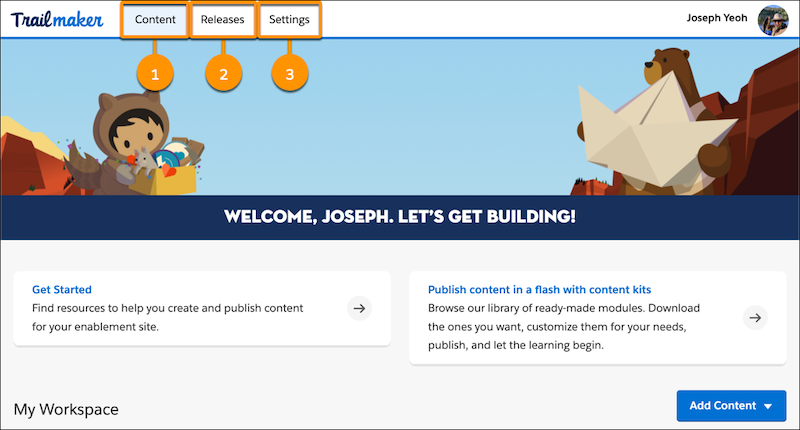
| App | User Permissions Required |
| --- | --- |
| Trailmaker Content (1) | Create Content |
| Trailmaker Release (2) | Manage Releases |
| Trailmaker Settings (3) | Manage Site Settings |
#### See Also
- [Supported Browsers and Apps for Enablement Sites](https://help.salesforce.com/s/articleView?id=sales.mth_mytrailhead_tools.htm&release=264.0.0&type=5 "To help ensure that your company’s enablement experience is successful, learn about the different options for accessing content in the flow of work.")
- [Enablement Site User Menu Items](https://help.salesforce.com/s/articleView?id=sales.mth_user_menu.htm&release=264.0.0&type=5 "The menu that appears when a user clicks their avatar contains items for navigating different parts of your enablement site.")
- [Assign Permissions for Enablement Site Users](https://help.salesforce.com/s/articleView?id=sales.mth_assign_permissions.htm&release=264.0.0&type=5 "All your users—release managers, content creators, and learners—need the appropriate user permissions to access the appropriate features and fulfill their roles. A Salesforce admin configures user permissions in Setup in Salesforce.")
# Accommodate Prescheduled Visits
If reps have appointments on their calendars that Salesforce Maps Advanced didn’t generate, you can include them when you generate routes. Including prescheduled visits in the visit plan ensures that they count towards reps’ visit targets.
### Required Editions
Track manually scheduled visits in the output object for your visit plan. For example, if you use the Event object as your output (calendar) object, then event records represent manually scheduled visits.

Note If you designate an OAuth user, the OAuth user doesn’t consider private events during route optimization because the OAuth user doesn’t have access to other users’ private events.
1. In the dataset wizard, under Field Filters, add filter criteria to narrow down the records representing scheduled visits that you want to include in the dataset.
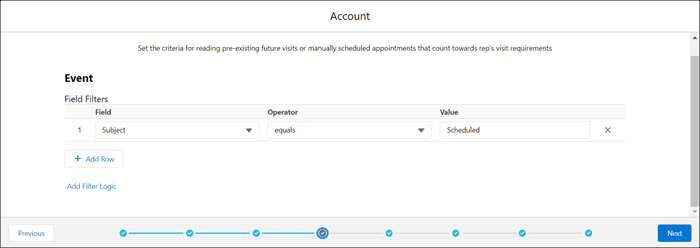
For example, reps use the Visit Type field in your routable object to indicate whether a customer visit is virtual or on-site. Under Field Filters, you set Visit Type to On-Site Meeting to include only on-site meeting records when you generate routes.
2. Click **Next**.
The object and fields that represent completed visits appear in the dataset wizard.

Example
The custom output object for your visit plan is based on the Consumer Goods Visit object. Reps can also create visits manually. When reps create a visit, they set the Call Type to Visit and the Status to Planned. You include this criteria as a filter to ensure that these visits are included when the rep generates routes.
# Account Contact Relationship Fields
Contacts to Multiple Accounts lets you associate a single contact to multiple accounts through the Account Contact Relationship object. Your page layout and field-level security settings determine which fields are visible and editable.
### Required Editions
Available in: both Salesforce Classic and Lightning Experience
Available in: Contact Manager, Group, Professional, Enterprise, Performance, Unlimited, and Developer Editions
Field
Description
Account
The name of the company the contact is related to.
Active
Indicates whether the contact is actively involved with the company.
Contact
The name of the person that’s related to the account.
Direct
Indicates whether the account associated with the contact is the contact's primary
account. This read-only field is based on the Account Name field on the
contact record. For example, on the Acme account record, the Related Contacts related list
automatically includes all contacts that have Acme in the Account Name
field and marks them as direct contacts.
End Date
The date a relationship between a contact and account ended. Use with the
Start Date field to keep a history of the relationship.
Roles
The contact’s participating role in the account; for example, Buyer, Decision Maker,
or Evaluator. You can select multiple roles for a contact. Customize the roles in the
picklist by editing the field.
This field is separate from the Role field on Account
Contact Roles.
Start Date
The date a relationship between a contact and account began. Use with the
End Date field to keep a history of the relationship.
#### See Also
- [Contacts to Multiple Accounts](https://help.salesforce.com/s/articleView?id=sales.shared_contacts_overview.htm&release=264.0.0&type=5 "People often work with more than one company. A business owner might own more than one company or a consultant might work on behalf of multiple organizations. Relate a single contact to multiple accounts so you can easily track the relationships between people and businesses without creating duplicate records.")
# Account Fields
Accounts have business account fields and person account fields.
### Required Editions
## Business Account Fields
Available in: Lightning Experience and Salesforce Classic
Business accounts available in: Essentials, Professional, Enterprise, Performance, Unlimited, and Developer Editions
Person accounts available in: Professional, Enterprise, Performance, Unlimited, and Developer Editions
A business account has these fields. Depending on your page layout and field-level security settings, some fields aren’t visible or editable.
| Field | Description |
| --- | --- |
| Account Currency | The default currency for all currency amount fields in the account. Amounts are shown in the account currency and are also converted to the user’s personal currency. Available only in orgs using multiple currencies. |
| Account Division | Division to which the account belongs. Records related to the account, such as contacts and opportunities, automatically inherit the account’s division. Available only in orgs using divisions to segment data. |
| Account Name | Name of company. Up to 255 characters are allowed in this field. |
| Account Name (Local) | The name of the account translated into the local language. |
| Account Number | Tracking or reference number for account. Up to 40 characters are allowed in this field. |
| Account Owner | Assigned owner of account. Not available in Personal Edition. |
| Account Record Type | The name of the field that determines what picklist values are available for the record. Available in Professional, Enterprise, Unlimited, Performance, and Developer Editions. |
| Account Site | Information about the account’s location, such as single location, Headquarters, or Branch. Up to 80 characters are allowed in this field. |
| Account Source | The source of the account record. For example, Advertisement or Trade Show. The source is selected from a picklist of available values, which a Salesforce admin sets. Each picklist value can have up to 40 characters. |
| Annual Revenue | Amount of annual reported revenue. |
| Billing City | City portion of billing address. Up to 40 characters are allowed. |
| Billing Country | Country portion of billing address. Entry is selected from a picklist of standard values or entered as text. If the field is a text field, up to 80 characters are allowed. |
| Billing State/Province | State or province portion of billing address. Entry is selected from a picklist of standard values or entered as text. If the field is a text field, up to 80 characters are allowed. |
| Billing Street | Street address used for billing. Up to 255 characters are allowed in this field. |
| Billing Zip/Postal Code | Zip or postal code portion of billing address. Up to 20 characters are allowed. |
| Created By | User who created the account, including creation date and time. (Read only) |
| Description | Description of account. Up to 32 KB of data is allowed in this field. Only the first 255 characters are shown in reports. |
| Employees | Number of people employed by the account. |
| Evaluate this account against territory rules on save | When checked, this field causes account assignment rules to run when the account is edited and saved. When customizing the page layout for accounts, a Salesforce admin can control whether this checkbox displays and whether it’s checked by default. |
| Exclude from territory assignment rules | When checked, this field shields the account from being evaluated when account assignment rules are run, preventing it from being automatically assigned to territories. Also, if the account is already assigned to territories as a result of assignment rules, checking this box removes the account from those territories. This checkbox only affects rule-based account assignments and has no effect on manual account assignments. |
| Fax | Fax number. Up to 40 characters are allowed in this field. |
| Industry | Primary business of account. Entry is selected from a picklist of available values, which a Salesforce admin sets. Each picklist value can have up to 40 characters. |
| Modified By | User who last changed the account fields, including modification date and time. This field doesn’t track changes made to any of the related list items on the account. (Read only) |
| Ownership | The ownership of the company, such as public or private. Entry is selected from a picklist of available values, which a Salesforce admin sets. Each picklist value can have up to 40 characters. |
| Parent Account | Parent company for companies that are subsidiaries of a larger company or organization. The parent account must be an existing account in Salesforce. You can enter the account name, or select (or optionally, create) the account using the lookup icon. |
| Partner Account | Read-only field that indicates whether an account is a partner account. |
| Phone | Primary phone number of account. Up to 40 characters are allowed in this field. |
| Rating | Categorization of how you rate this account, for example, Hot, Cold. Entry is selected from a picklist of available values, which a Salesforce admin sets. Each picklist value can have up to 40 characters. |
| Shipping City | City portion of primary mailing or shipping address. Up to 40 characters are allowed. |
| Shipping Country | Country portion of primary mailing or shipping address. Entry is selected from a picklist of standard values or entered as text. If the field is a text field, up to 80 characters are allowed. |
| Shipping State/Province | State or province portion of primary mailing or shipping address. Entry is selected from a picklist of standard values or entered as text. If the field is a text field, up to 80 characters are allowed. |
| Shipping Street | Primary mailing or shipping street address of account. Up to 255 characters are allowed. |
| Shipping Zip/Postal Code | Zip or postal code portion of primary mailing or shipping address. Up to 20 characters are allowed. |
| SIC Code | The standard Industrial Classification code of the account’s main business categorization. Up to 10 characters are allowed in this field. |
| SIC Description | A brief description of an organization’s line of business, based on its SIC code. |
| Ticker Symbol | The abbreviation used to identify publicly traded shares of a particular stock. Also known as the stock symbol. Up to 20 characters are allowed in this field. |
| Type | Type of account, for example, Customer, Competitor, or Partner. Entry is selected from a picklist of available values, which a Salesforce admin sets. Each picklist value can have up to 40 characters. |
| Custom Links | Listing of custom links for accounts that your Salesforce admin set up. |
| Website | URL of the account’s website. Up to 255 characters are allowed in this field, but only the first 50 characters are shown. |
## Person Account Fields
A person account has these fields. Depending on your page layout and field-level security settings, some fields aren’t visible or editable. Fields with a prefix Person or suffix \_pc are contact fields that are supported for person accounts but not business accounts.
This list doesn’t include custom fields that your Salesforce admin has created. Both account and contact custom fields are available for person accounts.

Note To set field-level security on a Person Account field, set security on the corresponding Contact field. The Person Account field inherits the same security setting from the Contact field. You can't specify a different security setting on a Person Account field compared to the corresponding Contact field.
Field
Description
Is Contact Field
Account Currency
The default currency for all currency amount fields in the account. Amounts are
displayed in the account currency and are also converted to the user’s personal
currency. Available only in orgs using multiple currencies.
No
Account Division
Division to which the account belongs. Records related to the account, such as
contacts and opportunities, automatically inherit the account’s division. Available
only in orgs using divisions to segment data.
No
Account Name
The name of the individual. For person accounts, the account name can’t be
edited directly. Instead, Salesforce derives it by combining the First Name and Last
Name fields in the appropriate order per the user's language setting. If Middle Name
and Suffix fields have been enabled for the org, those fields are also included in
the account name.
No
Account Name (Local)
The name of the account translated into the local language.
No
Account Number
Tracking or reference number for account. Up to 40 characters are allowed in
this field.
No
Account Owner
Assigned owner of account. Not available in Personal Edition.
No
Account Record Type
The name of the field that determines what picklist values are available for
the record. Available in Professional, Enterprise, Unlimited, Performance, and
Developer Editions.
No
Account Site
Information about the account’s location, such as single
location, Headquarters, or
Branch. Up to 80 characters are allowed in this field.
No
Annual Revenue
Amount of annual reported revenue.
No
Assistant
The contact’s assistant. Maximum 40 characters.
Yes
Asst. Phone
The assistant’s phone number. Maximum 40 characters.
Yes
Billing City
City portion of billing address. Up to 40 characters are allowed.
No
Billing Country
Country portion of billing address. Entry is selected from a picklist of
standard values or entered as text. If the field is a text field, up to 80
characters are allowed.
No
Billing State/Province
State or province portion of billing address. Entry is selected from a picklist
of standard values or entered as text. If the field is a text field, up to 80
characters are allowed.
No
Billing Street
Street address used for billing. Up to 255 characters are allowed in this
field.
No
Billing Zip/Postal Code
Zip or postal code portion of billing address. Up to 20 characters are
allowed.
No
Birthdate
The contact’s birthday. Click the field, and then choose a date from the
calendar.
Yes
Created By
User who created the account, including creation date and time. (Read
only)
No
Custom Links
Listing of custom links for accounts that your Salesforce admin set up.
No
Department
The associated business or organizational unit. Maximum 80 characters.
Yes
Description
Description of account. Up to 32 KB of data is allowed in this field. Only the
first 255 characters are shown in reports.
No
Do Not Call
Whether the contact allows phone calls.
Yes
Email
The contact’s email address. A valid email address is required. Maximum 80
characters.
Yes
Email Opt Out
Whether the contact (person account) wants to
receive email (false) or not (true).
Yes
Employees
Number of people employed by the account.
No
Engagement History
A chart showing the person account's inbound and outbound engagements for the
last 30 days. Available with Sales Engagement.
No
Evaluate this account against territory rules on save
When checked, this field causes account assignment rules to run when the
account is edited and saved. When customizing the page layout for accounts, an
administrator can control whether this checkbox displays and whether it’s checked by
default.
No
Exclude from territory assignment rules
When checked, this field shields the account from being evaluated when account
assignment rules are run, preventing it from being automatically assigned to
territories. Also, if the account is already assigned to territories as a result of
assignment rules, checking this box removes the account from those territories. This
checkbox only affects rule-based account assignments and has no effect on manual
account assignments.
No
Fax
Fax number. Up to 40 characters are allowed in this field.
No
Fax Opt Out
Whether the contact wants to be included in broadcast faxes.
Yes
First Name
The first or given name of the individual. Up to 40 characters are allowed in
this field.
Yes
Gender Identity
The contact's personal and self-identified experience of their gender, which
sometimes doesn’t correspond to the contact's designated sex at birth.
Yes
Home Phone
The contact’s home phone number. Maximum 40 characters.
Yes
Industry
Primary business of account. Entry is selected from a picklist of available
values, which a Salesforce admin sets. Each picklist value can have up to 40
characters.
No
Last Name
The surname or family name of the individual. Up to 80 characters are allowed
in this field.
Yes
Lead Source
The record source: for example, Advertisement, Partner, or Web. The entry is
selected from a picklist of available values, which the administrator sets. Maximum
40 characters for each picklist value.
Yes
Mailing City
The city in the mailing address. Maximum 40 characters.
Yes
Mailing Country
The mailing country for the address. Entry is selected from a picklist of
standard values, or entered as text. Up to 80 characters are allowed if the field is
a text field.
Yes
Mailing State/Province
The mailing state or province for the address. Entry is selected from a
picklist of standard values, or entered as text. Up to 80 characters are allowed if
the field is a text field.
Yes
Mailing Street
The street in the mailing address. Maximum 255 characters.
Yes
Mailing Zip/Postal Code
The zip or postal code in the mailing address. Maximum 20 characters.
Yes
Middle Name
Middle name of the individual. Up to 40 characters are allowed for this
field.
To enable this field, contact Salesforce Customer Support. Next, from
Setup, enter User Interface in the Quick Find box, then
select User Interface. Then select Enable Name
Suffixes for Person Names.
Yes
Mobile
The contact’s mobile phone number. Maximum 40 characters.
Yes
Modified By
User who last changed the account fields, including modification date and time.
This field doesn’t track changes made to any of the related list items on the
account. (Read only)
No
Other City
The city in another address for the contact. Maximum 40 characters.
Yes
Other Country
Another country for the address. Entry is selected from a picklist of standard
values, or entered as text. Up to 80 characters are allowed if the field is a text
field.
Yes
Other Phone
Another phone number for the contact. Maximum 40 characters.
Yes
Other State/Province
Another state or province for the address. Entry is selected from a picklist of
standard values, or entered as text. Up to 80 characters are allowed if the field is
a text field.
Yes
Other Street
The street address in another address for the contact. Maximum 255 characters.
Yes
Other Zip/Postal Code
The zip or postal code in another address for the contact. Maximum 20
characters.
Yes
Ownership
The ownership of the company, such as public or private. Entry is selected from
a picklist of available values, which a Salesforce admin sets. Each picklist value
can have up to 40 characters.
No
Phone
Primary phone number of account. Up to 40 characters are allowed in this
field.
No
Pronouns
The contact's personal pronouns, reflecting their gender identity. The entry is
selected from a picklist of available values, which the administrator sets. Maximum
40 characters.
Yes
Rating
Categorization of how you rate this account, for example, Hot, Cold. Entry is
selected from a picklist of available values, which a Salesforce admin sets. Each
picklist value can have up to 40 characters.
No
Reports To
The name of the person account’s manager. Enter a person account or contact
name, or select a person account or contact from the list.
Yes
Salutation
The title for addressing the contact, for example, Mr., Ms., or Dr. The entry
is selected from a picklist of available values, which the administrator sets.
Maximum 40 characters.
Yes
Shipping City
City portion of primary mailing or shipping address. Up to 40 characters are
allowed.
No
Shipping Country
Country portion of primary mailing or shipping address. Entry is selected from
a picklist of standard values or entered as text. If the field is a text field, up
to 80 characters are allowed.
No
Shipping State/Province
State or province portion of primary mailing or shipping address. Entry is
selected from a picklist of standard values or entered as text. If the field is a
text field, up to 80 characters are allowed.
No
Shipping Street
Primary mailing or shipping street address of account. Up to 255 characters are
allowed.
No
Shipping Zip/Postal Code
Zip or postal code portion of primary mailing or shipping address. Up to 20
characters are allowed.
No
SIC Code
The standard Industrial Classification code of the account’s main business
categorization. Up to 10 characters are allowed in this field.
No
Suffix
Name suffix of the individual. Up to 40 characters are allowed for this
field.
To enable this field, contact Salesforce Customer Support. Next, from
Setup, enter User Interface in the Quick Find box, then
select User Interface. Then select Enable Name
Suffixes for Person Names.
Yes
Title
The contact’s position within the organization. Maximum 80 characters. When
converting a lead to a person account, the conversion fails if the lead Title field
contains more than 80 characters.
Yes
Total Cadences
The number of Sales Engagement cadences the person account is assigned to. This
field is only available in list views.
No
Type
Type of account, for example, Customer, Competitor, or Partner. Entry is
selected from a picklist of available values, which a Salesforce admin sets. Each
picklist value can have up to 40 characters.
No
Website
URL of the account’s website. Up to 255 characters are allowed in this field;
only the first 50 are displayed.
No
#### See Also
- [Accounts](https://help.salesforce.com/s/articleView?id=sales.accounts.htm&release=264.0.0&type=5 "Use accounts to store information about customers or individuals you do business with. There are two types of accounts. Business accounts store information about companies. Person accounts store information about individual people.")
# Account for Ramp and Seasonality When Planning Quotas
Anticipate ramp-up time for new reps and consider tenure of experienced ones when you plan quotas. Also, consider seasonal sales patterns and other realities that affect your business in Quota Planning.
### Required Editions
Available in: both Salesforce Classic (not available in all orgs) and Lightning Experience
Available for an additional cost in: Enterprise, Performance, Unlimited, and Developer Editions with Sales Planning in English only, and only if you have Web Services API enabled
User Permissions
Needed
To plan quotas:
One of these:
Sales Planning Admin permission set
Sales Planning Ops Manager permission set
Sales Planning Ops Analyst permission set
1. In Sales Planning, open a sales plan and click **Settings**.
2. Specify seasonal adjustments and add ramp profiles.
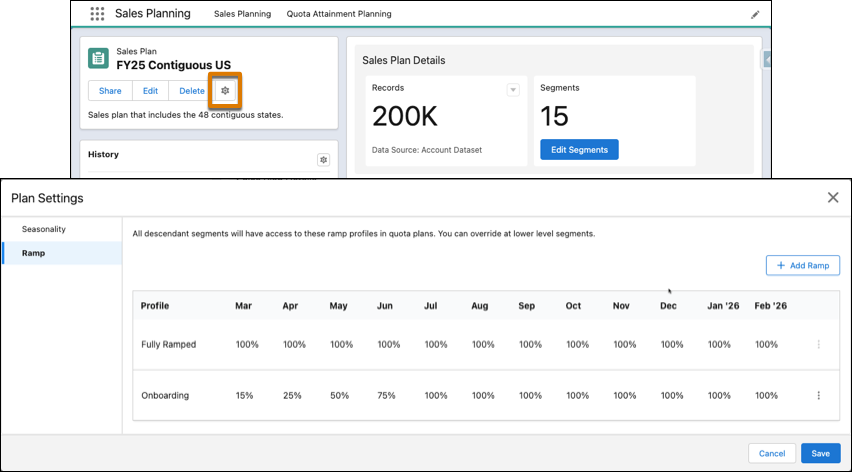
3. Save your changes.
4. To account for a rep’s ramp in a quota plan, hover over the rep’s territory and select **Open**. Then select a ramp profile.
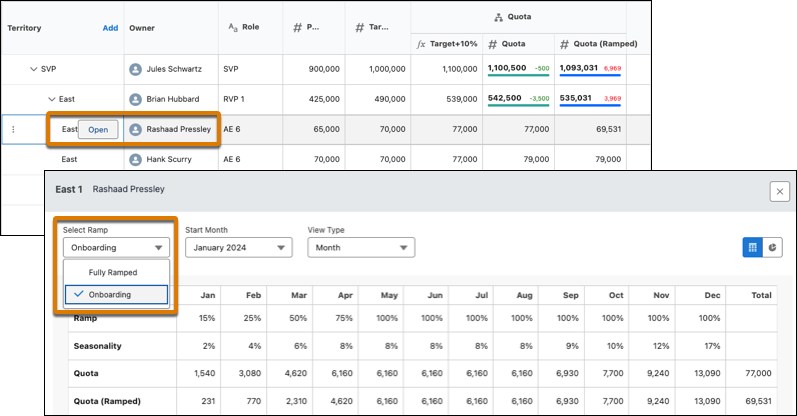
Ramp-adjusted quotas appear in the Quota (Ramped) column.
# Account History
Use the Account History related list on an account detail page to track the changes to the account.
### Required Editions
Available in: Salesforce Classic
Business accounts available in: All Editions except
Database.com
Person accounts available in Enterprise,
Performance, Unlimited, and Developer Editions
User Permissions Needed
To view accounts:
Read on accounts
Any time a user modifies any of the standard or custom fields whose history is set to be tracked on the account, a new entry is added to the Account History related list. For person accounts, this addition includes any relevant contact fields that are set to be tracked. All entries include the date, time, nature of the change, and who made the change. Modifications to the related lists on the account are not tracked in the account history.
#### See Also
- [Field History Tracking](https://help.salesforce.com/s/articleView?id=xcloud.security_field_history_tracking.htm&type=5&language=en_US)
# Account Intelligence View
To help you prioritize your records based on activity and opportunity data, the Account Intelligence view adds more capabilities to the standard list view. See account activity, scan vital opportunity metrics, review cases, and log activities, all in one dedicated workspace.
### Required Editions
Available in: Lightning Experience
Available with Sales in: Professional, Enterprise, Performance, and Unlimited Editions
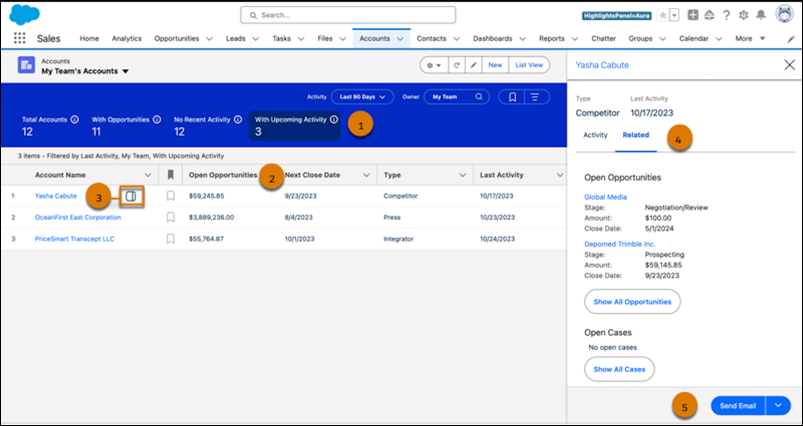
You can quickly filter your accounts with one click (1), see opportunity metrics at a glance (2), and identify recently active accounts in one dedicated workspace. To see detailed activity and related records for individual accounts, click the side panel icon (3) next to the account name. Review related case and opportunity records (4), log tasks or send emails (5) right from the side panel.
Account metrics include these details.
- Total Accounts: The total number of accounts that meet your filter criteria.
- With Opportunities: The number of accounts with open opportunities.
- No Recent Activity: The number of accounts with no activities completed in the last 30 days.
- With Upcoming Activity: The number of accounts with activities scheduled in the next 30 days.
Personalize your list view by creating filters and selecting which fields to show. To ensure your filter criteria persist, set them in the filter panel with the with the Show Filters button.
- **[Considerations for the Account Intelligence View](https://help.salesforce.com/s/articleView?id=sales.account_intelligence_view_considerations.htm&release=264.0.0&type=5)**
Get the most out of the Account Intelligence view by first reviewing some important considerations.
- **[Guidelines for the Account Intelligence View](https://help.salesforce.com/s/articleView?id=sales.account_intelligence_view_guidelines.htm&release=264.0.0&type=5)**
Streamline your workflow by keeping a few guidelines about the Account Intelligence view in mind.
- **[Turn On the Account Intelligence View](https://help.salesforce.com/s/articleView?id=sales.account_intelligence_view_set_up.htm&release=264.0.0&type=5)**
To view account activities, see vital account metrics, and access related records in one dedicated workspace, turn on the Account Intelligence view.
#### See Also
- [Considerations for the Account Intelligence View](https://help.salesforce.com/s/articleView?id=sales.account_intelligence_view_considerations.htm&release=264.0.0&type=5 "Get the most out of the Account Intelligence view by first reviewing some important considerations.")
- [Guidelines for the Account Intelligence View](https://help.salesforce.com/s/articleView?id=sales.account_intelligence_view_guidelines.htm&release=264.0.0&type=5 "Streamline your workflow by keeping a few guidelines about the Account Intelligence view in mind.")
- [Work with List Views in Lightning Experience](https://help.salesforce.com/s/articleView?id=xcloud.basics_understanding_list_views_lex.htm&type=5&language=en_US)
# Account Management with AI
Anchor your entire sales strategy with the help of generative AI. When you turn on Account Management, the Sales agent helps sales reps research accounts, build briefings on business priorities and industry trends, prepare for meetings, and keep key account fields up to date. Reps spend less time managing accounts and more time building customer relationships.
### Required Editions
Available in: Lightning Experience
Available in: Enterprise, Performance, Unlimited, and Developer Editions with the Agentforce for Sales or Agentforce for an Industry add-on, or included in Agentforce 1 Sales or an Industry Edition. Requires each user to have the Agentforce for Sales or Agentforce for an Industry add-on to access the actions.
- **[Considerations for Agentforce Account Management](https://help.salesforce.com/s/articleView?id=sales.account_mgmt_considerations.htm&release=264.0.0&type=5)**
Before you use Agentforce Account Management, keep these considerations in mind.
- **[Agentforce Account Management Overview](https://help.salesforce.com/s/articleView?id=sales.account_mgmt_overview.htm&release=264.0.0&type=5)**
Learn how Agentforce Account Management helps sales teams to research accounts, identify strategic opportunities, and keep account fields up to date.
- **[Agentforce Account Management Permissions](https://help.salesforce.com/s/articleView?id=sales.account_mgmt_perms.htm&release=264.0.0&type=5)**
You use permission set groups to assign permissions to an AI agent or to an individual user. The Salesforce access controls that you put in place, such as licenses, permissions, and sharing settings, determine what each type of user can access.
- **[Set Up Agentforce Account Management](https://help.salesforce.com/s/articleView?id=sales.account_mgmt_setup.htm&release=264.0.0&type=5)**
Set up Agentforce Account Management so your sales team can research accounts, plan strategy, and keep account fields up to date.
- **[Agentforce Account Management Components](https://help.salesforce.com/s/articleView?id=sales.account_mgmt_components.htm&release=264.0.0&type=5)**
Learn about the subagents, actions, flows, and prompt templates that support Agentforce Account Management.
- **[Change the Search Provider for Agentforce Account Management](https://help.salesforce.com/s/articleView?id=sales.account_mgmt_change_search_provider.htm&release=264.0.0&type=5)**
Agentforce Account Management uses a default search provider for the Search The Web action to retrieve web data for account research. To optimize search quality and data recency for your accounts, change the search provider to one of your choices. Your agent uses the selected search provider for all web research requests, including interactions in Slack.
# Account Target Management
Account Target Management helps Sales Operations teams distribute financial targets across accounts in a structured, scalable way. By combining top-down targets from finance with bottom-up input from the field, teams better understand account potential and create territories that support realistic quota planning. This feature supports planning decisions rather than prescribing a single method. It provides visibility into how account-level targets roll up to territories, helping teams evaluate fairness, risk, and feasibility.
### Required Editions
Available in:
**Summary of Responsibilities**
| **Feature Area** | **Territory Planning (Ops/Admins)** | **Quota Planning (Leaders/Planners)** |
| --- | --- | --- |
| **Allocation Logic** | Defines logic (Even, Weighted, Bucketed) | Consumes the output |
| **Bottom-Up Data** | Reconciles field input with top-down goals | Reviews field input for context |
| **Overrides** | Applies overrides for data accuracy | Reviews overrides for fairness |
| **Goal** | Balanced Territories | Achievable Quotas |
- **[Quota Planning: Set and Refine Sales Goals](https://help.salesforce.com/s/articleView?id=sales.spm_qp_atm_quota_planners.htm&release=264.0.0&type=5)**
Once you define territories and calculate account targets, sales leadership and Quota Planners use this data to set final sales goals for representatives. In this phase, Account Target Management serves as a feasibility check.
- **[Territory Planning: Distribute Goals and Balance Territories](https://help.salesforce.com/s/articleView?id=sales.spm_qp_atm_territory_planners.htm&release=264.0.0&type=5)**
During the territory planning phase, sales operations and territory planners distribute goals and analyze territory balance. Because planners function as salesforce administrators in this context, they have full visibility into allocation methods, bucketing strategies, and logic adjustments.
# Account Team Fields
Account team member data is stored in standard fields. A user’s page layout determines which fields are visible, and a user’s access to the account determines which fields are editable.
### Required Editions
Available in: Lightning Experience and Salesforce Classic
Available in: Enterprise, Performance, Unlimited, and Developer Editions
Field
Description
Account Access
A team member’s level of access to an account. The access level can be Read/Write or
Read Only, but it can’t be less than the default account sharing access.
Case Access
A team member’s level of access to the cases associated with the account.
Contact Access
The level of access that a team member has to the contact on the account. The access
level can be Read/Write or Read Only, but it can’t be less than the default contact sharing
access.
The Contact Access field is unavailable when the organization-wide default for
contacts is set to Controlled by Parent.
Opportunity Access
The level of access that a team member has to the opportunities associated with the
account.
Team Member
A user listed as part of the team.
Team Role
The role that a team member plays for the account, such as account manager.
# Account-Based Selling
Empower sales teams to manage and grow key accounts strategically. With Salesforce tools such as Account Plans, Action Plans, and a suite of Einstein features, your sales reps gain deeper insights into account health, can forecast sales more accurately, and enjoy enhanced collaboration across teams.
### Required Editions
Available in: Lightning Experience
Available in: Enterprise, Performance, and Unlimited Editions with Sales
Einstein features available in: Enterprise, Performance, and Unlimited Editions with the Einstein for Sales add-on
- **[Sales Account Plans](https://help.salesforce.com/s/articleView?id=sales.account_plans.htm&release=264.0.0&type=5)**
Give your sales teams a dedicated workspace to nurture and grow key accounts. With sales account plans, sales teams can capture customer needs, analyze strengths and weaknesses, and define and track objectives with measurable metrics, all in one place.
- **[Sales Action Plans](https://help.salesforce.com/s/articleView?id=sales.sales_action_plans.htm&release=264.0.0&type=5)**
Provide accountability, visibility, and alignment on your sales account team members’ activities. With sales action plans, specify the tasks and events that you want users to achieve. Associate sales action plans with accounts, account plan objectives, cases, campaigns, contacts, contracts, leads, and opportunities.
- **[Sales Account Research](https://help.salesforce.com/s/articleView?id=sales.account_research.htm&release=264.0.0&type=5)**
Perform your external company research without leaving Salesforce. Use generative AI to gather valuable company insights such as competitive strengths and weaknesses, strategic initiatives, and key performance indicators. Then, to reduce research time and boost your ability to grow key accounts strategically, populate account and account plan fields with the results. For a personalized experience, create custom prompt templates with your own research topics.
# Accounting for Inter-Period Plan Changes for Reps
Make sure that reps who transition from one plan to another within a statement period are paid for the plan they were assigned to when the deal closed.
### Required Editions
Available in: both Salesforce Classic (not available in all orgs) and Lightning Experience
Available in: Enterprise, Unlimited, and Developer Editions
Available for an additional cost in: Professional Edition with Web Services API Enabled
When a rep switches plans at the beginning or end of a statement period, you can use the effective dates on their plan assignment to easily handle these changes. However, if a rep changes plans in the middle of the period, the rep is active on two plans during the period of change. By default, Salesforce Spiff calculates two statements for that period, one for each plan.
To change this behavior, find this default InPeriod data filter.
```
date_between?(CloseDate, BeginningOfPeriod, EndOfPeriod)
```
Then, update the parameters of this filter.
```
date_between?(CloseDate, SalesRep, Worksheet!PlanOrPeriodStartDate, SalesRep_Worksheet!PlanOrPeriodEndDate)
```
You still use the `date_between?()` function in the data filter to compare the CloseDate field to either of these values, based on the PlanOrPeriodStartDate and the PlanOrPeriodEndDate worksheet calculations.
- The Effective As of Date or Effective Until Date
- The statement period start or end date

The PlanOrPeriodStartDate calculation on the worksheet says that the CloseDate must be on or after one of the dates that the `if()` function determines. If the Effective As of Date field for a rep isn’t null and that date is on or after the first day of the statement period, use the Effective As of Date to begin listing deals. For example, a rep with an Effective As of Date of January 15 on their plan assignment sees only deals with close dates on or after January 15. The `if()` function's `false` parameter reads `statement_period.start_date`. If the Effective As of Date is empty or falls before the first day of the current period, deals begin listing on or after the first day of the statement period.

The PlanOrPeriodEndDate calculation does the same thing, but for Effective Until Date values. The CloseDate must be on or before one of dates that the `if()` function determines. If the rep's Effective Until Date isn't null and that date is on or before the last day of the statement period, that date is the last day for qualified deals. For example, a rep with an Effective Until Date of January 14 doesn't see deals in January after that date. The `if()` function's `false` parameter reads `statement_period.end_date`. If the Effective Until Date is empty or falls after the last day of the current period, deals stop listing on the last day of the statement period.
# Accounts
Use accounts to store information about customers or individuals you do business with. There are two types of accounts. Business accounts store information about companies. Person accounts store information about individual people.
### Required Editions
Business accounts available in: both Salesforce Classic and Lightning
Experience
Business accounts available in: All Editions
Person accounts available in: Both Salesforce Classic and Lightning
Experience
Person accounts available in Professional, Enterprise,
Performance, Unlimited, and Developer Editions

Note In Salesforce Help and other documentation, the word account by itself always refers to both business accounts and person accounts. We use the terms business accounts and person accounts when there are differences between the two types of accounts.
- **[Manage Accounts](https://help.salesforce.com/s/articleView?id=sales.accounts_manage.htm&release=264.0.0&type=5)**
Get the most out of accounts by merging duplicates, sharing accounts with the right people, seeing the history of an account, and more. And, get vital account metrics using the Account Intelligence view.
- **[Display Account Hierarchies](https://help.salesforce.com/s/articleView?id=sales.account_hierarchy_setup.htm&release=264.0.0&type=5)**
Give sales reps a bird’s-eye view of the relationships between parent accounts and their subsidiaries.
- **[Person Accounts](https://help.salesforce.com/s/articleView?id=sales.account_person.htm&release=264.0.0&type=5)**
By default, Salesforce accounts are business accounts. Business accounts store information about companies or other entities. Person accounts extend the standard business-to-business account functionality by allowing you to store information about individual consumers. Person accounts combine certain account fields and contact fields into one record. You can use both business accounts and person accounts in the same org.
- **[Administer Account Teams](https://help.salesforce.com/s/articleView?id=sales.accountteam_admin.htm&release=264.0.0&type=5)**
To help your account reps collaborate and improve customer relationships, turn on account teams and customize the account team layout.
- **[Collaborate on Accounts by Using Teams](https://help.salesforce.com/s/articleView?id=sales.accountteam.htm&release=264.0.0&type=5)**
When you collaborate on accounts with colleagues, use account teams to facilitate teamwork and track progress. Roles on a team can include an executive sponsor, a dedicated support agent, and a project manager, for example. Team members can be internal users or partner users.
- **[Things to Know About Accounts](https://help.salesforce.com/s/articleView?id=sales.accounts_supplemental.htm&release=264.0.0&type=5)**
Review additional considerations for accounts.
# Accounts as Campaign Members
To support your account-based marketing efforts, you can add an account or a person account to a campaign as a campaign member. Add accounts anywhere you normally add a campaign member, such as reports and related lists.
### Required Editions
Available in: Salesforce Essentials, Professional, Enterprise, Performance, Unlimited, and Developer Editions
- **[Considerations for Using Accounts as Campaign Members](https://help.salesforce.com/s/articleView?id=sales.campaigns_account_campaign_member_considerations.htm&release=264.0.0&type=5)**
Before you start using Accounts as Campaign Members, review these considerations.
- **[Enable Accounts as Campaign Members](https://help.salesforce.com/s/articleView?id=sales.campaigns_account_campaign_member_enable.htm&release=264.0.0&type=5)**
To let users include accounts in campaign member lists and reports, turn on the feature and update page layouts.
- **[Adding Accounts as Campaign Members](https://help.salesforce.com/s/articleView?id=sales.campaigns_account_campaign_member_add.htm&release=264.0.0&type=5)**
You can view and manage accounts, including person accounts, as campaign members in a few locations.
# Accumulated Variables in Accelerator Functions
An accumulated variable is often used with the initial\_value argument in the `mamount()` and `mpercent()` accelerator functions in Salesforce Spiff.
### Required Editions
Available in: both Salesforce Classic (not available in all orgs) and Lightning Experience
Available in: Enterprise, Unlimited, and Developer Editions
Available for an additional cost in: Professional Edition with Web Services API Enabled
In this example, retired quota determines commission rates. A rep receives a 4% commission for the first $150,000 of ARR closed. That same rep receives an 8% commission rate for the next $100,000 of ARR closed, but the 8% rate doesn’t apply to the initial $150,000 earned.
The rep has already closed $145,000 in ARR and then closes a new $20,000 deal. The $145,000 of previously closed ARR is the initial\_value for the `mamount()` or `mpercent()` function. Based on the range table, the first $5,000 of the new ARR is allocated to Tier 1 and the remaining $15,000 in ARR is allocated to Tier 2. The initial\_value of $145,000 represents an accumulated variable, or the accumulation of ARR for the designated time period.
If you measure quotas or performance quarterly or yearly, but statements are monthly, accumulated variables can help you track deals for a longer time period than your statement.
For example, a monthly statement shows deals closed only in the month by using a data filter such as ClosedByRepInPeriod. If the accumulation occurs quarterly, set the accumulation filter on the accumulated variable to ClosedByRepInQuarter. Only deals in the current month are visible, but the accumulation includes the entire quarter.

Note A quarterly statement period using a ClosedByRepInQuarter data filter can’t have an accumulated variable with a shorter duration than the given period. A ClosedInMonth accumulation filter on a quarterly statement period causes deals in the quarter that are outside the ClosedInMonth filter to show an error.
#### See Also
- [Accumulated Variables in Salesforce Spiff](https://help.salesforce.com/s/articleView?id=sales.spiff_accumulated_variable.htm&release=264.0.0&type=5 "An accumulated variable is like a running total, where Salesforce Spiff sums a field or value within a sorted data filter and returns a cumulative value up to a current record. An accumulated variable helps you quickly sum multiple values with fewer calculations.")
- [Considerations for Accelerator Functions in Salesforce Spiff](https://help.salesforce.com/s/articleView?id=sales.spiff_accelerator_functions.htm&release=264.0.0&type=5 "Salesforce Spiff provides several functions that support accelerators, including mamount(), mpercent(), range_lookup(), and tier_payout.")
- [mamount](https://help.salesforce.com/s/articleView?id=sales.spiff_function_ref_mamount.htm&release=264.0.0&type=5 "Returns the commission total for a deal in Salesforce Spiff, based on a range table and the rep's current attainment. To return a commission rate instead, use the mpercent() function.")
- [mpercent](https://help.salesforce.com/s/articleView?id=sales.spiff_function_ref_mpercent.htm&release=264.0.0&type=5 "Returns the commission rate for a deal in Salesforce Spiff, based on a range table and the rep's current attainment. To return a commission total amount instead, use the mamount() function.")
# Accumulated Variables in Salesforce Spiff
An accumulated variable is like a running total, where Salesforce Spiff sums a field or value within a sorted data filter and returns a cumulative value up to a current record. An accumulated variable helps you quickly sum multiple values with fewer calculations.
### Required Editions
Available in: both Salesforce Classic (not available in all orgs) and Lightning Experience
Available in: Enterprise, Unlimited, and Developer Editions
Available for an additional cost in: Professional Edition with Web Services API Enabled
For example, consider a data filter that returns five deals.
| Deal | Amount |
| --- | --- |
| Deal 1 | $500 |
| Deal 2 | $1,800 |
| Deal 3 | $750 |
| Deal 4 | $865 |
| Deal 5 | $1,350 |
If you're maintaining a running total of these amounts, each successive deal represents a different calculation. For a manual sum, each new deal increases the number of values to include in the sum calculation. With an accumulated variable, each new deal is a calculation of only the previous total plus the new value.
| Deal | Amount | Running Total with Manual Sum | Running Total with Accumulated Variable |
| --- | --- | --- | --- |
| Deal 1 | $500 | $500 | $500 |
| Deal 2 | $1,800 | $500 + $1,800 = $2,300 | $500 + $1,800 = $2,300 |
| Deal 3 | $750 | $500 + $1,800 + $750 = $3,050 | $2,300 + $750 = $3,050 |
| Deal 4 | $865 | $500 + $1,800 + $750 + $865= $3,915 | $3,050 + $865 = $3,915 |
| Deal 5 | $1,350 | $500 + $1,800 + $750 + $865 + $1,350= $5,265 | $3,915 + $1,350 = $5,265 |
For best performance, use the fewest calculations. Calculated fields compute one time for every record, and summary calculations compute one time for every statement. Consider how the calculation time scales over thousands of records. If you have 10,000 deals, the manual sum requires 50,005,000 calculations, but the accumulated variable requires only 19,999 calculations.
Keep these considerations in mind when working with accumulated variables.
- Pair an accumulated variable with the `mpercent()` and `mamount()` functions, which require an initial value. For example, if you're accumulating ARR, you can create a calculated field such as Prior\_YTD\_ARR that subtracts the current deal's ARR from the accumulated total.
- A common error with accumulated variables occurs when a record in the rule's data filter is missing from the accumulated variable's data filter. To identify and troubleshoot errors, create test data filters that include all the components needed for accumulation. Pair these test data filters so you can identify which subfilters are excluding the missing records.
- An accumulated variable can’t sort null values. For example, if some deals don't have a close date and you want to group them together at the start or end of sorted results, you must create a calculated field. To make sure that deals are sorted last, use a future date. You can also manipulate the sorting order with calculated fields.
- To improve performance, turn off trace.
- **[Turn on an Accumulated Variable in Salesforce Spiff](https://help.salesforce.com/s/articleView?id=sales.spiff_accumulated_variable_enable.htm&release=264.0.0&type=5)**
Analyze sales data and identify trends and patterns with accumulated variables.
- **[Examples of Manual Accumulated Variables with the Let Function](https://help.salesforce.com/s/articleView?id=sales.spiff_accumulated_variable_let.htm&release=264.0.0&type=5)**
Sometimes, an accumulated variable in Salesforce Spiff can't calculate an amount, so you must manually create accumulated variables by using the `let()` function.
#### See Also
- [Accumulated Variables in Accelerator Functions](https://help.salesforce.com/s/articleView?id=sales.spiff_accelerator_accumulated_variable.htm&release=264.0.0&type=5 "An accumulated variable is often used with the initial_value argument in the mamount() and mpercent() accelerator functions in Salesforce Spiff.")
# Accumulator Errors in Salesforce Spiff Data Filters
Accumulation starts with the data filter that a payout rule is based on and the data filter that the accumulator is using. When the accumulated value is referenced in the rule, Salesforce Spiff looks up the record’s accumulated value. An accumulator error occurs when the rule has a record that isn’t in the accumulated filter.
### Required Editions
Available in: both Salesforce Classic (not available in all orgs) and Lightning Experience
Available in: Enterprise, Unlimited, and Developer Editions
Available for an additional cost in: Professional Edition with Web Services API Enabled
These types of errors typically occur when a rule filter and accelerator filter aren't differentiated enough.
For example, maybe a rule and accumulator are both returning deals and renewals. But because renewals don't count toward quota relief, you want to exclude renewals from the accumulator. To resolve this error, update the accumulator filter to check the deal type and return $0 for renewals so that renewals no longer contribute to the accumulated value.
In another example, maybe a rule uses an InPeriod deals filter and an accumulator uses an InYear deals filter. Both the rule and accumulator return the same set of deals. Differentiate one of the rules. Maybe the rule has an OR statement to include a unique deal in the period, or the accumulator has an extra filter to exclude a specific deal in the period.
To help troubleshoot and identify which filter to update, try recreating data filters in the library and evaluate whether your test filters are accumulating too many records or accumulating an incorrect value.
If you want to avoid recreating complex filters, test in the Filters tab. Create a copy of a filter and add a filter for a record of set of records you want to test. Remove the original filters, one at a time, until you see records appear in the results, so that you can determine which filter was applied.
#### See Also
- [Accumulated Variables in Salesforce Spiff](https://help.salesforce.com/s/articleView?id=sales.spiff_accumulated_variable.htm&release=264.0.0&type=5 "An accumulated variable is like a running total, where Salesforce Spiff sums a field or value within a sorted data filter and returns a cumulative value up to a current record. An accumulated variable helps you quickly sum multiple values with fewer calculations.")
# Activate a Territory Model
When you’re satisfied with the structure of your territory model and its territory account assignments, you’re ready to activate it with Sales Territories. Remember that you can also maintain models in Planning and Archived states for further modeling and reference.
### Required Editions
Available in: Salesforce Classic for some features and Lightning Experience for all features
Available in: Performance and Developer Editions and in Enterprise and Unlimited Editions with Sales
User Permissions Needed
To activate a territory model:
View Setup and Configuration
AND
Manage Territories
One model can be in the Active state at one time. You can activate a model if it’s in the Planning state. After activating a model, you can’t reset it to Planning, but you can set it to Archived. If you use territory forecasts, ensure that opportunity revenue rolls up based on the newly activated territory hierarchy. To do so, consider running the opportunity territory assignment filter or assigning territories to opportunities manually or via the API.
1. Preview account assignments before activating the model.
2. Open the record for the territory model you want to activate and click **View Hierarchy**.
3. Click **Activate**.
The model state changes to Activating while Salesforce processes your request. Activation can take some time, depending on the size and complexity of your model. When the process is done, we send you an email to let you know.
#### See Also
- [How Do Permissions for Territories Affect Feature and Data Access?](https://help.salesforce.com/s/articleView?id=sales.tm2_how_access_permissions_work.htm&release=264.0.0&type=5 "Anticipate how permissions for Sales Territories affect administration and provide access to records and data.")
- [Territory Model State](https://help.salesforce.com/s/articleView?id=sales.tm2_territory_model_state.htm&release=264.0.0&type=5 "Territory model state indicates whether a territory is in the planning stage, in active use, or archived. You can have only one active territory model at a time. But you can create and maintain multiple models in planning or archived state to use for extra modeling or reference. Some states reflect a territory model’s lifecycle and others indicate errors in processing when states are changed.")
# Activate and Assign Custom Forecasts Pages
After building a custom forecasts page using Lightning App Builder, activate the page and assign it so sales leaders can see and use it. The page you built doesn’t appear until it’s activated.
### Required Editions
Available in: both Salesforce Classic and Lightning Experience
Available in: Professional, Performance, and Developer Editions and in Enterprise and Unlimited Editions with Sales
User Permissions Needed
To use Salesforce Forecasting:
View All Forecasts OR Allow Forecasting OR Delegated forecast manager status
To create pages in Lightning App Builder:
Customize Application
To view pages in Lightning App Builder:
View Setup and Configuration
1. Build a forecasts page or open one in Lightning App Builder.
2. Save the page and click **Activation**.
3. Select how you want to activate the page and follow the prompts to complete the activation.
- Set the page as the default for all users.
- Make the page the default home page for specific Lightning apps.
- Assign the page to a combination of Lightning apps and user profiles.
4. Save the activation settings.
As your sales process or needs change, make updates to activated pages or change the activation and assignments. Updates are reflected for users the next time they view the forecasts page.
#### See Also
- [Considerations for Custom Forecasts Pages](https://help.salesforce.com/s/articleView?id=sales.forecasts3_custom_page_considerations.htm&release=264.0.0&type=5 "Keep in mind important considerations and guidelines when building custom forecasts pages using Lightning App Builder.")
- [Lightning App Builder](https://help.salesforce.com/s/articleView?id=platform.lightning_app_builder_overview.htm&type=5&language=en_US)
# Activate and Configure Data Integration Rules
Activate data integration rules, map fields in your records to fields from a data service, and configure page layouts so that your sales team can view third-party data and update records.
### Required Editions
Available in: Professional, Enterprise, Performance, and Unlimited Editions
User Permissions Needed
To activate or deactivate data integration rules:
Customize Application
- **[Activate the Data Integration Rule for a Data Service](https://help.salesforce.com/s/articleView?id=sales.ddc_data_integration_rule_activating.htm&release=264.0.0&type=5)**
Automatically match records to current information in a data service by activating a Lightning Data package rule, a geocode rule, or a company info rule. When a user edits a record by changing the value of a field used in matching, the rule updates the record. When a record is created, the rule looks for matches in the data service. Plus, you can fine-tune Lightning Data rules: Add a custom field you can use to identify records to update or to include in data assessments, while skipping other records.
- **[Edit the Field Mapping for a Data Integration Rule](https://help.salesforce.com/s/articleView?id=sales.ddc_data_integration_field_mapping.htm&release=264.0.0&type=5)**
To help ensure that your records and reports are accurate, check the field mapping when you activate a data integration rule. Some Lightning Data rules let you keep or overwrite field values when new data is available.
- **[Things to Know About Configuring and Activating Data Integration Rules](https://help.salesforce.com/s/articleView?id=sales.ddc_data_integration_understanding_field_mapping.htm&release=264.0.0&type=5)**
Review considerations for configuring and activating data integration rules, including rules in Lightning Data packages and rules for adding geocodes and company information from Dun & Bradstreet.
- **[Integration Rule Info Fields](https://help.salesforce.com/s/articleView?id=sales.integration_rule_info_fields.htm&release=264.0.0&type=5)**
Integration Rule Info fields are available in reports.
# Activate and Deactivate Currencies
For orgs with multiple currencies, specify which currencies are supported by activating or deactivating currencies.
### Required Editions
Available in both Salesforce Classic and Lightning Experience
Available in: Starter, Enterprise, Performance, Unlimited, and Developer Editions
User Permissions
Needed
To view currencies:
View Setup and Configuration
To change currencies:
Customize Application
- Active currencies represent countries in which your org does business. Only active currencies can be entered in opportunities, forecasts, and other items. Once you activate a currency, you can never permanently delete it.
- Inactive currencies are currencies that your org no longer uses. You can have existing records that use inactive currencies, but you can’t enter new amounts that use inactive currencies.
To activate new currencies:
1. From Setup, enter Manage Currencies in the Quick Find box, then select **Manage Currencies**.
2. Click **New** in the Active Currencies related list.
3. Select a currency. Currencies are alphabetized using their ISO currency code.
4. Enter the conversion rate relative to your corporate currency.
5. Specify the number of decimal places to display for amounts in this currency.
6. Click **Save**.
To activate a currency from the list of inactive currencies, click **Activate** next to the currency.
To deactivate a currency, click **Deactivate** next to the currency. You can’t deactivate the corporate currency. Deactivating a currency does not alter amounts in items that use that currency. However, you can no longer enter new amounts using the inactive currency.

Note Deactivating a currency that is set as a user’s personal currency automatically resets the user’s currency to the corporate currency.
#### See Also
- [Managing Multiple Currencies](https://help.salesforce.com/s/articleView?id=sales.admin_currency.htm&type=5&language=en_US)
- [Editing Conversion Rates](https://help.salesforce.com/s/articleView?id=xcloud.editing_conversion_rates.htm&type=5&language=en_US)
- [About Advanced Currency Management](https://help.salesforce.com/s/articleView?id=sales.administration_about_advanced_currency_management.htm&type=5&language=en_US)
- [Administrator setup guide: Using Multiple Currencies](https://resources.docs.salesforce.com/latest/latest/en-us/sfdc/pdf/salesforce_using_multiple_currencies.pdf)
# Activate and Deactivate Product Prices with Their Products Simultaneously
Set up Salesforce so that when you activate or deactivate a product, all related prices for that product are activated or deactivated at the same time.
### Required Editions
Available in: both Salesforce Classic and Lightning Experience
Available in: Professional, Enterprise, Performance, Unlimited, and Developer Editions
User Permissions Needed
To auto-activate or auto-deactivate product prices:
Customize Application
1. From Setup, enter Product Settings in the Quick Find box, and then select **Product Settings**.
2. Select **When changing active flag on a product record, automatically update active flag on related prices**.
3. Save your changes.
# Activate and Deploy Sales Methodology Data to Data 360
Improve the accuracy of your opportunity scores by incorporating your sales methodology data. This is an optional step. Making this data available to Data 360 helps the scoring model evaluate factors like MEDDIC scores to better determine deal health.
### Required Editions
Available in: Lightning Experience in Performance and Unlimited editions with Sales Cloud. In Enterprise Edition with Sales Cloud, this feature requires the Agentforce or Revenue Intelligence add-on.
User Permissions
Needed
To set up Sales Methodology:
Customize Application AND Modify All Data
Before you activate these settings, verify that Data Cloud is provisioned and enabled for your org.
1. To activate a sales methodology, see [Set Up a Sales Methodology](https://help.salesforce.com/s/articleView?id=sales.pipeline_inspection_set_up_methodology.htm&release=264.0.0&type=5 "Standardize how your sales reps qualify and manage deals by using a structured sales methodology. Define your methodology so your teams can assess deal health, follow a consistent process, and improve win rates.").
2. From the gear menu, select **Salesforce Go**, and then search for **Opportunity Score** on the Salesforce Go Home page.
3. To make your sales methodology data available for scoring, in the Complete the Required Steps section, click **Set It Up** next to Deploy Sales Methodology Data to Data 360.
4. Install **Sales Methodology Data Kit**. See [Deploy Data Kit Components in Data 360](https://help.salesforce.com/s/articleView?id=data.c360_a_data_kits.htm&type=5&language=en_US).
# Activate Contracts
Activate a contract to indicate that it’s in effect. An activated contract is read-only.
### Required Editions
Available in: both Salesforce Classic and Lightning Experience
Available in: Performance and Developer Editions
Available in: Professional, Enterprise, and Unlimited Editions with Sales
User Permissions
Needed
To activate contracts:
Activate Contracts
AND
Read and Edit on contracts
Open a contract, and then click **Activate**.
#### See Also
- [Contracts](https://help.salesforce.com/s/articleView?id=sales.contract_def.htm&release=264.0.0&type=5 "A contract is a written agreement between parties. Many companies use contracts to define the terms for doing business with other companies. Use Salesforce to establish and document the contracts that you have with your accounts and opportunities. Track the contract through your approval process. And use workflow alerts to remind yourself of contract renewals.")
# Activate the Data Integration Rule for a Data Service
Automatically match records to current information in a data service by activating a Lightning Data package rule, a geocode rule, or a company info rule. When a user edits a record by changing the value of a field used in matching, the rule updates the record. When a record is created, the rule looks for matches in the data service. Plus, you can fine-tune Lightning Data rules: Add a custom field you can use to identify records to update or to include in data assessments, while skipping other records.
### Required Editions
Available in: Professional, Enterprise, Performance, and Unlimited Editions
User Permissions Needed
To activate or deactivate data integration rules:
Customize Application
Each data service includes an external object used for updating and importing records and a data integration rule that identifies matches with your Salesforce records. Some data services also include a custom object that contains more data.
Regardless of whether a rule is activated, users can view rule status and manually update a record at any time.
1. In Salesforce Classic, new data isn’t displayed on records by default. If your users use Salesforce Classic, add the Data Integration Rules related list to the page layouts for accounts, contacts, and leads.
2. Assign object permissions to users.
The object permissions required depend on the rule. For details, contact the data service provider.
3. In Setup, use the Quick Find box to find **Data Integration Rules**.
4. Select the rule settings you want.
Update all records
When you deselect this option, the rule runs only on records that are added or edited.
Before selecting **Update all records**, first test the rule. With the option deselected, save the rule settings and update a few records manually. If the updates are made, select the option and save the settings again. When you select this option, the rule runs under the following conditions.
- When you first activate the rule, it runs on all records. If you have more than 10 million records on an object—account, contact, or lead—the rule doesn’t run.
- After the rule is activated, it runs on records that are added or edited. It also runs on all records periodically, at the frequency determined by the data service provider, unless it’s a geocode rule.

Note When the **Update all records** option is selected, a rule doesn’t necessarily run immediately after you edit the rule’s field mapping or match score. To run the rule immediately, deactivate the rule, change the settings, and reactivate the rule.
When the following options are selected, they’re applied whether the rule updates the records or users update the records manually.
Bypass triggers
Triggers on the object are bypassed. However, triggers on the related custom object aren’t bypassed.
Bypass workflows
Workflow rules and workflows created via Process Builder are bypassed. However, workflow rules and workflows on the related custom object aren’t bypassed.
Leave last-modified information unchanged
The values of the LastModifiedById and LastModifiedDate fields on records aren’t updated. The SystemModstamp field is always updated, regardless of this setting.
However, if there's a custom triggered automation modifying a record at the same time as an integration rule, the LastModifiedById is updated to "Data.com User".
5. Save the rule settings.
6. Review the field mapping for the rule to ensure that the data service fields are correctly mapped to your Salesforce object's fields.
7. To specify which records you want a Lightning Data rule to run on, create a custom field.
1. Create a checkbox field, and name it according to the pattern LD\_USE\_Data Source Name. To find the data source name, in Setup, enter External Data Sources, and look for the name under the External Data Source column. Use the exact data source name, including uppercase and lowercase letters.
2. Label the field using one of these patterns: Match Using Data Service Provider Name or Enrich Using Data Service Provider Name. The data _service_ provider name is different from the data _source_ name.
3. Add the field to the layout for the object targeted by the rule.
The rule runs on records with the checkbox selected, and skips the rest. To select or deselect the checkbox on many records at one time, use Data Loader.
8. Activate the rule.
#### See Also
- [_AppExchange_: Lightning Data](https://appexchange.salesforce.com/appxStore?type=Data)
- [Edit the Field Mapping for a Data Integration Rule](https://help.salesforce.com/s/articleView?id=sales.ddc_data_integration_field_mapping.htm&release=264.0.0&type=5 "To help ensure that your records and reports are accurate, check the field mapping when you activate a data integration rule. Some Lightning Data rules let you keep or overwrite field values when new data is available.")
- [About Data Loader](https://help.salesforce.com/s/articleView?id=xcloud.data_loader_about.htm&type=5&language=en_US)
# Activating Assignment Rules and Applying Them to Descendant Territories
The ability to apply an assignment rule to descendant territories is available at the territory level only. You can’t apply assignment rules to descendants at the territory model level. The only option you get is to apply a rule to descendant territories if you access the rule’s record from an individual territory.
### Required Editions
Available in: Salesforce Classic for some features and Lightning Experience for all features
Available in: Performance and Developer Editions and in Enterprise and Unlimited Editions with Sales
With this restriction in mind, make sure that you create or edit a rule record from the appropriate place. Starting from the territory record gives you the most options. Make sure that you activate all assignment rules you want to use: inactive rules _do not_ affect assignments for associated territories or any descendant territories they have been applied to.

Example You have a territory model called US, and its hierarchy has two territories: Eastern States and Western States. The Eastern States territory has an assigned rule called Eastern States Accounts. If you open the record for the territory model, US, then click View Rules and from there click **Edit** to edit the Eastern States Accounts rule record, the final step lets you activate the rule.
If you start from the Eastern States territory record, then click **Edit** next to the Eastern States Accounts rule record, in addition to the step where you activate or deactivate the rule, you see another step that lets you apply the rule to the Eastern States territory’s descendants.
# Activities Analytics Dashboard
The Activities analytics dashboard provides a summary of sales activities, including activities added manually and with Einstein Activity Capture.
### Required Editions
Available in: Lightning Experience
Available with Sales in: Professional (when API access is purchased), Enterprise, Performance, and Unlimited Editions
Available with Sales Cloud Einstein, which is available for an extra cost in: Enterprise, Performance, and Unlimited Editions
Available with Inbox, which is available for an extra cost in: Professional (when API access is purchased), Enterprise, Performance, and Unlimited Editions
Available with Sales Engagement, which is available for an extra cost in: Enterprise, Performance, and Unlimited Editions
Available with Revenue Intelligence, which is available for an extra cost in: Enterprise and Unlimited Editions

Note We’re reorganizing the Einstein Activity Capture documentation. We’re moving some information around, but we aren’t deleting anything.

Important Starting in Summer ’25, Activity 360 Reporting, Activity Metrics, and Activities Analytics Dashboard aren’t available unless previously set up. Additionally, data from these reporting tools that appear in other features, including Pipeline Inspection and Einstein Conversation Insights isn’t available unless configured before Summer ’25. If you’re already using Activity 360 Reporting, Activity Metrics, Activities Analytics Dashboard, or related data, you can continue to do so until these tools are retired. To explore email data added by Einstein Activity Capture after Summer ’25, make sure you [sync email as salesforce activity](https://help.salesforce.com/s/articleView?id=sales.eac_email_activity.htm&language=en_US) and use Salesforce Activity reports. See [Considerations for Sync Email as Activity](https://help.salesforce.com/s/articleView?id=sales.eac_email_activity_considerations.htm&type=5&language=en_US) and [Einstein Activity Capture Activity 360 Reporting, Activity Metrics, Activities Dashboard Upcoming Retirement](https://help.salesforce.com/s/articleView?id=004633781&type=1&language=en_US).
- **[Give Users Access to the Activities Analytics Dashboard](https://help.salesforce.com/s/articleView?id=sales.aac_gives_users_access_to_activity_reports.htm&release=264.0.0&type=5)**
The Activities dashboard provides a summary of sales activities, including activities added manually and with Einstein Activity Capture. Make sure the dashboard is turned on, and then give users access to it.
- **[Review the Activities Analytics Dashboard](https://help.salesforce.com/s/articleView?id=sales.aac_review_activity_reports.htm&release=264.0.0&type=5)**
Review the Activities Analytics Dashboard to review Einstein Activity Capture license or permission.
- **[Guidelines for Using the Activities Analytics Dashboard](https://help.salesforce.com/s/articleView?id=sales.aac_activities_dashboard_considerations.htm&release=264.0.0&type=5)**
Einstein Activity Capture includes access to the Activities dashboard, which is built on CRM Analytics. The Activities dashboard shows a summary of your sales activities, including ones added manually to Salesforce and ones added by Einstein Activity Capture. Review keys details about the dashboard, including how activity fields are used.
#### See Also
- [Report on Einstein Activity Capture Data](https://help.salesforce.com/s/articleView?id=sales.einstein_sales_activity_reporting_overview.htm&release=264.0.0&type=5 "Use standard reports to keep an eye on all your activities and customer interactions. Turn on Activity 360 Reporting to enable reporting objects that unify your automatically captured data from Einstein Activity Capture with all your other activity data, such as calls, manually logged tasks, and emails. View the out-of-the-box dashboard and reports to easily monitor your team’s activity. Trigger flows from Activity 360 Reporting data to automate your business processes.")
- [Einstein Activity Capture](https://help.salesforce.com/s/articleView?id=sales.einstein_sales_aac.htm&release=264.0.0&type=5 "Eliminate manual data entry and transform a list of engagements into action. Einstein Activity Capture syncs your Microsoft or Google account with Salesforce, linking email and calendar activities to the relevant contacts, leads, and opportunities. Einstein Activity Capture gives your team and AI agents the critical context needed to make their next move.")
# Activities Reports
Run standard or custom reports that display details about your tasks or events and their related contacts, accounts, opportunities, and other associated records. Archived activities aren’t included in reports.
- **[Report on the Primary Contacts for Activities](https://help.salesforce.com/s/articleView?id=sales.activities_report_on_primary_contacts.htm&release=264.0.0&type=5)**
Create a custom report that shows the primary contact for each of your activities.
- **[Report on Activities Related to Other Records](https://help.salesforce.com/s/articleView?id=sales.activities_report_on_activities_related_to_records.htm&release=264.0.0&type=5)**
Create a report that shows which customers sales reps are spending their time with.
- **[Report on Contacts Related to Activities](https://help.salesforce.com/s/articleView?id=sales.activities_report_on_contacts_related_to_activities.htm&release=264.0.0&type=5)**
Create a report that shows all contacts related to each of your activities.
- **[Report on Meetings with Customers](https://help.salesforce.com/s/articleView?id=sales.activities_reports_activityrelationships_salesrep_customer_contacts.htm&release=264.0.0&type=5)**
Create a custom report that shows which customers sales reps are spending their time with.
# Activities: Tasks, Events, and Calendars
Activities include tasks, events, and calendars. With Salesforce, track tasks and meetings together in lists and reports to easily prioritize your time and keep up with your accounts, campaigns, contacts, leads, and opportunities.
### Required Editions
Available in: Salesforce Classic, Lightning Experience, and all versions of the Salesforce mobile app
Available in: All editions
- **[Tasks](https://help.salesforce.com/s/articleView?id=sales.tasks.htm&release=264.0.0&type=5)**
Keep your to-do list in Salesforce and stay right on top of your deals and accounts. Easily relate every task to records for leads, contacts, campaigns, contracts, and other information that you need. Salesforce gives you different tools to maximize productivity—quick ways to create and update tasks, prefiltered task lists, and task notification options.
- **[Events and Calendars](https://help.salesforce.com/s/articleView?id=sales.events_and_calendars.htm&release=264.0.0&type=5)**
Use Salesforce to track meetings with customers, prospects, and colleagues. Drill down from events to related records, feeds, files, contracts, and more. You can also track events in reports.
- **[Things to Know About Activities](https://help.salesforce.com/s/articleView?id=sales.activities_supplemental.htm&release=264.0.0&type=5)**
Review additional considerations for activities.
- **[Activity Timeline](https://help.salesforce.com/s/articleView?id=sales.activity_timeline_parent.htm&release=264.0.0&type=5)**
In Lightning Experience, records don’t show the Open Activities and Activity History related lists. Instead, track your activities in the activity timeline. The activity timeline is supported for accounts, cases, claims, contacts, contracts, insurance policies, leads, opportunities, voice calls, and activity-enabled custom objects.
- **[Activity Reminders and Notifications](https://help.salesforce.com/s/articleView?id=sales.activities_reminder_parent.htm&release=264.0.0&type=5)**
Salesforce displays event and task reminders differently in Classic and Lightning Experience. You can customize reminders in your personal settings in both places.
- **[Work with Archived Activities](https://help.salesforce.com/s/articleView?id=sales.activities_archived.htm&release=264.0.0&type=5)**
Find, view, and edit the activities Salesforce has archived.
- **[Activities Reports](https://help.salesforce.com/s/articleView?id=sales.activities_shared_understanding_reports.htm&release=264.0.0&type=5)**
Run standard or custom reports that display details about your tasks or events and their related contacts, accounts, opportunities, and other associated records. Archived activities aren’t included in reports.
- **[Set Up Activities for Your Sales Reps](https://help.salesforce.com/s/articleView?id=sales.customizeactivities.htm&release=264.0.0&type=5)**
Optimize the way that your sales reps can manage events, calendars, and tasks.
- **[Work with the Dynamic Activity Composer](https://help.salesforce.com/s/articleView?id=sales.dynamic_activity_composer_parent.htm&release=264.0.0&type=5)**
The dynamic activity composer gives reps activities at the click of a button and offers more choices than the tabbed activity composer.
#### See Also
- [Events and Calendars](https://help.salesforce.com/s/articleView?id=sales.events_and_calendars.htm&release=264.0.0&type=5 "Use Salesforce to track meetings with customers, prospects, and colleagues. Drill down from events to related records, feeds, files, contracts, and more. You can also track events in reports.")
- [Tasks](https://help.salesforce.com/s/articleView?id=sales.tasks.htm&release=264.0.0&type=5 "Keep your to-do list in Salesforce and stay right on top of your deals and accounts. Easily relate every task to records for leads, contacts, campaigns, contracts, and other information that you need. Salesforce gives you different tools to maximize productivity—quick ways to create and update tasks, prefiltered task lists, and task notification options.")
# Activity Metrics
If you use Einstein Activity Capture, Activity Metrics gives you all the information you need about your activity data. When you include Activity Metrics fields on list views, page layouts, reports, triggers, processes, and so forth, the data reflects activities that were added to Salesforce manually and by Einstein Activity Capture.
### Required Editions
Available in: Lightning Experience
Available with Einstein for Sales, which is included in Einstein 1 Sales Edition and available for an extra cost in Enterprise and Unlimited Editions
Available with Sales Engagement, which is included with Sales in Performance and Unlimited Editions, and available for an extra cost in Professional and Enterprise Editions
Available with Revenue Intelligence, which is available for an extra cost in Enterprise and Unlimited Editions

Note We’re reorganizing the Einstein Activity Capture documentation. We’re moving some information around, but we aren’t deleting anything.

Important Starting in Summer ’25, Activity 360 Reporting, Activity Metrics, and Activities Analytics Dashboard aren’t available unless previously set up. Additionally, data from these reporting tools that appear in other features, including Pipeline Inspection and Einstein Conversation Insights isn’t available unless configured before Summer ’25. If you’re already using Activity 360 Reporting, Activity Metrics, Activities Analytics Dashboard, or related data, you can continue to do so until these tools are retired. To explore email data added by Einstein Activity Capture after Summer ’25, make sure you [sync email as salesforce activity](https://help.salesforce.com/s/articleView?id=sales.eac_email_activity.htm&language=en_US) and use Salesforce Activity reports. See [Considerations for Sync Email as Activity](https://help.salesforce.com/s/articleView?id=sales.eac_email_activity_considerations.htm&type=5&language=en_US) and [Einstein Activity Capture Activity 360 Reporting, Activity Metrics, Activities Dashboard Upcoming Retirement](https://help.salesforce.com/s/articleView?id=004633781&type=1&language=en_US).

Note Some Activity Metrics fields are available to Sales Engagement users without Einstein Activity Capture.
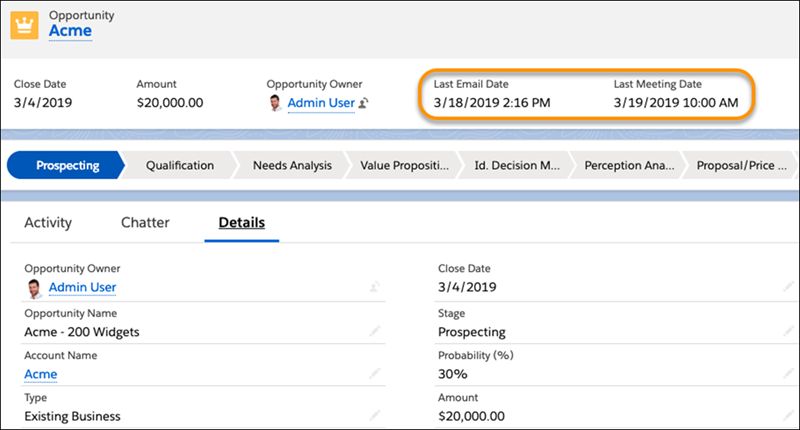

- **[Turn On Activity Metrics](https://help.salesforce.com/s/articleView?id=sales.aac_activity_metrics_enable.htm&release=264.0.0&type=5)**
After you turn on Activity Metrics, the Activity Metrics fields are available to use on list views, page layouts, reports, triggers, flows, and processes.
- **[Activity Metrics Fields](https://help.salesforce.com/s/articleView?id=sales.aac_activity_metrics_fields.htm&release=264.0.0&type=5)**
Activity Metrics fields show a summary of sales activities that were added to Salesforce manually and by Einstein Activity Capture. Most of the fields are available to Einstein Activity Capture users after Activity Metrics is turned on. A few fields are available only to Sales Engagement users, regardless of whether they use Einstein Activity Capture. Activity Metric fields are derived from your activity data, so create formula fields when using them on page layouts.
- **[Considerations for Using Activity Metrics](https://help.salesforce.com/s/articleView?id=sales.aac_activity_metrics_considerations.htm&release=264.0.0&type=5)**
Before getting started with Activity Metrics, review requirements, limits, and other information about how it works.
#### See Also
- [Report on Einstein Activity Capture Data](https://help.salesforce.com/s/articleView?id=sales.einstein_sales_activity_reporting_overview.htm&release=264.0.0&type=5 "Use standard reports to keep an eye on all your activities and customer interactions. Turn on Activity 360 Reporting to enable reporting objects that unify your automatically captured data from Einstein Activity Capture with all your other activity data, such as calls, manually logged tasks, and emails. View the out-of-the-box dashboard and reports to easily monitor your team’s activity. Trigger flows from Activity 360 Reporting data to automate your business processes.")
- [Einstein Activity Capture](https://help.salesforce.com/s/articleView?id=sales.einstein_sales_aac.htm&release=264.0.0&type=5 "Eliminate manual data entry and transform a list of engagements into action. Einstein Activity Capture syncs your Microsoft or Google account with Salesforce, linking email and calendar activities to the relevant contacts, leads, and opportunities. Einstein Activity Capture gives your team and AI agents the critical context needed to make their next move.")
# Activity Metrics Fields
Activity Metrics fields show a summary of sales activities that were added to Salesforce manually and by Einstein Activity Capture. Most of the fields are available to Einstein Activity Capture users after Activity Metrics is turned on. A few fields are available only to Sales Engagement users, regardless of whether they use Einstein Activity Capture. Activity Metric fields are derived from your activity data, so create formula fields when using them on page layouts.
### Required Editions
Available in: Lightning Experience
Available with Einstein for Sales, which is included in Einstein 1 Sales Edition and available for an extra cost in Enterprise and Unlimited Editions
Available with Sales Engagement, which is included with Sales in Performance and Unlimited Editions, and available for an extra cost in Professional and Enterprise Editions
Available with Revenue Intelligence, which is available for an extra cost in Enterprise and Unlimited Editions

Note We’re reorganizing the Einstein Activity Capture documentation. We’re moving some information around, but we aren’t deleting anything.

Important Starting in Summer ’25, Activity 360 Reporting, Activity Metrics, and Activities Analytics Dashboard aren’t available unless previously set up. Additionally, data from these reporting tools that appear in other features, including Pipeline Inspection and Einstein Conversation Insights isn’t available unless configured before Summer ’25. If you’re already using Activity 360 Reporting, Activity Metrics, Activities Analytics Dashboard, or related data, you can continue to do so until these tools are retired. To explore email data added by Einstein Activity Capture after Summer ’25, make sure you [sync email as salesforce activity](https://help.salesforce.com/s/articleView?id=sales.eac_email_activity.htm&language=en_US) and use Salesforce Activity reports. See [Considerations for Sync Email as Activity](https://help.salesforce.com/s/articleView?id=sales.eac_email_activity_considerations.htm&type=5&language=en_US) and [Einstein Activity Capture Activity 360 Reporting, Activity Metrics, Activities Dashboard Upcoming Retirement](https://help.salesforce.com/s/articleView?id=004633781&type=1&language=en_US).
Where to Use Activity Metrics Fields
Details
List views
Create or edit a list view. Select the Activity Metrics fields to include. When
displayed on list views, Activity Metrics fields are indicated by .
Record page layouts
Create a custom formula field that points to an Activity Metric field. Then add
it to your page layout.
Reports
Create a report and add the Activity Metrics fields.
Flow Builder or Process Builder
Create a flow or process that includes Activity Metrics fields. Unlike most
field updates, changes to activity metrics field values don’t trigger flows or
processes. Instead, activity metrics field values can be used to evaluate rule
criteria for actions.
For example, when opportunities move to the Proposal or
Price Quote stage, use the Inactive Days or Last Activity Date field to send an
email alert to opportunity owners.

Note Unless otherwise noted, activities include events, emails, tasks, and calls.
Field
Description
Process Builder and Triggers
Formula Field
First Call Date
The date when the earliest call was made through Sales Dialer or a
computer-telephony integration solution that logged the call to Salesforce.
This
field is available only to Sales Engagement users.
[object].ActivityMetric.FirstCallDateTime
First Email Date
The date when the earliest email was sent or received.
This field is
available only to Sales Engagement users.
[object].ActivityMetric.FirstEmailDateTime
Inactive Days
The number of days since the most recent activity was completed
This field is
derived from the Last Activity Date field.
[object].ActivityMetric.LastActivityDateTime -
NOW
For example, create a trigger that notifies a user when there isn’t any activity
on an account for a certain amount of time.
Today() - LastActivityDate
This formula calculates the difference between the current date and the date of
the last activity.
Last 7 Days Activities
The number of activities completed in the last 7 days
The date when the most recent activity was completed
[object].ActivityMetric.LastActivityDateTime
Last Call Date
The date when the most recent call was made through Sales Dialer or
Inbox
[object].ActivityMetric.LastCallDateTime
Last Email Date
The date when the most recent email was sent or received
[object].ActivityMetric.LastEmailDateTime
Last Email Received Date
The date when the most recent email was received
[object].ActivityMetric.LastEmailReceivedDateTime
Last Email Sent Date
The date when the most recent email was sent
[object].ActivityMetric.LastEmailSentDateTime
Last Event Date
The date when the most recent event was completed
[object].ActivityMetric.LastEventDateTime
Last Task Date
The date when the last task was completed
For example, if a task is completed
before the due date, the Last Task Date is different from the Due Date. Because
tasks show up on the activity timeline according to their due date,
inconsistencies can exist between the Last Task Date and what’s on the activity
timeline.
[object].ActivityMetric.LastTaskDateTime
Next Activity Date
The date of the next scheduled task or event. Only open tasks within the next
30 days are included.
[object].ActivityMetric.NextActivityDateTime
Today’s Activities
Number of activities closed today
[object].ActivityMetricRollup.TotalActivitiesDay
For example, create a trigger that sends a daily email to Sales Managers with the
total number of activities during that day.
#### See Also
- [Activity Metrics](https://help.salesforce.com/s/articleView?id=sales.aac_activity_metrics.htm&release=264.0.0&type=5 "If you use Einstein Activity Capture, Activity Metrics gives you all the information you need about your activity data. When you include Activity Metrics fields on list views, page layouts, reports, triggers, processes, and so forth, the data reflects activities that were added to Salesforce manually and by Einstein Activity Capture.")
- [Build a Formula Field](https://help.salesforce.com/s/articleView?id=platform.customize_formulas.htm&type=5&language=en_US)
- [Customizing Reports in Salesforce Classic](https://help.salesforce.com/s/articleView?id=analytics.reports_builder_what_is.htm&type=5&language=en_US)
- [Create a Process](https://help.salesforce.com/s/articleView?id=platform.process_create.htm&type=5&language=en_US)
# Activity Reminders and Notifications
Salesforce displays event and task reminders differently in Classic and Lightning Experience. You can customize reminders in your personal settings in both places.
### Required Editions
Available in Lightning Experience, the mobile app, and Salesforce Classic in: All Editions Except Database.com
- **[Activity Reminders and Notifications in Salesforce Classic](https://help.salesforce.com/s/articleView?id=sales.activities_reminder_window.htm&release=264.0.0&type=5)**
Salesforce displays event and task reminders in a reminder window. The reminder window opens whenever a reminder is triggered. When you log in, a sound plays if you have reminders that have been triggered since the last time you logged in. You can customize reminders in your personal settings.
- **[Activity Reminders and Notifications in Salesforce Lightning Experience](https://help.salesforce.com/s/articleView?id=sales.activities_reminder_lex.htm&release=264.0.0&type=5)**
Event and task reminders display as notification cards in Lightning Experience. You can customize reminders in your personal settings.
# Activity Reminders and Notifications in Salesforce Classic
Salesforce displays event and task reminders in a reminder window. The reminder window opens whenever a reminder is triggered. When you log in, a sound plays if you have reminders that have been triggered since the last time you logged in. You can customize reminders in your personal settings.
### Required Editions
Available in Salesforce Classic in: All Editions Except Database.com
## Information in Reminder Windows
- Up to 100 of the oldest reminders that you haven’t dismissed
- The type of activity—event or task
- The activity subject (click to see activity details)
- When the event is scheduled to start or the task is due
- When the reminder is due or that the reminder is overdue
## Order of Reminders
Event reminders are sorted by start date and time, and task reminders are sorted by due date. If the option Sort reminder window by due date isn’t set, the window displays reminders in the following order:
- The task and event reminder date and time.
- The task due date _or_ the event start date and time.
- Ascending alphabetical order by subject.
If Sort reminder window by due date is set, the reminders are displayed in the following order:
- The task due date _or_ the event start date and time; if the task has no due date, then the reminder window displays it first
- The task and event reminder date and time
- Ascending alphabetical order by subject
## Display of Dates and Times
The table shows how reminders display the event start time or task due date.
Activity Type
Due Date or Time That You Specified
Due Date or Start Time Shown in the Reminder
Event
An event time
The date and time that you selected when you created or edited the
event
An all-day event
The date that you selected and the time set for Start of
day in your Personal Information Settings page
Task
A due date
The date that you selected when you created or edited the task
No due date
The value None
## Customizable Reminder Settings
Customize your reminder settings in your personal settings. From your personal settings, search for Reminders and select **Activity Reminders**
Reminder Settings
| Setting | Result When Setting Is Enabled |
| --- | --- |
| Show reminders | The reminder window opens when a reminder is due. |
| Play reminder sounds | Salesforce plays a reminder sound when a reminder is due. |
| Set default event reminders to: | Salesforce sets a reminder on all new events. You choose the amount of time before the event start time when you want a reminder; the default is 15 minutes. You can disable the reminder or change the reminder time when you edit an event. |
| Set default task and all-day event reminders to: | Salesforce sets a reminder on all new tasks. You choose the date and time when you want task reminders; the default is 8:00 AM the day that a task is due. You can disable the reminder or change the reminder time when you edit a task. |
| Sort reminder window by due date | Salesforce sorts reminders by due date first and then by the reminder date and time. |
If Salesforce doesn’t display reminders that you’ve set, make sure that your browser isn’t blocking pop-ups. To test your settings, click **Open a Test Reminder** in the Does Your Browser Block Reminders? section.
## Snoozing Reminders
You can snooze one or more reminders at a time. The default snooze option is to remind you again in 5 minutes.
If you click **Snooze** when Sort reminder window by due date isn’t selected, the time overdue is based on the snooze time when the reminder opens again. If you close the reminder window, it opens again when you’re notified of the next reminder.
## Dismissing Reminders
You can dismiss one or more reminders at a time. To dismiss all reminders in the window, click **Dismiss All**. If the number of reminders exceeded 100 before you clicked **Dismiss All**, then after you click **Dismiss All**, the window displays the additional reminders.
Disabling individual preferences for displaying event and task reminders erases users’ activity reminder settings. If you re-enable activity reminders later, users receive reminders only for activities they create or edit after you re-enable the setting.
# Activity Reminders and Notifications in Salesforce Lightning Experience
Event and task reminders display as notification cards in Lightning Experience. You can customize reminders in your personal settings.
### Required Editions
Available in: Lightning Experience
Available in: all editions except Database.com
## Customizable Reminder Settings
You can customize your **Activity Reminders** settings in your personal settings.
Reminder Settings
| Setting | Result When Setting Is Enabled |
| --- | --- |
| Show task reminders in Lightning Experience | The task reminder opens as a notification card. This setting doesn’t affect the setting in Salesforce Classic. |
| Set default task and all-day event reminders to: | Choose the date and time when you want reminders for tasks and all-day events; the default is 8:00 AM the day that a task is due. You can disable the reminder or change the reminder time when you edit a task. |
| Show event reminders in Lightning Experience | The event reminder opens as a notification card. This setting doesn’t affect the setting in Salesforce Classic. |
| Show conversation reminders in Lightning Experience | Voice and call reminders open as notification cards in Lightning Experience. You can disable the reminder to deactivate call processing notifications for voice and video calls in Einstein Conversation Insights. |
| Set default event reminders to: | Choose how long before an event you want a reminder to appear; the default is 15 minutes before the event. You can disable the reminder or change the reminder time when you edit an event. |
| Email me when someone assigns me a task | When another person assigns you a task, you get an email. |
## Considerations for Activity Reminders
- External users, such as Customer Community, Customer Community Plus, and Partner Community users, don’t receive activity reminders.
- Activity reminders refresh every 10 minutes. Save any changes that impact reminders at least 10 minutes before the reminder is scheduled to appear. For example, if you schedule a reminder to appear 1 hour before an event, save any changes at least 1 hour and 10 minutes before the event. If you make changes outside of the refresh cycle, you can experience issues such as not receiving reminders based on your updated time zone or attendees not receiving reminders.
- Real-time notifications can be delayed when more than 1,000 users in a Salesforce org are logged in and receive notifications. Refresh your Salesforce page to get new notifications.
# Activity Timeline
In Lightning Experience, records don’t show the Open Activities and Activity History related lists. Instead, track your activities in the activity timeline. The activity timeline is supported for accounts, cases, claims, contacts, contracts, insurance policies, leads, opportunities, voice calls, and activity-enabled custom objects.
### Required Editions
Available in Lightning Experience in: Essentials, Professional, Enterprise, Performance, Unlimited, and Developer Editions
- **[Activity Timeline Customization Considerations](https://help.salesforce.com/s/articleView?id=sales.activity_timeline_customization_considerations_lex.htm&release=264.0.0&type=5)**
Explore the changes that you can make to the activity timeline.
- **[Activity Timeline Settings Filters](https://help.salesforce.com/s/articleView?id=sales.activity_timeline_filters.htm&release=264.0.0&type=5)**
Use the filters on the activity timeline to narrow down what’s visible, focus on what’s important, and find what you’re looking for.
- **[Sorting in the Activity Timeline](https://help.salesforce.com/s/articleView?id=sales.activitytimeline_sorting_parent.htm&release=264.0.0&type=5)**
Both upcoming and overdue activities and past activities can have different sort orders.
- **[What Are the Differences Between Activity Timeline and Activity History?](https://help.salesforce.com/s/articleView?id=sales.activities_timeline_vs_past_activities.htm&release=264.0.0&type=5)**
When you view the activities related to a contact, lead, or person account, keep in mind how the activity timeline and the activity history view differ.
# Activity Timeline Customization Considerations
Explore the changes that you can make to the activity timeline.
### Required Editions
Available in Lightning Experience in: Essentials, Professional, Enterprise, Performance, Unlimited, and Developer Editions

Note If Enhanced Email isn’t enabled, emails aren’t saved as tasks and don’t appear on the activity timeline.
The activity timeline shows activities associated via the name field (such as contact, lead, or person account) and the related to field (such as account and opportunity). Custom lookups appear in their own related list on the related object record.
Tasks and all-day events have an implicit due date of midnight of the last day of the event. Multi-day events end on midnight of the last day of the event.
On the detail page for objects that support activities, Lightning Experience doesn’t show the Open Activities or Activity History related lists along with other related lists. It shows the activity timeline instead.
In some Salesforce orgs, page layouts or record types need adjustments to prevent tabs from disappearing from the activity composer. Also, if you customize the display and order of fields in the activity timeline, be aware of the behavior of certain fields.
You can customize the activity timeline by using the Lightning App Builder.

Note Put the activity timeline component at the bottom of a layout, with no other components beneath it.
Activity Summary
The second row of an activity in the activity timeline is a summary of the activity. Key fields provide a quick context about the activity.
Display and Order of Fields
In the activity timeline, you can customize the display and order of fields when an activity is expanded for events, tasks, logged calls, voice calls, and video calls.
Do this customization using event and task compact layouts. Even if you remove certain fields from a compact layout, they remain in the activity timeline because they contain essential activity information.
For example, suppose that you remove the due date, the date and time, or the task status fields from a compact layout. The event start date and time, the task checkbox, the task due date, and the call logging date still appear on activities in the activity timeline.
The description field for events and the comments field for tasks also always appear in the activity timeline, although they aren’t available in the compact layout. The remaining fields visible in the activity timeline reflect the fields that you include in the compact layout.
Custom Fields
Custom fields added to the compact layout don’t appear in the activity timeline.
Task and Event Compact Layouts
For compact layouts for tasks and events, these considerations also apply:
- The first field is always skipped.
- If a record doesn’t have data for a field, the field is skipped.
Icons
The icons for activity types (such as events, tasks, logged calls, voice and video calls, and email) in the activity timeline aren’t customizable.
Shared Activities
When shared activities isn't enabled, an activity can appear on the timeline of multiple records of different types. For example, a task can appear on the timeline of a related account, contact, and opportunity regardless of the shared activities setting.
## Activity Timeline in the Salesforce Mobile App
The activity timeline is available in the Salesforce mobile app for iOS and Android. It's enabled by default on the supported record types: accounts, contacts, leads, and opportunities. Filter and search aren't supported on mobile.
You can turn off Activity Timeline on the app for all users by adding a connected app custom attribute. In Setup, enter Connected Apps in the Quick Find box, select **Manage Connected Apps**, then click the name of the connected app you want to modify. In the Custom Attributes section on the connected app page, click **New**. Enter DISABLE\_ACTIVITY\_TIMELINE for the attribute key and “true” for the attribute value.
#### See Also
- [Sorting in the Activity Timeline](https://help.salesforce.com/s/articleView?id=sales.activitytimeline_sorting_parent.htm&release=264.0.0&type=5 "Both upcoming and overdue activities and past activities can have different sort orders.")
- [Use Enhanced Email for More Email Functionality](https://help.salesforce.com/s/articleView?id=sales.emailadmin_enhanced_email_overview.htm&release=264.0.0&type=5 "Enhanced Email gives you and your users a ton of email functionality to better drive your business processes, including the ability to relate emails to other records, add custom fields to emails, use triggers with emails, modify the email layout, and manage emails using the Salesforce API. You also get a new and improved email detail page that shows emails in their original format.")
- [_Lightning Experience Pro Tip_: Tailor the Activity Timeline for Your Lightning Experience Users](https://admin.salesforce.com/tailor-activity-timeline-lightning-experience-users)
- [_Knowledge Article_: Link custom Lookup fields from activities to other records](https://help.salesforce.com/articleView?id=000339282&type=1&mode=1&language=en_US)
# Activity Timeline Settings Filters
Use the filters on the activity timeline to narrow down what’s visible, focus on what’s important, and find what you’re looking for.
### Required Editions
Available in Lightning Experience in: Essentials, Professional, Enterprise, Performance, Unlimited, and Developer Editions
## Date Range
These options narrow down how far in the past and the future you want to see activities. The default selection is **All time**. When Einstein Activity Capture is turned on, the default selection becomes **Within 2 months**.

Note Overdue tasks are always shown in the activity timeline, regardless of which date range you select.
## Activities to Show
This option in the activity timeline settings narrows down which activities are shown.
- My activities
Shows activities where you’re involved, either as the owner or as a participant. For example, you’re the owner of an email you sent or an event you organized. You’re involved in an activity when you are, for example, in the CC or BCC fields of an email, or the attendee of an event.
- All activities
Shows all activities you have sharing access to, even if you’re not involved.
## Activity Types
Filter the types of activities you want to see. The list of activities reflects which activities you can access.
## Sort Order
When you sort a list of upcoming and overdue activities, you can choose to list activities starting with the oldest or the newest. All the same activities are displayed.
#### See Also
- [Change Sorting for Upcoming and Overdue Activities](https://help.salesforce.com/s/articleView?id=sales.activitytimeline_sorting_future_task.htm&release=264.0.0&type=5 "When you sort a list of upcoming and overdue activities, the sort order is up to your preference.")
# Add a Cadence for Your Sales Prospecting Bot
Create a cadence for your sales prospecting bot called Sales Bot Cadence. That way, you can guide sales reps that are assigned to bot-generated leads through a scheduled sequence of prospect outreach activities.
### Required Editions
Available in: Lightning Experience
Available with Sales Engagement, which is included with Sales in Performance, Einstein 1, and Unlimited Editions, and available for an extra cost in Professional and Enterprise Editions. Sales Engagement is also available for an extra cost in Service and Lightning Platform.
User Permissions Needed
To create cadences:
Sales Engagement Cadence Creator
OR
Sales Engagement Cadence Creator
Included

Note The Prospecting Bot is in maintenance mode. Existing bots continue to be supported. However, no new features or enhancements will be added. Looking for information about Agentforce Prospecting instead? We recommend using that agent when implementing AI for your prospecting needs. See [Learn About Agentforce Prospecting](https://help.salesforce.com/s/articleView?id=sales.sales_agent_prospecting_learn_about.htm&type=5&language=en_US) to get started.
1. In the Sales Engagement app, select **Cadences** from the Navigation menu. Then click **New Cadence**.
2. For the Name field, enter Sales Bot Cadence. Your bot’s cadence must be named Sales Bot Cadence.
3. Select the **Public Cadences** folder, then click **Save**.
4. Add steps to your cadence. To send prospects to another cadence when they finish this one, click the **End** step. Turn on **Exit to linked cadence**, and then choose an active cadence.
5. When you’re finished adding steps and ready to start assigning prospects to the cadence, click **Activate**.
#### See Also
- [Streamline Prospect Outreach with Cadences](https://help.salesforce.com/s/articleView?id=sales.high_velocity_sales_cadences.htm&type=5&language=en_US)
# Add a Component to a Record Home Page
Add an activity timeline, path, or related list. Each component can be added only once.
### Required Editions
Available in: Lightning Experience
Seller-Focused Mobile Experience is available in: Salesforce Mobile App for Android and iOS on phones and tablets in all editions, except Database.com.
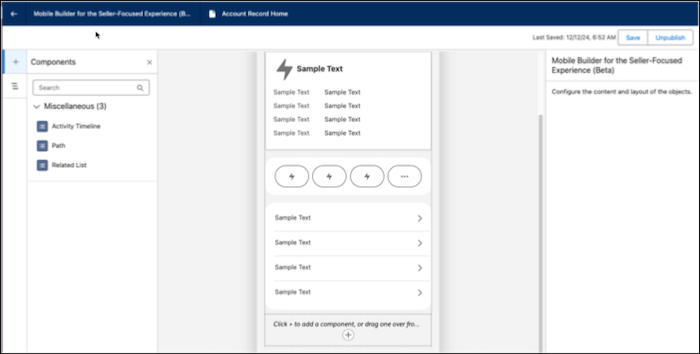
## Add an Activity Timeline
Drag the activity timeline component to the canvas.
The component is now available to reorder or delete.
## Add a Path

Note You can currently use paths with the Lead and Opportunity objects.
1. Drag the Path component to the canvas.
The component is now available to reorder or delete.
2. Click **Setup Path** in the Properties Pane.
The Path Settings page in Setup opens.
3. Select or create a new path.
## Add a Related List
1. Drag the Related List component to the canvas
The component is now available to reorder or delete.
2. In the Properties Pane, search and select a related object.
3. Select the number of records to display (up to 5).
# Add a Custom Action Condition for the Salesforce Spiff Commission Estimator
Create a custom action condition so that only authorized users can access the Salesforce Spiff Commission Estimator for quotes. First, create a custom field on the Quote object that specifies which user profiles can use the estimator. Then, add a picklist value for the custom field to the Custom Action Condition object and create the custom action condition.
### Required Editions
Available in: both Salesforce Classic (not available in all orgs) and Lightning Experience
Available in: Enterprise, Unlimited, and Developer Editions
Available for an additional cost in: Professional Edition with Web Services API Enabled
User Permissions Needed
To create custom fields on a Salesforce object:
(Salesforce) Customize Application
1. Create a custom field on the Quote object.
1. From the Object Manager in Setup, select the Quote object.
2. Select **Fields & Relationships**.
3. Click **New**.
4. From the Data Type list, select **Formula**, and then click **Next**.
5. Enter these details for the field, and then click **Next**.
- For Field Label, enter Spiff Authorized Commission User.
- For Field Name, enter Spiff\_Authorized\_Commission\_User.
- For Formula Return Type, select **Checkbox**.
6. For the formula body, click **Advanced Formula**, enter this formula, and then click **Next**.
```
$Permission.SpiffCE__Get_Commission
```
7. Select all user profiles that use with the Spiff Commission Estimator, and then click **Next**.
8. Select the checkbox to add this field to the Quote page layout, and save your changes.
2. Add a picklist value to the Custom Action Condition object.
1. From the Object Manager in Setup, select the Custom Action Condition object.
2. Select **Fields & Relationships**, and then select **Field**, which has the `SBQQ__Field__c` API name.
3. Scroll to the Field Picklist Values section and click **New**.
4. Add the value Spiff\_Authorized\_Commission\_User, which is the API name of the custom formula field you added to the Quote object, and save your changes.
3. Create the custom action condition that allows authorized users to access the Spiff Commission Estimator for quotes.
1. Go the details page for the Spiff Commission Action custom action you created.
2. Go to the Custom Action Conditions related list and click **New**.
3. Enter these values for the custom action condition.
- For Custom Action Condition name, enter Spiff Commission Action Condition.
- For Target Object, select **Quote**.
- For ParentConditionIsActive, select **True**.
- For Operator, select **Equals**.
- For Filter Value, select **True**.
- For Field, enter the API name for the picklist value you added to the Custom Action Condition object, Spiff\_Authorized\_Commission\_User\_\_c.
If any of these fields aren't available, add them to the Custom Action Conditions page layout. See [Page Layouts.](https://help.salesforce.com/s/articleView?id=platform.customize_layout.htm&type=5&language=en_US)
4. Save your changes.
#### See Also
- [Create Custom Fields](https://help.salesforce.com/s/articleView?id=platform.adding_fields.htm&type=5&language=en_US)
- [Custom Action Conditions](https://help.salesforce.com/s/articleView?id=sales.cpq_custom_action_conditions_intro.htm&type=5&language=en_US)
# Add a Custom Filter for Enablement Site Content
You can add custom filters for the Roles, Levels, and Products content categories that you apply to trails and modules. Making these changes can require different users to collaborate, such as an admins, content creators, and release managers.
### Required Editions
Available in: Enterprise, Performance, and Unlimited Editions
User Roles and
Permissions
Enablement Site User Roles
This topic supports these enablement site
roles:
Salesforce Admins
Content Creators
Release Managers
Required System Permissions
To manage filters in Trailmaker Settings:
Manage Site Settings
To create and edit content with Trailmaker Content:
Create Content
To upload content from Trailmaker Content to Trailmaker
Release:
Create Content
AND
Manage Releases
To create and manage releases with Trailmaker Release:
Manage Releases
To view the full release preview:
Preview Release
To make a custom filter available to content creators in Trailmaker Content, add the custom filter in Trailmaker Settings.
To make a custom filter visible to learners, apply the filter to a module or trail in Trailmaker Content. Then publish the content using Trailmaker Release.
You can add up to 50 filters each to the Roles, Levels, and Products categories.
Begin in the Trailmaker Settings app, where you add the filter to the appropriate category. When you add a filter in Trailmaker Settings, the value becomes available in the corresponding category picklist in Trailmaker Content.
1. Click the avatar next to your name on your enablement site and select **Trailmaker**.
2. Click **Settings**.
3. Select the category that you want to add the filter to: Roles, Levels, or Products.
4. Click **New Filter**.
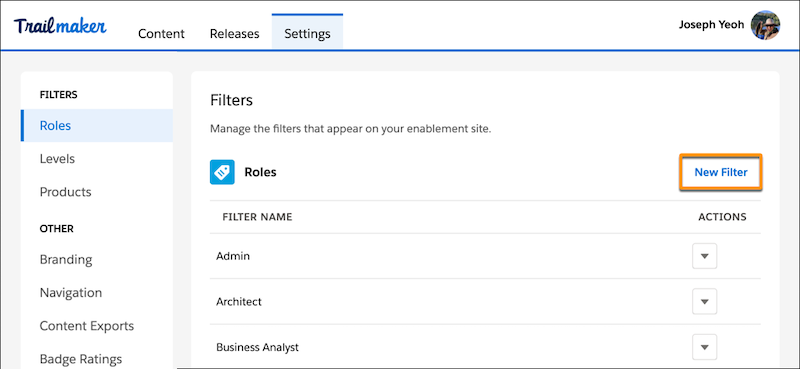
5. Enter a filter name. The default language for a new filter is English.
6. Optionally, add a translation for the filter name in another language.
1. Click **Add Translation**.
2. Enter the translated filter name.
3. Select the language for the translated filter name.

Note Translated filters appear only for learners who select that language when they’re navigating your enablement site. Because Trailmaker is available only in English, only the English filter names appear for authors who are editing trails or modules.
7. Save your changes.
The filter is now available in the corresponding category picklist in Trailmaker Content, and writers can assign the filter to modules and trails.

Important After you create a filter, you can’t edit it or its translations. To correct or revise a filter, such as to update a product name:
- Create another filter with the revised name.
- Delete the old filter from each module and trail that it’s applied to.
- Assign the new filter to each module and trail, and publish the content.
- Delete the old filter from Trailmaker Settings, which also removes it from the corresponding category list in Trailmaker Content.
8. Make the filter and its translations visible on your enablement site.
1. In Trailmaker Content, assign the filter to a module or trail.
2. Add the module or trail to an unpublished release.
3. Preview the release and view the new filter.
4. Publish the content using Trailmaker Release.

Note Filters are organized alphanumerically in Trailmaker and your enablement site. To make alphabetized filters appear in a different order, preface them with numerals. For example, to make roles such as Introductory, Proficient, and Expert appear in that specific order, preface them with numerals: 01 Introductory, 02 Proficient, 03 Expert.
After you publish the release, it can take a few minutes for the changes to take effect. When they do, users can sort content by selecting the filter from the Role, Level, or Products list on the Modules or Trails page. They can also sort search results using the filter. Trail Tracker users can create reports based on that filter.
#### See Also
- [Delete a Filter from Your Enablement Site](https://help.salesforce.com/s/articleView?id=sales.mth_delete_filters_from_products_category.htm&release=264.0.0&type=5 "You can remove a filter in Trailmaker Settings. The filter is also deleted from the corresponding category picklist in Trailmaker Content. If you provided translations for the filter in other languages, those translations are also deleted.")
- [Revise Existing Content with Trailmaker Content](https://help.salesforce.com/s/articleView?id=sales.mth_revise_content_with_tm_content.htm&release=264.0.0&type=5 "In Trailmaker Content, you can update content, correct errors, or revise metadata, such as a content title or applied filters.")
- [Add Content to a Release from Trailmaker Content](https://help.salesforce.com/s/articleView?id=sales.mth_add_content_to_release_from_tm_content.htm&release=264.0.0&type=5 "After you create your module and quizzes and assign all the necessary metadata, add the content to a release.")
- [Publish Content with Trailmaker Release](https://help.salesforce.com/s/articleView?id=sales.mth_publish_content_with_tm_release.htm&release=264.0.0&type=5 "After you test, proofread, and validate your content, you can publish the release's new or changed content to your enablement site.")
- [Considerations for Languages on Your Enablement Site](https://help.salesforce.com/s/articleView?id=sales.mth_language.htm&release=264.0.0&type=5 "The default language for any enablement site is English, but other languages are supported. A user can select a different language, but the extent to which content is available for any language depends on whether you’ve localized and published content for that language.")
# Add a Designer Field or Calculation to a Report in Salesforce Spiff
Reports in Salesforce Spiff are generated from fields and metrics used in plan statements or commission logic. Designer fields or calculations not used in statements or commission logic aren't available for reports by default. To show one of these fields in a report, add the field to the payout rule that calculates commission.
### Required Editions
Available in: both Salesforce Classic (not available in all orgs) and Lightning Experience
Available in: Enterprise, Unlimited, and Developer Editions
Available for an additional cost in: Professional Edition with Web Services API Enabled
User Permissions Needed
To add a Designer field or calculation to a report:
A Spiff user role with these permissions turned on.
Designer Configuration: Manage
Statements: Recalculate
When you create a report in Spiff, the Data Status indicator shows the availability of each field.
| Data Status | Description |
| --- | --- |
| Healthy | Data is populated for all or most fields. |
| Okay | Data is populated for some but not all fields. |
| Bad | Data isn't populated for most fields. |
| Empty | Data isn't populated for any field. |
| Unknown | Data status isn't determined for any field. |
If a field's status is Empty or Unknown and you don’t want to add it to a statement, you can add the field to commission logic so that it's available for reporting. Add the field to a payout rule, and make sure that you don't affect the commission value. The way that you add the field depends on the whether the payout rule is a line-by-line rule or a lump-sum rule.
The field must have a calculation that uses the metric you want to show in the logic, but make sure that the calculation doesn't affect payout amounts. Some payout rule calculations already have similar fields, called ReportingFields, ShowFields, VisibleFields, or FieldsToShow.
1. To check whether the payout rule is line-by-line or lump-sum, go to the payout rule in Designer. On the Plan page, hover over the Payout Amount for the rule, and click the highlighted text to open the datasheet or worksheet where the payout amount field was created.
- If the payout amount is on a datasheet, the rule is line-by-line.
- If the payout amount is on a worksheet, the rule is lump-sum.
2. Create a calculation in the datasheet or worksheet.
- If the rule is line-by-line, create a datasheet field on the first level of the rule.
- If the rule is lump-sum, create a worksheet calculation on the first level of the formula.
3. Add the calculation to the end of the payout rule formula.
When creating a report field for a lump-sum rule, make sure that the field is derived from a worksheet calculation on the same worksheet where the lump-sum rule's final payout amount is generated.
4. Hover over the new calculation formula and select **New Field**.
5. Add your metric to the calculation, and make sure that the calculation always returns zero so that it doesn't affect the payout amount.
```
=if(MakingFieldsAvailableOnReports_Worksheet!TeamTotalARRInPeriod, 0, 0)
```
6. Add other fields or worksheet calculations.
7. Recalculate all unfrozen statements.
Even if the field isn’t visible on the statement, the statement must be calculated with the reporting fields as part of the commission calculation.
Frozen statements don’t include any new fields because they aren't recalculated.
#### See Also
- [Line-By-Line Rule Examples](https://help.salesforce.com/s/articleView?id=sales.spiff_rules_line_by_line.htm&release=264.0.0&type=5 "Payout rules let you create calculations that determine how your reps earn a commission. Line-by-line rules calculate a commission amount by applying a calculation to each item in a data filter such as a deal or an opportunity. Calculation output from each item is summed to get the total for the rule.")
- [Lump-Sum Rule Examples](https://help.salesforce.com/s/articleView?id=sales.spiff_rules_lump_sum.htm&release=264.0.0&type=5 "A lump-sum rule pays out one obligation amount that you define with calculations. The final payout calculation comes from a single cell in a worksheet. Worksheets contain formulas that have a single value, either entered directly or as the result of a formula.")
# Add a Feedback Request Exercise with an Assessment Survey for Peers and Managers
Enablement admins add the Feedback Request exercise to a program and specify the assessment survey that reviewers complete and the number of reviewers that an Enablement user must select. After the program is published and made available, users submit their content for review and select the required number of reviewers.
### Required Editions
Available in: Lightning Experience
Enablement is available in Developer Edition with a limited number of add-ons. It is also available with Sales, Service, or the Salesforce Platform in: Enterprise, Performance, and Unlimited, Editions for an additional cost
User Permissions Needed
To add assessment surveys to Feedback Request exercises:
Read on Surveys (enabled on the default Manage Enablement Essentials permission set
and the default Manage Enablement Lite Essentials permission set)
AND
Sharing access
to assessment surveys
AND
Design and Deliver Enablement Programs OR Design and
Deliver Enablement Lite Programs
If you’re trying Enablement Lite, surveys aren’t included like they are with the full Enablement license. The default assessment survey, Discovery Call Assessment, isn’t provided. The Enablement Lite default permission sets still provide read access to surveys and create, read, edit, and delete access to related survey objects. You can give access to create surveys outside of these default permission sets. When you upgrade to full Enablement, the Enablement Resources Manager permission set group becomes available and includes access to create surveys by default.

Important Feedback Request exercises aren’t supported in Partner Enablement programs in Experience Cloud sites.
1. In Program Builder, add the Feedback Request exercise to a program and reference your assessment survey.
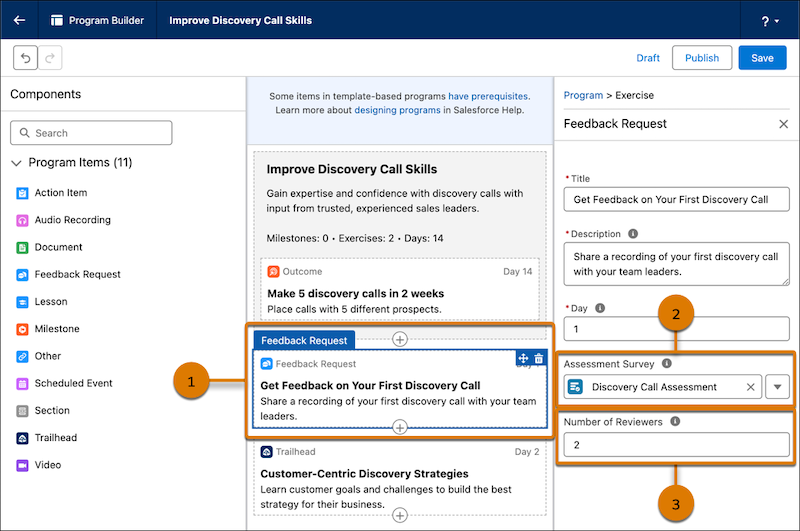
1. Add the Feedback Request exercise to the program canvas (1).
2. In the exercise properties, for Assessment Survey, select the assessment survey you want to use (2).
3. For Number of Reviewers, specify the number of peers, managers, or other users that you want Enablement users to select for gathering feedback (3).
2. Finish assembling the program, and then publish it and assign it to Enablement users. See [Launching Enablement Programs](https://help.salesforce.com/s/articleView?id=sales.enablement_publish_assign_parent.htm&release=264.0.0&type=5 "After you develop programs and measures in a sandbox, deploy them to production. Make Enablement programs available to users by publishing programs, assigning programs to users directly, and sharing programs so uses can self-enroll.").
When Enablement users take the program with the Feedback Request exercise, they’re required to specify the URL to the content they want reviewed (1) and select the specified number of reviewers (2).
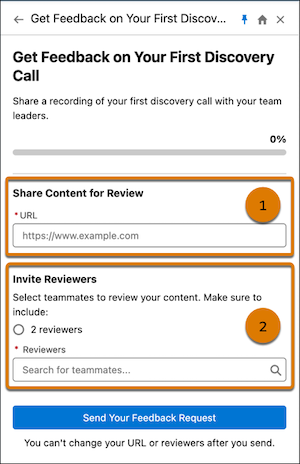
The selected reviewers receive an email invitation to complete the corresponding assessment survey. When reviewers submit their feedback, a flow is triggered for sending an in-app notification to the Enablement user. In the Guidance Center, Enablement users can view the submitted feedback.
Enablement admins can analyze reviewer responses against changes in user behavior using these reports.
- Feedback Responses to All Questions
- Feedback Responses to Rating Questions
Enablement admins can also monitor Feedback Request exercise progress from these widgets in the latest Enablement dashboard folder.
- Number of Feedback Survey Responses Submitted
- Feedback Responses by Assignee
- Feedback Responses by Exercise
#### See Also
- [Guidelines for Assembling Enablement Programs](https://help.salesforce.com/s/articleView?id=sales.enablement_programs_overview.htm&release=264.0.0&type=5 "With your Enablement measures planned and implemented, and your content ready to go, bring all the ingredients together in Program Builder. Organize your programs appropriately to help users have efficient, enjoyable experiences that help them achieve outcomes and milestones. Write helpful and instructive titles and descriptions for users who take your programs.")
- [Guidelines for Assessment Surveys with Feedback Request Exercises](https://help.salesforce.com/s/articleView?id=sales.enablement_feedback_request_take.htm&release=264.0.0&type=5 "Review the permissions required to work with Peer and Manager Feedback Request exercises. Learn guidelines for creating assessment surveys, sending feedback requests, and providing survey responses.")
- [Take Enablement Programs](https://help.salesforce.com/s/articleView?id=sales.enablement_program_complete.htm&release=264.0.0&type=5 "You can take Enablement programs when an Enablement admin assigns you to a program or shares a program with you for self-enrollment. Take an assigned program starting at 12 AM on the start date, or take a self-enrolled program anytime after you enroll.")
- [Enablement Reports and Report Types](https://help.salesforce.com/s/articleView?id=sales.enablement_reports.htm&release=264.0.0&type=5 "Prebuilt reports are available for tracking users’ progress toward completing programs, milestones, exercises, and outcomes. If you want to create your own Enablement reports, several report types (also referred to as pre-designed custom report types) are also available.")
# Add a Feedback Request Exercise with Einstein Coach
Enablement admins add a Feedback Request exercise to a program and specify that users receive feedback from Einstein. When a user is assigned a program with Einstein Coach, they submit a recording for feedback based on the scenario selected.
### Required Editions
Available in: Lightning Experience
Available with Einstein for Sales with an Enablement add-on in Performance and Unlimited Editions and for an extra cost in Enterprise Edition
User Permissions Needed
To create Enablement programs with Einstein Coach:
Use Einstein Coach
AND
Use Conversation Insights for
Sales
AND
Prompt Template User default permission set
AND
Design
and Deliver Enablement Programs
1. Add a Feedback Request exercise to a program.
2. Select **Einstein Coach** as the feedback method.
Receive Feedback on a Sales Pitch is the only supported scenario and is select by default.
3. Add a title and description that clearly explains the task of the Enablement user. Consider being specific about what product or solution you want them to practice a pitch for.
4. Save your changes.
#### See Also
- [Considerations for Einstein Coach in Feedback Request Exercises](https://help.salesforce.com/s/articleView?id=sales.enablement_einstein_coach_considerations.htm&release=264.0.0&type=5 "When you use Einstein Coach as the feedback method for a Feedback Request exercise in an Enablement program, certain factors can affect the admin and user experience.")
# Add a Flow Automation to a Cadence Builder Classic Step
You can execute a flow each time a rep completes a cadence step by adding a flow to the cadence step in Cadence Builder Classic. For example, you can update a contact owner, lead path, or opportunity stage.
### Required Editions
Available in: Lightning Experience
Available with Sales Engagement, which is included with Sales in Performance, Einstein 1, and Unlimited Editions, and available for an extra cost in Professional and Enterprise Editions. Sales Engagement is also available for an extra cost in Service and Lightning Platform.
User Permissions Needed
To create sales cadences:
High Velocity Sales Cadence Creator
OR
High Velocity Sales Cadence Creator
Included
1. In Cadence Builder Classic, open the step where you want to add a flow. The step must be an action step, such as an email, call, LinkedIn, or screen flow step.
2. Enter the flow name in the Flow Automation field.
You can only add flows that are based on the Cadence Autolaunched Flow process type.
In Flow Builder, three cadence flow templates are included with Sales Engagement.
- Update Contact Owner: Update the contact and account owner to the current cadence target assignee.
- Update Lead Path: Update the lead status to Contacted.
- Update Opportunity Stage: If the related opportunity stage name is Prospecting, update it to Qualification.
To use a flow template, first clone it. Use the clone in cadences. You can also modify the clone if needed.
# Add a List to a Quote Template
Arrange and display fields from a quote line item or any other standard or custom object that has a lookup relationship to the quote object. The added list looks like a table, with field names appearing as columns.
### Required Editions
Available in: Salesforce Classic and Lightning Experience
Available in: Performance and Developer Editions
In Sales, also available in: Professional, Enterprise, and Unlimited Editions
User Permissions
Needed
To create quote templates:
Customize Application
To view quote templates:
View Setup and Configuration
A list can include up to 10 fields.

Note You can’t add lists to the header or footer of your quote template.
1. Drag a list from the palette to the template.
2. Enter a title for the list. To suppress the title from appearing on the template or PDF, select **Hide Title**.
3. In the Object field, select the object whose fields you want to appear in the list.
4. Use the **Add** and **Remove** arrows to move columns from the Available Fields list to the Selected Fields list. Use the **Up** and **Down** arrows to change the order of the columns.
5. Click **OK**.
#### See Also
- [Guidelines for Using the Quote Templates Editor](https://help.salesforce.com/s/articleView?id=sales.quotes_template_customize_docs.htm&release=264.0.0&type=5 "While you’re creating and editing quote templates, refer to key guidelines for additional information.")
# Add a Map Layer in Salesforce Maps
Add a layer to display records or geographic information on the map. Create marker, shape, and data layers to visualize your Salesforce data, define territories, and add third-party context for your field users. Save a layer in a private folder, or share it by saving it in the Corporate folder.
### Required Editions
Available in: Lightning Experience and Salesforce Classic
Available in: Professional, Enterprise, Performance, Unlimited, and Developer Editions
User Permissions Needed
To configure Maps features:
Customize Application
To use the Corporate folder:
Folder Permissions
1. Click **Layers** in Salesforce Maps.
2. Select which folder to save the layer in. To keep the layer private, select **Saved** | **Personal**. To share it with other users based on folder permissions, select **Saved** | **Corporate**.
3. Enter a name and description.
4. Configure the layer for the type that you want to create.
- **Marker layer** (display object records on the map)—select the object whose records you want to show, plus the filter and style options.
- **Shape layer** (draw geographic boundaries to define territories)—define the shape, and click **Display** to configure the appearance. Boundary data comes from an external provider, such as the US government. If the provider updates their data, your shape layer reflects the changes.
- **Data layer** (show proprietary or third-party data)—select the data source, filters, and style. Before you can use an ArcGIS layer, enable Cross-Origin Resource Sharing (CORS) on the Esri Portal. See [Configure the ArcGIS Connector for Salesforce Maps](https://help.salesforce.com/s/articleView?id=sales.salesforce_maps_setup_arcgis_connector.htm&release=264.0.0&type=5 "Connect Salesforce Maps to ArcGIS layers and data sources from your company's Esri Portal.").
5. Save.
To change a layer after you create it, see [Edit a Salesforce Maps Layer](https://help.salesforce.com/s/articleView?id=sales.salesforce_maps_setup_layer_edit.htm&release=264.0.0&type=5 "Change a layer's name, description, filters, style, or data source after you create it.").
- **[Edit a Salesforce Maps Layer](https://help.salesforce.com/s/articleView?id=sales.salesforce_maps_setup_layer_edit.htm&release=264.0.0&type=5)**
Change a layer's name, description, filters, style, or data source after you create it.
# Add a Module to an Existing Trail
You can add a module to an existing trail.
### Required Editions
Available in: Enterprise, Performance, and Unlimited Editions
User Roles and
Permissions
Enablement Site User Roles
This topic supports these enablement site
roles:
Content Creators
Release Managers
Required System Permissions
To create and edit content with Trailmaker Content:
Create Content
To upload content from Trailmaker Content to Trailmaker
Release:
Create Content
AND
Manage Releases
1. Set up the module that you want to add.
1. Create the module in your Trailmaker Content workspace, or import the backpack of an existing module that you want to add. For more information about these options, see [Create a Module in Trailmaker Content](https://help.salesforce.com/s/articleView?id=sales.mth_create_module_in_tm_content.htm&release=264.0.0&type=5 "A module can stand alone or be a part of a trail. When you’re ready to create a module and its units, move the final draft of your content from a word processor into Trailmaker Content.") and [Import a Backpack into Trailmaker Content](https://help.salesforce.com/s/articleView?id=sales.mth_upload_published_or_archived_content_to_tm_content.htm&release=264.0.0&type=5 "You can add learning content into your workspace from a backpack ZIP file that you saved or downloaded. This workflow is helpful when you want to collaborate on content that other content creators started in their own workspace. Or, follow these steps when you want to update published content or restore archived content. You can also import a content template that you downloaded.").
2. Find the backpack for the trail that you want to update. You can:
- Access the backpack in your company’s version control system (VCS).
- Download the latest released version of the backpack from Trailmaker Release. To learn more, see [Download a Backpack from Trailmaker Release](https://help.salesforce.com/s/articleView?id=sales.mth_tm_release_download.htm&release=264.0.0&type=5 "From Trailmaker Release, you can download the backpack ZIP file for a module or trail published in your company’s enablement site. With this backpack, your content creators can easily access the latest released version of content the next time they want to update it.").
3. Import the trail backpack to Trailmaker Content.
4. Add the module to the trail in one of these ways.
- Create a module from the trail page.
- Add a module that’s in your workspace to the trail.
- Add a module to the trail by referencing its API name.
5. Add the new module and the updated trail to an unpublished release by completing the steps in [Add Content to a Release from Trailmaker Content](https://help.salesforce.com/s/articleView?id=sales.mth_add_content_to_release_from_tm_content.htm&release=264.0.0&type=5 "After you create your module and quizzes and assign all the necessary metadata, add the content to a release.").
6. Preview and publish the release.
7. Download the latest released versions of the module and trail backpacks, and store them in your VCS.
#### See Also
- [Create Content Quickly with Content Templates](https://help.salesforce.com/s/articleView?id=sales.mth_content_kits.htm&release=264.0.0&type=5 "Add learning content to your company’s enablement site without creating trails, modules, and units from scratch. To immediately add quality content to your enablement site, we recommend that you download Salesforce content templates (formerly content kits). Content templates provide finished modules on topics that are applicable to any company. For example, add content about sales and service strategies, inclusiveness and diversity, or collaboration in a virtual workplace.")
- [API Names for Trails, Modules, and Units](https://help.salesforce.com/s/articleView?id=sales.mth_api_names_on_mytrailhead.htm&release=264.0.0&type=5 "Each content collection, release, trail, module, and unit on your enablement site has its own API name, which is a globally unique ID that references a content path in URLs.")
- [Create a Trail in Trailmaker Content](https://help.salesforce.com/s/articleView?id=sales.mth_create_trail_in_tm_content.htm&release=264.0.0&type=5 "You can create a trail and add modules from the Trailmaker Content workspace.")
- [Import a Backpack into Trailmaker Content](https://help.salesforce.com/s/articleView?id=sales.mth_upload_published_or_archived_content_to_tm_content.htm&release=264.0.0&type=5 "You can add learning content into your workspace from a backpack ZIP file that you saved or downloaded. This workflow is helpful when you want to collaborate on content that other content creators started in their own workspace. Or, follow these steps when you want to update published content or restore archived content. You can also import a content template that you downloaded.")
- [Add Content to a Release from Trailmaker Content](https://help.salesforce.com/s/articleView?id=sales.mth_add_content_to_release_from_tm_content.htm&release=264.0.0&type=5 "After you create your module and quizzes and assign all the necessary metadata, add the content to a release.")
- [Manage Releases with the Trailmaker Release App](https://help.salesforce.com/s/articleView?id=sales.mth_use_trailmaker_to_manage_releases.htm&release=264.0.0&type=5 "Prepare, preview, and publish new or changed content for your enablement site with the Trailmaker Release app. You can also update, archive, and restore content.")
# Add a Salesforce Connector
To sync data from Salesforce with Salesforce Spiff, add a connector. You can set up connectors for up to five Salesforce orgs.
### Required Editions
Available in: both Salesforce Classic (not available in all orgs) and Lightning Experience
Available in: Enterprise, Unlimited, and Developer Editions
Available for an additional cost in: Professional Edition with Web Services API Enabled
User Permissions Needed
To add a Salesforce connector:
A Spiff user role with these permissions turned on.
Connectors: Edit
Data Sources: Sync
Review these important considerations before you begin.
- We recommend that you create a data mapping spreadsheet that lists all objects and fields that you plan to sync. See [Recommended Data Mapping Prerequisite for Salesforce Spiff](https://help.salesforce.com/s/articleView?id=sales.spiff_data_mapping.htm&release=264.0.0&type=5 "Before you import data from Salesforce or a third-party data source into Salesforce Spiff, create a data mapping spreadsheet that lists all objects and fields that you plan to sync. Make sure that you collaborate with all required stakeholders and receive approval for your design before you set up the connectors and sync data.").
- Spiff doesn’t provide an option to delete a connector after you set it up. Make sure that you plan to implement the connector with the correct Salesforce org completely. If you connect to the wrong org, you can swap the connected org later. In some limited cases, you can delete the connector by contacting Salesforce Customer Support.
- If you plan to export synced data to Data 360, the first Salesforce org that you connect also serves as the outbound Data 360 integration. Set up the Salesforce connector for the org that you plan to sync with Data 360 first. See [Data 360 Reporting with Salesforce Spiff](https://help.salesforce.com/s/articleView?id=sales.spiff_data_cloud_reporting.htm&release=264.0.0&type=5 "Salesforce Spiff can send reporting data into Data 360. You can access Spiff reporting data through API, pull it into other cloud platforms, visualize it in Tableau or CRM Analytics, or use it with the many other features of Data 360. The Reporting Data Configuration page lets you control what data is sent to Data 360. You can also use custom names and data types for fields for reporting purposes within Data 360."). You can’t change which connector you use for Data 360 integration.
## Connect to Salesforce
1. To avoid accidentally connecting Spiff to the wrong Salesforce org, log out of all Salesforce orgs that you’ve been using in your browser.
2. From the Admin menu in Spiff, select **Connectors**.
The page shows connector cards for all active and available connectors.
3. Locate the Salesforce card and select **Add Connector**.
4. If a login page appears, click **Authenticate** and enter your credentials in the OAuth flow.
To connect with Salesforce, your user profile must have admin credentials. We recommend creating a generic profile so that you can authenticate to Salesforce without tying the Salesforce connector to a specific person.
If you don’t see the Salesforce login, clear your cache.
After authentication, the connector appears in the Active Connectors section of the Connectors page. An Integration Health card shows the date and time of the last successful Salesforce sync. If the sync fails, the Healthy status changes to a Sync Error status and includes a link to the Sync Logs page. Or, from the Connectors page From the Admin menu, select **Sync Logs**.
## Map Salesforce Records to Spiff Records
In the Salesforce Objecting Syncing Setup window, specify how you want to map Salesforce records to Spiff records.
1. On the connector's card, click **Select Objects**.
2. On the Select Objects step, select the Salesforce objects that you want to map in Spiff, and click **Next**.
3. On the Map Tables step, select the Spiff object that you want to map to each Salesforce object.
This action provides a normalized representation for the synced data in Spiff and creates relationships between some records. For example, maybe you map Salesforce opportunities and opportunity products to Spiff deals and deal products. After the sync completes, Spiff creates a relationship between the deal and deal product.

Important Only one Salesforce connector can map to the Spiff user object. If you set up another Salesforce connector and try to map to the Spiff user object again, Spiff prevents you from proceeding. Users that you import from Salesforce always have the default Representative role assigned, but you can later update roles manually from the Role Management page. Salesforce connectors don’t support other default roles or any custom roles.
4. Optionally modify the Spiff display name for the synced object.
5. Select a start date for the object, which determines how much historical data you sync into Spiff.
You can select a date up to one year in the past. After you set up the connector, you can modify the Back-Sync Date for an object to a date that’s up to two years in the past. See [Options for Salesforce Synced Objects and Fields in Salesforce Spiff](https://help.salesforce.com/s/articleView?id=sales.spiff_connector_salesforce_considerations.htm&release=264.0.0&type=5 "After you set up a Salesforce connector and sync data into Salesforce Spiff, manage the synced objects and fields for better system performance and data coverage. On the Salesforce connector card, click the three dots, and select Synced Objects and Fields.").
6. When you’re done mapping objects, click **Next**.
7. On the Advanced Filtering step, optionally specify a SOQL `WHERE` clause that further filters the specific Salesforce records that you want to sync. See [WHERE](https://developer.salesforce.com/docs/atlas.en-us.soql_sosl.meta/soql_sosl/sforce_api_calls_soql_select_conditionexpression.htm) in SOQL and SOSL Reference.
#### See Also
- [Salesforce Connectors in Salesforce Spiff](https://help.salesforce.com/s/articleView?id=sales.spiff_connector_salesforce.htm&release=264.0.0&type=5 "Sync data from Salesforce objects and fields for use within Salesforce Spiff. Set up connectors for up to five Salesforce orgs, sync data, and manage users between Salesforce and Spiff.")
- [Third-Party Data Integration in Salesforce Spiff with Workato Recipes](https://help.salesforce.com/s/articleView?id=sales.spiff_workato.htm&release=264.0.0&type=5 "All third-party data integrations in Salesforce Spiff, other than the default Spiff import option and default Salesforce connector, are managed through Workato, an iPaaS tool. With Workato, you can export, transform, and load data from one system to another.")
- [User Roles and Permissions in Salesforce Spiff](https://help.salesforce.com/s/articleView?id=sales.spiff_users_roles_and_permissions.htm&release=264.0.0&type=5 "Give users the appropriate level of access so they can be successful in Salesforce Spiff, and enforce the principle of least privilege. Assign a default role to each user, or create custom roles with access to specific Spiff functionality.")
# Add a Signature Block to a Quote Template
Create signature and date lines so that customers can easily sign off on their quotes.
### Required Editions
Available in: Salesforce Classic and Lightning Experience
Available in: Performance and Developer Editions
In Sales, also available in: Professional, Enterprise, and Unlimited Editions
User Permissions Needed
To create quote templates:
Customize Application
To view quote templates:
View Setup and Configuration
1. Drag Text/Image Field into the footer of your template. To right-align your signature block, or to create two signature blocks, use two columns.
2. Enter a label for each line that you want to create. For example, enter Signature, Name, Title, or Date.
3. To create a line where the customer can sign or write other information, press and hold the underscore key.
4. Click **OK**.
5. Save your changes.
#### See Also
- [Guidelines for Using the Quote Templates Editor](https://help.salesforce.com/s/articleView?id=sales.quotes_template_customize_docs.htm&release=264.0.0&type=5 "While you’re creating and editing quote templates, refer to key guidelines for additional information.")
# Add a Skill Via Record Detail Pages
Add skills to share your professional expertise.
### Required Editions
Available in: Salesforce Classic
WDC is available for existing WDC customers in Professional
Edition, Enterprise Edition, Performance Edition, Unlimited
Edition, and Developer Edition.

Important Starting in Spring ’22, WDC isn’t available to new Salesforce customers. For existing customers, WDC features and records from Badges, Skills, and Thanks aren’t affected and will remain available in the application beyond Spring ’22. WDC Goals, Coaching, Feedback, Performance, and Rewards features won’t appear in the application anymore, and records created previously will no longer be accessible.

Note On May 1, 2020, we rebranded this suite. It's now called WDC.
User Permissions Needed
To add skills:
Create on Skills and Skill Users
If the skill already exists, use the global search bar to find the skill, and click **Add to My Profile** on the skill record.
1. From your personal settings, enter Advanced User Details in the Quick Find box, then select **Advanced User Details**. No results? Enter Personal Information in the Quick Find box, then select **Personal Information**.
2. In the User Skills related list, click **New Skill**.
3. Enter the name of your skill and an optional description.
4. Click **Save**.
The skill is created.
5. Click **Add To My Profile**.
6. Click **Save**.
The skill is associated with you.
You can also add skills on Chatter profile pages.
#### See Also
- [Skills Overview](https://help.salesforce.com/s/articleView?id=sales.collab_skills.htm&release=264.0.0&type=5 "Skills allow users to share information about their professional expertise. With skills, users can discover, collaborate with, and endorse others based on their knowledge.")
- [Remove a Skill Via Record Detail Pages](https://help.salesforce.com/s/articleView?id=sales.usersetup_skill_remove.htm&release=264.0.0&type=5 "Remove a skill if it no longer applies.")
- [Endorse a Skill Via Record Detail Pages](https://help.salesforce.com/s/articleView?id=sales.usersetup_skill_endorse.htm&release=264.0.0&type=5 "Endorse a user’s skill to promote their expertise in a specific area.")
- [Personalize Your Salesforce Experience](https://help.salesforce.com/s/articleView?id=xcloud.user_overview.htm&type=5&language=en_US)
# Add a Task or External Content to a Trailmix
In a trailmix, you can include content from outside of your enablement site and Trailhead. For example, you can include an activity that’s on the web, such as watching a video or reading an article. Or you can add a task for the user to complete, such as talking to a colleague.
### Required Editions
Available in: Enterprise, Performance, and Unlimited Editions
User Roles and Permissions
Enablement Site User Roles
This topic supports these enablement site roles:
Content Creators
Learners
Required System Permissions
To access content on your enablement site:
Permission to access at least one content collection
To create custom steps in a trailmix:
Manage Trailmix Custom Steps
1. Log in to your enablement site, and click **Trailmixes**.
2. On the Trailmixes index page, scroll to the Created by Me section, and click the trailmix title.
3. Click **Edit**.
4. Click **Add Content**.
5. Select the kind of step that you want to add.
Link
A link to external content, such as a video or web page.
Task
An in-person activity, such as attending a seminar or talking to a colleague.
6. Enter other details for the step, such as the URL and an icon, and save.
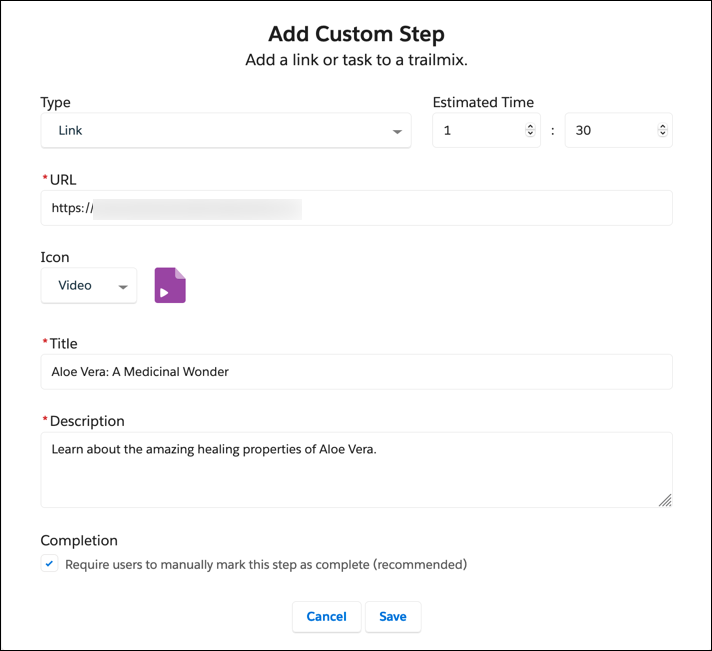
After you create the step, you can drag it to another position in the trailmix.

Note As you modify the content in the trailmix, your changes are saved automatically.
#### See Also
- [Rearrange Trailmix Content](https://help.salesforce.com/s/articleView?id=sales.mth_rearrange_trailmix_content.htm&release=264.0.0&type=5 "You can change the order of the content in a trailmix that you created.")
- [Create a Trailmix](https://help.salesforce.com/s/articleView?id=sales.mth_create_a_trailmix.htm&release=264.0.0&type=5 "Contribute to the learning experience by creating a trailmix. Each enablement site user can create up to 1,000 trailmixes.")
- [Edit a Trailmix](https://help.salesforce.com/s/articleView?id=sales.mth_edit_a_trailmix.htm&release=264.0.0&type=5 "You can edit a trailmix that you created—you can add content, delete content, and rearrange the content within the trailmix. You also can delete a trailmix that you created. You can’t modify trailmixes created by other people.")
- [Make a Trailmix Public or Private](https://help.salesforce.com/s/articleView?id=sales.mth_share_a_trailmix.htm&release=264.0.0&type=5 "When a user creates a trailmix, it’s private by default, and only the user that created the trailmix can see it. The user can make a trailmix public and share it with other learners on the enablement site, or make a trailmix that they previously shared private again.")
# Add a Totals Section to a Quote Template
Include subtotal and grand total amounts for your quote.
### Required Editions
Available in: Salesforce Classic and Lightning Experience
Available in: Performance and Developer Editions
In Sales, also available in: Professional, Enterprise, and Unlimited Editions
User Permissions Needed
To create quote templates:
Customize Application
To view quote templates:
View Setup and Configuration
1. Do either of the following.
1. Select Standard Template when you create a template, and then modify the totals section as needed.
2. Drag a section onto the layout of any template, and then drag total-related fields (such as Subtotal and Grand Total) to the right half of the section. If you’re placing the section directly below a list, hide the title.
2. Click , and then select right field alignment.
3. Save your changes.
#### See Also
- [Guidelines for Using the Quote Templates Editor](https://help.salesforce.com/s/articleView?id=sales.quotes_template_customize_docs.htm&release=264.0.0&type=5 "While you’re creating and editing quote templates, refer to key guidelines for additional information.")
# Add a Unit to an Existing Module
You can add a unit to an existing module.
### Required Editions
Available in: Enterprise, Performance, and Unlimited Editions
User Roles and
Permissions
Enablement Site User Roles
This topic supports these enablement site
roles:
Content Creators
Required System Permissions
To create and edit content with Trailmaker Content:
Create Content
1. Find the backpack that you want to import. You can:
- Access the backpack in your company’s version control system (VCS).
- Download the latest released version of the backpack from Trailmaker Release. To learn more, see [Download a Backpack from Trailmaker Release](https://help.salesforce.com/s/articleView?id=sales.mth_tm_release_download.htm&release=264.0.0&type=5 "From Trailmaker Release, you can download the backpack ZIP file for a module or trail published in your company’s enablement site. With this backpack, your content creators can easily access the latest released version of content the next time they want to update it.").
2. Import the module backpack into your Trailmaker Content workspace by completing the steps in [Import a Backpack into Trailmaker Content](https://help.salesforce.com/s/articleView?id=sales.mth_upload_published_or_archived_content_to_tm_content.htm&release=264.0.0&type=5 "You can add learning content into your workspace from a backpack ZIP file that you saved or downloaded. This workflow is helpful when you want to collaborate on content that other content creators started in their own workspace. Or, follow these steps when you want to update published content or restore archived content. You can also import a content template that you downloaded.").
3. In the Trailmaker Content workspace, click the module title, or select **Edit** from the Actions menu for the module.
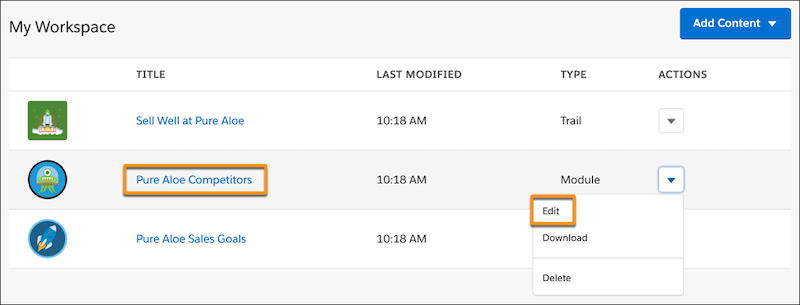
4. On the module page, click **New Unit**.
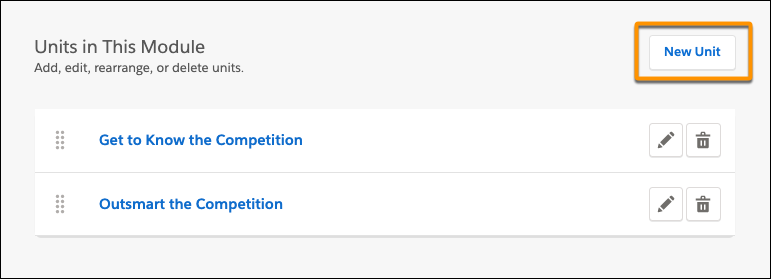
5. Enter your unit’s metadata and content.
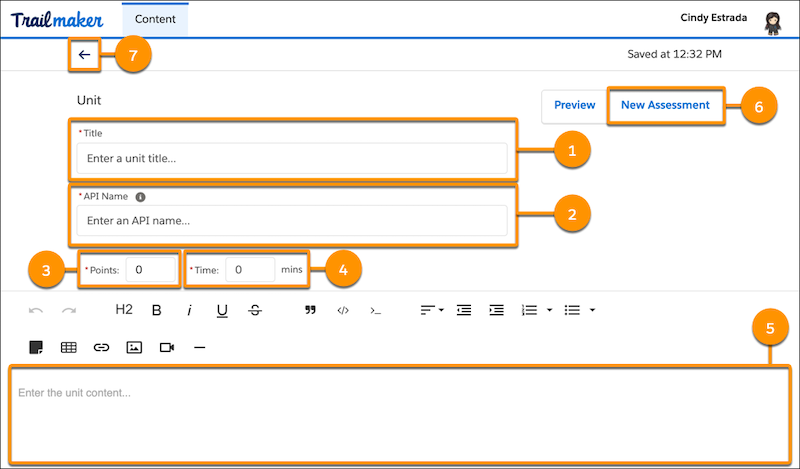
1. Enter a unit title (1).
2. Accept the suggested API name (2), or enter a unique name that you want to use instead.

Note
- A unit’s API name is used in URLs, so the API name is visible to learners.
- Each unit API name must be [globally unique](https://help.salesforce.com/s/articleView?id=sales.mth_api_names_on_mytrailhead.htm&release=264.0.0&type=5 "Each content collection, release, trail, module, and unit on your enablement site has its own API name, which is a globally unique ID that references a content path in URLs.").
3. For Points (3), enter the number of points that a learner earns by completing the unit’s quiz.

Note Effective September 2021, all points are automatically assigned to the General tag, and you can’t allocate points to different tags.
4. For Time (4), enter your estimate for how many minutes it takes to complete the unit and quiz.
5. To add the unit’s content, use the field below the formatting toolbar (5).

Tip We recommend that you paste only the unit’s text first, and then use the options on the formatting toolbar to insert images and videos.
6. To add the unit’s quiz, click **New Assessment** (6). For help with quizzes, see [Create Quizzes in Trailmaker Content](https://help.salesforce.com/s/articleView?id=sales.mth_create_quizzes_in_tm_content.htm&release=264.0.0&type=5 "Each unit in a module ends with a quiz to gauge how well users absorbed the content. Taking the quiz is also how users earn points. You create each quiz from the unit page in Trailmaker Content.").
7. To add another unit, click the back icon  (7) to return to the module page, click **New Unit**, and repeat these steps.
6. Add the revised module to an unpublished release by completing the steps in [Add Content to a Release from Trailmaker Content](https://help.salesforce.com/s/articleView?id=sales.mth_add_content_to_release_from_tm_content.htm&release=264.0.0&type=5 "After you create your module and quizzes and assign all the necessary metadata, add the content to a release.").
7. Preview and publish the release.
8. Download the latest released version of the module backpack, and store it in your VCS.
#### See Also
- [API Names for Trails, Modules, and Units](https://help.salesforce.com/s/articleView?id=sales.mth_api_names_on_mytrailhead.htm&release=264.0.0&type=5 "Each content collection, release, trail, module, and unit on your enablement site has its own API name, which is a globally unique ID that references a content path in URLs.")
- [Import a Backpack into Trailmaker Content](https://help.salesforce.com/s/articleView?id=sales.mth_upload_published_or_archived_content_to_tm_content.htm&release=264.0.0&type=5 "You can add learning content into your workspace from a backpack ZIP file that you saved or downloaded. This workflow is helpful when you want to collaborate on content that other content creators started in their own workspace. Or, follow these steps when you want to update published content or restore archived content. You can also import a content template that you downloaded.")
- [Format Content in Trailmaker Content](https://help.salesforce.com/s/articleView?id=sales.mth_format_content_in_tm_content.htm&release=264.0.0&type=5 "As you work in Trailmaker Content, use the formatting toolbar to style the content of your units. Trailmaker saves your changes to the cloud every few seconds.")
- [Add Media in Trailmaker Content](https://help.salesforce.com/s/articleView?id=sales.mth_work_with_graphics_videos_in_tm_content.htm&release=264.0.0&type=5 "You can insert images and videos in your enablement content.")
- [Create Quizzes in Trailmaker Content](https://help.salesforce.com/s/articleView?id=sales.mth_create_quizzes_in_tm_content.htm&release=264.0.0&type=5 "Each unit in a module ends with a quiz to gauge how well users absorbed the content. Taking the quiz is also how users earn points. You create each quiz from the unit page in Trailmaker Content.")
- [Add Content to a Release from Trailmaker Content](https://help.salesforce.com/s/articleView?id=sales.mth_add_content_to_release_from_tm_content.htm&release=264.0.0&type=5 "After you create your module and quizzes and assign all the necessary metadata, add the content to a release.")
# Add a User Manually in Salesforce Spiff
Create an individual user in Salesforce Spiff manually.
### Required Editions
Available in: both Salesforce Classic (not available in all orgs) and Lightning Experience
Available in: Enterprise, Unlimited, and Developer Editions
Available for an additional cost in: Professional Edition with Web Services API Enabled
Review these important considerations before you begin.
- This functionality is available only in Spiff environments that use Hyperforce.
- Users that you add from the Admin menu can't be referenced in calculated fields or data filters in Designer. To reference users in calculated fields or data filters, add them from the Data Sources tab instead. See [Import Users in Salesforce Spiff Manually](https://help.salesforce.com/s/articleView?id=sales.spiff_users_add_manual_import.htm&release=264.0.0&type=5 "Admins can manually import users in Salesforce Spiff by downloading, modifying, and uploading a template .csv file. You can also add other admins.").
1. From the Admin menu, select **Users**.
2. In the toolbar, click **Edit** (1) and then click **Add User** (2).
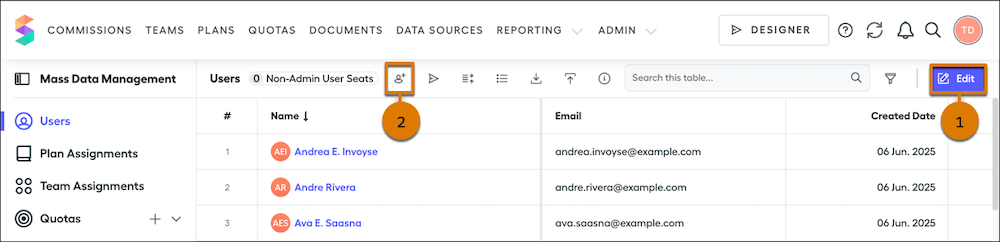
3. Enter a name and email address, select a role, and click **Create**.
Creating a user adds an entry in the System Activity log.
#### See Also
- [System Activity Log in Salesforce Spiff](https://help.salesforce.com/s/articleView?id=sales.spiff_log.htm&release=264.0.0&type=5 "Find version history for all your Salesforce Spiff payout rules, data filters, and variables and an audit trail for login attempts, team and user changes, plan and quota assignments, approvals, and adjustments.")
- [Considerations for Adding Users in Salesforce Spiff from Multiple Sources](https://help.salesforce.com/s/articleView?id=sales.spiff_users_add_considerations.htm&release=264.0.0&type=5 "Integrating users into Salesforce Spiff from multiple sources can lead to errors and system disruptions due to the creation of multiple user tables. Managing multiple user tables complicates user management, and plan assignments.")
- [User Roles and Permissions in Salesforce Spiff](https://help.salesforce.com/s/articleView?id=sales.spiff_users_roles_and_permissions.htm&release=264.0.0&type=5 "Give users the appropriate level of access so they can be successful in Salesforce Spiff, and enforce the principle of least privilege. Assign a default role to each user, or create custom roles with access to specific Spiff functionality.")
- [Adding Salesforce Spiff Users with No Salesforce License](https://help.salesforce.com/s/articleView?id=sales.spiff_connector_salesforce_license.htm&release=264.0.0&type=5 "When you use the Salesforce connector in Salesforce Spiff, you can add Spiff users who don't have a Salesforce license or who don't share your company's email domain.")
# Add Accessibility to an Image in a Unit
Alt text is text that a digital screen reader can recite aloud to tell visually impaired users what an image shows. Learners don’t see alt text in the content, but digital screen readers access it to read the description aloud.
### Required Editions
Available in: Enterprise, Performance, and Unlimited Editions
User Roles and
Permissions
Enablement Site User Roles
This topic supports these enablement site
roles:
Content Creators
Required System Permissions
To create and edit content with Trailmaker Content:
Create Content
1. Click an image in a unit.
2. From the mini toolbar, click .
3. Enter a description of the image, and click **Update**.

Tip Keep alt text brief. One sentence or even a sentence fragment is all you need.
#### See Also
- [Insert Images and Videos in a Unit](https://help.salesforce.com/s/articleView?id=sales.mth_include_graphics_videos_in_content.htm&release=264.0.0&type=5 "When you paste content into Trailmaker Content from your draft, Trailmaker also copies images included in the draft. You can also manually insert images or modify image properties in Trailmaker Content. For a video, you can only insert a link to the video’s embed URL from an external content delivery network.")
# Add an Attachment to an Email Template in Salesforce Classic
To attach a file to every email that uses an email template in Salesforce Classic, add the attachment to the template. Attachments in mass emails are sent as links rather than as files.
### Required Editions
Available in: Salesforce Classic
Available in: All Editions
Mass email not
available in: Personal, Contact Manager, and Group Editions
HTML and Visualforce email templates not available in: Personal
Edition
User Permissions
Needed
To create or change public email template folders:
Manage Public Classic Email Templates
1. Do one of the following to access email templates.
- If you have permission to edit public templates, from Setup, enter Email Templates in the Quick Find box, then select **Classic Email Templates**.
- If you don’t have permission to edit public templates, go to your personal settings. Enter Templates in the Quick Find box, then select **Email Templates** or **My Templates**—whichever one appears.
2. Select a template.
3. Click **Attach File** from the email template page.
4. Select the location of the file.
- If the file is on your computer, select **My Computer**, choose the file, and click **Attach File**. Select and attach more files, as needed, then click **Done**.
- If the file is in Salesforce, select whether it’s in your personal documents or is a shared document, and click **Search in Documents**. Select the file.
5. Send a test email to verify that the email includes the attachment and that it appears as you intend it to.
The Attachments section on the email template page includes the list of files attached to the template. You can edit, delete, or view each attachment, as needed.
# Add an Image to a Quote Template
Show an image, such as your company logo, in your quote template’s body, header, or footer.
### Required Editions
Available in: Salesforce Classic and Lightning Experience
Available in: Performance and Developer Editions
In Sales, also available in: Professional, Enterprise, and Unlimited Editions
User Permissions Needed
To create quote templates:
Customize Application
To view quote templates:
View Setup and Configuration
Before you begin, review key [considerations](https://help.salesforce.com/s/articleView?id=sales.quotes_template_considerations_for_adding_images.htm&release=264.0.0&type=5 "Before you add images to quote templates, consider a few key points.").
## Insert an Uploaded Image
1. To use an image that’s stored in Salesforce CRM Content, locate the image, and then download it to your local file directory.
2. Drag Text/Image Field into place in the header, the footer, or any section in the body.
3. Click the image icon, click **Choose File**, and then select the image in your file directory.
4. Click **Open** and then **Insert**.
The image appears in the field. To resize it, drag the sizing handles, which show the image’s height and width in pixels.
5. Click **OK**.
6. To see how the image looks in PDFs that are created from the template, click **Save and Preview**.
7. To suppress the title from appearing on the template or PDF, select Hide Title in Section Properties.
## Insert an Image from a Salesforce Web Address
1. If you need to, upload the image to the Documents tab, or define a static resource.
2. Drag Text/Image Field into place in the header, the footer, or any section in the body.
3. To suppress the title from appearing on the template or PDF, select **Hide Title**.
4. Click **OK**.
5. On the Documents tab or the Static Resources page, open the image’s detail page, click **View File**, and then copy its URL.
6. In the quote template editor, click  in the title bar of Text/Image Field.
7. Click the image icon, and then click the Web Address tab.
8. Paste the URL into the URL field, and then click **Insert**.
9. Click **OK**.
10. To see how the image looks in PDFs that are created from the template, click **Save and Preview**.

Important If the image is removed from the Documents tab or Static Resources page where it’s stored, the template displays a message that the image isn’t available. Restore the image, open the template, delete the error message image, and then paste the URL again.
# Add and Create Roles for Users Assigned to Sales Territories
Let your sales and service teams assign specific territory team roles from Salesforce to areas in Territory Planning. Each role that you create maps to a territory team role. After you create alignments and publish them to Sales Territories, assigned users and their roles appear in Salesforce territory models.
### Required Editions
Available in: both Salesforce Classic (not available in all orgs) and Lightning Experience
Available in: Professional, Enterprise, Performance, Unlimited, and Developer Editions with Web Services API enabled
User Permissions Needed
To manage Territory Planning options in the Salesforce Maps package:
Customize Application
1. From Setup, in the Quick Find box, enter Installed Packages, and then select **Installed Packages**.
2. Next to the Salesforce Maps package, click **Configure**.
3. Under Territory Planning, click **Area Roles**.
4. Assign a territory team role to the default area owner or to a new area role.
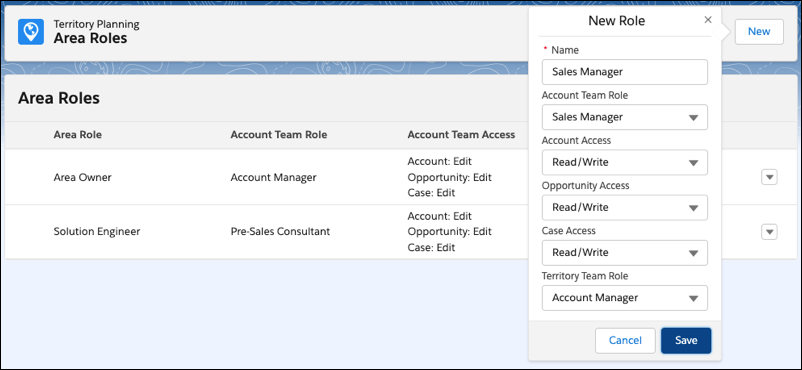
To assign a territory team role to...
Do this...
The default area owner
On the Area Owner role, click Edit, and then select its
corresponding territory team role from Sales Territories.
Keep in mind that you can
change the territory team role assignment, but you can’t delete the default area owner
role.
A new area role
Click New, and then select its corresponding territory team
role from Sales Territories.
5. Set access levels for the roles that you want available for territory assignments. Create any other roles that apply to your territories.
6. Save your work.
# Add and Edit Payout Rule Metrics
Motivate reps by giving them insight into payout rules. Reps learn what deals to focus on at the end of the month or statement period when they see key metrics and data such as quarterly quota and commission. Changes to rule metrics apply to all statements on the same plan.
### Required Editions
Available in: both Salesforce Classic (not available in all orgs) and Lightning Experience
Available in: Enterprise, Unlimited, and Developer Editions
Available for an additional cost in: Professional Edition with Web Services API Enabled
User Permissions Needed
To edit metrics in a statement:
A Spiff user role with these permissions turned on.
Statements: Edit
Statements: Recalculate
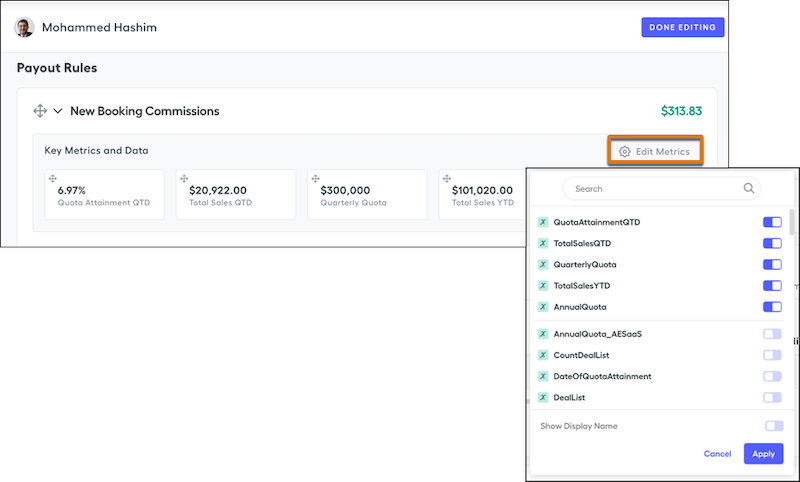
1. From a rep’s statement, click **Edit**.
2. Expand a payout rule and click **Edit Metrics**.
3. Turn on or off rule-specific data points, or search for one to add.
4. Turn on or off **Show Display Name**.
5. Click **Apply**.
6. Drag the card to the location you want.
7. Click **Done Editing**.
8. Recalculate the statement and refresh your browser.
Metrics that weren't used in the commission logic for your plan don’t show any data until you recalculate and refresh. Your statement can take a few minutes to recalculate before you refresh.
#### See Also
- [Hide Empty Metrics from a Rep’s Statement](https://help.salesforce.com/s/articleView?id=sales.spiff_statement_design_hide_if_null.htm&release=264.0.0&type=5 "Simplify the information shown in a statement in Salesforce Spiff so that sales reps and managers can focus on key details. If a statement metric doesn’t produce a value during the statement period, hide the metric so that the resulting statement shows only meaningful values.")
- [Add Tooltip Descriptions to Statement Metrics and Payout Rules](https://help.salesforce.com/s/articleView?id=sales.spiff_statement_design_tooltip.htm&release=264.0.0&type=5 "Help sales reps and managers better understand the information they see in Salesforce Spiff statements, and help Spiff admins deflect and resolve cases more efficiently. Add tooltip descriptions that explain metric tiles, key metrics and data, or obligations table columns. Edit the default, visible descriptions of certain payout rules.")
# Add and Edit Product Schedules
Add product schedules to define the payment and delivery cycles of your products.
### Required Editions
Available in: both Salesforce Classic and Lightning Experience
Available in: Professional, Enterprise, Performance, Unlimited, and Developer Editions
User Permissions
Needed
To add or edit product schedules:
Edit on products
1. Review [considerations and examples](https://help.salesforce.com/s/articleView?id=sales.products_considerations_for_using_schedules.htm&release=264.0.0&type=5 "Consider key points and review examples before you add product schedules, establish schedules on opportunity products, or enable customizable product schedules.").
2. Enable the appropriate [schedule types](https://help.salesforce.com/s/articleView?id=sales.enabling_schedules.htm&release=264.0.0&type=5 "Create default revenue and quantity schedules for products that are delivered or paid for over time. Let users create schedules for individual products on opportunities.").
3. Enable customization of product schedules. Create custom fields and buttons, validation rules, and Apex triggers as needed to support your business process.

Note Default product schedules aren’t customizable.
4. Select a product from the Products home page.
5. Click **Edit**.
6. Select the type of schedule to create: quantity, revenue, or both. Your choices are limited by your Salesforce org’s schedule settings and the schedule types that are enabled for the product.
7. Set the schedule details.
8. Save your changes.
9. To establish a schedule on an opportunity product, see [Establish Schedules for Products on Opportunities](https://help.salesforce.com/s/articleView?id=sales.products_establish.htm&release=264.0.0&type=5 "After you add product schedules, use them to set up payments for product sales and realized revenue on opportunities.").
10. To edit a product schedule, click **Edit** on the product detail page.
# Add and Edit Standard and Custom Statement Metrics
Help reps spend more time on sales and less time creating commission spreadsheets when you add useful metrics to their statements. Include standard and custom metrics, rearrange their order, and remove the ones you don’t need. Any calculations that you have previously created in Designer can be used as a metric card. Changes to metric cards apply to all statements on the same plan.
### Required Editions
Available in: both Salesforce Classic (not available in all orgs) and Lightning Experience
Available in: Enterprise, Unlimited, and Developer Editions
Available for an additional cost in: Professional Edition with Web Services API Enabled
1. From a rep’s statement, click **Edit**.
2. Click **Add Tile**.
3. Select a standard metric, add the metric, and then click **Done Editing**. Or, select **Custom Metric** and go to the next step.
4. Select a type, field, and how you want the metric to appear.
Metrics can be displayed in a regular or compact size. Compact metrics fit two cards in the size of one regular metric square. Progress rings can be displayed only in the regular size. Metrics formatted as a percentage are represented as a single value or a progress ring. All other numerical data is limited to a single value.
5. Click **Add Metric**.
6. Drag the card to the location you want.
7. Click **Done Editing**.
8. Recalculate the statement and refresh your browser.
Metrics that weren't used in the commission logic for your plan don’t show any data until you recalculate and refresh. Your statement can take a few minutes to recalculate before you refresh.
#### See Also
- [Add Tooltip Descriptions to Statement Metrics and Payout Rules](https://help.salesforce.com/s/articleView?id=sales.spiff_statement_design_tooltip.htm&release=264.0.0&type=5 "Help sales reps and managers better understand the information they see in Salesforce Spiff statements, and help Spiff admins deflect and resolve cases more efficiently. Add tooltip descriptions that explain metric tiles, key metrics and data, or obligations table columns. Edit the default, visible descriptions of certain payout rules.")
# Add and Manage Contact Roles
To specify the part that each contact plays in your business process, add contact roles to accounts, cases, contracts, and opportunities. For example, at AW Computing, Mary Smith evaluates all proposals and then forwards them to Tom Jones for a final decision. In the opportunity record for AW Computing, designate Mary Smith as the Evaluator and Tom Jones as the Decision Maker. Now you know who to contact first!
### Required Editions
Available in: both Salesforce Classic and Lightning Experience
Available in: All Editions
User Permissions
Needed
To add or edit contact roles:
Edit on the object the contact roles are on, such as opportunities or
contracts
AND
Read on contacts
To view contact roles:
Read on the object the contact roles are on, such as opportunities or
contracts

Important In Salesforce Classic, contact roles are available for accounts, opportunities, cases, and contracts. In Lightning Experience, contact roles are available for opportunities, contracts, and cases. Although contact roles work similarly for each available object, they work independently. Therefore, you need to set them up and use them separately for each object.
## Add and Manage Contact Roles in Lightning Experience
To specify the part that each contact plays in your business process, add contact roles to opportunities or contracts.
1. In the Contact Roles related list of an opportunity or contract, click **Add Contact Roles**.
2. Select the contacts to add.
- To add contacts to an opportunity, select the checkboxes next to the contacts you want to add. All contacts for the account are populated in the list.
- To add contacts to a contract, use the lookup icon to choose a contact or person account.
3. Select roles for the contacts. If you don’t select a role, the contact is still added to the Contact Roles related list and can be edited later.
4. Save your changes. It can take up to 30 minutes before the new contact role appears in the Contact Roles related list.
## Add and Manage Contact Roles in Salesforce Classic
To specify the part that each contact plays in your business process, add contact roles to accounts, cases, contracts, and opportunities.
1. In a record’s Contact Roles related list, click **New**.
- To add contacts to an opportunity, select a role for each contact in the list you wish to add.
- To add contacts to an account, contract, or case, use the lookup icon to choose a contact or person account. Select a role for the contact.
2. Optionally, designate a primary contact for the record. Cases don’t have this option.
3. Save your changes. It can take up to 30 minutes before the new contact role appears in the Contact Roles related list.
#### See Also
- [Considerations for Using Contact Roles](https://help.salesforce.com/s/articleView?id=sales.contactroles.htm&release=264.0.0&type=5 "Contact roles let you specify the part that a person plays in an account, case, contract, or opportunity. When you use contact roles, you have more information about who to contact and when. Examples of contact roles include decision maker, business user, and executive sponsor. There are some things to be aware of when using contact roles.")
- [Contact Role Fields](https://help.salesforce.com/s/articleView?id=sales.contactroles_fields.htm&release=264.0.0&type=5 "Contact Roles define the role that a contact or person account plays in an account, case, contract, or opportunity.")
- [Set Up Contact Roles](https://help.salesforce.com/s/articleView?id=sales.contactroles_define.htm&release=264.0.0&type=5 "When you use contact roles, your sales team always knows who to contact and when. Set up contact roles for each available object you want to use them with. You can define which roles to use and how they appear to your sales reps.")
- [Considerations for Cloning Opportunities](https://help.salesforce.com/s/articleView?id=sales.opp_clone.htm&release=264.0.0&type=5 "Review considerations for cloning an opportunity with or without its related contact roles, products, and product (line item) schedules.")
# Add and Manage Contacts from Pipeline Inspection
Add contact roles, create new tasks, schedule events, and send emails directly from Pipeline Inspection. This helps you keep opportunity stakeholders accurate and up to date.
### Required Editions
Keeping your deal stakeholders up to date helps you and your manager see exactly who's involved in a deal and who still needs to be reached. You can manage these relationships without leaving your pipeline view.
1. On the Opportunities tab, click **Pipeline Inspection**.
2. Click the number in the Contacts column for the opportunity you want to update.
The side panel opens to the Contacts tab.
If you don't see the Contacts column, click the gear icon, select **Select Fields to Display** and add **Contacts**.
3. If an active person is listed but doesn't have a role, click **Add Contact Role** and set the appropriate role.
4. To change a stakeholder's current role, click **Edit Role**.
5. To send an email, click the email icon next to a contact or the **Send Email** button at the bottom of the panel.
6. To create a new task or schedule an event, click the dropdown menu next to a contact.

Note To see more details about a contact, click their name in the side panel to open their full record in a new tab.
# Add and Manage Opportunity Contact Roles
To specify the part that each contact plays in a deal, add contact roles to your opportunities. For example, at AW Computing, Mary Smith evaluates all proposals and then forwards them to Tom Jones for a final decision. In the opportunity record for AW Computing, you designate Mary Smith as the Evaluator and Tom Jones as the Decision Maker. Then, you know who to contact first.
### Required Editions
Available in: both Salesforce Classic and Lightning Experience
Available in: All Editions
User Permissions
Needed
To add or edit opportunity contact roles:
Edit on opportunities
AND
Read on contacts
To view opportunity contact roles:
Read on opportunities and contacts

Note This information applies to opportunity contact roles, a type of [contact roles](https://help.salesforce.com/articleView?id=sales_core_contact_roles.htm&type=5&language=en_US).
1. In the Contact Roles related list on an opportunity, select **Add Contact Roles**.
The list includes all contacts for the account that is associated with the opportunity, even if you’ve applied a lookup filter on the Contact field.
2. To add a role to a contact, select the dropdown next to the contact, or select the contact and select **Edit Contact Role**.
To add a new contact, select **Edit Contact Role** and add the contact name to a blank row and select the contact role. Add more rows, as needed.
If you don’t select a role, the contact is still added to the Contact Roles related list in the opportunity. You can edit it later.
3. Optionally, designate a primary contact for the opportunity.
4. Save your changes.

Note You can save up to 200 opportunity contact roles at a time.
5. To keep the opportunity contact roles up to date, edit and delete the roles as contacts change.
When converting a lead to an opportunity, a contact is associated with the opportunity as a contact role if the contact and opportunity are created during the conversion process.
# Add and Publish an Image for Rich Text Content from Digital Experiences
When you create rich text content for use with a Lesson exercise in a program, you can insert images that are already published in the Enablement workspace in the Digital Experiences app. You can add and publish the image separately, and manage its versions outside of the Rich Text content type that references it.
### Required Editions
Available in: Lightning Experience
Enablement is available in Developer Edition with a limited number of add-ons. It is also available with Sales, Service, or the Salesforce Platform in: Enterprise, Performance, Unlimited, and Einstein 1 Sales Edition Editions for an additional cost
Enablement Lite is available with Sales in: Enterprise, Performance, and Unlimited Editions
Partner Enablement is available in Developer Edition with a limited number of add-ons. It is also available with Sales, Service, or the Salesforce Platform in: Enterprise, Performance, and Unlimited Editions for an additional cost. A supported PRM add-on license is required.
User Permissions Needed
To manage content for program exercises in the Enablement workspace:
Content Manager contributor role in the Enablement workspace in Digital
Experiences
First, make sure that you [have an appropriate contributor role assigned in the Enablement workspace in the Digital Experiences app](https://help.salesforce.com/s/articleView?id=sales.enablement_content_contributor.htm&language=en_US).

Note Only the provisioned Enablement workspace supports content for exercises. Other workspaces that you create or already use in Digital Experiences aren’t compatible with Enablement programs.
1. In the Digital Experiences app, select the Enablement workspace.
2. Select **Add** | **Content**.
3. In the Create CMS content window, select **Image**, and click **Create**.
4. Complete the required metadata fields.
Field
Value to Enter
Title
An internal title for the image.
Alt Text
Text that describes the image for accessibility.
Source
The image file to add.
You can add a BMP, GIF, PNG, JPG, or JPEG file up to 25 MB.
For sales programs in Lightning Experience, the Guidance Center panel provides a
content area that’s 350 px wide by default and 626 px wide when expanded. We recommend
that you choose image files that look good at these sizes.
For Partner Enablement programs in supported Experience Cloud sites, work with your
site developer to determine appropriate image sizes for the page and column sizes
they’re creating.
5. Save your work.
6. If you’re confident that you want to include the image in rich text in a program, click **Publish**.

Tip To optimize storage of Digital Experiences content, only publish content that you plan to use in an Enablement program. Leave all other content in Draft status. To learn more, see [Guidelines for Digital Experiences Content in Enablement Programs](https://help.salesforce.com/s/articleView?id=sales.enablement_content_guidelines.htm&language=en_US).
7. To return to the Enablement workspace, click the back arrow  in the header menu.
Next, insert the published image in rich text when you [create a record of the Rich Text content type](https://help.salesforce.com/s/articleView?id=sales.enablement_content_rich_text.htm&release=264.0.0&type=5 "In the Digital Experiences app, you can add the rich text content that you want to use for a Lesson exercise in a program before you start working in Program Builder. You can also insert images in the rich text content body.").
You can also insert images that aren’t yet published. In this case, you’re prompted to publish the image when you publish the rich text.

Note When you [create rich text directly from Program Builder](https://help.salesforce.com/s/articleView?id=sales.enablement_content_program_builder.htm&release=264.0.0&type=5 "Create and edit links, videos, or rich text directly from Program Builder without navigating to the Digital Experiences app. Working from Program Builder directly requires fewer clicks to create and update content but offers fewer options for managing content records."), you can only insert published or unpublished images as part of the Rich Text content type. The option to manage images separately from rich text isn’t available. And by itself, the Image content type in Digital Experiences doesn’t correspond to any exercise type in Program Builder.
#### See Also
- [Guidelines for Digital Experiences Content in Enablement Programs](https://help.salesforce.com/s/articleView?id=sales.enablement_content_guidelines.htm&release=264.0.0&type=5 "The Enablement workspace in the Digital Experiences app provides specific functionality for managing content used in Enablement program exercises. If your org already has Digital Experiences enabled, only the provisioned Enablement workspace supports content for Enablement programs.")
- [Create Rich Text for an Exercise from Digital Experiences](https://help.salesforce.com/s/articleView?id=sales.enablement_content_rich_text.htm&release=264.0.0&type=5 "In the Digital Experiences app, you can add the rich text content that you want to use for a Lesson exercise in a program before you start working in Program Builder. You can also insert images in the rich text content body.")
# Add and Remove Custom Area Fields in Territory Planning
Select up to 20 Territory Planning Area fields for an alignment. Remove a field from the alignment when you no longer need it.
### Required Editions
Available in: Lightning Experience
Available in: Enterprise, Performance, and Unlimited Editions with the Sales Planning add-on license
User Permissions Needed
To add and remove custom area fields:
Sales Planning Ops Analyst permission set
AND
Query for Datapipelines User for Sales Planning permission set
AND
SF Maps Territory Planning for Sales Planning permission set
You import custom area fields from the Territory Planning Area object. Before you add fields, review [Considerations for Custom Area Fields in Territory Planning](https://help.salesforce.com/s/articleView?id=sales.territory_planning_custom_area_fields_considerations.htm&release=264.0.0&type=5 "Review required fields, access, deleted fields, and cloning before you add custom area fields to an alignment."). For field types, editing behavior, and publish behavior, see [How Custom Area Fields Work in Territory Planning Alignments](https://help.salesforce.com/s/articleView?id=sales.how_custom_area_fields_work_in_territory_planning_alignments.htm&release=264.0.0&type=5 "Custom Territory Planning Area fields become area attributes in an alignment. Planners view, edit, publish, and clone them with other area data.").
1. Open an alignment.
2. Go to **Configure** | **Attributes**.
3. In **Area Attributes**, select the Territory Planning Area fields to import.
Import up to 20 fields. System, OOTB, and custom Territory Planning fields aren't available.
Territory Planning shows an error for a duplicate selection. If a CSV import already added the field, Territory Planning rejects the selection.
4. Save your changes.
The fields appear in the legend and in the area editor. Territory Planning imports existing values on area records in the alignment.
5. To remove an imported field later, open **Area Attributes**, remove the field, and save your changes.
Remove any imported field from the alignment.
# Add Area Attributes to Alignments
Refine attribute data for areas when you import a .csv file into Territory Planning. For example, update area names, centers, owners, and assignments. Update multiple balance targets and geographic profiles at one time to optimize territory and rep assignments for in-person and remote customer visits.
### Required Editions
Available in: both Salesforce Classic (not available in all orgs) and Lightning Experience
Available in: Professional, Enterprise, Performance, Unlimited, and Developer Editions with Web Services API enabled
User Permissions Needed
To add attributes to alignments:
Sales Planning Ops Analyst permission set
AND
Query for Datapipelines User for Sales Planning permission set
AND
SF Maps Territory Planning for Sales Planning permission set
1. Prepare the attributes in your .csv file. Include an ID field, such as Area Name.
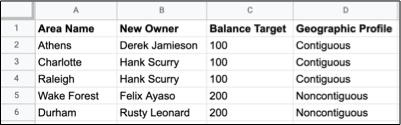
2. From an open alignment, click **Settings** | **Attributes**. Then at the area level, click **Import from CSV**.
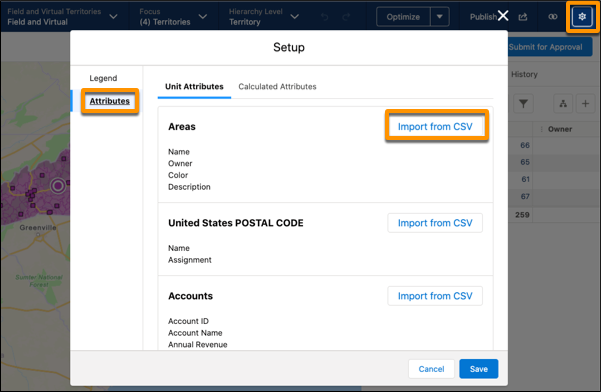
3. Upload the .csv file.
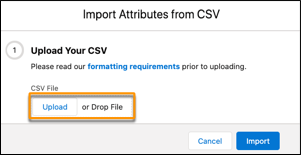
4. Select columns in the .csv file that you want to import.
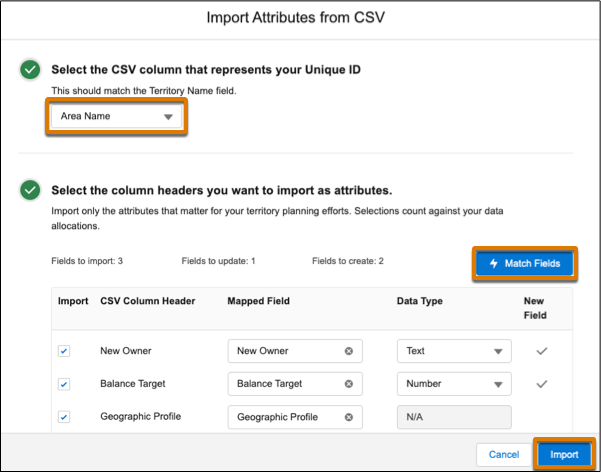
1. Select the column that represents the unique ID for each record.
2. Select the other columns that you want to import, and click **Match Fields**.
3. Select the data type for new attributes, and click **Import**.
Territory Planning applies the updates to the alignment. New attributes appear with `from CSV` appended to their names.

Tip If any records fail to import, download the log file from the data import summary, fix the errors, and import the .csv file again. If all records import, no data import summary appears.
# Add Areas to Alignments
Ensure optimal sales and service coverage as your business grows when you add areas and their assignments to territory models in Territory Planning.
### Required Editions
Available in: both Salesforce Classic (not available in all orgs) and Lightning Experience
Available in: Professional, Enterprise, Performance, Unlimited, and Developer Editions with Web Services API enabled
User Permissions Needed
To modify alignment options:
Sales Planning Ops Analyst permission set
AND
Query for Datapipelines User for Sales Planning permission set
AND
SF Maps Territory Planning for Sales Planning permission set
1. Open an alignment and set the focus.
2. Click **Add Area**, and then specify the area’s name, parent area, owner, and color. Define any assignment rules, optimization settings, and assigned users.
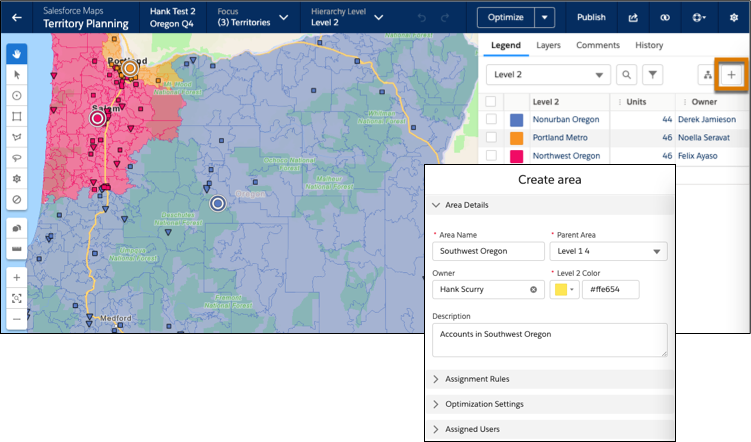
3. Save your changes. To add more areas, repeat Step 2.
4. If you don’t use assignment rules, optimize the focus using a priority of your choice. Then review the summary.
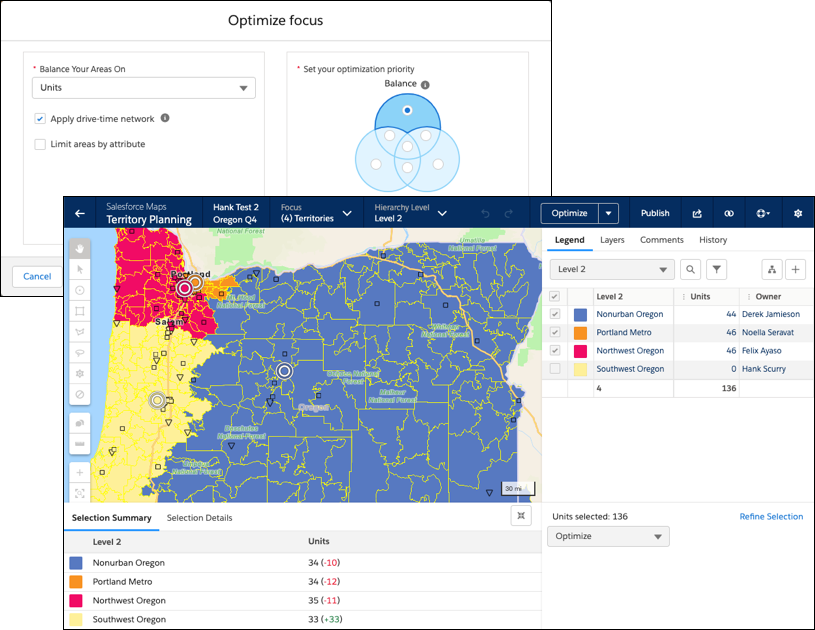
5. Apply your changes.
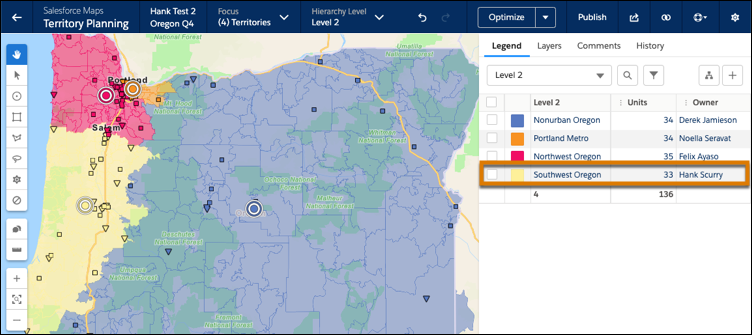
The new area and its assignments appear on the legend.
# Add Assignment Rules to Territories
Automate record assignments to territories directly from the territory record. Available rules come from the territory model the territory belongs to.
### Required Editions
Available in: Salesforce Classic for some features and Lightning Experience for all features
Available in: Performance and Developer Editions and in Enterprise and Unlimited Editions with Sales
User Permissions Needed
To assign rules to a territory:
View Setup and Configuration
AND
Manage Territories
1. Open the territory you want to assign rules to.
2. On the territory’s detail page, in the **Assignment Rules Assigned to This Territory** related list, click **Assign Rules** to see a list of rules available in the model.
3. In the Available related list, hover over the names of available rules to view the details of their criteria. Select the checkbox for as many as 15 rules that you want to assign to the territory. To view more rules, click **More** beneath the list.
Each selected rule appears in the Selected related list.
4. Apply selected rules to child territories as appropriate.
5. Click **Assign**.
#### See Also
- [How Do Permissions for Territories Affect Feature and Data Access?](https://help.salesforce.com/s/articleView?id=sales.tm2_how_access_permissions_work.htm&release=264.0.0&type=5 "Anticipate how permissions for Sales Territories affect administration and provide access to records and data.")
# Add Automation to Common Tasks with Standard Autolaunched Flows
A standard autolaunched flow type is designed to run automatically and perform common tasks. For example, when lead records update, you can automatically remove a lead from a cadence.
### Required Editions
Available in: Lightning Experience
Available with Sales Engagement, which is included with Sales in Performance, Einstein 1, and Unlimited Editions, and available for an extra cost in Professional and Enterprise Editions. Sales Engagement is also available for an extra cost in Service and Lightning Platform.
Sales
Engagement Cadence Creator Included (Performance and Unlimited
Editions)
To create and edit flows:
Manage Flow
1. In Flow Builder, click **New Flow**.
2. Click **Autolaunched Flow**.
3. Choose the cadence step flow template that you want to work with.
4. Clone the template and customize its elements to fit your business.
With Sales Engagement, Flow Builder includes these autolaunched flow templates. Activate Flow templates before cloning them.
- Remove Lead from Cadence on Opt-Out: Removes a lead from all cadences when either the lead record DoNotCall field or HasOptedOutOfEmail field is set to true. This flow requires that the HasOptedOutOfEmail and DoNotCall fields on lead are visible to your Sales Engagement users. This flow only runs when the value of either of these fields changes from false to true.
- Remove Unqualified Lead: When the lead's status changes to Unqualified, removes the lead from all cadences and sets the Completion Disposition to Disqualified. This flow requires that "Unqualified" is an active status.
# Add Boundary Attributes to Alignments
Alter an alignment’s territory boundary when you import a .csv file into Territory Planning. Update boundary assignments and even the units within them. For example, update or create ZIP code assignments to include a new area when you expand a territory.
### Required Editions
Available in: both Salesforce Classic (not available in all orgs) and Lightning Experience
Available in: Professional, Enterprise, Performance, Unlimited, and Developer Editions with Web Services API enabled
User Permissions Needed
To add attributes to alignments:
Sales Planning Ops Analyst permission set
AND
Query for Datapipelines User for Sales Planning permission set
AND
SF Maps Territory Planning for Sales Planning permission set
1. Prepare the attributes in your .csv file.
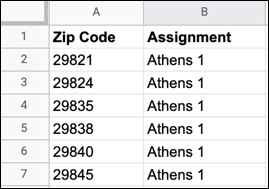
- Include an ID field, such as Zip Code.
- If an area name in the .csv file includes a comma, enclose the comma in double quotes.
2. From an open alignment, click **Settings** | **Attributes**. Then at the boundary level, click **Import from CSV**.
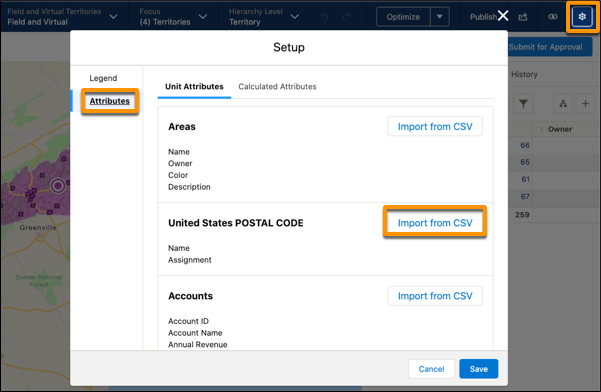
3. Upload the .csv file.

4. Select columns in the .csv file that you want to import.
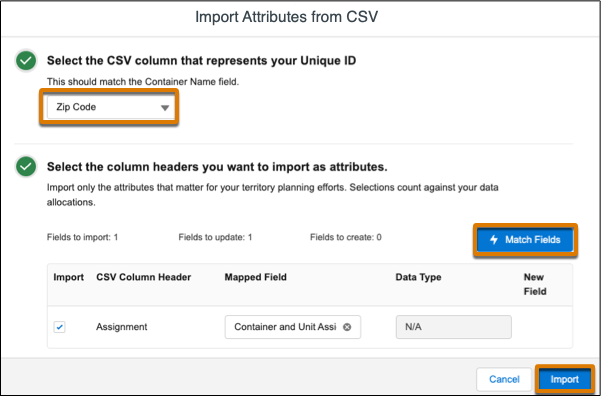
1. Select the column that represents the unique ID for each record.
2. Select the other columns that you want to import, and click **Match Fields**.
3. Select the data type for new attributes, and click **Import**.
Territory Planning applies the updates to the alignment. New attributes appear with `from CSV` appended to their names.

Tip If any records fail to import, download the log file from the data import summary, fix the errors, and import the .csv file again. If all records import, no data import summary appears.
# Add Cadence Actions to Page Layouts
If your org has customized Salesforce Mobile and Lightning Experience Actions for lead, contact, or person account records, add cadence actions to those objects’ page layouts. Add the actions from the Object Manager.
### Required Editions
Available in: Lightning Experience
Available with Sales Engagement, which is included with Sales in Performance, Einstein 1, and Unlimited Editions, and available for an extra cost in Professional and Enterprise Editions. Sales Engagement is also available for an extra cost in Service and Lightning Platform.
User Permissions
Needed
To set up Sales Engagement:
Customize Application AND Modify All Data
1. From Setup, enter **Object Manager** in the Quick Find box, and then select **Object Manager**.
2. Click the object that you want to modify. For Sales Engagement, make sure that you update Lead, Contact, Person Account, and Opportunity.
3. Select **Page Layouts**, and then click the relevant page layout.
4. From the palette on the upper portion of the screen, click **Mobile & Lightning Actions**.
5. Drag these actions to the Salesforce Mobile and Lightning Actions section of the page layout.
- **Add to Cadence**
- **Remove from Cadence**
- **Change Target Assignee**
- **Adjust Step Timing**

Note On the opportunity page layout, you can only use the Add to Sales Cadence action. Cadence actions aren't supported in the Salesforce mobile app.
6. Save your changes.
7. Repeat the process for other relevant objects. For Sales Engagement, make sure that you update Lead, Contact, and Person Account.
# Add Call Explorer to Voice Calls and Video Calls
Enable Call Explorer by turning on the feature in Setup and assigning the related permission set to users.
### Required Editions
Prior to enabling Call Explorer, the following features must be enabled:
- Einstein Conversation Insights: This can be enabled in Setup, from the General Settings page under Einstein Conversation Insights.
- Einstein Generative AI: This can be enabled in Setup, from the Einstein Generative AI Setup page.
| Available in: Lightning Experience |
| --- |
| Available in **Starter**, **Pro**, **Enterprise**, **Performance**, **Unlimited**, and **Agentforce 1 Sales** Editions with the Einstein for Sales add-on and Einstein Conversation Insights. |
User Permissions Needed
To enable Einstein Conversation Insights:
Customize Application
1. From the Setup, enter Einstein for Sales in the Quick Find box and select **Einstein for Sales**.
2. Turn on Call Explorer.
3. From Setup, enter Permission Sets in the Quick Find box, and then select **Permission Sets**.
4. Click **Einstein Sales Call Explorer**, and then click **Manage Assignments** to assign the permission set to users.

Note You can also assign permission sets per user. From Setup, enter Users in the Quick Find box, and then select **Users**. Click the name of individual users. In the Permission Set Assignments related list, click **Edit Assignments**.
#### See Also
- [Call Explorer Powered by Einstein Generative AI](https://help.salesforce.com/s/articleView?id=sales.eci_call_explorer.htm&release=264.0.0&type=5 "Einstein Conversation Insights users can ask questions directly from voice and video call records. Powered by Einstein, the new Call Explorer allows users to quickly gather information about a call, such as product mentions or outstanding customer questions.")
# Add Call Summaries and Generative Insights to Voice Calls, Video Calls, and Related Records
If you have call summaries and generative insights enabled, use the Lightning App Builder to add the Call Summary and Generative Insights components to voice and video call records if they’re not added by default. And add the components to the page layouts of related records.
### Required Editions
Prior to enabling Call Summaries, the following features must be enabled:
- Einstein Conversation Insights: This can be enabled in Setup, from the General Settings page under Einstein Conversation Insights.
- Einstein Generative AI: This can be enabled in Setup, from the Einstein Generative AI Setup page.
| Available in: Lightning Experience |
| --- |
| Available in **Enterprise**, **Performance**, **Unlimited**, and **Agentforce 1 Sales** Editions with Einstein Conversation Insights. |
User Permissions
Needed
To enable Einstein Conversation Insights:
Customize Application, View Setup, Modify All Data
Enable Call Summaries and Generative Conversation Insights
Turn on the features from Setup. Navigate to Einstein Conversation Insights page in Salesforce Go and turn on the **Generative ECI** feature. Generative AI must be turned on in order to use Generative ECI.

Add the Call Summary and Generative Insights Lightning Components
The Call Summary and Generative Insights components are typically added by default to the page layouts of voice and video call records, but it isn’t added if you’ve customized the page layout. Add the component manually if it isn’t there.
And add the separate Call Summary Related List component to all record types that might be related to voice and video calls, such as opportunities, accounts, leads, and contacts.
Add the Call Summary and Generative Insights components
1. Navigate to a voice call or video call record page.
2. From the Setup menu, click **Edit Page**.
When you select **Edit Page** for the first time, Salesforce makes a copy of the standard page. This copy is what you edit in the Lightning App Builder. If a customized page exists and is active, selecting Edit Page opens that page to edit.
3. To add the Summary tab, select the Tab component and click **Add Tab** in the Tabs component properties. Then select the **Call Summary** tab.
Alternatively you can select the **Call Summary** component from the Components list and drag it to the desired place in the canvas.
4. You can customize the tab by clicking it in the properties pane.
5. Repeat the process for the **Generative Insights** tab.
6. Click **Save**.
Add the Call Summary Related List component
1. Navigate to a record detail page for a record type related to voice or video calls.
Alternatively you can open a page from the Lightning App Builder list page. From Setup, in the Quick Find box, enter App Builder, then select **Lightning App Builder**, and select the record page you want to edit.
2. Select the **Call Summary List View** component, and then drop it in the desired place on the record.
3. Click **Save**.
4. Repeat steps 6-8 for any other record types related to voice or video calls.
Call summaries are available for standard reporting and other API features through the [GenAIConversationSummary](https://developer.salesforce.com/docs/atlas.en-us.object_reference.meta/object_reference/sforce_api_objects_genaiconversationsummary.htm) standard object.
#### See Also
- [Call Summaries and Generative Conversation Insights Powered by Einstein Generative AI](https://help.salesforce.com/s/articleView?id=sales.eci_call_summaries.htm&release=264.0.0&type=5 "Einstein Conversation Insights (ECI) users can access generative call summaries and generative insights on voice and video calls. Powered by Einstein, the Summary tab on call records allows users to get automatic summaries that include next steps and customer feedback, and share summaries for easier team collaborations in the flow of work. All calls processed by Einstein Conversation Insights can also include generative conversation insights, leveraging an LLM to detect insights based on custom instructions and topics using natural language. Once the feature is on, a call summary and any generative insights configured will automatically be processed for all ECI calls.")
# Add Campaign Influence Manually
You can track campaign influence manually by adding it to the Campaign Influence related list. When you add to a campaign manually, you don’t select a specific contact, so names and campaign member statuses aren’t shown.
### Required Editions
Available in: Salesforce Classic
Available in: Salesforce Professional, Enterprise, Performance, Unlimited, and Developer Editions
User Permissions
Needed
To view the Campaign Influence related list:
Read on campaigns
AND
Read on opportunities
To manually add influential campaigns:
Read on campaigns
AND
Read and Edit on
opportunities
AND
Marketing User selected in
User Detail

Note This information applies only to Campaign Influence 1.0 and not to [Customizable Campaign Influence](https://help.salesforce.com/s/articleView?id=sales.campaigns_influence_customizable.htm&release=264.0.0&type=5 "Campaign Influence is a tool that helps you attribute a percentage of success to influential campaigns. Two versions are available: Campaign Influence 1.0 for Salesforce Classic and Customizable Campaign Influence for Classic and Lightning Experience. The customizable version offers more flexibility in how you assign influence to your marketing activities.").
1. Open an opportunity record.
2. Find the Campaign Influence related list, and click **Add to Campaign**.
3. Enter a campaign name or use the lookup.
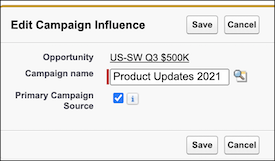
4. To allocate 100% of the influence to a campaign, select **Primary Campaign Source**.
You can select only one campaign as the primary campaign source. To change the selection, deselect the checkbox on one campaign so that you can add it to another.
# Add Campaign Members from an Account Page
Select campaign members from the Contacts related list on your accounts.
### Required Editions
Available in: Salesforce Classic and Lightning Experience
Available in: Salesforce Professional, Enterprise, Performance, Unlimited, and Developer Editions
User Permissions Needed
To add or clone a campaign member:
Read on campaigns
AND
Edit on leads and
contacts
AND
Marketing User selected in User
Detail
To edit individual campaign members:
Read on campaigns
AND
Read or Edit on leads or
contacts
AND
Marketing User selected in User
Detail
1. From an account detail page, go to the Contacts related list.
2. Add one or more contacts as campaign members.
- To add a single campaign member, select **Add to Campaign** from the Actions menu next to the contact.
- To add more than one member, click **View All**, then select campaign members and click **Add to Campaign**. The maximum number of contacts viewable per page is 200.
3. Specify the campaign.
4. Specify the campaign member status.
5. Choose whether to apply the member status to selected leads or contacts who are already members of the campaign.
6. Submit your changes.
# Add Campaign Members from Standard and Custom Reports
Adding members to a campaign is quick and easy when you add them from your lead, contact, and person account tabular, summary, and matrix reports.
### Required Editions
Available in: Salesforce Classic and Lightning Experience
Available in: Salesforce Professional, Enterprise, Performance, Unlimited, and Developer Editions
User Permissions
Needed
To add campaign members from a contact report:
Marketing User selected in User Detail
AND
Edit on campaigns
AND
Read on contacts
AND
Read on reports
To add campaign members from a lead report:
Marketing User selected in User Detail
AND
Edit on campaigns
AND
Read on leads
AND
Read on reports
To add campaign members from a person account report:
Marketing User selected in User Detail
AND
Edit on campaigns
AND
Read on contacts
AND
Read on reports
You can add campaign members from a report that returns lead, contact, or person account records. Verify that Detailed Rows is turned on before you begin.
1. Make sure that the Detailed Rows setting is turned on.
2. Click the report’s action menu, and then select **Add to Campaign**. If the **Add to Campaign** button is disabled, modify your report to return fewer than 50,000 records.
3. Enter or select the campaign to add these members.
4. Select a member status for the new members, or keep their current statuses.
5. Click **Submit**, and then check your email for a confirmation message.
6. In Salesforce Classic, use the Add to Campaign button to complete the operation. Review the confirmation screen, and then click **Done**.
Be aware of these considerations when adding campaign members from a report:
- To add members to campaigns from custom reports, the report’s primary object must be a lead, contact, or person account.
- To add members to campaigns from reports in Lightning Experience, the custom report type must include the Full Name field.
- If you interrupt the add campaign members process, some members can still be added to the campaign. That’s because members are added in batches.
- If you edit a record during the adding process, it isn’t added to the campaign.
- You can add active leads to campaigns—not converted leads. If converted leads appear on your report, don’t worry, only the active leads are added to the campaign.
- The Add to Campaign button appears only in saved reports. The button doesn’t appear when you edit or preview a report.
# Add Campaign Members with Manage Members
Learn how to add campaign members from the Manage Members page.
### Required Editions
Available in: Salesforce Classic
Available in: Salesforce Professional, Enterprise, Performance, Unlimited, and Developer Editions
User Permissions Needed
To add campaign members:
Edit on campaigns
AND
Edit on leads and contacts
AND
Marketing User selected in User Detail
To remove campaign members:
Read on campaigns
AND
Edit on leads or contacts
You can add leads and contacts as members of a campaign from the Manage Members page. To add contacts to a campaign, the Add to Campaign checkbox must be enabled.

Note Before using the Manage Members page, verify that you’re using a supported browser.
1. On a campaign detail page or the Campaign Members related list, click **Manage Members** and select **Add Members - Search**.
2. On the Add Members subtab, select the Leads or Contacts option to add leads or contacts, respectively.
3. Search for leads or contacts:
- You can specify search filters and click **Go!**
- Alternatively, you can select an existing view, such as all open leads, from the Use Existing View dropdown list. Your results show automatically. If you select an existing view, you can modify its criteria by adding or changing filters, and clicking **Go!**.

Note You can’t modify filter criteria if you selected a view that uses advanced options or that uses more than five filters. Filter criteria are reflected in your search results for these views, though not all filter criteria appears
4. Select the checkboxes next to the records that you want to add. To select all records on the current page, select the checkbox in the header row.
5. Select a status from the **Add with Status** dropdown list.
A confirmation message appears and you see the members that you added on the Existing Members subtab.

Note If you’re unable to add contacts, turn on the Add to Campaign checkbox. From the object management settings for contacts, go to Search Layouts. Then, edit the Contacts list view, select **Add to Campaign**, and save your changes.
The latest Manage Members page isn’t available in accessibility mode. In accessibility mode, you can still [add contacts or leads to a campaign](https://help.salesforce.com/s/articleView?id=sales.campaigns_addwizard.htm&release=264.0.0&type=5 "Quickly add lots of contacts, leads, and person accounts as members to your campaigns at one time."), [update campaign members](https://help.salesforce.com/s/articleView?id=sales.campaign_update_wizard.htm&release=264.0.0&type=5 "To add or update many campaign members at one time, open the Data Import Wizard from the campaign detail page."), and [remove campaign members](https://help.salesforce.com/s/articleView?id=sales.campaigns_deletewizard.htm&release=264.0.0&type=5 "Save time by removing lots of campaign members from campaigns at a time while in accessibility mode.") using the campaign member wizards.
# Add Columns to a Forecast Type
To show forecast measures on the forecasts page, add columns to the grid. You can add up to nine columns, including the quota column.
### Required Editions
Available in: Lightning Experience
Available in: Enterprise, Unlimited with Sales, and in Agentforce 1 Sales Edition
You can add two types of columns: measure and quota. Use measure columns to show forecast values of data type Number or Currency. Use quota to show your team’s quotas along with other measures.
The quota column is optional, and to show it, enable Show Quotas on the Forecast Settings page and define quotas to your team. See [Setting Up Quotas in Salesforce Forecasting](https://help.salesforce.com/s/articleView?id=sales.forecasts3_quotes_intro.htm&type=5&language=en_US)

Important
Add the quota column while creating a forecast type. Otherwise, you can’t add it later.
1. From Setup, in the Quick Find box, enter Forecasts Settings, and then select **Forecasts Settings**.
2. In the Available Consumption Forecast Types section, click **Add a Forecast Type** or open the forecast type in which you want to add columns.
3. Open the Define What You Want to Measure section and click **Add Column**.
4. Fill in the details and click **Save** to return to the Define Columns to Display section
5. To position the column in the correct order in the forecast type, click **Manage Column**.
6. Click **Save & Close**.
# Add Content to a Release from Trailmaker Content
After you create your module and quizzes and assign all the necessary metadata, add the content to a release.
### Required Editions
Available in: Enterprise, Performance, and Unlimited Editions
User Roles and
Permissions
Enablement Site User Roles
This topic supports these enablement site
roles:
Content Creators
Release Managers
Required System Permissions
To create and edit content with Trailmaker Content:
Create Content
To upload content from Trailmaker Content to Trailmaker
Release:
Create Content
AND
Manage Releases
When you add content to a release from Trailmaker Content, Trailmaker automatically adds the manifest item, assigns the Upsert operation to the item, and uploads the backpack to the release. All of these actions are necessary to add the content to a release. Complete these steps even if you already added a release item with the Upsert operation in Trailmaker Release. To learn more, review [Considerations for Managing Releases](https://help.salesforce.com/s/articleView?id=sales.mth_how_releases_work.htm&release=264.0.0&type=5 "A release specifies the list of the modules and trails that you want to publish together at the same time. You can publish a module or trail only if it’s added to a release. Before you start lining up your planned releases, review some important guidelines about how releases work in Trailmaker.").

Important To add a new unpublished trail with unpublished modules to a release, add the content in this order.
- First add the modules to the release.
- Then add the trail.
1. In Trailmaker Content, add a module or trail to an unpublished release from the workspace or from the module or trail page.
- From the workspace, from the Actions menu for a module or trail, select **Add to Release**.
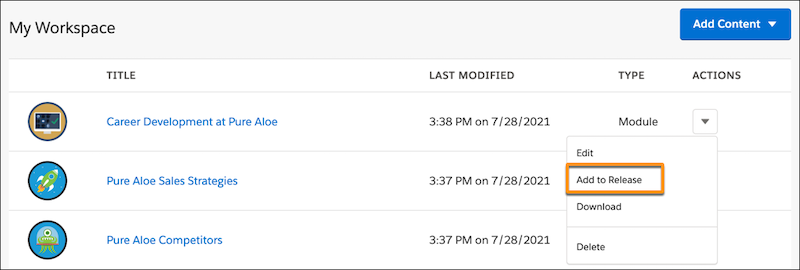
- From a module or trail page, click **Add to Release**.
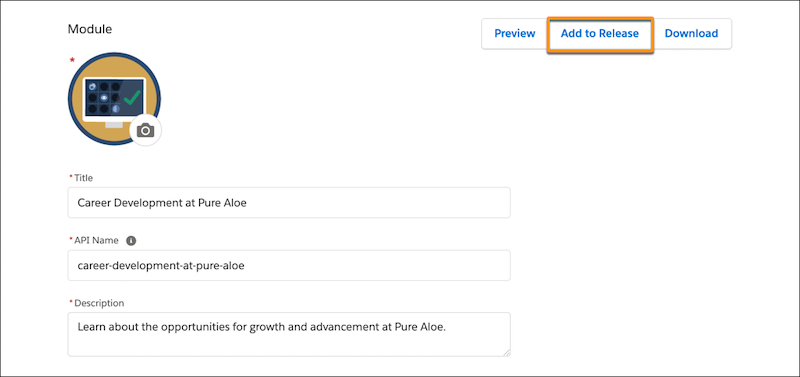
2. Select the content collection (1) where you want the content to appear, and select the unpublished release (2) that determines when the content is published.
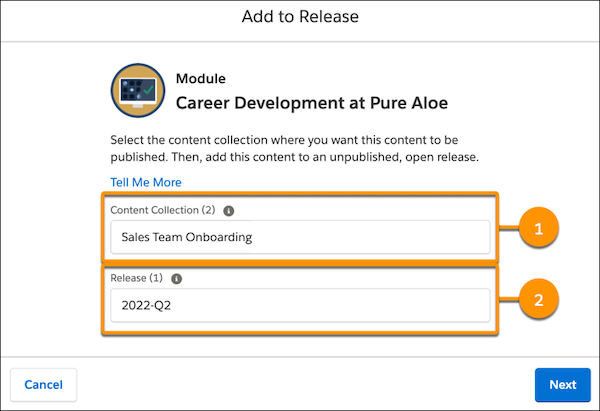
To successfully select a content collection and release:
- Make sure that you applied [all required metadata for your content](https://help.salesforce.com/s/articleView?id=sales.mth_metadata_on_mytrailhead.htm&release=264.0.0&type=5 "When you create trails, modules, and units, you also create metadata about your content, such as the title, description, and target audience. Learners can filter the content on your enablement site based on the metadata values you assign.").
- In Salesforce, make sure that a Salesforce admin [created content collections](https://help.salesforce.com/s/articleView?id=sales.mth_content_permissions.htm&release=264.0.0&type=5 "Ensure that learners can access only the trails and modules that are relevant to their disciplines or job requirements. Create content collections for your different audiences, and then use permission sets to enable access to specific content collections. Only learners with permission to access a particular content collection can view and complete the trails and modules included in the collection.").
- In Trailmaker Release, make sure that the [selected content collection has an unpublished release with an Open status](https://help.salesforce.com/s/articleView?id=sales.mth_how_releases_work.htm&release=264.0.0&type=5 "A release specifies the list of the modules and trails that you want to publish together at the same time. You can publish a module or trail only if it’s added to a release. Before you start lining up your planned releases, review some important guidelines about how releases work in Trailmaker.").
3. Click **Next**.
4. To copy the link to the content in the full release preview, click **Copy** in the success window. Save the link to a handy location, such as your desktop.

Note It can take several minutes for your content to appear in the release preview.
5. To download a backpack of your content, click **Download** in the success window.

Note We recommend that you store this backpack in your version control system. This step helps ensure that other collaborators can access the most recent version of your content. You can also download the backpack from Trailmaker Release after the release is published. To learn more, see [Download a Backpack from Trailmaker Release](https://help.salesforce.com/s/articleView?id=sales.mth_tm_release_download.htm&release=264.0.0&type=5 "From Trailmaker Release, you can download the backpack ZIP file for a module or trail published in your company’s enablement site. With this backpack, your content creators can easily access the latest released version of content the next time they want to update it.").
6. Click **Done**.
#### See Also
- [Considerations for Managing Content in Trailmaker Content](https://help.salesforce.com/s/articleView?id=sales.mth_tm_content_workspace.htm&release=264.0.0&type=5 "In Trailmaker Content, your workspace is where you set up new trails or modules based on drafts that you already created and finalized in another collaboration tool. You can also import backpacks for trails and modules that other content creators have created.")
- [Maintain Content with Trailmaker Content](https://help.salesforce.com/s/articleView?id=sales.mth_maintain_content_with_tm_content.htm&release=264.0.0&type=5 "Use Trailmaker Content to keep your content current. For example, you can edit existing content to correct errors or update work processes. You also can add a unit to an existing module or add a module to an existing trail.")
- [Backpacks for Trails and Modules](https://help.salesforce.com/s/articleView?id=sales.mth_backpacks_on_mytrailhead.htm&release=264.0.0&type=5 "A backpack is a ZIP file that contains your content’s source files that you can download, back up, or upload. An individual backpack can be up to 50 MB. You can download a backpack for content that’s in your local Trailmaker Content workspace, or download a backpack for content published from Trailmaker Release.")
- [Allow Learners to Access Enablement Site Content Collections](https://help.salesforce.com/s/articleView?id=sales.mth_content_permissions.htm&release=264.0.0&type=5 "Ensure that learners can access only the trails and modules that are relevant to their disciplines or job requirements. Create content collections for your different audiences, and then use permission sets to enable access to specific content collections. Only learners with permission to access a particular content collection can view and complete the trails and modules included in the collection.")
# Add Content to a Trailmix
For a trailmix that you create, you can add content from a content tile, summary page, or search results on your enablement site or Trailhead.
### Required Editions
Available in: Enterprise, Performance, and Unlimited Editions
User Roles and
Permissions
Enablement Site User Roles
This topic supports these enablement site
roles:
Content Creators
Learners
Required System Permissions
To access content on your enablement site:
Permission to access at least one content collection
1. On the module or trail that you want to add, click the add button (+).
2. Under Add to Existing Trailmix, select the trailmix that you want to add the content to. Or, to create a trailmix, click **Add to new trailmix**.

Note Trailmixes that you create are included in the Add to Existing Trailmix list on your enablement site and Trailhead.
#### See Also
- [Rearrange Trailmix Content](https://help.salesforce.com/s/articleView?id=sales.mth_rearrange_trailmix_content.htm&release=264.0.0&type=5 "You can change the order of the content in a trailmix that you created.")
- [Delete Trailmix Content](https://help.salesforce.com/s/articleView?id=sales.mth_delete_trailmix_content.htm&release=264.0.0&type=5 "You can delete content from a trailmix that you created. You can also delete a trailmix that you created.")
- [Add a Task or External Content to a Trailmix](https://help.salesforce.com/s/articleView?id=sales.mth_add_task_or_external_content_to_trailmix.htm&release=264.0.0&type=5 "In a trailmix, you can include content from outside of your enablement site and Trailhead. For example, you can include an activity that’s on the web, such as watching a video or reading an article. Or you can add a task for the user to complete, such as talking to a colleague.")
- [How Learners Experience a Trailmix](https://help.salesforce.com/s/articleView?id=sales.mth_find_a_trailmix.htm&release=264.0.0&type=5 "A learner can use the Trailmixes index page on your enablement site to view trailmixes that they’ve created or that a manager has assigned to them from the Trail Tracker app. A learner can also search for trailmixes, follow a trailmix, and share a trailmix.")
# Add Country Codes to Alignments
Plan territories with more accuracy when you add country code attributes to your units in Territory Planning.
### Required Editions
Available in: both Salesforce Classic (not available in all orgs) and Lightning Experience
Available in: Professional, Enterprise, Performance, Unlimited, and Developer Editions with Web Services API enabled
User Permissions Needed
To add country codes to alignments:
Sales Planning Admin permission set
AND
One of these:
Data Pipelines Base User permission set
CRM Analytics Plus Admin permission set
CRM Analytics Growth Admin permission set
1. Select a territory plan alignment.
2. Open Setup.
3. On the Attributes tab, click **Add from Segment**.
4. Select the checkbox next to the new country code attribute.
5. Click **Save**.
6. On the Geographic Fields tab, remove the mapped field from Country.
7. Select the country code you created.
8. Click **Save**.
9. Adjust the legend to show the units from your data source.
A new column titled Container appears.
Values in the Container column represent the unit’s assigned postal code boundary. If units don’t include an assigned boundary, confirm their postal codes or country values. Use the legend to identify the issue so it can be resolved.
# Add Currency Conversion Rates to Reports in Salesforce Spiff
To show currency conversion rates in a report in Salesforce Spiff, create a calculation that shows the conversion. Make sure that you know the exact conversion rate, typically from your company's currency to another specific currency. You can include the calculation in a reporting field or visible field for statements and reports.
### Required Editions
Available in: both Salesforce Classic (not available in all orgs) and Lightning Experience
Available in: Enterprise, Unlimited, and Developer Editions
Available for an additional cost in: Professional Edition with Web Services API Enabled
User Permissions Needed
To create a calculated field and add it to a report:
A Spiff user role with these permissions turned on.
Designer Configuration: Manage
Custom Reports: Edit
Statements: Recalculate
1. Create a calculated field, ConversionRate, that uses the `convert_currency()` function that returns a conversion rate.
By creating a calculated field instead of a worksheet calculation, you can add a column to the filter for any payout rule that calculates commission for deals.
```
=convert_currency(conversion_direction, destination_currency, currency_iso_code, effective_date)
```
conversion_direction
An integer that specifies the direction for converting the currency.
To convert from destination_currency to source_currency, use 1.
To convert from source_currency to destination_currency, use -1.
destination_currency
The ISO code of the currency to convert to.
source_currency
The ISO code the currency to convert.
effective_date
The date that the currency rate is effective, typically CloseDate, statement_period.start_date, or statement_period.end_date.
For example, convert from CompanyCurrency to DealCurrency on the CloseDate.
```
=convert_currency(1, CompanyCurrency, DealCurrency, CloseDate)
```
2. Include the calculation in a reporting field or statement field in a payout rule.
1. To show the field in a report or statement, create a reporting field calculation or add the field name to another field.
2. Recalculate statements so the data is included in the report database.
3. From the right panel in Designer, change the display format to Currency so that the value appears correctly.
3. Add the field to a report.
1. Edit the report and search for the calculated field you created.
See [Create and Customize a Custom Table Report in Salesforce Spiff](https://help.salesforce.com/s/articleView?id=sales.spiff_report_table_create.htm&release=264.0.0&type=5 "After you create a table report in Salesforce Spiff, customize its display.").
2. Add the field to the report.
# Add Custom Actions for the Salesforce Spiff Commission Estimator
Add a picklist value, Estimate Commission, in the Custom Action object so reps can trigger the Salesforce Spiff Commission Estimator. Then, create a custom action for adding the Salesforce Spiff commission estimation button to the Spiff\_Commission\_Page Visualforce page.
### Required Editions
Available in: both Salesforce Classic (not available in all orgs) and Lightning Experience
Available in: Enterprise, Unlimited, and Developer Editions
Available for an additional cost in: Professional Edition with Web Services API Enabled
User Permissions Needed
To create custom fields on a Salesforce object:
(Salesforce) Customize Application
1. Add the picklist value to the Custom Action object.
1. From the Object Manager in Setup, select the Custom Action object.
2. Select **Fields & Relationships**, and then select **Label**.
3. Scroll to the Label Picklist Values section and click **New**.
4. Add the value Estimate Commission and save your changes.
2. Create the custom action.
1. In Salesforce, go to the user menu and copy your org's domain name.
2. From the App Launcher, go to **Custom Actions**.
3. In the Custom Actions page, click **New** and enter these values.
- For Name, enter Spiff Commission Action.
- For Display Order, enter 914.
- For Type, select **Button**.
- For Conditions Met, select **All**.
- For Active, select **True**.
- For URL Target, select **Popup**.
- For URL, enter https://domain/apex/Spiff\_Commission\_Page?id={!SBQQ\_\_Quote\_\_c.Id} where domain is the domain name you copied.
- For Page, select **Quote Line Editor**.
- For Location, select **Quote**.
- For Label, enter Estimate Commission.
- Enter any description.
If the Conditions Met field isn't available, add it to the Custom Actions page layout. See [Page Layouts.](https://help.salesforce.com/s/articleView?id=platform.customize_layout.htm&type=5&language=en_US)
4. Save your changes.
#### See Also
- [Custom Actions](https://help.salesforce.com/s/articleView?id=sales.cpq_custom_actions.htm&type=5&language=en_US)
# Add Custom Calculated Columns to Pipeline Forecasts
To track metrics that help to generate more accurate and data-driven forecasts, add columns that show values calculated using a formula that you define.
### Required Editions
Available in: Lightning Experience
Available in: Professional, Performance, and Developer Editions and in Enterprise and Unlimited Editions with Sales
User Permissions Needed
To view the Forecasts Settings page:
View Setup and Configuration
AND
View All Forecasts OR Allow Forecasting OR
delegated forecast manager
To create and manage a forecast type:
Customize Application
Add up to 5 custom columns to a forecasts type that includes any combination of columns that show custom calculations or reference data. The default forecast type includes Gap to Quota and Pipe Coverage custom calculated columns by default.
1. From Setup, in the Quick Find box, enter Forecasts Settings, and then select **Forecasts Settings**.
2. Under Available Forecast Types, select **Manage Custom Columns** from the quick actions for a forecast type you want to add the column to.
3. Click **Add Custom Column**.
4. Select **Calculated** as the column type.
5. Enter a name and select the result type for your custom column. The name appears as the column header on the forecasts page. The result type is the data type of the value that you expect your formula to produce.
6. In the Formula field, enter a formula that represents the value you want your custom column to contain.
To refer to another column in your formula, use the API column name. For example, to refer to the Closed column in your formula, use FormulaAmount0. Referring to another custom column in the formula isn’t supported. For a list of API column names, supported operators, and supported functions, see the Formula field in [ForecastingColumnDefinition](https://developer.salesforce.com/docs/atlas.en-us.object_reference.meta/object_reference/sforce_api_objects_forecastingcolumndefinition.htm).
7. Save your custom column, and then click **Done**.
8. To change the order of columns on the page, use **Select Columns to Display** on the quick actions menu for any forecast type.
9. To position the column in the correct order in the forecast summary, choose **Select Columns to Display** from the quick actions menu for the forecast type.
The column shows in the forecast summary on the forecasts page.
If a formula’s value is null or invalid, the value is shown as -. To show - for 0 or negative values in your forecast, use the IF function in your formula to detect 0 or negative numbers.
#### See Also
- [Considerations for Custom Calculated Columns in Pipeline Forecasts](https://help.salesforce.com/s/articleView?id=sales.forecasts3_considerations_custom_columns.htm&release=264.0.0&type=5 "Before you add custom calculated columns to your forecast types, review some considerations.")
- [Show, Hide, and Reorder Pipeline Forecast Columns](https://help.salesforce.com/s/articleView?id=sales.forecasts3_columns_showhidereorder.htm&release=264.0.0&type=5 "Customize the display of most standard and custom forecast columns on the forecasts page. For example, you can position a custom Most Likely column to appear next to the Open Pipeline column.")
- [Formula Field Limits and Restrictions](https://help.salesforce.com/s/articleView?id=platform.formula_field_limits.htm&type=5&language=en_US)
- [Common Formula Errors](https://help.salesforce.com/s/articleView?id=platform.fixing_formula_errors.htm&type=5&language=en_US)
# Add Custom Columns That Include External Data to Pipeline Forecasts
Make forecast decisions with all the data that matters to your business, even if that data isn’t maintained in Salesforce. Add external data, such as stretch quotas or internal booking target, and show it in a custom column on the forecasts page. Having all the information used to create forecasts in one place helps you create generate more precise forecasts without having to turn to other resources.
### Required Editions
Available in: Lightning Experience
Available in: Enterprise, Performance, and Unlimited Editions with Sales
User Permissions Needed
To manage fields that store the forecast data to reference:
Manage Forecasting Custom Data
To view the Forecasts Settings page:
View Setup and Configuration
AND
View All Forecasts OR Allow Forecasting OR
delegated forecast manager
To create and manage a forecast type:
Customize Application
Add up to 5 custom columns to a forecasts page that includes any combination of columns that show custom calculations or reference data.
Before adding the custom column to a forecast type, ensure that custom number or currency fields are available in the Forecasting Custom Data object.
1. From Setup, in the Quick Find box, enter Forecasts Settings, and then select **Forecasts Settings**.
2. Under Available Forecast Types, select **Manage Custom Columns** from the quick actions for the forecast type you want to add your own data to.
3. Click **Add Custom Column**.
4. Select **Reference Data** as the column type.
5. Select the custom field that has the data you want to show. Only custom currency and custom number fields in the Forecasting Custom Data object are available to select.
Ensure that the column name helps to identify the data available in the column and that the data type matches the type of data available in the field.
6. Save the custom column and click **Done** to return to the Forecast Settings page.
7. To position the column in the correct order in the forecast summary, choose **Select Columns to Display** from the quick actions menu for the forecast type.
#### See Also
- [Managing External Data to Include in Pipeline Forecasts](https://help.salesforce.com/s/articleView?id=sales.forecasts3_custom_columns_your_data_manage.htm&release=264.0.0&type=5 "Add external data, such as stretch quota or internal booking target to Salesforce so forecast managers have all the information they need when reviewing their sales projections. The data you add can be added as a column in the forecast summary and can be unique to each forecast type.")
# Add Custom Text to Metric Cards
Personalize messages on rep statements that inform, inspire, and engage your team.
### Required Editions
Available in: both Salesforce Classic (not available in all orgs) and Lightning Experience
Available in: Enterprise, Unlimited, and Developer Editions
Available for an additional cost in: Professional Edition with Web Services API Enabled
1. Create a field that stores the statement message. The statement message field can be added to any worksheet in Designer. Enter the message text in a cell the way you want it to appear on the statement.
2. Rename the field on the worksheet to represent the message for which it’s used. Update the display name and its message label on your statements.
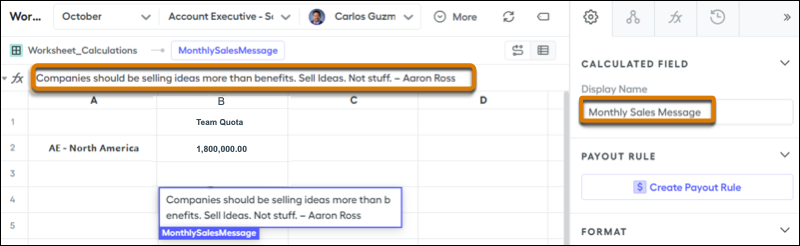
3. Exit Designer and open a user’s statement where you want to add the metric tile.
4. Click **Edit** and click **Add Tile**.
5. For Metric Type, select **Custom**.
6. For Field, select the display name.
7. For Visualization Type, select **Single Value**.
8. For Size, leave Regular selected so more characters appear in the message.
9. Click **Add**.
10. Drag the new card onto the statement and click **Done Editing**.
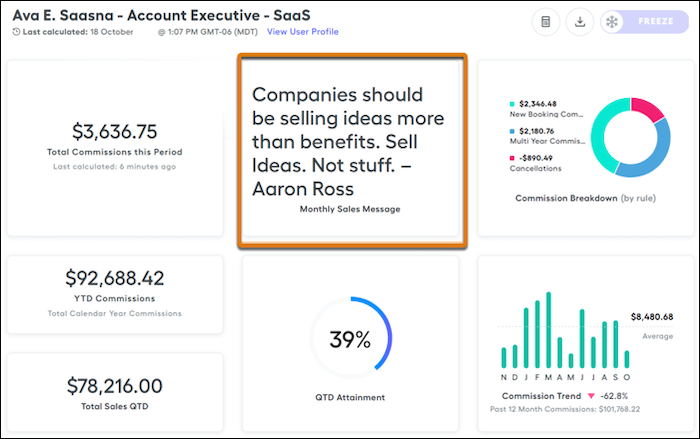
Remember that everyone on the plan has the message on their statement. If you want the message to show up on all reps’ statements, add the metric card to an individual on each plan. To change the message monthly, edit the worksheet field and it automatically updates everyone’s message during the next recalculation cycle.
# Add Customizable Campaign Influence Related Lists
To view Customizable Campaign Influence records, add related lists to campaign, opportunity, and account page layouts. Data in related lists is limited to the model marked as the default model in Setup.
### Required Editions
Available in: Salesforce Classic and Lightning Experience
Available in: Salesforce Professional, Enterprise, Performance, Unlimited, and Developer Editions
To view and edit Campaign Influence related lists, users need the Campaign Influence permission and a Sales User, Service User, or CRM User permission set license.
Related List
Page Layout
Description
Campaign Influence
Opportunity
Shows campaigns that have touched the opportunity. Users can create Campaign Influence
records from here.
Influenced Opportunities
Campaign
Shows opportunities influenced by the campaign. Users can edit Campaign Influence
records from here.
Campaign Influence
Account
Two charts show revenue share grouped by individual campaigns and by campaign type. Expand
the list to see opportunities associated with the account alongside related campaign amount,
revenue share, and contact name.
In the Salesforce mobile app, this related list doesn’t include charts.

Note
- To add additional fields to a related list, such as Lead ID, edit the related list in Page Layouts and select from the Available Fields.[Customizing Related Lists](https://help.salesforce.com/articleView?id=customizing_related_lists.htm&language=en_US)
- Some fields from Campaign Influence version 1.0 related lists aren’t available in Customizable Campaign Influence related lists. [Switching to Customizable Campaign Influence](https://help.salesforce.com/s/articleView?id=sales.campaigns_influence_customizable_switching.htm&release=264.0.0&type=5 "Look at the differences between the two Campaign Influence features and consider what steps are necessary to prepare for transition.")
# Add Data Sources to Enrich Field Update Suggestions in Agentforce Pipeline Management
Agentforce Pipeline Management can use notes, emails, or calls to inform the agent’s field update suggestions. You can customize and expand the data sources that your agent uses. For example, use other opportunity fields or different sources, such as content from other objects.
### Required Editions
Available in: Lightning Experience
Available in: Enterprise, Performance, Unlimited, and Developer Editions with the Agentforce for Sales or Agentforce for an Industry add-on, or included in Agentforce 1 Sales or an Industry Edition. Requires each user to have the Agentforce for Sales or Agentforce for an Industry add-on to access the actions.
User Permissions Needed
To edit prompt templates:
Prompt Template Manager Permission Set
AND
Manage Prompt Template
AND
Execute Prompt Template
To map prompt templates to Opportunity fields:
Edit access on the Opportunity object
To create, edit, and manage flows:
Manage Flow
## Add Opportunity Fields as Data Sources
To use other opportunity fields to inform the agent’s field update suggestions, edit the Field Generation prompt template instructions.
Before you begin, make sure that the agent has permission to access the opportunity field that you’re adding as a data source.
1. From Setup, in the Quick Find box, enter and then select **Prompt Builder**.
2. Select the Field Generation prompt template that you want to use the opportunity field as a data source for.
For example, to use data from a custom opportunity field when generating field update suggestions for Next Step, select the Recommend Next Step for Opportunity prompt template.
If you’re using your own prompt template, copy over the instructions from the Recommend Next Step for Opportunity prompt template. Then, adjust the instructions to reference the fields and data sources that you want. Don’t change or remove instructions about the output. The output must be in the specified JSON structure to align with the user interface. Changing the structure or snippets can result in data showing incorrectly or not at all.
3. On the prompt template, find the instructions about data sources.
1. Click **Insert Resource**.
2. Select the opportunity field that you want to add.
4. To make sure that you get the results you want, [test your prompt template](https://help.salesforce.com/s/articleView?language=en_US&id=ai.prompt_builder_review_revise.htm) thoroughly. Then, when you’re ready, activate it.
## Add Data Sources to the Get Opportunity Grounding Data Flow
Use data from other Salesforce objects or external objects to inform the agent’s opportunity field update suggestions.
Your data source must have an ID field that you can reference as a variable. Before you begin, confirm that the agent has permission to access the data source that you want to use.
1. From Setup, in the Quick Find box, enter and select **Flows**.
2. Select the **Get Opportunity Grounding Data** flow.
3. Above the Add Grounding Data to Prompt Instructions element, [add a new Get Records element](https://help.salesforce.com/s/articleView?id=platform.flow_ref_elements_data_get.htm&language=en_US) to retrieve information from your data source.
For example, to use data from tasks, create an element called Get Tasks.
4. Assign variables to the fields that you want to use.
1. Under How to Store Record Data, select **Choose fields and assign variables (advanced)**.
2. Under Where to Store Field Values, select **In separate variables**.
3. Store the record’s ID field in a variable.
For example, to use data from tasks, store the Activity ID field in a variable called LatestTaskId.
4. Store other relevant fields in variables.
For example, to use data from tasks, store the Description field in a variable called LatestTaskDescription and the Subject field in a variable called LatestTaskSubject.
5. Go to the Add Grounding Data to Prompt Instructions element. [Add instructions](https://help.salesforce.com/s/articleView?language=en_US&id=platform.flow_ref_elements_add_prompt.htm) to retrieve the ID and the other fields that you’re using from the data source.
6. Save and activate the flow.
7. Go to the prompt template that you’re using to generate field update suggestions.
For example, the Recommend Next Step for Opportunity prompt template or your own custom prompt template.
1. Make sure that your prompt template has instructions to call the Get Opportunity Grounding Data flow as a data source.
2. Add an instruction to extract the ID for your data source. For example, “You must strictly extract the latestTaskId for tasks.”
3. To make sure that you get the results you want, [test your prompt template](https://help.salesforce.com/s/articleView?language=en_US&id=ai.prompt_builder_review_revise.htm) thoroughly. Then, when you’re ready, activate it.
# Add Dialer to the Utility Bar
Use the App Manager to make Dialer available from the utility bar at the bottom of the page. The utility bar gives your sales reps quick access to commonly used tools.
### Required Editions
Available in: Lightning Experience
Available with Sales Cloud and Service Cloud in: Essentials,
Professional, Enterprise, Performance, and Unlimited
Editions
Sales Dialer is available for an additional cost as an add-on
license.
User Permissions Needed
To enable Dialer features:
Customize Application

Important Sales Dialer is scheduled for retirement. No new features or enhancements are being added to Sales Dialer. Information regarding formal end-of-life for features is posted on [Salesforce Active Product & Feature Retirements](https://help.salesforce.com/s/articleView?id=000381744&type=1&language=en_US).
To use telephony features directly in Salesforce, we recommend that you modernize your experience by moving to Salesforce Voice. Salesforce Voice offers many of the telephony features that you love and more. See [Get to Know Salesforce Voice](https://help.salesforce.com/s/articleView?id=service.voice_getting_to_know.htm&language=en_US).
1. From Setup, enter App Manager in the Quick Find box, then select **App Manager**.
2. Edit an existing Lightning app or click **New Lightning App**. You can also upgrade a custom Classic app to a Lightning app.
If available, the Lightning Sales app contains numerous options preconfigured for sales users.
3. On the Utility Items tab, click **Add Utility Item** and select **Dialer**.
4. On the User Profiles tab, make the app available to relevant user profiles.
5. Verify the other app details, including the app name, branding information, and available menu items.
6. Save your changes.
To verify your changes, from the App Launcher, find and open the app that has Sales Dialer enabled.
# Add Dynamic Merge Fields to a Document Template
Insert live Spiff data into your compensation plan document templates. Dynamic merge fields pull values directly from Spiff—such as a rep's team name, plan assignments, or quotas—or to data synced in from external systems like Salesforce or Workday. Spiff quota tables and fields that are mapped to the user object are available as dynamic merge fields. Spiff populates these fields when you send or preview a document.
### Required Editions
Available in: both Salesforce Classic (not available in all orgs) and Lightning Experience
Available in: Enterprise, Unlimited, and Developer Editions
Available for an additional cost in: Professional Edition with Web Services API Enabled
User Permissions Needed
To add dynamic merge fields to a document template:
A Spiff user role with these permissions turned on.
Documents: Manage
Document Templates: Edit
1. From the Spiff navigation, go to **Documents** > **Templates**.
2. Open the template that you want to edit, or select **New Template** to create one.
3. In the Document Designer, click inside the document where you want to insert a field.
4. In the right panel, locate the **Merge Fields** section.
5. Under **Dynamic Merge Fields**, browse for the field you want to add.
6. Select the field to insert it at your cursor position.
7. Repeat steps 3–6 for each additional dynamic merge field you want to add.
8. Save your template.
The dynamic merge field placeholder appears in the document. In the merge fields panel, dynamic merge fields appear with a visual indicator that distinguishes them from uploaded merge fields. When you preview the document or send it for approval, Spiff replaces each placeholder with the rep's current data.

Note If you delete a quota table or a dynamic merge field from a template, Spiff removes them from the template and from any document you haven't already sent. Documents that you previously sent aren't affected and they retain the values that you defined at send time.
# Add Emoji and Messages to Quota Performance
Provide more information to reps about their performance against quota with emoji and messages. Motivate reps to reach their quotas by displaying the amount required to reach the quota, accompanied by a special congratulatory message upon achievement.
### Required Editions
Available in: both Salesforce Classic (not available in all orgs) and Lightning Experience
Available in: Enterprise, Unlimited, and Developer Editions
Available for an additional cost in: Professional Edition with Web Services API Enabled
To add emoji and messages to performance against quota, incorporate a few additional summary calculations into your rule.
1. Include the quota performance calculation, which involves substracting the quota currently achieved from the total quota.
In this example, the QuarterOfAnnualQuota is subtracted from the QuarterlyARR to determine the remaining amount the representative must achieve during the rest of the quarter.
```
QuarterOfAnnualQuota - QuarterlyARR
```
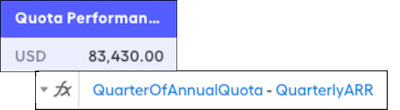
2. Include the attainment summary calculation, which is shown on the rep's statement.
In this example, if the quota currently achieved is less than the total quota, the statement shows an Under Quota message. If the quota currently achieved exceeds the total quota, the statement shows a Quota Hit message.
```
if(QuarterlyARR < QuarterOfAnnualQuota, EnterpriseAEUnderQuotaMessage, EnterpriseAEQuotaHitMessage)
```

3. Create the Under Quota message with the `concat` functio, which combines text and numbers into a unified text string.
Include the quota performance summary calculation and append the emoji and words you want at the end. To maintain clarity and proper formatting, separate the emoji and words with commas and enclose them in parentheses. With the `round` function, simplify the quota performance calculation to two decimal places.
```
concat([round(EnterpriseAEQuotaPerformance, 2), "left", "⏳"])
```

4. Create the Quota Hit message with the `concat` function.
You don’t have to incorporate another field that includes an amount. Add emoji and words you want, separate them with commas, and enclose them in parentheses.
```
concat(["Quota Hit","🏆")
```
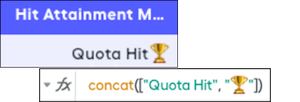
5. Add the attainment calculation as a metric card in the statement.

The appropriate message appears depending on whether the rep is under quota or has achieved quota.
# Add Emoji and Percentages to Attainment Bands
Help reps interpret their performance at a glance when you add emoji and percentages to attainment-based displays.
### Required Editions
Available in: both Salesforce Classic (not available in all orgs) and Lightning Experience
Available in: Enterprise, Unlimited, and Developer Editions
Available for an additional cost in: Professional Edition with Web Services API Enabled
User Permissions Needed
To create a range table and rule for attainment:
A Spiff user role with these permissions turned on.
Designer Configuration: Manage
Designer Range Tables: Manage
1. Create a range table named EmojiAttainmentTable, where each range corresponds to a specific emoji that you want to show for a specific attainment level in commission statements.
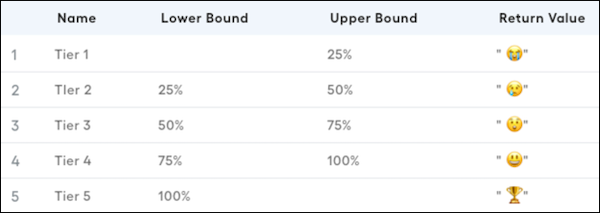
2. In the payout rule where you want to include the emoji based on attainment, include the `range_lookup` function, attainment calculation, and range table.
In this example, the attainment calculation is MonthlyAttainment and the range table is EmojiAtainmentTable. The calculation dynamically inserts the appropriate emoji based on the attained value.
```
range_lookup(MonthlyAttainment, EmojiAttainmentTable)
```
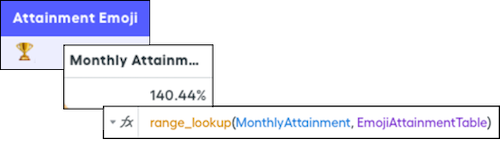
3. Create a calculation that uses the `concat` function so the attainment and the emoji are on a metric card. Multiply the attainment calculation by 100 to get the correct percentage representation. Round the result to two decimal places. Add the % sign and append the attainment emoji calculation at the end of the string.
```
concat([round(MonthlyAttainment * 100, 2), "%", AttainmentEmoji])
```

# Add Existing Contacts to a Campaign with the Data Import Wizard
To add multiple contacts as members of a campaign, launch the Data Import Wizard from the campaign detail page.
### Required Editions
Available in: Salesforce Classic and Lightning Experience
Available in: Salesforce Professional, Enterprise, Performance, Unlimited, and Developer Editions
User Permissions
Needed
To add contacts that you own to a campaign via the Data Import Wizard:
Marketing User selected in User Detail
AND
Create on accounts
AND
Read on contacts
AND
Edit on accounts and campaigns
AND
Import Personal Contacts
To add contacts owned by others to a campaign via the Data Import
Wizard:
Marketing User selected in User Detail
AND
Create on accounts
AND
Read on contacts
AND
Edit on accounts, contacts, and campaigns
AND
Modify All Data
Before you begin, make sure that your import file is in CSV format and contains values for these fields.
- Account: Salesforce ID
- Contact: Salesforce ID

Tip To obtain Salesforce IDs or other values from your org, run reports and then export the report data.
These steps describe one recommended method of importing data. You can import data into Salesforce fields that aren’t listed here. You can also customize your import by using other options that appear in the Data Import Wizard.
1. If you’re using Lightning Experience, from the campaign members related list, select **Import Leads and Contacts**. If you’re using Salesforce Classic, from the campaign detail page, select **Manage Members** | **Add Members - Import File**.
The Data Import Wizard appears.
2. Select **Accounts and Contacts**, then select **Update existing records**.
3. Set Match Contact by to **Salesforce.com ID**.
4. Set Match Account by to **Salesforce.com ID**.
5. Select the CSV file that contains your import data, and click **Next**.
6. Map column headers from your CSV file to the Account: Salesforce ID and Contact: Salesforce ID fields.
7. Click **Next**.
8. Review the import settings, and then click **Start Import**.
When we finish importing your data, we notify you by email. Review the results and resolve any errors that occurred. A separate email notifies you of campaign member job results.
# Add Existing Leads to a Campaign with the Data Import Wizard
To add multiple leads as members of a campaign, launch the Data Import Wizard from the campaign detail page.
### Required Editions
Available in: Salesforce Classic and Lightning Experience
Available in: Salesforce Professional, Enterprise, Performance, Unlimited, and Developer Editions
User Permissions Needed
To add existing leads to a campaign via the Data Import Wizard:
Marketing User selected in User Detail
AND
Edit on campaigns
AND
Import Leads
Before you begin, make sure that your import file is in CSV format and contains values for these fields.
- Salesforce ID of the lead
- Last Name of the lead

Tip To obtain Salesforce IDs or other values from your org, run reports and then export the report data.
These steps describe one recommended method of importing data. You can import data into Salesforce fields that aren’t listed here. You can also customize your import by using other options that appear in the Data Import Wizard.
1. From the campaign detail page, select **Manage Members** | **Add Members - Import File**.
The Data Import Wizard appears.
2. Select **Leads**, then select **Update existing records**.
3. Set Match Lead by to **Salesforce.com ID**.
4. Select Assign leads to campaigns.
5. Select the CSV file that contains your import data, and click **Next**.
6. Select Assign contacts to campaigns.
7. Map column headers from your CSV file to these fields.
- Salesforce ID of the lead
- Last Name of the lead
8. Click **Next**.
9. Review the import settings, and then click **Start Import**.
When we finish importing your data, we notify you by email. Review the results and resolve any errors that occurred.
# Add Existing Person Accounts to a Campaign with the Data Import Wizard
To add multiple person accounts as members of a campaign, launch the Data Import Wizard from the campaign detail page.
### Required Editions
Available in: Salesforce Classic and Lightning Experience
Available in: Salesforce Professional, Enterprise, Performance, Unlimited, and Developer Editions
User Permissions Needed
To add person accounts that you own to a campaign via the Data Import Wizard:
Create on accounts
AND
Edit on accounts
AND
Import Personal
Contacts
To add person accounts owned by others to a campaign via the Data Import
Wizard:
Create on accounts
AND
Edit on accounts and
contacts
AND
Modify All Data
Before you begin, make sure that your import file is in CSV format and contains values for these fields.
- Salesforce ID of the contact associated with the person account
- Email

Tip To obtain Salesforce IDs or other values from your org, run reports and then export the report data.
These steps describe one recommended method of importing data. You can import data into Salesforce fields that aren’t listed here. You can also customize your import by using other options that appear in the Data Import Wizard.
1. From the campaign detail page, select **Manage Members** | **Add Members - Import File**.
The Data Import Wizard appears.
2. Select **Person Accounts**, then select **Update existing records**.
3. For Match Lead by, select **Salesforce.com ID**.
4. Select **Assign person accounts to campaigns.**
5. Select the CSV file that contains your import data, and click **Next**.
6. Map column headers from your CSV file to these fields.
- Salesforce ID of the contact associated with the person account
- Email
7. Click **Next**.
8. Review the import settings, and then click **Start Import**.
When we finish importing your data, we notify you by email. Review the results and resolve any errors that occurred.
# Add Images to Email Templates in Salesforce Classic
You can include images, such as logos, in your custom HTML and Visualforce email templates. Salesforce allows you to use style tags to add external or internal images to an email.
### Required Editions
Available in: Salesforce Classic
Available in: All Editions, except Personal
HTML and Visualforce email templates not available in:
Personal Edition
Visualforce Classic email templates can’t be used in Lightning
Experience
User Permissions
Needed
To create or change HTML email templates:
Edit HTML Templates
To create or change Visualforce email templates:
Customize Application
To create or change public email template folders:
Manage Public Classic Email Templates
When creating custom HTML or Visualforce templates, use an `` tag to reference the image. We recommend uploading the images to the Documents tab and referencing the copy of the image on the Salesforce server.

Note For HTML (using Classic Letterhead) email templates, logos or images come from the [letterhead](https://help.salesforce.com/s/articleView?id=sales.creating_letterheads.htm&release=264.0.0&type=5 "Create Classic letterheads as the basis for a consistent look for your HTML email templates. Make letterheads available organization-wide so other users can use them in their email templates.") you choose when creating the email template.
1. Add an image to the Documents tab.
2. On the Documents home page, open the image by clicking its name.
3. Right-click the image and get its reusable URL address. When you use the URL, you reference the copy of the image on the Salesforce server.
4. Open your custom HTML or Visualforce template.
5. Place the HTML tag ``, using the image’s URL address, where you want to insert the image in the email template.

Note You can also use the URL of an external website, such as ``. However, if an image is stored in your org, you have more control over it.
Use the `style` attribute in HTML to add internal and external images to email templates whose HTML elements can be edited.

Custom (without Using Classic Letterhead) Email Template
Custom (without using Classic Letterhead)
``
``
This example adds an image as the background on an HTML element.
```html
```
#### See Also
- [Create Classic Letterheads for Email Templates](https://help.salesforce.com/s/articleView?id=sales.creating_letterheads.htm&release=264.0.0&type=5 "Create Classic letterheads as the basis for a consistent look for your HTML email templates. Make letterheads available organization-wide so other users can use them in their email templates.")
# Add Individual Leads, Contacts, or Person Accounts to Campaigns
Hand-pick individual campaign members from contact, lead, or person account detail pages.
### Required Editions
Available in: Salesforce Classic and Lightning Experience
Available in: Salesforce Professional, Enterprise, Performance, Unlimited, and Developer Editions
User Permissions Needed
To add or clone a campaign member:
Read on campaigns
AND
Edit on leads and
contacts
AND
Marketing User selected in User
Detail
To edit individual campaign members:
Read on campaigns
AND
Read or Edit on leads or
contacts
AND
Marketing User selected in User
Detail
1. From a contact, lead, or person account detail page, go to the Campaign History related list and click **Add to Campaign**.
2. Specify the campaign.
3. On the Campaign Member Edit page, specify the campaign member status.
4. Save your work.
# Add Influential Campaigns to an Opportunity
When you’re using a custom model with Customizable Campaign Influence and the model set as the default, you manually create campaign influence records. Each time a campaign makes an impact on an opportunity, create a record that identifies the influential campaign, and enter an attribution percentage.
### Required Editions
Available in: Salesforce Classic and Lightning Experience
Available in: Salesforce Professional, Enterprise, Performance, Unlimited, and Developer Editions
User Permissions Needed
To view, add, or update campaign influence records:
Read and Edit on campaigns and opportunities
AND
Marketing
User selected in User Detail

Important The Primary Campaign Source model uses an Opportunity field to assign influence. To assign 100% of revenue share, enter a campaign in the Primary Campaign Source field instead of creating a campaign influence record.
1. On an opportunity record, find the Campaign Influence related list.
2. Click **New**.
3. Enter a campaign name or search for one.
4. Enter an attribution percentage in the **Influence (%)** field.
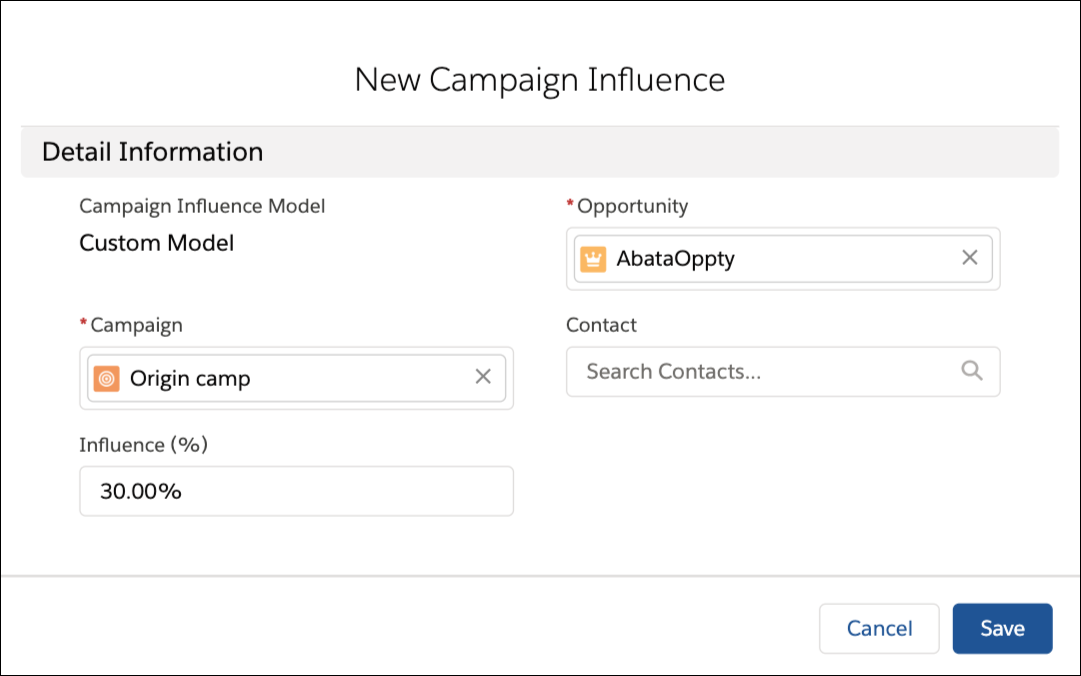
5. Click **Save**.
#### See Also
- [Add Customizable Campaign Influence Related Lists](https://help.salesforce.com/s/articleView?id=sales.campaigns_influence_customizable_add_to_layouts.htm&release=264.0.0&type=5 "To view Customizable Campaign Influence records, add related lists to campaign, opportunity, and account page layouts. Data in related lists is limited to the model marked as the default model in Setup.")
# Add Intelligence to Your Apps
You don’t need to be a developer to create the right AI solution for your business. With Salesforce Einstein custom AI tools, predicting what happens next in your business is within your reach.

Note Sales Cloud is now Agentforce Sales. You may see references to Sales Cloud in our application and documentation.
- **[Einstein Prediction Builder](https://help.salesforce.com/s/articleView?id=sales.custom_ai_prediction_builder_lm.htm&release=264.0.0&type=5)**
Use the power of AI to predict what happens next in your business. The Einstein Prediction Builder learning map provides curated resources to help you explore different aspects of building a prediction from exploration to troubleshooting.
- **[Einstein Recommendation Builder](https://help.salesforce.com/s/articleView?id=sales.custom_ai_recommendation_builder.htm&release=264.0.0&type=5)**
Einstein Recommendation Builder delivers personalized recommendations to customers. Unlike rules-based recommendations, Einstein-powered AI enables you to recommend anything to anyone. For example, candidates to jobs, products to customers, or parts to work orders.
# Add Items to a Release from Trailmaker Release
You can add one or more items to a release from Trailmaker Release. Manually add items one at a time, or upload a CSV file that includes the full list of changes to process in the release. You can include up to 1,000 items in a release.
### Required Editions
Available in: Enterprise, Performance, and Unlimited Editions
User Roles and
Permissions
Enablement Site User Roles
This topic supports these enablement site roles:
Release Managers
Required System Permissions
To create and manage releases with Trailmaker Release:
Manage Releases
When you add content to a release from Trailmaker Release, you’re adding only each content’s manifest item, which specifies the content’s API name, type, and operation. For any content with the Upsert operation, go to Trailmaker Content, and also add the corresponding content to the release. This step ensures that the backpack for new or updated content is uploaded to the release. To learn more, review [Considerations for Managing Releases](https://help.salesforce.com/s/articleView?id=sales.mth_how_releases_work.htm&release=264.0.0&type=5 "A release specifies the list of the modules and trails that you want to publish together at the same time. You can publish a module or trail only if it’s added to a release. Before you start lining up your planned releases, review some important guidelines about how releases work in Trailmaker.").

Tip In general, we recommend that you always use Trailmaker Content to upsert an individual item in a release. You save a few clicks, avoid potential confusion, and add the manifest item and backpack in the same action.
1. In Trailmaker Release, select a content collection from the dropdown menu.
2. On the content collection page menu, select **Unpublished Releases**.
3. Click the name of the release.
4. Click **Add Content**.
5. To add an individual item, enter the API name for the module or trail that you’re adding, and select the content type and operation.
6. To add multiple items, create a CSV file, and import its data into Trailmaker Release.
1. Create a CSV file where the first row contains these header values.
```
api_name,type,operation
```

Note To successfully import data from a CSV file, this first row is required.
2. Add rows for the content that you want to add. For each row, include the content’s API name and type, and the operation to perform on the content.
```
api_name,type,operation
pure-aloe-sales-goals,module,upsert
sell-well-at-pure-aloe,trail,upsert
navigate-your-pure-aloe-career,trail,upsert
pure-aloe-sales-challenges,module,archive
pure-aloe-annual-meeting-prep,module,restore
```

Note To learn more about supported operations, see [Considerations for Managing Releases](https://help.salesforce.com/s/articleView?id=sales.mth_how_releases_work.htm&release=264.0.0&type=5 "A release specifies the list of the modules and trails that you want to publish together at the same time. You can publish a module or trail only if it’s added to a release. Before you start lining up your planned releases, review some important guidelines about how releases work in Trailmaker.").
3. Click **Import**.
4. Navigate to your CSV file, select it, and click **Open**.
7. Save your changes.
8. For any item with the Upsert operation, go to Trailmaker Content, and add the corresponding content to the release. This step ensures that the backpack for new or updated content is uploaded to the release. Complete the steps in [Add Content to a Release from Trailmaker Content](https://help.salesforce.com/s/articleView?id=sales.mth_add_content_to_release_from_tm_content.htm&release=264.0.0&type=5 "After you create your module and quizzes and assign all the necessary metadata, add the content to a release.").
#### See Also
- [Considerations for Managing Releases](https://help.salesforce.com/s/articleView?id=sales.mth_how_releases_work.htm&release=264.0.0&type=5 "A release specifies the list of the modules and trails that you want to publish together at the same time. You can publish a module or trail only if it’s added to a release. Before you start lining up your planned releases, review some important guidelines about how releases work in Trailmaker.")
- [Add Content to a Release from Trailmaker Content](https://help.salesforce.com/s/articleView?id=sales.mth_add_content_to_release_from_tm_content.htm&release=264.0.0&type=5 "After you create your module and quizzes and assign all the necessary metadata, add the content to a release.")
# Add Leads, Contacts, or Person Accounts to Your Work Queue with Cadences
Add prospects to cadences from list views, record detail pages, or reports. When you add prospects to a cadence, the emails, calls, and other tasks defined in the cadence appear in the Cadences tab of the target assignee's Work Queue. You can also add separate activities not directly related to a cadence. These tasks appear on the My List tab of the Work Queue.
### Required Editions
Available in: Lightning Experience
Available with Sales Engagement, which is included with Sales in Performance, Einstein 1, and Unlimited Editions, and available for an extra cost in Professional and Enterprise Editions. Sales Engagement is also available for an extra cost in Service and Lightning Platform.
User Permissions Needed
To use Sales Engagement:
Sales Engagement User or Sales Engagement User Included
OR
Sales Engagement Cadence Creator Included
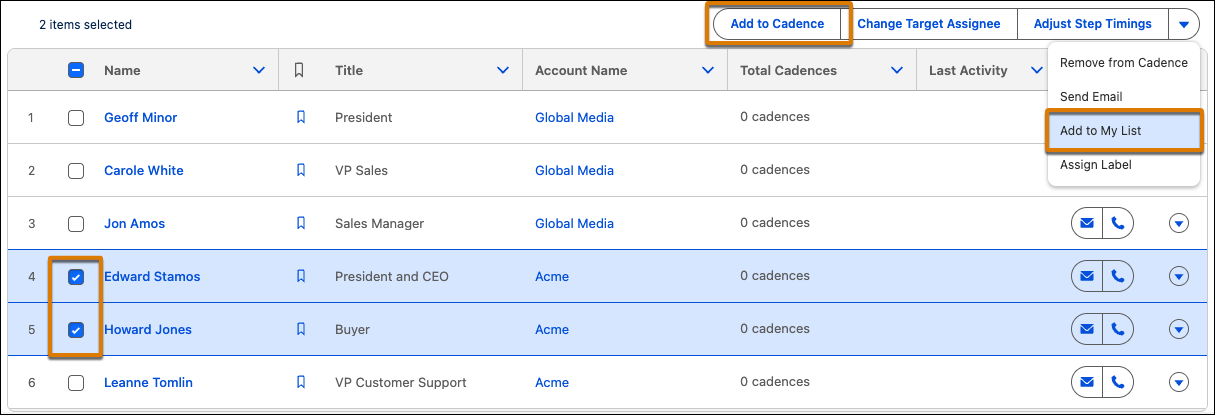
Add leads, contacts, or person accounts to your Work Queue from record detail pages, list views, or reports. If you’re trying to add multiple records at a time, it’s easiest to add records from a list view or a report. In a list view, switch to a table view, select the records you want to add, and add records using the actions available.
- To add a prospect to an existing cadence, select **Add to Cadence**. You can add a prospect to more than one cadence at a time. For example, you can use one cadence to sell new products and another to sell upgrades to an existing product.
- To add a separate call or email, select **Add to My List** from the actions dropdown.
To add leads, contacts, or person accounts from a report, the report can include only leads, contacts, or accounts as the primary object, and can't include any grouping. Reports that include a secondary object don't support adding prospects to cadences. If you edit a report to meet these conditions, save and then run the report before adding prospects to a cadence.
You can add up to 200 records to a cadence at a time. To add more than 200 records from a report, add the cadence State field to the report and filter the results to exclude records with a cadence State of Active. This way the report shows only records that haven’t yet been added to a cadence.
The Total Cadences field on lead, contact, and person account list views shows how many cadences each prospect is assigned to.
# Add LinkedIn Sales Navigator Components to Lead, Contact, and Account Page Layouts
To let sales users see LinkedIn profiles on lead, contact, opportunity, and account pages, add the LinkedIn Sales Navigator components to Lightning pages.
### Required Editions
Available in: Enterprise, Professional, and Unlimited Editions
This feature is available to users with a Sales Navigator Team or Enterprise license from LinkedIn.
This article is about the native LinkedIn Sales Navigator integration in Salesforce. For information about the AppExchange version of Sales Navigator from LinkedIn, see [Sales Navigator Help at LinkedIn](https://www.linkedin.com/help/sales-navigator).
User Permissions Needed
To edit and save Lightning pages in the Lightning App Builder:
Customize Application
1. In Setup, enter Lightning App Builder in the search box, and then click **Lightning App Builder**.
2. Find the Lightning page you want to update and click **Edit**.
3. Drag the appropriate Sales Navigator component onto the page layout.
- For lead, contact, opportunity, and person account pages, you can add the Sales Navigator: Member Profile (Native) component to the page layout.
- For opportunity and business account pages, you can add the Sales Navigator: Company Profile (Native) component to the page layout.
4. Save your changes. Repeat the process for each Lightning page you want to customize.
# Add LinkedIn Sales Navigator Lightning Actions to Lead, Contact, and Account Page Layouts
When you turn on the native integration of LinkedIn Sales Navigator, Salesforce adds InMail and connection request actions to default page layouts. If you have any customized page layouts, manually add InMail and connection request actions to those layouts.
### Required Editions
Available in: Enterprise, Professional, and Unlimited Editions
This feature is available to users with a Sales Navigator Team or Enterprise license from LinkedIn.
This article is about the native LinkedIn Sales Navigator integration in Salesforce. For information about the AppExchange version of Sales Navigator from LinkedIn, see [Sales Navigator Help at LinkedIn](https://www.linkedin.com/help/sales-navigator).
User Permissions Needed
1. In Setup, click **Object Manager**.
2. Click the name of the object you want to edit, such as Lead, and click **Page Layouts**.
3. Click the name of the page layout you want to edit.
4. In the Lead Layout section, click **Buttons**.
5. From the button list, drag the Send Sales Navigator InMail and the Send Sales Navigator Connection Request buttons to the Standard Buttons section of the Lead Detail section.
6. Save your changes.
# Add LinkedIn Sales Navigator to Salesforce
Sales reps can connect with customers in more ways with more information using the LinkedIn Sales Navigator native integration. Sales reps can see LinkedIn profiles on lead, contact, opportunity, and account pages. And they can send InMails and connection requests with Lightning actions. Sales managers can add LinkedIn InMail and connection request steps to Sales Engagement cadences.
### Required Editions
Available in: Enterprise, Professional, and Unlimited Editions
This feature is available to users with a Sales Navigator Team or Enterprise license from LinkedIn.
This article is about the native LinkedIn Sales Navigator integration in Salesforce. For information about the AppExchange version of Sales Navigator from LinkedIn, see [Sales Navigator Help at LinkedIn](https://www.linkedin.com/help/sales-navigator).
The native integration of LinkedIn Sales Navigator and the AppExchange package offer different combinations of features.
| Feature | Native Integration | AppExchange Package |
| --- | --- | --- |
| Lightning actions for InMails and connection requests | Yes | Yes |
| LinkedIn Profile components on lead, contact, opportunity, and account pages | Yes | Yes |
| InMail and connection request steps in Sales Engagement cadences | Yes | No |
| Data validation (Not at Company flag) | No | Yes |
| Support for Salesforce Classic | No | Yes |

Note On lead, contact, opportunity, and account record pages, sales users use the LinkedIn Sales Navigator component to match the record with its LinkedIn profile. You can’t unmatch a record and a profile, except by associating the record with a different profile.
- **[Set Up LinkedIn Sales Navigator](https://help.salesforce.com/s/articleView?id=sales.sc_linkedin_sales_navigator_setup.htm&release=264.0.0&type=5)**
To set up LinkedIn Sales Navigator, turn on the LinkedIn Sales Navigator native integration and then add the native Sales Navigator components to lead, contact, opportunity, person account, and business account page layouts. If you have customized page layouts for leads, contacts, opportunity, or accounts, add InMail and connection request actions to those layouts.
- **[Send LinkedIn InMail and Connection Requests from Salesforce](https://help.salesforce.com/s/articleView?id=sales.sc_linkedin_sales_navigator_send_inmail_and_cr.htm&release=264.0.0&type=5)**
When LinkedIn Sales Navigator is turned on, sales users can send InMail and Connection Requests right from lead, contact, opportunity, person account, and business account records.
# Add Media in Trailmaker Content
You can insert images and videos in your enablement content.
### Required Editions
Available in: Enterprise, Performance, and Unlimited Editions
User Roles
This topic supports these enablement site
roles:
Content Creators
- **[Insert Images and Videos in a Unit](https://help.salesforce.com/s/articleView?id=sales.mth_include_graphics_videos_in_content.htm&release=264.0.0&type=5)**
When you paste content into Trailmaker Content from your draft, Trailmaker also copies images included in the draft. You can also manually insert images or modify image properties in Trailmaker Content. For a video, you can only insert a link to the video’s embed URL from an external content delivery network.
- **[Add Accessibility to an Image in a Unit](https://help.salesforce.com/s/articleView?id=sales.mth_add_accessibility_to_an_image.htm&release=264.0.0&type=5)**
Alt text is text that a digital screen reader can recite aloud to tell visually impaired users what an image shows. Learners don’t see alt text in the content, but digital screen readers access it to read the description aloud.
- **[Guidelines for Images, Screenshots, Badge Art, and Trail Icons](https://help.salesforce.com/s/articleView?id=sales.mth_best_practices_badge_trail_art.htm&release=264.0.0&type=5)**
Part of the fun of creating an enablement site is bringing your content to life with images, including illustrations and screenshots, and designing your own badge and trail icons.
#### See Also
- [Format Content in Trailmaker Content](https://help.salesforce.com/s/articleView?id=sales.mth_format_content_in_tm_content.htm&release=264.0.0&type=5 "As you work in Trailmaker Content, use the formatting toolbar to style the content of your units. Trailmaker saves your changes to the cloud every few seconds.")
- [_Salesforce Knowledge:_ Add video to your myTrailhead content](https://sfdc.co/mytrailhead-video-embed)
# Add Members by Account from a Campaign Page
Quickly add some or all of an account’s contacts to a campaign from the campaign detail page.
### Required Editions
Available in: Salesforce Classic and Lightning Experience
Available in: Salesforce Professional, Enterprise, Performance, Unlimited, and Developer Editions
User Permissions Needed
To add multiple contacts, leads, and person accounts to campaigns:
Marketing User selected in User Detail
AND
Edit on campaigns
AND
Read on contacts, leads, and person accounts
1. From the Campaign Members related list on a campaign, click **Add Contacts**.
2. Search for an account name.
3. Select some or all of the contacts that appear for the account.
4. Click **Next**.
5. Select a member status for the added members.
6. Choose whether to apply the member status to selected leads or contacts who are already members of the campaign.
7. Submit your changes.
# Add Members to Campaigns
Add members to campaigns to target the customers you want.
### Required Editions
Available in: Salesforce Classic and Lightning Experience
Available in: Salesforce Professional, Enterprise, Performance, Unlimited, and Developer Editions
- **[Add Individual Leads, Contacts, or Person Accounts to Campaigns](https://help.salesforce.com/s/articleView?id=sales.campaigns_add_individual_members.htm&release=264.0.0&type=5)**
Hand-pick individual campaign members from contact, lead, or person account detail pages.
- **[Add Campaign Members with Manage Members](https://help.salesforce.com/s/articleView?id=sales.campaigns_members_using.htm&release=264.0.0&type=5)**
Learn how to add campaign members from the Manage Members page.
- **[Add Members by Account from a Campaign Page](https://help.salesforce.com/s/articleView?id=sales.campaigns_add_members_by_account.htm&release=264.0.0&type=5)**
Quickly add some or all of an account’s contacts to a campaign from the campaign detail page.
- **[Add Campaign Members from an Account Page](https://help.salesforce.com/s/articleView?id=sales.campaigns_add_members_from_accounts.htm&release=264.0.0&type=5)**
Select campaign members from the Contacts related list on your accounts.
- **[Add Multiple Contacts and Leads to Campaigns](https://help.salesforce.com/s/articleView?id=sales.campaigns_addwizard.htm&release=264.0.0&type=5)**
Quickly add lots of contacts, leads, and person accounts as members to your campaigns at one time.
- **[Add Multiple Members to a Campaign from a List View](https://help.salesforce.com/s/articleView?id=sales.campaigns_listwizard.htm&release=264.0.0&type=5)**
Save time by adding up to 200 members to a campaign at once from your lead or contact list views. Or update the member status for members already associated with the campaign.
- **[Add Campaign Members from Standard and Custom Reports](https://help.salesforce.com/s/articleView?id=sales.campaigns_reportwizard.htm&release=264.0.0&type=5)**
Adding members to a campaign is quick and easy when you add them from your lead, contact, and person account tabular, summary, and matrix reports.
- **[Import Campaign Members](https://help.salesforce.com/s/articleView?id=sales.campaigns_import.htm&release=264.0.0&type=5)**
Add contacts, leads, and person accounts to campaigns via the Data Import Wizard.
- **[Add Existing Contacts to a Campaign with the Data Import Wizard](https://help.salesforce.com/s/articleView?id=sales.campaigns_import_contacts_existing.htm&release=264.0.0&type=5)**
To add multiple contacts as members of a campaign, launch the Data Import Wizard from the campaign detail page.
- **[Add Existing Leads to a Campaign with the Data Import Wizard](https://help.salesforce.com/s/articleView?id=sales.campaigns_import_leads_existing.htm&release=264.0.0&type=5)**
To add multiple leads as members of a campaign, launch the Data Import Wizard from the campaign detail page.
- **[Add Existing Person Accounts to a Campaign with the Data Import Wizard](https://help.salesforce.com/s/articleView?id=sales.campaigns_import_person_accounts_existing.htm&release=264.0.0&type=5)**
To add multiple person accounts as members of a campaign, launch the Data Import Wizard from the campaign detail page.
- **[Create Contacts and Add Them to a Campaign with the Data Import Wizard](https://help.salesforce.com/s/articleView?id=sales.campaigns_import_contacts_new.htm&release=264.0.0&type=5)**
With a single import file, you can create multiple contacts at once and make them members of a campaign.
- **[Create Leads and Add Them to a Campaign with the Data Import Wizard](https://help.salesforce.com/s/articleView?id=sales.lead_import_wizard.htm&release=264.0.0&type=5)**
To add multiple leads as members of a campaign, launch the Data Import Wizard from the campaign detail page.
# Add Microsoft® Outlook® Emails to Salesforce Records
Keep track of important Outlook emails related to Salesforce records from the Salesforce Side Panel.
### Required Editions
Available with the purchase of Sales Cloud or Government Cloud in: Personal, Contact Manager, Professional, Enterprise, Performance, Unlimited, and Developer Editions
User Permissions
Needed
To display the Salesforce Side Panel in Outlook:
Side Panel in your Outlook configuration
To add Outlook emails (including attachments) to Salesforce records:
Add Email in your Outlook configuration
AND
Enable Email to Salesforce
from Salesforce Setup
To add specific email attachments to Salesforce:
Allow users to select attachments in your Outlook
configuration
To add emails (including attachments), events, and tasks to multiple
contacts:
Allow Users to Relate Multiple Contacts to Tasks and Events in Activity
Settings
To add emails to multiple Salesforce records that accept tasks:
Contact Salesforce Customer Support

Important Full product retirement for Salesforce for Outlook is scheduled on January 30, 2027. See [Salesforce for Outlook Retirement](https://help.salesforce.com/s/articleView?id=000393445&type=1&mode=1&language=en_US). To keep integrating Microsoft Outlook with Salesforce, check out our next-generation products: the Outlook integration and Einstein Activity Capture. See [Move from Salesforce for Outlook (Retiring) to the Next-Generation Products](https://help.salesforce.com/articleView?id=outlookcrm_sfo_move_parent.htm&language=en_US).
Complete this procedure using the Salesforce Side Panel, a feature that's available in Salesforce for Outlook. You can learn about the side panel in [Add Microsoft® Outlook® Emails to Salesforce Records](https://help.salesforce.com/s/articleView?id=sales.outlookcrm_side_panel_about.htm&type=5&language=en_US).
1. Make sure you’ve set up My Email to Salesforce. From your personal settings, enter My Email to Salesforce in the Quick Find box, then select **My Email to Salesforce**.
2. In Outlook, select an email from your Inbox or create an email.
You can add an Outlook email and its attachments to multiple Salesforce records.
3. In the side panel, click  for the contact, account, case, opportunity, or lead to which you want to add the email. The side panel confirms the Salesforce records to which you added your email.
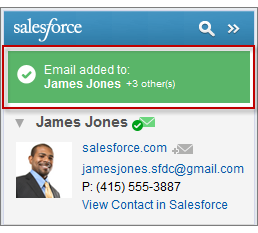
If you're sending a new email, we add it to the Salesforce records after you click **Send**.
4. You add attachments differently depending on how you’re set up to use the side panel.
- If the attachments section appears after you add your email to Salesforce, click  to include specific email attachments on the record.
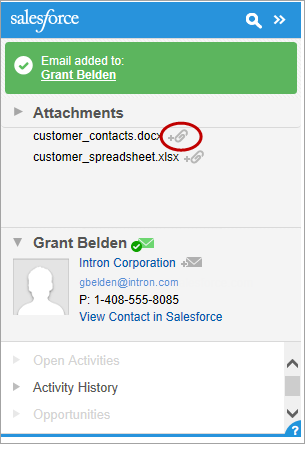
- If you don’t see the option to add attachments, your attachments are included automatically when you add your email to Salesforce, or the attachment exceeded [General Email Limits](https://help.salesforce.com/apex/HTViewHelpDoc?id=limits_email_general.htm&language=en_US).
#### See Also
- [Enable Email to Salesforce for Your Users](https://help.salesforce.com/s/articleView?id=sales.emailadmin_email2salesforce.htm&release=264.0.0&type=5 "Let your users add email to Salesforce records. Email to Salesforce lets users assign emails to leads, contacts, opportunities, and other specific records in Salesforce. That way, it’s easy to track sales-related communications.")
- [Search for Salesforce Records in Microsoft® Outlook®](https://help.salesforce.com/s/articleView?id=sales.outlookcrm_side_panel_searching.htm&release=264.0.0&type=5 "When you view details that appear in the Salesforce Side Panel, you can also search for additional Salesforce records. Search results display contacts and any other records with which you can associate tasks, such as a campaign, a case, or an opportunity.")
- [Remove Microsoft® Outlook® Emails from Salesforce for Outlook (Retiring) Records](https://help.salesforce.com/s/articleView?id=sales.outlookcrm_side_panel_removing_email.htm&release=264.0.0&type=5 "You can remove Microsoft Outlook emails from your Salesforce records with the Side Panel for Salesforce for Outlook.")
# Add Microsoft® Outlook® Events to Salesforce for Outlook (Retiring) Records
Add Outlook events to Salesforce records by using the Salesforce Side Panel. The event is added to the Salesforce record as an activity, which you can see on the record’s Activity History or Open Activities related lists.
### Required Editions
Available with the purchase of Sales Cloud or Government Cloud in: Personal, Contact Manager, Professional, Enterprise, Performance, Unlimited, and Developer Editions
User Permissions
Needed
To display the Salesforce Side Panel in Outlook:
Side Panel in your Outlook configuration
To add Outlook emails (including attachments), events, and tasks to Salesforce
records:
Add Email in your Outlook configuration
To add emails (including attachments), events, and tasks to multiple
contacts:
Allow Users to Relate Multiple Contacts to Tasks and Events in Activity
Settings

Important Full product retirement for Salesforce for Outlook is scheduled on January 30, 2027. See [Salesforce for Outlook Retirement](https://help.salesforce.com/s/articleView?id=000393445&type=1&mode=1&language=en_US). To keep integrating Microsoft Outlook with Salesforce, check out our next-generation products: the Outlook integration and Einstein Activity Capture. See [Move from Salesforce for Outlook (Retiring) to the Next-Generation Products](https://help.salesforce.com/articleView?id=outlookcrm_sfo_move_parent.htm&language=en_US).
1. In Outlook, select an event or event series you want to add to Salesforce records. You can add an event to multiple contacts, and to one other record with which you can associate tasks, such as an account, a case, or an opportunity.
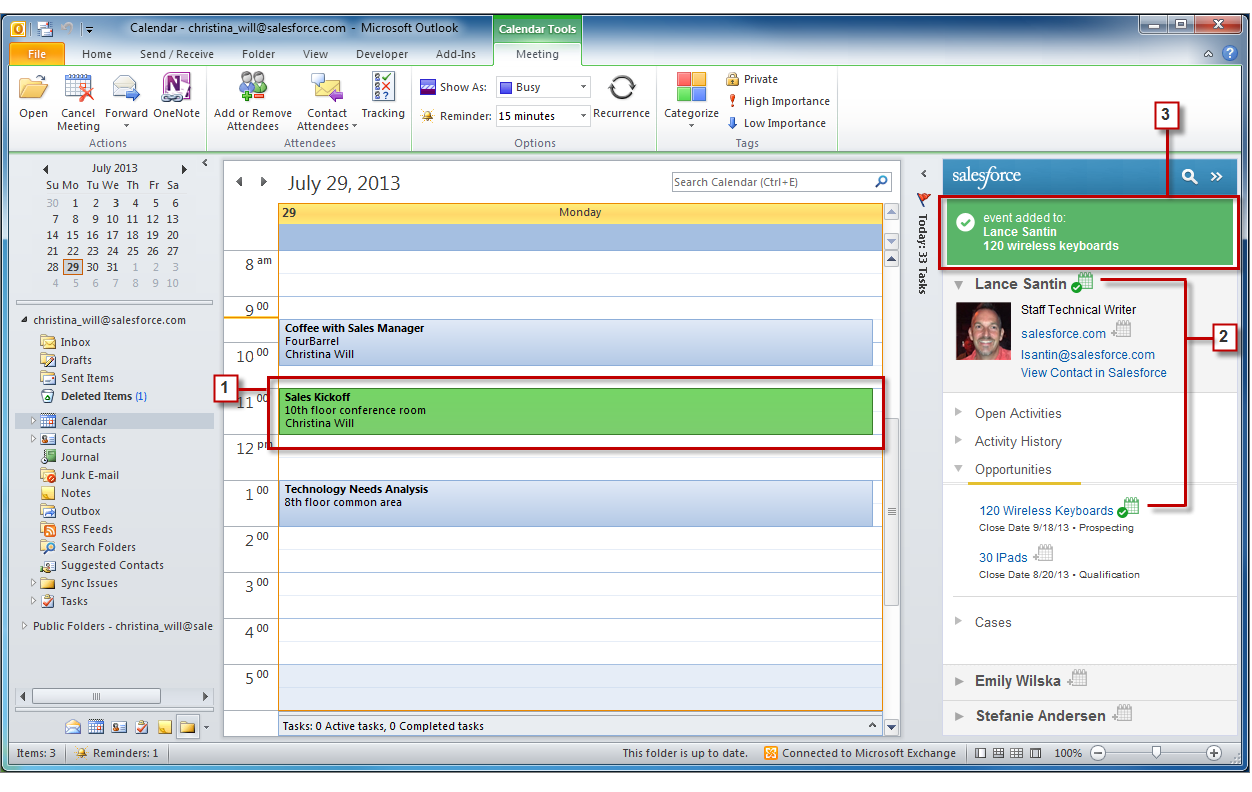
2. In the Salesforce Side Panel, click  for the contact, account, case, opportunity, or lead to which you want to add the event.
You’ll see  after you add the event.
3. Review the Salesforce records to which you added your event.
# Add Microsoft® Outlook® Tasks to Salesforce for Outlook (Retiring) Records
You can add Outlook tasks to multiple Salesforce contacts and to one other record that accepts tasks, like an account, a lead, or an opportunity. The task is added to the Salesforce record as an activity, which you can see on the record’s Activity History or Open Activities related lists.
### Required Editions
Available with the purchase of Sales Cloud or Government Cloud in: Personal, Contact Manager, Professional, Enterprise, Performance, Unlimited, and Developer Editions
User Permissions
Needed
To display the Salesforce Side Panel in Outlook:
Side Panel in your Outlook configuration
To add Outlook emails (including attachments), events, and tasks to Salesforce
records:
Add Email in your Outlook configuration
To add emails (including attachments), events, and tasks to multiple
contacts:
Allow Users to Relate Multiple Contacts to Tasks and Events in Activity
Settings

Important Full product retirement for Salesforce for Outlook is scheduled on January 30, 2027. See [Salesforce for Outlook Retirement](https://help.salesforce.com/s/articleView?id=000393445&type=1&mode=1&language=en_US). To keep integrating Microsoft Outlook with Salesforce, check out our next-generation products: the Outlook integration and Einstein Activity Capture. See [Move from Salesforce for Outlook (Retiring) to the Next-Generation Products](https://help.salesforce.com/articleView?id=outlookcrm_sfo_move_parent.htm&language=en_US).
Add Outlook tasks to Salesforce records from Tasks in Microsoft Outlook.
1. Select the task that you want to add to a Salesforce record.
2. Click  in the side panel to display the Salesforce record to which you’d like to add the task.
3. Click  next to the record in the search results.
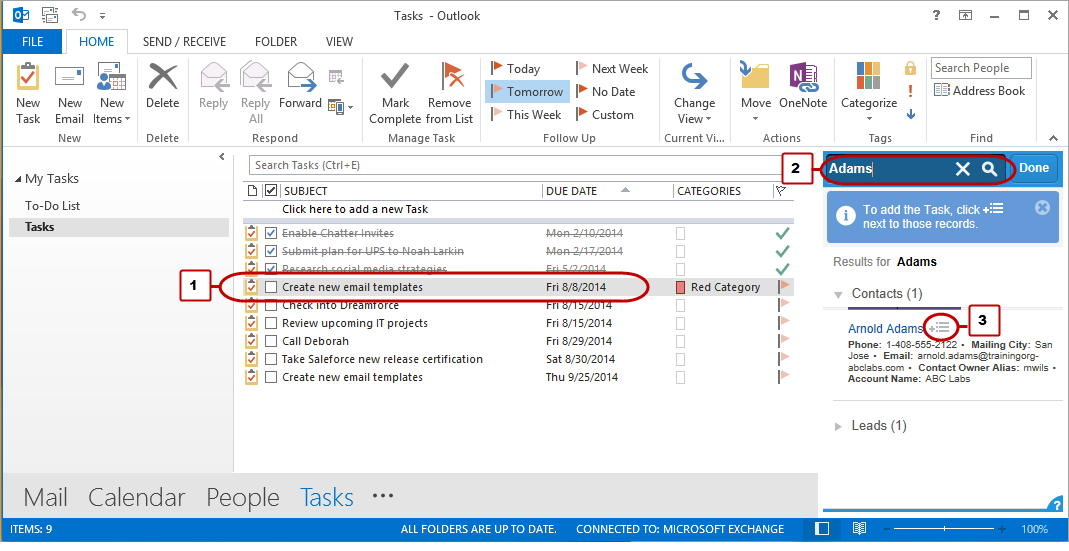
You’ll see  after you add the task.
# Add Multiple Contacts and Leads to Campaigns
Quickly add lots of contacts, leads, and person accounts as members to your campaigns at one time.
### Required Editions
Available in: Salesforce Classic and Lightning Experience
Available in: Salesforce Professional, Enterprise, Performance, Unlimited, and Developer Editions
User Permissions Needed
To add multiple contacts, leads, and person accounts to campaigns:
Marketing User selected in User Detail
AND
Edit on campaigns
AND
Read on contacts, leads, and person accounts
1. From the Campaign Members related list on a campaign, click **Add Leads** or **Add Contacts**.
2. Select leads or contacts from the list, or search for specific leads or contacts.
3. Click **Next**.
4. Select a member status for the added members.
5. Choose whether to apply the member status to selected leads or contacts who are already members of the campaign.
6. Click **Submit**.
# Add Multiple Members to a Campaign from a List View
Save time by adding up to 200 members to a campaign at once from your lead or contact list views. Or update the member status for members already associated with the campaign.
### Required Editions
Available in: Salesforce Classic and Lightning Experience
Available in: Salesforce Professional, Enterprise, Performance, Unlimited, and Developer Editions
User Permissions Needed
To add contacts to a campaign:
Marketing User selected in User Detail
AND
Edit on campaigns
AND
Edit on contacts
To add leads to a campaign:
Marketing User selected in User Detail
AND
Edit on campaigns
AND
Edit on leads
To add person accounts to a campaign:
Marketing User selected in User Detail
AND
Edit on campaigns
AND
Edit on contacts
1. Navigate to a contact or lead list view.
2. Select up to 200 records to add to a campaign.
3. Click **Add to Campaign**.
4. Enter the name of a campaign.
5. Select a member status for the new members.
6. Choose whether members already associated with the campaign keep their current status. If you want, update their status with the one you selected for new members.
7. Add the members.
# Add Nearby Maps to Salesforce Record Pages
Embed relevant, contextual nearby maps directly in records when you add a Salesforce Maps component to page layouts in Lightning Experience.
### Required Editions
1. If you don’t use enhanced domains, skip to the next step.
Otherwise, from Setup, in the Quick Find box, enter Installed Packages, and then select **Installed Packages**.
Next to the Salesforce Maps package, click **Configure**. On the Advanced tab, select the option to use enhanced domains. Save your changes.
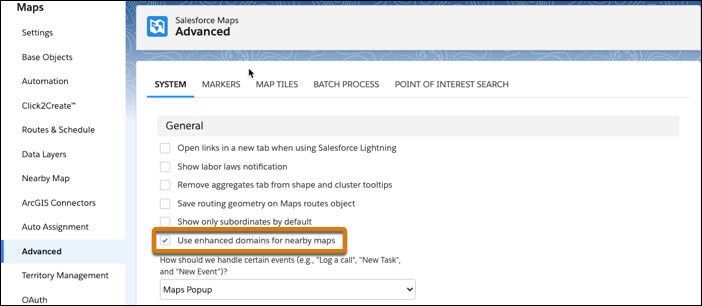
2. In Salesforce, open a record that you want a nearby map to, such as an account or a contact.
3. Click **Setup** | **Edit Page**.
Lightning App Builder appears.
4. Under Components, scroll to Custom–Managed. Drag the **Maps Nearby Map** component to an area of the page layout where you want the map to appear.
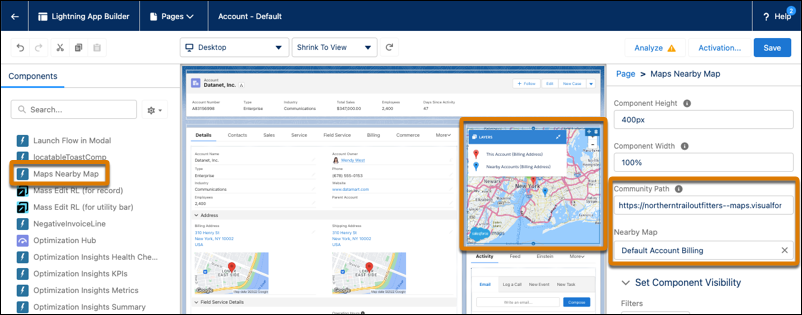
5. If you use enhanced domains, skip to the next step.
Otherwise, in Community Path, enter the domain name for your Salesforce My Domain followed by \--maps.vf.force.com.
For example, the login URL for your Salesforce My Domain is https://northerntrailoutfitters.my.salesforce.com and your My Domain name is northertrailoutfitters. Enter the community path: https://northerntrailoutfitters--maps.visualforce.com
6. In Nearby Map, specify what you want to appear on the map.
For example, to show the account’s marker in the center of the map, select **Default Account Billing**.
7. Save your changes.
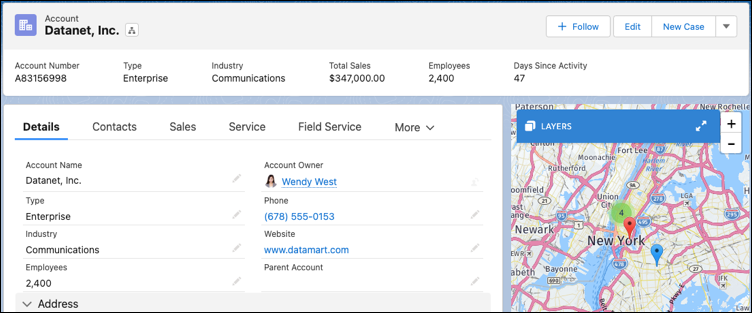
The nearby map appears on the record.
# Add Nearby Maps to Salesforce Sites
Give your customers and partners context for what’s local and relevant on nearby maps that appear directly on your sites when you add a Salesforce Maps component to site layouts.
### Required Editions
1. From Setup, in the Quick Find box, enter Installed Packages, and then select **Installed Packages**.
2. Next to the Salesforce Maps package, click **Configure**. On the Advanced tab, select the option to use enhanced domains. Then save your changes.

3. From Setup, in the Quick Find box, enter All Sites, and then select **All Sites**.
4. Next to the site that you want to add a nearby map to, click **Builder**.
5. Select **Components**, and then scroll to Custom Components. Drag the **Maps Nearby Map** component to an area of the site layout where you want the nearby map to appear.
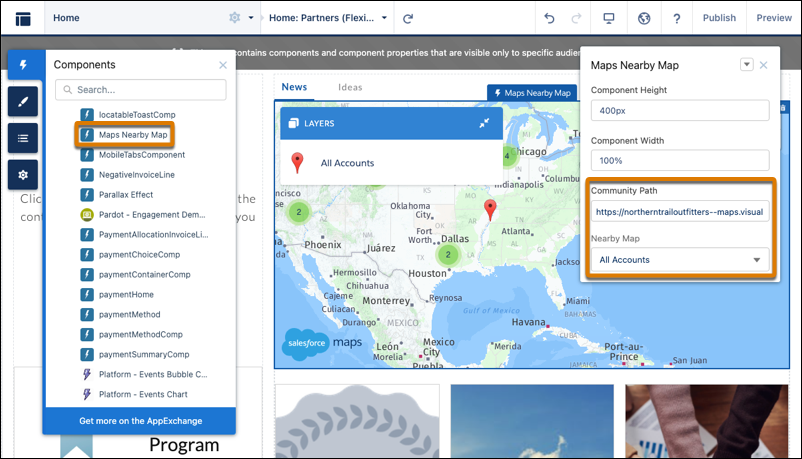
6. In Community Path, enter your site’s domain.
7. In Nearby Map, select a global nearby map that you want to appear on the site. For example, to show all nearby account markers, select **All Accounts**.
8. Publish your site.
The nearby map appears on the site.
# Add Opportunity Product Splits
To give team members credit for products they support in closing deals, add opportunity product splits to opportunity split types.
Available in: Lightning Experience
Available in: Performance and Developer Editions and Enterprise and Unlimited Editions with the Sales
User Permissions Needed
To create or edit splits for opportunity team members:
Edit on opportunities
AND
Owner of opportunity record or above the owner in
the role hierarchy
Before adding opportunity product splits, make sure to [enable opportunity splits](https://help.salesforce.com/s/articleView?id=sales.teamselling_opp_splits_enable.htm&release=264.0.0&type=5 "After meeting prerequisites, enable opportunity splits in Setup.").
1. In Setup, on the Opportunity Splits page, under Split Types Setup, click **Edit Split Types**.
2. In the opportunity split type to which you want to enable product splits, select **Include Product Split** and then **Save**.

Important Opportunity product splits must be based on one of the following field combinations. Make sure field-level security is off for the fields you choose.
- The Total Price field on Opportunity Line Item that rolls up to the Opportunity Amount field
- A custom currency field on Opportunity Line Item that rolls up to a custom rollup summary field on Opportunity
3. After the confirmation message appears, click **Save**.
4. Show product splits on your opportunity record page so that your sales reps can view and work with them. To add the Opportunity Splits component to your opportunity record page, see [Create and Configure Lightning Experience Record Pages](https://help.salesforce.com/s/articleView?id=platform.lightning_app_builder_customize_lex_pages.htm&type=5&language=en_US).
When you launch the Edit Product Splits page, a 100% split is created for each product on the opportunity for all 100% validated split types.
#### See Also
- [Get Ready to Enable Opportunity Splits](https://help.salesforce.com/s/articleView?id=sales.teamselling_opp_splits_enable_prep.htm&release=264.0.0&type=5 "Before enabling opportunity splits check for mass operations in progress, inactive currencies, and automated process users related to opportunities.")
- [Administer Opportunity Splits and Opportunity Product Splits](https://help.salesforce.com/s/articleView?id=sales.opp_splits_setup.htm&release=264.0.0&type=5 "Make it easy for your sales reps to collaborate and share opportunity revenue by enabling opportunity splits and opportunity product splits and customizing them for your business processes.")
- [Create and Configure Lightning Experience Record Pages](https://help.salesforce.com/s/articleView?id=platform.lightning_app_builder_customize_lex_pages.htm&type=5&language=en_US)
- [Set Up Audit History for Splits and Opportunity Teams](https://help.salesforce.com/s/articleView?id=sales.teamselling_set_up_audit_history.htm&release=264.0.0&type=5 "Help your sales teams track changes to opportunity splits, opportunity product splits, and opportunity teams by enabling Audit History.")
# Add Opportunity Score Component to the Opportunity Record Page
Place the Opportunity Score Lightning component on the opportunity record page so sellers see score context on the deal. Add it after the model is trained and scores are generated.
### Required Editions
Available in: Lightning Experience in Performance and Unlimited editions with Sales Cloud. In Enterprise Edition with Sales Cloud, this feature requires the Agentforce or Revenue Intelligence add-on.
User Permissions
Needed
To edit Lightning pages:
Customize Application
1. From Setup, in the Quick Find box, enter and select **Lightning App Builder**.
2. Open the opportunity record page that you want to edit.
3. Add the **Opportunity Score** component to the page layout.
4. Arrange the component as needed.
5. Click **Save**.
# Add or Update Campaign Members with the Data Import Wizard
To add or update many campaign members at one time, open the Data Import Wizard from the campaign detail page.
### Required Editions
Available in: Salesforce Classic and Lightning Experience
Available in: Salesforce Professional, Enterprise, Performance, Unlimited, and Developer Editions
User Permissions
Needed
To add or update campaign members via the Data Import Wizard:
Marketing User selected in your user
information
AND
Read on contacts OR Import Leads
AND
Edit on
campaigns

Tip To obtain Salesforce IDs or other values from your org, run a report and then export the report data.
Before you begin, make sure that your import file is in CSV format and contains values for these fields. To import multiple contacts or leads to a single campaign, include a separate row for each in the CSV.
- Salesforce ID of the contact or lead. For person accounts, use the contact ID associated with the person account as the Salesforce ID.
- Status of the campaign member. If you leave the campaign member status blank, the status is automatically set to Sent.
- Campaign ID (if you’re on a non-campaign page and want to import records)
- Campaign member currency, if the org uses multiple currencies.
1. From the campaign detail page:
- To update campaign members, select **Manage Members** | **Update Members - Import File**.
- To update campaign members, select **Campaign Members**, then select **Update existing records**.
The Data Import Wizard appears. You can also access the Data Import Wizard from Salesforce Setup.
2. Select the CSV file that contains your import data, and click **Next**.
3. Map column headers from your CSV file to the Salesforce ID of the campaign member, the status of the campaign member, and the campaign ID.
4. Click **Next**.
5. Review the import settings, and then click **Start Import**.
When we finish importing your data, we notify you by email. Review the results and resolve any errors that occurred.
# Add Partner Relationships
The opportunity and account detail pages include a Partners related list for viewing and adding partner relationships.
### Required Editions
Available in: Lightning Experience, Salesforce Classic, and all versions of the
Salesforce app
Available in: All Editions for orgs created before Summer
’09
Available in: Essentials, Group, Professional,
Enterprise, Performance, Unlimited, and Developer
Editions for orgs created in Summer ’09 and later
User Permissions
Needed
To add partners to an account:
Edit on accounts
AND
Read on opportunities
To add partners to an opportunity:
Read on accounts
AND
Edit on opportunities
To view account information for a specific partner, click the partner’s name in the Partners related list. If you don’t have permission to view a partner account, the account name still appears in the related list on the account or opportunity. However, you don’t have access to other information about that account.
1. In the Partners related list, click **New**.
2. On opportunities, you can choose a primary partner by selecting **Primary**. Partners marked as primary appear in opportunity reports.
3. In the Partner column, enter the name of an account. In Lightning Experience, you can add multiple partners at a time. In Salesforce Classic, you can also create an account by opening the lookup dialog and clicking **New**.
4. In the Role column, choose the role that the partner account plays in the account or opportunity.
Remove a partner relationship by clicking **Delete** (Lightning Experience) or **Del** (Salesforce Classic) next to the partner. You can’t open partner records from the Partners related list in the new Salesforce mobile app.
If you change the account for an opportunity that has partners, all partners are deleted from the Partners related list.
Selecting a partner on an account or opportunity automatically creates a reverse partner relationship so that each account lists the other as a partner. The role you select is applied to the partner account; in the current account, the reverse role is applied.
Your Salesforce admin sets the available roles and the corresponding reverse roles.
Your admin can customize the columns displayed in the related list.
# Add Products to a Reduction Order
After creating a reduction order, indicate which products need to be reduced and the quantities to reduce those products.
### Required Editions
Available in: Salesforce Classic
Orders are available in: Professional, Enterprise, Performance,
Unlimited, and Developer Editions
Reduction orders are available in:
Enterprise, Performance, Unlimited, and Developer
Editions
User Permissions Needed
To add order products to a reduction order:
Edit on orders
- If you’re using Lightning Experience, you can’t create reduction orders. Switch to Salesforce Classic.
- An order product is reducible only if its Available Quantity is greater than zero. You can partially reduce a product, but you can’t reduce it to less than zero.
- You can reduce up to 200 order products in one reduction order.
1. Open the reduction order that you want to add products to, or [reduce an existing order](https://help.salesforce.com/s/articleView?id=sales.order_reduce.htm&release=264.0.0&type=5 "If your company accepts returns or reductions on activated orders, you can reduce the relevant orders to reflect those exchanges of goods and services.") to create a reduction order.
2. In the Order Products related list, click **Select Products to Reduce**.
3. In the Quantity to Reduce column, enter the number of units to reduce each order product’s quantity.
- To fully reduce an order product, enter the same number in Quantity to Reduce as appears in Available Quantity.
- If you don’t want to reduce an item, leave the Quantity to Reduce blank.
For example, if the original order included 3,000 coffee sleeves, and your customer needs only 2,000, enter 1000 in the Quantity to Reduce column.
4. Save your changes.
#### See Also
- [Reduction Orders](https://help.salesforce.com/s/articleView?id=sales.orderreduction_overview.htm&release=264.0.0&type=5 "Use reduction orders to track requests to reduce, return, deactivate, or disable a customer’s products or services.")
- [Order Products](https://help.salesforce.com/s/articleView?id=sales.orderproduct_overview.htm&release=264.0.0&type=5 "An order product is a product or service that’s provided to a customer according to an associated order.")
- [Editing and Deletion Considerations for Order Products](https://help.salesforce.com/s/articleView?id=sales.orderproduct_edit.htm&release=264.0.0&type=5 "Depending on whether the parent order has been activated or reduced, limitations on when you can edit or delete order products apply.")
# Add Products to an Order
Track what you’re selling by adding products to your customers’ order records.
### Required Editions
Available in: both Salesforce Classic and Lightning Experience
Available in: Professional, Enterprise, Performance, Unlimited, and Developer Editions
User Permissions Needed
To add products to an order:
Edit on orders
- You can use only one price book per order.
- You can add order products to draft orders only.
- To show the Add Products button, make sure the order has a related price book and the first order product has a related price book entry. See [Enable Orders Without Price Books](https://help.salesforce.com/s/articleView?id=sales.customize_order_enable_without_pricebooks.htm&release=264.0.0&type=5 "To let your sales teams use orders in Salesforce while managing products and price books in an external platform, enable orders without price books.").
1. Open the order that you want to add products to.
2. In the Order Products related list, click **Add Products**.
3. If a price book isn’t selected for this order, select the price book that you want to use, and then save your changes.
4. Select the products to add to your order.
5. Enter a quantity and unit price for each order product.
6. Add line descriptions if needed.
7. Save your changes.
#### See Also
- [Editing and Deletion Limitations for Orders and Reduction Orders](https://help.salesforce.com/s/articleView?id=sales.order_edit.htm&release=264.0.0&type=5 "Some fields aren’t editable after an order is created. Others aren’t editable after an order has been reduced.")
- [Considerations for Activation Limitations](https://help.salesforce.com/s/articleView?id=sales.order_activate.htm&release=264.0.0&type=5 "Protect the integrity of your order data with activation limitations for orders and reduction orders.")
- [Order Products](https://help.salesforce.com/s/articleView?id=sales.orderproduct_overview.htm&release=264.0.0&type=5 "An order product is a product or service that’s provided to a customer according to an associated order.")
- [Orders](https://help.salesforce.com/s/articleView?id=sales.order_overview.htm&release=264.0.0&type=5 "Use orders to track your customers’ requests for products and services.")
# Add Products to Opportunities
Track what’s selling and in what quantity by adding products to opportunities. Then maintain accurate records by updating the quantities and prices of the products.
### Required Editions
Available in: Lightning Experience and Salesforce Classic
Available in: Professional, Enterprise, Performance, Unlimited, and Developer Editions
User Permissions
Needed
To add or edit opportunity products:
Edit on opportunities
AND
Read on products and price books
1. Navigate to the opportunity that you want to edit.
2. In the Products related list, select **Add Products**, or select **Edit** next to a product in the list. If you’re adding the first product, choose a price book for the opportunity.
3. Find the products you want to add to this opportunity.
1. In Lightning Experience, enter keywords in the search bar. Then open the Quick Filter panel by clicking . Filter by product fields and click **Apply**, and then click **Next**.
You can filter only by product fields that your Salesforce admin has included in the layout.
2. In Salesforce Classic, enter keywords in the search bar. Then add filters. Click **Search**.
You can filter by all standard and custom fields on products and price books.
4. In the Quantity field, enter the number of products at this price.
5. Enter the sales price for the product. The sales price defaults to the list price specified in the price book related to the opportunity.
6. If the product has a discount, type the discount as a number with or without the percent sign (%) in the Discount field. If the Discount field isn’t available, check with your Salesforce admin.
7. Save your changes.
8. To determine the order of products on an opportunity, in the Products related list, select **Sort Products**. Drag products into the order you want and save. If an opportunity and a quote are linked and the sort order of either record is changed, the sort order is updated during syncing.
#### See Also
- [Things to Know About Adding Products to Opportunities](https://help.salesforce.com/s/articleView?id=sales.products_considerations_for_adding_to_opportunities.htm&release=264.0.0&type=5 "Review considerations for adding products to opportunities.")
- [Sync Quotes and Opportunities](https://help.salesforce.com/s/articleView?id=sales.quotes_synch.htm&release=264.0.0&type=5 "Link a quote to the opportunity that it was created from. That way, updates to one record are always reflected in the other.")
# Add Prospects to a Cadence
Take prospective buyers through a scheduled sales outreach sequence by adding them to a cadence.
### Required Editions
Available in: Lightning Experience
Available with Sales Engagement, which is included with Sales in Performance, Einstein 1, and Unlimited Editions, and available for an extra cost in Professional and Enterprise Editions. Sales Engagement is also available for an extra cost in Service and Lightning Platform.
User Permissions Needed
To add prospects to cadences:
Sales Engagement User or Sales Engagement User Included
OR
Sales Engagement Cadence Creator Included
OR
Modify All Data
To add prospects from a record detail page:
1. Go to the detail page of a lead, contact, or person account you want to add to a cadence.
2. From the Actions menu, choose **Add to Cadence**.
3. Enter the cadence name.
4. For the Target Assignee, choose the record owner, yourself, or any other Sales Engagement user. The sales outreach steps for the prospect you’re adding appear automatically in the assignee’s work queue as they come due.
5. For cadences that are intended to nurture opportunities, add the target’s pending opportunity to the Related To field.
6. For cadences that are intended to collect payment for invoices, add the target’s pending invoice to the Related To field.
7. Click **Add**.
To add prospects from a list view, select up to 200 records and click **Add to Cadence**.
To add prospects from a report, adjust the report filters until only the records you wish to add are shown. Then click **Add to Cadence**. The report can include only leads, contacts, or accounts as the primary object, and can't include any grouping. Reports that include a secondary object don't support adding prospects to cadences. If you edit a report to meet these conditions, save and then run the report before adding prospects to a cadence.
To add more than 200 records from a report, add the cadence State field to the report and filter the results to exclude records with a cadence State of Active. This way the report shows only records that haven’t yet been added to a cadence.

Note You can add up to 200 prospects to a cadence at once. You can only add prospects to cadences you have access to. If you lose access to a cadence, you can’t view lead, contact, or person account records assigned to the cadence in Salesforce Classic.
# Add Prospects to a Cadence Automatically with Process Builder and Apex
Save your sales reps from taking an extra step. To automatically add lead, contact, or person account records to a cadence when the records are created, create an Apex class and a process.
### Required Editions
Available in: Lightning Experience
Available with Sales Engagement, which is included with Sales in Performance, Einstein 1, and Unlimited Editions, and available for an extra cost in Professional and Enterprise Editions. Sales Engagement is also available for an extra cost in Service and Lightning Platform.
User
Permissions Needed
To create, edit, or view processes:
Manage Flow
AND
View All Data
To define Apex triggers:
Author Apex
To configure remote settings:
Customize Application
OR
Modify All Data
To add prospects to cadences:
Sales Engagement User
OR
Sales Engagement User
Included

Note You can’t add Apex classes directly in production Salesforce orgs. Only Developer, trial, and sandbox orgs support direct Apex editing in Setup. To deploy Apex code in a production org, add it first to a sandbox org, test, and then promote it to the production org.
This example uses the `AssignTargetToSalesCadence` action. You can also build processes with the `RemoveTargetFromSalesCadence` action.
Set your process to start only upon record creation. Setting your process to run upon both record creation and edit creates duplicate targets within the cadence.
1. Create the Apex class.
1. From the Setup menu, choose **Developer Console**.
2. From the File menu, choose **New** | **Apex Class**.
3. Enter EnrollTargetIntoSalesCadence for class name. Click **OK**.
4. In the Developer Console, replace the code you see with the following Apex.
```java
public class EnrollTargetIntoSalesCadence {
@InvocableMethod(label='Enroll Target In Cadence' description='Uses REST Invocable Action to assign a Target to a Cadence')
public static void enrollTarget(List targetsToEnroll) {
System.debug('*** Targets to enroll *** ' + targetsToEnroll);
if (targetsToEnroll != null) {
for (EnrollTargetRequest req : targetsToEnroll) {
System.debug('*** request *** ' + req);
System.debug('\ttarget: ' + req.targetId);
System.debug('\tsales cadence: ' + req.salesCadenceName);
sendRequest(req.targetId, req.salesCadenceName);
}
} else {
System.debug('*** null targetsToEnroll receieved ***');
}
}
@future(callout = true)
private static void sendRequest(String targetId, String salesCadenceNameOrId) {
String sfdcURL = URL.getSalesforceBaseUrl().toExternalForm();
String actionsRestURL = sfdcURL + '/services/data/v45.0/actions';
String assignTargetRESTUrl = actionsRestURL + '/standard/assignTargetToSalesCadence';
HttpRequest httpReq = new HttpRequest();
httpReq.setMethod('POST');
httpReq.setHeader('Authorization', 'OAuth ' + UserInfo.getSessionId());
httpReq.setHeader('Authorization', 'Bearer ' + UserInfo.getSessionId());
httpReq.setEndpoint(assignTargetRESTUrl);
httpReq.setHeader('Content-Type', 'application/json');
httpReq.setBody('{"inputs" : [{"salesCadenceNameOrId" : "' + salesCadenceNameOrId + '", "targetId" : "' + targetId + '"}]}');
String response = '';
try {
Http http = new Http();
HttpResponse httpResponse = http.send(httpReq);
if (httpResponse.getStatusCode() == 200) {
response = JSON.serializePretty(JSON.deserializeUntyped(httpResponse.getBody()));
} else {
System.debug('http response: ' + httpResponse.getBody());
throw new CalloutException(httpResponse.getBody());
}
} catch (System.Exception e) {
System.debug('ERROR! ' + e);
throw e;
}
System.debug('response: ' + response);
}
public class EnrollTargetRequest {
@InvocableVariable(required=true)
public Id targetId;
@InvocableVariable(required=true)
public String salesCadenceName;
}
}
```
5. Save the Apex class.
2. Create a process.
1. From Setup, enter Process Builder in the Quick Find box. Then click **Process Builder**.
2. Click **New**.
3. Name the process.
4. In the process starts when menu, choose **A record changes**.
5. Click **Save**.
6. In the Process Builder, click the **Add Object** node.
7. From the Object menu in the right pane, choose **Lead**, **Contact**, or **Person Account**.
8. Under Start the process, choose **only when a record is created**.
Don’t choose **when a record is created or edited**. This setting causes duplicate targets to appear in the cadence.
9. Click **Save**.
10. In the Process Builder, click the **+Add Criteria** node.
11. In the right pane, name the criteria.
For example, call it something like Trigger for Cadence Enrollment.
12. Under Criteria for Executing Actions, click **No criteria—just execute the actions!**.
13. Click **Save**.
14. In the Immediate Actions node to the right of the criteria node you just added, click **+Add Action**.
15. In the right pane, choose these settings.
- Action Type: **Apex**
- Action name: Enter a name for the action.
- Apex Class: Choose the Apex class you created previously.
- SalesCadenceName: For Value, enter the name of your cadence.
- TargetId: For Type, choose **Field Reference**. For Value, click the field and search for Lead.Id, Contact.Id, or Account.Id depending on whether you want to add lead, contact, or person account records to the cadence.
16. Click **Save**.
17. Click **Activate** and then click **Confirm**.
#### See Also
- [Create a Process](https://help.salesforce.com/s/articleView?id=platform.process_create.htm&type=5&language=en_US)
- [Define Apex Triggers](https://help.salesforce.com/s/articleView?id=platform.code_define_trigger.htm&type=5&language=en_US)
# Add Prospects to a Cadence in Prospecting Center
Adding a prospect to a cadence streamlines your outreach efforts by automating and scheduling communications. It helps make sure that follow-ups are consistent and timely without requiring manual effort for each interaction. This structured approach saves time, as it allows you to manage multiple prospects simultaneously with a uniform strategy.
### Required Editions
Make sure that Prospecting Center is enabled.
Available in: Lightning Experience
Available with Sales Engagement, which is included with Sales in Performance, Unlimited Editions, Agentforce 1 Edition, and available for an extra cost in Professional and Enterprise Editions. Sales Engagement is also available for an extra cost in Service and Lightning Platform.

Important Prospecting Center is scheduled for retirement in all Salesforce orgs as of April, 2026. For existing customers, Prospecting Center remains available till April 2027.
User Permissions
Needed
To enable users to access the Prospecting Center app:
Prospecting Center User
To access the Sales Engagement app and create and edit Quick Cadences:
Create and Edit Quick Cadences
1. Click App Launcher, type Prospecting Center, and then click **Prospecting Center**.
The Prospecting Center app opens in a new tab.
2. Find the prospect that you want to add to a cadence, either by segments or scores.
3. To add one prospect to a cadence:
1. Click  to open the account in the side panel.
2. Click **Add to Cadence**. All the related prospects appear.
3. Select the prospects that you want to add to a cadence.
4. Use the dropdown to select a cadence.
5. Click **Add**.
4. To add multiple prospects to a cadence:
1. Select all the prospects that you want to add to a cadence.
2. Click **Add to Cadence**.
All related prospects appear.
3. Select the prospects that you want to add to a cadence.
4. Click **Next**.
5. Use the dropdown to select a cadence.
6. Click **Add**.
#### See Also
- [Give Users Access to Prospecting Center](https://help.salesforce.com/s/articleView?id=sales.pc_give_users_access.htm&release=264.0.0&type=5 "For sales reps to access the Prospecting Center app, assign the necessary user permissions and enable the Prospecting Center user app permissions.")
# Add Recommended Connections to Lightning Pages
Give sales reps access to the Recommended Connections component so they can see which colleagues have the strongest connections to a prospect. Reps can then get in touch with colleagues who can help get conversations going with prospects.
### Required Editions
Available in: Lightning Experience
Available with Sales Cloud Einstein, which is available for an extra cost in: Enterprise, Performance, and Unlimited Editions
Available with Inbox, which is available in Professional, Enterprise, Performance, and Unlimited Editions
Available with Sales Engagement, which is available for an extra cost in: Enterprise, Performance, and Unlimited Editions

Note We’re reorganizing the Einstein Activity Capture documentation. We’re moving some information around, but we aren’t deleting anything.
User Permissions
Needed
To edit page layouts:
Customize Application
1. From Setup, in the Quick Find box, enter Einstein Activity Capture, and then select **Recommended Connections**.
2. Turn on the option to add the Recommended Connections component to standard contact and lead page layouts. If you use person accounts, the component is also added to standard person account page layouts.
3. To add the Recommended Connections component to custom contact, lead, and person account page layouts, use the Lightning App Builder.
4. Optionally, use the Lightning App Builder to set the number of connections to show by default in the component. You can set the number from 1 through 10. When a user clicks **View All** from the component, they can see up to 50 connections.
#### See Also
- [Set Up Einstein Activity Capture for Your Team](https://help.salesforce.com/s/articleView?id=sales.aac_setup_parent.htm&release=264.0.0&type=5 "Get your sales reps up and running with Einstein Activity Capture. Give users access to Einstein Activity Capture. Connect your company’s email and calendar application to Salesforce, and create a configuration that controls how data moves between applications. Define settings such as which data to exclude and how activities are shared. When you’re done configuring Einstein Activity Capture, your users have some setup to do, too.")
- [Create and Configure Lightning Experience Record Pages](https://help.salesforce.com/s/articleView?id=platform.lightning_app_builder_customize_lex_pages.htm&type=5&language=en_US)
# Add Retrievers to Prompt Templates for Agentforce Sales Coach
When using RAG to ground Agentforce Sales Coach, add the Agentforce Data Library retriever to relevant prompt templates for the agent to reference your uploaded files.
### Required Editions
Available in: Lightning Experience in Enterprise, Performance, Unlimited, and Developer Editions with Foundations or Agentforce 1 Editions.
#### See Also
- [Retrieve Data](https://help.salesforce.com/s/articleView?id=data.c360_a_ai_retriever.htm&language=en_US)
## Verify Access to Data Space
Before you add retrievers, make sure that the Agentforce Sales Coach permission set has access to the default data space specific to the Agentforce Data Library.
1. From Setup, enter Permission Sets, and then select **Permission Sets**.
2. Select the **Agentforce Sales Coach** permission set.
3. Under the Apps section, click **Data Cloud Data Space Management**.
4. Click **Edit** on Data Spaces and select the default option.
5. Click **Save**.
## Add Retrievers to Prompt Template
Follow these steps to add retrievers to the prompt template.
1. In Prompt Builder, select the prompt template you wish to add a retriever to.
2. Click the Resources search bar.
3. Click **Einstein Search**.
4. Click **RagFileUDMO**.
5. Select the retriever for your Agentforce Data Library.
Retriever names align with the Agentforce Data Library name.
6. Add written instructions in the prompt template for the LLM to know how to use the retriever. For example, “Reference the discovery process the company uses `EinsteinSearch:RagFileUDMO_SI_1Cx_QFx6a79befc.results` and include a hyperlink to the best resource for a sales executive.”
7. Save your changes.
# Add Rich Text to a Quote Template
Include text that you can format, such as your company’s address or terms and conditions, in your quote template’s body, header, or footer.
### Required Editions
Available in: Salesforce Classic and Lightning Experience
Available in: Performance and Developer Editions
In Sales, also available in: Professional, Enterprise, and Unlimited Editions
User Permissions
Needed
To create quote templates:
Customize Application
1. Drag **Text/Image Field** into place in the header, the footer, or any section in the body.
2. Type or paste your text into the field.
3. Format the text as needed.
4. Click **OK**.
#### See Also
- [Guidelines for Using the Quote Templates Editor](https://help.salesforce.com/s/articleView?id=sales.quotes_template_customize_docs.htm&release=264.0.0&type=5 "While you’re creating and editing quote templates, refer to key guidelines for additional information.")
- [Add an Image to a Quote Template](https://help.salesforce.com/s/articleView?id=sales.quotes_template_add_images.htm&release=264.0.0&type=5 "Show an image, such as your company logo, in your quote template’s body, header, or footer.")
# Add Row-Level Security with a Data Governance Policy
Before you set up Sales Insights, you must create a role hierarchy to define your sales teams and the data each role can access. Review the example pages for how to configure policies.
### Required Editions
Available in: Lightning Experience
Available with Sales with Agentforce 1 Edition or Agentforce for Sales Add-On license in: Enterprise, Performance, and Unlimited Editions.
User Permissions Needed
To manage Data 360:
Data Cloud Architect
To manage Sales Insights:
Sales Insights User permission set
To use Sales Insights:
Tableau Next Limited Consumer

Important For more detailed information about creating role-based access for Data 360 objects, see [Create a Record-Level Policy in Data Cloud](https://help.salesforce.com/s/articleView?id=data.c360_a_create_rls_policy.html&language=en_US) .
- **[Row-Level Security Example Based on Record Ownership](https://help.salesforce.com/s/articleView?id=sales.sales_insights_record_ownership.htm&release=264.0.0&type=5)**
This policy ensures that a user can only view records (for example, Opportunities) that they’re explicitly designated as the owner of.
- **[Row-Level Security Example Based on Role Hierarchy](https://help.salesforce.com/s/articleView?id=sales.sales_insights_role_hierarchy.htm&release=264.0.0&type=5)**
This policy leverages the Salesforce Role Hierarchy to allow managers/supervisors to view not only their own records but also the records belonging to their subordinates. This capability uses the specialized hierarchy operator in Data 360.
- **[Row-Level Security Example Based on Manager Hierarchy](https://help.salesforce.com/s/articleView?id=sales.sales_insights_manager_hierarchy.htm&release=264.0.0&type=5)**
This policy is used in organizations where reporting structure is managed by a specific Manager field rather than the formal Role Hierarchy. This also relies on the specialized hierarchy operator.
# Add Sales Engagement Components, Actions, and Fields to Page Layouts
To make Sales Engagement functions fully available to your sales team, add related components, actions, and fields to page layouts for leads, contacts, and accounts.
### Required Editions
Available in: Lightning Experience
Available with Sales Engagement, which is included with Sales in Performance, Einstein 1, and Unlimited Editions, and available for an extra cost in Professional and Enterprise Editions. Sales Engagement is also available for an extra cost in Service and Lightning Platform.
- **[Add the Sales Engagements Component to Record Pages](https://help.salesforce.com/s/articleView?id=sales.hvs_setup_configure_steps_component.htm&release=264.0.0&type=5)**
Add the Sales Engagements component to relevant record pages with the Lightning App Builder. With the Sales Engagements component, users can see which cadence a given prospect is in, their engagement activity, and also their progress within the cadence.
- **[Add the Work Queue Component to Email Integration Panes for Outlook and Gmail](https://help.salesforce.com/s/articleView?id=sales.hvs_email_integration_pane.htm&release=264.0.0&type=5)**
Sales reps can access the Sales Engagement Work Queue directly from the integrations with Microsoft® Outlook® and Gmail™. Add the Work Queue component to its own tab in a new or existing email application pane. Then assign the pane to your Sales Engagement users.
- **[Add the Automated Action Reminders Component to Record Pages](https://help.salesforce.com/s/articleView?id=sales.hvs_setup_configure_reminders_component.htm&release=264.0.0&type=5)**
If you turned on Allow users to create automated actions in Automated Actions Setup, add the Automated Action Reminders component to relevant record pages with the Lightning App Builder. With the Automated Action Reminders component, users can see when an automated action has been triggered by a record they own, and choose whether to run the action.
- **[Add Cadence Actions to Page Layouts](https://help.salesforce.com/s/articleView?id=sales.hvs_setup_configure_page_actions.htm&release=264.0.0&type=5)**
If your org has customized Salesforce Mobile and Lightning Experience Actions for lead, contact, or person account records, add cadence actions to those objects’ page layouts. Add the actions from the Object Manager.
- **[Set Up Cadence Fields on Record Layouts](https://help.salesforce.com/s/articleView?id=sales.hvs_setup_configure_layout.htm&release=264.0.0&type=5)**
Add Cadence to one of the top Selected Fields to show users the related cadence on lead, contact, and person account records. Users can click the field to view the cadence record, where they can view all the steps in the cadence. And add Cadence Assignee to see which sales rep is working on the prospect.
- **[Display Key Cadence Fields on List Views](https://help.salesforce.com/s/articleView?id=sales.hvs_setup_configure_list_view.htm&release=264.0.0&type=5)**
Make sure that users can see the Cadence and Cadence Assignee fields in relevant list views. You can also create a list view that shows only records linked to a cadence.
- **[Set Up Scheduled Email Management for Sales Engagement](https://help.salesforce.com/s/articleView?id=sales.hvs_email_schedule_send_later.htm&release=264.0.0&type=5)**
As sales reps send emails to leads and contacts, they can schedule the emails so that they arrive at an optimal time. Set up the Scheduled Emails component so that reps can update the content of a scheduled email and change its scheduled date and time.
# Add Salesforce Inbox Features to the Outlook and Gmail Integrations
Add Salesforce Inbox features to your integration with Microsoft® Outlook® or with Gmail™ to give your reps access to more tools to increase their productivity. You already have the integration enabled. With the addition of an Inbox license, you can easily add Inbox productivity features.
### Required Editions
Available in: Lightning Experience
Available in: Unlimited, Einstein 1 Sales, and Agentforce 1 Sales Editions. Available for an extra cost in Professional and Enterprise Editions.
User Permissions Needed
To assign permission sets to users:
Assign Permission Sets
To set up custom email application panes:
Customize Application
To create and save Lightning pages in the Lightning App Builder:
Customize Application
To view Lightning pages in the Lightning App Builder
View Setup and Configuration
1. From Setup, in the Quick Find box, enter Integration, and then select either **Outlook Integration and Sync** or **Gmail Integration and Sync**.
2. Expand **Let users access Salesforce records**.
3. If you use Outlook, make sure that **Email to Salesforce** and **Use Enhanced Email** are enabled.
4. In the Inbox in the Integration section, select **Edit Settings** and enable **Make Inbox Available to Users** in the Salesforce Inbox page.
You can also access this setting by entering Inbox in the Quick Find box in Setup and selecting **Setup Assistant**.
5. In the Salesforce Inbox page, select **Assign Permissions Sets**. Assign the Inbox With Einstein Activity Capture or Inbox Without Einstein Activity Capture permission set to reps who can use Inbox features.
If your reps use Sales Engagement, the Sales Engagement User permission set also includes Inbox features.
6. Return to the Outlook Integration and Sync or Gmail integration and Sync setup page.
7. To change the layout or availability of features in the integration, enable **Customize Content with App Builder**, and select to create an email application pane. Use the Lightning App Builder to customize the pane.
The email application pane is a Lightning App Builder page that applies to the Salesforce pane in Outlook or Gmail. When you enable Inbox, the default email application pane includes all Inbox productivity features. To include only the features that your reps need, or to change the organization of the features in the pane, create one or more custom panes.

Tip To start your custom design, use the **With Inbox Features** option in the Email Application Pane section. Then, remove the features that you don’t need from the default email application pane.
8. Activate the email application pane, and assign it to the appropriate user profiles.
Sales reps with an Inbox permission set see the new pane the next time they open the integration in their email.
#### See Also
- [Do More While Composing Emails in Outlook and Gmail](https://help.salesforce.com/s/articleView?id=sales.email_int_user_inbox.htm&release=264.0.0&type=5 "If your Salesforce admin has enabled Inbox, you’ve one or more productivity tools available while composing emails. Your Salesforce admin determines which tools are available in your integration.")
- [Select Who Can Use Salesforce Inbox Features in the Outlook and Gmail Integrations](https://help.salesforce.com/s/articleView?id=sales.email_int_setup_inbox_who.htm&release=264.0.0&type=5 "Add Inbox features to the integration with Microsoft® Outlook® or with Gmail to provide your sales reps with more tools to streamline their work. Use one of the Inbox permission sets to turn on the productivity features for sales reps who need them.")
- [Customize the Email Application Pane for Outlook and Gmail](https://help.salesforce.com/s/articleView?id=sales.email_int_setup_custom_pane_parent.htm&release=264.0.0&type=5 "You can tailor the email application pane used in Microsoft® Outlook® and in Gmail™ to better fit how your reps do their work.")
- [Considerations for Outlook Shared Folders in Outlook Integration](https://help.salesforce.com/s/articleView?id=sales.app_for_outlook_user_shared_mailbox.htm&release=264.0.0&type=5 "Sales reps can log emails and events to Salesforce from Outlook shared folders. For example, someone delegates access to their inbox or calendar to a teammate, or a group uses a shared email address such as info@company.com. Review the considerations about how the Outlook integration features work in shared folders.")
- [Lightning App Builder](https://help.salesforce.com/s/articleView?id=platform.lightning_app_builder_overview.htm&type=5&language=en_US)
# Add Salesforce Records as Custom Tabs in Microsoft Teams Channels and Meetings
Conversations in Microsoft Teams are fast-paced and grow as a feed. So mentions of Salesforce records can be lost in the details. For quick access to a record’s details, add a Salesforce record as a tab in a Teams channel or meeting. Members can add collaboration details in the record tab in desktop and web versions of Teams. The collaboration details from the tab are added to the channel or meeting feed.
### Required Editions
Available in: Lightning Experience
Available with Sales Cloud and Service Cloud in: Enterprise, Performance, and Unlimited Editions
User Permissions Needed
Use the integration for Teams
User for Teams Integration

Note Adding Salesforce records as custom tabs is only available in the desktop and web versions of Teams. However, the custom tabs are viewable in mobile.
1. At the top of a Teams channel or meeting, click the + icon next the other tabs.
2. Search for the Salesforce app.
3. Search for and select the Salesforce record you want to add as a tab.

Tip To include a visual queue to other people in the conversation that you posted the tab, select **Post to the channel about this tab**. Team members can click the mention to launch the tab from the conversation.
4. Save your selections.
The tab is available to all members of the channel or meeting. Depending on Salesforce admin settings for your org, the tab name is the record type, such as Salesforce Opportunity, or the record’s name.
# Add Screen Flows to Cadences with Cadence Step Flows
In Cadence Builder, you can specify a screen flow as a cadence step. Use screen flow steps to let reps create a case, event, or task or to perform another action. The screen flow runs when the rep initiates the step for a target from their Work Queue or the Sales Engagement component on target records. Salesforce admins or developers can get started by cloning and customizing the Cadence Step Flow templates included in Sales Engagement.
### Required Editions
Available in: Lightning Experience
Available with Sales Engagement, which is included with Sales in Performance, Einstein 1, and Unlimited Editions, and available for an extra cost in Professional and Enterprise Editions. Sales Engagement is also available for an extra cost in Service and Lightning Platform.
User Permissions Needed
To create cadences:
High Velocity Sales Cadence Creator (Enterprise Edition)
OR
High Velocity
Sales Cadence Creator Included (Performance and Unlimited Editions)
To create and edit flows:
Manage Flow
To create your own screen flows for cadence steps, use the Cadence Step Flow process type, or use one of the included flow templates based on that type.
With Sales Engagement, three cadence screen flow templates are included in Flow Builder.
- Create a Case
- Create a Task
- Create an Event

Important Activate the flow templates before you clone them.
1. In Flow Builder, click **Cadence Step Flow**.
2. Choose the cadence step flow template you want to work with.
3. Clone the template and customize its elements to fit your business.
# Add Teams to Your Opportunities
If your Salesforce admin has enabled opportunity teams, the Opportunity Team related list appears on each opportunity. You can add, edit, or remove team members.
### Required Editions
Available in: Lightning Experience, Salesforce Classic, and the new Salesforce mobile app
Available in: Enterprise, Performance, Unlimited, and Developer Editions
User Permissions Needed
To add, edit, or remove opportunity team members:
Read on users
AND
Edit on opportunities
AND
Opportunity owner or
above the owner in the role hierarchy
If you don’t see the Opportunity Team related list, ask your Salesforce admin to enable opportunity teams.
1. Edit the opportunity team.
1. Add, Edit, or Remove Team Members
In Salesforce Classic, use the **Delete All** button on the related list. If the team member you want to remove has a split percentage greater than 0, first reassign the split.
To remove the opportunity’s owner from splits calculations, assign a split percentage of 0, or transfer the opportunity to another user.
2. Give a Team Member Access to the Opportunity
To see each team member’s access, click the **Team Member Access** action. A member’s access level can be read and write or read-only, but it’s at least equal to the default opportunity sharing access. The **Team Member Access** action isn’t available in the Salesforce mobile app. For example, a member can be the account manager or an executive sponsor.
To edit information about a team member, go to the user’s detail page. If the user is inactive, you can edit split-related fields.
3. Specify a Member’s Role on the Opportunity
Changes that you make to an opportunity team don’t affect your default opportunity team or the teams on your other opportunities.
2. Add your default opportunity team—users you normally work with on opportunities.
Add your default team to all your opportunities automatically or to one opportunity at a time.
3. Instead of an opportunity team, add the account team for the related account.
Account teams and opportunity teams share available team member roles.
#### See Also
- [Set Up a Default Opportunity Team](https://help.salesforce.com/s/articleView?id=sales.salesteam_default.htm&release=264.0.0&type=5 "Set up a default opportunity team of coworkers you typically work with on opportunities, with a role for each member and special access to your opportunities. If you don’t see the Opportunity Team related list, ask your Salesforce admin to enable opportunity teams.")
- [Share Revenue by Using Opportunity Splits and Opportunity Product Splits](https://help.salesforce.com/s/articleView?id=sales.opp_splits_manage.htm&release=264.0.0&type=5 "Share revenue from opportunities and give team members credit for helping to close deals. Team members can roll their individual sales credits into quota and pipeline reports for the entire team.")
# Add the Automated Action Reminders Component to Record Pages
If you turned on Allow users to create automated actions in Automated Actions Setup, add the Automated Action Reminders component to relevant record pages with the Lightning App Builder. With the Automated Action Reminders component, users can see when an automated action has been triggered by a record they own, and choose whether to run the action.
### Required Editions
Available in: Lightning Experience
Available with Sales Engagement, which is included with Sales in Performance, Einstein 1, and Unlimited Editions, and available for an extra cost in Professional and Enterprise Editions. Sales Engagement is also available for an extra cost in Service and Lightning Platform.
User Permissions
Needed
To set up Sales Engagement:
Customize Application AND Modify All Data
1. From Setup, enter **Lightning App Builder** in the Quick Find box, and then select **Lightning App Builder**.
2. Click **Edit** for the Lightning page you want to modify, or create a new page. For Sales Engagement, make sure you update relevant lead, contact, and person account pages.
3. Add the Automated Action Reminders component to the page’s layout.
4. Save your changes.
5. If you’re creating a new page, activate the page and assign it to Sales Engagement users.
6. Repeat the process for other relevant Lightning pages.
# Add the Call Coaching Component to Video Calls
If you have Call Coaching enabled, use the Lightning App Builder to add the Coaching tab to video call records if they’re not added by default.
### Required Editions
Prior to enabling Call Coaching, the following features must be enabled:
- Einstein Conversation Insights: This can be enabled in Setup, from the General Settings page under Einstein Conversation Insights.
- Einstein Generative AI: This can be enabled in Setup, from the Einstein Generative AI Setup page.
| Available in: Lightning Experience |
| --- |
| Available in **Enterprise**, **Performance**, **Unlimited**, and **Agentforce 1 Sales** Editions with Einstein Conversation Insights. |
User Permissions Needed
To enable Einstein Conversation Insights:
Customize Application, View Setup, Modify All Data
The Coaching component is typically added by default to the page layouts of video call records. But if you’ve customized the page layout, it isn’t added by default. Add the component manually if it isn’t there.
Add the Call Coaching Component
1. Navigate to a video call record page.
2. From the Setup menu, click **Edit Page**.
When you select **Edit Page** for the first time, Salesforce makes a copy of the standard page. This copy is what you edit in the Lightning App Builder. If a customized page exists and is active, selecting Edit Page opens that page to edit.
3. To add the Coaching tab, select the Tab component and click **Add Tab** in the Tabs component properties. Then select the **Coaching** tab.
Alternatively you can select the **Coaching** component from the Components list and drag it to the desired place in the canvas.
4. Click **Save**.
# Add the Commission Estimator Component to Record Details Pages
Add a component to record details pages for showing the Salesforce Spiff Commission Estimator. For quotes, add the component to the Salesforce CPQ Quote details page. For opportunities, add the component to the Opportunity details page.
### Required Editions
Available in: both Salesforce Classic (not available in all orgs) and Lightning Experience
Available in: Enterprise, Unlimited, and Developer Editions
Available for an additional cost in: Professional Edition with Web Services API Enabled
User Permissions Needed
To edit Salesforce record details pages:
(Salesforce) Customize Application
## Add the Component to a Page
1. Log in to Salesforce as an admin.
2. Navigate to a quote or opportunity, click **Setup**, and select **Edit Page**.
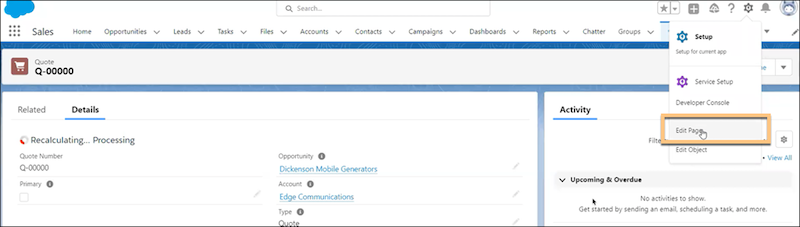
3. From the Components tab in Lightning App Builder, find the **userCommissions** component.
4. Drag the userCommissions component to the right column of the page.
- In the Quote details page, add the userCommissions component above the Activity component.
- In the Opportunity details page, add the userCommissions component above the Related component.
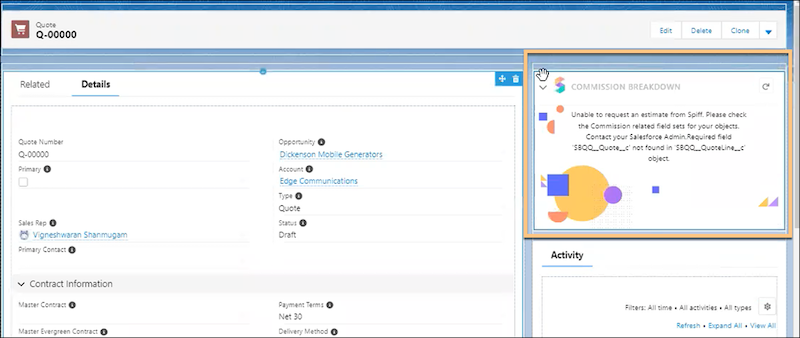
## Configure the userCommissions Component
1. With the component selected, go to Set Component Visibility and click **Add Filter**.
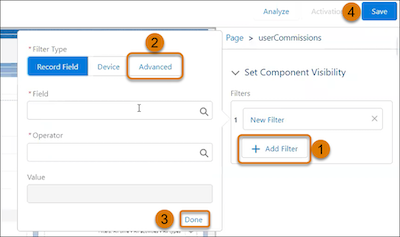
2. Enter these values.
3. Click **Done**.
4. Confirm that the orange eye icon, which indicates an applied filter, appears on the userCommissions component.
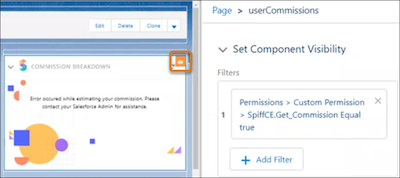
5. Save your changes.
## Activate and Verify the Page
Activate the page for the users, profiles, and apps as the org default. You can also activate the page for a phone, a desktop app, or both. Then, verify that the page is created in Lightning App Builder.
1. Activate the page.
1. Navigate to a quote or opportunity, click **Setup**, and select **Edit Page**.
2. Click **Activation**.
3. In the Activation window, click **Assign as Org Default**.
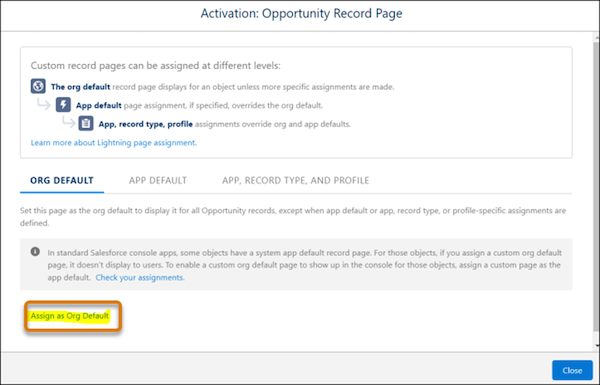
4. In Assign form factor, select **Desktop and Phone**, and click **Next**.
5. Save your changes.
2. Verify the page.
1. From Setup, in the Quick Find box, enter User Interface, and then select **Lightning App Builder**.
2. Select any standard or custom Quote or Opportunity record details page where you want to show the commission for a sales user.
3. Click **Edit** and check that you see the Commission Estimator component.
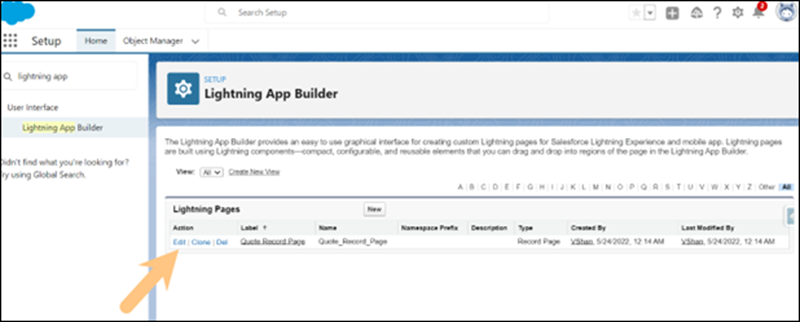
# Add the Sales Engagements Component to Record Pages
Add the Sales Engagements component to relevant record pages with the Lightning App Builder. With the Sales Engagements component, users can see which cadence a given prospect is in, their engagement activity, and also their progress within the cadence.
### Required Editions
Available in: Lightning Experience
Available with Sales Engagement, which is included with Sales in Performance, Einstein 1, and Unlimited Editions, and available for an extra cost in Professional and Enterprise Editions. Sales Engagement is also available for an extra cost in Service and Lightning Platform.
User Permissions
Needed
To set up Sales Engagement:
Customize Application AND Modify All Data
1. From Setup, enter **Lightning App Builder** in the Quick Find box, and then select **Lightning App Builder**.
2. Click **Edit** for the Lightning page you want to modify, or create a new page.
- For Sales Engagement, make sure you update relevant lead, contact, and person account pages.
- If Relate Opportunities to Cadences is turned on, you can add the component to opportunity page layouts.
- If Use Cadences for Collections is turned on, you can add the component to invoice page layouts.
3. Add the Sales Engagements component to the page’s layout.
4. Save your changes.
5. If you’re creating a new page, activate the page and assign it to Sales Engagement users.
6. Repeat the process for other relevant Lightning pages.
# Add the Work Queue Component to Email Integration Panes for Outlook and Gmail
Sales reps can access the Sales Engagement Work Queue directly from the integrations with Microsoft® Outlook® and Gmail™. Add the Work Queue component to its own tab in a new or existing email application pane. Then assign the pane to your Sales Engagement users.
### Required Editions
Available in: Lightning Experience
Available with Sales Engagement, which is included with Sales in Performance, Einstein 1, and Unlimited Editions, and available for an extra cost in Professional and Enterprise Editions. Sales Engagement is also available for an extra cost in Service and Lightning Platform.
User Permissions Needed
To set up the email integrations to use custom email application panes:
Customize Application
To create and save Lightning pages in the Lightning App Builder:
Customize Application
Give your reps the flexibility to work through their queue from their email application.
1. From Setup, enter Integration in the Quick Find box, then select **Outlook Integration and Sync** or **Gmail Integration and Sync**.
2. Expand **Let users access Salesforce records from Outlook/Gmail** and enable **Customize Content with App Builder**.
3. Under Email Application Panes, click **Create New Pane** and select **With Inbox Features**, or edit an existing pane in the list.
4. Click the Tabs component.

5. In the Tabs component properties, click **Add Tab**.
6. Click the tab and select **Custom** title.
7. Enter a descriptive title for the tab, such as Work Queue, or something that describes the queue for your sales reps, and click **Done**.
8. Keep the tab visible in both Compose and Read modes.
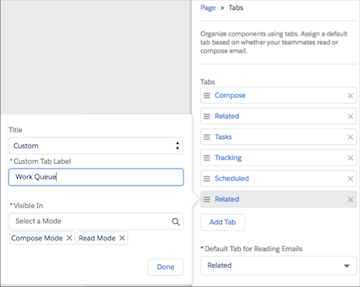
9. Drag and move the tab in the Tabs list to where you want it to display.
Tabs are listed from top to bottom in the order they display from left to right in the pane. To make sure that a tab is visible without extra clicks, place the tab in one of the first few positions.
10. Drag the Work Queue component to the tab.

Tip To track links in emails started from the Work Queue in Outlook, also add the Email Tracking component to a tab available in Compose mode.

Tip The My Feed tab in the Work Queue shows engagements and alerts for emails sent from the Work Queue and tracked emails sent from outside the Work Queue. That information is also shown in the Feed tab in the email integration pane. To prevent duplicate feeds for reps who use the Work Queue, use the Lightning App Builder to remove the Feed tab from the email integration pane.
11. Click **Save**.
12. Activate and assign the pane to the user profiles of reps who use Sales Engagement.
# Add Tooltip Descriptions to Statement Metrics and Payout Rules
Help sales reps and managers better understand the information they see in Salesforce Spiff statements, and help Spiff admins deflect and resolve cases more efficiently. Add tooltip descriptions that explain metric tiles, key metrics and data, or obligations table columns. Edit the default, visible descriptions of certain payout rules.
### Required Editions
Available in: both Salesforce Classic (not available in all orgs) and Lightning Experience
Available in: Enterprise, Unlimited, and Developer Editions
Available for an additional cost in: Professional Edition with Web Services API Enabled
1. From a rep’s statement, click **Edit**.
2. Add tooltips.
1. Click the three dots menu in one of these locations and select **Add Tooltip Description**.
- Metric tile at the top of the statement
- Key Metrics and Data card in a payout rule
- Obligations table column header
2. Enter a description, optional link text, and optional link URL, then save your changes.
URLs must be secure and include the http:// or https:// protocol.
3. To edit a payout rule description, scroll to the rule and click the pencil icon next to the rule name.
4. Save your changes and refresh the statement.
Tooltips are visible when you hover over the part of the statement where you added it. Payout rule descriptions appear in a tooltip next to the rule name.
#### See Also
- [Add and Edit Standard and Custom Statement Metrics](https://help.salesforce.com/s/articleView?id=sales.spiff_statement_design_metrics_edit.htm&release=264.0.0&type=5 "Help reps spend more time on sales and less time creating commission spreadsheets when you add useful metrics to their statements. Include standard and custom metrics, rearrange their order, and remove the ones you don’t need. Any calculations that you have previously created in Designer can be used as a metric card. Changes to metric cards apply to all statements on the same plan.")
- [Add and Edit Payout Rule Metrics](https://help.salesforce.com/s/articleView?id=sales.spiff_statement_design_payout_rule_metrics.htm&release=264.0.0&type=5 "Motivate reps by giving them insight into payout rules. Reps learn what deals to focus on at the end of the month or statement period when they see key metrics and data such as quarterly quota and commission. Changes to rule metrics apply to all statements on the same plan.")
# Add Trusted IP Ranges to the OAuth User’s Profile
If your org enforces IP restrictions, add the trusted IP ranges to the OAuth user’s profile so that your org can reach the backend services required by Sales Planning and Salesforce Maps products.
### Required Editions
Available in: both Salesforce Classic (not available in all orgs) and Lightning Experience
Available for an additional cost in: Enterprise, Performance, Unlimited, and Developer Editions with Sales Planning in English only, and only if you have Web Services API enabled
Your org processes all communication with backend services through the OAuth user. If your org enforces IP restrictions, add the trusted IP ranges to that user’s profile so that your org can reach the backend services required by Sales Planning and Salesforce Maps products.
By default, the SPM Packages connected app is installed with the **IP Relaxation** setting set to **Enforce IP Restrictions**. When a profile has login IP ranges, your org allows access to backend services only for the trusted IP ranges in this topic. To manage connected apps, see [Manage a Connected App](https://help.salesforce.com/s/articleView?id=xcloud.connected_app_manage_additional_settings.htm&type=5&language=en_US).

Note These IP ranges are dynamic and can change at any time.
1. Identify the OAuth user.
- For the Salesforce Maps package, including Territory Planning, see [Designate an OAuth User for Data Processing and Optimizations](https://help.salesforce.com/s/articleView?id=sales.territory_planning_prepare_access.htm&type=5&language=en_US).
- For the Sales Planning package, see [Designate an OAuth User](https://help.salesforce.com/s/articleView?id=sales.sales_planning_setup_prepare_oauth_designation.htm&type=5&language=en_US).
2. On the OAuth user’s profile, update the login IP ranges to include the trusted IP ranges for your org’s region.
For instructions, see [Restrict Login IP Ranges](https://help.salesforce.com/s/articleView?id=xcloud.login_ip_ranges.htm&type=5&language=en_US). To find where your org is located, see [Determine Where Your Salesforce Org Is Hosted](https://help.salesforce.com/s/articleView?id=000396845&type=1&language=en_US).
Region
Trusted IP Ranges
US
107.21.5.76/32
3.226.20.5/32
54.85.243.76/32
EU
18.159.164.231/32
3.120.204.232/32
52.57.146.139/32

Note If the OAuth user’s profile doesn’t list any login IP ranges, skip this step.
# Add Trusted IP Ranges to the OAuth User’s Profile
If your org enforces IP restrictions, add the trusted IP ranges to the OAuth user’s profile so that your org can reach the backend services required by Salesforce Maps products and Sales Planning.
### Required Editions
Your org processes all communication with backend services through the OAuth user. If your org enforces IP restrictions, add the trusted IP ranges to that user’s profile so that your org can reach the backend services required by Salesforce Maps products and Sales Planning.
By default, the SPM Packages connected app is installed with the **IP Relaxation** setting set to **Enforce IP Restrictions**. When a profile has login IP ranges, your org allows access to backend services only for the trusted IP ranges in this topic. To manage connected apps, see [Manage a Connected App](https://help.salesforce.com/s/articleView?id=xcloud.connected_app_manage_additional_settings.htm&type=5&language=en_US).

Note These IP ranges are dynamic and can change at any time.
1. Identify the OAuth user.
- For the Salesforce Maps package, including Territory Planning, see [Designate an OAuth User for Data Processing and Optimizations](https://help.salesforce.com/s/articleView?id=sales.territory_planning_prepare_access.htm&type=5&language=en_US).
- For Salesforce Maps Advanced, see [Designate an OAuth User for Route Optimizations](https://help.salesforce.com/s/articleView?id=sales.salesforce_maps_adv_prepare_access.htm&type=5&language=en_US).
- For the Sales Planning package, see [Designate an OAuth User](https://help.salesforce.com/s/articleView?id=sales.sales_planning_setup_prepare_oauth_designation.htm&type=5&language=en_US).
2. On the OAuth user’s profile, update the login IP ranges to include the trusted IP ranges for your org’s region.
For instructions, see [Restrict Login IP Ranges](https://help.salesforce.com/s/articleView?id=xcloud.login_ip_ranges.htm&type=5&language=en_US). To find where your org is located, see [Determine Where Your Salesforce Org Is Hosted](https://help.salesforce.com/s/articleView?id=000396845&type=1&language=en_US).
Region
Trusted IP Ranges
US
107.21.5.76/32
3.226.20.5/32
54.85.243.76/32
EU
18.159.164.231/32
3.120.204.232/32
52.57.146.139/32

Note If the OAuth user’s profile doesn’t list any login IP ranges, skip this step.
# Add Unit Attributes to Alignments
Update unit attributes in alignments when you import a CSV file into Territory Planning. For example, assign accounts to a new territory as part of routine territory optimization or to adjust for compelling events.
### Required Editions
Available in: both Salesforce Classic (not available in all orgs) and Lightning Experience
Available in: Professional, Enterprise, Performance, Unlimited, and Developer Editions with Web Services API enabled
User Permissions Needed
To add attributes to alignments:
Sales Planning Ops Analyst permission set
AND
Query for Datapipelines User for Sales Planning permission set
AND
SF Maps Territory Planning for Sales Planning permission set
1. Prepare the attributes in your .csv file file. Include an ID field, such as Account ID.
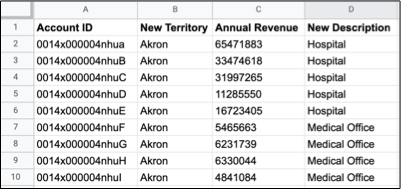
To update assignments for any locked units, Territory Planning requires two separate CSV file imports. For the first import, include the removal of unit locks. For the second import, include updates to unit assignments.
2. From an open alignment, click **Settings** | **Attributes**. Then at the unit level, click **Import from CSV**.
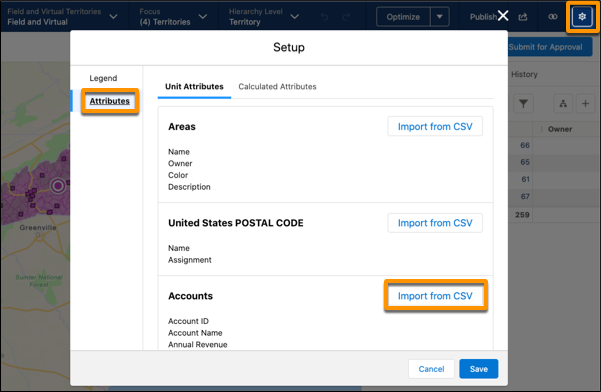
3. Upload the .csv file file.

4. Select columns in the .csv file that you want to import.
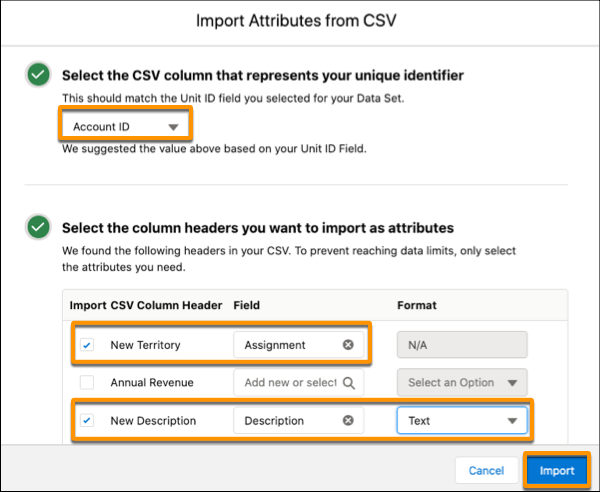
1. Select the column that represents the unique ID for each record.
2. Select the other columns that you want to import. If you don’t see the field attribute that you want, start typing to add one.
3. Select the data type for new attributes, and click **Import**.
Territory Planning applies the updates to the alignment. New attributes appear with `from CSV` appended to their names.

Tip If any records fail to import, download the log file from the data import summary, fix the errors, and import the .csv file again. If all records import, no data import summary appears.
# Add Unit Attributes to Alignments Created from Segments
Enhance the information in live alignments that are managed in CRM Analytics and created using segment data sources in Territory Planning. Set up attribute fields in a CRM Analytics connection and recipe, then include those attributes in your alignment.
### Required Editions
Available in: both Salesforce Classic (not available in all orgs) and Lightning Experience
Available in: Professional, Enterprise, Performance, Unlimited, and Developer Editions with Web Services API enabled
User Permissions Needed
To manage and create a recipe:
Edit CRM Analytics Dataflows
OR
Edit Dataset Recipes
To add attributes to alignments:
Sales Planning Ops Analyst permission set
AND
Query for Datapipelines User for Sales Planning permission set
AND
SF Maps Territory Planning for Sales Planning permission set
## Manage the Connection and Recipe in CRM Analytics
To get started, include the attribute fields in a CRM Analytics data connection and recipe.

Note For details about setting up a CRM Analytics data connection and recipe for Sales Planning, see [Create Datasets for Sales Planning](https://help.salesforce.com/s/articleView?id=sales.sales_planning_setup_prepare_datasets_create.htm&release=264.0.0&type=5 "Plan sales strategies with Salesforce data that you add to datasets for Sales Planning.") and [Transform and Enrich Data for Sales Planning](https://help.salesforce.com/s/articleView?id=sales.sales_planning_setup_prepare_datasets_enrich.htm&release=264.0.0&type=5 "Enrich the data in your Sales Planning datasets so that you include critical details for segmentation, territories, and quotas.").
1. From the App Launcher, find and select **Data Manager**.
2. Modify a connection to include the attribute fields.
1. Select **Connections**.
2. Select the object that specifies the fields that you want to include as attributes.
3. Select the fields to include, and save your changes.
4. Sync the connection.
3. Modify a recipe to include the attribute fields.
1. Select **Recipes**.
2. Open the recipe that includes your dataset.
3. Select the object node, then click **Change columns**.
For example, if your recipe is based on accounts, click the Account node.
4. Select the fields that you want to include as attributes and click **Next**.
5. Verify that the fields that you added appear in the Preview pane, and then run the recipe.
4. Sync the connection again.
## Add Attributes to the Sales Plan
After the CRM Analytics recipe runs, add the attribute fields to your sales plan.
1. Return to Sales Planning, and click the **Sales Plan Settings** tab.
2. Select Data Sources.>
3. Open the data source that’s used with your CRM Analytics connection and recipe.
4. From the Available list, select the attribute fields that you added in CRM Analytics and move them to the Selected list.
5. Save your changes.
## Add Attributes in Territory Planning
Finally, add the attribute fields to the alignment in Territory Planning.
1. Open the alignment that you want to modify.
2. In alignment builder, click the gear icon to open the settings window.
3. Select **Attributes** (1) and click **Add from Segment** (2).
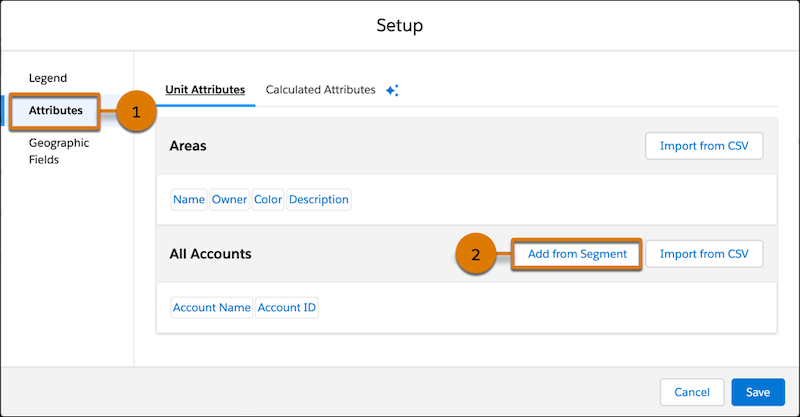
4. Select the fields that correspond to the attributes that you added, and save your changes.
#### See Also
- [Connect Data Sources to Sales Plans](https://help.salesforce.com/s/articleView?id=sales.data_sources_management_add_sources.htm&release=264.0.0&type=5 "Start your sales planning process with relevant data from Salesforce or from other proprietary and third-party sources that you connect to in Sales Planning.")
- [Connect and Sync Your Data to CRM Analytics](https://help.salesforce.com/s/articleView?id=analytics.bi_integrate_connectors.htm&type=5&language=en_US)
- [Manage Recipes](https://help.salesforce.com/s/articleView?id=analytics.bi_integrate_data_prep_recipe_manage_monitor.htm&type=5&language=en_US)
# Add Unit Attributes to Copied Datasets
Enrich or replace a dataset’s unit attribute data when you import a .csv file into Territory Planning. Overwrite attribute data, such as annual revenue, so that you have the latest numbers when you adjust alignments.
### Required Editions
Available in: both Salesforce Classic (not available in all orgs) and Lightning Experience
Available in: Professional, Enterprise, Performance, Unlimited, and Developer Editions with Web Services API enabled
User Permissions
Needed
To add attributes to alignments:
Sales Planning Ops Analyst permission set
AND
Query for Datapipelines User for Sales Planning permission set
AND
SF Maps Territory Planning for Sales Planning permission set
1. Prepare the attributes in your .csv file file. Include an ID field that matches the dataset’s unit ID, such as Account ID.
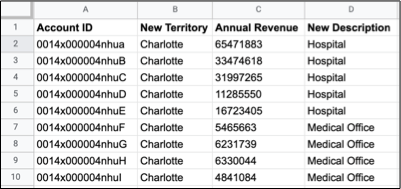
2. Click **Datasets**, then click **Create**. Enter a name for the dataset and click **Next**.
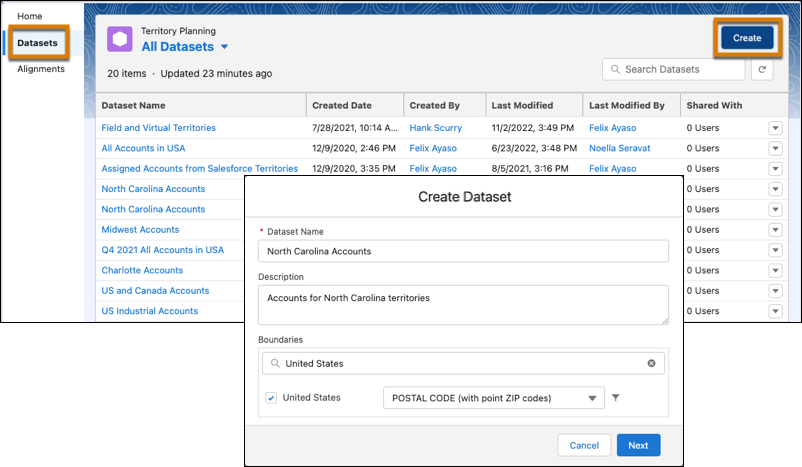
3. Select any reports and queries that you want to include in the dataset, and click **Next**.
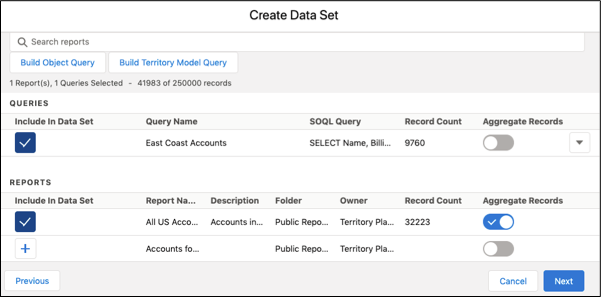
4. Click **Import from CSV**.
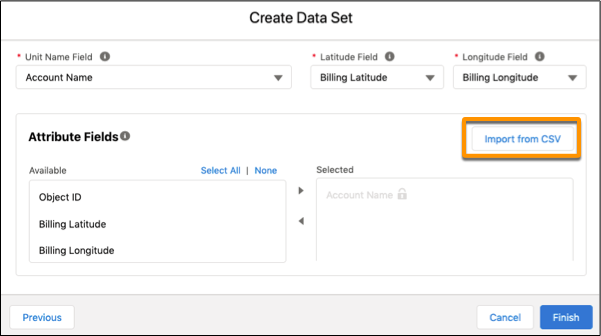
5. Upload the .csv file.

6. Select columns in the .csv file that you want to import.
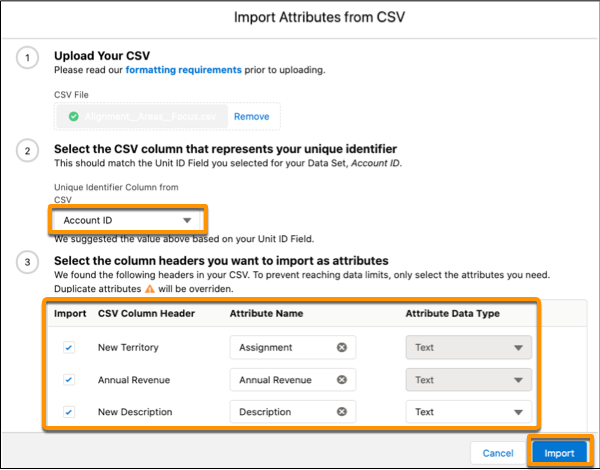
1. Select the column that represents the unique ID for each record.
2. Select the other columns that you want to import. If you don’t see the field attribute that you want, start typing to add one.
3. Select the data type for new attributes, and click **Import**.
7. Confirm the updated unit assignment field and attribute fields that you selected, then click **Finish** to build the dataset.
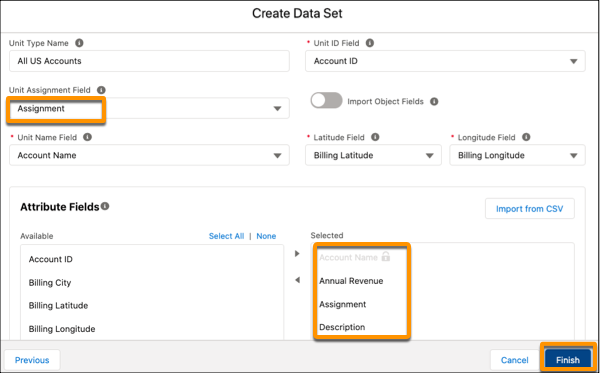
# Add Values to a Quota Table
After you've created a quota table and assigned users in Salesforce Spiff, enter quota values.
### Required Editions
Available in: both Salesforce Classic (not available in all orgs) and Lightning Experience
Available in: Enterprise, Unlimited, and Developer Editions
Available for an additional cost in: Professional Edition with Web Services API Enabled
This topic describes adding quotas directly to the quotas table. You can also assign a specific user to a quota in the user’s profile. For large-scale changes, use the upload functionality to add new team assignments, or update existing team assignments. See [Bulk-Uploading Users, Plan and Team Assignments, Currency Rates, and Quotas](https://help.salesforce.com/s/articleView?id=sales.spiff_bulk_upload_management.htm&release=264.0.0&type=5 "Manage large updates to your users, plans, teams, currency rates, and quotas in Salesforce Spiff by bulk-uploading records in Mass Data Management.") for more information about mass data management.
1. In Quotas, select the quota to which you want to add values.
2. In the quota table, click **Edit**.
3. Add values to the quota table with one of these methods.
- Enter values in the table using Drag and Drop. This function performs similarly to Excel. After you’ve entered an amount into a cell, you can click the corner and drag it horizontally or vertically to copy across cells quickly.
- Copy and Paste from a Spreadsheet. Click the download icon to export the quota table. The download preserves the order of users on the table and any entries that have been made. You can then update the table in Excel and copy and paste from the spreadsheet back into the table.
4. Save the changes.
#### See Also
- [months\_to](https://help.salesforce.com/s/articleView?id=sales.spiff_function_ref_months_to.htm&release=264.0.0&type=5 "Returns the number of months between two dates or times in Salesforce Spiff. If the return value is a negative number, the second date occurred before the first date.")
# Add Your Brand Color
When you choose your brand color, Trailmaker adjusts the color as necessary for accessibility and legibility. The page header text is white and gray. We recommend not using white, yellow, or another pale hue for your brand color. Select a darker color for text to make it more readable.
### Required Editions
Available in: Enterprise, Performance, and Unlimited Editions
User Roles and
Permissions
Enablement Site User Roles
This topic supports these enablement site roles:
Salesforce Admins
Required System Permissions
To customize the branding on your enablement site:
Manage Site Settings
1. In Trailmaker Settings, select **Branding**.
2. Under Brand Color, click the color menu.
- To use a default color, click the color on the palette.
- To use a custom color, click **Custom**. To view the range of color that you want, move the slider that’s below the color field (1). To select the specific hue, click in the color field. Or, enter the hex value or the RGB values (2).
3. Click **Done**.
4. Click **Publish**.
5. Click **Publish** again to confirm the changes.
After you publish the changes, they’re visible on your enablement site.
#### See Also
- [Customize the Logo or Today Page Banner](https://help.salesforce.com/s/articleView?id=sales.mth_customize_logo_or_banner_image.htm&release=264.0.0&type=5 "Style your company’s enablement site with a logo and banner image. The logo appears at the top of every page, while the banner appears across the top of the Today page.")
- [Customize the URLs for the Help and Logout Landing Pages](https://help.salesforce.com/s/articleView?id=sales.mth_customize_urls_help_logout_landing.htm&release=264.0.0&type=5 "You can direct your enablement site users to your own help site, instead of Salesforce Help, when they click the help icon. And when your users log out of your enablement site, you can designate the page where they land.")
- [Customize the Links in Your Enablement Site Page Footer](https://help.salesforce.com/s/articleView?id=sales.mth_customize_footer_links.htm&release=264.0.0&type=5 "You can display links that are relevant to your company and your users in the page footer on your enablement site. Include links to your company’s Experience Cloud site, privacy statement, terms of service—whatever you like. You can designate up to three custom links.")
# Add Zoom Video Conferencing to the Outlook and Gmail Integrations with Inbox
Integrate Salesforce with Zoom to give reps the option to automatically create and add Zoom links to meetings that are created using the Insert Availability feature.
### Required Editions
Available with Sales, Service, and Lightning Platform in: Essentials, Group, Professional, Enterprise, Performance, Unlimited, and Developer Editions
Available with Inbox, which is available in Professional, Enterprise, Performance, and Unlimited Editions
Available with Sales Cloud Einstein, which is available for an extra cost in: Enterprise, Performance, and Unlimited Editions
Available with Sales Engagement, which is available for an extra cost in: Enterprise, Performance, and Unlimited Editions
You enable the Zoom integration to connect Salesforce with Zoom. Then, reps can connect their company Zoom account. After connecting their accounts, reps can select to have a Zoom meeting link automatically generated when a meeting is created using the Insert Availability feature. Reps don’t have to manually generate their own link and remember to add the link to meeting after it’s created.
#### See Also
- [Zoom Integration](https://help.salesforce.com/s/articleView?id=sales.video_zoom_parent.htm&release=264.0.0&type=5 "Enable Zoom integration so reps can take advantage of automatic link creation in Salesforce Inbox and use Zoom as a video source in Einstein Conversation Insights. When Zoom integration is on, Zoom records meetings and makes them available to Salesforce.")
# Adding Accounts as Campaign Members
You can view and manage accounts, including person accounts, as campaign members in a few locations.
### Required Editions
Available in: Salesforce Essentials, Professional, Enterprise, Performance, Unlimited, and Developer Editions
Work with accounts as campaign members in the locations outlined in the table.
- To add an account as a campaign member from an account record, find the Campaign History related list, and then select **Add to Campaign**.
- To start from a campaign record, find the Campaign Members related list, select **Add Account**, and then select members from a list of all available accounts.
- To bulk import accounts as campaign members, open the Data Import Wizard, select the **Campaign Members**, and follow the prompts.
| Record | Location | What’s Shown |
| --- | --- | --- |
| Account | Campaigns related list | Campaigns associated with any of the account’s contacts. |
| Account | Campaign History related list | Campaigns that include the account as a campaign member. |
| Campaign | Campaign Members related list | Accounts that are campaign members. |
| Standard Report | Campaigns and Campaign Members report | Account records with a member type of Account. The column formerly called Lead/Contact ID is labeled Related Record ID. |
| Standard Report | Campaigns with Accounts report | Relationships between campaigns and accounts. This report becomes available after you enable Accounts as Campaign Members. |
| Custom Reports | Object Types | Account as a secondary object (when you select Campaign as the primary object) |

Note In Salesforce Classic, the bulk add action isn’t available on the Campaign Member related list.
# Adding Automation to Sales Engagement
Save time and improve consistency by adding automation to your Sales Engagement activities. Choose from a range of automation tools and templates that fit a variety of automation use cases, such as automated actions, cadence screen flows, and cadence autolaunched flows. You can also use platform automation tools such as Flow Builder, Apex, and APIs to automate how cadences work with leads, contacts, and person accounts.
- **[Bulk Record Actions and Cadences](https://help.salesforce.com/s/articleView?id=sales.hvs_bulk_record_actions.htm&release=264.0.0&type=5)**
In addition to using the automation tools available in Sales Engagement to help streamline cadence activity, reps can use list views and reports to apply cadence-related actions to large groups of records.
- **[Cadence Automation Tools](https://help.salesforce.com/s/articleView?id=sales.hvs_cadences_automation_tools.htm&release=264.0.0&type=5)**
The automation tools and templates included in Sales Engagement provide effective ways to streamline your cadences. Learn more about your cadence automation options.
- **[Choosing the Right Automation Option](https://help.salesforce.com/s/articleView?id=sales.hvs_automation_choose_option.htm&release=264.0.0&type=5)**
When you want to incorporate automation into your Sales Engagement cadences or handle large groups of records at one time with bulk actions, it’s important to clarify your use case. Pinpointing the resulting trigger origin can help you select the most effective option for your needs.
- **[Create an Automated Action](https://help.salesforce.com/s/articleView?id=sales.hvs_automated_actions_create.htm&release=264.0.0&type=5)**
Save time by automating common cadence target-related tasks with processes that manage cadence targets and associated records you own. With simple if-this-then-that logic, you can automatically add, remove, pause, or resume cadence targets and change target assignees based on criteria that you choose. If you’re a manager, you can create automated actions for your subordinates.
- **[Add Screen Flows to Cadences with Cadence Step Flows](https://help.salesforce.com/s/articleView?id=sales.hvs_automation_cadence_step_flow_templates.htm&release=264.0.0&type=5)**
In Cadence Builder, you can specify a screen flow as a cadence step. Use screen flow steps to let reps create a case, event, or task or to perform another action. The screen flow runs when the rep initiates the step for a target from their Work Queue or the Sales Engagement component on target records. Salesforce admins or developers can get started by cloning and customizing the Cadence Step Flow templates included in Sales Engagement.
- **[Run Flows After Cadence Steps with Cadence Autolaunched Flows](https://help.salesforce.com/s/articleView?id=sales.hvs_automation_cadence_autolaunched_flow_templates.htm&release=264.0.0&type=5)**
When you build a cadence, you can run a flow as part of an action step such as a call or email. Perform key actions, such as updating the lead path or opportunity stage, when reps complete the step for a target. Managers can add flows to cadence steps in the Cadence Builder. Salesforce admins and developers can use the Cadence Autolaunched Flow process type to create flows triggered after cadence steps, or use the included flow templates to get started.
- **[Using Platform Automation Tools with Sales Engagement](https://help.salesforce.com/s/articleView?id=sales.hvs_automation_use_platform_tools_parent.htm&release=264.0.0&type=5)**
Add automation to Sales Engagement faster with flows designed specifically to perform common tasks. You can also use platform tools to automate your cadences when your use case doesn’t fit the options included with Sales Engagement. Flow Builder, Apex, and APIs give you maximum flexibility to meet your specific business process needs.
#### See Also
- [Test Change Event Triggers](https://developer.salesforce.com/docs/atlas.en-us.change_data_capture.meta/change_data_capture/cdc_trigger_testing.htm)
# Adding Salesforce Spiff Users with No Salesforce License
When you use the Salesforce connector in Salesforce Spiff, you can add Spiff users who don't have a Salesforce license or who don't share your company's email domain.
### Required Editions
Available in: both Salesforce Classic (not available in all orgs) and Lightning Experience
Available in: Enterprise, Unlimited, and Developer Editions
Available for an additional cost in: Professional Edition with Web Services API Enabled
If your team connects Spiff to Salesforce and you have some reps who don't use Salesforce but still receive commission, give these users the Chatter Free license in Salesforce.
If your team includes users outside your company's email domain, give these users the Chatter External license in Salesforce.
After you add these users in Salesforce, they're available from the Users page From the Admin menu in Spiff. You can add them to teams, plans, and quotas just like other users.
#### See Also
- [Chatter User Licenses](https://help.salesforce.com/s/articleView?id=platform.users_license_types_chatter.htm&type=5&language=en_US)
# Adding Users in Salesforce Spiff
Add users in Salesforce Spiff by creating individual users manually, importing a spreadsheet with details for multiple user records, or syncing user records from an connected external system, such as Salesforce.
### Required Editions
Available in: both Salesforce Classic (not available in all orgs) and Lightning Experience
Available in: Enterprise, Unlimited, and Developer Editions
Available for an additional cost in: Professional Edition with Web Services API Enabled

Note Spiff labels manually added users as Manual Users, and these user records don’t sync automatically with third-party systems. Any related commission data for these users must be manually updated through the Data Import tool unless the same user IDs are used in both the synced system and the manually uploaded data.
After you add users, an admin invites users to Spiff, unless your company sets up single sign-on (SSO) access with an identity provider.
- **[Considerations for Adding Users in Salesforce Spiff from Multiple Sources](https://help.salesforce.com/s/articleView?id=sales.spiff_users_add_considerations.htm&release=264.0.0&type=5)**
Integrating users into Salesforce Spiff from multiple sources can lead to errors and system disruptions due to the creation of multiple user tables. Managing multiple user tables complicates user management, and plan assignments.
- **[Add a User Manually in Salesforce Spiff](https://help.salesforce.com/s/articleView?id=sales.spiff_user_add_manual.htm&release=264.0.0&type=5)**
Create an individual user in Salesforce Spiff manually.
- **[Import Users in Salesforce Spiff Manually](https://help.salesforce.com/s/articleView?id=sales.spiff_users_add_manual_import.htm&release=264.0.0&type=5)**
Admins can manually import users in Salesforce Spiff by downloading, modifying, and uploading a template .csv file. You can also add other admins.
- **[Invite Users to Salesforce Spiff](https://help.salesforce.com/s/articleView?id=sales.spiff_users_invite.htm&release=264.0.0&type=5)**
If your organization isn’t using SSO, you can invite reps to see tier commissions in Salesforce Spiff.
#### See Also
- [Connectors for Salesforce and Third-Party Data in Salesforce Spiff](https://help.salesforce.com/s/articleView?id=sales.spiff_connector.htm&release=264.0.0&type=5 "Sync data from objects and fields in Salesforce or third-party providers for use Salesforce Spiff. Connector fields in Spiff represent the fields synced from the source data, versus calculated fields created in Designer.")
- [Set Up Single Sign-On for Salesforce Spiff](https://help.salesforce.com/s/articleView?id=sales.spiff_sso.htm&release=264.0.0&type=5 "Support a more efficient experience for users who log in to Salesforce Spiff by setting up SAML single sign-on (SSO) with an identity provider, including Google, Okta, and Microsoft Azure Active Directory. Configure settings in your identity provider and in Spiff.")
# Adjust Account Assignments in Sales Territories
Create datasets that include assigned accounts in a territory model from Sales Territories. Using those datasets, create and optimize alignments in Territory Planning, then publish them as your fine-tuned territories in Salesforce.
### Required Editions
Available in: both Salesforce Classic (not available in all orgs) and Lightning Experience
Available in: Professional, Enterprise, Performance, Unlimited, and Developer Editions with Web Services API enabled
User Permissions Needed
To create datasets in Territory Planning:
Sales Planning Ops Analyst permission set
AND
Query for Datapipelines User for Sales Planning permission set
AND
SF Maps Territory Planning for Sales Planning permission set
1. Click **Datasets**, then click **Create**. Enter a name for the dataset and click **Next**.

2. Click **Build Territory Model Query**.
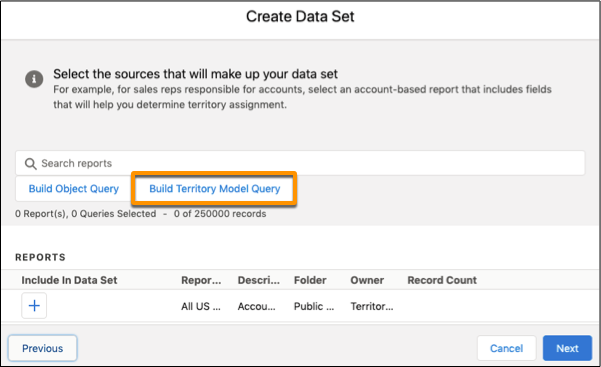
3. Give your query a name, then select a branch from a Salesforce territory model.
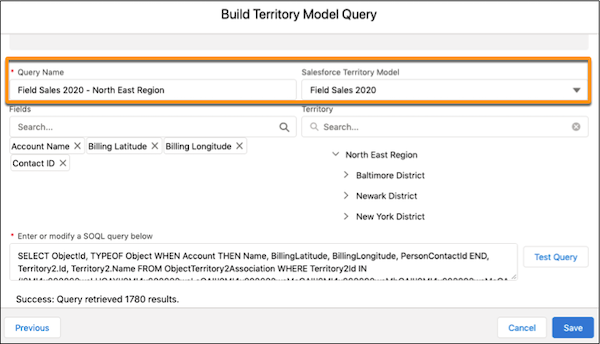
4. Select the fields that you want to include, then select a territory. As you select fields and territories, Territory Planning populates the SOQL query field.
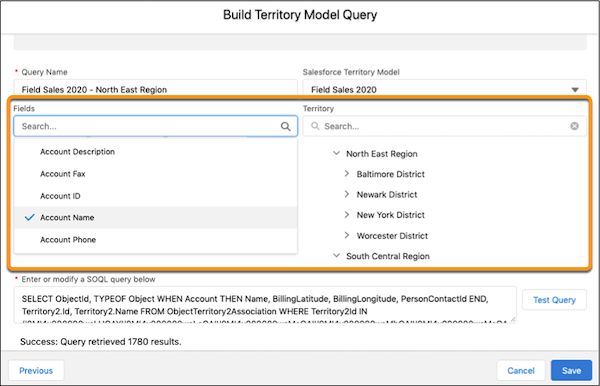
5. Test your query, then save your work.
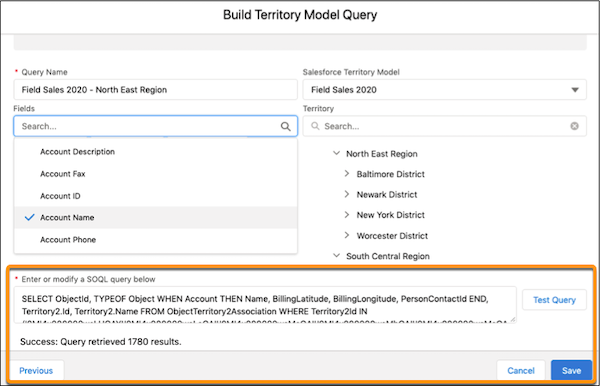
6. Your query is now available to include in the dataset. Click **Next**.
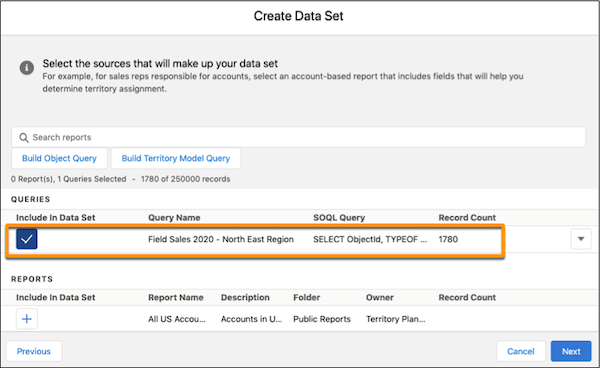
7. If you don’t see the options you need for unit assignment, latitude, or longitude, turn on **Import Object Fields**, then select a unit assignment field such as Owner ID.
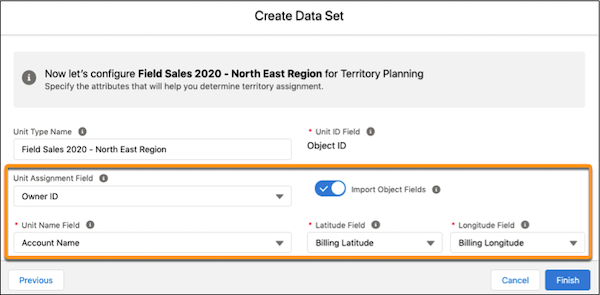
8. To supplement your data with attributes from external sources in CSV files, click **Import from CSV**, then add the CSV files that you want.

9. Click **Finish**.
# Adjust Compensation Variances with a Lump-Sum True-Up Rule
A lump-sum true-up rule in Salesforce Spiff helps you adjust compensation if a rep is over- or underpaid in a period.
### Required Editions
Available in: both Salesforce Classic (not available in all orgs) and Lightning Experience
Available in: Enterprise, Unlimited, and Developer Editions
Available for an additional cost in: Professional Edition with Web Services API Enabled
User Permissions Needed
To create a true-up rule:
A Spiff user role with these permissions turned on.
Designer Configuration: Manage
Statements: Recalculate
1. Create a YTDEarned calculation, which depends on the commission rule.
- Create a line-by-line commission where each deal earns its own commission. The YTDEarned calculation sums the commission values for a TYD filter, such as `=sum(ClosedInYear!NewBookingsPayout_AE)`.
- Create a lump-sum commission where commission is earned based on overall progress toward a goal, calculated by multiplying attainment by OTE. The YTDEarned calculation multiplies YTDAttainment by the Annual Variable, such as `=QuotaAttainmentYTD * AnnualVariable`.
2. Create a YTDPaid calculation that uses the `amounts_from()` function to find commission amounts from the prior statement periods.
- Handle true-up payout amount at the rule level, `True-Up = RuleA_Earned - RuleA_Paid`. True-ups at the rule level require the fourth argument in the `amounts_from()` function to find the payout amounts from a specific rule, rather than from the statement as a whole.
- Handle true-up payout amount at the statement level, `True-Up = TotalStatement_Earned - TotalStatement_Paid`.
3. To calculate the true-up rule, create a worksheet calculation with a simple formula.
```
YTD_Earned - YTD_Paid
```
4. If there aren’t any amounts or statements to reference, recalculate statements chronologically.
#### See Also
- [Create a Line-By-Line Rule](https://help.salesforce.com/s/articleView?id=sales.spiff_rules_line_by_line_create.htm&release=264.0.0&type=5 "Line-by-line rules apply a calculation to each item in a data filter. To get the total for the rule, the calculation output from each item in the data filter is summed.")
- [Create a Lump-Sum Rule](https://help.salesforce.com/s/articleView?id=sales.spiff_rules_lump_sum_create.htm&release=264.0.0&type=5 "For lump-sum rules, the final payout calculation comes from a single cell in a worksheet. Worksheets contain formulas that have a single value, either entered directly or as the result of a formula. The result of 2 + 2 is 4, a single value. We don't calculate data for every record in the data filter that’s used.")
# Adjust Forecasts
Forecast managers can adjust forecast totals for themselves and their immediate associates. Associates can adjust their own forecasts and those of subsequent products or services, depending on the defined ownership.
### Required Editions
Available in: Lightning Experience
Available in: Enterprise, Unlimited with Sales, and in Agentforce 1 Sales Edition
Your adjustments roll up in the hierarchy and become visible to managers.
1. On the forecasts page, hover over the forecast value you want to adjust, and then click .
2. Enter the adjusted value and notes about why you made the adjustment.
3. Save your changes.
An  icon appears in the cell to show that you adjusted the forecast. When you hover over it, a window appears to show the adjustment details.
To adjust multiple forecasts at the same time, double-click each forecast value to edit it, and then click **Save**.
To revert an adjustment you made, hover over it, click , and then click **Revert**.
# Adjust Forecasts Based On Total Value
Configure adjustments to automatically adjust forecasts by a percentage of the total value for the selected upcoming periods.
### Required Editions
Available in: Lightning Experience
Available in: Enterprise, Unlimited with Sales, and in Agentforce 1 Sales Edition
For example, configure adjustments to automatically adjust forecasts by 5% on the total value over the next 6 months.
1. On the forecasts page, hover over the forecast value you want to adjust, and then click .
2. In Adjustment Type, select **Custom**.
3. Select the number of periods for which you want to apply adjustments.
4. In each period, enter the percentage by which you want to calculate the adjustment, and add notes about why you made the adjustment.
5. Save your changes.
# Adjust Payout Rule Display in a Rep’s Statement
To make sure that reps stay focused on the most important data, you as an admin can change the display of the Payout Rules section of the rep’s statement. Adjust the displayed metrics, the order in which metrics appear, and the columns in the Obligations table.
### Required Editions
Available in: both Salesforce Classic (not available in all orgs) and Lightning Experience
Available in: Enterprise, Unlimited, and Developer Editions
Available for an additional cost in: Professional Edition with Web Services API Enabled
User Permissions Needed
To edit a statement:
A Spiff user role with these permissions turned on.
Statements: Edit
Statements: Recalculate
Any changes to a rep statement apply to all reps in the same plan.
1. Open the statement you want to adjust and click **Edit**.
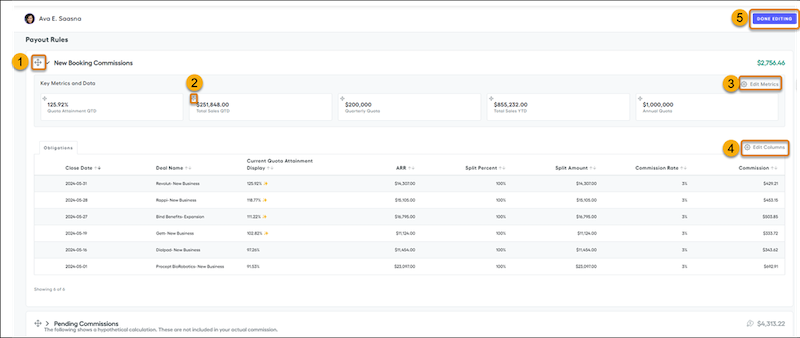
2. To move a payout rule down or up the list, use the payout rule handle (1).
3. To adjust the payout rule display, expand the payout rule.
1. To change the display order of a metric, use the metric handle (2).
2. To change the displayed metrics, click **Edit Metrics** (3), turn on the metrics you want to show, and click **Apply**.
3. To change the columns in the Obligations table of the payout rule, click **Edit Columns** (4) and turn on the columns you want to show. You can also drag columns in the dialog box to change the column order. Click **Apply**.
4. To save your changes, click **Done Editing** (5).
5. Recalculate the statement and refresh your browser.
# Adjustment Deletions in Pipeline Forecasts
Review the scenarios that cause manager judgments and forecast adjustments to be deleted.
### Required Editions
Available in: both Salesforce Classic and Lightning Experience in Professional, Performance, and Developer Editions and in Enterprise and Unlimited Editions with Sales
Changing some forecasting and custom fiscal year settings can delete forecast adjustments, but underlying data isn’t affected. Adjustments are deleted when your admin does any of the following.
- Disables forecasts.
- Disables manager adjustments. Only adjustments made by forecast managers to their subordinates’ and child territory forecasts are deleted.
- Disables owner adjustments. Only adjustments made by forecast users to their own forecasts, including territory forecasts they own, are deleted.
- Changes your forecast period setting from quarterly to monthly or from monthly to quarterly.
- Disables a forecast type. Only adjustments for that forecast type are deleted.
- Changes the start month of your fiscal year when the forecast period is set to quarterly. Quotas and adjustments are deleted.
- Deletes a product family. Quotas and adjustments are deleted for the product family.
- Switches from cumulative forecast rollups to individual forecast category rollups or from individual to cumulative rollups.
- Creates a custom fiscal year for the first time. All adjustments and quotas for the corresponding and following standard fiscal years are deleted.
- Deletes a custom fiscal period or quarter. Forecast adjustments and quotas for that period or quarter are also deleted.
For role-based forecast types, adjustments are also deleted when:
- You’re no longer a forecast manager. Only adjustments that you made to subordinates’ forecasts are deleted.
- You’re removed from a role that’s set as a forecast manager in the forecast hierarchy. Only adjustments that you made to subordinates’ forecasts are deleted.
- You’re deactivated as a user.
#### See Also
- [Adjustments in Pipeline Forecasts](https://help.salesforce.com/s/articleView?id=sales.forecasts3_adjustments_overview.htm&release=264.0.0&type=5 "A forecast adjustment indicates an assessment about the sales value that a forecast manager or sales rep feels confident of closing during of the forecast period. Adjusting Best Case and Commit forecasts values is a way to accurately gauge where a sales team is on their path to hitting its sales numbers. An adjustment doesn’t change the underlying gross rollup and doesn’t appear in reports. It just adds a layer of detail to a forecast.")
- [Considerations for Managing Territory Pipeline Forecasts](https://help.salesforce.com/s/articleView?id=sales.forecasts3_territory_forecasts_management_considerations.htm&release=264.0.0&type=5 "Before changing your active territory model, review how territory forecast data and performance can be affected.")
- [Make Adjustments to Pipeline Forecasts](https://help.salesforce.com/s/articleView?id=sales.forecasts3_adjusting_forecasts.htm&release=264.0.0&type=5 "Adjusting overstated or understated Best Case, Most Likely, or Commit forecast values gives you a more accurate picture of the path to hitting your forecast or quotas. Updating the rollup values on the forecasts page doesn’t change the underlying amounts or quantities in the opportunities that make up the forecast.")
# Adjustments in Pipeline Forecasts
A forecast adjustment indicates an assessment about the sales value that a forecast manager or sales rep feels confident of closing during of the forecast period. Adjusting Best Case and Commit forecasts values is a way to accurately gauge where a sales team is on their path to hitting its sales numbers. An adjustment doesn’t change the underlying gross rollup and doesn’t appear in reports. It just adds a layer of detail to a forecast.
### Required Editions
Available in: both Salesforce Classic and Lightning Experience
Available in: Professional, Performance, and Developer Editions and in Enterprise and Unlimited Editions with Sales
For more accuracy and clarity, managers can indicate which opportunities are part of their committed, adjusted forecast by applying their own judgment to the opportunities in the forecast. See [Manager Judgments in Forecasts](https://help.salesforce.com/s/articleView?id=sales.forecasts3_judgments_overview.htm&release=264.0.0&type=5 "As a forecast manager, you assess your forecasts during each period and adjust the forecast as you receive new information and circumstances change. To create the most accurate forecast possible, apply your judgment about whether you consider an opportunity part of the forecast total. Applying your judgment as a forecast manager provides visibility into which deals you have the highest confidence to close and a more accurate picture of your forecast to managers above you in the hierarchy.") for details.
Your Salesforce admin can enable forecast managers to adjust subordinates’ and child territory forecasts, enable all forecast users to adjust their own forecasts (including territory forecasts they own), or both.
Depending on your system settings, forecast managers can:
- Adjust their own Best Case and Commit forecasts and the forecasts of subordinates one level below them in the forecast hierarchy. The Salesforce mobile app supports owner adjustments only.
- Adjust forecasts that don’t include adjustments and forecasts that include adjustments made by someone else on their opportunity team.
- View adjustments that subordinates make at every level below them in the forecast hierarchy. Adjustments made to their subordinates’ forecasts roll up into their own forecasts. For example, let’s say you’re a sales manager who adjusted the forecast of one of your sales reps down from $2,000 to $1,500. Your vice president, who’s your forecast manager, sees $1,500 when viewing your forecast, along with an icon indicating that the forecast contains an adjustment. The vice president can decide to adjust it back to $2,000.
Any adjustments that the managers make to subordinates’ forecasts from their own forecast page don’t appear on the subordinate’s forecasts page. Instead, the managers see that subordinate’s forecasts and any adjustments that the subordinates made to their own forecasts or forecasts of their subordinates.
For example, let’s say you’re a vice president of sales. On your own forecasts page, you see a July Best Case forecast of $1,250 (including a $50 adjustment that you made) for one of your first-level subordinates, a sales manager. However, when you view the sales manager’s forecasts page, the July Best Case forecast is $1,200, because it doesn’t include your adjustment. If a manager and a subordinate adjust the same forecast, only the manager’s adjustment rolls up the forecast hierarchy.

Note While you’re viewing a forecasts page, your subordinates can be adjusting their own forecasts or editing related opportunities. Or you can adjust one of your subordinates’ forecasts from your own page. All these events change forecasts. To view the most recent forecasts, click **Refresh**. In Lightning Experience, a timestamp shows the date and time when the forecasts page was refreshed. In-progress data updates aren’t indicated.
## Adjustment Details
Your Salesforce admin can configure adjustments to show only in a window when you hover over a forecast cell, or to break out adjustment amounts into separate columns.
If Salesforce is configured to show adjustments when hovering over the cell, you see one forecast value per row for each category shown in the forecast summary. That value represents the last adjusted value for that category. If the cell includes a  icon, the forecast value includes an adjustment. Hover over the cell to review these details.
- The original forecast value before any adjustments were made.
- The adjusted value from your team (seen by forecast managers only).
- Your total Closed + IN judgments, if manager judgments are enabled (seen by forecast managers only)
- Any notes that you entered about adjustments that you made.
If Salesforce is configured to break out adjustments into separate columns, expand an adjustable forecast category to see the following forecast values.
- The original forecast value before any adjustments were made.
- Your team’s adjustments (if owner adjustments are enabled and you’re a forecast manager).
If a value in any column includes an adjustment, the cell includes a  icon. Your adjustments are shown in the My column, for example, My Commit. To see these details, hover over the cell.
- Your total Closed + IN judgments, if manager judgments are enabled (seen by forecast managers only)
- Any notes that you entered about adjustments that you made.
To see the details about team adjustments, go to your direct report’s forecast view.

Note If there are changes in the last 7 days, you can also see the details about those changes when hovering over the cell. However, the  icon doesn’t indicate those types of changes.
## Adjustments and Multiple Active Forecast Types
If multiple forecast types are active, each forecast type maintains separate adjustments. For example, if opportunity revenue and quantity forecasts are enabled, you can adjust forecasts for each type. However, adjustments made in the opportunity revenue-based forecast aren’t shown as adjustments in any other forecast type. So if you adjust an opportunity revenue forecast from $100,000 to $90,000, and then switch your forecast view, you don’t see an equivalent adjustment value in the opportunity quantity forecast. If you change the forecast view back to the opportunity revenue forecast, you see your adjustment of $90,000.
## Adjustments and Product Family Forecasts
If you use product family forecasts, you can’t adjust your own product family forecasts in Salesforce Classic. If users adjust their product family forecasts in Lightning Experience, not every total in the Salesforce Classic forecasts grid reflects the adjustments.
## Adjustments When Opportunities Move Between Forecast Categories
When an opportunity moves from one forecast category to another, such as from Pipeline to Best Case, the unadjusted raw forecasts change for each of those rollups. However, forecasts with adjustments don’t change in the summary on the forecasts page. To account for changes in the stage of opportunities, update or remove your adjustments to each forecast rollup.
- **[Make Adjustments to Pipeline Forecasts](https://help.salesforce.com/s/articleView?id=sales.forecasts3_adjusting_forecasts.htm&release=264.0.0&type=5)**
Adjusting overstated or understated Best Case, Most Likely, or Commit forecast values gives you a more accurate picture of the path to hitting your forecast or quotas. Updating the rollup values on the forecasts page doesn’t change the underlying amounts or quantities in the opportunities that make up the forecast.
- **[Adjustment Deletions in Pipeline Forecasts](https://help.salesforce.com/s/articleView?id=sales.forecasts3_adjustments_purges.htm&release=264.0.0&type=5)**
Review the scenarios that cause manager judgments and forecast adjustments to be deleted.
- **[Who Can Adjust Pipeline Forecasts](https://help.salesforce.com/s/articleView?id=sales.forecasts3_adjustments_who.htm&release=264.0.0&type=5)**
Forecast adjustments at the rollup level provide an assessment about the tpta; sales that the forecast owner feels confident to close during the forecast period. Your system settings and your place in the forecast hierarchy determines if you can view and make adjustments.
#### See Also
- [Make Adjustments to Pipeline Forecasts](https://help.salesforce.com/s/articleView?id=sales.forecasts3_adjusting_forecasts.htm&release=264.0.0&type=5 "Adjusting overstated or understated Best Case, Most Likely, or Commit forecast values gives you a more accurate picture of the path to hitting your forecast or quotas. Updating the rollup values on the forecasts page doesn’t change the underlying amounts or quantities in the opportunities that make up the forecast.")
- [Adjustment Deletions in Pipeline Forecasts](https://help.salesforce.com/s/articleView?id=sales.forecasts3_adjustments_purges.htm&release=264.0.0&type=5 "Review the scenarios that cause manager judgments and forecast adjustments to be deleted.")
- [Apply Manager Judgment to Opportunities in Pipeline Forecast](https://help.salesforce.com/s/articleView?id=sales.forecasts3_judgments_apply.htm&release=264.0.0&type=5 "To create the most accurate forecast possible, apply your judgment as a forecast manager about whether you consider a subordinate’s opportunity part of your forecast. Then you have the details about the total value of the opportunities when you review and adjust the total Commit forecast.")
# Admin View of a Rep Statement in Salesforce Spiff
The admin's view of a rep's statement is very similar to what the rep sees. However, the admin's view includes functionalities not available to the rep.
### Required Editions
Available in: both Salesforce Classic (not available in all orgs) and Lightning Experience
Available in: Enterprise, Unlimited, and Developer Editions
Available for an additional cost in: Professional Edition with Web Services API Enabled
Both the admin's view and the rep's view show the same metrics and data. However, the admin view includes edit, recalculating, freeze, adjustment, and draw functionalities that aren't available for the rep. The Payout Rules section includes ghost rules. See [Considerations for Ghost Rules](https://help.salesforce.com/s/articleView?id=sales.spiff_rules_ghost.htm&release=264.0.0&type=5 "Ghost rules are payout rules where the output doesn’t contribute to a rep's total commission amount for a statement period. Ghost rules are helpful in situations where you want to start building or testing rules for the next quarter or year, or when you want to perform mid-year plan changes.").
In the admin view, you can customize the Payout Rules section. Access a rep statement from the main commission page. To access a different rep statement from a rep statement, use the dropdown (1), and search or scroll for a rep name to go directly to that statement.
The top of a rep statement (2) shows the metrics defined in your company. You can use the default top-level metrics or change them according to your needs. See [Add and Edit Standard and Custom Statement Metrics](https://help.salesforce.com/s/articleView?id=sales.spiff_statement_design_metrics_edit.htm&release=264.0.0&type=5 "Help reps spend more time on sales and less time creating commission spreadsheets when you add useful metrics to their statements. Include standard and custom metrics, rearrange their order, and remove the ones you don’t need. Any calculations that you have previously created in Designer can be used as a metric card. Changes to metric cards apply to all statements on the same plan.").
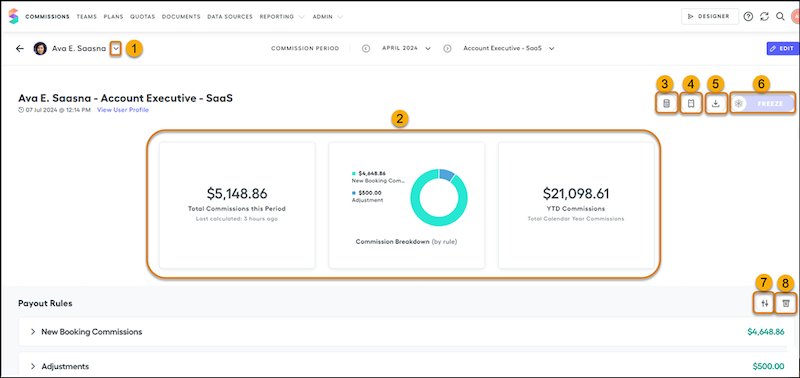
## Recalculating the Statement
To recalculate the statement, click the Recalculate Statement icon (3). For details, see [Recalculating Commission Statements](https://help.salesforce.com/s/articleView?id=sales.spiff_statements_recalculate.htm&release=264.0.0&type=5 "After a data import or change in plans or commission logic, you can manually recalculate individual or all unfrozen statements to get accurate commission amounts.").
## Ticket Management
If Ticket Management is turned on, clicking the Open a Ticket icon (4) navigates to the Create a New Ticket window or to an external ticketing application, depending on your company's settings. Any user who has access to the rep's statement, including the rep, an admin, or a team lead, can create a new ticket tied to that statement.
## Exporting the Statement
The Export Statement icon (5) exports a summary of the statement. This functionality is also available to the rep. Export all of this rep's statements Year to Date, Last Period, Last Year, or custom date range. To export statement data, use the Export Statement icon in the statement toolbar.
Export is the only way to see full statement data if a statement exceeds the 30 MB size limit and Spiff can no longer render all of the data on the Statement page.
## Freezing and Unfreezing the Statement
Clicking the **Freeze** button (6) on a rep statement page freezes only that rep's statement for the selected period. For additional details, see [Freezing and Unfreezing Statements](https://help.salesforce.com/s/articleView?id=sales.spiff_statements_freeze.htm&release=264.0.0&type=5 "Freezing statements locks the commission statements and prevents future recalculations from affecting the shown amount or fields. You can freeze individual statements, bulk-freeze multiple statements, and set up automatic statement freezing."). You can unfreeze an individual statement by clicking Un-Freeze on the rep statement. This action resets any progress made with statement approvals and can result in changes to the commission amounts due to data source or calculation updates if the statement is then recalculated.
## Manual Adjustments and Manual Draws
To manually add an adjustment or draw to the statement, click the Create an Adjustment icon (7) or Create a Draw icon (8). For details, see [Make Manual Adjustments and Manual Draws in Statements](https://help.salesforce.com/s/articleView?id=sales.spiff_statements_manual_adjustments.htm&release=264.0.0&type=5 "Make manual adjustments or add draws to any rep statement. Both manual adjustments and draws don’t tie back to any specific opportunity and they don’t count towards quota attainment, and multiple adjustments/draws will display a single sum in reports. Manual adjustments and manual draws are best used for one-time, top-level adjustments to a commission statement total.").
## Column Layout on Payout Rule Tables
In edit mode, freeze columns to keep them visible while reps scroll, and adjust column widths to match the data in each column. Column layout changes apply to all reps on the plan as the default view. Reps can adjust their own layout during a session, but their changes aren't saved—the layout reverts to the admin-configured default when they return to the statement. See [Freeze and Resize Columns on Payout Rule Tables](https://help.salesforce.com/s/articleView?id=sales.spiff_statement_design_column_layout.htm&release=264.0.0&type=5 "Set the default column layout for payout rule tables on statements. Freeze columns to keep them visible while reps scroll, and set column widths to match the data in each column. Layout changes apply to all reps on the same plan.").
## Customizations
You customize the order of the rules and displayed data. Any changes to a rep statement apply to all reps in the same plan. You can also change the fields that show for each rule. If you didn't use the field you are adding in your commission logic, the field can appear blank initially. To show the data, recalculate your statement and refresh your page. You can also freeze columns and adjust column widths on payout rule tables to set a consistent default layout for all reps on the plan.
# Administer Account Teams
To help your account reps collaborate and improve customer relationships, turn on account teams and customize the account team layout.
- **[Turn On Account Teams](https://help.salesforce.com/s/articleView?id=sales.accountteam_enable.htm&release=264.0.0&type=5)**
To allow your reps to create and maintain long-term, collaborative teams for their accounts, turn on account teams.
- **[Customize Account Team Roles](https://help.salesforce.com/s/articleView?id=sales.accountteam_customize_roles.htm&release=264.0.0&type=5)**
Every account team member has a role on an account. To track the roles that team members fill in your company, such as account manager or sales rep, customize your account team roles.
- **[Maintain Your Users’ Account Teams](https://help.salesforce.com/s/articleView?id=sales.account_team_members_add.htm&release=264.0.0&type=5)**
Add, remove, or replace multiple account team members at a time. Update member roles and access.
- **[Disable Account Teams](https://help.salesforce.com/s/articleView?id=sales.accountteam_disable.htm&release=264.0.0&type=5)**
If your account reps aren’t using account teams and you don’t want to retain account team data, you can disable account teams.
- **[Considerations for Customizing Account Teams](https://help.salesforce.com/s/articleView?id=sales.account_teams_customize_considerations.htm&release=264.0.0&type=5)**
If you customize account teams, review considerations related to custom fields, team member information, and validation rule, flow, and Apex trigger support.
- **[Considerations for Account Team Member Access](https://help.salesforce.com/s/articleView?id=sales.accountteam_access.htm&release=264.0.0&type=5)**
When you view a team member's access, the level shown depends on where you look. The account team member record shows only the directly granted access, while the Team Member Access action shows the user's total access from all sources.
- **[Account Team Fields](https://help.salesforce.com/s/articleView?id=sales.accountteam_fields.htm&release=264.0.0&type=5)**
Account team member data is stored in standard fields. A user’s page layout determines which fields are visible, and a user’s access to the account determines which fields are editable.
# Administer Opportunity Splits and Opportunity Product Splits
Make it easy for your sales reps to collaborate and share opportunity revenue by enabling opportunity splits and opportunity product splits and customizing them for your business processes.
- **[Set Up Opportunity Splits and Opportunity Product Splits](https://help.salesforce.com/s/articleView?id=sales.teamselling_opp_splits_setup_sequence.htm&release=264.0.0&type=5)**
Prepare to enable opportunity splits by meeting prerequisites. After enabling splits, you can create custom split types to optimize splits for your sales processes. You can also set up opportunity product splits for your opportunity split types.
- **[Add Opportunity Product Splits](https://help.salesforce.com/s/articleView?id=sales.teamselling_set_up_product_splits.htm&release=264.0.0&type=5)**
To give team members credit for products they support in closing deals, add opportunity product splits to opportunity split types.
- **[Deactivate or Delete Opportunity Split Types](https://help.salesforce.com/s/articleView?id=sales.teamselling_split_types_remove.htm&release=264.0.0&type=5)**
Deactivating a split type removes it from the Salesforce interface while saving the underlying data, so that you can reactivate it later. You can have a maximum of eight active split types. If your users need another split type, you can deactivate a split type to reallocate one. _Deleting_ a split type permanently removes all related data, reducing your storage needs.
- **[Disable Opportunity Splits](https://help.salesforce.com/s/articleView?id=sales.teamselling_opp_splits_disable.htm&release=264.0.0&type=5)**
If you’re not using opportunity splits and you don’t want to retain the data, you can disable the feature.
# Administer Opportunity Teams
Help your sales teams collaborate and win more deals by enabling opportunity teams and customizing the team layout.
- **[Turn on Opportunity Teams](https://help.salesforce.com/s/articleView?id=sales.teamselling_enabling.htm&release=264.0.0&type=5)**
Help your reps collaborate on specific deals by enabling opportunity teams.
- **[Customize Opportunity Team Roles](https://help.salesforce.com/s/articleView?id=sales.teamselling_customize_roles.htm&release=264.0.0&type=5)**
Every opportunity team member has a role in the opportunity. To track the roles that team members fill in your company, such as account manager or sales rep, customize opportunity team roles.
- **[Maintain Your Users’ Opportunity Teams](https://help.salesforce.com/s/articleView?id=sales.opportunity_team_members_adding.htm&release=264.0.0&type=5)**
Add, remove, or replace multiple opportunity team members at a time. Update member roles and access.
- **[Disable Opportunity Teams](https://help.salesforce.com/s/articleView?id=sales.teamselling_disabling.htm&release=264.0.0&type=5)**
If you’re not using team selling and you don’t want to retain opportunity team data, you can disable opportunity teams.
- **[Considerations for Customizing Opportunity Teams](https://help.salesforce.com/s/articleView?id=sales.customize_teamselling.htm&release=264.0.0&type=5)**
If you customize opportunity teams, review considerations related to custom fields, team member information, and validation rule and Apex trigger support.
- **[Opportunity Team Fields](https://help.salesforce.com/s/articleView?id=sales.salesteam_fields.htm&release=264.0.0&type=5)**
Opportunity team data is stored in standard fields. A user’s page layout determines which fields are visible, and a user’s access to the account determines which fields are editable.
#### See Also
- [Add Teams to Your Opportunities](https://help.salesforce.com/s/articleView?id=sales.salesteam_add.htm&release=264.0.0&type=5 "If your Salesforce admin has enabled opportunity teams, the Opportunity Team related list appears on each opportunity. You can add, edit, or remove team members.")
- [Set Up a Default Opportunity Team](https://help.salesforce.com/s/articleView?id=sales.salesteam_default.htm&release=264.0.0&type=5 "Set up a default opportunity team of coworkers you typically work with on opportunities, with a role for each member and special access to your opportunities. If you don’t see the Opportunity Team related list, ask your Salesforce admin to enable opportunity teams.")
# Administer Timesheets and Mileage in Salesforce Maps
Maximize your reps’ time in the field when you simplify activity and distance tracking with Salesforce Maps Mileage Administration. Specify distance parameters that qualify for reimbursements and establish an approval process for timesheets.
1. **[Considerations for Tracking Activities and Qualified Travel Distances in Timesheets](https://help.salesforce.com/s/articleView?id=sales.salesforce_maps_setup_timesheets_considerations.htm&release=264.0.0&type=5)**
Anticipate behaviors and outcomes when you set up Salesforce Maps to track your reps’ activities and qualified distances in timesheets.
2. **[Access the Mileage Administration Implementation Guide](https://help.salesforce.com/s/articleView?id=sales.salesforce_maps_setup_timesheets_implementation_guide.htm&release=264.0.0&type=5)**
Get full details for simplifying activity and distance tracking in timesheets when your reps rely on Salesforce Maps for visiting customers. Specify distance parameters that qualify for reimbursements and establish an approval process for timesheets. Your reps then get to spend more time building business with customers and less time on administrative tasks.
3. **[Define Timesheet Periods in Salesforce Maps](https://help.salesforce.com/s/articleView?id=sales.salesforce_maps_setup_timesheets_periods.htm&release=264.0.0&type=5)**
Determine which days of activities to capture within your reps’ timesheets in Salesforce Maps. Then your reps can focus their efforts on customer visits instead of administrative tasks.
4. **[Create Distance Reimbursement Rules in Salesforce Maps](https://help.salesforce.com/s/articleView?id=sales.salesforce_maps_setup_timesheets_reimbursement_rules.htm&release=264.0.0&type=5)**
Track your reps’ distances that qualify for reimbursement when your reps rely on Salesforce Maps for customer visits. Your reps benefit from you automating distance tracking, because they get more time to focus on growing the business.
5. **[Schedule Timesheet Creation in Salesforce Maps](https://help.salesforce.com/s/articleView?id=sales.salesforce_maps_setup_timesheets_batch_creation.htm&release=264.0.0&type=5)**
Ensure that reps get access to their timesheets so that they avoid interruptions while tracking activities and distances that qualify for reimbursement in Salesforce Maps.
# After Setting Up Sales Insights
Optional procedures, tips, and more information to optimize your Sales Insights experience.
## Open Sales Insights
To open Sales Insights, in the Salesforce App Launcher, enter Sales Insights, and select **Sales Insights**.
## Make the Sales Insights Page Available to Users
Sales Insights includes a pre-built Lightning page with navigation to the dashboards. You can activate this page for your users, or create a custom Lightning page by using the Lightning App Builder.
- To activate the Sales Insights Lightning page for users, follow these steps.
1. From Setup, enter Profiles in the Quick Find box, then select **Profiles**.
2. Select the profile for the users who need access to Sales Insights dashboards.
3. In the profile settings, locate the Sales Insights Lightning page in the object settings.
4. Enable access to the page for the profile.The Sales Insights tab becomes available to users with the assigned profile and permission sets.
- To customize the layout or embed Sales Insights dashboards in a different way, create a custom page by using the Lightning App Builder.
1. From Setup, enter Lightning App Builder in the Quick Find box, then select **Lightning App Builder**.
2. Create a new Lightning page, or edit an existing page.
3. Click the Tableau Next Dashboard component, and add Sales Insights dashboards to your page.
4. Activate the page and assign it to the appropriate profiles or users.Users with the appropriate profiles and permission sets can access Sales Insights dashboards.
For information about building a Lightning page with the Lightning App Builder, see [Create an App Home Page with the Lightning App Builder](https://help.salesforce.com/s/articleView?id=platform.lightning_app_builder_create_app_page.htm&language=en_US).
## Make Sales Insights Easy to Reach
To make it easy to view your insights, add the Sales Insights app to your navigation bar, or create a shortcut by using favorites. For more information, see [Personalize Your Navigation](https://help.salesforce.com/s/articleView?id=xcloud.user_userdisplay.htm&type=5&language=en_US).
## View Resources
After successful installation, the app resources associated with your Sales Insights app are listed under Resources on the Setup page for your app. To view the assets, go to Setup > Sales Insights, click the tab that has the name of your app, and then click the **Resources** tab. The resources include analytics assets, such as dashboards, workspaces, metrics, and visualizations; data assets, such as semantic models, data model objects, data lake objects, and data streams; and transformations, such as data transforms.
- **[Monitor, Update, and Delete Sales Insights Apps](https://help.salesforce.com/s/articleView?id=sales.sales_insights_manage_apps.htm&release=264.0.0&type=5)**
Use the app management tab to monitor the status of install requests, view logs to troubleshoot install issues, track app usage statistics, and update and delete apps.
- **[Troubleshoot Sales Insights Enablement](https://help.salesforce.com/s/articleView?id=sales.sales_insights_troubleshoot.htm&release=264.0.0&type=5)**
When enabling Sales Insights, a few common errors can occur. You may have the wrong objects or custom objects. You may have Org configurations that are incompatible with the requirements of the app. The following sections can help you troubleshoot these common issues.
# Agent Analytics Engagement Dashboard Considerations (Beta)
Learn about considerations for setting up and using the Agent Analytics Engagement dashboard.
### Required Editions
Available in: Lightning Experience in Enterprise, Performance, and Unlimited editions with Sales and the Agentforce Engagement and Data 360 add-ons.
- Only one instance of the Agentforce Engagement Tableau dashboard can be installed.
- The dashboard app must be installed in the same Data 360 data space where Agentforce Engagement is configured.
# Agentforce (Default) for Sales Setup
Agentforce (Default) subagents and actions related to sales are designed to help sellers effectively manage deals, handle deal closures, explore conversations, stay on top of customer communication, and forecast sales revenue. Each action is mapped to one or more subagents.
### Required Editions
Available in: Lightning Experience
Available in: Enterprise, Performance, and Unlimited Editions with the Einstein for Sales add-on
User Permissions
Needed
To set up Sales actions:
Manage Agentforce Default Agent
OR
Customize Application
OR
Modify Metadata

Tip Check out this feature in Salesforce Go! Find a guided setup experience, explore more content, discover related features, and monitor feature usage. See [Discover and Set Up Features With Salesforce Go](https://help.salesforce.com/s/articleView?id=xcloud.setup_salesforce_go.htm&type=5&language=en_US).
Create Close Plan helps reps achieve their quotas by providing AI-generated
plans that include advice and steps for closing deals. Close plans include data from
records related to a specific opportunity, so the steps are personalized to the
customer and the rep’s sales process.
Explore Conversation answers a user’s questions about a voice or video call
based on the call transcript. For example, if the user enters “What was the customer
sentiment on the call?” in the Agentforce panel, the agent delivers an answer based
on the customer’s language in the call transcript.
Einstein Meeting Follow-Up Email saves reps time by producing AI-generated
emails based on customer calls. Meeting Follow-Up Email incorporates crucial meeting
details into personalized emails and other communications that help reps reengage
customers quickly after a call. This feature is available through the Draft or
Revise Sales Email agent. When a user asks the agent to draft a meeting follow-up
email and the user has access to Meeting Follow-Up Emails with Agentforce (Default),
the agent uses the internal-only Meeting Follow-Up Sales Email prompt template to
compose the email.
Meeting Follow-Up Email
Einstein Generative AI
Agentforce (Default)
Einstein Conversation
Insights (ECI)
Enable ECI in Setup from the General Settings page. With ECI enabled, the agent
generates a personalized email based on the last voice or video call. If the ECI
feature isn’t enabled, the agent creates a sales email, using a template, without
having any information related to the last call.
Send Meeting Request generates a draft of a sales meeting request. The draft
can include three time slots for a meeting and a link to the sender’s
calendar.
Send Meeting Request
Einstein Generative AI
Agentforce (Default)
Inbox
Availability
Enable Make Inbox Availabile to Users in Setup from the
Salesforce Inbox page.
Forecast Guidance gives sales managers clear insight into how their sales reps
are performing. When users ask how a specific sales rep is doing, the agent
calculates how that rep is tracking to meet their quota and identifies any risky
deals.
Find Similar Opportunities searches for and returns a list of opportunities
that are similar to, but not duplicates of, a specified Salesforce opportunity. The
agent returns An explanation of the similarities is with each opportunity
record.
NA
Einstein Generative AI
Agentforce (Default)
Requires users to have Read permission on Opportunities.
Label a Record applies custom labels to a record. By labeling records, sales
reps can effortlessly organize them into groups, making it easier to manage, find,
and access them efficiently.
Prioritize Opportunities identifies a rep’s top sales opportunities and ranks
them in order of priority based on specific instructions provided by the user or
available opportunity data. An explanation for each opportunity’s rank is also
returned.
NA
Einstein Generative AI
Agentforce (Default)
Requires users to have Read permission on Opportunities.
Review My Day helps sales reps stay on top of their day, with a view of their
pending tasks, meetings, leads, opportunities, and track sales quota.
NA
Einstein Generative AI
Agentforce (Default)
Einstein Activity
Capture
Enable Einstein Activity Capture in Setup from the Settings page. This
feature is optional. If this feature is turned on, the events listed include the
events that are recorded in third-party integrations like Outlook and Gmail.
Find Past Collaborators leverages EAC insights to identify individuals who have
worked with important stakeholders in previous deals.
NA
Einstein Generative AI
Agentforce (Default)
Premium Einstein Activity
Capture

Note Sales Summaries and Sales Email are included in the Single Record Summary and General CRM subagents, respectively. Summaries of accounts, contacts, leads, and opportunities are available with Agentforce (Default) through the Summarize Record action, with the Sales Summaries User permission set.
#### See Also
- [Set Up Agents](https://help.salesforce.com/articleView?id=ai.copilot_setup.htm&type=5&language=en_US)
- [Standard Prompt Templates](https://help.salesforce.com/s/articleView?id=ai.prompt_builder_standard_prompt_templates.htm&type=5&language=en_US)
- [Enable Einstein Generative AI](https://help.salesforce.com/articleView?id=ai.generative_ai_enable.htm&type=5&language=en_US)
- [Manage Permission Set Assignments](https://help.salesforce.com/articleView?id=platform.perm_sets_manage_assignments.htm&type=5&language=en_US)
# Agentforce Account Management Components
Learn about the subagents, actions, flows, and prompt templates that support Agentforce Account Management.
### Required Editions
Available in: Lightning Experience
Available in: Enterprise, Performance, Unlimited, and Developer Editions with the Agentforce for Sales or Agentforce for an Industry add-on, or included in Agentforce 1 Sales or an Industry Edition. Requires each user to have the Agentforce for Sales or Agentforce for an Industry add-on to access the actions.
## Subagents and Actions
Subagents and actions determine what your agent can do. Your Sales agent includes subagents for both Account Management and Pipeline Management.
These subagents are used for Account Management. Don't remove the Sales Management Routing and Record Retrieval subagents.
Subagent
Actions
Record Management
Extract Fields and Values from User Input
Update Record
Update AI-Generated Action Item
Record Retrieval
Identify Record by Name
Get Record Details
Get Account and Account Plan
Get Activities Timeline
Get Activity Details
Get Related Notes
Get Related Emails
Get Conversation Intelligence
Answer Questions with Knowledge
Get Conversation Transcript
Search Conversations
Identify Key Contacts
Query Records
Search Slack
Sales Management Routing
Routes user requests to specialized subagents based on record
type and intent. This subagent has no actions of its own.
Sales Research
Researches and synthesizes information about an account or lead
based on user input. This subagent delegates to other subagents and
has no actions of its own.
Slack Operations
Identify Record by Name
Look Up Slack Record Channel
Send Message to Slack Channel
Search Slack
Summarize Slack Channel
Create Slack Canvas
Update Slack Canvas
Share a Slack Canvas
Web Retrieval
Search the Web
Get Record Research
Agents created from the Sales Agent template in the legacy Agentforce Builder in Setup use a different set of subagents and actions.
Legacy Subagent
Actions
Record Management
Extract Fields and Values
Identify Record by Name
Update Record
Update AI-Generated Action Item
Sales Research
Get Conversation Intelligence
Get Related Emails
Search the Web
Get Activities Timeline
Get Related Notes
Get Account and Account Plan
Identify Record by Name
Query Records
Answer Questions with Knowledge
Get Record Research
Get Activity Details
Get Record Details
Slack Operations
Update a Slack Canvas
Look Up a Salesforce Channel in Slack
Send Message to a Slack Channel
Create a Slack Canvas
Summarize a Slack Channel
Share a Slack Canvas
## Flows
When you turn on Agentforce Account Management, these flows are activated. The flows retrieve data and send information to prompt templates for processing. You can customize the flows for the specific needs of your business.
| Flow | Usage |
| --- | --- |
| Get Account and Account Plan | Gets the latest active account plan created in the last year and owned by the current user for the account ID passed into the flow. |
| Get Account Grounding Data | Gets video call, voice call, content note, and email details for an account or its related opportunities, and sends the details to the associated prompt template as prompt instructions. |
| Get Content Notes for Record | Gets the latest related content note records and note body text associated with the account or lead record passed into the flow. |
| Get Conversation Intelligence | Retrieves insights, teachable moments, and conversation trends from the latest video or voice call record that’s related to the record passed into the flow. |
| Get Record Research | Retrieves AI-generated research records for the account or lead passed into the flow. |
## Prompt Templates
Agentforce Account Management includes the Record Research prompt template, which comes with preconfigured research prompts. You can also copy and customize the Record Research prompt template.
If you turn on automated field updates, Agentforce Account Management also includes the Suggest Field Update prompt template. You can't modify this template, but you can customize the instructions when you're setting up the fields to refine your agent's suggestions.
#### See Also
- [Automate Your Business Processes with Salesforce Flow](https://help.salesforce.com/s/articleView?id=platform.automate_with_salesforce_flow.htm&language=en_US)
- [Standard Agent Action Reference](https://help.salesforce.com/s/articleView?id=ai.copilot_actions_ref.htm&language=en_US)
- [Standard Prompt Templates](https://help.salesforce.com/s/articleView?id=ai.prompt_builder_standard_prompt_templates.htm&language=en_US)
# Agentforce Account Management Overview
Learn how Agentforce Account Management helps sales teams to research accounts, identify strategic opportunities, and keep account fields up to date.
### Required Editions
Available in: Lightning Experience
Available in: Enterprise, Performance, Unlimited, and Developer Editions with the Agentforce for Sales or Agentforce for an Industry add-on, or included in Agentforce 1 Sales or an Industry Edition. Requires each user to have the Agentforce for Sales or Agentforce for an Industry add-on to access the actions.
## Research Accounts and Plan Your Next Moves
With Account Management, the Sales agent uses specialized subagents to research accounts in depth, summarize recent interactions, and recommend next steps. The agent draws on internal data, such as opportunities, service cases, contacts, and account plans, and on external web data, such as company news and industry trends. Use the agent to help with these tasks.
- Automated research: Ask the agent to search for recent news, financial results, and strategic priorities for an account, and to create account briefs that help you prepare for meetings.
- Interaction summarization: Get summaries of recent calls, emails, and notes. The agent identifies key themes so that you're up to date on the customer relationship.
- Strategic planning: Ask the agent to recommend next steps, to generate a strategic point of view, or to suggest objectives for your account plan based on the customer's challenges and industry trends.
- Unified insights: Access insights from opportunities, service cases, and other records in a single conversational panel, so you spend less time switching between records.
In Salesforce, chat with the agent in the Agentforce panel. Select a recommended question (1) or ask your own question (2).
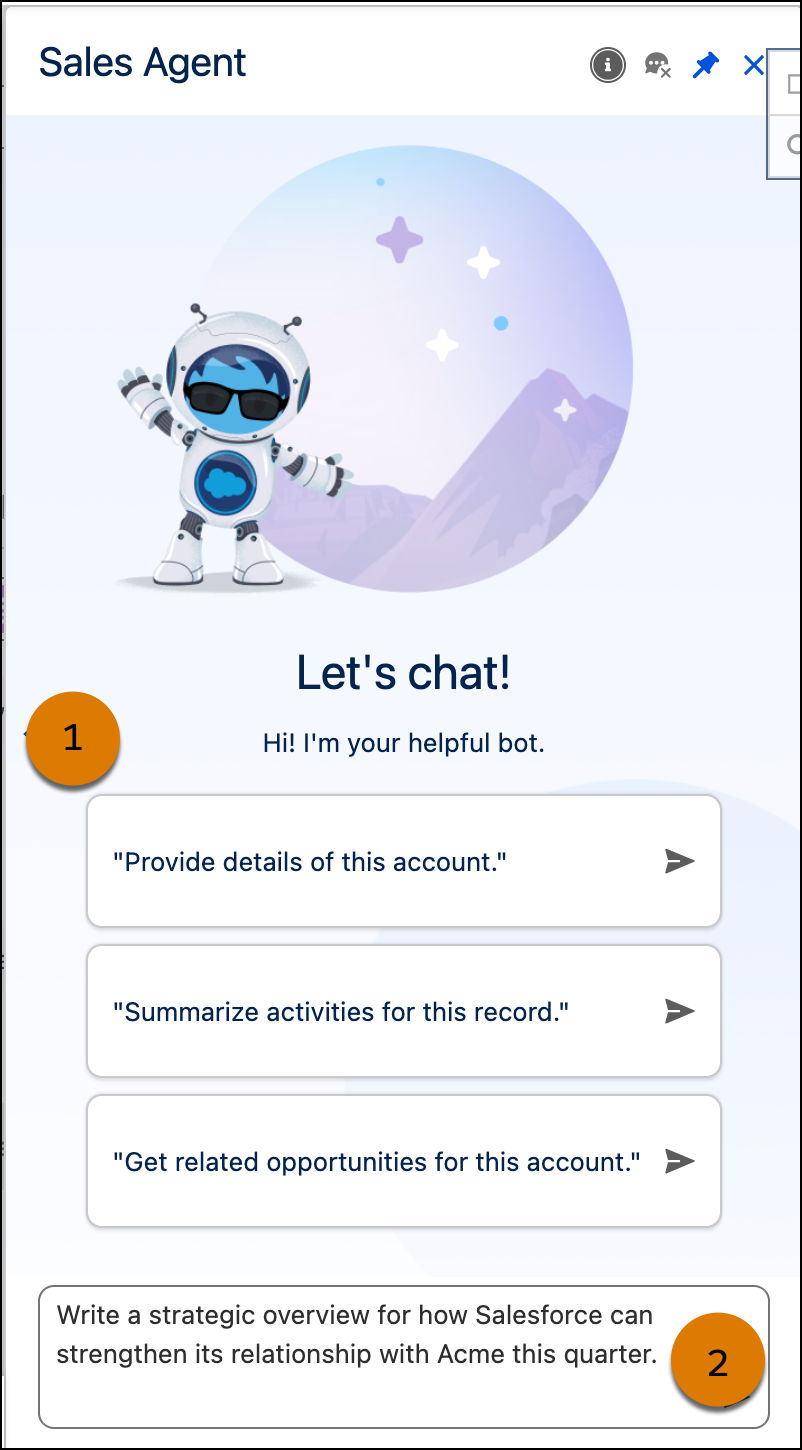
After your admin [adds the agent to Slack](https://slack.com/help/articles/36218109305875-Set-up-and-manage-Agentforce-in-Slack), chat with the agent directly in your flow of work. The recommended questions change depending on which Agentforce features are turned on. Ask the agent to help you prepare for meetings, get account updates, and so on.
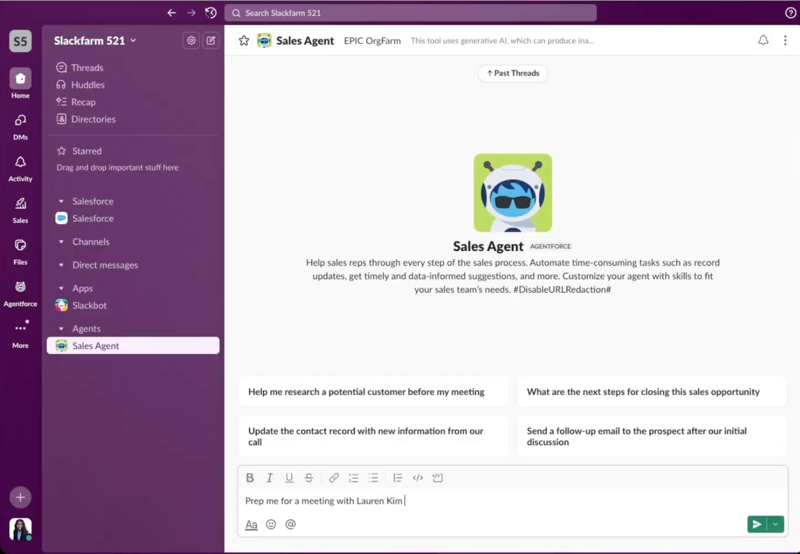
## Keep Account Fields Up to Date
You can also use Account Management to keep account text fields current based on information from recent notes, calls, and emails. Depending on how your admin sets up each field, the field is updated automatically or you review and accept suggested updates.
See field update suggestions and automatic updates in the Account Intelligence view. Act on a suggestion from its status in the Agent Activity column (1) or review it in more detail in the side panel (2).
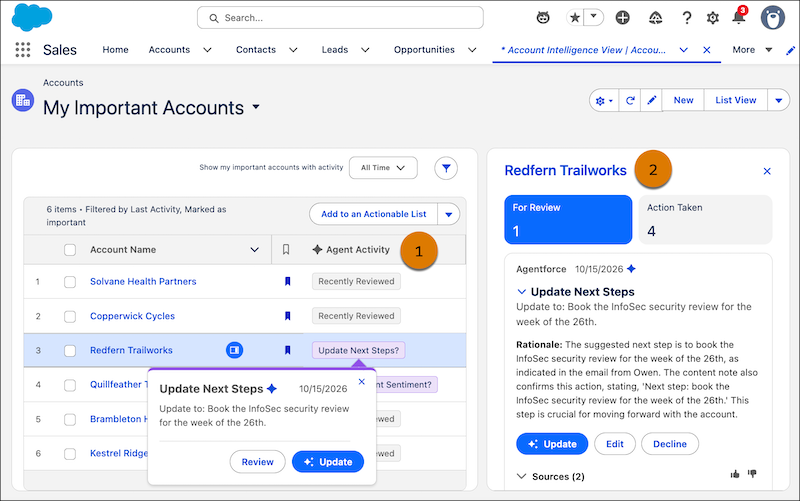
Accept, decline, or edit a suggestion from the side panel. You can also view the rationale and sources used, so you can be confident that it’s grounded in relevant data about the opportunity.
Notifications for account field updates aren't available in Slack.
# Agentforce Account Management Permissions
You use permission set groups to assign permissions to an AI agent or to an individual user. The Salesforce access controls that you put in place, such as licenses, permissions, and sharing settings, determine what each type of user can access.
### Required Editions
Available in: Lightning Experience
Available in: Enterprise, Performance, Unlimited, and Developer Editions with the Agentforce for Sales or Agentforce for an Industry add-on, or included in Agentforce 1 Sales or an Industry Edition. Requires each user to have the Agentforce for Sales or Agentforce for an Industry add-on to access the actions.
## User Permission Set Group
The Sales Management User permission set group includes the Use Agentforce Account Management permission set and the Use Agentforce Pipeline Management permission set. When you set up Agentforce Account Management, this permission set group is automatically assigned to you, the admin. Assign this permission set group to other users who use these features.
## User Permission Sets
The Use Agentforce Account Management permission set is required to see the agent’s subagents and actions. This permission set is included in the Sales Management User permission set group.
When you turn on Agentforce, as the admin, you’re assigned the Data Cloud User permission set. To give other Agentforce Account Management users view access to Data 360, assign them the Data Cloud User permission set.
## Agent Permission Set Group
The Sales Management Agent User permission set group includes permission sets that the agent requires to perform its work. This permission set group is only for the automated agent user record. It’s assigned to the agent user when you set up Agentforce Account Management.
## Unmetered User Based AI Permission
The Unmetered User Based AI permission grants unmetered usage to agent and human users that interact with AI features under certain conditions. Assign this permission to the agent user. Then, assign the permission to any users who interact with Agentforce Account Management, including all admins.
If an agent user or a human user doesn’t have this permission, their AI activity can incur metering charges. See [Metering for Agentforce and Generative AI Usage](https://help.salesforce.com/s/articleView?id=ai.generative_ai_usage_metering_logic.htm&type=5&language=en_US) and [Configure Unmetered User Based AI Permissions](https://help.salesforce.com/s/articleView?id=ai.generative_ai_usage_unmetered_considerations.htm&type=5&language=en_US).
#### See Also
- [Manage Employee Agent Access](https://help.salesforce.com/s/articleView?id=ai.agent_manage_aea_access.htm&language=en_US)
- [Manage Permission Set Assignments](https://help.salesforce.com/s/articleView?id=platform.perm_sets_manage_assignments.htm&language=en_US)
# Agentforce Engagement
Use the Agentforce Engagement template to scale your sales team, accelerate growth, and maximize your pipeline by nurturing prospects 24/7 via email with an AI-powered sales agent. Agentforce Engagement works new or updated leads, contacts, and person accounts automatically, sending customized intro emails to each prospect, responding to replies, answering questions, and connecting qualified leads with sales reps.
### Required Editions
Available in: Lightning Experience in Enterprise, Performance, and Unlimited editions with Sales and Einstein for Sales.

Note The Agentforce Lead Nurturing name has changed to Agentforce Engagement. The new name better describes the work the agent does to nurture existing prospects and differentiates it from the Agentforce Lead Generation agent template.

Tip This feature has access to Digital Wallet, a free account management tool that offers near real-time consumption data for enabled products across your active contracts. Access Digital Wallet and start tracking your org's usage. To learn more, see [About Digital Wallet](https://help.salesforce.com/s/articleView?id=xcloud.wallet_about.htm&type=5&language=en_US).

Note
As of October 14, 2025, Data Cloud has been rebranded to Data 360. During this transition, you may see references to Data Cloud in our application and documentation. While the name is new, the functionality and content remains unchanged.
For a video overview of Agentforce Engagement, see [Scale Your Sales Funnel with Agentforce SDR (now Agentforce Engagement)](https://salesforce.vidyard.com/watch/K5TArfU5FpkWYUvpBL82cv).
- **[Learn About and Implement Agentforce Engagement](https://help.salesforce.com/s/articleView?id=sales.sales_agent_sdr_learning_map.htm&release=264.0.0&type=5)**
Whether you’re setting up an agent for the first time or simply wanting to know more about Agentforce Engagement, this learning map offers a clear path toward success. Consider bookmarking this page.
- **[Agentforce Engagement Overview](https://help.salesforce.com/s/articleView?id=sales.sales_agent_sdr_intro.htm&release=264.0.0&type=5)**
Built on the Salesforce trusted AI platform, Agentforce Engagement is an autonomous agent that helps you scale your top of funnel efforts, streamline prospect qualification, and generate pipeline around the clock. By handling initial outreach, follow-up, answering questions, and meeting booking, an Engagement agent gives sales reps more time to nurture relationships.
- **[Engagement Agent Permission Sets](https://help.salesforce.com/s/articleView?id=sales.sales_agent_sdr_permissions.htm&release=264.0.0&type=5)**
Agentforce Engagement includes multiple permission sets you can assign based on a user’s role and responsibilities. The permission sets include individual user permissions and object permissions.
- **[Considerations for Using Agentforce Engagement](https://help.salesforce.com/s/articleView?id=sales.sales_agent_sdr_considerations.htm&release=264.0.0&type=5)**
Keep in mind some considerations for using Agentforce Engagement.
- **[Ethical Guidance for Agentforce Engagement](https://help.salesforce.com/s/articleView?id=sales.sales_agent_sdr_ethical_guidelines.htm&release=264.0.0&type=5)**
Keep ethical considerations in mind when setting up and using Agentforce Engagement.
- **[Set Up Agentforce Engagement](https://help.salesforce.com/s/articleView?id=sales.einstein_sdr_setup.htm&release=264.0.0&type=5)**
Learn about the configuration steps that enable your Engagement agent.
- **[Work with Your Engagement Agent](https://help.salesforce.com/s/articleView?id=sales.sales_agent_sdr_work_with.htm&release=264.0.0&type=5)**
In addition to the prospect assignment rules in Agentforce Builder, sales reps and managers can send leads, contacts, and person accounts to the agent manually or with automated actions.
- **[Monitor Engagement Agent Activity](https://help.salesforce.com/s/articleView?id=sales.sales_agent_sdr_monitoring.htm&release=264.0.0&type=5)**
Engagement agent activity metrics are available in the Control Center and in Tableau. Control Center provides essential statistics including Records Assigned, In Progress, Opted Out, Meeting Booked, and more. The Agentforce Analytics Engagement dashboard takes advantage of Data 360 and Tableau to provide additional metrics and let you dive deeper into the numbers that matter most to your business.
- **[Customize and Test Agentforce Engagement](https://help.salesforce.com/s/articleView?id=sales.sales_agent_sdr_customize_and_test.htm&release=264.0.0&type=5)**
You can customize your Engagement agent behavior by editing its Agentforce Builder settings, the included prompt templates, or the Opt Out Lead action.
# Agentforce Engagement
Agentforce Engagement lets sales teams generate and nurture their leads autonomously. Capture visitors to your web site as new leads via web chat and nurture those leads and other prospects via email. Built from the Lead Generation and Lead Nurturing agent templates, your agents can capture and incorporate lead details, answer questions, book meetings, and hand off to sales reps. Use these agent templates in tandem or individually depending on how your sales team works.
Watch the video to see how to use Agentforce Engagement.
- **[Agentforce Inbound Lead Generation](https://help.salesforce.com/s/articleView?id=sales.sales_agent_lead_generation_parent.htm&release=264.0.0&type=5)**
With Agentforce Engagement, use the Inbound Lead Generation agent template to engage with prospects via a web chat or messaging channel to answer questions, capture leads, and schedule meetings with your sales team. When you enable Inbound Lead Generation, your customers get 24/7 access to an Agentforce agent, helping you to streamline the lead intake process and reduce manual data entry.
- **[Agentforce Qualification](https://help.salesforce.com/s/articleView?id=sales.sales_agent_qual_overview.htm&release=264.0.0&type=5)**
Instantly qualify leads, contacts, and person accounts to strengthen your sales pipeline using Agentforce Qualification. Using an agent to guide qualification empowers your reps to rapidly determine prospect fit early in the process, preventing wasted time and resources. By focusing on high-potential deals, your team boosts overall efficiency and conversion rates.
- **[Agentforce Engagement](https://help.salesforce.com/s/articleView?id=sales.sales_agent_sdr_parent.htm&release=264.0.0&type=5)**
Use the Agentforce Engagement template to scale your sales team, accelerate growth, and maximize your pipeline by nurturing prospects 24/7 via email with an AI-powered sales agent. Agentforce Engagement works new or updated leads, contacts, and person accounts automatically, sending customized intro emails to each prospect, responding to replies, answering questions, and connecting qualified leads with sales reps.
- **[Edit an Inbound Lead Generation or Engagement Agent](https://help.salesforce.com/s/articleView?id=sales.edit_sales_agent_versions.htm&release=264.0.0&type=5)**
After you set up and activate an Inbound Lead Generation or Engagement agent, you may find that you want to change it later. To edit an existing agent, you can create a version of the agent or update an existing version.
# Agentforce Engagement Billing and Usage
Agentforce Engagement use generative AI and Data Cloud to ingest, store, and process data. You’re billed in these categories for metered usage when you use Agentforce Engagement.
### Required Editions
Available in: Lightning Experience in Enterprise, Performance, and Unlimited Editions with Sales and Einstein for Sales.
DiGitaL Wallet Card
Usage Type
Description
Flex Credits
Standard Action
Usage is determined by the number of standard actions called by the agent in a text
conversation. Currently, every standard action called by the agent is metered as one standard
action, irrespective of the number of tokens processed.
Standard agent actions are actions that are available out-of-the-box. To check the list of
Standard actions, see Standard Action Reference.
Note Use of some standard agent actions require that a subscription is purchased for each
user that accesses these actions, such as a subscription to Agentforce for Sales add-on or
Agentforce for Service add-on. To determine which subscription is required for such standard
actions, see Standard Action Reference at Standard Action Reference. While this requirement
isn’t technically enforced yet, users who don’t have the required add-on license loses
access to such actions for which they don’t have a license when the requirement is
enforced.
Flex Credits
Custom Action
Usage is determined by the number of custom actions called by the agent in a text
conversation. Currently, every custom action called by the agent is metered as one custom
action, irrespective of the number of tokens processed.
Leads Worked
The Leads Worked usage type measures unique people instead of the number of conversations,
messages, or agent responses that other billing types measure. A person is a lead, contact,
individual, or an unidentified website visitor associated with a device ID.
The first qualifying agent response starts a rolling 30-day period for that person.
More qualifying responses to the same person don't create another lead worked during that
period. After the 30-day period ends, a new qualifying response to the same person counts as
another lead worked.
# Agentforce Engagement Overview
Built on the Salesforce trusted AI platform, Agentforce Engagement is an autonomous agent that helps you scale your top of funnel efforts, streamline prospect qualification, and generate pipeline around the clock. By handling initial outreach, follow-up, answering questions, and meeting booking, an Engagement agent gives sales reps more time to nurture relationships.
### Required Editions
Available in: Lightning Experience in Enterprise, Performance, and Unlimited editions with Sales and Einstein for Sales.

Note The Agentforce Lead Nurturing name has changed to Agentforce Engagement. The new name better describes the work the agent does to nurture existing prospects and differentiates it from the Agentforce Lead Generation agent template.

Tip This feature has access to Digital Wallet, a free account management tool that offers near real-time consumption data for enabled products across your active contracts. Access Digital Wallet and start tracking your org's usage. To learn more, see [About Digital Wallet](https://help.salesforce.com/s/articleView?id=xcloud.wallet_about.htm&type=5&language=en_US).
For a video overview, see [Scale Your Sales Funnel with Agentforce Engagement](https://salesforce.vidyard.com/watch/K5TArfU5FpkWYUvpBL82cv).
By default, you can add up to 20 sales agents in Salesforce. If you need more agents, contact Salesforce Support.
The agent can significantly increase your pipeline by
- Sending customized initial outreach emails to prospects using data from the lead, contact, or person account record
- Following up with a nudge email when needed
- Answering specific questions from prospects using information from your company
- Handing off interested prospects to sales reps to book a meeting
- Handling off-topic replies from prospects
- Handling prospect email opt-out requests
- Answering prospect questions with responses grounded in your company data
An Engagement agent acts as a user in your organization, with its own user record and specific permissions that allow it to function as an autonomous agent. Agents use a special Sales Enagagement cadence to plan and track their email outreach efforts.
Your Engagement agent can work around the clock, initiating contact with prospects on a schedule you set. The agent generates a customized initial email based on the prospect record details. For increased authenticity and prospect engagement, you can set the agent to send its emails using the prospect record owner’s email address and signature by turning on Send as Seller in agent Setup. To let users approve all agent-generated emails before they are sent, turn on Require Manual Approval in agent Setup
If a prospect doesn’t reply, the agent sends a follow-up. When a prospect replies, the agent detects whether they’re interested, sends a response containing a meeting link from the record owner’s calendar, and copies the sales rep.
When prospects respond with a question, the agent can provide specific answers generated from product and service literature you upload in Setup or in Agentforce Builder. Sales reps can also see past and upcoming emails in the Activity Timeline of the lead.
You can assign prospects to the agent in three ways.
- Assignment rules in the Engagement agent settings in Setup and Agentforce Builder. These rules are global and apply to all leads.
- Automated Actions created by either a sales rep or manager. These rules apply to prospects owned by the rep, their manager, or the manager’s subordinates. The agent includes a pre-built automated action to get you started.
- The Assign to Agent action on lead, contact, and person account detail pages and list views.
All Engagement agent email activity appears in the Activity Timeline of prospects assigned to the agent. To see aggregated agent activity, create reports based on the Email Message object and filter by user. If Review Before Send is on, prospect owners can review and edit agent emails in the Activity Timeline or the Agentforce Engagement Control Center.
When an assignment rule, an automated action, or a sales user assigns a prospect to an agent, the record owner doesn’t change. The agent adds the prospect to a special Sales Engagement cadence for Agentforce Engagement. This cadence consists of email outreach steps performed by the agent using Agent Actions.
## Required Features
Engagement agents use several Sales features to do their prospecting work.
- Agentforce Sales: provides the foundation for prospect outreach, including lead, contact, and person account records
- Sales Engagement: engages prospects with planned prospect outreach cadences. Engagement agents use a special Sales Engagement cadence to perform and track their prospect outreach.
- Einstein Activity Capture: keeps data between Salesforce and the agent’s email client and calendar apps up to date
- Agentforce: chooses which actions to take and drafts emails
- Einstein Generative AI: drafts emails and creates summaries
- Salesforce Email Productivity: provides Outlook and Gmail integration and performs email tasks
- Automated Actions: adds, removes, and manages prospects in outreach cadences
- Data 360: provides auditing, feedback, the Einstein Trust Layer, Resource Augmented Generation, and analytics

Note If Activity 360 Reporting is on, Agentforce Engagement doesn’t work.
# Agentforce Inbound Lead Generation
With Agentforce Engagement, use the Inbound Lead Generation agent template to engage with prospects via a web chat or messaging channel to answer questions, capture leads, and schedule meetings with your sales team. When you enable Inbound Lead Generation, your customers get 24/7 access to an Agentforce agent, helping you to streamline the lead intake process and reduce manual data entry.
### Required Editions
Available in: Lightning Experience in Enterprise, Performance, and Unlimited Editions.
- **[Set Up Inbound Lead Generation](https://help.salesforce.com/s/articleView?id=sales.sales_agent_lead_generation_setup.htm&release=264.0.0&type=5)**
Engage with prospects via a website or messaging channel to answer questions, capture leads, and schedule meetings with your sales team.
- **[Considerations for Setting Up Inbound Lead Generation](https://help.salesforce.com/s/articleView?id=sales.sales_agent_lead_generation_considerations.htm&release=264.0.0&type=5)**
Keep these considerations in mind when configuring Inbound Lead Generation.
- **[Lead Generation for Agentforce Service Agent](https://help.salesforce.com/s/articleView?id=sales.sales_agent_lead_gen_asa_parent.htm&release=264.0.0&type=5)**
Expand your Agentforce Service Agent’s scope to autonomously increase your team’s lead pipeline by capturing leads from your website or messaging channel. With the lead generation subagents and actions, customers gain access to an agent on your website that answers questions, captures the necessary data to generate leads, and quickly schedules a meeting with a sales rep.
# Agentforce Pipeline Management Components
Before you customize Agentforce Pipeline Management, make sure that you understand the different pieces that make it work.
### Required Editions
Available in: Lightning Experience
Available in: Enterprise, Performance, Unlimited, and Developer Editions with the Agentforce for Sales or Agentforce for an Industry add-on, or included in Agentforce 1 Sales or an Industry Edition. Requires each user to have the Agentforce for Sales or Agentforce for an Industry add-on to access the actions.
## Subagents and Actions
Subagents and actions determine what your agent can do. Your Sales agent includes subagents for both Account Management and Pipeline Management.
These subagents are used for Pipeline Management. Don't remove the Sales Management Routing subagent.
Subagent
Actions
Customer Communication
Identify Record by Name
Query Records
Draft or Revise Email
Send Meeting Request
Pipeline Management Field Updates
Identify Record by Name
Suggest Stage for Opportunity
Suggest Next Step for Opportunity
Record Management
Extract Fields and Values from User Input
Update Record
Update AI-Generated Action Item
Sales Management Routing
Routes user requests to the specialized subagents based on record type and intent.
This subagent has no actions of its own.
Agents created from the Sales Agent template in the legacy Agentforce Builder in Setup use a different set of subagents and actions.
legacy Subagent
Actions
Communicate with Customers
Draft or Review Email
Send Meeting Request
Field Update Suggestions
Identify Record by Object
Identify Record by Name
Get Record Details
Suggest Next Step for Opportunity
Suggest Stage for Opportunity
Record Management
Extract Fields and Values from User Input
Update Record
User Request Clarification
This subagent has no actions of its own.
## Flows
When you turn on Agentforce Pipeline Management, these flows are activated. The flows retrieve data, send information to prompt templates for processing, and identify the opportunities to work on. You can customize the flows for the specific needs of your business.
Flow
Usage
Get AI Recommendations from Call Transcripts
Gets AI-generated recommendations from voice and video call transcripts to pass to the
agent.
Get Opportunity Grounding Data
Gets data from voice calls, video calls, notes, and emails associated with an
opportunity, and sends the details to the associated prompt template as prompt
instructions.
Get Opportunity Grounding Data for Pipeline
Gets voice call, video call, content note, and email data associated with an
opportunity within a configurable lookback window, and returns the information as the prompt
text for the pipeline management suggestion pipeline.
This flow is available only if you
turned on Pipeline Management after September 2026.
Process Field Update Suggestions
Adds the agent user as an opportunity team member on eligible opportunities, and
generates field update suggestions for the relevant fields on the opportunity record.
Suggestions are generated based on the data sources that the user enables, such as
conversation transcripts, emails, or notes.
Get Active Sales Methodology Details
Retrieves information about the active sales methodology, either for the org or for
the opportunity. Then, assembles the information so it can be used in a prompt template.
This flow is available only when Sales Methodology is on.
Get Opportunity Sales Methodology Grounding Data
Retrieves the methodology and methodology criteria information associated with an
opportunity. Then, assembles the information so it can be used in a prompt template.
This
flow is available only when Sales Methodology is on.
Process Sales Methodology Criteria Suggestions
Generates sales methodology criteria suggestions for the related opportunity record.
Suggestions are generated based on the data sources enabled by the user, such as
conversation transcripts, emails, or content notes.
This flow is available only when
Sales Methodology is on.
## Prompt Templates
If you turned on Pipeline Management before September 2026, the feature uses the Recommend Next Step for Opportunity and Recommend Stage for opportunity field updates. When you turn on Sales Methodology, it also uses the Recommend Sales Methodology Criteria for Opportunity prompt template. You can also create a custom prompt template to generate field update suggestions for custom opportunity fields.
If you turned on Pipeline Management after September 2026, the feature uses the Suggest Field Update prompt template. You can't modify this template, but you can customize the instructions when you're setting up the fields to refine your agent's suggestions.
#### See Also
- [Automate Your Business Processes with Salesforce Flow](https://help.salesforce.com/s/articleView?id=platform.automate_with_salesforce_flow.htm&language=en_US)
- [Standard Agent Action Reference](https://help.salesforce.com/s/articleView?id=ai.copilot_actions_ref.htm&language=en_US)
- [Standard Prompt Templates](https://help.salesforce.com/s/articleView?id=ai.prompt_builder_standard_prompt_templates.htm&language=en_US)
# Agentforce Pipeline Management Overview
Learn how Agentforce Pipeline Management can help sales teams free up bandwidth for bigger tasks by providing actionable, timely suggestions for managing opportunities.
### Required Editions
Available in: Lightning Experience
Available in: Enterprise, Performance, Unlimited, and Developer Editions with the Agentforce for Sales or Agentforce for an Industry add-on, or included in Agentforce 1 Sales or an Industry Edition. Requires each user to have the Agentforce for Sales or Agentforce for an Industry add-on to access the actions.
With Agentforce Pipeline Management, the Sales agent reviews recent notes, calls, or emails to provide field update and meeting follow-up suggestions for opportunities.
You can view the agent’s pipeline management suggestions in Pipeline Inspection. Quickly take action from the status in the Agent Activity column (1) or review the suggestions in more detail in the side panel (2).
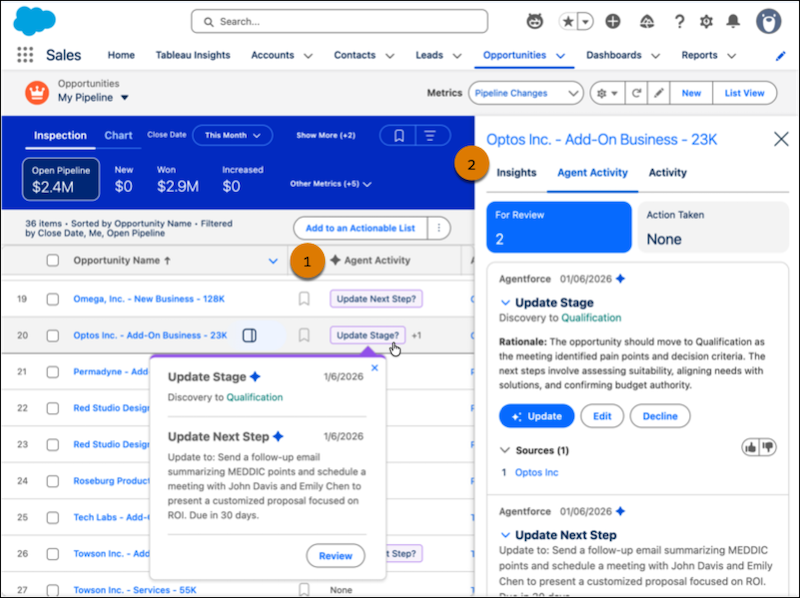
Accept, decline, or edit a suggestion from the side panel. You can also view the rationale and sources used, so you can be confident that it’s grounded in relevant data about the opportunity.
When [the agent is added to Slack](https://slack.com/help/articles/36218109305875-Set-up-and-manage-Agentforce-in-Slack), you can receive Pipeline Management notifications about your opportunities directly in your flow of work. By default, the agent sends up to 15 Pipeline Management notifications in Slack per day.
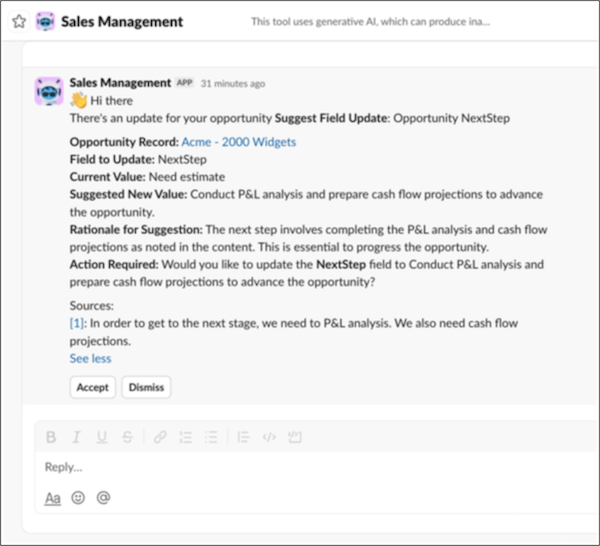
# Agentforce Pipeline Management Permissions
You use these permission set groups to assign permissions.
### Required Editions
Available in: Lightning Experience
Available in: Enterprise, Performance, Unlimited, and Developer Editions with the Agentforce for Sales or Agentforce for an Industry add-on, or included in Agentforce 1 Sales or an Industry Edition. Requires each user to have the Agentforce for Sales or Agentforce for an Industry add-on to access the actions.
## User Permission Set Group
The Sales Management User permission set group includes the Use Agentforce Pipeline Management permission set and the Manage Unmetered Sales Management Users permission set. When you set up Agentforce Pipeline Management, this permission set group is automatically assigned to you. Assign this permission set group to users who use Agentforce Pipeline Management.
## Agent Permission Set Group
The Sales Management Agent User permission set group includes the Pipeline Management Agent Autonomous User and Sales Management Agent Autonomous User View All Calls permission sets. These permission sets allow the agent to perform its work. This permission set group is only for the automated agent user record and is automatically assigned to the agent.
## Other Permissions
The Data Cloud User permission set grants view access to Data 360. Assign it to yourself and relevant users if you’re customizing your agent by using [Agentforce Data Library](https://help.salesforce.com/s/articleView?id=ai.data_library_parent.htm&language=en_US).
#### See Also
- [Manage Permission Set Assignments](https://help.salesforce.com/s/articleView?id=platform.perm_sets_manage_assignments.htm&language=en_US)
# Agentforce Prospecting
Use Agentforce to generate a prioritized list of contacts and accounts and assign them to sales reps. Synthesize an account's data including calls, meetings, and email history and combine it with research context from Salesforce and third-party sources. Set up multiple Prospecting Agents to analyze all your customer data in one place and centralize your prospecting, reducing the need for manual research.
- **[Learn About Agentforce Prospecting](https://help.salesforce.com/s/articleView?id=sales.sales_agent_prospecting_learn_about.htm&release=264.0.0&type=5)**
Get more from outbound selling with Agentforce Prospecting. The agent researches your target accounts, finds likely buyers, and recommends prospects so reps can spend less time hunting for data and more time starting high-quality conversations.
- **[How Agentforce Prospecting Runs](https://help.salesforce.com/s/articleView?id=sales.sales_agent_prospecting_how_it_works.htm&release=264.0.0&type=5)**
Prospecting agents run automatically on a schedule or manually from a report or account. The run type determines which accounts the agent researches, which limits apply, and how the agent assigns prospects.
- **[How Agentforce Prospecting Creates Lead and Contact Records](https://help.salesforce.com/s/articleView?id=sales.sales_agent_prospecting_record_creation.htm&release=264.0.0&type=5)**
Find out when your prospecting agent creates records, which fields it populates, and how it avoids creating duplicate records.
- **[Considerations for Using Agentforce Prospecting](https://help.salesforce.com/s/articleView?id=sales.sales_agent_prospecting_considerations.htm&release=264.0.0&type=5)**
Review these considerations about Agentforce Prospecting.
- **[Set Up Agentforce Prospecting](https://help.salesforce.com/s/articleView?id=sales.sales_agent_prospecting_setup_parent.htm&release=264.0.0&type=5)**
Learn about the configuration steps that enable your Prospecting agent.
- **[Generate Prospects From an Account](https://help.salesforce.com/s/articleView?id=sales.sales_agent_prospecting_assign_account.htm&release=264.0.0&type=5)**
Generate prospects from a specific account and assign them to a sales rep with Agentforce Prospecting.
- **[Manage Agent-Generated Prospects](https://help.salesforce.com/s/articleView?id=sales.sales_agent_prospecting_manage_prospects.htm&release=264.0.0&type=5)**
Use the Prospecting dashboard to review agent-generated summaries and recommendations for each prospect, then approve or reject generated prospects.
- **[Generative AI Considerations for Agentforce Prospecting](https://help.salesforce.com/s/articleView?id=sales.sales_agents_prospecting_gen_ai_considerations.htm&release=264.0.0&type=5)**
Learn about the supported generative AI functionality, usage, limitations, allowances, and limits for Agentforce Prospecting.
# Agentforce Prospecting Billing and Usage
Agentforce Prospecting uses generative AI to ingest, store, and process data. You’re billed in these categories for metered usage when you use Agentforce Prospecting.
### Required Editions
Available in: Lightning Experience
Available in: Enterprise, Performance, Unlimited, and Developer Editions with the Agentforce for Sales or Agentforce for an Industry add-on, or in Agentforce 1 Sales and Industry Editions where included. Requires each user to have the Agentforce for Sales or Agentforce for an Industry add-on to access actions.
DiGitaL Wallet Card
Usage Type
Description
Flex Credits
Standard Action
Usage is determined by the number of standard actions called by the agent in a text
conversation. Currently, every standard action called by the agent is metered as one standard
action, irrespective of the number of tokens processed.
Standard agent actions are actions that are available out-of-the-box. To check the list of
Standard actions, see Standard Action Reference.
Note Use of some standard agent actions require that a subscription is purchased for each
user that accesses these actions, such as a subscription to Agentforce for Sales add-on or
Agentforce for Service add-on. To determine which subscription is required for such standard
actions, see Standard Action Reference at Standard Action Reference. While this requirement
isn’t technically enforced yet, users who don’t have the required add-on license loses access
to such actions for which they don’t have a license when the requirement is enforced.
Flex Credits
Custom Action
Usage is determined by the number of custom actions called by the agent in a text
conversation. Currently, every custom action called by the agent is metered as one custom
action, irrespective of the number of tokens processed.
# Agentforce Qualification
Instantly qualify leads, contacts, and person accounts to strengthen your sales pipeline using Agentforce Qualification. Using an agent to guide qualification empowers your reps to rapidly determine prospect fit early in the process, preventing wasted time and resources. By focusing on high-potential deals, your team boosts overall efficiency and conversion rates.
### Required Editions
Available in: Lightning Experience in Enterprise, Performance, and Unlimited editions with Einstein for Sales.
- **[Considerations for Using Agentforce Qualification](https://help.salesforce.com/s/articleView?id=sales.considerations_for_agentforce_qualification.htm&release=264.0.0&type=5)**
Keep in mind some considerations when using Agentforce Qualification.
- **[Set Up Agentforce Qualification](https://help.salesforce.com/s/articleView?id=sales.sales_agent_set_up_agentforce.htm&release=264.0.0&type=5)**
Learn about the configuration steps required to set up Agentforce Qualification.
- **[Customize Your Agent's Qualification Strategy](https://help.salesforce.com/s/articleView?id=sales.agent_sales_customize_your_agents_qualification_strategy.htm&release=264.0.0&type=5)**
View common examples of how to prepare your agent to use Agentforce Qualification, to achieve your desired outcome.
- **[Qualify Your Leads with Agentforce Qualification](https://help.salesforce.com/s/articleView?id=sales.sales_agents_qualify_your_leads.htm&release=264.0.0&type=5)**
After a web chat or the conclusion of the email outreach, the Qualification Agent updates the lead record with a rating. The Qualification Agent also generates a summary that includes the rationale for the rating and a suggested action for the sales rep.
# Agentforce Sales Agent for Gemini (Beta)
Give your sales team a single view to update records, research leads and accounts, and plan sales strategies with data in Gemini.
### Required Editions
Available in: Pro Suite, Professional, Performance, Enterprise, Unlimited, and Developer Editions.

Note Agentforce Sales Agent for Gemini is available in English only at this time.
- **[Set Up the Agentforce Sales Agent for Gemini (Beta)](https://help.salesforce.com/s/articleView?id=sales.sales_gemini_agent_admin_setup.htm&release=264.0.0&type=5)**
Integrate your Salesforce org with Gemini Enterprise, so your sellers can research leads and update records inside Gemini. This single-view access equips sellers to plan strategies and close deals faster without switching between two workspaces.
- **[Connect Your Salesforce Account to the Agentforce Sales Agent for Gemini (Beta)](https://help.salesforce.com/s/articleView?id=sales.sales_gemini_agent_user_connect.htm&release=264.0.0&type=5)**
To use the Agentforce Sales Agent for Gemini, connect your Salesforce account in Gemini.
# Agentforce Sales ChatGPT App (Beta)
The Agentforce Sales ChatGPT App gives your sales team a single view to update Salesforce records, research leads and accounts, and plan sales strategies.
### Required Editions
Available in: Enterprise, Performance, and Unlimited editions with the Agentforce for Sales and Einstein for Sales add-ons. Also available with Einstein 1 Sales and Agentforce 1 Sales editions.

Note Agentforce Sales ChatGPT App is available in English only at this time.
- **[Test the Agentforce Sales ChatGPT App in a Sandbox (Beta)](https://help.salesforce.com/s/articleView?id=sales.test_sales_chatgpt_sandbox.htm&release=264.0.0&type=5)**
Test the Agentforce Sales ChatGPT App in a sandbox to make sure that your sellers safely access Salesforce data within ChatGPT. A sandbox is a copy of your Salesforce org to use for development, testing, and training isolated from production data and apps.
- **[Set Up Agentforce Sales ChatGPT App (Beta)](https://help.salesforce.com/s/articleView?id=sales.sales_chatgpt_app_admin_setup.htm&release=264.0.0&type=5)**
To bring your Salesforce data into ChatGPT so your sellers can research, strategize, and close more deals, set up the Agentforce Sales ChatGPT App.
- **[Connect Your Salesforce Account to the Agentforce Sales ChatGPT App (Beta)](https://help.salesforce.com/s/articleView?id=sales.sales_chatgpt_app_user_connect.htm&release=264.0.0&type=5)**
To start using the Agentforce Sales ChatGPT App, connect your Salesforce account in ChatGPT.
# Agentforce Sales Coach
Empower your team to engage with customers more effectively using Agentforce Sales Coach, a personal AI coach integrated into Salesforce. Agentforce Sales Coach provides personalized coaching and feedback in real time to improve user interactions. It analyzes communication within Salesforce object records to give clear, actionable insights, and prepares reps for challenging conversations through interactive role-playing.
### Required Editions
Available in: Lightning Experience in Enterprise, Performance, Unlimited, and Developer Editions with Foundations or Agentforce 1 Editions.
- **[Agentforce Sales Coach Overview](https://help.salesforce.com/s/articleView?id=sales.sales_agents_coach_discover.htm&release=264.0.0&type=5)**
Get a high-level overview of what Agentforce Sales Coach is, how it works, and how it can support reps to thrive in their roles.
- **[Ethical Guidance for Agentforce Sales Coach](https://help.salesforce.com/s/articleView?id=sales.sales_agent_coach_ethical_guidelines.htm&release=264.0.0&type=5)**
Review legal and ethical guidelines before enabling and activating Agentforce Sales Coach.
- **[Considerations for Using Agentforce Sales Coach](https://help.salesforce.com/s/articleView?id=sales.sales_agents_coach_considerations.htm&release=264.0.0&type=5)**
Review these considerations and limitations around setup and usage of Agentforce Sales Coach.
- **[Generative AI Considerations for Agentforce Sales Coach](https://help.salesforce.com/s/articleView?id=sales.sales_coach_agent_gen_ai_considerations.htm&release=264.0.0&type=5)**
To use Agentforce Sales Coach, consider the supported functionality, usage, limitations, allowances, limits, and other issues.
- **[Setting Up Agentforce Sales Coach](https://help.salesforce.com/s/articleView?id=sales.sales_agents_coach_setup_overview.htm&release=264.0.0&type=5)**
Complete the required steps to turn on Agentforce and create your Agentforce Sales Coach.
- **[Agentforce Sales Coach Scenarios](https://help.salesforce.com/s/articleView?id=sales.sales_agents_coach_scenario_overview.htm&release=264.0.0&type=5)**
A coaching scenario simulates real-world situations, giving users a risk-free environment to practice, improve, and build confidence. These realistic interactions reflect common challenges, with step-by-step guidance from the Sales Coach agent to help users strengthen their skills and strategy.
- **[Customizing Agentforce Sales Coach](https://help.salesforce.com/s/articleView?id=sales.sales_agents_coach_customization_parent.htm&release=264.0.0&type=5)**
Agentforce Sales Coach comes ready to coach sales reps on an active Opportunity. Make the experience more impactful by customizing the Opportunity coaching scenarios with your sales stages and best practices. Additionally, create custom scenarios that target the types of behaviors and skills you want to coach your reps on.
- **[Testing Agentforce Sales Coach Customizations Before Deployment](https://help.salesforce.com/s/articleView?id=sales.sales_agents_coach_testing_parent.htm&release=264.0.0&type=5)**
Make sure that any customizations you make to Agentforce Sales Coach are operating as expected by thoroughly testing each one.
- **[Use Cases for Customizing Agentforce Sales Coach](https://help.salesforce.com/s/articleView?id=sales.sales_agents_coach_customization_examples_parent.htm&release=264.0.0&type=5)**
View common examples of how to customize Agentforce Sales Coach to meet your business goals.
- **[Track Agentforce Sales Coach Usage](https://help.salesforce.com/s/articleView?id=sales.sales_agents_coach_report.htm&release=264.0.0&type=5)**
Create a report on the Task object to track Sales Coach usage metrics.
# Agentforce Sales Coach Billing and Usage
Agentforce Sales Coach uses generative AI and Data 360 to ingest, store, and process data. You’re billed in these categories for metered usage when you use Agentforce Sales Coach.
### Required Editions
Available in: Lightning Experience in Enterprise, Performance, Unlimited, and Developer Editions with Foundations or Agentforce 1 Editions.
DiGitaL Wallet Card
Usage Type
Description
Conversations
Agentforce: Sales Coach
For this subtype of the Agentforce usage type, usage is calculated based on
conversations. One conversation is consumed whenever a user clicks Get Feedback after a
role-play or a stand-and-deliver coaching session.
Einstein Requests
Starter Prompts
Usage is calculated based on two factors: the number of direct requests to the LLM through
the LLM gateway, and whether the gateway uses a Bring Your Own Large Language Model
(BYOLLM).
Each starter prompt includes the processing of up to 2,000 tokens. Prompt usage is counted
in chunks of 2,000 tokens, rounded up. Prompts that exceed this limit are metered as multiple
prompts, with each additional 2,000-token chunk counting as a new prompt. For example, a
prompt with a total of 6,500 input and output tokens is metered as 4 prompts.
Tokens are units of data processed by the AI models.
Einstein Requests
Standard Prompts
Basic Prompts
Advanced Prompts
Usage is calculated based on two factors: the number of direct requests to the LLM through
the LLM gateway, and whether the gateway uses a Salesforce managed large language model. The
specific category depends on the model that is used. See Large Language Model Support to find out which usage
types apply.
All Standard, Basic, and Advanced prompts process up to 2,000 tokens per prompt. Token usage
is rounded up in 2,000-token increments. All Standard, Basic, and Advanced prompts that exceed
this limit are metered as multiple prompts, with each additional 2,000-token chunk counting as
a new prompt. For example, a prompt with a total of 6,500 input and output tokens is metered
as 4 prompts.
Tokens are units of data processed by the AI models.
# Agentforce Sales Coach Components
Before you begin customizing Agentforce Sales Coach, make sure you understand the components that define and make our agent functional.
### Required Editions
Available in: Lightning Experience in Enterprise, Performance, Unlimited, and Developer Editions with Foundations or Agentforce 1 Editions.
## Subagents
A subagent is a particular job an agent can do and an essential element of an agent’s reasoning. Agentforce Sales Coach uses subagents to conduct role-plays and provide feedback to end users.
Agentforce Sales Coach offers prebuilt standard subagents, making it easy to get started with coaching on Opportunity records. These prebuilt subagents can also serve as a guide when you create your own coaching scenarios. The description, scope, and instructions of a subagent varies based on the type of coaching scenario.
## Actions
An action is essentially a task that the agent can perform. In Agentforce Sales Coach, actions instruct the agent to provide reps with feedback for a given coaching scenario.
For Agentforce Sales Coach, actions must have a prompt template as the reference action type. When creating your scenarios, the action to call the prompt for feedback must be its own subagent, not the same for a role-play.
## Prompt Templates
The prompt templates referenced by Agentforce Sales Coach contain key details and instructions our agent requires to coach reps. It includes CRM data about the object record (or records), criteria to assess the rep on, and provides guidance on how to generate and organize the feedback for the user. Agentforce Sales Coach has a dedicated prompt template type called Sales Coaching that you must use for scenarios.
# Agentforce Sales Coach Feedback for Ready-To-Use Scenarios
The Sales Coach agent provides reps with feedback based on the criteria established in prompts templates. To get started, the agent offers specific prompts for default opportunity stages that align and provide the large language model (LLM) with stage-specific criteria to look for. Review the prompt templates and referenced Customer Responsibility Matrix data, and update the instructions to reflect your selling guidance and stages.
### Required Editions
Available in: Lightning Experience in Enterprise, Performance, Unlimited, and Developer Editions with Foundations or Agentforce 1 Editions.
## CRM Data
For the Sales Coach agent to provide reps with accurate feedback and effective coaching, we provide the agent with visibility to select CRM data from the opportunity the rep is accessing the agent from. The fields in the CRM data column represent the data fields that the agent needs access to for effective coaching.
Opportunity stage
CRM data element
Qualification
User.FirstName
OpportunityId.Account.Name
OpportunityId.StageName
OpportunityId.Account.Industry
OpportunityId.Account.Description
OpportunityId.Description
OpportunityId.Probability
OpportunityId.IqScore
OpportunityId.HasOverdueTask
OpportunityId.Amount
OpportunityId.NextStep
OpportunityId.HasOpenActivity
Needs Analysis
User.FirstName
OpportunityId.Account.Name
OpportunityId.Account.Industry
OpportunityId.StageName
OpportunityId.Account.Description
OpportunityId.Description
OpportunityId.HasOverdueTask
OpportunityId.NextStep
OpportunityId.HasOpenActivity
OpportunityId.Snapshot
Proposal/Pricing Quote
User.FirstName
OpportunityId.Account.Name
OpportunityId.StageName
OpportunityId.Account.Description
OpportunityId.Description
OpportunityId.NextStep
OpportunityId.Account.Industry
OpportunityId.Snapshot
Negotiation/Review
User.FirstName
OpportunityId.Account.Name
OpportunityId.Account.Description
OpportunityId.Description
OpportunityId.NextStep
OpportunityId.Account.Industry
OpportunityId.Snapshot
## Feedback Criteria
The Sales Coach agent analyzes the transcript from the rep’s presentation to identify how well the rep can answer stage-specific questions included in the prompt template. The agent also compares the rep’s answer to the information from the CRM data fields included in the prompt template. All this information is used to generate feedback and coaching guidance for the rep.
Opportunity stage
Stage-specific questions
Qualification
What’s the business of the customer?
What problem is the customer trying to solve?
How does solving these problems help the customer?
Why is the timing good for them?
What’s the customer's budget?
If the customer’s budget is less than the opportunity amount, how can the sales
executive resolve that so that the deal can move forward in the sales process?
What other solutions is the customer considering?
Needs Analysis
Why are our solutions a good fit for the customer?
How are our solutions better than our competitors?
How well do our solutions scale for the customer?
What resources are available to implement the solutions?
Proposal/Pricing Quote
Where is the customer in the buying cycle?
What’s the process to generate purchase orders?
Who are the customer’s key decision makers for purchasing solutions or
services?
Are the key decision makers added to the opportunity?
How can you communicate the value of our solutions to those decision makers?
What’s the status of quantifying return on investment with the decision makers?
Negotiation/Review
Have you confirmed that all key decision makers are in support of the deal?
Have you offered a discount or other pricing incentive to the customer?
Have you sufficiently addressed all customer objections and concerns related to your
proposal?
## Feedback Output
The Sales Coach agent analyzes rep’s transcripts from their presentation or role-play session. It assesses their proficiency and effectiveness in responding to stage-specific questions and cross-references the transcript with the opportunity’s CRM data. Using this information, it then generates a comprehensive feedback report for the rep to review.
Feedback is generated and broken down into categories based on the type of practice exercise that they completed.
Feedback for presentation practice sessions is provided in these categories.
| Category | Description |
| --- | --- |
| Deal Summary | Summarizes the opportunity using the specified CRM data fields. The summary includes the opportunity stage, customer name, amount, and probability to close (if available). |
| Feedback | States whether the rep was successful in answering the stage-specific questions for the opportunity stage the deal is in. Includes direct quotes from the rep during the practice session to be used as examples and supporting evidence for feedback. |
| Needs Attention | Verifies whether the rep’s presentation aligns with the CRM data for the object record and calls out any discrepancies. If no discrepancies are found, checks for any overdue activities. |
| Next Steps | Provides an unordered list of two to four tasks for the rep to focus on based on the feedback provided. |
Feedback for role-play sessions is broken down into these categories.
| Category | Description |
| --- | --- |
| Deal Summary | Summarizes the opportunity, using the specified CRM data fields. The Summary includes the opportunity stage, customer name, amount, probability to close (if available), IQ score, and any changes to the current amount. |
| Overall Impression | States whether the rep successfully answered the stage-specific questions and directly quotes the rep to support the feedback generated. |
| Key Strengths | Describes what the rep did well, such as any communication or selling techniques used. |
| Areas for Improvement | Describes instances when the rep can be effective in their response and communication. |
| Next Steps | Provides an unordered list of two to four tasks for the rep to focus on based on the feedback provided. |
# Agentforce Sales Coach Grounding with RAG
Use retrieval augmented generation to ground Agentforce Sales Coach prompt templates with accurate, current, and pertinent information to improve the relevance and value of the agent’s role-play and feedback.
### Required Editions
Available in: Lightning Experience in Enterprise, Performance, Unlimited, and Developer Editions with Foundations or Agentforce 1 Editions.
Create an Agentforce Data Library and upload files to it to provide Agentforce Sales Coach with trusted data for [RAG](https://help.salesforce.com/s/articleView?id=ai.prompt_builder_ground_rag.htm&language=en_US). Consider including sales methodology, objection handling techniques, buyer personas, and playbooks. Additionally, tips, best practices, industry insights, and examples of successful pitches are also good resources to include. These resources help Agentforce Sales Coach generate feedback for your reps that reflects your company’s selling methodology.
After your files are in a data library, Data 360 creates a search index and retriever for Agentforce Sales Coach to use. In order for Agentforce Sales Coach to use information from the data library, add the retriever from the data library to the relevant prompt templates. [Learn more about retrievers](https://help.salesforce.com/s/articleView?id=data.c360_a_ai_retriever.htm&type=5&language=en_US).
Here's an example of how to insert a retriever in a prompt template and instruct Agentforce Sales Coach to reference the retriever and files in the Agentforce Data Library.
"Reference the Discovery process that the company uses `EinsteinSearch:RagFileUDMO_SI_1Cx_QFx6a79befc.results` and include a hyperlink to the best resource for a sales executive."
With the right files in the data library, Agentforce Sales Coach can generate feedback specific to your business and link directly to relevant resources to better support reps to succeed.
#### See Also
- [Ground with Retrieval Augmented Generation (RAG) in Data Cloud](https://help.salesforce.com/s/articleView?id=ai.prompt_builder_ground_rag.htm&language=en_US)
- [Add a Retriever to a Prompt Template](https://help.salesforce.com/s/articleView?id=ai.prompt_builder_add_retriever_field_gen.htm&language=en_US)
- [Trailhead: Retrieval Augmented Generation: Quick Look](https://trailhead.salesforce.com/content/learn/modules/retrieval-augmented-generation-quick-look)
# Agentforce Sales Coach Overview
Get a high-level overview of what Agentforce Sales Coach is, how it works, and how it can support reps to thrive in their roles.
### Required Editions
Available in: Lightning Experience in Enterprise, Performance, Unlimited, and Developer Editions with Foundations or Agentforce 1 Editions.
## What Is Agentforce Sales Coach?
Sales Coach is an autonomous agent built on the Agentforce platform. Using generative AI and CRM data, it provides personalized feedback to help reps communicate more clearly, improve their understanding, and engage with customers effectively.
Accessible on any Salesforce object record via the [Agentforce Sales Coach](https://www.salesforce.com/sales/ai-sales-agent) Lightning Web Component, the agent can provide coaching for every customer-facing role in your organization. The Sales Coach agent helps users improve by providing feedback on presentations and by simulating role-play scenarios with real-time coaching.
For example, we have ready-to-use coaching scenarions for sellers.
- For opportunities in the Qualification or Needs Analysis stage, the agent analyzes a rep's presentation and provides them with specific feedback by using the Agentforce Sales Coach: Opportunity Coaching subagent.
- For opportunities in the Negotiation/Review stage and Proposal/Pricing Quote stage, the agent acts as the customer and provides the rep with detailed feedback to improve that interaction with the customer.
- Role-play sessions use the Agentforce Sales Coach: Negotiation and Review Role-Play and Agentforce Sales Coach: Proposal and Pricing Quote Role-Play subagents.
While analyzing each pitch, presentation, or role-play session, the agent cross-references what the user said with specific CRM data for the record they were practicing for. Feedback can also be augmented using the Agentforce Data Library to reference external, company-specific data. For more information, see [Agentforce Sales Coach Grounding with RAG](https://help.salesforce.com/s/articleView?id=sales.sales_agents_coach_rag.htm&release=264.0.0&type=5 "Use retrieval augmented generation to ground Agentforce Sales Coach prompt templates with accurate, current, and pertinent information to improve the relevance and value of the agent’s role-play and feedback. ").
## Required Features
Agentforce Sales Coach requires these features to operate correctly, access CRM data, and generate feedback.
- Agentforce: Agentforce Sales Coach uses Agentforce to configure and manage events. See [How Einstein Copilot Works](https://help.salesforce.com/s/articleView?id=ai.copilot_building_blocks.htm&type=5&language=en_US).
- Einstein Generative AI: Agentforce Sales Coach uses Einstein Generative AI to power our prompts templates and guide the large language model (LLM) to generate feedback for the rep. See [About Einstein Generative AI](https://help.salesforce.com/s/articleView?id=ai.generative_ai_about.htm&type=5&language=en_US).
- Agentforce Studio: Agentforce Sales Coach uses Agentforce Studio to configure subagents and actions, power Agentforce Sales Coach, and ultimately equip our agent with the ability to role-play and generate feedback. See [Agentforce: Agents and Copilot](https://help.salesforce.com/s/articleView?id=ai.copilot_intro.htm&type=5&language=en_US).
- Data 360: Agentforce Sales Coach uses Data 360 to host files and support retrieval-augmented generation (RAG). See [Ground with Retrieval Augmented Generation (RAG) in Data Cloud](https://help.salesforce.com/s/articleView?id=ai.prompt_builder_ground_rag.htm&type=5&language=en_US).
#### See Also
- [The Building Blocks of Agents](https://help.salesforce.com/s/articleView?id=ai.copilot_building_blocks.htm&language=en_US)
- [Setting Up Agentforce Sales Coach](https://help.salesforce.com/s/articleView?id=sales.sales_agents_coach_setup_overview.htm&language=en_US)
# Agentforce Sales Coach Permissions
Agentforce Sales Coach includes multiple permission sets based on a user’s persona and responsibility. The permission sets include individual user permissions and object permissions.
### Required Editions
Available in: Lightning Experience in Enterprise, Performance, Unlimited, and Developer Editions with Foundations or Agentforce 1 Editions.
## User Permission Set
The Use Agentforce Sales Coach permission set allows users to access and use Agentforce Sales Coach. This permission set includes these permissions.
- Execute Prompt Template
- Use Agentforce Sales Coach
## Manager Permission Set
The Manage Agentforce Sales Coach permission set allows Salesforce admins to turn on and configure Agentforce Sales Coach. This permission set includes these user permissions.
- Configure Agentforce Sales Coach
- Execute Prompt Template
- Manage AI Agents
- Manage Prompt Templates
- Use Agentforce Sales Coach
- View Roles and Role Hierarchy
- View Setup and Configuration

Note This permission set contains the Manage AI Agents permission, which is required to access Agentforce Builder. Manage AI Agents grants org-wide management access to all agents, not just the agent type or template named in the permission set. Users with this permission can manage, activate, and deactivate agents, customize subagents and actions, and monitor agent activity. Assign this permission set only to users who require org-wide agent management access.
## Agent Permission Set
The Agentforce Sales Coach permission set is for the agent user record only. Don’t assign this permission set to any other user. This permission set includes the Agentforce Sales Coach and Execute Prompt Templates user permissions. For any Salesforce object that has a coaching scenario, the agent user must be able to access the relevant data fields. If your organization's sharing is set as Private, update the agent user.
To make an object visible to the agent, create a custom permission set and assign it to the agent user. In that custom permission set, set the Object Permissions for Salesforce objects as: `Read` and `View All Fields`, and set the License to None.

Note The License field must be set to None because the Einstein Agent User can't be assigned with permission sets with a base license.
# Agentforce Sales Coach Ready-To-Use Scenarios
Agentforce Sales Coach provides a few prebuilt scenarios out-of-the-box that are specific to the Sales Opportunity object: Present Your Knowledge, Practice Your Pitch, Role-Play with Your Coach, and Sharpen Your Negotiation Skills.
### Required Editions
Available in: Lightning Experience in Enterprise, Performance, Unlimited, and Developer Editions with Foundations or Agentforce 1 Editions.
Scenario title
Scenario Type
SUBAGENT
ACTION
Prompt Template
Present Your Knowledge
Present
Agentforce Sales Coach: Opportunity Coaching
Agentforce Sales Coach: Give Feedback on Qualification Stage
Get Qualification Stage Feedback
Practice Your Pitch
Present
Agentforce Sales Coach: Opportunity Coaching
Agentforce Sales Coach: Give Feedback on Needs Analysis Stage
Get Needs Analysis Stage Feedback
Role-play with Your Coach
Role-Play
Agentforce Sales Coach: Proposal and Pricing Quote Role-Play
None
None
Agentforce Sales Coach: Opportunity Coaching
Agentforce Sales Coach: Give Feedback on Proposal Stage
Get Proposal/Pricing Quote Stage Feedback
Sharpen Your Negotiation Skills
Role-Play
Agentforce Sales Coach: Negotiation and Review Role-Play
None
None
Agentforce Sales Coach: Opportunity Coaching
Agentforce Sales Coach: Give Feedback on Negotiation and Review Stage
Get Negotiation/Review Stage Feedback
- For coaching on an Opportunity, we provide a different scenario for each opportunity stage. You can edit these scenarios to reflect your opportunity stages or add more scenarios if you have additional stages that you want to target.
- Each role-play has its own subagent because the role-play scenarios differ in terms of when they occur in the sales cycle and the type of conversations a rep has with a customer. Each subagent includes a classification description, scope, and specific instructions tailored to the opportunity stage and the agent’s behavior when acting as a buyer in that stage.
- For all opportunity coaching scenarios, in this example, we use a subagent called Agentforce Sales Coach: Opportunity Coaching, which includes multiple subagents. Each subagent calls a discrete prompt template that has instructions reflecting the opportunity stage and the behaviors the rep was expected to demonstrate during the presentation or role-play.
- **[Considerations for Receiving Coaching for Ready-To-Use Scenarios](https://help.salesforce.com/s/articleView?id=sales.sales_agents_coach_ootb_considerations.htm&release=264.0.0&type=5)**
Review these considerations and limitations for Opportunity coaching.
- **[Agentforce Sales Coach Feedback for Ready-To-Use Scenarios](https://help.salesforce.com/s/articleView?id=sales.sales_agents_coach_feedback.htm&release=264.0.0&type=5)**
The Sales Coach agent provides reps with feedback based on the criteria established in prompts templates. To get started, the agent offers specific prompts for default opportunity stages that align and provide the large language model (LLM) with stage-specific criteria to look for. Review the prompt templates and referenced Customer Responsibility Matrix data, and update the instructions to reflect your selling guidance and stages.
# Agentforce Sales Coach Scenarios
A coaching scenario simulates real-world situations, giving users a risk-free environment to practice, improve, and build confidence. These realistic interactions reflect common challenges, with step-by-step guidance from the Sales Coach agent to help users strengthen their skills and strategy.
### Required Editions
Available in: Lightning Experience in Enterprise, Performance, Unlimited, and Developer Editions with Foundations or Agentforce 1 Editions.

Note The agent user for Agentforce Sales Coach doesn’t have access to all the Salesforce objects by default. To make sure the agent user can access the necessary objects and fields, create a permission set using the Einstein Agent license. Grant the Read and Field access, and assign the permission set to the agent user. Don't grant View All or Modify All access to the agent user.
- **[Get Started with Ready-To-Use Scenarios](https://help.salesforce.com/s/articleView?id=sales.sales_agents_coach_populate_scenarios.htm&release=264.0.0&type=5)**
Agentforce Sales Coach includes a set of ready-to-use scenarios designed to help reps practice and improve their skills.
- **[Create a Coaching Scenario](https://help.salesforce.com/s/articleView?id=sales.sales_agents_coach_create_scenario.htm&release=264.0.0&type=5)**
A coaching scenario represents an end-to-end coaching session where a rep practices a skill, through a presentation or role-play. Agentforce Sales Coach evaluates the session and provides feedback based on the rep's performance. Create custom scenarios for targeted practice and refinement of core skills such as overcoming objections, handling difficult customer conversations, and more.
- **[Agentforce Sales Coach Ready-To-Use Scenarios](https://help.salesforce.com/s/articleView?id=sales.sales_agent_coach_ootb_scenarios.htm&release=264.0.0&type=5)**
Agentforce Sales Coach provides a few prebuilt scenarios out-of-the-box that are specific to the Sales Opportunity object: Present Your Knowledge, Practice Your Pitch, Role-Play with Your Coach, and Sharpen Your Negotiation Skills.
# Agentforce Sales Management
Support sales teams through every step of the sales process with the help of generative AI. Automate time-consuming tasks such as record updates, get timely and data-informed suggestions, and more with the help of a Sales agent.
### Required Editions
Available in: Lightning Experience
Available in: Enterprise, Performance, Unlimited, and Developer Editions with the Agentforce for Sales or Agentforce for an Industry add-on, or included in Agentforce 1 Sales or an Industry Edition. Requires each user to have the Agentforce for Sales or Agentforce for an Industry add-on to access the actions.

Note Starting the week of July 13, 2026, you can create agents in the new Agentforce Builder in Agentforce Studio only. You can continue to manage existing agents in the legacy builder. To learn more about how to get a Sales agent in the new builder, see [Getting a Sales Agent in the New Agentforce Builder](https://help.salesforce.com/s/articleView?id=sales.sales_agent_sales_mgmt_move_to_new_builder.htm&release=264.0.0&type=5 "You can't upgrade a Sales agent created in the legacy Agentforce Builder in Setup to the new Agentforce Builder in Agentforce Studio. How this affects you depends on whether you're setting up your Sales agent for the first time or you've already created one in the legacy builder.").
- **[Considerations for Agentforce Sales Management](https://help.salesforce.com/s/articleView?id=sales.sales_agent_sales_mgmt_considerations.htm&release=264.0.0&type=5)**
To use Agentforce Sales Management and the Sales Agent template, consider the supported functionality, usage, limitations, allowances, limits, and other issues.
- **[Getting a Sales Agent in the New Agentforce Builder](https://help.salesforce.com/s/articleView?id=sales.sales_agent_sales_mgmt_move_to_new_builder.htm&release=264.0.0&type=5)**
You can't upgrade a Sales agent created in the legacy Agentforce Builder in Setup to the new Agentforce Builder in Agentforce Studio. How this affects you depends on whether you're setting up your Sales agent for the first time or you've already created one in the legacy builder.
- **[Best Practices for Writing Field Update Instructions](https://help.salesforce.com/s/articleView?id=sales.sales_agent_sales_mgmt_field_update_instructions.htm&release=264.0.0&type=5)**
Pipeline Management and Account Management can keep opportunity or account text fields updated based on data sources, such as notes, voice and video call transcripts, and emails. You can choose to apply the updates autonomously or require a sales rep to approve the suggestions. You control what each update includes, along with its tone and length, by writing output instructions. These suggestions help you write more precise instructions.
- **[Pipeline Management with AI](https://help.salesforce.com/s/articleView?id=sales.pipeline_mgmt_parent.htm&release=264.0.0&type=5)**
Free up valuable time for your sales team and boost seller productivity with the help of generative AI. When you turn on Pipeline Management, the Sales agent analyzes data sources, such as recent notes, emails, and voice and video calls, to offer actionable suggestions for managing sellers’ opportunities. With recommendations to update opportunity fields, follow up on emails, and send meeting requests, sales reps can move deals forward with just a few clicks.
- **[Account Management with AI](https://help.salesforce.com/s/articleView?id=sales.account_mgmt_parent.htm&release=264.0.0&type=5)**
Anchor your entire sales strategy with the help of generative AI. When you turn on Account Management, the Sales agent helps sales reps research accounts, build briefings on business priorities and industry trends, prepare for meetings, and keep key account fields up to date. Reps spend less time managing accounts and more time building customer relationships.
# Agentforce Sales Management Billing and Usage
Agentforce Sales Management uses generative AI and Data 360 to ingest, store, and process data. Agentforce Sales Management includes multiple features and consumption billing can vary by feature.
### Required Editions
Available in: Enterprise, Performance, Unlimited, and Developer Editions with the Agentforce for Sales or Agentforce for an Industry add-on, or included in Agentforce 1 Sales or an Industry Edition. Requires each user to have the Agentforce for Sales or Agentforce for an Industry add-on to access the actions.
Feature
Consumption Billing Type
Agentforce Pipeline Management
Orgs with an Agentforce for Sales, Service, or Industry add-on license, or Agentforce 1
Edition for Sales, Service, or Industry, receive a daily allowance of 100 free LLM gateway
calls per licensed user before drawing down credits.
The 100 LLM gateway call limit is pooled across your entire org and not tracked per
individual user. For example, 100 LLM gateway calls per day * 10 users = 1000 cumulative LLM
call limit per day.
If your org exceeds this daily limit, Salesforce reserves the right to apply Flex Credits to
cover the excess at standard multipliers. For more information on generative AI credit
consumption, see Metering for Agentforce and Generative AI Usage.
Credits can be consumed by data services in Data 360 and other related usage.
Agentforce Account Management
Usage of this feature is either metered or unmetered, depending on the permissions assigned
to the interacting user. Unmetered usage applies if a user has the Unmetered User-Based AI
permission.
Agentforce Sales Management in Slack
Usage of this feature is either metered or unmetered, depending on the permissions assigned
to the interacting user. Unmetered usage applies if a user has the Unmetered User-Based AI
permission.
These usage types can be billed when usage is metered.
DiGitaL Wallet Card
Usage Type
Description
Flex Credits
Standard Action
Usage is determined by the number of standard actions called by the agent in a text
conversation. Currently, every standard action called by the agent is metered as one standard
action, irrespective of the number of tokens processed.
Standard agent actions are actions that are available out-of-the-box. To check the list of
Standard actions, see Standard Action Reference.
Note Use of some standard agent actions require that a subscription is purchased for each
user that accesses these actions, such as a subscription to Agentforce for Sales add-on or
Agentforce for Service add-on. To determine which subscription is required for such standard
actions, see Standard Action Reference at Standard Action Reference. While this requirement
isn’t technically enforced yet, users who don’t have the required add-on license loses access
to such actions for which they don’t have a license when the requirement is enforced.
Flex Credits
Custom Action
Usage is determined by the number of custom actions called by the agent in a text
conversation. Currently, every custom action called by the agent is metered as one custom
action, irrespective of the number of tokens processed.
Flex Credits
Starter Prompts
Usage is calculated based on two factors: the number of direct requests to the LLM through
the LLM gateway, and whether the gateway uses a Bring Your Own Large Language Model
(BYOLLM).
Each starter prompt includes the processing of up to 2,000 tokens. Prompt usage is counted
in chunks of 2,000 tokens, rounded up. Prompts that exceed this limit are metered as multiple
prompts, with each additional 2,000-token chunk counting as a new prompt. For example, a
prompt with a total of 6,500 input and output tokens is metered as 4 prompts.
Tokens are units of data processed by the AI models.
Flex Credits
Standard Prompts
Basic Prompts
Advanced Prompts
Usage is calculated based on two factors: the number of direct requests to the LLM through
the LLM gateway, and whether the gateway uses a Salesforce managed large language model. The
specific category depends on the model that is used. See Large Language Model Support to find out which usage
types apply.
All Standard, Basic, and Advanced prompts process up to 2,000 tokens per prompt. Token usage
is rounded up in 2,000-token increments. All Standard, Basic, and Advanced prompts that exceed
this limit are metered as multiple prompts, with each additional 2,000-token chunk counting as
a new prompt. For example, a prompt with a total of 6,500 input and output tokens is metered
as 4 prompts.
Tokens are units of data processed by the AI models.
# AI Sales Agents
Learn how Agentforce augments a sales team’s productivity and efficiency.

Note Sales Cloud is now Agentforce Sales. You may see references to Sales Cloud in our application and documentation.
- **[Sales Agents Roles and Responsibilities](https://help.salesforce.com/s/articleView?id=sales.sales_agents_personas.htm&release=264.0.0&type=5)**
Learn about the business roles and responsibilities that enabe, manage, and use sales agents and which permissions are required for each role.
- **[Billing Considerations for AI Sales Agents](https://help.salesforce.com/s/articleView?id=sales.sales_agents_billing.htm&release=264.0.0&type=5)**
Sales Cloud AI capabilities such as Agentforce Prospecting, Engagement, Sales Management, and Sales Coach consume usage credits depending on how your organization interacts with these features. Credit consumption is calculated by multiplying the number of units used by the multiplier for the corresponding usage type on the Agentforce rate card. Before deploying these features, work with your Salesforce account team to confirm license availability and estimate credit usage.
- **[Agentforce Prospecting](https://help.salesforce.com/s/articleView?id=sales.sales_agent_prospecting_parent.htm&release=264.0.0&type=5)**
Use Agentforce to generate a prioritized list of contacts and accounts and assign them to sales reps. Synthesize an account's data including calls, meetings, and email history and combine it with research context from Salesforce and third-party sources. Set up multiple Prospecting Agents to analyze all your customer data in one place and centralize your prospecting, reducing the need for manual research.
- **[Agentforce Engagement](https://help.salesforce.com/s/articleView?id=sales.sales_agents_customer_engagement_parent.htm&release=264.0.0&type=5)**
Agentforce Engagement lets sales teams generate and nurture their leads autonomously. Capture visitors to your web site as new leads via web chat and nurture those leads and other prospects via email. Built from the Lead Generation and Lead Nurturing agent templates, your agents can capture and incorporate lead details, answer questions, book meetings, and hand off to sales reps. Use these agent templates in tandem or individually depending on how your sales team works.
- **[Agentforce Sales Management](https://help.salesforce.com/s/articleView?id=sales.sales_agent_sales_mgmt_parent.htm&release=264.0.0&type=5)**
Support sales teams through every step of the sales process with the help of generative AI. Automate time-consuming tasks such as record updates, get timely and data-informed suggestions, and more with the help of a Sales agent.
- **[Agentforce Sales Coach](https://help.salesforce.com/s/articleView?id=sales.sales_agents_coach_parent.htm&release=264.0.0&type=5)**
Empower your team to engage with customers more effectively using Agentforce Sales Coach, a personal AI coach integrated into Salesforce. Agentforce Sales Coach provides personalized coaching and feedback in real time to improve user interactions. It analyzes communication within Salesforce object records to give clear, actionable insights, and prepares reps for challenging conversations through interactive role-playing.
- **[Agentforce (Default) for Sales Setup](https://help.salesforce.com/s/articleView?id=sales.einstein_copilot_for_sales.htm&release=264.0.0&type=5)**
Agentforce (Default) subagents and actions related to sales are designed to help sellers effectively manage deals, handle deal closures, explore conversations, stay on top of customer communication, and forecast sales revenue. Each action is mapped to one or more subagents.
# AI Solutions for Sales Pipeline Visibility and Forecasting
Bring AI into your workflows to help sales teams prioritize the right deals and give managers the confidence to make accurate forecast commits. Agentforce agents act on opportunities by reviewing activity data and suggesting field updates. Predictive AI features generate deal scores and insights from your historical patterns.

Note Each AI solution has its own licensing and setup requirements.
| Feature | What It Does | How to Set Up |
| --- | --- | --- |
| [Agentforce Pipeline Management](https://help.salesforce.com/s/articleView?id=sales.pipeline_mgmt_parent.htm&language=en_US) | Reviews recent notes, calls, and emails to suggest field updates and meeting follow-ups for your opportunities. Suggestions appear in Pipeline Inspection's Agent Activity column with optional Slack notifications. | [Set Up Agentforce Pipeline Management](https://help.salesforce.com/s/articleView?id=sales.pipeline_mgmt_setup_parent.htm&language=en_US) |
| [Agentforce Account Management](https://help.salesforce.com/s/articleView?id=sales.account_mgmt_parent.htm&language=en_US) | Researches accounts using internal data and external web data to create account briefs, summarize recent interactions, and suggest account plan strategies. Available in the Agentforce panel in Salesforce and Slack. | [Set Up Agentforce Account Management](https://help.salesforce.com/s/articleView?id=sales.account_mgmt_setup.htm&language=en_US) |
| [Einstein Deal Insights](https://help.salesforce.com/s/articleView?id=sales.pipeline_inspection_einstein_deal_insights.htm&type=5&language=en_US) | Rates deal health by using opportunity scoring, email signals, call recordings, service case data, and buyer attributes. Shown on the Insights tab in the Pipeline Inspection side panel. | [Set Up Einstein Deal Insights](https://help.salesforce.com/s/articleView?id=sales.pipeline_inspection_setup_deal_insights.htm&type=5&language=en_US) |
| [Einstein Opportunity Scoring](https://help.salesforce.com/s/articleView?id=ai.einstein_sales_opportunity_scoring.htm&type=5&language=en_US) | Scores each opportunity based on activity patterns, engagement data, and historical close rates. Scores appear in Pipeline Inspection and feed Einstein Deal Insights. | [Turn On Einstein Opportunity Scoring](https://help.salesforce.com/s/articleView?id=ai.einstein_sales_setup_enable_opportunity_scoring.htm&type=5&language=en_US) |
| [Einstein Forecasting](https://help.salesforce.com/s/articleView?id=ai.einstein_sales_forecasting.htm&type=5&language=en_US) | Predicts revenue outcomes and flags risks in your forecast based on historical deal patterns, so managers can make more confident commit decisions. | [Set Up Einstein Forecasting](https://help.salesforce.com/s/articleView?id=ai.einstein_sales_forecasting_setup.htm&type=5&language=en_US) |
# Aligning Agentforce Sales Coach Feedback to Your Sales Methodology
View an example of how to customize a prompt template so Agentforce Sales Coach can provide feedback using a sales methodology such as MEDDIC or Challenger.
### Required Editions
Available in: Lightning Experience in Enterprise, Performance, Unlimited, and Developer Editions with Foundations or Agentforce 1 Editions.
This example uses the Get Qualification Stage Feedback prompt template. The changes made to it apply only to opportunities in the Qualification/Discovery stage. To make sure the agent can provide coaching on your specific sales methodology, apply these customizations to the other feedback prompt templates as well.
The bold text represents the parts of the prompt template that were customized for this use case.

Example
```
You are a Sales Manager coaching Sales Executive {!$User.FirstName}
They are working on a deal with Customer: {!$Input:Opportunity.Account.Name}
The deal is currently in stage {!$Input:Opportunity.StageName}
Your goal is to ensure the Sales Executive understands how to qualify the deal using the MEDDIC framework to drive it toward closure.
Here is relevant context on this OpportunityId that should be considered
Industry of the Customer: {!$Input:Opportunity.Account.Industry}
This opportunity is stage: {!$Input:Opportunity.StageName}
Customer Business Description: {!$Input:Opportunity.Account.Description}
Sales Executive Notes for this opportunity: {!$Input:Opportunity.Description}
The expected probability percentage the deal closes: {!$Input:Opportunity.Probability}
If there are tasks to be completed by the Sales Executive that are overdue, the task will = true: {!$Input:Opportunity.HasOverdueTask}
Instructions: “”“
Coach {!$User.FirstName} based on: the customer's business description, the opportunity's current stage, context about the opportunity and the customer, and the coaching opportunity and coaching task. Assess the Sales Executive's understanding of the MEDDIC framework, and their ability to complete the QUALIFICATION_CHECKLIST outlined below:
ℹ️
Identify the Economic Buyer and their priorities.
Define the customer's decision criteria and ensure alignment with the proposed solution.
Map the customer's decision process and identify any gaps.
Address potential pain points effectively.
Provide measurable metrics to demonstrate the value of the solution.
Coaching Opportunity
The key to the Qualification stage is ensuring the Sales Executive understands the MEDDIC methodology and can confidently address the points in the QUALIFICATION_CHECKLIST to progress the deal.
Coaching Task
You will receive a written transcript of the Sales Executive summarizing their understanding of the buyer and the opportunity.
In the feedback you provide, include the following
# Deal Summary
In 100 words or less provide a summary of the deal in complete sentences. Include in this order: the stage; customer name; amount found here: {!$Input:Opportunity.Amount}; and if provided, the {!$Input:Opportunity.Probability} likelihood to close.
# Key Strengths
Summarize what the Sales Executive did well in applying MEDDIC principles and completing the QUALIFICATION_CHECKLIST. Provide specific examples from the sales executive’s transcript.
# Areas for Improvement
Identify specific aspects of the QUALIFICATION_CHECKLIST where the Sales Executive could improve. Provide specific examples from the sales executive’s transcript.
# Next Steps
Provide an unordered list of a minimum of two, no more than four, tactical next steps the Sales Executive should focus on given the feedback provided.
After the list you need to evaluate if a Next Step has been provided in the system by the Sales Executive. State whether a next step has been identified here: {!$Input:Opportunity.NextStep}. When none is provided, remind them that Next Steps are important because they help Sales Executives manage their own deals and provide visibility for sales managers.
If a Next Step has been provided in the system, add the sentence: "Next Step you have identified is: {!$Input:Opportunity.NextStep}". Then evaluate whether the Sales Executive has defined the next step {!$Input:Opportunity.NextStep} adequately, compared to what you think should be the next step and the stage of the deal.
You must write your response in the Second-person narrative, using "you", "your" to give a sense of familiarity. Your feedback must not exceed 400 words. Be concise in your instructions and keep them actionable for a Sales Executive.
“”“
Here's the Transcript: {!$Input:Transcript}
Now execute the coaching task.
```
No changes to the subagent instructions are necessary for this use case.
# Aligning Territories to Reach Leadership’s Goals
Keep sales and service management aligned with leadership’s targets when you plan territories from the top down in Territory Planning. Design territories based on your company’s overall business strategies, starting with the largest areas in your territory model.
### Required Editions
Available in: both Salesforce Classic (not available in all orgs) and Lightning Experience
Available in: Professional, Enterprise, Performance, Unlimited, and Developer Editions with Web Services API enabled
1. **[Create an Alignment for Top-Down Territory Models](https://help.salesforce.com/s/articleView?id=sales.territory_planning_design_top_down_planning_alignment_foundation.htm&release=264.0.0&type=5)**
Build a territory model from the top down so that sales and service teams work toward meeting leadership targets for each top-level area in Territory Planning. For example, create an alignment that includes regions at the top. Then let each region owner branch into smaller areas, such as districts, states, and postal codes.
2. **[Establish Areas and Distribute Units in Top-Down Territory Models](https://help.salesforce.com/s/articleView?id=sales.territory_planning_design_top_down_planning_alignment_division.htm&release=264.0.0&type=5)**
Structure your model so that subordinate areas support leadership goals within top-level areas in Territory Planning. Branch top-level areas into smaller ones, such as districts, states, and postal codes. Then distribute units in a way that gives you the best chances of meeting and exceeding leadership goals.
#### See Also
- [Create Alignments from Scratch](https://help.salesforce.com/s/articleView?id=sales.territory_planning_alignments_create_from_scratch.htm&release=264.0.0&type=5 "Build territory models from the top or from a sample model in Territory Planning. Set up regions, districts, and territories that reflect the structure of your sales and service areas.")
# Alignment Approval Methods
Consider tradeoffs between different methods for approving alignments in Territory Planning.
### Required Editions
Available in: both Salesforce Classic (not available in all orgs) and Lightning Experience
Available in: Professional, Enterprise, Performance, Unlimited, and Developer Editions with Web Services API enabled
## Salesforce as Your Approval Method
This method restricts access to alignments among designated stakeholders and requires approvals in the sequence that you define. You specify who can access alignments submitted for approval. Also, the Salesforce method requires:
- An approval process for the Territory Planning Alignment object.
- Territory Planning licenses for everyone added to the approval process.
- Salesforce Enterprise, Performance, Unlimited, or Developer editions.
In addition, when using the Salesforce method, Territory Planning:
- Prevents edits to submitted and approved alignments.
- Doesn’t provide the option to revoke approved alignments.
- Prompts stakeholders to request access to submitted alignments when they don’t already have access.
## Territory Planning as Your Approval Method
This method gives unlimited access to all alignments for anyone who can approve them, regardless of order. Anyone you designate for approving alignments has full access to all alignments in Territory Planning.
# Alignment Concepts
Model your territories in alignments that you create from your datasets in Territory Planning. You then choose where to publish your alignments within Salesforce. You also get the choice to map alignment data to specific Salesforce fields or export the data to use in proprietary and third-party systems.
### Required Editions
Available in: both Salesforce Classic (not available in all orgs) and Lightning Experience
Available in: Professional, Enterprise, Performance, Unlimited, and Developer Editions with Web Services API enabled
Territory Planning stores models in alignments, which are visual representations of your sales and service teams’ territory hierarchies. Alignments serve different purposes, depending on the system to which you publish them.We see how the data that you import plays a key role in the alignments that you publish.
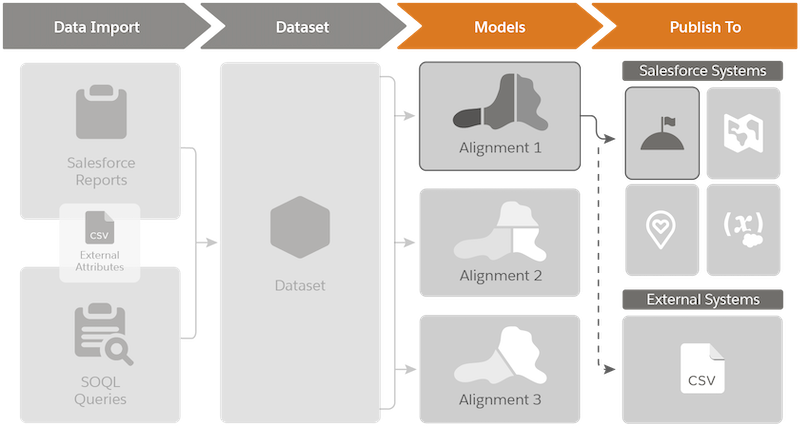
## What Happens When You Publish Alignments
Sales and service operations publish alignments to any of these destinations, depending on your teams’ objectives and systems already in place.
Destination
The alignments publish as...
Publishing alignments updates assignments for...
Sales Territories
Territory models, which create Salesforce:
Models
Territories
Assignment rules
Accounts
Opportunities
Users
Salesforce Maps
Shape layers, which reps plot on the map to help them:
Plan and work their schedules.
Take advantage of route optimization.
As many as 5,000 auto assignment rules for any records that include geocoding, such as:
Accounts
Opportunities
Users
Leads
Cases
Field Service
Service territories and polygons.
Accounts
Users
Cases
## Alignment Approval Processes
Alignments affect entire teams and their assignments, so it’s important to avoid accidental changes to or loss of alignment details. To preserve the integrity of alignments, you grant authority to specific teammates who can then publish new and updated alignments. When you grant that authority, you:
- Require that others request approval for changes to alignments before authorized teammates publish them.
- Let others add comments to alignments pending approval.
- Prevent others from making further changes to alignments pending approval.
- Give authorized teammates advance notice when others try to publish alignments. You also let authorized teammates provide feedback about, approve, and deny publish requests.
# all?
Checks whether every record in a data filter or datasheet in Salesforce Spiff satisfies one or more conditions. This function returns `true` when the condition is satisfied. This function is the opposite of the `any?` function.
### Required Editions
Available in: both Salesforce Classic (not available in all orgs) and Lightning Experience
Available in: Enterprise, Unlimited, and Developer Editions
Available for an additional cost in: Professional Edition with Web Services API Enabled
## Syntax
```
all?(datasheet_or_filter, condition)
```
## Arguments
| Argument | Required? | Description |
| --- | --- | --- |
| datasheet\_or\_filter | Required | The datasheet or filter that specifies the list of records to test. |
| condition | Optional | The condition to test. Use any expression or formula that results in `true` or `false`. To compare values, specify comparison operators or logical functions such as `AND` or `OR`. For example, to test whether the ARR field is greater than $100,000, enter `ARR > 100000`. |
## Example
Test whether all rows for the ARR field in the BigDealsSheet datasheet have a value greater than $100,000.
```
=all?(BigDealsSheet, ARR > 100000)
```
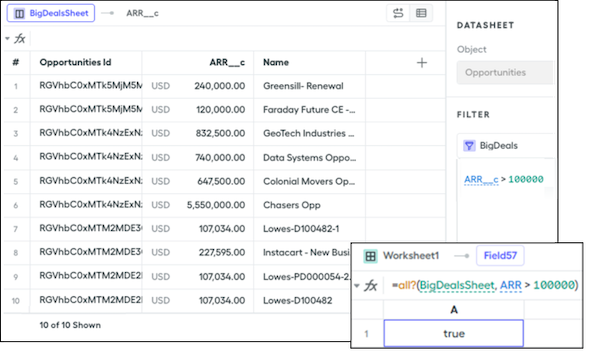
Because all the values exceed $100,000, this function returns `true`. If you change the condition to test for $50,000, this function returns `false`.
If the datasheet or filter contains no rows or records, this function returns `true`. To test whether the datasheet or filter includes at least one record first, add an `any()` function before the `all?()` function.
```
=any?(BigDealsSheet, true) AND all?(BigDealsSheet, ARR > 100000)
```
# Allocate Metrics to Your Sales Hierarchy
Distribute allocations for quotas, budgets, headcount, and any other metrics that matter to your company by fiscal period in Legacy Sales Planning.
### Required Editions
Available in: both Salesforce Classic (not available in all orgs) and Lightning Experience
Available for an additional cost in: Enterprise, Performance, Unlimited, and Developer Editions with Sales Planning in English only, and only if you have Web Services API enabled
User Permissions Needed
To allocate metrics:
Data Pipelines Base User permission set license
Data Pipelines Base User permission
set
AND
Sales Planning permission set

Important
Feature is scheduled for retirement as of Summer'26. See [Sales Planning version 1 Retirement](https://help.salesforce.com/s/articleView?id=005224374&type=1&language=en_US)
1. Open your sales plan.
2. In the Allocation Metrics section, click **New**. Then enter the details that apply to the metric that you’re allocating to hierarchy items.
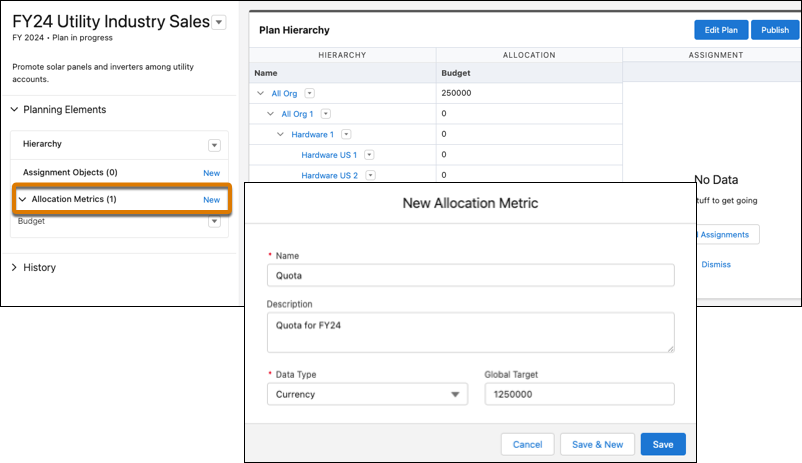
3. Save your changes, and then add any other metrics that you plan to allocate.
4. To allocate your metrics, click **Edit Plan**, then select **Allocations**.
5. Select the hierarchy level that you want to allocate to, and then click **Allocate**.
6. Define how to allocate your metric that you select, and then preview it.
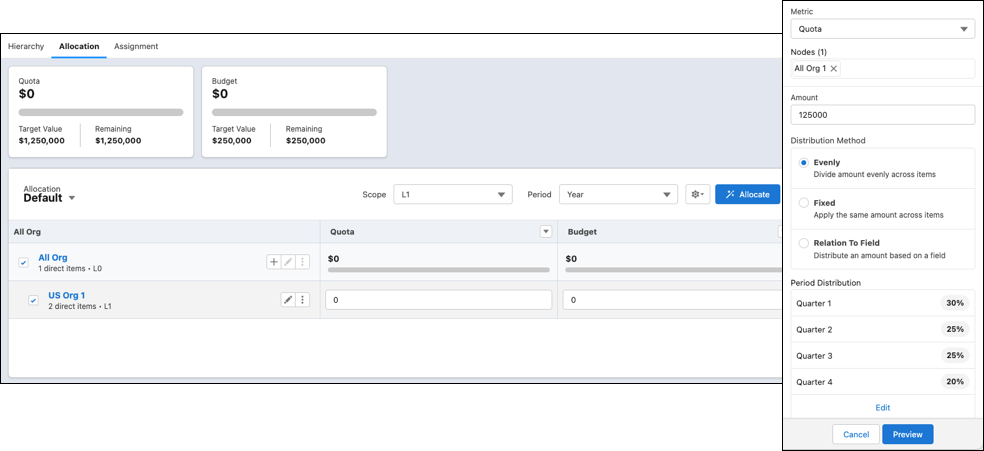
7. If the proposed allocations appear the way you want, click **Apply**. Otherwise, adjust the allocations before you apply them.
# Allocating Metrics Across Your Sales Hierarchy
Allocate metrics that matter for your company’s fiscal periods in Legacy Sales Planning. For example, allocate metrics for quotas, budgets, headcount, and anything else that plays a role in your planning processes.
### Required Editions
Available in: both Salesforce Classic (not available in all orgs) and Lightning Experience
Available for an additional cost in: Enterprise, Performance, Unlimited, and Developer Editions with Sales Planning in English only, and only if you have Web Services API enabled

Important
Feature is scheduled for retirement as of Summer'26. See [Sales Planning version 1 Retirement](https://help.salesforce.com/s/articleView?id=005224374&type=1&language=en_US)
- **[Allocate Metrics to Your Sales Hierarchy](https://help.salesforce.com/s/articleView?id=sales.legacy_sales_planning_plans_allocations_metrics.htm&release=264.0.0&type=5)**
Distribute allocations for quotas, budgets, headcount, and any other metrics that matter to your company by fiscal period in Legacy Sales Planning.
- **[Show Specific Details when Allocating Metrics](https://help.salesforce.com/s/articleView?id=sales.legacy_sales_planning_plans_allocations_list_views.htm&release=264.0.0&type=5)**
Allocate metrics while accessing the most relevant details in your list views. Add columns that show specific fields based on your assignment objects in Legacy Sales Planning.
# Allocations and Considerations for Territories
Plan your territories with consideration to available allocations and potential performance impact during assignment and rules processing in Sales Territories.
### Required Editions
Available in: Salesforce Classic for some features and Lightning Experience for all features
Available in: Performance and Developer Editions and in Enterprise and Unlimited Editions with Sales
## Allocations for Territory Models and Territories
Allocations for each territory model include up to 1,000 territories. But if you require more, Salesforce Customer Support can increase your allocations depending on your Salesforce edition.
Salesforce Edition
Allocated Territory Models
Maximum Territories per Model
Developer
4
1,000
Enterprise
2
Performance
4
99,999
Unlimited
4
Requests for more than 20,000 territories per model are subject to approval.
## Allocations for Assignment Rules and User Assignments
| Territory Component | Allocation |
| --- | --- |
| Assignment rules for each territory | 15 |
| Assigned users for each territory | 1,950 |
## Performance Considerations
To avoid performance problems, consider managing these conditions.
Condition
Ways to Optimize Performance
Individual team members assigned to high volumes of territories
If your sales team includes reps assigned to high volumes of territories, it’s
possible to notice slow performance during assignment and rules processing. If you encounter
problems, consider these options.
Reduce team member assignments to fewer territories. Or assign team members to higher
levels in the territory hierarchy, which can reduce the volume of their assigned
territories.
Defer group membership calculations during assignment and rules processing.
High-volume user assignments to territories
While you can assign up to 1,950 users to a territory, these high-volume assignments
can affect performance. Consider limiting user assignments to 300 per territory.
#### See Also
- [Defer Group Membership Calculations](https://help.salesforce.com/s/articleView?id=platform.security_sharing_group_membership_calculations.htm&type=5&language=en_US)
# Allocations for Cloning Campaigns with Related Records
Each campaign cloning operation can support a certain number of related records.
### Required Editions
Available in: Salesforce Classic and Lightning Experience
Available in: Salesforce Professional, Enterprise, Performance, Unlimited, and Developer Editions
The related items included in this table refer to assets that are created in Account Engagement.
| Type | Related Item Description | Maximum |
| --- | --- | --- |
| Form | A form | 10 |
| Form field | An individual field from a form | 50 |
| Form field value | An individual value used in form field picklists | 350 |
| Form field conditional | A conditional field in a form | 5 |
| Completion action | A completion action that’s used with a form, form handler, custom redirect, or file | 5 |
| Form handler | A form handler | 10 |
| Form handler field | An individual field from a form handler | 25 |
| File | A file stored in Account Engagement | 10 |
| Custom redirect | A custom redirect | 10 |
| Prospect field dependency | A dependent field in a form | 25 |
| Landing page | A landing page | 10 |
| Layout template region | A saved region that’s used in a landing page template | 10 |
# Allow Assignments to Boundary and Country Fields
Keep unit assignments consistent across Salesforce, Territory Planning, and Sales Territories. Territory Planning matches boundary and country fields for unit assignments so the assignments stay the same throughout the planning process.
### Required Editions
Available in: both Salesforce Classic (not available in all orgs) and Lightning Experience
Available in: Professional, Enterprise, Performance, Unlimited, and Developer Editions
User Permissions
Needed
To manage Territory Planning options in the Salesforce Maps package:
Customize Application
1. From Setup, in the Quick Find box, enter Installed Packages, and then select **Installed Packages**.
2. Click **Configure** next to the Salesforce Maps package.
3. From Territory Planning Data Management, select the option to assign units based on address fields in Salesforce.
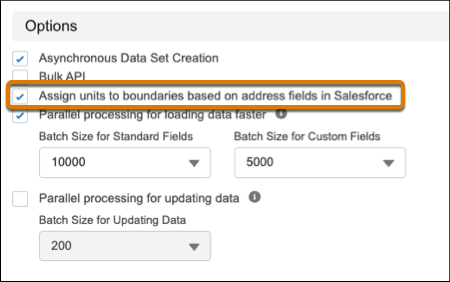
4. In Territory Planning, create a dataset. Select values for the boundary and country fields where you want units assigned, such as billing postal code and billing country. If your boundary field already includes country information, such as USA\_12345, the country field isn’t required.
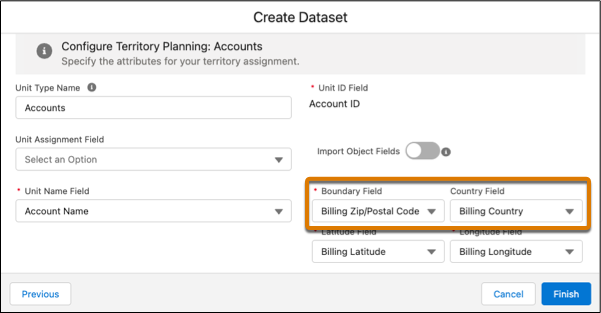
5. Click **Finish**.
6. Create an alignment using the dataset with defined boundary and country fields, and plot it on the map.
Units are assigned to the boundaries and countries you specified.
# Allow Forecast Adjustments
Help your sales team produce the most accurate forecast possible and allow managers or forecast users to adjust rollup values.
### Required Editions
Available in: Lightning Experience
Available in: Professional, Performance, and Developer Editions and in Enterprise and Unlimited Editions with Sales
User Permissions Needed
To view the Forecasts Settings page:
View Setup and Configuration
AND
View All Forecasts OR Allow Forecasting OR
delegated forecast manager
To edit the Forecasts Settings page:
Customize Application
To enable forecasts users for adjustments:
Manage Users
AND
Customize Application
To customize the opportunity list in a forecast type:
Customize Application
AND
Manage Public List Views
Before you start, make sure that you’re working in Lightning Experience.
## Enable Forecast Adjustments
Allow forecast users who anticipate differences between the current forecast values and future sales results to adjust the forecast rollup values in their forecasts. You specify whether forecast managers can adjust subordinates’ and child territory forecasts, whether forecast users can adjust their own forecasts, or both. If multiple forecast types are active, each forecast type maintains separate adjusted amounts.
1. From Setup, in the Quick Find box, enter Forecasts Settings, and then select **Forecasts Settings**.
2. In the Enable Adjustments and Judgments section, select who can make forecast adjustments:
- To let forecast managers adjust the forecasts of their immediate subordinates and child territories, select **Manager adjustments**. This setting is on by default.
- To let all forecast users adjust their own forecasts, including the territory forecasts that they own, select **Owner adjustments**.
3. Select to show adjustments when you’re hovering over adjustable forecast category cells in the forecast summary or show as separate columns for each adjustable forecast category. This setting applies only to pipeline forecasts.
Selecting to show adjustments as columns adds columns for each adjustable forecast category on the forecasts page. For each adjustable forecast category, up to three columns are shown.
- A column with the original forecast value before any adjustments
- If owner adjustments are enabled, a column with the forecast user’s direct reports’ adjustments
- A column with the forecast user’s own adjustments
Any notes about an adjustment are viewable when you hover over the column. If you change how to show adjustments, no adjustment data is lost.
4. Save your changes.
5. Ensure that each user who adjusts forecasts has the Override Forecasts user permission in their profile. This permission is available in the standard profile by default.
## Rename Adjustment Columns
If you select to show adjustments as columns on the forecasts page, you can change the default column names to fit your sales model and business practices. For example, rename the My Commit column to Call or Call Number to indicate that it’s your best estimate about the forecast.
Adjustment columns apply to pipeline forecasts only.
1. From Setup, in the Quick Find box, enter Forecasts Settings, and then select **Forecasts Settings**.
2. Edit the Enable Adjustments and Judgments section. Ensure at least one adjustment option is selected, adjustments are shown as columns, and that those settings are saved.
3. After the adjustment settings are saved, see the table and update the column names for each adjustable category.
Whether you selected Manager Adjustments or Owner Adjustments determines which columns are available to rename. Ensure that the column names you add match the category and the behavior described. If the browser window is resized, column names are truncated. We recommend using short names.
4. Save your changes.

Important The changes you make in the table update adjustment column names only. For instructions to change category names, see [Customize Salesforce Forecasting Categories](https://help.salesforce.com/s/articleView?id=sales.forecasts3_customizing_forecasts_categories.htm&release=264.0.0&type=5 "A forecast category is the category within the sales cycle to which an opportunity is assigned based on its opportunity stage. The standard forecast categories are Pipeline, Best Case, Commit, Omitted (not included in forecasts), and Closed. Salesforce admins can add a Most Likely category in Lightning Experience and rename categories in both single category rollups and cumulative category rollup scenarios.").
## Disable Forecast Adjustments and Manager Judgments
If you no longer want forecast managers and users to adjust forecasts, or forecast managers to apply judgment to opportunities in a forecast, disable the options in Setup. Updating user permissions isn’t required to disable either option.

Warning Disabling forecast adjustments removes existing adjustments for all forecast types. Before disabling these features, see [Adjustment Deletions in Pipeline Forecasts](https://help.salesforce.com/s/articleView?id=sales.forecasts3_adjustments_purges.htm&release=264.0.0&type=5 "Review the scenarios that cause manager judgments and forecast adjustments to be deleted.").
1. From Setup, in the Quick Find box, enter Forecasts Settings, and then select **Forecasts Settings**.
2. Edit the Enable Adjustments and Judgments section.
3. Deselect the options you no longer want to allow.
4. Save your changes.
#### See Also
- [_Salesforce Forecasting Implementation Guide_](https://resources.docs.salesforce.com/latest/latest/en-us/sfdc/pdf/forecasts.pdf)
- [Manage Opportunity Stage to Forecast Category Mappings for Pipeline Forecasts](https://help.salesforce.com/s/articleView?id=sales.faq_forecasts_category_mapping.htm&type=5&language=en_US)
# Allow Learners to Access Enablement Site Content Collections
Ensure that learners can access only the trails and modules that are relevant to their disciplines or job requirements. Create content collections for your different audiences, and then use permission sets to enable access to specific content collections. Only learners with permission to access a particular content collection can view and complete the trails and modules included in the collection.
### Required Editions
Available in: Enterprise, Performance, and Unlimited Editions
User Roles and Permissions
Enablement Site User Roles
This topic supports these enablement site roles:
Salesforce Admins
Required System Permissions
To access the Content Permissions Assistant page in Setup:
View Setup and Configuration
To create, edit, or delete content collections:
Manage Content Collections
To create or edit permission sets:
Manage Profiles and Permission Sets
To assign permission sets:
Assign Permission Sets
AND
View Setup and Configuration

Tip These steps are also described in your Salesforce org. From Setup, in the Quick Find box, enter Enablement, and then select **Content Permissions Assistant**. The Content Permissions Assistant page provides a guided workflow for updating permissions, creating content collections, and assigning users.
1. Make sure that the right users—admins or content creators—have the appropriate permissions for maintaining content collections.
1. From Setup, in the Quick Find box, enter Permission Sets, and then select **Permission Sets**.
2. Select the permission set that you want to update.

Note Or, create a permission set by clicking **New**. For License, select **Enablement Sites (myTrailhead)**, **Sales Enablement**, or **myTrailhead**—depending on which name you see in your org—and save your changes. The name has changed with different Salesforce versions, but the license behavior remains the same, and allows you to enable specific permissions for your enablement site.
3. Select **System Permissions**.
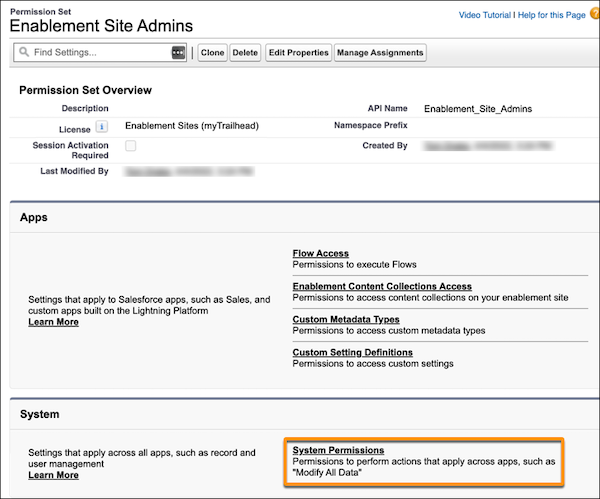
4. Click **Edit**.
5. Select **Manage Content Collections** and **View All Content**, and save your changes.
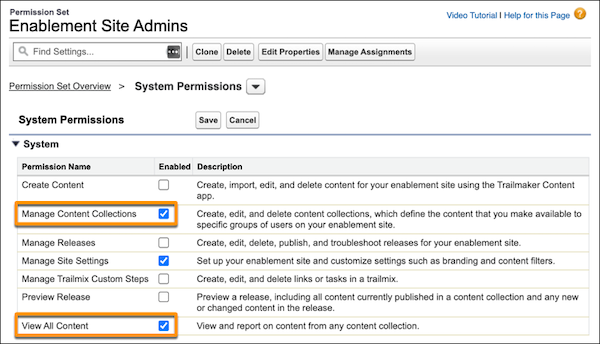

Note For information about all permissions that you can enable, see [Enablement Site Permissions List](https://help.salesforce.com/s/articleView?id=sales.mth_permissions_list.htm&release=264.0.0&type=5 "You can enable these system permissions on a permission set that uses the Sales Enablement (myTrailhead) permission set license.").
6. Save again, and confirm your changes.
2. Refresh your browser tab.
3. Create the empty content collections for your different audiences.
Each content collection is a record that you create in Salesforce and is initially an empty container. Later, your publishing team assigns trails and modules to a content collection from Trailmaker.
1. From Setup, in the Quick Find box, enter Enablement, and then select **Content Collections**.

Tip
- If your company hasn’t set up its enablement site yet, this page is blank. Before you can create more content collections, provision your subdomain. You create your first content collection as part of this process. Complete the steps in [Set Up Your Enablement Site's Subdomain and First Content Collection](https://help.salesforce.com/s/articleView?id=sales.mth_set_up_your_mth_subdomain_and_namespace.htm&release=264.0.0&type=5 "Your subdomain is used in the URL where learners access your published trails and modules and where your authorized users log in to the Trailmaker apps. A subdomain name is an extension of your company’s brand. When you create your subdomain, you also create your company’s first content collection—a batch of content that you want to make available to certain learners. Later, you can create more content collections in Salesforce."), and then return here.
- If you already have content published in an enablement site, this page lists one content collection, which was originally the namespace that you created when you provisioned your subdomain.
2. Click **New Content Collection**.
3. Enter a label and API name for the collection.
For example, if you’re creating a content collection aimed at learners who must access content for compliance with certain regulations, name the collection Regulatory Compliance.

Note
- A content collection’s API name is used in content URLs, so the API name is visible to learners.
- Each content collection API name must be [unique within your Salesforce org](https://help.salesforce.com/s/articleView?id=sales.mth_api_names_on_mytrailhead.htm&release=264.0.0&type=5 "Each content collection, release, trail, module, and unit on your enablement site has its own API name, which is a globally unique ID that references a content path in URLs.").
4. Save your changes, or click **Save & New** to create more content collections.
4. Create permission sets for learners to access specific content collections.
1. From Setup, in the Quick Find box, enter Permission Sets, and then select **Permission Sets**.
2. Click **New**.
3. Enter a label and a unique API name for the permission set.
For example, if you’re creating a permission set that enables access to the Regulatory Compliance collection, name the permission set Regulatory Compliance Content Access.
4. For License, select **Enablement Sites (myTrailhead)**, **Sales Enablement**, or **myTrailhead**—depending on which name you see in your org—and save your changes.

Note The license name has changed with different Salesforce versions, but the license behavior remains the same, and allows you to enable specific permissions for your enablement site.
5. On the Permission Set Overview page, select **Enablement Content Collections Access**.
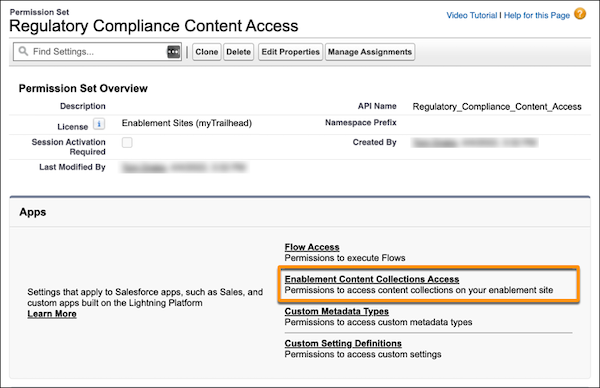
6. Click **Edit**.
7. Select the content collections that you want this permission set to enable.
For example, select the Regulatory Compliance content collection from the list of available collections, and add it to the list of enabled collections.
8. Save your changes.
5. Assign users to the permission sets that you created to give those users access to the associated content collections.
1. From Setup, in the Quick Find box, enter Users, and then select **Users**.
2. Select a user.
3. Scroll to the Permission Set Assignments section of the user details, and click **Edit Assignments**.
4. Select the permission set that enables access to the content collections that the user can access.
For example, to give the user access to the Regulatory Compliance content collection, select Regulatory Compliance Content Access, and add it to the list of enabled permission sets.
5. Save your changes.

Tip Alternatively, you can start from the permission set and add multiple users. On the permission set’s overview page, click **Manage Assignments**. Select all the users that you want to add, and then click **Add Assignments**.

Note When you change a user’s permissions, the change takes a few minutes to take effect.
#### See Also
- [Considerations for Getting Started with Content Collections](https://help.salesforce.com/s/articleView?id=sales.mth_content_permissions_considerations.htm&release=264.0.0&type=5 "Content collections provide flexibility for your company’s learning experience, but they also introduce complexity forenablement sites that have published content. If your company already has an enablement site, you can expand your learning experience by using content collections.")
- [Examples of Content Collections](https://help.salesforce.com/s/articleView?id=sales.mth_content_collections_examples.htm&release=264.0.0&type=5 "Each company’s learning experience is different and supports unique groups of learners and a broad range of training and enablement requirements. Content collections can be simple or complex, depending on the size and learning requirements of your company. To help you generate ideas for fulfilling your company’s specific content strategy, explore examples of suggested content collection scenarios.")
- [Enablement Site Permissions List](https://help.salesforce.com/s/articleView?id=sales.mth_permissions_list.htm&release=264.0.0&type=5 "You can enable these system permissions on a permission set that uses the Sales Enablement (myTrailhead) permission set license.")
- [Add Content to a Release from Trailmaker Content](https://help.salesforce.com/s/articleView?id=sales.mth_add_content_to_release_from_tm_content.htm&release=264.0.0&type=5 "After you create your module and quizzes and assign all the necessary metadata, add the content to a release.")
- [Migrate Published Content to a Different Content Collection](https://help.salesforce.com/s/articleView?id=sales.mth_content_collections_migrate.htm&release=264.0.0&type=5 "You can move your company’s existing learning content from one content collection to another. For example, maybe your company previously published content under your enablement site’s single namespace before multiple content collections became available. And now, you want to move content to a content collection for a specific audience.")
- [_Video:_ Deliver Learning Content for Specific Audiences with myTrailhead Content Permissions](https://salesforce.vidyard.com/watch/hVpFiqLRi8sWE6St9t3T75)
# Allow Manager Judgments in Pipeline Forecasts
Allow forecast managers to indicate which of their subordinates’ opportunities they have high confidence of closing during the current forecast period. To get the most benefit out of manager judgments, we recommend also enabling managers to make adjustments at the forecast rollup level. Manager judgments are supported for forecast types based on opportunity, opportunity product, and line item schedule objects only.
### Required Editions
Available in: Lightning Experience
Available in: Professional, Performance, and Developer Editions and in Enterprise and Unlimited Editions with Sales
User Permissions
Needed
To view the Forecasts Settings page:
View Setup and Configuration
AND
View All Forecasts OR Allow
Forecasting OR delegated forecast manager
To edit the Forecasts Settings page:
Customize Application
To enable forecasts users for judgments:
Manage Users
AND
Customize Application
To customize the opportunity list in a forecast type:
Customize Application
AND
Manage Public List Views
1. From Setup, in the Quick Find box, enter Forecasts Settings, and then select **Forecasts Settings**.
2. Edit the Enable Adjustments and Judgments section and select **Manager Judgments**.
3. To change the picklist values that are available in the Manager Judgment field in the forecasts opportunity list to meet your business needs, edit the values in the provided table.
Ensure that the values you add match the behavior described for each value. The IN value is used to indicate opportunities that a forecast manager feels are definitely going to close and roll up as and are part of a forecast adjustment. The OUT value indicates opportunities that a forecast manager doesn’t want to include in the forecast and are excluded from the.roll up.
If you change the judgment values, check whether they have translations and update them as needed. Any translation values are shown in the user’s selected language on the forecasts page. For more information, see [Translation Workbench](https://help.salesforce.com/s/articleView?id=platform.workbench.htm&type=5&language=en_US). The translated values aren’t included on the Setup page.
4. Save your changes.
5. For each forecast type that you want to allow manager judgments in, edit the forecast type’s opportunity list to include the Manager Judgment column.
For user role hierarchy forecast types, ensure that the opportunity list also includes the Owner Full Name column. For territory-based forecast types, add the Territory Name column. To see the column in the Salesforce mobile app, make sure it’s one of the first four columns in the opportunity list.
6. Ensure that each forecast manager has the Override Forecasts user permission in their profile. This permission is available in the standard profile by default.
If you no longer want forecast managers to apply judgment to opportunities in their forecasts, disable the option in Setup. Updating user permissions isn’t required judgments. See [Manager Judgment Deletions in Pipeline Forecasts](https://help.salesforce.com/s/articleView?id=sales.forecasts3_judgments_deletions.htm&release=264.0.0&type=5 "Review the scenarios that cause manager judgments to be deleted from opportunities in a pipeline forecast.").
# Allow Point-in-Time Pipeline Forecast Submissions
Forecast submissions are sales reps’ or managers’ best estimates of the revenue or quantities they expect to close during the forecast period. As management levels within the sales organization review forecast rollups, they compare the current forecast against the submitted forecast numbers and quota.
### Required Editions
Available in: Lightning Experience
Available in: Professional, Performance, and Developer Editions and in Enterprise and Unlimited Editions with Sales
User Permissions
Needed
To enable forecast submissions:
Customize Application
When enabled, forecast submissions are available on active forecast types that don't include product families or other forecast groups.
1. From Setup, in the Quick Find box, enter Forecasts Settings, and then select **Forecasts Settings**.
2. Turn on Forecast Submissions.
3. Save your changes.
# Allow Reps to Log Events to Multiple Contacts from Outlook and Google Calendar
To gain better insight into your opportunities, and for more accurate reporting on engagements with contacts, enable Shared Activities. With Shared Activities, sales reps can select up to 50 contacts or 1 lead when logging an event from their Outlook or Google calendar.
### Required Editions
Available in: Salesforce Classic and Lightning Experience
Available with Sales Cloud, Service Cloud, and Lightning Platform in: Essentials, Group, Professional, Enterprise, Performance, Unlimited, and Developer Editions
#### See Also
- [Enable Shared Activities](https://help.salesforce.com/s/articleView?id=sales.activities_enable_shared_activities.htm&release=264.0.0&type=5 "With shared activities, users can relate up to 50 contacts (but only 1 lead) to an event or a task.")
- [Considerations for Enabling Shared Activities](https://help.salesforce.com/s/articleView?id=sales.activities_shared_considerations.htm&release=264.0.0&type=5 "If you enable Shared Activities, or if it’s enabled by default in your Salesforce org, you can’t disable it.")
# Allow Users to Adjust Forecast Values
Allow forecast users to adjust their own forecast values in any one of the measure columns.
### Required Editions
Available in: Lightning Experience
Available in: Enterprise, Unlimited with Sales, and in Agentforce 1 Sales Edition
1. From Setup, in the Quick Find box, enter Forecasts Settings, and then select **Forecasts Settings**.
2. In the Available Consumption Forecast Types section, click **Add a Forecast Type** or open the forecast type in which you want to enable adjustments.
3. In the Define What You Want to Measure section, open the measure column for which you want to enable adjustments.
4. Select **Allow user adjustments**.
5. Click **Save**, and **Save & Close**.

Warning
Disabling user adjustments deletes all adjusted values in the column and the details of the total value on which the custom adjustments are based.
# Allow Users to Create Campaign Hierarchies
Before users can associate campaigns in a hierarchy, an admin must configure campaign page layouts to support it. Set up field-level security, and then add the Parent Campaign field and related list to campaign records.
### Required Editions
Available in: Salesforce Classic and Lightning Experience
Available in: Salesforce Professional, Enterprise, Performance, Unlimited, and Developer Editions
User
Permissions Needed
To create a campaign hierarchy:
Create on campaigns
AND
Marketing
User selected in User Detail
To set up campaign hierarchies:
Customize Application
To add, edit, or delete hierarchy columns:
Modify All Data
1. In Object Manager, find and select **Campaign**.
2. Select **Fields & Relationships**, and then select **Parent Campaign**.
3. Click **Set Field-Level Security**, indicate who has access to the field, and save your work.
4. Select **Page Layouts** and add the Parent Campaign field to a campaign page layout.
5. To allow users to see parent and child campaigns on a campaign record, add the Campaign Hierarchies related list to a campaign page layout.
# Allow Users to Create Private Contacts
Private contacts are contacts that aren’t associated with an account. To give your users the ability to create private contacts, adjust your contact page layouts so the Account Name field isn’t required.
### Required Editions
Available in: both Salesforce Classic and Lightning Experience
Available in: all editions
User Permissions Needed
To customize page layouts:
Customize Application
To view page layouts:
View Setup and Configuration
Contacts that aren’t associated with an account are always private, regardless of your organization’s sharing model. Before allowing private contacts, consider the downside: they're easy to forget because they're hidden from all users except their owner and your Salesforce admin.
1. From the object management settings for contacts, go to Page Layouts.
2. Select the layout you want to edit.
3. Find the Account Name field on the layout and hover over it. Then, click the wrench icon to show the field properties.
4. Deselect the Required checkbox.
5. Confirm your changes.
# amount\_from
Returns a commission amount for a specific payout rule or the total commission amount from a previous statement period in Salesforce Spiff. A commission plan that pays year-to-date totals and subtracts previous earnings can use this function to reference and subtract commission amounts.
### Required Editions
Available in: both Salesforce Classic (not available in all orgs) and Lightning Experience
Available in: Enterprise, Unlimited, and Developer Editions
Available for an additional cost in: Professional Edition with Web Services API Enabled
## Syntax
```
amount_from(date, plan_name, payout_rule_name, user_id)
```
## Arguments
| Argument | Required? | Description |
| --- | --- | --- |
| date | Required | The statement period to return an amount for. This argument supports any date functions, such as `days_ago()`, which returns the last day before the current statement period. |
| plan\_name | Required | The name of the plan that includes the amount to return. Enclose the plan name in double quotes, or use the `plan.name` reference. |
| payout\_rule\_name | Optional | The name of a specific payout rule to return an amount for. Enclose the rule name in double quotes. If you omit this argument, the function returns the total commission amount. |
| user\_id | Optional | The name of a specific user on the statement to return an amount for. This argument often requires a Users object data filter and a `sumif()` function. See the [user ID example](https://help.salesforce.com/s/articleView?id=sales.spiff_function_ref_amount_from.htm&release=264.0.0&type=5). |
## Considerations
- This function can't reference the value of a calculated field.
- This function supports only previous statement periods, not the current statement period.
- This function doesn't account for adjustments. To include adjustments, create adjustment rules.
- This function returns the value from the most recently calculated statement. If you modify a calculation in Designer and change commission amounts, recalculate the statement.
- Calculate statements in chronological order. If this function rolls forward, start calculating from the first statement. Confirm that the statement is correct, and then continue to the next statement. If statement or rule amounts change in a previous period, those changes aren't rolled forward to future statements. Recalculate each subsequent statement in chronological order, even if statements were previously frozen.
## Example
Return the total commission amount since the end of the previous statement period.
```
=amount_from(days_ago(statement_period.start_date), 1)
```
Return the total commission amount for the Strategic Account Executive plan in the statement period.
```
=amount_from(days_ago(statement_period_date), 1), "Strategic Account Executive")
```
## Example with User ID
Return a specific rep's commission for a New Booking Commissions payout rule from the previous statement period.
First, create an All\_Users data filter on the Users object that returns a list of all reps.
```
Id!=null
```
On the Users object, create a datasheet field, AmountFromPriorMonth, that uses the `amount_from()` function to return the commission amount for every rep from the previous month. Specify `id` for the user\_id argument.
```
=amount_from(days_ago(statement_period.start_date, 1), "Strategic Account Executive", "New Booking Commissions", id)
```
Create a worksheet calculation that returns only the rep's previous commission on the rule. Use the `sumif()` function with the All\_Users data filter you created, a rep's ID, and the AmountFromPriorMonth datasheet field. This function uses the commission amount for every rep from the previous month but returns only a specific user's data.
```
=sumif(All_Users, Id="18DigitUserId", AmountFromPriorMonth)
```
#### See Also
- [days\_ago](https://help.salesforce.com/s/articleView?id=sales.spiff_function_ref_days_ago.htm&release=264.0.0&type=5 "Returns the date that's a specified number of days before another date in Salesforce Spiff.")
# amounts\_from
Returns a sum of commission amounts for specific payout rules or total commission amounts from previous statement periods in Salesforce Spiff. This function is similar to `amount_from()` but requires a date range instead of a specific date.
### Required Editions
Available in: both Salesforce Classic (not available in all orgs) and Lightning Experience
Available in: Enterprise, Unlimited, and Developer Editions
Available for an additional cost in: Professional Edition with Web Services API Enabled
## Syntax
```
amounts_from(start_date, end_date, plan_name, payout_rule_name, user_id)
```
## Arguments
| Argument | Required? | Description |
| --- | --- | --- |
| start\_date | Required | The beginning of the date range to calculate amounts for. This argument supports any date functions. |
| end\_date | Required | The end of the date range to calculate amounts for. This argument supports any date functions, such as `days_ago()`, which returns the last day before the current statement period. |
| plan\_name | Required | The name of the plan that includes the amounts to return. Enclose the plan name in double quotes, or use the `plan.name` reference. |
| payout\_rule\_name | Optional | The name of a specific payout rule to return amounts for. Enclose the rule name in double quotes. If you omit this argument, the function returns the total commission amounts. |
| user\_id | Optional | The name of a specific user on the statement to return amounts for. |
## Considerations
- This function can't reference the value of a calculated field.
- This function supports only previous statement periods, not the current statement period.
- This function doesn't account for adjustments. To include adjustments, create adjustment rules.
- This function returns the amounts from the most recently calculated statements. If you modify a calculation in Designer and change commission amounts, recalculate all affected statements in chronological order.
- Calculate statements in chronological order.
- To make sure that previous amounts don't change, freeze previous statements in chronological order as they're finalized and approved. If statement or rule amounts change in a previous period, those changes aren't rolled forward to future statements. Recalculate each subsequent statement in chronological order.
- To calculate quarter-to-date or year-to-date amounts, it's more efficient to add multiple statement amounts than to recalculate previous commission amounts.
- If a statement is missing, Spiff assigns a $0 commission amount by default. If a rep is paid in a currency other than USD, avoid mismatch errors by saving separate calculations for each period, converting amounts to the rep's currency, and summing the amounts.
## Example
Return the amounts from the beginning of the year in the rep's preferred currency.
```
=currency(amounts_from(BeginningOfYear, PreviousPeriod, PlanName), RepPreferredCurrency)
```
#### See Also
- [currency](https://help.salesforce.com/s/articleView?id=sales.spiff_function_ref_currency.htm&release=264.0.0&type=5 "Converts a number of string into a specified currency in Salesforce Spiff.")
# Analytics for In-App Guidance
Track views and completion data for prompts and walkthroughs so you can iterate and improve upon your onboarding and discovery strategy. Some quick analytics are available on the In-App Guidance page in Setup, or you can create a custom report type for more in-depth analysis. Some prebuilt, customizable reports and dashboards are available to download from AppExchange.
### Required Editions
Available in: Lightning Experience
Available with a limited number of active walkthroughs in: Essentials, Group, Professional, Enterprise, Performance, Unlimited, and Developer Editions
Available with Enablement, which is available in Developer Edition with a limited number of add-ons and with Sales, Service, or Salesforce Platform in: Enterprise, Performance, Unlimited and Einstein 1 Sales EditionEditions for an additional cost
In-app guidance in Experience Cloud sites with Partner Enablement requires an Enablement add-on license and supported PRM add-on license.
## Metrics on the In-App Guidance Page in Setup
The In-App Guidance page in Setup shows these metrics for active prompts and walkthroughs.
| Column | What It Shows |
| --- | --- |
| Views | The number of unique users who saw the prompt or walkthrough. This number doesn’t include video views. |
| Completes | The percentage of users who clicked the Action button in a prompt, click the action link in a walkthrough, or clicked **Finish** on the last step of a walkthrough. |
To reset the metric values to zero, select **Reset Metrics** from the prompt’s or walkthrough’s actions dropdown. Consider resetting metrics when you make significant changes to an active prompt or walkthrough where the end date hasn’t passed. In this case, users see the prompt or walkthrough again after you reset its metrics.
## Custom Report Type
To analyze in-app guidance usage in more detail, set up a custom report type that uses the Prompt Action object. Add these fields as columns in the report.
- Last Display Date
- Last Result
- Name
- Times Action Taken
- Times Dismissed
- Times Displayed
- User: Full Name
If you’re reviewing walkthrough data, consider adding these fields.
- Step Count
- Step Number
To create a progress percentage formula field, you can use the Step Number divided by the Step Count.
## AppExchange Packages with Reports and Dashboards
To get started with analyzing in-app guidance progress, install free packages with prebuilt, customizable reports and dashboards from AppExchange.
| Package For | URL |
| --- | --- |
| Prompts | [In-App Guidance Dashboard: Prompt Engagement](https://appexchange.salesforce.com/appxListingDetail?listingId=a0N4V00000G13VjUAJ) |
| Walkthroughs | [In-App Guidance Dashboard: Walkthrough Engagement](https://appexchange.salesforce.com/appxListingDetail?listingId=a0N4V00000G13VoUAJ) |
#### See Also
- [Resolve Errors and Warnings in In-App Guidance](https://help.salesforce.com/s/articleView?id=sales.customhelp_lex_iag_errors.htm&release=264.0.0&type=5 "Errors or warnings can sometimes appear when you’re creating or editing in-app guidance. For example, errors and warnings occur when a page doesn’t support a prompt, a page with a prompt is deleted, or a field-level error occurs. The In-App Guidance page in Setup tracks errors and warnings for each prompt or walkthrough that you created.")
- [Create a Custom Report Type](https://help.salesforce.com/s/articleView?id=xcloud.reports_defining_report_types.htm&language=en_US)
- [Design the Field Layout for Reports Created from Your Custom Report Type](https://help.salesforce.com/s/articleView?id=xcloud.reports_report_type_layouts.htm&language=en_US)
- [Build a Formula Field](https://help.salesforce.com/s/articleView?id=platform.customize_formulas.htm&language=en_US)
- [_Salesforce Developers_: PromptAction](https://developer.salesforce.com/docs/atlas.en-us.object_reference.meta/object_reference/sforce_api_objects_promptaction.htm)
- [_Salesforce Developers_: PromptVersion](https://developer.salesforce.com/docs/atlas.en-us.object_reference.meta/object_reference/sforce_api_objects_promptaction.htm)
# Analyze Sales Engagement Performance with Reports and Dashboards
Sales Engagement includes a set of standard reports and custom report types to show you the productivity and effectiveness of your cadences and reps. See even more detail with the Sales Engagement Performance Dashboards, powered by CRM Analytics.
### Required Editions
Available in: Lightning Experience
Available with Sales Engagement, which is included with Sales in Performance, Einstein 1, and Unlimited Editions, and available for an extra cost in Professional and Enterprise Editions. Sales Engagement is also available for an extra cost in Service and Lightning Platform.
- **[Sales Engagement Reporting and Dashboards](https://help.salesforce.com/s/articleView?id=sales.hvs_reports_reports_dashboards_overview.htm&release=264.0.0&type=5)**
Sales Engagement dashboards and reports provide insight into cadence adoption and usage, along with statistics about sales outcomes and ROI. They also offer details on cadence and email success and opportunities to enhance sales rep coaching.
- **[CRM Analytics and Sales Engagement](https://help.salesforce.com/s/articleView?id=sales.hvs_reports_performance_analytics.htm&release=264.0.0&type=5)**
CRM Analytics, formerly known as Tableau CRM, is a cloud-based platform for connecting data from multiple sources, creating interactive views of that data, and sharing those views in apps. Sales managers can use performance dashboards in CRM Analytics to quickly see customer engagement and how sales reps are doing. For example, managers can view how many cadences are in progress, with detailed call and email response statistics. And they can see how effectively sales reps work through their cadences.
# API Access for Territory Planning
Territory Planning relies on Salesforce API endpoints under /services/ and access to these endpoints typically requires that you turn on API access for users. To help you determine how to grant API access, review the Web Services APIs that Territory Planning depends on.
### Required Editions
Available in: both Salesforce Classic (not available in all orgs) and Lightning Experience
Available in: Professional, Enterprise, Performance, Unlimited, and Developer Editions with Web Services API enabled
## Options for Granting API Access
In each Territory Planning user’s profile or permission set, we recommend that you turn on the API Enabled system permission. See [Supported Editions and Required Permissions](https://developer.salesforce.com/docs/atlas.en-us.api_rest.meta/api_rest/intro_rest_compatible_editions.htm) in the REST API Developer Guide.
If your environment restricts users from accessing Salesforce APIs with API Access Control settings, also turn on the **Allow Visualforce pages to access APIs** option. See [Restrict Access to APIs with Connected Apps](https://help.salesforce.com/s/articleView?id=xcloud.security_api_access_control_all_users.htm&type=5&language=en_US).
## Required APIs
Granting API access makes sure that these resources are available for Territory Planning users.
- Salesforce REST API and Tooling API for retrieving records, configuration metadata, and approval workflows.
- CRM Analytics REST API for creating and retrieving CRM Analytics datasets used with Territory Planning.
- Reports and Dashboards REST API for retrieving Salesforce reports used with Territory Planning.
- Analytics External Data API for importing .csv files to CRM Analytics datasets.
- Apex REST endpoints for accessing Sales Planning managed package resources required for Territory Planning.
- Connect REST API for generative AI prompts.
- OAuth endpoints for authorizing access and redirecting users.
#### See Also
- [Which API Do I Use?](https://help.salesforce.com/s/articleView?id=platform.integrate_what_is_api.htm&type=5&language=en_US)
- [_Salesforce Developers_: REST API Developer Guide](https://developer.salesforce.com/docs/atlas.en-us.api_rest.meta/api_rest/intro_rest.htm)
- [_Salesforce Developers_: Tooling API Developer Guide](https://developer.salesforce.com/docs/atlas.en-us.api_tooling.meta/api_tooling/intro_api_tooling.htm)
- [_Salesforce Developers_: CRM Analytics REST API Developer Guide](https://developer.salesforce.com/docs/atlas.en-us.bi_dev_guide_rest.meta/bi_dev_guide_rest/bi_rest_overview.htm)
- [_Salesforce Developers_: Salesforce Reports and Dashboards REST API Developer Guide](https://developer.salesforce.com/docs/atlas.en-us.api_analytics.meta/api_analytics/sforce_analytics_rest_api_intro.htm)
- [_Salesforce Developers_: Analytics External Data API Developer Guide](https://developer.salesforce.com/docs/atlas.en-us.bi_dev_guide_ext_data.meta/bi_dev_guide_ext_data/bi_ext_data_overview.htm)
- [OAuth Endpoints](https://help.salesforce.com/s/articleView?id=xcloud.remoteaccess_oauth_endpoints.htm&type=5&language=en_US)
# API Names for Trails, Modules, and Units
Each content collection, release, trail, module, and unit on your enablement site has its own API name, which is a globally unique ID that references a content path in URLs.
### Required Editions
Available in: Enterprise, Performance, and Unlimited Editions
User Roles
This topic supports these enablement site
roles:
Content Creators
Release Managers
Subject Matter Experts
## URL Examples
For example, let’s say that you’ve published content with these API names:
| Content | API Name |
| --- | --- |
| Unit | learn-the-pure-aloe-sales-pitch |
| Module | pure-aloe-sales-strategies |
| Trail | sell-well-at-pure-aloe |
| Release | q3-learning-updates |
| Content Collection | sales-team-onboarding |
All of these components, except for a release, are included in URLs.
URL for a trail
Includes the content collection and trail API names, such as:
```
https://purealoe.my.trailhead.com/en/content/sales-team-onboarding/trails/sell-well-at-pure-aloe
```
URL for a standalone module
Includes the content collection and module API names, such as:
```
https://purealoe.my.trailhead.com/en/content/sales-team-onboarding/modules/pure-aloe-sales-strategies
```
URL for a module that’s included in a trail
Includes the content collection, trail, and module API names, such as:
```
https://purealoe.my.trailhead.com/en/content/sales-team-onboarding/modules/pure-aloe-sales-strategies?trail_id=sell-well-at-pure-aloe
```
URL for a unit in a standalone module
Includes the content collection, module, and unit API names, such as:
```
https://purealoe.my.trailhead.com/en/content/sales-team-onboarding/modules/pure-aloe-sales-strategies/learn-the-pure-aloe-sales-pitch
```
URL for a unit in a module that’s included in a trail
Includes the content collection, trail, module, and unit API names, such as:
```
https://purealoe.my.trailhead.com/en/content/sales-team-onboarding/modules/pure-aloe-sales-strategies/learn-the-pure-aloe-sales-pitch?trail_id=sell-well-at-pure-aloe
```
## Guidelines for Custom API Names
When you enter a title for your content, Trailmaker Content generates an API name based on the title. Optionally, you can specify a custom API name instead of the generated value. Follow these conventions.
- To help you find and manage content in your version control system more easily, specify an API name that’s consistent with the content’s title.
- Keep API names specific but brief.
- Specify API names for content collections that are unique within your Salesforce org.
- Specify API names for releases, trails, modules, and units that are globally unique. In other words, the API names for these records must be unique among all your content collections and all Salesforce orgs. For example, you can’t reuse an API name that another company already used for a published module. And you can’t reuse an API name that your own company already used for a published module in another collection.
- For a release, an API name must contain at least 4 characters and no more than 32 characters.
- For content, an API name must contain at least 4 characters and no more than 80 characters.
- You can’t use spaces in an API name, but you can use hyphens or underscores.
## Changes to API Names
In general, don’t change the API name for any content collection, trail, module, or unit after it’s published. Otherwise, you can publish duplicate content and break links that learners have used, shared, or bookmarked.
There’s one exception to this rule. If you migrate published content to a different content collection, specify a new API name for the content when you add it to a new content collection. Trailmaker prevents you from adding content that reuses an API name to a release.
#### See Also
- [Metadata for Trails, Modules, and Units](https://help.salesforce.com/s/articleView?id=sales.mth_metadata_on_mytrailhead.htm&release=264.0.0&type=5 "When you create trails, modules, and units, you also create metadata about your content, such as the title, description, and target audience. Learners can filter the content on your enablement site based on the metadata values you assign.")
- [Backpacks for Trails and Modules](https://help.salesforce.com/s/articleView?id=sales.mth_backpacks_on_mytrailhead.htm&release=264.0.0&type=5 "A backpack is a ZIP file that contains your content’s source files that you can download, back up, or upload. An individual backpack can be up to 50 MB. You can download a backpack for content that’s in your local Trailmaker Content workspace, or download a backpack for content published from Trailmaker Release.")
- [Considerations for Managing Releases](https://help.salesforce.com/s/articleView?id=sales.mth_how_releases_work.htm&release=264.0.0&type=5 "A release specifies the list of the modules and trails that you want to publish together at the same time. You can publish a module or trail only if it’s added to a release. Before you start lining up your planned releases, review some important guidelines about how releases work in Trailmaker.")
- [Create a Module in Trailmaker Content](https://help.salesforce.com/s/articleView?id=sales.mth_create_module_in_tm_content.htm&release=264.0.0&type=5 "A module can stand alone or be a part of a trail. When you’re ready to create a module and its units, move the final draft of your content from a word processor into Trailmaker Content.")
- [Migrate Published Content to a Different Content Collection](https://help.salesforce.com/s/articleView?id=sales.mth_content_collections_migrate.htm&release=264.0.0&type=5 "You can move your company’s existing learning content from one content collection to another. For example, maybe your company previously published content under your enablement site’s single namespace before multiple content collections became available. And now, you want to move content to a content collection for a specific audience.")
- [Create SSO Links to Enablement Site Content (Trailblazer.me)](https://help.salesforce.com/s/articleView?id=sales.mth_build_sso_link_to_mytrailhead_content.htm&release=264.0.0&type=5 "If your enablement site’s authentication provider is Trailblazer.me (TBID), by default your users must log in with their TBID credentials to access your site. You can give users one-click access to your site by creating links that incorporate single sign-on (SSO).")
# API Reports and Salesforce Spiff Reporting API
Integrate Salesforce Spiff commission data with other systems, such as automated payroll or analytics tools. Create a custom report that's accessible by Salesforce Spiff Reporting API endpoints, which you can use to export and download the report for use with other systems. To get started, set up the report in Spiff, generate a Client ID and Client Secret for API access, and generate an OAuth 2.0 bearer token with those credentials.
### Required Editions
Available in: both Salesforce Classic (not available in all orgs) and Lightning Experience
Available in: Enterprise, Unlimited, and Developer Editions
Available for an additional cost in: Professional Edition with Web Services API Enabled

Note API export requests aren't available while Spiff is calculating statements or preparing report data for export. To check availability programmatically, call GET /api/v1/reports/export/readiness. The Reporting Export Status Indicator on the Reporting tab shows the same status for users working in the UI.
See [Get Started with Salesforce Spiff Reporting API](https://developer.salesforce.com/docs/sales/spiff/guide/reporting-api-get-started.html) in the Salesforce Spiff Developer Guide.
# Apply Manager Judgment to Opportunities in Pipeline Forecast
To create the most accurate forecast possible, apply your judgment as a forecast manager about whether you consider a subordinate’s opportunity part of your forecast. Then you have the details about the total value of the opportunities when you review and adjust the total Commit forecast.
### Required Editions
Available in: Lightning Experience
Available in: Professional, Performance, and Developer Editions and in Enterprise and Unlimited Editions with Sales
User Permissions Needed
To use Salesforce Forecasting:
View All Forecasts
OR
Allow Forecasting
OR
Delegated forecast
manager status
To access role-based forecasts in Lightning Experience:
View Roles and Role Hierarchy
To apply judgments and adjust forecasts:
Override Forecasts

Note Applying manager judgments is supported in the desktop site only.
As a forecast manager, you can apply judgment to opportunities that your subordinates own. You can’t apply judgments to opportunities that you own that are part of your forecast.
1. On the forecasts page, select the forecast value that you want to review.
The opportunities that roll up to that forecast are shown in the opportunities list.
2. In the Manager Judgment field, indicate whether the opportunity is included or excluded from the forecast
3. Save your changes.
The total of the opportunities that have closed and opportunities judged as included, or “in,” the forecast are shown when hovering over the Commit forecast. To see the details, hover over the  icon.
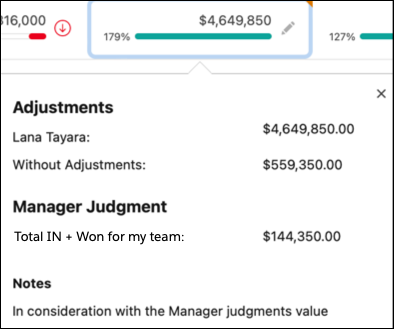
If Salesforce is configured to show adjustment details in columns, hover over the My Commit forecast to see the manager’s judgment Total IN value.
#### See Also
- [Who Can Adjust Pipeline Forecasts](https://help.salesforce.com/s/articleView?id=sales.forecasts3_adjustments_who.htm&release=264.0.0&type=5 "Forecast adjustments at the rollup level provide an assessment about the tpta; sales that the forecast owner feels confident to close during the forecast period. Your system settings and your place in the forecast hierarchy determines if you can view and make adjustments.")
# Archive a Plan in Salesforce Spiff
Keep the Plans page and Designer up to date and clutter-free when you archive past plans. Commission plans are often rebuilt at least one time a year, causing old versions of plans to pile up. Archiving plans hides them from view, but they’re still easily accessible.
### Required Editions
Available in: both Salesforce Classic (not available in all orgs) and Lightning Experience
Available in: Enterprise, Unlimited, and Developer Editions
Available for an additional cost in: Professional Edition with Web Services API Enabled
1. In Designer, click the three dots next to the plan name.
2. Select **Archive Plan**.
The plan appears under Archived Plans at the bottom of the left panel.
If reps are still assigned to an archived plan, the plan and rules appear on their statement every period. To change effective dates on an archived plan, unarchive it.
# Archive a Territory Model
Archiving a territory model deactivates it, but the model remains in your territory model list. From this list, you can reference the model’s associated assignment rules and the resulting account-to-territory assignments generated by the rules. You can archive a model only if it’s in the Active state. After archiving a model, you can’t return it to the Active state or the Planning state.
### Required Editions
Available in: Salesforce Classic for some features and Lightning Experience for all features
Available in: Performance and Developer Editions and in Enterprise and Unlimited Editions with Sales
User
Permissions Needed
To archive a territory model:
Manage Territories AND View Setup and Configuration

Warning When you archive a territory model, Salesforce deletes your territory forecasts, forecast types, quotas, and adjustments. After you activate another territory model, you must re-create territory forecast types for it. Before you archive a territory model, consider these options.
- Run the opportunity territory assignment filter, and then take screenshots of the forecasts page.
- Create a [snapshot](https://help.salesforce.com/articleView?id=data_defining_analytic_snap.htm&language=en_US). The snapshot is not deleted as part of the archiving process.
- Export your forecasting records, including forecasting items, facts, quotas, and adjustments.
When you archive a territory model, Salesforce also deletes data related to sharing and group associations by territory. To retain this data, export the related records before you archive the territory model.
While it’s not required, we recommend that you update the territories on opportunity splits and opportunity product splits after you archive the model and activate a new one. Perform this update with the [filter-based opportunity territory assignment tool](https://help.salesforce.com/s/articleView?id=sales.tm2_enable_ota.htm&type=5&language=en_US), or reassign territories manually or by using Data Loader.
If you’ve enabled deferred [group membership calculation](https://help.salesforce.com/articleView?id=security_sharing_group_membership_calculations.htm&language=en_US), we recommend suspending it to avoid issues with group membership cleanup during territory model archival. You can re-enable deferred group membership calculation after archival is completed.
1. From Setup, enter Territory Models in the Quick Find box, then select **Territory Models**.
2. Open your active territory model.
3. Click **Archive**, and then click **Archive Territory Model** to confirm.
The model state changes to Archiving while Salesforce processes your request. When processing is complete, the model state changes to Archived, and you receive a confirmation via email. This process can take some time, depending on the size and complexity of your organization.
#### See Also
- [How Do Permissions for Territories Affect Feature and Data Access?](https://help.salesforce.com/s/articleView?id=sales.tm2_how_access_permissions_work.htm&release=264.0.0&type=5 "Anticipate how permissions for Sales Territories affect administration and provide access to records and data.")
# Archive a User Account in Salesforce Spiff
Archived user accounts aren’t accessible through the Users table, global search, or statements on the main commission page.
### Required Editions
Available in: both Salesforce Classic (not available in all orgs) and Lightning Experience
Available in: Enterprise, Unlimited, and Developer Editions
Available for an additional cost in: Professional Edition with Web Services API Enabled
1. From the Admin menu, select **Users**.
2. Select the user whose account you want to archive in the Users table.
The user profile page is displayed.
3. Turn on **Edit**.
4. Turn off **Make this user visible**.
A popup will appear for you to confirm archiving the user account.
5. Click **Archive User** to confirm.
The **Keep this user's data synced** option is turned off automatically.
6. Click Save.
Data Syncing is turned off when a user account is archived.
# Archive Content with Trailmaker Release
You can remove published content from your enablement site by archiving it, which hides the content from learners but doesn’t delete it. You can later restore archived content.
### Required Editions
Available in: Enterprise, Performance, and Unlimited Editions
User Roles and
Permissions
Enablement Site User Roles
This topic supports these enablement site roles:
Release Managers
Required System Permissions
To create and manage releases with Trailmaker Release:
Manage Releases
Before you archive content, there are a few things to keep in mind:
- You can archive a trail but leave the individual modules published. The modules still appear on the modules index page on your enablement site, but the trail is hidden from the trails index page.
- If a learner earns a badge and the associated module is later archived, the learner doesn’t lose the badge or the associated points.
- If you archive all the modules in a trail, you must also archive the trail.
- If a learner earned points or badges from content that becomes archived, those points and badges remain attached to the learner’s profile, even after the archive operation is complete.
- Archive content as part of the process to [migrate content that’s already been published to a new content collection](https://help.salesforce.com/s/articleView?id=sales.mth_content_collections_migrate.htm&release=264.0.0&type=5 "You can move your company’s existing learning content from one content collection to another. For example, maybe your company previously published content under your enablement site’s single namespace before multiple content collections became available. And now, you want to move content to a content collection for a specific audience.").

Important To archive a trail and all the modules in it, add the content to a release in this order.
- First add the trail to the release.
- Then add each module to the same release.
To add the items that you want to archive, complete the steps in [Add Items to a Release from Trailmaker Release](https://help.salesforce.com/s/articleView?id=sales.mth_add_multiple_items_to_release_from_tm_release.htm&release=264.0.0&type=5 "You can add one or more items to a release from Trailmaker Release. Manually add items one at a time, or upload a CSV file that includes the full list of changes to process in the release. You can include up to 1,000 items in a release."). Be sure to specify the Archive operation for each item.
After you publish the release, the content is archived.
#### See Also
- [Restore Archived Content with Trailmaker Release](https://help.salesforce.com/s/articleView?id=sales.mth_restore_archived_content_with_tm_release.htm&release=264.0.0&type=5 "You can restore hidden content that you previously archived on your enablement site.")
- [Add Content to a Release from Trailmaker Content](https://help.salesforce.com/s/articleView?id=sales.mth_add_content_to_release_from_tm_content.htm&release=264.0.0&type=5 "After you create your module and quizzes and assign all the necessary metadata, add the content to a release.")
- [Publish Content with Trailmaker Release](https://help.salesforce.com/s/articleView?id=sales.mth_publish_content_with_tm_release.htm&release=264.0.0&type=5 "After you test, proofread, and validate your content, you can publish the release's new or changed content to your enablement site.")
- [Migrate Published Content to a Different Content Collection](https://help.salesforce.com/s/articleView?id=sales.mth_content_collections_migrate.htm&release=264.0.0&type=5 "You can move your company’s existing learning content from one content collection to another. For example, maybe your company previously published content under your enablement site’s single namespace before multiple content collections became available. And now, you want to move content to a content collection for a specific audience.")
# Archiving Synced Salesforce Records in Salesforce Spiff
When you use the Salesforce connector in Salesforce Spiff but records aren't available for syncing in Salesforce, Spiff archives the records. Archived records are soft-deleted and hidden from view, but you can restore them.
### Required Editions
Available in: both Salesforce Classic (not available in all orgs) and Lightning Experience
Available in: Enterprise, Unlimited, and Developer Editions
Available for an additional cost in: Professional Edition with Web Services API Enabled
If the Salesforce API doesn’t return a record in a request during a sync, Spiff determines that the record no longer exists and must be archived. However, frozen statements require that records exist in Spiff even if the corresponding records were deleted in Salesforce.
Each record in Spiff has a field called soft\_deleted. When this field is `true`, the record is considered archived. When this field is `false`, the record is active. Spiff sets that value during a sync.
In the Data Sources page, the Archived column includes an option, Show Archived Records, that's off by default. When this option is turned on, archived records appear in your list of records and are searchable.
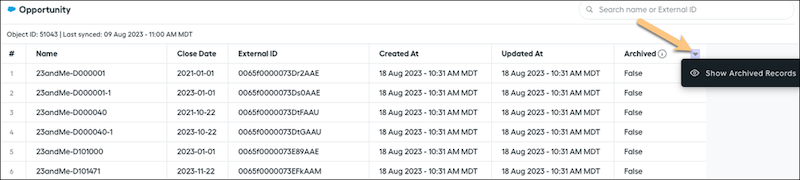
You can also manually archive imported records.
#### See Also
- [Imported Data in Salesforce Spiff](https://help.salesforce.com/s/articleView?id=sales.spiff_import.htm&release=264.0.0&type=5 "You can manually import data into Salesforce Spiff, in addition to data synced from external sources, such as Salesforce. You can view your imported data in Data Sources and Designer.")
# Archiving User Accounts in Salesforce Spiff
After you archive a user account, it’s hidden from Spiff. If you ever must assign this account to a new team or project, it won’t be available. You can unarchive the user account if needed.
### Required Editions
Available in: both Salesforce Classic (not available in all orgs) and Lightning Experience
Available in: Enterprise, Unlimited, and Developer Editions
Available for an additional cost in: Professional Edition with Web Services API Enabled
Archiving a user account effectively hides the user account in Spiff. If you want to add this user account to a new team or plan assignments, it’ll no longer be available. However, archiving a user account won’t automatically remove them from preexisting teams or plan assignments. Therefore, you can add an effective date range to any plan or team assignments to remove this user account from any current configurations.
## Statement and Statement Approvals
Archiving a user account won’t impact statements irrespective of whether they’re frozen or unfrozen. The only way to hide statements for a user account is through effective dating on the corresponding plan assignment. If statement approvals have been used, they’ll stay in the Spiff system for the archived user accounts. Any previous documents and their approval status will remain in the Spiff system to keep previous records intact.
## Reports
Reports are usually linked to the plan, payout rules, and team assignment. Even if a user account is archived, its data will still be included in reports according to the effective assignment dates on a team or plan assignment. However, if the user account is outside the effective date range of a plan or team assignment, its data won’t be included in reporting, even if it is still syncing into Spiff. The only exception is when a report is filtered by rep. In this case, the archived user account won’t be included in the report’s data, as it can no longer be selected in the rep filter.
- **[Archive a User Account in Salesforce Spiff](https://help.salesforce.com/s/articleView?id=sales.spiff_users_accounts_archive.htm&release=264.0.0&type=5)**
Archived user accounts aren’t accessible through the Users table, global search, or statements on the main commission page.
- **[Unarchive a User Account in Salesforce Spiff](https://help.salesforce.com/s/articleView?id=sales.spiff_users_accounts_unarchive.htm&release=264.0.0&type=5)**
An archived account is hidden from display in Spiff. To unarchive a user account, you must first unhide the User object.
#### See Also
- [Team Management in Salesforce Spiff](https://help.salesforce.com/s/articleView?id=sales.spiff_teams_management.htm&release=264.0.0&type=5 "Teams are an important component of commission plans. Sometimes team members receive commissions based on the entire team's performance, and managers receive commissions based on a team's performance, or even multiple teams. You can assign members to a team for a limited period by defining the start and end dates for the assignment. Teams can also be assigned team leads who can view the team members’ statements. When creating a variable for multiple plans, you can use custom fields in numerous plans and customize the value uniquely for each team.")
- [Reporting in Salesforce Spiff](https://help.salesforce.com/s/articleView?id=sales.spiff_report.htm&release=264.0.0&type=5 "Track and analyze sales commission data, trends, and performance with prebuilt Salesforce Spiff reports and dashboards. Or, integrate other sophisticated reporting tools such as Salesforce Data 360.")
- [Handle Plan Changes Through Effective Dates for Users](https://help.salesforce.com/s/articleView?id=sales.spiff_plans_changes.htm&release=264.0.0&type=5 "Control when users start and stop getting statements for a plan by adding effective dates. Statements are generated indefinitely if no effective dates are added. Keep up with plan changes by updating Effective Until dates when needed. Remove a user from a plan by adding an Effective Until date.")
# Artificial Intelligence and Sales Cloud
AI makes the sales process smarter at every step. Salesfore’s AI technology—Einstein—automates data entry and predictive analysis so you can make every selling moment count.
- **[Einstein Features in Sales](https://help.salesforce.com/s/articleView?id=sales.sales_core_artificial_intelligence.htm&release=264.0.0&type=5)**
Many Sales features use AI and machine learning. Review which features are best for you, and see the license requirements for each feature.
- **[Einstein and Data Usage in Sales Features](https://help.salesforce.com/s/articleView?id=sales.sales_einstein_features_data_usage.htm&release=264.0.0&type=5)**
Einstein is built on data. Review this table to understand the type of data used by Einstein features in Sales.
- **[Set Up Einstein Opportunity Scoring for Sales Users](https://help.salesforce.com/s/articleView?id=sales.sales_ai_for_all_setup_overview.htm&release=264.0.0&type=5)**
Einstein Opportunity Scoring, which is part of the Sales Cloud Einstein product suite, is available to eligible customers at no extra cost. Turn on Einstein and we take care of the rest.
- **[Manage Sales Users’ Access to Einstein Features](https://help.salesforce.com/s/articleView?id=sales.sales_ai_for_all_setup_manage_users.htm&release=264.0.0&type=5)**
Einstein Opportunity Scoring, which is part of the Sales Cloud Einstein product suite, is available to eligible customers at no extra cost. Access is available through the Sales Cloud Einstein For Everyone permission set. Review who has access to the permission set, what’s included, and how to manage user assignments.
#### See Also
- [Agentforce for Sales](https://help.salesforce.com/s/articleView?id=sales.sales_cloud_agents.htm&language=en_US)
# Asset Engagement Reports for Sales Engagement
These standard reports help measure the effectiveness of cadences, cadence steps, call scripts, and email templates.
### Required Editions
Available in: Lightning Experience
Available with Sales Engagement, which is included with Sales in Performance, Einstein 1, and Unlimited Editions, and available for an extra cost in Professional and Enterprise Editions. Sales Engagement is also available for an extra cost in Service and Lightning Platform.
## Cadence Engagement
This report shows which cadence and which outreach step is the most effective for each type of prospect engagement, such as total calls or email delivery rate.
Folder
Sample Sales Reports
Report Type
Cadences & Steps
Insights
Which cadence results in the best target engagement?
Which specific steps result in the best target engagement?
Key Data Points
Cadence name, step name, and historical engagement details for emails and calls
## Cadence and Step Engagement by Month
This report shows which cadence and which outreach step is the most effective for each type of prospect engagement, such as total calls or email delivery rate over time, by month.
Which email template results in the best target engagement, by month?
Key Data Points
Total sent, delivered, total opened emails
Total hard and soft bounces with Bounce Management enabled
Total out of office, replies, and links clicked
Notes
Email Engagements come from customer interactions with emails sent through Lightning
Experience (minus case emails) or through Gmail/Outlook when Inbox is enabled.
## Call Script Engagement
This report shows how prospects responded to calls based on your call scripts. See exactly how many calls were successful.
Folder
Sample Sales Reports
Report Type
Call Script Engagement Report
Insights
Which call scripts generate the most engagement?
Key Data Points
Total number of calls per call script, historically
How many calls resulted in meaningful connects, not interested, unqualified,
voicemails, call back later
## Call Script Engagement by Month
This report shows how prospects responded to calls based on your call scripts over time, by month. See exactly how many calls were successful.
How many calls resulted in meaningful connects, not interested, unqualified,
voicemails, call back later, over time
# Assign a Contributor Role in the Enablement Workspace
To manage content for exercises in Enablement programs, assign the Content Manager contributor role in the Enablement workspace in the Digital Experiences app.
### Required Editions
Available in: Lightning Experience
Enablement is available in Developer Edition with a limited number of add-ons. It is also available with Sales, Service, or the Salesforce Platform in: Enterprise, Performance, Unlimited, and Einstein 1 Sales Edition Editions for an additional cost
Enablement Lite is available with Sales in: Enterprise, Performance, and Unlimited Editions
Partner Enablement is available in Developer Edition with a limited number of add-ons. It is also available with Sales, Service, or the Salesforce Platform in: Enterprise, Performance, and Unlimited Editions for an additional cost. A supported PRM add-on license is required.
User Permissions Needed
To assign contributor roles
Content Admin contributor role in the Enablement workspace in Digital
Experiences
OR
System Administrator profile

Note Only the provisioned Enablement workspace supports content for exercises. Other workspaces that you create or already use in Digital Experiences aren’t compatible with Enablement programs.
Other contributor roles—Content Admin and Content Author—are available in the workspace. Because only published content can be used in Enablement programs, we recommend that you assign the Content Manager contributor role to all users who contribute to programs. This role provides the appropriate access for Enablement.

Tip If a user already has the Content Admin contributor role assigned, there’s no need to downgrade them to Content Manager.
Typically, the person assigned the Content Manager contributor role is the same person who’s assigned Enablement admin permissions. If a standard user has this contributor role but doesn’t have Enablement admin permissions, the user can only save drafts of content in the Digital Experiences app. They can’t publish content for use in a program, and they can’t add content directly from Program Builder.
To learn more about the requirements for creating content, see [Guidelines for Digital Experiences Content in Enablement Programs](https://help.salesforce.com/s/articleView?id=sales.enablement_content_guidelines.htm&release=264.0.0&type=5 "The Enablement workspace in the Digital Experiences app provides specific functionality for managing content used in Enablement program exercises. If your org already has Digital Experiences enabled, only the provisioned Enablement workspace supports content for Enablement programs.").
1. From the App Launcher, select **Digital Experiences**.
2. In the All CMS Workspaces section, select the **Enablement** workspace.
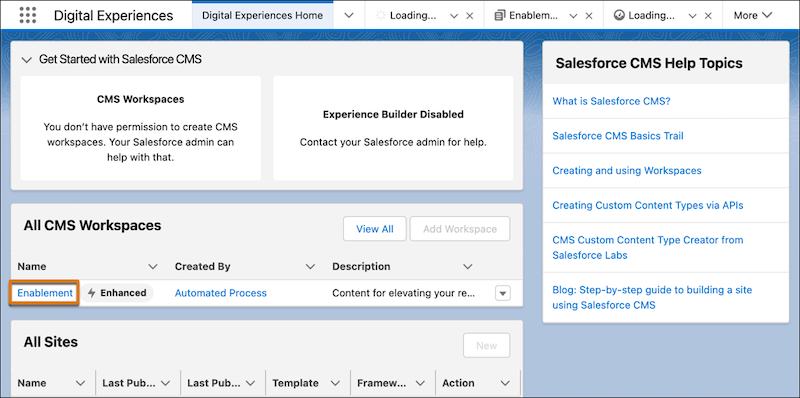
3. Click the workspace properties  icon, and select **Contributors** from the dropdown menu.
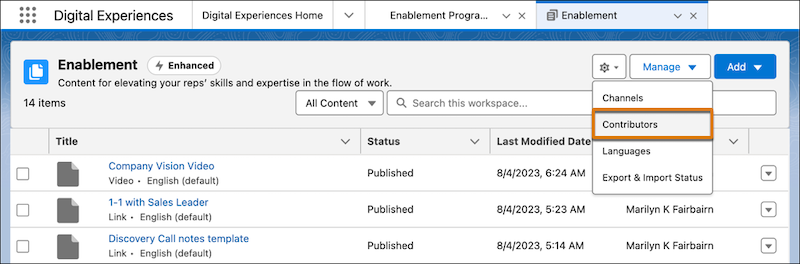
4. In the Contributors list, click **Add Contributors**.
5. Search for the users who can manage content for exercises in Enablement programs, and click the add  icon.
6. Click **Next**, select **Content Manager**, and click **Finish**.
#### See Also
- [Role-Based Access in Salesforce CMS](https://help.salesforce.com/s/articleView?id=xcloud.cms_access_control_overview.htm&language=en_US)
# Assign a Dialer Number
Assign a Dialer number from your personal settings so the calls you make and receive don’t appear to be coming from an unknown number.
### Required Editions
Available in: Lightning Experience
Available with Sales Cloud and Service Cloud in: Essentials,
Professional, Enterprise, Performance, and Unlimited
Editions
Sales Dialer is available for an additional cost as an add-on
license.
User Permissions Needed
To add the minutes related to Dialer calls:
Access Dialer Minutes
To make outbound Dialer calls:
Access Dialer Outbound Calls
To receive inbound Dialer calls:
Access Dialer Inbound Calls
To assign a Dialer number:
Access Dialer Inbound Calls

Important Sales Dialer is scheduled for retirement. No new features or enhancements are being added to Sales Dialer. Information regarding formal end-of-life for features is posted on [Salesforce Active Product & Feature Retirements](https://help.salesforce.com/s/articleView?id=000381744&type=1&language=en_US).
To use telephony features directly in Salesforce, we recommend that you modernize your experience by moving to Salesforce Voice. Salesforce Voice offers many of the telephony features that you love and more. See [Get to Know Salesforce Voice](https://help.salesforce.com/s/articleView?id=service.voice_getting_to_know.htm&language=en_US).

Note After assigning yourself a Dialer number, you can enter a unique custom number under **Phone Number Settings**. This allows you to display a separate number when making calls.
Inbound calls made to the custom number go directly to the mobile or business line, not through Sales Dialer.
1. From your personal settings, enter Dialer Settings in the Quick Find box, then select **Dialer Settings**.
2. Click **Find Now**.
3. Select your country and enter an area code to display a list of available numbers.
Phone numbers are subject to availability, and numbers from all area codes may not be available.
4. Select a number.
Once you assign yourself a number, you can’t choose a new one or view available numbers.
5. Click **Save**.
#### See Also
- [Guidelines for Making and Receiving Calls](https://help.salesforce.com/s/articleView?id=sales.voice_intro.htm&release=264.0.0&type=5 "Review guidelines for making and receiving calls, including basic calling features and tips on how to get started.")
- [Assign a Forwarding Number for Dialer](https://help.salesforce.com/s/articleView?id=sales.voice_forwarding_number.htm&release=264.0.0&type=5 "Get your Dialer calls forwarded to your mobile phone or main business line so you never miss a call. You can easily assign a forwarding number from your personal settings.")
- [Sales Dialer Best Practices](https://help.salesforce.com/s/articleView?id=sales.voice_best_practices.htm&release=264.0.0&type=5 "For the best calling experience, use a hardwired connection to your network with adequate bandwidth, use a wired headset, and set up the proper environment on your machine.")
# Assign a Forwarding Number for Dialer
Get your Dialer calls forwarded to your mobile phone or main business line so you never miss a call. You can easily assign a forwarding number from your personal settings.
### Required Editions
Available in: Lightning Experience
Available with Sales Cloud and Service Cloud in: Essentials,
Professional, Enterprise, Performance, and Unlimited
Editions
Sales Dialer is available for an additional cost as an add-on
license.
User Permissions Needed
To add the minutes related to Dialer calls:
Access Dialer Minutes
To make outbound Dialer calls:
Access Dialer Outbound Calls
To receive inbound Dialer calls:
Access Dialer Inbound Calls

Important Sales Dialer is scheduled for retirement. No new features or enhancements are being added to Sales Dialer. Information regarding formal end-of-life for features is posted on [Salesforce Active Product & Feature Retirements](https://help.salesforce.com/s/articleView?id=000381744&type=1&language=en_US).
To use telephony features directly in Salesforce, we recommend that you modernize your experience by moving to Salesforce Voice. Salesforce Voice offers many of the telephony features that you love and more. See [Get to Know Salesforce Voice](https://help.salesforce.com/s/articleView?id=service.voice_getting_to_know.htm&language=en_US).
When enabled, you receive calls simultaneously in your browser and on your forwarding number.
1. From your personal settings, enter Dialer Settings in the Quick Find box, then select **Dialer Settings**.
2. Select **Enable calls to my forwarding number**.
3. Enter your forwarding phone number.
4. Click **Save**.
#### See Also
- [Guidelines for Making and Receiving Calls](https://help.salesforce.com/s/articleView?id=sales.voice_intro.htm&release=264.0.0&type=5 "Review guidelines for making and receiving calls, including basic calling features and tips on how to get started.")
- [Assign a Dialer Number](https://help.salesforce.com/s/articleView?id=sales.voice_assign_number.htm&release=264.0.0&type=5 "Assign a Dialer number from your personal settings so the calls you make and receive don’t appear to be coming from an unknown number.")
- [Sales Dialer Best Practices](https://help.salesforce.com/s/articleView?id=sales.voice_best_practices.htm&release=264.0.0&type=5 "For the best calling experience, use a hardwired connection to your network with adequate bandwidth, use a wired headset, and set up the proper environment on your machine.")
# Assign a Payout Amount to a Payout Rule
The calculations for a payout rule come from a datasheet or worksheet, depending on the requirements of the rule.
### Required Editions
Available in: both Salesforce Classic (not available in all orgs) and Lightning Experience
Available in: Enterprise, Unlimited, and Developer Editions
Available for an additional cost in: Professional Edition with Web Services API Enabled
In a datasheet, you can select a data filter and create line-by-line calculations. Create datasheets at the top level or within a plan or folder. To create a datasheet within a specific location, click the three dots on the left panel and select **New Datasheet**.
1. From a commission plan in Designer, click Payout Amount on the payout rule.
2. Review and select the corresponding datasheet or worksheet and the payout amount calculation.
#### See Also
- [Create a Datasheet in Salesforce Spiff](https://help.salesforce.com/s/articleView?id=sales.spiff_datasheets_create.htm&release=264.0.0&type=5 "Analyze your data in new ways when you create and apply calculations to a specific set of filtered data.")
- [Create a Worksheet in Salesforce Spiff and Add a Calculation](https://help.salesforce.com/s/articleView?id=sales.spiff_worksheets_and_calculations_create_add.htm&release=264.0.0&type=5 "Define and manage sales compensation plans and determine the payouts based on those plans. Worksheets and calculations ensure that sales compensation is accurately and fairly distributed, aligning with the organization's goals and motivating the sales team.")
# Assign a WDC Administrator
Before enabling WDC in your organization, you must assign a WDC user feature license to the person who will be the system administrator and responsible for setting up WDC for your organization.
### Required Editions
Available in: Salesforce Classic
WDC is available for existing WDC customers in Professional Edition,
Enterprise Edition, Performance Edition, Unlimited Edition, and
Developer Edition.

Important Starting in Spring ’22, WDC isn’t available to new Salesforce customers. For existing customers, WDC features and records from Badges, Skills, and Thanks aren’t affected and will remain available in the application beyond Spring ’22. WDC Goals, Coaching, Feedback, Performance, and Rewards features won’t appear in the application anymore, and records created previously will no longer be accessible.

Note On May 1, 2020, we rebranded this suite. It's now called WDC.
User Permissions Needed
To assign a WDC administrator:
Customize Application
If you’re the administrator setting up WDC, assign the license to yourself.
1. From Setup, enter Users in the Quick Find box, then select **Users**.
2. Find the name of the person who will be the system administrator and click **Edit** next to their name.
3. In the right-hand column, select the **WDC User** checkbox.
4. Click **Save**.
We strongly recommend that you create a separate WDC Administrator profile with limited access because the standard Salesforce System Administrator profile is so powerful.
#### See Also
- [Enable WDC Features](https://help.salesforce.com/s/articleView?id=sales.workcom_impl_enable_prefs.htm&release=264.0.0&type=5 "Administrators can enable preferences for WDC features on the WDC Settings page.")
# Assign Account Teams to Territories
Ensure that team members get access to only the accounts that they’re responsible for when you assign members and select their roles within each territory area in Territory Planning. Then publish team assignments to accounts or to .csv files for importing into other systems.
### Required Editions
Available in: both Salesforce Classic (not available in all orgs) and Lightning Experience
Available in: Professional, Enterprise, Performance, Unlimited, and Developer Editions with Web Services API enabled
User Permissions Needed
To modify alignment options:
Sales Planning Ops Analyst permission set
AND
Query for Datapipelines User for Sales Planning permission set
AND
SF Maps Territory Planning for Sales Planning permission set
1. Open an alignment and set the focus.
2. In each territory, assign account team members and select their roles.
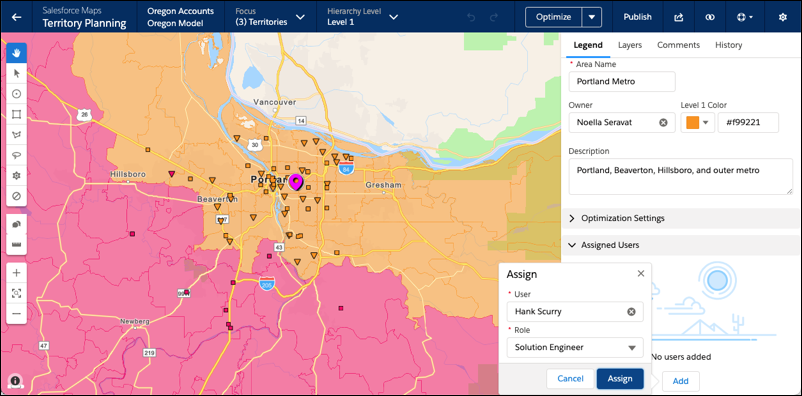
To assign account team members to multiple areas simultaneously, create a .csv file that includes those users and their roles. Then import the .csv file into the alignment.
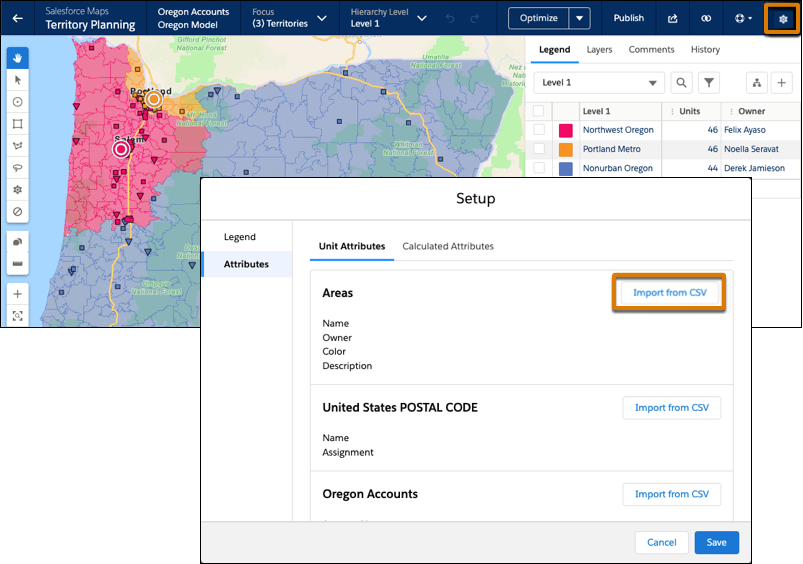
3. Save your changes.
4. To publish assignments to accounts in Salesforce, select the scope for what you’re publishing. Add the object **Assigned Users**, and then select the target object **Account Team Member**.
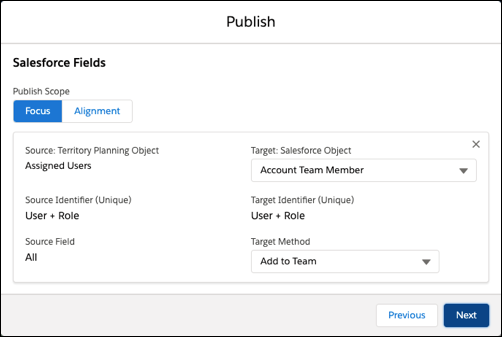
5. Select a target method for publishing team members to accounts, and then click **Next**.
| To... | Set the target method to... |
| --- | --- |
| Add roles and assigned team members to accounts while preserving established ones | Add |
| Overwrite all roles and assigned team members in accounts with the ones that you set in Territory Planning | Overwrite |
| Replace assigned team members using the role assignments that you set in Territory Planning | Replace |
6. Click **Publish**.
Team assignments appear on accounts within the alignment or focus that you published.
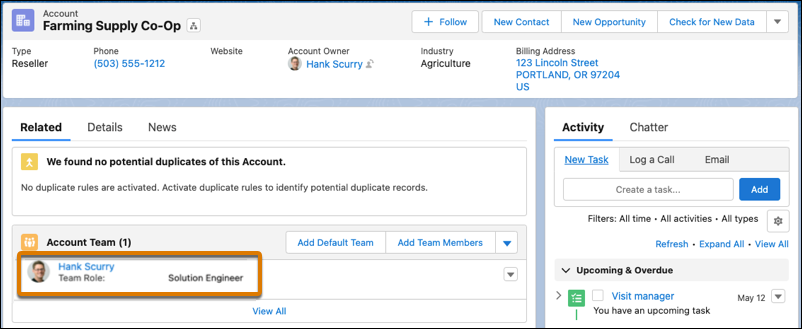
# Assign Accounts and Leads to Territories Manually
Ensure coverage for accounts and leads when you assign them territories directly in account and lead detail pages.
### Required Editions
Available in: Lightning Experience and Salesforce Classic
Available in: Developer and Performance Editions and in
Enterprise and Unlimited Editions with Sales
User Permissions Needed
To assign territories manually within accounts and leads:
View Setup and Configuration
AND
Manage Territories
To view territories from Active,
Planning, or Archived territory
models that are assigned:
View Setup and Configuration
AND
Manage Territories
To view territories assigned from the Active territory
model that are assigned:
View Setup and Configuration
1. Open the account or lead that you want to assign territories to.
2. On the Assigned Territories related list, click **Assign Territories**.
3. Select the territory model that contains the territories you want to associate. In Lightning Experience, only the active territory model is available.
4. Select each territory you want to assign.
5. Save your work.
#### See Also
- [How Do Permissions for Territories Affect Feature and Data Access?](https://help.salesforce.com/s/articleView?id=sales.tm2_how_access_permissions_work.htm&release=264.0.0&type=5 "Anticipate how permissions for Sales Territories affect administration and provide access to records and data.")
# Assign Accounts Directly to Territory Records
Control territory assignments for accounts that possess unique characteristics and therefore can’t be assigned by rules.
### Required Editions
Available in: Salesforce Classic for some features and Lightning Experience for all features
Available in: Performance and Developer Editions and in Enterprise and Unlimited Editions with Sales
User Permissions
Needed
To assign accounts manually within your territories:
View Setup and Configuration
AND
Manage Territories
1. From the territory model hierarchy, open the territory where you want to assign one or more accounts.
2. On the territory’s detail page, in the Manually Assigned Accounts related list, click **Add Accounts** to see a list of your accounts. You can adjust the list view.
3. In the Available related list, select the checkbox for each account you want to assign. To view more records, click **More** beneath the list.
Each selected account appears in the Selected related list.
4. Click **Assign**.
#### See Also
- [How Do Permissions for Territories Affect Feature and Data Access?](https://help.salesforce.com/s/articleView?id=sales.tm2_how_access_permissions_work.htm&release=264.0.0&type=5 "Anticipate how permissions for Sales Territories affect administration and provide access to records and data.")
# Assign an Integration User
Assign the integration user for the voice connector app. The signed-in user is assigned as the integration user, so consider creating a separate user dedicated to third-party integrations with Einstein Conversation Insights.
### Required Editions
Available in: Lightning Experience
Available in Einstein Conversation Insights, which is available in Starter, Pro, Enterprise, Performance, Unlimited, and Agentforce 1 Sales Editions
User Permissions Needed
To enable Einstein Conversation Insights:
Customize Application
An integration user is assigned the custom access necessary to complete integrations between ECI and your voice provider. It’s a Salesforce best practice to use a separate user for this purpose and to dedicate this user to this integration.
You likely created a dedicated integration user based on the guidelines in the connector-specific configuration guides. Use that user for this task.
1. From Setup, enter Users in the Quick Find box, and then select **Users**.
2. Make sure an ECI access permission set and the Conversation Insights Integration User permission set are assigned to the integration user. Assign the System Administrator profile. The user also needs **API Enabled** enabled and access to the Voice Call object.
For Amazon Connect, if you’re using a separate integration user for your Amazon Connect integration, this user also needs ECI access.
3. Log in as the integration user, and open the Voice Connector app.
4. From the Assign Your User as the Integration User step, click **Assign Integration User**.
# Assign and Verify Users to Schedule Meetings
Inbound Lead Generation enables prospects to schedule meetings with sales reps who have the required permissions.
### Required Editions
Available in: Lightning Experience
Available in: Enterprise, Performance, and Unlimited Editions
1. In Salesforce Go, open the Agentforce for Sales setup page, and then go to the Inbound Lead Generation section.
2. In the Assign and Verify Users for Meeting Scheduling step, click **Manage**.
3. In each tab, select the users that you want to assign the permission set to, and click **Assign**. Each permission set listed is required for Meeting Scheduling.
4. When you're finished, click **Done**.
# Assign Boundaries to Your Reps
Keep reps focused on the records that fall within the boundaries that they own. Assign boundaries such as countries, states, or postal codes to your reps in Legacy Sales Planning.
### Required Editions
Available in: both Salesforce Classic (not available in all orgs) and Lightning Experience
Available for an additional cost in: Enterprise, Performance, Unlimited, and Developer Editions with Sales Planning in English only, and only if you have Web Services API enabled
User Permissions Needed
To assign boundaries:
Data Pipelines Base User permission set license
Data Pipelines Base User permission
set
AND
Sales Planning permission set

Important
Feature is scheduled for retirement as of Summer'26. See [Sales Planning version 1 Retirement](https://help.salesforce.com/s/articleView?id=005224374&type=1&language=en_US)
1. Open your sales plan, and then click **Edit Plan** | **Assignment**.
2. If you haven’t yet added boundaries, click **Add** next to Boundaries and select the countries and boundaries that best align with your goals. Then click **Add**.
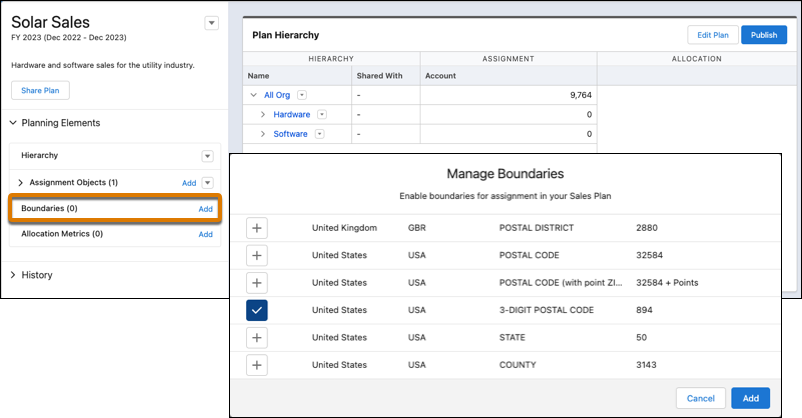
The number of boundaries you select in the next step can impact performance. If you plan to include more than 10 boundaries, test thoroughly for performance issues. For the best performance, select fewer than 10 boundaries.
3. Select the boundaries that you want to assign, and then click **Assign**.
The assignment panel appears.
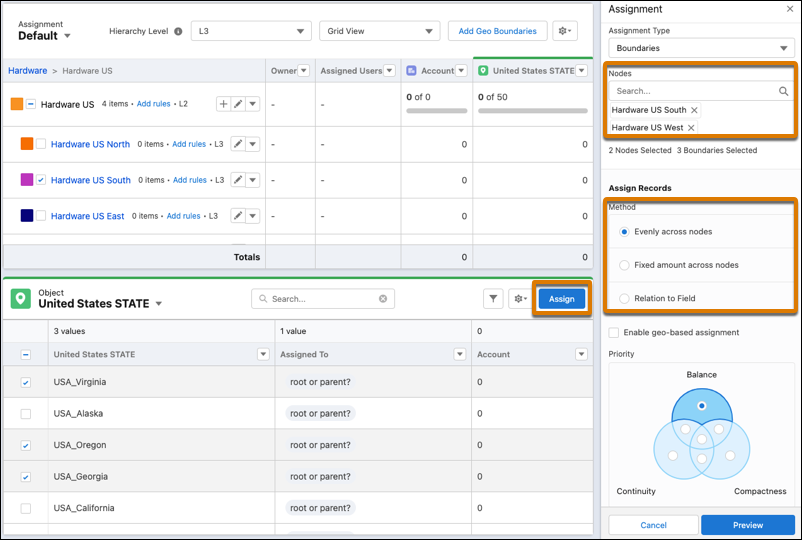
4. Select at least one node. If you select multiple nodes, specify the method and priority for assigning records.
5. Preview the assignments, and then click **Apply**.
Sales Planning assigns boundaries and the records within them to your reps.
#### See Also
- [Data Coverage for Salesforce Maps Products and Sales Planning](https://help.salesforce.com/s/articleView?id=sales.salesforce_maps_setup_reference_data_coverage.htm&type=5&language=en_US)
# Assign Conversation Insights Permission Sets
Assign the permission sets for Einstein Conversation Insights from Setup.
### Required Editions
Available in: Lightning Experience
Available in Einstein Conversation Insights, which is available in Starter, Pro, Enterprise, Performance, Unlimited, and Agentforce 1 Sales Editions
User Permissions
Needed
To enable Einstein Conversation Insights:
Customize Application
Calls placed before users are assigned ECI permission sets are not processed, and the recordings are not available on voice and video call records.
1. From Setup, enter Permission Sets in the Quick Find box, and then select **Permission Sets**.
2. Verify that the permission sets for Conversation Insights are available.
3. Click each permission set that you want to assign, and then click **Manage Assignments** to assign the permission set to users.

Note You can also assign permission sets per user. From Setup, enter Users in the Quick Find box, and then select **Users**. Click the name of individual users. In the Permission Set Assignments related list, click **Edit Assignments**.
We recommend that you make these assignments.
- If you’re using Sales Enterprise Edition, you can access 10 Einstein Conversation Insights Standard permission sets.
- If you have a Sales Engagement license, assign the Sales Engagement Conversation Insights permission set to Sales Engagement users who need access to sales insights.
- If you have an Enablement license, assign the Conversation Insights for Sales or Conversation Insights for Service permission set to these users:
- Enablement admins who want to incorporate ECI video calls into programs
- Enablement users who are assigned to programs that include ECI conversation outcomes or milestones
- If you have a Sales Unlimited or Sales Performance license, assign the Einstein Conversation Insights Included or Sales Cloud Included Bundle permission set to users who need access to sales insights. These permission sets can be assigned to the [Salesforce standard user license](https://help.salesforce.com/s/articleView?id=platform.users_license_types_available.htm&type=5&language=en_US) only.
- If you have standalone access:
- Assign the Conversation Insights for Sales permission set to non-Sales Engagement users who need access to sales insights.
- Assign the Conversation Insights for Service permission set to users who need access to service insights. This permission set is not supported for use with Aircall, Amazon Connect with Salesforce Voice, Dialpad, or RingCentral. (To use Amazon Connect with Salesforce Voice, assign the Conversation Insights for Sales permission set.)
- To edit voice call records, Sales Dialer or Salesforce Voice permissions are required. This includes the Dialer Outbound permission set for Sales Dialer, or the Salesforce Voice Contact Center Rep or Salesforce Voice Contact Center Admin permission sets for Service Cloud Voice.
#### See Also
- [Sales Programs and Partner Tracks with Enablement](https://help.salesforce.com/s/articleView?id=sales.enablement.htm&type=5&language=en_US)
# Assign Custom Email Application Panes for Outlook and Gmail to User Profiles
To get your reps up and running using a custom email application pane, activate the pane. Then assign your customized pane as the default for all users or specific user profiles.
### Required Editions
Available in: Salesforce Classic and Lightning Experience
Available with Sales Cloud, Service Cloud, and Lightning Platform in: Essentials, Group, Professional, Enterprise, Performance, Unlimited, and Developer Editions
User Permissions Needed
To customize the email application panes:
Customize Application
To create and save Lightning pages in the Lightning App Builder:
Customize Application

Note To see Inbox components in an email application pane, reps need an Inbox license, regardless of their user profile.
1. Navigate to your custom email pane.
- In Lightning Experience, from Setup, in the Quick Find box, enter Integration, and then select either **Outlook Integration and Sync** or **Gmail Integration and Sync**. Expand **Let users access Salesforce records**, and go to the Email Application Pane Assignments by Profile section.
- In Salesforce Classic, from Setup, in the Quick Find box, enter App Builder, and then select **New** under Lightning Pages. Select **Email Application Pane**. Follow the steps until you reach the design window.
2. Assign a custom pane as the new default, or select specific user profiles and follow the on-screen steps.
#### See Also
- [Build Email Applications Panes for Outlook and Gmail](https://help.salesforce.com/s/articleView?id=sales.email_int_setup_custom_pane_build.htm&release=264.0.0&type=5 "When you customize an email pane, you specify the Salesforce content and features that sales reps see in Microsoft® Outlook® and in Gmail™. To create custom panes, use the Lightning App Builder and add standard and custom components, including components from AppExchange.")
# Assign Einstein Activity Capture Permission to Partner Portal Users
To make sure that your partner portal users can connect their external calendars, assign them the required permission set and add them to a configuration.
### Required Editions
Available in: Lightning Experience
Available with Sales in: Professional, Enterprise, Performance, and Unlimited Editions with PartnerEAC add-on license
User Permissions
Needed
To assign permission sets:
Assign Permission Sets
To create permission sets:
Manage Profiles and Permission Sets
1. From Setup, enter Permission Sets in the Quick Find. Then, select **Permission Sets**.
2. Click the PartnerEACUser permission set.
3. Click **Manage Assignments** and assign the permission set to users.
#### See Also
- [Give Partner Portal Users Access to Einstein Activity Capture](https://help.salesforce.com/s/articleView?id=sales.eac_access_to_partner_users.htm&release=264.0.0&type=5 "To ensure that partner users can securely connect their external calendars and prevent access issues, assign them the right permission set.")
- [Configure Einstein Activity Capture for Partner Portal Users](https://help.salesforce.com/s/articleView?id=sales.eac_configure_eac_for_partner_users.htm&release=264.0.0&type=5 "Configure Einstein Activity Capture so partner portal users can connect their external calendars for appointment scheduling.")
- [Setup Considerations for Einstein Activity Capture for Partner Portal Users](https://help.salesforce.com/s/articleView?id=sales.eac_considerations_for_partner_users.htm&release=264.0.0&type=5 "Before setting up Einstein Activity Capture for partner users, review requirements, limitations, and other information about how it works.")
- [Calendar Sync for Partners](https://help.salesforce.com/s/articleView?id=xcloud.pc_calendar_sync_partners.htm&type=5&language=en_US)
# Assign Einstein Activity Capture to Sales Users
An Einstein Activity Capture permission set includes all the required permissions for access. Assign a permission set to users then, during setup, add users with permission to an Einstein Activity Capture configuration.
### Required Editions
Available in: Lightning Experience
Available with Sales in: Professional, Enterprise, Performance, and Unlimited Editions

Note We’re reorganizing the Einstein Activity Capture documentation. We’re moving some information around, but we aren’t deleting anything.
User Permissions
Needed
To assign permission sets:
Assign Permission Sets
To create permission sets:
Manage Profiles and Permission Sets
Sales Engagement (Premium) licenses provide access to Einstein Activity Capture permission sets. The Sales Engagement Basic User permission set doesn’t provide access to Einstein Activity Capture.
There are two permission sets for Einstein Activity Capture. Einstein Activity Capture Standard is available for 100 users. To grant access to more users, use the Standard Einstein Activity Capture (Additional User) permission set.

Important The Standard Einstein Activity Capture permission set is for users who don’t have a Sales Cloud Einstein, Inbox, or Sales Engagement license. Einstein Activity Capture Standard isn’t available for Salesforce Government Cloud customers.
1. From Setup, enter Permission Sets in the Quick Find. Then, select **Permission Sets**.
2. Click the Standard Einstein Activity Capture permission set.
3. Click **Manage Assignments** and assign the permission set to users.
Assigning the permission set is only part of giving users access. To connect their email and calendar accounts, users who don’t use Inbox must also be added to an active Einstein Activity Capture configuration. To add users to a configuration, see [Define Which Data to Capture Through an Einstein Activity Capture Configuration](https://help.salesforce.com/s/articleView?id=sales.aac_setup_create_configuration.htm&release=264.0.0&type=5 "Configurations determine which data gets captured and how it flows between Salesforce and your connected account. You create one configuration during the initial setup and you can add more to customize data capture and sync behavior for specific users or profiles. By default, Einstein Activity Capture syncs events and contacts bi-directionally, though you can edit these settings at any time.")
#### See Also
- [Assign a Permission Set License to a User](https://help.salesforce.com/s/articleView?id=platform.users_permissionset_licenses_assign.htm&type=5&language=en_US)
- [Set Up Einstein Activity Capture for Your Team](https://help.salesforce.com/s/articleView?id=sales.aac_setup_parent.htm&release=264.0.0&type=5 "Get your sales reps up and running with Einstein Activity Capture. Give users access to Einstein Activity Capture. Connect your company’s email and calendar application to Salesforce, and create a configuration that controls how data moves between applications. Define settings such as which data to exclude and how activities are shared. When you’re done configuring Einstein Activity Capture, your users have some setup to do, too.")
- [Differences Between Einstein Activity Capture Editions](https://help.salesforce.com/s/articleView?id=sales.aac_standard_differences.htm&release=264.0.0&type=5 "Einstein Activity Capture Standard is available for users who don’t have Performance or Unlimited editions or a Sales Cloud Einstein, Inbox, Sales Engagement, or Revenue Intelligence license. Einstein Activity Capture has a few differences depending on which version you use.")
# Assign Einstein Activity Capture User Permissions
Before your migrating users can use Einstein Activity Capture, they must have an Einstein Activity Capture user permission.
### Required Editions
User Permissions
Needed
To assign permission sets:
Assign Permission Sets
To create permission sets:
Manage Profiles and Permission Sets

Important Depending on the Salesforce licenses that your users have today, some users have the user permission already. For others, you must assign it manually. In some cases, additional licenses must be purchased. These considerations could impact when your users get access to Einstein Activity Capture features and sync. See [Considerations for Migrating to Einstein Activity Capture](https://help.salesforce.com/s/articleView?id=sales.lightning_sync_move_consider.htm&type=5&language=en_US).
Verify which users still need an Einstein Activity Capture permission assigned to them.
1. To see a complete list of users, go to the Configuration tab, and click **Download a list of Lightning Sync users**.
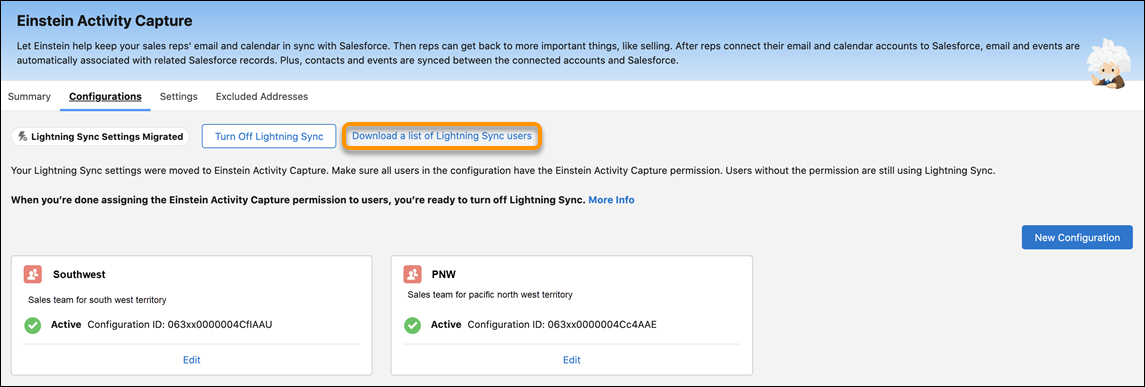
2. To see users by configuration, open the migrated configuration, and check the User assignments.
- Users who show \[Lightning Sync\] after their name must be assigned one of the Einstein Activity Capture user permissions. Those users are still using Lightning Sync.
- Users who show \[Einstein Activity Capture\] after their name are already assigned one of the user permissions. These users are already syncing using Einstein Activity Capture, and they have access to Einstein Activity Capture features that were added to their configurations.
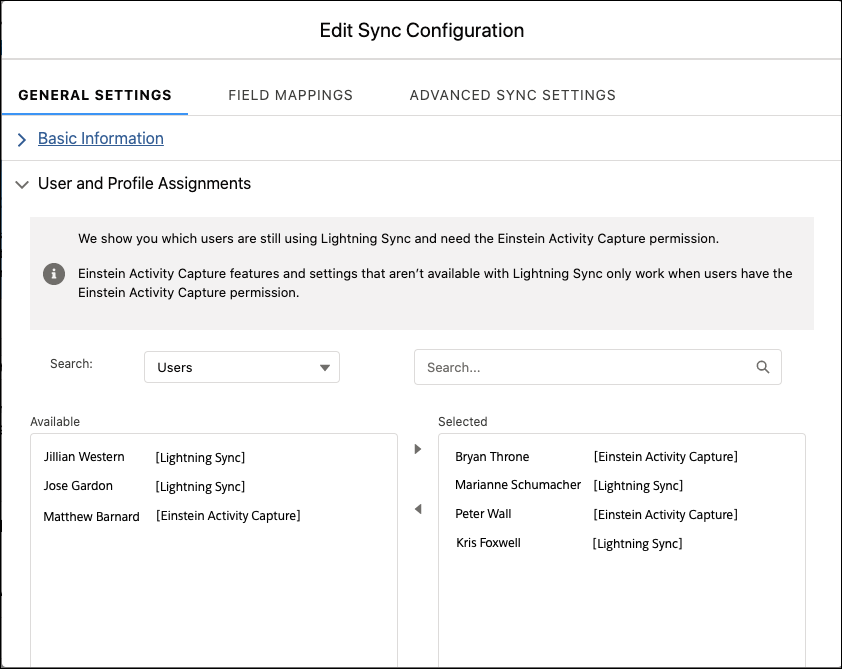
3. Obtain the necessary [Einstein Activity Capture user permissions](https://help.salesforce.com/s/articleView?id=sales.lightning_sync_move_perms.htm&type=5&language=en_US), if you haven’t already.
4. Assign Einstein Activity Capture user permissions to the users who need it. See [Select Who Can Use Einstein Activity Capture](https://help.salesforce.com/articleView?id=sales.aac_setup_select_users.htm&type=5&language=en_US).
# Assign Email Application Publisher Layouts to User Profiles
Enterprise, Performance, Unlimited, and Developer Editions let you customize the action menus for Outlook or Gmail using email application publisher layouts. After you’ve created the email application publisher layout, give your users access by assigning it to their user profiles.
### Required Editions
Outlook integration and Gmail integration are available from both Salesforce Classic and Lightning Experience
Action menus are available in: All Editions
Customizable email application action menus are available in: Enterprise, Performance, Unlimited, and Developer Editions
User Permissions Needed
To create actions, customize, and assign email application action menus:
Customize Application
To view email application publisher layouts:
View Setup and Configuration

Important Starting in Summer ’21, the action menu is no longer available in the Salesforce for Outlook side panel. To let reps create records from Outlook, migrate your users to the Outlook Integration. See [Salesforce for Outlook Retirement](https://help.salesforce.com/articleView?id=000353024&language=en_US&mode=1&type=1).
If you’re working from Contact Manager, Group, or Professional Edition, assign global publisher layouts to user profiles. For all other editions, assign Email Application Publisher Layouts by following these steps.
1. From Setup, use the Quick Find box to search for settings for your email integration feature. Search for Outlook Integration or Gmail integration for those features.
2. Under Email Application Publisher Layouts, click **Publisher Layout Assignment** | **Edit Assignment**.
3. Select a user profile by clicking anywhere on its row in the table.
4. From the Publisher Layout to Use dropdown, select the layout that you want to assign to the profile.
5. Click **Save**.
# Assign Forecast Managers to Territories
Show rolled-up forecasts for a territory when you assign a forecast manager to the territory. Without a forecast manager assigned, a territory’s forecasts are based on the individual users assigned to the territory.
### Required Editions
User Permissions Needed
To assign a forecast manager to a territory:
View Setup and Configuration
AND
Manage Territories
Assigning forecast managers to territories is a separate process from [assigning forecast managers in the user role hierarchy for other forecast types](https://help.salesforce.com/s/articleView?id=sales.forecasts3_setting_up_your_forecasts_hierarchy.htm&type=5&language=en_US). To use role-based forecasts and territory-based forecasts simultaneously, make sure that you complete both processes.
Before you assign a forecast manager to a territory, make sure that the following are true.
- Your territory page layout includes the Forecast Manager field.
- The user you want to assign as a forecast manager is forecast-enabled.
- The user you want to assign as a forecast manager is assigned to the territory.
1. From Setup, in the Quick Find box, enter Territory Models, and then select **Territory Models**.
2. Click **View Hierarchy** next to your active territory model.
3. Click **Edit** next to the territory you want to assign a forecast manager.
4. In the Forecast Manager field, enter the user you want to assign as the forecast manager.
5. Save your changes.
6. Repeat these steps for each territory that requires a forecast manager.

Note The number of territories assigned to a forecast manager can impact performance. We recommend that you test thoroughly for performance issues, and if you observe any, reduce the number of territories per forecast manager.
#### See Also
- [How Do Permissions for Territories Affect Feature and Data Access?](https://help.salesforce.com/s/articleView?id=sales.tm2_how_access_permissions_work.htm&release=264.0.0&type=5 "Anticipate how permissions for Sales Territories affect administration and provide access to records and data.")
# Assign Groups of Records for Segmentation
Define an assignment strategy that groups records into right-sized business units in Legacy Sales Planning. For example, split records into groups of high-revenue accounts for your enterprise sales team and all others for your midmarket sales team.
### Required Editions
Available in: both Salesforce Classic (not available in all orgs) and Lightning Experience
Available for an additional cost in: Enterprise, Performance, Unlimited, and Developer Editions with Sales Planning in English only, and only if you have Web Services API enabled
User Permissions
Needed
To assign records using rule logic:
Data Pipelines Base User permission set license
Data Pipelines Base User
permission set
AND
Sales Planning permission set

Important
Feature is scheduled for retirement as of Summer'26. See [Sales Planning version 1 Retirement](https://help.salesforce.com/s/articleView?id=005224374&type=1&language=en_US)
1. Open your sales plan, and then click **Edit Plan** | **Assignment**.
2. Select the parent node that contains the child nodes for your assignments.
3. For the bucket to split, click **Split**. Specify the field and enter any values that you want to split. Then click **Split**. Create any other splits for your group that further help your segmentation efforts.
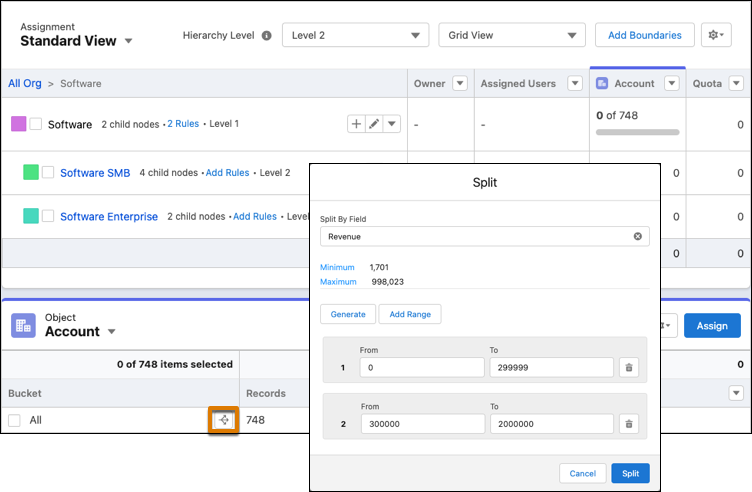
4. Select as many groups of records to assign, and then click **Assign**. Select the hierarchy nodes for assignment, and then preview the results.
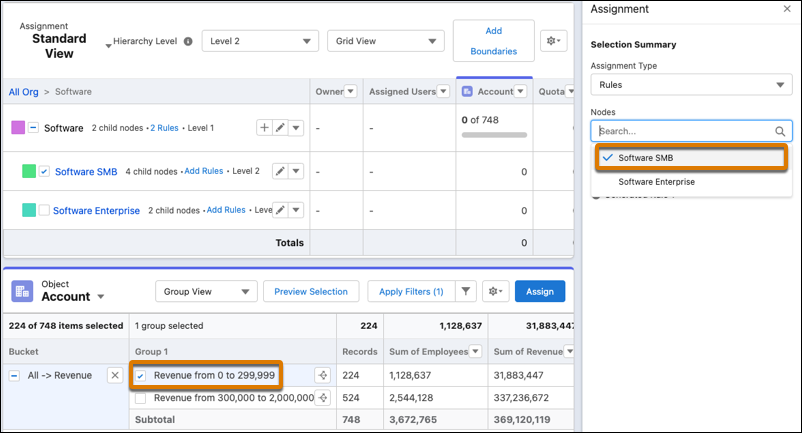
5. Apply your assignments.
Sales Planning creates rules based on the splits that you established and assigns records within your hierarchy based on those rules.
# Assign Licenses and Permissions for Legacy Sales Planning
Give teammates the authority to administer sales plans, manage sales plans, design territories, and edit or view specific areas so that they can participate in the end-to-end sales planning process.
### Required Editions
Available in: both Salesforce Classic (not available in all orgs) and Lightning Experience
Available for an additional cost in: Enterprise, Performance, Unlimited, and Developer Editions with Sales Planning in English only, and only if you have Web Services API enabled
User Permissions
Needed
To assign user permission sets:
Assign Permission Sets

Important
Feature is scheduled for retirement as of Summer'26. See [Sales Planning version 1 Retirement](https://help.salesforce.com/s/articleView?id=005224374&type=1&language=en_US)
1. Familiarize yourself with Sales Planning permission set licenses and permission sets in [Roles, Permissions, and Allocations](https://help.salesforce.com/s/articleView?id=sales.sales_planning_setup_prepare_permission_sets_considerations.htm&release=264.0.0&type=5 "Determine each team member’s level of authority based on their roles and responsibilities. And anticipate query allocations in Sales Planning.").
2. From Setup, in the Quick Find box, enter Users, and then select **Users**. Next, select a user that you want to grant access to Sales Planning.
3. In the Permission Set License Assignments section, click **Edit Assignments**.
4. Select permission set licenses that align with your teammate’s goal.
Permission Set License
What It Lets Your Teammate Do
Data Pipelines Base User
Or, Query for Datapipelines User
Administer and control sales plans.
Salesforce Maps Territory Planning
Design territory plans.
5. In the Permission Set Assignments section, click **Edit Assignments**.
6. Select permission sets that correspond with your selected permission set licenses. And select any permission sets for the disciplines that align with your teammate’s responsibilities, such as designing territories and developing plans for quota attainment.
| Permission Set | What It Lets Your Teammate Do |
| --- | --- |
| Sales Planning Admin | Administer Sales Planning and fully control sales plans. |
| Sales Planning Ops Manager | Fully control sales plans. |
| Sales Planning Ops Analyst | Edit or view specific areas within sales plans. |
| SF Maps Territory Planning for Sales Planning | Design territories within sales plans. |
| Quota Attainment Planning User | Develop strategic plans for attaining quota. |
7. Click **Add**, and then save your changes.
#### See Also
- [Enable Data Pipelines and Features](https://help.salesforce.com/s/articleView?id=xcloud.sdp_setup_enable.htm&type=5&language=en_US)
- [Data Pipelines Limits](https://help.salesforce.com/s/articleView?id=xcloud.sdp_limits.htm&type=5&language=en_US)
# Assign Licenses and Permissions for Sales Planning
Give teammates the authority to administer sales plans, manage sales plans, design territories, and edit or view specific areas so that they can participate in the end-to-end sales planning process.
### Required Editions
Available in: both Salesforce Classic (not available in all orgs) and Lightning Experience
Available for an additional cost in: Enterprise, Performance, Unlimited, and Developer Editions with Sales Planning in English only, and only if you have Web Services API enabled
User Permissions
Needed
To assign permission sets:
Assign Permission Sets
1. Familiarize yourself with Sales Planning permission set licenses and permission sets in [Roles, Permissions, and Allocations](https://help.salesforce.com/s/articleView?id=sales.sales_planning_setup_prepare_permission_sets_considerations.htm&release=264.0.0&type=5 "Determine each team member’s level of authority based on their roles and responsibilities. And anticipate query allocations in Sales Planning.").
2. From Setup, in the Quick Find box, enter Users, and then select **Users**. Next, select a user that you want to grant access to Sales Planning.
3. In the Permission Set License Assignments section, click **Edit Assignments**.
4. Select permission set licenses that align with your teammate’s goal.
Permission Set License
What It Lets Your Teammate Do
Data Pipelines Base User
Or, Query for Datapipelines User for Sales
Planning
Administer and control sales plans.
5. In the Permission Set Assignments section, click **Edit Assignments**.
6. Select permission sets that correspond with your selected permission set licenses. And select any permission sets for the disciplines that align with your teammate’s responsibilities, such as designing territories and developing plans for quota attainment.
| Permission Set | What It Lets Your Teammate Do |
| --- | --- |
| Sales Planning Admin | Administer Sales Planning and fully control sales plans. |
| Sales Planning Ops Manager | Create sales plans and edit sales plans that they’ve been invited to contribute to. |
| Sales Planning Ops Analyst | Edit sales plans and segments that they’ve been invited to contribute to. |
| SF Maps Territory Planning for Sales Planning | Design territories within sales plans. |
| Quota Attainment Planning User | Develop strategic plans for attaining quota. |
7. Click **Add**, and then save your changes.
#### See Also
- [Enable Data Pipelines and Features](https://help.salesforce.com/s/articleView?id=xcloud.sdp_setup_enable.htm&type=5&language=en_US)
- [Data Pipelines Limits](https://help.salesforce.com/s/articleView?id=xcloud.sdp_limits.htm&type=5&language=en_US)
# Assign Opportunities to Territories Manually
Distribute opportunities to the territories of your choice. Sales Territories ensures that the intended reps can work their deals and territory managers can access their rep’s opportunities.
### Required Editions
Available in: Salesforce Classic for some features and Lightning Experience for all features
Available in: Performance and Developer Editions and in Enterprise and Unlimited Editions with Sales
User Permissions Needed
To assign opportunities to any territory in the active model in Lightning
Experience:
Full access to the opportunities’ parent accounts
To assign opportunities to any territory in the active model in Salesforce
Classic:
View access or higher to the opportunities’ parent accounts
1. Open or create an opportunity.
2. In the Territory field, select the territory that you want to assign.
3. Save your changes.
#### See Also
- [How Do Permissions for Territories Affect Feature and Data Access?](https://help.salesforce.com/s/articleView?id=sales.tm2_how_access_permissions_work.htm&release=264.0.0&type=5 "Anticipate how permissions for Sales Territories affect administration and provide access to records and data.")
- [Requirements for Assigning Opportunities to Territories Manually](https://help.salesforce.com/s/articleView?id=sales.tm2_assign_territory_to_opportunity_considerations.htm&release=264.0.0&type=5 "Set your expectations for when you assign opportunities to territories manually through Sales Territories. Assignment options depend on your access to those opportunities’ parent records and your Salesforce user interface.")
# Assign Permission Set Licenses and Permission Sets
Enable the Maps permission set licenses on each user, and then assign the matching permission set so your users can access the Maps products you purchased.
### Required Editions
Available in: Lightning Experience and Salesforce Classic
Available in: Professional, Enterprise, Performance, Unlimited, and Developer Editions
User Permissions Needed
To assign permission set licenses and permission sets:
Assign Permission Sets
Each Maps license has a corresponding permission set. Assign the permission set that matches each license you enable for a user.
Maps Permission Set Licenses and Corresponding Permission Sets
| Permission Set License | Corresponding Permission Set |
| --- | --- |
| Salesforce Maps | SF Maps |
| Salesforce Maps Advanced | SF Maps Advanced |
| Salesforce Maps Community Logins | SF Maps Community Logins |
| Salesforce Maps Community Named User | SF Maps Community Named User |
1. From Setup, in the Quick Find box, enter Users, and then select **Users**.
2. Select the user that you want to grant access to.
3. In **Permission Set License Assignments**, click **Edit Assignments**, select the Salesforce Maps permission set licenses that you want, and save.
4. In **Permission Set Assignments**, click **Edit Assignments**, and select the permission sets that correspond to the licenses that you selected.
5. For users who administer Maps, also select the **Maps Admin** permission set.
6. Click **Add**, and save.
# Assign Permission Sets for Sales Engagement Users
Assign the permission sets for Sales Engagement. Also assign permission sets for optional features that are new to your Salesforce org, including Sales Dialer. You can also assign the permission set for full access to CRM Analytics dashboards.
### Required Editions
Available in: Lightning Experience
Available with Sales Engagement, which is included with Sales in Performance, Einstein 1, and Unlimited Editions, and available for an extra cost in Professional and Enterprise Editions. Sales Engagement is also available for an extra cost in Service and Lightning Platform.
User Permissions
Needed
To set up Sales Engagement:
Customize Application AND Modify All Data
1. From Setup, enter Permission Sets in the Quick Find box, and then select **Permission Sets**.
2. Verify that the Sales Engagement permission sets and other relevant permission sets are available.
- In Enterprise Edition, look for the Sales Engagement Cadence Creator, Sales Engagement Quick Cadence Creator, Sales Engagement User, and Sales Engagement Basic permissions.
- In Unlimited and Performance Editions, look for the Sales Engagement Cadence Creator Included, Sales Engagement Quick Cadence Creator, and Sales Engagement User Included permissions. These permissions can only be assigned to users with the Salesforce standard user license.
- In Professional Edition, look for the Sales Engagement Basic permission set.
Salesforce orgs using Sales Engagement also get three CRM Analytics for Sales Cloud Sales Engagement licenses.
If your company is using Lightning Dialer, also check for the Dialer Inbound, Dialer Outbound, and Dialer Minutes permission sets. If you want to use Einstein Conversation Insights, check for the Call Coaching User permission set.
3. Click each permission set you want to assign, and then click **Manage Assignments** to assign the permission set to users.

Note You can also assign permission sets per user. From Setup, enter Users in the Quick Find box, and then select **Users**. Click the name of individual users. In the Permission Set Assignments related list, click **Edit Assignments**.
We recommend that you make these assignments.
- Assign the Sales Engagement User or Sales Engagement User Included permission set to sales reps.
- Assign the Sales Engagement Cadence Creator or Sales Engagement Cadence Creator Included permission set to sales managers and reps who need to create cadences.

Note If you have assigned users a cloned or custom permission set created before Spring ’23, you may need to add the Create and Edit Standard Cadences permission to the permission set again in Spring ’23.
- Assign the Sales Engagement Quick Cadence Creator, Sales Engagement Cadence Creator, or Sales Engagement Cadence Creator Included permission set to sales managers and reps who need to create quick cadences.
- Assign the Automated Action User permission to users who need to build their own processes to manage cadence targets they own.
- Assign the three CRM Analytics for Sales Cloud Sales Engagement permission sets to users who need edit access to the Activities and Lead Scoring dashboards.
- If you’ve turned on Limit Who Can Change Target Assignees in Setup, assign the Change Cadence Target Assignees permission to users who need to change target assignees.
- Assign the Dialer permission sets to new Sales Dialer users.
- Assign the Sales Engagement Conversation Insights permission set to sales managers who need to use Einstein Conversation Insights.
- Assign the Sales Engagement Cadence Creator or Sales Engagement Cadence Creator Included permission set to users who need to create cadence folders. If they’ve been granted access, these users can edit folders shared with them and can manage other users’ access to the shared folder. These users can edit, and manage user access to, their private folders.
- Assign the Sales Engagement User or Sales Engagement User Included permission set to users who need to view shared cadence folders. If they’ve been granted access, these users can edit folders shared with them and can manage other users’ access to the shared folder. These users can’t create folders, and they can’t create or edit cadences.
- Assign the Sales Engagement Basic permission set to.users who will create quick cadences only.
If you have users who accessed Sales Engagement through an add-on license In Performance or Unlimited Edition before Summer ’22, we recommend that you assign those users to the Sales Engagement User Included or Sales Engagement Cadence Creator Included permission, or custom permission set that includes one of them. To make these assignments, add the new permissions to your users before removing the old permissions. Beginning in Summer ’22, you can’t add users to the older Sales Engagement User or Sales Engagement Cadence Creator permissions.

Note The Sales Engagement Cadence Creator (Enterprise Edition) and Sales Engagement Cadence Creator Included (Performance and Unlimited Editions) permission sets include all the permissions included with the Sales Engagement User (Enterprise Edition) and Sales Engagement User Included (Performance and Unlimited Editions) permission sets. There’s no need to apply both the Sales Engagement Cadence Creator and the Sales Engagement User permission sets to any single user.
If you’re making changes that apply to both types of users, make sure to update both permission sets.
# Assign Permissions for Enablement Site Users
All your users—release managers, content creators, and learners—need the appropriate user permissions to access the appropriate features and fulfill their roles. A Salesforce admin configures user permissions in Setup in Salesforce.
### Required Editions
Available in: Enterprise, Performance, and Unlimited Editions
User Roles
This topic supports these enablement site roles:
Salesforce Admins
- **[Enablement Site Permissions List](https://help.salesforce.com/s/articleView?id=sales.mth_permissions_list.htm&release=264.0.0&type=5)**
You can enable these system permissions on a permission set that uses the Sales Enablement (myTrailhead) permission set license.
- **[Enable Features for Different Publishing Roles](https://help.salesforce.com/s/articleView?id=sales.mth_create_assign_mytrailhead_perm_sets.htm&release=264.0.0&type=5)**
Ensure that your company’s content writers, publishers, and other stakeholders can access the features that are relevant to their specific roles. Create permission sets for the different publishing roles at your company, enable the permissions that correspond to the features they use, and assign the appropriate users.
- **[Allow Learners to Access Enablement Site Content Collections](https://help.salesforce.com/s/articleView?id=sales.mth_content_permissions.htm&release=264.0.0&type=5)**
Ensure that learners can access only the trails and modules that are relevant to their disciplines or job requirements. Create content collections for your different audiences, and then use permission sets to enable access to specific content collections. Only learners with permission to access a particular content collection can view and complete the trails and modules included in the collection.
- **[Considerations for Getting Started with Content Collections](https://help.salesforce.com/s/articleView?id=sales.mth_content_permissions_considerations.htm&release=264.0.0&type=5)**
Content collections provide flexibility for your company’s learning experience, but they also introduce complexity forenablement sites that have published content. If your company already has an enablement site, you can expand your learning experience by using content collections.
- **[Examples of Content Collections](https://help.salesforce.com/s/articleView?id=sales.mth_content_collections_examples.htm&release=264.0.0&type=5)**
Each company’s learning experience is different and supports unique groups of learners and a broad range of training and enablement requirements. Content collections can be simple or complex, depending on the size and learning requirements of your company. To help you generate ideas for fulfilling your company’s specific content strategy, explore examples of suggested content collection scenarios.
#### See Also
- [User Roles for an Enablement Site](https://help.salesforce.com/s/articleView?id=sales.mth_mytrailhead_roles.htm&release=264.0.0&type=5 "Users in different roles engage with your enablement site throughout the content lifecycle. Depending on your company’s size and available talent, users can perform more than one role.")
- [Enablement Site User Profile](https://help.salesforce.com/s/articleView?id=sales.mth_create_a_mytrailhead_user_profile.htm&release=264.0.0&type=5 "When a user logs in to your enablement site for the first time, the authentication provider that you configured determines whether the user must create a profile to access your site.")
- [Enable Features for Different Publishing Roles](https://help.salesforce.com/s/articleView?id=sales.mth_create_assign_mytrailhead_perm_sets.htm&release=264.0.0&type=5 "Ensure that your company’s content writers, publishers, and other stakeholders can access the features that are relevant to their specific roles. Create permission sets for the different publishing roles at your company, enable the permissions that correspond to the features they use, and assign the appropriate users.")
# Assign Permissions to Your Enablement Team
Assign permissions to Enablement team members and users for managing programs, managing content, and taking programs. Give access to Enablement admins to access objects and fields when creating measures. Some options and settings are different depending on whether you’re working with Enablement Lite, full Enablement, or Partner Enablement programs.
### Required Editions
Available in: Lightning Experience
Enablement is available in Developer Edition with a limited number of add-ons. It is also available with Sales, Service, or the Salesforce Platform in: Enterprise, Performance, Unlimited, and Einstein 1 Sales Edition Editions for an additional cost
Enablement Lite is available with Sales in: Enterprise, Performance, and Unlimited Editions
Partner Enablement is available in Developer Edition with a limited number of add-ons. It is also available with Sales, Service, or the Salesforce Platform in: Enterprise, Performance, and Unlimited Editions for an additional cost. A supported PRM add-on license is required.
User Permissions Needed
To assign permission set groups:
Assign Permission Sets
AND
View Setup and Configuration
To familiarize yourself with the appropriate permission set groups or default permission sets to assign, review the [list of default Enablement permission set groups, permission sets, and permissions](https://help.salesforce.com/s/articleView?id=sales.enablement_permissions.htm&release=264.0.0&type=5 "Enablement includes default permission set groups based on team member roles. The permission set groups include default permission sets based on tasks that people in those roles complete. The permission sets include individual user permissions and object permissions."). If you’re trying Enablement for free, [review the default permissions and sets included with Enablement Lite](https://help.salesforce.com/s/articleView?id=sales.enablement_lite_permissions.htm&release=264.0.0&type=5 "Default permission sets that use the Enablement Lite permission set license become available when you turn on Enablement Lite in Setup.").

Note Permission set group assignments are calculated and can take some time before they go into effect. See [Permission Set Group Status and Recalculation](https://help.salesforce.com/articleView?id=perm_set_groups_status_recalc.htm&language=en_US).
1. From Setup, in the Quick Find box, enter Enablement, and then select the page for the types of programs you’re creating.
- For full Enablement, select **Enablement Settings**.
- For Enablement Lite, select **Enablement Lite Settings**.
- For Partner Enablement, select **Partner Enablement Settings**.
2. Assign Enablement admin permissions to users who build, assign, and track Enablement programs.
- For Enablement Lite, assign the Manage Enablement Lite Essentials default permission set.
- For full Enablement, assign the Enablement Admin permission set group.
- For Partner Enablement, assign the Manage Enablement Essentials default permission set. For Partner Enablement programs, we recommend that you assign this permission set to both Enablement admins and site developers.
1. Scroll to the Assign Permissions for Enablement Admins step, and click **Go to Permission Set** or **Go to Permission Set Group**.
The permission set or permission set group opens in a new browser tab.
2. Click **Add Assignments**.
3. Search for the user that you want to add, and click **Assign**.
4. Close the browser tab, and return to Enablement Settings or Partner Enablement Settings.
3. For Partner Enablement programs only, repeat the previous step to assign the Manage Enablement Essentials default permission set to site developers. These permissions ensure that site developers can access Enablement objects when they add Enablement components and pages to supported Experience Cloud sites.
4. For full Enablement programs only, assign Enablement Resources Manager permissions. These users create assessment surveys for Feedback Request exercises and create prompts and walkthroughs in Lightning Experience for use outside of Enablement programs.
1. Scroll to the Assign Enablement Resources Managers step, and click **Go to Permission Set Group**.
The Enablement Resources Manager permission set group opens in a new browser tab.
2. Click **Add Assignments**.
3. Search for the user that you want to add, and click **Assign**.
4. Close the browser tab, and return to Enablement Settings.
5. Assign the Content Manager contributor role in the Enablement workspace in Digital Experiences to users who manage links, videos, and rich text for exercises. Complete the steps in [Assign a Contributor Role in the Enablement Workspace](https://help.salesforce.com/s/articleView?id=sales.enablement_content_contributor.htm&release=264.0.0&type=5 "To manage content for exercises in Enablement programs, assign the Content Manager contributor role in the Enablement workspace in the Digital Experiences app.").
6. For Partner Enablement programs only, assign In-App Guidance Manager permissions to users who create prompts and walkthroughs in supported Experience Cloud sites.
1. Scroll to the Assign In-App Guidance Managers in Experience Cloud Sites step, and click **Go to Permission Set**.
The Manage In-App Guidance for Partners permission set opens in a new tab.
2. Click **Add Assignments**.
3. Search for the user that you want to add, and click **Assign**.
4. Close the browser tab, and return to Partner Enablement Settings.
7. In the Let Enablement Admins Build Measures on All Objects and Fields step, optionally turn on **Allow build access for all objects and fields**. This option gives Enablement admins access to create measures for program outcomes and milestones using objects and fields that they can’t normally access.
When the setting is on, Enablement admins see the names of all objects, fields, and field values when creating a measure. Outside of Enablement, access to all objects and fields is still limited by object- and field-level security, including the ability to view associated data within records.
8. For full Enablement programs only, assign Manage Enablement Analytics permissions to sales leaders who can create, edit, delete, run, and view prebuilt Enablement reports and dashboard.
1. Scroll to the Assign Permissions for Viewing Analytics step, and click **Go to Permission Set** .
The Manage Enablement Analytics permission set opens in a new browser tab.
2. Click **Add Assignments**.
3. Search for the user that you want to add, and click **Assign**.
4. Close the browser tab, and return to Enablement Settings.
9. Assign Enablement user permissions to users who take Enablement programs.
- For Enablement Lite, assign the Use Enablement Lite Programs default permission set.
- For full Enablement, assign the Enablement User permission set group.
- For Partner Enablement, assign the Partner Enablement User permission set group.
1. Scroll to the Assign Permissions for Enablement Users step or Assign Permissions for Partner Enablement Users step, and click **Go to Permission Set** or **Go to Permission Set Group**.
The permission set or permission set group opens in a new browser tab.
2. Click **Add Assignments**.
3. Search for the user that you want to add, and click **Assign**.
4. Close the browser tab, and return to Enablement Settings or Partner Enablement Settings.
#### See Also
- [Considerations for Setting Up Enablement](https://help.salesforce.com/s/articleView?id=sales.enablement_setup_considerations.htm&release=264.0.0&type=5 "If you’re a Salesforce admin, review considerations about Enablement before setting up the product for your users.")
- [Enablement Lite Considerations and Limitations](https://help.salesforce.com/s/articleView?id=sales.enablement_lite_limits.htm&release=264.0.0&type=5 "Enablement Lite applies limits on programs and users and doesn’t include some related features like you get with full Enablement. Upgrading from Enablement Lite to full Enablement affects the permissions you assign and the analytics that your team is using to track program progress. After your full Enablement license expires, you won't be able to switch back to Enablement Lite.")
- [Set Up Einstein Conversation Insights for Enablement](https://help.salesforce.com/s/articleView?id=sales.enablement_setup_eci.htm&release=264.0.0&type=5 "In full Enablement programs, you can add conversation-based outcomes and milestones. To get started, set up Einstein Conversation Insights (ECI) for use with Enablement. The full Enablement add-on license includes ECI. If your Enablement team wants to influence users to say key phrases during their calls, set up and define custom ECI Call Insights. Setting up ECI is also a prerequisite for using Einstein Coach in Enablement programs to generate feedback for reps’ sales pitches.")
- [Enablement Team Roles and Responsibilities](https://help.salesforce.com/s/articleView?id=sales.enablement_roles.htm&release=264.0.0&type=5 "Multiple disciplines collaborate to define, build, and track Enablement programs. Identify colleagues who can take on these roles so that your Salesforce admin can assign permissions appropriately.")
- [Assign a Contributor Role in the Enablement Workspace](https://help.salesforce.com/s/articleView?id=sales.enablement_content_contributor.htm&release=264.0.0&type=5 "To manage content for exercises in Enablement programs, assign the Content Manager contributor role in the Enablement workspace in the Digital Experiences app.")
- [Manage Permission Set Assignments](https://help.salesforce.com/s/articleView?id=platform.perm_sets_manage_assignments.htm&language=en_US)
# Assign Prospects to a Different Sales Rep
If you want to reassign in-progress cadence targets to a different rep, update the target assignee without removing the target from the cadence.
### Required Editions
Available in: Lightning Experience
Available with Sales Engagement, which is included with Sales in Performance, Einstein 1, and Unlimited Editions, and available for an extra cost in Professional and Enterprise Editions. Sales Engagement is also available for an extra cost in Service and Lightning Platform.
User Permissions Needed
To change a target assignee:
Sales Engagement User or Sales Engagement User Included
OR
Sales Engagement Cadence Creator Included
OR
Modify All Data
To change target assignees, your Salesforce admin must turn on **Change Cadence Target Assignees** in Sales Engagement Setup.
1. From the Work Queue or the prospect’s lead, contact, or person account detail page, choose **Change Target Assignee** from the Actions menu.
2. Choose another Sales Engagement user with access to the cadence.

Note Changing the target assignee resets the due date for the current cadence step. Changing the assignee also cancels scheduled emails created by the previous assignee. To see this change in the Cadence Steps component, refresh the target’s detail page.
# Assign Prospects to an Engagement Agent Manually
In addition to using assignment rules in the Engagement agent settings in Agentforce Builder and automated actions, you can assign prospects you own to the SDR agent manually.
### Required Editions
Available in: Lightning Experience in Enterprise, Performance, and Unlimited editions with Sales and Einstein for Sales.
User Permissions Needed
To assign prospects to an Engagement agent:
Use Agentforce Engagement App
OR
Configure Engagement App
Watch the video to see how to assign prospects to an Engagement agent manually.
On the lead, contact, or person account detail page, choose **Assign to Agent** from the Action menu.
Before assigning a prospect to an agent, be sure its email address isn’t used by any other other lead, contact, or person account records.
# Assign Prospects to an Engagement Agent with a Flow
Agentforce Engagement includes an invocable action called Assign Target to SDR. With invocable actions, you can perform complex tasks in Salesforce just by calling the action. To assign prospects to an Engagement agent automatically, you can create a flow that calls this invocable action.
### Required Editions
Available in: Lightning Experience in Enterprise, Performance, and Unlimited editions with Sales and Einstein for Sales.
User Permissions Needed
To create a flow:
Manage Flows
Use Flow Builder to create your flow and call the Assign Target to SDR action from an Action element in the flow. Build a flow that assigns the prospects you want to an agent under the conditions you select.
When you call the invocable action, you include an agent ID and a list of prospect record IDs you want to assign to the agent. The action assigns the prospects and returns a list of the assignment successes and failures.
The action performs these steps:
- Confirms that the agent specified in the action call exists.
- Checks that the prospects meet the requirements for assignment to an Engagement agent.
- The list includes no more than 200 prospect records.
- The prospect record owners have the Use Engagement Agent or Configure Engagement Agent permission.
- The record owners have email and Inbox permissions.
- Checks for duplicate targets in the list and targets already assigned to an Engagement agent.
- Assigns the prospects to the agent, which includes adding them to the agent’s Sales Engagement cadence. The agent uses this cadence to orchestrate its email outreach and responses to prospects. The action assigns these cadence targets to the agent, or if the agent has Send as Seller turned on, to the prospect record owner.
To use the Assign Target to SDR action, you need:
- Agentforce Engagement turned on.
- The Salesforce user calling the action has one of these two permissions:
- Use Engagement Agent, plus ownership of the lead, contact, or person account.
- Configure Engagement Agent, plus read access to the lead, contact, or person account.
**Invocable Action Reference**
- **Label:** Assign Target to SDR
- **API name:** `assignTargetToSdr`
- **Category:** Agentforce SDR
- **Description:** Assigns a lead, contact, or person account record to an Engagement agent for email outreach.
- **Support for partial failures:** Yes. If you assign a list of targets and any fail validation, the system still assigns the other targets to the agent.
- **Bulk limit:** 200 targets per action call.
**Input Parameters**
- **Target ID (targetId)—required.** The ID of the contact, lead, or person account to assign. Person account IDs are converted automatically to their underlying contact record ID.
- **Bot Definition ID (botDefinitionId)—required.** The ID of the specific SDR bot definition (agent) to assign the target to.
**Output Parameters**
- **Error (errorMessage).** The error returned when an assignment fails. This field is empty for each prospect successfully assigned. In Flow Builder, map this output field to a variable so you can branch your flow if failures occur. In Apex, check the standard `isSuccess()` or `getErrors()` result of the invocable action call.
To add the invocable action to a flow:
1. In Flow Builder, click the plus icon where you want the action to run, and select Action from the **Add to Flow** menu, in the Interaction category. You can use the action in all types of flows.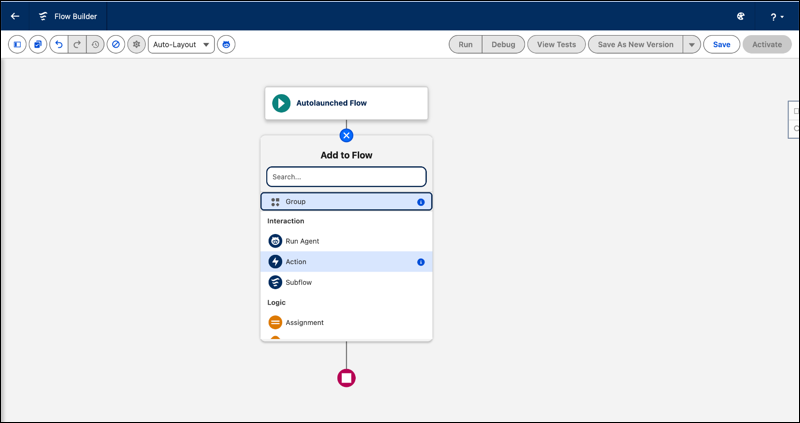
2. In the Action field, search for and select **Assign Target to SDR**. Remember not to select the similarly named Assign Target to Cadence action.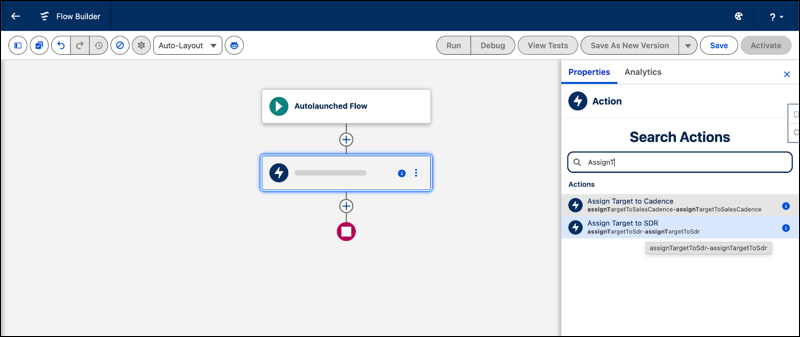
3. Set the input values: Target ID (required) and Bot Definition ID. Optionally, store the error output in a flow variable so you can handle any failures explicitly.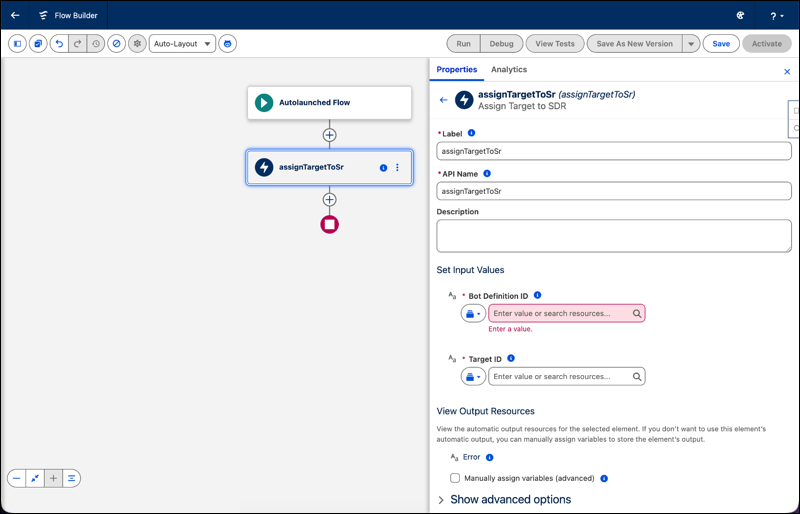
4. Save and activate the flow.
**Limits and Best Practices**
- Include up to 200 targets per call. Divide larger lists across multiple invocations.
- Avoid failures by ensuring each action call includes no duplicate target IDs.
- Always check the Error output (`isSuccess()` or `getErrors()` in Apex). Because the action doesn’t roll back upon errors, some records in a list can succeed while others fail.
#### See Also
- [../../../../../platform/help/en-us/platform\_automation/topics/flow/about/automate\_flow\_about.xml](https://help.salesforce.com/platform/help/en-us/platform_automation/topics/flow/about/automate_flow_about.xml)
- [../../../../../platform/help/en-us/platform\_automation/topics/flow/build/flow\_build.xml](https://help.salesforce.com/platform/help/en-us/platform_automation/topics/flow/build/flow_build.xml)
# Assign Prospects to an Engagement Agent with Automated Actions
Sales users can assign prospects to an Engagement agent with automated actions. Sales reps can create automated actions for prospects that they own and managers can create actions for prospects that any of their team members own.
### Required Editions
Available in: Lightning Experience in Enterprise, Performance, and Unlimited editions with Sales and Einstein for Sales.
User Permissions
Needed
To create automated actions:
Sales Engagement User
OR
Sales Engagement User
Included
OR
Sales Engagement Cadence Creator
OR
Sales
Engagement Cadence Creator Included
AND
Automated Action
User
To assign prospects you own to an Engagement agent with automated
actions:
Use Engagement App
OR
Configure Engagement
App
AND
Automated Actions User
Watch the video to see how to assign prospects to an Engagement agent with automated actions.
Your Salesforce admin can also assign prospects to the Engagement agent with rules set in the agent settings in Agentforce Builder. Those rules can apply to any prospect.
Agentforce Engagement includes an Assign Lead to SDR Agent automated action. It's set up to assign new leads with no activity to the agent. Users can find it on their Automated Actions page in the Sales or Sales Engagement apps.
For example, to create an automated action for assigning leads to an Engagement agent:
1. In the Sales or Sales Engagement app, click the **Automated Actions** tab.
2. Click **New**.
3. For Action, choose **Assign Target to SDR Agent**.
4. For Perform the action, choose **Automatically**.
5. For the Object, choose **Lead**.
6. Choose whether to perform the action when a lead record is created or when one is created or updated.
7. Choose the field conditions that you want to trigger the action.
8. Save your changes.
Before assigning prospects to an agent automatically, be sure their email addresses aren’t used by any other other lead, contact, or person account records.
# Assign Publisher Layout to Profiles
Assign the publisher layout with Thanks to user profiles. People with these profiles can thank their coworkers directly from the publisher.
### Required Editions
Available in: Salesforce Classic
WDC is available for existing WDC customers in Professional
Edition, Enterprise Edition, Performance Edition, Unlimited
Edition, and Developer Edition.

Important Starting in Spring ’22, WDC isn’t available to new Salesforce customers. For existing customers, WDC features and records from Badges, Skills, and Thanks aren’t affected and will remain available in the application beyond Spring ’22. WDC Goals, Coaching, Feedback, Performance, and Rewards features won’t appear in the application anymore, and records created previously will no longer be accessible.

Note On May 1, 2020, we rebranded this suite. It's now called WDC.
User Permissions Needed
To set up quick actions:
Customize Application
If not everyone in your organization should have this feature, create another layout without Thanks and assign it to a profile. People with that profile won’t see Thanks in their publisher.
1. From Setup, enter Publisher Layouts in the Quick Find box, then select **Publisher Layouts**.
2. Click **Publisher Layout Assignment**.
3. Click **Edit Assignment**.
4. Select a user profile by clicking anywhere on its row in the table.
5. From the Publisher Layout, select the global publisher layout that you want to assign to the highlighted profile.
6. Save the layout.
#### See Also
- [Thanks and Skills Features](https://help.salesforce.com/s/articleView?id=sales.workcom_impl_motivate_intro.htm&release=264.0.0&type=5 "Set up Thanks and Skills features by configuring thanks in the Chatter publisher and assigning a publisher layout to profiles.")
- [Configure Thanks in the Chatter Publisher and Salesforce Mobile App Action Bar](https://help.salesforce.com/s/articleView?id=sales.workcom_impl_thanks_publisher.htm&release=264.0.0&type=5 "You can change the position of the Thanks action in the Chatter publisher and the Salesforce mobile app action bar, or even hide Thanks for specific profiles.")
# Assign Records Automatically with Salesforce Maps
Auto Assignment assigns records to the appropriate user based on territory or proximity rules for a defined set of standard objects and custom objects.
### Required Editions
Available in: Lightning Experience and Salesforce Classic
Available in: Professional, Enterprise, Performance, Unlimited, and Developer Editions
Auto Assignment works with these standard objects, plus custom objects per your configuration:
- Account
- Asset
- Campaign
- Case
- Contact
- Lead
- Opportunity
- Work Order
To set up an assignment plan, see [Set Up Auto Assignment](https://help.salesforce.com/s/articleView?id=sales.salesforce_maps_setup_autoassignment_setup.htm&release=264.0.0&type=5 "Create an assignment plan with rules that route records to users based on geographic criteria.").
1. **[Set Up Auto Assignment in Salesforce Maps](https://help.salesforce.com/s/articleView?id=sales.salesforce_maps_setup_autoassignment_setup.htm&release=264.0.0&type=5)**
Create an assignment plan with rules that route records to users based on geographic criteria.
# Assign Reps to Lightning Sync Configurations
After configuring server settings, Salesforce admins can assign reps to a Lightning Sync configuration to get contacts or events to start syncing. Admins can assign individual reps or user profiles to add multiple users to configurations.
### Required Editions
Available to sync records from: Salesforce Classic, Lightning Experience, and the Salesforce mobile app
Available to set up from: Salesforce Classic and Lightning Experience
Available in: Professional, Enterprise, Performance, Unlimited, and Developer Editions with Sales Cloud, Service Cloud, and Lightning Platform
User Permissions Needed
To view Lightning Sync configurations:
View Setup and Configuration
To create, edit, or delete Lightning Sync configurations:
Manage Users
AND
Manage Lightning Sync
Before admins assign reps to Lightning Sync configurations, consider how that rep’s records sync if they’re already mentioned in another configuration:
- If you assign an individual user to two Lightning Sync configurations, the user is removed from the first configuration automatically and assigned to the new one.
- If you assign a user to two Lightning Sync configurations as both an individual user and as part of a profile, the user isn’t removed from either configuration. However, the user’s records sync according to the configuration that lists the user individually.
- If you assign a user to one Lightning Sync configuration and one Salesforce for Outlook configuration, the user is not removed from either configuration, but the user’s records will sync according to the Lightning Sync configuration.
Users observe the assignments you’ve created, added, or removed the next time Lightning Sync runs a sync cycle.
To assign a user to a Lightning Sync configuration,
1. From Setup, enter Sync in the Quick Find box, then select **Outlook Integration and Sync** or **Google Integration and Sync**.
2. Click **Let users sync contacts, events, or both between Microsoft Exchange and Salesforce** or **Let users sync contacts, events, or both between Google and Salesforce**.
3. From the Set Sync Settings and Check Status section, click **Go to Config**.
4. If you’re modifying a Lightning Sync configuration, click **Edit** next to the one that you want to modify. Otherwise, click **New Lightning Sync Configuration**, and then complete the required fields.
5. In the Assign Users and Profiles section, select either Profiles or Users in the Search drop-down list.
6. If you don’t see the member you want to add, enter keywords in the search box and click **Find**.
7. Select members from the Available Members box, and click **Add** to add them to the group. If all available users are assigned to this configuration, the Users list is empty and you can only assign profiles.
8. To remove members, select those members and click **Remove**.
9. Click **Save**.
#### See Also
- [How Salesforce Manages Sync Conflicts Between Products](https://help.salesforce.com/s/articleView?id=sales.exchange_sync_sfo_sync_conflict.htm&release=264.0.0&type=5 "Learn how Salesforce manages conflicts when users are assigned to configurations for multiple products such as Einstein Activity Capture, Lightning Sync, and Salesforce for Outlook.")
- [Lightning Sync Considerations for Companies With Multiple Salesforce Organizations](https://help.salesforce.com/s/articleView?id=sales.exchange_sync_admin_config_avoid_sync.htm&release=264.0.0&type=5 "If your company uses multiple Salesforce organizations, review these considerations to avoid sync issues and unsupported configurations.")
# Assign Salesforce Maps Routes to Non-User Objects
Extend desktop route management beyond individual user assignments by assigning routes to non-user objects, such as vehicles or trucks.
### Required Editions
Available in: Lightning Experience and Salesforce Classic
Available in: Professional, Enterprise, Performance, Unlimited, and Developer Editions
User Permissions Needed
To configure route objects:
Customize Application
1. From Setup, in the Quick Find box, enter Object Manager, and then select **Object Manager**.
2. Open the Maps Route object.
3. On the **Fields & Relationships** tab, create a Lookup field to the object that you want to assign routes to (for example, Vehicle).
4. Save the field.
5. Open Salesforce Maps.
6. On the **Routes** tab, click **New** and create a route.
7. In the search box, search for and select the non-user object.
8. Select the date that the route is scheduled for, and then click **Save**.
# Assign Setup Permissions for Agent Analytics
To enable the dashboard, assign specific permissions to Salesforce admins.
### Required Editions
Available in: Lightning Experience in Enterprise, Performance, and Unlimited editions with Sales and the Agentforce Engagement and Data 360 add-ons.
User Permissions
Needed
To assign user permissions:
Manage Users
1. In Setup, enter Users in the Quick Find box, and then click **Users**.
2. For each user who needs admin access to perform setup tasks, assign the Data Cloud Admin permission set.
# Assign Territories to Reps with Plan Assignments
If your sales reps are responsible for specific regions or territories, manage those responsibilities as part of plan assignments in Salesforce Spiff. Create a custom field that you reference in region data filter.
### Required Editions
Available in: both Salesforce Classic (not available in all orgs) and Lightning Experience
Available in: Enterprise, Unlimited, and Developer Editions
Available for an additional cost in: Professional Edition with Web Services API Enabled
User Permissions Needed
To create a custom field on a plan assignment:
A Spiff user role with these permissions turned on.
Designer Configuration: Manage
Plan Assignments: Edit
Global Custom Fields: Manage
1. Create a plan assignment custom field.
1. From the Admin menu, click **Settings**, and then click **Plan Assignments**.
2. Click **Add Custom Field**.
3. Enter a name and description.
4. For Field Type, select **Expression**.
5. Save your changes.
2. Populate the custom field in your plan assignments.
1. On the Plans tab, select a plan.
2. Click the pencil icon next to a rep and enter their region or regions, such as \["Region"\] or \["East", "West"\].
3. In a worksheet that's outside of the plan folders and is available to multiple plans, create a calculation named AssignedRegions that returns the list of regions from plan assignments.
```
=plan_assignment.Region
```
4. Create a data filter named ByRegion that filters that have a region or specified.
```
=contains(WorksheetName!AssignedRegions, Region)
```
# Assign Territory Roles to Users
Assign territory roles to identify the roles of users within territories.
### Required Editions
Available in: Salesforce Classic for some features and Lightning Experience for all features
Available in: Performance and Developer Editions and in Enterprise and Unlimited Editions with Sales
User Permissions Needed
To assign territory roles to users:
View Setup and Configuration
AND
Manage Territories
1. Make sure that you’ve created a [Role in Territory picklist](https://help.salesforce.com/s/articleView?id=sales.tm2_create_role_in_territory_picklist.htm&release=264.0.0&type=5 "Specify which roles apply to users assigned to territories. Roles appear in the Role in Territory picklist for territory models in Active and Planning states.") so you have some roles to select for users.
2. Open the record of the territory where you want to assign territory roles.
3. In the Assigned Users list, click **Edit** next to the name of a user to whom you’re assigning a territory role.
4. From the Role in Territory picklist, select the user’s territory role.
5. Click **Save**.
#### See Also
- [How Do Permissions for Territories Affect Feature and Data Access?](https://help.salesforce.com/s/articleView?id=sales.tm2_how_access_permissions_work.htm&release=264.0.0&type=5 "Anticipate how permissions for Sales Territories affect administration and provide access to records and data.")
# Assign the Dialer Permission Set to Users
Assign the Dialer licenses to users from Setup.
### Required Editions
Available in: Lightning Experience
Available with Sales Cloud and Service Cloud in: Essentials,
Professional, Enterprise, Performance, and Unlimited
Editions
Sales Dialer is available for an additional cost as an add-on
license.
User Permissions Needed
To assign permission sets:
Assign Permission Sets

Important Sales Dialer is scheduled for retirement. No new features or enhancements are being added to Sales Dialer. Information regarding formal end-of-life for features is posted on [Salesforce Active Product & Feature Retirements](https://help.salesforce.com/s/articleView?id=000381744&type=1&language=en_US).
To use telephony features directly in Salesforce, we recommend that you modernize your experience by moving to Salesforce Voice. Salesforce Voice offers many of the telephony features that you love and more. See [Get to Know Salesforce Voice](https://help.salesforce.com/s/articleView?id=service.voice_getting_to_know.htm&language=en_US).
Permission set groups aren’t supported for Dialer permissions. Assign Dialer and Call Monitoring permission sets without using permission set groups.
Dialer users can’t have Salesforce Voice permission sets or be part of a Salesforce call center.
1. From Setup, enter Users in the Quick Find box, then select **Users**.
2. Select a user.
3. In the Permission Set Assignments related list, click **Edit Assignments**.
4. Assign the Dialer Outbound and (if available) Dialer Inbound permission sets.
5. Click **Save**.
6. Repeat the process for other users you want to grant Dialer access to.
The number of permission sets you can assign is limited by the number of feature licenses you’ve purchased.

Note Assigning the permission set automatically assigns a corresponding permission set license. However, if you wish to remove Dialer licenses from a user, you need to remove both the permission set and the permission set license to make the feature licenses available to reassign.
# Assign the Forecast Manager Role
The forecasts hierarchy determines how forecasts roll up within your Salesforce org and who can view and adjust them. The forecast hierarchy is based on the user role hierarchy.
### Required Editions
Available in: Lightning Experience
Available in: Enterprise, Unlimited with Sales, and in Agentforce 1 Sales Edition
To make sure everyone can see their forecasts:
1. Set up your user role hierarchy.
2. Assign a forecast manager to the top level of the forecast hierarchy.
3. Verify that each manager with subordinates is designated as a forecast manager.
# Assign Units Based on Rules That You Define
Distribute accounts to reps based on their areas of responsibility, such as industry, annual revenue, and number of employees. Fine-tune assignment rules and their criteria from Salesforce territory models and create any other rules that matter for your sales and service leadership in Territory Planning.
### Required Editions
Available in: both Salesforce Classic (not available in all orgs) and Lightning Experience
Available in: Professional, Enterprise, Performance, Unlimited, and Developer Editions with Web Services API enabled
User Permissions Needed
To modify alignments:
Sales Planning Ops Analyst permission set
AND
Query for Datapipelines User for Sales Planning permission set
AND
SF Maps Territory Planning for Sales Planning permission set
1. Open an alignment whose units you want to assign using criteria in assignment rules.
2. Edit an area. In Assignment Rules, click **Add a Rule**, and then add criteria for assigning accounts to the area’s owner.
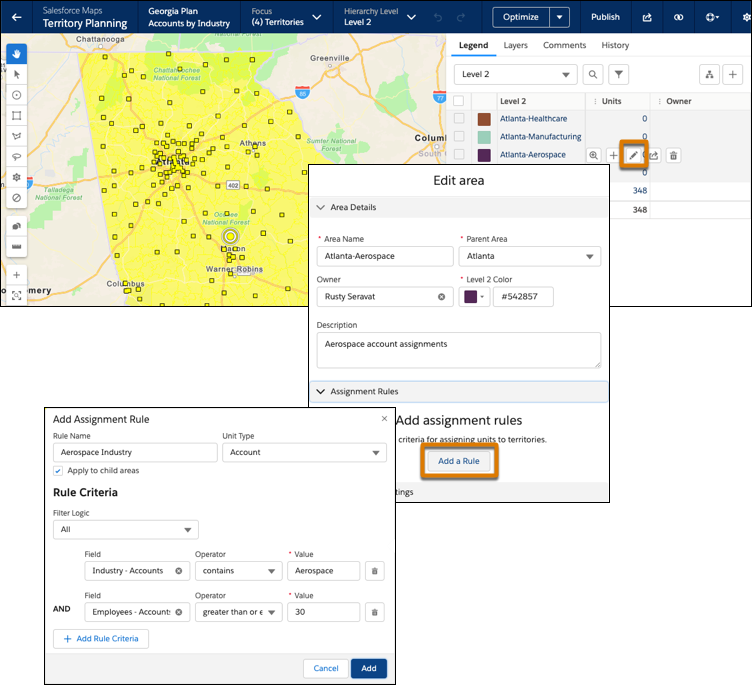
If you assign boundaries to areas, Territory Planning generates boundary rules, which appear as assignment rules. If you remove boundary assignments, you also remove their corresponding generated boundary rules.
3. Save your changes.
4. Add account rules and criteria for any other areas in the alignment.
Assignment rules distribute the units to areas based on the criteria that you set.
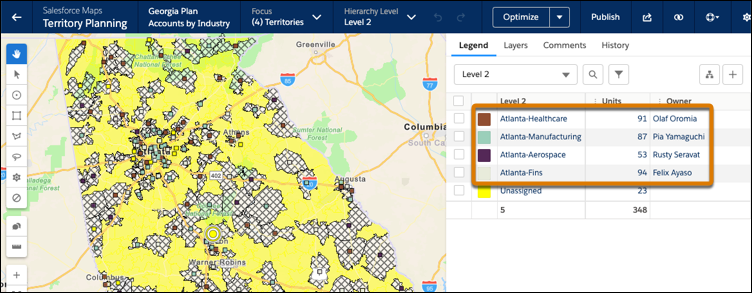
When you publish alignments to Sales Territories, you also publish your assignment rule updates and generated boundary rules for accounts.
# Assign Units to Territories Based on Metrics
Maximize your company’s unique products and services when you incorporate attributes into unit formulas in Territory Planning. Analyze territories using metrics that, for example, combine and weight fields so you can prioritize sales of one product over another. Then use those numbers to inform your sales plan and assign accounts to territories.
### Required Editions
Available in: both Salesforce Classic (not available in all orgs) and Lightning Experience
Available in: Professional, Enterprise, Performance, Unlimited, and Developer Editions with Web Services API enabled
User Permissions Needed
To modify alignments:
Sales Planning Ops Analyst permission set
AND
Query for Datapipelines User for Sales Planning permission set
AND
SF Maps Territory Planning for Sales Planning permission set
1. Open an alignment and set the focus.
2. In Settings, select **Attributes** | **Calculated Attributes**.
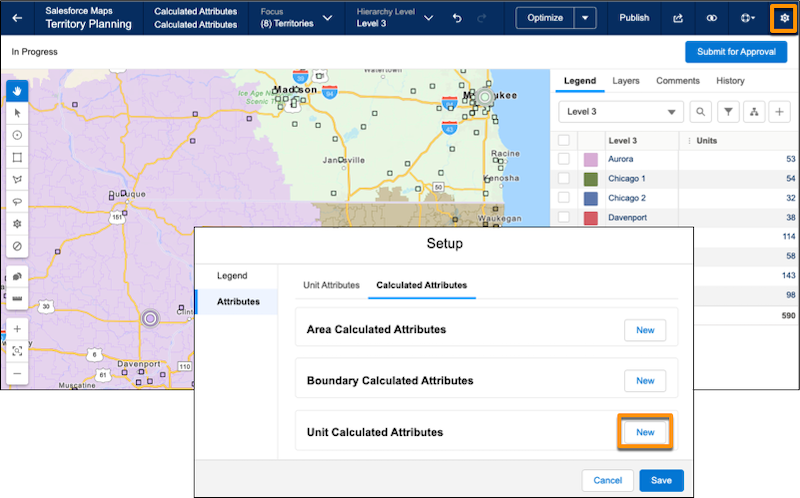
3. Click **New** next to the unit level.
4. Name your attribute.
5. Use the Attributes and Functions tabs to start building your formula. To add an aggregated attribute, select a value in Summarize Attribute. The value represents the aggregate for that attribute in the alignment. For example, selecting MIN for annual revenue references the minimum value for annual revenue in the alignment.
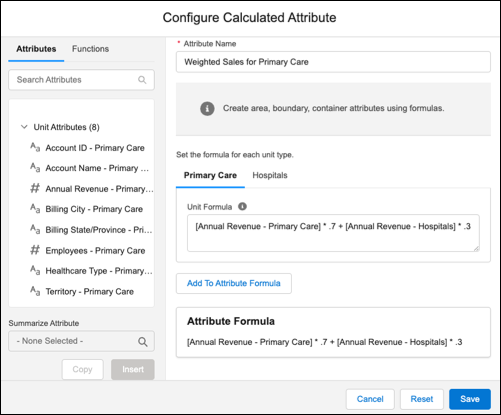
This example combines and weights annual revenue from primary care locations and hospitals. A medical equipment company has high revenue from successful hospital sales. The company wants reps to spend more time at primary care locations. So, to prioritize primary care sales over hospital sales, the formula weights primary care sales higher. Then, when you take the total of the calculated attributes by territory, territories with higher primary care sales rank better.
6. Click **Add to Attribute Formula**.
7. Save the formula.
8. Add columns for the calculated attribute to the legend.
9. Optimize the alignment based on the calculated attribute.
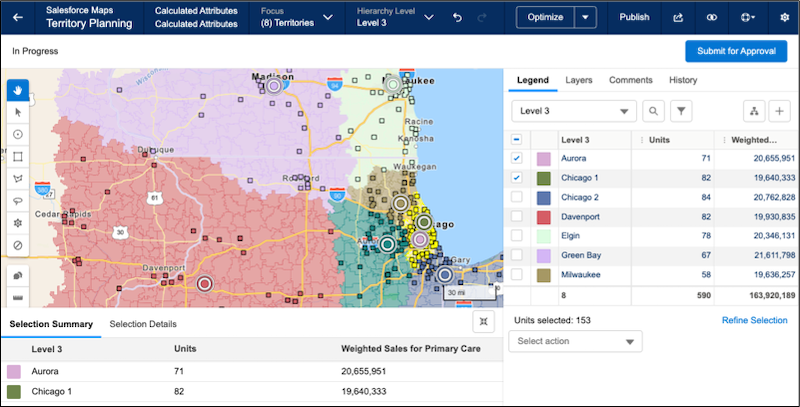
# Assign Units to Their Respective Areas
Ensure that every unit belongs to its rightful owner. Resolve assignment exceptions and inconsistencies in cross-hatched areas when you assign the units in them to their respective areas in Territory Planning.
### Required Editions
Available in: both Salesforce Classic (not available in all orgs) and Lightning Experience
Available in: Professional, Enterprise, Performance, Unlimited, and Developer Editions with Web Services API enabled
User
Permissions Needed
To modify alignment options:
Sales Planning Ops Analyst permission set
AND
Query for Datapipelines User for Sales Planning permission set
AND
SF Maps Territory Planning for Sales Planning permission set
After you open an alignment and set the focus, click a cross-hatched area. Select an option for assigning units in the cross-hatched area.
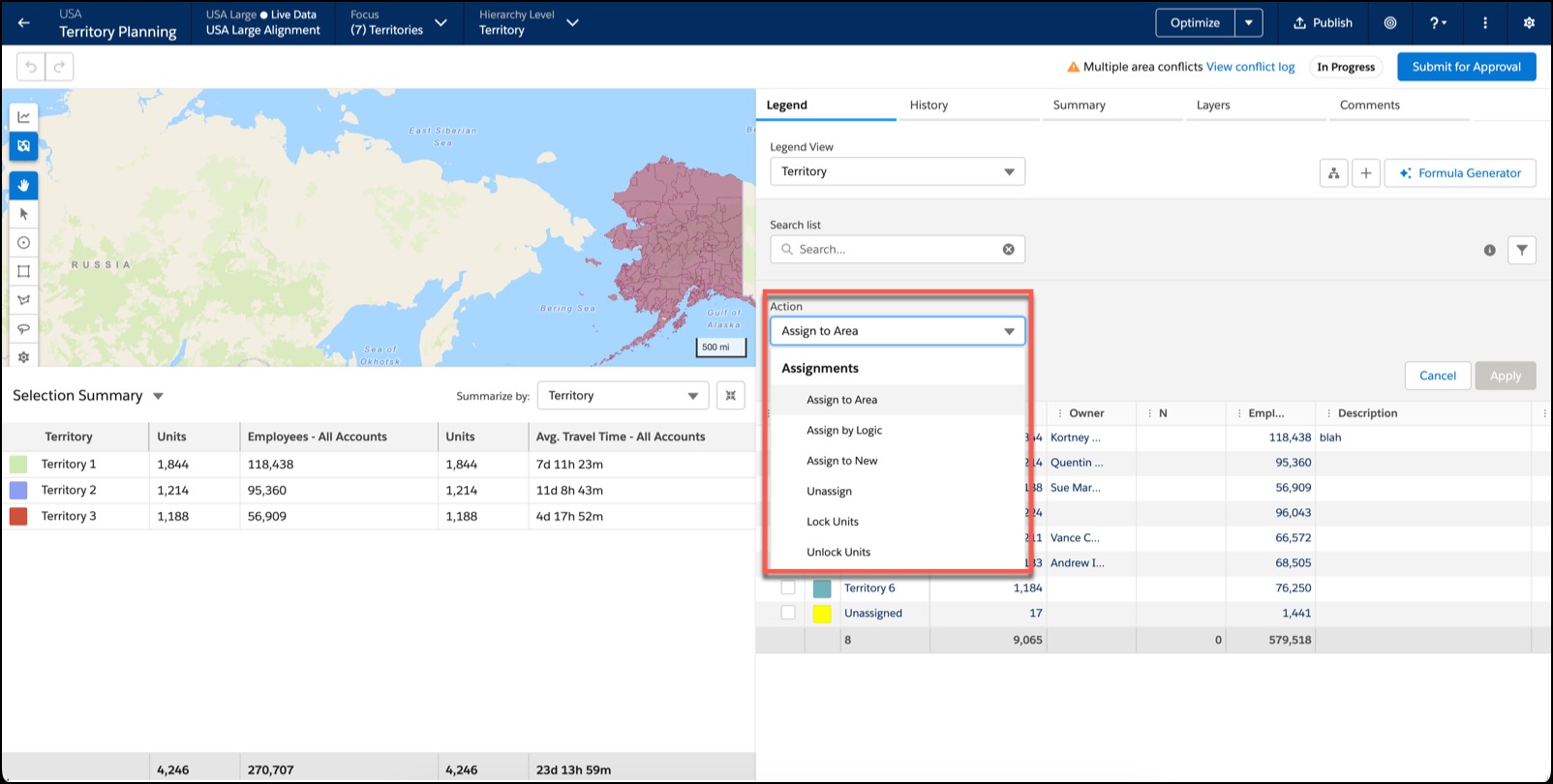
## Option 1: Assign to Area
Assign units to a specific area.
1. Select **Assign to Area**.
2. Select the area that you want to assign the units to.
3. Click **Apply**.
## Option 2: Assign by Territory or Owner
Assign units based on territory or owner fields that correspond to areas in your hierarchy.
This option is available only when the currently selected hierarchy level in the alignment builder is the bottom level.
1. Select **Assign by Logic** and then click **Apply**.
2. In the Assign by Logic window, select **Assign by Territory or Owner**, and click **Preview**.
3. Select which field to use for assigning.
- Area Name
- Owner ID
- Owner Name
4. From the Corresponding Unit Field dropdown, select which field from your units you want to use for matching.
5. Save your changes.
6. Click **Apply** again to accept the changes.
## Option 3: Assign to Nearest Center’s Area
Assign units to the area with a center that’s nearest to the units.
This option isn’t available in these scenarios.
- The current hierarchy level is not the bottom level.
- No area centers are in focus.
- You’re in chart view.
1. Select **Assign by Logic** and then click **Apply**
2. In the Assign by Logic window, select **Assign to Nearest Center’s Area**, and click **Preview**.
3. Click **Apply** again to accept the changes.
## Option 4: Assign to Container’s Area
Assign units to the same areas as the boundaries.
This option isn’t available in these scenarios.
- The current hierarchy level is not the bottom level.
- No boundaries are in focus.
1. Select **Assign by Logic** and then click **Apply**
2. In the Assign by Logic window, select **Assign to Container’s Area**, and click **Preview**.
3. Click **Apply** again to accept the changes.
# Assign User Permissions for Agentforce Engagement
To configure and use Agentforce Engagement, sales users and administrators need specific permissions. Agentforce Setup lets you assign them quickly.
### Required Editions
Available in: Lightning Experience in Enterprise, Performance, and Unlimited editions with Einstein for Sales.
User Permissions
Needed
To manage permission set assignments:
Assign Permission Sets

Note The Agentforce Lead Nurturing name has changed to Agentforce Engagement. The new name better describes the work the agent does to nurture existing prospects and differentiates it from the Agentforce Lead Generation agent template.
1. On the Salesforce Go Agentforce for Sales page, in the Manage Access for Managers and Users section, click **Manage**.
2. By default Agentforce assigns you, the administrator, the Configure Engagement Agent permission. To assign this permission to other users, click the **Configure Engagement Agent** tab. Then search for and select specific users and click **Assign**.
3. To let sales users assign prospects to your agent, click the Use Engagement Agent tab. Then search for and select specific users and click **Assign**.
4. To let users set up Data 360 for your agent, click the Data Cloud Admin tab and assign the permission specific users.
5. When you are finished, click Done.
# Assign Users and Roles to Salesforce Territories
Add users and the roles that they serve to each area in Territory Planning. When you publish alignments to Sales Territories, those assigned users and their roles appear in Salesforce territory models.
### Required Editions
Available in: both Salesforce Classic (not available in all orgs) and Lightning Experience
Available in: Professional, Enterprise, Performance, Unlimited, and Developer Editions with Web Services API enabled
User Permissions Needed
To modify alignment options:
Sales Planning Ops Analyst permission set
AND
Query for Datapipelines User for Sales Planning permission set
AND
SF Maps Territory Planning for Sales Planning permission set
1. Open an alignment, and set the focus.
2. Edit an area, and then expand **Assigned Users**.
3. Click **Add**. Enter a user that you want to assign to the area, select the user’s role, and then click **Assign**. Repeat this step for every user that you assign to the area.
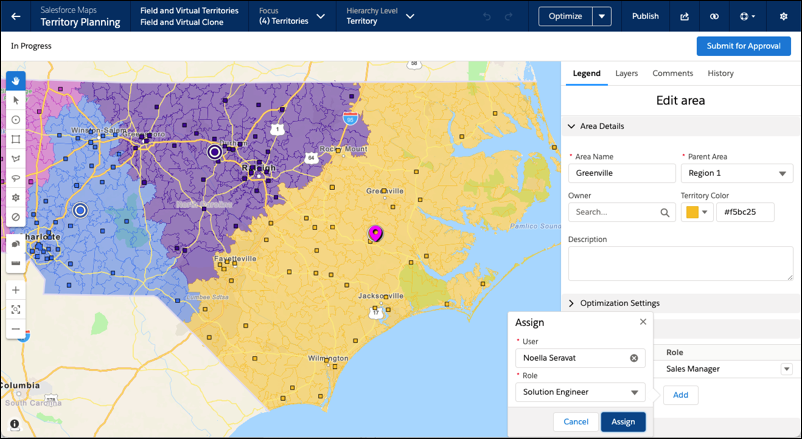
4. Save your work.
# Assign Users to a Plan in Salesforce Spiff
Help drive sales performance and business growth when you identify which sales reps and managers are covered under the commission plan.
### Required Editions
Available in: both Salesforce Classic (not available in all orgs) and Lightning Experience
Available in: Enterprise, Unlimited, and Developer Editions
Available for an additional cost in: Professional Edition with Web Services API Enabled
User Permissions Needed
To assign users to a plan:
A Spiff user role with these permissions turned on.
Designer Configuration: Manage
Plan Assignments: Edit
1. In Designer, click **Plan Assignments** at the bottom of the plan, and then click **Assign Users**. Or select a plan from the Plans tab and click **Assign Users**.
2. Select the users you want to add to the plan.
3. Click **Assign Users**.
# Assign Users to a Quota Table
After you've created a quota table in Salesforce Spiff, start assigning users to the quota table.
### Required Editions
Available in: both Salesforce Classic (not available in all orgs) and Lightning Experience
Available in: Enterprise, Unlimited, and Developer Editions
Available for an additional cost in: Professional Edition with Web Services API Enabled
User Permissions Needed
To assign users to a quota table:
A Spiff user role with these permissions turned on.
Quotas: Edit
Users: Edit
Use the Quotas tab for quota assignments. You can also update individual quota assignments in the user profile. If you're using quota automation in conjunction with teams, this step will be completed once users are assigned to the paired team.
1. In the Quotas tab, select the Quota table to which you want to add users. The list displays a list of all users, with the users currently assigned to the quota type selected.
2. Click **Edit**, and then click the **Add / Remove Members** icon.
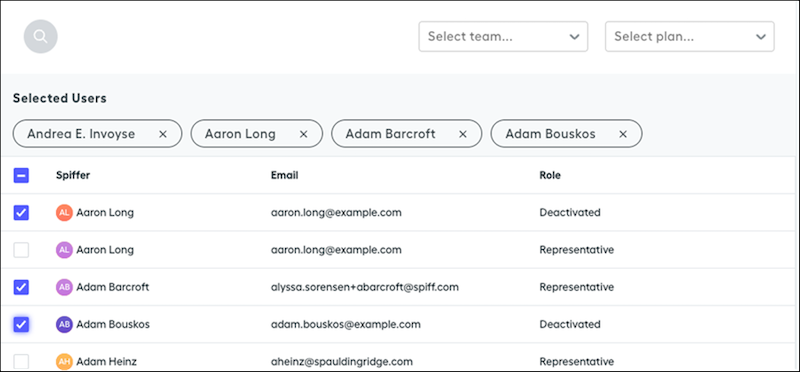
3. From the list of users, select the representatives you want to add to this quota type. You can filter the list by defined teams or plans. Spiff hides archived plans by default.
You can also deselect users so they’ll no longer be assigned to this quota table. However, we don’t recommend removing users from the quota table, as this completely wipes out any historical values and they can’t be recovered.
4. Save your edits.
Add values to the quota table.
# Assign Users to Enablement Programs Manually
To ensure that users take an Enablement program by a certain date, assign sales territories or users to the program and select a start date. When you assign territory roles to a program, users in those roles are automatically assigned to the program. Assigned users receive an email and in-app notification on the program’s start date.
### Required Editions
Available in: Lightning Experience
Enablement is available in Developer Edition with a limited number of add-ons. It is also available with Sales, Service, or the Salesforce Platform in: Enterprise, Performance, Unlimited, and Einstein 1 Sales Edition Editions for an additional cost
Enablement Lite is available with Sales in: Enterprise, Performance, and Unlimited Editions
Partner Enablement is available in Developer Edition with a limited number of add-ons. It is also available with Sales, Service, or the Salesforce Platform in: Enterprise, Performance, and Unlimited Editions for an additional cost. A supported PRM add-on license is required.
User Permissions Needed
To assign programs:
Design and Deliver Enablement Programs
OR
Design and Deliver Enablement Lite
Programs
Before you begin, we recommend that you review [Considerations and Limitations for Enrolling Users in Enablement Programs](https://help.salesforce.com/s/articleView?id=sales.enablement_assignments_guidelines.htm&release=264.0.0&type=5 "When you assign users to an Enablement program, certain factors can determine how assignments behave, such as permissions, assignment and selection limits, filters, and the user’s time zone. These factors can also affect users who self-enroll in programs.") for tips about filtering users, selecting users efficiently, and selecting a start date.
1. From the App Launcher, find and select **Enablement Programs**.
2. On the Enablement Programs page, open the dropdown menu for the published program that you want to assign users to or navigate to the program’s record detail page.
3. Select **Assign to Program**.
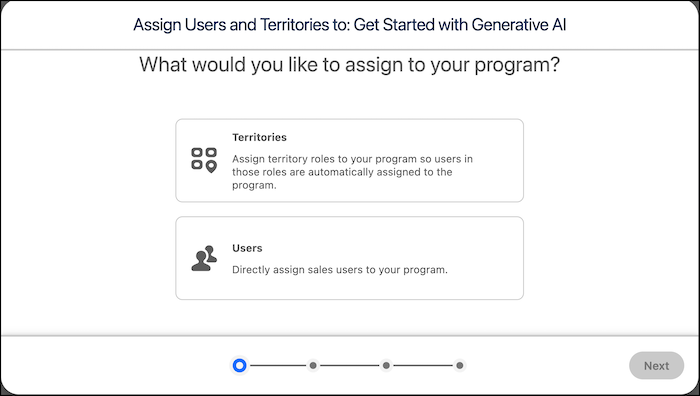
4. Select **Territories** or **Users**, and click **Next**.
5. If you select **Territories**:
1. Select a territory model and click **Next**.
2. Select territories and child territories that you want to assign to the program and click **Next**.
3. Select roles within the territories and click **Next**.
4. Verify the users that will be assigned to the program.
6. If you select **Users**:
1. Search for and select users that you want to assign to the program.
2. Click **Next**.
7. Choose the start date that your users can access the program.
8. Click **Assign**.
When you select 50 or fewer users to assign to a program, you’re notified about the assignment completion in the assignment window. Keep the assignment window open until you receive this information. When you select more than 50 users to assign to a program, you’re notified about the assignment completion via email.
#### See Also
- [Considerations and Limitations for Enrolling Users in Enablement Programs](https://help.salesforce.com/s/articleView?id=sales.enablement_assignments_guidelines.htm&release=264.0.0&type=5 "When you assign users to an Enablement program, certain factors can determine how assignments behave, such as permissions, assignment and selection limits, filters, and the user’s time zone. These factors can also affect users who self-enroll in programs.")
- [Share Enablement Programs So Users Can Self-Enroll](https://help.salesforce.com/s/articleView?id=sales.enablement_programs_self_enroll.htm&release=264.0.0&type=5 "To make an Enablement program available to users so they can enroll at their own convenience, enable self-enrollment in Program Builder. Then, share a program with specific users, groups, or roles. Users can find programs that are shared with them and start taking the program when they’re ready.")
- [Remove Users from an Enablement Program](https://help.salesforce.com/s/articleView?id=sales.enablement_programs_unassign.htm&release=264.0.0&type=5 "Remove enrolled and assigned users from an Enablement program when it no longer pertains to them or has reached the enrollment limit. You can manually select the users that you want to remove, or filter them by profile, role, and public group.")
# Assign Users to Enablement Programs with a Flow
Create a flow that assigns users to an Enablement program when they satisfy certain criteria.
### Required Editions
Available in: Lightning Experience
Enablement is available in Developer Edition with a limited number of add-ons. It is also available with Sales, Service, or the Salesforce Platform in: Enterprise, Performance, Unlimited, and Einstein 1 Sales Edition Editions for an additional cost
Enablement Lite is available with Sales in: Enterprise, Performance, and Unlimited Editions
Partner Enablement is available in Developer Edition with a limited number of add-ons. It is also available with Sales, Service, or the Salesforce Platform in: Enterprise, Performance, and Unlimited Editions for an additional cost. A supported PRM add-on license is required.
User Permissions Needed
To create a flow in Flow Builder:
Manage Flow
To assign or unassign programs:
Design and Deliver Enablement Programs
OR
Design and Deliver Enablement Lite
Programs
Ensure that users have the required permission for taking the type of program you’re assigning. Otherwise, the assignment fails.
1. Create a flow.
1. From Setup, in the Quick Find box, enter Flows, and then select **Flows**.
2. Click **New Flow**.
3. Select the flow type you want to use. We recommend Record-Triggered Flow.
4. Click **Create**.
2. To query for a Program ID, add a Get Records element.
1. In Flow Builder, click  to add an element.
2. In the Add Element panel, search for Get Records and select it.
3. In the new element panel, enter a label, API name, and description.
4. For the Object field, search for Enablement Program and select it.
5. Complete the remaining fields.
6. Save your changes.
3. To assign the program, add an Action element to the flow.
1. After the Get Records element, click  to add another element.
2. Click **Action**.
3. Search for Assign Enablement Program and select it.
4. For Assignee ID, select **$User** and then **Id**. The expected final value is {!User.Id}.
5. For Notification User ID, enter a formula for the user who you want to notify when the assignment is complete, such as an Enablement admin or a manager.
6. For Program ID, select **Enablement Program** from the Get Records action you created, and then click **ID**. The expected final value is {!GetRecordsElementAPIName.Id}, where GetRecordsElementAPIName is the API name you entered for the Get Records element.
7. For Start Date, select **$Flow** and then **CurrentDate**. The expected final value is {!$Flow.CurrentDate}.
If you enter a hard-coded date, the date ends up in the past, causing the assignment to fail. Use a formula to set a date in the future.
8. Click **Done**.
4. Save and activate the flow.
1. Click **Save**.
2. Enter a flow name, API name, and an optional description.
3. Click **Done**.
4. In Flow Builder, click **Activate**.
The assignEnablementProgram invocable action counts against your org’s [Bulk API 2.0 limits](https://developer.salesforce.com/docs/atlas.en-us.242.0.salesforce_app_limits_cheatsheet.meta/salesforce_app_limits_cheatsheet/salesforce_app_limits_platform_bulkapi.htm). To help avoid these limits, we recommend that you bulkify your request.
#### See Also
- [Considerations and Limitations for Enrolling Users in Enablement Programs](https://help.salesforce.com/s/articleView?id=sales.enablement_assignments_guidelines.htm&release=264.0.0&type=5 "When you assign users to an Enablement program, certain factors can determine how assignments behave, such as permissions, assignment and selection limits, filters, and the user’s time zone. These factors can also affect users who self-enroll in programs.")
- [Assign Permissions to Your Enablement Team](https://help.salesforce.com/s/articleView?id=sales.enablement_setup_assign_perms.htm&release=264.0.0&type=5 "Assign permissions to Enablement team members and users for managing programs, managing content, and taking programs. Give access to Enablement admins to access objects and fields when creating measures. Some options and settings are different depending on whether you’re working with Enablement Lite, full Enablement, or Partner Enablement programs.")
- [Build a Flow](https://help.salesforce.com/s/articleView?id=platform.flow_build.htm&language=en_US)
- [Flow Bulkification in Transactions](https://help.salesforce.com/articleView?id=platform.flow_concepts_bulkification.htm&language=en_US)
- [_Actions Developer Guide_: Assign Enablement Program](https://developer.salesforce.com/docs/atlas.en-us.api_action.meta/api_action/actions_obj_assign_enablement_program.htm)
# Assign Users to Enablement Programs with Apex
Create a schedulable Apex class that bulk-assigns users to Enablement programs.
### Required Editions
Available in: Lightning Experience
Enablement is available in Developer Edition with a limited number of add-ons. It is also available with Sales, Service, or the Salesforce Platform in: Enterprise, Performance, Unlimited, and Einstein 1 Sales Edition Editions for an additional cost
Enablement Lite is available with Sales in: Enterprise, Performance, and Unlimited Editions
Partner Enablement is available in Developer Edition with a limited number of add-ons. It is also available with Sales, Service, or the Salesforce Platform in: Enterprise, Performance, and Unlimited Editions for an additional cost. A supported PRM add-on license is required.
See [Assign Users to Programs with a Schedulable Apex Class](https://developer.salesforce.com/docs/sales/enablement/guide/enablement-assign-automate-apex.html) in the Sales Programs and Partner Tracks with Enablement Developer Guide.
# Assign Users to Enablement Programs with REST API
Create a REST API POST request that uses the assignEnablementPrograms invocable action for assigning Enablement programs.
### Required Editions
Available in: Lightning Experience
Enablement is available in Developer Edition with a limited number of add-ons. It is also available with Sales, Service, or the Salesforce Platform in: Enterprise, Performance, and Unlimited, Editions for an additional cost
See [Assign Users to Programs with REST API](https://developer.salesforce.com/docs/sales/enablement/guide/enablement-assign-automate-rest.html) in the Sales Programs and Partner Tracks with Enablement Developer Guide.
# Assign Users to Salesforce for Outlook (Retiring) Configurations
After you define basic information for a Salesforce for Outlook configuration, you select the Salesforce for Outlook users that the configuration’s settings will apply to.
### Required Editions
Available with the purchase of Sales Cloud or Government Cloud in: Personal, Contact Manager, Professional, Enterprise, Performance, Unlimited, and Developer Editions
User Permissions Needed
To view configurations:
View Setup and Configuration
To create, edit, or delete configurations:
Manage Email Client Configurations

Important Full product retirement for Salesforce for Outlook is scheduled on January 30, 2027. See [Salesforce for Outlook Retirement](https://help.salesforce.com/s/articleView?id=000393445&type=1&mode=1&language=en_US). To keep integrating Microsoft Outlook with Salesforce, check out our next-generation products: the Outlook integration and Einstein Activity Capture. See [Move from Salesforce for Outlook (Retiring) to the Next-Generation Products](https://help.salesforce.com/articleView?id=outlookcrm_sfo_move_parent.htm&language=en_US).
1. From Setup, enter Outlook Configurations in the Quick Find box, then select **Outlook Configurations**.
2. If you're modifying an existing Outlook configuration, click **Edit** next to the one that you want to modify. Otherwise, click **New Outlook Configuration**, and then complete the required fields.
3. In the Assign Users and Profiles section, select either Profiles or Users in the Search dropdown list.
4. If you don't see the member you want to add, enter keywords in the search box and click **Find**.
5. Select members from the Available Members box, and click **Add** to add them to the group. If all available users are assigned to this configuration, the Users list is empty and you can only assign profiles.
6. To remove members, select those members and click **Remove**. If removed users are assigned to another active configuration through a profile, that other configuration is used the next time they open Outlook. Otherwise, removed users are unable to use Salesforce for Outlook.
7. Click **Save**. All changes take effect the next time data syncs for the users in this configuration. If you assign a user who is already assigned to a different configuration, that user is removed from the other configuration and assigned to this one. If an assigned user is also part of a profile assigned to another active configuration, the configuration that lists the user directly is used.
#### See Also
- [Create Salesforce for Outlook (Retiring) Configurations](https://help.salesforce.com/s/articleView?id=sales.outlookcrm_config_create.htm&release=264.0.0&type=5 "Before reps can start using Salesforce for Outlook, you define their experience by creating Outlook configurations. Outlook configurations define Salesforce for Outlook settings for reps, like which features reps have access to, and how reps’ records sync between Outlook and Salesforce. If you want to define unique settings for a subset of your sales team, create multiple Outlook configurations, and assign reps accordingly.")
- [Salesforce for Outlook (Retiring) Configurations and Email Application Publisher Layouts](https://help.salesforce.com/s/articleView?id=sales.outlookcrm_config_about.htm&release=264.0.0&type=5 "To set up your Salesforce for Outlook users with the settings they need, create Outlook configurations and email application publisher layouts.")
- [Set Up Email Options for Salesforce for Outlook (Retiring)](https://help.salesforce.com/s/articleView?id=sales.outlookcrm_config_email.htm&release=264.0.0&type=5 "Help your sales teams track important Microsoft® Outlook® emails related to Salesforce contacts and leads. And get those contacts and leads to appear directly in Outlook.")
# Assign Users to Territories
Give users access to records within the territories where they sell your company’s products and services. Assigned users get access to records after you change the model’s state from Planning to Active.
### Required Editions
Available in: Salesforce Classic for some features and Lightning Experience for all features
Available in: Performance and Developer Editions and in Enterprise and Unlimited Editions with Sales
User Permissions
Needed
To assign users to territories:
Manage Territories
The number of users assigned to territories can impact performance. If you assign more than 300 users to territories, test thoroughly for performance issues. To improve performance, reduce the number of users per territory.
1. From the territory model hierarchy, open the territory where you want to assign users.
2. On the territory’s detail page, in the Assigned Users related list, click **Manage Users**.
3. On the Assign Users page, select or search for the user you want to add.
4. Click **Save**.
#### See Also
- [How Do Permissions for Territories Affect Feature and Data Access?](https://help.salesforce.com/s/articleView?id=sales.tm2_how_access_permissions_work.htm&release=264.0.0&type=5 "Anticipate how permissions for Sales Territories affect administration and provide access to records and data.")
- [_Designing Record Access for Enterprise Scale_: Group Membership Locking](https://developer.salesforce.com/docs/atlas.en-us.draes.meta/draes/draes_group_membership_locking.htm)
# Assign Users to Your Visit Plan
You can assign users or user profiles to a visit plan to generate routes for those users. After you save the visit plan, assigned users receive an email instructing them on how to generate routes in Salesforce Maps Advanced.
### Required Editions
1. Confirm that your rep users are assigned the SF Maps and SF Maps Advanced permission sets.
2. Confirm that your rep users own one or more routable records as defined in the visit plan’s datasets. For example, you've assigned a rep as account manager to at least one account record.
3. On the Maps Advanced Visit Plans tab, in the New Plan wizard, click **Assign Users**.
4. On the Assign Users page, select the user profiles or individual users that you want to generate routes for.
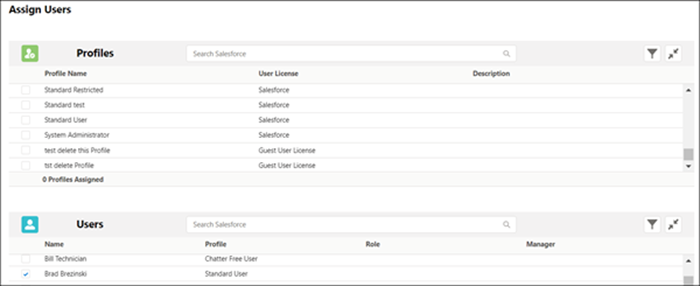
5. Click **Next**. Visit plan settings appear in the visit plan wizard.
After you save the visit plan, assigned users, or users with a selected profile, receive an email directing them to Salesforce Maps Advanced to update their schedule and generate routes.
# Assign Users’ Sync Folders in Microsoft® Outlook®
You can assign your Salesforce for Outlook users’ contact, event, and task sync folders in Outlook to simplify their setup process and keep sync folders consistent across your company. You can specify Outlook sync folders from Salesforce Outlook configurations.
### Required Editions
Available with the purchase of Sales Cloud or Government Cloud in: Personal, Contact Manager, Professional, Enterprise, Performance, Unlimited, and Developer Editions
User Permissions Needed
To create and edit Outlook configurations:
Configure Application

Important Full product retirement for Salesforce for Outlook is scheduled on January 30, 2027. See [Salesforce for Outlook Retirement](https://help.salesforce.com/s/articleView?id=000393445&type=1&mode=1&language=en_US). To keep integrating Microsoft Outlook with Salesforce, check out our next-generation products: the Outlook integration and Einstein Activity Capture. See [Move from Salesforce for Outlook (Retiring) to the Next-Generation Products](https://help.salesforce.com/articleView?id=outlookcrm_sfo_move_parent.htm&language=en_US).
By default, users can change the Outlook folders where their Salesforce contacts, events, and tasks sync from the Settings menu in their Salesforce for Outlook system tray. You can prevent users from changing their Outlook sync folders when you clear this default setting for contacts, events, and tasks, and assign specific Outlook sync folders from users’ Outlook configurations.

Note Assigning Outlook sync folders might create Outlook directory folders for all of the users in your Outlook configuration. Salesforce for Outlook can’t remove Outlook sync folders from your users’ Outlook directories after they’ve been created. If you reassign a different folder later, the original folder remains in users’ local Outlook directories until users delete the folder.
1. From Setup, enter Outlook Configurations in the Quick Find box, then select **Outlook Configurations**.
2. Open an Outlook configuration.
3. To assign a folder where users sync contacts, in Data Settings, deselect **Outlook folder for syncing contacts** on the Allow users to modify: setting.
4. In the text box that appears, type the name of the Outlook folder where you want your users’ contacts to sync with Salesforce. Type the name of a common folder that exists in the Outlook directory for each of your users, at the same directory level as the Outlook default contacts folder. Folder names are case sensitive. If you type the name of a folder that doesn’t exist at that level for each user, Salesforce creates the folder in Outlook for those users. To have Salesforce for Outlook sync with a nested Outlook folder, type a filepath, including backslashes (\\).
For example, to assign the Outlook folder “sfdc\_sync\_contacts” as a nested directory under your users’ default Outlook contacts folder, type Contacts\\sfdc\_sync\_contacts in the Outlook folder for syncing contacts text box, where Contacts is your users’ default contacts folder, and sfdc\_sync\_contacts is the folder where you want your users’ Salesforce contacts to sync.
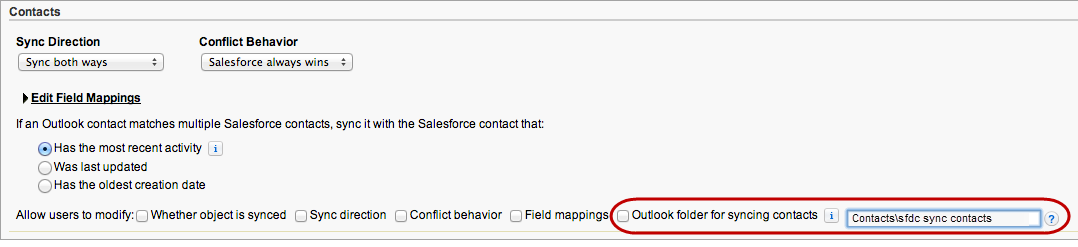
If the folder exists in your users’ Outlook directories, Salesforce for Outlook syncs your contacts with it. If the folder doesn’t exist, Salesforce for Outlook creates a folder at “Contacts\\sfdc\_sync\_contacts.”
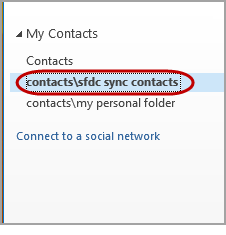
5. Click **Save**.
6. Instruct your users to save their Salesforce for Outlook settings again to confirm the changes that you’ve made to their systems. To do so, instruct your users to:
1. In the settings wizard, right-click the Salesforce for Outlook icon () in their system tray, and then click **Settings**.
2. Click **Next** from Review Your Sync Direction.
3. Click **Next** from Control Which Outlook Items Sync.
4. Click **Save** from Syncing Private Items.
Salesforce for Outlook locates Outlook folders that exist in your users’ Outlook directories or creates them for your users.
7. Instruct your users to move the Outlook contacts that they want to sync to the folder that you specified.
To change the Outlook folder locations where users sync events and tasks with Salesforce, repeat steps 3 through 7 in the events and tasks sections.

Note Contact sync doesn’t support Outlook categories, so contacts labeled with a Salesforce\_Sync category that don’t exist in a contacts subfolder of the same name don’t sync with Salesforce. To avoid this issue, disable contact categories and select the Salesforce\_Sync folder for new contacts in Outlook. See [EAC - New Contacts Created In Outlook with ‘Salesforce\_Sync’ Category Do Not Sync to Salesforce](https://issues.salesforce.com/issue/a028c00000j5kg9AAA/eac--new-contacts-created-in-outlook-with-salesforce_sync-category-do-not-sync-to-salesforce).
# Assign WDC Licenses
After granting access to WDC features with permission sets or profiles, assign users a WDC license.
### Required Editions
Available in: Salesforce Classic
WDC is available for existing WDC customers in Professional Edition,
Enterprise Edition, Performance Edition, Unlimited Edition, and
Developer Edition.

Important Starting in Spring ’22, WDC isn’t available to new Salesforce customers. For existing customers, WDC features and records from Badges, Skills, and Thanks aren’t affected and will remain available in the application beyond Spring ’22. WDC Goals, Coaching, Feedback, Performance, and Rewards features won’t appear in the application anymore, and records created previously will no longer be accessible.

Note On May 1, 2020, we rebranded this suite. It's now called WDC.
WDC has two types of licenses.
- WDC Only user licenses are for users who don’t have a Salesforce license and will only use the WDC features in your organization.

Note WDC Only user licenses have limited administrator functionality. Assign WDC User Feature licenses instead for users who will be administering performance summary cycles or other WDC features.
- WDC User Feature licenses are for users who also have a Salesforce license.
You may want to configure WDC features before assigning licenses to all users. For example, you may want to initially limit licenses to WDC administrators to avoid exposing certain features prior to your launch date.
- **[Assign WDC Only User Licenses](https://help.salesforce.com/s/articleView?id=sales.workcom_impl_assign_user_license.htm&release=264.0.0&type=5)**
Assign a WDC Only license to users who don’t have a Salesforce license and will only use WDC.
- **[Assign WDC User Feature Licenses](https://help.salesforce.com/s/articleView?id=sales.workcom_impl_assign_feature_license.htm&release=264.0.0&type=5)**
Assign a WDC User Feature license to users who also have a Salesforce license.
#### See Also
- [Configure WDC Features](https://help.salesforce.com/s/articleView?id=sales.workcom_impl_feature_overview.htm&release=264.0.0&type=5 "Configure the Recognition and Skills features.")
# Assign WDC Only User Licenses
Assign a WDC Only license to users who don’t have a Salesforce license and will only use WDC.
### Required Editions
Available in: Salesforce Classic
WDC is available for existing WDC customers in Professional Edition,
Enterprise Edition, Performance Edition, Unlimited Edition, and
Developer Edition.

Important Starting in Spring ’22, WDC isn’t available to new Salesforce customers. For existing customers, WDC features and records from Badges, Skills, and Thanks aren’t affected and will remain available in the application beyond Spring ’22. WDC Goals, Coaching, Feedback, Performance, and Rewards features won’t appear in the application anymore, and records created previously will no longer be accessible.

Note On May 1, 2020, we rebranded this suite. It's now called WDC.
User Permissions Needed
To assign user licenses:
Manage Users
WDC Only user licenses have limited administrator functionality. Assign WDC User Feature licenses instead for users who will be administering WDC features.
1. From Setup, enter Users in the Quick Find box, then select **Users**.
2. Click **Edit** next to a user.
3. From the **User License** drop-down, select **WDC Only**.
4. Click **Save**.
#### See Also
- [Assign WDC Licenses](https://help.salesforce.com/s/articleView?id=sales.workcom_impl_licenses.htm&release=264.0.0&type=5 "After granting access to WDC features with permission sets or profiles, assign users a WDC license.")
- [Assign WDC User Feature Licenses](https://help.salesforce.com/s/articleView?id=sales.workcom_impl_assign_feature_license.htm&release=264.0.0&type=5 "Assign a WDC User Feature license to users who also have a Salesforce license.")
# Assign WDC Permission Sets
Assign permission sets with WDC access to your users from Setup.
### Required Editions
Available in: Salesforce Classic
WDC is available for existing WDC customers in Professional Edition,
Enterprise Edition, Performance Edition, Unlimited Edition, and
Developer Edition.

Important Starting in Spring ’22, WDC isn’t available to new Salesforce customers. For existing customers, WDC features and records from Badges, Skills, and Thanks aren’t affected and will remain available in the application beyond Spring ’22. WDC Goals, Coaching, Feedback, Performance, and Rewards features won’t appear in the application anymore, and records created previously will no longer be accessible.

Note On May 1, 2020, we rebranded this suite. It's now called WDC.
User Permissions Needed
To assign permission sets:
Assign Permission Sets
Before you can assign permission sets to your users, you must create permission sets with WDC access. Refer to [Recommended WDC Permission Sets](https://help.salesforce.com/s/articleView?id=sales.workcom_impl_permission_sets.htm&release=264.0.0&type=5 "Create different permission sets for different types of WDC users.") for more information.
1. From Setup, enter Users in the Quick Find box, then select **Users**.
2. Select a user.
3. In the Permission Set Assignments related list, click **Edit Assignments**.
4. To assign a permission set, select it from the Available Permission Sets box and click **Add**. To remove a permission set assignment, select it from the Enabled Permission Sets box and click **Remove**.
You can also assign permission sets to many users at the same time. For more information, see “Assign a Permission Set to Multiple Users” in the Salesforce Help.

Note Some permissions require users to have a permission set license before you can grant the permissions. For example, if you add the Use Identity Connect user permission to the Identity permission set, you can assign only users with the Identity Connect permission set license to the permission set.
5. Click **Save**.
- **[Recommended WDC Permission Sets](https://help.salesforce.com/s/articleView?id=sales.workcom_impl_permission_sets.htm&release=264.0.0&type=5)**
Create different permission sets for different types of WDC users.
#### See Also
- [Recommended WDC Permission Sets](https://help.salesforce.com/s/articleView?id=sales.workcom_impl_permission_sets.htm&release=264.0.0&type=5 "Create different permission sets for different types of WDC users.")
- [Recommended WDC Profiles](https://help.salesforce.com/s/articleView?id=sales.workcom_impl_profiles.htm&release=264.0.0&type=5 "Create different profiles for different types of WDC users.")
- [Assign WDC Profiles](https://help.salesforce.com/s/articleView?id=sales.workcom_impl_assign_profiles.htm&release=264.0.0&type=5 "Assign profiles with WDC access to your users from Setup.")
- [Assign WDC Licenses](https://help.salesforce.com/s/articleView?id=sales.workcom_impl_licenses.htm&release=264.0.0&type=5 "After granting access to WDC features with permission sets or profiles, assign users a WDC license.")
# Assign WDC Profiles
Assign profiles with WDC access to your users from Setup.
### Required Editions
Available in: Salesforce Classic
WDC is available for existing WDC customers in Professional Edition,
Enterprise Edition, Performance Edition, Unlimited Edition, and
Developer Edition.

Important Starting in Spring ’22, WDC isn’t available to new Salesforce customers. For existing customers, WDC features and records from Badges, Skills, and Thanks aren’t affected and will remain available in the application beyond Spring ’22. WDC Goals, Coaching, Feedback, Performance, and Rewards features won’t appear in the application anymore, and records created previously will no longer be accessible.

Note On May 1, 2020, we rebranded this suite. It's now called WDC.
User Permissions Needed
To assign profiles:
Manage Users
Before you can assign profiles to your users, you must create profiles with WDC access. Refer to [Recommended WDC Profiles](https://help.salesforce.com/s/articleView?id=sales.workcom_impl_profiles.htm&release=264.0.0&type=5 "Create different profiles for different types of WDC users.") for more information.
1. From Setup, enter Users in the Quick Find box, then select **Users**.
2. Click **Edit** next to a user.
3. From the **Profile** drop-down, select the profile you would like to assign.
4. Click **Save**.
- **[Recommended WDC Profiles](https://help.salesforce.com/s/articleView?id=sales.workcom_impl_profiles.htm&release=264.0.0&type=5)**
Create different profiles for different types of WDC users.
# Assign WDC User Feature Licenses
Assign a WDC User Feature license to users who also have a Salesforce license.
### Required Editions
Available in: Salesforce Classic
WDC is available for existing WDC customers in Professional Edition,
Enterprise Edition, Performance Edition, Unlimited Edition, and
Developer Edition.

Important Starting in Spring ’22, WDC isn’t available to new Salesforce customers. For existing customers, WDC features and records from Badges, Skills, and Thanks aren’t affected and will remain available in the application beyond Spring ’22. WDC Goals, Coaching, Feedback, Performance, and Rewards features won’t appear in the application anymore, and records created previously will no longer be accessible.

Note On May 1, 2020, we rebranded this suite. It's now called WDC.
User Permissions Needed
To assign user feature licenses:
Manage Users
1. From Setup, enter Users in the Quick Find box, then select **Users**.
2. Click **Edit** next to a user.
3. In the right-hand column, select the **WDC User** checkbox.
4. Click **Save**.
#### See Also
- [Assign WDC Licenses](https://help.salesforce.com/s/articleView?id=sales.workcom_impl_licenses.htm&release=264.0.0&type=5 "After granting access to WDC features with permission sets or profiles, assign users a WDC license.")
- [Assign WDC Only User Licenses](https://help.salesforce.com/s/articleView?id=sales.workcom_impl_assign_user_license.htm&release=264.0.0&type=5 "Assign a WDC Only license to users who don’t have a Salesforce license and will only use WDC.")
# Assigning Account Teams to Territories
Balance territories and the work that you distribute to your account teams in Territory Planning.
### Required Editions
Available in: both Salesforce Classic (not available in all orgs) and Lightning Experience
Available in: Professional, Enterprise, Performance, Unlimited, and Developer Editions with Web Services API enabled
1. **[Considerations for Assigning Account Teams to Territories](https://help.salesforce.com/s/articleView?id=sales.territory_planning_maintain_account_teams_considerations.htm&release=264.0.0&type=5)**
Anticipate behaviors and outcomes when you import, change, and publish account team roles and assignments in Territory Planning.
2. **[Set Up Account Team Roles for Territory Assignments](https://help.salesforce.com/s/articleView?id=sales.territory_planning_maintain_account_teams_roles.htm&release=264.0.0&type=5)**
Specify the account team roles that you want available when assigning users and their roles to areas in Territory Planning. Create any other roles that fit with your territory planning efforts.
3. **[Assign Account Teams to Territories](https://help.salesforce.com/s/articleView?id=sales.territory_planning_maintain_account_teams_assignments.htm&release=264.0.0&type=5)**
Ensure that team members get access to only the accounts that they’re responsible for when you assign members and select their roles within each territory area in Territory Planning. Then publish team assignments to accounts or to .csv files for importing into other systems.
# Assigning Accounts, Users, and Roles for Sales Territories
Maintain and fine-tune assignments for Sales Territories models on a map. Import assignments into Territory Planning, update your assignments, and then publish your updates to your Salesforce territory model.
### Required Editions
Available in: both Salesforce Classic (not available in all orgs) and Lightning Experience
Available in: Professional, Enterprise, Performance, Unlimited, and Developer Editions with Web Services API enabled
- **[Adjust Account Assignments in Sales Territories](https://help.salesforce.com/s/articleView?id=sales.territory_planning_maintain_etm_models.htm&release=264.0.0&type=5)**
Create datasets that include assigned accounts in a territory model from Sales Territories. Using those datasets, create and optimize alignments in Territory Planning, then publish them as your fine-tuned territories in Salesforce.
- **[Assign Users and Roles to Salesforce Territories](https://help.salesforce.com/s/articleView?id=sales.territory_planning_maintain_roles.htm&release=264.0.0&type=5)**
Add users and the roles that they serve to each area in Territory Planning. When you publish alignments to Sales Territories, those assigned users and their roles appear in Salesforce territory models.
# Assigning Opportunities to Territories Manually
Allocate opportunities to specific territories in Salesforce and enforce the principle of least privilege for the reps and managers within them when you use Sales Territories.
### Required Editions
Available in: Salesforce Classic for some features and Lightning Experience for all features
Available in: Performance and Developer Editions and in Enterprise and Unlimited Editions with Sales
- **[Requirements for Assigning Opportunities to Territories Manually](https://help.salesforce.com/s/articleView?id=sales.tm2_assign_territory_to_opportunity_considerations.htm&release=264.0.0&type=5)**
Set your expectations for when you assign opportunities to territories manually through Sales Territories. Assignment options depend on your access to those opportunities’ parent records and your Salesforce user interface.
- **[Assign Opportunities to Territories Manually](https://help.salesforce.com/s/articleView?id=sales.tm2_assign_territory_to_opportunity_manually.htm&release=264.0.0&type=5)**
Distribute opportunities to the territories of your choice. Sales Territories ensures that the intended reps can work their deals and territory managers can access their rep’s opportunities.
# Assigning Records Within Your Sales Hierarchy
Increase the likelihood of your sales teams meeting and exceeding their targets using assignment methods and priorities for accounts, leads, opportunities, and other records. Assign records based on rules, boundaries, and manual methods in Legacy Sales Planning.
### Required Editions
Available in: both Salesforce Classic (not available in all orgs) and Lightning Experience
Available for an additional cost in: Enterprise, Performance, Unlimited, and Developer Editions with Sales Planning in English only, and only if you have Web Services API enabled

Important
Feature is scheduled for retirement as of Summer'26. See [Sales Planning version 1 Retirement](https://help.salesforce.com/s/articleView?id=005224374&type=1&language=en_US)
- **[Reference Fields for Your Sales Strategy](https://help.salesforce.com/s/articleView?id=sales.legacy_sales_planning_plans_assignments_reference_fields.htm&release=264.0.0&type=5)**
Develop a sales strategy that includes only the relevant data that you specify in Legacy Sales Planning.
- **[Specify the Kinds of Records to Assign](https://help.salesforce.com/s/articleView?id=sales.legacy_sales_planning_plans_assignments_object.htm&release=264.0.0&type=5)**
Determine which records to assign throughout your hierarchy such as accounts, contacts, and leads in Legacy Sales Planning.
- **[Create Rules for Record Assignments](https://help.salesforce.com/s/articleView?id=sales.legacy_sales_planning_plans_assignments_rules.htm&release=264.0.0&type=5)**
Distribute records to reps based on their areas of responsibility, such as industry, locale, and number of employees. Assign records using rules and criteria that you define in Legacy Sales Planning.
- **[Assign Groups of Records for Segmentation](https://help.salesforce.com/s/articleView?id=sales.legacy_sales_planning_plans_assignments_segmentation.htm&release=264.0.0&type=5)**
Define an assignment strategy that groups records into right-sized business units in Legacy Sales Planning. For example, split records into groups of high-revenue accounts for your enterprise sales team and all others for your midmarket sales team.
- **[Assign Boundaries to Your Reps](https://help.salesforce.com/s/articleView?id=sales.legacy_sales_planning_plans_assignments_boundaries.htm&release=264.0.0&type=5)**
Keep reps focused on the records that fall within the boundaries that they own. Assign boundaries such as countries, states, or postal codes to your reps in Legacy Sales Planning.
- **[Control Assignments Manually](https://help.salesforce.com/s/articleView?id=sales.legacy_sales_planning_plans_assignments_manual.htm&release=264.0.0&type=5)**
Respect established relationships between reps and their customers, and account for special situations when you assign specific records with intention in Legacy Sales Planning.
- **[Show Specific Details when Assigning Records](https://help.salesforce.com/s/articleView?id=sales.legacy_sales_planning_plans_assignments_list_views.htm&release=264.0.0&type=5)**
Make informed decisions about assignments when you include the most relevant details in your list views. Add columns that show specific fields based on your assignment objects in Legacy Sales Planning.
# Assigning Units Based on Rules and Criteria
Ensure that your sales and service reps nurture accounts that fall within their areas of responsibility using assignment rules and criteria in Territory Planning.
### Required Editions
Available in: both Salesforce Classic (not available in all orgs) and Lightning Experience
Available in: Professional, Enterprise, Performance, Unlimited, and Developer Editions with Web Services API enabled
- **[Considerations for Assigning Units Based on Rules](https://help.salesforce.com/s/articleView?id=sales.territory_planning_design_assignment_rules_considerations.htm&release=264.0.0&type=5)**
Handle assignment conflicts and errors so that every account belongs to the most suitable rep when you create, update, and run assignment rules in Territory Planning.
- **[Assign Units Based on Rules That You Define](https://help.salesforce.com/s/articleView?id=sales.territory_planning_design_assignment_rules_criteria.htm&release=264.0.0&type=5)**
Distribute accounts to reps based on their areas of responsibility, such as industry, annual revenue, and number of employees. Fine-tune assignment rules and their criteria from Salesforce territory models and create any other rules that matter for your sales and service leadership in Territory Planning.
# Associate Enhanced Letterheads with Email Templates in Lightning Experience
Generate more informative, consistent email templates with enhanced letterheads. Use enhanced letterheads with Lightning email templates that use the Handlebars Merge Language.
### Required Editions
Available in: Lightning Experience
Available in: Essentials, Professional, Enterprise, Performance, Unlimited, and Developer Editions
User Permissions Needed
To create email templates:
Send Email
To update email templates:
Modify All Data OR template ownership
To add an enhanced letterhead to a Lightning email template, you must have created at least one enhanced letterhead already. You can add or remove an enhanced letterhead from any email template you can edit.

Note You can associate Classic letterheads with Classic email templates only.

Note Enhanced letterheads aren’t supported in Email Template Builder.
1. On the Email Templates page, create a template or edit an existing template.
2. From the Enhanced Letterhead dropdown list, select a letterhead.
If your template uses the Salesforce Merge Language, you get an error. Convert the template to use the Handlebars Merge Language and try again.
3. Click **Save**.
Now when you use the Lightning email template, the information from the enhanced letterhead also appears. In the email and list email composer, the letterhead header and footer are locked. Only the email body, within the dotted lines, can be edited. In the case email composer, or when using Gmail or Outlook, the letterhead header and footer are editable.
To preview a template and letterhead together, insert the template into the email composer or list email composer.

Note If you associate an enhanced letterhead with an email template with no Related To entity specified, and then use that template to send email through Gmail or Outlook, the letterhead isn’t inserted.
#### See Also
- [Convert a Lightning Email Template from SML to HML](https://help.salesforce.com/s/articleView?id=sales.email_template_convert_from_sml_to_hml.htm&release=264.0.0&type=5 "Take advantage of the Handlebars Merge Language (HML), which is more flexible than the Salesforce Merge Language (SML), by converting existing Lightning email templates.")
# Audit Report for Obligations in Salesforce Spiff
Gather all the essential data you need to audit obligations in Salesforce Spiff with the Audit Report template. The report includes the frozen status of obligation lines, the last calculation time stamp, statement error date, and more. Add columns from the Audit Report template to any custom obligation report. You can also customize the template by adding any field available in a typical obligation report.
### Required Editions
Available in: both Salesforce Classic (not available in all orgs) and Lightning Experience
Available in: Enterprise, Unlimited, and Developer Editions
Available for an additional cost in: Professional Edition with Web Services API Enabled
By default, the report shows data for obligations from the current period. As with all custom reports, use the left panel to filter the report by period, plan, rep, rule, or team. Obligations records are outputs from a specific period, plan, rule, and rep.
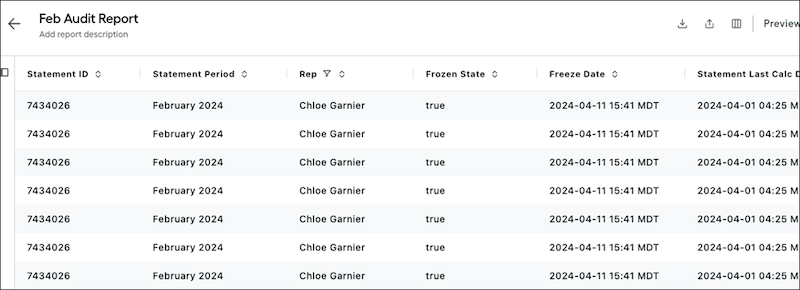
The table includes these columns.
- Statement ID and period
- Rep
- Frozen state and frozen date
- The date and time when the statement was last calculated
- The date and time when the statement had an error, if applicable
- The payout rule that calculated the obligation
- The ID and name of the Deal or Opportunity object related to the payout rule, if the obligation is for a deal or opportunity
- The concatenated name of the rep, period, and rule of the obligation, if the obligation isn't for a deal or opportunity
- The commission amount calculated for the obligation for the period, plan, rule, and rep
# Authenticate Users to an Enablement Site on Mobile Devices (Salesforce Identity for Enablement)
If your enablement site uses Salesforce Identity for Enablement authentication, users can access content in the Trailhead GO mobile app only by following a correctly formatted login URL. Create a link in the required format, test the link to verify that it works correctly, and share it with your users.
### Required Editions
Available in: Enterprise, Performance, and Unlimited Editions
User Roles
This topic supports these enablement site roles:
Salesforce Admins
## URL Format
Use this format for the login link:
```
domain/mytrailhead-id/login/subdomainName?loginUrl=siteLoginURL
```
domain
The Trailhead domain, including the https:// protocol, as in https://trailhead.salesforce.com.
subdomainName
Your enablement site's subdomain name. For example, the Pure Aloe subdomain name is purealoe.
siteLoginURL
The case-sensitive login URL that you specified for your enablement site when you [set up Salesforce Identity for Enablement authentication](https://help.salesforce.com/s/articleView?id=sales.mth_configure_mytrailhead_identity.htm&release=264.0.0&type=5 "To set up Salesforce Identity for Enablement for your enablement site, first create a connected app in Salesforce. The connected app handles data sharing between your enablement site and Salesforce using OpenID Connect and OAuth 2.0—protocols that authenticate users and authorize access to data in your org. Finally, enter your connected app details on your enablement site."). Include the https:// protocol, such as https://purealoe.my.salesforce.com. A trailing slash character (/) is ignored. If your enablement site [enables members of an Experience Cloud site](https://help.salesforce.com/s/articleView?id=sales.mth_mytrailhead_and_communities.htm&release=264.0.0&type=5 "Enable learners from outside your company as users for your enablement site by linking an Experience Cloud site. For example, guide partners to content that teaches them how to manage leads and opportunities. Or, guide customers to content that teaches them how to use your products."), this value is your site login URL, such as https://purealoe.com/community.
The complete login URLs for these examples are:
```
https://trailhead.salesforce.com/mytrailhead-id/login/purealoe?loginUrl=https://purealoe.my.salesforce.com
```
```
https://trailhead.salesforce.com/mytrailhead-id/login/purealoe?loginUrl=https://purealoe.com/community
```

Note On iOS devices, a login URL that references a force.com domain doesn’t authenticate correctly.
## Test the Link
To test the link on desktop before you share it with users who log in to the Trailhead GO app on a mobile device, paste the link into your browser. If you see either of these outcomes—depending on whether you’re already logged in to your Salesforce org—the link is working correctly.
| Salesforce Authentication Status | Correct Link Test Behavior |
| --- | --- |
| You’re already authenticated into Salesforce. | You’re redirected to your enablement site. |
| You’re not currently authenticated into Salesforce. | You’re prompted to log in at yourenablement site’s login URL. |
The link can return a 400 error response code in these scenarios:
- The specified subdomain name doesn’t correspond to an active enablement site that uses Salesforce Identity for Enablement authentication.
- The specified login URL is incorrect for the corresponding subdomain name.
## Share the Link
When you’re satisfied that the link is correct, share it with your enablement site’s users so that they can access your content through the Trailhead GO app.
#### See Also
- [Access Enablement Site Content on Mobile Devices](https://help.salesforce.com/s/articleView?id=sales.mth_trailhead_go.htm&release=264.0.0&type=5 "Learners can access enablement site content from anywhere using the Trailhead GO app on their iOS, iPadOS®, or Android™ device. Learners can earn badges and points in the app.")
- [Configure Salesforce Identity for Enablement](https://help.salesforce.com/s/articleView?id=sales.mth_configure_mytrailhead_identity.htm&release=264.0.0&type=5 "To set up Salesforce Identity for Enablement for your enablement site, first create a connected app in Salesforce. The connected app handles data sharing between your enablement site and Salesforce using OpenID Connect and OAuth 2.0—protocols that authenticate users and authorize access to data in your org. Finally, enter your connected app details on your enablement site.")
- [Enable External Learners for Your Enablement Site](https://help.salesforce.com/s/articleView?id=sales.mth_mytrailhead_and_communities.htm&release=264.0.0&type=5 "Enable learners from outside your company as users for your enablement site by linking an Experience Cloud site. For example, guide partners to content that teaches them how to manage leads and opportunities. Or, guide customers to content that teaches them how to use your products.")
# Authentication and Data Flow
Einstein Activity Capture uses secure authentication and data flow to protect sensitive data, such as emails, calendar events, and contacts.
### Required Editions
Available in: Lightning Experience
Available with Einstein Activity Capture Standard in Sales in Starter, Pro Suite, Professional, and Enterprise Editions
Available with Unlimited Edition, Einstein 1 Sales Edition, and Agentforce 1 Edition
Available with Einstein for Sales, which is included in Einstein 1 Sales Edition and available for an extra cost in Enterprise and Unlimited Editions
Available with Sales Engagement, which is included with Sales in Performance and Unlimited Editions, and available for an extra cost in Professional and Enterprise Editions
Available with Revenue Intelligence, which is available for an extra cost in Enterprise and Unlimited Editions

Note We’re reorganizing the Einstein Activity Capture documentation. We’re moving some information around, but we aren’t deleting anything.
Einstein Activity Capture uses secure OAuth 2.0 flows to connect to email accounts in Microsoft Office 365 and Google. Users or admins grant Salesforce limited access to their mailboxes. Authentication occurs at two levels.
- Org-level or application-level authentication: An admin authenticates all users in the org.
- User-level authentication: Users connect their own accounts.
Einstein Activity Capture supports these connected accounts.
- Microsoft Office 365: When admins configure Einstein Activity Capture to use Microsoft Office 365, Salesforce redirects them to the Microsoft login page. Salesforce admins work with Azure admins to authorize Einstein Activity Capture to get the required permissions to consent the connection. After admins give consent, Einstein Activity Capture receives an OAuth token to access the mailbox. Salesforce stores the OAuth refresh token, not the user’s password. Einstein Activity Capture authenticates Microsoft 365 connections through the Microsoft Graph API.

Important
Microsoft is retiring Exchange Web Services (EWS) for Microsoft Office 365 in October 2026. Upgrade your Microsoft Office 365 authentication to Microsoft Graph. See [Upgrade Microsoft Office 365 Authentication Method to Microsoft Graph](https://help.salesforce.com/s/articleView?id=sales.eac_ews_graph.htm&release=264.0.0&type=5 "Microsoft is retiring Exchange Web Services (EWS) for Microsoft Office 365 in October 2026. Microsoft Graph API replaces EWS. Upgrade the authentication method of Einstein Activity Capture, Inbox, and Lightning Sync to use Microsoft Graph to avoid service disruption.").
- Google Gmail
- Google’s OAuth: The user or admin consents to scopes such as Gmail read-only, Calendar read, and Contacts, if applicable. Salesforce stores a token.
- Marketplace app: Limited data access to the application level, such as emails, events, and contact.
- Microsoft On-Prem Exchange: If your org uses on-premises Exchange, authentication routes through Microsoft Entra ID (formerly Azure AD) or certificate-based authentication via a service account. It also supports user-level authentication. Basic authentication with a username and password isn’t used.

Note Hybrid deployments aren’t supported.
All connections use token-based authentication with the email provider, except for Microsoft On-Prem Exchange. Users or admins can revoke these tokens at any time.
Connection and authentication methods depend on which email and calendar applications you use. For details, see [Connect Email and Calendar Accounts to Einstein Activity Capture](https://help.salesforce.com/s/articleView?id=sales.aac_connection_parent.htm&release=264.0.0&type=5 "Before Einstein Activity Capture can access users’ email and calendar data, connect Salesforce to your email account. The choices of how to connect and authenticate users depend on which email and calendar application you use.").
The connection grants Salesforce access to read, send, delete, and manage emails and to manage contacts and calendars. Salesforce also views files in Google Drive, if applicable.
## Data Flow
Data retrieval: After they’re connected, Einstein Activity Capture subscribes to mailbox events.
- Exchange and Microsoft 365: Einstein Activity Capture uses the Microsoft Graph API for Microsoft 365 and EWS for Exchange to detect when new emails or events arrive in the user’s mailbox. These notifications trigger Einstein Activity Capture to retrieve the new item’s details.
- Gmail: Einstein Activity Capture uses Gmail push notifications or periodic polling to detect new emails and the Google Calendar API for events.
Firewall considerations: If your company restricts outbound connections, make sure that the Einstein Activity Capture webhook endpoints are a part of the allowlist. Einstein Activity Capture uses specific endpoints to receive change notifications from Microsoft or Google. For a list of endpoint URLs to allowlist, see the Salesforce documentation.
When contacts or events move only from Salesforce to the connected account, the Activity Platform Hyperforce servers don’t store any data.
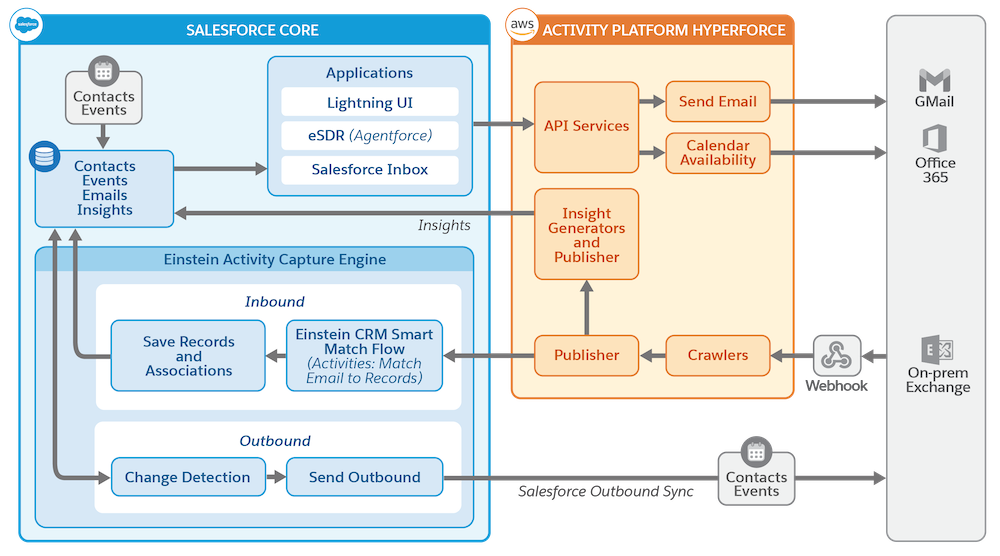
#### See Also
- [Network Connection](https://help.salesforce.com/s/articleView?id=sales.aac_setup_allow_access.htm&release=264.0.0&type=5 "When setting up Einstein Activity Capture with a Microsoft Exchange on-premises server (2019, 2016, or 2013) or Microsoft Office 365, make sure that you allow the necessary network access.")
- [Exchange Web Services (EWS)](https://help.salesforce.com/s/articleView?id=sales.activity_capture_ews_api.htm&release=264.0.0&type=5 "To access emails, events, and contacts from Exchange, Salesforce makes these calls via Exchange Web Services (EWS).")
- [Microsoft Graph API](https://help.salesforce.com/s/articleView?id=sales.activity_capture_graph_api.htm&release=264.0.0&type=5 "Starting Spring ’26, Einstein Activity Capture configured to use Microsoft Office 365 is automatically authenticated by using Microsoft Graph. Microsoft is retiring Exchange Web Services in October 2026 for Microsoft Office 365, and Microsoft Graph API replaces Exchange Web Services as a more advanced, secure, and scalable solution. Microsoft Graph exposes REST APIs and client libraries to access data on Microsoft Office 365.")
# Authentication Providers for Your Enablement Site
After you set up your enablement site's subdomain, select an authentication provider, which determines how all your users—learners, content creators, and release managers—log in to your site. You can select either Salesforce Identity for Enablement, which we recommend, or Trailblazer.me (TBID). The authentication provider that you select determines the login and navigation experience for all of your users.
### Required Editions
Available in: Enterprise, Performance, and Unlimited Editions
User Roles
This topic supports these enablement site roles:
Salesforce Admins

Warning The option to select an authentication provider is available only when either of these conditions is true:
- You haven’t yet created an enablement site.
- You’ve created an enablement site, but no user has taken a quiz.
If you’ve created your enablement site and a user has taken a quiz, the option to select an authentication provider isn’t available.
- **[Considerations for Selecting an Authentication Provider](https://help.salesforce.com/s/articleView?id=sales.mth_considerations_for_choosing_mytrailhead_identity.htm&release=264.0.0&type=5)**
To help you determine which authentication provider is right for your company’s enablement site, review how each provider affects your learning and enablement strategy. We recommend that all new enablement sites choose Salesforce Identity for Enablement.
- **[Configure Salesforce Identity for Enablement](https://help.salesforce.com/s/articleView?id=sales.mth_configure_mytrailhead_identity.htm&release=264.0.0&type=5)**
To set up Salesforce Identity for Enablement for your enablement site, first create a connected app in Salesforce. The connected app handles data sharing between your enablement site and Salesforce using OpenID Connect and OAuth 2.0—protocols that authenticate users and authorize access to data in your org. Finally, enter your connected app details on your enablement site.
- **[Troubleshoot Login Issues with Salesforce Identity for Enablement](https://help.salesforce.com/s/articleView?id=sales.mth_sifm_troubleshoot.htm&release=264.0.0&type=5)**
If you configure your enablement site to use Salesforce Identity for Enablement authentication, users can sometimes encounter issues when they try to log in. Help resolve any issues your users encounter when they visit your site’s login URL and enter the credentials.
- **[Configure Trailblazer.me for Your Enablement Site](https://help.salesforce.com/s/articleView?id=sales.mth_configure_trailblazer_me.htm&release=264.0.0&type=5)**
To set up Trailblazer.me (TBID) for your enablement site, select the appropriate option after you create the subdomain.
- **[Request to Switch Your Authentication Provider](https://help.salesforce.com/s/articleView?id=sales.mth_identity_change.htm&release=264.0.0&type=5)**
If you selected Trailblazer.me (TBID) for your enablement site’s authentication provider, you can submit a Salesforce Customer Support case to request to switch to Salesforce Identity for Enablement. If you already selected Salesforce Identity for Enablement for your enablement site’s authentication provider, you can’t request to switch it to TBID.
#### See Also
- [Enablement Site User Menu Items](https://help.salesforce.com/s/articleView?id=sales.mth_user_menu.htm&release=264.0.0&type=5 "The menu that appears when a user clicks their avatar contains items for navigating different parts of your enablement site.")
# Automate Cleanup for Custom Recommendations
To automatically remove expired or declined recommendations from the feed, activate a Clean Custom Recommendation flow.
### Required Editions
Available in: Lightning Experience in Enterprise, Unlimited, and Agentforce 1 Sales editions with the Sales Foundation add-on.
User Permissions Needed
To create and modify flows:
Manage Flow
Configure an expiration date formula in your custom recommendation flows.
Keep your feed relevant by clearing out expired and declined recommendations. This flow uses the expiration date defined in your creation flows. Use a separate cloned cleanup flow for each custom signal type.
1. From Setup, in the Quick Find box, enter and select **Flows**.
2. Find and select **Clean Custom Recommendations** and then click **Save As New Flow**.
3. To configure the custom signal of which you want to remove the expired recommendations, click **Get Custom Definition**.
4. For the Name field, replace the value with the developer name of the custom signal.
5. Click **Save** and **Activate**.
# Automate Sales Outreach with a Buyer Assistant
Generate leads, deliver personalized conversations, and close deals faster with a buyer assistant. Buyer Assistant bots transform the web-to-lead experience and help your sales team sell more. Each buyer assistant includes CRM-powered dialogs and automation flows that help it to connect with customers. A buyer assistant can pitch your products’ value after business hours, notify relevant team members when a customer is chatting, intelligently route leads to your sales team, and schedule customer meetings for your sales team. After creating a buyer assistant bot, you can personalize the conversation experience and adjust the built-in flows to meet your business needs. Get your buyer assistant up and running quickly using the guided onboarding experience.
### Required Editions
Available in: Lightning Experience
Available with Sales in Performance and Unlimited Editions
Available with Sales Engagement, which is available in Performance and Unlimited Editions, and for an extra cost in Professional and Enterprise Editions
- **[Setting Up a Buyer Assistant](https://help.salesforce.com/s/articleView?id=sales.sales_einstein_bots_setup.htm&release=264.0.0&type=5)**
Add a buyer assistant to your website quickly with a guided onboarding experience. We help you create and personalize your Buyer Assistant bot, enable required features, and set your bot up for success. To get started, go to the Buyer Assistant page in Setup.
# Automate Updates with Workflow Rules in Salesforce to Salesforce
You can use workflow rules to automate updates to records and connections in Salesforce to Salesforce. You can use workflows for many processes, including updating values on picklists when a connection edits the field. If your organization is set up to automatically accept records, workflow rules are triggered by any field you subscribed to.
### Required Editions

Tip You can also use Process Builder to automate your processes. If you want your process to perform an action after you create an S2S record, make sure to create a scheduled action rather than an immediate action to allow S2S time to process the created records. Immediate actions fire before shared record connection IDs are updated, resulting in shared records with no connection IDs. Updates to records without connection IDs cannot reach the subscribing system.
Available in: Salesforce Classic
Available in: Contact Manager, Group, Professional,
Enterprise, Performance, Unlimited, and Developer
Editions
Workflow is available in: Enterprise, Performance,
Unlimited, and Developer Editions

Important Salesforce to Salesforce is scheduled for retirement as of Spring ’27. See [Salesforce to Salesforce Retirement](https://help.salesforce.com/s/articleView?id=005103355&type=1&language=en_US).
Workflow rules are only triggered for records shared in Salesforce to Salesforce when you accept a parent record, a child record is inserted, or you are subscribed to the fields that are configured to trigger the workflow rules
Some suggestions for criteria for workflow rules for Salesforce to Salesforce include:
- Received Connection Name field on leads, opportunities, and custom objects
- Current User equals pnet
- Last Modified By field equals Connection User
For example, you can create a task for a user every time a connected organization updates a lead. Create a workflow rule with specific criteria, then add a workflow task.
- Evaluation criteria: Evaluate the rule when a record is: created, and every time it’s edited
- Run the rule when criteria are met.
- Rule criteria: “Lead: Last Modified By equals Connection User”.
When you accept a record, only certain fields trigger workflow rules.
Object
Fields Triggering Workflows
Account
Account Name
City
Country
Received Connection Name
Sent Connection Name
State
Type
Case
Case Number
Priority
Status
Subject
Type
Contact
Email
Last Name
Mailing Address
Phone
Title
Lead
Company
Email
Industry
Lead
Lead Source
Name
No. of Employees
Phone
Received Connection Name
Sent Connection Name
State
Status
Title
Opportunity
Account Name
Amount
Close Date
Name
Received Connection Name
Sent Connection Name
Stage
Custom Object
Connection Name
Name
Sent Date
Sometimes it makes sense to use an Apex trigger instead of a workflow. Suppose that you have a workflow rule that updates field B when field A is updated. Even if your Salesforce to Salesforce partner subscribed to fields A and B, updates to field B that are triggered by your workflow rule aren’t sent to your partner’s organization. This prevents a loop of updates.
If you want such secondary field updates to be sent to your Salesforce to Salesforce partners, replace the workflow with an Apex trigger that uses post-commit logic to update the secondary field.
In bi-directional connections, Salesforce to Salesforce updates are triggered back only on “after” triggers (for example, “after insert” or “after update”), not on “before” triggers.
# Automate User Schedules and Routes in Salesforce Maps
Salesforce Maps Advanced automates users' schedules and routes for up to 3 months.
### Required Editions
Available in: Lightning Experience and Salesforce Classic
Available in: Professional, Enterprise, Performance, Unlimited, and Developer Editions
A manager creates a visit plan that includes the data, users, and criteria to optimize routes, and field users generate their routes automatically by providing input such as days off and shift times. The visit plan determines the best-fitting routes.
1. **[Create an Automated Visit Plan in Salesforce Maps Advanced](https://help.salesforce.com/s/articleView?id=sales.salesforce_maps_setup_visit_plans_create.htm&release=264.0.0&type=5)**
Optimize field users' routes automatically over a 3 month window based on your visit criteria.
# Automate Your Workflow with Einstein Activity Capture
Einstein Activity Capture reduces manual data entry and provides a complete view of your relationship history. Connect your Microsoft or Google account to Salesforce to capture emails and calendar events and relate them to your sales records automatically. Manage your privacy settings to control how activity data appears to teammates while ensuring customer interactions remain current.
### Required Editions
Available in: Lightning Experience
Available with Einstein Activity Capture Standard in Sales in Starter, Pro Suite, Professional, and Enterprise Editions
Available with Unlimited Edition, Einstein 1 Sales Edition, and Agentforce 1 Edition
Available with Einstein for Sales, which is included in Einstein 1 Sales Edition and available for an extra cost in Enterprise and Unlimited Editions
Available with Sales Engagement, which is included with Sales in Performance and Unlimited Editions, and available for an extra cost in Professional and Enterprise Editions
Available with Revenue Intelligence, which is available for an extra cost in Enterprise and Unlimited Editions

Note We’re reorganizing the Einstein Activity Capture documentation. We’re moving some information around, but we aren’t deleting anything.
Watch a demo: [How Users Set Up Einstein Activity Capture](https://salesforce.vidyard.com/watch/KriYKuFXjRqPYN7KXh8oLZ) (English only)
Depending on how your Salesforce admin set up Einstein Activity Capture, your Microsoft or Google account can already be connected. You can still customize some Einstein Activity Capture settings and learn how to get the most out of your data.

Tip If your admin enabled Inbox, you also have access to some or all Inbox features.
- **[Connect Your Email and Calendar to Salesforce with Einstein Activity Capture or Inbox](https://help.salesforce.com/s/articleView?id=sales.aac_connect_additional_accounts.htm&release=264.0.0&type=5)**
Depending on how your Salesforce admin configures Einstein Activity Capture, it’s possible that you’re responsible for connecting or reconnecting your Microsoft or Gmail account to Salesforce. If you use Lightning Email and have access to Inbox features, connect an account to Salesforce.
- **[Email Data Capture Configuration for Sync Email as Salesforce Activity](https://help.salesforce.com/s/articleView?id=sales.eac_email_activity_headeronly.htm&release=264.0.0&type=5)**
When Sync Email as Salesforce Activity is enabled in Einstein Activity Capture, you can control the amount of email data captured: entire email message or header only. The header-only capture option gives you more privacy by letting you capture only the sender, recipients, and date and time the email was sent.
- **[Preparing to Sync Events with Einstein Activity Capture](https://help.salesforce.com/s/articleView?id=sales.aac_event_sync_prepare.htm&release=264.0.0&type=5)**
If your Salesforce admin configured Einstein Activity Capture to sync events, review our suggestions for making sure it works the way you want.
- **[Preparing to Sync Contacts with Einstein Activity Capture](https://help.salesforce.com/s/articleView?id=sales.aac_contact_sync_prepare.htm&release=264.0.0&type=5)**
If your Salesforce admin configured Einstein Activity Capture to sync contacts, review our suggestions for making sure it works the way you want.
- **[Exclude Emails and Events from Your Salesforce Activities](https://help.salesforce.com/s/articleView?id=sales.aac_add_excluded_addresses.htm&release=264.0.0&type=5)**
When you add email addresses to your Excluded Addresses list, emails and events with those addresses aren’t added to the activity timeline of related Salesforce records. Events aren’t added to the Salesforce calendar. And events aren’t synced between Salesforce and the connected accounts.
- **[Control How Your Captured Emails Are Shared](https://help.salesforce.com/s/articleView?id=sales.aac_share_with_everyone.htm&release=264.0.0&type=5)**
Choose how to share email data that Einstein Activity Capture adds to the activity timeline of related Salesforce records. Share with all users, Chatter groups, or no one.
- **[Set Up a Group for Sharing Activities](https://help.salesforce.com/s/articleView?id=sales.aac_set_up_a_group_for_sharing.htm&release=264.0.0&type=5)**
The group’s owner or manager can enable email and event sharing for private and unlisted Chatter groups. Then, Einstein Activity Capture users within the group can share their emails and events with all group members.
#### See Also
- [Einstein Activity Capture](https://help.salesforce.com/s/articleView?id=sales.einstein_sales_aac.htm&release=264.0.0&type=5 "Eliminate manual data entry and transform a list of engagements into action. Einstein Activity Capture syncs your Microsoft or Google account with Salesforce, linking email and calendar activities to the relevant contacts, leads, and opportunities. Einstein Activity Capture gives your team and AI agents the critical context needed to make their next move.")
- [Salesforce Inbox](https://help.salesforce.com/s/articleView?id=sales.inbox.htm&release=264.0.0&type=5 "Inbox features increase sales reps’ productivity on every email message, whether they’re on the go or at their desk.")
- [Salesforce Sales Engagement Documentation](https://help.salesforce.com/s/articleView?id=sales.high_velocity_sales.htm&release=264.0.0&type=5 "Accelerate your inside sales process with a high-productivity workspace. With cadences, managers can create custom sales processes that guide sales reps through handling different types of prospects. Those cadences appear for sales reps in the Work Queue, a task list that appears inside the Sales Console. And with other productivity-boosting features like Sales Dialer, Lead Scoring, and included reports, your sales teams have everything they need to handle prospects in a fraction of the time it took before.")
- [Salesforce Meetings](https://help.salesforce.com/s/articleView?id=sales.meetings_parent.htm&release=264.0.0&type=5 "Salesforce Meetings is a set of tools to enhance sales reps’ interactions with prospects and customers. Reps can ensure everyone is aligned before a meeting starts by seeing valuable meeting information with Meeting Digest.")
# Automatic Account Assignments for Synced Contacts in Salesforce for Outlook (Retiring)
After syncing contacts from Outlook, Salesforce for Outlook tries to automatically assign them to accounts.
### Required Editions
Available with the purchase of Sales Cloud or Government Cloud in: Personal, Contact Manager, Professional, Enterprise, Performance, Unlimited, and Developer Editions
User Permissions Needed
To assign accounts:
Read on accounts and Edit on contacts
To create new accounts:
Create on accounts and Edit on contacts
AND
Show Quick Create

Important Full product retirement for Salesforce for Outlook is scheduled on January 30, 2027. See [Salesforce for Outlook Retirement](https://help.salesforce.com/s/articleView?id=000393445&type=1&mode=1&language=en_US). To keep integrating Microsoft Outlook with Salesforce, check out our next-generation products: the Outlook integration and Einstein Activity Capture. See [Move from Salesforce for Outlook (Retiring) to the Next-Generation Products](https://help.salesforce.com/articleView?id=outlookcrm_sfo_move_parent.htm&language=en_US).
After syncing contacts from Outlook, Salesforce for Outlook tries to automatically assign them to accounts, as shown in this diagram.
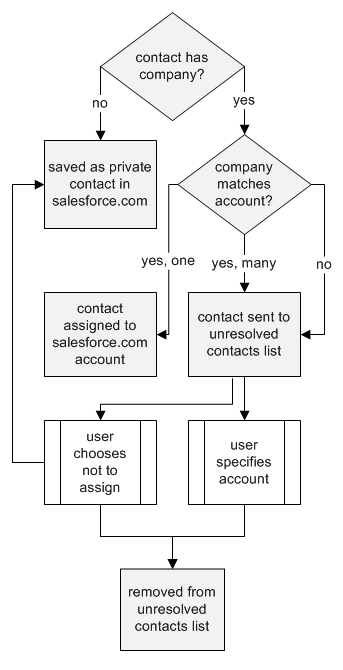
This table describes the account assignment process.
| If | Then |
| --- | --- |
| A contact's company matches a single Salesforce account | The contact is assigned to that account. |
| A contact's company matches many Salesforce accounts or none | The contact is sent to My Unresolved Items in Salesforce, which you can access from the Contact home page or the Salesforce for Outlook system tray application. You can use this list to manually assign contacts to existing accounts, create new accounts, or confirm that contacts are private. |
| A contact doesn't have a company name | The contact is treated as a private contact and is not sent to My Unresolved Items. |
| A contact's company changes in Outlook | If a matching account is found in Salesforce, the contact is assigned to that account. Otherwise, the contact is sent to My Unresolved Items to be resolved. |
| An unresolved contact is deleted in Outlook | The contact is removed from My Unresolved Items the next time you open the list. |
| An unresolved contact is changed in Outlook | The contact record is updated in My Unresolved Items. If the contact's company changes, Salesforce checks to see if that information matches any existing accounts and assigns it to an account if it finds a match. |
#### See Also
- [How Your Contacts Sync with Salesforce for Outlook (Retiring)](https://help.salesforce.com/s/articleView?id=sales.outlookcrm_sync_contacts_o.htm&release=264.0.0&type=5 "You can keep your important Outlook and Salesforce contacts in sync using Salesforce for Outlook. When contacts initially sync, Salesforce for Outlook checks to see whether a contact with the same email address exists in both Outlook and Salesforce. If a matching email address exists, the two contacts are synced. If it doesn't exist, Salesforce for Outlook checks to see whether a contact with the same first name, last name, and company name exists. If it doesn't exist, a new contact is created and the two are synced.")
- [Resolve Your Synced Contacts](https://help.salesforce.com/s/articleView?id=sales.outlookcrm_unresolved_contacts.htm&release=264.0.0&type=5 "When contacts sync from your email app with Einstein Activity Capture, Lightning Sync, or Salesforce for Outlook, some contacts are automatically assigned to accounts based on their company. The rest are added to My Unresolved Items, where you can either assign contacts to Salesforce accounts or confirm that you want to leave them unassigned.")
- [Manage Your Salesforce for Outlook (Retiring) Configuration](https://help.salesforce.com/s/articleView?id=sales.outlookcrm_personal_configs.htm&release=264.0.0&type=5 "Depending on whether your administrator lets you change your settings, customize Salesforce for Outlook to fit your specific needs.")
# Automatic Contact Creation
Create contacts automatically from your email and calendar interactions. You can also set thresholds to create or suggest contacts after a certain amount of email or event activity.
### Required Editions
Available in: Lightning Experience
Available with Agentforce 1 Sales Edition
Available with Sales Cloud Einstein, which is available in Performance and Unlimited Editions and for an extra cost in Enterprise Edition
Available with Sales Engagement in Sales, which is included in Performance and Unlimited Editions and available for an extra cost in Professional and Enterprise Editions. Sales Engagement is also available for an extra cost in Service and Lightning Platform.
Available with Revenue Intelligence, which is available for an extra cost in Enterprise and Unlimited Editions
Automatic Contact Creation looks for external people with email addresses that don’t already belong to contacts. A contact is created after one of these situations occurs.
- A user receives an email from an external person the number of times specified in the email threshold. If a user sends an email to an external person in the To, cc, or bcc fields, it doesn’t count towards the threshold for automatic contact creation.
- A user meets with an external person the number of times specified in the event threshold.
For details about how an account is associated with the automatically created contact, see [Considerations for Automatic Contact Creation](https://help.salesforce.com/s/articleView?id=sales.contacts_autocreation_considerations.htm&release=264.0.0&type=5 "Learn about requirements, email filters, and other considerations for Automatic Contact Creation.").
On Seller Home, see how many contacts were automatically created in the last 7 days.
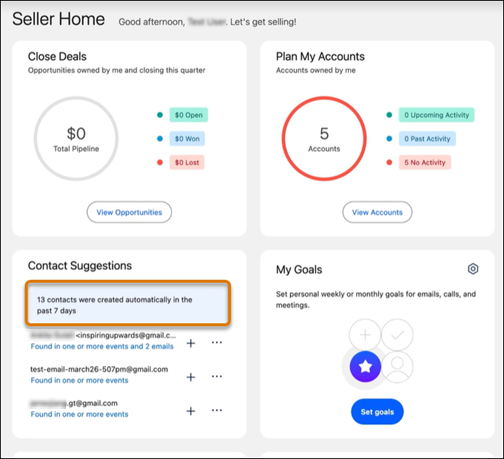
- **[Considerations for Automatic Contact Creation](https://help.salesforce.com/s/articleView?id=sales.contacts_autocreation_considerations.htm&release=264.0.0&type=5)**
Learn about requirements, email filters, and other considerations for Automatic Contact Creation.
#### See Also
- [Set Up Automatic Contact Creation](https://help.salesforce.com/s/articleView?id=sales.contacts_autocreation_setup.htm&release=264.0.0&type=5 "Turn on Automatic Contact Creation and specify criteria for when contacts are created.")
- [See an Overview of Metrics, Goals, Suggestions, Tasks, and Activities in Seller Home](https://help.salesforce.com/s/articleView?id=sales.sales_core_seller_home.htm&release=264.0.0&type=5 "Sales team members can start their day with a bird’s eye view of their business. Seller Home shows users an overview of their opportunities, accounts, leads, and contacts, along with their day’s agenda. Seller Home also lets users set goals and track progress and view their to-do items, recent records, and contact suggestions from Einstein.")
# Automatic Contact Enhancements
Let generative AI identify your contacts’ buying behavior and company information automatically from your email interactions. Build content-rich profiles for all your contacts to draw accurate buyer relationship maps so that you can close deals.
### Required Editions
Available in: Lightning Experience
Available in: Starter, Professional, Enterprise, Unlimited, Einstein 1 Sales, and Agentforce 1 Sales Edition. The feature is also available with the Einstein for Sales, Sales Engagement, and Revenue Intelligence add-ons.

Example Carole White is a VP in the Finance department and the buyer in an account renewal. An email you received from her contains in the message body “We’re creating a purchase order for 50 licenses for Einstein Activity Capture.” The same email has a signature block that contains Executive VP, Finance below Carole’s name. From this interaction, Automatic Contact Enhancements uses generative AI to fill in seniority level, department group, and buyer attributes on Carole’s contact record.
- **[How Automatic Contact Enhancements Works with the Buyer Relationship Map](https://help.salesforce.com/s/articleView?id=sales.contacts_buyer_rel_map.htm&release=264.0.0&type=5)**
Automatic Contact Enhancements helps keep buyer relationship maps up-to-date so that you always have the most robust contact information without any manual data entry. Automatic Contact Enhancements uses generative AI to identify buyer attributes, department group, and seniority level from a user’s email activity. These values are then added to the contact and shown in the buyer relationship map.
- **[Considerations for Automatic Contact Enhancements](https://help.salesforce.com/s/articleView?id=sales.automatic_contact_enhancements_considerations.htm&release=264.0.0&type=5)**
Learn about requirements, impacted fields, and supported languages for Automatic Contact Enhancements.
- **[Set Up Automatic Contact Enhancements](https://help.salesforce.com/s/articleView?id=sales.automatic_contact_enhancements_setup.htm&release=264.0.0&type=5)**
Turn on Automatic Contact Enhancements, add fields to the contact record layout and list views, and recognize when the feature is on.
#### See Also
- [Einstein Generative AI](https://help.salesforce.com/s/articleView?id=ai.generative_ai_about.htm&type=5&language=en_US)
- [Einstein Activity Capture](https://help.salesforce.com/s/articleView?id=sales.einstein_sales_aac.htm&type=5&language=en_US)
- [_Object Reference for the Salesforce Platform:_ Contact](https://developer.salesforce.com/docs/atlas.en-us.object_reference.meta/object_reference/sforce_api_objects_contact.htm)
# Automatically Assign Plans and Quotas to Team Members
If teams in Salesforce Spiff share plans or if you want to add teams to the same quotas, turn on Automation for teams. Users are assigned to plans and quotas automatically when they're assigned to a team.
### Required Editions
Available in: both Salesforce Classic (not available in all orgs) and Lightning Experience
Available in: Enterprise, Unlimited, and Developer Editions
Available for an additional cost in: Professional Edition with Web Services API Enabled
User Permissions Needed
To turn on team automation:
A Spiff user role with these permissions turned on.
Teams: Manage
Users: Edit
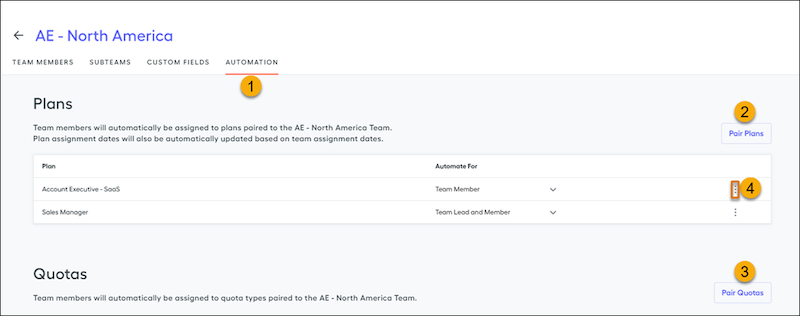
1. Select a team from the Teams page, and click **Automation** (1).
2. Select **Pair Your First Plan** or **Pair Plans** (2) to choose the plan you want the team to be paired with. This allows you to automate the addition of team members and the team leads, team members only, or team leads only. Save your selection.
If there are users already assigned to the team, you’re prompted to apply the plan assignment to these users. If users on the team have already been assigned to the paired plan at a previous date, choose **Don't Apply**. Otherwise, duplication can occur.
Once you add team members with effective start dates to the team, these team members are reflected on the plan effective dates automatically. Any changes made to plan effective dates on the Plans page reset to the team effective dates during the nightly sync.
3. In the Quotas section in Automation, click **Pair Quotas** (3) and select whether paired quotas apply to team members or team leads.
Only the quota assignment is automated. Quota values must be inputted for each user manually.
4. To remove paired plans or quotas, hover over the three dots on the far right of the visible plan or quota and select **Remove** (4).
# Automatically Enter the List Price as the Sales Price on Opportunities
Ensure that the price from the associated price book is applied to opportunity products by removing the Sales Price field from the opportunity product layout.
### Required Editions
Available in: Lightning Experience and Salesforce Classic
Available in: Professional, Enterprise, Performance, Unlimited, and Developer Editions
User Permissions Needed
To restrict price and unit editing:
Customize Application
1. In the Object Manager, use the Quick Find box to find **Opportunity Product**.
2. In the opportunity product layout, remove the Sales Price field. Save your change.
# Automatically Set a Lead’s Status When a Step Is Completed
Use an Apex trigger to subscribe to Change Data Capture events from cadences. Update a lead’s status to Contacted when a sales rep completes the First Touch step in the lead’s cadence.
### Required Editions
Available in: Lightning Experience
Available with Sales Engagement, which is included with Sales in Performance, Einstein 1, and Unlimited Editions, and available for an extra cost in Professional and Enterprise Editions. Sales Engagement is also available for an extra cost in Service and Lightning Platform.
Start by enabling change data capture for the ActionCadenceStepTrackerChangeEvent object. Then, create a change event trigger. Finally, change a step's state and see how a lead's status updates automatically. To use this example, you need a cadence with a step called First Touch. The cadence must have at least one lead added as a target.

Note Remember that Apex triggers for change events are asynchronous. After a sales rep marks a step as completed, a short delay can occur before the related lead’s status is updated.
## Enable Change Data Capture for the ActionCadenceStepTrackerChangeEvent Object
Before you can receive change notifications for cadence steps, you must enable the ActionCadenceStepTrackerChangeEvent object for notifications.
1. From Setup, in the Quick Find box, enter Change Data Capture, and then select **Change Data Capture**.
2. In Available Entities, select **Cadence Step Tracker (ActionCadenceStepTracker)**, and then click the **\>** arrow.
3. Save your changes.
## Enable Change Data Capture for the ActionCadenceStepTrackerChangeEvent Object
Using the Developer Console, create a trigger on the ActionCadenceStepTracker change event.
1. Click the gear icon, and then select **Developer Console**.
2. In the Developer Console, select **File** | **New** | **Apex Trigger**.
3. In the Name field, enter the name of your trigger. We use UpdateLeadOnStepCompletionTrigger.
4. From the dropdown, select **ActionCadenceStepTracker**.
5. Replace the default content with this code.
```java
trigger UpdateLeadOnStepCompletionTrigger on ActionCadenceStepTrackerChangeEvent (after insert)
for(ActionCadenceStepTrackerChangeEvent event : Trigger.New) {
EventBus.ChangeEventHeader header = event.ChangeEventHeader;
List recordIds = header.getRecordIds();
System.debug('Received change event for ' +
header.entityName +
' for the ' +
header.changeType +
' operation.'
);
if(recordIds.size() == 0) {
continue;
}
// Get ActionCadenceStepTracker records for completed steps where the target is a lead
List stepTrackers = [SELECT Id, ActionCadenceStepId, ActionCadenceName, TargetId, StepType, StepTitle
FROM ActionCadenceStepTracker
WHERE Id IN :recordIds
AND State = 'Completed'
AND Target.Type = 'Lead'
AND StepTitle LIKE 'First Touch%'];
if(stepTrackers != null && stepTrackers.size() > 0) {
System.debug('Found ' + stepTrackers.size() + ' step tracker events.');
List leads = new List();
for(ActionCadenceStepTracker stepTracker : stepTrackers) {
System.debug('Adding the lead ID ' + stepTracker.TargetId + ' to Lead list.');
Lead lead = new Lead(Id=stepTracker.TargetId, Status='Contacted');
leads.add(lead);
}
update leads;
} else {
System.debug('Did not find any completed First Touch step trackers that are related to leads');
}
}
}
```
This change event trigger iterates through each received change event message in `Trigger.New`. For each event, we get the ID of the ActionCadenceStepTracker that triggered the event. Then, we use the ID of the step tracker to query for the ActionCadenceStepTracker record. We check to verify that the related step’s name is `First Touch`, the state is `Completed`, and the target of the cadence is a lead.
If the cadence step meets that criteria, the state of the related lead is updated to `Contacted`.
## Verify the Trigger
Set the log level to capture debug messages from Apex triggers, then verify that your new trigger updates a lead’s status.
1. From Setup, in the Quick Find box, enter Debug Logs, and then select **Debug Logs**.
2. Click **New**.
3. For Traced Entity Type, select **Automated Process**.
4. Select the time period for log collection. We suggest an hour or less.
5. For Debug Level, click **New Debug Level**. Enter CustomDebugLevel for the name, and then accept the other default selections.
6. Save your changes.
7. In Sales Engagement, find your cadence that has the First Touch step. Set this step to Completed.
8. Verify that the lead’s status is updated to Contacted.
9. In Debug Logs, click **View** next to the automated process log to see the System.debug messages from your new trigger.
#### See Also
- [Test Change Event Triggers](https://developer.salesforce.com/docs/atlas.en-us.change_data_capture.meta/change_data_capture/cdc_trigger_testing.htm)
# Automating Enablement Program Assignment
Instead of manually assigning users to Enablement programs, automate assignments with an invocable action in Flow Builder, Apex, or REST API.
- **[Assign Users to Enablement Programs with a Flow](https://help.salesforce.com/s/articleView?id=sales.automated_assignment_flow.htm&release=264.0.0&type=5)**
Create a flow that assigns users to an Enablement program when they satisfy certain criteria.
- **[Assign Users to Enablement Programs with Apex](https://help.salesforce.com/s/articleView?id=sales.automated_assignment_apex.htm&release=264.0.0&type=5)**
Create a schedulable Apex class that bulk-assigns users to Enablement programs.
- **[Assign Users to Enablement Programs with REST API](https://help.salesforce.com/s/articleView?id=sales.automated_assignment_rest_api.htm&release=264.0.0&type=5)**
Create a REST API POST request that uses the assignEnablementPrograms invocable action for assigning Enablement programs.
# Backpacks for Trails and Modules
A backpack is a ZIP file that contains your content’s source files that you can download, back up, or upload. An individual backpack can be up to 50 MB. You can download a backpack for content that’s in your local Trailmaker Content workspace, or download a backpack for content published from Trailmaker Release.
### Required Editions
Available in: Enterprise, Performance, and Unlimited Editions
User Roles
This topic supports these enablement site
roles:
Content Creators
Release Managers
Subject Matter Experts
A module and a trail are in separate backpacks so that it’s easier for you to maintain each content type. For example, if only one module in a published trail needs updates, you can download and reupload the backpack for just the module you want to update. It’s not necessary to download the trail backpack or the backpacks for the other modules.
You use a backpack for these activities:
- To store content in a version control system (VCS), you download a backpack from Trailmaker Content or Trailmaker Release.
- To update existing content in your enablement site, you download the backpack for the latest released version of content from Trailmaker Release, and then import the backpack into Trailmaker Content. Or, access the backpack from your VCS and import it into Trailmaker Content. Then, upload a new backpack that contains the updated content to an unpublished release.

Note Effective September 2021, Tags metadata is no longer required for trails, modules, or units. If you created any trails, modules, or units before September 2021, the backpack data retains the existing Tags filters and their assigned points. However, those Tags filters aren’t validated when you import or export the backpack. If you import an existing module to Trailmaker Content and modify the assigned points, Trailmaker reassigns all points to the General tag.
## Trail Backpack
For a trail, Trailmaker Content creates a backpack that contains these files:
- A labels folder that contains a labels.yml file (1), which specifies the trail’s title and description.
- An icon.png file (2) for the trail art.
- A trail.json file (3) that specifies the trail’s metadata, including filters and a list of the associated module API names.
## Module Backpack
For a module, Trailmaker Content creates a backpack that contains these files:
- A labels folder that contains a labels.yml file (1), which specifies the title and description for the module and its units.
- A badge.png file (2) for the module’s badge art.
- A module.json file (3) that specifies the metadata for the module and its units, including filters and points.
- A folder for each unit, which contains:
- An images subfolder (4), which contains the unit’s image files.
- A content.html file (5), which contains the unit’s text.
- An evaluation.json file (6), which contains the unit’s quiz data.
- A toc.html file (7), which contains the unit’s list of section headings.
#### See Also
- [Download a Backpack from Trailmaker Content](https://help.salesforce.com/s/articleView?id=sales.mth_download_content_from_tm_content.htm&release=264.0.0&type=5 "You can download the backpack ZIP file for a module or trail that’s in your Trailmaker Content workspace. Then, you can submit the backpack to your company’s version control system (VCS) so that other users can import the backpack into their own local Trailmaker Content workspace.")
- [Download a Backpack from Trailmaker Release](https://help.salesforce.com/s/articleView?id=sales.mth_tm_release_download.htm&release=264.0.0&type=5 "From Trailmaker Release, you can download the backpack ZIP file for a module or trail published in your company’s enablement site. With this backpack, your content creators can easily access the latest released version of content the next time they want to update it.")
- [API Names for Trails, Modules, and Units](https://help.salesforce.com/s/articleView?id=sales.mth_api_names_on_mytrailhead.htm&release=264.0.0&type=5 "Each content collection, release, trail, module, and unit on your enablement site has its own API name, which is a globally unique ID that references a content path in URLs.")
- [Metadata for Trails, Modules, and Units](https://help.salesforce.com/s/articleView?id=sales.mth_metadata_on_mytrailhead.htm&release=264.0.0&type=5 "When you create trails, modules, and units, you also create metadata about your content, such as the title, description, and target audience. Learners can filter the content on your enablement site based on the metadata values you assign.")
- [Guidelines for Localizing Files in a Backpack](https://help.salesforce.com/s/articleView?id=sales.mth_localize_files.htm&release=264.0.0&type=5 "Your localization team or vendor can localize only certain trail, module, unit, and quiz information in your backpack’s files.")
- [Export All Published and Archived Content from an Enablement Site](https://help.salesforce.com/s/articleView?id=sales.mth_content_export.htm&release=264.0.0&type=5 "To back up all content that’s been published or archived on your enablement site, you can quickly download backpacks of all published and archived trails and modules. This option is also useful when you want to transfer your content to another system.")
# Batch Test Agentforce Engagement (Legacy) Introductory Emails in Testing Center
To see how your Engagement agent generates initial emails to prospects at scale by using the prospect record details and the Draft Initial Outreach Email prompt template action, use Testing Center.
### Required Editions
Available in: Lightning Experience in Enterprise, Performance, and Unlimited editions with Sales and Einstein for Sales.
User Permissions
Needed
To set up and test Agentforce Engagement:
Configure Engagement Agent
Agents created before October 27, 2025 used an older configuration process in Setup. These agents show only three subagents in Agent Builder. Use these testing steps if your agent shows three subagents in Agent Builder.
In the Testing Center, set test conditions, upload a CSV file, and view the resulting intro emails.
1. In Setup, enter Testing Center in the Quick Find box. Then click **Testing Center**.
2. Click **New Test**.
3. Give your test a name and select the Agentforce Engagement agent as the agent to test. Add a description for your test if you want. Click **Next**.
4. On the Test Conditions page, click **Include context variables**. Context variables define the conditions for your testing scenario, such as whether you’re testing leads, contacts, or person accounts, intro emails or nudges, etc.
5. From the list of context variables, select the variables needed for your test. Then click **Next**.
For testing intro emails, select the Record Type, Email Scenario, Action Cadence Step Tracker ID, and Record variables.
6. On the Test Data tab, **Upload Test Cases (.csv)** is selected by default. Use this option to create and upload a CSV file. Click **Template** to download a CSV file containing the columns you need for your test. You fill in only the columns needed for testing intro emails.
7. Open the template CSV file in a spreadsheet editor like Microsoft Excel or Google Sheets. Delete the placeholder data beginning on row two. Then populate the rows with the lead, contact, or person account records and the associated context values that define your intro email testing scenario. For intro emails, the CSV file includes these columns.
- Utterance: the request sent to the LLM to initiate drafting the intro email.
- Expected Subagent: the subagent used to draft the email.
- Expected Actions: the agent action used to draft the email.
- Expected Response: the type of response requested from the agent.
- Context Variable OrchestrationStage: the email testing scenario. In this case the scenario is Intro.
- Context Variable currentRecordId: This is a record ID of a lead, contact, or person account you want to test with.
- Context Variable actionCadenceStepTrackerId: Your agent uses Sales Engagement Cadences to orchestrate its outreach. This is the ID of the email cadence step tracker associated with the lead, contact, or person account record. In Testing Center, use the dummy ID 8HF000000000000.
- Context Variable currentObjectApiName: the name of the object you’re testing. Valid values are Lead and Contact. To test with person accounts, use Contact.
Fill the rows of your CSV file according to these guidelines.
| Column NAME | Different values Per Row? | Input Value | Details |
| --- | --- | --- | --- |
| Utterance | No | Draft an initial outreach email to a lead. Do not schedule the email. Your response should be a text-formatted email and not JSON. | Update to contact or person account if needed. |
| Expected Subagent | No | Send Outreach | |
| Expected Actions | No | \['DraftInitialOutreachEmail'\] | |
| Expected Response | No | An initial outreach email is successfully drafted. | |
| Context Variable OrchestrationStage (Email Scenario) | No | Intro | |
| Context Variable currentRecordId | Yes | A valid record ID | For intro email testing, this is the only column that contains different values per row. The record ID appears in the URL of the record detail page. |
| Context Variable actionCadenceStepTrackerId | No | 8HF000000000000 | This is a dummy value used for testing. |
| Context Variable currentObjectApiName | No | Lead or Contact | To test person accounts, use Contact. |
Here’s an example of a valid CSV file for testing intro emails to leads.
8. On the Test Data page, click **Upload Files**. Select the CSV file that you created and click **Open**. When the upload is complete, click **Done**.
9. On the Evaluations page, a list of the available output quality evaluations appears. Select the evaluations that you want to see for the generated output. Then click **Save & Run**.
Your new test appears in the Tests list in the Testing Center.
10. To run your test, click the test name in the Tests list.
The agent generates an introductory email to each of the prospects by using the parameters in your CSV file. The generated output and evaluations appear in the Test Results list. Because you aren’t actually sending the generated email during testing, email scheduling errors can appear in the results. You can ignore these errors.
Check the results to see if the generated emails meet your business requirements.
# Batch Test Agentforce Engagement (Legacy) Nudge Emails in the Testing Center
To see how your Engagement agent generates nudge emails to prospects at scale by using the prospect record details and the Draft Nudge Email prompt template action, use Testing Center.
### Required Editions
Available in: Lightning Experience in Enterprise, Performance, and Unlimited editions with Sales and Einstein for Sales.
User Permissions
Needed
To set up and test Agentforce Engagement:
Configure Engagement Agent
Agents created before October 27, 2025 used an older configuration process in Setup. These agents show only three subagents in Agent Builder. Use these testing steps if your agent shows three subagents in Agent Builder.
In the Testing Center, set test conditions, upload a CSV file, and view the resulting nudge emails.
1. In Setup, enter Testing Center in the Quick Find box. Then click **Testing Center**.
2. Click **New Test**.
3. Give your test a name and select the Agentforce Sales Development Rep agent as the agent to test. Add a description for your test if you want. Click **Next**.
4. On the Test Conditions page, click **Include context variables**. Context variables define the conditions for your testing scenario, such as whether you’re testing leads, contacts, or person accounts, intro emails or nudges, etc.
5. From the list of context variables, select the variables needed for your test. Then click **Next**.
For testing nudge emails, select the Record Type, Email Scenario, Action Cadence Step Tracker ID, Record, Email Body, and Test as Last Nudge variables.
6. On the Test Data tab, **Upload Test Cases (.csv)** is selected by default. Use this option to create and upload a CSV file. Click **Template** to download a CSV file containing the columns you need for your test. You fill in only the columns needed for testing nudge emails.
7. Open the template CSV file in a spreadsheet editor like Microsoft Excel or Google Sheets. Delete the placeholder data beginning on row two. Then populate the rows with the lead, contact, or person account records and the associated context values that define your nudge email testing scenario. For nudge emails, the CSV file includes these columns.
- Utterance: the request sent to the LLM to initiate drafting the nudge email.
- Expected Subagent: the subagent used to draft the email.
- Expected Actions: the agent action used to draft the email.
- Expected Response: the type of response requested from the agent.
- Context Variable OrchestrationStage: the email testing scenario. In this case the scenario is Nudge.
- Context Variable currentRecordId: This is a record ID of a lead, contact, or person account you want to test with.
- Context Variable actionCadenceStepTrackerId: Your agent uses Sales Engagement Cadences to orchestrate its outreach. This is the ID of the email cadence step tracker associated with the lead, contact, or person account record. In Testing Center, use the dummy ID 8HF000000000000.
- Context Variable currentObjectApiName: the name of the object you’re testing. Valid values are Lead and Contact. To test with person accounts, use Contact.
- Context Variable emailBody: The body of the previous email sent by the agent to the prospect. This can be an actual agent-generated email, or other email content you want to test with.
- Context Variable testAsLastNudge: tells the LLM whether to treat this nudge as the last outreach that will be sent. Valid values are True or False.
Fill the rows of your CSV file according to these guidelines.
| Column NAME | Different Values Per Row? | Input Value | Details |
| --- | --- | --- | --- |
| Utterance | No | Draft a nudge email to a lead. Do not schedule the email. Your response should be a text-formatted email and not JSON. | Update to contact or person account if needed. |
| Expected Subagent | No | Send Outreach | |
| Expected Actions | No | \['DraftNudgeEmail'\] | |
| Expected Response | No | A nudge email is successfully drafted. | |
| Context Variable OrchestrationStage (Email Scenario) | No | Nudge | |
| Context Variable currentRecordId | Yes | A valid record ID | For nudge email testing, this is the only column that contains different values per row. The record ID appears in the URL of the record detail page. |
| Context Variable actionCadenceStepTrackerId | No | 8HF000000000000 | This is a dummy value used for testing. |
| Context Variable currentObjectApiName | No | Lead or Contact | To test person accounts, use Contact. |
| Context Variable emailBody | Yes | The body of the previous email sent by the agent to the prospect. | This can be actual agent-generated content, or other email content you want to test against. |
| Context Variable Is\_Agent\_at\_Last\_Nudge | Yes | True | Can be True or False |
Here’s an example of a valid CSV file for testing nudge emails to leads.
8. On the Test Data page, click **Upload Files**. Select the CSV file that you created and click **Open**. When the upload is complete, click **Done**.
9. On the Evaluations page, a list of the available output quality evaluations appears. Select the evaluations that you want to see for the generated output. Then click **Save & Run**.
Your new test appears in the Tests list in the Testing Center.
10. To run your test, click the test name in the Tests list.
The agent generates a nudge email to each of the prospects by using the parameters in your CSV file. The generated output and evaluations appear in the Test Results list. Because you aren’t actually sending the generated email during testing, email scheduling errors can appear in the results. You can ignore these errors.
Check the results to see if the generated emails meet your business requirements.
# Batch Test Agentforce Engagement (Legacy) Reply Emails in the Testing Center
To see how your Engagement agent generates reply emails at scale to prospects by using the prospect record details and the Draft Reply Email prompt template action, use Testing Center.
### Required Editions
Available in: Lightning Experience in Enterprise, Performance, and Unlimited editions with Sales and Einstein for Sales.
User Permissions
Needed
To set up and test Agentforce Engagement:
Configure Engagement Agent
Agents created before October 27, 2025 used an older configuration process in Setup. These agents show only three subagents in Agent Builder. Use these testing steps if your agent shows three subagents in Agent Builder.
In the Testing Center, set test conditions, upload a CSV file, and view the resulting reply emails.
1. In Setup, enter Testing Center in the Quick Find box. Then click **Testing Center**.
2. Click **New Test**.
3. Give your test a name and select the Agentforce Sales Development Rep agent as the agent to test. Add a description for your test if you want. Click **Next**.
4. On the Test Conditions page, click **Include context variables**. Context variables define the conditions for your testing scenario, such as whether you’re testing leads, contacts, or person accounts, intro emails or replies, etc.
5. From the list of context variables, select the variables needed for your test. Then click **Next**.
For testing reply emails, select the Record Type, Email Scenario, Action Cadence Step Tracker ID, Record, Email Body, and Lead Owner’s Inbox Enabled variables.
6. On the Test Data tab, **Upload Test Cases (.csv)** is selected by default. Use this option to create and upload a CSV file. Click **Template** to download a CSV file containing the columns you need for your test. You fill in only the columns needed for testing reply emails.
7. Open the template CSV file in a spreadsheet editor like Microsoft Excel or Google Sheets. Delete the placeholder data beginning on row two. Then populate the rows with the lead, contact, or person account records and the associated context values that define your nudge email testing scenario. For nudge emails, the CSV file includes these columns.
- Utterance: the request sent to the LLM to initiate drafting the reply email.
- Expected Subagent: the subagent used to draft the email.
- Expected Actions: the agent action used to draft the email.
- Expected Response: the type of response requested from the agent.
- Context Variable OrchestrationStage: the email testing scenario. In this case the scenario is Reply.
- Context Variable currentRecordId: This is a record ID of a lead, contact, or person account you want to test with.
- Context Variable actionCadenceStepTrackerId: Your agent uses Sales Engagement Cadences to orchestrate its outreach. This is the ID of the email cadence step tracker associated with the lead, contact, or person account record. In Testing Center, use the dummy ID 8HF000000000000.
- Context Variable currentObjectApiName: the name of the object you’re testing. Valid values are Lead and Contact. To test with person accounts, use Contact.
- Context Variable emailBody: the body of the prospect email to which the agent is replying.
- Context Variable Lead\_Owner\_has\_Inbox: indicates whether the record owner has Inbox enabled. To allow your agent to include a meeting booking link in a reply, Inbox must be enabled for the record owner. Valid values are True and False.
Fill the rows of your CSV file according to these guidelines.
Column NAME
Different Values Per Row?
Input Value
Details
Utterance
No
Respond to this email. Do not schedule the email. Your response should be a
text-formatted email and not JSON.
For nudge email testing, this is the only column that contains different
values per row. The record ID appears in the URL of the record detail
page.
Context Variable actionCadenceStepTrackerId
No
8HF000000000000
This is a dummy value used for testing.
Context Variable currentObjectApiName
No
Lead or Contact
To test person accounts, use Contact.
Context Variable emailBody
Yes
What products do you offer?
There are three types of SDR Email Body utterances for replies, product
inquiry, meeting request, and off-topic question.
Context Variable Lead_Owner_has_Inbox
Yes
True
Can be True or False
Here’s an example of a valid CSV file for testing reply emails to leads.
8. On the Test Data page, click **Upload Files**. Select the CSV file that you created and click **Open**. When the upload is complete, click **Done**.
9. On the Evaluations page, a list of the available output quality evaluations appears. Select the evaluations that you want to see for the generated output. Then click **Save & Run**.
Your new test appears in the Tests list in the Testing Center.
10. To run your test, click the test name in the Tests list.
The agent generates a reply email to each of the prospects by using the parameters in your CSV file. The generated output and evaluations appear in the Test Results list. Because you aren’t actually sending the generated email during testing, email scheduling errors can appear in the results. You can ignore these errors.
Check the results to see if the generated emails meet your business requirements.
# Batch Test Agentforce Engagement Actions and Email with Testing Center
Test intro emails, nudges, and replies against multiple records at once using a comma separated values (CSV) spreadsheet file designed for batch testing. Each CSV file can test a single scenario across multiple leads, contacts, or person accounts.
### Required Editions
Available in: Lightning Experience in Enterprise, Performance, and Unlimited editions with Sales and Einstein for Sales.
- **[Batch Test Modular Agentforce Engagement Actions and Email with Testing Center](https://help.salesforce.com/s/articleView?id=sales.sales_agent_sdr_testing_center_modular_actions.htm&release=264.0.0&type=5)**
Agents created after October 27, 2025 by using the guided configuration process in Setup use six modular subagents. Use these batch testing steps if your agent shows six modular sub agents in Agent Builder. Test intro emails, nudges, and replies against multiple records at once with a comma-separated values (CSV) spreadsheet file designed for batch testing. Each CSV file can test a single scenario across multiple leads, contacts, or person accounts.
- **[Batch Test Legacy Agentforce Engagement Actions and Email with Testing Center](https://help.salesforce.com/s/articleView?id=sales.sales_agent_sdr_testing_center_legacy_actions.htm&release=264.0.0&type=5)**
Agents created before October 27, 2025 used an older configuration process in Setup. These agents show only three subagents in Agent Builder. Use these testing steps if your agent shows three subagents in Agent Builder. Test intro emails, nudges, and replies against multiple records at once by using a comma-separated values (CSV) spreadsheet file designed for batch testing. Each CSV file can test a single scenario across multiple leads, contacts, or person accounts.
# Batch Test Agentforce Engagement Introductory Emails with Modular Actions in the Testing Center
To see how your Engagement agent generates initial emails to prospects at scale by using the prospect record details and the Draft Initial Outreach Email prompt template action, use Testing Center.
### Required Editions
Available in: Lightning Experience in Enterprise, Performance, and Unlimited editions with Sales and Einstein for Sales.
User Permissions
Needed
To set up and test Agentforce Engagement:
Configure Engagement Agent
Agents created after October 27, 2025 by using the guided configuration process in Setup use six modular subagents. Use these steps if your agent shows 6 modular sub agents in Agent Builder.
In the Testing Center, set test conditions, upload a CSV file, and view the resulting intro emails.
1. In Setup, enter Testing Center in the Quick Find box. Then click **Testing Center**.
2. Click **New Test**.
3. Give your test a name and select the Agentforce Engagement agent as the agent to test. Add a description for your test if you want. Click **Next**.
4. On the Test Conditions page, click **Include context variables**. Context variables define the conditions for your testing scenario, such as whether you’re testing leads, contacts, or person accounts, intro emails or nudges, etc.
5. From the list of context variables, select the variables needed for your test. Then click **Next**.
For testing intro emails, select these variables:
- currentObjectApiName
- Contact ID
- emailBody
- End User Id
- End User Language
- actionCadenceStepTrackerId
- isFinalMessage
- currentRecordId
6. On the Test Data tab, **Upload Test Cases (.csv)** is selected by default. Use this option to create and upload a CSV file. Click **Template** to download a CSV file containing the columns you need for your test. Fill in only the columns needed for testing intro emails.
7. Open the template CSV file in a spreadsheet editor like Microsoft Excel or Google Sheets. Delete the placeholder data beginning on row two. Then populate the rows with the lead, contact, or person account records and the associated context values that define your intro email testing scenario.
For intro emails, the CSV file includes these columns.
- Utterance: the request sent to the LLM to initiate drafting the intro email.
- Expected Subagent: the subagent used to draft the email.
- Expected Actions: the agent action used to draft the email.
- Expected Response: the type of response requested from the agent.
- Context Variable OrchestrationStage: the email testing scenario. In this case the scenario is Intro.
- Context Variable currentObjectApiName: the name of the object you’re testing. Valid values are Lead and Contact. To test with person accounts, use Contact.
- Context Variable currentRecordId: This is a 15-digit record ID of the lead, contact, or person account you want to test with. Use the first 15 digits of the ID found in the record’s URL.
- Context Variable $Context.ContactId: This is a 15-digit record ID of the lead, contact, or person account you want to test with. Use the same value as the currentRecordId.
- Context Variable emailBody: the body of the email the agent will reply to. Use only for testing reply emails.
- Context Variable isFinalMessage: indicates whether a nudge email should be considered the last email to be sent to the prospect. Use a value of TRUE only for testing final nudge emails.
- Context Variable EndUserId: the 18-digit ID of the agent’s user record.
- Context Variable actionCadenceStepTrackerId: Your agent uses Sales Engagement Cadences to orchestrate its outreach. This is the ID of the email cadence step tracker associated with the lead, contact, or person account record. In Testing Center, use the dummy ID 8HF000000000000.
Fill the rows of your CSV file according to these guidelines.
| Column NAME | Different values Per Row? | Input Value | Details |
| --- | --- | --- | --- |
| Utterance | No | Draft an initial outreach email. | |
| Expected Subagent | No | sales\_sdr\_agent\_InitialOutreach | |
| Expected Actions | No | \['GetRecordDetails'\] | |
| Expected Response | No | An initial outreach email is successfully drafted. | |
| Context Variable OrchestrationStage (Email Scenario) | No | Intro | |
| Context Variable currentObjectApiName | No | Lead or Contact | To test person accounts, use Contact. |
| Context Variable currentRecordId | Yes | A valid 15-digit record ID | For intro email testing, this column will contain different values per row. The record ID appears in the URL of the record detail page. Use only the first 15 digits. |
| Context Variable $Context.ContactId | Yes | The ID of the prospect record. | This is the same value as the currentRecordId. |
| Context Variable emailBody | No | The body of the previous email sent by the agent to the prospect. | Not used for testing intro emails. |
| Context Variable isFinalMessage | No | False | Use a value of False for testing intro emails. |
| Context Variable EndUserId | No | The ID of the prospect owner’s user record. | |
| Context Variable actionCadenceStepTrackerId | No | 8HF000000000000 | This is a dummy value used for testing. |
Here’s an example of a valid CSV file for testing intro emails to leads.
8. On the Test Data page, click **Upload Files**. Select the CSV file that you created and click **Open**. When the upload is complete, click **Done**.
9. On the Evaluations page, a list of the available output quality evaluations appears. Select the evaluations that you want to see for the generated output. Then click **Save & Run**.
Your new test appears in the Tests list in the Testing Center.
10. To run your test, click the test name in the Tests list.
The agent generates an introductory email to each of the prospects by using the parameters in your CSV file. The generated output and evaluations appear in the Test Results list. Because you aren’t actually sending the generated email during testing, email scheduling errors can appear in the results. You can ignore these errors.
Check the results to see if the generated emails meet your business requirements.
# Batch Test Agentforce Engagement Nudge Emails with Modular Actions in the Testing Center
To see how your Engagement agent generates nudge emails to prospects at scale by using the prospect record details and the Draft Nudge Email prompt template action, use Testing Center.
### Required Editions
Available in: Lightning Experience in Enterprise, Performance, and Unlimited editions with Sales and Einstein for Sales.
User Permissions
Needed
To set up and test Agentforce Engagement:
Configure Engagement Agent
Agents created after October 27, 2025 by using the guided configuration process in Setup use six modular subagents. Use these steps if your agent shows 6 modular sub agents in Agent Builder.
In the Testing Center, set test conditions, upload a CSV file, and view the resulting nudge emails.
1. In Setup, enter Testing Center in the Quick Find box. Then click **Testing Center**.
2. Click **New Test**.
3. Give your test a name and select the Agentforce Sales Development Rep agent as the agent to test. Add a description for your test if you want. Click **Next**.
4. On the Test Conditions page, click **Include context variables**. Context variables define the conditions for your testing scenario, such as whether you’re testing leads, contacts, or person accounts, intro emails or nudges, etc.
5. From the list of context variables, select the variables needed for your test. Then click **Next**.
For testing nudge emails, select these variables.
- currentObjectApiName
- Contact ID
- emailBody
- End User ID
- End User Language
- actionCadenceStepTrackerId
- isFinalMessage
- currentRecordId
6. On the Test Data tab, **Upload Test Cases (.csv)** is selected by default. Use this option to create and upload a CSV file. Click **Template** to download a CSV file containing the columns you need for your test. You fill in only the columns needed for testing nudge emails.
7. Open the template CSV file in a spreadsheet editor like Microsoft Excel or Google Sheets. Delete the placeholder data beginning on row two. Then populate the rows with the lead, contact, or person account records and the associated context values that define your nudge email testing scenario.
For nudge emails, the CSV file includes these columns.
- Utterance: the request sent to the LLM to initiate drafting the nudge email.
- Expected Subagent: the subagent used to draft the email.
- Expected Actions: the agent action used to draft the email.
- Expected Response: the type of response requested from the agent.
- Context Variable OrchestrationStage: the email testing scenario. In this case, the scenario is Nudge.
- Context Variable currentObjectApiName: the name of the object you’re testing. Valid values are Lead and Contact. To test with person accounts, use Contact.
- Context Variable currentRecordId: This is a 15-digit record ID of a lead, contact, or person account you want to test with. Use the first 15 digits of the ID found in the record’s URL.
- Context Variable $Context.ContactId: This is a 15-digit record ID of the lead, contact, or person account you want to test with. Use the same value as the currentRecordId.
- Context Variable emailBody: The body of the previous email sent by the agent to the prospect. This can be an actual agent-generated email, or other email content you want to test with.
- Context Variable isFinalMessage: indicates whether a nudge email should be considered the last email to be sent to the prospect. Use only for testing nudge emails.
- Context Variable EndUserId: the 18-digit ID of the agent’s user record.
- Context Variable actionCadenceStepTrackerId: Your agent uses Sales Engagement Cadences to orchestrate its outreach. This is the ID of the email cadence step tracker associated with the lead, contact, or person account record. In Testing Center, use the dummy ID 8HF000000000000.
Fill the rows of your CSV file according to these guidelines.
| Column NAME | Different Values Per Row? | Input Value | Details |
| --- | --- | --- | --- |
| Utterance | No | Draft a nudge email. | |
| Expected Subagent | No | sales\_sdr\_agent\_FollowUpOutreach | |
| Expected Actions | No | \['GetRecordDetails'\] | |
| Expected Response | No | A nudge email is successfully drafted. | |
| Context Variable OrchestrationStage (Email Scenario) | No | Nudge | |
| Context Variable currentObjectApiName | No | Lead or Contact | To test person accounts, use Contact. |
| Context Variable currentRecordId | Yes | A valid 15-digit record ID | For nudge email testing, this column contains different values per row. The record ID appears in the URL of the record detail page. Use only the first 15 digits. |
| Context Variable $Context.ContactId | Yes | The ID of the prospect record. | Use the same value as the currentRecordId. |
| Context Variable emailBody | Yes | The body of the previous email sent by the agent to the prospect. | This can be actual agent-generated content, or other email content you want to test against. |
| Context Variable isFinalMessage | Yes | True, False | Can be True or False |
| Context Variable EndUserId | No | The ID of the prospect owner’s user record. | |
| Context Variable actionCadenceStepTrackerId | No | 8HF000000000000 | This is a dummy value used for testing. |
Here’s an example of a valid CSV file for testing nudge emails to leads.
8. On the Test Data page, click **Upload Files**. Select the CSV file that you created and click **Open**. When the upload is complete, click **Done**.
9. On the Evaluations page, a list of the available output quality evaluations appears. Select the evaluations that you want to see for the generated output. Then click **Save & Run**.
Your new test appears in the Tests list in the Testing Center.
10. To run your test, click the test name in the Tests list.
The agent generates a nudge email to each of the prospects by using the parameters in your CSV file. The generated output and evaluations appear in the Test Results list. Because you aren’t actually sending the generated email during testing, email scheduling errors can appear in the results. You can ignore these errors.
Check the results to see if the generated emails meet your business requirements.
# Batch Test Agentforce Engagement Reply Emails with Modular Actions in the Testing Center
To see how your Engagement agent generates reply emails to prospects at scale by using the prospect record details and the Draft Reply Email prompt template action, use Testing Center.
### Required Editions
Available in: Lightning Experience in Enterprise, Performance, and Unlimited editions with Sales and Einstein for Sales.
User Permissions
Needed
To set up and test Agentforce Engagement:
Configure Engagement Agent
Agents created after October 27, 2025 by using the guided configuration process in Setup use six modular subagents. Use these steps if your agent shows 6 modular sub agents in Agent Builder.
In the Testing Center, set test conditions, upload a CSV file, and view the resulting reply emails.
1. In Setup, enter Testing Center in the Quick Find box. Then click **Testing Center**.
2. Click **New Test**.
3. Give your test a name and select the Agentforce Sales Development Rep agent as the agent to test. Add a description for your test if you want. Click **Next**.
4. On the Test Conditions page, click **Include context variables**. Context variables define the conditions for your testing scenario, such as whether you’re testing leads, contacts, or person accounts, intro emails or replies, etc.
5. From the list of context variables, select the variables needed for your test. Then click **Next**.
For testing reply emails, select these variables.
- currentObjectApiName
- Contact ID
- emailBody
- End User Id
- End User Language
- actionCadenceStepTrackerId
- isFinalMessage
- currentRecordId
6. On the Test Data tab, **Upload Test Cases (.csv)** is selected by default. Use this option to create and upload a CSV file. Click **Template** to download a CSV file containing the columns you need for your test. You fill in only the columns needed for testing reply emails.
7. Open the template CSV file in a spreadsheet editor like Microsoft Excel or Google Sheets. Delete the placeholder data beginning on row two. Then populate the rows with the lead, contact, or person account records and the associated context values that define your reply email testing scenario.
For reply emails, the CSV file includes these columns.
- Utterance: the request sent to the LLM to initiate drafting the reply email.
- Expected Subagent: the subagent used to draft the email.
- Expected Actions: the agent action used to draft the email.
- Expected Response: the type of response requested from the agent.
- Context Variable OrchestrationStage: the email testing scenario. In this case, the scenario is Reply.
- Context Variable currentObjectApiName: the name of the object you’re testing. Valid values are Lead and Contact. To test with person accounts, use Contact.
- Context Variable currentRecordId: This is a 15-digit record ID of a lead, contact, or person account you want to test with. Use the first 15 digits of the ID found in the record’s URL.
- Context Variable $Context.ContactId: This is a 15-digit record ID of the lead, contact, or person account you want to test with. Use the same value as the currentRecordId.
- Context Variable emailBody: The body of the previous email sent by the agent to the prospect. This can be an actual agent-generated email, or other email content you want to test with.
- Context Variable isFinalMessage: indicates whether a nudge email should be considered the last email to be sent to the prospect. Use only for testing nudge emails.
- Context Variable EndUserId: the 18-digit ID of the agent’s user record.
- Context Variable actionCadenceStepTrackerId: Your agent uses Sales Engagement Cadences to orchestrate its outreach. This is the ID of the email cadence step tracker associated with the lead, contact, or person account record. In Testing Center, use the dummy ID 8HF000000000000.
Fill the rows of your CSV file according to these guidelines.
Column NAME
Different Values Per Row?
Input Value
Details
Utterance
No
Respond to this email.
Expected Subagent
Yes
sales_sdr_agent_MeetingResponse
sales_sdr_agent_ManageOptOut
sales_sdr_agent_ProductQnA
Expected Actions
Yes
For Meeting Response: ['GetRecordDetails', 'ReturnCalendarLink']
For Manage Opt-out: ['OptOutLead']
For Product QnA: ['GetRecordDetails', 'ReturnCalendarLink',
'AnswerQuestionsWithKnowledge']
This value changes based on the context variable emailBody.
For reply email testing, this column contains different values per row. The
record ID appears in the URL of the record detail page. Use only the first 15
digits.
Context Variable $Context.ContactId
Yes
The ID of the prospect record.
Use the same value as the currentRecordId.
Context Variable emailBody
Yes
What products do you offer?
There are three types of SDR Email Body utterances for replies, product
inquiry, meeting request, and off-topic question.
Context Variable isFinalMessage
No
False
Can be True or False
Context Variable actionCadenceStepTrackerId
No
8HF000000000000
This is a dummy value used for testing.
Here’s an example of a valid CSV file for testing reply emails to leads.
8. On the Test Data page, click **Upload Files**. Select the CSV file that you created and click **Open**. When the upload is complete, click **Done**.
9. On the Evaluations page, a list of the available output quality evaluations appears. Select the evaluations that you want to see for the generated output. Then click **Save & Run**.
Your new test appears in the Tests list in the Testing Center.
10. To run your test, click the test name in the Tests list.
The agent generates a reply email to each of the prospects by using the parameters in your CSV file. The generated output and evaluations appear in the Test Results list. Because you aren’t actually sending the generated email during testing, email scheduling errors can appear in the results. You can ignore these errors.
Check the results to see if the generated emails meet your business requirements.
# Batch Test Legacy Agentforce Engagement Actions and Email with Testing Center
Agents created before October 27, 2025 used an older configuration process in Setup. These agents show only three subagents in Agent Builder. Use these testing steps if your agent shows three subagents in Agent Builder. Test intro emails, nudges, and replies against multiple records at once by using a comma-separated values (CSV) spreadsheet file designed for batch testing. Each CSV file can test a single scenario across multiple leads, contacts, or person accounts.
### Required Editions
Available in: Lightning Experience in Enterprise, Performance, and Unlimited editions with Sales and Einstein for Sales.
- **[Batch Test Agentforce Engagement (Legacy) Introductory Emails in Testing Center](https://help.salesforce.com/s/articleView?id=sales.sales_agent_sdr_batch_test_intro_email.htm&release=264.0.0&type=5)**
To see how your Engagement agent generates initial emails to prospects at scale by using the prospect record details and the Draft Initial Outreach Email prompt template action, use Testing Center.
- **[Batch Test Agentforce Engagement (Legacy) Nudge Emails in the Testing Center](https://help.salesforce.com/s/articleView?id=sales.sales_agent_sdr_batch_test_nudge_email.htm&release=264.0.0&type=5)**
To see how your Engagement agent generates nudge emails to prospects at scale by using the prospect record details and the Draft Nudge Email prompt template action, use Testing Center.
- **[Batch Test Agentforce Engagement (Legacy) Reply Emails in the Testing Center](https://help.salesforce.com/s/articleView?id=sales.sales_agent_sdr_batch_test_reply_email.htm&release=264.0.0&type=5)**
To see how your Engagement agent generates reply emails at scale to prospects by using the prospect record details and the Draft Reply Email prompt template action, use Testing Center.
# Batch Test Modular Agentforce Engagement Actions and Email with Testing Center
Agents created after October 27, 2025 by using the guided configuration process in Setup use six modular subagents. Use these batch testing steps if your agent shows six modular sub agents in Agent Builder. Test intro emails, nudges, and replies against multiple records at once with a comma-separated values (CSV) spreadsheet file designed for batch testing. Each CSV file can test a single scenario across multiple leads, contacts, or person accounts.
### Required Editions
Available in: Lightning Experience in Enterprise, Performance, and Unlimited editions with Sales and Einstein for Sales.
- **[Batch Test Agentforce Engagement Introductory Emails with Modular Actions in the Testing Center](https://help.salesforce.com/s/articleView?id=sales.sales_agent_sdr_batch_test_modular_intro_email.htm&release=264.0.0&type=5)**
To see how your Engagement agent generates initial emails to prospects at scale by using the prospect record details and the Draft Initial Outreach Email prompt template action, use Testing Center.
- **[Batch Test Agentforce Engagement Nudge Emails with Modular Actions in the Testing Center](https://help.salesforce.com/s/articleView?id=sales.sales_agent_sdr_batch_test_modular_nudge_email.htm&release=264.0.0&type=5)**
To see how your Engagement agent generates nudge emails to prospects at scale by using the prospect record details and the Draft Nudge Email prompt template action, use Testing Center.
- **[Batch Test Agentforce Engagement Reply Emails with Modular Actions in the Testing Center](https://help.salesforce.com/s/articleView?id=sales.sales_agent_sdr_batch_test_modular_reply_email.htm&release=264.0.0&type=5)**
To see how your Engagement agent generates reply emails to prospects at scale by using the prospect record details and the Draft Reply Email prompt template action, use Testing Center.
# Before Setting Up Sales Insights
Review considerations and implement data security before setting up Sales Insights.
### Required Editions
Available in: Lightning Experience
Available with Sales with Agentforce 1 Edition or Agentforce for Sales Add-On license in: Enterprise, Performance, and Unlimited Editions.
Permission Sets Needed
To set up Sales Insights:
Sales Insights Admin
To manage Sales Insights:
Tableau Included App Manager and Data Cloud Architect
To use Sales Insights:
Tableau Next Limited Consumer and Data Cloud User
- **[Requirements and Considerations for Setting Up Sales Insights](https://help.salesforce.com/s/articleView?id=sales.sales_insights_considerations.htm&release=264.0.0&type=5)**
Before setting up Sales Insights, take into account these requirements and considerations.
- **[Add Row-Level Security with a Data Governance Policy](https://help.salesforce.com/s/articleView?id=sales.sales_insights_role_access.htm&release=264.0.0&type=5)**
Before you set up Sales Insights, you must create a role hierarchy to define your sales teams and the data each role can access. Review the example pages for how to configure policies.
# Before You Turn On Salesforce Maps Lite
Anticipate the behaviors and outcomes that your sales reps experience when you turn on Salesforce Maps Lite.
### Required Editions
Available in: Lightning Experience
Available in: Eligible Performance and Unlimited Editions with Sales, Service, Industry Clouds, and Government Cloud Plus. Not available for customers complying with Hyperforce European Union Operating Zone data residency requirements. For eligibility requirements, contact your account executive.
Your Reps’ Goal
What to Expect from Salesforce Maps Lite
Plot records on the map
It determines record locations using coordinates in latitude and longitude fields.
Those fields differ depending on the kinds of records that your reps plot. Specifically:
Accounts require Billing Latitude and Billing Longitude fields.
Contacts require Mailing Latitude and Mailing Longitude fields.
Leads require Latitude and Longitude fields.
That way, the map can:
Show up to 50 records at a time, providing they include accurate addresses.
Include pagination that lets reps access other records in batches of 50 or fewer.
But for your reps to plot records without latitude and longitude coordinates, Salesforce
Maps Lite generates coordinates for them. Generated coordinates last for just that session in
Salesforce Maps Lite.
Work with records in bulk
It includes a list of the records that correspond with the record markers that appear
on the map. The list:
Shows up to 50 records simultaneously.
Provides up to 15 fields for each record based on the fields that appear in the object’s
list views.
Lets reps locate a specific record marker on the map when they select its corresponding
record from the list.
Indicates which records don’t appear on the map because they require address
corrections.
Perform actions on individual records
It includes functions directly in record markers on the map. When your reps select
record markers:
The same fields appear as the ones in the list of records.
Clustered with other nearby markers relative to their zoomed view, reps can navigate
them using pagination functions or show the cluster of records in a list.
# beginning\_of\_day
Returns the first second for a specific date or time value in Salesforce Spiff. The return format is YYYY-MM-DDT:hour:minute:second:millsecond, plus or minus the hours and minutes away from Coordinated Universal Time (UTC).
### Required Editions
Available in: both Salesforce Classic (not available in all orgs) and Lightning Experience
Available in: Enterprise, Unlimited, and Developer Editions
Available for an additional cost in: Professional Edition with Web Services API Enabled
## Syntax
```
beginning_of_day(date_or_time)
```
## Arguments
| Argument | Required? | Description |
| --- | --- | --- |
| date\_or\_time | Required | The Date or Date & Time value to evaluate. This argument supports any date functions. |
## Example
Return the beginning of the day that represents the start of the statement period, using the BeginningOfPeriod helper function.
```
=beginning_of_day(BeginningOfPeriod)
```
Find the beginning of the day from a text-formatted date, which you can convert to a proper Date data type with the `date()` function.
```
=beginning_of_day(date("2024-01-31"))
```
Create a data filter that return all deals created between January 1 and 31. Combine this function with `end_of_day()`.
```
CreatedAt >= beginning_of_day(date("2024-01-01")) AND CreatedAt <= end_of_day(date("2024-01-31"))
```
Update the previous data filter with dynamic statement period dates instead of hard-coded text values.
```
CreatedAt >= beginning_of_day(date(statement_period.start_date)) AND CreatedAt <= end_of_day(date(statement_period.end_date))
```
#### See Also
- [Helper Functions in Salesforce Spiff](https://help.salesforce.com/s/articleView?id=sales.spiff_functions_helper.htm&release=264.0.0&type=5 "Helper functions in Salesforce Spiff save time and provide clarity. A helper function is interchangeable with a standard function, but uses simpler syntax so you can create logic more easily.")
- [date](https://help.salesforce.com/s/articleView?id=sales.spiff_function_ref_date.htm&release=264.0.0&type=5 "Converts a string into a Date data type in Salesforce Spiff. This function finds the date value for a field that isn't specifically a Date data type so that Spiff can use the date value in calculations and other functions related to dates.")
# beginning\_of\_fiscal\_quarter
Returns the first day of the fiscal quarter for a specific date or time in Salesforce Spiff. The return format is YYYY-MM-DD. If you haven't specified fiscal year dates in Spiff, this function falls back to a standard calendar year.
### Required Editions
Available in: both Salesforce Classic (not available in all orgs) and Lightning Experience
Available in: Enterprise, Unlimited, and Developer Editions
Available for an additional cost in: Professional Edition with Web Services API Enabled
## Syntax
```
beginning_of_fiscal_quarter(date or time, offset)
```
## Arguments
| Argument | Required? | Description |
| --- | --- | --- |
| date\_or\_time | Required | The Date or Date & Time value to evaluate. This argument supports any date functions. |
| offset | Optional | An integer that overrides the start of the fiscal quarter by one month. Positive values shift the start forward in time and negative values shift the start back in time. |
## Example
Return the beginning of the fiscal quarter based on the beginning of the statement period, using the BeginningOfPeriod helper function, and adjust the value by one month back in time.
```
=beginning_of_fiscal_quarter(BeginningOfPeriod, -1)
```
#### See Also
- [Year, Quarter, or Month Functions](https://help.salesforce.com/s/articleView?id=sales.spiff_functions_date_period.htm&release=264.0.0&type=5 "Functions for the beginning and end of a year, quarter, or month in Salesforce Spiff help you compare data during the specified time period. Combine these functions with other functions that process dates.")
- [Helper Functions in Salesforce Spiff](https://help.salesforce.com/s/articleView?id=sales.spiff_functions_helper.htm&release=264.0.0&type=5 "Helper functions in Salesforce Spiff save time and provide clarity. A helper function is interchangeable with a standard function, but uses simpler syntax so you can create logic more easily.")
# beginning\_of\_fiscal\_year
Returns the first day of the fiscal year for a specific date or time in Salesforce Spiff. The return format is YYYY-MM-DD. If you haven't specified fiscal year dates in Spiff, this function falls back to a standard calendar year.
### Required Editions
Available in: both Salesforce Classic (not available in all orgs) and Lightning Experience
Available in: Enterprise, Unlimited, and Developer Editions
Available for an additional cost in: Professional Edition with Web Services API Enabled
## Syntax
```
beginning_of_fiscal_year(date or time, offset)
```
## Arguments
| Argument | Required? | Description |
| --- | --- | --- |
| date\_or\_time | Required | The Date or Date & Time value to evaluate. This argument supports any date functions. |
| offset | Optional | An integer that overrides the start of the fiscal year by one month. Positive values shift the start forward in time and negative values shift the start back in time. |
## Example
Return the beginning of the fiscal year based on the beginning of the statement period, using the BeginningOfPeriod helper function, and adjust the value by one month back in time.
```
=beginning_of_fiscal_year(BeginningOfPeriod, -1)
```
#### See Also
- [Year, Quarter, or Month Functions](https://help.salesforce.com/s/articleView?id=sales.spiff_functions_date_period.htm&release=264.0.0&type=5 "Functions for the beginning and end of a year, quarter, or month in Salesforce Spiff help you compare data during the specified time period. Combine these functions with other functions that process dates.")
- [Helper Functions in Salesforce Spiff](https://help.salesforce.com/s/articleView?id=sales.spiff_functions_helper.htm&release=264.0.0&type=5 "Helper functions in Salesforce Spiff save time and provide clarity. A helper function is interchangeable with a standard function, but uses simpler syntax so you can create logic more easily.")
# beginning\_of\_month
Returns the first day of the month for a specific date or time value in Salesforce Spiff. The return format is YYYY-MM-DD.
### Required Editions
Available in: both Salesforce Classic (not available in all orgs) and Lightning Experience
Available in: Enterprise, Unlimited, and Developer Editions
Available for an additional cost in: Professional Edition with Web Services API Enabled
## Syntax
```
beginning_of_month(date_or_time)
```
## Arguments
| Argument | Required? | Description |
| --- | --- | --- |
| date\_or\_time | Required | The Date or Date & Time value to evaluate. This argument supports any date functions. |
## Example
Return the first day of the month in which a deal closes.
```
=beginning_of_month(CloseDate)
```
#### See Also
- [Year, Quarter, or Month Functions](https://help.salesforce.com/s/articleView?id=sales.spiff_functions_date_period.htm&release=264.0.0&type=5 "Functions for the beginning and end of a year, quarter, or month in Salesforce Spiff help you compare data during the specified time period. Combine these functions with other functions that process dates.")
- [Helper Functions in Salesforce Spiff](https://help.salesforce.com/s/articleView?id=sales.spiff_functions_helper.htm&release=264.0.0&type=5 "Helper functions in Salesforce Spiff save time and provide clarity. A helper function is interchangeable with a standard function, but uses simpler syntax so you can create logic more easily.")
# beginning\_of\_period
Returns the first day of the statement period for a specific date or time value in Salesforce Spiff. The return format is YYYY-MM-DD.
### Required Editions
Available in: both Salesforce Classic (not available in all orgs) and Lightning Experience
Available in: Enterprise, Unlimited, and Developer Editions
Available for an additional cost in: Professional Edition with Web Services API Enabled
## Syntax
```
beginning_of_period(date_or_time)
```
## Arguments
| Argument | Required? | Description |
| --- | --- | --- |
| date\_or\_time | Required | The Date or Date & Time value to evaluate. This argument supports any date functions. |
## Example
Return the first day of the statement period for the current day.
```
=beginning_of_period(Today)
```
# beginning\_of\_quarter
Returns the first day of the quarter for a specific date or time value in Salesforce Spiff. The return format is YYYY-MM-DD. If you've specified fiscal year dates that are different from standard calendar dates, use the `beginning_of_fiscal_quarter()` function instead.
### Required Editions
Available in: both Salesforce Classic (not available in all orgs) and Lightning Experience
Available in: Enterprise, Unlimited, and Developer Editions
Available for an additional cost in: Professional Edition with Web Services API Enabled
## Syntax
```
beginning_of_quarter(date_or_time)
```
## Arguments
| Argument | Required? | Description |
| --- | --- | --- |
| date\_or\_time | Required | The Date or Date & Time value to evaluate. This argument supports any date functions. |
## Example
Return the first day of the quarter in which a deal closes.
```
=beginning_of_quarter(CloseDate)
```
#### See Also
- [Year, Quarter, or Month Functions](https://help.salesforce.com/s/articleView?id=sales.spiff_functions_date_period.htm&release=264.0.0&type=5 "Functions for the beginning and end of a year, quarter, or month in Salesforce Spiff help you compare data during the specified time period. Combine these functions with other functions that process dates.")
- [beginning\_of\_fiscal\_quarter](https://help.salesforce.com/s/articleView?id=sales.spiff_function_ref_beginning_of_fiscal_quarter.htm&release=264.0.0&type=5 "Returns the first day of the fiscal quarter for a specific date or time in Salesforce Spiff. The return format is YYYY-MM-DD. If you haven't specified fiscal year dates in Spiff, this function falls back to a standard calendar year.")
# beginning\_of\_year
Returns the first day of the year for a specific date or time value in Salesforce Spiff. The return format is YYYY-MM-DD. If you've specified fiscal year dates that are different from standard calendar dates, use the `beginning_of_fiscal_year()` function instead.
### Required Editions
Available in: both Salesforce Classic (not available in all orgs) and Lightning Experience
Available in: Enterprise, Unlimited, and Developer Editions
Available for an additional cost in: Professional Edition with Web Services API Enabled
## Syntax
```
beginning_of_year(date_or_time)
```
## Arguments
| Argument | Required? | Description |
| --- | --- | --- |
| date\_or\_time | Required | The Date or Date & Time value to evaluate. This argument supports any date functions. |
## Example
Return the first day of the year based on the current statement period's start date. This calculation changes dynamically in each period and returns the beginning of year date associated with the statement period start date.
```
=beginning_of_year(statement_period.start_date)
```
#### See Also
- [Year, Quarter, or Month Functions](https://help.salesforce.com/s/articleView?id=sales.spiff_functions_date_period.htm&release=264.0.0&type=5 "Functions for the beginning and end of a year, quarter, or month in Salesforce Spiff help you compare data during the specified time period. Combine these functions with other functions that process dates.")
- [beginning\_of\_fiscal\_year](https://help.salesforce.com/s/articleView?id=sales.spiff_function_ref_beginning_of_fiscal_year.htm&release=264.0.0&type=5 "Returns the first day of the fiscal year for a specific date or time in Salesforce Spiff. The return format is YYYY-MM-DD. If you haven't specified fiscal year dates in Spiff, this function falls back to a standard calendar year.")
# Benefits of Migrating to Einstein Activity Capture
Einstein Activity Capture is the long-term solution for syncing data between your Microsoft or Google account and Salesforce. In addition to contact and event syncing, Einstein Activity Capture offers email sync, more control over your data, and access to AI and agent powered features. Migrate now before Lightning Sync retires in 2027.
Here’s why Einstein Activity Capture is great for Salesforce admins, sales leaders, and sales reps. These benefits are included as part of [Einstein Activity Capture Standard](https://help.salesforce.com/articleView?id=sales.aac_standard_differences.htm&type=5&language=en_US).
- Einstein Activity Capture is where we’re focusing our development efforts, so that’s where you get the latest email and calendar integration features.
- Einstein Activity Capture data is available to the Salesforce platform, so you can access and operate on the data with reports, workflow automations, and agentic features.
- Sales reps get near real-time event sync from their Outlook or Google calendars to Salesforce.
- Reps see relevant Outlook or Google emails in Salesforce automatically. Emails are shown on the activity timeline of Salesforce contacts, leads, accounts, contracts, opportunities, and quotes.
- Reps see relevant [Einstein Email Insights](https://help.salesforce.com/articleView?id=sales.einstein_sales_setup_enable_email_insights.htm&type=5&language=en_US) in the activity timeline and on email detail pages in Salesforce. Email insights give sales reps critical sales context, making it easier for them to send the perfect response at the perfect time. Inbox users also see email insights from their email application.
- Admins get more control over what’s added to Salesforce. Exclude emails or events from specific users or companies.
- Improved performance aids integration with other Salesforce products that you want to use, such as [Salesforce Scheduler](https://help.salesforce.com/s/articleView?id=platform.ls_overview.htm&type=5&language=en_US).
- Admins get improved user interfaces for configurations and troubleshooting, which make it easier to manage large numbers of users.
## Supercharge Your Productivity with More Features
With a Sales Cloud Einstein, Inbox, or Sales Engagement add-on license, you and your teams get more out of Einstein Activity Capture. Einstein Activity Capture is also part of Sales Cloud Included permission set, which comes at no extra cost with Performance and Unlimited editions.
- Reps can see metrics about their event and email activity directly from record page layouts, list views, reports, triggers, processes, and more. Check out [Activity Metrics](https://help.salesforce.com/articleView?id=sales.aac_activity_metrics.htm&type=5&language=en_US).
- Reps can find new business easily by using [Recommended Connections](https://help.salesforce.com/articleView?id=sales.einstein_sales_setup_recommended_connections.htm&type=5&language=en_US). Reps see which colleagues have the strongest connection to a prospect directly from their contacts and leads.
- Admins can work with your sales leaders to [create custom email insights](https://help.salesforce.com/articleView?id=sales.aac_custom_email_insights.htm&type=5&language=en_US) for your sales reps.
#### See Also
- [Working with Lightning Sync Migration Tool](https://help.salesforce.com/s/articleView?id=sales.lightning_sync_move_how_work.htm&release=264.0.0&type=5 "The migration tool makes the move from Lightning Sync to Einstein Activity Capture easy for you and smooth for your sales teams. See what’s moved automatically, and what benefits your users can expect.")
- [Can My Company Make the Move Using the Lightning Sync Migration Tool?](https://help.salesforce.com/s/articleView?id=sales.lightning_sync_move_which_customers.htm&release=264.0.0&type=5 "Before you start the migration process, make sure that your company meets the requirements for using the migration tool. We also recommend that you familiarize yourself with the migration considerations, so that there are no surprises during your migration.")
- [Understand and Plan for Einstein Activity Capture User Permissions](https://help.salesforce.com/s/articleView?id=sales.lightning_sync_move_perms.htm&release=264.0.0&type=5 "To complete your migration to Einstein Activity Capture, your users must be assigned an Einstein Activity Capture user permission. Until you do, your users’ contacts and events continue syncing with Lightning Sync, and users don’t get access to Einstein Activity Capture features. See which licenses include the user permission, and what users get with the different types.")
- [Start Your Migration to Einstein Activity Capture](https://help.salesforce.com/s/articleView?id=sales.lightning_sync_move_kick_off.htm&release=264.0.0&type=5 "Find the Lightning Sync migration tool in Salesforce, and start the migration process. Don’t worry, before we start moving your stuff, the tool summarizes the major steps and runs a readiness check. Then you decide when you’re ready to start the move.")
- [Get Acquainted with Einstein Activity Capture](https://help.salesforce.com/s/articleView?id=sales.lightning_sync_move_tell.htm&release=264.0.0&type=5 "Now that you’re set up for Einstein Activity Capture, you and your users can get acquainted with the product. See how it works and how you can troubleshoot issues. If you added Einstein Activity Capture features or settings to your users’ migrated sync configurations, introduce those changes to users and some other settings that are new to them. You can also remind users how to manage which contacts and events sync.")
- [Compare Einstein Activity Capture and Lightning Sync](https://help.salesforce.com/s/articleView?id=sales.email_integration_admin_eac_vs_lightning_sync.htm&release=264.0.0&type=5 "Both Einstein Activity Capture and Lightning Sync help sales reps stay productive by syncing your Microsoft® or Google email, events, and contacts with Salesforce. Compare features, access, and support to understand what you get when you move to Einstein Activity Capture.")
- [Einstein Activity Capture](https://help.salesforce.com/s/articleView?id=sales.einstein_sales_aac.htm&release=264.0.0&type=5 "Eliminate manual data entry and transform a list of engagements into action. Einstein Activity Capture syncs your Microsoft or Google account with Salesforce, linking email and calendar activities to the relevant contacts, leads, and opportunities. Einstein Activity Capture gives your team and AI agents the critical context needed to make their next move.")
# Best Practice: Launch a Screen Flow from a Maps Custom Action
Launch a screen flow from a Salesforce Maps custom action so reps can capture a checklist, survey, or notes from a marker.
### Required Editions
A Maps custom action can launch a screen flow from a plotted marker. Use this pattern when reps capture structured details from a marker and Salesforce writes those responses to a related record. Build a screen flow that accepts the marker's record ID, then connect it to a custom action button.
## Build the Screen Flow
Create a screen flow for the object that your reps plot on the map. The example uses the Account object. You can adapt it to leads, contacts, cases, or custom objects.
1. Enter Flows in the Quick Find box, and then select **Flows**.
2. Click **New Flow**. Select **Screen Flow**, click **Next**, and then select **Auto-Layout**.
3. Click **New Resource** and select **Variable**. For the API name, enter recordId. For the data type, select **Text**. Select **Available for input**, and then click **Done**. Salesforce Maps passes the ID of the record behind the marker into this variable.
4. Add a **Get Records** element and label it for your object (for example, Get Account Record). Select the object, and then filter its records.
| Set This Filter Element | To |
| --- | --- |
| Field | Id |
| Operator | Equals |
| Value | `recordId` |
5. Add a **Screen** element. Enter a label, clear **Show Header** and **Pause**, and add the screen components that you want reps to complete, such as checkboxes or input fields.
6. Add a **Create Records** element (or **Update Records** to write to an existing record) to store the responses, for example in a related Task. Set the required field values, and then map each screen component to a field.
| Field | Example Value |
| --- | --- |
| WhatId | `recordId` |
| OwnerId | `{!Get_Account_Record.OwnerId}` |
| Subject | `Check-in at {!Get_Account_Record.Name}` |
| Status | Completed |
7. Select the record element, click **Add Fault Path**, and add a **Screen** with a **Display Text** component that tells reps what to do if Salesforce can't save their responses.
8. Add a confirmation **Screen** with a **Display Text** component, and then save the flow. Note its API name. You need it for the custom action.
## Create a Custom Action That Launches the Flow
1. Enter Installed Packages in the Quick Find box, and then select **Installed Packages**.
2. Find the Salesforce Maps package, and then click **Configure**.
3. Select **Settings** | **Custom Actions**.
4. Select **Create New**, name the custom action, and then select **Activity Support** and **Verified Location Support**.
5. Select the action **Launch Visual Flow**, and then enter the API name of the flow that you created.
6. Save your work.
## Add the Action to a Button Set
1. Select **Button Set Name** in Salesforce Maps Settings.
2. Select the button set that you want to add the custom action to.
3. Find the new button, and then drag it where you want it to appear in the Popup layout.
4. Save your work.
## Test the Flow
1. Plot a layer whose object corresponds with the flow that you created.
2. Click a marker, select **Actions**, and then click the button that you added.
3. Complete the screen, click **Next**, and then click **Finish**. Salesforce writes the responses to the related record.
# Best Practices for Managing Memory in Salesforce Spiff Statements
Calculation delays occur when the Salesforce Spiff takes too long to process a requested action. Statement processing can time out with errors, which are often related to large data filters, complex plan design, and inefficient rule structures.
### Required Editions
Available in: both Salesforce Classic (not available in all orgs) and Lightning Experience
Available in: Enterprise, Unlimited, and Developer Editions
Available for an additional cost in: Professional Edition with Web Services API Enabled
The statement size limit is 35 MB, or about 5,000 obligations. The maximum number of obligations varies depending on the number of rows and columns in the obligations.
To help reduce memory usage, consider these options when creating commission plans.
## Rules
Optimize rule structures. Look for opportunities to simplify your compensation plan rules. Avoid unnecessary calculations or unnecessary dependencies that are contributing to processing times.
To resolve statement timeouts, first create another plan. Then, move payout rules with a large number of rows and columns of data from one statement to the new plan. This approach shares the data loading burden across multiple statements.
## Filters
Enhance data filter efficiency through strategic reordering. Prioritize the most important and simple filters first. Save complex operations such as the contain function, double filters, and relationships for the end of the data filter.
## Calculations
Identify calculations that can be encapsulated to improve efficiency.
## Connectors
Get rid of unused connector fields from the logic or statement.
Identify deal-level calculations that you can convert to summary calculations.
## Overwrites
Check for plan overwrites. Overwrites can cause unexpected delays when they interfere with downstream rules. Use overwrites sparingly, and make sure that overwrites aren't causing longer processing times.

Note Spiff doesn't support overwriting data in statements that exceed 35 MB.
## Tracing
Turn off tracing for accumulated variables, relationships, double filters, and other QTD or YTD calculations as they generate a large amount of trace data. Turn off tracing for any unnecessary calculations for front-end statements or reporting purposes.
Trace-related issues can occur when a summary calculation appears in multiple locations within a formula and the calculation is visible for the statement card. To mitigate these issues, consider creating an untraced field, which references the original traced field.
```
StatementCalculatedField_Untraced references StatementCalculatedField
```
Usually, you use the untraced field and reserve the traced field for a single location. This approach ensures the statement's display while minimizing trace overhead for other uses of the field.
# Best Practices for Mapping Fields in Salesforce to Salesforce
When you subscribe to a field in Salesforce to Salesforce, you map it to a field in your org. This mapping syncs updates between the fields for all shared records. Before you map fields, look at these important best practices.
### Required Editions
Available in: Contact Manager, Group, Professional, Enterprise, Performance, Unlimited, and Developer Editions

Important Salesforce to Salesforce is scheduled for retirement as of Spring ’27. See [Salesforce to Salesforce Retirement](https://help.salesforce.com/s/articleView?id=005103355&type=1&language=en_US).

Important This information applies to standard Salesforce to Salesforce connections.
## Auto-Mapping Fields
- When subscribing to fields, select **Auto-Map Fields** to automatically map your business partner's fields to your fields. Click **Save** for your changes to take effect.
- For unmapped fields, Salesforce checks if the field's API name matches any of your fields. If no match exists, Salesforce checks for matching field labels. If Salesforce still can’t find a match, **\--None--** is selected.
- Selecting **Auto-Map Fields** doesn’t overwrite previous selections, and deselecting it doesn’t affect fields that were mapped previously.
- The following standard fields are automatically mapped:
- Account: Account Name, and, if you are using person accounts, Last Name
- Attachment: Body, Content Type, File Name
- Case: Subject
- Case Comment: Body and Published
- Contact: Last Name
- Custom Object: Name
- Lead: Last Name and Company
- Opportunity: Name, Closed Date, and Stage
- Product: Product Name
- Task: Subject
- Opportunity Product: Quantity, Sales Price
## Mapping Picklist Fields
- If a picklist value is mapped to \--None--, and your business partner enters a picklist value, your picklist field is to the same value. For example, if you subscribe to the Lead Status picklist, and your business partner has the value Internal in that picklist, your record gets a lead status of Internal.
- To convert a custom field to a picklist field, stop publishing the field, change the field type, and publish the field again.
- For a picklist field to be subscribable, the publishing and subscriber orgs' picklist field must:
- Both restrict or both not restrict to values defined in the value set
- Use the same API name for the picklist field
## Mapping Currency Fields
- When you map a currency field, and a record shared by your connection uses a currency that your org hasn’t enabled:
- The shared record’s currency field isn’t updated when your org auto-accepts the record
- If you’re manually accepting the record, the currency is updated only if your org uses the same currency as the record
For example, suppose that your connection has shared an opportunity with you. Your org uses only the euro. Your connection updates the opportunity amount to US$300. The opportunity amount isn’t updated in your record because your org doesn't support the U.S. dollar.
- When you map a currency field and either you or your connection changes the currency on a record containing that field:
- Updates that you make to the field are no longer propagated to the other org
- Updates that your connection makes to the field aren’t reflected in your org
- You can map roll-up summary fields to currency fields with the same currency type. For example, a roll-up summary field with the currency type U.S. Dollar can be mapped to a currency field that uses the U.S. dollar.
## Mapping Quantity and Revenue Schedules
- If Quantity Schedules or Revenue Schedules are enabled in your connection's org and you subscribe to the Products object from that connection, you must:
- Subscribe to all fields in the relevant Fields to Map column
- Map each field to the matching fields in your org
Type of Schedule
Fields to Map
Quantity Schedule
Number of Quantity Installments
Quantity Installment Period
Quantity Schedule Type
Revenue Schedule
Number of Revenue Installments
Revenue Installment Period
Revenue Schedule Type
## Mapping Different Field Types
- Only map person account fields to person account fields, and business account fields to business account fields.
- If your connection is using person accounts and you aren’t, the person account field Last Name is used as the Account Name when your connection shares a person account record with you. If you enable person accounts, you are automatically subscribed to Last Name. Any changes to Last Name and Account Name are synced.
- You can’t map a standard number field to a custom number field.
- You can map lookup fields to text fields that have a length of 80 or more characters. If your connection edits a lookup field that you mapped to a text field, the text field is updated with their changes.
- You can map auto-number fields to text fields that have 30 or more characters.
- You can map formula fields to fields of the same data type. For example, you can map a formula field that has a number data type to a field with a number data type. If a formula field is a text data type, you can map it to a text field of 80 or more characters.
- You can’t map fields to formula fields. For example, you can map a formula field with a currency data type to a currency field, but you can’t map a currency field to a formula field.
- System audit fields are not supported.
## Unsubscribing to Fields
- You are automatically unsubscribed from a field if:
- Your business partner stops publishing the field
- You delete a custom field that is mapped to a published field
- The field type of a custom picklist or custom multi-select picklist is changed (for example, if a custom picklist is changed to a text field)
## General Mapping Best Practices
- When publishing fields, consider sending your business partner information about the fields. This information helps them to create a mapping strategy that makes sense for your program.
- Translate your published custom field names into the languages that your partners use.
- If you’re using person accounts, and your connection has not enabled person accounts, the person account Last Name is used as the Account Name when you share a record. If your connection enables person accounts, they are automatically subscribed to Last Name. Any changes to Last Name and Account Name are synchronized.
- If you want to publish the Middle Name, Informal Name, and Suffix fields on contacts, either:
- The fields must be enabled in both your org and your partner’s org
- Your partner’s org must be configured to auto-accept contacts
# Best Practices for Routing Success
As you implement Salesforce Maps Advanced, observe these best practices.
- **[Rollout Guidelines](https://help.salesforce.com/s/articleView?id=sales.salesforce_maps_advanced_concepts_implementation_guidelines.htm&release=264.0.0&type=5)**
Plan for your Salesforce Maps Advanced implementation and rollout. The better you prepare, the better your reps are able to meet with more customers in less time.
- **[Data Quality Guidelines](https://help.salesforce.com/s/articleView?id=sales.salesforce_maps_adv_bestpractice_data.htm&release=264.0.0&type=5)**
To ensure that sales and service reps get the best routes to make their trips efficient, use the best quality data in Salesforce Maps Advanced.
# Best Practices for Sales Email Prompt Templates
Conside these best practices to get the most out of your sales email prompt templates.
### Required Editions
Available in: Lightning Experience
Available in: Performance and Unlimited Editions with the Einstein for Sales add-on.
## Email Body Structure
A good email is well structured and easy to navigate. In your prompt template, instruct the LLM to include these sections in the email.
- Header & Banner: A logo, brand visual, or headline text.
- Opening: A personalized greeting or hook.
- Body: The key value proposition, benefits, or offers.
- Call-to-action: A clear action for the user to take.
- Footer: Any legal diclaimer, unsubscribe link, or contact info.

Example “Generate an emai with a branded banner at the top. Include a personalized greeting with the recipient’s name, a conside 3 sentence value proposition, and a single call-to-action button. In the footer, include our business contact information.
## Sender and Recipient Responsibilities
Clearly define who’s sending the email, who the recipients are, and what the objective of the email is.

Example You're a Sales Development Representative (SDR) at Salesforce. Your role is to introduce sales features to potential customers, highlight key benefits, and schedule a demo call. The recipient is a VP of Sales at a midsized company who's struggling with sales forecasting and pipeline visibility. Encourage them to book a 30 minute demo call with us to showcase how we can help them with forecasting and pipeline visibility.
## Tone and Style
Establish a consistent tone of voice and writing style for your sales emails.

Example Use a professional yet approachable tone. Keep sentences short, energetic, and persuasive.
## Visuals
Explicitly specify where banners and visuals must be placed within the email.

Example Include a banner at the top with the company logo on the left and campaign slogan on the right. Keep layout clean and centered.
## Establish a Format to Follow
Input HTML code into the prompt template to provide the LLM with the exact formatting you want for your email. This works for legal disclaimers, branded messaging, or any content that must be word-for-word accurate.

Example Strictly follow the rules in the following HTML block. Don't modify layout, colors, fonts, or content unless instructed. {HTML code}.
## Testing and Refining Prompts
Thoroughly test and refine your prompts to verify consistency and effectiveness. Run multiple iterations of the email to identify any issues with style, image placement, or merge field usage. When reviewing AI-generated content, identify which part of the prompt may be causing an issue. If multiple problems appear, adjust one instruction at a time rather than changing everything at once. Because AI outputs can be unpredictable, incremental changes make it easier to see what improves results. This step-by-step approach helps you discover what wording produces the most consistent and reliable outcomes.
# Best Practices for Salesforce Spiff Admins
Get the most out of Salesforce Spiff commission tools with some recommended tips from experts.
### Required Editions
Available in: both Salesforce Classic (not available in all orgs) and Lightning Experience
Available in: Enterprise, Unlimited, and Developer Editions
Available for an additional cost in: Professional Edition with Web Services API Enabled
## Add Spiff Domains to Allowlist
To receive notifications from Spiff, add these domains to your allowlist.
- spiff.com
- spiffinc.com
- mailgun.org
- mail.spiff.com
## Avoid Deleting Users and Plans
Archive plans and implement effective dates for users instead of deleting these records.
- Deleting users from a plan assignment also deletes all of their plan assignments. Instead, use effective dates.
- Deleting users from team assignments also deletes all of their team-related rollups and statement visibility. Instead, add end dates to plan assignments.
- Deleting users from a quota table during a certain period deletes them from that quota in all periods. Leave the quotas blank where a quota assignment doesn’t exist.
- Deleting a commission plan also deletes the plan for all periods. Instead, archive the plan.
## Use Simple, Unique Names
Spiff requires unique names for similar variables such as calculations, data filters, and tables. For example, you have a summary calculation named CommonName and a table named CommonName. If you try to reference the summary calculation, Spiff can reference the table instead and return an error.
To help make your calculations easier to maintain, use simple, clear, human-readable names that describe what the calculation accomplishes.
## Prioritize Dynamic Calculations
Avoid static calculations that use hard-coded input values and are difficult to maintain over time. Instead, create dynamic calculations that you can update with minimal maintenance as the input values also change.
For example, to calculate monthly commissions in March 2025, you can create a static calculation that evaluates all deals that close between March 1 and March 31. But, you can't reuse this calculation for other monthly periods. Instead, create a dynamic calculation that evaluates deals where the Close Date is greater than or equal to the start of a month, up to the last day of the month. You can reuse this calculation for any month.
## Plan for Data Retention
Spiff deletes your company’s data when your billing payment is more than 90 days late or when your contract with Spiff has lapsed for 90 days or more.
# Best Practices for Writing Field Update Instructions
Pipeline Management and Account Management can keep opportunity or account text fields updated based on data sources, such as notes, voice and video call transcripts, and emails. You can choose to apply the updates autonomously or require a sales rep to approve the suggestions. You control what each update includes, along with its tone and length, by writing output instructions. These suggestions help you write more precise instructions.
### Required Editions
Available in: Lightning Experience
Available in: Enterprise, Performance, Unlimited, and Developer Editions with the Agentforce for Sales or Agentforce for an Industry add-on, or included in Agentforce 1 Sales or an Industry Edition. Requires each user to have the Agentforce for Sales or Agentforce for an Industry add-on to access the actions.
- Define what the field means and give an example of the content that you expect. Output instructions are the only frame of reference for the field's purpose.
- Specify the number of sentences (for example, "2-4 sentences" or "one sentence") and the tone, such as neutral and factual.
- State what to exclude. For example, "Don’t list next steps." Exclusions keep a field's content from overlapping another field.
- Don't restate the field type or character limit.
- Set a minimum length. For example, to make sure that updates aren’t too short, state "Don’t suggest a single word. Include a minimum of 30 characters when suggesting a value."
- Skip instructions that ask for evidence. By default, every snippet includes quotes or phrases from the data source as supporting evidence. Instead, focus on field meaning, examples, length, tone, and exclusions.
- Truncation happens automatically. When a quote is too long, it's truncated with ellipses at the end of a word and only to the shortest length that preserves its meaning.

Example
Here's how these practices look when applied to opportunity and account fields.
| field | example instructions |
| --- | --- |
| Opportunity Description (or Summary) | "Maintain a concise summary of the deal: what the customer is trying to solve, their evaluation status, and known obstacles. Neutral, factual tone. Don’t include next steps." |
| Deal Risks | "List the active risks or blockers on this opportunity that the team should be aware of. Bullet-style, most severe first." |
| Account Summary | "Summarize the current state of this relationship so an account manager can get caught up fast: recent activity, customer sentiment, and anything notable. Neutral, factual tone. 2–4 sentences. Don’t list next steps or recommended actions." |
| Account Sentiment | "State the customer's current sentiment toward us, our product offerings, and the relationship and the main reason for it based on the most recent interactions. Neutral, factual tone. 2–4 sentences. Don’t list next steps." |
| Next Steps | "Provide the next 1–3 most important actions for the account team to take that are ordered by impact and support the goals of the customer and overall account. Action-oriented tone. One sentence per action." |
| Competitors | "List competitors the customer has explicitly mentioned. For each competitor, state the customer sentiment toward them and any strengths or weaknesses the customer named. Only include competitors actually referenced. Don’t infer. One bullet per competitor, 1–2 lines each." |
| Growth Opportunity | "Capture expansion or upsell signals for this account: what the customer is asking about, unmet needs, and adoption signals that suggest room to grow. Factual. Don’t include renewal risks or current-scope activity. 2–4 sentences." |
# Billing Considerations for AI Sales Agents
Sales Cloud AI capabilities such as Agentforce Prospecting, Engagement, Sales Management, and Sales Coach consume usage credits depending on how your organization interacts with these features. Credit consumption is calculated by multiplying the number of units used by the multiplier for the corresponding usage type on the Agentforce rate card. Before deploying these features, work with your Salesforce account team to confirm license availability and estimate credit usage.
### Required Editions
Available in: Lightning Experience in Enterprise, Performance, and Unlimited Editions.
For supported products, use Digital Wallet to monitor consumption across your active contracts with near-real-time usage data. For more information, see [About Digital Wallet](https://help.salesforce.com/s/articleView?id=xcloud.wallet_about.htm&type=5&language=en_US).
Depending on the feature, user permissions, and usage context, usage can be metered or unmetered. For details about what usage is measured and how credits are calculated, see [Metering Agentforce and Generative AI Usage](https://help.salesforce.com/s/articleView?id=ai.generative_ai_usage_metering_logic.htm&type=5&language=en_US).
- **[Agentforce Prospecting Billing and Usage](https://help.salesforce.com/s/articleView?id=sales.sales_agents_prospecting.htm&release=264.0.0&type=5)**
Agentforce Prospecting uses generative AI to ingest, store, and process data. You’re billed in these categories for metered usage when you use Agentforce Prospecting.
- **[Agentforce Engagement Billing and Usage](https://help.salesforce.com/s/articleView?id=sales.sales_agents_lead_generation.htm&release=264.0.0&type=5)**
Agentforce Engagement use generative AI and Data Cloud to ingest, store, and process data. You’re billed in these categories for metered usage when you use Agentforce Engagement.
- **[Agentforce Sales Management Billing and Usage](https://help.salesforce.com/s/articleView?id=sales.sales_agents_sales_management.htm&release=264.0.0&type=5)**
Agentforce Sales Management uses generative AI and Data 360 to ingest, store, and process data. Agentforce Sales Management includes multiple features and consumption billing can vary by feature.
- **[Agentforce Sales Coach Billing and Usage](https://help.salesforce.com/s/articleView?id=sales.sales_agents_sales_coach.htm&release=264.0.0&type=5)**
Agentforce Sales Coach uses generative AI and Data 360 to ingest, store, and process data. You’re billed in these categories for metered usage when you use Agentforce Sales Coach.
# Bird’s-Eye View of Planning and Managing Territories
Design territory models that align with leadership goals, promote equitable opportunities, and motivate sales teams by using Territory Planning. Then fine-tune account access and reflect leadership changes based on the hierarchy that you establish with Sales Territories.
# Boundary Data Update Cycle in Territory Planning
Territory Planning doesn’t always reflect the latest boundary data for a specific country. The timing of when different regions process and validate updates or when you create alignments can affect the freshness of boundary data.
### Required Editions
Available in: both Salesforce Classic (not available in all orgs) and Lightning Experience
Available for an additional cost in: Enterprise, Performance, Unlimited, and Developer Editions with Sales Planning in English only, and only if you have Web Services API enabled
Boundary data in Territory Planning, such as zips codes, are sourced from third-party vendors. These vendors work with governmental and administrative sources for each country to validate the data, so it can take several months for Territory Planning to reflect any boundary changes or additions.
For some regions of the world, such as North America and Western Europe, vendors receive monthly or quarterly boundary updates from their sources. Other regions don’t have a regular cadence and updates vary from country to country. After updated boundary data is validated, Salesforce receives the updated data, performs additional testing and validation, and finally releases the updated boundaries during the next major release.
To limit disruptions, existing alignments don’t inherit updated boundary data. For copied data alignments, use the Refresh Data Sources option on the source dataset. For live data alignments, remove the boundary dataset in an alignment and then re-add it. For information about when to expect updated boundary data, check out the Salesforce Release Notes.
#### See Also
- [Create a Data Set in Salesforce Maps Territory Planning](https://help.salesforce.com/s/articleView?id=000389060&language=en_US)
- [United States Postal Codes and Territory Planning](https://help.salesforce.com/s/articleView?id=000388999&language=en_US)
- [Data Coverage for Salesforce Maps and Sales Performance Management](https://help.salesforce.com/s/articleView?id=sales.salesforce_maps_setup_reference_data_coverage.htm&language=en_US)
# Boundary Data Updates for Salesforce Maps Shape Layers
Third-party vendors provide boundary data in Salesforce Maps, such as zip codes. These vendors validate the information with governmental and administrative sources. Updates take several months to appear in Salesforce Maps.
## Update Frequency by Region
Update schedules vary by region.
| REGION | UPDATE FREQUENCY |
| --- | --- |
| North America and Western Europe | Vendors receive monthly or quarterly updates from governmental sources. |
| Other Regions | Update schedules vary by country and don't follow a regular cadence. |
## How Boundary Updates Reach Salesforce Maps
- Third-party vendors validate boundary data with governmental and administrative sources for each country.
- Salesforce receives the validated data from vendors.
- Salesforce tests and validates the data.
- Salesforce releases updated boundaries in the next major release.

Example
After Salesforce releases new boundaries, add them to new and existing Shape Layers. See the Salesforce Release Notes for information about when to expect updated boundary data.
# Boundary Matching Requirements in Live Data Alignments
When you create an alignment with live data, Territory Planning tries to match the country and postal code string values in your data source with your boundary set definitions.
### Required Editions
Available in: both Salesforce Classic (not available in all orgs) and Lightning Experience
Available in: Professional, Enterprise, Performance, Unlimited, and Developer Editions with Web Services API enabled
Territory Planning attempts to match values in this priority order.
- First, checks for an exact match of both country code and postal code, such as `USA` and `94105`.
- Next, checks for an exact match on the `countrycode_zipcode` key format.
- Next, checks for an exact match on the postal code only. If two postal codes are matched because the alignment has multiple boundary sets, a postal code value isn’t assigned.
- Next, checks for matching point ZIP codes.
For postal codes, only the important digits for your territory plan are evaluated. For example, if you plan limits US postal codes to five digits but your data source uses a nine-digit US postal code such as 12345-6789, only the first five digits 12345 are evaluated. Postal codes for United Kingdom are excluded from string matching and must be an exact match instead.
# Branch into Untapped and Underserved Markets
Determine the best markets for expanding your business, diversify recruiting efforts based on specific demographics, and focus your sales and service efforts among key populations. Visual indicators on a map show where you can concentrate your search for new business opportunities and talent using demographic data in Salesforce Maps.
### Required Editions
1. Click **Layers** | **Saved** | **Personal** | **New** | **Data Layer**.
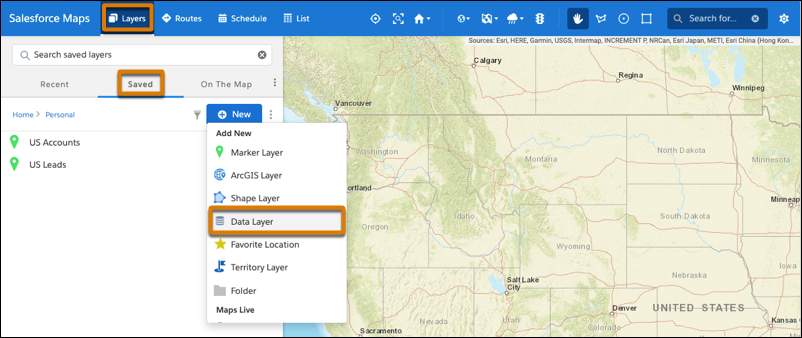
2. Enter a name and a description for your data layer. Select the data source **Demographic Context (USA)**, and then select the level of detail that you want to appear on the map such as neighborhoods or ZIP codes.
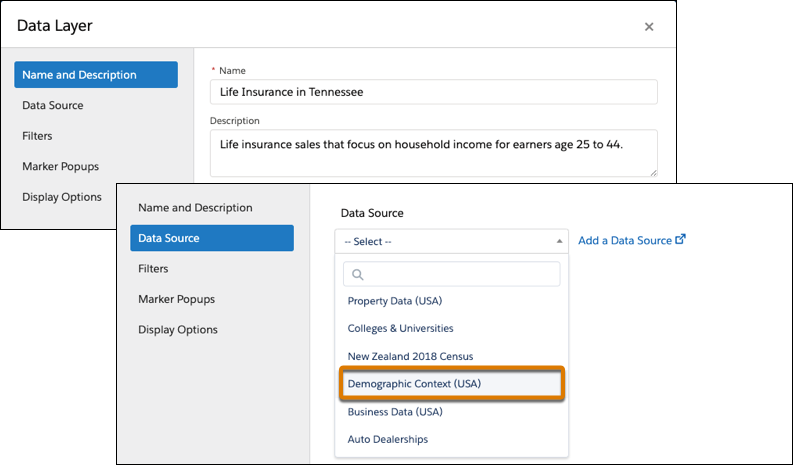
3. Add a filter so that you focus on a specific area such as a state or a county.
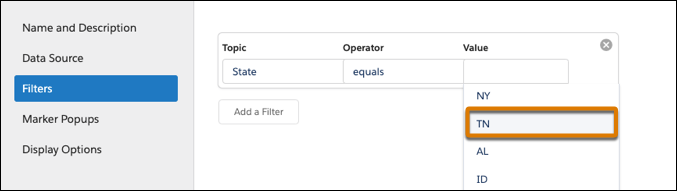
4. Add styles that help you differentiate areas that represent greater opportunities than others. For example, you want to focus on ZIP codes where the most households earn between $50,000 and $59,999. To show you where to focus your energy, you set ranges and corresponding colors that show concentrations of households earning income based on your selection.
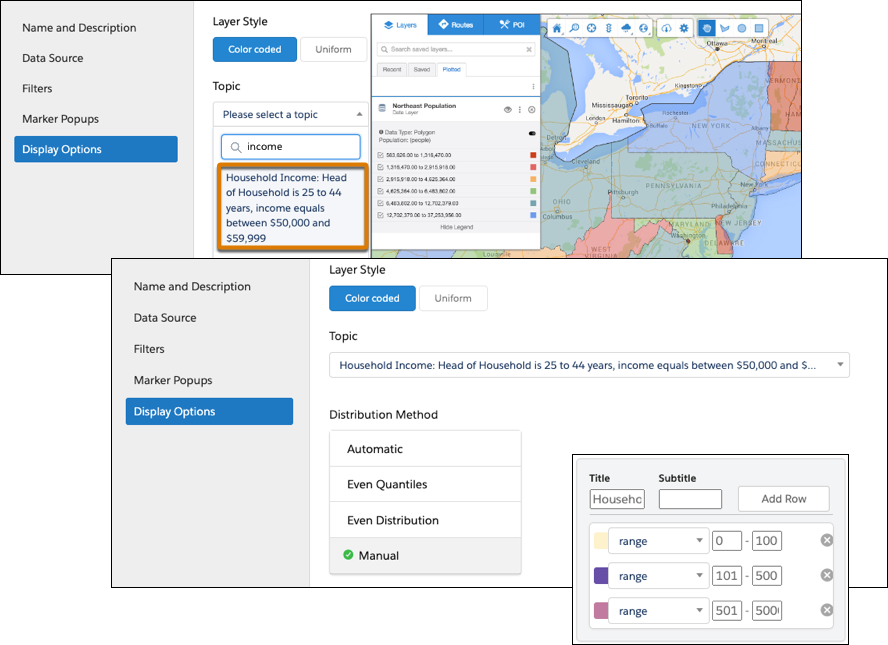
5. Save your work, and then plot the data layer. Zoom to the areas where you want to focus your efforts.
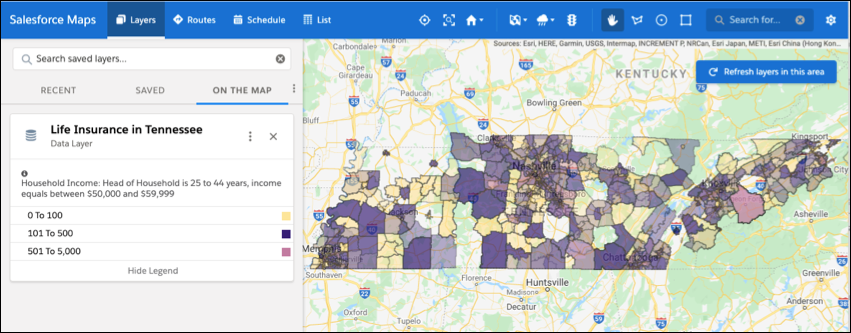
# Brand Your Enablement Site
When you configure your enablement site, you can apply your company’s visual identity, such as logo, primary color, and banner image. You can also customize the links that appear in the footer of each page. And you can designate the pages where your users land when they log out or click the Help icon. These customizations persist across your enablement site.
### Required Editions
Available in: Enterprise, Performance, and Unlimited Editions
User Roles
This topic supports these enablement site roles:
Salesforce Admins
- **[Customize the Logo or Today Page Banner](https://help.salesforce.com/s/articleView?id=sales.mth_customize_logo_or_banner_image.htm&release=264.0.0&type=5)**
Style your company’s enablement site with a logo and banner image. The logo appears at the top of every page, while the banner appears across the top of the Today page.
- **[Add Your Brand Color](https://help.salesforce.com/s/articleView?id=sales.mth_customize_brand_color.htm&release=264.0.0&type=5)**
When you choose your brand color, Trailmaker adjusts the color as necessary for accessibility and legibility. The page header text is white and gray. We recommend not using white, yellow, or another pale hue for your brand color. Select a darker color for text to make it more readable.
- **[Customize the URLs for the Help and Logout Landing Pages](https://help.salesforce.com/s/articleView?id=sales.mth_customize_urls_help_logout_landing.htm&release=264.0.0&type=5)**
You can direct your enablement site users to your own help site, instead of Salesforce Help, when they click the help icon. And when your users log out of your enablement site, you can designate the page where they land.
- **[Customize the Links in Your Enablement Site Page Footer](https://help.salesforce.com/s/articleView?id=sales.mth_customize_footer_links.htm&release=264.0.0&type=5)**
You can display links that are relevant to your company and your users in the page footer on your enablement site. Include links to your company’s Experience Cloud site, privacy statement, terms of service—whatever you like. You can designate up to three custom links.
# Build a Culture of Recognition with WDC
WDC is a suite of tools that help reps, managers, and teams enter and endorse skills, and give thanks. These activities build a culture of recognition.
### Required Editions
Available in: Salesforce Classic
WDC is available for existing WDC customers in Professional
Edition, Enterprise Edition, Performance Edition, Unlimited
Edition, and Developer Edition.

Important Starting in Spring ’22, WDC isn’t available to new Salesforce customers. For existing customers, WDC features and records from Badges, Skills, and Thanks aren’t affected and will remain available in the application beyond Spring ’22. WDC Goals, Coaching, Feedback, Performance, and Rewards features won’t appear in the application anymore, and records created previously will no longer be accessible.

Note On May 1, 2020, we rebranded this suite. It's now called WDC.
- **[Set Up WDC](https://help.salesforce.com/s/articleView?id=sales.workcom_intro.htm&release=264.0.0&type=5)**
Set up WDC and its features.
- **[Configure WDC](https://help.salesforce.com/s/articleView?id=sales.workcom_configure.htm&release=264.0.0&type=5)**
Configure WDC to meet the needs of your business.
- **[Manage WDC](https://help.salesforce.com/s/articleView?id=sales.workcom_manage.htm&release=264.0.0&type=5)**
Use these WDC features to thank coworkers.
# Build a Managed Package Prediction
Build predictions using Einstein Prediction Builder, and bundle them using in a managed package. You can the install and use your predictions in multiple orgs. A managed package makes your custom predictions portable across orgs, and you can bundle with other predictions.
### Required Editions
Available in: Building a managed package is available only in Developer Edition. Einstein Prediction Builder is available in Enterprise, Performance, Unlimited, and Developer Editions.
To build a managed package prediction, build one or more predictions using Einstein Prediction Builder in a Developer Edition org. You use Package Manager in the same org to create a managed package, and add your predictions to it. To use a managed package prediction, you install the package in any org where Einstein Prediction Builder is enabled, build it, review its scorecard, and enable it when you're ready.
- **[Package Your Predictions](https://help.salesforce.com/s/articleView?id=sales.custom_ai_prediction_builder_build_managed_packages.htm&release=264.0.0&type=5)**
After building custom predictions using Einstein Prediction Builder, you can add one or more of your predictions to a managed package to reuse them in other orgs.
- **[Install and Use a Managed Package Prediction](https://help.salesforce.com/s/articleView?id=sales.custom_ai_prediction_builder_install_managed_package_prediction.htm&release=264.0.0&type=5)**
Einstein Prediction Builder is used to build custom predictions. But, you can also use it to run managed package predictions.
# Build a Managed Package Recommendation
A managed package lets independent service vendors (ISVs) and partners easily port custom recommendations across multiple orgs. It also enables faster deployment to customers.
### Required Editions
Available in: Building a managed package is only available in Developer Edition. Einstein Recommendation Builder is available in Enterprise, Performance, Unlimited, and Developer Editions.
You build recommendations using Einstein Recommendation Builder in a Developer Edition org. You then use Package Manager in the same org to create a managed package and add the recommendations to it. To use a managed package recommendation, you install the package in any org where Einstein Recommendation Builder is enabled. Build it, review its scorecard, and then deploy it when you’re ready.
- **[Create a Managed Package with Recommendations](https://help.salesforce.com/s/articleView?id=sales.custom_ai_recommendation_builder_build_managed_packages.htm&release=264.0.0&type=5)**
After you build custom recommendations using Einstein Recommendation Builder, you can add one or more of them to a managed package to make them reusable in other orgs.
- **[Install and Use a Managed Package Recommendation](https://help.salesforce.com/s/articleView?id=sales.custom_ai_recommendation_builder_install_managed_package_recommendation.htm&release=264.0.0&type=5)**
Build your own custom recommendations with Einstein Recommendation Builder. Or, use it to run recommendations that are part of a managed package.
# Build a Recommendation
As with any AI solution, building a good recommendation is an iterative process.
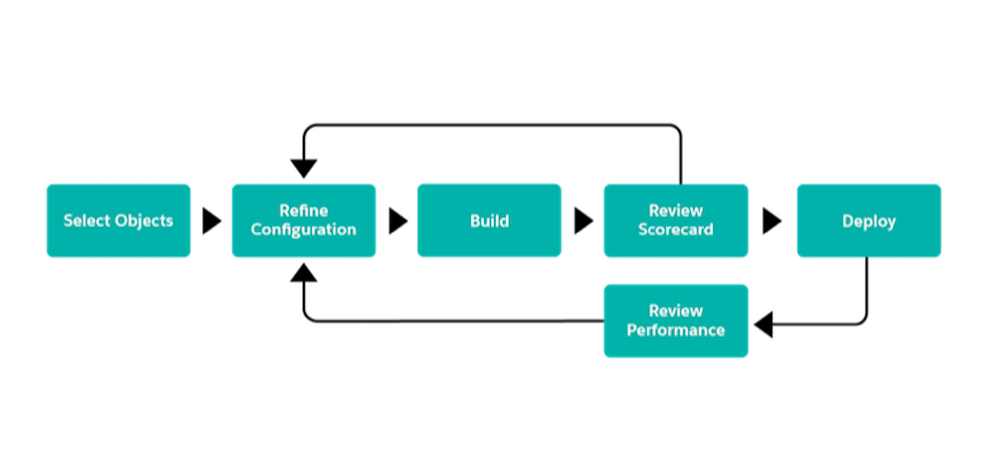
When Einstein builds a recommendation, it surfaces detailed metrics to help you evaluate whether you have enough data to build your recommendation. You can also add business rules or segment your data before you deploy it to a Next Best Action Strategy. To show actionable recommendations to your users, use the power of Next Best Action and Lightning Flows. After you build a recommendation, review its performance. Edit or clone your recommendation to adjust your data.
With Einstein Recommendation Builder, you can make personalized recommendations without writing code. Determine what you want to recommend, who you want to recommend it to, and which object tracks their interactions. Now you’re ready to build.
1. From Setup, enter Einstein Recommendation Builder in the Quick Find box, then select **Einstein Recommendation Builder**.
2. Or, if it's your first time using Einstein Recommendation Builder, click **Get Started** on the splash page. Otherwise, skip to the next step.
3. Click **New**.
Einstein Recommendation Builder opens.
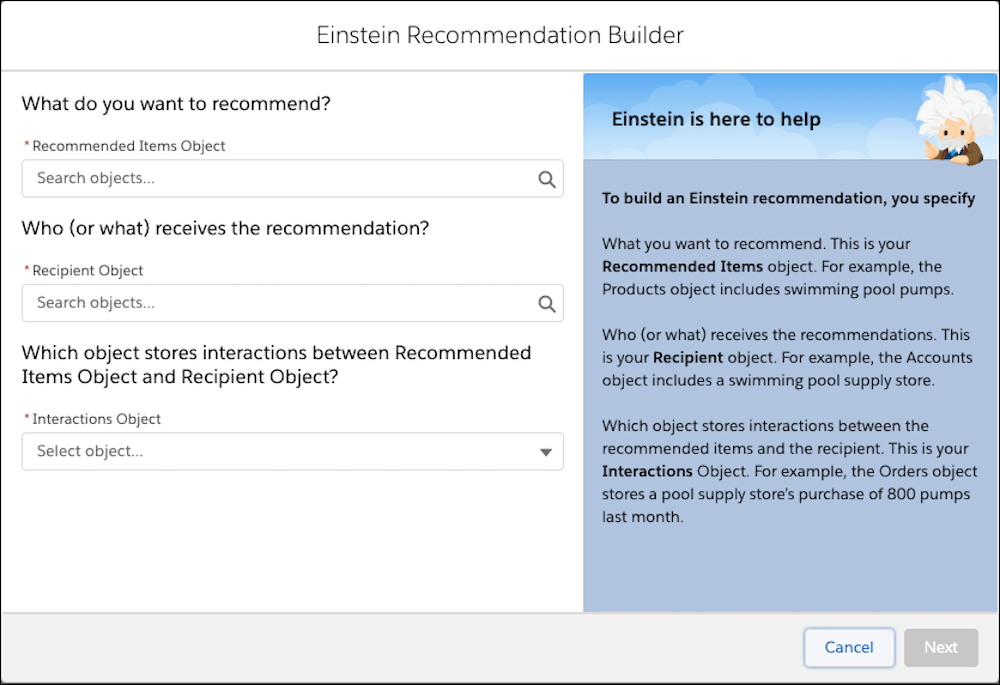
4. Choose your Recommended Items object. This object represents what you want to recommend, for example, Bank Product.
5. Choose your Recipient object. This object represents who or receives the recommendation, for example, Contact.
6. Choose your Interactions object. This object represents who or receives the recommendation, for example, Contact. Click **Next**. For example, Bank Account. This object contains metadata related to a customer’s banking history such as their banking preferences, product history, purchase history, credit information.
7. Choose the field that connects your Recommended Items object to your Interactions object.
8. Choose the field that connects your Recipient object to your Interactions object. Click **Next**.

Note If there’s more than one relationship between the interactions object and the other two objects, Einstein Recommendation Builder asks you for more information.
Improve the quality of your recommendation by specifying which field connects the Recommended Items object to the Recipient object. And, in turn, which field connects the Recipient object to the Interactions object.
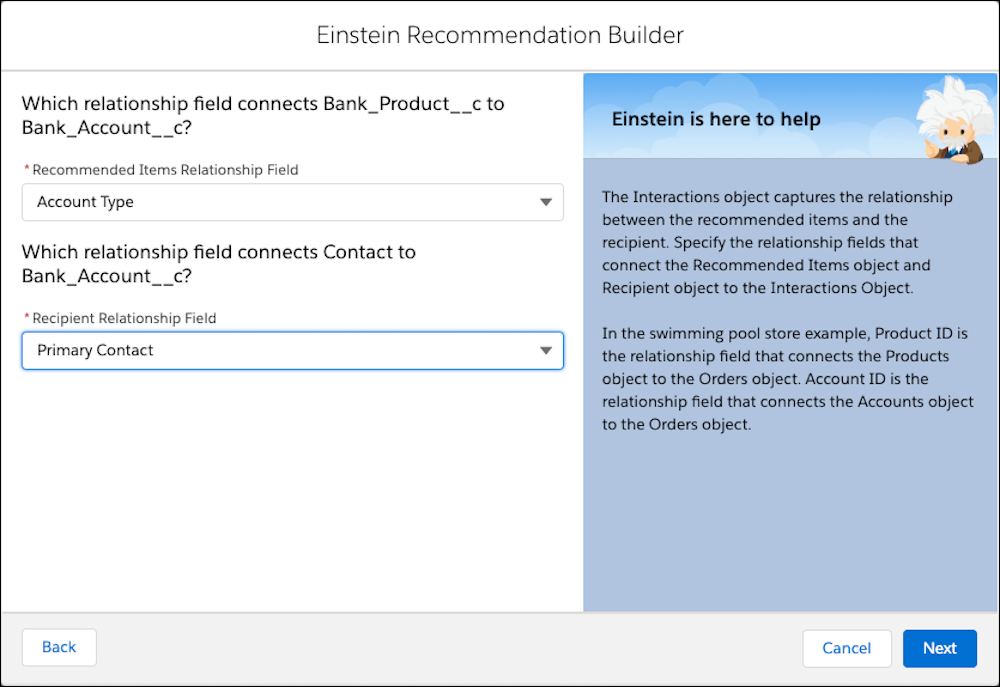
9. Name your recommendation. For example, Credit Recommendations.
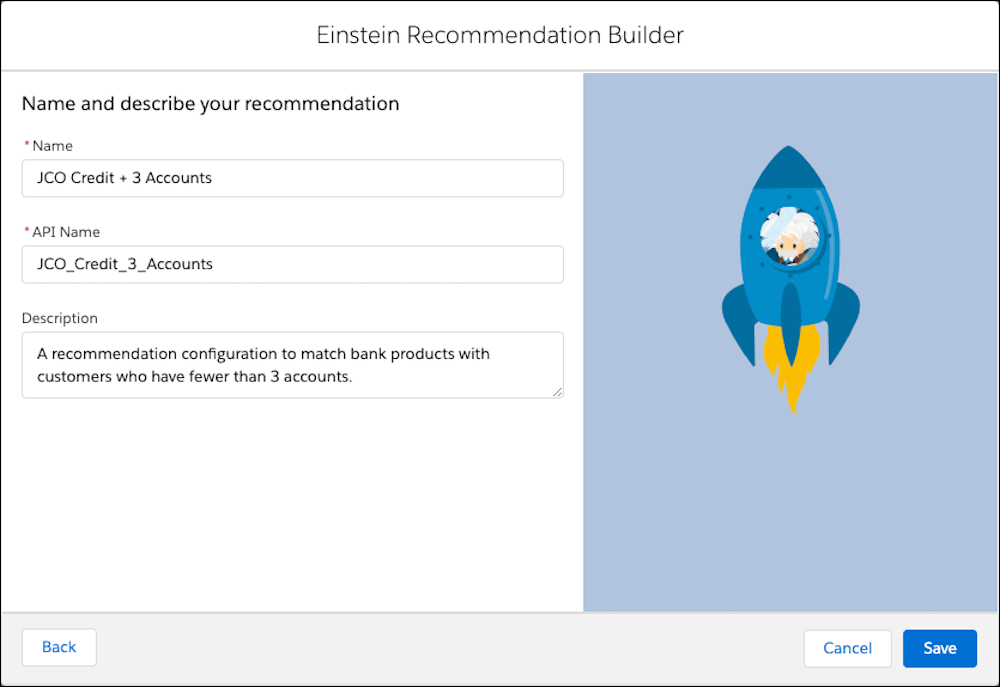
10. Tab or click in the next field to auto-populate the API name, and click **Save**.
11. If you want to focus your recommendation on a specific segment in your dataset, click **Segment**, select **Yes, focus on segment**, and define your conditions.
Data Checker runs once you save your segment data. Otherwise, leave the default option No Segment selected. If you have enough data, click **Next**.

Note Data Checker validates whether you have sufficient data each time you modify your recommendation settings. If you don’t have enough unique records in your positive and negative interactions, it provides a status on your recommendation data. To learn how Einstein checks data on your Salesforce objects, see Validate your data.
We also suggest you review Data Checker results to catch setup errors before you build your recommendation.
12. Click **Build**.
Recommendations build as fast as 30 mins, and sometimes take up to 24 hours. After the build is complete, view the Scorecard tab to review the recommendation’s quality and other metrics.
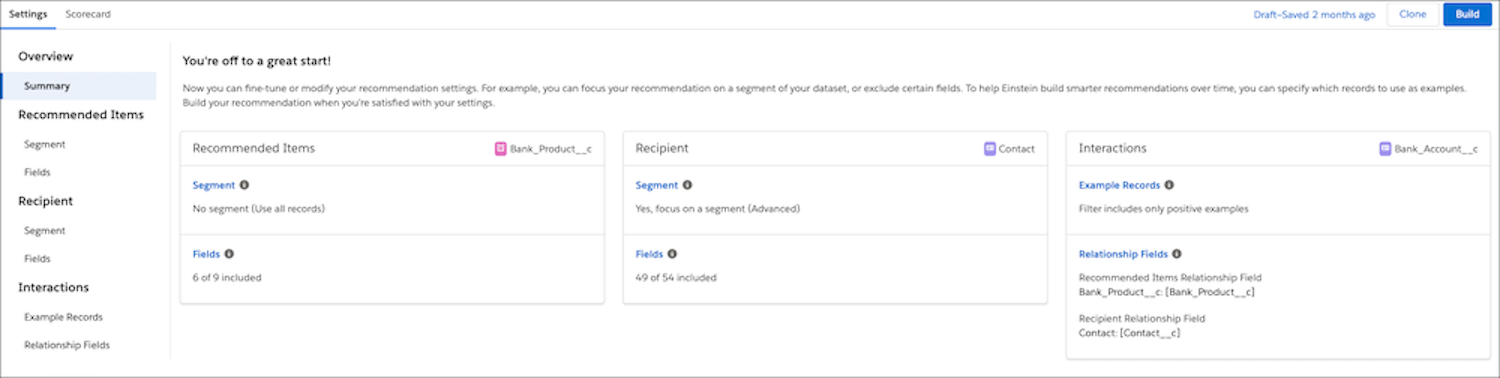
After the build is completed, view the **Scorecard** tab to review the recommendation’s quality and other metrics.
# Build a Recommendation Using a Template
Einstein Recommendation Builder lets you create a custom recommendation or build one from a template. To save time and build a recommendation faster, use a template. As Einstein learns from your data, your recommendations become smarter.
### Required Editions
Org Permissions
Needed
To build parts to work order recommendations using a
template:
Enable your org field service settings
1. From Setup, in the Quick Find box, enter Einstein Recommendation Builder, then select **Einstein Recommendation Builder**. Or on the Einstein Recommendation Builder tile in Setup Home, click **Get Started**.
2. If it's your first time using Recommendation Builder, click **Get Started** on the splash page. Review and agree to terms, if needed.
3. Turn on Einstein Recommendation Builder if it's not already on.
4. Click **New**.
5. Choose a template. For example, choose the Parts to Work Orders template to recommend parts to field service work orders.
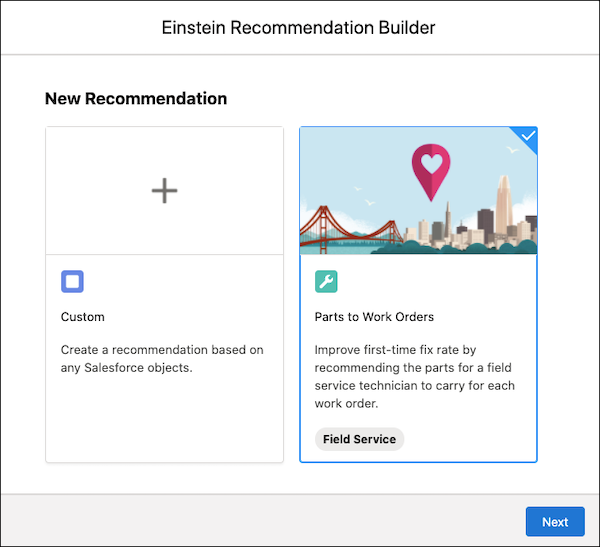
6. Click **Next**.
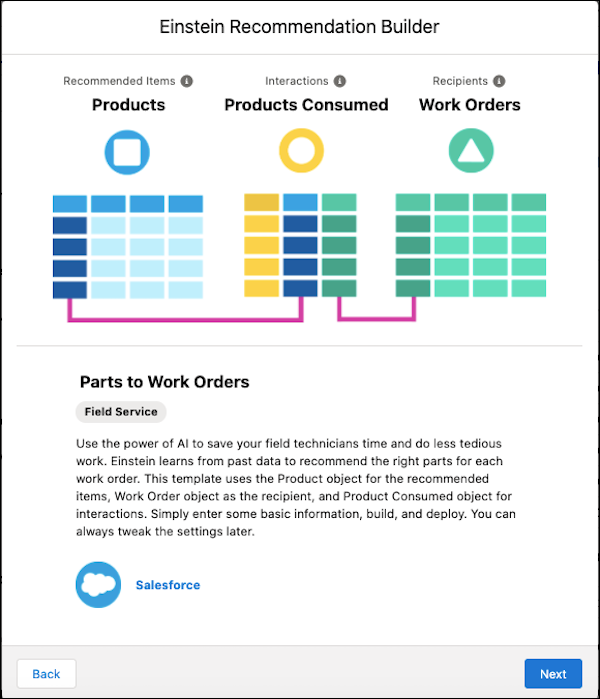
7. Click **Next**.
8. Name your recommendation, then tab to autopopulate the API name to match your recommendation.
9. Click **Build**. As you wait, explore the What’s Next topics to learn what happens after you build.
10. To access your recommendation from the list view, click **Back to Setup**.
11. When your recommendation status is Ready, click your recommendation to review your settings and scorecard.
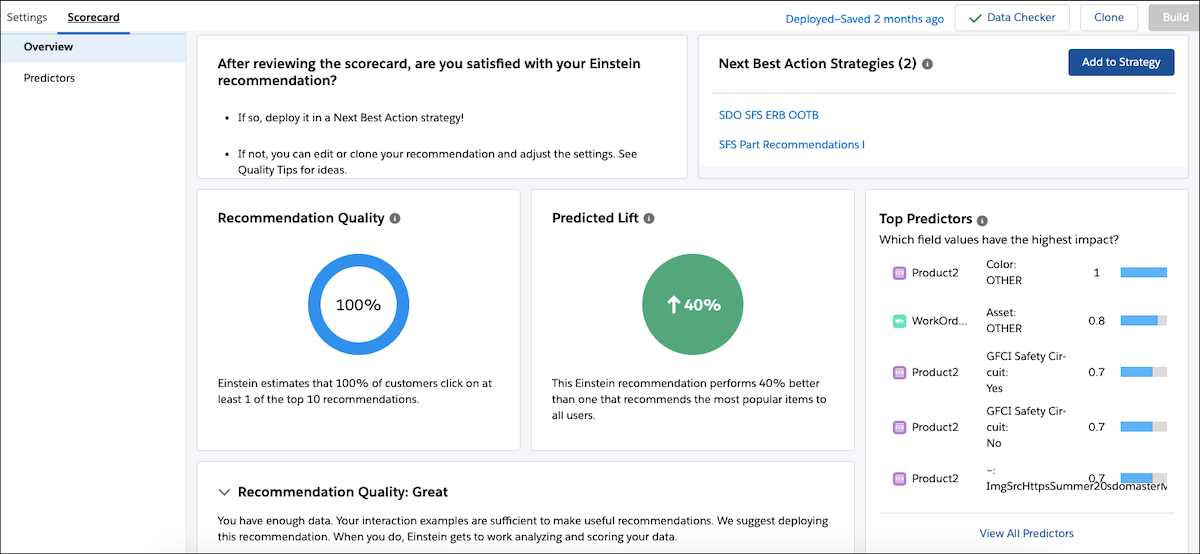
12. If your build status indicates an error, click **Clone** to duplicate your recommendation. Adjust your settings later.
13. Rename your recommendation and save.
14. In the Settings tab, adjust your segmentation, example records, and field settings, then build. Click **Build**.

Example The parts that Einstein recommends are security cameras, and the work orders are the alarm system installations. Data such as geographic location, purchase history, and product history can determine which security cameras are relevant for a service work order.
#### See Also
- [Refine Your Recommendation](https://help.salesforce.com/s/articleView?id=sales.custom_ai_recommendation_refine.htm&release=264.0.0&type=5 "After creating a recommendation, you can refine it to get optimal results.")
- [Specify Interaction Examples](https://help.salesforce.com/s/articleView?id=sales.custom_ai_recommendation_specify_interaction_examples.htm&release=264.0.0&type=5 "To get the most out of your Einstein recommendation, provide examples of positive and negative interactions.")
- [Review Your Recommendation’s Scorecard](https://help.salesforce.com/s/articleView?id=sales.custom_ai_recommendation_review.htm&release=264.0.0&type=5 "After building your recommendation, you can review your recommendation's results in the Einstein Recommendation Builder scorecard. Check out big-picture metrics and get details on the Overview Page.")
- [Iterate Your Recommendation](https://help.salesforce.com/s/articleView?id=sales.custom_ai_recommendation_iterate.htm&release=264.0.0&type=5 "After creating a recommendation, you can iterate it to get optimal results.")
# Build and Activate Agentforce Sales Coach
Finish setting up Agentforce Sales Coach by creating an agent in Agentforce Builder. Before you get started, make sure you’ve completed the steps in Set Up Agentforce Sales Coach.
### Required Editions
Available in: Lightning Experience in Enterprise, Performance, Unlimited, and Developer Editions with Foundations or Agentforce 1 Editions.
User Permissions
Needed
To create an agent:
Manage Agentforce Sales Coach

Note
If you accessed Agentforce Builder from step 8 of the Agentforce Sales Coach setup page, start on step 5 of this task.\\
1. From the App Launcher, enter Agent and then select the Agentforce Studio app.
2. On the Agents tab, click **New Agent**.
3. Select **Agentforce Sales Coach** as the agent type.
4. Provide the required information for the agent, and then click **Let’s Go** to access the agent’s details.
If you selected New User, a user is created and associated with the agent automatically. Otherwise, search and select an existing agent user.
5. Review the subagents shown, and verify these subagents are added.
- Agentforce Sales Coach: Opportunity Coaching
- Agentforce Sales Coach: Negotiation/Review Role-Play
- Agentforce Sales Coach: Proposal Quote Role-Play
6. Select **Language Settings** from the Explorer menu and select from the set of languages your agent can use for conversational responses and select the appropriate tone.
7. (Optional) [Create an Agentforce Data Library](https://help.salesforce.com/s/articleView?id=ai.data_library_setup.htm&type=5&language=en_US) and upload files.
1. Update the agent user permission set to access the default data space. For steps, see [Verify Access to Data Space](https://help.salesforce.com/s/articleView?id=sales.sales_agents_coach_add_retriever_updated.htm&release=264.0.0&type=5 "Before you add retrievers, make sure that the Agentforce Sales Coach permission set has access to the default data space specific to the Agentforce Data Library.").
2. Add the retriever for Agentforce Data Library to your prompt templates.
8. Click **Activate** when you're ready to make your agent available to users.
# Build and Manage Prospecting Agents
Create and configure a Prospecting agent to automatically generate prospects and have a prioritized list of accounts and contacts to target.
### Required Editions
Available in: Lightning Experience
Available in: Enterprise, Performance, Unlimited, and Developer Editions with the Agentforce for Sales or Agentforce for an Industry add-on, or in Agentforce 1 Sales and Industry Editions where included. Requires each user to have the Agentforce for Sales or Agentforce for an Industry add-on to access actions.
User Permissions Needed
To set up Agentforce Prospecting:
View Setup
AND
Modify All Data
OR
Customize
Application
To create and configure prospecting agents:
Sales Agentic Prospecting Manager
To use ZoomInfo data:
ZoomInfo Prospecting Access
Before you begin, [Turn On Agentforce Prospecting](https://help.salesforce.com/s/articleView?id=sales.sales_agents_prospecting_setup.htm&release=264.0.0&type=5 "Agentforce Prospecting automates prospect research and generates a prioritized list of prospects so sales reps can focus on growing relationships and closing deals.").
Follow these tasks to configure a Prospecting Agent from initial creation through preview and activation.
## Navigate to Agent Builder
Create a Prospecting Agent in our guided setup experience.
1. From Salesforce Go, go to Agentforce for Sales.
2. In the Prospecting section, click **Go** in the **Build and Manage Agent** step.
3. Click **Build a New Agent**.
4. Select **Prospecting** for the agent template, and then click **Continue**.
5. Enter an internal name for your agent.
6. Select the agent's language, then click **Save and Continue**.
## Add Sources to the Agent
Add reports that the agent uses to identify accounts for prospect generation.
1. On the **Add Sources** page, click **Add**.
2. Search for and select the report you want to add.
3. Click **Save and Continue**.
Add up to 20 reports for the agent to reference. Make sure that each report includes an account name field and doesn't include any grouped columns.
## Configure Tools for Prospecting
Connect data sources and integrations that the agent uses during account and prospect research.
1. Integrate with ZoomInfo (Optional).
1. Click **Setup** or **Connect Now**.
2. Enter your login information and click **Log In**.
3. Assign the **ZoomInfo Prospecting Access** user permission to all users with access to build and manage prospecting agents and who need to connect to ZoomInfo.
Prospecting Agent consumes ZoomInfo credits according to the [ZoomInfo credit usage policy](https://help.zoominfo.com/s/article/Overview-of-Credits).
2. Integrate past conversations.
1. Configure [Einstein Conversation Insights](https://help.salesforce.com/s/articleView?id=sales.ci_setup_enable.htm&language=en_US) and [Einstein Activity Capture](https://help.salesforce.com/s/articleView?id=sales.aac_setup_parent.htm&language=en_US).
3. Look up CRM data.
Prospecting Agent can access your CRM account data by default from your connected reports.
4. Click **Save and Continue**.
## Define Account Research Criteria
Provide the agent with instructions on how to research accounts when qualifying them to generate prospects. An account qualifies if it meets all the required criteria you establish.
1. Review and update the default text in the Required Criteria section. These are mandatory qualities an account must meet before the agent generates prospects for that account.
2. Review and update the default text in the Optional Criteria section. These are qualities you want to see in an account, but aren't mandatory.
3. Click **Save**.
4. Preview your account research output by selecting an account and clicking **Preview**.
5. Review results, adjust the criteria as needed, and click **Continue**.
## Define Prospect Ranking
Define what makes a prospect ideal, acceptable, or poor for your business.
1. Review and update the description for ideal prospects.
2. Review and update the description for acceptable prospects.
3. Review and update the description for poor prospects.
4. Click **Save**.
5. Preview ranking output for a selected account, adjust your descriptions as needed, and click **Continue**.
## Configure Prospect Assignment Settings
Define how the agent distributes prospects and assigns their ownership.
On the Assign Prospects page, the settings that appear depend on how you select to distribute prospects. If you distribute prospects equally among sales reps, you configure routing and ownership next. If you distribute all prospects to one sales rep, those additional steps don't appear and you continue to the next page.
1. On the Assign Prospects page, click **Advanced Prospecting Settings**.
1. In **Route Prospects from Additional Account Owners**, select additional users to prospect on. These are users without access to prospecting agent who own accounts you want the agent to research. Prospects from these accounts are assigned via round-robin to the recipients that you select later on.
2. In **Record Creation**, select the Salesforce object to create for new prospects. The agent creates contacts by default.
3. Click **Save**.
2. Select whether to distribute prospects equally among sales reps or to one sales rep.
3. Enter the maximum number of open prospects per sales rep.
We recommend starting with a lower volume of open prospects per sales rep, between 10 and 200.
4. Select how often the agent runs, including the day and time.
5. If you selected **Distribute all prospects to one sales rep**, search for and select a sales rep to assign to.
6. Click **Confirm**.
7. If you selected **Distribute equally amongst sales reps**, click **Use the same routing rules for all sources** in **Manage Routing**.
8. If you selected **Distribute equally amongst sales reps**, select the scope of which accounts the agent should prospect on.
9. Select **Prospecting Users' Accounts** for the agent to research accounts owned by prospecting users only and assign prospects to the account owner or select **All Accounts** for the agent to research all accounts regardless of ownership and assign prospects to your selected users.
10. If you selected **Prospecting Users' Accounts** and selected additional account owners in **Advanced Prospecting Settings**, then in the optional **Route Prospects from Additional Accounts** section, search for and select users in **Select Recipients**, and click **Confirm**.
11. If you selected **All Accounts**, search for and select the users the agent assigns prospects to via round-robin, and click **Confirm**.
12. Click **Save and Continue**.
## Review Your Configurations
Confirm that all configuration sections are complete before activating.
1. In the **Review Settings** tab, verify your agent configuration.
2. Confirm that all applicable sections have been tested.
## Preview Your Agent
Run a final preview with a target account, then activate the agent.
1. Click the **Preview Agent** tab.
2. Search for and select an account you expect to qualify and whose contacts are familiar to your team.
3. Click **Preview**.
4. Review the response, update your configuration if needed, and then click **Activate**.
# Build and Manage Your Inbound Lead Generation Agent
The Inbound Lead Generation template guides you through creating an agent to autonomously engage with and capture prospects in Salesforce.
### Required Editions
Available in: Lightning Experience
Available in: Enterprise, Performance, and Unlimited Editions
User Permissions Needed
To set up Inbound Lead Generation:
Configure Inbound Lead Generation Agent
## Create Your Agent
1. In Salesforce Go, open the Agentforce for Sales setup page, and then go to the Inbound Lead Generation section.
2. In the Build and Manage Agents step, click **Go**.
3. Click **Let's Get Started**.
4. Select **Inbound Lead Generation** as the agent template type.
5. Click **Continue**.
6. On the Getting Started page, select the user record you specified earlier for your agent.
7. Fill in an internal name for your agent and your company's name.
8. Select the language that you want your agent to use when engaging with prospects.
9. Enter a description of your company. The agent uses this description to help answer questions and customize the responses for your business.
10. Click **Save and Continue**.
## Define Conversation Settings for Your Agent
Inbound Lead Generation engages with prospects on websites and in-app messaging channels. Configure the conversation settings to instruct your agent on how to converse with prospects.
1. Go to the Conversation Settings page of Sales Agent Configuration for your Inbound Lead Generation agent.
2. Enter a primary value proposition for your company. For example, highlight the main benefits of your offerings, describe what makes you unique, and what problems you solve.
3. Enter three to five of your company's key achievements.
4. Review your agent's AI disclosure and update it as needed. The AI disclosure is the first message that your agent sends when engaging with a prospect.
5. Select the message tone for your agent to use.
6. Click **Save and Preview**.
7. Test your agent in the Preview Conversation panel.
8. Click **Continue**.
## Give Your Agent Product Knowledge
Give your agent access to an existing data library or create one. The data library contains information that your agent can use to generate replies, such as product descriptions, price sheets, and white papers.
1. Go to the Product Knowledge page of Sales Agent Configuration for your Inbound Lead Generation agent.
2. Select an existing data library or create one.
3. (Optional) Add Web Source Data to your agent.
4. Test your agent's knowledge in the Preview Conversation panel.
5. When you're finished, click **Save**, and then click **Continue**.
## Capture Prospect Information
Manage how your Inbound Lead Generation agent captures prospects' data.
1. Go to the Capture Prospect Information page of Sales Agent Configuration for your Inbound Lead Generation agent.
2. Select the type of object that you want your agent to create.
- If you selected Lead, enter a default value for Status. All new leads are set to this status.
- If you selected Contact or Person Account, select a default value for Owner ID and the fields that you don't want your agent to collect. All records will be assigned to the user that you select. The user must have Inbox enabled.
3. (Optional) Turn on email One-Time Password Authentication.
1. [Set up a default no-reply address using an org-wide email address.](https://help.salesforce.com/s/articleView?id=service.email_default_no_reply.htm&language=en_US)
4. (Optional) Allow your agent to hand off to a Lead Nurture agent.
1. Turn on Handoff, and select an active Lead Nurture agent.
2. Select the number of hours or days to wait before handing off to the Lead Nurturing agent.
5. Select a meeting assignee type for scheduling meetings.
6. From the dropdown, select which group or user to assign meetings to.
7. Enter a meeting title. This title is visible to customers on calendar invites.
8. Select the meeting's duration.
9. Select a user who has Inbox enabled as the fallback assignee.
10. Click **Save**, and then click **Continue**.
## Turn On Qualification (Optional)
Configure your agent to automatically qualify prospects before scheduling a meeting.

Note After you turn on Qualification for an agent, you can't turn it off. If you want an agent to stop qualifying prospects, deactivate the agent and build a new one.
1. Go to the Qualification Settings page of Sales Agent Configuration for your Inbound Lead Generation agent.
2. Click **Turn on Qualification**.
3. Click **Continue**.
4. In the Data Collection section, enter and then click the field names you want the agent to collect, one at a time.
5. In the Set Qualification Guidance section, enter a description of your ideal customer profile.
6. Enter the qualifying questions that your sales reps ask to determine a prospect's interests, needs, and urgency.
7. Click **Continue**.
## Review and Activate Your Agent
Before activating your agent, make sure that it's operating as expected.
1. Go to the Review and Activate page of Sales Agent Configuration for your Inbound Lead Generation agent.
2. Review each field. To make changes, click **Back**.
3. Test your agent in the Preview Conversation panel.
4. When you're satisfied, click **Activate Agent**.
# Build and Run a Lightning Sync Error Report
If Lightning Sync users can’t sync, Salesforce admins can build and run an error report to discover what’s causing sync to fail and for which users. The report details provide suggestions to help you troubleshoot sync issues.
### Required Editions
Available to sync records from: Salesforce Classic, Lightning Experience, and the Salesforce mobile app
Available to set up from: Salesforce Classic and Lightning Experience
Available in: Professional, Enterprise, Performance, Unlimited, and Developer Editions with Sales Cloud, Service Cloud, and Lightning Platform
User Permissions
Needed
To create or update the Lightning Sync Error Report:
View All Data
To create or update custom report types:
Manage Custom Report Types
To create, edit, and delete reports:
Create and Customize Reports AND Report Builder
First, you create a custom report type using a Lightning Sync Error Report custom object we’ve set up for you in Salesforce. Then create a Lightning Sync error report. Finally, run your report to help your users fix those pesky sync errors they’re experiencing.
1. [Create a custom report type](https://help.salesforce.com/articleView?id=reports_defining_report_types.htm&language=en_US). Set the Primary Object to **Lightning Sync Error**.
2. Create your Lightning Sync error report. From the Reports tab, click **New Report**. Set the Report Type to the Lightning Sync report type you created in step 1, and click **Create**.
3. Save and run your Lightning Sync error report. From the unsaved report, click **Save**, complete the required fields, and click **Save and Run Report**.
Salesforce generates a list of errors sync errors found in your organization, or displays “Grand Totals (0 records)” if the report couldn’t identify any sync errors.
If the report couldn’t identify any errors, but users still can’t sync, contact Salesforce.
#### See Also
- [Lightning Sync for Microsoft® Exchange Statuses](https://help.salesforce.com/s/articleView?id=sales.exchange_sync_admin_status_msg.htm&release=264.0.0&type=5 "Understanding Lightning Sync for Microsoft Exchange statuses helps you assess and address Lightning Sync errors that appear on the Lightning Sync status page in Salesforce.")
# Build Cadences with Cadence Builder 2.0
Cadence Builder 2.0 lets cadence creators build standard cadences sensitive to target engagement with much less effort and complexity. Creators use only three tracks—neutral, positive, and negative—to hold cadence steps appropriate to different target responses. Entry rules for each track let targets move to the appropriate track based on their responses, whenever they occur.
### Required Editions
Available in: Lightning Experience
Available with Sales Engagement, which is included with Sales in Performance, Einstein 1, and Unlimited Editions, and available for an extra cost in Professional and Enterprise Editions. Sales Engagement is also available for an extra cost in Service and Lightning Platform.

Note To watch a video demonstration of building a cadence with Cadence Builder 2.0, see [Cadence Builder 2.0](https://salesforce.vidyard.com/watch/9GredDSiDxwNpWSMzzRYW6).
- **[Cadence Builder 2.0 Cadences](https://help.salesforce.com/s/articleView?id=sales.se_cadences_builder_2.htm&release=264.0.0&type=5)**
Cadence Builder 2.0 cadences are responsive to target engagement, using three separate tracks—main, positive, and negative—to hold cadence steps appropriate to different target engagements. Entry rules for each track let targets move to the appropriate track based on their engagements, whenever they occur.
- **[Compare Cadence Builder Classic and Cadence Builder 2.0](https://help.salesforce.com/s/articleView?id=sales.se_cadence_builder_comparison.htm&release=264.0.0&type=5)**
Understand the differences between Cadence Builder Classic and Cadence Builder 2.0.
- **[Example: A Simple Branched Cadence in Cadence Builder Classic and Cadence Builder 2.0](https://help.salesforce.com/s/articleView?id=sales.se_cadences_example_1.htm&release=264.0.0&type=5)**
See how a simple branched cadence looks in both versions of the Cadence Builder.
- **[Create a Cadence with Cadence Builder 2.0](https://help.salesforce.com/s/articleView?id=sales.se_cadences_2_create.htm&release=264.0.0&type=5)**
Build sales programs that can respond to prospect engagement with Cadence Builder 2.0 cadences.
# Build Cadences with Cadence Builder Classic
The original tool for building cadences, Cadence Builder Classic, lets you create sales programs with email, call, LinkedIn, custom, screen flow, and branch steps. Branch steps let you send targets through different steps depending on their response to a previous step.
### Required Editions
Available in: Lightning Experience
Available with Sales Engagement, which is included with Sales in Performance, Einstein 1, and Unlimited Editions, and available for an extra cost in Professional and Enterprise Editions. Sales Engagement is also available for an extra cost in Service and Lightning Platform.

Note Cadence Builder Classic (v1.0) will be retired in a future release. We recommend transitioning to Cadence Builder 2.0 for any new cadences your sales team needs to create. For more information, see [Cadence Builder 1.0 Retirement](https://help.salesforce.com/s/articleView?id=001040170&type=1&language=en_US).
- **[Cadence Builder Classic Cadences](https://help.salesforce.com/s/articleView?id=sales.hvs_cadences.htm&release=264.0.0&type=5)**
Managers can build sales best practices right into Salesforce, optimizing prospecting outcomes. Cadences guide new and veteran reps alike through the prospecting and opportunity nurturing processes—including when to email a prospect, when to call, when to wait, and more. Managers can specify call scripts and email templates for each step, and create branched cadences with different outreach depending on the results of sales calls or emails.
- **[Start Selling Fast with Included Cadences](https://help.salesforce.com/s/articleView?id=sales.hvs_sales_cadences_ootb.htm&release=264.0.0&type=5)**
Sales managers and reps can start using cadences right away without building their own. Included cadences cover common sales scenarios and provide examples for sales managers to learn from and expand. Example call scripts and email templates for each cadence are also included.
- **[Create and Activate a Cadence with Cadence Builder Classic](https://help.salesforce.com/s/articleView?id=sales.hvs_cadences_create.htm&release=264.0.0&type=5)**
Establish a repeatable process for your sales reps to work their prospects using a scheduled sequence of outreach activities with Sales Engagement cadences.
# Build Custom Forecasts Pages That Work for Your Business
Using Lightning App Builder, create custom forecasts pages that include all the information your sales leaders require to drive accurate forecasts that support your unique business needs. Build pages that contain standard and custom components that fit your unique sales process.
### Required Editions
Available in: Lightning Experience
Available in: Professional, Performance, and Developer editions and in Enterprise and Unlimited editions with Sales
User Permissions Needed
To use Salesforce Forecasting:
View All Forecasts OR Allow Forecasting OR Delegated forecast manager status
To create pages in Lightning App Builder:
Customize Application
To view pages in Lightning App Builder:
View Setup and Configuration
Custom forecasts pages are available for desktop only.
1. Make sure that Salesforce Forecasting is enabled.
2. To navigate to Lightning App Builder, from the forecasts page, select
Or access Lightning App Builder in Setup. From Setup, in the Quick Find box, enter App Builder, and then select **Lightning App Builder**. Click **New**, and then select **Forecasts Page**.
3. Add the Forecasts Header component, which viewers of the page use to select what data shows in other forecast-related parts of the page. We recommend that each forecasts page contains a header.
4. Add the standard and custom components that you want to include on the page.
For the best experience, we recommend adding the Forecast Summary component to show the actual forecast data for each period and the Forecast Opportunity List component to show the opportunities that contribute to the forecast. If Einstein Forecasting is enabled, Einstein predictions show in a slide-out panel when users select a cell in the Einstein Prediction column on the forecasts page. No additional components are necessary to show Einstein Forecasts predictions.
5. For each component you add to the page, select the component and configure its individual properties.
6. To view and edit the page properties and to add a page description, click the empty area of the canvas and enter the information about your page.
7. Save the page.
8. Activate the page for the org, user profile, or an app.
#### See Also
- [Activate and Assign Custom Forecasts Pages](https://help.salesforce.com/s/articleView?id=sales.forecasts3_custom_page_activate.htm&release=264.0.0&type=5 "After building a custom forecasts page using Lightning App Builder, activate the page and assign it so sales leaders can see and use it. The page you built doesn’t appear until it’s activated.")
- [Considerations for Custom Forecasts Pages](https://help.salesforce.com/s/articleView?id=sales.forecasts3_custom_page_considerations.htm&release=264.0.0&type=5 "Keep in mind important considerations and guidelines when building custom forecasts pages using Lightning App Builder.")
- [Lightning App Builder](https://help.salesforce.com/s/articleView?id=platform.lightning_app_builder_overview.htm&type=5&language=en_US)
# Build Email Applications Panes for Outlook and Gmail
When you customize an email pane, you specify the Salesforce content and features that sales reps see in Microsoft® Outlook® and in Gmail™. To create custom panes, use the Lightning App Builder and add standard and custom components, including components from AppExchange.
### Required Editions
Available in: Salesforce Classic and Lightning Experience
Available with Sales Cloud, Service Cloud, and Lightning Platform in: Essentials, Group, Professional, Enterprise, Performance, Unlimited, and Developer Editions
User Permissions
Needed
To customize the email application panes:
Customize Application
To create and save Lightning pages in the Lightning App Builder:
Customize Application

Note If you use Inbox features in your email integration, you can add Inbox components, such as email tracking. Only users with an Inbox license can see Inbox components.
1. From Setup, in the Quick Find box, enter Integration, and then select either **Outlook Integration and Sync** or **Gmail Integration and Sync**.
2. Expand **Let users access Salesforce records**, and select **Customize content with App Builder**.
3. Go to the Lightning App Builder.
- In Lightning Experience, from Setup, under Email Application panes, click **Create New Pane**. Follow the steps until you reach the design page. If you’re adding Inbox components, from the Create New Pane menu, select **With Inbox Features**. Follow the steps until you reach the design window.
- In Salesforce Classic, from Setup, in the Quick Find box, enter App Builder, and then select **New** under Lightning Pages. Select **Email Application Pane**. Follow the steps until you reach the design window.
4. Drag components to the pane, and arrange them in the order you want them to appear.
To show accounts, activities, cases, quotes, or contracts that are related to an email or event, add the **Accounts, Opportunities, and More** component to the pane. Select the object type that you want to show in the component. If your company is set up with Inbox, you can use the same component to show custom objects. The email application pane can have multiple **Accounts, Opportunities, and More** components to show different object types.

Tip To show matching records that aren’t people or that are a different object type than what is selected in an **Accounts, Opportunities, and More** component, add the **Other Logged Record** component.
5. To view the page properties, add a description, or create a filter that determines when a component appears, click the empty area of the canvas.

Tip Some components are useful when reading emails or viewing events while others are helpful when composing emails or editing events. Use a filter to determine when a particular component is shown.
6. Click **Save**.
7. You’re ready to activate the pane and assign it to user profiles. Go to the Lightning App Builder to activate. You can also assign the pane to user profiles by using the **Set Page Assignment** options in the integration setup pages.
#### See Also
- [Considerations for Customizing the Email Application Pane for Outlook and Gmail](https://help.salesforce.com/s/articleView?id=sales.email_int_setup_custom_pane_considerations.htm&release=264.0.0&type=5 "You can customize the email application pane to better reflect your reps’ workflow and your company’s processes. Keep these considerations in mind when customizing the various components.")
- [Dynamic Lightning Pages](https://help.salesforce.com/s/articleView?id=platform.lightning_page_components_visibility.htm&type=5&language=en_US)
- [Add Actions to Global Page Layouts](https://help.salesforce.com/s/articleView?id=platform.customizing_global_publisher_layouts.htm&type=5&language=en_US)
- [Guidelines for Configuring Deliverability Settings for Emails Sent from Salesforce](https://help.salesforce.com/s/articleView?id=sales.emailadmin_deliverability.htm&type=5&language=en_US)
# Build Your Engagement Agent
Configure the details of your Engagement agent based on when and how often you want the agent to perform outreach, language and tone, and when to assign prospects to the agent automatically. Then to start working prospects, activate your agent.
### Required Editions
Available in: Lightning Experience in Enterprise, Performance, and Unlimited editions with Einstein for Sales.
User Permissions
Needed
To view and configure agents in Agentforce Builder:
Configure Engagement Agent
AND
Sales Engagement Cadence
Creator
AND
Automated Actions User
To upload files to a Data 360 data library:
Data Cloud Admin

Note The Agentforce Lead Nurturing name has changed to Agentforce Engagement. The new name better describes the work the agent does to nurture existing prospects and differentiates it from the Agentforce Lead Generation agent template.
Watch the video to see how to build your Engagement agent.
1. **Create Your Agent**
1. On the Salesforce Go Agentforce for Sales page, in the Build and Manage Agent section, click **Build Agent**.
The Sales Agent Configuration page appears, showing a list of any previously configured agents.
2. To build an agent, click **Configure a New Agent**.
3. On the Select Agent Template page, click the **Engagement** tile.
4. On the Getting Started page, select the user record you specified earlier for your agent.
5. Fill in the agent details including the internal name Salesforce users will see, your company name, the language you want the agent’s emails to use, and a clear description of your company.
The agent uses your company description to help build its emails and answer prospect questions.
6. Click **Save and Continue**.
2. **Email Settings**
1. On the Email Settings page, enter a primary value proposition and key achievements of your business. To see an example of each, click **Show Example**.
The agent uses the text you enter to help craft its emails and answer prospect questions.
2. If you are building your agent from the earlier Engagement (Legacy) template, choose whether you want the agent to **Send as Seller**. When this setting is on, the agent uses the prospect record owner’s email address, signature, and business hours. The agent also includes an AI disclosure at the beginning of each generated email. Prospect record owners must have a working email address connected to Inbox and must have Einstein Activity Capture turned on. If the owner’s email becomes disabled, the agent can’t send emails to their prospects.
If you are building your agent from the newer Engagement template, set up Send as Seller in the Cadence Settings for your agent in the Agentforce Builder found in Agentforce Studio. This setting applies to this and all future versions of the agent you create.
3. If you are building your agent from the earlier Engagement (Legacy) template, to let prospect record owners review, edit, and approve agent emails before they are sent, turn on **Require Manual Approval**.
To choose between standard and custom review settings, click Email Review Settings. Standard settings let you choose which outreach types to review, and what action to take if the review is not completed. To flag emails for review according to a custom set of field criteria, use Custom settings.
For Standard settings, choose:
- Which types to queue for manual review - Initial Outreach or all outreach.
- The length of the review window. The range is one hour to 14 days.
- What to do if the review window expires; cancel the outreach or send it anyway.
For Custom settings, choose a custom flow that determines which emails to queue for manual review. You must create the flow before choosing it in the agent configuration. For an example flow, see [Use a Flow to Queue Specific Agent Emails for Manual Review (Optional)](https://help.salesforce.com/s/articleView?id=sales.sales_agent_sdr_rbs_flow_example.htm&release=264.0.0&type=5 "To queue agent emails for manual review according to a custom set of criteria, build a flow that the agent can use to know which emails to queue. For example, you could choose to review only emails to leads in a certain geography such as Seattle, Washington USA, or industry such as Financial Services for review.").
Emails awaiting review appear in the Activity Timeline and the Engagement Monitoring page. If Send as Seller is also turned on for the agent, drafted emails omit the AI disclosure and only the record owner can approve emails sent on their behalf.
If you are building your agent with the newer Engagement template, set up Require Manual Approval in the Cadence Settings for your agent in the Agentforce Builder found in Agentforce Studio.
4. If you are building your agent from the earlier Engagement (Legacy) template, choose the maximum number of emails you want the agent to send, including both the intro and nudge emails.
Nudges are follow-up emails sent if the prospect doesn’t reply to the initial outreach email.
If you are building your agent with the newer Engagement template, set the number of emails to send in the Cadence Settings for your agent in the Agentforce Builder found in Agentforce Studio.
5. Choose the Message Tone for your agent to use.
6. Set the AI Disclosure and Opt-Out Message.
The AI disclosure and opt-out message appear at the end of each email the agent generates. The opt-out message should include instructions on how to reply to opt out of emails.
7. Select a meeting assignee type for scheduling meetings.
8. From the dropdown, select which group or user to assign meetings to.
9. Enter a meeting title. This title is visible to customers on calendar invites.
10. Select the meeting’s duration.
11. Select a user who has Inbox enabled as the fallback assignee.
12. To preview an initial outreach email, use the Preview Email panel. Choose a prospect record and then choose Initial Outreach from the menu. Click **Generate Preview**.
You can update the fields until you are satisfied with the preview emails. You can also make changes later if needed.
13. Click **Save and Continue**.
3. **Test Agent Responses**
1. On the Test Agent Responses page, you can preview how your agent answers questions using the text, HTML, or PDF files you uploaded to Data 360.
2. In the Preview Email panel, choose a prospect record and enter a question in the chat field.
The agent generates an email answering your question. If you aren’t satisfied with the answer email, you can upload additional or different files on this page or later in Data Cloud Setup.
3. When you are satisfied, click **Save and Continue**.
4. **Prospect Assignment Rules**
1. On the Assign Prospects page, click the toggles to enable the objects you want the agent to work with.
Depending on your settings, you can choose leads, contacts, and person accounts.
2. Choose the field conditions for automatically assigning new or updated records to the agent for outreach. If you choose to assign records to the agent upon record update, only updates to the fields you specify will trigger assignment.
You can set separate conditions for leads, contacts, and person accounts.
3. When you are finished, click **Save and Continue**.
5. **Turn On Qualification (Optional)**
Configure your agent to automatically qualify prospects before scheduling a meeting.
After you turn on Qualification for an agent, you can’t turn it off. If you want an agent to stop qualifying prospects, deactivate the agent and build a new one.
1. Go to the Qualification Settings page of Sales Agent Configuration for your Inbound Lead Generation agent.
2. Click **Turn on Qualification**.
3. Click **Continue**.
4. In the Data Collection section, enter and then click the field names you want the agent to collect, one at a time.
5. In the Set Qualification Guidance section, enter a description of your ideal customer profile.
6. Enter the qualifying questions that your sales reps ask to determine a prospect’s interests, needs, and urgency.
7. Click **Continue**.
6. **Review and Activate Your Agent**
1. On the Review and Activate screen, the settings you’ve chosen appear. You can review specific fields by clicking the buttons. To make changes, click **Back**.
You can continue to preview the agent output on this page as well.
2. When you are satisfied, click **Activate Agent**.
Your assignment rules take effect and sales users with the Use Engagement Agent permission can begin assigning records to the agent manually.
3. When the agent is active, a confirmation page appears. To see a list of records and other key metrics about how the agent is working, click **Go to Control Center**.
When you first activate your agent, Control Center will appear mostly empty until you begin assigning prospects to the agent.
#### See Also
- [Select Files to Upload](https://help.salesforce.com/s/articleView?id=ai.data_library_file_upload.htm&type=5&language=en_US)
- [Manage Data Sources](https://help.salesforce.com/s/articleView?id=ai.agent_setup_data_sources.htm&type=5&language=en_US)
# Build Your Own Custom Reports for Sales Engagement
In addition to standard Sales Engagement reports you can create custom report types to link cadence trackers with leads, contacts, accounts, and other objects. Cadence trackers represent the targets that you add to cadences.
### Required Editions
Available in: Lightning Experience
Available with Sales Engagement, which is included with Sales in Performance, Einstein 1, and Unlimited Editions, and available for an extra cost in Professional and Enterprise Editions. Sales Engagement is also available for an extra cost in Service and Lightning Platform.
Beyond standard reports, you can take advantage of other report types to unlock more fields. A report type defines the set of records and fields available to a report based on the relationships between a primary object and its related objects.
If an object you’re interested in isn’t included in the standard reports, create a report type to access that object’s fields. Common use cases are:
- Accounts and Cadence Trackers
- Opportunity Contact Roles and Cadence Trackers
- Email Messages with Contacts and Email Messages with Leads (if you don’t use Einstein Activity Capture)
## Custom Report Types Included with Sales Engagement
Sales Engagement includes several custom report types. Sample reports are available for each report type.
| Custom Report Type | Description |
| --- | --- |
| Cadences & Steps | Sales cadences and the associated steps. Allows reporting on information such as the engagement of each sales cadence. |
| Cadences & Steps with Monthly Metrics | Sales cadences and the associated steps. Allows reporting on information such as the engagement of each sales cadence by month. |
| Cadences & Trackers | Sales cadences and associated trackers. Allows reporting on information such as the exit status for each target. |
| Cadences and Trackers (Inner join) | Sales cadences and associated trackers. Allows reporting on information such as the exit status for each target. |
| Call Script Engagement Report | Which call script results in the best target engagement? |
| Contacts and Cadence Trackers | Contacts and associated trackers |
| Contacts and List Email Sent Result Engagement | Engagement data for contacts with at least one related record from the List Email Sent Results object. |
| Contacts with Email Message Engagements | Engagement data for contacts with email messages. |
| Contact with Call Engagement | Engagement data for contacts with logged calls. |
| Email Template Engagement Report | Which email template results in the best target engagement? |
| Email Messages & Email Message Relations Engagement | Engagement data based on email message and email message relation objects. |
| Leads and Cadence Trackers | Leads and associated trackers |
| Leads with Call Engagement | Engagement for leads with logged calls. |
| Leads with Email Message Engagements | Engagement data for leads with email messages. |
| Leads with List Email Sent Result Engagement | Engagement data based on leads with at least one List Email Sent results record. |
| List Email & List Email Sent Result Engagement | Engagement based on list emails with at least one List Email Sent Results record. |
| Leads With or Without Cadence Trackers | Leads that may or may not have sales cadence trackers |
| User with Call Engagement | Engagement data for users with logged calls. |
| Users with Email Message Engagements | Engagement data for users with email messages. |
| Users with List Email and List Email Sent Result | Engagement data based for users with list email and at least one List Email Sent Results related record. |
## Custom Report Types Administrators Can Create for Sales Engagement
If the included report types don’t meet your business needs, you can create other custom report types in Setup. These are some examples.
Report Type
Purpose
Considerations
Accounts + Cadence Trackers
Combining accounts with cadence trackers lets sales managers see which of their
person accounts are in a cadence and how each completed it.
Because you can add only person accounts to cadences, the report includes just
those accounts.
To use this report type, enable person accounts in
Setup.
Opportunity Contact Roles + Cadence Trackers
Combining opportunity contact roles with cadence trackers lets sales managers
see which of their opportunity contacts are in a cadence and how each completed
it.
--
## Email Message Report Types
Your admin can create custom report types to show record level detail for individual email sends.
Record-level details include:
- Details of the email, such as to/from/cc and subject/body.
- First open and last open engagements, and linked replies.
- Contact or lead details, when those objects are joined to the report.
Email message records aren’t generated for Einstein Activity Capture-enabled users.
You can create these custom report types in Setup.
| Report Type | Purpose |
| --- | --- |
| Email Message and Contacts | Managers and sellers can drill into email details to surface information like send and recipient info, send time, first/last open date stamps, subject, and body details. |
| Email Message and Leads | Managers and sellers can drill into email details to surface information like send and recipient info, send time, first/last open date stamps, subject, and body details. |
- **[Glossary of Sales Engagement Reporting Terms and Objects](https://help.salesforce.com/s/articleView?id=sales.hvs_reports_key_terms_objects.htm&release=264.0.0&type=5)**
Sales Engagement introduces several new terms and objects. Understanding these objects helps you make the most effective use of Sales Engagement reporting.
- **[Glossary of Sales Engagement Email Metrics Fields](https://help.salesforce.com/s/articleView?id=sales.hvs_reports_engagement_metrics_fields.htm&release=264.0.0&type=5)**
Sales Engagement reports contain many fields that show email activity and recipient engagement. You can also use these fields when building your own reports.
#### See Also
- [Build a Report in Lightning Experience](https://help.salesforce.com/s/articleView?id=analytics.reports_build_lex.htm&type=5&language=en_US)
- [Create a Custom Report Type in the Enhanced Custom Report Type Builder](https://help.salesforce.com/s/articleView?id=xcloud.reports_enhanced_defining_report_types.htm&type=5&language=en_US)
# Build Your Prediction
With Einstein Prediction Builder, make custom predictions about what happens next in your business without writing any code. After you decide what you want to predict, the field you want to predict values for, and what object contains that field, you’re ready to build.
Build AI predictions with clarity and ease. Guided Setup flow walks you through building predictions using learning cards, info bubbles, notifications, and Salesforce Help.
1. From Setup, in the Quick Find box, enter Einstein Prediction Builder. Then select **Einstein Prediction Builder**. Or, in Setup Home, on the Einstein Prediction Builder tile, click **Get Started**.
2. If it’s your first time using Einstein Prediction Builder, on the splash page, click **Get Started**. Otherwise, skip to the next step.
3. Click **New Prediction**.
4. On the Name & Type page, name your prediction. For example, Annual Revenue Prediction.
5. Tab or click in the next field to auto-populate the API name.
6. Tab or click in the next field to describe the prediction.
7. Choose your prediction type. the For example, to predict whether customers register for a particular event, you can choose the Yes/No prediction. Or, to predict how much revenue you'll make this year, choose the Number prediction. Then click **Next**.
8. On the Object page, select the object that contains the field that you want to predict values for. To quickly find an object, enter its name in the search field. Then click **Next**.
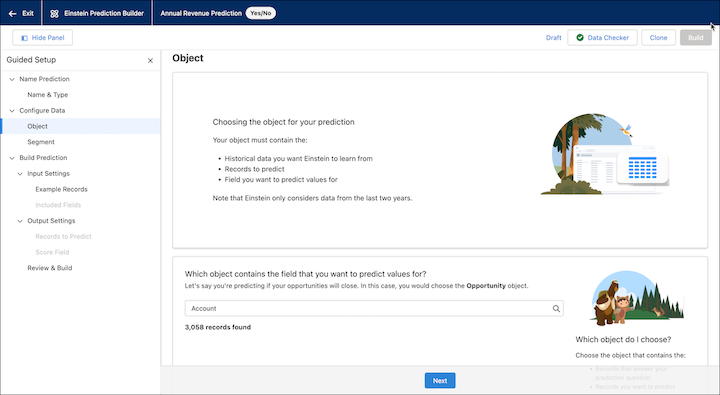
9. You can optionally focus the prediction on a specific segment in your dataset. On the Segment page, click **Segment of {Object}**, for example, Segment of Account. Then click **Save & Next**.
10. On the Example Records page, define your yes and no examples. Then click **Save & Next**.
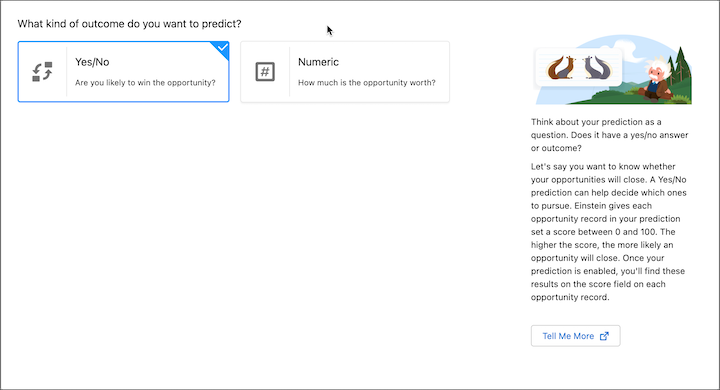

Note By default, Einstein only scores records that aren’t in your example set. Use filters to define which records to score.
11. On the Included Fields page, deselect fields that you want Einstein to consider for your prediction.

Note When building a prediction, you can select and deselect fields to include in your prediction model. By default, all fields are selected. When you deselect specific fields, the prediction is built using only the remaining selected fields.
12. On the Records to Predict page, select which the records you want Einstein to predict. Then click **Next**.
13. On the Score Field page, name the field that will store your prediction scores. For example, Predicted Annual Revenue.
14. Tab or click in the next field to auto-populate the score field API name. Then click **Save & Next**.
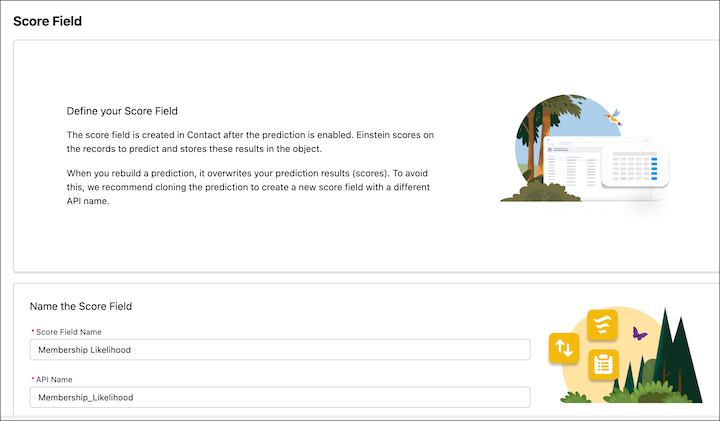
15. On the Review & Build page, review your prediction settings carefully. To make changes, go back to the page where you want to make updates. Then click **Next** to get back to the Review & Build page again.
16. When ready, click **Build Prediction**.
17. Check back later to review your prediction’s scorecard before you decide whether to enable your prediction. After you enable the prediction, Einstein checks records hourly and provides new scores for records that changed.

Note You can’t edit predictions in enabled or pending status. To edit a prediction that’s enabled, first disable it so you can change your settings.
- **[Segment Your Data](https://help.salesforce.com/s/articleView?id=sales.custom_ai_prediction_builder_segment_guided_setup.htm&release=264.0.0&type=5)**
When you build a prediction in Einstein Prediction Builder, you can also focus your prediction on a specific segment of your dataset. For example, to only look at data for a particular region or industry. With segments, you can get more useful predictions by excluding records that aren’t relevant to your prediction.
- **[Check Your Data](https://help.salesforce.com/s/articleView?id=sales.custom_ai_prediction_builder_data_checker_guided_setup.htm&release=264.0.0&type=5)**
Data Checker automatically validates your data and alerts you as you build a prediction. It provides feedback in real time so you can catch issues early.
- **[Define Your Prediction Set](https://help.salesforce.com/s/articleView?id=sales.custom_ai_prediction_builder_prediction_set_guided_setup.htm&release=264.0.0&type=5)**
You can define the set of records that Einstein provides prediction results, _scores_, for. This set of records is your prediction set or scoring set (as known by data scientists). By default, Einstein scores all records that aren’t included in your example set. You can choose to have Einstein score records in your example set, or you use filters to choose a specific set of records to score.
- **[Define Scoring Settings](https://help.salesforce.com/s/articleView?id=sales.custom_ai_prediction_builder_scoring_settings_guided_setup.htm&release=264.0.0&type=5)**
When Einstein scores records, these results are stored in a custom field called the score field. You must give the field a new name and API name each time you create a prediction or clone an existing one.
# Building and Developing Sales Teams
Building a successful sales team hinges on implementing processes that foster a collaborative team environment. By standardizing training strategies, establishing successful and repeatable sales processes, and encouraging teamwork, your sales team is set up for success.
## Bring New Hires and Partner Sellers On Board
Automating and guiding how your team approaches each sale helps to build a high-performing and effective sales culture. Teams can streamline workflows and focus on strategic selling, while guided selling provides step-by-step guidance to ensure consistency in customer interactions.
| Key things to do | Areas to Explore |
| --- | --- |
| Generate training tools | [Sales Programs](https://help.salesforce.com/s/articleView?id=sales.enablement.htm&language=en_US) |
| Build brand awareness for your partners | [Partner Relationship Management](https://help.salesforce.com/s/articleView?id=slack.salesforce_prm_parent.htm&language=en_US) |
| Polish your sales pitch | [Sales Coach Agent](https://help.salesforce.com/s/articleView?id=sales.sales_agents_coach_parent.htm&language=en_US) |
## Unify Sales Processes
A standardized sales approach based on what you know works for your business ensures more predictable outcomes, easier training, enhanced team collaboration, and an improved customer experience throughout the sales process.
Key things to do
Areas to Explore
Establish the milestones needed from lead to close
## Automate and Guide Selling
Automating portions of your sales process and following a guided selling approach can enhance your efficiency and consistency in customer interactions. As your sales teams grow, a guided process helps teams to focus on the highest potential leads and opportunities.
## Learn from Past Experiences
Meet customer needs and boost sales performance by identifying what has worked well for your reps in the past. Tailor your sales approach and strategies to better meet customer needs and boost future sales performance.
# Building Enablement Measures
Enablement measures specify the job-related activity that correspond to outcomes and milestones in Enablement programs. A measure identifies the source object, related objects, fields, field values, and logic that you want to associate with a particular activity you want to track. Measures and programs are separate objects in Salesforce so that you can define a measure one time and then reuse it across multiple programs or use it multiple times in one program. To help you get started, some prebuilt measures are available, or you can create measures from scratch.
### Required Editions
Available in: Lightning Experience
Enablement is available in Developer Edition with a limited number of add-ons. It is also available with Sales, Service, or the Salesforce Platform in: Enterprise, Performance, and Unlimited, Editions for an additional cost
- **[Prebuilt Enablement Measures](https://help.salesforce.com/s/articleView?id=sales.enablement_measures_overview.htm&release=264.0.0&type=5)**
To help you get started with Enablement measures, some prebuilt measures are available and define criteria for completing some typical outcomes and milestones. Review the use cases, criteria, and applicable prerequisites for each prebuilt measure. Some prebuilt measures are available to start using right away, but others require extra setup, including measures that use Einstein Conversation Insights (ECI). In Program Builder, templates for programs that sales users take in Lightning Experience reference prebuilt measures.
- **[Considerations for Creating and Editing Measures](https://help.salesforce.com/s/articleView?id=sales.enablement_measures_considerations.htm&release=264.0.0&type=5)**
Work with your business operations expert and other Enablement team members to carefully identify the objects and fields you want to use for tracking job-related activity. Before you start creating or editing measures, review how you can safely modify prebuilt measures or measures that are already used in published programs. See how you can preview measures, handle invalid measures, and create more elaborate measures using related and custom objects.
- **[Guidelines for Creating Einstein Conversation Insights Measures for Conversation-Based Goals](https://help.salesforce.com/s/articleView?id=sales.enablement_measures_eci_guidelines.htm&release=264.0.0&type=5)**
To add conversation-based goals to your Enablement programs using voice and video calls recorded with Einstein Conversation Insights (ECI), create a measure that uses ECI objects. Learn guidelines for building successful ECI measures, such as which parameters are required. Also, get ideas for incorporating ECI Call Insights into your programs, such as counting key phrases that call owners mention during their customer calls.
- **[Create and Activate Enablement Measures](https://help.salesforce.com/s/articleView?id=sales.enablement_measures_create.htm&release=264.0.0&type=5)**
Create measures that align with your company’s processes for tracking job-related activities. Specify the criteria for the object and fields that satisfy the activity you want to measure for Enablement program outcomes and milestones. Activate measures you create so that they’re available for use in programs.
- **[Clone Enablement Measures](https://help.salesforce.com/s/articleView?id=sales.enablement_clone_measure.htm&release=264.0.0&type=5)**
Add measures quickly by cloning measures that are already created and modifying the cloned measures. Cloning measures is recommended for modifying prebuilt measures that come with the Enablement add-on license. You can clone valid measures from the Enablement Measures page regardless of the measure’s status. The cloned measures retain all details from the original measures.
- **[Enablement Measures Examples](https://help.salesforce.com/s/articleView?id=sales.enablement_measures_examples.htm&release=264.0.0&type=5)**
Find inspiration for creating Enablement measures that track job-related activity for your Enablement program outcomes and milestones. For some examples, a Salesforce admin must set up other features or create custom objects, fields, or picklists. Some examples offer There can be multiple ways to track the same behavior or goal, so you can consider multiple options. To further refine the specific activity that a measure tracks, combine field filters from multiple examples
- **[Resolving Access to Enablement Measures Objects and Fields](https://help.salesforce.com/s/articleView?id=sales.enablement_measures_access.htm&release=264.0.0&type=5)**
Sometimes Enablement admins can’t access objects, fields, or fields values when creating or editing measures. This scenario can happen when profiles, permission sets, or sharing settings restrict access or when the objects or fields are deleted or renamed.
#### See Also
- [Outcomes, Milestones, and Measures](https://help.salesforce.com/s/articleView?id=sales.enablement_outcomes.htm&release=264.0.0&type=5 "Before you start assembling a program in Salesforce, identify your program goals, including the outcome you want users to achieve and the incremental milestones they complete along the way. And, learn how to define the criteria for measuring and tracking progress against your goals.")
- [Prebuilt Enablement Measures](https://help.salesforce.com/s/articleView?id=sales.enablement_measures_overview.htm&release=264.0.0&type=5 "To help you get started with Enablement measures, some prebuilt measures are available and define criteria for completing some typical outcomes and milestones. Review the use cases, criteria, and applicable prerequisites for each prebuilt measure. Some prebuilt measures are available to start using right away, but others require extra setup, including measures that use Einstein Conversation Insights (ECI). In Program Builder, templates for programs that sales users take in Lightning Experience reference prebuilt measures.")
# Building Essential Data for Compensation Plans
Users, teams, plans, quotas, rules, and data filters are the primary records used for calculating commissions in Salesforce Spiff.
### Required Editions
Available in: both Salesforce Classic (not available in all orgs) and Lightning Experience
Available in: Enterprise, Unlimited, and Developer Editions
Available for an additional cost in: Professional Edition with Web Services API Enabled

Important Spiff deletes your company’s data when your billing payment is more than 90 days late or when your contract with Spiff has lapsed for 90 days or more.
- **[Company Settings Considerations for Salesforce Spiff](https://help.salesforce.com/s/articleView?id=sales.spiff_company_settings_considerations.htm&release=264.0.0&type=5)**
Keep a few considerations in mind when working with company settings for Salesforce Spiff.
- **[User Management in Salesforce Spiff](https://help.salesforce.com/s/articleView?id=sales.spiff_users_management.htm&release=264.0.0&type=5)**
Each user in Salesforce Spiff has several attributes, such as their displayed name, email address, role (permissions), and default currency. Additionally, users are typically assigned to various teams, plans, and quotas. These attributes and assignments can all be managed by admins in the user management table and the user profile. Admins can use the user impersonation feature to log in as other users in the system. This lets them see the platform from that user’s point of view.
- **[Personal Settings in Salesforce Spiff](https://help.salesforce.com/s/articleView?id=sales.spiff_personal.htm&release=264.0.0&type=5)**
Change your password, grant access to your environment to Support personnel, and set up notifications and preferred UI language.
- **[Plan Management in Salesforce Spiff](https://help.salesforce.com/s/articleView?id=sales.spiff_plans_management.htm&release=264.0.0&type=5)**
Align the interests of sales reps with the goals of the organization using commission plans. Plans are vital components of a company’s compensation strategy that outline the structure, parameters, and criteria for calculating commissions based on sales performance.
- **[Team Management in Salesforce Spiff](https://help.salesforce.com/s/articleView?id=sales.spiff_teams_management.htm&release=264.0.0&type=5)**
Teams are an important component of commission plans. Sometimes team members receive commissions based on the entire team's performance, and managers receive commissions based on a team's performance, or even multiple teams. You can assign members to a team for a limited period by defining the start and end dates for the assignment. Teams can also be assigned team leads who can view the team members’ statements. When creating a variable for multiple plans, you can use custom fields in numerous plans and customize the value uniquely for each team.
- **[Custom Fields for Plans, Teams, and Users in Salesforce Spiff](https://help.salesforce.com/s/articleView?id=sales.spiff_custom_fields.htm&release=264.0.0&type=5)**
Add custom fields to plans, teams, and users in Salesforce Spiff so you can track your company's unique requirements, such as on-target earnings (OTE) or services rate.
- **[Quotas Management in Salesforce Spiff](https://help.salesforce.com/s/articleView?id=sales.spiff_quotas_management.htm&release=264.0.0&type=5)**
Create and manage quotas that motivate your sales reps. Manage quotas in Salesforce Spiff with a quota table, which includes quota values for commission calculations for all reps assigned to this quota type.
- **[Document and Document Templates in Salesforce Spiff](https://help.salesforce.com/s/articleView?id=sales.spiff_documents.htm&release=264.0.0&type=5)**
Create and manage incentive compensation documents such as sales contracts in Salesforce Spiff from a central location. Avoid repetitive effort with document templates, where you can import content from external sources, upload merge fields, or use dynamic merge fields to pull live Spiff data directly into templates. Manage required paper trails by circulating documents through an approval process.
- **[Currency in Salesforce Spiff](https://help.salesforce.com/s/articleView?id=sales.spiff_currency.htm&release=264.0.0&type=5)**
If your company pays commission in multiple currencies, you can define a primary company currency in Salesforce Spiff and individual reps can specify a preferred currency. To do any calculations with currency amounts, convert amounts to the same currency first. Calculate all rules in the same currency.
- **[Data Filters in Salesforce Spiff](https://help.salesforce.com/s/articleView?id=sales.spiff_data_filter.htm&release=264.0.0&type=5)**
Data filters are fundamental tools for creating specific payout rules that define the conditions when commissions are paid on a line-by-line basis. To ensure efficient and accurate commission tracking, carefully evaluate dates, recipients, and amounts in your data filters.
- **[Salesforce Spiff Rules](https://help.salesforce.com/s/articleView?id=sales.spiff_rules.htm&release=264.0.0&type=5)**
Before you create commission rules in Salesforce Spiff, review rule options and guidelines.
- **[Data Relationships in Salesforce Spiff](https://help.salesforce.com/s/articleView?id=sales.spiff_relationship.htm&release=264.0.0&type=5)**
Salesforce Spiff organizes data used for calculating commissions in multiple separate tables. To calculate commission logic correctly or create data filters, establish relationships between tables. A relationship requires a field in each table with a common value. For example, to connect Deals with Accounts, the values of the Deals table's CustomerAccount field match the values of the Accounts table's external\_id field.
- **[Accumulated Variables in Salesforce Spiff](https://help.salesforce.com/s/articleView?id=sales.spiff_accumulated_variable.htm&release=264.0.0&type=5)**
An accumulated variable is like a running total, where Salesforce Spiff sums a field or value within a sorted data filter and returns a cumulative value up to a current record. An accumulated variable helps you quickly sum multiple values with fewer calculations.
- **[Accelerators in Salesforce Spiff](https://help.salesforce.com/s/articleView?id=sales.spiff_accelerator.htm&release=264.0.0&type=5)**
An accelerator in Salesforce Spiff helps your sales team amplify their earnings when they achieve outstanding results. Spiff provides multiple options for implementing accelerator rates in your commission plans.
# Bulk API Behavior for Data Cloud Sources in Territory Planning
Territory Planning uses a combination of Apex, REST, and Bulk API calls based on your Data Management settings. Use this reference to understand when Bulk API applies to Data Cloud sources and how to estimate the storage that your plans consume.
### Required Editions
Available in: both Salesforce Classic (not available in all orgs) and Lightning Experience
Available in: Professional, Enterprise, Performance, Unlimited, and Developer Editions with Web Services API enabled
## When Bulk API Applies
| Action | Bulk API Applies? | Details |
| --- | --- | --- |
| Dataset creation | Yes (conditional) | Applies when you build asynchronous datasets from object queries or territory model queries. |
| Cloning or refresh | Yes (conditional) | Applies when you clone or refresh asynchronous datasets that are derived from queries. |
| Alignment | Yes | Always applies when you build alignments, regardless of the data source. |
| Synchronous builds | No | Doesn't apply to synchronous dataset building or cloning. |
| Reports | No | Reports use the Report API even when the Bulk API setting is on. |
Bulk API avoids timeouts, but it can increase processing time. Bulk API is generally slower for datasets with fewer than 50,000 records.
## Storage Estimates
Sales Planning creates copies of records so that you simulate plans without affecting production data. Estimate storage as follows.
| Item | Storage | Notes |
| --- | --- | --- |
| Per dataset | 1 row per record | Sales Planning stores 1 row in Salesforce for each record that you bring into the planning scenario. |
| Per alignment | 1 row per record, plus 1 row per container | Storage includes 1 row for each record in the dataset and 1 row for each container, such as a postal code, that you add to the alignment. |
To free up storage, delete datasets and alignments that you no longer need, for example after you publish results back to your CRM.
#### See Also
- [Data Cloud Data Sources in Sales Planning](https://help.salesforce.com/s/articleView?id=sales.data_sources_management_data_cloud_sources.htm&release=264.0.0&type=5 "Build sales plans on Data Cloud Data Model Objects (DMOs) and Data Lake Objects (DLOs) in addition to CRM Analytics Data Pipeline datasets. Data Cloud is the foundational data platform across Salesforce, so you reuse data that your org already manages and scale beyond the license limits of Data Pipeline.")
# Bulk Record Actions and Cadences
In addition to using the automation tools available in Sales Engagement to help streamline cadence activity, reps can use list views and reports to apply cadence-related actions to large groups of records.
### Required Editions
Available in: Lightning Experience
Available with Sales Engagement, which is included with Sales in Performance, Einstein 1, and Unlimited Editions, and available for an extra cost in Professional and Enterprise Editions. Sales Engagement is also available for an extra cost in Service and Lightning Platform.
## List Views
Manually select groups of records from the Lead, Contact, Person, or Account list views and apply these Sales Engagement actions.
- Add to Cadence
- Change Target Assignee
- Remove from Cadence
- Pause Cadence Tracker
- Resume Cadence Tracker
- Add to My List
## Reports
Configure reports to modify groups of records from the Lead, Contact, Person, or Account objects and apply these Sales Engagement actions.
- Add to Cadence
- Remove from Cadence
Reports must start with a Lead, Contact, or Account object and can’t be grouped or matrixed reports.
For list views and reports, cadence actions apply to a maximum of 200 records at a time.
#### See Also
- [Analyze Sales Engagement Performance with Reports and Dashboards](https://help.salesforce.com/s/articleView?id=sales.hvs_reports.htm&release=264.0.0&type=5 "Sales Engagement includes a set of standard reports and custom report types to show you the productivity and effectiveness of your cadences and reps. See even more detail with the Sales Engagement Performance Dashboards, powered by CRM Analytics.")
# Bulk-Uploading Users, Plan and Team Assignments, Currency Rates, and Quotas
Manage large updates to your users, plans, teams, currency rates, and quotas in Salesforce Spiff by bulk-uploading records in Mass Data Management.
### Required Editions
Available in: both Salesforce Classic (not available in all orgs) and Lightning Experience
Available in: Enterprise, Unlimited, and Developer Editions
Available for an additional cost in: Professional Edition with Web Services API Enabled
All tables in the Mass Data Management section have a menu above the table with various functionalities, including downloading, uploading, filtering, and more. Click the **Fields** icon to view all hidden and visible columns (1). Click the eye to hide/unhide a column. Hover over a number icon to view hidden columns (2). Right-click a column header to hide the column or sort the data (3).

- **[Upload Users in Salesforce Spiff](https://help.salesforce.com/s/articleView?id=sales.spiff_bulk_upload_users.htm&release=264.0.0&type=5)**
Add or edit users in Salesforce Spiff in bulk by uploading user records in a .csv file.
- **[Upload Plan Assignments in Salesforce Spiff](https://help.salesforce.com/s/articleView?id=sales.spiff_bulk_upload_plan_assignments.htm&release=264.0.0&type=5)**
Manage large plan updates in Salesforce Spiff by bulk-uploading plan assignment records.
- **[Upload Team Assignments in Salesforce Spiff](https://help.salesforce.com/s/articleView?id=sales.spiff_bulk_upload_team_assignments.htm&release=264.0.0&type=5)**
Manage large updates to your team assignments in Salesforce Spiff by bulk-uploading team assignment records.
- **[Upload Quotas in Salesforce Spiff](https://help.salesforce.com/s/articleView?id=sales.spiff_bulk_upload_quotas.htm&release=264.0.0&type=5)**
Manage large updates to your quotas in Salesforce Spiff by bulk-uploading quota records.
- **[Upload Currency Rates in Salesforce Spiff](https://help.salesforce.com/s/articleView?id=sales.spiff_bulk_upload_currency_rate_updates.htm&release=264.0.0&type=5)**
Manage large updates to your currency rates in Salesforce Spiff by bulk-uploading currency records.
# Business Contact Sharing for Orgs That Use Person Accounts
Orgs that use person accounts can modify the Organization-Wide Sharing Default for Contacts. Modifying the Organizing Sharing Default provides flexibility in how you share business contacts, including the ability to define contact sharing rules and manually share business contacts.
### Required Editions
Available in: Salesforce Classic and Lightning Experience
Available in: Enterprise, Performance, Unlimited, and Developer Editions
Manually sharing contacts applies only to the business accounts because person accounts don’t have contacts. To share information about a person account, you must share the entire account.
To use this feature, edit your Sharing Settings.
1. From Setup, enter Sharing Settings in the Quick Find box.
2. For Account and Contract, select **Private**.
3. For Contact, select **Private**.
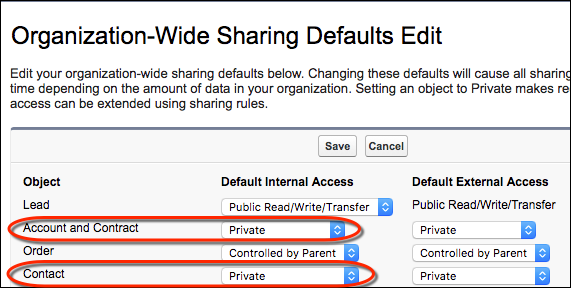
To disable business contact sharing, change the Contact sharing setting to **Controlled by Parent**.
#### See Also
- [Person Accounts](https://help.salesforce.com/s/articleView?id=sales.account_person.htm&release=264.0.0&type=5 "By default, Salesforce accounts are business accounts. Business accounts store information about companies or other entities. Person accounts extend the standard business-to-business account functionality by allowing you to store information about individual consumers. Person accounts combine certain account fields and contact fields into one record. You can use both business accounts and person accounts in the same org.")
# Business Data Examples
Focus on prospective customers nearest to your established ones. Find businesses with specific characteristics and fill gaps in schedules while you’re on the road using Salesforce Maps business data. Add business prospects to Salesforce as prospecting accounts or leads.
### Required Editions
In Salesforce Maps, create data layers using business data from DatabaseUSA.com and filters that you define. Complement your prospecting efforts when you include helpful details for contacting business contacts in marker popups. For example, include contact names, addresses, and any other relevant details.
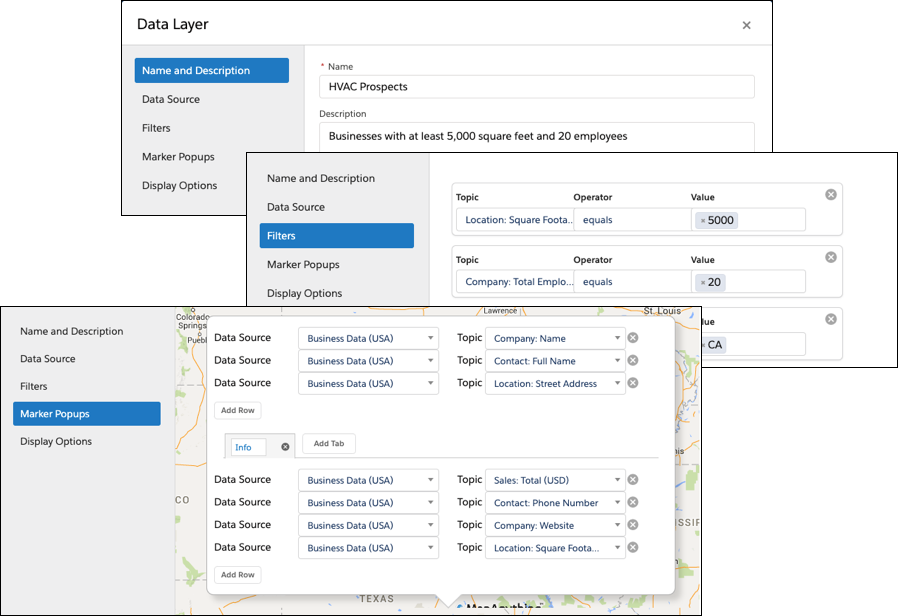
Plot the data layer on the map, which shows businesses based on the filters that you defined.
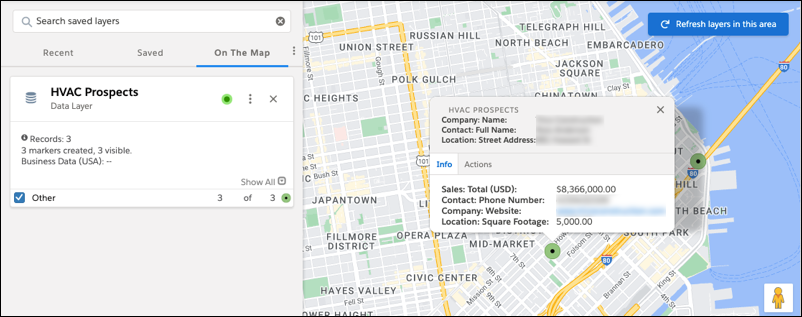
After you identify prospects, choose whether to create leads or prospecting accounts in Salesforce, or add those prospects to your schedule and routes.
These examples illustrate how different businesses can use business data available in Salesforce Maps for identifying new sales and service prospects.
Example
Business Data That Helps Identify New Prospects
Sell to businesses closest to your established customers
A property management company wants to grow their business in nearby industrial parks.
Businesses that the company’s leadership wants to focus on include:
Specific words in their company names, NAICS codes, and SIC codes
At least 10 employees at the corporate level
Identify buildings by size, business type, and layout
An emerging HVAC contracting firm identifies potential sales and service opportunities
for businesses with:
Square footage of at least 5,000
At least 20 employees
Business types that include specific NAICS codes
Fill scheduling gaps along your route
A sales rep for a medical supply company makes the most of her route and identifies
nearby businesses:
That include specific words in their company names, NAICS codes, and SIC codes
Whose offices are within a 15-mile radius of her location
# Buyer Relationship Map
Buyer Relationship Maps helps sellers visualize contacts across company levels and manage complex B2B stakeholder relationships within Accounts and Opportunities. Discover key stakeholders, deal champions, and potential risks. After you turn on Buyer Relationship Map, the Seniority Level, Department Group, and Buyer Attributes fields are available to add to your contacts.
### Required Editions
Available in: Lightning Experience
Available in: Enterprise, Performance, Unlimited Editions with Sales, and Agentforce 1 Sales Edition
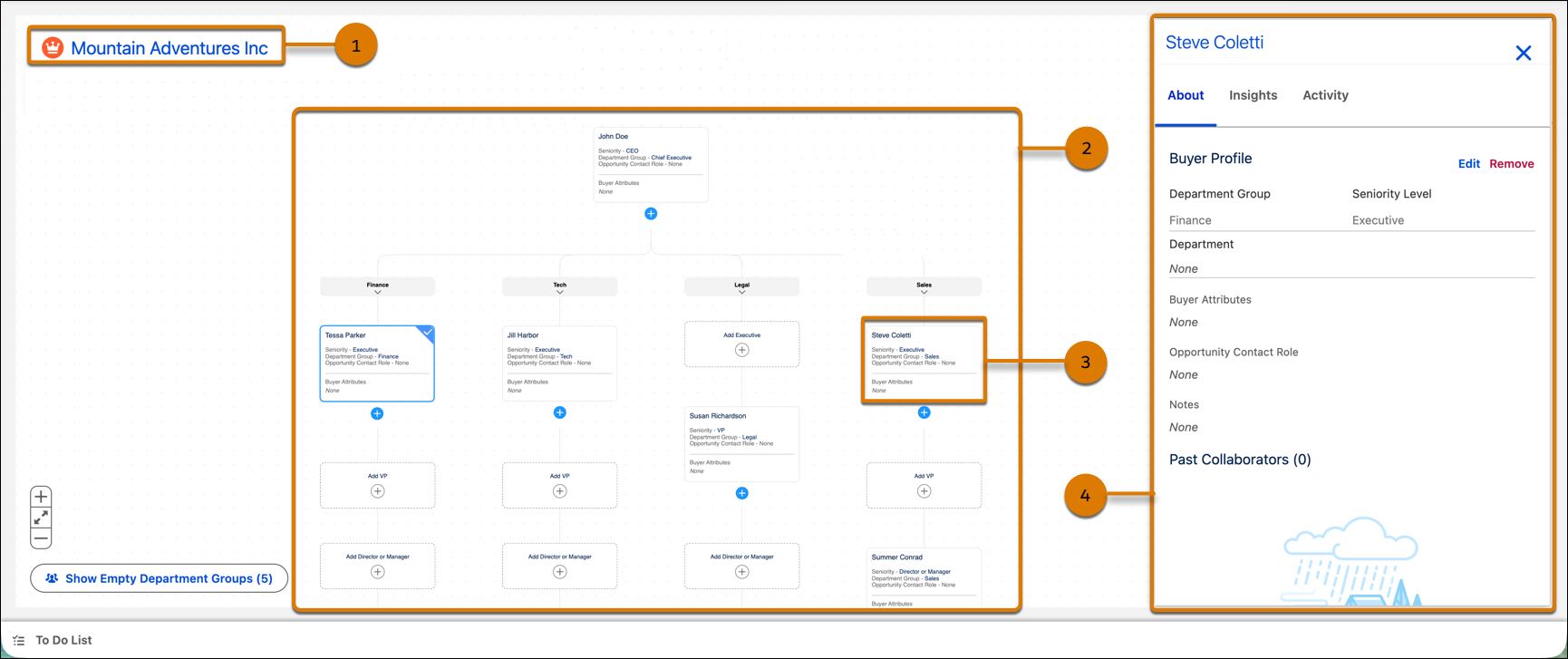
Sellers access the Relationship Map (1) associated with an opportunity or account to visualize contacts across company levels (2). Each tile (3) in the map corresponds to specific contacts in the hierarchy. Sellers click a contact tile to open the side panel (4), where they can edit a contact's details.
The relationship map for an opportunity has insights to help you complete the map.

Tip Use insights to identify areas of your map that are missing critical and optional key stakeholders (1). Find contacts in your account or opportunity with missing seniority levels and department groups that prevent them from appearing on the map (2).
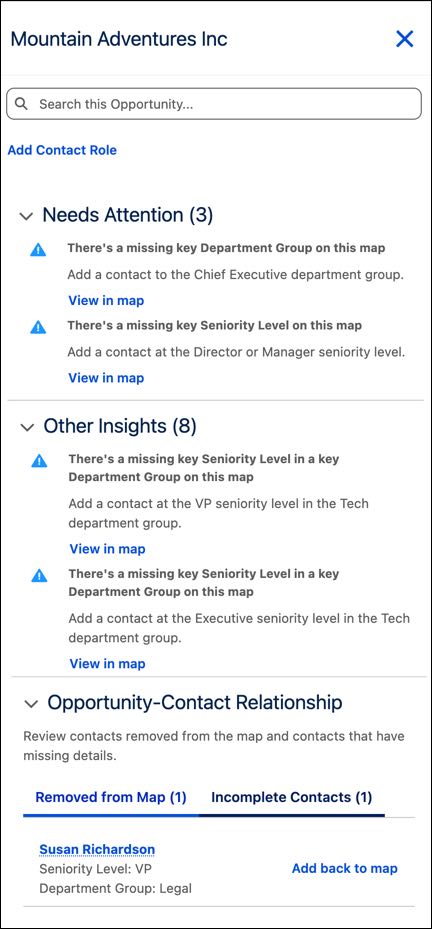
- **[Considerations for Buyer Relationship Map](https://help.salesforce.com/s/articleView?id=sales.buyer_relationship_map_considerations.htm&release=264.0.0&type=5)**
Learn about buyer relationship map requirements and limitations.
- **[Turn On Buyer Relationship Map](https://help.salesforce.com/s/articleView?id=sales.buyer_relationship_map_setup.htm&release=264.0.0&type=5)**
Learn how to turn on Buyer Relationship Map.
- **[Access and Update Buyer Relationship Map](https://help.salesforce.com/s/articleView?id=sales.buyer_relationship_map_add_edit.htm&release=264.0.0&type=5)**
Learn how to access the Buyer Relationship Map and update it to visualize contacts across company levels.
#### See Also
- [How Automatic Contact Enhancements Works with the Buyer Relationship Map](https://help.salesforce.com/s/articleView?id=sales.contacts_buyer_rel_map.htm&release=264.0.0&type=5 "Automatic Contact Enhancements helps keep buyer relationship maps up-to-date so that you always have the most robust contact information without any manual data entry. Automatic Contact Enhancements uses generative AI to identify buyer attributes, department group, and seniority level from a user’s email activity. These values are then added to the contact and shown in the buyer relationship map.")
# Buyer-Focused Engagement Reports for Sales Engagement
These standard reports measure engagements for each of your leads, and contacts. These reports don’t include information about reps.
### Required Editions
Available in: Lightning Experience
Available with Sales Engagement, which is included with Sales in Performance, Einstein 1, and Unlimited Editions, and available for an extra cost in Professional and Enterprise Editions. Sales Engagement is also available for an extra cost in Service and Lightning Platform.
## Leads with Monthly Engagements
This report shows the level of engagement from leads through email and call engagement activities on a monthly basis.
Reports
Email and List Email Engagement by Lead
Lead and List Emails Engagement
Email Engagement by Lead and Month
Call Engagement by Lead
Folder
Sample Sales Reports
Report Type
Leads with Monthly Metrics
Insights
How engaged are my leads on overall email and call engagement activity per month?
Key Data Points
Leads and monthly engagement details for emails and calls
Notes
Cadence and cadence tracker data aren’t in this report.
Email Engagements are generated by emails that are sent through Lightning Experience (minus case
emails) or sent through Gmail or Outlook when Inbox is enabled.
## Email, List Email, and Call Engagement by Contact
This report shows the level of engagement from contacts through email and call engagement activities on a monthly basis.
Reports
Email and List Email Engagement by Contact
Email Engagement by Contact and Month
List Email Engagement by Contact
Call Engagement by Contact
Folder
Sample Sales Reports
Report Type
Contacts with Monthly Engagements
Insights
How engaged are my contacts on overall email and call engagement activity per
month?
Key Data Points
Contacts and monthly engagement details for emails and calls
Notes
Cadence and cadence tracker data aren’t in this report.
Email Engagements are generated by emails that are sent through Lightning Experience (minus case
emails) or sent through Gmail or Outlook when Inbox is enabled.
# Cadence and Lead Outcome Reports for Sales Engagement
This set of standard reports measures Sales Engagement outcomes and ROI.
### Required Editions
Available in: Lightning Experience
Available with Sales Engagement, which is included with Sales in Performance, Einstein 1, and Unlimited Editions, and available for an extra cost in Professional and Enterprise Editions. Sales Engagement is also available for an extra cost in Service and Lightning Platform.
## Cadence Completion Reason
This report shows the percentage of cadence completions by completion reason for cadences that had contacts or leads added within the past 30 days.
Folder
Sample Sales Reports
Report Type
Cadences & Trackers
Insights
Which cadence is the most effective for lead conversion or completion?
Are reps adopting new cadences as planned?
Key Data Points
Cadences and their completion reason statistics
Percentage rate for each completion reason
Notes
The completion reason field is empty until a target completes a cadence.
If
you increase the report’s time span, and your company contains many leads or contacts in
each cadence, the report can take longer to run. Use filtering to improve performance and
limit the results returned by the report. For example, reduce the time span to cadences
less than the default 30-day setting.
To include the Cadence Disposition Reason, clone this report type and edit the layout to add the
field. Then build a report based on the new report type.
## Lead Conversions by Cadence
This report shows which leads have converted in the last 30 days for each cadence. It also includes leads not in sales cadences.
Which reps have converted the most leads in the last 30 days with each sales
cadence?
Which reps have converted the most leads in the last 30 days without a cadence?
Key Data Points
Lead name, company, source, and key reportable lead fields
Converted account, contact, and opportunity names
Cadence completion reason, disposition, assignee, and all other reportable cadence
tracker fields
Notes
To include the additional converted account, contact, and opportunity amounts, clone
this report type and edit the layout to add the fields. Then build a report based on the new
report type.
## Lead Conversion Report
This report shows how many leads sales reps are converting, the dollar value of the related opportunities, and the top sales performers.
Folder
Sample Sales Reports
Report Type
Leads with Converted Lead Information
Insights
How many leads are my sales reps converting?
What’s the dollar value?
Who’s the top performer?
Key Data Points
Lead conversion rates
Converted opportunity information, including dollar value
Sales rep performance
Notes
This report shows org-wide lead conversion. For Sales Engagement specific reporting,
begin with the Lead Conversions by Cadence report.
# Cadence Automation Tools
The automation tools and templates included in Sales Engagement provide effective ways to streamline your cadences. Learn more about your cadence automation options.
### Required Editions
Available in: Lightning Experience
Available with Sales Engagement, which is included with Sales in Performance, Einstein 1, and Unlimited Editions, and available for an extra cost in Professional and Enterprise Editions. Sales Engagement is also available for an extra cost in Service and Lightning Platform.
## Automated Actions
Automated actions let sellers and first-line managers save time by giving them the ability to specify an action to perform, set conditions that trigger the action, and kick off automation on records they own. Automated actions are a quick and easy way for users to make their jobs easier and more efficient with targeted automations without the need for a Salesforce admin. Managers can also create automated actions for their subordinates. Each automated action can be set to perform its action automatically or to notify the record owner to choose whether to perform the action.
Managers can create up to 25 automated actions for their subordinates. Sales Reps can create up to 50 automated actions for themselves. There is a daily limit of 250 automated action executions per user and 20k executions for all users. When the limit is exceeded, the automated action stops executing until the start of the following day.
These actions trigger when a record is created and, optionally, every time a field is updated to meet certain conditions.
Sales Engagement includes five preconfigured automated actions that reps can use.
- Assign target to cadence
- Remove target from all cadences
- Pause target in all cadences
- Resume target in all cadences
- Change all cadence target assignees
For more information about building automated actions, see [Create an Automated Action](https://help.salesforce.com/articleView?id=hvs_automated_actions_create.htm&language=en_US).
Keep these considerations in mind when using automated actions.
- Automated actions can’t update fields.
- Automated actions only trigger Sales Engagement actions and don’t support other types of platform development capabilities.
- Automated actions apply only to leads within the same territory as the automated action creator.
- Each automated action creator should have territory boundaries set to prevent the overlap of automated actions for prospects that may fall in multiple territories. This approach prevents multiple automated actions from modifying the same lead, contact, or person account record.
- Automated actions are best for individual users and first line managers. For higher-scale or company-wide automations, use Flow instead.

Example Here are some automated actions a rep can create for cadence activities.
- When a lead is created, add the lead to a cadence. For example, a Follow Up on Interested Prospects cadence.
- When a contact has opted out of email, remove the lead from the cadence.
- When a lead is marked as unqualified, remove the lead from the cadence.
- When a contact replies to an email, change the cadence assignee.
- When an opportunity is lost, add the primary contact to a cadence, such as a Recover a Lost Opportunity cadence.
- When a case is closed, add the primary contact to a cadence.
## Cadence Step Flows
Screen flows are a powerful type of flow that provides the ability to present one or more screens to the rep, allowing for user interaction and input to complete a task. Cadence step flows are a type of screen flow designed for use as cadence steps in Sales Engagement.
Cadence step flows launch as a step in the cadence, right from the Work Queue or To Do List. Reps interact with screen flow cadence steps just like any action step type. The custom screen flow appears, allowing them to provide any needed input. Admins create cadence step flows and then activate those flows for cadence builders to include as cadence steps. See [Flow Types](https://help.salesforce.com/articleView?id=flow_concepts_type.htm&language=en_US).
Sales Engagement includes three sample screen flow templates that you can clone and customize for your cadences.
- Create a Case
- Create a Task
- Create an Event
To use cadence step flows to manage cadences, such as adding or removing targets or changing target assignees, use the [built-in actions](https://developer.salesforce.com/docs/atlas.en-us.api_action.meta/api_action/actions_obj_high_velocity_sales.htm) included with Sales Engagement when building your flows.

Example Here are a few ways in which you can use screen flows in your cadence steps.
- Create a case.
- Create a task.
- Create an event.
- Send a text message through Digital Engagement.
## Cadence Autolaunched Flows
Cadence autolaunched flows are a type of autolaunched flow designed for use with Sales Engagement. Autolaunched flows can be configured to launch with no trigger, a schedule trigger, or a record trigger. Cadence autolaunched flows trigger when a target completes an action step in a cadence, such as an email, custom step, call, LinkedIn, or screen flow step.
Admins create cadence autolaunched flows that cadence builders can then add to individual cadence steps. You can create these flows from the included cadence autolaunched flow templates or create custom flows from scratch. For more information, see [Flow Types](https://help.salesforce.com/articleView?id=flow_concepts_type.htm&language=en_US).

Note To trigger a flow at the start of a cadence or cadence step, or to apply a flow across multiple cadences, see the information on Change Data Capture solutions later in this article.
Sales Engagement includes three sample cadence autolaunched flow templates that you can clone and customize.
- Update Lead Path
- Update Opportunity Stage
- Update Contact Owner
To use cadence autolaunched flows to manage cadences, such as adding or removing targets or changing target assignees, use the [built-in actions](https://developer.salesforce.com/docs/atlas.en-us.api_action.meta/api_action/actions_obj_high_velocity_sales.htm) included with Sales Engagement when building your flows.

Example Here are some options for triggering an autolaunched flow at the end of a cadence step.
- When a call step is completed, update the lead path to contacted.
- When an email step is completed, update the opportunity stage to qualification.
- When a custom step is completed, update the contact or account owner to the cadence assignee.
- When a LinkedIn step is completed, change the cadence assignee to the rep who will continue the outreach.
- When a screen flow step is completed, change the cadence assignee to the rep who will continue the outreach.
## Custom Automation with Platform Tools
Salesforce provides additional platform tools to give you the ability to customize your Sales Engagement automations.
Before you decide to use platform tools for custom development, review the information about Automated Actions to confirm whether those options can be applied to your use case.
Flow Builder
Use Flow Builder to add process automation and build individual flows using code-like logic without using a programming language.
One way to create flows in Flow Builder is to use standard autolaunched flows. Most features in Salesforce use the standard autolaunched flow type, including Sales Engagement. This flow type also can execute automatically to perform common tasks. Standard autolaunched flows can run based on schedule triggers, record triggers, or other background processes.
Sales Engagement includes three sample Standard Autolaunched Flow templates that you can clone and customize.
- Add Lead to Cadence
- Remove Lead from Cadence on Opt-Out
- Remove Unqualified Lead
For more information, see [Flow Types](https://help.salesforce.com/articleView?id=flow_concepts_type.htm&language=en_US).
To use Flow Builder to manage cadences, such as adding or removing targets or changing target assignees, use the [built-in actions](https://developer.salesforce.com/docs/atlas.en-us.api_action.meta/api_action/actions_obj_high_velocity_sales.htm) included with Sales Engagement when building your flows.
Apex and APIs
If the flow templates included with Sales Engagement don’t meet your specific business process requirements, use the flow tools directly to create the custom flow automations you need.
If the flow templates included with Sales Engagement don’t meet your specific business process requirements, use the flow tools directly to create the custom flow automations you need.
You can also use these tools independently from building cadences, to maximize the flexibility and customization of your flows and automate exactly what you need. In Sales Engagement, these tools can interact with cadences but aren’t necessarily tied to a cadence. Cadence step flows and cadence autolaunched flows are tied to cadences.
- Use Apex if you’re a developer who can use this object-oriented programming language to execute complex flow and transaction control statements on the Lightning Platform in conjunction with calls to the Lightning Platform API. Add business logic to most system events, including button clicks, related record updates, and Visualforce pages. Initiate Apex code by Web service requests and from triggers on objects.
- Use Salesforce APIs when you want other applications (or code in other applications) to programmatically access data in a simple and secure manner. For more information, see [Cadence Object Reference](https://developer.salesforce.com/docs/sales/sales-engagement/guide/sales-cadence-object-reference.html).

Note You can only use code to write Lightning components.
To use Apex and APIs to manage cadences, such as adding or removing targets or changing target assignees, use the [built-in actions](https://developer.salesforce.com/docs/atlas.en-us.api_action.meta/api_action/actions_obj_high_velocity_sales.htm) included with Sales Engagement when building your flows.

Example
Here are some options for triggering standard autolaunched flows to perform cadence actions.
- When a lead is created, add the lead to a cadence. For example, a Follow Up on Interested Prospects cadence.
- When a contact has opted out of email, remove the lead from one or more cadences.
- When a lead is marked as unqualified, remove the lead from one or more cadences.
- When an opportunity is lost, add the primary contact to a cadence, such as a Recover a Lost Opportunity cadence.
- When a case is closed, add the primary contact to a cadence.
- When a contact is added to a product-specific campaign, assign the contact to a product-specific cadence.
- When a contact is assigned as an opportunity contact role, add the contact to an opportunity maturation cadence with the opportunity attributed to the cadence target.
Here’s a method of using a custom standard screen flow with cadences.
- Build a standard screen flow and add it to the layout of an account page.
- On the first screen, list only contacts that have the title of Decision Maker. Allow the user to select those contacts to add to one or more cadences.
- On the second screen, list the relevant cadences, allow the user to select one or more cadences, and add a button that the user can click to add to cadence.
For more complex cadence routing logic, consider creating a custom object that contains fields representing business logic and a corresponding cadence, as in this example.
- Object Name = Cadence Routing Rules
- Example Rule Field Values: Lead Source = Website, Cadence = Website Welcome Cadence
- Build a trigger or record-triggered flow that executes on lead insert, reads the values from the Cadence Routing Rules object, and compares them to the values on the inserted lead.
- When a match is found and the lead isn’t assigned to the maximum number of cadences, add to the specified cadence.
## Change Data Capture
Using Change Data Capture with Sales Engagement lets you trigger automation on changes to records. For example, you can trigger when a cadence target progresses to the next step in a cadence, which updates its associated action cadence tracker record. Change events can include but aren’t limited to a target being added to a cadence, completing a cadence, beginning a step, or completing a step.
To implement automation for only one or a few cadences, or you don’t want to develop a custom solution, consider using cadence autolaunched flows instead. Consider using Change Data Capture only if a cadence autolaunched flows solution can’t satisfy your business requirements. Development effort is required to implement a Change Data Capture solution.
These use cases require a Change Data Capture solution.
- Triggering at the start or end of a cadence
- Triggering at the start of a step rather than the completion of a step, which is supported by cadence autolaunched flows
- Implementing a global automation solution across multiple cadences
While you can accomplish after-step triggering by individually configuring each step, if your requirement applies to multiple cadences, consider a global solution rather than ensuring each step is properly configured. For more information, see [Salesforce Developers: Change Data Capture Developer Guide](https://developer.salesforce.com/docs/atlas.en-us.change_data_capture.meta/change_data_capture/cdc_intro.htm) and [Sales Engagement Developer Guide](https://developer.salesforce.com/docs/sales/sales-engagement/overview).
To use change data capture to manage cadences, such as adding or removing targets or changing target assignees, use the [built-in actions](https://developer.salesforce.com/docs/atlas.en-us.api_action.meta/api_action/actions_obj_high_velocity_sales.htm) included with Sales Engagement when building your flows.

Example
These cadence solutions are created with Change Data Capture.
- When a lead is assigned to a cadence (cadence starts), update a field on the lead.
- When a contact moves down the yes path on a listener step in a cadence (step starts), update a field on the contact.
These Change Data Capture solutions affect multiple cadences.
- When every cadence starts, update a field on the corresponding target.
- When every cadence ends, update a field on the corresponding target.\*
- After every intro call step is completed, update the lead status to working.\*
\* You can use cadence autolaunched flows if you want a cadence-specific solution instead of affecting all cadences.
# Cadence Builder 2.0 Cadences
Cadence Builder 2.0 cadences are responsive to target engagement, using three separate tracks—main, positive, and negative—to hold cadence steps appropriate to different target engagements. Entry rules for each track let targets move to the appropriate track based on their engagements, whenever they occur.
### Required Editions
Available in: Lightning Experience
Available with Sales Engagement, which is included with Sales in Performance, Einstein 1, and Unlimited Editions, and available for an extra cost in Professional and Enterprise Editions. Sales Engagement is also available for an extra cost in Service and Lightning Platform.

Note To watch a video demonstration of building a cadence with Cadence Builder 2.0, see [Cadence Builder 2.0](https://salesforce.vidyard.com/watch/9GredDSiDxwNpWSMzzRYW6).
Cadence creators can build cadences with separate tracks, or series of steps, for targets of different levels of interest or engagement.
- A main track, usually with steps for targets who haven't yet engaged
- A positive track for targets who have engaged or shown interest
- A negative track for targets that have expressed a lack of interest
The builder canvas lets you see the steps in each track, drag steps to and from a track, and configure step details, all in one view.
Cadence creators can use each track in the way that makes sense for their team and can set rules to control when a target moves from one track to another. Targets can move from track to track at any time based on the track entry rules. For example, the positive track can have an entry rule that moves a target to that track when they click a link in an email sent in a previous step in either of the other two tracks.
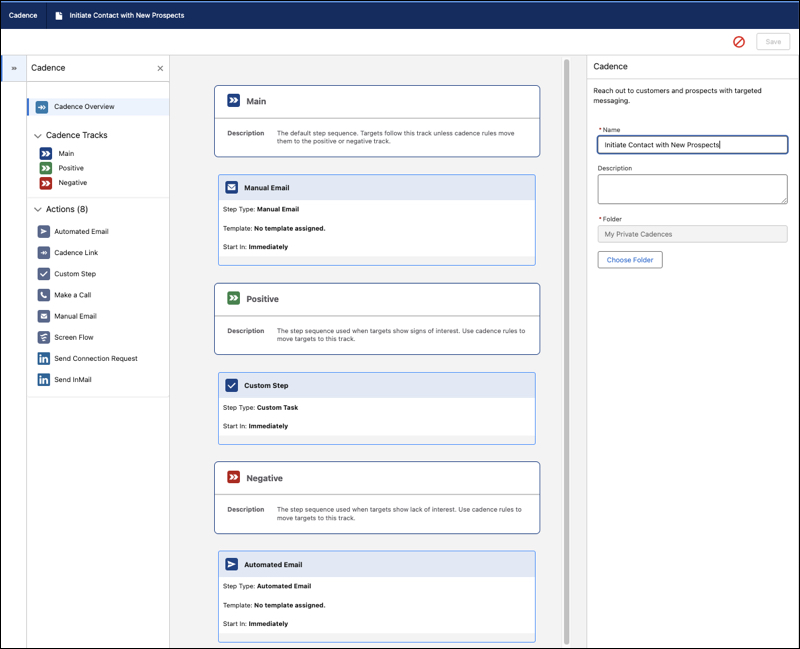
When track entry rules cause a target to move from one track to another, the cadence cancels the target's current step and moves the target to the first step of the new track. The start time of the first step is the later of the start time of the canceled step and the first step of the new track. This timing prevents the track change from causing two steps to occur closer together than the cadence designer intended. For example, if a target's current step on the main track starts in one day but an entry rule sends the target to a step that's set to start immediately, that new step starts in one day instead.
Cadence authors create steps and cadence exit rules in the same way in Cadence Builder 2.0 and Cadence Builder Classic.
## Considerations
Keep in mind these considerations when using Cadence Builder 2.0.
- Cadence exit rules on the main track apply to all tracks. When an exit rule condition is met, the target leaves the cadence no matter which track they're on.
- Cadence exit rules and track entry rules don't work when the target is on the last step of the main track if the step is an email step.
- Targets can move between tracks based on the track entry rules, but can't move back to a previously visited track.
- You can only use each specific engagement event in one entry or exit rule.
- We recommend planning your cadence steps from start to finish before beginning to build a cadence.
- You can connect multiple cadences with cadence links. Linked cadences can be used to implement more complex cadence engagement response scenarios.
- Scheduled cadence steps appear as tasks in the Activity Timeline on prospect records. These are proxy tasks generated by Salesforce. When the cadence step is completed, the proxy task is deleted and replaced by a completed activity record.
# Cadence Builder Classic Cadences
Managers can build sales best practices right into Salesforce, optimizing prospecting outcomes. Cadences guide new and veteran reps alike through the prospecting and opportunity nurturing processes—including when to email a prospect, when to call, when to wait, and more. Managers can specify call scripts and email templates for each step, and create branched cadences with different outreach depending on the results of sales calls or emails.
### Required Editions
Available in: Lightning Experience
Available with Sales Engagement, which is included with Sales in Performance, Einstein 1, and Unlimited Editions, and available for an extra cost in Professional and Enterprise Editions. Sales Engagement is also available for an extra cost in Service and Lightning Platform.

Note Cadence Builder Classic (v1.0) will be retired in a future release. We recommend transitioning to Cadence Builder 2.0 for any new cadences your sales team needs to create. For more information, see [Cadence Builder 1.0 Retirement](https://help.salesforce.com/s/articleView?id=001040170&type=1&language=en_US).
For reps, cadences bring together all their pending activities in one view and automatically log activities as reps complete them. After reps start using cadences, managers can report on which cadences result in the best sales outcomes.
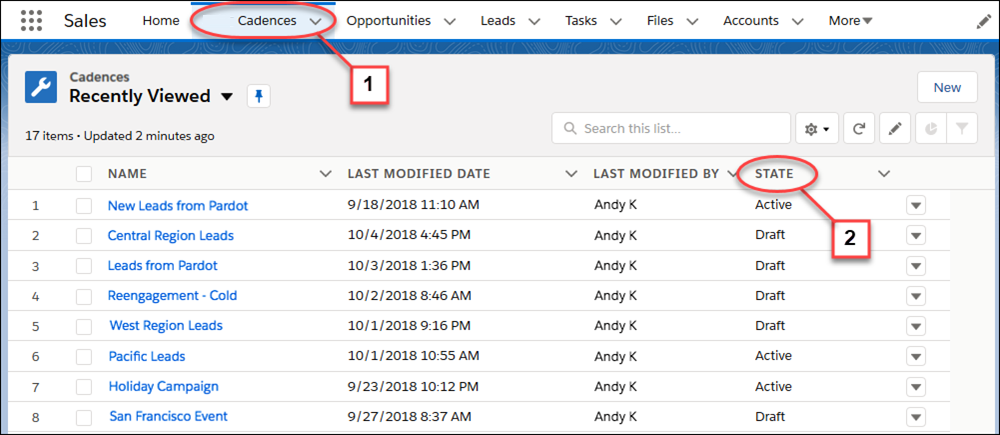
The Cadences tab (1) shows details for each cadence, including whether it is in draft, active, or deactivated (2). When in draft, a sales manager can edit the cadence. After the cadence is activated, the sales manager can assign leads, contacts, and person accounts to the cadence.
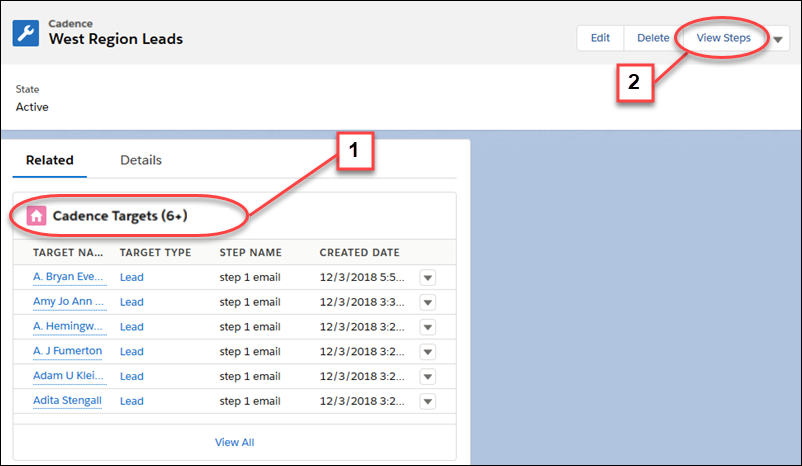
On the cadence record detail page, the Cadence Targets related list shows the leads, contacts, and person accounts currently active in the cadence (1). The Cadence Targets list doesn't include targets that have completed the cadence or have an error. To see the details of each cadence step in the Cadence Builder, Managers can click **View Steps** (2).
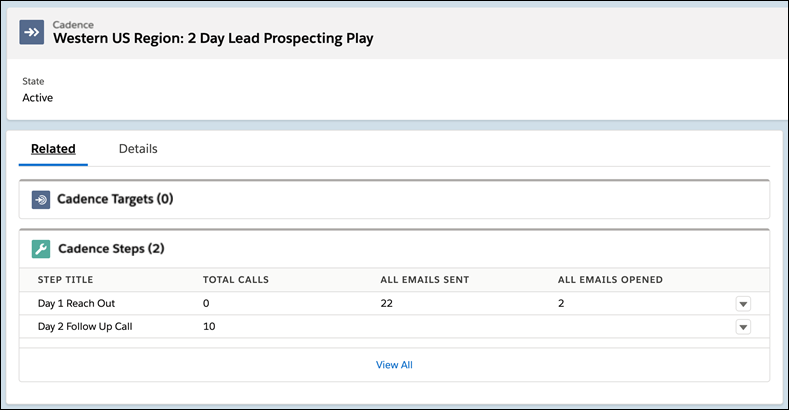
The Cadence Steps related list shows the prospect engagement for each call and email step.
For example, a sales manager could build a cadence guiding reps to make two back-to-back calls, wait a half-day, and then call again or send an email.
Sales managers use the Cadence Builder to create each scheduled outreach plan.
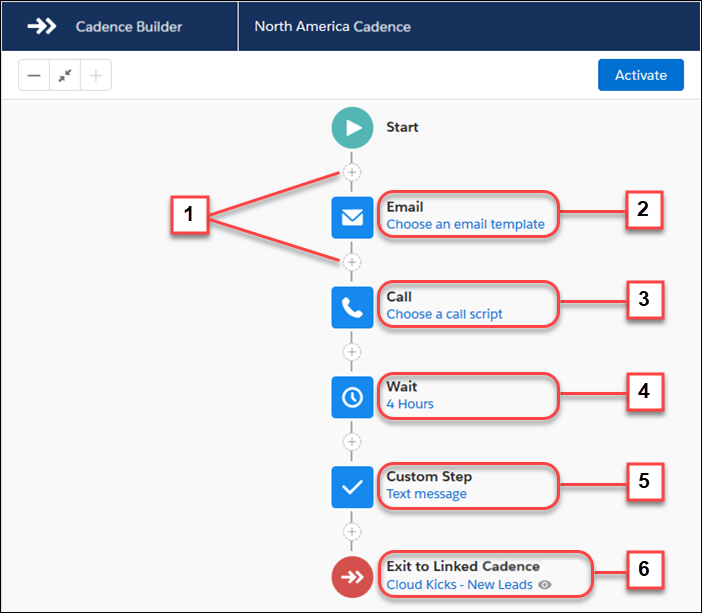
Click the plus (+) icons (1) to add an email (2), call (3), wait period (4), or a custom step (5), such as setting up a meeting or sending a text message. When prospects complete a cadence, you can add them to another one automatically (6).
To make your sales outreach more responsive to prospect engagement, you can build a branched cadence. Branches allow different outreach steps depending on the results of a call or an email.
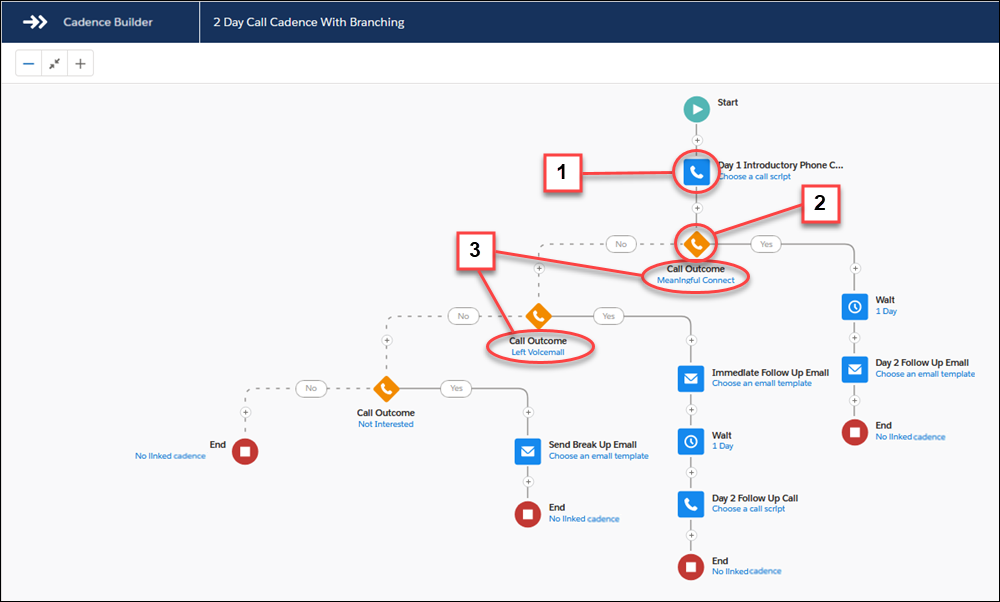
To build a cadence that takes prospects through different sales steps based on a call result, add a call step (1) followed by a branch step (2). For each call result branch step, choose which Call Outcome value to look for, such as Meaningful Connect or Left Voicemail (3).
Cadences can also take prospects through different sales steps based on whether the prospect engages with an email. Use a listener branch step (1) after an email to send the prospect down the correct branch.
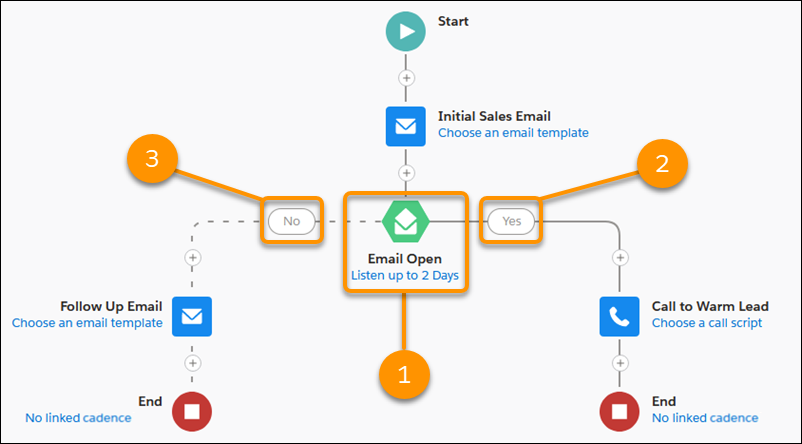
To create a branch based on email engagement, add a listener branch step (1) after an email step. The listener branch step waits to see whether the prospect opens the email or clicks a link in the email, and sends the prospect down the correct branch. If the prospect opens the email, the cadence takes them through the steps in the Yes branch. If they don’t open the email, they follow the No branch.
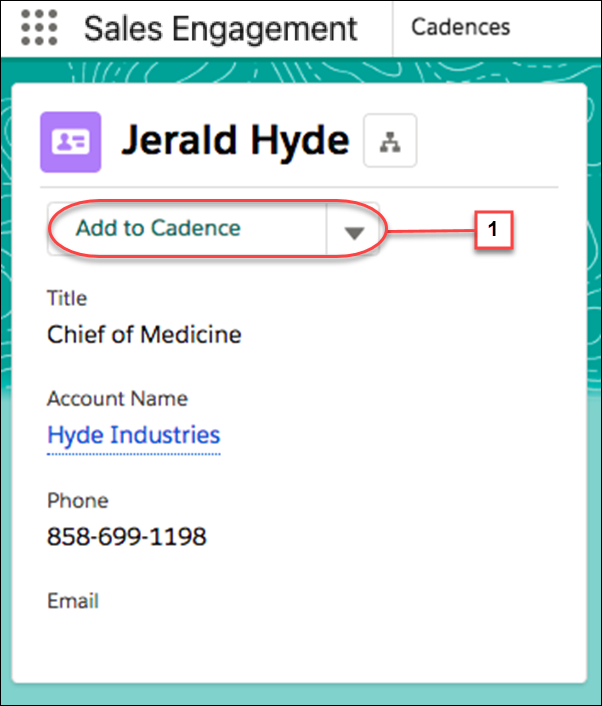
After a cadence is activated, sales managers or reps can add prospects right from a lead, contact, or person account detail page by clicking the **Add to Cadence** action (1). Then choose a cadence to start the prospect on a specific set of scheduled outreach. Choose a target assignee (2) to perform the sales outreach for the prospect. If the target is a contact on an opportunity, you can add the related opportunity (3). The cadence outreach steps appear automatically in the target assignee’s work queue as they come due. The record owner is the default target assignee.
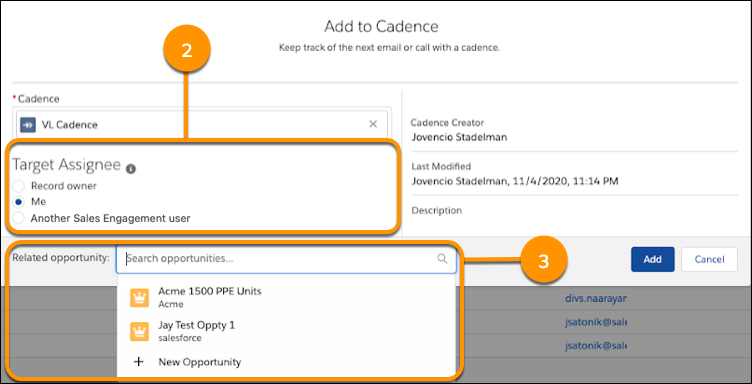
When your Salesforce admin adds the Sales Engagements component to lead, contact, and person account page layouts, sales reps and managers can see prospect engagement activity and cadence progress. Sales reps can act on the next sales step right from the record detail page.
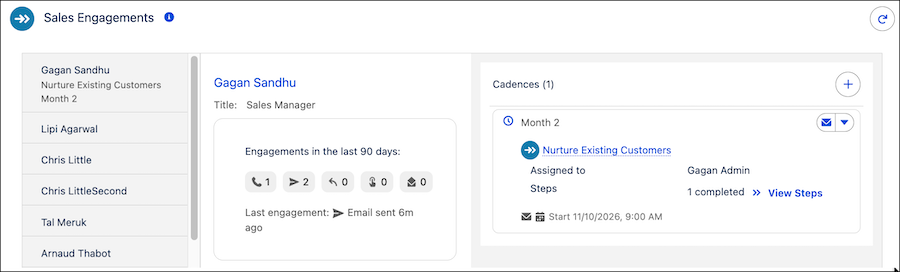
#### See Also
- [Create and Activate a Cadence with Cadence Builder Classic](https://help.salesforce.com/s/articleView?id=sales.hvs_cadences_create.htm&release=264.0.0&type=5 "Establish a repeatable process for your sales reps to work their prospects using a scheduled sequence of outreach activities with Sales Engagement cadences.")
- [Add Prospects to a Cadence](https://help.salesforce.com/s/articleView?id=sales.hvs_cadences_add_targets.htm&release=264.0.0&type=5 "Take prospective buyers through a scheduled sales outreach sequence by adding them to a cadence.")
# Cadence Considerations for Sales Engagement
Learn about considerations for using cadences in Sales Engagement.
### Required Editions
Available in: Lightning Experience
Available with Sales Engagement, which is included with Sales in Performance, Einstein 1, and Unlimited Editions, and available for an extra cost in Professional and Enterprise Editions. Sales Engagement is also available for an extra cost in Service and Lightning Platform.
## Cadences
- Cadences support leads, contacts, and person accounts only.
- Before merging duplicate records, be sure none of the records you’re deleting are in a cadence.
- Tasks related to cadence steps are created and updated automatically. Users can’t edit these tasks, but they can delete them after the cadence step has been completed.
- The maximum number of steps in a cadence is 100.
- You can add up to 200 targets to a cadence at once, except when adding them from an opportunity. You can add only 20 opportunity contacts to a cadence at one time.
- When a lead converts, completed cadence tasks aren’t transferred to the Activity Timeline of the new contact, account, or opportunity.
- Before managers can create branched cadences based on call outcomes, an admin must map your org’s call result values in Sales Engagement Setup.
- When pre-defining an email template for a cadence step, you can only use Lightning email templates.
- Users can't add targets when the cadence has an automated email as the first step and the number of targets will cause them to exceed their daily limit of automated email.
- The limit of active cadence targets is 500,000 per Salesforce org. If your usage exceeds this amount, contact your Salesforce Account Executive for pricing.
- The Cadence field shouldn’t be used on lead, contact, or account search layouts in Lightning Experience and Salesforce Classic, or on list views in Salesforce Classic.
- The Cadence and Cadence Assignee fields on lead, contact, and person account records can’t be used to as field criteria in workflow rules and Process Builder.
- Cadence step trackers don’t support triggers, but you can use triggers on the related task records as a substitute.
- For these cadence step types, the system creates a task record. Users can't edit these records directly. The task records are marked complete when the user completes the related cadence step. There can be a slight delay between when the user completes the step and the task record is updated.
- Send an email
- Make a call
- Create a task
- Send an automated email
- LinkedIn InMail
- LinkedIn connection request
- Platform screen flow
## Cadence Folders and Sharing
- To grant access to cadences, share the folder, not the cadence itself.
- If a user loses access to a cadence folder, they lose access to all cadences in that folder.
- If a user loses access to a cadence, the user can’t complete any in-progress steps from that cadence.
- Access to a cadence folder doesn’t grant access to email templates used in that cadence. Email templates used in cadences must be stored in folders accessible to the cadence target assignee.
- CRM Analytics dashboards display all cadence metrics regardless of whether the user has access to the cadence.
- To make sure that your users can access cadence folders, make sure that the Enable Enhanced Folder Sharing for Reports and Dashboards critical update is activated in Setup.
# Cadence Target Dispositions
Cadences are a great tool for qualifying large numbers of leads and other prospects. Sales Engagement assigns a disposition to each prospect when they finish or exit a cadence. The disposition indicates how the target responded to the cadence, so you can see which targets to invest in further. You can view target dispositions in reports.
### Required Editions
Available in: Lightning Experience
Available with Sales Engagement, which is included with Sales in Performance, Einstein 1, and Unlimited Editions, and available for an extra cost in Professional and Enterprise Editions. Sales Engagement is also available for an extra cost in Service and Lightning Platform.
Cadence targets receive one of these dispositions when they exit a cadence.
| Disposition | Description |
| --- | --- |
| Success | The sales rep successfully connected with the target. The customer shows interest in moving ahead with a deal. |
| Customer Engaged | The target opened an email, or clicked a link in an email. |
| Customer Connected | The target replied to an email or the call outcome was Meaningful Connect. |
| Contact Later | The target should be contacted again later. |
| No Response | The target didn’t respond. |
| Not Interested | The target isn’t interested |
| Disqualified | The target doesn’t meet your buyer qualifications. |
| Bad Data | The target’s Email, Phone, Name, or Company isn’t valid. |
| Duplicate | The target is a duplicate record. |
Cadence targets can receive a disposition automatically or manually.
Automatically
Targets can exit a cadence automatically in a few ways.
- When a lead target converts, the assigned disposition is Success.
- When the last action of the cadence is a call, the assigned disposition is based on the call result.
| Call Result | Disposition |
| --- | --- |
| Meaningful Connect | Customer Engaged |
| Left Voicemail | Contact Later |
| Call Back Later | Contact Later |
| Not Interested | Not Interested |
| Disqualified | Disqualified |
Depending on your Computer Telephony Integration (CTI), administrators can customize these call result mappings. For more information, see [Define Call Result Values for Cadence Branching](https://help.salesforce.com/articleView?id=sales.hvs_setup_call_outcomes.htm&type=5&language=en_US).
- If the last action of the cadence is an email and it’s followed by a listener step, the assigned disposition is based on the results of the email.
| Email Engagement | Disposition |
| --- | --- |
| Reply | Customer Connected |
| Link clicked | Customer Engaged |
| Open | Customer Engaged |
| Out of Office | Contact Later |
| Bounce | Bad Data |
If there isn’t a listener step after the email, the target completes the cadence and a disposition isn’t assigned.
Manually
When a sales rep removes a target from a cadence, they can assign a disposition at the same time. Sales reps can update the disposition in the Sales Engagement component on the target’s lead, contact, or person account record.
You can view target dispositions in standard and custom reports.
- Add the Disposition field to the Cadence Completion Reason report.
- Create a report from any of the custom report types that include cadence trackers.
#### See Also
- [Build Your Own Custom Reports for Sales Engagement](https://help.salesforce.com/s/articleView?id=sales.hvs_reports_custom.htm&release=264.0.0&type=5 "In addition to standard Sales Engagement reports you can create custom report types to link cadence trackers with leads, contacts, accounts, and other objects. Cadence trackers represent the targets that you add to cadences.")
# Calculate a Line-By-Line or Lump-Sum Rule
After adding a rule to a plan page, calculate the rule and view it on the rep statement.
### Required Editions
Available in: both Salesforce Classic (not available in all orgs) and Lightning Experience
Available in: Enterprise, Unlimited, and Developer Editions
Available for an additional cost in: Professional Edition with Web Services API Enabled
User Permissions Needed
To calculate a rule:
A Spiff user role with these permissions turned on.
Designer Configuration: Manage
Statements: Recalculate
1. In Designer, click **Calculate**.
2. Select the period, plan, and rep that the rule applies to and click **Calculate**.
Selecting all periods, plans, or reps can extend processing time.
When the calculation process is finished, the Calculate button changes to green and shows Complete. Detailed statement calculation information appears, such as the number of statements that were successfully calculated and any statements with errors.
3. View the rule on a rep's statement.
1. Exit Designer.
2. On the commissions page, select the period where you applied the rule.
The rule appears next to the rep where the rule was calculated.
# Calculate an Average Value in Salesforce Spiff Designer
Some companies use averages in commission calculations. For example, companies often pay reps on the average of the total value of the contract, or Annual Contract Value, rather than just the first month's value or the total value. You can create a calculated value for the average in your datasheet based on the value and total duration.
### Required Editions
Available in: both Salesforce Classic (not available in all orgs) and Lightning Experience
Available in: Enterprise, Unlimited, and Developer Editions
Available for an additional cost in: Professional Edition with Web Services API Enabled
In this example, calculate the average of the total commission value of a contract.
1. Find or calculate the total commission value.
1. If the value is a field in the CRM, make sure that the field is available for use. Hover over the object the field originates from on the Fields tab under Data in Designer. Click the three dots and select **Manage Fields**.
A list of fields is available on that object. A checkmark means that the field is already available and can be referenced. If the field isn't checked, click the **+** button to make the field available for use.
2. In Plans, go to the datasheet where you want to build the rule calculations and add a column for this field by clicking the **+** button on the far right column.
3. Enter the name of the field to show it in the dropdown menu and select it from the list.
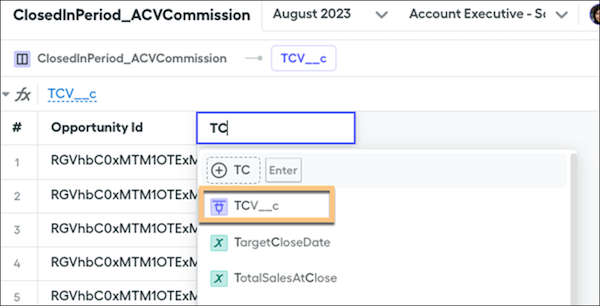
The field populates on your datasheet.
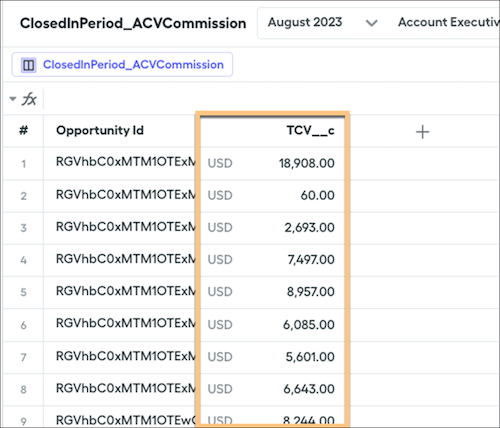
2. Find or calculate the total duration.
- If the CRM has a field for the total contract duration of the deal's contract, you can add that field in the same way you added the total value.
- If you have a contract start date and a contract end date, you can use the `months_to()` function. Create a calculated field called TotalContractDuration and enter this formula, which returns the total duration of the contract in months.
```
months_to(Contract_Start_Date__c,Contract_End_Date__c)
```
3. Divide the total value by the total duration. Create a new calculated field called AverageContractACV and enter this formula.
```
If(TotalContractDuration=0,0,TCV__c/TotalContractDuration)
```
The `if()` function makes sure that zero is returned if the TotalContractDuration is zero.
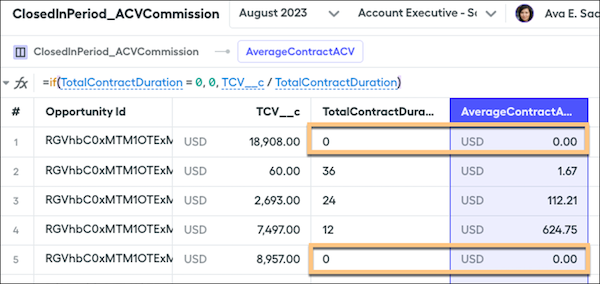
#### See Also
- [if](https://help.salesforce.com/s/articleView?id=sales.spiff_function_ref_if.htm&release=264.0.0&type=5 "Tests for a condition in Salesforce Spiff and returns different values depending on the outcome.")
- [months\_to](https://help.salesforce.com/s/articleView?id=sales.spiff_function_ref_months_to.htm&release=264.0.0&type=5 "Returns the number of months between two dates or times in Salesforce Spiff. If the return value is a negative number, the second date occurred before the first date.")
# Calculate Joint Commissions with Opportunity Splits in Salesforce Spiff
When multiple people contribute to closing a deal, opportunity splits help make sure that each person receives credit. In Salesforce Spiff, you can set up commission calculations based on opportunity splits synced from Salesforce. A deal can have multiple splits, and a split type can be revenue, overlay, or a custom type.
### Required Editions
Available in: both Salesforce Classic (not available in all orgs) and Lightning Experience
Available in: Enterprise, Unlimited, and Developer Editions
Available for an additional cost in: Professional Edition with Web Services API Enabled
For example, Rep A and B help close a deal. Rep A receives a 50% revenue split and 20% overlay, and Rep B receives a 50% revenue split.
To use opportunity splits in Spiff, sync these Salesforce objects.
- Opportunity, for deals
- Opportunity Split, for a many-to-one relationship with Opportunity
- Opportunity Split Type, for a many-to-one relationship with Opportunity Split
- Opportunity Team, which can be required for some split types
Spiff creates a split record for each owner and type combination, and adds values for these fields.
- Split owner ID
- Percentage
- Split amount
- Split type as an ID
The synced objects and fields have text labels in Salesforce, but Spiff shows an ID against the split record.

Note Splits don't always add up to 100%. If the opportunity hasn't been split 100% and the split owner ID is the name as the opportunity's owner ID, Spiff creates one split record.
1. Sync required Salesforce objects.
See [Salesforce Connectors in Salesforce Spiff](https://help.salesforce.com/s/articleView?id=sales.spiff_connector_salesforce.htm&release=264.0.0&type=5 "Sync data from Salesforce objects and fields for use within Salesforce Spiff. Set up connectors for up to five Salesforce orgs, sync data, and manage users between Salesforce and Spiff.").
2. Create a one-to-many relationship for the Spiff Deal object to the Opportunity Split object, such as DealToSplits.
See [Set Up a Data Relationship in Salesforce Spiff](https://help.salesforce.com/s/articleView?id=sales.spiff_relationship_create.htm&release=264.0.0&type=5 "To set up a relationship between two object data tables in Salesforce Spiff, select a field with a common value for both objects."). Select these values for the relationship.
Source connector, object, and field
Select the Salesforce connector, the Deal object, and the Opportunity ID field.
Type
Select Has Many.
Target connector, object, and field
Select the Salesforce connector, the Opportunity Split object, and the Opportunity ID field.
3. Create or update a data filter for the split records.
For example, create a BySplitRep filter that returns all records where the rep has a split.
```
DealToSplits.SplitOwnerId = rep.Id
```
See [Create a Data Filter in Salesforce Spiff](https://help.salesforce.com/s/articleView?id=sales.spiff_data_filter_create.htm&release=264.0.0&type=5 "Create data filters in Salesforce Spiff without writing any code.").
4. Add the splits in your commission calculations.
For example, create a SplitPercentage calculation.
```
=sumif(DealToSplits, SplitOwnerId = rep.Id, SplitPercentage) / 100
```
Reference this calculation in an ARRValue formula.
```
=ARR * SplitPercentage
```
And finally calculate the commission amount by multiplying the ARRValue by the commission rate.
```
=ARRValue * CommissionRate
```
If the ARR is $100 and there aren't any split records, the ARR Value calculation is `100 * 100%`. If there's a 50% split, the same calculation results in `100 * 50%`.
#### See Also
- [Create a Manager Rollup Filter for Opportunity Splits](https://help.salesforce.com/s/articleView?id=sales.spiff_rollup_opportunity_splits.htm&release=264.0.0&type=5 "Opportunity splits occur when two or more people contribute to a deal and the commission is divided among the contributors. In Salesforce Spiff, help managers view opportunity splits with a manager rollup filter.")
- [Administer Opportunity Splits and Opportunity Product Splits](https://help.salesforce.com/s/articleView?id=sales.opp_splits_setup.htm&type=5&language=en_US)
# Calculated Fields in Salesforce Spiff Data Filters
To use calculated fields in Salesforce Spiff data filters, the calculated field must be on the same object as the filter.
### Required Editions
Available in: both Salesforce Classic (not available in all orgs) and Lightning Experience
Available in: Enterprise, Unlimited, and Developer Editions
Available for an additional cost in: Professional Edition with Web Services API Enabled
When you create a data filter, you can reference any field that Spiff calculates on the same object. A calculated field can be derived from a variety of functions, and you can use standard data filter behaviors with the calculated field.
For example, maybe you have a commission plan where reps are eligible for payment only when their Split Annual Recurring Revenue (ARR) exceeds $20,000. Reps are compensated for only the percentage split of the deal. Even if a rep secures a deal worth $20,000 in ARR and the split percentage is 50%, the rep's eligible Split ARR is $10,000, below the required threshold.
To calculate the Split ARR accurately, create another calculated field, SplitArr.
```
=SplitPercent*ARR
```
One option is using a double filter to remove records that the rep isn't paid for. Or, skip the additional filtering step with a calculated field within the data filter.
```
ClosedInPeriod AND ByRep AND Split_Percent__c != null AND SplitARR >= 20000
```
In addition, we recommend that you enclose these calculations in sub-data filters.
```
SplitPercentNotNull = Split_Percent__c != null
SplitARRMoreEqual20000 = SplitARR >= 20000
ClosedInPeriod AND ByRep AND SplitPercentNotNull AND SplitARRMoreEqual20000
```
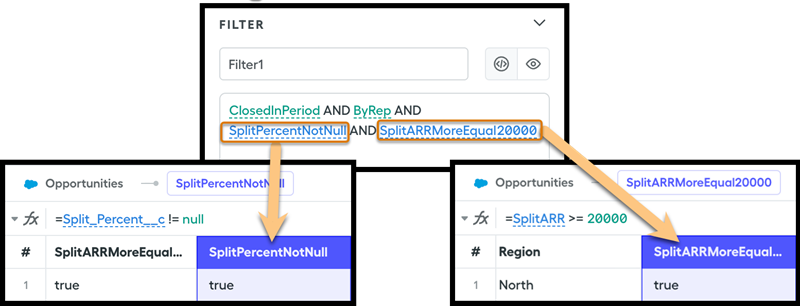
# Calendar Sharing
Give coworkers access to view or edit your calendar in Salesforce Classic and Lightning Experience.
### Required Editions
Available in: Salesforce Classic and Lightning Experience
Available in: Professional, Enterprise, Performance, Unlimited, Developer, and Database.com Editions
- **[Calendar Sharing in Lightning Experience](https://help.salesforce.com/s/articleView?id=sales.calendar_sharing_lex.htm&release=264.0.0&type=5)**
Give coworkers access to view or add events to your calendar in Lightning Experience.
- **[Calendar Sharing in Salesforce Classic](https://help.salesforce.com/s/articleView?id=sales.calendar_sharing.htm&release=264.0.0&type=5)**
Grant others access to view or edit your calendar in Salesforce Classic, or view a calendar that a coworker shares with you.
# Calendar Sharing in Lightning Experience
Give coworkers access to view or add events to your calendar in Lightning Experience.
### Required Editions
Available in: Lightning Experience
Available in: Enterprise, Unlimited, and Developer Editions
1. **[Share Your Calendar in Lightning Experience](https://help.salesforce.com/s/articleView?id=sales.calendar_sharing_share_lex.htm&release=264.0.0&type=5)**
Give coworkers access to view or add events to your My Events calendar in Lightning Experience.
2. **[View Coworkers’ Calendars in Lightning Experience](https://help.salesforce.com/s/articleView?id=sales.calendar_sharing_view_lex.htm&release=264.0.0&type=5)**
When coworkers share their My Events calendar with you, then you can view it in Lightning Experience. Add several calendars to your calendar view at one time with user list calendars.
# Calendar Sharing in Salesforce Classic
Grant others access to view or edit your calendar in Salesforce Classic, or view a calendar that a coworker shares with you.
### Required Editions
Available in Salesforce Classic in: All Editions Except Personal, Group, and Contact Manager Editions
Watch a Demo: [ Who Sees What: Org-Wide Defaults (English only)](https://salesforce.vidyard.com/watch/4I62yWd-0q-wpv2qR3hyKQ)
1. **[Share Your Calendar in Salesforce Classic](https://help.salesforce.com/s/articleView?id=sales.calendar_sharing_share.htm&release=264.0.0&type=5)**
You can grant coworkers, personal and public groups, roles, or roles and subordinates access to view or edit your calendar in Salesforce Classic.
2. **[View a Coworker’s Calendar in Salesforce Classic](https://help.salesforce.com/s/articleView?id=sales.calendar_sharing_view.htm&release=264.0.0&type=5)**
When coworkers share their calendars with you, you can view the calendars in Salesforce Classic.
#### See Also
- [Activity Reminders and Notifications in Salesforce Classic](https://help.salesforce.com/s/articleView?id=sales.activities_reminder_window.htm&release=264.0.0&type=5 "Salesforce displays event and task reminders in a reminder window. The reminder window opens whenever a reminder is triggered. When you log in, a sound plays if you have reminders that have been triggered since the last time you logged in. You can customize reminders in your personal settings.")
# Calendar Views
Calendar views display your events in Salesforce.
1. **[Calendar Views in Lightning Experience](https://help.salesforce.com/s/articleView?id=sales.activities_using_calendar_icons_lex.htm&release=264.0.0&type=5)**
Your calendar displays all events that you own in Salesforce on the My Events Calendar. Calendars that you create from a Salesforce object display data in date fields as calendar items. View, create, and edit your events in a day, week, or month view. You can also see any calendars shared by colleagues that you’ve added to your view.
2. **[Calendar Views in Salesforce Classic](https://help.salesforce.com/s/articleView?id=sales.activities_using_calendar_icons_cex.htm&release=264.0.0&type=5)**
Calendar views display your own calendar and coworkers’ calendars along with list views of open tasks. On the Home tab, the Calendar section shows upcoming events, a date picker for the month, and links to other calendar and activity views. You can share your calendar with coworkers and print calendars and task lists.
# Calendar Views in Lightning Experience
Your calendar displays all events that you own in Salesforce on the My Events Calendar. Calendars that you create from a Salesforce object display data in date fields as calendar items. View, create, and edit your events in a day, week, or month view. You can also see any calendars shared by colleagues that you’ve added to your view.
### Required Editions
Available in Lightning Experience
Available in: All Editions except Group or Contact Manager Editions
Watch a demo:  [Calendars are Better in Lightning! (English Only)](https://salesforce.vidyard.com/watch/c3CEiNCAdn7MFAD14n59aE)
## View Your Calendar
Access calendar views by:
- Choosing the Calendar page from the navigation menu.
- Opening a related event on a record’s activity timeline. (If your record doesn’t display the activity timeline, ask your Salesforce admin to customize your page layout.)
When you click an event that you have permission to access, an overlay displays a preview with event details. Your Salesforce admin configures the content of the overlays.
## Grid Views
Calendar grid views display events in several ways.
- Current date or any date that you choose. You select how the calendar displays.
- One column with events color-coded for selected calendars
- One column for each selected calendar to compare available times
- One week at a time
- One month at a time
## Table View
To see specific events or more events simultaneously, open the table view. Customize an event list view to suit your needs or use the predefined lists views.
- My Recent Events
- My Team’s Recent Events
- My Team’s Upcoming Events
- My Upcoming Events
- New This Week
- Recently Viewed
- Today’s Agenda
## My Calendars and Other Calendars
The calendar view displays up to 150 or 500 events in the following calendar types.
- Your own calendar
- An object calendar
- The calendar of another user (not available in Personal Edition)
- A list of user calendars
- A public calendar
- A resource calendar
Customize your view from the calendar side panel. You can show events from up to 50 calendars.
- To add calendars, click options .
- To display or hide a calendar, click the calendar name.
- To add an event, remove a calendar, or view only one calendar, click my event options .
## Printable View
After you customize your calendar view, click print to see a preview of your printed calendar. Print calendars using the browser print feature from Google Chrome™, Microsoft® Internet Explorer®, and Mozilla™ Firefox™.
#### See Also
- [Calendar Sharing in Lightning Experience](https://help.salesforce.com/s/articleView?id=sales.calendar_sharing_lex.htm&release=264.0.0&type=5 "Give coworkers access to view or add events to your calendar in Lightning Experience.")
- [Considerations for Using Events in Lightning Experience](https://help.salesforce.com/s/articleView?id=sales.creating_events_lex.htm&release=264.0.0&type=5 "Keep in mind these considerations for creating, updating, and owning events in Lightning Experience.")
# Calendar Views in Salesforce Classic
Calendar views display your own calendar and coworkers’ calendars along with list views of open tasks. On the Home tab, the Calendar section shows upcoming events, a date picker for the month, and links to other calendar and activity views. You can share your calendar with coworkers and print calendars and task lists.
### Required Editions
Available in: Salesforce Classic
Available in: All Editions except Group, Essentials, or Contact Manager Editions
## Where to Select or Switch Views
You can access calendar views in the following locations.
- The Calendar section at the bottom of the Home tab. (If your Home tab doesn’t display the Calendar section, ask your Salesforce admin to customize your home page layout.)
- The Calendar shortcut in the sidebar that opens your last used calendar view. (If your Salesforce admin has enabled the shortcut.)
- The detail page for an event or a task
- An activities list view
When you hover your mouse over an event that you have permission to access, an overlay displays event details and actions that you can perform. Your Salesforce admin configures the content of the overlays.
## Day, Week, Month, and Activity Views
Calendar views display events as follows:
- A day at a time:  or **Today**
- A date that you choose using 
- A week at a time:  or **This Week**
- In a week view, with or without weekend days, which are always Saturday and Sunday regardless of your locale settings
- A month at a time:  or **This Month**
- On a day that you choose: Click in the week or month view
- In a list of activities (events and tasks): 
Inside any calendar view, you can switch views by clicking the icon for a different view. In a week or month view, click a date to see that day’s view.
## Single-User View and Views of Other Calendars
The single-user view () displays up to 1,000 events in one month in any of the following:
- Your own calendar
- The calendar of another user (not available in Personal Edition)
- A public calendar
- A resource calendar
To switch users or calendars, click **Change** Click **Share My Calendar** to allow other users to view your calendar. To reset your view to your own calendar, click **Back to My Calendar**.

Note Users above the activity owner in the role hierarchy can view activities related to another record, regardless of whether your organization’s sharing settings specify hierarchies.
All single-user day and week views of a user’s calendar display a list of the user’s open tasks alongside the calendar. A dropdown list lets you choose other views, for example overdue tasks or tasks due today.
By default, your daily and weekly calendar views display the range of hours specified as Start of Day and End of Day on your Personal Information page.
If you sync events from Outlook using Salesforce for Outlook, you see a banner at the top of your calendar. The banner is linked to a list of your unresolved events: synced Outlook events that haven’t been assigned to Salesforce records.
## Multi-User View
The multi-user view () displays several users’ calendars and activities together. Choose an existing list view of users from the **View** dropdown list or click **Create New View**.
The view shows each person’s availability. A legend in the view shows busy and out-of-office time. If an event is set to show the time as free, then multi-user views don’t display it.
Consider these limitations of the multi-user view:
- Drag-and-drop editing isn’t available in the multi-user view.
- The multi-user calendar works differently in the partner portal. For example, partners can view events only on the calendars of people in their own company and their channel manager.
## Printable View
After you select a view and click **Printable View**, adjust the view before printing it.
- To send the printable view to a printer, click **Print This Page**.
- To change the dates before printing, click , , **Today**, **This Week**, or **This Month**.
- In a day or week view, select a different task list view if you like.
- In multi-user views, in the **Sort by** dropdown list, select Time to include all users’ events on a single calendar. Or select User to display a separate calendar for each user.
# Call Coaching
Use Call Coaching to define and track key competencies across your sales teams. The feature works across video calls for Einstein Conversation Insights users. You can configure an agent for AI-powered evaluations or manually evaluate calls. The feature is available to orgs that use generative AI features.
| Available in: Lightning Experience |
| --- |
| Available in **Enterprise**, **Performance**, **Unlimited**, and **Agentforce 1 Sales** Editions with Einstein Conversation Insights. |
Einstein Conversation Insights (ECI) processes calls for anyone with an ECI license. All calls can have generative features applied when this feature is on.
## Call Coaching
The Coaching tab is accessible from video call records.
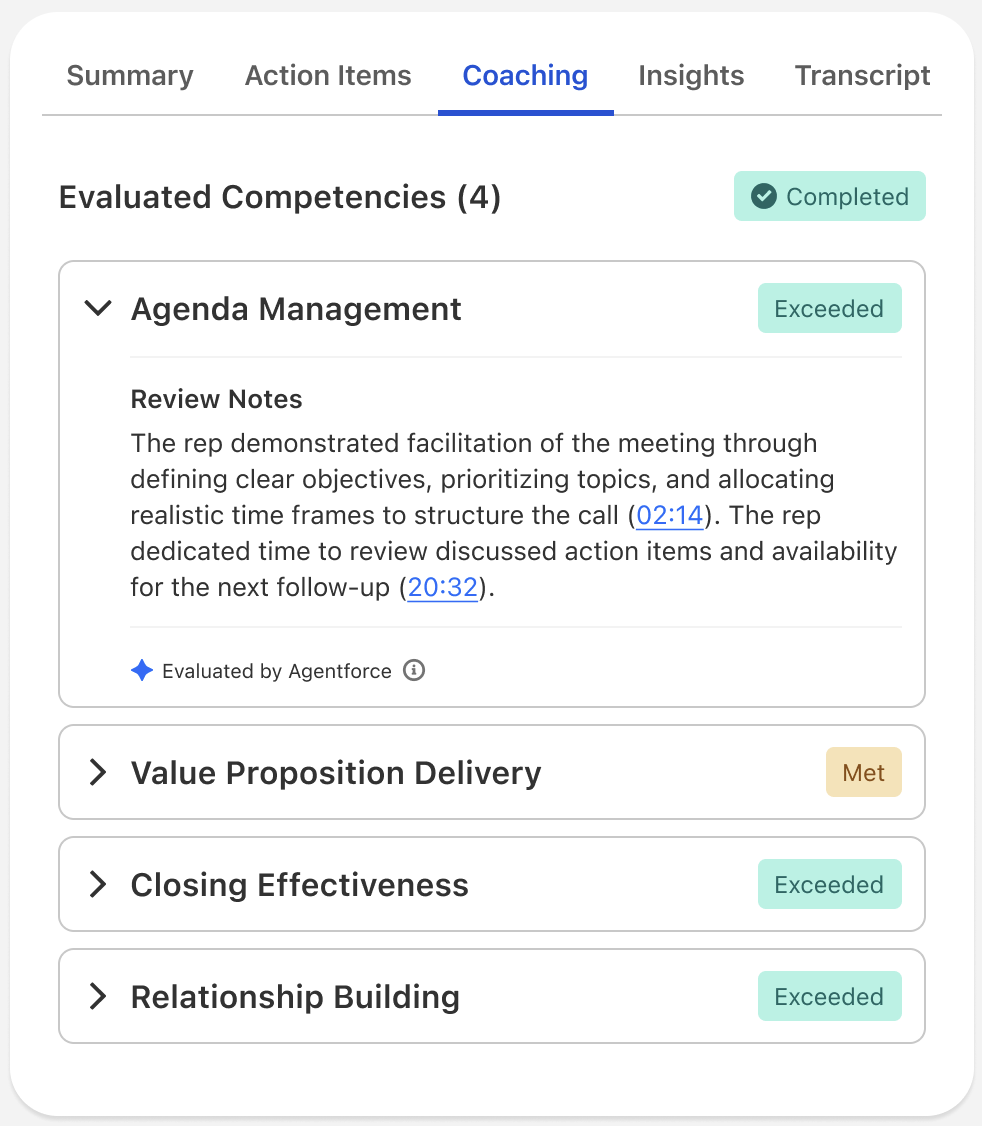
A standard Coaching tab includes the list of competencies and their ratings. Users can see the rating along with any review notes left by the evaluator. If a competency isn't detected in a call, then it won't be evaluated.
Admins can configure competencies that they want to detect in a call. A list of template competencies is available, and calls are evaluated with an AI agent with Agentforce for Sales. For orgs that don’t use Agentforce for Sales, you can still evaluate competencies manually.
- **[Considerations for Call Coaching](https://help.salesforce.com/s/articleView?id=sales.ci_call_coaching_considerations.htm&release=264.0.0&type=5)**
To use Call Coaching, consider supported functionality, usage, limitations and allowances, limits, and other issues.
- **[Set Up Call Coaching](https://help.salesforce.com/s/articleView?id=sales.ci_call_coaching_setup.htm&release=264.0.0&type=5)**
Create call competencies from the Call Coaching page in Salesforce Go. For best results, follow the steps listed in the windows before activation.
- **[Score Video Calls with Call Coaching](https://help.salesforce.com/s/articleView?id=sales.ci_call_coaching_score.htm&release=264.0.0&type=5)**
Create call competencies from the Call Coaching page in Salesforce Go. For best results, follow the steps listed in the modals before activation.
- **[Add the Call Coaching Component to Video Calls](https://help.salesforce.com/s/articleView?id=sales.ci_call_coaching_layout.htm&release=264.0.0&type=5)**
If you have Call Coaching enabled, use the Lightning App Builder to add the Coaching tab to video call records if they’re not added by default.
- **[Call Coaching Setup with AI Tools](https://help.salesforce.com/s/articleView?id=sales.ci_call_coaching_headless_agent.htm&release=264.0.0&type=5)**
Set up and configure the Call Coaching feature for your sales org conversationally. With Call Coaching, your sales teams can track key competencies to standardize coaching. After you’ve set everything up, AI call coaching does all the scoring for your video call recordings. Instead of configuring measures manually, admins can enable Call Coaching and create coaching competencies conversationally to ensure they are thorough and meet best practices.
# Call Coaching Setup with AI Tools
Set up and configure the Call Coaching feature for your sales org conversationally. With Call Coaching, your sales teams can track key competencies to standardize coaching. After you’ve set everything up, AI call coaching does all the scoring for your video call recordings. Instead of configuring measures manually, admins can enable Call Coaching and create coaching competencies conversationally to ensure they are thorough and meet best practices.
### Required Editions
Available in: Lightning Experience
Available in: Enterprise, Performance, Unlimited, and Developer Editions with Agentforce for Sales
## Scenario
A sales manager at your institution wants to create and track different competencies for sales teams. To accomplish that without navigating setup steps manually, the manager (with Salesforce admin access) can use a skill that sets up Call Coaching conversationally and headlessly. The coding agent evaluates org settings, turns on Call Coaching, and helps configure and activate coaching competencies with manager approval.

Note Headless 360 MCP Server is a beta service that is subject to the Beta Services Terms at [Agreements - Salesforce.com](https://www.salesforce.com/company/legal/agreements/) or a written Unified Pilot Agreement if executed by Customer, and applicable terms in the [Product Terms Directory](https://ptd.salesforce.com/). Use of this beta service is at the Customer's sole discretion. For more information, see [Headless 360 MCP Server (Beta)](https://developer.salesforce.com/docs/platform/hosted-mcp-servers/guide/headless-360-mcp.html).
## Requirements
- Agentforce for Sales and Momentum. The agent checks for Agentforce for Sales and lets you know if your org doesn’t have it. It also checks whether Momentum or Einstein Conversation Insights is enabled, and suggests that users enable it to use Call Coaching. It does not enable these features automatically, deferring to the user on enabling the features.
- Claude Code connected to the Headless 360 MCP Server (Beta) with access to Education Cloud setup skills. For Agentforce Vibes, no installation is required. Agentforce Vibes installs, enables, and updates AI Skills automatically. You can manage them from the Skills page, under Toolkit, in Agentforce Vibes. For Claude Code, install the [Salesforce Development plugin](https://developer.salesforce.com/docs/platform/salesforce-skills-plugins/guide/overview.html), which provides Salesforce-specific skills and org context through hosted Model Context Protocol (MCP) servers.
## Suggested Technology and Experience
Recommended for Salesforce admins who are comfortable with Setup and with running a coding agent against a connected org. No prior experience with a specific skill is required.
## Related Documentation
- [Call Coaching](https://help.salesforce.com/s/articleView?id=sales.ci_call_coaching.htm&language=en_US)
- [Set Up Call Coaching](https://help.salesforce.com/s/articleView?id=sales.ci_call_coaching_setup.htm&language=en_US)
## Agentic Tips
- Describe your goal in your own words. For example:
- "Set up Call Coaching for our new sales reps."
- "I want to track things like objections and closing effectiveness for my sales teams."
- Have the agent explain before it acts. The agent describes what each feature does and lists a domain's sub-features. You decide which to include before anything changes.
- Approve each change. The agent pauses for your confirmation before configuring a feature. Read operations require no approval, but setup and configuration do.
## Design Considerations
- You can always manually configure competencies, or make changes at a later time. The agent configures automated features and lists any manual follow-up tasks in the summary.
- The agent configures native Call Coaching features. It doesn't create custom objects or fields, deploy packages, or migrate data.
## Set Up Call Coaching with a Coding Agent
Describe your company's priorities to a coding agent to configure and activate the right coaching competencies for your team.
### Required Editions
Available in: Lightning Experience
Available in: Enterprise, Performance, Unlimited, and Developer Editions with Agentforce for Sales
| User Permissions Needed | |
| --- | --- |
| To run setup skills through a coding agent: | Customize Application |

Note Headless 360 MCP Server is a beta service that is subject to the Beta Services Terms at [Agreements - Salesforce.com](https://www.salesforce.com/company/legal/agreements/) or a written Unified Pilot Agreement if executed by Customer, and applicable terms in the [Product Terms Directory](https://ptd.salesforce.com/). Use of this beta service is at the Customer's sole discretion.
Before you start:
- [Set up your org](https://developer.salesforce.com/docs/platform/hosted-mcp-servers/guide/setup-overview.html) for the Salesforce Hosted MCP Servers, including an External Client App with the `mcp_api` scope.
- Activate the [Headless 360 MCP Server (Beta)](https://developer.salesforce.com/docs/platform/hosted-mcp-servers/guide/headless-360-mcp.html).
- [Connect your coding agents.](https://developer.salesforce.com/docs/platform/hosted-mcp-servers/guide/client-connection-overview.html)

Note For Claude Code, install the [Salesforce Development plugin](https://developer.salesforce.com/docs/platform/salesforce-skills-plugins/guide/overview.html), which provides Salesforce-specific skills and org context through hosted Model Context Protocol (MCP) servers.
Then, configure Call Coaching.
1. Tell the agent to set up Call Coaching.
2. Review any steps or prerequisites the agent informs you that you need to take first.
3. Confirm that you want to enable Call Coaching.
4. Choose to either activate out-of-the-box competencies or create your own.
5. Describe the skills and competencies that you want your sales reps evaluated on and iterate on the prompts with the agent until you are satisfied with the result.
6. Confirm the activation of the coaching competencies.
## Out-of-the-Box Coaching Competencies
The following coaching competencies are available out-of-the-box for your teams.
### Required Editions
Available in: Lightning Experience
Available in: Enterprise, Performance, Unlimited, and Developer Editions with Agentforce for Sales
Coaching Competencies
| Coaching COmpetency | Description | Scoring details |
| --- | --- | --- |
| Active Listening Skills | Evaluate the rep's active listening behaviors throughout the call. Look for reflective statements, paraphrasing of customer concerns, avoidance of interruptions, and follow-up questions that build on what the customer shared. | Score based on how fully the rep engaged with and incorporated the customer's input. |
| Relationship Building | Evaluate the rep's use of personalization, active listening, and empathy. Look for moments where the rep referenced prior conversations, showed genuine interest, or matched the customer's communication style. | Score based on warmth and authenticity. |
| Discovery Questioning | Evaluate the quality and depth of discovery questions asked by the rep. Look for open-ended questions that explore business challenges, budget, timeline, and decision-making process. | Score based on how effectively the rep uncovered actionable insights. |
| Objection Handling | Evaluate how the rep responded to objections. Look for acknowledgment of the concern, clarifying questions, reframing responses, and evidence-based answers. | Score based on how effectively the rep turned objections into opportunities. |
| Value Proposition Focus | Evaluate whether the rep tailored the product or service presentation to the customer's stated needs. Look for clear benefit articulation, use of relevant examples, and avoidance of irrelevant features. | Score based on relevance and clarity of the value proposition. |
| Closing Urgency | Evaluate whether the rep attempted to close or set a concrete next step. Look for trial closes, direct asks, and clear articulation of urgency and the next milestone. | Score based on the quality and assertiveness of closing attempts. |
# Call Explorer Powered by Einstein Generative AI
Einstein Conversation Insights users can ask questions directly from voice and video call records. Powered by Einstein, the new Call Explorer allows users to quickly gather information about a call, such as product mentions or outstanding customer questions.
| Available in: Lightning Experience |
| --- |
| Available in **Starter**, **Pro**, **Enterprise**, **Performance**, **Unlimited**, and **Agentforce 1 Sales** Editions with the Einstein for Sales add-on and Einstein Conversation Insights. |
This feature is available to users with the Einstein Sales Call Explorer permission set and access to a voice or video call record.
To bring up Call Explorer, use the **Explore Conversation** button.
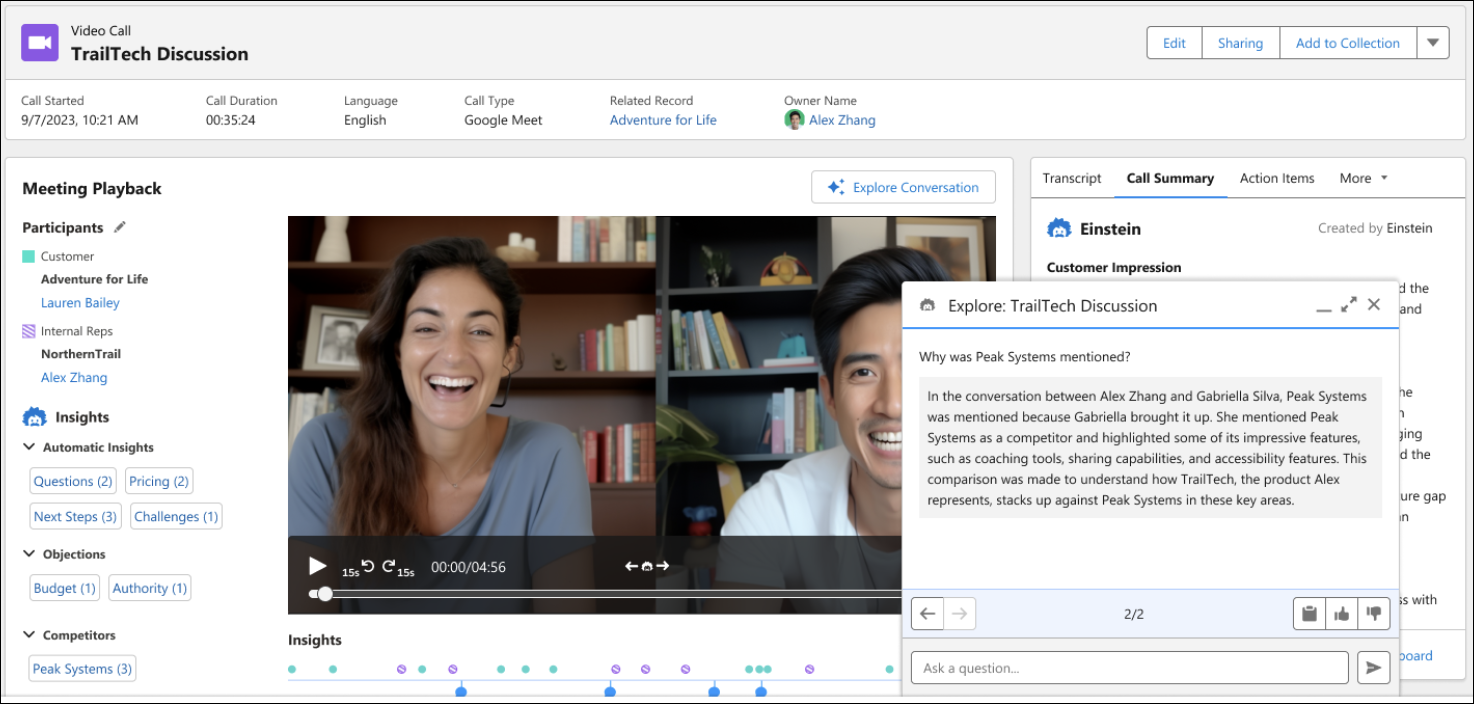
Enter questions related to the call, and Einstein provides an answer.
Call Explorer delivers one answer per query. Previous questions and answers are not stored.
Call Explorer is also available with Agentforce (Default) as a standard action. For more information, see [Agent Actions](https://help.salesforce.com/s/articleView?id=ai.copilot_actions.htm&type=5&language=en_US).
- **[Considerations for Call Explorer](https://help.salesforce.com/s/articleView?id=sales.eci_call_explorer_considerations.htm&release=264.0.0&type=5)**
To use Call Explorer, consider supported functionality, usage, limitations and allowances, limits, and other issues.
#### See Also
- [Add Call Explorer to Voice Calls and Video Calls](https://help.salesforce.com/s/articleView?id=sales.eci_add_call_explorer.htm&release=264.0.0&type=5 "Enable Call Explorer by turning on the feature in Setup and assigning the related permission set to users.")
# Call Summaries and Generative Conversation Insights Powered by Einstein Generative AI
Einstein Conversation Insights (ECI) users can access generative call summaries and generative insights on voice and video calls. Powered by Einstein, the Summary tab on call records allows users to get automatic summaries that include next steps and customer feedback, and share summaries for easier team collaborations in the flow of work. All calls processed by Einstein Conversation Insights can also include generative conversation insights, leveraging an LLM to detect insights based on custom instructions and topics using natural language. Once the feature is on, a call summary and any generative insights configured will automatically be processed for all ECI calls.
| Available in: Lightning Experience |
| --- |
| Available in **Enterprise**, **Performance**, **Unlimited**, and **Agentforce 1 Sales** Editions with Einstein Conversation Insights. |
Einstein Conversation Insights processes calls for anyone with an ECI license. All calls can have generative features applied when this feature is on.
## Call Summaries
Use the Summary tab to access your automatically generated call summaries.
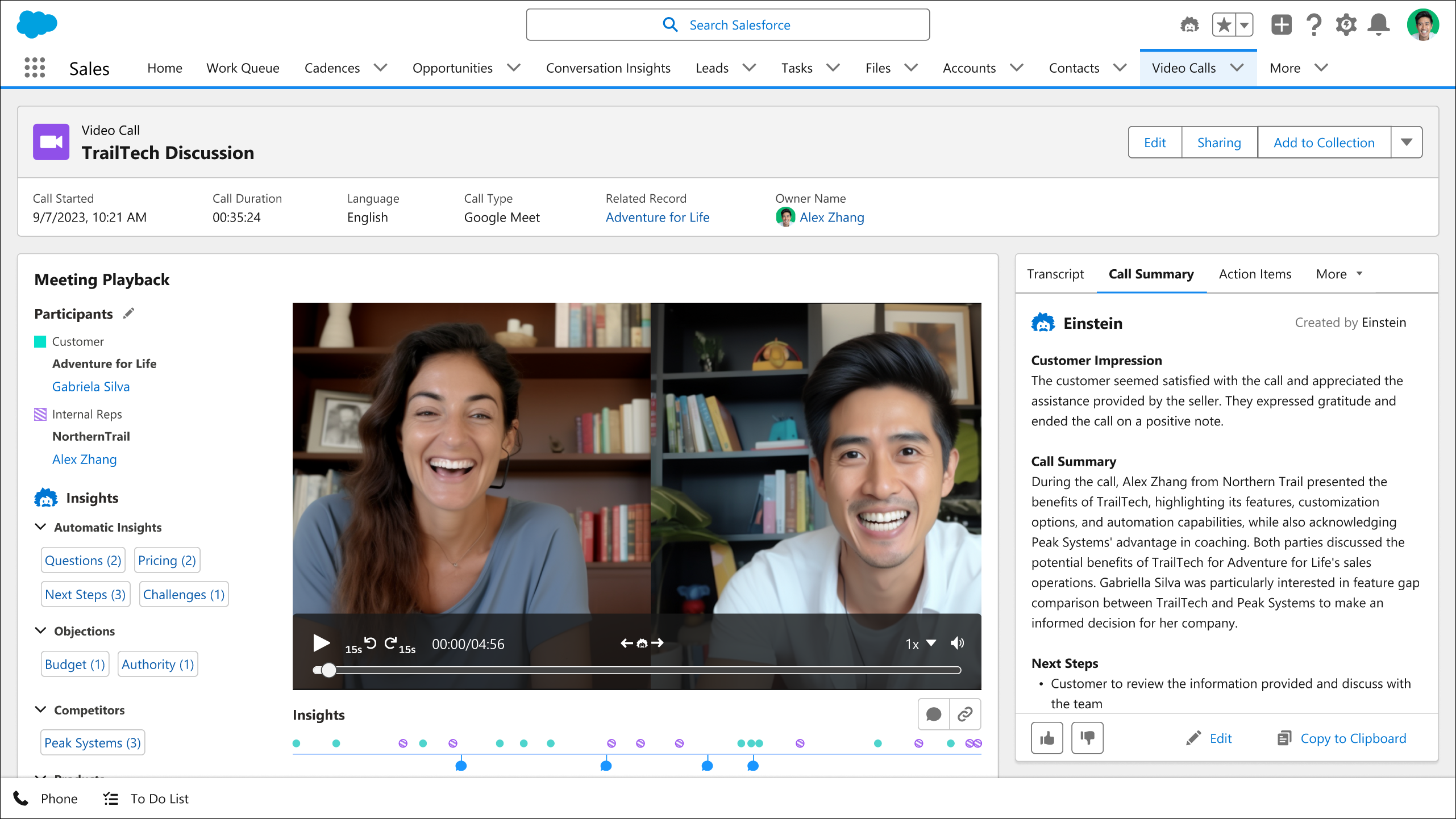
A standard call summary includes the summary itself, the customer impression, and any next steps. Click **Edit** to update a summary for a voice or video call.
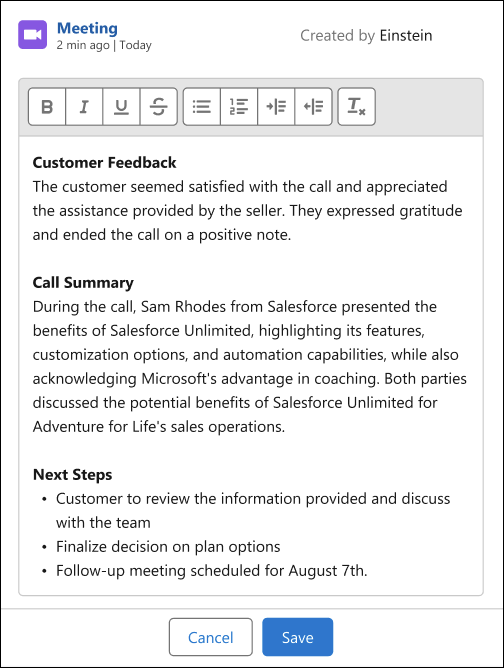
Users can see the calls and summaries related to a record with the Call Summaries Related List Lightning component. This component shows summaries for voice and video calls related to that specific record, using the same matching logic as the activity timeline.
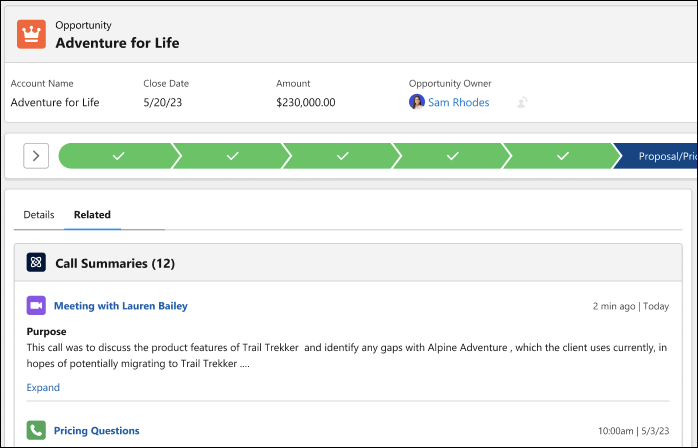
Call summaries are sometimes not generated for lengthy calls.
## Generative Conversation Insights
To bring up Generative Conversation Insights, select the tab. See the insights available on each call.
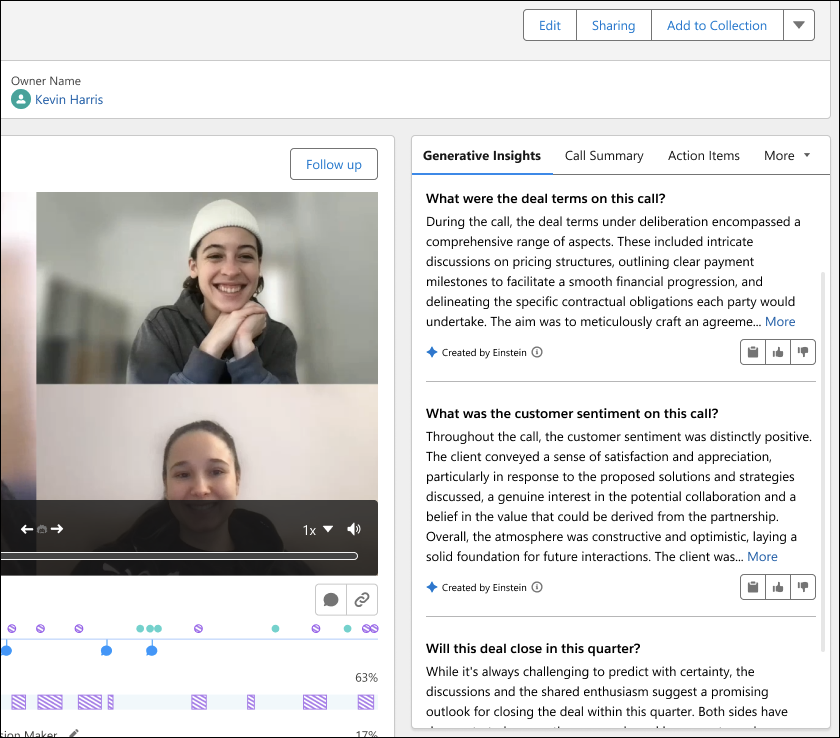
Turn on the feature from Setup. Select **Salesforce Go** from the Setup dropdown and navigate to the **Einstein Conversation Insights** feature. In the Unlock Advanced Functionality with Generative AI section, turn on Generative ECI. Generative AI must be turned on in order to use Generative ECI.
To create a generative insight, from Setup, in the Quick Find box, enter Call Insights, and then select **Call Insights**.
Select **Configure Insight**, and then click **Generative Insight** and follow the steps listed.
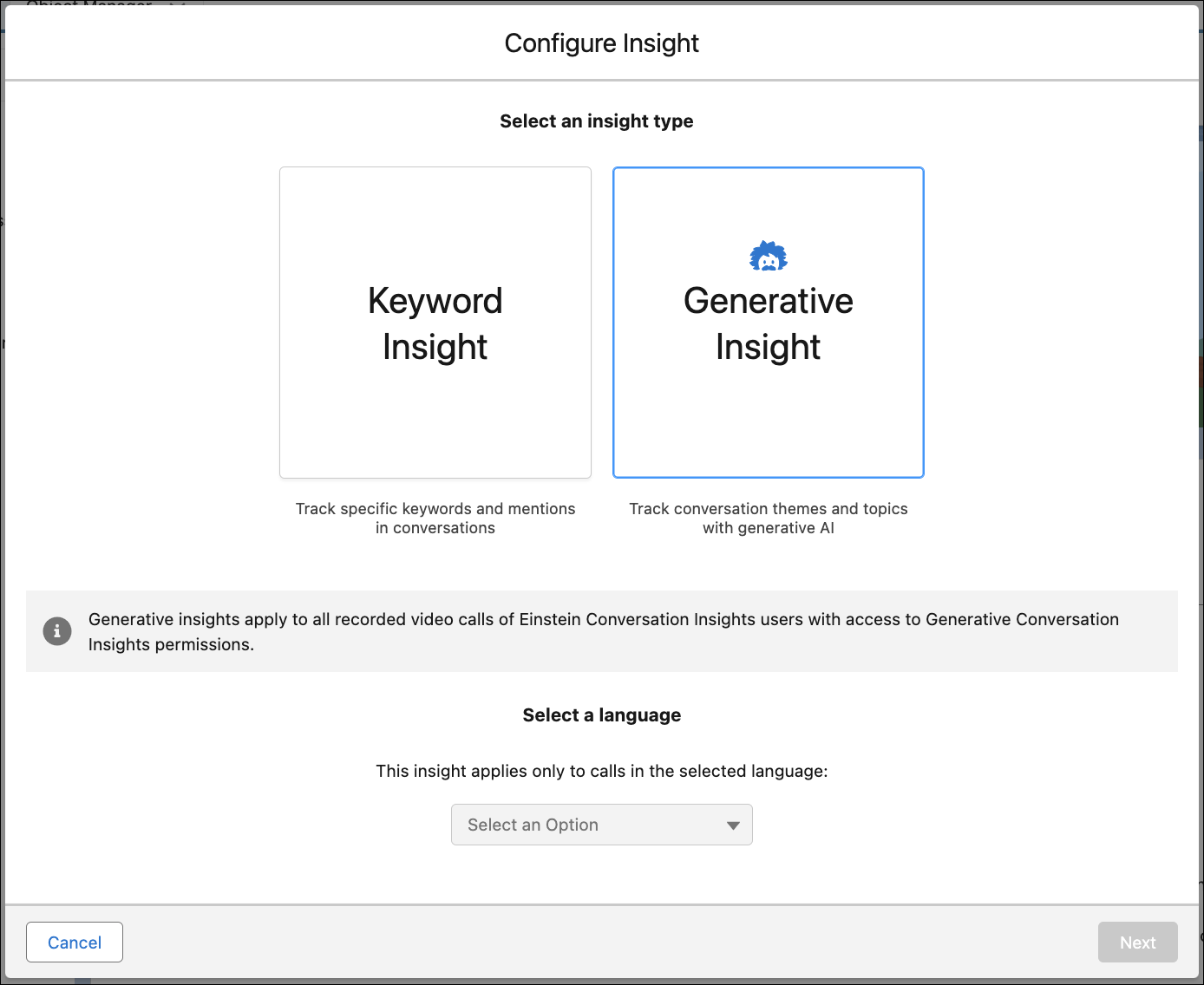
We recommend testing each insight in Call Explorer before activation. You’re limited to 5 active generative insights.
- **[Considerations for Call Summaries and Generative Conversation Insights](https://help.salesforce.com/s/articleView?id=sales.eci_call_summary_considerations.htm&release=264.0.0&type=5)**
To use call summaries and generative conversation insights, consider supported functionality, usage, limitations and allowances, limits, and other issues.
- **[Configure Generative Conversation Insights](https://help.salesforce.com/s/articleView?id=sales.eci_config_gen_insights.htm&release=264.0.0&type=5)**
Create generative insights from the Call Insights page in Setup. For best results, follow the steps listed in the setup wizard and test each insight in Call Explorer before activation.
#### See Also
- [Add Call Summaries and Generative Insights to Voice Calls, Video Calls, and Related Records](https://help.salesforce.com/s/articleView?id=sales.eci_summary_page_layout.htm&release=264.0.0&type=5 "If you have call summaries and generative insights enabled, use the Lightning App Builder to add the Call Summary and Generative Insights components to voice and video call records if they’re not added by default. And add the components to the page layouts of related records.")
# Campaign Fields
Understand what each field in a campaign represents. Depending on your page layout and field-level security settings, some fields may not be visible or editable.
### Required Editions
Available in: Salesforce Classic and Lightning Experience
Available in: Salesforce Professional, Enterprise, Performance, Unlimited, and Developer Editions
Field
Description
Active
Checkbox to mark whether the campaign is active or not.
Actual Cost
Amount of money spent to run the campaign.
Budgeted Cost
Amount of money budgeted for the campaign.
Campaign Currency
The default currency for currency amount fields in the campaign. Amounts
display in the campaign currency and are also converted to the user’s personal
currency. Available only for organizations that use multiple currencies.
Campaign Member Type
Record type for campaign members; determines the page layout of the members of
the campaign.
Campaign Name
Identifying name for the campaign.
Campaign Owner
Assigned owner of the campaign.
Campaign Record Type
Record type for the campaign; determines the picklist values available for the
campaign.
Campaign Stage
This field is available with Marketing Cloud Growth and Advanced editions. The
lifecycle stage of the campaign based on the status of all of its related flows. See
Tools for Tracking and Reporting on
Campaigns.
Converted Leads in Campaign
Number of leads that were converted to accounts due to the marketing efforts in
the campaign. Salesforce automatically calculates this amount using all associated
records regardless of whether you have read access to them. For more information on
converting leads, see Convert
Qualified Leads. This field cannot be referenced in
formulas for workflow rules, validation rules, field updates, or approval
processes, but it can be referenced in custom formula fields. Updates to this
field do not trigger workflow rules.
Created By
User who created the campaign including creation date and time. (Read
only)
Custom Links
Listing of custom links for campaigns as set up by your administrator.
Description
Description of the campaign. Up to 32KB of data are allowed in this field. Only
the first 255 characters display in reports.
End Date
Ending date for the campaign. Responses received after this date are still
counted.
Expected Response (%)
Percentage of responses you expect to receive for the campaign.
Expected Revenue
Amount of money you expect to generate from the campaign.
Last Modified By
User who last changed the campaign fields, including modification date and
time. This does not track changes made to any of the related list items on the
campaign. (Read only)
Opportunities in Campaign
Calculated field for number of opportunities associated with the campaign.
(Read only) Salesforce automatically calculates this amount using
all associated records regardless of whether you have read access to them.
This field cannot be referenced in formulas for workflow rules, validation rules,
field updates, or approval processes, but it can be referenced in custom formula
fields. Updates to this field do not trigger workflow rules.
Num Sent
Number of individuals targeted by the campaign. For example, the number of
emails sent.
Won Opportunities in Campaign
Calculated field for number of closed/won opportunities associated with the
campaign. (Read only) Salesforce automatically calculates this amount using all
associated records regardless of whether you have read access to them. This field
cannot be referenced in formulas for workflow rules, validation rules, field
updates, or approval processes, but it can be referenced in custom formula fields.
Updates to this field do not trigger workflow rules.
Parent Campaign
The campaign above the selected campaign in the campaign hierarchy.
Start Date
Starting date for the campaign.
Status
Status of the campaign, for example, Planned, In Progress. Entry is selected
from a picklist of available values, which are set by an administrator. Each
picklist value can have up to 40 characters.
Total Actual Cost in Hierarchy
Calculated field for the total amount of money spent to run a campaign
hierarchy. (Read only) Salesforce automatically calculates this amount using all
associated records regardless of whether you have read access to them. This field
cannot be referenced in formulas for workflow rules, validation rules, field
updates, or approval processes, but it can be referenced in custom formula fields.
Updates to this field do not trigger workflow rules.
Total Budgeted Cost in Hierarchy
Calculated field for the total amount of money budgeted for a campaign
hierarchy. (Read only) Salesforce automatically calculates this amount using all
associated records regardless of whether you have read access to them. This field
cannot be referenced in formulas for workflow rules, validation rules, field
updates, or approval processes, but it can be referenced in custom formula fields.
Updates to this field do not trigger workflow rules.
Contacts in Campaign
Number of individuals on accounts that are associated with the campaign.
Salesforce automatically calculates this amount using all associated records
regardless of whether you have read access to them. This field cannot be referenced
in formulas for workflow rules, validation rules, field updates, or approval
processes, but it can be referenced in custom formula fields. Updates to this field
do not trigger workflow rules.
Total Contacts in Hierarchy
Calculated field for number of contacts associated with the campaign hierarchy.
(Read only) Salesforce automatically calculates this amount using all associated
records regardless of whether you have read access to them. This field cannot be
referenced in formulas for workflow rules, validation rules, field updates, or
approval processes, but it can be referenced in custom formula fields. Updates to
this field do not trigger workflow rules.
Total Converted Leads in Hierarchy
Calculated field for the total number of leads associated with the campaign
hierarchy that were converted into accounts, contacts, and opportunities. Salesforce
automatically calculates this amount using all associated records regardless of
whether you have read access to them. This field cannot be referenced in formulas
for workflow rules, validation rules, field updates, or approval processes, but it
can be referenced in custom formula fields. Updates to this field do not trigger
workflow rules.
Total Expected Revenue in Hierarchy
Calculated field for the total amount of money you expect to generate from a
campaign hierarchy. (Read only) Salesforce automatically calculates this amount
using all associated records regardless of whether you have read access to them.
This field cannot be referenced in formulas for workflow rules, validation rules,
field updates, or approval processes, but it can be referenced in custom formula
fields. Updates to this field do not trigger workflow rules.
Leads in Campaign
Number of potential opportunities (leads) associated with the campaign.
Salesforce automatically calculates this amount using all associated records
regardless of whether you have read access to them. This field cannot be referenced
in formulas for workflow rules, validation rules, field updates, or approval
processes, but it can be referenced in custom formula fields. Updates to this field
do not trigger workflow rules.
Total Leads in Hierarchy
Calculated field for the total number of leads associated with the campaign
hierarchy. This number also includes converted leads. (Read only) Salesforce
automatically calculates this amount using all associated records regardless of
whether you have read access to them. This field cannot be referenced in formulas
for workflow rules, validation rules, field updates, or approval processes, but it
can be referenced in custom formula fields. Updates to this field do not trigger
workflow rules.
Total Num Sent in Hierarchy
Calculated field for the total number of individuals targeted by a campaign
hierarchy, for example, the number of emails sent. (Read only) Salesforce
automatically calculates this amount using all associated records regardless of
whether you have read access to them. This field cannot be referenced in formulas
for workflow rules, validation rules, field updates, or approval processes, but it
can be referenced in custom formula fields. Updates to this field do not trigger
workflow rules.
Total Opportunities in Hierarchy
Calculated field for the total number of opportunities associated with the
campaign hierarchy. (Read only) Salesforce automatically calculates this amount
using all associated records regardless of whether you have read access to them.
This field cannot be referenced in formulas for workflow rules, validation rules,
field updates, or approval processes, but it can be referenced in custom formula
fields. Updates to this field do not trigger workflow rules.
Responses in Campaign
Calculated field for the total number of contacts and unconverted leads that
have a Member Status equivalent to “Responded” for the
campaign. (Read only) Salesforce automatically calculates this amount using all
associated records regardless of whether you have read access to them. This field
cannot be referenced in formulas for workflow rules, validation rules, field
updates, or approval processes, but it can be referenced in custom formula fields.
Updates to this field do not trigger workflow rules.
Total Responses in Hierarchy
Calculated field for number of contacts and unconverted leads that have a
Member Status equivalent to “Responded” for the campaign
hierarchy. (Read only) Salesforce automatically calculates this amount using all
associated records regardless of whether you have read access to them. This field
cannot be referenced in formulas for workflow rules, validation rules, field
updates, or approval processes, but it can be referenced in custom formula fields.
Updates to this field do not trigger workflow rules.
Value Opportunities in Campaign
Calculated field for the amount of all opportunities associated with the
campaign, including closed/won opportunities. (Read only) Salesforce automatically
calculates this amount using all associated records regardless of whether you have
read access to them.
For organizations using multiple
currencies, opportunity amounts are converted to the campaign currency. If your
currency does not match the campaign currency, the amount is converted to your
currency and displays in parentheses.
For organizations using advanced
currency management, opportunity amounts are converted to the campaign currency
via dated exchange rates. If the campaign currency does not match your currency,
the total of the opportunity amounts are converted using standard exchange rates,
not dated exchange rates, and that amount displays in parentheses.
This field
cannot be referenced in formulas for workflow rules, validation rules, field
updates, or approval processes, but it can be referenced in custom formula fields.
Updates to this field do not trigger workflow rules.
Total Value Opportunities in Hierarchy
Calculated field for total amount of all opportunities associated with the
campaign hierarchy, including closed/won opportunities. (Read only) Salesforce
automatically calculates this amount using all associated records regardless of
whether you have read access to them.
All campaigns in a hierarchy must use the
same currency.
For organizations using multiple currencies, opportunity
amounts are converted to the campaign currency. If your currency does not match the
campaign currency, the amount is converted to your currency and displays in
parentheses.
For organizations using advanced currency
management, opportunity amounts are converted to the campaign currency via dated
exchange rates. If the campaign currency does not match your currency, the total
of the opportunity amounts are converted using standard exchange rates, not dated
exchange rates, and that amount displays in parentheses.
Value Won Opportunities in Campaign
Calculated field for amount of all closed/won opportunities associated with the
campaign. (Read only) Salesforce automatically calculates this amount using all
associated records regardless of whether you have read access to them.
For
organizations using multiple currencies, opportunity amounts are converted to the
campaign currency. If your currency does not match the campaign currency, the
amount is converted to your currency.
For organizations using advanced
currency management, opportunity amounts are converted to the campaign currency
via dated exchange rates. If the campaign currency does not match your currency,
the total of the opportunity amounts are converted using standard exchange rates,
not dated exchange rates, and that amount displays in parentheses. This field
cannot be referenced in formulas for workflow rules, validation rules, field
updates, or approval processes, but it can be referenced in custom formula fields.
Updates to this field do not trigger workflow rules.
Total Value Won Opportunities in Hierarchy
Calculated field for amount of all closed/won opportunities associated with the
campaign hierarchy. (Read only) Salesforce automatically calculates this amount
using all associated records regardless of whether you have read access to
them.
All campaigns in a hierarchy must use the same currency.
For
organizations using multiple currencies, opportunity amounts are converted to the
campaign currency. If your currency does not match the campaign currency, the
amount is converted to your currency.
For organizations using advanced
currency management, opportunity amounts are converted to the campaign currency
via dated exchange rates. If the campaign currency does not match your currency,
the total of the opportunity amounts are converted using standard exchange rates,
not dated exchange rates, and that amount displays in parentheses. This field
cannot be referenced in formulas for workflow rules, validation rules, field
updates, or approval processes, but it can be referenced in custom formula fields.
Updates to this field do not trigger workflow rules.
Total Won Opportunities in Hierarchy
Calculated field for the total number of won opportunities associated with the
campaign hierarchy. Salesforce automatically calculates this amount using all
associated records regardless of whether you have read access to them. This field
cannot be referenced in formulas for workflow rules, validation rules, field
updates, or approval processes, but it can be referenced in custom formula fields.
Updates to this field do not trigger workflow rules.
Type
Type of campaign, for example, Direct Mail or Referral Program. Entry is
selected from a picklist of available values, which are set by an administrator.
Each picklist value can have up to 40 characters.
# Campaign Influence
Understand how your campaigns are affecting your opportunity pipeline.
### Required Editions
Campaign Influence 1.0
Available in: Salesforce Classic
Available in: Salesforce Professional, Enterprise, Performance, Unlimited, and Developer Editions
Customizable Campaign Influence (v2)
Available in: Lightning Experience
Available in: Salesforce Professional, Enterprise, Performance, Unlimited, and Developer Editions
Customizable Campaign Influence and the legacy Campaign Influence 1.0 are available to Lightning Experience customers. Campaign Influence 1.0 is supported only in Salesforce Classic. We recommend using Customizable Campaign Influence, which offers more flexibility and control.
To use Campaign Influence 1.0, an admin must disable Customizable Campaign Influence in Setup. However, if you revert to version 1.0, your existing campaign influence records are deleted, which can impact workflows and Apex rules.
- **[Customizable Campaign Influence](https://help.salesforce.com/s/articleView?id=sales.campaigns_influence_customizable.htm&release=264.0.0&type=5)**
Campaign Influence is a tool that helps you attribute a percentage of success to influential campaigns. Two versions are available: Campaign Influence 1.0 for Salesforce Classic and Customizable Campaign Influence for Classic and Lightning Experience. The customizable version offers more flexibility in how you assign influence to your marketing activities.
- **[Campaign Influence 1.0](https://help.salesforce.com/s/articleView?id=sales.campaigns_influence_original.htm&release=264.0.0&type=5)**
Campaign Influence 1.0 helps identify the return on your campaign investments. It uses the Campaign Influence object to make connections across contacts, campaigns, and opportunities. Campaign Influence 1.0 isn’t supported in Lightning Experience. To track influential campaigns in Lightning Experience, switch to Customizable Campaign Influence.
# Campaign Influence 1.0
Campaign Influence 1.0 helps identify the return on your campaign investments. It uses the Campaign Influence object to make connections across contacts, campaigns, and opportunities. Campaign Influence 1.0 isn’t supported in Lightning Experience. To track influential campaigns in Lightning Experience, switch to Customizable Campaign Influence.
### Required Editions
Available in: Salesforce Classic
Available in: Salesforce Professional, Enterprise, Performance, Unlimited, and Developer Editions

Important For new users, Customizable Campaign Influence is enabled by default. Not sure which version of Campaign Influence you have?
Search Setup for campaign influence, and check the available pages. If the Model Settings page appears, you’re using [Customizable Campaign Influence](https://help.salesforce.com/s/articleView?id=sales.campaigns_influence_customizable.htm&release=264.0.0&type=5 "Campaign Influence is a tool that helps you attribute a percentage of success to influential campaigns. Two versions are available: Campaign Influence 1.0 for Salesforce Classic and Customizable Campaign Influence for Classic and Lightning Experience. The customizable version offers more flexibility in how you assign influence to your marketing activities.").
## Primary Campaign Source
Only one campaign in a related list can be marked as the primary campaign source, because it allocates 100% of the attribution to the selected campaign. When you mark a campaign as primary, it’s added to the Primary Campaign Source field on the opportunity. For more flexibility, check out Customizable Campaign Influence.
Opportunity statistics, such as Opportunities in Campaign and Won or Closed values, appear only on the campaign marked as the primary source. Opportunity statistics don’t appear on other influential campaign records.
Before you select a primary source campaign, consider workflows or Apex rules that are triggered by changes to an opportunity record.
## Auto-Association Settings
With Campaign Influence 1.0, you can choose whether to enable auto-association. When it’s turned on, influential campaigns are automatically added to an open opportunity record when a campaign’s related contact is assigned an opportunity contact role. You can also apply rules that specify which types of campaigns are considered influential.
- In the Campaign Influence Eligibility Limits section, the time frame field specifies a time period during which a campaign is considered influential. The time frame is the number of days between the date that a contact is added to a campaign and when a related opportunity is created.
- Eligibility limits work only when a contact is related to a campaign first and then assigned an opportunity contact role. Auto-association ignores contacts who are added to campaigns after the related opportunity is created.

Example Admin Kim enables auto-association and enters a Campaign Influence time frame of 10 days. Customer Gerrie engages with an email and their contact record is added to the New Services campaign on June 15. The next day, Gerrie talks to Parul in Sales, and Parul adds them to an opportunity and assigns an opportunity contact role. The New Services campaign is automatically added to the Campaign Influence related list.
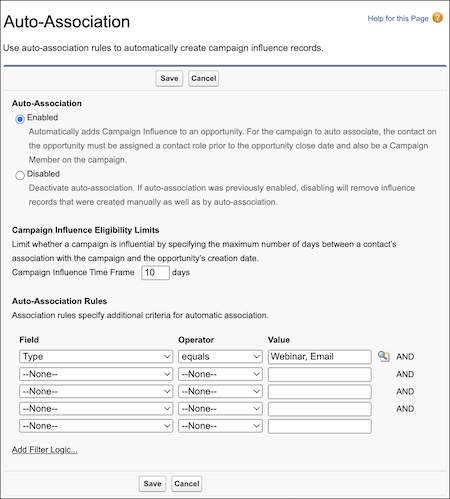
If Parul doesn’t assign an opportunity contact role to Gerrie, the campaign isn’t added to the related list by auto-association. If Gerrie waits until June 26 to contact Sales, the campaign isn’t considered influential, so it isn’t added to the related list.
- **[Configure Campaign Influence](https://help.salesforce.com/s/articleView?id=sales.campaigns_influence_setup.htm&release=264.0.0&type=5)**
To enable Campaign Influence 1.0, add the Campaign Influence related list to Opportunity page layouts and decide whether to configure the optional auto-association settings.
- **[Add Campaign Influence Manually](https://help.salesforce.com/s/articleView?id=sales.campaigns_influence_using.htm&release=264.0.0&type=5)**
You can track campaign influence manually by adding it to the Campaign Influence related list. When you add to a campaign manually, you don’t select a specific contact, so names and campaign member statuses aren’t shown.
# Campaign Member Fields
These fields (in alphabetical order) make up a campaign member.
### Required Editions
Available in: Salesforce Classic and Lightning Experience
Available in: Salesforce Professional, Enterprise, Performance, Unlimited, and Developer Editions
You can edit most campaign member fields from the related record that the campaign member was created from. Some aren’t visible or editable based on your page layout and field-level security settings.
| Field | Description |
| --- | --- |
| Account ID | The name of the account if the campaign member is based on an account. This field is available only if the Accounts as Campaign Members setting is enabled. |
| Campaign | The campaign that the lead or contact is related to. |
| Campaign Member Currency | The default currency for relevant fields on the campaign member. Amounts display in the campaign member’s currency and are also converted to the user’s personal currency. Available only for organizations that use multiple currencies. |
| Campaign Member Type | The record type of the campaign member, which determines the page layout available for the campaign member. (Read only) |
| City | City portion of the lead or contact’s address. |
| Company (Account) | The company, if the campaign member is based on a lead, or the account, if the campaign member is based on a contact. |
| Contact | The name of the contact, if the campaign member is based on a contact. |
| Country | The country for the lead or contact. Entry is selected from a picklist of standard values or entered as text. The limit is 80 characters. |
| Created By | The user who created the campaign member. (Read only) |
| Created Date | The date that the campaign member was created. (Read only) |
| Description | Description of the lead or contact. |
| Do Not Call | Indicates whether the contact wants to be called. |
| Email | Email address of the lead or contact. |
| Email Opt Out | Indicates whether the contact wants to receive emails. |
| Fax | Fax number of the lead or contact. |
| Fax Opt Out | Whether the contact wants to be included in broadcast faxes. |
| First Name | First name of the lead or contact. |
| First Responded Date | Date the campaign member first responded. (Read only) |
| Last Modified By | User who last changed the campaign member record. (Read only) |
| Last Modified Date | The date that the campaign member record was last modified. (Read only) |
| Last Name | Last name of the lead or contact. |
| Lead | The name of the lead, if the campaign member is based on a lead. |
| Lead Source | Source of lead, for example, Advertisement, Partner, or Web. Entry is selected from a picklist of available values, which are set by an administrator. Each picklist value can have up to 40 characters. |
| Mobile | The mobile phone number for the lead or contact. |
| Phone | The phone number for the lead or contact. |
| Related Record | The lead or contact related to this campaign. If the Accounts as Campaign Members setting enabled, the related record can be an account. |
| Responded | Indicates whether the campaign member has responded. |
| Salutation | The salutation for addressing the person, for example, Mr., Ms., Dr., or Prof. |
| State/Province | State or province portion of user’s address. Entry is selected from a picklist of standard values, or entered as text. Up to 80 characters are allowed if the field is a text field. |
| Status | The status of the campaign member, for example, sent or responded. |
| Street | Street portion of the lead or contact's address. |
| Title | The title of the lead or contact, for example, President. |
| Zip/Postal Code | Zip or postal code portion of the lead or contact's address. |
# Campaign Member Statuses
Campaigns can help you monitor prospects as they interact with your marketing assets. After a person or an account is added as a campaign member, users can apply a member status that reflects their recent activity. To allow users to create a member status at any time, a Salesforce admin must add a related list to campaign records.
### Required Editions
Available in: Salesforce Classic and Lightning Experience
Available in: Salesforce Professional, Enterprise, Performance, Unlimited, and Developer Editions
User Permissions Needed
To create, edit, or delete campaign member statuses:
Read and Edit on campaigns
AND
Marketing User selected in
User Detail
## Planning for Campaign Member Statuses
Before you start using campaign member statuses, think about your campaign types and which statuses you want to include for each type. For example, statuses for an event can include Invited, Registered, and Attended. Do you want to include Declined or No Show? For consistency, we recommend that you create a single set of campaign member statuses for each type of campaign that you run. Document the statuses for internal use.
To allow users to create their own campaign member statuses, an admin adds the Campaign Member Statuses related list to campaign records.
## Using the Campaign Member Status Field
From a campaign’s Campaign Member Statuses related list, users can create a status, select a default status, and indicate whether the status is considered a response. Salesforce tallies response records together in the Responses in Campaign field.
When someone interacts with your campaign, their member status doesn’t change automatically. After you create campaign member statuses, you can apply a status to campaign member records manually, in bulk, or with Account Engagement automation tools.
You can use the Campaign Member Status field to filter and sort your campaign data. For example, target your audiences based on campaign member status, or generate reports to track RSVPs or awareness.
## Updating Campaign Member Statuses
If you plan to use campaign member status as a filtering mechanism in reporting or automation, don’t edit the available member statuses and their settings. If you change the status value or its response setting, it can cause problems where the status is in use and trigger statistics recalculation throughout your reports.

Tip To encourage consistency, document your default campaign statuses for internal users. You can also use the Clone with Related tool to copy a campaign and its member statuses the next time you create a similar campaign.
#### See Also
- [Add or Edit Picklist Values](https://help.salesforce.com/s/articleView?id=platform.updating_picklists.htm&type=5&language=en_US)
- [Field Handling for Cloning Campaigns with Related Records](https://help.salesforce.com/s/articleView?id=sales.campaigns_clone_considerations.htm&release=264.0.0&type=5 "The Clone with Related operation saves campaign field values and relationships to available asset records. Some fields are altered during the clone process, such as the new campaign and asset IDs. Some fields can’t be duplicated, and appear blank on the new campaign or asset records.")
# Campaign Member Sync
As you connect your campaigns, decide whether to sync prospects into those campaigns. When you turn on Member Sync for connected campaigns, prospects appear in Salesforce as campaign members.
### Required Editions
Available in: Professional, Enterprise, Performance, and Unlimited Editions and All Account Engagement Editions
- **[Considerations for Member Sync](https://help.salesforce.com/s/articleView?id=sales.campaigns_pardot_campaign_member_sync_considerations.htm&release=264.0.0&type=5)**
When using Member Sync, keep these considerations in mind.
- **[Sync Campaign Members](https://help.salesforce.com/s/articleView?id=sales.campaigns_pardot_campaign_member_sync_members.htm&release=264.0.0&type=5)**
To begin automatically syncing campaign members between Account Engagement and Salesforce, turn on Campaign Member Sync. You can also manually update the sync for all of your connected campaigns at once
# Campaign Member Task Overview
Use the Manage Members page to search for, add, or edit multiple leads and contacts. To add members one at a time, go to a member’s contact or lead detail page. With the Data Import Wizard, you can add up to 50,000 leads, contacts, or person accounts at a time to a campaign. You can also use the Data Import Wizard to update the statuses of up to 50,000 campaign members at a time.
### Required Editions
Available in: Salesforce Classic and Lightning Experience
Available in: Salesforce Professional, Enterprise, Performance, Unlimited, and Developer Editions
## Adding Campaign Members
You can [add new members to a campaign](https://help.salesforce.com/s/articleView?id=sales.faq_campaigns_how_can_i_add_contacts.htm&release=264.0.0&type=5 "Your company’s campaigns typically target existing customers (contacts) and prospective customers (leads). You can associate contacts and leads with campaigns as campaign members."):
- Individually from the Campaign History related list on a contact, lead, or person account detail page
- By searching for contacts and leads from the [Manage Members page](https://help.salesforce.com/s/articleView?id=sales.campaigns_members_using.htm&release=264.0.0&type=5 "Learn how to add campaign members from the Manage Members page.")
- [From a campaign, contact, person account, or lead report](https://help.salesforce.com/s/articleView?id=sales.campaigns_reportwizard.htm&release=264.0.0&type=5 "Adding members to a campaign is quick and easy when you add them from your lead, contact, and person account tabular, summary, and matrix reports.")
- [From a list view of existing contacts or leads](https://help.salesforce.com/s/articleView?id=sales.campaigns_listwizard.htm&release=264.0.0&type=5 "Save time by adding up to 200 members to a campaign at once from your lead or contact list views. Or update the member status for members already associated with the campaign.")
- [From a CSV import file of existing leads](https://help.salesforce.com/s/articleView?id=sales.campaigns_import_leads_existing.htm&release=264.0.0&type=5 "To add multiple leads as members of a campaign, launch the Data Import Wizard from the campaign detail page.")
- [From a CSV import file of existing contacts](https://help.salesforce.com/s/articleView?id=sales.campaigns_import_contacts_existing.htm&release=264.0.0&type=5 "To add multiple contacts as members of a campaign, launch the Data Import Wizard from the campaign detail page.")
- [From a CSV import file of existing person accounts](https://help.salesforce.com/s/articleView?id=sales.campaigns_import_person_accounts_existing.htm&release=264.0.0&type=5 "To add multiple person accounts as members of a campaign, launch the Data Import Wizard from the campaign detail page.")
- [From a CSV import file of new leads](https://help.salesforce.com/s/articleView?id=sales.lead_import_wizard.htm&release=264.0.0&type=5 "To add multiple leads as members of a campaign, launch the Data Import Wizard from the campaign detail page.")
- [From a CSV import file of new contacts](https://help.salesforce.com/s/articleView?id=sales.campaigns_import_contacts_new.htm&release=264.0.0&type=5 "With a single import file, you can create multiple contacts at once and make them members of a campaign.")
## Editing Campaign Members
You can edit the details of existing campaign members:
- Campaign History related list on a contact, lead, or person account detail page
- [From the Campaign Members related list](https://help.salesforce.com/s/articleView?id=sales.campaigns_members.htm&release=264.0.0&type=5 "Manage campaign members directly from a campaign detail page.") on a campaign detail page
- [From the Manage Members page](https://help.salesforce.com/s/articleView?id=sales.campaigns_members_editing.htm&release=264.0.0&type=5 "Follow these steps to update the campaign member status, edit campaign member details, and remove campaign members from the Manage Members page.")
## Updating the Status of Existing Campaign Members
You can update the status of existing campaign members:
- From the Campaign History related list on a contact, lead, or person account detail page
- [From the Manage Members page](https://help.salesforce.com/s/articleView?id=sales.campaigns_members_editing.htm&release=264.0.0&type=5 "Follow these steps to update the campaign member status, edit campaign member details, and remove campaign members from the Manage Members page.")
- [From a campaign, contact, person account, or lead report](https://help.salesforce.com/s/articleView?id=sales.campaigns_reportwizard.htm&release=264.0.0&type=5 "Adding members to a campaign is quick and easy when you add them from your lead, contact, and person account tabular, summary, and matrix reports.")
- [From a CSV import file of existing members](https://help.salesforce.com/s/articleView?id=sales.campaign_update_wizard.htm&release=264.0.0&type=5 "To add or update many campaign members at one time, open the Data Import Wizard from the campaign detail page.")
## Removing Campaign Members
You can remove members of a campaign:
- From the Campaign History related list on a contact, lead, or person account detail page
- [From the Campaign Members related list](https://help.salesforce.com/s/articleView?id=sales.campaigns_members.htm&release=264.0.0&type=5 "Manage campaign members directly from a campaign detail page.") on a campaign detail page
- [From the Manage Members page](https://help.salesforce.com/s/articleView?id=sales.campaigns_members_editing.htm&release=264.0.0&type=5 "Follow these steps to update the campaign member status, edit campaign member details, and remove campaign members from the Manage Members page.")
## Example Uses
- Create follow-up campaigns—Search for a custom list view of contacts or leads that is restricted to an earlier campaign and a certain member status, such as “Attended”. Then add items from the generated list to a follow-up campaign. See [Add Multiple Members to a Campaign from a List View](https://help.salesforce.com/s/articleView?id=sales.campaigns_listwizard.htm&release=264.0.0&type=5 "Save time by adding up to 200 members to a campaign at once from your lead or contact list views. Or update the member status for members already associated with the campaign.").
- Leverage reporting functionality—Customize a standard report or build a new custom report that returns a list of contacts, person account, or leads that you want to target. With the click of a button, you can add the entire list to a campaign. See [Add Campaign Members from Standard and Custom Reports](https://help.salesforce.com/s/articleView?id=sales.campaigns_reportwizard.htm&release=264.0.0&type=5 "Adding members to a campaign is quick and easy when you add them from your lead, contact, and person account tabular, summary, and matrix reports.").
# Campaigns FAQ
Find answers to frequently asked questions about campaigns.
### Required Editions
Available in: Salesforce Classic and Lightning Experience
Available in: Salesforce Professional, Enterprise, Performance, Unlimited, and Developer Editions
- **[Can I use list email or mass email for my email campaigns?](https://help.salesforce.com/s/articleView?id=sales.faq_campaigns_can_i_use.htm&release=264.0.0&type=5)**
List email and mass email are designed for small-scale sales campaigns and basic marketing emails.
- **[How do I add contacts and leads to campaigns?](https://help.salesforce.com/s/articleView?id=sales.faq_campaigns_how_can_i_add_contacts.htm&release=264.0.0&type=5)**
Your company’s campaigns typically target existing customers (contacts) and prospective customers (leads). You can associate contacts and leads with campaigns as campaign members.
- **[How can I calculate the ROI for my campaigns?](https://help.salesforce.com/s/articleView?id=sales.faq_campaigns_how_can_i_calculate.htm&release=264.0.0&type=5)**
The Campaign ROI Analysis Report is on the Reports tab in the Campaign Reports folder. It calculates your campaigns' performance by return on investment (ROI) and average cost.
- **[How can I track which opportunities resulted from campaigns?](https://help.salesforce.com/s/articleView?id=sales.faq_campaigns_how_can_i_track.htm&release=264.0.0&type=5)**
One key benefit of campaigns is the ability to track how much business a campaign generated. The Opportunities related list on a campaign shows every opportunity that’s linked to that campaign. You can also run the Campaign Revenue report to track which opportunities are linked to your campaigns.
- **[How is Campaign influence different from ROI reports?](https://help.salesforce.com/s/articleView?id=sales.faq_campaigns_how_is_campaign_influence.htm&release=264.0.0&type=5)**
Campaign influence tracks pipeline and revenue for multiple campaigns, and ties all campaigns of a contact role to that opportunity for pipeline and ROI reporting. It's helpful for longer deal cycles when more than one campaign contributes to a closed deal or a converted lead.
- **[Who has access to Campaigns?](https://help.salesforce.com/s/articleView?id=sales.faq_campaigns_who_has_access.htm&release=264.0.0&type=5)**
Depending on your sharing settings, users in your org can view campaigns, view the advanced campaign setup, or run campaign reports. However, only designated marketing users with the appropriate user permissions can create, edit, and delete campaigns and configure advanced campaign setup.
# Can I add cases using Salesforce for Outlook (Retiring)?
Yes, Salesforce for Outlook supports adding emails to Salesforce as cases.

Important Full product retirement for Salesforce for Outlook is scheduled on January 30, 2027. See [Salesforce for Outlook Retirement](https://help.salesforce.com/s/articleView?id=000393445&type=1&mode=1&language=en_US). To keep integrating Microsoft Outlook with Salesforce, check out our next-generation products: the Outlook integration and Einstein Activity Capture. See [Move from Salesforce for Outlook (Retiring) to the Next-Generation Products](https://help.salesforce.com/articleView?id=outlookcrm_sfo_move_parent.htm&language=en_US).
#### See Also
- [Create Cases from the Outlook Ribbon with Salesforce for Outlook (Retiring)](https://help.salesforce.com/s/articleView?id=sales.outlookcrm_create_cases.htm&release=264.0.0&type=5 "If you track cases in Salesforce, you can create ones from your Microsoft® Outlook® emails. Your administrator needs to first create Email-to-Case destinations that appear in the dropdown list button Create Cases in Outlook. For each destination, you can choose the assignee, which can be either individual users or queues. When you create cases, you can add up to ten emails simultaneously for each destination.")
- [Set Up Create Case for Salesforce for Outlook (Retiring) Users](https://help.salesforce.com/s/articleView?id=sales.outlookcrm_create_case_setup.htm&release=264.0.0&type=5 "The Create Case feature in Salesforce for Outlook lets users create cases in Salesforce from emails in Microsoft® Outlook®. As an administrator, you can create Email-to-Case destinations that appear in the dropdown list button Create Cases in Outlook. For each destination, you choose the assignee, which can be either individual users or queues. You can add up to 10 destinations for each Outlook configuration. When users create cases, they can add up to 10 emails simultaneously for each destination.")
# Can I associate Outlook records to custom objects using Salesforce for Outlook (Retiring)?
You can assign synced events and tasks to several different objects, including custom objects, but you can assign synced contacts only to accounts.

Important Full product retirement for Salesforce for Outlook is scheduled on January 30, 2027. See [Salesforce for Outlook Retirement](https://help.salesforce.com/s/articleView?id=000393445&type=1&mode=1&language=en_US). To keep integrating Microsoft Outlook with Salesforce, check out our next-generation products: the Outlook integration and Einstein Activity Capture. See [Move from Salesforce for Outlook (Retiring) to the Next-Generation Products](https://help.salesforce.com/articleView?id=outlookcrm_sfo_move_parent.htm&language=en_US).
#### See Also
- [Syncing Between Salesforce for Outlook (Retiring) and Microsoft® Outlook®](https://help.salesforce.com/s/articleView?id=sales.outlookcrm_sync.htm&release=264.0.0&type=5 "Stop duplicating your contacts, events, and tasks in Outlook and Salesforce and start syncing between the two systems with Salesforce for Outlook.")
# Can I automatically email leads that come from my website?
Yes. You can create auto-response rules to email these prospects using templates that vary based on criteria that you set up.
# Can I capture leads from multiple web pages?
Yes. Insert the generated HTML code into the web pages from which you want to capture leads. Whenever someone submits information on any of those web pages, a lead is created.
# Can I convert existing accounts or contacts into leads?
No. As an alternative, create an opportunity for the account or contact. If you prefer to use a lead, create a report containing the accounts or contacts you want to convert into leads, export them, and then import them as leads.
# Can I map custom fields I’m syncing with Salesforce for Outlook (Retiring)?
Yes. You can map a Salesforce field to a custom Outlook field, or an Outlook field to a custom Salesforce field using Salesforce for Outlook.

Important Full product retirement for Salesforce for Outlook is scheduled on January 30, 2027. See [Salesforce for Outlook Retirement](https://help.salesforce.com/s/articleView?id=000393445&type=1&mode=1&language=en_US). To keep integrating Microsoft Outlook with Salesforce, check out our next-generation products: the Outlook integration and Einstein Activity Capture. See [Move from Salesforce for Outlook (Retiring) to the Next-Generation Products](https://help.salesforce.com/articleView?id=outlookcrm_sfo_move_parent.htm&language=en_US).
These field types are available to map.
- Outlook text fields
- Salesforce text fields
- Some Salesforce picklist fields
To map to custom fields, open an Outlook configuration. Under Field Mapping, select Custom Field... from the end of the corresponding Outlook Field picklist. Enter the field's name and click **OK**.
#### See Also
- [Specify Which Salesforce Fields Sync to Microsoft® Outlook®](https://help.salesforce.com/s/articleView?id=sales.outlookcrm_personal_config_mapping.htm&release=264.0.0&type=5 "Depending on your Salesforce for Outlook permissions, map fields from the Salesforce records you sync to Outlook.")
# Can I mass configure Salesforce for Outlook (Retiring)?
Yes, you can create a configuration in Salesforce and assign it to profiles or even specific users. When those users set up Salesforce for Outlook, the configuration's settings are automatically deployed to Outlook.>

Important Full product retirement for Salesforce for Outlook is scheduled on January 30, 2027. See [Salesforce for Outlook Retirement](https://help.salesforce.com/s/articleView?id=000393445&type=1&mode=1&language=en_US). To keep integrating Microsoft Outlook with Salesforce, check out our next-generation products: the Outlook integration and Einstein Activity Capture. See [Move from Salesforce for Outlook (Retiring) to the Next-Generation Products](https://help.salesforce.com/articleView?id=outlookcrm_sfo_move_parent.htm&language=en_US).
#### See Also
- [Manage Your Salesforce for Outlook (Retiring) Configuration](https://help.salesforce.com/s/articleView?id=sales.outlookcrm_personal_configs.htm&release=264.0.0&type=5 "Depending on whether your administrator lets you change your settings, customize Salesforce for Outlook to fit your specific needs.")
# Can I sync person accounts by using Salesforce for Outlook (Retiring)?
No. You can’t upload person accounts by using Salesforce for Outlook.

Important Full product retirement for Salesforce for Outlook is scheduled on January 30, 2027. See [Salesforce for Outlook Retirement](https://help.salesforce.com/s/articleView?id=000393445&type=1&mode=1&language=en_US). To keep integrating Microsoft Outlook with Salesforce, check out our next-generation products: the Outlook integration and Einstein Activity Capture. See [Move from Salesforce for Outlook (Retiring) to the Next-Generation Products](https://help.salesforce.com/articleView?id=outlookcrm_sfo_move_parent.htm&language=en_US).
For information on how to import person accounts into your Salesforce organization, see [Data Import Wizard](https://help.salesforce.com/articleView?id=data_import_wizard.htm&language=en_US).
#### See Also
- [Syncing Between Salesforce for Outlook (Retiring) and Microsoft® Outlook®](https://help.salesforce.com/s/articleView?id=sales.outlookcrm_sync.htm&release=264.0.0&type=5 "Stop duplicating your contacts, events, and tasks in Outlook and Salesforce and start syncing between the two systems with Salesforce for Outlook.")
# Can I use filter logic in Salesforce for Outlook (Retiring) datasets?
Admins can use filter logic to limit which records your users sync using Salesforce for Outlook, but users can’t.

Important Full product retirement for Salesforce for Outlook is scheduled on January 30, 2027. See [Salesforce for Outlook Retirement](https://help.salesforce.com/s/articleView?id=000393445&type=1&mode=1&language=en_US). To keep integrating Microsoft Outlook with Salesforce, check out our next-generation products: the Outlook integration and Einstein Activity Capture. See [Move from Salesforce for Outlook (Retiring) to the Next-Generation Products](https://help.salesforce.com/articleView?id=outlookcrm_sfo_move_parent.htm&language=en_US).
#### See Also
- [Syncing Between Salesforce for Outlook (Retiring) and Microsoft® Outlook®](https://help.salesforce.com/s/articleView?id=sales.outlookcrm_sync.htm&release=264.0.0&type=5 "Stop duplicating your contacts, events, and tasks in Outlook and Salesforce and start syncing between the two systems with Salesforce for Outlook.")
# Can I use list email or mass email for my email campaigns?
List email and mass email are designed for small-scale sales campaigns and basic marketing emails.
For more robust marketing applications, we recommend that you use Salesforce Marketing Cloud, Marketing Cloud Account Engagement (Pardot), or a third-party application in the [AppExchange](https://appexchange.salesforce.com/) that allows you to centrally manage email campaigns and track responses.
#### See Also
- [Send List Email in Lightning Experience](https://help.salesforce.com/s/articleView?id=sales.email_list_email.htm&type=5&language=en_US)
- [Email a Group with List Email and Mass Email](https://help.salesforce.com/s/articleView?id=sales.email_mass_list_parent.htm&type=5&language=en_US)
# Can My Company Make the Move Using the Lightning Sync Migration Tool?
Before you start the migration process, make sure that your company meets the requirements for using the migration tool. We also recommend that you familiarize yourself with the migration considerations, so that there are no surprises during your migration.
- **[Lightning Sync Migration Tool Requirements](https://help.salesforce.com/s/articleView?id=sales.lightning_sync_move_ma_requirements.htm&release=264.0.0&type=5)**
To move from Lightning Sync to Einstein Activity Capture using the migration tool, you must meet these requirements. In some cases, if you don’t meet the requirements, you can’t see the migration tool in Setup.
- **[Considerations for Migrating to Einstein Activity Capture](https://help.salesforce.com/s/articleView?id=sales.lightning_sync_move_consider.htm&release=264.0.0&type=5)**
Review these considerations for using the Lightning Sync migration tool to move to Einstein Activity Capture.
#### See Also
- [Benefits of Migrating to Einstein Activity Capture](https://help.salesforce.com/s/articleView?id=sales.lightning_sync_move_why.htm&release=264.0.0&type=5 "Einstein Activity Capture is the long-term solution for syncing data between your Microsoft or Google account and Salesforce. In addition to contact and event syncing, Einstein Activity Capture offers email sync, more control over your data, and access to AI and agent powered features. Migrate now before Lightning Sync retires in 2027.")
- [Working with Lightning Sync Migration Tool](https://help.salesforce.com/s/articleView?id=sales.lightning_sync_move_how_work.htm&release=264.0.0&type=5 "The migration tool makes the move from Lightning Sync to Einstein Activity Capture easy for you and smooth for your sales teams. See what’s moved automatically, and what benefits your users can expect.")
- [Understand and Plan for Einstein Activity Capture User Permissions](https://help.salesforce.com/s/articleView?id=sales.lightning_sync_move_perms.htm&release=264.0.0&type=5 "To complete your migration to Einstein Activity Capture, your users must be assigned an Einstein Activity Capture user permission. Until you do, your users’ contacts and events continue syncing with Lightning Sync, and users don’t get access to Einstein Activity Capture features. See which licenses include the user permission, and what users get with the different types.")
- [Start Your Migration to Einstein Activity Capture](https://help.salesforce.com/s/articleView?id=sales.lightning_sync_move_kick_off.htm&release=264.0.0&type=5 "Find the Lightning Sync migration tool in Salesforce, and start the migration process. Don’t worry, before we start moving your stuff, the tool summarizes the major steps and runs a readiness check. Then you decide when you’re ready to start the move.")
- [Get Acquainted with Einstein Activity Capture](https://help.salesforce.com/s/articleView?id=sales.lightning_sync_move_tell.htm&release=264.0.0&type=5 "Now that you’re set up for Einstein Activity Capture, you and your users can get acquainted with the product. See how it works and how you can troubleshoot issues. If you added Einstein Activity Capture features or settings to your users’ migrated sync configurations, introduce those changes to users and some other settings that are new to them. You can also remind users how to manage which contacts and events sync.")
# Capture ROI with Campaigns
Organize and track your marketing efforts with Salesforce campaigns. When you align your campaign structure to your business processes and strategies, you can report ongoing marketing performance and ROI across activities and segments.
- **[Get to Know Salesforce Campaigns](https://help.salesforce.com/s/articleView?id=sales.campaigns_def.htm&release=264.0.0&type=5)**
Many cross-functional teams struggle to adequately communicate and hand off important data and resources. Use Salesforce campaigns to bridge the gap between marketing and sales and promote your successes to internal stakeholders. You can define campaign types, organize assets, add members, create campaign hierarchies, and then track and report on campaign performance. Tools like Campaign Influence and Einstein Attribution help attribute success and optimize future campaigns.
- **[Set Up Campaigns in Salesforce](https://help.salesforce.com/s/articleView?id=sales.campaigns_setup_parent.htm&release=264.0.0&type=5)**
Salesforce campaigns help you track engagement and report on your marketing efforts. They’re fully customizable to meet your business needs, which means it takes some planning and a few steps to configure the Campaign object to support effective marketing campaigns.
- **[Working with Campaigns](https://help.salesforce.com/s/articleView?id=sales.campaigns_landing_page.htm&release=264.0.0&type=5)**
Salesforce campaign records support your team throughout the campaign lifecycle. Use campaigns to communicate and share resources with coworkers during planning and execution, and then monitor and report on campaign successes.
- **[Manage Campaign Members](https://help.salesforce.com/s/articleView?id=sales.campaigns_members_landing_page.htm&release=264.0.0&type=5)**
Add members to campaigns and update member statuses to keep your campaigns humming.
- **[Campaign Influence](https://help.salesforce.com/s/articleView?id=sales.campaign_influence_parent.htm&release=264.0.0&type=5)**
Understand how your campaigns are affecting your opportunity pipeline.
- **[Connect Account Engagement and Salesforce Campaigns](https://help.salesforce.com/s/articleView?id=sales.campaigns_pardot_alignment_parent.htm&release=264.0.0&type=5)**
If you’re new to Salesforce and Account Engagement, the Connected Campaigns feature is already partially enabled. Connect campaigns to save time, reduce clutter, and access valuable cross-product features. For example, work with Campaign Influence attribution models, Engagement History, and Einstein Campaign Insights for a complete view of your business. Plus, you can work with prospects and engagement data without leaving Salesforce.
- **[Leads](https://help.salesforce.com/s/articleView?id=sales.leads_def.htm&release=264.0.0&type=5)**
Track prospects apart from your contacts and opportunities with Salesforce lead records. After you’ve qualified your lead records, convert them to contacts and create accounts for them (if you don’t already have the accounts in Salesforce). And hopefully, create opportunities to bolster your pipeline.
# Capture Trace View in Salesforce Spiff
Admins and reps in Salesforce Spiff can visualize how metrics, rule totals, and deal amounts are calculated in statements. In trace view, also called Capture Trace, users can click into a highlighted item and view more details. Tracing calculations in Spiff helps you debug calculations, test new calculations, provide transparency, or conduct an audit. Admins can turn off trace for some items in Designer.
### Required Editions
Available in: both Salesforce Classic (not available in all orgs) and Lightning Experience
Available in: Enterprise, Unlimited, and Developer Editions
Available for an additional cost in: Professional Edition with Web Services API Enabled
## Capture Trace in a Rule Metric
To trace the details of a rule metric in a statement, click the metric card. To trace further, click any item in green. For example, view details of the ClosedByRepInQuarter data filter in a metric.
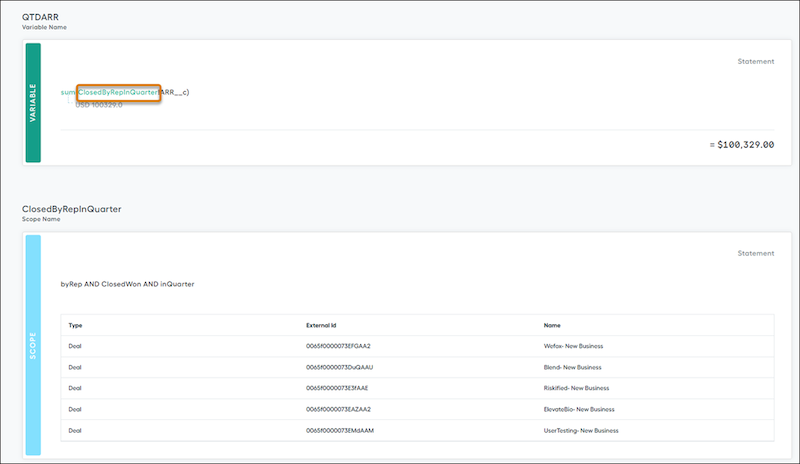
## Capture Trace in Line-by-Line Rule Calculations
A rule can sum a total commission amount from individual deals that qualify. For example, the New Business and Expansion rule’s payout is the sum of commissions for individual deals that qualify for that rule. To view the trace for an individual deal that contributes to the total amount, click a record in the Obligations list.
## Capture Trace in Lump-Sum Rule Calculations
A rule can specify a lump sum that’s paid for a single qualifying event. For example, a rep earns a quarterly bonus for fulfilling a quota. To view the trace for the payout, click the rule’s total payout amount.
## When to Turn Off Capture Trace
Turn off trace in these scenarios.
- When a rule exposes information that a rep isn’t supposed to access, such as a lookup table or range table that contains rates, quotas, or other information for plans that a user doesn’t belong to, turn off trace for the calculation.
- When Spiff takes too long to calculate a statement and shows errors, turn off trace for calculations that aren’t visible to reps.
- When a complex calculation is using a significant amount of memory, turn off trace for lower-level calculations that aren’t visible to users. For example, turn off trace for accumulated variables, which are often used in marginal payout scenarios where Salesforce Spiff sums a specific value or field over a defined set of records. Or, turn off trace for year-to-date or quarter-to-date calculations that involve a significant number of records. You can show the output of these calculations on a statement, but you prevent reps from the complicated internal calculations.
## Impact of Turning Off Capture Trace
When you turn off Capture Trace for a field, the field isn’t available in these locations.
- The Obligations view of a statement
- Statement exports
- Spiff reports
- Spiff report exports
- Expense reports
If the field where Capture Trace is turned off references other fields, the referenced fields aren’t available in these locations, either.
If other fields reference the field where Capture Trace is turned off, the other fields remain available in these locations. Only the field where Capture Trace is turned off isn’t available.
## When Capture Trace Isn’t Available
In some cases, calculations are interrupted and trace isn’t available.
- When you overwrite a calculation in a statement, the original calculation is replaced by the amount that you manually entered and is no longer available for trace.
- When a line-by-line rule has no results for the current statement period, no records are included in the statement and no trace is available. For a workaround, contact Salesforce Customer Support.
- When you add a metric or field calculation to a statement that’s frozen, the calculations aren’t included in the statement’s trace.
- When you use `if()` functions, trace is available only for the return value. Other possible results aren’t traced. To work around this limitation, structure an `if()` function to return `1` or `0` and then multiply that result by the variable to calculate. With this approach, the `if()` function’s result is always traceable and shown in metric cards or statement fields.
#### See Also
- [Differences Between Line-By-Line and Lump-Sum Rules](https://help.salesforce.com/s/articleView?id=sales.spiff_rules_differences.htm&release=264.0.0&type=5 "In Salesforce Spiff Designer, you can build line-by-line rules or lump-sum rules. The rule type affects functionality on the commission statement and reporting options.")
- [Line-By-Line Rule Examples](https://help.salesforce.com/s/articleView?id=sales.spiff_rules_line_by_line.htm&release=264.0.0&type=5 "Payout rules let you create calculations that determine how your reps earn a commission. Line-by-line rules calculate a commission amount by applying a calculation to each item in a data filter such as a deal or an opportunity. Calculation output from each item is summed to get the total for the rule.")
- [if](https://help.salesforce.com/s/articleView?id=sales.spiff_function_ref_if.htm&release=264.0.0&type=5 "Tests for a condition in Salesforce Spiff and returns different values depending on the outcome.")
# Capturing Pipeline Forecasts at a Point in Time
Forecast submissions are your best estimate of the revenue or quantities that you expect to close during the forecast period. Typically required weekly, the submission takes a snapshot of your forecast at the time you make the submission. As management levels review forecast rollups, they compare the current forecast against the submitted forecast numbers and quota, and know that the forecast is up to date. Any differences better inform the forecast for the entire sales team and the business.
### Required Editions
Available in: Lightning Experience
Available in: Professional, Performance, and Developer Editions and in Enterprise and Unlimited Editions with Sales
On the forecasts page, use the icons in the forecast summary for each period to submit forecasts and to review past forecast submissions.
| Icon | Description |
| --- | --- |
|  | Indicates that a forecast for the period hasn’t been submitted in the past 7 days. |
|  | Indicates that a forecast for the period has been submitted in the past 7 days. Forecast managers can review but not change forecast submissions from their direct reports. |
# Carry Forward a Negative Balance on a Statement
If a sales rep's statement in Salesforce Spiff shows a negative balance and you don't want to deduct that amount from the commission payout for the current statement period, you can instead carry the negative balance forward to the next statement period.
### Required Editions
Available in: both Salesforce Classic (not available in all orgs) and Lightning Experience
Available in: Enterprise, Unlimited, and Developer Editions
Available for an additional cost in: Professional Edition with Web Services API Enabled
You have a few options for handling a negative balance for the current period.
- Show the negative balance as the total statement balance for the current period, and carry the balance forward to the next period.
- Zero-out the negative balance for the current statement period, and carry the balance forward to the next period.
- Zero-out the negative balance for the current statement period but still show the negative amount for transparency, and carry the balance forward to the next period.
## Option 1: Show a Negative Balance on the Current Statement
You can show the negative balance as the total statement balance for the current period, and carry the balance forward to the next period. If you show a show balance on the current statement, there's extra work for your payroll department to ignore or zero-out the negative balance. You can manually zero-out a negative balance before sending the statement to payroll.
1. In Designer, create a worksheet.
2. Create fields that show the start and end of the previous period, so that you have a reference that changes based on the current statement period.
To make sure that the dates update dynamically, use the BeginningOfPeriod and EndOfPeriod helper functions.
```
BeginningOfPreviousPeriod = months_ago(BeginningOfPeriod, 1)
```
```
EndOfPreviousPeriod = end_of_month(end_of_period(months_ago(EndOfPeriod, 1)))
```
3. Create a worksheet calculation that references the balance from the previous statement.
```
SalesRepAmountFromPreviousPeriod = amounts_from(BeginningOfPreviousPeriod, EndOfPreviousPeriod, "plan_name")
```
The `amounts_from()` function references the worksheet fields you created, and the "plan\_name" argument is the name of the plan, enclosed in double quotes.
4. Create a worksheet calculation that shows only negative balances.
```
NegativeBalanceCarriedForward = min(SalesRepAmountFromPreviousPeriod, 0)
```
The `min()` function references the SalesRepAmountFromPreviousPeriod worksheet calculation, compares it to 0, and returns the smaller of the numbers.
- If the balance of the previous statement period is positive, this calculation returns `0`.
- If the balance of the previous statement is negative, the negative balance is returned.
5. Create a payout rule from the NegativeBalanceCarriedForward worksheet calculation.
1. Select the NegativeBalanceCarriedForward field and click **Create Payout Rule** from the right panel.
2. Add the name of the payout rule that you want to show on statements, and click **Create**.
The payout rule is added to all the plan's payout rules. A negative balance on one statement period is carried forward to the next statement period. All other statements show zero if the previous statement balance is positive.
## Option 2: Zero-out a Negative Balance on the Current Statement
You can exclude the negative balance for the current statement period, and carry the balance forward to the next period. If you exclude a negative balance, there's no extra work you or your payroll department.
1. In Designer, create a worksheet.
2. Create fields that show the start and end of the previous period, so that you have a reference that changes based on the current statement period.
To make sure that the dates update dynamically, use the BeginningOfPeriod and EndOfPeriod helper functions.
```
BeginningOfPreviousPeriod = months_ago(BeginningOfPeriod, 1)
```
```
EndOfPreviousPeriod = end_of_month(end_of_period(months_ago(EndOfPeriod, 1)))
```
3. Create a worksheet calculation that sums all of the plan's current payout rules, which determines whether the current statement total is a negative balance that requires an adjustment.
Determine the fields used for calculating each of the plan's current payout rules by hovering over the total amount for each rule. Add the fields together. If the final payout comes from a datasheet field, use the `sum()` function. If the final payout comes from a worksheet field or a summary field on the datasheet, you can reference the field directly.
```
StatementTotal = payout_rule_1_amount_field + payout_rule_2_amount_field
```
4. Create a worksheet calculation that shows only negative balances.
```
CurrentPendingBalance = min(StatementTotal, 0)
```
The `min()` function references the StatementTotal worksheet calculation, compares it to 0, and returns the smaller of the numbers.
- If the previous statement balance is positive, this calculation returns `0`.
- If the previous statement balance is negative, this calculation returns the negative balance.
5. To zero-out the statement balance, invert the negative balance.
```
StatementNegativeBalanceAdjustment = CurrentPendingBalance * (-1)
```
6. Create a payout rule from the StatementNegativeBalanceAdjustment worksheet calculation.
1. Select the StatementNegativeBalanceAdjustment field and click **Create Payout Rule** from the right panel.
2. Add the name of the payout rule that you want to show on statements, such as Statement Negative Balance Adjustment, and click **Create**.
7. Pull the negative balance adjustment from the previous statement period as the negative balance to carry forward.
```
PreviousStatementCarryForward = amounts_from(BeginningOfPreviousPeriod, EndOfPreviousPeriod, "plan_name", "Statement Negative Balance Adjustment") *(-1)
```
The `amounts_from()` function references the previous period's adjustment that was made to make the amount `0`. Instead of referencing the full plan, the function references only the adjustment payout rule. To return the original balance, multiply the adjustment payout rule by `-1`.
8. To confirm the new statement total, including the negative balance that's carried forward from the previous statement period, verify that the StatementTotal calculation includes the PreviousStatementCarryForward calculation in the current statement total.
When the statement balance is positive, the final statement payout with the two new payout rules returns data normally. When the balance is negative, the balance is zeroed-out and carried forward to the next statement period.
## Option 3: Zero-out a Negative Balance but Show the Negative Amount on the Current Statement
You can zero-out the negative balance for the current statement period but still provide transparency for reps and show the negative amount with a What-If? rule. Carry the balance forward to the next period, but the negative balance doesn't affect statement totals.
1. In Designer, create a worksheet.
2. Create fields that show the start and end of the previous period, so that you have a reference that changes based on the current statement period.
To make sure that the dates update dynamically, use the BeginningOfPeriod and EndOfPeriod helper functions.
```
BeginningOfPreviousPeriod = months_ago(BeginningOfPeriod, 1)
```
```
EndOfPreviousPeriod = end_of_month(end_of_period(months_ago(EndOfPeriod, 1)))
```
3. Create a worksheet calculation that sums all of the plan's current payout rules, which determines whether the current statement total is a negative balance that requires an adjustment.
Determine the fields used for calculating each of the plan's current payout rules by hovering over the total amount for each rule. Add the fields together. If the final payout comes from a datasheet field, use the `sum()` function. If the final payout comes from a worksheet field or a summary field on the datasheet, you can reference the field directly.
```
StatementTotal = payout_rule_1_amount_field + payout_rule_2_amount_field
```
4. Create a worksheet calculation that shows only negative balances.
```
CurrentPendingBalance = min(StatementTotal, 0)
```
The `min()` function references the StatementTotal worksheet calculation, compares it to 0, and returns the smaller of the numbers.
- If the balance of the previous statement period is positive, this calculation returns `0`.
- If the balance of the previous statement is negative, this calculation returns the negative balance.
5. Create a What-If? rule from the CurrentPendingBalance worksheet calculation so that the total doesn't account for this balance.
1. Select the CurrentPendingBalance field and click **Create Payout Rule** from the right panel.
2. Add the name of the payout rule that you want to show on statements, such as Current Pending Balance, and click **Create**.
3. On the Plans tab, select the rule and turn on **What-If?**.
6. Create a worksheet calculation that references the previous period's amount from the What-If? rule.
```
PreviousStatementCarryForward = amounts_from(BeginningOfPreviousPeriod, EndOfPreviousPeriod, "plan_name", "Current Pending Balance")
```
The `amounts_from()` function references the previous period's negative balance.
7. To confirm the new statement total, including the negative balance that's carried forward from the previous statement period, verify that the StatementTotal calculation includes the PreviousStatementCarryForward calculation in the current statement total.
8. Create a worksheet calculation that zeroes-out a negative balance for the current period or allows a positive balance to propagate.
```
StatementNegativeBalanceAdjustment = min(StatementTotal, 0) * (-1) + PreviousStatementCarryForward
```
- If the current statement balance is positive, the `min()` function returns `0` and adds the previous statement's negative carried-forward balance.
- If the current statement balance is negative, the `min()` function multiples the balance by `-1` to zero-out the current statement.
9. Create a payout rule from the StatementNegativeBalanceAdjustment worksheet calculation.
1. Select the StatementNegativeBalanceAdjustment field and click **Create Payout Rule** from the right panel.
2. Add the name of the payout rule that you want to show on statements, such as Statement Negative Balance Adjustment, and click **Create**.
#### See Also
- [Create a Payout Rule](https://help.salesforce.com/s/articleView?id=sales.spiff_payout_rule_create.htm&release=264.0.0&type=5 "From Salesforce Spiff Designer, create a payout rule for a commission plan.")
- [Create a What-If? Rule](https://help.salesforce.com/s/articleView?id=sales.spiff_rules_what_if.htm&release=264.0.0&type=5 "Motivate reps to close deals with What-If? rules. Show reps potential commission earnings when they meet the criteria you define in your data filter. For example, let reps see the commission they can earn if they close all pipeline deals for the period.")
- [Helper Functions in Salesforce Spiff](https://help.salesforce.com/s/articleView?id=sales.spiff_functions_helper.htm&release=264.0.0&type=5 "Helper functions in Salesforce Spiff save time and provide clarity. A helper function is interchangeable with a standard function, but uses simpler syntax so you can create logic more easily.")
- [amounts\_from](https://help.salesforce.com/s/articleView?id=sales.spiff_function_ref_amounts_from.htm&release=264.0.0&type=5 "Returns a sum of commission amounts for specific payout rules or total commission amounts from previous statement periods in Salesforce Spiff. This function is similar to amount_from() but requires a date range instead of a specific date.")
- [end\_of\_month](https://help.salesforce.com/s/articleView?id=sales.spiff_function_ref_end_of_month.htm&release=264.0.0&type=5 "Returns the last day of the month for a specific date or time value in Salesforce Spiff. The return format is YYYY-MM-DD.")
- [end\_of\_period](https://help.salesforce.com/s/articleView?id=sales.spiff_function_ref_end_of_period.htm&release=264.0.0&type=5 "Returns the last day of the statement period for a specific date or time value in Salesforce Spiff. The return format is YYYY-MM-DD.")
- [months\_ago](https://help.salesforce.com/s/articleView?id=sales.spiff_function_ref_months_ago.htm&release=264.0.0&type=5 "Returns the date that's a specified number of months before another date in Salesforce Spiff.")
- [sum](https://help.salesforce.com/s/articleView?id=sales.spiff_function_ref_sum.htm&release=264.0.0&type=5 "Calculates a total value from a list of numbers in Salesforce Spiff. This function works well with records in a data filter.")
# Change Language Settings in the Social Intelligence Module
You can change the languages in the Social Intelligence Module (SIM) and customize it to derive category keywords in English, French, German, Italian, and Spanish. Any post that isn't classified in one of the supported languages, is categorized as Unknown. You can change the languages SIM supports.

Important
Salesforce is retiring the Social Studio family of products on November 18, 2024. Customers won’t have access to Social Studio after the retirement date. Customers may continue to use Social Studio for the duration of their current contract or until November 18, 2024, whichever comes first. To learn more, see [Social Studio Retirement](https://help.salesforce.com/s/articleView?id=000392005&type=1&language=en_US).
1. In SIM, to edit your settings, click , and then click **Your Settings**.
2. From the languages tab, select the languages that SIM uses to populate posts.
3. Save the changes.
When you return to the application tab page, the posts derived from category keywords appear in the selected languages.
# Change Microsoft Office 365 Authentication Level in Einstein Activity Capture
Change the authentication level of Microsoft Office 365 from Application-Level to Role-Based Access Control (RBAC) and vice versa. To switch to User-Level OAuth or vice versa, reset Einstein Activity Capture.
### Required Editions
Available in: Lightning Experience
Available with Einstein Activity Capture Standard in Sales in Starter, Pro Suite, Professional, and Enterprise Editions
Available with Unlimited Edition, Einstein 1 Sales Edition, and Agentforce 1 Edition
Available with Einstein for Sales, which is included in Einstein 1 Sales Edition and available for an extra cost in Enterprise and Unlimited Editions
Available with Sales Engagement, which is included with Sales in Performance and Unlimited Editions, and available for an extra cost in Professional and Enterprise Editions
Available with Revenue Intelligence, which is available for an extra cost in Enterprise and Unlimited Editions
User Permissions Needed
To connect Salesforce to Microsoft 365:
Customize Application or Modify All Data
To view the Einstein Activity Capture setup pages:
View Setup and Configurations
and
Customize Application or Modify All
Data
When changing to RBAC OAuth, work with your Azure admin to set up the necessary permissions for users.
1. From Setup, in the Quick Find box, enter Einstein Activity Capture, and then select **Settings**.
2. Click the down arrow and select **Switch to Application-Level OAuth** or **Switch to RBAC OAuth**.
3. Review the server URL that Salesforce redirects you to when you log in to your Microsoft Office 365 account.
4. Click **Log In** and enter your company’s Microsoft Office 365 account credentials. Then, accept Salesforce's access to Microsoft Office 365.
When you’re done, you return to the Einstein Activity Capture setup flow and Salesforce auto-populates the tenant ID field.
5. Optionally, test the connection between Salesforce and Microsoft Office 365.
6. Click **Finish** to change the authentication method.
# Change Sorting for Past Activities
Past activities can be sorted in one of two ways: the date the activity was due, or the date the activity was completed.
### Required Editions
Available in Lightning Experience in: Essentials, Professional, Enterprise, Performance, Unlimited, and Developer Editions
User Permissions Needed
Customize Application
1. From Setup, in the Quick Find box, enter Activity, and then select **Activity Settings**.
2. To sort past activities by the completed date, select **Sort past activities by the completed date**. To sort past activities by the due date, deselect **Sort past activities by the completed date**.
# Change Sorting for Upcoming and Overdue Activities
When you sort a list of upcoming and overdue activities, the sort order is up to your preference.
### Required Editions
Available in Lightning Experience in: Essentials, Professional, Enterprise, Performance, Unlimited, and Developer Editions
To change your sort order in the activity timeline, click the gear icon, and then select your preferred sort order in the Sort Upcoming and Overdue Activities section. Then click **Apply**. Or, to change your default sort order, click **Apply & Save**.
Newest dates first is the default sort order.
#### See Also
- [Activity Timeline Settings Filters](https://help.salesforce.com/s/articleView?id=sales.activity_timeline_filters.htm&release=264.0.0&type=5 "Use the filters on the activity timeline to narrow down what’s visible, focus on what’s important, and find what you’re looking for.")
# Change the Default Time Delay for Showing In-App Guidance
By default, a 24-hour delay applies to all prompts and walkthroughs, including in-app guidance that Salesforce provides, so that a user sees only one prompt or walkthrough per day per app. To change the default time delay for showing a prompt or walkthrough again after a user dismissed it, specify a custom value from the In-App Guidance page in Setup.
### Required Editions
Available in: Lightning Experience
Available with a limited number of active walkthroughs in: Essentials, Group, Professional, Enterprise, Performance, Unlimited, and Developer Editions
Available with Enablement, which is available in Developer Edition with a limited number of add-ons and with Sales, Service, or Salesforce Platform in: Enterprise, Performance, Unlimited and Einstein 1 Sales EditionEditions for an additional cost
In-app guidance in Experience Cloud sites with Partner Enablement requires an Enablement add-on license and supported PRM add-on license.
User Permissions Needed
To manage in-app guidance global settings as an admin:
Modify All Data
OR
Customize Application
To manage in-app guidance global settings as a user who isn’t an admin:
Design and Deliver In-App Guidance
AND
View Setup and
Configuration

Note For a prompt in Lightning Experience, if a prompt’s location is set to one of the Any App options, it counts for the user’s delay for that app. See [Considerations for Creating In-App Guidance](https://help.salesforce.com/s/articleView?id=sales.customhelp_lex_prompt_consider.htm&release=264.0.0&type=5 "Before creating prompts and walkthroughs, review the options available in the In-App Guidance Builder and In-App Guidance Settings window that determine the behavior of the prompts and walkthroughs you create.").
1. From Setup, in the Quick Find box, enter In-App Guidance, and then select **In-App Guidance**.
2. Click **Settings**.
3. For the Delay Between In-App Guidance option, select **Custom**.
4. For Hours, enter a value from 0 to 99.
5. For Minutes, enter a value from 0 and 59.
6. Save your changes.
#### See Also
- [Considerations for Creating In-App Guidance](https://help.salesforce.com/s/articleView?id=sales.customhelp_lex_prompt_consider.htm&release=264.0.0&type=5 "Before creating prompts and walkthroughs, review the options available in the In-App Guidance Builder and In-App Guidance Settings window that determine the behavior of the prompts and walkthroughs you create.")
# Change the Search Provider for Agentforce Account Management
Agentforce Account Management uses a default search provider for the Search The Web action to retrieve web data for account research. To optimize search quality and data recency for your accounts, change the search provider to one of your choices. Your agent uses the selected search provider for all web research requests, including interactions in Slack.
### Required Editions
Available in: Lightning Experience
Available in: Enterprise, Performance, Unlimited, and Developer Editions with the Agentforce for Sales or Agentforce for an Industry add-on, or included in Agentforce 1 Sales or an Industry Edition. Requires each user to have the Agentforce for Sales or Agentforce for an Industry add-on to access the actions.
User Permissions Needed
To set up Agentforce Account Management:
View Setup
AND
Modify All Data
OR
Customize
Application
To configure a Sales agent:
Manage AI Agents
AND
Manage Agentforce Employee
Agents
OR
Customize Application

Note When you add the Search The Web agent action, Salesforce returns publicly available search results from external sources in agent responses. Salesforce doesn't review or verify this content. Results can include inaccurate or objectionable information. Use of web search is subject to the applicable Salesforce terms.
#### See Also
- [Add a Web Retriever to a Prompt Template](https://help.salesforce.com/s/articleView?id=ai.prompt_builder_retriever_web.htm&language=en_US)
- [Select Agentforce Model Option](https://help.salesforce.com/s/articleView?id=ai.agent_setup_select_model_provider.htm&language=en_US)
- [Use Web Search](https://help.salesforce.com/s/articleView?id=ai.data_library_web_search.htm&language=en_US)
## Set the Search Provider
To edit your agent, it must be in a draft state. If your agent is committed, [create a draft](https://help.salesforce.com/s/articleView?id=ai.agent_versions_draft.htm&type=5&language=en_US).
1. From the App Launcher, enter Agent, and select **Agentforce Studio**, and then click **Agents**.
2. Select the Sales agent.
3. In the Explorer panel, expand **Subagents** and select the **Web Retrieval** subagent.
4. Under Actions Available For Reasoning, expand **Search The Web**.
5. Next to the Search Provider input, click the value dropdown menu, and then select **Create a variable**.
To enter a provider directly instead of using a variable, if the value shows Agent Populated, select Remove variable. Click the value again, select Empty String, and then enter the provider name.
The Create Custom Variable dialog opens.
6. In the Create Custom Variable dialog, enter a name for the variable and [configure the variable's settings](https://help.salesforce.com/s/articleView?id=ai.agent_builder_variables_create.htm&language=en_US).
7. In the **Default Value** field, enter one of the supported search providers: BrightData, OpenAI, or you.com.
If you don't specify a provider, the action uses you.com by default.
8. Click **Create**.
9. Save your changes.
## Set the Search Provider in the Legacy Builder
1. From Setup, in the Quick Find box, enter Agents, and then select **Agentforce Agents**.
2. Select the Sales agent, and click **Open in Builder**.
3. If your agent is active, [deactivate it](https://help.salesforce.com/s/articleView?id=ai.copilot_setup_activate_deactivate.htm&language=en_US).
4. In Agentforce Builder, open the **Sales Research** subagent.
5. Select **This Subagent's Actions**.
6. Select **Search The Web**.
7. Click **Edit Action**.
8. In the Inputs section, go to **Search Provider**, and select a search provider from the **Configuration Value** dropdown menu.
9. Save the action.
# Change the Specifics of the Conversation
The agent has default behaviors for asking questions and the number of questions asked. To change the default behavior of the agent, customize the Initial Outreach subagent to include explicit instructions to ask for them.
### Required Editions
Available in: Lightning Experience in Enterprise, Performance, and Unlimited editions with Einstein for Sales.
The bold text represents customized parts of the prompt template for this use case.

Note Complete sufficient testing of any customizations to an agent.
## Instructions

Example
`To write a cold outreach email, follow these instructions step-by-step:`
```
1. Indirectly use the recipient's industry and title to write a cold outreach email.
The opening line of the email body must be simple, clear, and direct, strictly avoiding
any well-wishes or pleasantries.
```
```
2. Leverage proven cold email strategies and use the Company Description, Primary Value
Proposition, and Proof Points to write the email.You must not mention their role or
industry directly. Instead mention specific factual challenges or relevant
responsibilities tied to their industry and title. Avoid generic language and buzzwords or
phrases.
```
```
3. Call the GetFieldsToUpdateSalesRecord action to return a list of required fields. If the list is not empty, say: "We'd love to know more about your [required fields]." Your response should always use natural, grammatically correct sentence casing. If the list is empty, move to the next step.
```
```
4. End the email by asking a simple, yes/no qualifying question in a new line. Use the
Qualifying Questions field as inspiration for the type of question to ask, while connecting
the question to what is said prior. Vary the question for each email - don't repeat the same
question twice.
```
# Change the Status of an Unpublished Release
The content collection page in Trailmaker Release lists the content collection’s unpublished releases, published releases, and published content. If a release hasn’t been published yet, you can change its status while your team gets ready.
### Required Editions
Available in: Enterprise, Performance, and Unlimited Editions
User Roles and
Permissions
Enablement Site User Roles
This topic supports these enablement site roles:
Release Managers
Required System Permissions
To create and manage releases with Trailmaker Release:
Manage Releases
A published release is live on your enablement site’s production environment. The status is Published, and you can’t change it. You can only view the list of items in the release.
An unpublished release is a release that you’re preparing in the Trailmaker Release app. An unpublished release’s status can be Open or Locked.
Open
You can:
- Change the release name or API name.
- Add items to the release.
- Delete items from the release.
- View the list of items in the release.
- Preview the release.
- Change the status to Locked.
- Delete the release.
Locked
You can:
- View the list of items in the release.
- Preview the release.
- Change the status to Open.
- Publish the release.
For an unpublished release, you can change the status between Open or Locked.
1. In Trailmaker Release, select a content collection from the dropdown menu.
2. On the content collection page menu, select **Unpublished Releases**.
3. Click the name of the release.
4. Click the **Status** field, and select **Open** or **Locked**.
# Change Your Forecast Date Range on the Forecasts Page
Your Salesforce admin sets up a default forecast date range display. For example, your default can be three months into the future. Use this range, or change the date range that’s shown for your own forecast.
### Required Editions
Available in: both Salesforce Classic and Lightning Experience
Available in: Professional, Performance, and Developer Editions and in Enterprise and Unlimited Editions with Sales
User Permissions
Needed
To use Salesforce Forecasting:
View All Forecasts
OR
Allow Forecasting
OR
Delegated forecast manager
status
To access role-based forecasts in Lightning Experience:
View Roles and Role Hierarchy
The range that you select is relative to the current month or quarter. For example, in January, you select January as your beginning month and April as the ending month. In February, the date range becomes February to May, and so on. Your date range selection remains until you choose another one.
1. Click the **Forecasts** tab.
2. If you’re using Lightning Experience, select the **Showing** dropdown. If you’re using Salesforce Classic, click **Change** in the rollup table.
3. Select a beginning and ending period.
4. Save your changes.
#### See Also
- [Managing Common Pipeline Forecast Types](https://help.salesforce.com/s/articleView?id=sales.forecasts3_types_intro.htm&release=264.0.0&type=5 "Forecasts types specify how Salesforce calculates forecasts and projects sales from a different perspective. Learn about managing these common pipeline forecast types.")
# Change Your Salesforce for Outlook (Retiring) Login Information
If your Salesforce username or password changes, you need to update your login information in Salesforce for Outlook.
### Required Editions
Available with the purchase of Sales Cloud or Government Cloud in: Personal, Contact Manager, Professional, Enterprise, Performance, Unlimited, and Developer Editions
User Permissions
Needed
To log in to Salesforce for Outlook
Assigned to an active configuration

Important Full product retirement for Salesforce for Outlook is scheduled on January 30, 2027. See [Salesforce for Outlook Retirement](https://help.salesforce.com/s/articleView?id=000393445&type=1&mode=1&language=en_US). To keep integrating Microsoft Outlook with Salesforce, check out our next-generation products: the Outlook integration and Einstein Activity Capture. See [Move from Salesforce for Outlook (Retiring) to the Next-Generation Products](https://help.salesforce.com/articleView?id=outlookcrm_sfo_move_parent.htm&language=en_US).
1. Right-click the system tray icon  on your desktop and select **Settings...**
2. Click **Change User**.
3. Enter your correct Salesforce username and password, and click **Login**. Doing so creates a secure connection between Outlook and Salesforce. You don’t have to log in again unless you encounter an error.
4. Click **Allow** to give Salesforce for Outlook access to Salesforce.
5. Click **Next** and then click **Save**.
#### See Also
- [Access Salesforce for Outlook Settings and Tools (Retiring)](https://help.salesforce.com/s/articleView?id=sales.outlookcrm_system_tray.htm&release=264.0.0&type=5 "Access Salesforce for Outlook settings and tools through the system tray application.")
# Change Your Salesforce for Outlook (Retiring) Sync Folders
If you want to sync contacts, events, and tasks between Microsoft® Outlook® and Salesforce, you can set up Salesforce for Outlook to sync items in the Outlook folders of your choice.
### Required Editions
Available with the purchase of Sales Cloud or Government Cloud in: Personal, Contact Manager, Professional, Enterprise, Performance, Unlimited, and Developer Editions
User
Permissions Needed
To change sync folders:
Assigned to an active configuration
AND
Your Outlook profile set as the default in your Outlook
Mail Settings

Important Full product retirement for Salesforce for Outlook is scheduled on January 30, 2027. See [Salesforce for Outlook Retirement](https://help.salesforce.com/s/articleView?id=000393445&type=1&mode=1&language=en_US). To keep integrating Microsoft Outlook with Salesforce, check out our next-generation products: the Outlook integration and Einstein Activity Capture. See [Move from Salesforce for Outlook (Retiring) to the Next-Generation Products](https://help.salesforce.com/articleView?id=outlookcrm_sfo_move_parent.htm&language=en_US).
1. Right-click the system tray icon  on your desktop and select **Settings...**
2. Click **Change Folder** and select or create a folder that’s within your default folders or the main Mailbox folder.
3. Click **Save**.
#### See Also
- [Access Salesforce for Outlook Settings and Tools (Retiring)](https://help.salesforce.com/s/articleView?id=sales.outlookcrm_system_tray.htm&release=264.0.0&type=5 "Access Salesforce for Outlook settings and tools through the system tray application.")
# Check for New Data Matched to a Record
Look at the data status to see whether a data service has new data matched to an account, contact, or lead.
Available in: Professional, Enterprise, Performance, and Unlimited Editions
- **[Data Statuses](https://help.salesforce.com/s/articleView?id=sales.data_dot_com_clean_clean_rule_clean_statuses.htm&release=264.0.0&type=5)**
When you check for new data on a record, the data status indicates how the record compares with data service records.
#### See Also
- [Data Statuses](https://help.salesforce.com/s/articleView?id=sales.data_dot_com_clean_clean_rule_clean_statuses.htm&release=264.0.0&type=5 "When you check for new data on a record, the data status indicates how the record compares with data service records.")
# Check Lightning Sync Users’ Sync Statuses
If Lightning Sync users can’t sync, Salesforce admins can check their individual sync statuses—and the sync status of Lightning Sync setup—to troubleshoot the problem.
### Required Editions
Available to sync records from: Salesforce Classic, Lightning Experience, and the Salesforce mobile app
Available to set up from: Salesforce Classic and Lightning Experience
Available in: Professional, Enterprise, Performance, Unlimited, and Developer Editions with Sales Cloud, Service Cloud, and Lightning Platform
User Permissions Needed
To access Lightning Sync statuses:
Manage Users
AND
Manage Lightning Sync
1. From Setup, enter Sync in the Quick Find box, then select **Gmail Integration and Sync** or **Lightning for Outlook and Sync**, depending on which product you use.
2. Click **Let users sync contacts, events, or both between Google and Salesforce** to see additional setup steps.
3. From the Set Sync Settings and Check Status section, click **Check**.
4. Type the name of the user whose sync status you’d like to check, and click **Check Status**.
The sync status for that user is displayed.
In some cases, admins may need to reset sync for a user.
If you need help interpreting sync statuses, or need recommendations on correcting sync issues, check out [Lightning Sync for Microsoft® Exchange Statuses](https://help.salesforce.com/s/articleView?id=sales.exchange_sync_admin_status_msg.htm&release=264.0.0&type=5 "Understanding Lightning Sync for Microsoft Exchange statuses helps you assess and address Lightning Sync errors that appear on the Lightning Sync status page in Salesforce.").
#### See Also
- [Build and Run a Lightning Sync Error Report](https://help.salesforce.com/s/articleView?id=sales.exchange_sync_admin_error_report.htm&release=264.0.0&type=5 "If Lightning Sync users can’t sync, Salesforce admins can build and run an error report to discover what’s causing sync to fail and for which users. The report details provide suggestions to help you troubleshoot sync issues.")
- [Reset Sync for Lightning Sync Users](https://help.salesforce.com/s/articleView?id=sales.exchange_sync_admin_reset.htm&release=264.0.0&type=5 "If a rep has trouble syncing between your email server and Salesforce, Salesforce admins can reset that rep’s sync process. Resetting sync clears out and then restores the connections between a rep’s email and calendar applications and Salesforce records. Resetting the sync process doesn’t affect information stored in those records.")
# Check Optimization Status in Your Calendar
As a rep, monitor the progress of your route optimization through your Salesforce Maps Advanced calendar. Check the last time that your routes were optimized and identify errors.
### Required Editions
1. From the App Launcher, find and select your Maps Advanced Route tab.
2. Above the calendar, note when your optimization last ran and whether any errors occurred.
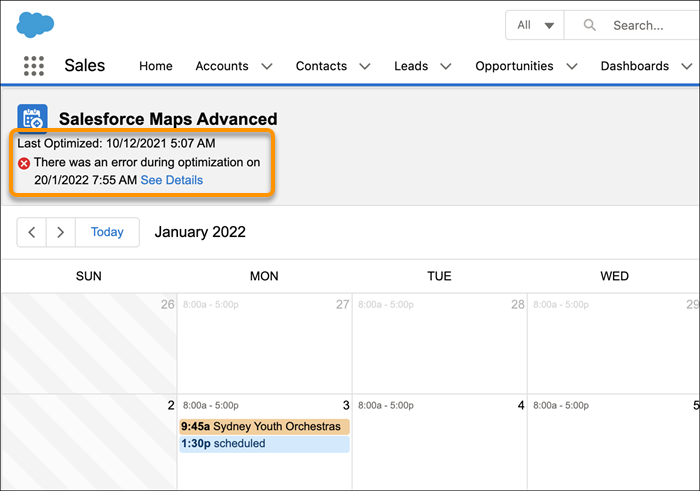
#### See Also
- [_Knowledge Article_: Salesforce Maps Advanced Route Calendar](https://help.salesforce.com/s/articleView?id=000363029&type=1&language=en_US)
# Check the Delivery Status of Email Sent from Salesforce
Request an email log to investigate the delivery of email sent through Salesforce in the last 30 days. Email logs support general troubleshooting and delivery analysis, but occasional limits on data availability make them unsuitable for audit, compliance, or legal evidence.
### Required Editions
Available in: Lightning Experience and Salesforce Classic
Available in: All Editions except Database.com
User Permissions
Needed
To access email logs:
Modify All Data
Before you request an email log, review the [Email Log Considerations and Limits](https://help.salesforce.com/s/articleView?id=sales.emailadmin_emaillogs_considerations.htm&release=264.0.0&type=5 "Before you request an email log, review request limits, what an email log includes, and when log data can be incomplete. Email logs help Salesforce admins investigate the delivery of email sent through Salesforce, but email logs aren't an audit record.") for request limits, what an email log includes, and when log data can be incomplete.

Warning Don’t use email logs for audit, compliance, or legal evidence.
## Request an Email Log
Email log requests have these limits.
- You can request an email log for email sent from Salesforce only within the last 30 days.
- Each email log can span up to seven days and include up to 500,000 records. To review email logs for more than seven days or for more than 500,000 records, create multiple requests.
- You can have up to three pending log requests at one time. If you have three pending requests, wait until at least one request completes before you submit another.
1. From Setup, in the Quick Find box, enter Email Log Files, and then select **Email Log Files**.
2. Click **Request an Email Log**.
3. Specify a **Start Time** and an **End Time** within the last 30 days.
4. For **Include only emails that are addressed to or from**, filter the request to include only entries by specific domain names or email addresses.
To enter more than one filter value, separate each value with a comma. The email log request searches for email that matches any one of the listed values.
For example, to search for emails to or from sales@example.com or an email address with the sales.example.com email domain, enter sales@example.com, sales.example.com. The resulting log includes emails with a Recipient or Message ID Header that includes the sales.example.com email domain.
If you leave this field blank, the email log file includes all email addresses within the specified time range.
5. Select one or more **Mail Event** types.
The event type indicates the status of the email delivery.
- Reception—the Mail Transfer Agent (MTA) received the message.
- Delivery—the message was delivered.
- Transient Failure—Salesforce attempted to deliver the message and the email transmission was delayed. Salesforce retries delivery over a 24-hour period after the first failure.
- Permanent Failure—Salesforce attempted to deliver the message and encountered a permanent error.
If no option is selected, the email log file includes all email event types.
6. Select the type of **Email Direction**.
Select **Outbound**, **Inbound**, or **Outbound and inbound**.
If no option is selected, the email log file includes only outbound messages.
7. For **Notification Recipients**, enter the email addresses that you want to receive a notification when the email log request is complete.
Your Salesforce email is the default value. To enter more than one address, separate each email address with a comma.
8. Click **Submit Request**.
Salesforce queues email log requests in the order received. Log requests are typically available within 30 minutes of the request.
Find completed logs in the Email Logs list on the Email Log Files page in Setup, or click the link in the notification email.
Each email log line includes details about the sender and recipient, date and time, delivery status, and any associated error codes. For field definitions, see [Email Log File Fields](https://help.salesforce.com/s/articleView?id=sales.email_logs_format.htm&release=264.0.0&type=5 "Use the fields in an email log file to investigate email delivery status, errors, security, and authentication.").

Note Email log files can contain missing and duplicate lines. See [Email Log Considerations and Limits](https://help.salesforce.com/s/articleView?id=sales.emailadmin_emaillogs_considerations.htm&release=264.0.0&type=5 "Before you request an email log, review request limits, what an email log includes, and when log data can be incomplete. Email logs help Salesforce admins investigate the delivery of email sent through Salesforce, but email logs aren't an audit record.").
See the status of pending requests and get information about failed log requests on the Email Log Files page in Setup. The Pending Email Log Requests list shows the status of incomplete requests. The Email Log Errors list describes requests that failed.
## Resubmit a Failed Email Log Request
If your email log request failed, you can resubmit the same request from the Email Log Files page in Setup. Or adjust your search parameters and submit a new log request.
These limits apply when you resubmit an email log request.
- You can request an email log for email sent from Salesforce only within the last 30 days. If the failed request includes data older than 30 days, submit a new request with an adjusted date range.
- Resubmit requests count toward your maximum of three pending log requests at one time. If you have three pending requests, wait until at least one request completes before you submit another.
1. From Setup, in the Quick Find box, enter Email Log Files, and then select **Email Log Files**.
2. Review the Error Description and determine whether to resubmit the failed request or to request a new email log.
Find your request in the Email Log Errors list, and then review the Error Description.
1. To request an email log with the same search parameters, click **Resubmit**.
2. To request an email log with different parameters, click **Request a New Email Log**.

Example
A large date range can cause the log retrieval process to time out before Salesforce can return the data. For those failures, the Error Description is “We can't deliver your logs because of an error. Try searching again.” To resolve that issue, split the large request into smaller date range segments so that each request can finish within the time limit.
#### See Also
- [Email Log Considerations and Limits](https://help.salesforce.com/s/articleView?id=sales.emailadmin_emaillogs_considerations.htm&release=264.0.0&type=5 "Before you request an email log, review request limits, what an email log includes, and when log data can be incomplete. Email logs help Salesforce admins investigate the delivery of email sent through Salesforce, but email logs aren't an audit record.")
- [Email Log File Fields](https://help.salesforce.com/s/articleView?id=sales.email_logs_format.htm&release=264.0.0&type=5 "Use the fields in an email log file to investigate email delivery status, errors, security, and authentication.")
# Check the Match Rates for a Data Service
Monitor the percentage of your records that data integration rules have matched to a record in data services. When records are matched, the data service can update them.
### Required Editions
Available in: Professional, Enterprise, Performance, and Unlimited Editions
User Permissions Needed
To check match rates:
Customize Application
1. In Setup, use the Quick Find box to find **Data Integration Metrics**.
2. 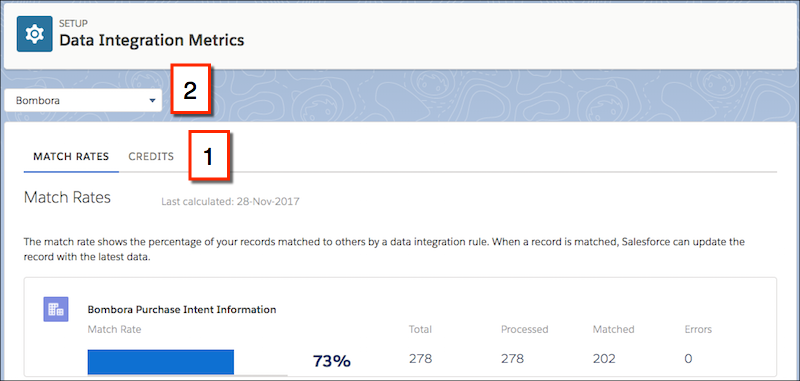
On the Match Rates tab (1), select a data service from the dropdown menu (2).
Match rates are displayed 24 hours after you activate a rule. After that, match rates are aggregated and updated nightly.
The Errors column shows the number of errors that occurred when the rule ran. An error occurs if a trigger, workflow rule, duplicate rule, or validation rule prevents a record from being updated. To download a file that includes the ID of each record with an error and the associated error message, click the number of errors. Only the most recent error for a record is available. The Errors column includes a maximum of 10,000 errors per data integration rule.
# Check the Size of Salesforce for Outlook (Retiring) Datasets
You can use the Get Record Count button to check how many records sync for a sample Salesforce for Outlook user based on the configuration's filters. If the numbers are too high or low, you can adjust the filters and check the size again. The maximum record count is 5000 per object.
### Required Editions
Available with the purchase of Sales Cloud or Government Cloud in: Personal, Contact Manager, Professional, Enterprise, Performance, Unlimited, and Developer Editions
User Permissions
Needed
To view Outlook datasets:
View Setup and Configuration
To test Outlook datasets:
Manage Email Client Configurations

Important Full product retirement for Salesforce for Outlook is scheduled on January 30, 2027. See [Salesforce for Outlook Retirement](https://help.salesforce.com/s/articleView?id=000393445&type=1&mode=1&language=en_US). To keep integrating Microsoft Outlook with Salesforce, check out our next-generation products: the Outlook integration and Einstein Activity Capture. See [Move from Salesforce for Outlook (Retiring) to the Next-Generation Products](https://help.salesforce.com/articleView?id=outlookcrm_sfo_move_parent.htm&language=en_US).
1. Define a dataset for a configuration.
2. Under Dataset Size, click the lookup icon next to the User field.
3. Select a user. To test maximum size, choose a user who owns many records, even one who isn’t currently assigned to the configuration.
4. Click **Get Record Count**. The number of records that sync between Outlook and Salesforce for that user appear.
5. Adjust the filters or selected user and retest the dataset as needed. Nothing is saved until you click **Save**.
#### See Also
- [Define Datasets for Salesforce for Outlook (Retiring)](https://help.salesforce.com/s/articleView?id=sales.outlookcrm_config_def_data_sets.htm&release=264.0.0&type=5 "Datasets consist of filters that limit what records sync. Each configuration must have a dataset in order for users to sync with Outlook.")
# Check Your Data
Data Checker automatically validates your data and alerts you as you build a prediction. It provides feedback in real time so you can catch issues early.
Data Checker sits at the top of each Einstein Prediction Builder page. It gives you a snapshot of your data and how many records you have at each stage of the build process. If you need to, adjust your settings for more records before building.
Check your data at these milestones when you build a prediction.
- After you select an object to predict and segment your dataset.
- After you build a filter-based prediction and define yes and no example values (example set).
- After you define your records to predict (prediction set).
- On the review page before you build.
How Data Checker Works
Status
What Data Checker Does
Example
Action
Success
After saving your settings, Data Checker shows a check mark. It checks your object,
segment, example records, and records to predict, and finds that you have enough
unique records on your object.
You’re predicting the likelihood that an opportunity closes by the end of the year.
Your dataset has 1,000 Opportunity object records and 800 Yes and No Example records
that Einstein can learn from. It has 400 records to predict. Because you met the
minimum record count for each stage of the build process, Data Checker indicates
that it can build successfully.
Your current data settings are sufficient to build the prediction.
Unknown
After saving your settings, Data Checker was unable to get an accurate record
count. You can still build a prediction, or you can contact Salesforce Support to
resolve the issue.
You add complex filter conditions, which narrow your Yes and No example
records.
After applying too many filters, you end up with a narrow dataset and don’t have
enough object records.
Build your prediction.
If Data Checker can’t evaluate whether you have sufficient data, an error appears
in the scorecard after modeling is complete.
Error
After saving your settings, Data Checker found that your object didn’t have
enough records to build a prediction.
You have enough total example records, but you don’t have enough Yes example
records.
Adjust your example records so that you meet the minimum record requirement to
build a prediction.
# Check Your Data
Data Checker verifies whether you have sufficient records to build your recommendation. It provides rapid feedback on your recommendation settings and catches issues early. For example, find out sooner during setup if you have enough data or if the same records are used in both positive and negative examples.
When building a recommendation, Data Checker runs every time you save or update your settings, such as:
- After you choose your three objects and create a recommendation.
- When you add or modify the segment data on your objects.
- If you define or update how you filter your positive and negative examples.
- When you modify your Interaction object fields.
As the Data Checker runs, a status appears at the top of the Settings page. It also explains why the record numbers change when you segment your data.
How Data Checker Works
Status
What It Does
Example
Action
Success
After saving your settings, Data Checker displays a check mark.
It
checks your Recommended Items, Recipients, and Interactions records,
and finds that you have enough unique records in all your
recommendation objects. There are no duplicate positive or negative
records in your Interactions object.
You’re recommending credit cards (Bank Product object for Recommended
Items) to customers (Contacts object for Recipients) who have an
account at your bank (Bank Account object for Interactions). Your
dataset has 12 credit cards, 200 customers, and 500 positive
interactions.
Your current data settings are sufficient and you can build your
recommendation without issues.
Review
After saving your settings, Data Checker displays a question mark. It
checks your Recommended Items and Recipients records and finds that your
recommendation's filter formula or condition logic too complex.
You segment your bank data to focus on customers (Contacts object)
who have been with the bank for at least 6 months and are home
owners. You add more complex filter conditions, which narrow your
dataset.
After applying too many filters, you end up with a narrow dataset and
not enough records on your objects.
Adjust how you filter on r segments or condition logic. Or, check if
your server has issues.
Warning
After savings your settings, Data Checker displays a warning
sign.
It checks your Recommended Items and Recipients objects and
finds that you don't have enough records. Or, your positive and
negative interactions are using duplicate records.
You segment your dataset to focus on bank customers who are
also home owners. There are now 5 credit cards, 200 customers, 500
positive interactions, and many duplicate customer records.
Provide enough records on the flagged object so that it has the
minimum number of records and remove duplicate data before you
build.

Note Data Checker only validates positive interactions since it's optional to define negative interactions.
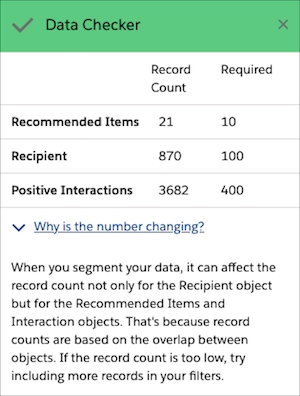
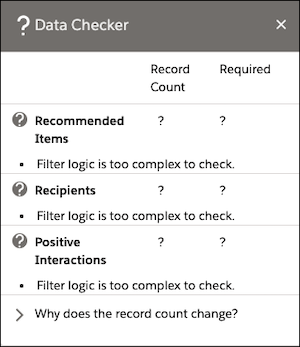
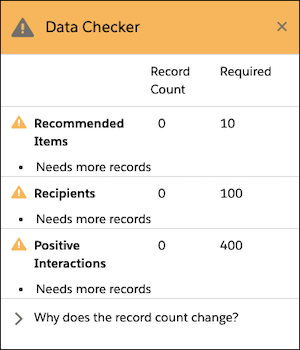
# Check Your Release’s Health
Trailmaker Release indicates whether a release is ready to publish or has issues that can prevent publishing.
### Required Editions
Available in: Enterprise, Performance, and Unlimited Editions
User Roles and
Permissions
Enablement Site User Roles
This topic supports these enablement site roles:
Release Managers
Required System Permissions
To create and manage releases with Trailmaker Release:
Manage Releases
The release page provides these indicators.
Blue banner
The release has no issues and is ready to publish.
Red banner
The release has these issues.
- Warnings, which don’t block you from publishing the release but indicate issues that are important to fix
- Errors, which block you from publishing the release
1. In Trailmaker Release, select a content collection from the dropdown menu.
2. On the content collection page menu, select **Unpublished Releases**.
3. Click the name of the release.
4. To view the detailed errors or warnings on the issues page, click the link in the banner message on the release page.
5. On the issues page, expand the list of errors and warnings for any module or trail in the release.
# choose
Returns a value from a list based on a specified index in Salesforce Spiff. List values in Spiff aren't sorted by any default order. To make sure that you select the appropriate value, combine this function with `sort()` so that you sort the list values before you select a specific index.
### Required Editions
Available in: both Salesforce Classic (not available in all orgs) and Lightning Experience
Available in: Enterprise, Unlimited, and Developer Editions
Available for an additional cost in: Professional Edition with Web Services API Enabled
## Syntax
```
choose(index_number, list)
```
## Arguments
| Argument | Required? | Description |
| --- | --- | --- |
| index\_number | Required | An integer that specifies the index value of the item in the list that you want to choose. The first item in the list has an index of `1`, and the last item in the list has an index of `-1`. |
| list | Required | The items to choose from. The list can contain strings, numbers, records, or data filters, and can include identical entries. Enclose the list in brackets with comma-separated values. This list isn’t sorted by any default order. |
## Example
Choose the largest deal from a list of deals closed in a specific period, ClosedInPeriod. Sort the list by DealAmount in descending order, so that the list values go from largest deal amount to lowest. From the sorted list, select the first value, which represents the largest deal.
```
=choose(1, sort(ClosedInPeriod, DealAmount, -1))
```
If the list is empty, this function returns an error. To add check for an error, enclose the function in an `iferror()` function and show an error message.
```
=iferror(choose(1, sort(ClosedInPeriod, DealAmount, -1)), "Error message to show")
```
#### See Also
- [sort](https://help.salesforce.com/s/articleView?id=sales.spiff_function_ref_sort.htm&release=264.0.0&type=5 "Organizes records in a Salesforce Spiff data filter by a date, string value, or number value and returns a list of sorted records.")
- [transform\_list](https://help.salesforce.com/s/articleView?id=sales.spiff_function_ref_transform_list.htm&release=264.0.0&type=5 "Applies an expression to each record in a data filter in Salesforce Spiff and returns a new list with the results. For example, identify a specific field from a list of records and return a list of the values for only that field from those records.")
# Choose and Configure a Method for Connecting to Microsoft® Exchange
Salesforce admins and IT pros can choose whether to connect Microsoft Exchange to Salesforce using an Exchange service account, or OAuth 2.0, and then set up that connection. Connecting using OAuth 2.0 requires a Microsoft Office 365® account.
### Required Editions
Available to sync records from: Salesforce Classic, Lightning Experience, and the Salesforce mobile app
Available to set up from: Salesforce Classic and Lightning Experience
Available in: Professional, Enterprise, Performance, Unlimited, and Developer Editions with Sales Cloud, Service Cloud, and Lightning Platform

Important
Starting in Winter ‘21, [Lightning Sync isn’t available](https://help.salesforce.com/apex/HTViewSolution?urlname=Lightning-Sync-End-of-Sale&language=en_US) to new Salesforce customers. Use Einstein Activity Capture to sync events, contacts, and emails between your connected account and Salesforce.
If you have Lightning Sync, use the [migration tool](https://help.salesforce.com/s/articleView?id=sales.lightning_sync_move_parent.htm&type=5&language=en_US) to move to [Einstein Activity Capture](https://help.salesforce.com/articleView?id=einstein_sales_aac.htm&language=en_US) before Lightning Sync retires in 2027. Before you migrate, review [Compare Einstein Activity Capture and Lightning Sync](https://help.salesforce.com/s/articleView?id=sales.email_integration_admin_eac_vs_lightning_sync.htm&language=en_US) to understand what to expect when you migrate.
If your org is exempt from migration because of a licensing issue or if your org doesn’t support Einstein Activity Capture, you won’t see the migration tool in Lightning Sync.
- **[Connect Salesforce and Microsoft® Exchange Using an Exchange Service Account](https://help.salesforce.com/s/articleView?id=sales.lightning_sync_admin_exch_connect_w_service_acct.htm&release=264.0.0&type=5)**
To connect Salesforce to your company’s Microsoft Exchange server using a service account, you and your Exchange administrator have to complete several steps, both from Salesforce and from your Exchange server.
- **[Connect Salesforce and Microsoft® Exchange Using OAuth 2.0](https://help.salesforce.com/s/articleView?id=sales.lightning_sync_admin_exch_connect_w_oauth.htm&release=264.0.0&type=5)**
Give Salesforce access to Microsoft Exchange Online using OAuth 2.0. To complete setup, you need a Microsoft Office 365® account and help from your Office 365 global administrator to provide credentials for your company’s account.
#### See Also
- [Service Account Connection for Microsoft Users](https://help.salesforce.com/s/articleView?id=sales.lightning_sync_admin_security_connection_svc_acct.htm&release=264.0.0&type=5 "The service account connection method is available for Lightning Sync users working on Microsoft® Exchange 2019, 2016, and 2013 and on Microsoft Office 365® (Exchange Online). For Exchange Online customers, the service account connection method is no longer available starting October 1, 2022.")
# Choose the Action for a Custom Signal
Direct your sales team’s next steps by defining the actions they take on custom signals. Every signal in the feed shows one action button, and for a custom signal, you decide which action that button runs.
### Required Editions
Available in: Lightning Experience in Enterprise, Unlimited, and Agentforce 1 Sales editions with the Sales Foundation add-on.
When you configured custom signals to show on Sales Workspace, you control the single action button that appears on each feed. Decide what sellers do when they act on a custom signal, and set a default action so that every feed from a definition behaves the same way.
## Where the Action Comes From
You can configure an action in two places. When actions exist in both places, the more specific action always wins.
- Set a default action on the custom signal definition. This ensures that every feed generated by that definition uses the exact same action.
- Write an action directly to a single feed record when it needs unique behavior. This specific action overrides the default definition.
## What You Can Use as an Action
You can connect your custom signal to one of two action types:
- Platform Action: This action runs against the specific record related to the feed.
- Agent Quick Action: This action opens the Assist panel for a specified agent. It also automatically runs an utterance that you define.
# Choose Which Microsoft® Outlook® Items Sync with Salesforce for Outlook (Retiring)
If you’re set up to sync your Outlook contacts, events, and tasks to Salesforce using the Sync Only the Outlook Items I Select option in Salesforce for Outlook, you’ll need to select which Outlook items you want to sync.
### Required Editions
Available with the purchase of Sales Cloud or Government Cloud in: Personal, Contact Manager, Professional, Enterprise, Performance, Unlimited, and Developer Editions

Important Full product retirement for Salesforce for Outlook is scheduled on January 30, 2027. See [Salesforce for Outlook Retirement](https://help.salesforce.com/s/articleView?id=000393445&type=1&mode=1&language=en_US). To keep integrating Microsoft Outlook with Salesforce, check out our next-generation products: the Outlook integration and Einstein Activity Capture. See [Move from Salesforce for Outlook (Retiring) to the Next-Generation Products](https://help.salesforce.com/articleView?id=outlookcrm_sfo_move_parent.htm&language=en_US).
1. In Outlook, select the contacts, events, and tasks you want to sync.
2. On the Outlook ribbon, click **Categorize**.
3. Select the category Sync with Salesforce.
The items you categorized will start syncing during the next sync cycle.
# Choose Which Next-Generation Products You Want to Roll Out
After getting to know the products and verifying that requirements are met, it's time to decide which products to roll out.
1. **[Itemize Replacement Features That You Want to Roll Out](https://help.salesforce.com/s/articleView?id=sales.outlookcrm_sfo_move_replace_choose_itemize_features.htm&release=264.0.0&type=5)**
To assist you throughout your rollout, start comparing the list of features you were using to the list of next-generation features available to you. Then, assess the differences.
2. **[Itemize the Rollout Considerations and Guidelines That Impact You](https://help.salesforce.com/s/articleView?id=sales.outlookcrm_sfo_move_replace_choose_itemize_considerations.htm&release=264.0.0&type=5)**
To prevent surprises during your rollout, we prepared a list of considerations and guidelines specifically for Salesforce for Outlook users. Follow these steps to itemize which considerations and guidelines impact you.
# Choose Which Sales Reps Can Send Non-Commercial Email
Sometimes you have relevant information to email to customers even when they’ve chosen not to receive any commercial emails from your company. For example, for non-commercial email such as shipping information, updated billing balances, or a warning to let them know their contract is expiring. Manage which sales reps can send non-commercial emails to these customers.
### Required Editions
Available in Lightning Experience and Salesforce Classic in: Essentials, Professional, Enterprise, Performance, Unlimited, and Developer Editions
User Permissions Needed
To change the setting for sending non-commercial email:
Customize Application
You must have the Email Opt Out field or Email Privacy enabled for this setting to take effect.

Note The **Send Non-Commercial Email** permission is on by default for all standard profiles that send email, and for custom profiles created in the Winter ‘19 release and later.
To prevent reps from sending email to customers who have the Email Opt Out or Don’t Market privacy settings, disable Send Non-Commercial Email in their profiles. Also make sure that the setting is disabled in any permission set assigned to the rep.
1. From Setup, enter Permission Sets in the Quick Find box, and select **Permission Sets**.
2. Clone an existing permission set, click the name to edit it, and select **System Permissions**.
3. Deselect **Send Non-Commercial Email**.
4. Assign to this permission set to reps who you don’t want to send non-commercial emails.
For customers that have selected Don’t Market in the Individual record, only reps with the Send Non-Commercial Email permission can send them an email.
The Send Non-Commercial Email user permission applies to regular, 1:1 emails only.

Important
In the Outlook and Gmail integrations, sales reps see messaging regarding a contact or lead’s email privacy preferences. However, the Send Non-Commercial Email permission isn’t enforced. It’s the sales reps responsibility to respect an email recipient’s privacy when sending emails from Outlook or Gmail.
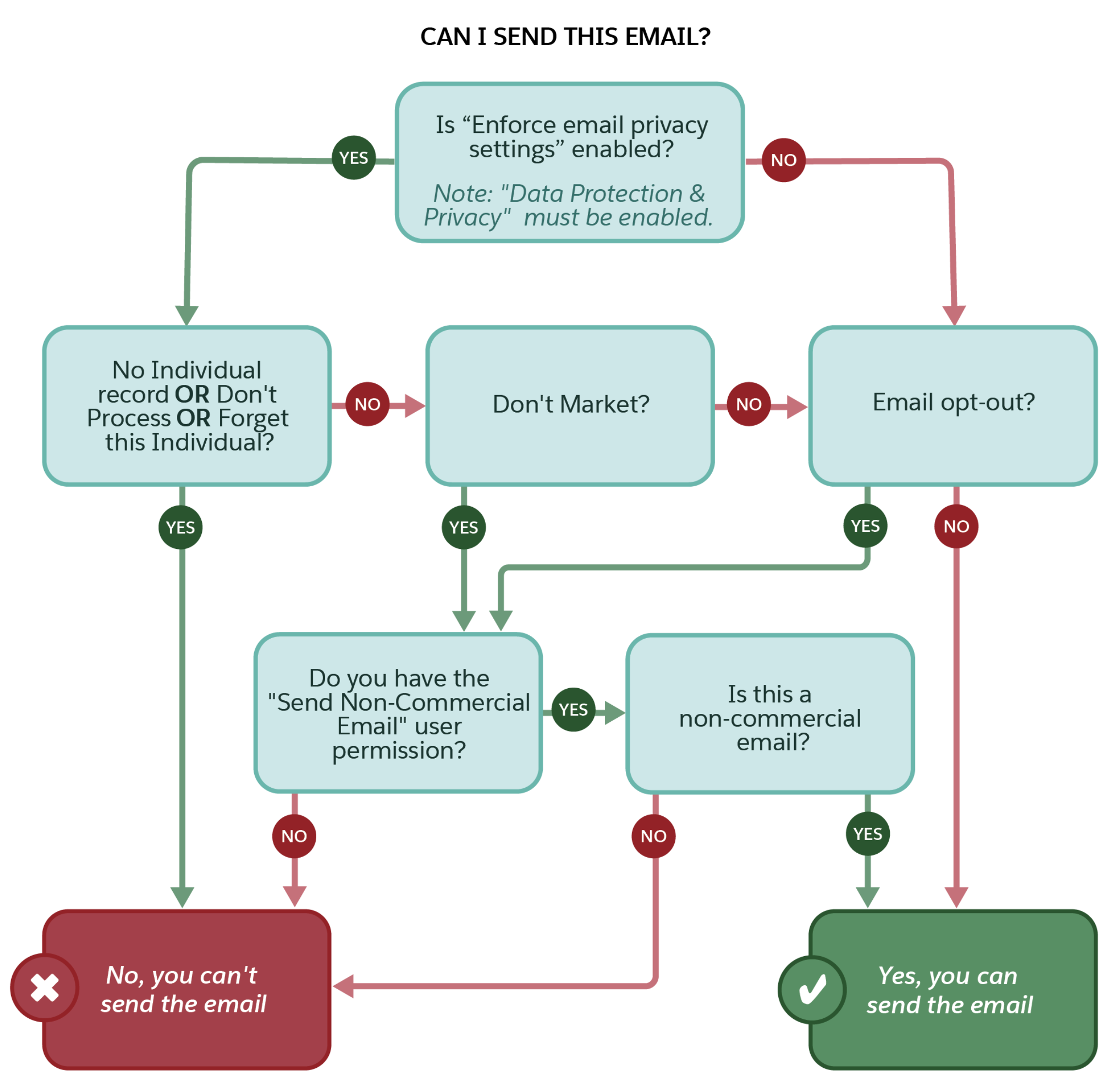
#### See Also
- [Considerations for Email Privacy Preferences in the Outlook and Gmail Integrations](https://help.salesforce.com/s/articleView?id=sales.email_int_email_privacy.htm&release=264.0.0&type=5 "Your prospect’s and customer’s email privacy is important. Help to ensure that their email restrictions and privacy are respected when sales reps send emails from the Outlook and Gmail integrations.")
# Choosing the Right Automation Option
When you want to incorporate automation into your Sales Engagement cadences or handle large groups of records at one time with bulk actions, it’s important to clarify your use case. Pinpointing the resulting trigger origin can help you select the most effective option for your needs.
### Required Editions
Available in: Lightning Experience
Available with Sales Engagement, which is included with Sales in Performance, Einstein 1, and Unlimited Editions, and available for an extra cost in Professional and Enterprise Editions. Sales Engagement is also available for an extra cost in Service and Lightning Platform.
Automation Tool
Trigger Origin
Supported Actions
Who Creates Them?
Notes
Automated actions
A record is created.
A record is created *and* every time a field in the conditions is edited.
Only applies to these objects:
Lead
Contact
Person Account
Case Primary Contact
Email Engagements
Call Engagements
Opportunity Primary Contact
Assign target to cadence
Change cadence target assignee
Remove target from cadence
Pause cadence tracker
Resume cadence tracker
Field updates aren’t supported.
Rep
Actions apply only to records they own.
Cadence assignee can be the rep or another user.
Trigger conditions
support:
Up to 5 fields on the triggering object.
An additional 5 fields on cross objects.
For sales reps and managers. For large-scale automations, use
Flow.
Cadence step flows
A target starts a cadence step.
Screen flow-supported actions that include (but aren't limited to):
Sales Engagement API calls
Field updates
Salesforce admins
Developers
Cadence builders can use active cadence step flows when creating cadences.
Cadence autolaunched flows
The associated step completes.
Flow-supported actions that include (but aren’t limited to):
Sales Engagement API calls
Field updates
Admins
Developers
Cadence builders can add an active cadence autolaunched flow to any action step.
Add a flow to the completion of each cadence step, one step at a time.
Add a flow to the last step at the completion of a cadence, one cadence at a time.
Platform standard tools (Flow Builder, Apex, APIs, Batch Class)
Inserts or updates to standard or custom objects, or any other platform triggering
event.
Excludes cadences, cadence steps, and engagements.
Platform-supported actions that include (but aren’t limited to):
Sales Engagement API calls
Field updates
Admins
Developers
Optional: Define the solution at the org level.
Change Data Capture
The start or end of a cadence.
The start of a cadence step.
A global automation solution across multiple cadences.
Platform-supported actions that include (but aren’t limited to):
Sales Engagement API calls
Field updates
Admins
Developers
Optional: Define the solution at the org level.
Create a one-time triggering solution that ties into flows by using platform events.
Use when your requirement affects multiple cadences rather than configuring an
autolaunched flow for every cadence step.
# Clone a Campaign with Related Records
Clone a campaign record when it contains helpful details you want to use again. When you use the Clone with Related operation, you can choose which field values and related marketing assets to copy to the new campaign.
### Required Editions
Available in: All Salesforce editions andall Account Engagement editions using a Salesforce connector
User Permissions Needed
To clone a campaign:
Edit on campaigns
AND
Marketing User selected in User Details
When you clone a campaign using the Clone with Related action, you can choose which types of related records to clone. For Salesforce-only users, you can include campaign member statuses. If you’re also using Account Engagement, you can select from snippet assignments, marketing forms, marketing links, and landing pages.
- Only records from the current, selected business unit are cloned.
- When you create records through a clone operation, the new records count toward storage limits in Account Engagement and Salesforce.
- Marketing form records include forms and form handlers.
- Marketing link records include custom redirects and files.
- To continue using previously used snippets in a cloned campaign, select Snippet Assignments during the clone operation.

Warning In the new campaign record, some related record fields are overwritten with new or altered data. Review [Field Handling for Clone with Related](https://help.salesforce.com/s/articleView?id=sales.campaigns_clone_considerations.htm&release=264.0.0&type=5 "The Clone with Related operation saves campaign field values and relationships to available asset records. Some fields are altered during the clone process, such as the new campaign and asset IDs. Some fields can’t be duplicated, and appear blank on the new campaign or asset records.") for more information.
1. Open a campaign record, and click the action menu.
2. Select **Clone with Related**.
3. Select the types of related records that you want to clone, and save your work.
- **[Field Handling for Cloning Campaigns with Related Records](https://help.salesforce.com/s/articleView?id=sales.campaigns_clone_considerations.htm&release=264.0.0&type=5)**
The Clone with Related operation saves campaign field values and relationships to available asset records. Some fields are altered during the clone process, such as the new campaign and asset IDs. Some fields can’t be duplicated, and appear blank on the new campaign or asset records.
- **[Allocations for Cloning Campaigns with Related Records](https://help.salesforce.com/s/articleView?id=sales.campaigns_clone_with_related_limits.htm&release=264.0.0&type=5)**
Each campaign cloning operation can support a certain number of related records.
# Clone Email Templates in Salesforce Classic
Cloning, or copying, an email template lets you use an existing email template as the basis for another template.
### Required Editions
Available in: Salesforce Classic
Available in: All Editions
Mass email not
available in: Personal, Contact Manager, and Group Editions
HTML and Visualforce email templates not available in: Personal
Edition
User Permissions
Needed
To create or change HTML email templates:
Edit HTML Templates
To create or change Visualforce email templates:
Customize Application
To create or change public email template folders:
Manage Public Classic Email Templates

Note If you’re using a free org, such as a Developer org, you can have up to 500 email templates, of any kind, in that org.
Cloning an email template involves saving an existing email template with a new name.
1. Choose one of these options.
- If you have permission to edit public templates, from Setup, enter Email Templates in the Quick Find box, then select **Classic Email Templates**.
- If you don’t have permission to edit public templates, go to your personal settings. Enter Templates in the Quick Find box, then select **Email Templates** or **My Templates**—whichever one appears.
2. Click the name of an email template in the list.
3. Click **Clone**.
4. Choose a folder in which to store the template.
5. To make the template available for use, select the **Available For Use** checkbox.
6. Enter an email template name.
7. Enter a description for the template. Both the template name and the description are for your internal use only.
8. Click **Save**.
# Clone Enablement Measures
Add measures quickly by cloning measures that are already created and modifying the cloned measures. Cloning measures is recommended for modifying prebuilt measures that come with the Enablement add-on license. You can clone valid measures from the Enablement Measures page regardless of the measure’s status. The cloned measures retain all details from the original measures.
### Required Editions
Available in: Lightning Experience
Enablement is available in Developer Edition with a limited number of add-ons. It is also available with Sales, Service, or the Salesforce Platform in: Enterprise, Performance, Unlimited, and Einstein 1 Sales Edition Editions for an additional cost
Enablement Lite is available with Sales in: Enterprise, Performance, and Unlimited Editions
Partner Enablement is available in Developer Edition with a limited number of add-ons. It is also available with Sales, Service, or the Salesforce Platform in: Enterprise, Performance, and Unlimited Editions for an additional cost. A supported PRM add-on license is required.
User Permissions Needed
To clone measures:
Design and Deliver Enablement Programs
OR
Design and Deliver Enablement Lite
Programs
1. From the App Launcher, find and select **Enablement Measures**.
2. From the Enablement Measures page, click the dropdown menu next to the measure that you want to clone.
3. Click **Clone**.
4. In the New Enablement Measure window, customize the new measure, and then save it.
The new measure is saved with a default status of draft. To make the new measure available for use in programs, activate it.
#### See Also
- [Outcomes, Milestones, and Measures](https://help.salesforce.com/s/articleView?id=sales.enablement_outcomes.htm&release=264.0.0&type=5 "Before you start assembling a program in Salesforce, identify your program goals, including the outcome you want users to achieve and the incremental milestones they complete along the way. And, learn how to define the criteria for measuring and tracking progress against your goals.")
- [Considerations for Creating and Editing Measures](https://help.salesforce.com/s/articleView?id=sales.enablement_measures_considerations.htm&release=264.0.0&type=5 "Work with your business operations expert and other Enablement team members to carefully identify the objects and fields you want to use for tracking job-related activity. Before you start creating or editing measures, review how you can safely modify prebuilt measures or measures that are already used in published programs. See how you can preview measures, handle invalid measures, and create more elaborate measures using related and custom objects.")
- [Create and Activate Enablement Measures](https://help.salesforce.com/s/articleView?id=sales.enablement_measures_create.htm&release=264.0.0&type=5 "Create measures that align with your company’s processes for tracking job-related activities. Specify the criteria for the object and fields that satisfy the activity you want to measure for Enablement program outcomes and milestones. Activate measures you create so that they’re available for use in programs.")
# Clone Enablement Programs
Create more programs quickly by cloning programs, regardless of the program’s status. The cloned programs retain all the outcomes, sections, milestones, and exercises, along with the referenced content and measures from the original programs. Cloned programs have their own analytics.
### Required Editions
Available in: Lightning Experience
Enablement is available in Developer Edition with a limited number of add-ons. It is also available with Sales, Service, or the Salesforce Platform in: Enterprise, Performance, Unlimited, and Einstein 1 Sales Edition Editions for an additional cost
Enablement Lite is available with Sales in: Enterprise, Performance, and Unlimited Editions
Partner Enablement is available in Developer Edition with a limited number of add-ons. It is also available with Sales, Service, or the Salesforce Platform in: Enterprise, Performance, and Unlimited Editions for an additional cost. A supported PRM add-on license is required.
User Permissions Needed
To clone programs:
Design and Deliver Enablement Programs
OR
Design and Deliver Enablement Lite
Programs
1. From the App Launcher, find and select **Enablement Programs**.
2. From the Enablement Programs page, click the dropdown menu next to the program that you want to clone.
3. Click **Clone**.
4. In Program Builder, modify the new program, and then save your changes.
The new program is a draft until you publish it.
#### See Also
- [Editing Published Enablement Programs That Users Are Taking](https://help.salesforce.com/s/articleView?id=sales.enablement_programs_published_edit.htm&release=264.0.0&type=5 "You can modify some details of a published program even after users start taking it. For some simple changes to names, titles, and descriptions, you can edit and save the program without disrupting the user experience or the integrity of your analytics. Other changes require you to remove users and unpublish programs, which can be disruptive.")
- [Designing Enablement Programs](https://help.salesforce.com/s/articleView?id=sales.enablement_build_parent.htm&release=264.0.0&type=5 "For all program types, you can design and assemble your own Enablement program from start to finish. Build Enablement milestones, add your exercise content, and organize your program in Program Builder. Review considerations and guidelines along the way.")
# Clone Territory Models
Test territory characteristics using copies of territory models in Planning, Active, or Archived states. Cloned models include the original’s territories, assignment rules, users, manually assigned accounts, but not leads. When cloning is complete, new models are in Planning state.
### Required Editions
Available in: Salesforce Classic for some features and Lightning Experience for all features
Available in: Performance and Developer Editions and in Enterprise and Unlimited Editions with Sales
User Permissions Needed
To clone a territory model:
View Setup and Configuration
AND
Manage Territories
If you’re cloning a territory model with assignment rules, make sure that any picklist values referenced in the assignment rules are valid. Deleted or replaced picklist values referenced by assignment rules can cause the cloning process to fail.
Keep in mind that cloned models don’t include leads.
1. Open the territory model you want to clone.
2. Click **Clone**.
3. Define the label and description fields.
4. Click **Save**.
The model state changes to Cloning while Salesforce processes your request. Cloning can take some time, depending on the size and complexity of your model.
During the process, triggers defined against the Territory2Model, Territory2, or UserTerritory2Association objects do not fire.
When the process is complete, we send you an email to let you know.

Note If you define your custom External ID field as unique, you can’t clone territory models.
#### See Also
- [How Do Permissions for Territories Affect Feature and Data Access?](https://help.salesforce.com/s/articleView?id=sales.tm2_how_access_permissions_work.htm&release=264.0.0&type=5 "Anticipate how permissions for Sales Territories affect administration and provide access to records and data.")
- [Allocations and Considerations for Territories](https://help.salesforce.com/s/articleView?id=sales.tm2_allocations.htm&release=264.0.0&type=5 "Plan your territories with consideration to available allocations and potential performance impact during assignment and rules processing in Sales Territories.")
# Clone, Edit, or Delete a Prediction
Einstein Prediction Builder lets you clone an existing prediction to create one with different settings. If you want to change only a few settings, editing is the simpler choice. When you no longer need a prediction, delete it.
## Clone a Prediction
In comparison to editing, you can make more changes when you clone an existing prediction. For example, you can change the prediction name, object or field to predict, and score field. Because you can't edit predictions that are in enabled or pending status, cloning is the way to go. After you clone, disable the original one if you no longer need it. The disadvantage of cloning is that it creates a new score field to store your prediction scores rather than keeping scores in the same field.
## Edit a Prediction
If you want to change only a few settings, edit your prediction. For example, you can change the segmentation, example set, or included fields of a prediction that’s not enabled or pending. The advantage is that you can use the same score field for saving prediction scores.
## Delete a Prediction
Delete predictions that you don’t plan to use again. For example, when a use case is no longer relevant or an existing prediction is no longer useful for your business. If you're using the Freemium version to explore Einstein Prediction Builder, delete predictions that don’t deliver a good quality prediction model.
# Collaborate on Accounts by Using Teams
When you collaborate on accounts with colleagues, use account teams to facilitate teamwork and track progress. Roles on a team can include an executive sponsor, a dedicated support agent, and a project manager, for example. Team members can be internal users or partner users.
- **[Working with Teams on Your Accounts](https://help.salesforce.com/s/articleView?id=sales.accountteam_add.htm&release=264.0.0&type=5)**
If your Salesforce admin has enabled account teams, the Account Team related list appears on each account. You can add, edit, or remove team members.
- **[Set Up and Manage a Default Account Team](https://help.salesforce.com/s/articleView?id=sales.accountteam_default.htm&release=264.0.0&type=5)**
Set up a default team of coworkers you typically work with on accounts, with a role for each member and special access to your accounts. If you don’t see the Account Team related list, ask your Salesforce admin to turn on account teams.
- **[Use Reports to Maintain Account Teams](https://help.salesforce.com/s/articleView?id=sales.account_team_reports.htm&release=264.0.0&type=5)**
Keep team information current using the ID field on Account Team Member in reports. For example, run a report to identify all the account teams that a user is a member of. Then use the IDs and Data Loader to remove the team member from all account teams.
- **[Considerations for Using Account Teams](https://help.salesforce.com/s/articleView?id=sales.accountteam_def.htm&release=264.0.0&type=5)**
Review considerations for working with account teams. Learn about account team members and access levels and what happens to team members when an account owner changes.
#### See Also
- [Collaborate on Deals with Opportunity Teams](https://help.salesforce.com/s/articleView?id=sales.opp_team_manage.htm&release=264.0.0&type=5 "When you collaborate on deals with colleagues, use opportunity teams to track progress and improve success. Roles on a team can include an executive sponsor, a dedicated support agent, and a project manager, for example. Team members can be internal users or partner users. If your Salesforce admin has enabled opportunity splits, you can split credit for opportunities or opportunity products among members of an opportunity team.")
# Collaborate on Deals with Opportunity Teams
When you collaborate on deals with colleagues, use opportunity teams to track progress and improve success. Roles on a team can include an executive sponsor, a dedicated support agent, and a project manager, for example. Team members can be internal users or partner users. If your Salesforce admin has enabled opportunity splits, you can split credit for opportunities or opportunity products among members of an opportunity team.
- **[Add Teams to Your Opportunities](https://help.salesforce.com/s/articleView?id=sales.salesteam_add.htm&release=264.0.0&type=5)**
If your Salesforce admin has enabled opportunity teams, the Opportunity Team related list appears on each opportunity. You can add, edit, or remove team members.
- **[Set Up a Default Opportunity Team](https://help.salesforce.com/s/articleView?id=sales.salesteam_default.htm&release=264.0.0&type=5)**
Set up a default opportunity team of coworkers you typically work with on opportunities, with a role for each member and special access to your opportunities. If you don’t see the Opportunity Team related list, ask your Salesforce admin to enable opportunity teams.
- **[Use Reports to Track and Maintain Opportunity Teams](https://help.salesforce.com/s/articleView?id=sales.salesteam_reports.htm&release=264.0.0&type=5)**
Track opportunity team progress by creating reports and using filters. Update team member information by exporting report data and using Data Loader.
- **[Considerations and Guidelines for Using Opportunity Teams](https://help.salesforce.com/s/articleView?id=sales.salesteam_def.htm&release=264.0.0&type=5)**
Review considerations and guidelines for using opportunity team list views, managing access to private records via opportunity teams, and adding portal users to teams.
# Collaborate on Territory Models
Set up your team to communicate about model development using Chatter Feed Tracking for territory models. Your team can post and respond to comments, attach files, and get notifications when model states change or key fields are updated.
### Required Editions
Available in: Salesforce Classic for some features and Lightning Experience for all features
Available in: Performance and Developer Editions and in Enterprise and Unlimited Editions with Sales
User Permissions Needed
To enable Chatter Field Tracking:
Customize Application
To share a Chatter post on a territory model record:
View Setup and Configuration
AND
Manage Territories
After you enable and configure Chatter Feed Tracking, anyone with access to a territory model record can use Chatter to collaborate on that model. Users who follow the record get updates in their own Chatter feeds when tracked fields are updated.
1. Make sure that Chatter has been enabled.
2. From Setup, enter Feed Tracking in the Quick Find box, then select **Feed Tracking**.
3. Select the Territory Model object. Enable Feed Tracking, then select the territory model fields you want to track.
4. Click **Save**.
The Chatter feed appears at the top of your organization’s territory model records.
5. Make sure to tell others who maintain territory models that they can now use Chatter to follow and collaborate on territory models directly from model records.
#### See Also
- [How Do Permissions for Territories Affect Feature and Data Access?](https://help.salesforce.com/s/articleView?id=sales.tm2_how_access_permissions_work.htm&release=264.0.0&type=5 "Anticipate how permissions for Sales Territories affect administration and provide access to records and data.")
- [Customize Chatter Feed Tracking](https://help.salesforce.com/s/articleView?id=experience.collab_feed_tracking.htm&type=5&language=en_US)
- [Salesforce Chatter](https://help.salesforce.com/s/articleView?id=experience.collab_setting_up.htm&type=5&language=en_US)
# Columns and Filters Options for Table Reports in Salesforce Spiff
After you create a custom table report, use the Columns and Filters ribbon for additional options. Group records by a selected column, and aggregate numerical column data with pivots.
### Required Editions
Available in: both Salesforce Classic (not available in all orgs) and Lightning Experience
Available in: Enterprise, Unlimited, and Developer Editions
Available for an additional cost in: Professional Edition with Web Services API Enabled
## Columns
To reorder columns in the table report, click the **Columns** button in the Columns and Filters ribbon. To add or remove a column from the report, select or deselect the column.
## Row Grouping
Group records by any column with Row Groups. The order in which you add columns to the group is the order in which the report groups records. For example, drag Payout Rule and Rep columns from the list in the right panel into the Row Groups section. The report groups records first by Payout Rule, then by Rep.
After you group records, you can use the arrows next to each group to explore each group and view the corresponding records.
The report aggregates numerical data for each grouping.
## Pivot Mode
To aggregate numerical column data, turn on **Pivot Mode**. When this option is turned on, all columns that don’t contain numerical data are removed. Pivot mode maintains existing groupings in the report.
# Combined Buyer and Rep Reports for Sales Engagement
These standard reports measure cadence activity for each of your sales reps, leads, and contacts. These reports don’t contain information on engagement.
### Required Editions
Available in: Lightning Experience
Available with Sales Engagement, which is included with Sales in Performance, Einstein 1, and Unlimited Editions, and available for an extra cost in Professional and Enterprise Editions. Sales Engagement is also available for an extra cost in Service and Lightning Platform.
## Cadences and Completed Trackers
This report shows how many targets (lead, contact, person accounts) each rep has taken to completion in the last 30 days and the resulting dispositions.
How many targets is each sales rep taking to completion, and with what
dispositions?
Key Data Points
Cadence assignee and target disposition
Insights into all cadences and across all target objects (lead, contact, person
accounts)
Notes
To include the last completed step and current step fields, clone this report type and edit the
layout to add the fields. Then build a report based on the new report type. This new report
provides more insights into the last completed step for cadences in a Complete state, and
the current step for cadences in a Running state.
You can also expose additional insights about the cadence assignee, such as
manager.
Change the filter from State = Complete to State = Running to show all
active cadences.
## Leads with Cadence Trackers
This report combines leads with cadence trackers to let sales managers see which of their leads are in a cadence and how each completed it.
To include additional fields (e.g., related account, opportunity, or contact fields; user
(assignee) manager), clone this report type and edit the layout to add the fields. Then
build a report based on the new report type.
You can expose additional fields for the the last completed step and current
step fields, like Due Date.
Change the filter from State = Running to State =
Complete to show all completed cadences.
## Contacts with Cadence Trackers
This report combines contacts with cadence trackers to let sales managers see which of their contacts are in a cadence and how each completed it.
Opportunity attribution type and related opportunity name, amount and closed
status
Notes
To include additional fields (e.g., related account, opportunity, or contact fields; user
(assignee) manager), clone this report type and edit the layout to add the fields. Then
build a report based on the new report type.
You can expose additional fields for the the last completed step and current
step fields, like Due Date.
Change the filter from State = Running to State =
Complete to show all completed cadences.
## Task Reports
The fields available in task object reports let you see the cadences, cadence states, cadence steps, and target dispositions related to each task. Create a task report to include these fields.
There are differences to consider when choosing between the Tasks and Events standard report type, an Activities with Object standard report type, or an Object with Activities custom report type.
- The Task and Events report type returns Activities across multiple objects (such as Cases, Accounts, Contacts, Leads, Campaigns, and Opportunities). As a result, these reports can be more susceptible to time outs because they typically query several objects.
- The Activities with Object and Object with Activities report types improve activity report performance by using separate report types that are more specific to a single object, like the Activities with Leads report type. Though this limits the Activities in the report to those related to the selected object, the performance on these reports is much faster since they query fewer objects.
- When creating reports using the Activities with Object report type, custom fields from the object aren’t available. As an alternative, [Create a Custom Report Type](https://help.salesforce.com/s/articleView?id=xcloud.reports_defining_report_types.htm&type=5&language=en_US) for the object and add Activities as the secondary object.
To see related sales cadences in task reports, use the Report Builder to add the Sales Cadence Name, State, Sales Cadence Step Title, and Target Disposition fields to task reports.
# Commercial Email Regulation Considerations
Sending unsolicited email puts your brand and company at risk. Consumers are increasingly aware of legislation regulating commercial email and intolerant of unsolicited mail in their inboxes. Repeated unsolicited emails can lead to complaints and Internet Service Providers (ISPs) blocking your emails. Learn some basic steps you can take as part of your compliance with regulations affecting commercial email like the CAN-SPAM Act and GDPR.
Available in: both Salesforce Classic and Lightning Experience
Available in: all editions
The CAN-SPAM Act is the U.S. Federal law regulating commercial email that took effect on January 1, 2004.
The General Data Protection Regulation (GDPR) is a comprehensive European privacy law that took effect on May 25, 2018. The GDPR regulates the “processing” of data for EU individuals, which includes collection, storage, transfer, or use. Any organization that processes personal data of EU individuals is within the scope of the GDPR, regardless of whether the organization has a physical presence in the EU. Although GDPR is larger than email, it includes specific requirements affecting commercial email.
Tips for commercial email:
- Make sure that subject lines are not deceptive or misleading.
- Always capture affirmative consent from your users.
- Process unsubscribe requests within 10 days and enforce them across your entire enterprise.
- For transactional or relationship messages, make sure that the subject line is non-promotional.
- Within the message, place the transactional content above any commercial content.
#### See Also
- [Abuse and Compliance](https://help.salesforce.com/s/articleView?id=mktg.mc_es_can_spam_compliance.htm&type=5&language=en_US)
- [Data Protection and Privacy](https://help.salesforce.com/s/articleView?id=xcloud.data_protection_and_privacy.htm&type=5&language=en_US)
- [GDPR.EU: How does the GDPR affect email?](https://gdpr.eu/email-encryption/)
- [Salesforce Agreement and Terms: Acceptable Use and External-Facing Services Policy](https://c1.sfdcstatic.com/content/dam/web/en_us/www/documents/legal/Agreements/policies/ExternalFacing_Services_Policy.pdf)
# Commission Expense Reports in Salesforce Spiff
Help your finance teams efficiently generate commission expense reports for the incremental costs that sales reps incur for closing deals with customers, such the costs of obtaining contracts. Use Salesforce Spiff data to automate commission expense reports that are compliant with Accounting Standards Codification (ASC) 606 and International Financial Reporting Standard (IFRS) 15 accounting standards.
### Required Editions
Available in: both Salesforce Classic (not available in all orgs) and Lightning Experience
Available in: Enterprise, Unlimited, and Developer Editions
Available for an additional cost in: Professional Edition with Web Services API Enabled
To expense these costs, commissions are capitalized and amortized consistent with the transfer of the goods or services.
## Portfolios
Portfolios in Spiff track and expense commission amounts. You can configure portfolios for these activities.
- Capture and expense fringe benefits
- Expense immediately
- Amortize expenses over a specific number of months or dynamic time period
Choose between these straight-line methods for amortizing expenses.
- By even periods, where the portfolio divides the expense from the purchase amount evenly across all periods, even partial periods. Amounts aren't prorated. Any value under $0.01 is rounded up or down to the closest cent.
- By exact days, where the portfolio amortizes amounts individually for each period, based on the number of days in that period. Because each period can have a different number of days, each period can have a different amount. Any value under $0.01 is rounded up or down to the closest cent. All monthly rounded amounts are summed and added to the final expense of the amortization schedule.
For example, if the amortization of a $1,000 commission starts March 15 and ends July 14, the full amortization period is 122 days.
Period
Straight-Line, By Even Periods
Straight-Line, Using Exact Days
Expense
Days
Expense
March
$200.00
17
$139.34
April
$200.00
30
$245.90
May
$200
31
$254.10
June
$200
30
$245.90
July
$200
14
$114.75
## Commission Expensing Report
The Commission Expensing report shows the details about the portfolio and the rules for commissions to expense, such as accounts, account numbers, and lines for debits and credits.
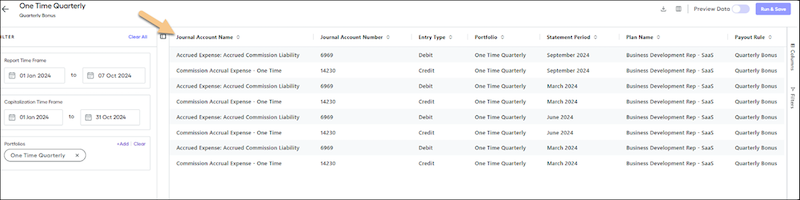
Scroll horizontally to see the periods captured in the report and view the commission amounts in each appropriate period.
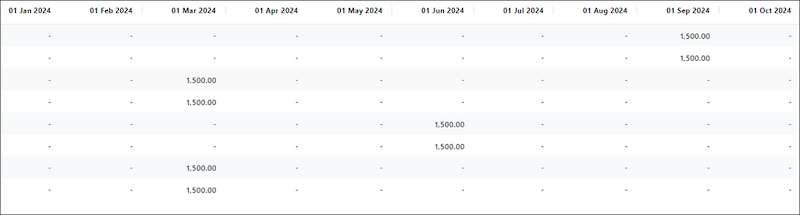
- **[Set Up a Commission Expense Report in Salesforce Spiff](https://help.salesforce.com/s/articleView?id=sales.spiff_expense_create.htm&release=264.0.0&type=5)**
To create a commission expense report, set up general ledger accounts, establish fringe benefit rules, and create a commission expense portfolio.
- **[Special Commission Expense Cases in Salesforce Spiff](https://help.salesforce.com/s/articleView?id=sales.spiff_expense_edge_cases.htm&release=264.0.0&type=5)**
Some commission expense scenarios in Salesforce Spiff require some creativity and workarounds.
- **[Set Up a Historical Commission Expense Report](https://help.salesforce.com/s/articleView?id=sales.spiff_expense_historical.htm&release=264.0.0&type=5)**
If your company has historical sales data from a system outside of Salesforce Spiff, you can include that data in a commission expense report.
# Commissions Summary Page in Salesforce Spiff
The Commissions Summary page is the landing page for admins upon login. The page shows an overview of all commission statements for the period and provides tools for reviewing, recalculating, syncing, and analyzing commission statements.
### Required Editions
Available in: both Salesforce Classic (not available in all orgs) and Lightning Experience
Available in: Enterprise, Unlimited, and Developer Editions
Available for an additional cost in: Professional Edition with Web Services API Enabled
The Commissions page provides an overview of all commission statements for the period.
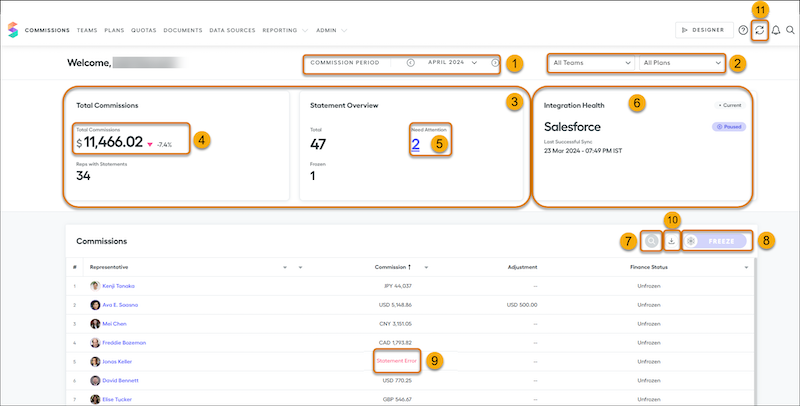
By default, the current commission period is shown. Use the Commission Period Selector (1) to choose the statement period. The periods for your instance can be weekly, biweekly, monthly, quarterly, or other custom cadences. The cadence was determined during your Salesforce Spiff implementation. Use the arrows to make incremental changes from period to period, or click the dropdown to navigate to periods much farther back in time easily.
Filter commission statements by team, plan, or both (2). Spiff hides archived plans by default. After you filter by team or plan, you can use the freeze button to freeze the data only for the selected team or plan.
Use the cards on this page (3) for a quick summary of the total commission amount across all reps for this period. You can filter by team or plan for a more specific plan/team total. Or, view a summary of errored or frozen statements.
You can have one or more reps whose statements are calculated in their preferred currency, but the Total Commissions metric (4) is calculated in the Corporate Currency. All commissions are converted to the corporate currency using the conversion rate effective at the end of the period. The commission amounts are then summed to arrive at the total amount displayed.
The Integration Health card (6) provides the date and time of the last successful sync. If an error has occurred, the status updates from Healthy to Sync Error and instruct you to either authenticate again or reach out to support.
On the Statement Overview card, click the number under Need Attention (5) to see a table of all statement errors for the period.
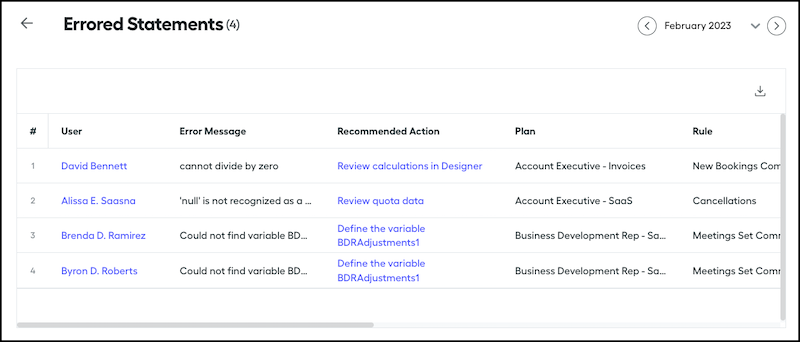
The Errored Statements table provides a more detailed look at users with errored statements. The table includes the error message, a link to the relevant location to fix the issue, and more. You can export this table.
The Commissions table provides a commission summary for each of the reps that have a calculated statement in the period. To sort the Commissions table, click the arrow next to a field name and select ascending or descending order. To remove or change the sort order, click again.
To find a particular rep, use the search (7).
To freeze or unfreeze all user statements from the selected statement period, click **Freeze** (8). Filter by a plan or team and freeze or unfreeze an individual plan or team. For details, see [Freezing and Unfreezing Statements](https://help.salesforce.com/s/articleView?id=sales.spiff_statements_freeze.htm&release=264.0.0&type=5 "Freezing statements locks the commission statements and prevents future recalculations from affecting the shown amount or fields. You can freeze individual statements, bulk-freeze multiple statements, and set up automatic statement freezing.").
The Commissions table shows finance status by indicating whether the statement is frozen or unfrozen. The table also shows adjustments and highlights statement errors in red text (9). Check for errors at the end of the period because statement errors don't appear in the exported statement.
To export a summary of all statements for the period in a Microsoft Excel worksheet, click the export button (10). The export includes commission amounts earned by each rep during the period and shows the commission amounts earned at the payout rule level.
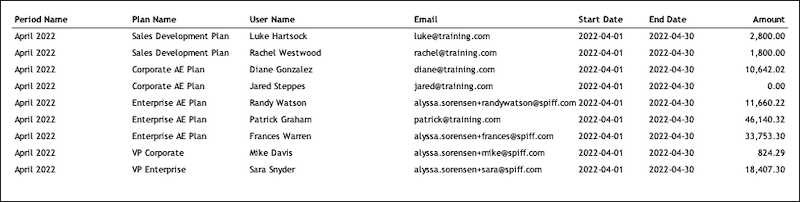
You can recalculate individual statements or recalculate all statements at once. To recalculate all unfrozen statements for all users for all periods, click the Global Sync icon (11) and select **Global Recalculate**. To resync any new data from a connector simultaneously, select **Sync Connectors & Recalculation**.
# Commit Calculator Dashboard
Use the Commit Calculator to test different scenarios and understand how changes to your pipeline can affect your bottom line.
### Required Editions
Available in: Revenue Intelligence, which is available for an additional cost in Enterprise and Unlimited editions.
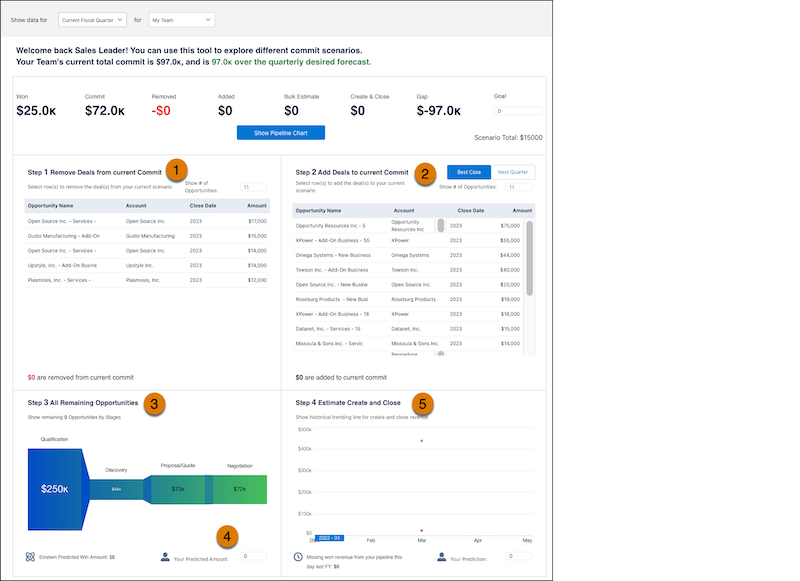
In the Commit Calculator, test scenarios to see their impact on your sales. Remove commits from your pipeline (1) or add deals to your pipeline (2). Test scenarios for remaining deals (3) and add the predicted amount for these deals not yet accounted for in the pipeline (4). Estimate deals created and closed (not accounted for in the pipeline) (5).
# Common Email Deliverability Hurdles
Review common obstacles to delivering your email to your recipient’s inbox. Understand what you can do to help your users receive all the email you send from Salesforce.
Available in: both Salesforce Classic and Lightning Experience
Available in: all editions
## Spam
Email spam, also known as junk email, is unsolicited messages sent in bulk by email. Most Internet Service Providers (ISPs) filter out spam from their users’ inboxes. More than 300 companies offer spam filtering services, although their filter logic varies. The most common spam filters are based on keywords or email content. Others use email volume, customer complaints, or blocklists in their filtering logic.
## Blocklists
Several high priority blocklists use a spamtrap or “honeypot” email address to identify spammers. The owner reserves these addresses and doesn’t use them to receive email. Any email sent to these reserved addresses is identified as spam. The blocklist owners plant these email addresses in various lists that can be purchased for sending mass unsolicited email. That’s why it’s important to never use purchased email lists. Only send email when you have obtained consent from the recipient to do so.
Salesforce monitors the IPs we use to send mail to make sure that they aren’t on the high priority blocklists. On the rare occasion that one of our IPs ends up on a major blocklist, we work as quickly as possible to identify the cause. We then work with the blocklist owner to clear the entry and with the customer that caused the issue. Usually, the cause of the issue is an accident or misunderstanding rather than a malicious action. Sometimes, we must remove an organization's ability to send mail while we work with them to clean up the issues that led to the blocklisting.
## Feedback Loops
Some email services provide the user with the option to flag email as spam. This action registers a complaint that some mailbox providers collect so they can provide visibility back to the senders. The sender can then remove the recipient from the specific campaign or database.
Salesforce collects this feedback loop data but doesn’t currently make it available to our customers.
## Allowlists
Salesforce sends email from a growing list of IP addresses. If your organization blocks any of these IP addresses, it can prevent users from receiving all emails sent from Salesforce.
We recommend that you avoid IP allowlists whenever possible and instead rely more on standard email security protocols (such as SPF, DKIM, and DMARC) to determine acceptance of email. For customers using Email Relay, we recommend that you use the standard email security mechanisms instead of restricting your relay to the Salesforce IPs.
If you must use an allowlist, then we recommend that you include all the Salesforce addresses used to send email. And don’t forget to regularly update your allowlist with changes published in the latest “Salesforce IP Addresses and Domains to Allow” knowledge article.
#### See Also
- [Email Security Mechanisms](https://help.salesforce.com/s/articleView?id=xcloud.emailadmin_security_mechanisms.htm&type=5&language=en_US)
- [Knowledge Base Article: Salesforce IP Addresses and Domains to Allow](https://help.salesforce.com/articleView?id=000321501&type=1&language=en_US)
- [Salesforce Agreement and Terms: Acceptable Use and External-Facing Services Policy](https://c1.sfdcstatic.com/content/dam/web/en_us/www/documents/legal/Agreements/policies/ExternalFacing_Services_Policy.pdf)
# Company Settings Considerations for Salesforce Spiff
Keep a few considerations in mind when working with company settings for Salesforce Spiff.
### Required Editions
Available in: both Salesforce Classic (not available in all orgs) and Lightning Experience
Available in: Enterprise, Unlimited, and Developer Editions
Available for an additional cost in: Professional Edition with Web Services API Enabled
Feature
Consideration
Data Syncing
To sync data from any connectors every night at approximately 11:00 PM Mountain Time USA,
leave this option turned on.
Fiscal Year Start Date
Changing the fiscal year start date can affect payout rules. The default value is January 1.
To reference fiscal year in your calculations, use the beginning_of_fiscal_year(), end_of_fiscal_year(), beginning_of_fiscal_quarter(), and end_of_fiscal_quarter() functions. See Year, Quarter, or Month Functions. If the fiscal year start date changes, check whether any of your calculations require updates.
Time Zone
Changing the time zone can affect time-sensitive data, such as deal close dates.
Corporate Currency
For total commissions, Spiff automatically converts statements calculated in a rep’s
preferred currency to the corporate currency using the rate from that statement period.
Replace the default Spiff logo with a custom logo.
#### See Also
- [Year, Quarter, or Month Functions](https://help.salesforce.com/s/articleView?id=sales.spiff_functions_date_period.htm&release=264.0.0&type=5 "Functions for the beginning and end of a year, quarter, or month in Salesforce Spiff help you compare data during the specified time period. Combine these functions with other functions that process dates.")
- [beginning\_of\_fiscal\_quarter](https://help.salesforce.com/s/articleView?id=sales.spiff_function_ref_beginning_of_fiscal_quarter.htm&release=264.0.0&type=5 "Returns the first day of the fiscal quarter for a specific date or time in Salesforce Spiff. The return format is YYYY-MM-DD. If you haven't specified fiscal year dates in Spiff, this function falls back to a standard calendar year.")
- [beginning\_of\_fiscal\_year](https://help.salesforce.com/s/articleView?id=sales.spiff_function_ref_beginning_of_fiscal_year.htm&release=264.0.0&type=5 "Returns the first day of the fiscal year for a specific date or time in Salesforce Spiff. The return format is YYYY-MM-DD. If you haven't specified fiscal year dates in Spiff, this function falls back to a standard calendar year.")
- [end\_of\_fiscal\_quarter](https://help.salesforce.com/s/articleView?id=sales.spiff_function_ref_end_of_fiscal_quarter.htm&release=264.0.0&type=5 "Returns the last day of the fiscal quarter for a specific date or time in Salesforce Spiff. The return format is YYYY-MM-DD. If you haven't specified fiscal year dates in Spiff, this function falls back to a standard calendar year.")
- [end\_of\_fiscal\_year](https://help.salesforce.com/s/articleView?id=sales.spiff_function_ref_end_of_fiscal_year.htm&release=264.0.0&type=5 "Returns the last day of the fiscal year for a specific date or time in Salesforce Spiff. The return format is YYYY-MM-DD. If you haven't specified fiscal year dates in Spiff, this function falls back to a standard calendar year.")
# Compare an Enablement Site and Trailhead
Trailhead is a free, online learning platform that’s a fun, engaging way for anyone to learn new skills and earn career credentials. Trailhead consists of a library of content that Salesforce has produced, intended to help anyone learn in-demand technical, business, and soft skills. With an enablement site, your company can implement that same platform on a separate, branded subdomain, and then deliver original content that fulfills your company’s learning requirements.
### Required Editions
Available in: Enterprise, Performance, and Unlimited Editions
## Similarities between an Enablement Site and Trailhead
An enablement site and Trailhead consist of the same building blocks for learning experiences:
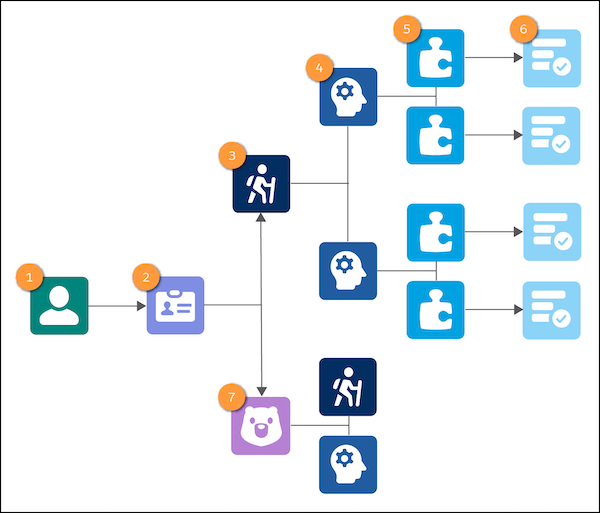
Learner (1)
A user who’s completing the learning experience.
Authentication Provider (2)
A service that validates a learner’s username and password for logging in.
Trail (3)
A guided, sequential path through multiple related modules, aimed at a learner’s specific role or objective.
Module (4)
A single learning topic, which consists of multiple units. A learner earns a badge for their profile by completing a module.
Unit (5)
A subtopic within a module. A unit identifies specific learning objectives that a learner can complete quickly, (typically in 10–20 minutes.
Assessment (6)
A quiz at the conclusion of a unit that evaluates the learner’s comprehension of the unit’s learning objectives. A learner earns points by completing the assessment.
Trailmix (7)
A custom set of learning content that can contain trails, modules, or links to custom content, such as a URL, video, or PDF. Anyone can create and share a trailmix, unlike a trail, which only a credentialed content publisher can create.
## Content Differences between an Enablement Site and Trailhead
Trailhead uses the full power of the Salesforce Platform to deliver some enhanced functionality that isn’t available for an enablement site.
Trailhead includes some content types that aren’t available in an enablement site:
Project
A hands-on activity where a learner follows steps to build an app, component, process, or workflow. A project can be standalone or included in a trail.
Superbadge
A large project that spans a feature area and provides a real-life business scenario that a learner must implement successfully.
Trailhead also supports another option for a unit’s assessment:
Hands-on Challenge
An assessment type that requires a learner to complete specific steps in an actual Salesforce org that they use for practice.
There are also differences in how content is available to learners through an enablement site versus Trailhead.
| Consideration | Enablement Site | Trailhead |
| --- | --- | --- |
| Where learners access content | Your company’s custom subdomain, such as https://your-company.my.trailhead.com | Publicly at https://trailhead.salesforce.com |
| Impact on your company’s budget | Paid license | Free to anyone |
| Publication frequency | Whenever you like | Whenever Salesforce publishes content |
## Authentication Considerations for an Enablement Site and Trailhead
When your company sets up an enablement site, you provide different content in a different environment than Trailhead.
For your company’s enablement site, users can log in using one of these authentication methods:
- Salesforce Identity for Enablement, which uses the Salesforce Identity access management service with your enablement site as a connected app.
- Trailblazer.me (TBID), which uses a separate profile that provides access to multiple Salesforce products.
The authentication provider that you choose determines how learners consume content across your enablement site and Trailhead. For a comparison of how these authentication providers affect your learning and enablement strategy, check out [Considerations for Selecting an Authentication Provider](https://help.salesforce.com/s/articleView?id=sales.mth_considerations_for_choosing_mytrailhead_identity.htm&release=264.0.0&type=5 "To help you determine which authentication provider is right for your company’s enablement site, review how each provider affects your learning and enablement strategy. We recommend that all new enablement sites choose Salesforce Identity for Enablement.") and [Considerations for Connecting Your Enablement Site to an Experience Cloud Site](https://help.salesforce.com/s/articleView?id=sales.mth_community_user_experience_on_mth.htm&release=264.0.0&type=5 "Before you enable Experience Cloud site members for your enablement site, review the impacts of some key decisions on your implementation. Evaluate how connecting your enablement site to an Experience Cloud site and how your authentication provider affect the user experience for Experience Cloud site members.")
#### See Also
- [User Roles for an Enablement Site](https://help.salesforce.com/s/articleView?id=sales.mth_mytrailhead_roles.htm&release=264.0.0&type=5 "Users in different roles engage with your enablement site throughout the content lifecycle. Depending on your company’s size and available talent, users can perform more than one role.")
- [Considerations for Selecting an Authentication Provider](https://help.salesforce.com/s/articleView?id=sales.mth_considerations_for_choosing_mytrailhead_identity.htm&release=264.0.0&type=5 "To help you determine which authentication provider is right for your company’s enablement site, review how each provider affects your learning and enablement strategy. We recommend that all new enablement sites choose Salesforce Identity for Enablement.")
- [Enablement Site User Menu Items](https://help.salesforce.com/s/articleView?id=sales.mth_user_menu.htm&release=264.0.0&type=5 "The menu that appears when a user clicks their avatar contains items for navigating different parts of your enablement site.")
- [_Trailhead:_ Your Guide to Trailhead](https://trailhead.salesforce.com/en/content/learn/modules/trailhead_basics)
- [_Trailhead:_ Build a Connected App for API Integration](https://trailhead.salesforce.com/content/learn/projects/build-a-connected-app-for-api-integration)
# Compare Boundaries in One Alignment with Another
Identify differences in boundary lines between the alignment you’re working on and another that you overlay in Territory Planning. Alignment overlays help you plan territories that complement sales and service efforts among multiple divisions in your company.
### Required Editions
Available in: both Salesforce Classic (not available in all orgs) and Lightning Experience
Available in: Professional, Enterprise, Performance, Unlimited, and Developer Editions with Web Services API enabled
User Permissions Needed
To modify alignments:
Sales Planning Ops Analyst permission set
AND
Query for Datapipelines User for Sales Planning permission set
AND
SF Maps Territory Planning for Sales Planning permission set
1. Open an alignment and set the focus.
2. From the Layers tab, click **Add Overlay**, then select **Alignment**. Click **Next**.
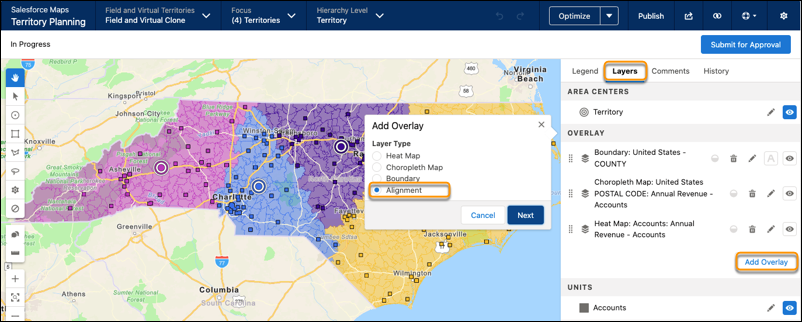
3. Select the alignment, its areas, and the hierarchy level that you want to overlay on the map.
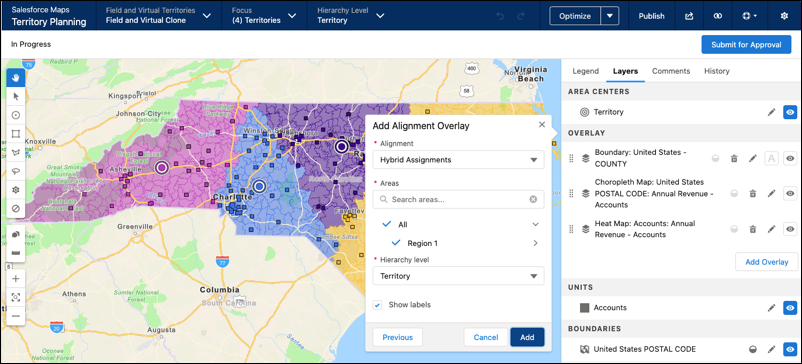
4. Click **Add**.
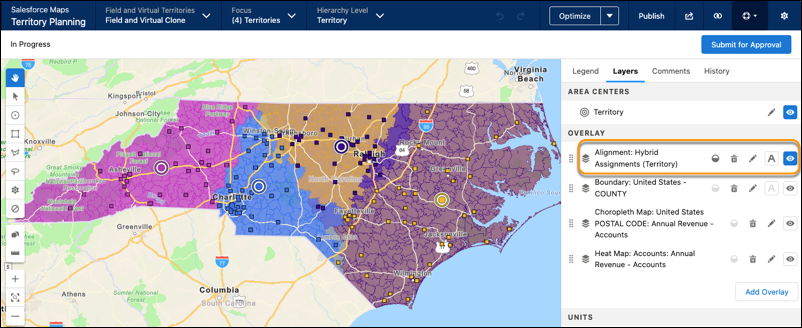
The alignment overlay appears on the map. Settings let you adjust opacity, as well as delete, edit, and hide the overlay.
# Compare Cadence Builder Classic and Cadence Builder 2.0
Understand the differences between Cadence Builder Classic and Cadence Builder 2.0.
### Required Editions
Available in: Lightning Experience
Available with Sales Engagement, which is included with Sales in Performance, Einstein 1, and Unlimited Editions, and available for an extra cost in Professional and Enterprise Editions. Sales Engagement is also available for an extra cost in Service and Lightning Platform.

Note Cadence Builder Classic (v1.0) will be retired in a future release. We recommend transitioning to Cadence Builder 2.0 for any new cadences your sales team needs to create. For more information, see [Cadence Builder 1.0 Retirement](https://help.salesforce.com/s/articleView?id=001040170&type=1&language=en_US).
These are the features provided by each version of the Cadence Builder.
| Feature | Cadence Builder Classic | Cadence Builder 2.0 |
| --- | --- | --- |
| Branching (responding to target engagements) |  Use rule and listener steps to branch based on call results and email engagements. |  Use track entry rules to change tracks based on call results or email engagements. |
| Rules |  |  |
| Listeners |  |  Used in track entry rules |
| Manual steps |  |  |
| Automated Steps |  |  |
| LinkedIn steps |  |  |
| Custom steps |  |  |
| Autolaunched flows |  |  |
| Screen flow steps |  |  |
| Call script and email template variant testing |  |  |
| Linked cadences |  |  |
| Cadence record details visible in builder |  |  |
| Create and edit email template in email step card |  |  |
| Create and edit call scripts in call step card |  |  |
| Exit rules |  |  |
| Save cadences to any public or private folder |  |  |
# Compare Einstein Activity Capture and Lightning Sync
Both Einstein Activity Capture and Lightning Sync help sales reps stay productive by syncing your Microsoft® or Google email, events, and contacts with Salesforce. Compare features, access, and support to understand what you get when you move to Einstein Activity Capture.
### Required Editions
Available in: Lightning Experience
Available with Einstein Activity Capture Standard in Sales in Starter, Pro Suite, Professional, and Enterprise Editions
Available with Unlimited Edition, Einstein 1 Sales Edition, and Agentforce 1 Edition
Available with Einstein for Sales, which is included in Einstein 1 Sales Edition and available for an extra cost in Enterprise and Unlimited Editions
Available with Sales Engagement, which is included with Sales in Performance and Unlimited Editions, and available for an extra cost in Professional and Enterprise Editions
Available with Revenue Intelligence, which is available for an extra cost in Enterprise and Unlimited Editions

Important
Starting in Winter ‘21, [Lightning Sync isn’t available](https://help.salesforce.com/apex/HTViewSolution?urlname=Lightning-Sync-End-of-Sale&language=en_US) to new Salesforce customers. Use Einstein Activity Capture to sync events, contacts, and emails between your connected account and Salesforce.
If you have Lightning Sync, use the [migration tool](https://help.salesforce.com/s/articleView?id=sales.lightning_sync_move_parent.htm&type=5&language=en_US) to move to [Einstein Activity Capture](https://help.salesforce.com/articleView?id=einstein_sales_aac.htm&language=en_US) before Lightning Sync retires in 2027. Before you migrate, review [Compare Einstein Activity Capture and Lightning Sync](https://help.salesforce.com/s/articleView?id=sales.email_integration_admin_eac_vs_lightning_sync.htm&language=en_US) to understand what to expect when you migrate.
If your org is exempt from migration because of a licensing issue or if your org doesn’t support Einstein Activity Capture, you won’t see the migration tool in Lightning Sync.
## Microsoft Integrations with Salesforce
Feature or Requirement
Einstein Activity Capture
Lightning Sync
Supported servers
Microsoft Exchange Online with Office 365®
Microsoft Exchange Server 2019, 2016, or 2013
Microsoft Exchange Online with Office 365®
Microsoft Exchange Server 2019, 2016, or 2013
Connection credentials
Exchange 2019, 2016, and 2013: You can use a user-level connection or provide
credentials to a service account in Salesforce.
Exchange Online with Office 365:
You can select a user-level connection, an org-level connection, or a service
account.
Exchange 2019, 2016, and 2013: Your Microsoft admin can provide credentials to a
service account in Salesforce that gives Salesforce impersonation access
user-by-user.
Exchange Online with Office 365: You can grant an org-level connection by
giving Salesforce access to your Exchange tenant using OAuth 2.0. A Salesforce admin or a
Microsoft admin can provide tenant credentials to a Microsoft site that admins are directed
to from Salesforce.
Salesforce admins follow prompts to create a configuration and define settings.
If using OAuth, Salesforce admins partner with their Microsoft admins. For a
user-level connection method or if you have Salesforce Inbox, users connect their
own accounts after a Salesforce admin completes the initial setup process. See Set Up Einstein Activity Capture for Your Team.
Exchange 2019, 2016, and 2013: Microsoft admins are required to complete an advanced
setup from your server environment. Next, Salesforce admins can enable features and roll out
Lightning Sync to users from Salesforce Setup.
Exchange Online with Office 365: Salesforce
admins can complete setup from Salesforce with some minor guidance from Microsoft
admins.
Einstein Activity Capture Standard is available to users on the
Standard Salesforce license with Sales purchase. Users with an add-on license get additional Einstein Activity Capture features.
Sales Cloud Einstein
Inbox
Sales Engagement
Revenue Intelligence
Users with Performance and Unlimited editions can access Einstein Activity
Capture features without an add-on license.
With the purchase of Sales, Service, or Lightning Platform, Lightning Sync
supports users working from these Standard licenses only.
*Does not include Lightning Platform Starter or Lightning Platform
Plus
**Contact sync isn’t supported for Lightning Sync customers
working from the user license Lightning Platform - One App. Lightning Platform - One App
doesn’t include the Contacts object.
Supported editions
Essentials
Starter Suite
Professional
Enterprise
Performance
Unlimited
Professional
Enterprise
Performance
Unlimited
Developer
Sync
Syncs emails, contacts, and events, including:
Event series (Lightning Experience and Salesforce app only)
Private events
Deleted events
Doesn’t automatically remove contacts that are deleted from the other
calendar application.
Syncs contacts and events, including:
Event series (Lightning Experience and Salesforce app only)
Private events
Deleted events
Doesn’t automatically remove contacts that are deleted from the other calendar
application.
Event sync directions
Microsoft to Salesforce
Salesforce to Microsoft
Both Ways
Exchange to Salesforce
Salesforce to Exchange
Both Ways
Configuration assignments
Salesforce admins create one or more Einstein Activity Capture configurations
and assign individual users or profiles to one configuration, managing settings for
everyone from the same place.
Developers can assign large groups of users to a
configuration using the API.
Salesforce admins can assign users to sync configurations by individual user and by
user profile.
Capture
Any emails and events that sales reps send and receive from Microsoft applications are
automatically associated with related account, contact, contract, lead, opportunity, and
quote records in Salesforce.
Admins can select a setting that relates synced events to
Salesforce records so that those events are available for reporting and other Salesforce
platform capabilities. Learn More
No capture functionality is available.
Admins can select a setting that relates
synced events to Salesforce records so that those events are available for reporting and
other Salesforce platform capabilities. Learn More.
Reporting
Use standard Salesforce reports.
Standard Salesforce reporting is available.
Storage
Synced data is stored in Salesforce. Captured data is stored using a public
cloud provider. See Einstein Activity Capture Data Retention and Deletion.
Einstein Activity Capture Standard is available to users on the
Standard Salesforce license with Sales purchase. Users with an add-on license get additional Einstein Activity Capture features.
Sales Cloud Einstein
Inbox
Sales Engagement
Revenue Intelligence
Users with Performance and Unlimited editions can access Einstein Activity
Capture features without an add-on license.
With the purchase of Sales, Service, or Lightning Platform, Lightning Sync
supports users working from these Standard licenses only.
Salesforce
Lightning Platform Salesforce Platform*
Lightning Platform - One App**
Lightning Platform App Subscription
*Does not include Lightning Platform Starter or Lightning Platform
Plus
**Contact sync isn’t supported for Lightning Sync customers
working from the user license Lightning Platform - One App. Lightning Platform - One App
doesn’t include the Contacts object.
Supported editions
Essentials
Starter Suite
Professional
Enterprise
Performance
Unlimited
Professional
Enterprise
Performance
Unlimited
Developer
Sync
Syncs emails, contacts, and events, including:
Private events
Deleted events
Doesn’t automatically remove contacts that are deleted from the other
calendar application.
Syncs contacts and events, including:
Private events
Deleted events
Doesn’t automatically remove contacts that are deleted from the other calendar
application.
Event sync directions
Google to Salesforce
Salesforce to Google
Both Ways
Google to Salesforce
Salesforce to Google
Both Ways
Configuration assignments
Salesforce admins create one or more Einstein Activity Capture configuration
and assign individual users or profiles to one configuration, managing settings for
everyone from the same place.
Developers can assign large groups of users to a
configuration using the API.
Salesforce admins can assign users to sync configurations by individual user and by
user profile.
Capture
Any emails and events that sales reps send and receive from Google applications are
automatically associated with related account, contact, contract, lead, opportunity, and
quote records in Salesforce.
Admins can select a setting that relates synced events to
Salesforce records so that those events are available in reporting and other Salesforce
platform capabilities.
No capture functionality is available.
Admins can select a setting that relates
synced events to Salesforce records so that those events are available in reporting and
other Salesforce platform capabilities. Learn More.
With an add-on license, users build relationships with customers using the
recommended connections feature. See Einstein Activity Capture Data Retention and Deletion
Not available.
#### See Also
- [Benefits of Migrating to Einstein Activity Capture](https://help.salesforce.com/s/articleView?id=sales.lightning_sync_move_why.htm&release=264.0.0&type=5 "Einstein Activity Capture is the long-term solution for syncing data between your Microsoft or Google account and Salesforce. In addition to contact and event syncing, Einstein Activity Capture offers email sync, more control over your data, and access to AI and agent powered features. Migrate now before Lightning Sync retires in 2027.")
- [Einstein Activity Capture](https://help.salesforce.com/s/articleView?id=sales.einstein_sales_aac.htm&release=264.0.0&type=5 "Eliminate manual data entry and transform a list of engagements into action. Einstein Activity Capture syncs your Microsoft or Google account with Salesforce, linking email and calendar activities to the relevant contacts, leads, and opportunities. Einstein Activity Capture gives your team and AI agents the critical context needed to make their next move.")
- [Einstein Activity Capture Security](https://help.salesforce.com/s/articleView?id=sales.activity_capture_security_overview.htm&release=264.0.0&type=5 "To protect your data and remain compliant, review the security features of Einstein Activity Capture. Security features include access and authentication, network access configuration, Exchange Web Services and Microsoft Graph API usage, data flow, storage, encryption, privacy, and retention policies.")
- [Lightning Sync](https://help.salesforce.com/s/articleView?id=sales.lightning_sync_admin_overview.htm&release=264.0.0&type=5 "Starting in Winter ’21, Lightning Sync isn’t available to new Salesforce orgs. Current users must migrate to Einstein Activity Capture before Lightning Sync retires in 2027. Also, if you use Lightning Sync with Microsoft Office 365 and Exchange Web Service (EWS), upgrade your authentication method to Microsoft Graph now to avoid service disruption. Microsoft announced that EWS is scheduled to retire in October 2026.")
- [Lightning Sync Security](https://help.salesforce.com/s/articleView?id=sales.lightning_sync_admin_security_parent.htm&release=264.0.0&type=5 "Lightning Sync is designed to sync contacts and events simply and securely between Salesforce and your Microsoft or Google email service. Learn about how that design impacts how data flow between systems and the configurations requirements you must meet to setup the product.")
# Compare Salesforce for Outlook (Retiring) with the Next Generation Products
Check out a high-level comparison of Salesforce for Outlook to the next-generation products, the Outlook Integration and Einstein Activity Capture.
### Required Editions
Outlook integration is available in Salesforce Classic and Lightning Experience in:
Essentials, Group, Professional, Enterprise,
Performance, Unlimited, and Developer Editions
Einstein Activity
Capture is available in Lightning Experience and all versions of the Salesforce mobile app
in Essentials, Professional, Enterprise, Performance, and
Unlimited Editions
Salesforce for Outlook is available in Salesforce Classic
and Lightning Experience in: Personal, Contact Manager, Professional,
Enterprise, Performance, Unlimited, and Developer
Editions

Important Full product retirement for Salesforce for Outlook is scheduled on January 30, 2027. See [Salesforce for Outlook Retirement](https://help.salesforce.com/s/articleView?id=000393445&type=1&mode=1&language=en_US). To keep integrating Microsoft Outlook with Salesforce, check out our next-generation products: the Outlook integration and Einstein Activity Capture. See [Move from Salesforce for Outlook (Retiring) to the Next-Generation Products](https://help.salesforce.com/articleView?id=outlookcrm_sfo_move_parent.htm&language=en_US).
For now, use this at-a-glance comparison to start thinking about your move to the next-generation products.
Keep in mind that we continue to introduce enhancements to the Outlook Integration and Einstein Activity Capture every release. Keep an eye on the [Salesforce Release Notes](https://releasenotes.docs.salesforce.com/en-us/latest/release-notes/salesforce_release_notes.htm) to see when enhancements become available. If the support you need isn't provided by our replacement products, consider reviewing third-party alternatives available from [AppExchange](https://appexchange.salesforce.com).
When you're ready to get a deeper understanding of the differences, review our detailed product comparisons. Later, we show you how to use these comparisons to narrow down which products are best for your sales teams.
- [Learn about the Support Differences Between Salesforce for Outlook (Retiring) and the Next-Generation Products](https://help.salesforce.com/s/articleView?id=sales.outlookcrm_sfo_move_compare_support.htm&release=264.0.0&type=5 "To prepare for your move from Salesforce for Outlook, review the Outlook integration and Einstein Activity Capture systems requirements and supported Salesforce licenses and editions.")
- [Learn about the Feature Differences Between Salesforce for Outlook (Retiring) and the Next-Generation Products](https://help.salesforce.com/s/articleView?id=sales.outlookcrm_sfo_move_compare_features.htm&release=264.0.0&type=5 "To help you decide whether the Outlook integration and Einstein Activity Capture are right for you, review how each compares to Salesforce for Outlook. Salesforce for Outlook is scheduled for full retirement in June 2024.")
Product Detail
Salesforce for Outlook
Outlook Integration and
Einstein Activity Capture
Supports older versions of Microsoft Outlook (Outlook 2010 and
earlier)
Supports all Salesforce editions
Supports Lightning Experience
Only if the user can move between Lightning Experience and Salesforce
Classic using the switcher.
Supports Salesforce Classic
Outlook Integration
only.
Supports Salesforce Mobile App
Sync only
Einstein Activity Capture only.
Supported with Sales and Service Cloud purchases
Outlook Integration only.
Supports sync for customers with both Exchange Online and on-premises
Exchange used simultaneously (also known as a “hybrid”
configuration)
Available for capture functionality with
Einstein Activity Capture only; no support for sync
functionality.
Customer can control which users' email accounts Salesforce has
access to
A side panel that lets users access Salesforce features from
Outlook
Lightning Experience and Salesforce app with
Einstein Activity Capture only. Learn
more
Task sync
Though with Outlook Integration, reps can work with Salesforce tasks
directly from Outlook.
Manually add Outlook email, contacts, and events to
Salesforce
Outlook Integration
only.
Automatically add Outlook email and events to Salesforce
Einstein Activity Capture only.
Custom field sync
Customize mappings for standard fields
Contact sync filters
Einstein Activity Capture only, with
limitations.
Event sync filters
Einstein Activity Capture
only, with limitations.
Remove deleted contacts from the other application
automatically
Remove deleted events from the other application
automatically
Einstein Activity Capture only.
Sync event attachments
# Comparing Contacts to Multiple Accounts to Other Options
Allowing your users to relate a contact to multiple accounts makes it easier for them to track the relationships between the people and businesses they work with. However, if you’re already using Account Contact Roles or a custom-built solution with a junction object, review a summary of how those solutions compare with Contacts to Multiple Accounts.
### Required Editions
Contacts to Multiple Accounts is available in: both Salesforce Classic and Lightning Experience
Contacts to Multiple Accounts is available in: Contact Manager, Group, Professional, Enterprise, Performance, Unlimited, and Developer Editions
Feature or Functionality
Contacts to Multiple Accounts
Account Contact Roles
Custom Junction Object
Standard objects
Yes
Yes
No
Custom fields
Yes
No
Yes
Custom layouts
Yes
No
Yes
Record types
No
No
Yes
Field history
No
No
Yes
Validation rules
Yes
No
Yes
Workflow
Yes
No
Yes
Process builder
Yes
No
Yes
Flow
Yes
No
Yes
Triggers
Yes
No
Yes
Custom actions
Yes
No
Yes
API accessible
Yes
Yes
Yes
Single related list
Yes
No
No
Multiple relationship rows in database
Yes
Yes
Applies to storage limits
Yes
Sharing and object permissions
Derived from Account and Contact
Derived from Account
Configured independently
Reporting
Custom report types
Standard report types
Custom report types
Custom report types
User interface
Salesforce Classic
Lightning Experience
Salesforce app
Salesforce Classic
Salesforce app (However, records in the Contact Roles
related list are read only, and the Role field isn’t available.)
Salesforce Classic
Lightning Experience
Salesforce app
#### See Also
- [Set Up Contacts to Multiple Accounts](https://help.salesforce.com/s/articleView?id=sales.shared_contacts_set_up.htm&release=264.0.0&type=5 "Let your sales reps easily track the relationships between the customers and businesses they work with. Contacts to Multiple Accounts is quick to set up and allows reps to relate a single contact record to multiple accounts.")
- [Considerations for Using Contact Roles](https://help.salesforce.com/s/articleView?id=sales.contactroles.htm&release=264.0.0&type=5 "Contact roles let you specify the part that a person plays in an account, case, contract, or opportunity. When you use contact roles, you have more information about who to contact and when. Examples of contact roles include decision maker, business user, and executive sponsor. There are some things to be aware of when using contact roles.")
- [Create a Many-to-Many Object Relationship](https://help.salesforce.com/s/articleView?id=platform.relationships_manytomany.htm&type=5&language=en_US)
# Competitor Fields
The fields for competitors help you track your competition as you work to close deals.
### Required Editions
Available in: Salesforce Classic
Available in: all editions in orgs activated before Summer ’09
Available in:
Group, Professional, Enterprise, Performance,
Unlimited, and Developer Editions in orgs activated after Summer
’09
A competitor has the following fields, listed in alphabetical order.
| Field | Description |
| --- | --- |
| Competitor Name | Name of competitor. You can enter any name, or select from the list of all competitors defined by your administrator. |
| Strengths | Description of competitor’s key selling points and advantages. |
| Weaknesses | Description of competitor’s key disadvantages. |
#### See Also
- [Track Your Competitors](https://help.salesforce.com/s/articleView?id=sales.competitors.htm&release=264.0.0&type=5 "Track competitors in a pending sale by listing the competitors’ names in the opportunity. You can enter the names of new competitors, or choose from a list of competitors defined by your administrator. To access this information, go to the Competitors related list of the opportunity.")
# Complete a Feedback Request Exercise with Einstein Coach
Practice and perfect your sales pitch by submitting a video call for feedback from Einstein Coach. Einstein Coach analyzes your call’s transcription and provides personal and actionable feedback, highlighting your key strengths and growth opportunities.
### Required Editions
Available in: Lightning Experience
Available with Einstein for Sales with an Enablement add-on in Performance and Unlimited Editions and for an extra cost in Enterprise Edition
User Permissions Needed
To complete Feedback Request exercises with Einstein Coach in Enablement
programs:
Take Enablement Programs
AND
Use Einstein Coach
If you’re enrolled in an Enablement program with a Feedback Request exercise that provides feedback from Einstein, complete these steps to get the most out of your AI-generated feedback.
1. Open the Feedback Request exercise with Einstein Coach.
2. Record a sales pitch for a product or solution. The pitch must include only one speaker and be recorded using Zoom Meetings, Google Meet, or Microsoft Teams. Calls recorded outside of these supported video recording providers aren’t supported.
3. Select your recording from the dropdown menu.
Recordings can take some time to appear in the dropdown menu. If you recorded a single-user video call using a supported recording provider and don’t see your recording, verify the recording has a finished transcript available in the video call’s record.
4. Verify you selected the correct recording. You can submit only one video call per exercise. Submitting the wrong video call can result in an error or in inaccurate feedback.
5. Click **Request Feedback from Einstein**.
6. Review the AI-generated feedback provided by Einstein.
7. Click **Mark as Complete**.
The feedback you received stays saved in the exercise. Return to it to view it again, go over it with your manager, or compare it to feedback from other Feedback Request exercises with Einstein Coach. You can also rate how helpful the feedback you received was. To share details about the feedback you received, click **Dislike** and then **Other**. Write out the feedback you want to share and click **Submit**. Your feedback is shared with Salesforce to continue improving the use of Einstein Coach.
#### See Also
- [Set Up Sales Cloud Einstein](https://help.salesforce.com/s/articleView?id=ai.einstein_sales_setup.htm&language=en_US)
# Complete Prerequisites for AI-Powered Selling Initial Setup
To set up Sales Cloud using AI-Powered Selling Initial Setup, turn on Data 360. Verify that you have required permissions and that the forecast type is set to Opportunity Revenue.
### Required Editions
Available in: Lightning Experience in Enterprise, Unlimited, and Agentforce 1 Sales editions with the Sales Foundation add-on.
## Turn On Data 360
Turn on and configure Data 360, which provides data visualization and insights for your sales users.
See [Turn On Data Cloud](https://help.salesforce.com/s/articleView?id=data.c360_a_setup_provision.htm&type=5&language=en_US).
## Assign Permissions to Admin
To turn on AI-Powered Selling Initial Setup, make sure that you have these permission sets assigned to you.
Permission Set
Use
Customize Application
Modify application settings.
Data Cloud Architect
Manage data governance.
Tableau Next Admin
Access the Tableau Next Administration page and enable Tableau Next in your
org.
Note This permission set is assigned to you when you turn on AI-Powered Selling
Initial Setup.
View Setup
View setup pages in Salesforce.
## Create an Opportunity Revenue Forecast Type
To show sellers their key performance insights on the Sales Workspace page per forecast period, create an opportunity revenue forecast type.
See [Configure and Activate Pipeline Forecast Types](https://help.salesforce.com/s/articleView?id=sales.forecasts3_enabling_data_sources.htm&language=en_US).
# Completion Statuses in Enablement Analytics
Prebuilt Enablement reports and dashboards show status values for programs, outcomes, milestones, and exercises.
### Required Editions
Available in: Lightning Experience
Enablement is available in Developer Edition with a limited number of add-ons. It is also available with Sales, Service, or the Salesforce Platform in: Enterprise, Performance, Unlimited, and Einstein 1 Sales Edition Editions for an additional cost
Enablement Lite is available with Sales in: Enterprise, Performance, and Unlimited Editions
Partner Enablement is available in Developer Edition with a limited number of add-ons. It is also available with Sales, Service, or the Salesforce Platform in: Enterprise, Performance, and Unlimited Editions for an additional cost. A supported PRM add-on license is required.
## Program Completion Statuses
| Completion Status | What the Status Tells You About the Program |
| --- | --- |
| Not started | Users have made no progress toward any program items, or the program’s start date is in the future. |
| On track | Users started the program and haven’t completed all program items, but the program’s due date is in the future. |
| Behind | Users started the program and haven’t completed all program items, but the program’s due date is in the past. |
| Completed on time | Users completed all program items before or on the program’s due date. |
| Completed late | Users completed all program items but at least one item was completed after the program’s due date. |
## Outcome and Milestone Completion Statuses
| Completion Status | What the Status Tells You About the Outcome or Milestone |
| --- | --- |
| Not completed | Users haven’t completed the outcome or milestone yet, but the item’s due date is today or in the future. |
| Behind | Users haven’t completed the outcome or milestone yet, but the item’s due date is in the past. |
| Completed on time | Users completed the outcome or milestone on or before the item’s due date. |
| Completed late | Users completed the outcome or milestone, but the item’s due date is in the past. |
| Overdue | Users haven’t completed the outcome or milestone, but the program due date is in the past. |
| No longer tracking | Users haven’t completed the outcome or milestone, and more than 30 days have passed after the program’s due date. |
In most cases, outcomes and milestones with the Behind or Overdue status are still tracked for up to 30 days after the program’s due date. Then, the status changes to No longer tracking, except in these two cases.
- The outcome or milestone uses an Einstein Conversation Insights (ECI) object, in which case progress is tracked only until the outcome’s or milestone’s due date.
- Your company contacted Salesforce Customer Support to change the number of days that milestones and outcomes are tracked beyond the program’s due date.
## Exercise Completion Statuses
| Completion Status | What the Status Tells You About the Exercise |
| --- | --- |
| Not completed | Users haven’t completed the exercise yet, but the exercise’s due date is today or in the future. |
| Behind | Users haven’t completed the exercise yet, but the exercise’s due date is in the past. |
| Completed on time | Users completed the exercise on or before the exercise’s due date. |
| Completed late | Users completed the exercise, but the exercise’s due date is in the past. |
| Overdue | Users haven’t completed the exercise, but the program’s due date is in the past. |
#### See Also
- [Considerations for Creating and Editing Measures](https://help.salesforce.com/s/articleView?id=sales.enablement_measures_considerations.htm&release=264.0.0&type=5 "Work with your business operations expert and other Enablement team members to carefully identify the objects and fields you want to use for tracking job-related activity. Before you start creating or editing measures, review how you can safely modify prebuilt measures or measures that are already used in published programs. See how you can preview measures, handle invalid measures, and create more elaborate measures using related and custom objects.")
- [Enablement Reports and Report Types](https://help.salesforce.com/s/articleView?id=sales.enablement_reports.htm&release=264.0.0&type=5 "Prebuilt reports are available for tracking users’ progress toward completing programs, milestones, exercises, and outcomes. If you want to create your own Enablement reports, several report types (also referred to as pre-designed custom report types) are also available.")
# Complex Visit Frequencies and Windows for Consumer Goods Reps
Suppose you’re a retail sales manager using Consumer Goods to support brick-and-mortar store accounts and seasonal retail pop-up stores. It can be a challenge to balance routes to maintain customer satisfaction and meet visit targets. And you want to avoid burning out your reps. Use this checklist to assemble your data and criteria before you generate routes in Salesforce Maps Advanced.
### Required Editions
The object that represents rep visits. In this scenario, rep visits are
represented by visit records in Consumer Goods, so you add a lookup relationship to
the visit object in Routes & Schedule in Setup.
Routable object for location data
The object containing the locations of your retail accounts. In this scenario, you use
the Retail Store object, with location information in that object.
With location data you
can generate the most efficient routes for your reps.
Visit frequency and visit windows
In this scenario, the Retail Stores object contains formula fields for minimum and
maximum days between visits derived from quarterly visit requirements. The Retail Stores
object looks up to visit windows that contain standard business hours and temporary visit
windows for seasonal businesses.
Visit object
The object containing data about whether your reps have completed a visit. In
this scenario, your visit object is the Visit object in Consumer Goods.
Assigned accounts
Accounts are assigned to reps through a user lookup field on the routable object. In
this scenario, the account owner is responsible for visiting stores. When you generate
routes, the optimization process adds stops to your reps’ schedules for the accounts that
they own.
Visit timeframe
You’re generating routes for the fourth quarter of the calendar year, so your start
date is October 1 and the end date is December 31.
Maximum shift length and other settings
Your field reps have a maximum shift of 7 hours.
## Example for Determining Days Between Visits
Your customers expect three visits every quarter.
Determine
By Using this Method
Maximum days
Calculate the number of days in the quarter.
90 days / 3 months = 30 days maximum
between visits
Minimum days
Decide on a number of days between visits that’s less than 30 so that optimizations
can adjust visit schedules and increase the likelihood of achieving full coverage.
## Customers Who Require Special Visit Schedules
When visit requirements for customers vary, you can route reps through the same neighborhoods multiple times. To help your reps avoid repeat trips through the same neighborhoods on different days, cluster visits geographically. To do so, determine a common denominator for the minimum days between visits such as 7, 14, 21, or 28.
#### See Also
- [_Salesforce Help_: Retail Execution for Sales Managers](https://help.salesforce.com/s/articleView?id=ind.retail_concept_user_field_reps.htm&type=5&language=en_US)
# Compliance
Salesforce compliance standards apply to Einstein Activity Capture data stored on the Activity Platform Hyperforce infrastructure. Einstein Activity Capture data adheres to the same compliance standards as other Salesforce services.
### Required Editions
Available in: Lightning Experience
Available with Einstein Activity Capture Standard in Sales in Starter, Pro Suite, Professional, and Enterprise Editions
Available with Unlimited Edition, Einstein 1 Sales Edition, and Agentforce 1 Edition
Available with Einstein for Sales, which is included in Einstein 1 Sales Edition and available for an extra cost in Enterprise and Unlimited Editions
Available with Sales Engagement, which is included with Sales in Performance and Unlimited Editions, and available for an extra cost in Professional and Enterprise Editions
Available with Revenue Intelligence, which is available for an extra cost in Enterprise and Unlimited Editions

Note We’re reorganizing the Einstein Activity Capture documentation. We’re moving some information around, but we aren’t deleting anything.
For details, see the [Salesforce Trust](https://www.salesforce.com/company/legal/trust-and-compliance-documentation/) documentation.
Salesforce encrypts data, keeps it separate, and honors user privacy settings. Admins can exclude or delete data to meet compliance needs.
Data moves from the email system to the Activity Platform Hyperforce infrastructure, where it’s protected by the same safeguards as Salesforce platform data. Admins manage retention, exclusion, and sharing settings to align with company policies.
# Components of the Salesforce Spiff Commission Estimator
The Commission Estimator app includes a breakdown of the estimated commission according to Salesforce Spiff payout rules. The estimator also shows a bar graph of the quota attainment progress.
### Required Editions
Available in: both Salesforce Classic (not available in all orgs) and Lightning Experience
Available in: Enterprise, Unlimited, and Developer Editions
Available for an additional cost in: Professional Edition with Web Services API Enabled
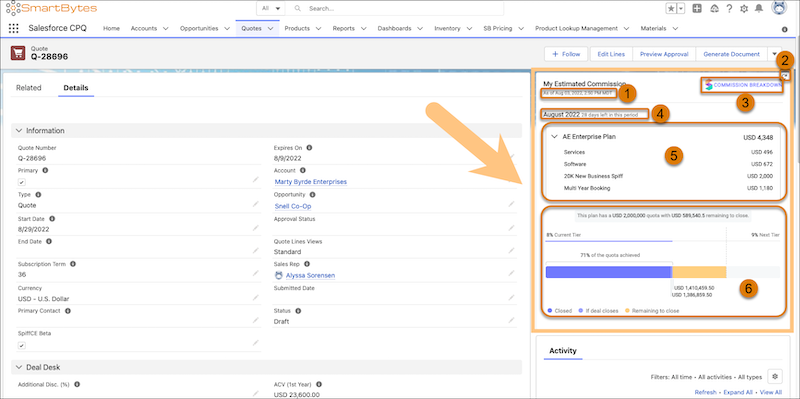
## Time Stamp (1)
The time stamp shows the last time the estimate was updated. When you change the quote or opportunity, the time stamp is updated.
## Refresh (2)
Trigger a manual refresh of the estimate. This option is available only if the Commission Estimator app is on the Quote or Opportunity record details page.
The estimate is refreshed automatically when you modify data from this record page or when you refresh the full record page.
## Commission Breakdown (3)
Open the detailed Spiff commission statement for the current period, including all rules that also visible for the statement in Spiff.
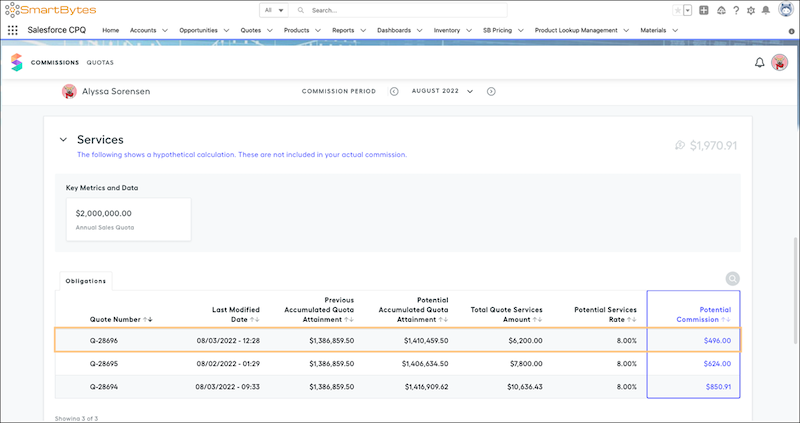
A hypothetical rule appears in the statement only if the Spiff admin turned on What-If? for the rule. If the admin turned on Ghost for the rule, the rule isn't visible in the commission estimate calculations. The fields that are available for each rule also depend on your admin's customizations.
You can generate on-the-fly commission estimates in Salesforce CPQ, but those quotes and opportunities aren’t automatically written to the Spiff database. All quote and opportunity records are visible to the rep in their Spiff statement only after they’re synced, either during the nightly sync or after a Spiff admin triggers a global resync manually.
To trace a calculation and see how the commission was estimated, click a record.
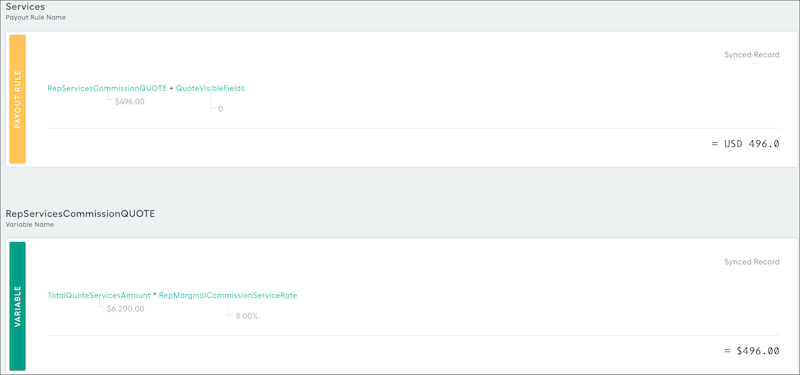
## Statement Period (4)
The statement period matches the current statement period in Spiff.
## Payout Rule Breakdown (5)
The plan total is the sum of payout rules that your admin enabled as Commission Estimator rules. Each hypothetical rule is built in Spiff, with logic that considers specific properties of the quote or opportunity.
For example, a quote with line items in the Services product family received a commission for Services. Similarly, the quote contained line items with the Software product family, so the appropriate commission for that category was calculated. In this example, commission was also awarded if the total ARR of the deal is more than $20,000 and if the deal was a multi-year booking.
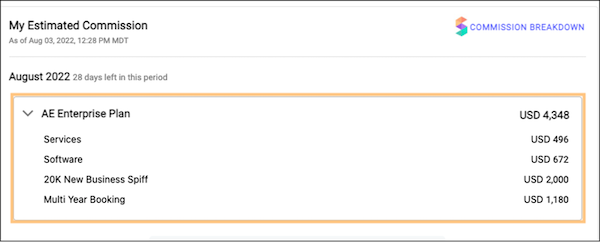
## Quota Attainment Graph (6)
The quota attainment graph is shown only if your admin has configured it.
The estimator supports one quota per plan. If you have multiple quota targets on multiple plans, your admin can select only one quota target to show in the graph.
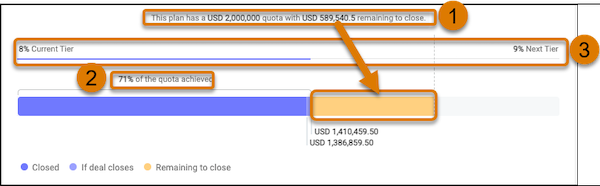
The graph shows this information.
- The rep's quota target and remaining amount (1). The remaining amount includes the amount of quota relief if the quoted deal closes.
- The percent progress of achieving the quota target (2).
- The percent progress toward achieving commission rate tiers (3). Sometimes there are different commission rates associated with each rule on a plan. For example, Services and Software can have different tiered rates. Your admin selects a rate to show in the graph.
# Configure a Lead Scoring Solution
If you want help prioritizing your leads, set up Einstein Lead Scoring or a third-party scoring solution.
### Required Editions
Available in: Lightning Experience
Available with Sales Engagement, which is included with Sales in Performance, Einstein 1, and Unlimited Editions, and available for an extra cost in Professional and Enterprise Editions. Sales Engagement is also available for an extra cost in Service and Lightning Platform.
User Permissions
Needed
To set up Sales Engagement:
Customize Application AND Modify All Data
- **[Set Up Einstein Lead Scoring for Sales Engagement](https://help.salesforce.com/s/articleView?id=sales.hvs_setup_configure_lead_scoring.htm&release=264.0.0&type=5)**
If you’re using Einstein Lead Scoring for the first time, enable and configure Einstein Lead Scoring in Setup.
- **[Set Up Third-Party Prospect Scoring for Sales Engagement](https://help.salesforce.com/s/articleView?id=sales.hvs_setup_configure_custom_scores.htm&release=264.0.0&type=5)**
Configure third-party scores for person accounts, contacts, or leads. Show scores on records, and use scores to sort the Work Queue.
# Configure Access to Thanks Badges
Configure access to a thanks badge using its Access related list.
### Required Editions
Available in: Salesforce Classic
WDC is available for existing WDC customers in Professional Edition,
Enterprise Edition, Performance Edition, Unlimited Edition, and
Developer Edition.

Important Starting in Spring ’22, WDC isn’t available to new Salesforce customers. For existing customers, WDC features and records from Badges, Skills, and Thanks aren’t affected and will remain available in the application beyond Spring ’22. WDC Goals, Coaching, Feedback, Performance, and Rewards features won’t appear in the application anymore, and records created previously will no longer be accessible.

Note On May 1, 2020, we rebranded this suite. It's now called WDC.
1. From the **Badges** tab, click the badge you’d like to modify.
If you don’t see the Badges tab, click  to the right of your current tabs and select it from the All Tabs page.
2. Under the Access related list, click **Edit List**.
3. Enter the public groups or users you want to grant access to.
You can only grant access to users with supported licenses.
4. Click **Save**.
#### See Also
- [Thank Coworkers](https://help.salesforce.com/s/articleView?id=sales.recognition_overview.htm&release=264.0.0&type=5 "Thank your coworkers by posting badges to their Chatter feed.")
- [Create a Badge](https://help.salesforce.com/s/articleView?id=sales.badge_creating.htm&release=264.0.0&type=5 "Create custom badges to recognize and thank your coworkers.")
# Configure and Activate Pipeline Forecast Types
Let your sales team choose between forecast types to project sales from multiple perspectives.
### Required Editions
Available in: Lightning Experience
Available in: Professional, Performance, and Developer Editions and in Enterprise and Unlimited Editions with Sales
Custom measure forecasts available in: Performance Edition and in Unlimited Edition with Sales
User
Permissions Needed
To create and manage a forecast type:
Customize Application
AND
View Setup and Configuration
To customize the opportunity list in a forecast type:
Customize Application
AND
Manage Public List Views
Forecast types start with selecting the object you want to forecast on. Before creating a forecast type, make sure that you’re working in Lightning Experience. Also make sure that the object you want to use in the forecast type is set up correctly. Check your [field-level security settings](https://help.salesforce.com/s/articleView?id=sfadmin_fls.htm&language=en_US), and make sure that the opportunity Amount and Quantity fields, and any fields you want to forecast on are visible.
In addition, check the following based on the object you plan to use.
- To forecast on Opportunity Split, make sure that [opportunity splits](https://help.salesforce.com/s/articleView?id=sales.teamselling_opp_splits_enable.htm&type=5&language=en_US) are enabled.
- To forecast on Opportunity Product Split, make sure that [opportunity product splits](https://help.salesforce.com/s/articleView?id=sales.teamselling_set_up_product_splits.htm&type=5&language=en_US) are enabled.
- To forecast on Line Item Schedule, make sure that [product schedules](https://help.salesforce.com/s/articleView?id=sales.enabling_schedules.htm&type=5&language=en_US) is enabled, and that the Service Date field on OpportunityLineItem or the Product Family field on Product2 is available.
- To group forecasts into unique segments, make sure that you have custom picklists defined or product families defined.
1. From Setup, in the Quick Find box, enter Forecasts Settings, and then select **Forecasts Settings**.
2. In the Available Forecasts Types section, click **Create a Forecast Type** and follow the onscreen setup flow to define and save the forecast type.
3. To complete the setup flow, click **Done**.
The new forecast type appears in the list of available types on the Forecasts Settings page. Your new type has an inactive status.
4. To make the new forecast type available on the forecasts page, return to the Forecasts Settings page and select **Activate** from the quick actions for the forecasts type.
You can have up to four active pipeline forecast types at one time. If you require more active forecast types, contact Salesforce Customer Support. To edit an active forecast, such as changing the custom columns, or choosing the columns to display, select the action you need from the quick actions list for the active forecast. Filter definitions aren’t editable after activating or reactivating a forecast type.
If you select to group by product family, return to Forecasts Settings and select the families to use in the Manage Product Family Groupings section.

Warning Deactivating a forecast type deletes the related forecasting data If the forecast type is reactivated, the filter definitions aren’t editable.
#### See Also
- [Pipeline Forecast Types](https://help.salesforce.com/s/articleView?id=sales.forecasts3_forecast_types_overview.htm&release=264.0.0&type=5 "Forecast types represent your sales teams’ projected sales from a different perspective. Each type can be set up to use different data, measures, dates, and filters to gather the forecast information that is most relevant to your business.")
# Configure Buttons and Actions in Salesforce Maps
Control which actions users can perform by creating a button set. Assign different sets to different permission groups. You can also create custom actions that open web pages, load Lightning web components, or trigger flows directly from a map marker.
### Required Editions
Available in: Lightning Experience and Salesforce Classic
Available in: Professional, Enterprise, Performance, Unlimited, and Developer Editions
User Permissions Needed
To configure Maps features:
Customize Application
Button sets and custom actions work together: create the actions you need, and then group them into a button set that you assign to a permission group.
- [Create a Button Set](https://help.salesforce.com/s/articleView?id=sales.salesforce_maps_setup_button_set_create.htm&release=264.0.0&type=5 "A button set controls which actions users can perform in Salesforce Maps. Create a set, and then assign it to a permission group.")
- [Create a Custom Action Button](https://help.salesforce.com/s/articleView?id=sales.salesforce_maps_setup_custom_action_create.htm&release=264.0.0&type=5 "Create a custom action that opens a web page, loads a Lightning web component, or triggers a flow directly from a map marker.")
- **[Create a Button Set in Salesforce Maps](https://help.salesforce.com/s/articleView?id=sales.salesforce_maps_setup_button_set_create.htm&release=264.0.0&type=5)**
A button set controls which actions users can perform in Salesforce Maps. Create a set, and then assign it to a permission group.
- **[Create a Custom Action Button in Salesforce Maps](https://help.salesforce.com/s/articleView?id=sales.salesforce_maps_setup_custom_action_create.htm&release=264.0.0&type=5)**
Create a custom action that opens a web page, loads a Lightning web component, or triggers a flow directly from a map marker.
# Configure Campaign Influence
To enable Campaign Influence 1.0, add the Campaign Influence related list to Opportunity page layouts and decide whether to configure the optional auto-association settings.
### Required Editions
Available in: Salesforce Classic
Available in: Salesforce Professional, Enterprise, Performance, Unlimited, and Developer Editions
User Permissions
Needed
To set up Campaign Influence:
Customize Application

Note This information applies only to Campaign Influence 1.0 and not to [Customizable Campaign Influence](https://help.salesforce.com/s/articleView?id=sales.campaigns_influence_customizable.htm&type=5&language=en_US) .
1. From Setup, in the Quick Find box, enter Opportunities, and select **Page Layouts**.
2. Select a page layout to work with.
3. Drag in the Campaign Influence related list.
4. To turn on auto-association, enter Influence in the Quick Find box, open **Auto-Association Settings**, and then select **Enabled**.
5. To customize auto-association, enter a time frame or other rules to limit when a campaign is auto-associated.
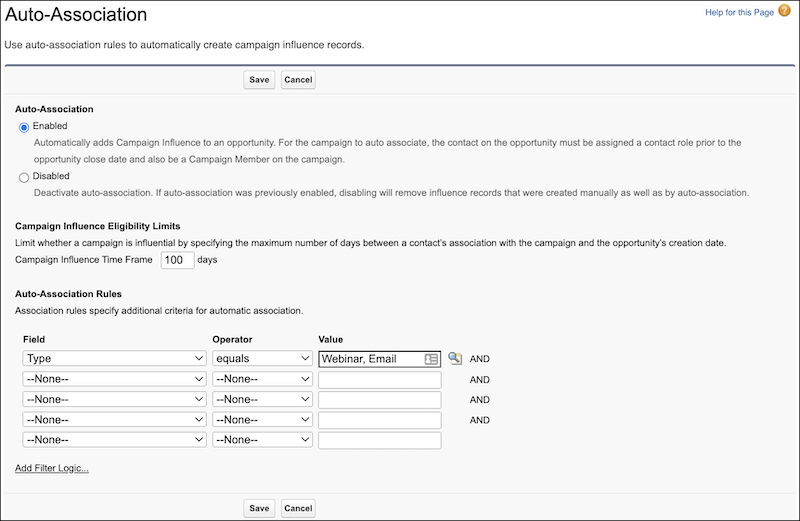
6. Save your work.
When auto-association is enabled and the campaign meets the criteria that you specified, it’s added automatically to the related list on an open opportunity. The entry includes the contact’s name, contact role, and campaign member status.
If you don’t enable auto-association, users manually add campaigns to the related list.
# Configure Child Object Mappings for the Salesforce Spiff Commission Estimator
Update custom settings to add child object mappings.
### Required Editions
Available in: both Salesforce Classic (not available in all orgs) and Lightning Experience
Available in: Enterprise, Unlimited, and Developer Editions
Available for an additional cost in: Professional Edition with Web Services API Enabled
User Permissions Needed
To edit Salesforce object field sets:
(Salesforce) Customize Application
To edit Salesforce custom settings:
(Salesforce) Customize Application
In this example, configure the Opportunity Split child object.
## Create a Field Set for the Child Object
1. From the Object Manager in Setup, select the Opportunity Split object.
2. On the Details tab, copy the object's API name, `OpportunitySplit`.
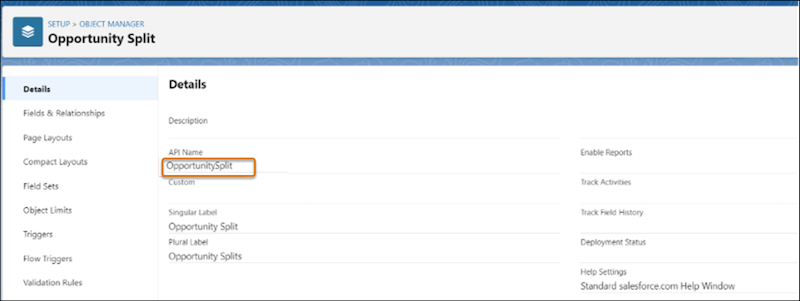
3. Select **Field Sets**.
4. Click **New** and enter these values.
Field Set Label
Spiff Opportunity Split Commission Field
Field Set Name
Spiff_Opportunity_Split_Commission_Field, which is the API name of the field set
Where is this used?
Any value
5. Drag fields you want to add to the field set, and save your changes.
## Update Custom Settings
1. From Setup, in the Quick Find box, enter Custom Settings, and then select **Custom Settings**.
2. For Child Object Mapping for Spiff, click **Manage**.
3. Click **New** and enter these details.
Name
A name for the mapping
Parent Object API Name
Opportunity
Child Object API Name
OpportunitySplit, the API name of the child object you added a field set to
Child Object Fieldset API Name
Spiff_Opportunity_Split_Commission_Field, the API name of the field set you created
Active
Enabled
4. Save your changes.
#### See Also
- [Calculate Joint Commissions with Opportunity Splits in Salesforce Spiff](https://help.salesforce.com/s/articleView?id=sales.spiff_opportunity_splits.htm&release=264.0.0&type=5 "When multiple people contribute to closing a deal, opportunity splits help make sure that each person receives credit. In Salesforce Spiff, you can set up commission calculations based on opportunity splits synced from Salesforce. A deal can have multiple splits, and a split type can be revenue, overlay, or a custom type.")
- [About Field Sets](https://help.salesforce.com/s/articleView?id=platform.fields_about_field_sets.htm&type=5&language=en_US)
# Configure Contact Filters for Salesforce for Outlook (Retiring)
Specify which contacts sync between Microsoft® Outlook® and Salesforce for your sales teams.
### Required Editions
Available with the purchase of Sales Cloud or Government Cloud in: Personal, Contact Manager, Professional, Enterprise, Performance, Unlimited, and Developer Editions
User Permissions Needed
To view configurations:
View Setup and Configuration
To create, edit, or delete
configurations:
Manage Email Client Configurations
To filter contacts by opportunity
teams:
Opportunity Team Selling
To filter contacts by account
teams:
Account Teams
To create, edit, or delete datasets
:
Sync Direction can't be Don't
sync

Important Full product retirement for Salesforce for Outlook is scheduled on January 30, 2027. See [Salesforce for Outlook Retirement](https://help.salesforce.com/s/articleView?id=000393445&type=1&mode=1&language=en_US). To keep integrating Microsoft Outlook with Salesforce, check out our next-generation products: the Outlook integration and Einstein Activity Capture. See [Move from Salesforce for Outlook (Retiring) to the Next-Generation Products](https://help.salesforce.com/articleView?id=outlookcrm_sfo_move_parent.htm&language=en_US).
Datasets consist of filters that limit what records sync. For example, you want to let certain users sync all contacts, but let other users sync only contacts related to their opportunity teams. In addition, you can filter by the fields in the records, such as letting users sync only contacts related to specific accounts and opportunities.
The Outlook Configuration detail page shows a summary of the configuration's current filters.

Note If your company uses Platform Encryption, you can’t set filters on fields you encrypted. Otherwise, Salesforce for Outlook can’t sync contacts, events, or tasks for users assigned to that configuration.
1. [Define a data set](https://help.salesforce.com/s/articleView?id=sales.outlookcrm_config_def_data_sets.htm&release=264.0.0&type=5 "Datasets consist of filters that limit what records sync. Each configuration must have a dataset in order for users to sync with Outlook.") for a configuration.
2. Under Filter By Record Ownership, specify the contacts users can sync.
3. If you choose **Selected Contacts**, you can further limit which contacts users sync.
For
To allow users to sync
Select
Contacts
All contacts that they own
User's Records
All contacts they and their subordinates in
the role hierarchy own
User's Team's
Records
Contacts on
Opportunities
Contacts related to their
opportunities
User's Records
Contacts related to opportunities that they
and their subordinates in the role hierarchy
own
User's Team's
Records
Contacts related to opportunities of which
they are members of opportunity teams, but not
opportunities that users own
User's Opportunity Teams'
Records
Contacts on Accounts
Contacts related to their accounts
User's Records
Contacts related to accounts they and their
subordinates in the role hierarchy own
User's Team's
Records
Contacts related to accounts of which they
are a team member, but not accounts that users
own
User's Account Teams'
Records
4. Under Filter By Additional Objects and Fields, add the field-level filters you need.
1. Select an object and a field within that object.
2. Select the correct filter operator.
3. Enter a value for the selected field.
5. To add a filter, click **Add Row**; to delete the last one in the list, click **Remove Row**.
6. Under Other Contacts to Include, you can choose to have Chatter contacts automatically sync for users of this configuration. To do this, select Sync contacts users follow in Chatter.
#### See Also
- [Salesforce for Outlook (Retiring) Contact Filters](https://help.salesforce.com/s/articleView?id=sales.outlookcrm_config_filter_tips.htm&release=264.0.0&type=5 "Contact filters control the number of records that Salesforce for Outlook users can sync between Outlook and Salesforce. Review these tips when using contact filters.")
- [Define Datasets for Salesforce for Outlook (Retiring)](https://help.salesforce.com/s/articleView?id=sales.outlookcrm_config_def_data_sets.htm&release=264.0.0&type=5 "Datasets consist of filters that limit what records sync. Each configuration must have a dataset in order for users to sync with Outlook.")
- [Check the Size of Salesforce for Outlook (Retiring) Datasets](https://help.salesforce.com/s/articleView?id=sales.outlookcrm_config_test_size.htm&release=264.0.0&type=5 "You can use the Get Record Count button to check how many records sync for a sample Salesforce for Outlook user based on the configuration's filters. If the numbers are too high or low, you can adjust the filters and check the size again. The maximum record count is 5000 per object.")
- [Sample Lightning Sync and Salesforce for Outlook (Retiring) Datasets](https://help.salesforce.com/s/articleView?id=sales.outlookcrm_sample_data_sets.htm&release=264.0.0&type=5 "Because users with the same role usually have similar data sync requirements, many administrators create sync configurations based on the positions in their organization. The following sample datasets are for common Salesforce groups. Your Salesforce for Outlook and Lightning Sync users have unique needs, but you can use these examples as a reference to help you get started creating Outlook configurations (for Salesforce for Outlook users) and Lightning Sync configurations (for Lightning Sync users).")
# Configure Data 360 for Consumption Forecasting
To set up Consumption Forecasting, enable and configure Data 360 so you can leverage the data effectively. Enable Data 360 in the same Salesforce org.
### Required Editions
Available in: Lightning Experience
Available in: Enterprise, Unlimited in Sales, and in Agentforce 1 Sales Edition
## Set Up a Data 360 Admin User
Before turning on Data 360 for Consumption Forecasting, you need to set up an admin user. See [Set Up a Data Cloud Admin User](https://help.salesforce.com/s/articleView?id=data.c360_a_setup_walkthrough.htm&type=5&language=en_US).
## Turn On Data 360
In Setup, enable Data 360 to access your forecasting data in Consumption Forecasting. See [Turn On Data Cloud](https://help.salesforce.com/s/articleView?id=data.c360_a_setup_provision.htm&type=5&language=en_US).
# Configure Data 360 for Opportunity Scoring
To set up Opportunity Score, enable and configure Data 360 so you can leverage the data effectively. Enable Data 360 for your Salesforce org. Data Cloud One is supported.
### Required Editions
Available in: Lightning Experience in Performance and Unlimited editions with Sales Cloud. In Enterprise Edition with Sales Cloud, this feature requires the Agentforce or Revenue Intelligence add-on.
## Set Up a Data 360 Admin User
Before turning on Data 360 for Opportunity Score, you need to set up an admin user. See [Set Up a Data Cloud Admin User](https://help.salesforce.com/s/articleView?id=data.c360_a_setup_walkthrough.htm&type=5&language=en_US).
## Turn On Data 360
In Setup, turn on Data 360 so Opportunity Score can use your CRM and related data in Data 360. See [Turn On Data Cloud](https://help.salesforce.com/s/articleView?id=data.c360_a_setup_provision.htm&type=5&language=en_US).
# Configure Data 360 for Prospecting Center
To set up Prospecting Center, enable and configure Data 360 so you can leverage the data effectively. Data 360 can be enabled in any Salesforce org.
### Required Editions
Available in: Lightning Experience
Available with Sales Engagement, which is included with Sales in Performance, Unlimited Editions, Agentforce 1 Edition, and available for an extra cost in Professional and Enterprise Editions. Sales Engagement is also available for an extra cost in Service and Lightning Platform.

Important Prospecting Center is scheduled for retirement in all Salesforce orgs as of April, 2026. For existing customers, Prospecting Center remains available till April 2027.
## Set Up a Data 360 Admin User
Before turning on Data 360 for Prospecting Center, you need to set up an admin user. See [Set Up a Data Cloud Admin User](https://help.salesforce.com/s/articleView?id=data.c360_a_setup_walkthrough.htm&type=5&language=en_US).
## Turn On Data 360
In the Setup, enable Data 360 to access your account data in the Prospecting Center App. See [Turn On Data Cloud](https://help.salesforce.com/s/articleView?id=data.c360_a_setup_provision.htm&type=5&language=en_US).
## Turn On Segments
To create segments, turn on Segmentation. See [Create Segments and Activate](https://help.salesforce.com/s/articleView?id=data.c360_a_segments.htm&language=en_US).
## Manage Data Spaces
In Data 360, use the default or create new data spaces, to organize and work on data that is relevant to you. See [Manage Data Spaces](https://help.salesforce.com/s/articleView?id=data.c360_a_data_spaces.htm&language=en_US).

Note Prospecting Center is compatible with Data Cloud One. See [Set Up a Data Cloud One Companion Connection](https://help.salesforce.com/s/articleView?id=data.c360_a_companion_connection_setup.htm&language=en_US).
- **[Define Data Segments for Prospecting Center](https://help.salesforce.com/s/articleView?id=sales.pc_define_data_segments.htm&release=264.0.0&type=5)**
You’re ready to create segments now that the data has been ingested and mapped to a unified profile. Marketers define segments depending on the potential customers they want to target, such as people potentially interested in a product or service. Your data segments are specific to your business. For example, a segment can be people who have downloaded your white paper or visited your website more than once.
- **[Create Identity Resolution Rules for Prospecting Center](https://help.salesforce.com/s/articleView?id=sales.pc_create_identity_resolutions.htm&release=264.0.0&type=5)**
Identity Resolution uses matching and reconciliation rules to link data from multiple sources about people or accounts into unified profiles for segmentation, insights, and reporting. In Prospecting Center, Identity Resolutions unify data that’s coming in from Data 360 into the Prospecting Center, so your Sales reps don’t waste their time evaluating duplicate records.
- **[Copy Field Enrichments for Prospecting Center](https://help.salesforce.com/s/articleView?id=sales.pc_copy_field_enrichments.htm&release=264.0.0&type=5)**
Copy data from Data 360 into your org using the Copy Field Enrichment settings. Copy Fields show field data copied from objects with a 1-to-1 relationship to a Data 360 Individual, Unified Individual, Data 360 Account, or Unified Account DMO.
# Configure Data 360 Storage for Sales Email Engagement Data
Store sales email engagement data in Data 360 to trigger automated journeys, personalize content, and track consolidated email engagement activity alongside marketing activity history.
### Required Editions
Available in: Lightning Experience
Available with Sales Engagement, which is included with Sales in Performance, Einstein 1, and Unlimited Editions, and available for an extra cost in Professional and Enterprise Editions. Sales Engagement is also available for an extra cost in Service and Lightning Platform.
User Permissions Needed
To set up Sales Engagement and Einstein Activity Capture:
Customize Application AND Modify All Data
To deploy the data kit in Sales Engagement Settings:
Sales Engagement Cadence Creator and Sales Engagement User
After you complete the setup, Data 360 creates an ingestion connector and deploys a data kit asynchronously. Data 360 usage consumes credits.

Important Deploy the data kit from within Sales Engagement Settings to avoid mismatches with the ingestion connector name.
1. From Setup, in the Quick Find box, enter Sales Engagement, and then select **Sales Engagement Settings**.
2. From the **Automate** tab, turn on Sales Engagement if you haven't already.
3. Go to Einstein Activity Capture Settings and confirm that it's configured for email syncing.
4. On the **Automate** tab, go to Track Performance and Success, and then expand the **Unify Email Engagement Data** section.
5. Turn on Data 360.
6. In Create Connector and Deploy Data Kit, click **Deploy**.

Note The data kit deploys to the default data space.
After deployment completes, email engagement data syncs to Data 360 and is available alongside marketing engagement data.
#### See Also
- [Considerations for Storing Sales Engagement Data in Data 360](https://help.salesforce.com/s/articleView?id=sales.hvs_considerations_sales_engagements_data_360.htm&release=264.0.0&type=5)
# Configure Data for Your Engagement Agent
To manage the data your agent uses to answer questions and complete tasks, select or create a data library in Agentforce Data Library Setup.
### Required Editions
Available in: Lightning Experience in Enterprise, Performance, and Unlimited editions with Sales and Einstein for Sales.
User Permissions
Needed
To view and configure agents in Agent Builder:
Configure Engagement Agent
To upload files to a Data 360 data library:
Data Cloud Admin

Note The Agentforce Lead Nurturing name has changed to Agentforce Engagement. The new name better describes the work the agent does to nurture existing prospects and differentiates it from the Agentforce Lead Generation agent template.
1. On the Salesforce Go Agentforce for Sales page, in the Configure Data for Your Agent section, click **Go to Agentforce Data Library Setup**.
2. In Data Library Setup, choose an existing data library or create a new one.
3. Upload text, HTML, or PDF files containing specific information like product descriptions, price sheets, white papers, etc.
You can upload up to 4 MB for text or HTML files, or 100 MB for PDF files. Your agent uses the information in these files to generate specific and accurate replies.
# Configure Data for Your Inbound Lead Generation Agent
To manage the data that your agent uses, select an existing data library or create one.
### Required Editions
Available in: Lightning Experience
Available in: Enterprise, Performance, and Unlimited Editions
User Permissions Needed
To set up Inbound Lead Generation:
Configure Inbound Lead Generation Agent
1. In Salesforce Go, open the Agentforce for Sales setup page, and then go to the Inbound Lead Generation section.
2. In the Configure Data for Your Agent section, click **Go to Setup**.
3. If you haven't already, turn on Data Cloud.
4. In Data Library Setup, select an existing data library or create one.
5. Upload text, HTML, or PDF files that your agent can use to generate replies, such as product descriptions, price sheets, and white papers. You can upload up to 4 MB for text or HTML files, or 100 MB for PDF files.
# Configure Deal Insights in Pipeline Inspection
Einstein Deal Insights gives sales reps predictions and recommendations from opportunities, calls, emails, and cases, right in the Pipeline Inspection view. Choose which insights to show in Pipeline Inspection to help sales reps move deals forward.
### Required Editions
Depending on which Einstein features you’ve turned on, some insights are selected for you. To turn off these insights, turn off the corresponding Einstein features.
1. From Setup, in the Quick Find box, enter Pipeline Inspection, and then select **Pipeline Inspection Setup**.
2. In the Turn on Einstein Deal Insights section, select the insights to show.
Opportunity Closing Likelihood
Insights about deal progression and sales activities. If Einstein Opportunity Scoring is turned on, this checkbox is selected.
Call Recordings
Trends surfaced from voice and video calls. If Einstein Conversation Insights is turned on, this checkbox is selected.
Emails
Insights and context from relevant emails. If Einstein Activity Capture and Email Insights are turned on, or if Activity Sharing with Non-Einstein Activity Capture Users is turned on, this checkbox is selected.
Service Cases
Insights from service cases related to opportunities. To get insights about service cases, use Cases.
3. Click **Save**.
#### See Also
- [Enable Einstein Opportunity Scoring](https://help.salesforce.com/articleView?id=einstein_sales_setup_enable_opportunity_scoring.htm&language=en_US)
- [Enable Einstein Opportunity Scoring](https://help.salesforce.com/articleView?id=call_coaching_setup.htm&language=en_US)
- [Set Up Einstein Activity Capture](https://help.salesforce.com/articleView?id=aac_setup_parent.htm&language=en_US)
- [Turn On Einstein Email Insights](https://help.salesforce.com/articleView?id=einstein_sales_setup_enable_email_insights.htm&language=en_US)
# Configure Deliverability Settings for Emails Sent from Salesforce
Use the available deliverability options to configure your Salesforce org so that your users’ emails from Salesforce get where they’re going fast.
### Required Editions
Available in: Salesforce Classic and Lightning Experience
Available in: All editions except Database
User Permissions Needed
To configure email deliverability:
Customize Application
1. From Setup, enter Deliverability in the Quick Find box, then select **Deliverability**.
2. Select the options that apply to your Salesforce org.
#### See Also
- [Improve Deliverability of Emails Sent from Salesforce](https://help.salesforce.com/s/articleView?id=sales.emailadmin_send_from_salesforce_improve_deliverability.htm&release=264.0.0&type=5 "Email deliverability is the likelihood of a company’s or individual’s email reaching its intended recipient. To improve the deliverability of email you send through Salesforce, we offer several settings and compliance options.")
- [Email Log File Fields](https://help.salesforce.com/s/articleView?id=sales.email_logs_format.htm&release=264.0.0&type=5 "Use the fields in an email log file to investigate email delivery status, errors, security, and authentication.")
- [_Knowledge Article_: Bounce Management Explained](https://help.salesforce.com/s/articleView?id=000393553&type=1&language=en_US)
# Configure Einstein Activity Capture for Partner Portal Users
Configure Einstein Activity Capture so partner portal users can connect their external calendars for appointment scheduling.
### Required Editions
Available in: Lightning Experience
Available with Unlimited Edition, Einstein 1 Sales Edition, and Agentforce 1 Edition with PartnerEAC add-on license
Available with Einstein for Sales, which is included in Einstein 1 Sales Edition and available for an extra cost in Enterprise and Unlimited Editions with PartnerEAC add-on license
User Permissions Needed
To create or edit an Einstein Activity Capture configuration:
View Setup and Configurations, Customize Application, and Modify All Data
To view the Einstein Activity Capture setup pages:
View Setup and Configurations and Manage Lightning Sync
and
Customize
Application or Modify All Data
1. From Setup, enter Einstein Activity Capture in the Quick Find box, and then select **Settings**.
If you're setting up Einstein Activity Capture for the first time, select Microsoft Office 365 or Google G Suite as the email service provider and then select user-level authentication as part of the configuration.
2. From the Configuration tab, click **New Configuration**.
3. Give the configuration a name and description.
4. Select **External Partner Users** as the User Type.
5. Add users and profiles to the configuration, and then click **Next**.
To add users to a configuration, make sure that you first [assign users to Einstein Activity Capture](https://help.salesforce.com/s/articleView?id=sales.eac_access_to_partner_users.htm&type=5&language=en_US).
6. Click **Save**.
#### See Also
- [Give Partner Portal Users Access to Einstein Activity Capture](https://help.salesforce.com/s/articleView?id=sales.eac_access_to_partner_users.htm&release=264.0.0&type=5 "To ensure that partner users can securely connect their external calendars and prevent access issues, assign them the right permission set.")
- [Configure Einstein Activity Capture for Partner Portal Users](https://help.salesforce.com/s/articleView?id=sales.eac_configure_eac_for_partner_users.htm&release=264.0.0&type=5 "Configure Einstein Activity Capture so partner portal users can connect their external calendars for appointment scheduling.")
- [Setup Considerations for Einstein Activity Capture for Partner Portal Users](https://help.salesforce.com/s/articleView?id=sales.eac_considerations_for_partner_users.htm&release=264.0.0&type=5 "Before setting up Einstein Activity Capture for partner users, review requirements, limitations, and other information about how it works.")
- [Calendar Sync for Partners](https://help.salesforce.com/s/articleView?id=xcloud.pc_calendar_sync_partners.htm&type=5&language=en_US)
# Configure Einstein Activity Capture Settings
After you turn on Sales Engagement, you can configure your Einstein Activity Capture settings, such as controlling which activities are added to Salesforce records and how they’re shared.
### Required Editions
Available in: Lightning Experience
Available with Sales Engagement, which is included with Sales in Performance, Einstein 1, and Unlimited Editions, and available for an extra cost in Professional and Enterprise Editions. Sales Engagement is also available for an extra cost in Service and Lightning Platform.
Complete these steps.
- [Exclude Emails and Events from Einstein Activity Capture](https://help.salesforce.com/s/articleView?id=sales.eac_exclude_emails_and_events_for_org.htm&release=264.0.0&type=5 "Set up org-wide exclusions to control which emails and calendar events are captured and stored. Exclude emails and events from specific addresses and domains, and filter emails based on keywords and sensitive content. Adding exclusions doesn’t remove previously captured emails or synced events. Exclusions only filter incoming data after the value is saved.")
- [How Activity Sharing for Einstein Activity Capture Works](https://help.salesforce.com/s/articleView?id=sales.aac_set_default_activity_sharing.htm&release=264.0.0&type=5 "Use activity sharing rules to manage how users see and share captured event data. If Sync Email as Salesforce Activity is turned on, activity sharing rules also control the visibility of captured email data. If captured email isn’t synced as activity data, use Einstein Activity Capture settings to manage data sharing.")
- [How Activity Sharing for Einstein Activity Capture Works](https://help.salesforce.com/s/articleView?id=sales.aac_set_default_activity_sharing.htm&release=264.0.0&type=5 "Use activity sharing rules to manage how users see and share captured event data. If Sync Email as Salesforce Activity is turned on, activity sharing rules also control the visibility of captured email data. If captured email isn’t synced as activity data, use Einstein Activity Capture settings to manage data sharing.")
# Configure Event Filters for Lightning Sync and Salesforce for Outlook (Retiring)
Specify which events sync between Microsoft® Outlook® and Salesforce for your sales teams.
### Required Editions
Available with the purchase of Sales Cloud or Government Cloud in: Personal, Contact Manager, Professional, Enterprise, Performance, Unlimited, and Developer Editions
User Permissions Needed
To view configurations:
View Setup and Configuration
To create, edit, or delete configurations:
Manage Email Client Configurations
To create, edit, or delete datasets:
Sync Direction can't be Don't
sync

Important Full product retirement for Salesforce for Outlook is scheduled on January 30, 2027. See [Salesforce for Outlook Retirement](https://help.salesforce.com/s/articleView?id=000393445&type=1&mode=1&language=en_US). To keep integrating Microsoft Outlook with Salesforce, check out our next-generation products: the Outlook integration and Einstein Activity Capture. See [Move from Salesforce for Outlook (Retiring) to the Next-Generation Products](https://help.salesforce.com/articleView?id=outlookcrm_sfo_move_parent.htm&language=en_US).
Datasets consist of filters that limit what records sync. For example, most users sync only current and future events, while some users need to also sync past events. Salesforce for Outlook syncs events based on their end dates rather than their start dates. For example, if you're syncing current and future events only, a two-day event that started yesterday still syncs.
The Data Sets section of the Outlook Configuration detail page shows a summary of the configuration's current event filters.
1. [Define a data set](https://help.salesforce.com/s/articleView?id=sales.outlookcrm_config_def_data_sets.htm&release=264.0.0&type=5 "Datasets consist of filters that limit what records sync. Each configuration must have a dataset in order for users to sync with Outlook.") for a configuration.
2. Under Events, enter one of these filters in the Greater or equal to field.
- TODAY—Syncs events that end on or after today. The start time is 12:00 a.m.
- LAST MONTH—Syncs events that ended on or after the first day of last month.
- LAST N DAYS—Syncs events that ended on or after a specified number of days ago, such as LAST 30 DAYS.
3. You can use the **Get Record Count** button to check how many records sync for a sample Salesforce for Outlook user based on the configuration's filters.
4. Save the dataset.

Note The following items don't sync: all-day events beginning on the first day you're configured to sync, event attendees, events that have occurred in the past (unless those events fall within an event filter that you’ve set), and recurring events that are created in Lightning Experience or the Salesforce mobile app (referred to as event series). Multiday events sync as single events in either direction. Multi-day events do sync.
#### See Also
- [Sample Lightning Sync and Salesforce for Outlook (Retiring) Datasets](https://help.salesforce.com/s/articleView?id=sales.outlookcrm_sample_data_sets.htm&release=264.0.0&type=5 "Because users with the same role usually have similar data sync requirements, many administrators create sync configurations based on the positions in their organization. The following sample datasets are for common Salesforce groups. Your Salesforce for Outlook and Lightning Sync users have unique needs, but you can use these examples as a reference to help you get started creating Outlook configurations (for Salesforce for Outlook users) and Lightning Sync configurations (for Lightning Sync users).")
- [Check the Size of Salesforce for Outlook (Retiring) Datasets](https://help.salesforce.com/s/articleView?id=sales.outlookcrm_config_test_size.htm&release=264.0.0&type=5 "You can use the Get Record Count button to check how many records sync for a sample Salesforce for Outlook user based on the configuration's filters. If the numbers are too high or low, you can adjust the filters and check the size again. The maximum record count is 5000 per object.")
- [How Events Sync with Salesforce for Outlook (Retiring)](https://help.salesforce.com/s/articleView?id=sales.outlookcrm_sync_events.htm&release=264.0.0&type=5 "You can keep your Outlook and Salesforce events in sync using Salesforce for Outlook. After an event is in Salesforce, you can assign it to related records, such as contacts, accounts, opportunities, and so on. Syncing events also lets you maintain an accurate view of your availability when you create events and request meetings from your Salesforce calendar.")
# Configure Field Sets for the Salesforce Spiff Commission Estimator
The Quote, Quote Line, Opportunity, and Opportunity Product objects in Salesforce Spiff include several Salesforce fields as well as custom fields. To avoid errors later on, add all custom fields that are used in Spiff to field sets. Then, configure the field sets as source field sets for the Salesforce Spiff Commission Estimator.
### Required Editions
Available in: both Salesforce Classic (not available in all orgs) and Lightning Experience
Available in: Enterprise, Unlimited, and Developer Editions
Available for an additional cost in: Professional Edition with Web Services API Enabled
The only fields that you need to add to field sets are custom fields required for calculating commission on a quote or opportunity. You don't need to add standard fields to field sets, because Spiff already considers these fields.
## Retrieve a List of All Required Fields in Spiff
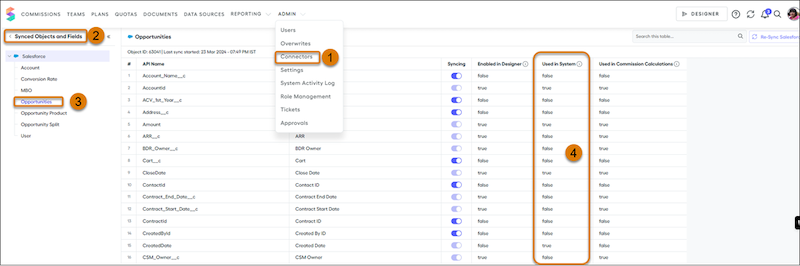
1. From the Admin menu, select **Connectors** (1).
2. Select **Synced Objects and Fields** (2).
3. Select the Quote, Quote Line, Opportunity, or Opportunity Product object (3), and check the Used in System column (4).
If the Used in System column is true, the field is used in Spiff. Make a list of the fields that are used.
4. Repeat the previous step for other objects.
## Create Field Sets
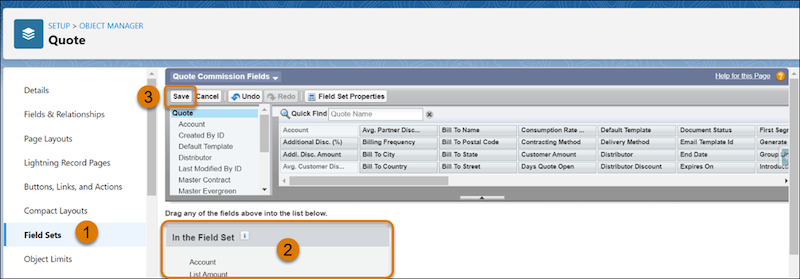
1. Log in to Salesforce as an admin.
2. From the Object Manager in Setup, select the Quote (`SBQQ__Quote__c`), Quote Line (`SBQQ__QuoteLine__c`), Opportunity, or Opportunity Product object.
3. Select **Field Sets** (1).
4. Click **New** and enter these details for the object.
- For a Quote, specify a Field Set Label of Spiff Quote Commission Fields and Field Set Name of Spiff\_Quote\_Commission\_Fields.
- For a Quote Line, specify a Field Set Label of Spiff QuoteLine Commission Fields and Field Set Name of Spiff\_QuoteLine\_Commission\_Fields.
- For an Opportunity, specify a Field Set Label of Spiff Opportunity Commission Fields and Field Set Name of Spiff\_Opportunity\_Commission\_Fields.
- For an Opportunity Product, specify a Field Set Label of Spiff Opportunity Line Commission Fields and Field Set Name of Spiff\_Opportunity\_Line\_Commission\_Fields.
5. Drag the custom fields you identified for the object into the field set (2), and save your changes (3).
6. Repeat these steps for the other objects.
## Configure Field Sets as Source Field Sets
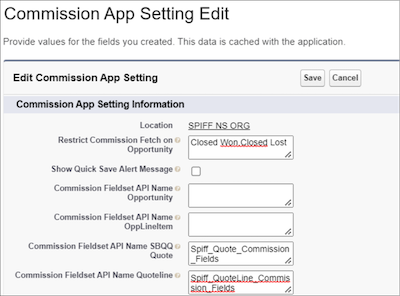
1. From Setup, in the Quick Find box, enter Custom Settings, and then select **Custom Settings**.
2. For Commission App Settings, click **Manage**.
3. Click **Edit** and enter these values.
Commission Fieldset API Name SBQQ Quote
The API name of the Quote field set you created, Spiff_Quote_Commission_Fields
Commission Fieldset API Name Quoteline
The API name of the Quote Line field set you created, Spiff_QuoteLine_Commission_Fields
Commission Fieldset API Name Opportunity
The API name of the Opportunity field set you created, Spiff_Opportunity_Commission_Fields
Commission Fieldset API Name OppLineItem
The API name of the Opportunity Product field set you created, Spiff_Opportunity_Line_Commission_Fields
4. Save your changes.
#### See Also
- [About Field Sets](https://help.salesforce.com/s/articleView?id=platform.fields_about_field_sets.htm&type=5&language=en_US)
# Configure Generative Conversation Insights
Create generative insights from the Call Insights page in Setup. For best results, follow the steps listed in the setup wizard and test each insight in Call Explorer before activation.
### Required Editions
| Available in: Lightning Experience |
| --- |
| Available in **Enterprise**, **Performance**, **Unlimited**, and **Agentforce 1 Sales** Editions with Einstein Conversation Insights. |
User Permissions Needed
To enable Einstein Conversation Insights:
Customize Application, View Setup, Modify All Data

Note We recommend testing different generative insights in Call Explorer before activating them for your org. Try asking different questions across multiple calls before configuring generative insights for your org.
1. From Setup, in the Quick Find box, enter Call Insights, and then select **Call Insights**.
2. Select **Configure Insight**.
3. Click **Generative Insight**, select a language, and then click **Next**.
4. Enter the name of the insight.
This name appears as the header for the generative insight.
5. Enter the insight question.
Use natural language to describe what you want to know about conversations. You don't need to phrase it as a question, but doing so may help you focus on the details that you want to extract.

Example
Generative Insight Examples
| Name | Question |
| --- | --- |
| Key Takeaways | What were the key takeaways? |
| Customer Sentiment | Was the customer sentiment Positive, Neutral, or Negative? |
| Likelihood to Close | Based on the call transcript, do you think the customer will complete the purchase this quarter? |
Active generative insights apply to all transcribed calls by users with an Einstein Conversation Insights license.
# Configure Goals
Set up a goal's target type to control how to show values across territory planning, quota planning, and segment views.
### Required Editions
User Permissions Needed
To create and manage sales plans:
One of these:
Sales Planning Admin permission set
Sales Planning Ops Manager permission set
To configure the goals:
Customize Application
Confirm with your sales operations team which metrics require currency formatting and which require plain number tracking.
1. From **Setup**, go to **Sales Planning**.
2. Open the sales plan you want to configure, or create one.
3. Go to the goal you want to configure the target type for.
4. Check or Uncheck the **Show Goals as Currency**
5. Save your changes.
Sales Planning applies the target type across Territory Planning, Quota Planning, and Segment & Targets views.

Note
You can change the target type after you save the goal. In Segment & Targets, the goal display format is read-only. To change the format, go to the goal settings.
# Configure Lead Management
Set up lead fields, default settings, assignment rules, and lead capture so your sales team can track prospects, manage the inbound lead process, and build a strong pipeline of opportunities.
### Required Editions
Available in: Salesforce Classic and Lightning Experience
Available in: Starter, Essentials, Group, Professional, Enterprise, Performance, Unlimited, Pro Suite, and Developer Editions with Sales
User
Permissions Needed
To set up leads:
Customize Application
To map lead fields:
Customize Application
1. Set up your lead fields.
Create custom lead fields that track information specific to your company. Then, map them to account, contact, and opportunity fields so that the data carries over when users convert leads. You can also modify some standard fields. For example, edit the Lead Status field to change the default status for new and converted leads.
See [Create a Custom Field](https://help.salesforce.com/s/articleView?id=platform.adding_fields.htm&language=en_US) and [Map Custom Lead Fields for Lead Conversion](https://help.salesforce.com/s/articleView?id=sales.customize_mapleads.htm&release=264.0.0&type=5 "Get the most out of records created from converted leads when you map custom lead fields to fields on the records they’re converted to. Using custom fields can provide more context about the opportunity, and provide ways to highlight records for use in flows and other means.").
2. Specify your default lead settings.
See [Define Default Settings for Lead Creation](https://help.salesforce.com/s/articleView?id=sales.customize_leadsettings.htm&release=264.0.0&type=5 "Specify default lead behavior for your org so that your sales teams can nurture leads efficiently.").
3. Create sales queues for leads or custom objects.
See [Set Up Queues](https://help.salesforce.com/s/articleView?id=service.queues_overview.htm&language=en_US).
4. Set up lead assignment rules to assign leads automatically.
See [Set Up Assignment Rules](https://help.salesforce.com/s/articleView?id=service.creating_assignment_rules.htm&language=en_US).
5. Assign permissions to your marketing and sales operations teams so that they can view and edit converted leads.
See [Let Users View and Edit Converted Leads](https://help.salesforce.com/s/articleView?id=sales.leads_view_edit_converted.htm&release=264.0.0&type=5 "Assign the View and Edit Converted Leads permission to the marketing and sales operations users who need to view and edit converted leads.").
6. (Optional) Set up Web-to-Lead to capture leads from your website automatically.
See [Generate Leads from Your Website with Web-to-Lead](https://help.salesforce.com/s/articleView?id=sales.setting_up_web-to-lead.htm&release=264.0.0&type=5 "Generate up to 500 leads per day by capturing data from prospects who provide contact information. You can also redirect prospects to other web pages that are critical to campaign success.").
7. (Optional) Connect LinkedIn Lead Gen advertisements to Salesforce to capture leads from LinkedIn.
See [Generate Leads from LinkedIn Lead Gen Ads](https://help.salesforce.com/s/articleView?id=sales.leads_linkedin_lead_gen.htm&release=264.0.0&type=5 "Add another source of leads for your sales team by connecting LinkedIn Lead Gen advertisements to Salesforce. When prospective customers fill out a form on your LinkedIn ad, we convert the data directly to new leads in Salesforce.").
8. (Optional) Set up Lead Intelligence View to give users a more comprehensive view of their leads.
From Setup, in the Quick Find box, enter Lead Intelligence View Setup, and then select **Lead Intelligence View Setup**. Then, complete the steps.
#### See Also
- [Generate Leads from Your Website with Web-to-Lead](https://help.salesforce.com/s/articleView?id=sales.setting_up_web-to-lead.htm&release=264.0.0&type=5 "Generate up to 500 leads per day by capturing data from prospects who provide contact information. You can also redirect prospects to other web pages that are critical to campaign success.")
- [Let Users View and Edit Converted Leads](https://help.salesforce.com/s/articleView?id=sales.leads_view_edit_converted.htm&release=264.0.0&type=5 "Assign the View and Edit Converted Leads permission to the marketing and sales operations users who need to view and edit converted leads.")
- [Map Custom Lead Fields for Lead Conversion](https://help.salesforce.com/s/articleView?id=sales.customize_mapleads.htm&release=264.0.0&type=5 "Get the most out of records created from converted leads when you map custom lead fields to fields on the records they’re converted to. Using custom fields can provide more context about the opportunity, and provide ways to highlight records for use in flows and other means.")
- [Create Queues](https://help.salesforce.com/s/articleView?id=service.setting_up_queues.htm&language=en_US)
- [Generate Leads from LinkedIn Lead Gen Ads](https://help.salesforce.com/s/articleView?id=sales.leads_linkedin_lead_gen.htm&release=264.0.0&type=5 "Add another source of leads for your sales team by connecting LinkedIn Lead Gen advertisements to Salesforce. When prospective customers fill out a form on your LinkedIn ad, we convert the data directly to new leads in Salesforce.")
# Configure Microsoft Teams Settings for Use with Einstein Conversation Insights
Prior to enabling Microsoft Teams integration, make sure your Teams settings are configured for optimal use with Einstein Conversation Insights.
### Required Editions
Available in: Lightning Experience
Available in Einstein Conversation Insights, which is available in Starter, Pro, Enterprise, Performance, Unlimited, and Agentforce 1 Sales Editions
User Permissions
Needed
To enable Einstein Conversation Insights:
Customize Application
To connect Microsoft Teams accounts
Microsoft Teams admin access
A Microsoft Teams admin account is required to adjust these settings.
Only non-channel meetings stored in OneDrive are supported for processing by Einstein Conversation Insights. Make sure that users making calls have access to OneDrive and their call recordings for processing to occur.
Einstein Conversation Insights uses the Microsoft Teams transcript API to retrieve the call transcripts used to identify speakers. When this API isn’t available, we use [Optimal Speaker Separation](https://help.salesforce.com/s/articleView?id=sales.ci_speaker_separation.htm&language=en_US) for the creation of transcripts and call insights. In this case, the transcripts identify speakers on the call as Speaker 1, Speaker 2, and so on. If this feature isn’t enabled, transcripts aren’t shown.

Note These settings are made in Microsoft Teams. For more information about the latest configuration requirements, check Microsoft Teams help resources.
1. From the Microsoft Teams admin center, navigate to Meeting Policies > Global org wide default > Recording and transcription. Make sure the Meeting Recording and Transcription toggles are on.
2. Set the time you want to keep the recording.
The default is set to 120 days.
3. From Teams admin center, navigate to Meetings > Meeting policies. Then turn on Attendance & engagement reports.
4. In a New Meeting window, navigate to Options > Engagement. Check that Allow attendance report is on.
5. From Settings, navigate to the Privacy section. Check that Identify me in attendance reports is turned on.
6. With these settings enabled, verify that you can see the meeting attendance displayed under the Attendance tab in calls.
# Configure Options for Data Management
Control how Territory Planning loads, processes, and shows data.
### Required Editions
Available in: both Salesforce Classic (not available in all orgs) and Lightning Experience
Available in: Professional, Enterprise, Performance, Unlimited, and Developer Editions with Web Services API enabled
User Permissions Needed
To manage Territory Planning options in the Salesforce Maps package:
Customize Application
1. From Setup, in the Quick Find box, enter Installed Packages, and then select **Installed Packages**.
2. Click **Configure** next to the Salesforce Maps package.
3. Click **Data Management**.
4. Select and set options for managing data.
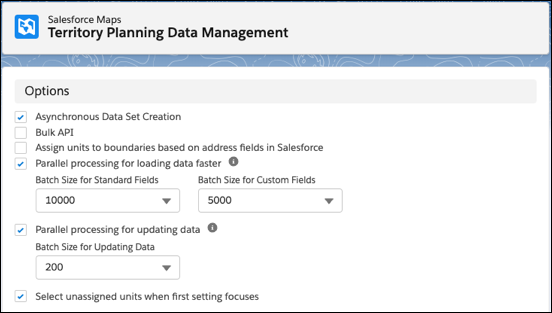
Territory Planning saves your changes.
- **[How Persistent Legend Filters Work in Territory Planning](https://help.salesforce.com/s/articleView?id=sales.how_persistent_legend_filters_work_in_territory_planning.htm&release=264.0.0&type=5)**
When you turn on filter persistence, each user's legend filters stay on that alignment after a refresh or a change in focus.
# Configure Options for Publishing Alignments
Select the alignment publishing destinations that you want to appear in Territory Planning. Specify who can publish alignments to those destinations and whether to require approval for publishing alignments.
### Required Editions
Available in: both Salesforce Classic (not available in all orgs) and Lightning Experience
Available in: Professional, Enterprise, Performance, Unlimited, and Developer Editions with Web Services API enabled
User Permissions Needed
To manage Territory Planning options in the Salesforce Maps package:
Customize Application
1. From Setup, in the Quick Find box, enter Installed Packages, and then select **Installed Packages**.
2. Click **Configure** next to the Salesforce Maps package.
3. Under Territory Planning, click **Publish Options**.
4. Enable the publishing options that you want to appear in Territory Planning. Then for each option that you enable, select the access level and whether to require approval for publishing alignments.
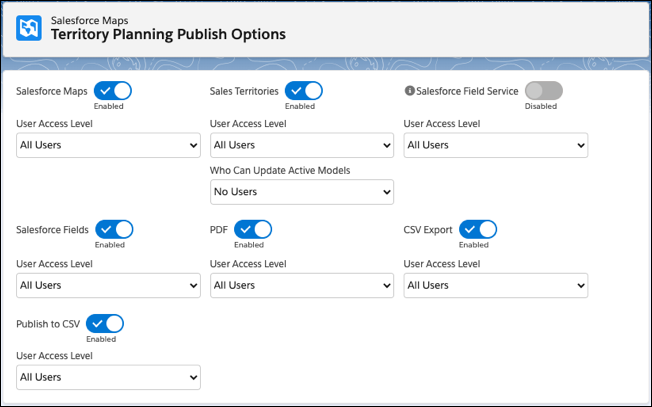
# Configure Permissions in the Social Intelligence Module
For users to work in the Social Intelligence Module (SIM), they need the right permissions. After you give them the right permission, they can work in SIM.

Important
Salesforce is retiring the Social Studio family of products on November 18, 2024. Customers won’t have access to Social Studio after the retirement date. Customers may continue to use Social Studio for the duration of their current contract or until November 18, 2024, whichever comes first. To learn more, see [Social Studio Retirement](https://help.salesforce.com/s/articleView?id=000392005&type=1&language=en_US).
Before you can assign permissions to other users, you must have adequate permissions to do so yourself.
1. In SIM, select **Setup** | **Permission Sets**.
2. Click the Social Intelligence Standard License permission set link.
3. Click **Manage Assignments**.
4. To give other users access, click the checkbox for each user.
5. Click **Add Assignments**.
6. Repeat the same process, and assign the Social Intelligence Standard permission set to the same users.
You can also assign permission sets to users individually while viewing their user records. Next, configure the SIM interface for your users.
# Configure Prospecting Center
Configure Segments, set up scoring rules, and give user permissions so that users can act on the most accurate and data-driven prospects.
### Required Editions
Available in: Lightning Experience
Available with Sales Engagement, which is included with Sales in Performance, Unlimited Editions, Agentforce 1 Edition, and available for an extra cost in Professional and Enterprise Editions. Sales Engagement is also available for an extra cost in Service and Lightning Platform.

Important Prospecting Center is scheduled for retirement in all Salesforce orgs as of April, 2026. For existing customers, Prospecting Center remains available till April 2027.
- **[Set Up Scoring Rules for Prospecting Center](https://help.salesforce.com/s/articleView?id=sales.pc_setup_scoring_rules.htm&release=264.0.0&type=5)**
Prioritize your work and spend time on prospects that are likely to be the best fit for you. You can set up Account Scoring only when you turn on Prospecting Center. When you set up scoring rules, you're defining the criteria based on which your Engagement, Fit, Intent, and your overall Account scores are calculated.
- **[Give Users Access to Prospecting Center](https://help.salesforce.com/s/articleView?id=sales.pc_give_users_access.htm&release=264.0.0&type=5)**
For sales reps to access the Prospecting Center app, assign the necessary user permissions and enable the Prospecting Center user app permissions.
- **[Modify the Unified Objects](https://help.salesforce.com/s/articleView?id=sales.pc_changing_unified_objects.htm&release=264.0.0&type=5)**
If you want to change the calculations in Prospecting Center, modify the selected Unified Individual and Unified Account objects.
# Configure Sales Engagement Features
Set up Sales Dialer and Einstein Lead Scoring if they’re new to your org. And make sure that you configure all other relevant features to get the most out of Sales Engagement.
### Required Editions
Available in: Lightning Experience
Available with Sales Engagement, which is included with Sales in Performance, Einstein 1, and Unlimited Editions, and available for an extra cost in Professional and Enterprise Editions. Sales Engagement is also available for an extra cost in Service and Lightning Platform.
User Permissions
Needed
To set up Sales Engagement:
Customize Application AND Modify All Data
- **[Configure Einstein Activity Capture Settings](https://help.salesforce.com/s/articleView?id=sales.hvs_setup_configure_eac.htm&release=264.0.0&type=5)**
After you turn on Sales Engagement, you can configure your Einstein Activity Capture settings, such as controlling which activities are added to Salesforce records and how they’re shared.
- **[Add Sales Engagement Components, Actions, and Fields to Page Layouts](https://help.salesforce.com/s/articleView?id=sales.hvs_setup_configure_page_layouts.htm&release=264.0.0&type=5)**
To make Sales Engagement functions fully available to your sales team, add related components, actions, and fields to page layouts for leads, contacts, and accounts.
- **[Set Up Sales Dialer for Sales Engagement](https://help.salesforce.com/s/articleView?id=sales.hvs_setup_configure_dialer.htm&release=264.0.0&type=5)**
If you’re using Sales Dialer for the first time, enable Sales Dialer in Setup. Make sure that you add the Phone item to the utility bar for the Sales Engagement app.
- **[Define Call Result Values for Cadence Branching](https://help.salesforce.com/s/articleView?id=sales.hvs_setup_call_outcomes.htm&release=264.0.0&type=5)**
Group call result values into categories to easily display the data in reports and use it as branching criteria for cadences.
- **[Set Up Einstein Conversation Insights for Sales Engagement](https://help.salesforce.com/s/articleView?id=sales.hvs_setup_configure_ci.htm&release=264.0.0&type=5)**
If you’re using Einstein Conversation Insights for the first time, enable Conversation Insights in Setup. Make sure that you set up relevant call insights after turning on the product.
- **[Configure a Lead Scoring Solution](https://help.salesforce.com/s/articleView?id=sales.hvs_setup_configure_a_lead_scoring_solution.htm&release=264.0.0&type=5)**
If you want help prioritizing your leads, set up Einstein Lead Scoring or a third-party scoring solution.
- **[Customize the Work Queue](https://help.salesforce.com/s/articleView?id=sales.hvs_setup_configure_work_queue.htm&release=264.0.0&type=5)**
Select up to three fields to appear in the work queue so that your sales reps see the information at a glance.
# Configure Sales Insights User Permission Sets
Steps 7 and 8 for setting up Sales Insights are to confirm that the correct permission sets are assigned to your Sales Insights users. To view Sales Insights dashboards, every user needs both the Tableau Next Limited Consumer permission set and the Data Cloud User permission set.
### Required Editions
Available in: Lightning Experience
Available with Sales with Agentforce 1 Edition or Agentforce for Sales Add-On license in: Enterprise, Performance, and Unlimited Editions.
Permission Sets Needed
To set up Sales Insights:
Sales Insights Admin
To manage Sales Insights:
Tableau Included App Manager and Data Cloud Architect
To use Sales Insights:
Tableau Next Limited Consumer and Data Cloud User
This procedure covers steps 7 and 8 on the Sales Insights Setup page.
1. On the Sales Insights Setup page, at step 7 about the Tableau Next Limited Consumer permission set, click **Assign**.
2. On the Tableau Next Limited Consumer Permission Set page, click **Manage Assignments**.
3. Click **Add Assignments**.
4. Select your users, and click **Assign**.
5. Return to the Sales Insights Setup page.
6. On the Sales Insights Setup page, at step 8 about the Data Cloud User permission set, click **Assign**.
7. On the Data Cloud User Permission Set page, click **Manage Assignments**.
8. Click **Add Assignments**.
9. Select your users, and click **Assign**.
Congratulations, you’ve completed setting up Sales Insights!
10. To learn how to open Sales Insights, complete optional post-installation steps, monitor, troubleshoot, and more, see [After Setting Up Sales Insights](https://help.salesforce.com/s/articleView?id=sales.sales_insights_post_install.htm&type=5&language=en_US).
# Configure Salesforce Identity for Enablement
To set up Salesforce Identity for Enablement for your enablement site, first create a connected app in Salesforce. The connected app handles data sharing between your enablement site and Salesforce using OpenID Connect and OAuth 2.0—protocols that authenticate users and authorize access to data in your org. Finally, enter your connected app details on your enablement site.
### Required Editions
Available in: Enterprise, Performance, and Unlimited Editions
User Roles and
Permissions
Enablement Site User Roles
This topic supports these enablement site roles:
Salesforce Admins
Required System Permissions
To read, create, update, delete, install, or
uninstall connected apps:
View Setup and Configuration
AND
Customize
Application
AND
Modify All Data OR Manage Connected
Apps
To configure the authentication provider:
Manage Site Settings
Before you get started, review these important considerations.
- Make sure that you set up your enablement site before you create the connected app, which requires the URL that you created for your enablement site's subdomain.
- Create the connected app in production, not a sandbox.
- After you activate Salesforce Identity for Enablement, you can’t change your authentication provider to Trailblazer.me (TBID).
- Determine whether your enablement site supports only internal users from your Salesforce org or supports only external users who are Experience Cloud site members. With Salesforce Identity for Enablement, it’s difficult to make your enablement site available to both internal and external users, so we recommend that you choose one. This choice affects the authentication page URL that you enter in step [9.c](#mth_configure_mytrailhead_identity__sifm_setup_login_url).
1. From Setup, in the Quick Find box, enter Apps, and then select **App Manager**.
2. Click **New Connected App**.
3. In the Basic Information section, enter the app’s name and contact info.
| Field | Value to Enter |
| --- | --- |
| Connected App Name | An internal name for the app, such as Enablement Site Authentication. |
| API Name | A unique programmatic name for the app in your org. You can accept the default suggested name or enter your own. |
| Contact Email | The email address that Salesforce uses for contact about the app, if necessary. |
| Description | A brief description of what the app is for. |
4. In the API (Enable OAuth Settings) section, specify the connected app’s authorization details.
1. Enable **Enable OAuth Settings**.
2. For Callback URL, enter your enablement site URL—including the https:// protocol—and add /auth/mytrailhead/callback.
For example, the callback URL for the Pure Aloe enablement site is https://purealoe.my.trailhead.com/auth/mytrailhead/callback.

Important If you enter the callback URL incorrectly and then complete Salesforce Identity for Enablement setup, your users can’t log in to your enablement site.
3. For Selected OAuth Scopes, add only these scopes to the list of selected scopes:
- Access the identity URL service (id, profile, email, address, phone)
- Access unique user identifiers (openid)
- Perform requests at any time (refresh\_token, offline\_access)
4. Enable **Require Secret for Web Server Flow**.
5. Disable **Require Secret for Refresh Token Flow** and **Introspect All Tokens**.
6. Review all the details that you entered, and save your changes.
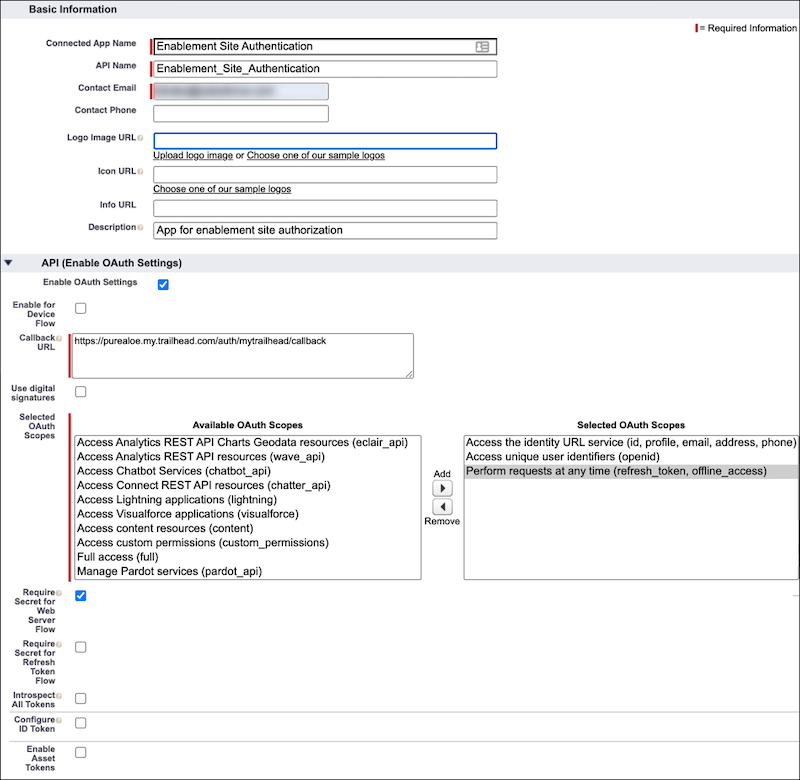
5. On the New Connected App page, click **Continue**.
6. Edit the connected app’s OAuth access policies and specify which users the app authorizes.
1. On the connected app’s page in App Manager, click **Manage**.
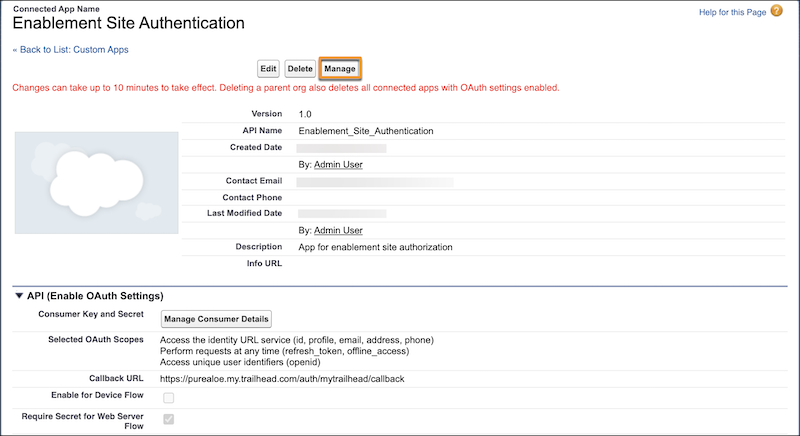
2. Click **Edit Policies**.
3. In the OAuth Policies section, use the Permitted Users dropdown to select which users your connected app authorizes.
All users may self-authorize
Any user from your org can access your enablement site with their credentials, but they must first consent to the app logging them in.
Admin approved users are pre-authorized
Users assigned to specific profiles or permission sets can access your enablement site with their credentials. They aren’t required to consent to the app’s activity. This option provides the smoothest login experience.
4. Optionally, use the IP Relaxation, Refresh Token Policy, and Timeout Value options to add extra security measures around the authentication.
5. Save your changes.
7. If you selected **Admin approved users are pre-authorized** for your app’s OAuth permitted users, select the profiles or permission sets to pre-authorize for access to your enablement site. If you selected **All users may self-authorize**, skip this step.
1. On the connected app’s page, scroll to the Profiles section, and click **Manage Profiles**. Or, scroll to the Permission Sets section, and click **Manage Permission Sets**.
2. Select which profiles or permission sets to preauthorize, and save your changes.
8. Locate the connected app’s consumer key and consumer secret.
1. From Setup, in the Quick Find box, enter Apps, and then select **App Manager**.
2. Scroll to your connected app, and select **View** from the app’s dropdown.

3. On the connected app’s page, scroll to the API (Enable OAuth Settings) section, and click **Manage Consumer Details**.
You're prompted to verify your identity before you can view the consumer details.
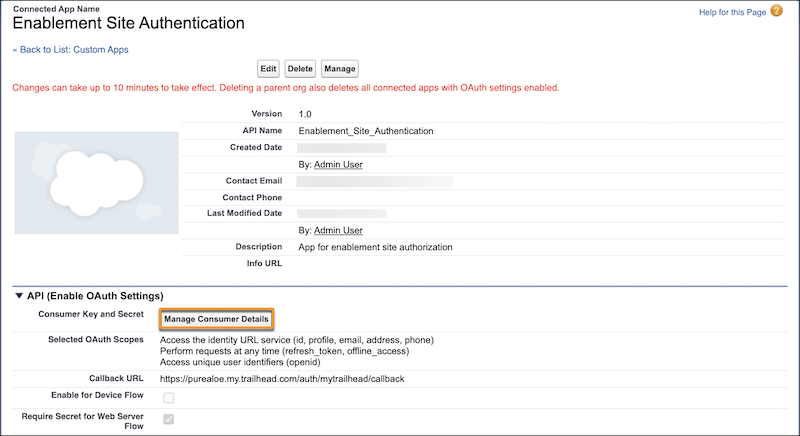
1. Copy the consumer key and consumer secret to a handy, secure location. You use these values to complete Salesforce Identity for Enablement setup.
9. Finally, configure your enablement site with the connected app details.
1. If you aren’t already there, go to [https://trailhead.salesforce.com/subdomain/mytrailhead-id/setup](https://trailhead.salesforce.com/subdomain/mytrailhead-id/setup).
2. Click **Use Salesforce Identity for Enablement**.
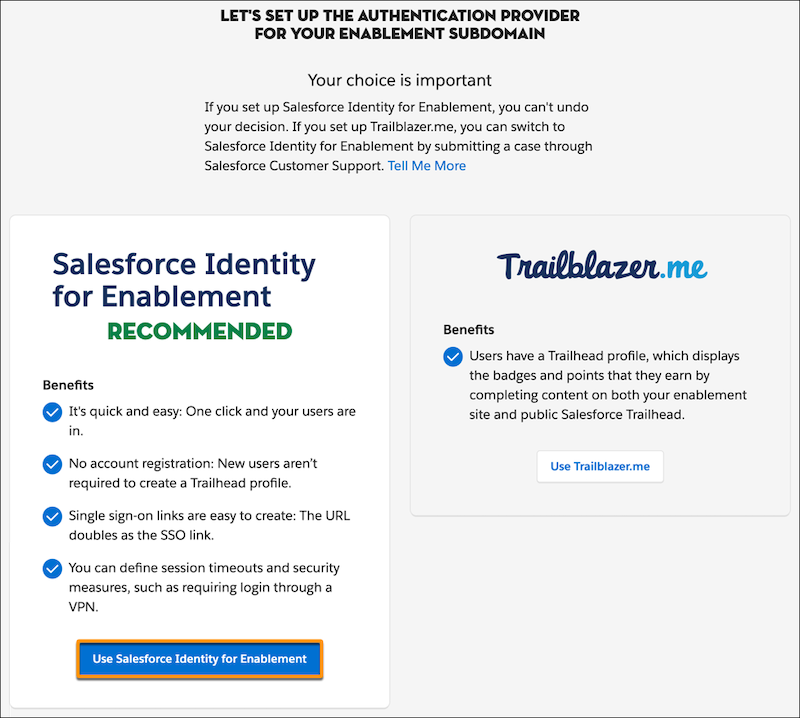
3. On the Identity Setup page, under Step 2, enter these details:
- The URL for your enablement site’s login page.
- The Consumer Key that you copied from your connected app.
- The Consumer Secret that you copied from your connected app.
The login page URL isn’t the same as the callback URL that you created for your connected app. Your login page URL depends on whether your enablement site supports internal users from your Salesforce org or external users who are Experience Cloud site members.
| Enablement Site Audience | URL to Enter |
| --- | --- |
| Internal users | Your org’s My Domain login URL, such as https://purealoe.my.salesforce.com. |
| External users | Your Experience Cloud site URL, such as https://fixcoffee.com/community. |

Important Take extra care when you enter this information. If you enter it incorrectly and activate Salesforce Identity for Enablement, you’re locked out of your enablement site. To regain access, contact Salesforce Customer Support.
4. Click **Activate**, and confirm your decision. This action is irreversible.
5. Log in with your Salesforce or Experience Cloud credentials, depending on which audience your enablement site serves.
All your enabled users can now log in to your enablement site. Next, you can move on to these other admin activities.
- To add a link to your enablement site in your Salesforce org, you can [edit the connected app that you just created](https://help.salesforce.com/s/articleView?id=sales.mth_add_link_to_mytrailhead_in_salesforce_org.htm&release=264.0.0&type=5 "If your enablement site’s authentication provider is Salesforce Identity for Enablement, you can give users easy access to your site by adding a link in App Launcher in Salesforce.").
- To enable Experience Cloud site members as users, [connect your enablement site to your Experience Cloud site](https://help.salesforce.com/s/articleView?id=sales.mth_set_up_mytrailhead_in_your_community.htm&release=264.0.0&type=5 "Give your Experience Cloud site members access to your enablement site content.").
- To make sure that your content creators can access Trailmaker, [assign the appropriate permissions for different roles](https://help.salesforce.com/s/articleView?id=sales.mth_create_assign_mytrailhead_perm_sets.htm&release=264.0.0&type=5 "Ensure that your company’s content writers, publishers, and other stakeholders can access the features that are relevant to their specific roles. Create permission sets for the different publishing roles at your company, enable the permissions that correspond to the features they use, and assign the appropriate users.").
- To make sure that learners can access the appropriate published content, [create content collections and assign permissions to learners](https://help.salesforce.com/s/articleView?id=sales.mth_content_permissions.htm&release=264.0.0&type=5 "Ensure that learners can access only the trails and modules that are relevant to their disciplines or job requirements. Create content collections for your different audiences, and then use permission sets to enable access to specific content collections. Only learners with permission to access a particular content collection can view and complete the trails and modules included in the collection.").
- To continue configuring your enablement site's settings, you can [add your logo and color](https://help.salesforce.com/s/articleView?id=sales.mth_customize_mth_with_your_branding.htm&release=264.0.0&type=5 "When you configure your enablement site, you can apply your company’s visual identity, such as logo, primary color, and banner image. You can also customize the links that appear in the footer of each page. And you can designate the pages where your users land when they log out or click the Help icon. These customizations persist across your enablement site.") and [manage content filters](https://help.salesforce.com/s/articleView?id=sales.mth_manage_filters.htm&release=264.0.0&type=5 "Filters help learners find relevant content on your enablement site. Users can apply filters to refine search results or narrow down the visible content on the Modules and Trails index pages. And, Trail Tracker users can create reports based on filters, such as a report that shows all content labeled with a particular filter.").
#### See Also
- [Troubleshoot Login Issues with Salesforce Identity for Enablement](https://help.salesforce.com/s/articleView?id=sales.mth_sifm_troubleshoot.htm&release=264.0.0&type=5 "If you configure your enablement site to use Salesforce Identity for Enablement authentication, users can sometimes encounter issues when they try to log in. Help resolve any issues your users encounter when they visit your site’s login URL and enter the credentials.")
- [Set Up Your Enablement Site's Subdomain and First Content Collection](https://help.salesforce.com/s/articleView?id=sales.mth_set_up_your_mth_subdomain_and_namespace.htm&release=264.0.0&type=5 "Your subdomain is used in the URL where learners access your published trails and modules and where your authorized users log in to the Trailmaker apps. A subdomain name is an extension of your company’s brand. When you create your subdomain, you also create your company’s first content collection—a batch of content that you want to make available to certain learners. Later, you can create more content collections in Salesforce.")
- [Considerations for Selecting an Authentication Provider](https://help.salesforce.com/s/articleView?id=sales.mth_considerations_for_choosing_mytrailhead_identity.htm&release=264.0.0&type=5 "To help you determine which authentication provider is right for your company’s enablement site, review how each provider affects your learning and enablement strategy. We recommend that all new enablement sites choose Salesforce Identity for Enablement.")
- [Enable External Learners for Your Enablement Site](https://help.salesforce.com/s/articleView?id=sales.mth_mytrailhead_and_communities.htm&release=264.0.0&type=5 "Enable learners from outside your company as users for your enablement site by linking an Experience Cloud site. For example, guide partners to content that teaches them how to manage leads and opportunities. Or, guide customers to content that teaches them how to use your products.")
- [_Trailhead:_ Build a Connected App for API Integration](https://trailhead.salesforce.com/content/learn/projects/build-a-connected-app-for-api-integration)
# Configure Salesforce Maps Global and Permission Group Settings
Global preferences apply org-wide, and permission group settings apply only to the users in each permission group. Configure both before rolling out Maps to your users.
### Required Editions
Available in: Lightning Experience and Salesforce Classic
Available in: Professional, Enterprise, Performance, Unlimited, and Developer Editions
User Permissions Needed
To configure permission groups:
Customize Application
## Configure Permission Group Settings
Permission group settings apply to the users assigned to each group. Configure them per group so users get the behavior that fits how they work.
1. From **Setup > Installed Packages**, find Salesforce Maps and click **Configure**.
2. Open **Permission Groups** and select the group.
3. Click **Edit**.
4. To improve the plotting time of marker layers on mobile, select **Visible Area Enabled on Mobile by Default**. When selected, Maps restricts results to the current map view, so only previously geocoded records plot. To let users see all records, leave it cleared.
5. Save.
## Configure Global Preferences
Global preferences apply org-wide.
1. From **Setup > Installed Packages**, find Salesforce Maps and click **Configure**.
2. Open the global preferences settings.
3. To make route visibility follow your role hierarchy, select **Routing Role Security**. If you leave it cleared, any user can view and create routes for other users.
4. Save.

Warning Don't select **Debug Logs**. It's reserved for Customer Support to capture data when you have an open case.
- **[Set the Default Basemap in Salesforce Maps](https://help.salesforce.com/s/articleView?id=sales.salesforce_maps_setup_basemap.htm&release=264.0.0&type=5)**
Control which map style users see by default when they open Maps.
# Configure Salesforce Maps Schedule
Maps Schedule works through the Salesforce Calendar and integrates with the same calendar-sync options that your org already uses.
### Required Editions
Available in: Lightning Experience and Salesforce Classic
Available in: Professional, Enterprise, Performance, Unlimited, and Developer Editions
Field users can plan appointments, sync events with Outlook or Google Calendar, and manage their day from the map. If you sync the Salesforce Calendar with Outlook (Einstein Activity Capture or Lightning Sync) or with Google Workspace, those events flow into and stay consistent with Maps Schedule.
- **[Set Up Calendar Sync for Salesforce Maps Schedule](https://help.salesforce.com/s/articleView?id=sales.salesforce_maps_setup_schedule_calendar_sync.htm&release=264.0.0&type=5)**
Integrate Maps Schedule with Outlook or Google Calendar to maintain consistent event data across platforms.
- **[Exclude Events from Salesforce Maps Schedule](https://help.salesforce.com/s/articleView?id=sales.salesforce_maps_setup_schedule_configure_event_exclude.htm&release=264.0.0&type=5)**
To keep private or all-day events out of Maps Schedule, add an option to the Activity object to exclude an event.
- **[Track Salesforce Maps Schedule Usage](https://help.salesforce.com/s/articleView?id=sales.salesforce_maps_setup_schedule_track_usage.htm&release=264.0.0&type=5)**
Identify which events originated from Maps Schedule and report on adoption over time by adding a custom checkbox field on the Activity object.
# Configure Salesforce to Salesforce
After enabling Salesforce to Salesforce, you create and assign a permission set to control which users can manage connections and sharing. You also add the External Sharing related list to page layouts and create communication templates for managing communications with connected organizations.
### Required Editions
Available in: Salesforce Classic
Available in: Contact Manager, Group, Professional, Enterprise, Performance, Unlimited, and Developer Editions
User Permissions
Needed
To configure Salesforce to Salesforce:
Modify All Data

Important Salesforce to Salesforce is scheduled for retirement as of Spring ’27. See [Salesforce to Salesforce Retirement](https://help.salesforce.com/s/articleView?id=005103355&type=1&language=en_US).
1. Create a permission set with the “Manage Connections” permission enabled and the Connection tab set to Visible. Assign the permission set to users who will be working with Salesforce to Salesforce connections. Giving the “Manage Queues” user permission to all users with the “Manage Connections” user permission. This lets users create and manage queues for connections without needing assistance from an administrator.
2. Add the External Sharing related list to page layouts for the appropriate profiles. This related list can be made available to all users, not just users with the “Manage Connections” permission.
3. Create custom list views on the External Sharing related list and give access to the appropriate users, so that they can view and accept shared records.
4. Add the Received Connection Name and Sent Connection Name columns to the related lists on the page layouts of the desired objects.
5. Configure Salesforce to Salesforce to use communication templates for interacting with your connected organizations. In addition, you can configure the email address and name used on the templates.
1. From Setup, enter Salesforce to Salesforce Settings in the Quick Find box, then select **Salesforce to Salesforce Settings**.
2. Click **Edit** and modify the following settings:
| Setting | Description |
| --- | --- |
| From Email Address | The email address from which all Salesforce to Salesforce communication templates are sent, for example, “partner@acme.com.” Salesforce sends the emails automatically, but they appear to your contacts as if they were sent from this email address. If a contact responds to a communication template, the response is sent to this address. |
| From Email Name | The name that will be associated with the “From” Email Address, for example, “Acme Channel Manager”. |
| Invitation Template | Used to send invitations. |
| Deactivation Template | Used to notify a business partner that you have deactivated the connection. |
| Accept Invitation Template | Used to notify a business partner that you have accepted an invitation. |
| Reject Invitation Template | Used to notify a business partner that you have not accepted an invitation. |
| Update Connection Profile Template | Used to notify business partners of changes to an active connection profile. |
3. Click **Save**.
#### See Also
- [Set Up Salesforce to Salesforce](https://help.salesforce.com/s/articleView?id=sales.business_network_setup.htm&release=264.0.0&type=5 "To set up Salesforce to Salesforce, you enable and configure it, connect to other Salesforce organizations, and start sharing data.")
# Configure Social Intelligence Module Authentication
You can configure the Social Intelligence Module (SIM) to interact with Social Platform in Marketing Cloud Engagement.

Important
Salesforce is retiring the Social Studio family of products on November 18, 2024. Customers won’t have access to Social Studio after the retirement date. Customers may continue to use Social Studio for the duration of their current contract or until November 18, 2024, whichever comes first. To learn more, see [Social Studio Retirement](https://help.salesforce.com/s/articleView?id=000392005&type=1&language=en_US).
To configure your Salesforce instance, you need the right permissions.
1. Provide permissions for at least one user to administer SIM.
1. Navigate to **Setup** | **Permission Sets**.
2. Click the Social Intelligence Administrator License permission set link.
3. Click **Manage Assignments**.
4. To grant access to individual users, click the checkbox next to their name.
5. Click **Add Assignments**.
6. Repeat the same process, and assign the **Social Intelligence Administrator** permission set to the same users.
2. Configure the administrative tool.
Make sure that you’re logged in as one of the users to which you assigned the permission sets. This user must access the Social Intelligence Module Admin app.
1. To access or add more applications to your navigation bar, click the pencil icon.
2. In Add Navigation Items, click **Add More Items**.
3. Under Available Items, choose **All**.
4. Search for the Social Intelligence Module Admin app.
5. Click **+** beside the app, and then click **Add New Nav Item**.
Your tab has a new Social Intelligence Module Admin entry. A new form appears where you can authorize SIM with the social platform.
6. Click **Authorize.**
SIM indicates that it made a connection.
If you get an error message in the Social Intelligence Module, such as “No Posts Found,” use **Refresh** to try to fix the connection to the social platform.
3. Now that you have the Social Intelligence Module set up, it’s time to give users access and lay out the module on your record pages.
# Configure Territory Permissions and Access for Salesforce Admins and Users
Ensure that the right users can access the right territory model elements, records, and record elements in Sales Territories.
### Required Editions
Available in: Salesforce Classic for some features and Lightning Experience for all features
Available in: Performance and Developer Editions and in Enterprise and Unlimited Editions with Sales
User Permissions Needed
To assign user permissions:
Manage Users
To create, edit, and delete page layouts:
Customize Application
1. Make sure that you understand how permissions affect territory model and record access in Sales Territories.
2. Assign user permissions as needed.
3. Add the Assigned Territories related list to your account and lead page layouts. This list lets Salesforce admins manually assign accounts and leads to territories, and it lets users identify which territories are assigned to their accounts. Make sure that the related list includes the standard and custom fields (if any) that admins and users need.
4. Add the Users in Assigned Territories related list to your account and lead page layouts. This list lets administrators and users see all users assigned to the territories that are assigned to an account or lead, according to their permissions. Make sure that the related list includes any standard and custom fields that administrators and users need.
5. Add the Territory field to your Opportunity page layouts. This field lets administrators and sales managers manually assign a territory to an opportunity from a list of the territories assigned to the opportunity’s account. Add the Territory Name and Territory Description fields to Opportunity list views and reports so that users can identify assigned territories there.
6. Add any custom buttons, links, or actions you’ve created to territory page layouts.
#### See Also
- [How Do Permissions for Territories Affect Feature and Data Access?](https://help.salesforce.com/s/articleView?id=sales.tm2_how_access_permissions_work.htm&release=264.0.0&type=5 "Anticipate how permissions for Sales Territories affect administration and provide access to records and data.")
- [User Profiles Overview](https://help.salesforce.com/s/articleView?id=platform.admin_userprofiles.htm&type=5&language=en_US)
- [Permission Sets Overview](https://help.salesforce.com/s/articleView?id=platform.perm_sets_overview.htm&type=5&language=en_US)
- [Enhanced Page Layout Editor User Interface Elements](https://help.salesforce.com/s/articleView?id=platform.customize_layoutcustomize_pd_elements.htm&type=5&language=en_US)
- [Assign Forecast Managers to Territories](https://help.salesforce.com/s/articleView?id=sales.tm2_assign_forecast_managers_to_territories.htm&release=264.0.0&type=5 "Show rolled-up forecasts for a territory when you assign a forecast manager to the territory. Without a forecast manager assigned, a territory’s forecasts are based on the individual users assigned to the territory.")
# Configure Thanks in the Chatter Publisher and Salesforce Mobile App Action Bar
You can change the position of the Thanks action in the Chatter publisher and the Salesforce mobile app action bar, or even hide Thanks for specific profiles.
### Required Editions
Available in: Salesforce Classic
WDC is available for existing WDC customers in Professional Edition,
Enterprise Edition, Performance Edition, Unlimited Edition, and
Developer Edition.

Important Starting in Spring ’22, WDC isn’t available to new Salesforce customers. For existing customers, WDC features and records from Badges, Skills, and Thanks aren’t affected and will remain available in the application beyond Spring ’22. WDC Goals, Coaching, Feedback, Performance, and Rewards features won’t appear in the application anymore, and records created previously will no longer be accessible.

Note On May 1, 2020, we rebranded this suite. It's now called WDC.
User Permissions Needed
To set up actions:
Customize Application
To modify the Chatter publisher, actions in the publisher must be enabled.
1. From Setup, enter Chatter Settings in the Quick Find box, then select **Chatter Settings**.
2. Confirm that Enable Actions in the Publisher is selected in the Actions in the Publisher section. If it isn’t enabled, click **Edit**, select Enable Actions in the Publisher, and click **Save**.
3. From Setup, enter Publisher Layouts in the Quick Find box, then select **Publisher Layouts**.
4. Click **Edit** next to the Global Publisher Layout.
5. Drag the **Thanks** action to where you want it to appear in the Chatter publisher or the Salesforce mobile app action bar.
6. Click **Save**.
You can hide Thanks for specific users by changing profile visibility settings.
#### See Also
- [Thanks and Skills Features](https://help.salesforce.com/s/articleView?id=sales.workcom_impl_motivate_intro.htm&release=264.0.0&type=5 "Set up Thanks and Skills features by configuring thanks in the Chatter publisher and assigning a publisher layout to profiles.")
- [Assign Publisher Layout to Profiles](https://help.salesforce.com/s/articleView?id=sales.workcom_impl_assign_layouts_to_profiles.htm&release=264.0.0&type=5 "Assign the publisher layout with Thanks to user profiles. People with these profiles can thank their coworkers directly from the publisher.")
# Configure the ArcGIS Connector for Salesforce Maps
Connect Salesforce Maps to ArcGIS layers and data sources from your company's Esri Portal.
### Required Editions
Available in: Lightning Experience and Salesforce Classic
Available in: Professional, Enterprise, Performance, Unlimited, and Developer Editions
User Permissions Needed
To configure the ArcGIS Connector:
Customize Application
The Maps Connector for ArcGIS integrates ArcGIS layers and data sources from your company's Esri Portal. Private ArcGIS layers require CORS (Cross-Origin Resource Sharing) allowlisting before you can use them in Salesforce Maps.
1. Log in to your ArcGIS Portal admin console.
2. Go to **Organization Settings > Security**.
3. Add your Salesforce domains to the CORS allowlist: `*.salesforce.com`, `*.force.com`, and your My Domain URL.
4. Save and test the connection in Maps.
# Configure the Integration with Microsoft Teams in Salesforce
Turn on the integration with Teams in Salesforce. Then users with the User for Teams Integration permission can access Salesforce data and mention Salesforce records in their Teams conversations.
### Required Editions
Available in: Lightning Experience
Available with Sales Cloud and Service Cloud in: Enterprise, Performance, and Unlimited Editions
User Permissions Needed
To turn on the app and select data sharing:
Modify All Data
To set user permissions:
Assign Permission Sets
1. From Salesforce Setup, in the Quick Find box, enter Teams, and then select **Teams Integration**.
2. Turn on Let users access Teams Integration features.
3. Read and acknowledge the agreement.
4. Select Assign Permission Set, and assign the User for Teams Integration permission set to users who need access to Salesforce in Teams.
5. Select how much Salesforce data to include when a user shares a Salesforce record anywhere in Teams.
Show the object type only
When a rep mentions a record in a conversation, the conversation shows only
information about the object type mentioned. Users with Salesforce access can preview more
record details in Teams. Users without Salesforce access see only that a record was mentioned
and its type, such as contact, opportunity, lead, account, or case.
Users see a card with
limited information when they mention a record in a channel.
Show the object type only
When a rep mentions a record in a conversation, the conversation shows only
information about the object type mentioned. Users with Salesforce access can preview more
record details in Teams. Users without Salesforce access see only that a record was mentioned
and its type, such as contact, opportunity, lead, account, or case.
After users select
Preview Record, they see different amounts of information based on their Salesforce
permissions.
Show record summary
When a rep mentions a record, the record’s compact layout shows in the conversation,
even to users who don’t have Salesforce access. This option provides the most insight into
the record shown and is best for collaboration within Teams. However, ensure that the
structure of your compact layouts and the data included are appropriate for all members of a
Teams channel to see.
When a user mentions a record, all channel members see an adaptive
card with record details. Details shown on the adaptive card are stored in your company’s
Office 365 Teams storage.
After users who have a Salesforce license select **View in Salesforce**, they see the record detail page in Salesforce with any information available to them based on their permissions.
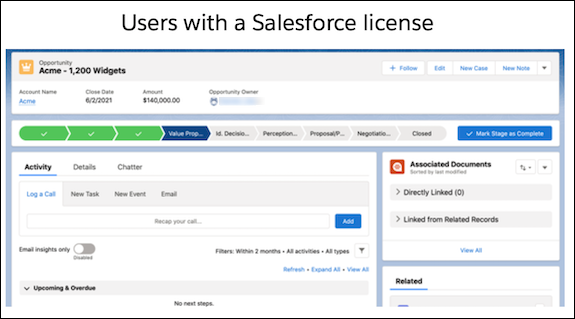
After users who don’t have a Salesforce license select **View in Salesforce**, they see a login page. They can’t view any additional Salesforce records’ details without acquiring a login.
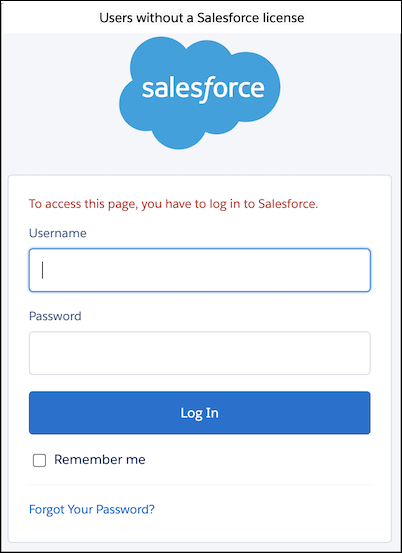
Some fields aren’t displayed in Teams adaptive cards when the integration is configured for record mentions in a compact layout.
- All empty fields
- Address and rich text fields in the compact layout
- The PhotoUrl field on contacts and leads
6. Work with your Teams administrator to provision the integration in the Teams application.
#### See Also
- [Permission Sets](https://help.salesforce.com/s/articleView?id=platform.perm_sets_overview.htm&type=5&language=en_US)
- [Provision the Integration in Microsoft Teams](https://help.salesforce.com/s/articleView?id=sales.teams_int_setup_provision_in_teams.htm&release=264.0.0&type=5 "After the setup is complete in Salesforce, work with your Microsoft Teams administrator to ensure that the Teams environment is set up correctly. The Salesforce app provides the integration features within the Teams interfaces. The app permission policies maintained in the Microsoft Teams admin center determine which apps users can install. Those policies also determine which apps users can pin to the Teams app bar in their desktop and mobile clients can pin within their teams.")
# Configure the Sales Insights Admin Permission Sets
Steps 4 and 5 for setting up Sales Insights is to confirm that the correct permission sets are assigned to the admin user. To manage Sales Insights, the Tableau Included App Manager permission set and the Data Cloud Architect permission set are both required.
### Required Editions
Available in: Lightning Experience
Available with Sales with Agentforce 1 Edition or Agentforce for Sales Add-On license in: Enterprise, Performance, and Unlimited Editions.
Permission Sets Needed
To set up Sales Insights:
Sales Insights Admin
To manage Sales Insights:
Tableau Included App Manager and Data Cloud Architect
To use Sales Insights:
Tableau Next Limited Consumer and Data Cloud User
This procedure covers steps 4 and 5 on the Sales Insights Setup page.
1. On the Sales Insights Setup page, at step 4 about the Tableau Included App Manager permission set, click **Assign**.
2. On the Tableau Included App Manager Permission Set page, click **Manage Assignments**.
3. Click **Add Assignments**.
4. Select your admin user(s), and click **Assign**.
5. Return to the Sales Insights Setup page.
6. On the Sales Insights Setup page, at step 5 about the Data Cloud Architect permission set, click **Assign**.
7. On the Data Cloud Architect Permission Set page, click **Manage Assignments**.
8. Click **Add Assignments**.
9. Select your admin user(s), and click **Assign**.
10. Return to the Sales Insights Setup page to continue setting up Sales Insights.
# Configure the Sales Record Creation Subagent to Generate Sales Contacts or Person Accounts
By default, the Sales Record Creation subagent includes the Create Sales Leads action. You can change the topic to generate contacts or person accounts instead.
### Required Editions
1. On the Agentforce Agents setup page, open the agent that you want to use for contact or person account creation in Agentforce Builder.
2. If the agent is active, deactivate it.
3. On the Subagents tab, select **Sales Record Creation**.
4. In Subagent Configuration, click **New Version**.
5. Click **New**, and select **Create Sales Contact** or **Create Sales Person Account** action.
6. Remove the Create Sales Lead action.
7. Save your changes. These changes apply only to this agent.
# Configure the User Interface for the Social Intelligence Module
To use the Social Intelligence Module's (SIM) features, add the included SIM components to the individual record pages in your Salesforce interface. To view social data, you can also add SIM components to account, contact, or opportunity records. You must have the necessary permissions to configure the user interface.

Important
Salesforce is retiring the Social Studio family of products on November 18, 2024. Customers won’t have access to Social Studio after the retirement date. Customers may continue to use Social Studio for the duration of their current contract or until November 18, 2024, whichever comes first. To learn more, see [Social Studio Retirement](https://help.salesforce.com/s/articleView?id=000392005&type=1&language=en_US).
1. To add the SIM component to your Salesforce interface:
1. Navigate to the page where you want to embed the component.
2. Click **** | **Edit Page**.
3. Drag the component onto the page.
4. Save the changes. If you haven’t yet, to make sure that you activate your custom layout, click **Activation**.
2. To add the SIM component as a tab within a Lightning App:
1. Select **Setup** | **App Manager**.
2. Select the arrow dropdown next to Lightning App name, and click **Edit**.
3. In the Lightning App Builder, select **Navigation Items**.
4. Search for Social Intelligence, select it, and add it to your navigation.
5. Save the changes.
Your designated users can use Social Intelligence Module.
# Configure the Voice Connector
Go through the configuration steps described in the linked documents for each connector. These steps are the bulk of the work required for connecting the voice provider.
### Required Editions
Available in: Lightning Experience
Available in Einstein Conversation Insights, which is available in Starter, Pro, Enterprise, Performance, Unlimited, and Agentforce 1 Sales Editions
User Permissions
Needed
To enable Einstein Conversation Insights:
Customize Application
This video describes how to integrate voice connectors with the Voice Connector app.
View this [video](https://play.vidyard.com/q4h7eLGFhzsdfDZtXdNveW) in a separate tab.
1. From the **Configure Named Credentials** step, click **Configure Named Credential**.
The configuration guide for each voice provider appears.
2. Follow the instructions in the guide. The current configuration guide for each voice provider is also available here:
1. [Aircall Configuration Guide](https://resources.docs.salesforce.com/rel1/doc/en-us/static/pdf/eci_aircall_guide.pdf)
2. [Amazon Connect Configuration Guide](https://resources.docs.salesforce.com/rel1/doc/en-us/static/pdf/eci_amazon_connect_guide.pdf)
3. [Dialpad Configuration Guide](https://resources.docs.salesforce.com/rel1/doc/en-us/static/pdf/eci_dialpad_guide.pdf)
4. [RingCentral Configuration Guide](https://resources.docs.salesforce.com/rel1/doc/en-us/static/pdf/eci_ringcentral_guide.pdf)
These instructions involve more than configuring the named credentials and are different for each connector.
# Configure Third-Party Connectors for Prospecting Center
Configure data to flow into Prospecting Center through connectors and third-party integrations. New connectors are added regularly to expand what data can be ingested into Prospecting Center, providing more value when unifying your data.
### Required Editions
Available in: Lightning Experience
Available with Sales Engagement, which is included with Sales in Performance, Unlimited Editions, Agentforce 1 Edition, and available for an extra cost in Professional and Enterprise Editions. Sales Engagement is also available for an extra cost in Service and Lightning Platform.

Important Prospecting Center is scheduled for retirement in all Salesforce orgs as of April, 2026. For existing customers, Prospecting Center remains available till April 2027.
See [Data 360: Connectors and Integrations](https://help.salesforce.com/s/articleView?id=data.c360_a_sources_targets.htm&type=5&language=en_US)
# Configure Top Posts View in Social Intelligence Module
As a user of the Social Intelligence Module (SIM), you can customize the Top Posts view to your needs. To tailor your social search to relevant information for the record, add and remove keywords in the configuration.

Important
Salesforce is retiring the Social Studio family of products on November 18, 2024. Customers won’t have access to Social Studio after the retirement date. Customers may continue to use Social Studio for the duration of their current contract or until November 18, 2024, whichever comes first. To learn more, see [Social Studio Retirement](https://help.salesforce.com/s/articleView?id=000392005&type=1&language=en_US).
Keep the following in mind when editing your configuration:
- Keywords must be at least three characters in length.
- You can have as many as 20 keywords in your configuration.
- Keywords can consist of multiple words surrounded by quotation marks. SIM matches that exact text you enter in the quotation marks. Adding multiple keywords with quotation marks counts as one keyword when considering the 20-keyword limit.
- The total length of the configuration can't exceed 255 characters, regardless of the number of keywords entered.
If your configuration doesn't meet these requirements, Social Intelligence Module shows you an error. You can still edit the configuration to meet the requirements.

Tip Configure the Top Posts view with keywords beyond the business or person’s name alone. To get the most out of the Social Intelligence Module, add such keywords to ensure that you capture the most important social information about your records.
Changes you make affect all visitors to the page, so consider your configuration changes carefully.
1. To add, edit, or remove keywords, click **** | **Configure**.
The SIM Setup text temporarily replaces the component text.
2. Add, remove, or edit the existing keywords and the Top Posts view immediately reflects your configuration change.
3. To apply your changes and return to the Top Posts view, click **Finish** when you're ready.
# Configure Trailblazer.me for Your Enablement Site
To set up Trailblazer.me (TBID) for your enablement site, select the appropriate option after you create the subdomain.
### Required Editions
Available in: Enterprise, Performance, and Unlimited Editions
User Roles and
Permissions
Enablement Site User Roles
This topic supports these enablement site roles:
Salesforce Admins
Required System Permissions
To configure the authentication provider:
Manage Site Settings
Before you get started, review these important considerations.
- We recommend that all new enablement sites use Salesforce Identity for Enablement for authentication. For information about the differences between Salesforce Identity for Enablement and TBID authentication, check out [Considerations for Selecting an Authentication Provider](https://help.salesforce.com/s/articleView?id=sales.mth_considerations_for_choosing_mytrailhead_identity.htm&release=264.0.0&type=5 "To help you determine which authentication provider is right for your company’s enablement site, review how each provider affects your learning and enablement strategy. We recommend that all new enablement sites choose Salesforce Identity for Enablement.").
- After you activate TBID, you can switch your authentication provider to Salesforce Identity for Enablement by submitting a Support & Services case. For more information, check out [Request to Switch Your Authentication Provider](https://help.salesforce.com/s/articleView?id=sales.mth_identity_change.htm&release=264.0.0&type=5 "If you selected Trailblazer.me (TBID) for your enablement site’s authentication provider, you can submit a Salesforce Customer Support case to request to switch to Salesforce Identity for Enablement. If you already selected Salesforce Identity for Enablement for your enablement site’s authentication provider, you can’t request to switch it to TBID.").
1. If you aren’t already there, go to [https://trailhead.salesforce.com/subdomain/mytrailhead-id/setup](https://trailhead.salesforce.com/subdomain/mytrailhead-id/setup).
2. Click **Use Trailblazer.me.**
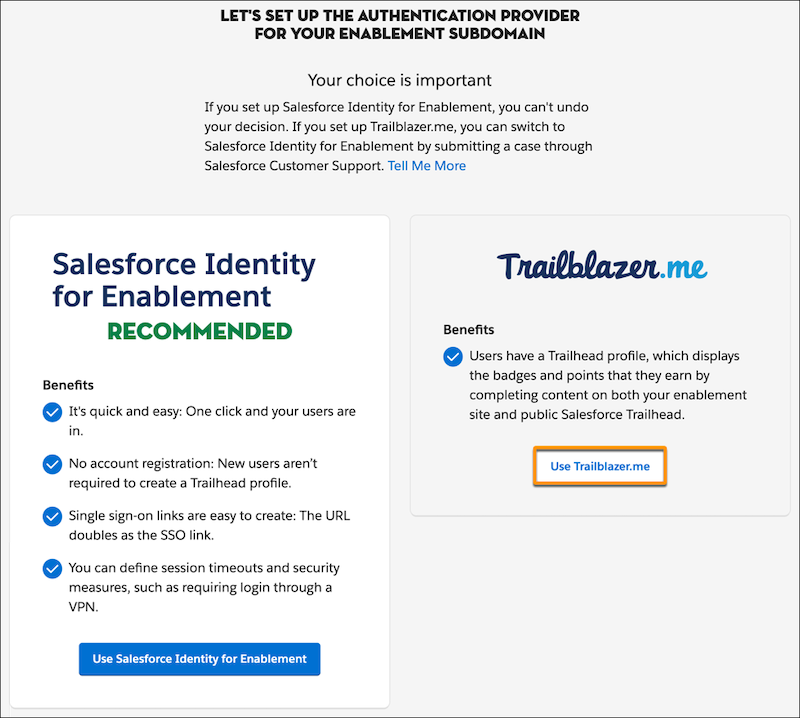
3. In the confirmation window, click **Use Trailblazer.me**.
All your enabled users can now log in to your enablement site. Next, you can move on to these other admin activities.
- To make sure that your content creators can access Trailmaker, [assign the appropriate permissions for different roles](https://help.salesforce.com/s/articleView?id=sales.mth_create_assign_mytrailhead_perm_sets.htm&release=264.0.0&type=5 "Ensure that your company’s content writers, publishers, and other stakeholders can access the features that are relevant to their specific roles. Create permission sets for the different publishing roles at your company, enable the permissions that correspond to the features they use, and assign the appropriate users.").
- To make sure that learners can access the appropriate published content, [create content collections and assign permissions to learners](https://help.salesforce.com/s/articleView?id=sales.mth_content_permissions.htm&release=264.0.0&type=5 "Ensure that learners can access only the trails and modules that are relevant to their disciplines or job requirements. Create content collections for your different audiences, and then use permission sets to enable access to specific content collections. Only learners with permission to access a particular content collection can view and complete the trails and modules included in the collection.").
- To continue configuring your enablement site's settings, you can [add your logo and color](https://help.salesforce.com/s/articleView?id=sales.mth_customize_mth_with_your_branding.htm&release=264.0.0&type=5 "When you configure your enablement site, you can apply your company’s visual identity, such as logo, primary color, and banner image. You can also customize the links that appear in the footer of each page. And you can designate the pages where your users land when they log out or click the Help icon. These customizations persist across your enablement site.") and [manage content filters](https://help.salesforce.com/s/articleView?id=sales.mth_manage_filters.htm&release=264.0.0&type=5 "Filters help learners find relevant content on your enablement site. Users can apply filters to refine search results or narrow down the visible content on the Modules and Trails index pages. And, Trail Tracker users can create reports based on filters, such as a report that shows all content labeled with a particular filter.").
#### See Also
- [Configure Salesforce Identity for Enablement](https://help.salesforce.com/s/articleView?id=sales.mth_configure_mytrailhead_identity.htm&release=264.0.0&type=5 "To set up Salesforce Identity for Enablement for your enablement site, first create a connected app in Salesforce. The connected app handles data sharing between your enablement site and Salesforce using OpenID Connect and OAuth 2.0—protocols that authenticate users and authorize access to data in your org. Finally, enter your connected app details on your enablement site.")
- [Considerations for Selecting an Authentication Provider](https://help.salesforce.com/s/articleView?id=sales.mth_considerations_for_choosing_mytrailhead_identity.htm&release=264.0.0&type=5 "To help you determine which authentication provider is right for your company’s enablement site, review how each provider affects your learning and enablement strategy. We recommend that all new enablement sites choose Salesforce Identity for Enablement.")
- [Request to Switch Your Authentication Provider](https://help.salesforce.com/s/articleView?id=sales.mth_identity_change.htm&release=264.0.0&type=5 "If you selected Trailblazer.me (TBID) for your enablement site’s authentication provider, you can submit a Salesforce Customer Support case to request to switch to Salesforce Identity for Enablement. If you already selected Salesforce Identity for Enablement for your enablement site’s authentication provider, you can’t request to switch it to TBID.")
# Configure WDC
Configure WDC to meet the needs of your business.
### Required Editions
Available in: Salesforce Classic
WDC is available as an add-on license for Professional Edition,
Enterprise Edition, Unlimited Edition, or Developer Edition,
and is included in Performance Edition.

Important Starting in Spring ’22, WDC isn’t available to new Salesforce customers. For existing customers, WDC features and records from Badges, Skills, and Thanks aren’t affected and will remain available in the application beyond Spring ’22. WDC Goals, Coaching, Feedback, Performance, and Rewards features won’t appear in the application anymore, and records created previously will no longer be accessible.

Note On May 1, 2020, we rebranded this suite. It's now called WDC.
- **[WDC Editions and Permissions](https://help.salesforce.com/s/articleView?id=sales.workcom_perms.htm&release=264.0.0&type=5)**
Skills and Thanks functionality are freely available to Sales users. The permissions and preferences necessary for different tasks are broken up by feature area.
- **[Enable or Disable WDC Settings](https://help.salesforce.com/s/articleView?id=sales.workcom_settings_setup.htm&release=264.0.0&type=5)**
On the WDC Settings page, you can enable and disable features like Thanks and Skills for your organization.
- **[Skills Customization](https://help.salesforce.com/s/articleView?id=sales.workcom_skills_customization.htm&release=264.0.0&type=5)**
You can change object permissions for the skill and endorsement objects to suit the needs of your organization.
- **[Skills Limitations](https://help.salesforce.com/s/articleView?id=sales.workcom_skills_limitations.htm&release=264.0.0&type=5)**
Skills and endorsements have special behaviors and limitations.
# Configure WDC Features
Configure the Recognition and Skills features.
### Required Editions
Available in: Salesforce Classic
WDC is available for existing WDC customers in Professional Edition,
Enterprise Edition, Performance Edition, Unlimited Edition, and
Developer Edition.

Important Starting in Spring ’22, WDC isn’t available to new Salesforce customers. For existing customers, WDC features and records from Badges, Skills, and Thanks aren’t affected and will remain available in the application beyond Spring ’22. WDC Goals, Coaching, Feedback, Performance, and Rewards features won’t appear in the application anymore, and records created previously will no longer be accessible.

Note On May 1, 2020, we rebranded this suite. It's now called WDC.
Configure these features:
- Recognition: Create and give thanks badges
- Skills: Share and endorse skills

Note We recommend that you enable Chatter regardless of the edition your org is using. Many WDC features use the Chatter feed to notify and interact with users. To confirm that Chatter is enabled, from Setup, enter Chatter Settings in the Quick Find box, then select **Chatter Settings**, and verify that Chatter Settings is enabled.
- **[Thanks and Skills Features](https://help.salesforce.com/s/articleView?id=sales.workcom_impl_motivate_intro.htm&release=264.0.0&type=5)**
Set up Thanks and Skills features by configuring thanks in the Chatter publisher and assigning a publisher layout to profiles.
#### See Also
- [Set Up WDC](https://help.salesforce.com/s/articleView?id=sales.workcom_intro.htm&release=264.0.0&type=5 "Set up WDC and its features.")
# Configure Workato in a Salesforce Spiff Sandbox
Configure Workato in a Salesforce Spiff sandbox to test data integrations before deploying changes to production. The sandbox uses your production company's Workato account, so you can copy and reuse existing recipes and connections without re-creating them from scratch.
### Required Editions
Available in: both Salesforce Classic (not available in all orgs) and Lightning Experience
Available in: Enterprise, Unlimited, and Developer Editions
Available for an additional cost in: Professional Edition with Web Services API Enabled
User Permissions Needed
To configure Workato in a sandbox:
Workato access
AND
A Spiff user role with these permissions turned on.
Connectors: Edit
Data Sources: Sync

Important To use Workato in a sandbox, your organization must have purchased the Spiff connector in Workato and completed the initial Workato setup in your production environment. See [Set Up a Third-Party Connector in Salesforce Spiff](https://help.salesforce.com/s/articleView?id=sales.spiff_connector_third_party_setup.htm&release=264.0.0&type=5 "Salesforce Spiff REST API or a webhook processes all automated third-party data imported into Spiff. Send data to Spiff REST API or webhook endpoints directly or use an Integration Platform as a Service (iPaaS) tool, such as Workato. Workato provides a default Spiff connector that uses webhook endpoints for integrating third-party data with Spiff more easily. To purchase the Workato connector, contact your Salesforce account executive or sales partner. You can also use another iPaaS tool or design a custom solution.").
The Workato experience in a sandbox is identical to production. These settings are read-only in a sandbox to protect your production configuration: the notification email address and time zone on the **Webhook Settings** page, and the Workato user checkbox on user profile pages.

Important Adding a Workato connection for a sandbox counts against the connector limit in your Workato contract and can result in additional costs. Contact your Salesforce account executive to review your contract before getting started.
## Create a Webhook in Your Sandbox
Create a sandbox-specific webhook to generate the credentials that Workato uses to connect to your sandbox. Complete this task before you access Workato from the sandbox.
1. Switch to your sandbox environment.
2. From **Admin**, select **Settings**.
3. Scroll to the bottom of the left navigation panel and select **Webhook Settings**.
4. Click **Add Webhook**.
5. Copy the webhook ID and secret from the confirmation window.
The webhook ID and secret are the credentials used to set up the sandbox Spiff connection in Workato. If you close the confirmation window without copying these values, you can't recover them—you can only generate new tokens. See [Refresh Webhook Tokens in Salesforce Spiff](https://help.salesforce.com/s/articleView?id=sales.spiff_refresh_webhook_token.htm&release=264.0.0&type=5 "If you didn’t make note of the connector ID and secret for a webhook that you created in Salesforce Spiff, those credentials are permanently lost when you close the new webhook window. These credentials are required when you set up a Spiff connection in Workato. You can’t restore these credentials, but you can generate different values.").
## Access and Configure Workato from Your Sandbox
Open Workato from your sandbox, add a sandbox-specific Spiff connection, and copy recipes from your production workspace to use in the sandbox.

Important Complete these steps as a user with access to Workato, and make sure that you have already created a webhook in the sandbox.
1. In your sandbox environment, from **Admin**, select **Connectors** and click **Data Automation**.
The Workato window opens. A warning banner indicates that you're working in a sandbox and that configuration changes can affect your production environment.
2. Review the warning banner and confirm that you want to proceed.
3. Add a Spiff connection using your sandbox credentials.
1. Go to **Projects** | **Connections**.
2. Search for Spiff and add the Spiff connection.
3. Enter the webhook ID and secret that you copied when you created the webhook in your sandbox.
4. Update the subdomain for your region.
- If you're in the US, use us1.
- If you're in the EU, use eu1.
4. Copy recipes from your production workspace and configure them to use the new sandbox connection.
1. Go to **Data Automation** | **Recipes**.
2. Copy the recipes that you want to use in the sandbox.
3. In each copied recipe, update the Spiff connection to use the sandbox connection you created.
# Configure Your Enablement Site
Set up the enablement site for your company, including your subdomain, authentication provider, user permissions, and brand identity.
### Required Editions
Available in: Enterprise, Performance, and Unlimited Editions
User Roles
This topic supports these enablement site roles:
Salesforce Admins
- **[Set Up Your Enablement Site's Subdomain and First Content Collection](https://help.salesforce.com/s/articleView?id=sales.mth_set_up_your_mth_subdomain_and_namespace.htm&release=264.0.0&type=5)**
Your subdomain is used in the URL where learners access your published trails and modules and where your authorized users log in to the Trailmaker apps. A subdomain name is an extension of your company’s brand. When you create your subdomain, you also create your company’s first content collection—a batch of content that you want to make available to certain learners. Later, you can create more content collections in Salesforce.
- **[Authentication Providers for Your Enablement Site](https://help.salesforce.com/s/articleView?id=sales.mth_set_up_authentication_provider_for_your_subdomain.htm&release=264.0.0&type=5)**
After you set up your enablement site's subdomain, select an authentication provider, which determines how all your users—learners, content creators, and release managers—log in to your site. You can select either Salesforce Identity for Enablement, which we recommend, or Trailblazer.me (TBID). The authentication provider that you select determines the login and navigation experience for all of your users.
- **[Assign Permissions for Enablement Site Users](https://help.salesforce.com/s/articleView?id=sales.mth_assign_permissions.htm&release=264.0.0&type=5)**
All your users—release managers, content creators, and learners—need the appropriate user permissions to access the appropriate features and fulfill their roles. A Salesforce admin configures user permissions in Setup in Salesforce.
- **[Enable External Learners for Your Enablement Site](https://help.salesforce.com/s/articleView?id=sales.mth_mytrailhead_and_communities.htm&release=264.0.0&type=5)**
Enable learners from outside your company as users for your enablement site by linking an Experience Cloud site. For example, guide partners to content that teaches them how to manage leads and opportunities. Or, guide customers to content that teaches them how to use your products.
- **[Brand Your Enablement Site](https://help.salesforce.com/s/articleView?id=sales.mth_customize_mth_with_your_branding.htm&release=264.0.0&type=5)**
When you configure your enablement site, you can apply your company’s visual identity, such as logo, primary color, and banner image. You can also customize the links that appear in the footer of each page. And you can designate the pages where your users land when they log out or click the Help icon. These customizations persist across your enablement site.
- **[Manage Filters for Enablement Site Content](https://help.salesforce.com/s/articleView?id=sales.mth_manage_filters.htm&release=264.0.0&type=5)**
Filters help learners find relevant content on your enablement site. Users can apply filters to refine search results or narrow down the visible content on the Modules and Trails index pages. And, Trail Tracker users can create reports based on filters, such as a report that shows all content labeled with a particular filter.
- **[Track and Assign Enablement Site Content with the Trail Tracker App](https://help.salesforce.com/s/articleView?id=sales.mth_install_trail_tracker_app.htm&release=264.0.0&type=5)**
Trail Tracker is a free app for assigning and reporting on content for your learners. The app, which is a managed package and not part of your enablement site, adds capabilities for assigning trailmixes, setting deadlines, tracking completion progress, and customizing assignment notifications. The app also provides reports and dashboards to help you get started.
- **[Request to Change Your Enablement Site's Subdomain Name](https://help.salesforce.com/s/articleView?id=sales.mth_subdomain_change.htm&release=264.0.0&type=5)**
If you want to change your enablement site’s subdomain name after it was first created, you can submit a Salesforce Customer Support case.
#### See Also
- [Content Lifecycle for Your Enablement Site](https://help.salesforce.com/s/articleView?id=sales.mth_creating_publishing_mth_content.htm&release=264.0.0&type=5 "Creating and publishing content for your enablement site involves multiple disciplines that collaborate to plan, write, style, store, and release the content.")
# Configure Your Workspace in Salesforce in Claude (Beta)
The Configure skill gathers your role, recently viewed Salesforce records, recent activity, and open opportunities on your accounts — so you're ready to sell.
### Required Editions
Available in: Lightning Experience, Salesforce Classic, and the Salesforce mobile app
Available in: Enterprise, Performance, Unlimited, and Developer Editions
Requires Claude Enterprise

Note Salesforce in Claude is a pilot or beta service that is subject to the Beta Services Terms at [Agreements - Salesforce.com](https://www.salesforce.com/company/legal/agreements/) or a written Unified Pilot Agreement if executed by Customer, and applicable terms in the [Product Terms Directory](https://ptd.salesforce.com/). Use of this pilot or beta service is at the Customer's sole discretion.
To get started, say "configure," "set me up," "onboard me," or "get me started." You can also use /configure. If it's your first time using Salesforce in Claude, you're prompted to run it automatically.
Configure never runs on its own in the middle of a conversation. Ask for it directly, or accept the first-run prompt.

Important Configure requires an active Salesforce connection. If you haven't connected yet, Claude asks you to connect the Sales Cloud server through /mcp before continuing.
When you run Configure, Claude:
- Sets up a recurring daily Salesforce Updates task that keeps the task itself current and version-aligned.
- Gathers your role, recently viewed Salesforce records, recent activity, and open opportunities on accounts that you own.
- Welcomes you and shows a quick menu of what you can do next.
- Builds Your Sales Intelligence, a live view of your book of business, on request.

Note Connecting Slack is optional and doesn't affect what Configure sets up — it only changes the wording of your welcome message.
# Confirm That Global Layouts Have the Correct Email Action
Although the Email action is only available in Lightning Experience, it must be included min the Quick Actions in the Salesforce Classic Publisher section of the page layout. That way, the action is available in every layout that inherits from the global layout. The action must also be in the global layout to enable Email in the Global actions menu, use reply/forward, use email in Assistant, and use email in Opportunity Insights.
### Required Editions
Available in: Lightning Experience
Available in: Essentials, Enterprise, Performance, Unlimited, and Developer Editions
User Permissions
Needed
To create and modify the Email quick action:
Customize Application
To edit a page layout:
Customize Application

Note The **Send Email** mobile action isn’t supported on cases.
1. From Setup, in the Quick Find box, enter Publisher Layouts, then select **Publisher Layouts**.
2. Verify that the Email action exists on every global layout before setting the Default Email Application or assigning the Send Email permission. See [Edit Your Email Settings](https://help.salesforce.com/s/articleView?id=xcloud.user_email.htm&type=5&language=en_US).
1. In the Quick Actions in the Salesforce Classic Publisher section, confirm that the Email action is listed with these characteristics: Label of “Email”, name of “SendEmail”, and Action Type of “Send Email”.
2. If the Mobile & Lightning Experience Actions section isn’t using the predefined actions, confirm that the Email action is listed with these characteristics: Label of “Email”, name of “SendEmail”, and Action Type of “Quick Action”).
3. If the action is missing from the Salesforce Classic Publisher area of the page, select and drag it to the area.
4. Save your changes.
#### See Also
- [Confirm That Record Layouts Are Using the Correct Email Action](https://help.salesforce.com/s/articleView?id=sales.send_email_action_record_layout.htm&release=264.0.0&type=5 "Confirm that the “Send Email” action is in the appropriate section of each record layout.")
- [Add Actions to Global Publisher Layouts](https://help.salesforce.com/s/articleView?id=platform.customizing_global_publisher_layouts.htm&language=en_US)
# Confirm That Record Layouts Are Using the Correct Email Action
Confirm that the “Send Email” action is in the appropriate section of each record layout.
### Required Editions
Available in: Lightning Experience
Available in: Essentials, Enterprise, Performance, Unlimited, and Developer Editions
User Permissions Needed
To create and modify the Email quick action:
Customize Application
To edit a page layout:
Customize Application
For each record layout page, make sure that the Email action is in the appropriate section. The correct section depends on whether the “Quick Actions in the Salesforce Classic Publisher” and “Salesforce1 and Lightning Actions” sections are inherited or overwritten.
1. Click **Setup**.
2. In the "Quick Find" field, enter Object Manager, then click **Object Manager**.
3. Click **Account**.
4. For each Account page layout, use the table to determine which section should have the Email action.
5. Repeat these steps for Opportunity, Lead, Contact, and Campaign layouts, and any activity-enabled objects which should have email capability.

Example
Quick Actions in the Salesforce Classic Publisher
Inherited
Overwritten
Salesforce1 and Lightning Actions
Predefined
Maske sure that the Global layout is set up according to the instructions in
the “Global Layout” section.
Make sure that action is in the “Quick Actions in the Salesforce Classic
Publisher” section.
Overwritten
Make sure that action is in the “Salesforce1 and Lightning Experience Actions”
section.
Make sure that action is in the “Salesforce1 and Lightning Experience Actions”
section.

Note For records in the activity timeline, the Email action displays in the Activity Publisher.
#### See Also
- [Confirm That Global Layouts Have the Correct Email Action](https://help.salesforce.com/s/articleView?id=sales.send_email_action_global_layout.htm&release=264.0.0&type=5 "Although the Email action is only available in Lightning Experience, it must be included min the Quick Actions in the Salesforce Classic Publisher section of the page layout. That way, the action is available in every layout that inherits from the global layout. The action must also be in the global layout to enable Email in the Global actions menu, use reply/forward, use email in Assistant, and use email in Opportunity Insights.")
# Connect Account Engagement and Salesforce Campaigns
If you’re new to Salesforce and Account Engagement, the Connected Campaigns feature is already partially enabled. Connect campaigns to save time, reduce clutter, and access valuable cross-product features. For example, work with Campaign Influence attribution models, Engagement History, and Einstein Campaign Insights for a complete view of your business. Plus, you can work with prospects and engagement data without leaving Salesforce.
### Required Editions
Available in: Salesforce Classic and Lightning Experience
Available in: All Account Engagement Editions with Salesforce Essentials, Professional, Enterprise, Performance, Unlimited, and Developer Editions
To streamline the way that you provide multifaceted campaign data to sales and marketing teams, connect your Salesforce and Account Engagement campaigns. As a prospect interacts with the marketing assets on a Account Engagement campaign, metrics are pushed to its equivalent Salesforce record. From there, marketers can track influence, and sales users can clearly see the prospect’s journey to becoming an opportunity.

Note If you purchased Account Engagement after March 22, 2019, Connected Campaigns is partially enabled by default. You can create campaigns in Salesforce only and have access to Engagement History features.
Play a Demo:  [Enable Connected Campaigns (English Only)](https://sfdc.co/EnableCC-Help)[](https://sfdc.co/EnableCC-Help)
[](https://sfdc.co/EnableCC-Help)
[](https://sfdc.co/EnableCC-Help)
- **[Get Started with Connected Campaigns](https://help.salesforce.com/s/articleView?id=sales.campaigns_pardot_alignment_new.htm&release=264.0.0&type=5)**
If you purchased Account Engagement after March 22, 2019, Connected Campaigns is partially enabled by default. To configure campaigns to work best for your business, complete a few tasks.
- **[Considerations for Connecting Campaigns](https://help.salesforce.com/s/articleView?id=sales.campaigns_pardot_alignment_considerations.htm&release=264.0.0&type=5)**
If you’re setting up Connected Campaigns in a business unit with existing campaigns, keep these considerations in mind.
- **[Migrate to Connected Campaigns](https://help.salesforce.com/s/articleView?id=sales.campaigns_pardot_alignment_migrate.htm&release=264.0.0&type=5)**
Use Salesforce campaigns to align with revenue teams and get access to Salesforce reporting and other platform functionality. To activate these benefits, users who have Account Engagement campaigns must enable Connected Campaigns and map their records.
- **[Campaign Member Sync](https://help.salesforce.com/s/articleView?id=sales.campaigns_pardot_campaign_member_sync_parent.htm&release=264.0.0&type=5)**
As you connect your campaigns, decide whether to sync prospects into those campaigns. When you turn on Member Sync for connected campaigns, prospects appear in Salesforce as campaign members.
#### See Also
- [Show Engagement History on Records](https://help.salesforce.com/s/articleView?id=mktg.campaigns_engagement_history_parent.htm&type=5&language=en_US)
- [Connect Multiple Campaigns at Once](https://help.salesforce.com/s/articleView?id=sales.campaigns_bulk_map_pardot_sfdc_excel.htm&release=264.0.0&type=5 "The easiest way to audit and organize your campaigns in bulk is to download our mapping workbook. It contains your campaign names and IDs in three worksheets. Copy and paste values from the workbook tabs to align the campaigns in the Connect tab. Then, upload the completed file.")
# Connect Claude to the Salesforce MCP (Beta)
With the MCP Server active and your External Client App configured, connect Claude to your org to finish setup.
### Required Editions
Available in: Lightning Experience, Salesforce Classic, and the Salesforce mobile app
Available in: Enterprise, Performance, Unlimited, and Developer Editions
Requires Claude Enterprise

Note Salesforce in Claude is a pilot or beta service that is subject to the Beta Services Terms at [Agreements - Salesforce.com](https://www.salesforce.com/company/legal/agreements/) or a written Unified Pilot Agreement if executed by Customer, and applicable terms in the [Product Terms Directory](https://ptd.salesforce.com/). Use of this pilot or beta service is at the Customer's sole discretion.
1. In Claude, go to **Organization Settings** > **Connectors**, and find **Salesforce - Beta**.
2. Enter the Consumer Key and Secret from your ECA to complete the connection.
3. In Claude, go to **Organization Settings**\>**Plugins**. Install the **Sales Cloud in Claude** plugin.
This installs the plugin for you personally. To make it available to other users in your org, [roll out the plugin](https://help.salesforce.com/s/articleView?id=sales.roll_out_the_plugin.htm&release=264.0.0&type=5 "Choose how the Sales Cloud in Claude plugin becomes available to your users.") separately.
Next, [set tool restrictions](https://help.salesforce.com/s/articleView?id=ai.set_tool_restrictions.htm&type=5&language=en_US) so skills can read your org’s data, and to configure whether users can create and update records.
#### See Also
- [Activate the MCP Server](https://help.salesforce.com/s/articleView?id=ai.activate_the_mcp_server.htm&type=5&language=en_US)
- [Create and Configure the External Client App (ECA)](https://help.salesforce.com/s/articleView?id=ai.create_and_configure_the_eca.htm&type=5&language=en_US)
# Connect Data Sources to Sales Plans
Start your sales planning process with relevant data from Salesforce or from other proprietary and third-party sources that you connect to in Sales Planning.
### Required Editions
Available in: both Salesforce Classic (not available in all orgs) and Lightning Experience
Available for an additional cost in: Enterprise, Performance, Unlimited, and Developer Editions with Sales Planning in English only, and only if you have Web Services API enabled
User Permissions Needed
To set up a data source:
Sales Planning Admin permission set
AND
One of these:
Data Pipelines Base User permission set
CRM Analytics Plus Admin permission set
CRM Analytics Growth Admin permission set
1. Click the **Sales Planning Settings** tab.
2. Select **Data Sources** in the left menu.
3. Click **Add**.
4. In Dataset, search for and select a source that you want to connect to.
For example, search for and select from datasets that include accounts, accounts and leads, data from custom objects, or data from outside Salesforce.
5. Add a name for your data source, and then select the columns you want to include.
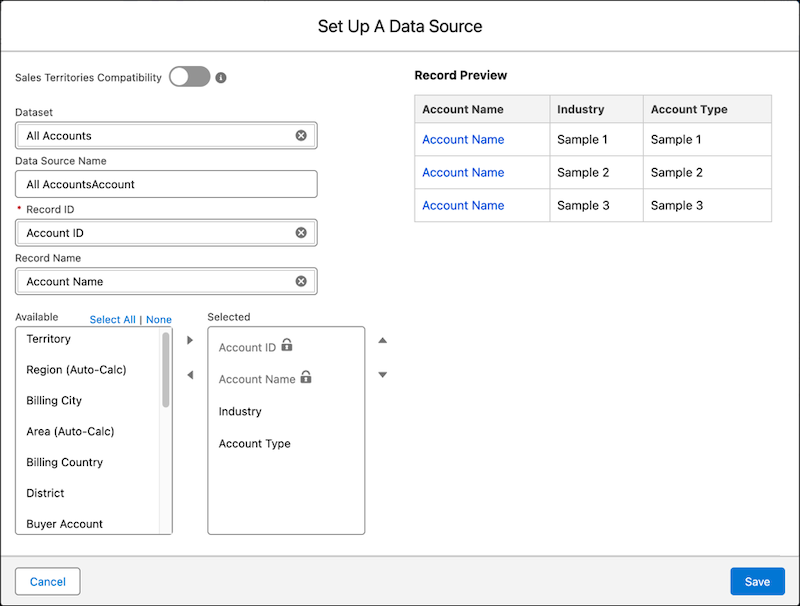
6. Save your changes.
# Connect Einstein Activity Capture to Microsoft Exchange using User-Level Authentication
The user-level authentication method is available for Microsoft Exchange on-premises servers and Microsoft Office 365. After users are assigned to Einstein Activity Capture, they’re prompted to connect their Microsoft account to Salesforce.
### Required Editions
Available in: Lightning Experience
Available with Einstein Activity Capture Standard in Sales in Professional and Enterprise Editions
Available with Unlimited Edition, Einstein 1 Sales Edition, and Agentforce 1 Edition
Available with Einstein for Sales, which is included in Einstein 1 Sales Edition and available for an extra cost in Enterprise and Unlimited Editions
Available with Sales Engagement, which is included with Sales in Performance and Unlimited Editions, and available for an extra cost in Professional and Enterprise Editions
Available with Revenue Intelligence, which is available for an extra cost in Enterprise and Unlimited Editions
User Permissions
Needed
To connect Salesforce to Microsoft Exchange(on-prem):
Customize Application or Modify All Data
To view the Einstein Activity Capture setup pages:
View Setup and Configurations
and
Customize Application or Modify All
Data
Make sure that you [allow the necessary network access](https://help.salesforce.com/s/articleView?id=sales.aac_setup_allow_access.htm&release=264.0.0&type=5 "When setting up Einstein Activity Capture with a Microsoft Exchange on-premises server (2019, 2016, or 2013) or Microsoft Office 365, make sure that you allow the necessary network access.").
You can't set up Einstein Activity Capture with Microsoft Exchange on-premises in Starter Suite and Pro Suite editions.
1. From Setup, in the Quick Find box, enter Einstein Activity Capture, and then select **Settings**.
If it’s your first time setting up Einstein Activity Capture, the setup flow guides you through the steps. If you already set up Einstein Activity Capture and want to change the authentication method, reset Einstein Activity Capture.
2. Select **Microsoft Exchange** as the email and calendar app.
3. Select **User-Level Auth** as your authentication method.
4. Follow the remaining Einstein Activity Capture setup steps, including [creating a configuration and adding users to it](https://help.salesforce.com/s/articleView?id=sales.aac_setup_create_configuration.htm&release=264.0.0&type=5 "Configurations determine which data gets captured and how it flows between Salesforce and your connected account. You create one configuration during the initial setup and you can add more to customize data capture and sync behavior for specific users or profiles. By default, Einstein Activity Capture syncs events and contacts bi-directionally, though you can edit these settings at any time.").
Salesforce prompts users to connect their Microsoft Office 365 account to Salesforce. Until they do, they can’t send emails in Lightning Experience.
# Connect Einstein Activity Capture to Microsoft Office 365 using Application-Level Authentication
The application-level authentication method is available only for Microsoft Office 365. The Salesforce admin works with their Azure admin to give Salesforce access to data in Microsoft Office 365. The connection applies to all users in Salesforce. The Salesforce admin sets up all Einstein Activity Capture users at the same time.
### Required Editions
Available in: Lightning Experience
Available with Einstein Activity Capture Standard in Sales in Starter, Pro Suite, Professional, and Enterprise Editions
Available with Unlimited Edition, Einstein 1 Sales Edition, and Agentforce 1 Edition
Available with Einstein for Sales, which is included in Einstein 1 Sales Edition and available for an extra cost in Enterprise and Unlimited Editions
Available with Sales Engagement, which is included with Sales in Performance and Unlimited Editions, and available for an extra cost in Professional and Enterprise Editions
Available with Revenue Intelligence, which is available for an extra cost in Enterprise and Unlimited Editions
User Permissions Needed
To connect Salesforce to Microsoft 365:
Customize Application or Modify All Data
To view the Einstein Activity Capture setup pages:
View Setup and Configurations
and
Customize Application or Modify All
Data
Before you begin, confirm that your Azure admin has granted org-wide Microsoft Graph API access and permissions. See [App ID for Microsoft Graph Authentication](https://help.salesforce.com/s/articleView?id=sales.activity_capture_graph_api.htm&release=264.0.0&type=5). The admin setting up the connection from Microsoft is required to be assigned the DirectoryRole of a Global Admin, Cloud Application Admin, or Application Admin.
1. From Setup, in the Quick Find box, enter Einstein Activity Capture, and then select **Settings**. If it’s your first time setting up Einstein Activity Capture, the setup flow guides you through the steps. If you already set up Einstein Activity Capture and want to change the authentication method, reset Einstein Activity Capture.
2. Select **Microsoft 365** as the email and calendar app.
3. Select **Application-Level OAuth 2.0** as the authentication method.
4. Review the server URL that we’ll redirect you to when you log in to your Microsoft Office 365 account.
5. Click **Log In** and enter your company’s Microsoft Office 365 account credentials. Then, accept Salesforce access to Microsoft Office 365.
When you’re done, you return to the Einstein Activity Capture setup flow and Salesforce auto-populates the tenant ID field.
6. Optionally, test the connection between Salesforce and Microsoft Office 365.
7. Follow the remaining steps in Einstein Activity Capture setup, which includes [creating a configuration and adding users to it](https://help.salesforce.com/s/articleView?id=sales.aac_setup_create_configuration.htm&release=264.0.0&type=5 "Configurations determine which data gets captured and how it flows between Salesforce and your connected account. You create one configuration during the initial setup and you can add more to customize data capture and sync behavior for specific users or profiles. By default, Einstein Activity Capture syncs events and contacts bi-directionally, though you can edit these settings at any time.").
After setup is complete, Einstein Activity Capture automatically syncs data for the configured users.
# Connect Einstein Activity Capture to Microsoft Office 365 using RBAC Authentication
The Role-Based Access Control (RBAC) authentication method is available only for Microsoft Office 365. The Salesforce admin works with their Azure admin to give Salesforce access to data in Microsoft Office 365. The connection applies to all users in Salesforce. Users get access to resources not individually, but through predefined roles defined within an application.
### Required Editions
Available in: Lightning Experience
Available with Einstein Activity Capture Standard in Sales in Starter, Pro Suite, Professional, and Enterprise Editions
Available with Unlimited Edition, Einstein 1 Sales Edition, and Agentforce 1 Edition
Available with Einstein for Sales, which is included in Einstein 1 Sales Edition and available for an extra cost in Enterprise and Unlimited Editions
Available with Sales Engagement, which is included with Sales in Performance and Unlimited Editions, and available for an extra cost in Professional and Enterprise Editions
Available with Revenue Intelligence, which is available for an extra cost in Enterprise and Unlimited Editions
User Permissions Needed
To connect Salesforce to Microsoft 365:
Customize Application or Modify All Data
To view the Einstein Activity Capture setup pages:
View Setup and Configurations
and
Customize Application or Modify All
Data
Before you begin, confirm that your Azure admin has granted org-wide [Microsoft Graph API access and permissions](https://help.salesforce.com/s/articleView?id=sales.activity_capture_graph_api.htm&release=264.0.0&type=5). See [App ID for Microsoft Graph Authentication](https://help.salesforce.com/s/articleView?id=sales.activity_capture_graph_api.htm&release=264.0.0&type=5). The admin setting up the connection from Microsoft is required to be assigned the DirectoryRole of a Global Admin, Cloud Application Admin, or Application Admin.
1. From Setup, in the Quick Find box, enter Einstein Activity Capture, and then select **Settings**.
If it’s your first time setting up Einstein Activity Capture, the setup flow guides you through the steps. If you already set up Einstein Activity Capture and want to change the authentication method, reset Einstein Activity Capture.
2. Select **Microsoft 365** as the email and calendar application.
3. Select **Role-Based Access Control (RBAC) OAuth 2.0** as the authentication method.
4. Consent to confirm that your Azure admin has set up the necessary permissions for users.
5. Review the server URL that Salesforce redirects you to when you log in to your Microsoft Office 365 account as an admin.
6. Click **Log In** and enter your company’s Microsoft Office 365 account credentials. Then, accept Salesforce's access to Microsoft Office 365.
When you’re done, you return to the Einstein Activity Capture setup flow and Salesforce auto-populates the tenant ID field.
7. Optionally, test the connection between Salesforce and Microsoft Office 365.
8. Follow the remaining steps in Einstein Activity Capture setup, which includes [creating a configuration and adding users to it](https://help.salesforce.com/s/articleView?id=sales.aac_setup_create_configuration.htm&release=264.0.0&type=5 "Configurations determine which data gets captured and how it flows between Salesforce and your connected account. You create one configuration during the initial setup and you can add more to customize data capture and sync behavior for specific users or profiles. By default, Einstein Activity Capture syncs events and contacts bi-directionally, though you can edit these settings at any time.").
After setup is complete, Einstein Activity Capture automatically syncs data for the configured users.
# Connect Einstein Activity Capture to Microsoft Office 365 using User-Level Authentication
The user-level authentication method is available for Microsoft Exchange on-premises servers and Microsoft Office 365. After users are assigned to Einstein Activity Capture, they’re prompted to connect their Microsoft account to Salesforce.
### Required Editions
Available in: Lightning Experience
Available with Einstein Activity Capture Standard in Sales in Starter, Pro Suite, Professional, and Enterprise Editions
Available with Unlimited Edition, Einstein 1 Sales Edition, and Agentforce 1 Edition
Available with Einstein for Sales, which is included in Einstein 1 Sales Edition and available for an extra cost in Enterprise and Unlimited Editions
Available with Sales Engagement, which is included with Sales in Performance and Unlimited Editions, and available for an extra cost in Professional and Enterprise Editions
Available with Revenue Intelligence, which is available for an extra cost in Enterprise and Unlimited Editions
User Permissions Needed
To connect Salesforce to Microsoft 365:
Customize Application or Modify All Data
To view the Einstein Activity Capture setup pages:
View Setup and Configurations
and
Customize Application or Modify All
Data
Before you begin, confirm that your Azure admin has granted org-wide Microsoft Graph API access and permissions. See [App ID for Microsoft Graph Authentication](https://help.salesforce.com/s/articleView?id=sales.activity_capture_graph_api.htm&release=264.0.0&type=5). The admin setting up the connection from Microsoft is required to be assigned the DirectoryRole of a Global Admin, Cloud Application Admin, or Application Admin.
1. From Setup, in the Quick Find box, enter Einstein Activity Capture, and then select **Settings**.
If it’s your first time setting up Einstein Activity Capture, the setup flow guides you through the steps. If you already set up Einstein Activity Capture and want to change the authentication method, reset Einstein Activity Capture.
2. Select **Microsoft 365** as the email and calendar app to connect to Einstein Activity Capture.
3. Select **User-Level OAuth 2.0** as your authentication method for Einstein Activity Capture to connect to Microsoft Office 365.
4. Follow the remaining Einstein Activity Capture setup steps, including [creating a configuration and adding users to it](https://help.salesforce.com/s/articleView?id=sales.aac_setup_create_configuration.htm&release=264.0.0&type=5 "Configurations determine which data gets captured and how it flows between Salesforce and your connected account. You create one configuration during the initial setup and you can add more to customize data capture and sync behavior for specific users or profiles. By default, Einstein Activity Capture syncs events and contacts bi-directionally, though you can edit these settings at any time.").
Salesforce prompts users to connect their Microsoft Office 365 account to Salesforce. Until they do, they can’t send emails in Lightning Experience.
#### See Also
- [Set Up Einstein Activity Capture for Your Team](https://help.salesforce.com/s/articleView?id=sales.aac_setup_parent.htm&release=264.0.0&type=5 "Get your sales reps up and running with Einstein Activity Capture. Give users access to Einstein Activity Capture. Connect your company’s email and calendar application to Salesforce, and create a configuration that controls how data moves between applications. Define settings such as which data to exclude and how activities are shared. When you’re done configuring Einstein Activity Capture, your users have some setup to do, too.")
- [Connect Your Email and Calendar to Salesforce with Einstein Activity Capture or Inbox](https://help.salesforce.com/s/articleView?id=sales.aac_connect_additional_accounts.htm&release=264.0.0&type=5 "Depending on how your Salesforce admin configures Einstein Activity Capture, it’s possible that you’re responsible for connecting or reconnecting your Microsoft or Gmail account to Salesforce. If you use Lightning Email and have access to Inbox features, connect an account to Salesforce.")
# Connect Email and Calendar Accounts to Einstein Activity Capture
Before Einstein Activity Capture can access users’ email and calendar data, connect Salesforce to your email account. The choices of how to connect and authenticate users depend on which email and calendar application you use.
### Required Editions
Available in: Lightning Experience
Available with Einstein Activity Capture Standard in Sales in Starter, Pro Suite, Professional, and Enterprise Editions
Available with Unlimited Edition, Einstein 1 Sales Edition, and Agentforce 1 Edition
Available with Einstein for Sales, which is included in Einstein 1 Sales Edition and available for an extra cost in Enterprise and Unlimited Editions
Available with Sales Engagement, which is included with Sales in Performance and Unlimited Editions, and available for an extra cost in Professional and Enterprise Editions
Available with Revenue Intelligence, which is available for an extra cost in Enterprise and Unlimited Editions

Note We’re reorganizing the Einstein Activity Capture documentation. We’re moving some information around, but we aren’t deleting anything.
- **[Connected Accounts for Einstein Activity Capture](https://help.salesforce.com/s/articleView?id=sales.aac_system_requirements.htm&release=264.0.0&type=5)**
Before you set up Einstein Activity Capture, confirm that your Google or Microsoft® accounts are compatible.
- **[Connection Methods for Google](https://help.salesforce.com/s/articleView?id=sales.aac_connection_google_parent.htm&release=264.0.0&type=5)**
Before Einstein Activity Capture can access users’ email and calendar data, connect Salesforce to Google.
- **[Connection Methods for Microsoft Office 365](https://help.salesforce.com/s/articleView?id=sales.eac_setup_microsoft365_connection.htm&release=264.0.0&type=5)**
Before Einstein Activity Capture can access users’ email and calendar data, connect Salesforce to Microsoft Office 365.
- **[Connection Methods for Microsoft Exchange (on-prem)](https://help.salesforce.com/s/articleView?id=sales.eac_setup_microsoft_exchange_onprem.htm&release=264.0.0&type=5)**
Before Einstein Activity Capture can access users’ email and calendar data, connect Salesforce to Microsoft Exchange (on-prem).
#### See Also
- [Set Up Einstein Activity Capture for Your Team](https://help.salesforce.com/s/articleView?id=sales.aac_setup_parent.htm&release=264.0.0&type=5 "Get your sales reps up and running with Einstein Activity Capture. Give users access to Einstein Activity Capture. Connect your company’s email and calendar application to Salesforce, and create a configuration that controls how data moves between applications. Define settings such as which data to exclude and how activities are shared. When you’re done configuring Einstein Activity Capture, your users have some setup to do, too.")
- [Connected Accounts for Einstein Activity Capture](https://help.salesforce.com/s/articleView?id=sales.aac_system_requirements.htm&release=264.0.0&type=5 "Before you set up Einstein Activity Capture, confirm that your Google or Microsoft® accounts are compatible.")
# Connect Existing Campaigns with Salesforce Data Loader
Connect multiple existing Account Engagement campaigns to new Salesforce campaigns in bulk using Salesforce Data Loader.
### Required Editions
Available in: Salesforce Classic and Lightning Experience
Available in: All Account Engagement Editions with Salesforce Essentials, Professional, Enterprise, Performance, Unlimited, and Developer Editions
User Permissions
Needed
To connect campaigns with Salesforce Data Loader:
Account Engagement Administrator role

Note Pardot is now known as Marketing Cloud Account Engagement. We wish we could snap our fingers to update the name everywhere, but you can expect to see the previous name in a few places until we replace it, including in the app itself.
1. Open the Account Engagement Campaigns page.
- In Account Engagement, select **Marketing** and then **Campaigns**.
- In the Lightning app, select **Account Engagement Campaigns**. This tab isn’t visible by default—an admin must add it.
2. Click **Bulk Connect Pardot Campaigns to New Salesforce Campaigns**.
Salesforce exports the file NewConnectedCampaigns.csv, which contains a list of your unconnected campaigns.
3. If your org has required custom fields for campaigns, add a column for each custom field name to the CSV file.
4. Log in with your Salesforce account credentials so you can [insert, update, or delete data using Data Loader](https://developer.salesforce.com/docs/atlas.en-us.dataLoader.meta/dataLoader/inserting_updating_or_deleting_data.htm).
5. Select **Data**.
6. Select **Show all Salesforce objects**, and select **Campaign**.
7. Click **Browse**, and open the NewConnectedCampaigns.csv file.
8. Click **Next** and after the object and CSV file are initialized, click **OK**.
9. Salesforce Data Loader prompts you to map Salesforce campaign fields to the Account Engagement campaign fields in the CSV file. Accept the default mappings. If you added custom field columns to the CSV file, find the field on the left and select its corresponding CSV column.
10. Click **Create or Edit a Map**, select **Auto-Match Fields to Columns**, and then click **OK**.
A confirmation page shows the field mappings and the number of new Salesforce campaign records to be created.
11. Click **Next**, choose the folder to save the campaigns in, and select **Finish**.
Salesforce Data Loader reports the number of campaigns created and any failures. If a campaign fails to create, the reason is listed in the ERROR column. After a short wait, the newly connected campaigns appear in the Connected Campaigns view on the Account Engagement Campaigns page.
When you use Salesforce Data Loader to map campaigns, the Pardot Campaign ID field is added to your records for organization purposes. This field isn’t shown on campaigns mapped via other methods, so we recommend that you don’t use the field in reports or page layouts.
# Connect Individual Campaigns Between Account Engagement and Salesforce
You can map an Account Engagement campaign to a Salesforce campaign to track campaign activities.
### Required Editions
Available in: Salesforce Classic and Lightning Experience
Available in: All Account Engagement Editions with Salesforce Essentials, Professional, Enterprise, Performance, Unlimited, and Developer Editions
User Permissions Needed
To connect individual campaigns:
Account Engagement Marketing role
1. Under Connected Campaigns settings, deselect **Use Salesforce to manage all campaigns**.
2. Open the Account Engagement Campaigns page.
- In Account Engagement, select **Marketing** and then **Campaigns**.
- In the Lightning app, select **Account Engagement Campaigns**. This tab isn’t visible by default—an admin must add it.
3. Select the **Unconnected Campaigns** view.
4. For the Account Engagement campaign that you want to connect, click **Connect to CRM Campaign** and then select the associated Salesforce campaign.
#### See Also
- [Account Engagement Integration User](https://help.salesforce.com/s/articleView?id=mktg.pardot_sf_connector_integration_user.htm&type=5&language=en_US)
# Connect Multiple Campaigns at Once
The easiest way to audit and organize your campaigns in bulk is to download our mapping workbook. It contains your campaign names and IDs in three worksheets. Copy and paste values from the workbook tabs to align the campaigns in the Connect tab. Then, upload the completed file.
### Required Editions
Available in: Salesforce Classic and Lightning Experience
Available in: All Account Engagement Editions with Salesforce Essentials, Professional, Enterprise, Performance, Unlimited, and Developer Editions
User Permissions Needed
To bulk connect campaigns:
Account Engagement Administrator role

Note Pardot is now known as Marketing Cloud Account Engagement. We wish we could snap our fingers to update the name everywhere, but you can expect to see the previous name in a few places until we replace it, including in the app itself.
If you have more than 500 campaigns, it can take some time to download the workbook. We send an email to notify you when the file is available.
Here are a few tools the workbook offers to help you avoid data-entry errors.
- When a campaign has the same name in both apps and you add it to the Connect tab, the worksheet auto-fills the matching campaign.
- When a row is complete, it turns green.
- When a campaign is added to the Connect tab, its corresponding row is highlighted in its original tab, to indicate it's already been mapped.
- The Salesforce record type isn’t required to map campaigns, but it’s provided for your reference.
- Sometimes, associated campaigns are aligned automatically, so you can skip over them.
- You can upload only 3,000 rows on the Connect tab at one time. Split your import into multiple batches, if needed.
1. Open the Account Engagement Campaigns page.
- In Account Engagement, select **Marketing** and then **Campaigns**.
- In the Lightning app, select **Account Engagement Campaigns**. This tab isn’t visible by default—an admin must add it.
2. Click **Connect Campaigns with Excel** and download the workbook.
3. In the Pardot tab of the workbook, copy a value from the Name column. Then, paste it into the Pardot Name column of the Connect tab.
4. In the Salesforce tab, copy the associated Salesforce campaign name. Back in the Connect tab, paste the name into the corresponding Salesforce Name field.
5. Delete unused rows from the worksheet.
6. When you’re finished aligning all the campaigns you want, upload the file.
#### See Also
- [Connect Account Engagement and Salesforce Campaigns](https://help.salesforce.com/s/articleView?id=sales.campaigns_pardot_alignment_parent.htm&release=264.0.0&type=5 "If you’re new to Salesforce and Account Engagement, the Connected Campaigns feature is already partially enabled. Connect campaigns to save time, reduce clutter, and access valuable cross-product features. For example, work with Campaign Influence attribution models, Engagement History, and Einstein Campaign Insights for a complete view of your business. Plus, you can work with prospects and engagement data without leaving Salesforce.")
# Connect Salesforce and Microsoft® Exchange Using an Exchange Service Account
To connect Salesforce to your company’s Microsoft Exchange server using a service account, you and your Exchange administrator have to complete several steps, both from Salesforce and from your Exchange server.
### Required Editions
Available to sync records from: Salesforce Classic, Lightning Experience, and the Salesforce mobile app
Available to set up from: Salesforce Classic and Lightning Experience
Available in: Professional, Enterprise, Performance, Unlimited, and Developer Editions with Sales Cloud, Service Cloud, and Lightning Platform
User Permissions
Needed
To set up a service account to communicate with Lightning Sync:
Administrative access to your company’s Exchange server
To access and edit Lightning Sync
Setup
Customize Application AND Manage Users AND Manage Lightning Sync

Important
Starting in Winter ‘21, [Lightning Sync isn’t available](https://help.salesforce.com/apex/HTViewSolution?urlname=Lightning-Sync-End-of-Sale&language=en_US) to new Salesforce customers. Use Einstein Activity Capture to sync events, contacts, and emails between your connected account and Salesforce.
If you have Lightning Sync, use the [migration tool](https://help.salesforce.com/s/articleView?id=sales.lightning_sync_move_parent.htm&type=5&language=en_US) to move to [Einstein Activity Capture](https://help.salesforce.com/articleView?id=einstein_sales_aac.htm&language=en_US) before Lightning Sync retires in 2027. Before you migrate, review [Compare Einstein Activity Capture and Lightning Sync](https://help.salesforce.com/s/articleView?id=sales.email_integration_admin_eac_vs_lightning_sync.htm&language=en_US) to understand what to expect when you migrate.
If your org is exempt from migration because of a licensing issue or if your org doesn’t support Einstein Activity Capture, you won’t see the migration tool in Lightning Sync.
1. **[Prepare Your Microsoft Exchange Server for Lightning Sync](https://help.salesforce.com/s/articleView?id=sales.productivity_sync_exchange_admin_exchange_server_permission.htm&release=264.0.0&type=5)**
To set up Lightning Sync using the service account connection method, enable these settings on your Microsoft® Exchange server: Exchange Web Services, Exchange Autodiscover Service, and Basic or NTLM authentication.
2. **[Set Up a Microsoft Exchange Service Account to Communicate with Lightning Sync](https://help.salesforce.com/s/articleView?id=sales.exchange_sync_admin_set_up_service_acct.htm&release=264.0.0&type=5)**
To set up Lightning Sync using a service account, create an Exchange service account with impersonation rights for the mailbox of each Lightning Sync user.
3. **[Run the Microsoft® Remote Connectivity Analyzer with Lightning Sync Parameters](https://help.salesforce.com/s/articleView?id=sales.exchange_sync_admin_connectivity_test.htm&release=264.0.0&type=5)**
Salesforce admins can run the Remote Connectivity Analyzer—the free web-based tool provided by Microsoft—to confirm whether Salesforce admins and their Exchange admins have set up Lightning Sync for Microsoft Exchange successfully. Or, admins can run the Remote Connectivity Analyzer if Lightning Sync for Microsoft Exchange was syncing reps’ items successfully, but suddenly stops. Use the parameters provided to run the test for Lightning Sync.
4. **[Set Up Salesforce to Communicate with Microsoft® Exchange Using a Service Account](https://help.salesforce.com/s/articleView?id=sales.productivity_sync_exchange_admin_access_service_account.htm&release=264.0.0&type=5)**
After running the Remote Connectivity Analyzer, log in to Salesforce to enable Lightning Sync for Microsoft Exchange and provide your service account credentials.
#### See Also
- [Service Account Connection for Microsoft Users](https://help.salesforce.com/s/articleView?id=sales.lightning_sync_admin_security_connection_svc_acct.htm&release=264.0.0&type=5 "The service account connection method is available for Lightning Sync users working on Microsoft® Exchange 2019, 2016, and 2013 and on Microsoft Office 365® (Exchange Online). For Exchange Online customers, the service account connection method is no longer available starting October 1, 2022.")
# Connect Salesforce and Microsoft® Exchange Using OAuth 2.0
Give Salesforce access to Microsoft Exchange Online using OAuth 2.0. To complete setup, you need a Microsoft Office 365® account and help from your Office 365 global administrator to provide credentials for your company’s account.
### Required Editions
Available to sync records from: Salesforce Classic, Lightning Experience, and the Salesforce mobile app
Available to set up from: Salesforce Classic and Lightning Experience
Available in: Professional, Enterprise, Performance, Unlimited, and Developer Editions with Sales Cloud, Service Cloud, and Lightning Platform
User Permissions Needed
To access and edit Lightning Sync setup:
Manage Users
AND
Manage Lightning Sync
To prepare Exchange Online to communicate with Salesforce:
Global administrator access to your company’s Office 365 account

Important
Starting in Winter ‘21, [Lightning Sync isn’t available](https://help.salesforce.com/apex/HTViewSolution?urlname=Lightning-Sync-End-of-Sale&language=en_US) to new Salesforce customers. Use Einstein Activity Capture to sync events, contacts, and emails between your connected account and Salesforce.
If you have Lightning Sync, use the [migration tool](https://help.salesforce.com/s/articleView?id=sales.lightning_sync_move_parent.htm&type=5&language=en_US) to move to [Einstein Activity Capture](https://help.salesforce.com/articleView?id=einstein_sales_aac.htm&language=en_US) before Lightning Sync retires in 2027. Before you migrate, review [Compare Einstein Activity Capture and Lightning Sync](https://help.salesforce.com/s/articleView?id=sales.email_integration_admin_eac_vs_lightning_sync.htm&language=en_US) to understand what to expect when you migrate.
If your org is exempt from migration because of a licensing issue or if your org doesn’t support Einstein Activity Capture, you won’t see the migration tool in Lightning Sync.
1. From Setup, enter Sync in the Quick Find box, then select **Outlook Integration and Sync**.
2. Select **Let users sync contacts, events, or both between Microsoft Exchange and Salesforce** to enable Lightning Sync.
3. Click **Let users sync contacts, events, or both between Microsoft Exchange and Salesforce** to see additional setup steps.
4. Select **OAuth 2.0** as your preferred connection method.
5. Have your Office 365 global administrator log in to your Office 365 account.
6. When the Microsoft Azure™ login page opens, accept Lightning Sync access to your account by following the prompts until you’re directed back to Salesforce.
7. From Salesforce, under Provide your Office 365 ID, click **Connect**.
#### See Also
- [OAuth 2.0 Connection for Microsoft Users](https://help.salesforce.com/s/articleView?id=sales.lightning_sync_admin_security_connection_oauth.htm&release=264.0.0&type=5 "Connecting with OAuth 2.0 is available for Lightning Sync users working from Microsoft® Office 365®. To learn more, see the Lightning Sync system requirements.")
# Connect Salesforce to Your Email and Recording Providers
To let Einstein Activity Capture (EAC) and Einstein Conversation Insights (ECI) access your teams’ email data, calendar data, and meeting recordings, connect Salesforce to your company's email and call recording systems.
### Required Editions
Available in: Lightning Experience in Performance and Unlimited editions with Sales Cloud. In Enterprise Edition with Sales Cloud, this feature requires the Agentforce or Revenue Intelligence add-on.
The essential activity data from EAC and ECI is fed into the scoring framework to show sellers actionable insights.
The model uses only the data sources available when you create the scoring configuration. If you later turn on another source, such as email or recording engagement or sales methodology, turn off Opportunity Score, turn it on again, and create a new configuration so the model can use all available sources.
#### See Also
- [Admin Setup for Einstein Activity Capture](https://help.salesforce.com/s/articleView?id=sales.eac_email_activity.htm&type=5&language=en_US)
- [Set Up the Basics for Einstein Conversation Insights](https://help.salesforce.com/s/articleView?id=sales.ci_admin_setup.htm&type=5&language=en_US)
# Connect Salesforce to Your Email and Recording Providers
To let EAC and ECI tools access your teams’ email data, calendar data, and meeting recordings, connect Salesforce to your company's email and call recording systems. The essential activity data from EAC and ECI is fed into Sales Workspace to show sellers actionable insights.
### Required Editions
Available in: Lightning Experience in Enterprise, Unlimited, and Agentforce 1 Sales editions with the Sales Foundation add-on.
See [Admin Setup for Einstein Activity Capture](https://help.salesforce.com/s/articleView?id=sales.ci_setup_basics.htm&language=en_US) and [Set Up the Basics for Einstein Conversation Insights](https://help.salesforce.com/s/articleView?id=sales.ci_setup_basics.htm&language=en_US).
# Connect Salesforce to Your Microsoft Exchange Endpoint
If your Exchange Web Service (EWS) isn’t exposed externally because the Microsoft Autodiscover setting isn’t on, Einstein Activity Capture or Inbox can’t find your Microsoft Exchange account. Manually connect your Microsoft Exchange endpoint to Salesforce so that your Microsoft Exchange users can benefit from Einstein Activity Capture or Inbox.
### Required Editions
Available in: Lightning Experience
Available with Einstein Activity Capture Standard in Sales in Starter, Pro Suite, Professional, and Enterprise Editions
Available with Unlimited Edition, Einstein 1 Sales Edition, and Agentforce 1 Edition
Available with Einstein for Sales, which is included in Einstein 1 Sales Edition and available for an extra cost in Enterprise and Unlimited Editions
Available with Sales Engagement, which is included with Sales in Performance and Unlimited Editions, and available for an extra cost in Professional and Enterprise Editions
Available with Revenue Intelligence, which is available for an extra cost in Enterprise and Unlimited Editions
User Permissions Needed
To create a Microsoft Exchange connection:
Customize Application OR Modify All Data
1. Make sure that Einstein Activity Capture or Inbox is enabled.
2. From Setup, in the Quick Find box, enter Microsoft Exchange Connections, and then select **Microsoft Exchange Connections**.
3. Click **New**, and then enter the connection details.
4. Enter a name for the configuration, your Microsoft Exchange or EWS endpoint as the **Server URL**, and your company's **Email Suffix**.
5. We recommend that you verify the connection. Enter a Microsoft Exchange email and password, and then click **Verify**.
6. Save the connection.
#### See Also
- [Set Up Einstein Activity Capture for Your Team](https://help.salesforce.com/s/articleView?id=sales.aac_setup_parent.htm&release=264.0.0&type=5 "Get your sales reps up and running with Einstein Activity Capture. Give users access to Einstein Activity Capture. Connect your company’s email and calendar application to Salesforce, and create a configuration that controls how data moves between applications. Define settings such as which data to exclude and how activities are shared. When you’re done configuring Einstein Activity Capture, your users have some setup to do, too.")
- [Use a Service Account to Connect an Exchange On-Premises Server to Einstein Activity Capture](https://help.salesforce.com/s/articleView?id=sales.aac_setup_service_account_on_prem.htm&release=264.0.0&type=5 "If your company uses Microsoft Exchange 2019, 2016, or 2013 on-premises, you can connect to Einstein Activity Capture by using a service account. The Salesforce admin works with their Exchange admin to create a service account with the impersonation role and give Salesforce access to the service account user’s data. By using a service account, you can scope authentication to a specific set of users and set up all Einstein Activity Capture users at the same time.")
# Connect to Einstein Activity Capture with a Google Workspace Marketplace App
You can use the Salesforce Einstein Activity Capture app on Google Workspace Marketplace as an authentication method. This method provides controlled access to your Google servers while letting you manage users directly in the Google Workspace Marketplace app.
### Required Editions
Available in: Lightning Experience
Available with Einstein Activity Capture Standard in Sales in Starter, Pro Suite, Professional, and Enterprise Editions
Available with Unlimited Edition, Einstein 1 Sales Edition, and Agentforce 1 Edition
Available with Einstein for Sales, which is included in Einstein 1 Sales Edition and available for an extra cost in Enterprise and Unlimited Editions
Available with Sales Engagement, which is included with Sales in Performance and Unlimited Editions, and available for an extra cost in Professional and Enterprise Editions
Available with Revenue Intelligence, which is available for an extra cost in Enterprise and Unlimited Editions

Note We’re reorganizing the Einstein Activity Capture documentation. We’re moving some information around, but we aren’t deleting anything.
User Permissions Needed
To connect Salesforce to Google:
Customize Application OR Modify All Data
To view the Einstein Activity Capture setup pages:
View Setup and Configurations
and
Customize Application OR Modify All
Data
Before you start, make sure that you have global administrator access to your company’s Google account. As a Google global administrator, you directly control what data this Einstein Activity Capture integration can access, and for whom.
1. Log in to Google Workspace Admin console at [https://admin.google.com/](https://admin.google.com/).
2. In the Google Workspace Admin console, create an access group to contain the Einstein Activity Capture users if you don’t have one already.
3. In the Google access group, add the members that have the user accounts that you want to integrate with Einstein Activity Capture.
4. In Salesforce Setup, in the Quick Find box, enter Einstein Activity Capture, and then select **Settings**. If it’s your first time setting up Einstein Activity Capture, the setup flow guides you through the steps. If you already set up Einstein Activity Capture and want to change the authentication method, reset Einstein Activity Capture.
5. Select **Google G Suite** as the email and calendar application.
6. Select **Google Workspace Marketplace App** as your authentication method.
7. Click **Install App** to install the Einstein Activity Capture app from Google Workspace Marketplace.
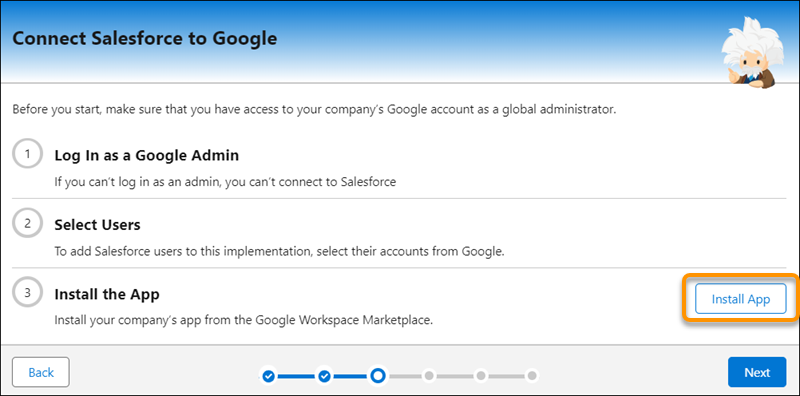
8. In Google Workspace, select **Admin install** and then **Continue**.
9. Install the app only for the access group you created in step 2. In Google Workspace, select **Certain groups or organizational units** and follow the prompts to select and save your access group selection.
10. In Salesforce, click **Next**.
11. Follow the remaining Einstein Activity Capture setup steps, including [creating a configuration and adding users to it](https://help.salesforce.com/s/articleView?id=sales.aac_setup_create_configuration.htm&release=264.0.0&type=5 "Configurations determine which data gets captured and how it flows between Salesforce and your connected account. You create one configuration during the initial setup and you can add more to customize data capture and sync behavior for specific users or profiles. By default, Einstein Activity Capture syncs events and contacts bi-directionally, though you can edit these settings at any time.").
When you use the Google Workspace Marketplace app authentication method:
- It can take up to 24 hours to establish the connection with your Google Workspace environment. When ready, the connection is listed on each Einstein Activity Capture user’s Connected Accounts page.
- Users who are in configurations with emails enabled are prompted to accept the Einstein Activity Capture terms of service. Until they do, email data isn’t captured.
- Users who have access to Inbox must [connect an account](https://help.salesforce.com/s/articleView?id=sales.aac_connect_additional_accounts.htm&release=264.0.0&type=5 "Depending on how your Salesforce admin configures Einstein Activity Capture, it’s possible that you’re responsible for connecting or reconnecting your Microsoft or Gmail account to Salesforce. If you use Lightning Email and have access to Inbox features, connect an account to Salesforce.") for Inbox to work. Users can connect their primary account or a different account.
# Connect to Einstein Activity Capture with a Microsoft Exchange Service Account
The service account authentication method is available for Microsoft Exchange on-premises servers. A service account can help you scope authentication to a specific set of users and set up all Einstein Activity Capture users at the same time. The Salesforce admin works with their Exchange admin to create a service account with the impersonation role and give Salesforce access to the service account user’s data. Follow the steps based on the supported server that your company uses.
### Required Editions
Available in: Lightning Experience
Available with Einstein Activity Capture Standard in Sales in Starter, Pro Suite, Professional, and Enterprise Editions
Available with Unlimited Edition, Einstein 1 Sales Edition, and Agentforce 1 Edition
Available with Einstein for Sales, which is included in Einstein 1 Sales Edition and available for an extra cost in Enterprise and Unlimited Editions
Available with Sales Engagement, which is included with Sales in Performance and Unlimited Editions, and available for an extra cost in Professional and Enterprise Editions
Available with Revenue Intelligence, which is available for an extra cost in Enterprise and Unlimited Editions

Note We’re reorganizing the Einstein Activity Capture documentation. We’re moving some information around, but we aren’t deleting anything.

Important In February 2025, Microsoft retired the ApplicationImpersonation role in Exchange Online. As a result, Salesforce is retiring service account OAuth 2.0 access to Microsoft Office 365. To continue activity data capture, upgrade to org-level OAuth 2.0 authentication in Einstein Activity Capture settings. During the upgrade process, you're prompted to log in to your Office 365 tenant. Make sure that you log in to the same tenant you used when creating the connection. If you don't, reset your Einstein Activity Capture connection and start over. See [Einstein Activity Capture to MS Office 365: Service Account OAuth 2.0 Retirement](https://help.salesforce.com/s/articleView?id=002420794&type=1&language=en_US).
#### See Also
- [Preparing to Connect to Einstein Activity Capture with a Microsoft Exchange Service Account](https://help.salesforce.com/s/articleView?id=sales.aac_setup_service_account_prep.htm&release=264.0.0&type=5 "Before you can set up Einstein Activity Capture by using the service account connection method, make sure that you work with your Exchange admin to get things ready on the Microsoft side.")
- [Set Up Einstein Activity Capture for Your Team](https://help.salesforce.com/s/articleView?id=sales.aac_setup_parent.htm&release=264.0.0&type=5 "Get your sales reps up and running with Einstein Activity Capture. Give users access to Einstein Activity Capture. Connect your company’s email and calendar application to Salesforce, and create a configuration that controls how data moves between applications. Define settings such as which data to exclude and how activities are shared. When you’re done configuring Einstein Activity Capture, your users have some setup to do, too.")
# Connect to Einstein Activity Capture with User-Level Authentication
The user-level authentication method is available for Google. After users are assigned to Einstein Activity Capture, they must connect a Google account to Salesforce.
### Required Editions
Available in: Lightning Experience
Available with Einstein Activity Capture Standard in Sales in Starter, Pro Suite, Professional, and Enterprise Editions
Available with Unlimited Edition, Einstein 1 Sales Edition, and Agentforce 1 Edition
Available with Einstein for Sales, which is included in Einstein 1 Sales Edition and available for an extra cost in Enterprise and Unlimited Editions
Available with Sales Engagement, which is included with Sales in Performance and Unlimited Editions, and available for an extra cost in Professional and Enterprise Editions
Available with Revenue Intelligence, which is available for an extra cost in Enterprise and Unlimited Editions
User Permissions Needed
To connect Salesforce to Google:
Customize Application OR Modify All Data
To view the Einstein Activity Capture setup pages:
View Setup and Configurations
and
Customize Application OR Modify All
Data
1. From Setup, in the Quick Find box, enter Einstein Activity Capture, and then select **Settings**. If it’s your first time setting up Einstein Activity Capture, the setup flow guides you through the steps. If you already set up Einstein Activity Capture and want to change the authentication method, reset Einstein Activity Capture.
2. Select **Google** as the email and calendar application.
3. Select **User-Level Auth** as your authentication method.
4. Follow the remaining Einstein Activity Capture setup steps, including [creating a configuration and adding users to it](https://help.salesforce.com/s/articleView?id=sales.aac_setup_create_configuration.htm&release=264.0.0&type=5 "Configurations determine which data gets captured and how it flows between Salesforce and your connected account. You create one configuration during the initial setup and you can add more to customize data capture and sync behavior for specific users or profiles. By default, Einstein Activity Capture syncs events and contacts bi-directionally, though you can edit these settings at any time.").
Users must connect their account to Salesforce. Until they do, they can’t send emails in Lightning Experience.
#### See Also
- [Set Up Einstein Activity Capture for Your Team](https://help.salesforce.com/s/articleView?id=sales.aac_setup_parent.htm&release=264.0.0&type=5 "Get your sales reps up and running with Einstein Activity Capture. Give users access to Einstein Activity Capture. Connect your company’s email and calendar application to Salesforce, and create a configuration that controls how data moves between applications. Define settings such as which data to exclude and how activities are shared. When you’re done configuring Einstein Activity Capture, your users have some setup to do, too.")
- [Connect Your Email and Calendar to Salesforce with Einstein Activity Capture or Inbox](https://help.salesforce.com/s/articleView?id=sales.aac_connect_additional_accounts.htm&release=264.0.0&type=5 "Depending on how your Salesforce admin configures Einstein Activity Capture, it’s possible that you’re responsible for connecting or reconnecting your Microsoft or Gmail account to Salesforce. If you use Lightning Email and have access to Inbox features, connect an account to Salesforce.")
# Connect User Email Accounts to Einstein Activity Capture
Users can see the agent’s emails on the Activity Timeline of lead, contact, and person account records. To let sales users view, edit, reschedule, or cancel Engagement agent emails on the Activity Timeline of prospect records, be sure each user has connected their email account in their user profile. Connecting the user email account to EAC lets agent emails include meeting booking links for prospect owners. You make changes to agent emails in the Email Composer.
### Required Editions
Available in: Lightning Experience in Enterprise, Performance, and Unlimited editions with Sales and Agentforce for Sales.
User Permissions
Needed
To connect an account with Einstein Activity Capture:
Sales Engagement User
OR
Sales Engagement Cadence
Creator
OR
Use Inbox AND Use Einstein Activity Capture (Inbox with
Einstein Activity Capture)

Note The Agentforce Lead Nurturing name has changed to Agentforce Engagement. The new name better describes the work the agent does to nurture existing prospects and differentiates it from the Agentforce Lead Generation agent template.
Users who want to work with the Engagement agent must connect their email account in the Connected Accounts section of their user profile.
1. Click your user profile, then click **Settings**.
2. Follow the instructions in [Connect Your Email and Calendar to Salesforce with Einstein Activity Capture or Inbox](https://help.salesforce.com/s/articleView?id=sales.aac_connect_additional_accounts.htm&type=5&language=en_US).
Be sure to connect your individual company email account and not the email account used by the Engagement agent. Connecting the Engagement agent email account in your user profile will cause an error.
Once your user email account is connected, you can see Engagement agent activity in the Activity Timeline of prospects you have access to.
# Connect Video Recording Providers
Connect Zoom Meetings, Google Meet, or Microsoft Teams to use Einstein Conversation Insights with your video calls.
### Required Editions
Available in: Lightning Experience
Available in Einstein Conversation Insights, which is available in Starter, Pro, Enterprise, Performance, Unlimited, and Agentforce 1 Sales Editions
User Permissions
Needed
To enable Einstein Conversation Insights:
Customize Application

Note Before you connect Zoom, enable the Cloud recording and “Create Audio Recording” features in your Zoom settings.
To improve speaker identification, we recommend turning on [Einstein Activity Capture](https://help.salesforce.com/s/articleView?id=sales.aac_setup_parent.htm&type=5&language=en_US). Einstein Conversation Insights can use Einstein Activity Capture calendar integration to match call participants with existing contact records.
In order to process video calls with Einstein Conversation Insights, user-level download access is required for meeting assets, including MP4 recordings and transcripts.
1. From Setup, enter **Einstein Conversation Insights** in the Quick Find box, and then select **General Settings**.
2. On the Settings page, connect a video recording provider.
For detailed information about adding specific recording providers, see the corresponding topics:
- [Set Up Zoom Integration](https://help.salesforce.com/articleView?id=video_zoom_setup.htm&language=en_US)
- [Set Up Google Meet Integration](https://help.salesforce.com/articleView?id=video_meet_parent.htm&language=en_US)
- [Set Up Microsoft Teams Integration](https://help.salesforce.com/articleView?id=video_teams_parent.htm&language=en_US)
3. Click **Connect**.
Video playback is affected when a session security setting is enabled. Video recordings may not always play when the **Use POST requests for cross-domain sessions** setting is enabled on the Sessions Settings page in Setup. This setting makes requests more secure, but can prevent the display of embedded content.
To prioritize video playback, make sure this setting is not selected. The [known issue](https://issues.salesforce.com/issue/a028c00000x9p7FAAQ/) page also describes a workaround. For more information, see [Modify Session Security Settings](https://help.salesforce.com/s/articleView?id=xcloud.admin_sessions.htm&type=5&language=en_US).
Einstein Conversation Insights doesn’t support playing videos in the Apple Safari browser.
After video recording providers are enabled at the org level, users need to [connect their accounts](https://help.salesforce.com/s/articleView?id=sales.video_zoom_use_setup_user.htm&type=5&language=en_US) to use them with Einstein Conversation Insights.
# Connect Voice Recording Providers
Connect at least one recording provider to use Einstein Conversation Insights.
### Required Editions
Available in: Lightning Experience
Available in Einstein Conversation Insights, which is available in Starter, Pro, Enterprise, Performance, Unlimited, and Agentforce 1 Sales Editions
User Permissions
Needed
To enable Einstein Conversation Insights:
Customize Application
Einstein Conversation Insights can analyze recordings from different products. For a list, see [Recording Providers](https://help.salesforce.com/s/articleView?id=sales.call_coaching_recording_providers.htm&release=264.0.0&type=5 "Connect voice and video recording providers to begin importing calls into Einstein Conversation Insights."). For information about connecting video recording providers, see [Connect Video Recording Providers](https://help.salesforce.com/s/articleView?id=sales.ci_setup_recording_providers_video.htm&release=264.0.0&type=5 "Connect Zoom Meetings, Google Meet, or Microsoft Teams to use Einstein Conversation Insights with your video calls.").
There are additional setup steps and requirements to connect Dialpad, RingCentral, Aircall, or Amazon Connect. For more information, see [Integrate Voice Connectors with Einstein Conversation Insights](https://help.salesforce.com/s/articleView?id=sales.eci_connector_get_started.htm&type=5&language=en_US).

Note To use other recording providers, inquire about implementing an API solution to connect your provider. More information can be found in [Einstein Conversation Insights API Setup for Recording Providers](https://help.salesforce.com/s/articleView?id=000392584&type=1&language=en_US).
To edit voice call records, Sales Dialer or Salesforce Voice permissions are required. This includes the Dialer Outbound permission set for Sales Dialer, or the Salesforce Voice Contact Center Rep or Salesforce Voice Contact Center Admin permission sets for Service Cloud Voice.
Make sure that Dialer or your telephony solution is enabled. For more information about enabling Sales Dialer, see [Set Up Sales Dialer](https://help.salesforce.com/s/articleView?id=sales.voice_impl_overview.htm&type=5&language=en_US).
See [Phone Integration Considerations for Sales Engagement](https://help.salesforce.com/s/articleView?id=sales.hvs_considerations_phone_integration.htm&type=5&language=en_US) for information about integrating your phone provider with Sales Engagement.
1. From Setup, enter **Einstein Conversation Insights** in the Quick Find box, and then select **General Settings**.
2. On the Settings page, connect a voice recording provider.
3. Click **Connect**.
# Connect with Your Business Partners using Salesforce to Salesforce
Using Connection Finder, you can find out which business partners use Salesforce. Then, you can invite them to connect with you to share data using Salesforce to Salesforce. From the Connections tab, you can manage your Salesforce to Salesforce connections and connection templates.
### Required Editions
Available in: Salesforce Classic
Available in: Group, Professional, Enterprise, Performance, and Unlimited Editions

Important Salesforce to Salesforce is scheduled for retirement as of Spring ’27. See [Salesforce to Salesforce Retirement](https://help.salesforce.com/s/articleView?id=005103355&type=1&language=en_US).
- **[Enable Connection Finder](https://help.salesforce.com/s/articleView?id=sales.partner_survey_about.htm&release=264.0.0&type=5)**
Connection Finder lets you connect with businesses that use Salesforce so you can share data with them. From Salesforce to Salesforce Connection Finder in Setup, you can enable it.
- **[Find Out if Your Businesses Partners Use Salesforce](https://help.salesforce.com/s/articleView?id=sales.partner_survey_ask.htm&release=264.0.0&type=5)**
With Salesforce to Salesforce, businesses that use Salesforce can share records and get updated data. After you enable and configure Salesforce to Salesforce, you can email your business partners a survey that asks if they use Salesforce. Survey responses are recorded in contact and account records. Then, using Salesforce to Salesforce, you can easily connect with organizations that use Salesforce and begin sharing data.
- **[Invite Business Partners to Connect using Salesforce to Salesforce](https://help.salesforce.com/s/articleView?id=sales.business_network_send_invitation.htm&release=264.0.0&type=5)**
Before you can start sharing data with your business partners, you need to set up a connection to them using Salesforce to Salesforce. To create that connection, you need to invite your business partner.
- **[Accept an Invitation for Salesforce to Salesforce](https://help.salesforce.com/s/articleView?id=sales.business_network_accept_invitation.htm&release=264.0.0&type=5)**
If a business partner sent you an invitation to connect using Salesforce to Salesforce, you can accept or reject that invitation by following these steps.
- **[Create and Apply Connection Templates](https://help.salesforce.com/s/articleView?id=sales.business_network_templates_editing.htm&release=264.0.0&type=5)**
Connection templates let you define objects and fields that can be published to connected organizations. To make publishing easier, assign connection templates to your connections by going to the Connections tab and then the Templates sub-tab. When a connection template is applied to a connection, the object and field rules are applied to that connection.
- **[Manage Salesforce to Salesforce Connections](https://help.salesforce.com/s/articleView?id=sales.business_network_connections_edit.htm&release=264.0.0&type=5)**
From the Connections tab, you can manage your Salesforce to Salesforce connections and connection templates. Connections include everyone that you have invited, whether they have accepted, declined, or have not yet responded, as well as all the invitations you have received. Recent connections are automatically displayed on the Connections sub-tab.
#### See Also
- [Set Up Salesforce to Salesforce](https://help.salesforce.com/s/articleView?id=sales.business_network_setup.htm&release=264.0.0&type=5 "To set up Salesforce to Salesforce, you enable and configure it, connect to other Salesforce organizations, and start sharing data.")
# Connect Your Email and Calendar to Salesforce with Einstein Activity Capture or Inbox
Depending on how your Salesforce admin configures Einstein Activity Capture, it’s possible that you’re responsible for connecting or reconnecting your Microsoft or Gmail account to Salesforce. If you use Lightning Email and have access to Inbox features, connect an account to Salesforce.
### Required Editions
Available in: Lightning Experience
Available with Einstein Activity Capture Standard in Sales in Starter, Pro Suite, Professional, and Enterprise Editions
Available with Unlimited Edition, Einstein 1 Sales Edition, and Agentforce 1 Edition
Available with Einstein for Sales, which is included in Einstein 1 Sales Edition and available for an extra cost in Enterprise and Unlimited Editions
Available with Sales Engagement, which is included with Sales in Performance and Unlimited Editions, and available for an extra cost in Professional and Enterprise Editions
Available with Revenue Intelligence, which is available for an extra cost in Enterprise and Unlimited Editions

Note We’re reorganizing the Einstein Activity Capture documentation. We’re moving some information around, but we aren’t deleting anything.
User Permissions
Needed
To connect an account with Einstein Activity Capture:
Use Einstein Activity Capture
To connect an account with Inbox:
Use Inbox
1. From your personal settings, in the Quick Find box, enter Connected Accounts, and then select **Email and Calendar Accounts**.
If your admin connected an account for you, it’s listed under Connected Accounts. If it’s not, try refreshing the page.
2. Click **New Account**.
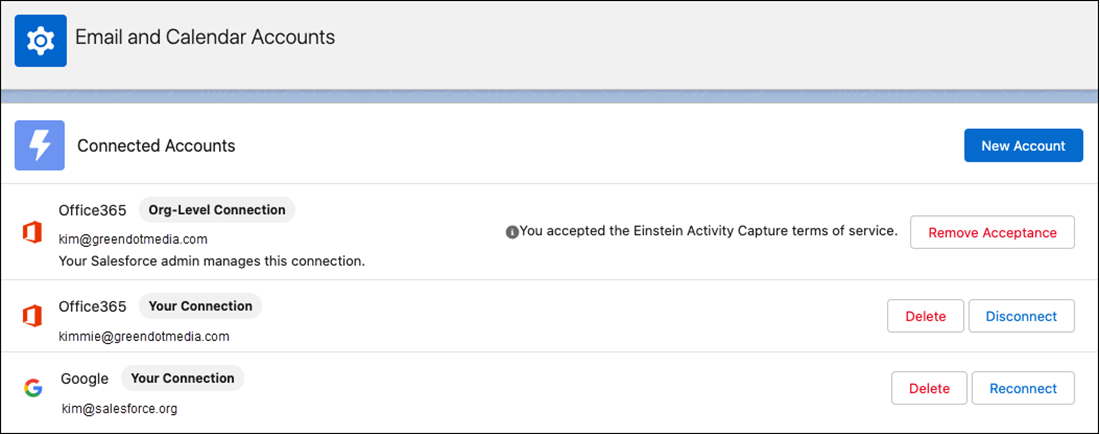
3. Follow the steps to connect your account.
After you connect an account, it takes up to 24 hours for Einstein Activity Capture to add your emails and events to related Salesforce records. Inbox features are available right away.
4. If your Salesforce admin upgrades your Microsoft Office 365 authentication method to Microsoft Graph and you're asked to reauthenticate, click **Reconnect**. Enter your Microsoft Office 365 credentials to reconnect your account and complete the upgrade. Reconnect by October 1, 2026 to avoid service disruption.
- If your admin didn’t connect your account for you, but added you to an Einstein Activity Capture configuration that includes syncing, make sure that:
- Your primary account matches the User Principal Name (UPN) in Active Directory. Email accounts in Salesforce are in UPN format by default.
- The account that you connect is the same email and calendar service that your admin connected to Salesforce. For example, if your admin connects Microsoft Exchange, connect a Microsoft Exchange account.
- If your admin connected your account for you through an org-level connection and you have access to Inbox, connect an account for Inbox to work. You can connect the primary account or a different account.
- All users can capture more data by connecting other accounts. However, if your admin connected your account for you through an org-level connection, the primary account is used to capture data through the org-level connection, so you don’t connect it again.
- When you disconnect an account, it doesn’t appear as disconnected until you log out of Salesforce and then log in again.
- When you delete an account, the data captured from that account is removed from Salesforce. If you connect the wrong account or run into problems with Inbox features, such as emails not tracking or available times not updating, we recommend that you delete the connected account. Then, connect it again as a new account.
- Einstein Activity Capture sends emails only from the Connect Account, which is listed on the user’s Salesforce record. To change the primary sending address, update the Email field on the user's record to match their primary email address (in UPN format). For Microsoft environments, the UPN in Active Directory, the primary SMTP address, and the Salesforce User Email field must all match.
- Before you connect a personal or secondary mailbox, review your sharing settings and your org default settings. Einstein Activity Capture sharing settings apply to all connected accounts. For details, see [Control How Your Captured Emails Are Shared](https://help.salesforce.com/s/articleView?id=sales.aac_share_with_everyone.htm&release=264.0.0&type=5 "Choose how to share email data that Einstein Activity Capture adds to the activity timeline of related Salesforce records. Share with all users, Chatter groups, or no one.").
- Einstein Activity Capture uses the email's unique ID to deduplicate captured emails. If the same email is synced from multiple connected accounts, Einstein Activity Capture checks for an existing record with the same ID before creating one, keeping the activity timeline clean.
- To avoid sync gaps, keep your account connection healthy. Check your connection status regularly, and reconnect your account when prompted by authentication changes or if your status is **Needs Attention**. See [Monitor Einstein Activity Capture Operations](https://help.salesforce.com/s/articleView?id=sales.eac_setup_status_and_metrics.htm&release=264.0.0&type=5 "Use the Einstein Activity Capture Status and Metrics page to monitor user connections and status, and review event and email sync reports.").
- Email aliases aren’t separate mailboxes and can’t be authenticated as separate connected accounts.
- Einstein Activity Capture doesn’t support shared email accounts, such as a single account that multiple people log into at the same time from different devices. Salesforce can’t make sure that email capture works as expected in this scenario.
#### See Also
- [Start Microsoft Graph Upgrade for User-Level Connections](https://help.salesforce.com/s/articleView?id=sales.eac_start_migration_user_level.htm&release=264.0.0&type=5 "Follow the prompts in Setup to start the process. After you complete the upgrade, you can’t roll back to Exchange Web Services (EWS).")
- [Emails and Einstein Activity Capture](https://help.salesforce.com/s/articleView?id=sales.aac_email_parent.htm&release=264.0.0&type=5 "Discover how Einstein Activity Capture handles your email data after it’s captured.")
- [Events and Einstein Activity Capture](https://help.salesforce.com/s/articleView?id=sales.aac_guidelines_sync.htm&release=264.0.0&type=5 "Discover how Einstein Activity Capture handles your event data after it’s captured.")
- [Contacts and Einstein Activity Capture](https://help.salesforce.com/s/articleView?id=sales.aac_contact_sync_parent.htm&release=264.0.0&type=5 "Discover how Einstein Activity Capture handles your contact data after it’s captured.")
- [Review the Activities Analytics Dashboard](https://help.salesforce.com/s/articleView?id=sales.aac_review_activity_reports.htm&release=264.0.0&type=5 "Review the Activities Analytics Dashboard to review Einstein Activity Capture license or permission.")
# Connect Your Enablement Site to an Experience Cloud Site
Give your Experience Cloud site members access to your enablement site content.
### Required Editions
Available in: Enterprise, Performance, and Unlimited Editions
User Roles and Permissions
Enablement Site User Roles
This topic supports these enablement site roles:
Salesforce Admins
Required System Permissions
To create, customize, or publish an Experience Cloud site:
Create and Set Up Experiences
AND
View Setup and
Configuration
AND
Membership in the Experience Cloud site
Before you enable Experience Cloud site members for your enablement site, review the [impacts of some key decisions for your implementation](https://help.salesforce.com/s/articleView?id=sales.mth_community_user_experience_on_mth.htm&release=264.0.0&type=5 "Before you enable Experience Cloud site members for your enablement site, review the impacts of some key decisions on your implementation. Evaluate how connecting your enablement site to an Experience Cloud site and how your authentication provider affect the user experience for Experience Cloud site members.").
1. If your enablement site’s authentication provider is Salesforce Identity for Enablement, set up a connected app for authenticating Experience Cloud site members into your enablement site. Complete the steps in [Configure Salesforce Identity for Enablement](https://help.salesforce.com/s/articleView?id=sales.mth_configure_mytrailhead_identity.htm&release=264.0.0&type=5 "To set up Salesforce Identity for Enablement for your enablement site, first create a connected app in Salesforce. The connected app handles data sharing between your enablement site and Salesforce using OpenID Connect and OAuth 2.0—protocols that authenticate users and authorize access to data in your org. Finally, enter your connected app details on your enablement site.").

Important For the connected app’s login URL, use your Experience Cloud site URL.
2. Determine which content your Experience Cloud site members can access. Create content collections and permission sets that grant access to specific content. Complete the steps in [Allow Learners to Access Enablement Site Content Collections](https://help.salesforce.com/s/articleView?id=sales.mth_content_permissions.htm&release=264.0.0&type=5 "Ensure that learners can access only the trails and modules that are relevant to their disciplines or job requirements. Create content collections for your different audiences, and then use permission sets to enable access to specific content collections. Only learners with permission to access a particular content collection can view and complete the trails and modules included in the collection.").
3. To run reports that include site members and their activity, [install the Trail Tracker app](https://help.salesforce.com/s/articleView?id=sales.mth_install_trail_tracker_app.htm&release=264.0.0&type=5 "Trail Tracker is a free app for assigning and reporting on content for your learners. The app, which is a managed package and not part of your enablement site, adds capabilities for assigning trailmixes, setting deadlines, tracking completion progress, and customizing assignment notifications. The app also provides reports and dashboards to help you get started.").
4. Link to enablement site content from your Experience Cloud site. See [Considerations for Connecting Your Enablement Site to an Experience Cloud Site](https://help.salesforce.com/s/articleView?id=sales.mth_community_user_experience_on_mth.htm&release=264.0.0&type=5 "Before you enable Experience Cloud site members for your enablement site, review the impacts of some key decisions on your implementation. Evaluate how connecting your enablement site to an Experience Cloud site and how your authentication provider affect the user experience for Experience Cloud site members.").
#### See Also
- [Enablement Site User Menu Items](https://help.salesforce.com/s/articleView?id=sales.mth_user_menu.htm&release=264.0.0&type=5 "The menu that appears when a user clicks their avatar contains items for navigating different parts of your enablement site.")
- [Assign Permissions for Enablement Site Users](https://help.salesforce.com/s/articleView?id=sales.mth_assign_permissions.htm&release=264.0.0&type=5 "All your users—release managers, content creators, and learners—need the appropriate user permissions to access the appropriate features and fulfill their roles. A Salesforce admin configures user permissions in Setup in Salesforce.")
- [Considerations for Getting Started with Content Collections](https://help.salesforce.com/s/articleView?id=sales.mth_content_permissions_considerations.htm&release=264.0.0&type=5 "Content collections provide flexibility for your company’s learning experience, but they also introduce complexity forenablement sites that have published content. If your company already has an enablement site, you can expand your learning experience by using content collections.")
- [Examples of Content Collections](https://help.salesforce.com/s/articleView?id=sales.mth_content_collections_examples.htm&release=264.0.0&type=5 "Each company’s learning experience is different and supports unique groups of learners and a broad range of training and enablement requirements. Content collections can be simple or complex, depending on the size and learning requirements of your company. To help you generate ideas for fulfilling your company’s specific content strategy, explore examples of suggested content collection scenarios.")
- [Track and Assign Enablement Site Content with the Trail Tracker App](https://help.salesforce.com/s/articleView?id=sales.mth_install_trail_tracker_app.htm&release=264.0.0&type=5 "Trail Tracker is a free app for assigning and reporting on content for your learners. The app, which is a managed package and not part of your enablement site, adds capabilities for assigning trailmixes, setting deadlines, tracking completion progress, and customizing assignment notifications. The app also provides reports and dashboards to help you get started.")
- [Create SSO Links to Enablement Site Content (Trailblazer.me)](https://help.salesforce.com/s/articleView?id=sales.mth_build_sso_link_to_mytrailhead_content.htm&release=264.0.0&type=5 "If your enablement site’s authentication provider is Trailblazer.me (TBID), by default your users must log in with their TBID credentials to access your site. You can give users one-click access to your site by creating links that incorporate single sign-on (SSO).")
# Connect Your Google Meet Account
When an admin turns on the Google Meet integration, users with the correct permission see a banner inviting them to connect their Google Meet accounts.
### Required Editions
Available in: Lightning Experience
Available in Einstein Conversation Insights, which is available in Starter, Pro, Enterprise, Performance, Unlimited, and Agentforce 1 Sales Editions
User Permissions Needed
To enable Einstein Conversation Insights:
Customize Application

Note Users can connect to only one Google Meet account at a time. We don’t support connecting multiple users to the same Google Meet account. We also don't support connecting a user to the same Google Meet account from multiple Salesforce orgs.
1. Click **Take Me There** in the banner. Or, from Personal Settings, enter Video Accounts in the Quick Find box, then select **Video Accounts**.
2. Accept the terms of service.
3. Optionally, add excluded email addresses. Meetings with attendees on the excluded list aren’t recorded.
4. To connect your account, click **Connect**.
When connecting to a video account, email addresses with special characters such as the plus sign (+) aren't supported for ECI video call processing. This can result in errors with matching emails and syncing video calls.

Tip If you use Einstein Conversation Insights and Google Meet is set up as a recording source, your individual recorded meetings are available in the Video Calls page.
# Connect Your Inbound Lead Generation Agent to a Messaging Channel
Connect your Inbound Lead Generation agent to a messaging channel where it engages with prospects.
### Required Editions
Available in: Lightning Experience
Available in: Enterprise, Performance, and Unlimited Editions
User Permissions Needed
To set up Inbound Lead Generation:
Configure Inbound Lead Generation Agent
1. In Salesforce Go, open the Agentforce for Sales setup page, and then go to the Inbound Lead Generation section.
2. In the Connect Your Agent to a Messaging Channel section, click **Connect Channel**.
3. Click **Start**.
4. Select the type of channel that you want to connect the agent to and follow the instructions.
5. On the Channel Routing step, select **Agentforce Service Agent** as the routing type.
6. For Agentforce Service Agent, add your Inbound Lead Generation agent.
7. Enter a fallback queue.
8. Click **Save**.
# Connect Your Microsoft Teams Account
When an admin turns on the Microsoft Teams integration, users with the correct permission see a banner inviting them to connect their Microsoft Teams accounts.
### Required Editions
Available in: Lightning Experience
Available in Einstein Conversation Insights, which is available in Starter, Pro, Enterprise, Performance, Unlimited, and Agentforce 1 Sales Editions
User Permissions Needed
To enable Einstein Conversation Insights:
Customize Application
1. Click **Take Me There** in the banner. Or, from Personal Settings, enter Video Accounts in the Quick Find box, then select **Video Accounts**.
2. Accept the terms of service.
3. Optionally, add excluded email addresses. Meetings with attendees on the excluded list aren’t recorded.
4. To connect your account, click **Connect**.
When connecting to a video account, email addresses with special characters such as the plus sign (+) aren't supported for ECI video call processing. This can result in errors with matching emails and syncing video calls.

Tip If you use Einstein Conversation Insights and Microsoft Teams is set up as a recording source, your individual recorded meetings are available in the Video Calls page.
Microsoft Teams meetings created within the context of a channel are not supported. Channel meetings are saved to SharePoint and are not processed by Einstein Conversation Insights. Only non-channel meetings stored in OneDrive are supported. Make sure you have access to OneDrive and your call recordings so your calls can be processed.
Einstein Conversation Insights doesn’t support the use of third party scheduler tools. To ensure that video call records are created, schedule meetings directly through Microsoft Teams or from your Outlook calendar.
# Connect Your Salesforce Account to the Agentforce Sales Agent for Gemini (Beta)
To use the Agentforce Sales Agent for Gemini, connect your Salesforce account in Gemini.
### Required Editions
Available in: Enterprise, Performance, and Unlimited editions with the Agentforce for Sales and Einstein for Sales add-ons. Also available with Einstein 1 Sales and Agentforce 1 Sales editions.
User Permissions Needed
To use the Agentforce Sales Agent for Gemini, and to connect it to your Salesforce
account:
Custom permission set for Agentforce Sales Agent for Gemini
AND
User access to Gemini Enterprise
1. Log in to your [Gemini Enterprise account](http://gemini.google.com).
2. Click Agents and select Agentforce Sales Agent.
3. Start a new chat.
4. When the agent asks, authenticate to Salesforce.
5. Log in to Salesforce.
6. Start chatting with the agent in Gemini.

Note If you’re logged in to another Salesforce org in the same browser when you attempt to log in to the Sales Agent in Gemini, you can experience a login failure or a redirect to the wrong org. To avoid these issues, log in to the intended Salesforce org first, then connect to the app.
#### See Also
- [Agentforce Sales Agent for Gemini (Beta)](https://help.salesforce.com/s/articleView?id=sales.sales_gemini_agent_parent.htm&release=264.0.0&type=5 "Give your sales team a single view to update records, research leads and accounts, and plan sales strategies with data in Gemini.")
- [Set Up the Agentforce Sales Agent for Gemini (Beta)](https://help.salesforce.com/s/articleView?id=sales.sales_gemini_agent_admin_setup.htm&release=264.0.0&type=5 "Integrate your Salesforce org with Gemini Enterprise, so your sellers can research leads and update records inside Gemini. This single-view access equips sellers to plan strategies and close deals faster without switching between two workspaces.")
# Connect Your Salesforce Account to the Agentforce Sales ChatGPT App (Beta)
To start using the Agentforce Sales ChatGPT App, connect your Salesforce account in ChatGPT.
### Required Editions
Available in: Enterprise, Performance, and Unlimited editions with the Agentforce for Sales and Einstein for Sales add-ons. Also available with Einstein 1 Sales and Agentforce 1 Sales editions.
User Permissions Needed
To use the Agentforce Sales ChatGPT App, and to connect it to your Salesforce
account:
Agentforce Sales ChatGPT App User
AND
ChatGPT Enterprise or Business account
1. Log in to your ChatGPT account.
2. In your profile, select **Personalization**, and then **Apps**.
3. Click **Explore** and select the Agentforce Sales App.
4. Click **Connect**, and then **Continue** to Agentforce Sales.
5. Enter your Salesforce credentials on the login page.
To find the app in ChatGPT, mention Sales Agentforce or click the plus sign in the chat bar.

Note If you’re logged in to another Salesforce org in the same browser when you attempt to log in to the Agentforce Sales ChatGPT App, you can experience a login failure or a redirect to the wrong org. To avoid these issues, log in to the intended Salesforce org first, then connect to the app.
#### See Also
- [Set Up Agentforce Sales ChatGPT App (Beta)](https://help.salesforce.com/s/articleView?id=sales.sales_chatgpt_app_admin_setup.htm&release=264.0.0&type=5 "To bring your Salesforce data into ChatGPT so your sellers can research, strategize, and close more deals, set up the Agentforce Sales ChatGPT App.")
# Connect Your Zoom Account
When an admin turns on the Zoom integration, users with the correct permission see a banner inviting them to connect their Zoom accounts.
### Required Editions
Available in: Lightning Experience
Available with Salesforce Meetings in Performance and Unlimited Editions when Einstein Activity Capture is enabled
Available with Einstein Conversation Insights, which is available in Starter, Pro, Enterprise, Performance, Unlimited, and Agentforce 1 Sales Editions.
Available with Inbox in Sales Cloud, which is included in Performance and Unlimited Editions and available for an extra cost in Professional and Enterprise Editions. Inbox is also available for an extra cost in Service Cloud and Lightning Platform.
Available with Sales Engagement in Sales Cloud, which is included in Performance and Unlimited Editions and available for an extra cost in Professional and Enterprise Editions. Sales Engagement is also available for an extra cost in Service Cloud and Lightning Platform.
Available with Sales Cloud Einstein, which is available in: Performance and Unlimited Editions, and available for an extra cost in Enterprise Edition
User Permissions Needed
To enable Zoom video conferencing:
Customize Application
OR
Modify All Data
1. Click **Take Me There** in the banner. Or, from Personal Settings, enter Video Accounts in the Quick Find box, then select **Video Accounts**.
2. Accept the terms of service.
3. Optionally, add excluded email addresses. Meetings with attendees on the excluded list aren’t recorded.
4. To connect your account, click **Connect**.
Connect your company Zoom account to use Zoom with Salesforce. If another Salesforce user connects to the same Zoom account, meetings are no longer recorded for the previously connected user.
In order to process video calls with Einstein Conversation Insights, user-level download access is required for meeting assets, including MP4 recordings and transcripts. With limited access to Zoom recordings, Einstein Conversation Insights can't analyze the meeting assets or share video content on video call record pages.
When connecting to a video account, email addresses with special characters such as the plus sign (+) aren't supported for ECI video call processing. This can result in errors with matching emails and syncing video calls.

Tip If you use Einstein Conversation Insights and Zoom is set up as a recording source, your individual recorded meetings are available in the Video Calls page.
#### See Also
- [Manage Excluded Addresses for Your Individual Video Provider Integration](https://help.salesforce.com/s/articleView?id=sales.video_zoom_use_excluded_addresses.htm&release=264.0.0&type=5 "Your admin has specified email addresses and email domains for which meeting recordings and meeting information, such as start and end times, aren’t available. That list applies to everyone in your company using video integration. You can also exclude email addresses that apply to your video integration only. If someone on either your list or the company’s list is a meeting attendee, meeting recordings and information aren’t available to Salesforce.")
- [Troubleshoot Connecting Your Zoom Account](https://help.salesforce.com/s/articleView?id=sales.video_zoom_use_troubleshooting.htm&release=264.0.0&type=5 "Review possible reasons for why you can’t connect to Zoom.")
- [Einstein Conversation Insights](https://help.salesforce.com/s/articleView?id=sales.call_coaching.htm&type=5&language=en_US)
# Connected Accounts for Einstein Activity Capture
Before you set up Einstein Activity Capture, confirm that your Google or Microsoft® accounts are compatible.
### Required Editions
Available in: Lightning Experience
Available with Einstein Activity Capture Standard in Sales in Starter, Pro Suite, Professional, and Enterprise Editions
Available with Unlimited Edition, Einstein 1 Sales Edition, and Agentforce 1 Edition
Available with Einstein for Sales, which is included in Einstein 1 Sales Edition and available for an extra cost in Enterprise and Unlimited Editions
Available with Sales Engagement, which is included with Sales in Performance and Unlimited Editions, and available for an extra cost in Professional and Enterprise Editions
Available with Revenue Intelligence, which is available for an extra cost in Enterprise and Unlimited Editions

Note We’re reorganizing the Einstein Activity Capture documentation. We’re moving some information around, but we aren’t deleting anything.
All connection methods use the OAuth 2.0 protocol to authorize data retrieval from users' email service.
## Google
The user-level and Marketplace App connection methods are available for companies working from Google Workspace. Einstein Activity Capture supports the Basic, Business, and Enterprise editions of Google Workspace.
## Microsoft Office 365
Application-level, Role-based access control (RBAC) level, or user-level connection methods are available for companies working with Microsoft Office 365. Before you connect Microsoft Office 365 to Salesforce, work with your Azure admin to enable Microsoft Graph.
Microsoft is retiring Exchange Web Services (EWS) for Microsoft Office 365 in October 2026. Microsoft Graph API replaces EWS. Starting Spring ’26, Einstein Activity Capture configured to use Microsoft Office 365 is automatically authenticated by using Microsoft Graph. If you set up Einstein Activity Capture to use Microsoft Office 365 before Spring ’26, upgrade to Microsoft Graph by October 1, 2026 to avoid service disruption.
Einstein Activity Capture only supports Office 365 tenants hosted on Microsoft Azure global infrastructure clouds. Azure national and government clouds aren’t supported.
## Microsoft Exchange 2019, 2016, or 2013
User-level or service account connection methods are available for companies working from Microsoft Exchange 2019, 2016, or 2013.
Before you connect Exchange to Salesforce, work with your Exchange admin to enable Exchange Web Services (EWS) on an SSL connection and [allow the necessary network access](https://help.salesforce.com/s/articleView?id=sales.aac_setup_allow_access.htm&release=264.0.0&type=5 "When setting up Einstein Activity Capture with a Microsoft Exchange on-premises server (2019, 2016, or 2013) or Microsoft Office 365, make sure that you allow the necessary network access."). Make sure that your server supports Basic Authentication requests.

Note Hybrid deployments aren’t supported.
#### See Also
- [Einstein Activity Capture](https://help.salesforce.com/s/articleView?id=sales.einstein_sales_aac.htm&release=264.0.0&type=5 "Eliminate manual data entry and transform a list of engagements into action. Einstein Activity Capture syncs your Microsoft or Google account with Salesforce, linking email and calendar activities to the relevant contacts, leads, and opportunities. Einstein Activity Capture gives your team and AI agents the critical context needed to make their next move.")
- [Set Up Einstein Activity Capture for Your Team](https://help.salesforce.com/s/articleView?id=sales.aac_setup_parent.htm&release=264.0.0&type=5 "Get your sales reps up and running with Einstein Activity Capture. Give users access to Einstein Activity Capture. Connect your company’s email and calendar application to Salesforce, and create a configuration that controls how data moves between applications. Define settings such as which data to exclude and how activities are shared. When you’re done configuring Einstein Activity Capture, your users have some setup to do, too.")
- [Microsoft Graph Authentication in Einstein Activity Capture](https://help.salesforce.com/s/articleView?id=sales.eac_graph_migration.htm&release=264.0.0&type=5 "Starting Spring ’26, Einstein Activity Capture configured to use Microsoft Office 365 is automatically authenticated by using Microsoft Graph. If you set up Einstein Activity Capture to use Microsoft Office 365 before Spring ’26, upgrade to Microsoft Graph by October 1, 2026 to avoid service disruption.")
- [Connect Email and Calendar Accounts to Einstein Activity Capture](https://help.salesforce.com/s/articleView?id=sales.aac_connection_parent.htm&release=264.0.0&type=5 "Before Einstein Activity Capture can access users’ email and calendar data, connect Salesforce to your email account. The choices of how to connect and authenticate users depend on which email and calendar application you use.")
# Connection for Google G Suite Users
The Google G Suite connection method is a combination of an OAuth 2.0 and a service account connection. This design is based on a method recommended by Google for connecting server to server.
Requirement
Why it’s required
Benefit to you
Your Google admin must establish a service account for your G Suite account. To do so,
Google admins generate a private key that includes access to your Google contacts and
calendar API. A Salesforce admin then uploads the key to Salesforce.
After Salesforce admins upload the private key, the key provides Salesforce with an
access token to your company’s Google account. This access is required for read, update,
create, or delete access to Google contacts or events.
After they’re uploaded, Google private keys are encrypted at rest. The private key
signs the outbound sync requests sent from Salesforce. Requests can only be verified with the
matching public key, possessed by your G Suite account.
The generated access token is
securely transferred from your Google account to Salesforce over a TLS connection. The token
is encrypted. Every hour, the access token expires and a new token is transferred, always
over a TLS connection.
#### See Also
- [Lightning Sync System Requirements](https://help.salesforce.com/s/articleView?id=sales.exchange_sync_sys_req.htm&release=264.0.0&type=5 "Confirm that your Microsoft® Exchange-based server or Google Workspace account meet these system requirements before you set up your sales reps for Lightning Sync.")
- [See the Big Picture for Setting Up Lightning Sync for Google](https://help.salesforce.com/s/articleView?id=sales.lightning_sync_admin_google_implement.htm&release=264.0.0&type=5 "Salesforce admins can set up Lightning Sync so reps can sync contacts and events between your company’s G Suite account and Salesforce. Salesforce admins and IT pros complete several steps, both from your company’s G Suite account and from Salesforce.")
# Connection Methods for Google
Before Einstein Activity Capture can access users’ email and calendar data, connect Salesforce to Google.
### Required Editions
Available in: Lightning Experience
Available with Einstein Activity Capture Standard in Sales in Starter, Pro Suite, Professional, and Enterprise Editions
Available with Unlimited Edition, Einstein 1 Sales Edition, and Agentforce 1 Edition
Available with Einstein for Sales, which is included in Einstein 1 Sales Edition and available for an extra cost in Enterprise and Unlimited Editions
Available with Sales Engagement, which is included with Sales in Performance and Unlimited Editions, and available for an extra cost in Professional and Enterprise Editions
Available with Revenue Intelligence, which is available for an extra cost in Enterprise and Unlimited Editions

Note We’re reorganizing the Einstein Activity Capture documentation. We’re moving some information around, but we aren’t deleting anything.
- **[Connect to Einstein Activity Capture with User-Level Authentication](https://help.salesforce.com/s/articleView?id=sales.aac_setup_google_user_level_connection.htm&release=264.0.0&type=5)**
The user-level authentication method is available for Google. After users are assigned to Einstein Activity Capture, they must connect a Google account to Salesforce.
- **[Connect to Einstein Activity Capture with a Google Workspace Marketplace App](https://help.salesforce.com/s/articleView?id=sales.aac_setup_google_marketplace_connection.htm&release=264.0.0&type=5)**
You can use the Salesforce Einstein Activity Capture app on Google Workspace Marketplace as an authentication method. This method provides controlled access to your Google servers while letting you manage users directly in the Google Workspace Marketplace app.
#### See Also
- [Set Up Einstein Activity Capture for Your Team](https://help.salesforce.com/s/articleView?id=sales.aac_setup_parent.htm&release=264.0.0&type=5 "Get your sales reps up and running with Einstein Activity Capture. Give users access to Einstein Activity Capture. Connect your company’s email and calendar application to Salesforce, and create a configuration that controls how data moves between applications. Define settings such as which data to exclude and how activities are shared. When you’re done configuring Einstein Activity Capture, your users have some setup to do, too.")
- [Connected Accounts for Einstein Activity Capture](https://help.salesforce.com/s/articleView?id=sales.aac_system_requirements.htm&release=264.0.0&type=5 "Before you set up Einstein Activity Capture, confirm that your Google or Microsoft® accounts are compatible.")
# Connection Methods for Microsoft Exchange (on-prem)
Before Einstein Activity Capture can access users’ email and calendar data, connect Salesforce to Microsoft Exchange (on-prem).
### Required Editions
Available in: Lightning Experience
Available with Einstein Activity Capture Standard in Sales in Starter, Pro Suite, Professional, and Enterprise Editions
Available with Unlimited Edition, Einstein 1 Sales Edition, and Agentforce 1 Edition
Available with Einstein for Sales, which is included in Einstein 1 Sales Edition and available for an extra cost in Enterprise and Unlimited Editions
Available with Sales Engagement, which is included with Sales in Performance and Unlimited Editions, and available for an extra cost in Professional and Enterprise Editions
Available with Revenue Intelligence, which is available for an extra cost in Enterprise and Unlimited Editions
- **[Connect Einstein Activity Capture to Microsoft Exchange using User-Level Authentication](https://help.salesforce.com/s/articleView?id=sales.eac_setup_ms_exchange_user_level_connection.htm&release=264.0.0&type=5)**
The user-level authentication method is available for Microsoft Exchange on-premises servers and Microsoft Office 365. After users are assigned to Einstein Activity Capture, they’re prompted to connect their Microsoft account to Salesforce.
- **[Connect to Einstein Activity Capture with a Microsoft Exchange Service Account](https://help.salesforce.com/s/articleView?id=sales.aac_setup_service_account_parent.htm&release=264.0.0&type=5)**
The service account authentication method is available for Microsoft Exchange on-premises servers. A service account can help you scope authentication to a specific set of users and set up all Einstein Activity Capture users at the same time. The Salesforce admin works with their Exchange admin to create a service account with the impersonation role and give Salesforce access to the service account user’s data. Follow the steps based on the supported server that your company uses.
- **[Preparing to Connect to Einstein Activity Capture with a Microsoft Exchange Service Account](https://help.salesforce.com/s/articleView?id=sales.aac_setup_service_account_prep.htm&release=264.0.0&type=5)**
Before you can set up Einstein Activity Capture by using the service account connection method, make sure that you work with your Exchange admin to get things ready on the Microsoft side.
- **[Use a Service Account to Connect an Exchange On-Premises Server to Einstein Activity Capture](https://help.salesforce.com/s/articleView?id=sales.aac_setup_service_account_on_prem.htm&release=264.0.0&type=5)**
If your company uses Microsoft Exchange 2019, 2016, or 2013 on-premises, you can connect to Einstein Activity Capture by using a service account. The Salesforce admin works with their Exchange admin to create a service account with the impersonation role and give Salesforce access to the service account user’s data. By using a service account, you can scope authentication to a specific set of users and set up all Einstein Activity Capture users at the same time.
- **[Connect Salesforce to Your Microsoft Exchange Endpoint](https://help.salesforce.com/s/articleView?id=sales.aac_setup_manual_connection.htm&release=264.0.0&type=5)**
If your Exchange Web Service (EWS) isn’t exposed externally because the Microsoft Autodiscover setting isn’t on, Einstein Activity Capture or Inbox can’t find your Microsoft Exchange account. Manually connect your Microsoft Exchange endpoint to Salesforce so that your Microsoft Exchange users can benefit from Einstein Activity Capture or Inbox.
- **[Network Connection](https://help.salesforce.com/s/articleView?id=sales.aac_setup_allow_access.htm&release=264.0.0&type=5)**
When setting up Einstein Activity Capture with a Microsoft Exchange on-premises server (2019, 2016, or 2013) or Microsoft Office 365, make sure that you allow the necessary network access.
# Connection Methods for Microsoft Office 365
Before Einstein Activity Capture can access users’ email and calendar data, connect Salesforce to Microsoft Office 365.
### Required Editions
Available in: Lightning Experience
Available with Einstein Activity Capture Standard in Sales in Starter, Pro Suite, Professional, and Enterprise Editions
Available with Unlimited Edition, Einstein 1 Sales Edition, and Agentforce 1 Edition
Available with Einstein for Sales, which is included in Einstein 1 Sales Edition and available for an extra cost in Enterprise and Unlimited Editions
Available with Sales Engagement, which is included with Sales in Performance and Unlimited Editions, and available for an extra cost in Professional and Enterprise Editions
Available with Revenue Intelligence, which is available for an extra cost in Enterprise and Unlimited Editions
- **[Connect Einstein Activity Capture to Microsoft Office 365 using User-Level Authentication](https://help.salesforce.com/s/articleView?id=sales.aac_setup_user_level_connection.htm&release=264.0.0&type=5)**
The user-level authentication method is available for Microsoft Exchange on-premises servers and Microsoft Office 365. After users are assigned to Einstein Activity Capture, they’re prompted to connect their Microsoft account to Salesforce.
- **[Connect Einstein Activity Capture to Microsoft Office 365 using Application-Level Authentication](https://help.salesforce.com/s/articleView?id=sales.eac_setup_microsoft365_app_level_connection.htm&release=264.0.0&type=5)**
The application-level authentication method is available only for Microsoft Office 365. The Salesforce admin works with their Azure admin to give Salesforce access to data in Microsoft Office 365. The connection applies to all users in Salesforce. The Salesforce admin sets up all Einstein Activity Capture users at the same time.
- **[Connect Einstein Activity Capture to Microsoft Office 365 using RBAC Authentication](https://help.salesforce.com/s/articleView?id=sales.eac_setup_microsoft365_rbac_level_connection.htm&release=264.0.0&type=5)**
The Role-Based Access Control (RBAC) authentication method is available only for Microsoft Office 365. The Salesforce admin works with their Azure admin to give Salesforce access to data in Microsoft Office 365. The connection applies to all users in Salesforce. Users get access to resources not individually, but through predefined roles defined within an application.
- **[Change Microsoft Office 365 Authentication Level in Einstein Activity Capture](https://help.salesforce.com/s/articleView?id=sales.eac_microsoft365_switch_auth_method.htm&release=264.0.0&type=5)**
Change the authentication level of Microsoft Office 365 from Application-Level to Role-Based Access Control (RBAC) and vice versa. To switch to User-Level OAuth or vice versa, reset Einstein Activity Capture.
#### See Also
- [Connected Accounts for Einstein Activity Capture](https://help.salesforce.com/s/articleView?id=sales.aac_system_requirements.htm&release=264.0.0&type=5 "Before you set up Einstein Activity Capture, confirm that your Google or Microsoft® accounts are compatible.")
# Connector Fields and Calculations in Salesforce Spiff Reports
When you’re using connector fields or calculations in Salesforce Spiff reports, encapsulate each those items in their own calculated field.
### Required Editions
Available in: both Salesforce Classic (not available in all orgs) and Lightning Experience
Available in: Enterprise, Unlimited, and Developer Editions
Available for an additional cost in: Professional Edition with Web Services API Enabled
## Connector Fields
Connector fields sync data directly from an external data source, such as Salesforce, or by manual upload. To use a connector field in a payout rule calculation, we recommend that you encapsulate the field in a separate calculated field. For example, instead of using the connector field ARR\_\_c directly, create a calculated field named DealARR that references ARR\_\_c.
This practice also makes it easier to replace one connector field with another when you update your plans. For example, maybe you want to change ARR\_\_c to DealAmount. When you encapsulate the connector field in a calculated field, the only change to make is in the calculated field. Otherwise, you have to find every calculation where you use the connector field and change it.
## Calculations
Encapsulating portions of calculations is important for reports for these reasons.
- Encapsulations are more human-readable.
- Each encapsulation becomes available as a metric or field to show in commission statements.
- Encapsulation saves memory. The logic can be calculated once and then reused.
- Encapsulation helps identify the calculation's checkpoints.
- Encapsulation helps you troubleshoot errors more easily.
For example, consider this calculation before encapsulation.
```
=if(EndOfPeriod = end_of_quarter(EndOfPeriod), 1, 0) * BonusTotal
```
Encapsulate the `if()` function is a calculated field, IsEndOfQuarter.
```
=if(EndOfPeriod = end_of_quarter(EndOfPeriod), 1, 0)
```
Then, you have a similar calculation.
```
=IsEndOfQuarter * BonusTotal
```
#### See Also
- [Connectors for Salesforce and Third-Party Data in Salesforce Spiff](https://help.salesforce.com/s/articleView?id=sales.spiff_connector.htm&release=264.0.0&type=5 "Sync data from objects and fields in Salesforce or third-party providers for use Salesforce Spiff. Connector fields in Spiff represent the fields synced from the source data, versus calculated fields created in Designer.")
# Connectors for Salesforce and Third-Party Data in Salesforce Spiff
Sync data from objects and fields in Salesforce or third-party providers for use Salesforce Spiff. Connector fields in Spiff represent the fields synced from the source data, versus calculated fields created in Designer.
### Required Editions
Available in: both Salesforce Classic (not available in all orgs) and Lightning Experience
Available in: Enterprise, Unlimited, and Developer Editions
Available for an additional cost in: Professional Edition with Web Services API Enabled
You can make these configurations in any connector.
- Turn object syncing on or off
- Turn off syncing for unused fields
You can make these configurations in Salesforce data only.
- Rename objects
- Resync individual objects
- Back-date an object sync
- Resync the whole connector

Tip A connector can sync multiple objects, some with hundreds of fields not needed for commission logic or showing information. Instead of filling the system with too much data, sync only the fields needed for calculation or display.
- **[Recommended Data Mapping Prerequisite for Salesforce Spiff](https://help.salesforce.com/s/articleView?id=sales.spiff_data_mapping.htm&release=264.0.0&type=5)**
Before you import data from Salesforce or a third-party data source into Salesforce Spiff, create a data mapping spreadsheet that lists all objects and fields that you plan to sync. Make sure that you collaborate with all required stakeholders and receive approval for your design before you set up the connectors and sync data.
- **[Salesforce Connectors in Salesforce Spiff](https://help.salesforce.com/s/articleView?id=sales.spiff_connector_salesforce.htm&release=264.0.0&type=5)**
Sync data from Salesforce objects and fields for use within Salesforce Spiff. Set up connectors for up to five Salesforce orgs, sync data, and manage users between Salesforce and Spiff.
- **[Third-Party Data Integration in Salesforce Spiff with Workato Recipes](https://help.salesforce.com/s/articleView?id=sales.spiff_workato.htm&release=264.0.0&type=5)**
All third-party data integrations in Salesforce Spiff, other than the default Spiff import option and default Salesforce connector, are managed through Workato, an iPaaS tool. With Workato, you can export, transform, and load data from one system to another.
- **[Manage Connector Field Syncing in Salesforce Spiff Designer](https://help.salesforce.com/s/articleView?id=sales.spiff_connector_designer.htm&release=264.0.0&type=5)**
Sync or unsync objects and their fields from your data source in Salesforce Spiff Designer.
- **[Integrate Slack with Salesforce Spiff](https://help.salesforce.com/s/articleView?id=sales.spiff_connector_slack.htm&release=264.0.0&type=5)**
To let Salesforce Spiff users receive notifications for comments and approvals in their flow of work, set up an integration with Slack.
- **[Embed Salesforce Spiff in a Salesforce Page](https://help.salesforce.com/s/articleView?id=sales.spiff_embed.htm&release=264.0.0&type=5)**
Help sales reps track progress toward commission goals directly where they manage deals. Embed Salesforce Spiff in a Visualforce page `iframe` so that your Spiff and Salesforce users can more easily focus on their flow of work without changing browser tabs.
# Considerations and Allocations for Permissions and Queries
Determine each team member’s level of authority based on their goals and anticipate query allocations in Legacy Sales Planning.
### Required Editions
Available in: both Salesforce Classic (not available in all orgs) and Lightning Experience
Available for an additional cost in: Enterprise, Performance, Unlimited, and Developer Editions with Sales Planning in English only, and only if you have Web Services API enabled
## Permission Set Licenses and Permission Sets for Sales Planning
Meet permission set license requirements before you determine and assign permission sets.
Teammate’s Goal
Required Permission Set License
Required Permission Sets
What the Permission Sets Let Teammates Do
Process data as the OAuth user
Data Pipelines Base User
Sales Planning Admin
AND
Data Pipelines Base User
Process data and optimizations through the designated OAuth user.
Administer Sales Planning
Data Pipelines Base User
OR
Query for Datapipelines User
Sales Planning Admin
AND
Data Pipelines Base User OR Query for
Datapipelines User for Sales Planning
Enable and disable Sales Planning features.
Create, read, update, and delete sales plans.
Share and publish sales plans.
Determine whether to designate others as co-administrators.
Manage sales plans
Query for Datapipelines User
Sales Planning Ops Manager
AND
Query for Datapipelines User for Sales
Planning
Create, read, update, and delete sales plans.
Share and publish sales plans.
Edit or view specific areas in hierarchies
Sales Planning Ops Analyst
AND
Query for Datapipelines User for Sales
Planning
For editors:
Create, share, and view hierarchy nodes and their descendents.
Update assignments and allocations.
For viewers:
View hierarchy nodes and their descendents.
View assignments and allocations.
Plan for quota attainment
--
Quota Attainment Planning User
Plan for quota attainment.
Carve territories
--
SF Maps Territory Planning for Sales Planning
Create territory models.
Share and publish territory models.
## Query Allocations for Sales Planning
Get familiar with these allocations for query users and functions in sales planning processes.
| Users and Functions | Allocation |
| --- | --- |
| Available licenses for Data Pipelines Base User | 3 |
| Available licenses for Query for Datapipelines User for Sales Planning | 50 |
| Maximum columns returned | 20 |
| Rows returned per query | 10,000 |
| Concurrent queries for all users | 50 |
| Concurrent queries per user | 10 |
| Total query calls per month | 30,000 |
# Considerations and Guidelines for Creating Paths
Before creating paths for your users, review the considerations and guidelines for paths.
### Required Editions
Available in: Lightning Experience
Available in: Essentials, Group, Professional, Enterprise, Performance, Unlimited, and Developer Editions
## Packages, Key Fields, and Guidance for Success
- When you configure key fields and success guidance in a path, kanban views configured for the same object, record type, and picklist also show the information.
- Each object can have one path per record type. There is no limit to the number of paths that you can create per org.
- If your org has a large combination of objects, record types, and picklists, path creation can take a couple of minutes.
- To translate Guidance for Success content, use the Path Step Rich Text component in Translation Workbench.
- You can’t include images in path packages.
- You can’t package custom values in standard picklist fields on paths.
- Path appears for records where the running user has permission to view the record, record type, and all fields used in the path.
## Celebrations (Confetti Animations)
- When you configure celebrations in a path, the confetti animation is also triggered in kanban views configured for the same object, record type, and picklist.
- Celebrations don’t work on the lead status Converted.
- Celebrations don’t support field values with a comma in the API name. Delete the comma from the API name or re-create the value. A comma in the _label_ for a field value is OK.
## Editing and Validation
- The record type and owner fields aren’t editable in the Key Fields panel. To transfer ownership, users must use the Details tab. To change the record type, they must use the Change Record Type action.
- If a path exists for a record type that you delete, the path is also deleted.
- You can’t use the page layout to require different fields in different steps. However, you can set up validation rules based on a path step.
- Validation messages appear as page-level messages even if you configure the rules to show them near the fields.
- If the Opportunity Stage field is in use in field dependencies, all Stage values are shown when selecting the last stage Closed, instead of showing only Closed/Won and Closed/Lost options.
- When you add a Path component to a dynamic form, a field’s configuration on the page layout overrides the UI Behavior value selected for it on the dynamic form. For example, Opportunity Information Description is set as required on the Opportunity page layout but has a UI Behavior value of None on the dynamic form. The Path component treats the Opportunity Information Description field as required.
#### See Also
- [Create a Path](https://help.salesforce.com/s/articleView?id=sales.path_create.htm&release=264.0.0&type=5 "Create one path for each available combination of object, picklist, and record type for supported objects. And help your teams celebrate their successes by tossing virtual confetti when reps reach designated path steps.")
- [Considerations for Using Kanban Views](https://help.salesforce.com/s/articleView?id=xcloud.kanban_considerations.htm&type=5&language=en_US)
- [Considerations and Guidelines for Administering Kanban](https://help.salesforce.com/s/articleView?id=xcloud.kanban_considerations_admin.htm&type=5&language=en_US)
- [Metadata Available for Translation](https://help.salesforce.com/s/articleView?id=platform.translatable_customizations.htm&type=5&language=en_US)
# Considerations and Guidelines for Creating Paths on Leads, Opportunities, and Accounts
Review these considerations and guidelines for paths on the Lead, Opportunity, and Account objects.
### Required Editions
Available in: Lightning Experience
Available in: Essentials, Group, Professional, Enterprise, Performance, Unlimited, and Developer Editions
## Lead Paths
- If you create a path for leads, we recommend making Unqualified status the first step.
## Opportunity Stage Durations in Paths and Reports
- To create an Opportunity History report that mirrors the path, group by **From Stage** and filter by **Stage Change**.
- Opportunity stage durations aren’t shown in paths in Experience Cloud sites.
- Opportunity stage durations are displayed differently in paths and reports.
- In paths, durations are rounded up to the nearest day. A duration of a minute is displayed as 1 day.
- In reports, durations aren’t rounded up. A duration of less than 24 hours is displayed as 0 days.
- Opportunity stage durations are totaled differently in paths and reports.
- In paths, the stage duration is the number of days that the opportunity spends in a stage.
- In reports, the stage duration is the number of days from the time that the opportunity entered the stage to the time it’s moved to the next stage.

Example
An opportunity is moved into the Proposal stage, stays there for 2 days, and then moves down the path into the Negotiation stage. Later, the opportunity is moved back into the Proposal stage and stays there for 3 days, where it currently remains.
In Paths, both times that the opportunity is in the Proposal stage are totaled, for a stage duration of 5 days.
In reports, although the opportunity is back in the Proposal stage, the stage duration shows only the stage duration between the first two stages, which is 2 days.
## Business Accounts Versus Person Accounts
- If person accounts are enabled, the account record type selected determines whether a path is for business accounts or person accounts.
# Considerations and Guidelines for Using Opportunity Teams
Review considerations and guidelines for using opportunity team list views, managing access to private records via opportunity teams, and adding portal users to teams.
### Required Editions
Available in: Lightning Experience, Salesforce Classic, and the new Salesforce mobile app
Available in: Enterprise, Performance, Unlimited, and Developer Editions
## Opportunity Teams in List Views
When you create or edit a custom list view for opportunities, the available filters include the following.
- My opportunity teams: This filter shows opportunity teams that you belong to, whether owned by you or others.
- My team’s opportunities: This filter shows opportunities owned by your direct and indirect reports, based on role hierarchy.
## Private Accounts and Opportunities
- Your Salesforce admin can set the organization-wide default access for accounts and opportunities to Private. In that case, if you give team members access to an individual opportunity, those users gain read-only access to accounts on the opportunity. Conversely, if you remove a user’s access to an individual account, the user is removed from opportunity teams related to the account.
- You can’t create opportunity teams for private opportunities.
## Opportunity Owners
- Opportunity owners always have full access to their opportunities.
- If an opportunity owner is added to an opportunity team with read-only or read/write access, Salesforce asynchronously restores full access to the owned opportunities.
## Ownership Changes
- When an opportunity is closed and the owner of the opportunity’s parent account changes, opportunity team shares are deleted unless opportunity splits are enabled.
- When you change the owner of an opportunity, select **Keep Opportunity Team** to keep the opportunity team together. Selecting this option makes **Retain Edit Rights for Previous Owner** available. Select **Retain Edit Rights for Previous Owner** so the previous owner keeps read/write access after the change. **Retain Edit Rights for Previous Owner** is available only when the opportunity’s organization-wide default is Private and the current owner is part of the opportunity team.
## Portal Users
- You can't add high-volume portal users to teams.
#### See Also
- [Administer Opportunity Teams](https://help.salesforce.com/s/articleView?id=sales.opp_team_setup.htm&release=264.0.0&type=5 "Help your sales teams collaborate and win more deals by enabling opportunity teams and customizing the team layout.")
- [Add Teams to Your Opportunities](https://help.salesforce.com/s/articleView?id=sales.salesteam_add.htm&release=264.0.0&type=5 "If your Salesforce admin has enabled opportunity teams, the Opportunity Team related list appears on each opportunity. You can add, edit, or remove team members.")
# Considerations and Limitations for Enrolling Users in Enablement Programs
When you assign users to an Enablement program, certain factors can determine how assignments behave, such as permissions, assignment and selection limits, filters, and the user’s time zone. These factors can also affect users who self-enroll in programs.
### Required Editions
Available in: Lightning Experience
Enablement is available in Developer Edition with a limited number of add-ons. It is also available with Sales, Service, or the Salesforce Platform in: Enterprise, Performance, Unlimited, and Einstein 1 Sales Edition Editions for an additional cost
Enablement Lite is available with Sales in: Enterprise, Performance, and Unlimited Editions
Partner Enablement is available in Developer Edition with a limited number of add-ons. It is also available with Sales, Service, or the Salesforce Platform in: Enterprise, Performance, and Unlimited Editions for an additional cost. A supported PRM add-on license is required.
## Permissions
For an Enablement admin to assign a program to a user, or for a user to self-enroll in a program, the user needs the appropriate permission depending on the type of program.
| Program Type | Required Permission |
| --- | --- |
| Enablement Lite | Take Enablement Lite Programs |
| Enablement | Take Enablement Programs |
| Partner Enablement | Take Partner Enablement Programs |
## Enrollment Limits
- For a sales program in Lightning Experience, up to 1,000 users can be assigned or self-enrolled. To increase this limit, submit a Salesforce Customer Support case.
- For a Partner Enablement program in Experience Cloud sites, up to 10,000 partner users can be assigned or self-enrolled. To increase this limit, submit a Salesforce Customer Support case.
- When you assign users to a program, you can select up to 1,000 users individually. This limit applies to sales programs in Lightning Experience and to Partner Enablement programs in Experience Cloud sites.
- After a user completes a program, they remain assigned to or enrolled in the program. If you’ve reached the enrollment limit, remove some users.
- You can’t assign a program to a user who’s enrolled in that program. A user can’t self-enroll in a program that’s already been assigned to them.
To check the enrollment status of specific users on a program, and manage enrollment if necessary, go to the Enrolled Users related list on the Enablement Program record detail page.

Note Removing users who have started or completed a program affect the program’s analytics data. See [Considerations for Analyzing Program Completion](https://help.salesforce.com/s/articleView?id=sales.enablement_analytics_considerations.htm&release=264.0.0&type=5 "The analytics tools for measuring Enablement program, milestone, exercise, and outcome completion have some dependencies and caveats.").
## Filtering Enablement Users in the Assignment Window
The assignment window displays when you select Assign Programs from the program details page or from the dropdown on the Enablement Programs page. The assignment window provides these options for filtering available users to assign to the program.
- For sales programs in Lightning Experience, you can filter the available users by profile, role, or public group.
- For Partner Enablement programs in Experience Cloud sites, you can filter the available users by account, profile, role, or public group.
- You can apply multiple filters at one time, but not multiple values of the same filter. For example, you can filter by one profile and one role, but not multiple profiles.
- You can filter only by values that you have permission to view. For example, if you enter the name of a profile that you can’t access, that profile isn’t matched.
- If you don’t have permission to view an entire filter category, a lock icon appears and the filter isn’t available. For example, the lock icon appears if you don’t have permission to view any roles.
- If you apply filters, select users from the results, and then apply filters again, the selections you made previously are cleared. This clearing occurs even if you apply the same filters.
## Selecting Users in the Assignment Window
The assignment window provides these options for selecting users to assign to the program.
- The assignment window first loads up to 200 users who match the applied filters. To load more users, in groups of 200 at a time, continue scrolling. The assignment window can show up to 1,000 users.
- You can select users individually or select multiple users. To select all users shown in the window, select the checkbox in the header (1). If you click the checkbox but both of these conditions are true, a banner can appear with an option to select all matching users with one click (2).
- More users are available who match your filters.
- You haven’t yet reached the enrollment limit for the program.
- If the number of matching users exceeds your org’s enrollment limit, the banner with the option to select all matching users doesn’t appear. You can apply filters to reduce the number of available matching users in the results.
- After you’ve selected some users, you can simplify the view in the assignment window to show only those users that are selected (3).
- If you start selecting users and you reach your org’s enrollment limit, a warning message appears.
- If you select 1,000 users individually, a warning message appears and prompts you to finish assigning the selected users before you can try assigning more.
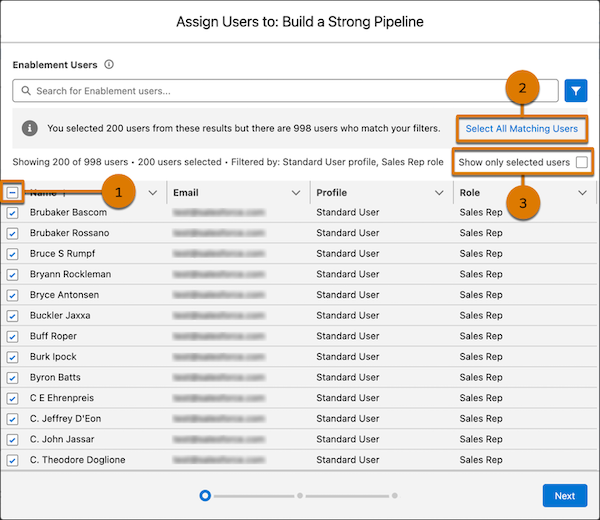
## Start Dates and Due Dates for Assigned Programs
After you select the users to assign to a program, you select the program's start date. The assignment window only allows you to select a weekday. If you use an invocable action to assign users and you select a weekend day, the start date is automatically adjusted to the next weekday.
The program’s due date is calculated based on the start date that you assign and the length of the program, excluding Saturdays and Sundays. The due date is scheduled for the end of the user’s day, based on the time zone they specify in their personal settings. For example, if you schedule a 20-day program with a start date of Monday, January 1, the program is due end of day Friday, January 26. This projection skips the 6 weekend days that fall after Monday, January 1. A user still gets credit for completing exercises or milestones on a Saturday or Sunday.

Tip To ensure that users in time zones around the world have equal time to complete the program, choose a start date that’s in the future. If you select the current day as the start date, assigned users in time zones far ahead of you can effectively lose a day of program availability.
A user receives an email notification at approximately 5 AM on the program’s start date, based on their selected time zone. If the start date is the same day it’s assigned, the notification is sent immediately. However, other resource-intensive activity in your org, such as scheduled Apex jobs, can affect when the notification actually arrives. The user can open the program starting at 12 AM on the start date.
The start date and due date also determine when other notifications are sent. See [Manage Notifications for Enablement Programs, Outcomes, and Milestones](https://help.salesforce.com/s/articleView?id=sales.enablement_notifications.htm&release=264.0.0&type=5 "Help your company’s Enablement rollout run smoothly by encouraging users to take and complete programs on time. Notify users when a program is assigned or when they self-enroll in a program, and send congratulations when programs are completed. Remind users when they haven’t started taking a program they enrolled in. Nudge users when a program, outcome, or milestone is due soon. Manage notifications separately for sales programs in Lightning Experience and partner programs in Experience Cloud sites.").
## Start Dates and Due Dates for Self-Enrolled Programs
When users self-enroll in a program, the program’s start date is the day they enrolled, including weekend days.
The program’s due date is calculated based on the start date and the length of the program. If a user enrolls on a weekend day, Day 1 of the program includes both that weekend and the following Monday. Subsequent Saturdays and Sundays are excluded when calculating the program’s due date.
## Enrollment Type and Assignment Status
On the Enablement Program record detail page, the Enrolled Users related list includes these columns.
- Enrollment Type indicates whether the user was assigned to the program or self-enrolled in the program.
- Assignment Status indicates whether an issue occurred when the Enablement admin tried to assign the program to the user.
The Assignment Status column can show these values.
| Status | Description |
| --- | --- |
| Succeeded | The user was assigned to the program and can access the program on the start date. This status also appears when a user self-enrolls in a program. |
| Failed | The user wasn’t assigned to the program. This result can occur when you close the assignment window before reaching the final confirmation step, no matter how many users you try to assign. Remove the user from the program and try assigning them again. |
| In Progress | The assignment operation isn’t completed yet. |
#### See Also
- [Enablement Permission Set Groups, Permission Sets, and Permissions](https://help.salesforce.com/s/articleView?id=sales.enablement_permissions.htm&release=264.0.0&type=5 "Enablement includes default permission set groups based on team member roles. The permission set groups include default permission sets based on tasks that people in those roles complete. The permission sets include individual user permissions and object permissions.")
- [Assign Permissions to Your Enablement Team](https://help.salesforce.com/s/articleView?id=sales.enablement_setup_assign_perms.htm&release=264.0.0&type=5 "Assign permissions to Enablement team members and users for managing programs, managing content, and taking programs. Give access to Enablement admins to access objects and fields when creating measures. Some options and settings are different depending on whether you’re working with Enablement Lite, full Enablement, or Partner Enablement programs.")
- [Remove Users from an Enablement Program](https://help.salesforce.com/s/articleView?id=sales.enablement_programs_unassign.htm&release=264.0.0&type=5 "Remove enrolled and assigned users from an Enablement program when it no longer pertains to them or has reached the enrollment limit. You can manually select the users that you want to remove, or filter them by profile, role, and public group.")
- [Enablement Limits](https://help.salesforce.com/s/articleView?id=sales.enablement_limits.htm&release=264.0.0&type=5 "When creating Enablement measures, creating Enablement programs, and making programs available to users, keep limits for measures, programs, and enrollment in mind.")
- [Enablement Lite Permissions](https://help.salesforce.com/s/articleView?id=sales.enablement_lite_permissions.htm&release=264.0.0&type=5 "Default permission sets that use the Enablement Lite permission set license become available when you turn on Enablement Lite in Setup.")
- [Enablement Components and Pages in Experience Cloud Site Templates](https://help.salesforce.com/s/articleView?id=sales.enablement_partner_components.htm&release=264.0.0&type=5 "In Experience Builder, certain site templates include an Enablement section in the Components panel and Enablement pages in the Pages menu. A site developer can use these components and pages to show Partner Enablement programs, outcomes, milestones, and exercises in your Partner Relationship Management (PRM) experience.")
# Considerations for Accelerator Functions in Salesforce Spiff
Salesforce Spiff provides several functions that support accelerators, including `mamount()`, `mpercent()`, `range_lookup()`, and `tier_payout`.
### Required Editions
Available in: both Salesforce Classic (not available in all orgs) and Lightning Experience
Available in: Enterprise, Unlimited, and Developer Editions
Available for an additional cost in: Professional Edition with Web Services API Enabled
## mamount() and mpercent()
Some companies commission on a marginal or tax bracket basis and commission revenue amounts at different rates. Let’s say that income is taxed at these rates.
- Income from $0 to $50,000 is taxed at a 5% rate
- Income from $50,000 to $100,000 is taxed at a 6% rate
- Income more than $100,000 is taxed at a 7% rate
If someone earns $102,000 in a year, only the amount within each range is taxed at that corresponding rate. The first $50,000 is taxed at 5%, the next $50,000 is taxed at 6%, and the remaining $2,000 is taxed at the 7% rate. If you calculate commissions similarly, use the `mpercent()` and `mamount()` functions.
These functions apply or return the right commission rate to the right amounts defined in a range table. Because of the accelerator functions' unique capabilities, create tables for the `mpercent()` and `mamount()` functions differently than tables used with the `range_lookup()` or `tier_payout()` functions.
For example, a rep closed $220,000 in sales this month. The `mamount()` function returns the appropriate commission amount based on the closed amount.
```
=mamount(220000, ExampleAcceleratorTable)
```
The `mamount()` function performs this calculation, which results in $9,200 commission.
```
4% × 200,000 + 6% × 20,000 + 8% × 0 + 10% × 0
```
The function looks up the amount in the range table and allocates the appropriate amount of each deal into the appropriate tier. Only the amount that falls into each tier is multiplied by the corresponding rate.
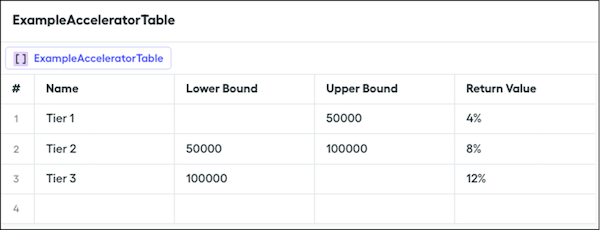
Rather than returning the commission amount earned, managers and reps often want to know the rate that’s applied to the commissionable amount. You can use the `mpercent()` function.
```
=mpercent(220000, ExampleAcceleratorTable)
```
The `mpercent()` function performs this calculation, which results in 4.18% effective rate.
```
(4% × 200,000 + 6% × 20,000 + 8% × 0 + 10% × 0) ÷ 220,000
```
## tier\_payout() and range\_lookup()
Some companies have plan components where a single commission rate applies to all of the deals the rep closes. Typically, companies track the highest tier or rate the rep achieves and then award the higher rate to all sales within the time period.
Apply the `tier_payout()` function to the previous example where a rep closed $220,000 in sales this month.
```
=tier_payout(220000, ExampleAcceleratorTable)
```
The `tier_payout()` function looks up the amount in the range table to find the matching range and then returns the associated rate, which in this case is 6%. In another calculation, you can multiply the 6% against $220,000 to get the commission owed to the rep. The `range_lookup()` function is functionally equivalent.
#### See Also
- [mamount](https://help.salesforce.com/s/articleView?id=sales.spiff_function_ref_mamount.htm&release=264.0.0&type=5 "Returns the commission total for a deal in Salesforce Spiff, based on a range table and the rep's current attainment. To return a commission rate instead, use the mpercent() function.")
- [mpercent](https://help.salesforce.com/s/articleView?id=sales.spiff_function_ref_mpercent.htm&release=264.0.0&type=5 "Returns the commission rate for a deal in Salesforce Spiff, based on a range table and the rep's current attainment. To return a commission total amount instead, use the mamount() function.")
- [range\_lookup](https://help.salesforce.com/s/articleView?id=sales.spiff_function_ref_range_lookup.htm&release=264.0.0&type=5 "Returns a value from within an upper and lower range of values in Salesforce Spiff, based on a range table. This function returns the specified column expression for that value.")
- [tier\_payout](https://help.salesforce.com/s/articleView?id=sales.spiff_function_ref_tier_payout.htm&release=264.0.0&type=5 "Returns a payout amount from within an upper and lower range of values in Salesforce Spiff, based on a range table. This function returns the specified column expression for that value.")
# Considerations for Account Team Member Access
When you view a team member's access, the level shown depends on where you look. The account team member record shows only the directly granted access, while the Team Member Access action shows the user's total access from all sources.
### Required Editions
Available in: Lightning Experience and Salesforce Classic
Available in: Enterprise, Performance, Unlimited, and Developer Editions
## Direct Access and Consolidated Access
An account team member's effective access is the combination of access from multiple sources, not just the access granted directly on the account team member record. Salesforce always applies the highest level of access from any source.
This means you can't reduce a user's effective access by lowering the account team member grant if another source, such as a sharing rule or role hierarchy position, provides higher access.
## Where to View Access
| Where You Look | What It Shows | Includes Access From |
| --- | --- | --- |
| Account team member record (view or edit) | Only the access granted directly when the team member was added or last edited | Account team member assignment only |
| Team Member Access action on the Account Team related list | The user's total effective access to the account and related records | Org-wide defaults, role hierarchy, sharing rules, account team membership, profile and permission set permissions, and manual shares |

Note The banner on the account team member record that says "Account Team Member can have access higher than what is shown in the record" refers to this behavior. The record shows only the directly granted access, not the consolidated total.
## Access Sources
These sources contribute to a user's consolidated access. The Team Member Access action shows the highest level from any source.
| Access Source | How It's Set | Example |
| --- | --- | --- |
| Org-wide default (OWD) | A Salesforce admin sets the baseline in Sharing Settings | Account OWD set to Private means no access unless explicitly granted |
| Role hierarchy | Automatic, based on user's position relative to the account owner | A user above the account owner in the role hierarchy inherits access to the account |
| Sharing rules | A Salesforce admin creates criteria-based or ownership-based rules | All users in Role X get Read access to accounts owned by users in Role Y |
| Account team member (direct grant) | Set when a user is added to the account team or when the record is edited | Read Only or Read/Write selected at team member creation |
| Profile or permission set | A Salesforce admin assigns object-level permissions | Modify All Data permission or object-level View All |
| Manual sharing | The account owner or a Salesforce admin shares an individual record | A one-time share on a specific account |
## Common Scenarios
These scenarios show why the access on the account team member record can differ from the access shown in Team Member Access.
| Scenario | Account Team Member Record Shows | Team Member Access Shows | Why They Differ |
| --- | --- | --- | --- |
| Team member granted Read Only for opportunities, but a sharing rule gives the user Read/Write | Read Only | Read/Write | The sharing rule provides higher access than the direct grant |
| Team member granted no case access, but the user is above the account owner in the role hierarchy | Private | Read Only | Role hierarchy grants inherited access to the account owner's records |
| Team member granted Read/Write with no other access sources | Read/Write | Read/Write | No difference because only one access source applies |
| Team member granted Read Only, but the user's profile has View All on accounts | Read Only | Read/Write | The profile-level permission overrides the direct grant |
## AccountTeamMember Object Sharing
The AccountTeamMember object has a default org-wide sharing setting of Public Read/Write. This setting applies to the team member records themselves and doesn't change based on the Account object's sharing settings. This is expected behavior.
# Considerations for Activation Limitations
Protect the integrity of your order data with activation limitations for orders and reduction orders.
### Required Editions
Available in: both Salesforce Classic and Lightning Experience
Orders are available in: Professional, Enterprise,
Performance, Unlimited, and Developer Editions
Reduction
orders are available in: Enterprise, Performance, Unlimited,
and Developer Editions
User Permissions
Needed
To activate orders:
Activate Orders
To deactivate orders and reduction orders:
Edit Activated Orders
- You can activate orders for active contracts but not for inactive contracts.
- You can activate orders only if they include order products.
- You can activate reduction orders for order products only if they result in positive quantities.
- After you activate an order or reduction order, you can modify order products. You can’t add or remove them.
- Before you can deactivate an order that has reduction orders, you must deactivate and delete its reduction orders.
#### See Also
- [Orders](https://help.salesforce.com/s/articleView?id=sales.order_overview.htm&release=264.0.0&type=5 "Use orders to track your customers’ requests for products and services.")
- [Reduction Orders](https://help.salesforce.com/s/articleView?id=sales.orderreduction_overview.htm&release=264.0.0&type=5 "Use reduction orders to track requests to reduce, return, deactivate, or disable a customer’s products or services.")
# Considerations for Activity 360 Reporting
Learn what to expect when you turn on Activity 360 reporting for Einstein Activity Capture (EAC).
### Required Editions
Available in: Lightning Experience
Available with Einstein Activity Capture Standard in Sales in Starter, Pro Suite, Professional, and Enterprise Editions
Available with Unlimited Edition, Einstein 1 Sales Edition, and Agentforce 1 Edition
Available with Einstein for Sales, which is included in Einstein 1 Sales Edition and available for an extra cost in Enterprise and Unlimited Editions
Available with Sales Engagement, which is included with Sales in Performance and Unlimited Editions, and available for an extra cost in Professional and Enterprise Editions
Available with Revenue Intelligence, which is available for an extra cost in Enterprise and Unlimited Editions

Note We’re reorganizing the Einstein Activity Capture documentation. We’re moving some information around, but we aren’t deleting anything.
## Activity Data Is Available in Reports After You Turn on Activity 360 Reporting
Only activity data created after Activity 360 reporting is supported for reporting and flows. Historical data isn’t available in Activity 360 reports.
Because Activity 360 reporting starts capturing data only after you enable the setting, recurring events don’t appear automatically. To report on preexisting recurring events, you can edit the recurring event or an instance of the event.

Important Starting in Summer ’25, Activity 360 Reporting, Activity Metrics, and Activities Analytics Dashboard aren’t available unless previously set up. Additionally, data from these reporting tools that appear in other features, including Pipeline Inspection and Einstein Conversation Insights isn’t available unless configured before Summer ’25. If you’re already using Activity 360 Reporting, Activity Metrics, Activities Analytics Dashboard, or related data, you can continue to do so until these tools are retired. To explore email data added by Einstein Activity Capture after Summer ’25, make sure you [sync email as salesforce activity](https://help.salesforce.com/s/articleView?id=sales.eac_email_activity.htm&language=en_US) and use Salesforce Activity reports. See [Considerations for Sync Email as Activity](https://help.salesforce.com/s/articleView?id=sales.eac_email_activity_considerations.htm&type=5&language=en_US) and [Einstein Activity Capture Activity 360 Reporting, Activity Metrics, Activities Dashboard Upcoming Retirement](https://help.salesforce.com/s/articleView?id=004633781&type=1&language=en_US).
## Who Can Access Data in Unified Reports?
Users with an Einstein Activity Capture permission set can view reports on unified activities. For users without an Einstein Activity Capture permission set, they can see the same records in reports only if the setting Activity Sharing with Non-Einstein Activity Capture Users is enabled.
## Record Visibility and Sharing
Unified reports follow the Einstein Activity Capture Sharing and Salesforce sharing models. The activities that a user sees on the activity timeline are consistent with the activities that they can see in these reports. Before turning on unified reports, make sure that you review the email sharing considerations.

Note Only activity data created after Activity 360 reporting is turned on is available in reports.
For reports where User is the primary object, such as Unified Activities grouped by users, reports respect the role hierarchy sharing model. With no role hierarchy, the user sees only their own records and activities.
A report entry with \*\*\*\*\* in the subject and description is an email that the user doesn’t have access to based on sharing settings. The data is consistent with what users see on the activity timeline, where the user sees only an envelope and the email insight but not the email details.
## Object Existence Considerations
Objects must exist before email capture for reporting. For opportunities, the opportunity contact role must already be created for emails to be linked to opportunities. Similarly for accounts, the contact has to be linked to the account. If the contact is on multiple accounts, only the primary account is used.
## Email Sharing Considerations
When you turn on Activity 360 reporting, email sharing is streamlined. The sharing option Share with Groups isn’t available on the activity timeline or as a user’s email sharing preference. After you turn on Activity 360 reporting, you can’t change the sharing policy on historical data, but you can see an email’s sharing policy on the activity timeline.
## Email on Activity Timeline
For an email to be associated with a record on activity timeline, the record must exist when the email is captured by Einstein Activity Capture. If you change the email address in the standard email field on an account, person account, lead, contact, opportunity or user record, the data continues to be associated with the original email address.
## Task Considerations
Only tasks with values in the Due Date or Completed Date field are included in the Unified Tasks object. Open tasks with no date and closed tasks with no completed date aren’t supported for reporting.
## How Are Activities Linked to Related Records?
Activities can appear multiple times within a report based on their relationships to other Salesforce records. For example, a report using the Unified Activity Relations as the third-level object in the report type shows all records that relate to an activity, such as opportunities and contacts. When an activity is linked to multiple records, an entry for the activity appears for each of the related records. To avoid multiple entries for one activity, group by Unified Activity ID or filter by a specific related record type.
An email can be associated with up to 100 related Salesforce records. If records exceed the limit, Salesforce associates the email to 100 of the records and ignores the rest.
## Unified Activities Objects Are Available Only for Reporting and Flows
Emails and insights from Einstein Activity Capture and Einstein Conversation Insights are stored on Salesforce Hyperforce and Amazon Web Services (AWS) infrastructure, not in standard Salesforce objects. As a result, the Activity 360 reporting and insights objects support standard reporting. Also, the insights objects support flows. They don’t appear in Object Manager and they aren’t supported for SOQL queries or in APIs.
## Voice and Video Call Considerations
The reporting measures for voice and video calls in Einstein Conversation Insights have limitations when trying to filter records by insight types.
- When applying filter logic between insight type fields, the OR operator isn’t supported. To run a report that shows records with specified insights only, apply a filter that uses the contains operator and enter comma-separated entries for the insight types you want to show.
- It isn’t possible to run a report that displays call records that don’t contain a specific insight.
## Eligibility for Activity 360 Reporting
If you want to use Activity 360 reporting, your org must meet these eligibility criteria.
- Have fewer than 1.5 million combined accounts, contacts, contracts, leads, and opportunities.
- Have fewer than 300 users with a connected data source.
- Have fewer than 1,500 weekly logged-in users.
To continue using Activity 360 reporting, make sure you still meet the eligibility criteria after enabling it.
## Turning Off Activity 360 Reporting
By default, you can’t turn off the setting for Activity 360 reporting after you enable it. To turn off Activity 360 reporting, contact Salesforce Customer Support.
## Other Features Powered by Activity 360
Because Activity 360 reporting unifies your activity data in one place, you also get access to a Pipeline Inspection feature that helps sales reps and managers see who’s participating in a deal. If you use automated actions, you can trigger events and flows using email insights.
#### See Also
- [Set Up Activity 360 for Einstein Activity Capture](https://help.salesforce.com/s/articleView?id=sales.einstein_sales_setup_activity_reporting.htm&release=264.0.0&type=5 "Get set up to use Activity 360 reporting, Pipeline Inspection deal insights, and automated actions triggered by email insights. Prepare your Salesforce org to use standard reports so that sales managers can monitor their team’s activities across all channels, such as emails, email and call insights, or manually and automatically captured tasks.")
- [Get Started with Activity 360 Reports](https://help.salesforce.com/s/articleView?id=sales.einstein_sales_activity_reporting_quick_start.htm&release=264.0.0&type=5 "Use the provided Activity 360 reports, or clone the reports to meet your business needs. Review the suggestions and tips for custom report types to help you create your own reports and dashboards.")
# Considerations for Adding Emoji to Statements
Enhance communication, simplify complex information, and create an engaging experience for your reps with emoji. Help reps be more productive by presenting information that’s informative and visually engaging on commission statements.
### Required Editions
Available in: both Salesforce Classic (not available in all orgs) and Lightning Experience
Available in: Enterprise, Unlimited, and Developer Editions
Available for an additional cost in: Professional Edition with Web Services API Enabled
Emoji can help transform numerical figures and statistics into easily digestible information within seconds. Emoji are universal, transcending cultural and language barriers. Emoji add a visual element to statements, capturing attention and conveying emotions, achievements, and goals more effectively.
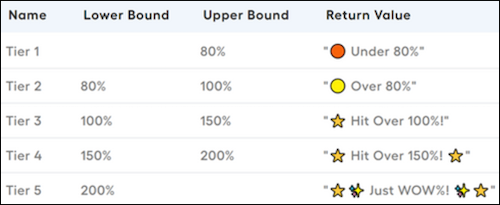
- **[Emoji in Statement Formulas](https://help.salesforce.com/s/articleView?id=sales.spiff_statement_emoji_formulas.htm&release=264.0.0&type=5)**
You can incorporate emoji into formulas to emphasize sales numbers. For example, adding emoji next to ACVs helps you quickly see their status and measure sales team performance.
- **[Enhance Trending Performance with Emoji](https://help.salesforce.com/s/articleView?id=sales.spiff_statement_emoji_performance.htm&release=264.0.0&type=5)**
Visualizing the trending performance of commission statements over specific periods, such as months, quarters, or years, is crucial for data-driven decision-making. Incorporating emoji and creative visuals can enhance the presentation of performance stories, making them more engaging and insightful.
- **[Add Emoji and Messages to Quota Performance](https://help.salesforce.com/s/articleView?id=sales.spiff_statement_emoji_quota.htm&release=264.0.0&type=5)**
Provide more information to reps about their performance against quota with emoji and messages. Motivate reps to reach their quotas by displaying the amount required to reach the quota, accompanied by a special congratulatory message upon achievement.
- **[Add Emoji and Percentages to Attainment Bands](https://help.salesforce.com/s/articleView?id=sales.spiff_statement_emoji_attainment.htm&release=264.0.0&type=5)**
Help reps interpret their performance at a glance when you add emoji and percentages to attainment-based displays.
- **[Create a Leaderboard Rule with Emoji](https://help.salesforce.com/s/articleView?id=sales.spiff_statement_emoji_leaderboard.htm&release=264.0.0&type=5)**
Encourage reps to meet company goals by adding emoji to the visual display of team performance rankings.
# Considerations for Adding Images to Quote Templates
Before you add images to quote templates, consider a few key points.
### Required Editions
Available in: Salesforce Classic and Lightning Experience
Available in: Performance and Developer Editions
In Sales, also available in: Professional, Enterprise, and Unlimited Editions
- You can store images for uploading in your file system or in Salesforce CRM Content.
- If you store images on the Documents tab or the Static Resources page, you get a web address that you can use to insert the image.
- If you insert an image that’s too large, it’s cropped when users create quote PDFs from the template. To prevent cropping, click **Save and Preview** after you insert an image, and then resize the image as needed.
- To insert an image from a _public_ web address outside Salesforce (such as your company’s website), contact Salesforce and ask to have the public URL allowlisted for your Salesforce org.
#### See Also
- [Add an Image to a Quote Template](https://help.salesforce.com/s/articleView?id=sales.quotes_template_add_images.htm&release=264.0.0&type=5 "Show an image, such as your company logo, in your quote template’s body, header, or footer.")
# Considerations for Adding Users in Salesforce Spiff from Multiple Sources
Integrating users into Salesforce Spiff from multiple sources can lead to errors and system disruptions due to the creation of multiple user tables. Managing multiple user tables complicates user management, and plan assignments.
### Required Editions
Available in: both Salesforce Classic (not available in all orgs) and Lightning Experience
Available in: Enterprise, Unlimited, and Developer Editions
Available for an additional cost in: Professional Edition with Web Services API Enabled
Adding users from multiple sources into Spiff can lead to significant issues, particularly when different user tables are involved. Ideally, add users from a single source. For example, if you sync users from a Salesforce connector, don’t manually upload the same users separately. Mixing user sources can cause errors, such as unrecognized `user.Id` or `rep.Id`, which can indicate conflicting user tables.
Problems occur when you add a user from a secondary source, like a manually uploaded finance user who doesn't have a Salesforce account, and you assign them to a plan. Spiff typically selects the user table with more comprehensive data, like Salesforce. But if Spiff selects the incorrect user table, operational failures can occur.
To prevent such issues, avoid assigning a user from a secondary table to any plans. Otherwise, integrate the user with the primary user table. If errors occur due to multiple user tables, unassign plans from the user in the secondary table and recalculate the data.
Additionally, problems can also occur if you manually upload a user table and then you sync to another user table. Spiff can identify the first table as the primary source incorrectly.
Admin users aren’t added to plans or teams, so syncing them through a connector isn’t required.
# Considerations for Agentforce Account Management
Before you use Agentforce Account Management, keep these considerations in mind.
### Required Editions
Available in: Lightning Experience
Available in: Enterprise, Performance, Unlimited, and Developer Editions with the Agentforce for Sales or Agentforce for an Industry add-on, or included in Agentforce 1 Sales or an Industry Edition. Requires each user to have the Agentforce for Sales or Agentforce for an Industry add-on to access the actions.
## Agent Template
Agentforce Account Management uses the Sales Agent template, and it inherits the same supported functionality, usage, limitations, allowances, limits, and other issues. See [Considerations for Agentforce Sales Management](https://help.salesforce.com/s/articleView?id=sales.sales_agent_sales_mgmt_considerations.htm&release=264.0.0&type=5 "To use Agentforce Sales Management and the Sales Agent template, consider the supported functionality, usage, limitations, allowances, limits, and other issues.").
## Consumption Billing
- When users have the [Unmetered User Based AI permission](https://help.salesforce.com/s/articleView?id=ai.generative_ai_usage_unmetered_considerations.htm&language=en_US) assigned, Agentforce Account Management billing is unmetered. To make sure that billing is unmetered, confirm that the Unmetered User Based AI permission set is granted System Permissions. And, assign this permission to all agents and users who use the feature.
- When users don’t have the Unmetered User Based AI permission assigned, Agentforce Account Management consumes Flex credits.
## Account Research, Summaries, and Insights
- To generate accurate summaries and insights, make sure that standard account fields, such as Type, Industry, Revenue, and Employees, contain data.
- To generate insights from voice and video calls, turn on Einstein Conversation Insights. The agent analyzes the most recent voice and video calls from the last 30 days that are longer than 5 minutes.
- To analyze and summarize emails, turn on Einstein Activity Capture. The agent analyzes the 25 most recent emails from the last 30 days.
- The agent uses content notes created in the last 30 days to inform its responses.
- Research, summaries, and other content that the agent generates in the Agentforce panel aren’t saved in Salesforce.
- If the Account or Account Plan object has field-level security, the agent user automatically has permission to access standard fields on these objects.
- If you want the agent to use data in a custom field, assign the agent user permission to access the custom field.
- The agent-generated content that a user can view depends on the user’s access to the data sources used to generate the content.
## Account Field Updates
- You can’t modify the Suggest Field Update prompt template, but you can customize the output instructions for each field.
- Field update notifications aren’t available in Slack for Account Management.
## Limits
- Agentforce Account Management doesn’t fully support account hierarchies.
- Agentforce Account Management doesn’t fully support person accounts.
- Agentforce Account Management doesn’t use custom objects as agent activity sources.
- The Sales agent uses only emails that are stored as EmailMessage records. Emails that aren’t EmailMessage records don’t inform the agent’s responses.
#### See Also
- [Agentforce and Generative AI Usage and Billing](https://help.salesforce.com/s/articleView?id=ai.generative_ai_usage.htm&language=en_US)
- [Considerations for Unmetered Agentforce Usage](https://help.salesforce.com/s/articleView?id=ai.generative_ai_usage_unmetered_considerations.htm&language=en_US)
# Considerations for Agentforce Pipeline Management
Before you set up Agentforce Pipeline Management, keep these considerations in mind.
### Required Editions

Important These considerations apply only to Pipeline Management set up before September 2026.
Available in: Lightning Experience
Available in: Enterprise, Performance, Unlimited, and Developer Editions with the Agentforce for Sales or Agentforce for an Industry add-on, or included in Agentforce 1 Sales or an Industry Edition. Requires each user to have the Agentforce for Sales or Agentforce for an Industry add-on to access the actions.
## Consumption Billing
For orgs with an Agentforce for Sales, Service, or Industry add-on license, or orgs with Agentforce 1 Edition for Sales, Service, or Industry, this feature will not draw down credits where Customer makes less than 100 LLM gateway calls daily for each licensed Agentforce user. The 100 LLM gateway call limit is averaged across the entire org and doesn’t apply to each individual user. For example: 100 LLM gateway calls per day \* 10 users = 1000 cumulative LLM call limit per day. If total usage exceeds this limit, Salesforce reserves the right to apply Flex Credits towards the excess at the then-current multiplier. For more information on generative AI credit consumption, see [Metering for Agentforce and Generative AI Usage](https://help.salesforce.com/s/articleView?id=ai.generative_ai_usage_metering_logic.htm&type=5&language=en_US). Credits can still be consumed by data services in Data 360 and other related usage.
## Agent Suggestions
- The daily limit for field update suggestions is 8,000 large language model generation requests. When you use the standard Recommend Next Step for Opportunity and Recommend Stage for Opportunity prompt templates, Agentforce Pipeline Management can process up to 4,000 opportunities daily.
- The agent’s suggestions aren’t visible after 30 days.
- The Employee Agent Analytics dashboard doesn’t track metrics for opportunity field updates, but you can define a custom report type from the AiGenActionItemInfo object so that Pipeline Management users can create their own reports.
- If you connected the agent to Slack, users receive up to 15 Pipeline Management notifications in Slack per day. To change the limit, contact Salesforce Customer Support.
- If you set your agent to automatically update record fields instead of suggest updates, the autonomous updates are only visible to the owners of the record's associated opportunity.
## Data Sources
- When using the standard prompt templates, the field update suggestions that a user can see depends on their access to the data sources that were used to generate the suggestions.

Warning When you use a custom prompt template for Pipeline Management, the agent can generate suggestions based on data that might be unavailable to sellers. Test your custom prompt template thoroughly to make sure that the output meets your expectations.
- The more detailed the information from a data source, the more specific the agent’s suggestions can be.
- The agent filters for notes created within the past 7 days. Then, it uses the most recently created or updated note in the past 24 hours to inform its suggestions.
- When Einstein Conversation Insights is enabled as a data source, the agent uses the most recent video or voice call from the past 24 hours that’s at least 5 minutes long to inform its suggestions.
- When emails are enabled as a data source, the agent evaluates the 50 most recent emails from the past 24 hours to inform its suggestions.
## Process Field Update Suggestions Flow
- The Process Field Update Suggestions flow runs only when a Sales agent is active.
- The flow includes all open opportunities with a close date within 90 days. To improve relevance, define filter conditions to pinpoint the opportunities to include in the agent’s work.
- Within the flow, the agent is added as an opportunity team member for each opportunity it works on. If you have custom Apex triggers that are set to run an action when an opportunity team member is created, determine if you want the action to fire when the agent is added as an opportunity team member.
- The agent has Read and Write access for the opportunities that it’s working on. If you restrict the agent’s access to Read Only, it can’t generate field update suggestions.
- If you want to use the flow for a custom agent, edit the Get Sales Management Agent Bot Record and the Get Sales Management Agent Bot Version elements to reference the details of the agent that you want to use, instead of the Sales agent.
- When a standard prompt template is called within the Process Field Update Suggestions flow and there’s no relevant email, call, or note data to generate suggestions, no further processing occurs. If a standard prompt template is called outside of the flow, such as through Prompt Builder or the Agentforce panel, processing occurs regardless of available data.
- You can’t clone or modify the Recommend Stage for Opportunity prompt template, but you can edit the opportunity stage descriptions used by the prompt template. In Salesforce Go, use the Pipeline Management section of the Agentforce for Sales page.
#### See Also
- [Flow Limits and Considerations](https://help.salesforce.com/s/articleView?id=platform.flow_considerations.htm&language=en_US)
- [Guidelines for Using Sync Email as Salesforce Activity](https://help.salesforce.com/s/articleView?language=en_US&id=sales.eac_email_activity.htm)
# Considerations for Agentforce Sales Management
To use Agentforce Sales Management and the Sales Agent template, consider the supported functionality, usage, limitations, allowances, limits, and other issues.
### Required Editions
Available in: Lightning Experience
Available in: Enterprise, Performance, Unlimited, and Developer Editions with the Agentforce for Sales or Agentforce for an Industry add-on, or included in Agentforce 1 Sales or an Industry Edition. Requires each user to have the Agentforce for Sales or Agentforce for an Industry add-on to access the actions.
## Language and Locale Support
Agentforce Sales Management supports the languages and locales supported by the [Agentforce Employee Agent](https://help.salesforce.com/s/articleView?language=en_US&id=ai.agent_employee_agent_considerations.htm) type. All languages except English are supported only in Beta.
Automated suggestions and updates show in the language selected for the agent user. Agent responses within the Agentforce panel show in the language set by the user in their user profile. Suggestions, updates, and agent responses in the Agentforce panel show in English if the selected language isn’t supported.
## Large Language Model Support
Agentforce Sales Management supports these models.
| Model |
| --- |
| OpenAI GPT-4o mini |
You can customize your AI experience by bringing in your own models to Salesforce. For more information, see [Large Language Model Support](https://help.salesforce.com/s/articleView?language=en_US&id=ai.generative_ai_large_language_model_support.htm&type=5).
## Einstein Trust Layer Service Support
Agentforce Sales Management supports the Trust Layer services supported by the [Agentforce Employee Agent](https://help.salesforce.com/s/articleView?id=ai.agent_employee_agent_considerations.htm&type=5&language=en_US) type.
## Usage Types Billed by Agentforce Sales Management
Agentforce Sales Management uses generative AI and Data 360 to ingest, store, and process data. You’re billed in these categories when you use Agentforce Sales Management. Before deployment, work with your Salesforce account team to confirm license availability and plan credit usage.

Tip
This feature has access to Digital Wallet, a free account management tool that offers near real-time consumption data for enabled products across your active contracts. Access Digital Wallet and start tracking your org's usage. To learn more, see [About Digital Wallet](https://help.salesforce.com/s/articleView?id=xcloud.wallet_about.htm&language=en_US&type=5).
Agentforce Sales Management includes multiple features. Consumption billing can vary by feature.
Consumption Billing by Feature
Feature
Consumption Billing Type
Pipeline Management
For orgs with an Agentforce for Sales, Service, or
Industry add-on license, or orgs with Agentforce 1 Edition for Sales, Service, or Industry, this
feature will not draw down credits where Customer makes less than 100 LLM gateway calls daily
for each licensed Agentforce user. The 100 LLM gateway call limit is averaged across the entire
org and doesn’t apply to each individual user. For example: 100 LLM gateway calls per day * 10
users = 1000 cumulative LLM call limit per day. If total usage exceeds this limit, Salesforce
reserves the right to apply Flex Credits towards the excess at the then-current multiplier. For
more information on generative AI credit consumption, see Metering for Agentforce and Generative AI Usage. Credits
can still be consumed by data services in Data 360 and other related usage.
Account Management
Usage of this feature is either metered or unmetered, depending on the
permissions assigned to the interacting user. Unmetered usage applies if a user
has the Unmetered User-Based AI permission.
Sales Management in Slack
Usage of this feature is either metered or unmetered, depending on the
permissions assigned to the interacting user. Unmetered usage applies if a user
has the Unmetered User-Based AI permission.
These are the usage types that can be billed when usage is metered.
Usage Types for Metered Usage
Digital Wallet Card
Usage Type
Description
Notes
Flex Credits
Standard Action
Usage is determined by the number of standard actions called by the agent in a text
conversation. Currently, every standard action called by the agent is metered as one
standard action, irrespective of the number of tokens processed.
Standard agent actions are actions that are available out-of-the-box. To check the list
of Standard actions, see Standard Action Reference.
Note Use of some standard agent actions require that a subscription has been purchased for
each user that accesses these actions, such as a subscription to Agentforce for Sales
Add-on or Agentforce for Service Add-on. To determine which subscription is required for
such standard actions, see Standard Action Reference at Standard Action Reference. While this
requirement is not technically enforced yet, users who don’t have the required add-on
license will lose access to such actions for which they don’t have a license when the
requirement is enforced.
This usage type isn’t billed when it's associated with a generative AI action that
qualifies as unmetered human context usage. For more information, see Metering for Agentforce and Generative AI Usage.
Flex Credits
Custom Action
Usage is determined by the number of custom actions called by the agent in a text
conversation. Currently, every custom action called by the agent is metered as one custom
action, irrespective of the number of tokens processed.
Async calls to Salesforce AI in custom action implementation may incur additional
charges.
This usage type isn’t billed when it's associated with a generative AI action that
qualifies as unmetered human context usage. For more information, see Metering for Agentforce and Generative AI Usage.
Flex Credits
Starter Prompts
Usage is calculated based on two factors: the number
of direct requests to the LLM via the LLM gateway, and whether the gateway uses a Bring Your
Own Large Language Model (BYOLLM).
Each starter prompt includes the processing of up to
2,000 tokens. Prompt usage is counted in chunks of 2,000 tokens, rounded up. Prompts that
exceed this limit will be metered as multiple prompts, with each additional 2,000-token
chunk counting as a new prompt. For example, a prompt with a total of 6,500 input and
output tokens will be metered as 4 prompts.
Tokens are units of data processed by the
AI models.
This usage type isn’t billed when it's associated with a generative AI action that
qualifies as unmetered human context usage. For more information, see Metering for Agentforce and Generative AI Usage.
Flex Credits
Standard Prompts
Basic Prompts
Advanced Prompts
Usage is calculated based on two factors:
the number of direct requests to the LLM via the LLM gateway, and whether the gateway uses a
Salesforce managed large language model. The specific category depends on the model that is
used. See Large Language Model Support to find out which usage types
apply.
All Standard, Basic, and Advanced prompts process up to 2,000 tokens per prompt.
Token usage is rounded up in 2,000-token increments. All Standard, Basic, and Advanced
prompts that exceed this limit will be metered as multiple prompts, with each additional
2,000-token chunk counting as a new prompt. For example, a prompt with a total of 6,500
input and output tokens will be metered as 4 prompts.
Tokens are units of data
processed by the AI models.
Note Advanced Prompts were launched with a designated multiplier listed in the Agentforce
Flex Credits Rate Card. Salesforce will start metering the use of Advanced
Prompts on July 21, 2026.
This usage type isn’t billed when it's associated with a generative AI action that
qualifies as unmetered human context usage. For more information, see Metering for Agentforce and Generative AI Usage.
## Data Cloud One Support
Agentforce Sales Management isn't supported in Data Cloud One companion orgs.
## Trusted URL Considerations
- To prevent prompt injection vulnerabilities, Agentforce enforces trusted URL allowlists for agent responses.
- Add any external URLs that your agent references, such as external knowledge bases, to your Trusted URLs list in Setup or to your agent instructions in Agentforce Builder.
- If a domain isn't on your Trusted URLs list in Setup or included in your agent’s instructions, links and emails from that domain display as `URL_redacted`.
## Other Considerations
- The Sales Agent template is available only when Pipeline Management or Account Management is turned on.
- If you created a Sales agent in the legacy builder in Setup, you can keep it active and still create a new Sales agent in Agentforce Builder in Agentforce Studio. However, we recommend using the new Sales agent for the most up-to-date experience.
#### See Also
- [About Einstein Generative AI](https://help.salesforce.com/s/articleView?id=ai.generative_ai_about.htm&language=en_US)
- [Agentforce Builder Considerations](https://help.salesforce.com/s/articleView?id=ai.agent_considerations.htm&language=en_US)
- [Considerations for Agentforce Employee Agent](https://help.salesforce.com/s/articleView?id=ai.agent_employee_agent_considerations.htm&language=en_US)
- [Considerations for Unmetered Agentforce Usage](https://help.salesforce.com/s/articleView?id=ai.generative_ai_usage_unmetered_considerations.htm&language=en_US)
- [Manage Trusted URLs](https://help.salesforce.com/s/articleView?id=xcloud.security_trusted_urls_manage.htm&type=5&language=en_US)
- [_Knowledge Article:_ Changes to Default Allowlist for Agentforce](https://help.salesforce.com/s/articleView?id=005135034&type=1&language=en_US)
# Considerations for Agentforce Service Agent Lead Generation
When enabling your Agentforce Service Agent to generate leads, keep these considerations in mind.
### Required Editions
## General
- To answer sales-specific questions separately from service questions, create another subagent for sales FAQ.
- Subagent instructions influence an agent's efficacy. Because the default instructions are based on internal testing, consider customizing the instructions to meet your use case.
- Conversation captured in a messaging session between an agent and prospect isn't stored in the lead, contact, or person account record that's created.
## Agent Configuration and Deployment
Deploying Agentforce Service agents or agent changes via change sets or metadata isn't supported and can cause the newly deployed or updated agent to stop working correctly. Create and update all agents in Setup or Agentforce Builder.
## Lead Ownership
When the agent creates a lead, the owner is determined based on the default lead owner set in Lead Settings or your lead assignment rules. If your lead assignment rule fails, the lead is assigned to the default owner.
## Contact and Person Account Ownership
Lead assignment rules don't apply to contacts and person accounts. The agent is the default owner for all contacts and person accounts that it creates. If you want to assign ownership to a sales rep or manager instead, change your ownership rules or modify the flow.
## Existing Topic Modifications
If you aren't adding a classification subagent to your agent, review the existing service topic description, scope, and instructions to prevent accidentally triggering a service subagent when you want to use a sales subagent. The table shows how to update an escalation subagent to gather a customer's information and schedule a meeting rather than escalate a request.
| | Current | Updated |
| --- | --- | --- |
| Description | Handles requests to transfer or escalate to a live human agent. | Handles requests from users who have a service-specific request, such as resetting a password and wanting to transfer or escalate their conversation to a live human agent. |
| Scope | Transfer to a live agent if a user explicitly asks for human assistance or has a complex issue. | Transfer the conversation to a live agent if a user has a service-specific request, such as resetting a password and explicitly asking for human assistance or has a complex issue that requires human intervention. |
| Instructions | If a user explicitly asks to transfer, escalate. | Only escalate if the customer has a service-specific request. Don't use this subagent if the customer is requesting to speak to someone about a sales-specific request, such as wanting to learn more about product pricing. Instead, use the Create Sales Record subagent. |
## Troubleshooting
If the agent session is unexpectedly ending, add this instruction to the Sales Record Creation topic.
```
“You are an AI assistant for scheduling meetings and creating sales leads. Your process must follow these four steps in this exact order.
1. **Collect Information:** Once the user confirms their interest, engage with them to gather all necessary information required for the sales lead record.
2. **Create Sales Lead:** After you have all the prospect's information, you must use the `sales_sdr_agent__CreateSalesLeadRecord` tool to create the sales lead in the system.
3. **Generate and Share Link:** After successfully creating the sales lead, your final and only concluding action is to generate and share the scheduling link. **You must not use the `end_session` tool.** The generation of the meeting link is the successful completion of your task.”
```
If the agent's responses in Markdown aren't working, check whether the embedded service deployment date is after March 31, 2025. If it's prior to that date, update the deployment date in Embedded Services Deployment. The update can take 10 minutes to complete.
## Agent Topic Context Variables
Because the Prospect Meeting Scheduling subagent requires a Record ID to work properly, a context variable is recommended so that the subagent is triggered only if the Sales Record Creation is triggered in the same session. Create a new context variable with the name Prospect ID. Then, add the new variable to the Create Sales Lead, Create Sales Contact, or Create Sales Person Account action that your agent uses and to the Return Calendar Link action. In the Create Sales Lead (Contact or Person Account) Record action, add the variable in the Map to Variable section. In the Return Calendar Link action, add the variable under Target ID.
# Considerations for AI-Powered Selling Initial Setup
Keep these considerations in mind before setting up AI-Powered Selling Initial Setup.
### Required Editions
Available in: Lightning Experience in Enterprise, Unlimited, and Agentforce 1 Sales editions with the Sales Foundation add-on.
## General Considerations
When you turn on AI-Powered Selling Initial Setup, Sales Workspace becomes the new default home page for assigned users in the Sales, Sales Console, and Sales Engagement apps.
## Usage Considerations
Sales Workspace is powered by Data 360. Frequent updates to records can increase your org’s costs for Data 360 credit consumption when you use this feature. See [Data Cloud Billable Usage Types](https://help.salesforce.com/s/articleView?id=data.c360_a_data_usage_types.htm&language=en_US).
To better understand cost impacts, work with your account executive before turning on AI-Powered Selling Initial Setup.
## Limitations
Sales Workspace isn’t supported if Advanced Currency Management (ACM) is turned on.
# Considerations for Analyzing Program Completion
The analytics tools for measuring Enablement program, milestone, exercise, and outcome completion have some dependencies and caveats.
### Required Editions
Available in: Lightning Experience
Enablement is available in Developer Edition with a limited number of add-ons. It is also available with Sales, Service, or the Salesforce Platform in: Enterprise, Performance, Unlimited, and Einstein 1 Sales Edition Editions for an additional cost
Enablement Lite is available with Sales in: Enterprise, Performance, and Unlimited Editions
Partner Enablement is available in Developer Edition with a limited number of add-ons. It is also available with Sales, Service, or the Salesforce Platform in: Enterprise, Performance, and Unlimited Editions for an additional cost. A supported PRM add-on license is required.
## Program Types
Separate reports and dashboards are available for different program types.
- For Enablement Lite, prebuilt reports are available.
- For full Enablement, prebuilt reports and a dashboard are available.
- For Partner Enablement, prebuilt reports and a dashboard are available.
When you upgrade from Enablement Lite to full Enablement, the prebuilt reports remain available but are no longer refreshed.
## Release-Specific Reports and Dashboards
The prebuilt reports and dashboards are updated each release to reflect the latest Enablement enhancements. A Salesforce admin can refresh the prebuilt reports and dashboards from Setup. If your Enablement team has customized any of the prebuilt reports and dashboards, let your Salesforce admin know before they refresh. See [Refresh the Enablement Reports and Dashboard](https://help.salesforce.com/s/articleView?id=sales.enablement_analytics_refresh.htm&release=264.0.0&type=5 "Enablement includes prebuilt reports and dashboards for tracking program performance and progress. Different reports and dashboards are available depending on whether you’re using Enablement Lite, full Enablement, or Partner Enablement. For all program types, you can make sure that your Enablement team can access the latest version of prebuilt analytics by refreshing the reports and dashboards in Setup. If your Enablement team has customized any of the prebuilt reports or dashboards, take care that you don’t override those customizations.").
## Completed Programs and Removed Users
After a user completes a program, they remain enrolled in the program unless you remove them. The enrollment counts toward the maximum number of users enrolled in the program, including both assigned users and users who have self-enrolled.
When you remove a user from a program they were previously enrolled in, analytics data is no longer available for that user on that program. If you reassign the same user to that same program later, or the same user re-enrolls in the same program, some analytics data isn't retained.
## Dashboard Customization
The Enablement dashboards are available to other users with Enablement admin permissions. Changes that you make to the prebuilt dashboards are visible to everyone else. If you want to modify the prebuilt dashboards, clone the dashboard first.
You can open a cloned dashboard only from the Dashboards page. The View Analytics button on the Enablement Programs page or record detail page opens only the prebuilt dashboard.
## Outcome and Milestone Progress
By default, progress for outcomes and milestones is calculated daily at 6:59 AM, 11:59 AM, 4:59 PM, and 11:59 PM, according to your Salesforce org’s time zone setting. Users can also refresh outcome and milestone progress on demand when they take the program.
Outcomes and milestones that use average-based measures show 0% progress until the user meets the minimum sample size you specified in Program Builder.
A program can include multiple milestones that all reference the same measure. When a user taking the program progresses toward one of these milestones, their progress counts toward all milestones that reference that measure.
In most cases, outcomes and milestones with the Behind or Overdue status are still tracked for up to 30 days after the program’s due date. Then, the status changes to No longer tracking, except in these two cases.
- The outcome or milestone uses an Einstein Conversation Insights (ECI) object, in which case progress is tracked only until the outcome’s or milestone’s due date.
- Your company contacted Salesforce Customer Support to change the number of days that milestones and outcomes are tracked beyond the program’s due date.
If you edit the criteria for an outcome or milestone in a published program, users’ progress and program analytics aren’t retained.
## Exercise Progress
Exercise completion is calculated in real time.
You can include the same content link on multiple exercises within the same program. But when a user clicks a link for one exercise, all exercises that reference that link are marked as complete when the page refreshes.
Enablement admins can replace exercise content for a published program, but in most cases we recommend that you don’t edit programs that users are taking.
#### See Also
- [Completion Statuses in Enablement Analytics](https://help.salesforce.com/s/articleView?id=sales.enablement_analytics_completion_statuses.htm&release=264.0.0&type=5 "Prebuilt Enablement reports and dashboards show status values for programs, outcomes, milestones, and exercises.")
- [Guidelines for Assembling Enablement Programs](https://help.salesforce.com/s/articleView?id=sales.enablement_programs_overview.htm&release=264.0.0&type=5 "With your Enablement measures planned and implemented, and your content ready to go, bring all the ingredients together in Program Builder. Organize your programs appropriately to help users have efficient, enjoyable experiences that help them achieve outcomes and milestones. Write helpful and instructive titles and descriptions for users who take your programs.")
- [Considerations for Creating and Editing Measures](https://help.salesforce.com/s/articleView?id=sales.enablement_measures_considerations.htm&release=264.0.0&type=5 "Work with your business operations expert and other Enablement team members to carefully identify the objects and fields you want to use for tracking job-related activity. Before you start creating or editing measures, review how you can safely modify prebuilt measures or measures that are already used in published programs. See how you can preview measures, handle invalid measures, and create more elaborate measures using related and custom objects.")
- [Refresh the Enablement Reports and Dashboard](https://help.salesforce.com/s/articleView?id=sales.enablement_analytics_refresh.htm&release=264.0.0&type=5 "Enablement includes prebuilt reports and dashboards for tracking program performance and progress. Different reports and dashboards are available depending on whether you’re using Enablement Lite, full Enablement, or Partner Enablement. For all program types, you can make sure that your Enablement team can access the latest version of prebuilt analytics by refreshing the reports and dashboards in Setup. If your Enablement team has customized any of the prebuilt reports or dashboards, take care that you don’t override those customizations.")
- [Enablement Limits](https://help.salesforce.com/s/articleView?id=sales.enablement_limits.htm&release=264.0.0&type=5 "When creating Enablement measures, creating Enablement programs, and making programs available to users, keep limits for measures, programs, and enrollment in mind.")
# Considerations for Assigning Account Teams to Territories
Anticipate behaviors and outcomes when you import, change, and publish account team roles and assignments in Territory Planning.
### Required Editions
Available in: both Salesforce Classic (not available in all orgs) and Lightning Experience
Available in: Professional, Enterprise, Performance, Unlimited, and Developer Editions with Web Services API enabled
When...
Keep in mind that...
Publishing records
The publish process limits records to 50,000.
Importing account teams
Territory Planning requires a dataset that contains accounts and at least one
alignment.
Updating many roles
It’s best to update roles using .csv files that you create. In those .csv files,
include territory names, roles, and the users assigned to those
roles.
In the .csv files that you create, include user IDs instead of first and last
names. User IDs are unique, whereas some users’ first and last
names aren’t.
Publishing account team assignments
You publish assignments to Salesforce accounts or to .csv files for importing
into other systems.
# Considerations for Assigning Units Based on Rules
Handle assignment conflicts and errors so that every account belongs to the most suitable rep when you create, update, and run assignment rules in Territory Planning.
### Required Editions
Available in: both Salesforce Classic (not available in all orgs) and Lightning Experience
Available in: Professional, Enterprise, Performance, Unlimited, and Developer Editions with Web Services API enabled
When you run assignment rules and publish territory models, conflict logs in CSV files provide details about account assignments that can require your attention.
## Unlocked Units
If any unlocked units don’t meet assignment rule criteria, Territory Planning doesn’t assign them to territories. Conflict logs provide details about account assignments that don’t match rules.
To avoid conflicts and errors, assign each unlocked unit to a territory manually and then lock them. When you publish your model to Sales Territories, select the option to publish manual assignments.
## Assignment Rules
When you run assignment rules:
- Territory Planning assigns each unit to one territory. For units that match criteria for multiple territories, Territory Planning assigns them to a territory based on its order in the hierarchy.
- Sales Territories, however, can assign certain accounts to multiple territories depending on the criteria in your assignment rules.
Conflict logs provide details about account assignments that can result in multiple territory assignments.
To avoid conflicts and errors, adjust assignment rules so that they’re more restrictive and reduce the likelihood that units match criteria for multiple territories.
## Rules Imported from Sales Territories
If you import rules from Sales Territories, and the field values for those rules don’t match Salesforce field values exactly, the values don't appear in the rules within Territory Planning.
For example, Sales Territories includes the Industry rule with the field value **agriculture**. But the corresponding field value in Salesforce and Territory Planning is **Agriculture**. The value doesn’t appear as an available selection for the Industry rule in Territory Planning.

Important Territory Planning doesn’t support multi-select picklists. If you have multi-select picklist rules in Sales Territories, those rules aren’t imported.
To avoid conflicts and errors, in Sales Territories, confirm that field values for rules match Salesforce field values exactly.
## Postal Codes
Some units’ postal codes in Territory Planning can differ from the corresponding accounts’ postal codes in Salesforce records. Territory Planning determines postal codes based on each unit’s latitude and longitude coordinates.
To avoid conflicts and errors, publish to the Sales Territories planning model, and then run assignment rules. That way, you can analyze assignment results.
## Rules Published from Territory Planning
Rules that you publish from Territory Planning can affect assignments for all accounts in Salesforce—not just the ones in your datasets.
To avoid conflicts and errors, publish to the Sales Territories planning model, and then run assignment rules. That way, you can analyze assignment results.
# Considerations for Automatic Contact Creation
Learn about requirements, email filters, and other considerations for Automatic Contact Creation.
### Required Editions
Available in: Lightning Experience
Available with Agentforce 1 Sales Edition
Available in Starter and Professional Editions
Available with Einstein 1 Sales Edition
Available with the Einstein for Sales add-on
Available with Sales Cloud Einstein, which is available in Performance and Unlimited Editions and for an extra cost in Enterprise Edition
Available with Sales Engagement in Sales, which is included in Performance and Unlimited Editions and available for an extra cost in Professional and Enterprise Editions. Sales Engagement is also available for an extra cost in Service and Lightning Platform.
Available with Revenue Intelligence, which is available for an extra cost in Enterprise and Unlimited Editions
## Requirements
[Enable Einstein Activity Capture](https://help.salesforce.com/s/articleView?id=sales.einstein_sales_aac.htm&language=en_US).
## Limitations
- No standard list views or reports show automatically created contacts.
- Automatic Contact Enhancements doesn’t update contacts added by Automatic Contact Creation unless they’re in a Buyer Relationship Map.
- Salesforce makes the best attempt to accurately associate the contact with the right account. While we can’t guarantee it’s always accurate, these rules promote correct associations.
- Salesforce checks whether any account has contacts with the same email domain as the new contact. The account that has the most contacts with the same email domain as the new contact is selected.
- If the first rule doesn’t associate an account with the new contact, Salesforce selects the account with the most related contacts from the group of contacts. Related contacts are identified from emails and events. Each email and event includes a group of other contacts.
- If no matching account record can be determined, the contact isn’t created.

Note Auto Contact Creation considers contacts that the users own for matching. Users must own at least one contact related to the account.
## Filtered Emails
Information from emails likely sent by bots or from unmonitored email accounts isn’t used to detect potential contacts. For example, Automatic Contact Creation ignores emails with sender addresses containing “no-reply” or “@group.calendar.google.com.”
## New Contact Field
After Automatic Contact Creation is enabled, the ContactSource field on the Contact object is available. After a contact is created automatically, the field is set to `Auto Create`.
## Automatic Retry Behavior
Sometimes, the automatic process can’t create a contact record. For example, a record isn’t created when no matching account exists. If a contact record isn’t created, the process waits at least 24 hours before running again for that potential contact. 24 hours after the first attempt, the automatic creation process runs again when a newly captured email or event includes that potential contact.
When an automatically created contact record gets deleted, there’s no retry until 30 days after the original record creation date.
## Migration Behavior for Threshold Settings
If you set up Einstein Activity Capture before Spring ’26 and migrate to Sync Email as Salesforce Activity, the existing Automatic Contact Creation threshold value is used for both the new email and event threshold settings. If you set up Einstein Activity Capture in Spring ’26 or later, the default threshold for both emails and events is 3.
#### See Also
- [Set Up Automatic Contact Creation](https://help.salesforce.com/s/articleView?id=sales.contacts_autocreation_setup.htm&release=264.0.0&type=5 "Turn on Automatic Contact Creation and specify criteria for when contacts are created.")
# Considerations for Automatic Contact Enhancements
Learn about requirements, impacted fields, and supported languages for Automatic Contact Enhancements.
### Required Editions
Available in: Lightning Experience
Available in: Professional, Enterprise, Performance, Unlimited, Einstein 1 Sales Edition, and Developer Editions with Sales
## Requirements
- [Einstein Generative AI](https://help.salesforce.com/s/articleView?id=ai.generative_ai_enable.htm&type=5&language=en_US)
- [Einstein Activity Capture](https://help.salesforce.com/s/articleView?id=sales.aac_setup_parent.htm&language=en_US)
- If you enabled Einstein Automated Contacts, don’t turn on Automatic Contact Enhancements. The features aren’t designed to run together. To turn on Automatic Contact Enhancements, first disable Einstein Automated Contacts.
You must use Einstein Activity Capture with the setting Sync Email as Salesforce Activity. This is automatically turned on if you enabled Einstein Activity Capture in Summer ’25 or later. If you have an earlier version, [Update and Migrate to Sync Email as Salesforce Activity](https://help.salesforce.com/s/articleView?id=sales.eac_migrate_to_sync_email_as_activity.htm&release=264.0.0&type=5 "If you set up Einstein Activity Capture before Summer '25, update to turn on Sync Email as Salesforce Activity and migrate previously captured email to activity data. If you don't update before the date given in your Einstein Activity Capture Settings, we migrate your data and select your settings for you.").
## Contact Fields
Automatic Contact Enhancements adds these fields to a contact and subsequently updates them. These fields are shown on the buyer relationship map for an account or opportunity. To see the fields on the contact record, add them to the Contact record layout. Buyer Attributes, Department Group, and Seniority Level fields are available for all profiles except custom and minimum-access. To provide access, use field-level security in Object Manager.
- Department Group—Represents the business unit, function, or department that contacts belong to in their company.
- Seniority Level—Reflects the hierarchical position that contacts have in their company.
- Buyer Attributes (optional)—Reflect the roles that contacts have on a deal or account.
Automatic Contact Enhancements updates these existing fields on a contact.
- Fax
- MailingCity
- MailingCountry
- MailingPostalCode
- MailingState
- MailingStreet
- Phone (business phone)
- Title
## Contact Field Re-Enhancement
All 11 contact fields are updated automatically every 4 days with data from your latest email activity, with the following exceptions.
- Buyer Attributes, Department Group, or Seniority Level—After you update one of these fields manually, Automatic Contact Enhancements won’t update any of the 3 fields for that contact. We don’t want you to lose your work! For example, after you turn on Automatic Contact Enhancements, you update a contact’s seniority level manually. After that, even if new data is detected in email activity, Automatic Contact Enhancements won’t update the Seniority Level, Department Group, and Buyer Attributes for that contact.
- Fax, MailingCity, MailingCountry, MailingPostalCode, MailingState, MailingStreet, Phone, Title—After you update one of these fields manually, Automatic Contact Enhancements won’t update any of the 8 fields for that contact. We don’t want you to lose your work! For example, after you turn on Automatic Contact Enhancements, you update a contact’s mailing address manually. After that, even if new data is detected in email activity, Automatic Contact Enhancements won’t update the address, Fax, Phone, and Title for that contact.
## Contact Limitations
- Automatic Contact Enhancements doesn’t update private contacts.
- Automatic Contact Enhancements doesn't update contacts added by Automatic Contact Creation unless they're in a Buyer Relationship Map.
- Contacts with the same email address are updated with the same changes at the same time. For example, if Automatic Contact Enhancements updates the job title on a contact that has `abc@xyz.com` email, all contacts with that email address have the job title updated.
- You can’t change the text of Department Group and Seniority Level picklist value labels.
- To ensure that the buyer relationship map feature works as expected, don’t change Buyer Attributes picklist value labels in Object Manager. For example, if you change `Detractor` to `Detract`, the value isn’t shown in red in a buyer relationship map.
## Email Usage
- After enablement, Automatic Contact Enhancements updates contact information from your new email interactions and up to 4 historical email interactions.
- Information from emails likely sent by bots or from unmonitored email accounts isn’t used to complete contact fields. For example, emails with sender addresses containing “no-reply” or “@group.calendar.google.com” aren’t used by Automatic Contact Enhancements.
## Supported Languages
Automatic Contact Enhancements supports emails in English only. The feature’s generative AI ignores emails in other languages.
#### See Also
- [Einstein Generative AI](https://help.salesforce.com/s/articleView?id=ai.generative_ai_about.htm&type=5&language=en_US)
- [Einstein Activity Capture](https://help.salesforce.com/s/articleView?id=sales.einstein_sales_aac.htm&type=5&language=en_US)
- [_Object Reference for the Salesforce Platform:_ Contact](https://developer.salesforce.com/docs/atlas.en-us.object_reference.meta/object_reference/sforce_api_objects_contact.htm)
# Considerations for Buyer Relationship Map
Learn about buyer relationship map requirements and limitations.
### Required Editions
Available in: Lightning Experience
Available in: Enterprise, Performance, Unlimited Editions with Sales, and Agentforce 1 Sales Edition
- Buyer Relationship Map is a different feature from [Einstein Relationship Insights](https://help.salesforce.com/s/articleView?id=ind.intro_eri.htm&type=5&language=en_US). They aren’t designed to run together.
- To show contacts on the map, contacts must have values for Seniority Level and Department Group fields. To automatically complete these values from your email activity, turn on Automatic Contact Enhancements.
- Buyer Relationship Map is turned on by default.
## Contacts
Buyer Relationship Map makes these fields available for a contact.
- Department Group—Represents the business unit, or function that contacts belong to in their company.
- Department—Represents the department that contacts belong to in their company.
- Seniority Level—Reflects the hierarchical position that contacts have in their company.
- Buyer Attributes (optional)—Reflect the roles that contacts have in a deal or account.
- Opportunity-Contact Role—Represents the role of the contact for a given opportunity.
- Notes—Stores notes taken for this contact.
To see Buyer Attributes, Department Group, and Seniority Level on the contact record, add the fields to the Contact record layout. Buyer Attributes, Department Group, Opportunity Contact Role, and Seniority Level fields are available for all user profiles except custom and minimum-access. To provide access, use field-level security in Object Manager.
Key values are minimum buyer attributes, department groups, and seniority levels that is recommended for an opportunity or account. If a buyer relationship map doesn’t have contacts with key values, Salesforce prompts you to add them through insights. Having all key values represented by stakeholders on the map provides a complete picture of the deal or account, increasing sales success.
On the contact tile, the Buyer Attribute value is highlighted in red for Detractor and green for Decision Maker.
## Limitations
- Buyer Relationship Map is a different feature from [Einstein Relationship Insights](https://help.salesforce.com/s/articleView?id=ind.intro_eri.htm&type=5&language=en_US). They aren’t designed to run together.
- Buyer Relationship Map isn’t supported in the Salesforce mobile app.
- Person accounts aren’t supported.
- Insights don’t show for private contacts on the map.
- You can’t change the text of Department Group and Seniority Level picklist value labels. They cannot be customized.
- To make sure that the buyer relationship map feature works as expected, don’t change Buyer Attributes picklist value labels in Object Manager. For example, if you change `Detractor` to `Detract`, the value isn’t highlighted in red in a buyer relationship map.
- Buyer relationship map shows up to 1,000 contacts.
#### See Also
- [_Object Reference for the Salesforce Platform:_ Contact](https://developer.salesforce.com/docs/atlas.en-us.object_reference.meta/object_reference/sforce_api_objects_contact.htm)
# Considerations for Calendars Created from a Salesforce Object in Lightning Experience
Considerations for calendars created from a Salesforce object include support for list view filtering, a limit on the number of items that can be displayed, no support for subscribing to calendars, and support for standard objects.
### Required Editions
Available in Lightning Experience in: Enterprise, Performance, Unlimited, and Developer Editions
List View Filtering
For calendars created from other objects, list views with the scope My and All are supported, but list views with the scope My Team are not.
Calendar Item Limit
Depending on your customization options, you can view up to 150 or up to 500 calendar items total in the day, week, or month view, including Salesforce events and the items on calendars you create. Suppose that you select a calendar containing enough items to push the total past the limit in that view. Lightning Experience displays an alert and hides items on other calendars.
Subscribing to Calendars
You can’t subscribe to calendars that other people create. Each calendar can be accessed only by the person who created it.
Standard Objects Supported
Account
Asset
Campaign
Case
Contact
Contract
Email
Endorsement
Event
Holiday
Idea
Lead
Opportunity
Order
Partner
Price Book
Product
Report
Skill
Skill User
Social Persona
Social Post
Solution
Task
Topic
User
User Provisioning Request
Work Order
For more information, see [Activities: Events and Calendars](https://help.salesforce.com/articleView?id=activities_events_calendars_only.htm&language=en_US) in What’s Not in Lightning Experience.
#### See Also
- [Create an Object Calendar in Lightning Experience](https://help.salesforce.com/s/articleView?id=sales.calendar_create.htm&release=264.0.0&type=5 "Here’s how to create a calendar based on a standard or custom object in Salesforce.")
# Considerations for Call Coaching
To use Call Coaching, consider supported functionality, usage, limitations and allowances, limits, and other issues.
### Required Editions
| Available in: Lightning Experience |
| --- |
| Available in **Enterprise**, **Performance**, **Unlimited**, and **Agentforce 1 Sales** Editions with Einstein Conversation Insights. |

Example

Note This feature does not draw down credits for AI usage if your org has Agentforce for Sales, Service, or Industry add-on license, or if your org has Agentforce 1 Edition for Sales, Service, or Industry. For more information on generative AI credit consumption, see [Metering for Agentforce and Generative AI Usage](https://help.salesforce.com/s/articleView?id=ai.generative_ai_usage_metering_logic.htm&type=5&language=en_US). Credits can still be consumed by data services in Data 360 and other related usage.
## Language and Locale Support
Call Coaching is officially supported in English only.
## Large Language Model Support
Call Summary and Generative Conversation Insights support these models.
GPT 4 Omni (GPT-4o)

Note To use this model, make sure access to OpenAI models is turned on. For more information about configuring model providers, see [Manage Model Provider Access](https://help.salesforce.com/s/articleView?id=ai.generative_ai_model_provider.htm&language=en_US).
## Limitations and Allowances
- Einstein Conversation Insights is not supported in Experience Cloud or Government Cloud.
- Orgs are limited to 8 active call competencies.
# Considerations for Call Explorer
To use Call Explorer, consider supported functionality, usage, limitations and allowances, limits, and other issues.
### Required Editions
| Available in: Lightning Experience |
| --- |
| Available in **Starter**, **Pro**, **Enterprise**, **Performance**, **Unlimited**, and **Agentforce 1 Sales** Editions with the Einstein for Sales add-on and Einstein Conversation Insights. |
## Call Explorer Feature Language and Locale Support
Call Explorer supports these languages and locales.
- Arabic
- Bulgarian
- Catalan
- Chinese (Simplified and Traditional)
- Croatian
- Czech
- Danish
- Dutch
- English (Australia), English (England), English (India), English (Ireland), English (New Zealand), English (Scotland), English (US)
- Finnish
- French (Canada), French (France)
- German
- Greek
- Hebrew
- Hindi
- Hungarian
- Icelandic
- Indonesian
- Italian
- Japanese
- Korean
- Latvian
- Lithuanian
- Norwegian
- Polish
- Portuguese (Brazil), Portuguese (Portugal)
- Punjabi
- Romanian
- Russian
- Serbian
- Slovak
- Spanish (Spain), Spanish (US)
- Swedish
- Thai
- Turkish
- Ukrainian
- Vietnamese
For orgs using Vendor Transcript Processing, the languages available for transcription are limited to those supported by each vendor. Check the help resources for each vendor to see the complete list of languages available:
- [Google Meet](https://support.google.com/meet/answer/12849897)
- [Microsoft Teams](https://learn.microsoft.com/en-us/microsoftteams/meeting-transcription-captions)
- [Zoom Meetings for Video](https://support.zoom.com/hc/en/article?id=zm_kb&sysparm_article=KB0064927#h_47258300231281709697709599)
## Call Explorer Large Language Model Support
Call Explorer supports these models.
GPT 4 Omni (GPT-4o)

Note To use this model, make sure access to OpenAI models is turned on. For more information about configuring model providers, see [Manage Model Provider Access](https://help.salesforce.com/s/articleView?id=ai.generative_ai_model_provider.htm&language=en_US).
## Call Explorer and Einstein Requests Usage
Usage Types Billed by Feature
| Card | type | description | notes |
| --- | --- | --- | --- |
| Einstein Requests | Einstein Requests | Usage is calculated based on questions asked. | See Einstein Usage. |
## Call Explorer Limitations and Allowances
- Einstein Conversation Insights is not supported in Experience Cloud or Government Cloud.
- Call Explorer does not support prompt configuration with prompt templates.
- The Einstein Trust Layer detects and masks certain types of sensitive data. Some data types detected by the Einstein Trust Layer are not supported in all the languages that Call Explorer supports. For example, company name and credit card detection are supported in English, French, German, Italian, Japanese, and Spanish only. For more information see [Einstein Trust Layer Region and Language Support](https://help.salesforce.com/s/articleView?id=ai.generative_ai_trust_lang_region.htm&language=en_US).
## Other Considerations
- Call Explorer is also supported as an invocable action.
- Call Explorer is also available with Agentforce (Default) and flows as a standard action.
# Considerations for Call Summaries and Generative Conversation Insights
To use call summaries and generative conversation insights, consider supported functionality, usage, limitations and allowances, limits, and other issues.
### Required Editions
| Available in: Lightning Experience |
| --- |
| Available in **Enterprise**, **Performance**, **Unlimited**, and **Agentforce 1 Sales** Editions with Einstein Conversation Insights. |

Example

Note This feature does not draw down credits for AI usage if your org has Agentforce for Sales, Service, or Industry add-on license, or if your org has Agentforce 1 Edition for Sales, Service, or Industry. For more information on generative AI credit consumption, see [Metering for Agentforce and Generative AI Usage](https://help.salesforce.com/s/articleView?id=ai.generative_ai_usage_metering_logic.htm&type=5&language=en_US). Credits can still be consumed by data services in Data 360 and other related usage.
## Language and Locale Support
Call Summary uses the transcript language from the video call record to guide the large language model to generate output in the specified language. For Generative Conversation Insights, the insight must be configured with the same language as the transcribed language in order to process generative insights.
The following languages and locales are supported.
- Arabic
- Bulgarian
- Catalan
- Chinese (Simplified and Traditional)
- Croatian
- Czech
- Danish
- Dutch
- English (Australia), English (England), English (India), English (Ireland), English (New Zealand), English (Scotland), English (US)
- Finnish
- French (Canada), French (France)
- German
- Greek
- Hebrew
- Hindi
- Hungarian
- Icelandic
- Indonesian
- Italian
- Japanese
- Korean
- Latvian
- Lithuanian
- Norwegian
- Polish
- Portuguese (Brazil), Portuguese (Portugal)
- Punjabi
- Romanian
- Russian
- Serbian
- Slovak
- Spanish (Spain), Spanish (US)
- Swedish
- Thai
- Turkish
- Ukrainian
- Vietnamese
For orgs using Vendor Transcript Processing, the languages available for transcription are limited to those supported by each vendor. Check the help resources for each vendor to see the complete list of languages available:
- [Google Meet](https://support.google.com/meet/answer/12849897)
- [Microsoft Teams](https://learn.microsoft.com/en-us/microsoftteams/meeting-transcription-captions)
- [Zoom Meetings for Video](https://support.zoom.com/hc/en/article?id=zm_kb&sysparm_article=KB0064927#h_47258300231281709697709599)
## Large Language Model Support
Call Summary and Generative Conversation Insights support these models.
GPT 4 Omni (GPT-4o)

Note To use this model, make sure access to OpenAI models is turned on. For more information about configuring model providers, see [Manage Model Provider Access](https://help.salesforce.com/s/articleView?id=ai.generative_ai_model_provider.htm&language=en_US).
## Limitations and Allowances
- Call summaries are not currently exposed in Prompt Builder.
- Einstein Conversation Insights is not supported in Experience Cloud or Government Cloud.
- Orgs are limited to 8 active generative conversation insights.
- Call Explorer does not support prompt configuration with prompt templates.
- For Generative Conversation Insights, the insight must be configured with the same language as the transcribed language in order to process generative insights.
- The Einstein Trust Layer detects and masks certain types of sensitive data. Some data types detected by the Einstein Trust Layer are not supported in all the languages that Call Summary supports. For example, company name and credit card detection are supported in English, French, German, Italian, Japanese, and Spanish only. For more information see [Einstein Trust Layer Region and Language Support](https://help.salesforce.com/s/articleView?id=ai.generative_ai_trust_lang_region.htm&language=en_US).
## Other Considerations
Call summaries are available for standard reporting and other API features through the [GenAIConversationSummary](https://developer.salesforce.com/docs/atlas.en-us.object_reference.meta/object_reference/sforce_api_objects_genaiconversationsummary.htm) standard object.
# Considerations for Changing the Account for Contacts
Consider key points before changing the account that’s associated with a contact.
### Required Editions
Available in: both Salesforce Classic and Lightning Experience
Available in: all editions

Note If the contact has a parent account, and the organization-wide default is Controlled by Parent, Edit access on the account is required to edit the contact.
- If any of the following are true, you can change the account that’s associated with a contact.
- You have access to the contact, and you’re the owner of the target account or the manager of the owner in the role hierarchy.
- You’re the owner of the contact, or you have access to the contact, and you have access to the target account.
- You’re an admin.
If you don’t meet any of these conditions, contact your admin to change the associated account.
- If you change the Account Name field:
- Cases and opportunities that are associated with the contact remain associated with the previous account and don’t roll up to the new account.
- New cases and opportunities that are created for the contact are associated with the new account.
- If the contact’s associated account is enabled for Experience Cloud sites, to change the account to an account that’s not yet enabled for Experience Cloud sites, you must have either the Manage External Users or Manage Users permission. To change the contact’s associated account to an account that’s already enabled for Experience Cloud sites, you must have either the Manage External Users, Manage Users, or Manage Roles permission.
#### See Also
- [Contacts](https://help.salesforce.com/s/articleView?id=sales.contacts_overview.htm&release=264.0.0&type=5 "Use contacts to store information about the people you do business with. Contacts are most often associated with an account, but can also be associated with other records such as opportunities. Contacts are even more useful when you enable Contacts to Multiple Accounts, add hierarchy information, and customize sharing settings.")
- [Share Contacts](https://help.salesforce.com/s/articleView?id=sales.contacts_sharing.htm&release=264.0.0&type=5 "Share contacts with other users to make it easier to collaborate within your sales team.")
# Considerations for Cloning Opportunities
Review considerations for cloning an opportunity with or without its related contact roles, products, and product (line item) schedules.
### Required Editions
Clone action available in Lightning Experience, Salesforce Classic, and the Salesforce mobile app in: Professional, Enterprise, Performance, Unlimited, and Developer Editions
Clone with Related action available in Lightning Experience in: Professional, Enterprise, Performance, Unlimited, and Developer Editions
## Fields You Can’t Access
- If the record you’re cloning or a related record contains a field you don’t have access to, the field in the new record is blank.
## Fields with Read-Only Access
- If the record you’re cloning contains a field you have read-only access to, the field in the new record is blank. However, if a related record contains a field you have read-only access to, the field value is copied into the new record.
## Custom Fields with Unique Values
- If a related record includes a custom field configured to contain a unique value, you must delete the value before cloning the opportunity.
## Related Records Limit
- Related contact role, product, and product (line item) schedule records can’t total more than 999.
## Validation Rules, Apex Triggers, and Workflow
- Related records are cloned in batches of up to 200. For example, if you clone an opportunity with 500 related records, it’s cloned in three batches. Validation rules, Apex triggers, and workflow are applied separately to each batch.
# Considerations for Cloning Products
If you’re an admin or a sales operations manager, you can clone a product to quickly create another product with the same information and price book entries. Consider key points before you clone a product.
### Required Editions
Available in: both Salesforce Classic and Lightning Experience
Available in: Professional, Enterprise, Performance, Unlimited, and Developer Editions
When you clone a product:
- Price book entries in price books that you don’t have sharing access to aren’t created.
- If you have read-only access to a field, the value of that field isn’t carried over to the cloned record.
# Considerations for Closing and Reopening Tasks
Salesforce Classic differs from Lightning Experience and the Salesforce mobile app in the way it handles validation rules on tasks.
### Required Editions
Available in: Salesforce Classic, Lightning Experience, and all versions of the Salesforce mobile app
Available in: All editions
- Lightning Experience—Suppose that you’ve created a validation rule for tasks; for example, you require users to enter a comment before closing a task. If you’ve set up more than one Closed status for tasks, users must choose a status when they reopen or close a task. If you’ve set up more than one Open status for tasks and a user reopens a task, Lightning Experience remembers the last Open status.
- Salesforce Classic—Suppose that you’ve created a validation rule for closing a task; for example, you require users to enter a comment. Before users can close a task, they must first open the task detail page and edit the task. Likewise, if you’ve set up more than one Open status for tasks, users must edit the task to choose a status when they reopen a task.
# Considerations for Connecting Campaigns
If you’re setting up Connected Campaigns in a business unit with existing campaigns, keep these considerations in mind.
### Required Editions
Available in: Salesforce Classic and Lightning Experience
Available in: All Account Engagement Editions with Salesforce Essentials, Professional, Enterprise, Performance, Unlimited, and Developer Editions
## Before You Start
- Create an equivalent Salesforce campaign for each Account Engagement campaign, including the default Account Engagement campaigns Website Tracking, Email Plug-In, and Salesforce Sync.
- Organize and dedupe existing Account Engagement campaigns.
- Create the Salesforce record types that you plan to use when syncing campaigns.
## Requirements
- Connected Campaigns requires a verified Salesforce connector, a Salesforce login, and an admin to enable the feature.
- For the best experience, don’t turn off Connected Campaigns after you turn it on.
## About Record Types

Important Where possible, we changed noninclusive terms to align with our company value of Equality. We maintained certain terms to avoid any effect on customer implementations.
- To limit which counterpart campaigns are created in Account Engagement, use record types with Connected Campaigns. In the Connected Campaigns settings, you can deselect record types, if they aren’t needed.
- For best performance, use record types to sync only the campaigns that you expect to connect frequently. It takes time to load all the campaigns in the menu that you use to connect Salesforce campaigns—the fewer campaigns to choose from, the better.
- The Master record type is the default record type for new records. To avoid syncing unnecessary Salesforce campaigns, we recommend that you don’t choose this record type. Work with your Salesforce admin to create alternate record types.
- To connect more than one Account Engagement business unit to a single Salesforce org, create different campaign record types for each business unit.
## After You Connect Campaigns
- Salesforce copies marketing forms, marketing links, and list emails from Account Engagement campaigns to their connected Salesforce campaigns. This data counts against your company’s data storage limits.
- The Account Engagement campaign record becomes read-only, so always create campaigns from the Campaigns tab in Salesforce.
- When campaigns are connected, Salesforce replaces the values of these Account Engagement campaign fields, which can’t be undone.
- Name
- Archive Date (maps to End Date on Salesforce campaigns)
- Cost
- Created By
- Updated By
- Updated At
- Some actions associated with Account Engagement campaigns are removed. The Add Campaign and Connect to CRM Campaign actions no longer appear on the Account Engagement Campaigns tab, and the Account Engagement Campaigns recycling bin is no longer available.
- You can use only active campaigns in automations and completion actions.

Note To support Account Engagement features available within Sales, Salesforce added a user called B2BMA Integration User to all Salesforce customers who also have Account Engagement. This new user is read-only, doesn’t affect your Salesforce license usage, and can’t access or update data by default. If you choose to opt in to the new Account Engagement features available in Sales, this user enables campaign and engagement data to be shared and copied between the two systems.
#### See Also
- [Account Engagement Integration User](https://help.salesforce.com/s/articleView?id=mktg.pardot_sf_connector_integration_user.htm&type=5&language=en_US)
# Considerations for Connecting Your Enablement Site to an Experience Cloud Site
Before you enable Experience Cloud site members for your enablement site, review the impacts of some key decisions on your implementation. Evaluate how connecting your enablement site to an Experience Cloud site and how your authentication provider affect the user experience for Experience Cloud site members.
### Required Editions
Available in: Enterprise, Performance, and Unlimited Editions
User Roles
This topic supports these enablement site roles:
Salesforce Admins
## Authorized Users and Authentication Providers
To access to your enablement site, an Experience Cloud site member:
- Must be able to access your enablement site's login URL
- Must be assigned to a permission set that meets both of these criteria:
- Uses the Enablement Sites (myTrailhead) license
- Enables access to at least one content collection
You can enable external learners with either of the supported authentication providers: Salesforce Identity for Enablement or Trailblazer.me (TBID). But the authentication provider that you select determines whether your enablement site can support internal users from your Salesforce org and external users who are Experience Cloud site members.
| Authentication Provider | Users Supported |
| --- | --- |
| Salesforce Identity for Enablement | We recommend that your enablement site supports only internal users or external users, but not both. To support external users, you can use your Experience Cloud site’s login URL as the Salesforce Identity for Enablement authentication page URL. But doing so restricts the users who can log in to your enablement site to only Experience Cloud site members. |
| TBID | Your enablement site can support both internal and external users. |
## Links to Enablement Site Content from an Experience Cloud Site
You can embed a link to your enablement site in your Experience Cloud site. What happens when an Experience Cloud site member follows a link to your enablement site depends on which authentication provider your enablement site uses.
Consideration
Salesforce Identity for Enablement (Recommended)
TBID
A member of a .my.site.com domain site can follow
embedded links.
A member of a custom domain site can follow embedded
links.
Yes
No
An Experience Cloud site member’s credentials allow access to your enablement site and
Trailhead content.
No. An Experience Cloud site member can access only your enablement site. To access
Trailhead content, the site member can set up their own account and profile on
Trailhead.
An Experience Cloud site member navigates directly to your enablement site after
clicking an embedded link.
Yes. An Experience Cloud site member is authenticated into your enablement site with
their site credentials. They don’t log in to your enablement site separately.
Yes, if the Experience Cloud site member already has a Trailhead account linked to the
email address used for logging in to the Experience Cloud site.
No, otherwise. The site member is prompted to create a Trailhead account and profile
before they can navigate to your enablement site.
An Experience Cloud site member sees Trailhead branding when they navigate to your
enablement site.
No
No, if the Experience Cloud site member already has aTrailhead account linked to the
email address used for logging in to the Experience Cloud site.
Yes, otherwise.
## Merged Profile with TBID Authentication for Multiple Experience Cloud Sites
When your enablement site uses TBID authentication, an Experience Cloud site member has a single, merged profile for logging into both your enablement site and Trailhead. If the member has access to multiple Experience Cloud sites, the member’s profile can show different points and badges data, depending on where they’re logged in.
For example, let’s say that a user is a member in two Experience Cloud sites, using the same email address. Here’s how the member’s points and badges appear:
- When the member is logged in to the first Experience Cloud site and navigates to your enablement site, they see only the points and badges earned from the first site.
- When the member is logged in to the second Experience Cloud site and navigates to your enablement site, they see only the points and badges earned from the second site.
## Branding Configuration Conflicts
The company branding options that you configure for your enablement site can conflict with your Experience Cloud site’s branding settings.
Logo, Banner, and Color
On your enablement site, your logo appears at the top of every page and your custom banner image appears on the Today page. Your company color appears on the enablement site navigation tabs and in certain page headers. But you can’t otherwise change the appearance of your enablement site. For example, you can customize the text in the page header on the learning page on your Experience Cloud site, but you can’t change the page headers on your enablement site.
Help Icon
If you customize the URL for the help icon on your enablement site, you can direct users to your own help site. If you don’t customize the help icon URL, your users are directed to the Salesforce Trailblazer Community.
#### See Also
- [Enablement Site User Menu Items](https://help.salesforce.com/s/articleView?id=sales.mth_user_menu.htm&release=264.0.0&type=5 "The menu that appears when a user clicks their avatar contains items for navigating different parts of your enablement site.")
- [Considerations for Selecting an Authentication Provider](https://help.salesforce.com/s/articleView?id=sales.mth_considerations_for_choosing_mytrailhead_identity.htm&release=264.0.0&type=5 "To help you determine which authentication provider is right for your company’s enablement site, review how each provider affects your learning and enablement strategy. We recommend that all new enablement sites choose Salesforce Identity for Enablement.")
- [Create SSO Links to Enablement Site Content (Trailblazer.me)](https://help.salesforce.com/s/articleView?id=sales.mth_build_sso_link_to_mytrailhead_content.htm&release=264.0.0&type=5 "If your enablement site’s authentication provider is Trailblazer.me (TBID), by default your users must log in with their TBID credentials to access your site. You can give users one-click access to your site by creating links that incorporate single sign-on (SSO).")
- [Customize the URLs for the Help and Logout Landing Pages](https://help.salesforce.com/s/articleView?id=sales.mth_customize_urls_help_logout_landing.htm&release=264.0.0&type=5 "You can direct your enablement site users to your own help site, instead of Salesforce Help, when they click the help icon. And when your users log out of your enablement site, you can designate the page where they land.")
- [Brand Your Enablement Site](https://help.salesforce.com/s/articleView?id=sales.mth_customize_mth_with_your_branding.htm&release=264.0.0&type=5 "When you configure your enablement site, you can apply your company’s visual identity, such as logo, primary color, and banner image. You can also customize the links that appear in the footer of each page. And you can designate the pages where your users land when they log out or click the Help icon. These customizations persist across your enablement site.")
# Considerations for Converting Business Accounts to Person Accounts
Keep these considerations in mind before you convert business accounts to person accounts.
- After a business account is converted to a person account, it can’t be associated with any contacts.
- To prevent duplicate or conflicting data in the person account, some original data is deleted from some account or contact fields during conversion.
- Account Name on the Account.
- Phone, Fax, Description, Created By info, Last Modified info, and Last Activity on the Contact.To retain the data in these fields, create a custom field for each original field you want to retain. Then, map the original field to the custom field during the import part of the conversion process. To make the data visible on the person account, add the custom fields to the Person Account page layout.
- When you convert a portal-enabled business account to a person account, portal users associated with the business account are deactived and can’t be reactivated again.
- You can use version 8.0 or later of the API to separate person accounts into individual business account and business contact records.

Tip We strongly recommend testing your conversion in a sandbox before importing altered data into your production organization. For more information on sandboxes, visit [Sandbox Overview](https://help.salesforce.com/HTViewHelpDoc?id=create_test_instance.htm&language=en_US) in Salesforce Help.
# Considerations for Converting Leads
Learn what happens to qualified leads when you convert them to accounts, contacts, and opportunities.
### Required Editions
Available in: Salesforce Classic and Lightning Experience
Available in: Starter, Essentials, Group, Professional, Enterprise, Performance, Unlimited, Pro Suite, and Developer Editions with Sales
When you convert qualified leads, Salesforce moves any campaign members to the new contacts. The leads become read-only records, unless your administrator gives you permission to edit them.
Salesforce attaches all activities from the converted lead to the resulting account, contact, and opportunity, except activities initiated from a Sales Engagement cadence. If you delete one of these activities from any of the resulting records, Salesforce also removes it from the other records. To restore an activity to all resulting records, remove it from the recycle bin. You can assign the owners of these new records, and schedule follow-up tasks. When you assign new owners, only the open activities are assigned to the new owner. If you have custom lead fields, that information can be inserted into custom account, contact, or opportunity fields. Your admin can also set up your custom lead fields to populate custom account, contact, and opportunity fields automatically. You can’t view converted leads, unless your admin has assigned you the View and Edit Converted Leads permission. However, converted leads do appear in lead reports. Salesforce updates the Last Modified Date and Last Modified By system fields on converted leads when picklist values included on converted leads are changed.
Apex Triggers
During lead conversion, triggers fire. Universally required custom fields and
validation rules are enforced.
When updating a lead, triggers that cause the lead to
convert can cause a warning. The warning indicates that the lead is no longer
accessible to the user because it’s been converted to a contact. Refer to the new
contact instead.
If the Require Validation for Converted Leads checkbox on the
Lead Settings page is deselected, Salesforce ignores lookup filters when converting
leads.
Converting leads with many associated events and tasks, or converting
leads to accounts or contacts, can result in Apex governor limit errors, especially
if there are triggers on the objects. See Apex Governor Limits.
Campaigns
A lead can match an existing contact. If both records are linked to the same
campaign, the campaign member status is determined by whichever is further along in
the campaign lifecycle. For example, if the lead member status is “sent” and the
contact member status is “responded”, the responded value is applied to the
contact.
Related campaign information is always associated with the new contact
record, regardless of the user's sharing access to the campaign.
When more
than one campaign is associated with a lead, the most recently associated campaign
is applied to the Primary Campaign Source field for the opportunity, regardless of
the user's sharing access to the campaign.
Chatter
When you convert a lead to an existing account, you don’t automatically follow
that account. However, when you convert the lead to a new account, you automatically
follow the new account, unless you disabled feed tracking for accounts in your Chatter
settings.
Contacts to Multiple Accounts
If your organization uses Contacts to Multiple Accounts, when you convert a lead
to an existing contact, Salesforce creates a relationship record that connects the
contact to the lead’s account.
Divisions
The new account, contact, and opportunity are assigned to the same division as
the lead. If you update an existing account during lead conversion, the account’s
division isn’t changed, and the new contact and opportunity inherit the account’s
division.
Duplicate Management
When you convert leads to contacts or accounts, the
process sometimes creates duplicate records. If so, we show you a warning. Custom warnings
set up by your administrator don’t appear during lead conversion. When you begin to
convert a lead, possible matches appear based on matching rules using standard fields.
When you click Convert, additional matches can appear based on
matching rules using custom fields. How these duplicate records are handled depends on how
your Salesforce admin has set up Apex Lead Convert and Duplicate Management. For example,
your administrator can require that you resolve the duplicates before you finish
converting. If your admin has created any cross-object duplicate rules, they aren't
triggered during lead conversion.
Enterprise Territory Management
Filter-based opportunity territory assignment isn’t triggered when an opportunity
is created through lead conversion.
Existing Accounts and Contacts
When updating existing accounts or contacts during lead conversion, the values of
mapped lead fields don’t overwrite the values of the mapped account and contact
fields.
If existing accounts and contacts share the names specified on the leads,
you can choose to update the existing accounts and contacts. Salesforce adds
information from the lead into empty fields on the contact and account. Salesforce
doesn’t overwrite existing account and contact data with any lead data.
For
the composite address field, which is made up of several individual fields,
Salesforce only adds information to empty individual fields on the contact and
account.
When the State and Country/Territory picklists are enabled, the
State/Province and Country fields on the lead only transfer to the existing contact
when both the State/Province and Country fields on the contact aren't set.
Be
sure to verify the resulting data on the contact and account after lead
conversion.
Health Cloud
The fields Specialty and Birth Date are available for use only in Health Cloud.
They don’t map to any fields when you convert a lead because they don’t have
equivalents on an account, contact, or opportunity.
List Emails
When a lead converts, list email activities associated with the lead become
associated with the contact but aren’t associated with the resulting
opportunity.
Local Lead Names
Company Name (Local) on the lead automatically maps to Account Name (Local),
along with their associated standard name fields.
New Accounts and Contacts
When new accounts or contacts are created during lead conversion, the values of
mapped lead fields overwrite the default values of the mapped account and contact
fields.
Opportunity Contact Roles
If there are required custom fields added to the Opportunity Contact Role object,
users can't create opportunities during lead conversion. Because there's no field
mapping between leads and opportunity contact roles, the required custom field can't
be populated.
Person Accounts
With person accounts enabled, you can convert leads to either person accounts or
business accounts. In Lightning Experience, leads that don’t have a value in the
Company field are converted to person accounts. Leads that do have a value in the
Company field are converted to business accounts. In Salesforce Classic and the
Salesforce mobile app, leads without company information can still be converted to an
existing business account.
To differentiate leads that convert to person accounts
from leads that convert to business accounts, use different lead record types and
page layouts. Specifically, remove the Company field from the page layouts for leads
that convert to person accounts. Then, make the Company field required on the page
layouts for leads that convert to business accounts.
In the Salesforce mobile
app, you can't convert a lead to a person account if the person account name already
exists.
Record Types
If the lead has a record type, the default record type of the user converting the
lead is assigned to records created during lead conversion.
The default record type
of the user converting the lead determines the lead source values available during
conversion. If the desired lead source values aren’t available, add the values to
the default record type of the user converting the lead.
For accounts, users
can set an overall default record type as well as subdefault record types for
business accounts and person accounts. When converting leads, the overall default
record type is used. Lead conversion doesn’t use subdefault record
types.
Salesforce to Salesforce
When you convert a lead, Salesforce to Salesforce inactivates the shared record
and updates the External Sharing related list in your connection's lead record with an
Inactive (converted) status. Due to inactivation of the shared record, changes to the
Lead Status during conversion aren't reflected in your connection's lead
record.
Search
Whether a converted lead is searchable differs for Salesforce Classic and
Lightning Experience.
Salesforce Classic: After converting a lead, it’s no longer
searchable. However, the new account, contact, or opportunity record created from
the converted lead is searchable.
Lightning Experience: The converted lead
record and the newly created account, contact, or opportunity record are searchable.
However, you can’t access the converted lead record from the search results page to
view or edit it. As you type the lead name in the search box, you might see search
suggestions for leads that you already merged as duplicates. A delay in removing
these converted leads from the search index causes this issue.
Standard and Custom Lead Fields
The system automatically maps standard lead fields to standard account, contact,
and opportunity fields.
For custom lead fields, your administrator can specify how
they map to custom account, contact, and opportunity fields.
The system
assigns the default picklist values for the account, contact, and opportunity when
mapping standard lead picklist fields that are blank. If your organization uses
record types, blank values are replaced with the default picklist values of the new
record owner.
Converting a lead sets the Unread field to false.
The
lead's ConvertedDate field contains the date the lead was converted based on the
current date in Greenwich Mean Time (GMT). This field appears in some reports and
shows the GMT date not adjusted to the user's local time zone. The value stored in
the lead's CreatedDate field includes both the date and time and is converted to the
user's time zone.
Workflow
You can't convert a lead that’s associated with an active approval process or has
pending workflow actions.
Converting a lead to a person account doesn’t trigger
workflow rules.
When a lead is converted by someone who isn't the lead owner,
all workflow tasks associated with the lead that are assigned to that user, except
email alerts, are reassigned to the lead owner. Workflow tasks assigned to users
other than the lead owner and lead converter aren't changed.
If validation and
triggers for lead conversion are enabled, then converting a lead can trigger a
workflow action on a lead. For example, if an active workflow rule updates a lead
field or transfers the owner of a lead, that rule can trigger when the lead is
converted. However, because of the conversion, the lead isn’t visible on the Leads
tab. Allow the workflow process to finish before updating lead fields, otherwise
save or lead convert fails. A workflow rule can create a task because of a lead
conversion. In that case, Salesforce assigns the task to the new contact and relates
it to the associated account or opportunity.
When you convert a lead, files and related records attached to the lead are attached to the resulting contact, account, and opportunity records. Items from the following related lists on leads are carried over to the new or existing contact, account, and opportunity during lead conversion.
| Lead Related List | Contact | Account | Person Account | Opportunity |
| --- | --- | --- | --- | --- |
| Open Activities | Yes | Yes | Yes | Yes |
| Activity History | Yes | Yes | Yes | Yes |
| Campaign History | Yes | No | Yes | No |
| HTML Email Status | Yes | No | Yes | No |
| Notes and Attachments | Yes | No | Yes | No |
| Files | Yes | Yes | Yes | Yes |
| Notes (new) | Yes | Yes | Yes | No |
| Content Deliveries | Yes | No | No | No |
| Social Posts | Yes. When Social Customer Service is turned on. | No | Yes. When Social Customer Service is turned on. | No |
| Social Personas | Yes. When Social Customer Service is turned on. | No | Yes. When Social Customer Service is turned on. | No |
| Marketing Actions | Yes | No | Yes | No |
Other related records from custom objects aren’t attached to the resulting contact, account, and opportunity records.
#### See Also
- [Convert Qualified Leads](https://help.salesforce.com/s/articleView?id=sales.leads_convert.htm&release=264.0.0&type=5 "Keep the sales process moving when you qualify a lead and then convert it to a contact. Relate that contact to either an existing account in Salesforce, or an account that you create. And if the lead you’re converting results in a deal that looks promising, create an opportunity record at the same time.")
- [Troubleshoot Lead Conversion](https://help.salesforce.com/s/articleView?id=sales.leads_convert_correct_issues.htm&release=264.0.0&type=5 "If a lead doesn’t convert, try these tips to correct the issue.")
# Considerations for Creating and Editing Measures
Work with your business operations expert and other Enablement team members to carefully identify the objects and fields you want to use for tracking job-related activity. Before you start creating or editing measures, review how you can safely modify prebuilt measures or measures that are already used in published programs. See how you can preview measures, handle invalid measures, and create more elaborate measures using related and custom objects.
### Required Editions
Available in: Lightning Experience
Enablement is available in Developer Edition with a limited number of add-ons. It is also available with Sales, Service, or the Salesforce Platform in: Enterprise, Performance, Unlimited, and Einstein 1 Sales Edition Editions for an additional cost
Enablement Lite is available with Sales in: Enterprise, Performance, and Unlimited Editions
Partner Enablement is available in Developer Edition with a limited number of add-ons. It is also available with Sales, Service, or the Salesforce Platform in: Enterprise, Performance, and Unlimited Editions for an additional cost. A supported PRM add-on license is required.
## Access to Objects and Fields When Building Measures
When you’re creating a measure, if you can’t see objects or fields that you want to add, contact your Salesforce admin. Sometimes Salesforce admins can correct the issue by adjusting Enablement settings or object- or field-level security settings. See [Resolving Access to Enablement Measures Objects and Fields](https://help.salesforce.com/s/articleView?id=sales.enablement_measures_access.htm&release=264.0.0&type=5 "Sometimes Enablement admins can’t access objects, fields, or fields values when creating or editing measures. This scenario can happen when profiles, permission sets, or sharing settings restrict access or when the objects or fields are deleted or renamed.").
## Availability of Prebuilt Measures
Most prebuilt measures are available right away on the Enablement Measures page and in program templates. Sometimes it can take up to 1 hour for prebuilt measures to become available. If you don’t see prebuilt measures in that that time, contact Salesforce Customer Support.
Sometimes prebuilt Einstein Conversation Insights (ECI) measures require Salesforce admins to create the ECI measure manually from Setup.

Important ECI isn’t supported in Developer Edition, isn’t supported in Partner Enablement programs in Experience Cloud sites, and isn’t included with Enablement Lite. However, if you’re trying Enablement Lite and your company already uses ECI, you can still use ECI measures with Enablement Lite programs.
## Customizing Prebuilt Measures
Save time creating Enablement measures by starting from a prebuilt measure that you want to modify. We recommend that you clone a prebuilt measure rather than editing it. Program templates reference prebuilt measures. If you modify a prebuilt measure directly, you permanently change the behavior of any program template that references the prebuilt measure, and the measure no longer functions as the program template describes. To undo changes you make to a prebuilt measure, you must manually reset each parameter.
## Editing Measures in Assigned or Enrolled Programs
You can edit the measure name or description for a measure at any time. Measure names are visible to users when they take a program and they view the details of an outcome or milestone, but descriptions aren’t visible. Changing the name or description doesn’t affect programs where the measure is used.
But we recommend that you avoid editing these measure parameters if the measure is used in a program that users are taking.
- The object the measure is based on
- The User Field, Display Field, and Date Field
- Field filters
- Any related objects and their field filters
To see whether a measure is used in a program, check whether the measure is marked as active. Then to see whether any user is assigned to or enrolled in the program, check the Enrolled Users related list on the program record detail page.
When you edit a measure used in program outcomes or milestones that users have achieved, their progress isn’t recalculated. Instead, the changes you make skew completion analytics across that program. Users who previously completed the program were assessed according to the original measure criteria, and the next users who take the program are assessed according to the changed criteria.
Likewise, in users’ view of the program, progress continues to appear according to the criteria set at the time the user completed the outcome or milestone.
To avoid these issues, preview your measure to make sure that you built it accurately before you include the measure in a program.
Before you edit a measure that’s used in a program that users are taking, first allow the enrolled users to complete the program. Then, retire the program. This strategy avoids disrupting progress data in your analytics. To start using an edited measure, clone it, modify it, and add it to a new program. The new program has specific analytics that your Enablement team can track separately. One exception to this guideline is when you’re fixing an invalid measure, where the progress analytics are disrupted anyway.
## Invalid Measures
A measure can become invalid and stop tracking progress under these circumstances.
- An object or field is removed.
- An object label or API name is renamed.
- A field’s API name is renamed.
Only measures in a program that users are taking can be invalid. Measures are flagged as invalid only after a breaking change is saved and the corresponding outcome or milestone progress is calculated. By default, progress for outcomes and milestones is calculated daily at 6:59 AM, 11:59 AM, 4:59 PM, and 11:59 PM, according to your Salesforce org’s time zone setting. Users can also refresh outcome and milestone progress on demand when they take the program.
To avoid disruptions in your program analytics, periodically check the validity of all measures. From the Enablement Measure record detail page, check the status of the Valid field.
In most cases, we recommend that you avoid editing measures used in a program that users are taking so that you don’t disrupt your analytics. But for an invalid measure, because analytics are disrupted anyway, editing the measure can be worth the extra work. For the least disruption, try to update an invalid measure so that it tracks the same activity but with the corrected object or field information.
To help you avoid invalid measures, ask your Salesforce admin to stay in touch about changes to objects and fields that you’re using with Enablement programs.
## Previewing Measures
You can test the accuracy of your measures during the Preview step. Previewing checks that the measure accurately tracks user progress toward the goals you set in a program and avoids introducing issues to programs where you reference the measure.
To determine whether a measure works correctly, try to verify three to five users during the preview. If the preview doesn’t show the records that you expect to qualify, consider these steps.
- Reconsider the user and start date that you previewed.
- Return to the measure parameters and verify them. After an unsuccessful preview, the parameters that most commonly require adjustments are the User Field and field filters.
- If the measure follows a newly introduced process for tracking a user behavior or goal, verify that users have started using the process. You can always wait to activate the measure until you’re sure the new process is working.
- If your company uses Salesforce reports for tracking the same behavior or goal that you’re measuring, the filters on that report can inform how to build this measure. The report can also inform which users and start date to test.
- Sometimes your company’s object-level security or sharing settings prevent you from seeing records that qualify for a measure, even when it’s built correctly. Ask your Salesforce admin whether your security or sharing settings can be adjusted to allow you to preview the measure. Or consider using different objects or fields to identify the user goal or behavior that you want to track for this measure.
- You can track measures built on ECI objects only up to 180 days in the past. When previewing ECI measures, select a start date that occurs within the last 180 days. Records that qualify for the measure more than 180 days ago don’t show up during the preview.
## Working with Related Objects
To follow user behavior that’s tracked on a related object, create a measure for the parent object and add the related object from the Field Filters step. Indicate the fields and field values that you want to follow by adding field filters on the related object. See [Create and Activate Enablement Measures](https://help.salesforce.com/s/articleView?id=sales.enablement_measures_create.htm&release=264.0.0&type=5 "Create measures that align with your company’s processes for tracking job-related activities. Specify the criteria for the object and fields that satisfy the activity you want to measure for Enablement program outcomes and milestones. Activate measures you create so that they’re available for use in programs."). If you want to add field filters for both the parent object and the related object, the filter logic across all objects is AND (all conditions are met) by default. You can’t set OR or custom logic across parent and related objects. You can’t apply Contains and Does Not Contain filter operators on related object fields.
## Working with Custom Objects and Custom Fields
In some cases, measuring the right job-related activity can require a custom object or field, but use caution. If you associate a measure with a custom object or field, and then the custom object or field is deleted, the measure is broken.

Warning Take care when creating other measures that reference a custom object or field installed from a managed package. Uninstalling the package also uninstalls the custom object or field and breaks the unpackaged measures.
#### See Also
- [Prebuilt Enablement Measures](https://help.salesforce.com/s/articleView?id=sales.enablement_measures_overview.htm&release=264.0.0&type=5 "To help you get started with Enablement measures, some prebuilt measures are available and define criteria for completing some typical outcomes and milestones. Review the use cases, criteria, and applicable prerequisites for each prebuilt measure. Some prebuilt measures are available to start using right away, but others require extra setup, including measures that use Einstein Conversation Insights (ECI). In Program Builder, templates for programs that sales users take in Lightning Experience reference prebuilt measures.")
- [Enablement Measures Examples](https://help.salesforce.com/s/articleView?id=sales.enablement_measures_examples.htm&release=264.0.0&type=5 "Find inspiration for creating Enablement measures that track job-related activity for your Enablement program outcomes and milestones. For some examples, a Salesforce admin must set up other features or create custom objects, fields, or picklists. Some examples offer There can be multiple ways to track the same behavior or goal, so you can consider multiple options. To further refine the specific activity that a measure tracks, combine field filters from multiple examples")
- [Set Up Einstein Conversation Insights for Enablement](https://help.salesforce.com/s/articleView?id=sales.enablement_setup_eci.htm&release=264.0.0&type=5 "In full Enablement programs, you can add conversation-based outcomes and milestones. To get started, set up Einstein Conversation Insights (ECI) for use with Enablement. The full Enablement add-on license includes ECI. If your Enablement team wants to influence users to say key phrases during their calls, set up and define custom ECI Call Insights. Setting up ECI is also a prerequisite for using Einstein Coach in Enablement programs to generate feedback for reps’ sales pitches.")
- [Installing Enablement Programs from Managed Packages](https://help.salesforce.com/s/articleView?id=sales.enablement_package.htm&release=264.0.0&type=5 "Quickly bring programs to life in minutes by installing programs and all their dependencies, including measures and exercise content, from second-generation managed packages.")
- [Editing Published Enablement Programs That Users Are Taking](https://help.salesforce.com/s/articleView?id=sales.enablement_programs_published_edit.htm&release=264.0.0&type=5 "You can modify some details of a published program even after users start taking it. For some simple changes to names, titles, and descriptions, you can edit and save the program without disrupting the user experience or the integrity of your analytics. Other changes require you to remove users and unpublish programs, which can be disruptive.")
- [Enablement Limits](https://help.salesforce.com/s/articleView?id=sales.enablement_limits.htm&release=264.0.0&type=5 "When creating Enablement measures, creating Enablement programs, and making programs available to users, keep limits for measures, programs, and enrollment in mind.")
# Considerations for Creating and Maintaining Price Books
Before you create a price book, consider a few key points.
### Required Editions
Products, product schedules, price books, and quotes available in: both Salesforce Classic and Lightning Experience
Orders available in Salesforce Classic
Products, product schedules, price books, and orders available in: Professional, Enterprise, Performance, Unlimited, and Developer Editions
Quotes available in: Performance and Developer Editions and in Professional, Enterprise, and Unlimited Editions with Sales
- To create a custom price book by cloning an existing price book, click **Clone** on the price book detail page.
- You can delete products from custom price books without affecting the original product listing or its entries in other price books. When you delete a product from the standard price book, the product is still available and active, but its standard price is deleted and removed from all custom price books. If you delete the product from the standard price book, and it’s still associated with any custom price books, click **OK** to remove it from all custom price books.
- You can add products, quote line items, or order products from a single price book only.
- To include a product on an opportunity, quote, or order, choose a price book that contains the product. The last price book that you used on an opportunity or quote is selected by default. To select a different price book, click **Choose Price Book** in the Products related list on an opportunity or the Quote Line Items related list on a quote. Choose Price Book appears when you have access to more than one price book. If you have access to more than one price book and the option isn’t visible, ask your administrator to add it to your page layout.
- If you change the price book for an opportunity that has products, all products are deleted from the Products related list, but the value in the opportunity’s Amount field remains.
# Considerations for Creating and Managing Quotes and Quote Line Items
Before you create a quote or work with quote line items, review a few key points.
### Required Editions
Available in: Salesforce Classic and Lightning Experience
Available in: Performance and Developer Editions
In Sales, also available in: Professional, Enterprise, and Unlimited Editions

Note Your user permissions determine which tasks you can perform. See your Salesforce admin for help with any tasks that you can’t perform on your own.
- Relevant price books, products, and [list prices](https://help.salesforce.com/s/articleView?id=sales.products_prices.htm&release=264.0.0&type=5 "Set and edit prices for each of your company’s products and services.") must be active in an opportunity before you can create a quote for the opportunity.
- Professional, Enterprise, Performance, Unlimited, and Developer Edition orgs can activate record types and ask you to choose a Record Type when creating a quote. Record types determine the picklist values and business processes that are available when you create or edit a record.
- If you use divisions (Salesforce Classic only), the division of a new quote is automatically set to the division of the related opportunity.
- Quotes don’t support division filters.
- You can sort up to 200 quote lines. If your quote has more than 200 line items, sorting is done via the API.
- When you sort quote line items, the sort order updates in PDF quotes and in synced opportunities.
- When a quote is synced with an opportunity then you add a line item to the quote, the new line item is copied to the opportunity as a product in the Products related list.
- If an opportunity is syncing with a quote, deleting the quote line item deletes the corresponding product from the opportunity’s Products related list.
- Opportunity Name isn’t a required field on the quote record page layout.
- Custom field syncing isn’t supported. When a quote is created from the API, the quote line items aren’t created based on the opportunity line items. New opportunity line items are created based on the quote line items.
- If a product has default schedules, the schedules aren’t created when you add a line item to a quote. If the line item is copied from the opportunity, you can view the schedule from the opportunity. To change the schedule, edit the product record directly.
- If you have a quote line item with a discount, and the product has a default schedule on the product record or an individual schedule on the opportunity product record, you can’t edit the Discount field of the line item.
- Creating a quote via New Quote on the Quote related list copies the opportunity products to the quote line items. Custom buttons or quick actions don't automatically create quote line items.
- Quote line items are not supported for dynamic related lists.
# Considerations for Creating and Managing Reports in Salesforce Spiff
Reports in Salesforce Spiff can have gaps and performance issues due to frozen statements, the amount of data you're working with, and the rules you're using.
### Required Editions
Available in: both Salesforce Classic (not available in all orgs) and Lightning Experience
Available in: Enterprise, Unlimited, and Developer Editions
Available for an additional cost in: Professional Edition with Web Services API Enabled
## Data from Frozen Statements
Reports can reference metrics and fields from a statement only if calculations occurred before the statement was frozen.
Maybe you want to add a calculation like YTD Sales and create a report that includes that data, including data for past frozen statements. But because that calculation was added after the statement was calculated, the calculation isn’t included in the statement's trace. That data isn't available for reports.
To add new fields in reports for frozen statements, consider creating a hidden plan that duplicates another plan. This action creates parallel statements that are unfrozen and available for recalculation.
## Capture Trace
When you turn off Capture Trace for a calculated field, the field isn't available in Spiff reports, including report exports.
If the field where Capture Trace is turned off references other fields, the referenced fields aren’t available in these locations, either.
If other fields reference the field where Capture Trace is turned off, the other fields remain available in these locations. Only the field where Capture Trace is turned off isn’t available.
## Previewing Data
Custom reports are packed with data, which can slow down interactions with the report. To improve performance, turn on **Preview Data** in the top-right corner. Then, click **Run & Save**.
When preview mode is on, a banner informs you that only the first 1,000 rows are shown, but all rows are included in exports.
## Empty Fields in Obligation Reports
After you click Run & Save in an obligation report, some columns can show blank values, even when the data indicator shows that the field is healthy.
The most likely cause is that the calculation is used in only one rule, not in other rules in the report. When you’re scrolling through the report, only obligations for that rule have the commission rate field populated. Obligations for another rule are blank because that rule doesn’t use the calculation. A field must be used in the rule calculation to appear for the obligations from that rule. This behavior is true for all of the calculations or connector fields you want to show in a report or a rep statement.
## Supported Data Types
You can add only Currency, Date, Number, or Percent fields to a report. If a field you want to add is visible in a statement but not available when you create a report, check the field's data type in Designer.
## Metric Card Report Calculations
If you're creating a report for the metrics cards in a statement, choose Average instead of Sum. These values are usually already combined over many records. The Sum option is best for calculations shown as columns on the statement. These calculations are called calculated fields, and they usually haven’t been aggregated.
## Sarbanes-Oxley (SOX) Act Compliance
Spiff reports, including expense reports and the Leader dashboard, comply with SOX requirements for transparency in financial reporting. For full compliance, turn on **Preview Data** and then turn on **View Totals in Footer** in the top-right corner (1). This option shows the total number of rows in the report and the total value of the Commission Amount column (2).
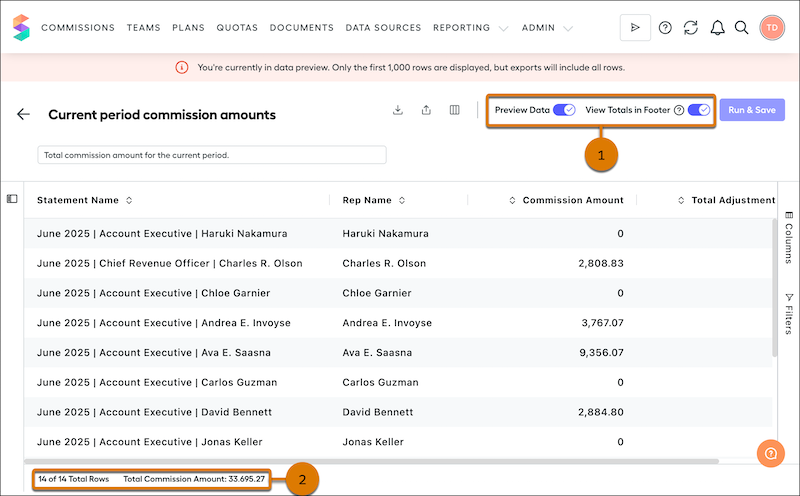
## Export Availability During Active Processing
UI and API export requests aren't available while Spiff is calculating statements or preparing report data for export. Large report exports and scheduled or bulk statement calculations compete for the same processing capacity, so a request that you make during a calculation run or right after a large data sync is more likely to be temporarily blocked. Check the Reporting Export Status Indicator at the top of the Reporting tab to see whether the system is Ready or Busy before you start a large export, and hover over the info icon to verify when the status last refreshed. The indicator doesn't update automatically, so refresh your browser page to get the latest status.
If you export reports programmatically, call GET /api/v1/reports/export/readiness before a scheduled or bulk export to confirm the system is ready, and build retry logic into your integration to handle temporary export blocks. The API doesn't send a notification when processing completes, so checking readiness before you start is more reliable than retrying blind.
# Considerations for Creating and Updating Opportunities
Review considerations for creating and updating opportunities.
### Required Editions
Available in: Lightning Experience and Salesforce Classic
Available in: all editions for orgs created before Summer ’09
Available in:
Essentials, Group, Professional, Enterprise,
Performance, Unlimited, and Developer Editions for orgs
created in Summer ’09 and later
## Contacts and Contact Roles
- To relate an opportunity to an account or contact, you must have at least Read access to the account or contact.
## Divisions
- If your admin has enabled divisions, the division of a new opportunity is automatically set to the division of the related account.
## Forecasts
- In Professional, Enterprise, Unlimited, Performance, and Developer Editions, when you create an opportunity, by default the forecast category is applied that corresponds to the opportunity stage you assigned. Your Salesforce admin correlates opportunity stages and forecast categories when editing the Stage picklist values.
- If an opportunity is set to close in a given period, as determined by the Close Date, the opportunity is added to the forecast for that period, unless the forecast category is set to Omitted or you forecast by schedule or product date.
## Mobile Device Support
- In the Salesforce mobile app, you can edit one opportunity at a time. There’s no multiline editor.
## Multiple Currencies
- If your admin has enabled multiple currencies, your opportunity amounts are initially shown in your personal currency. To track the sales revenue in another currency, change the Opportunity Currency picklist.
## Opportunity Splits
- When team selling and splits that total 100% are enabled, as the opportunity owner, you’re automatically added to the opportunity team and assigned 100% of the split.
# Considerations for Creating Contacts
Before you create contacts, consider a few key points.
### Required Editions
Available in: both Salesforce Classic and Lightning Experience
Available in: all editions
- You can create a contact from these places in Salesforce.
- Create a contact on an account’s detail page.
- [Import a contact](https://help.salesforce.com/s/articleView?id=sales.contacts_import_contacts_from_mobile_devices.htm&release=264.0.0&type=5 "Sales reps can save time and eliminate typos by using the Salesforce mobile app to import contacts from mobile device contact lists into Salesforce. This feature is available only in Salesforce for Android and Salesforce for iOS.") from a mobile device using the Salesforce app or [using a CSV file](https://help.salesforce.com/s/articleView?id=sales.sales_core_import_csv.htm&type=5&language=en_US).
- Create a contact from the Contacts area and associate an account to it. If you don’t, the contact is private. Private contacts are accessible only to their owner, Salesforce admins, or anyone who has the View All Records and Modify All Records permissions.
- Create a contact from the Contact Suggestions area on the Seller Home page.
- Create a contact from the buyer relationship map for an account.
- Create a contact automatically from email and calendar activity by using Automatic Contact Creation.
- Create a contact from the Potential Connections section of the Email Message home page.
- To create a contact that’s automatically associated with an account, create the contact from the account’s detail page.
- To track a contact’s relationship with more than one account, use the Related Accounts related list to add additional account-contact relationships. By tracking all related accounts on a single contact record, you avoid creating duplicate contacts. Make sure your admin has set up Contacts to Multiple Accounts.
- If your Salesforce org uses record types, you’re sometimes prompted to choose a Record Type when creating a contact. Different record types can have different fields and picklist values.
- If your Salesforce org uses divisions, the division of a new contact is automatically set to the division of the related account.
#### See Also
- [Contacts](https://help.salesforce.com/s/articleView?id=sales.contacts_overview.htm&release=264.0.0&type=5 "Use contacts to store information about the people you do business with. Contacts are most often associated with an account, but can also be associated with other records such as opportunities. Contacts are even more useful when you enable Contacts to Multiple Accounts, add hierarchy information, and customize sharing settings.")
- [Deleting Records](https://help.salesforce.com/s/articleView?id=xcloud.basics_deleting_records.htm&type=5&language=en_US)
- [Create and Update Records](https://help.salesforce.com/s/articleView?id=xcloud.basics_creating_records.htm&type=5&language=en_US)
- [Contact Fields](https://help.salesforce.com/s/articleView?id=sales.contacts_fields.htm&release=264.0.0&type=5 "Your page layout and field-level security settings determine which contact fields are visible and editable.")
# Considerations for Creating Datasets
Make sure that your datasets include data in the correct formats so that your planning processes run smoothly in Sales Planning.
### Required Editions
Available in: both Salesforce Classic (not available in all orgs) and Lightning Experience
Available for an additional cost in: Enterprise, Performance, Unlimited, and Developer Editions with Sales Planning in English only, and only if you have Web Services API enabled
- To import records from CSV files, include record IDs as strings.
- Sales Planning doesn’t support live data connections from Salesforce.
- Datasets that you create in CRM Analytics within the Sales Planning app apply only to Sales Planning. Avoid using those datasets with other CRM Analytics dashboards.
- Before you add fields that include special characters in their API field names, remove those characters. For example, change `Owner.Name` to `OwnerName`.
- To carve territories in Territory Planning, include latitude and longitude coordinates as numeric values.
To avoid problems with default precision settings, it’s best to set precision and scale to 15 and 12, respectively, directly within the Data Pipelines connection. If you plan to use copied data in Territory Planning, you can add latitude and longitude coordinates later.
- To carve territories from segments, confirm that you've enabled **Asynchronous Data Set Creation** in Territory Planning settings.
# Considerations for Creating Extended Mail Merge Templates
When you use merge fields in mail merge templates, you can incorporate data from your records into the mail merge templates you create in Microsoft Word. It’s a good idea to understand how merge fields work so that you know what to expect in your merged documents.
### Required Editions
Available in: Salesforce Classic (not available in all orgs)
Available in: all editions except Starter Suite Edition
- To use Extended Mail Merge in Salesforce Classic, contact Salesforce Customer Support.
- Extended Mail Merge supports Microsoft Word 2007.
- Extended Mail Merge doesn’t support templates saved in .dotx file formats.
- Users can only generate mail merge documents for fields that are accessible to them via page layout and field-level security settings.
- Extended mail merge doesn’t support formatting from rich text area fields.
- You can use custom Contact or Lead fields for merging, but only for documents generated from that field’s object. For example, a custom Lead field can only be used for templates for leads.
- Merge fields for products on opportunities are only available to organizations that have enabled products.
- Approval Process merge fields can be used in email templates, but not mail merge templates.
- Campaign and campaign member merge fields can’t be used in mail merge templates.
# Considerations for Creating In-App Guidance
Before creating prompts and walkthroughs, review the options available in the In-App Guidance Builder and In-App Guidance Settings window that determine the behavior of the prompts and walkthroughs you create.
### Required Editions
Available in: Lightning Experience
Available with a limited number of active walkthroughs in: Essentials, Group, Professional, Enterprise, Performance, Unlimited, and Developer Editions
Available with Enablement, which is available in Developer Edition with a limited number of add-ons and with Sales, Service, or Salesforce Platform in: Enterprise, Performance, Unlimited and Einstein 1 Sales EditionEditions for an additional cost
In-app guidance in Experience Cloud sites with Partner Enablement requires an Enablement add-on license and supported PRM add-on license.
## Environment
If your company has purchased Enablement, purchased Enablement Partner Relationship Management (PRM), and has created an Experience Cloud site built with Aura templates, an Environment dropdown is available in the In-App Guidance Builder header. Specify whether you’re creating in-app guidance for Lightning Experience or a supported Experience Cloud site. To see sites in the Environment dropdown, make sure you have the appropriate permission or access. See [Permissions for Creating and Accessing In-App Guidance](https://help.salesforce.com/s/articleView?id=sales.customhelp_lex_wt_license.htm&release=264.0.0&type=5 "A Salesforce admin assigns permissions to users who create in-app guidance in any environment, who access walkthroughs in Lightning Experience, and who access in-app guidance in Experience Cloud sites. No permissions are necessary for accessing prompts in Lightning Experience.").
## Prompt Location in Lightning Experience
To ensure that a prompt reaches your users where they need it, select the best combination of page and app from the Prompt Location dropdown. For some location options, go to the page or app, from within In-App Guidance Builder, where you want to create the prompt.
These options are available for a prompt in Lightning Experience.
| Option | Description |
| --- | --- |
| This Page, This App | The prompt appears on the app and page that you’re viewing when you click **Add**. |
| This Page, Any App | The prompt appears for the page that you’re viewing when you click **Add**, but the page appears to users in any app that contains the page. |
| Any Page, Any App | The prompt appears anywhere in Lightning Experience. A user sees the prompt when they first log in. |
| Any Page, This App | The prompt appears on any page in the app that you’re viewing when you click **Add**. |
In Lightning Experience, you can add prompts on these pages.
- Object record pages
- Object home pages
- New, Edit, and Clone record pages, including windows
For record pages, you can add a prompt to a record page type, but not a specific record. The prompt takes users to record they can access. If a new or cloned record page has multiple record types, you can specify whether the prompt appears for all record types or a specific record type.
If you try to add a prompt to a Task record page that uses split view, the prompt appears on the Task home page instead.
You can’t select global action windows for creating targeted prompts. The targeted prompts that are created on global action windows appear as floating prompts when users view an in-app guidance.
## Prompt Location in Experience Cloud Sites
These options are available for a prompt in an Experience Cloud site.
| Option | Description |
| --- | --- |
| This Page | The prompt appears on the site page you’re viewing when you click **Add**. |
| Any Page | The prompt appears on any site page. |
Prompts are compatible with most record type pages, except Account.
## Custom Theme Color
For prompts in Lightning Experience, you can customize the color theme to align with your Salesforce org or app’s colors. Select from up to four suggested colors, based on the Themes and Branding or Lightning App Builder settings.
- Brand color
- Page Background color
- Global Header Background color
- App brand color (if the app has a custom theme)
The color you select is adjusted for accessibility, if necessary. To ensure that the prompt’s text remains visible with the selected color, preview the prompt.
There are a few other considerations about how theme color is applied.
- In a walkthrough, the color you select for the first step applies to all steps.
- The custom theme color applies only to the custom in-app guidance you create, not to content that Salesforce provides.
- Microsoft® Internet Explorer® 11 doesn’t support a custom theme color.
For prompts in Experience Cloud sites, In-App Guidance Builder doesn’t provide an option for selecting a custom theme color. Instead, prompts inherit your site brand colors.
## Images
Upload or add a URL to a .jpg, .jpeg, .png, or .gif file, including animated .gif files. Animated .png files aren’t supported.

Important When you localize a prompt, Translation Workbench supports only images added by URL. See [Considerations for Localizing In-App Guidance](https://help.salesforce.com/s/articleView?id=sales.iag_localize.htm&release=264.0.0&type=5 "In Translation Workbench, you can localize prompts and walkthroughs for international users, but some considerations apply.").
Keep these tips in mind when adding images to in-app guidance.
Type
Supported Image Positions, Relative to the Prompt
Text
Above
Below
Left
Right
Floating prompt
Targeted prompt
Docked prompt
- For images above or below text, the maximum size is 324 px × 132 px. For images to the right or left of the text, the maximum size is 148 px × 148 px.
- Images are resized to fit and maintain their aspect ratio.
- The maximum file size is 5 MB.
- To represent the image to visually impaired or low-vision users, include alt text.

Tip To ensure that linked images appear correctly, use trusted URLs. Add the Trusted URL in Setup, and select the **connect-src (scripts)** and **img-src (images)** Content Security Policy (CSP) directives. Allow cross-origin content on your host server as needed by providing the [Access-Control-Allow-Origin](https://developer.mozilla.org/en-US/docs/Web/HTTP/Headers/Access-Control-Allow-Origin) response header with the image. For more information, see [Manage Trusted URLs](https://help.salesforce.com/articleView?id=security_trusted_urls_manage.htm&language=en_US) in Salesforce Help.
## Video
In a docked prompt in Lightning Experience, you can explain more complex ideas with an embedded video. Users can watch the video within the docked prompt, in the expanded docked prompt, or in full screen.

Note You can include an image or an embedded video. If you first include an embedded video and then include an image, the image replaces the video in the docked prompt. If a video doesn’t load, check your browser privacy settings. For example, YouTube provides the Privacy-Enhanced Mode.
To add a video, find the video’s embed code, which varies depending on the video host. For example, here’s what the embed code looks like for a YouTube video.
```html
```
Copy the URL from the embed code’s src attribute and enter the URL for the docked prompt’s Video Embed URL. In this example, enter https://www.youtube.com/embed/di6iwHhrH6.

Tip To ensure that videos embed properly, use trusted sites. YouTube, Vidyard, and Vimeo are trusted websites for In-App Guidance. If videos from other sites don’t appear correctly, try adding those sites as trusted URLs. For more information, see [Manage Trusted URLs](https://help.salesforce.com/articleView?id=security_trusted_urls_manage.htm&language=en_US) in Salesforce Help.
The video player actions vary depending on the video host.
## Action Button and Link
After you create and save a type of in-app guidance, the In-App Guidance Settings window appears and provides an option to add an Action button or link. In a walkthrough, the action link is available only in the final prompt.
Enter a relative URL or a fully qualified URL with an http:// or https:// prefix. Usually, clicking the Action button or link opens a new tab. If you add a URL for a flow in Lightning Experience, clicking the Action button or link refreshes the current tab.
## Schedule
In the In-App Guidance Settings window, the Schedule step includes options for specifying when and how frequently the in-app guidance is available. Use the Date Range options to specify the start and end date you want the in-app guidance to be visible.
To ensure that users understand or take a desired action on the content, show the same prompt or walkthrough multiple times. Specify the number of times to show the in-app guidance and the days in between occurrences. You can show the same in-app guidance up to 30 times, with up to 30 days in between. Consider the date range when deciding how many days between each repeat.
By default, a 24-hour delay applies to all prompts and walkthroughs, including in-app guidance that Salesforce provides, so that a user sees only one prompt or walkthrough per day per app. In Lightning Experience, if a prompt’s location is set to one of the Any App options, then it counts for the user’s delay for that app. You can change the default time delay for all in-app guidance from the Settings window on the In-App Guidance Setup page. See [Change the Default Time Delay for Showing In-App Guidance](https://help.salesforce.com/s/articleView?id=sales.iag_delay.htm&release=264.0.0&type=5 "By default, a 24-hour delay applies to all prompts and walkthroughs, including in-app guidance that Salesforce provides, so that a user sees only one prompt or walkthrough per day per app. To change the default time delay for showing a prompt or walkthrough again after a user dismissed it, specify a custom value from the In-App Guidance page in Setup.").
Or, choose to ignore the delay for a single prompt or walkthrough by selecting **Show when the page loads** in the Schedule step of the In-App Guidance Settings window. The specified Schedule still applies, including the start date, times to show, and days in between. A single prompt or walkthrough appears no more than one time every 24 hours, even when you adjust the global time delay or show the in-app guidance when the page loads.
Depending on how users interact with a specific prompt or walkthrough, the prompt or walkthrough continues to appear or stay hidden.
User Interaction
Floating and Targeted Prompts
Docked Prompt
Walkthrough
The user didn’t acknowledge or interact with the prompt.
Show the prompt again.
Show the prompt again.
Show the walkthrough again.
The user clicked the X to close the prompt.
Not applicable. This type of prompt doesn’t have an X.
If there’s no Action button on the prompt, stop showing the prompt.
If there’s an Action button on the prompt, show the prompt again.
Show the walkthrough again.
The user snoozed the prompt.
Show the prompt again the next time the user navigates to the page, after the snooze
time expires.
Show the prompt again the next time the user navigates to the page, after the snooze
time expires.
Show the walkthrough again the next time the user navigates to the page, after the
snooze time expires.
The user clicked the Dismiss button.
If there’s only a Dismiss button, stop showing the prompt even if there are more
scheduled occurrences.
If there’s a Dismiss button and an Action button, show the prompt again.
Not applicable. This type of prompt doesn’t have a Dismiss button.
Show the walkthrough again.
The user clicked the Action button (prompt) or action link (walkthrough).
Stop showing the prompt even if there are more scheduled occurrences.
Stop showing the prompt even if there are more scheduled occurrences.
Stop showing the walkthrough even if there are more scheduled occurrences.
The user clicked the finish button.
Not applicable for prompts.
Not applicable for prompts.
Stop showing the walkthrough even if there are more scheduled occurrences.
Watching a video doesn’t register as a user interaction.

Note Turning off **Custom In-App Guidance** from the Settings window on the In-App Guidance Setup page prevents your prompts or walkthroughs from appearing as scheduled. But users can still access prompts or walkthroughs directly by following a URL that you share with them.
## Profile and Permission Restrictions
You can specify whether a prompt or walkthrough is visible for everyone in the environment or only a specific group of users. In the In-App Guidance Settings window, the Profiles and Permissions steps include options for specifying restrictions.
By default, in-app guidance has no restrictions, but you can select standard and custom profiles and permissions that you want to apply. Applied profiles and permissions work a bit differently.
- If you apply multiple profiles, the in-app guidance is visible to a user who has any of the specified profiles.
- If you apply multiple permissions, the in-app guidance is visible to a user who has all the specified permissions.
- If you apply multiple profiles and multiple permissions, the in-app guidance is visible to a user who has any of the specified profiles and all of the specified permissions.
You can select up to 10 combined profiles and permissions for each prompt or walkthrough.
## Shareable URL
Create a link to a prompt or walkthrough that you can share. In the In-App Guidance Settings window, the Details step includes an option to copy the URL. For prompts or walkthroughs in Lightning Experience, you can also select **Copy URL** from the actions dropdown on the In-App Guidance page in Setup.
Connect multiple walkthroughs together by using one walkthrough’s URL as the destination for another walkthrough’s action link. If you use the URL as the Action button or link, the prompt opens in a new tab and the walkthrough refreshes the page.
In Lightning Experience, if the prompt or walkthrough is related to a specific record, the URL opens the record. If the user doesn’t have access to the record, the in-app guidance opens a record of the same object type and record type, if applicable. The URL opens even if the user previously viewed or closed the in-app guidance, clicked the Action button, or isn’t a part of the profile or permission set. The URL also ignores all schedule settings. If the in-app guidance is inactive, the URL doesn’t open. If you edit the API name of the record or delete the record, the URL changes.

Note If you turn off **Custom In-App Guidance** from the Settings window on the In-App Guidance Setup page, users can still access prompts or walkthroughs by following this shareable URL. See [Turn Off Custom or Installed In-App Guidance](https://help.salesforce.com/s/articleView?id=sales.iag_custom.htm&release=264.0.0&type=5 "Prevent custom prompts and walkthroughs that your company created or installed from appearing on their scheduled instances.").
## Keyboard Shortcuts
In-App Guidance Builder supports these handy keyboard shortcuts for Mac and Windows.
| Action | Mac | Windows |
| --- | --- | --- |
| Keyboard Help | ?+Shift+/ | ?+Shift+/ |
| Switch focus to different areas of In-App Guidance Builder, such as the header, right sidebar, and left sidebar | Cmd+F6 | Ctrl+F6 |
| Switch focus from the environment when you’re navigating back to the In-App Guidance Builder | Cmd+F7 | Ctrl+F7 |
| Select the next element in the environment | Ctrl+Alt+t | Ctrl+Alt+t |
| Select the previous element in the environment | Cmd + Option + Shift + t | Ctrl+Alt+Shift+t |
| Add a targeted prompt to the selected element in the environment | Cmd+Option+a | Ctrl+Alt+a |
## Salesforce Mobile App
In-App Guidance isn’t supported in the Salesforce mobile app.
#### See Also
- [Types of In-App Guidance](https://help.salesforce.com/s/articleView?id=sales.customhelp_iag_types.htm&release=264.0.0&type=5 "Select the appropriate type of in-app guidance depending on the support you want to give to users and the environment that you’re working in.")
- [Create Prompts](https://help.salesforce.com/s/articleView?id=sales.customhelp_lex_prompt_add.htm&release=264.0.0&type=5 "Provide helpful content to users where they’re working. Introduce users to new features, draw attention to specific details in their environment, and provide nudges or reminders.")
- [Create Walkthroughs](https://help.salesforce.com/s/articleView?id=sales.customhelp_lex_wt_add.htm&release=264.0.0&type=5 "Connect multiple prompts for a hands-on interactive tour that onboards users or introduces features. Each prompt becomes a step in the walkthrough.")
- [Limitations for In-App Guidance in Experience Cloud Sites](https://help.salesforce.com/s/articleView?id=sales.iag_site_limitations.htm&release=264.0.0&type=5 "If your company has purchased Enablement, purchased Enablement Partner Relationship Management (PRM), and created an Experience Cloud site built with Aura templates, you can create prompts and walkthroughs in a site. Some functionality that’s available for in-app guidance in Lightning Experience isn’t available for in-app guidance in Experience Cloud sites.")
- [Analytics for In-App Guidance](https://help.salesforce.com/s/articleView?id=sales.customhelp_lex_prompt_monitor.htm&release=264.0.0&type=5 "Track views and completion data for prompts and walkthroughs so you can iterate and improve upon your onboarding and discovery strategy. Some quick analytics are available on the In-App Guidance page in Setup, or you can create a custom report type for more in-depth analysis. Some prebuilt, customizable reports and dashboards are available to download from AppExchange.")
- [Preview and Test In-App Guidance](https://help.salesforce.com/s/articleView?id=sales.customhelp_lex_prompt_test.htm&release=264.0.0&type=5 "Verify that the prompts and walkthroughs that you created appear correctly for the right users. Quickly preview a prompt or walkthrough in any environment. For in-app guidance in Lightning Experience, perform more thorough quality assurance testing for all prompts and walkthroughs that a specific user can see. Test mode ignores schedule settings, global time delay settings, and user interaction analytics. You can also test prompts and walkthroughs in a sandbox.")
- [_Knowledge Article_: In-App Guidance Prompts FAQ](https://help.salesforce.com/apex/HTViewSolution?urlname=In-App-Guidance-Beta-FAQ)
# Considerations for Creating Quote PDFs
Before you create quote PDFs, consider a few key points.
### Required Editions
Available in: Salesforce Classic and Lightning Experience
Available in: Performance and Developer Editions
In Sales, also available in: Professional, Enterprise, and Unlimited Editions
- Quote PDFs don’t support right-to-left languages. The text aligns to the left side of the page instead of the right.
- Text fields in a related list in a quote PDF are truncated to fewer than 256 characters. This limit occurs on rich text area fields, other types of text fields, standard fields, and custom fields.
- Your Salesforce admin determines which status is the default for new quotes and which statuses allow you to email a quote PDF. For example, your admin can prevent you from emailing a quote whose status is In Review.
- In Lightning Experience, the Save and Email Quote button shows on quote PDFs only if the Email Quote button is already on the quote page layout.
# Considerations for Creating Quote Templates
Before you create a quote template, consider a few key points.
### Required Editions
Available in: Salesforce Classic and Lightning Experience
Available in: Performance and Developer Editions
In Sales, also available in: Professional, Enterprise, and Unlimited Editions
- Quote PDFs don’t support right-to-left languages. The text aligns to the left side of the page.
- Text formatting isn’t available in the Text/Image Field for Unicode languages such as Arabic and Japanese. To make these languages visible in plain text, contact Salesforce and ask to enable the feature for foreign character support for rich text area fields in Quote PDFs.
- Advanced Currency Management isn’t available with quotes.
- The maximum number of characters that you can use in the quotes template Text/Image Field is 32,000. This number includes the hidden HTML characters that are used to format text.
- Sometimes a field doesn’t appear on the quote templates palette or on a PDF that’s created from a template.
- If the default value for the field exceeds 255 characters, quote templates can’t include text areas or text fields.
- If a user can’t view or update a field because of field-level security settings, that field doesn’t appear on PDFs that are created from a template, even if the template includes that field. Read-only fields appear on PDFs.
- Fields that appear on a quote page layout but don’t contain data for a given quote appear on the quote templates palette but not when a PDF is created.
- Quote line item fields that don’t contain data don’t appear as columns in a list when a PDF is created, even if the template includes that field. For example, if no quote line items offer a discount, the Discount column doesn’t appear, even if the list includes the Discount field.
- If a related list isn’t included on a quote page layout, it doesn’t appear on the template palette or any PDFs for quotes that use that page layout.
- If the currency of a product on an opportunity differs from the user’s currency in a multicurrency org, currency fields for quotes and quote line items appear in both currencies. The product’s currency is converted to the user’s currency, and the converted amount appears in parentheses. Fields in quote custom reports appear in the report’s currency. Currency fields include Subtotal, Tax, and Grand Total.
- If you create a Developer or Developer Pro sandbox, templates that contain Text/Image fields can’t be opened for editing within the sandbox.
- Fields within sections have different alignment than columns within lists, so if you place a totals section below a list, its field values won’t align directly below the right-hand list values. For example, say your template includes a list of quote line items, including a Total Price column at the far right that shows the total for each line item. If you add a totals section beneath the list, and you include Subtotal, Total Price, and Grand Total fields, their values will show the total of all line items, but the amounts won’t align directly below the list’s Total Price column.
- Quote PDFs appear in both the Quote PDFs related list and the Notes & Attachments related list.
#### See Also
- [Create, Preview, and Activate Quote Templates](https://help.salesforce.com/s/articleView?id=sales.quotes_template_create.htm&release=264.0.0&type=5 "Define the look of your company’s quote PDFs by creating templates that your sales reps can choose when they create quote PDFs.")
# Considerations for Custom Area Fields in Territory Planning
Review required fields, access, deleted fields, and cloning before you add custom area fields to an alignment.
### Required Editions
Available in: Lightning Experience
Available in: Enterprise, Performance, and Unlimited Editions with the Sales Planning add-on license
## Required Fields
If you add a required field to the Territory Planning Area object, Territory Planning fails to create the alignment. Territory Planning creates the Root Area territory automatically during that process.
## Field-Level Security
Territory Planning follows field-level security for custom area fields. If you give a user access to an alignment that includes custom area fields they don't have access to, Territory Planning notifies them. The fields stay in the alignment. Territory Planning disables those fields and shows the value as null.
## Deleted Fields
If a custom area field that you added to an alignment is deleted, Territory Planning informs the user and prompts them to remove the field as an attribute.
## Supported Field Types
Most field types are supported. Territory Planning imports these field types:
- Auto Number
- Lookup
- Formula
- Checkbox
- Currency
- Date
- Email
- Geolocation
- Number
- Percent
- Picklist
- Multi-select picklist
- Text
## Calculated Attributes
A calculated attribute can include a custom area field. If you remove that field from the alignment, the calculated attribute shows 0 for every area.
## Cloned Alignments
When you clone an alignment, Territory Planning includes the custom area fields you added.
- For a formula field, Territory Planning clones the formula definition and recalculates the value when you save.
- Territory Planning doesn't copy Auto Number values when you clone an alignment. Each area gets a value from Salesforce auto-number sequencing.
## Legend Search
Legend search doesn't include every field type. Boolean fields aren't included.
## Snapshot Restoration
- When you restore a snapshot, Territory Planning includes formula fields. The value for each area comes from the formula output.
- When you restore a snapshot, Territory Planning includes Auto Number fields. The value for each area comes from Salesforce auto-number sequencing.
# Considerations for Custom Calculated Columns in Pipeline Forecasts
Before you add custom calculated columns to your forecast types, review some considerations.
### Required Editions
Available in: Lightning Experience
Available in: Professional, Performance, and Developer Editions and in Enterprise and Unlimited Editions with Sales
- Each forecast type can include up to five custom columns, which includes custom calculated columns and columns that show external data.
- The default Opportunity Amount forecast type includes Gap to Quota and Pipe Coverage columns. These columns are shown if you add quota data to Salesforce and count as part of the 5 custom columns for that type.
- On the forecasts page, custom calculated columns don’t show changes in the last 7 days and aren’t included in rollups.
- You can’t adjust custom calculated columns in forecasts.
If you have at least one custom calculated column in an active or inactive forecast type, you complete these actions until the column is removed.
- Switch from single category to cumulative rollups in Forecast Settings.
- Enable the Most Likely category.
- Disable Show Quotas (if your custom column’s formula refers to a quota value).
#### See Also
- [Add Custom Calculated Columns to Pipeline Forecasts](https://help.salesforce.com/s/articleView?id=sales.forecasts3_create_custom_columns.htm&release=264.0.0&type=5 "To track metrics that help to generate more accurate and data-driven forecasts, add columns that show values calculated using a formula that you define.")
# Considerations for Custom Forecasts Pages
Keep in mind important considerations and guidelines when building custom forecasts pages using Lightning App Builder.
### Required Editions
Available in: both Salesforce Classic and Lightning Experience
Available in: Professional, Performance, and Developer Editions and in Enterprise and Unlimited Editions with Sales
- If a custom page isn’t active for a user’s profile or your company, a default forecasts page is used and contains the forecasts components: Forecasts Header, Forecasts Summary, and Forecasts Opportunity List.
- Use the default template for the forecasts page type, or create your own compatible template to change the layout.
- To work correctly, each forecasts page requires a Forecasts Header component, which includes the selections for data range and other settings. For the best experience, include the Forecasts Summary and Forecasts Opportunity List components.
- To avoid unnecessary scrolling when the forecasts page loads, the focus is directed to the Forecasts Summary component. Place that component near the top of the page.
- If you include the Tab and Accordion components on your page, the components nested in those tabs don’t respond to selections made in the Forecasts Header on the page. Tab and Accordion components work best for components that aren’t dependent on forecasting.
- The forecasts page type supports custom Lightning Web Components and Aura components.
- Custom components added to a forecast page can respond to data published from the Forecasts Header, Forecasts Summary, and Forecasts Opportunity List components. However, the forecasts components themselves aren’t able to respond to data published from a custom component.
#### See Also
- [Build Custom Forecasts Pages That Work for Your Business](https://help.salesforce.com/s/articleView?id=sales.forecasts3_custom_page_build.htm&release=264.0.0&type=5 "Using Lightning App Builder, create custom forecasts pages that include all the information your sales leaders require to drive accurate forecasts that support your unique business needs. Build pages that contain standard and custom components that fit your unique sales process.")
- [_Developer Guide_: Create a Custom Lightning Page Template Component](https://developer.salesforce.com/docs/atlas.en-us.lightning.meta/lightning/components_config_for_app_builder_template_component.htm)
# Considerations for Customizing Account Teams
If you customize account teams, review considerations related to custom fields, team member information, and validation rule, flow, and Apex trigger support.
### Required Editions
Available in: Lightning Experience and Salesforce Classic
Available in: Enterprise, Performance, Unlimited, and Developer Editions
## Custom Fields and Picklists
- Custom fields and picklists aren't visible in Salesforce Classic.
- You can create up to 100 custom fields for an account team.
- When editing team members, users see custom fields, even if you don’t add the fields to the Add Account Team Members multiline page layout.
- If you delete a custom field, filters based on the custom field are also deleted. The results of assignment or escalation rules that rely on the custom field’s data can change.
- If you include a default value for a custom field, the field appears blank to Lightning Experience users while they’re adding account team members. If users don’t enter a value, the default value appears on the record after they save.
- Mass Reassign Account Teams doesn’t support custom picklists.
## Team Member Information
- You can’t create a lookup from an object, such as an account, to an account team member.
- The Account Team related list is sorted by Team Member Name. The sort order can’t be customized, even if you specify the sort order in the Account Team Member page layout. A user can sort the related list by any other column, but when the page is refreshed, sorting reverts to the Team Member Name column.
- If you set the organization-wide default for contacts to Controlled by Parent, users can’t see or edit the Contact Access field.
- Only users with the Modify All Data profile permission can grant account team members higher access levels than the access levels of the account owner. In Lightning Experience, the running user’s permissions determine the available access level picklist values. In Salesforce Classic, an exception prevents users without the Modify All Data profile permission from saving higher access levels.
- When accounts are merged, account team members are deleted if they were added by a user who did not have sharing access on the account record.
- A deleted account team member record isn’t moved to the Recycle Bin. It can’t be recovered unless the record was cascade-deleted when deleting a related account. For more information, see [AccountTeamMember](https://developer.salesforce.com/docs/atlas.en-us.object_reference.meta/object_reference/sforce_api_objects_accountteammember.htm) in the Object Reference.
- Account team member records don’t support [overriding the behavior of standard buttons](https://developer.salesforce.com/docs/atlas.en-us.pages.meta/pages/pages_controller_customize_override.htm)—like Edit or Delete—with Visualforce pages.
## Validation Rules, Flows, and Apex Trigger Support
- Validation rules, flows, and Apex triggers are applied when Lightning Experience users add their default team to an account using the Add action on the related list. However, they’re not applied when Lightning Experience users select the personal settings option to add their default team to accounts automatically.
- Validation rules and Apex triggers are bypassed when Salesforce Classic users add default account teams via any method.
- When an account team member is removed during an account ownership change, Apex triggers are bypassed.
#### See Also
- [Customize Account Team Roles](https://help.salesforce.com/s/articleView?id=sales.accountteam_customize_roles.htm&release=264.0.0&type=5 "Every account team member has a role on an account. To track the roles that team members fill in your company, such as account manager or sales rep, customize your account team roles.")
- [Account Team Fields](https://help.salesforce.com/s/articleView?id=sales.accountteam_fields.htm&release=264.0.0&type=5 "Account team member data is stored in standard fields. A user’s page layout determines which fields are visible, and a user’s access to the account determines which fields are editable.")
# Considerations for Customizing Opportunity Contact Roles
Review considerations for customizing opportunity contact roles in Lightning Experience, and understand the differences from Salesforce Classic.
### Required Editions
Available in: Lightning Experience
Available in: All Editions
User Permissions Needed
To set up and configure opportunity contact roles:
Customize Application

Note This information applies to opportunity contact roles, a type of [contact roles](https://help.salesforce.com/articleView?id=sales_core_contact_roles.htm&type=5&language=en_US).
## Lightning Experience
- You can create a maximum of 100 custom fields for an opportunity contact role.
- When you make customizations in Lightning Experience, your users don’t see them in the Contact Roles related list on an opportunity in Salesforce Classic.
- Custom fields, buttons, and page layouts, along with validation rules and Apex triggers, are only available in Lightning Experience.
- Contacts marked as primary appear first in the contact roles related list on opportunities, with the () icon. When you remove the Primary field from the contact roles related list on the opportunity page layout, the () icon no longer appears next to the primary contact. You can’t remove the Primary field from the opportunity contact role page layout.
## Salesforce Classic
- You can add and edit opportunity contact role picklist values in Setup. Customization options such as custom fields, buttons, and page layouts, along with validation rules and Apex triggers, aren't available in Salesforce Classic.
- The Add and Edit pages show only the contact, role, and primary contact for the opportunity.
# Considerations for Customizing Opportunity Teams
If you customize opportunity teams, review considerations related to custom fields, team member information, and validation rule and Apex trigger support.
### Required Editions
Available in: Lightning Experience and Salesforce Classic
Available in: Enterprise, Performance, Unlimited, and Developer Editions
## Custom Fields and Picklists
Maximum Custom Fields
You can create up to 50 custom fields for an opportunity team.
Custom Field Visibility
When editing team members, users see custom fields, even if you don't add the fields to the Add Opportunity Team Members multiline page layout.
Deleting Custom Fields
If you delete a custom field, filters based on the custom field are also deleted. The results of assignment or escalation rules that rely on the custom field's data can change.
Default Values in Custom Fields
If you include a default value for a custom field, the field appears blank to Lightning Experience users while they're adding opportunity team members. If users don't enter a value, the default value appears on the record after they save.
Custom Picklists
Mass Reassign Opportunity Teams doesn't support custom picklists.
## Team Member Information Display
Displaying Team Member Information on a Parent Page
To display opportunity team member information on a parent page, link the team member and the parent. For example, to display team member information on the related account detail page, add a custom lookup field to the multiline editor. Label it Account to the Opportunity Team. Then set this field to the parent account for each opportunity team member.
Lookups to Team Members Not Supported
You can't create a lookup from an object, such as an account, to an opportunity team member.
Sorting in Related List
You can customize the sort order of the related list in the Opportunity Team Member page layout. However, if a user sorts the related list by a different column, the list keeps that sort order even after the page is refreshed.
## Validation Rule, Flow, and Apex Trigger Support
Lightning Experience Support
Validation rules, flows, and Apex triggers are applied when Lightning Experience users add their default team to an opportunity using the Add action on the related list. However, they're not applied when Lightning Experience users select the personal settings option to add their default team to opportunities automatically.
Salesforce Classic Support
Validation rules, flows, and Apex triggers aren't applied when Salesforce Classic users add default opportunity teams via any method.
Ownership Change
When an opportunity team member is removed during an opportunity ownership change, Apex triggers are bypassed.
#### See Also
- [Customize Opportunity Team Roles](https://help.salesforce.com/s/articleView?id=sales.teamselling_customize_roles.htm&release=264.0.0&type=5 "Every opportunity team member has a role in the opportunity. To track the roles that team members fill in your company, such as account manager or sales rep, customize opportunity team roles.")
- [Maintain Your Users’ Opportunity Teams](https://help.salesforce.com/s/articleView?id=sales.opportunity_team_members_adding.htm&release=264.0.0&type=5 "Add, remove, or replace multiple opportunity team members at a time. Update member roles and access.")
# Considerations for Customizing the Email Application Pane for Outlook and Gmail
You can customize the email application pane to better reflect your reps’ workflow and your company’s processes. Keep these considerations in mind when customizing the various components.
### Required Editions
Available in: Salesforce Classic and Lightning Experience
Available with Sales Cloud, Service Cloud, and Lightning Platform in: Essentials, Group, Professional, Enterprise, Performance, Unlimited, and Developer Editions

Tip We recommend modifying one of the default panes to meet your needs. Start with a base pane, or if you’re using Inbox in the integration, start with a pane with Inbox features.
You can customize any of these parts of the pane.
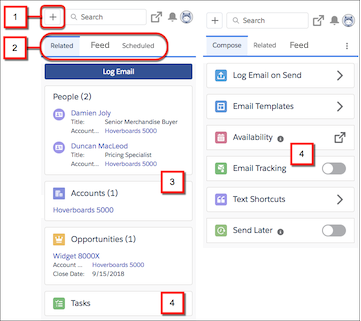
Create records (1)
Let sales reps create accounts, cases, leads, opportunities, and custom objects directly from their email. A quick action menu assigned to a publisher layout determines which record types reps can create. The menu also includes other actions, such as logging a call. Your Salesforce edition determines how you set up an action menu and whether you can customize the menu’s options.
Organize tabs (2)
Control which components are available in each tab, the tab order, tab names, and whether they’re available when reps are reading or composing emails. You can also set a default tab to display when reps are reading or composing an email. These tab customizations apply only to the tabs shown in the main email integration pane. You can’t change the tab order or tab names in the record detail shown when a user clicks a related record to access its details.
Choose available objects (3)
Select the objects available for email and event logging and returned through search. You can include standard objects, such as accounts, opportunities, and people, and custom objects that you created. We recommend grouping the objects on a single tab. Place the object type that your reps log emails and events to most often at the top so it’s easy to access. The objects display the first three fields included in their assigned compact layout.

Note If you use Einstein Activity Capture, you can also add quote and contract objects to your email application pane. To include these objects, make sure that you [enable quotes](https://help.salesforce.com/s/articleView?id=sales.quotes_enable.htm&type=5&language=en_US) and [set up contracts](https://help.salesforce.com/s/articleView?id=customize_contract.htm&type=5&language=en_US).
Add features (4)
Include the features available to email integration users, such as the Log Email button, tasks, and email templates. If you use Inbox, you can include Inbox features such as calendar availability and text shortcuts. Only the features contained in a tab are available to email integration users. You can also use filters to determine which components are available during read mode and compose mode. For the best experience, group components based on whether they apply to reading or composing emails.
#### See Also
- [Email Application Publisher Layouts](https://help.salesforce.com/s/articleView?id=sales.outlookcrm_side_panel_set_up_publisher.htm&release=264.0.0&type=5 "Salesforce admins can set up Outlook integration and Gmail integration users to create accounts, cases, leads, opportunities, and custom objects directly from their email applications. Reps create records using actions menus, which you can set up from Salesforce. Your company’s Salesforce edition determines how you set up action menus and whether you can customize them.")
- [Send Email Action Considerations for Cases](https://help.salesforce.com/s/articleView?id=service.case_interaction_send_email_quick_action_considerations.htm&type=5&language=en_US)
- [_Developer Guide:_ Create Components for the Outlook and Gmail Integrations](https://developer.salesforce.com/docs/atlas.en-us.lightning.meta/lightning/components_config_for_app_builder_email_app_pane.htm)
# Considerations for Datasheets in Salesforce Spiff
Datasheets let you create and apply calculations to a filtered set of records from your data sources.
### Required Editions
Available in: both Salesforce Classic (not available in all orgs) and Lightning Experience
Available in: Enterprise, Unlimited, and Developer Editions
Available for an additional cost in: Professional Edition with Web Services API Enabled
In this example, you have a filter called ClosedInPeriod that returns opportunities closed only by the specified rep in the specified period. You can apply that filter to a datasheet and add calculations that apply only to the data you define.
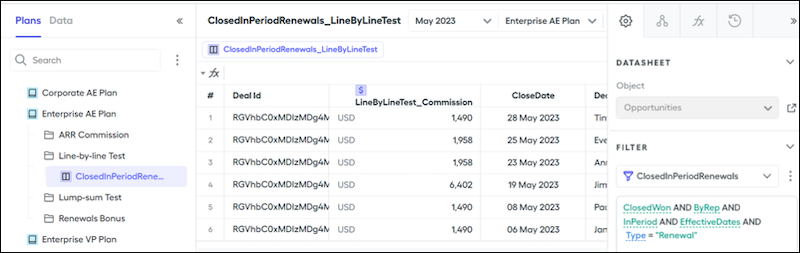
- Selecting **Show Fields** from the three dot menu shows all fields on a datasheet under the datasheet name.
- Choosing **Hide Column** hides the selected field while displaying a number in between columns. The number serves as a quick reference, indicating the quantity of hidden fields within the datasheet. Hovering over the number reveals the names of the hidden fields, and clicking a field unhides it.
- You can view a record’s relationships to other records and objects from a datasheet. Hover over a record on a datasheet, click the chain icon, and then click **View Related Records**.
- View a list of all created fields that apply to an object from the Data tab.
- Summary calculations typically reside in worksheets. But the datasheet summary row provides a quick and easy way to create summary calculations for your datasheet fields. For example, to find the sum of a rep’s ARR closed within the period, click the summary row beneath the ARR field and select Sum. The datasheet creates a calculation that sums the ARR field. You can also create an average, count, min, or max calculation.
- If you change a calculation, such as from sum to average, the name of the formula is still the same, but the formula and output changes.
- Don’t assign summary fields as payout calculations for line-by-line commission rules. Assigning summary fields as payout calculations causes absent commission fields in rep statements, the inability to trace commission logic, and the inability to create reports with deal information. Instead, assign the commission field to your payout rule so you can see the commission calculated for each deal individually. Assigning the sum of the commission field causes you to lose all line-by-line or per-deal data.
- Use datasheet fields as payout amounts for your rules as often as possible.
# Considerations for Deleting Contacts
Most contacts can be deleted with one click. However, before you delete a contact, be aware of who can delete contacts and what happens to records that are associated with deleted contacts.
### Required Editions
Available in: both Salesforce Classic and Lightning Experience
Available in: all editions
- You can delete a contact if you’re an administrator, the contact owner, or a user above the contact owner in the organization role hierarchy, _and_ if you have the Delete permission on the Contact object. If you meet these requirements, you see **Delete** as an option on the contact’s detail page and on its row on the contact list page in.
- If you delete a contact, these associated records are also deleted. You don’t need the “Delete” permission on the associated records.
- Assets (without cases)
- Attachments
- Campaign history
- Events
- Notes
- TasksAccounts, entitlements, and opportunities that are associated with the contact aren’t deleted.
- To delete a contact related to an entitlement, delete the associated entitlement contact records or remove the roll-up summary field from the Contact object.
- The deleted contact is moved to the Recycle Bin. If you undelete the contact, any associated records are restored, including any inactive Self-Service usernames.
- If you delete or remove an activity’s primary contact, another contact becomes the primary contact in its place. You can edit the activity to manually select another primary contact.
- You can’t delete contacts that have these records associated with them.
- Assets (with cases)
- Cases
- Contracts
- Partner user
- Service contracts
- Active Self-Service users
- Active Customer Portal users
#### See Also
- [Deleting Records](https://help.salesforce.com/s/articleView?id=xcloud.basics_deleting_records.htm&type=5&language=en_US)
- [Contact Fields](https://help.salesforce.com/s/articleView?id=sales.contacts_fields.htm&release=264.0.0&type=5 "Your page layout and field-level security settings determine which contact fields are visible and editable.")
# Considerations for Deleting Leads
Understand what happens to the records associated with the leads you delete individually or in bulk. Identify who can delete converted leads.
### Required Editions
Available in: Salesforce Classic and Lightning Experience
Available in: Starter, Essentials, Group, Professional, Enterprise, Performance, Unlimited, Pro Suite, and Developer Editions with Sales
- When you delete a lead, the lead record moves to the Recycle Bin. Associated notes, attachments, and activities are deleted along with the lead. If you restore the lead, any associated notes, attachments, and activities are also restored.
- Users without the View Converted Leads permission can delete converted leads via the public API or tools that use the public API.
- When deleting converted leads in bulk using Mass Delete Records available in Setup or using Data Loader, set the converted criteria to equals 1 to indicate converted leads.
#### See Also
- [Delete Multiple Records and Reports](https://help.salesforce.com/s/articleView?id=xcloud.admin_massdelete.htm&language=en_US)
- [Insert, Update, or Delete Data Using Data Loader](https://developer.salesforce.com/docs/atlas.en-us.dataLoader.meta/dataLoader/inserting_updating_or_deleting_data.htm)
# Considerations for Deleting Quotes
Before you delete a quote, it’s a good idea to understand how deleting a quote affects quote-related PDFs and syncing with opportunities.
### Required Editions
Available in: Salesforce Classic and Lightning Experience
Available in: Performance and Developer Editions
In Sales, also available in: Professional, Enterprise, and Unlimited Editions
- If you have the appropriate permissions, and you’re an admin, the quote owner, or someone above the quote owner in the organization role hierarchy, you can delete quotes.
- When you delete a quote, here’s what happens. All related PDFs, notes, and attachments are deleted. If the quote is synced with an opportunity, the record is removed from the opportunity’s Quotes related list. The deleted quote is moved to the Recycle Bin.
- If you restore a previously synced quote, it’s no longer synced with the opportunity.
# Considerations for Disabling Contacts in an Einstein Activity Capture Configuration
You can prevent contact data from being used by Einstein Activity Capture. Make sure that you understand the effects of disabling contacts.
### Required Editions
Available in: Lightning Experience
Available with Einstein Activity Capture Standard in Sales in Starter, Pro Suite, Professional, and Enterprise Editions
Available with Unlimited Edition, Einstein 1 Sales Edition, and Agentforce 1 Edition
Available with Einstein for Sales, which is included in Einstein 1 Sales Edition and available for an extra cost in Enterprise and Unlimited Editions
Available with Sales Engagement, which is included with Sales in Performance and Unlimited Editions, and available for an extra cost in Professional and Enterprise Editions
Available with Revenue Intelligence, which is available for an extra cost in Enterprise and Unlimited Editions

Note We’re reorganizing the Einstein Activity Capture documentation. We’re moving some information around, but we aren’t deleting anything.
- To stop users’ contact data from moving between Salesforce and the connected account in all directions, add them to an Einstein Activity Capture configuration with contacts disabled.
- When you disable contacts, here’s what happens to contacts.
- Contact data isn’t synced between Salesforce and the connected account.
- Contact records aren’t created in Salesforce.
- Contact data isn’t available to Einstein features, such as Email Insights and Recommended Connections.
- Contact data isn’t stored on Hyperforce or Amazon Web Services (AWS). Previously captured contact data remains on Hyperforce and AWS.
- If a user is capturing contact data with more than one email account and is in a contact-disabled configuration, contacts from all their accounts stop being captured.
- If you re-enable contacts, we don’t go back and capture contacts from the time when contacts were disabled. We sync new and updated contacts.
#### See Also
- [Define Which Data to Capture Through an Einstein Activity Capture Configuration](https://help.salesforce.com/s/articleView?id=sales.aac_setup_create_configuration.htm&release=264.0.0&type=5 "Configurations determine which data gets captured and how it flows between Salesforce and your connected account. You create one configuration during the initial setup and you can add more to customize data capture and sync behavior for specific users or profiles. By default, Einstein Activity Capture syncs events and contacts bi-directionally, though you can edit these settings at any time.")
- [Contacts and Einstein Activity Capture](https://help.salesforce.com/s/articleView?id=sales.aac_contact_sync_parent.htm&release=264.0.0&type=5 "Discover how Einstein Activity Capture handles your contact data after it’s captured.")
- [Permission Sets](https://help.salesforce.com/s/articleView?id=platform.perm_sets_overview.htm&type=5&language=en_US)
# Considerations for Disabling Emails in an Einstein Activity Capture Configuration
You can prevent email data from being used by Einstein Activity Capture. Make sure that you understand the effects of disabling emails.
### Required Editions
Available in: Lightning Experience
Available with Einstein Activity Capture Standard in Sales in Starter, Pro Suite, Professional, and Enterprise Editions
Available with Unlimited Edition, Einstein 1 Sales Edition, and Agentforce 1 Edition
Available with Einstein for Sales, which is included in Einstein 1 Sales Edition and available for an extra cost in Enterprise and Unlimited Editions
Available with Sales Engagement, which is included with Sales in Performance and Unlimited Editions, and available for an extra cost in Professional and Enterprise Editions
Available with Revenue Intelligence, which is available for an extra cost in Enterprise and Unlimited Editions

Note We’re reorganizing the Einstein Activity Capture documentation. We’re moving some information around, but we aren’t deleting anything.
- To stop capturing emails for a user, add them to an Einstein Activity Capture configuration with emails disabled.
- When you disable emails, here’s what happens to emails.
- Emails aren’t added to the activity timeline of related Salesforce records. Previously captured emails remain on the activity timeline.
- Emails aren’t included in the Activities dashboard.
- Email data isn’t available to Einstein features, such as Email Insights.
- For non-Inbox users, email data isn’t stored on Hyperforce or Amazon Web Services (AWS). Previously captured emails remain on Hyperforce and AWS.
- For Inbox users, email data is still stored on Hyperforce and AWS. The email data is used for Inbox productivity features.
- If a user has more than one email account connected to Salesforce and is in an email-disabled configuration, emails from all their accounts stop being captured.
- Users whose emails aren’t captured can still send emails from the email composer on the activity timeline. The email is added to the activity timeline. However, emails sent from Salesforce in this way no longer go through users’ connected accounts. Instead, they go through Salesforce similar to when Einstein Activity Capture isn’t on.
- Users whose emails aren’t captured automatically can still log emails manually from the Outlook and Gmail integrations.
- If you re-enable emails, we don’t go back and capture emails from the time when email was disabled. If a user’s account is connected or reconnected after email is re-enabled, we capture a certain amount of past email data. For details, see [Data Retention and Deletion](https://help.salesforce.com/s/articleView?id=sales.aac_data_retention.htm&release=264.0.0&type=5 "Find out what data Einstein Activity Capture stores, how much is stored, and how long it’s retained.").
#### See Also
- [Define Which Data to Capture Through an Einstein Activity Capture Configuration](https://help.salesforce.com/s/articleView?id=sales.aac_setup_create_configuration.htm&release=264.0.0&type=5 "Configurations determine which data gets captured and how it flows between Salesforce and your connected account. You create one configuration during the initial setup and you can add more to customize data capture and sync behavior for specific users or profiles. By default, Einstein Activity Capture syncs events and contacts bi-directionally, though you can edit these settings at any time.")
- [Using Emails Without Sync Email as Salesforce Activity in Einstein Activity Capture](https://help.salesforce.com/s/articleView?id=sales.aac_guidelines.htm&release=264.0.0&type=5 "This information is relevant only to versions of Einstein Activity Capture set up before the Summer ’25 release and that haven't updated to Sync Email as Salesforce Activity. If you have a newer version of Einstein Activity Capture or have migrated email to sync as activity, this information doesn't apply to you.")
- [Permission Sets](https://help.salesforce.com/s/articleView?id=platform.perm_sets_overview.htm&type=5&language=en_US)
# Considerations for Disabling Emails, Events, or Contacts in Einstein Activity Capture
When you create or edit an Einstein Activity Capture configuration, you can disable emails, events, or contacts. Make sure you understand what happens when you do.
### Required Editions
Available in: Lightning Experience
Available with Einstein Activity Capture Standard in Sales in Starter, Pro Suite, Professional, and Enterprise Editions
Available with Unlimited Edition, Einstein 1 Sales Edition, and Agentforce 1 Edition
Available with Einstein for Sales, which is included in Einstein 1 Sales Edition and available for an extra cost in Enterprise and Unlimited Editions
Available with Sales Engagement, which is included with Sales in Performance and Unlimited Editions, and available for an extra cost in Professional and Enterprise Editions
Available with Revenue Intelligence, which is available for an extra cost in Enterprise and Unlimited Editions

Note We’re reorganizing the Einstein Activity Capture documentation. We’re moving some information around, but we aren’t deleting anything.
- **[Considerations for Disabling Emails in an Einstein Activity Capture Configuration](https://help.salesforce.com/s/articleView?id=sales.aac_considerations_email_capture.htm&release=264.0.0&type=5)**
You can prevent email data from being used by Einstein Activity Capture. Make sure that you understand the effects of disabling emails.
- **[Considerations for Disabling Events in an Einstein Activity Capture Configuration](https://help.salesforce.com/s/articleView?id=sales.aac_considerations_disable_events.htm&release=264.0.0&type=5)**
You can prevent event data from being used by Einstein Activity Capture. Make sure that you understand the effects of disabling events.
- **[Considerations for Disabling Contacts in an Einstein Activity Capture Configuration](https://help.salesforce.com/s/articleView?id=sales.aac_considerations_disable_contacts.htm&release=264.0.0&type=5)**
You can prevent contact data from being used by Einstein Activity Capture. Make sure that you understand the effects of disabling contacts.
#### See Also
- [Define Which Data to Capture Through an Einstein Activity Capture Configuration](https://help.salesforce.com/s/articleView?id=sales.aac_setup_create_configuration.htm&release=264.0.0&type=5 "Configurations determine which data gets captured and how it flows between Salesforce and your connected account. You create one configuration during the initial setup and you can add more to customize data capture and sync behavior for specific users or profiles. By default, Einstein Activity Capture syncs events and contacts bi-directionally, though you can edit these settings at any time.")
- [Set Up Einstein Activity Capture for Your Team](https://help.salesforce.com/s/articleView?id=sales.aac_setup_parent.htm&release=264.0.0&type=5 "Get your sales reps up and running with Einstein Activity Capture. Give users access to Einstein Activity Capture. Connect your company’s email and calendar application to Salesforce, and create a configuration that controls how data moves between applications. Define settings such as which data to exclude and how activities are shared. When you’re done configuring Einstein Activity Capture, your users have some setup to do, too.")
# Considerations for Disabling Events in an Einstein Activity Capture Configuration
You can prevent event data from being used by Einstein Activity Capture. Make sure that you understand the effects of disabling events.
### Required Editions
Available in: Lightning Experience
Available with Einstein Activity Capture Standard in Sales in Starter, Pro Suite, Professional, and Enterprise Editions
Available with Unlimited Edition, Einstein 1 Sales Edition, and Agentforce 1 Edition
Available with Einstein for Sales, which is included in Einstein 1 Sales Edition and available for an extra cost in Enterprise and Unlimited Editions
Available with Sales Engagement, which is included with Sales in Performance and Unlimited Editions, and available for an extra cost in Professional and Enterprise Editions
Available with Revenue Intelligence, which is available for an extra cost in Enterprise and Unlimited Editions

Note We’re reorganizing the Einstein Activity Capture documentation. We’re moving some information around, but we aren’t deleting anything.
- To stop users’ event data from moving between Salesforce and the connected account in all directions, add them to an Einstein Activity Capture configuration with events disabled.
- When you disable events, here’s what happens to events.
- Event data isn’t synced between Salesforce and the connected account.
- Event records aren’t created in Salesforce.
- Events aren’t added to the activity timeline of related Salesforce records. Previously captured events remain on the timeline.
- Events aren’t included in the Activities dashboard.
- Event data isn’t available to Einstein features.
- For non-Inbox users, event data isn’t stored on Hyperforce and Amazon Web Services (AWS). Previously captured events remain on Hyperforce and AWS.
- For Inbox users, event data is still stored on Hyperforce and AWS. The event data is used for Inbox productivity features.
- If a user is using more than one email account to capture events and is in an event-disabled configuration, events from all their accounts stop being captured.
- If you re-enable events, we don’t go back and capture events from the time when event capture was disabled. Events that were created or updated in the Microsoft or Google calendar, regardless of when, are synced to Salesforce. If a user’s account is connected or reconnected after events is re-enabled, we capture a certain amount of past event data. For details, see [Data Retention and Deletion](https://help.salesforce.com/s/articleView?id=sales.aac_data_retention.htm&release=264.0.0&type=5 "Find out what data Einstein Activity Capture stores, how much is stored, and how long it’s retained.").
- If you use Salesforce Meetings and disable events, the Meeting Digest doesn’t show the enhanced attendee list or intelligent insights for synced events.
#### See Also
- [Define Which Data to Capture Through an Einstein Activity Capture Configuration](https://help.salesforce.com/s/articleView?id=sales.aac_setup_create_configuration.htm&release=264.0.0&type=5 "Configurations determine which data gets captured and how it flows between Salesforce and your connected account. You create one configuration during the initial setup and you can add more to customize data capture and sync behavior for specific users or profiles. By default, Einstein Activity Capture syncs events and contacts bi-directionally, though you can edit these settings at any time.")
- [Events and Einstein Activity Capture](https://help.salesforce.com/s/articleView?id=sales.aac_guidelines_sync.htm&release=264.0.0&type=5 "Discover how Einstein Activity Capture handles your event data after it’s captured.")
- [Permission Sets](https://help.salesforce.com/s/articleView?id=platform.perm_sets_overview.htm&type=5&language=en_US)
# Considerations for Disabling Roll Up of Activities to a Contact’s Primary Account
The account an activity rolls up to depends on the Related To field, the Name field, the Shared Activities setting, and if the setting for Roll up activities to a contact's primary account is enabled. Before deciding whether to change this default roll up behavior, review these considerations.
### Required Editions
Available in: Lightning Experience and Salesforce Classic
Available in: All Editions

Note To roll up activities, enable shared activities first.
- When you change the roll up setting, only new activities are affected. Existing activities are only affected if they’re updated in a way that causes the roll up to be recalculated, such as when an activity is closed.
- If the relationship in the Related To field is to an account, opportunity, contract, or custom object that has an account parent to the entity, the activity rolls up to that entry. Activities that roll up to an account via the Related To field determine the last activity date on the account.
- The Name field on activities is ignored when determining an account’s last activity date, if the activity is related to an account.
- If the Related To field is blank, the setting for Roll up activities to a contact's primary account determines whether this activity establishes the last activity date of the primary contact's primary account.
- The last activity date for contacts and leads is based on the activities where the contact or lead is the primary contact on the activity.
- If you create an activity while converting a lead but don’t create an opportunity from the lead, the activity doesn’t roll up to the lead’s primary account regardless of what’s specified by the activity rollup setting.
- In Salesforce Classic, changing the rollup behavior doesn’t affect person accounts. When an activity is related to a person account via either the Related To field or the Name field, the activity appears on the person account record. That’s because a person account is its own primary account.
#### See Also
- [Contacts to Multiple Accounts](https://help.salesforce.com/articleView?id=shared_contacts_overview.htm&language=en_US)
# Considerations for Disabling Salesforce Forecasting Features
Before you disable any forecasting features, find out how data is affected.
### Required Editions
Available in: Lightning Experience
Available in: Professional, Performance, and Developer Editions and in Enterprise and Unlimited Editions with Sales
Disabling certain functionality can result in purged quota and adjustment data, so consider exporting your data before disabling anything. When you complete your setting changes, you can import the data back into Salesforce. Exceptions:
- If you change your time period from monthly to quarterly or from quarterly to monthly, you can’t import your quota or adjustments data back into Salesforce. The existing values don’t align with your new periods.
- If you’ve enabled territory forecasts and you change any territory data, you can’t import your quota or adjustments data back into Salesforce. The existing values don’t align with the new territory data.
If you...
These items are purged...
Turn off forecasts
Adjustments (your forecast hierarchy stays in place)
Deactivate a forecast type
Quotas and adjustments for that forecast type.
For the best reporting
experience, manually remove manager judgments for opportunities included in the
forecast type.
Change adjustment settings
Adjustments
Change the monthly period to quarterly periods, or the quarterly period to
monthly periods
Quotas, adjustments, and forecast submission history
Change the rollup type
Adjustments and forecast submission history
Remove the Allow Forecasting permission from a user
Removes all forecasting data for the user, including historical trending data for
Forecasting Item
To disable forecasts, contact Salesforce.
When adjustments are purged from forecasts, the underlying data on which the forecasts are based isn’t affected.
#### See Also
- [Turn On Salesforce Forecasting and Define Forecast Settings](https://help.salesforce.com/s/articleView?id=sales.forecasts3_defining_forecasts_settings.htm&release=264.0.0&type=5 "Starting in Winter ‘24, forecasting is automatically enabled with default pipeline forecasting settings configured for you. In orgs created before Winter ‘24, you can manually enable forecasting and take advantage of the same default settings for your opportunity-based forecasts. To update the configuration to meet your business processes, visit the Forecasts Settings page in Salesforce Setup.")
# Considerations for Einstein Account Management
When you set up Einstein Account Management, you must have certain settings configured in your org, and you must have certain objects to populate the dashboards correctly.
- Einstein Account Management is powered by CRM Analytics, so you must enable CRM Analytics.
- Einstein Account Management requires you to have Customer Insights version 1.5 or higher enabled and configured. By default, the auto-installed version is prioritized during setup.
- If multiple versions of Customer Insights have been created, Einstein Account Management uses the most recently installed compatible version.
- Einstein Account Management uses the same security predicate as your Customer Insights app. If you selected a custom security predicate from the wizard, it inherits this selection
- Einstein Account Management uses the same field as your Customer Insights app to track the total amount of the opportunity. By default the amount field is used.
- To create the default Einstein Discovery Account Health model, you must have 400 unique accounts that experienced a change in win rate between two specified time periods: 12-6 months ago, and 6 months ago to present. If you don’t yet have enough data, the Einstein Discovery models can’t be created initially. In this case, the app is created without Einstein Discovery models. You can go back later and recreate the app when you later have enough data. For more information about Einstein Discovery specified limits, see [Einstein Discovery Limits](https://help.salesforce.com/s/articleView?id=analytics.bi_edd_limits.htm&type=5&language=en_US).
- To create the default Einstein Discovery Account Upside model, you need at least 400 unique accounts that experienced a change in product count or quantity between two specified time periods. For more information about Einstein Discovery specified limits, see [Einstein Discovery Limits](https://help.salesforce.com/s/articleView?id=analytics.bi_edd_limits.htm&type=5&language=en_US).
- Salesforce recommends that you schedule the Einstein Account Management recipe to run on a regular cadence that is scheduled within 24 hours of your Customer Insights recipes.
Note these requirements for using Einstein Account Management:

Note When you turn on CRM Analytics for your org, a default Analytics Integration User is created. This "user" accesses the data within Salesforce when the recipe is used to bring data in as datasets to CRM Analytics. It's important that this user has the proper level of permissions to access your data. For example, the integration user needs have object level access to all the objects from which data you want to pull, and field level access to the fields within those objects. If you have trouble in creating your app or can’t view data, you sometimes must modify either object or field permissions to allow the integration user to access them.
## Recipes, ED Models, Components, and Datasets
The Einstein Account Management Accounts Recipe is used in Einstein Account Management:
- This recipe pulls in Account information and adds multiple aggregated metrics across Opportunities, Tasks, Events, Products, and LineItems.
The Account Health and Account Upside ED Models are created. In addition, the Account Inspector with Predictions component is created. Einstein Account Management uses all the datasets created by Customer Insights. In addition, the Einstein Account Management - Accounts dataset is created:
| Dataset Name | Contents | Source | Used by | Security Predicate | Special Requirements |
| --- | --- | --- | --- | --- | --- |
| Einstein Account Management- Accounts | Aggregated data about accounts | Salesforce object -> Recipe | All dashboards | The security predicate is inherited from Customer Insights. By default the predicate is: 'Owner.Role.Roles' == "$User.UserRoleId" || 'OwnerId' == "$User.Id" | None. |

Note Because Einstein Account Management uses security predicates in its models, you must set it up from the Setup menu rather than Analytics Studio. This best practice ensures that all records in the dataset are used when training the models. Running setup from Analytics Studio can result in inaccurate or failed models
# Considerations for Einstein Coach in Feedback Request Exercises
When you use Einstein Coach as the feedback method for a Feedback Request exercise in an Enablement program, certain factors can affect the admin and user experience.
### Required Editions
Available in: Lightning Experience
Available with Einstein for Sales with an Enablement add-on in Performance and Unlimited Editions and for an extra cost in Enterprise Edition
## Understand the Use of Einstein Coach in Feedback Request Exercises
- When creating a Feedback Request exercise with Einstein Coach as the feedback method, admins select a scenario for users to receive feedback on. The scenario selected by default, Receive Feedback on a Sales Pitch, is the only supported scenario and can't be changed.
- Einstein analyzes the pitch for specific criteria. Therefore, submitted recordings that aren’t a product pitch don’t receive relevant feedback.
## Recording and Submitting a Call for Feedback
- Only video calls are submitted. Voice calls aren’t supported.
- Einstein Coach doesn’t support recordings with multiple speakers. The user delivering the pitch must be the only voice detected in the recording.
- The maximum call length supported is 30 minutes.
- Einstein can only evaluate recordings with English transcriptions, but can generate and translate feedback in other supported languages. See the Transcription and Feedback Generation section.
- Record video calls for this exercise using Zoom Meetings, Google Meet, or Microsoft Teams.
- The transcription can take some time to complete and isn’t available right away.
- Only transcribed video calls appear in the dropdown menu when a user is selecting a call to submit for feedback. If the desired call doesn’t appear there, verify that it has a transcription available.
## Transcription and Feedback Generation
- Einstein analyzes and generates feedback based on how a user:
- Introduces themselves and sets context for the meeting
- Articulates the value and benefit of a product or solution
- Defines the business problem and offers a solution
- Makes compelling points
- Uses storytelling to connect with the audience
- Delivers complex information in a short and clear manner
- Artificial hallucinations: AI can mistakenly fill in gaps or make assumptions based on patterns it has learned during training. For Einstein Coach, AI can “invent” details to fill in gaps or to make information seem complete.
- Misinterpretation of words: Different speech variations and pronunciations can lead AI transcribers to misinterpret words, leading to incorrect transcriptions. The misinterpretation of words can lead to sentences that don’t make grammatical sense, which can affect the interpretation of the transcript and misunderstanding the speaker’s intent.
- Errors: When a language model, like the model that powers Einstein, uses flawed transcripts (such as from hallucinations or misinterpretation) to assess a transcript, it can lead to incorrect evaluations because the analysis is based on inaccurate or incomplete data.
- Language: Einstein Coach analyzes English-only transcriptions and generates feedback in English. For users with non-English locales in their settings, the feedback Einstein generates is automatically translated to the user’s locale. Einstein for Sales currently translates to: French, German, Italian, Japanese, and Italian. Translation of English feedback to these supported languages can lead to incorrect evaluations.
#### See Also
- [Connect Video Recording Providers](https://help.salesforce.com/s/articleView?id=sales.ci_setup_recording_providers_video.htm&type=5&language=en_US)
# Considerations for Email Open Tracking
Keep these considerations in mind when working with email tracking.
### Required Editions
Available in Lightning Experience, Salesforce Classic, and all Salesforce apps in: Essentials, Professional, Enterprise, Performance, Unlimited, and Developer Editions
In Lightning Experience, email tracking applies to all emails and list emails sent through Salesforce, Office 365, Gmail, Email Relay, and Einstein Activity Capture.
- If email tracking is enabled, emails sent before Winter ‘19 don’t show the correct tracking information in Lightning Experience. The activity timeline and the email record home show Not tracked for these emails. The correct tracking information is available in the HTML Status report.
- An email isn't tracked if any of these are true:
- The recipient field has an email address only, and no related contact, lead, or person account.
- The body of an email is blank.
- The email is sent from Cases or from an email that uses Email-to-Case. If you create an email from a Case in Salesforce Classic by using the `EmailAuthor` action and send it to a Contact, the email is tracked.
- A user configures their browser to not download embedded images.
- For full functionality of the HTML Status report, the user must have access to leads and contacts.
- Spam filters or mail gateway scans can cause inaccurate results for user email tracking. An email can seem opened, or a link can seem clicked, even though no recipient has opened the email or clicked a link.
- Pixel-based open tracking technology is inherently imprecise and doesn’t generate foolproof signals. There are false positives and false negatives.
- Emails sent by Einstein Activity Capture users don’t show up in the HTML Email Status report, but tracking info is shown in the activity timeline.
- List emails show tracking information in the HTML Email Status report only.
- In Salesforce Classic, email tracking applies to HTML-based emails and mass emails.
- Email tracking in Lightning Experience doesn't apply to emails sent from Cases or emails that use Email-to-Case.
- Lightning Experience organizations must turn on Enhanced Email.
- The Last Modified Date field on an email’s detail page doesn’t update when the email’s First Opened or Last Opened fields change.
# Considerations for Email Privacy Preferences in the Outlook and Gmail Integrations
Your prospect’s and customer’s email privacy is important. Help to ensure that their email restrictions and privacy are respected when sales reps send emails from the Outlook and Gmail integrations.
### Required Editions
Available in: Salesforce Classic and Lightning Experience
Available with Sales Cloud, Service Cloud, and Lightning Platform in: Essentials, Group, Professional, Enterprise, Performance, Unlimited, and Developer Editions
Keep these considerations in mind if you’ve enabled email privacy settings for your company:
- Email privacy settings for contacts, leads, and person accounts are available in the record details. Email privacy settings apply whether you’re sending the email from Lightning Experience or from Outlook or Gmail.
- The integrations show when a contact, lead, or person has opted to not receive a type of email, or to not have email messages tracked.
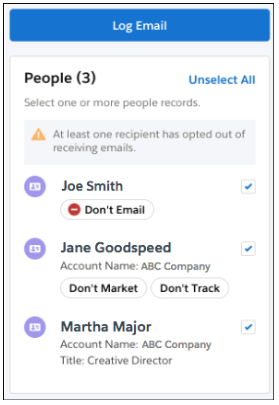
- The Send Non-Commercial Email permission, which allows Salesforce users to send transactional emails from Lightning Experience, isn’t enforced in the Outlook and Gmail integrations. It’s the sales reps’ responsibility to respect an email recipient’s privacy when sending emails from Outlook or Gmail.
#### See Also
- [Set Up Tracking and Storage of Certain Data Privacy Preferences](https://help.salesforce.com/s/articleView?id=platform.individuals_setup_data_privacy.htm&type=5&language=en_US)
- [Enable the Enforce Email Privacy Settings Preference](https://help.salesforce.com/s/articleView?id=sales.emailadmin_enforce_email_privacy_settings.htm&release=264.0.0&type=5 "You can set up Salesforce to respect each recipient’s email privacy preferences, set in the data privacy record based on the Individual object. These preferences apply to contacts, leads, person accounts, and users, and include email tracking and opting out of email.")
- [Considerations for Opting Out of Email](https://help.salesforce.com/s/articleView?id=sales.emailadmin_opting_out_considerations.htm&release=264.0.0&type=5 "Keep these considerations in mind when setting up Salesforce to let your customers opt out of email from your company.")
- [What’s the Difference Between Email Opt Out and Individual Email Privacy Settings?](https://help.salesforce.com/s/articleView?id=sales.emailadmin_opting_out_differences.htm&release=264.0.0&type=5 "For leads, contacts, and person accounts, there are several email privacy preferences that affect whether that person can be sent an email.")
# Considerations for Email Replies in Lightning Experience
Be aware of these considerations when replying to emails in Lightning Experience.
### Required Editions
Available in: Lightning Experience
Available in: Essentials, Professional, Enterprise, Performance, Unlimited, and Developer editions
When you’re responding to an email with multiple recipients, your choice between Reply and Reply All determines the addresses included in your response.
- **Reply**: Sends your email only to the original recipient in the To field. All other recipients in the CC and BCC fields are excluded from your response.
- **Reply All**: Sends your email to the original sender and all the addresses listed in the To, CC, and BCC fields.
# Considerations for Email Reports
Depending on your org’s email setup, use different techniques to report on email usage and effectiveness.
### Required Editions
Available in: Essentials, Professional, Enterprise, Performance, and Unlimited editions

Note Emails sent through workflows aren’t reportable.
## Einstein Activity Capture
If your org is using Einstein Activity Capture, see [Activity Metrics](https://help.salesforce.com/articleView?id=aac_activity_metrics.htm&language=en_US) for how to get and use data on emails.
## Outlook and Gmail Integration
If your org is using an email integration, manually logged emails and events are reportable. If you have Sales Engagement enabled, you can also report on which email template, if any, was used with an email.
See [Outlook and Gmail Integration and Inbox Features](https://help.salesforce.com/articleView?id=email_int_features.htm&language=en_US) for more information about this feature.
## Outlook and Gmail Integration with Inbox
If your email integration includes the Inbox productivity features, your reporting can also include knowing when recipients open emails and when recipients click links in emails.
For example, you can create a field in a report that checks if the `FirstOpened` field is NULL or not. If it isn’t `NULL`, then that email has been opened. Using this information, you can determine if outgoing emails are successful or not.

Note You can’t group by this field.
If your reps are manually logging incoming emails, and the report groups records by `Email ID`, then you can easily see how many emails are getting a response. Analyze these emails to see why they’re so effective, and replicate that across your org.
We recommend grouping by `Email ID`; otherwise, the grouping is by recipients.
The fields `Tracked` and `IsIncoming` are included by default.
See [Outlook and Gmail Integration and Inbox Features](https://help.salesforce.com/articleView?id=email_int_features.htm&language=en_US) for more information about what you can report on.
## Lightning Experience
When you’re composing emails in Salesforce Lightning Experience and Enhanced Email is enabled, you can report only on your outgoing emails.
See [Report on Email Messages](https://help.salesforce.com/articleView?id=emailadmin_reports.htm&language=en_US) for more information on setting up email reports.
These reports provide summary engagement information. To see information at the recipient level, use Engagement reports.
## Sales Engagement
Automatic Emails in Sales Engagement cadences aren’t reported in the Email Message report. Instead, use the list email activity report.
See [Report on Email Messages](https://help.salesforce.com/articleView?id=list_email_reports.htm&language=en_US) for more information on setting up list email reports.
# Considerations for Email Template Folders and Sharing
As you manage and share email templates and their folders, keep these considerations in mind.
### Required Editions
Available in: Lightning Experience and Salesforce Classic
Available in: Professional, Enterprise, Performance, Unlimited, and Developer Editions
- Folder names must be unique between Salesforce Classic and Lightning Experience.
- Partner portal users can access public email templates.
## Lightning Experience
- Sharing on Lightning email templates is inherited from the folder it is in.
- Subfolders inherit sharing from the parent folder.
- Sharing a folder shares:
- All the templates in that folder
- All subfolders in that folder, along with their email templates
- Any new templates that are added to the folder in the future
- Lightning Email Template folders are supported in first-generation managed packaging only.
## Salesforce Classic
- Classic email templates can’t be saved to Lightning template folders and vice versa.
- Classic email templates maintain their own folders and folder sharing settings in Lightning Experience.
- Classic email templates and folders don’t show up on the Lightning email templates home. Changes to Classic template folders must be made in Setup.
#### See Also
- [_Salesforce DX Developer Guide_: Second-Generation Managed Packages](https://developer.salesforce.com/docs/atlas.en-us.sfdx_dev.meta/sfdx_dev/sfdx_dev_dev2gp.htm)
# Considerations for Enabling Multiple Currencies
Enabling multiple currencies introduces permanent changes in your org. Before proceeding, be aware of these implications to ensure a smooth transition.
### Required Editions
Available in: Salesforce Classic and Lightning Experience
Available in: Group, Starter, Professional, Enterprise, Performance, Unlimited, Developer, and Database.com Editions
- After you turn on multiple currencies for your Salesforce org, you can't turn it off.
- If you turn on multiple currencies, [field-to-field filters](https://help.salesforce.com/articleView?id=reports_builder_filtering_field_to_field.htm&language=en_US) in reports don't support currency fields, like amount.
- Upon enablement, existing records are stamped with a default currency code that you provide in your enablement request. For example, if your org contains records that use USD and EUR, switch them all to the same default currency before enablement. Support for this type of conversion is also available as a Salesforce paid implementation service.
- Standard and custom objects, such as Account, Lead, Case, Opportunities, Opportunity Products, Opportunity Product Schedules, and Campaign Opportunities, have currency fields that support multiple currencies. Reports related to these objects and fields also support multiple currencies. By default, page layouts for these objects have multi-currency-compatible fields in which you can specify the currency for the record. Typically, these fields are available only when creating a record or editing an existing record. The selected currency is used for the primary amount field.
- When you create and test a package, the temporary build org has only USD configured. Using a currency code other than USD for testing results in an error
- After enablement, the number of decimal places defined in a custom currency field is ignored. Instead, set decimal places per currency through Manage Currencies in Setup.
- After enablement, the primary currency shows as usual and, optionally, a secondary currency amount appears in parentheses. The primary currency is typically the default corporate currency, unless it's overridden at the record level. The amount shown in parentheses is the user's personal default currency. Salesforce calculates the converted amount using a two-step sequence: the record currency converts to the corporate currency first, then converts again to the user's personal currency. Because conversion happens in two steps, outdated conversion rates can compound variation across both conversions. To minimize variation in converted amounts, keep your conversion rates current. To control whether the converted currency amount appears, turn on or off parenthetical currency conversion from the Manage Currencies page.
- In reports, the primary currency reflects either the default corporate currency or the currency selected for the record. The secondary currency reflects the personal default currency of the user running the report, or the currency specified in the report criteria.
- Users can specify a personal default currency on their personal information page. If parenthetical currency conversion is turned on, the personal default currency is shown as the secondary currency amount (converted amount). Changing the personal default currency updates the converted amount in real time.
- After a currency is added to an org's list of supported currencies, it can't be deleted from the admin's list of currencies, even when it's deactivated. The presence of inactive currencies in the administrator's list is a cosmetic issue that doesn't affect end users. A deactivated currency isn't visible to end users, but remains visible to administrators. Salesforce recommends that you keep this issue in mind during testing and use only those currencies that you eventually plan to use.
- After enablement, all currency fields show the ISO code of the currency before the amount. For example, $100 displays as USD 100.

Note If you have only one currency in your multi-currency org, you can set a preference to show currency symbols instead of ISO codes. To show currency symbols, search Setup for User Interface, and then select **Show currency symbols instead of ISO codes** in the Currency Display Settings section of the User Interface settings page. If you later enable more currencies in your organization, ISO codes display, and this preference is no longer available. This preference applies only in the standard Salesforce user interface.
When you [activate multiple currencies](https://help.salesforce.com/s/articleView?id=sales.activating_and_deactivating_currencies.htm&release=264.0.0&type=5 "For orgs with multiple currencies, specify which currencies are supported by activating or deactivating currencies."), you specify the number of decimal places to show However, when Show currency symbols instead of ISO codes is enabled, the specified decimal places for multiple currencies are ignored.
- By default, all converted amounts rely on the current conversion rates defined for your org. Conversion rates must be set and updated manually. Changing the exchange rate automatically updates converted amounts on all records, including on closed opportunities.
You can opt to use dated exchange rates by using [advanced currency management](https://help.salesforce.com/s/articleView?id=sales.administration_about_advanced_currency_management.htm&release=264.0.0&type=5 "Advanced currency management allows you to manage dated exchange rates within opportunities using Salesforce. Dated exchange rates allow you to map a conversion rate to a specific date range.") to track historical exchange rates. Advanced currency management allows you to maintain a list of exchange rates by date range. Converted currency amounts on opportunities show based on the specified Close Date, regardless of the opportunity stage. If the Close Date changes to a different exchange rate period, changing the Close Date impacts converted amounts.

Note Dated exchange rates aren't used in forecasting, currency fields in other objects, or currency fields in other types of reports.
#### See Also
- [Administrator setup guide: Using Multiple Currencies](https://resources.docs.salesforce.com/latest/latest/en-us/sfdc/pdf/salesforce_using_multiple_currencies.pdf)
- [Enable Multiple Currencies](https://help.salesforce.com/s/articleView?id=sales.admin_enable_multicurrency.htm&release=264.0.0&type=5 "To use multiple currencies, turn on the feature.")
- [Manage Multiple Currencies](https://help.salesforce.com/s/articleView?id=sales.admin_currency.htm&release=264.0.0&type=5 "Give your sales team the ability to use multiple currencies in opportunities, forecasts, quotes, reports, and other data.")
- [About Advanced Currency Management](https://help.salesforce.com/s/articleView?id=sales.administration_about_advanced_currency_management.htm&release=264.0.0&type=5 "Advanced currency management allows you to manage dated exchange rates within opportunities using Salesforce. Dated exchange rates allow you to map a conversion rate to a specific date range.")
# Considerations for Enabling Person Accounts
Keep these key considerations in mind before turning on person accounts.
- After you’ve turned on person accounts, you can’t turn them off.
- A single person account uses more storage space than a business account.
- You can’t use some AppExchange packages with person accounts. Before you turn on person accounts, check AppExchange or contact the app builder to make sure that person accounts are compatible with the apps that you need.
- Some Salesforce features work differently with person accounts. Review [Considerations for Using Person Accounts](https://help.salesforce.com/s/articleView?id=sales.account_person_behavior.htm&release=264.0.0&type=5 "Review how person accounts differ from business accounts and contacts.") for a list of differences between person accounts, business accounts, and contacts.
# Considerations for Enabling Shared Activities
If you enable Shared Activities, or if it’s enabled by default in your Salesforce org, you can’t disable it.
### Required Editions
Available in Lightning Experience and Salesforce Classic
Available in: Essentials, Professional, Enterprise, Performance, Unlimited, and Developer Editions
- If a Visualforce page uses the standard controller to display Shared Activities events, use API version 26.0 or later.
- If a task or event is related to a lead, you can’t relate the activity to additional contacts.
- When more than one contact is related to an event, activity reports don’t show child events to that event if they’re assigned to users who aren’t below you in the role hierarchy.
- If you enable Shared Activities, then an activity is also related to each contact’s primary account.
- If you enable Shared Activities, the last activity date on account records is based on the activities that roll up to the account via the Related To field. However, if the Related To field is blank, the activities are based on the primary contact’s account. The last activity date for contacts and leads is based on only the activities where the contact or lead is the primary contact on the activity.
- If you enable Shared Activities, users must designate one contact as the primary contact on the activity. If you delete the primary contact, the next contact on the activity’s related list becomes the new primary contact. Or you can manually edit the activity to select a primary contact. Lists and reports display primary and secondary contacts differently.
- Keep in mind that if you enable Shared Activities and you delete an activity such as a task or event, the WhatId and WhoId fields on the activity record are empty. If you undelete the activity, the values in the WhatId and WhoId fields are restored.
- If an invitee’s event is deleted, the values in the WhatId and WhoId fields on the invitee’s event record persist. If an organizer’s event is deleted, the corresponding events of the invitees are deleted and the values in the WhatId and WhoId are also deleted.
- When you select Save & New from a task or event, only the primary contact is added automatically to the new record. Be sure to add any additional contacts, as needed.
- If you don’t enable Shared Activities, custom reports based on activity relationships:
- Show only invitees to an event but not the organizer.
- Don’t show events to which no one has been invited.
- If you don’t enable Shared Activities, custom report types that use activity custom lookup field relationships aren’t supported.
- If you don’t enable Shared Activities and a sales rep sends an email to multiple contacts, Salesforce creates a closed task for each contact. As a result, Salesforce creates duplicate records instead of just one task corresponding to the email.
- If your activity sharing setting is set to Private, users with access to parent records have read-only access to your activities.
- When Shared Activities is enabled in Salesforce Classic, changes to the WhoId field made via Apex before triggers or workflows aren't saved.
# Considerations for Enabling User Control of Task Notifications
When the setting **Enable user control over task assignment notifications** is enabled in Activity Settings, users see the option **Email me when someone assigns me a task** in their personal settings. Both the setting and the option are enabled by default.
### Required Editions
Available in: Salesforce Classic, Lightning Experience, and all versions of the Salesforce mobile app
Available in: All editions except Personal
This setting enables both email notifications and UNS notifications.
Enabling and disabling the setting affects users in different ways. Before migrating a Salesforce org, avoid excessive email notifications by disabling the setting. You can re-enable it after migration.
Effects of Enabling and Disabling the Feature in Setup
User Type
Effects of Enabling the Feature
Effects of Disabling the Feature
Salesforce app users, including Experience Builder site users
In My Settings | Notifications, the Assigns you a task checkbox is
displayed.
In My Settings | Notifications, the Assigns you a task checkbox isn’t
displayed.
Lightning Experience users
On the Activity Reminders page in the user's personal settings, the
Email me when someone assigns me a task checkbox is
displayed, and it’s selected by default.
No user receives an email notification when another user assigns a
task.
Salesforce Classic users, including Experience Builder site users
On the Create Task page, the Send email notification
and Make this the default setting checkboxes aren’t
displayed.
On the Activity Reminders page in the user's personal settings, the
Email me when someone assigns me a task checkbox is
displayed, and it’s selected by default.
For tasks created by a flow or process, email notifications aren’t sent when
the task is assigned to a user.
On the Create Task page, the Send email notification
and Make this the default setting checkboxes are
displayed, and email notifications are sent according to whether the checkboxes
are selected.
The Email me when someone assigns me a task checkbox
isn’t displayed.
Partner portal and partner community users
On the Create Task page, the Send email notification
and Make this the default setting checkboxes aren’t
displayed.
Email notifications are sent whenever someone assigns a task to a user
(partner portals have no settings page for admins or users).
On the Create Task page, the Send email notification and
Make this the default setting checkboxes are displayed, and
email notifications are sent according to whether the checkboxes are
selected.
Users who are assigned tasks that are generated by workflow task rules
On the New Task page for workflow tasks, the Notify
Assignee checkbox isn’t displayed.
If a Salesforce admin selected the Notify Assignee
checkbox before Winter ’15, task assignees who deselect the option don’t receive
notifications.
Email notifications are sent to task assignees according to workflow task
rules.
Users who are assigned tasks through an API
Use an API to set the triggerUserEmail value. The default
is false.
If triggerUserEmail = true, notifications are sent
according to individual users’ settings. If a user assigns a task to themselves,
a notification isn't sent to that assigned user. You can also use Apex triggers
to send push notficiations, if needed.
If triggerUserEmail = false, email notifications aren’t
sent when a task is assigned.
If using REST API, create a custom REST endpoint and set the email trigger
options to send notifications, as needed.
If triggerUserEmail is true, email notifications are sent
to all users when tasks are assigned.
If triggerUserEmail is false, email notifications aren’t
sent when a task is assigned.
Users who are assigned tasks through Apex
Notifications that are sent through Apex are sent in the context of the request
header.
If a value in the request header is set so that email notifications are sent,
email notifications are sent to users when tasks are assigned. Apex processes the
header sequentially from the first line to the last. If a statement in the request
header indicates that a task notification is required, an email notification is sent
regardless of statements later in the header.

Note When you create a task in Lightning Experience, it doesn’t display an option to send an email when you assign a task. However, there’s a personal setting to receive an email when someone assigns you a task. Depending on how your admin has set up your Salesforce org, you can receive emails for tasks that you assign to yourself or create with a status of Completed.
#### See Also
- [Enable User Control of Email Notifications for Tasks in Salesforce Classic](https://help.salesforce.com/s/articleView?id=sales.tasks_enable_task_email_notifications.htm&release=264.0.0&type=5 "Display a setting that lets users decide whether to receive an email notification when assigned a task.")
- [_Implementation Guide_: Salesforce Mobile Notifications Implementation Guide](https://developer.salesforce.com/docs/atlas.en-us.pushImplGuide.meta/pushImplGuide/pns_sending_notifications.htm)
- [_Developer Guide_: Exposing APEX Classes as REST Web Services](https://developer.salesforce.com/docs/atlas.en-us.apexcode.meta/apexcode/apex_rest.htm)
- [_Developer Guide_: Setting DML Options](https://developer.salesforce.com/docs/atlas.en-us.apexcode.meta/apexcode/langCon_apex_dml_database_dmloptions.htm)
# Considerations for Excluding Data from Einstein Activity Capture
Admins and users can prevent emails and events connected with a particular email address, domain, keywords, or sensitive content from association with Salesforce records. You can also prevent events from syncing between Salesforce and connected accounts. Make sure that you understand the effects of excluding this data from Einstein Activity Capture.
### Required Editions
Available in: Lightning Experience
Available with Einstein Activity Capture Standard in Sales in Starter, Pro Suite, Professional, and Enterprise Editions
Available with Unlimited Edition, Einstein 1 Sales Edition, and Agentforce 1 Edition
Available with Einstein for Sales, which is included in Einstein 1 Sales Edition and available for an extra cost in Enterprise and Unlimited Editions
Available with Sales Engagement, which is included with Sales in Performance and Unlimited Editions, and available for an extra cost in Professional and Enterprise Editions
Available with Revenue Intelligence, which is available for an extra cost in Enterprise and Unlimited Editions

Note We’re reorganizing the Einstein Activity Capture documentation. We’re moving some information around, but we aren’t deleting anything.
- The admin’s org-wide Excluded Addresses list applies to all Einstein Activity Capture users in the org and is the baseline that always takes effect. Users can add more email addresses to their own Excluded Addresses list to extend (but not override) the org-wide list.
- Salesforce adds the default internal domain to the excluded list so that emails and events between users in your company aren’t added or synced to Salesforce records. Your company’s default internal domain is the domain used in the admin’s email address. If your company uses other internal domains, the admin must add them to the excluded list.
- Emails where all email addresses are part of the internal domain (internal emails) are always excluded. If the sender, recipient, and cc address contain an internal domain you specified in the excluded list, the email is considered internal. If the sender, recipient, and cc address contain the same domain of a connected data source, the email is considered internal.
- Events where all attendees, including the organizer, are part of the internal domain (internal events) can be included or excluded. Events that have the meeting organizer as the sole attendee are also considered. Go to Einstein Activity Capture settings and turn **Sync Internal Events** on or off.
- Internal event filtering is based on attendee email addresses on the event, regardless of whether they match Salesforce user, contact, or lead records.
- Internal domains can’t be deleted from the excluded addresses list when the domain matches the primary email address (the email on the user record) of any:
- Salesforce admin
- Salesforce user with the Customize Application or Modify All Data permissions
- If the email addresses on a Salesforce record all belong to an internal domain, then emails and events aren’t added to the record’s timeline. For example, the internal domain used to set up Einstein Activity Capture is acme.com. John Smith is a contact record in Salesforce with the email john@acme.com. The John Smith contact record doesn’t show any emails or events because the email address john@acme.com is part of the acme.com internal domain.
- When Sync Email as Salesforce Activity is turned on, email messages and events that match any exclusion, such as keyword, email address or domain, and sensitive content, aren’t captured, synced, or stored. This data is unavailable in Salesforce. Without Sync Email as Salesforce Activity, sensitive emails are handled differently. The emails are set to the Don’t Share sharing setting, regardless of the user’s individual sharing setting. The emails are marked as sensitive so that users know why the sharing setting was changed. For example, emails that include a credit card number from a customer are kept private. Automated responses about a password reset are also kept private. The email owner can later change the sharing setting to something less restrictive. The settings that prevent these emails from being shared are on by default, but [you can turn them off](https://help.salesforce.com/s/articleView?id=sales.aac_set_default_activity_sharing.htm&release=264.0.0&type=5 "Use activity sharing rules to manage how users see and share captured event data. If Sync Email as Salesforce Activity is turned on, activity sharing rules also control the visibility of captured email data. If captured email isn’t synced as activity data, use Einstein Activity Capture settings to manage data sharing.").
Some automated email replies are useful to your colleagues and aren’t set to private. Examples include out-of-office replies and email bounce notifications.
To add extra protections, admins can update the Excluded Addresses list with customer domains and email addresses from the services their company uses. Services that offer payroll, financial support, or human resources for your company are good candidates to add to the Excluded List. Then, if someone creates a Salesforce contact record with the email address no-reply@confidential.tax.details.com, emails from that sender aren’t added to the contact’s activity timeline.
- All internal domains that are included in the excluded list apply to Einstein Activity Capture.
- Add keywords, addresses, and domains to the excluded data capture and turning on a sensitive data detection setting filters newly captured data and hides matching past data from the activity timeline. It doesn’t delete any previously captured data. When you add excludes this is what happens:
- New emails and events aren’t added to the activity timeline, and past matching ones are removed from the activity timeline.
- New events are still added to the user’s Salesforce calendar, and past ones remain.
- Email that doesn’t match to a user, contact, lead, or other record is stored on Hyperforce and Amazon Web Services (AWS) for up to 30 days.
- Manually added email and events remain on the activity timeline and calendar.
- When you exclude an email address or customer domain, here’s what happens regarding synced events.
- New events don’t sync between Salesforce and the connected accounts.
- New events aren’t stored in Salesforce.
- Previously synced events no longer sync, but they remain in Salesforce or the connected accounts.
- If you remove an email address or customer domain from the excluded list, new email and events are captured and synced. Past emails and events remain excluded.
- In an event series, only the events that meet the excluded email address or domain criteria don’t sync.
- Admins can prevent all email data for specific Einstein Activity Capture users from being added to the activity timeline and stored by Salesforce. When creating or editing an Einstein Activity Capture configuration, an admin can disable emails.
- When you exclude an email address or customer domain, several rules determine whether the related emails and events are captured and synced.
- If any participant on an email thread or event isn’t on the applicable Excluded Addresses list, the email or event can still be captured and added to related Salesforce records, even when other participants are excluded.
- The admin’s list applies to the entire org, and has priority over users’ lists.
- When email or event recipients include multiple Einstein Activity Capture users and a customer, Einstein Activity Capture users must add the customer’s email to the Excluded Addresses list.
- When email or event recipients include Einstein Activity Capture users and multiple customers, Einstein Activity Capture users must add at least one customer email or domain to the Excluded Addresses.

Example
Albert and Barry are Einstein Activity Capture users. Cindy is a contact on the Acme account. Review how different scenarios affect what’s captured and synced.
Scenario
Excluded Addresses List
Event Added to Activity Timeline?
Event Added to User’s Salesforce Calendar?
Event Synced Between Salesforce and Connected Accounts?
Albert sends a meeting invite to Cindy and includes Barry in the
invite.
Albert and Barry add Cindy to their lists.
No
Yes
No
Albert adds Cindy to their list. Barry doesn’t.
Yes
Yes
Yes
Albert adds Cindy to their list. Barry doesn’t. The admin adds Cindy’s email
domain to the org-wide list.
No
Yes
No
Albert sends a meeting invite to Cindy and the team. Some of the recipients use
the @acme.com domain and others use the @acme_jr.com domain.
Albert adds only Cindy’s email to their list.
No
Yes
No
Albert sends a meeting invite to Cindy and the team. Some of the
recipients use the @acme.com domain and others use the @acme_jr.com domain. Albert
includes Barry in the invite.
Albert adds only Cindy to their list. Barry doesn’t.
Yes
Yes
Yes
The admin adds the @acme_jr domain to the org-wide list.
No
Yes
No
#### See Also
- [Exclude Emails and Events from Einstein Activity Capture](https://help.salesforce.com/s/articleView?id=sales.eac_exclude_emails_and_events_for_org.htm&release=264.0.0&type=5 "Set up org-wide exclusions to control which emails and calendar events are captured and stored. Exclude emails and events from specific addresses and domains, and filter emails based on keywords and sensitive content. Adding exclusions doesn’t remove previously captured emails or synced events. Exclusions only filter incoming data after the value is saved.")
- [Exclude Emails and Events from Your Salesforce Activities](https://help.salesforce.com/s/articleView?id=sales.aac_add_excluded_addresses.htm&release=264.0.0&type=5 "When you add email addresses to your Excluded Addresses list, emails and events with those addresses aren’t added to the activity timeline of related Salesforce records. Events aren’t added to the Salesforce calendar. And events aren’t synced between Salesforce and the connected accounts.")
- [Einstein Activity Capture](https://help.salesforce.com/s/articleView?id=sales.einstein_sales_aac.htm&release=264.0.0&type=5 "Eliminate manual data entry and transform a list of engagements into action. Einstein Activity Capture syncs your Microsoft or Google account with Salesforce, linking email and calendar activities to the relevant contacts, leads, and opportunities. Einstein Activity Capture gives your team and AI agents the critical context needed to make their next move.")
# Considerations for Generating Leads
Before generating leads with Web-to-Lead or LinkedIn Lead Gen, review a few key points.
### Required Editions
Available in: Salesforce Classic and Lightning Experience
Available in: Essentials, Group, Professional, Enterprise, Performance, Unlimited, and Developer Editions
## Web-to-Lead
- Date and currency fields captured online are formatted based on your Default Locale and Currency Locale settings.
- The limit for Web-to-Lead requests is 500 requests per day. If the number exceeds the limit, the Default Lead Creator specified in Setup receives an email informing them the daily limit has been exceeded.
- If a new lead can’t be generated due to errors in your Web-to-Lead setup, Salesforce Customer Support is notified so we can help you correct it.
- Salesforce provides the standard Web-to-Lead form but doesn’t support viewing or editing forms. To modify a Web-to-Lead form, update the HTML code on your website directly or create another form.
- Salesforce runs field validation rules before creating records via Web-to-Lead. If any field values aren’t valid, no lead record is created.
- All universally required fields must have a value before Salesforce can create a record via Web-to-Lead.
- Salesforce doesn’t support Rich Text Area (RTA) fields on Web-to-Lead forms. If you use RTA fields on your forms, any information you enter in them is saved as plain text when the lead is created.
- Salesforce retains the original format of email addresses for web-generated leads. For example, JohnDoe@gmail.com is saved as is, not as johndoe@gmail.com.
- Web-to-Lead forms don’t validate the email address field. To validate email addresses of web-generated leads, create a validation rule for the Email field on leads.
## LinkedIn Lead Gen
- Before you turn on LinkedIn Lead Gen, turn on Web-to-Lead. Turn off reCAPTCHA for Web-to-Lead.
- To make sure that leads are created in Salesforce from LinkedIn, assign a Default Lead Creator in Setup.
- The limit for leads added from LinkedIn is 500 leads per day. If the number exceeds the limit, the Default Lead Creator specified in Setup receives an email with the additional leads.
- Changing the field type of fields you map for LinkedIn Lead Gen can cause the mapping to fail.
- Salesforce retains the original format of email addresses for LinkedIn-generated leads. For example, JohnDoe@gmail.com is saved as is, not as johndoe@gmail.com.
# Considerations for Getting Started with Content Collections
Content collections provide flexibility for your company’s learning experience, but they also introduce complexity forenablement sites that have published content. If your company already has an enablement site, you can expand your learning experience by using content collections.
### Required Editions
Available in: Enterprise, Performance, and Unlimited Editions
User Roles
This topic supports these enablement site
roles:
Salesforce Admins
Content Creators
## Understand the Impact on Your Existing Content
Before the Salesforce Winter ’22 release, all content in your enablement site was published under a single namespace. An enablement site had only one namespace, so all users with access to your enablement site could access all content. Learners with different training or enablement requirements searched your enablement site to find the appropriate trails and modules for their specialized roles.
In Salesforce Winter ’22, a namespace is known as a content collection. Instead of a single namespace in your enablement site, your company can create multiple content collections. Each audience can efficiently access content in their appropriate content collection without filtering through other topics.
The introduction of content collections doesn’t affect the functionality of your current learning experience:
- All your existing content belongs to a single content collection, which inherits the API name of the namespace that you created when you set up your subdomain.
- All your current learners can still access existing content in that single collection.
## Understand the Impact on Previewing Content
The preview that you launch from the Trailmaker Release app shows new or changed content that you plan to publish as part of the same release. New or changed content appears in the context of published content.
Before the Salesforce Winter ’22 release, this release preview reflected all content in your enablement site. After Salesforce Winter ’22, the preview reflects only the content collection where the release is created.
To learn more, check out [Preview a Release in Trailmaker Release](https://help.salesforce.com/s/articleView?id=sales.mth_preview_content_on_mytrailhead.htm&release=264.0.0&type=5 "Your content stakeholders can preview all the new or changed trails and modules that you plan to publish in a release. The full release preview shows new or changed content in the context of all published content in your company’s enablement site. Only users with the appropriate permission can access the full release preview.").
## Plan Your Permissions Strategy in Advance
Match content collections with permission sets to support your various learning audiences and control which content users can access. The flexibility of content collections means that your company can segment learning content in multiple ways. Check out [Examples of Content Collections](https://help.salesforce.com/s/articleView?id=sales.mth_content_collections_examples.htm&release=264.0.0&type=5 "Each company’s learning experience is different and supports unique groups of learners and a broad range of training and enablement requirements. Content collections can be simple or complex, depending on the size and learning requirements of your company. To help you generate ideas for fulfilling your company’s specific content strategy, explore examples of suggested content collection scenarios.").
Before you begin, we recommend that you develop a strategy for organizing your collections and permission sets.

Note You can create up to 100 content collections.
## Set Up Content Collections
To start using content collections in your enablement site, an admin completes these steps.
1. In Salesforce, from Setup, go to the Content Permissions Assistant. Follow the prompts for updating your admin permissions to enable the Manage Content Collections permission. Then, create more content collections. Complete the steps in [Allow Learners to Access Enablement Site Content Collections](https://help.salesforce.com/s/articleView?id=sales.mth_content_permissions.htm&release=264.0.0&type=5 "Ensure that learners can access only the trails and modules that are relevant to their disciplines or job requirements. Create content collections for your different audiences, and then use permission sets to enable access to specific content collections. Only learners with permission to access a particular content collection can view and complete the trails and modules included in the collection.").
2. In Trailmaker, move existing content into the appropriate content collection. This action has implications for learners who can currently access your existing content. To learn more about the considerations for moving existing content to a new content collection, see [Migrate Published Content to a Different Content Collection](https://help.salesforce.com/s/articleView?id=sales.mth_content_collections_migrate.htm&release=264.0.0&type=5 "You can move your company’s existing learning content from one content collection to another. For example, maybe your company previously published content under your enablement site’s single namespace before multiple content collections became available. And now, you want to move content to a content collection for a specific audience.").
3. When your content collections are ready, update learner permissions so that they can access only specific content collections. See the [Disable the View All Content Permission](#mth_content_permissions_considerations__mth_view_all_content) section in this topic.
## Disable the View All Content Permission
Before the Salesforce Winter ’22 release, all enablement site users required the myTrailhead Content Access permission to access your enablement site.
In Salesforce Winter ’22 or later, the myTrailhead Content Access permission is renamed, and its scope is changed.
| Release | Permission Name | Permission Scope |
| --- | --- | --- |
| Salesforce Summer ’22 | View All Content | Access all content from any content collection that's published on your company's enablement site (formerly myTrailhead subdomain). |
| Salesforce Winter ’22 | myTrailhead View All Content | Access all content from any content collection that's published on your company's myTrailhead subdomain. |
| Earlier than Salesforce Winter ’22 | myTrailhead Content Access | Access any content that's published on your company's myTrailhead subdomain. |
If a user had the myTrailhead Content Access permission enabled before Salesforce Winter ’22, they still have the renamed permission enabled. However, if you’re using content collections, you probably want learners to access only specific content. Most likely, the only users that you want to have access to all content are admins, release managers, and similar super users.
After you create content collections, we recommend that you update your learner permissions:
1. Enable access for specific content collections using the Enablement Content Collections Access settings on a permission set.
2. Disable the View All Content permission.
## Understand the Impact on Publishing Roles
Content permissions determine only what learners can access when they log in to your enablement site. Content permissions don’t affect how your internal publishing roles—such as content creators and release managers—work with content in the Trailmaker Content and Trailmaker Release apps.
## Update Trailmixes and Learning Paths
Content collections are compatible with assignments in the Trail Tracker app or Learning Paths in Lightning Experience. When creating content collections and updating content permissions, make sure that learners can access the collections that contain their assigned content. For trailmixes, if a learner can’t access a content collection that a trail or module belongs to, the learner can’t access any part of the trailmix.
## Access a Content Collection from Slack or the Trailhead GO App
Learners can also access enablement site content by:
- Installing the Trailhead Slack app and connecting their enablement site account
- Installing the Trailhead GO mobile app on their iOS, iPadOS, or Android™ device
To access a trail or module from these apps, a learner must have access to the content collection that contains the trail or module.
## Remove a Learner from a Content Collection
If a learner loses access to a content collection, they no longer see earned points or badges from that content collection on their profile. But, the learner didn’t actually lose those points or badges—they only lost permission to access the content that’s used to calculate their profile data. Other users can still see those completed points and badges on the learner’s profile, but only if those users still have access to the old content collection.
## Understand the Impact on New Enablement Sites
If your company is new to enablement sites, we recommend that an admin completes these steps before getting started with content collections.
1. Create your enablement site. As part of this process, you also set up your first content collection. Complete the steps in [Set Up Your Enablement Site's Subdomain and First Content Collection](https://help.salesforce.com/s/articleView?id=sales.mth_set_up_your_mth_subdomain_and_namespace.htm&release=264.0.0&type=5 "Your subdomain is used in the URL where learners access your published trails and modules and where your authorized users log in to the Trailmaker apps. A subdomain name is an extension of your company’s brand. When you create your subdomain, you also create your company’s first content collection—a batch of content that you want to make available to certain learners. Later, you can create more content collections in Salesforce.").
2. Set up the rest of your enablement site, including your authentication provider, user permissions, brand identity, and more. Review the topics in [Configure Your Enablement Site](https://help.salesforce.com/s/articleView?id=sales.mth_configure_mytrailhead.htm&release=264.0.0&type=5 "Set up the enablement site for your company, including your subdomain, authentication provider, user permissions, and brand identity.").
#### See Also
- [Allow Learners to Access Enablement Site Content Collections](https://help.salesforce.com/s/articleView?id=sales.mth_content_permissions.htm&release=264.0.0&type=5 "Ensure that learners can access only the trails and modules that are relevant to their disciplines or job requirements. Create content collections for your different audiences, and then use permission sets to enable access to specific content collections. Only learners with permission to access a particular content collection can view and complete the trails and modules included in the collection.")
- [Enablement Site Permissions List](https://help.salesforce.com/s/articleView?id=sales.mth_permissions_list.htm&release=264.0.0&type=5 "You can enable these system permissions on a permission set that uses the Sales Enablement (myTrailhead) permission set license.")
- [Migrate Published Content to a Different Content Collection](https://help.salesforce.com/s/articleView?id=sales.mth_content_collections_migrate.htm&release=264.0.0&type=5 "You can move your company’s existing learning content from one content collection to another. For example, maybe your company previously published content under your enablement site’s single namespace before multiple content collections became available. And now, you want to move content to a content collection for a specific audience.")
- [User Roles for an Enablement Site](https://help.salesforce.com/s/articleView?id=sales.mth_mytrailhead_roles.htm&release=264.0.0&type=5 "Users in different roles engage with your enablement site throughout the content lifecycle. Depending on your company’s size and available talent, users can perform more than one role.")
- [Create and Share Custom Content Paths with Trailmixes](https://help.salesforce.com/s/articleView?id=sales.mth_curate_content_with_trailmixes.htm&release=264.0.0&type=5 "A trailmix is a customized learning journey that you can create for yourself or for others. You can use any enablement site or Trailhead content you like. You also can include custom steps, such as in-person activities, or links to videos and other online content.")
- [Show Enablement Site Content in Salesforce with Guidance Center and Learning Home](https://help.salesforce.com/s/articleView?id=sales.mth_incorporate_mth_into_in_app_learning.htm&release=264.0.0&type=5 "In Lightning Experience, Learning Paths in the Guidance Center panel and Learning Home enable users to find and complete content that’s personalized to their role and activity. This content is available directly in Salesforce, which helps users learn in the flow of work and boosts Salesforce adoption and productivity. Admins can assign modules published on your enablement site to users, and then users can find and complete assigned content directly in Salesforce.")
- [_Video:_ Deliver Learning Content for Specific Audiences with myTrailhead Content Permissions](https://salesforce.vidyard.com/watch/hVpFiqLRi8sWE6St9t3T75)
# Considerations for Ghost Rules
Ghost rules are payout rules where the output doesn’t contribute to a rep's total commission amount for a statement period. Ghost rules are helpful in situations where you want to start building or testing rules for the next quarter or year, or when you want to perform mid-year plan changes.
### Required Editions
Available in: both Salesforce Classic (not available in all orgs) and Lightning Experience
Available in: Enterprise, Unlimited, and Developer Editions
Available for an additional cost in: Professional Edition with Web Services API Enabled
- Ghost rules are visible only to uses with these privileges. An icon appears next to the rule name on a rep’s statement.
- The default Company Admin role
- The default Finance role
- A custom role with the Designer Configuration: Manage permission turned on
- Ghost rules are commonly used in these scenarios.
- Calculating reporting fields
- Calculating reporting metrics
- Updating rules
- Testing rules
- To make a payout rule a ghost rule, turn it on from the right panel under PAYOUT.
- You can track the ghost rule results against your current commission plan. Ghost rules help you make crucial decisions as you finalize the plans for next year, and you can use the data or analysis and reporting.
- If a ghost rule assigned to a plan has an error, the statement also has an error.
# Considerations for Importing Contacts from a Mobile Device
When importing contacts into Salesforce from a mobile device’s contact lists, there are a few things to be aware of.
### Required Editions
Available in: both Salesforce Classic and Lightning Experience
Available in: all editions
- To use the Import from Device button, you need the Allow Salesforce to import Contacts from mobile device Contact lists permission.
- When importing contacts from an Android or iOS device using Salesforce into an org that has State and Country picklist fields enabled, the State field isn’t populated.
- If you have multiple mobile phone fields in your mobile device’s contact, and the Phone field in Salesforce is empty:
- The first mobile phone field maps to the Phone field in Salesforce.
- The second mobile phone field maps to the Mobile field in Salesforce.
- When you select emails from the mobile device, the Salesforce mobile app typically pulls the second email address location. If labels are created on the device, the integration tries to map from the local work email address to the standard contact email address in Salesforce.
#### See Also
- [Import Contacts from Mobile Device Contact Lists into Salesforce](https://help.salesforce.com/s/articleView?id=sales.contacts_import_contacts_from_mobile_devices.htm&release=264.0.0&type=5 "Sales reps can save time and eliminate typos by using the Salesforce mobile app to import contacts from mobile device contact lists into Salesforce. This feature is available only in Salesforce for Android and Salesforce for iOS.")
# Considerations for In-Person Meeting Transcription
To use In-Person Meetings, consider supported functionality, usage, limitations and allowances, limits, and other issues.
| Available in: Lightning Experience |
| --- |
| Available in **Starter**, **Pro**, **Enterprise**, **Performance**, **Unlimited**, and **Agentforce 1 Sales** Editions with Einstein Conversation Insights. |

Note This feature does not draw down credits for AI usage if your org has Agentforce for Sales, Service, or Industry add-on license, or if your org has Agentforce 1 Edition for Sales, Service, or Industry. For more information on generative AI credit consumption, see [Metering for Agentforce and Generative AI Usage](https://help.salesforce.com/s/articleView?id=ai.generative_ai_usage_metering_logic.htm&language=en_US&type=5). Credits can still be consumed by data services in Data 360 and other related usage.
This feature requires the [Seller-Focused Mobile Experience with Salesforce Mobile](https://help.salesforce.com/s/articleView?id=sales.sales_mobile_app_setup.htm&language=en_US).
- Einstein Conversation Insights is not supported in Experience Cloud or Government Cloud.
- For push notifications to work correctly, you must use Sales Cloud Mobile. Otherwise, you need to manually go to the event in Sales Cloud Mobile to start transcription.
- You must start the transcription while the meeting is active. The option disappears after the meeting time expires.
- The meeting audio is processed locally and is never recorded or stored. Only the text transcript is saved.
- As transcripts are stored locally during that login session, they’ll be lost if and when the user logs out of their account. When you log out of your account, transcripts from previous meetings won’t be accessible.
- Speaker assignment isn’t required to save the transcript and sync with ECI.
- Although transcription works offline, saving the transcript requires an internet connection.
- In-Meeting Transcription is only supported on iPads on M4 chip or newer .
- The locale of the device determines the language of the transcription.
- In-Meeting Transcription supports these languages: Arabic, Chinese (Simplified and Traditional), Dutch, English (Australia), English (England), English (India), English (Ireland), English (New Zealand), English (Scotland), English (US), French (Canada), French (France), German, Italian, Japanese, Korean, Polish, Portuguese (Brazil), Portuguese (Portugal), Russian, Spanish (Spain), Spanish (US)
- To ensure that an Android device can reliably transcribe, make sure that it meets these hardware requirements:
| Requirement | Minimum |
| --- | --- |
| **Android Version** | 13 or later |
| **Total RAM** | 8 GB |
| **CPU Cores** | 6 |
For more information on device requirements, see [Requirements for the Salesforce Mobile App](https://help.salesforce.com/s/articleView?id=xcloud.salesforce_app_requirements.htm&type=5&language=en_US).
# Considerations for Insert Availability in Lightning Experience Desktop
Be aware of these considerations for using Insert Availability in Lightning Experience desktop.
Available in: Lightning Experience
Available with Sales Cloud and included in Professional, Enterprise, Performance, and Unlimited Editions
- Let recipients select any available time on your calendar by inserting a scheduling link.
- Each link is unique, created when you insert it.
- You can’t copy a link and use it elsewhere.
- Scheduling links aren’t supported in automatic email signatures.
- Links are valid for 90 days.
- When selecting available times, the event owner’s calendar is the primary calendar from their connected email account. Events from the connected account’s primary calendar, not from the Salesforce calendar or other additional calendars, are reflected on the calendar grid when selecting available times.
- The suggested times that the recipient sees update as the event owner’s availability changes. The available times are based only on the event owner's availability. The options available in the email don't live update as other attendees calendars become booked.
- A user’s availability is set to 9 AM–5 PM. To change their availability, go to personal settings, find Meeting Settings, and make any changes.
- The default time zone is based on the Salesforce user's time zone, not their computer's time zone.
- If there are multiple attendees, the event time is set when the first recipient selects a free time slot. The invite is then populated on all attendees’ calendars.
- If a coworker has shared their calendar with you, you can view their calendar to schedule around their availability. Your coworker doesn’t need an Inbox license to share their calendar.
- If a coworker has given you write permissions to their calendar, you can use Insert Availability to schedule meetings on their behalf. Select a different meeting owner in the Insert Availability window. In Outlook, to be available as a meeting owner, the owner of the shared calendar must also be an attendee on the invitation.
- Make sure that recipients are using up-to-date email clients and browsers. If the recipient's email client or browser doesn’t support TLS 1.2, they receive an error message when they select an available time in the email.
- The attendee calendar doesn’t recognize Google Calendar Out of Office events.
- If Zoom video integration is enabled, connect your Zoom account and select to have a Zoom meeting link automatically added to the generated event invitation.
#### See Also
- [Considerations for Scheduling Events with Insert Availability in the Outlook and Gmail Integrations with Inbox](https://help.salesforce.com/s/articleView?id=sales.email_int_availability_considerations.htm&release=264.0.0&type=5 "To avoid back-and-forth emails when scheduling events, insert open time slots from your calendar directly in an email. Recipients can select which time works best, and the event is automatically scheduled. Review the considerations about inserting availability.")
# Considerations for Languages on Your Enablement Site
The default language for any enablement site is English, but other languages are supported. A user can select a different language, but the extent to which content is available for any language depends on whether you’ve localized and published content for that language.
### Required Editions
Available in: Enterprise, Performance, and Unlimited Editions
User Roles
This topic supports these enablement site roles:
Learners
## Supported Languages
From the footer of any page on your enablement site, a user can select one of these languages.
- English
- Chinese (Simplified)
- French
- German
- Italian
- Japanese
- Korean
- Portuguese (Brazil)
- Spanish (Spain)
- Spanish (LATAM)
Selecting a different language shows localized labels throughout the user experience: tabs, search, points, completion time, content types, and so on. However, the content itself—titles, descriptions, and unit text—remain untranslated until you localize and publish content for that language.
To provide localized content for a supported language, collaborate with a localization team or vendor. After they return your localized backpacks, add the content to an unpublished release. Then, preview and publish the release. To learn more, see:
- [Give Content Files to a Localization Team or Vendor](https://help.salesforce.com/s/articleView?id=sales.mth_give_files_to_localization_vendor.htm&release=264.0.0&type=5 "To add localized content, send the backpack to your localization team or vendor. The backpack is a ZIP file, downloaded from Trailmaker, that contains the module or trail’s source files. You can send the backpack ZIP file or give the vendor access to your version control system (VCS) to download the backpack. After the vendor translates your content, the vendor can upload the backpack—updated with the localized files—to your VCS. Then, you can publish the localized content.")
- [Guidelines for Localizing Files in a Backpack](https://help.salesforce.com/s/articleView?id=sales.mth_localize_files.htm&release=264.0.0&type=5 "Your localization team or vendor can localize only certain trail, module, unit, and quiz information in your backpack’s files.")
- [Preview and Publish Localized Content](https://help.salesforce.com/s/articleView?id=sales.mth_publish_localized_content.htm&release=264.0.0&type=5 "After you receive the localized backpack and confirm that the appropriate updates are complete, set up a release and preview the translated content. Then, publish the release.")
## Default and Fallback Languages
When you create trails, modules, and units in Trailmaker Content, the content is encoded as English by default. When you add that content to a release and publish, that content appears when a user selects English for viewing your enablement site.
In Trailmaker Content, your writers can author content in any language they want, but Trailmaker still encodes the content as English. For example, if you write content in German but don’t properly localize the backpack, Trailmaker encodes your content as English. When a user selects English from the language dropdown when viewing your enablement site, they see your German content. To ensure that a user sees German content only when they select German:
- Author English content in Trailmaker Content.
- Work with a localization team or vendor to add the German content to the appropriate localized folder and files.

Note In your backpacks, localized files are placed in language-specific folders, where each folder is named with the appropriate locale code for the language, such as de-DE for German. For more information, see [Guidelines for Localizing Files in a Backpack](https://help.salesforce.com/s/articleView?id=sales.mth_localize_files.htm&release=264.0.0&type=5 "Your localization team or vendor can localize only certain trail, module, unit, and quiz information in your backpack’s files.").
Because English is the default language, it serves as the fallback for any part of the user experience that isn’t properly localized for a selected language. If you localize only some units in a module but leave other units in English, the entire module falls back to English. For example, maybe you translate a module with three units into German, but the localization vendor accidentally doesn’t translate one of the units. When a user selects German, they see the entire module in English. To make sure that the full localized module is available for a selected language, work with your localization team or vendor to [fix the localized backpack](https://help.salesforce.com/s/articleView?id=sales.mth_why_is_localized_content_in_wrong_language.htm&release=264.0.0&type=5 "Did you localize enablement site content for a particular language and a user selected that language, but the content still appears in the source language? Most likely, the number of units in a module differs between the source and localized files. When content isn’t available for a selected language, an enablement site falls back to the source language. To resolve this issue, work with your localization team or vendor to correct the number of units in a module in the localized files.").
## Translations and Content Collections
When you publish localized content, you’re adding languages to trails, modules, and units. But, you’re not increasing the number of trails, modules, and units that you’ve published.
For example, let’s say that you published a module in English. Later, your team localizes the module into French. When the localization team or vendor returns the localized module backpack, the backpack contains English and French files for one module. When you add the content to a release and publish, your enablement site still contains one module. A user can view the module in English or French by toggling the selected language, but you’ve still published only one module, not two separate modules.
With content collections, you can’t add a module in one language to one content collection and the same module but in a different language to another content collection. Using the previous example, both the English and French translations of a module exist together in the same content collection. You can’t assign the English version to a content collection for an English audience and the French version to a content collection for a French audience. You can create language-specific content for each audience, but you use separate modules, published in separate releases, each with their own localized backpack.
## Trailmaker
The Trailmaker Content, Trailmaker Release, and Trailmaker Settings apps are available only in English.
## Filter Values
The default filter values for the Roles, Levels, and Products content categories are already translated for all supported languages.
If you create any custom filter values, translate the filter values for the languages that you want to support. This way, a user who views your enablement site in a different language can find content using filters in that language.
Because Trailmaker is available only in English, only the English filter names appear for authors who edit trails or modules in Trailmaker Content.
#### See Also
- [Give Content Files to a Localization Team or Vendor](https://help.salesforce.com/s/articleView?id=sales.mth_give_files_to_localization_vendor.htm&release=264.0.0&type=5 "To add localized content, send the backpack to your localization team or vendor. The backpack is a ZIP file, downloaded from Trailmaker, that contains the module or trail’s source files. You can send the backpack ZIP file or give the vendor access to your version control system (VCS) to download the backpack. After the vendor translates your content, the vendor can upload the backpack—updated with the localized files—to your VCS. Then, you can publish the localized content.")
- [Guidelines for Localizing Files in a Backpack](https://help.salesforce.com/s/articleView?id=sales.mth_localize_files.htm&release=264.0.0&type=5 "Your localization team or vendor can localize only certain trail, module, unit, and quiz information in your backpack’s files.")
- [Preview and Publish Localized Content](https://help.salesforce.com/s/articleView?id=sales.mth_publish_localized_content.htm&release=264.0.0&type=5 "After you receive the localized backpack and confirm that the appropriate updates are complete, set up a release and preview the translated content. Then, publish the release.")
- [Add a Custom Filter for Enablement Site Content](https://help.salesforce.com/s/articleView?id=sales.mth_add_filter_to_products_category.htm&release=264.0.0&type=5 "You can add custom filters for the Roles, Levels, and Products content categories that you apply to trails and modules. Making these changes can require different users to collaborate, such as an admins, content creators, and release managers.")
# Considerations for Localizing In-App Guidance
In Translation Workbench, you can localize prompts and walkthroughs for international users, but some considerations apply.
## Objects
On the Translate page in Translation Workbench, select **Prompt** or **Prompt Version** from the Setup Component dropdown.
## Images
If you’re translating a prompt that includes an image, Translation Workbench supports only images added by URL. Ideally, use images that are appropriate in any language and don’t require localization. To replace an image in the prompt’s original language with a localized image, specify a unique URL to a localized image.
## In-App Guidance Builder
If you added translated labels, images, or videos for a prompt, the original language continues to appear in these cases.
- When you edit the prompt in In-App Guidance Builder
- When you preview the prompt from the In-App Guidance page in Setup
To see translated labels you added, test the prompt from the In-App Guidance page in Setup.
#### See Also
- [Preview and Test In-App Guidance](https://help.salesforce.com/s/articleView?id=sales.customhelp_lex_prompt_test.htm&release=264.0.0&type=5 "Verify that the prompts and walkthroughs that you created appear correctly for the right users. Quickly preview a prompt or walkthrough in any environment. For in-app guidance in Lightning Experience, perform more thorough quality assurance testing for all prompts and walkthroughs that a specific user can see. Test mode ignores schedule settings, global time delay settings, and user interaction analytics. You can also test prompts and walkthroughs in a sandbox.")
- [Manage Your Translations](https://help.salesforce.com/s/articleView?id=platform.workbench_overview.htm&language=en_US)
- [_Salesforce Developers_: Prompt](https://developer.salesforce.com/docs/atlas.en-us.object_reference.meta/object_reference/sforce_api_objects_prompt.htm)
- [_Salesforce Developers_: PromptVersion](https://developer.salesforce.com/docs/atlas.en-us.object_reference.meta/object_reference/sforce_api_objects_promptversion.htm)
# Considerations for Logging in to Salesforce Spiff
When a user signs in, Spiff checks whether their credentials are associated with single sign-on (SSO) or multi-factor authentication (MFA) systems. Troubleshoot the login flow for any users who are experiencing login issues.
### Required Editions
Available in: both Salesforce Classic (not available in all orgs) and Lightning Experience
Available in: Enterprise, Unlimited, and Developer Editions
Available for an additional cost in: Professional Edition with Web Services API Enabled
## Login URL
The URL in the original invitation email is used only for setting up a user's password for the first time.
After creating their password, users log in to the appropriate URL, depending on your region.
- If you’re in the US, go to us1.spiff.com/login.
- If you’re in the EU, go to eu1.spiff.com/login.
## Login Flow
Spiff follows this logic when a user logs in.
| Step | Behavior |
| --- | --- |
| 1 | Spiff verifies that the user is an active user of the company. If they aren't an active user, authentication fails. |
| 2 | Spiff checks whether the user's company has SSO configured. If the user tries to log in to Spiff without using SSO, Spiff notifies the user to log in with SSO instead. |
| 3 | If the email address isn't associated with a company that has SSO configured, Spiff authenticates the email address and password. |
| 4 | If the user's company has MFA configured, Spiff requires the user to log in with MFA. |
| 5 | After authentication, Spiff logs the user in to a company that they have an active login record for. If the user has a login record for more than one company, Spiff can log them into any company they belong to. |
## Session Duration
For a user who logs in with a Spiff username and password or who logs in through SSO, their session length is 24 hours.
If a user who logs in with a Spiff username and password turns on **Remember Me** on the login screen, their login session is extended for 21 days.
## Password Reset
A user who logs in with a Spiff username and password must reset their password every 90 days. To reset a password, select **Change Password** from personal settings under your Spiff user profile.
## System Activity Log
The System Activity Log tracks successes and failures for both username and password logins and SSO logins, including both web app logins and mobile logins.
#### See Also
- [Set Up Single Sign-On for Salesforce Spiff](https://help.salesforce.com/s/articleView?id=sales.spiff_sso.htm&release=264.0.0&type=5 "Support a more efficient experience for users who log in to Salesforce Spiff by setting up SAML single sign-on (SSO) with an identity provider, including Google, Okta, and Microsoft Azure Active Directory. Configure settings in your identity provider and in Spiff.")
- [System Activity Log in Salesforce Spiff](https://help.salesforce.com/s/articleView?id=sales.spiff_log.htm&release=264.0.0&type=5 "Find version history for all your Salesforce Spiff payout rules, data filters, and variables and an audit trail for login attempts, team and user changes, plan and quota assignments, approvals, and adjustments.")
# Considerations for Managing Audit History
Learn how changes to opportunity splits, opportunity product splits, and opportunity team members are logged and shown in Audit History.
Available in: Lightning Experience
Available in: Performance and Developer Editions and Enterprise and Unlimited Editions with Sales
- When you directly delete opportunity split, opportunity product split, and opportunity team member records, the records are logged in the OpportunityRelatedDeleteLog object.
- When you delete split records or opportunity team member records, the records in the object history are also deleted.
- When you delete a split type, the related split records are deleted and the deleted records aren’t logged.
- Deactivated split types still show history data.
#### See Also
- [Set Up Audit History for Splits and Opportunity Teams](https://help.salesforce.com/s/articleView?id=sales.teamselling_set_up_audit_history.htm&release=264.0.0&type=5 "Help your sales teams track changes to opportunity splits, opportunity product splits, and opportunity teams by enabling Audit History.")
- [_Developer Guide_: OpportunityRelatedDeleteLog Object Reference](https://developer.salesforce.com/docs/atlas.en-us.object_reference.meta/object_reference/sforce_api_objects_opportunityrelateddeletelog.htm)
- [_Developer Guide_: EntityHistory Object Reference](https://developer.salesforce.com/docs/atlas.en-us.object_reference.meta/object_reference/sforce_api_objects_entityhistory.htm)
# Considerations for Managing Content in Trailmaker Content
In Trailmaker Content, your workspace is where you set up new trails or modules based on drafts that you already created and finalized in another collaboration tool. You can also import backpacks for trails and modules that other content creators have created.
### Required Editions
Available in: Enterprise, Performance, and Unlimited Editions
User Roles and
Permissions
Enablement Site User Roles
This topic supports these enablement site
roles:
Content Creators
Required System Permissions
To create and edit content with Trailmaker Content:
Create Content
## Collaborate on Content
Your workspace is local only to you, and other collaborators can’t access the content that you created or imported there. To enable collaboration with other users who have their own local workspaces, use these techniques:
Manage backpacks in a version control system (VCS)
Each time you finish a round of updates, download your content’s backpack, and submit it to a VCS. You can download a backpack from your Trailmaker Content workspace or from the Released Content tabs in Trailmaker Release. Another collaborator can then access the backpack, modify it, and check it back into the VCS. You can then access the same backpack and import it into your workspace. A VCS provides a way for collaborators to manage access to content, track changes between versions, and revert to older versions.
Delete content from work local workspace
Ensure that you and other collaborators are always importing the latest version from the VCS. Otherwise, one user can unintentionally persist the version from their local workspace in between rounds of collaboration, which can overwrite changes that other collaborators have made.

Tip Before you begin working with trails and modules in Trailmaker Content, we recommend that you author, review, and finalize drafts of your content in a word processor or collaboration tool.
If you’re collaborating with other users on content in the same release cycle, we recommend that you always follow this process.
1. Set up the first iteration of your content.
1. In your local Trailmaker Content workspace, create trails or modules.
2. Optionally, preview the modules in Trailmaker Content.
3. Download the backpacks of your trails or modules from Trailmaker Content.
4. Submit the backpacks to your company’s VCS.
5. Delete the trails or modules from your workspace.
2. Share your version of the content with a collaborator to make updates.
1. The collaborator gets the backpacks from your company’s VCS.
2. The collaborator imports the backpacks into their local Trailmaker Content workspace.
3. The collaborator edits the content.
4. The collaborator previews the content in Trailmaker Content.
5. The collaborator downloads the updated backpacks from Trailmaker Content.
6. The collaborator submits the updated backpacks to your company’s VCS.
7. The collaborator deletes the trails or modules from their local workspace.
3. When the content is ready to be a published, a release manager—a user with the Manage Releases permission—gets the final version of your content ready for publication.
1. The release manager gets the backpacks from your company’s VCS.
2. The release manager imports the backpacks into their own local Trailmaker Content workspace.
3. The release manager adds the content to an unpublished release and completes other prerelease activities, such as previewing the release and correcting errors and warnings.
4. The release manager publishes the release.
5. The release manager downloads the backpacks of the latest, published version of content from Trailmaker Release. Then, the release manager submits the backpacks to your company’s VCS.
6. The release manager deletes the trails or modules from their local workspace.
For more information about the steps of this process, check out:
- [Create a Trail in Trailmaker Content](https://help.salesforce.com/s/articleView?id=sales.mth_create_trail_in_tm_content.htm&release=264.0.0&type=5 "You can create a trail and add modules from the Trailmaker Content workspace.")
- [Create a Module in Trailmaker Content](https://help.salesforce.com/s/articleView?id=sales.mth_create_module_in_tm_content.htm&release=264.0.0&type=5 "A module can stand alone or be a part of a trail. When you’re ready to create a module and its units, move the final draft of your content from a word processor into Trailmaker Content.")
- [Backpacks for Trails and Modules](https://help.salesforce.com/s/articleView?id=sales.mth_backpacks_on_mytrailhead.htm&release=264.0.0&type=5 "A backpack is a ZIP file that contains your content’s source files that you can download, back up, or upload. An individual backpack can be up to 50 MB. You can download a backpack for content that’s in your local Trailmaker Content workspace, or download a backpack for content published from Trailmaker Release.")
- [Create Content Quickly with Content Templates](https://help.salesforce.com/s/articleView?id=sales.mth_content_kits.htm&release=264.0.0&type=5 "Add learning content to your company’s enablement site without creating trails, modules, and units from scratch. To immediately add quality content to your enablement site, we recommend that you download Salesforce content templates (formerly content kits). Content templates provide finished modules on topics that are applicable to any company. For example, add content about sales and service strategies, inclusiveness and diversity, or collaboration in a virtual workplace.")
- [Download a Backpack from Trailmaker Content](https://help.salesforce.com/s/articleView?id=sales.mth_download_content_from_tm_content.htm&release=264.0.0&type=5 "You can download the backpack ZIP file for a module or trail that’s in your Trailmaker Content workspace. Then, you can submit the backpack to your company’s version control system (VCS) so that other users can import the backpack into their own local Trailmaker Content workspace.")
- [Import a Backpack into Trailmaker Content](https://help.salesforce.com/s/articleView?id=sales.mth_upload_published_or_archived_content_to_tm_content.htm&release=264.0.0&type=5 "You can add learning content into your workspace from a backpack ZIP file that you saved or downloaded. This workflow is helpful when you want to collaborate on content that other content creators started in their own workspace. Or, follow these steps when you want to update published content or restore archived content. You can also import a content template that you downloaded.")
- [Add Content to a Release from Trailmaker Content](https://help.salesforce.com/s/articleView?id=sales.mth_add_content_to_release_from_tm_content.htm&release=264.0.0&type=5 "After you create your module and quizzes and assign all the necessary metadata, add the content to a release.")
## Delete Content
To delete content from your workspace, select **Delete** from the content’s Actions menu.

Warning You can’t undo a deletion. We recommend that you always download the content’s backpack and save it in your company’s VCS before you delete content from your workspace.
## Save Content
Trailmaker Content saves your changes to the cloud every few seconds, and it shows a timestamp for when your work was most recently saved. You can’t revert to an earlier version of a trail or module, but you can use the undo function when editing a unit.
#### See Also
- [External Tools and Dependencies for an Enablement Site](https://help.salesforce.com/s/articleView?id=sales.mth_set_up_version_control_system.htm&release=264.0.0&type=5 "To create and publish content, your company relies on a few resources outside of your enablement site.")
- [Maintain Content with Trailmaker Content](https://help.salesforce.com/s/articleView?id=sales.mth_maintain_content_with_tm_content.htm&release=264.0.0&type=5 "Use Trailmaker Content to keep your content current. For example, you can edit existing content to correct errors or update work processes. You also can add a unit to an existing module or add a module to an existing trail.")
# Considerations for Managing Releases
A release specifies the list of the modules and trails that you want to publish together at the same time. You can publish a module or trail only if it’s added to a release. Before you start lining up your planned releases, review some important guidelines about how releases work in Trailmaker.
### Required Editions
Available in: Enterprise, Performance, and Unlimited Editions
User Roles
This topic supports these enablement site
roles:
Content Creators
Release Managers
## Releases and Content Collections
Your enablement site can support up to 100 content collections, and each content collection can contain multiple releases, up to 500 MB of content. A release manager can maintain separate releases for each content collection so that your company can deliver appropriately timed updates for each collection’s audience.
In Trailmaker Release, view all the releases for a particular content collection by selecting a content collection from the dropdown menu.
## Release Items and Operations
When you create a release, Trailmaker works behind the scenes to make a copy of all the content that’s currently published for that content collection. The copy includes all of the content’s metadata, such as applied filters. There’s no user experience where this copy is visible to a release manager, but the copy is there in the background, waiting to receive updates.
A release contains a list of items. In the background, Trailmaker refers to the list as the manifest, and each line item in the list is a manifest item. Each manifest item references the content’s API name and the operation to perform on that content in the release. Select one of these operations.
Archive
Hides content that’s already been published to your enablement site.
Restore
Brings archived content back out of hiding.
Upsert
Adds content to your enablement site, or updates content that’s already been published.
For the Archive and Restore operations, the manifest item is all the information that Trailmaker requires to process the changes in the release. In the invisible background copy of the content collection, Trailmaker hides or restores the corresponding content. When the release is published, those changes propagate to your enablement site's live production environment.
For the Upsert operation, the manifest item alone isn’t enough information for Trailmaker to process the changes in the release. Trailmaker also requires the backpack for the content that you’re adding or updating. The way in which you add content to a release determines whether Trailmaker has all the data it requires to process changes for the release.
- When you add content to a release from Trailmaker Content, Trailmaker automatically adds the manifest item, assigns the Upsert operation to the item, and uploads the backpack to the release.
- When you add content to a release from Trailmaker Release, you manually specify a manifest item and its operation. When you select the Upsert operation for an item, the content’s backpack isn’t uploaded, and Trailmaker reports a release error until the backpack is added. To upload the backpack, go to Trailmaker Content and add the corresponding content to the release.

Tip In general, we recommend that you always use Trailmaker Content to upsert an individual item in a release. You save a few clicks, avoid potential confusion, and add the manifest item and backpack in the same action.
Adding content to a release from Trailmaker Release is useful when:
- You’re archiving or restoring content in the release.
- You’re adding multiple line items to the release at one time. For example, maybe you’re a release manager, and you’re making a list of the content that you plan to include in the release. Maybe other people are responsible for actually adding content to the release when it’s ready. In this case, the release manager can use the list to track which content backpacks are still missing from the release manifest.
When you publish the release, the background copy of the content collection overwrites all the existing content in the content collection.
## Unpublished Releases and Release Timestamps
You can have more than one unpublished release in each content collection. In general, we recommend that you have only one unpublished release per content collection at one time. This strategy can help you manage changes in metadata between releases.
Most companies want to provide continuous and current learning experiences, so Trailmaker lets you create multiple unpublished releases per content collection. Trailmaker also checks the timestamps of your unpublished releases to help you publish releases in the correct sequence and avoid unintentionally overwriting changes between your unpublished releases.
For example, let’s say that your team published a release in January, and then immediately creates another release for February.
| Release | Date Created | Date Published | Scope |
| --- | --- | --- | --- |
| February | February 7, 2021 | Unpublished | Everything in the January release, plus new changes planned |
| January | January 7, 2021 | January 31, 2021 | January release |
But, a writer discovers errors in the January release, and requests a new, intermediate bug fix release to quickly resolve the issues. Now, there are two unpublished releases, each with different sets of planned changes.
| Release | Date Created | Date Published | Scope |
| --- | --- | --- | --- |
| February | February 7, 2021 | Unpublished | Everything in the January release, plus new changes planned, but not the bug fixes |
| Intermediate Bug Fixes | February 14, 2021 | Unpublished | Everything in the January release, plus bug fixes |
| January | January 7, 2021 | January 31, 2021 | January release |
Now, let’s say that you immediately publish the Intermediate Bug Fixes release.
| Release | Date Created | Date Published | Scope |
| --- | --- | --- | --- |
| February | February 7, 2021 | Unpublished | Everything in the January release, plus new changes planned, but not the bug fixes |
| Intermediate Bug Fixes | February 14, 2021 | February 21, 2021 | Everything in the January release, plus bug fixes |
| January | January 7, 2021 | January 31, 2021 | January release |
If you then try to publish the February release, Trailmaker Release checks the timestamp for when the release was created, and reports an error. The February release was created earlier (February 7) than the Intermediate Bug Fixes release (February 14), and the Intermediate Bug Fixes release was published (February 21) before the February release. Trailmaker prevents you from publishing the February release, which doesn’t include the bug fixes and would have overwritten changes published with the Intermediate Bug Fixes release. This behavior helps preserve your content and its metadata—including titles, API names, and applied filters—between releases.
## Release Limitations
Each release can include up to 1,000 items.
#### See Also
- [Create a Release in Trailmaker Release](https://help.salesforce.com/s/articleView?id=sales.mth_create_release_in_tm_release.htm&release=264.0.0&type=5 "You can add modules and trails to an unpublished release even if you haven’t yet created the content in Trailmaker Content. You also can create the release and wait for writers to add their content to the release from Trailmaker Content.")
- [Limits for Enablement Site Data](https://help.salesforce.com/s/articleView?id=sales.mth_mytrailhead_limits.htm&release=264.0.0&type=5 "We restrict the size of certain data in your enablement site, such as an image file or the scope of trailmixes. As you add learning content to your enablement site, consider these limits to help you deliver a successful learning experience.")
# Considerations for Managing Territory Assignments for Splits
Review important considerations before setting up and configuring the capability for sales teams to assign opportunity splits and opportunity product splits to territories.
Opportunity Splits are available in: Lightning Experience and Salesforce Classic
Opportunity Product Splits are available in Lightning Experience
Available in: Performance and Developer Editions and Enterprise and Unlimited Editions with Sales
## Setup
- When you turn on **View all opportunities associated with the territory’s child territory**, regardless of who owns the opportunity, users in a parent territory have access to the opportunity when the territory is specified on the opportunity split or opportunity product split.
- When you turn on **Use the opportunity’s territory as the default split territory when the default revenue type split is created for the opportunity owner**, anytime the default opportunity owner split is created for a revenue type, that split inherits the territory of the parent opportunity.
If you use an Apex script to auto-create splits for team members on opportunities, check your script to determine whether you need to update it before you turn on this setting. For example, if your Apex code is written to insert team member revenue type splits with nonzero percentages, your code can fail for opportunities with assigned territories. The reason is that when a team member revenue type split is inserted with a nonzero percentage, we take that percentage from an opportunity owner split in the same territory. If a split doesn’t exist in the same territory for the opportunity owner, the insert of the team member split fails.
Update your Apex logic to account for this new behavior by inserting the team member split with the same territory as the territory associated with the default opportunity owner split. First, insert the team member's split at 0%. Then do a bulk update of that split and the opportunity owner's split to update all splits to the percentages that you want.
## Territory Models and Territories
- When you archive a territory model, users without the ManageTerritories permission can’t access the territories in that model.
- Split records retain the association with the territories in an archived territory model. While this association doesn’t cause errors, we recommend reassigning the records to territories in an active territory model.
- You can't delete territory models that have territories with associated opportunity splits or opportunity product splits. Remove the territory associations before you delete the territory models, or reassign the splits to other active territories.
- To delete an archived territory model, remove the territory associations or reassign the splits to a territory in an active territory model.
- You can reassign split records to different territories several ways.
- Use the [filter-based opportunity territory assignment tool](https://help.salesforce.com/s/articleView?id=sales.tm2_enable_ota.htm&type=5&language=en_US) that’s available in Territory Settings in Setup (recommended).
- Users can manually reassign the territories.
- Use Data Loader to import updated records.
## Fields and Reports
- The default field label in the multi-line layout on the opportunity split and opportunity product split object is Territory.
- To see reports of splits by territory, use the Split Archived Territory Name, Split Territory ID, Split Territory Name, and Split Territory Description fields on the Opportunity and Product Split Report and the Opportunity and Product Split Schedule Report.
- To see whether splits are associated with archived territory models, add the Archived Territory Name field to the Opportunity and Product Split and Opportunity and Product Split Schedule Reports.
# Considerations for Managing Territory Pipeline Forecasts
Before changing your active territory model, review how territory forecast data and performance can be affected.
### Required Editions
Available in: Lightning Experience
Available in: Developer and Performance Editions and in
Enterprise and Unlimited Editions with Sales

Note This information applies to Sales Territories and not to previous versions of Territory Management.
## Data Impact
When You...
Salesforce Deletes...
Remove a user from a territory, and the user is the territory’s forecast
manager
The territory’s quotas
Manager judgments made by the forecast manager on opportunities in the child
forecast
Manager judgments made on the deactivated user’s opportunities in the territory where
the forecast manager was removed
Owner adjustments to the territory’s forecasts
Adjustments made by another manager to the forecast manager’s forecasts for the
territory
Adjustments made by the forecast manager to subordinates’ forecasts
The user is no longer the territory’s forecast manager. Forecasts for the territory are
available, but their values change. Quotas in territories without a forecast manager can be
reassigned to another member of the territory.
Remove a forecast-enabled user from a territory that has no forecast manager
assigned
The user’s quotas for the territory
Owner adjustments to the territory’s forecasts, where the user is the owner
Manager adjustments to the user’s forecasts for the territory
Quotas in territories without a forecast manager can be reassigned to another member of
the territory.
Delete a territory that has no child territories
The territory’s forecasts
Quotas for all users on the territory
Manger judgments on the opportunities in the territory’s forecast
Manager adjustments to the territory’s forecasts
Owner adjustments to the territory’s forecasts
Reassign a child territory to a different parent territory
Manager adjustments to the territory’s forecasts
Manager judgments on the opportunities in the territory’s forecasts
Owner adjustments to the territory’s forecasts
Assign a forecast manager to a territory that hasn’t previously had one
assigned
The territory’s quotas
Owner adjustments to the territory’s forecasts
Manager adjustments to the territory’s forecasts
Quotas assigned to users in the territory can be reassigned to the forecast
manager.
Change a territory’s forecast manager assignment
The territory’s quotas
Manager judgments on the opportunities made by the former forecast manager to
subordinates’ forecasts
Owner adjustments made to the territory’s forecasts
Adjustments made by the former forecast manager to subordinates’ forecasts
Adjustments made by another forecast manager to the territory’s forecasts
Deactivate a user, or change the user’s license to one of the Chatter user licenses,
and the user is a territory’s forecast manager
The territory’s quotas
Manager judgments made by the territory manager
Manager judgments on opportunities owned by deactivated forecast users
Owner adjustments to the territory’s forecasts
Adjustments made by another manager to the forecast manager’s forecasts for the
territory
Adjustments made by the forecast manager to subordinates’ forecasts
The user is no longer the territory’s forecast manager. Forecasts for the territory are
available, but their values change.
Archive a territory model
Forecasts, quotas, and adjustments for all territories in the model
Disable Sales Territories
Forecasts, quotas, and adjustments for all territories
## Performance Impact
- The number of territories assigned to a user or forecast manager can impact performance. We recommend that you test thoroughly for performance issues, and if you observe any, reduce the number of territories per user or forecast manager.
# Considerations for Maps Mobile Enhanced
The redesigned Salesforce Maps app brings the full power of the desktop to the field. With a responsive, mobile-first design, reps can access the same features they rely on—optimized for speed and easier usage on the go.
Impacted Feature Area
Differences and Availability
Overall app experience
The Salesforce Maps mobile app now aligns more closely with the desktop version.
Work with a familiar interface with expanded controls and layouts that match your
desktop workspace, making it easier to switch between devices.
Navigation
Access your navigation at the bottom of your phone screen, or use the convenient
left sidebar on your tablet.
Feature Availability
You can now use many of your favorite desktop features directly in Salesforce
Maps mobile. The mobile layout is streamlined to show you the most relevant tools for
the field while keeping the interface clean and easy to navigate.
Map Layers
View the same layers that you use on your desktop directly within the mobile app.
While these layers are currently read only on mobile, you can still use them to guide
your day.
The new interface replaces the previous three-dot action
menus.
Layer Actions
A simplified dropdown control replaces the old three-dot menu for faster
navigation. To keep the mobile experience focused on field execution, certain
desktop-specific tasks—like data correction workflows—remain available exclusively on
your desktop.
Routes List
The mobile route list now provides the same rich detail as on the desktop. This
enhanced view replaces the previous simplified list, giving you more information about
your day without needing to switch devices.
Active Route View
Expanded route controls help you manage your schedule on the go. Go to your next
stop instantly with the new Take Me There action. This streamlined interface
focuses on essential mobile tools by replacing the Print and Email options.
Route Stop Reordering
A specific drag handle now enables stop reordering while preventing accidental
changes as you scroll. Simply grab the handle to move a stop to a new position,
ensuring the route stays exactly as planned.
Schedule View
The mobile schedule now mirrors the desktop calendar layout, helping you focus on
one day at a time. To keep your field view clear and precise, you can view one user’s
schedule for a single day.
Schedule Actions
Expanded schedule actions provide a more powerful mobile experience. Use the
Move Unlocked Events feature to stay flexible while out and about. This
streamlined layout prioritizes frequent field tasks, so the Clone Schedule action
stays exclusively on your desktop.
Current Location
You can now switch Current Location directly on the map. When you turn on
this feature, the app automatically calculates your travel time from your front door
to your first scheduled event, helping you stay on track from the moment you start
your route.
List View
The mobile list view now mirrors the desktop experience, providing a consistent
look and feel across your devices. You can still use filters to organize your data,
though the search bar within the list view is no longer available in this updated
layout.
Selected Tab (List View)
The Selected tab is no longer part of the mobile
experience. This change carries over into the new enhanced version, ensuring a cleaner
and more focused workspace on your phone or tablet.
Search
The search tool now uses the same component as the desktop version. While you’ll
notice a refreshed interface, the functionality remains consistent, ensuring you can
find your data quickly and easily while in the field.
Search Along Route
Searching for locations along a route isn’t available currently.
Map Interactions
Experience more flexibility in the field with expanded map interactions.
Long-press to drop a pin, draw custom polygons to define areas, and explore your data
with a more tactile, intuitive interface.
Tooltips
Tooltips appear differently on mobile. Instead of appearing near the item on the
map, they snap to the bottom of the screen for easier viewing on smaller
displays.
Action Menus
Visible buttons and simplified controls replace the three-dot overflow menus.
Now, the most important actions stay in sight, allowing for faster task completion
without extra clicks.
Touch Interactions
Larger buttons and interactive elements ensure Salesforce Maps remains easy to
navigate on any screen. These updates provide a more comfortable experience, helping
you take action quickly and accurately while on the move

Important Google Maps is not available as a base map within Salesforce Maps mobile app.
To view the supported device information for Salesforce Maps Mobile app, see
[Salesforce Maps Mobile App Experience](https://help.salesforce.com/s/articleView?id=000380283&type=1&language=en_US)
# Considerations for Member Sync
When using Member Sync, keep these considerations in mind.
### Required Editions
Available in: Salesforce Professional, Enterprise, Performance, and Unlimited Editions with any Account Engagement Edition
## How It Works

Warning After you turn on Campaign Member Sync, we recommend that you keep it enabled at all times. The configuration affects other processes and can cause data discrepancies if it’s disabled later. If Campaign Member Sync is disabled for more than 48 hours and re-enabled, complete a full sync to make sure all pending Campaign members are synced.
Campaign Member Sync shows your prospects in Salesforce as campaign members. The sync works only from Account Engagement to Salesforce, so campaign member changes aren’t reflected in associated Account Engagement campaigns.
Before you can use member sync, Connected Campaigns must be enabled. To sync a prospect, assign it to an Account Engagement user and associate it with an Account Engagement campaign.
To indicate that a first touch came from an Account Engagement campaign, synced campaign members show a status of Connected. If a campaign member is missing or doesn’t show a Connected status, verify that the prerequisites for syncing have been met.
- The connector user or integration user has Edit permission on Campaigns.
- Marketing User is selected on its Salesforce user record.
To add campaign members after the first touch, create a completion action. For more recent marketing engagement activity, view the prospect record.
## Other Considerations
- If the prospect shares an email address with another Salesforce contact, the record is synced as a contact. Otherwise, the prospect syncs as a lead.
- When you enable Campaign Member Sync, prospects sync retroactively for campaigns that are already connected.
- Campaign Member Sync doesn’t archive or delete lead or contact records from Salesforce. Remove associated records from Salesforce manually.
- The campaign member created date in Salesforce refers to when the prospect was synced, not the creation date in Account Engagement.
- Campaign Member Sync works alongside other prospect syncing jobs.
- Expect slower sync times when a connected campaign has more than 10,000 prospects.
# Considerations for Merging Contacts Associated with Portal Users
Keep these considerations in mind before merging contacts associated with portal users.
Available in: Salesforce Classic
The customer portal is available in: Enterprise, Performance,
Unlimited, and Developer Editions
The partner portal is available in: Enterprise, Performance, and
Unlimited Editions
- You can merge a portal contact with another portal contact.
- You can merge Customer Community enabled person accounts with Customer Community Plus person accounts.
- Before you merge contacts that include partner users _and_ customer users, decide which type of portal user to retain. The user that you don’t retain is disabled. However, after the contacts are merged, you can enable the contact for access to the portal from which it was removed during the merge process.
- You can merge contacts that are associated with various accounts by [transferring the contacts that you want to merge into one account](https://help.salesforce.com/s/articleView?id=sales.contacts_details.htm&release=264.0.0&type=5 "Consider key points before changing the account that’s associated with a contact.") and then [merging the contacts that are associated with the common account](https://help.salesforce.com/s/articleView?id=sales.contacts_merge_classic.htm&release=264.0.0&type=5).
#### See Also
- [Merge Duplicate Contacts](https://help.salesforce.com/s/articleView?id=sales.contacts_merge.htm&release=264.0.0&type=5 "Keep your records clean and free of duplicates so you can reach more customers and maintain better relationships with them.")
- [Retain Recently Updated Data Privacy Records for Merged Leads and Contacts](https://help.salesforce.com/s/articleView?id=sales.contacts_merge_retain_recent_privacy_record.htm&release=264.0.0&type=5 "Associate the most recently updated data privacy record whenever you merge duplicate leads and contacts.")
# Considerations for Merging Duplicate Accounts
Review these considerations before merging duplicate account records.
Available in: Lightning Experience and Salesforce Classic
Business accounts available in: All Editions except
Database.com
Person accounts available in: Professional,
Enterprise, Performance, Unlimited, and Developer
Editions
[Merging Duplicate Accounts: Tips and Gotchas (Salesforce Classic)](https://salesforce.vidyard.com/watch/QcK0SLnypaQZFEGn9wePnA)
## General
Account Hierarchy
In Lightning Experience, you can select which account to retain as the principal record. In Salesforce Classic, the merged account retains the account hierarchy from the principal record.
Brands
When accounts containing brands are merged, the brand associated with the principal account is retained. Brands associated with non-principal accounts are moved to the Recycle Bin, even if there’s no brand associated with the remaining principal account.
Divisions
If divisions are enabled, the merged account is assigned to the division from the principal record unless you select otherwise.
Hidden and Read-Only Fields
Salesforce retains any data in hidden or read-only fields, such as sharing settings, from the principal record. Hidden fields aren't shown while you merge. A merged record retains the Created By user and Created Date from the oldest record merged, regardless of which record is the principal. The record shows the merge date as the Last Modified By date.
Mobile Device Support
You can't use the Salesforce mobile app to merge duplicate accounts.
Non-Principal Accounts
The non-principal accounts are moved to the Recycle Bin.
Redundant Relationships
If you try to merge accounts that are indirectly related to the same contact, Salesforce displays a message suggesting that you remove the redundant relationships. On account records, indirect relationships are managed from the Related Contacts related list.
Related Items, Chatter Feeds, and Attachments
When duplicate records are related to items such as campaigns or activities, Salesforce relates the items to the merged record, with some exceptions. Chatter feeds are retained from the principal record only. Salesforce Files attached in the Chatter feed or in the Files related list are retained in the merged record.
Relationship Groups
Lightning Experience doesn't support merging of accounts associated with relationship groups.
Sharing Rules
In Professional, Enterprise, Unlimited, Performance, or Developer Edition orgs, sharing rules are applied to the merged account. Also, manual sharing from the principal record is applied to the merged account.
## Team Members
Permission to Merge on Teams
To merge accounts to which a team member has greater record level access, you
must have the Modify All Data permission on accounts. For example, suppose that
you're the account owner but an account team member has more access on one or more
child account records. To merge those accounts, you need the Modify All Data
permission.
Team Members from Non-Principal Accounts
The merged account retains all the team members from non-principal accounts, even if
the members are from different teams.
You can only merge accounts when team members from non-principal accounts have no
values in unique custom fields. Before merging, either remove the unique flag from
any custom fields, or clear any values from unique custom fields on the team
member accounts.
## Person Accounts
Contact Point Objects
Contact point objects don't support merging. Relationships between contact point objects and person accounts are lost after a merge.
Customer-Enabled Person Accounts
When merging a customer-enabled person account with a person account that isn't customer-enabled, the customer-enabled account must be the principal record.
Person Accounts and Business Accounts in Salesforce Classic
In Salesforce Classic, if person accounts are enabled in your org, both business accounts and person accounts are returned when you search for duplicates. However, you can't merge a person account with a business account or the opposite. Person accounts show the person account icon ().
Portal Support
You can't merge person accounts that are enabled to use portal or Experience Cloud site users.
Redundant Relationships
In Salesforce Classic, if you try to merge person accounts that are indirectly related to the same contact or account, Salesforce displays a message suggesting you remove the redundant relationships. Indirect relationships with accounts and indirect relationships with contacts are evaluated separately. If you have conflicts with both, you must resolve them separately.
## Experience Cloud Sites
Contacts Associated with Multiple Experience Cloud Sites
When you merge accounts that have contacts associated with multiple sites of the
same type, a contact's access to a specific site doesn't change. A site user's
profile determines the site that they can access.
If two person accounts are merged and the profile for each account grants access
to different sites, the resulting account can only access the principal account's
site.
Experience Cloud Site Type
When you merge accounts that have contacts associated
with a site, the contacts must belong to the same type of site.
Including Site-Associated Contacts in Merged Record
To ensure that the merged account includes
contacts associated with a site, select the account with site users as the
principal record.
Partner Accounts
When you merge a non-partner account with a partner account, the partner account
must be selected as the principal record.
When you merge a partner account with a non-partner account, the owner can't be
changed.
Permission
To merge accounts associated with sites, you must have the
Manage External Users permission. You also need permissions to delete accounts and
edit related records such as opportunities and contacts.
Partner Accounts
When you merge a non-partner account with a partner account, the partner account must
be selected as the principal record.
When you merge a partner account with a non-partner account, the owner can't be
changed.
## Enterprise Territory Management
- If a territory was manually assigned to one of the merged accounts (for models in all states), the territory is manually added to the merged account.
- Account assignment rules run on the merged account for the active territory model only if you select Default for the Evaluate this account against territory rules on save checkbox on the applicable account page layout's layout properties.
- If the merged value of Exclude from territory assignment rules = true, then:
- Territory assignment rules aren't evaluated even if the Default checkbox for the Evaluate this account against territory rules on save checkbox is selected on the applicable account page layout's layout properties.
- Existing rule-based territory associations in the active model are removed from the merged account.
- For territory models in non-active states (Planning or Archived), rule-based associated territories don't change on the merged account. This is true even if the merged account field values don't match the rules.
#### See Also
- [Merge Duplicate Accounts in Lightning Experience](https://help.salesforce.com/s/articleView?id=sales.account_merge_lex.htm&release=264.0.0&type=5 "Merge duplicate accounts in Lightning Experience.")
- [Merge Duplicate Accounts in Salesforce Classic](https://help.salesforce.com/s/articleView?id=sales.account_merge_classic.htm&release=264.0.0&type=5 "Merge duplicate accounts in Salesforce Classic.")
# Considerations for Merging Duplicate Contacts
Keep these considerations in mind when you merge duplicate contact records.
### Required Editions
Available in: both Salesforce Classic and Lightning Experience
Available in: all editions
## Primary Account
In Lightning Experience, you can merge contacts that have different primary accounts unless the contact is associated with a portal user. In Salesforce Classic, you can merge only contacts that have the same primary account. The primary account is the account listed in the Account Name field on the contact record.
## Data Privacy Preferences
When you merge duplicate leads or contacts, you also associate a data privacy record with the primary record. If you selected the option [to retain the most recently updated data privacy record](https://help.salesforce.com/s/articleView?id=sales.contacts_merge_retain_recent_privacy_record.htm&release=264.0.0&type=5 "Associate the most recently updated data privacy record whenever you merge duplicate leads and contacts.") for merging leads and contacts, we associate the correct record for you. Otherwise, we prompt you to select the one you want to retain for the records you merge.
## Redundant Relationships
If you try to merge contacts that are indirectly related to the same account, Salesforce displays a message suggesting that you remove the redundant relationship. On contact records, indirect relationships are managed from the Related Accounts related list.
## Contact Roles
When contacts are merged, contact roles on non-master contacts lose their status as the primary contact.
## Portal Users
When you use Lightning Experience to merge contacts associated with portal users, the portal user status isn’t shown during merging. The merged record retains the portal user status of the primary record. When you use Salesforce Classic to merge contacts associated with portal users, the portal user status is shown during merging. You choose the portal status you want to retain in the merged record. In both Lightning Experience and Salesforce Classic, the primary contact must be associated with a portal user. The merged contact retains the portal user status of the primary contact. If a non-master contact is associated with a portal user, that user is deactivated.
## Campaigns
When duplicate contacts that are members of different campaigns are merged, Salesforce retains the Member Status Updated date for each campaign the merged contact is a member of.
## Related Items, Chatter Feeds, and Attachments
When duplicate records are related to items such as campaigns or activities, Salesforce relates the items to the merged record, with some exceptions. Chatter feeds are retained from the primary record only. Salesforce Files attached in the Chatter feed or Files related list are retained in the merged record.
## Hidden and Read-Only Fields
Salesforce retains any data in hidden or read-only fields, such as sharing settings from the primary record. Hidden fields aren’t shown while you merge. A merged record retains the Created By user and Created Date from the oldest record merged, regardless of which record is the primary. The record shows the merge date as the Last Modified By date.
## Non-Master Contacts
The non-master contacts are moved to the Recycle Bin.
#### See Also
- [Merge Duplicate Contacts](https://help.salesforce.com/s/articleView?id=sales.contacts_merge.htm&release=264.0.0&type=5 "Keep your records clean and free of duplicates so you can reach more customers and maintain better relationships with them.")
- [Retain Recently Updated Data Privacy Records for Merged Leads and Contacts](https://help.salesforce.com/s/articleView?id=sales.contacts_merge_retain_recent_privacy_record.htm&release=264.0.0&type=5 "Associate the most recently updated data privacy record whenever you merge duplicate leads and contacts.")
# Considerations for Migrating to Einstein Activity Capture
Review these considerations for using the Lightning Sync migration tool to move to Einstein Activity Capture.
## Migration Timeline
When you need to migrate depends on your org and configuration. Lighting Sync is scheduled to retire in 2027, though some customers are exempt from this timeline and won’t see the migration tool in their org.
## User Permissions Are Required Before Migration Is Complete
When users get access to Einstein Activity Capture depends on the order in which these steps are completed:
- The migration tool moves your Lightning Sync settings and configurations to Einstein Activity Capture.
- An Einstein Activity Capture user permission is assigned to each user.
This documentation recommends that you assign user permissions to users last, after the migration tool has moved your settings. At that point, you can see from your configurations who has the permission and who doesn’t. See [Assign Einstein Activity Capture User Permissions](https://help.salesforce.com/s/articleView?id=sales.lightning_sync_move_assign.htm&type=5&language=en_US).
You can complete your migration at your own pace. That is, you can move your settings and then pause while you prepare your user permissions or obtain licenses. Your users simply continue to sync using Lightning Sync until you complete both steps. While you can’t return to your configurations from your Lightning Sync settings in Setup, you can update configurations from Einstein Activity Capture’s pages.
There are a few cases in which you might want to consider a different order. See the next section.
## Considerations for Users With Performance and Unlimited Editions or a Sales Cloud Einstein, Inbox, Sales Engagement, or Revenue Intelligence License
An Einstein Activity Capture user permission is included with Performance and Unlimited editions and with Inbox, Sales Engagement, Revenue Intelligence, and Sales Cloud Einstein licenses. Unless you or another admin removed the permission from their user assignments, it’s likely that the permission is already assigned to users who have access to these features. Users who already have the permission begin syncing with Einstein Activity Capture as soon as the migration tool finishes moving their settings. Likewise, if you set up any Einstein Activity Capture features after your settings are moved, those features roll out to users with the Einstein Activity Capture permission as soon as you update and save their configurations.
If you think you have users assigned to permission sets from these editions or licenses, and it’s important to know precisely when Einstein Activity Capture rolls out to each user, consider reordering your migration. First, take inventory of users’ individual permissions, then decide which order you want to move settings and assign permissions. For example, you can roll out Einstein Activity Capture to users in different batches, based on who has the permission and who needs it. Or you can make sure that all users have the user permission before you move settings. The specifics are up to you.
For a reminder about which user permissions are needed for Einstein Activity Capture and to see resources for verifying what permissions and licenses your users have today, see [Understand and Plan for Einstein Activity Capture User Permissions](https://help.salesforce.com/s/articleView?id=sales.lightning_sync_move_perms.htm&type=5&language=en_US).
## Storage Differences
Lightning Sync stores your Microsoft contacts and event data in Salesforce only. Einstein Activity Capture stores your Microsoft contacts and event data in both Salesforce and the Salesforce Amazon Web Services (AWS) infrastructure. After you move your settings to Einstein Activity Capture, if you enable email features for Einstein Activity Capture, email data is stored in AWS only.
Customers in highly regulated industries may require additional information about how their business data is transferred and stored before they can proceed with Einstein Activity Capture. To ensure that it meets your requirements, review the [Einstein Activity Capture Security](https://help.salesforce.com/s/articleView?id=sales.activity_capture_security_overview.htm&release=264.0.0&type=5 "To protect your data and remain compliant, review the security features of Einstein Activity Capture. Security features include access and authentication, network access configuration, Exchange Web Services and Microsoft Graph API usage, data flow, storage, encryption, privacy, and retention policies.") section.
With contact and event sync, your users don’t notice the storage differences introduced by AWS. But if you enable Emails in Einstein Activity Capture, email data is stored in AWS only, and users notice behavior they haven’t observed before.
- It isn’t used to create Salesforce records.
- It isn’t available in standard reporting. However, to see your activity data aggregated, you can use the [Activities dashboard](https://help.salesforce.com/articleView?id=aac_review_activity_reports.htm&language=en_US) and [Activity Metrics fields](https://help.salesforce.com/articleView?id=aac_activity_metrics.htm&language=en_US).
- The [data retention](https://help.salesforce.com/articleView?id=aac_data_retention.htm&language=en_US) period determines how much email data is stored and for how long.
Your Lightning Sync settings at the time you kick off migration determine where data is stored. For example, if your Lightning Sync configurations are set to sync both contacts and events, both your contact and event data is stored on AWS and Salesforce.
A user’s contact and event data starts to be stored in AWS as well as Salesforce after both of these migration steps are completed:
- The tool has finished moving your settings to Einstein Activity Capture.
- You assign an Einstein Activity Capture user permission to the user.
After your migration, if you explicitly return to Einstein Activity Capture settings and turn on email-related features (and assign user permissions), your emails are stored in AWS too.
## Both Active and Inactive Configurations Are Moved
The migration tool moves all of your configurations to Einstein Activity Capture. Inactive configurations remain inactive unless you decide to activate them later.
## Other Considerations
External users that use Lightning Sync aren’t supported by Einstein Activity Capture.
There are a few other considerations for moving to Einstein Activity Capture, but the migration tool helps you manage those items when the time is right. And we cover specifics about them later on in this documentation.
If you’d like, you can also review [Einstein Activity Capture Considerations](https://help.salesforce.com/articleView?id=sales.aac_setup_things_to_know.htm&type=5&language=en_US).
#### See Also
- [Lightning Sync Migration Tool Requirements](https://help.salesforce.com/s/articleView?id=sales.lightning_sync_move_ma_requirements.htm&release=264.0.0&type=5 "To move from Lightning Sync to Einstein Activity Capture using the migration tool, you must meet these requirements. In some cases, if you don’t meet the requirements, you can’t see the migration tool in Setup.")
- [Start Your Migration to Einstein Activity Capture](https://help.salesforce.com/s/articleView?id=sales.lightning_sync_move_kick_off.htm&release=264.0.0&type=5 "Find the Lightning Sync migration tool in Salesforce, and start the migration process. Don’t worry, before we start moving your stuff, the tool summarizes the major steps and runs a readiness check. Then you decide when you’re ready to start the move.")
- [Understand and Plan for Einstein Activity Capture User Permissions](https://help.salesforce.com/s/articleView?id=sales.lightning_sync_move_perms.htm&release=264.0.0&type=5 "To complete your migration to Einstein Activity Capture, your users must be assigned an Einstein Activity Capture user permission. Until you do, your users’ contacts and events continue syncing with Lightning Sync, and users don’t get access to Einstein Activity Capture features. See which licenses include the user permission, and what users get with the different types.")
- [Working with Lightning Sync Migration Tool](https://help.salesforce.com/s/articleView?id=sales.lightning_sync_move_how_work.htm&release=264.0.0&type=5 "The migration tool makes the move from Lightning Sync to Einstein Activity Capture easy for you and smooth for your sales teams. See what’s moved automatically, and what benefits your users can expect.")
- [Benefits of Migrating to Einstein Activity Capture](https://help.salesforce.com/s/articleView?id=sales.lightning_sync_move_why.htm&release=264.0.0&type=5 "Einstein Activity Capture is the long-term solution for syncing data between your Microsoft or Google account and Salesforce. In addition to contact and event syncing, Einstein Activity Capture offers email sync, more control over your data, and access to AI and agent powered features. Migrate now before Lightning Sync retires in 2027.")
# Considerations for Multiple Currencies in Salesforce Forecasting
If your company uses forecasts and multiple currencies, your Salesforce admin chooses a forecast currency and enables forecast types. The forecast currency is your corporate currency or each forecast owner’s personal currency.
### Required Editions
Available in: both Salesforce Classic and Lightning Experience
Available in: Professional, Performance, and Developer Editions and in Enterprise and Unlimited Editions with Sales
- Dated exchange rates aren’t used in forecasting.
- When you use forecasts, you select a display currency, which can be any currency that’s enabled in Salesforce. To change the currency, select a different currency from the gear (Lightning Experience) or the dropdown list (Salesforce Classic) in the upper right of the forecasts page.
- If you use revenue-based pipeline forecasts, when currency rates change, opportunities and adjustments roll up with the changed value along with values in the forecast table.
- Rate changes impact all forecast periods (historical, current, and future).
- Deactivating a currency that’s set as a user’s personal currency resets the user’s currency to the corporate currency.
- To edit your personal currency settings, edit your personal information.
- If you add a custom filter on a currency field as part of your forecast type definition, the corporate currency at the time the filter was created is used.
- The processing indicator () appears as changed values roll up (Salesforce Classic only).
#### See Also
- [Considerations for Enabling Multiple Currencies](https://help.salesforce.com/s/articleView?id=sales.admin_enable_multicurrency_implications.htm&type=5&language=en_US)
- [Adjustments in Pipeline Forecasts](https://help.salesforce.com/s/articleView?id=sales.forecasts3_adjustments_overview.htm&release=264.0.0&type=5 "A forecast adjustment indicates an assessment about the sales value that a forecast manager or sales rep feels confident of closing during of the forecast period. Adjusting Best Case and Commit forecasts values is a way to accurately gauge where a sales team is on their path to hitting its sales numbers. An adjustment doesn’t change the underlying gross rollup and doesn’t appear in reports. It just adds a layer of detail to a forecast.")
- [Salesforce Forecasting Elements](https://help.salesforce.com/s/articleView?id=sales.forecasts3_definitions.htm&release=264.0.0&type=5 "If you’re using forecasting features in Salesforce, learn about the elements that comprise a forecast.")
- [View Forecasts from Different Perspectives](https://help.salesforce.com/s/articleView?id=sales.forecasts3_changing_data_source.htm&release=264.0.0&type=5 "If your Salesforce admin activates multiple forecast types, select the forecasts that are relevant to you as tabs on the forecast page. Then, you can quickly access each tab to review your forecast from different perspectives.")
# Considerations for Optimizing Overlapping Records
Reduce record lock errors when Salesforce Maps Advanced optimization jobs update the same parent account records.
### Required Editions
Optimization jobs for visit plans run in the background. When multiple jobs update the same parent account records at the same time, record lock errors can occur. To reduce failures, separate competing schedules, reduce overlap across plans, and avoid heavy account updates during optimization windows.
## Asynchronous Optimization Risks
Record lock issues are more likely when:
- Multiple visit plans include the same account records.
- You add or remove many users in visit plans.
- Other automations, integrations, or bulk jobs update the same account records.
## Scheduled Batch Timing
Salesforce Maps Advanced processes scheduled optimization batches at the start of each hour. Jobs set within the same hour, such as x:15, x:30, or x:45, can run together at the next top of the hour.
## Best Practices
- Design visit plans to reduce shared parent account records.
- Schedule at least one hour between optimization runs for plans that share parent accounts.
- Avoid large imports, syncs, or automation updates on account records during optimization windows.
- Monitor optimization status after schedule changes to confirm successful processing.
# Considerations for Opting Out of Email
Keep these considerations in mind when setting up Salesforce to let your customers opt out of email from your company.
### Required Editions
Available in Lightning Experience and Salesforce Classic in: Essentials, Professional, Enterprise, Performance, Unlimited, and Developer Editions
- When enabling email privacy settings, Data Protection and Privacy must also be enabled.
- In Lightning Experience, reps need read visibility to the field Email Opt Out on leads and contacts. Check field level security on this field to confirm visibility. Without access to the field, reps don’t see any warning messages until they click send.
- In Salesforce Classic, opting out of email with email privacy settings applies to regular emails (such as with Email Author) and mass email.
- In Lightning Experience, opting out of email with email privacy settings, using the data privacy record based on the Individual object, applies to these emails
- Regular emails (such as with the Lightning Email Action)
- List emails
- SingleEmailMessage and MassEmailMessage APIs
- Email addresses unassociated with a Salesforce record
For example, if a user's email address is automatically added to the BCC field by the Compliance BCC Email setting, a warning message appears. The email isn’t sent unless an Individual record is associated with the user’s record.
The same is true for other email addresses. All email addresses must be associated with a people record in Salesforce, and those records must be associated with an Individual record.
- Opting out of email with email privacy settings doesn’t apply to the Cases Email Action, Workflows, or Process Builder.
- In the Outlook and Gmail integrations, sales reps see messaging regarding a contact or lead’s email preferences and restrictions. It’s the sales rep’s responsibility to respect that privacy when sending emails from Outlook or Gmail.
#### See Also
- [Considerations for Email Privacy Preferences in the Outlook and Gmail Integrations](https://help.salesforce.com/s/articleView?id=sales.email_int_email_privacy.htm&release=264.0.0&type=5 "Your prospect’s and customer’s email privacy is important. Help to ensure that their email restrictions and privacy are respected when sales reps send emails from the Outlook and Gmail integrations.")
# Considerations for Outlook Shared Folders in Outlook Integration
Sales reps can log emails and events to Salesforce from Outlook shared folders. For example, someone delegates access to their inbox or calendar to a teammate, or a group uses a shared email address such as info@company.com. Review the considerations about how the Outlook integration features work in shared folders.
### Required Editions
Available in: Salesforce Classic and Lightning Experience
Available with Sales Cloud, Service Cloud, and Lightning Platform in: Essentials, Group, Professional, Enterprise, Performance, Unlimited, and Developer Editions

Note Only shared folders, which provide delegate access to an inbox or calendar, are supported. Outlook shared mailboxes aren’t supported in Microsoft add-ins.
## Supported Environments
Work with your IT pro to determine if your company and your email account are set up correctly. Shared folder support is available if you meet the following requirements:
- You use Exchange Online (build 15.20.3283.23 or later)
- You use one of the following email clients:
- Microsoft 365 (also called Office 365) subscription version 1910 (build 12130.20272) or later
- Office 2019 one-time purchase (retail) with a build version 1910 (build 12130.20272) or later
- Outlook on the web

Note Integration features for shared folders aren’t supported in Outlook on Mac.
- You’re a member of the shared folder with full access and that auto-mapping is enabled for your email account.
- Enhanced Email is enabled in Salesforce.
## Outlook Integration Features
Keep these considerations in mind when using the Outlook integration features from a shared folder:
- Logging emails and events from a shared inbox or calendar, uses your Salesforce user. For example, your Salesforce user is Martha Major, and you log an email from info@company.com. The Activity Timeline shows that Martha Major logged the email, not info@company.com.
- Logging contact information files (.vcf) and XML files isn’t supported.
- To use the Log Email on Send feature from the shared folder, add the shared address to your My Acceptable Email Addresses list in Salesforce. Find that list in My Email to Salesforce in your personal settings in Salesforce.
- When you send an email from a shared folder, the available email templates are the templates available to your Salesforce user. If multiple users need access to the same email template from a shared address, make sure that the template is public or shared with those users.
## Outlook Integration with Inbox Features
Inbox features including Availability, Send Later, Email Tracking, and Text Shortcuts, are available to user from a shared folder. However, the features use your primary email address or calendar account, not the shared email address or calendar.
For example, if you’re composing an email from a shared folder’s inbox or calendar or on behalf of someone else:
- When you use insert availability, your calendar appears, not the shared calendar.
- When you schedule an email to send later from a shared folder, the draft is saved in the Drafts folder of your email account. It’s not saved to the Drafts folder in the shared folder. The list of scheduled emails in the Scheduled tab shows the emails that you scheduled. It doesn’t include emails that others using the shared folder scheduled. However, when the email is sent, it sends from the shared email account.
- Email engagements show in your email tracking feed, not in the feed in the shared folder.
- Text shortcuts available to insert into an email are your shortcuts. You can’t access another users’ shortcuts.
## How Event Owner Matching Works
When a delegate logs an event on a delegator’s calendar, the Outlook integration uses the email of the delegator’s calendar to search for the delegator’s Salesforce user. If a match is found, the Outlook integration assigns the logged event to that user as the event owner and organizer. And if the delegate is going to the event, they’re added to the event as an attendee.
If no match is found, the integration assigns the logged event to the delegate.
If the delegate is an event attendee, the integration automatically adds the delegate to the event.
## Sales Engagement Work Queue
Your primary email address is used when you compose an email from the Sales Engagement Work Queue in the integration. If you change the From address to a shared address, some Sales Engagement features, such as advancing the cadence, don’t work correctly.
#### See Also
- [Set Up Email to Salesforce](https://help.salesforce.com/s/articleView?id=sales.email_my_email_2_sfdc_setup.htm&release=264.0.0&type=5 "To be able to use Email to Salesforce, start by configuring it.")
- [Enhanced Email and the Outlook Integration](https://help.salesforce.com/s/articleView?id=sales.app_for_outlook_enhanced.htm&release=264.0.0&type=5 "Turn on Enhanced Email in the Outlook integration and Sync setup page so sales reps can relate emails to relevant Salesforce records quicker and more easily.")
- [_External link:_ Allow someone else to manage your mail and calendar](https://support.microsoft.com/en-us/office/allow-someone-else-to-manage-your-mail-and-calendar-41c40c04-3bd1-4d22-963a-28eafec25926?ui=en-us&rs=en-us&ad=us)
- [_External link:_ Outlook add-ins overview](https://docs.microsoft.com/en-us/office/dev/add-ins/outlook/outlook-add-ins-overview)
# Considerations for Overlapping Boundaries
This feature introduces dependencies and prevents the use of certain Territory Planning features.
### Required Editions
Available in: both Salesforce Classic (not available in all orgs) and Lightning Experience
Available for an additional cost in: Enterprise, Performance, Unlimited, and Developer Editions with Sales Planning in English only, and only if you have Web Services API enabled
Overlapping boundaries are only supported for live data alignments.
When overlapping boundaries are in focus, Optimization and Plan Scenarios are temporarily disabled.
Cloning an alignment with overlaps is unsupported.
Importing a territory model from an alignment with overlaps is disabled.
Importing boundary attributes to create overlaps is supported.
When publishing overlapping boundaries to Salesforce fields and CSV, the output uses comma-separated values (e.g., "OwnerID1, OwnerID2"). Attempting to publish to a single ID field (such as OwnerID in Salesforce) is unsupported.
Salesforce Maps Auto Assignment assumes that all shape layers included in its rules are non-overlapping. Be aware of this if you publish to Salesforce Maps and enable the option to create assignment rules.
# Considerations for Overwriting Rep Statements
When overwriting a calculation or data in a rep’s statement in Salesforce Spiff, keep these considerations in mind.
### Required Editions
Available in: both Salesforce Classic (not available in all orgs) and Lightning Experience
Available in: Enterprise, Unlimited, and Developer Editions
Available for an additional cost in: Professional Edition with Web Services API Enabled
- Spiff doesn’t support overwrites in statements that exceed 35 MB.
- When you overwrite data on the rep statement page, the change applies only to that particular rep in that particular period. Potential future calculations that sum data, such as quota attainment and QTD sales, don’t show the overwritten value.
- When you overwrite data from the Data Sources page, the change applies to the entire company. Any other reps that use the overwritten data see the changes in their calculations.
- Overwriting a calculation can affect tracing capability.
- A list of overwrites and overwrite statuses is available from the **Admin** | **Overwrites** menu. From here, search and manage all overwrites made by any admin in the company. To clear an overwrite with an Active status, click the three dots and select **Delete Overwrite**. Deleting an overwrite doesn’t remove it from the log, but clears the overwritten value and restores it to the synced or uploaded value.
## Overwriting Data Types
To maintain accuracy and consistency in your compensation plans, each data type requires a slightly different approach for overwriting.
| Data Type | Considerations |
| --- | --- |
| Percentages | Make sure that the value is a decimal. For example, for a value of 5%, enter 0.05, not 5. |
| Dates | Make sure that the data remains in sync with time-sensitive rules. Follow the YYYY-MM-DD format for clarity, system compatibility, and consistency across all rules and calculations. |
| Boolean values | Make sure that you understand how changing the Boolean value triggers other actions or rules in compensation plans. |
| Custom data types | Make sure that you understand how these fields interact with the rest of your data model. Follow specific formatting guidelines for these custom fields, such as numeric ranges, text limits, or predefined formats or options. |
When an admin overwrites a non-currency field, an error can occur because Spiff interprets the overwrite value as a string, not a number. Spiff can’t use math functions on a string value. To error-proof an overwrite field, wrap it so that Spiff can read the value as a string or other original data type. In Designer, find every instance of the overwritten field and wrap it with the `concat([])` function. Wrap `concat([])` in whatever data type Spiff expects, usually `number()` or `date()`.
```
= ThingToAddToOverwrittenField + number(concat([FieldTheAdminWantsToOverwrite]))
```
# Considerations for Partner Enablement Programs
In general, Partner Enablement programs in supported Experience Cloud sites behave similarly to sales programs in Lightning Experience. Some details for creating and launching Partner Enablement programs are different, and other considerations apply when you’re getting started with a supported Experience Cloud site.
### Required Editions
Available in: Lightning Experience
Partner Enablement is available in Developer Edition with a limited number of add-ons. It is also available with Sales, Service, or the Salesforce Platform in: Enterprise, Performance, and Unlimited Editions for an additional cost. A supported PRM add-on license is required.
## Permissions
For Enablement admins, the Design and Deliver Enablement Programs permission gives access to create sales programs for Lightning Experience and Partner Enablement programs in Experience Cloud sites. This permission is included in the Manage Enablement Essentials default permission set. You can create up to 100 unpublished or published Partner Enablement programs.
Also, consider assigning the Manage Enablement Essentials permission set to site developers. Assigning this permission set ensures that site developers can access Enablement objects when they add Enablement components and pages to Experience Cloud sites.
For partner users, the Partner Enablement User permission set group includes permission sets for taking Partner Enablement programs in sites.
## User Experience
Partner Enablement programs are delivered to partner users who log in to your Partner Relationship Management (PRM) site, built with Experience Cloud. They find and take programs within your PRM site pages. Typically, these users don’t have access to Lightning Experience and their only contact with your brand is the site. Work with a site developer to add Enablement program information to your site. Some default components and pages are available.
## Requirements for Experience Cloud Sites
In Program Builder, the Experience Cloud Site field is available in the program properties when you’re creating a Partner Enablement program.
The Enablement components are available only in these Experience Cloud site templates that a site developer edits with Experience Builder.
- Automotive
- Aura-based B2B Commerce templates (no longer solid)
- Build Your Own (Aura)
- Customer Service
- Financial Services Client Portal
- Insurance Agent Portal
- Partner Central
Other permissions are required for selecting a site in Program Builder.
| Your Permission or Access | Sites You Can Select |
| --- | --- |
| Create and Set Up Experiences | Inactive or active sites |
| Customize Application | Inactive or active sites |
| Member of the site | Active sites only |
If you don’t have one of these permissions, you can’t see the site in Program Builder. If another Enablement admin with permissions added the site and you edit the program, you can’t see the site or save or publish the program.
## Outcome, Milestones, and Exercises
A Partner Enablement program can include 30 total items, including the outcome, milestones, and exercises.
Most prebuilt measures for outcomes and milestones are compatible with Partner Enablement programs, but measures that require Einstein Conversation Insights (ECI) aren’t supported.
Audio Recording, Document, Scheduled Event, and Other exercises in Partner Enablement programs support relative URLs to other site pages. In the corresponding Link content record in the Enablement workspace in the Digital Experiences app, specify a relative URL to another site page. This behavior differs from sales programs in Lightning Experience, where exercises that use the Link content type must specify full URLs.
Action Item, Feedback Request, and Trailhead exercises aren’t supported in Partner Enablement programs.
## Enrollment
When you assign partner users to Partner Enablement programs, you can filter by account in addition to the profile, group, and role filters.
The assignment window lists only users who have the Take Partner Enablement Programs permission.
Up to 10,000 users can be assigned to or enrolled in a Partner Enablement program.
## Notifications
A Salesforce admin can manage notification settings related to Partner Enablement programs for all partner users. See [Manage Notifications for Enablement Programs, Outcomes, and Milestones](https://help.salesforce.com/s/articleView?id=sales.enablement_notifications.htm&release=264.0.0&type=5 "Help your company’s Enablement rollout run smoothly by encouraging users to take and complete programs on time. Notify users when a program is assigned or when they self-enroll in a program, and send congratulations when programs are completed. Remind users when they haven’t started taking a program they enrolled in. Nudge users when a program, outcome, or milestone is due soon. Manage notifications separately for sales programs in Lightning Experience and partner programs in Experience Cloud sites.").
Email notifications related to Partner Enablement programs still respect user-specific email preferences on your site.
In-app notifications related to Partner Enablement programs depend on the environments that partner users can access.
- Partners receive notifications in all sites that they’re members of and that support notifications, not just the site where the Partner Enablement program is published.
- If partners have access to Lightning Experience, they receive notifications related to Partner Enablement programs in Lightning Experience.
## Analytics
Partner Enablement provides a dashboard and reports that are separate from the analytics for other program types. To view Partner Enablement analytics, you must have sharing access to the PRM Reports and PRM Dashboards root folders.
Unlike sales programs in Lightning Experience, Partner Enablement programs don’t have the View Analytics button on program record detail pages. And, the Partner Enablement dashboard and reports show data for all Partner Enablement programs, not individual programs.
In Partner Enablement Settings, a Salesforce admin can get the latest Partner Enablement analytics by refreshing the prebuilt reports and dashboard.
## In-App Guidance in Sites
Partner Enablement includes prompts and walkthroughs in the same Experience Cloud sites where you publish programs. In Partner Enablement Settings, a Salesforce admin can assign the Manage In-App Guidance for Partners default permission set to users who create prompts and walkthroughs in sites. The Partner Enablement User permission set group that Salesforce admins assign to partner users includes permission to view prompts and walkthroughs in sites.
#### See Also
- [Enablement Components and Pages in Experience Cloud Site Templates](https://help.salesforce.com/s/articleView?id=sales.enablement_partner_components.htm&release=264.0.0&type=5 "In Experience Builder, certain site templates include an Enablement section in the Components panel and Enablement pages in the Pages menu. A site developer can use these components and pages to show Partner Enablement programs, outcomes, milestones, and exercises in your Partner Relationship Management (PRM) experience.")
- [Enablement Permission Set Groups, Permission Sets, and Permissions](https://help.salesforce.com/s/articleView?id=sales.enablement_permissions.htm&release=264.0.0&type=5 "Enablement includes default permission set groups based on team member roles. The permission set groups include default permission sets based on tasks that people in those roles complete. The permission sets include individual user permissions and object permissions.")
- [Assign Permissions to Your Enablement Team](https://help.salesforce.com/s/articleView?id=sales.enablement_setup_assign_perms.htm&release=264.0.0&type=5 "Assign permissions to Enablement team members and users for managing programs, managing content, and taking programs. Give access to Enablement admins to access objects and fields when creating measures. Some options and settings are different depending on whether you’re working with Enablement Lite, full Enablement, or Partner Enablement programs.")
- [View the Partner Enablement Dashboard and Reports](https://help.salesforce.com/s/articleView?id=sales.enablement_partner_analytics.htm&release=264.0.0&type=5 "For Partner Enablement programs in Experience Cloud sites, open the prebuilt dashboard from the Dashboards page or the prebuilt reports from the Reports page. Unlike sales programs in Lightning Experience, Partner Enablement programs don’t have the View Analytics button on program record detail pages. And, the Partner Enablement dashboard and reports show data for all Partner Enablement programs, not individual programs.")
- [Refresh the Enablement Reports and Dashboard](https://help.salesforce.com/s/articleView?id=sales.enablement_analytics_refresh.htm&release=264.0.0&type=5 "Enablement includes prebuilt reports and dashboards for tracking program performance and progress. Different reports and dashboards are available depending on whether you’re using Enablement Lite, full Enablement, or Partner Enablement. For all program types, you can make sure that your Enablement team can access the latest version of prebuilt analytics by refreshing the reports and dashboards in Setup. If your Enablement team has customized any of the prebuilt reports or dashboards, take care that you don’t override those customizations.")
- [Permissions for Creating and Accessing In-App Guidance](https://help.salesforce.com/s/articleView?id=sales.customhelp_lex_wt_license.htm&language=en_US)
- [User License and Experience Cloud Template Support for Partner Relationship Management](https://help.salesforce.com/s/articleView?id=slack.prm_support_license_template.htm&language=en_US)
- [Experience Cloud Site Statuses](https://help.salesforce.com/s/articleView?id=experience.networks_status.htm&language=en_US)
- [Manage Site Emails and Notifications](https://help.salesforce.com/s/articleView?id=experience.exp_cloud_administer_emails_notifications.htm&language=en_US)
# Considerations for Planning Territories with Copied Data
Prepare for planning territories with copied Salesforce data when you create datasets in Territory Planning.
### Required Editions
Available in: both Salesforce Classic (not available in all orgs) and Lightning Experience
Available in: Professional, Enterprise, Performance, Unlimited, and Developer Editions with Web Services API enabled
## Methods for Creating Datasets with Copied Data
You choose a method for creating your datasets using Salesforce reports, SOQL queries, Sales Planning segments, or a combination of them all. Supplement that data with attributes from external sources in CSV files.
If you import...
Select any combo of...
Here’s Why
As many as 250,000 records
Salesforce reports and SOQL queries
Reports can include as many as 250,000 records. It’s fine for you to select multiple
reports when you create datasets as long as they collectively contain no more than the
250,000 record allocation for each dataset.
More than 250,000 records
Salesforce reports and SOQL queries, and the option to aggregate
records
If you plan to import high volumes of data, it’s best to turn on the Bulk API setting
and select SOQL queries as your data sources. That way you speed up the import process and
reduce the likelihood of you encountering Salesforce governor limits. In addition, if you
aggregate records within territory boundaries, you can:
Include more records in your datasets that otherwise exceed the 250,000 record
allocation.
Get a simplified view of the units as a single unit within each boundary on the
map.
When you aggregate records, keep in mind that:
Units within a boundary appear as a single aggregated unit.
Assignments for aggregated units adopt the assignment value from one of the units
within that boundary.
Numeric values for aggregated units represent the sum of all units within them.
## Fields to Include for Importing the Right Data
Include these essential fields in the datasets that you create.
Field or Field Type
It’s good to know that...
Record Id
Territory Planning requires 15-character record IDs for every record you
import.
Latitude
Territory Planning requires latitude and longitude data and skips
importing records without it.
Longitude
Assignment
Typically, assignments come in the form of a territory name, username, or user ID. If
your company includes large teams—with some teammates who share first and last names—user
IDs eliminate any potential for confusion.
Descriptive fields
Descriptive fields help with searching, filtering, and exporting. For example, add
fields such as Account Name, City, State, Market Segment, and External Id.
Numeric fields
Numeric fields help with aggregating data at the territory level or optimizing
alignments. For example, add fields such as Annual Revenue, Employees, and
Potential.
## Attributes from External Sources
When you create datasets, you can add supplemental, external data in CSV files. Your supplemental data can include attributes that:
- Get your territory models further dialed-in by appending fields that include relevant data stored outside Salesforce.
- You want to adjust and include as model data that you later export to proprietary and third-party systems.
## Guidelines and Considerations for Optimizing Performance
The amount of data that you include in datasets can affect how they build and the speed at which their alignments load.
- Even though you’re unlimited in terms of the fields you include in datasets, performance is at its best when you include up to 25 fields.
- Consider that the number of fields, their types, the number of records, and their contents can affect performance. For example, long text area fields can impact performance more than numeric fields.
# Considerations for Quota Planning
Set expectations among quota planners so that they have the best experience setting targets in Sales Planning.
### Required Editions
Available in: both Salesforce Classic (not available in all orgs) and Lightning Experience
Available for an additional cost in: Enterprise, Performance, Unlimited, and Developer Editions with Sales Planning in English only, and only if you have Web Services API enabled
## Achieving Optimal System Performance
For the best experience:
- Add up to 500 territories per segment.
- Include up to 5 territory levels.
- Add up to 20 columns in quota plans.
## Planning Quotas with Targets
Anticipate differences when you create quota plans with targets.
- Product columns that appear in quota plans don’t count against the allocation of 20 columns.
- For sales plans created in Winter ’26 and later, adding, editing and deleting quota columns isn’t available. Instead, use product-specific columns for quotas.
# Considerations for Receiving Coaching for Ready-To-Use Scenarios
Review these considerations and limitations for Opportunity coaching.
### Required Editions
Available in: Lightning Experience in Enterprise, Performance, Unlimited, and Developer Editions with Foundations or Agentforce 1 Editions.
- Opportunity Stage is a customizable field in Salesforce. The stage names used by Agentforce Sales Coach align with standard opportunity stages provided by Salesforce. If you have customized opportunity stages, some text outputs, prompt templates, subagents, and agent action names likely won't match your custom stages.
- Agentforce Sales Coach ready-to-use scenarios are built to coach sales reps on opportunities in these stages.
- Qualification
- Needs Analysis
- Proposal/Pricing Quote
- Negotiation/Review
- Be sure to review the prompt templates and referenced CRM data, and update the instructions to reflect your selling guidance and stages.
# Considerations for Relating a Contact to Multiple Accounts
Get familiar with tips, tricks, and potential pitfalls before you relate a contact to more than one account.
### Required Editions
Available in: both Salesforce Classic and Lightning Experience
Available in: Contact Manager, Group, Professional, Enterprise, Performance, Unlimited, and Developer Editions
## General
- Contacts to Multiple Accounts is enabled via Setup and not via the Metadata API.
- The account in the Account Name field on a contact record is the contact’s _primary_ account. The relationship between the contact and its primary account is a _direct_ relationship. All other accounts that are related to the contact are _indirect_ relationships.
- Disabling Contacts to Multiple Accounts deletes all indirect account-contact relationships. Associations between a contact and its primary account remain.
- To remove a direct relationship between a contact and an account, change the contact’s primary account or delete the contact.
- Most features continue to reference a contact’s primary account. For example, duplicate management uses the primary account when comparing records. For that reason, indirect account–contact relationships can’t be included in the matching criteria used to find duplicate records.
- Indirect contacts aren’t available in reports run from an Account & Contact standard report type.
- You can import account–contact relationships with the Data Loader but not with the Data Import Wizard.
- In Lightning Experience and the Salesforce mobile app, the Add to Campaign action isn’t available on items in the Related Contacts related list on account records. To see the full related list and access the Add to Campaign mass action, click **View All**.
- If the Require permission to view record names in lookup fields setting is enabled, users don’t see names of related accounts that they don’t have access to in lookup fields. To show the data, give users read access to the record or the View All Lookup Record Names permission. See [Require Permission to View Record Names in Lookup Fields](https://help.salesforce.com/articleView?id=platform.security_sharing_require_permission_lookup.htm&type=5&language=en_US).
- You can create Experience Cloud site users from Contacts to Multiple Accounts. To grant access to their records, configure a sharing set.
## Account Contact Relationships
- All direct contacts appear in the account record’s Related Contacts related list. But it’s possible that your admin removed the Contacts related list from your page layouts.
- When you have access to a particular account, the related contacts that you have Read access to appear in the Related Contacts related lists. When you have access to a particular contact, all related accounts appear in the Related Accounts related list. You can open the ones to which you have Read access.
- When creating indirect relationships between accounts and contacts, the contact must have a primary account—it can’t be a private contact.
- You can’t create a contact from the Account Contact Relationship detail page.
- Changing a contact’s primary account can trigger a workflow rule that changes the primary account to something else. In that event, Salesforce saves the relationship between the contact and the account you selected as an indirect relationship. Your admin controls the settings for saving previous relationships.
- Some lists of most recently used items (such as a contact lookup field) only show direct relationships.
- When you remove indirect relationships, they’re deleted and can’t be restored from the Recycle Bin.
- If you delete a direct relationship, indirect relationships are removed. In this case, if the direct relationship is restored, the indirect relationship is also restored.
- When Contacts to Multiple Accounts is enabled, an Account Contact Relationship record is created for each contact with a primary account, and for each person account.
## Merging
- If you try to merge contacts that are indirectly related to the same account, an error message instructs you to remove the duplicate relationship. The same is true when merging accounts that are indirectly related to the same contact. The error message includes which account–contact relationships prevent the merge, regardless of whether you have access to the records. Without access to a record, you can’t navigate to it.
- When merging person accounts, indirect relationships with accounts and indirect relationships with contacts are evaluated separately. If you have conflicts with both, resolve the two errors separately.
## Microsoft Integration
- When syncing contacts between Salesforce and Microsoft Outlook, only the primary account relationship is synced.
- If you remove the account name from a contact in Outlook, the contact can’t sync to Salesforce if the contact has relationships to other accounts.
## Admin Settings
- What happens when you attempt to delete an account that includes direct contacts related to other accounts depends on what your admin has specified. You’re either blocked from deleting the account or allowed to delete the account. Deleting the account also deletes the account’s direct contacts, regardless of whether they have relationships to other accounts.
- When you change a contact’s primary account, Salesforce either deletes the previous account, or saves it as an indirect relationship. Your admin’s settings determine what happens to the previous account.
- Whether activities roll up to a contact’s parent account depends on what your admin specified in the activity settings.
## Account Contact Relationship Object
- The following custom field types aren’t supported.
- Lookup relationship
- Master-detail relationship
- Roll-up summary
- Text area (long)
- Text area (rich)
- The following features and customizations aren’t supported.
- Field history
- Field sets
- Approvals
- Record types
- Field label renaming
- Custom actions are supported, but with limitations.
- Custom actions must be specific to the Account Contact Relationship object. Global actions aren’t supported.
- You can create actions that update records or invoke Lightning components or Visualforce pages. However, you can’t create actions that create records.
- You can’t create actions that send emails or log calls because the Account Contact Relationship object can’t have activities related to it.
- You can’t override the default actions on the Account Contact Relationship object.
- Only custom actions that are created on the Contact object can use the Account Contact Relationship object as a target object.
- Chatter standard actions aren’t supported because the Account Contact Relationship object doesn’t have a Chatter feed.
- Custom buttons are supported, but a custom button on a list view can’t have a Visualforce page as the content source.
#### See Also
- [Contacts to Multiple Accounts](https://help.salesforce.com/s/articleView?id=sales.shared_contacts_overview.htm&release=264.0.0&type=5 "People often work with more than one company. A business owner might own more than one company or a consultant might work on behalf of multiple organizations. Relate a single contact to multiple accounts so you can easily track the relationships between people and businesses without creating duplicate records.")
- [Create and Edit Relationships Between Contacts and Accounts](https://help.salesforce.com/s/articleView?id=sales.shared_contacts_create_and_edit.htm&release=264.0.0&type=5 "To easily track the relationships between people and the businesses they work with, relate a single contact record to multiple account records.")
- [Require Permission to View Record Names in Lookup Fields](https://help.salesforce.com/s/articleView?id=https://help.salesforce.com/s/articleView?id=platform.security_sharing_require_permission_lookup.htm&type=5&language=en_US)
- [Create a Sharing Set](https://help.salesforce.com/s/articleView?id=platform.networks_setting_light_users.htm&type=5&language=en_US)
# Considerations for Removing a Product from a Price Book
Before you remove a product from a price book, consider a few key points.
### Required Editions
Products and price books available in: both Salesforce Classic and Lightning Experience
Quotes available in Salesforce Classic
Products and price books available in: Professional, Enterprise, Performance, Unlimited, and Developer Editions
Quotes available in: Performance and Developer Editions and in Professional, Enterprise, and Unlimited Editions with the Sales Cloud
- If you remove a product from a price book, all related price book entries are removed.
- If you restore the product from the Recycle Bin, any related price book entries are restored with it.
- If opportunities, quotes, service contracts, or contract line items are associated with a product, you can’t remove the product.
- You can’t remove a product that’s used on an opportunity or quote. If you try to remove it, Salesforce displays a list of the opportunities and quotes. That way, you can remove the product from those opportunities and quotes and try again. If you don’t want to remove the product from all opportunities and quotes, you can deactivate (recommended) or archive the product. See [Considerations for Removing Products and Price Books](https://help.salesforce.com/s/articleView?id=sales.products_del.htm&release=264.0.0&type=5 "Review these considerations before removing a product or a price book.").
# Considerations for Removing Price Books
To remove price books from related lists, you can archive, deactivate, or delete the price books. Each removal option has a different result. Before you remove a price book from your related lists, determine which option best fits your business needs.
### Required Editions
Products, product schedules, price books, and quotes available in: both Salesforce Classic and Lightning Experience
Orders available in Salesforce Classic
Products, product schedules, price books, and orders available in: Professional, Enterprise, Performance, Unlimited, and Developer Editions
Quotes available in: Performance and Developer Editions and in Professional, Enterprise, and Unlimited Editions with Sales
- Deleting, deactivating, or archiving a custom price book doesn’t affect other price books or your product lists. However, these actions can affect your opportunities and quotes. Changing associations with opportunities or quotes is sometimes required before you can remove an associated price book.
- You can deactivate the standard price book, but you can’t delete or archive it.
## Considerations for Deleting Price Books
- You can’t delete a price book while it’s in use on opportunities or quotes. If you try to, the system creates a list of the opportunities or quotes where the price book is used.
- When you delete a price book, you delete all entries in the price book. The deleted price book and its entries move to the Recycle Bin. You can restore them for up to 15 days.
## Considerations for Deactivating Price Books
- You can activate, deactivate, or reactivate price books at any time by changing the price book’s properties.
- You can deactivate a price book even if it’s used on an opportunity or quote.
- You can continue to manage entries in your price book while it’s deactivated.
## Considerations for Archiving Price Books
To archive a price book, open the price book and switch to Saleforce Classic. Click Archive and confirm that you want to archive the price book.
- You can archive a price book even if it’s in use on an opportunity or quote.
- An archived price book is visible, but not accessible, in all associated records.
- Entries in archived price books don’t appear in search results.
- You can’t recover or delete an archived price book.
# Considerations for Removing Products and Price Books
Review these considerations before removing a product or a price book.
### Required Editions
Products, product schedules, price books, and quotes available in: both Salesforce Classic and Lightning Experience
Orders available in Salesforce Classic
Products, product schedules, price books, and orders available in: Professional, Enterprise, Performance, Unlimited, and Developer Editions
Quotes available in: Performance and Developer Editions and in Professional, Enterprise, and Unlimited Editions with Sales
- You can use the Salesforce mobile app to relate a price book with an opportunity that doesn’t have one. To change an opportunity’s price book, use the desktop Salesforce site.
- When you remove a product or price book, all related price book entries are removed. However, if several price books contain the same product, removing the product from one price book doesn't affect the other price books. Similarly, if you remove a price book, the products that it contained aren’t removed from any other price book.
- To remove a product completely, remove it from the standard price book.
- If opportunities, quotes, service contracts, or contract line items are associated with a product, you can’t remove the product.
- You can’t remove a product or price book that’s associated with an approval process or has a pending workflow action.
- If your product or price book is used on an opportunity, quote, or order, do one of the following.
- Deactivate it by editing it and then deselecting the Active field. We recommend deactivating a product or price book that’s on an opportunity or quote because it will no longer be available to users. You can reactivate it later. Deactivation doesn’t affect the history of an opportunity line item.
- Remove the related product or price book from all opportunities and quotes. When you try to remove a product or price book that’s used on an opportunity or quote, Salesforce displays a list of the opportunities or quotes that use it.
- If you remove a price book, remove it from each opportunity and quote that’s listed.
- If you remove a product, remove it from each opportunity and quote that uses it.Then remove the price book or product.
- Archive the product or price book and each related price book entry. Archive a price book, open the price book and switch to Saleforce Classic.
Archived products and price books aren’t recoverable because they’re not stored in the Recycle Bin. Archived products and price books still appear on any opportunities or quotes that contained them before they were archived. If you archive a price book, it’s still visible in the related records but not accessible or retrievable.
# Considerations for Running Outlook Integration and Salesforce for Outlook (Retiring) Simultaneously
While you can enable both the Outlook integration and the Salesforce for Outlook Side Panel in the same organization, users can’t run both Microsoft® integration features at the same time.
### Required Editions
Outlook integration is available in Salesforce Classic and Lightning Experience in:
Essentials, Group, Professional, Enterprise, Performance,
Unlimited, and Developer editions.
Salesforce for Outlook is available in
Salesforce Classic.
Salesforce for Outlook is available in Personal, Contact
Manager, Professional, Enterprise, Performance, Unlimited,
and Developer editions.

Important Full product retirement for Salesforce for Outlook is scheduled on January 30, 2027. See [Salesforce for Outlook Retirement](https://help.salesforce.com/s/articleView?id=000393445&type=1&mode=1&language=en_US). To keep integrating Microsoft Outlook with Salesforce, check out our next-generation products: the Outlook integration and Einstein Activity Capture. See [Move from Salesforce for Outlook (Retiring) to the Next-Generation Products](https://help.salesforce.com/articleView?id=outlookcrm_sfo_move_parent.htm&language=en_US).
To prevent your users from juggling multiple email integration features, Salesforce automatically disconnects the Salesforce for Outlook side panel when users connect using Outlook integration. Folks who use Outlook integration can still download, install, and sync with Salesforce for Outlook, but only the Outlook integration panel can run in Outlook.
#### See Also
- [Learn about the Support Differences Between Salesforce for Outlook (Retiring) and the Next-Generation Products](https://help.salesforce.com/s/articleView?id=sales.outlookcrm_sfo_move_compare_support.htm&release=264.0.0&type=5 "To prepare for your move from Salesforce for Outlook, review the Outlook integration and Einstein Activity Capture systems requirements and supported Salesforce licenses and editions.")
- [Learn about the Feature Differences Between Salesforce for Outlook (Retiring) and the Next-Generation Products](https://help.salesforce.com/s/articleView?id=sales.outlookcrm_sfo_move_compare_features.htm&release=264.0.0&type=5 "To help you decide whether the Outlook integration and Einstein Activity Capture are right for you, review how each compares to Salesforce for Outlook. Salesforce for Outlook is scheduled for full retirement in June 2024.")
- [How Salesforce Manages Sync Conflicts Between Products](https://help.salesforce.com/s/articleView?id=sales.exchange_sync_sfo_sync_conflict.htm&release=264.0.0&type=5 "Learn how Salesforce manages conflicts when users are assigned to configurations for multiple products such as Einstein Activity Capture, Lightning Sync, and Salesforce for Outlook.")
- [Explore Email and Calendar Integration Products](https://help.salesforce.com/s/articleView?id=sales.sfo_vs_email_connect.htm&release=264.0.0&type=5 "Salesforce provides several tools that integrate with Microsoft or Google email and calendar applications. If you’re using Salesforce for Outlook (Retiring) or Lightning Sync, prepare for the move to a replacement product.")
# Considerations for Sales Initial Setup
Before starting Sales Initial Setup, review these considerations.
### Required Editions
Available in: Lightning Experience in Enterprise, Performance, Unlimited, Einstein 1 Sales, and Agentforce 1 Sales editions with Sales Cloud only.
| User Permissions Needed | |
| --- | --- |
| To set up and configure Sales Initial Setup: | View Setup and Configuration AND Customize Application OR Modify All Data |
| To give Salesforce users access to the features in Sales Initial Setup: | Customize Application AND View Setup |
## General Considerations
- Some features can take a while to turn on. You can leave and return to the Sales Initial Cloud Setup experience anytime. In Salesforce Go, search for Sales Initial Setup on the Salesforce Go Initial Setup tab.
- To complete the Add Sellers step, assign a role to at least one user and add them to an Einstein Activity Capture configuration. The user must also have access to Einstein Conversation Insights, Einstein Activity Capture, Account Plans, Pipeline Forecasting, and Pipeline Inspection.
- When adding sellers, you're limited to the number of available licenses shown in the license count.
- When you import your sales data during Sales Initial Setup, the Salesforce admin who uploads the data becomes the owner of all imported records. This ownership assignment affects several things, such as:
- **List views and reports**: Standard list views filter records by ownership. When the admin owns all records, list views such as My Opportunities and My Leads are empty for sales reps. Dashboards show data only for the admin also.
- **Forecasts**: Forecasts roll up opportunities based on user ownership. When the admin owns all opportunities, forecasts show all revenue under the admin. Without proper ownership assignment, your forecast hierarchy doesn't reflect your actual sales organization structure. Also, your revenue rollup across your team isn't accurate.
- To resolve this issue for uploaded records, reassign records manually or [mass transfer](https://help.salesforce.com/s/articleView?id=platform.admin_transfer.htm&language=en_US) record ownership right away to ensure correct data visibility.
#### See Also
- [Turn On and Configure Sales with Sales Initial Setup](https://help.salesforce.com/s/articleView?id=sales.setup_sales_basics_admin.htm&release=264.0.0&type=5 "Get up and running with essential sales capabilities from day one with Sales Initial Setup. Connect your email domain, add sellers and set quotas, import your sales data, and set up Slack.")
# Considerations for Sales Signals
To use Sales Signals, consider supported functionality, usage, limitations and allowances, limits, and other issues.
### Required Editions
| Available in: Lightning Experience |
| --- |
| Available in **Starter**, **Pro**, **Enterprise**, **Performance**, **Unlimited**, and **Agentforce 1 Sales** Editions with the Einstein for Sales add-on, Data 360, and Einstein Conversation Insights. |

Example

Note This feature does not draw down credits for AI usage if your org has Agentforce for Sales, Service, or Industry add-on license, or if your org has Agentforce 1 Edition for Sales, Service, or Industry. For more information on generative AI credit consumption, see [Metering for Agentforce and Generative AI Usage](https://help.salesforce.com/s/articleView?id=ai.generative_ai_usage_metering_logic.htm&type=5&language=en_US). Credits can still be consumed by data services in Data 360 and other related usage.
## Sales Signals Feature Language and Locale Support
Sales Signals is currently only supported in English.
## Sales Signals Large Language Model Support
Sales Signals supports these models.
GPT 4 Omni (GPT-4o)

Note To use this model, make sure access to OpenAI models is turned on. For more information about configuring model providers, see [Manage Model Provider Access](https://help.salesforce.com/s/articleView?id=ai.generative_ai_model_provider.htm&language=en_US).
## Sales Signals Limitations and Allowances
Einstein Conversation Insights is not supported in Experience Cloud or Government Cloud.
Data 360 is required to use Sales Signals.
Sales Signals supports up to one refresh every 7 days.
## Other Considerations
- Competitor and Product insights should be configured beforehand. You can configure keyword insights from the Call Insights page in Setup.
- 100 segments with a particular competitor or product are needed for a given insight to appear.
- Calls must be at least two minutes long and include a transcript.
- Admins can refresh conversation data 7 days after the last update.
# Considerations for Salesforce Spiff Sandboxes and Change Sets
When working with Salesforce Spiff sandboxes and change sets, keep these considerations in mind.
### Required Editions
Available in: both Salesforce Classic (not available in all orgs) and Lightning Experience
Available in: Enterprise, Unlimited, and Developer Editions
Available for an additional cost in: Professional Edition with Web Services API Enabled
- Spiff sandboxes support at least 100,000 records, regardless of your license count. If your environment exceeds 100 licenses, multiply that number by 1,000—up to a maximum of 1,000,000 records. For example, 250 licenses yields a 250,000-record limit, while 1,500 licenses caps at 1,000,000.
- If you reach your sandbox record limit, Spiff prevents you from syncing connectors.
- Quota Types are not counted against your sandbox record limit. In existing sandboxes, Spiff removes Quota Types from the record limit count when you create or delete a Quota Type in that sandbox.
- You can't include Quota Types in change sets. Spiff doesn't detect them as changed items in a sandbox, and you can't deploy them to a production org. Spiff clones Quota Types from the parent environment when you create a sandbox. Cloned Quota Types have IDs that match those in the parent environment, so formula references resolve correctly after deployment. Quota Types created directly in the sandbox don't have a matching ID in the parent environment and can't be deployed with a change set.
- A Spiff sandbox can use a different Salesforce connector than its parent environment.
- If you include a container item deletion in a change set, such as a folder deletion, Spiff deletes all container item contents, such as worksheets, in the parent environment. Only the deleted container item appears in the change set log.
- The System Activity Log in the parent environment associates a deployment with the deployer, not with the user who made the changes in the sandbox. For information about who made specific changes in a sandbox, review the System Activity Log in the originating sandbox. See [System Activity Log](https://help.salesforce.com/s/articleView?id=sales.spiff_log.htm&release=264.0.0&type=5 "Find version history for all your Salesforce Spiff payout rules, data filters, and variables and an audit trail for login attempts, team and user changes, plan and quota assignments, approvals, and adjustments.").
- Records that you add directly to a parent environment appear as item deletions in the sandbox's View Changes window. When you submit these item deletion records in a change set, Spiff deletes the records from the parent environment.
- If you make identical updates to the same record in both the parent environment and the sandbox, Spiff reconciles them when the name and value match. These reconciled items appear in the Unique Records Linked section of the change set.
- You can sync a sandbox only manually. Spiff doesn't sync and calcuate sandboxes daily, as in production.
- If a calculation is in progress when a change set deployment begins, Spiff doesn’t block the deployment. Because Salesforce Spiff processes calculations as a queue of individual statement runs, each job captures its data the moment the job starts. If a deployment occurs mid-calculation, then jobs that started before the deployment complete with the data that existed previous to the deployment, and jobs that started after the deployment complete with the data introduced by the new deployment. There’s no way to distinguish which statements calculated with the old data versus the new data within the same run. To ensure data integrity and guarantee that every statement reflects the updated deployment data, restart the calculation after the deployment fully completes.
- Partial sandboxes have 10% of the compute capacity of a production environment. Don't use them for performance testing.
# Considerations for Scheduling Events with Insert Availability in the Outlook and Gmail Integrations with Inbox
To avoid back-and-forth emails when scheduling events, insert open time slots from your calendar directly in an email. Recipients can select which time works best, and the event is automatically scheduled. Review the considerations about inserting availability.
### Required Editions
Available in: Lightning Experience
Available in: Unlimited, Einstein 1 Sales, and Agentforce 1 Sales Editions. Available for an extra cost in Professional and Enterprise Editions.
To access the availability features when composing an email in the Outlook or Gmail integrations with Inbox, select an option in the Availability section of the email application pane.
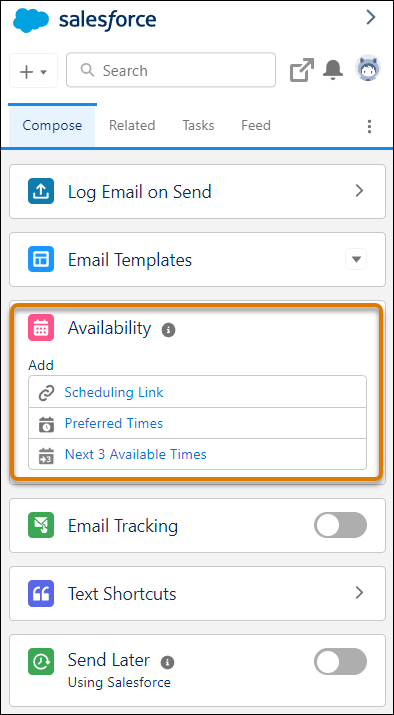

Note If you also send emails from Lightning Experience desktop, you can use this feature from the Lightning Experience email composer.
- Let recipients select any available time on your calendar by inserting a scheduling link.
- Each link is unique, created when you insert it.
- You can’t copy a link and use it elsewhere.
- Scheduling links aren’t supported in automatic email signatures.
- Links are valid for 90 days.
- When selecting available times, the event owner’s calendar is the primary calendar from their connected email account. Events from the connected account’s primary calendar, not from the Salesforce calendar or other additional calendars, are reflected on the calendar grid when selecting available times.
- The suggested times that the recipient sees update as the event owner’s availability changes. The available times are based only on the event owner's availability. The options available in the email don't live update as other attendees calendars become booked.
- A user’s availability is set to 9 AM–5 PM. To change their availability, go to personal settings, find Meeting Settings, and make any changes.
- The default time zone is based on the Salesforce user's time zone, not their computer's time zone.
- If there are multiple attendees, the event time is set when the first recipient selects a free time slot. The invite is then populated on all attendees’ calendars.
- If a coworker has shared their calendar with you, you can view their calendar to schedule around their availability. Your coworker doesn’t need an Inbox license to share their calendar.
- If a coworker has given you write permissions to their calendar, you can use Insert Availability to schedule meetings on their behalf. Select a different meeting owner in the Insert Availability window. In Outlook, to be available as a meeting owner, the owner of the shared calendar must also be an attendee on the invitation.
- Make sure that recipients are using up-to-date email clients and browsers. If the recipient's email client or browser doesn’t support TLS 1.2, they receive an error message when they select an available time in the email.
- The attendee calendar doesn’t recognize Google Calendar Out of Office events.
- If Zoom video integration is enabled, connect your Zoom account and select to have a Zoom meeting link automatically added to the generated event invitation.
If you’re using the Availability feature from the Gmail integration with Inbox, a Google Meet link is created by default when the event invitation is generated. If Zoom is your chosen virtual conferencing solution, be sure to select to include a Zoom link instead. If you use a different virtual conferencing solution, manually generate the meeting link using that solution’s tools and add it after the event invitation is generated.
#### See Also
- [Do More While Composing Emails in Outlook and Gmail](https://help.salesforce.com/s/articleView?id=sales.email_int_user_inbox.htm&release=264.0.0&type=5 "If your Salesforce admin has enabled Inbox, you’ve one or more productivity tools available while composing emails. Your Salesforce admin determines which tools are available in your integration.")
- [Considerations for Insert Availability in Lightning Experience Desktop](https://help.salesforce.com/s/articleView?id=sales.email_insert_availability.htm&release=264.0.0&type=5 "Be aware of these considerations for using Insert Availability in Lightning Experience desktop.")
- [Zoom Integration](https://help.salesforce.com/s/articleView?id=sales.video_zoom_parent.htm&release=264.0.0&type=5 "Enable Zoom integration so reps can take advantage of automatic link creation in Salesforce Inbox and use Zoom as a video source in Einstein Conversation Insights. When Zoom integration is on, Zoom records meetings and makes them available to Salesforce.")
# Considerations for Scheduling Opportunity Update Reminders
Review considerations for scheduling opportunity update reminders.
### Required Editions
Available in: Lightning Experience and Salesforce Classic
Available in: Essentials, Professional, Enterprise, Performance, Unlimited, and Developer Editions
- In the update reminder email, the View Details button links to Report Home, where users can create a report of their teams’ opportunities.
- Users at the top of the portal role hierarchy receive reminders even when they don’t have access to an opportunity. The top role in a portal hierarchy depends on how many users you set up in the hierarchy. With three roles, the top role is Partner Executive, and with two roles, the top role is Partner Manager. To prevent sending reminders to users in the Partner Executive or Partner Manager roles, remove them from the highest portal role.
- When you have only one role in your portal hierarchy, you can’t remove a user from the role. To stop sending reminders to an executive or other user, in your personal settings, go to My Update Reminder and change the Recipients setting to Myself only.
- So that your users can control which individuals receive opportunity update reminders, create at least two portal roles.
# Considerations for Scheduling Visits and Events
Anticipate scheduling behaviors when you optimize visit plans in Salesforce Maps Advanced.
### Required Editions
- The optimization process doesn’t create visits during times blocked by Salesforce calendar events. The process can, however, schedule over any other types of occupied time blocks on Salesforce calendars. You can schedule over events by defining which events to exclude in Routes and Schedule Settings.
- Route optimizations include scheduled events, visits, and other meetings as anchored appointments for locations that meet the visit plan criteria. Anchored appointments count toward targets for visit planning.
- To include visits and events in routing calculations, confirm that the related records match visit plan filters and assignment criteria. And confirm that the visits match the visit plan criteria.
- If you manually change start times for optimized visits, it’s possible to lose those changes during future optimization processes.
- If your drivers require routes optimized for vehicles that can't travel on the same roads as cars, [create a drive profile](https://help.salesforce.com/s/articleView?id=000389632&type=1&language=en_US) that accounts for vehicle size and other characteristics. While the optimization process for visit plans and schedules doesn’t factor in drive profiles, your drivers can create routes with those profiles in Salesforce Maps.
#### See Also
- [Accommodate Prescheduled Visits](https://help.salesforce.com/s/articleView?id=sales.salesforce_maps_adv_visitplan_datasets_create_events.htm&release=264.0.0&type=5 "If reps have appointments on their calendars that Salesforce Maps Advanced didn’t generate, you can include them when you generate routes. Including prescheduled visits in the visit plan ensures that they count towards reps’ visit targets.")
# Considerations for Segmentation
Set expectations among planners so that they have the best experience capturing your company’s unique business units and record assignments in Sales Planning.
### Required Editions
Available in: both Salesforce Classic (not available in all orgs) and Lightning Experience
Available for an additional cost in: Enterprise, Performance, Unlimited, and Developer Editions with Sales Planning in English only, and only if you have Web Services API enabled
- To carve territories from segments, confirm that you've enabled **Asynchronyous Data Set Creation** in Territory Planning settings.
- Planning team members have the authority to manage their segments’ descendants. Specifically, planning team members can add other team members to those descendent segments and assign milestones within them.
- When using a stamp that includes more than 250,000 records for your dataset in Territory Planning, select the option to aggregate records.
- Define up to 1,000 rules per sales plan with as many as 10 rules per segment.
- Add up to 10 criteria for any rule.
- Create up to 500 segments with as many as 500 territories per segment in any sales plan.
# Considerations for Selecting an Authentication Provider
To help you determine which authentication provider is right for your company’s enablement site, review how each provider affects your learning and enablement strategy. We recommend that all new enablement sites choose Salesforce Identity for Enablement.
### Required Editions
Available in: Enterprise, Performance, and Unlimited Editions
User Roles
This topic supports these enablement site roles:
Salesforce Admins
You can choose between these providers:
- Salesforce Identity for Enablement, which uses the Salesforce Identity access management service with your enablement site as an external client app or a connected app.
- Trailblazer.me (TBID), which uses a separate profile that provides access to multiple Salesforce products.
## Content Access
Consideration
Salesforce Identity for Enablement (Recommended)
TBID
Users can access content on your enablement site with one click.
Yes, if a user is already logged in to Salesforce.
Otherwise, the user must first
authenticate with their Salesforce credentials.
Learners earn points and badges by completing enablement site content, including
content assigned in the Guidance Center panel in Lightning Experience.
Yes
Yes
Learners can view the rank, points, and badges that they earned by completing
enablement site content.
Yes, learners can see the total count of their points and badges next to their user
avatar. However, there’s no profile page that shows their rank or specific badges that they
earned.
Yes, learners can access a profile page that shows the rank, points, and specific
badges that they earned.
Learners earn points and badges by completing Trailhead content, including content
assigned in the Guidance Center panel in Lightning Experience.
Yes
Yes
Learners can view the rank, points, and badges that they earned by completing
Trailhead content.
Yes, but only if the user creates a personal Trailhead account and views their profile
page from that account. This profile page reflects only the user’s Trailhead activity, not
their enablement site activity.
On your enablement site, the total count of points and
badges shown next to the user’s avatar reflects activity from only your enablement site.
The count of points and badges doesn’t reflect the user’s Trailhead activity. No rank
information is available.
Yes, the user’s profile page reflects activity from both your enablement site and
Trailhead content.
Your enablement site is accessible by internal users from your Salesforce org and by
external users who are Experience Cloud site members.
Yes, if your internal users are also members of the Experience Cloud site.
With
Salesforce Identity for Enablement, we generally recommend that your enablement site serves
either only internal Salesforce org users or only external Experience Cloud site
members.
Yes
For more information about profiles for new users, see [Enablement Site User Profile](https://help.salesforce.com/s/articleView?id=sales.mth_create_a_mytrailhead_user_profile.htm&release=264.0.0&type=5 "When a user logs in to your enablement site for the first time, the authentication provider that you configured determines whether the user must create a profile to access your site.").
## Admin Experience
| Consideration | Salesforce Identity for Enablement (Recommended) | TBID |
| --- | --- | --- |
| Admins create an external client app or use a connected app in their Salesforce org for connecting users in Salesforce to your enablement site. | Yes | No |
| Admins can define session timeouts and enforce security measures, such as specifying allowed IP ranges. For example, if you wanted to require a VPN, you can restrict session activity to IP addresses within the VPN. | Yes | No |
| Admins give users access to Trailmaker features by creating and assigning permission sets. | Yes | Yes |
| Admins give learners access to content by creating content collections and creating and assigning permission sets. | Yes | Yes |
## Manager Experience
Consideration
Salesforce Identity for Enablement (Recommended)
TBID
Managers can assign a trailmix to any active enablement site user, and the user
doesn’t require a Trailhead account.
Yes
No
Managers can use the Trail Tracker app to report on a user’s enablement site
activity.
Yes
Yes
Managers can use the Trail Tracker app to report on a user’s enablement site activity
and their Trailhead activity, including points and badges earned from either
platform.
Yes, if the user meets both of these criteria:
Has created a Trailhead account using their enablement site credentials
Has the Enablement Sites (myTrailhead) permission set license
Yes, if the user has the Enablement Sites (myTrailhead) permission set
license.
Managers can use the Trail Tracker app to assign a trailmix that contains content from
both your enablement site and Trailhead.
Yes, if the user meets both of these criteria:
Has created a Trailhead account using their enablement site credentials
Has the Enablement Sites (myTrailhead) permission set license
Yes, if the user has the Enablement Sites (myTrailhead) permission set
license.

Note With Salesforce Identity for Enablement, if a user chooses to create a Trailhead account with their enablement site credentials, they can later disconnect their enablement site credentials from that account. They can still use their enablement site credentials for accessing your site, and admins can report on their enablement site activities using Trail Tracker. But admins can no longer report on their Trailhead activities or assign trailmixes that contain a combination of enablement site and Trailhead content.
## Impact of Switching Authentication Providers
If you first selected TBID for your enablement site’s authentication provider, you can submit a Salesforce Customer Support case to request to switch to Salesforce Identity for Enablement instead. If you first selected Salesforce Identity for Enablement for your enablement site's authentication provider, you can’t request to switch it to TBID. To learn more about how this switch affects the user experience and how to submit a case, see [Request to Switch Your Authentication Provider](https://help.salesforce.com/s/articleView?id=sales.mth_identity_change.htm&release=264.0.0&type=5 "If you selected Trailblazer.me (TBID) for your enablement site’s authentication provider, you can submit a Salesforce Customer Support case to request to switch to Salesforce Identity for Enablement. If you already selected Salesforce Identity for Enablement for your enablement site’s authentication provider, you can’t request to switch it to TBID.").
#### See Also
- [Configure Salesforce Identity for Enablement](https://help.salesforce.com/s/articleView?id=sales.mth_configure_mytrailhead_identity.htm&release=264.0.0&type=5 "To set up Salesforce Identity for Enablement for your enablement site, first create a connected app in Salesforce. The connected app handles data sharing between your enablement site and Salesforce using OpenID Connect and OAuth 2.0—protocols that authenticate users and authorize access to data in your org. Finally, enter your connected app details on your enablement site.")
- [Configure Trailblazer.me for Your Enablement Site](https://help.salesforce.com/s/articleView?id=sales.mth_configure_trailblazer_me.htm&release=264.0.0&type=5 "To set up Trailblazer.me (TBID) for your enablement site, select the appropriate option after you create the subdomain.")
- [Request to Switch Your Authentication Provider](https://help.salesforce.com/s/articleView?id=sales.mth_identity_change.htm&release=264.0.0&type=5 "If you selected Trailblazer.me (TBID) for your enablement site’s authentication provider, you can submit a Salesforce Customer Support case to request to switch to Salesforce Identity for Enablement. If you already selected Salesforce Identity for Enablement for your enablement site’s authentication provider, you can’t request to switch it to TBID.")
- [Connect Your Enablement Site to an Experience Cloud Site](https://help.salesforce.com/s/articleView?id=sales.mth_set_up_mytrailhead_in_your_community.htm&release=264.0.0&type=5 "Give your Experience Cloud site members access to your enablement site content.")
- [Access Enablement Site Content on Mobile Devices](https://help.salesforce.com/s/articleView?id=sales.mth_trailhead_go.htm&release=264.0.0&type=5 "Learners can access enablement site content from anywhere using the Trailhead GO app on their iOS, iPadOS®, or Android™ device. Learners can earn badges and points in the app.")
- [Find and Share Enablement Site Content in Slack](https://help.salesforce.com/s/articleView?id=sales.mth_slack.htm&release=264.0.0&type=5 "Learners can install the Trailhead Slack app and connect their enablement site account. From the app, learners can search, favorite, and share enablement site content, and view a summary of their in-progress learning.")
- [Considerations for Connecting Your Enablement Site to an Experience Cloud Site](https://help.salesforce.com/s/articleView?id=sales.mth_community_user_experience_on_mth.htm&release=264.0.0&type=5 "Before you enable Experience Cloud site members for your enablement site, review the impacts of some key decisions on your implementation. Evaluate how connecting your enablement site to an Experience Cloud site and how your authentication provider affect the user experience for Experience Cloud site members.")
- [Enablement Site User Profile](https://help.salesforce.com/s/articleView?id=sales.mth_create_a_mytrailhead_user_profile.htm&release=264.0.0&type=5 "When a user logs in to your enablement site for the first time, the authentication provider that you configured determines whether the user must create a profile to access your site.")
- [Enablement Site User Menu Items](https://help.salesforce.com/s/articleView?id=sales.mth_user_menu.htm&release=264.0.0&type=5 "The menu that appears when a user clicks their avatar contains items for navigating different parts of your enablement site.")
- [_Salesforce Knowledge:_ myTrailhead Badges do not Display in User Profile](https://sfdc.co/mytrailhead-badges-profile)
# Considerations for Send Through External Email Services
Review details before setting up Send through External Email Services, including details about triggers and workflow rules and information for organizations that use Communities.
### Required Editions
Available in: Lightning Experience
Available in: Essentials, Professional, Enterprise, Performance, Unlimited, and Developer Editions
When setting up Send through External Email Services:
- The feature isn’t available in Communities. If your organization has the feature turned on, emails sent in Communities go through Salesforce or Email Relaying instead, depending on which option your organization has configured.
- The feature isn’t available for Einstein Activity Capture or Salesforce Inbox users. Those users’ emails are already sent through their connected Gmail or Outlook account.
- If you use Send through Gmail, have your users visit their My Email Settings page in Salesforce to customize the name that shows in the From field of their outgoing emails. If you use Send through Office 365, you can’t change the name in Salesforce.
When using Send Through External Email Services:
- Emails aren’t stored in Salesforce email logs, which means email delivery information isn’t available in Salesforce. Salesforce email logs are only used for emails sent through Salesforce. Obtain email logs from Gmail or Outlook instead.
- List emails and emails sent by triggers and workflow rules are still sent through Salesforce.
- Emails sent from organization-wide email addresses are still sent through Salesforce.
- Bounce management isn’t supported, so contacts and leads aren’t automatically updated with bounce information. However, you can view bounced emails in your email inbox. If you require bounce management, use Send through Salesforce instead versus an external email service.
- Transport Layer Security (TLS) is handled through the external email service and not through Salesforce settings.
- Organization-wide footers don’t appear in emails sent from Salesforce.
#### See Also
- [Send Through External Email Services](https://help.salesforce.com/s/articleView?id=sales.emailadmin_sendthroughexternal_overview.htm&release=264.0.0&type=5 "Send email from Salesforce using your Google or Microsoft accounts. Then, to recipients, emails look like they were sent from those accounts, and you see those emails in your Gmail or Outlook Sent Items folder.")
- [Set Up Send Through External Email Services](https://help.salesforce.com/s/articleView?id=sales.email_enable_send_through_external.htm&release=264.0.0&type=5 "Set up your users to send email written in Salesforce using their Gmail or Outlook accounts. When you enable an external email service, it is enabled for all users with the standard user profile or with the Send Email through External Email Service user permission.")
- [Send and Receive Emails with Email-to-Case](https://help.salesforce.com/s/articleView?id=service.customizesupport_email.htm&type=5&language=en_US)
- [Email Customers](https://help.salesforce.com/s/articleView?id=service.cases_email_parent.htm&type=5&language=en_US)
# Considerations for Sending Classic Email Templates in Salesforce Classic
Before you send Classic email templates, consider a few key points.
### Required Editions
Available in: Salesforce Classic
Available in: All Editions except Essentials.
- When authoring an email, you can choose a predefined template for the message. To personalize your message, you can include merge fields that are replaced with information from the Salesforce record when the email is sent. For example, your company can use a standard template to communicate solution information to customers with cases. Your Salesforce admin can maintain company-wide templates, and you can maintain your own templates.
- Email templates give you access only to the fields that are accessible to you via your page layout and field-level security settings. (Field-level security is available in Professional, Enterprise, Unlimited, Performance, and Developer Editions.)
- If your template contains a merge field for which no data exists in a particular record, that field doesn’t appear in the email that you send. To find such blank fields, modify your recipient list view to search for the merge fields that you’re using in your template. Then enter the criterion “ equals,” leaving the third field blank. Edit those records that have blank fields before you send email.
- If you modify an email template, your changes affect the HTML version of the template.
- You can’t modify custom email templates.
- To reduce the overall load time for the merge field dropdown, grant users the View Setup and Configuration permission or delete unnecessary custom fields from your org.
# Considerations for Sending Email from Salesforce
Before you send email from Salesforce, it’s important to ensure that your email gets to your recipient’s inbox. Make sure that you comply with commercial email regulations. Learn about common deliverability hurdles and how to protect your email reputation.
### Required Editions
Available in: both Salesforce Classic and Lightning Experience
Available in: all editions
- **[Commercial Email Regulation Considerations](https://help.salesforce.com/s/articleView?id=sales.emailadmin_considerations_email_regs.htm&release=264.0.0&type=5)**
Sending unsolicited email puts your brand and company at risk. Consumers are increasingly aware of legislation regulating commercial email and intolerant of unsolicited mail in their inboxes. Repeated unsolicited emails can lead to complaints and Internet Service Providers (ISPs) blocking your emails. Learn some basic steps you can take as part of your compliance with regulations affecting commercial email like the CAN-SPAM Act and GDPR.
- **[Common Email Deliverability Hurdles](https://help.salesforce.com/s/articleView?id=sales.emailadmin_considerations_deliverability_hurdles.htm&release=264.0.0&type=5)**
Review common obstacles to delivering your email to your recipient’s inbox. Understand what you can do to help your users receive all the email you send from Salesforce.
- **[Guidelines for Protecting Your Email Reputation](https://help.salesforce.com/s/articleView?id=sales.emailadmin_considerations_protect_your_reputation.htm&release=264.0.0&type=5)**
One of the main drivers for email deliverability is the reputation of your IP and domain. When an email is sent, it is associated with a particular IP and domain. The IPs used for email delivery gain a reputation over time, as does your domain.
# Considerations for Sending Email in Salesforce Classic
Before you send email, consider a few key points.
### Required Editions
Available in: Salesforce Classic
Available in: All Editions except Essentials.
## General
- You can enter only one name in the To field.
- You can include a signature in text emails only.
## Tracking Email
To track email that you sent, use HTML formatting when authoring. Also make sure that your Salesforce admin has added the HTML Email Status related list to your contact, lead, and person account pages.
# Considerations for Sending List Email in Lightning Experience
Before you send a list email—an email to a list of contacts, leads, or campaign members—consider a few key points.
### Required Editions
Available in: Lightning Experience
Available in: Essentials, Professional, Enterprise, Performance, Unlimited, and Developer Editions
- You can add these types of list views as a list email recipient.
- Contact list view
- Lead list view
- Campaign list view
- If you enter a contact or lead’s name, and a list view has the same name, the email is sent to everyone on the list view.
- In Experience Cloud sites, list email is only available to company communities.
- Campaign merge fields can’t be used in list emails.
- To send a list email to person accounts, create a contact list view.
- When sending a list email, it’s possible to select list views and campaigns with contact, lead, and person account entries in common. If the different entries represent the exact same record, the recipient gets one email only. If the entries are for different records, but each record has the same email address, then the recipient gets multiple emails.
- If any of the following are true, a list email isn’t sent to a recipient.
- A previous email to the recipient has bounced, indicating a bad email address.
- The recipient is missing an email address.
- The recipient (contact, lead, or person account) selected Email Opt Out.
- If Enforce email privacy setting is enabled, a list email isn’t sent to a recipient if any of the following are also true:
- The recipient selected Don’t Process.
- The recipient selected Don’t Market.
- The recipient selected Forget this Individual.
- The Individual record is missing.
- You can’t create a list email in the Salesforce app, but you can see the activity in the Activity History related list.
- You can use Salesforce Classic to view list email activity in the Activity History list. However, to show the list email record when you click the list email activity, you must enable enhanced email.
- When you send a list email that contains merge fields, recipients see the evaluated merge field values in the email they receive. However, the HTML Body field in the email activity record shows the original merge field syntax from the template, not the personalized values.
- Removing the **Send List Email** button from the List View doesn’t remove it from the Recently Viewed page.
- The **Send List Email** button isn’t available in Kanban view.
- When you send a list email from a Classic email template with an attachment, the list email record doesn’t show the attachment.
- List emails send attachments as links rather than as physical files.
- When recipients click the attachment link in the email, a preview opens in a separate browser window. From that window, they can download the file if they want.
- A link is available until it's removed manually.
- When you send a list email, various HTML parsers process the email content. These parsers can interpret ampersands (&) in URLs as HTML, breaking your links. For example, `¶` can become `¶`. To avoid broken links, encode ampersands in URLs as `&` and avoid strings that parsers interpret as HTML special characters.
- You can’t send a list email by using a Classic Visualforce email template. Similarly, the Lightning List Email action doesn’t support Classic Visualforce email templates.
- The From address for list emails differs depending on whether Einstein Automatic Capture is turned on.
- With Einstein Automatic Capture: the From address is the email address that’s specified in your user record only. For example, you can’t use any of the email addresses in your connected accounts.
- Without Einstein Automatic Capture: the From address is your return address. If your return address isn’t specified, the From address is your email address.
To specify how your name appears to recipients and which return address to use, open your personal settings. In My Email Settings, enter the preferred Email Name and Email Address.
#### See Also
- [Send a List Email in Lightning Experience](https://help.salesforce.com/s/articleView?id=sales.email_list_email_create.htm&release=264.0.0&type=5 "Create and send a list email, which sends an individual email to each recipient in the list.")
- [List Email Limitations](https://help.salesforce.com/s/articleView?id=sales.limitations_email_list_email.htm&release=264.0.0&type=5 "See the limitations for sending list emails.")
- [Email Allocations per Edition](https://help.salesforce.com/s/articleView?id=sales.allocations_email_general.htm&release=264.0.0&type=5 "See the allocations for email and email templates per edition.")
- [_Knowledge Article_: ContentDocumentLink error when Trying to Send List Email](https://help.salesforce.com/apex/HTViewSolution?urlname=ContentDocumentLink-error-when-Trying-to-Send-List-Email)
# Considerations for Sending Mass Email in Salesforce Classic
Before you send a mass email—an email to a list of contacts, leads, or person accounts—consider a few key points.
### Required Editions
Available in: Salesforce Classic
Available in: Professional, Enterprise, Performance, and Unlimited Editions
- You can send a mass email to a recipient list that consists of contacts, leads, person accounts, or users that you can view in Salesforce.
- If a standard email field is hidden via field-level security, the Mass Email links for contacts and leads don’t appear.
- You can send a mass email to an address in a standard email field. Mass email with a custom email field isn’t supported.
- Before you send a mass email, create a custom view of contacts, leads, person accounts, or cases without an email address. In the search criteria, select “Email equals” and leave the third field blank. You can then update those records before sending your emails. You can’t validate an email address without sending an email message.
- You can’t send a mass email that uses a Visualforce email template.
- Attachments are sent as links rather than as physical files. When recipients click the attachment link in the email, a preview opens in a separate browser window. From that window, they can download the file if they want. Attachments are stored for 30 days.
- Mass email functionality doesn’t recognize duplicates or remove them from a mass email list. All records that meet the filter criteria are pulled into the list, even if they share the same email address.

Note The addressed and sent-to numbers in mass email status messages differ in these situations.
- One or more selected recipients opted out of receiving mass email after the mass email was scheduled but before it was processed.
- One or more selected recipient email addresses were removed from the contact or lead after the mass email was scheduled but before it was processed.
- The user who sent the mass email was deactivated after the mass email was scheduled but before it was processed. Salesforce doesn’t send mass emails that a now deactivated user scheduled.
#### See Also
- [Mass Email Limitations](https://help.salesforce.com/s/articleView?id=sales.limitations_email_mass.htm&release=264.0.0&type=5 "Review these limitations that apply to sending mass emails.")
# Considerations for Setting Prices
If you’re an admin or a sales operations manager, consider key points before you set prices for your products in Salesforce.
### Required Editions
Products, product schedules, price books, and quotes available in: both Salesforce Classic and Lightning Experience
Orders available in Salesforce Classic
Products, product schedules, price books, and orders available in: Professional, Enterprise, Performance, Unlimited, and Developer Editions
Quotes available in: Performance and Developer Editions and in Professional, Enterprise, and Unlimited Editions with Sales
- The following price types are available.
- A standard price is the default price that you associate with a product. It’s automatically included in your standard price book.
- A list price is the custom price that you associate with a product in a custom price book. For example, you can maintain one set of prices for domestic orders and another for international orders.
- Sales prices are the actual prices that sales reps specify for the products that they add to opportunities and quotes. Sales prices can be the same as the list prices from the price book that’s used for the opportunity or quote, or they can include discounts or other modifications.
- Before you can add a new product to an opportunity, quote, or custom price book, add a standard price to the product, and mark it as active. This pricing is the default pricing of the product.
- Before you can assign list prices for products, create custom price books. List prices are available to use when you add products to an opportunity or quote from a custom price book.
- To represent the price, for example, $100.00, enter 100 or 100.00, with or without the $ symbol.
- You can expand the format of your price fields to up to eight decimal places. To change your decimal place settings, contact Salesforce.
## Considerations When Using the Salesforce Classic User Interface
- You can add standard or list prices only through the multiline add pages (the Add Standard Price page and the Add List Price page). These pages don’t support custom fields. To add standard or list prices and populate custom fields, add the price book entry via the multiline add pages, navigate to the Price Book Entry Edit page for the added record, and then update the custom fields.

Note This consideration doesn’t affect price book entries that were created or edited by using Data Loader or the API.
- If the price book entry contains required custom fields, you can’t create price book entries in the user interface. You can create these price book entries only by using Data Loader or the API.
- You can edit prices in either of the following locations.
- The multiline edit pages (the Edit Standard Price page and the Edit List Price page)
- The Price Book Entry Edit page
# Considerations for Setting Up a Buyer Assistant
Before setting up a buyer assistant, review the related considerations.
### Required Editions
Available in: Lightning Experience
Available with Sales in Performance and Unlimited Editions
Available with Sales Engagement, which is available in Performance and Unlimited Editions, and for an extra cost in Professional and Enterprise Editions
## General
- When you create a bot from the Buyer Assistant setup page, we complete a few setup steps for you. You can make changes as needed.
- We create the Messaging for In-App and Web User permission set. Make sure that you assign it to your sales team and sales leaders who supervise your team.
- If it isn’t enabled, we turn on Einstein Bots.
- If it isn’t enabled, we turn on Omni-Channel.
- We create a messaging channel, routing configuration, and conversation queue to manage incoming messages.
- We create and configure the Send to Record Owner flow and Route to Bot flow.
- If you create a Buyer Assistant bot using the enhanced bot template, you don’t see the guided onboarding experience. Instead, you see the [enhanced bots guided setup flow](https://help.salesforce.com/s/articleView?id=service.bots_service_enhanced_create_scratch.htm&type=5&language=en_US).
- Buyer Assistant system limitations are the same as [Einstein Bots system limitations](https://help.salesforce.com/s/articleView?language=en_US&id=sf.bots_service_limitations.htm&type=5).
- When a buyer assistant creates a lead, the lead and its associated messaging session are assigned using your [lead assignment rules](https://help.salesforce.com/s/articleView?language=en_US&id=sf.customize_leadrules.htm&type=5).
- Buyer Assistant isn’t supported in Government Cloud. Don’t turn on Buyer Assistant in Government Cloud Plus organizations. Contact your Salesforce account executive for more details.
## Using Inbox with a Buyer Assistant
- If you use the Buyer Assistant permission set to access Salesforce Inbox, you can send available times and schedule meetings only through a Buyer Assistant bot. Other Inbox features, such as email tracking, aren’t available through this permission set.
- To use Inbox features, your team must connect their Microsoft or Gmail calendar to Salesforce.
- Available times are based on the primary calendar of a record owner’s connected Outlook or Google calendar only. The available times that a customer sees update as their record owner’s availability changes.
- If your team connects their Google calendar to Salesforce, a Google Meet link is added to events scheduled by Inbox. If you use a different virtual conferencing solution, you can manually generate the meeting link using that solution’s tools and add it after the event invitation is generated.
#### See Also
- [Learn About Einstein Bots Compliance](https://help.salesforce.com/s/articleView?id=service.bots_service_compliance.htm&type=5&language=en_US)
# Considerations for Setting Up and Using Notes
Before setting up Notes, review considerations such as requirements to add the Notes related list to page layouts and information about Notes in the Salesforce mobile app.
### Required Editions
Available in: Salesforce Classic (not available in all orgs), Lightning Experience, and all versions of the Salesforce mobile app
Available in: Group, Essentials, Starter, Professional, Enterprise, Performance, and Unlimited Editions
- You can have the legacy and enhanced note-taking tools enabled at the same time in Salesforce. However, you can only read and edit notes by using the tool they were created with.
- If you use Notes, we suppress legacy note quick actions:
- In the page layout editor
- In the page layout, if you added a legacy note quick action before you enabled Notes
- In Process Builder, when you enable new notes
- If you enabled **All Related Objects** for the User object in Feed Tracking, a note is shared with all users in your company when it’s posted:
- To a feed that all users can see
- To a profile
- To a record
- To a public group
## Notes Limitations
- Notes added to contacts and opportunities don’t roll up under the associated account.
- Notes aren’t automatically added to the parent account.
- The Notes related list isn't supported in Visualforce pages.
- The **New Note** button isn’t available on the Notes & Attachments related list, or as a global action in Lightning App pages in the Salesforce mobile app.
- You can't create custom fields on the Enhanced Notes object.
- You can't use flows to update the relationship field on a Note record.
## Using Notes in Experience Cloud Sites
- Only internal users can create notes and only in Salesforce Classic. Notes appear in the Notes & Attachment section of the record. After a note is created, both internal and Experience Cloud site users can access it. The site user's level of access on the note depends on their level of access on the record.
- Both internal and Experience Cloud site users (with Customer Community, Customer Community Plus, and Partner Community licenses) can create Enhanced Notes using the New Note quick action on the record detail page in Experience Builder sites. Notes are available in the Notes related list. Enhanced Notes aren’t available in sites created by using Salesforce Tabs +Visualforce.
- Enhanced notes created by internal users aren’t visible to Experience Builder site users.
## Where Are Notes Features Available?
- Automatic saving is only available in Lightning Experience.
- Reverting to earlier versions is only available in Lightning Experience.
- Adding images to notes is only available in Lightning Experience and Salesforce for iOS.
- Private notes work differently in the partner portal. For example, partners can only share private notes with administrators.
- When you create a new note in Lightning Experience, it appears in a docked composer. In Salesforce Classic, the new note displays in a window.
- Sharing notes is only available in Lightning Experience and Salesforce Classic.
- Seeing all notes that you own from the Notes tab is only available in Lightning Experience and the Salesforce mobile app.
- Creating tasks from notes is only available in the Salesforce mobile app.
## Using Notes in the Salesforce Mobile App
Review considerations about Notes on the Salesforce mobile app.

Tip To see the Save and Cancel buttons when adding a note in the Salesforce mobile app, turn the phone so the display shows in landscape mode.
- You can access all your notes from the Notes item in the navigation menu. The Salesforce Classic version of the desktop site doesn’t include a Notes tab. Instead, Salesforce Classic users can access notes from the **Files** tab.
- You can’t share notes with other users or groups.
- In Salesforce for Android, you can’t add images to notes. You can view images that were added from the desktop site. You can, however, add images to notes using Salesforce for iOS, version 10.0 or later.
- Some rich text options that are available in the desktop site, such as applying a bold or italic font or indenting a paragraph, aren’t available. But you can view formatting that was added from the desktop site.
- You can’t revert to previous versions of notes, but you can view previous versions.
- Spelling errors aren’t highlighted while creating or editing notes.
#### See Also
- [Set Up Notes](https://help.salesforce.com/s/articleView?id=sales.notes_admin_setup.htm&release=264.0.0&type=5 "Set up Notes to enhance your team’s productivity. Provide users with access to notes on a record page, utility bar, navigation bar, or in the Salesforce mobile app. When you configure Notes, users can add more detail by using rich text, lists, and images in their notes. They can also link notes to specific records for better organization and share them with colleagues to improve collaboration.")
# Considerations for Setting Up Einstein Activity Capture
Before setting up Einstein Activity Capture, review requirements, limitations, and other information about how it works.
### Required Editions
Available in: Lightning Experience
Available with Einstein Activity Capture Standard in Sales in Starter, Pro Suite, Professional, and Enterprise Editions
Available with Unlimited Edition, Einstein 1 Sales Edition, and Agentforce 1 Edition
Available with Einstein for Sales, which is included in Einstein 1 Sales Edition and available for an extra cost in Enterprise and Unlimited Editions
Available with Sales Engagement, which is included with Sales in Performance and Unlimited Editions, and available for an extra cost in Professional and Enterprise Editions
Available with Revenue Intelligence, which is available for an extra cost in Enterprise and Unlimited Editions

Note We’re reorganizing the Einstein Activity Capture documentation. We’re moving some information around, but we aren’t deleting anything.

Note For more details about Einstein Activity Capture architecture and data retention and storage, review the [Einstein Activity Capture Security](https://help.salesforce.com/s/articleView?id=sales.activity_capture_security_overview.htm&release=264.0.0&type=5 "To protect your data and remain compliant, review the security features of Einstein Activity Capture. Security features include access and authentication, network access configuration, Exchange Web Services and Microsoft Graph API usage, data flow, storage, encryption, privacy, and retention policies.").
## General
- It can take up to 24 hours after the initial setup and sync between Einstein Activity Capture and your connected account before you see data in standard reports.
- Depending on which authentication method you use to connect Salesforce to your email and calendar application, Einstein Activity Capture users are prompted to [connect their email and calendar to Salesforce](https://help.salesforce.com/s/articleView?id=sales.aac_connect_additional_accounts.htm&type=5&language=en_US) or accept terms of service.
- To connect an account, Einstein Activity Capture users who don’t use Inbox must be in an active configuration.
- Turning on Einstein Activity Capture in Government Cloud and Government Cloud Plus organizations can send data outside the authorization boundary. Contact your Salesforce account executive for more details.
- For events and contacts to sync, the connected email account must be the user’s primary account (the email account on their Salesforce user record). It must not be an email alias, and it must be in the user principal name (UPN) format.
- Einstein Activity Capture works with all Salesforce-supported languages. But only ASCII characters are supported in email addresses.
- Einstein Activity Capture users can’t delete emails that Einstein Activity Capture adds to Salesforce. Admins can [delete past emails and events](https://help.salesforce.com/articleView?id=aac_data_policy_delete_activity.htm&language=en_US) that include a specific person based on their email address or username.
- If you use Salesforce Essentials Email-to-Case, make sure that the email address you use to connect to Salesforce is different from the one that you use to connect Einstein Activity Capture to Salesforce.
- You can’t use Einstein Activity Capture and Lightning Sync at the same time.
- If using Lightning Sync or a version of Einstein Activity Capture without sync, we remove old configurations and settings before you create an Einstein Activity Capture configuration.
- When opportunities have no overdue tasks and Einstein Activity Capture is enabled, the alerts on Opportunity Kanban aren’t shown.
- Einstein Activity Capture included with Sales in Unlimited Edition provides analytics reporting using the CRM Analytics platform. When using this functionality, your license doesn't allow you to:
- Build custom analytics apps or dashboards
- Upload, access, or connect external data using the API with the exception of datasets provided with Sales Cloud Einstein
- Import data from Salesforce standard or custom objects that aren’t included in this feature
- Contact sync doesn’t support Outlook categories, so contacts labeled with a Salesforce\_Sync category that don’t exist in a contacts subfolder of the same name don’t sync with Salesforce. To avoid this issue, disable contact categories and select the Salesforce\_Sync folder for new contacts in Outlook. See [EAC - New Contacts Created In Outlook with ‘Salesforce\_Sync’ Category Do Not Sync to Salesforce](https://issues.salesforce.com/issue/a028c00000j5kg9AAA/eac--new-contacts-created-in-outlook-with-salesforce_sync-category-do-not-sync-to-salesforce).
- When opportunities have no overdue tasks and Einstein Activity Capture is enabled, the alerts on Opportunity Kanban aren't shown.
- Turning on Einstein Activity Capture in Government Cloud and Government Cloud Plus organizations can send data outside the authorization boundary. Contact your Salesforce account executive for more details.
- For emails, events, and contacts to sync, the connected email account must be the user’s primary account (the email account on their Salesforce user record). It must not be an email alias, and it must be in the user principal name (UPN) format.
## Email Alias Addresses
Einstein Activity Capture doesn’t support alias email addresses. When a user's connected email account has an alias, some unexpected behavior can occur. For example, when the user sends an email from Salesforce, the email composer doesn't show the alias, but the sent email does. Also, depending on where the email is later viewed from, previous emails aren’t always included in the email thread.
To make sure that Salesforce users are included as event attendees, use their primary Microsoft or Google email addresses when you create their Salesforce user records. And to make sure that contacts and events sync between applications, add primary email addresses to contacts or events when possible.
## Encryption

Note This section applies to only email captured without Sync Email as Salesforce Activity enabled.
For captured emails and events, the data is stored on Hyperforce and Amazon Web Services (AWS) infrastructure, so Salesforce platform encryption isn’t available. Instead, the data is encrypted at rest using AES-256 server-side encryption. When Shield Platform Encryption is enabled for your org, emails and events that are added to the activity timeline of related Salesforce records show the names of encrypted contacts and leads.
When Shield Platform Encryption is enabled on any Salesforce object or field, Einstein Activity Capture still syncs events and contacts, but the behavior is modified.
If you encrypt the Email field on the User object, the User Email field is duplicated in the Salesforce database when users are added to sync configurations that sync contacts or events. Even when the User Email field is encrypted using Shield Platform Encryption, this duplicate field stores user emails in the Salesforce database in an unencrypted state. When Shield Platform Encryption is turned on, Einstein Activity Capture matching behavior is modified.
## Event Encryption
Normally, Einstein Activity Capture matches records using the same standard Salesforce fields. But when you encrypt the Email field on Salesforce users, contacts, or leads, Einstein Activity Capture expands its search to any custom email field that you added to the record in these cases:
## Contact Encryption
Normally, Einstein Activity Capture matches contacts between Salesforce and your external contact application using the same standard Salesforce fields. But when you encrypt the Email field on Salesforce contacts, Einstein Activity Capture expands its search to any custom email field that you add to the Salesforce contact. Einstein Activity Capture syncs the first matching email address it identifies so contacts can be matched based on the standard Email field or the custom email field.
## Multiple Salesforce Orgs
You use multiple Salesforce orgs if you test new features in a sandbox before setting them up in production, or if you maintain separate orgs for different divisions of your company.
- Setting up the same user to sync across multiple orgs isn’t supported. We recommend testing in a sandbox org before rolling out Einstein Activity Capture. But make sure to remove users from sandbox sync configurations before adding users to production configurations.
- We don’t recommend marking an Einstein Activity Capture configuration as inactive to prevent a user from syncing across multiple orgs. You risk forgetting that the user is included in multiple configurations. And you risk marking the configuration as active later by accident.

Example
You’re testing Einstein Activity Capture in your sandbox org. You add a user to a sync configuration in the sandbox. After you’re satisfied with how you set up Einstein Activity Capture for them, you’re ready to add the user to a configuration in your production org.
Before you add the user to a configuration in production, remove them from the configuration in your sandbox to avoid sync issues. You also risk syncing test data onto your production org and email server.
## General Limitations
- Email attachments don't sync.
- If Sync Email as Salesforce Activity isn't turned on, content-based searching of captured emails is not supported.
- You can’t use Einstein Activity Capture and Lightning Sync at the same time.
- When Einstein Activity Capture is disabled, email tracking isn’t displayed in Lightning Experience for emails sent from the Outlook or Gmail integration that aren’t part of a cadence.
- Einstein Activity Capture syncs only emails and calendar events linked to the primary email address on the user’s Salesforce record. Emails and calendar events linked to secondary email addresses aren’t synced.
#### See Also
- [Set Up Einstein Activity Capture for Your Team](https://help.salesforce.com/s/articleView?id=sales.aac_setup_parent.htm&release=264.0.0&type=5 "Get your sales reps up and running with Einstein Activity Capture. Give users access to Einstein Activity Capture. Connect your company’s email and calendar application to Salesforce, and create a configuration that controls how data moves between applications. Define settings such as which data to exclude and how activities are shared. When you’re done configuring Einstein Activity Capture, your users have some setup to do, too.")
- [Emails and Einstein Activity Capture](https://help.salesforce.com/s/articleView?id=sales.aac_email_parent.htm&release=264.0.0&type=5 "Discover how Einstein Activity Capture handles your email data after it’s captured.")
- [Events and Einstein Activity Capture](https://help.salesforce.com/s/articleView?id=sales.aac_guidelines_sync.htm&release=264.0.0&type=5 "Discover how Einstein Activity Capture handles your event data after it’s captured.")
- [Contacts and Einstein Activity Capture](https://help.salesforce.com/s/articleView?id=sales.aac_contact_sync_parent.htm&release=264.0.0&type=5 "Discover how Einstein Activity Capture handles your contact data after it’s captured.")
# Considerations for Setting Up Einstein Conversation Insights
Before setting up Einstein Conversation Insights, consider these requirements, limitations, and nuances.
### Required Editions
Available in: Lightning Experience
Available in Einstein Conversation Insights, which is available in Starter, Pro, Enterprise, Performance, Unlimited, and Agentforce 1 Sales Editions
## General
- Einstein Conversation Insights isn’t supported in Experience Cloud sites.
- Einstein Conversation Insights isn’t supported in Government Cloud. Contact your Salesforce account executive for more details.
- Einstein Conversation Insights stores some of your data using a public cloud provider located in the United States. Data from European orgs are stored in Europe, but processing occurs in the United States. For more details, see [Salesforce Infrastructure and Sub-processors](https://www.salesforce.com/content/dam/web/en_us/www/documents/legal/misc/salesforce-infrastructure-and-subprocessors.pdf).
- Sales Dialer is available for an extra cost as an add-on license.
- Einstein Conversation Insights doesn’t support playing videos in the Apple Safari browser.
- [Set up a role hierarchy](https://trailhead.salesforce.com/content/learn/modules/data_security/data_security_roles) to get the most use out of Einstein Conversation Insights. At least two levels of role hierarchy are required to create and use the Conversation Insights dashboards.
- Analytics for Conversation Insights is scheduled for retirement in Summer ’26. To view current conversation data and trends, use standard Salesforce Reports. For more information, see [Custom Report Types](https://help.salesforce.com/s/articleView?id=xcloud.reports_report_type_setup.htm&type=5&language=en_US).
- Einstein Conversation Insights doesn’t process voicemail recordings for Salesforce Voice. The service works with live call recordings where a rep participates in real-time, such as inbound calls, outbound calls, and transfer calls.
User Permissions
| Salesforce Admin or User Task | Preferences and Permissions Required |
| --- | --- |
| Set up Einstein Conversation Insights | Customize Application, Modify All Data, Assign Permission Sets, and Manage Users |
| To use Einstein Conversation Insights for Sales | Sales Engagement Conversation Insights or Sales Cloud Bundle Included or Einstein Conversation Insights Included or Conversation Insights for Sales permission set |
| To use Einstein Conversation Insights for Service | Conversation Insights for Service permission set |
| To delete video call records | Modify All Data |
| Use Dialer | Dialer Inbound, Dialer Outbound, and Dialer Minutes permission sets |
## Subscription Considerations and Limitations
- Each Einstein Conversation Insights subscription includes up to 675 processed hours of calls per year per license. This limit is based on the total hours of all licenses, so an org with 10 licenses can process 6,750 call hours across all Einstein Conversation Insights users over 12 months.
- Orgs using Sales Enterprise Edition can access 2000 Einstein Conversation Insights licenses at no extra cost. Each Einstein Conversation Insights Standard license includes up to 60 processed hours of calls per year per license. If you have an Enterprise Edition org that requires over 2000 licenses, contact your Salesforce account rep.
- If an org is using Unlimited Edition or Performance Edition, each Einstein Conversation Insights Included license includes up to 120 processed hours of calls per year per license. Usage is calculated at the org level based on the total number of licenses rather than separately for each license. The feature includes automatic insights for Sales only. Customers can buy more ECI hours, as needed.
- Salesforce employees can access and review this data, including recorded phone calls or video meetings, for the purposes of improving and training the product.
- Conversation Insights is compatible with Sales Dialer out of the box, along with Google Meet, Microsoft Teams, and Zoom Meetings for video calls. Zoom Phone is not available out of the box. Dialpad, RingCentral, Aircall, and Amazon Connect are available with [additional setup](https://help.salesforce.com/s/articleView?id=sales.eci_connector_get_started.htm&type=5&language=en_US). Other supported partners are available [via API](https://help.salesforce.com/s/articleView?id=000392584&type=1&language=en_US). Integration work is required from the customer to add a new recording provider.
- Salesforce Voice with Partner Telephony is only supported with ECI for telephony providers that host audio files on Amazon Web Services (AWS). Audio files that are not hosted on AWS are not processed. We recommend verifying with telephony partners to ensure that ECI is fully supported through Salesforce Voice with Partner Telephony if the partner is not already [listed as supported](https://help.salesforce.com/s/articleView?id=sales.call_coaching_recording_providers.htm&language=en_US).
- Conversation Insights doesn’t record your calls. Rather, you connect it with your recording system. It’s a customer’s responsibility to manage consent and comply with local privacy requirements in the way calls are recorded.
- Einstein Conversation Insights is available in the following languages and dialects:
- Arabic
- Bulgarian
- Catalan
- Chinese (Simplified and Traditional)
- Croatian
- Czech
- Danish
- Dutch
- English (Australia), English (England), English (India), English (Ireland), English (New Zealand), English (Scotland), English (US)
- Finnish
- French (Canada), French (France)
- German
- Greek
- Hebrew
- Hindi
- Hungarian
- Icelandic
- Indonesian
- Italian
- Japanese
- Korean
- Latvian
- Lithuanian
- Norwegian
- Polish
- Portuguese (Brazil), Portuguese (Portugal)
- Punjabi
- Romanian
- Russian
- Serbian
- Slovak
- Spanish (Spain), Spanish (US)
- Swedish
- Thai
- Turkish
- Ukrainian
- Vietnamese
For orgs using [Vendor Transcript Processing](https://help.salesforce.com/s/articleView?id=sales.eci_vendor_transcript.htm&language=en_US), the available languages are limited to those supported by each vendor. The automatic insights available (including Next Steps and Objection-related insights) can vary widely by language. To see the full list of supported automatic insights by language, go to Call Insights under Einstein Conversation Insights in Setup and select the **Automatic** tab. We’re continually offering additional support, but make any usage decisions based on currently available insights.
- Zoom Meetings for video calls supports audio transcription in over a dozen languages, including English, Spanish, French, German, Italian, Chinese, and Japanese. For a full list of supported languages, visit [Zoom Support](https://support.zoom.com/hc/en/article?id=zm_kb&sysparm_article=KB0064927#h_47258300231281709697709599).
- Google Meet supports transcription in English, French, German, Italian, Japanese, Korean, Portuguese, and Spanish. For the most up-to-date list of supported languages, visit [Google Meet Help](https://support.google.com/meet/answer/12849897).
- Microsoft Teams supports transcription in dozens of languages. For a full list, see the help resources for [Microsoft Teams](https://learn.microsoft.com/en-us/microsoftteams/meeting-transcription-captions).
- The Einstein Trust Layer detects and masks certain types of sensitive data. Some data types detected by the Einstein Trust Layer are not supported in all the languages that Call Explorer, Call Summary, and Sales Signals support. For example, company name and credit card detection are supported in English, French, German, Italian, Japanese, and Spanish only. For more information see [Einstein Trust Layer Region and Language Support](https://help.salesforce.com/s/articleView?id=ai.generative_ai_trust_lang_region.htm&language=en_US).
- Einstein Conversation Insights is included with Performance and Unlimited editions. If you have users in an Unlimited or Performance Edition org who accessed Einstein Conversation Insights through an add-on license before Summer ’22, we recommend that you assign those users the Sales Cloud Included or Einstein Conversation Insights Included permission sets, or a custom permission set that includes it. To make these assignments, add the new permissions to your users before removing the old permissions. Beginning in Summer ‘22, you can’t add users to the add-on permission sets in Unlimited or Performance Edition orgs. To manage your permission set assignments, see [Assign Conversation Insights Permission Sets](https://help.salesforce.com/s/articleView?id=sales.ci_setup_assign_perm_sets.htm&type=5&language=en_US).
- The ECI feature set currently available in Starter and Pro Suite doesn't include generative AI features like call summaries and generative conversation insights. Conversation Hub is also not available in Starter and Pro Suite.
## Feature Availability Limitations
- Conversation Insights dashboards are refreshed roughly every 8 hours by default, and it takes some time to create dashboards after initially enabling Conversation Insights. To modify the dataflow settings, go to **Analytics Studio** from the App Launcher. Click **Data Manager** from the menu on the left, and then **Manage Dataflows** at the bottom of the menu. Select the **Dataflows** tab and select **Schedule** in the dropdown for the Conversation Intelligence Call Insights Dataflow.
- The recording is available as soon as it’s uploaded to Salesforce. Processing begins as soon as the recording is uploaded, and it takes time to process and analyze recorded calls based on the size of the recording. For voice call processing, this can take up to 8 hours. Each call recording file must contain only one call for processing. Einstein Conversation Insights doesn’t support multiple calls in a single recording file.
- If there are at least 3 processed voice or video calls in the previous day, the Call Highlights email is sent. Salesforce admins can update the frequency of Call Highlights emails to weekly, monthly, or never.
- In order to process video calls with Einstein Conversation Insights, user-level download access is required for meeting assets, including MP4 recordings and transcripts.
- Video calls are not processed if they include over 40 participants.
- Video calls over 3 hours in duration may not process properly.
- Voice calls shorter than 10 seconds in duration are not processed depending on the recording provider.
- Voice call recordings that use our [audio upload API](https://help.salesforce.com/s/articleView?id=000392584&type=1&language=en_US) are not processed if they exceed 64 MB.
- Each video call record is associated with a single recording. If multiple recordings are made from a meeting, the longer recording is the one associated with the video call record.
- Einstein Conversation Insights doesn’t process and analyze transcripts if multiple transcripts are related to a single video call. This includes when a recording is stopped and restarted. If multiple transcript files are found for a call from a customer’s data source, then none of the transcripts are processed.
- A user can upload a maximum of three video call recordings a day for meetings recorded on a third-party platform with the video call upload feature. Video files must be in the MP4 format and under 2 GB.
- The manual upload experience differs depending on whether your ECI data is migrated to the Salesforce Platform. See [Einstein Conversation Insights Data Is Moving to The Salesforce Platform](https://help.salesforce.com/s/articleView?id=005317124&type=1&language=en_US).
- Users whose ECI data is migrated to the Salesforce Platform can upload video call transcripts and optionally upload the video call recordings.
- Users whose ECI data isn’t migrated to the Salesforce Platform have access to the legacy manual upload experience, which supports video call recordings only.
- Firewall settings may prevent videos from being uploaded by users. Make sure your browser allows MP4 files to be uploaded to \*.s3-accesspoint.us-west-2.amazonaws.com.
- Calls are not processed for trial or demo orgs.
- Call collections are limited to 100 items and 100 members for each call collection.
- The Vendor Transcript Processing feature is on by default for orgs newly enabling Einstein Conversation Insights. The feature can’t be turned off after it’s enabled. Calls must be transcribed in order to be processed. If calls are recorded without being transcribed, related records are created that don't include a transcript or insights.
- For orgs using Vendor Transcript Processing, the Trending, Longest Monologue, Longest Customer Story, and Question automatic insights aren't available.
- For orgs using Vendor Transcript Processing, a 0-byte value for video calls with the transcript **FileType** is expected behavior. This entity is still used with Google Meet and Microsoft Teams integrations to locate and process the vendor's data.
- When connecting to a video account, email addresses with special characters such as the plus sign (+) aren't supported for ECI video call processing. This can result in errors with matching emails and syncing video calls.
## Sandbox Considerations
- If you’re creating a sandbox from an org that already has voice calls and video calls, the related voice and video call records are copied over. However, call recordings, transcripts, and related insights are not copied over to the sandbox. The same applies if you're copying a sandbox from an existing sandbox environment.
- To use Einstein Conversation Insights in sandbox environments, you must enable ECI from Setup again.
- The Data 360 connectors for Einstein Conversation Insights features are not supported in sandbox orgs. Einstein Conversation Insights features that rely on Data 360, such as Sales Signals, are not currently testable in sandbox.
- When Einstein Conversation Insights and Salesforce Voice are both turned on in the same production org, copying the production org to a sandbox turns off Conversation Insights and breaks the flow of data to the Salesforce Voice CRM Analytics app. To restore the data flow, turn on Conversation Insights in the sandbox.
## Considerations for Use with Service Cloud, Sales Engagement, and Other Applications
- Although Einstein Conversation Insights can be added to Service Cloud licenses, Einstein Conversation Insights is optimized for sales conversations.
- Voice calls with a SourceType listed as Service are not processed for transcripts and analyzed.
- When Salesforce Voice and Conversation Insights are both turned on in the same production org, copying the production org to a sandbox turns off Conversation Insights and breaks the flow of data to the Salesforce Voice CRM Analytics app. To restore the data flow, turn on Conversation Insights in the sandbox.
- Salesforce Voice supports encryption of your call recordings stored in S3, but Einstein Conversation Insights does not support that encryption.
- If your org uses dataflows, make sure that existing dataflows don’t set a default value for the ParentRoleId field on the UserRole object. This value restricts users from viewing voice calls owned by their subordinates based on the Salesforce role hierarchy.
- If Einstein Conversation Insights is enabled and Sales Engagement users have connected Zoom accounts, their meeting content is processed and made available to their managers.
- If an Einstein Conversation Insights license is removed during a call, Einstein Conversation Insights doesn’t process the related call.
- Connecting to a recording provider shares the email addresses of Salesforce users with the recording provider to match recorded calls with users.
- Einstein Conversation Insights doesn’t support the use of third party scheduler tools. Avoid using third party tools to ensure that call records are created.
- Microsoft Teams support is limited to orgs under 30,000 users.
- Einstein Conversation Insights uses the Microsoft Teams transcript API to retrieve the call transcripts used to identify speakers. When this API isn’t available, we use [Optimal Speaker Separation](https://help.salesforce.com/s/articleView?id=sales.ci_speaker_separation.htm&language=en_US) for the creation of transcripts and call insights. In this case, the transcripts identify speakers on the call as Speaker 1, Speaker 2, and so on. If this feature isn’t enabled, transcripts aren’t shown.
- Einstein Conversation Insights uses the transcript from Zoom to identify speakers. Zoom supports audio transcription in over a dozen languages, including English, Spanish, French, German, Italian, Chinese, and Japanese. For a full list of supported languages, visit [Zoom Support](https://support.zoom.com/hc/en/article?id=zm_kb&sysparm_article=KB0064927#h_47258300231281709697709599). When the transcript isn’t available, we use [Optimal Speaker Separation](https://help.salesforce.com/s/articleView?id=sales.ci_speaker_separation.htm&language=en_US) for the creation of transcripts and call insights. In this case, the transcripts identify speakers on the call as Speaker 1, Speaker 2, and so on. If this feature isn’t enabled, transcripts aren’t shown.
- Zoom transcripts can't reliably separate speakers for mono audio recordings. As a result, speaker labels may be missing or inaccurate, and talk ratio and other speaker-based metrics may not be meaningful. Avoid using mono audio recordings, if possible.
- Google Meet participants are matched to email addresses based on a participant's Google user ID. If this includes more than one email address, the last email from the list of addresses is associated. This may not be the desired email address. Users can manually link participants with relevant Salesforce records when a mismatch occurs.
## Supported Features and File Types
- MP3, FLAC, WAV, MP4, and M4A file types are supported.
- MP4 files are supported for video only.
- Each recording is limited to 64 MB.
- Sound eXchang is used to convert MP3, FLAC, and WAV files. See the [SoX page](https://sox.sourceforge.net/) for information about [supported codecs](https://sox.sourceforge.net/soxformat.html#:~:text=SoX%20can%20read%20and%20write,overriding%20the%20file%20type%2C%20e.g).
- FFmpeg is used to convert MP4 and M4A files. See the [FFmpeg page](https://ffmpeg.org/) for information about [supported codecs](https://ffmpeg.org/general.html#Audio-Codecs).
- Shield Platform Encryption isn’t supported.
## Other Considerations and Limitations
- Speaker identification can be based on call metadata provided by the vendor or the use of machine learning models. Transcript accuracy and speaker identification are not always accurate if incorrect information is received from the vendor or the machine learning model results are not accurate. We’re continually working to improve the quality of the speaker data. We recommend turning on [Optimal Speaker Separation](https://help.salesforce.com/s/articleView?id=sales.ci_speaker_separation.htm&type=5&language=en_US) to help improve the quality of transcripts and insights.
- To see transcripts from Zoom meetings, enable the Cloud recording and transcript features in Zoom in advance. After enabling the feature in Zoom, it can take some time before transcripts are available in Salesforce.
- We recommend connecting to your recording provider with the same email address as your Salesforce user profile, but it's not required. Participant matching and related record matching can use calendar and meeting data to get email participant info.
- Orgs can have up to 100 custom insights. Each insight can have a maximum of 25 keywords, with each keyword limited to 255 characters.
- The opportunity amount filter doesn’t support the currency format or decimals. When entering a new value in the opportunity amount filter, tab out of the widget to update the dashboard with your changes.
- If your org is using Opportunity Matching, the user placing the call needs access to the related opportunity for it to be matched for voice calls. User access isn’t required for opportunity matching with video calls.
- Video playback is affected when a session security setting is enabled. Video recordings may not always play when the **Use POST requests for cross-domain sessions** setting is enabled on the Sessions Settings page in Setup. This setting makes requests more secure, but can prevent the display of embedded content. For more information, see [Modify Session Security Settings](https://help.salesforce.com/s/articleView?id=xcloud.admin_sessions.htm&type=5&language=en_US). The [known issue](https://issues.salesforce.com/issue/a028c00000x9p7FAAQ/) page describes a workaround.
- To delete video call records, the Modify All Data permission is required.
- To enable Einstein Conversation Insights, Change Data Capture is required. Change Data Capture is not provisioned in editions that don't support Einstein Conversation Insights, including Professional Edition.
- If your org has limited permissions available to the Automated Process user, make sure to preserve edit access to voice and video call objects, including VideoCall, VideoCallParticipant, VideoCallRecording, VoiceCall, and VoiceCallRecording. The Automated Process user needs access to these objects to update voice and video call records.
- To deactivate call processed notifications on a user level, navigate to your personal settings. Enter Activity Reminders in the Quick Find box, then select **Activity Reminders**. Deselect the **Show conversation reminders in Lightning Experience** option and save.
# Considerations for Setting Up Einstein Prediction Builder
Before you start building predictions, here are a few things to keep in mind.
## Supported Data Types
Einstein Prediction Builder can make predictions for these types of fields.
- Checkbox
- Specially-constructed formula fields
- Numeric (Beta)

Note This feature is a Beta Service. Customer may opt to try such Beta Service in its sole discretion. Any use of the Beta Service is subject to the applicable Beta Services Terms provided at [Agreements and Terms](https://www.salesforce.com/company/legal/agreements/).
## Supported Objects
Einstein Prediction Builder works with all custom objects and supports these standard objects.
- Account
- AiVisitSummary
- Asset
- AssignedResource
- Campaign
- Case
- Contact
- Contract
- ContractLineItem
- Entitlement
- Lead
- LinkedArticle
- LiveChatTranscript
- Opportunity
- Order
- OrderItem
- OpportunityLineItem
- Product2
- ProductConsumed
- Quote
- QuoteLineItem
- ServiceAppointment
- ServiceContract
- WorkOrder
- WorkOrderLineItem
- WorkType
- User
## Limits
The Details tab on the prediction scorecard shows various predictors for your model. It shows information about each predictor, such as the impact, correlation, and importance or weight. If your prediction model contains more than 100 predictors, it’s possible that you won't see them all. The scorecard shows you the top 100 predictors ranked by impact and by correlation. If your model has at least 100 predictors, the number displayed in the scorecard is likely to be from 100 through 200.
To build a successful prediction, your dataset must have enough records. Also, if your prediction object has segments, Einstein checks to see if each segment has enough records.
Here are the minimum data requirements.
| Type of Dataset | Minimum Number of Records |
| --- | --- |
| Overall dataset (or segment if dataset is segmented) | 400 |
| Example records (example set) | 400 |
| True and false values (binary fields only) | 100 per value |

Note By default, Einstein Prediction Builder only considers records that were created or modified in the last 2 years.
## Predictions in Sandbox
Predictions created in production aren’t copied to sandbox orgs. To use a prediction in sandbox, copy your licenses from production, and build a new prediction. For best results, use a recently refreshed, full sandbox.
#### See Also
- [How to Build an AI Prediction: A Step-by-Step Guide to Success](https://www.salesforce.com/content/dam/web/en_us/www/documents/guides/e-050-einstein-prediction-builder-guide-final.pdf)
# Considerations for Setting Up Einstein Recommendation Builder
Before you start building recommendations, here are a few things to keep in mind.
Einstein Recommendation Builder generates recommendations based on data in Salesforce objects with the following relationships:
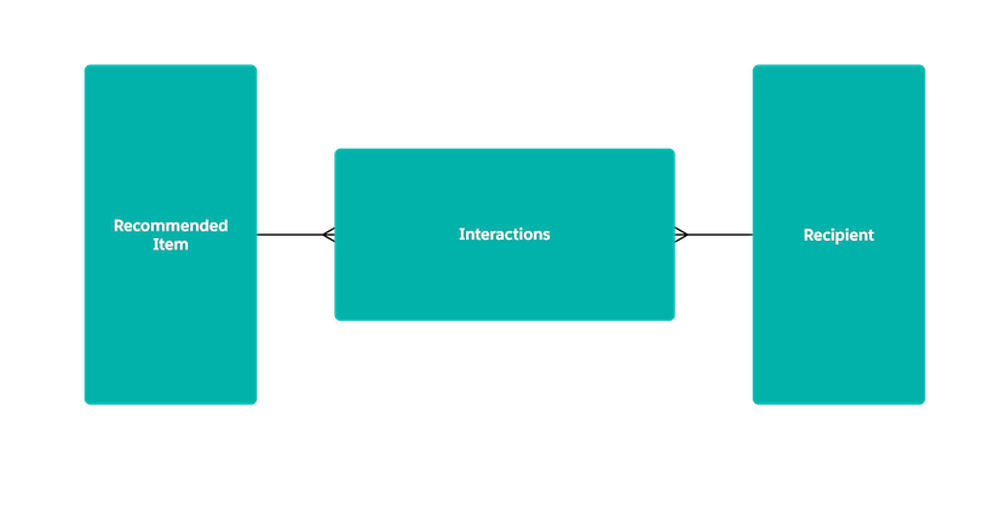
The Interactions object can have either Lookup or Master-Detail relationships with the Recipient and Recommended Items objects.

Tip Before you start creating a recommendation, go to **Setup** | **Schema Builder** and select the objects that represent **Recommended Items**, **Interactions**, and **Recipient** for your use case. Validate that the relationships look similar to the data model shown here.
## Supported Objects
Einstein Recommendation Builder works with all custom objects and supports the following standard objects.
- Account
- Asset
- Campaign
- Case
- CaseArticle
- Contact
- ContractLineItem
- Entitlement
- Lead
- LiveChatTranscript
- Opportunity
- Order
- OrderItem
- Product2
- ProductConsumed
- Quote
- QuoteLineItem
- ServiceContract
- WorkOrder
- WorkType
For examples, see [Object Type Examples.](https://help.salesforce.com/s/articleView?id=sales.custom_ai_recommendation_object_examples.htm&release=264.0.0&type=5 "You use three types of recommendation objects to build recommendations.")

Note Einstein can’t build a recommendation with a deployment status of In Development. To build a recommendation, first deploy the object.
## Limits
The Predictors tab on the recommendation scorecard shows a list of predictors for your recommendation. It shows impact information about each predictor. The scorecard shows you the top 100 predictors ranked by impact. If your recommendation has at least 100 predictors, the number displayed in the scorecard is likely to be between 100 and 200.
Make sure that your dataset has the minimum records to build a successful recommendation.
| Type of Dataset | Minimum Records | Maximum Records |
| --- | --- | --- |
| Recipient Records | 100 | N/A |
| Recommended Items Records | 10 | 300,000 |
| Positive Interaction Examples | 400 | N/A |

Note By default, Einstein Recommendation Builder includes records that were created or modified in the last 2 years.
If your recommendation objects have segments, Einstein checks to see if each segment has enough records.
## Recommendations in Sandbox
Recommendations created in production aren't copied to sandbox orgs. To use a recommendation in sandbox, copy your licenses from production, and build a new recommendation. For best results, use a recently refreshed sandbox with the minimum count of required records on each object.
# Considerations for Setting Up Email Relay
Before setting up Email Relay, review details about bounce management and spam.
### Required Editions
Available in: Salesforce Classic and Lightning Experience
Available in: Professional, Enterprise, Performance, Unlimited, and Developer Editions
- Email Relay is a good option if:
- You want to route email sent from Salesforce through your company’s mail service, such as for compliance.
- Your company owns its domain (mycompany.com).
- Salesforce send limits still apply to email relaying.
- Email Relay requires some technical expertise to set up.

Note The Salesforce Email Relay feature doesn't support sending emails directly through Microsoft 365/Exchange Online to people outside of your organization and isn't recommended.
## Bounce Management with Email Relay
To use Bounce Management, your email server must allow the relaying of email sent from Salesforce with a salesforce.com domain.
Use Email Relay and Bounce Management with care as it can cause Sender Policy Framework (SPF), a common email security standard, to fail to validate. The Salesforce bounce management feature relies on setting each outgoing email's return path, the envelope from address, to an address at bnc.salesforce.com. SPF works by extracting the domain in the return path to find a set of authorized IP addresses.
When you use Email Relay and Bounce Management, the IP address of your relay doesn’t match the authorized IP addresses for the domain (bnc.salesforce.com). This mismatch results in a SPF soft failure. It doesn’t mark your message as invalid, but it reduces your deliverability.
There are two solutions:
- Establish a DMARC policy for your domain, and use Salesforce's DKIM signing feature to sign outgoing mail. With this combination, your mail passes a DMARC check even though it doesn’t pass SPF.
- Turn off bounce management in Salesforce.
## Deliverability Settings and Email Relay
When email relay is enabled in Salesforce, companies don’t always need all the Salesforce Email Deliverability settings from Setup. Some of these settings modify the envelope-from address of emails sent from Salesforce. The header From address remains set to the sender's email address. The return-path in the headers is also modified. This change in the email headers may affect email delivery to your email server because the modified return-path includes a Variable Envelope Return Path value (VERP).
- Example of a standard return-path:
- Example of a VERP return-path:
Disable these email deliverability options when using email relay.
- Turn off Enable compliance with standard email security mechanisms.
- Consider turning off Activate Bounce Management.
After disabling the settings, outbound email sent from Salesforce to your relay server shows the envelope-from and the return-path as .
## Securing Your Email Relay
Follow these suggestions to make sure that your mail relay is secure and that you relay only the mail that you intend to.
- Include only the IPs that you want to use to relay mail for ours and any others in your relay’s allowlist.
- Only relay mail that’s sent using your mail domain.
- Enforce TLS. Optionally set it to TLS required or required and verify the hostname on the certificate.
- Have your relay verify the hostname on our certificate.
- Look for a header - X-SFDC-LK and makes rue that it has your orgid in it. Only relay mail from Salesforce if it has the proper orgid.
- Use DKIM signing in Salesforce and only relay mail if the DKIM signature passes.
- Enable SMTP authentication between Salesforce mail servers and your email relay host. Test this feature in a sandbox to make sure that it works as expected. Some email services don’t support SMTP authentication for email relays.
## Copying Sandbox with Email Relay
When you copy a sandbox, Email Relay data is copied to the sandbox org. This data includes authentication data stored on an Email Relay record, such as IsRequireAuth, Password, and Username. If you don’t want production authentication data in your sandbox copy, modify the Email Relay in Setup.
Alternatively, you can execute this sample Apex code in your Sandbox [Developer Console](https://help.salesforce.com/s/articleView?id=platform.code_dev_console_opening.htm&type=5&language=en_US) to remove authentication data from the EmailRelay records.
```java
System.debug('Executing sandbox postcopy update for EmailRelay');
// Query all EmailRelay objects with non-empty credentials and reset.
List relays = [SELECT Id FROM EmailRelay WHERE IsRequireAuth = true OR Username != null];
for (EmailRelay relay : relays) {
relay.IsRequireAuth = false;
relay.Username = null;
relay.Password = null;
}
update relays;
System.debug('Updated ' + relays.size() + ' EmailRelay objects');
```
#### See Also
- [_Knowledge Article_: Salesforce 'Email Relay' with Office 365](https://help.salesforce.com/articleView?id=000387487&type=1&mode=1&language=en_US)
- [Set Up Email Relay](https://help.salesforce.com/s/articleView?id=sales.email_relay.htm&release=264.0.0&type=5 "You can set up an email relay for Salesforce-generated email by configuring Salesforce to automatically route email through your company’s Simple Mail Transfer Protocol (SMTP) server. If your company sends email from more than one email domain, you can configure an email relay for each domain.")
# Considerations for Setting Up Enablement
If you’re a Salesforce admin, review considerations about Enablement before setting up the product for your users.
### Required Editions
Available in: Lightning Experience
Enablement is available in Developer Edition with a limited number of add-ons. It is also available with Sales, Service, or the Salesforce Platform in: Enterprise, Performance, Unlimited, and Einstein 1 Sales Edition Editions for an additional cost
Enablement Lite is available with Sales in: Enterprise, Performance, and Unlimited Editions
Partner Enablement is available in Developer Edition with a limited number of add-ons. It is also available with Sales, Service, or the Salesforce Platform in: Enterprise, Performance, and Unlimited Editions for an additional cost. A supported PRM add-on license is required.
## Trying Enablement for Free
In Sales only, you can turn on Enablement for a limited number of users for free. Experiment with Enablement programs, outcomes, milestones, measures, and exercises for sales users in Lightning Experience, with some limitations. In Enablement Settings, turn on **Try Enablement for Free**. Enablement Lite provides different permission sets and analytics compared with what you get with full Enablement. See [Trying Sales Programs for Free with Enablement Lite](https://help.salesforce.com/s/articleView?id=sales.enablement_lite.htm&release=264.0.0&type=5 "In Sales only, you can turn on Enablement for free, with a limited number of programs and users. With Enablement Lite, you can experiment with programs, outcomes, milestones, measures, and exercises for sales users in Lightning Experience. Integrate these free capabilities into your Enablement team’s definition and rollout strategy.").
## Enablement Settings and Partner Enablement Settings
If your company uses Partner Relationship Management (PRM), the Enablement section of Setup includes both Enablement Settings and Partner Enablement Settings. These steps are the same regardless of which page you’re using.
- Preparing a sandbox
- Assigning the Content Manager contributor role
- Allowing Enablement admins access to view all objects and fields when creating measures
- Checking the availability of prebuilt measures
Other steps are unique depending on whether you’re setting up Enablement Lite, full Enablement, or Partner Enablement.
## Object Security, Field Security, and Sharing Settings
When creating Enablement measures, Enablement admins can require access to objects and fields that they can’t normally access. From the Enablement Settings page in Setup, under the section Let Enablement Admins Build Measures on All Objects and Fields, turn on **Allow build access for all objects and fields**.
Sometimes Enablement admins can’t see qualifying records during a measure preview, so it appears that the measure isn’t working correctly, even though the qualifying records exist. Ask your Salesforce admin to check whether your company’s sharing settings are limiting your access.
See [Resolving Access to Enablement Measures Objects and Fields](https://help.salesforce.com/s/articleView?id=sales.enablement_measures_access.htm&release=264.0.0&type=5 "Sometimes Enablement admins can’t access objects, fields, or fields values when creating or editing measures. This scenario can happen when profiles, permission sets, or sharing settings restrict access or when the objects or fields are deleted or renamed.").
## Deleting Scheduled Jobs for Enablement Causes Issues
Don’t delete scheduled jobs for Milestone Computation or Program Status. If you need help rescheduling jobs, contact Salesforce Customer Support.
#### See Also
- [Trying Sales Programs for Free with Enablement Lite](https://help.salesforce.com/s/articleView?id=sales.enablement_lite.htm&release=264.0.0&type=5 "In Sales only, you can turn on Enablement for free, with a limited number of programs and users. With Enablement Lite, you can experiment with programs, outcomes, milestones, measures, and exercises for sales users in Lightning Experience. Integrate these free capabilities into your Enablement team’s definition and rollout strategy.")
- [Resolving Access to Enablement Measures Objects and Fields](https://help.salesforce.com/s/articleView?id=sales.enablement_measures_access.htm&release=264.0.0&type=5 "Sometimes Enablement admins can’t access objects, fields, or fields values when creating or editing measures. This scenario can happen when profiles, permission sets, or sharing settings restrict access or when the objects or fields are deleted or renamed.")
- [_Trailhead_: Control Access to Objects](https://trailhead.salesforce.com/content/learn/modules/data_security/data_security_objects)
- [_Trailhead_: Create a Role Hierarchy](https://trailhead.salesforce.com/content/learn/modules/data_security/data_security_roles)
- [Organization-Wide Sharing Defaults](https://help.salesforce.com/s/articleView?id=platform.security_sharing_owd_about.htm&language=en_US)
- [Controlling Access Using Hierarchies](https://help.salesforce.com/s/articleView?id=platform.security_controlling_access_using_hierarchies.htm&language=en_US)
# Considerations for Setting Up Inbound Lead Generation
Keep these considerations in mind when configuring Inbound Lead Generation.
### Required Editions
Available in: Lightning Experience in Enterprise, Performance, and Unlimited Editions
## Agent Configuration and Deployment
Deploying Inbound Lead Generation agents or agent changes via change sets or metadata isn't supported. Deploying agents this way can cause the newly deployed or updated agent to stop working correctly. Create and update all agents in Setup or Agentforce Builder.
## Required Fields for Record Creation
In the Capture Prospect Information step for Inbound Lead Generation, all fields under “Ask Agent to Collect” are required and can't be dependent picklist fields. The required fields can be Unified Data Directory (UDD) fields that are required for all Salesforce users or layout fields that are specific to the assigned page layout. If you have a required dependent picklist field, remove the requirement in Object Manager. If you have a required field with multi-picklists, Inbound Lead Generation can select only one value.
If the prospect object selected has a required lookup field, and the lookup is on an object that the agent user's profile doesn't have access to, the field isn't shown in the Ask Agent to Collect section because the agent user can't access that field. This scenario can cause record creation to fail because the agent can't set a value for the required lookup field. To solve this issue, consider these workarounds.
- If the prospect object selected has a UDD required field and the agent doesn't have CRUD access to the lookup object, remove the requirement from the field.
- If the object layout assigned to the agent user has a layout-required lookup field and the agent doesn't have access to the lookup object, remove the field's required status or remove the field.
## Agent Customization
Customize your Inbound Lead Generation agent in Agentforce Builder and Sales Agent Customization. If you make changes to the agent in Agentforce Builder, the agent is no longer synced with the guided setup. Use Agentforce Builder to make any future changes to the agent.
## Data Libraries
If you add a data library during guided setup, it isn't visible in the guided setup for up to 24 hours because Data 360 updates the cache only every 24 hours. Setting up a data library is optional, but the chat panel in Conversation Settings performs better with a data library.
## Messaging for In-App and Web (MIAW) Connection
After you create a channel, MIAW can take a few minutes to send you to the embedded service deployment. Instead of waiting, you can go to the Embedded Services Deployment setup page and confirm that the channel is connected to the agent. When it's connected, add the agent to your custom website.
## Meeting Scheduling and Ownership
- The agent can assign meetings only to Inbox users with a connected email account in their personal settings.
- If a user isn't listed as an option during setup, they don't have Inbox set up or a connected email account.
- If a group isn't listed as an option during setup, the group doesn't have at least one Inbox user with a connected email account or it exceeds 15 users.
- When a group is selected as the meeting owner, the agent shows the combined availability of all Inbox users in that group that have a connected email account. The agent then randomly assigns the meeting to one of the available group members.
- For group scheduling to work, give Salesforce permission to view your free/busy time on your Gmail and Outlook calendar.
## Lead Handoff Between Sales Agents
Leads created by the Inbound Lead Generation agent can be handed off to a Lead Nurturing agent when the prospect doesn't schedule a meeting with a sales rep.
Currently only lead objects can be handed off between agents. Contacts and person account records aren't supported.
When a lead assignment rule is set to assign queues to lead owners, the Inbound Lead Generation agent can't hand off to a Lead Nurture agent.
If an org reaches 200 pending handoffs, lead handoff is paused until the pending handoffs are successfully assigned to a Lead Nurture agent. An email is sent to the agent manager notifying them of each lead handoff that fails.
## Lead Qualification
The Inbound Lead Generation agent has an optional feature to qualify prospects during a web chat session. To turn on lead qualification for an agent, also turn on one-time password (OTP) authentication. When lead qualification is enabled for an agent, it can't be turned off. To stop qualifying leads, create an agent and keep the lead qualification feature turned off.
## One-Time Password Authentication (OTP)
If enabling OTP for the Inbound Lead Generation agent, a verified Organization-Wide Email Address is required. If one isn't configured, emails from the agent aren't delivered due to new Salesforce email and domain authentication requirements. View [Set Up a Default No-Reply Email Address](https://help.salesforce.com/s/articleView?id=service.email_default_no_reply.htm&language=en_US).
# Considerations for Setting Up Inbox
Consider these points when setting up Inbox.
### Required Editions
Available in: Lightning Experience
Available in: Unlimited, Einstein 1 Sales, and Agentforce 1 Sales Editions. Available for an extra cost in Professional and Enterprise Editions.
- An Inbox license unlocks Inbox features in the Outlook integration, Gmail integration, and Lightning Experience.
- To use Salesforce Inbox, users must have Microsoft Exchange or Gmail accounts.
- Turning on Inbox features in Government Cloud and Government Cloud Plus organizations can send data outside the authorization boundary. Contact your Salesforce account executive for more details.
- Inbox is supported in sandbox orgs. If you’re creating a sandbox from a production org that has Inbox enabled, you must enable Inbox in the sandbox org again. It’s disabled in the sandbox org by default.
- To set up Inbox in Outlook or Gmail, first set up the Outlook or Gmail integration base experience. Then, extend the integrations to include Inbox features, and set up Inbox users.
- If Inbox users have issues with their connected account, such as emails not tracking or available times not updating, we recommend that users delete their account and connect it again.
- When creating a Salesforce record from an Inbox client, the validation rules, triggers, and required fields associated with the object from Salesforce are applied.
- Users see page layout updates made in Salesforce after logging out and back in to Inbox, or 24 hours after the change is made, whichever happens first.
- To log email activity automatically, enable Einstein Activity Capture along with Inbox. If you don't enable Einstein Activity Capture, sales reps can still add records and log emails directly to Salesforce from their Inbox client. You can select which users have access to the feature.
- Because Inbox and Einstein Activity Capture use the same data, data is stored in Amazon Web Services (AWS), regardless of Einstein Activity Capture being on. Automatically captured emails and activities are retained for 24 months by default. You can adjust the retention period to be as short as 30 days and as long as 5 years. After the selected time frame, all data is deleted from storage and isn’t available in the Activity Time Line or dashboards. This policy doesn’t apply to emails that are manually logged from Inbox to Salesforce, which are stored as EmailMessage records in Salesforce.
- Sending or receiving emails from addresses that contain non-Latin-based characters isn’t supported in Inbox.
## Data Retention Policy for Inbox
This policy applies when the user has a connected email account. The policy applies even if that user doesn’t actively use Inbox or have access to Einstein Activity Capture. Emails that are manually logged from Inbox become Salesforce records and are subject to your Salesforce data allocations.
License or environment
Past Data Captured When a Google™ or Microsoft® Account is First
Connected
Data Storage Time Period
Inbox
180 days, up to 50,000 emails and 5,000 events
6 months
The storage amount can’t be changed.
Sandbox
180 days, up to 50,000 emails and 5,000 events
6 months
The storage amount can’t be changed.

Note An Inbox license includes Einstein Activity Capture. However, you can enable Inbox with or without the Einstein Activity Capture feature. You can also enable Einstein Activity Capture with or without Inbox.
#### See Also
- [Set Up Inbox](https://help.salesforce.com/s/articleView?id=sales.inbox_setup.htm&release=264.0.0&type=5 "To set up Salesforce Inbox enable the application for desktop, select who can use Inbox, and configure Inbox features.")
- [Einstein Activity Capture](https://help.salesforce.com/s/articleView?id=sales.einstein_sales_aac.htm&release=264.0.0&type=5 "Eliminate manual data entry and transform a list of engagements into action. Einstein Activity Capture syncs your Microsoft or Google account with Salesforce, linking email and calendar activities to the relevant contacts, leads, and opportunities. Einstein Activity Capture gives your team and AI agents the critical context needed to make their next move.")
- [Data Retention and Deletion](https://help.salesforce.com/s/articleView?id=sales.aac_data_retention.htm&release=264.0.0&type=5 "Find out what data Einstein Activity Capture stores, how much is stored, and how long it’s retained.")
- [Guidelines for Setting Up the Outlook Integration](https://help.salesforce.com/s/articleView?id=sales.app_for_outlook_setup_considerations.htm&release=264.0.0&type=5 "Before setting up the integration with Microsoft Outlook, review which features you want to enable and whether sales reps need access to different components.")
- [Guidelines for Setting Up the Gmail Integration](https://help.salesforce.com/s/articleView?id=sales.app_for_gmail_setup_considerations.htm&release=264.0.0&type=5 "Before setting up the integration with Gmail, review which features you want to enable and whether sales reps need access to different components.")
- [Email Address Internationalization (EAI)](https://help.salesforce.com/s/articleView?id=sales.emailadmin_eai.htm&release=264.0.0&type=5 "Connect with users across the globe by using non-Latin-based characters in email addresses when sending emails from Salesforce.")
- [_Security Guide_: Salesforce Email Integration Security Guide](https://resources.docs.salesforce.com/latest/latest/en-us/sfdc/pdf/sales_email_integration_security.pdf)
# Considerations for Setting Up Nearby Maps
Consider tradeoffs when you show your reps and partners nearby maps in Salesforce records and on sites. You can include nearby maps when you add a Salesforce Maps component to record and site layouts.
### Required Editions
Setting up nearby maps to appear in Salesforce records and on sites requires that you:
- Disable clickjack protection. Keep in mind that when you disable clickjack protection, you make Salesforce less secure for your company.
- Provide geocoded data. To geocode your data, plot several layers on the map or run a geocoding batch.
## Supported Objects
Nearby maps support custom objects and these standard objects.
- Account
- Contact
- Case
- Lead
- Opportunity
- Event
- Task
- Asset
- Order
- Product
- Contract
- Campaign
- Service Appointment
- Associated Location
- Address
- Location
- Work Order
- Retail Store
- Visit
- Promotion
- Retail Store KPI
- Product2
## Salesforce Mobile App
Nearby maps aren't intended for use in the Salesforce mobile app.
## Radius
You can enter a decimal radius, such as 2.5 miles. The radius must be from 1 through 3,000.
# Considerations for Setting Up Opportunity Score
Review important considerations before setting up Opportunity Scoring.
### Required Editions
Available in: Lightning Experience in Performance and Unlimited editions with Sales Cloud. In Enterprise Edition with Sales Cloud, this feature requires the Agentforce or Revenue Intelligence add-on.
## General Considerations
- Enable Data 360 in your org before you turn on this feature.
- You can't use Einstein Opportunity Scoring and Opportunity Score at the same time.
- When you turn on Opportunity Score, the system automatically disables Einstein Opportunity Scoring.
- Users with access to Pipeline Inspection or Pipeline Forecasting can view scores without needing new user permissions.
- If you clone the model and create multiple versions, all scores write back to the same opportunity object. The system simply gets the latest score.
- Turning off Opportunity Score removes the score column from list pages and the score component from opportunity record pages. Scoring-framework assets created for this feature are deleted. Data Cloud assets aren’t deleted, previously calculated scores aren’t deleted, and data streams aren’t removed.
## Data Considerations
- Opportunity data and historical opportunity data are mandatory data sources for the model.
- Train the model only after you have at least 200 closed-won and 200 closed-lost opportunities. Training can start with any volume, but if volume is below the minimum, training fails, the model stays inactive, and related assets are deleted. You’ll need enough data and must restart the setup to try again.
- When a new opportunity has minimal information, the model relies on patterns learned during training to generate a score.
## Credit Usage
- Transforms used for training consume Data 360 credits.
- Generating scores also consumes Data 360 credits, about 3,500 credits per 1 million opportunities.
# Considerations for Setting Up Organization-Wide Email Footers
Before creating organization-wide footers for users in your Salesforce org, review a few details, including information about encoding and defaults.
### Required Editions
Available in: Salesforce Classic and Lightning Experience
Available in: All Editions
- Footers are text only. HTML tags aren't rendered.
- You can choose one default footer for single email and one for mass email or list email. These defaults are used when no footer matches an outgoing email's encoding.
- The maximum size of a footer is 32 KB.
- Encoding
- In Lightning Experience, the footers are sent in the user’s encoding setting.
- In Salesforce Classic, the Email encoding field lets you determine which emails the footer appears on. For each encoding, you can have one active single email footer and one active mass email footer.
#### See Also
- [Organization-Wide Email Footers](https://help.salesforce.com/s/articleView?id=sales.emailadmin_disclaimer.htm&release=264.0.0&type=5 "Let your users save time and apply common messaging to all emails sent from Salesforce by creating organization-wide email footers. You can create a separate email footer for each encoding and choose default email footers for single emails, mass email, and list email. In Lightning Experience, email sent via Gmail or Office 365 can contain an organization-wide email footer: you choose if it’s included.")
- [Set Up Organization-Wide Email Footers](https://help.salesforce.com/s/articleView?id=sales.emailadmin_orgwide_footers_manage.htm&release=264.0.0&type=5 "With organization-wide email footers, you can apply common messaging to all emails sent from Salesforce. In just a few clicks, you can create, edit, and deactivate footers, and set default footers.")
# Considerations for Setting Up Pipeline Inspection
Review important considerations before setting up and configuring Pipeline Inspection.
### Required Editions
[ Ensuring Sales Rep Accountability with Pipeline Inspection (English Only)](https://salesforce.vidyard.com/watch/SAUiFWxho1uhuqvg3yi7MP)
## Activities and Activity Metrics

Important Starting in Summer ’25, data from Activity Metrics and Activity 360 Reporting isn’t available in Pipeline Inspection unless previously set up. This change affects the counts of activities by type in Activity Timeline and the Who’s Involved feature. If you’re already using Activity Metrics and Activity 360 Reporting data in Pipeline Inspection, you can continue to do so until these Einstein Activity Capture reporting tools are retired. See [Einstein Activity Capture Activity 360 Reporting, Activity Metrics, Activities Dashboard Upcoming Retirement](https://help.salesforce.com/s/articleView?id=004633781&type=1&language=en_US).
- To include emails from Einstein Activity Capture in the Recent Activity field on Pipeline Inspection, turn on [Sync Email as Salesforce Activity](https://help.salesforce.com/s/articleView?id=sales.eac_email_activity.htm&language=en_US).
- If you still use Activity 360 Reporting or Activity Metrics in Einstein Activity Capture, the activity counts in the side panel come from either source. If you use both, your activity metrics come from Activity 360 Reporting.
- Users of Einstein Conversation Insights and Einstein Activity Capture can add the Activity column to Pipeline Inspection only if their data is stored natively on the Salesforce Platform. For example, if Sync Email as Salesforce Activity is on.
## Einstein Features and Insights in Pipeline Inspection
- To show insights based on opportunity scores in Einstein Deal Insights, turn on Einstein Opportunity Scoring. These insights are available only in Pipeline Inspection.
- To show the Opportunity Score field, turn on Einstein Opportunity Scoring. Opportunity scores show in tiers instead of numerical values.
- To get more activity-based insights in Einstein Deal Insights, set up Einstein Activity Capture.
- To get more email-based insights in Einstein Deal Insights, set up Einstein Activity Capture and Einstein Email Insights.
- To get insights based on call recordings in Einstein Deal Insights, set up Einstein Conversation Insights.
- To get insights about service cases, use cases. Insights are shown about service cases for the opportunity’s associated accounts, contacts, or products. If you use the Product field on cases, you get more data. The Product field is available only if entitlements are set up to include products.
- To allow users to add contacts to cadences from deal insights and opportunities, add the Add to Cadence action to the opportunity record layout. Your company must have a Sales Engagement (High Velocity Sales) license, and users need Sales Engagement (High Velocity Sales) permissions.
## Filters
- Users can filter by opportunity owner, opportunity teams, or territories.
- Managers can see deals for users who have subordinate roles in the role hierarchy, where the user is either the opportunity owner or on the opportunity team.
- Users with View All Records permission on opportunities can search for any user and see opportunities owned by that user and other users with subordinate roles in the role hierarchy.
- Users must be in the same branch of the role hierarchy to see deals where reports are on the opportunity team.
## Flow Chart
- To turn on the Pipeline Inspection flow chart, you need the Revenue Intelligence add-on license.
- To access the Pipeline Inspection flow chart, users need a Revenue Intelligence permission set.
- The flow chart is the corresponding chart where you view the forecast category metrics. If you turn on the flow chart but don't turn on the forecast category metrics, your users don’t see the flow chart.
- To get data in the flow chart, turn on historical trending for opportunities.
## Waterfall Chart
- To show a waterfall chart on the Chart tab, turn on pipeline changes metrics.
- To get data in the waterfall chart, turn on historical trending for opportunities.
## Historical Trending
- Turning on Pipeline Inspection also turns on historical trending for opportunities. Five fields are set up for tracking by default: Amount, Close Date, Forecast Category, Probability, and Stage. You can set up 3 more fields for a total of 8 fields.
- The Next Step field is automatically set up in historical trending when you turn on Pipeline Inspection and uses one of the allocated opportunity fields.
- Historical trending must be on to:
- View opportunity changes and insights when you hover over the Amount, Change, Close Date, Forecast Category, and Stage fields and your custom currency and number fields. Changes are indicated for open and in progress deals only.
- Show the New, Won, Increased, Moved In, Moved Out, Decreased, and Lost metrics in the pipeline changes metrics grouping, and the corresponding lists of opportunities.
- Show the Change field on opportunities when filtering the list by the Increased or Decreased metrics in the pipeline changes metrics grouping.
- Get details of the last update when the Next Step field hasn’t been updated in 7 days or more.
- View data in the flow or waterfall charts.
- Although you can use the Expected Revenue and Quantity fields as summary fields, they aren’t available in historical trending. If you use these fields as summary fields, some metrics or charts don’t show data.
- After the Next Step field is enabled in historical trending, it takes at least 7 days to collect historical data before you see the last update details.
- If you make configuration changes in historical trending, such as adding filters, some records and fields don’t show opportunity changes and insights. For example, when you add a filter, the Next Step field doesn’t show as Trending. The opportunity amounts can also be excluded from metric calculations and charts.
- If historical trending is turned on for opportunities before you turned on Pipeline Inspection, your historical trending configuration doesn’t change.
- When you enable Historical Trending in Pipeline Inspection, 3 months of historical data plus the current month is copied to the historical trending table, and the data is stored for 12 months. If you've used opportunities more than 3 months before the month you enable historical trending, your pipeline inspection metrics show data only for the past 3 months and the current month.
- Field history for custom number or currency fields is tracked starting on the day that you enable them in historical trending.
## Pipeline Metrics and Fields
- Pipeline Inspection supports number and currency fields, both standard and custom, for summarizing pipeline metrics. Amount is the default field. Based on the fields that an admin configured, users can set or change the summary field in their pipeline views using the available fields in the List View Controls menu.
- Formula fields can’t be used as summary fields.
- You can rename the forecast category metrics that display in the Pipeline Inspection view. All the links to rename forecast category metrics are accessible from the Pipeline Inspection Setup page. If you select **single category rollups**, rename forecast categories in Object Manager. If you select **cumulative forecast rollups**, rename forecast categories directly on the Setup page. To edit what appears in other languages for both settings, go to the Pipeline Inspection Metric Configuration page in Translation Workbench.
- The Pipeline Changes metrics show a Change field in the opportunity list when users filter the view by the Increased and Decreased metrics. The Change field is excluded from the limit of 15 fields users can show in the Pipeline view.
- You can’t show custom Rich Text Area fields in the opportunity list in Pipeline Inspection.
- You can’t rename the pipeline changes metrics.
## Push Count Field
- The Push Count field is on by default in Pipeline Inspection and opportunities. To control visibility of the field, go to Opportunity Settings in Setup.
- To see the Push Count field in the Opportunity list in Pipeline Inspection, users must add it. To show it in the list, go to the List View Controls menu under the gear icon, and select **Select Fields to Display**.
- You can’t add the Push Count field to opportunity record layouts.
## Top Contacts and Users Involved in Deals
- If Sync Email as Salesforce Activity is on, the external contacts and who's involved in deal sections aren't available.
- If you still use Activity 360 Reporting in Einstein Activity Capture, the side panel shows who's involved in opportunities.
#### See Also
- [Turn On Pipeline Inspection](https://help.salesforce.com/s/articleView?id=sales.pipeline_inspection_setup_enable.htm&release=264.0.0&type=5 "To get your sales teams started managing their pipelines, turn on and configure Pipeline Inspection.")
- [Set Up Historical Trend Reporting](https://help.salesforce.com/articleView?id=reports_historical_setup.htm&language=en_US)
- [_Historical Trend Report Limits, Limitations, and Allocations_](https://help.salesforce.com/s/articleView?id=analytics.rd_reports_dashboards_limits.htm&language=en_US)
- [Configure Deal Insights in Pipeline Inspection](https://help.salesforce.com/s/articleView?id=sales.pipeline_inspection_setup_deal_insights.htm&release=264.0.0&type=5 "Einstein Deal Insights gives sales reps predictions and recommendations from opportunities, calls, emails, and cases, right in the Pipeline Inspection view. Choose which insights to show in Pipeline Inspection to help sales reps move deals forward.")
- [Show Opportunity Scores in Pipeline Inspection](https://help.salesforce.com/s/articleView?id=sales.pipeline_inspection_set_up_tiered_opportunity_scores.htm&release=264.0.0&type=5 "Set up Einstein Opportunity Scoring so your sales teams see opportunity scores in Pipeline Inspection. Scores appear in tiers rather than as numbers, and tier changes are highlighted.")
# Considerations for Setting Up Prospecting Center
If you’re a Salesforce admin, review considerations about Prospecting Center before setting up the product for your users.
### Required Editions
Available in: Lightning Experience
Available with Sales Engagement, which is included with Sales in Performance, Unlimited Editions, Agentforce 1 Edition, and available for an extra cost in Professional and Enterprise Editions. Sales Engagement is also available for an extra cost in Service and Lightning Platform.

Important Prospecting Center is scheduled for retirement in all Salesforce orgs as of April, 2026. For existing customers, Prospecting Center remains available till April 2027.
- Make sure that Unification rules for Account and Individual data model objects (DMOs) are defined.
- Prospecting Center supports up to 100 data segments defined in Salesforce Data Cloud Setup. If more than 100 segments are defined, Prospecting Center uses the first 100 in alphabetical order by segment name. You can select up to five segments at a time.
- If you have a consumption-based Data 360 plan, the usage of Prospecting Center contributes to your overall Data 360 credit usage under the Data Query service. Start your Prospecting Center configuration with Data 360 settings.
- Your org is eligible to use Prospecting Center only if you have fewer than 1 million combined accounts, contacts, leads, and opportunities.
# Considerations for Setting up Revenue Insights
When you set up Revenue Insights, you must have certain settings configured in your org, and you must have certain objects to populate the dashboards correctly.
### Required Editions
Available in: Lightning Experience
Available with Sales and Government Cloud Plus for an additional cost in: Enterprise, Performance, and Unlimited Editions

Note The Analytics Apps and Template functionality included as a part of CRM Analytics is available in English only.
## Requirements to Install Revenue Insights
- Enable data sync or direct data.
- Your org needs at least one record of each of these objects: Account, Opportunity, User, UserRole, Task, and Events.
- Role hierarchy must be set up with at least two layers. For example, you have one Sales Manager and one Sales Rep.
- Because Revenue Insights uses security predicates in its models, you must set it up from the Setup menu rather than Analytics Studio. This best practice ensures that all records in the dataset are used when training the models. Running setup from Analytics Studio can result in inaccurate or failed models

Note Even if you use Territory hierarchy, you must have set up a role hierarchy.
## Requirements to Include Forecast Data
Forecast data comes from Salesforce Forecasting, a feature of Sales. When you set up forecasting, you create and activate a forecast type.
- You must have an active forecast type that matches one of these types:
| OBJECT | MEASURE\* | DATA TYPE | HIERARCHY |
| --- | --- | --- | --- |
| Opportunity | Currency | CloseDate (standard) | Role hierarchy |
| Opportunity Splits | Currency | CloseDate (standard) | Role hierarchy |
| Opportunity | Currency | CloseDate (standard) | Territory hierarchy |

Note \*Revenue Insights supports the standard Amount field or a custom field of type Currency.
- For a role hierarchy-based forecast, go to **Setup > Forecast Hierarchy** and assign forecast managers to at least two layers.
- For a territory hierarchy-based forecast, go to **Setup > Sales > Territories > Territory Models** and assign forecast managers to at least two layers.
- Go to **Forecasts > Quota** and load at least one quota value for your forecast type.
- If your forecast type is based on the Opportunity Splits object, you must have at least one Opportunity Split record.
- The measure you use in your forecast type must have historical trending enabled on the opportunity object. If you use an opportunity split, ensure that the associated rollup field on the opportunity object is trended.
## Requirements to Include Forecast and Quota Data
Quota data comes from Salesforce Forecasting, a feature of Sales. Or, you can upload quota data from a CSV file, which allows you to use quota data stored outside of Salesforce. If you use Salesforce Forecasting, see the notes in Requirements to Add Forecast Data. To use a CSV file: Create a CSV file with your quota data and save it. Then, navigate to the **CRMA Analytics Studio** \> **quota** dataset. Edit the dataset by uploading your CSV file, which replaces the default quota dataset. To ensure the recipe runs again and pulls in your quota data, refresh the app.
## Requirements and Considerations to use Forecast Insights Dashboards
Forecast Insights dashboards are populated from Salesforce Forecasting, a feature of Sales. Forecasts must be enabled and configured to use Forecast Insights. Territory forecasts aren’t supported. Opportunity split-based forecasts aren’t supported.
## Requirements to Use a Standard Fiscal Year
If you use a standard fiscal year, enable the fiscal year configuration for CRMA recipes in the Data Prep settings. For details about how to configure fiscal year settings, For more information about Einstein Discovery specified limits, see [Data Prep Configuration](https://help.salesforce.com/s/articleView?id=analytics.bi_integrate_dataprep_dateconfiguration.htm&type=5&language=en_US).
## After Installing Revenue Insights
After installing Revenue Insights, navigate to **App Launcher > Data Manager** and follow steps to schedule data sync and recipes.

Note When you turn on CRM Analytics for your org, a default Analytics Integration User is created. This "user" accesses the data within Salesforce when the recipe is used to bring data in as datasets to CRM Analytics. It's important that this user has the proper level of permissions to access your data. For example, the integration user needs have object level access to all the objects from which data you want to pull, and field level access to the fields within those objects. If you have trouble in creating your app or can’t view data, you sometimes must modify either object or field permissions to allow the integration user to access them.
#### See Also
- [Enable and Configure Revenue Insights](https://help.salesforce.com/s/articleView?id=sales.revenue_insights_setup.htm&release=264.0.0&type=5 "Set up and configure Revenue Insights so that your sales teams can access performance dashboards and analytics.")
- [Revenue Insights Post Installation Steps](https://help.salesforce.com/s/articleView?id=sales.revenue_insights_post_install.htm&release=264.0.0&type=5 "To see your data in the dashboards after you install Revenue Insights, you must schedule your app to refresh. You can add Revenue Insights to your navigation bar or edit your permission settings depending on configuration settings. Lastly, you can add additional filters to your panels.")
# Considerations for Setting Up Sales Engagement
Before setting up Sales Engagement, consider these requirements, limitations, and nuances for each feature.
### Required Editions
Available in: Lightning Experience
Available with Sales Engagement, which is included with Sales in Performance, Einstein 1, and Unlimited Editions, and available for an extra cost in Professional and Enterprise Editions. Sales Engagement is also available for an extra cost in Service and Lightning Platform.
- **[General Considerations for Sales Engagement](https://help.salesforce.com/s/articleView?id=sales.hvs_considerations_general.htm&release=264.0.0&type=5)**
Learn about general considerations for setting up Sales Engagement.
- **[Einstein Activity Capture Considerations for Sales Engagement](https://help.salesforce.com/s/articleView?id=sales.hvs_considerations_eac.htm&release=264.0.0&type=5)**
Learn about general considerations for setting up Sales Engagement.
- **[Email Considerations for Sales Engagement](https://help.salesforce.com/s/articleView?id=sales.hvs_considerations_email.htm&release=264.0.0&type=5)**
Learn about email considerations for setting up Sales Engagement.
- **[Engagement and Alerts Considerations for Sales Engagement](https://help.salesforce.com/s/articleView?id=sales.hvs_considerations_engagement_alerts.htm&release=264.0.0&type=5)**
Learn about engagement and alerts considerations for setting up Sales Engagement.
- **[Work Queue Considerations in Sales Engagement](https://help.salesforce.com/s/articleView?id=sales.hvs_considerations_work_queue.htm&release=264.0.0&type=5)**
Learn about considerations for using the Work Queue in Sales Engagement.
- **[Cadence Considerations for Sales Engagement](https://help.salesforce.com/s/articleView?id=sales.hvs_considerations_sales_cadences.htm&release=264.0.0&type=5)**
Learn about considerations for using cadences in Sales Engagement.
- **[Lead Scoring Considerations for Sales Engagement](https://help.salesforce.com/s/articleView?id=sales.hvs_considerations_lead_scoring.htm&release=264.0.0&type=5)**
Learn about considerations for using lead scoring in Sales Engagement.
- **[Phone Integration Considerations for Sales Engagement](https://help.salesforce.com/s/articleView?id=sales.hvs_considerations_phone_integration.htm&release=264.0.0&type=5)**
Learn about considerations for each phone integration option for Sales Engagement.
- **[Sales Dialer Considerations for Sales Engagement](https://help.salesforce.com/s/articleView?id=sales.hvs_considerations_sales_dialer.htm&release=264.0.0&type=5)**
Learn about considerations for using Sales Dialer with Sales Engagement.
- **[Einstein Conversation Insights Considerations for Sales Engagement](https://help.salesforce.com/s/articleView?id=sales.hvs_considerations_eci.htm&release=264.0.0&type=5)**
Learn about considerations for using Einstein Conversation Insights with Sales Engagement.
- **[Considerations for Storing Sales Engagement Data in Data 360](https://help.salesforce.com/s/articleView?id=sales.hvs_considerations_sales_engagements_data_360.htm&release=264.0.0&type=5)**
Store Sales Engagement data in Data 360 to retain a longer-term history of email activity and engagement data for reporting and cross-cloud use cases. For example, create reports on historical email opens or personalize marketing and sales campaigns based on engagement with sales emails.
#### See Also
- [Mass Email Limitations](https://help.salesforce.com/s/articleView?id=sales.limitations_email_mass.htm&release=264.0.0&type=5 "Review these limitations that apply to sending mass emails.")
# Considerations for Setting Up Sales Methodology
Review important considerations before setting up a sales methodology.
### Required Editions
## General Considerations
- Decide which methodology to use. You can activate only one methodology at a time, so choose the one that fits your business needs. You can customize a pre-built methodology template, or create your own.
- Review your existing opportunity data. Activating the feature adds a methodology and its criteria to all opportunities in Pipeline Inspection.
- Align your sales team on scoring standards. Sales reps must understand how to score based on the criteria (low, medium, high) before you turn it on.
- If you turn on Pipeline Management to get sales methodology suggestions, [set the Sales Management Agent User as the Default Workflow User](https://help.salesforce.com/s/articleView?id=platform.workflow_defaultuser.htm&language=en_US) so that the associated flows can run correctly.
# Considerations for Setting Up Sales Workspace
Keep these considerations in mind before setting up Sales Workspace.
### Required Editions
Available in: Lightning Experience in Enterprise, Unlimited, and Agentforce 1 Sales editions with the Sales Foundation add-on.
## General Considerations
- Sales Workspace isn’t turned on by default and requires a Salesforce admin to complete a setup process.
- When you turn on Sales Workspace, it becomes the new default home page for assigned users in the Sales, Sales Console, and Sales Engagement apps. Sales Workspace replaces the traditional Seller Home experience.
- Recommended features, such as the Agentforce Lead Nurturing and Agentforce Pipeline Management, are optional. You must configure them separately.
- If you use Agentforce Pipeline Management, deactivating your Sales Management overnight isn’t recommended. Sales Workspace feed suggestions refresh overnight, and if the agent isn’t active during the refresh, event insights, such as suggestions to prepare for meetings, are lost.
- Each custom signal supports a one-to-one relationship between a single recommendation and a single feed item. Grouped signals for multiple records processed simultaneously aren’t supported.
## Usage Considerations
Sales Workspace is powered by Data 360. Frequent updates to records can increase your org’s costs for Data 360 credit consumption when you use this feature. See [Data Cloud Billable Usage Types](https://help.salesforce.com/s/articleView?id=data.c360_a_data_usage_types.htm&language=en_US).
To better understand cost impacts, work with your account executive before turning on Sales Workspace.
## Limitations
Sales Workspace isn’t supported if Advanced Currency Management (ACM) is turned on.
# Considerations for Setting Up Send through Salesforce
Review a few details before setting up Send through Salesforce, including information about bounce management and spam.
### Required Editions
Available in: Salesforce Classic and Lightning Experience
Available in: All editions
- Send through Salesforce is a good option if:
- You need bounce management.
- You don’t want to integrate Salesforce with an external email service.
- You aren’t using Gmail or Microsoft 365 with Lightning Experience.
- To send mail through Salesforce, you must first verify that you own the sending email address. This requirement applies in production and sandboxes. New users verify their email when verifying their Salesforce account. Salesforce uses a variety of techniques to verify other email addresses, such as the email address for a user account created before account verification was required. If Salesforce is unable to confirm that an email address is verified, the user can’t send email through Salesforce until that email address’s verification is completed.

Note Unverified users sometimes still can send an email depending on when their account was created. If the account was created 4 to 5 years ago and the user logged in recently, sending an email as an unverified user is possible.
- If email authentication isn’t configured properly using these recommendations, emails are flagged as spam by certain email providers.
- If your company doesn’t own the domain or has bounce management enabled, your sent emails sometimes can be identified as sent through Salesforce. The emails can appear as though they’re coming from you.
- If the Deliverability settings, Enable compliance with standard email security mechanisms or Activate bounce management, are enabled, Gmail recipients see [extra information](https://support.google.com/mail/answer/1311182?hl=en)
- If Enable Sender ID compliance is enabled, Outlook and email clients supporting Sender ID don’t see Sent on behalf of \[sender name\].
- If your company owns a domain, we recommend that you set up email authentication methods such as Sender Policy Framework (SPF) or DomainKeys Identified Mail (DKIM) in your DNS to ensure better delivery and acceptance by recipients.
#### See Also
- [Mass Email Limitations](https://help.salesforce.com/s/articleView?id=sales.limitations_email_mass.htm&release=264.0.0&type=5 "Review these limitations that apply to sending mass emails.")
- [Send Email Through Email Relay](https://help.salesforce.com/s/articleView?id=sales.emailadmin_email_relay_overview.htm&release=264.0.0&type=5 "Use your company’s email server to send email from Salesforce. Storing email locally helps you meet compliance goals, and your users can see the emails they’ve sent from Salesforce in their company email Sent Items folder. Also, routing all email through your own email servers prevents the appearance of email spoofing by Salesforce. Email spoofing is the forging of email headers to make messages appear as if they came from someone other than the original sender.")
- [Domain-based Message Authentication, Reporting, and Conformance (DMARC)](https://help.salesforce.com/s/articleView?id=xcloud.emailadmin_dmarc.htm&type=5&language=en_US)
# Considerations for Setting Up the Integration with Teams
Before setting up the Salesforce integration with Teams, review these considerations about the application.
### Required Editions
Available in: Lightning Experience
Available with Sales Cloud and Service Cloud in: Enterprise, Performance, and Unlimited Editions
Familiarity with certain characteristics of the integration process can set you up for success.
- The integration features are available in an app in Teams called Salesforce. The Salesforce app is accessible only from Teams apps. There isn’t a separate install file for the integration.
- The integration requires Salesforce setup and Teams setup to ensure that users can access to the Salesforce app in Teams.
- When you turn on the integration, this setup happens automatically. Both are required for the integration.
- A site name https://\*.scrt.sfdc.sh is added in the Cross-Origin Resource Sharing (CORS) list in Salesforce. This site is specific to your org and is required to create the preview cards available in Teams when a Salesforce record is mentioned.
- The Salesforce integration with Microsoft Teams app is added in the Connected Apps OAuth list in Salesforce setup. The integration honors OAuth settings such as IP restrictions and session durations configured in the policies for the connected app. Learn more about connected apps and their policies in Salesforce Help.
- When a Teams user mentions a record in Teams, the component that displays the record uses that user’s Salesforce language and locale settings. Other users see the mentioned record in the language of the person who mentioned the record.
- The integration doesn’t support custom compact layouts for the Account, Contact, Lead, Opportunity, and Case objects. Use the default, provided compact layout for these objects instead.
- The Teams integration runs on SCRT2, which is hosted on Hyperforce. Hyperforce documentation applies as listed on the Trust and Compliance page.
#### See Also
- [Configure the Integration with Microsoft Teams in Salesforce](https://help.salesforce.com/s/articleView?id=sales.teams_int_setup_configure_in_salesforce.htm&release=264.0.0&type=5 "Turn on the integration with Teams in Salesforce. Then users with the User for Teams Integration permission can access Salesforce data and mention Salesforce records in their Teams conversations.")
- [Provision the Integration in Microsoft Teams](https://help.salesforce.com/s/articleView?id=sales.teams_int_setup_provision_in_teams.htm&release=264.0.0&type=5 "After the setup is complete in Salesforce, work with your Microsoft Teams administrator to ensure that the Teams environment is set up correctly. The Salesforce app provides the integration features within the Teams interfaces. The app permission policies maintained in the Microsoft Teams admin center determine which apps users can install. Those policies also determine which apps users can pin to the Teams app bar in their desktop and mobile clients can pin within their teams.")
- [Trust and Compliance Documentation](https://trust.salesforce.com/en/trust-and-compliance-documentation/)
# Considerations for Setting Up the Outlook or Gmail Integration
Before setting up the Outlook or Gmail integration, review limitations and other information about how the integrations work.
### Required Editions
Available with Sales, Service, and Lightning Platform in: Essentials, Group, Professional, Enterprise, Performance, Unlimited, and Developer Editions
## General
- Setting up the Outlook or Gmail integration requires administrative access to Salesforce, and in some scenarios, to your email server. Work with your IT professional for server configuration, and review which role is required for each step in the process.
- The Outlook and Gmail integration include the base integration experience, and Inbox features are unlocked when users are set up to use Inbox.
- When Salesforce is set up with single sign-on (SSO), reps are asked to log in to Salesforce the first time they access the integration. In typical My Domain and SSO configurations, reps can choose the Custom Domain option on the Salesforce login page and enter your My Domain login URL. After sales reps navigate to your domain, they’re authenticated in Salesforce and working in the integration.
- When logging in to the Outlook integration with custom login flows enabled, users only see the flow during the initial login session and when they manually log out. If a session expires due to inactivity, the custom login flow won’t appear.
- For Outlook integrations created before Spring ‘25, review the Knowledge Article [Microsoft Updating Salesforce Outlook Integration 2024](https://help.salesforce.com/s/articleView?id=002723592&type=1&language=en_US).
## Outlook and Gmail Integration Features
- The Outlook and Gmail integrations use email application panes to define the layout of components in the integration side panel. The default pane gets you up and running quickly. To include, exclude, or reorder components in the email application pane, you can create custom email application panes and assign them to user profiles.
- Users can view and edit records related to an email or an event. Review these considerations for viewing and editing records in the Outlook and Gmail integration.
- You can’t change the order or change the tabs that appear in the record detail.
- The fields available in the Details tab are shown in the order they’re defined in the page layout for that user. Any Lightning components added to the page layout aren’t shown in the integration.
- If the user has access to Chatter, the record detail includes a Chatter tab with the record’s Chatter feed.
- If a task can be related and the user has access to the activity timeline, the record detail also includes an Activity tab.
- To automatically log emails to related Salesforce records, set up Einstein Activity Capture. Users who are configured in Einstein Activity Capture to capture emails see sharing options instead of manual logging options in the integration.
#### See Also
- [Outlook and Gmail Integration and Inbox Email Productivity Features](https://help.salesforce.com/s/articleView?id=sales.email_int_features.htm&release=264.0.0&type=5 "Email integrations provide sales reps with Salesforce data directly in Microsoft Outlook and Gmail. Review the features available in each environment.")
- [Extend the Outlook and Gmail Integrations with Inbox](https://help.salesforce.com/s/articleView?id=sales.email_int_setup_inbox_parent.htm&release=264.0.0&type=5 "Add Inbox productivity features to the integration with Microsoft® Outlook® and with Gmail to provide your sales reps with more tools. Features include productivity enhancers such as availability scheduling for meetings, tracking when emails are opened, and scheduling when to send emails. Add one or all the productivity features for your sales reps.")
- [How Einstein Activity Capture Works](https://help.salesforce.com/s/articleView?id=sales.aac_how_it_works.htm&release=264.0.0&type=5 "Einstein Activity Capture captures or syncs email and event data, including participants, from the connected Microsoft or Google account and stores it in Salesforce. Understand at a high-level the relationship between your Microsoft or Google account data and how it connects to and powers your Salesforce data and features.")
- [Emails and Einstein Activity Capture](https://help.salesforce.com/s/articleView?id=sales.aac_email_parent.htm&release=264.0.0&type=5 "Discover how Einstein Activity Capture handles your email data after it’s captured.")
- [_Knowledge Article:_ Salesforce Outlook Integration Error When Custom Login Flow is Enabled (Outlook login errors)](https://help.salesforce.com/s/articleView?id=000388733&type=1&language=en_US)
# Considerations for Setting Up the Salesforce Spiff Commission Estimator
Setting up the Salesforce Spiff Commission Estimator for quotes and opportunities includes several configuration steps and decisions. Before you get started, review some important considerations.
### Required Editions
Available in: both Salesforce Classic (not available in all orgs) and Lightning Experience
Available in: Enterprise, Unlimited, and Developer Editions
Available for an additional cost in: Professional Edition with Web Services API Enabled
## Environments
The Spiff Commission Estimator is compatible with any Salesforce org that you connect in Spiff, including Salesforce sandboxes.
## Users
Decide how many users can access the estimator, and which users you expect to use it the most. Individual contributors have the biggest impact on their sales deals and they have the most pay variability based on the details of each deal.
## Estimate Basis
As you set up and test, remember that estimates are shown based on each individual that's viewing the opportunity or quote. Estimates don't show who owns the opportunity.
## Object for Commission Estimates
Decide where you want users to see their commission estimates.
Object
Considerations
Opportunity
Use similar logic and rules as the commission calculations in Spiff. Because you're already syncing opportunities in Spiff, showing commission estimates on the Opportunity object requires minimal extra configuration.
To estimate commissions using Opportunity data only, instead of including Opportunity Product data, create a field set in Salesforce for storing only the Opportunity fields that are enabled in Designer.
Quote
Complete extra steps for updating rules that are normally used on the Opportunity object.
Spiff doesn't always sync quotes automatically, so you must enable automatic sync.
Reps can create multiple quotes for an opportunity, so they can change deal details and compare commission estimates without changing the opportunity.
Both Opportunity and Quote
Give your reps the most flexibility, depending on the plan.
## Components or Payout Rules
Decide which components or payout rules you want to use the estimator for.
If a commission payout rule is based on an individual opportunity or quote and its related line items, that rule is a good candidate for the estimator. The estimator doesn’t support payout rules that measure activity (leads) or counts of opportunities, and anything from external systems.
Different plans can have multiple payout rules for estimation. You can share payout rules with other plans, but the rules used with the estimator can differ between plans. Therefore, before you begin configuration in Spiff, note which payout rules require estimates for each plan.
## Reusing Payout Rules
If you configure Spiff Commission Estimator for the same object that your primary commission payout rules are based on, you can reuse those payout rules with the estimator. Turn on **Exclude from Estimator** in the data filter.
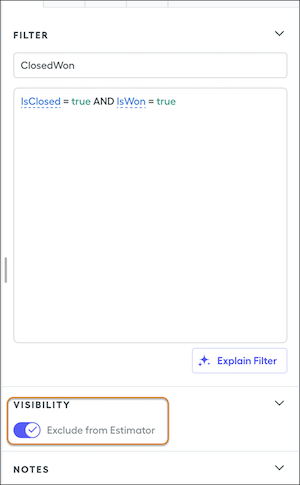
For example, consider the default ClosedWon, InPeriod, and InQuarter filters. If one of these filters has this option turned on and the Spiff Commission Estimator uses the filter, Spiff ignores the conditions and falls back to default commission rules for generating the commission estimate.
When you don't want to include a What-If? rule on rep commission statements or if you configure the estimator for a different object than the regular commission payout rule uses, create a separate rule for the estimator. If you don't want to show a What-If? rule on a statement, you can use a ghost rule instead.
#### See Also
- [Add a Salesforce Connector](https://help.salesforce.com/s/articleView?id=sales.spiff_connector_add.htm&release=264.0.0&type=5 "To sync data from Salesforce with Salesforce Spiff, add a connector. You can set up connectors for up to five Salesforce orgs.")
- [Considerations for Ghost Rules](https://help.salesforce.com/s/articleView?id=sales.spiff_rules_ghost.htm&release=264.0.0&type=5 "Ghost rules are payout rules where the output doesn’t contribute to a rep's total commission amount for a statement period. Ghost rules are helpful in situations where you want to start building or testing rules for the next quarter or year, or when you want to perform mid-year plan changes.")
- [Create a What-If? Rule](https://help.salesforce.com/s/articleView?id=sales.spiff_rules_what_if.htm&release=264.0.0&type=5 "Motivate reps to close deals with What-If? rules. Show reps potential commission earnings when they meet the criteria you define in your data filter. For example, let reps see the commission they can earn if they close all pipeline deals for the period.")
# Considerations for Setting Up WDC
Plan out your implementation before enabling WDC in your organization.
### Required Editions
Available in: Salesforce Classic
WDC is available for existing WDC customers in Professional
Edition, Enterprise Edition, Performance Edition, Unlimited
Edition, and Developer Edition.

Important Starting in Spring ’22, WDC isn’t available to new Salesforce customers. For existing customers, WDC features and records from Badges, Skills, and Thanks aren’t affected and will remain available in the application beyond Spring ’22. WDC Goals, Coaching, Feedback, Performance, and Rewards features won’t appear in the application anymore, and records created previously will no longer be accessible.

Note On May 1, 2020, we rebranded this suite. It's now called WDC.
User Permissions
Needed
To enable WDC features:
Customize Application
To assign permission sets:
Assign Permission Sets
To assign profiles:
Manage Users
To set field-level security:
Manage Profiles and Permission Sets
AND
Customize Application
Before beginning the implementation process, Salesforce must enable WDC permissions and provision WDC licenses for your organization. Contact Salesforce to coordinate this with you. Meanwhile, check if your organization has available WDC licenses: in Setup, enter Company Information in the Quick Find box, then select **Company Information**, and check for WDC User under **Feature Licenses**.

Note We recommend that you enable Chatter regardless of the edition your org is using. Many WDC features use the Chatter feed to notify and interact with users. To confirm that Chatter is enabled, from Setup, enter Chatter Settings in the Quick Find box, then select **Chatter Settings**, and verify that Chatter Settings is enabled.
When using WDC features in the mobile app, you can’t create custom badges.
#### See Also
- [Assign a WDC Administrator](https://help.salesforce.com/s/articleView?id=sales.workcom_impl_assign_admin.htm&release=264.0.0&type=5 "Before enabling WDC in your organization, you must assign a WDC user feature license to the person who will be the system administrator and responsible for setting up WDC for your organization.")
# Considerations for Setting Up Workato Integrations with Salesforce Spiff
Review important considerations before you set up third-party data integrations with Workato for Salesforce Spiff.
### Required Editions
Available in: both Salesforce Classic (not available in all orgs) and Lightning Experience
Available in: Enterprise, Unlimited, and Developer Editions
Available for an additional cost in: Professional Edition with Web Services API Enabled
## Limitations
- You can’t update translator fields after you’ve started syncing data with a webhook mapping.
- The setup steps don’t cover how to set up fields for any specific data connector because each third-party connector’s settings are different.
- Salesforce Customer Support can’t help with specific error resolution, setup, or configuration because Workato is third-party software that's independent from Salesforce Spiff.
- To connect Salesforce Spiff to another application through Workato, purchase a Salesforce Spiff - Additional Connector subscription. This subscription is a separate purchase from your Spiff seats. Each subscription entitles you to one connection between Spiff and another application. Salesforce doesn't continuously monitor connector usage, but reserves the right to review your usage at any time. If you use more connectors than your contract includes, Salesforce can increase your costs or restrict your access.
- Each subscription includes two connectors: one for the Spiff side of the connection and one for the other application. You are responsible for procuring, implementing, and maintaining any application to which Workato connects. Salesforce does not guarantee the viability or availability of any specific connection. See the [Workato Integration Library](https://www.workato.com/integrations) for more information.
- Each Salesforce Spiff - Additional Connector subscription includes a limit of 3 million Workato tasks per annum, on a pro-rated basis. A task is a unit of work that Workato uses to measure compute, such as transforming, sending, or retrieving a record. If you use more than 3 million tasks per annum per subscription, Workato access may be restricted if you continue to exceed the limit after receiving notice from Salesforce. See [Tasks](https://docs.workato.com/en/recipes/tasks.html) in the Workato docs for more information.
## Environment
Before you get started, work with your stakeholders to create a strategy for importing data into Spiff.
After you purchase a specific third-party connector, an admin user can access Workato and set up the data source for the connector.
Users log in to Workato with their Spiff credentials. To give a user access to Workato, go to Users from the Admin menu. Click the user’s name to open the user profile and turn on the Workato option.
## Normalized Tables
To sync data with an external data source, map Spiff basic tables to normalized tables from the data source. Basic tables calculate generic commissions, and normalization helps you organize data into a consistent format and eliminate redundancy.
These normalized tables are the most common in Salesforce Spiff.
- Users, which lists reps assigned to plans for calculating commissions
- Accounts, which lists payees
- Deals, which lists sales closed by a rep for an account, usually with products
- Products, which lists products sold
- Line\_items, which describes how products sold in deals
- ConversionRate, which provides default currency conversion and automatically normalizes data when you manually upload an object
The Users table is the most important normalized table. Spiff has multiple prebuilt relationships and behaviors for the Users data table and allows only one normalized Users table per instance. The Users table must include a field for name, role, email, and external\_id.
Normalized tables populate related normalized records in data sources. For example, normalize mappings for the Deals or Opportunities tables so you can easily reference related accounts or users in data sources.
For line-by-line rules, normalized records also include a link from the statement to the record in the data source.
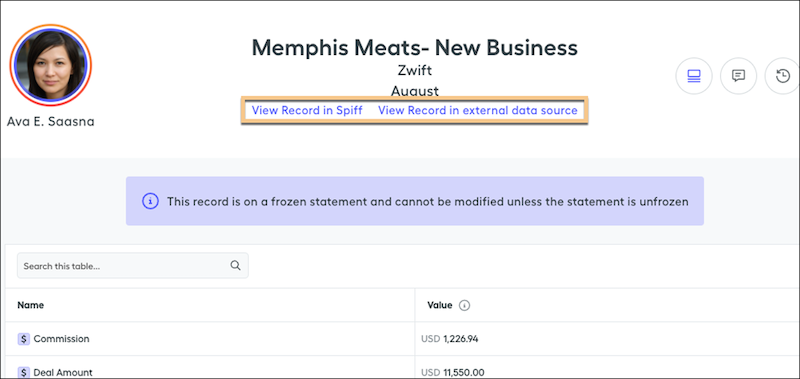
# Considerations for Sharing and Accessing Contacts
Here’s some things to know about sharing and accessing contact records.
### Required Editions
Available in: Salesforce Classic
Available in: Professional, Enterprise, Performance, Unlimited, and Developer Editions
- You can’t restrict access to contacts beyond your organization’s default access levels.
- You need at least read access to the contacts and leads that you invite to an event. You need at least “Add Events” on a resource to invite it to an event.
- A contact that isn’t linked to an account is always private, regardless of your organization’s sharing model. Only the owner of the contact and administrators can view it. Sharing rules and workflow rules don’t apply to private contacts. If your organization uses divisions, private contacts always belong to the global division.
- If a recipient doesn’t have access to the account, you can’t share the contact unless you also have permission to share the account.
- If your organization-wide default for contacts is set to Controlled by Parent, the Contact Access options aren’t available when you share related records such as accounts. Instead, all access to contacts is determined by the user’s access to the contact’s account.
- If your organization-wide default for contacts is Controlled by Parent and your organization-wide default for accounts is Private, you can’t view contacts for accounts that you don’t own, even if you have the View All Records permission on the account object. However, if you own a contact on an account, you can view other contacts on the same account. (Access to a parent account gives you access to the associated child records.)
#### See Also
- [Share Contacts](https://help.salesforce.com/s/articleView?id=sales.contacts_sharing.htm&release=264.0.0&type=5 "Share contacts with other users to make it easier to collaborate within your sales team.")
# Considerations for Showing Opportunity Fields in Pipeline Forecasts
When a rep selects a forecast in the forecasts grid, a list of opportunities that roll up to that forecast appears below the forecast summary. Refer to our guidelines when you’re choosing the fields to show as columns in the opportunity list.
### Required Editions
Available in: Lightning Experience
Available in: Professional, Performance, and Developer Editions and in Enterprise and Unlimited Editions with Sales
- Select up to 15 standard and custom fields to appear as columns in the opportunity list for each enabled forecast type. Include the Opportunity Name field, which is required. We also recommend adding Forecast Category to the list.
- Although you can add a Text Area (Rich) field to the view in forecast settings, the field type isn’t supported in the opportunity list in Lightning Experience.
- Your sales team sees the selected fields based on their field-level security settings. If you add an opportunity field to the opportunity list, and the field isn’t visible to forecasts users, check the field-level security setting for the specific user profile and field. If the forecast is based on that field, the Forecasted Amount column shows the value of the field or the value of the field’s split that contributes to the forecast, regardless of field-level security.
- When selecting fields, [consider the fields that are used in the forecast rollup](https://help.salesforce.com/s/articleView?id=sales.forecasts3_forecast_types_overview.htm&release=264.0.0&type=5 "Forecast types represent your sales teams’ projected sales from a different perspective. Each type can be set up to use different data, measures, dates, and filters to gather the forecast information that is most relevant to your business."). Depending on whether your forecast type uses revenue, quantity, or a custom measure, consider adding the Amount, Quantity, or custom field to the list.
- If you’re forecasting on the Opportunity or Opportunity Product object, the Amount field appears by default. If you’re forecasting on the Opportunity Product or Line Item Schedule object, we recommend adding the Forecasted Amount field. If you’re forecasting on the Opportunity Split object, the Forecasted Amount and Split % fields appear by default. You can change the selected fields for each forecast type even after the forecast type has been activated. Depending on whether your forecast type uses the revenue or quantity measurement, consider adding Forecasted Amount, Amount, or Quantity to the opportunity list.
# Considerations for Statement Period Management
Create, rename, and delete statement periods, and manage automatic freeze and generation of statement periods.
### Required Editions
Available in: both Salesforce Classic (not available in all orgs) and Lightning Experience
Available in: Enterprise, Unlimited, and Developer Editions
Available for an additional cost in: Professional Edition with Web Services API Enabled
To access these options, go to Settings From the Admin menu and select **Statement Period Management**.
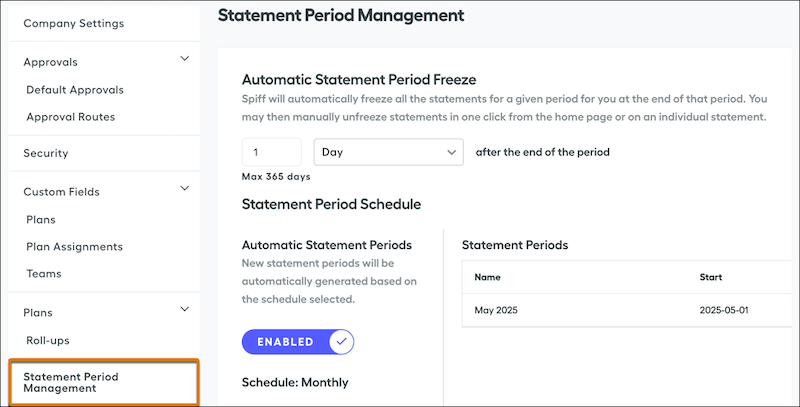
## Automatic Statement Period Freeze
Manage the performance of statement recalculations when data is synced. Turn on **Automatic Statement Period Freeze**, which helps ensure that only current period statements are recalculated during a resync. You can unfreeze statements later from the Comissions page. See [Freezing and Unfreezing Statements](https://help.salesforce.com/s/articleView?id=sales.spiff_statements_freeze.htm&release=264.0.0&type=5 "Freezing statements locks the commission statements and prevents future recalculations from affecting the shown amount or fields. You can freeze individual statements, bulk-freeze multiple statements, and set up automatic statement freezing.").
If this option is turned off and you don't freeze statements manually, a resync of data can change statements. Any unfrozen commission statements can change for all users and all periods. Depending on your number of reps and unfrozen statements, the resync can take a long time.
## Automatic Statement Periods
Statements are generated automatically, and you can specify whether statement periods are also generated automatically.
To provide a smoother, more efficient experience for reps when they view statements, turn on **Automatic Statement Periods**. When this option is turned on, Spiff generates statement periods based on a schedule that you specify, such as weekly or monthly.
When this option is turned off, you must create each statement period manually. Reps can’t view statements for any periods that haven’t been added manually.
## Impact of Changing a Statement Period Schedule
If you change a statement period schedule, you must delete all statement periods. To delete a statement period, click the trash icon. Deleting a statement period also deletes all previous statements, including frozen statements, and any attached data such as adjustments, draws, and tickets. You can’t undo the deletion of statement periods. After you delete all statement periods, you can specify a new schedule.

Note Deleting a statement period doesn't prevent it from being recreated if, upon recalculation, there are active plan assignments within that timeframe and the Automatic Statement Periods option is turned on.
All changes to a statement period are recorded in the System Activity Log.
# Considerations for Storing Sales Engagement Data in Data 360
Store Sales Engagement data in Data 360 to retain a longer-term history of email activity and engagement data for reporting and cross-cloud use cases. For example, create reports on historical email opens or personalize marketing and sales campaigns based on engagement with sales emails.
### Required Editions
Available in: Lightning Experience
Available with Sales Engagement, which is included with Sales in Performance, Einstein 1, and Unlimited Editions, and available for an extra cost in Professional and Enterprise Editions. Sales Engagement is also available for an extra cost in Service and Lightning Platform.
Before you set up the Data 360 connection, review these considerations.
- Storing and processing Sales Engagement data in Data 360 consumes Data 360 credits. Review Data 360 billable usage types to understand how ingestion, storage, and processing affect credit consumption.
- The Data 360 integration doesn't provide real-time synchronization. It can take some time for the engagement data to be ingested and become available.
- For workflows that require immediate action, such as cadence automations triggered by an email open or link click, Sales Engagement continues to support the applicable near-real-time product experiences.
- Sales Engagement stores recent engagement data to support activity timelines, cadence steps, automations, and engagement metrics. Data 360 stores the full history of raw engagement data from the time that you turn on the integration.
- Sales Engagement doesn't automatically sync every related Salesforce object to Data 360. Raw engagement data includes information about related Salesforce records, such as leads, contacts, cadences, and email messages.
- Changes to Sales Engagement data are reflected in related Salesforce records. For example:
- When a lead converts to a contact, historical engagement data is associated with the contact.
- When leads or contacts merge, we move engagement data associated with the duplicate record to the primary record.
- When you delete customer data in response to privacy requests, separately delete the associated engagement data from Data 360.
#### See Also
- [Configure Data 360 Storage for Sales Email Engagement Data](https://help.salesforce.com/s/articleView?id=sales.hvs_setup_configure_data_cloud_storage_engagement_data.htm&release=264.0.0&type=5)
# Considerations for Supporting Salesforce Spiff Commission Estimator Users
After you set up the Salesforce Spiff Commission Estimator, review issues or questions that can occur as users begin estimating commissions.
### Required Editions
Available in: both Salesforce Classic (not available in all orgs) and Lightning Experience
Available in: Enterprise, Unlimited, and Developer Editions
Available for an additional cost in: Professional Edition with Web Services API Enabled
## Environments
The Spiff Commission Estimator is compatible with any Salesforce org that you connect in Spiff, including Salesforce sandboxes.
## Data Access
Custom Salesforce objects store the results of estimated opportunities and quotes for individual users. By default, Salesforce admins and Spiff Commission Estimator administrators have access to the data stored in the custom objects.
## Commission Statements
- If you have access to the Spiff Commission Estimator in Salesforce and your Spiff account has active statements, you can see commission estimates.
- If a Salesforce admin has access to the Commission Estimator object and logs in as another user, they see commission statements and other data available to the logged-in user.
## Commission Breakdown
When a rep estimates their commission, the Commission Breakdown option in the estimate window opens a detailed view of payout rules, including What-If? rules. Make sure that you understand which quotes appear in What-If? rule obligation records.
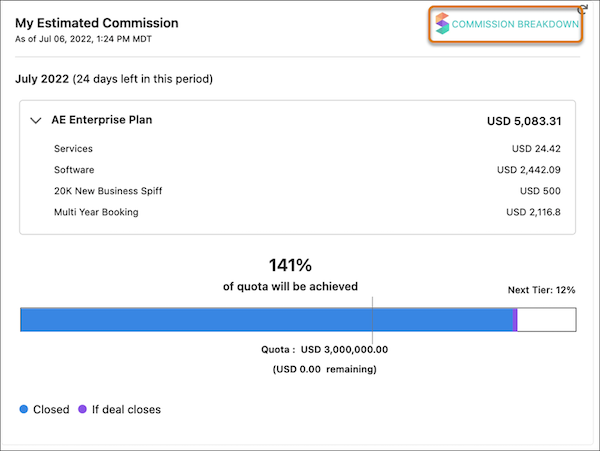
Data syncs once per day, usually at night. After the sync is complete, the new Quote and Quote Line data is available in Spiff for use in payout rules that use quotes as obligations. Statements are recalculated after the nightly sync.
Only primary quotes sync to Spiff, so not all quotes created in Salesforce are available in Spiff.
When reps view individual obligations in Commission Breakdown, a quote doesn't appear if it isn’t the primary quote or if it was created before the sync. A missing quote doesn't mean Spiff can't provide an estimate.
## Error Troubleshooting
Sometimes, Spiff Commission Estimator references a particular field in an error message. To resolve the error, remove the field from the field set in Salesforce, deprecate the field in Spiff, and turn off syncing for the field from Manage Objects & Fields in the Data tab in Designer. Check whether the field has any other dependencies, such as calculations or rules that reference it, and remove those references.
#### See Also
- [Add a Salesforce Connector](https://help.salesforce.com/s/articleView?id=sales.spiff_connector_add.htm&release=264.0.0&type=5 "To sync data from Salesforce with Salesforce Spiff, add a connector. You can set up connectors for up to five Salesforce orgs.")
- [Log In as Another User](https://help.salesforce.com/s/articleView?id=xcloud.logging_in_as_another_user&type=5&language=en_US)
# Considerations for Sync Email as Salesforce Activity
Keep these limits and considerations in mind when Sync Email as Salesforce Activity is enabled in Einstein Activity Capture and using Activities: Match Email to Records flow to match captured email data to existing records.
### Required Editions
Available in: Lightning Experience
Available with Einstein Activity Capture Standard in Sales in Starter, Pro Suite, Professional, and Enterprise Editions
Available with Unlimited Edition, Einstein 1 Sales Edition, and Agentforce 1 Edition
Available with Einstein for Sales, which is included in Einstein 1 Sales Edition and available for an extra cost in Enterprise and Unlimited Editions
Available with Sales Engagement, which is included with Sales in Performance and Unlimited Editions, and available for an extra cost in Professional and Enterprise Editions
Available with Revenue Intelligence, which is available for an extra cost in Enterprise and Unlimited Editions

Note We’re reorganizing the Einstein Activity Capture documentation. We’re moving some information around, but we aren’t deleting anything.
## Considerations for Email Sync
- Salesforce can associate up to 50 unique email addresses from the From, To, and Cc fields of an email message with your contact records. Additional email addresses are ignored.
- Enhanced Email is enabled automatically and is a requirement for Sync Email as Salesforce Activity.
- When Sync Email as Salesforce Activity is enabled, you can manually log emails in addition to the emails that are automatically synced. If you also use the Log Email button in the integration side panel in Outlook or Gmail, the same email can be logged twice, resulting in duplicate activity records on the timeline.
- With the synced email and tasks stored in Salesforce, they’re subject to your org’s data storage limits. To minimize data storage costs, we recommend regularly archiving email data to long-term storage, such as Salesforce Archive.
- Data associated with excluded email addresses and domains, including internal addresses, isn’t captured or stored in Salesforce by Einstein Activity Capture.
- Excluded Address settings don’t apply to messages sent from Salesforce Composer or other email messaging components.
- Each user can sync up to 50,000 historic emails from the past 180 days. The sync stops when the time limit or email count is reached. Newer emails sync faster than older emails.
- When you set up Einstein Activity Capture with Sync Email as Salesforce Activity, email insights for initial use are generated only for the past 30 days of email. If you migrate Einstein Activity Capture to Sync Email as Salesforce Activity, email insights are generated for the past 90 days of email.
- An org can sync up to 250,000 emails per hour for optimal performance. Syncing more emails than that affects performance.
- When Salesforce associates a synced email with a record, only the standard email field is considered. Custom email fields aren’t supported by default. To match emails using custom email fields, customize the Activities: Match Email to Records flow. See [How Email Activity Matches with Other Records](https://help.salesforce.com/s/articleView?id=sales.eac_email_activity_flow.htm&release=264.0.0&type=5 "Einstein Activity Capture tries to associate each address in the From, To, and CC on an email to user, contact, or lead records. The addresses and related activity are also matched with account and opportunity records. The default matching logic considers record ownership, recent activity, and other factors to connect new addresses and activity to your existing data.").
- If a record’s email field is updated, emails previously associated with the record remain associated.
- Email attachments aren’t synced or stored in Salesforce. To view or download an attachment, open the message in the inbox of your connected account.
- Emails sent to a distribution list or group are captured if a member of that list is an Einstein Activity Capture user and the To or CC fields include an external address with a matching Salesforce record.
- Contact record associations are stored as EmailMessage relations and Task relations. We recommend that you turn on the **Shared Activities** setting. This allows you to capture multiple contacts for each email. Activity sharing rules determine who can view, edit, or delete the email activity. Task ownership and role hierarchy are honored by the activity sharing rules configured for your organization.
- If an email doesn't match any CRM records, it won't be created as a Task or EmailMessage record. If you create a contact or lead record for that new email address, new emails to or from that address are synced and matched.
- You can customize the contact record matching rules to fit your business needs. For example, you can use partner co-selling, custom matching logic, relate emails to custom objects, or block specific emails.
- Complex matching rules can slow queries. These rules can also impact email sync timelines. We recommend testing the logic in a sandbox. Check its performance before using it in your Salesforce production org.
- When you sync emails, there are size limits for the email body. When the email is stored in the Task object, the limit is 32,000 characters of plain text. When the email is stored in the EmailMessage object, the limit is 131,072 characters of plain text or rich text.
- If a user manually associates an email message with a CRM record, then Sync Email as Salesforce Activity doesn’t overwrite that association. For example, a user associates a synced email with a contact, which then shows the contact in the Related To section of the email record. Sync Email as Salesforce Activity won’t overwrite that association.
- Users can edit automatically matched CRM record associations to improve CRM context and power sales analytics.
- You can update associations for synced emails in the thread to which you have edit access.
- If you change the email address of a record, retro-active matching isn't performed on previously synced emails. Emails synced in future are matched against the new email address of the record.
- You can delete an email you own or have access to from the Activity Timeline and Email Message home page. However, deleting the complete email thread isn’t supported.
- An EmailMessage record can’t match to a private contact (which is a contact without an AccountId) unless the user who owns the private contact also matches to the EmailMessage.
- An EmailMessage can match to a contact or lead record even if the syncing user doesn’t have access to the contact or lead.
- When using third-party plug-ins like CodeTwo and Mimecast, standard email headers can get modified and cause email threading in the Activity Timeline not to work as expected. If this occurs, uninstall or disable the plug-in.
## Unavailable Features
When Sync Email as Salesforce Activity is on, these features are unavailable.
- Email Insights aren’t available for header only emails.
- Activity Metrics and Activity Metrics Summary in Account Intelligence, Contact Intelligence, and Lead Intelligence views
- Einstein Activity Capture Sharing Settings
- Activity Timeline Metric Summary, Users Involved in Deals, and External Contacts sections in Pipeline Inspection
- [Recommended Connections](https://help.salesforce.com/s/articleView?id=sales.einstein_sales_setup_recommended_connections.htm&release=264.0.0&type=5 "Give sales reps access to the Recommended Connections component so they can see which colleagues have the strongest connections to a prospect. Reps can then get in touch with colleagues who can help get conversations going with prospects.")
- [Activity 360 Reporting](https://help.salesforce.com/s/articleView?id=sales.einstein_sales_activity_reporting_overview.htm&release=264.0.0&type=5 "Use standard reports to keep an eye on all your activities and customer interactions. Turn on Activity 360 Reporting to enable reporting objects that unify your automatically captured data from Einstein Activity Capture with all your other activity data, such as calls, manually logged tasks, and emails. View the out-of-the-box dashboard and reports to easily monitor your team’s activity. Trigger flows from Activity 360 Reporting data to automate your business processes."), [Activities Analytics Dashboard](https://help.salesforce.com/s/articleView?id=sales.aac_dashboard_parent.htm&release=264.0.0&type=5 "The Activities analytics dashboard provides a summary of sales activities, including activities added manually and with Einstein Activity Capture."), [Activity Metrics](https://help.salesforce.com/s/articleView?id=sales.aac_activity_metrics.htm&release=264.0.0&type=5 "If you use Einstein Activity Capture, Activity Metrics gives you all the information you need about your activity data. When you include Activity Metrics fields on list views, page layouts, reports, triggers, processes, and so forth, the data reflects activities that were added to Salesforce manually and by Einstein Activity Capture."), and dependent features
Header only email capture in isn’t compatible with Agentforce Lead Nurturing and other Einstein generative AI features. If you turn on Agentforce Lead Nurturing before you set up Sync Email as Salesforce Activity, you can’t use header only email capture. If you set up Einstein Activity Capture with Sync Email as Activity to capture header only email and then turn on Lead Nurturing, agent analysis and responses don’t include email message bodies. This reduces the quality of the agent-generated email outreach.
To report on activity data, use standard [activity reports](https://help.salesforce.com/s/articleView?id=analytics.reports_activity.htm&type=5&language=en_US). Use the [last activity date](https://help.salesforce.com/s/articleView?id=sales.activities_view.htm&release=264.0.0&type=5 "Review guidelines for tracking tasks and events, including how activity access is determined, how record-activity relationships work, and how the last activity date on a record is determined.") metric or other standard reporting metrics. With Sync Email as Salesforce Activity, standard activity reports automatically include captured email data.
#### See Also
- [_Knowledge Article:_ Einstein Activity Capture Activity 360 Reporting, Activity Metrics, Activities Dashboard Upcoming Retirement (Summer ‘26)](https://help.salesforce.com/s/articleView?id=004633781&type=1&language=en_US)
# Considerations for Syncing Contacts
Familiarize yourself with these considerations for syncing contacts with Lightning Sync.
### Required Editions
Available to sync records from: Salesforce Classic, Lightning Experience, and the Salesforce mobile app
Available to set up from: Salesforce Classic and Lightning Experience
Available in: Professional, Enterprise, Performance, Unlimited, and Developer Editions with Sales Cloud, Service Cloud, and Lightning Platform
- Contact sync isn’t supported for Lightning Sync customers working from the user license Lightning Platform - One App. Lightning Platform - One App doesn’t include the Contacts object.
- Lightning Sync can sync up to 50,000 contacts per user. If you have more than 50,000 contacts assigned to you, an additional nonsyncing contact is picked up for sync only when one of the 50,000 stops syncing. A contact stops syncing if you delete a contact in Salesforce or your Microsoft or Google application, or if a contact sync issue occurs.
- Sometimes Lightning Sync can’t match a Salesforce account to a contact synced from Microsoft or Google. In that case, Lightning Sync lists partial matches on the Unresolved Items page in users’ Personal Settings. For users who sync both ways, if the next sync cycle occurs before the user manually relates a Salesforce account, the company is removed from the Microsoft or Google contact. To prevent this issue, we recommend that admins create Salesforce accounts that map to Microsoft or Google companies before rolling out contact sync to users. That way, when contacts with companies sync from Microsoft or Google, Salesforce accounts match automatically.
- When users delete contacts from one calendar application, Lightning Sync doesn’t automatically remove those contacts from the other calendar application. Automatically removing contacts from Salesforce can impact your sales data. Rather than deleting the contact in Salesforce, we recommend that reps update the Contact Status field to indicate when a contact has left a company, is deceased, and so forth.
- If contacts are regularly taking longer than a few minutes to sync, admins can reduce wait times by limiting the number of syncing contacts. On sync configuration datasets, from the contact filter Sync option, select **Selected Contacts**, instead of **All Contacts**. Doing so syncs only contacts that a user owns, rather than all contacts in Salesforce that a user can see.
- If a change you made in Salesforce didn’t sync to your external contact application, you could have experienced a sync conflict. Sync conflicts can occur when at least one of these conditions is true.
- You’re set up to sync contacts both ways
- You, another user with access, or an automated action updates the contact in your external application and Salesforce before Lightning Sync syncs the changeIf a sync conflict occurs, Lightning Sync gives preference to the change made in your external contact application. If automatic, mass contact updates are made from your Microsoft or Google application or Salesforce, you’re likely to experience sync conflicts more often. Companies usually make mass contact updates when admins or developers set up automation or create custom API calls to create or update Salesforce, Microsoft, or Google contacts.
- If you’ve added custom fields to your Salesforce contacts, Lightning Sync doesn’t sync those fields between Salesforce and your Microsoft or Google application. But when matching records between Salesforce and your Microsoft or Google application, Lightning Sync considers custom email fields on Salesforce records when Shield Platform Encryption is applied to some standard fields. See the next bullet.
- Lightning Sync is supported when Shield Platform Encryption is enabled on any Salesforce object or field. But if you encrypt the Email field on the User object, the User Email field is duplicated in the Salesforce database when users are added to sync configurations that sync contacts or events. Even when the User Email field is encrypted using Shield Platform Encryption, this duplicate field stores user emails in the Salesforce database in an unencrypted state. When Shield Platform Encryption is turned on, Lightning Sync matching behavior is modified. Normally, Lightning Sync matches contacts between Salesforce and your Microsoft or Google application using the same standard Salesforce fields. But when you encrypt the Email field on Salesforce contacts, Lightning Sync expands its search to any custom email field you’ve added to the Salesforce contact. Lightning Sync syncs the first matching email address it identifies, so contacts could be matched based on the standard Email field or the custom email field.
- Some contact sync features can be limited on Microsoft or Google mobile apps. For more details, check product documentation for those apps.
- Formula fields aren’t supported when setting filter conditions that contacts must meet to sync.
- Lightning Sync doesn’t support contact or event matching with alias email addresses. To make sure that contacts and events sync between applications, opt to add primary email addresses to contacts or events when possible.
- When creating contacts in your Google application, the Email field must include the standard label Work for the contact to sync. The Phone field must include one of the following standard labels for the phone number to sync: Home, Work, Other, Mobile, or Work Fax.
- Contact sync doesn’t support Outlook categories, so contacts labeled with a Salesforce\_Sync category that don’t exist in a contacts subfolder of the same name don’t sync with Salesforce. To avoid this issue, disable contact categories and select the Salesforce\_Sync folder for new contacts in Outlook. See [EAC - New Contacts Created In Outlook with ‘Salesforce\_Sync’ Category Do Not Sync to Salesforce](https://issues.salesforce.com/issue/a028c00000j5kg9AAA/eac--new-contacts-created-in-outlook-with-salesforce_sync-category-do-not-sync-to-salesforce).
# Considerations for Syncing Events
Familiarize yourself with these considerations for syncing events with Lightning Sync.
### Required Editions
Available to sync records from: Salesforce Classic, Lightning Experience, and the Salesforce mobile app
Available to set up from: Salesforce Classic and Lightning Experience
Available in: Professional, Enterprise, Performance, Unlimited, and Developer Editions with Sales Cloud, Service Cloud, and Lightning Platform
## General Considerations
Attachments
Event attachments don’t sync between Microsoft® Exchange or Google and Salesforce.
Attendees
- Up to 50 event attendees sync between Salesforce and Microsoft Exchange or Google.
- Syncing attendees experience unexpected sync behavior with events created by nonsyncing organizers.
- If the event is created in Salesforce, each attendee sees their own version of the event on their Salesforce calendar. The syncing attendees’ version of the event doesn’t sync.
- If created in an external calendar, the attendee’s event syncs to Salesforce, assuming the attendee is set to sync Exchange to Salesforce, Google to Salesforce, or both ways. On the version of the event synced to Salesforce, the attendee is the organizer and only participant. Other attendees aren’t visible. The attendee can edit any field, but those edits don’t sync from Salesforce to Exchange. If the nonsyncing organizer updates the event from your calendar application, the organizer’s edits override the attendee’s and sync to Salesforce. Letting the organizer’s edits override the attendee’s ensures that the attendee sees the latest meeting details. In these scenarios, the nonsyncing organizer can be a nonsyncing Salesforce user or an outsider to the syncing attendee’s Salesforce org, email domain, or company.
- Event invitations and cancellations for syncing events are emailed to attendees from Exchange or Google, not from Salesforce.
- Attendee responses to event invitations never sync from Salesforce to Exchange or Google. In Lightning Experience and the Salesforce mobile app, it isn’t possible for attendees to respond to event invitations. To avoid overwriting attendance statuses in Salesforce Classic, [users can learn where to respond to event invitations based on their set sync directions](https://help.salesforce.com/s/articleView?id=sales.lightning_sync_user_exchange_respond_events.htm&type=5&language=en_US).
- Attendees can be unintentionally removed from syncing events when both of these conditions are met.
- When the organizer is set up for one of these sync directions: Both Ways, Exchange to Salesforce, or Google to Salesforce.
- When a user changes or removes the matching email address from the Salesforce user account, contact, or lead.
Exception: Under these conditions, original attendee records can remain invited to syncing events despite having been intentionally removed.
- When the organizer replaces the email address on the Microsoft or Google event with an address that doesn’t match the original Salesforce user, contact, or lead.
- When a user adds an email address on the Microsoft or Google event, and the email address matches a record that has an original attendee's email address in a custom email field.
- If an event organizer is set up to sync after attendees have been syncing, participants can experience some unexpected behavior for scheduled events.
- Attendees can see and change a standalone event on their Salesforce calendars. When an event organizer is set up to sync after attendees have been syncing, a new syncing event is created. The event organizer sees the new syncing event, but to prevent duplicates, attendees with a standalone event don't see the syncing event. If an organizer adds new attendees to the new syncing event, attendees with a standalone event see a duplicate event. All meeting participants are visible on the Microsoft or Google event.
- Attendees sometimes see duplicates in Salesforce after admins reset sync for event organizers and attendees.
Changing Event Owner
If an event owner is changed, the event is removed from the previous owner’s Salesforce calendar, but not from the previous owner’s Google or Microsoft calendar.
Cloning
The clone action is hidden in Salesforce Classic when Lightning Sync is enabled.
Custom Fields
If you added custom fields to your Salesforce events, Lightning Sync doesn’t sync those fields between Salesforce and your calendar application.
But when matching records between Salesforce and your calendar application, Lightning Sync considers custom email fields on Salesforce records when Shield Platform Encryption is applied to some standard fields. See the Shield Platform Encryption section.
Email Address Aliases
Lightning Sync doesn’t support contact or event matching with alias email addresses. To make sure that contacts and events sync between applications, opt to add primary email addresses to contacts or events when possible. To make sure that Salesforce users sync as event attendees on events, assign only primary Microsoft or Google email addresses when you create Salesforce user profiles.
Salesforce Scheduler
Lightning Sync supports using the Salesforce Scheduler feature with these sync directions only:
- Salesforce to Exchange
- Salesforce to Google
Using Salesforce Scheduler with other sync directions can result in sync failure or overwritten data, including canceled events.
Mobile
Event sync is supported on all versions of the Salesforce mobile app. Some sync features can be limited on Microsoft or Google mobile apps. For more details, check the product documentation for those apps.
Shield Platform Encryption
Lightning Sync is supported when Shield Platform Encryption is enabled on any Salesforce object or field.
But if you encrypt the Email field on the User object, the User Email field is duplicated in the Salesforce database when users are added to sync configurations that sync contacts or events. Even when the User Email field is encrypted using Shield Platform Encryption, this duplicate field stores user emails in the Salesforce database in an unencrypted state.
When Shield Platform Encryption is turned on, Lightning Sync matching behavior is modified. Normally, Lightning Sync matches records using the same standard Salesforce fields. But when you encrypt the Email field on Salesforce users, contacts, or leads, Lightning Sync expands its search to any custom email field you added to the record in these cases:
- When matching event attendees between Microsoft or Google and Salesforce
- When automatically relating matching Salesforce contacts or leads to your events
Because Lightning Sync relates the first matching email address it identifies, users, contacts, and leads can be matched based on the standard Email field or a custom email field.
Sync Conflicts
- If a change you made in Salesforce didn’t sync to your calendar, you could have experienced a sync conflict. Sync conflicts occur when at least one of these conditions is true.
- You’re set up to sync events both ways.
- You, another user with access, or an automated action updates the event in your calendar application and Salesforce before Lightning Sync syncs the changeIf a sync conflict occurs, Lightning Sync gives preference to the change made in your external calendar. If automatic, mass event updates are made from your calendar application or Salesforce, you’re likely to experience sync conflicts more often. Companies usually make mass event updates when admins or developers set up automation or create custom API calls to create or update Salesforce, Microsoft, or Google events.
- Updates that are made in Microsoft or Google to the date or time of an existing Salesforce Scheduler service appointment don’t automatically sync to Salesforce. To keep service appointments in sync:
- Make changes to or update service appointments in Salesforce.
- After changing the date or time of a service appointment from Microsoft or Google, manually make the same change in Salesforce.
Sync Totals
Lightning Sync can sync up to 50,000 events per user. If you have more than 50,000 events that meet the event sync filters set by your admin, an additional nonsyncing event is picked up for sync only when one of the 50,000 stops syncing. An event stops syncing when any one or more of these conditions are true.
- If someone deletes the event in Salesforce or in the Microsoft or Google calendar application
- If the event occurred and no longer meets past event sync filters
- If an event sync issue occurs
## Considerations for Syncing Events with Google Calendar™
Event Series and Recurring Events
Sync for recurring events (Salesforce Classic) and event series (Lightning Experience, the Salesforce app) isn’t supported for Lightning Sync for Google.
Event Descriptions
Salesforce event descriptions are truncated to 8,192 characters after syncing with Google Calendar. This limit affects Lightning Sync for Google users who are set up to sync events either both ways or from Salesforce to Google only.
## Considerations for Syncing Events with Microsoft® Calendar
Syncing Events
Events created using Bookings with Me in Outlook don’t sync between Microsoft and Salesforce.
Sync for event series (repeating events created in Lightning Experience, the Salesforce app) is supported only for Microsoft Exchange.
- Sync for recurring events (repeating events created in Salesforce Classic) isn’t supported.
- If you’re set up to specify which Microsoft events sync to Salesforce using the Outlook integration, that feature isn’t supported for event series. If you select an event series in Outlook, the option to log that event isn’t available.
- When you edit a series from Microsoft calendar, only updates to future events sync to Salesforce. When you delete a series from Microsoft calendar, only future events are removed from Salesforce.
- When you delete individual events from an event series, the delete syncs between Salesforce and Microsoft calendars based on your sync direction. The individual events are removed from the Microsoft series regardless of whether your Salesforce admin has selected the Delete synced events option in your sync configuration.
- When you convert a series to a standalone event from Microsoft calendar, Lightning sync doesn’t remove the series from Salesforce calendar. Instead, we recommend that you delete the series from Microsoft calendar and create a standalone event.
- When you convert a standalone event to a series from Microsoft calendar, Lightning Sync deletes the matching standalone event in Salesforce and creates a series. The new series doesn’t retain relationships from the original event to other Salesforce records that you added manually. If you’re set up to automatically relate contacts or leads to events, Lightning Sync attempts to relate records based on the data you saved in the new series.
- When you make critical changes to your series from either your Microsoft calendar or Salesforce, Salesforce event descriptions and relationships to other records aren’t retained. Events that you edited to fall outside of the series are also updated and begin syncing again. Deleted events are recreated to include the critical changes and also begin syncing again. Critical changes include modifications to:
- All-day event checkbox
- Appointment times (StartDateTime, Duration)
- Recurrence patterns (RecurrenceType, Instance, Interval, DayOfMonth, DayOfWeekMask, MonthOfYear, DayOfWeekIndex)
- Ranges of occurrences (Occurrences, EndDateOnly, EndKind)
- Editing the Assigned To field for an event series is possible, but it causes issues when syncing with Microsoft calendars. To reassign an event series, delete the series, and recreate it with the desired owner.
- Changing the private flag on an individual event from a series is possible, but it causes issues when syncing with Microsoft calendars. To set a different private flag for an individual event, create a standalone event with the private flag set as desired.
- When an event series includes recurrence patterns supported in Microsoft but not in Salesforce, you can’t see or edit the pattern in Salesforce. Instead, edit these events from your Microsoft calendar.
- When a non-organizer logs an event using the Outlook integration, all attendees initially appear on the record. To prevent duplicate entries and sync conflicts across users, background sync (Lightning Sync or Einstein Activity Capture) updates the record to remove the other attendees, leaving only the user who logged the event.
#### See Also
- [Respond to Event Invitations from Your Microsoft or Google Calendar](https://help.salesforce.com/s/articleView?id=sales.lightning_sync_user_exchange_respond_events.htm&release=264.0.0&type=5 "To avoid overwriting your attendance status when syncing with Einstein Activity Capture or Lightning Sync, consider your sync direction before you accept and decline event invitations.")
# Considerations for Syncing Events from Your Calendar Application to Salesforce Only
Before Salesforce admins set up Lightning Sync, they can familiarize themselves with these considerations for syncing events from Google or Microsoft® to Salesforce only. That way, their rollout generates no surprises.
### Required Editions
Available to sync records from: Salesforce Classic, Lightning Experience, and the Salesforce mobile app
Available to set up from: Salesforce Classic and Lightning Experience
Available in: Professional, Enterprise, Performance, Unlimited, and Developer Editions with Sales Cloud, Service Cloud, and Lightning Platform
Admins decide whether Lightning Sync users sync events, and in which direction, by defining sync settings from Lightning Sync configurations in Setup.
When syncing from Microsoft or Google calendars to Salesforce only, there’s potential for Lightning Sync to overwrite event data. To prevent such an occurrence, admins can be considerate about how they roll out Lightning Sync.
Admins can consider whether reps meet one or more of these scenarios.
- Reps are migrating reps from Salesforce for Outlook
- Reps routinely edit their events records in Salesforce
- Reps already have access to the Outlook integration or the Gmail integration
For example, say that a rep maintains meeting notes in Salesforce event records. But the matching event in that rep’s calendar doesn’t include those notes. If reps are set up to sync from Microsoft or Google to Salesforce, Lightning Sync overwrites the event in Salesforce with the one from the calendar.
Admins can prevent reps’ events from being overwritten by following our guidelines for syncing events from Microsoft or Google to Salesforce only.
- **[Guidelines for Syncing Events from Your Calendar Application to Salesforce Only](https://help.salesforce.com/s/articleView?id=sales.exchange_sync_admin_guidelines_events.htm&release=264.0.0&type=5)**
Before Salesforce admins roll out Lightning Sync, admins can address these guidelines to avoid overwriting event data during certain sync scenarios.
# Considerations for Syncing Salesforce Spiff Fields for Data 360 Reporting
When you add Salesforce Spiff fields for Data 360 reporting, keep a few points in mind.
### Required Editions
Available in: both Salesforce Classic (not available in all orgs) and Lightning Experience
Available in: Enterprise, Unlimited, and Developer Editions
Available for an additional cost in: Professional Edition with Web Services API Enabled
A field is available to configure as a reporting field only if it meets one of these conditions.
- The field is added to a plan statement for display as a metric card (worksheet calculations) or as a table display field (datasheet calculations).
- The field is calculated in the trace tree. Calculations used in payout logic are included in the trace.
A field can exist in Designer logic but not be reportable because of one of these reasons.
- Trace is turned off for that field or one of its parent fields.
- It's a best practice to encapsulate connector fields in a calculation field. Connector fields (like `__c` fields from Salesforce) can be used in logic. But for best results, they should be wrapped in a calculation for reporting and for easy changes if a field needs to change.
A field can exist but have a null value for a given record because of one of these reasons.
- The field was added to the calculation logic or the trace after the statement had been frozen.
- A parent node has been overwritten. Overwriting a field at the root of the calculation tree makes any of its child fields (subbranches) unavailable for reporting. That is to say, overwriting a field essentially prunes the tree such that any pruned branches or sub-branches are null.
- Conditional logic routed the calculation down another branch in the tree. A field must be a branch followed in the calculation to be included in the trace (and to be available for reports).
- For example, if an `if` statement follows the `true` path, any child fields of the `false` path will neither be calculated in the trace nor available as a reporting field. The converse is also true.
- Logical operators negate the need for the field to be calculated.
- For example, if the first condition in an `AND` clause is false, the second condition won't be calculated in the trace. Any child fields of the second condition will not be available as a reporting field.
- If the first condition in an `OR` clause is true, the second condition won't be calculated in the trace. Any child fields of the second condition won't be available as a reporting field.
- The field is a record or a list. Records and lists aren't available as a reporting field.
#### See Also
- [Connector Fields and Calculations in Salesforce Spiff Reports](https://help.salesforce.com/s/articleView?id=sales.spiff_report_fields.htm&release=264.0.0&type=5 "When you’re using connector fields or calculations in Salesforce Spiff reports, encapsulate each those items in their own calculated field.")
- [Add a Designer Field or Calculation to a Report in Salesforce Spiff](https://help.salesforce.com/s/articleView?id=sales.spiff_report_fields_add.htm&release=264.0.0&type=5 "Reports in Salesforce Spiff are generated from fields and metrics used in plan statements or commission logic. Designer fields or calculations not used in statements or commission logic aren't available for reports by default. To show one of these fields in a report, add the field to the payout rule that calculates commission.")
- [Capture Trace View in Salesforce Spiff](https://help.salesforce.com/s/articleView?id=sales.spiff_trace.htm&release=264.0.0&type=5 "Admins and reps in Salesforce Spiff can visualize how metrics, rule totals, and deal amounts are calculated in statements. In trace view, also called Capture Trace, users can click into a highlighted item and view more details. Tracing calculations in Spiff helps you debug calculations, test new calculations, provide transparency, or conduct an audit. Admins can turn off trace for some items in Designer.")
# Considerations for the Account Intelligence View
Get the most out of the Account Intelligence view by first reviewing some important considerations.
### Required Editions
Available in: Lightning Experience
Available with Sales in: Professional, Enterprise, Performance, and Unlimited Editions

Important Starting in Summer ’25, Activity 360 Reporting, Activity Metrics, and Activities Analytics Dashboard aren’t available unless previously set up. Additionally, data from these reporting tools that appear in other features, including Close Plan, Pipeline Inspection, and Einstein Conversation Insights isn’t available unless configured before Summer ’25. If you’re already using Activity 360 Reporting, Activity Metrics, Activities Analytics Dashboard, or related data, you can continue to do so until these tools are retired in Summer ’26. To explore email data added by Einstein Activity Capture after Summer ’25, make sure you [sync email as salesforce activity](https://help.salesforce.com/s/articleView?id=sales.eac_email_activity.htm&language=en_US) and use Salesforce Activity reports. See [Considerations for Sync Email as Activity](https://help.salesforce.com/s/articleView?id=sales.eac_email_activity_considerations.htm&type=5&language=en_US) and [Einstein Activity Capture Activity 360 Reporting, Activity Metrics, Activities Dashboard Upcoming Retirement (Summer ’26)](https://help.salesforce.com/s/articleView?id=004633781&type=1&language=en_US).
## Einstein Features and Activity Metrics
- You can see manually logged activities in the side panel without using Einstein Activity Capture.
- To see the complete timeline of your interactions with each account and to ensure your metrics are fully logged, set up Einstein Activity Capture with Activity Metrics, Activity 360 Reporting, or both.
- To see counts of recent activities in the side panel, set up Einstein Activity Capture with Activity Metrics, Activity 360 Reporting, or both. If you enable both, the counts come from Activity 360 Reporting.
- If Sync Email as Salesforce Activity is enabled, Activity 360 Reporting and Activity Metrics aren't available.
## Last Activity
The dates in the Last Activity field in the side panel and in the Last Activity or Last Activity Date column on the main Intelligence view depend on which features you enable.
- When both Einstein Activity Capture and Activity Metrics are enabled, dates come from Activity Metrics. The available Intelligence view columns are Last Activity Date and Next Activity Date.
- When Einstein Activity Capture isn’t enabled, dates come from the standard Last Activity field on the Account object. The available Intelligence view column is Last Activity. Metrics for Next Activity aren’t available.
- If Einstein Activity Capture is enabled but Activity Metrics is disabled, the Last Activity field in the side panel is hidden. Dates come from the standard Last Activity field on the Account object, and the available Intelligence view column is Last Activity. Metrics for Next Activity aren’t available.
- If you turn on Einstein Activity Capture with Activity Metrics after creating Account Intelligence views, update the view columns to reflect the Einstein metrics. Manually replace the Last Activity column in the view with the Last Activity Date column, and optionally add the Next Activity Date field to the view. Any new views you create after enabling Activity Metrics automatically have the columns derived from Activity Metrics.
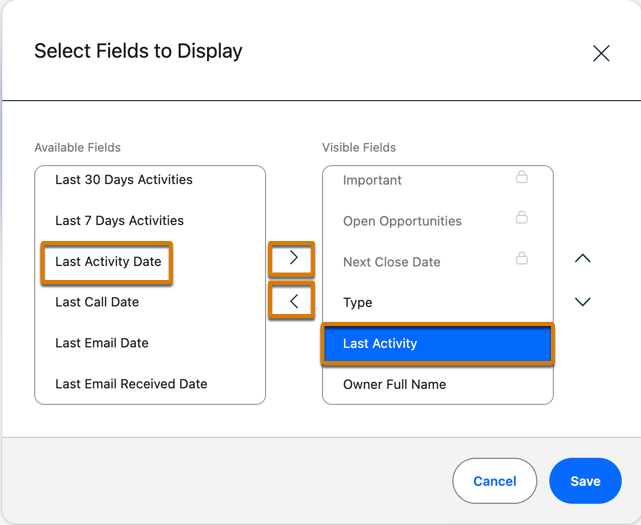
## Person Accounts and Last Activity
- If you use Person Accounts, activities related to the current Person Account through Contacts are shown in the side panel. However, the Last Activity date is based only on activities that are related to the Person Account via the Account entity.
#### See Also
- [Set Up Einstein Activity Capture](https://help.salesforce.com/s/articleView?id=sales.aac_setup_parent.htm&type=5&language=en_US)
- [Turn On Activity Metrics](https://help.salesforce.com/s/articleView?id=sales.aac_activity_metrics_enable.htm&type=5&language=en_US)
- [Things to Know About Activities](https://help.salesforce.com/s/articleView?id=sales.activities_supplemental.htm&type=5&language=en_US)
- [Get Started With Activity 360 Reports](https://help.salesforce.com/s/articleView?id=sales.einstein_sales_activity_reporting_quick_start.htm&type=5&language=en_US)
# Considerations for Tracking Activities and Qualified Travel Distances in Timesheets
Anticipate behaviors and outcomes when you set up Salesforce Maps to track your reps’ activities and qualified distances in timesheets.
### Required Editions
Identify conditions for creating timesheets for your reps and details that
determine shifts, start and end locations, and activities.
To create timesheets for your reps, add your reps to a permission group that
includes your defined timesheet settings. And confirm your reps’ assignments to
Salesforce Maps permission set licenses and their corresponding permission
sets.
Rules for qualified travel distances and timesheet periods require at least two
characters in their names.
Removing timesheet periods from permission groups also hides their referenced
timesheets for reps and managers in Salesforce. But if you restore timesheet
periods in permission groups, those timesheets reappear.
Timesheets reflect activities and qualified distances based on shift times,
default start and end locations, activity creation methods, and timesheet
periods.
Distance reimbursements
If timesheets record only two activities for stop-based reimbursement rules with
start and end location criteria, Salesforce Maps calculates distance from the start
location only.
Activity generation method
When set to Check In, timesheets capture activities based on these conditions.
The rep’s user ID appears in the AssignedTo field.
The status of the activity is completed.
The CreatedDateTime field includes the start time of the timesheet
activity.
The CompletedDateTime field includes the end time of the timesheet activity.
Salesforce populates the time only when reps move tasks to completed.
Salesforce Maps updates activities that your reps check in against with
geolocation coordinates.
When set to Auto Generated, timesheets capture activities based on these
conditions.
The rep’s user ID appears in the field mapped to Scheduling Resource in event
configurations.
Populated fields are mapped to start and end date and time fields, or fields are
mapped to start date and time and duration fields.
Salesforce Maps updates activities that your reps check in against with
geolocation coordinates. Salesforce Maps determines coordinates based on the
primary related object.
If the primary related object can’t deliver coordinates,
Salesforce Maps determines coordinates from the remaining related objects in
order of their location sources.
Fields not considered for timesheet administration
Salesforce Maps excludes these details within Routes & Schedule
configurations when tracking activities and qualified distances.
Tracked schedule usage
Excluded specific records from schedule
Predefined event fields
Time zones
Anticipate how time zone settings affect your reps’ activities in timesheets.
If reps update their time zones in Salesforce, past activities reflect
Coordinated Universal Time (UTC) values.
New activities reflect time values based on your reps’ configured time zones in
Salesforce, and not necessarily based on the actual time zones where the
activities take place.
Updates to rules for timesheets
Identify what it takes to update distance calculation rules and criteria for past
and future timesheet periods.
Updates to distance calculation rules in permission groups or rule criteria
affect timesheets in future periods, and not timesheets in past periods.
If you need to update rules and criteria in past timesheet periods, it’s
possible within Mileage Administration settings. Your reps can then update past
timesheets individually, or managers can update all timesheets for their direct
reports.
# Considerations for Tracking Emails in the Outlook and Gmail Integrations with Inbox
When you add Inbox features to the Outlook or Gmail integration, sales reps can track when recipients open emails and click links in the emails they send. Before you enable email tracking for your sales reps, review these key considerations about setup and how emails are tracked.
### Required Editions
Available in: Lightning Experience
Available in: Unlimited, Einstein 1 Sales, and Agentforce 1 Sales Editions. Available for an extra cost in Professional and Enterprise Editions.
## General Considerations
- Email tracking applies to HTML-based emails and mass emails.
- In Lightning Experience, you can see email tracking information in the activity timeline.
- In Salesforce Classic, you can see email tracking information in the HTML Email Status related list and the HTML Email Status report.
- To restrict access to email tracking for individual reps, create custom email application panes that don’t include email tracking components. Assign the custom panes to specific user profiles. To restrict access to email tracking for all reps, turn off the Email Tracking option in the Salesforce Inbox Setup Assistant in Salesforce setup.
- The Email Tracking - List component is on the Feed tab in the default email application pane. This component shows all sales engagement and alert information for emails across Salesforce, not just for emails sent from Outlook or Gmail. The sales engagement data reps receive on the Feed tab depends on the features enabled in Salesforce.
- The Email Tracking - Individual Receipt is on the Related tab in the default email application pane. This component shows the tracking details for the selected email. You can add the Email Tracking - Individual Receipt component to any tab that is available during read mode.
- Emails set for tracking are tracked indefinitely. If you remove the tracking components from the email application pane after an email is sent or turn off email tracking, the email is still tracked. But removing the components restricts access to the tracking information.
- If email tracking is enabled in your Sales Engagement setup, be sure to also enable it for the integration. Both must be enabled to track emails sent from the Work Queue in the integration.
- To track links in emails started from the Sales Engagement Work Queue, also add the Email Tracking component to a tab available in Compose mode.
## Outlook or Gmail Integration with Inbox and Einstein Activity Capture
- When sales reps send an email, tracking information isn’t automatically logged. To automatically log tracking information, give your reps access to Inbox features and set emails to track.
- When sales reps send an email, tracking information shows in the activity timeline, but doesn't appear in the HTML Email Status report.
#### See Also
- [Considerations for Tracking Emails Sent from Salesforce Inbox](https://help.salesforce.com/s/articleView?id=sales.inbox_setup_tracking_considerations.htm&release=264.0.0&type=5 "Before you enable email tracking for your sales reps, review the key considerations for how emails are tracked.")
- [Considerations for Email Open Tracking](https://help.salesforce.com/s/articleView?id=sales.emailadmin_tracking_considerations.htm&release=264.0.0&type=5 "Keep these considerations in mind when working with email tracking.")
- [Customize the Email Application Pane for Outlook and Gmail](https://help.salesforce.com/s/articleView?id=sales.email_int_setup_custom_pane_parent.htm&release=264.0.0&type=5 "You can tailor the email application pane used in Microsoft® Outlook® and in Gmail™ to better fit how your reps do their work.")
- [Select Who Can Use Inbox Features](https://help.salesforce.com/s/articleView?id=sales.inbox_setup_select_users.htm&release=264.0.0&type=5 "A standard permission set for Inbox is created for you when your org is set up. Make sure that all permissions that you need are enabled, and then assign the permission set to users.")
- [Send Email from a Record in Lightning Experience](https://help.salesforce.com/s/articleView?id=sales.send_email_directly_from_crm_record.htm&release=264.0.0&type=5 "Send rich-text email, including attachments, directly from the record you’re on. Send to customers, colleagues, or any valid email address.")
# Considerations for Tracking Emails Sent from Salesforce Inbox
Before you enable email tracking for your sales reps, review the key considerations for how emails are tracked.
### Required Editions
Available in: Lightning Experience
Available in: Unlimited, Einstein 1 Sales, and Agentforce 1 Sales Editions. Available for an extra cost in Professional and Enterprise Editions.
## General Email Tracking Considerations
- To restrict access to email tracking, from Setup, turn off email tracking in the Salesforce Inbox page.
- The sender’s email and the recipient’s email must allow for images with an email for email tracking to work correctly.
- An email set for tracking is tracked indefinitely.
- Tracking information is gathered in regular, timed cycles. If a recipient opens an email multiple times in one gathering cycle, only the first opening is tracked. If the recipient opens the email again in a different cycle, that opening is tracked as a separate opening.
- Email tracking can work unexpectedly if recipients open tracked emails in Apple Mail on devices running iOS 15, iPadOS 15, macOS Monterey, or watchOS 8.
## Email Tracking Push Notifications
To receive push notifications each time a recipient opens a tracked email, these settings are required.
- The Inbox app setting Tracked Email Was Open notification is on.
- The Smart Tools menu, Email Tracking option is on.
If the Inbox app is open, reps can find notifications about tracked emails in the Feed tab available in the More menu. Push notifications aren’t sent if the rep is in the app. In the Feed, the read count for an email updates each time the recipient opens the email.
## Email Tracking Limitations
- The count for opened emails stops at 101 opens. Additional email opens aren’t reflected in the summary.
- Email open tracking details indicate each time an email was opened, but don't indicate which user in the group opened the email.
- If an email is forwarded or opened from a Sent folder, the tracking information reflects the original opener of the email as the recipient, not the recipient of the forwarded email.
- When sales reps log a tracked email from the Outlook or Gmail integration with Inbox, the email tracking information appears in the activity timeline.
- If the recipient's email client or browser doesn’t support TLS 1.2, the sender doesn’t receive tracking information when the email is opened.
- If you use Inbox with Einstein Activity Capture (EAC), to exclude the same addresses that EAC does, add them manually.
#### See Also
- [Email Considerations for Sales Engagement](https://help.salesforce.com/s/articleView?id=sales.hvs_considerations_email.htm&release=264.0.0&type=5 "Learn about email considerations for setting up Sales Engagement.")
- [_Knowledge Article:_ Salesforce Inbox Email Tracking and Apple Privacy Policy](https://help.salesforce.com/s/articleView?id=000363314&type=1&language=en_US)
# Considerations for Using Account Hierarchy
All hierarchies display accounts related via the Parent Account field. Keep these considerations in mind when you create account hierarchies.
### Required Editions
Available in: both Lightning Experience and Salesforce Classic
Available in: Professional, Enterprise, Performance, Unlimited, and Developer Editions in Lightning experience. Available in all editions except Database.com in Salesforce Classic.
## Lightning Experience
- The Account Hierarchy page displays up to 2,000 accounts in Lightning Experience, sorted by name. To view accounts in a different part of the hierarchy, enter the hierarchy from a different account. The hierarchy doesn’t display accounts you don’t have permission to view.
- If the current displayed record exists in the middle of the hierarchy (for example, the parent record has 500 children and the current record is child #250), the parent record isn’t visible when the Account Hierarchy page first appears. To see results further up in the hierarchy, scroll up.
- For companies with multiple office locations, use the Account Site field to distinguish among the locations
- If divisions are enabled, you can use the Parent Account field to relate accounts in different divisions.
- Person accounts aren’t supported for the Parent Account field or the View Account Hierarchy action.
- You can’t view account hierarchies in the Salesforce mobile app.
## Salesforce Classic
- An account hierarchy displays up to 500 child accounts in Salesforce Classic. The hierarchy doesn’t display details of accounts you don’t have permission to view.
- For companies with multiple office locations, you can also use the Account Site field to distinguish among the locations.
- If divisions are enabled, accounts that are related via the Parent Account field don’t have to be in the same division.
- Person accounts aren’t supported for the Parent Account field or the View Account Hierarchy action.
- To list an account as a subsidiary, edit the subsidiary account and type the name of an existing account in the Parent Account field. Alternatively, you can click the lookup icon to search for (or optionally, create) a parent account.
#### See Also
- [Set Up Account Hierarchy in Lightning Experience](https://help.salesforce.com/s/articleView?id=sales.account_hierarchy_setup_lex.htm&release=264.0.0&type=5 "Show the relationships between parent accounts and their subsidiaries to sales reps using Lightning Experience. You can customize hierarchy columns to show the information that’s most useful to your sales teams.")
- [Set Up Account Hierarchy in Salesforce Classic](https://help.salesforce.com/s/articleView?id=sales.account_hierarchy_setup_aloha.htm&release=264.0.0&type=5 "Provide a link to the account hierarchy on account records so sales reps can view relationships between parent accounts and their subsidiaries.")
# Considerations for Using Account Teams
Review considerations for working with account teams. Learn about account team members and access levels and what happens to team members when an account owner changes.
### Required Editions
Available in: Lightning Experience and Salesforce Classic
Available in: Enterprise, Performance, Unlimited, and Developer Editions
## Access to Accounts and Related Records
- These access methods determine users' access levels for accounts and related records.
- Profiles
- Org-wide Defaults (OWD)
- Role Hierarchy
- Sharing Rules
- Manual Sharing
- Account Team Member Record
- Your Salesforce admin sets org-wide default access to accounts and related records.
- Team member access must be equal to or less restrictive than the org-wide default. You can grant team members more access than the default, but not less.
- Only the account owner or someone higher than them in the direct role hierarchy chain can:
- Grant team members more access than the org-wide default
- Add team members who don't have Read or Read/Write access
## Access to Child Records and Fields
- You can't grant team members greater access to child records than you have yourself. For example, if you have Read access to child records on an account, you can’t give a team member Read/Write access. Ask your Salesforce admin to grant the needed access.
- The fields available when a user adds a team member are based on the user’s level of access to the account.
## When Account and Opportunity OWD Is Private
Accounts and opportunities have linked access levels.
- If you grant team members access to an opportunity, Salesforce gives Read access to the related account, even if the OWD is private.
- If you remove a team member’s access to an individual account, Salesforce removes them from all related opportunity teams.
## Viewing Account Access Levels
You can view account team member access levels from two different locations.
- The Team Member Access action on an Account record. This view shows the highest access level that the user has across all access methods.
- The individual account team member (ATM) record. This view shows only the access level assigned when the ATM record was created.

Example Shelly adds Marcus to her account team with Read Only on Opportunities. But a sharing rule also gives Marcus’s whole sales group Read/Write on Opportunities. The Team Member Access action shows Read/Write, the highest access Marcus has from any source. The ATM record shows Read Only, the access set on that record.
## Account Owner Changes
Sharing rules grant access to individuals or to groups (public groups, queues, roles). That distinction matters for team member retention during ownership changes. If a user with group-based access adds account team members, those team members are removed when the account owner changes, even if you’ve selected **Keep account team**.
To keep team members when ownership changes, one of these types of users must add the team members.
- A Salesforce admin
- A user with Modify All Data permission
- The account owner
- A user higher than the account owner in the owner’s direct role hierarchy chain (not a parallel branch)
## Portal Users
You can’t add high volume portal users to teams.
#### See Also
- [Working with Teams on Your Accounts](https://help.salesforce.com/s/articleView?id=sales.accountteam_add.htm&release=264.0.0&type=5 "If your Salesforce admin has enabled account teams, the Account Team related list appears on each account. You can add, edit, or remove team members.")
- [_Knowledge Article_: Difference Between Account Team Member Access and Team Member Access View in Salesforce](https://help.salesforce.com/s/articleView?id=002183041&type=1&language=en_US)
# Considerations for Using Accounts as Campaign Members
Before you start using Accounts as Campaign Members, review these considerations.
### Required Editions
Available in: Salesforce Essentials, Professional, Enterprise, Performance, Unlimited, and Developer Editions
- Accounts as Campaign Member supports accounts and person accounts. When you add a person account as a campaign member, the record is added as a contact.
- Campaign member reports and metrics can vary between Sales and Account Engagement, because Account Engagement doesn’t include accounts in its campaign member totals.
- When you set sharing rules on an object, the Controlled by Campaign Member option inherits sharing settings from leads, contacts, accounts, and person accounts.
# Considerations for Using Activity Metrics
Before getting started with Activity Metrics, review requirements, limits, and other information about how it works.
### Required Editions
Available in: Lightning Experience
Available with Einstein for Sales, which is included in Einstein 1 Sales Edition and available for an extra cost in Enterprise and Unlimited Editions
Available with Sales Engagement, which is included with Sales in Performance and Unlimited Editions, and available for an extra cost in Professional and Enterprise Editions
Available with Revenue Intelligence, which is available for an extra cost in Enterprise and Unlimited Editions

Note We’re reorganizing the Einstein Activity Capture documentation. We’re moving some information around, but we aren’t deleting anything.

Important Starting in Summer ’25, Activity 360 Reporting, Activity Metrics, and Activities Analytics Dashboard aren’t available unless previously set up. Additionally, data from these reporting tools that appear in other features, including Pipeline Inspection and Einstein Conversation Insights isn’t available unless configured before Summer ’25. If you’re already using Activity 360 Reporting, Activity Metrics, Activities Analytics Dashboard, or related data, you can continue to do so until these tools are retired. To explore email data added by Einstein Activity Capture after Summer ’25, make sure you [sync email as salesforce activity](https://help.salesforce.com/s/articleView?id=sales.eac_email_activity.htm&language=en_US) and use Salesforce Activity reports. See [Considerations for Sync Email as Activity](https://help.salesforce.com/s/articleView?id=sales.eac_email_activity_considerations.htm&type=5&language=en_US) and [Einstein Activity Capture Activity 360 Reporting, Activity Metrics, Activities Dashboard Upcoming Retirement](https://help.salesforce.com/s/articleView?id=004633781&type=1&language=en_US).
- Activity Metrics is supported in sandbox. However, because the data in a sandbox environment is limited, the activity metrics don’t include existing activity data. Instead, the activity metrics include only activities that were created, updated, or deleted after you enabled Activity Metrics. To see activity metrics for new and existing activities, use a production org.
- You can use Activity Metrics fields with accounts, contacts, contracts, leads, and opportunities. Quotes aren’t currently supported.
- On accounts, contacts, leads, opportunities, and person accounts, the Last Activity field doesn’t include emails and events that were added by Einstein Activity Capture. We recommend that you remove the Last Activity field from the page layouts for those objects. Instead, use Activity Metrics to add the Last Activity Date field to page layouts.
- Activity Metrics fields are available in standard reports, but not in custom report types.
- Activity Metrics fields are updated in near real-time, but sometimes it takes longer.
- By default, Einstein Activity Capture identifies the domain used in the admin’s email address as an internal domain. If your company uses more than one internal domain, [add all internal domains to the excluded list](https://help.salesforce.com/s/articleView?id=sales.aac_add_excluded_addresses_for_org.htm&type=5&language=en_US) before you turn on Activity Metrics.
- Activity Metrics calculations include activities that are 6 months and later, starting from the date when Activity Metrics was enabled. For entities with no activity in the last 6 months, Activity Metrics shows the last activity timestamp that’s older than 6 months.
- If you don’t use contracts with Einstein Activity Capture, the activity metrics fields for contracts are available but don’t show data when used.
- Email and events that Einstein Activity Captures users _don’t_ share are counted with activity metrics data. Therefore, some users don’t see activities on the activity timeline even though those activities are included in the activity metrics data.
- If you change the parent account for objects other than contacts and opportunities, the activity metrics data continues to reflect the original account. Therefore, the activity metrics data can be incorrect.
- If you use a private sharing model for contacts, the activity timeline on account and opportunity records sometimes shows emails for related contacts that users don’t have access to. However, users still can’t access the related contact records.
- For the Last Email Received Date and Last Email Sent Date fields, Activity Metrics calculates emails as sent or received using your company's internal domains. If an email isn't sent or received by an internal domain, Activity Metrics doesn't use it to calculate the Last Email Received Date and Last Email Sent Date fields.
## Prerequisites
- To use Activity Metrics, you must have less than 3 million total accounts, contacts, contracts, leads, and opportunities.
- You must have at least one licensed Einstein Activity Capture user. Then, all Salesforce users in your company can use the activity metrics fields. If you have only Standard Einstein Activity Capture users, you can’t use Activity Metrics.
- If you plan to use Shared Activities, turn it on before you turn on Activity Metrics. This sequence helps keep the activity data consistent in Salesforce.
## Turning On and Off
- Although Activity Metrics must be turned on in Lightning Experience, Activity Metrics fields are available in Lightning Experience and Salesforce Classic.
- The procedure for turning off Activity Metrics differs depending on whether Activity 360 Reporting is enabled. To turn off Activity Metrics when Activity 360 Reporting is enabled, contact Salesforce Customer Support. If Activity 360 Reporting isn’t enabled, turn off the Activity Metrics switch in Einstein Activity Capture Settings in Setup.
#### See Also
- [Activity Metrics](https://help.salesforce.com/s/articleView?id=sales.aac_activity_metrics.htm&release=264.0.0&type=5 "If you use Einstein Activity Capture, Activity Metrics gives you all the information you need about your activity data. When you include Activity Metrics fields on list views, page layouts, reports, triggers, processes, and so forth, the data reflects activities that were added to Salesforce manually and by Einstein Activity Capture.")
# Considerations for Using Agentforce Engagement
Keep in mind some considerations for using Agentforce Engagement.
### Required Editions
Available in: Lightning Experience in Enterprise, Performance, and Unlimited editions with Sales and Einstein for Sales.

Note The Agentforce Lead Nurturing name has changed to Agentforce Engagement. The new name better describes the work the agent does to nurture existing prospects and differentiates it from the Agentforce Lead Generation agent template.
## Agent Configuration and Deployment
- Create and edit all agents in Setup or Agentforce Builder.
- Don’t use change sets or metadata to deploy Engagement agents or agent changes. Doing so can cause the newly deployed or updated agent to stop working correctly.
## Agentforce Engagement Consumption of Conversations
- Engagement agents consume units of Conversations when they engage prospects. You can track your Conversation usage in your Salesforce Digital Wallet. Each Conversation consumes Einstein Requests when it accesses the LLM.
- An Engagement agent consumes a Conversation when it sends out the initial email to a prospect. That initial conversation contains all subsequent activities carried out by the agent for that prospect.
- You can cancel an outreach by selecting Cancel Outreach from an email task in the Activity Timeline. If you restart the Engagement agent for the same prospect, the agent consumes another Conversation.
- You choose how and when the agent engages prospects when you configure your Engagement agent. You also select what information that the agent can access to personalize outreach and replies to prospects. As the agent works on a prospect, it uses these settings to know how many times to email proactively and how many times to reply.
- Salesforce allocates a number of Einstein Requests per Conversation to your order when your business purchases Conversations. This allocation approximates the typical consumption pattern of Engagement agent outreach to a prospect using the default agent settings, including nudges and replies.
## Email Account Setup and Limits
- Email providers have daily limits. Keep these limits in mind when configuring your Engagement Agent’s Engagement Rules in Setup or Agentforce Builder.
- To adhere to daily limits, each Engagement agent can send up to 1800 emails a day with a Gmail account. The agent can send up to 9800 emails a day with a Microsoft Exchange account.
- When the agent reaches the daily limit, it stops sending emails until the next day.
- Using the Lead Nuturing agent’s email account with another app or to send emails manually increases the risk of exceeding email provider limits.
- An Engagement agent can't prioritize specific email types. For example, you can’t tell the agent to prioritize email replies over nudges.
- You can’t connect the Engagement agent’s email account to any other user.
- The email account connected to an Engagement agent in Salesforce Go or Agentforce Builder must match the address in the Email field of the Engagement agent user record. If not, nudge and reply emails can fail.
## Email Send as Seller Configuration
- Send as Seller requires that record owners of prospects assigned to the agent have email addresses configured and connected to both Inbox and [Einstein Activity Capture](https://help.salesforce.com/s/articleView?id=sales.aac_setup_select_users.htm&type=5&language=en_US) (EAC). Without proper configuration, agent emails can fail.
- Send as Seller includes an AI disclosure at the beginning of each generated email to ensure regulatory compliance. Regulations in your area may differ. You can instruct the agent to omit the disclosure by removing the related instruction from the agent actions by using Agentforce Builder.
- The Require Manual Approval feature omits the AI disclosure from generated emails. The disclosure is omitted because there’s a sales rep reviewing each email.
## Email and Activity Capture
- In Einstein Activity Capture setup, the Header-only Email Capture setting within Sync Email as Salesforce Activity affects how the agent generates its emails.
- When Header-only Email Capture is on, the agent can’t use the email subject or body to understand prospect intent or personalize its responses.
- Leaving the setting off allows the agent to use the full content of the emails to provide appropriate and accurate responses.
- If you turn on Agentforce Engagement before you set up Sync Email as Salesforce Activity, you can’t select Header-only Email Capture.
- If a prospect’s email address has the same domain name as the Engagement agent user record's email address, EAC considers the prospect an internal user. EAC doesn't allow the Engagement agent to send any email replies to the prospect.
- To edit or reschedule Engagement agent emails, a user must connect their email account from within their user profile. If the user adds the agent's email address to their profile, an error occurs.
## Email Activity Logging
- Email security systems like Proofpoint can prevent prospect replies from being logged as activities in Salesforce.
- Outbound emails from the Engagement agent send successfully, but security systems can block or quarantine inbound replies.
- The security systems may flag replies containing opt-out language (such as “Click here to unsubscribe”) as spam or bulk marketing emails.
- Work with your email and security teams to allowlist prospect domains that reply to Engagement agent outreach and to configure security systems to allow responses from these domains. And, review spam filters to relax restrictions to the Lead Nuturing agent’s email address.
## Email Open Engagement Tracking
Agentforce Engagement tracks email opens by embedding a transparent, single-pixel image in the email HTML. When a prospect opens the email and the image loads, Salesforce records an Open Engagement.
To ensure accurate engagement data, Salesforce automatically filters out false-positive opens in these cases.
- The email is viewed from a Salesforce domain.
- The email is viewed from a Salesforce Lightning web page.
- The email is viewed from an IP address in a range that you specified on the Filter Email Tracking page in Setup.
- Gmail pre-fetches the tracking image shortly after the email is sent. In this case, Gmail is pre-loading the image before the recipient actually opens the email.
- The sender opens their own email from Gmail or Outlook while logged into the Salesforce Gmail or Outlook extension.
## Meeting Scheduling and Ownership
- The agent can assign meetings only to Inbox users with a connected email account in their personal settings.
- If a user isn’t listed as an option during setup, they don’t have Inbox set up or a connected email account.
- If a group isn’t listed as an option during setup, the group doesn’t have at least one Inbox user with a connected email account or it exceeds 15 users.
- When a group is selected as the meeting owner, the agent shows the combined availability of all Inbox users with a connected email account in that group to the customer. The agent then randomly assigns the meeting to one of the available group members.
- For group scheduling to work, give Salesforce permission to view your free/busy time on your Gmail and Outlook calendar.
- When Send as Sellers is enabled, meetings can only be assigned to users, not groups.
## Other Considerations
- When Require Manual Approval is on, the record owner has 14 calendar days to approve each email. After 14 days without approval, the agent cancels the email.
- By default, you can add up to 20 sales agents. If you need more, contact your Salesforce account executive.
- When you assign a prospect to an Engagement agent, it begins working the prospect immediately. The agent schedules the first email to be sent within an hour. Sent emails appear in the Activity Timeline. Nudges and replies also appear in the Activity Timeline.
- If the prospect doesn’t request a meeting or opt out of emails, the agent generates and sends nudge emails according to the schedule in the agent settings.
- If the prospect replies to any of those emails, the agent replies right away (within working hours), or queues a reply to be sent when your email send limits allow.
- The Owner field on leads, person accounts, and contacts must be filled before assigning a record to the Engagement agent. For contacts, fill the owner field on the related account.
- If Activity 360 Reporting is turned on, Agentforce Engagement doesn’t work
# Considerations for Using Agentforce Prospecting
Review these considerations about Agentforce Prospecting.
### Required Editions
Available in: Lightning Experience
Available in: Enterprise, Performance, Unlimited, and Developer Editions with the Agentforce for Sales or Agentforce for an Industry add-on, or in Agentforce 1 Sales and Industry Editions where included. Requires each user to have the Agentforce for Sales or Agentforce for an Industry add-on to access actions.
## Agent Versioning
Admins can create, manage, and iterate on new versions of their agents before or after activation. To create a new version of an existing agent, go to the agent and click **New version**.
## Agent Customization
Begin customizing your agent in the guided configuration from Agentforce for Sales. To customize the agent further, open it in Agentforce Studio. The prospecting template in Agentforce Studio includes the agent's subagents, which you can adjust to research accounts the way your top sellers do. After you customize an agent in Agentforce Studio, the guided configuration locks for that version. To return to editing in guided configuration, create a new version. Creating a new version resets the prospecting agent’s script and discards custom actions and instructions added in Agentforce Studio.
## Deploying Multiple Agents
You can deploy up to 10 prospecting agents per org. Create a separate agent for each business segment, and align your agents with your company’s go-to-market structure. For example, create distinct agents for different:
- Company sizes: Create separate agents to handle the unique qualification rules, account research steps, and complexity variations inherent to small businesses versus enterprise corporations.
- Geographic regions: Create separate regional agents for region-specific qualification criteria, schedules, and market needs.
- Vertical markets: Create separate agents when the core business value proposition changes drastically between industries, requiring entirely distinct account research criteria.
## Deploying from Sandbox to Production
You can build and test an agent in a sandbox, but deploying it with change sets or metadata isn’t supported. Metadata deployment across environments can stop the agent from working correctly. Instead, configure the agent in production to mirror your sandbox settings.
Before you turn on your agent in production:
- Re-establish and authenticate connections to external data vendors, such as ZoomInfo, in production.
- Assign the agent and users the required permissions in production.
- Test the agent's behavior with a small, specific set of target accounts before enabling the agent broadly in production.
## Data Retention
The agent includes these research entities, which store the history of each person and account the agent researches and its rationale for generating or not generating a prospect.
- [Account Prospecting Agent Research](https://developer.salesforce.com/docs/atlas.en-us.object_reference.meta/object_reference/sforce_api_objects_accountprspagntrsrch.htm)
- [Contact Prospecting Agent Research](https://developer.salesforce.com/docs/atlas.en-us.object_reference.meta/object_reference/sforce_api_objects_contactprspagntrsrch.htm)
- [Lead Prospecting Agent Research](https://developer.salesforce.com/docs/atlas.en-us.object_reference.meta/object_reference/sforce_api_objects_leadprspagntrsrch.htm)
- [Prospecting Agent External Company Research](https://developer.salesforce.com/docs/atlas.en-us.object_reference.meta/object_reference/sforce_api_objects_prspagntextlcorsrch.htm)
- [Prospecting Agent External Person Research](https://developer.salesforce.com/docs/atlas.en-us.object_reference.meta/object_reference/sforce_api_objects_prspagntextlpersrsrch.htm)
Salesforce doesn't guarantee retention of this data for more than two years.
## Prospect Ownership
The agent assigns prospects only to users who have prospecting agent permissions. How and to whom prospects are assigned is based on how the agent is configured. Assign all prospects to a single user, or distribute them evenly among a group of sales reps.
## Past Engagement Data in Prospect Summaries
Prospecting agent can reference available past-engagement data, including call transcripts, calendar events, and emails, when it writes prospect summaries. For each account report source, select whether to prioritize contacts with past engagements and select the minimum engagement level to consider. This prioritization setting applies to scheduled and manual report runs. Manual account runs don’t apply the configured boost, but it can use existing past-engagement insights when evaluating Salesforce contacts.
## Prospecting Limits
The open prospects per sales rep that you specify during agent configuration determines how many prospects appear for each user on the Approval Required tab of the Prospecting page. This limit applies to scheduled and manual report runs and doesn’t reset each week. When a sales rep reaches the limit, report runs stop generating prospects for that rep until the outstanding count falls under the limit. Manual account runs skip this limit check when the action starts. Prospects created by the action that are awaiting approval still count toward that rep’s outstanding total for the same agent and can reduce capacity for later report runs.
## Account Research
- Report runs research only the accounts in the report that you gave the agent. To research an account that isn't in the report, add it to the report or click Generate Prospects from Account on the account record.
- After an account is successfully processed in a report run, the agent skips the account for one calendar month. This applies even if the account doesn’t qualify or no prospects are found. To research the account sooner, click Generate Prospects from Account on the account record.
- If no eligible sales rep has room for new prospects, the report run can finish without processing the account. The account doesn’t start a cooldown, so a later report run can research it.
- If the agent sets the existing account owner as the prospect owner, the owner must be an eligible prospecting user. If Route Prospects from Additional Account Owners is enabled, accounts owned by non-prospecting users can be routed to the selected sales reps for unassigned prospects in agent configuration. Accounts without an eligible owner or configured recipient are skipped.
- If researching an account reaches the 10-minute limit, the agent stops processing that account and keeps any prospects already created.
## Starting and Scheduling Your Agent to Run
- Activate the agent before starting a run.
- Each agent can have only one report run queued or in progress at a time.
- When promoting queued report runs, the scheduler prioritizes manual runs over scheduled runs. It can stop an unfinished scheduled run from an earlier scheduling cycle. This cleanup doesn’t stop manual report runs, but a manual run can still fail or be stopped explicitly.
- If your org has reached its concurrent report-run limit, a new report run waits in the queue until a slot opens.
## Data Vendors
Connection to external data vendors such as ZoomInfo is optional. ZoomInfo is the default data vendor for Agentforce prospecting. To use another data vendor, create compatible replacement actions by using Apex or an autolaunched flow, and replace the corresponding actions in Agentforce Studio. If a vendor connection is unavailable, the agent can continue with Salesforce CRM contacts when the failure supports fallback. Other vendor errors can cause account processing or the run to fail.
# Considerations for Using Agentforce Qualification
Keep in mind some considerations when using Agentforce Qualification.
### Required Editions
Available in: Lightning Experience in Enterprise, Performance, and Unlimited editions with Einstein for Sales.
- Qualification is available for Lead, Contacts, and Person Account record.
- Ratings like ‘Cold’, ‘Warm’, and ‘Hot’ are used by default.
- Tasks are assigned to sellers only when a lead is determined to be 'Hot'.
- On the record, required fields are limited to 5.
- Qualification is based on either an email conversation or a web conversation, but not both.
- The execution of the Qualification Summary action is not available in the preview mode in Agentforce Builder and Guided Config. You can execute this action in the preview mode in prompt builder.
- Once turned on, Qualification can be disabled at any time.
# Considerations for Using Agentforce Sales Coach
Review these considerations and limitations around setup and usage of Agentforce Sales Coach.
### Required Editions
Available in: Lightning Experience in Enterprise, Performance, Unlimited, and Developer Editions with Foundations or Agentforce 1 Editions.
- Data 360 is a required feature and must be turned on before enabling Agentforce Sales Coach.
- Admins need the Data Cloud Architect permission set to turn on Data 360.
- The agent user needs the Data Cloud Architect permission set to access Data 360.
- You can have only one active Sales Coach agent per Salesforce org.
- The Agentforce Sales Coach add-on has a limit of 25,000 user permissions.
- Agentforce Sales Coach supports a maximum of 20 active scenarios on any given object and a total of 500 scenarios for each agent version.
- You can't delete a subagent associated with a coaching scenario.
- Knowledge articles aren't supported in Agentforce Data Libraries for Agentforce Sales Coach.
- Agentforce Sales Coach isn’t supported on the Salesforce mobile app.
- The coaching that reps receive is most effective when the object has all the necessary CRM data fields populated.
- Use the Sales Coaching prompt template type to generate feedback in custom coaching scenarios.
- Admins can create a coaching scenario only if their org language is English.
- Consumption credits are consumed when using the Preview functionality.
- The agent shows an error for Opportunity records when both these conditions are met:
- When an org is upgraded to the Coach Everywhere version and provisioned with the ready-to-use scenarios (by clicking **Populate Data** under Coaching Scenarios in Agentforce Builder).
- When the Organization-Wide Default (OWD) sharing setting for the Opportunity object is set to Private.
To resolve this issue, change the Sharing Settings for Opportunity to Public Read Only or create a custom permission set that grants View All Records access and assign it to the Agent User. See this [Known Issue](https://help.salesforce.com/s/issue?id=a02Ka00000jhtea) for details.
- To generate feedback, coaching sessions must meet minimum length requirements.
- Role-play scenarios require at least three conversational exchanges between the user and the Sales Coach agent, with at least 60 words.
- Present scenarios require the rep to speak at least 100 words.If a session is too short, the agent shows an error message.
# Considerations for Using Calendars in Lightning Experience
Keep in mind these considerations for creating, updating, and owning calendar items in Lightning Experience.
### Required Editions
Available in Lightning Experience in: All Editions except Personal and Contact Manager Editions
## Calendar Views
- You can’t hide weekends in the Calendar view.
- You can see events for up to 50 calendars. For public, resource, and other user’s calendar events, you can see the subject, start time, and end time in the event preview detail. Other fields you added to the compact layout aren’t visible.
- When previewing an event, the date, type, time, duration, attendees, and email aren’t visible.
- The availability, day, week, and month calendar views show the view that you selected most recently when you return. When you use the table view, the calendar shows the default view when you return. To see your favorite list view as soon as the table view loads, click the pin icon.
- When using Lightning Experience on iPad Safari, users can tap events to see the event preview card. To close, users can tap anywhere outside the preview card.
## Calendar Limits
- Depending on your customization options, you can view up to 150 or up to 500 calendar items total in the day, week, or month view, including Salesforce events and the items on calendars you create. Suppose that you select a calendar containing enough items to push the total past the limit in that view. Lightning Experience displays an alert and hides items on other calendars.
- You can share your My Events calendar with your manager or other colleagues, but not with personal and public groups.
## Public, Resource, and User List Calendars
- You can’t create an event for another calendar application using the Export Event (formerly Add to Outlook) button. However, if you're set up to sync events using Einstein Activity Capture or Lightning Sync, events you create and edit from Lightning Experience or any of the Salesforce mobile apps sync to Microsoft® calendars or Google Calendar™ automatically.
- If an event is assigned to a user calendar, users can’t reassign it to a public calendar.
- Only Salesforce admins and users with setup permissions can update user list views.
- Only the first 31 users are displayed when adding a user list calendar.
# Considerations for Using Campaigns
Review the available options and functionalities before working with campaigns in Salesforce Classic, mobile devices, and Experience Cloud sites.
### Required Editions
Available in: Salesforce Classic and Lightning Experience
Available in: Salesforce Essentials, Professional, Enterprise,
Performance, Unlimited, and Developer Editions
## Using Campaigns in Salesforce Classic and Mobile Devices
The Salesforce mobile app doesn’t include all the functionality that’s available in Lightning Experience on desktop.
- The Manage Members and Advanced Setup buttons aren’t available.
- Bulk actions on campaign members aren’t supported on mobile.
- Campaign Hierarchy is available only as a related list.
- The View Hierarchy option in a link on the campaign detail page isn’t available. When you view a parent campaign, the Campaign Hierarchy related list shows only the child campaigns. The desktop Salesforce site displays both the parent and child campaigns.
- When viewing the Campaign Members related list, only the members’ Status appears. However, you can tap members to see more details about them.
- The Clone function in Salesforce Classic includes campaign member statuses automatically. To include these statuses when you clone in Lightning Experience, use **Clone with Related** and select the data to copy.
## Experience Cloud Sites
When working with campaigns within an Experience Cloud site, there are some limitations.
- The View Campaign Hierarchy action doesn’t appear on campaign detail pages.
- The Campaign Influence and Campaign Member Status related lists don’t appear.
- You can’t drill into the Campaign Hierarchy related list.
- The Add to Campaign action doesn’t appear on the Lead Home or Contact Home pages.
# Considerations for Using Contact Hierarchy in Lightning Experience
Keep these considerations in mind when you create contact hierarchies.
### Required Editions
Available in: Lightning Experience
Available in: Professional, Enterprise, Performance, Unlimited, and Developer Editions
User Permissions Needed
To view contacts:
Read on contacts
Display of Contacts
The Contact Hierarchy page displays up to 2,000 contacts in Lightning Experience. (To view contacts in a different part of the hierarchy, enter the hierarchy from a different contact.) The hierarchy doesn’t display details of contacts you don’t have permission to view.
If the current displayed record exists in the middle of the hierarchy (for example, the parent record has 500 children and the current record is child #250), then the parent record isn’t visible when the Account Hierarchy page first appears. To see results further up in the hierarchy, scroll up.
Person Accounts Not Supported
Person accounts aren’t supported for the Reports To field or the View Contact Hierarchy action.
#### See Also
- [Set Up Contact Hierarchy in Lightning Experience](https://help.salesforce.com/s/articleView?id=sales.contacts_hierarchy_lex.htm&release=264.0.0&type=5 "Show the contacts on an account within a hierarchy for sales reps using Lightning Experience. To show the information that’s most useful to your sales teams, customize the hierarchy columns.")
# Considerations for Using Contact Roles
Contact roles let you specify the part that a person plays in an account, case, contract, or opportunity. When you use contact roles, you have more information about who to contact and when. Examples of contact roles include decision maker, business user, and executive sponsor. There are some things to be aware of when using contact roles.
### Required Editions
Available in: both Salesforce Classic and Lightning Experience
Available in: all editions

Important In Salesforce Classic, contact roles are available for accounts, opportunities, cases, and contracts. In Lightning Experience, contact roles are available for opportunities, contracts, and cases. Although contact roles work similarly for each available object, they work independently. Therefore, you need to set them up and use them separately for each object.
- To view the contact records that are listed in the Contact Roles related lists, you must have the proper user permissions and sharing access to those records.
- When contacts are merged, contact roles on non-master contacts lose their status as the primary contact.
- When you add contact roles to opportunities, you can save up to 200 contacts at a time. All contacts that are associated with the record’s account are prepopulated. You can also search for other contacts that are not associated with the record’s account.
- A single contact or person account can have a different contact role on different records.
- Adding person accounts to contact roles on accounts is available but not recommended. Instead, use the Partners related list to associate person accounts to other accounts.
- When you create an opportunity from a contact detail page, that contact becomes the primary contact on the opportunity. However, a contact role isn’t automatically assigned.
- On case contact roles, the Primary option isn’t available. The primary contact on a case is always the contact listed under Contact Name in the Case Detail section.
# Considerations for Using Content from External Sources in Email Templates
If you copy and paste content from external sources, such as Microsoft Word or a web page, to an email template, you can get strange formatting results. Review these suggestions to avoid the problem.
### Required Editions
Available in: Salesforce Lightning Experience and Salesforce Classic
Available in: All Editions
When getting info from external sources, you could be pasting hidden formatting or nonstandard characters. The result is unusual formatting, content that looks like stray programming code, or question marks instead of apostrophes or quotation marks.

Note The following suggestions apply to email templates in Salesforce Classic and Lightning Experience, including templates created in Email Template Builder.
- Type content directly into the HTML email template. In Lightning Experience, use the Email Templates page. In Salesforce Classic, use Setup.
- In Salesforce Classic, change your template encoding to UTF-8. In Lightning Experience, all templates are in UTF-8.
- If you’re copying from Microsoft Word, turn off the AutoFormat function or undo the automatic formatting as it occurs.
- Use a text-only editor such as Microsoft Notepad (for PCs) or TextEdit (for Macs) in plain text mode to strip out unwanted characters. Copy the content from your source, paste it into the text-only editor, copy it again, and paste it into your template.
# Considerations for Using Data Integration in the Salesforce Mobile App
Review considerations for using Data Integration features on a mobile device.
- Data Assessment for data in AppExchange packages isn’t available.
- Account Data Assessment isn’t available.
- You can see fields that were updated by data integration rules, but you can’t use Data Integration to manually update records.
# Considerations for Using Duplicate Management in the Salesforce Mobile App
Review considerations for using duplicate management features on a mobile device.
- The Salesforce mobile app doesn’t alert users to existing duplicate accounts, contacts, or leads.
- The Salesforce mobile app does alert users when they’re about to create an account, contact, or lead that appears to duplicate an existing record.
- Each possible duplicate is shown on a “duplicate card.” The app displays a maximum of 30 duplicates (10 per object), even if there are more.
- A duplicate card displays three fields, which are derived from the search results format defined for your org, not from the associated matching rule.
- If users tap a duplicate card that appears while they’re editing or creating a record, any information they entered before tapping the card is lost.
- By default, duplicate rules run when users complete fields on a record, rather than when they save a record.
- The Salesforce mobile app doesn’t support merging of records.
# Considerations for Using Email Template Builder
Before setting up Email Template Builder, review this information.
### Required Editions
Available in: Lightning Experience for email templates created in Email Template Builder and Email Content Builder
Available in: Professional, Enterprise, Unlimited, Performance, and Developer Editions.
Available in: Account Engagement Lightning App for all Account Engagement editions
## Template Availability
Templates built with Email Template Builder are available while using the Lightning email composer in these places.
- 1:1 Sales emails
- Case emails
- Docked Composer
- Email Global action
- Sales Engagement, when using a cadence
- List Emails
Templates built with Email Template Builder aren’t available in these places.
- Experience Cloud
- Outlook integration
- Gmail integration
## Template Display Across Email Applications
Each email application on each platform and device combination, for example, Outlook on desktop, or Gmail running on iOS, can render your template design differently. Test any template that you design across multiple email applications, operating systems, and devices,
## Email Template Builder Template Support and Limitations
The following features and areas aren’t supported.
- Email Template Builder isn't supported in Government Cloud.
- API usage for Email Template Builder isn’t supported and you can't create Email Template Builder email templates using the API. For example, if you use the API to update the HTML Value field, the value in Email Template Builder is out of sync.
- Enhanced letterheads aren’t available to templates built with Email Template Builder.
Email Template Builder and Email Content Builder have these limits.
- 250 components per email template or email content record
- 100 components per region (component container)
- 10K characters for each component’s property value
In the HTML Value field of the HTML component, clicking **Format** can push you over the character limit. In that case, you can't save your template. Undo the formatting or shorten the HTML and add another HTML block for the rest of the content.
#### See Also
- [Email Template Builder](https://help.salesforce.com/s/articleView?id=sales.email_template_builder_parent.htm&release=264.0.0&type=5 "The email template builder is a visual tool for creating rich, engaging email templates.")
- [Guidelines for Using Email Template Builder](https://help.salesforce.com/s/articleView?id=sales.email_template_builder_guidelines.htm&release=264.0.0&type=5 "Review these guidelines for using Email Template Builder.")
- [Enhanced Email for Account Engagement](https://help.salesforce.com/s/articleView?id=mktg.email_content_builder_parent.htm&type=5&language=en_US)
# Considerations for Using Email to Salesforce
Before you use Email to Salesforce, consider a few key points.
### Required Editions
Available in: both Salesforce Classic and Lightning Experience
Available in: All Editions
## General Considerations
- Use Email to Salesforce to capture email sent with external email applications such as IBM® Lotus Notes® and Microsoft® Outlook® and with webmail such as Gmail® and Yahoo! Mail®.
- Email to Salesforce attempts to match the email address in the To or CC fields with the one in the Email standard field. Email to Salesforce doesn’t support matching on custom email fields.
- Salesforce ignores invalid IDs or IDs for records that you don’t have read access to.
- Email to Salesforce is required to use the Add Email feature with Salesforce for Outlook. Disabling one feature disables the other. With Salesforce for Outlook, you add emails via Add Email and Send and Add, not the BCC field.
- If you enter a recipient’s email address in the BCC field, the owner of the address receives the email, but the email isn’t related to records that contain the email address.
## Limits
- The maximum number of email addresses that Email to Salesforce can match is 50. If the combined number of addresses in the To and CC fields exceeds this limit, Email to Salesforce processes only the first 50 unique addresses in the email.
- Email to Salesforce can create a maximum of 50 email activities for each email that it receives. It can relate up to 50 contacts to each email task record.
- Some limits depend on whether you’re using Salesforce Classic or Lightning.
| Limit | Salesforce Classic | Lightning |
| --- | --- | --- |
| Limit for a file attached directly to the related list | 25 MB | 2 GB |
| Limit for an outgoing email including all attachments | 25 MB | 25 MB |
| Number of file attachments | More than 10 files can be attached when sending an email. | Up to 10 file attachments when sending an email. If Salesforce Inbox is enabled, you can include up to 50 attachments. |
For each matching record, attachments that are sent with the email are duplicated, which affects your data size limit. Attachments that aren’t added to the outgoing email are listed in a confirmation email that you receive from Salesforce.
- Email text and HTML are truncated to 131 KB. Anything after that length is truncated.
# Considerations for Using Enhanced Email
Review these considerations for using enhanced email, especially in Salesforce orgs where Email-to-Case is enabled.
### Required Editions
Available in: Salesforce Classic and Lightning Experience
Available in: Group, Essentials, Professional, Enterprise, Performance, Unlimited, and Developer Editions
## Email-to-Case
Email-to-Case uses the EmailMessage object to store emails related to cases. When enhanced email is off, case is the only object where email message records are created.
Enhanced email isn’t on by default in orgs where Email-to-Case is enabled, to avoid possible issues if custom code was added by admins or developers. When custom code assumes that email messages only exist on case records, review that logic. Make sure the code confirms whether the email’s parent record is a case, to ensure that the code executes when desired. You can then safely turn on enhanced email and use email message records with other object types.
When enhanced email is enabled, task records are generated for each EmailMessage record. By default, the Status field on these tasks is set to the first Closed-type Status field value defined in Setup. To view or change this value, go to the Task object in Object Manager and click **Fields and Relationships**. Under Task Status Picklist Values, click **Reorder** to move your preferred Closed Status value to the top of the list.
## General
- Enhanced email allows email message records to be created across all object types where emails can be associated. These types include contacts, leads, accounts, opportunities, cases, campaigns, person accounts, and more.
- With enhanced email, emails are stored as email message records. The EmailMessage object gets you all the conveniences that come standard with Salesforce objects, including custom fields, page layouts, workflow rules, and triggers.
- An email message record is automatically duplicated as a task to provide backward compatibility with activity related lists and reporting.
- In Salesforce Classic, these related emails are displayed in the Activity History list. The Email Message related list isn’t supported in Salesforce Classic. Instead, use the Activity History related list on your page layouts.
- In Lightning Experience, email messages are displayed in the Activity Timeline.
## Other Considerations
- Replace workflows designed for task-based emails with workflows based on the EmailMessage object.
- Review triggers and workflow rules that use the EmailMessage object to handle the many different types of email parent objects.
- For EmailMessage records associated with cases, the ParentID field is always populated.
- With enhanced email, you can associate email message records with other records and the ParentID field may be blank. Update your triggers and workflow rules to handle email messages with a blank ParentID field.
- Review custom business logic that incorporates tasks and emails. We recommend that you:
- Recreate any custom task object fields on the EmailMessage object.
- Migrate any task object triggers to the EmailMessage object.
- Test any workflows and customizations, including Email-to-Case customizations, in a sandbox environment.
- You can Reply, Reply All, and Forward emails in the following circumstances.
- You're listed in the To, Cc or Bcc fields in the email.
- You're the sender.
- If you're sending the message via API, the EmailMessageRelationship record exists for you.
- You can’t reply or forward emails logged as tasks.
- You can’t use custom currency fields with the EmailMessage object.
- Email message records can have only one record type.
- Workflow rules can use email message records only to update fields on case records.
- If you select the **Secure guest user record access** option on the Sharing Settings Setup page, in the Other Settings section, guest users can't send emails with enhanced email.
- With enhanced email, emails sent from Salesforce are saved as email message records and task records. However, only the email message record is shown on the email detail page. The email sender and an admin with the appropriate permissions can delete an email message. Deleting an email message deletes the associated task, but deleting a task doesn’t delete the associated email message.
- Email fields, including RelatedToId, can only be changed when the email is in draft status.
The IsExternallyVisible field and custom fields are the exception.
This restriction is true for changes made in the UI and through the API.
- Even when enhanced email is enabled, emails added from Web-to-Lead and Salesforce for Outlook continue to be stored as task records only.
If you use the Outlook integration and want to represent emails as email message records, enable enhanced email and select **Use Enhanced Email with Outlook** in the Outlook Integration and Sync setup page.
#### See Also
- [Use Enhanced Email for More Email Functionality](https://help.salesforce.com/s/articleView?id=sales.emailadmin_enhanced_email_overview.htm&release=264.0.0&type=5 "Enhanced Email gives you and your users a ton of email functionality to better drive your business processes, including the ability to relate emails to other records, add custom fields to emails, use triggers with emails, modify the email layout, and manage emails using the Salesforce API. You also get a new and improved email detail page that shows emails in their original format.")
- [Set Up Enhanced Email](https://help.salesforce.com/s/articleView?id=sales.enable_enhanced_email.htm&release=264.0.0&type=5 "Enhanced Email is automatically enabled for most organizations except those that use Email-to-Case.")
- [Enhanced Email and the Outlook Integration](https://help.salesforce.com/s/articleView?id=sales.app_for_outlook_enhanced.htm&release=264.0.0&type=5 "Turn on Enhanced Email in the Outlook integration and Sync setup page so sales reps can relate emails to relevant Salesforce records quicker and more easily.")
- [Enhanced Email and the Gmail Integration](https://help.salesforce.com/s/articleView?id=sales.app_for_gmail_enhanced.htm&release=264.0.0&type=5 "Turn on Enhanced Email for your reps, so they can relate emails to relevant Salesforce records quickly and easily.")
# Considerations for Using Events and Calendars
Salesforce always displays an event’s date and time in the time zone you’ve chosen in My Settings. Working with meetings and scheduling is different in Lightning Experience and Salesforce Classic.
1. **[Considerations for Using Events in Lightning Experience](https://help.salesforce.com/s/articleView?id=sales.creating_events_lex.htm&release=264.0.0&type=5)**
Keep in mind these considerations for creating, updating, and owning events in Lightning Experience.
2. **[Considerations for Using Calendars in Lightning Experience](https://help.salesforce.com/s/articleView?id=sales.creating_calendars_lex.htm&release=264.0.0&type=5)**
Keep in mind these considerations for creating, updating, and owning calendar items in Lightning Experience.
3. **[Considerations for Using Events and Calendars in Salesforce Classic](https://help.salesforce.com/s/articleView?id=sales.creating_events_cex.htm&release=264.0.0&type=5)**
Be aware of some considerations for creating, updating, owning, and inviting others to events in Salesforce Classic.
4. **[Considerations for Using Events and Calendars in the Salesforce Mobile App](https://help.salesforce.com/s/articleView?id=sales.creating_events_salesforce_app.htm&release=264.0.0&type=5)**
Not every Lightning Experience feature is in the Salesforce mobile app. Find out what’s different.
# Considerations for Using Events and Calendars in Salesforce Classic
Be aware of some considerations for creating, updating, owning, and inviting others to events in Salesforce Classic.
### Required Editions
Available in Salesforce Classic in: All Editions
Events with invitees not available in: Personal Edition
## Event Editing
Permission to Edit Other People’s Events
Your org’s calendar sharing model and your personal calendar sharing control permission to edit other people’s events. However, regardless of these settings, managers in the role hierarchy can always edit events owned by people who report to them.
Permission to Edit Public Calendars and Resource Calendars
The calendar sharing model controls permission to edit events in public and resource calendars.
Changes to Fields in Single Events and Their Series
If you change a field in a single event and then change that field in the series, the series change overrides the change to the single event.
Changes to Events with Invitees
If you change the following fields for events that include one or more invitees, invitees’ statuses are reset to Not Responded.
- All-day event checkbox
- Start or end time
- Location
## Event Deletion
Declining Event Invitations
If you decline an event that you’ve been invited to, Salesforce removes the event from your calendar. Only the event owner can delete an event with invitees.
Notification for Deleted Event Series
If an event owner deletes a series of recurring events, every invitee receives an email notification that the series of events has been canceled.
Handling of Past and Future Events in Deleted Series
If you delete a series of events, you delete only future events. Events that have already happened aren’t affected.
If a series is deleted and it contains events that occurred in the past, the series isn’t moved to the Recycle Bin. As a result, the series can’t be restored from the Recycle Bin.
If a series is deleted and it doesn’t contain past events, Salesforce moves the series to the Recycle Bin. Individual events that were part of the series aren’t moved to the Recycle Bin.
Handling of Series Restored from Recycle Bin
If you restore a series from the Recycle Bin, single events are created. Those single events contain both the details defined by the series and any changes or additions made to them individually before the series was deleted.
Deleted Public Calendars
If you delete a public calendar, Salesforce doesn’t put it in the Recycle Bin.
## Recurring Events ()
Effects of Changes to an Event Series and Single Events in a Series

Warning Changes to any field in an event series override changes previously made to single events.
If you change the following settings, the status of invitees for future events is reset to Not Responded. You lose messages sent with invitees’ responses and other changes to single future events. Triggers and workflows are also reset, and links to future events break.
- All-day event checkbox
- Start or end time
- Location
- Recurrence frequency
- Recurrence start or end date, if you send updates to invitees
If you don’t send updates, and you only extend the recurrence end date, then future events aren’t affected.
If you create a series in Lightning Experience and edit it in Salesforce Classic, you can edit only the entire series. We recommend editing event series in Lightning Experience only.
Display of Original and New Start or End Time for a Changed Series
If the organizer changes the scheduled time of an event in a recurring series, the calendar views and the Home tab’s Calendar section show the updated time. However, the detail page of the single event continues to show you the original time until you accept or decline the series.
Maximum Number of Single Events in a Series
- Daily: 100
- Weekly: 53
- Monthly: 60
- Yearly: 10
To enter the maximum end date allowed for the frequency that you selected, click **Calculate max end date**.
Duration of Events
If your Salesforce admin has enabled multiday events, then you can create events up to 14 days long, except recurring events. When you create a recurring event, the maximum duration of the single events in the series is 24 hours. After you create the series, you can change the duration to up to 14 days if your Salesforce admin has enabled multiday events.
Event Reminders
If you create a recurring event and you leave the reminder checkbox selected, you receive a reminder for each single event in the series.
Attachments to Events
You can attach files to a series of recurring events. After you create a series, you can add or delete attachments to each single event in the series.
Attachments are displayed on the event detail page only, not on the detail page for other records that the event is related to. If you don’t see the Attachments related list on the event detail page, ask your Salesforce admin to add it to the event page layout.
Custom Fields
If you have a custom field on the Event entity with a unique constraint, this constraint is enforced across all instances of a recurring series.
## Inviting People and Scheduling Resources
Access Requirements for Inviting People and Resources
You need at least read access to the contacts and leads that you invite to an event. You need at least “Add Events” on a resource to invite it to an event.
Permission to Edit Events with Invitees
 identifies an event with one or more invitees. You can edit an event that you’ve invited people to only if you own the event. If the event isn’t a recurring event, you can assign it to a different person.
If you want to send an email update, you can send it to all invitees or only to the people you added or deleted during editing.
Event Attendance
Declining an event removes it from your calendar. The event owner doesn’t receive an email notification when an invitee accepts or declines an invitation.
Maximum Number of Invitees
The maximum number of invitees for regular events is 1,000. However, for recurring events, the maximum is 100.
Invitees
In Salesforce Classic, the people you invite to your events are called invitees. In Lightning Experience and the Salesforce mobile app, they’re called attendees.
- The Invitees field can't be renamed.
- When viewing invitees’ events in Salesforce Classic, the Assigned To field contains the event owner's name. When viewing attendees’ events in Lightning Experience, the mobile app, and via the API, the Assigned To field contains the attendee’s name.
- In Salesforce Classic, when you search for an event and select an invitee’s event record link from the search results, you see the owner’s event record. In Lightning Experience, the mobile app, and via the API, when you search for an event and select an attendee’s event record link, you see the attendee’s event record.
## Relating Events to Multiple Contacts (Shared Activities)
Maximum Number of Related Contacts
You can relate an event to up to 50 contacts (but only one lead) in the Name field, including one primary contact. If you don’t see  next to the Name field, ask your administrator to enable Shared Activities.
No Support for Recurring Events or Multiple Event Owners
You can’t relate multiple contacts to a recurring event series or an event owned by multiple people.
## Assigning Events to Coworkers
Default Event Owner
By default, an event is assigned to the user who creates it. To assign an event to a coworker, click  next to **Assigned To**. Select another user and save the event. The Assigned To field isn’t available in Personal Edition.
## Events in Chatter
New Events in Chatter Feeds
If a new event is related to a record like a lead, account, or custom object, the event appears in the feed for that record. On any record that you follow, you see feed items for all events, regardless of who created them.
Creating Events in Feeds
Your Salesforce admin specifies whether you can use Chatter to create events for different types of records. For example, some people can view but not create events in the feeds for accounts that they have access to.
No Recurring Events in Chatter
Your Chatter feed doesn’t display recurring events, either in series or singly, and you can’t follow recurring events in Chatter.
## Reminders
No Reminders from Global Actions
You can’t set reminders from New Event global actions, even if your admin adds the Reminder Set field to the global action layout.
#### See Also
- [Calendar Views in Salesforce Classic](https://help.salesforce.com/s/articleView?id=sales.activities_using_calendar_icons_cex.htm&release=264.0.0&type=5 "Calendar views display your own calendar and coworkers’ calendars along with list views of open tasks. On the Home tab, the Calendar section shows upcoming events, a date picker for the month, and links to other calendar and activity views. You can share your calendar with coworkers and print calendars and task lists.")
- [Considerations for Syncing Events from Your Calendar Application to Salesforce Only](https://help.salesforce.com/s/articleView?id=sales.exchange_sync_admin_considerations_events.htm&release=264.0.0&type=5 "Before Salesforce admins set up Lightning Sync, they can familiarize themselves with these considerations for syncing events from Google or Microsoft® to Salesforce only. That way, their rollout generates no surprises.")
# Considerations for Using Events and Calendars in the Salesforce Mobile App
Not every Lightning Experience feature is in the Salesforce mobile app. Find out what’s different.
## Calendars and Events
- You can’t see a full calendar like you can in the desktop site. Nor can you create a calendar from standard or custom objects.
- You can’t create an event for another calendar application from a Salesforce event using the **Export Event** (formerly **Add to Outlook**) button. However, when Lightning Sync is set up to sync events, the events you create and edit from Lightning Experience or the Salesforce mobile app sync to Microsoft® or Google calendars automatically.
- When you create an event in the Salesforce mobile app, the start date defaults to today's date. Manually change the start date to your desired future date. Make this change even when you create an event by selecting a future date from the calendar.
- To give reps access to attendees, add the Attendees field to the Event page layout for events. Attendees can see other attendees’ responses from the Details tab in the Attendees field, but can’t see responses from the related tab.
- Meeting attendees can’t respond to event invitations from the Salesforce mobile app. Users can accept or decline only from their Microsoft® calendar or Google Calendar™. To send invitations to event attendees in Lightning Experience, there are some requirements. See [Considerations for Using Events and Calendars in Lightning Experience](https://help.salesforce.com/s/articleView?id=sales.creating_events_lex.htm&type=5&language=en_US).
- Reps can't share calendars with coworkers or view coworkers' calendars.
- Events reflect your Salesforce time zone and locale settings, not the time zone setting on your mobile device.
- If you view the event list while the time advances from 11:59 PM to midnight, the list isn’t automatically updated to display the next day’s date and time.
- Events that repeat have different names and behavior depending on where you create them. In Lightning Experience and the Salesforce mobile app, they’re called event series. In Salesforce Classic, they’re called recurring events. It’s best practice to edit repeating events in the user interface where they were created.
- The Salesforce mobile app for Android doesn’t have an activity timeline, like records in Lightning Experience. Use the Activity History related list instead.
- Emails and events captured through Einstein Activity Capture can’t be accessed through the Salesforce mobile app.
- Existing shared activities (created in Salesforce Classic and Lightning Experience) that use the Name field for contact associations can’t be edited in the Salesforce mobile app.
- If events are displayed on a Lightning app page that uses a standard list view component for the Event object, the Today action doesn't bring users to the full Events page. To see the Events page, tap **Menu** | **Events**.
- The Duration field is visible while editing events only. Event details show the event time and not the duration.
- Fields with HTML-formatting aren’t supported. To show all fields from compact layouts in the mobile app, remove any HTML formatting.
## Activities and Events
- Existing shared activities (created in Salesforce Classic and Lightning Experience) that use the Name field for contact associations can’t be edited in the Salesforce mobile app.
# Considerations for Using Events in Lightning Experience
Keep in mind these considerations for creating, updating, and owning events in Lightning Experience.
### Required Editions
Available in Lightning Experience in: All Editions except Personal and Contact Manager Editions
## Activity Reminders
- You can’t set reminders from New Event global actions, even if your admin adds the Reminder Set field to the global action layout.
- Lightning Experience activity reminders refresh every 10 minutes. As a result, users must save changes that impact reminders at least 10 minutes before the reminder time. For example, to schedule a reminder 1 hour before an event, users must save changes at least 1 hour and 10 minutes before the event. Otherwise, users can experience limitations such as:
- Users update their time zone settings and reminders appear at the time scheduled in the original time zone.
- Event organizers invite attendees outside of the refresh cycle and attendees don’t get the reminder.
- Events can sync to Salesforce (from Google Calendar™ or Microsoft® Exchange) outside of the refresh cycle and attendees don’t get the reminder.
## Attendees
- The people you invite to your events are called attendees in Lightning Experience and the Salesforce mobile app. In Salesforce Classic, they’re called invitees.
- Users get the Attendees field when admins add it to Event page layouts or quick actions layouts for events.
- The Attendees field isn’t supported for compact layouts.
- The Attendees field can't be renamed.
- The Attendees field isn’t available on the activity timeline.
- Attendees see their name in the Assigned To field.
- An event attendee can't change the event type.
## Event Series
Events that repeat have different names and behavior depending on where you create them. In Lightning Experience and the Salesforce mobile app, they’re called event series. In Salesforce Classic, they’re called recurring events. Edit repeating events in the user interface where they were created.
- If you enabled platform encryption for Event Description, event series created during Winter ’19 aren’t automatically encrypted. To encrypt series created during Winter ’19, edit the event series. Events that are updated to fall outside the series pattern aren’t encrypted with the series. To encrypt these exceptions to the series, edit the individual occurrence.
- Some series are initially projected in Salesforce and only visible on your calendar later. As a result, even after refreshing, sometimes you don’t see all events from the series on your calendar immediately after saving. You can experience similar delays when deleting or editing your events.
- If you schedule a series that lasts longer than 365 days, you can see events that are scheduled within the next 365 days. To see subsequent events in the series, check your calendar when those events are within 365 days of occurring.
- If you schedule a series that starts more than 365 days in the future, only the first occurrence shows on the calendar. The additional occurrences show on the calendar when they fall within the next 365 days.
- If your admin has enabled shared activities, some events from the series can take a few moments to appear on your calendar. With shared activities, you can associate multiple contacts or one lead to your events.
- You can add related files and notes to individual events in a series but not the series as a whole.
- Events in a series can't overlap with other events in the series.
- If you create a series in Lightning Experience, you can't update or delete the series from Salesforce Classic.
- You can’t edit the start date of a series. Instead, delete the series and recreate it with a new start date.
- When editing an event in a series, you can’t turn off the Repeat checkbox.
- When you change a past event in a series, only that past event changes. When you change one future event, all future events in the series also change though past events remain unchanged.
- You can’t edit the series from events that fall outside of the series pattern.
- You can’t delete a series from an event that is edited to occur before the original start date of the series.
- You can delete individual events that are a part of a series only from the event's detail page.
- Attendees can delete individual events only.
- If you edit any of these fields for an event series, events that fall outside of the series pattern are updated along with the series. Previous changes to those events aren’t kept and deleted events are recreated.
- All-day event checkbox
- Start or end time
- Recurrence pattern
- Recurrence start or end date
- If you change a field on a single event and then change that field on the series, the series change overrides the change to the single event.
- A single series event can last up to 14 days unless your admin has enabled limits for event duration. In that case, you can’t create an event that lasts more than 24 hours.
- Editing the Assigned To field for an event series doesn’t update events that fall outside of the series pattern. Reassign these events to the new owner individually.
- If you schedule a series with events occurring more than 180 days in the past, not all events in the series show on your calendar. You can see the first event in the series and events that occur within 180 days of the current date.
- If you view a deleted event series from the Recycle Bin, you see an item that represents the series pattern. It isn’t an event in the series. If you restore this item and don't see the series event on your calendar, try restoring another event in the Recycle Bin.
- If you have a custom field on an Event with a unique constraint, this constraint is enforced across all instances of a recurring series.
- Validation rules with errors can disrupt event series creation. To make sure your series show all events, test validation rules against single events and event series.
## Dragging to Edit Events
In Lightning Experience, no admin setup is required to turn on calendar dragging. However, dragging events is different than in Salesforce Classic.
- Users can drag events and other records that they’ve added to calendars to reschedule them. However, users can’t drag a contact or lead onto the calendar to create a meeting with that person.
- Users can’t drag all-day events onto time slots to add start and end times. Likewise, users can’t drag events to make them all-day events.
- Users can’t drag event series or recurring events to new time slots on the Lightning Experience calendar.
## Export Events
You can’t create an event for another calendar application using the Export Event (formerly Add to Outlook) button. However, if you're set up to sync events using Einstein Activity Capture or Lightning Sync, events you create and edit from Lightning Experience or any of the Salesforce mobile apps sync to Microsoft® calendars or Google Calendar™ automatically.
## Invitations
To send event invitations to attendees for events created in Lightning Experience or the Salesforce mobile app, you’re required to set up event sync using Einstein Activity Capture or Lightning Sync. See [Set Up Users to Send Invitations to Attendees from Lightning Experience and the Salesforce Mobile App](https://help.salesforce.com/s/articleView?id=sales.customizeactivities_event_invite_lex.htm&release=264.0.0&type=5 "Setting up event invitations in Lightning Experience and the Salesforce mobile app requires one of our Microsoft® or Google integration products: Einstein Activity Capture or Lightning Sync.").

Important
Starting in Winter ‘21, [Lightning Sync isn’t available](https://help.salesforce.com/apex/HTViewSolution?urlname=Lightning-Sync-End-of-Sale&language=en_US) to new Salesforce customers. Use Einstein Activity Capture to sync events, contacts, and emails between your connected account and Salesforce.
If you have Lightning Sync, use the [migration tool](https://help.salesforce.com/s/articleView?id=sales.lightning_sync_move_parent.htm&type=5&language=en_US) to move to [Einstein Activity Capture](https://help.salesforce.com/articleView?id=einstein_sales_aac.htm&language=en_US) before Lightning Sync retires in 2027. Before you migrate, review [Compare Einstein Activity Capture and Lightning Sync](https://help.salesforce.com/s/articleView?id=sales.email_integration_admin_eac_vs_lightning_sync.htm&language=en_US) to understand what to expect when you migrate.
If your org is exempt from migration because of a licensing issue or if your org doesn’t support Einstein Activity Capture, you won’t see the migration tool in Lightning Sync.
- Invitations initiated in Lightning Experience and the Salesforce mobile app are emailed to attendees from Microsoft® Exchange or Google Calendar™.
- Invitations initiated or updated from Lightning Experience and the Salesforce mobile app are always sent to attendees. Any edits to events also send updates to attendees.
- Users can’t respond to event invitations from Lightning Experience or the Salesforce mobile app.
- Users can respond to invitations from Salesforce Classic, but this action isn’t recommended for Einstein Activity Capture or Lightning Sync users syncing events in certain directions. See [Respond to Event Invitations from Your Microsoft or Google Calendar](https://help.salesforce.com/articleView?id=lightning_sync_user_exchange_respond_events.htm&language=en_US).
- invitations coming from a recurring series created in Lightning Experience should be responded to in Lightning. Responding to the invitation in Classic can cause the response to be overwritten. For example, a user declines their attendance to an event in the series, which removes it from their calendar. But, any subsequent update on the series can recreate the occurrence for the attendee, and reset their response status back to "New."
# Considerations for Using Extended Mail Merge
Consider these items when using Extended Mail Merge to generate Microsoft Word mail merge documents.
- Extended Mail Merge supports Microsoft Word 2007.
- Extended Mail Merge doesn’t support templates saved in .dotx file formats.
- Mail merge documents give you access only to the fields that are accessible to you via your page layout and field-level security settings.
- Extended mail merge doesn’t support formatting from rich text area fields.
- Using Extended mail merge from a record detail page doesn’t trigger standard workflow and validation rules for that record.
- When making mass mail merges, you can merge documents for up to 1,000 records at one time.
- A mail merge template can be up to 1 MB.
- For mass mail merges, the number of selected records multiplied by the combined sizes of the selected mail merge templates can’t be larger than 50 MB.
- When you preview a mail merge document, you see only the template. The preview doesn’t populate merge fields with your data because there’s no record detail available to the preview template.
# Considerations for Using Inbound Email Snapshots
Consider these tips when using inbound email snapshots.
### Required Editions
Available in: Lightning Experience and Salesforce Classic
Available in: All Editions except for Database.com
- You can have a maximum combined total of 25 pending and completed snapshots. Delete some to free up space for new snapshots. You can delete any pending or completed snapshot, even if someone else originally requested it.
- Deleted snapshots are permanently deleted. They’re not moved to the Recycle Bin.
- When specifying criteria for the To address, keep these tips in mind.
- The criteria apply to any of the addresses specified in an email’s To, CC, or BCC fields (not only the To field).
- Inbound email service addresses always end in salesforce.com.
- Look up the addresses your organization uses. This table summarizes where to find them.
| Type of inbound email address | Where to find addresses |
| --- | --- |
| The user’s unique Email to Salesforce address | From the user’s personal settings, enter Email to Salesforce in the Quick Find box, then select **Email to Salesforce** to view the unique address assigned to them by Email to Salesforce. |
| Email routing addresses for Email-to-Case or On-Demand Email-to-Case | From Setup, enter Email-to-Case in the Quick Find box, then select **Email-to-Case** to open the Email-to-Case settings page. View the Routing Addresses section. |
| Your organization’s email service addresses | From Setup, enter Email Services in the Quick Find box, then select **Email Services**, then the name of an email service. |
- Unless you enter a full email address, use an asterisk (\*) wildcard in the local-part of the email address (the part before the @ symbol) or the domain-part (the part after the @ symbol), or both. Spaces, commas, and semicolons aren’t valid characters. Each address field can contain a maximum of 255 characters.
- If you want to request more than one snapshot with identical criteria, click **Request Snapshot** multiple times.
- If you believe that a snapshot should have completed but it still shows Pending status, try refreshing the page.
- Snapshots don’t expire. If no inbound emails match the specified criteria, a requested snapshot remains in Pending status indefinitely. Completed snapshots persist until you delete them.
# Considerations for Using Merge Fields for Person Accounts
A merge field is a field you can put in an email, an email template, a mail merge template, a custom link, or a formula to incorporate values from a record. You can use merge fields in the subject and body of custom HTML templates. When using merge fields, it’s a good idea to understand how they work and what to expect in your merged documents and emails.
### Required Editions
Business accounts available in: both Salesforce Classic and Lightning
Experience
Business accounts available in: All Editions
Person accounts available in: Both Salesforce Classic and Lightning
Experience
Person accounts available in Professional, Enterprise,
Performance, Unlimited, and Developer Editions
- If your organization uses person accounts, business account and person account fields are available as account merge fields. Account fields exclusive to person accounts, such as Birthdate, Email, and Title have “Account.Person” in their merge field names. For example, {!Account.PersonBirthdate}.
- You can use the merge field {!Account.IsPersonAccount} to determine whether you are working with a person account or a business account.
- Account fields that previously had unique names and labels are no longer unique because some contact fields are displayed as part of the account object. Look for the person account icon () to identify these fields. Ensure that all custom account fields have field names and labels unique to your organization so that the merge field references the correct field.

Important
- If two or more custom objects have matching names or labels, only one of the objects appears when you select from available merge fields. Make sure that all custom objects have unique names and labels so that you can select merge fields from any of the objects.
#### See Also
- [Person Accounts](https://help.salesforce.com/s/articleView?id=sales.account_person.htm&release=264.0.0&type=5 "By default, Salesforce accounts are business accounts. Business accounts store information about companies or other entities. Person accounts extend the standard business-to-business account functionality by allowing you to store information about individual consumers. Person accounts combine certain account fields and contact fields into one record. You can use both business accounts and person accounts in the same org.")
- [Considerations for Using Merge Fields in Validation Rules for Person Accounts](https://help.salesforce.com/s/articleView?id=sales.accounts_validation_rules_person_accounts.htm&release=264.0.0&type=5 "A merge field incorporates values from a record. You can add merge fields to an email template, mail merge template, custom link, or formula. If your person account validation rules include merge fields, here are some things to keep in mind.")
- [Account Fields](https://help.salesforce.com/s/articleView?id=sales.account_fields.htm&release=264.0.0&type=5 "Accounts have business account fields and person account fields.")
# Considerations for Using Merge Fields in Email Templates and Letterheads
A merge field is a placeholder used in an email, a letterhead, a mail merge template, a custom link, or a formula to incorporate values from a record. When you send the email, the placeholder is replaced with the data from the record or records of the people you’re emailing.
### Required Editions
Available in: Salesforce Classic
and Lightning Experience
Available in: All Editions
Mass email not available in: Essentials,
Personal, Contact Manager, and Group Editions
List email not available in: Personal, Contact Manager, and
Group Editions
HTML and Visualforce email templates aren’t available in Salesforce Classic:
Essentials and Personal Editions
In Summer ‘18, we introduced the Handlebars Merge Language (HML) for email templates in Lightning Experience. If your email template has merge fields with three curly braces ({{{), you’re using an HML email template. If the merge fields have one curly brace ({), or an exclamation mark (!), you’re using a SML (Salesforce Merge Language) email template. Lightning templates created since Summer ‘18 are HML email templates.
- The Recipient merge field isn’t supported in email templates used for automations.
- The Created Date and Last Modified Date fields display the date only, not the date and time.
- If your template contains a merge field for which a record has no data, that field doesn’t appear in the email you send.
- Give objects and fields unique names and labels. If two or more custom objects have matching names or labels, only one of the objects appears when you select from available merge fields. For example, an object has two fields have the same name, and one field is custom and the other isn't. Create an email template with either or both of the merge fields. The merge fields always resolve to the value of the custom field.
- Merge fields have no value if they’re defined for an object that doesn't match the recipient or related to record.
- When using the Recipient merge field in a Lightning email template in the Email Composer, the data for the first recipient in the To: field is used. When using list email, the Recipient merge field gets the data for each recipient as Salesforce sends out individual emails in bulk.
- In Enhanced letterheads, only the Handlebars Merge Language and global merge fields are supported.
- If you forward or reply to an email, and the email includes characters from Salesforce merge field syntax, those characters are ignored. They aren't resolved as if they are merge fields. Instead, the email reply preserves the unresolved text and ensures that it can’t be confused with Salesforce merge fields. Correctly formatted merge fields included in forwarded or reply-to emails are resolved normally.
- The Subject field has a limit of 1,000 characters in Lightning Experience and 230 characters in Salesforce Classic. Merge fields use hidden encoding characters that count against the character limit. If the field exceeds the character limit, we remove excess characters from the end of the field.

Note Merge fields can be used in an email, a letterhead, a mail merge template, a custom link, or a formula to incorporate values from a record.
#### See Also
- [Use the Handlebars Merge Language in Lightning Email Templates, Enhanced Letterhead, and Email Template Builder](https://help.salesforce.com/s/articleView?id=sales.handlebars_template_language.htm&release=264.0.0&type=5 "Use the Handlebars Merge Language—available in Summer ‘18—to add dynamic content to your Lightning and Email Template Builder email templates.")
- [Use the Salesforce Merge Language in Lightning Email Templates](https://help.salesforce.com/s/articleView?id=sales.merge_fields_email_templates_lex.htm&release=264.0.0&type=5 "Read these considerations for using merge fields from the Salesforce Merge Language in Lightning email templates.")
- [Use the Salesforce Merge Language in Classic Email Templates](https://help.salesforce.com/s/articleView?id=sales.merge_fields_email_templates_cex.htm&release=264.0.0&type=5 "Classic email templates use the Salesforce Merge Language (SML) only. Read these considerations for using SML.")
- [Merge Fields for Experience Cloud Sites](https://help.salesforce.com/s/articleView?id=experience.merge_fields_communities.htm&type=5&language=en_US)
- [Customize Email Sent from Experience Cloud Sites for Email Verification](https://help.salesforce.com/s/articleView?id=experience.networks_customize_email.htm&type=5&language=en_US)
# Considerations for Using Merge Fields in Validation Rules for Person Accounts
A merge field incorporates values from a record. You can add merge fields to an email template, mail merge template, custom link, or formula. If your person account validation rules include merge fields, here are some things to keep in mind.
### Required Editions
Business accounts available in: both Salesforce Classic and Lightning
Experience
Business accounts available in: All Editions
Person accounts available in: Both Salesforce Classic and Lightning
Experience
Person accounts available in Professional, Enterprise,
Performance, Unlimited, and Developer Editions
- The list of available merge fields depends on the type of data that you’re working with.
- To define a validation rule that applies only to person accounts, use the `IsPersonAccount` merge field. For example, `Account.City = “San Francisco”` verifies that a business or person account’s city is San Francisco, while `IsPersonAccount ( Account.City = “San Francisco”)` verifies that a person account’s city is San Francisco.
- Handle person account and business account names separately in account validation rules.
- For business accounts, use the `Name` merge field.
- For person accounts, use the `FirstName` and `LastName` merge fields.
- Birthdate, Email, and other fields that are only supported for person accounts are available as merge fields in account validation rules. When you use one of those merge fields, business account records are processed as if those fields have blank values.
#### See Also
- [Person Accounts](https://help.salesforce.com/s/articleView?id=sales.account_person.htm&release=264.0.0&type=5 "By default, Salesforce accounts are business accounts. Business accounts store information about companies or other entities. Person accounts extend the standard business-to-business account functionality by allowing you to store information about individual consumers. Person accounts combine certain account fields and contact fields into one record. You can use both business accounts and person accounts in the same org.")
- [Considerations for Using Merge Fields in Validation Rules for Person Accounts](https://help.salesforce.com/s/articleView?id=sales.accounts_validation_rules_person_accounts.htm&release=264.0.0&type=5 "A merge field incorporates values from a record. You can add merge fields to an email template, mail merge template, custom link, or formula. If your person account validation rules include merge fields, here are some things to keep in mind.")
- [Account Fields](https://help.salesforce.com/s/articleView?id=sales.account_fields.htm&release=264.0.0&type=5 "Accounts have business account fields and person account fields.")
# Considerations for Using Organization-Wide Email Addresses
Review these considerations before you create organization-wide addresses and assign them to Salesforce user profiles.
Available in: Lightning Experience and Salesforce Classic
Available in: both Salesforce Classic (not available in all orgs) and Lightning Experience
Available in: Enterprise, Unlimited, and Developer Editions
Available for an additional cost in: Professional Edition with Web Services API Enabled
- Changing the calculation selected in the payout amount field on one plan changes the payout amount field for all plans.
- Changing the formula selected in the payout amount field on one plan, such as logic and range tables, changes the payout amount field for all plans.
- To change a payout rule in one plan but not other plans, create a payout rule.
- Deleting a payout rule deletes it from all associated plans.
- To delete a payout rule from one plan but not other plans, remove the payout rule.
- If the option to remove a payout rule from a plan is unavailable, the payout rule isn’t used anywhere else and you can delete it safely.
- You can create a payout rule for a plan by using a preexisting payout amount field. Highlight the field to use as a payout amount, and use the Payout Rule menu in the right panel to add the rule.
# Considerations for Using Person Accounts
Review how person accounts differ from business accounts and contacts.
### Required Editions
Business accounts available in: Lightning Experience and Salesforce Classic
Business accounts available in: all editions
Person accounts available in: Lightning Experience and Salesforce Classic
Person accounts available in: Professional, Enterprise, Performance, Unlimited, and Developer Editions
Product or Feature
Consideration
Account Engagement
Person accounts are supported in Account Engagement and Sales Emails and Alerts, but the integration requires additional configuration. See Person Account Syncing with Salesforce.
Account merge
Person accounts can be merged only with other person accounts. You can’t merge person accounts that are enabled as portal or Experience Cloud site users. See Merge Duplicate Accounts.
Account Quick Create
On the accounts page in Salesforce Classic, fields in the Quick Create area depend on whether the default record type is set to person account or business account.
Accounts
Person accounts can’t be included in account hierarchies. To allow users to include person accounts in contact hierarchies, turn on the Reports To field.
Person accounts can’t be parent accounts of other accounts or of contacts. However, you can use
Contacts to Multiple Accounts to create indirect relationships between a person
account and another person account, business account, or contact. And, you can use
the Reports To field to create associations between person accounts and other person
accounts and contacts in a reporting structure.
In Lightning Experience orgs where Shared Activities isn’t enabled, activity visibility differs for an activity associated with a person account through the Name field. In this case, the activity is visible in the person account’s Activity Timeline only. It isn’t visible in activity related lists: Open Activities and Activity History.
Activities
Person accounts can be associated with events or tasks by using the Name or the Related To field.
Person accounts can be invited to events.
For users to request a meeting with a person account, the Email field must be included in the person account page layout.
Approval processes
When creating approval processes for person accounts, the Account Name field isn’t accepted as a valid entry criteria. Use the First Name and Last Name fields instead.
Assets
On assets, person accounts can be entered in the Account field, the Contact field, or both.
Campaigns
Person accounts can be added to campaigns and have a Campaign History related list.
If an admin creates a Contact related list based on a custom lookup relationship, the Add to Campaign row-level action isn’t displayed on person accounts. To see the full related list and access the Add to Campaign mass action, click View All. This procedure applies to Lightning Experience and the Salesforce mobile app. (The Add to Campaign action isn’t available in Salesforce Classic.)
Cases
On cases, person accounts can be entered in the Account Name field, the Contact Name field, or both.
Chatter feed tracking
When you follow person accounts, you follow the account fields, but not the contact fields.
Experience Cloud sites and portals
Person accounts can be enabled as users for customer Experience Cloud sites and portals.
Person accounts can’t be enabled as users for partner Experience Cloud sites and portals because partners represent companies, not individuals. Similarly, person accounts can’t be used with Lightning External Apps Plus licenses.
Person account owner power users can be configured to allow your site to accommodate the number of users or roles that are needed.
Contacts
When you look up a Contact in Lightning Experience, Person Account records don't appear in the Instant Results list, and in Global Search results when scoped to Contact. To receive Person Account records, scope to the Account object.
The Account Name field must be accessible on the Contact object to view person accounts related to contacts. If not, the contact record is accessible, but the related person account is not.
Contacts to Multiple Accounts
With Contacts to Multiple Accounts, a person account can be either a related contact on a business account or a related account on a contact. A person account can also be related to another person account as either a related contact or related account. Person accounts are always indirectly related to other accounts or contacts.
Custom fields
Custom fields with the __pc suffix are Person Account custom fields on
the Contact object. These fields aren’t supported for Einstein predictions.
Custom objects
Custom objects with relationships to either accounts or contacts can be added as related lists on person accounts.
Duplicate management
Duplicate rules and the Potential Duplicates component support person accounts.
Email
As with contacts, you can send individual emails and group emails to person accounts.
In Lightning Experience, you can send list emails to person accounts from Contact list views but not Account list views.
Email integration
These Salesforce email integration features support person accounts.
Gmail integration
Outlook integration
Lightning Sync
Salesforce Inbox
Salesforce for Outlook
Connect Offline
Encryption
When person accounts are enabled, encrypting some account fields encrypts the
equivalent contact fields, and vice versa.
Account and contact fields that appear on person account records can be tracked using the account field history settings. Person account field history is then captured in the Account History related list, the Account History report, and field audit trails.
Field history for accounts tracks both business accounts and person accounts. For more information, see Track Field History for Standard Objects.
Fields
Most standard account and contact fields and all custom account and contact fields
are available for person account page layouts.
To set field-level security on a Person Account field, set security on the
corresponding Contact field. The Person Account field inherits the same security
setting from the Contact field. You can't specify a different security setting on a
Person Account field compared to the corresponding Contact field.
Person accounts don’t support certain business account fields (such as Parent
Account) and some contact fields. See Account Fields.
If your org uses person accounts, the Account Fields page lists both person account
and business account fields. Person accounts use a combination of account and
contact fields. These contact fields are available for person accounts, but not for
business accounts.
Fields in the Account Standard Fields list that display with a person account
icon.
Fields in the Contact Custom Fields & Relationships list.
Geocodes for addresses can’t be added to person accounts using data integration rules. You can use a third-party service, or, if you know the geocodes for your person account records, the API can be used to add them.
Icons
In Salesforce Classic, person accounts have a person icon (), whereas business accounts have a folder icon ().
In Lightning Experience, person accounts have a person with a building icon (), while business accounts have a building icon ().
Lead conversion
In Lightning Experience, leads that don’t have a value in the Company
field are converted to person accounts. Leads that do have a value in the Company
field are converted to business accounts.
In Salesforce Classic and the Salesforce mobile app, you can convert leads without
company information to an existing business account even if person accounts are
enabled.
Lightning pages
To display a custom Lightning page for person accounts, create a custom account record page, then assign it to the person account record type.
Suppose that an admin creates a Lightning page for accounts and assigns it as the default for an org or an app. That page becomes the org or app default for both business accounts and person accounts.
List views
Person accounts appear in all but these account and contact list views.
Recent Contacts on the Contacts home page in Salesforce Classic
Recent Contacts on the Contacts home page in Lightning Experience
Recently Viewed Contacts on the Contacts home page in Lightning Experience
An admin can show which records are person accounts by adding the Is Person Account field to the list of fields to display. To include or exclude person accounts from a list view, add the Is Person Account field to the filter criteria.
Person accounts are supported, but additional configuration is required. More information
News
Account news is available only for business accounts.
Opportunity Contact Roles
You can relate person accounts to opportunities using the Contact Roles related list.
Packages
You can include person account components and attributes in managed and unmanaged packages.
If you removed Middle Name, Suffix, or Informal Name from a person account object or any person object including Contact, Lead, or User, those fields are still always available in Apex when it runs in a managed package.
Page layouts
Person accounts have their own page layouts, which can include account and contact fields, account custom links, and account and contact related lists.
Person accounts page layouts don’t support the Parent Account field. See Account Fields.
Partners
In Salesforce Classic, you can use the Partners related list to relate person accounts to each other. We recommend that you rename the Partners related list to reflect how your person accounts are connected.
Process Builder
Creating or editing a person account triggers Process Builder processes.
Quick actions
Custom actions can be defined for Person Accounts but with some exceptions. For details, see Action Limits and Limitations.
Record types
Admins can configure multiple record types for person accounts. You can change an account’s record type from a business account to a business account or from a person account to a person account. However, changing an account’s record type from a business account to a person account, or vice versa, requires using the API.
Renamed tabs and standard fields
To customize the names of tabs and fields displayed on person account records, an admin must customize the account and contact tabs and fields.
Renaming person accounts has differing effects on the entity history label between Salesforce Classic and Lightning Experience. In Lightning Experience, the person account history label is fixed as “Person Account History.” In Salesforce Classic, the entity history label is renamed to “[new entity name] History.”
Reports To field
The Reports To field on the Person Account object allows users to associate person
accounts and contacts with other person accounts and contacts in a reporting
structure. Enabling this field can affect integrations, workflows, or validations
that use the Reports To field on Contact.
Before separating a person account into a business account and a contact, ensure
that the Reports To field is empty.
Person accounts can’t report to themselves or to contacts or person accounts lower
in the hierarchy.
Sales Dialer
Users can use Sales Dialer to make and receive calls for person accounts.
Sales Cloud Einstein
Einstein Activity Capture can automatically log emails and events for person accounts. Other Sales Cloud Einstein features, such as Account Insights and Automated Contacts, are currently only available with business accounts and contacts.
Salesforce to Salesforce
Person account records can be shared using Salesforce to Salesforce. For more information, see Best Practices for Mapping Fields in Salesforce to Salesforce.
Salutation field
Globally replacing salutation values on the Person Account object via the Object Manager replaces salutations on contact records, but not on person account records. To globally replace salutation values on all person account and contact records, update the Salutation field values via the API. You can also manually update salutation values on individual person account records via the UI.
Search
In Lightning Experience and the Salesforce mobile app, person accounts appear in both account and contact search results. In Salesforce Classic, person accounts appear only in account search results.
To help users differentiate person accounts from business accounts in search results, admins can add the Is Person Account field to the appropriate search layout.
You can configure person accounts with an account configuration in Search Manager, but you can’t configure fields that are specific to person accounts such as Email. Contact configurations don’t affect person accounts.
Self-registered users
When users self-register, admins can choose to save them as contacts under a business account or create a person account for each self-registered user.
Self-service portal
You can enable person accounts as users for a Self-Service portal.
Sharing settings
If person accounts are enabled, the organization-wide default sharing must be set in one of these two ways.
Contacts are set to Controlled by Parent
Accounts and contacts are both set to Private
Social accounts, contacts, and leads
As with contacts, you can link person accounts to social network profiles.
Storage
Person accounts count against both account and contact storage, because each person account consists of one account and one contact.
Workflow rules
Creating or editing a person account triggers account workflow rules.
#### See Also
- [Person Accounts](https://help.salesforce.com/s/articleView?id=sales.account_person.htm&release=264.0.0&type=5 "By default, Salesforce accounts are business accounts. Business accounts store information about companies or other entities. Person accounts extend the standard business-to-business account functionality by allowing you to store information about individual consumers. Person accounts combine certain account fields and contact fields into one record. You can use both business accounts and person accounts in the same org.")
- [Person Accounts Implementation Guide](https://resources.docs.salesforce.com/latest/latest/en-us/sfdc/pdf/impl_person_accounts.pdf)
# Considerations for Using Product Schedules
Consider key points and review examples before you add product schedules, establish schedules on opportunity products, or enable customizable product schedules.
### Required Editions
Available in: both Salesforce Classic and Lightning Experience
Available in: Professional, Enterprise, Performance, Unlimited, and Developer Editions
## Considerations for Enabling and Disabling Customizable Product Schedules
- Insert or delete Apex triggers that you’ve applied to schedules are invoked immediately.
- Line Item Schedule is unavailable in Process Builder and Workflow.
- You can use custom fields and customize the layout in default product schedules, but if you’ve applied validation rules or Apex triggers, they’re bypassed when they’re first inserted.
In addition, the layout of the OpportunityLineItemSchedule related list on the OpportunityLineItem page is customizable in Lightning Experience regardless of whether you’ve enabled customizable product schedules.
If schedules are referenced in Apex, only one of the schedule types (quantity or revenue) can be disabled. For example, if Apex references the schedule object (represented as OpportunityLineItemSchedule in the code), one of the schedule types can be disabled, but not both.
## Considerations for Using Default Product Schedules
- If you add or change a product schedule, opportunities with that product aren’t updated. If a product has a default quantity schedule and a default revenue schedule, the quantity schedule is calculated first to determine the total product revenue. Then the revenue schedule is applied to that amount.
- If you have a quote line item with a discount, and the corresponding product record has a default schedule, you can’t edit the Discount field.
- If a product has default schedules established on the product record, the schedules are automatically created when you add the product to the opportunity. The dates of the installments begin with the date that you specified when adding the product. If you didn’t specify a product date, the installment dates begin with the opportunity Close Date.
- On default product schedules, we don’t support the type Repeat Amount for each installment for both quantity and revenue schedule types. You can set up repeat schedules for both quantity and revenue schedule types from the Schedules related list on an opportunity product record.
- In Lightning Experience, the Schedules related list on an opportunity product shows the default revenue schedule and the default quantity schedule as two separate items. In Salesforce Classic, the related list combines the schedules in a single item.
- When customizable product schedules are enabled, default field values and formulas aren’t supported by default product schedules.
- If amounts can’t be evenly divided when quantity or revenue schedules are enabled, the remaining amounts are placed into the final schedule period.
## Examples of Using Default Product Schedules
- Default Revenue Schedule Only: Your ASP company sells yearly contracts of product licenses at $1,200 per license. When a customer buys licenses, the licenses are all “delivered” at one time, but you recognize the revenue monthly. In this case, set a revenue schedule of Schedule Type=Divide, Installment Period=Monthly, and Number of Installments=12.
With this default revenue schedule, a salesperson sells 200 licenses at a unit price of $1,200 per license per year on an opportunity on March 15. The 200 licenses are all “delivered” on March 15. The total revenue for this product is the quantity of 200 multiplied by the unit price of $1,200 per year, for a total yearly revenue of $240,000. The revenue schedule divides the total revenue into monthly installments of $20,000 on the 15th of every month for the next year.
- Default Quantity Schedule Only: Your medical supplies company sells a box of tongue depressors for $10 per box. You normally have yearly contracts with hospitals to deliver boxes monthly. In this case, set a quantity schedule of Schedule Type=Repeat, Installment Period=Monthly, and Number of Installments=12.
With this default quantity schedule, a salesperson sells 1,000 boxes on an opportunity on January 1. The quantity schedule creates 12 monthly installments of 1,000 boxes each, for a total quantity of 12,000 boxes. The total revenue from this opportunity is calculated using the unit price and the total quantity, so $120,000 is booked on January 1.
- Default Quantity and Revenue Schedules: Your manufacturing company sells widgets for $10 each. You normally have yearly contracts to deliver widgets weekly, but your customers pay quarterly. In this case, set a quantity schedule of Schedule Type=Repeat, Installment Period=Weekly, and Number of Installments=52. Set a revenue schedule of Schedule Type=Divide, Installment Period=Quarterly, and Number of Installments=4.
With these default schedules, a salesperson sells 2,000 widgets on an opportunity on January 1. The quantity schedule is applied first, and it schedules 2,000 widgets to be delivered every week for a year, for a total quantity of 104,000. The total revenue is calculated using the unit price and the total quantity. The total revenue of $1,040,000 is then divided into quarterly installments of $260,000.
# Considerations for Using Public and Private Email Templates in Lightning Experience
Review these considerations before implementing private and public email templates.
### Required Editions
Available in: Lightning Experience
Available in: Essentials, Professional, Enterprise, Performance, Unlimited, and Developer Editions
- Users who don’t own an email template don’t see email templates in their private folder in the Email Templates object home. They see public email templates only when choosing an email template in the Email or List Email composer.
- Users with the Modify All Data permission can create, read, edit, and delete public email templates and their own private templates.
- Users with the View All Data permission can’t modify email templates in other users' private folders. However, they can see the templates.
- When a user with the View All Data or Modify All Data permission inserts an email template into an email composer, they can access their own private templates, templates that have been shared with them, and public templates.
- Partner portal users can access public email templates only.
- Users must have Access Activities permissions in order to send emails.
- Customer Community and Customer Community Plus users can’t access email templates in Lightning Experience.
- Email templates used in cadences must be accessible to the sales rep. Store them in the public folder.
# Considerations for Using Quota Attainment Planning
Anticipate initial feature functionality and requirements when your sales managers and their reps plan for quota attainment.
### Required Editions
Available in: both Salesforce Classic (not available in all orgs) and Lightning Experience
Available for an additional cost in: Enterprise, Performance, Unlimited, and Developer Editions with Sales Planning in English only, and only if you have Web Services API enabled
Initially, Quota Attainment Planning supports these functions.
- Quota metrics using manual entry
- Manager hierarchies established in Salesforce, up to 25 users per manager
- Quota plans in US dollars
- Calendar year quota attainment plans
- Team rollups for immediate managers but not for managers of managers
- Scratch pad capabilities for only sales reps
# Considerations for Using Sales Account Research
Before you research accounts with generative AI, consider supported functionality, usage, limitations and allowances, limits, and other issues.
### Required Editions
Available in: Lightning Experience
Available in: Enterprise, Performance, and Unlimited Editions with the Agentforce for Sales or Industry add-on license or included in Agentforce 1 Sales Edition.
## Sales Account Research Language and Locale Support
Sales Account Research supports these languages and locales.
Language
Locale
Code
English
English (Australia)
en_AU
English (United Kingdom)
en_GB
English (United States)
en_US
Arabic (Beta)
None
ar
Bulgarian (Beta)
None
bg
Catalan (Beta)
None
ca
Chinese Simplified (Beta)
Chinese (China)
zh_CN
Chinese Traditional (Beta)
Chinese (Taiwan)
zh_TW
Croatian (Beta)
None
hr
Czech (Beta)
None
cs
Dutch (Beta)
None
nl
Danish (Beta)
None
da
Estonian (Beta)
None
et
Finnish (Beta)
None
fi
French (Beta)
French (Canada)
fr_CA
French (France)
fr_FR
German (Beta)
German (Germany)
de_DE
Greek (Beta)
None
el
Hebrew (Beta)
None
iw
Hindi (Beta)
None
hi
Hungarian (Beta)
None
hu
Italian (Beta)
Italian (Italy)
it_IT
Japanese (Beta)
Japanese (Japan)
ja_JA
Korean (Beta)
None
ko
Norwegian (Beta)
None
no
Polish (Beta)
None
pl
Portuguese (Beta)
Portuguese (Brazil)
pt_BR
Portuguese (Portugal)
pt_PT
Romanian (Beta)
None
ro
Spanish (Beta)
Spanish (Spain)
es_ES
Spanish (Mexico)
es_MX
Swedish (Beta)
None
sv
Account Research stores results in the language of the user who generated it. Users see research results in the language last used for generation. Regenerating the research in a different language also updates the language of the results.
## Account Research Large Language Model Support
Account Research supports these models.
| Model |
| --- |
| GPT-4o |
## Einstein Trust Layer Service Support
Account Research supports the Trust Layer services provided on the Salesforce generative AI platform, as described in [Einstein Trust Layer](https://help.salesforce.com/s/articleView?id=ai.generative_ai_trust_layer.htm&language=en_US).
| Service | Description |
| --- | --- |
| Data Masking | Account Research supports data masking provided by the Einstein Trust Layer. However, Account Research can’t perform research on masked company names. |
Ask your Salesforce admin about which Einstein Trust Layer services are enabled in your Salesforce org and available for Account Research.
## Account Research Region Support
Account Research supports these models for geo-aware request routing.
| Model |
| --- |
| GPT-4o |
## Account Research and Generative AI Usage
Agentforce Usage Types (for Agentforce conversations) and Einstein Requests are metrics for generative AI. The use of generative AI capabilities, in either a production or sandbox environment, consumes Einstein Requests and possibly Data 360 credits. See [Generative AI Billable Usage Types](https://help.salesforce.com/s/articleView?id=ai.generative_ai_usage.htm&language=en_US).
## Usage Types Billed by Account Research
| Card | Type | Description | Notes |
| --- | --- | --- | --- |
| Einstein Requests | Einstein Requests | Usage is calculated based on API calls to the LLM gateway. | See [Generative AI Billable Usage Types](https://help.salesforce.com/s/articleView?id=ai.generative_ai_usage.htm&language=en_US). |
## Limitations and Allowances
- Account Research only supports business accounts. You can’t use Account Research on person accounts.
- Account Research isn’t available in Government Cloud.
- You can’t update fields with Account Research results in these situations.
- When fields aren’t on the page layout
- When fields aren’t editable by the running user
- When a custom prompt template maps a research area to the same field as a pre-configured research area
- Map only one prompt template per field when creating custom research areas with Prompt Builder.
- You can store Account Research results in standard fields and in custom fields. When customizing Account Research with Prompt Builder, map research results to these field types.
- `Text`
- `Text Area`
- `Text Area (Encrypted)`
- `Text Area (Long)`
- `Text Area (Rich)`
## Other Considerations
- The Agentforce for Sales add-on license or Agentforce 1 Sales Edition is required to access the Account Research feature and related permission sets.
- Running users must have edit access on Account and Account Plan to update fields with research results.
#### See Also
- [About Einstein Generative AI](https://help.salesforce.com/s/articleView?id=ai.generative_ai_about.htm&language=en_US)
- [Set up Einstein Trust Layer](https://help.salesforce.com/s/articleView?id=ai.generative_ai_trust_setup.htm&language=en_US)
- [Large Language Model Data Masking](https://help.salesforce.com/s/articleView?id=ai.generative_ai_mask_data.htm&language=en_US)
# Considerations for Using Salesforce Maps Data
Set your expectations for working with property, business, and demographic data. Salesforce Maps data comes from numerous, trusted data providers such as ATTOM and DatabaseUSA.com.
### Required Editions
Salesforce Maps is available at an extra cost with a variety of Salesforce offerings.
For example:
Sales
Service
Retail Execution, which includes Salesforce Maps
Other industry-specific offerings such as Financial Services, Healthcare, and Manufacturing
Discuss your options with your Salesforce account executive.
Work with property and business data
If you import the data into Salesforce:
Some of that data doesn’t include email addresses. You can investigate likely usernames
and domain names for the property owners and businesses that you want to contact.
You choose between creating leads or accounts using Click2Create in Salesforce
Maps.
You can manage and prevent duplicate data in Salesforce. Your Salesforce admin can
confirm whether duplicate management is turned on.
Troubleshoot data issues
The property, business, and demographic data available in Salesforce Maps can vary
among providers and your sources. If you identify inaccurate data:
Salesforce Customer Support can investigate potential data issues. If an issue
originates in Salesforce Maps, the Salesforce Maps product team can schedule its
resolution.
Salesforce can work with the data providers to correct inaccuracies. But Salesforce
can’t control whether or when providers resolve any of their inaccuracies.
# Considerations for Using SMS Messaging for Sales
Learn about considerations for setting up and using SMS messaging for Sales.
| REQUIRED EDITIONS |
| --- |
| [View supported editions.](https://help.salesforce.com/s/articleView?id=service.messaging_editions.htm&type=5&language=en_US) |
| |
- Sales Engagement cadences created in Cadence Builder 2.0 can include SMS message steps, but SMS steps don’t support track entry rules or cadence exit criteria. Cadence Builder Classic doesn’t support SMS steps.
- SMS Messages don’t support activity reporting. Use the Messaging Session object to build reports.
- Sales Engagement reports don’t support the Messaging Session object.
- Users can begin a messaging session in the Activity Composer, but real-time two-way messaging occurs on the customer’s Conversation History page.
- Message length and volume limits apply. For detailed information, see [Service Cloud Messaging Limits and Considerations](https://help.salesforce.com/s/articleView?id=service.livemessage_limitations.htm&type=5&language=en_US).
# Considerations for Using Tasks
When you use tasks, keep in mind these considerations for creating, updating, delegating, and managing your task items.
### Required Editions
Available in: Salesforce Classic, Lightning Experience, and all versions of the Salesforce mobile app
Available in: All editions except Personal
## Task Reminders and Notifications in Lightning Experience
When a user is assigned a task, they get a notification. This notification appears in the notification bell in Lightning Experience and in the notification tray in the Salesforce mobile app. The Lightning Experience notification bell shows up to three notifications simultaneously.
When members of a group are assigned, each group member gets a notification.

Note If a guest user assigns a task to a regular user, the user receiving the task doesn't get a delegated task notification.
You can set activity reminders from your tasks and events in the Salesforce mobile app, and review your reminders from the notification tray in the app.
## Task Creation for People and Groups in Lightning Experience
- You can assign a task to up to 200 people. When assigning a task to a group, the group can have up to 200 people in it. Each person gets their own task assignment.
- When editing a task, you can’t create more tasks by adding new users to the assigned to field.
- People who are listed individually and are in one or more groups get only one copy of the task.
- You can’t bulk create recurring tasks.
- To find the people who have been assigned a copy of the task, use the Delegated Tasks list view.
- Bulk creation of tasks for people and groups isn’t supported in Lightning Experience quick actions or the force:createRecord event. Overriding this behavior, such as with a Visualforce page, isn’t supported.
- Tasks are created only for the active members in public groups.
- Tasks created from quick actions can be assigned to users only.
- To clone tasks, create a custom clone button. Then, add the button to the page layout.
## Task Assignment Notifications
Email notifications aren’t sent for tasks created using code via an Apex batch. Because Apex batches are asynchronous, the batch process doesn’t support the options required to set up notifications.
## Task Queues in Lightning Experience
- Only Salesforce admins can set up task queues.
- You can see task items in a queue’s list view only if you’re a member of the queue. However, partner community users aren’t supported.
- Emails, notifications, and reminders are sent about task assignments only after the task is reassigned from a tasks queue to a specific user.
- To include task queues in packages, add the corresponding task list view and queue to your package.
- If the owner of a parent record is reassigned from a queue to a user, that record’s open tasks remain in the task queue.
- If you add the Assigned To field to your custom activities report, you can’t see tasks assigned to queues. To see tasks in queues, remove the Assigned To field.
## Task Reports
- Reporting dashboards that have components based on both the Tasks and Events report type and another report type can’t be filtered by the Assigned field.
- You can’t add the Assigned To related look-up fields to the Activities Custom Report types from the Report Types setup. The user fields don’t display. To add User custom fields on the Assigned To field, add Assigned To as an object relationship on the Activities primary object in the custom report type. Standard and custom fields added to Assigned To are available to add to the report type, and are available on reports that use that report type.
## Tasks and List Views
- Filters on activity views can’t be used on task views.
- Standard list view names, such as Today’s Task, that are renamed then reverted to their original name aren’t translated correctly.
## Follow-Up Tasks
- The **Create Follow-up Task** action is in the set of predefined Salesforce1 and Lightning Experience actions on Task page layouts. If you’ve overridden the Salesforce1 and Lightning Experience Actions section on any Task page layouts, manually add the **Create Follow-up Task** action from the Salesforce1 & Lightning Actions palette.
- The Name and Related To fields must be in the task compact layout so that their contents can be copied to the follow-up task.

Note Subject, Name, and Related To are in the system default compact layout for a task.
## Guidelines for Recurring Tasks
- The record type is applied to each instance of a recurring task. It can be any record type that the task creator has access to.
- In Lightning Experience, the Due Date field for the series record is disabled in recurring tasks.
In Salesforce Classic, the Due Date field for the series record says Recurs.
Individual tasks in a series have different due dates.
- Changes to a series of recurring tasks override changes to single tasks that are due in the future. (Changes to a series don’t affect tasks due before the current date.) If you change the frequency or recurrence dates for a series, links to tasks due in the future break. Triggers and workflows are also reset.
- You can't change the status of a task series. You can only change the status of single tasks in a series.
- If you create a recurring task and you leave the reminder checkbox selected, you receive a reminder for each single task in the series.
- If you dismiss a reminder, you aren’t reminded about that task again.
- You can attach files to a series of recurring tasks. After you create a series, you can add or delete attachments to each single task in the series.
- Your Chatter feed doesn’t display recurring tasks, either in series or singly, and you can’t follow recurring tasks in Chatter.
- When you search tasks, only child tasks of a recurring series show up in the search results. Access the parent task from one of the series occurrences. This scenario is also true for searches within list views.
- When a child task’s owner is changed to someone other than the parent task’s owner, the child task is removed from the series. The RecurrenceActivityId is set to null.
## Recurring Task Limits
There's a limit to how many recurring tasks you can create in a series, and the limit varies based on task frequency. The latest possible end date depends on the maximum number of tasks. For example, a recurring task that repeats every month supports up to 60 tasks in the series. In this case, the end date can be scheduled up to five years after the start date.
| Frequency | Maximum Number of Tasks | Latest End Date (From the Start Date) |
| --- | --- | --- |
| Daily | 100 | 100 days |
| Weekday | 100 | 20 weeks |
| Weekly | 53 | 1 year |
| Monthly | 60 | 5 years |
| Yearly | 10 | 10 years |
## Tasks in the Salesforce Mobile App
- You can set activity reminders from your tasks and events in the Salesforce mobile app, and review your reminders from the notification tray in the app.
- The Salesforce mobile app doesn’t have an activity timeline, like records in Lightning Experience. Use the Activity History related list instead.
- The Subject field doesn’t include a picklist of previously defined subjects when Show simpler New Task form on mobile is enabled in Activity Settings.
- Existing shared activities (created in Salesforce Classic and Lightning Experience) that use the Name field for contact associations can’t be edited in the Salesforce mobile app.
- Task list views created in Lightning Experience aren’t available on the Salesforce mobile app. Instead, manage tasks using these lists: **My Tasks**, **Completed Within Last 7 Days**, **Delegated**, and **Today**. Some task lists available in Salesforce Classic, such as **This Month** and **All Open**, aren’t available in the Salesforce mobile app.
- In task lists, the order of the fields in the priority picklist determines the order in which tasks are sorted.
- The more tasks that you have, and the more relationships that your tasks have to other records, the longer it can take to view tasks.
- When more than 1,000 overdue tasks exist, task lists in the Salesforce mobile app don’t display any overdue tasks at all. Use reports to view your overdue tasks and close them, postpone them, or delete their due dates.
- The Create Recurring Series of Tasks field isn’t supported on quick action layouts. Because only a portion of the recurring task interface appears in new task quick actions, users can’t save any new recurring tasks.
- The Create Recurring Series of Tasks field isn’t supported on quick action layouts. Because only a portion of the recurring task interface appears in new task quick actions, users can’t save any new recurring tasks.
- You can’t create recurring tasks with a frequency of every weekday. We don’t recommend editing tasks with this frequency because the edit page doesn’t show the task’s recurrence settings. To create or edit tasks that repeat every weekday, use Salesforce Classic.
- If a task doesn’t include a subject, it appears in feeds as \[No Subject\].
- The All Activity History tab isn’t available.
- Reps can’t create a task with a reminder unless you turn off the **Show simpler New Task form on mobile** setting. From Setup, enter Activity Settings in the Quick Find box, then select **Activity Settings**. Deselect **Show simpler New Task form on mobile**.
- Task layouts contain a few unique elements that make tasks easier to work with. These elements don’t appear in a compact layout because you can’t change them, but users always see them:
- The checkbox icon represents the status of the IsClosed field to users with the Edit Task permission.
- The red flag icon represents a task marked high priority (including custom high priority).
- If the due date exists and a user has permission to view it, all tasks show the due date.
- Tasks include the primary contact and the related account or other record, when they exist.
The fields in each list can vary depending on the settings in your Salesforce org.
You control the layout of task records and tasks in the task list using compact layouts. You can control related lists, as always, using the page layout editor. Adding the due date field to either layout doesn’t change the appearance of tasks and that field never appears twice.
Below the built-in task elements, the Salesforce mobile app displays up to three other fields.
- The default compact layout for tasks includes two fields: the name of a lead or contact, and an opportunity, account, or other record the task is related to.
- In an Activities related list, a task’s fields depend on what record you’re viewing and how you’ve defined the layout for that object.
For more information, see [Compact Layouts](https://help.salesforce.com/s/articleView?id=platform.compact_layout_overview.htm&language=en_US).
#### See Also
- [Considerations for Closing and Reopening Tasks](https://help.salesforce.com/s/articleView?id=sales.task_validation_considerations.htm&release=264.0.0&type=5 "Salesforce Classic differs from Lightning Experience and the Salesforce mobile app in the way it handles validation rules on tasks.")
- [Considerations for Enabling User Control of Task Notifications](https://help.salesforce.com/s/articleView?id=sales.tasks_control_email_notifications_considerations.htm&release=264.0.0&type=5 "When the setting Enable user control over task assignment notifications is enabled in Activity Settings, users see the option Email me when someone assigns me a task in their personal settings. Both the setting and the option are enabled by default.")
- [Set Up Queues](https://help.salesforce.com/articleView?id=setting_up_queues.htm&language=en_US)
- [Create a Custom Report Type](https://help.salesforce.com/s/articleView?id=xcloud.reports_defining_report_types.htm&type=5&language=en_US)
- [Custom Button Example: Clone Records](https://help.salesforce.com/s/articleView?id=extend_clicks.links_useful_custom_buttons_clone_records.htm&language=en_US)
# Considerations for Using the Dynamic Activity Composer
Review considerations for using the dynamic activity composer instead of the tabbed activity composer.
### Required Editions
Available in Lightning Experience in all editions except Starter
The dynamic activity composer is different from the tabbed activity composer.
- Macros don’t work with the dynamic activity composer. To use macros, revert to the tabbed activity composer.
- If feed tracking is enabled, the dynamic activity composer doesn’t work in the Case object.
- The Add Call to To Do List and Add Email to To Do List options appear only if the To Do List is in the utility bar and at least one task action is in the dynamic activity composer.
- To launch a quick action from your custom component using the dynamic activity composer, use the `lightning-navigation` and `lightning-page-reference-utils` components.
#### See Also
- [Switch Between the Tabbed and Dynamic Activity Composer](https://help.salesforce.com/s/articleView?id=sales.activity_composer_return_to_tabbed.htm&release=264.0.0&type=5 "An admin determines whether users see the tabbed activity composer or the dynamic activity composer on a page.")
- [Lightning Aura Components Developer Guide: Create an Email as a Quick Action with Aura Components](https://developer.salesforce.com/docs/atlas.en-us.lightning.meta/lightning/components_using_email_quick_actions.htm)
- [Lightning Web Components Developer Guide: Create an Email as a Quick Action with Lightning Components](https://developer.salesforce.com/docs/component-library/documentation/en/lwc/use_quick_actions_email)
# Considerations for Using the Enhanced User Experience
Know what to expect from the enhanced Salesforce Maps framework. It delivers dramatic performance improvements when your reps plot high-volume data including ArcGIS Online layers and complex shape layers, and it gives your reps access to modernized list views.
### Required Editions
Identify what’s different or not available compared with the legacy Salesforce Maps framework.
Impacted Feature Area
Differences and Availability
The map
The map doesn’t support data layers that include custom or self-hosted data
sources from imported files.
For overlapping markers, the webbed effect isn’t available. Instead, overlapping
markers appear in a cluster.
For non-English locales, some content appears in English.
To load the map, the enhanced framework requires browsers with WebGL2
enabled.
The map and marker popups don’t include street views.
Hovering over markers doesn’t show details from the Title field.
Salesforce Maps doesn’t support CORS, COEP, or COOP—if enabled, map features may
not load or work correctly.
Marker layers
For labeled and numbed pins, only their markers are clickable.
To prevent cluttered pin labels at certain zoomed levels, marker layers show
only pin labels that don’t overlap.
Heatmap visualizations appear slightly different.
Layers
For shape layers that include individual boundaries, pin labels appear
center-justified, regardless of justification settings. But for shape layers that
include merged boundaries, pin labels appear based on the justification
settings.
Territory layers aren’t available.
Polyline layers aren’t yet available.
To show just the markers inside a shape, select the options Shape is
visible and Only show markers inside
shape.
Legend rows for layers don’t sort in descending order.
Clusters
Rendering clusters in the enhanced Salesforce Maps framework use different scattering breakpoints than in the standard framework.
Folder permissions
Salesforce Maps determines folder access when copying data to other users’ folders.
With Folder Permissions disabled, users get create and modify rights
With Folder Permissions enabled, users get create and modify rights only if the
role hierarchy is active, and the user who initiates the Copy To function includes
subordinate users. In addition, getting create and modify rights requires that the
users’ whose folders you copy data to are included in the list of subordinate
users.
Toolbar
Esri basemaps replace all Google basemaps on desktops but not on the Salesforce
mobile app.
Esri base maps include the addition of the Esri Hybrid basemap.
When your reps draw polygons, lines can’t intersect. Drawn polygons from the
original framework appear read-only.
The undo action isn’t available for polygon drawing tools.
Proximity-based URL parameters
If the URL includes proximityRadius or
proximityUnit, you can omit the
proximityOn=true parameter.
If the URL includes either proximityRadius or
proximityUnit and not both, values come
from the settings for whichever user clicks the URL.
If the URL specifies proximityAffectMarkerVisiblity, but
not proximityRadius or
proximityUnit, values come from the
settings for whichever user clicks the URL.
POI results
The enhanced framework includes data from different vendors, which means that
search results can vary when compared with the legacy framework.
Marker popups don’t include ratings.
Some search terms aren’t available.

Important
Cross-origin security settings (CORS, COEP, COOP): Not supported with Salesforce Maps. If enabled, maps may not load correctly (for example, missing markers or failed map actions). Disable these settings before further troubleshooting.
Permission sets for Salesforce Maps include added metadata. If you cloned and customized any Salesforce Maps permission sets, account for these additions.
# Considerations for Using the To Do List
Keep these considerations in mind when working with the To Do List.
### Required Editions
Available in: Lightning Experience in Professional, Enterprise, Performance, and Unlimited editions.
Available in: Professional, Enterprise, Performance, and Unlimited Editions
- Sorting by lead score is limited based on the last modified date.
- Sort by score looks at records that have been modified in the last 90 days.
- Selecting multiple filters works cumulatively; all of the filters must be true for a record to appear.
- When targets are added to cadences, a cadence list appears in the To Do List automatically. Cadence Lists will only be visible if there are active Cadence Tasks and will appear on the date they’re due.
- The Work Items section only appears if there are open work items to complete.
- You can have up to 10 custom labels.
- Filtering by related Account returns To Do items related to the Account and to the Account's Contacts.
- The search bar offers shortcuts to other labels and select filters. Task subject and description are the only searchable fields.
- To Do List items are specific to the user. Other users can’t see your To Do List, and the To Do List isn’t reportable.
- Items owned by a queue aren’t supported in the To Do List
# Considerations for Using Visualforce Email Templates with Guest Users
Review these considerations when using Visualforce Classic email templates to send emails to guest users.
### Required Editions
Available in: Salesforce Classic and Lightning Experience
Available in: Essentials, Enterprise, Performance, Unlimited, and Developer Editions
- When `renderUsingSystemContextWithoutSharing="True"`, the email template runs in system mode, which bypasses user permissions, field-level security, and organization-wide defaults. Be careful when using this setting so that you don't inadvertently expose sensitive data. Before using this setting, assess the impact of the guest security policy and, if necessary, update the Visualforce email templates instead.
- Sending a test email using a Visualforce email template doesn’t accurately represent the email that a guest user receives. Instead, access your Experience Cloud site as a guest user and initiate sending an email the way a guest user does.
Imagine that you’re testing an email template to recover passwords. Create an Experience Cloud site user with your email address. Then go to the site as a guest user, click the **Forgot Password?** link, and enter the name of the user you just set up.
- When sending a Visualforce email template to a guest user, these global variable values have different values.
| Global Variable | Expected Output for Guest Users |
| --- | --- |
| $Api.Session\_ID | NULL\_SESSION\_ID |
| $Cache.Session | Session not found - Session Cache not supported |
- When sending a Visualforce email template to a guest user, checking an object’s accessibility using $ObjectType returns these output values. The returned value is false even though you can access that object in system context.
If you know that you have access, ignore the returned value.
| $ObjectType Global Variable Attribute | Expected Value for Guest Users |
| --- | --- |
| accessible | false |
| createable | false |
| deletable | false |
| mergeable | false |
| queryable | false |
| searchable | false |
| undeletable | false |
| updateable | false |
- Checking the value of a permission (for example, using $Permission.canSeeExecutiveData) always returns false. The returned value matches what Apex returns when you check a permission in system context.
# Considerations for Using Workspace in Sales Cloud Everywhere
See what considerations to know when working in Workspace, part of the Salesforce Chrome extension.
### Required Editions
Available in: Lightning Experience
Available in: Starter, Enterprise, Performance, Unlimited, and Developer Editions with Sales Cloud
These entities are supported:
- Account
- Contact
- Lead
- Opportunity
- Case
- Contract
- Quote
All custom entities are supported.
Supported field types include:
- String
- Phone
- Email
- Url
- Boolean
- Currency
- Int
- Double
- Percent
- Date
- DateTime
- Reference
- Picklist
- MultiPicklist
- TextArea
Up to 2,000 records can be displayed. The default sort column and sort order, and the choice to show records that you own or also records you have access to, affects which records are retrieved from the database.
Filtering, sorting, and querying in Workspace is done on the returned records only.
When you delete the last Workspace, the default Workspaces reappear.
Changes are saved when you navigate away from the field.
There’s no horizontal scrolling.
There’s no text wrapping.
A user can have up to 10 individual workspaces, including the four default workspaces. The default workspaces can be edited and deleted.
Person account data isn’t available.
In a workspace, the polymorphic field OwnerId supports user identity records only.
# Considerations for Using Your Classic Email Templates in Lightning Experience
When using Classic email templates in Lightning Experience, keep these considerations in mind.
### Required Editions
Available in: Lightning Experience
Available in: Personal, Group, Professional, Enterprise, Performance, Unlimited, and Developer Editions
- The Lightning Email action layout must include the EmailTemplate field to display Classic email templates. The field is added by default to all Lightning Email action layouts.
- To edit Classic email templates, use Classic Email Templates in Setup.
- Externally linked CSS files aren’t supported. Although the CSS resource is displayed in the preview section in a Classic email template, most email clients don’t support externally linked CSS files.
- The preview button is available in the email composer only when sending an email for a case.
## Attachments
- When sending an email that includes an email template, attachments from Classic email templates are read only. Download an attachment to verify the content.
- To change the attachments that are part of a Salesforce Classic email template, use Setup.
- You can add an attachment to text, custom HTML, and letterhead email templates.

Note The attachment must be in Salesforce Files.
- You can't forward an attachment if:
- The email is sent or received in Salesforce Classic
- The email attachment is part of a Classic email template and the email is sent using Lightning email actions
## Merge Fields
- Merge fields in the email template are resolved when the template is inserted, based on the values in the Recipient and Related To fields. If you change the Recipient and Related To values after you insert the template, the email content doesn’t update.

Note You don’t need to preview the template to see how it looks after the fields have merged.
- You can’t add, edit, or remove merge fields using the merge field picklist.
- Unresolved merge fields are blanked out when the template is inserted.
## Text Email Templates
- You can edit both the subject and the body.
## Custom HTML Email Templates
The behavior is the same as it is in Salesforce Classic.
- You can’t edit the subject or body, unless you’re using emails in the Case feed.
- You can’t pop out the email composer. The email must remain in docked mode.
## Letterhead Email Templates
The behavior is the same as it is in Salesforce Classic.
- You can edit the subject.
- You can’t edit the header and footer.
- Locked template sections remain locked and can’t be edited.
## Visualforce Email Templates
- The template is read only.
- Templates are sent with their dynamic and static attachments.
- As with other email template attachments, dynamic attachments are in read-only mode and can’t be removed.
#### See Also
- [Email Customers in Lightning Experience](https://help.salesforce.com/s/articleView?id=service.cases_email_lex.htm&type=5&language=en_US)
# Considerations for Working in Sales Cloud Everywhere
As you work in the Salesforce Chrome extension, keep these considerations in mind.
### Required Editions
Available in: Lightning Experience
Available in: Starter, Enterprise, Performance, Unlimited, and Developer Editions with Sales Cloud
When Salesforce finds an exact match for the company or person you’re viewing on a web page, you can give instructions about the current record. Agentforce understands that the instructions are for the matching record, so including that information in the instructions isn’t necessary.
Dependent fields and dependent lookups aren’t supported while editing in the Key Fields section. If they’ve been added to the compact layout, the dependent values don’t respect the restrictions provided by their main field and instead display all possible values.
The default fields in the Key Fields section are the fields on the compact page layout. When editing the key fields, you can add any fields from the full page layout.
State and country picklists aren’t supported in the Key Fields section. Instead, enter the exact string value for state and country when adding or updating data in these fields.
Address autocompletion isn’t supported in Sales Cloud Everywhere and doesn’t appear on record pages in edit mode.
# Considerations for Worksheets and Worksheet Calculations
Worksheets provide the functionality to create calculations that produce a single output. Worksheet calculations are flexible and can be used in data filters, other worksheet fields, and in datasheet fields tied to objects on unrelated plans.
### Required Editions
Available in: both Salesforce Classic (not available in all orgs) and Lightning Experience
Available in: Enterprise, Unlimited, and Developer Editions
Available for an additional cost in: Professional Edition with Web Services API Enabled
Worksheets are more structured than spreadsheets. Worksheet fields have version history and calculations are contextual to the time period, plan, and user. Worksheet calculations aren’t associated with individual record details, or details that are specific to a particular table or object. Maybe you want a constant number or a sum of other numbers and you want them to be globally available. Worksheet calculations are also referred to as global, general, or statement calculations.
Here are some examples of how you can use worksheet calculations.
- Store constant values such as flat rates or other filter values.
- Maintain short lists of values to be used in other calculations and filters.
- Create a snapshot for the selected context similar to a miniature statement view.
- View total renewals closed this month.
When working in Designer, worksheet calculations can be performed within a worksheet. The organization of worksheets can be handled in various ways, depending on your preference and requirements. One approach is to create a worksheet dedicated to a specific plan where all the calculations related to that plan are consolidated.
Another option is to employ rule-based worksheets where calculations for each rule are segregated into separate worksheets. For optimal calculation organization and maintenance, you can create a top-level worksheet that houses common calculations shared across multiple rules.
Keep these recommendations in mind before working with worksheets and calculations.
- Adding headers to rows or columns helps you to group similar calculation types so that the information is easy to find.
- Give calculations logical display names. API names are required to be unique but display names aren’t. If the API name is updated, the display name is synced and is updated as well. If the display name is changed and doesn’t match the API name, any subsequent changes to the API name aren’t pushed to the display name. The tag icon in the top-right corner makes the names visible on each cell.
- View all the calculations that exist on a worksheet by turning on Show Fields in the left panel.
- If a worksheet calculation is used in a payout rule it can be displayed as a metric card on the rep statement. Turn on any calculations you want to display from Edit Metrics.
# Considerations, Allocations, and Guidelines for Planning Territories with Live Data
Prepare for planning territories with live Salesforce data and discover how it differs from copied data when you create datasets in Territory Planning.
### Required Editions
Available in: both Salesforce Classic (not available in all orgs) and Lightning Experience
Available in: Professional, Enterprise, Performance, Unlimited, and Developer Editions with Web Services API enabled
Goal
Details about Using Live Data
Create and work with datasets and alignments
Whoever creates and works with live datasets and their alignments require access
to all referenced fields within those datasets and alignments.
Add data sources to datasets
Allocations and supported functions differ from copied data. Here’s how.
Each report can include up to 50,000 records.
Each query and segment can include up to 100,000 records.
Each dataset can include up to 100,000 records.
Territory models from Sales Territories aren’t available as a query data
source.
Aggregation for reports, queries, and segments isn’t available.
You can add unit attributes, but can’t update existing unit attributes.
Plan territories on the map
Map requirements and functions differ from copied data.
Include latitude and longitude coordinates as attributes.
If you plan territories with boundaries, set the postal code boundary type.
Assignments rely on postal and country codes, instead of latitude and longitude
coordinates.
Specify up to five boundary sets per alignment.
Live datasets don’t support using the analyze and compare function with
non-geographic datasets.
Optimize performance when loading alignments
The number of attributes you include and how you handle unassigned units affects performance.
Alignments can include up to 20 attributes at a time with the option to exchange
them for others.
Alignments can require more time to load when you exclude unassigned units in
alignments.
Publish territory plans
Publishing alignments to Sales Territories and CSV files doesn’t include point
ZIP codes.
# Considerations, Guidelines, and Examples for Calculating Metrics
Consider formula logic and level when you calculate attributes in Territory Planning. The same attribute can produce different results depending on where it’s calculated. Put real-world examples into action when you tailor them to address your specific business requirements.
### Required Editions
Available in: both Salesforce Classic (not available in all orgs) and Lightning Experience
Available in: Professional, Enterprise, Performance, Unlimited, and Developer Editions with Web Services API enabled
## Considerations for Using Calculated Attributes
Calculated attributes:
- Can reference other calculated attributes or data imported from CSV files.
- Apply to individual datasets.
- Include case-sensitive text matching. They also include syntax validation for formulas except what’s inside brackets. Invalid variables are calculated as 0.
- Require numerical values for aggregations.
- Require the addition function for cross-unit formula aggregations.
## Guidelines for Calculated Attributes in Areas, Boundaries, and Units
Calculated attributes produce different results depending on the levels that you add them to.
| Level | How Calculated Attributes Can Help | Available for Optimization? |
| --- | --- | --- |
| Area | Gain insights into territories, such as market share. | No. |
| Boundary | Determine the value of certain boundaries. For example, discover whether a specific postal code has more growth potential compared with others. | Yes, unless they reference assignments or fields from units. |
| Unit | Optimize alignments based on formulas that address specific business needs. For example, reveal total sales by adding product-level sales together. | Yes, unless they reference assignments. |
## Examples of Using Metrics for Your Business Goals
| Goal and Solution | Sample Formula |
| --- | --- |
| Reveal total sales by adding product level sales together. | `[Sales Product A] + [Sales Product B]` |
| Prioritize sales from one product over another by combining and weighting fields. | `[Sales Product A] * .7 + [Sales Product B] * .3` |
| Show the number of accounts that match the criteria in the legend using segmentation flags. | `IF([Account Type]="Prospect", 1, 0)` |
| Calculate workdays per territory using visit frequency, visit duration, and travel time estimates | `(([Visit Frequency]*(([Travel Time Estimate]/60)+[Visit Duration]))/60)/8` |
# Consumption Forecasting Best Practices
Review key guidelines to get the most out of your consumption-based forecasts.
### Required Editions
Available in: Lightning Experience
Available in: Enterprise, Unlimited with Sales, and in Agentforce 1 Sales Edition
## Performance Considerations
- If you have more than 14 million records for standard and custom objects, you incur higher data credit costs and pages load more slowly.
- More frequent parallel page visits can lead to higher costs and latency.
- In deep user hierarchies, higher-level users access a lot more data, which can result in varied runtime and performance.
- Map your sales stages to forecast categories. To increase your forecast accuracy, adjust close probability based on historical data.
- Cold cache can also affect performance.
- To minimize the amount of data that’s accessed, select minimal forecasting periods, such as 3 or 6 months, rather than longer durations like 12, 18, or 24 months.
## Data Volume and Object Management
- To improve forecasting performance, partition measure objects by engagement category and include an event date field.
- To avoid unnecessary data loading, create multiple Data Lake Objects (DLOs) or Data Model Objects (DMOs) for large forecasts. We recommend that you base DLOs on specific products and use one DMO per forecast type.
- Source each DMO from either a CRM data stream or a non-CRM data stream.
- To prevent data errors and ambiguity, avoid combining CRM and non-CRM data streams within the same DMO.
- To consolidate daily or weekly data into one entry per month, group raw data with Data 360 transforms, which reduces data volumes.
- To further optimize data volume, combine multiple measures into one entry where possible.
- To maintain a lean data footprint, keep only the data you need on main DMOs and regularly store older data in different DMOs.
- To optimize data handling in Data Cloud One setup, use separate data spaces for different functions.
# Consumption Forecasting Limitations
Learn about the limitations of Consumption Forecasting before setting it up for your users.
### Required Editions
Available in: Lightning Experience
Available in: Enterprise, Unlimited with Sales, and in Agentforce 1 Sales Edition
- You can’t move consumption forecast metadata between orgs, such as from sandbox to production, using change sets or Metadata API.
- Sales reps see only up to 2000 rows when all dimensions are expanded in the forecast grid.
- Data in the forecast grid for level 2 and 3 dimensions are grouped by the unique identifier of the selected data model objects (DMOs), not by the selected dimension field. The dimension field is used only for display purposes.
- Manager and seller overrides in Consumption Forecasting is enabled by default and you can’t disable it.
- Consumption Forecasting isn't supported in Government Cloud Plus. To avoid issues, don’t turn this feature on in Government Cloud Plus orgs. For more information, contact your Salesforce account executive.
- Consumption Forecasting doesn’t support multiple currencies and Advanced Currency Management settings.
- Consumption Forecasting doesn’t support these features:
- Allow Forecast Submissions
- Enable Adjustments and Judgments
- Manage Forecast Rollups
- Territory Hierarchy
# Contact and Lead Imports
If you have permission to import data, you can import up to 50,000 contacts and leads at a time by using a CSV file and a simplified import flow. If you have access to the Data Import Wizard, or are part of an Einstein Activity Capture configuration that allows contact syncing, you can select the method you want to use at the time of import.
### Required Editions
Available in: Lightning Experience
Available in: Professional, Enterprise, and Performance editions
The Basic Data Import is for importing new contacts or leads only. Ask your Salesforce admin to turn on the Basic Data Import in Salesforce, which is available in Enterprise and Performance editions. Then, if you have the View Setup and Configuration permission plus permission to import contacts or leads, you can select how to import new contacts or leads based on your system configuration.

Important When completing the import, the **Import from File** option supports UTF-8 character encoding only. If you require a different character encoding format, select **Import, Update, or Export** to complete your import by using the Data Import Wizard, which allows you to select a character code standard.
The CSV file import uses the same data matching and import rules as the Data Import Wizard and offers these key features.
- Easy to follow, guided experience.
- A sample CSV file to ensure your data is in the right format.
- Automated matching to data already in your system to identify duplicate records.
- Easy to select options to map fields in your file to fields in Salesforce.
- Previews of mapped fields.
After you import your data, you receive an email summary with the results of the import. If the import failed due to multiple errors, an error details file is attached. If the import failed only because of duplicate records, no error details are attached.
Salesforce recommends that you test a small file first to make sure that you’ve prepared your source data correctly. Any duplicate leads are identified by matches in Name only.
The Basic Data Import can import leads with custom lookup fields related to custom objects, as long as there's more than one. If there's only one custom lookup field related to a custom object, use the Data Import Wizard or Data Loader. Also use the Data Import Wizard or Data Loader for these situations.
- You have a large or complex import job.
- You're importing data for objects other than leads or contacts.
- You're importing updates to existing contacts and leads.
- You have a Salesforce edition that doesn't support Basic Data Import.
#### See Also
- [Choosing a Method for Importing Data](https://help.salesforce.com/s/articleView?id=xcloud.import_which_data_import_tool.htm&type=5&language=en_US)
- [What is Imported for Business Accounts and Contacts?](https://help.salesforce.com/s/articleView?id=xcloud.for_accounts_and_contacts.htm&type=5&language=en_US)
- [What is Imported for Leads?](https://help.salesforce.com/s/articleView?id=xcloud.for_leads.htm&type=5&language=en_US)
# Contact Field Sync
When you use Lightning Sync to sync contacts, fields from your Salesforce contacts are mapped to the same or similar fields in your external contacts list. Learn which fields sync and how fields are mapped between applications by default. Plus, see which Microsoft® Exchange field mappings Salesforce admins can customize.
### Required Editions
Available to sync records from: Salesforce Classic, Lightning Experience, and the Salesforce mobile app
Available to set up from: Salesforce Classic and Lightning Experience
Available in: Professional, Enterprise, Performance, Unlimited, and Developer Editions with Sales Cloud, Service Cloud, and Lightning Platform
By default, Lightning Sync maps contact fields between Salesforce and your Microsoft Exchange or Google contacts list as indicated in the tables.
For customers who sync Salesforce with Exchange, admins can customize how some standard Salesforce fields map to some standard Exchange fields. Admins customize field mappings from sync configurations in Setup. Sometimes admins can’t customize field mappings.
- Admins can’t map custom Salesforce fields.
- Admins can’t customize mappings for all standard Salesforce fields. For example, admins can’t customize mappings for fields that Lightning Sync relies on for matching during the sync process. The table indicates which standard mappings can’t be customized.
## Default Contact Field Mappings for Microsoft Exchange
| Salesforce Field | Exchange Field | Customizable Mapping? | Details |
| --- | --- | --- | --- |
| Account Name | Company (CompanyName) | No | |
| Assistant | Assistant name (AssistantName) | Yes | |
| Assist. Phone | Assistant phone (AssistantPhone) | Yes | |
| Birthdate | Birthday | Yes | |
| Department | Department | Yes | |
| Description | Notes (Body) | Yes | |
| Email | Email address (EmailAddress1) | No | |
| Fax | Business fax (BusinessFax) | Yes | |
| First Name | First name (FirstName) | No | |
| Home Phone | Home phone (HomePhone) | Yes | |
| Last Name | Last name (Surname) | No | |
| Mailing City | Business address City (BusinessAddressCity) | Yes | |
| Mailing Country | Business address Country/Region (BusinessAddressCountryOrRegion) | Yes | |
| Mailing State/Province | Business address State/Province (BusinessAddressState) | Yes | |
| Mailing Street | Business address Street (BusinessAddressStreet) | Yes | |
| Mailing Zip/Postal Code | Business address Zip/Postal code (BusinessAddressPostalCode) | Yes | |
| Mobile | Mobile phone (MobilePhone) | Yes | |
| Other City | Other address City (OtherAddressCity) | Yes | |
| Other Country | Other address Country/Region (OtherAddressCountryOrRegion) | Yes | |
| Other Phone | Other (Telephone) | Yes | In Outlook, this field is located under the Phone menu when you add more fields to the contact. |
| Other State/Province | Other address State/Province (OtherAddressState) | Yes | |
| Other Street | Other address Street (OtherAddressStreet) | Yes | |
| Other Zip/Postal Code | Other address Zip/Postal code (OtherAddressPostalCode) | Yes | |
| Phone | Business phone (BusinessPhone) | Yes | |
| Title | Job title (JobTitle) | Yes | |
## Default Contact Field Mappings for Google
| Salesforce Field | Google Field | Details |
| --- | --- | --- |
| Account Name | Company (companyName) | |
| Assistant | Relationship (relation) | Standard label Assistant required on Google field Relationship.\* |
| Birthdate | Birthday (birthday) | |
| Department | Department (orgDepartment) | |
| Email | Email (email) | When creating contacts in Google, the primary Email field must include the standard label Work for the contact to sync. Adding no label, other standard labels, or a custom label prevents the Google contact from syncing to Salesforce. |
| Fax | Phone (faxNumber) | Standard label Work Fax required on Google field Phone.\* |
| First Name | First name (givenName) | |
| Home Phone | Phone (Phone) | Standard label Home required to sync field.\* |
| Last Name | Last name (familyName) | |
| Mailing City | City (city) | Standard label Work required on the Google address.\* |
| Mailing Country | Country/Region (country) | Standard label Work required on the Google address.\* |
| Mailing State/Province | State (state) | Standard label Work required on the Google address.\* |
| Mailing Street | Street address (street) | Standard label Work required on the Google address.\* |
| Mailing Zip/Postal Code | ZIP code (postCode) | Standard label Work required on the Google address.\* |
| Mobile | Phone (mobilePhoneNumber) | Standard label Mobile required Google field Phone.\* |
| Other City | City (city) | Standard label Other required on the Google address.\* |
| Other Country | Country/Region (Country) | Standard label Other required on the Google address.\* |
| Other Phone | Phone (otherPhoneNumber) | Standard label Other required on Google Phone field.\* |
| Other State/Province | State (otherState) | Other label required on the Google address.\* |
| Other Street | Street address (otherStreet) | Standard label Other required on the Google address.\* |
| Other Zip/Postal Code | ZIP code (otherPostCode) | Standard label Other required on the Google address.\* |
| Phone | Phone (phone) | Standard label Work required on the Google Phone field. |
| Title | Job Title (title) | |
\*Adding no label, a different standard label, or a custom label prevents these fields from syncing.
#### See Also
- [Define Lightning Sync for Microsoft® Exchange Settings for Reps](https://help.salesforce.com/s/articleView?id=sales.exchange_sync_admin_configurations.htm&release=264.0.0&type=5 "After reps prepare their Exchange events to sync with Salesforce, admins can define sync settings for groups of reps in Lightning Sync configurations. This step kicks off the sync process, and determines how reps contacts and events sync between applications.")
- [Define Lightning Sync for Google Settings for Reps](https://help.salesforce.com/s/articleView?id=sales.lightning_sync_gmail_admin_configurations.htm&release=264.0.0&type=5 "After reps prepare their Google Calendar™ events to sync with Salesforce, admins can define sync settings for groups of reps in Lightning Sync configurations. This step kicks off the sync process for reps, and determines how their contacts and events sync between the two systems.")
- [Contact Sync](https://help.salesforce.com/s/articleView?id=sales.lightning_sync_admin_sync_contact_overview.htm&release=264.0.0&type=5 "If you’re set up for Lightning Sync, learn about how we match your Microsoft or Google contacts with Salesforce contacts and accounts. Also, learn what we do when we can’t resolve a match, and how often items sync between applications.")
# Contact Fields
Your page layout and field-level security settings determine which contact fields are visible and editable.
### Required Editions
Available in: both Salesforce Classic and Lightning Experience
Available in: all editions
Field
Description
Account Name
The account that the contact is linked to. Enter the account
name, select the account from a list, or create an account. Private contacts don’t
have an account.
Allow Customer Portal Self-Registration
If you allow access to a customer portal, when selected, allows contacts to self-register for it.
Assistant
The contact’s assistant. Maximum 40
characters.
Asst. Phone
The assistant’s phone number. Maximum 40
characters.
Birthdate
The contact’s birthday. Click the field, and then
choose a date from the calendar.
Contact Currency
The default currency for all currency amount fields in the contact. Amounts are
displayed in the contact currency and converted to the user’s personal
currency. Available when multiple currencies are used.
Contact Division
The division that the contact belongs to. This value is inherited from the
related account.
Available when divisions are used to segment data.
Contact Owner
The contact’s assigned owner. Not available in Personal Edition.
Contact Record Type
The name of the field that determines what picklist values are available for the
record. Available in Professional, Enterprise, Unlimited, Performance, and Developer
Editions.
Created By
The user who created the contact. Includes creation date and time. Read
only.
Custom Links
A list of custom links for contacts, as set up by your administrator.
Department
The associated business or organizational unit.
Maximum 80 characters.
Description
The contact’s description. Maximum 32 KB of data. The first 255 characters appear
in reports.
Email
The contact’s email address. A valid email address is
required. Maximum 80 characters.
Click the email address in this field to
send an email using your personal email application. This action isn’t logged as an
activity on the contact record.
If the Gmail
Buttons and Links feature is enabled, click the Gmail link next to the field
to send an email from your Gmail account.
Email Opt Out
Whether the contact wants to receive email (false) or not (true).
Engagement History
A chart showing the contact's inbound and outbound engagements for the last 30
days. Available with Sales Engagement.
Fax
The contact’s fax number. Maximum 40 characters. On the Contact object, the API
label for this field is Business Fax.
First Name
The contact’s first name, as displayed on the contact edit page. Maximum 40
characters.
First Name (Local)
The contact’s first name, translated into the local language.
Gender Identity
The contact's personal and self-identified experience of their gender, which may
or may not correspond to the contact's designated sex at birth.
Home Phone
The contact’s home phone number. Maximum 40
characters.
Last Modified By
The user who last changed the contact fields, including modification date and
time. This field doesn’t track changes that were made to any of the related list items
on the contact. Read only.
Last Name
The contact’s last name as displayed on the contact edit page. Maximum 80
characters.
Last Name (Local)
The contact’s last name, translated into the local language.
Lead Source
The record source: for example, Advertisement,
Partner, or Web. The entry is selected from a picklist of available values, which
the administrator sets. Maximum 40 characters for each picklist value.
Mailing City
The city in the mailing address. Maximum 40
characters.
Mailing Country
The country in the mailing address. Maximum 80 characters.
Mailing State/Province
The state or province in the mailing address. Maximum 80 characters.
Mailing Street
The street in the mailing address. Maximum 255
characters.
Mailing Zip/Postal
Code
The zip or postal code in the mailing address.
Maximum 20 characters.
Middle Name
The contact’s middle name, as displayed on the contact edit page. Maximum 40 characters.
To enable this field, from Setup, enter User Interface in the Quick Find box, then select User Interface. Then select Enable Middle Names for Person Names.
Middle Name (Local)
The contact’s middle name, translated into the local language.
To enable this field, from Setup, enter User Interface in the Quick Find box, then select User Interface. Then select Enable Middle Names for Person Names.
Mobile
The contact’s mobile phone number. Maximum 40 characters.
The API field name on the Contact object is MobilePhone.
Name
The contact’s combined first name, middle name, last name, and suffix, as
displayed on the contact detail page.
Other City
The city in another address for the contact. Maximum
40 characters.
Other Country
The country in another address for the contact. The entry is selected from a
picklist of standard values or entered as text. If the field is a text field, maximum
80 characters.
Other State/Province
The state or province in another address for the contact. The entry is selected
from a picklist of standard values or entered as text. If the field is a text field,
maximum 80 characters.
Other Street
The street address in another address for the
contact. Maximum 255 characters.
Other Zip/Postal Code
The zip or postal code in another address for the
contact. Maximum 20 characters.
Other Phone
Another phone number for the contact. Maximum 40
characters.
Phone
The contact’s primary phone number. Maximum 40
characters. On the Contact object, the API label for this field is Business Phone.
Pronouns
The contact’s personal pronouns, reflecting their gender identity. The entry is
selected from a picklist of available values, which the administrator sets. Maximum 40
characters.
Reports To
The name of the contact’s manager. Enter a contact name, or select a
contact from the list.
Salutation
The title for addressing the contact, for example,
Mr., Ms., or Dr. The entry is selected from a picklist of available values, which
the administrator sets. Maximum 40 characters.
Suffix
The suffix in the contact’s name, as displayed on the contact edit page. Maximum 40 characters.
To enable this field, from Setup, enter User Interface in the Quick Find box, then select User Interface. Then select Enable Middle Names for Person Names.
Title
The contact’s position within the organization. Maximum
128 characters.
Total Cadences
The number of Sales Engagement cadences the contact is assigned to. This field is
only available in list views.
Username
For Self-Service contacts only. The Username defaults to the
Email. Contacts enter their usernames when logging in to the
Self-Service portal.
Note Starting with Spring ’12, the Self-Service portal
isn’t available for new Salesforce orgs. Existing orgs continue to have
access to the Self-Service portal.
#### See Also
- [Considerations for Creating Contacts](https://help.salesforce.com/s/articleView?id=sales.contacts_add.htm&release=264.0.0&type=5 "Before you create contacts, consider a few key points.")
- [Considerations for Changing the Account for Contacts](https://help.salesforce.com/s/articleView?id=sales.contacts_details.htm&release=264.0.0&type=5 "Consider key points before changing the account that’s associated with a contact.")
# Contact Intelligence View
View contact activity and engagement metrics, see insights, and update and act on records, all in one place in the Contact Intelligence View.
### Required Editions
Available in: Lightning Experience
Available in: Professional, Enterprise, Performance, and Unlimited Editions with Sales
User Permissions
Needed
To view the Contacts tab:
Read on contacts
To view contacts:
Read on contacts
To create contacts:
Create on contacts
To see the Intelligence View, go to the Contact home page and click **Intelligence View**. To return to the original list view, click **List View**.
In the Contact Intelligence View, you can quickly filter your contacts, see aggregate activity statistics for the resulting records, and email or call contacts. The Last Activity column shows you the due date of the contact’s most recent task or the date of their most recent event.
To see detailed activity for individual records, click the side panel icon next to the record name. The side panel also includes case insights, email insights, and Einstein Conversation Insights.
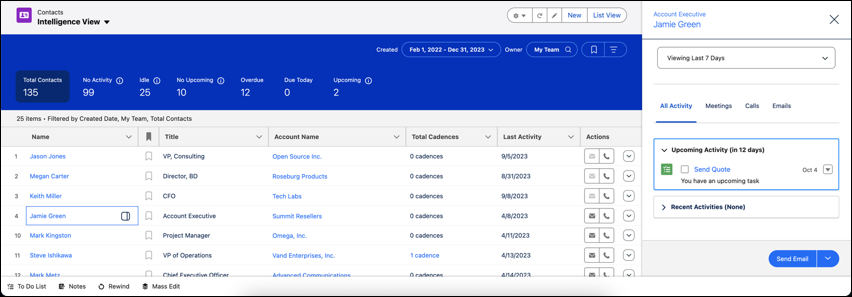
Contact activity metrics include:
- Total Contacts: The total number of contacts that meet your filter criteria.
- No Activity: Contacts with no completed activities.
- Idle: Contacts with past activity, but without completed activities in the last 30 days.
- No Upcoming: Contacts with recently completed activity but no activities scheduled in the next 30 days.
- Overdue: Contacts with activities that are overdue.
- Due Today: Contacts with activities that are due today.
- Upcoming: Contacts with activities that are due in the next 30 days.
Activity metrics include both events and tasks.
Engagement metrics include:
- Not contacted
- Contact attempted
- Engaged
- Meeting scheduled
- Meeting declined
- Disqualified
To see the Contact Intelligence View, your Salesforce Administrator must turn it on in Setup. Then, they must add the Intelligence View button to the Contact List View button layout.
# Contact Role Fields
Contact Roles define the role that a contact or person account plays in an account, case, contract, or opportunity.
### Required Editions
Available in: both Salesforce Classic and Lightning Experience
Available in: All Editions
Field
Description
Contact
The name of the contact or person account. Select an existing contact or create a
new one.
Primary
When selected, identifies the person as the primary contact for the record.
The
Primary option isn’t available for cases. Instead, the
contact listed in the Contact Name field on the case record is
automatically the primary contact.
Role
The role of the contact for the record. Your administrator can customize the
selections for this picklist.
#### See Also
- [Contact Roles](https://help.salesforce.com/s/articleView?id=sales.sales_core_contact_roles.htm&release=264.0.0&type=5 "Contact roles specify the part that each contact plays in an account, case, contract, or opportunity. When you use contact roles, your sales team always knows who to contact and when.")
# Contact Roles
Contact roles specify the part that each contact plays in an account, case, contract, or opportunity. When you use contact roles, your sales team always knows who to contact and when.
### Required Editions
Available in: both Salesforce Classic and Lightning Experience
Available in: All Editions
- **[Set Up Contact Roles](https://help.salesforce.com/s/articleView?id=sales.contactroles_define.htm&release=264.0.0&type=5)**
When you use contact roles, your sales team always knows who to contact and when. Set up contact roles for each available object you want to use them with. You can define which roles to use and how they appear to your sales reps.
- **[Add and Manage Contact Roles](https://help.salesforce.com/s/articleView?id=sales.contactroles_add.htm&release=264.0.0&type=5)**
To specify the part that each contact plays in your business process, add contact roles to accounts, cases, contracts, and opportunities. For example, at AW Computing, Mary Smith evaluates all proposals and then forwards them to Tom Jones for a final decision. In the opportunity record for AW Computing, designate Mary Smith as the Evaluator and Tom Jones as the Decision Maker. Now you know who to contact first!
- **[Considerations for Using Contact Roles](https://help.salesforce.com/s/articleView?id=sales.contactroles.htm&release=264.0.0&type=5)**
Contact roles let you specify the part that a person plays in an account, case, contract, or opportunity. When you use contact roles, you have more information about who to contact and when. Examples of contact roles include decision maker, business user, and executive sponsor. There are some things to be aware of when using contact roles.
- **[Contact Role Fields](https://help.salesforce.com/s/articleView?id=sales.contactroles_fields.htm&release=264.0.0&type=5)**
Contact Roles define the role that a contact or person account plays in an account, case, contract, or opportunity.
# Contact Suggestions and Potential Connections
Salesforce analyzes email and event data to identify individuals who aren’t yet in Salesforce as contacts or opportunity contact roles.
### Required Editions
Available in: Lightning Experience
Available with Einstein Activity Capture Standard in Sales in Starter, Pro Suite, Professional, and Enterprise Editions
Available with Unlimited Edition, Einstein 1 Sales Edition, and Agentforce 1 Edition
Available with Einstein for Sales, which is included in Einstein 1 Sales Edition and available for an extra cost in Enterprise and Unlimited Editions
Available with Sales Engagement, which is included with Sales in Performance and Unlimited Editions, and available for an extra cost in Professional and Enterprise Editions
Available with Revenue Intelligence, which is available for an extra cost in Enterprise and Unlimited Editions

Note We’re reorganizing the Einstein Activity Capture documentation. We’re moving some information around, but we aren’t deleting anything.
Automatically suggesting new contacts reduces manual data entry. This feature helps users expand their network by identifying potential contacts from email and event activity. It also makes sure that new contacts are added to Salesforce with relevant information, thereby improving data quality. Furthermore, users can quickly add contacts to relevant records, such as accounts and opportunities.
## Contact Suggestions on Seller Home
Einstein lists potential contacts from your email and event activity. You can add a suggested contact, see an activity timeline for context, or remove Einstein’s suggestion. Enable Einstein Activity Capture for Contact Suggestions to appear on the Seller Home page.
## Potential Connections
The Potential Connections section is available in the Email Message record home page. When email messages go through email matching flows, unmatched email addresses in that email thread are identified as potential connections. You can add each possible connection as a new contact or lead to Salesforce directly from this section.
Potential connections of an email message are displayed even if Einstein Activity Capture isn't turned on.
# Contact Sync
If you’re set up for Lightning Sync, learn about how we match your Microsoft or Google contacts with Salesforce contacts and accounts. Also, learn what we do when we can’t resolve a match, and how often items sync between applications.
### Required Editions
Available in: Salesforce Classic, Lightning Experience, and all versions of the Salesforce app
Available in: Professional, Enterprise, Performance, Unlimited, and Developer Editions
## Which Contacts Sync and How Are They Matched?
When Lightning Sync runs its initial contact sync, it checks to see whether contacts with matching email addresses exist in both Salesforce and Microsoft or Google. If email addresses match, the two contacts are mapped to each other and begin to sync. If there isn’t a match, Lightning Sync checks whether there’s a match between the first and last name. If there’s a match, then those contacts are mapped to sync. If there isn’t a match, a new contact is created, and those two contacts are mapped to sync. If multiple contacts have matching email addresses, Lightning Sync chooses a contact that meets the matching criteria your Salesforce admin chose in your sync configuration. Matching criteria options include most recent activity, last updated, and oldest creation date. Those contacts are then mapped to sync.
Lightning Sync also checks for a match between a contact’s company name in Microsoft or Google and an account’s company name in Salesforce. If there’s a match, the Salesforce account is related to the synced contact in Salesforce. If there isn’t a match, the contact is added to the Unresolved Items list in Salesforce.
After the initial sync, Lightning Sync periodically checks whether there are new or updated contacts that require syncing. There are various factors that can impact sync wait time, such as:
- When many users are set up to start syncing around the same time
- When sync is pending for a significant number of contacts
For example, at a large company, an extended wait time is likely upon the first sync.
Lightning Sync can also sync Salesforce person accounts with Microsoft or Google contacts. Other than the explicitly stated differences, person accounts sync like contacts do. See [Person Account Sync](https://help.salesforce.com/s/articleView?id=sales.lightning_sync_admin_sync_pa.htm&release=264.0.0&type=5 "Learn how and when Lightning Sync syncs person account details between Google Contacts or Microsoft® contacts and Salesforce.").
To learn more about your sync direction and other sync settings, talk to your Salesforce admin. To familiarize yourself with features, see [Learn About Lightning Sync for Microsoft® Exchange Features](https://help.salesforce.com/articleView?id=productivity_sync_exchange_admin_overview.htm&language=en_US) or [Learn About Lightning Sync for Google Features](https://help.salesforce.com/articleView?id=productivity_sync_exchange_admin_overview.htm&language=en_US).

Note Contact sync doesn’t support Outlook categories, so contacts labeled with a Salesforce\_Sync category that don’t exist in a contacts subfolder of the same name don’t sync with Salesforce. To avoid this issue, disable contact categories and select the Salesforce\_Sync folder for new contacts in Outlook. See [EAC - New Contacts Created In Outlook with ‘Salesforce\_Sync’ Category Do Not Sync to Salesforce](https://issues.salesforce.com/issue/a028c00000j5kg9AAA/eac--new-contacts-created-in-outlook-with-salesforce_sync-category-do-not-sync-to-salesforce).
## Unresolved Contacts
Sometimes Lightning Sync can’t match contacts or accounts automatically. When that happens, Lightning Sync lists partial matches on the Unresolved Items page in your Personal Settings.
To match unresolved contacts, decide whether you want to sync the Microsoft or Google contact to an existing Salesforce contact, or create a contact. Or you can update the Salesforce account with the information required to find a match, such as first name, last name, company name, or email address.
If you’re set up to sync both ways, we recommend creating relevant accounts in Salesforce before your admin rolls out contact sync. Otherwise, if you don’t resolve unmatched Salesforce contacts before the next sync cycle, Lightning Sync removes the company from Microsoft or Google contacts.
#### See Also
- [Resolve Your Synced Contacts](https://help.salesforce.com/s/articleView?id=sales.outlookcrm_unresolved_contacts.htm&release=264.0.0&type=5 "When contacts sync from your email app with Einstein Activity Capture, Lightning Sync, or Salesforce for Outlook, some contacts are automatically assigned to accounts based on their company. The rest are added to My Unresolved Items, where you can either assign contacts to Salesforce accounts or confirm that you want to leave them unassigned.")
- [Define Lightning Sync for Microsoft® Exchange Settings for Reps](https://help.salesforce.com/s/articleView?id=sales.exchange_sync_admin_configurations.htm&release=264.0.0&type=5 "After reps prepare their Exchange events to sync with Salesforce, admins can define sync settings for groups of reps in Lightning Sync configurations. This step kicks off the sync process, and determines how reps contacts and events sync between applications.")
# Contact Sync Filters
Lightning Sync contact sync filters let Salesforce admins limit which Salesforce contacts sync to users’ Microsoft or Google applications. Learn about how sync filters work differently, depending on how they’re set.
Salesforce admins can define these contact filters on users’ sync configuration data sets.
- Filter by record ownership
- Selected Contacts: User’s Records (1) - Select these options to sync only the contacts the user owns. You must select these options together.
- All Contacts (2) - Select this option to sync all contacts the user has access to in Salesforce. Remember, a users’ access to contacts is based on how you set up [object-level and record-level security](https://help.salesforce.com/s/articleView?id=platform.security_data_access.htm&type=5&language=en_US) for contacts in your org.
- Filter by objects or fields (3)
- Sync contacts users follow in Chatter (4)
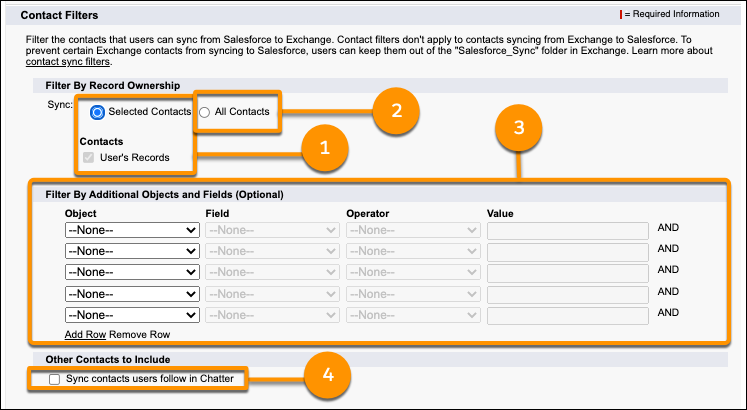
## Sync Contacts Users Follow in Chatter Setting
The Sync contacts users follow in Chatter setting works differently depending on the other filters selected in the configuration.
Selected record ownership setting
Additional object or field filters added?
User experience when the Sync contacts users follow in Chatter setting is
selected
Selected Contacts: User’s Records
No additional filters added.
Only the Salesforce contacts that users own plus the contacts that users follow in
Chatter sync to Salesforce.
Additional filters added.
Salesforce contacts that users own sync to Microsoft or Google, only if they meet the
additional object or field filters.
Plus Salesforce contacts that users follow in Chatter
sync to Microsoft or Google, even if the contacts don’t meet the additional object or field
filters.
All Contacts
No additional filters added.
All of the Salesforce contacts that users can access sync to Microsoft or Google,
which includes contacts users follow in Chatter. Users see the same behavior whether the
follow in Chatter setting is turned on or off.
Additional filters added.
Salesforce contacts that users can access, including the contacts that they follow in
Chatter, sync to Microsoft or Google only if they meet the additional object or field
filters.
#### See Also
- [Get Ready to Sync Contacts with Lightning Sync for Google](https://help.salesforce.com/s/articleView?id=sales.lightning_sync_user_google_get_ready_contacts.htm&release=264.0.0&type=5 "Learn how to sync contacts between Google Contacts and Salesforce when you’re set up to use Lightning Sync for Google.")
- [Get Ready to Sync Contacts with Lightning Sync for Microsoft® Exchange](https://help.salesforce.com/s/articleView?id=sales.productivity_sync_exchange_user_get_ready.htm&release=264.0.0&type=5 "Learn how to sync contacts between your company’s email application and Salesforce using Lightning Sync.")
# Contacts
Use contacts to store information about the people you do business with. Contacts are most often associated with an account, but can also be associated with other records such as opportunities. Contacts are even more useful when you enable Contacts to Multiple Accounts, add hierarchy information, and customize sharing settings.
### Required Editions
Available in: both Salesforce Classic and Lightning Experience
Available in: all editions
- **[Manage Contacts](https://help.salesforce.com/s/articleView?id=sales.sales_core_manage_contacts.htm&release=264.0.0&type=5)**
Understand the basics of contact records, including creating and deleting, merging duplicates, and sharing contacts with others.
- **[Set Up Contacts](https://help.salesforce.com/s/articleView?id=sales.sales_core_setup_contacts.htm&release=264.0.0&type=5)**
Contacts are great, but when you add basic contact features such as sharing rules and hierarchies they're even better.
- **[Contacts to Multiple Accounts](https://help.salesforce.com/s/articleView?id=sales.shared_contacts_overview.htm&release=264.0.0&type=5)**
People often work with more than one company. A business owner might own more than one company or a consultant might work on behalf of multiple organizations. Relate a single contact to multiple accounts so you can easily track the relationships between people and businesses without creating duplicate records.
- **[Contact Roles](https://help.salesforce.com/s/articleView?id=sales.sales_core_contact_roles.htm&release=264.0.0&type=5)**
Contact roles specify the part that each contact plays in an account, case, contract, or opportunity. When you use contact roles, your sales team always knows who to contact and when.
- **[Opportunity Contact Roles](https://help.salesforce.com/s/articleView?id=sales.sales_core_opp_contact_roles.htm&release=264.0.0&type=5)**
Opportunity contact roles specify the part that each contact plays in a deal. When you use and customize opportunity contact roles, your sales team knows who to contact and when.
- **[Things to Know About Contacts](https://help.salesforce.com/s/articleView?id=sales.contacts_supplemental.htm&release=264.0.0&type=5)**
Review additional considerations for contacts.
# Contacts and Einstein Activity Capture
Discover how Einstein Activity Capture handles your contact data after it’s captured.
### Required Editions
Available in: Lightning Experience
Available with Einstein Activity Capture Standard in Sales in Starter, Pro Suite, Professional, and Enterprise Editions
Available with Unlimited Edition, Einstein 1 Sales Edition, and Agentforce 1 Edition
Available with Einstein for Sales, which is included in Einstein 1 Sales Edition and available for an extra cost in Enterprise and Unlimited Editions
Available with Sales Engagement, which is included with Sales in Performance and Unlimited Editions, and available for an extra cost in Professional and Enterprise Editions
Available with Revenue Intelligence, which is available for an extra cost in Enterprise and Unlimited Editions

Note We’re reorganizing the Einstein Activity Capture documentation. We’re moving some information around, but we aren’t deleting anything.
The Einstein Activity Capture configuration settings control which data is captured from your connected account. Salesforce admins manage these settings and can learn about customization options in [Set Up Einstein Activity Capture for Your Team](https://help.salesforce.com/s/articleView?id=sales.aac_setup_parent.htm&release=264.0.0&type=5 "Get your sales reps up and running with Einstein Activity Capture. Give users access to Einstein Activity Capture. Connect your company’s email and calendar application to Salesforce, and create a configuration that controls how data moves between applications. Define settings such as which data to exclude and how activities are shared. When you’re done configuring Einstein Activity Capture, your users have some setup to do, too."). To learn how to use your captured data in Salesforce, read [Automate Your Workflow with Einstein Activity Capture](https://help.salesforce.com/s/articleView?id=sales.aac_use_eac.htm&release=264.0.0&type=5 "Einstein Activity Capture reduces manual data entry and provides a complete view of your relationship history. Connect your Microsoft or Google account to Salesforce to capture emails and calendar events and relate them to your sales records automatically. Manage your privacy settings to control how activity data appears to teammates while ensuring customer interactions remain current.").
- **[Guidelines for Using Contacts with Einstein Activity Capture](https://help.salesforce.com/s/articleView?id=sales.aac_contact_considerations.htm&release=264.0.0&type=5)**
Make sure you understand how Einstein Activity Capture works with contacts.
- **[How Contacts Sync with Einstein Activity Capture](https://help.salesforce.com/s/articleView?id=sales.aac_contact_sync_how_it_works.htm&release=264.0.0&type=5)**
If you use Einstein Activity Capture, learn about how we sync your Microsoft or Google contacts with Salesforce contacts and accounts. Also, learn what we do when we can’t find a match.
- **[Guidelines for Filtering Contacts](https://help.salesforce.com/s/articleView?id=sales.aac_contact_sync_filters.htm&release=264.0.0&type=5)**
With contact sync filters, you can select which contacts sync from Salesforce to your users’ Microsoft or Google applications.Learn about how sync filters work differently, depending on how they’re set.
- **[Field Mappings for Contact Sync](https://help.salesforce.com/s/articleView?id=sales.aac_sync_contact_field_mapping.htm&release=264.0.0&type=5)**
When you use Einstein Activity Capture to sync contacts, fields from your Salesforce contacts are mapped to fields in the connected Microsoft or Google account. Learn which fields sync and how they’re mapped. Plus, see which Microsoft® Exchange field mappings Salesforce admins can customize.
- **[Contact Suggestions and Potential Connections](https://help.salesforce.com/s/articleView?id=sales.eac_contact_suggestions.htm&release=264.0.0&type=5)**
Salesforce analyzes email and event data to identify individuals who aren’t yet in Salesforce as contacts or opportunity contact roles.
#### See Also
- [Automate Your Workflow with Einstein Activity Capture](https://help.salesforce.com/s/articleView?id=sales.aac_use_eac.htm&release=264.0.0&type=5 "Einstein Activity Capture reduces manual data entry and provides a complete view of your relationship history. Connect your Microsoft or Google account to Salesforce to capture emails and calendar events and relate them to your sales records automatically. Manage your privacy settings to control how activity data appears to teammates while ensuring customer interactions remain current.")
- [Einstein Activity Capture](https://help.salesforce.com/s/articleView?id=sales.einstein_sales_aac.htm&release=264.0.0&type=5 "Eliminate manual data entry and transform a list of engagements into action. Einstein Activity Capture syncs your Microsoft or Google account with Salesforce, linking email and calendar activities to the relevant contacts, leads, and opportunities. Einstein Activity Capture gives your team and AI agents the critical context needed to make their next move.")
# Contacts to Multiple Accounts
People often work with more than one company. A business owner might own more than one company or a consultant might work on behalf of multiple organizations. Relate a single contact to multiple accounts so you can easily track the relationships between people and businesses without creating duplicate records.
### Required Editions
Available in: both Salesforce Classic and Lightning Experience
Available in: Contact Manager, Group, Professional, Enterprise, Performance, Unlimited, and Developer Editions
When you use Contacts to Multiple Accounts, each contact still requires a primary account (the account in the Account Name field). The contact and its primary account have a _direct_ relationship. But you can add other accounts to the contact. These secondary account-contact relationships are _indirect_.
Contacts to Multiple Accounts works with person accounts. That means a person account can be either a related contact on a business account or a related account on a contact. A person account can also be related to another person account as either a related contact or related account. When you relate a person account to an account or contact, the relationship is always indirect. That’s because person accounts don’t have primary accounts, so person accounts can’t be directly related to business accounts. And person accounts can't be primary accounts for contacts, so person accounts can't be directly related to contacts. When Contacts to Multiple Accounts is enabled, an Account Contact Relationship record is created for each contact with a primary account, and for each person account.
Contacts to Multiple Accounts can't be enabled with the Metadata API.
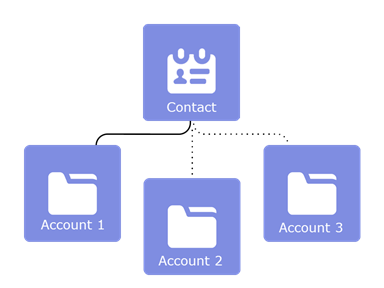

Tip We recommend turning on this feature outside of regular business hours to ease setup if your org has a large number of contacts.

Example John Smith is president of Acme Corporations, and Acme is the account on his contact record. But John is also involved with the nonprofit media organization Greendot Media. By adding Greendot Media as a related account on John’s contact record, you can track this other relationship. John is considered a _direct_ contact to Acme because Acme is the account on his contact record. And he’s considered an _indirect_ contact to Greendot Media and any other accounts that he becomes related to. John also appears on the Related Contacts related list for Greendot Media and any other accounts that he’s indirectly related to.
#### See Also
- [Set Up Contacts to Multiple Accounts](https://help.salesforce.com/s/articleView?id=sales.shared_contacts_set_up.htm&release=264.0.0&type=5 "Let your sales reps easily track the relationships between the customers and businesses they work with. Contacts to Multiple Accounts is quick to set up and allows reps to relate a single contact record to multiple accounts.")
- [Create and Edit Relationships Between Contacts and Accounts](https://help.salesforce.com/s/articleView?id=sales.shared_contacts_create_and_edit.htm&release=264.0.0&type=5 "To easily track the relationships between people and the businesses they work with, relate a single contact record to multiple account records.")
- [Considerations for Relating a Contact to Multiple Accounts](https://help.salesforce.com/s/articleView?id=sales.shared_contacts_considerations.htm&release=264.0.0&type=5 "Get familiar with tips, tricks, and potential pitfalls before you relate a contact to more than one account.")
# Contacts: What’s Different or Not Available in the Salesforce Mobile App
Not every Lightning Experience feature is in the Salesforce mobile app. Find out what’s different.
- Contacts to Multiple Accounts:
- Only the list item actions that are specific to the Account Contact Relationship object are available on the Related Accounts and Related Contacts related lists. Therefore, you see actions to view or remove the account-contact relationship, but not to edit or delete the contact or account record.
- From the Related Contacts related list, you can navigate to a contact record, but not an account record.
- You can’t view the contact hierarchy.
- Activity logs aren’t created when you use the  icon to send emails.
- The **Request Update**, **Manage External User**, and **Enable Customer User** buttons aren’t available.
- You can’t add a contact to a campaign.
- You can’t merge contacts.
- You can’t use the Salesforce mobile app to edit or delete a person account in a contact list view or related list. To edit or delete a person account on a mobile device, navigate to the person account record.
# contains
Checks whether a string or list includes a specified value in Salesforce Spiff. This function returns `true` or `false`.
### Required Editions
Available in: both Salesforce Classic (not available in all orgs) and Lightning Experience
Available in: Enterprise, Unlimited, and Developer Editions
Available for an additional cost in: Professional Edition with Web Services API Enabled
## Syntax
```
contains(string_or_list, search_value)
```
## Arguments
| Argument | Required? | Description |
| --- | --- | --- |
| string\_or\_list | Required | The string, list of strings, or list of numbers that you're searching. |
| search\_value | Required | The string or number you're searching for. Enclose string values in double quotes. |
## Example
Turn a ClosedByRepInPeriod list into a list of items with the `transform_list()` function, and check whether the list includes the string "Widgets". To also check whether the function returns a value, enclose the function in an `if()` statement that returns `1` or `0`.
```
=if(contains(transform_list(ClosedByRepInPeriod, Item__c), "Widgets") = true, 1, 0)
```
This formula can help make sure that payouts aren't made if the statement period includes the word "widgets".
# Content Lifecycle for Your Enablement Site
Creating and publishing content for your enablement site involves multiple disciplines that collaborate to plan, write, style, store, and release the content.
### Required Editions
Available in: Enterprise, Performance, and Unlimited Editions
#### See Also
- [Configure Your Enablement Site](https://help.salesforce.com/s/articleView?id=sales.mth_configure_mytrailhead.htm&release=264.0.0&type=5 "Set up the enablement site for your company, including your subdomain, authentication provider, user permissions, and brand identity.")
- [External Tools and Dependencies for an Enablement Site](https://help.salesforce.com/s/articleView?id=sales.mth_set_up_version_control_system.htm&release=264.0.0&type=5 "To create and publish content, your company relies on a few resources outside of your enablement site.")
- [Create Content with the Trailmaker Content App](https://help.salesforce.com/s/articleView?id=sales.mth_use_trailmaker_to_create_content.htm&release=264.0.0&type=5 "After writers finalize your company’s learning content, move your draft to Trailmaker Content. Create metadata for the trails, modules, and units that you want to publish, and format your unit content. You also use Trailmaker Content to maintain published content.")
- [Manage Releases with the Trailmaker Release App](https://help.salesforce.com/s/articleView?id=sales.mth_use_trailmaker_to_manage_releases.htm&release=264.0.0&type=5 "Prepare, preview, and publish new or changed content for your enablement site with the Trailmaker Release app. You can also update, archive, and restore content.")
- [Evaluate and Maintain Enablement Content](https://help.salesforce.com/s/articleView?id=sales.mth_maintain.htm&release=264.0.0&type=5 "Keep your company’s enablement experience fresh, up to date, and purposeful. Evaluate how well your published content performs, and then update, add, or delete content as your learning and enablement strategy matures. You can also transfer your content to another system by quickly exporting all content that’s been published or archived on your enablement site.")
# Contract Fields
Your page layout and field-level security settings determine which fields are visible and editable.
### Required Editions
Available in: both Salesforce Classic and Lightning Experience
Available in: Performance and Developer Editions
Available in: Professional, Enterprise, and Unlimited Editions with Sales
A contract has the following fields, listed in alphabetical order.
| Field | Description |
| --- | --- |
| Account Name | Name of the account associated with the contract. |
| Activated By | Name of the person who activated the contract. |
| Activated Date | Activation date of the contract. |
| Billing City | City portion of billing address. Up to 40 characters are allowed. |
| Billing Country | Country portion of billing address. Entry is selected from a picklist of standard values or entered as text. If the field is a text field, up to 80 characters are allowed. |
| Billing State/Province | State or province portion of billing address. Entry is selected from a picklist of standard values or entered as text. If the field is a text field, up to 80 characters are allowed. |
| Billing Street | Street address used for billing. Up to 255 characters are allowed in this field. |
| Billing Zip/Postal Code | Zip or postal code portion of billing address. Up to 20 characters are allowed. |
| Company Signed By | User at your company who authorized the contract. |
| Company Signed Date | Date when the contract was authorized. |
| Contract Division | Division to which the contract belongs (Salesforce Classic only). This value is inherited from the related account. Available only in orgs that use divisions to segment data. |
| Contract End Date | Last day when the contract is in effect. Your admin can configure Salesforce to calculate the contract end date based on the contract start date and contract term. If this field is auto-calculated, it doesn’t appear on the contract edit page. |
| Contract Name | Title for the contract that distinguishes it from other contracts. |
| Contract Number | Unique number assigned to the contract. Numbering for contracts starts at 100. (Read only.) Admins can modify the format and numbering for this auto-number field. |
| Contract Owner | User who owns the contract record. |
| Contract Start Date | First day when the contract is in effect. |
| Contract Term (months) | Number of months that the contract is in effect. |
| Created By | User who created the contract record. |
| Customer Signed By | Contact on the account that authorized the contract. |
| Customer Signed Date | Date when the contact signed the contract. |
| Customer Signed Title | Title of the contact who signed the contract. |
| Description | Statement describing the contract. |
| Last Modified By | User who most recently changed the contract record. |
| Owner Expiration Notice | Number of days before the contract end date when you want to send the notification, if the contract owner and account owner wants to be notified of an upcoming contract expiration. |
| Shipping City | City portion of primary mailing or shipping address. Up to 40 characters are allowed. |
| Shipping Country | Country portion of primary mailing or shipping address. Entry is selected from a picklist of standard values or entered as text. If the field is a text field, up to 80 characters are allowed. |
| Shipping State/Province | State or province portion of primary mailing or shipping address. Entry is selected from a picklist of standard values or entered as text. If the field is a text field, up to 80 characters are allowed. |
| Shipping Street | Primary mailing or shipping street address of account. Up to 255 characters are allowed. |
| Shipping Zip/Postal Code | Zip or postal code portion of primary mailing or shipping address. Up to 20 characters are allowed. |
| Special Terms | Any terms that you’ve agreed to and want to track in the contract. |
| Status | Stage that the contract has reached in the contract business process. Your admin can add values to this picklist within three system-defined contract status categories: Draft, In Approval Process, and Activated. You can use these status categories to track contracts within your business process using reports and views. |
| Custom Links | List of custom links for contracts set up by your admin. |
#### See Also
- [Things to Know About Contracts](https://help.salesforce.com/s/articleView?id=sales.contract_supplemental.htm&release=264.0.0&type=5 "When you create a contract, consider the type of information that’s needed to maximize the quality of your data.")
# Contract History
Curious about the changes made to a contract during its lifecycle? View the Contract History related list on a contract’s detail page.
### Required Editions
Available in: Salesforce Classic
Available in: Performance and Developer Editions
Available in: Professional, Enterprise, and Unlimited Editions with Sales
Here’s how it works. When someone modifies a standard or custom field whose history is tracked on a contract, an entry is added to the Contract History related list. Entries show the date, time, nature of the change, and who made the change. (Changes to the contract’s related lists aren’t tracked here.)
The default is to track changes for contracts with a status of In Approval Process or Activated. To track changes for contracts with any status, ask your Salesforce admin to set up contracts.
To report on activated contracts whose fields are tracked, choose **Contract History** under Contracts and Orders in the Reports area.
If you’re using Lightning Experience, switch to Salesforce Classic to see Contract History.
# Contracts
A contract is a written agreement between parties. Many companies use contracts to define the terms for doing business with other companies. Use Salesforce to establish and document the contracts that you have with your accounts and opportunities. Track the contract through your approval process. And use workflow alerts to remind yourself of contract renewals.
### Required Editions
Available in: both Salesforce Classic and Lightning Experience
Available in: Performance and Developer Editions
Available in: Professional, Enterprise, and Unlimited Editions with Sales
- **[Set Up Contracts](https://help.salesforce.com/s/articleView?id=sales.customize_contract.htm&release=264.0.0&type=5)**
Customize Salesforce to handle your internal contract management process.
- **[Manage Your Contracts](https://help.salesforce.com/s/articleView?id=sales.contract_manage_your_contracts.htm&release=264.0.0&type=5)**
Establish and document the contracts that you have with your accounts and opportunities. Track the contract through your approval process. And use workflow alerts to remind yourself of contract renewals.
- **[Things to Know About Contracts](https://help.salesforce.com/s/articleView?id=sales.contract_supplemental.htm&release=264.0.0&type=5)**
When you create a contract, consider the type of information that’s needed to maximize the quality of your data.
# Control Access and Security for Seller-Focused Mobile Experience
Seller-Focused Mobile Experience is enabled by default, and users with access to Sales Cloud can use it without admin setup. Learn how to disable it to control access.
To disable it, from Setup, in the Quick find box, enter Mobile. Select **Salesforce Mobile App**. Disable **Seller-Focused Sales Mobile Experience**.
For more information, see [Control Access and Security for the Salesforce Mobile App](https://help.salesforce.com/s/articleView?id=xcloud.salesforce_app_security.htm&type=5&language=en_US).
# Control Access to Activities
Disable the Access Activities permission so users, such as guest users in Experience Builder sites, don’t have access to any tasks, events, and emails. That way, your reps and agents can be sure that their work remains private.
### Required Editions
Available in: Salesforce Classic, Lightning Experience, and all versions of the Salesforce mobile app
Available in: Enterprise, Performance, Unlimited, and Developer Editions and in all editions that allow profile changes.
User Permissions Needed
To disable activity access:
Customize Application and Modify All Data
To access tasks, events, calendar, and email:
Access Activities
This change also applies to Experience Builder sites and Salesforce Tabs + Visualforce sites, accessed through Lightning Experience, all versions of the Salesforce mobile app, and Salesforce Classic. Digital Experiences are available in Enterprise, Performance, Unlimited, and Developer editions.
1. From Setup, enter Permission Sets in the Quick Find box, then select **Permission Sets**.
2. Select or create a permission set, and then open **System Permissions**.
3. Based on your user license, update the permission set.

Note Some licenses don’t allow permission set changes for this permission.
4. Verify that all the users you'd like to have access to activities have the Access Activities permission enabled on their profile.
When you disable the Access Activities permission, users also can’t see or create events on calendars.
Guest users have access to emails in these circumstances:
- Enhanced Email is enabled and the Access Activities permission is enabled on their profile
- Email-to-Case is enabled and the user has read access to cases
The Access Activities permission doesn’t change user access to Email-to-Case emails. Emails associated with cases that a user has access to appear in the case feed and the case’s email related list.
# Control Access to Alignments
Give stakeholders access to alignments and specific areas within alignments in Territory Planning. To give access to all alignments within a dataset, add teammates to the dataset. Or limit access to specific alignments or alignment areas when you select them for each teammate along with their access level.
### Required Editions
Available in: both Salesforce Classic (not available in all orgs) and Lightning Experience
Available in: Professional, Enterprise, Performance, Unlimited, and Developer Editions with Web Services API enabled
User Permissions Needed
To share alignments:
Sales Planning Ops Analyst permission set
AND
Query for Datapipelines User for Sales Planning permission set
AND
SF Maps Territory Planning for Sales Planning permission set
To open alignments that were shared with you:
Read on users

Note Sharing an alignment or area also shares a snapshot of your current legend and layer configuration. Users who you shared the alignment or area with can modify their legend and layer configuration without affecting your legend and layer configuration.

Note Users need read access to the User object in order to open alignments that were shared with them.
1. Navigate to the alignment that you want to grant access to. Then select **Share**. Or, find your area in the map legend or the territory model editor and click **Share**.
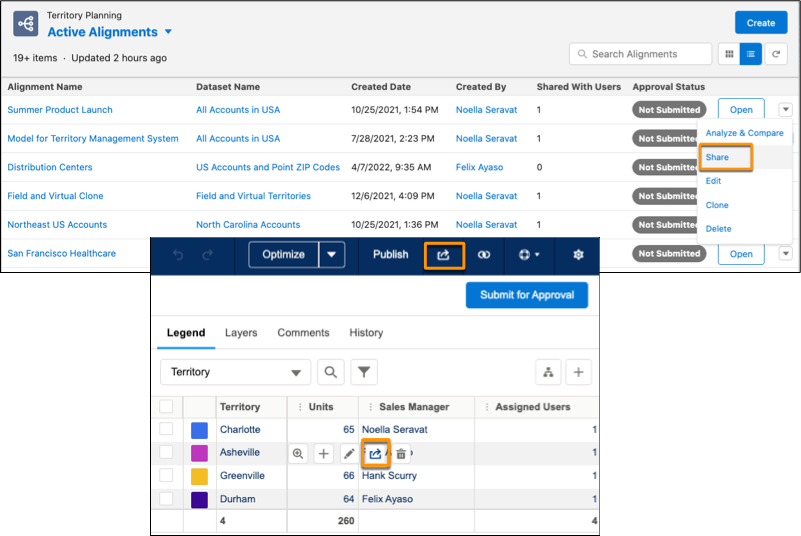
2. To share an alignment or its areas, add a user, select the areas that you want them to have access to, and then click **Apply**.
3. Select the level of access that you want the user to have, and then save your changes.
4. To turn link sharing on and share an alignment or its areas with all Territory Planning users, select **Sharing** and an access level.
5. Save your changes.
#### See Also
- [Control Access to Datasets](https://help.salesforce.com/s/articleView?id=sales.territory_planning_sharing_data_sets.htm&release=264.0.0&type=5 "Give stakeholders access to datasets and all the alignments within them in Territory Planning. Add teammates to a dataset and select their level of access.")
# Control Access to Datasets
Give stakeholders access to datasets and all the alignments within them in Territory Planning. Add teammates to a dataset and select their level of access.
### Required Editions
Available in: both Salesforce Classic (not available in all orgs) and Lightning Experience
Available in: Professional, Enterprise, Performance, Unlimited, and Developer Editions with Web Services API enabled
User Permissions Needed
To share datasets:
Sales Planning Ops Analyst permission set
AND
Query for Datapipelines User for Sales Planning permission set
AND
SF Maps Territory Planning for Sales Planning permission set

Note Sharing a dataset also shares all related alignments, but doesn’t share the alignments’ legend and layer configurations. Users who you share the dataset with see the default legend and layer configurations.
1. Navigate to the dataset that you want to grant access to. Then select **Share**.
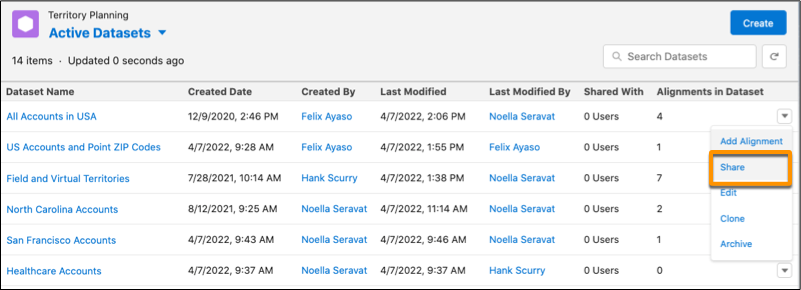
2. To share the dataset and all of its alignments, add users to the dataset.
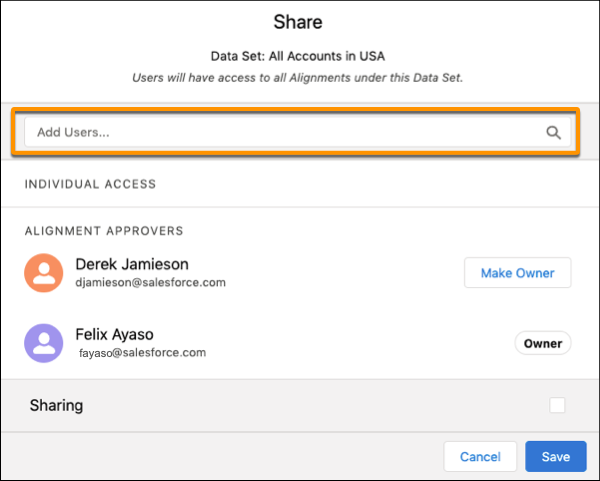
3. Select the level of access that you want the user to have, then save your changes.
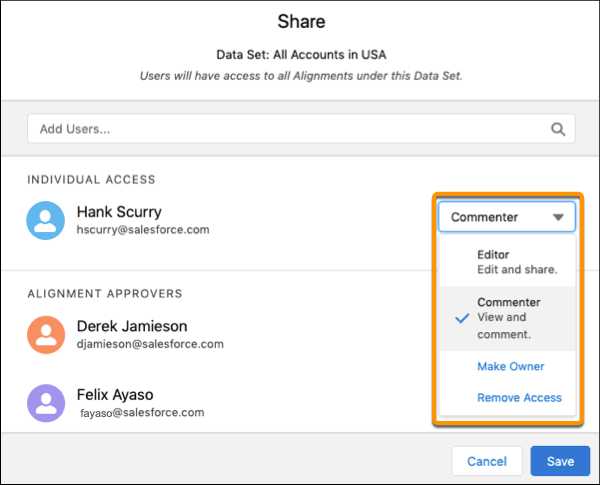
4. To share a dataset and its alignments with all Territory Planning users, select **Sharing** and an access level.
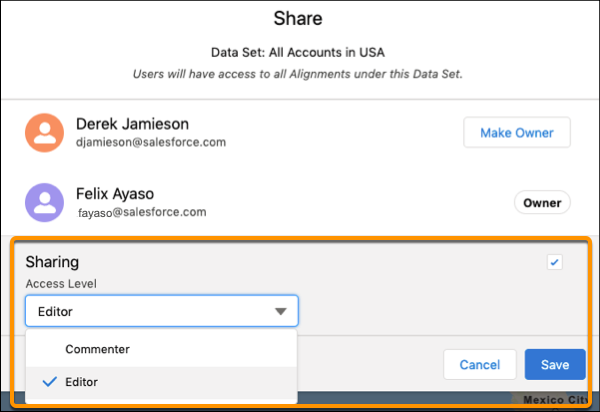
5. Save your changes.
#### See Also
- [Control Access to Alignments](https://help.salesforce.com/s/articleView?id=sales.territory_planning_sharing_alignments.htm&release=264.0.0&type=5 "Give stakeholders access to alignments and specific areas within alignments in Territory Planning. To give access to all alignments within a dataset, add teammates to the dataset. Or limit access to specific alignments or alignment areas when you select them for each teammate along with their access level.")
# Control Assignments Manually
Respect established relationships between reps and their customers, and account for special situations when you assign specific records with intention in Legacy Sales Planning.
### Required Editions
Available in: both Salesforce Classic (not available in all orgs) and Lightning Experience
Available for an additional cost in: Enterprise, Performance, Unlimited, and Developer Editions with Sales Planning in English only, and only if you have Web Services API enabled
User Permissions
Needed
To assignment records:
Data Pipelines Base User permission set license
Data Pipelines Base User
permission set
AND
Sales Planning permission set

Important
Feature is scheduled for retirement as of Summer'26. See [Sales Planning version 1 Retirement](https://help.salesforce.com/s/articleView?id=005224374&type=1&language=en_US)
1. Open your sales plan, and then click **Edit Plan** | **Assignment**.
2. To show individual records that you want to assign manually, select **Record View**.
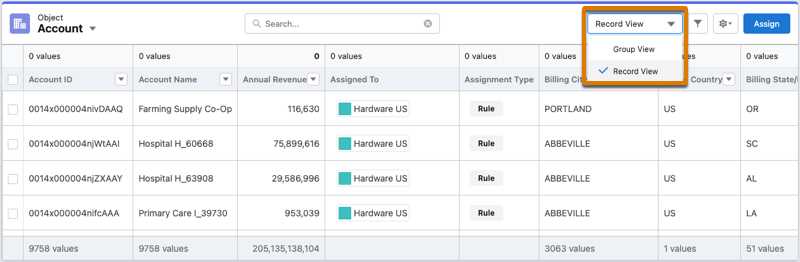
3. Select the records that you want to assign manually, and then click **Assign**.
The assignment panel appears.
4. Select at lease one node. If you select multiple nodes, specify the method and priority for assigning records.
5. Preview the assignments, and then click **Apply**.
Sales Planning assigns the records based on your selections.
# Control How Your Captured Emails Are Shared
Choose how to share email data that Einstein Activity Capture adds to the activity timeline of related Salesforce records. Share with all users, Chatter groups, or no one.
### Required Editions
User Permissions
Needed
To view and change your sharing settings:
Use Einstein Activity Capture
Available in: Lightning Experience
Available with Einstein Activity Capture Standard in Sales in Starter, Pro Suite, Professional, and Enterprise Editions
Available with Unlimited Edition, Einstein 1 Sales Edition, and Agentforce 1 Edition
Available with Einstein for Sales, which is included in Einstein 1 Sales Edition and available for an extra cost in Enterprise and Unlimited Editions
Available with Sales Engagement, which is included with Sales in Performance and Unlimited Editions, and available for an extra cost in Professional and Enterprise Editions
Available with Revenue Intelligence, which is available for an extra cost in Enterprise and Unlimited Editions

Note Some Sales Cloud Einstein features generate business-related insights using emails captured by Einstein Activity Capture, including emails that aren’t shared. However, the content of the emails and the usernames associated with them are hidden. Einstein Opportunity Insights and Einstein Automated Contacts are the Sales Cloud Einstein features that use these private emails.

Important If Sync Email as Salesforce Activity is enabled, synced emails and events follow the activity sharing rules configured for your org. Activity Sharing procedure described here is no longer applicable.
Sharing for calendar events is managed by your Salesforce admin. You can’t adjust or control how events are shared to the activity timeline.
1. From your personal settings, enter Sharing Settings in the Quick Find box, and then select **Sharing Settings** under Einstein Activity Capture.
2. Click **Change**.
If your admin chose to enforce the Don’t Share setting, you can’t change the sharing setting. However, you can still share individual emails and events, and respond to sharing requests from other users.
3. Select how you want to share your emails and events.
When activities are shared with everyone, others see full email and event details. When activities aren’t shared with everyone, others see basic details, such as dates and names, and can request full access from the activity owner. “Everyone” means all Salesforce users at your company, unless your admin changed it to mean only Einstein Activity Capture users. To share with Chatter groups, the group owner has to add the **Enable email and event sharing** option to the group. If you share with Chatter groups, you can choose up to 20 private or unlisted Chatter groups.
When Sync Email as Salesforce Activity isn’t enabled, Einstein Activity Capture sharing settings apply globally to all connected accounts, including any secondary accounts you've added. If you select **Share with Everyone**, emails from your secondary or personal accounts can be visible to others. Before you connect a personal or secondary mailbox, review your sharing settings and your org default settings. To keep sensitive accounts private, select **Don't Share**, or search for Excluded Addresses in your personal settings to exclude specific email addresses.
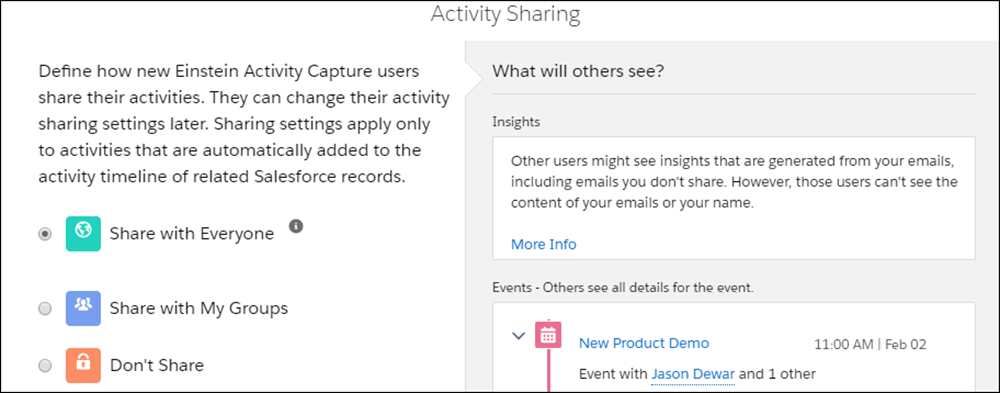
Your sharing setting, which overrides the default sharing set by your Salesforce admin, is applied to all your emails and events, except the ones that you individually set sharing for. To set sharing setting for an individual email or event, find the email or event on the activity timeline and select a new sharing setting. To share individual emails and events, you need access to Chatter.
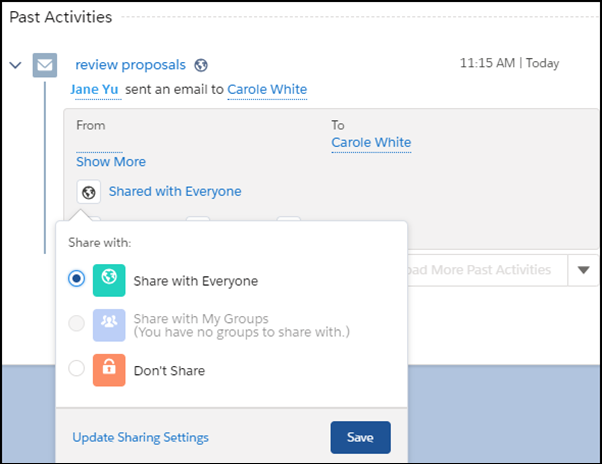

Important All senders and recipients own an email. All guests own an event. Only the owner of an email or event can control how its full contents are shared in Salesforce. If multiple people own an email or event, the most permissive settings win. For example, you share an email with three groups. Your colleague shares the email with two other groups. The email is shared with all five groups.
#### See Also
- [Set Up a Group for Sharing Activities](https://help.salesforce.com/s/articleView?id=sales.aac_set_up_a_group_for_sharing.htm&release=264.0.0&type=5 "The group’s owner or manager can enable email and event sharing for private and unlisted Chatter groups. Then, Einstein Activity Capture users within the group can share their emails and events with all group members.")
- [Automate Your Workflow with Einstein Activity Capture](https://help.salesforce.com/s/articleView?id=sales.aac_use_eac.htm&release=264.0.0&type=5 "Einstein Activity Capture reduces manual data entry and provides a complete view of your relationship history. Connect your Microsoft or Google account to Salesforce to capture emails and calendar events and relate them to your sales records automatically. Manage your privacy settings to control how activity data appears to teammates while ensuring customer interactions remain current.")
# Control If Users Can Enter Their Own Sales Email Prompt Instructions
Salesforce admins can control if anyone can enter instructions for Einstein to use in creating a unique draft email. This feature is on by default.
### Required Editions
Available in: Lightning Experience
Available with the Einstein for Sales add-on, which is available for an extra cost in Performance and Unlimited Editions.
User Permissions Needed
To enable and disable organization-wide settings
Customize Application
AND
Modify All Data
1. In Setup, enter Einstein for Sales and select **Einstein for Sales**.
2. Disable the setting **Add Email Prompt Instructions**.
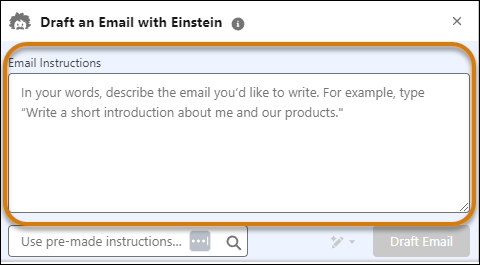
No one in your organization can enter their own email instructions for using generative AI to create a draft email. Pre-made instructions are still available.

Important This tool uses generative AI, which is known to include inaccurate or harmful responses. Before sharing externally, review the output for accuracy and safety. You assume responsibility for the output when sharing.
# Control What Appears on the Map Legend
Show critical unit and assignment details that matter most when you carve territories in Territory Planning. Depending on your preferences, specify which columns help you make the best decisions for distributing work to your teams.
### Required Editions
Available in: both Salesforce Classic (not available in all orgs) and Lightning Experience
Available in: Professional, Enterprise, Performance, Unlimited, and Developer Editions with Web Services API enabled
User Permissions
Needed
To modify alignment options:
Sales Planning Ops Analyst permission set
AND
Query for Datapipelines User for Sales Planning permission set
AND
SF Maps Territory Planning for Sales Planning permission set
1. Open an alignment.
2. Click **Settings**, and then click **Legend**.
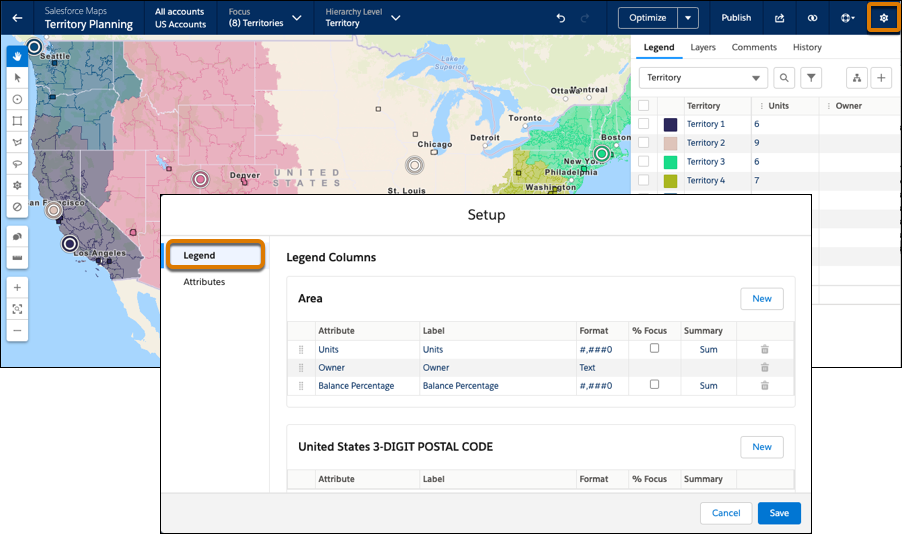
3. Specify which columns you want to appear on the legend.

Important Territory Planning doesn’t support multi-select picklists.
4. Save your changes.
# Controlling Access to Datasets and Alignments
Keep managers focused on designing territories in the areas that leadership assigns to them in Territory Planning. Ensure privacy among your managers when you provide everyone access to only their respective areas. Share a dataset and all of its alignments with specific users and choose the level of involvement that you want them to have.
### Required Editions
Available in: both Salesforce Classic (not available in all orgs) and Lightning Experience
Available in: Professional, Enterprise, Performance, Unlimited, and Developer Editions with Web Services API enabled
- **[Control Access to Datasets](https://help.salesforce.com/s/articleView?id=sales.territory_planning_sharing_data_sets.htm&release=264.0.0&type=5)**
Give stakeholders access to datasets and all the alignments within them in Territory Planning. Add teammates to a dataset and select their level of access.
- **[Control Access to Alignments](https://help.salesforce.com/s/articleView?id=sales.territory_planning_sharing_alignments.htm&release=264.0.0&type=5)**
Give stakeholders access to alignments and specific areas within alignments in Territory Planning. To give access to all alignments within a dataset, add teammates to the dataset. Or limit access to specific alignments or alignment areas when you select them for each teammate along with their access level.
# Controlling and Fine-Tuning Unit and Territory Assignments
Review and govern changes to unit assignments and manage access to accounts when you assign account teams to areas in Territory Planning.
### Required Editions
Available in: both Salesforce Classic (not available in all orgs) and Lightning Experience
Available in: Professional, Enterprise, Performance, Unlimited, and Developer Editions with Web Services API enabled
- **[Preview Changes to Unit Assignments](https://help.salesforce.com/s/articleView?id=sales.territory_planning_maintain_assignment_changes.htm&release=264.0.0&type=5)**
Reassign accounts to meet the changing needs of your business in Territory Planning. When you optimize territories or assign units, review the impact of proposed assignments before committing to them.
- **[Manage Placeholder Unit Assignments](https://help.salesforce.com/s/articleView?id=sales.territory_planning_maintain_placeholder_assignments.htm&release=264.0.0&type=5)**
Allocate accounts to and from placeholder territories. Include placeholders when you optimize alignments to assign units exactly how you want in Territory Planning.
- **[Measure Transfers of Unit Ownership](https://help.salesforce.com/s/articleView?id=sales.territory_planning_maintain_ownership_transfers.htm&release=264.0.0&type=5)**
Identify accounts that transfer to new areas as a result of adjusting and optimizing territories in Territory Planning. Show the impact of transferred accounts on the new areas in terms of numeric attributes such as annual revenue and employees.
- **[Prevent Changes to Unit Assignments](https://help.salesforce.com/s/articleView?id=sales.territory_planning_maintain_unit_assignment_locks.htm&release=264.0.0&type=5)**
Preserve specific territory assignments in bulk when you add settings that lock the units of your choice in .csv files. Import those files to your alignments in Territory Planning.
- **[Assigning Account Teams to Territories](https://help.salesforce.com/s/articleView?id=sales.territory_planning_maintain_account_teams.htm&release=264.0.0&type=5)**
Balance territories and the work that you distribute to your account teams in Territory Planning.
- **[Assign Units to Their Respective Areas](https://help.salesforce.com/s/articleView?id=sales.territory_planning_maintain_area_assignments.htm&release=264.0.0&type=5)**
Ensure that every unit belongs to its rightful owner. Resolve assignment exceptions and inconsistencies in cross-hatched areas when you assign the units in them to their respective areas in Territory Planning.
# Convert a Lightning Email Template from SML to HML
Take advantage of the Handlebars Merge Language (HML), which is more flexible than the Salesforce Merge Language (SML), by converting existing Lightning email templates.
### Required Editions
Available in: Lightning Experience
Available in: Essentials, Professional, Enterprise, Performance, Unlimited, and Developer Editions
Available in: both Salesforce Classic (not available in all orgs) and Lightning Experience
Available in: Professional, Enterprise, Performance, Unlimited, and Developer Editions with Web Services API enabled
User Permissions Needed
To convert country names to codes with recipes:
Sales Planning Admin permission set
AND
One of these:
Data Pipelines Base User permission set
CRM Analytics Plus Admin permission set
CRM Analytics Growth Admin permission set

Note If you prefer not to use recipes, add country codes to data sources in Sales Planning or directly to alignments. See the linked resources for more details.
1. From Setup, in the Quick Find box, enter Data Pipeline, and then select **Getting Started**.
2. Click **Launch Data Manager**. Then click **Recipes**.
3. Open a recipe.
4. Add a transform node before the Output node.
5. Click **Formula** in the Transform section, and then **Custom Formula**.
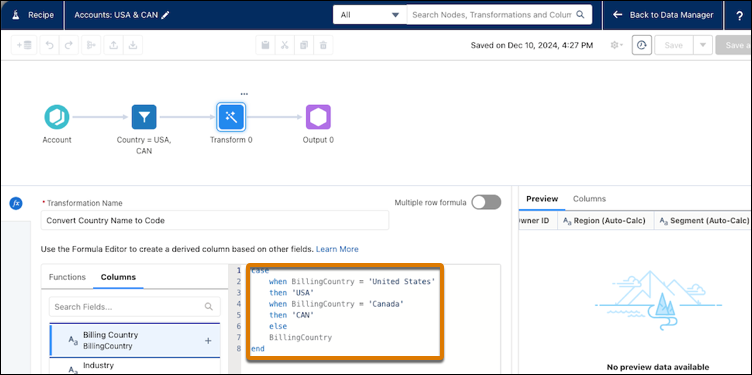
6. In Formula Editor, create a formula to covert each value in your country attribute to its corresponding country code.
7. For the Output Type, select **Text**.
8. Click **Apply**.
9. Test the formula in the Preview panel and confirm it works as you expect.
10. Save and run the recipe.
11. Add the country code attribute to a [data source](https://help.salesforce.com/s/articleView?id=sales.data_sources_management_add_sources.htm&language=en_US) or [territory plan alignment](https://help.salesforce.com/s/articleView?id=sales.sales_planning_country_codes_alignments.htm&release=264.0.0&type=5 "Plan territories with more accuracy when you add country code attributes to your units in Territory Planning.").
#### See Also
- [Let Users Select States, Countries, and Territories from Picklists](https://help.salesforce.com/s/articleView?id=xcloud.admin_state_country_picklists_overview.htm&language=en_US)
- [Create Custom Fields](https://help.salesforce.com/s/articleView?id=platform.adding_fields.htm&language=en_US)
# Convert Currency to a String in Salesforce Spiff
To show currency values with formatting such as symbols and commas in Salesforce Spiff documents or statement cards, convert the currency field to a string data type.
### Required Editions
Available in: both Salesforce Classic (not available in all orgs) and Lightning Experience
Available in: Enterprise, Unlimited, and Developer Editions
Available for an additional cost in: Professional Edition with Web Services API Enabled
User Permissions Needed
To modify currency in Spiff documents or statements:
1. Copy this code to a text editor.
```
CurrencyFieldStringWithCommas
concat(["$",CurrencyFieldString_M, CurrencyFieldString_K, CurrencyFieldString_H, CurrencyFieldString_Decimal])
CurrencyFieldString_M
if(CurrencyFieldStringIntLength<7,"",
if(CurrencyFieldStringIntLength<10,concat([left(CurrencyFieldString,CurrencyFieldStringIntLength-6),","]),
if(CurrencyFieldStringIntLength>=10,concat([left(CurrencyFieldString,CurrencyFieldStringIntLength-9),",",mid(CurrencyFieldString,CurrencyFieldStringIntLength-8,3),","]),
"")))
CurrencyFieldString_K
if(CurrencyFieldStringIntLength<4,"",
if(CurrencyFieldStringIntLength<7,concat([left(CurrencyFieldString,CurrencyFieldStringIntLength-3),","]),
if(CurrencyFieldStringIntLength>=7,concat([mid(CurrencyFieldString,CurrencyFieldStringIntLength-5,3),","]),
"")))
CurrencyFieldString_H
if(CurrencyFieldStringIntLength<4,left(CurrencyFieldString,3- (3-CurrencyFieldStringIntLength)),
if(CurrencyFieldStringIntLength>=4,mid(CurrencyFieldString,CurrencyFieldStringIntLength-2,3),
"0"))
CurrencyFieldString_Decimal
mid(concat([CurrencyFieldString,"0000"]),CurrencyFieldStringIntLength + 1, 3)
CurrencyFieldStringIntLength
search(".", CurrencyFieldString) -1
CurrencyFieldString
right(concat([CurrencyField]), len(concat([CurrencyField]))-4)
```

Tip If you know that you don't have a number larger than 999,000, remove the `CurrencyFieldString_M` line.
If you want to apply the same logic to multiple fields and don't want to create seven fields per display field, use this code instead.
```
CurrencyFieldStringWithCommas
concat(["$",
if(CurrencyFieldStringIntLength<4,
left(CurrencyFieldString,3- (3-CurrencyFieldStringIntLength)),
if(CurrencyFieldStringIntLength<7,
concat([left(CurrencyFieldString,CurrencyFieldStringIntLength-3),",",
mid(CurrencyFieldString,4+ (CurrencyFieldStringIntLength-6) ,3)]),
concat([left(CurrencyFieldString,CurrencyFieldStringIntLength-6),",",
mid(CurrencyFieldString,4+ (CurrencyFieldStringIntLength-9),3),",",
mid(CurrencyFieldString,4+ (CurrencyFieldStringIntLength-6) ,3)]))),
mid(concat([CurrencyFieldString,"0000"]),CurrencyFieldStringIntLength+1,3)])
CurrencyFieldStringIntLength
search(".", CurrencyFieldString) -1
CurrencyFieldString
right(concat([CurrencyField]), len(concat([CurrencyField]))-4)
```
2. Replace CurrencyField with the name of your specific currency field.
3. Copy this code into Spiff one piece at a time.
4. Add other formatting such as currency symbols to the top level.
# Convert Qualified Leads
Keep the sales process moving when you qualify a lead and then convert it to a contact. Relate that contact to either an existing account in Salesforce, or an account that you create. And if the lead you’re converting results in a deal that looks promising, create an opportunity record at the same time.
### Required Editions
Available in: Salesforce Classic and Lightning Experience
Available in: Starter, Essentials, Group, Professional, Enterprise, Performance, Unlimited, Pro Suite, and Developer Editions with Sales
User Permissions
Needed
To convert a lead:
Create and Edit on leads, accounts, contacts
AND
Convert
Leads
To relate the converted lead to a new opportunity:
Create on opportunities
To relate the converted lead to an existing opportunity:
Edit on opportunities
To avoid creating duplicate records when converting leads:
Require Validation for Converted Leads
[ Watch a Demo](https://salesforce.vidyard.com/watch/gKjoNI_n5O9WfYpqE_p3Xg) (English only)
When you convert leads to contacts or accounts, the process sometimes creates duplicate records. If so, we show you a warning. Custom warnings set up by your administrator don’t appear during lead conversion. When you begin to convert a lead, possible matches appear based on matching rules using standard fields. When you click **Convert**, additional matches can appear based on matching rules using custom fields. How these duplicate records are handled depends on how your Salesforce admin has set up Apex Lead Convert and Duplicate Management. For example, your administrator can require that you resolve the duplicates before you finish converting. If your admin has created any cross-object duplicate rules, they aren't triggered during lead conversion.
You can’t reverse a lead conversion. After the conversion, the lead record is no longer searchable, unless your admin assigned you the View and Edit Converted Leads permission. The new account, contact, or opportunity record created from the converted lead is searchable. In Lightning Experience, if your admin assigns you the View and Edit Converted :eads permission, both the converted lead record and the new record created from the conversion are searchable. However, you can’t view or edit the converted lead record from the search results page.

Tip You can also delete converted lead records via the API, or tools that use the API. Delete converted lead records in bulk by using [Mass Delete Records](https://help.salesforce.com/s/articleView?id=xcloud.admin_massdelete.htm&type=5&language=en_US) available in Setup, or [Data Loader](https://developer.salesforce.com/docs/atlas.en-us.dataLoader.meta/dataLoader/performing_mass_deletes.htm). To indicate converted leads, set the Converted criteria to equals 1. Be sure to review [Considerations for Deleting Leads](https://help.salesforce.com/s/articleView?id=sales.leads_del_considerations.htm&release=264.0.0&type=5 "Understand what happens to the records associated with the leads you delete individually or in bulk. Identify who can delete converted leads.") before deleting any leads.
When converting a lead, attached files and notes are attached to the contact, account, and opportunity records you associate with the converted lead. If you use Sales Engagement, the lead’s completed cadence tasks don’t appear on the Activity Timeline of the new contact, account, or opportunity.
1. In a lead record, select to convert the lead.
2. Enter a name for an account that you’re creating, or select an existing account.
3. Salesforce Classic only: If you update a person account, select the option to overwrite the lead source in the person account with the value from the lead.
4. Select a contact, or enter a name for a contact that you’re creating.
5. Enter a name for an opportunity that you’re creating, or, in Lightning Experience, select an existing opportunity. Up to 20 matching opportunities appear in the list.
6. Convert the lead.
7. Optionally, create a follow-up task.

Note Some long-time Salesforce customers still use an older lead convert process built with PLSQL (Procedural Language for SQL) instead of Apex. If your org uses Lightning Experience and the old lead convert process, the convert window contains fewer options. To use the newest lead conversion window, your org must have enabled Apex Lead Convert. With its increased capability, flexibility, and efficiency, the newest lead convert window is a great reason to make the switch to Apex Lead Convert. To use Apex Lead Convert, [review this knowledge article,](https://help.salesforce.com/articleView?id=Enabling-Use-Apex-Lead-Convert&language=en_US&type=1) and then contact Salesforce Customer Support.
#### See Also
- [Considerations for Converting Leads](https://help.salesforce.com/s/articleView?id=sales.leads_notes.htm&release=264.0.0&type=5 "Learn what happens to qualified leads when you convert them to accounts, contacts, and opportunities.")
- [Troubleshoot Lead Conversion](https://help.salesforce.com/s/articleView?id=sales.leads_convert_correct_issues.htm&release=264.0.0&type=5 "If a lead doesn’t convert, try these tips to correct the issue.")
- [Considerations for Deleting Leads](https://help.salesforce.com/s/articleView?id=sales.leads_del_considerations.htm&release=264.0.0&type=5 "Understand what happens to the records associated with the leads you delete individually or in bulk. Identify who can delete converted leads.")
# Converting Leads
After you qualify your leads, convert them to contacts, accounts, and opportunities.
- **[Convert Qualified Leads](https://help.salesforce.com/s/articleView?id=sales.leads_convert.htm&release=264.0.0&type=5)**
Keep the sales process moving when you qualify a lead and then convert it to a contact. Relate that contact to either an existing account in Salesforce, or an account that you create. And if the lead you’re converting results in a deal that looks promising, create an opportunity record at the same time.
- **[Troubleshoot Lead Conversion](https://help.salesforce.com/s/articleView?id=sales.leads_convert_correct_issues.htm&release=264.0.0&type=5)**
If a lead doesn’t convert, try these tips to correct the issue.
# Copy Field Enrichments for Prospecting Center
Copy data from Data 360 into your org using the Copy Field Enrichment settings. Copy Fields show field data copied from objects with a 1-to-1 relationship to a Data 360 Individual, Unified Individual, Data 360 Account, or Unified Account DMO.
### Required Editions
Available in: Lightning Experience
Available with Sales Engagement, which is included with Sales in Performance, Unlimited Editions, Agentforce 1 Edition, and available for an extra cost in Professional and Enterprise Editions. Sales Engagement is also available for an extra cost in Service and Lightning Platform.

Important Prospecting Center is scheduled for retirement in all Salesforce orgs as of April, 2026. For existing customers, Prospecting Center remains available till April 2027.
User Permissions Needed
To view enrichments in Setup:
View Setup
To view a specific enrichment:
You must have access to the data space used in the enrichment. Set Salesforce Data
Cloud permission set, such as Data Aware Specialist, feature permission to allow data space
access.
To create or update enrichments:
Customize Application AND
Data Cloud User AND
Write Access to Data Action AND
Write Access to Data Space Definition
If you enabled enhanced security data spaces, you also need the permission Customize
Data Actions on the Dataspace Scope.
CIO objects must have an Individual ID as the dimension. Multidimensional CIO objects aren’t supported. For example, adding a field for Lifetime Value copied from a Calculated Insight object.
1. From Setup, in the Quick Find box, enter Permission Sets, and then open **Customer 360 Data Platform Integration**.
2. Select **Object Settings**.
3. Search for and click **Accounts**.
4. In the Object Permissions section, select **Read**, **Delete**, **View All Records**, and **Modify All Records**.
5. Repeat steps 3 and 4 for **Leads** and **Contacts**.
6. Save your changes.
# Copying Items in Salesforce Spiff Designer
In Salesforce Spiff Designer, easily create elements from existing items by copying plans, payout rules, calculations, and filters.
### Required Editions
Available in: both Salesforce Classic (not available in all orgs) and Lightning Experience
Available in: Enterprise, Unlimited, and Developer Editions
Available for an additional cost in: Professional Edition with Web Services API Enabled
## Copying a Plan
To copy a plan, in the Plans tab, hover over the plan’s name, click the three dots, and select **Copy Plan**. When you copy a plan, any rules associated with that plan are also copied.
The duplicated plan appears in the left panel. The original name is retained with Copy appended at the end. To rename the plan, click the three dots and select **Rename Plan**.
The assigned reps aren’t duplicated. Assign reps to the newly copied plan.
When you copy an entire plan, the rules are duplicated from the original plan. The calculations and logic remain identical to those of the original rules. Consequently, modifying the logic of the duplicated rule also impacts the logic of the original rule. Folders or elements nested under the copied plan aren’t replicated. The copying process pertains to the plan itself, not its nested elements.
## Sharing a Payout Rule
In Spiff Designer, there isn’t a direct option to copy a payout rule from one plan to another. However, you can share payout rules across plans. Go to the plan where you want to include the existing payout rule. Click **New Payout Rule** and enter the original name of the payout rule you want to share from another plan.
These considerations apply when you share a payout rule.
- When sharing payout rules, the payout amount is automatically applied.
- When deleting a shared payout rule, you can delete it permanently or remove it from the plan. If you delete permanently, the rule is removed from all plans where it’s used. To remove a rule from the plan, right-click the number next to the payout rule and select **Remove From Plan**.
## Copying a Datasheet Calculation
To copy a datasheet calculation, click the dropdown arrow on the calculation name bar and select **Copy Field**.
The duplicated datasheet calculation is visible on the datasheet with an identical name and calculation, but with Copy appended at the end.
To incorporate this calculation into any datasheet, go to the datasheet, click the **+** button, and enter the name of the recently duplicated calculation.
You can also find your copied datasheet calculation in the Data tab under Fields on the appropriate object.
## Copying a Worksheet Calculation
To copy a worksheet calculation, right-click the calculation in the worksheet and select **Copy**.
## Copying a Filter
To copy a data filter, go to Filters in the Data tab and locate the filter in the left panel. Click the three dots next to the filter and select **Copy Filter**.
The copied filter is visible in the left panel. The original name is retained with Copy appended at the end.
# count
Returns the total number of items in a list or data filter in Salesforce Spiff.
### Required Editions
Available in: both Salesforce Classic (not available in all orgs) and Lightning Experience
Available in: Enterprise, Unlimited, and Developer Editions
Available for an additional cost in: Professional Edition with Web Services API Enabled
## Syntax
```
count(list)
```
## Arguments
| Argument | Required? | Description |
| --- | --- | --- |
| list | Required | The list or data filter that contains the items you want to count. |
## Considerations
This function can't count a number or a string, such as `count(3)` or `count("widget")`.
## Example
Count the total number of items in a MeetingsInPeriodBDR data filter, which returns meetings booked in a period by rep.
```
=count(MeetingsInPeriodBDR)
```
# Create a Badge
Create custom badges to recognize and thank your coworkers.
### Required Editions
Available in: Salesforce Classic
WDC is available for existing WDC customers in Professional Edition,
Enterprise Edition, Performance Edition, Unlimited Edition, and
Developer Edition.

Important Starting in Spring ’22, WDC isn’t available to new Salesforce customers. For existing customers, WDC features and records from Badges, Skills, and Thanks aren’t affected and will remain available in the application beyond Spring ’22. WDC Goals, Coaching, Feedback, Performance, and Rewards features won’t appear in the application anymore, and records created previously will no longer be accessible.

Note On May 1, 2020, we rebranded this suite. It's now called WDC.
User Permissions Needed
To view the Badges tab:
No additional user permission needed
To build a badge:
Create on Documents
The Restrict Custom Badge Creator setting is disabled by default. If the
setting is enabled, users need the Create Custom Badge Definitions
permission.
1. Click the Badges tab.
If the Badges tab isn’t displayed, click  to the right of your current tabs and select it from the All Tabs page.
2. Click **New**.
3. Enter a name and description for the badge, add a badge image, and optionally assign badge limits.

Note
- Badges can’t be transferred from a sandbox organization to a production organization.
- You can limit access to badge records with the Access related list, but badge images are externally available.
| Badge Field | Description |
| --- | --- |
| Badge Name | The name of the badge. |
| Active | Indicates that the badge is active and available to give. This setting is enabled by default. |
| Owner Name | The name of the badge owner. |
| Company Badge | Select to make this badge a company badge. Only users with the Chatter moderator permission can create and edit company badges. Company badges enable all users to give the badge. |
| Description | A description that explains the significance of the badge. |
| Image URL | A visual representation of the badge. Click the image field to select a picture from a directory on your computer. Badge images are stored at 128 x 128 pixels and are externally available. |
| Limit Number | The number of badges that are available. This can be per user or across all users. The default value is unlimited badges. |
| Limit Start Date | Indicates when the system begins to count the number of badges used. The default value is the date the badge is created. |
| Limit Type | Select Per User to have Limit Number apply to each user. Select Per Company to have Limit Number apply to the entire organization. |
4. Click **Save**.
Access for custom badges is set to all internal users by default. To change the access to a custom badge, go to the badge detail page and click **Edit List** on the Access related list.
#### See Also
- [Thank Coworkers](https://help.salesforce.com/s/articleView?id=sales.recognition_overview.htm&release=264.0.0&type=5 "Thank your coworkers by posting badges to their Chatter feed.")
- [Configure Access to Thanks Badges](https://help.salesforce.com/s/articleView?id=sales.workcom_thanks_access.htm&release=264.0.0&type=5 "Configure access to a thanks badge using its Access related list.")
# Create a Basic Attainment Rule with an Individual Commission Rate
Create a more dynamic, fair, and motivating compensation structure that drives sales performance and supports the unique needs and goals of your sales team. Instead of a flat commission rate, pay commission for on-target earnings (OTE) using an individual commission rate (ICR) or attainment percentage.
### Required Editions
Available in: both Salesforce Classic (not available in all orgs) and Lightning Experience
Available in: Enterprise, Unlimited, and Developer Editions
Available for an additional cost in: Professional Edition with Web Services API Enabled
## Example 1: Pay Commission with an Individual Commission Rate
Consider an example where a rep has a quarterly quota of $250,000 and an OTE of $25,000. If they achieve their quarterly quota, the ICR calculation is $25,000 divided by $250,000, or 10%. Giving a 10% commission rate to each closed deal pays $25,000 by the time they close $250,000. This option pays a $1,000 commission for a $10,000 deal.
1. Create two quota tables, QuarterlyQuota\_OTE for the quarterly data and OTE\_Worksheet for the OTE.
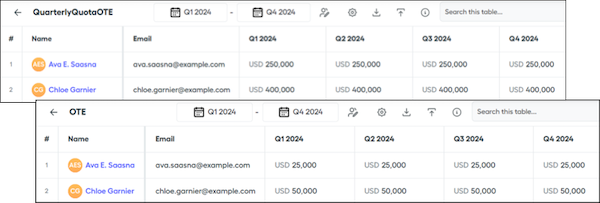
2. Create a worksheet and use the `quota()` function to reference both of the quarterly quota and OTE tables.
3. Create an ICR calculation that uses both of these values.
Give your calculation a name that's unique from the name of the quota table.
```
OTE_Calc = OnTargetEarningsOTE / QuarterlyQuota_OTE
```
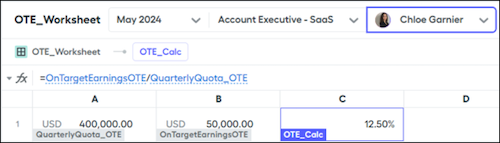
4. Create a datasheet with a data filter such as ClosedInQuarter and commission each deal at the rep's OTE percentage.
```
OTE_Commission = ARR__c * OTE_Worksheet!OTE_Calc
```
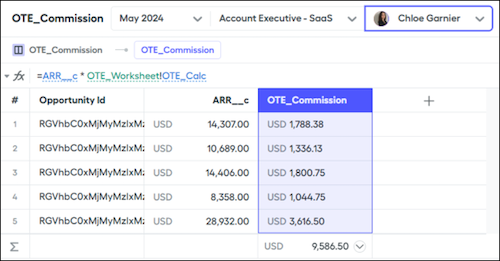
## Example 2: Pay Commission for Attainment Percentage
Consider another example with the same quarterly quota of $250,000 and an OTE of $25,000. Instead of calculating an ICR, calculate the attainment percentage of each deal and multiply that value by their OTE. In this case, a $10,000 deal is 4% of their total attainment, so the calculation is $10,000 dividied by $250,000, or 4%. Then, multiply the $25,000 OTE amount by 4%, or $1,000.
1. Create two quota tables, QuarterlyQuota\_OTE for the quarterly data and OTE\_Worksheet for the OTE.

2. Create a worksheet and use the `quota()` function to reference both of the quarterly quota and OTE tables.
3. Use the worksheet calculation to reference the quarterly quota table.
```
DealAttainment = ARR__c / OTE_Worksheet!QuarterlyQuota_OTE
```
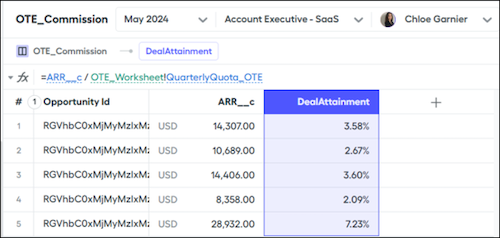
4. Multiply the individual deal attainment against the rep's OTE, which returns a commission amount.
```
= sum(OTE_Commission!QTE_AttainmentCommission)
```
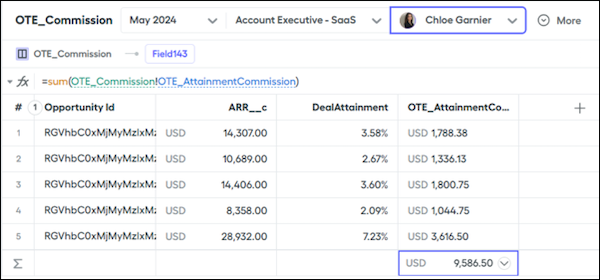
# Create a Button Set in Salesforce Maps
A button set controls which actions users can perform in Salesforce Maps. Create a set, and then assign it to a permission group.
### Required Editions
Available in: Lightning Experience and Salesforce Classic
Available in: Professional, Enterprise, Performance, Unlimited, and Developer Editions
User Permissions Needed
To configure Maps features:
Customize Application
1. From Setup, open **Installed Packages**, find Salesforce Maps, and then click **Configure**.
2. Select **Settings > Button Sets**.
3. Create a button set, or edit an existing one.
4. Add the buttons that you want to use. To remove a button, drag it to Available Buttons.
5. Assign the button set to a permission group by selecting **Permission Groups**.
# Create a Cadence with Cadence Builder 2.0
Build sales programs that can respond to prospect engagement with Cadence Builder 2.0 cadences.
### Required Editions
Available in: Lightning Experience
Available with Sales Engagement, which is included with Sales in Performance, Einstein 1, and Unlimited Editions, and available for an extra cost in Professional and Enterprise Editions. Sales Engagement is also available for an extra cost in Service and Lightning Platform.
User Permissions Needed
To create cadences:
Sales Engagement Cadence Creator
OR
Sales Engagement Cadence Creator
Included

Note To watch a video demonstration of building a cadence with Cadence Builder 2.0, see [Cadence Builder 2.0](https://salesforce.vidyard.com/watch/9GredDSiDxwNpWSMzzRYW6).
1. In the Sales Engagement app, choose **Cadences** from the Navigation menu.
2. Click **New Cadence**.
3. Click **Open Cadence Builder 2.0**.
4. In the left panel, click **Cadence Overview**.
In the right panel, enter a name and description for your cadence.
5. In the left panel, click **Main**.
The Main track is usually used for targets that haven't yet engaged with your cadence.
6. Drag a step from the left panel to the Main track canvas.
In the right panel, configure the details for the step.
7. Repeat with the remaining steps you want to add to the Main track.
8. In the left panel, click **Positive**.
Use the Positive track for steps for targets who have engaged or shown interest.
9. Add and configure steps in the Positive track.
10. Repeat with the Negative Track.
Use the Negative track for steps for targets who have shown a lack of interest.
11. In the left panel, click **Positive**. In the right panel, choose the engagement events you want to send a target to the Positive track.
Calls generate the Meaningful Connect, Not Interested, Unqualified, Left Voicemail, and Call Back Later events. Emails generate the Reply, Open, and Link Click events.
12. In the left panel, click **Negative**. In the right panel, choose the engagement events you want to send a target to the Negative track.
13. In the left panel, click **Main**. In the right panel, choose the engagement events you want to send a target out of the cadence.
14. When you're finished, click **Save**.
If you're ready to activate the cadence and being adding targets, click **Activate**.
You can perform these steps in whatever order is easiest for you.
# Create a Calculation for a Custom Metric
Along with the default and pre-built metrics, you can add custom metrics to statements. Any calculations that you create in Designer can be used as a metric card.
### Required Editions
Available in: both Salesforce Classic (not available in all orgs) and Lightning Experience
Available in: Enterprise, Unlimited, and Developer Editions
Available for an additional cost in: Professional Edition with Web Services API Enabled
User Permissions Needed
To create a custom metric with quotas:
A Spiff user role with these permissions turned on.
Designer Configuration: Manage
Quotas: Edit
For this example, we’re creating a year to date (YTD) Deal Renewals Attainment statement metric that includes In Year Attainment with deal renewals only.
1. In Designer, under Plans, create a folder named Statement Metrics under the plan where you want to add the custom metric.
2. In the Statement Metrics folder, add another folder named YTD Deal Renewals Attainment.
3. Create a data filter that returns only deal renewals year to date.
In this example, all of the data that we want to consider is on the Opportunities object, so we build the filter there. Before creating the filter from scratch, check to see if there are any existing filters that can be used. Make sure to filter by the specific rep, by deals that are closed, won, and renewed, and by the year selected.
1. Click **Data**, and then click **Filters**.
2. Select the **ClosedInYear** and **IsRenewal** filters.
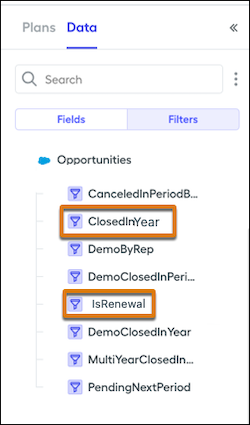
3. Create the ClosedInYearRenewals filter in Settings, on the right side.
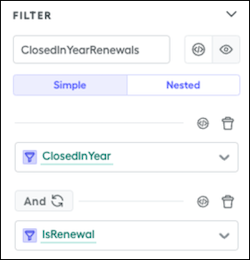
4. Create a YTD Total Deal Renewals calculation.
1. In Plans, click the three dots next to the YTD Deal Renewals Attainment folder and select **New Worksheet**.
We use a worksheet because the calculation is a single data point.
2. Name the worksheet YTDDealRenewalsAttainment\_Worksheet and add the headers Metrics and Quota Calculations.
3. In the Metrics column, add a function that sums the ARR\_\_c field from the ClosedInYearRenewals filter. Enter \=sum(ClosedInYearRenewals!ARR\_\_c). Update the display name and display format.
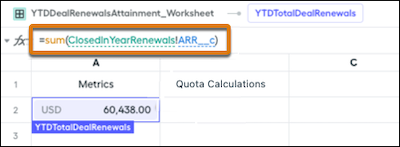
5. Create data for renewals quota, which we use later in the calculation.
1. In the YTD Deal Renewals Attainment folder, create a table named YTDDealRenewalsQuota.
2. Add three reps, and fill out the table with the appropriate amounts.
6. Add the quotas data to the Create a YTD Total Deal Renewals calculation.
1. Return to the YTDDealRenewalsAttainment\_Worksheet.
2. In the Quota Calculations column, add a function that references the quota data. Enter \=quota("YTDDealRenewalsQuota"). Update the display name and display format.
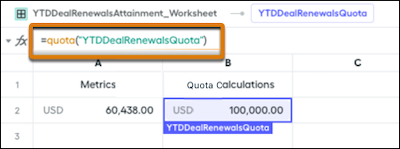
3. In a new row, divide YTDTotalDealRenewals by YTDDealRenewalsQuota. Enter \=YTDTotalDealRenewals/YTDDealRenewalsQuota. Give the calculation a name, and update the display name and display format.
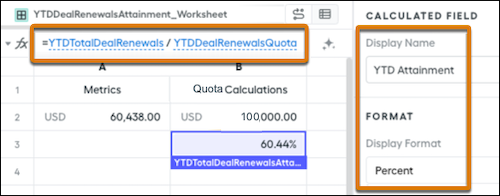
# Create a Calendar of Direct-Mail Campaigns in Lightning Experience
Get a visual overview of all your direct-mail campaigns.
### Required Editions
Available in Lightning Experience in: Enterprise, Performance, Unlimited, and Developer Editions
Use the following selections.
Object
Campaign
Calendar Name
Direct Mail
Field for Start
Start Date (Date)
Field for End
End Date (Date)
Apply a Filter (Optional)
All Active Direct-Mail Campaigns
Field Name to Display
To display the name of each campaign on the calendar: Name
To display each campaign’s owner on the calendar: Owner
Now you can visually track direct-mail campaigns by name or owner.
#### See Also
- [Create an Object Calendar in Lightning Experience](https://help.salesforce.com/s/articleView?id=sales.calendar_create.htm&release=264.0.0&type=5 "Here’s how to create a calendar based on a standard or custom object in Salesforce.")
# Create a Calendar of Opportunity Close Dates in Lightning Experience
See all your opportunities’ scheduled close dates at a glance.
### Required Editions
Available in Lightning Experience in: Enterprise, Performance, Unlimited, and Developer Editions
Use the following selections.
Object
Opportunity
Calendar Name
Opportunities Closing
Field for Start
Close Date (Date)
Field for End
None
Apply a Filter (Optional)
My Opportunities, or another list view
Field Name to Display
Name
Now you have a calendar to remind you of close dates across all your opportunities.
#### See Also
- [Create an Object Calendar in Lightning Experience](https://help.salesforce.com/s/articleView?id=sales.calendar_create.htm&release=264.0.0&type=5 "Here’s how to create a calendar based on a standard or custom object in Salesforce.")
# Create a Calendar of Task Due Dates in Lightning Experience
Make a calendar that shows when your tasks are due.
### Required Editions
Available in Lightning Experience in: Enterprise, Performance, Unlimited, and Developer Editions
First, ask your Salesforce admin to replace the Due Date field in the Task layout with a custom Date/Time field. Then use the following selections.
Object
Task
Calendar Name
Tasks Due
Field for Start
Due Date and Time (Date/Time)
Field for End
None
Apply a Filter (Optional)
My Tasks
Field Name to Display
Subject
Now you can see your task due dates alongside your Salesforce events.
# Create a Calendar to View Open Cases by SLA in Lightning Experience
Monitor open cases and increase compliance with your service level agreement.
### Required Editions
Available in Lightning Experience in: Enterprise, Performance, Unlimited, and Developer Editions
Use the following selections.
Object
Case
Calendar Name
Time Left in SLA
Field for Start
Date Opened (Date)
Field for End
Custom formula field, Opened (Date) + 36 hours: SLA Expiration
Apply a Filter (Optional)
All Open Cases, or another list view
Field Name to Display
Customer Name
Now you can see at a glance whether you’re meeting your SLA.
#### See Also
- [Create an Object Calendar in Lightning Experience](https://help.salesforce.com/s/articleView?id=sales.calendar_create.htm&release=264.0.0&type=5 "Here’s how to create a calendar based on a standard or custom object in Salesforce.")
- [Build a Formula Field](https://help.salesforce.com/s/articleView?id=platform.customize_formulas.htm&type=5&language=en_US)
# Create a Campaign Hierarchy
To organize campaigns and link them together, you can associate them with parent and child relationships in a campaign hierarchy. When you run reports, metrics from the child campaigns roll up to the parent.
### Required Editions
Available in: Salesforce Classic and Lightning Experience
Available in: Salesforce Professional, Enterprise, Performance, Unlimited, and Developer Editions
User Permissions Needed
To view campaigns:
Read on campaigns
To view campaign hierarchies:
Read on campaigns
AND
Read on the Parent Campaign field on
campaigns
To add, edit, or delete hierarchy columns:
Modify All Data
You can create a robust hierarchy up to five levels deep.
1. Create or open the campaign record of a campaign that you want to use as a child.
2. In the Parent Campaign field, select the campaign to use as the parent.
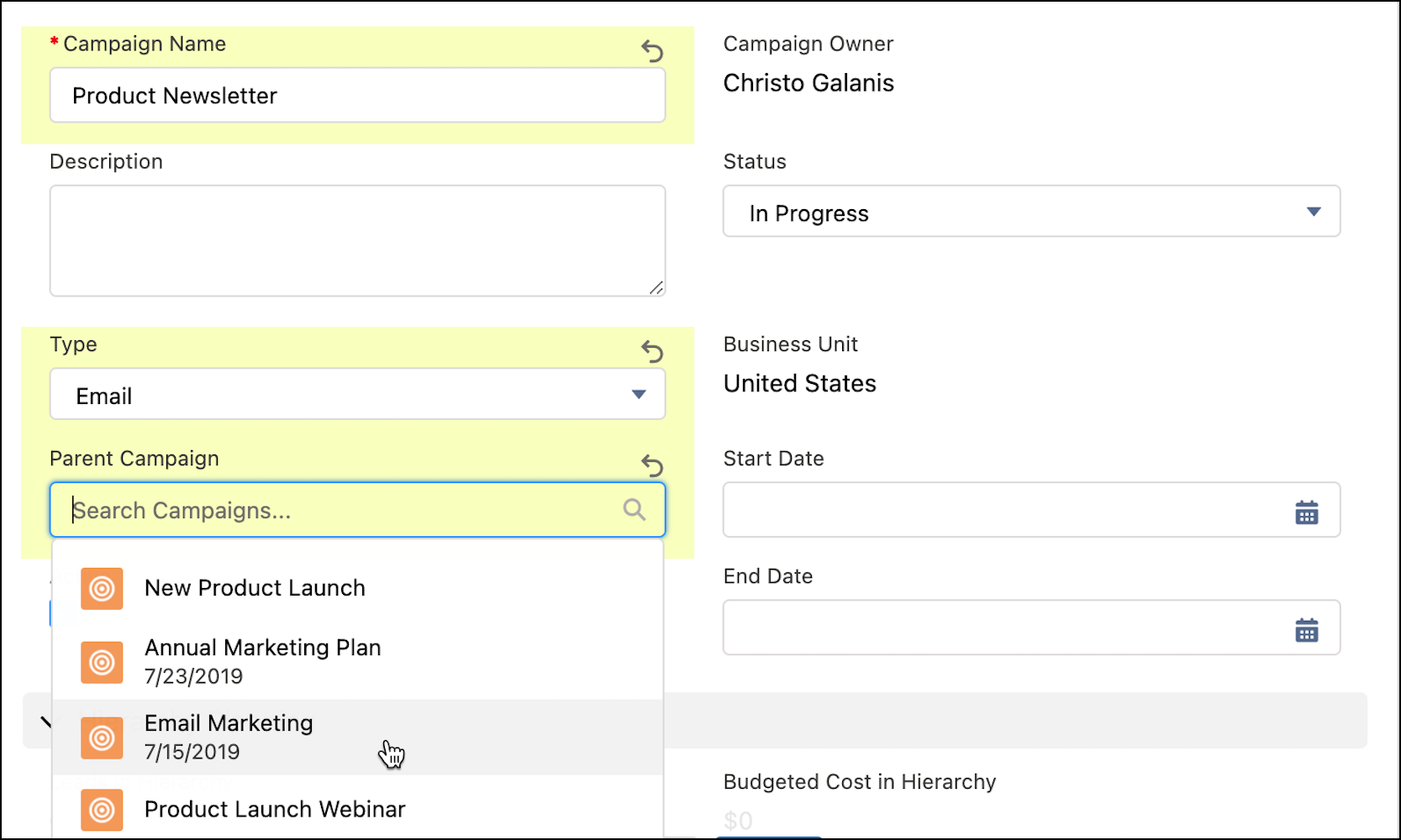
3. To see where in the hierarchy a campaign appears, open the campaign record and click **View Campaign Hierarchy**.

Example
Christo wants to track his team’s email marketing efforts, so he creates the top-level campaign called Email Marketing. To organize his product communications, he creates several campaigns to use as parents: Product Newsletter, All New Widgets, and Protect Your Purchase. He also creates quarterly campaigns for new products and separate campaigns to promote service contracts. Each time he creates a new quarterly campaign, he adds the correct parent campaign.
For his campaign hierarchy, he makes Product Newsletter the parent campaign for All New Widgets and Protect Your Purchase. When he’s done, his hierarchy looks like this.
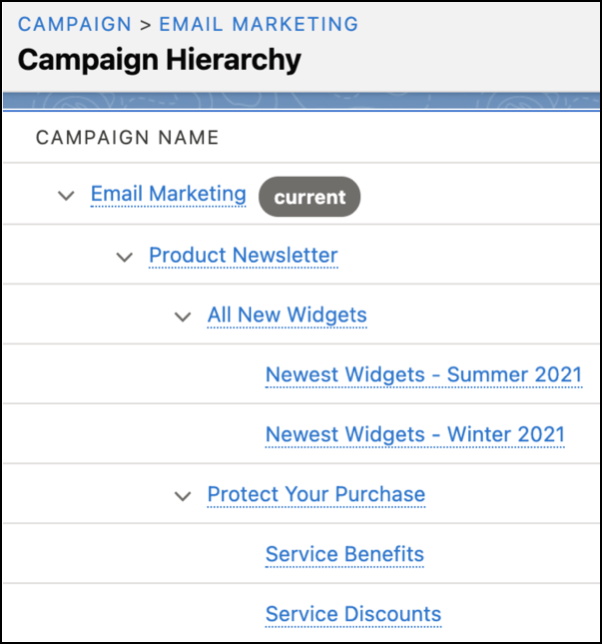
#### See Also
- [Understand Campaign Hierarchy](https://help.salesforce.com/s/articleView?id=sales.campaigns_hierarchy.htm&release=264.0.0&type=5 "To organize and link individual marketing campaigns together, use parent and child relationships to associate campaigns in a campaign hierarchy. You can think of a hierarchy as a family tree. Metrics from child campaigns roll up to the parent, so you can access data for individual campaigns or in aggregate. You can build a hierarchy to focus on marketing channels, fiscal periods, long-term projects, or any other factor that makes sense for your business. A campaign hierarchy can support up to five levels.")
# Create a Change Set in Salesforce Spiff
Use a change set to deploy updates from a sandbox to your production or parent environment.
### Required Editions
Available in: both Salesforce Classic (not available in all orgs) and Lightning Experience
Available in: Enterprise, Unlimited, and Developer Editions
Available for an additional cost in: Professional Edition with Web Services API Enabled
User Permissions Needed
To create change sets in Salesforce Spiff:
A Spiff user role with these permissions turned on.
Change Sets: View
Change Sets: Create
A change set is a package of configuration changes—such as additions, updates, or deletions—that you’ve made in your sandbox. Select a specific change or a group of changes to deploy to a parent environment. You can include up to 2,000 changes in a change set. However, a smaller change set is easier to maintain and deploy.
1. In the parent environment, from your list of environments (1), select a sandbox.
This list appears only if you have access to more than one environment.
2. In the sandbox, change, add, or delete custom report metadata or commission logic.
3. Save your changes.
4. Click **View Changes**.
This list shows the changes that you haven’t submitted to the parent environment. Click the change set dropdown to view more information about the changes, and hover over the change set icon to see the type of change.
5. To find specific changes in the sandbox, click **Filter** (1).
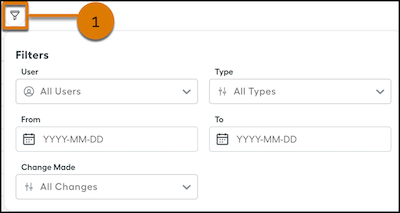
6. Select the changes to include in the change set.
7. Enter a name for the change set and an optional description.
# Create a Clawback Rule in Salesforce Spiff
Track reclaimed commission payouts with a clawback rule in Salesforce Spiff. A clawback is when a company reclaims a commission previously paid to a rep. Typically, clawbacks occur when a deal is canceled or terminated after a commission is disbursed. In Spiff, a clawback is often represented as a negative entry in a data filter for opportunities or deals, with a reference to the original opportunity for accountability.
### Required Editions
Available in: both Salesforce Classic (not available in all orgs) and Lightning Experience
Available in: Enterprise, Unlimited, and Developer Editions
Available for an additional cost in: Professional Edition with Web Services API Enabled
In this example, a rep closes a deal in June and receives a $500 commission payout. In August, the deal is canceled, but now the admin must reclaim the $500 commission that was paid. The reclaimed amount is the same amount that was paid, and the amount towards quota attainment isn't deducted from total attainment.
1. Create a data filter that identifies any cancellations for reclaiming commission paid.
For example, create a one-to-one relationship, OpportunityToClawback, that matches the Opportunity object's Id field with the Clawback object's Opportunity\_Id field. See [Set Up a Data Relationship in Salesforce Spiff](https://help.salesforce.com/s/articleView?id=sales.spiff_relationship_create.htm&release=264.0.0&type=5 "To set up a relationship between two object data tables in Salesforce Spiff, select a field with a common value for both objects.").
2. Create a data filter, ClawbackInPeriod\_\_Opp, that identifies the clawback for the period.
Using the `date_between?()` function, check whether the clawback occurred during a specific period.
```
date_between?(OpportunityToClawback.Clawback_Date,BeginningOfMonth,EndOfMonth)
```
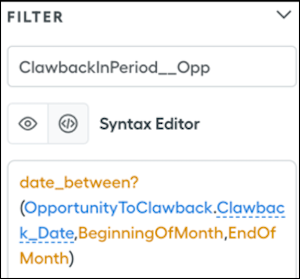
3. Create a data filter, ClawbackByRepInPeriod, that further filters the ClawbackInPeriod\_\_Opp results by rep.
```
ClawbackInPeriod__Opp AND ByRep
```
4. In Designer, go to Plans and create a datasheet named ClawbackInPeriodData.
Object
Opportunity
Data filter
ClawbackByRepInPeriod
Fields
Account_Name__c, ARR__c, CloseDate, and Clawback_Date
5. Set up the attainment calculation.
1. With the `quotas()` function, reference the annual quota for the current year and the quota for the year in which the deal closed.
If the clawback is from a previous year, reference that year's quota. If the clawback is from a deal that closed earlier in the current year, reference this year's quota.
2. Create a calculated field, ClawbackAmountInPeriod, for the clawback amount.
This formula depends on other fields that you create next.
```
ClawbackAmountInPeriod = OppARR * CommissionRateClawback
```
3. Define the CommissionRateClawback formula.
This formula uses the `mpercent()` function to calculate the rate that was used when the deal closed. This formula requires a range table, SalesRepAcceleratorTable, with different payout tiers based on attainment.
```
=mpercent(YTDAttainmentAttributableToOppClawback, SalesRepAcceleratorTable, YTDAttainmentAsOfPriorOppClawback)
```
4. Define the YTDAttainmentAttributableToOppClawback formula.
Divide ARR by the quota field for the year when the deal closed.
5. Define the YTDAttainmentAsOfPriorOppClawback field .
Subtract YTDAttainmentAsOfThisOppClawback from YTDAttainmentAttributableToOppClawback.
6. Define the YTDAttainmentAsOfThisOppClawback field.
```
=YTDQuotaRetirementAsOfThisOppClawback / QuotaInFiscalYearOfCloseDate
```
7. Define the QuotaInFiscalYearOfCloseDate field by referencing the quota from the year that the deal closed.
8. Define the YTDQuotaRetirementAsOfThisOppClawback field with the `let()` function.
The `let()` function assigns a temporary name to a given value and uses that value when evaluating the expression. For a clawback, the `let()` function can dynamically accumulate previous ARR values. Divide the historical ARR accumulation by the quota for the period.
```
=let(ThisOppCloseDate, CloseDate, let(ThisOppID, Id, sumif(ClosedWonByRepNewAllTime, year(CloseDate) = year(ThisOppCloseDate) AND CloseDate <= ThisOppCloseDate AND if(CloseDate = ThisOppCloseDate, Id <= ThisOppID, TRUE), ARR__c)))
```
6. Add the ClawbackAmountInPeriod field as a payout rule.
#### See Also
- [Accelerators in Salesforce Spiff](https://help.salesforce.com/s/articleView?id=sales.spiff_accelerator.htm&release=264.0.0&type=5 "An accelerator in Salesforce Spiff helps your sales team amplify their earnings when they achieve outstanding results. Spiff provides multiple options for implementing accelerator rates in your commission plans.")
- [Data Relationships in Salesforce Spiff](https://help.salesforce.com/s/articleView?id=sales.spiff_relationship.htm&release=264.0.0&type=5 "Salesforce Spiff organizes data used for calculating commissions in multiple separate tables. To calculate commission logic correctly or create data filters, establish relationships between tables. A relationship requires a field in each table with a common value. For example, to connect Deals with Accounts, the values of the Deals table's CustomerAccount field match the values of the Accounts table's external_id field.")
- [mpercent](https://help.salesforce.com/s/articleView?id=sales.spiff_function_ref_mpercent.htm&release=264.0.0&type=5 "Returns the commission rate for a deal in Salesforce Spiff, based on a range table and the rep's current attainment. To return a commission total amount instead, use the mamount() function.")
- [quotas](https://help.salesforce.com/s/articleView?id=sales.spiff_function_ref_quotas.htm&release=264.0.0&type=5 "Returns a list of quota values from a quota table in Salesforce Spiff. The quota values are for a specific user in a specific time period.")
# Create a Coaching Scenario
A coaching scenario represents an end-to-end coaching session where a rep practices a skill, through a presentation or role-play. Agentforce Sales Coach evaluates the session and provides feedback based on the rep's performance. Create custom scenarios for targeted practice and refinement of core skills such as overcoming objections, handling difficult customer conversations, and more.
### Required Editions
Available in: Lightning Experience in Enterprise, Performance, Unlimited, and Developer Editions with Foundations or Agentforce 1 Editions.
User Permissions Needed
To create a coaching scenario:
Manage Agentforce Sales Coach
As a prerequisite, make sure that the scenario components: subagent, action, and prompt templates are created.
To create a coaching scenario, use Agentforce Builder.
1. From Agentforce Builder, select **Coaching Scenarios**.
2. Click **New Scenario**.
3. Provide the required details.
- Enter the scenario name and select the Salesforce object associated with the scenario.
- Enter the scenario description and user guidance.
- Select the scenario components: scenario type, subagent for role-play (if the scenario type is role-play), feedback subagent, action, and the prompt template associated with the scenario.
4. Click **Save**. You can preview the scenario to make sure all settings and permissions are configured correctly before activating it. Click the actions menu against the scenario and select **Preview**.
5. To activate the scenario, click the actions menu against the scenario and select **Activate Scenario**.

Note Agentforce Sales Coach now supports multiple languages. To create scenarios in a language other than your org’s default, use Translation Workbench to add translations for your custom scenarios. For more information, see [Translation Workbench](https://help.salesforce.com/s/articleView?id=platform.workbench.htm&type=5&language=en_US).
# Create a Consumption-Based Forecast Type
You configure a consumption-based forecast type by selecting the data source for your forecast, setting up forecast rollups, choosing columns to display, and selecting the date type for forecast calculations. After you complete the setup, the forecast type appears as a tab on the forecasts page, where your teams can view and forecast revenues.
### Required Editions
Available in: Lightning Experience
Available in: Enterprise, Unlimited with Sales, and in Agentforce 1 Sales Edition

Note
Before you configure a consumption forecast type, make sure you configure the required permissions and set up Data 360.
1. From Setup, in the Quick Find box, enter Forecasts Settings, and then select **Forecasts Settings**.
2. In the Available Consumption Forecast Types section, click **Add a Forecast Type**.
3. Fill in the details in each section and save your changes.
4. To complete the setup flow, click **Save & Close**.
The new forecast type appears in the list of Available Consumption Forecast Types on the Forecasts Settings page. Your new type has an inactive status.

Tip
To activate the forecast type immediately, **click Save & Activate**.
5. To make the new forecast type available on the forecasts page, return to the Forecasts Settings page and select **Activate** from the quick actions for the forecasts type. You can have up to four active forecast types at one time. To edit an active forecast, such as choosing the columns to display, or changing forecasts roll-up, click **Edit** from the quick actions list for the active forecast.

Warning
Deactivating a forecast type deletes the related forecasting data.
# Create a Custom Action Button in Salesforce Maps
Create a custom action that opens a web page, loads a Lightning web component, or triggers a flow directly from a map marker.
### Required Editions
Available in: Lightning Experience and Salesforce Classic
Available in: Professional, Enterprise, Performance, Unlimited, and Developer Editions
User Permissions Needed
To configure Maps features:
Customize Application
1. From Setup, open **Installed Packages**, find Salesforce Maps, and then click **Configure** | **Settings** | **Custom Actions**.
2. Click **Create**, and then name the button.
3. Select where the button appears.
4. Specify the requirements for the button to appear.
5. Configure the process and automation: open a URL, load a Lightning web component, or trigger a flow.
6. Save, and then add the button to a button set.

Note In some configurations, a flow triggered by a Maps custom action can run twice, creating duplicate records. For workarounds, see [Salesforce Maps Troubleshooting](https://help.salesforce.com/s/articleView?id=sales.salesforce_maps_setup_troubleshooting.htm&release=264.0.0&type=5 "Resolve common Salesforce Maps issues with this quick reference.").
# Create a Custom Campaign Influence Model
A custom influence model allows users to manually identify how much a campaign influences an opportunity. You can also set up triggers and processes that create campaign influence records.
### Required Editions
Available in: Salesforce Classic and Lightning Experience
Available in: Salesforce Professional, Enterprise, Performance, Unlimited, and Developer Editions
User Permissions Needed
To create a custom model:
Customize Application
AND
Read on campaigns and opportunities
AND
Marketing User selected in User Detail
1. From Setup, enter Influence in the Quick Find box, and then click **Model Settings**.
2. Click **New Attribution Model**.
3. Enter a name, unique name, and model description.
4. To show the model’s data in related lists, select **Default Model**.
5. To prevent users from creating or editing influence records, select **Locked**.
6. In the Record Preference dropdown, select All Records.
7. Save your work.
Now that the model has been created, you can set up Apex triggers or create influence records via the API.
If your custom model is set as default, users can create influence records manually from an opportunity’s Campaign Influence related list.
#### See Also
- [Add Influential Campaigns to an Opportunity](https://help.salesforce.com/s/articleView?id=sales.campaigns_influence_customizable_add_to_opp.htm&type=5&language=en_US)
# Create a Custom Event
To ensure that your custom object’s records appear on your reps’ schedules in Salesforce Maps Advanced, create a custom event.
### Required Editions
To customize settings and create and edit custom objects:
Customize Application
1. From Setup, in the Quick Find box, enter Packages, and then select **Installed Packages**.
2. Next to the Salesforce Maps package, click **Configure**.
3. Select **Routes & Schedule**, and then click **Custom Event**.
4. In the Create Custom Event Config window, select your custom object from the list, and then click **Confirm**.
5. On the Event Object Configuration page, configure these settings.
| Setting | Description |
| --- | --- |
| Name | The name of the custom activity object as you want it to appear in Salesforce Maps Schedule. |
| Scheduling Resource | The owner or assignee for custom activity records. Select a field that includes the ID of the owner or assignee, such as OwnerID. |
| Event Name Field | The name of each custom activity record. |
| Time Fields | The time configuration relevant to your custom activity object. Select **Use Start DateTime and End DateTime**. |
| Start Date Time Field | The Salesforce field that represents the start date/time. |
| End Date Time Field | The Salesforce field that represents the end date/time or duration. |
6. Turn on **Enabled**, and then save your work.
#### See Also
- [_Salesforce Help_: Set Up Schedules to Include Custom Activities](https://help.salesforce.com/s/articleView?id=sales.salesforce_maps_setup_schedule_configure_custom_activities.htm&type=5&language=en_US)
# Create a Custom Metric for the Aggregated Value Needed to Reach the Next Accelerator Tier
Boost motivation by showing reps how close they are to the next accelerator level. Create a custom metric that displays this information on their statements.
### Required Editions
Available in: both Salesforce Classic (not available in all orgs) and Lightning Experience
Available in: Enterprise, Unlimited, and Developer Editions
Available for an additional cost in: Professional Edition with Web Services API Enabled
User Permissions Needed
To create a custom metric:
A Spiff user role with these permissions turned on.
Designer Configuration: Manage
Designer Range Tables: Manage
1. In your range table, add a column named BottomOfNextTier that calculates accelerators.
You can also build a new range table specifically for this purpose.
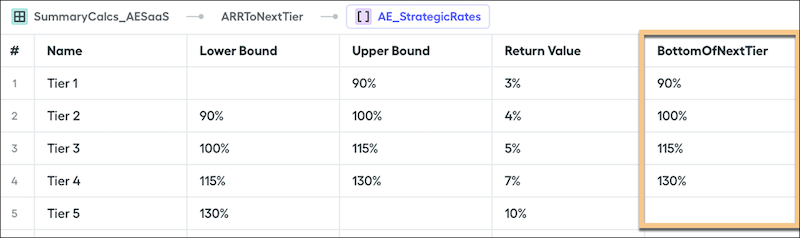
2. Create a worksheet calculation named ARRToNextTier and add this formula, where `AttainmentPercent` is a worksheet calculation for the sum total or aggregation of all ARR or QuotaAmount.
```
(tier_payout(AttainmentPercent, YourTableName, false, "BottomOfNextTier") - AttainmentPercent) * QuotaAmount
```
3. To avoid an error when the rep has maxed out their tiers, wrap part of the formula with an `if` function that returns `0` instead of a negative ARR value.
4. In the rep's statement, add the new custom metric.
# Create a Custom Report Type for Opportunity Commissions
If the default custom report type, Opportunities with Spiff Estimated Commission Data, that the Salesforce Spiff Commission Estimator provides doesn't suit your needs, create your own custom report type for commission reporting. Use Opportunity as the primary object and the Spiff Commission Data custom object as the secondary object.
### Required Editions
Available in: both Salesforce Classic (not available in all orgs) and Lightning Experience
Available in: Enterprise, Unlimited, and Developer Editions
Available for an additional cost in: Professional Edition with Web Services API Enabled
User Permissions Needed
To create Salesforce report types:
(Salesforce) Manage Custom Report Types
1. Log in to Salesforce as an admin with the Spiff Commission Admin permission set.
2. From Setup, in the Quick Find box, enter Report Types, and then select **Report Types**.
3. Click **New Custom Report Type**, enter these details, and then click **Next**.
Primary Object
Opportunities
Report Type Label, Report Type Name, Description
Any value
Store in Category
Opportunities
4. On the Define Report Records Set page, click **Click to relate another object**.
5. From the Select Object dropdown menu, select **Spiff Commission Data**.
6. Save your changes.
The custom report type is available to use in reports.
#### See Also
- [Reports](https://help.salesforce.com/s/articleView?id=analytics.rd_reports_overview.htm&type=5&language=en_US)
# Create a Custom Role in Salesforce Spiff
Fine-tune access for incentive compensation plans and give stakeholders control of specific Salesforce Spiff functionality. If a default Spiff role doesn’t provide the appropriate permissions for a user, create a custom role using a default role as a starting point.
### Required Editions
Available in: both Salesforce Classic (not available in all orgs) and Lightning Experience
Available in: Enterprise, Unlimited, and Developer Editions
Available for an additional cost in: Professional Edition with Web Services API Enabled
1. From the Admin menu, select **Role Management**.
2. Copy the role that you want to use as a starting point.
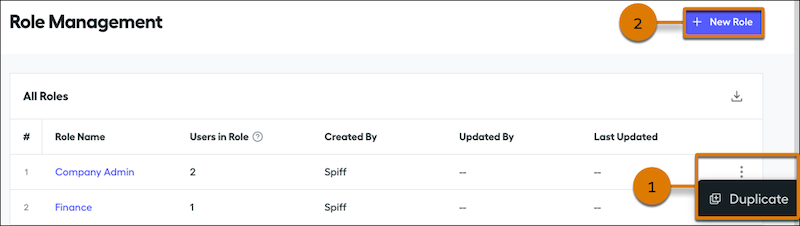
- From the list of roles, hover over the role that you want to copy, click the three dots menu, and select **Duplicate** (1).
- Or, click **New Role** (2) select the role that you want to copy. Enter a name and click **Add New Role**.
3. To rename the role, place your cursor in the heading and enter a different name.
4. On the Permissions tab, select the permissions that you want to turn on.
1. If the permission description mentions prerequisite permissions, make sure that you turn on those prerequisites.
For example, the Designer Configuration: Manage permission requires that you also turn on permissions for editing data sources, statements, and more.
2. If the permission shows a dropdown for selecting the level of data access allowed, choose the appropriate option.
- **My Own**—Only the user’s data
- **Teams I Manage**—Only data for the teams that the user manages
- **Company**—Data for the entire company
5. On the Settings page, select the landing page in Spiff where users with the custom role arrive when they log in.
6. Save your changes.
To edit a custom role after you create it, hover over the role, click the three dots menu, and select **Edit**. Or, select the role from the list and click **Edit** on the role details page.
After you create a custom role, wait up to two minutes before you can assign the new role to a user. After you edit a custom role that’s assigned to a user, wait up to two minutes before the user’s account reflects the changed permissions.
When you import user records from another source, you can specify custom roles when you import users manually, upload users with the object API, or sync user records with a webhook. If you use the Salesforce connector to import users, all users have the default Representative role assigned. You can later update roles manually from the Role Management page.
#### See Also
- [Import Users in Salesforce Spiff Manually](https://help.salesforce.com/s/articleView?id=sales.spiff_users_add_manual_import.htm&release=264.0.0&type=5 "Admins can manually import users in Salesforce Spiff by downloading, modifying, and uploading a template .csv file. You can also add other admins.")
- [Adding Salesforce Spiff Users with No Salesforce License](https://help.salesforce.com/s/articleView?id=sales.spiff_connector_salesforce_license.htm&release=264.0.0&type=5 "When you use the Salesforce connector in Salesforce Spiff, you can add Spiff users who don't have a Salesforce license or who don't share your company's email domain.")
- [Add a Salesforce Connector](https://help.salesforce.com/s/articleView?id=sales.spiff_connector_add.htm&release=264.0.0&type=5 "To sync data from Salesforce with Salesforce Spiff, add a connector. You can set up connectors for up to five Salesforce orgs.")
- [Set Up a Third-Party Connector in Salesforce Spiff](https://help.salesforce.com/s/articleView?id=sales.spiff_connector_third_party_setup.htm&release=264.0.0&type=5 "Salesforce Spiff REST API or a webhook processes all automated third-party data imported into Spiff. Send data to Spiff REST API or webhook endpoints directly or use an Integration Platform as a Service (iPaaS) tool, such as Workato. Workato provides a default Spiff connector that uses webhook endpoints for integrating third-party data with Spiff more easily. To purchase the Workato connector, contact your Salesforce account executive or sales partner. You can also use another iPaaS tool or design a custom solution.")
- [_Salesforce Developers_: Spiff Object API](https://developer.salesforce.com/docs/sales/spiff/references/spiff-object-api-reference)
# Create a Custom Routable Object
Salesforce Maps Advanced comes with the following standard routable objects: accounts, cases, contacts, leads, and opportunities. If you want to use a different object containing location data for your customers, create a custom routable object.
### Required Editions
After you create your custom object in Object Manager, create a lookup relationship between your object and the Maps Advanced Route Waypoint object.
1. From Setup, in the Quick Find box, enter Object, and then select **Object Manager**.
2. Select the **Maps Advanced Route Waypoint** object.
3. Select **Fields & Relationships**, and then click **New**.
4. On the New Custom Field page, under Data Type, select **Lookup Relationship** and click **Next**.
5. From the Related To list, select your custom object, and click **Next**.
6. On the New Relationship page, specify the field label and field name, and then click **Next**.
You use Consumer Goods, and your custom routable object is RetailStore. The field label is RW\_RetailStore, and the field name is RW\_RetailStore\_\_C.
7. Configure optional field-level security and other settings for the custom object, and then click **Save**.
#### See Also
- [_Salesforce Help_: Create a Custom Object](https://help.salesforce.com/s/articleView?id=platform.dev_objectcreate_task_parent.htm&type=5&language=en_US)
# Create a Custom Visual Report in Salesforce Spiff
You can create your own line or bar graph for any calculation you want to explain visually in Salesforce Spiff. For example, create a visual report in the Leaderboard format for a worksheet calculation that's shown as a metric card on a rep statement.
### Required Editions
Available in: both Salesforce Classic (not available in all orgs) and Lightning Experience
Available in: Enterprise, Unlimited, and Developer Editions
Available for an additional cost in: Professional Edition with Web Services API Enabled
This example uses the YTD Attainment calculated field from the statement, but you can choose any statement calculation or line-by-line calculation from any payout rule.
1. On the Reporting tab, go to Custom Reports and select **Create Report**.
2. Enter a name and optional description.
3. Select the **Bar Chart** option and click **Create Report**.
4. In the left panel, select the period, plan, and teams that you want to include.
5. From the dropdown menu under Calculated Field, select **YTD Attainment**.
6. Change the Calculated Field to Average, and then click **Run & Save**.
# Create a Data 360 Salesforce CRM Connection for Sales Insights
Step 1 for setting up Sales Insights is to verify that your Salesforce org is connected in Data 360.
### Required Editions
Available in: Lightning Experience
Available with Sales with the Agentforce for Sales Add-On license in: Enterprise, Performance, and Unlimited Editions and Agentforce 1 Edition in: Performance and Unlimited Editions.
Permission Sets Needed
To set up Sales Insights:
Sales Insights Admin
To manage Sales Insights:
Tableau Included App Manager and Data Cloud Architect
To use Sales Insights:
Tableau Next Limited Consumer and Data Cloud User
Data 360 must be enabled and set up in the org where you’re installing Sales Insights. If Data 360 is already enabled, you could already have a Salesforce CRM connection. In this case, use these steps to verify that your Salesforce org is connected.

Important Sales Insights currently supports only an internal Salesforce connection.
1. On the Sales Insights setup page, at step 1, click **Go to Setup**.
2. On the Data Cloud Setup page, click **Connect an Org**.
3. Ensure that you have an internal Salesforce connection.
1. If no connections are listed, click **Connect**. Then click **Connect** again for your Salesforce org. For more information, see [Set Up a CRM Salesforce Org Connection](https://help.salesforce.com/s/articleView?id=data.c360_a_set_up_crm_connection.htm&language=en_US)
2. If connections exist, make sure that you have a connection to the Salesforce org where you want to create Sales Insights. If you don’t, click **New**, then **Connect to a Salesforce Org**, and then **Next**. Follow the wizard instructions to complete the procedure.
Your Salesforce org is now connected as a data source and data action target.
4. Return to the Sales Insights Setup page to continue setting up Sales Insights.
# Create a Data Filter in Salesforce Spiff
Create data filters in Salesforce Spiff without writing any code.
### Required Editions
Available in: both Salesforce Classic (not available in all orgs) and Lightning Experience
Available in: Enterprise, Unlimited, and Developer Editions
Available for an additional cost in: Professional Edition with Web Services API Enabled
Create a filter using Syntax, Simple Guided, or Nested Guided mode, depending on your preference. We recommend the Nested Guided mode when you have `AND` or `OR` statements.
1. In Designer, navigate to Filters under Data.
2. Hover over the name of the object that contains the data you want to filter, click the three dots, and select **New Filter**.
The new filter appears in the Filters list and the Filter panel opens.
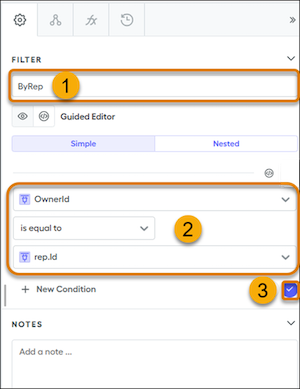
3. Replace the default name (1) with a meaningiful name.
4. Specify the criteria for your filter (2).
5. To save your changes, click the blue check mark (3).
If you apply a filter in a datasheet, edit the filter from the right panel of the datasheet. Changes you make to a filter in a datasheet apply everywhere the filter is used and appear in the Filters view under Data.
To delete an unused data filter, right-click the filter in the navigation tree and select **Delete Filter**. Delete a filter only when you're sure that commission rules aren't referencing it.
# Create a Datasheet in Salesforce Spiff
Analyze your data in new ways when you create and apply calculations to a specific set of filtered data.
### Required Editions
Available in: both Salesforce Classic (not available in all orgs) and Lightning Experience
Available in: Enterprise, Unlimited, and Developer Editions
Available for an additional cost in: Professional Edition with Web Services API Enabled
1. In Designer under Plans, click the three dots next to the search bar or next to a plan and click **New Datasheet**.
2. Name your datasheet to help distinguish what it’s used for. For example, name your datasheet with a combination of the name of the filter that is applied and the name of the rule or plan component, such as ClosedInPeriodRenewals\_RenewalCommission.
3. From the right panel, select the object to pull data from and a filter. Choose a preexisting filter or build a filter directly in the datasheet right panel.
4. From the center panel, add fields and formulas as needed.
# Create a Double Filter in Salesforce Spiff
When you’re creating a data filter, there are limitations on how much you can manipulate the data. In these cases, use double filtering. For example, calculated fields aren’t supported in filters, but you can still use a calculated field in a filter by combining the `filter()` function, a summary calculation, and the `contains()` function.
### Required Editions
Available in: both Salesforce Classic (not available in all orgs) and Lightning Experience
Available in: Enterprise, Unlimited, and Developer Editions
Available for an additional cost in: Professional Edition with Web Services API Enabled
In this example, you want to support reps for multi-year deals by paying a secondary commission one year from the close date.
1. Create a filter, ClosedWonByRepMultiYear, that returns all Closed Won deals longer than 12 months and the reps to pay.
This filter returns opportunities with close dates from multiple periods.
```
ClosedWon AND ByRep AND Contract_Length_Months > 12
```
2. Create a calculated field and summary calculation to return opportunities with a close date of one year ago.
1. Create a calculated field, CloseDatePlusOneYear, on Opportunities that returns the date 12 months from the close date.
```
=months_ago(CloseDate, -12)
```
2. Create a summary calculation, MultiYear1YearLater, that references the calculated field in a `filter()` function.
```
=filter(ClosedWonByRepMultiYear, date_between?(CloseDatePlusOneYear, BeginningOfPeriod, EndOfPeriod))
```
3. Create a summary calculation, MultiYear1YearLaterIDs, that uses the `transform_list()` function to transform the returned opportunities into a list of opportunity IDs.
```
=transform_list(MultiYear1YearLater, Id)
```

Tip Turn off trace for this calculation.
4. Create another filter, ClosedWonByRepOneYearLater, that uses the `contains()` function to return only opportunities with IDs that match opportunities returned by the MultiYear1YearLaterIDs summary calculation.
```
=contains(MultiYear1YearLaterIDs, Id)
```
5. Add this filter to a payout rule.
Use double filters in the same way you use standard data filters.
#### See Also
- [Payout Rules](https://help.salesforce.com/s/articleView?id=sales.spiff_payout_rule.htm&release=264.0.0&type=5 "In Salesforce Spiff, payout rules are formulas, calculations, and tables that make your plans run. Payout rules appear on commission plans.")
# Create a Leaderboard Rule with Emoji
Encourage reps to meet company goals by adding emoji to the visual display of team performance rankings.
### Required Editions
Available in: both Salesforce Classic (not available in all orgs) and Lightning Experience
Available in: Enterprise, Unlimited, and Developer Editions
Available for an additional cost in: Professional Edition with Web Services API Enabled
To create a leaderboard rule, establish a guided rollup that uses the User object and returns all of the specific users that you want on the leaderboard. Depending on the requirements, select different options to determine the participants. Create calculated fields in a specific order so your data applies to each user in the data set.
1. Using the rollup that you created, create a calculation that returns the number of total participants in the leaderboard.
```
count(AE_Leaderboard)
```
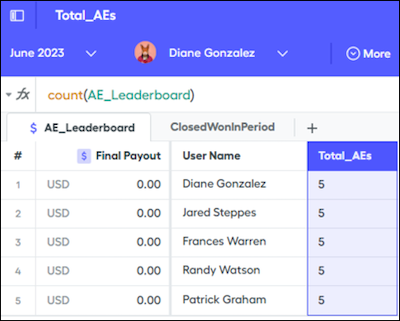
2. Create a calculation that returns the quota for each user in the data filter, not just the user selected in the context menu.
To handle null values, use the default value in the right panel instead of the `OR 0` addition.
```
quota("QuotaAE", statement_period.end_date, user) OR 0
```
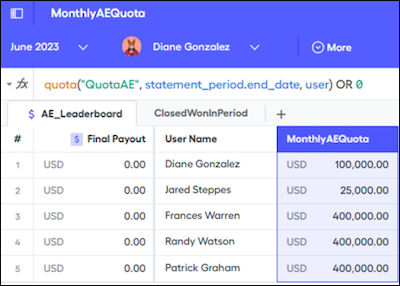
3. Create a calculation that returns the amount of revenue closed for the user in the period.
Make sure your data filter doesn’t filter by rep. The `sumif` part of the function performs the conditional rep filtering. If your data filter is filtered by rep, results are shown only for the rep selected in the context menu.
```
sumif(ClosedWonInPeriod, OwnerId = user.Id, AR__c)
```
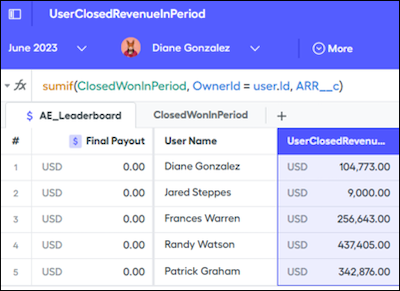
4. Create a calculation that returns the monthly attainment.
To prevent errors when dividing by zero, divide revenue in the period by quota with a null check.
```
if(MonthlyAEQuota > 0, UserClosedRevenueInPeriod / MonthlyAEQuota, 0)
```
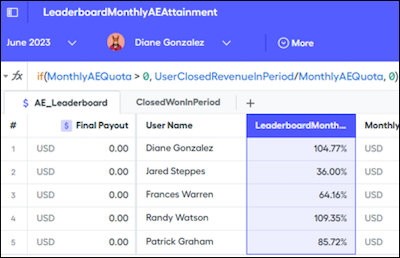
5. Create a calculation that ranks the users based on their attainment.
The `rank` function returns the opposite of what you expect. If there are five reps, the highest rep returns a `5`. Subtracting the rank from the total and adding `1` reverses the order and puts the highest attainment at `1`.
```
Total_AEs - rank(user, AE_Leaderboard, LeaderboardMonthlyAEAttainment) + 1
```
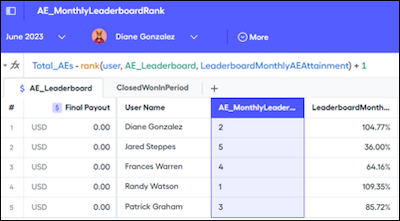
The top-level formula takes the leaderboard rank and multiplies it by zero because you aren’t summing the ranks, but you want to see the ranks on the leaderboard.
```
AE_MonthlyLeaderboardRank * 0 + LeaderboardFields
```
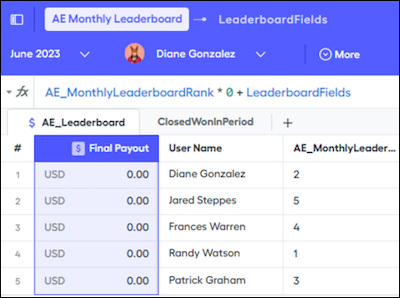
6. Add the leaderboard fields for visibility on the statement.
AE_Quota
A summary calculation that can be a statement metric for each specific user and shows their quota.
AE_Rank
A version of the AE_MonthlyLeaderboardRank formula.
FullName
A duplicate of the normalized Name field on manually imported data. Normalized fields aren’t available on statements, so duplicating them allows the extra field to be used.
```
if(AE_Quota,0,0) + if(AE_Rank,0,0) + if(FullName,0,0)
```
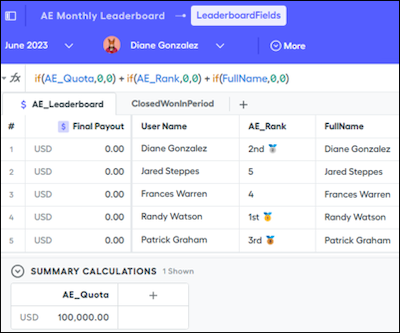
7. Add emoji to the leaderboard with the nested `if` function and set your rankings with the emoji you want.
```
if(AE_MonthlyLeaderboardRank = 1, "1st 🥇",
if(AE_MonthlyLeaderboardRank = 2, "2nd 🥈",
if(AE_MonthlyLeaderboardRank = 3, "3rd 🥉",
if(AE_MonthlyLeaderboardRank > 3, AE_MonthlyLeaderRank, 0))))
```
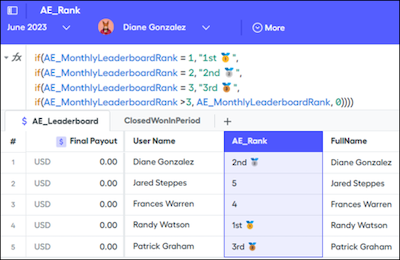
#### See Also
- [Rollup Filters in Salesforce Spiff](https://help.salesforce.com/s/articleView?id=sales.spiff_rollup.htm&release=264.0.0&type=5 "Give credit for closed deals to users who don't own the deal in Salesforce Spiff. For example, let managers receive credit for the deals closed by their team members. Or, a user on one team gets credit deals closed by another team. In Spiff, implement a rollup with a guided rollup, plan assignment custom field, or team function.")
# Create a Line-By-Line Rule
Line-by-line rules apply a calculation to each item in a data filter. To get the total for the rule, the calculation output from each item in the data filter is summed.
### Required Editions
Available in: both Salesforce Classic (not available in all orgs) and Lightning Experience
Available in: Enterprise, Unlimited, and Developer Editions
Available for an additional cost in: Professional Edition with Web Services API Enabled
1. Create a folder for the rule.
1. In Designer, click the three dots next to the plan you’re creating the rule for, and click New **Folder**.
2. Rename the rule folder.
2. Create a datasheet in the rule folder.
1. Click the three dots next to the rule folder and click **New Datasheet**.
2. From the right panel, select the object and filter, such as the Deals object and ClosedInPeriod filter.
3. Rename the datasheet.
4. Add fields such as ARR\_\_c and CloseDate to the datasheet.
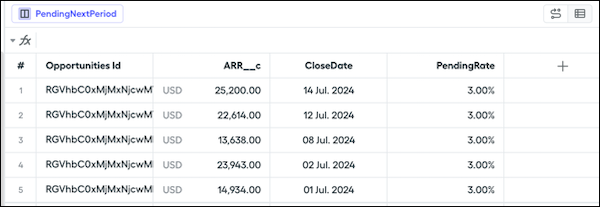
5. Create a commission calculation. Add a commission field and enter a calculation.
```
=CommissionRate*ARR__c
```
6. If you don’t already have a commission rate calculation, hover over CommissionRate in the function bar, click **New Field**, and enter your calculation.
```
=if(ARR__c >= 20000, 5%, 3%)
```
7. Update the display name and format.
3. Add the new rule as a payout rule.
1. Click a plan in the left panel and click **New Payout Rule**.
2. Name the rule and select the commission calculation field as the payout amount.
After creating a line-by-line rule, calculate it.
#### See Also
- [Calculate a Line-By-Line or Lump-Sum Rule](https://help.salesforce.com/s/articleView?id=sales.spiff_rules_calculate.htm&release=264.0.0&type=5 "After adding a rule to a plan page, calculate the rule and view it on the rep statement.")
# Create a Link or Video for an Exercise from Digital Experiences
In the Digital Experiences app, you can add the links or videos that you want to include in a program before you start working in Program Builder.
### Required Editions
Available in: Lightning Experience
Enablement is available in Developer Edition with a limited number of add-ons. It is also available with Sales, Service, or the Salesforce Platform in: Enterprise, Performance, Unlimited, and Einstein 1 Sales Edition Editions for an additional cost
Enablement Lite is available with Sales in: Enterprise, Performance, and Unlimited Editions
Partner Enablement is available in Developer Edition with a limited number of add-ons. It is also available with Sales, Service, or the Salesforce Platform in: Enterprise, Performance, and Unlimited Editions for an additional cost. A supported PRM add-on license is required.
User Permissions Needed
To manage content for program exercises in the Enablement workspace:
Content Manager contributor role in the Enablement workspace in Digital
Experiences
First, make sure that you [have an appropriate contributor role assigned in the Enablement workspace in the Digital Experiences app](https://help.salesforce.com/s/articleView?id=sales.enablement_content_contributor.htm&language=en_US).

Note Only the provisioned Enablement workspace supports content for exercises. Other workspaces that you create or already use in Digital Experiences aren’t compatible with Enablement programs.
1. In the Digital Experiences app, select the Enablement workspace.
2. Select **Add** | **Content**.
3. In the Create CMS content window, select **Link** or **Video**, depending on the type of content that you want to add, and click **Create**.
4. Complete the required fields.
Field
Applicable Content Type
Value to Enter
Title
Link or Video
An internal title for the content. Search for this title when adding content to an
exercise in Program Builder.
Description
Link or Video
An internal description for the content. This description is visible only to
Enablement admins when they add a Link or Video exercise in Program Builder and then
search for the link or video to use. This description isn’t visible to users when they
take a program and open the link or video.
Time
Link or Video
The estimated time in minutes to complete the linked content.
URL
Link only
The full URL to the content that you want to use. For a user taking the program, the
link opens in a new browser tab.
For Partner Enablement programs in Experience Cloud
sites, you can also specify a relative URL to another site page.
Embed Video URL
Video only
The embed URL to the video that you want to use from an external hosting platform.
For a user taking the program, the video plays in the same browser tab.
This URL can be different from the public URL where the video is accessed on its
platform, and the format can vary depending on the platform.
Only videos from Vidyard, YouTube, or Vimeo are supported.
Don’t include parameters in the URL.
5. Save your work.
6. If you’re confident that you want to include the content in a program, click **Publish**.

Tip To optimize storage of Digital Experiences content, only publish content that you plan to use in an Enablement program. Leave all other content in Draft status. To learn more, see [Guidelines for Digital Experiences Content in Enablement Programs](https://help.salesforce.com/s/articleView?id=sales.enablement_content_guidelines.htm&language=en_US).
7. To return to the Enablement workspace, click the back arrow  in the header menu.
#### See Also
- [Guidelines for Digital Experiences Content in Enablement Programs](https://help.salesforce.com/s/articleView?id=sales.enablement_content_guidelines.htm&release=264.0.0&type=5 "The Enablement workspace in the Digital Experiences app provides specific functionality for managing content used in Enablement program exercises. If your org already has Digital Experiences enabled, only the provisioned Enablement workspace supports content for Enablement programs.")
- [Unpublish Content from CMS Channels](https://help.salesforce.com/s/articleView?id=xcloud.community_managed_content_unpublishing_content.htm&language=en_US)
- [_Vidyard Knowledge Base_: Embed your video on a webpage](https://knowledge.vidyard.com/hc/en-us/articles/360010001713-Embed-your-video-on-a-webpage)
- [_YouTube Help_: Embed videos & playlists](https://support.google.com/youtube/answer/171780)
- [_Vimeo Help Center_: Access and edit embed codes](https://vimeo.zendesk.com/hc/en-us/articles/360000710167-Access-and-edit-embed-codes)
# Create a Lookup Relationship Between Your Custom Object and Waypoints
After you create your custom object for Salesforce Maps Advanced output, create a lookup relationship with the Maps Advanced Route Waypoint object.
### Required Editions
To customize settings and create and edit custom objects:
Customize Application
1. From Setup, in the Quick Find box, enter Object, and then select **Object Manager**.
2. Create and name your custom object in Object Manager.
3. Select **Fields & Relationships**, and then click **New**.
4. On the New Custom Field page, under Data Type, select **Lookup Relationship**, and then click **Next**.
5. From the Related To list, select **Maps Advanced Route Waypoint**, and then click **Next**.
6. On the New Relationship page, specify the field label and field name, and then click **Next**.
1. Field Label: Maps Advanced Route Waypoint
2. Field Name: WA\_AdvRouteWaypoint
7. Configure optional field-level security and other settings for the custom object, and then save your work.
Next, create a custom event to ensure that your custom object’s records appear on your reps’ schedules.
# Create a Lump-Sum Rule
For lump-sum rules, the final payout calculation comes from a single cell in a worksheet. Worksheets contain formulas that have a single value, either entered directly or as the result of a formula. The result of 2 + 2 is 4, a single value. We don't calculate data for every record in the data filter that’s used.
### Required Editions
Available in: both Salesforce Classic (not available in all orgs) and Lightning Experience
Available in: Enterprise, Unlimited, and Developer Editions
Available for an additional cost in: Professional Edition with Web Services API Enabled
User Permissions Needed
To create a lump-sum rule:
A Spiff user role with these permissions turned on.
Designer Configuration: Manage
Quotas: Edit
1. Create a folder for the rule.
1. In Designer, click the three dots next to the plan you’re creating the rule for, and click New **Folder**.
2. Rename the rule folder.
2. Create a quota table.
1. Click the three dots next to the rule folder and select **New Quota Table**.
2. Set up the quota table with reps, quotas, and change periods.
3. Create a worksheet in the rule folder.
1. Click the three dots next to the rule folder and select **New Worksheet**.
2. Set up the worksheet with labeled columns and functions, attainment, and commission fields,.
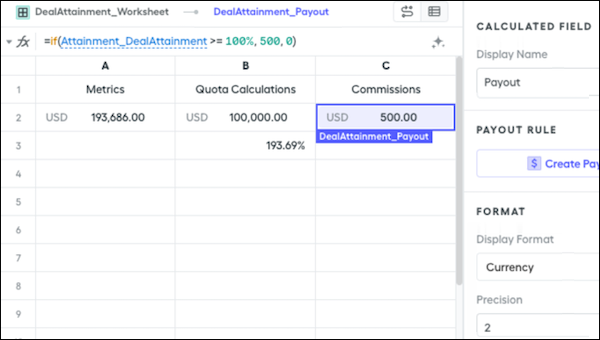
4. Add the new rule as a payout rule.
1. Click a plan in the left panel and click **New Payout Rule**.
2. Name the rule and select the commission calculation field as the payout amount.
After creating a lump-sum rule, calculate it.
#### See Also
- [Calculate a Line-By-Line or Lump-Sum Rule](https://help.salesforce.com/s/articleView?id=sales.spiff_rules_calculate.htm&release=264.0.0&type=5 "After adding a rule to a plan page, calculate the rule and view it on the rep statement.")
# Create a Managed Package with Recommendations
After you build custom recommendations using Einstein Recommendation Builder, you can add one or more of them to a managed package to make them reusable in other orgs.
### Required Editions
Available in: Developer Edition
1. Log in to a Developer Edition org that has Einstein Recommendation Builder enabled.
2. Use Einstein Recommendation Builder to [build one or more recommendations](https://help.salesforce.com/s/articleView?id=sales.custom_ai_recommendation_builder_create.htm&release=264.0.0&type=5 "As with any AI solution, building a good recommendation is an iterative process.").
3. From Setup, in the Quick Find box, enter package, and then select **Package Manager**.
4. Next to Developer Settings, click **Edit**.
5. On the Change Developer Settings page, click **Continue**.
6. In the Namespace Prefix field, enter a unique name to identify your package and distinguish it from other developers’ packages.
7. Click **Review My Selections**.
8. Click **Save**.
9. Next to Packages, click **New**.
10. Enter a name for your package that describes what package subscribers can do with it, such as Pool Maintenance Parts. When the package is installed, this name is used in the Recommendations list view in Einstein Recommendation Builder.
11. Enter a description to provide details about the package.
12. Select **Managed**, and click **Save** to confirm.

Note You can only package recommendations in a managed package.
13. Click **Save** to create the wrapper for your package. It doesn’t contain anything yet.
14. In Package Manager, click the name of the package.
15. On the Components tab, click **Add**.
16. From the Component Type menu, select **AI Application**.
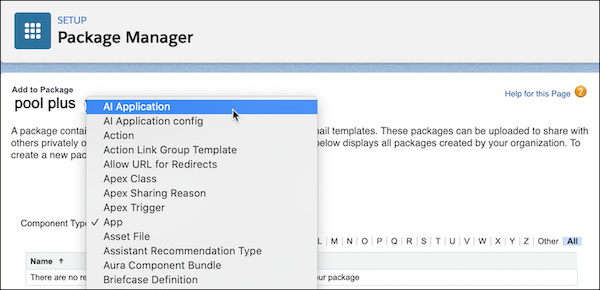
17. Select the recommendations you want to add to your package, and click **Add to Package**.

Note The Components tab now lists the recommendations with the related components that are added for you.
18. At the top of the page, click **Upload**.
19. Enter a version name for the package. For example, enter something time-based such as Fall 2021.
20. Enter a version number or leave the prefilled value.
21. Select **Managed - Released**

Note This option generates a URL for deployment.
22. If you want, apply other settings, such as password protection and package requirements.
23. Click **Upload**, and click **OK** to confirm.
24. In the Version Detail section, you can copy the installation URL and paste it somewhere to save for later. You also receive an email with this URL.
# Create a Manager Rollup Filter for Opportunity Splits
Opportunity splits occur when two or more people contribute to a deal and the commission is divided among the contributors. In Salesforce Spiff, help managers view opportunity splits with a manager rollup filter.
### Required Editions
Available in: both Salesforce Classic (not available in all orgs) and Lightning Experience
Available in: Enterprise, Unlimited, and Developer Editions
Available for an additional cost in: Professional Edition with Web Services API Enabled
1. Create a relationship from Opportunity Product to Opportunity Split.
See [Set Up a Data Relationship in Salesforce Spiff](https://help.salesforce.com/s/articleView?id=sales.spiff_relationship_create.htm&release=264.0.0&type=5 "To set up a relationship between two object data tables in Salesforce Spiff, select a field with a common value for both objects.").
2. On Opportunity Product, create a calculated field, named CommissionSplitPercentTeam, that uses this formula.
```
=sumif(OpportunityProductToOpportunitySplits, SplitTypeId = "18-digit ID" AND IsInTeamOnClose, OppSplitPercent)
```

Tip We recommend that you turn off trace at this level.
3. On Opportunity Split, create a calculated field, named IsInTeamOnClose, that uses this formula.
```
=contains(CombinedTeamMembers_Split, SplitOwnerId)
```
4. On Opportunity Split, create another calculated field, named CombinedTeamMembers\_Split, that uses this formula.
```
if(ManagerTeamCount_Split = 3, combine(combine(ManagerTeam1Members_Split, ManagerTeam2Members_Split),ManagerTeam3Members_Split), if(ManagerTeamCount_Split = 2, combine(ManagerTeam1Members_Split, ManagerTeam2Members_Split), ManagerTeam1Members_Split))
```
5. On Opportunity Split, create another calculated field, named ManagerTeam1Members\_Split, that uses this formula.
```
transform_list(users_in_team(choose(1, manager_of(OppSplitCloseDate, OppSplitCloseDate))), Id)
```
6. Repeat the previous step for each potential team, and make sure to update the numbers in each formula.
7. Multiply CommissionSplitPercentTeam by the amount field. Apply the solution to a datasheet for the Opportunity Product object and the appropriate data filter for commissioned records.
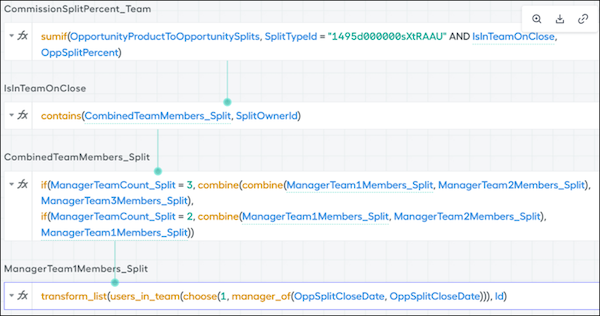
#### See Also
- [contains](https://help.salesforce.com/s/articleView?id=sales.spiff_function_ref_contains.htm&release=264.0.0&type=5 "Checks whether a string or list includes a specified value in Salesforce Spiff. This function returns true or false.")
- [sumif](https://help.salesforce.com/s/articleView?id=sales.spiff_function_ref_sumif.htm&release=264.0.0&type=5 "Calculates a total value from a list of numbers in Salesforce Spiff, but only for records that satisfy a specified condition.")
# Create a Marginal Payout Rule for an Accelerator
Create a simple line-by-line marginal payout rule based on a range table in Salesforce Spiff.
### Required Editions
Available in: both Salesforce Classic (not available in all orgs) and Lightning Experience
Available in: Enterprise, Unlimited, and Developer Editions
Available for an additional cost in: Professional Edition with Web Services API Enabled
User Permissions Needed
To create a marginal payout rule for an accelerator:
A Spiff user role with these permissions turned on.
Designer Configuration: Manage
Designer Range Tables: Manage
1. In Plans, create a folder for the marginal payout rule.
We recommend that you save all the items related to this rule in a convenient, shared location.
2. Create the range table according to your commission payout scenario.
3. Create a data filter that determines which deals the calculation applies to, or use a prebuilt data filter, such as ClosedInPeriod.
See [Create a Data Filter in Salesforce Spiff](https://help.salesforce.com/s/articleView?id=sales.spiff_data_filter_create.htm&release=264.0.0&type=5 "Create data filters in Salesforce Spiff without writing any code.").
4. Create a datasheet in the same rule folder as the range table, specify an object and select the data filter you created, and add required fields.
See [Create a Datasheet in Salesforce Spiff](https://help.salesforce.com/s/articleView?id=sales.spiff_datasheets_create.htm&release=264.0.0&type=5 "Analyze your data in new ways when you create and apply calculations to a specific set of filtered data.").
5. In the datasheet, add a calculated field that uses the `mpercent()` function to return the commission rate.
See [mpercent](https://help.salesforce.com/s/articleView?id=sales.spiff_function_ref_mpercent.htm&release=264.0.0&type=5 "Returns the commission rate for a deal in Salesforce Spiff, based on a range table and the rep's current attainment. To return a commission total amount instead, use the mamount() function.").
6. In the datasheet, add columns for the accumulated ARR and the ARR amount before the deal closed, and turn on **Accumulated** in the right panel.
See [Turn on an Accumulated Variable in Salesforce Spiff](https://help.salesforce.com/s/articleView?id=sales.spiff_accumulated_variable_enable.htm&release=264.0.0&type=5 "Analyze sales data and identify trends and patterns with accumulated variables.").
7. Optionally, create an accumulated variable for the `mpercent()` function's initial\_value argument.
8. In the datasheet, add a Commission column that multiplies the calculated rate by the ARR.
9. Add a payout rule to a plan. Name the rule and select the field for the commission amount.
10. Calculate the statement.
# Create a Meeting Count Payout Rule
Help reps earn commissions for a specific number of meetings.
### Required Editions
Available in: both Salesforce Classic (not available in all orgs) and Lightning Experience
Available in: Enterprise, Unlimited, and Developer Editions
Available for an additional cost in: Professional Edition with Web Services API Enabled
User Permissions Needed
To create a meeting count rule:
A Spiff user role with these permissions turned on.
Designer Configuration: Manage
Quotas: Edit
In this example, the rep receives monthly compensation, so you identify meetings by rep and period.
1. In Designer, create a data filter and sub-data filters.
1. Create a data filter named MeetingsBySDRInPeriod, based on the Meeting object.
This filter references two sub-data filters that you create next.
```
MeetingsBySDR AND SDRMeetingsInPeriod
```
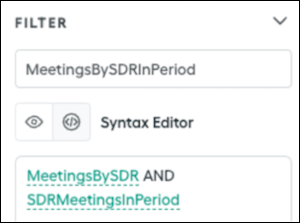
2. Create one of the sub-data filters, MeetingsBySDR, that matches each rep's ID to a field that indicates ownership of the meeting. Name the field SDR\_Id.
```
SDR_Id = rep.Id
```
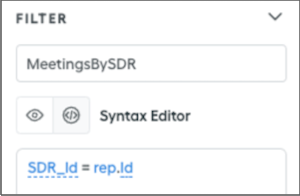
3. Create the other sub-data filter, SDRMeetingsinPeriod, hat confirms the meeting occurred within the payout period. Enter the `date_between?` function, which places the Meeting\_Date field within the specified statement period.
```
date_between?(Meeting_Date, statement_period.start_date, end_of_period(statement_period.end_date))
```
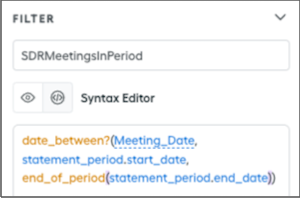
2. Create quota tables.
1. Create a quota table, SDRMeetingCountQuota, with quota values, such as 20 meetings per month, that use the number format for the meeting counter.
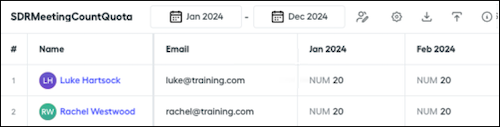
2. Create another quota table, SDRMonthlyTargetVariable, that specifies the target variable compensation values, which represents the amount that reps are paid if they meet their quota.
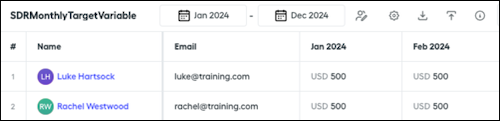
3. Create the SDRMeetingCountAttainmentInPeriod calculation.
1. Create a datasheet, MeetingsBySDRInPeriod\_SimpleMeetingCountRuleExample, and include Meeting\_Date.
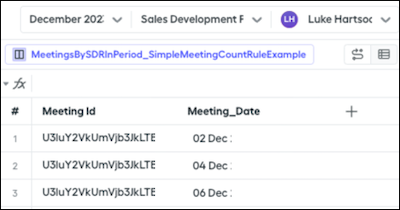
2. To determine the meeting count, apply the `count` function to the MeetingsBySDRInPeriod data filter.
3. To determine attainment, divide the meeting count by the quota.
4. Create a worksheet, SimpleMeetingCountRuleExample\_Worksheet, and add worksheet calculations.
1. Create a worksheet calculation, SDRMeetingCountInPeriod, that determines the total count of meetings by the SDR within the period.
```
=count(MeetingBySDRInPeriod_SimpleMeetingCountRuleExample!Meeting_Date)
```
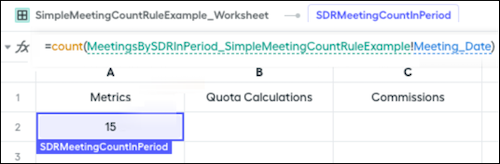
2. Create a worksheet calculation, SDRMeetingCountQuota, that references the SDRMeetingCountQuota quota table.
```
=quota("SDRMeetingCountQuota")
```
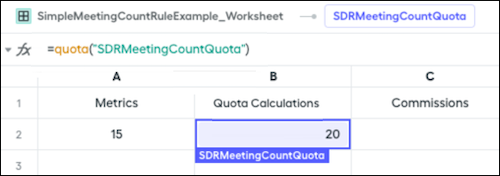
3. Create a worksheet calculation, SDRMeetingCountTargetVariable, that references the SDRMonthlyTargetVariable quota table.
```
=quota("SDRMonthlyTargetVariable")
```
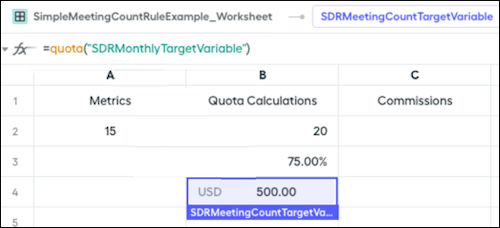
4. Create the final payout rule calculation, Payout\_SimpleMeetingCountRuleExample, that multiplies the attainment by the target variable compensation.
In this example, the attainment calculation represents 75% of the target variable.
```
=SDRMeetingCountTargetVariable * SDRMeetingCountAttainmentInPeriod
```
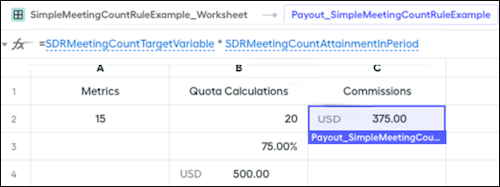
# Create a Module in Trailmaker Content
A module can stand alone or be a part of a trail. When you’re ready to create a module and its units, move the final draft of your content from a word processor into Trailmaker Content.
### Required Editions
Available in: Enterprise, Performance, and Unlimited Editions
User Roles and
Permissions
Enablement Site User Roles
This topic supports these enablement site
roles:
Content Creators
Required System Permissions
To create and edit content with Trailmaker Content:
Create Content
1. In the Trailmaker Content workspace, click **Add Content**, and select **New Module**.
2. Enter the module’s details.
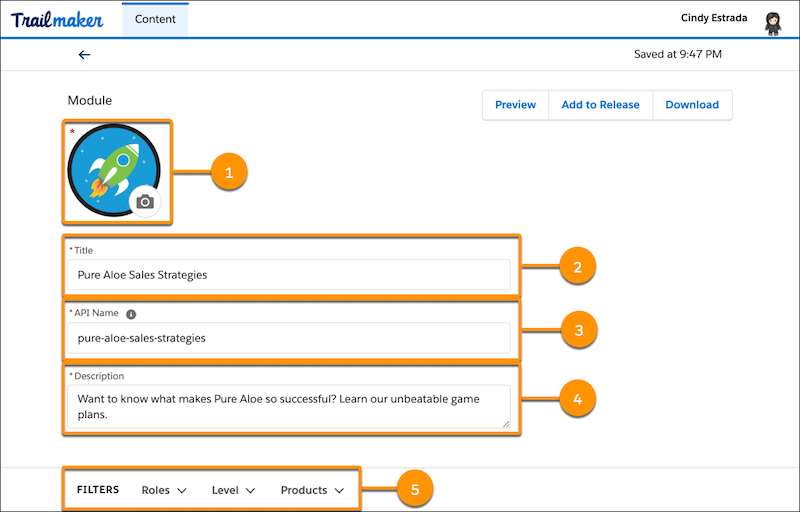
1. To add badge art, click the icon field (1). Upload an image file or enter a URL to an image file on a content delivery network.

Note Use a PNG file smaller than 10 MB. The ideal size for badge art is 200 × 200 pixels. See [Guidelines for Images, Screenshots, Badge Art, and Trail Icons](https://help.salesforce.com/s/articleView?id=sales.mth_best_practices_badge_trail_art.htm&release=264.0.0&type=5 "Part of the fun of creating an enablement site is bringing your content to life with images, including illustrations and screenshots, and designing your own badge and trail icons.").
2. Enter a module title (2).
3. Accept the suggested API name (3), or enter a unique name that you want to use instead.

Note
- A module’s API name is used in URLs, so the API name is visible to learners.
- Each module API name must be [globally unique](https://help.salesforce.com/s/articleView?id=sales.mth_api_names_on_mytrailhead.htm&release=264.0.0&type=5 "Each content collection, release, trail, module, and unit on your enablement site has its own API name, which is a globally unique ID that references a content path in URLs.").
4. Enter a brief description for the module (4).
5. Select the module’s applicable filters (5).
- One or more user roles for the module’s target audience
- The experience level for the module’s target audience
- The product tags that apply to the module
3. To add a unit to the module, click **New Unit**, and enter your unit’s details.

1. Enter a unit title (1).
2. Accept the suggested API name (2), or enter a unique name that you want to use instead.

Note
- A unit’s API name is used in URLs, so the API name is visible to learners.
- Each unit API name must be [globally unique](https://help.salesforce.com/s/articleView?id=sales.mth_api_names_on_mytrailhead.htm&release=264.0.0&type=5 "Each content collection, release, trail, module, and unit on your enablement site has its own API name, which is a globally unique ID that references a content path in URLs.").
3. For Points (3), enter the number of points that a learner earns by completing the unit’s quiz.

Note Effective September 2021, all points are automatically assigned to the General tag, and you can’t allocate points to different tags.
4. For Time (4), enter your estimate for how many minutes it takes to complete the unit and quiz.
5. To add the unit’s content, use the field below the formatting toolbar (5).

Tip We recommend that you paste only the unit’s text first, and then use the options on the formatting toolbar to insert images and videos.
6. To add the unit’s quiz, click **New Assessment** (6). For help with quizzes, see [Create Quizzes in Trailmaker Content](https://help.salesforce.com/s/articleView?id=sales.mth_create_quizzes_in_tm_content.htm&release=264.0.0&type=5 "Each unit in a module ends with a quiz to gauge how well users absorbed the content. Taking the quiz is also how users earn points. You create each quiz from the unit page in Trailmaker Content.").
7. To add another unit, click the back icon  (7) to return to the module page, click **New Unit**, and repeat these steps.
4. Optionally, preview the module and its units by completing the steps in [Preview a Module in Trailmaker Content](https://help.salesforce.com/s/articleView?id=sales.mth_tm_content_preview.htm&release=264.0.0&type=5 "Preview a module and units that you’re working on in your local Trailmaker Content workspace, and share the preview with collaborators. This preview provides an opportunity for content creators and collaborators to review formatted content before it’s added to a release. The preview is read-only, limited to one module, and isn’t available for a trail.").
If you’re collaborating with other content creators on the module before you’re ready to publish it, [download the module’s backpack](https://help.salesforce.com/s/articleView?id=sales.mth_download_content_from_tm_content.htm&release=264.0.0&type=5 "You can download the backpack ZIP file for a module or trail that’s in your Trailmaker Content workspace. Then, you can submit the backpack to your company’s version control system (VCS) so that other users can import the backpack into their own local Trailmaker Content workspace."), and submit it to your company’s version control system (VCS). Then, delete the module from your local workspace. When your collaborator is finished, you can [import the most recent version of the module’s backpack](https://help.salesforce.com/s/articleView?id=sales.mth_upload_published_or_archived_content_to_tm_content.htm&release=264.0.0&type=5 "You can add learning content into your workspace from a backpack ZIP file that you saved or downloaded. This workflow is helpful when you want to collaborate on content that other content creators started in their own workspace. Or, follow these steps when you want to update published content or restore archived content. You can also import a content template that you downloaded.").
If you’re ready, a user with the Manage Releases permission can [add the module to an unpublished release](https://help.salesforce.com/s/articleView?id=sales.mth_add_content_to_release_from_tm_content.htm&release=264.0.0&type=5 "After you create your module and quizzes and assign all the necessary metadata, add the content to a release.").
#### See Also
- [Considerations for Managing Content in Trailmaker Content](https://help.salesforce.com/s/articleView?id=sales.mth_tm_content_workspace.htm&release=264.0.0&type=5 "In Trailmaker Content, your workspace is where you set up new trails or modules based on drafts that you already created and finalized in another collaboration tool. You can also import backpacks for trails and modules that other content creators have created.")
- [Create Content Quickly with Content Templates](https://help.salesforce.com/s/articleView?id=sales.mth_content_kits.htm&release=264.0.0&type=5 "Add learning content to your company’s enablement site without creating trails, modules, and units from scratch. To immediately add quality content to your enablement site, we recommend that you download Salesforce content templates (formerly content kits). Content templates provide finished modules on topics that are applicable to any company. For example, add content about sales and service strategies, inclusiveness and diversity, or collaboration in a virtual workplace.")
- [Format Content in Trailmaker Content](https://help.salesforce.com/s/articleView?id=sales.mth_format_content_in_tm_content.htm&release=264.0.0&type=5 "As you work in Trailmaker Content, use the formatting toolbar to style the content of your units. Trailmaker saves your changes to the cloud every few seconds.")
- [Add Media in Trailmaker Content](https://help.salesforce.com/s/articleView?id=sales.mth_work_with_graphics_videos_in_tm_content.htm&release=264.0.0&type=5 "You can insert images and videos in your enablement content.")
- [Create Quizzes in Trailmaker Content](https://help.salesforce.com/s/articleView?id=sales.mth_create_quizzes_in_tm_content.htm&release=264.0.0&type=5 "Each unit in a module ends with a quiz to gauge how well users absorbed the content. Taking the quiz is also how users earn points. You create each quiz from the unit page in Trailmaker Content.")
- [Preview a Module in Trailmaker Content](https://help.salesforce.com/s/articleView?id=sales.mth_tm_content_preview.htm&release=264.0.0&type=5 "Preview a module and units that you’re working on in your local Trailmaker Content workspace, and share the preview with collaborators. This preview provides an opportunity for content creators and collaborators to review formatted content before it’s added to a release. The preview is read-only, limited to one module, and isn’t available for a trail.")
- [API Names for Trails, Modules, and Units](https://help.salesforce.com/s/articleView?id=sales.mth_api_names_on_mytrailhead.htm&release=264.0.0&type=5 "Each content collection, release, trail, module, and unit on your enablement site has its own API name, which is a globally unique ID that references a content path in URLs.")
- [Metadata for Trails, Modules, and Units](https://help.salesforce.com/s/articleView?id=sales.mth_metadata_on_mytrailhead.htm&release=264.0.0&type=5 "When you create trails, modules, and units, you also create metadata about your content, such as the title, description, and target audience. Learners can filter the content on your enablement site based on the metadata values you assign.")
- [Guidelines for Images, Screenshots, Badge Art, and Trail Icons](https://help.salesforce.com/s/articleView?id=sales.mth_best_practices_badge_trail_art.htm&release=264.0.0&type=5 "Part of the fun of creating an enablement site is bringing your content to life with images, including illustrations and screenshots, and designing your own badge and trail icons.")
# Create a Partner Enablement Program
Create an Experience Cloud site from a supported template that uses the Enablement pages and components. Then set up your program in Program Builder.
### Required Editions
Available in: Lightning Experience
Partner Enablement is available in Developer Edition with a limited number of add-ons. It is also available with Sales, Service, or the Salesforce Platform in: Enterprise, Performance, and Unlimited Editions for an additional cost. A supported PRM add-on license is required.
User Permissions Needed
To create a Partner Enablement program:
Design and Deliver Enablement Programs
AND
Create and Set Up Experiences OR
Customize Application OR Member of a supported Experience Cloud site
Before you create an Experience Cloud site and Partner Enablement program, review [Considerations for Partner Enablement Programs](https://help.salesforce.com/s/articleView?id=sales.enablement_partner_considerations.htm&release=264.0.0&type=5 "In general, Partner Enablement programs in supported Experience Cloud sites behave similarly to sales programs in Lightning Experience. Some details for creating and launching Partner Enablement programs are different, and other considerations apply when you’re getting started with a supported Experience Cloud site.") for details about required permissions and supported sites.
1. Assign permissions for Partner Enablement admins and partner users.
2. Add Enablement pages and components to a supported Experience Cloud site.
3. In Program Builder, create a program and select the site.
1. On the Enablement Programs page, click **New**.
2. Select the **Partner Enablement** tile.
3. For Experience Cloud Site, search for the site where you want to publish the program.
4. Complete the program with titles, descriptions, outcomes, milestones, and exercises, and then save and publish the program.
4. Assign the program to specific partner users, or make the program available for partner users to self-enroll.
#### See Also
- [Enablement Components and Pages in Experience Cloud Site Templates](https://help.salesforce.com/s/articleView?id=sales.enablement_partner_components.htm&release=264.0.0&type=5 "In Experience Builder, certain site templates include an Enablement section in the Components panel and Enablement pages in the Pages menu. A site developer can use these components and pages to show Partner Enablement programs, outcomes, milestones, and exercises in your Partner Relationship Management (PRM) experience.")
- [Guidelines for Assembling Enablement Programs](https://help.salesforce.com/s/articleView?id=sales.enablement_programs_overview.htm&release=264.0.0&type=5 "With your Enablement measures planned and implemented, and your content ready to go, bring all the ingredients together in Program Builder. Organize your programs appropriately to help users have efficient, enjoyable experiences that help them achieve outcomes and milestones. Write helpful and instructive titles and descriptions for users who take your programs.")
- [Assign Permissions to Your Enablement Team](https://help.salesforce.com/s/articleView?id=sales.enablement_setup_assign_perms.htm&release=264.0.0&type=5 "Assign permissions to Enablement team members and users for managing programs, managing content, and taking programs. Give access to Enablement admins to access objects and fields when creating measures. Some options and settings are different depending on whether you’re working with Enablement Lite, full Enablement, or Partner Enablement programs.")
- [Launching Enablement Programs](https://help.salesforce.com/s/articleView?id=sales.enablement_publish_assign_parent.htm&release=264.0.0&type=5 "After you develop programs and measures in a sandbox, deploy them to production. Make Enablement programs available to users by publishing programs, assigning programs to users directly, and sharing programs so uses can self-enroll.")
- [User License and Experience Cloud Template Support for Partner Relationship Management](https://help.salesforce.com/s/articleView?id=slack.prm_support_license_template.htm&language=en_US)
- [Create an Experience Cloud Site](https://help.salesforce.com/s/articleView?id=experience.networks_creating.htm&language=en_US)
# Create a Partner Portal
Starting in Summer ’13, the partner portal is no longer available for orgs that aren’t currently using it. Existing orgs continue to have full access. If you don’t have a partner portal, but want to easily share records and information with your partners, try Experience Cloud sites.
### Required Editions
Available in: Salesforce Classic
Available in: Professional, Enterprise, Performance, Unlimited, and Developer Editions

Note Starting in Summer ’13, the partner portal is no longer available for orgs that aren’t currently using it. Existing orgs continue to have full access. If you don’t have a partner portal, but want to easily share records and information with your partners, try Experience Cloud sites.
Existing orgs using partner portals may continue to use their partner portals or transition to Experience Cloud. Contact your Salesforce Account Executive for more information.
For detailed information about creating a partner portal, see the [Create and Manage Partner Portals](https://resources.docs.salesforce.com/rel1/doc/en-us/static/pdf/salesforce_partner_portal_guide.pdf) guide. Generic information about user management, sharing, and CRM data remains available from the Salesforce help.
# Create a Path
Create one path for each available combination of object, picklist, and record type for supported objects. And help your teams celebrate their successes by tossing virtual confetti when reps reach designated path steps.
### Required Editions
Available in: Lightning Experience
Available in: Essentials, Group, Professional, Enterprise, Performance, Unlimited, and Developer Editions
User Permissions Needed
To create a path:
Modify All Data
OR
Customize Application
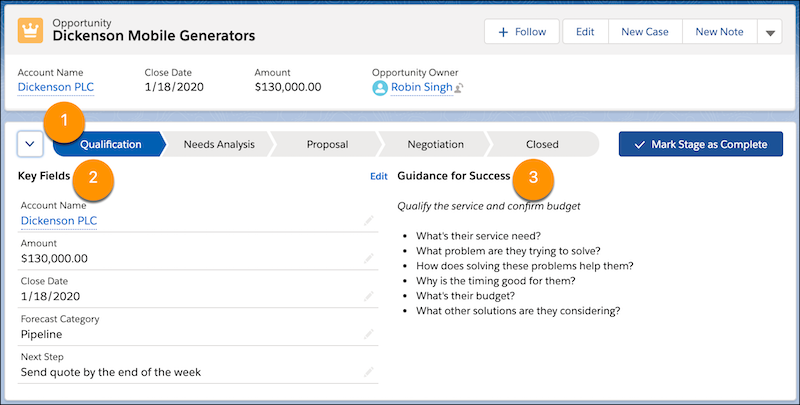
Steps for each path (1) are based on picklist values that you select when you create the path. At each step, show up to five key fields to help users focus on the most important information (2). And help users succeed with guidance, such as tips, links, and company policy information (3).
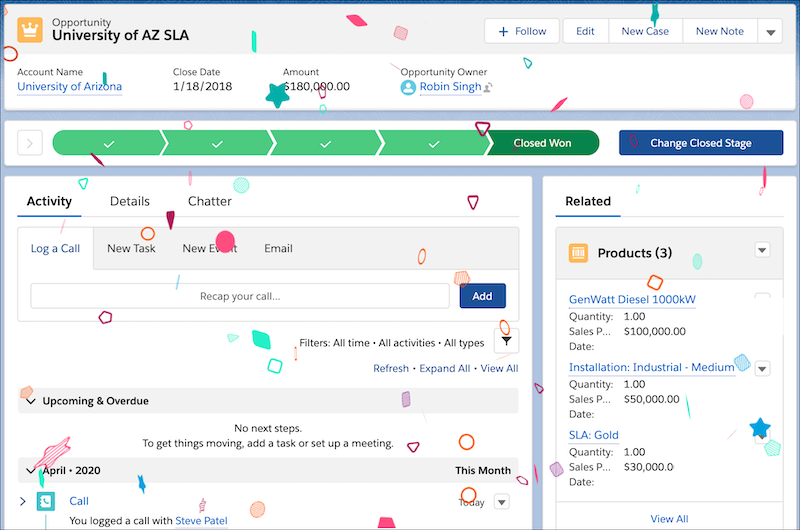
Help users celebrate their successes by tossing virtual confetti when reps reach path steps such as Closed Won.
1. From Setup, in the Quick Find box, enter Path Settings and select it.
2. Select **New Path**.
3. In step 1 of creating a path, enter basic information about the path: a unique path name, the object to base the path on, the record type, and the picklist to base the path on.

Note
Paths are supported for many standard picklists and for custom picklists.
If paths exist for all available record types for the object, create another record type, and then return to Path Settings to create a path.
4. Click **Next**.
5. In step 2 of creating a path, select key fields for each step on the path and enter success guidance.
1. For each step on the path, select up to five key fields.
2. For each step on the path, enter up to 1,000 characters of guidance.
6. Click **Next**.
7. In step 3 of creating a path, activate the path and enable confetti celebration animations.
1. Decide whether to activate the path immediately. To activate the path later, return to Path Settings.
2. Select picklist values and a frequency for triggering the celebration animation.
For frequency, if average users reach celebration values more often, set celebrations to occur less often. For example, let’s say you have a Renewal Business path where reps can close a lot of opportunities every day. Trigger the animation on random closed opportunities by selecting **Rarely** or **Sometimes**. But, for a New Business path where opportunities are hard won, select a frequency of **Always**.
8. Click **Finish**.
For most objects, the order of path steps is based on the order of the values in the picklist that the path is based on. The last step represents a closed stage or status. For example, in the last step of an opportunity path based on the Stage field, by default, users select Closed Won or Closed Lost.
On some objects and fields, you can customize the field value represented by the last step of the path.
#### See Also
- [Finalize the Path](https://help.salesforce.com/s/articleView?id=sales.path_final_status.htm&release=264.0.0&type=5 "Choose the final path step, following the order of the picklist values that the path is based on. Then, add the path to the related record pages.")
# Create a Payout Rule
From Salesforce Spiff Designer, create a payout rule for a commission plan.
### Required Editions
Available in: both Salesforce Classic (not available in all orgs) and Lightning Experience
Available in: Enterprise, Unlimited, and Developer Editions
Available for an additional cost in: Professional Edition with Web Services API Enabled
1. From a commission plan in Designer, click **New Payout Rule**.
2. Name the rule and specify the field that contains the commission calculation.
3. Optionally, set the Effective As Of or Effective Until dates, which determine when a rule is visible and pays commission to reps on the assigned plan.
You can organize and manage payout rules in several ways.
- Sort the payout rules alphanumerically. For example, to arrange the rules in a particular order, you can prefix them with a number and then sort them in ascending order.
- Control whether reps can see a plan or not by turning the Hide Plans setting on or off.
- Set a payout rule as a What-If? rule or ghost rule. A What-If? rule lets you show hypothetical calculations to a rep without affecting their commission total. Ghost rules let you work on a new rule that isn’t visible to reps and doesn’t affect commission totals. These rules have unique icons that appear next to their names.
#### See Also
- [Considerations for Ghost Rules](https://help.salesforce.com/s/articleView?id=sales.spiff_rules_ghost.htm&release=264.0.0&type=5 "Ghost rules are payout rules where the output doesn’t contribute to a rep's total commission amount for a statement period. Ghost rules are helpful in situations where you want to start building or testing rules for the next quarter or year, or when you want to perform mid-year plan changes.")
- [Create a What-If? Rule](https://help.salesforce.com/s/articleView?id=sales.spiff_rules_what_if.htm&release=264.0.0&type=5 "Motivate reps to close deals with What-If? rules. Show reps potential commission earnings when they meet the criteria you define in your data filter. For example, let reps see the commission they can earn if they close all pipeline deals for the period.")
# Create a Payout Rule for the Quota Attainment Graph
The Commission Estimator window in the Salesforce Spiff Commission Estimator provides a bar graph that shows how much an estimated deal affects quota attainment. In Designer, create a quota payout rule for use with the quota attainment graph. The payout rule has several requirements.
### Required Editions
Available in: both Salesforce Classic (not available in all orgs) and Lightning Experience
Available in: Enterprise, Unlimited, and Developer Editions
Available for an additional cost in: Professional Edition with Web Services API Enabled
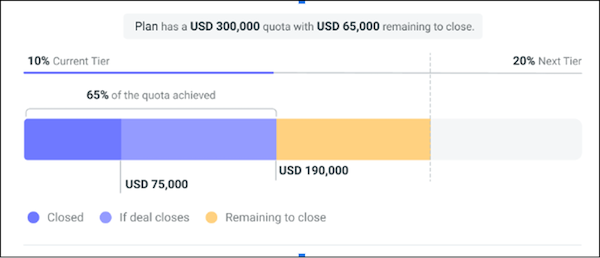
Before you create the rule, review these requirements.
- If users belong to multiple plans, they can have multiple quotas, so choose the most important quota to show the graph for.
- If a commission plan doesn't use quotas or quota attainment, create the payout rule and data filter anyway. In this case, the filter doesn't return any result, and the graph is hidden.
- If more than one plan uses the Spiff Commission Estimator, the payout rule must be the same for all plans that use the same object. If the plans have different formulas for the required fields, create a lookup table, based on the plan name, that provides the appropriate field values dynamically.
1. In Designer, create a payout rule with these requirements.
Name
sce_chart_opportunity or sce_chart_quote, depending on the object used in the plan
Ghost rule
True
See [Payout Rules](https://help.salesforce.com/s/articleView?id=sales.spiff_payout_rule.htm&release=264.0.0&type=5 "In Salesforce Spiff, payout rules are formulas, calculations, and tables that make your plans run. Payout rules appear on commission plans."). This rule isn't visible in plan commission statements but is required for the bar graph. If you use both the Quote and Opportunity objects, create a rule for each object.
2. Create a data filter on the payout rule, and specify these requirements.
- Return only one opportunity or quote when an estimate is requested, per plan. If the data filter returns multiple opportunities or quotes, the Spiff Commission Estimator shows an error.
- If the payout rule uses the Quote or Quote Line objects, create the data filter on the Quote object only.
- If the payout rule uses the Opportunity or Opportunity Product objects, create the data filter on the Opportunity object only.
See [Create a Data Filter in Salesforce Spiff](https://help.salesforce.com/s/articleView?id=sales.spiff_data_filter_create.htm&release=264.0.0&type=5 "Create data filters in Salesforce Spiff without writing any code.").
3. Set up the fields that provide data to the graph.
See [Field Requirements for the Quota Attainment Graph](https://help.salesforce.com/s/articleView?id=sales.spiff_estimator_graph_fields.htm&release=264.0.0&type=5 "To show data in the quota attainment bar graph with the Salesforce Spiff Commission Estimator, set up required fields, even if the fields don't have any values.").
#### See Also
- [Considerations for Ghost Rules](https://help.salesforce.com/s/articleView?id=sales.spiff_rules_ghost.htm&release=264.0.0&type=5 "Ghost rules are payout rules where the output doesn’t contribute to a rep's total commission amount for a statement period. Ghost rules are helpful in situations where you want to start building or testing rules for the next quarter or year, or when you want to perform mid-year plan changes.")
# Create a Payout Rule for the Salesforce Spiff Commission Estimator
In some cases, you can reuse the same payout rules in Salesforce Spiff Commission Estimator as you already use for regular commission payouts in Spiff. In other cases, create a separate payout rule specifically for estimations. For example, maybe you don't want to include a What-If? rule on rep commission statements or you configure the estimator for a different object than the regular commission payout rule uses.
### Required Editions
Available in: both Salesforce Classic (not available in all orgs) and Lightning Experience
Available in: Enterprise, Unlimited, and Developer Editions
Available for an additional cost in: Professional Edition with Web Services API Enabled
To create a separate rule, copy and update a rule that you already created for standard commission payouts. Follow these best practices.
- Name the estimator rule after the original rule, with an Estimated prefix.
- To make sure that other admins don't mistakenly use an estimator-specific formula in a standard commission payout, give the estimator formula a clear, unique name.
- Test estimated commisions with What-If? and ghost rules.
- When you generate commission rates, Spiff Commission Estimator has only one deal in the calculation. You can use any worksheet fields that you've already created for current year-to-date achievements, instead of creating new accumulations per line.
- Customize data filters to include only open opportunities or quotes. Exclude closed opportunities so that they don't show up in What-If? rules.
- If your rule uses fields on an object other than Quote or Quote Line, add those fields to the Quote or Quote Line objects. Data that isn't native to these objects is synced from Salesforce and delayed.
1. Verify that your rule's objects and data are ready.
1. In Designer, click the Data tab, and then click **Manage Objects & Fields**. Verify that both the Quote and Quote Line objects are added from Salesforce.
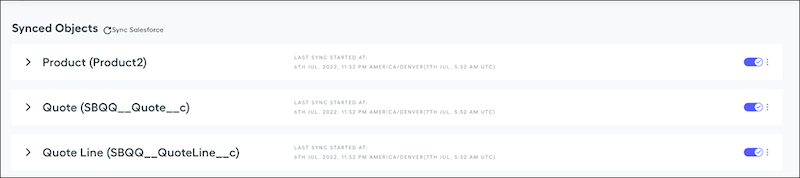
2. Verify that relationships for data filters are established between objects that your rule depends on.
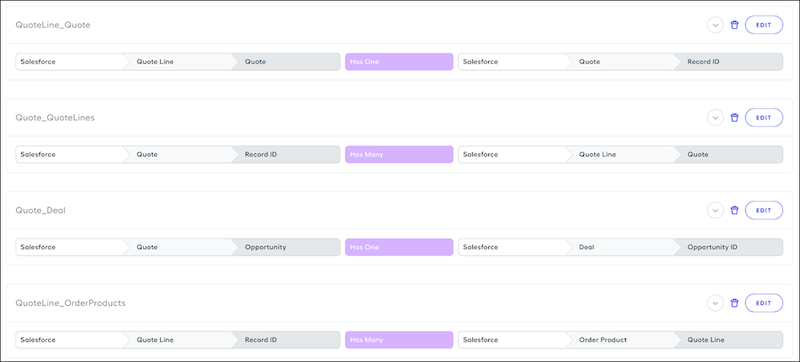
2. From the payout rules available in Spiff plans, find a rule that you want to copy for use in the Spiff Commission Estimator.
3. Create data filters that use Quote and Quote Line data from Salesforce.
4. In Designer, clone the rule that you want to use with the Spiff Commission Estimator.
5. Update the cloned rule.
1. Update the rule with a meaningful name that can appear in the Spiff Commission Estimator.
2. If you want the rule to appear in rep commission statements, turn on **What-If?**. Otherwise, turn on **Ghost**.
3. If you want the rule to appear in the Spiff Commission Estimator, turn on **Commission Estimator**.
4. Update all payout rule calculations to reference the Quote and Quote Line data filters and to use Quote and Quote Line fields.
5. Sync the Quote and Quote Line fields from Salesforce.
6. To test the new rule, recaculate the statement for a rep who's also a Spiff Commission Estimator user.
7. To bring the datasheet fields to the obligation record, add visible fields to the rule's final payout calculation.
#### See Also
- [Create a Payout Rule](https://help.salesforce.com/s/articleView?id=sales.spiff_payout_rule_create.htm&release=264.0.0&type=5 "From Salesforce Spiff Designer, create a payout rule for a commission plan.")
- [Create a Data Filter in Salesforce Spiff](https://help.salesforce.com/s/articleView?id=sales.spiff_data_filter_create.htm&release=264.0.0&type=5 "Create data filters in Salesforce Spiff without writing any code.")
- [Add a Designer Field or Calculation to a Report in Salesforce Spiff](https://help.salesforce.com/s/articleView?id=sales.spiff_report_fields_add.htm&release=264.0.0&type=5 "Reports in Salesforce Spiff are generated from fields and metrics used in plan statements or commission logic. Designer fields or calculations not used in statements or commission logic aren't available for reports by default. To show one of these fields in a report, add the field to the payout rule that calculates commission.")
# Create a Payout Rule from a Payout Amount Field
Create a payout rule from a datasheet or worksheet field, which automatically assigns that field as the payout amount simultaneously.
### Required Editions
Available in: both Salesforce Classic (not available in all orgs) and Lightning Experience
Available in: Enterprise, Unlimited, and Developer Editions
Available for an additional cost in: Professional Edition with Web Services API Enabled
1. From a datasheet or worksheet, select the field you want to use as the payout amount for your new payout rule.
2. In the right panel, click **Create Payout Rule**.
3. Name the payout rule, select the plan it belongs to, and set other options as needed.
4. Click **Create**.
The new rule appears in the payout rules of the assigned plan.
# Create a Payroll Report in Salesforce Spiff
Ensure accurate and efficient reporting of payroll data for each rep in Salesforce Spiff. Automate the payroll process and make payroll data readily available for every custom report.
### Required Editions
Available in: both Salesforce Classic (not available in all orgs) and Lightning Experience
Available in: Enterprise, Unlimited, and Developer Editions
Available for an additional cost in: Professional Edition with Web Services API Enabled
User Permissions Needed
To create a payroll report:
A Spiff user role with these permissions turned on.
Designer Configuration: Manage
Custom Reports: Edit
Statements: Recalculate
1. Sync payroll data from your CRM ,or upload an export from your payroll or HR system.
To link records to the correct reps, make sure the uploaded file contains unique IDs and fields. The tab name is what the object or table is named in Salesforce Spiff.
2. Connect the uploaded data to Designer.
1. From the left panel under Data, click **Manage Objects & Fields**.
2. Select the data source and expand the object dropdown.
3. Click the **+** icon next to any field you want available for this report.
3. Create a filter to map payroll records to the correct representatives.
1. From the left panel under Data, click **Filters**.
2. Select the .csv file you uploaded and click **New Filte**r.
3. Name the filter PayrollDataByRep and enter syntax.
```
User_Id = rep.Id
```
4. Create a worksheet to pull in necessary payroll data from a rep’s record.
1. Create a separate folder for payroll data and add a worksheet.
2. Name the payroll information and enter the payroll formulas.
```
Payroll Code =single(transform_list(PayrollDataByRep, Payroll_Code))
```
```
Payroll Region =single(transform_list(PayrollDataByRep, Payroll_Region))
```
3. Continue with any other payroll data from your upload. Selecting different representatives dynamically updates the values returned.
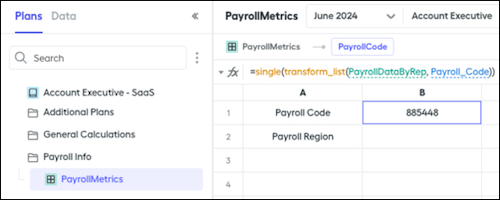
5. Establish a ghost payout rule that calculates the payroll fields for each rep on that plan.
The ghost rule guarantees that the data is included in rule logic but results in a zero payout.
1. On the payroll worksheet, name the ghost rule and enter the payroll formulas.
```
=if(PayrollCode, 0, 0) + =if(PayrollRegion, 0, 0)
```
2. Create a payout rule on a plan and turn the ghost rule on.
You can reuse this rule and add it by default to every plan to make sure you always have the payroll data you need in your reports.
6. Calculate statements and create the report.
1. Calculate any unfrozen statements to make sure data flows through to the report.
2. From Reports, click **Create Report**.
3. Click **Add Columns** to add payroll fields to your report.
4. Click **Apply** and then click **Run & Save**.
#### See Also
- [Imported Data in Salesforce Spiff](https://help.salesforce.com/s/articleView?id=sales.spiff_import.htm&release=264.0.0&type=5 "You can manually import data into Salesforce Spiff, in addition to data synced from external sources, such as Salesforce. You can view your imported data in Data Sources and Designer.")
- [Considerations for Worksheets and Worksheet Calculations](https://help.salesforce.com/s/articleView?id=sales.spiff_worksheets_and_calculations_considerations.htm&release=264.0.0&type=5 "Worksheets provide the functionality to create calculations that produce a single output. Worksheet calculations are flexible and can be used in data filters, other worksheet fields, and in datasheet fields tied to objects on unrelated plans.")
- [Functions in Salesforce Spiff](https://help.salesforce.com/s/articleView?id=sales.spiff_functions.htm&release=264.0.0&type=5 "Salesforce Spiff Designer provides a library of functions for calculating values and handling different data types.")
# Create a Personalized Document for Approval in Salesforce Spiff
Personalize documents and send them for approval. For example, include quotas, on-target earnings, dates, names, and IDs when you specify merge fields that contain unique values.
### Required Editions
Available in: both Salesforce Classic (not available in all orgs) and Lightning Experience
Available in: Enterprise, Unlimited, and Developer Editions
Available for an additional cost in: Professional Edition with Web Services API Enabled
User Permissions Needed
To create a personalized document for approval:
A Spiff user role with these permissions turned on.
Documents: Manage
Document Templates: Edit
Document Approval Requests: Manage

Tip To send a document that doesn't require approval, create an approval route with a single admin approver. After that admin approves, send the document to other users.
## Upload Merge Fields and Values
To personalize a document with details that are specific to each user, specify which fields and values you want to make available for use in documents. Download a template merge fields definition file, and then upload the file with your modifications added.
This procedure covers the spreadsheet upload approach for merge fields. If the data you need is available in Spiff or in a connected external system, you can use dynamic merge fields instead. See [Add Dynamic Merge Fields to a Document Template](https://help.salesforce.com/s/articleView?id=sales.spiff_add_dynamic_merge_fields.htm&release=264.0.0&type=5 "Insert live Spiff data into your compensation plan document templates. Dynamic merge fields pull values directly from Spiff—such as a rep's team name, plan assignments, or quotas—or to data synced in from external systems like Salesforce or Workday. Spiff quota tables and fields that are mapped to the user object are available as dynamic merge fields. Spiff populates these fields when you send or preview a document.").
1. On the Documents page, click the **Merge Fields** tab.
2. Click **Upload merge fields**.
3. Click **Download merge fields template**.
4. Open the downloaded template.
The file includes columns for three fields by default: external\_id, User\_Name, and Assigned\_Plans.
5. Add merge fields to the template.
You can change the order of columns and rows, but don't modify or delete the default external\_id and User\_Name columns. You can have up to 200 merge fields.
1. To add a merge field, enter the field name in the header row of a new column.
For example, to add a Quota merge field, enter Quota in the header row of a new column.
2. Add field values for each record in the column.
These values appear in each user's personalized document. You can use Microsoft Excel formulas in cells so that the final document shows the result. For example, if the function `=SUM(D2:D25)` results in $100, the document shows $100.
3. Save your changes.
6. To upload the modified template, click **Browse your computer** and select the template you edited.
Later, you can click the three dots next to the merge fields file and download it again or replace it with a new file.
## Create a Document Template
Set up a document template and add the merge fields that you specified.
1. On the Documents page, click **New Template**.
2. Enter a name for the template.
3. Add the body text, add images, insert a table, and apply formatting.
4. To insert a merge field, place your cursor in the document where you want the field to appear, and then select from the Uploaded Merge Fields list or Dynamic Merge Fields list in the right panel.
5. Save the template as a draft.
6. To preview the document for different users, click the Preview icon on the document toolbar and select a user.
7. Click **Publish Template**.
After you publish the template, you can't edit it. To modify a published template, duplicate it instead.
## Send the Template for Approval
Select an approval route and the users to send the document template to.
1. On the Documents page, click the **Templates** tab, and select the template.
2. Click the Send icon.
3. Select an approval route or click **New Approval Route**.
To see more details about an existing route, click the arrow icon on the route.
4. Select the active Spiff users that you want to approve the document.
You can search for users by name or filter the list of users by plan or team. To approve a document, a user requires one of these privileges. You can't send documents to external users.
- The Company Admin default role
- The Finance default role
- A custom role with Documents: View and Document Approval Requests: Manage permissions
- An active team lead assignment for the user who requests the approval
5. Click **Send Documents**.
After you send the document, track the approval process from the Approval Requests tab.
Only users who have logged in to Spiff at least once can receive approval notifications. Users who receive a document can sign and approve it by entering their name, which becomes an electronic signature (e-signature).
#### See Also
- [User Roles and Permissions in Salesforce Spiff](https://help.salesforce.com/s/articleView?id=sales.spiff_users_roles_and_permissions.htm&release=264.0.0&type=5 "Give users the appropriate level of access so they can be successful in Salesforce Spiff, and enforce the principle of least privilege. Assign a default role to each user, or create custom roles with access to specific Spiff functionality.")
- [Team Management in Salesforce Spiff](https://help.salesforce.com/s/articleView?id=sales.spiff_teams_management.htm&release=264.0.0&type=5 "Teams are an important component of commission plans. Sometimes team members receive commissions based on the entire team's performance, and managers receive commissions based on a team's performance, or even multiple teams. You can assign members to a team for a limited period by defining the start and end dates for the assignment. Teams can also be assigned team leads who can view the team members’ statements. When creating a variable for multiple plans, you can use custom fields in numerous plans and customize the value uniquely for each team.")
# Create a Plan in Salesforce Spiff
Motivate and reward sales reps for their achievements and contributions when you create commission plans.
### Required Editions
Available in: both Salesforce Classic (not available in all orgs) and Lightning Experience
Available in: Enterprise, Unlimited, and Developer Editions
Available for an additional cost in: Professional Edition with Web Services API Enabled
1. In Designer, click the three dots next to the search bar.
2. Select **New Plan**.
3. Rename the plan.
4. Choose to get started with a worksheet, datasheet, or on your own.
New plans are hidden by default. Hidden plans are visible only to users with one of these privileges.
- The default Company Admin role
- The default Finance role
- A custom role with the Statements: View Hidden permission turned on
When you’re ready to make the plan visible to all reps assigned to the plan for applicable statement periods, unhide the plan.
# Create a Presence Configuration for Your Sales Prospecting Bot
Use a presence configuration to limit how much work a sales rep can take on. That way, incoming leads from your sales prospecting bot’s are evenly distributed to your reps. You can set up multiple configurations for different groups of reps.
### Required Editions
Available in: Lightning Experience
Available with Sales Engagement, which is included with Sales in Performance, Einstein 1, and Unlimited Editions, and available for an extra cost in Professional and Enterprise Editions. Sales Engagement is also available for an extra cost in Service and Lightning Platform.
User Permissions Needed
To set up Omni-Channel:
Customize Application

Note The Prospecting Bot is in maintenance mode. Existing bots continue to be supported. However, no new features or enhancements will be added. Looking for information about Agentforce Prospecting instead? We recommend using that agent when implementing AI for your prospecting needs. See [Learn About Agentforce Prospecting](https://help.salesforce.com/s/articleView?id=sales.sales_agent_prospecting_learn_about.htm&type=5&language=en_US) to get started.
1. From Setup, in the Quick Find box, enter Presence Configurations, select **Presence Configurations**, and then click **New**.
2. For the Presence Configuration Name field, enter Leads.
3. Indicate the maximum units of work a sales rep can take on. If you set the Units of Capacity field to 1 in your routing configuration, each work item is 1 unit.
4. To automatically accept work assignments that are pushed to a sales rep, select **Automatically Accept Requests**.
5. Specify the remaining settings for your presence configuration.
6. Save your changes. To add more presence configurations, repeat the steps.
#### See Also
- [Presence Configuration Settings](https://help.salesforce.com/s/articleView?id=service.service_presence_configuration_settings.htm&type=5&language=en_US)
# Create a Presence Status for Your Sales Prospecting Bot
Presence statuses indicate if a sales rep is online and available to receive prospects. Create a presence status for your sales prospecting bot that includes your service channel. That way, reps that are assigned to this presence status can receive your bot’s incoming leads.
### Required Editions
Available in: Lightning Experience
Available with Sales Engagement, which is included with Sales in Performance, Einstein 1, and Unlimited Editions, and available for an extra cost in Professional and Enterprise Editions. Sales Engagement is also available for an extra cost in Service and Lightning Platform.
User Permissions Needed
To set up Omni-Channel:
Customize Application

Note The Prospecting Bot is in maintenance mode. Existing bots continue to be supported. However, no new features or enhancements will be added. Looking for information about Agentforce Prospecting instead? We recommend using that agent when implementing AI for your prospecting needs. See [Learn About Agentforce Prospecting](https://help.salesforce.com/s/articleView?id=sales.sales_agent_prospecting_learn_about.htm&type=5&language=en_US) to get started.
1. From Setup, in the Quick Find box, enter Presence Statuses, select **Presence Statuses**, and then click **New**.
2. For the Status Name field, enter Available - Lead.
3. For the status option, select **Online**. The Online status lets reps who use this presence status receive new work items.
4. Add the Leads service channel to the Available Channels list.
5. Save your changes. To add more statuses, repeat the steps. For example, you can create a Busy presence status to indicate that a rep is unavailable and can’t receive incoming prospects.
6. [Give reps access to your presence statuses](https://help.salesforce.com/s/articleView?id=service.omnichannel_set_access_presence_statuses.htm&type=5&language=en_US) through permission sets or profiles.
#### See Also
- [Presence Status Settings](https://help.salesforce.com/s/articleView?id=service.service_presence_status_settings.htm&type=5&language=en_US)
# Create a Quick Action
A Quick Action performs a specific action in Salesforce, such as creating or updating a record. Quick Actions can help streamline your users’ experience. For example, you might need to update a lead status while on the go. Why bring up the full edit screen when you can create a quick action to update just the lead status?
### Required Editions
Available in: Lightning Experience in all editions
User Permissions Needed
To add buttons to page layouts:
Customize Application and Modify All Data
There are three types of Quick Actions that can be created for use in Seller-Focused Mobile Experience using the Mobile Builder for Seller-Focused Experience.
- Device actions (like phone or email)
- Global actions (like a new event, new task, or logging a call)
- Activity Composer Actions, which are object-specific (like posting, linking, and polling)
You can launch a quick action by tapping the three-dot menu.
- Swipe a record to the left on the mobile record home or object home screen to see the three-dot menu.
- Tap the three-dot menu on the mobile record detail screen.
For this example, we'll create a quick action that updates a lead status.
1. Click , then click **Setup**.
2. Click **Object Manager**.
3. Select the object to create an action for. For this example, click **Lead**.
4. Click **Buttons, Links, and Actions**.
5. Click **New Action**.
6. Select an Action Type. For example, **Update a Record**.
7. Optionally, select a Standard Label Type.
8. Enter a Label. This will appear in the form of a button on the object page. For example, enter Update Lead Status.
9. Press tab to autofill Name.
10. Optionally, enter a Description.
11. Optionally, enter a Success Message.
12. Click **Save**.
13. Now let's assign it to the page layout. Click **Object Manager**.
14. Click **Lead**.
15. Click **Page Layouts**.
16. Click **Lead Layout**.
17. Click **Mobile & Lightning Actions**.
18. In the Salesforce Mobile and Lightning Experience Actions section, click the **override the predefined actions** link.
19. Drag the **Update Lead Status** button to the Salesforce Mobile and Lightning Experience Actions section.
20. Click **Save**.
Your quick action is now available to use in Seller-Focused Mobile Experience.
For Seller-Focused Mobile Experience record pages, Lightning quick actions should be accessible from the quick actions list.
However, there are known limitations:
- Lightning web component (LWC) quick actions are not supported.
- Screen flow quick actions are not supported.
If you notice any quick actions are missing or not working correctly, use the **View Full Record** tab on the record page. This action loads the complete, web-based record page, giving you access to all its features.
# Create a Quick Cadence
Easily remind yourself to reach out to prospects in specific ways with quick cadences. Create a quick cadence to send an email with a specific template or to make a call with a call script. To add the task to your Work Queue and To Do List, assign the quick cadence to a lead, contact, or person account.
### Required Editions
Available in: Lightning Experience
Available with Sales Cloud and included in Professional, Enterprise, Performance and Unlimited Editions
Available in Sales Engagement with Sales Cloud, in Performance and Unlimited Editions, and available for an extra cost in Professional and Enterprise Editions. Sales Engagement is also available for an extra cost in Service Cloud and Lightning Platform.
User Permissions Needed
To create quick cadences:
Sales Engagement User AND Sales Engagement Quick Cadence Creator
OR
Sales
Engagement User Included AND Sales Engagement Quick Cadence Creator
OR
Sales
Engagement Cadence Creator
OR
Sales Engagement Cadence Creator
Included
OR
Sales Engagement Basic
1. In the Cadences tab of the Sales Engagement app, click **New Cadence**.
2. Under Quick Cadence, select the type of outreach you want to include.
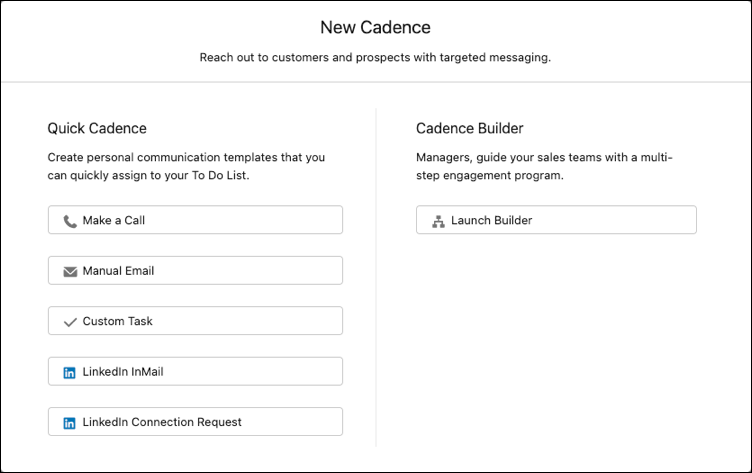
3. Provide the details for the outreach. For example, enter a name, description, and optional template for an email.
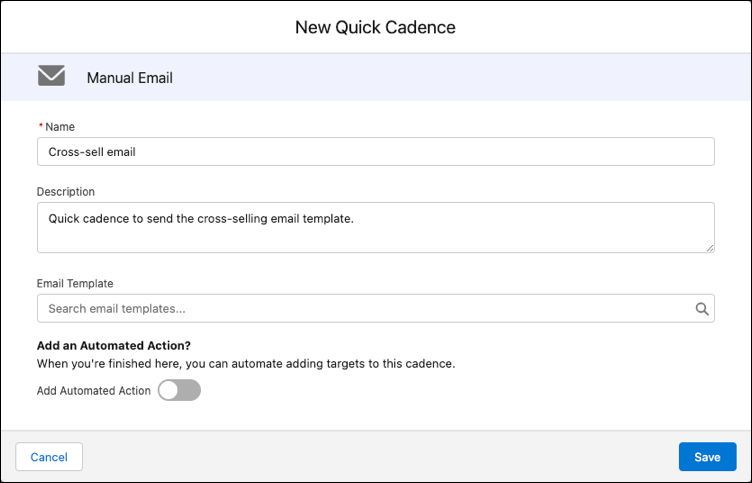
4. Choose whether to repeat the quick cadence for assigned targets.
Enter how often to repeat and how many times. You can set the quick cadence to stop repeating when a specific engagement occurs. For example, for a phone call, you can stop repeating when a call results in a meaningful connect.
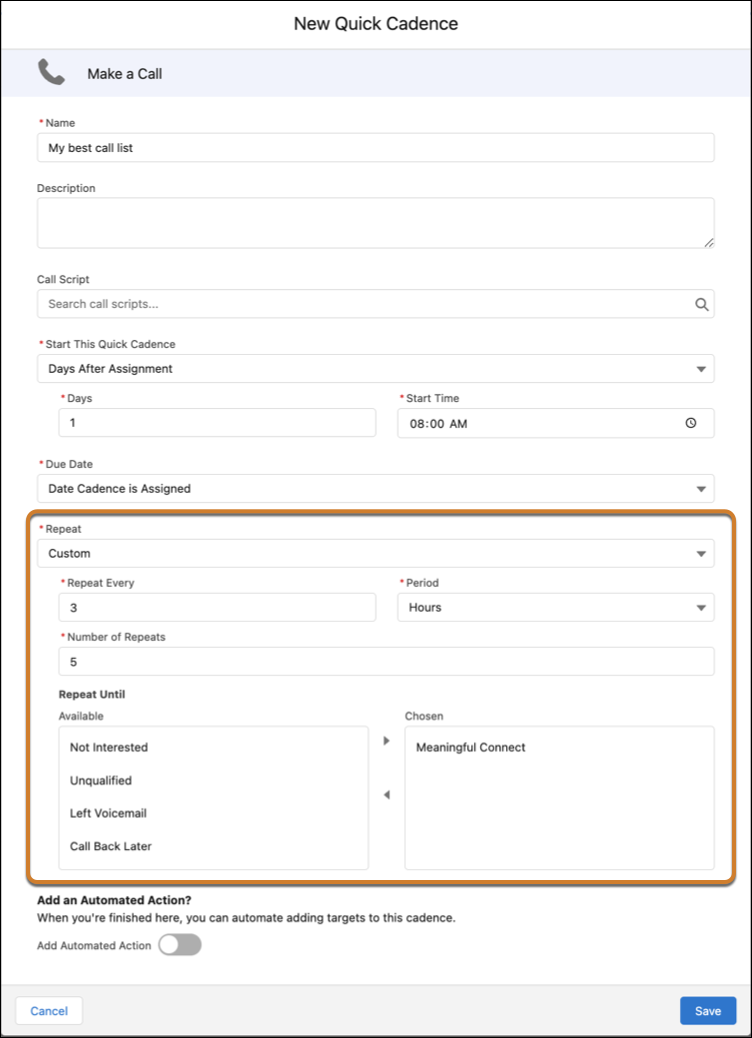
5. Click **Save**.
Your quick cadences are saved in your My Private Cadences folder in the Cadences tab of the Sales Engagement app.
6. Optionally, you can also create an automated action to add targets to the new quick cadence.
When you've created a quick cadence, assign prospects to it by selecting **Add to Cadence** from the Action menu on leads, contacts, and person accounts, or from list views and reports. The outreach task appears in your Work Queue and To Do List so you can follow up later.
You can't view the steps or clone quick cadences.
For a video demonstration of creating a quick cadence, see [How Quick Cadences Help Sellers Automate the Mundane](https://youtu.be/B6gdcbDimwg).

Note If your Salesforce admin adds a required custom field to the Action Cadence object, you can't create quick cadences. If you see this error, ask your admin to create a validation rule for the custom field instead of setting the field as required.
# Create a Quota Plan
Determine targets that motivate sellers and achieve business objectives within the quota plans you create in Sales Planning. Allocate quota targets across your segments and products and add optional buffer values. Add insight to your quota plans by adding historical role and calculated data.
### Required Editions
Available in: both Salesforce Classic (not available in all orgs) and Lightning Experience
Available for an additional cost in: Enterprise, Performance, Unlimited, and Developer Editions with Sales Planning in English only, and only if you have Web Services API enabled
User Permissions Needed
To create plans:
One of these:
Sales Planning Admin permission set
Sales Planning Ops Manager permission set
Sales Planning Ops Analyst permission set
AND
One of these:
Query for Datapipelines User for Sales Planning permission set
CRM Analytics Plus User permission set
CRM Analytics Growth User permission set

Important Before you create a quota plan and allocate target values, set up your plan's product hierarchy, identify goals, and set target values. See [Set Up Product Hierarchy and Product Seasonality in Sales Planning](https://help.salesforce.com/s/articleView?id=sales.sales_planning_products.htm&release=264.0.0&type=5 "An effective sales plan depends on aligning your company’s important products with your seller strategy. In Sales Planning, set up a product hierarchy and specify seasonality for the products that your team sells. Seasonality represents the emphasis placed on a particular product during a certain time of year. For example, seasonality can increase in the last fiscal quarter. A product hierarchy also helps with Quota Planning.") and [Identify Goals and Set Targets in Sales Planning](https://help.salesforce.com/s/articleView?id=sales.sales_planning_goals_targets.htm&release=264.0.0&type=5 "Add goals to the sales plan, and specify target values for each goal. Typically, finance users set high-level guidance and then sales or sales operations personnel set specific targets for their teams.").
## Set Up the Quota Plan
1. In Sales Planning, open the segment for which you’re creating your quota plan.
2. Scroll to the Quota Plans card and click **New**.
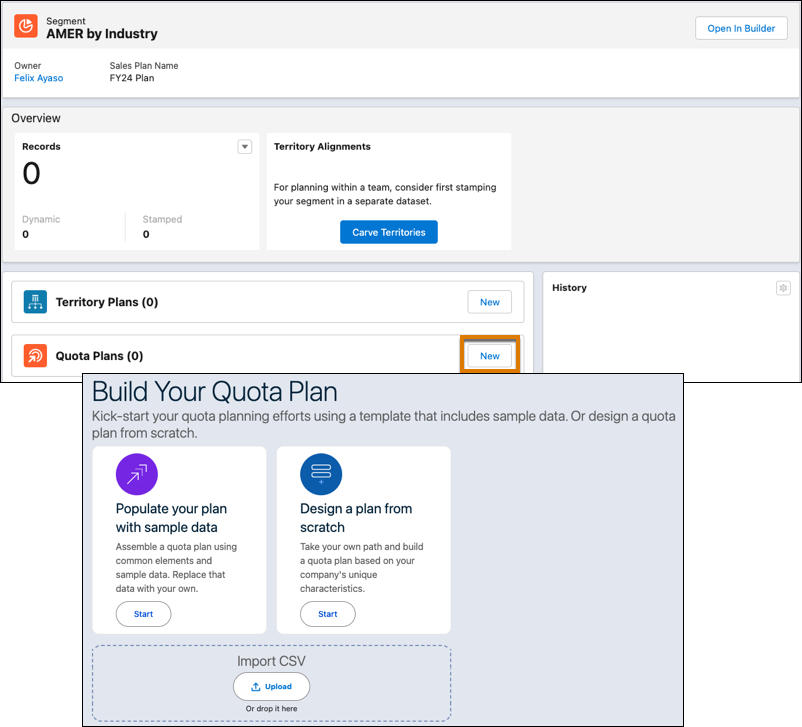
- Design a quota plan from scratch.
- Design a quota plan with sample data that you can replace.
- Design a quota plan from territory data from a stamped alignment. See [Plan Quotas from Territory Alignments](https://help.salesforce.com/s/articleView?id=sales.quota_planning_alignments.htm&release=264.0.0&type=5 "Create quota plans fast when you incorporate stamped territory hierarchy, owner, and attribute data from alignments that you create in Territory Planning. Analysts plan quotas from stamped alignments within Sales Planning segments.").
- Or, create a quota plan from an imported .csv file that includes hierarchy, owner, and historical and role details.
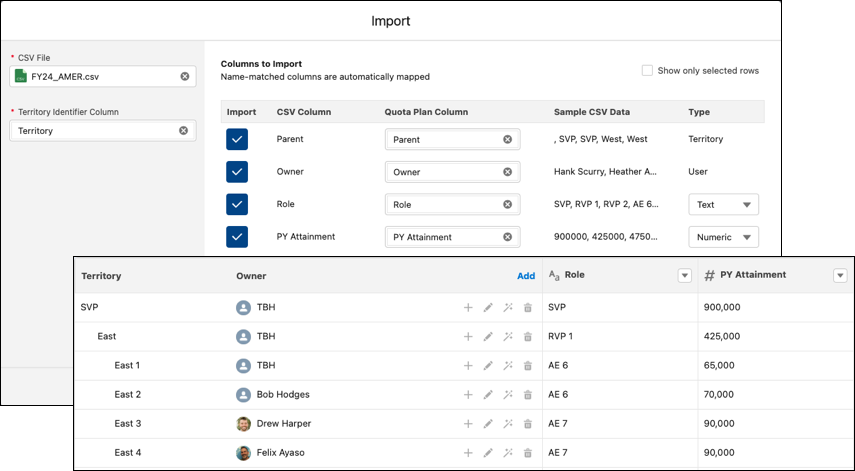
The Quota Plan Builder opens, where you can allocate quota target values and add buffer values.
## Allocate Quota Target Values
The quota plan shows the targets you specified so you can include them in your quota planning.
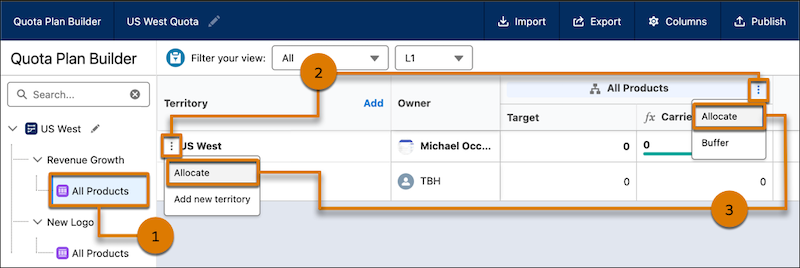
1. In Quota Plan Builder, select a product from the left panel (1).
To adjust the goals and targets that are visible, click the pencil icon  in the left panel.
2. Click the three dots in the product header or territory (2) and select **Allocate** (3).
3. Select options in the Allocate window.
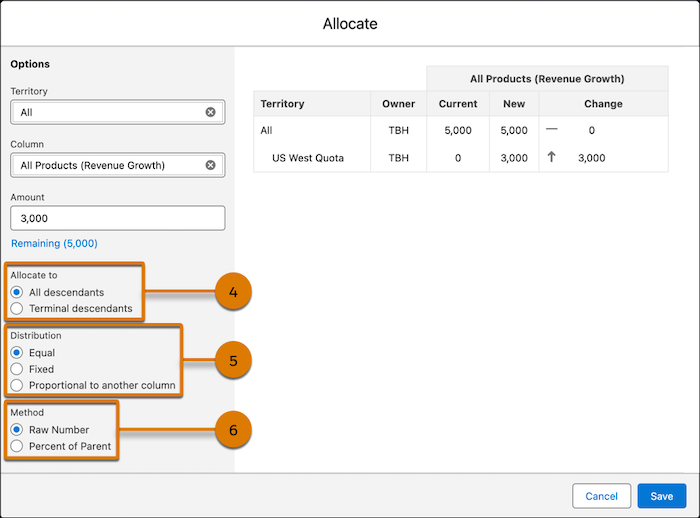
- Specify a territory, product column, and allocation amount.
- Specify whether you want to allocate to all descendents or only terminal (last) descendants (4).
- Specify whether the allocation amount is equal, fixed, or proportional to another column (5).
- Specify whether the allocation amount represents a raw number or a percent amount of a parent (6).
4. Save your changes.
You can specify different quotas for different levels of the product hierarchy. Maybe you want sales reps to hit general targets overall but more specific targets for individual business units.
If you change the target values for your segments, the values are updated in the quota plan, too.
## Add Buffer Values
After you allocate target values, add an optional buffer percentage to your targets. A buffer specifies an additional percentage that’s added to your quota targets to help protect your plan goals from low attainment, new hire ramp time, or other circumstances that negatively affect your team’s performance.
1. With a product selected in Quota Plan Builder, click the three dots in the product hierarchy (1) and select **Buffer** (2).
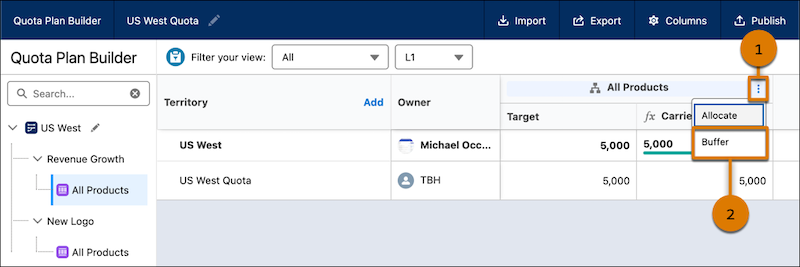
2. In the Buffer window, enter the buffer percentage amount that you want to add.
3. Save your changes.
## Visualize Quota Targets
After you allocate targets and add a buffer, visualize your targets over time with a graph or chart.
1. With a product selected in Quota Plan Builder, click **Open** on a territory.
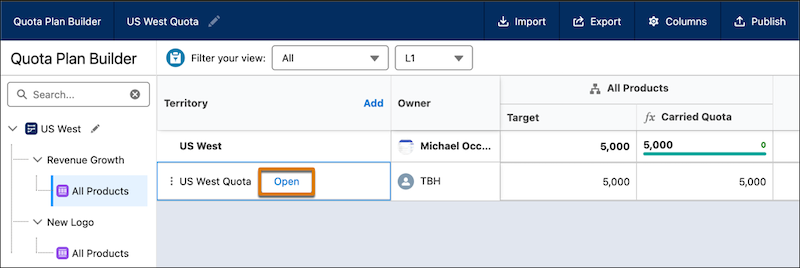
2. To change which information is shown, select a ramp profile, starting month, monthly or quarterly scope, and number formatting.
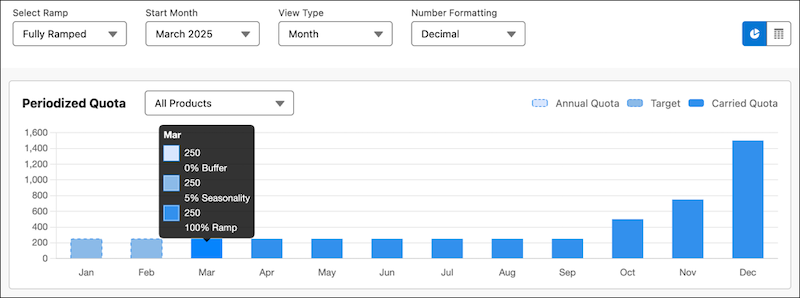
## Manage Columns in Quota Plan Builder
Optionally, create, show, and hide columns in Quota Plan Builder.
1. In Quota Plan Builder, click **Columns**.
2. To add a column, click **New**.
3. Enter a label, specify a data type, and save your changes.
For example, maybe you add two number columns, Revenue and Units, and then you want to add a third column that calculates revenue per unit. Add a formula column that references those columns and performs a calculation.
```
[Revenue] / [Units]
```
4. Make sure that the column appears in the Visible list.
You can also reorder visible columns that you added, or hide selected columns.
#### See Also
- [Plan Quotas from Territory Alignments](https://help.salesforce.com/s/articleView?id=sales.quota_planning_alignments.htm&release=264.0.0&type=5 "Create quota plans fast when you incorporate stamped territory hierarchy, owner, and attribute data from alignments that you create in Territory Planning. Analysts plan quotas from stamped alignments within Sales Planning segments.")
- [Account for Ramp and Seasonality When Planning Quotas](https://help.salesforce.com/s/articleView?id=sales.quota_planning_ramp_seasonality.htm&release=264.0.0&type=5 "Anticipate ramp-up time for new reps and consider tenure of experienced ones when you plan quotas. Also, consider seasonal sales patterns and other realities that affect your business in Quota Planning.")
- [_Video_: Target and Quota Lifecycle Overview - Aug ’25](https://salesforce.vidyard.com/watch/bRQ6rKJkevfy5XhJbdG62n)
# Create a Quote PDF by Selecting a Template
Select from the available templates to create a PDF.
### Required Editions
Available in: Salesforce Classic and Lightning Experience
Available in: Performance and Developer Editions
In Sales, also available in: Professional, Enterprise, and Unlimited Editions
1. Choose one of these options.
- If you’re using Lightning Experience, click **Create PDF**, and then choose a template from the dropdown list.
- If you’re using Salesforce Classic, click the **Create PDF** dropdown list, and then select a template from the Recent Templates list, or click Choose Template and search for the template that you want to use.
2. Generate a preview by clicking **Create PDF**.
3. Save the PDF to the Quote PDFs related list by clicking **Save to Quote**. The PDF name is the quote name plus a version number, such as AcmeQuote\_V1.
To enable accessibility in PDFs, contact Salesforce Customer Support.
# Create a Quote PDF from the Standard Template
Quickly create quote PDFs from the standard templates.
### Required Editions
If you haven’t created custom templates or generated PDFs, start from the standard template.
Available in: Salesforce Classic and Lightning Experience
Available in: Performance and Developer Editions
In Sales, also available in: Professional, Enterprise, and Unlimited Editions
1. On the quote detail page, generate a preview by clicking **Create PDF**.
2. Save the PDF to the Quote PDFs related list by clicking **Save to Quote**. The PDF name is the quote name plus a version number, such as AcmeQuote\_V1.
# Create a Ramp for New Hires in Salesforce Spiff
A ramp in Salesforce Spiff refers to a structured period of time for new hires to learn the company's products, processes, and sales strategies without the immediate pressure of meeting full quotas. Gradually increase quotas over time so new reps can build their pipeline and gain confidence in their selling abilities. A ramp is also called a guaranteed commission and is a common feature of many commission plans.
### Required Editions
Available in: both Salesforce Classic (not available in all orgs) and Lightning Experience
Available in: Enterprise, Unlimited, and Developer Editions
Available for an additional cost in: Professional Edition with Web Services API Enabled
User Permissions Needed
To create a ramp with custom fields and worksheets:
A Spiff user role with these permissions turned on.
Designer Configuration: Manage
Global Custom Fields: Manage
Typically, companies structure ramps to allow commissioned employees to receive a gradually diminishing amount of guaranteed commission.
- In month 1, a new hire receives $2,000 of guaranteed commissions.
- In month 2, they receive $1,000 of guaranteed commissions.
- In month 3, they can receive $0 of guaranteed commissions.
As they gain experience, reps receive less guaranteed commission and more actual commission.
1. To create a list of ramp rates for each rep, add a custom field to every plan.
1. From the Admin menu, click **Settings**.
2. Under Custom Fields, select **Plans**, and then click **Add Custom Field**.
3. Enter a name for the custom field, such as RampRates.
4. For Field Type, select **Expression**.
5. Save your changes.
6. On the Plans page, under Custom Fields, click **Modify**.
7. Enter a list of ramp values by month since hire, where each month is separated by a comma, and save your changes.
```
(1, .66666667, .33333333, 0)
```
8. Optionally, navigate to other plans and enter plan-specific ramp values.
2. To calculate months into a ramp, create worksheet calculation, named MonthsIntoRamp, that uses the `months_to()` function.
Save the worksheet under one plan. Or, if the worksheet is referenced by multiple plans, save the worksheet in a top-level folder.
```
=months_to(PlanAssignmentEffectiveAsOfDate, statement_period.end_date)
```
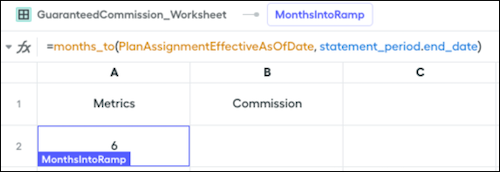
This formula calculates how many months have elapsed from the rep's Effective As Of date to the end of the statement period.
3. To return the correct ramp rate, create another worksheet calculation, named RampRate, that uses the `choose()` function.
```
=choose(MonthsIntoRamp, plan.RampRates)
```
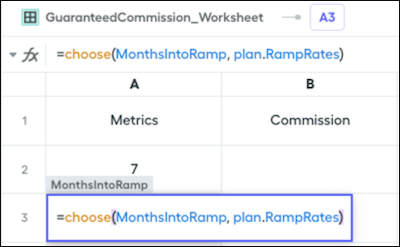
This formula uses the MonthsIntoRamp calculation to look up the number of months into the ramp, and returns the list of ramp rates from the RampRates custom field on the plan.
4. To calculate the rep's guaranteed commission, create another worksheet calculation, named GuaranteedCommission, that multiplies the rep's on-target earnings by their ramp rate.
```
=5000 * RampRate
```
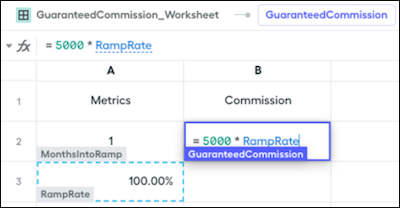
5. To add the GuaranteedCommission calculation to any plan, create the rule and define the payout amount as the output of GuaranteedCommission.
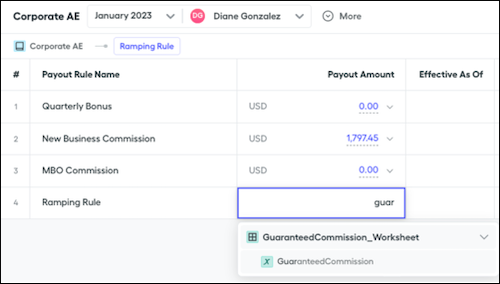
#### See Also
- [Bulk-Uploading Users, Plan and Team Assignments, Currency Rates, and Quotas](https://help.salesforce.com/s/articleView?id=sales.spiff_bulk_upload_management.htm&release=264.0.0&type=5 "Manage large updates to your users, plans, teams, currency rates, and quotas in Salesforce Spiff by bulk-uploading records in Mass Data Management.")
# Create a Range Table for an Accelerator
To implement a commission accelerator in Salesforce Spiff, create a range table and reference the table within an accelerator function.
### Required Editions
Available in: both Salesforce Classic (not available in all orgs) and Lightning Experience
Available in: Enterprise, Unlimited, and Developer Editions
Available for an additional cost in: Professional Edition with Web Services API Enabled
User Permissions Needed
To create a range table:
A Spiff user role with these permissions turned on.
Designer Configuration: View
Designer Range Tables: Manage
Instead of creating a table for each subsequent plan year, iterate on an existing table by adding columns. Sometimes, you can use the table for multiple rules or plans, especially if they use the same upper and lower bounds. You can add columns such as Enterprise Rates or MM Rates, and reference the appropriate return column when you create the calculation.
1. In Plans, create a folder for the payout rule.
The folder can stand alone or you can nest the folder under a plan. We recommend that you save all the items related to this rule in a convenient, shared location.
2. Click the three dots next to the rule and select **New Range Table**.
3. Enter a name for the range table.
The name must start with a letter and contain only letters, numbers, and underscores. The name is referenced in the calculations that use the table.
4. In the right panel, change the display name of the table.
The display name appears in the Library panel and can contain spaces and special characters.
5. Fill out the range table according to the rule.
You don’t need to enter commas, currency codes, or currency symbols.
Lower Bound Column
For the first tier, leave the lower bound column empty.
Upper Bound Column
For the final tier, leave the upper bound column empty.
Return Value Column
Enter the commission rate for the tier.

# Create a Rate Look-Back Rule
Pay commissions months or years after the date when attainment is retired by looking back to see the rate a rep achieved for a deal.
### Required Editions
Available in: both Salesforce Classic (not available in all orgs) and Lightning Experience
Available in: Enterprise, Unlimited, and Developer Editions
Available for an additional cost in: Professional Edition with Web Services API Enabled
1. Create a filter, ByRepPaymentInPeriod, and assign it to a datasheet.
Typically, the rule is based on the date that commission is paid, such as an InvoiceDate or PaymentReceivedDate.
```
ByRep AND PaidInPeriod AND ClosedWon
```
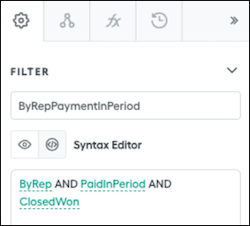
2. Add a field to the datasheet and create a marginal percent calculation, `mpercent()`, that returns the commission rate to apply.
```
=mpercent(ARR, MarginalPayoutRateTable, PriorAccumulationFromCloseDate)
```
3. Create a prior accumulation calculation that uses the `let()` function.
```
=let(ThisCloseDate, CloseDate, let(ThisDealId, Id, sumif(ClosedByRepInPast2Years, date_between?(CloseDate, beginning_of_fiscal_year(ThisCloseDate), ThisCloseDate) AND if(CloseDate = ThisCloseDate, ThisDealId > Id, true), ARR)))
```
This calculation references these values.
- The `ClosedByRepInPast2Years` filter goes back only two years because we don't expect payments to be received more than a year after the CloseDate. You can adjust the timeframe, but start with the smallest filter timeframe possible.
- The `CloseDate` section narrows the results down to only the CloseDates that occur from the beginning of the year to the row that’s being calculated.
- The `if` function section finds any rows with the same close date as the row being calculated and orders them by DealId.
- The `let` function structure means you don’t have to subtract the current row's ARR because it's already being excluded from the accumulation.

Tip Turn off trace in the settings of this calculation.
4. Finish the rule calculation. The basic commission calculation is the ARR multiplied by the rate, which can change depending on what month or year the rate applies to.
```
=ARR * RateAtCloseDate
```
5. Optionally, if your tier table is based on attainment percentages, divide the previous AccumulationFromCloseDate by the quota from the correct year.
```
=sum(quotas(rep, "Quota", beginning_of_fiscal_year(CloseDate), end_of_fiscal_year(CloseDate)), amount)
```
# Create a Related Field in a Datasheet
In a Salesforce Spiff datasheet, add a related field that references data from a related object.
### Required Editions
Available in: both Salesforce Classic (not available in all orgs) and Lightning Experience
Available in: Enterprise, Unlimited, and Developer Editions
Available for an additional cost in: Professional Edition with Web Services API Enabled
1. Create a one-to-one relationship between data tables.
See [Set Up a Data Relationship in Salesforce Spiff](https://help.salesforce.com/s/articleView?id=sales.spiff_relationship_create.htm&release=264.0.0&type=5 "To set up a relationship between two object data tables in Salesforce Spiff, select a field with a common value for both objects.").
2. In a datasheet, click the **+** icon on the blank column to add a field.
3. Search for the field on the relationship's target object.
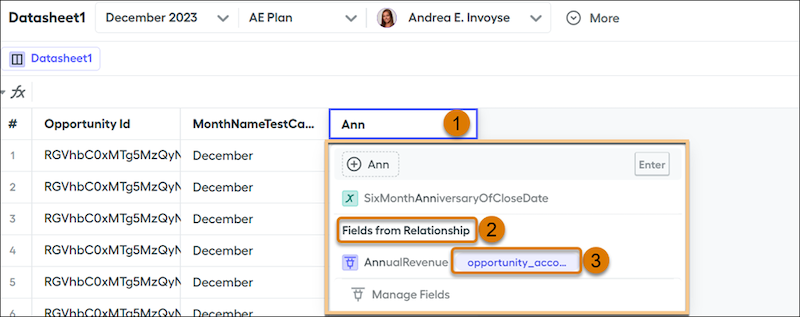
1. Enter the field name (1).
2. In the window that opens, under the Fields from Relationship heading (2), select the related field that you want to add (3).
4. Enter a name for the related field and click **Insert**.
The datasheet shows a link icon on the added field. To view details about the relationship, hover over the link icon.
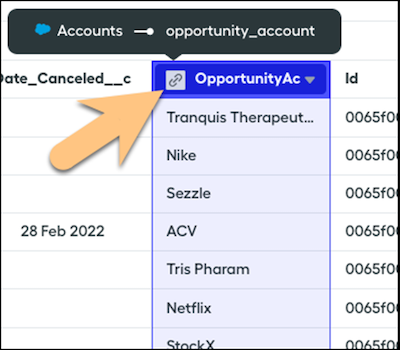
# Create a Release in Trailmaker Release
You can add modules and trails to an unpublished release even if you haven’t yet created the content in Trailmaker Content. You also can create the release and wait for writers to add their content to the release from Trailmaker Content.
### Required Editions
Available in: Enterprise, Performance, and Unlimited Editions
User Roles and
Permissions
Enablement Site User Roles
This topic supports these enablement site roles:
Release Managers
Required System Permissions
To create and manage releases with Trailmaker Release:
Manage Releases
1. In Trailmaker Release, select a content collection from the dropdown menu.
2. On the content collection page, click **New Release**.
3. Enter a title and unique API name for the release.

Tip You can change the release name or API name before you publish the release. Each release API name must be [globally unique](https://help.salesforce.com/s/articleView?id=sales.mth_api_names_on_mytrailhead.htm&release=264.0.0&type=5 "Each content collection, release, trail, module, and unit on your enablement site has its own API name, which is a globally unique ID that references a content path in URLs.").
4. Click **Create**.
#### See Also
- [Manage Releases with the Trailmaker Release App](https://help.salesforce.com/s/articleView?id=sales.mth_use_trailmaker_to_manage_releases.htm&release=264.0.0&type=5 "Prepare, preview, and publish new or changed content for your enablement site with the Trailmaker Release app. You can also update, archive, and restore content.")
- [Add Content to a Release from Trailmaker Content](https://help.salesforce.com/s/articleView?id=sales.mth_add_content_to_release_from_tm_content.htm&release=264.0.0&type=5 "After you create your module and quizzes and assign all the necessary metadata, add the content to a release.")
# Create a Report for Opportunity Commissions
If you have the Salesforce Spiff Commission Admin permission set, create a Salesforce report based on the opportunities with commission data. To help you get started, the Spiff Commission Estimator provides a default custom report type, Opportunities with Spiff Estimated Commission Data.
### Required Editions
Available in: both Salesforce Classic (not available in all orgs) and Lightning Experience
Available in: Enterprise, Unlimited, and Developer Editions
Available for an additional cost in: Professional Edition with Web Services API Enabled
Only users with the Spiff Commission Admin permission set can create a report. Users who don't have this permission set can see the custom report type, Opportunities with Spiff Estimated Commission Data, but can't access any of the fields to create a report. Instead, these users can build a commission report in Spiff.
1. From the App Launcher, go to **Reports**.
2. Click **New Report** and get started with these details.
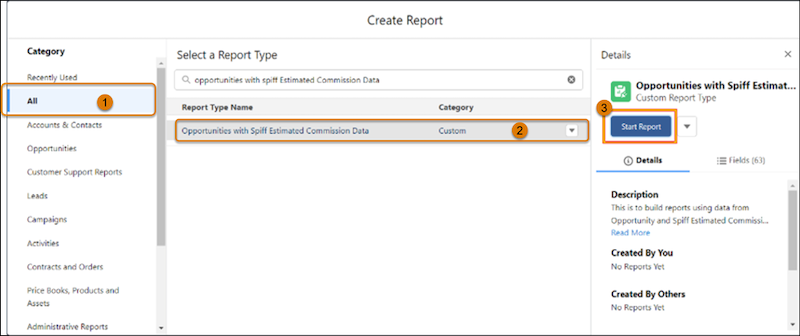
1. In the Category column, select **All** (1).
2. For report type, search for Opportunities with Spiff Estimated Commission Data, and select it (2).
3. In the Details column, click **Start Report** (3).
3. To show data from more fields on the Spiff Commission Data custom object, add columns.
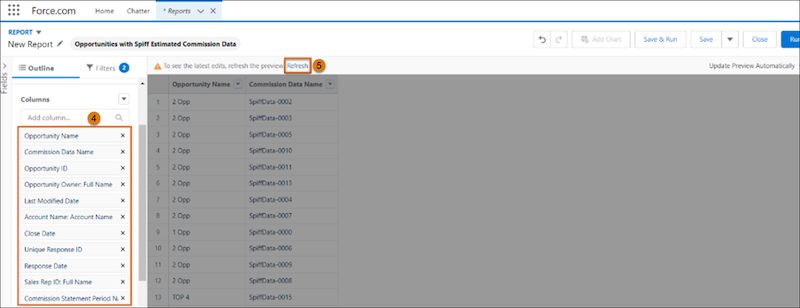
1. On the Outline tab, select a field from the Add column dropdown (4).
2. Click **Refresh** (5).
4. Optionally, add filters to the report, such as opportunity stage or close date.
5. Click **Save & Run**.
#### See Also
- [Reports](https://help.salesforce.com/s/articleView?id=analytics.rd_reports_overview.htm&type=5&language=en_US)
# Create a Rollup Filter of Team Deals
Manager commission plans in Salesforce Spiff often include rollups for business metrics such as revenue, gross profit, and number of deals closed. A manager can receive commission on the sum of the revenue closed by the team. Some companies refer to this kind of rollup as an override plan, where a manager receives an override on the performance of their team.
### Required Editions
Available in: both Salesforce Classic (not available in all orgs) and Lightning Experience
Available in: Enterprise, Unlimited, and Developer Editions
Available for an additional cost in: Professional Edition with Web Services API Enabled
1. In Designer, click **Data** and then **Filters**.
2. Hover over the object or table that contains the records or deals that you want to roll up to a manager, click the three dots, and select **New Rollup Filter**.
3. Select how you want to credit the rollup and click **Next**.
4. Save your changes.
5. Enter a name, selecting matching deals, and select a time period.
6. Apply the filter to a datasheet.
For example, the ClosedByTeamInPeriod filter combines the ByTeam rollup filter with other filters to return all deals closed by a team in the period. Select the ClosedByTeamInPeriod filter on a datasheet.
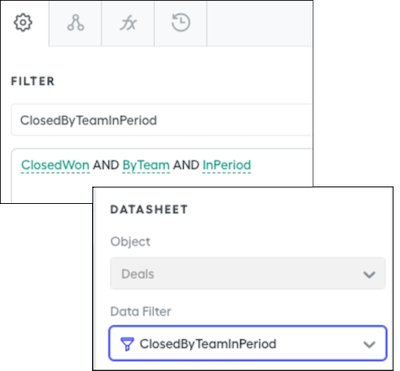
7. Create a rule based on the datasheet, or reference the datasheet in worksheet calculations for attainment, team sales, or counting team deals.
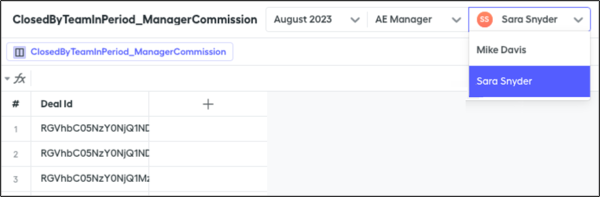
# Create a Rollup Filter of Team Members
With a rollup filter of users that belong to the same team in Salesforce Spiff, you can calculate the number of team members when a plan component requires splitting an element equally across the team members. Or, check how many team members achieve quota for a component of a manager plan.
### Required Editions
Available in: both Salesforce Classic (not available in all orgs) and Lightning Experience
Available in: Enterprise, Unlimited, and Developer Editions
Available for an additional cost in: Professional Edition with Web Services API Enabled
1. In Designer, click **Data** and then **Filters**.
2. Click the three dots next to the Users object and select **New Rollup Filter**.
3. Select how you want to credit the rollup and click **Next**.
4. Save your changes.
5. Select a time period.
The rollup filter provides a dynamic list of team members for all team leads, and you can reference this list in a datasheet for calculations and plan components.
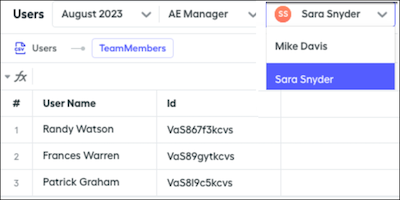
# Create a Routing Configuration for Your Sales Prospecting Bot
Routing configurations let you determine how work items are routed to your reps. Create a routing configuration for your sales prospecting bot that prioritizes the relative importance and size of leads That way, leads are handled accordingly, and work is evenly distributed to your sales reps.
### Required Editions
Available in: Lightning Experience
Available with Sales Engagement, which is included with Sales in Performance, Einstein 1, and Unlimited Editions, and available for an extra cost in Professional and Enterprise Editions. Sales Engagement is also available for an extra cost in Service and Lightning Platform.
User Permissions Needed
To set up Omni-Channel:
Customize Application

Note The Prospecting Bot is in maintenance mode. Existing bots continue to be supported. However, no new features or enhancements will be added. Looking for information about Agentforce Prospecting instead? We recommend using that agent when implementing AI for your prospecting needs. See [Learn About Agentforce Prospecting](https://help.salesforce.com/s/articleView?id=sales.sales_agent_prospecting_learn_about.htm&type=5&language=en_US) to get started.
1. From Setup, in the Quick Find box, enter Routing Configurations, select **Routing Configurations**, and then click **New**.
2. For the Routing Configuration Name field, enter Sales Routing — Leads.
3. For the Units of Capacity field, enter 1.
4. Specify the remaining settings for your routing configuration and save your changes.
#### See Also
- [Routing Configuration Settings](https://help.salesforce.com/s/articleView?id=service.service_presence_routing_configuration_settings.htm&type=5&language=en_US)
- [Omni-Channel Routing Model Options](https://help.salesforce.com/s/articleView?id=service.service_presence_routing_options.htm&type=5&language=en_US)
# Create a Sales Plan
Align sales goals with organizational growth with Legacy Sales Planning. Identify what’s planned and who’s contributing to the planning process.
### Required Editions
Available in: both Salesforce Classic (not available in all orgs) and Lightning Experience
Available for an additional cost in: Enterprise, Performance, Unlimited, and Developer Editions with Sales Planning in English only, and only if you have Web Services API enabled
User Permissions Needed
To create sales plans:
Data Pipelines Base User permission set license
Data Pipelines Base User permission
set
AND
Sales Planning permission set

Important
Feature is scheduled for retirement as of Summer'26. See [Sales Planning version 1 Retirement](https://help.salesforce.com/s/articleView?id=005224374&type=1&language=en_US)
1. Click **Create Plan**.
2. Name your plan and add a description. Select the fiscal year the plan applies to. Fiscal period options are based on your fiscal year settings in Salesforce.
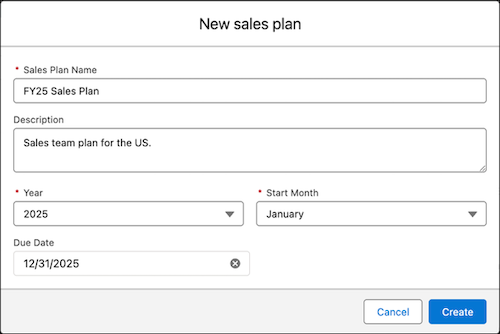
3. Click **Create**. Then, continue building your plan.
# Create a Sales Plan
To get started in Sales Planning, create a plan and select a data source, then specify product hierarchy, product seasonality, goals, targets, and milestones. Share the plan with other users so your team can collaborate on the planning process.
### Required Editions
Available in: both Salesforce Classic (not available in all orgs) and Lightning Experience
Available for an additional cost in: Enterprise, Performance, Unlimited, and Developer Editions with Sales Planning in English only, and only if you have Web Services API enabled
User Permissions Needed
To create sales plans:
One of these:
Sales Planning Admin permission set
Sales Planning Ops Manager permission set
AND
One of these:
Query for Datapipelines User for Sales Planning permission set
CRM Analytics Plus User permission set
CRM Analytics Growth User permission set
1. Set up the plan.
1. In Sales Planning, click **Create Plan**.
2. Name your plan and add a description. Select the year and start month, and specify a due date.
The due date that you enter becomes a milestone in the sales plan. See [Track Sales Planning Progress with Milestones](https://help.salesforce.com/s/articleView?id=sales.segmentation_milestones_add.htm&release=264.0.0&type=5 "Align teams with milestones that specify responsibilities and deadlines in Sales Planning segments. Plan owners visualize burndown charts that give insight into milestone status, expected completion dates, and upcoming and overdue tasks in each segment.").

3. Click **Create**.
2. Associate records with the plan by selecting a data source.

Note Make sure that you have connected a data source in Sales Planning. See [Connect Data Sources to Sales Plans](https://help.salesforce.com/s/articleView?id=sales.data_sources_management_add_sources.htm&release=264.0.0&type=5 "Start your sales planning process with relevant data from Salesforce or from other proprietary and third-party sources that you connect to in Sales Planning.").
1. On the sales plan details page, from the Manage Your Sales Plan card, click **Connect** next to the Records item.
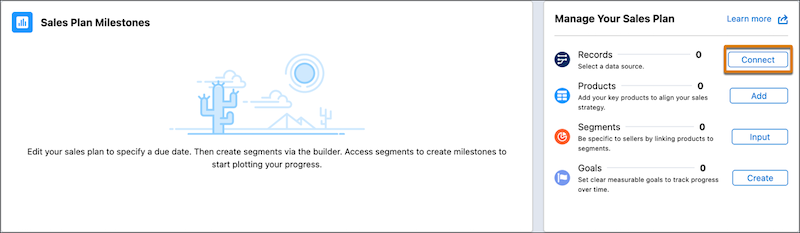
2. Select a data source.
3. Set up the product hierarchy and specify product seasonality. See [Set Up Product Hierarchy and Product Seasonality in Sales Planning](https://help.salesforce.com/s/articleView?id=sales.sales_planning_products.htm&release=264.0.0&type=5 "An effective sales plan depends on aligning your company’s important products with your seller strategy. In Sales Planning, set up a product hierarchy and specify seasonality for the products that your team sells. Seasonality represents the emphasis placed on a particular product during a certain time of year. For example, seasonality can increase in the last fiscal quarter. A product hierarchy also helps with Quota Planning.").
4. Identify the goals and measurable targets for each goal. See [Identify Goals and Set Targets in Sales Planning](https://help.salesforce.com/s/articleView?id=sales.sales_planning_goals_targets.htm&release=264.0.0&type=5 "Add goals to the sales plan, and specify target values for each goal. Typically, finance users set high-level guidance and then sales or sales operations personnel set specific targets for their teams.").
5. Invite other users to participate in the sales plan.
Users that you add to the plan have these privileges.
- Plan users also have access to every segment, regardless of their assigned permission set.
- You can assign plan users to milestones.
1. On the sales plan details page, click **Share**.
2. Search for the users that you want to add, or copy the link to the sales plan so you can share it through other channels.
6. Add milestones to the plan. See [Track Sales Planning Progress with Milestones](https://help.salesforce.com/s/articleView?id=sales.segmentation_milestones_add.htm&release=264.0.0&type=5 "Align teams with milestones that specify responsibilities and deadlines in Sales Planning segments. Plan owners visualize burndown charts that give insight into milestone status, expected completion dates, and upcoming and overdue tasks in each segment.").
#### See Also
- [Roles, Permissions, and Allocations](https://help.salesforce.com/s/articleView?id=sales.sales_planning_setup_prepare_permission_sets_considerations.htm&release=264.0.0&type=5 "Determine each team member’s level of authority based on their roles and responsibilities. And anticipate query allocations in Sales Planning.")
# Create a Sales Program with AI Tools
A guided session creates a sales onboarding or ramp program for your Salesforce users. Describe the program to a coding agent. The agent creates the content, publishes the program, and enrolls the people you name.
### Required Editions
Available in: Lightning Experience
Available starting October 31, 2026, with the Enablement add-on. This topic doesn't cover Enablement Lite and partner programs, which use a different setup.
## Scenario
Jordan, an Enablement admin at Northstar Analytics, a fictional company, needs a new class of sales development representatives (SDRs) ready by next Monday. Getting a class ready in the Enablement builder means creating the program, adding exercises, attaching learning content, defining a milestone, publishing, and assigning each person.
Jordan connects a coding agent to the Headless 360 Model Context Protocol (MCP) Server (Beta) and describes the program in one message. The agent checks that Enablement is licensed, offers a template or a from-scratch plan, and waits for Jordan to confirm the plan, the content links, the milestone measure, and the enrollment list. After Jordan approves, the agent builds and publishes the program and enrolls the class. Jordan then opens the published program and confirms the assignees.

Note
Headless 360 MCP Server is a beta service that is subject to the Beta Services Terms at [Agreements - Salesforce.com](https://www.salesforce.com/company/legal/agreements/) or a written Unified Pilot Agreement if executed by Customer, and applicable terms in the [Product Terms Directory](https://ptd.salesforce.com/). Use of this beta service is at the Customer's sole discretion. For more information, see [Headless 360 MCP Server (Beta)](https://developer.salesforce.com/docs/platform/hosted-mcp-servers/guide/headless-360-mcp.html).
## Requirements
- Design and Deliver Enablement Programs permission, and a content management system (CMS) authoring permission on the Enablement workspace. Any one CMS authoring permission is enough. The org needs an Enablement permission set license (Enablement, not Enablement Lite). Turning on Enablement creates the Enablement workspace.
- A coding agent, such as Agentforce Vibes or Claude Code, connected to the Headless 360 MCP Server (Beta) with access to the sales program skills. Agentforce Vibes doesn't need a separate installation. Agentforce Vibes installs, turns on, and updates AI Skills automatically. Manage them from the **Skills** page, under **Toolkit**, in Agentforce Vibes. For Claude Code, install the [Salesforce Development plugin](https://developer.salesforce.com/docs/platform/salesforce-skills-plugins/guide/overview.html), which provides Salesforce-specific skills and org context through hosted Model Context Protocol (MCP) servers.
## Suggested Technology and Experience
Creating a sales program with AI tools is for Enablement admins who are comfortable with **Setup** and with running a coding agent against a connected org. No specific model or prior skill experience is required.
## Related Documentation
- [Guidelines for Assembling Enablement Programs](https://help.salesforce.com/s/articleView?id=sales.enablement_programs_overview.htm&release=264.0.0&type=5 "With your Enablement measures planned and implemented, and your content ready to go, bring all the ingredients together in Program Builder. Organize your programs appropriately to help users have efficient, enjoyable experiences that help them achieve outcomes and milestones. Write helpful and instructive titles and descriptions for users who take your programs.")
- [Salesforce Hosted MCP Servers](https://developer.salesforce.com/docs/platform/hosted-mcp-servers/guide)
- [Salesforce Development Plugin](https://developer.salesforce.com/docs/platform/salesforce-skills-plugins/guide/overview.html)
- [Get Started with Agentforce Vibes](https://developer.salesforce.com/docs/platform/agentforcevibes/guide/afv-get-started.html)
## Tips for the Coding Agent
- Describe the program in one message. Include the goal, duration, content links, who to enroll, and the start date. For example: "Create a two-week SDR onboarding program. Watch this intro video \[URL\], read the playbook \[URL\], add a milestone for the first qualified meeting, and enroll Priya and Marco starting Monday."
- Review the plan before the agent builds. If you provide only a goal, the agent drafts a starting plan for you to edit. Confirm the plan, the content links, the milestone measure, and who to enroll before the agent publishes the program.
- Approve creation, publishing, and enrollment. Read operations don't need approval. Changes in **Setup** and changes to records do.
- Give the agent real URLs for videos and documents. The agent uses only the videos, documents, and filenames you provide. Never paste credentials into a prompt. The agent acts as your authenticated user through the connected org.
## Limits on Creating a Sales Program
- Creating a sales program with a coding agent creates an internal Enablement program (program type `Enablement`). It doesn't create a partner program or an Enablement Lite program.
- A program can have at most one outcome milestone. Other checkpoints are ordinary milestones, and each milestone needs a real measure and a target. If no measure in the org matches the goal, the agent says so instead of inventing one.
- Publishing makes the program available for enrollment. You can't reverse program status changes after people are enrolled.
- You can't reuse the template structure. Template content isn't copied. You still provide links, or turn content tasks into action items such as shadowing or a role-play.
- Enrollment starts on a weekday, today, or later. A weekend date moves to Monday.
- You can't enroll people who don't have the Enablement user permission.
- When you delete a learning item or a measure, you can't restore it.
- Coaching feedback on a sales call is a separate learning capability. It needs the Einstein for Sales add-on. This task doesn't create it.
## Create a Sales Program with a Coding Agent
Describe a sales program to a coding agent to create the content, publish the program, and enroll users.
### Required Editions
Available in: Lightning Experience
Available starting October 31, 2026, with the Enablement add-on. This topic doesn't cover Enablement Lite and partner programs, which use a different setup.
User Permissions Needed
To create, publish, and assign a sales program through a coding agent:
Design and Deliver Enablement Programs
To create program content:
A content management system (CMS) authoring permission on the Enablement workspace

Note
Headless 360 MCP Server is a beta service that is subject to the Beta Services Terms at [Agreements - Salesforce.com](https://www.salesforce.com/company/legal/agreements/) or a written Unified Pilot Agreement if executed by Customer, and applicable terms in the [Product Terms Directory](https://ptd.salesforce.com/). Use of this beta service is at the Customer's sole discretion.
Before you start.
- [Set up your org](https://developer.salesforce.com/docs/platform/hosted-mcp-servers/guide/setup-overview.html) for the Salesforce Hosted MCP Servers, including an External Client App with the `mcp_api` scope.
- Activate the [Headless 360 MCP Server (Beta)](https://developer.salesforce.com/docs/platform/hosted-mcp-servers/guide/headless-360-mcp.html).
- [Connect your coding agents](https://developer.salesforce.com/docs/platform/hosted-mcp-servers/guide/client-connection-overview.html).

Note
For Claude Code, install the [Salesforce Development plugin](https://developer.salesforce.com/docs/platform/salesforce-skills-plugins/guide/overview.html), which provides Salesforce-specific skills and org context through hosted Model Context Protocol (MCP) servers.
Create the sales program in the connected org.
1. Describe the program you want. Include the audience, the goal, the duration, the content, and who should be enrolled.
2. Review the agent's check of the Enablement permission set license, the Design and Deliver Enablement Programs permission, content access, and the Enablement workspace.
If a check fails, the agent stops and tells you what's missing.
3. Choose a template or start from scratch.
You pick the template or the from-scratch plan.
4. Review the plan. Edit the title, tasks, timing, and content and then confirm.
5. Provide any missing content links, and choose a measure when the plan includes a milestone.
6. Approve creation and publishing.
The agent adds the learning content, creates the program, and publishes it.
7. Confirm who to enroll and the start date. If someone is missing the Enablement user permission, approve or decline the agent's offer to assign it.
8. Approve enrollment.
9. Open the published program from the link the agent returns. Confirm that the program is published, the exercises point at your content, and the people you named are enrolled with the start date.
To change the program after people are enrolled, ask the agent to unassign users and unpublish it. After the program is updated and republished, the agent can reassign those users.

Warning
Unassigning users and unpublishing a program permanently erases all previous progress and reporting data.
# Create a Sandbox in Salesforce Spiff
Create a sandbox to test new features without affecting your production environment. The sandbox replicates the parent environment’s features, custom roles, underlying rules, and reporting structures, but it doesn’t include users, assignments, statements, connector secret keys or other sensitive data, or synced transactional data. You can create two sandboxes for each production environment.
### Required Editions
Available in: both Salesforce Classic (not available in all orgs) and Lightning Experience
Available in: Enterprise, Unlimited, and Developer Editions
Available for an additional cost in: Professional Edition with Web Services API Enabled
Spiff clones Quota Types from the parent environment when you create a new sandbox. Spiff copies Quota Types from the parent environment with matching IDs, so formula references resolve correctly after deployment. Quota Types created directly in the sandbox don't have a matching ID in the parent and can't be deployed via change set.
1. In your parent environment, go to Admin and select **Settings**.
2. Under Environments, select **Sandboxes**.
3. Click **Add Sandbox**.
4. Select your source for the data and configuration.
You can clone logic from a production environment or an existing sandbox.
5. Follow the prompts to create your sandbox.
If your organization purchased the Spiff connector in Workato, the Workato window in Data Automation is available in your sandbox. The sandbox uses your production company's Workato account, so you can copy and reuse recipes and connections without re-creating them from scratch.
# Create a Service Channel for Your Sales Prospecting Bot
Set up a service channel for your sales prospecting bot that turns your incoming prospects into Lead work records. That way, Omni-Channel can route your bot’s leads to sales reps.
### Required Editions
Available in: Lightning Experience
Available with Sales Engagement, which is included with Sales in Performance, Einstein 1, and Unlimited Editions, and available for an extra cost in Professional and Enterprise Editions. Sales Engagement is also available for an extra cost in Service and Lightning Platform.
User Permissions Needed
To set up Omni-Channel:
Customize Application

Note The Prospecting Bot is in maintenance mode. Existing bots continue to be supported. However, no new features or enhancements will be added. Looking for information about Agentforce Prospecting instead? We recommend using that agent when implementing AI for your prospecting needs. See [Learn About Agentforce Prospecting](https://help.salesforce.com/s/articleView?id=sales.sales_agent_prospecting_learn_about.htm&type=5&language=en_US) to get started.
1. From Setup, in the Quick Find box, enter Service Channels, select **Service Channels**, and then click **New**.
2. For the Service Channel Name field, enter Leads.
3. For the Salesforce Object field, select Lead.
4. Specify the remaining settings for your service channel and save your changes.
#### See Also
- [Service Channel Settings](https://help.salesforce.com/s/articleView?id=service.service_presence_service_channel_settings.htm&type=5&language=en_US)
# Create a Team and Manage Team Members Manually in Salesforce Spiff
Create a team and assign team members from the Teams page in Salesforce Spiff. You can create team hierarchies by creating subteams. You can also assign users as team leads to allow them to view team member statements and easily enable rollouts.
### Required Editions
Available in: both Salesforce Classic (not available in all orgs) and Lightning Experience
Available in: Enterprise, Unlimited, and Developer Editions
Available for an additional cost in: Professional Edition with Web Services API Enabled
This topic describes assigning users directly to a team. You can also assign a specific user to a team in the user’s profile. For large-scale changes, use the upload functionality to add new team assignments, or update existing team assignments. See [Bulk-Uploading Users, Plan and Team Assignments, Currency Rates, and Quotas](https://help.salesforce.com/s/articleView?id=sales.spiff_bulk_upload_management.htm&release=264.0.0&type=5 "Manage large updates to your users, plans, teams, currency rates, and quotas in Salesforce Spiff by bulk-uploading records in Mass Data Management.") for more information about mass data management.

Tip Avoid removing users from teams, which can affect commissions, rollups, team lead visibility, historical reporting, and so on. Instead of removing users from a team, enter an Effective Until date for the user.
1. Create a team.
1. In the Teams page, click **Add New Team** and select **Add New Team** from the dropdown.
2. Enter a name for the new team and click **Create Team**.
2. Add team members.
1. To add members to an existing team, select the team on the Teams page.
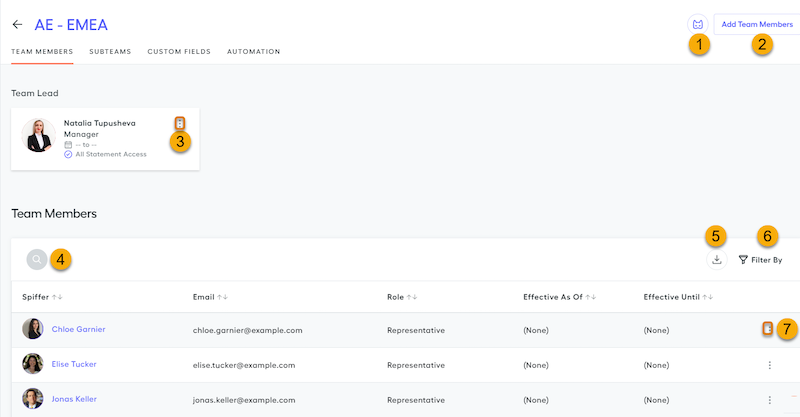
2. Click **Add Team Members** (2).
3. Search for the team members by name (4) or scroll through the list of users, and check the box next to their name. You can filter the displayed users by teams or by plans. Spiff hides archived plans by default.
4. To save the assignments, click **Add Team Members**.
3. Assign a team lead.
1. Select the team and click the team leader button (1).
2. Select a user from the list and click **Assign Team Leader**.
3. Optionally, edit the team leader assignment details (3) by selecting the assignment effective from and to dates or select Full or Partial statement access. If you select partial access, choose the plans whose statements the team lead can view.
4. Save the changes.
4. To filter the list of users to show only active users, click **Filter By** and select **Active Users** (6).
5. To remove a user from a team, click the three dots in the row for the user (7) and select **Remove**.
6. To download users as a .csv file, click the Download button (5).
7. Optionally, define custom fields for a team.
1. In the Custom Fields page, click **Add Custom Field**.
2. Enter a name for the custom field and a description, and then select the field type.
3. Save the custom field.
#### See Also
- [Bulk-Uploading Users, Plan and Team Assignments, Currency Rates, and Quotas](https://help.salesforce.com/s/articleView?id=sales.spiff_bulk_upload_management.htm&release=264.0.0&type=5 "Manage large updates to your users, plans, teams, currency rates, and quotas in Salesforce Spiff by bulk-uploading records in Mass Data Management.")
# Create a Team Attainment Rule for Managers
Show a team’s attainment to their manager. Empower managers to proactively drive their team’s sales performance and influence their own commissions.
### Required Editions
Available in: both Salesforce Classic (not available in all orgs) and Lightning Experience
Available in: Enterprise, Unlimited, and Developer Editions
Available for an additional cost in: Professional Edition with Web Services API Enabled
1. Create data filters.
1. Create a MyTeamsUsers filter that returns the reps in a team.
```
contains(TeamAttainmentForManagers_Worksheet!MyTeamsIds, Id)
```
The `MyTeamsIds` value is based on a worksheet calculation, `=transform_list(RepsInTeam, Id)`.
The `RepsInTeam` value is based on a worksheet calculation, `=users_in_team(single(direct_manager_of))`.
For Salesforce environments, the ID corresponds to the user ID. For other configurations, use the appropriate ID field for your User object.
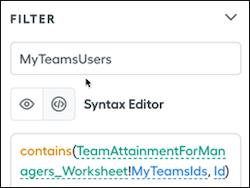
2. Create an AllUsers filter that returns all users and retrieves the ID for the rep on the manager's team.
You can use any field on the User object for this filter, such as the Spiff\_User\_\_c field.
```
Spiff_User__c = true
```
3. Create a ClosedInQtr\_AllReps filter that returns deal attainment data for all users during the period.
Remember to exclude any ownership within your data filter.
```
InQuarter AND ClosedWon
```
2. Create these datasheet calculations by using the MyTeamsUsers data filter on the User object.
1. Create a UserSum calculation that sums the total deals for the rep in the manager's team for the applicable period.
The `let()` function returns the user ID of the rep and sums the deals closed in quarter by using the relevant amount field.
```
=let(userID, Id, sum(filter(ClosedInQtr_AllReps, OwnerId = userId), Amount_USD))
```
2. Create a UserQuarterlyQuota calculation that returns the quota value for the rep on the manager's team.
The first calculation retrieves the user ID of the rep.
```
=sum(quotas(ThisUser, "QuarterlyQuota"), amount)
```
The second calculation uses the ID to return the quota value.
```
=let(ThisUserId, Id, filter(AllUsers, Id = ThisUserId))
```
3. Create a TeamMemberAttainment calculation that returns the team member’s attainment by dividing UserSum by UserQuarterlyQuota.
```
=if(UserSum = 0, 0, UserSum / UserQuarterlyQuota)
```
3. Create worksheet calculations that are appropriate for your needs. Consider these examples.
- A IsRepActiveInTeam calculation that determines whether a rep is active in the team.
```
=in_team?(choose(1, direct_manager_of), id, statement_period.edn_date)
```
- A HasRepAchievedTarget calculation that checks whether the team member's attainment is greater than or equal to 100%.
```
=MyTeamUsers_TeamAtainmentForManagers!TeamMemberAttainment >= 100%
```
- The TeamAttainment calculation displays the percentage of reps on the team achieving their target.
```
=if(RepsAchievingTarget = 0, 0, RepsAchievingTarget / TotalRepsInTeam_EndofQtr)
```
4. Create a What-If? payout rule that uses any calculation from the data filter you created for the MyTeamsUser filter, and add the rule to a plan.
5. Showcase the calculations by adding them to a statement and updating all display names and formats.
Consider adding emoji to the statement for added visual appeal.
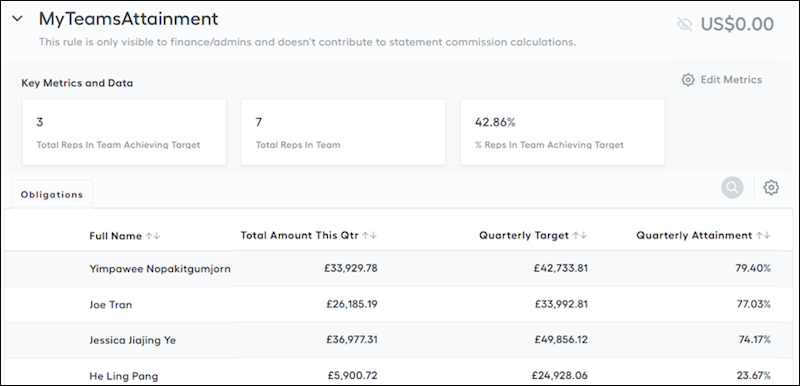
#### See Also
- [Create a What-If? Rule](https://help.salesforce.com/s/articleView?id=sales.spiff_rules_what_if.htm&release=264.0.0&type=5 "Motivate reps to close deals with What-If? rules. Show reps potential commission earnings when they meet the criteria you define in your data filter. For example, let reps see the commission they can earn if they close all pipeline deals for the period.")
- [Customizing Statements in Salesforce Spiff](https://help.salesforce.com/s/articleView?id=sales.spiff_statement_design.htm&release=264.0.0&type=5 "Admins can customize the information shown in rep statements in Salesforce Spiff. Modify the metrics that are included in statements, change display names, freeze columns and adjust column widths on payout rule tables, and add some fun to the experience with emojis. Every rep on the same plan has the same statement layout, so editing a statement for a rep applies changes to everyone on the plan.")
- [Considerations for Adding Emoji to Statements](https://help.salesforce.com/s/articleView?id=sales.spiff_statement_emoji.htm&release=264.0.0&type=5 "Enhance communication, simplify complex information, and create an engaging experience for your reps with emoji. Help reps be more productive by presenting information that’s informative and visually engaging on commission statements.")
# Create a Territory Model Record
Connect territories to account, lead, and user assignments. When you create a territory model record, Salesforce creates a territory hierarchy for it.
### Required Editions
Available in: Salesforce Classic for some features and Lightning Experience for all features
Available in: Performance and Developer Editions and in Enterprise and Unlimited Editions with Sales
User Permissions Needed
To create a territory model record:
View Setup and Configuration
AND
Manage Territories
Your Salesforce edition determines the number of territory models you can create in production and sandbox orgs. This limit includes models created by cloning.
| Edition | Number of Models in Production | Number of Models in Sandbox |
| --- | --- | --- |
| Developer | 4 | 4 |
| Enterprise | 2 | 2 |
| Performance | 4 | 4 |
| Unlimited | 4 | 4 |
1. From Setup, enter Territory Models in the Quick Find box, then select **Territory Models**.
2. Click **New Territory Model**.
3. Define the label and description fields.
4. Click **Save**.
#### See Also
- [How Do Permissions for Territories Affect Feature and Data Access?](https://help.salesforce.com/s/articleView?id=sales.tm2_how_access_permissions_work.htm&release=264.0.0&type=5 "Anticipate how permissions for Sales Territories affect administration and provide access to records and data.")
- [Allocations and Considerations for Territories](https://help.salesforce.com/s/articleView?id=sales.tm2_allocations.htm&release=264.0.0&type=5 "Plan your territories with consideration to available allocations and potential performance impact during assignment and rules processing in Sales Territories.")
# Create a Tier Payout Rule for an Accelerator
Create a simple line-by-line tier payout rule based on a range table in Salesforce Spiff.
### Required Editions
Available in: both Salesforce Classic (not available in all orgs) and Lightning Experience
Available in: Enterprise, Unlimited, and Developer Editions
Available for an additional cost in: Professional Edition with Web Services API Enabled
User Permissions Needed
To create a tier payout rule for an accelerator:
A Spiff user role with these permissions turned on.
Designer Configuration: Manage
Designer Range Tables: Manage
1. In Plans, create a folder for the tier payout rule.
We recommend that you save all the items related to this rule in a convenient, shared location.
2. Create the range table according to your commission payout scenario.
3. Create a data filter that determines which deals the calculation applies to, or use a prebuilt data filter, such as ClosedInPeriod.
See [Create a Data Filter in Salesforce Spiff](https://help.salesforce.com/s/articleView?id=sales.spiff_data_filter_create.htm&release=264.0.0&type=5 "Create data filters in Salesforce Spiff without writing any code.").
4. Create a datasheet in the same rule folder as the range table, specify an object and select the data filter you created, and add required fields.
See [Create a Datasheet in Salesforce Spiff](https://help.salesforce.com/s/articleView?id=sales.spiff_datasheets_create.htm&release=264.0.0&type=5 "Analyze your data in new ways when you create and apply calculations to a specific set of filtered data.").
5. Create a worksheet.
See [Create a Worksheet in Salesforce Spiff and Add a Calculation](https://help.salesforce.com/s/articleView?id=sales.spiff_worksheets_and_calculations_create_add.htm&release=264.0.0&type=5 "Define and manage sales compensation plans and determine the payouts based on those plans. Worksheets and calculations ensure that sales compensation is accurately and fairly distributed, aligning with the organization's goals and motivating the sales team.").
1. Add a field that uses the `sum()` function to sum calculations or synced fields.
2. Update the field name and the display name.
3. Set the field format to Currency.
6. In the datasheet, add a calculated field that uses the `tier_payout()` function to look up the commission rate. Specify these values for the function's arguments.

Tip If you don’t need a deal-by-deal calculation, create a worksheet calculation instead. You can then add a metric card to the rep statement and show the earned rate.
7. In the datasheet, add a Commission column that multiplies the calculated rate by the ARR.
8. Add a payout rule to a plan. Name the rule and select the field for the commission amount.
9. Calculate the statement.
#### See Also
- [Line-By-Line Rule Examples](https://help.salesforce.com/s/articleView?id=sales.spiff_rules_line_by_line.htm&release=264.0.0&type=5 "Payout rules let you create calculations that determine how your reps earn a commission. Line-by-line rules calculate a commission amount by applying a calculation to each item in a data filter such as a deal or an opportunity. Calculation output from each item is summed to get the total for the rule.")
- [sum](https://help.salesforce.com/s/articleView?id=sales.spiff_function_ref_sum.htm&release=264.0.0&type=5 "Calculates a total value from a list of numbers in Salesforce Spiff. This function works well with records in a data filter.")
- [tier\_payout](https://help.salesforce.com/s/articleView?id=sales.spiff_function_ref_tier_payout.htm&release=264.0.0&type=5 "Returns a payout amount from within an upper and lower range of values in Salesforce Spiff, based on a range table. This function returns the specified column expression for that value.")
# Create a Trail in Trailmaker Content
You can create a trail and add modules from the Trailmaker Content workspace.
### Required Editions
Available in: Enterprise, Performance, and Unlimited Editions
User Roles and
Permissions
Enablement Site User Roles
This topic supports these enablement site
roles:
Content Creators
Required System Permissions
To create and edit content with Trailmaker Content:
Create Content
1. In the Trailmaker Content workspace, click **Add Content**, and select **New Trail**.
2. Enter the trail’s details.
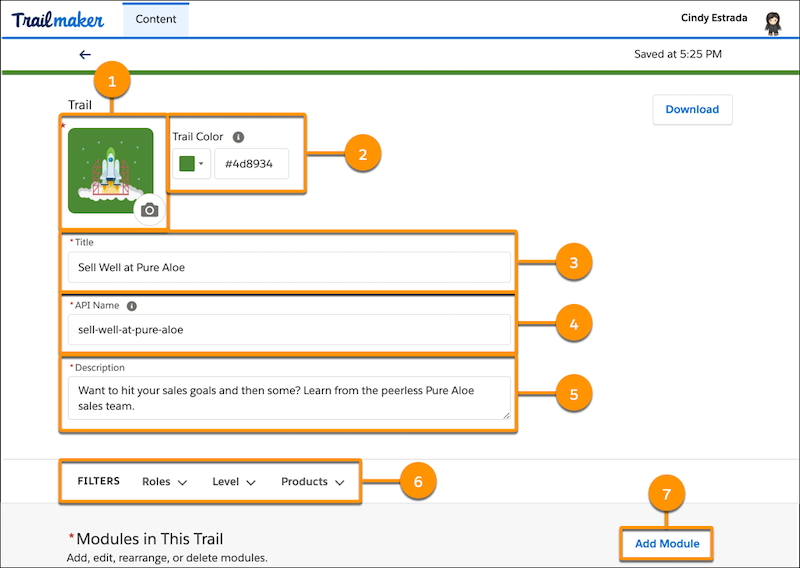
1. To add trail art, click the icon field (1). Upload an image file or enter a URL to an image file on a content delivery network.

Note Use a PNG file smaller than 10 MB. The ideal size for trail art is 200 ×200 pixels. See [Guidelines for Images, Screenshots, Badge Art, and Trail Icons](https://help.salesforce.com/s/articleView?id=sales.mth_best_practices_badge_trail_art.htm&release=264.0.0&type=5 "Part of the fun of creating an enablement site is bringing your content to life with images, including illustrations and screenshots, and designing your own badge and trail icons.").
2. To specify a custom color for the trail, select a color from the palette. Or, click the dropdown, and use the Custom tab in the color picker window to specify a Hex code or RGB values.

Note The color that you select applies to the trail header and the trail icon’s background. To make the icon stand out from the header, Trailmaker implements a color contrast that slightly darkens the header.
3. Enter a trail title (3).
4. Accept the suggested API name (4), or enter a unique name that you want to use instead.

Note
- A trail’s API name is used in URLs, so the API name is visible to learners.
- Each trail API name must be [globally unique](https://help.salesforce.com/s/articleView?id=sales.mth_api_names_on_mytrailhead.htm&release=264.0.0&type=5 "Each content collection, release, trail, module, and unit on your enablement site has its own API name, which is a globally unique ID that references a content path in URLs.").
5. Enter a brief description for the trail (5).
6. Select the trail’s applicable filters (6).
- One or more user roles for the trail’s target audience
- The experience level for the trail’s target audience
- The product tags that apply to the trail
3. To add a module to the trail, click **Add Module** (7). In the Add Module to Trail window, select which option you want to use for adding the module.
- To create a module in Trailmaker Content, select **Create a module**. Complete the steps in [Create a Module in Trailmaker Content](https://help.salesforce.com/s/articleView?id=sales.mth_create_module_in_tm_content.htm&release=264.0.0&type=5 "A module can stand alone or be a part of a trail. When you’re ready to create a module and its units, move the final draft of your content from a word processor into Trailmaker Content.").
- To add an existing module that’s already in your workspace, select **Add a module from your workspace**. Then, search for the module name to add, and click **Done**.
- To add a module by referencing its API name, select **Add a module by API name**. Then, enter the exact API name for the module to add, and click **Done**. Referencing by API name is useful for creating a trail that references modules that don’t exist in the current writer’s workspace, such as:
- Modules that have already been published on your enablement site.
- Modules that you plan to create and add in the same release as the trail.
- Modules that other writers create in their own workspaces and add to the same release.

Tip
- If you specify a module that's already published on your enablement site, the module appears in the trail after you publish.
- If you specify a module that hasn't been published on your enablement site, make sure that you add the module and the trail to the same release before you publish.
If you’re collaborating with other content creators on the trail before you’re ready to publish it, [download the trail’s backpack](https://help.salesforce.com/s/articleView?id=sales.mth_download_content_from_tm_content.htm&release=264.0.0&type=5 "You can download the backpack ZIP file for a module or trail that’s in your Trailmaker Content workspace. Then, you can submit the backpack to your company’s version control system (VCS) so that other users can import the backpack into their own local Trailmaker Content workspace."), and submit it to your company’s version control system. Then, delete the trail from your local workspace. When your collaborator is finished, you can [import the most recent version of the trail’s backpack](https://help.salesforce.com/s/articleView?id=sales.mth_upload_published_or_archived_content_to_tm_content.htm&release=264.0.0&type=5 "You can add learning content into your workspace from a backpack ZIP file that you saved or downloaded. This workflow is helpful when you want to collaborate on content that other content creators started in their own workspace. Or, follow these steps when you want to update published content or restore archived content. You can also import a content template that you downloaded.").

Note To preview a trail, [launch the full release preview from the Trailmaker Release app](https://help.salesforce.com/s/articleView?id=sales.mth_preview_content_on_mytrailhead.htm&release=264.0.0&type=5 "Your content stakeholders can preview all the new or changed trails and modules that you plan to publish in a release. The full release preview shows new or changed content in the context of all published content in your company’s enablement site. Only users with the appropriate permission can access the full release preview."). The Trailmaker Content preview is compatible only with modules.
If you’re ready, a user with the Manage Releases permission can [add the trail to an unpublished release](https://help.salesforce.com/s/articleView?id=sales.mth_add_content_to_release_from_tm_content.htm&release=264.0.0&type=5 "After you create your module and quizzes and assign all the necessary metadata, add the content to a release.").
#### See Also
- [Considerations for Managing Content in Trailmaker Content](https://help.salesforce.com/s/articleView?id=sales.mth_tm_content_workspace.htm&release=264.0.0&type=5 "In Trailmaker Content, your workspace is where you set up new trails or modules based on drafts that you already created and finalized in another collaboration tool. You can also import backpacks for trails and modules that other content creators have created.")
- [Create Content Quickly with Content Templates](https://help.salesforce.com/s/articleView?id=sales.mth_content_kits.htm&release=264.0.0&type=5 "Add learning content to your company’s enablement site without creating trails, modules, and units from scratch. To immediately add quality content to your enablement site, we recommend that you download Salesforce content templates (formerly content kits). Content templates provide finished modules on topics that are applicable to any company. For example, add content about sales and service strategies, inclusiveness and diversity, or collaboration in a virtual workplace.")
- [Create a Module in Trailmaker Content](https://help.salesforce.com/s/articleView?id=sales.mth_create_module_in_tm_content.htm&release=264.0.0&type=5 "A module can stand alone or be a part of a trail. When you’re ready to create a module and its units, move the final draft of your content from a word processor into Trailmaker Content.")
- [API Names for Trails, Modules, and Units](https://help.salesforce.com/s/articleView?id=sales.mth_api_names_on_mytrailhead.htm&release=264.0.0&type=5 "Each content collection, release, trail, module, and unit on your enablement site has its own API name, which is a globally unique ID that references a content path in URLs.")
- [Metadata for Trails, Modules, and Units](https://help.salesforce.com/s/articleView?id=sales.mth_metadata_on_mytrailhead.htm&release=264.0.0&type=5 "When you create trails, modules, and units, you also create metadata about your content, such as the title, description, and target audience. Learners can filter the content on your enablement site based on the metadata values you assign.")
- [Guidelines for Images, Screenshots, Badge Art, and Trail Icons](https://help.salesforce.com/s/articleView?id=sales.mth_best_practices_badge_trail_art.htm&release=264.0.0&type=5 "Part of the fun of creating an enablement site is bringing your content to life with images, including illustrations and screenshots, and designing your own badge and trail icons.")
- [Import a Backpack into Trailmaker Content](https://help.salesforce.com/s/articleView?id=sales.mth_upload_published_or_archived_content_to_tm_content.htm&release=264.0.0&type=5 "You can add learning content into your workspace from a backpack ZIP file that you saved or downloaded. This workflow is helpful when you want to collaborate on content that other content creators started in their own workspace. Or, follow these steps when you want to update published content or restore archived content. You can also import a content template that you downloaded.")
- [Add Content to a Release from Trailmaker Content](https://help.salesforce.com/s/articleView?id=sales.mth_add_content_to_release_from_tm_content.htm&release=264.0.0&type=5 "After you create your module and quizzes and assign all the necessary metadata, add the content to a release.")
- [Preview a Release in Trailmaker Release](https://help.salesforce.com/s/articleView?id=sales.mth_preview_content_on_mytrailhead.htm&release=264.0.0&type=5 "Your content stakeholders can preview all the new or changed trails and modules that you plan to publish in a release. The full release preview shows new or changed content in the context of all published content in your company’s enablement site. Only users with the appropriate permission can access the full release preview.")
# Create a Trailmix
Contribute to the learning experience by creating a trailmix. Each enablement site user can create up to 1,000 trailmixes.
### Required Editions
Available in: Enterprise, Performance, and Unlimited Editions
User Roles and
Permissions
Enablement Site User Roles
This topic supports these enablement site
roles:
Content Creators
Learners
Required System Permissions
To access content on your enablement site:
Permission to access at least one content collection
1. On your enablement site, and click **Trailmixes**.
2. On the Trailmixes page, click **New Trailmix**.
3. Enter a title, description, and URL.

Note The URL path that you enter is like the API name for a content collection, release, trail, module, or unit.
Let’s say that you want to create a trailmix to onboard new members of the Sales team.
| Field | Value |
| --- | --- |
| Title | Sales Team New Hires Guide |
| Description | Helpful onboarding info for new members of the Sales team. |
| URL | sales-team-new-hires-guide |
4. Click **Next**, and add your trailmix’s details.
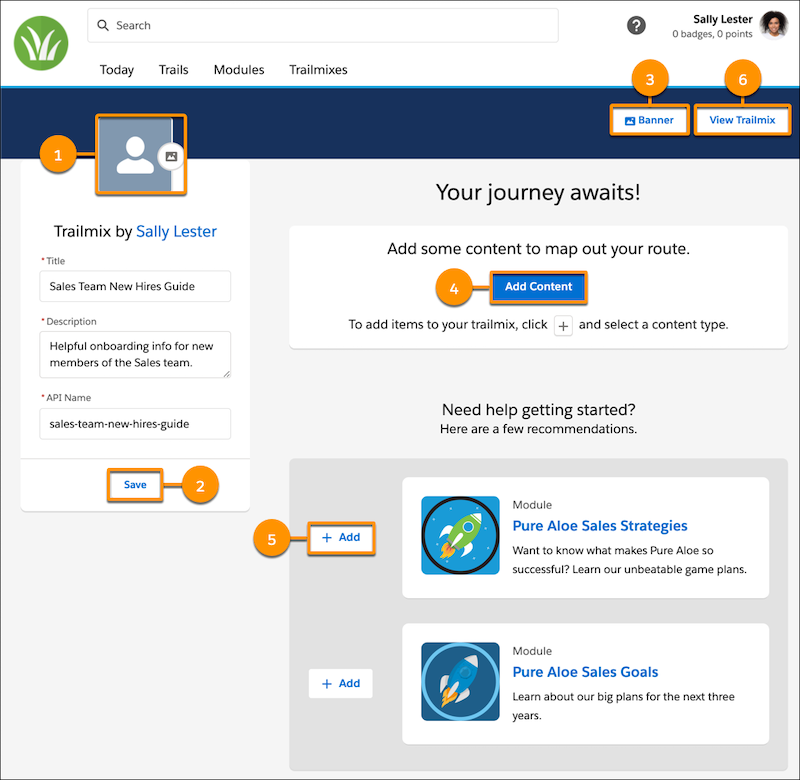
1. Add an icon (1) for the trailmix.
Use a .jpg, .png, or .gif file no larger than 5 MB. For trailmix icons, we recommend square images that are at least 256 px × 256 px.
2. Optionally, update the title, description, or API name (URL) that you entered previously, and click **Save** (2).

Important After you share the trailmix with other users, changing the API name breaks the link that they use to access your trailmix.
3. Select a banner image (3) that you want to show on your trailmix page.
Use a .jpg, .png, or .gif file no larger than 5 MB. For banners, we recommend images that are at least 1,800 px × 160 px.
4. To add the trails or modules to a trailmix, click **Add Content** (4), which opens a dropdown that contains options for the content that you want to add.
- To add enablement site content, select **Trails** or **Modules**, click the add button (+) on the trail or module that you want to add, and then select your trailmix.
- To add Trailhead content, navigate to the module, project, trail, or superbadge on Trailhead. Click the add button (+) on the content tile, and select your trailmix. Trailmixes that you create are included in the Add to Existing Trailmix list on your enablement site and Trailhead.
- To add a link or task, make sure that you have the Manage Trailmix Custom Steps permission enabled. For more information, see [Add a Task or External Content to a Trailmix](https://help.salesforce.com/s/articleView?id=sales.mth_add_task_or_external_content_to_trailmix.htm&release=264.0.0&type=5 "In a trailmix, you can include content from outside of your enablement site and Trailhead. For example, you can include an activity that’s on the web, such as watching a video or reading an article. Or you can add a task for the user to complete, such as talking to a colleague.").
5. Optionally, add content directly from the Edit Trailmix page, using content that's recommended based on your trailmix’s title. Click **Add** (5) next to the content that you want to include.
6. To view your trailmix on your enablement site, click **View Trailmix** (6).

Note As you modify the content in the trailmix, your changes are saved automatically.
#### See Also
- [Edit a Trailmix](https://help.salesforce.com/s/articleView?id=sales.mth_edit_a_trailmix.htm&release=264.0.0&type=5 "You can edit a trailmix that you created—you can add content, delete content, and rearrange the content within the trailmix. You also can delete a trailmix that you created. You can’t modify trailmixes created by other people.")
- [Add a Task or External Content to a Trailmix](https://help.salesforce.com/s/articleView?id=sales.mth_add_task_or_external_content_to_trailmix.htm&release=264.0.0&type=5 "In a trailmix, you can include content from outside of your enablement site and Trailhead. For example, you can include an activity that’s on the web, such as watching a video or reading an article. Or you can add a task for the user to complete, such as talking to a colleague.")
- [Make a Trailmix Public or Private](https://help.salesforce.com/s/articleView?id=sales.mth_share_a_trailmix.htm&release=264.0.0&type=5 "When a user creates a trailmix, it’s private by default, and only the user that created the trailmix can see it. The user can make a trailmix public and share it with other learners on the enablement site, or make a trailmix that they previously shared private again.")
- [API Names for Trails, Modules, and Units](https://help.salesforce.com/s/articleView?id=sales.mth_api_names_on_mytrailhead.htm&release=264.0.0&type=5 "Each content collection, release, trail, module, and unit on your enablement site has its own API name, which is a globally unique ID that references a content path in URLs.")
# Create a Visualforce Page for the Salesforce Spiff Commission Estimator
To show the Salesforce Spiff Commission Estimator in the Quote Line editor, create a Visualforce page.
### Required Editions
Available in: both Salesforce Classic (not available in all orgs) and Lightning Experience
Available in: Enterprise, Unlimited, and Developer Editions
Available for an additional cost in: Professional Edition with Web Services API Enabled
User Permissions Needed
To create Visualforce pages:
(Salesforce) Customize Application
To edit Salesforce profiles:
(Salesforce) Manage Profiles and Permission Sets
1. From Setup, in the Quick Find box, enter Visualforce and select **Visualforce Pages**.
2. Click **New** and enter these details.
- Enter any label and description.
- For Name, which is the page's API name, enter Spiff\_Commission\_Page.
- Select **Available for Lightning Experience, Experience Builder sites, and the mobile app**.
- Leave Require CSRF protection on GET requests unchecked.
3. For Visualforce Markup, replace the default markup with this code, and then save your changes.
```
```
4. Add the Visualforce page to the Standard User profile.
1. From Setup, in the Quick Find box, enter Profiles, and then select **Profiles**.
2. Select **Standard User**.
3. Select **Visualforce Page Access** and click **Edit**.
4. Add Spiff\_Commission\_Page to the Enabled Visualforce Pages list, and save your changes.
# Create a What-If? Rule
Motivate reps to close deals with What-If? rules. Show reps potential commission earnings when they meet the criteria you define in your data filter. For example, let reps see the commission they can earn if they close all pipeline deals for the period.
### Required Editions
Available in: both Salesforce Classic (not available in all orgs) and Lightning Experience
Available in: Enterprise, Unlimited, and Developer Editions
Available for an additional cost in: Professional Edition with Web Services API Enabled

Note What-If? rule amounts don’t affect a rep’s commission total.
1. In Designer, create a data filter that determines which records to include, such as a specific deal stage or date range.
```
PendingClosure AND ByRep AND NewType AND EffectiveDates
```
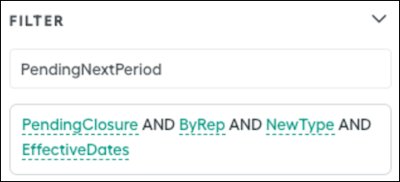
2. Create a datasheet to calculate the commission amount. For payout rules where the rep earns commission deal-by-deal or line-by-line, select the data filter you created from the right panel.
Selecting the data filter applies the formula you define to only the records that meet the parameters of the data filter.
3. Enter the formula that calculates PendingCommissionPayout, the potential commission the rep is paid if the deals close.
```
=ARR*PendingRate
```

4. On the plan where you want to add the What-If? rule, click **New Payout Rule**.
5. Name your payout rule and add the field that the payout amount is coming from.
6. With the correct payout rule selected, turn on **What-If?**.
# Create a Worksheet in Salesforce Spiff and Add a Calculation
Define and manage sales compensation plans and determine the payouts based on those plans. Worksheets and calculations ensure that sales compensation is accurately and fairly distributed, aligning with the organization's goals and motivating the sales team.
### Required Editions
Available in: both Salesforce Classic (not available in all orgs) and Lightning Experience
Available in: Enterprise, Unlimited, and Developer Editions
Available for an additional cost in: Professional Edition with Web Services API Enabled
1. In Designer under Plans, click the three dots next to the search bar or next to a worksheet or folder.
2. Click **New Worksheet**.
3. Rename the worksheet.
4. Double-click a cell in a worksheet and type in your syntax. Start formulas with \= unless you’re creating a label or constant value.
5. To save your formula, click the blue check mark.
# Create a Year-to-Date Commission Calculation in Salesforce Spiff
Create a calculation that generates a report on the year-to-date (YTD) commission default metric card in a Salesforce Spiff custom report. You can also use this calculation to show the fiscal year YTD commissions as a metric card.
### Required Editions
Available in: both Salesforce Classic (not available in all orgs) and Lightning Experience
Available in: Enterprise, Unlimited, and Developer Editions
Available for an additional cost in: Professional Edition with Web Services API Enabled
1. Create a worksheet calculation, YTDCommissionsUpToPreviousPeriod, that calculates the full year except for the current statement period.
```
=amounts_from(beginning_of_year(BeginningOfPeriod), days_ago(BeginningOfPeriod, 1), plan_name)
```
2. To identify the calculation from each payout amount on the plan, go to the Plans page, hover over each active payout rule, and identify the calculation name.
3. To open the worksheet or datasheet with the calculation, click the payout value.
4. Create a CurrentPeriodCommission calculation for the amount for the current statement period.
- For a datasheet, create a `sum()` calculation that aggregates all payouts from each deal.
- For a worksheet, you can reference the existing calculation.
5. Create the YTDCommission calculation by combining the YTDCommissionsUpToPreviousPeriod and CurrentPeriodCommission calculations.
#### See Also
- [amounts\_from](https://help.salesforce.com/s/articleView?id=sales.spiff_function_ref_amounts_from.htm&release=264.0.0&type=5 "Returns a sum of commission amounts for specific payout rules or total commission amounts from previous statement periods in Salesforce Spiff. This function is similar to amount_from() but requires a date range instead of a specific date.")
# Create Additional Email Actions in Lightning Experience
Include the Email action on layouts to make emailing more convenient.
### Required Editions
Available in: Lightning Experience
Available in: Essentials, Enterprise, Performance, Unlimited, and Developer Editions
User Permissions Needed
To create and modify the Email quick action:
Customize Application
To edit a page layout:
Customize Application
If you don’t have an email action already, you can create one. If you already have an email action, you can create another one for business process reasons.
For example, your company sends an email to every lead who’s attended a product demo. So, you want one email action for generic emails, and another with a predefined subject and body that automatically uses the current record for the To email address.
For the follow-up email sent to leads, the subject says “Thanks for attending the demo” and the body offers them a coupon on any future purchases. By putting this info in an email action, it’s easier for your reps to send these emails, with a consistent message and formatting.

Note The **Send an Email** mobile action isn’t supported on cases.
You can’t use the global Send Email action with cases, or add the action to the Cases layout. Instead, use an object-specific quick action.
1. Click **Setup**.
2. In the "Quick Find" field, enter Global Actions, then click Global Actions.
3. Click **New Action**, then specify:
1. Action Type - Send Email
2. Standard Label Type - Email
3. Name - SendEmail (or something similar)

Note When you create a custom quick action, use a unique label and API name. If the custom quick action has the same API name as a legacy standard action, Metadata API and change set deployment errors can occur. The incorrect action can also appear on page layouts. For example, use the name “SendEmail” instead of only “Email.”
4. Click **Save**.
5. On the layout editor, accept the default layout, and click **Save**.
6. Confirm global and record layouts are using the action.
#### See Also
- [Confirm That Global Layouts Have the Correct Email Action](https://help.salesforce.com/s/articleView?id=sales.send_email_action_global_layout.htm&release=264.0.0&type=5 "Although the Email action is only available in Lightning Experience, it must be included min the Quick Actions in the Salesforce Classic Publisher section of the page layout. That way, the action is available in every layout that inherits from the global layout. The action must also be in the global layout to enable Email in the Global actions menu, use reply/forward, use email in Assistant, and use email in Opportunity Insights.")
- [Confirm That Record Layouts Are Using the Correct Email Action](https://help.salesforce.com/s/articleView?id=sales.send_email_action_record_layout.htm&release=264.0.0&type=5 "Confirm that the “Send Email” action is in the appropriate section of each record layout.")
- [Fields Available on the Email Quick Action](https://help.salesforce.com/s/articleView?id=sales.send_email_quick_action_fields.htm&release=264.0.0&type=5 "After you create an Email quick action, you can customize the fields displayed for the action. Drag fields from the Email Message Fields palette to the email layout.")
- [Create a Send Email Quick Action for Cases](https://help.salesforce.com/s/articleView?id=service.case_interaction_send_email_quick_action_create.htm&type=5&language=en_US)
# Create Alignments Based on Other Alignments
Design territory models using other alignments that you created in Territory Planning. Adjust regions, districts, and territories. Then compare alignments so that you gain insight on the variations that give your sales and service teams optimal territory coverage.
### Required Editions
Available in: both Salesforce Classic (not available in all orgs) and Lightning Experience
Available in: Professional, Enterprise, Performance, Unlimited, and Developer Editions with Web Services API enabled
User Permissions Needed
To create alignments:
Sales Planning Ops Analyst permission set
AND
Query for Datapipelines User for Sales Planning permission set
AND
SF Maps Territory Planning for Sales Planning permission set
1. Click **Alignments**, click **Create**, and specify options in the Create Alignment window.
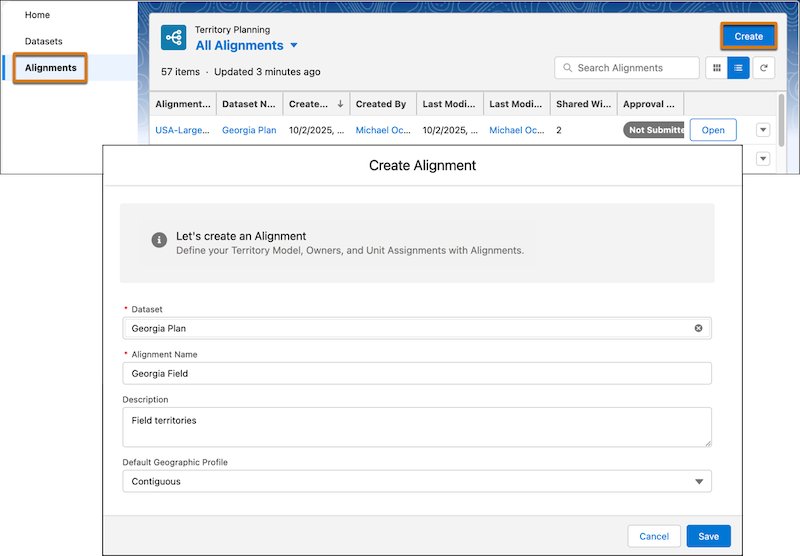
1. Select a dataset.
2. Enter a name for the alignment.
3. Select a default geographic profile.
When you create an alignment, the default geographic profile that you select at the alignment level updates its subsequently created areas. When you edit an alignment, the profile you select doesn’t update the alignment’s areas.
4. Save your changes.
- If you selected live data, the Create Alignment window closes and the alignment builder opens. To continue, click the Legend tab, and click **Edit territory model** ().
- If you selected copied data, click **Next** and continue working in the Create Alignment window.
2. Click **Import Model**, select **Alignment**, and click **Next**. Specify options in the Import From window.
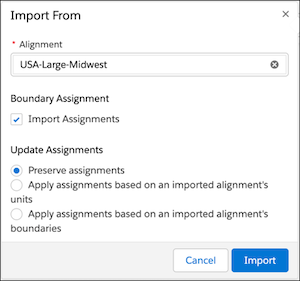

Note The options in this window are different depending on whether you’re working with live data or copied data. With live data, specify boundaries at the alignment level. With copied data, boundaries are already specified at the dataset level.
1. Select the alignment that you want to base the new alignment on.
2. (Live data only) To also import boundary assignments from the imported alignment, turn on **Import Assignments** under Boundary Assignment.

Note The new alignment adds any unmatched boundary sets from the imported alignment or dataset configuration. This option is turned off if importing boundary assignments causes the new alignment to have more than five total boundary sets.
3. (Live data only) Select an option for updating unit assignments.
- To leave unit assignments unchanged, select **Preserve assignments**.
- To update unit assignments based on the imported alignment’s unit assignments, select **Apply assignments based on an imported alignment’s units**.
- To update unit assignments based on the imported alignment’s boundary assignments, select **Apply assignments based on an imported alignment’s boundaries**. This option is available only when you turn on turn on **Import Assignments** under Boundary Assignment.
4. (Copied data only) To also import boundary assignments from the imported alignment, turn on **Import boundary assignments**.

Note This option is turned off if the imported alignment’s original dataset doesn’t contain the same boundary assignments as the new alignment’s dataset.
5. Click **Import**.
3. To change area names, hover over each one and rename them so that they reflect current areas. Add or remove areas so that they represent your updated sales structure.
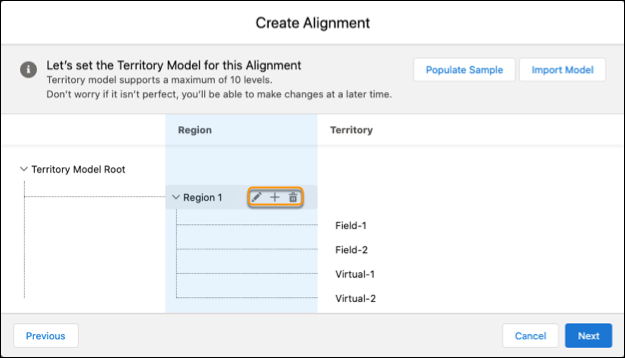
4. Click **Next**.
- If you selected live data, review the alignment updates and save your changes.
- If you selected copied data, continue to the final step.
5. (Copied data only) Add area owners, then select an option for unit assignments that corresponds with the assignment field from the dataset. Click **Finish**.
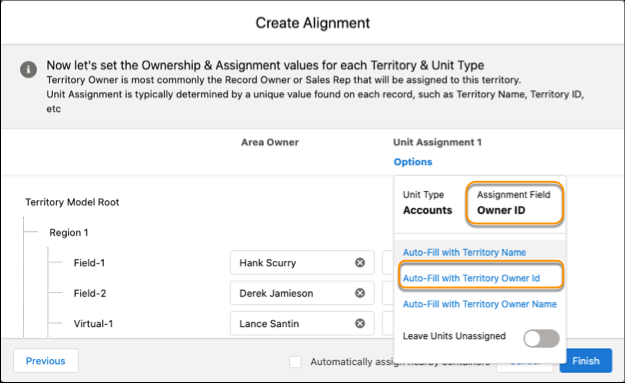
# Create Alignments from a Dataset’s Source
Plan territory models using a data source that contributes to your dataset in Territory Planning. For example, you want to create an alignment that includes only US accounts that a specific Salesforce report captured for your dataset.
### Required Editions
Available in: both Salesforce Classic (not available in all orgs) and Lightning Experience
Available in: Professional, Enterprise, Performance, Unlimited, and Developer Editions with Web Services API enabled
User Permissions Needed
To create alignments:
Sales Planning Ops Analyst permission set
AND
Query for Datapipelines User for Sales Planning permission set
AND
SF Maps Territory Planning for Sales Planning permission set
1. Click **Alignments**, click **Create**, and specify options in the Create Alignment window.

1. Select a dataset.
2. Enter a name for the alignment.
3. Select a default geographic profile.
When you create an alignment, the default geographic profile that you select at the alignment level updates its subsequently created areas. When you edit an alignment, the profile you select doesn’t update the alignment’s areas.
4. Save your changes.
- If you selected live data, the Create Alignment window closes and the alignment builder opens. To continue, click the Legend tab, and click **Edit territory model** ().
- If you selected copied data, click **Next** and continue working in the Create Alignment window.
2. Click **Import Model**, select **Dataset**, and click **Next**. Specify options in the Import From window.
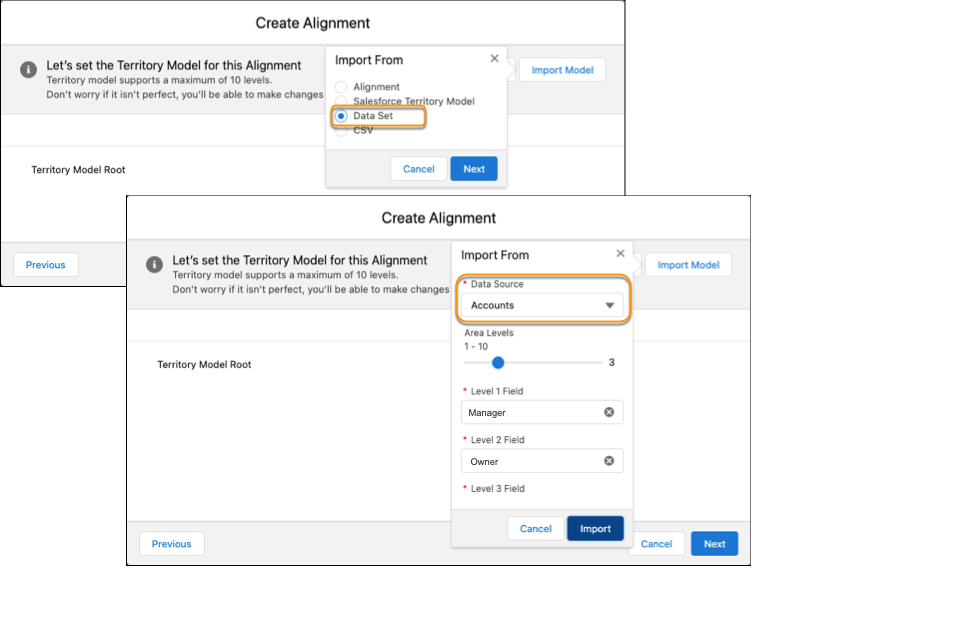
1. Select a data source that contributes to your dataset.
2. Select the number of area levels that you want for the model’s root structure.
3. Select the field for area level.
4. Click **Import**.
3. To change area names, hover over each one and rename them so that they reflect current areas. Add or remove areas so that they represent your sales and service structure.
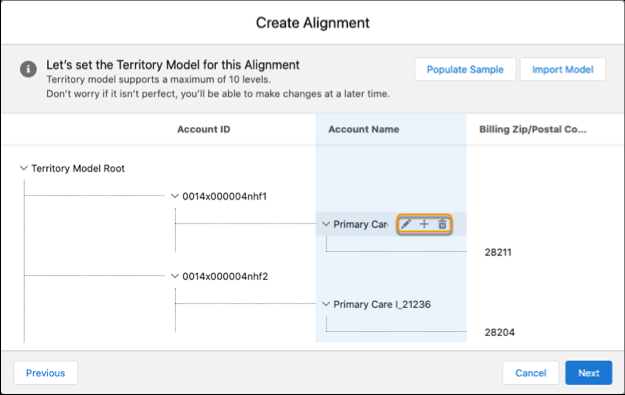
4. Click **Next**.
- If you selected live data, review the alignment updates and save your changes.
- If you selected copied data, continue to the final step.
5. (Copied data only) Add area owners, then select an option for unit assignments that corresponds with the assignment field from the dataset. Click **Finish**.
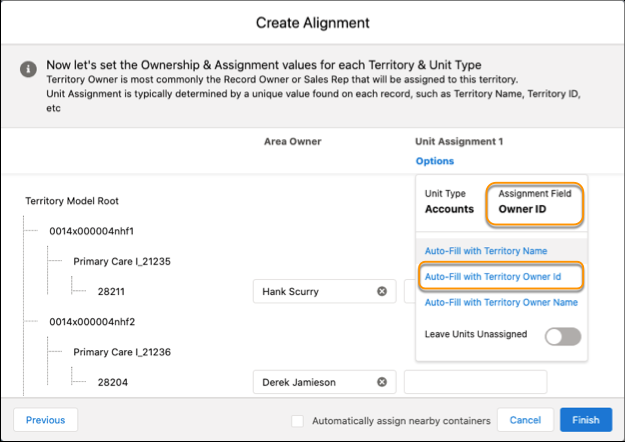
# Create Alignments from External Territory Model Data
Account for compelling events in proprietary and third-party territory management systems when you import their model data into Territory Planning. Refine and optimize models from the map, then publish them to CSV files. Use the CSV files when you update those territory management systems later.
### Required Editions
Available in: both Salesforce Classic (not available in all orgs) and Lightning Experience
Available in: Professional, Enterprise, Performance, Unlimited, and Developer Editions with Web Services API enabled
User Permissions Needed
To create alignments:
Sales Planning Ops Analyst permission set
AND
Query for Datapipelines User for Sales Planning permission set
AND
SF Maps Territory Planning for Sales Planning permission set
1. Before you import a CSV file, ensure that the parent value is blank for your top-level territories.
2. Click **Alignments**, click **Create**, and specify options in the Create Alignment window.

1. Select a dataset.
2. Enter a name for the alignment.
3. Select a default geographic profile.
When you create an alignment, the default geographic profile that you select at the alignment level updates its subsequently created areas. When you edit an alignment, the profile you select doesn’t update the alignment’s areas.
4. Save your changes.
- If you selected live data, the Create Alignment window closes and the alignment builder opens. To continue, click the Legend tab, and click **Edit territory model** ().
- If you selected copied data, click **Next** and continue working in the Create Alignment window.
3. Click **Import Model**, select **CSV**, and click **Next**.
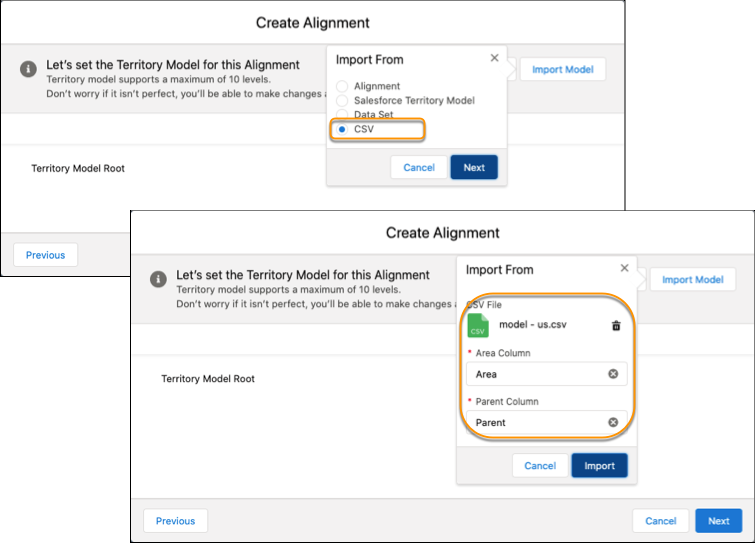
1. Upload a CSV file that includes the territory model data that you want to import.
2. Specify the area and parent columns.
3. Click **Import**.
If any records fail to import, download the log file from the data import summary, fix the errors, and import the CSV file again. If all records import, no data import summary appears.
4. To change area names so that they reflect current areas, hover over each one and rename them. Add or remove areas so that they represent your updated sales and service structure.
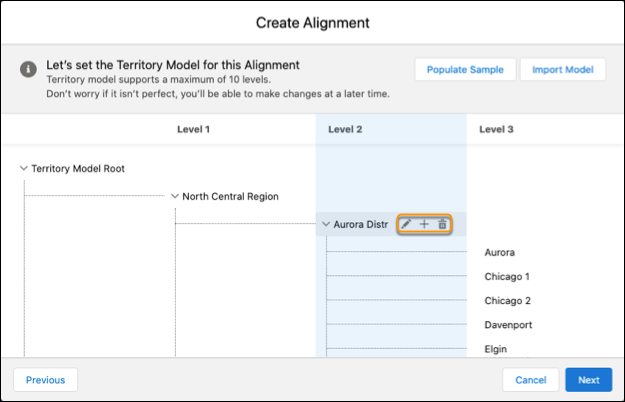
5. Click **Next**.
- If you selected live data, review the alignment updates and save your changes.
- If you selected copied data, continue to the final step.
6. (Copied data only) Add area owners, then select an option for unit assignments that corresponds with the assignment field from the dataset. Click **Finish**.
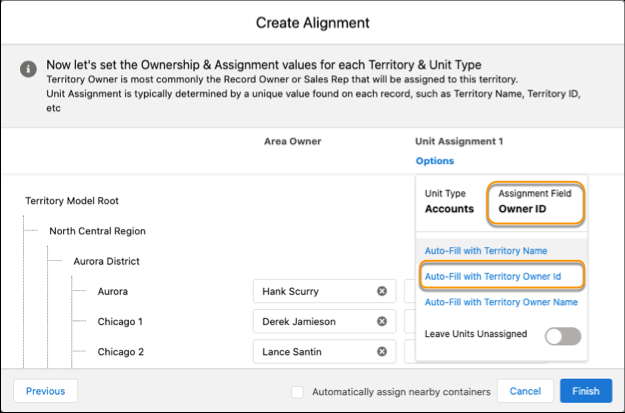
# Create Alignments from Scratch
Build territory models from the top or from a sample model in Territory Planning. Set up regions, districts, and territories that reflect the structure of your sales and service areas.
### Required Editions
Available in: both Salesforce Classic (not available in all orgs) and Lightning Experience
Available in: Professional, Enterprise, Performance, Unlimited, and Developer Editions with Web Services API enabled
User Permissions Needed
To create alignments:
Sales Planning Ops Analyst permission set
AND
Query for Datapipelines User for Sales Planning permission set
AND
SF Maps Territory Planning for Sales Planning permission set
1. Click **Alignments**, click **Create**, and specify options in the Create Alignment window.

1. Select a dataset.
2. Enter a name for the alignment.
3. Select a default geographic profile.
When you create an alignment, the default geographic profile that you select at the alignment level updates its subsequently created areas. When you edit an alignment, the profile you select doesn’t update the alignment’s areas.
4. Save your changes.
- If you selected live data, the Create Alignment window closes and the alignment builder opens. To continue, click the Legend tab, and click **Edit territory model** ().
- If you selected copied data, click **Next** and continue working in the Create Alignment window.
2. Set the area levels that you want for the model’s root structure, or add a sample structure that you tailor for your company’s requirements.
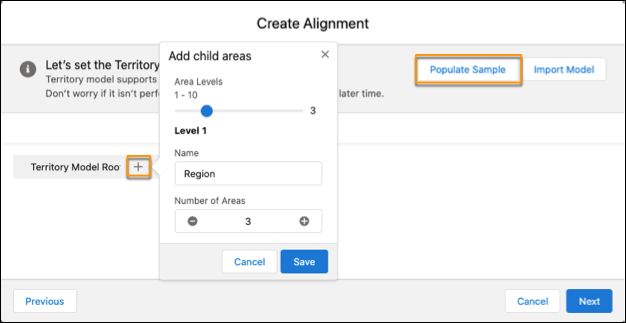
3. Hover over each area and rename them so that they reflect your sales and service areas. Add or remove areas so that they reflect your sales and service structure.
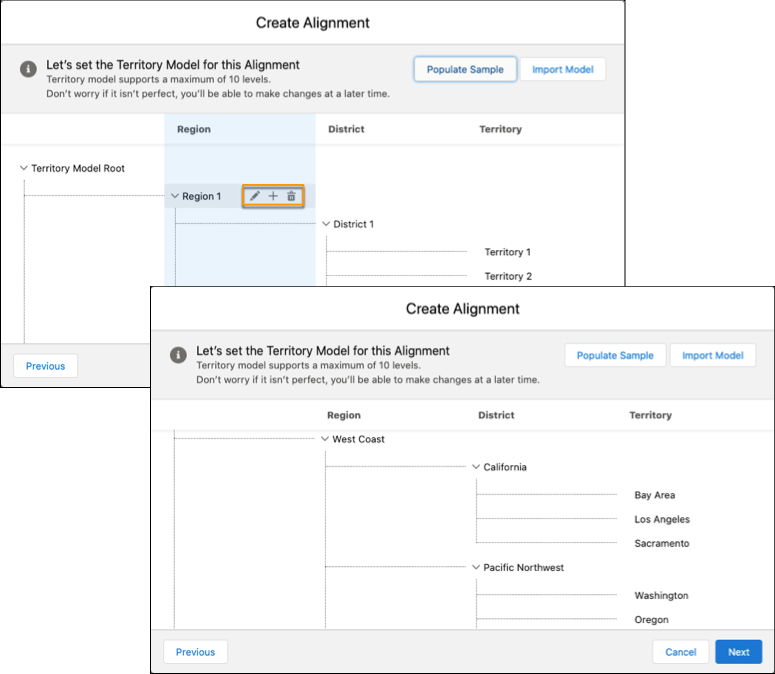
4. Click **Next**.
- If you selected live data, review the alignment updates and save your changes.
- If you selected copied data, continue to the final step.
5. (Copied data only) Add area owners, then select an option for unit assignments that corresponds with the assignment field from the dataset. Click **Finish**.
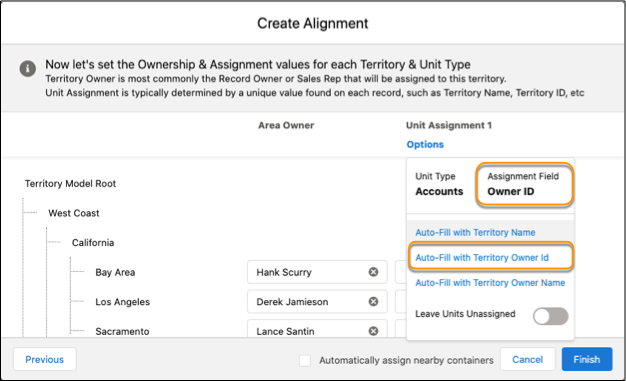
# Create an Accumulated Variable for a Marginal Payout Function
Create an accumulated variable for the initial\_value argument in the `mamount()` and `mpercent()` accelerator functions in Salesforce Spiff.
### Required Editions
Available in: both Salesforce Classic (not available in all orgs) and Lightning Experience
Available in: Enterprise, Unlimited, and Developer Editions
Available for an additional cost in: Professional Edition with Web Services API Enabled
User Permissions Needed
To configure an accumulated variable in Spiff Designer:
1. In a datasheet, create a calculated field, Accumulated\_ARR, and enter the variable that you want to accumulate, ARR\_\_c.
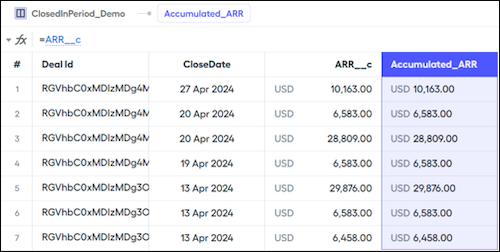
2. In the right panel, open Accumulation and turn on **Accumulated**.
3. Optionally, select Accumulation Filter and Accumulation Sort options.
Accumulation Filter
The data filter for the accumulated variable. Typically, this filter is the same data filter applied to the commission rule. For example, if the datasheet uses the ClosedInPeriod data filter, also use ClosedInPeriod for the accumulation filter. The ClosedInPeriod accumulation filter specifies that accumulation restarts at the beginning of each period.
Accumulation Sort
The value to sort accumulated records by. Sorting by CloseDate accumulates ARR in chronological order. To sort deals that close on the same day, select a different field, such as ID.
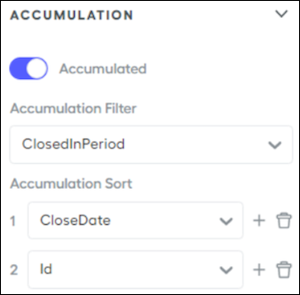
4. Save your changes.
The The Accumulated\_ARR field accumulates values throughout the period. The last value in chronological order is the sum of all of the ARR\_\_c for the period.
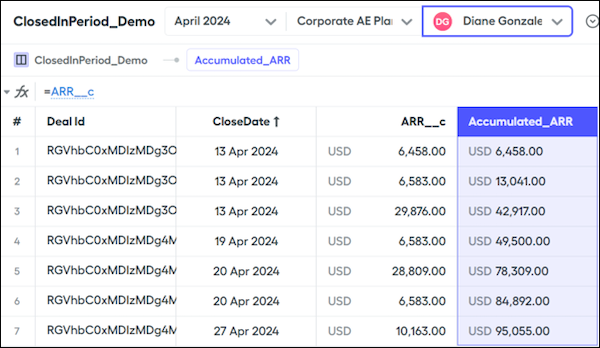
5. Create another calculated field, Previous\_ARR, that subtracts the current deal ARR from the accumulated ARR.
The Accumulated\_ARR represents a running total of ARR after each deal is closed. But if you want to know a rep's ARR before a current deal closed, remove the value of the current deal from the accumulation.
```
=Accumulated_ARR - ARR__c
```
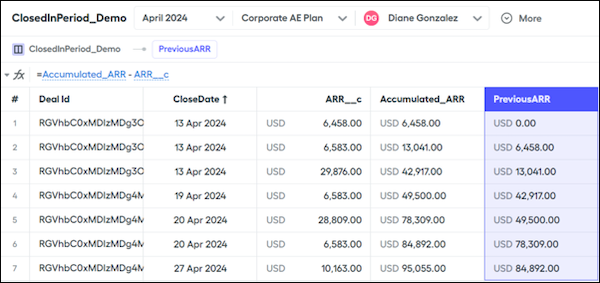
Use PreviousARR for the initial\_value argument in the `mamount()` and `mpercent()` functions.
#### See Also
- [Accumulated Variables in Salesforce Spiff](https://help.salesforce.com/s/articleView?id=sales.spiff_accumulated_variable.htm&release=264.0.0&type=5 "An accumulated variable is like a running total, where Salesforce Spiff sums a field or value within a sorted data filter and returns a cumulative value up to a current record. An accumulated variable helps you quickly sum multiple values with fewer calculations.")
- [Considerations for Accelerator Functions in Salesforce Spiff](https://help.salesforce.com/s/articleView?id=sales.spiff_accelerator_functions.htm&release=264.0.0&type=5 "Salesforce Spiff provides several functions that support accelerators, including mamount(), mpercent(), range_lookup(), and tier_payout.")
- [mamount](https://help.salesforce.com/s/articleView?id=sales.spiff_function_ref_mamount.htm&release=264.0.0&type=5 "Returns the commission total for a deal in Salesforce Spiff, based on a range table and the rep's current attainment. To return a commission rate instead, use the mpercent() function.")
- [mpercent](https://help.salesforce.com/s/articleView?id=sales.spiff_function_ref_mpercent.htm&release=264.0.0&type=5 "Returns the commission rate for a deal in Salesforce Spiff, based on a range table and the rep's current attainment. To return a commission total amount instead, use the mamount() function.")
# Create an Agent Quick Action for Signals
Help sellers easily hand off tasks to an agent without leaving Sales Workspace. Build an action that opens the Assist panel for a specific agent to process a suggestion.
### Required Editions
Available in: Lightning Experience in Enterprise, Unlimited, and Agentforce 1 Sales editions with the Sales Foundation add-on.
Create a platform action of type Agent Quick Action. See [Create an Agent Quick Action](https://help.salesforce.com/s/articleView?id=platform.agent_quick_actions_create.htm&language=en_US).
Assign the action to a signal. Use it as the default action for a custom signal, or use it to replace the standard action on meeting prep suggestions.
# Create an Alignment for Top-Down Territory Models
Build a territory model from the top down so that sales and service teams work toward meeting leadership targets for each top-level area in Territory Planning. For example, create an alignment that includes regions at the top. Then let each region owner branch into smaller areas, such as districts, states, and postal codes.
### Required Editions
Available in: both Salesforce Classic (not available in all orgs) and Lightning Experience
Available in: Professional, Enterprise, Performance, Unlimited, and Developer Editions with Web Services API enabled
User Permissions Needed
To create alignments:
SF Maps Territory Planning permission set
OR
SF Maps Territory Planning for Sales Planning permission set (after you purchase Sales Planning)
1. Navigate to the dataset where you want to add an alignment. Then select **Add Alignment**.
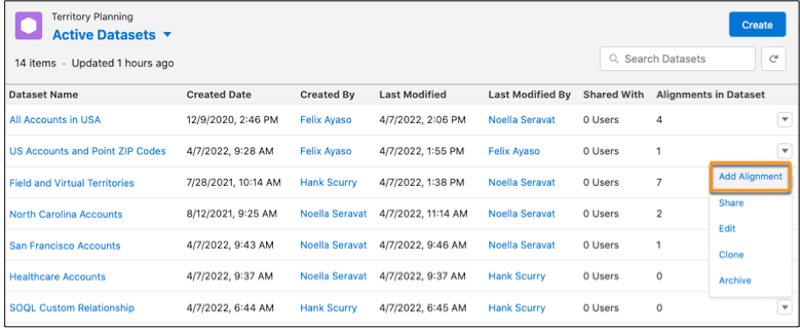
2. Enter a name for the alignment and click **Next**.
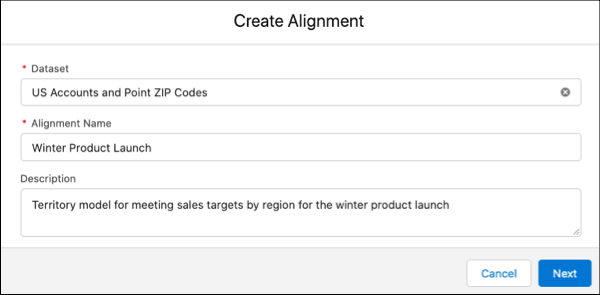
3. Add the largest areas that represent the top of your territory model such as regions. Then select the number of top-level areas that you want to plan for. Save your work, then click **Next**.
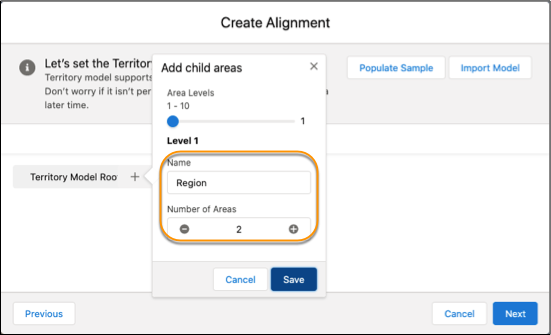
4. Click **Options**, then select **Leave Units Unassigned**.
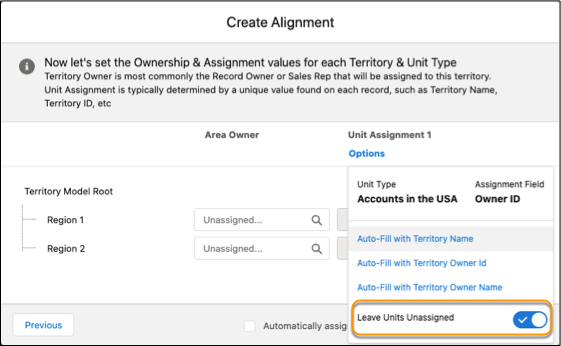
5. Click **Finish**.
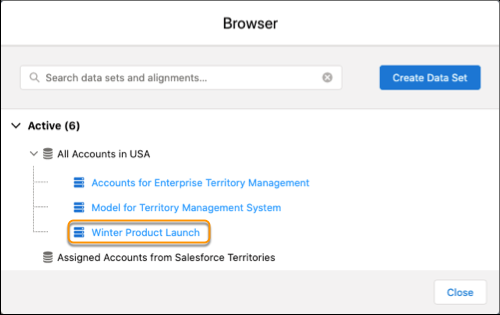
The new alignment appears in the browser. You can open it and branch top-level areas into smaller areas that help you support leadership goals.
# Create an Alignment from a Salesforce Territory Model
Import a territory model from Sales Territories into Territory Planning and configure it as an alignment. Adjust area names, assignment rules, and boundaries to match your current sales structure.
### Required Editions
Before you import a territory model, decide whether to use live data or copied data. Live data reflects real-time changes from your Salesforce org, while copied data creates a snapshot you can modify independently. Your choice determines which configuration options are available during import.
Available in: both Salesforce Classic (not available in all orgs) and Lightning Experience
Available in: Professional, Enterprise, Performance, Unlimited, and Developer Editions with Web Services API enabled
User
Permissions Needed
To create alignments:
Sales Planning Ops Analyst permission set
AND
Query for
Datapipelines User for Sales Planning permission
set
AND
SF Maps Territory Planning for Sales
Planning permission set
1. In Territory Planning, click **Alignments**, then click **Create**.

1. Select a dataset.
2. Enter a name for the alignment.
3. Select a default geographic profile.
When you create an alignment, the default geographic profile that you select at the alignment level updates its subsequently created areas. When you edit an alignment, the profile you select doesn’t update the alignment’s areas.
4. Click **Save**.
- If you selected live data, the Create Alignment window closes and the alignment builder opens. Click the **Legend** tab, then click **Edit territory model** ().
- If you selected copied data, click **Next** and continue working in the Create Alignment window.
2. Click **Import Model**, select **Salesforce Territory Model**, and click **Next**. Specify options in the Import From window.
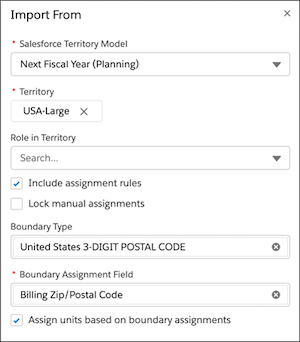

Note Options in this window depend on your data type. With live data, specify boundaries at the alignment level. With copied data, boundaries are already specified at the dataset level.
1. Select the territory model that you want to import from Sales Territories.
2. Select a territory that represents the scope of the model that you want to import.
3. Optionally, specify a role in territory.
4. To convey assignment rules and units from the model that you’re importing to the new Territory Planning alignment, turn on **Include assignment rules**.

Important In Sales Territories, rules that reference currency fields include the currency ISO code such as `USD 1,000`. When importing these rules into Territory Planning, we’ll save the currency ISO code, but the rule will simply show the numeric value of `1000`. When that rule is published back to Sales Territories, we’ll recall the currency ISO code and add it to the published rule. Territory Planning evaluates currency fields using the numeric values it retrieves without accounting for the record’s currency or converting between record, user, and corporate currencies.
5. To convey manual assignments from the model that you’re importing to the new Territory Planning alignment, turn on **lock manual assignment**.
All units, including unassigned units, must be in focus for manual assignments to import correctly.
6. (Live data only) If you included assignment rules, specify an optional **Boundary Type** and required **Boundary Assignment Field**, which lets you assign boundaries to areas according to the assignment rules.
7. (Live data only) If you specified a Boundary Type, turn on **Assign units based on boundary assignments** to assign units to the same areas as the corresponding boundary units.
This selection applies only to the units with boundaries that you're importing currently.
8. (Copied data only) To assign boundaries to areas according to the imported assignment rules, select a **Boundary Assignment Field**.
9. Click **Import**.
3. Rename areas to match your current sales structure. Hover over an area name to edit it. Add or remove areas as needed.
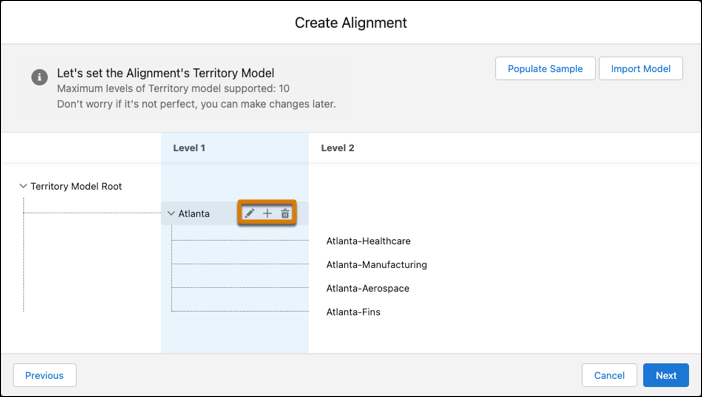
4. Click **Next**.
- If you selected live data, review the alignment updates and save your changes.
- If you selected copied data, continue to the final step.
5. (Copied data only) Add area owners, then select a unit assignment option that matches the assignment field from your dataset. Click **Finish**.
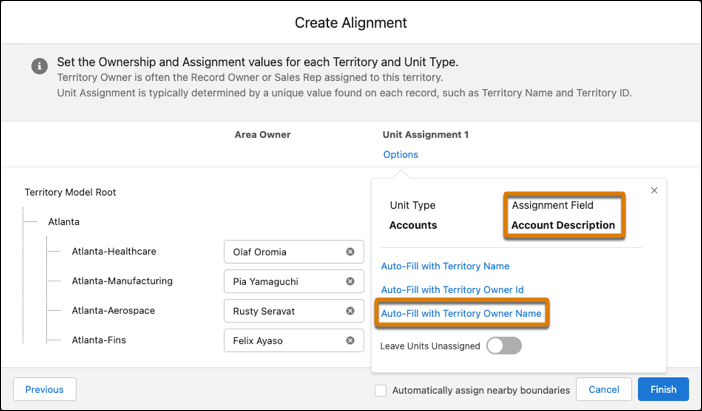
# Create an Automated Action
Save time by automating common cadence target-related tasks with processes that manage cadence targets and associated records you own. With simple if-this-then-that logic, you can automatically add, remove, pause, or resume cadence targets and change target assignees based on criteria that you choose. If you’re a manager, you can create automated actions for your subordinates.
### Required Editions
Available in: Lightning Experience
Available with Sales Engagement, which is included with Sales in Performance, Einstein 1, and Unlimited Editions, and available for an extra cost in Professional and Enterprise Editions. Sales Engagement is also available for an extra cost in Service and Lightning Platform.
User Permissions
Needed
To create automated actions:
Sales Engagement User
OR
Sales Engagement User
Included
OR
Sales Engagement Cadence Creator
OR
Sales
Engagement Cadence Creator Included
AND
Automated Action
User
You can trigger your automated actions from changes to records you or your subordinates own. When your automated actions run, they perform their actions on behalf of you or your subordinate, as if they had performed the action manually. For example, if your automated action adds an inbound lead to a cadence, Salesforce shows that the lead was added by you.
Before you begin using any of the included automated actions or ones you create, you must activate them.
Managers can create up to 25 automated actions for their subordinates. Sales Reps can create up to 50 automated actions for themselves. There’s a daily limit of 250 automated action executions per user and 20k executions for all users. When the limit is exceeded, the automated action stops executing until the start of the following day.
1. In the Automated Actions tab of the Sales Engagement app, click **New**.
2. Under Actions, select the action you want to automate.
For example, automatically assign a target to a cadence.
3. Fill in the details of the action that you want to automate.
For example, select which cadence you want to add targets to.
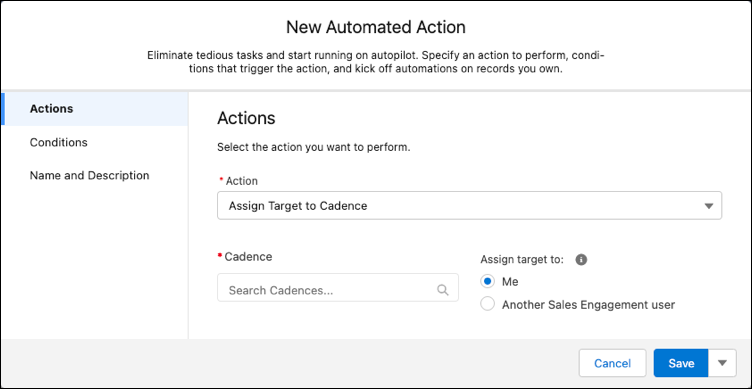
4. Choose whether to perform the action automatically, or remind the record owner to choose whether to run the action.
Reminders appear in the Automated Action Reminders component on a record detail page when the record meets the conditions for the action. The record owner can choose to run the action, ignore it, or snooze it.
5. Select the object that you want to trigger your automated action.
6. Select how often you want the automated action to check whether to perform your action based on the conditions you select in the next step.
7. Select the field values that trigger your automated action.
For example, to add all new leads generated from your website to a cadence, select the Lead Source field and enter a value of Web.
8. Select when to take action.
- All conditions are met (AND)—This option triggers your action only when every one of the field values you specify are present.
- Any conditions are met (OR)—This option triggers your action when any one or more of the field values you specify are present.
- Custom logic (AND + OR + NOT)—This option triggers your action when a combination of the field values you specify are present or not present.
9. To use fields on objects related to your primary object, click **Show Advanced Conditions**.
These fields are sometimes called cross-object fields. For example, for leads, you can select the Converted Contact ID field and then the Email Opt Out field.
10. Select when to take action for cross-object fields.
11. Enter a name and description for your automated action.
12. Choose who the automated action is assigned to.
- When you assign the action to yourself, it acts only on records you own.
- When you assign the action to subordinates, it acts on records they own.
13. Choose who can activate the action.
- Creator—Only you the author can activate or deactivate the action.
- Assignees (Default On)—The action is active for assignees, but they can choose to deactivate it.
- Assignees (Default Off)—The action is inactive for assignees, but they can choose to activate it.
14. When you’re finished, click **Save** or **Save & Activate**. Your automated actions must be activated in order to execute. You can activate and deactivate an automated action at any time in the Automated Actions tab in the Sales Engagement app.
You can create automated actions from other locations in the Sales Engagement app.
- When you manually add a target to a cadence, you can automate adding records to that cadence by selecting **Add an Automated Action?**.
- When you create a quick cadence, you can automate adding records to the quick cadence by selecting **Add an Automated Action?**.
# Create an Automated Visit Plan in Salesforce Maps Advanced
Optimize field users' routes automatically over a 3 month window based on your visit criteria.
### Required Editions
Available in: Lightning Experience and Salesforce Classic
Available in: Professional, Enterprise, Performance, Unlimited, and Developer Editions
User Permissions Needed
To configure Salesforce Maps:
Customize Application
Before you start:
- Install Salesforce Maps Advanced.
- Enable Maps and Location Services in your org.
- Assign the Salesforce Maps Advanced permission set license and permission set to the users that you plan to route. See [Give Users Access to Salesforce Maps](https://help.salesforce.com/s/articleView?id=sales.salesforce_maps_setup_permissions_sets.htm&release=264.0.0&type=5 "Give your users access to Salesforce Maps by assigning permission set licenses, permission sets, and permission groups.").
1. From the App Launcher, find and select **Maps Advanced Visit Plans**.
2. Click **New**.
3. Enter the plan details, including the records or objects to visit, the users to route, and the plan's date range.
4. Enter the visit criteria.
5. Assign users to the plan.
6. Save the visit plan.
7. To generate routes, open the active visit plan and click **Plan Visits**. Field users generate their route by clicking **Plan My Visits**. Routes are generated from the start date through the visit plan's end date.
To generate routes programmatically, use the `StartAdvancedOptimizationForVisitPlan` or `StartAdvancedOptimizationForUsers` global method in the Salesforce Maps Developer Guide.
# Create an Email Template in Lightning Experience
Use email templates to save time and standardize email that you or others in your organization send. Templates you create are automatically private, but you can make them available for use by others in your organization.
### Required Editions
Available in: Lightning Experience
Available in: Essentials, Professional, Enterprise, Performance, Unlimited, and Developer Editions
User Permissions
Needed
To create and send email templates:
Lightning Experience User
To attach files to emails or email templates:
Lightning Experience User
AND
Access to the file you’re attaching
AND
Edit rights to the email or the email template’s folder
To delete email templates:
Modify All Data, template ownership, or Edit rights to the email template
folder
OR
If the template is in a public folder: Manage Public Lightning
Email Templates permission
To update email templates:
For public email templates: Modify All Data, Manage Public Lightning Email
Templates permission, or template ownership
For email templates in an Enhanced
folder: Modify All data, Edit access to the folder, or template
ownership
For private email templates: Modify All Data or template
ownership
To create an email template using Email Template Builder instead of from the email composer or the email templates page, see [.](https://help.salesforce.com/s/articleView?id=sales.email_template_builder_create.htm&release=264.0.0&type=5 "Use email templates to save time and standardize email sent by you or others in your organization.")

Note If you’re using a free org, such as a Developer org, you can have up to 500 email templates, of any kind, in that org.
If you’re using Service, the [Service Setup Assistant](https://help.salesforce.com/articleView?id=service.console_lex_service_setup.htm&language=en_US) provides you with basic email templates and sets up case notifications that email the case contact when a case is created, updated, assigned, and closed.
1. From the email composer, open a record, such as an opportunity or account, that offers email.
2. Click the **Activity** tab, then click the **Email** tab.
3. If you want, select an entity in the **Related To** field. The kind of record you choose affects which merge fields are available in the merge picker. If you select Contact or Lead, or leave the field blank, the template is a global template. A global template can use global merge fields only.
4. Compose the email to use as your template, or select an existing email template. Quick text works with the Salesforce Merge Language (SML) used in Salesforce Classic email templates and Lightning email templates created before Summer ’18. It doesn’t work with the Handlebars Merge Language (HML) used in Lightning email templates.
5. Add a subject. To include merge fields, type them in manually.
6. Add any images you want in the template. Use the **Insert Images** icon or copy and paste the image.
7. Click the **Merge** icon and use the merge picker to insert merge fields.
8. Click the **Source** icon to add HTML code. If you want to navigate to the record or other Salesforce pages as you work, pop out the composer window. Some email clients don’t respect the `
 .
. `. However, if an image is stored in your org, you have more control over it.
Use the `style` attribute in HTML to add internal and external images to email templates whose HTML elements can be edited.

Custom (without Using Classic Letterhead) Email Template
Custom (without using Classic Letterhead)
`
`. However, if an image is stored in your org, you have more control over it.
Use the `style` attribute in HTML to add internal and external images to email templates whose HTML elements can be edited.

Custom (without Using Classic Letterhead) Email Template
Custom (without using Classic Letterhead)
`