Differentiate boundaries by color based on the density of attributes that you choose in
Territory Planning. For example, identify areas that have concentrations of accounts with higher
annual revenue. Choropleth maps give you insight into areas that can benefit the most from the
products and services that you offer.
Required Editions
| Available in: both Salesforce Classic (not available in all orgs) and Lightning Experience |
| Available in: Professional, Enterprise, Performance, Unlimited, and Developer Editions with Web Services API enabled |
| User Permissions Needed |
| To modify alignments: |
Sales Planning Ops Analyst permission set
AND
Query for Datapipelines User for Sales Planning permission set
AND
SF Maps Territory Planning for Sales Planning permission set
|
-
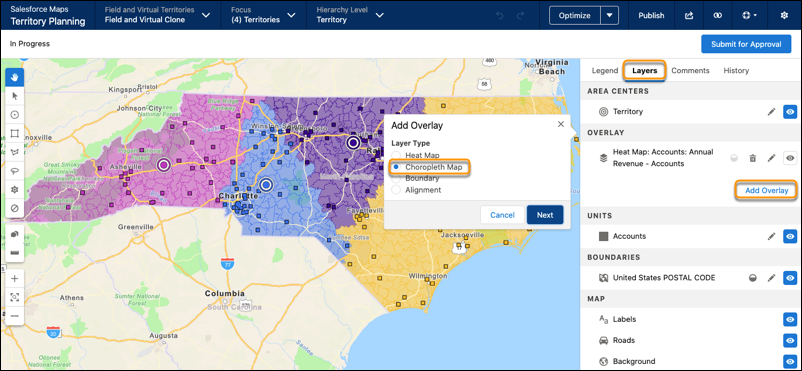
Open an alignment and set the focus.
-
From the Layers tab, click Add Overlay, then select
Choropleth Map. Click Next.
-
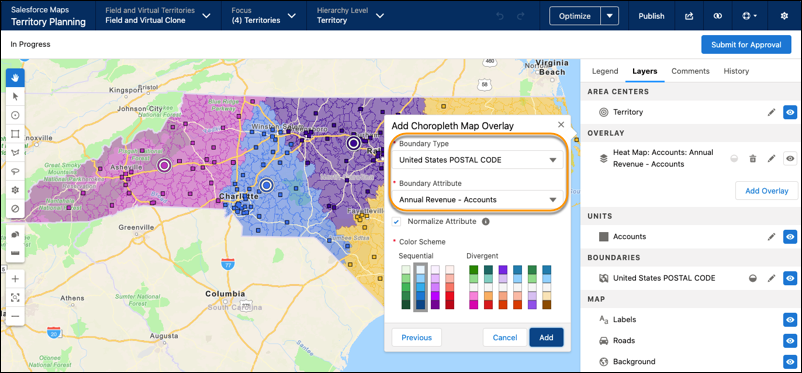
Define your choropleth map. For example, define your choropleth map so that you can
differentiate boundaries containing concentrations of accounts aggregated by ranges of annual
revenue.
-
To standardize attribute ranges and reduce the impact of outliers throughout the alignment,
select Normalize attribute.
-
Select a color scheme, then click Add.
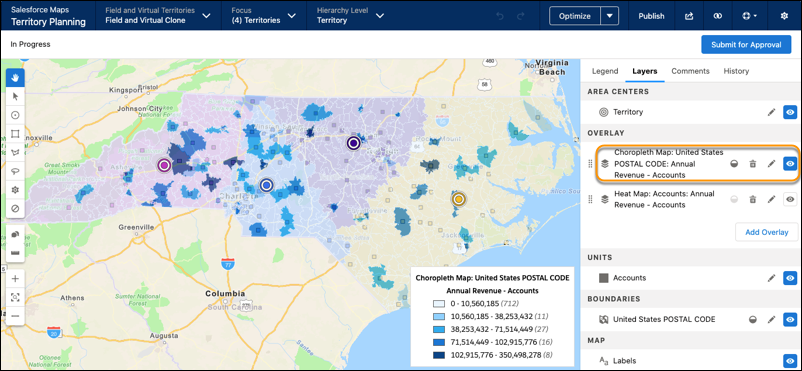
The choropleth map overlay and its legend appear on the map. Settings let you adjust
opacity, as well as delete, edit, and hide the overlay.