
Create an individual user in Salesforce Spiff manually.
Required Editions
| Available in: both Salesforce Classic (not available in all orgs) and Lightning Experience |
| Available in: Enterprise, Unlimited, and Developer Editions |
| Available for an additional cost in: Professional Edition with Web Services API Enabled |
| User Permissions Needed | |
|---|---|
| To create a user: |
A Spiff user role with this permission turned on. Users: Edit |
Review these important considerations before you begin.
- This functionality is available only in Spiff environments that use Hyperforce.
- Users that you add from the Admin menu can't be referenced in calculated fields or data filters in Designer. To reference users in calculated fields or data filters, add them from the Data Sources tab instead. See Import Users in Salesforce Spiff Manually.
- From the Admin menu, select Users.
-
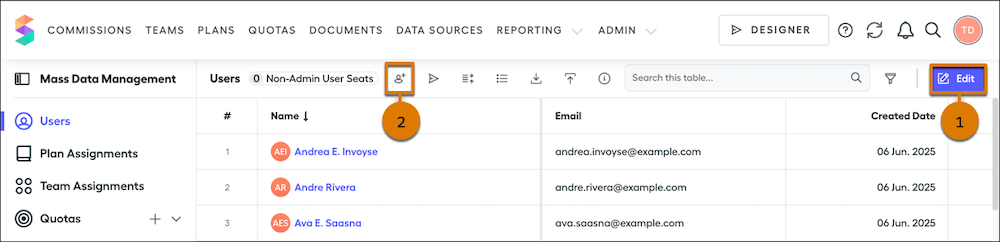
In the toolbar, click Edit (1) and then click Add User (2).
- Enter a name and email address, select a role, and click Create.
Creating a user adds an entry in the System Activity log.