
Determine which days of activities to capture within your reps’ timesheets in Salesforce Maps. Then your reps can focus their efforts on customer visits instead of administrative tasks.
Required Editions
| View supported editions. |
| User Permissions Needed | |
|---|---|
| To configure installed packages: | Customize Application |
- From Setup, in the Quick Find box, enter Installed Packages, and then select Installed Packages.
- Click Configure next to the Salesforce Maps package.
- Select Mileage Administration.
-
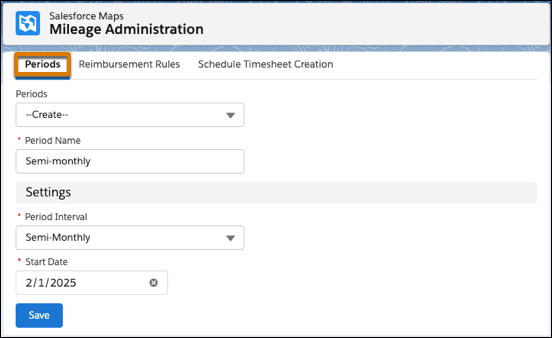
Under Periods, select Create. Add a period name that corresponds
with the interval that you select, such as weekly, biweekly, or semimonthly.
-
Specify a start date for the timesheet period. Your interval and the day on which you
create the period determine available start dates.
For past start dates, you’re limited to a date that includes today’s date. For example, you create your weekly timesheet period on January 12, 2025. You can select a start date as far back as January 6, 2025.
For future start dates, select any date that complies with your your interval. For example, you create your semimonthly timesheet period on January 12, 2025. You can select January 16, February 1, or any other semimonthly date in the future.
- Save your work.