---
schema_version: "1"
id: 777ca7e61c08ede339c3d6c8d7c75746637bbed4bc4e9153e17df633b676d8dc
title: Define Timesheet Periods in Salesforce Maps
collection: admin
version: current
locale: en-us
portal_url: https://docs.salesforce.com/admin/current/en-us/sales/264-0-0/salesforce_maps_setup_timesheets_periods.md
canonical_url: https://help.salesforce.com/s/articleView?id=sales.salesforce_maps_setup_timesheets_periods.htm&release=264.0.0&type=5
source_site: help.salesforce.com
content_type: documentation
content_hash: 8cffbbf161bda267c5f881217e7e20fb53b726ef8c10a8e330703c192f092e6b
description: Determine which days of activities to capture within your reps’ timesheets in Salesforce Maps. Then your reps can focus their efforts on customer visits instead of administrative tasks.
products:
- Sales
- Salesforce Maps
release: "264"
---
# Define Timesheet Periods in Salesforce Maps
Determine which days of activities to capture within your reps’ timesheets in Salesforce Maps. Then your reps can focus their efforts on customer visits instead of administrative tasks.
### Required Editions
1. From Setup, in the Quick Find box, enter Installed Packages, and then select **Installed Packages**.
2. Click **Configure** next to the Salesforce Maps package.
3. Select **Mileage Administration**.
4. Under Periods, select **Create**. Add a period name that corresponds with the interval that you select, such as weekly, biweekly, or semimonthly.
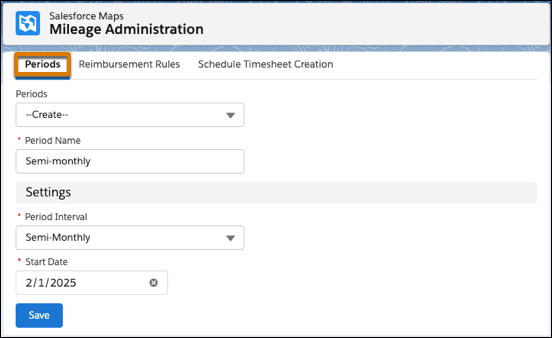
5. Specify a start date for the timesheet period. Your interval and the day on which you create the period determine available start dates.
For past start dates, you’re limited to a date that includes today’s date. For example, you create your weekly timesheet period on January 12, 2025. You can select a start date as far back as January 6, 2025.
For future start dates, select any date that complies with your your interval. For example, you create your semimonthly timesheet period on January 12, 2025. You can select January 16, February 1, or any other semimonthly date in the future.
6. Save your work.