Give your customers and partners context for what’s local and relevant on nearby maps
that appear directly on your sites when you add a Salesforce Maps component to site
layouts.
Required Editions
| User Permissions Needed |
| To customize settings: |
Customize Application |
-
From Setup, in the Quick Find box, enter Installed Packages, and
then select Installed Packages.
-
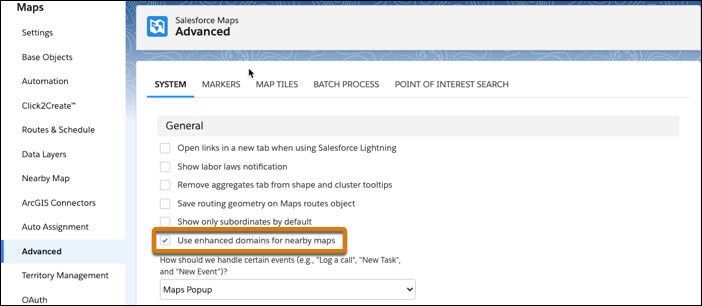
Next to the Salesforce Maps package, click Configure. On the
Advanced tab, select the option to use enhanced domains. Then save your changes.
-
From Setup, in the Quick Find box, enter All Sites, and then select
All Sites.
-
Next to the site that you want to add a nearby map to, click
Builder.
-
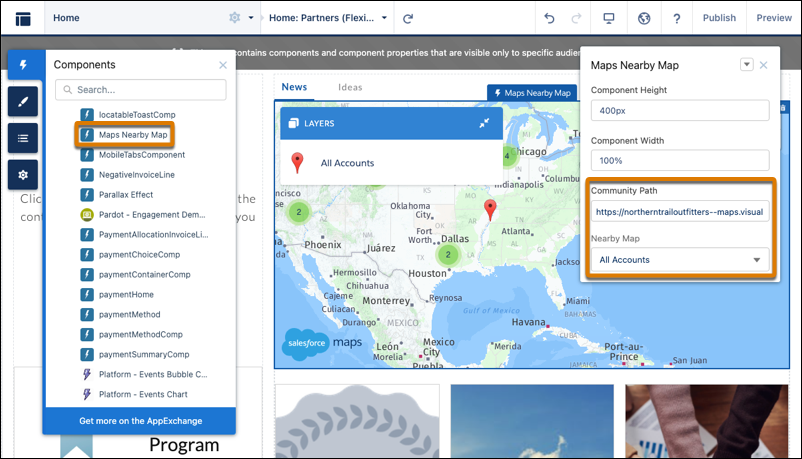
Select Components, and then scroll to Custom Components. Drag the
Maps Nearby Map component to an area of the site layout where you want
the nearby map to appear.
-
In Community Path, enter your site’s domain.
-
In Nearby Map, select a global nearby map that you want to appear on the site. For example,
to show all nearby account markers, select All Accounts.
-
Publish your site.
The nearby map appears on the site.

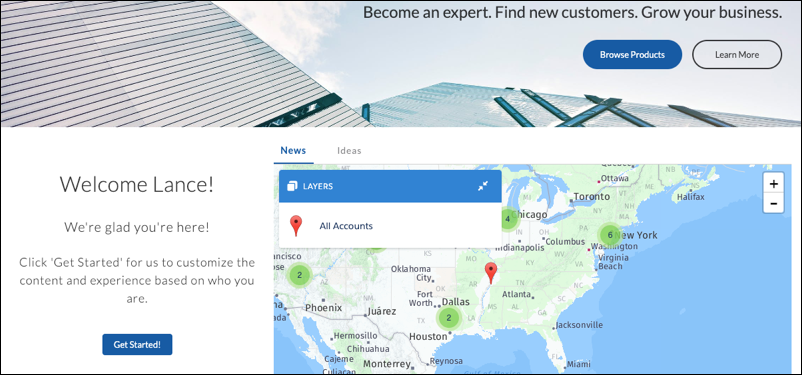 The nearby map appears on the site.