---
schema_version: "1"
id: 560d3d34f18437e71788a31760549d0005fbf49ec648a36e21018733c0cbdec4
title: Add Nearby Maps to Salesforce Sites
collection: admin
version: current
locale: en-us
portal_url: https://docs.salesforce.com/admin/current/en-us/sales/264-0-0/salesforce_maps_setup_nearby_maps_add_to_sites.md
canonical_url: https://help.salesforce.com/s/articleView?id=sales.salesforce_maps_setup_nearby_maps_add_to_sites.htm&release=264.0.0&type=5
source_site: help.salesforce.com
content_type: documentation
content_hash: f00eda7868d2eb54334e661bd338bec0d940ff1a5eaabc7f253e952498730e28
description: Give your customers and partners context for what’s local and relevant on nearby maps that appear directly on your sites when you add a Salesforce Maps component to site layouts.
products:
  - Sales
  - Salesforce Maps
release: "264"
---
# Add Nearby Maps to Salesforce Sites

Give your customers and partners context for what’s local and relevant on nearby maps that appear directly on your sites when you add a Salesforce Maps component to site layouts.

### Required Editions

<table class="slds-table slds-table_bordered slds-max-medium-table_stacked slds-m-bottom_small edition"><colgroup><col></colgroup><tbody><tr class=""><td class="slds-cell-wrap" style="vertical-align:top;"><a href="https://help.salesforce.com/s/articleView?id=sales.salesforce_maps_editions.htm&amp;release=264.0.0&amp;type=5" title="Identify supported Salesforce editions, user interfaces, and product areas.">View supported editions</a>.</td></tr></tbody></table>

<table class="slds-table slds-table_bordered slds-max-medium-table_stacked slds-m-bottom_small permission">
        <colgroup>
          <col style="width:50%">
          <col style="width:50%">
        </colgroup>
        <thead class="slds-text-title_caps ">
          <tr class="">
            <th scope="colgroup" class="slds-cell-wrap" colspan="2" style="text-align:center;vertical-align:top;" id="d3218e60">User Permissions Needed</th>
          </tr>
        </thead>
        <tbody>
          <tr class="">
            <td data-label="User Permissions Needed" class="slds-cell-wrap" style="vertical-align:top;" headers="d3218e60 ">To customize settings:</td>

            <td class="slds-cell-wrap" style="vertical-align:top;" headers="d3218e60 ">Customize Application</td>

          </tr>
        </tbody>
      </table>

1. From Setup, in the Quick Find box, enter Installed Packages, and then select **Installed Packages**.
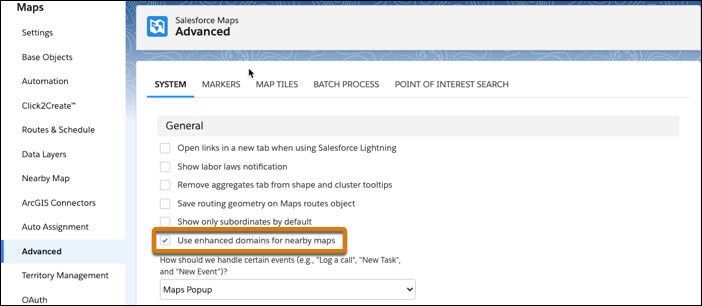
2. Next to the Salesforce Maps package, click **Configure**. On the Advanced tab, select the option to use enhanced domains. Then save your changes.
    
    ![Option to use enhanced domains in community sites](https://sf-zdocs-cdn-prod.zoominsoftware.com/tdta-sales-salesforce_maps-264-0-0-production-enus/2addcda4-01f0-4f47-83c5-f499a45bf555/salesforce_maps/images/maps_settings_nearby_maps_add_to_sites_enhanced_domains.png)
3. From Setup, in the Quick Find box, enter All Sites, and then select **All Sites**.
4. Next to the site that you want to add a nearby map to, click **Builder**.
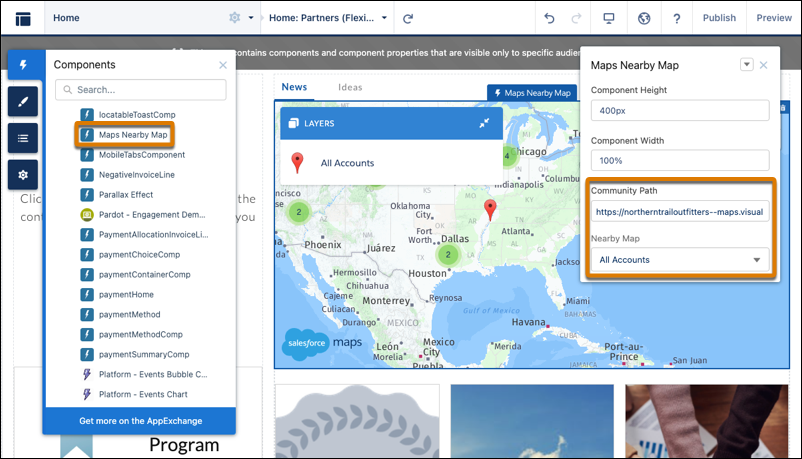
5. Select **Components**, and then scroll to Custom Components. Drag the **Maps Nearby Map** component to an area of the site layout where you want the nearby map to appear.
    
    ![Maps Nearby Map component on the site layout](https://sf-zdocs-cdn-prod.zoominsoftware.com/tdta-sales-salesforce_maps-264-0-0-production-enus/2addcda4-01f0-4f47-83c5-f499a45bf555/salesforce_maps/images/maps_settings_nearby_maps_add_to_sites.png)
6. In Community Path, enter your site’s domain.
7. In Nearby Map, select a global nearby map that you want to appear on the site. For example, to show all nearby account markers, select **All Accounts**.
8. Publish your site.
    
    ![Nearby map on the site](https://sf-zdocs-cdn-prod.zoominsoftware.com/tdta-sales-salesforce_maps-264-0-0-production-enus/2addcda4-01f0-4f47-83c5-f499a45bf555/salesforce_maps/images/maps_settings_nearby_maps_add_to_sites_result.png)
    
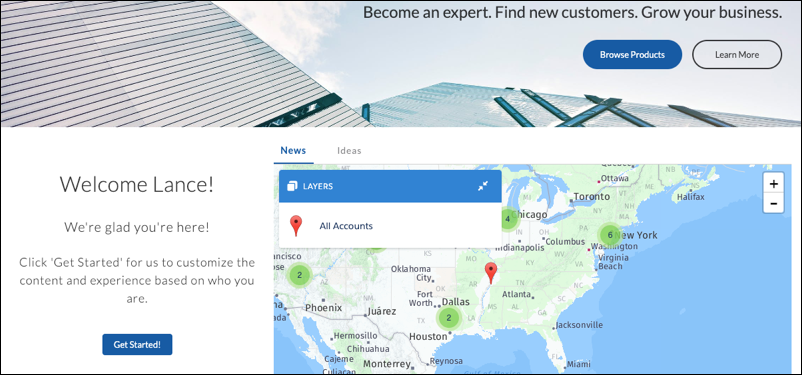
    The nearby map appears on the site.