Specify which users and profiles can access your shared folders within the Corporate
folder and the layers inside them.
Required Editions
| User Permissions Needed |
| To customize settings: |
Customize Application |
| To set folder permissions: |
Folder Permissions |
-
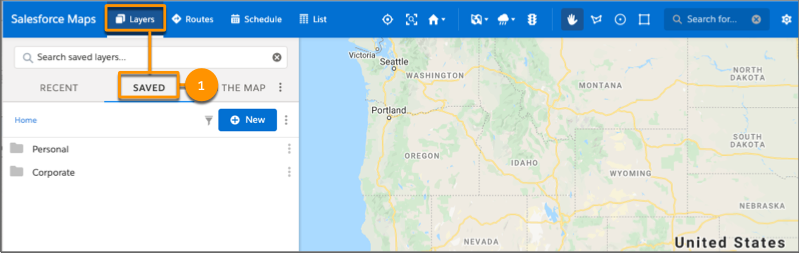
In Salesforce Maps, click .
-
Select Corporate.
-
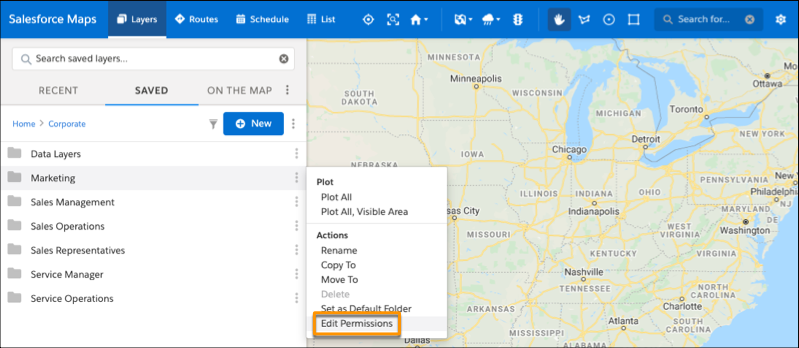
Right-click the folder that you want to set permissions for. Then, click Edit
Permissions.
-
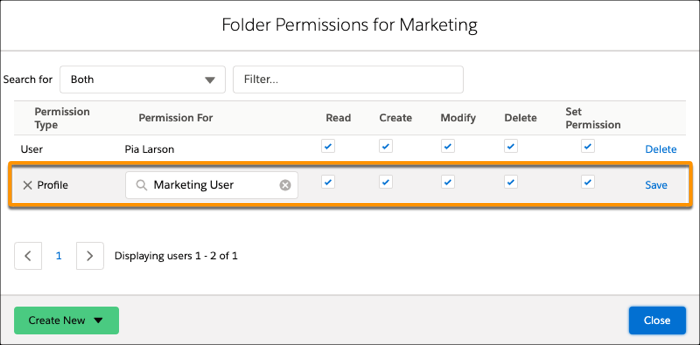
To add a permission, click or . Then, search for the user or profile that you want to set permissions
for.
-
Set the permissions that you want to grant to your user or profile. Then, save your
changes.