---
schema_version: "1"
id: 69accd14088bd9ac528c43bf10101c00b37af311b5c8eec01cda4df9f1161b8f
title: Set Permissions for Shared Layer Folders in Salesforce Maps
collection: admin
version: current
locale: en-us
portal_url: https://docs.salesforce.com/admin/current/en-us/sales/264-0-0/salesforce_maps_setup_folders_set_permissions.md
canonical_url: https://help.salesforce.com/s/articleView?id=sales.salesforce_maps_setup_folders_set_permissions.htm&release=264.0.0&type=5
source_site: help.salesforce.com
content_type: documentation
content_hash: 8d618f923df6c5439c072136aa2a68a33010e2a07d99bccce6006598f4bf8633
description: Specify which users and profiles can access your shared folders within the Corporate folder and the layers inside them.
products:
  - Sales
  - Salesforce Maps
release: "264"
---
# Set Permissions for Shared Layer Folders in Salesforce Maps

Specify which users and profiles can access your shared folders within the Corporate folder and the layers inside them.

### Required Editions

<table class="slds-table slds-table_bordered slds-max-medium-table_stacked slds-m-bottom_small edition"><colgroup><col></colgroup><tbody><tr class=""><td class="slds-cell-wrap" style="vertical-align:top;"><a href="https://help.salesforce.com/s/articleView?id=sales.salesforce_maps_editions.htm&amp;release=264.0.0&amp;type=5" title="Identify supported Salesforce editions, user interfaces, and product areas.">View supported editions</a>.</td></tr></tbody></table>

<table class="slds-table slds-table_bordered slds-max-medium-table_stacked slds-m-bottom_small permission">
        <colgroup>
          <col style="width:50%">
          <col style="width:50%">
        </colgroup>
        <thead class="slds-text-title_caps ">
          <tr class="">
            <th scope="colgroup" class="slds-cell-wrap" colspan="2" style="text-align:center;vertical-align:top;" id="d15450e60">User Permissions Needed</th>
          </tr>
        </thead>
        <tbody>
          <tr class="">
            <td data-label="User Permissions Needed" class="slds-cell-wrap" style="vertical-align:top;" headers="d15450e60 ">To customize settings:</td>

            <td class="slds-cell-wrap" style="vertical-align:top;" headers="d15450e60 ">Customize Application</td>

          </tr>
          <tr class="">
            <td data-label="User Permissions Needed" class="slds-cell-wrap" style="vertical-align:top;" headers="d15450e60 ">To set folder permissions:</td>

            <td class="slds-cell-wrap" style="vertical-align:top;" headers="d15450e60 ">Folder Permissions</td>

          </tr>
        </tbody>
      </table>

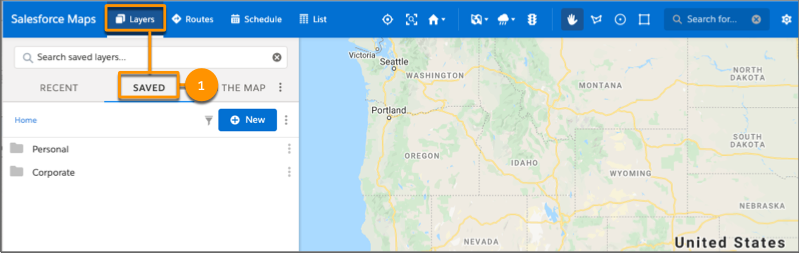
1. In Salesforce Maps, click **Layers** | **Saved**.
    
    ![Create folders from the Layers tab](https://sf-zdocs-cdn-prod.zoominsoftware.com/tdta-sales-salesforce_maps-264-0-0-production-enus/2addcda4-01f0-4f47-83c5-f499a45bf555/salesforce_maps/images/setup_folders_1.png)
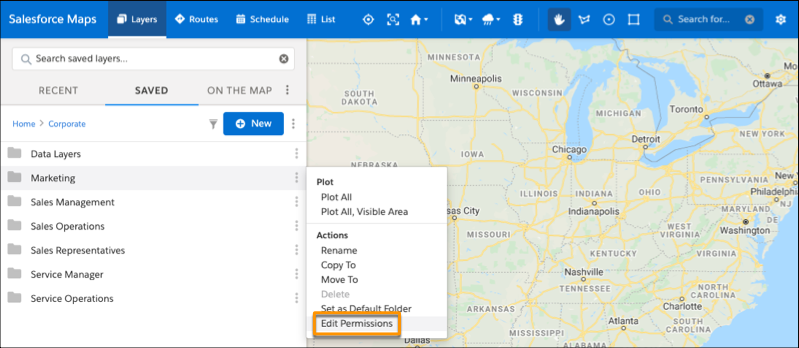
2. Select **Corporate**.
3. Right-click the folder that you want to set permissions for. Then, click **Edit Permissions**.
    
    ![Option to edit permissions](https://sf-zdocs-cdn-prod.zoominsoftware.com/tdta-sales-salesforce_maps-264-0-0-production-enus/2addcda4-01f0-4f47-83c5-f499a45bf555/salesforce_maps/images/setup_folder_permissions_1.png)
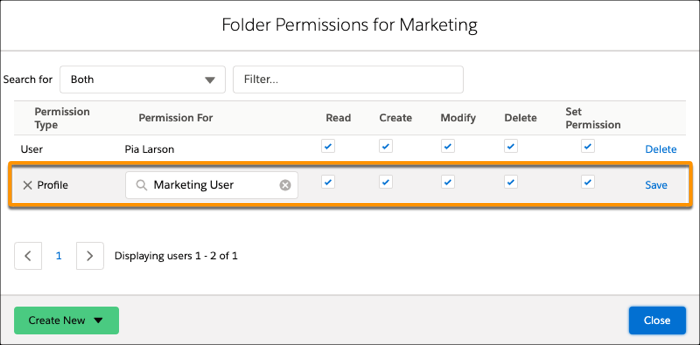
4. To add a permission, click **Create New** | **User** or **Create New** | **Profile**. Then, search for the user or profile that you want to set permissions for.
5. Set the permissions that you want to grant to your user or profile. Then, save your changes.
    
    ![Permission options for a user or profile](https://sf-zdocs-cdn-prod.zoominsoftware.com/tdta-sales-salesforce_maps-264-0-0-production-enus/2addcda4-01f0-4f47-83c5-f499a45bf555/salesforce_maps/images/setup_folder_permissions_2.png)