
Give stakeholders who participate in the planning process authority to create and update key components of Sales Planning through Salesforce Data Pipelines.
Required Editions
| Available in: both Salesforce Classic (not available in all orgs) and Lightning Experience |
| Available for an additional cost in: Enterprise, Performance, Unlimited, and Developer Editions with Sales Planning in English only, and only if you have Web Services API enabled |
| User Permissions Needed | |
|---|---|
| To turn on Data Pipelines and create data templates: | Data Pipelines Base User permission set |

Note Turning on Data Pipelines is required only if you’re using the included Data Pipelines licenses that come with Sales Planning. If you plan to use CRM Analytics instead of Data Pipelines with Sales Planning, skip these steps. See Considerations and Allocations for Permissions and Queries.
- Confirm that you added the Data Pipelines Base User permission set for your Sales Planning users.
-
From Setup, in the Quick Find box, enter Data Pipeline,
and then select Getting Started. Turn on Data
Pipeline.
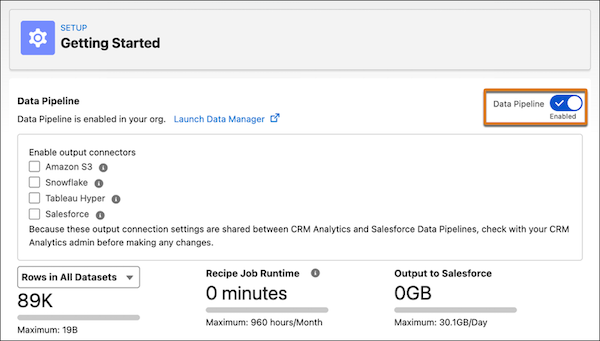
- Click Launch Data Manager | Data Templates | Sales Planning. Then click Next.
-
Enter the name Sales Planning and a description.
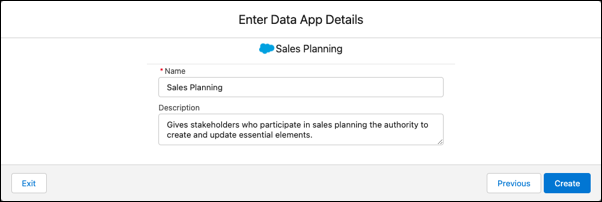
-
Click Create.
Data Pipelines creates an app that lets your stakeholders create and update elements necessary for sales planning processes.
 Important Do not modify the default sharing setting for the Sales Planning app. Restricting access prevents users from viewing data in Sales Planning and Territory Planning.