
A Quick Action performs a specific action in Salesforce, such as creating or updating a record. Quick Actions can help streamline your users’ experience. For example, you might need to update a lead status while on the go. Why bring up the full edit screen when you can create a quick action to update just the lead status?
Required Editions
| Available in: Lightning Experience in all editions |
| User Permissions Needed | |
|---|---|
| To add buttons to page layouts: | Customize Application and Modify All Data |
There are three types of Quick Actions that can be created for use in Seller-Focused Mobile Experience using the Mobile Builder for Seller-Focused Experience.
- Device actions (like phone or email)
- Global actions (like a new event, new task, or logging a call)
- Activity Composer Actions, which are object-specific (like posting, linking, and polling)
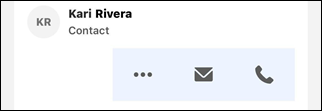
You can launch a quick action by tapping the three-dot menu.
- Swipe a record to the left on the mobile record home or object home screen to see the three-dot menu.
- Tap the three-dot menu on the mobile record detail screen.
For this example, we'll create a quick action that updates a lead status.
-
Click
 , then click Setup.
- Click Object Manager.
- Select the object to create an action for. For this example, click Lead.
- Click Buttons, Links, and Actions.
- Click New Action.
- Select an Action Type. For example, Update a Record.
- Optionally, select a Standard Label Type.
- Enter a Label. This will appear in the form of a button on the object page. For example, enter Update Lead Status.
- Press tab to autofill Name.
- Optionally, enter a Description.
- Optionally, enter a Success Message.
- Click Save.
- Now let's assign it to the page layout. Click Object Manager.
- Click Lead.
- Click Page Layouts.
- Click Lead Layout.
- Click Mobile & Lightning Actions.
- In the Salesforce Mobile and Lightning Experience Actions section, click the override the predefined actions link.
- Drag the Update Lead Status button to the Salesforce Mobile and Lightning Experience Actions section.
-
Click Save.
Your quick action is now available to use in Seller-Focused Mobile Experience.
For Seller-Focused Mobile Experience record pages, Lightning quick actions should be accessible from the quick actions list.
However, there are known limitations:
- Lightning web component (LWC) quick actions are not supported.
- Screen flow quick actions are not supported.
If you notice any quick actions are missing or not working correctly, use the View Full Record tab on the record page. This action loads the complete, web-based record page, giving you access to all its features.