---
schema_version: "1"
id: cf8f35bc96d0117e15641641ab5f194a2d989b97d523722c8e58b29cb16cf3ca
title: Create a Quick Action
collection: admin
version: current
locale: en-us
portal_url: https://docs.salesforce.com/admin/current/en-us/sales/264-0-0/sales_mobile_builder_create_a_quick_action.md
canonical_url: https://help.salesforce.com/s/articleView?id=sales.sales_mobile_builder_create_a_quick_action.htm&release=264.0.0&type=5
source_site: help.salesforce.com
content_type: documentation
content_hash: b1a003fe8fe5cb766bb8ab66a023034af3c88858eb003f4aaaeb5b599a40eb0b
description: A Quick Action performs a specific action in Salesforce, such as creating or updating a record. Quick Actions can help streamline your users’ experience. For example, you might need to update a lead status while on the go. Why bring up the full edit screen when you can create a quick action to update just the lead status?
products:
- Sales
- Mobile App
release: "264"
---
# Create a Quick Action
A Quick Action performs a specific action in Salesforce, such as creating or updating a record. Quick Actions can help streamline your users’ experience. For example, you might need to update a lead status while on the go. Why bring up the full edit screen when you can create a quick action to update just the lead status?
### Required Editions
Available in: Lightning Experience in all editions
User Permissions Needed
To add buttons to page layouts:
Customize Application and Modify All Data
There are three types of Quick Actions that can be created for use in Seller-Focused Mobile Experience using the Mobile Builder for Seller-Focused Experience.
- Device actions (like phone or email)
- Global actions (like a new event, new task, or logging a call)
- Activity Composer Actions, which are object-specific (like posting, linking, and polling)
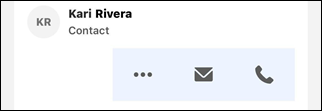
You can launch a quick action by tapping the three-dot menu.
- Swipe a record to the left on the mobile record home or object home screen to see the three-dot menu.
- Tap the three-dot menu on the mobile record detail screen.
For this example, we'll create a quick action that updates a lead status.
1. Click , then click **Setup**.
2. Click **Object Manager**.
3. Select the object to create an action for. For this example, click **Lead**.
4. Click **Buttons, Links, and Actions**.
5. Click **New Action**.
6. Select an Action Type. For example, **Update a Record**.
7. Optionally, select a Standard Label Type.
8. Enter a Label. This will appear in the form of a button on the object page. For example, enter Update Lead Status.
9. Press tab to autofill Name.
10. Optionally, enter a Description.
11. Optionally, enter a Success Message.
12. Click **Save**.
13. Now let's assign it to the page layout. Click **Object Manager**.
14. Click **Lead**.
15. Click **Page Layouts**.
16. Click **Lead Layout**.
17. Click **Mobile & Lightning Actions**.
18. In the Salesforce Mobile and Lightning Experience Actions section, click the **override the predefined actions** link.
19. Drag the **Update Lead Status** button to the Salesforce Mobile and Lightning Experience Actions section.
20. Click **Save**.
Your quick action is now available to use in Seller-Focused Mobile Experience.
For Seller-Focused Mobile Experience record pages, Lightning quick actions should be accessible from the quick actions list.
However, there are known limitations:
- Lightning web component (LWC) quick actions are not supported.
- Screen flow quick actions are not supported.
If you notice any quick actions are missing or not working correctly, use the **View Full Record** tab on the record page. This action loads the complete, web-based record page, giving you access to all its features.