
Your content stakeholders can preview all the new or changed trails and modules that you plan to publish in a release. The full release preview shows new or changed content in the context of all published content in your company’s enablement site. Only users with the appropriate permission can access the full release preview.
Required Editions
| Available in: Enterprise, Performance, and Unlimited Editions |
| User Roles | |
|---|---|
| This topic supports these enablement site roles: |
|
Release Preview Experience
The release preview provides these indicators.
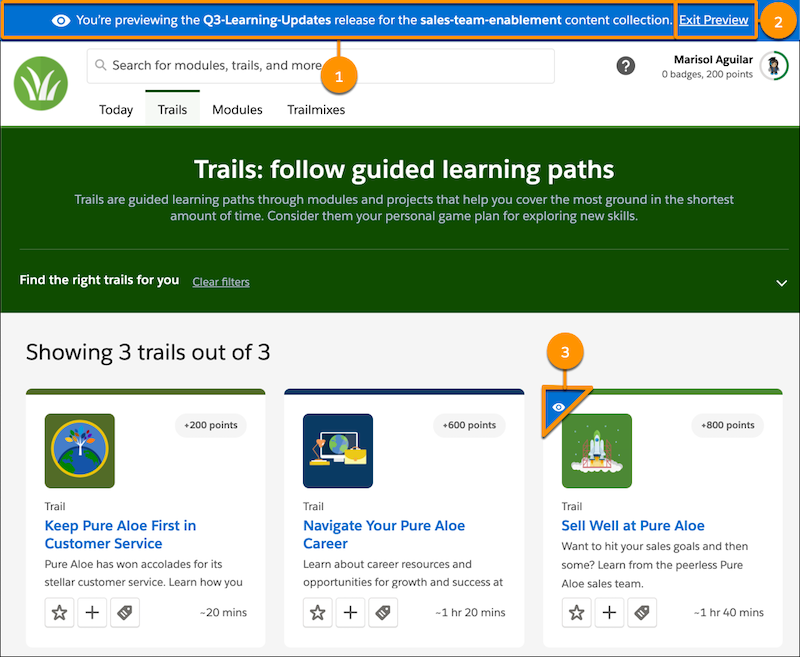
- A banner at the top of the page (1), which shows the API names of the release and the content collection that you’re previewing
- A link in the banner for exiting the preview (2)
- An eye icon (3) on any content that’s included in the release list but not yet published
In the release preview, you see everything that’s currently published for the content collection, plus whatever you’re adding or changing in the release that you’re previewing.
Let’s say that you update a module but not the trail that it belongs to. When you preview the trail, it looks the same as the published version. But when you preview the module, you see the changes that you made in that release.

Release Preview Requirements
To access content in the release preview, a user needs the Preview Release permission and the link to the release preview.

You can find the release preview link for your content in a few ways.
- Add content to an unpublished release from Trailmaker Content. The confirmation window includes a link to the content in the release preview.
- On the release page in Trailmaker Release, clickPreview.
- From the Unpublished Releases section of the content collection page in Trailmaker Release, select Preview from the release’s Actions dropdown menu.
Release Preview URL
If you know the enablement site's subdomain name and the API names of the content collection and release to preview, you can manually enter the release preview URL.
https://subdomain.my.trailhead.com/content/content-collection-API-name/enter-preview?release=release-API-nameReplace these variables with your values.
- subdomain
- Your subdomain name, such as purealoe.
- content-collection-API-name
- The API name of the content collection that contains the release to preview. For example, for a content collection named Sales Team Onboarding, the API name is sales-team-onboarding.
- release-API-name
- The API name of the release to preview. For example, for a release named 2022 Q1, the API name is 2022-Q1.
For this example, the release preview URL is:
https://purealoe.my.trailhead.com/content/sales-team-onboarding/enter-preview?release=2022-Q1Quizzes in Release Preview
In a release preview, a user can complete quizzes to confirm that the questions and answers are correct. A user can retake quizzes in preview mode multiple times.
But the release preview doesn’t record a user’s activity. The user doesn’t earn points or badges by completing quizzes and can’t create trailmixes, favorite content, or edit their profile. To perform these actions, the user must exit preview.
Localized Content in Release Preview
If the release includes content that’s been localized for other supported languages, you can view the translated content in release preview. Navigate to the content in release preview and select the appropriate language.