
After you create your module and quizzes and assign all the necessary metadata, add the content to a release.
Required Editions
| Available in: Enterprise, Performance, and Unlimited Editions |
| User Roles and Permissions | |
|---|---|
| Enablement Site User Roles | |
| This topic supports these enablement site roles: |
|
| Required System Permissions | |
| To create and edit content with Trailmaker Content: | Create Content |
| To upload content from Trailmaker Content to Trailmaker Release: |
Create Content AND Manage Releases |
When you add content to a release from Trailmaker Content, Trailmaker automatically adds the manifest item, assigns the Upsert operation to the item, and uploads the backpack to the release. All of these actions are necessary to add the content to a release. Complete these steps even if you already added a release item with the Upsert operation in Trailmaker Release. To learn more, review Considerations for Managing Releases.

Important To add a new unpublished trail with unpublished modules to a release,
add the content in this order.
- First add the modules to the release.
- Then add the trail.
-
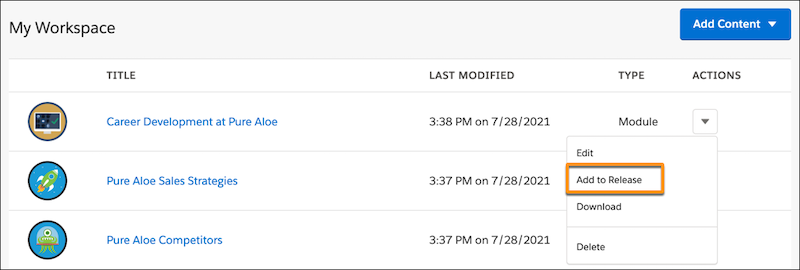
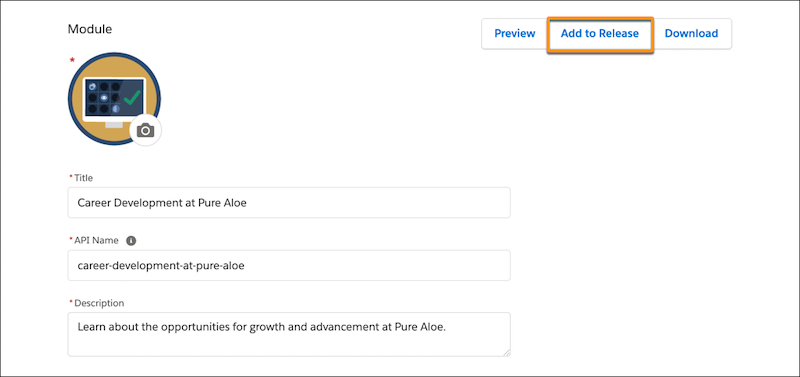
In Trailmaker Content, add a module or trail to an unpublished release from the workspace
or from the module or trail page.
- From the workspace, from the Actions menu for a module or trail, select Add to
Release.
- From a module or trail page, click Add to Release.
- From the workspace, from the Actions menu for a module or trail, select Add to
Release.
-
Select the content collection (1) where you want the content to appear, and select the
unpublished release (2) that determines when the content is published.
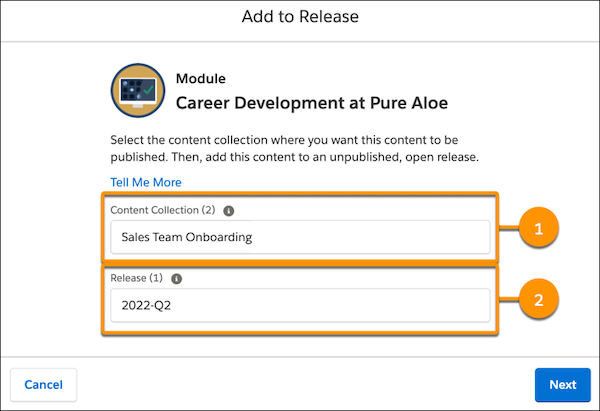
To successfully select a content collection and release:
- Make sure that you applied all required metadata for your content.
- In Salesforce, make sure that a Salesforce admin created content collections.
- In Trailmaker Release, make sure that the selected content collection has an unpublished release with an Open status.
- Click Next.
-
To copy the link to the content in the full release preview, click
Copy in the success window. Save the link to a handy location, such as
your desktop.
 Note It can take several minutes for your content to appear in the release preview.
 -
To download a backpack of your content, click Download in the
success window.
Note We recommend that you store this backpack in your version control system. This step helps ensure that other collaborators can access the most recent version of your content. You can also download the backpack from Trailmaker Release after the release is published. To learn more, see Download a Backpack from Trailmaker Release.
- Click Done.