
Keep reps focused on the records that fall within the boundaries that they own. Assign boundaries such as countries, states, or postal codes to your reps in Legacy Sales Planning.
Required Editions
| Available in: both Salesforce Classic (not available in all orgs) and Lightning Experience |
| Available for an additional cost in: Enterprise, Performance, Unlimited, and Developer Editions with Sales Planning in English only, and only if you have Web Services API enabled |
| User Permissions Needed | |
|---|---|
| To assign boundaries: |
Data Pipelines Base User permission set license Data Pipelines Base User permission set AND Sales Planning permission set |

Important
Feature is scheduled for retirement as of Summer'26. See Sales Planning version 1 Retirement
- Open your sales plan, and then click Edit Plan | Assignment.
-
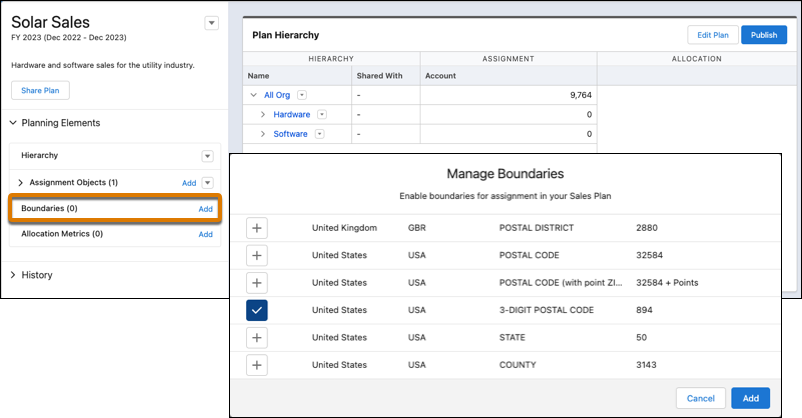
If you haven’t yet added boundaries, click Add next to Boundaries
and select the countries and boundaries that best align with your goals. Then click
Add.
The number of boundaries you select in the next step can impact performance. If you plan to include more than 10 boundaries, test thoroughly for performance issues. For the best performance, select fewer than 10 boundaries.
-
Select the boundaries that you want to assign, and then click
Assign.
The assignment panel appears.
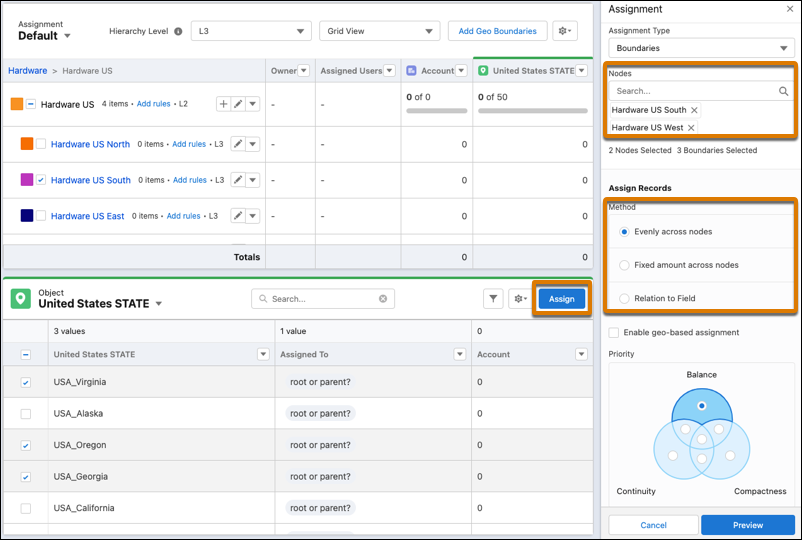
- Select at least one node. If you select multiple nodes, specify the method and priority for assigning records.
-
Preview the assignments, and then click Apply.
Sales Planning assigns boundaries and the records within them to your reps.