
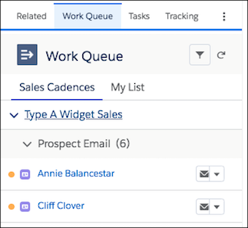
Sales reps can access the Sales Engagement Work Queue directly from the integrations with Microsoft® Outlook® and Gmail™. Add the Work Queue component to its own tab in a new or existing email application pane. Then assign the pane to your Sales Engagement users.
Required Editions
| Available in: Lightning Experience |
| Available with Sales Engagement, which is included with Sales in Performance, Einstein 1, and Unlimited Editions, and available for an extra cost in Professional and Enterprise Editions. Sales Engagement is also available for an extra cost in Service and Lightning Platform. |
| User Permissions Needed | |
|---|---|
| To set up the email integrations to use custom email application panes: | Customize Application |
| To create and save Lightning pages in the Lightning App Builder: | Customize Application |
Give your reps the flexibility to work through their queue from their email application.
- From Setup, enter Integration in the Quick Find box, then select Outlook Integration and Sync or Gmail Integration and Sync.
- Expand Let users access Salesforce records from Outlook/Gmail and enable Customize Content with App Builder.
- Under Email Application Panes, click Create New Pane and select With Inbox Features, or edit an existing pane in the list.
-
Click the Tabs component.

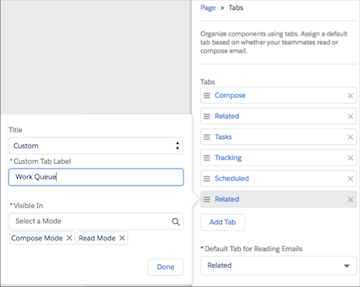
- In the Tabs component properties, click Add Tab.
- Click the tab and select Custom title.
- Enter a descriptive title for the tab, such as Work Queue, or something that describes the queue for your sales reps, and click Done.
-
Keep the tab visible in both Compose and Read modes.
-
Drag and move the tab in the Tabs list to where you want it to display.
Tabs are listed from top to bottom in the order they display from left to right in the pane. To make sure that a tab is visible without extra clicks, place the tab in one of the first few positions.
-
Drag the Work Queue component to the tab.
 Tip To track links in emails started from the Work Queue in Outlook, also add the Email Tracking component to a tab available in Compose mode.Tip The My Feed tab in the Work Queue shows engagements and alerts for emails sent from the Work Queue and tracked emails sent from outside the Work Queue. That information is also shown in the Feed tab in the email integration pane. To prevent duplicate feeds for reps who use the Work Queue, use the Lightning App Builder to remove the Feed tab from the email integration pane.
 - Click Save.
- Activate and assign the pane to the user profiles of reps who use Sales Engagement.