To help you identify recent changes in value to a forecast, changes within the last 7
days are highlighted in the forecast summary. As a sales leader, you don’t want to be caught
unaware of changes in your team’s forecast. Choose to show week-over-week changes for each
forecast category so that you can adjust your sales and forecasting strategies
accordingly.
Required Editions
| Available in: Available in: Professional, Performance,
and Developer Editions and
in Enterprise and Unlimited Editions with Sales |
| User Permissions Needed |
| To use Salesforce Forecasting: |
View All Forecasts
OR
Allow Forecasting
OR
Delegated forecast manager
status
|
| To access role-based forecasts in Lightning Experience: |
View Roles and Role Hierarchy |
| To adjust forecasts: |
Override Forecasts |
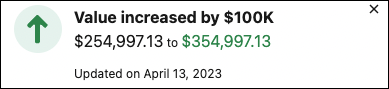
When the historical trending data is ready, on the forecasts page, the forecast rollup values
shown in the forecast summary that have changed in the last 7 days are highlighted with red and
green arrows. Hovering over the field shows the changes and when the value was last updated.
-
After the historical trending data is ready, go to the Forecasts page.
-
From the gear icon, select Show Changes in the Last 7 days.
The forecast rollup values that have changed in the last 7 days are highlighted with
green up arrows

for increases in values, and red down arrows

for decreases in values.
-
To see the details about what’s changed, hover over the forecast value.