
Use email templates to save time and standardize email sent by you or others in your organization.
Required Editions
| Available in: Lightning Experience for email templates created in Email Template Builder and Email Content Builder |
| Available in: Professional, Enterprise, Unlimited, Performance, and Developer Editions. |
| Available in: Account Engagement Lightning App for all Account Engagement editions |
| User Permissions Needed | |
|---|---|
| To create and edit Email Template Builder templates: | Access Drag-and-Drop Content Builder |
Before you get started building a template in the Email Template Builder, review Guidelines for Using Email Template Builder.
- Go to the Email Templates home.
- Click New Email Template. Fill out the New Email Template window, and then click Save.
- The next screen shows the email template details page for your new template. Click Edit in Builder.
-
Add a subject. To include merge fields in the subject, type them in manually.
 Note You can’t edit the subject in Email Template Builder.
 -
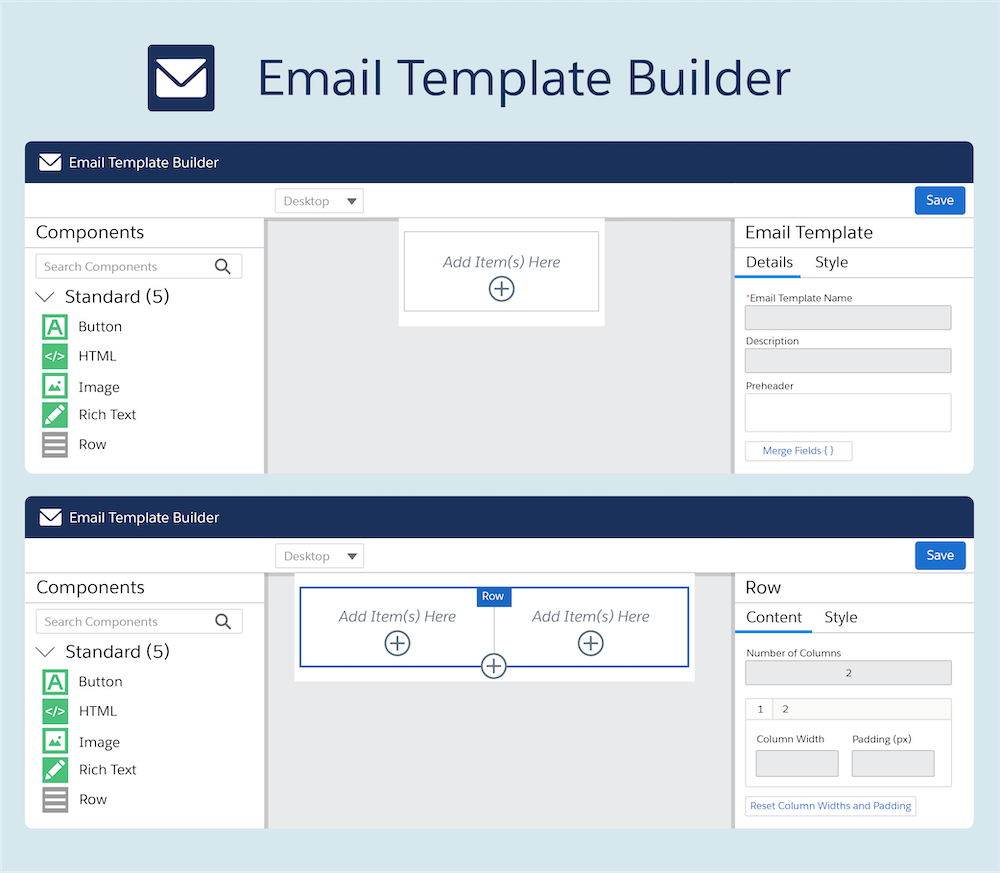
The Email Template Builder appears.
-
Add components to the template, and customize them in the properties panel. Click
Save, and then click the Back icon to
return to the Email Template home page.
Now you can use the new template in an email or list email in Lightning Experience or in Account Engagement emails.Note To see how your template looks, send it to yourself as a test.