
As sales reps send emails to groups of leads and contacts, they can schedule the list email to arrive at the most optimal time.
Required Editions
| Available in: Lightning Experience |
| Available with Sales Cloud and included in Professional, Enterprise, Performance, and Unlimited Editions |
| User Permissions Needed | |
|---|---|
| To send email: | Send Email permission and access to the record the email is sent from |
| To schedule an email to send later: |
Use Inbox user permission, available with a Sales Engagement, Sales Cloud Einstein, or Inbox license OR Sales Engagement Basic user permission |
-
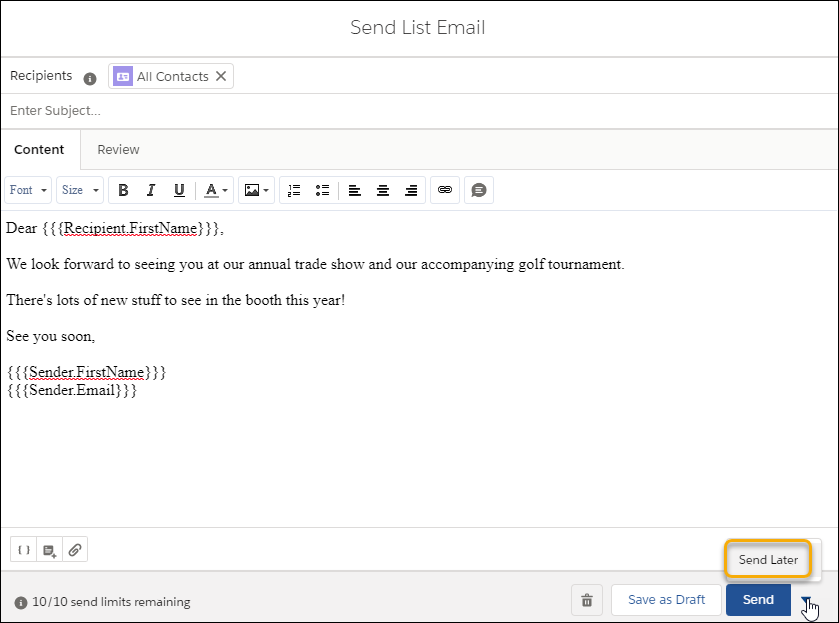
To schedule a list email, select Send Later.
-
Set a date and time for the list email to be sent.
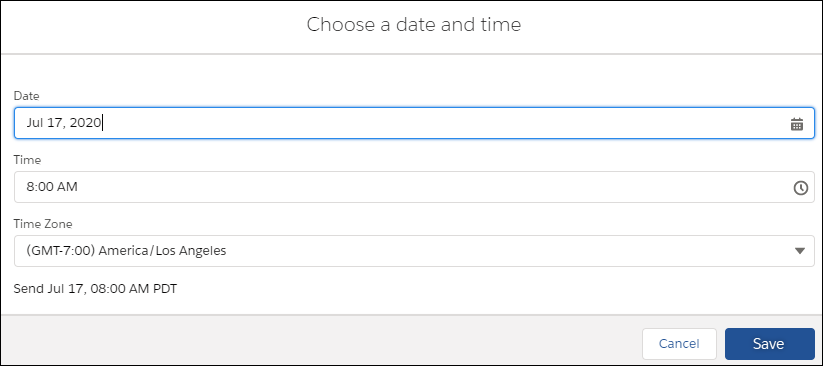
- Click Send Later and the email is scheduled to be sent at that date and time.
To change the scheduled time, or delete the email, go to the List Emails home page.
The scheduled date and time appear on the list email.
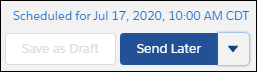
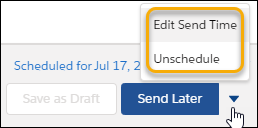
Choose Edit Send Time or Unschedule.

Note You can’t unschedule an email after its scheduled send time has
passed.