
Follow the prompts in the Setup to start the process. After you complete the upgrade, you can't roll back to Exchange Web Services (EWS).
Required Editions
| Available in: Lightning Experience |
| Available with Einstein Activity Capture Standard in Sales in Starter, Pro Suite, Professional, and Enterprise Editions |
| Available with Unlimited Edition, Einstein 1 Sales Edition, and Agentforce 1 Edition |
| Available with Einstein for Sales, which is included in Einstein 1 Sales Edition and available for an extra cost in Enterprise and Unlimited Editions |
| Available with Sales Engagement, which is included with Sales in Performance and Unlimited Editions, and available for an extra cost in Professional and Enterprise Editions |
| Available with Revenue Intelligence, which is available for an extra cost in Enterprise and Unlimited Editions |
| User Permissions Needed | |
|---|---|
| To connect Salesforce to Microsoft Office 365: | Customize Application or Modify All Data |
| To view the Einstein Activity Capture setup pages: |
View Setup and Configurations and Customize Application or Modify All Data |
Before you begin, confirm that your Azure admin has granted org-wide Microsoft Graph API access and permissions. See App ID for Microsoft Graph Authentication. The admin setting up the connection from Microsoft is required to be assigned the DirectoryRole of a Global Admin, Cloud Application Admin, or Application Admin. Use the tenant ID that you used when setting up org-level access for Einstein Activity Capture.
If Salesforce Inbox is configured in the org and its authentication method hasn’t been upgraded to Microsoft Graph, this upgrade procedure upgrades the authentication method of Salesforce Inbox to Microsoft Graph.
- From Setup, in the Quick Find box, enter Einstein Activity Capture, and then select Settings.
-
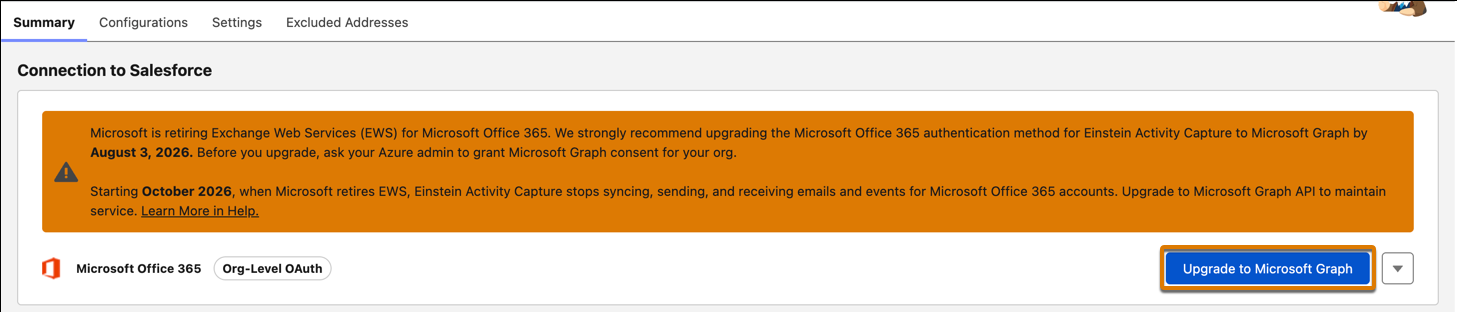
In the Summary tab, click Upgrade to Microsoft Graph.
-
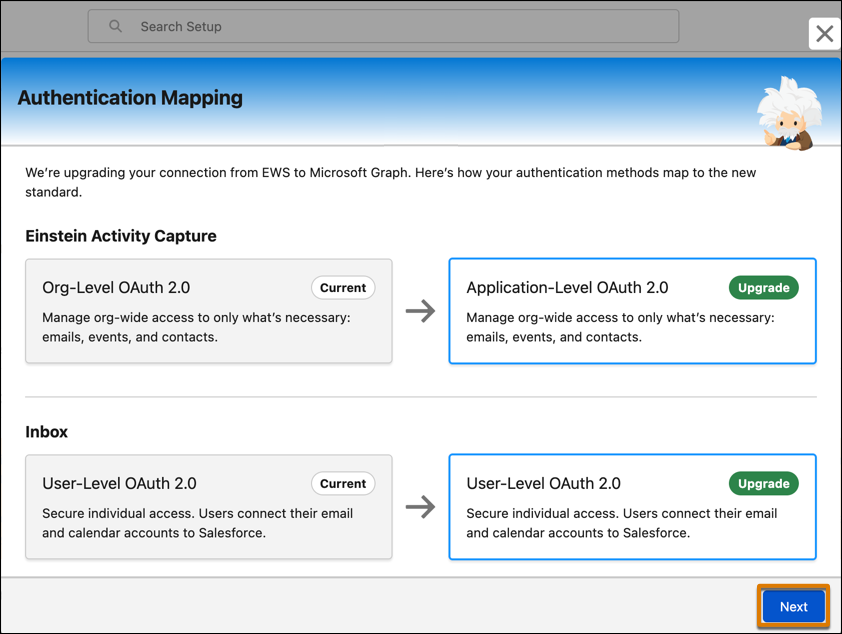
View the authentication-mapping details.
-
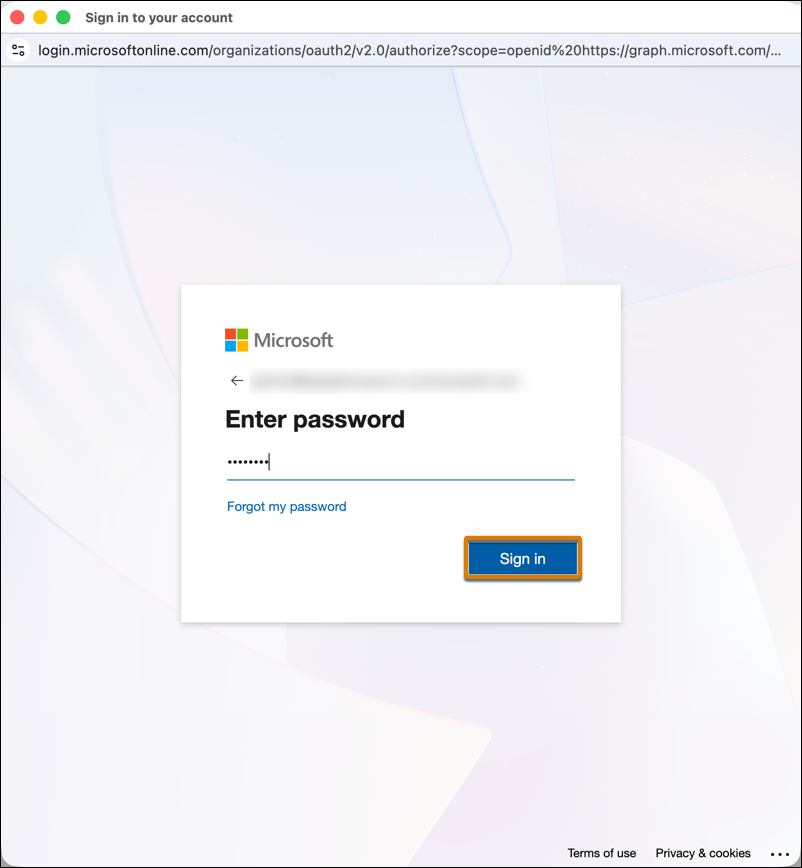
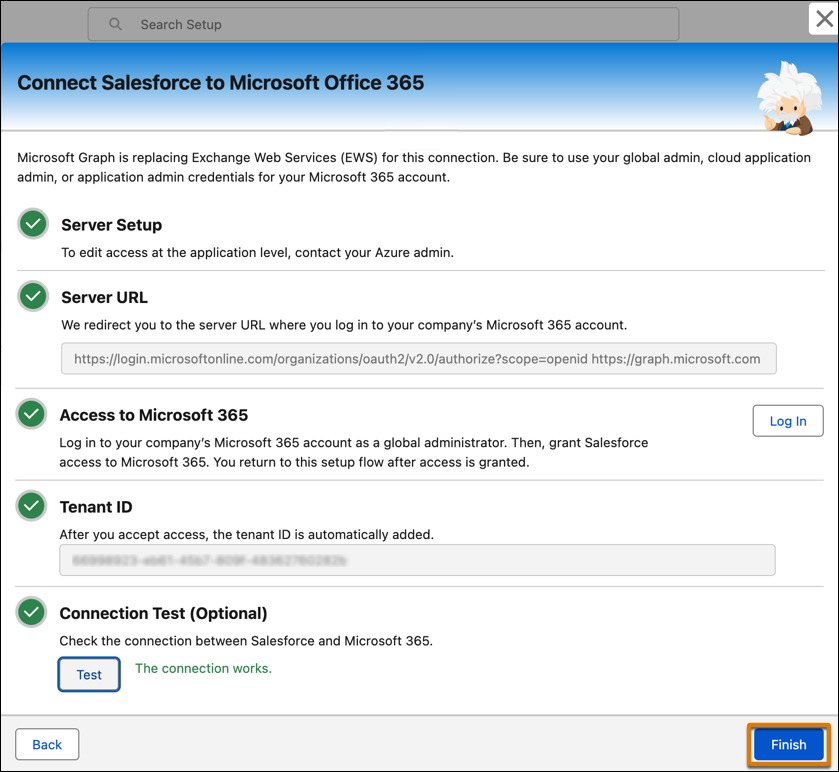
Click Log In to log in to your company’s Microsoft Office 365
account as a global administrator. Use the tenant ID that you used when setting up org-level
access for Einstein Activity Capture. You will need to reset Einstein Activity Capture to use a
different tenant ID.
- Optionally, click Test to test the connection.
-
Click Finish to complete the upgrade to Microsoft Graph.
Microsoft Office 365 authentication upgrades to Microsoft Graph for the entire org. No action is needed from individual users.