If a record duplicates other records, you can alert sales reps when they open the
record in Salesforce Classic by activating duplicate rules.
Required Editions
| Available in: Professional, Enterprise,
Performance, Unlimited, and Developer
Editions
|
| User Permissions
Needed |
| To view duplicate rules and matching rules: |
View Setup and Configuration |
| To create, edit, delete, activate, and deactivate duplicate rules and
matching rules: |
Customize Application |
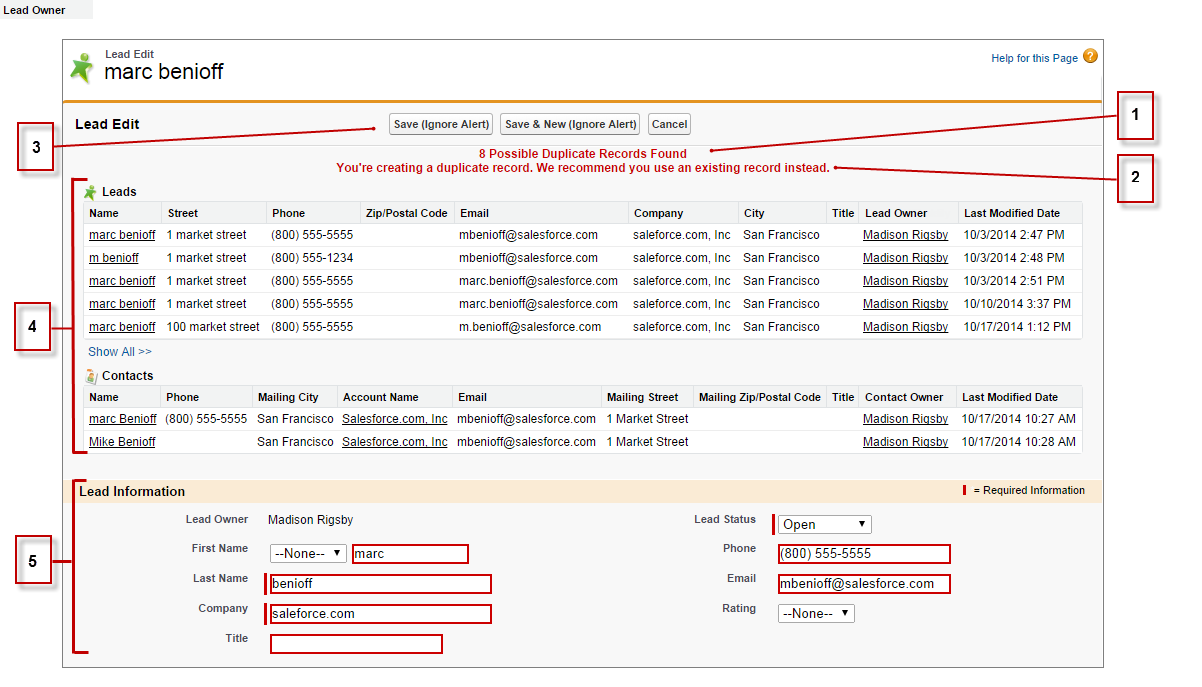
- Reps see a message with the number of duplicates found. The number represents
only the records that a rep has access to (1). If you’ve selected the
Bypass sharing rule option, which compares all
records regardless of a rep’s access, the message indicates whether duplicates
were detected. If a rep doesn’t have access to any of the duplicates, the
message indicates that there are duplicates but doesn’t include the number.
- If your duplicate rule includes an alert, it appears beneath the message
(2).
- If your duplicate rule lets reps save duplicates, they see the Save (Ignore
Alert) button (3). If your duplicate rule blocks reps from saving duplicates,
they see the Save button, but they can’t save the record.
- The list of duplicates includes only records that a rep has access to (4). The
fields shown include only fields that the rep has access to, up to the first
seven fields compared by the associated matching rule. The list displays a
maximum of five records. If more than five duplicates are found, clicking
Show All >> displays a full list of records, up
to 100.
- The highlighted fields were defined as matches by the associated matching rule
(5).
