
Run jobs to find duplicate business and person accounts, contacts, or leads across your org.
Required Editions
| Available in: Lightning Experience and Salesforce Classic (not available in all orgs) |
| Available in: Performance and Unlimited Editions |
| User Permissions Needed | |
|---|---|
| To run duplicate jobs: |
Customize Application AND View All Data |
 Use Matching Rules to Hunt Down Duplicate Records (English only)
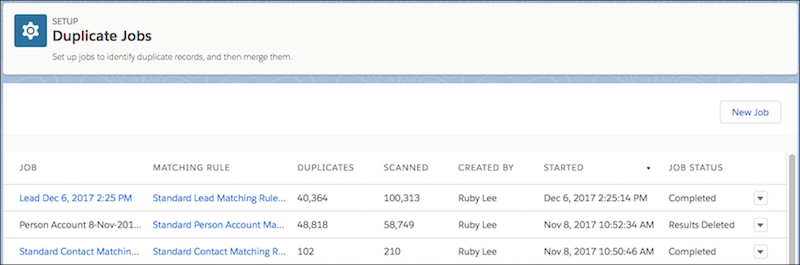
- In Setup, use the Quick Find box to find Duplicate Jobs.
-
Click New Job.
-
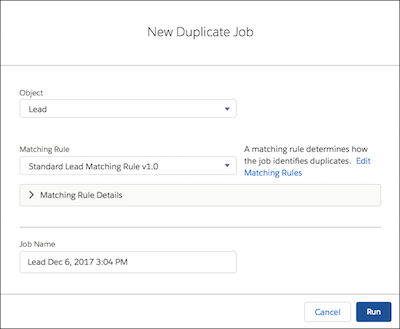
Select an object. Select an existing matching rule or create one. Only matching
rules for the object you select are available. If you like, edit the default job
name. Click Run.
 You can’t delete or edit the name or description after creating a job. If you’re working toward complying with various data protection and privacy regulations, consider excluding personal data from the name and description.The job summary page shows the status of jobs. You’re notified by email when a job is finished.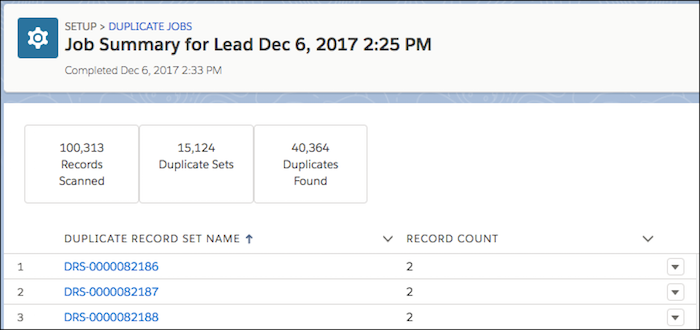
- To rerun a job, click New Job, and then select the same object and matching rule.
-
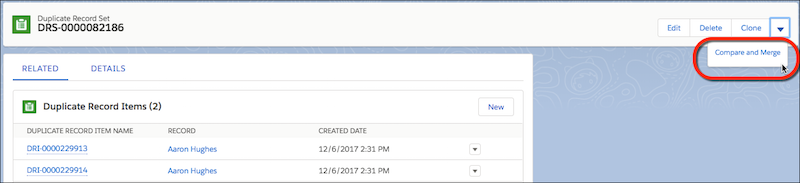
To view and merge duplicates, open a job summary page, and then open a record
set. Click the Related tab. Select the Compare
and Merge action.
 To let users merge duplicates in sets, give them access to duplicate record sets in Lightning Experience.
 - To share the results of a job, run a report on the duplicate record set generated by the job.