---
schema_version: "1"
id: 255f5fe3efbc1c748d4b010c10137ac1c976562e49458dbb78e44d4d24fc3c43
title: Run Duplicate Jobs in Lightning Experience
collection: admin
version: current
locale: en-us
portal_url: https://docs.salesforce.com/admin/current/en-us/sales/264-0-0/duplicate_jobs_run_and_manage.md
canonical_url: https://help.salesforce.com/s/articleView?id=sales.duplicate_jobs_run_and_manage.htm&release=264.0.0&type=5
source_site: help.salesforce.com
content_type: documentation
content_hash: 31b4fa84daa8d7f10404395ded1bdc25d1e1d73cd7a611f5b1952949d23c71e8
description: Run jobs to find duplicate business and person accounts, contacts, or leads across your org.
products:
  - Sales
  - Sales Enablement
release: "264"
---
# Run Duplicate Jobs in Lightning Experience

Run jobs to find duplicate business and person accounts, contacts, or leads across your org.

### Required Editions

<table class="slds-table slds-table_bordered slds-max-medium-table_stacked slds-m-bottom_small edition"><colgroup><col></colgroup><tbody><tr class=""><td class="slds-cell-wrap" style="vertical-align:top;">Available in: Lightning Experience and Salesforce Classic (<a href="https://help.salesforce.com/s/articleView?id=xcloud.overview_edition_lex_only.htm&amp;type=5&amp;language=en_US" target="_blank">not available in all orgs</a>)</td></tr><tr class=""><td class="slds-cell-wrap" style="vertical-align:top;">Available in: <strong>Performance</strong> and <strong>Unlimited</strong> Editions</td></tr></tbody></table>

<table class="slds-table slds-table_bordered slds-max-medium-table_stacked slds-m-bottom_small permission">
        <colgroup>
          <col style="width:50%">
          <col style="width:50%">
        </colgroup>
        <thead class="slds-text-title_caps ">
          <tr class="">
            <th scope="colgroup" class="slds-cell-wrap" colspan="2" style="text-align:center;vertical-align:top;" id="d7652e70">User
              Permissions Needed</th>
          </tr>
        </thead>
        <tbody>
          <tr class="">
            <td data-label="User Permissions Needed" class="slds-cell-wrap" style="vertical-align:top;" headers="d7652e70 ">To run duplicate jobs:</td>

            <td class="slds-cell-wrap" style="vertical-align:top;" headers="d7652e70 ">
              <p>Customize Application</p>
              <p>AND</p>
              <p style="margin-bottom:0;">View All Data</p>
            </td>

          </tr>
        </tbody>
      </table>

[![Watch Video Demo](https://sf-zdocs-cdn-prod.zoominsoftware.com/tdta-sales-data_quality-264-0-0-production-enus/abf88105-66d5-422e-983e-0592556338d7/data_quality/images/play_btn.png)Use Matching Rules to Hunt Down Duplicate Records (English only)](https://salesforce.vidyard.com/watch/PdYJPLbTqiI-kCXlWrr32w)

1. In Setup, use the Quick Find box to find **Duplicate Jobs**.
2. Click **New Job**.
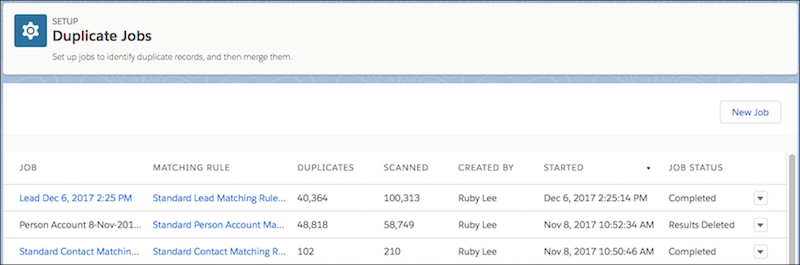
    
    ![Duplicate jobs page in Setup](https://sf-zdocs-cdn-prod.zoominsoftware.com/tdta-sales-data_quality-264-0-0-production-enus/abf88105-66d5-422e-983e-0592556338d7/data_quality/images/duplicate_jobs.png)
3. Select an object. Select an existing matching rule or create one. Only matching rules for the object you select are available. If you like, edit the default job name. Click **Run**.
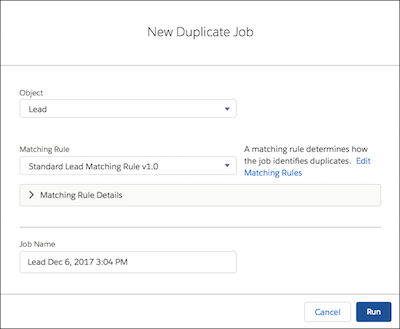
    
    ![New Duplicate Jobs dialog in Setup](https://sf-zdocs-cdn-prod.zoominsoftware.com/tdta-sales-data_quality-264-0-0-production-enus/abf88105-66d5-422e-983e-0592556338d7/data_quality/images/duplicate_job_new.png)
    
    You can’t delete or edit the name or description after creating a job. If you’re working toward complying with various data protection and privacy regulations, consider excluding personal data from the name and description.
    
    The job summary page shows the status of jobs. You’re notified by email when a job is finished.
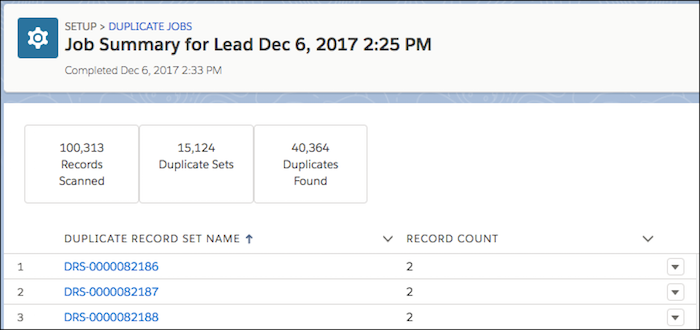
    
    ![A job summary page, with Compare and Merge option selected for one duplicate record set](https://sf-zdocs-cdn-prod.zoominsoftware.com/tdta-sales-data_quality-264-0-0-production-enus/abf88105-66d5-422e-983e-0592556338d7/data_quality/images/duplicate_job_summary.png)
4. To rerun a job, click **New Job**, and then select the same object and matching rule.
5. To view and merge duplicates, open a job summary page, and then open a record set. Click the **Related** tab. Select the **Compare and Merge** action.
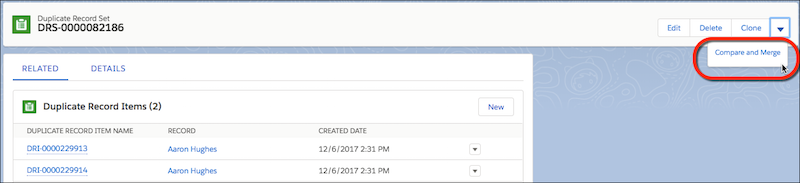
    
    ![A duplicate record set in Lightning Experience, with Compare and Merge option](https://sf-zdocs-cdn-prod.zoominsoftware.com/tdta-sales-data_quality-264-0-0-production-enus/abf88105-66d5-422e-983e-0592556338d7/data_quality/images/duplicatemanagement_record_set.png)
    
    To let users merge duplicates in sets, give them access to duplicate record sets in Lightning Experience.
6. To share the results of a job, run a report on the duplicate record set generated by the job.