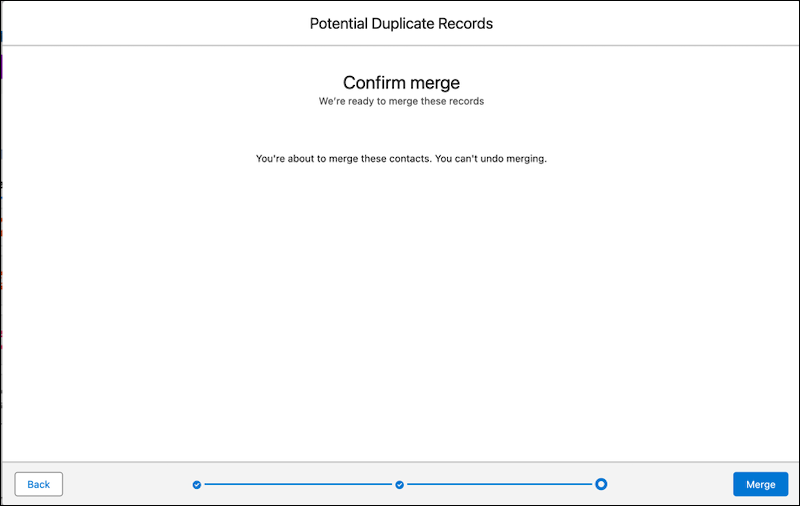
Merge duplicate contacts using Lightning Experience.
Required Editions
| Available in: Lightning Experience |
| Available in: Essentials, Professional, Enterprise, Performance, Unlimited, and Developer Editions |
| User Permissions Needed | |
|---|---|
| To merge contacts: | Delete on contacts |
| To merge Customer Portal enabled contacts: |
Delete on contacts AND Manage Customer Users OR Edit Self-Service Users |
| To merge Partner Portal enabled contacts: |
Delete on contacts AND Manage External Users OR Manage Partners |

Note If duplicate contacts aren’t getting flagged, see “Standard Contact Matching Rule” in Salesforce Help to learn how Salesforce identifies duplicate records. Work with your Salesforce admin to fine-tune your matching rules if necessary.
-
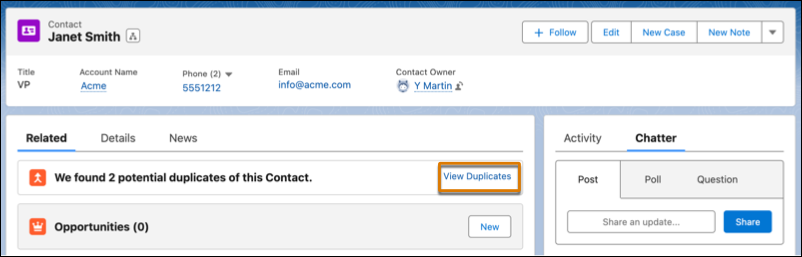
Choose a contact record. A message tells you if duplicates exist for that record. To see them, click View Duplicates.
-
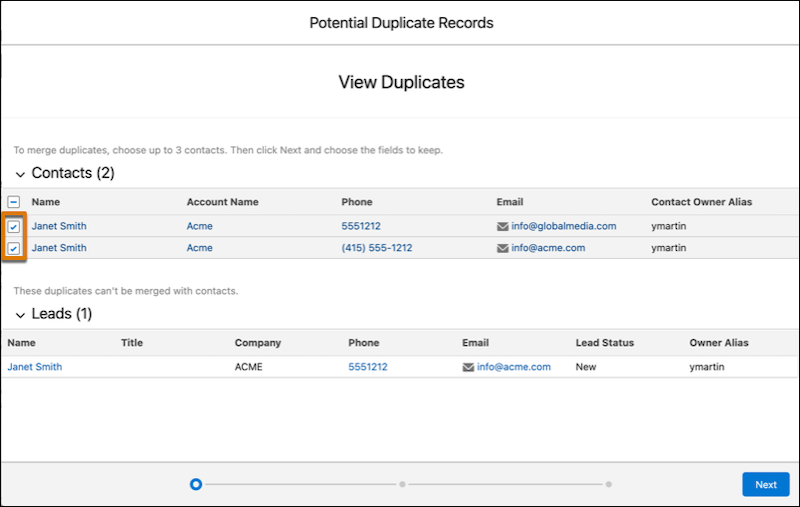
Choose up to three contact records to merge. Click Next.
-
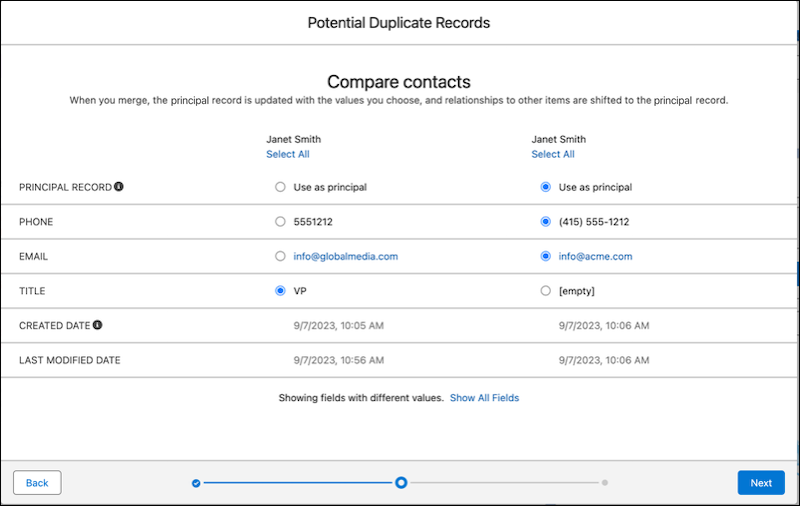
Choose one contact as the principal contact, and choose the field values that you want
to keep. Click Next.
 Note In Lightning Experience, portal user status isn’t shown during merging.
 -
Confirm your choices and merge.