
To enable Campaign Influence 1.0, add the Campaign Influence related list to Opportunity page layouts and decide whether to configure the optional auto-association settings.
Required Editions
| Available in: Salesforce Classic |
| Available in: Salesforce Professional, Enterprise, Performance, Unlimited, and Developer Editions |
| User Permissions Needed | |
|---|---|
| To set up Campaign Influence: | Customize Application |

Note This information applies only to
Campaign Influence 1.0 and not to Customizable
Campaign Influence .
- From Setup, in the Quick Find box, enter Opportunities, and select Page Layouts.
- Select a page layout to work with.
- Drag in the Campaign Influence related list.
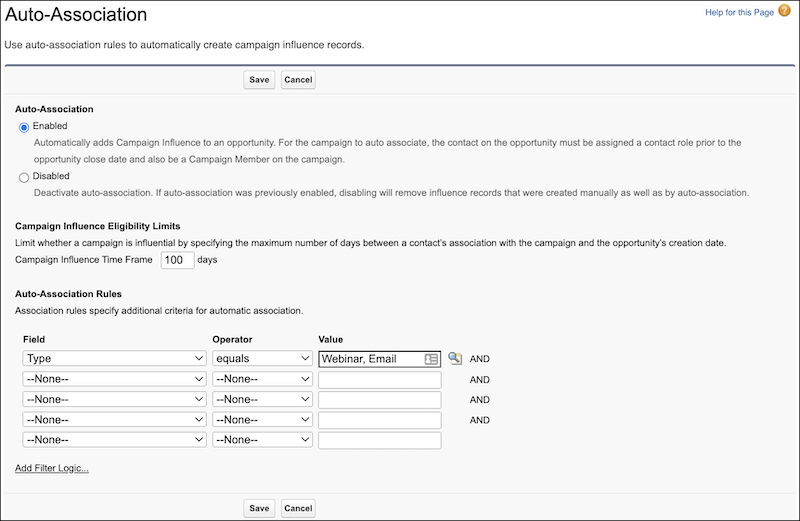
- To turn on auto-association, enter Influence in the Quick Find box, open Auto-Association Settings, and then select Enabled.
-
To customize auto-association, enter a time frame or other rules to limit when a
campaign is auto-associated.
- Save your work.
When auto-association is enabled and the campaign meets the criteria that you specified, it’s added automatically to the related list on an open opportunity. The entry includes the contact’s name, contact role, and campaign member status.
If you don’t enable auto-association, users manually add campaigns to the related list.