---
schema_version: "1"
id: 40efa0aeb97525e409ac15714f108b711556ac50c9d5f826ec9f76429a239e1a
title: Configure Campaign Influence
collection: admin
version: current
locale: en-us
portal_url: https://docs.salesforce.com/admin/current/en-us/sales/264-0-0/campaigns_influence_setup.md
canonical_url: https://help.salesforce.com/s/articleView?id=sales.campaigns_influence_setup.htm&release=264.0.0&type=5
source_site: help.salesforce.com
content_type: documentation
content_hash: 500879fc6f107f84b10f7ad6980bec458ae70344aee887ce37d15b8a1c5a1c13
description: To enable Campaign Influence 1.0, add the Campaign Influence related list to Opportunity page layouts and decide whether to configure the optional auto-association settings.
products:
- Sales Cloud
release: "264"
---
# Configure Campaign Influence
To enable Campaign Influence 1.0, add the Campaign Influence related list to Opportunity page layouts and decide whether to configure the optional auto-association settings.
### Required Editions
Available in: Salesforce Classic
Available in: Salesforce Professional, Enterprise, Performance, Unlimited, and Developer Editions
User Permissions
Needed
To set up Campaign Influence:
Customize Application

Note This information applies only to Campaign Influence 1.0 and not to [Customizable Campaign Influence](https://help.salesforce.com/s/articleView?id=sales.campaigns_influence_customizable.htm&type=5&language=en_US) .
1. From Setup, in the Quick Find box, enter Opportunities, and select **Page Layouts**.
2. Select a page layout to work with.
3. Drag in the Campaign Influence related list.
4. To turn on auto-association, enter Influence in the Quick Find box, open **Auto-Association Settings**, and then select **Enabled**.
5. To customize auto-association, enter a time frame or other rules to limit when a campaign is auto-associated.
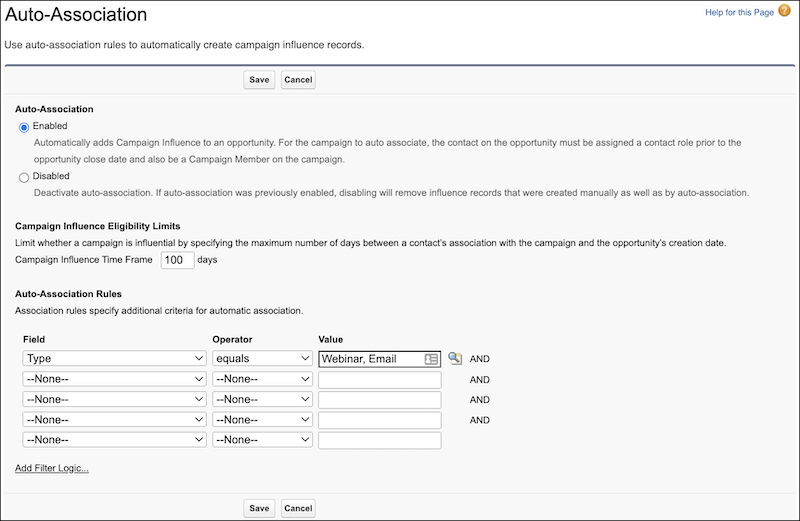
6. Save your work.
When auto-association is enabled and the campaign meets the criteria that you specified, it’s added automatically to the related list on an open opportunity. The entry includes the contact’s name, contact role, and campaign member status.
If you don’t enable auto-association, users manually add campaigns to the related list.