
When you’re ready to set up Customizable Campaign Influence, turn on the feature in Setup. Then select or create the model you want to use.
Required Editions
| Available in: Salesforce Classic and Lightning Experience |
| Available in: Salesforce Professional, Enterprise, Performance, Unlimited, and Developer Editions |
| User Permissions Needed | |
|---|---|
| To enable Campaign Influence: |
Sales Cloud User, Service Cloud User, or CRM User permission set license AND Customize Application |
| To view Campaign Influence records: |
Campaign Influence permission set AND Read on campaigns and opportunities AND Marketing User selected in User Detail |
For Account Engagement users, we recommend turning on Connected Campaigns before you set up Customizable Campaign Influence. Connecting your campaigns shares Account Engagement marketing data with Salesforce to give you a bigger picture of performance.
- From Setup, enter Influence in the Quick Find box, and then select Campaign Influence Settings.
- Under Campaign Influence, select Enabled.
-
If you use Account Engagement, choose whether to enable Additional Campaign Influence
Models.
These models don’t support custom fields in auto-association rule criteria.
-
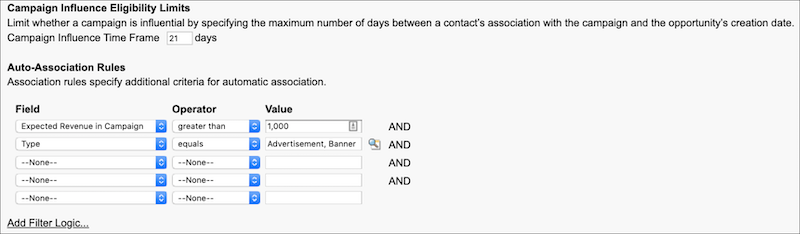
Under Campaign Influence in Setup, select Auto-Association
Settings. Then enter the criteria that you want to use to limit associations
by time frame or field values.
For best results, use the lookup icon to add multiple criteria in the Value fields.
- To review a model’s details, click Model Settings and edit a model from the list.
- To show data in related lists, edit a model and select Default Model.