
Merge duplicate accounts in Lightning Experience.
Required Editions
| Available in: Lightning Experience |
| Available in: Essentials, Professional, Enterprise, Performance, Unlimited, and Developer Editions |
| User Permissions Needed | |
|---|---|
| To view business or person accounts: | Read on business or person accounts |
| To merge business or person accounts: |
Delete on business or person accounts AND You must be a Salesforce admin, the account owner, or a user above the account owner in the role hierarchy |

Note If duplicate accounts aren’t getting flagged, see Standard Account Matching Rule in Salesforce Help to
learn how Salesforce identifies duplicate records. Work with your Salesforce admin to
fine-tune your matching rules if necessary.
-
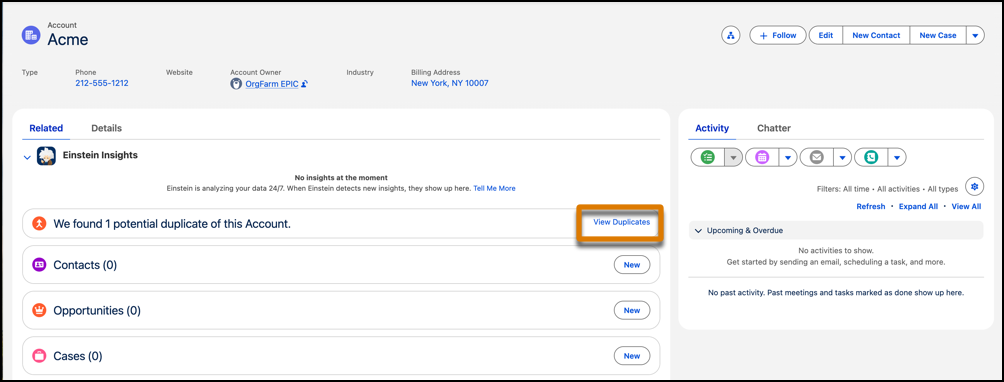
Open an account record. If duplicates exist for that record, you see a message. To see
the duplicate records, click View Duplicates.
You can merge business accounts or person accounts. You can’t merge business and person accounts with each other.
-
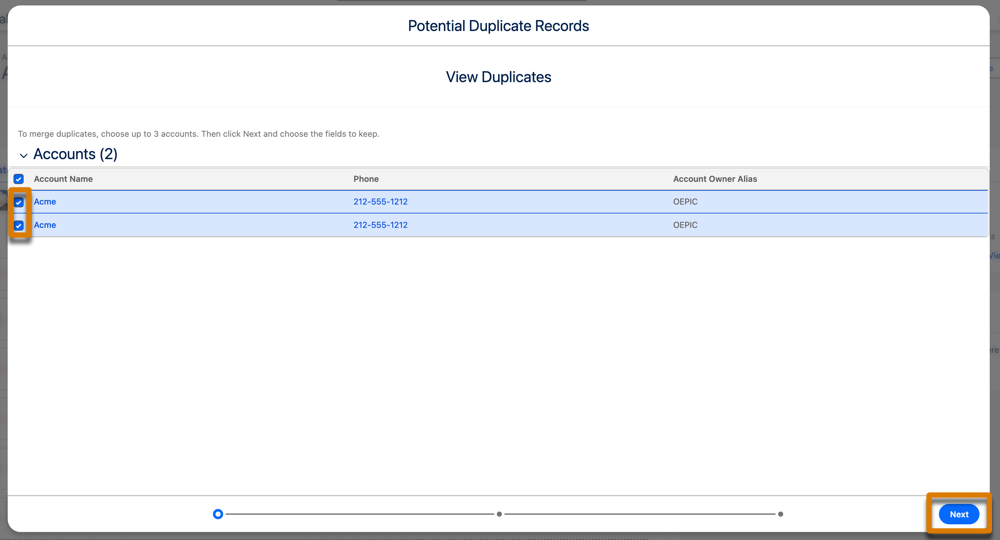
Select up to three account records to merge. Click Next.
-
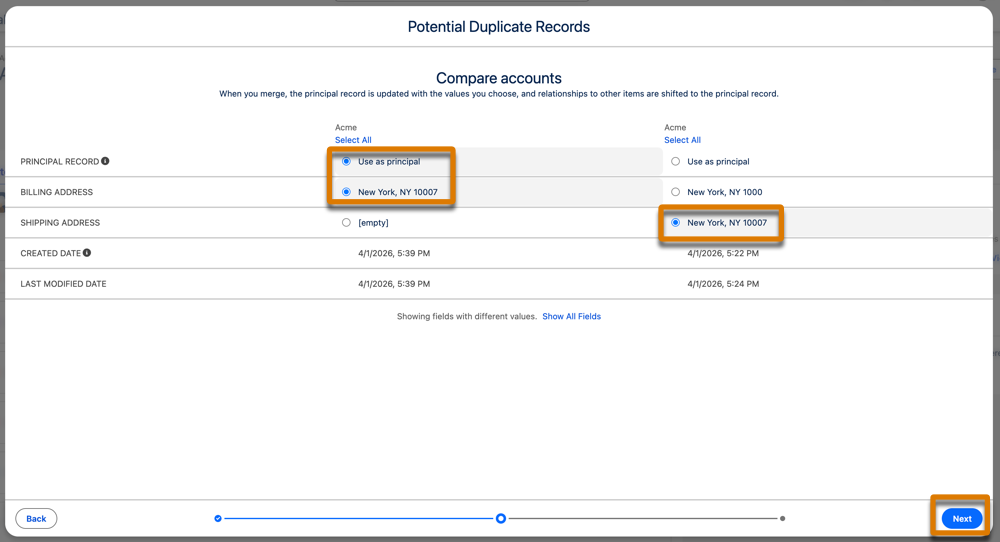
Select one account record as the principal record. Salesforce retains any data in
hidden or read-only fields, such as sharing settings, from the primary record. Then,
select any other field values that you want to keep and click
Next.
-
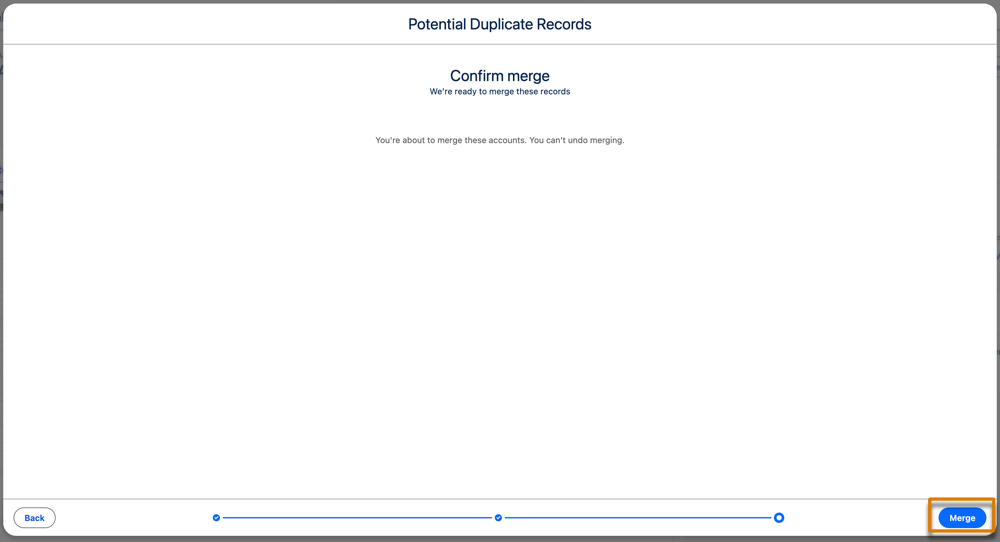
Confirm your choices and merge.
Note To merge accounts that are not detected by duplicate rules, use the merge tool in
Salesforce Classic. See Merge Duplicate Accounts in Salesforce Classic in
Salesforce Help.