
In some cases, you can’t immediately deactivate an account, such as when a user is selected in a custom hierarchy field. To prevent users from logging in to your organization while you perform the steps to deactivate them, you can freeze user accounts.
Required Editions
| Available in: both Salesforce Classic and Lightning Experience |
| Available in: Essentials, Contact Manager, Essentials, Group, Professional, Enterprise, Performance, Unlimited, Developer, and Database.com Editions |
| User Permissions Needed | |
|---|---|
| To freeze or unfreeze user accounts: |
Freeze Users OR Manage Users |
Let’s say a user just left your company. You want to deactivate the account, but the user is selected in a custom hierarchy field. Because you can’t immediately deactivate the account, you can freeze it in the meantime.

Tip Instead of completing this task manually, get help from Setup with
Agentforce. For example, tell the Setup agent, “Freeze Jason Beck's account.” For more
information, see User Management in Setup with
Agentforce.
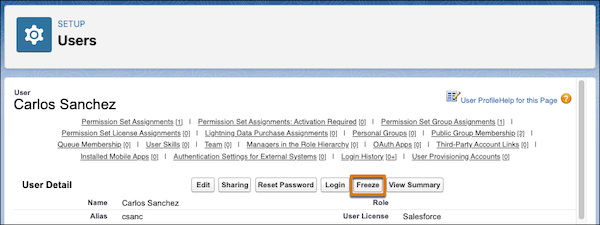
- From Setup, enter Users in the Quick Find box, then select Users.
- Click the username of the account you want to freeze.
-
Click Freeze to block access to the
account or Unfreeze to allow access
to the account again.
Freezing user accounts doesn’t make their user licenses available for use in your organization. To make their user licenses available, deactivate the accounts.