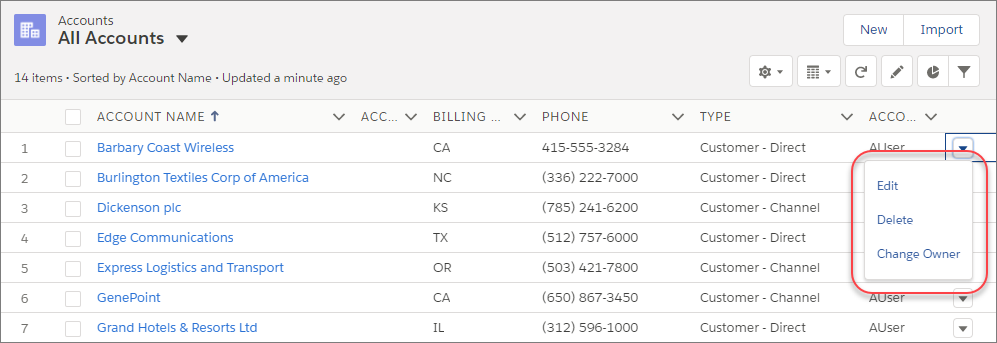
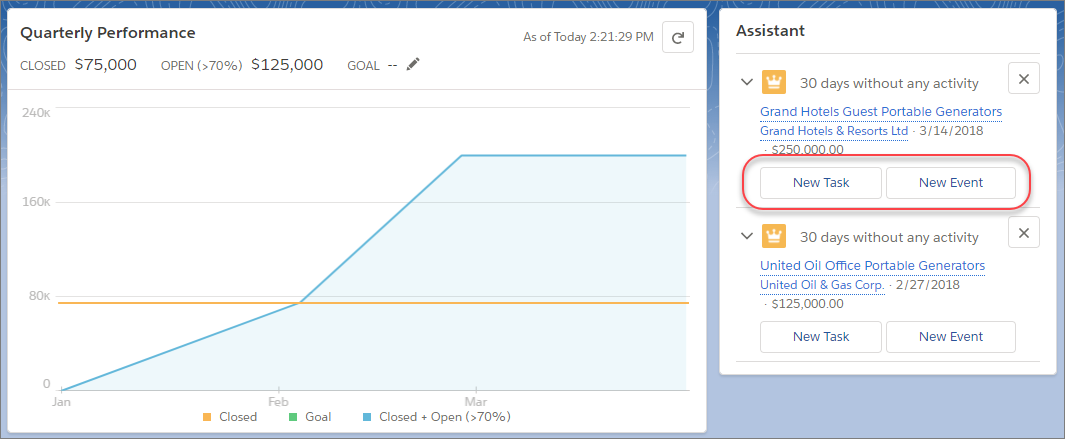
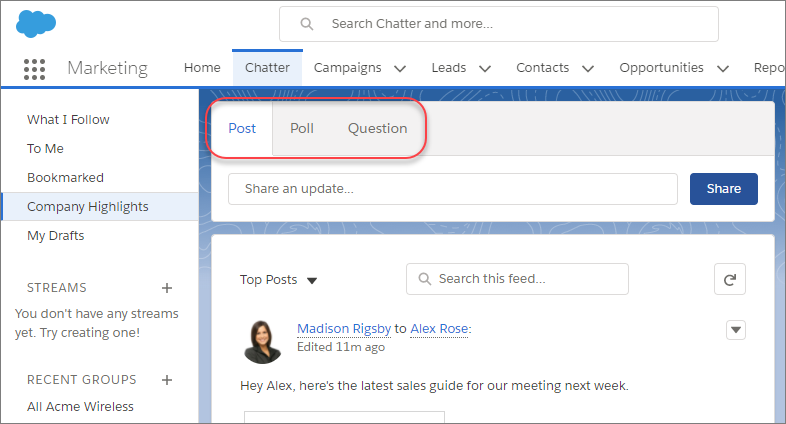
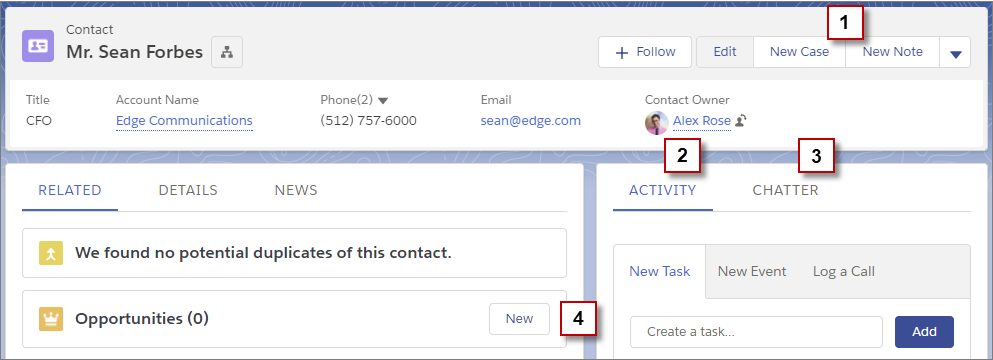
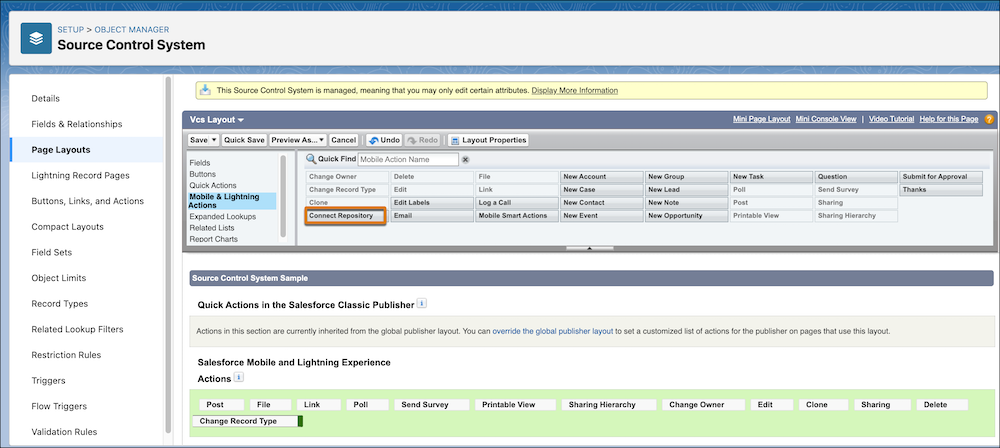
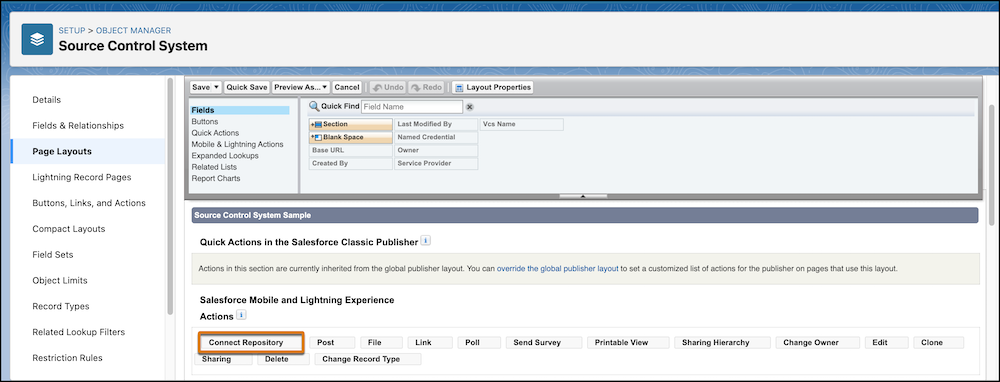
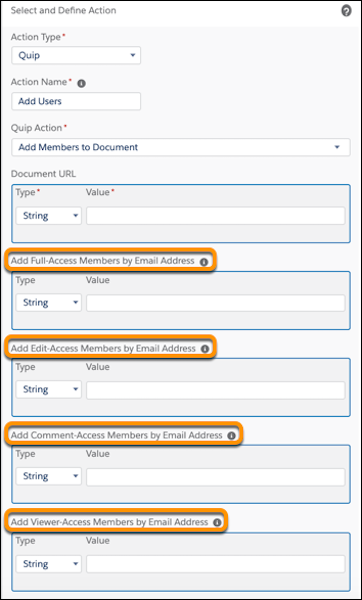
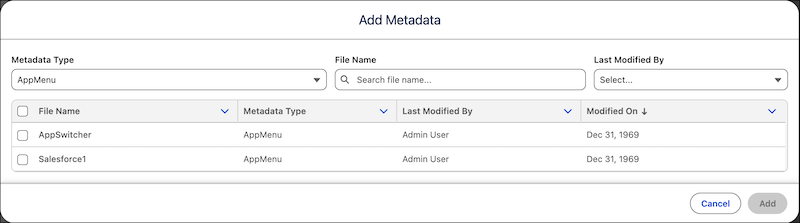
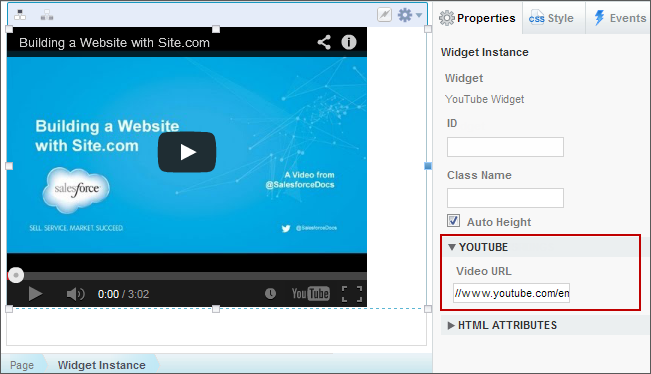
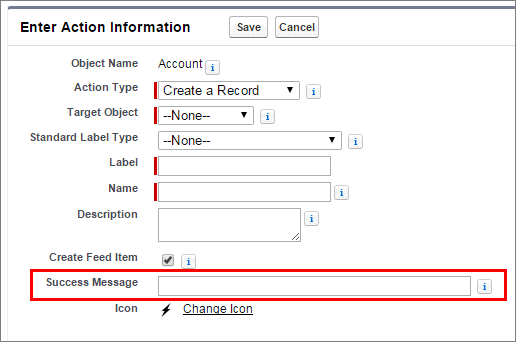
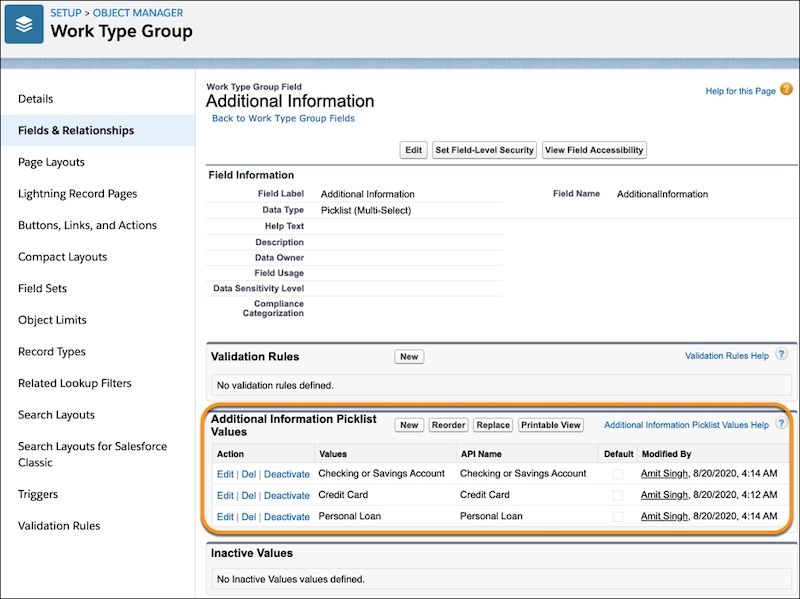
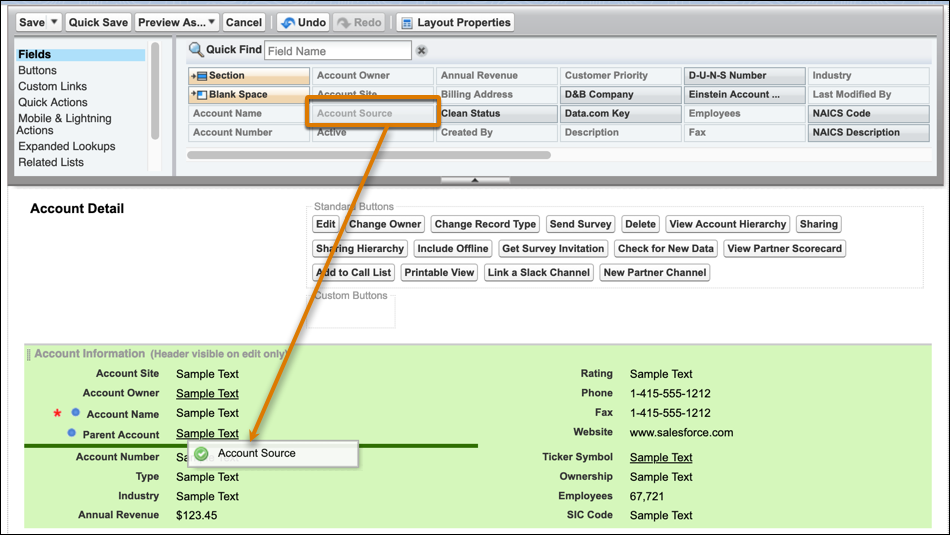
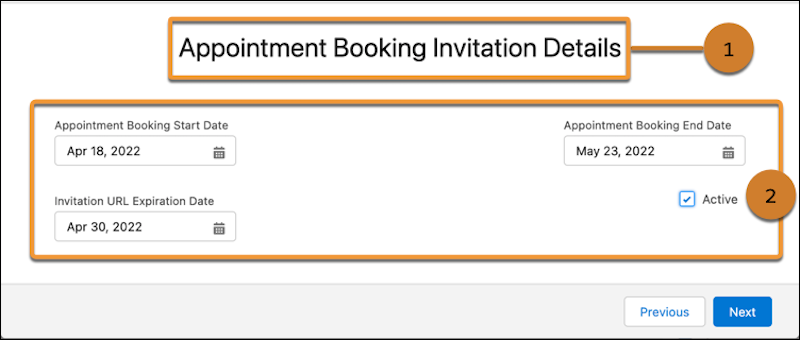
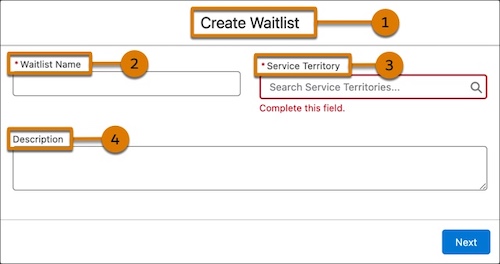
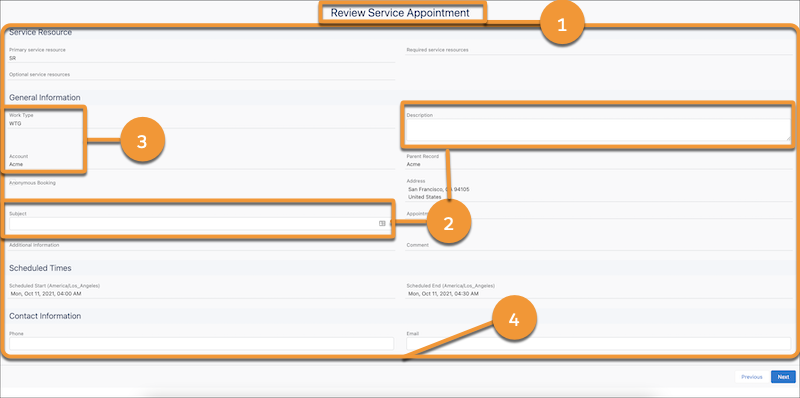
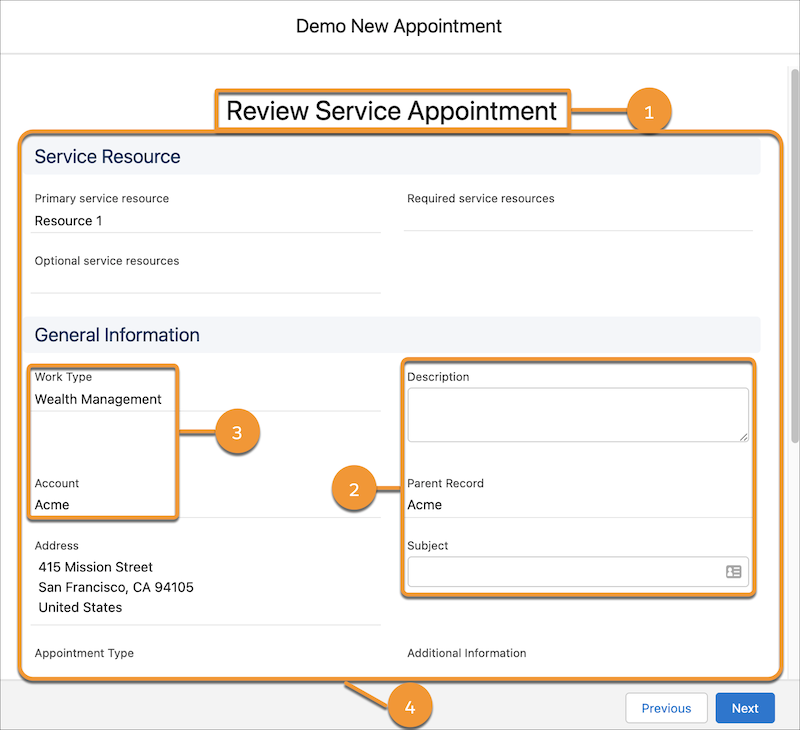
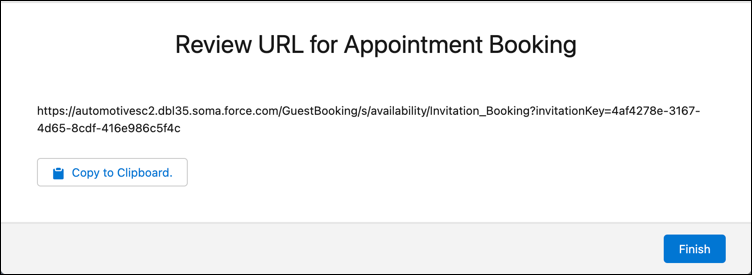
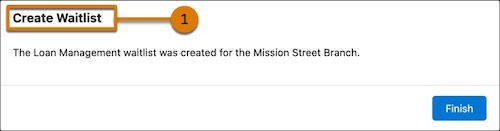
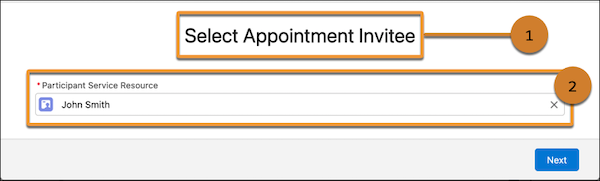
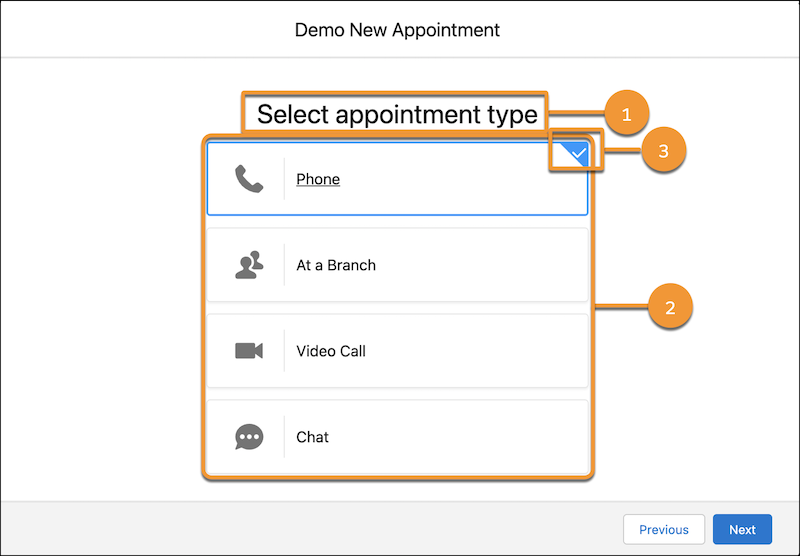
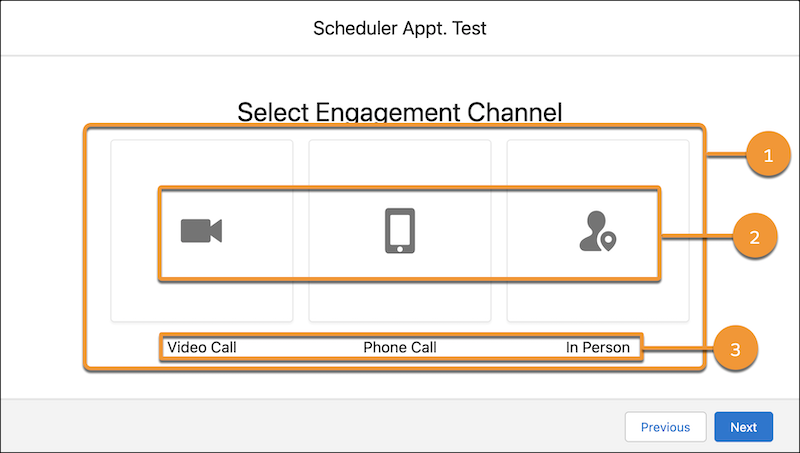
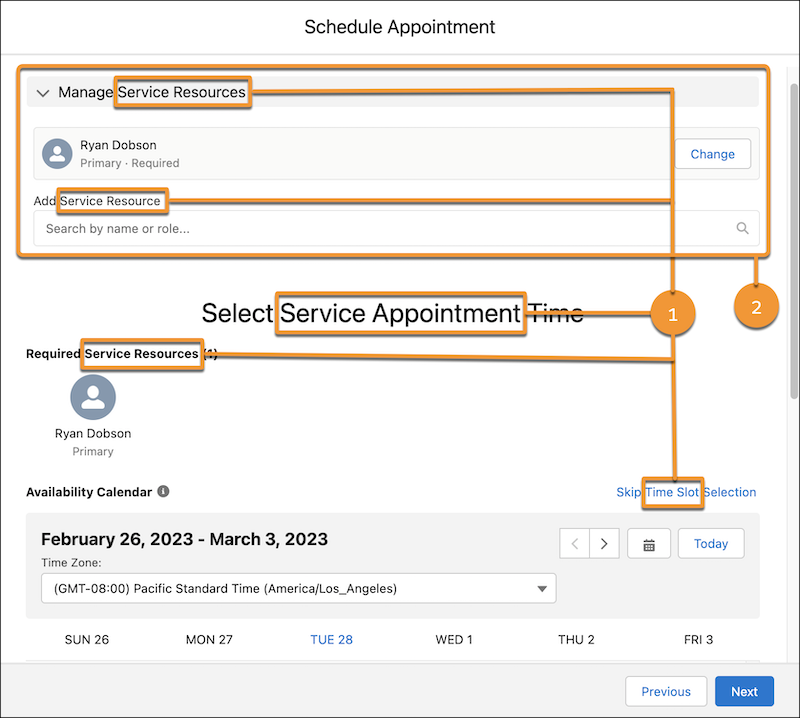
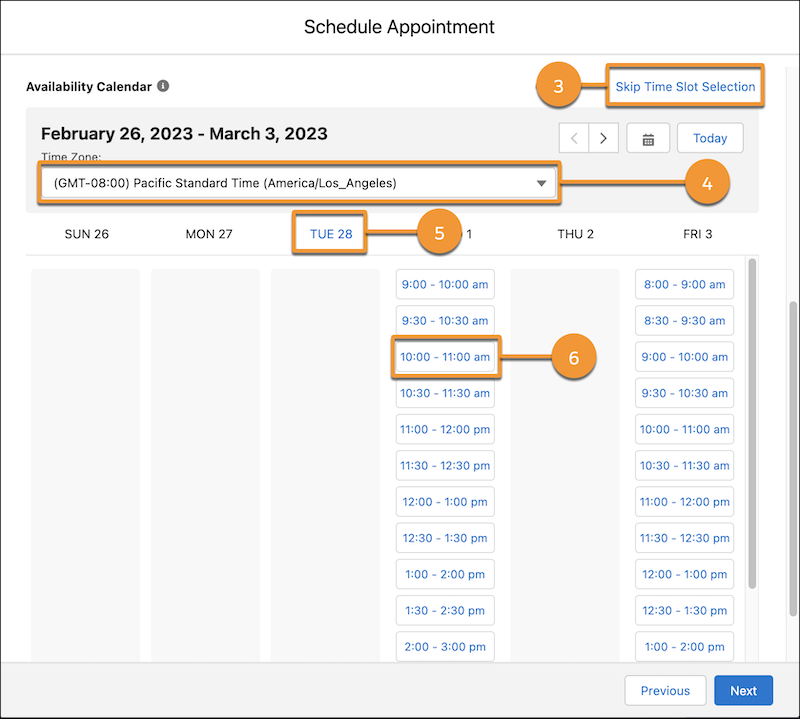
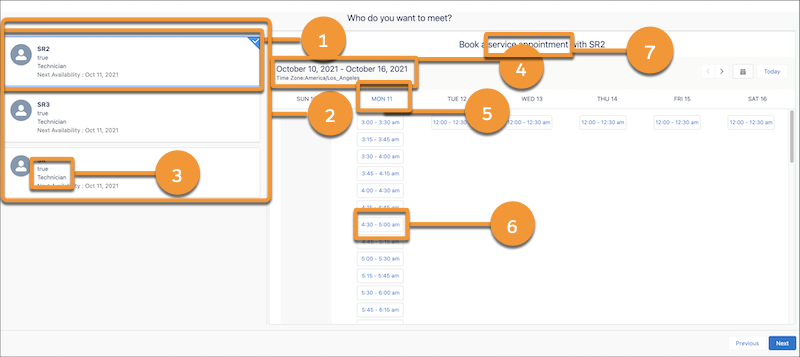
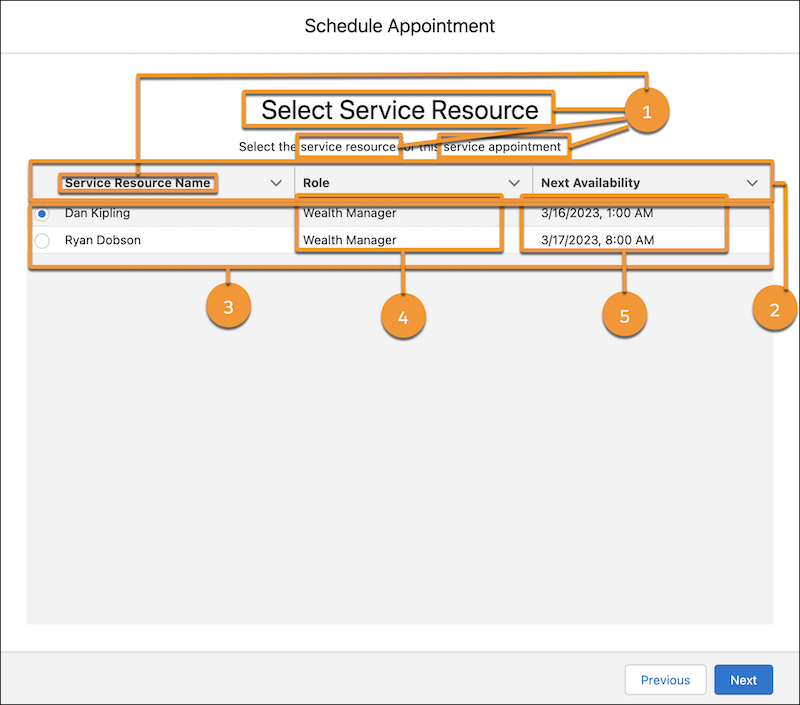
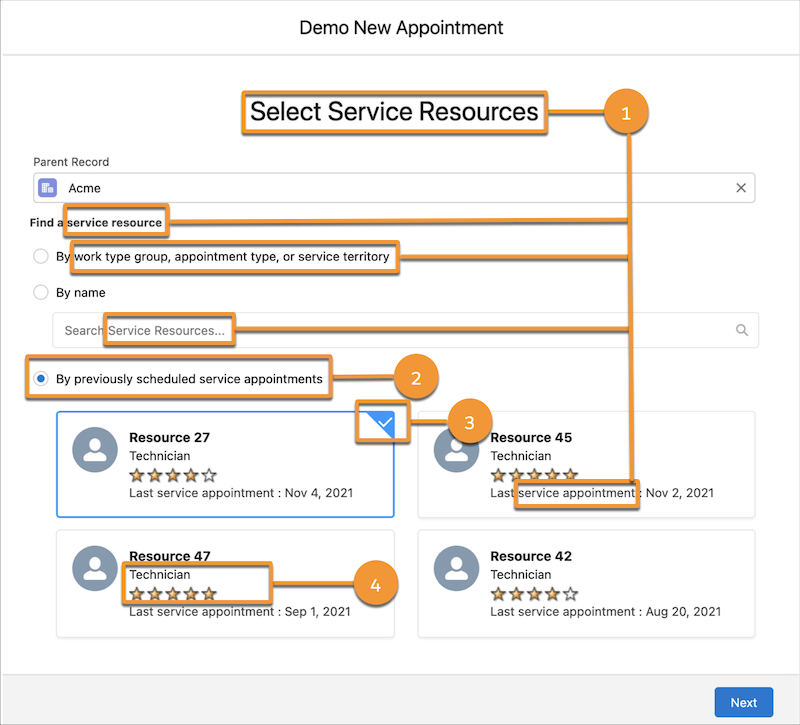
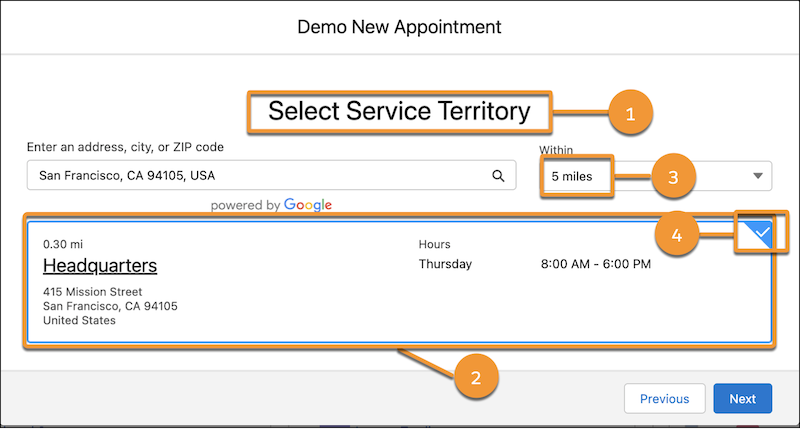
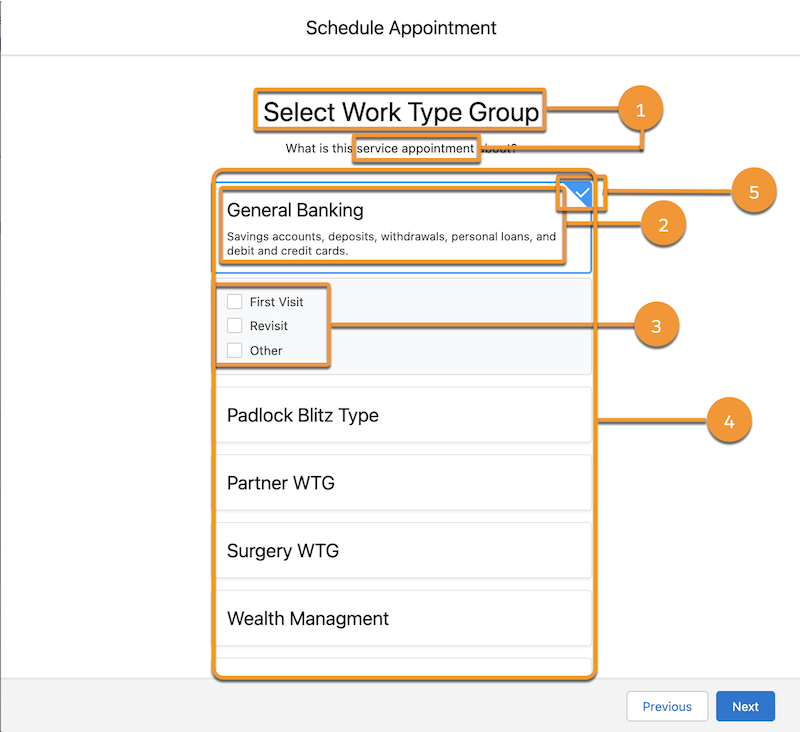
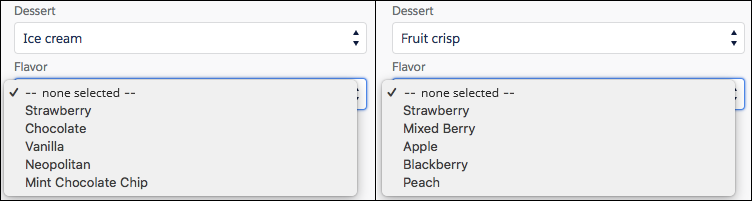
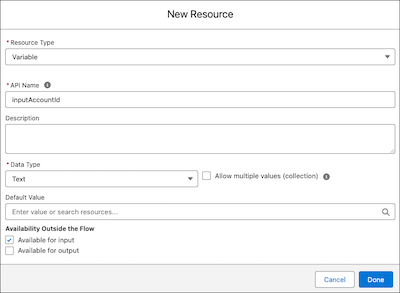
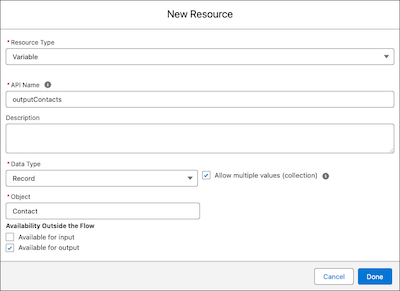
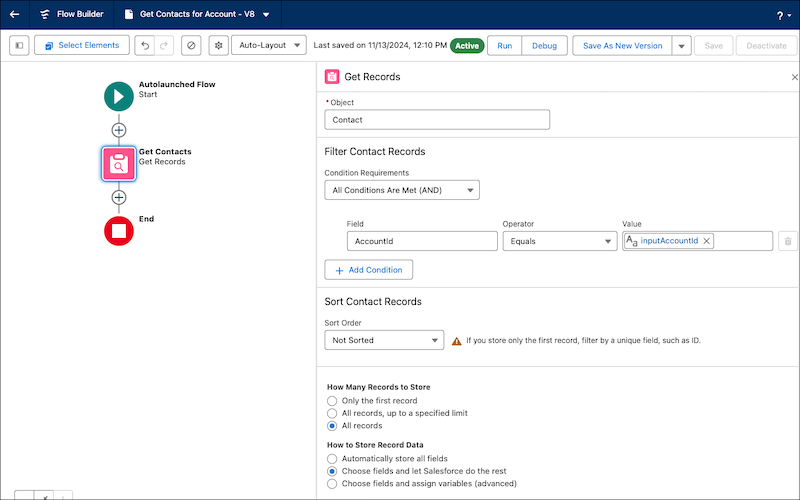
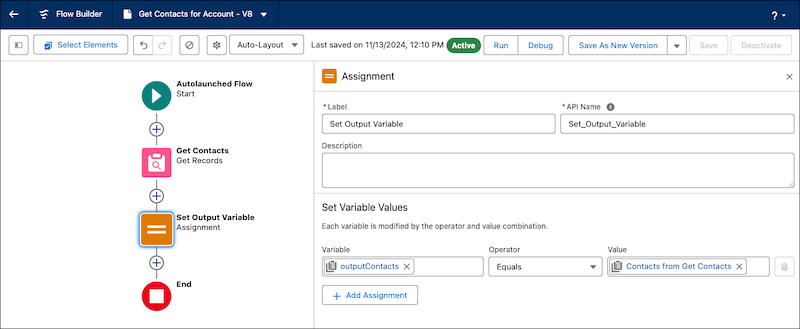
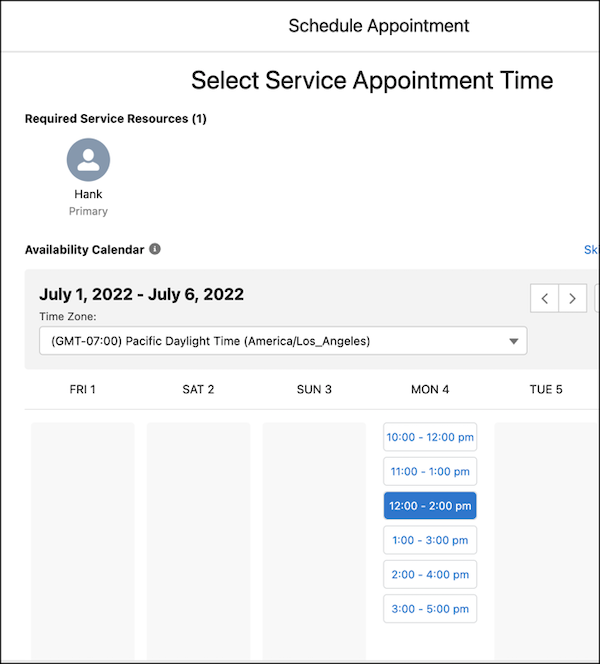
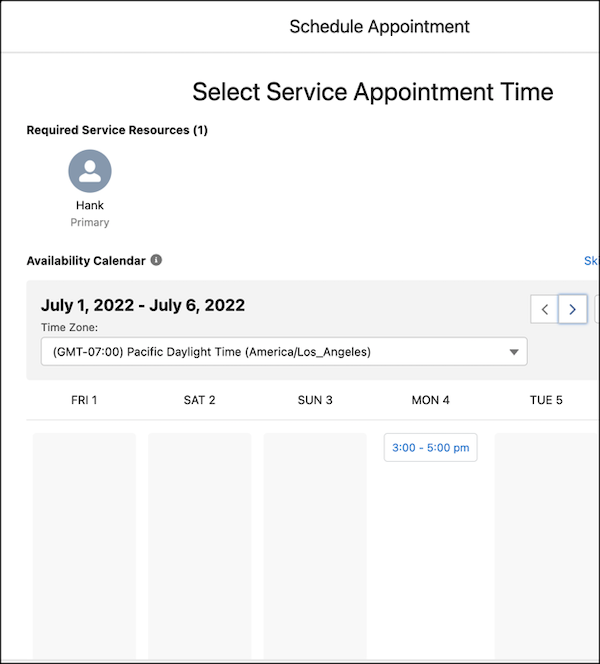
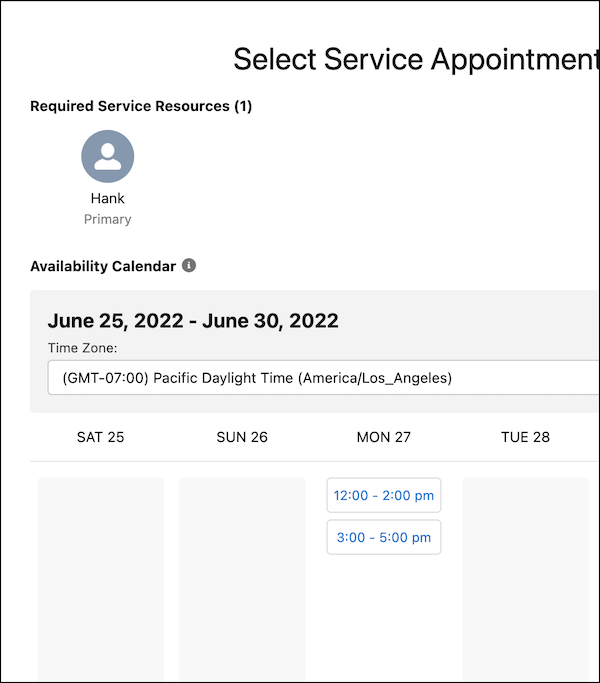
, , , , and . HTML that is pasted into the rich text editor isn't supported.
## Customize User Interface
Add Salesforce Lightning Design System icons to choice resources. Familiar icons make it easier for users to make selections by looking at the icons instead of reading the accompanying text.
| Click | to |
| --- | --- |
| Choose Icon | Choose an icon from the Utility, Doctype, or Standard icons. You can also search for an icon. To view all the available Utility, Doctype, and Standard Salesforce Lightning Design icons, see [Icons](https://summer-20.lightningdesignsystem.com/icons/). |
#### See Also
- [Flow Resources](https://help.salesforce.com/s/articleView?id=platform.flow_ref_resources.htm&release=264.0.0&type=5 "Each resource represents a value that you can reference throughout the flow.")
- [Standard Flow Screen Components](https://help.salesforce.com/s/articleView?id=platform.flow_ref_elements_screencmp.htm&release=264.0.0&type=5 "Salesforce provides several standard screen components that extend the types of input fields available in screens.")
- [Choosing Which Choice Resource to Use in Screen Components](https://help.salesforce.com/s/articleView?id=platform.automate_flow_build_using_choice_resources_with_flow_screen_components.htm&release=264.0.0&type=5 "Choice resources display selectable options in flow screens. Choice resources can appear as radio buttons, checkboxes, or picklist fields. There are several options for choice resources that you can use, depending on your business need. We recommend using a choice resource only when you can’t use a record choice set or a picklist choice set.")
- [Help Users Select Faster by Using Visual Cues in Choices](https://help.salesforce.com/s/articleView?id=platform.automate_flow_build_help_users_select_faster_by_using_visual_cues_in_choices.htm&language=en_US)
# Choose a Lookup Option for a Flow Screen
Salesforce provides three ways for users to search for and select records on flow screens. Generally, use the Lookup component when you want users to search an unfiltered list of records. Use the Choice Lookup component when you want users to search a filtered list of records or static choices. Use a lookup record field when you want users to have the option to create a record from the lookup field. This table describes the differences between the three options.
### Required Editions
Lookup Record Field on Flow Screen
Choice Lookup Screen Flow Component
Lookup Screen Flow Component
Search an unfiltered list of records
Supported
Not supported
Supported
Search a filtered list of records
Not supported
Supported
Not supported
Search a list of static choices
Not supported
Supported
Not supported
Select multiple records
Not supported
Supported
Supported
Show all auto-complete results during search
Supported
Not supported
Supported
Use in Lightning Web Runtime (LWR) site
Not supported
Supported
Supported
Require users to select an option
Supported
The field must be required on the object.
Supported
Supported
Create a record to populate the lookup field
Supported
Not supported
Not supported
Access records in user context
Supported
Supported
Supported
Access records in system context
Not supported
Supported
Not supported
Format of stored output value
Record ID of the record resource
Choice value such as Record ID
Record ID or text collection of record IDs
#### See Also
- [Choice Lookup Screen Input Component](https://help.salesforce.com/s/articleView?id=platform.flow_ref_elements_screencmp_choice_lookup.htm&release=264.0.0&type=5 "Let users search for and select one option from a set of choices on a flow screen. The component supports only Text values.")
# Choose a Trialforce Login Site Domain
Choose a subdomain for customers to log in to your application. Usually, the subdomain is the name of your company.

Important After you publish the Login page, you can't edit the subdomain.
1. In the field provided, enter a name.
2. Click **Check Availability**.
3. Accept the terms of use.
4. Click **Save and Launch Editor**.
# Choose an Automated Approver Throughout a Classic Approval Process
Associate a hierarchy field—such as the user’s manager—with a classic approval process. When selected, the field is available as an assigned approver option for approval steps. You can always select a hierarchy field here but not use it for any approval steps.
### Required Editions
Available in: both Salesforce Classic and Lightning Experience Available in: Enterprise , Performance , Unlimited , and Developer Editions

Important Try [Flow Approval Processes](https://help.salesforce.com/s/articleView?id=platform.automate_automated_approvals.htm&release=264.0.0&type=5 "As your company grows, so does the complexity of your approvals, often requiring input from multiple people in different departments across different time zones. This complexity can mean that you spend more time waiting for each person to complete their review in the right order. Flow Approval Processes helps you coordinate multistep reviews that involve users, systems, and conditional paths."), a modern alternative to Classic Approval Processes. This new feature provides a more flexible, user-friendly flow-based interface, and it can trigger on record changes, supporting Apex extensibility and detailed logging for compliance and audit trails. It supports dynamic routing based on data and business rules, unlike Classic Approval Processes, which are tied to specific objects and offer limited support for processes by using conditions. With Flow Approval Processes, you can monitor submitted records and quickly identify bottlenecks, giving you unprecedented visibility into approval workflows. And, like Classic Approval Processes, Flow Approval Processes don’t consume automation credits or orchestration runs.
Set **Next Automated Approver Determined By** with one of the following options.
Option
Description
--None--
Approval requests aren’t automatically assigned based on a field. Instead, you
manually specify a user to approve all approval requests.
Field
Approval requests are assigned to an approver from the specified field. You can
select only a hierarchical relationship field, such as
Manager .
Use Approver Field of Object Owner
Available only when Field is selected.
If selected, the
first executed approval step sets the approver to the value of
Field on the record owner’s user record—instead of the
submitter’s user record.
All remaining steps use Field
in the user record of the preceding step’s approver.

Example
If you select the Manager field, you can configure any step in this classic approval process to route approval requests to the submitting user’s manager.
If you select **Use Approver Field of Object Owner**, the first step that isn’t skipped is routed to the owner’s manager. All other steps are routed to the previous approver’s manager.
#### See Also
- [Custom Field Types](https://help.salesforce.com/s/articleView?id=platform.custom_field_types.htm&language=en_US)
- [Considerations for Setting Approvers in Classic Approval Processes](https://help.salesforce.com/s/articleView?id=platform.approvals_considerations_approver.htm&release=264.0.0&type=5 "When you specify approvers for a given approval step—or for the only step if you’re using the jump start wizard—keep these considerations in mind.")
# Choose Request Notification Templates for a Classic Approval Process
When a classic approval process assigns an approval request to a user, Salesforce sends the user an approval request email. If Approvals in Chatter is enabled, Salesforce also posts the approval request to Chatter. Choose templates for each of these notifications.
### Required Editions
Available in: both Salesforce Classic and Lightning Experience Available in: Enterprise , Performance , Unlimited , and Developer Editions

Important Try [Flow Approval Processes](https://help.salesforce.com/s/articleView?id=platform.automate_automated_approvals.htm&release=264.0.0&type=5 "As your company grows, so does the complexity of your approvals, often requiring input from multiple people in different departments across different time zones. This complexity can mean that you spend more time waiting for each person to complete their review in the right order. Flow Approval Processes helps you coordinate multistep reviews that involve users, systems, and conditional paths."), a modern alternative to Classic Approval Processes. This new feature provides a more flexible, user-friendly flow-based interface, and it can trigger on record changes, supporting Apex extensibility and detailed logging for compliance and audit trails. It supports dynamic routing based on data and business rules, unlike Classic Approval Processes, which are tied to specific objects and offer limited support for processes by using conditions. With Flow Approval Processes, you can monitor submitted records and quickly identify bottlenecks, giving you unprecedented visibility into approval workflows. And, like Classic Approval Processes, Flow Approval Processes don’t consume automation credits or orchestration runs.
These fields are available from both the jump-start and standard wizards.
Field
Description
Approval Assignment Email Template
Choose a custom email template to use when notifying approvers that an approval
request is assigned to them. Or leave blank to use the default email template.
The approval process uses the same template for every assignment email—no
matter which approval step it’s for.
Approval Post Template
Available only when Approvals in Chatter is enabled.
Choose an approval post
template to use when notifying approvers via a post in their Chatter feed. Leave
blank to use the default post template for this object or, if there isn’t one, the
system default template.

Note If Email approval response in Process Automation Settings in Setup is enabled, be sure that the email template you use describes how to correctly use both response options: clicking the link and replying by email. If the user doesn’t respond correctly (for example, if the user misspells approve or types it on the wrong line), Salesforce doesn’t register the user’s response.
#### See Also
- [Chatter Post Templates for Approval Requests from Classic Approval Processes](https://help.salesforce.com/s/articleView?id=platform.approvals_post_templates.htm&release=264.0.0&type=5 "Approval post templates for Chatter let you customize the information that is included in the approval request post when it displays in a Chatter feed.")
- [Email Templates in Salesforce Classic](https://help.salesforce.com/s/articleView?id=sales.admin_emailtemplates.htm&language=en_US)
- [Merge Fields for Classic Approval Processes](https://help.salesforce.com/s/articleView?id=platform.approvals_considerations_mergefields.htm&release=264.0.0&type=5 "Approval merge fields include {!ApprovalRequest.fieldName} and {!Approval_Requesting_User.fieldName}. They’re supported in certain email templates and return different values based on the status of the classic approval process instance.")
# Choose the Right Screen Component for Your Flow
Select a screen component based on the type of information that you want to show or collect from users in your flow.
### Required Editions
Flow screen components let you collect input from or display information to users in screen flows. Choosing the right component ensures a better user experience and helps you get the information you want. Components are organized by use case.
## Display Information to Users
Use these components to show information, but not collect user input.
[Display Text](https://help.salesforce.com/s/articleView?id=platform.flow_ref_elements_screencmp_display_text.htm&release=264.0.0&type=5 "Display information in a flow screen.")
Use to provide instructions, explanations, or confirmation messages. The Display Text component supports rich text formatting, including bold, italic, lists, and links.
Example: Display a confirmation message after a user submits a case, such as "Thank you for submitting your case. Your case number is {!CaseNumber}."
[Display Image](https://help.salesforce.com/s/articleView?id=platform.flow_ref_elements_screencmp_display_image.htm&release=264.0.0&type=5 "Easily insert images in flow screens. Upload images to Salesforce as static resources and then you can reference them while configuring the component.")
Use when you want to show images, logos, or visual content that help clarify instructions or enhance the user experience.
Example: Display your company logo at the top of a flow screen or show a diagram that explains a process.
[Message](https://help.salesforce.com/s/articleView?id=platform.flow_ref_elements_screencmp_message.htm&release=264.0.0&type=5 "Show screen reader-compatible status messages with different message types that each have their own styling. The types include informational, success, warning, and critical.")
Use to display important notifications, alerts, or status messages. The Message component supports different types, such as informational, warning, error, and success messages.
Example: Display a warning message about required actions, show an error notification when validation fails, or confirm successful completion of a task.
## Collect Unformatted Text
Use these components when you need users to enter unstructured text values.
[Text](https://help.salesforce.com/s/articleView?id=platform.flow_ref_elements_screencmp_text.htm&release=264.0.0&type=5 "Let users enter text from a flow screen, such as the name of the user’s company.")
Use for short text entries up to 255 characters, such as names or titles.
Example: Collect a customer's company name or a product title.
[Long Text Area](https://help.salesforce.com/s/articleView?id=platform.flow_ref_elements_screencmp_textarea.htm&release=264.0.0&type=5 "Let users enter a paragraph or two of text from a flow screen.")
Use for open-ended text entries with no character limit.
Example: Collect detailed feedback about a service experience or a full case description.
[Password](https://help.salesforce.com/s/articleView?id=platform.flow_ref_elements_screencmp_password.htm&release=264.0.0&type=5 "Let users enter sensitive information in a flow screen, such as a social security number. Text entered by the user is masked.")
Use when you need users to enter sensitive information that should be masked on screen.
Example: Collect a password or PIN for verification purposes.
## Collect Formatted Text
Use these components when you need specific text formats, such as a phone number or email address.
[Email](https://help.salesforce.com/s/articleView?id=platform.flow_ref_elements_screencmp_email.htm&release=264.0.0&type=5 "Let users enter email address values from a flow screen.")
Use when you need users to enter email addresses. The component validates that the input is a properly formatted email address.
Example: Collect a customer's email address for follow-up communications.
[Phone](https://help.salesforce.com/s/articleView?id=platform.flow_ref_elements_screencmp_phone.htm&release=264.0.0&type=5 "Let users enter phone number values from a flow screen.")
Use when you need users to enter phone numbers.
Example: Collect a contact phone number for a lead or customer.
[URL](https://help.salesforce.com/s/articleView?id=platform.flow_ref_elements_screencmp_url.htm&release=264.0.0&type=5 "Let users enter URL values in a flow screen.")
Use when you need users to enter website addresses or URLs.
Example: Collect a customer's company website or a link to documentation.
## Collect Numeric Values
Use these components when you need users to enter numbers.
[Number](https://help.salesforce.com/s/articleView?id=platform.flow_ref_elements_screencmp_number.htm&release=264.0.0&type=5 "Let users enter number values from a flow screen.")
Use for whole or decimal numbers, such as quantities or ages.
Example: Collect the quantity of items to order.
[Currency](https://help.salesforce.com/s/articleView?id=platform.flow_ref_elements_screencmp_currency.htm&release=264.0.0&type=5 "Let users enter currency values from a flow screen.")
Use when you need users to enter monetary amounts. The component formats the value as currency.
Example: Collect a budget amount, purchase price, or reimbursement request.
[Slider](https://help.salesforce.com/s/articleView?id=platform.flow_ref_elements_screencmp_slider.htm&release=264.0.0&type=5 "Let users visually specify number values from a flow screen.")
Use when you want users to select a value from a defined range. Best for ratings, satisfaction scores, or preference levels.
Example: Collect a satisfaction rating from 1 to 10 or a priority level from 0 to 100.
## Collect Dates and Times
Use these components when you need users to enter dates or times.
[Date](https://help.salesforce.com/s/articleView?id=platform.flow_ref_elements_screencmp_date.htm&release=264.0.0&type=5 "Give the user running the flow a field to enter date values from a flow screen.")
Use when you want users to select a date from a calendar picker.
Example: Collect a preferred appointment date, event date, or deadline.
[Time](https://help.salesforce.com/s/articleView?id=platform.flow_ref_elements_screencmp_time.htm&release=264.0.0&type=5 "Let users select available time values from a flow screen.")
Use when you want users to select a time without a date.
Example: Show available times for an appointment on a predefined date.
[Date/Time](https://help.salesforce.com/s/articleView?id=platform.flow_ref_elements_screencmp_datetime.htm&release=264.0.0&type=5 "Let users enter date and time values from a flow screen, such as to request an appointment.")
Use when you want users to select both a date and a specific time.
Example: Schedule a meeting or appointment that requires both date and time.
## Collect Single-Choice Selections
Use these components when users select just one option from a set of choices.
[Picklist](https://help.salesforce.com/s/articleView?id=platform.flow_ref_elements_screencmp_picklist.htm&release=264.0.0&type=5 "Let users choose from a list of options in a picklist format.")
Use when you have many options and want to save screen space with a dropdown.. A picklist is ideal if you have many options.
Example: Have users select a product category, department, or priority level from a list.
[Radio Buttons](https://help.salesforce.com/s/articleView?id=platform.flow_ref_elements_screencmp_radio.htm&release=264.0.0&type=5 "Let users choose from a list of options in a radio button format.")
Use when you have 2–5 options and want all choices visible at once. Radio buttons make it clear that the user can select only one option.
Example: Have users select a preferred contact method (Email, Phone, Text) or choose a service tier (Basic, Standard, Premium).
## Collect Multiple-Choice Selections
Use these components when users can select multiple options.
[Multi-Select Picklist](https://help.salesforce.com/s/articleView?id=platform.flow_ref_elements_screencmp_msp.htm&release=264.0.0&type=5 "Let users choose multiple options in a picklist format.")
Use when users need to select more than one option from a dropdown list.
Example: Have users select multiple product interests, languages spoken, or skills from a list.
[Checkbox Group](https://help.salesforce.com/s/articleView?id=platform.flow_ref_elements_screencmp_checkboxgroup.htm&release=264.0.0&type=5 "Let users choose multiple options in a checkbox format.")
Use when you have a small to moderate number of options and want all choices visible for multi-selection. Users can select multiple checkboxes.
Example: Have users opt into multiple communication preferences or select applicable features.
## Collect True or False Input
Use these components for Boolean choices.
[Checkbox](https://help.salesforce.com/s/articleView?id=platform.flow_ref_elements_screencmp_checkbox.htm&release=264.0.0&type=5 "Offer flow users a yes-or-no choice with a checkbox.")
Use when you need a single yes or no or true or false choice, such as accepting terms or opting into something.
Example: Have users agree to terms and conditions, opt into a newsletter, or confirm that they understand a policy.
[Toggle](https://help.salesforce.com/s/articleView?id=platform.flow_ref_elements_screencmp_toggle.htm&release=264.0.0&type=5 "Let users flip a toggle in a flow screen.")
Use when you want a visually prominent representation of an active or inactive state.
Example: Have users enable or disable notifications, activate a feature, or switch between two states.
## Collect Record Selections
Use these components so users can select existing records from your Salesforce org.
[Lookup](https://help.salesforce.com/s/articleView?id=platform.flow_ref_elements_screencmp_lookup.htm&release=264.0.0&type=5 "Let users search for and select existing records in a screen flow. Configure the component with a lookup field and its source object, and store the selected record IDs for use later in the flow.")
Use when you want users to search for and select existing records. The component provides a type-ahead search interface.
Example: Have users select an account, contact, or custom object record.
[Choice Lookup](https://help.salesforce.com/s/articleView?id=platform.flow_ref_elements_screencmp_choice_lookup.htm&release=264.0.0&type=5 "Let users search for and select one option from a set of choices on a flow screen. The component supports only Text values.")
Use when you want to provide a filtered list of records based on flow logic or when you need more control over which records appear.
Example: Have users select from a filtered list of accounts in a specific region or the contacts assigned to them.

Note Learn more about when to use the Lookup component or the Choice Lookup component in [Choose a Lookup Option for a Flow Screen](https://help.salesforce.com/s/articleView?id=platform.flow_ref_elements_screencmp_lookup_comparison.htm&release=264.0.0&type=5 "Salesforce provides three ways for users to search for and select records on flow screens. Generally, use the Lookup component when you want users to search an unfiltered list of records. Use the Choice Lookup component when you want users to search a filtered list of records or static choices. Use a lookup record field when you want users to have the option to create a record from the lookup field. This table describes the differences between the three options.")
[Data Table](https://help.salesforce.com/s/articleView?id=platform.flow_ref_elements_screencmp_data_table.htm&release=264.0.0&type=5 "Display a collection of records in a table so that the user running the flow can select records. The flow stores the selected records as flow variables that the rest of the flow can act on.")
Use to display multiple records in a table so users can select one or more. Best for comparing records or viewing details before selection.
Example: Display a list of open cases with details like case number, subject, and status, so users can select which cases to update.
[Kanban](https://help.salesforce.com/s/articleView?id=platform.automate_flow_ref_elements_screencmp_kanban_board.htm&release=264.0.0&type=5 "Use the new Kanban Board component to show records as cards in columns that represent workflow stages, without custom Lightning implementations. Your users gain instant visibility into record progress and record details without leaving the flow. The Kanban Board is read-only, so users can’t drag cards between stages at run time.")
Use when you want to display records in a visual board format with columns representing different stages or statuses. Users can see records organized by stage and track workflow progress.
Example: Display opportunities organized by stage (Prospecting, Qualification, Proposal, Closed Won) or cases organized by status (New, In Progress, Resolved).
## Collect Multi-Field or Complex Input
Use these components when input spans multiple related fields or when users need to enter repeating data.
[Address](https://help.salesforce.com/s/articleView?id=platform.flow_ref_elements_screencmp_address.htm&release=264.0.0&type=5 "Simplify gathering address information by adding the Address component to a flow screen. The Address screen component shows a complete address form that’s customized to your settings. It can also use state and country/territory picklists.")
Use when you want users to enter a complete address with street, city, state, postal code, and country fields.
Example: Collect a shipping address or business location.
[Name](https://help.salesforce.com/s/articleView?id=platform.flow_ref_elements_screencmp_name.htm&release=264.0.0&type=5 "Let users enter multiple name values with one screen component. Instead of the Name screen component, you can use Text input fields to capture name information, but it takes a lot more configuration.")
Use when you want users to enter a person's name with separate fields for salutation, first name, middle name, and last name.
Example: Collect a full name for a new contact or lead.
[File Upload](https://help.salesforce.com/s/articleView?id=platform.flow_ref_elements_screencmp_fileupload.htm&release=264.0.0&type=5 "Let users upload files from a flow screen.")
Use when you want users to upload documents, images, or other files.
Example: Have users upload a resume, contract, invoice, or supporting documentation.
[Dependent Picklists](https://help.salesforce.com/s/articleView?id=platform.flow_ref_elements_screencmp_dependentpicklists.htm&release=264.0.0&type=5 "Display picklists in a flow screen in which the options for one picklist depend on the selected value of another picklist. The Dependent Picklists screen component determines which options to display in each picklist by using an existing field dependency in your org. A field dependency connects two picklist fields on the same object.")
Use when the options in one picklist depend on the selection in another.
Example: First, users select a product category, then they select a specific product from that category.
[Repeater](https://help.salesforce.com/s/articleView?id=platform.flow_ref_elements_screencmp_repeater.htm&release=264.0.0&type=5 "Collect information about multiple items of the same type on a screen with the Repeater component. To use the output of the component elsewhere in the flow, loop over the output and save the relevant data in a variable. Use the variable to build a list of records.")
Use when users need to enter information about multiple items of the same type. Users can add or remove rows as needed.
Example: Have users add multiple attendees to an event, each with their own name and email fields, or collect information about multiple expense items.
- **[Choose a Lookup Option for a Flow Screen](https://help.salesforce.com/s/articleView?id=platform.flow_ref_elements_screencmp_lookup_comparison.htm&release=264.0.0&type=5)**
Salesforce provides three ways for users to search for and select records on flow screens. Generally, use the Lookup component when you want users to search an unfiltered list of records. Use the Choice Lookup component when you want users to search a filtered list of records or static choices. Use a lookup record field when you want users to have the option to create a record from the lookup field. This table describes the differences between the three options.
# Choose the Right Wizard to Create a Classic Approval Process
Before you create a classic approval process, determine which wizard is best for your needs.
### Required Editions
Available in: both Salesforce Classic and Lightning Experience Available in: Enterprise , Performance , Unlimited , and Developer Editions

Important Try [Flow Approval Processes](https://help.salesforce.com/s/articleView?id=platform.automate_automated_approvals.htm&release=264.0.0&type=5 "As your company grows, so does the complexity of your approvals, often requiring input from multiple people in different departments across different time zones. This complexity can mean that you spend more time waiting for each person to complete their review in the right order. Flow Approval Processes helps you coordinate multistep reviews that involve users, systems, and conditional paths."), a modern alternative to Classic Approval Processes. This new feature provides a more flexible, user-friendly flow-based interface, and it can trigger on record changes, supporting Apex extensibility and detailed logging for compliance and audit trails. It supports dynamic routing based on data and business rules, unlike Classic Approval Processes, which are tied to specific objects and offer limited support for processes by using conditions. With Flow Approval Processes, you can monitor submitted records and quickly identify bottlenecks, giving you unprecedented visibility into approval workflows. And, like Classic Approval Processes, Flow Approval Processes don’t consume automation credits or orchestration runs.
- **[Create a Classic Approval Process with the Jump Start Wizard](https://help.salesforce.com/s/articleView?id=platform.approvals_jump_start.htm&release=264.0.0&type=5)**
For classic approval processes that use a single step, use the jump start wizard. This wizard chooses some default options for you.
- **[Default Selections for the Classic Approval Process Jump Start Wizard](https://help.salesforce.com/s/articleView?id=platform.approvals_jump_start_defaults.htm&release=264.0.0&type=5)**
To make it easier for you to get started with a simple classic approval process, the jump start wizard automatically chooses some default options for you.
- **[Create a Classic Approval Process with the Standard Wizard](https://help.salesforce.com/s/articleView?id=platform.approvals_creating_approval_processes.htm&release=264.0.0&type=5)**
When your classic approval process is more complex and you want to define specific steps, use the standard wizard.
#### See Also
- [Create a Draft Autolaunched Flow Approval Process](https://help.salesforce.com/s/articleView?id=platform.automate_automated_approvals_build_draft_an_approval_orchestration.htm&release=264.0.0&type=5 "Use a wizard to create a draft autolaunched flow approval process from the Approvals app. Your draft flow can contain up to 3 stages,")
- [Set Up a Classic Approval Process](https://help.salesforce.com/s/articleView?id=platform.approvals_getting_started.htm&release=264.0.0&type=5 "If classic Approval Processes is the right automation tool for your business process, follow these high-level steps to create one for your org.")
# Choose Which Salesforce Connect Adapter to Use
Salesforce Connect uses a protocol-specific adapter to connect to an external system and access its data. When you define an external data source in your organization, you specify the adapter in the Type field.
### Required Editions
Available in: both Salesforce Classic and Lightning Experience (not for high-data-volume
external objects)
Available in: Developer Edition
Available for an extra cost
in: Enterprise , Performance , and Unlimited
Editions
These adapters are available for Salesforce Connect.
Salesforce Connect Adapter
Description
When to Use
Cross-org
Uses the Lightning Platform REST API to access data that’s stored in
other Salesforce orgs.
To connect data between your Salesforce orgs. For example, provide
your service representatives a unified view of customer transactions by
integrating data from different Salesforce orgs.
OData 2.0
OData 4.0
OData 4.01
Uses Open Data Protocol to access data that’s stored outside
Salesforce. The external data must be exposed via OData
producers.
To integrate external data sources into your org that support the
ODATA protocol and publish an OData provider. For example, give your
account executives a unified data view by pulling data from legacy
systems such as SAP and Microsoft in real time.
Custom adapter created via Apex
Uses the Apex Connector Framework to develop your own custom adapter
when the other available adapters aren’t suitable for your needs.
A
custom adapter can obtain data from anywhere. For example, some data
can be retrieved from anywhere in the Internet via callouts, while
other data can be manipulated or even generated
programmatically.
To develop your own adapter with the Apex Connector Framework when
the other available adapters aren’t suitable for your needs. For
example, when you want to retrieve data via callouts from a REST API.
Salesforce Connect Adapter for Amazon DynamoDB
Connects Amazon DynamoDB data sources to Salesforce through external
objects.
The data stored in Amazon DynamoDB can use the flexible data
storage option of DynamoDB and Salesforce Platform
capabilities.
To integrate AWS data natively with Salesforce business
applications.
Salesforce Connect Adapter for SQL
Connect Salesforce to external data sources that expose their
capabilities via REST APIs and offer query and DML operations using
SQL.
The Salesforce Connect Adapter for SQL supports Snowflake and
Amazon Athena external data sources.
To integrate external data natively with Salesforce and run
interactive on demand queries using SQL.
Salesforce Connect Adapter for GraphQL
Uses GraphQL APIs to provide a modern way to integrate
applications.
To access and integrate data from external sources that expose their
capabilities via GraphQL, including Amazon RDS via AWS AppSync.
#### See Also
- [Salesforce Connect Adapters Included per Add-On License](https://help.salesforce.com/s/articleView?id=platform.platform_connect_license.htm&release=264.0.0&type=5 "Using Salesforce Connect to access external data in an org requires one or more Salesforce Connect add-on licenses.")
- [Salesforce Platform Features Supported by Salesforce Connect](https://help.salesforce.com/s/articleView?id=platform.platform_connect_considerations.htm&release=264.0.0&type=5 "Salesforce Connect provides seamless integration with the Salesforce Platform and enables users to view, search, and modify external object data.")
# Choose Your Tools for Developing and Deploying Changes
Whether you’re an admin using point-and-click tools or a developer writing code, you can pick the right tool, work in a sandbox, and deploy complete changes to a production org. You can customize and code changes for your org in a sandbox using one, or more, of the tools provided by Salesforce.
- **[Develop and Deploy Apex in the Developer Console](https://help.salesforce.com/s/articleView?id=platform.code_tools_dev_console.htm&release=264.0.0&type=5)**
The Developer Console is an integrated development environment with a collection of tools you can use to create, debug, and test applications in your Salesforce org.
- **[Develop and Deploy Using Salesforce Extensions for Visual Studio Code and Code Builder](https://help.salesforce.com/s/articleView?id=platform.code_tools_vscode.htm&release=264.0.0&type=5)**
Salesforce Extensions for VS Code and Code Builder are powered by Salesforce CLI and the Salesforce APIs. Both these products provide a robust set of tools for developing on the Salesforce platform.
- **[Develop and Deploy Using Metadata API](https://help.salesforce.com/s/articleView?id=platform.code_tools_websvcAPI.htm&release=264.0.0&type=5)**
Use Metadata API to retrieve, deploy, create, update or delete customization information, such as custom object definitions and page layouts, for your org. This API is intended for managing customizations and for building tools that can manage the metadata model, not the data itself.
- **[Deploy Using Change Sets](https://help.salesforce.com/s/articleView?id=platform.code_tools_changesets.htm&release=264.0.0&type=5)**
You can deploy workflows, rules, Apex classes and triggers, and other customization from a sandbox org to your production org. You can create an outbound change set in the Salesforce user interface and add the components that you want to upload and deploy to the target org.
- **[Deploy Metadata and Data from DX Inspector](https://help.salesforce.com/s/articleView?id=platform.code_tools_deploy_metadata_and_data.htm&release=264.0.0&type=5)**
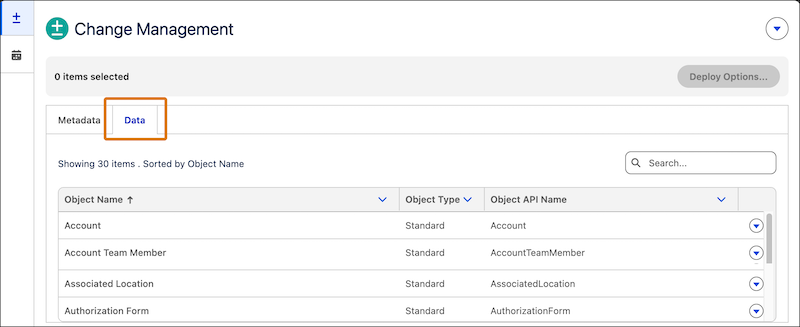
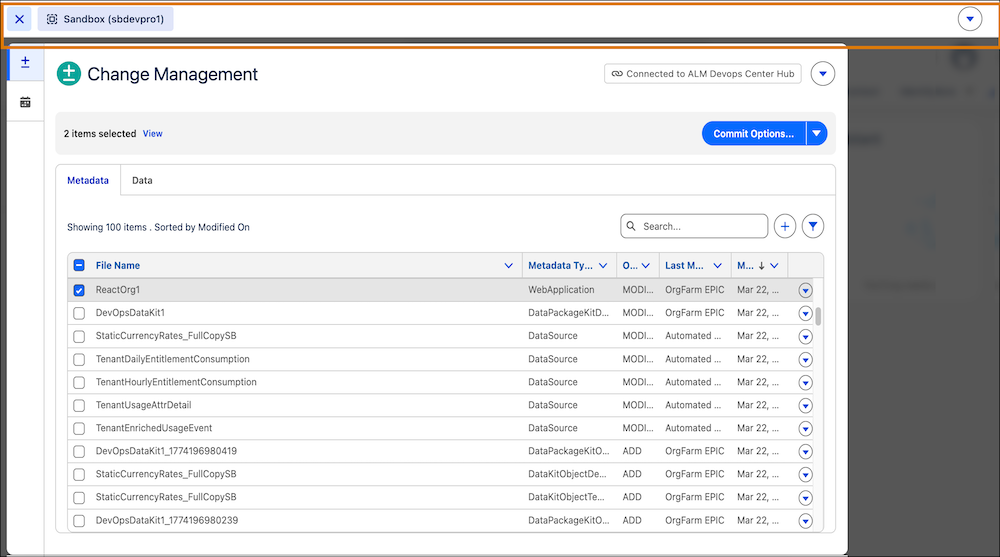
Quickly move metadata and configuration data from your current Salesforce org (source org) to a target org in a single orchestration. You can access this feature from the Change Management tab in DX Inspector. This type of direct deployment is ideal for moving small, specific changes without using a full DevOps pipeline.
- **[Deploy Using Lifecycle Center](https://help.salesforce.com/s/articleView?id=platform.code_tools_deploy_using_devops_center.htm&release=264.0.0&type=5)**
Manage changes and releases collaboratively with Lifecycle Center, a tool designed for both low-code admins and pro-code developers. Lifecycle Center ensures a single source of truth and provides governed, version-controlled deployments by connecting your development environments (sandboxes, scratch orgs) to a source control repository.
#### See Also
- [Welcome, Point & Click Administrators](https://help.salesforce.com/s/articleView?id=platform.extend_click_intro.htm&language=en_US)
- [Welcome, Developers](https://help.salesforce.com/s/articleView?id=platform.extend_code_overview.htm&type=5&language=en_US)
# Choosing Between Lightning and Non-Lightning Flow URL Formats
When you run a screen flow from a URL, you can choose between using Lightning or the non-Lightning URL format, which uses Lightning Out. We recommend using Lightning for a faster, more consistent experience. However, there are times when you need to use the non-Lightning format.
### Required Editions
When you distribute a screen flow by using a URL, such as from a button, or link, you have two options for how the flow runs.
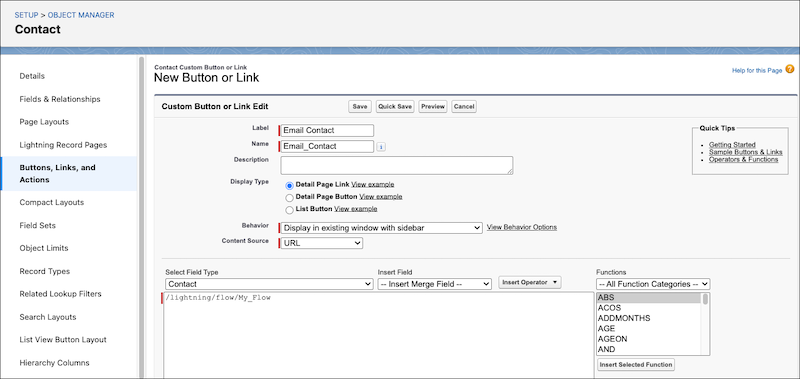
- Add `/lightning` to the beginning of the flow URL. For example, `/lightning/flow/My_Flow`. The flow runs inside Lightning Experience.
- Use the flow URL without `/lightning`. For example, `/flow/My_Flow`. The flow runs using Lightning Out.
We recommend adding `/lightning` to your flow URLs because running your flow in Lightning gives you several benefits.
## Faster Performance
When you run a flow in Lightning, most of the required components are already loaded in the browser. This setup eliminates the need for a full page load, so your flow screen loads faster.
## Keep Users in Their Current Context
Running the flow in Lightning keeps users where they are in Salesforce. If users are working in Lightning Console, for example, they can keep their existing tabs open while the flow runs. Users can even switch to other tabs in Lightning Console while a flow is running, which is useful when they're working on a case or ticket and need to reference other details.
If you don't use Lightning, users navigate away from their current page, which can disrupt their workflow.
## Avoid Browser Navigation Issues
If a flow runs in Lightning, there's no risk of breaking the browser's history state. Users can use the back and forward buttons as expected. When you go to a different page outside of the current Lightning app, it can cause unexpected behavior with browser navigation.
## Consistent Behavior with Lightning Experience
Running flows in Lightning makes sure that your flow behaves consistently with the rest of Lightning Experience and Lightning Console. Your flow also matches the look and feel of your org's styling. You can also use local actions in your screen flow, such as showing toast notifications or opening records in the same window.
## Avoid Lightning Out Limitations
If your screen flow uses standard screen components, and does run in Lightning, it's impacted by Lightning Out limitations that can affect how your flow works. [Learn more about Lighting Out limitations in the Lightning Web Components Developer Guide](https://developer.salesforce.com/docs/platform/lwc/guide/lightning-out-considerations.html).
## When to Not Use Lightning
There are some cases when you can't add `/lightning` to the URL. In both cases, don't include `/lightning` or the `flow__` prefix in your URL.
- You want to set values for items in a collection variable, other than sending a list of IDs from a list view to a collection variable called ids. Sending IDs from a list view to the ids collection variable is supported in Lightning. To learn more, see [Send Variable Values to a Flow Using the Flow's URL](https://help.salesforce.com/s/articleView?id=platform.flow_distribute_internal_url_variable.htm&release=264.0.0&type=5 "When you distribute a flow by using a URL, you can set variables values within that flow by using parameters in the URL.").
- You want to run a flow from a navigation tab (web tab). To learn more, see [Embed a Screen Flow in a Navigation Tab in Your Org](https://help.salesforce.com/s/articleView?id=platform.automate_flow_distribute_internal_url_web_tab.htm&release=264.0.0&type=5 "Add an active screen flow to a navigation tab in your org, using the flow's web address (URL). Users can open the tab and then run the screen flow from there.").
# Choosing Which Choice Resource to Use in Screen Components
Choice resources display selectable options in flow screens. Choice resources can appear as radio buttons, checkboxes, or picklist fields. There are several options for choice resources that you can use, depending on your business need. We recommend using a choice resource only when you can’t use a record choice set or a picklist choice set.
### Required Editions
Record choice sets and picklist choice sets are easier to configure and don’t require as much maintenance as choices because they're using records and picklists from your org. For example, if a value is added to a picklist in your org, the flow uses the updated picklist values without you needing to update the flow.
| If you want the user to select... | Use this resource |
| --- | --- |
| A custom option that only exists in the flow, and can’t be generated from a record, picklist field, or multi-select picklist field | Choice |
| From a collection of existing records | Collection Choice Set |
| From a set of values that correspond to an existing picklist or multi-select picklist field | Picklist Choice Set |
| From a set of filtered records | Record Choice Set |
#### See Also
- [Record Choice Set Resource](https://help.salesforce.com/s/articleView?id=platform.flow_ref_resources_recordchoice.htm&release=264.0.0&type=5 "Generate a set of choices using a filtered list of records.")
- [Picklist Choice Set Resource](https://help.salesforce.com/s/articleView?id=platform.flow_ref_resources_picklistchoice.htm&release=264.0.0&type=5 "Generate a set of choices using the values of a picklist or multi-select picklist field.")
- [Choice Resource](https://help.salesforce.com/s/articleView?id=platform.flow_ref_resources_choice.htm&release=264.0.0&type=5 "Create a choice option for a screen component, such as a Radio Buttons or Multi-Select Picklist component.")
# CircleCI Connector
Connect to an external CircleCI account. Perform tasks like creating and managing projects, triggering pipelines, or approving jobs. Use CircleCI as a data target (action).
### Required Editions
View supported editions. This feature requires the MuleSoft for Flow: Integration add-on. Exceptions are segment-triggered flows, activation-triggered flows, and broadcast flows, which don't require the MuleSoft for Flow: Integration add-on. Professional Edition requires the API access add-on. To purchase an add-on, contact your Salesforce account executive. MuleSoft for Flow: Integration features used with Agentforce require the Foundations or Agentforce 1 edition. To purchase these editions, contact your Salesforce account executive.

Note You can edit or delete connections only in the Automation app.
## Connections
Connect to a source or target system by using its standard connection or an existing external named credential. You can connect to multiple systems within a flow and reuse each connection. You can create connections in the [Integrations tab](https://help.salesforce.com/s/articleView?id=platform.automate_ala_connections.htm&release=264.0.0&type=5 "The Integrations tab includes a list of all the connections for your org.") or in Flow Builder.
**Standard Connection**
This system uses ApiKey authentication.
ApiKey authentication connects to apps without explicitly defining a user. Add this key to all requests, and the cloud app identifies the origin of the request and completes the authorization.
This system requires this credential information for its [connections](https://help.salesforce.com/s/articleView?id=platform.automate_ala_connections_create_connection.htm&release=264.0.0&type=5).
FIELD
DESCRIPTION
Connection Name
Enter a unique connection name that helps you remember the details of this
connection. Salesforce hides the credentials after you create the connection. Reuse
connections as needed.
Anyone with the Manage Integration Connections permission can see and use all
connections in the org.
ApiKey
Enter the API key to use to authenticate the requests.
URL
Enter the URL of your instance.
**Named Credential Connection**
Select a pre-existing named credential from Setup to use for your external system connections.
Before connecting to your external system with a named credential, first create or use an existing authenticated [named credential and external credential that is enabled for your users.](https://help.salesforce.com/s/articleView?id=xcloud.nc_named_creds_and_ext_creds.htm&type=5&language=en_US)
To ensure a successful [connection](https://help.salesforce.com/s/articleView?id=platform.automate_ala_connections_create_connection.htm&release=264.0.0&type=5 "Select a named credential from Setup to use for your external system connections.") for use in a flow, use only one principal for each named credential.
- Use the same name for the named credential and its related objects, such as the external credential and external authentication identity providers. Labels for these objects can differ.
- Assign the user creating the connection the required user permission for the principal. Without this permission, the connection test fails and the connection remains inactive.

Important
When you create a connection with an existing named credential, note these behaviors:
- Manage the named credential’s read-only details in Setup, not the Integrations tab. On the Integrations tab, you can only edit the connection's Connection Name and Description.
- Perform reconnections for the named credential in Setup. The Reconnect button isn’t visible on the Details page.
- Delete associated named credentials in Setup. Deleting a connection doesn't remove the credential.
## Actions
An action performs a specific task or operation within a target system. Use actions to automate tasks across different systems without manual intervention, based on conditions set in the flow. For more information about actions, refer to [Create a Flow with a Connector as an Action](https://help.salesforce.com/s/articleView?id=platform.automate_build_flow_esct_third_party_as_action.htm&release=264.0.0&type=5 "To integrate your flow with an external system, add MuleSoft for Flow: Integration connectors as actions to all existing flow types. You can add connectors to flows that trigger external system changes, records, schedules, Data Cloud-triggered flows, or autolaunched flows.").
These CircleCI actions are available in Flow Builder.
- Approve A Job
- Create A New Project
- Delete A Project
- Get A Pipeline's Workflows
- Get A Project
- Get A Workflow's Jobs
- Trigger A New Pipeline

Tip For more information about the API, see the external system's API documentation.

Important
For information about specific limitations for connections and third-party connectors, see [MuleSoft for Flow: Integration Limits & Considerations](https://help.salesforce.com/s/articleView?id=platform.automate_flow_considerations_mulesoft_for_flow_limits.htm&release=264.0.0&type=5 "When establishing connections to external systems, keep these limitations in mind.").
# Cisco Defense Orchestrator Connector
Connect to an external Cisco Defense Orchestrator account. Perform tasks like retrieving devices or device managers. Use Cisco Defense Orchestrator as a data target (action).
### Required Editions
View supported editions. This feature requires the MuleSoft for Flow: Integration add-on. Exceptions are segment-triggered flows, activation-triggered flows, and broadcast flows, which don't require the MuleSoft for Flow: Integration add-on. Professional Edition requires the API access add-on. To purchase an add-on, contact your Salesforce account executive. MuleSoft for Flow: Integration features used with Agentforce require the Foundations or Agentforce 1 edition. To purchase these editions, contact your Salesforce account executive.

Note You can edit or delete connections only in the Automation app.
## Connections
Connect to a source or target system by using its standard connection or an existing external named credential. You can connect to multiple systems within a flow and reuse each connection. You can create connections in the [Integrations tab](https://help.salesforce.com/s/articleView?id=platform.automate_ala_connections.htm&release=264.0.0&type=5 "The Integrations tab includes a list of all the connections for your org.") or in Flow Builder.
**Standard Connection**
This system uses Bearer authentication.
Bearer authentication sends a header named Authorization with a value of Bearer and a token with every request.
This system requires this credential information for its [connections](https://help.salesforce.com/s/articleView?id=platform.automate_ala_connections_create_connection.htm&release=264.0.0&type=5).
FIELD
DESCRIPTION
Connection Name
Enter a unique connection name that helps you remember the details of this
connection. Salesforce hides the credentials after you create the connection. Reuse
connections as needed.
Anyone with the Manage Integration Connections permission can see and use all
connections in the org.
Token
Enter the bearer token to use to authenticate the requests. For information about how to
create the bearer token, refer to the external system's documentation.
URL
Enter the URL of your instance.
**Named Credential Connection**
Select a pre-existing named credential from Setup to use for your external system connections.
Before connecting to your external system with a named credential, first create or use an existing authenticated [named credential and external credential that is enabled for your users.](https://help.salesforce.com/s/articleView?id=xcloud.nc_named_creds_and_ext_creds.htm&type=5&language=en_US)
To ensure a successful [connection](https://help.salesforce.com/s/articleView?id=platform.automate_ala_connections_create_connection.htm&release=264.0.0&type=5 "Select a named credential from Setup to use for your external system connections.") for use in a flow, use only one principal for each named credential.
- Use the same name for the named credential and its related objects, such as the external credential and external authentication identity providers. Labels for these objects can differ.
- Assign the user creating the connection the required user permission for the principal. Without this permission, the connection test fails and the connection remains inactive.

Important
When you create a connection with an existing named credential, note these behaviors:
- Manage the named credential’s read-only details in Setup, not the Integrations tab. On the Integrations tab, you can only edit the connection's Connection Name and Description.
- Perform reconnections for the named credential in Setup. The Reconnect button isn’t visible on the Details page.
- Delete associated named credentials in Setup. Deleting a connection doesn't remove the credential.
## Actions
An action performs a specific task or operation within a target system. Use actions to automate tasks across different systems without manual intervention, based on conditions set in the flow. For more information about actions, refer to [Create a Flow with a Connector as an Action](https://help.salesforce.com/s/articleView?id=platform.automate_build_flow_esct_third_party_as_action.htm&release=264.0.0&type=5 "To integrate your flow with an external system, add MuleSoft for Flow: Integration connectors as actions to all existing flow types. You can add connectors to flows that trigger external system changes, records, schedules, Data Cloud-triggered flows, or autolaunched flows.").
These Cisco Defense Orchestrator actions are available in Flow Builder.
- Get Device
- Get Device Managers
- Get Devices

Tip For more information about the API, see the external system's API documentation.

Important
For information about specific limitations for connections and third-party connectors, see [MuleSoft for Flow: Integration Limits & Considerations](https://help.salesforce.com/s/articleView?id=platform.automate_flow_considerations_mulesoft_for_flow_limits.htm&release=264.0.0&type=5 "When establishing connections to external systems, keep these limitations in mind.").
# Cisco Meraki Connector
Connect to an external Cisco Meraki account. Perform tasks like retrieving organization details, network event logs, and client information. Use Cisco Meraki as a data target (action).
### Required Editions
View supported editions. This feature requires the MuleSoft for Flow: Integration add-on. Exceptions are segment-triggered flows, activation-triggered flows, and broadcast flows, which don't require the MuleSoft for Flow: Integration add-on. Professional Edition requires the API access add-on. To purchase an add-on, contact your Salesforce account executive. MuleSoft for Flow: Integration features used with Agentforce require the Foundations or Agentforce 1 edition. To purchase these editions, contact your Salesforce account executive.

Note You can edit or delete connections only in the Automation app.
## Connections
Connect to a source or target system by using its standard connection or an existing external named credential. You can connect to multiple systems within a flow and reuse each connection. You can create connections in the [Integrations tab](https://help.salesforce.com/s/articleView?id=platform.automate_ala_connections.htm&release=264.0.0&type=5 "The Integrations tab includes a list of all the connections for your org.") or in Flow Builder.
**Standard Connection**
This system uses Bearer authentication.
Bearer authentication sends a header named Authorization with a value of Bearer and a token with every request.
This system requires this credential information for its [connections](https://help.salesforce.com/s/articleView?id=platform.automate_ala_connections_create_connection.htm&release=264.0.0&type=5).
FIELD
DESCRIPTION
Connection Name
Enter a unique connection name that helps you remember the details of this
connection. Salesforce hides the credentials after you create the connection. Reuse
connections as needed.
Anyone with the Manage Integration Connections permission can see and use all
connections in the org.
Token
Enter the bearer token to use to authenticate the requests. For information about how to
create the bearer token, refer to the external system's documentation.
URL
Enter the URL of your instance.
**Named Credential Connection**
Select a pre-existing named credential from Setup to use for your external system connections.
Before connecting to your external system with a named credential, first create or use an existing authenticated [named credential and external credential that is enabled for your users.](https://help.salesforce.com/s/articleView?id=xcloud.nc_named_creds_and_ext_creds.htm&type=5&language=en_US)
To ensure a successful [connection](https://help.salesforce.com/s/articleView?id=platform.automate_ala_connections_create_connection.htm&release=264.0.0&type=5 "Select a named credential from Setup to use for your external system connections.") for use in a flow, use only one principal for each named credential.
- Use the same name for the named credential and its related objects, such as the external credential and external authentication identity providers. Labels for these objects can differ.
- Assign the user creating the connection the required user permission for the principal. Without this permission, the connection test fails and the connection remains inactive.

Important
When you create a connection with an existing named credential, note these behaviors:
- Manage the named credential’s read-only details in Setup, not the Integrations tab. On the Integrations tab, you can only edit the connection's Connection Name and Description.
- Perform reconnections for the named credential in Setup. The Reconnect button isn’t visible on the Details page.
- Delete associated named credentials in Setup. Deleting a connection doesn't remove the credential.

Important To comply with [Federal Information Processing Standards (FIPS)](https://help.salesforce.com/s/articleView?id=ind.government_cloud_encryption_and_compliance.htm&language=en_US) standards, [Government Cloud](https://help.salesforce.com/s/articleView?id=ind.government_cloud_overview.htm&language=en_US) doesn't support OAuth 2.0 authentication for this connector. Create or use an existing [named credential](https://help.salesforce.com/s/articleView?id=platform.automate_ala_connections_create_connection.htm&release=264.0.0&type=5 "Select a named credential from Setup to use for your external system connections.") for authentication instead.
## Actions
An action performs a specific task or operation within a target system. Use actions to automate tasks across different systems without manual intervention, based on conditions set in the flow. For more information about actions, refer to [Create a Flow with a Connector as an Action](https://help.salesforce.com/s/articleView?id=platform.automate_build_flow_esct_third_party_as_action.htm&release=264.0.0&type=5 "To integrate your flow with an external system, add MuleSoft for Flow: Integration connectors as actions to all existing flow types. You can add connectors to flows that trigger external system changes, records, schedules, Data Cloud-triggered flows, or autolaunched flows.").
These Cisco Meraki actions are available in Flow Builder.
- Get Device
- Get Device Clients
- Get Network Clients
- Get Network Events
- Get Network Meraki Auth Users
- Get Organization Devices Availabilities
- Get Organizations

Tip For more information about the API, see the external system's API documentation.

Important
For information about specific limitations for connections and third-party connectors, see [MuleSoft for Flow: Integration Limits & Considerations](https://help.salesforce.com/s/articleView?id=platform.automate_flow_considerations_mulesoft_for_flow_limits.htm&release=264.0.0&type=5 "When establishing connections to external systems, keep these limitations in mind.").
# Cisco Secure Firewall Management Center Connector
Connect to an external Cisco Secure Firewall Management Center (FMC) account. Perform tasks like creating new access rules or managing network object definitions. Use Cisco Secure Firewall Management Center as a data target (action).
### Required Editions
View supported editions. This feature requires the MuleSoft for Flow: Integration add-on. Exceptions are segment-triggered flows, activation-triggered flows, and broadcast flows, which don't require the MuleSoft for Flow: Integration add-on. Professional Edition requires the API access add-on. To purchase an add-on, contact your Salesforce account executive. MuleSoft for Flow: Integration features used with Agentforce require the Foundations or Agentforce 1 edition. To purchase these editions, contact your Salesforce account executive.

Note You can edit or delete connections only in the Automation app.
## Connections
Connect to a source or target system by using its standard connection or an existing external named credential. You can connect to multiple systems within a flow and reuse each connection. You can create connections in the [Integrations tab](https://help.salesforce.com/s/articleView?id=platform.automate_ala_connections.htm&release=264.0.0&type=5 "The Integrations tab includes a list of all the connections for your org.") or in Flow Builder.
**Standard Connection**
This system uses Bearer authentication.
Bearer authentication sends a header named Authorization with a value of Bearer and a token with every request.
This system requires this credential information for its [connections](https://help.salesforce.com/s/articleView?id=platform.automate_ala_connections_create_connection.htm&release=264.0.0&type=5).
FIELD
DESCRIPTION
Connection Name
Enter a unique connection name that helps you remember the details of this
connection. Salesforce hides the credentials after you create the connection. Reuse
connections as needed.
Anyone with the Manage Integration Connections permission can see and use all
connections in the org.
Token
Enter the bearer token to use to authenticate the requests. For information about how to
create the bearer token, refer to the external system's documentation.
URL
Enter the URL of your instance.
**Named Credential Connection**
Select a pre-existing named credential from Setup to use for your external system connections.
Before connecting to your external system with a named credential, first create or use an existing authenticated [named credential and external credential that is enabled for your users.](https://help.salesforce.com/s/articleView?id=xcloud.nc_named_creds_and_ext_creds.htm&type=5&language=en_US)
To ensure a successful [connection](https://help.salesforce.com/s/articleView?id=platform.automate_ala_connections_create_connection.htm&release=264.0.0&type=5 "Select a named credential from Setup to use for your external system connections.") for use in a flow, use only one principal for each named credential.
- Use the same name for the named credential and its related objects, such as the external credential and external authentication identity providers. Labels for these objects can differ.
- Assign the user creating the connection the required user permission for the principal. Without this permission, the connection test fails and the connection remains inactive.

Important
When you create a connection with an existing named credential, note these behaviors:
- Manage the named credential’s read-only details in Setup, not the Integrations tab. On the Integrations tab, you can only edit the connection's Connection Name and Description.
- Perform reconnections for the named credential in Setup. The Reconnect button isn’t visible on the Details page.
- Delete associated named credentials in Setup. Deleting a connection doesn't remove the credential.
## Actions
An action performs a specific task or operation within a target system. Use actions to automate tasks across different systems without manual intervention, based on conditions set in the flow. For more information about actions, refer to [Create a Flow with a Connector as an Action](https://help.salesforce.com/s/articleView?id=platform.automate_build_flow_esct_third_party_as_action.htm&release=264.0.0&type=5 "To integrate your flow with an external system, add MuleSoft for Flow: Integration connectors as actions to all existing flow types. You can add connectors to flows that trigger external system changes, records, schedules, Data Cloud-triggered flows, or autolaunched flows.").
These Cisco Secure Firewall Management Center actions are available in Flow Builder.
- Create Multiple Access Rule
- Create Multiple Network Object
- Delete Network Object
- Get Access Rule
- Get All Audit Model
- Get All Network Object
- Update Access Rule

Tip For more information about the API, see the external system's API documentation.

Important
For information about specific limitations for connections and third-party connectors, see [MuleSoft for Flow: Integration Limits & Considerations](https://help.salesforce.com/s/articleView?id=platform.automate_flow_considerations_mulesoft_for_flow_limits.htm&release=264.0.0&type=5 "When establishing connections to external systems, keep these limitations in mind.").
# Classic Approval Process Considerations for the Salesforce Mobile App
Learn about the classic approval processes functionality in Lightning Experience on desktop that isn’t available or that works differently in the Salesforce mobile app.
### Required Editions
Available in: Lightning Experience Available in: Enterprise , Performance , Unlimited , and Developer Editions

Important Try [Flow Approval Processes](https://help.salesforce.com/s/articleView?id=platform.automate_automated_approvals.htm&release=264.0.0&type=5 "As your company grows, so does the complexity of your approvals, often requiring input from multiple people in different departments across different time zones. This complexity can mean that you spend more time waiting for each person to complete their review in the right order. Flow Approval Processes helps you coordinate multistep reviews that involve users, systems, and conditional paths."), a modern alternative to Classic Approval Processes. This new feature provides a more flexible, user-friendly flow-based interface, and it can trigger on record changes, supporting Apex extensibility and detailed logging for compliance and audit trails. It supports dynamic routing based on data and business rules, unlike Classic Approval Processes, which are tied to specific objects and offer limited support for processes by using conditions. With Flow Approval Processes, you can monitor submitted records and quickly identify bottlenecks, giving you unprecedented visibility into approval workflows. And, like Classic Approval Processes, Flow Approval Processes don’t consume automation credits or orchestration runs.
## Approval Responses
You can’t unlock a record that’s locked for approval.
## Salesforce Mobile App Notifications for Approval Requests
- Notifications for approval requests aren’t sent to queues or delegates. For each approval step involving a queue, add individual users as assigned approvers, so those individuals can receive the approval request notifications in the mobile app. To have both queues and individual users as assigned approvers, select **Automatically assign to approver(s)** instead of **Automatically assign to queue** in the approval step.
- Notifications for approval requests are sent only to users who have access to the record being approved. Assigned approvers who don’t have record access can receive email approval notifications, but they can’t complete the approval request until someone grants record access.
## Approvals in Chatter
In the Salesforce mobile app, you can’t respond to approval requests from Chatter. To respond to approval requests, go to the Approvals navigation item.
## Approval Comments
- The Salesforce mobile app prompts you for comments after you tap Approve or Reject.
- The Approval History related list displays truncated comments. To see the full comment for a given approval instance, tap the instance, then tap **Comments**.
## Approval History Related List
- The Approval History related list doesn’t include the Submit for Approval button.
- When working with classic approval processes in Experience Cloud sites, role-based external users can see and take action from the Approval History related list, but they can’t submit requests for approval.
# Classic Approval Process History Reports
If you create a custom report type for classic approval process instances, users can view the historical details of completed and in-progress classic approval processes and their individual steps.
### Required Editions
Available in: both Salesforce Classic and Lightning Experience Available in: Enterprise , Performance , Unlimited , and Developer Editions

Important Try [Flow Approval Processes](https://help.salesforce.com/s/articleView?id=platform.automate_automated_approvals.htm&release=264.0.0&type=5 "As your company grows, so does the complexity of your approvals, often requiring input from multiple people in different departments across different time zones. This complexity can mean that you spend more time waiting for each person to complete their review in the right order. Flow Approval Processes helps you coordinate multistep reviews that involve users, systems, and conditional paths."), a modern alternative to Classic Approval Processes. This new feature provides a more flexible, user-friendly flow-based interface, and it can trigger on record changes, supporting Apex extensibility and detailed logging for compliance and audit trails. It supports dynamic routing based on data and business rules, unlike Classic Approval Processes, which are tied to specific objects and offer limited support for processes by using conditions. With Flow Approval Processes, you can monitor submitted records and quickly identify bottlenecks, giving you unprecedented visibility into approval workflows. And, like Classic Approval Processes, Flow Approval Processes don’t consume automation credits or orchestration runs.
- **[Fields Available for Classic Approval Process History Reports](https://help.salesforce.com/s/articleView?id=platform.approval_history_reports_fields.htm&release=264.0.0&type=5)**
If you create a custom report type with Process Instance as the primary object and Process Instance Node as the related object, you can create approval history reports with various combinations of fields that enable you to view a detailed history of executed and in-progress classic approval processes and their individual steps.
- **[Examples of Classic Approval History Reports](https://help.salesforce.com/s/articleView?id=platform.approval_history_reports_examples.htm&release=264.0.0&type=5)**
See sample reports to learn how you can obtain approval history data.
- **[Considerations for Classic Approval Process History Reports](https://help.salesforce.com/s/articleView?id=platform.approval_history_reports_limitations.htm&release=264.0.0&type=5)**
Understand the limitations and special behaviors when you create or view approval history reports, which provide a detailed history of classic approval processes and steps.
#### See Also
- [Create a Custom Report Type for Approval History](https://help.salesforce.com/s/articleView?id=platform.approval_history_custom_report_type.htm&language=en_US)
# Classic Approval Process History Status
To track where a record is in a classic approval process, view its Approval History related list.
### Required Editions
Available in: Salesforce Classic (not available in all orgs ) Available in: Enterprise , Performance , Unlimited , and Developer Editions

Important Try [Flow Approval Processes](https://help.salesforce.com/s/articleView?id=platform.automate_automated_approvals.htm&release=264.0.0&type=5 "As your company grows, so does the complexity of your approvals, often requiring input from multiple people in different departments across different time zones. This complexity can mean that you spend more time waiting for each person to complete their review in the right order. Flow Approval Processes helps you coordinate multistep reviews that involve users, systems, and conditional paths."), a modern alternative to Classic Approval Processes. This new feature provides a more flexible, user-friendly flow-based interface, and it can trigger on record changes, supporting Apex extensibility and detailed logging for compliance and audit trails. It supports dynamic routing based on data and business rules, unlike Classic Approval Processes, which are tied to specific objects and offer limited support for processes by using conditions. With Flow Approval Processes, you can monitor submitted records and quickly identify bottlenecks, giving you unprecedented visibility into approval workflows. And, like Classic Approval Processes, Flow Approval Processes don’t consume automation credits or orchestration runs.
| Status | Definition |
| --- | --- |
| Submitted | The record has been submitted for approval. |
| Pending | The record has been submitted for approval and is awaiting approval or rejection. |
| Approved | The record has been approved. |
| Rejected | The record has been rejected. |
| Reassigned | The record has been submitted for approval but assigned to a different approver. |
| Recalled | The record was submitted for approval but recalled from the classic approval process. |
#### See Also
- [Classic Approval Processes](https://help.salesforce.com/s/articleView?id=platform.what_are_approvals.htm&release=264.0.0&type=5 "It’s likely that you’re familiar with process automation in the form of workflow rules. Approval processes take automation one step further, letting you specify a sequence of steps that are required to approve a record.")
- [Submit a Record for Approval Using a Classic Approval Process](https://help.salesforce.com/s/articleView?id=platform.approvals_users_submit.htm&release=264.0.0&type=5 "Depending on your org’s customizations, you can submit a record for approval directly from that record.")
- [Respond to an Approval Request from a Classic Approval Process](https://help.salesforce.com/s/articleView?id=platform.approvals_processing_approval_requests_parent.htm&release=264.0.0&type=5 "When you receive an approval request, respond to it by approving, rejecting, or reassigning it. Depending on which Salesforce experience you’re using, you have different options. Approval request comments are limited to 4,000 characters. In Chinese, Japanese, or Korean, the limit is 1,333 characters.")
- [Approval Requests from Classic Approval Processes for Users](https://help.salesforce.com/s/articleView?id=platform.approvals_users.htm&release=264.0.0&type=5 "Your admin can set up classic approval processes that let you and other users submit records for approval, which results in approval requests.")
# Classic Approval Processes
It’s likely that you’re familiar with process automation in the form of workflow rules. Approval processes take automation one step further, letting you specify a sequence of steps that are required to approve a record.
### Required Editions
Available in: both Salesforce Classic and Lightning Experience Available in: Enterprise , Performance , Unlimited , and Developer Editions

Important Try [Flow Approval Processes](https://help.salesforce.com/s/articleView?id=platform.automate_automated_approvals.htm&release=264.0.0&type=5 "As your company grows, so does the complexity of your approvals, often requiring input from multiple people in different departments across different time zones. This complexity can mean that you spend more time waiting for each person to complete their review in the right order. Flow Approval Processes helps you coordinate multistep reviews that involve users, systems, and conditional paths."), a modern alternative to Classic Approval Processes. This new feature provides a more flexible, user-friendly flow-based interface, and it can trigger on record changes, supporting Apex extensibility and detailed logging for compliance and audit trails. It supports dynamic routing based on data and business rules, unlike Classic Approval Processes, which are tied to specific objects and offer limited support for processes by using conditions. With Flow Approval Processes, you can monitor submitted records and quickly identify bottlenecks, giving you unprecedented visibility into approval workflows. And, like Classic Approval Processes, Flow Approval Processes don’t consume automation credits or orchestration runs.
A classic approval process automates how records are approved in Salesforce. A classic approval process specifies each step of approval, including from whom to request approval and what to do at each point of the process.

Example
Your org has a three-tier process for approving expenses. This classic approval process automatically assigns each request to right person in your org, based on the amount requested.
If an expense record is submitted for approval, lock the record so that users can’t edit it and change the status to Submitted.
If the amount is $50 or less, approve the request. If the amount is greater than $50, send an approval request to the direct manager. If the amount is greater than $5,000 and the first approval request is approved, send an approval request to the vice president.
If all approval requests are approved, change the status to Approved and unlock the record. If any approval requests are rejected, change the status to Rejected and unlock the record.
- **[Set Up a Classic Approval Process](https://help.salesforce.com/s/articleView?id=platform.approvals_getting_started.htm&release=264.0.0&type=5)**
If classic Approval Processes is the right automation tool for your business process, follow these high-level steps to create one for your org.
- **[Prepare Your Org for Classic Approval Processes](https://help.salesforce.com/s/articleView?id=platform.approvals_prep_org.htm&release=264.0.0&type=5)**
Make sure that your users can submit their records for approval using classic approval processes, and consider how you can make it easy for approvers to respond to approval requests.
- **[Limits and Considerations for Classic Approval Processes](https://help.salesforce.com/s/articleView?id=platform.approvals_considerations.htm&release=264.0.0&type=5)**
Before you automate something with a classic approval process, be aware of the limits and considerations.
- **[Sample Classic Approval Processes](https://help.salesforce.com/s/articleView?id=platform.approvals_useful_approval_processes.htm&release=264.0.0&type=5)**
Review samples of common classic approval processes to help you get started creating your own.
- **[Classic Approval Process History Reports](https://help.salesforce.com/s/articleView?id=platform.approval_history_reports.htm&release=264.0.0&type=5)**
If you create a custom report type for classic approval process instances, users can view the historical details of completed and in-progress classic approval processes and their individual steps.
- **[Manage Multiple Approval Requests for Classic Approval Processes](https://help.salesforce.com/s/articleView?id=platform.data_approval_requests.htm&release=264.0.0&type=5)**
Transfer multiple approval requests from one user to another or remove multiple approval requests from the classic approval process.
- **[Approval Requests from Classic Approval Processes for Users](https://help.salesforce.com/s/articleView?id=platform.approvals_users.htm&release=264.0.0&type=5)**
Your admin can set up classic approval processes that let you and other users submit records for approval, which results in approval requests.
- **[Classic Approval Processes Terminology](https://help.salesforce.com/s/articleView?id=platform.approvals_terminology.htm&release=264.0.0&type=5)**
Salesforce uses this terminology for classic approval processes.
# Classic Approval Processes Limits
Salesforce limits the number of classic approval processes in your org, as well as the number of steps and actions in each classic approval process.
### Required Editions
Available in: both Salesforce Classic and Lightning Experience Available in: Enterprise , Performance , Unlimited , and Developer Editions

Important Try [Flow Approval Processes](https://help.salesforce.com/s/articleView?id=platform.automate_automated_approvals.htm&release=264.0.0&type=5 "As your company grows, so does the complexity of your approvals, often requiring input from multiple people in different departments across different time zones. This complexity can mean that you spend more time waiting for each person to complete their review in the right order. Flow Approval Processes helps you coordinate multistep reviews that involve users, systems, and conditional paths."), a modern alternative to Classic Approval Processes. This new feature provides a more flexible, user-friendly flow-based interface, and it can trigger on record changes, supporting Apex extensibility and detailed logging for compliance and audit trails. It supports dynamic routing based on data and business rules, unlike Classic Approval Processes, which are tied to specific objects and offer limited support for processes by using conditions. With Flow Approval Processes, you can monitor submitted records and quickly identify bottlenecks, giving you unprecedented visibility into approval workflows. And, like Classic Approval Processes, Flow Approval Processes don’t consume automation credits or orchestration runs.
Per-Org Limit
Value
Active classic approval processes
1,000
Total classic approval processes
2,000
Active classic approval processes per object
300
Total classic approval processes per object
500
Steps per classic approval process
30
Approvers per step
25
Initial submission actions per classic approval process
40
Final approval actions per classic approval process
40
Final rejection actions per classic approval process
40
Recall actions per classic approval process
40
Maximum characters in classic approval request comments
4,000
In
Chinese, Japanese, or Korean, the limit is 1,333 characters.
# Classic Approval Processes Terminology
Salesforce uses this terminology for classic approval processes.
### Required Editions
Available in: both Salesforce Classic and Lightning Experience Available in: Enterprise , Performance , Unlimited , and Developer Editions

Important Try [Flow Approval Processes](https://help.salesforce.com/s/articleView?id=platform.automate_automated_approvals.htm&release=264.0.0&type=5 "As your company grows, so does the complexity of your approvals, often requiring input from multiple people in different departments across different time zones. This complexity can mean that you spend more time waiting for each person to complete their review in the right order. Flow Approval Processes helps you coordinate multistep reviews that involve users, systems, and conditional paths."), a modern alternative to Classic Approval Processes. This new feature provides a more flexible, user-friendly flow-based interface, and it can trigger on record changes, supporting Apex extensibility and detailed logging for compliance and audit trails. It supports dynamic routing based on data and business rules, unlike Classic Approval Processes, which are tied to specific objects and offer limited support for processes by using conditions. With Flow Approval Processes, you can monitor submitted records and quickly identify bottlenecks, giving you unprecedented visibility into approval workflows. And, like Classic Approval Processes, Flow Approval Processes don’t consume automation credits or orchestration runs.
## Approval Actions
An approval action for classic Approval Processes occurs when all required approvers approved a step.
## Approval Process
A classic approval process automates how records are approved in Salesforce. A classic approval process specifies each step of approval, including from whom to request approval and what to do at each point of the process.
## Approval Request
An approval request for a classic approval process is an email, Salesforce app notification, Lightning Experience notification, or Chatter post. The approval request notifies the recipients that a record was submitted for them to approve.
## Approval Steps
Approval steps in a classic approval process define the chain of approval for a particular approval process. Each step determines:
- Which records can advance to that step
- Who to assign approval requests to
- Whether to let each approver’s delegate respond to the requests
The first step specifies what to do if a record doesn’t advance to that step. Later steps specify what happens if an approver rejects the request.
## Assigned Approver
The assigned approver in a classic approval process is the user responsible for responding to an approval request.
## Delegated Approver
A delegated approver in a classic approval process is someone appointed by an assigned approver as an alternate for approval requests.

Note Internal Salesforce users are listed by and can be added using the Delegated Approver lookup field. Use Data Loader and a comma-delineated (CSV) file to add users with communities licenses as Delegated Approvers. The CSV uses the CommunityUserId rather than the UserId for DelegatedApproverId. Communities licenses are used with Experience Cloud sites and legacy portals.
## Email Approval Response
Email approval response lets users respond to approval requests by replying to an email notification.
## Initial Submission Actions
An initial submission action for a classic approval process occurs when a user first submits a record for approval using a classic approval process. By default, the record is locked.
## Final Approval Actions
Final approval actions for classic approval processes occur when all required approvals were obtained.
## Final Rejection Actions
A final rejection action for a classic approval process occurs when an approver rejects the request and it moves to the final rejection state.
## Outbound Message
An outbound message in a classic approval process sends information to a designated endpoint, like an external service. You can configure outbound messages from Setup. Configure the external endpoint and use SOAP API to create a listener for the messages.
## Process Instance
A process instance represents one instance of a classic approval process. A new process instance is created each time a record is submitted for approval using a classic approval process.
## Process Instance Node
A process instance node represents an instance of an approval step in a classic approval process. The system creates a process instance node each time a record enters a step in a classic approval process. The system doesn’t create a process instance node when the record doesn’t meet the step criteria, or the classic approval process instance is completed without entering the step.
## Recall Actions
A recall action occurs when a submitted approval request of a classic approval process is recalled. By default, the record is unlocked.
## Record Locking
Record locking prevents users from editing a record, regardless of field-level security or sharing settings. By default, Salesforce locks records that are pending approval using classic approval processes. Only admins can edit locked records.
#### See Also
- [Classic Approval Processes](https://help.salesforce.com/s/articleView?id=platform.what_are_approvals.htm&release=264.0.0&type=5 "It’s likely that you’re familiar with process automation in the form of workflow rules. Approval processes take automation one step further, letting you specify a sequence of steps that are required to approve a record.")
- [Automated Actions](https://help.salesforce.com/s/articleView?id=platform.customize_automatedactions.htm&release=264.0.0&type=5 "An automated action is a reusable component that performs some sort of action behind the scenes—like updating a field or sending an email. After you create an automated action, add it to a process, milestone, or other automated process.")
- [Set Up a Classic Approval Process](https://help.salesforce.com/s/articleView?id=platform.approvals_getting_started.htm&release=264.0.0&type=5 "If classic Approval Processes is the right automation tool for your business process, follow these high-level steps to create one for your org.")
# Classic Approval Processes User Preferences
Identify a delegated approver and control whether you receive approval request emails.
### Required Editions
Available in: both Salesforce Classic and Lightning Experience Available in: Enterprise , Performance , Unlimited , and Developer Editions

Important Try [Flow Approval Processes](https://help.salesforce.com/s/articleView?id=platform.automate_automated_approvals.htm&release=264.0.0&type=5 "As your company grows, so does the complexity of your approvals, often requiring input from multiple people in different departments across different time zones. This complexity can mean that you spend more time waiting for each person to complete their review in the right order. Flow Approval Processes helps you coordinate multistep reviews that involve users, systems, and conditional paths."), a modern alternative to Classic Approval Processes. This new feature provides a more flexible, user-friendly flow-based interface, and it can trigger on record changes, supporting Apex extensibility and detailed logging for compliance and audit trails. It supports dynamic routing based on data and business rules, unlike Classic Approval Processes, which are tied to specific objects and offer limited support for processes by using conditions. With Flow Approval Processes, you can monitor submitted records and quickly identify bottlenecks, giving you unprecedented visibility into approval workflows. And, like Classic Approval Processes, Flow Approval Processes don’t consume automation credits or orchestration runs.
From your personal settings, enter Approver Settings in the Quick Find box, then select **Approver Settings**. No results? Enter Personal Information in the Quick Find box, then select **Personal Information**.
Field
Description
Delegated Approver
Your alternate approver. If populated, this user receives the same approval
requests as you do. Delegated approvers can't reassign approval requests; they can
only approve or reject approval requests.
Internal Salesforce users are
listed by and can be added using the Delegated Approver lookup field. Use Data Loader and
a comma-delineated (CSV) file to add users with communities licenses as Delegated
Approvers. The CSV uses the CommunityUserId rather than the
UserId for DelegatedApproverId . Communities
licenses are used with Experience Cloud sites and legacy portals.
Manager
Depending on how your admin sets up classic approval processes, requests for
approval can automatically be routed to your manager.
Receive Approval Request Emails
Controls whether you receive approval
request notifications by email, in the Salesforce mobile app, or in Lightning
Experience.
If you select Never , you don’t receive approval request
notifications. However, you still receive approval request emails from a queue,
depending on how your admin configured the queue email.
- **[Opt Out of Approval Request Posts from Classic Approval Processes in Chatter](https://help.salesforce.com/s/articleView?id=platform.collab_approval_requests.htm&release=264.0.0&type=5)**
By default, after your org enables Approvals in Chatter, you’re notified about approval requests by email and a Chatter post. To stop seeing the Chatter posts, opt out. If you do opt out, the posts don’t appear in your feed but they do appear in the associated record’s feed.
- **[What Happens When You Opt Out of Chatter Approval Requests from Classic Approval Processes?](https://help.salesforce.com/s/articleView?id=platform.collab_approval_requests_optedout.htm&release=264.0.0&type=5)**
By default, when your org has Approvals in Chatter enabled, you receive approval request notifications by email and Chatter. Here’s what happens when you opt out of the Chatter posts.
#### See Also
- [Approval Requests from Classic Approval Processes for Users](https://help.salesforce.com/s/articleView?id=platform.approvals_users.htm&release=264.0.0&type=5 "Your admin can set up classic approval processes that let you and other users submit records for approval, which results in approval requests.")
- [Personalize Your Salesforce Experience](https://help.salesforce.com/s/articleView?id=xcloud.user_overview.htm&language=en_US)
# Classic Encryption for Custom Fields
Restrict other Salesforce users from seeing custom text fields that you want to keep private. Only users with the View Encrypted Data permission can see data in encrypted custom text fields.
### Required Editions
Available in: both Salesforce Classic and Lightning Experience Available in: Developer , Enterprise , Performance , Unlimited , and Database.com Editions
Before you begin working with encrypted custom fields, review these implementation notes, restrictions, and best practices.

Important Where possible, we changed noninclusive terms to align with our company value of Equality. We maintained certain terms to avoid any effect on customer implementations.
## Implementation Notes
- Encrypted fields are encrypted with a 128-bit data encryption key and use the Advanced Encryption Standard (AES) algorithm. You can archive, delete, and import your data encryption key. To enable encryption key management, contact Salesforce.
- You can use encrypted fields in email templates, but the value is always masked regardless of whether you have the View Encrypted Data permission.
- If you have the View Encrypted Data permission and you grant login access to another user, the user can see encrypted fields in plain text.
- Only users with the View Encrypted Data permission can clone the value of an encrypted field when cloning that record.
- Only the `
` component supports presenting encrypted fields in Visualforce pages.
- When you use Visualforce email templates or call Visualforce pages with `getContent` or `getContentAsPDF` requests, encrypted field values are always masked regardless of whether you have the View Encrypted Data permission. Masking is present during Apex execution and on the resulting Visualforce markup.
## Restrictions
Encrypted Text Fields:
- Can’t be unique, have an external ID, or have default values.
- Aren’t available for mapping leads to other objects.
- Are limited to 175 characters because of the encryption algorithm.
- Aren’t available for use in filters such as list views, reports, roll-up summary fields, and rule filters.
- Can’t be used to define report criteria, but they can be included in report results.
- Aren’t searchable, but they can be included in search results.
- Aren’t available for Connect Offline, Salesforce for Outlook, lead conversion, the Assignment element in a flow, workflow rule criteria or formulas, formula fields, outbound messages, default values, and Web-to-Lead and Web-to-Case forms.
- Aren’t available to users with these License types: Partner, PowerPartner, CspLitePortal, CustomerSuccess, or PowerCustomerSuccess. Even if users have the View Encrypted Data permission, encrypted text fields aren’t available.
Encrypted Data Files:
- Aren’t available for date and time fields.
## Best Practices
- Encrypted fields are editable regardless of whether the user has the View Encrypted Data permission. Use validation rules, field-level security settings, or page layout settings to prevent users from editing encrypted fields.
- You can still validate the values of encrypted fields by using validation rules or Apex. Both work regardless of whether the user has the View Encrypted Data permission.
- To view encrypted data unmasked in the debug log, the user must also have the View Encrypted Data in the service that Apex requests originate from. These requests can include Apex Web services, triggers, workflows, inline Visualforce pages (a page embedded in a page layout), and Visualforce email templates.
- Existing custom fields can’t be converted into encrypted fields nor can encrypted fields be converted into another data type. To encrypt the values of an existing (unencrypted) field, export the data, create an encrypted custom field to store that data, and import that data into the new encrypted field.
- Mask Type isn’t an input mask that ensures the data matches the Mask Type. Use validation rules to ensure that the data entered matches the mask type selected.
- Use encrypted custom fields only when government regulations require it because they involve more processing and have search-related limitations.

Note This page is about Classic Encryption, not Shield Platform Encryption. [What's the difference?](https://help.salesforce.com/s/articleView?id=xcloud.security_pe_vs_classic_encryption.htm&language=en_US)
#### See Also
- [Create a Custom Field](https://help.salesforce.com/s/articleView?id=platform.adding_fields.htm&release=264.0.0&type=5 "Capture your unique business data by storing it in custom fields. When you create a custom field, you configure where you want it to appear and optionally control security at the field level.")
# Classify Sensitive Data to Support Data Management Policies
Record data sensitivity and compliance categorization at the field level. Data classification can be used to guide decisions around access, reporting, and data compliance.
### Required Editions
Available in: Salesforce Classic and Lightning Experience Available in: All editions
User Permissions Needed
To edit or view data classification fields:
Customize Application or Modify Data Classification
- **[Set Up Data Classification Metadata](https://help.salesforce.com/s/articleView?id=platform.data_classification_set_up.htm&release=264.0.0&type=5)**
Customize your data classification settings to meet your organization’s needs. You can also upload or download data classification values.
- **[Data Classification Metadata Fields](https://help.salesforce.com/s/articleView?id=platform.data_classification_metadata_fields.htm&release=264.0.0&type=5)**
Record the data owner, field usage, data sensitivity, and compliance categorization for any standard or custom object field. You can also access data classification metadata in the Salesforce API and Apex.
- **[Create Reports from Data Classification Metadata](https://help.salesforce.com/s/articleView?id=platform.data_classification_report.htm&release=264.0.0&type=5)**
Run reports to help meet your data management policies.
# ClickUp Connector
Connect to an external ClickUp account. Perform tasks like creating tasks and updating their comments. Use ClickUp as a data target (action).
### Required Editions
View supported editions. This feature requires the MuleSoft for Flow: Integration add-on. Exceptions are segment-triggered flows, activation-triggered flows, and broadcast flows, which don't require the MuleSoft for Flow: Integration add-on. Professional Edition requires the API access add-on. To purchase an add-on, contact your Salesforce account executive. MuleSoft for Flow: Integration features used with Agentforce require the Foundations or Agentforce 1 edition. To purchase these editions, contact your Salesforce account executive.

Note You can edit or delete connections only in the Automation app.
## Connections
Connect to a source or target system by using its standard connection or an existing external named credential. You can connect to multiple systems within a flow and reuse each connection. You can create connections in the [Integrations tab](https://help.salesforce.com/s/articleView?id=platform.automate_ala_connections.htm&release=264.0.0&type=5 "The Integrations tab includes a list of all the connections for your org.") or in Flow Builder.
**Standard Connection**
This system uses ApiKey authentication.
ApiKey authentication connects to apps without explicitly defining a user. Add this key to all requests, and the cloud app identifies the origin of the request and completes the authorization.
This system requires this credential information for its [connections](https://help.salesforce.com/s/articleView?id=platform.automate_ala_connections_create_connection.htm&release=264.0.0&type=5).
FIELD
DESCRIPTION
Connection Name
Enter a unique connection name that helps you remember the details of this
connection. Salesforce hides the credentials after you create the connection. Reuse
connections as needed.
Anyone with the Manage Integration Connections permission can see and use all
connections in the org.
ApiKey
Enter the API key to use to authenticate the requests.
URL
Enter the URL of your instance.
**Named Credential Connection**
Select a pre-existing named credential from Setup to use for your external system connections.
Before connecting to your external system with a named credential, first create or use an existing authenticated [named credential and external credential that is enabled for your users.](https://help.salesforce.com/s/articleView?id=xcloud.nc_named_creds_and_ext_creds.htm&type=5&language=en_US)
To ensure a successful [connection](https://help.salesforce.com/s/articleView?id=platform.automate_ala_connections_create_connection.htm&release=264.0.0&type=5 "Select a named credential from Setup to use for your external system connections.") for use in a flow, use only one principal for each named credential.
- Use the same name for the named credential and its related objects, such as the external credential and external authentication identity providers. Labels for these objects can differ.
- Assign the user creating the connection the required user permission for the principal. Without this permission, the connection test fails and the connection remains inactive.

Important
When you create a connection with an existing named credential, note these behaviors:
- Manage the named credential’s read-only details in Setup, not the Integrations tab. On the Integrations tab, you can only edit the connection's Connection Name and Description.
- Perform reconnections for the named credential in Setup. The Reconnect button isn’t visible on the Details page.
- Delete associated named credentials in Setup. Deleting a connection doesn't remove the credential.
## Actions
An action performs a specific task or operation within a target system. Use actions to automate tasks across different systems without manual intervention, based on conditions set in the flow. For more information about actions, refer to [Create a Flow with a Connector as an Action](https://help.salesforce.com/s/articleView?id=platform.automate_build_flow_esct_third_party_as_action.htm&release=264.0.0&type=5 "To integrate your flow with an external system, add MuleSoft for Flow: Integration connectors as actions to all existing flow types. You can add connectors to flows that trigger external system changes, records, schedules, Data Cloud-triggered flows, or autolaunched flows.").
These ClickUp actions are available in Flow Builder.
- Add Task Link
- Add Task Relationship Dependency
- Create Task
- Create Task Checklist
- Create Task Checklist Item
- Create Task Comment
- Delete Task
- Delete Task Checklist
- Delete Task Checklist Item
- Delete Task Comment
- Delete Task Link
- Delete Task Relationship Dependency
- Get Task By Id
- List Task Comments
- List Tasks
- Update Task
- Update Task Checklist
- Update Task Checklist Item
- Update Task Comment

Tip For more information about the API, see the external system's API documentation.

Important
For information about specific limitations for connections and third-party connectors, see [MuleSoft for Flow: Integration Limits & Considerations](https://help.salesforce.com/s/articleView?id=platform.automate_flow_considerations_mulesoft_for_flow_limits.htm&release=264.0.0&type=5 "When establishing connections to external systems, keep these limitations in mind.").
# Client-Driven and Server-Driven Paging for Salesforce Connect OData Adapters
It's common for Salesforce Connect queries of external data to have a large result set that's broken into smaller batches or pages. You can decide whether to have the paging behavior controlled by the external system (server-driven) or by the OData adapter for Salesforce Connect (client-driven).
### Required Editions
Available in: both Salesforce Classic and Lightning Experience (not for high-data-volume
external objects)
Available in: Developer Edition
Available for an extra cost
in: Enterprise , Performance , and Unlimited
Editions
By default, the OData adapters for Salesforce Connect use client-driven paging. Specifically, the OData requests use the `$top` and `$skip` system query options to page through the result set.
With server-driven paging, the external system determines the page sizes and batch boundaries. The external system’s paging settings can optimize the external system’s performance and improve the load times for external objects in your org. Also, the external data can change while your users or the Lightning Platform are paging through the result set. Typically, server-driven paging adjusts batch boundaries to accommodate changing external data more effectively than client-driven paging.
The Server Driven Pagination field on the external data source specifies whether to use client-driven or server-driven paging. If you enable server-driven paging on an external data source, Salesforce ignores the requested page sizes, including the default `queryMore()` batch size of 500 rows. The pages returned by the external system determine the batches, but each page can’t exceed 2,000 rows. However, the limits for the OData adapters for Salesforce Connect still apply.
#### See Also
- [Define an External Data Source for Salesforce Connect—OData 2.0 or 4.0 Adapter](https://help.salesforce.com/s/articleView?id=platform.platform_connect_add_external_data_source.htm&release=264.0.0&type=5 "Connect your Salesforce org to data that’s stored in an external system, such as SAP® NetWeaver Gateway, Microsoft Dynamics® NAV, or IBM WebSphere®.")
- [Define an External Data Source for Salesforce Connect OData 4.01 Adapter](https://help.salesforce.com/s/articleView?id=platform.odata_add_external_data_source.htm&release=264.0.0&type=5 "Connect your Salesforce org to data that’s stored in an external system, such as SAP® NetWeaver Gateway, Microsoft Dynamics® NAV, or IBM WebSphere®.")
- [General Limits for Salesforce Connect OData Adapters](https://help.salesforce.com/s/articleView?id=platform.odata_general_limits.htm&release=264.0.0&type=5 "Understand the limits for the OData 2.0, 4.0, and 4.01 adapters for Salesforce Connect.")
- [OData Query String Options](https://help.salesforce.com/s/articleView?id=platform.odata_query_string_options.htm&release=264.0.0&type=5 "The OData adapters for Salesforce Connect use a subset of the OData 2.0 and 4.0 and 4.01 system functions and filter expression constructs to query external systems.")
# Client-Driven and Server-Driven Paging in the Salesforce Connect SQL Adapter for Snowflake
It’s common for Salesforce Connect queries of external data to have a large result set that’s broken into smaller batches or pages. You decide whether to have the paging behavior controlled by the external system (server-driven) or by the SQL adapter for Salesforce Connect (client-driven).
### Required Editions
Available in: both Salesforce Classic and Lightning Experience (not for high-data-volume
external objects)
Available in: Developer Edition
Available for an extra cost
in: Enterprise , Performance , and Unlimited
Editions
## Server-Driven Pagination
To align with Snowflake’s recommendations, the Salesforce Connect SQL adapter uses server-driven paging by default, and Snowflake determines the page sizes and batch boundaries. With server-driven paging enabled, Salesforce ignores the requested batch sizes, including the batch size specified in REST and SOAP API calls and scope in Batch Apex. If you plan to use these features with external objects from Snowflake, refer to the Client-Driven Pagination section.
Server-driven pagination optimizes the external system’s performance and improves the load times for external objects in your org. Also, the external data can change while your users or the Lightning Platform are paging through the result set. Typically, server-driven paging adjusts batch boundaries to accommodate changing external data more effectively than client-driven paging.
## Client-Driven Pagination
The Server Driven Pagination field on the external data source specifies whether to use client-driven or server-driven paging. When server-driven paging is disabled on a Snowflake external data source, the requests use the `$limit` and `$offset` system query options to page through the result set.
Client-driven paging is useful if you plan to write Apex code with custom SOQL queries or Apex SOQL for-loops against data from a Snowflake external data source. With these types of queries, client-driven pagination ensures that Snowflake returns only page sizes of up to 2,000 rows.
If your implementation requires iterating over large datasets in Apex on a row-by-row basis, we recommend that you limit the datasets by adding filters to your query. Snowflake can contain billions of rows, and large queries can consume significant resources.
#### See Also
- [Salesforce Connect SQL Adapter for Snowflake](https://help.salesforce.com/s/articleView?id=platform.snowflake_sql_adapter_about.htm&release=264.0.0&type=5 "Query structured data stored in Snowflake and combine it with the customer 360-degree view captured in Salesforce.")
# Clockify Connector
Connect to an external Clockify account. Perform tasks like managing time entries and workspaces. Use Clockify as a data target (action).
### Required Editions
View supported editions. This feature requires the MuleSoft for Flow: Integration add-on. Exceptions are segment-triggered flows, activation-triggered flows, and broadcast flows, which don't require the MuleSoft for Flow: Integration add-on. Professional Edition requires the API access add-on. To purchase an add-on, contact your Salesforce account executive. MuleSoft for Flow: Integration features used with Agentforce require the Foundations or Agentforce 1 edition. To purchase these editions, contact your Salesforce account executive.

Note You can edit or delete connections only in the Automation app.
## Connections
Connect to a source or target system by using its standard connection or an existing external named credential. You can connect to multiple systems within a flow and reuse each connection. You can create connections in the [Integrations tab](https://help.salesforce.com/s/articleView?id=platform.automate_ala_connections.htm&release=264.0.0&type=5 "The Integrations tab includes a list of all the connections for your org.") or in Flow Builder.
**Standard Connection**
This system uses ApiKey authentication.
ApiKey authentication connects to apps without explicitly defining a user. Add this key to all requests, and the cloud app identifies the origin of the request and completes the authorization.
This system requires this credential information for its [connections](https://help.salesforce.com/s/articleView?id=platform.automate_ala_connections_create_connection.htm&release=264.0.0&type=5).
FIELD
DESCRIPTION
Connection Name
Enter a unique connection name that helps you remember the details of this
connection. Salesforce hides the credentials after you create the connection. Reuse
connections as needed.
Anyone with the Manage Integration Connections permission can see and use all
connections in the org.
ApiKey
Enter the API key to use to authenticate the requests.
URL
Enter the URL of your instance.
**Named Credential Connection**
Select a pre-existing named credential from Setup to use for your external system connections.
Before connecting to your external system with a named credential, first create or use an existing authenticated [named credential and external credential that is enabled for your users.](https://help.salesforce.com/s/articleView?id=xcloud.nc_named_creds_and_ext_creds.htm&type=5&language=en_US)
To ensure a successful [connection](https://help.salesforce.com/s/articleView?id=platform.automate_ala_connections_create_connection.htm&release=264.0.0&type=5 "Select a named credential from Setup to use for your external system connections.") for use in a flow, use only one principal for each named credential.
- Use the same name for the named credential and its related objects, such as the external credential and external authentication identity providers. Labels for these objects can differ.
- Assign the user creating the connection the required user permission for the principal. Without this permission, the connection test fails and the connection remains inactive.

Important
When you create a connection with an existing named credential, note these behaviors:
- Manage the named credential’s read-only details in Setup, not the Integrations tab. On the Integrations tab, you can only edit the connection's Connection Name and Description.
- Perform reconnections for the named credential in Setup. The Reconnect button isn’t visible on the Details page.
- Delete associated named credentials in Setup. Deleting a connection doesn't remove the credential.
## Actions
An action performs a specific task or operation within a target system. Use actions to automate tasks across different systems without manual intervention, based on conditions set in the flow. For more information about actions, refer to [Create a Flow with a Connector as an Action](https://help.salesforce.com/s/articleView?id=platform.automate_build_flow_esct_third_party_as_action.htm&release=264.0.0&type=5 "To integrate your flow with an external system, add MuleSoft for Flow: Integration connectors as actions to all existing flow types. You can add connectors to flows that trigger external system changes, records, schedules, Data Cloud-triggered flows, or autolaunched flows.").
These Clockify actions are available in Flow Builder.
- Get All Users
- Get Clients
- Get Projects
- Get Time Entries For User
- Get Workspaces

Tip For more information about the API, see the external system's API documentation.

Important
For information about specific limitations for connections and third-party connectors, see [MuleSoft for Flow: Integration Limits & Considerations](https://help.salesforce.com/s/articleView?id=platform.automate_flow_considerations_mulesoft_for_flow_limits.htm&release=264.0.0&type=5 "When establishing connections to external systems, keep these limitations in mind.").
# Clone a Process
If you want to change an existing process, save a clone of that process. You can save the clone as either a new inactive process with its own version history, or as a new inactive version of the existing process.
### Required Editions
Available in: both Salesforce Classic (not available in all orgs ) and Lightning Experience Available in: Essentials , Professional , Enterprise , Performance , Unlimited , and Developer Editions
User Permissions Needed
To create, edit, or view processes:
Manage Flow
AND
View All Data

Important Support and updates for Process Builder have ended as of December 31, 2025. This means that support won't be provided for any process and bugs in the Process Builder product won't be fixed. See [Workflow Rules & Process Builder End of Support](https://help.salesforce.com/s/articleView?id=001096524&type=1&language=en_US).
After December 31, 2025, existing processes continue to run, and you can activate, deactivate, and edit them; however, we recommend using Flow Builder. To migrate existing processes, plan your [switch to Flow Builder](https://help.salesforce.com/s/articleView?id=platform.flow_migrate_to_flow_learning_map.htm&release=264.0.0&type=5 "Flow Builder combines the capabilities of workflow rules and Process Builder in a single point-and-click tool, making it easier to create a triggered process. If you created triggered processes with workflow rules or Process Builder, use the Migrate to Flow tool to move them to Flow Builder. Start by migrating and testing in a sandbox environment before moving your new flows to production.") and use the [Migrate to Flow](https://help.salesforce.com/s/articleView?id=platform.flow_migrate_to_flow.htm&release=264.0.0&type=5 "Use the Migrate to Flow tool to convert your Process Builder processes and workflow rules into Flow Builder, including scheduled actions. The tool also supports partial migration of processes for most actions.") tool. For new automations, create flows in [Flow Builder](https://help.salesforce.com/s/articleView?id=platform.flow.htm&release=264.0.0&type=5 "Automation reduces repetitive work and helps your team complete tasks faster and more accurately. With Flow Builder, you can build simple or complex automations, forms, and guided experiences with no code. You can add forms to Salesforce pages and Experience sites, and launch flows using buttons, record triggers, or schedules.").
To change an active process, you have a few options.
- Deactivate it, make changes, and then reactivate it.
- Clone it as an inactive version, make changes, and then activate the new version. The original version is automatically deactivated.
- Clone it as a new inactive process, make changes and then activate it. The original process isn’t automatically deactivated, so consider whether it’s appropriate for both processes to be active.
You can create up to 50 versions of a process, but only one version of a given process can be active.
1. From Setup, enter Builder in the Quick Find box, then select **Process Builder**.
2. Open the process or process version that you want to activate.
3. Click **Clone**.
4. You can create a version of the current process or a new process with its own version history.
5. Enter a name, API name, and description.
6. Click **Save**.
# Clone a Sandbox
When you clone a sandbox, its data and metadata are copied to the new sandbox. If included in the source sandbox, entity history and Chatter are copied for only Full sandboxes. A cloned sandbox uses the same license type as its source org. For example, to clone a Full sandbox you must have a Full sandbox license available.
### Required Editions
Available in: both Salesforce Classic and Lightning Experience Available in: Professional , Enterprise , Performance , Unlimited , and Database.com Editions
User Permissions
Needed
To view a sandbox:
View Setup and Configuration
To create, refresh, activate, and delete a sandbox:
Manage Dev Sandboxes (Developer or Developer Pro only) or Manage Sandboxes (all
sandbox types)

Note Note these considerations for cloning a sandbox.
- If you're cloning a Developer, Developer Pro, Partial, or Full sandbox hosted on a Hyperforce instance, your sandbox is cloned using the Quick Clone technology based on availability. The Quick Clone method clones your sandbox faster than the legacy method. However, because of resource limitations within the shared infrastructure, sandbox cloning on Hyperforce instances can sometimes default to the legacy method, rather than the faster Quick Clone method. See [Best Practices for Salesforce Sandbox Creation and Refresh Times](https://help.salesforce.com/s/articleView?id=platform.data_sandbox_what_impacts_sandbox_creation_time.htm&release=264.0.0&type=5 "Although Salesforce can’t speed up the process of creating or refreshing sandboxes, these strategies can help you to minimize sandbox copy times.") for more information. To see whether your sandbox is on Hyperforce, check the Location information in the list of sandboxes in Setup.
- Between the completion of a major release upgrade and the start of the next release upgrade, we attempt to create sandboxes that preview the next release by default. To create non-preview sandboxes during the transition between major releases, contact Salesforce Customer Support to enable this functionality. When this functionality is enabled, you can choose to create non-preview sandboxes during release transitions. See [What are Preview and Non-Preview Sandboxes](https://help.salesforce.com/s/articleView?id=platform.data_sandbox_preview.htm&type=5&language=en_US) for more information.
- If custom domains are associated with your sandbox, before you clone it, review [Considerations for Custom Domains in Sandboxes](https://help.salesforce.com/s/articleView?id=platform.domain_mgmt_sandbox_custom_domains_considerations.htm&type=5&language=en_US).
- A cloned sandbox refreshes from its source org and retains the source org’s sandbox license type. If a sandbox’s source org has been deleted, the clone refreshes from your production org.
- External client apps aren’t included in the update when you refresh a cloned sandbox.
1. From Setup, find and select **Sandboxes**.
2. Click **New Sandbox**, or click **Clone** next to a completed sandbox.

Note If the **New Sandbox** and **Clone** options are deactivated, confirm with your Salesforce admin that you have the Manage Sandboxes or Manage Dev Sandboxes user permission, or that your org has available sandbox licenses.
3. Enter a name (10 characters or fewer) and description.
We recommend that you choose a name that reflects the purpose of this sandbox, such as QA. Ideally, the name of a sandbox has only a few characters, because Salesforce appends the sandbox name to usernames on user records in the sandbox environment. Names with fewer characters make sandbox logins easier to type.
4. Make sure that the sandbox name selected in the Create From dropdown is the sandbox that you want to use as your source org.
5. Make sure that the org you’re cloning has the license type that you want for your new sandbox, then click **Next**.
To use a different license type, choose a different source org from the Create From dropdown.
6. (Optional) To run scripts after each creation and refresh for this sandbox, specify the name of an Apex class that extends the `SandboxPostCopy` interface.
The Apex class you specify must exist in your source org. See [Create an Apex Class](https://developer.salesforce.com/docs/atlas.en-us.sfdx_dev.meta/sfdx_dev/sfdx_dev_develop_create_apex.htm) and [SandboxPostCopy Interface](https://developer.salesforce.com/docs/atlas.en-us.apexref.meta/apexref/apex_interface_System_SandboxPostCopy.htm) for more information on creating this Apex class.
7. In the Sandbox Options page, click **Create**.
In the Sandbox Options page, both Data Storage and Sandbox Access aren’t selectable because the values must be the same as the source sandbox for sandbox clones.
Avoid making changes in your source org during the sandbox cloning process. When your sandbox is ready for use, you receive an email notification that your sandbox has completed copying. If you aren’t a user in the source sandbox, an email notification isn’t sent. Instead, you can monitor the sandbox creation status in the Sandbox Setup page.
When your new sandbox is ready, you can manage it from your production org just like any other sandbox.
# Clone a Standard Notification Into a Custom Slack Notification
When you clone a Slack-enabled standard notification, you can use it as a template and then modify the content into a custom notification that meets your specific needs.
### Required Editions
Available in: Lightning Experience Available in: Essentials , Professional , Enterprise , Performance , Unlimited , and Developer Editions
User Permissions Needed
To view notification types:
View Setup and Configuration
To create and edit notification types:
Customize Application
Before you create a custom Slack notification, you must enable Salesforce for Slack Integrations and configure the [Slack app that distributes your notification](https://help.salesforce.com/s/articleView?id=platform.notif_builder_supported_slack_apps.htm&release=264.0.0&type=5 "Learn the Slack apps that can distribute your Slack notification to recipients.").

Note As of Summer ’22, the clone option is available only for certain standard notification types that are enabled for Slack.
1. From Setup, in the Quick Find box, enter Notification Builder, and then select **Notification Delivery Settings**.
2. Select the Slack-enabled standard notification type that you want to clone, and then select **Clone** in the dropdown menu.
3. Add your notification name and API name.
4. Select the Slack app that distributes the Slack message to recipients.
5. Modify the Slack message title, body, and buttons as needed.
6. Save your notification.
# Clone an Outbound Change Set
You can create a copy of an existing change set by cloning it.
1. From Setup, enter Outbound Change Sets in the Quick Find box, then select **Outbound Change Sets**.
2. Click **Clone** next to the change set you want to clone. To review the change set before cloning it, click the name of the change set to view its detail page. When ready, click **Clone**.
#### See Also
- [Create an Outbound Change Set](https://help.salesforce.com/s/articleView?id=platform.t_changesets_outbound.htm&release=264.0.0&type=5 "An outbound change set is a change you send from the Salesforce org you are logged into to another org.")
# Clone Records with a Create Records Element
Use a parent flow and a child flow to clone a record and all of its values.
### Required Editions
User Permissions Needed
To open, edit, create, activate or
deactivate a flow using all flow types, elements, and features available in Flow
Builder, including Einstein and Agentforce for Flow:
Manage Flow

Note You don't need to be an admin to have the Manage Flow permission. Ask your admin to add it to your profile or permission set.
Use a parent flow and a child flow to clone a record with all its field values. This two-flow approach is necessary because the Get Records element stores only fields that are referenced elsewhere in the flow, even when you select the option to automatically store all fields. First create a child flow that creates a copy of a record variable that it receives as input. Then, in the parent flow, use a Subflow element to call the child flow and pass the record to clone. This method creates a copy of the record that includes all fields from the original that the running user can access.
The cloned record doesn’t include fields that the running user doesn’t have edit access to. So before you begin, review [Read-Only Field Restrictions for Flow Record Processing](https://help.salesforce.com/s/articleView?id=platform.flow_considerations_readonlyfields.htm&release=264.0.0&type=5 "Fields the running user can't edit are inaccessible to the flow during record creation and updates. This happens when the user lacks field-level permissions or when the field is a system field.")
- **[Create a Child Flow to Clone a Record](https://help.salesforce.com/s/articleView?id=platform.automate_flow_build_data_clone_in_child_flow.htm&release=264.0.0&type=5)**
Build a reusable autolaunched flow that accepts a record as input and creates a clone with all field values the running user can edit. A parent flow calls this child flow using a Subflow element and receives the cloned record as output. Complete this task before building the parent flow.
- **[Create a Parent Flow to Clone a Record Using a Child Flow](https://help.salesforce.com/s/articleView?id=platform.automate_flow_build_data_clone_parent_flow.htm&release=264.0.0&type=5)**
After you create and activate the child flow that clones a record, build the parent flow that gets the source record and passes it to the child flow using a Subflow element. The Subflow element's output gives you access to the cloned record for use later in the parent flow.
#### See Also
- [Create Records Element](https://help.salesforce.com/s/articleView?id=platform.flow_ref_elements_data_create.htm&release=264.0.0&type=5 "Create or update multiple Salesforce or Marketing Object records by using a record collection variable. Create or update exactly one Salesforce or Marketing Object record by using a record variable or other values from the flow.")
# Clone Table Columns from a Vendor to a ServiceNow Personal Developer Instance
Prepare a ServiceNow Personal Developer Instance (PDI) for use with Seeding by cloning table columns from a vendor's instance. Clone columns by exporting XML files from the vendor's instance and importing them into the PDI.
To assist users in preparing their ServiceNow Personal Developer Instance (PDI), before starting their work with Own Accelerate, this article provides the procedure to use to clone ServiceNow table columns from Vendor to PDI.
To clone ServiceNow table columns from Vendor to PDI:
1. Navigate to the tables columns list, and do the following:
1. Enter into the Vendor’s instance.
2. Click All, enter sys\_dictionary.list, and press Enter.
3. Filter the fields added to the table, and select the checkboxes to mark them.
4. Right-click the headers → Export → XML.
5. Click Download.
2. Navigate to the PDI instance, and do the following:
1. Click All, enter sys\_dictionary.list, and press Enter.
2. Right-click the headers → Import XML.
3. Select the XML file and upload it.
# Clone Validation Rules
Create new validation rules quickly by using existing rules as your starting point.
### Required Editions
Available in: both Salesforce Classic and Lightning Experience Available in: Essentials , Contact Manager , Group , Professional , Enterprise , Performance , Unlimited , Developer , and Database.com Editions
User Permissions Needed
To view field validation rules:
View Setup and Configuration
To define or change field validation rules:
Customize Application
1. From the management settings for the relevant object, go to Validation Rules.
2. In the Validation Rules related list, click the name of the validation rule.
3. Click **Clone**.
4. [Define the new rule](https://help.salesforce.com/s/articleView?id=platform.fields_defining_field_validation_rules.htm&release=264.0.0&type=5 "Validation rules verify that the data a user enters in a record meets the standards you specify before the user can save the record. A validation rule can contain a formula or expression that evaluates the data in one or more fields and returns a value of “True” or “False”. Validation rules also include an error message to display to the user when the rule returns a value of “True” due to an invalid value.") based on the original rule.
5. Click **Save** to finish or **Save & New** to create additional validation rules.

Note The detail page of a custom activity field doesn’t list associated validation rules. To edit the validation rule for a custom activity field, select the validation rule from Setup by entering Activities in the Quick Find box, then selecting **Activities** and choose **Task Validation Rules** or **Event Validation Rules**.
#### See Also
- [Define Validation Rules](https://help.salesforce.com/s/articleView?id=platform.fields_defining_field_validation_rules.htm&release=264.0.0&type=5 "Validation rules verify that the data a user enters in a record meets the standards you specify before the user can save the record. A validation rule can contain a formula or expression that evaluates the data in one or more fields and returns a value of “True” or “False”. Validation rules also include an error message to display to the user when the rule returns a value of “True” due to an invalid value.")
- [Validation Rules Fields](https://help.salesforce.com/s/articleView?id=platform.fields_validation_rules_fields.htm&release=264.0.0&type=5 "A list of fields and description for validation rules.")
- [Activate Validation Rules](https://help.salesforce.com/s/articleView?id=platform.fields_activating_field_validation_rules.htm&release=264.0.0&type=5 "How to activate and deactivate validation rules.")
# CockroachDB Connector
Connect to an external CockroachDB account. Perform tasks like managing users, clusters, and databases, or retrieving organization information. Use CockroachDB as a data target (action).
### Required Editions
View supported editions. This feature requires the MuleSoft for Flow: Integration add-on. Exceptions are segment-triggered flows, activation-triggered flows, and broadcast flows, which don't require the MuleSoft for Flow: Integration add-on. Professional Edition requires the API access add-on. To purchase an add-on, contact your Salesforce account executive. MuleSoft for Flow: Integration features used with Agentforce require the Foundations or Agentforce 1 edition. To purchase these editions, contact your Salesforce account executive.

Note You can edit or delete connections only in the Automation app.
## Connections
Connect to a source or target system by using its standard connection or an existing external named credential. You can connect to multiple systems within a flow and reuse each connection. You can create connections in the [Integrations tab](https://help.salesforce.com/s/articleView?id=platform.automate_ala_connections.htm&release=264.0.0&type=5 "The Integrations tab includes a list of all the connections for your org.") or in Flow Builder.
**Standard Connection**
This system uses Bearer authentication.
Bearer authentication sends a header named Authorization with a value of Bearer and a token with every request.
This system requires this credential information for its [connections](https://help.salesforce.com/s/articleView?id=platform.automate_ala_connections_create_connection.htm&release=264.0.0&type=5).
FIELD
DESCRIPTION
Connection Name
Enter a unique connection name that helps you remember the details of this
connection. Salesforce hides the credentials after you create the connection. Reuse
connections as needed.
Anyone with the Manage Integration Connections permission can see and use all
connections in the org.
Token
Enter the bearer token to use to authenticate the requests. For information about how to
create the bearer token, refer to the external system's documentation.
URL
Enter the URL of your instance.
**Named Credential Connection**
Select a pre-existing named credential from Setup to use for your external system connections.
Before connecting to your external system with a named credential, first create or use an existing authenticated [named credential and external credential that is enabled for your users.](https://help.salesforce.com/s/articleView?id=xcloud.nc_named_creds_and_ext_creds.htm&type=5&language=en_US)
To ensure a successful [connection](https://help.salesforce.com/s/articleView?id=platform.automate_ala_connections_create_connection.htm&release=264.0.0&type=5 "Select a named credential from Setup to use for your external system connections.") for use in a flow, use only one principal for each named credential.
- Use the same name for the named credential and its related objects, such as the external credential and external authentication identity providers. Labels for these objects can differ.
- Assign the user creating the connection the required user permission for the principal. Without this permission, the connection test fails and the connection remains inactive.

Important
When you create a connection with an existing named credential, note these behaviors:
- Manage the named credential’s read-only details in Setup, not the Integrations tab. On the Integrations tab, you can only edit the connection's Connection Name and Description.
- Perform reconnections for the named credential in Setup. The Reconnect button isn’t visible on the Details page.
- Delete associated named credentials in Setup. Deleting a connection doesn't remove the credential.
## Actions
An action performs a specific task or operation within a target system. Use actions to automate tasks across different systems without manual intervention, based on conditions set in the flow. For more information about actions, refer to [Create a Flow with a Connector as an Action](https://help.salesforce.com/s/articleView?id=platform.automate_build_flow_esct_third_party_as_action.htm&release=264.0.0&type=5 "To integrate your flow with an external system, add MuleSoft for Flow: Integration connectors as actions to all existing flow types. You can add connectors to flows that trigger external system changes, records, schedules, Data Cloud-triggered flows, or autolaunched flows.").
These CockroachDB actions are available in Flow Builder.
- Add A Role To A User Or Service Account
- Create A New Database
- Create A New SQL User
- Get Information About The Caller's Organization
- List Clusters In The Organization
- List Databases For A Cluster
- Search Person Users By Email Address

Tip For more information about the API, see the external system's API documentation.

Important
For information about specific limitations for connections and third-party connectors, see [MuleSoft for Flow: Integration Limits & Considerations](https://help.salesforce.com/s/articleView?id=platform.automate_flow_considerations_mulesoft_for_flow_limits.htm&release=264.0.0&type=5 "When establishing connections to external systems, keep these limitations in mind.").
# Coda Connector (Beta)
Connect to an external Coda account. Perform tasks like retrieving documents or managing pages. Use Coda as a data target (action).
### Required Editions

Note This connector is a beta service that is subject to the Beta Services Terms at [Agreements - Salesforce.com](https://www.salesforce.com/company/legal/) or a written Unified Pilot Agreement if executed by Customer, and applicable terms in the [Product Terms Directory](https://ptd.salesforce.com/?_ga=2.247987783.1372150065.1709219475-629000709.1639001992). Use of this beta service is at the Customer's sole discretion.
View supported editions. This feature requires the MuleSoft for Flow: Integration add-on. Exceptions are segment-triggered flows, activation-triggered flows, and broadcast flows, which don't require the MuleSoft for Flow: Integration add-on. Professional Edition requires the API access add-on. To purchase an add-on, contact your Salesforce account executive. MuleSoft for Flow: Integration features used with Agentforce require the Foundations or Agentforce 1 edition. To purchase these editions, contact your Salesforce account executive.

Note You can edit or delete connections only in the Automation app.
## Connections
Connect to a source or target system by using its standard connection or an existing external named credential. You can connect to multiple systems within a flow and reuse each connection. You can create connections in the [Integrations tab](https://help.salesforce.com/s/articleView?id=platform.automate_ala_connections.htm&release=264.0.0&type=5 "The Integrations tab includes a list of all the connections for your org.") or in Flow Builder.
**Standard Connection**
This system uses Bearer authentication.
Bearer authentication sends a header named Authorization with a value of Bearer and a token with every request.
This system requires this credential information for its [connections](https://help.salesforce.com/s/articleView?id=platform.automate_ala_connections_create_connection.htm&release=264.0.0&type=5).
FIELD
DESCRIPTION
Connection Name
Enter a unique connection name that helps you remember the details of this
connection. Salesforce hides the credentials after you create the connection. Reuse
connections as needed.
Anyone with the Manage Integration Connections permission can see and use all
connections in the org.
Token
Enter the bearer token to use to authenticate the requests. For information about how to
create the bearer token, refer to the external system's documentation.
URL
Enter the URL of your instance.
**Named Credential Connection**
Select a pre-existing named credential from Setup to use for your external system connections.
Before connecting to your external system with a named credential, first create or use an existing authenticated [named credential and external credential that is enabled for your users.](https://help.salesforce.com/s/articleView?id=xcloud.nc_named_creds_and_ext_creds.htm&type=5&language=en_US)
To ensure a successful [connection](https://help.salesforce.com/s/articleView?id=platform.automate_ala_connections_create_connection.htm&release=264.0.0&type=5 "Select a named credential from Setup to use for your external system connections.") for use in a flow, use only one principal for each named credential.
- Use the same name for the named credential and its related objects, such as the external credential and external authentication identity providers. Labels for these objects can differ.
- Assign the user creating the connection the required user permission for the principal. Without this permission, the connection test fails and the connection remains inactive.

Important
When you create a connection with an existing named credential, note these behaviors:
- Manage the named credential’s read-only details in Setup, not the Integrations tab. On the Integrations tab, you can only edit the connection's Connection Name and Description.
- Perform reconnections for the named credential in Setup. The Reconnect button isn’t visible on the Details page.
- Delete associated named credentials in Setup. Deleting a connection doesn't remove the credential.

Important To comply with [Federal Information Processing Standards (FIPS)](https://help.salesforce.com/s/articleView?id=ind.government_cloud_encryption_and_compliance.htm&language=en_US) standards, [Government Cloud](https://help.salesforce.com/s/articleView?id=ind.government_cloud_overview.htm&language=en_US) doesn't support OAuth 2.0 authentication for this connector. Create or use an existing [named credential](https://help.salesforce.com/s/articleView?id=platform.automate_ala_connections_create_connection.htm&release=264.0.0&type=5 "Select a named credential from Setup to use for your external system connections.") for authentication instead.
## Actions
An action performs a specific task or operation within a target system. Use actions to automate tasks across different systems without manual intervention, based on conditions set in the flow. For more information about actions, refer to [Create a Flow with a Connector as an Action](https://help.salesforce.com/s/articleView?id=platform.automate_build_flow_esct_third_party_as_action.htm&release=264.0.0&type=5 "To integrate your flow with an external system, add MuleSoft for Flow: Integration connectors as actions to all existing flow types. You can add connectors to flows that trigger external system changes, records, schedules, Data Cloud-triggered flows, or autolaunched flows.").
These Coda actions are available in Flow Builder.
- Add Custom Doc Domain
- Add Go Link
- Begin Page Content Export
- Change User Role
- Delete Custom Doc Domain
- Delete Doc
- Delete Page
- Delete Permission
- Delete Row
- Delete Rows
- Get Acl Settings
- Get Doc
- Get Folder
- Get Page
- Get Page Content Export Status
- Get Sharing Metadata
- List Categories
- List Controls
- List Custom Doc Domains
- List Docs
- List Formulas
- List Pages
- List Tables
- List Workspace Members
- List Workspace Role Activity
- Publish Doc
- Push Button
- Search Principals
- Unpublish Doc
- Update Acl Settings
- Update Custom Doc Domain
- Update Doc
- Update Page
- Whoami

Tip For more information about the API, see the external system's API documentation.

Important
For information about specific limitations for connections and third-party connectors, see [MuleSoft for Flow: Integration Limits & Considerations](https://help.salesforce.com/s/articleView?id=platform.automate_flow_considerations_mulesoft_for_flow_limits.htm&release=264.0.0&type=5 "When establishing connections to external systems, keep these limitations in mind.").
# Cognito Forms Connector (Beta)
Connect to an external Cognito Forms account. Perform tasks like retrieving forms. Use Cognito Forms as a data target (action).
### Required Editions

Note This connector is a beta service that is subject to the Beta Services Terms at [Agreements - Salesforce.com](https://www.salesforce.com/company/legal/) or a written Unified Pilot Agreement if executed by Customer, and applicable terms in the [Product Terms Directory](https://ptd.salesforce.com/?_ga=2.247987783.1372150065.1709219475-629000709.1639001992). Use of this beta service is at the Customer's sole discretion.
View supported editions. This feature requires the MuleSoft for Flow: Integration add-on. Exceptions are segment-triggered flows, activation-triggered flows, and broadcast flows, which don't require the MuleSoft for Flow: Integration add-on. Professional Edition requires the API access add-on. To purchase an add-on, contact your Salesforce account executive. MuleSoft for Flow: Integration features used with Agentforce require the Foundations or Agentforce 1 edition. To purchase these editions, contact your Salesforce account executive.

Note You can edit or delete connections only in the Automation app.
## Connections
Connect to a source or target system by using its standard connection or an existing external named credential. You can connect to multiple systems within a flow and reuse each connection. You can create connections in the [Integrations tab](https://help.salesforce.com/s/articleView?id=platform.automate_ala_connections.htm&release=264.0.0&type=5 "The Integrations tab includes a list of all the connections for your org.") or in Flow Builder.
**Standard Connection**
This system uses ApiKey authentication.
ApiKey authentication connects to apps without explicitly defining a user. Add this key to all requests, and the cloud app identifies the origin of the request and completes the authorization.
This system requires this credential information for its [connections](https://help.salesforce.com/s/articleView?id=platform.automate_ala_connections_create_connection.htm&release=264.0.0&type=5).
FIELD
DESCRIPTION
Connection Name
Enter a unique connection name that helps you remember the details of this
connection. Salesforce hides the credentials after you create the connection. Reuse
connections as needed.
Anyone with the Manage Integration Connections permission can see and use all
connections in the org.
ApiKey
Enter the API key to use to authenticate the requests.
URL
Enter the URL of your instance.
**Named Credential Connection**
Select a pre-existing named credential from Setup to use for your external system connections.
Before connecting to your external system with a named credential, first create or use an existing authenticated [named credential and external credential that is enabled for your users.](https://help.salesforce.com/s/articleView?id=xcloud.nc_named_creds_and_ext_creds.htm&type=5&language=en_US)
To ensure a successful [connection](https://help.salesforce.com/s/articleView?id=platform.automate_ala_connections_create_connection.htm&release=264.0.0&type=5 "Select a named credential from Setup to use for your external system connections.") for use in a flow, use only one principal for each named credential.
- Use the same name for the named credential and its related objects, such as the external credential and external authentication identity providers. Labels for these objects can differ.
- Assign the user creating the connection the required user permission for the principal. Without this permission, the connection test fails and the connection remains inactive.

Important
When you create a connection with an existing named credential, note these behaviors:
- Manage the named credential’s read-only details in Setup, not the Integrations tab. On the Integrations tab, you can only edit the connection's Connection Name and Description.
- Perform reconnections for the named credential in Setup. The Reconnect button isn’t visible on the Details page.
- Delete associated named credentials in Setup. Deleting a connection doesn't remove the credential.

Important To comply with [Federal Information Processing Standards (FIPS)](https://help.salesforce.com/s/articleView?id=ind.government_cloud_encryption_and_compliance.htm&language=en_US) standards, [Government Cloud](https://help.salesforce.com/s/articleView?id=ind.government_cloud_overview.htm&language=en_US) doesn't support OAuth 2.0 authentication for this connector. Create or use an existing [named credential](https://help.salesforce.com/s/articleView?id=platform.automate_ala_connections_create_connection.htm&release=264.0.0&type=5 "Select a named credential from Setup to use for your external system connections.") for authentication instead.
## Actions
An action performs a specific task or operation within a target system. Use actions to automate tasks across different systems without manual intervention, based on conditions set in the flow. For more information about actions, refer to [Create a Flow with a Connector as an Action](https://help.salesforce.com/s/articleView?id=platform.automate_build_flow_esct_third_party_as_action.htm&release=264.0.0&type=5 "To integrate your flow with an external system, add MuleSoft for Flow: Integration connectors as actions to all existing flow types. You can add connectors to flows that trigger external system changes, records, schedules, Data Cloud-triggered flows, or autolaunched flows.").
These Cognito Forms actions are available in Flow Builder.
- Get Forms

Tip For more information about the API, see the external system's API documentation.

Important
For information about specific limitations for connections and third-party connectors, see [MuleSoft for Flow: Integration Limits & Considerations](https://help.salesforce.com/s/articleView?id=platform.automate_flow_considerations_mulesoft_for_flow_limits.htm&release=264.0.0&type=5 "When establishing connections to external systems, keep these limitations in mind.").
# Collaborating with External Partners in Agentforce Operations
Invite suppliers, vendors, and other external partners to participate in your workflows in Agentforce Operations. External users can complete tasks through email, forms, or the workspace, with visibility restrictions that protect workspace data.
### Required Editions
License Required
This feature is a workspace that’s external to your Salesforce org and requires
an Agentforce Operations license.
To purchase an Agentforce Operations license, contact your Salesforce account
executive.
## Internal Users Compared to External Users
Every user in an Agentforce Operations workspace has a user type: internal or external. The user type controls what a user can see and do in the workspace.
Internal users
Typically employees of your organization. Internal users can see the identities of all other users in the workspace, see all unrestricted data (such as data source contents and the catalog of defined integrations), and can have view or edit access levels on resources, such as blueprints or workflows. Internal users can have any system or custom role.
External users
Typically suppliers, vendors, or other partners. External users have restricted visibility in the workspace and can't have system roles. They can view workflows and tasks you've given them explicit access to, but they can't view blueprints or the full list of people in the workspace. External users can join teams.
## What External Users Can Do
- Complete tasks through email or web forms without signing in.
- Log in to the workspace to view and complete tasks you've assigned to them.
- Comment on tasks you've assigned to them or cc'd them on.
- Have custom roles.
## What External Users Can't Do
- See unrestricted data in the workspace, such as the full catalog of data sources or integrations.
- Have system roles, such as Admin, Creator, Publisher, Data Source Admin, Integration Admin, or People Admin.
- Have edit access to workflows or blueprints.
- See other users in the workspace unless they have an association with them.
## User Association and Visibility
External users represent external parties such as potential suppliers, so it's crucial that they can't discover each other in the workspace. External users can see or query for another user only if they have an association with them.
Two users have an association in either of these cases:
- **Previous collaboration**: You've assigned both users to the same task or cc'd them on the same task.
- **Matching email domains**: Their email addresses share the same domain.

Important If you don't account for email domain matching, you can create unwanted inter-user visibility:
- If multiple external suppliers have email addresses at a public domain like `gmail.com`, Agentforce Operations treats them as associated, so they can see each other.
- If your business practices involve creating email addresses at one of your own domains for external suppliers, those suppliers can see any other users in the workspace who share that email domain.
When you grant an external user access, use distinct domains for each supplier organization whenever possible.
## Ways External Users Complete Work
External users can participate in workflows through multiple channels:
Email
Reply to the notification email to complete tasks, post comments, approve or reject approval tasks, or attach files. External users can click action buttons in the email body without signing in.
Web form
For tasks that require complex structured data, external users receive a **Complete Form** link in an email. The link opens a restricted browser view where they can complete the form. Agentforce Operations uses device verification for security, and limits the external user's access to reading and writing data only for that specific form.
Workspace
External users can log in to the workspace to view and complete the tasks you've assigned to them. They can see only the workflows and users that they have an association with.
# Collaborative Blueprint Editing in Agentforce Operations
Multiple people can work on the same draft blueprint at the same time. Agentforce Operations shows who else is editing and updates everyone's view in real time.
### Required Editions
License Required
This feature is a workspace that’s external to your Salesforce org and requires
an Agentforce Operations license.
To purchase an Agentforce Operations license, contact your Salesforce account
executive.
## See Who Else Is Editing
When other people have the same draft blueprint open, their profile icons show in the header area.
- Active editors show with a bright blue profile icon.
- People who have the blueprint open but aren't actively editing show with a faded-blue profile icon.
- Hover over a profile icon to see user details.
## How Real-Time Updates Work
When anyone makes a change, such as creating or deleting a task, the change appears immediately for everyone who has the blueprint open.
However, if two people are working on the same task, some changes can be lost.
# Collapse or Expand Groups
Collapse a group of elements in a flow to hide its elements and simplify the canvas, or expand it to work with the elements inside.
### Required Editions
User Permissions
Needed
To create and manage flow element groups :
Manage Flow

Note You don't need to be an admin to have the Manage Flow permission. Ask your admin to add it to your profile or permission set.
Whether you collapse or expand a group is a personal preference. Your choice affects only your view of the flow and doesn't change the flow for other users or the way the flow runs.
## Collapse a Group
Collapse a group of elements. Collapsing a group hides the elements inside it and shows the group as a single card, which makes a complex flow easier to scan.
1. Open the Flows list view.
- From the Automation app, select the **Flows** tab.
- From the **Flows** tab in any Lightning app, click the actions menu and select **Open Flow**.
- From Setup, in the Quick Find box, enter Flows, and then select **Flows**.
Note that the Automation app and Flows tab options don't require Setup access.
2. Click an existing flow to open it, or create a flow by clicking **New** or **New Flow.**
3. On the group's card, click .
The group's elements disappear, and the group appears as a single card on the canvas with basic information about the contents.
## Expand a Group
Expand a group of elements. Expanding a group shows all of its elements again.
1. Open the Flows list view.
- From the Automation app, select the **Flows** tab.
- From the **Flows** tab in any Lightning app, click the actions menu and select **Open Flow**.
- From Setup, in the Quick Find box, enter Flows, and then select **Flows**.
Note that the Automation app and Flows tab options don't require Setup access.
2. Click an existing flow to open it, or create a flow by clicking **New** or **New Flow.**
3. On the group's card, click .
The group's elements appear again on the canvas.
# Collect Information from Users in Agentforce Operations
Use fields and forms to request, collect, and pass information through tasks and workflows in Agentforce Operations.
### Required Editions
License Required
This feature is a workspace that’s external to your Salesforce org and requires
an Agentforce Operations license.
To purchase an Agentforce Operations license, contact your Salesforce account
executive.
## How Fields Work
Fields are the building blocks for data collection in your workflows. Create custom fields one time and reuse them across multiple blueprints, or use Agentforce Operations system fields that are available in every workspace.
Add fields to the **Request information** section to collect data from assignees. After the assignee enters values, those values flow forward automatically to downstream tasks where you can reference them in other fields, conditions, or AI agent prompts.
Fields support a range of data types so you can collect exactly the information your process requires. Select the field type that matches your data: Text for open-ended responses, dates for scheduling, people fields for assignments, and so on.
To learn about how fields relate to blueprints, workflows, and tasks, see [How Blueprints, Workflows, and Tasks Connect in Agentforce Operations](https://help.salesforce.com/s/articleView?id=platform.automate_afsc_blueprints_workflows_tasks.htm&release=264.0.0&type=5 "In Agentforce Operations, blueprints, workflows, stages, tasks, and fields each play a specific role and work together in a clear hierarchy to automate business processes. Understanding how they connect helps you plan your processes before you start building blueprints and running workflows.").
## System Fields
Agentforce Operations includes system fields that are available in every workspace without any setup. System fields capture workflow metadata and information from workflows automatically. You don't create or configure these fields. They show in your workspace automatically.
To see the list of system fields, go to the **Home** page and then click **Columns**. The list of system fields are in the System information section. To see the field's description, hover over the "i" icon next to the field.
## Custom Fields
Create custom fields to collect information specific to your processes. Custom fields support different data types to match what you're collecting. For example, use currency fields to capture pricing or budget amounts, number fields to track quantities or percentages, or signature fields to collect electronic approvals. Select fields collect an option from a list, and data source fields can collect information from external systems like CRM or ERP platforms.
For a complete list of available field types and their capabilities, see [Field Types in Agentforce Operations](https://help.salesforce.com/s/articleView?id=platform.automate_afsc_fields_types.htm&release=264.0.0&type=5 "Review the field types available for collecting information in tasks in Agentforce Operations."). To learn how to create and add fields, see [Create Custom Fields in Agentforce Operations](https://help.salesforce.com/s/articleView?id=platform.automate_afsc_fields_create.htm&release=264.0.0&type=5 "Create custom fields to collect information from users. You can create custom fields from the Fields page, a task, or the Form Builder.").
## Using Fields to Split Tasks
Use multi-value fields to split tasks into multiple parallel instances at run time. When you configure a task to split based on a multi-select, people, role, document, or data source field, Agentforce Operations creates a separate task instance for each value in that field. You can process multiple tasks in parallel without manually duplicating the same task for each item.
For example, if an upstream task collects a list of suppliers in a multi-select field, you can split a subsequent review task to create one task per supplier. If you split on a people or role field, each person automatically receives their own task assigned to them. Split tasks work with standard tasks, approval tasks, and even AI agent tasks.
To learn more, see [Split a Task into Duplicate Tasks in Agentforce Operations](https://help.salesforce.com/s/articleView?id=platform.automate_afsc_tasks_split.htm&release=264.0.0&type=5 "Spawn multiple run-time instances of a single task based on a multi-value field in Agentforce Operations.").
## Forms
When you want to collect information from assignees, build a form in the **Request information** section of standard and approval tasks. Forms organize fields into a structured layout with sections, instructional text, 2-column layouts, and fields. This structured approach makes it easier for assignees to understand what information they must provide and why.
All form data must exist inside sections, so you start by adding a section. Then add instruction text, 2-column layouts, or fields to the section. For example, create a form to collect customer contact information, gather order details, or request project specifications. To learn more, see [Build a Form to Request Information in Agentforce Operations](https://help.salesforce.com/s/articleView?id=platform.automate_afsc_fields_create_forms.htm&release=264.0.0&type=5 "Build a form inline in a task’s Request information section to collect structured information from task assignees in Agentforce Operations.").
## Smart Rules for Forms
Use smart rules to show, hide, or require sections, fields, and instructional text in a form, based on conditions. Smart rules evaluate conditions based on values from fields earlier in the form. For example, show a section only when an assignee selects a specific approval type, hide instruction text that doesn't apply to a particular scenario, or require a field only when specific criteria are met.
Smart rules create dynamic forms that adapt to the information task assignees provide, which reduces clutter and prevents errors. To learn more, see [Configure Smart Rules in Forms in Agentforce Operations](https://help.salesforce.com/s/articleView?id=platform.automate_afsc_request_information_smart_rules.htm&release=264.0.0&type=5 "Use smart rules to show, hide, or require sections, fields, and instruction text in a form based on conditions in Agentforce Operations.").
## Field Versioning
When you edit a field, Agentforce Operations creates a new version of the field. Field versions make sure that running workflows continue to use the original field definition while new workflows pick up the updated version. Versioning prevents changes from breaking workflows that are in progress.
Field versions apply to select and multi-select fields when you add, remove, or rename options. Other field types create new versions only when you change fundamental properties like data type or validation rules. To learn more, see [Manage Field Versions in Agentforce Operations](https://help.salesforce.com/s/articleView?id=platform.automate_afsc_fields_versions.htm&release=264.0.0&type=5 "Update fields, view version history, and apply the latest field versions to blueprints in Agentforce Operations.").
To learn more, explore these links.
- **[Field Types in Agentforce Operations](https://help.salesforce.com/s/articleView?id=platform.automate_afsc_fields_types.htm&release=264.0.0&type=5)**
Review the field types available for collecting information in tasks in Agentforce Operations.
- **[Create Custom Fields in Agentforce Operations](https://help.salesforce.com/s/articleView?id=platform.automate_afsc_fields_create.htm&release=264.0.0&type=5)**
Create custom fields to collect information from users. You can create custom fields from the Fields page, a task, or the Form Builder.
- **[Manage Field Versions in Agentforce Operations](https://help.salesforce.com/s/articleView?id=platform.automate_afsc_fields_versions.htm&release=264.0.0&type=5)**
Update fields, view version history, and apply the latest field versions to blueprints in Agentforce Operations.
- **[Build a Form to Request Information in Agentforce Operations](https://help.salesforce.com/s/articleView?id=platform.automate_afsc_fields_create_forms.htm&release=264.0.0&type=5)**
Build a form inline in a task’s Request information section to collect structured information from task assignees in Agentforce Operations.
- **[Configure Smart Rules in Forms in Agentforce Operations](https://help.salesforce.com/s/articleView?id=platform.automate_afsc_request_information_smart_rules.htm&release=264.0.0&type=5)**
Use smart rules to show, hide, or require sections, fields, and instruction text in a form based on conditions in Agentforce Operations.
# Collection Choice Set Resource
Generate a set of choices from an existing collection of records or external data.
### Required Editions
| Field | Description |
| --- | --- |
| **API Name** | The requirement for uniqueness applies only to elements within the current flow. Two elements can have the same API name, provided they're used in different flows. An API name can include underscores and alphanumeric characters without spaces. It must begin with a letter and can’t end with an underscore. It also can’t have two consecutive underscores. |
| **Description** | Helps you differentiate this resource from other resources. |
| **Record Collection** | The collection you want to use to generate the choices. You can reference an Apex-defined collection from an external service, Apex action, or another screen component. |
## Configure Each Choice
For each record that meets the filter conditions, the flow creates a choice using values from the record. Identify which fields to use for each choice’s label and value.
Field
Description
Choice Label
Determines which field to use as the label for each generated choice. Select a
field that enables users to differentiate between the generated choices.
Make
sure to choose a field that contains data. If the selected field has no value for
a given record, the corresponding choice’s label is blank at run time.
This
text is what's used to represent the choice in display text screen components and
text formula resources.
Data Type
Data type of the choice’s value. You can’t change the data type of a previously saved
collection choice set.
Choice Value
Determines which field’s value to store when the user selects this choice at
run time. The value is determined by the most recent user selection of a choice
within the generated set.
Data Type determines the
available options. If you don’t select a field as the choice value, the choice
label is used instead.
This text is what's used to represent the choice in
all screen components except display text screen components and all types of
formula resources except text formula resources.

Tip In most cases, set the choice label to Name and the choice value to ID.

Example
Collection choice sets are useful when a flow reuses the same dataset over multiple screens. For example, you’re designing a support flow for a company’s IT department that handles support requests related to employee hardware. The flow references the same employee hardware data over several screens. To get the employee hardware information, use a Get Records action, which populates a record collection. To define the conditions relevant to the support request, use a collection filter on the record collection. Next, to display the user choices, add a collection choice set that uses the filtered collection. Create a relevant collection filter and collection choice set for each branch of the support flow.
With collection choice sets, the server is queried only when the Get Records element is first run. In comparison, record choice sets require a server query with each use.
## Choice Value vs. Choice Label Used at Runtime
| Where | Which Is Used |
| --- | --- |
| In all screen components except Display Text components. | Value |
| In all resources except text Formulas. | Value |
| Display Text components | Label |
| Text Formula resources | Label |
#### See Also
- [Standard Flow Screen Components](https://help.salesforce.com/s/articleView?id=platform.flow_ref_elements_screencmp.htm&release=264.0.0&type=5 "Salesforce provides several standard screen components that extend the types of input fields available in screens.")
- [Choosing Which Choice Resource to Use in Screen Components](https://help.salesforce.com/s/articleView?id=platform.automate_flow_build_using_choice_resources_with_flow_screen_components.htm&release=264.0.0&type=5 "Choice resources display selectable options in flow screens. Choice resources can appear as radio buttons, checkboxes, or picklist fields. There are several options for choice resources that you can use, depending on your business need. We recommend using a choice resource only when you can’t use a record choice set or a picklist choice set.")
- [Flow Resources](https://help.salesforce.com/s/articleView?id=platform.flow_ref_resources.htm&release=264.0.0&type=5 "Each resource represents a value that you can reference throughout the flow.")
# Collection Filter Element
Apply criteria to a collection, and then output a new collection that contains only the items that meet the criteria.
### Required Editions
Field
Description
Collection
The collection variable that is filtered. This field accepts any collection
variable within the same flow.
Condition Requirements
Determines the logic that evaluates conditions.
Choose All Conditions Are Met to include values that meet
all the specified criteria.
Choose Any Condition Is Met to include values that meet
any of the specified criteria.
Choose Custom Condition Logic Is Met to include values
that meet the logic entered in Condition Logic .
Choose Formula Evaluates to True to include values where
Formula is true for that value.
Condition Logic
Only appears if Condition Requirements is set to
Custom Condition Logic Is Met . Enter logic such as
1 AND (2 OR 3) .
Formula
Only appears if Condition Requirements is set to
Formula Evaluates to True . Enter a formula that can evaluate
to TRUE or FALSE, such as {!currentItemFromSourceCollection.Id} ==
{!varContactID} .
Field
The field evaluated by this condition. Doesn’t appear if Condition
Requirements is set to Formula Evaluates to
True .
Operator
The available operators depend on the data type of the selected
Field .
Value
Field and Value in the same row must
have compatible data types.
Options:
## Usage
You can filter any collection found in Flow Builder, including collection variables that contain single values, collection variables that contain records, and Apex-defined collection variables.
Collection Filter outputs a collection with the filtered results and doesn’t change the contents of the source collection. The output collection is null until its corresponding Collection Filter runs.

Note The output collection variable is named after the Collection Filter element's API name.

Example
- For example, if a Collection Filter element is named FilterLeads, its output collection is called Leads from FilterLeads.
- The Collection Filter element also creates a single variable called CurrentItem\_FilterLeads. It acts as a loop variable for the Collection Filter element's input collection.
- You can reference the single variable in a formula resource. For example, you can create a Filter element formula condition where you set condition requirements to Formula Evaluate to True: AND ({currentItem\_FilterLeads.LastViewedDate} < {!$Flow.CurrentDateTime,{!currentItem\_FilterLeads.IsConverted})
If you filter your collection with a formula, the formula must evaluate to a boolean (true or false) value. For more formula considerations, see [Flow Formula Considerations](https://help.salesforce.com/s/articleView?id=platform.flow_considerations_design_formulas.htm&release=264.0.0&type=5 "When you create a formula resource or add validation to a screen input component, understand the behavior of formulas in flows.") in Salesforce Help.
If you delete a Collection Filter element, the CurrentItem\_FilterLeads variable remains in the flow. You can safely delete this single record variable after you remove the collection filter element.
## Considerations for Defining Filter Criteria
- When you define multiple filter criteria, the filter logic usually defaults to AND. But if multiple filters have the same field selected and use the equals operator, the filters are combined with OR.
For example, your filters check whether a case Type equals Problem, Type equals Feature Request, and Escalated equals true. At run time, the filters are combined to be `Type = (Problem OR Feature Request) AND Escalated = true`.
- The available filter operators depend on the data type of the selected fields. For details, see [Flow Operators in Data Elements and Record Choice Sets](https://help.salesforce.com/s/articleView?id=platform.flow_ref_operators_filter.htm&release=264.0.0&type=5 "Filter conditions narrow the scope of records that the flow operates on. For example, use filter conditions to update only the contacts that are associated with the Acme Wireless account. When you add an Update Records element, use filter conditions to narrow the scope to just the contacts whose parent account is Acme Wireless. The In and Not In operators are available only in Create Records, Get Records, and Update Records elements.").
#### See Also
- [Flow Formula Considerations](https://help.salesforce.com/s/articleView?id=platform.flow_considerations_design_formulas.htm&release=264.0.0&type=5 "When you create a formula resource or add validation to a screen input component, understand the behavior of formulas in flows.")
- [Flow Operators in Data Elements and Record Choice Sets](https://help.salesforce.com/s/articleView?id=platform.flow_ref_operators_filter.htm&release=264.0.0&type=5 "Filter conditions narrow the scope of records that the flow operates on. For example, use filter conditions to update only the contacts that are associated with the Acme Wireless account. When you add an Update Records element, use filter conditions to narrow the scope to just the contacts whose parent account is Acme Wireless. The In and Not In operators are available only in Create Records, Get Records, and Update Records elements.")
- [Creating Flow Formulas with Flow Formula Builder](https://help.salesforce.com/s/articleView?id=platform.flow_formula_builder.htm&release=264.0.0&type=5 "You can use Flow Formula Builder to build an expression in Formula-type resources or in the Collection Filter or Start elements of a record-triggered flow. To build your expression, select from a list of functions and operators. To catch errors as you work, check the formula syntax for each expression.")
# Collection Sort Element
Reorder the items within a collection and optionally limit the number of items that remain in the collection after the sort.
### Required Editions
| Field | Description |
| --- | --- |
| **Collection Variable** | The collection variable that is sorted. This field accepts any collection variable within the same flow. |
| **Sort By** | The field that the collection is sorted by. This field is only shown if the collection variable contains more than one field. |
| **Sort Order** | Sort the collection in ascending or descending order. |
| **Put empty string and null values first** | When selected, this element sorts records with an empty or null value in the Sort By field at the start of the collection. Otherwise, they’re placed at the end. |
| **How Many Items to Keep After Sorting** | Select **Set the maximum number of items** to determine the number of items that remain in the collection after the sort. |
## Usage
When the Collection Sort element removes values or changes their order, it makes those changes directly in the selected collection variable.
If the collection variable contains more than one field, click **Add Sort Option** to sort by additional fields in order of greater to lesser priority. You can sort by up to 3 fields at a time.
# Combine Work Items in DevOps Center (Managed Package)
Prevent potential conflicts during the promotion process by combining work items that share metadata components. In some cases, the source control repository doesn’t know how to reconcile the changes to the same metadata component. Sometimes the promotion is blocked based on a dependency with a shared component. But have no fear, DevOps Center detects the shared components and provides you with a way to promote your changes through the release pipeline with confidence.

Note The combine work items feature works differently in Lifecycle Center and DevOps Center (Managed Package). This information pertains to the managed package version. To learn about this feature in Lifecycle Center, see [Lifecycle Center](https://help.salesforce.com/s/articleView?id=platform.next_generation_devops_center.htm&release=264.0.0&type=5 "Lifecycle Center (formerly next-generation DevOps Center) brings modern DevOps best practices to your team with an AI-powered, click-based user interface (UI). Built on the principles of DevOps Center (Managed Package), Lifecycle Center serves as a central development hub where your team can collaborate—with built-in governance that keeps coding agents and users safe and compliant.").

Important Combining work items can’t be undone.
In DevOps Center, work items can move only forward through the pipeline. After a work item has been promoted to the first pipeline stage, you can’t revert it or change the status to Never. Because you can’t abandon a work item in a pipeline stage, all work items must eventually move through the pipeline to ensure all pipeline stage branches and their corresponding environments are in sync. Although it seems counterintuitive to move changes you don’t want through the release pipeline, combining work items merges all the changes together to achieve the desired results.
## Externally Merged Changes
If you already externally merged one of the work items with shared components to the target branch, we can’t combine. Complete the promotion, resolve the conflict (if necessary), and then deploy the other work items.
For information about handling external merges in Lifecycle Center, see [External Merges](https://help.salesforce.com/s/articleView?id=platform.devops_center_handle_external_merges.htm&release=264.0.0&type=5 "Lifecycle Center detects external changes that you merge directly into a stage’s source control branch. ").
## Common Scenarios
Let’s say you discover a bug during testing or the requirements change. You create another work item that modifies the component just the way you want it, then promote this change through the pipeline. However, the source control repository doesn’t know which change is the one you really want, which causes a conflict. To address the conflict and enable you to complete the promotion, you can combine work items that share components. During the combining process, the changes are merged. The latest version of the component with the required modifications “wins” and moves forward.
In another scenario, you have two work items: one that creates a new object, and another that changes the object, such as adding or deleting a field. If you attempt to promote the work item with the change before you promote the work item with the addition, the promotion is blocked due to the dependency between the work items. The next pipeline stage’s branch doesn’t know about the new component so it causes an error because it can’t merge a change to something that doesn’t already exist in its branch.
When DevOps Center detects a potential conflict due to work items that share components or contain dependencies, it provides you with the option to combine the work items so you can continue with the promotion.

Combining work items merges their feature branches into one feature branch, which avoids downstream conflicts. If you don't combine the work items, you’ll likely have to manually resolve the conflicts or promote the dependent work items first to avoid promotion failures.
When work items are combined, all the metadata components from all work items are combined, not just the changes that affect shared components. For best results, follow DevOps best practices by keeping your work item scope as small as possible by including only related changes.
| Scenario | What Happens When DevOps Center Combines Work Items |
| --- | --- |
| You’re trying to promote multiple work items that share components. You selected all the work items that share components in the stage’s branch. | DevOps Center combines the changes into the latest work item’s feature branch. The latest version of the component is used when the changes are merged. |
| You’re trying to promote multiple work items that share components, but you didn’t select all the work items that share components in the stage’s branch. | DevOps Center combines all the changes for the work items that contain shared components, even if you didn’t initially select those work items for promotion. DevOps Center combines the changes into the latest work item’s feature branch. The latest version of the component is used when the changes are merged. |
| You’re trying to promote multiple work items that share components, and one of the work items has a dependency on another work item, so the promotion is blocked. This dependency causes a rebase error in the source control system. | DevOps Center combines the changes of the dependent work items into the latest work item’s feature branch. The latest version of the component is used when the changes are merged. |
Work items are combined in the order created. We start with the oldest work item, apply the changes from the second work item, and so on, until we merge the changes from the newest work item. For shared components, the resulting metadata is an accumulation of all the changes (commits), which are now reflected in the source control repository in a single work item’s feature branch (the latest work item). DevOps Center removes the now obsolete work item feature branches for the older work items from the source control repository.
## Work Items List
Work items that are combined with other work items have a status of Combined (1) in the Work Items list. The latest work item moves forward with the status of Promoted (2).

## Work Item Activity History
DevOps Center captures the details for combined work items in their activity history. In this example, WI-000010 was combined into WI-000011. The activity history for WI-000011 includes the  Merge icon next to the work item number to identify that this work item was combined with one or more work items (1). You can see that:
- A dependency caused a rebase error that blocked its promotion (2).
- The work item was combined with WI-000010 (3).
- The combination and promotion were successful (3).

## Pipeline Stages
After a successful combination and promotion, the work item moves forward to the first pipeline stage using the latest work item number. You can identify a combined work item by the  Merge icon.

#### See Also
- [Promote Individual Work Items](https://help.salesforce.com/s/articleView?id=platform.devops_center_promotion_work_item.htm&release=264.0.0&type=5 "After a work item is considered “ready to promote,” it’s added to the Approved Work Items list. You can then promote individual work items to the first pipeline stage.")
# Combine Work Items in Lifecycle Center
Use combine work items to prevent conflicts when promoting individual work items with custom promotion. When work items in a stage share metadata or depend on each other, promoting them individually results in conflicts or blocked promotions.
### Required Editions
Available in: Lightning Experience in Professional (API access required), Enterprise , Performance , Unlimited , and Developer Editions Not Available in: Government Cloud Plus . Contact your Salesforce account executive for more details. Not available in: EU Operating Zone. EU Operating zone is a special paid offering that provides an enhanced level of data residency commitment. Lifecycle Center is supported in orgs in the EU that aren’t part of EU OZ, per standard product terms and conditions.

Note The combine work items feature works differently in Lifecycle Center and DevOps Center (Managed Package). This information pertains to Lifecycle Center. To learn about this feature in DevOps Center (Managed Package), see [Lifecycle Center](https://help.salesforce.com/s/articleView?id=platform.next_generation_devops_center.htm&release=264.0.0&type=5 "Lifecycle Center (formerly next-generation DevOps Center) brings modern DevOps best practices to your team with an AI-powered, click-based user interface (UI). Built on the principles of DevOps Center (Managed Package), Lifecycle Center serves as a central development hub where your team can collaborate—with built-in governance that keeps coding agents and users safe and compliant.").
During custom promotion, Lifecycle Center identifies work items in the stage that share metadata components or have dependencies. It then gives you these options:
- Combine work items: Lifecycle Center combines the identified work items in a dependency-safe order so you can promote them without conflicts.
- Continue with custom promotion: The promotion may conflict or fail.
For detailed instructions on combining work items, see [Promote Individual Work Items from a Stage](https://help.salesforce.com/s/articleView?id=platform.devops_center_custom_promote_work_items.htm&release=264.0.0&type=5 "Move approved work items forward without waiting for the entire stage to be ready. Select specific work items for promotion, while others remain in their current stage until they’re ready.").

Important Combining work items is irreversible.
Lifecycle Center combines work items in the order that you created them, from oldest to newest, until all changes are in the newest work item’s feature branch. Lifecycle Center then removes the obsolete branches for the older work items. Because Lifecycle Center merges all metadata components into one work item, keep each work item’s scope small and limited to related changes.

## Scenarios for Combining Work Items
Review these scenarios to understand when to combine work items.

Example Scenario 1: Two work items change the same component
Work item WI-000001 adds a validation rule to the Account object. WI-000002 changes the same validation rule. Both work items are available on the same stage. If you promote only WI-000002 with custom promotion, the source control repository can’t decide which version to select, and a conflict occurs.
What you do: Combine work items WI-000001 and WI-000002. Lifecycle Center merges WI-000001 and WI-000002 in the order they were created. It keeps the latest version of the validation rule, and promotes the combined result. Both changes move to the next stage together.

Example Scenario 2: One work item creates an object, another changes it
Work item WI-000003 creates the custom object Issue\_\_c and WI-000004 adds the field CreatedById to Issue\_\_c. Both work items are available on the same stage. Promoting WI-000004 alone using custom promotion fails because the target stage branch doesn’t have Issue\_\_c yet.
What you do: Combine work items WI-000003 and WI-000004. Lifecycle Center combines WI-003 and WI-000004 in dependency order (create first, then change), merges them to one branch, and promotes. Issue\_\_c and the new field move to the next stage together.

Example Scenario 3: Multiple work items share components
Work items WI-000005, WI-000006, and WI-000007 modify the same Apex class. If you select only WI-000005 and WI-000006 for custom promotion, Lifecycle Center identifies the overlap with WI-000007.
What you do: Combine work items WI-000005, WI-000006, and WI-000007. Lifecycle Center replays the commits to one branch (newest) and promotes. This way, you avoid conflicts and the need to promote WI-000007 separately later.
If you don’t combine work items in these scenarios, and continue with custom promotion, you may need to resolve merge conflicts manually or promote dependent work items in the correct order. Combining brings all related work items into one promotion and avoids those steps.
## Track Combined Work Items
After you combine work items, and promote the newest work item through the pipeline, Lifecycle Center updates the status of all work items and records the activity. Use the work item status and pipeline stage view to track the outcome.
## Work Items Status
When work items are combined, the Work Item Status section in the Work Items tab shows the outcome after combining work items.
For example, WI-000130 and WI-000129 were combined with WI-000131. WI-000131 is the one that moves forward.
- For WI-000131 (moves forward), you see the Promoted status with the message: "WI-000130 and WI-000129 were combined with this work item."
- For WI-000129 (which was merged in), you see only the message: "Work item combined with WI-000131." Click the link to track the work item that moved forward.

## Pipeline Stages
After you combine work items and promote, the work item moves forward to the next pipeline stage under the latest work item number. You can identify a combined work item in the pipeline by the  merge icon.

## Externally Merged Changes
If you externally merge one of the work items with shared components directly to the target branch, Lifecycle Center can’t combine the work items. In this case, complete the promotion, resolve the conflict (if necessary), and then deploy the other work items.
For information about handling external merges in Lifecycle Center, see [External Merges](https://help.salesforce.com/s/articleView?id=platform.devops_center_handle_external_merges.htm&release=264.0.0&type=5 "Lifecycle Center detects external changes that you merge directly into a stage’s source control branch. ").
# Commerce Checkout Flow Core Actions
The Commerce Checkout Flow provides several core actions for implementing a successful checkout process within your Commerce org. To add one of these actions to your flow, add an Action element. Then select the **Commerce** category, and search for the appropriate action. Cart actions aren’t available in flows for B2B stores built on an Aura template.
### Required Editions

Note Cart actions aren’t available in flows for B2B stores built on an Aura template. To build a B2B Commerce Checkout flow for an Aura store, see [B2B Commerce Checkout Flow (Aura)](https://developer.salesforce.com/docs/commerce/salesforce-commerce/guide/b2b-b2c-comm-setup-checkout-flow.html).
These actions use Apex-defined input and output variables that map to input and output classes in the Apex `ConnectApi` namespace. For more information on using Apex-defined variables in flows, see [Considerations for the Apex-Defined Data Type](https://help.salesforce.com/s/articleView?id=platform.flow_considerations_apex_data_type.htm&release=264.0.0&type=5 "Understand these considerations when you’re building flows that include an Apex-defined data type.").
- **[Add Cart Item Action](https://help.salesforce.com/s/articleView?id=platform.flow_ref_elements_comm_actions_add_cart_item.htm&release=264.0.0&type=5)**
In a B2B Commerce Checkout flow, add an item to a cart.
- **[Create Cart Action](https://help.salesforce.com/s/articleView?id=platform.flow_ref_elements_comm_actions_create_cart.htm&release=264.0.0&type=5)**
In a B2B Commerce Checkout flow, create a cart.
- **[Delete Cart Action](https://help.salesforce.com/s/articleView?id=platform.flow_ref_elements_comm_actions_delete_cart.htm&release=264.0.0&type=5)**
In a B2B Commerce Checkout flow, delete a cart.
- **[Get Cart Items Action](https://help.salesforce.com/s/articleView?id=platform.flow_ref_elements_comm_actions_get_cart_items.htm&release=264.0.0&type=5)**
In a B2B Commerce Checkout flow, get items in a cart.
- **[Get Cart Promotions Action](https://help.salesforce.com/s/articleView?id=platform.flow_ref_elements_comm_actions_get_cart_promotions.htm&release=264.0.0&type=5)**
In B2B Commerce Checkout flow, get promotions associated with a cart.
- **[Process First Payment Billing for Subscriptions](https://help.salesforce.com/s/articleView?id=platform.flow_ref_elements_comm_actions_process_first_billing.htm&release=264.0.0&type=5)**
Generate and settle a subscription order’s first-term invoice and create a billing schedule for the subscription order.
# Commit Changes to Source Repository
Commit changes to your source repository from the Change Management tab. After reviewing the changes, select the ones you want to include in the work item, then commit them to your Lifecycle Center project repository. When you commit changes, DX Inspector stores them in the repository branch created when the work item moved to the In Progress status.
### Required Editions
Available in: Lightning Experience Available in: Professional , Enterprise , Performance , Unlimited , and Developer Editions
User Permissions Needed
To commit changes:
Customize Application
To commit changes:
Lifecycle Center User in Lifecycle Center Hub org
#### See Also
- [_Salesforce Help_: Manage and Release Changes Easily and Collaboratively with DevOps Center](https://help.salesforce.com/s/articleView?id=platform.next_generation_devops_center.htm&language=en_US)
- [Add Metadata Manually](https://help.salesforce.com/s/articleView?id=platform.add_metadata_dx_inspector.htm&release=264.0.0&type=5 "The Change Management tab uses source tracking to automatically track metadata files in your org. However, when you require the flexibility to include additional metadata files that source tracking hasn’t pulled automatically, you can add metadata manually.")
## Connect to Lifecycle Center
Connect your development environment, such as sandbox, scratch org, or Developer Edition org, to your Lifecycle Center project.
Turn on Lifecycle Center from Setup. See [Enable DevOps Center](https://help.salesforce.com/s/articleView?id=platform.devops_center_enable_for_users.htm&language=en_US).
1. Log in to your sandbox, scratch org, or Developer Edition org.
2. Click  on DX Inspector to open the DX Inspector panel.
3. From the DX Inspector panel, open the **Change Management** tab.
4. Click , and then select **Connect Lifecycle Center**.
This action authenticates the connection to the Lifecycle Center source repository. On successful authentication, all uncommitted changes are listed.
## Select Metadata to Commit
Metadata defines the structure of your Salesforce org, such as custom objects, fields, and layouts.
If there are no work items, [create a new work item](https://help.salesforce.com/s/articleView?id=platform.devops_center_work_item_create.htm&language=en_US) in DX Inspector or Lifecycle Center.
1. On the Metadata tab, select the metadata files to commit.
2. (Optional) Add metadata manually. See [Add Metadata Manually](https://help.salesforce.com/s/articleView?id=platform.add_metadata_dx_inspector.htm&release=264.0.0&type=5 "The Change Management tab uses source tracking to automatically track metadata files in your org. However, when you require the flexibility to include additional metadata files that source tracking hasn’t pulled automatically, you can add metadata manually.").
3. (Optional) To view relationships for a selected metadata component, click the down arrow  icon, then select **View Dependencies...**.
The Metadata Dependencies window shows the metadata relationships in a hierarchical tree.

4. (Optional) Select related metadata to commit.
## Select Data Records to Commit
Configuration data includes the records that your app needs to run, such as custom settings and price book entries. Map these records with a unique External ID so Lifecycle Center identifies and matches them correctly.
For information about data commit, see [Data Commit and Deployment](https://help.salesforce.com/s/articleView?id=platform.devops_center_data_deployment.htm&language=en_US).
1. On the Data tab, find the data object that you want to commit.
2. In the data object row, click the down arrow () icon, and then select **Select Associated Records...**.
3. To configure the selected object, complete these steps:
1. Select a unique External ID to map records and prevent duplicates.
2. (Optional) To include only specific fields, click **Edit Fields**. By default, the required fields are selected.
3. (Optional) To commit a subset of records, click **Add Filters**, and define your filter criteria.

4. Click **Select Related Objects**.
Related parent and child objects are listed. Parent objects are selected by default.
5. On the Child Objects tab, select a unique External ID to map records and prevent duplicates.

6. Select the records to commit, then click **Review Configuration.**
7. (Optional) In the data object row, click the down arrow ( ) icon to download or remove the records.
8. Review the list of filtered records and click **Add**.
## Commit Metadata and Data
Committing changes associates your selected metadata and data changes to a work item. DX Inspector saves committed changes in the repository branch created when the work item moved to the In Progress status.
1. On the Change Management tab, click **Commit Options…**.
2. Select a Lifecycle Center project.
Only work items in the project with the statuses In Progress, In Review, and Ready to Promote appear.
3. Select a work item, and then click **Next**.
4. Add a commit comment that clearly describes the changes.
The comment helps in identifying your commit, especially when the work item has multiple commits.
5. Review your changes, and then click **Commit**.
If you configured a .forceignore file, metadata listed in that file is excluded from the commit. See [Exclude Metadata with the .forceignore File](https://help.salesforce.com/s/articleView?id=platform.devops_center_exclude_metadata_with_forceignore.htm&language=en_US).
When a commit succeeds, create a change request in DX Inspector. If your commit fails, see [Stalled Commits](https://help.salesforce.com/s/articleView?id=platform.devops_center_commit_stalled.htm&language=en_US).
# Commit Changes to Source Repository
Commit changes to your source repository directly from the Change Management tab. After you make the changes, decide which changes to include for the work item and commit them to the Lifecycle Center project’s source control repository.
### Required Editions
Available in: Lightning Experience Available in: Professional , Enterprise , Performance , Unlimited , and Developer Editions
User Permissions Needed
To commit changes:
Customize Application in your development org
To commit changes:
Lifecycle Center User in Lifecycle Center Hub org
#### See Also
- [Exclude Metadata with the .forceignore File](https://help.salesforce.com/s/articleView?id=platform.devops_center_exclude_metadata_with_forceignore.htm&release=264.0.0&type=5 "Use the .forceignore file to exclude files or metadata types that you don’t want to commit to the source control or deploy to the target org in your release pipeline. This file makes sure that DX Inspector and Lifecycle Center don’t push or pull unnecessary files, such as IDE configuration files, local test data, or specific profiles, from the development environment.")
- [Data Commit and Deployment](https://help.salesforce.com/s/articleView?id=platform.devops_center_data_deployment.htm&release=264.0.0&type=5 "Maintain data integrity and keep dependencies intact by moving metadata and data together in a single work item. In Lifecycle Center, you can move configuration data between environments using the same commit and deploy flow that you use for metadata.")
## Connect to Lifecycle Center
Connect your development environment (sandbox, scratch org, or Developer Edition org) to your Lifecycle Center project.
Make sure that Lifecycle Center is accessible from the App Launcher. See [Access Lifecycle Center](https://help.salesforce.com/s/articleView?id=platform.devops_center_enable_for_users.htm&release=264.0.0&type=5 "Lifecycle Center is enabled by default in your Salesforce org, so you don't have to turn it on. You can open it directly from the App Launcher. The first time you open it, accept the DX Tools terms and conditions.").
1. Log in to your sandbox, scratch org, or Developer Edition org.
2. Click  on DX Inspector to open the DX Inspector panel.
3. From the DX Inspector panel, open the **Change Management** tab.
4. Click , and then select **Connect Lifecycle Center**.
This action authenticates the connection to the Lifecycle Center source repository. On successful authentication, all uncommitted changes are listed.
## Select Metadata to Commit
Metadata defines the structure of your Salesforce org, such as custom objects, fields, and layouts.
If there are no work items, [create a work item](https://help.salesforce.com/s/articleView?id=platform.devops_center_work_item_create.htm&language=en_US) in DX Inspector or Lifecycle Center.
1. On the Metadata tab, select the metadata files to commit.
2. (Optional) Add metadata manually. See [Add Metadata Manually](https://help.salesforce.com/s/articleView?id=platform.devops_center_add_metadata.htm&release=264.0.0&type=5 "The Change Management tab uses source tracking to automatically track metadata files in your org. However, when you require flexibility to include additional metadata files that source tracking hasn’t pulled automatically, you can add metadata manually.").
3. (Optional) To view relationships for a selected metadata component, click the down arrow  icon, then select **View Dependencies...**.
The Metadata Dependencies window shows the metadata relationship in a hierarchical tree.

4. (Optional) Select related metadata to include in the commit.
## Select Data Records to Commit
Configuration data includes the records that your app needs to run, such as custom settings and price book entries. Map these records with a unique External ID so Lifecycle Center identifies and matches them correctly in the target environment.
1. On the Data tab, find the data object that you want to commit.
2. In the data object row, click the down arrow () icon, and then select **Select Associated Records...**.
3. To configure the selected object, complete these steps:
1. Select a unique External ID to map records and prevent duplicates.
2. (Optional) To include only specific fields, click **Edit Fields...**. By default, the required fields are selected.
3. (Optional) To commit a subset of records, click **Add Filters**, and define your filter criteria.

4. Click **Select Related Objects**.
Related parent and child objects are listed. Parent objects are selected by default.
5. On the Child Objects tab, select a unique External ID to map records and prevent duplicates.

6. Select the records to commit, then click **Review Configuration.**
7. (Optional) In the data object row, click the down arrow ( ) icon to download or remove the records.
8. Review the list of filtered records and click **Add**.
## Commit Metadata and Data
Committing changes links your selected metadata and data changes to a work item. Lifecycle Center stores committed changes in the repository branch created when the work item moved to the In Progress status.
1. On the Change Management tab, click **Commit Options…**.
2. Select a Lifecycle Center project.

Only work items in the project with the statuses In Progress, In Review, and Ready to Promote appears.
3. Select a work item, and then click **Next**.
4. Add a commit comment that clearly describes the changes.
The comment helps in identifying your commit, especially when the work item has multiple commits.
5. Review your changes, and then click **Commit**.
If you configured a .forceignore file, metadata listed in that file is excluded from the commit.
When a commit succeeds, create a change request in DX Inspector. If your commit fails, see [Stalled Commits](https://help.salesforce.com/s/articleView?id=platform.devops_center_commit_stalled.htm&language=en_US).
# Commit Changes to the Source Control Repository
After you decide which changes to include for the work item, commit the changes to the project’s source control repository. When you commit changes, they’re stored in the repository branch that was created when the work item moved to the In Progress stage.
Before you can commit changes, you must [pull changes from the development environment](https://help.salesforce.com/s/articleView?id=platform.devops_center_work_item_pull_changes.htm&release=264.0.0&type=5 "Because the development environment has source tracking enabled, DevOps Center knows what files have been added, changed, or removed. When you pull changes, DevOps Center displays a list of all files that it has identified as changed. These changes aren’t associated with the work item until you select and commit them to the source control repository.") (1).
1. In the work item Changes tab, select the changes to commit (2).
Only the changes you select and commit become part of the work item. Unselected changes are available to commit in another work item.

2. (Optional) Add metadata components manually.
3. Add a commit comment. (3)
Include what’s distinctive about the changes, so you can identify an individual commit by more than just its timestamp. A single work item can have multiple commits. You can continue to work in your development environment and commit a new group of changes for the same work item.
4. Click **Commit Changes** (4).
The changes are committed to the work item’s project repository branch.
The branch is named after the work item, so it’s clear where the changes it contains came from. For example, the branch for a work item WI-000002 looks something like:
```
https://github.com///tree/WI-000002
```
```
https://bitbucket.org///branch/WI-000002
```
After you commit changes to the repository, the source tracking for these components in your development environment is reset. This reset ensures that changes that are already committed don’t keep showing up when you pull changes from the development environment.
5. (Optional) To see the branch in the source control repository, click the Source Control Branch URL.
The Code page for the branch is shown. Explore the changes you recently committed in the source control repository.
If you see the error `Ending position out of bounds: -1`, ask a Salesforce admin to turn off high assurance for authorization providers. See [Troubleshoot DevOps Center Errors](https://help.salesforce.com/s/articleView?id=platform.devops_center_troubleshooting.htm&release=264.0.0&type=5 "Here are some tips if you encounter issues while using DevOps Center. If needed, get help from your team manager or Salesforce admin to resolve these issues.") for details.
- **[Stalled Commits](https://help.salesforce.com/s/articleView?id=platform.devops_center_commit_stalled.htm&release=264.0.0&type=5)**
A stalled commit can occur when the updates from the external services back to DevOps Center are interrupted during the commit operation. After you determine when the failure occurred, you can fix it.
# Common Errors and Warnings - Seeding and Anonymize for Salesforce
Check out common errors and warnings you might encounter while using Seeding and Anonymize in Salesforce. For each issue, we offer a clear explanation of the cause and actionable steps you can take to resolve it.
## Error Message: INVALID\_CROSS\_REFERENCE\_KEY
Reason 1: INVALID\_CROSS\_REFERENCE\_KEY: Record Type ID: This ID value is not valid for the user. The authenticated user does not have the correct permission to the Record Type.
Solution: Verify the authenticated user has the correct permission to the Record Type provided in the error.
Reason 2: INVALID\_CROSS\_REFERENCE\_KEY: invalid cross-reference id: The Parent record isn't included in the seeding job or permission issue(s) on the parent object or a lookup relationship isn't included in the seeding job.
Solution: Verify the parent object is included in the seeding job. Review the authenticated user has access to the parent record that is referenced within the error. If it is a lookup relationship ensure the parent object is included in the seeding job.
## Error Message: ENTITY\_IS\_DELETED
Reason: This error occurs in Salesforce when at least one record references a deleted record in the destination org.
Solution 1: Check that the record doesn't reference a deleted record (could also be the record’s parent) in the destination org.
Solution 2: If you manually deleted data to the sandbox since the last seeding job, Own may not be aware of these changes. For Own to know what records exist in the selected sandbox, you need to run a reindexing process by clicking Seed in the Template Builder, and following the steps in the Seed dialog. You can select to index the template objects (recommended), or all the destination objects. Indexing all destination objects increases the duration of the seeding job.
## Error Message: CANNOT\_INSERT\_UPDATE\_ACTIVATE\_ENTITY
Reason: Occurs when an object has a trigger and data being updated or created causes the trigger to run and error out. More specifically, it is called an Unhandled Exception.
Solution:
- Change the Apex code to handle exceptions
- Disabling the trigger (you need to reach out to the vendor if the trigger is part of a managed package
- Exclude the records that are causing the trigger to run
## Error Message: CANNOT\_UPDATE\_CONVERTED\_LEAD
Reason: Salesforce does not allow updating data of a converted lead.
Solution: Use the filter: “converted” EQUAL TO “No” to exclude converted leads from the seeding template.
## Error Message: INVALID\_OR\_NULL\_FOR\_RESTRICTED\_PICKLIST:Status: bad value for restricted picklist field
Reason 1: Destination org doesn't have the value enabled that is selected in the source environment. This can be a common error as environments evolve over time and may change the possible pick-list values that are available to be selected upon record creation.
Solution: If the object(s) have multiple record types enabled in the source environment, then the value for the record type in the destination environment must be also be enabled.
If the object doesn't have a record type enabled then the pick-list value for the object in the destination environment should be enabled.
Reason 2: The source org dataset no longer contains an active picklist value. This prevents you from successfully restoring and seeding data. Please clean the data and update the value to a current active value.
Solution: Go to Setup, , Fields and Relationships, Select the PL Field, and view the inactive values.
## Error Message: INACTIVE\_OWNER\_OR\_USER
Reason: The owner of the record in the source environment is disabled in the destination environment.
Solution 1: Enable the “Set Audit Fields and Update Records with Inactive Owners” Permission. Once this setting has been enabled, create a permission set or edit the profile of the authenticated user and give them the 'Update Records with Inactive Owners' permission. You can read about 'Update Records with Inactive Owners' permission in [Salesforce help](https://help.salesforce.com) to enable this permission.
Solution 2: Activate the record owner in the destination environment.
## Error Message: DUPLICATES\_DETECTED” or “DUPLICATE\_VALUE: duplicate value found
Reason: Salesforce found a matching value in a unique identifier field when inserting/updating a record.
Solution 1: Delete the duplicate records in the destination.
Solution 2: Disable duplicate rules in your Salesforce organization.
Solution 3: If this is a Partial Sandbox that contains records that we inserted via Salesforce refresh, you need to run a reindexing process by clicking Seed in the Template Builder, and following the steps in the Seed dialog. This allows Own to know what records exist in the selected sandbox. You can select to index the template objects (recommended), or all the destination objects. Indexing all destination objects increases the duration of the seeding job.
## Error Message: FIELD\_CUSTOM\_VALIDATION\_EXCEPTION:
Reason: If all automations weren't disabled before the seeding job was started, records being seeded don’t meet the requirements of the active automation(s) to allow seeding.
Solution 1: Temporarily disable automations before the job begins. Once the job completes, re-enable the automations.
Solution 2: Modify the template or dataset of records included in the seeding job that meets the requirements of the active automations.
Solution 3: Update the source records to meet the requirement of the automations.
## Error Message: FAILED\_ACTIVATION
Reason: Failed to activate/re-enable automations on the Order object.
Check for permissions to manage and change flows.
Unable to change Apex triggers.
Solution: Confirm these permissions are assigned to the integration user:
- Author Apex
- Customize Application
- Manage Flow
## Error Message: FIELD\_INTEGRITY\_EXCEPTION
Reason: Attempt to insert the wrong object ID in the destination record’s lookup field.
Solution: Validate the object ID being inserted in the destination org record’s lookup field.
## Error Message: SKIP\_INSERT
Reason: A record can't be inserted because of a dependency that hasn't been met but is required. For example, a lookup to a parent that doesn't exist.
Solution: Check for the data inclusion of the parent record.
## Error Message: STRING\_TOO\_LONG
Reason: Field Exceeds Field Size Limit.
Solution: Review the data in the source org and/or update the field size limit.
## Error Message: INVALID\_FIELD\_FOR\_INSERT\_UPDATE
Reason: Trying to anonymize Person Account while the anonymization template contains replacement value for the Name field that is not editable.
Solution: To anonymize Person Accounts, set replacement values for FirstName and LastName while skipping the Name field.
## Error Message: INVALID\_FIELD: Failed to deserialize at col number
Reason: A file is missing from the backup, therefore Own could not restore it during the job.
Solution: Check whether all files/attachments were backed up in the source backup.
## Error Message: SF\_BATCH\_FAILED: adding synthetic line to results file
Reason: A record included in the Bulk restore failed to be inserted in the destination environment.
Solution: Review the resulting log file for more information on the error.
# Common Errors and Warnings for ServiceNow – Attachments
Check out common errors and warnings related to attachments you sometimes encounter while using Backup & Recover for ServiceNow. For each issue, we offer a clear explanation of the cause and actionable steps you can take to resolve it.
## Error Message: Failed processing binary. Exception while backing up service now attachment data for sys\_id \[sys\_id\]: The attachment was downloaded with a size of XMB, but the correct file size is YMB. The difference in size (Y-X MB) is greater than 1MB. Discarding downloading file.
Reason: The difference in file size according to ServiceNow and the retrieved file is greater than 1MB. The download was stopped to save time and resources because the file we received was corrupted. This is likely related to a transaction timeout.
Solution: Adjust the “Maximum Duration (seconds)” of the Transaction Quota Rules related to the type of REST API request within ServiceNow. Navigate to System Definition > Transaction Quota Rules.
- Update both the REST Table API request timeout and REST and JSON Catch All transaction rule:
- Prevents inbound REST Table API transactions from running for longer than 60 seconds by default. Set this to 900 seconds (15 mins) or a comfortable duration.
- Update the REST Attachment API request timeout transaction rule for attachments:
- Prevents inbound REST Import Set API transactions from running for longer than 60 seconds (default). Set this to 900 seconds (15 mins), or a comfortable duration time.
# Common Errors and Warnings for ServiceNow – Backup
Check out common errors and warnings related to Backup you sometimes encounter while using Backup & Recover for ServiceNow. For each issue, we offer a clear explanation of the cause and actionable steps you can take to resolve it.
## Error Message: We were unable to validate and add the service. Please check the instance URL and try again.
Reason: When setting up a new ServiceNow service, if the instance URL is incorrect, we're unable to validate and add the service.
Solution: Ensure the instance URL does not have any typos and revalidate the service.
## Error Message: We were unable to validate and add the service due to an incorrect username or password. Please verify your credentials and try again.
Reason: When setting up a new ServiceNow service, if the username and/or password is incorrect, we are unable to validate and add the service.
Solution: Ensure the username and/or password is valid by logging into the ServiceNow instance, and that the user account has the admin role.
## Error Message: Unauthorized\_client: The \[OAuth\] client credentials provided are either not valid or not trusted.
Reason: When setting up a new ServiceNow service using OAuth, if the Client ID and/or Client Secret are incorrect, we are unable to validate and add the service.
Solution: Verify the Client ID and Client Secret are valid by referencing the credentials listed in the OAuth API Endpoint in your ServiceNow Application Registry.
## Error Message: Missing permissions to read sys\_db\_object and sys\_dictionary. The user requires the admin role or read permissions for those tables.
Reason: The data in the sys\_db\_object and sys\_dictionary tables is retrieved in each backup to determine which tables and fields should be included in the backup.
Solution: Confirm the Own user account has valid ACLs/roles to read sys\_db\_object and sys\_dictionary using Postman or ServiceNow REST API explorer.
## Error Message: Data source IP restrictions are preventing Own from connecting; please add the appropriate Own IP(s) to your environment allow list. Refer to our knowledge base for further information.
Reason: The backup cannot retrieve data from the ServiceNow instance due to IP restrictions.
Solution: Reference platform\_o\_regions\_for\_allowlist\_aws and platform\_o\_regions\_for\_allowlist\_azure for information on allowlisting the Own IP addresses.
## Error Message: Your Instance is hibernating please sign in to wake it up.
Reason: When setting up a new ServiceNow service, if the instance is a personal developer instance (PDI) and it’s hibernating, we are unable to validate and add the service.
Solution: Ensure the PDI is awake by logging into developer.servicenow.com to wake it up.
## Error Message: Failed to backup \[table\_name\] due to a 400 HTTP response from ServiceNow.
Reason: The URI does not match the ServiceNow APIs, or the operation failed for unknown reasons. This response indicates that the server can't or won't process the request due to something that is perceived to be a client error.
Solution 1: Confirm the user account has valid ACLs/roles to read the \[table\_name\].
Solution 2: Exclude the table as described in [Backup Exclusions in ServiceNow – Overview](https://help.salesforce.com/s/articleView?id=platform.br_o_servicenow_exclusions_overview.htm&release=264.0.0&type=5 "ServiceNow Backup exclusions let you control backup content by creating rules to exclude items. Exclude items that you don't need in the backup for data security or to reduce the backup duration.").
## Error Message: Failed to backup \[table\_name\] due to a 401 HTTP response from ServiceNow.
Reason: The user account credentials have changed and no longer provide valid authentication to communicate with ServiceNow’s APIs. Own is unable to receive a response from ServiceNow.
Solution: Re-authenticate the Own user account. See [Reauthenticate Services for ServiceNow](https://help.salesforce.com/s/articleView?id=platform.br_o_servicenow_reauthenticate_service.htm&release=264.0.0&type=5 "Maintain backup and recovery operations when you reauthenticate a service so that it can access ServiceNow with the correct permissions and credentials. You can restore access and functionality to resolve issues such as an inactive authenticated user or a revoked token.").
## Error Message: Failed to backup \[table\_name\] due to a 404 HTTP response from ServiceNow.
Reason: ServiceNow can not find the requested resource. It can mean the resource does not exist or an ACL constraint is preventing access.
Solution 1: Confirm the table exists in the ServiceNow instance.
Solution 2: Confirm the Own user account has valid ACLs/roles to read the \[table\_name\].
Solution 3: Exclude the table as described in [Backup Exclusions in ServiceNow – Overview](https://help.salesforce.com/s/articleView?id=platform.br_o_servicenow_exclusions_overview.htm&release=264.0.0&type=5 "ServiceNow Backup exclusions let you control backup content by creating rules to exclude items. Exclude items that you don't need in the backup for data security or to reduce the backup duration.")
## Error Message: Failed to backup \[table\_name\] due to a 405 HTTP response from ServiceNow.
Reason: The HTTP action is not allowed for the requested REST API, or it is not supported by any API.
Solution: There is an error with the API request, open a Support ticket with the following info: your service region, service\_id, backup\_id, and table name.
## Error Message: Failed to backup \[table\_name\] due to a 406 HTTP response from ServiceNow.
Reason: Not acceptable. The endpoint does not support the response format specified in the request Accept header.
Solution: There is an error with the API request, open a Support ticket with the following info: your service region, service\_id, backup\_id, and table name.
## Error Message: Failed to backup \[table\_name\] due to a 415 HTTP response from ServiceNow.
Reason: Unsupported media type. The endpoint doesn't support the format of the request body.
Solution: There is an error with the API request, open a Support ticket with the following info: your service region, service\_id, backup\_id, and table name.
## Error Message: Failed to backup \[table\_name\] due to a 429 HTTP response from ServiceNow.
Reason: Too many requests. ServiceNow application nodes have reached their maximum queue limit and new transactions are being refused.
Solution: In the Options menu of the service, review the API Consumption options:
- To reduce errors and transaction timeouts, decrease the “number of records per each API request” and the “tables to process in parallel”. This will result in more API requests and longer backup times.
- To reduce backup times, increase the “number of records per each API request” and the “tables to process in parallel”. This will result in less API requests and increased errors.
- It is a balancing act between “number of records per each API request” and “tables to process in parallel”. Requesting too many records per request will result in more transaction timeouts. Increasing parallelism too high can result in HTTP 429 errors because too many requests are sent at once.
## Error Message: Failed to backup \[table\_name\] due to a 500 HTTP response from ServiceNow.
Reason: ServiceNow is sending a 500 HTTP response. The server has encountered a situation it does not know how to handle.
Solution 1: This is a non-specific error response. If the error persists, please open a Support ticket with the following info: your service region, service\_id, backup\_id, and table name. Our team will investigate internally.
Solution 2: Exclude the table as described in [Backup Exclusions in ServiceNow – Overview](https://help.salesforce.com/s/articleView?id=platform.br_o_servicenow_exclusions_overview.htm&release=264.0.0&type=5 "ServiceNow Backup exclusions let you control backup content by creating rules to exclude items. Exclude items that you don't need in the backup for data security or to reduce the backup duration.").
## Error Message: Failed to backup \[table\_name\] due to a 502 HTTP response from ServiceNow.
Reason: The ServiceNow instance is unavailable due to an upgrade or maintenance.
Solution: Retry the backup.
## Error Message: Internal error occurred when backing up \[table\_name\]. Error: \[error\].
Reason: A catch-all error message for non HTTP errors. These errors are generally related to exceptions related to saving or writing to files.
Solution 1: Rerun a specific table backup to see if the error occurs again.
Solution 2: Open a Support ticket with the following info: your service region, service\_id, backup\_id, and table name.
## Error Message: Failed to backup \[table\_name\]. Error from ServiceNow: Unexpected Content-Type: , url: , X-Transaction-ID:
Reason: ServiceNow’s REST API responses contain an unexpected Content-Type value in the headers.
Solution: Reference the transaction ID posted in the message to locate the related transaction logs in the ServiceNow instance. Use the ServiceNow transaction logs to debug and resolve the issue.
## Error Message: Failed to backup \[table\_name\]. Error from ServiceNow: Transaction canceled: maximum execution time exceeded.
Reason: ServiceNow’s transaction quota rules have been exceeded. The execution of the query takes longer than what is defined in the Transaction Quota Rule. Once the set limit is reached, the instance will cancel any transaction in violation of the policy and notify the user of the cancelation. A similar message is also seen in the logs.
Solution 1: Adjust the “Maximum Duration (seconds)” of the Transaction Quota Rules related to the type of REST API request within ServiceNow. Navigate to System Definition > Transaction Quota Rules.
- Update both the REST Table API request timeout and REST and JSON Catch All transaction rule:
- Prevents inbound REST Table API transactions from running for longer than 60 seconds by default. Set this to 900 seconds (15 mins) or a comfortable duration.
- Update the REST Attachment API request timeout transaction rule for attachments:
- Prevents inbound REST Import Set API transactions from running for longer than 60 seconds (default). Set this to 900 seconds (15 mins), or a comfortable duration time.
Solution 2: In the Options menu of the service, review the API Consumption options. Decrease the number of records per each API request then the tables to process in parallel. Higher combinations can lead to more resource consumptions as multiple threads are running against the API.
Solution 3: Review the table(s) that are timing out. Evaluate if the table(s) contains customer data or system data.
- For system data, exclude the table(s). Before doing so, confirm the excluded tables do not have any relationships to mission critical tables. Excluding additional tables creates a potential risk when restoring data.
- Tables prefixed with “sys\_” are system tables that can generally be excluded since they contain system generated data.
## Error Message: Internal error occurred when backing up \[table\_name\]. Error: Exception, detail: Response contained error message: Transaction cancelled: maximum number of SQL queries exceeded with detail: maximum number of SQL queries exceeded Check logs for error trace or enable glide.rest.debug property to verify REST request processing
Reason: ServiceNow’s transaction quota rules have been exceeded. The number of SQL queries executed exceeds what is defined in the Transaction Quota Rule. Once the set limit is reached, the instance will cancel any transaction in violation of the policy and notify the user of the cancellation, and similar messages are also seen in the logs.
Solution 1: Adjust the “Maximum Duration (seconds)” of the Transaction Quota Rules related to the type of REST API request within ServiceNow. Navigate to System Definition > Transaction Quota Rules.
- Update both the REST Table API request timeout and REST and JSON Catch All transaction rule:
- Prevents inbound REST Table API transactions from running for longer than 60 seconds by default. Set this to 900 seconds (15 mins) or a comfortable duration.
- Update the REST Attachment API request timeout transaction rule for attachments:
- Prevents inbound REST Import Set API transactions from running for longer than 60 seconds (default). Set this to 900 seconds (15 mins), or a comfortable duration time.
Solution 2: In the Options menu of the service, review the API Consumption options. Decrease the number of records per each API request then the tables to process in parallel. Higher combinations can lead to more resource consumptions as multiple threads are running against the API.
Solution 3: Review the table(s) that are timing out. Evaluate if the table(s) contains customer data or system data.
- For system data, exclude the table(s). Before doing so, confirm the excluded tables do not have any relationships to mission critical tables. Excluding additional tables creates a potential risk when restoring data.
- Tables prefixed with “sys\_” are system tables that can generally be excluded since they contain system generated data.
## Error Message: Failed to backup \[table\_name\]. Error from ServiceNow: Incomplete JSON content
Reason: The API request has timed out.
Solution 1: Adjust the “Maximum Duration (seconds)” of the Transaction Quota Rules related to the type of REST API request within ServiceNow. Navigate to System Definition > Transaction Quota Rules.
- Update both the REST Table API request timeout and REST and JSON Catch All transaction rule:
- Prevents inbound REST Table API transactions from running for longer than 60 seconds by default. Set this to 900 seconds (15 mins) or a comfortable duration.
- Update the REST Attachment API request timeout transaction rule for attachments:
- Prevents inbound REST Import Set API transactions from running for longer than 60 seconds (default). Set this to 900 seconds (15 mins), or a comfortable duration time.
Solution 2: In the Options menu of the service, review the API Consumption options. Decrease the number of records per each API request then the tables to process in parallel. Higher combinations can lead to more resource consumptions as multiple threads are running against the API.
Solution 3: Exclude the table as described in [Backup Exclusions in ServiceNow – Overview](https://help.salesforce.com/s/articleView?id=platform.br_o_servicenow_exclusions_overview.htm&release=264.0.0&type=5 "ServiceNow Backup exclusions let you control backup content by creating rules to exclude items. Exclude items that you don't need in the backup for data security or to reduce the backup duration.").
## Error Message: Failed to backup table\_name. Error from ServiceNow: (‘Connection broken: IncompleteRead() or ConnectionResetError()’)
Reason: The API request has timed out.
Solution 1: Adjust the “Maximum Duration (seconds)” of the Transaction Quota Rules related to the type of REST API request within ServiceNow. Navigate to System Definition > Transaction Quota Rules.
- Update both the REST Table API request timeout and REST and JSON Catch All transaction rule:
- Prevents inbound REST Table API transactions from running for longer than 60 seconds by default. Set this to 900 seconds (15 mins) or a comfortable duration.
- Update the REST Attachment API request timeout transaction rule for attachments:
- Prevents inbound REST Import Set API transactions from running for longer than 60 seconds (default). Set this to 900 seconds (15 mins), or a comfortable duration time.
Solution 2: In the Options menu of the service, review the API Consumption options. Decrease the number of records per each API request then the tables to process in parallel. Higher combinations can lead to more resource consumptions as multiple threads are running against the API.
Solution 3: Exclude the table as described in [Backup Exclusions in ServiceNow – Overview](https://help.salesforce.com/s/articleView?id=platform.br_o_servicenow_exclusions_overview.htm&release=264.0.0&type=5 "ServiceNow Backup exclusions let you control backup content by creating rules to exclude items. Exclude items that you don't need in the backup for data security or to reduce the backup duration.").
## Error Message: Failed to backup table\_name due to malformed data. Error from ServiceNow: Last pulled primary key was not unique: \[sys\_id of primary key\]. Failing section to prevent a time-out.
Reason: ServiceNow is sending records with duplicate primary keys. This can be caused by a faulty integration or a system table that is generating metrics against the same record. For example, sn\_app\_insights\_aggregates.
Solution: Review the records in the table and determine if the duplicate primary key is generated by the system, or by a user. If it’s system generated, notify our Support team. If it’s generated by a user, remediate the duplicate primary key.
# Common Errors and Warnings for ServiceNow – Restore
Check out common errors and warnings related to Restore you sometimes encounter while using Backup & Recover for ServiceNow. For each issue, we offer a clear explanation of the cause and actionable steps you can take to resolve it.
## Error Message: Operation Failed: Data Policy Exception
Reason: A Data Policy has been violated by the values of the table restore. Either a required field is missing, or a field value is invalid.
Solution: Identify, and deactivate the Data Policy preventing the field update then modify the restore CSV to include the required values.
## Error Message: Operation Failed: Operation against file 'u\_tbl' was aborted by Business Rule 'xyz'.
Reason: A record failed to restore to a specific table. A Business Rule on that table prevents the update of a record.
Solution: Identify and deactivate the Business Rule for that table.
# Common Errors and Warnings for ServiceNow – Synthetic Backups
Check out common errors and warnings related to Synthetic Backup you sometimes encounter while using Backup & Recover for ServiceNow. For each issue, we offer a clear explanation of the cause and actionable steps you can take to resolve it.
## Error Message: Error retrieving the changelog for Synthetic backup. Falling back to Full backup.
Reason: There was an issue that prevented the retrieval of the Own Recover Changelog table during the backup. This results in the backup retrieving each table’s data in its entirety instead of using the synthetic approach.
Solution: No action required. If this message is consistently shown for your backups, open a Support ticket for further investigation.
## Error Message: Unable to retrieve Synthetic backup for table as the change tracking business rule for the table is newly created.
Reason: The table has been set to Synthetics with Business Rules, but the change tracking business rule has not existed for enough backups to create a synthetic backup.
Solution: No action required - the next backup should perform a synthetic backup for this table.
## Error Message: Monitor Business Rule missing. Skipping Synthetic backup for \[table\_name\] and falling back to Full.
Reason: The Monitor Business Rule does not exist in your ServiceNow instance.
Solution: Open a Support ticket requesting to configure the Monitor Business Rule for your backup service.
## Error Message: Monitor Business Rule mismatch identified. Skipping Synthetic backup for table\_name and falling back to Full.
Reason: The Monitor Business Rule that exists in the instance is not configured as expected.
Solution: Open a Support ticket requesting to reconfigure the Monitor Business Rule for your backup service.
## Error Message: Section will be backed up in the next weekly Full backup due to previous failure of Synthetic backup.
Reason: The previous Synthetic backup for this table failed, and the table is configured with a Fallback Policy that results in this table being skipped until the next Full backup.
Solution: No action required - the table will be backed up in the next Full backup. If the table’s backup is required before the next Full backup, open a Support ticket requesting to remove the table’s Fallback Policy.
## Error Message: Unable to perform synthetic backup due to unavailability of table in the previous backup. Retrieving a full backup.
Reason: The table could not be backed up using the synthetic backup approach because we did not see that table in the previous backup.
Solution: No action required. This is simply an informational message. If we don’t see this table in a previous backup we run a full backup instead of synthetic. This message in the next backup. If this message is consistently applied for a table in each backup, open a Support ticket for further investigation.
## Error Message: Internal error occurred when backing up \[table\_name\]. Error: SchemaChangedError, detail: Schema of the table \[table\_name\] has changed.
Reason: The table could not be backed up using the synthetic backup approach because the metadata does not exist or has changed.
Solution: No action required. This will show if new tables are added or the table metadata changes. It will clear after 3 synthetic backups. If this message is persistently applied for a table in each backup, open a Support ticket for further investigation.
# Common Errors and Warnings in Backup & Recover for Microsoft Dynamics CRM and PowerApps
Check out common errors and warnings you might encounter while using Recover for Dynamics CRM and PowerApps. For each issue, we offer a clear explanation of the cause and actionable steps you can take to resolve it.
## Setting up a New Backup Service
## Error Message: Sorry, this MS Dynamics 365 Environment has already been taken.
Reason: New service could not be created. This Dynamics environment is already connected as a service to another active Own user account.
Solution: If you are unable to locate the owner of this Own account, or you think this message is in error, please contact our Customer Support team.
## Backup Errors
## Error Message: Warning! Some Tables/Entities could not be backed up.
Reason: API returns an error when trying to fetch this table. This might be a temporary issue from Microsoft.
Solution: Own will attempt to resolve the ability to backup these tables.
Consider excluding tables that are not needed from the scope of the backup.
## Error Message: Latest Backup failed / Re-authentication required
Reason 1: Permissions issue
Solution: Make sure that the Authenticated User or Application User is active and has the “System Administrator” security profile assigned to them in the environment you are backing up.
Reason 2: If you are using an Application User to authenticate the backup service, there might be an issue with the Application on the Entra side.
Solution: In MS Entra portal, make sure the Application is in place and the secret hasn’t expired.
If the secret has expired, create a new one. You will need to re-authenticate the Backup Service and update the Application details. See [Recover for Dynamics, Server to Server Authentication](https://help.salesforce.com/s/articleView?id=platform.br_o_microsoft_server_to_server.htm&release=264.0.0&type=5 "Server to Server Authentication (also known as Service Account or Application User) is the common way apps registered on Microsoft AppSource access the Dataverse data of their subscribers.")
Reason 3: The environment connected to this backup service was deleted.
Solution: Either Archive or permanently delete the service.
Own recommends Archive services. Archived services no longer back up, but you can still access the backed up data, which is useful for restore purposes.
1\. Select the backup service that encountered an error.
2\. In the Options menu, scroll to the bottom of the page.
3\. Select either:
- Delete This Service and Its Backups
- Archive This Service
The confirmation message is displayed. Click OK.
## Error Message: Failed downloading files
Reason: Corrupted files or empty files. This can happen because of plugins in the background extracting the files to external storage.
Solution: Use failed file report to review the list of failed files. Possible remove corrupted or empty files from your environment.
## Error Message: You have reached the API download limit for this service: (downloaded {} files out of {} files available).
Reason: Some of the files, such as email attachments or associated annotations, have not yet been downloaded to the backups. We will continue to download the files in the next backups, gradually reaching full coverage.
Solution 1: The default limit is set to 5,000 files per backup. You can increase the limit to 600,000 files, see [Managing API Consumption for Dynamics Backups](https://help.salesforce.com/s/articleView?id=platform.br_o_microsoft_api_consumption.htm&release=264.0.0&type=5 "Admins users can set limits for API consumption, for files and attachments downloaded via the REST API, in the Options menu.").
Solution 2: Check your API consumption in the Power Platform admin center: Go to Analytics|Dataverse analytics|API calls Statistics and review the maximum amount of calls your org is allowed in 24 hours.
# Common Errors and Warnings in Backup & Recover for Salesforce
Understand common issues and get tips for fixing problems when you try to access your account, back up or restore data, set up a Continuous Data Protection (CDP) service, or respond to a Data Privacy request.
- **[Account Access Error Messages](https://help.salesforce.com/s/articleView?id=platform.backup_recover_o_errors.htm&release=264.0.0&type=5)**
Get solutions for common account access issues.
- **[Backup Error Messages](https://help.salesforce.com/s/articleView?id=platform.backup_recover_o_errors.htm&release=264.0.0&type=5)**
Get solutions for common errors encountered during the backup process.
- **[Restore Error Messages](https://help.salesforce.com/s/articleView?id=platform.backup_recover_o_errors.htm&release=264.0.0&type=5)**
Get solutions for common errors encountered during the restore process.
- **[Continuous Data Protection Error Messages](https://help.salesforce.com/s/articleView?id=platform.backup_recover_o_errors.htm&release=264.0.0&type=5)**
Get solutions for common errors seen when you use Continuous Data Protection.
- **[Data Privacy Error Messages](https://help.salesforce.com/s/articleView?id=platform.backup_recover_o_errors.htm&release=264.0.0&type=5)**
Get solutions for common errors encountered during Data Privacy operations.
## Account Access Error Messages
Get solutions for common account access issues.
### Error Message: Invalid Token Provided. Please refresh this page to sign in.
Reason: When the app session expires, you're logged out and taken to the login screen. You get this error when you try to log in again before refreshing the browser.
Solution: Refresh the browser and log in again.
### Error Message: Unable to write to storage. Please check your key management service
Reason: The Amazon Web Services (AWS) Bring Your Own Key Management Service (BYOKMS) configuration doesn't accept the provided key for write permissions.
Solution: Contact AWS to review the Key Management System (KMS) and user configuration. See [Bring Your Own Key Management Service for Recover](https://help.salesforce.com/s/articleView?id=platform.administration_o_backup_recover_byokms.htm&release=264.0.0&type=5 "Encrypting the S3 bucket used to store your data using your AWS Key Management Service (KMS) gives you sole access and management capabilities of the key used to encrypt the bucket. BYOKMS enhances Bring Your Own Key (BYOK) activities. Backups are stored in AWS Simple Storage Service (S3) with a separate S3 bucket for each customer.").
### Error Message: Authentication failed: Please check the authenticated user is active and re-authenticate.
Reason: The authenticated user is inactive in Salesforce.
Solution: Replace the authenticated user with an active user that has the necessary permissions and access. See [Salesforce Authenticated User Permission Requirements for Backup & Recover](https://help.salesforce.com/s/articleView?id=platform.backup_recover_o_auth_user_perms.htm&release=264.0.0&type=5 "The Authenticated User connects your Backup & Recover application to a client's Salesforce org. Having a dedicated integration user enhances security, improves audit trails, and avoids API concurrency collisions.").
### Error Message: Data source IP restrictions are preventing Own from connecting: Please add the appropriate Own IP(s) to your environment allow list.
Reason: IP restrictions prevent Own from connecting to the Salesforce org.
Solution: Add the Own IPs to the Salesforce allowlist. See [Own Regions and IP Addresses for Allowlisting](https://help.salesforce.com/s/articleView?id=platform.platform_o_aws_regions_for_allowlist.htm&release=264.0.0&type=5 "When you limit network traffic to Salesforce, add these IP addresses to the list of Login IP Ranges. This will let Own connect to your environment.").
## Backup Error Messages
Get solutions for common errors encountered during the backup process.
### Error Message: ip restricted
Reason: Salesforce IP restrictions prevent Own from connecting to the Salesforce org.
Solution: Add Own IPs to the Salesforce allowlist. See [Own Regions and IP Addresses for Allowlisting](https://help.salesforce.com/s/articleView?id=platform.platform_o_aws_regions_for_allowlist.htm&release=264.0.0&type=5 "When you limit network traffic to Salesforce, add these IP addresses to the list of Login IP Ranges. This will let Own connect to your environment.").
### Error Message: inactive user
Reason: The user set as the Salesforce authenticated user is inactive in Salesforce.
Solution: Replace the authenticated user with an active user that has the necessary permissions and access. See [Salesforce Authenticated User Permission Requirements for Backup & Recover](https://help.salesforce.com/s/articleView?id=platform.backup_recover_o_auth_user_perms.htm&release=264.0.0&type=5 "The Authenticated User connects your Backup & Recover application to a client's Salesforce org. Having a dedicated integration user enhances security, improves audit trails, and avoids API concurrency collisions.").
### Error Message: Invalid Credentials: unable to connect the service to Salesforce
Reason 1: The connection to the OAuth app is blocked.
Solution: In Salesforce, in Setup, enter Connected Apps in the Quick Find box and select **Connected Apps OAuth Usage**. Make sure that Own for Salesforce isn't blocked.
Reason 2: Salesforce IP restrictions prevent Own from connecting to the Salesforce org.
Solution: Add the Own IPs to the Salesforce allowlist at the org level and at the profile level of the Salesforce authenticated user. See [Own Regions and IP Addresses for Allowlisting](https://help.salesforce.com/s/articleView?id=platform.platform_o_aws_regions_for_allowlist.htm&release=264.0.0&type=5 "When you limit network traffic to Salesforce, add these IP addresses to the list of Login IP Ranges. This will let Own connect to your environment.").
Reason 3: The Salesforce org uses a custom domain, and the custom domain is defined as the only way to log in to the Salesforce org.
Solution: Select the **Use Custom Domain** option before entering the username and password to authenticate the service. See [Set the My Domain Login Policy](https://help.salesforce.com/s/articleView?id=xcloud.domain_name_setting_login_policy.htm&type=5&language=en_US).
### Error Message: User Not Authorized / INSUFFICIENT\_ACCESS: insufficient access rights on cross-reference id.
Reason 1: The Salesforce authenticated user doesn't have the "Modify All Data" Permission in Salesforce.
Solution: Verify that the authenticated user has the “Modify All Data” permission. Also make sure that the authenticated user has appropriate access to the specified object and all referenced objects.
Reason 2: A Sandbox environment was refreshed recently, and now the backups are failing.
Solution: Select the failed Sandbox service. Under **Options**, select the **Re-authenticate Service** option. Log in with the Salesforce authenticated user’s username and password. If you have a custom domain, select the **Use Custom Domain** option before you enter the credentials. After you authenticate, a new Sandbox service box appears on the Backup page. If you don't see the service on the Backup page, make sure the service isn't on the Archived page. If it's archived, you can unarchive it by clicking on the service, then going to **Options**, then **General**. After the service is unarchived, it returns to active-backup status.
### Error Message: Sorry, this Salesforce Org has already been taken.
Reason: The Salesforce org is already connected as a service with another active user account.
Solution: If you can't contact the owner of the account or believe this message is in error, contact Own Customer Support at [https://support.owndata.com/](https://support.owndata.com/).
### Error Message: Invalid Query Locator
Reason 1: More than 10 threads are being requested by the user at a given time.
Solution: Assign a dedicated Salesforce authenticated user that only makes requests related to Backup & Recover. If one Salesforce org has a Data service and a Metadata service, consider assigning a separate dedicated authenticated user for each service. See [INVALID\_QUERY\_LOCATOR' Error](https://help.salesforce.com/s/articleView?id=000384958&type=1&language=en_US).
Reason 2: A thread request started by Backup & Recover has expired in Salesforce and is no longer responding to further queries.
Solution: In this case, the warning is temporary and doesn’t require any action.
### Error Message: Failed to process query: OPERATION TOO LARGE
Reason: The Salesforce authenticated user doesn't have "View All Data" and "Modify All Data" permissions, and the query has exceeded 100,000 distinct IDs.
Solution: Verify that the authenticated user has the "View All Data" and “Modify All Data” permissions. In addition, check to see if the authenticated user has appropriate access to the specified object and all referenced objects.
### Error Message: MALFORMED\_QUERY
Reason: The Salesforce authenticated user doesn't have "View All Data" and "Modify All Data" permissions.
Solution: Verify that the authenticated user has the "View All Data" and “Modify All Data” permission. In addition, check to see if the authenticated user has appropriate access to the specified object and all referenced objects.
### Error Message: Failed downloading files
Reason: Corrupted files or empty files. This can happen when plugins running in the background extract the files to external storage.
Solution: Use failed file report to review the list of failed files. Remove corrupted or empty files from your environment.
Other error messages and next steps for failed file downloads:
Error message: Failed file download error message: File not found
Possible cause: We couldn't find the file in your Salesforce org.
Next steps: Contact Salesforce Customer Support.
Error message: Failed file download error message: Failed to download file
Possible causes:
- The downloaded file is empty even though it was expected to have content.
- Salesforce returned an error.
- The downloaded file checksum doesn't match the source file checksum.
Next steps:
- Use the failed file report to identify the IDs of the failed records. Query the records to replicate the error.
- If the error persists (for example, in Workbench), contact Salesforce Customer Support. Workbench is free to use, but it's not an official Salesforce product.
Failed file download error message: Internal Error
Possible cause: An error occurred during the backup processing or upload.
Next steps: Contact Own Customer Support at [https://support.owndata.com/](https://support.owndata.com/).
### Error Message: Some objects could not be backed up: Auth Provider (for MetaData Service).
Reason: The Manage Auth. Providers definition is set to "Raise session to High Assurance".
Solution: In Salesforce, in Setup, enter Connected Apps in the Quick Find box and select **Connected Apps OAuth Usage**. Click **Install** for the Own for Salesforce Metadata App or the Salesforce Sandbox Metadata App. Click **Manage App Policies** and edit the App. Under **High assurance session required**, select **Raise the session level to high assurance** and save your changes. In Setup, enter Session Settings in the Quick Find box and select **Session Settings**. Under Session Security Levels, make sure that Multi-Factor Authentication and Username Password are on the High Assurance list. Return to your Own account and re-authenticate the service.
### Error Message: API\_DISABLED\_FOR\_ORG
Reason 1: The Salesforce org doesn't support API access. API access is available for orgs with Enterprise, Unlimited, Performance, or Developer editions. In this scenario, Backup & Recover can back up the Data service but not the Metadata service.
Solution: Contact Salesforce Customer Support if you believe your organization should have API access.
Reason 2: The Salesforce authenticated user doesn't have the API feature enabled.
Solution: Verify that the authenticated user’s profile in Salesforce has the “API Enabled” permission. See Salesforce [User Permissions](https://help.salesforce.com/s/articleView?id=platform.admin_userperms.htm&type=5&language=en_US).
### Error Message: REQUEST\_LIMIT\_EXCEEDED
Reason: The API quota has been exceeded.
Solution: Contact Salesforce Customer Support if you believe that your account hasn't exceeded API call limits. For more information, see [Implementation Considerations](https://developer.salesforce.com/docs/atlas.en-us.api.meta/api/implementation_considerations.htm).
### Error Message: QUERY\_TIMEOUT "Salesforce Error: QUERY\_TIMEOUT Your query request was running for too long"
Reason 1: The object is too large to be queried via the REST API and needs to use the Bulk API.
Solution: Contact Salesforce Customer Support.
Reason 2: Unlisted Chatter Groups are enabled in the Salesforce org, but the Salesforce authenticated user doesn't have the "Manage Unlisted Groups" permission. This error sometimes occurs for Feed Items and Feed Attachments.
Solution: Enable the "Manage Unlisted Groups" permission on the profile of the Salesforce authenticated user. See Salesforce [User Permissions](https://help.salesforce.com/s/articleView?id=platform.admin_userperms.htm&type=5&language=en_US).
### Error Message: Bulk Error: Script Internal Error
Reason: An optimized object being queried by the Bulk API via the primary key chunking method has not been backed up.
Solution: Contact Own Customer Support at [https://support.owndata.com/](https://support.owndata.com/).
### Error Message: Service Backup Failed - API is Disabled for user
Reason: The Salesforce authenticated user doesn't have the "API Enabled" permission.
Solution: Verify that the authenticated user’s profile in Salesforce has the “API Enabled” permission. See Salesforce [User Permissions](https://help.salesforce.com/s/articleView?id=platform.admin_userperms.htm&type=5&language=en_US).
### Error Message: Service Backup Failed - INSUFFICIENT\_ACCESS - ModifyAllData or ModifyMetadata permissions required
Reason: The Salesforce authenticated user doesn't have the "Modify All Data" permission.
Solution: Verify that the authenticated user has the “Modify All Data” permission. In addition, check to see if the authenticated user has appropriate access to the specified object and all referenced objects. See Salesforce [User Permissions](https://help.salesforce.com/s/articleView?id=platform.admin_userperms.htm&type=5&language=en_US).
### Error Message: Service Backup Failed - Connected Applications connected\_applications fail Bulk batch ended with state Failed and message: InvalidBatch: Failed to process query: INSUFFICIENT\_ACCESS: insufficient access rights on cross-reference id.
Reason: The Salesforce authenticated user doesn't have the "Customize Application" permission.
Solution: Verify that the authenticated user's profile has the “Customize Application” permission. See Salesforce [User Permissions](https://help.salesforce.com/s/articleView?id=platform.admin_userperms.htm&type=5&language=en_US).
### Error Message: Unable to retrieve metadata object
Reason: Sometimes, the Salesforce Metadata API is unable to query certain metadata objects.
Solution: These warnings are temporary and don’t require any action.
### Error Message: Insufficient access to the specified data category
Reason: In Lightning for Salesforce, data categories are used in communities. A particular category is marked as invalid.
Solution: In Salesforce, in Setup, enter Data Categories in the Quick Find box and select **Data Categories**. Verify that the data categories that need to be active are marked as active.
### Error Message: sObject not sorted by Id:
Reason: We use REST APIs to request data from Salesforce, which are sorted by the RecordId when using the Compare, Restore, and Replicate tools. Certain objects are not sortable due to Salesforce limitations, so they are excluded in these tools.
Solution: The particular sObject is not sortable. The object is still backed up and available in the backups.
### Error Message: Messaging Sessions Bulk Error: Salesforce Error
Reason: This is a known Salesforce issue that can be found in [Null pointer error thrown from SOQL on MessagingSession AgentMessageCount and EndUserMessageCount without perm](https://help.salesforce.com/s/issue?id=a028c00000gAyw2AAC#:~:text=Null%20pointer%20error%20thrown%20from%20SOQL%20on%20MessagingSession%20AgentMessageCount%20and%20EndUserMessageCount%20without%20perm).
Solution: Enable "Access Conversation Entries" under Administrative Permissions for the Salesforce authenticated user.
### Error Message: You have reached the API download limit for this service (downloaded files out of files available)
Reason: The number of files that can be backed up has been reached. We download only the new and changed files.
Solution: The binary files backup continues on each consecutive backup until all files are backed up.
### Error Message: Content Documents: Salesforce Error: invalid character encoding.
Reason: A Non-UTF-8 character(s) was used in the Content Document, which is incompatible with the Salesforce API.
Solution: The backup error is related to the Salesforce FileExtension field for the ContentDocument object. This field might cause backup issues and can be safely excluded, because it is a nillable Salesforce field that isn't required for data restore. Despite excluding this field, your backups will still include the FileExtension value in the FileType field. Exclude the FileExtension from the ContentDocument object for future backups to resolve this issue. From the Backup Exclusions page in the backup service, create a New Rule for a Field, then enter the term ContentDocument.FileExtension and submit.
### Error Message: Content Documents: Salesforce Error: content\_documents fail Bulk PK Error.
Example: content\_documents fail Bulk PK Error: Object backup has failed due to an unexpected error, please run an on demand backup or wait for the next scheduled backup. If issue is not resolved, contact Own Customer Support at [https://support.owndata.com/](https://support.owndata.com/).
Example: Content Versions content\_versions warning: Failed downloading 18 files
Solution: Create a backup exclusion rule for the service that excludes the "ContentDocument FileExtension" field. This doesn't impact the file itself. It only excludes the FileExtension field, which contains the file extension that’s preventing the record from being backed up. The file can still be restored and downloaded in its original format using the Find tool. After the FileExtension field is excluded, review the next backup and verify that the previously blocked content documents are downloaded.
### Error Message: Timeout Error too many errors in request #1- Warning for “Knowledge Article Versions” and “Knowledge KAVs”
Reason: The Salesforce authenticated user is missing permissions.
Solution: Grant the "View Draft Articles" and "View Archived Articles" permissions to the authenticated user. If the error persists, contact Salesforce Customer Support.
### Error Message: Too Many Requests: The user has sent too many requests in a given amount of time.
Reason: A query has failed to archive multiple records and therefore stopped the archiving activity.
Solutions: Disable the trigger or validation rule that is preventing the policy from deleting these records. If the issue is due to dependency, archive the referenced dependency first before archiving this record.
## Restore Error Messages
Get solutions for common errors encountered during the restore process.
### Error Message: INVALID\_CROSS\_REFERENCE\_KEY
Reason: The Salesforce authenticated user doesn't have the permission needed to access the record type.
Solution: Verify that the Salesforce authenticated user has the permission needed to access the record type provided in the error. See Salesforce [User Permissions](https://help.salesforce.com/s/articleView?id=platform.admin_userperms.htm&type=5&language=en_US).
### Error Message: ENTITY\_IS\_DELETED
Reason: At least one record references a deleted record in the destination org.
Solution: Make sure that the record doesn't reference a deleted record (which could be the record’s parent) in the destination org.
### Error Message: CANNOT\_INSERT\_UPDATE\_ACTIVATE\_ENTITY
Reason: Reason: This error occurs when an object has a trigger, and data being updated or created causes an error. More specifically, it is called an Unhandled Exception.
Solution:
- Change the Apex code to handle exceptions.
- Disable the trigger (you may need to reach out to the vendor if the trigger is part of a managed package).
- Exclude the records that are causing the trigger to run.
### Error Message: INVALID\_OR\_NULL\_FOR\_RESTRICTED\_PICKLIST:Status: bad value for restricted picklist field
Reason 1: The destination org doesn't have the value enabled that's selected in the source environment.
Solution: If an object has multiple record types enabled in the source environment, make sure to enable the value for the record type in the destination environment. If the object doesn't have a record type enabled, then enable the picklist value for the object in the destination environment.
Reason 2: The source org data contains a picklist value that's no longer active. Update the value to an active value.
Solution: In Setup, enter Object Manager in the Quick Find box, then select **Object Manager**. Select the object you want to update, then select **Fields and Relationships**. Select a picklist field to see its inactive values.
### Error Message: INACTIVE\_OWNER\_OR\_USER
Reason: The owner of the record in the source environment is disabled in the destination environment.
Solution 1: Enable the “Set Audit Fields and Update Records with Inactive Owners” permission. Then create a permission set, or edit the profile of the Salesforce authenticated user and give them the "Update Records with Inactive Owners" permission.
Solution 2: Activate the record owner in the destination environment.
### Error Message: DUPLICATES\_DETECTED” or “DUPLICATE\_VALUE: duplicate value found
Reason: Salesforce found a matching value in a unique identifier field when inserting or updating a record.
Solution 1: Delete the duplicate records in the destination org.
Solution 2: Disable duplicate rules in your Salesforce org. See [Customize Duplicate Rules](https://help.salesforce.com/s/articleView?id=sales.duplicate_rules_create.htm&type=5&language=en_US).
### Error Message: FIELD\_FILTER\_VALIDATION\_EXCEPTION: Value does not exist or does not match filter criteria
Reason: This error occurs when there are lookup filters defined on an object, and you modify it so that the update does not reflect the filter criteria.
Solution: Check to see if any filters are defined on the object, and make sure any modifications adhere to the filter criteria. You can see if there are any filters on the object by following the steps described in [Error 'FIELD\_FILTER\_VALIDATION\_EXCEPTION' on lookup field update](https://help.salesforce.com/s/articleView?id=000384756&type=1&language=en_US).
### Error Message: FAILED\_ACTIVATION
Reason: Restore wasn't able to activate or re-enable automations on the Order object.
Solution: Make sure that the "Author Apex," "Customize Application," and "Manage Flow" permissions are assigned to the Salesforce authenticated user.
### Error Message: FIELD\_INTEGRITY\_EXCEPTION
Reason: Restore couldn't insert records due to the wrong object ID in the destination record’s lookup field.
Solution: Validate the object ID being inserted in the destination org record’s lookup field.
### Error Message: SKIP\_INSERT
Reason: A record can't be inserted because a required dependency hasn't been met. For example, a lookup to a parent that does not exist.
Solution: Make sure the parent record is included in the data.
### Error Message: STRING\_TOO\_LONG
Reason: A field contains a value that exceeds the field size limit. See ['STRING\_TOO\_LONG' error in Flow](https://help.salesforce.com/s/articleView?id=000386497&type=1&language=en_US).
Solution: Review the data in the source org or update the field size limit.
### Error Message: INVALID\_FIELD: Failed to deserialize at col number
Reason: A file is missing from the backup, so it couldn't be restored.
Solution: Check the source backup to see whether all expected files and attachments were backed up.
### Error Message: SF\_BATCH\_FAILED: adding synthetic line to results file
Reason: A record included in the bulk restore failed to be inserted in the destination environment.
Solution: Review the resulting log file for more information on the error.
## Continuous Data Protection Error Messages
Get solutions for common errors seen when you use Continuous Data Protection.
### Error Message: Failed to capture events due to an authentication error. Reauthenticate the service.
Reason: The service is unable to connect to Salesforce.
Solution: Reauthenticate the service, then click **Retry** to get the stream back online.
### Error Message: Failed to capture events due to configuration of: \[object\]. Check your CDC entities in Salesforce.
Reason 1: The object is not in Salesforce Change Data Capture (CDC) entities.
Solution: In Salesforce Setup, enter Change Data Capture in the Quick Find box and select **Change Data Capture**. After adding the entities back in CDC, click **Retry** to get the stream back online.
Reason 2: The object name entered in the backup service configuration doesn't match the Salesforce API naming convention.
Solution: When you set up a Continuous Data Protection service in Backup & Recover, make sure the objects in the Objects field match the Salesforce API naming convention. You can see the API names in Salesforce. In Setup, enter Change Data Capture in the Quick Find box and select **Change Data Capture**.
### Error Message: Failed to capture events. Pub/Sub API limit reached.
Reason: The Pub/Sub API limit set in Salesforce was reached.
Solution: The stream will return online after the Pub/Sub API quota is reset. If you raised the Pub/Sub API quota, click **Retry** to get the stream back online. See [Change Data Capture Allocations](https://developer.salesforce.com/docs/atlas.en-us.change_data_capture.meta/change_data_capture/cdc_allocations.htm).
### Error Message: Failed to capture events. REST API limit reached.
Reason: The Pub/Sub API limit set in Salesforce was reached.
Solution: The stream will return online after the Pub/Sub API quota is reset. If you raised the Pub/Sub API quota, click **Retry** to get the stream back online. See [Change Data Capture Allocations](https://developer.salesforce.com/docs/atlas.en-us.change_data_capture.meta/change_data_capture/cdc_allocations.htm).
## Data Privacy Error Messages
Get solutions for common errors encountered during Data Privacy operations.
### Error Message: Failed to locate the object \[object\] in the latest backup.
Reason: Variables in the Data Privacy request CSV were incorrect.
Solution: Verify the following:
- That the CSV is formatted correctly.
- The value in the Object field is the Salesforce Object API Name.
- The value in the RecordId field is the 18-character Salesforce Record Id.
# Common Errors and Warnings in the Archive Managed Package
Errors and warnings that occur when using the Archive managed package, and how to solve them.

Note This content relates to Archive. For Salesforce Archive, see [Store Data Externally with Salesforce Archive](https://help.salesforce.com/s/articleView?id=xcloud.archive_overview.htm&type=5&language=en_US).
Begin with a generic Troubleshooting Archive Policy Results video that offers insights into resolving policy-related issues. Understanding these common errors and their resolutions enhances your ability to manage the Archive system efficiently.
## Access Denied

Warning Error Access denied for Archiver backend. Please contact support.
Reason: Salesforce is migrating your data from their private clouds to AWS public clouds.
Solution: Enable the Hyperforce settings by following the steps outlined in [Update Archive Security Control for Hyperforce Customers](https://help.salesforce.com/s/articleView?id=platform.archive_o_update_archive_security_hyperforce.htm&release=264.0.0&type=5 "When your Salesforce org migrates from Salesforce-managed first-party data centers to Hyperforce, which runs on public cloud providers, the Archive managed package no longer supports IP allowlisting. To stay connected after migration, turn on Archive Use MTLS Settings.").
## Blocked Domain

Warning This site can't be reached. app1.archive.owndata.com unexpectedly closed the connection.
Reason: A firewall is blocking [owndata.com](http://owndata.com) domain and failing the re-authentication process.
Solution: If this message appears during the onboarding or re-authenticating process, contact your IT support to check if Allowlisting is required to access the Own domain.
## Bulk Delete Process Halted

Warning Bulk Delete Process Halted
Reason: The process failed as part of the bulk delete process.
Solution: Update configuration settings.
1. Uncheck the hard delete option in the Archive Settings.
2. Uncheck the lookup relation (if possible). If one of the children fails to delete because of the lookup relation.
## Connection Reset by Peer Connection Aborted

Warning Connection Reset by Peer Connection Aborted
Reason: The issue may be due to temporary connection issues with Salesforce. Archive tries to rerun but gets the same error. Archive runs the policy as scheduled (daily/weekly/monthly basis).
Solution:
1. Rerun the operation.
2. Wait for the next policy run.
3. Reduce the number of lookups in the policy (if possible from a business perspective).
4. Split the policy if it includes lookup children. Add other policies that their root objects are the lookup children.
5. If all the above fails to resolve the error, raise a case with support. An internal optimization might be possible that reduces the probability of getting this error from Salesforce.
## Custom Trigger Error

Warning Class.TriggerName
Reason: Custom triggers have been set up and are causing Archive/Unarchive errors.
Solution 1: Disable the trigger during the Archive/Unarchive action.
Solution 2: If the custom triggers were implemented with `byPassValidationAssign`, assign the Authenticated User bypass triggers.
Solution 3: Amend the custom trigger logic so that Own Archive can bypass it.
## Delete Operation Too Large

Warning DELETE\_OPERATION\_TOO\_LARGE: Cascade dereferencing too many records
Reason: This issue is commonly the result of a large number of records being associated with the deleted record through a Master-detail or Lookup relationship.
Solution: To resolve record deletion performance issues, identify and delete related records, empty them from the recycle bin. See more in Salesforce under Error 'Delete Operation Too Large' or too slow when you delete records
## Enable Email Drafts for Cases Not Enabled

Warning INVALID\_OPERATION
Reason: Enable Email Drafts for Cases feature is not enabled.
Solution: To insert the email message, add the option to enable Draft emails. See more from Salesforce in Enable Email Drafts for Cases.
## Expired Security Certificate

Warning App Feature Settings operation encountered an error, please contact support and provide them with the following Error code - 10094#10002#10001#10178
Reason: The security certificate associated with the installed Archive managed package has expired. This prevents the package from communicating securely with the Archive backend services.
Solution: Upgrade the Archive managed package to the latest available version. You can find the latest installation links in [Access to Own from Salesforce Products](https://help.salesforce.com/s/articleView?id=platform.platform_o_access_from_salesforce.htm&type=5&language=en_US) .
## Failed to Load Query Builder

Warning Failed to Load Query Builder
Reason 1: Refreshing a sandbox environment can cause errors because the Archive Console retains the old sandbox ID.
Solution: Re-onboard the refreshed sandbox by hiding the old entry and adding the sandbox again with its new org ID in the Archive Console.
Reason 2: The system attempts to fetch information from the org. If a response isn't received within 30 seconds, a timeout error occurs.
Solution: Retry the action, preferably at a later time.
Reason 3: Updates to permissions and permission sets can prevent the Archive product from accessing and managing the org data.
Solution: Review the permissions assigned to your Archive authenticated user.
## Field Custom Validation Exception - Bad Restrictred Picklist Value

Warning FIELD\_CUSTOM\_VALIDATION\_EXCEPTION: Bad value for restricted picklist field
Reason: When unarchiving, Salesforce can encounter data validations such as validation rules, restricted picklist, and duplicate rules. In addition to this error message, you can see additional text with:
- `Validation rule message`
- `sf_delete_error_message_object: status_code: FIELD_CUSTOM_VALIDATION_EXCEPTION`
- `error_message: bad value for restricted picklist field: Closed Lost - Account Merged; Originating Class: UpdateOpportunityBeforeMergeAccount`
- `sobject_id: 001C000001CVN1sIAH`
Solution 1: Uncheck restricted picklist value and add a new value.
Solution 2:Deactivate the new picklist value and replace it with an existing picklist value.
## Field Custom Validation Exception - Unauthorized User

Warning FIELD\_CUSTOM\_VALIDATION\_EXCEPTION: You are not authorized to delete this email, sobject\_id: None
Reason: When unarchiving, Salesforce can encounter data validations such as validation rules, restricted picklist, and duplicate rules. In addition to this error message, you can see additional text with `Validation rule message` and `sf_delete_error_message_object: status_code`.
Solution: Deactivate the validation rules.
## Get Policies List View Failed

Warning Get policies list view operation encountered an error, please contact support and provide them with the following Error code - `11036#11038`
Reason: The Archive managed package can't securely connect to the Archive backend because mutual TLS (mTLS) isn't turned on.
Solution: Set Archive Use MTLS Settings to Active. Follow the steps in [Update Archive Security Control for Hyperforce Customers](https://help.salesforce.com/s/articleView?id=platform.archive_o_update_archive_security_hyperforce.htm&release=264.0.0&type=5 "When your Salesforce org migrates from Salesforce-managed first-party data centers to Hyperforce, which runs on public cloud providers, the Archive managed package no longer supports IP allowlisting. To stay connected after migration, turn on Archive Use MTLS Settings.").
## Integrated User Has Limited Permissions

Warning The integration user has limited permissions
Reason: The permission, granting access to query the storage details using the tooling API is missing.
Solution: Add one of these permissions.
- API enabled
- View setup and configuration and Multi-Factor Authentication
- Manage Multi-Factor Authentication in API
## Hot Data

Warning Failed, Record is considered hot data because it was modified in the last 90 days.
Reason: Hot data is considered as any data that has been modified within the last 90 days. This is a protection mechanism that can be manually reconfigured from its default On state.
Solution: Disable hot data protection through Archive Setting > Archive > Salesforce Data Protection Period and re-run the policy.
## Insufficient Access on Cross-Reference Entity

Warning INSUFFICIENT\_ACCESS\_ON\_CROSS\_REFERENCE\_ENTITY:insufficient access rights on cross-reference id: \[different record id\]
Reason: Unarchiving requires a reference to the above record, and the authenticated user can't access it.
Solution:
1. Check whether the referenced record exists. If the record exists, check for the authenticated user's permissions to the record.
2. Verify the authenticated user has the `ModifyAllData` permission.
3. If the error persists, contact Own Support.
## Invalid Record ID

Warning Invalid Record ID
Reason: The reference field External Lookup Relationship is not supported when expanding the object record page layout to view records via the Archive Widget or Archive Search.
Solution: Remove the field from the Archive Widget or Archive Search fields configuration.
## Modify All Permission Required

Warning Root object of type with Id isn't archived because archive operation failed to read these children: record not found in Salesforce! It is recommended to ensure that the Archive Integration User has read permission for this object and has the Modify All permission.
For example: `[(type: ;IDs:), `
Reason:
- A Modify All permission is missing.
- Salesforce encountered internal issues with references.
Solution:
1. Check that the Archive Authenticated User has Modify All permission on the relevant record type.
2. Open a support ticket with Salesforce.
## Not Fully Configured

Warning Validate Query operation encountered an error.
Reason: New org or refreshed sandbox hasn't been fully configured.
Solution: Verify Archive is installed properly. For more information, see [Verify Archive Package Installation and Functionality](https://help.salesforce.com/s/articleView?id=platform.archive_o_verify_archive_install_and_functionality.htm&release=264.0.0&type=5 "Designate an active admin with the permission sets to run policies in the Archive managed package.").
## OAuth Access Blocked
Symptoms: One or more of these issues occur:
- Archive dashboard doesn't load or shows access errors
- Connected App shows blocked actions in OAuth Usage
- Can't access Archive after updating permission sets or Authenticated User profile
Reason: Permission changes can invalidate OAuth tokens. Connected App policies may block access.
Solution: Attempt these solutions in order.
1. In Setup, go to **Connected Apps** | **Connected Apps OAuth Usage**.
2. In the Search field, enter Archive, then select your Archive app.
3. Verify that all actions associated with the app are unblocked.
If you see blocked actions, select them and click **Unblock**.
4. Review the Connected App policies and verify that the System Administrator and Integration User profiles are listed under **Permitted Users**.
If these profiles are missing, add them to the permitted users list.
5. In Archive Settings, click **Change Authenticated User** and sign in with your credentials.
6. From the App Launcher, open **Archive** and verify that the dashboard loads without errors.
7. If the issue persists, verify that the Authenticated User has the Archive App Admin permission set assigned.
The Archive app is now accessible, and OAuth actions are unblocked.

Note Complete these troubleshooting steps before contacting support.
## Policy Created in Archive Console

Warning This policy was created or edited from the Archive Console. You can't drill down or edit this policy from the Package.
Reason: From Archive Package 21, when a policy is created or edited from the Archive Console, it's no longer accessible from the Archive Package, except for the Run Now feature, if enabled.
Solution: Access the Archive policy from the Archive Console with Archive Package 21 and later installed.
## Record Failed to Delete

Warning Unknown\_Exception
Reason: The record failed to delete. No Salesforce error due to Salesforce unknown exception.
Solution:
1. Reduce the archive policy limit to a smaller number and re-run the policy.
2. If the error persists, try to delete one of the IDs manually.
3. If none of these previous steps works, submit a case to Salesforce Support with your Archive query details.
## Record No Longer Exists

Warning Unable to unarchive Sobject with original Salesforce Id:01a2B345673rkcaABC. Reference IDs not found:
Reason: The record you're trying to unarchive references a record that's no longer in Salesforce or in Archive. The reference field is: `obj.field` (API name).
Solution: Unarchive by disconnecting the parent/child relationship.
1. Enter the Record ID in the Search tab.
2. Export and download the record.
3. Locate the record ID in the CSV file.
4. Nullify the field.
5. Click **Save**.
6. Import the file to Salesforce via an ELT tool.
7. Purge the record from the Archive database.
## Related Tab Error

Warning Error Show related object details operation encountered an error, contact support and provide them with this Error code - 10085#10087#10142#10178
Reason: Clicking the Related tab in the Archive Search triggers an error.
Solution: Check the Archive Settings under Search and Widget Layout. Remove any non-indexed fields from the selected fields.
## Revoked Authentication Token

Warning Get Organization Storage Statistics operation encountered an error, please contact support and provide them with this Error code - `10076#10035#10200`.
Reason: The authentication token has been revoked or IP access is blocked to the Archive backend servers.
Solution 1: Verify Archive is installed properly. For more information, see [Verify Archive Package Installation and Functionality](https://help.salesforce.com/s/articleView?id=platform.archive_o_verify_archive_install_and_functionality.htm&release=264.0.0&type=5 "Designate an active admin with the permission sets to run policies in the Archive managed package.").
Solution 2: Review IP restrictions and ensure access to the Archive servers is allowed by reviewing the [Regions and IP Addresses for Allowlisting](https://help.salesforce.com/s/articleView?id=platform.archive_o_regions_and_ip_addresses_for_allowlisting.htm&release=264.0.0&type=5 "Find the AWS and Azure data center locations where Archive stores data. To ensure successful connection requests, add the IP addresses for your specific region to your organization's allowlist.").
## Secure Static Resources for Lightning Components Error

Warning Error: lightning/platformResourceLoader encountered an error loading
The Archive page fails to load.
Reason: Secure Static Resources for Lightning Components is enabled.
This can happen when:
- Trying to download execution details from Activities tab.
- Loading Dashboard widgets in the Homepage.
- Loading the Archive Search.
- Trying to reconfigure the Region (applicable to package 18 and below).
Solution: Deactivate Secure Static Resources for Lightning Components.
Open a ticket with Salesforce Support to disable these components.
- Permission: Perm to hide Aura Secure Static Resources release update on new orgs (`AuraSecStaticResCRUCPerm`).
- Org Preference: Pref to enable Aura Secure Static Resources release update (`AuraSecStaticResCRUCPref`).
## Storage Limit Exceeded

Warning Fail to insert/update policy Upsert failed. First exception on row 0; first error: STORAGE\_LIMIT\_EXCEEDED, storage limit exceeded: \[\]
Reason: Your Salesforce environment is beyond its limits and no new records can be created.
Solution: Manually delete some records so that Archive can create the record for the archiving policy.
## Too Many Failures

Warning Too\_many\_failures: failures limit crossed
Reason: A query has failed to archive records due to a trigger, dependency, or validation rule.
Solution: Disable the trigger or validation rule that's inhibiting the policy from deleting this record.

Note If the issue is due to dependency, Archive the referenced dependency first before you archive this record.
## Unarchive SDK Request Rate Exceeded

Warning Error Message: {"error\_code": "VALIDATION \_ERROR", "error\_message":"Exceeded maximum Unarchive SDK request rate."}
Reason: This message indicates that you have sent too many requests within the given time. The SDK supports up to 50 Unarchive requests per hour.
Solution: Wait and try again later.
## Wrong Archived Root Record Referenced

Warning Unarchive Failed: The record can't be unarchived because it references another archived root record. To resolve this issue, adjust the Unarchive Reference setting and try again.
Reason: Unarchive failed because the record references another archived root record.
Solution: To fix this, update the Unarchive Reference setting to allow unarchiving of records with archived references.
## Wrong Reference ID

Warning Unable to unarchive sObject with original Salesforce Id: 01a2B345673rkcaABC Reference IDs already archived:
Reason: The record you are trying to unarchive references another archived record. The missing records are listed in the Activities tab, CSV file, under the Failed Records column.
Solution 1: Unarchive the parent before unarchiving the child record. See [Unarchive from Archive Search or Archive Widget](https://help.salesforce.com/s/articleView?id=platform.archive_o_unarchive_from_archive_search_or_widget.htm&release=264.0.0&type=5 "Restore archived records with Archive Search or Archive Widget in the Archive managed package.").
Solution #2: Unarchive by disconnecting the child/parent relationship.
1. Enter the record ID in the Search tab.
2. Export and download the record.
3. Locate the record ID in the CSV file.
4. Nullify the field.
5. Click **Save**.
6. Import the file to Salesforce via an ELT tool.
7. Purge the record from the Archive database.
## Bring Your Own Key (BYOK)
### 403 Forbidden Access

Warning 403 Forbidden Access
Reason: Archive encountered a security issue related to forbidden access. This is preventing you from uploading the private key file wrapped in our public key.
Solution: Make sure your network policy has Archive included in the allowed list.
## Archive Console
### Failed to Save Policy

Warning Failed to Save Policy
Console currently provides generic messaging indicating one of these issues.
- Reason: Invalid query
Solution: Recreate the query
- Reason: Too many boosts applied
Solution: Validate that you have boost applied to a maximum of 4 policies.
- Reason: Internal error
Solution: Contact Support if the issue persists.
### Failed to Copy

Warning Failed to Copy Policies
Reason: Permission set Archive Admin is missing from the Authenticated User.
Solution: Check that the Archive Authenticated User has Archive Admin permission set.
# Common Errors with Exporting and Importing Translation Files
Troubleshoot issues that you can encounter when exporting and importing files in Translation Workbench.
### Required Editions
Metadata translation available in: Salesforce Classic and Lightning Experience Data translation available in: Lightning Experience Available in: Professional , Enterprise , Performance , Unlimited , and Developer Editions Data translation applies to: B2B Commerce
Error Message
What It Means
Troubleshooting Steps
Bilingual file section starts with non-header row: <line number>
The header rows of the file that you're trying to import are missing. Or
there’s extraneous text in those rows, such as notes that aren't commented
out.
Export your file again Make sure that there are header rows for all sections
and that all extraneous text has been commented out or removed from the header
rows.
Data translation import for key <key> failed. A translated value for the
<object name> <unique record ID> record ID’s Name field is required to
translate data for the <field name> field.
This error message only applies to data translation files. A translated value
for a record ID’s Name field is required to translate data in other fields for that
record ID.
Provide a translated value for the data stored in the Name field for that
record ID, and then import again.
Data translation isn’t enabled for this org.
This error message only applies to data translation files. Data translation
isn’t enabled or was disabled after the data translation file was exported.
Enable data translation, and then import the file again.
Duplicate key: <key> exists in import file, re-export.
The specified key appears in your imported file more than one time. Each
translated item must have its own unique key, and each key can only appear in the
file one time.
Export your file again, and make sure that each key is unique. Then import the
file again.
File contains translation keys that don't match the translation type specified
in the file header. Create separate import files for metadata and data
translation.
The file contains at least one key with a translation type that doesn’t match
the file type in the header.
Create separate import files for metadata and data translation.
Invalid Key
During translation, Salesforce generates unique keys, or identifiers, for each
object, picklist value, or page element that you're translating. If these names or
keys are changed after you export your file, Salesforce can't match the correct key
with the correct name.
Export your file again, and make sure that the keys in it match the keys in the
file that you're trying to import.
Invalid key: <key>. Data translation isn’t enabled for the <field
name> field on the <object name> object.
This error message only applies to data translation files. Data translation was
disabled on the field after the translation file was exported.
Enable data translation on the field through the Data Translation Settings
Setup page, or delete references to the key from the translation file.
Invalid key: <key>. The <field name> field on the <object
name> object doesn’t support data translation.
This error message only applies to data translation files. The key includes a
field that doesn’t support data translation. Either an exported key was changed
after the export or the key was manually added.
Export your file again, and compare it with the identified key. If the
identified key was modified, use the newly exported key. If it doesn’t exist in the
exported translation file, delete the identified key from the translation
file.
Invalid key: <key>. The key's translation type must match the file's
translation type.
Imported translation files must contain either metadata keys or data
translation keys. This key doesn’t match the file’s translation type.
Update the file’s translation type in the file header.
Create separate import
files for metadata and data translation as needed.
Invalid key: <key>. The <object name> object doesn’t support data
translation.
This error message only applies to data translation files. The key includes an
object that doesn’t support data translation. Either an exported key was changed
after the export or the key was manually added.
Export your file again, and compare it with the identified key. If the
identified key was modified, use the newly exported key. If it doesn’t exist in the
exported translation file, delete the identified key from the translation
file.
Invalid key: <key>. You can't delete the data translation value for a
record's name and update the value for another of that record's fields at the same
time.
This error message only applies to data translation files. The file includes a
key to delete the data translation for this record’s Name. The file also includes a
data translation value for another of the record’s fields. Because deleting the
translated value of a record’s Name deletes the translated values for all fields
related to that record, the translation keys conflict.
Edit your file. To delete all data translations associated with this record,
remove all keys related to this record except the key deleting the translated value
for the record’s Name. To update other fields, remove the key deleting the
translated value for the record’s Name.
See Considerations for Working with
Translation Files for more information.
Key: <key> couldn’t be uniquely resolved. Caused by a change to our
Custom Report Type Column key format. Re-export and use the new key format for those
keys.
One of the keys in your Custom Report Type (CRT) column is in the wrong
format.
Export your file again, and make sure that you're using the correct CRT key
format.
Maximum character limit <x> for <field type> translation exceeded
in line:
Each type of field, such as a picklist value, can only have a certain number of
characters. Your translated labels for the type of field at the line specified in
the error message are too long.
Edit your translated labels so that they're within the character limit listed
for the field type, and then import your file again.
Missing translation for: <key>
The missing translation for error simply means there is no target node in the
segment of the source file.
Remove the segment from the source file or add target node to the
segment.
No data to import
The file that you’re trying to import is empty or doesn’t contain any
translation changes. This result is expected when the conditions for inserting or
updating a translation aren’t met. A translation is inserted only when no existing
translation entry exists and the new translation value differs from the master label
value. A translation is updated only when an existing translation entry exists and
the new translation value differs from the existing entry’s value.
Make sure that you’re importing the correct file and that it contains
translated data. If the file is correct, verify that the translation values differ
from the master label and from any existing translations.
No language code specified in file header
The file that you're trying to import doesn't have a valid language code, or
the language code is in the wrong place.
Make sure that your language code is valid and isn’t missing or
commented out.
Note: Make sure that the headers are in the
organization’s default language. To confirm, export a translation file and copy the
headers.
No translated or untranslated section header found in the bilingual file
The file that you're trying to import is missing section headers.
Make sure that your file has section headers, and import it again.
No valid file type specified in file header
The file that you're trying to import doesn't have a valid import/export type
(Source, Outdated and untranslated, or Bilingual) specified in the file header. The
file type attribute must be in the default language for your org.
Make sure that your file’s header contains a valid import/export
type and isn’t translated.
Note: Make sure that the headers are in the
organization’s default language. To confirm, export a translation file and copy the
headers.
No valid translation type specified in file header
The file that you’re trying to import doesn’t have a valid translation type
specified in the file header. The translation type is only required if data
translation is enabled.
The attributes for metadata translation are:
Translation Type: Metadata for .stf files and
translation-type="metadata" for .xlf files
The attributes for data translation are:
Translation Type: Data for .stf files and
translation-type="data" for .xlf files
The translation type attribute must be in the default language for your
organization.
Make sure that your file has a valid translation type in the file
header and that the header isn’t translated.
Note: Make sure that the
headers are in the organization’s default language. To confirm, export a translation
file and copy the headers.
Not a valid file to import. Select a .stf, .xlf, or a .zip file for
import.
You can import files in .stf or .xlf formats, or .zip files that contain .stf
or .xlf files.
Make sure that your file is a .stf, .xlf, or .zip file, and try importing it
again.
Salesforce cannot make this key for your Custom Report Type column unique:
<Key>. Please delete this key from your file and use the Translation Workbench to
translate this item. After you have deleted the key, import your file again.
The key appears more than once in the import file.
Delete the key from your file. Use the Translation Workbench to translate the
item, then import your file.
Some keys are appended with their sort order for uniqueness. Re-export your
file and ensure that the keys in both files match.
The order of the picklist values in your source file doesn't match your
setup.
Export your source file, match the order of the picklist values to your import
file, and then import again.
There were issues with import of file: importFileName.xlf [Your import request
failed. Retry or contact support.]
The file that you’re importing has invalid or missing HTML tags. HTML tags are
used in translations for rich text area fields.
Export your file again, and identify the fields with HTML tags in the
exported source text.
Edit your translation values for these rich text area fields with the
correct HTML tags. For more information on translating rich text fields, see
Considerations for Working with Translation Files.
Wrong number of columns in line: <line number>. Check that you have
escaped tabs (\\t), new lines (\\n), and carriage returns (\\r) in your
files.
The file that you're importing has extra tabs, new lines, or carriage returns
in the line specified in the error message.
To remove or escape any extra tabs, newlines, or carriage returns be sure to
edit your data. Make sure that the translated file has the same number of columns as
the file you exported.
Your export request failed. Retry or contact support.
Salesforce had an unexpected problem while exporting your file.
Contact Salesforce Customer Support.
Your import request failed. Retry or contact support.
Salesforce had an unexpected problem while importing your file.
Contact Salesforce Customer Support.
Your organization doesn’t have language permissions for
<language>.
The file that you're trying to import is in a language that you haven't yet
added to Translation Workbench.
Add the language that you want to use to Translation Workbench through the
Translation Language Settings Setup page. Then import your file again.
#### See Also
- [Export Metadata Translation Files](https://help.salesforce.com/s/articleView?id=platform.workbench_export.htm&release=264.0.0&type=5 "To easily translate your metadata, create files for your translators that contain your Salesforce org’s translatable metadata. Examples of translatable metadata include custom field labels, report type names, and picklist values.")
- [Export Data Translation Files](https://help.salesforce.com/s/articleView?id=platform.workbench_export_data.htm&release=264.0.0&type=5 "If data translation is enabled in your Salesforce org, you can create files for your translators that contain your org’s data translations. Examples of translatable data include B2B Commerce Product names and data stored in custom fields.")
- [Import Translated Files](https://help.salesforce.com/s/articleView?id=platform.workbench_import.htm&release=264.0.0&type=5 "Import and update the translations for your Salesforce org’s metadata, such as custom fields, report types, and picklist values. Or import and update data translations, such as Product names. Typically, you export translation files from Salesforce, then send them to outside translators or a translation agency for bulk translation activities. You then import the translated files.")
- [Considerations for Working with Translation Files](https://help.salesforce.com/s/articleView?id=platform.workbench_translation_file_considerations.htm&release=264.0.0&type=5 "Review some important considerations to ensure that your edited translation file can be successfully imported.")
# Common Formula Errors
Review common errors that can occur with formulas and how to fix them.
### Required Editions
Available in: both Salesforce Classic and Lightning Experience Available in: all editions

Tip Setup with Agentforce can help troubleshoot formulas more efficiently. For more information, see [Setup with Agentforce](https://help.salesforce.com/s/articleView?id=xcloud.setup_agentforce_overview.htm&language=en_US) and [Formulas in Setup with Agentforce](https://help.salesforce.com/s/articleView?id=xcloud.setup_agentforce_formula.htm&language=en_US).
- “#Error!” displays for a formula field whenever an error occurs while calculating the value of a formula. To resolve the error, check your formula.
- Is the formula dividing by zero? If so, check if the denominator of your expression is zero and provide an alternative value. For example, the following campaign formula field is blank if the number of opportunities is zero:
```
IF(NumberOfOpportunities > 0,
NumberOfWonOpportunities / NumberOfOpportunities, null)
```
- Is the formula calculating a value larger than the maximum value of the current type? If so, you can append L to numeric values to make them Long so the intermediate products will be Long and no overflow occurs. For example, the following example shows how to correctly compute the amount of milliseconds in a year by multiplying Long numeric values.
```
Long MillsPerYear = 365L * 24L * 60L * 60L * 1000L;
Long ExpectedValue = 31536000000L;
System.assertEquals(MillsPerYear, ExpectedValue);
```
- Is the formula calculating the square root of a negative number? If so, use an IF function similar to the one above to check if the value is a positive number.
- Is the formula calculating the LOG of a negative number? If so, use an IF function similar to the one above to make sure that the number is positive.
- Is the formula using the VALUE function with text that contains special characters? For examples of special characters, see [Formula Operators and Functions](https://help.salesforce.com/s/articleView?id=platform.customize_functions.htm&release=264.0.0&type=5 "Use these operators and functions when building formulas. All functions are available everywhere that you can include a formula, such as formula fields, validation rules, approval processes, and workflow rules, unless otherwise specified.").
- Make sure the formula does not contain a HYPERLINK function within a text function, such as `LEFT( HYPERLINK("http://MYCOMPANY.ORG ", "MYCOMPANY ") , 5)`.
- Is the formula disabled or referencing a disabled formula field? Salesforce disables formula fields when they are deleted and they remain disabled after they are restored. To enable disabled formula fields, edit and save the field. For more information on deleted custom fields and restoring them, see [Manage Deleted Custom Fields](https://help.salesforce.com/s/articleView?id=platform.fields_managing_deleted_fields.htm&release=264.0.0&type=5 "Deleted custom fields and their data are stored until your org permanently deletes them or 15 days have elapsed, whichever happens first. Until that time, you can restore the field and its data.").
- “#Too Big!” displays if your formula output is over 18 digits. When this happens, check your formula for calculations that could result in more than 18 digits. Avoid multiplying large numbers, raising a large number to a power, or dividing by a very small number.
- CASE functions return an error whenever any of the expressions return an error, regardless of which one should be returned. For example, `CASE(Field__c,"Partner", "P", "Customer", "C", LEFT(Field__c, -5))` returns an error even if the value of the field is “Partner” or “Customer” because the last statement is illogical.
- Prevent division by zero errors by including an IF function that determines if the value of a field is zero. For example, `IF(Field__c =0,0, 25/Field__c)`.
# Common Reasons Why Processes Fail
Here are some common design problems that cause processes to fail.
### Required Editions
Available in: both Salesforce Classic (not available in all orgs ) and Lightning Experience Available in: Essentials , Professional , Enterprise , Performance , Unlimited , and Developer Editions

Important Support and updates for Process Builder have ended as of December 31, 2025. This means that support won't be provided for any process and bugs in the Process Builder product won't be fixed. See [Workflow Rules & Process Builder End of Support](https://help.salesforce.com/s/articleView?id=001096524&type=1&language=en_US).
After December 31, 2025, existing processes continue to run, and you can activate, deactivate, and edit them; however, we recommend using Flow Builder. To migrate existing processes, plan your [switch to Flow Builder](https://help.salesforce.com/s/articleView?id=platform.flow_migrate_to_flow_learning_map.htm&release=264.0.0&type=5 "Flow Builder combines the capabilities of workflow rules and Process Builder in a single point-and-click tool, making it easier to create a triggered process. If you created triggered processes with workflow rules or Process Builder, use the Migrate to Flow tool to move them to Flow Builder. Start by migrating and testing in a sandbox environment before moving your new flows to production.") and use the [Migrate to Flow](https://help.salesforce.com/s/articleView?id=platform.flow_migrate_to_flow.htm&release=264.0.0&type=5 "Use the Migrate to Flow tool to convert your Process Builder processes and workflow rules into Flow Builder, including scheduled actions. The tool also supports partial migration of processes for most actions.") tool. For new automations, create flows in [Flow Builder](https://help.salesforce.com/s/articleView?id=platform.flow.htm&release=264.0.0&type=5 "Automation reduces repetitive work and helps your team complete tasks faster and more accurately. With Flow Builder, you can build simple or complex automations, forms, and guided experiences with no code. You can add forms to Salesforce pages and Experience sites, and launch flows using buttons, record triggers, or schedules.").
- A user creates or edits a person account. An Account-based process evaluates the record. The process’s criteria node references an account field, for example, \[Account\].Name Equals Acme.
- The process references a field that hasn’t been set. For example, you reference \[Contact\].Account.Description in your process. If the Account lookup field isn’t set on the contact, the process fails because it doesn’t know which account to reference.
The workarounds for this issue depend on where the reference exists in the process.
- If you reference it in filter conditions, add another filter condition that checks whether the lookup field is set. You can do the same workaround if it’s referenced in a formula, for example, \[Contact\].AccountId Is null False.
- Otherwise, consider making the fields required.
#### See Also
- [Troubleshoot Processes](https://help.salesforce.com/s/articleView?id=platform.process_troubleshoot.htm&release=264.0.0&type=5 "Use the error messages that appear in the Process Builder and the emails you receive when a process fails to help solve problems that arise when you’re working with processes. When all else fails, look at the Apex debug logs for your processes.")
- [Errors in the Process Builder](https://help.salesforce.com/s/articleView?id=platform.process_troubleshoot_design.htm&release=264.0.0&type=5 "The API names for criteria nodes and actions are created in the background. When you create or update processes, you can see error messages that reference those names to help you identify specifically where the problem occurred.")
- [What Happens When a Process Fails?](https://help.salesforce.com/s/articleView?id=platform.process_troubleshoot_runtime.htm&release=264.0.0&type=5 "When a user does something that triggers a process, such as create a record, and the process fails, the user gets an error message. The error message includes the process name, error ID, and sometimes technical information that the user can give to you, the Salesforce admin. You can use the error ID to locate the detailed error email that is sent when the process failed.")
# Communication Subscription Objects
You can store and manage the data related to your customer’s communication subscriptions, such as newsletters or appointment reminders. Different communication subscription objects store different data, such as how the customer consented to the communication subscription and preferred contact timing.
### Required Editions
Available in: both Salesforce Classic and Lightning Experience Available in: all editions.
## Communication Subscription
Store a customer’s subscription preferences for a specific communication.
## Communication Subscription Channel Type
Specify the engagement channel that you can use to contact the customer for a communication subscription.
## Communication Subscription Consent
Track information related to each customer’s consent to the communication subscription. Indicate the individual or person account that consented, when consent was captured, and through what method. You can also specify if another person consented on behalf of the customer listed in the record. The user’s actual consent isn’t stored, but rather the action or communication types that the user chooses to subscribe to.
## Communication Subscription Timing
Manage the customer’s time preferences for receiving a communication subscription. For example, track whether to send a reminder to a patient 2 weeks before an appointment or a newsletter to a customer every Tuesday. You can also ensure that you reach customers when they prefer and in the correct time zone.
## Engagement Channel Type
Store the channels by which you can communicate with a customer, such as email, phone, or web.
# Community Connector
Connect to an external Community account. Perform tasks like creating, updating, and deleting subcommunities, or sending direct messages. Use Community as a data target (action).
### Required Editions
View supported editions. This feature requires the MuleSoft for Flow: Integration add-on. Exceptions are segment-triggered flows, activation-triggered flows, and broadcast flows, which don't require the MuleSoft for Flow: Integration add-on. Professional Edition requires the API access add-on. To purchase an add-on, contact your Salesforce account executive. MuleSoft for Flow: Integration features used with Agentforce require the Foundations or Agentforce 1 edition. To purchase these editions, contact your Salesforce account executive.

Note You can edit or delete connections only in the Automation app.
## Connections
Connect to a source or target system by using its standard connection or an existing external named credential. You can connect to multiple systems within a flow and reuse each connection. You can create connections in the [Integrations tab](https://help.salesforce.com/s/articleView?id=platform.automate_ala_connections.htm&release=264.0.0&type=5 "The Integrations tab includes a list of all the connections for your org.") or in Flow Builder.
**Standard Connection**
This system uses Bearer authentication.
Bearer authentication sends a header named Authorization with a value of Bearer and a token with every request.
This system requires this credential information for its [connections](https://help.salesforce.com/s/articleView?id=platform.automate_ala_connections_create_connection.htm&release=264.0.0&type=5).
FIELD
DESCRIPTION
Connection Name
Enter a unique connection name that helps you remember the details of this
connection. Salesforce hides the credentials after you create the connection. Reuse
connections as needed.
Anyone with the Manage Integration Connections permission can see and use all
connections in the org.
Token
Enter the bearer token to use to authenticate the requests. For information about how to
create the bearer token, refer to the external system's documentation.
URL
Enter the URL of your instance.
**Named Credential Connection**
Select a pre-existing named credential from Setup to use for your external system connections.
Before connecting to your external system with a named credential, first create or use an existing authenticated [named credential and external credential that is enabled for your users.](https://help.salesforce.com/s/articleView?id=xcloud.nc_named_creds_and_ext_creds.htm&type=5&language=en_US)
To ensure a successful [connection](https://help.salesforce.com/s/articleView?id=platform.automate_ala_connections_create_connection.htm&release=264.0.0&type=5 "Select a named credential from Setup to use for your external system connections.") for use in a flow, use only one principal for each named credential.
- Use the same name for the named credential and its related objects, such as the external credential and external authentication identity providers. Labels for these objects can differ.
- Assign the user creating the connection the required user permission for the principal. Without this permission, the connection test fails and the connection remains inactive.

Important
When you create a connection with an existing named credential, note these behaviors:
- Manage the named credential’s read-only details in Setup, not the Integrations tab. On the Integrations tab, you can only edit the connection's Connection Name and Description.
- Perform reconnections for the named credential in Setup. The Reconnect button isn’t visible on the Details page.
- Delete associated named credentials in Setup. Deleting a connection doesn't remove the credential.
## Actions
An action performs a specific task or operation within a target system. Use actions to automate tasks across different systems without manual intervention, based on conditions set in the flow. For more information about actions, refer to [Create a Flow with a Connector as an Action](https://help.salesforce.com/s/articleView?id=platform.automate_build_flow_esct_third_party_as_action.htm&release=264.0.0&type=5 "To integrate your flow with an external system, add MuleSoft for Flow: Integration connectors as actions to all existing flow types. You can add connectors to flows that trigger external system changes, records, schedules, Data Cloud-triggered flows, or autolaunched flows.").
These Community actions are available in Flow Builder.
- Create Subcommunity
- Delete Subcommunity
- Invite or Update Member
- Modify Member Subcommunity
- Modify Subcommunity Keywords
- Opt Out Member
- Send Direct Message
- Update Subcommunity
- Upsert Custom Member Data

Tip For more information about the API, see the external system's API documentation.

Important
For information about specific limitations for connections and third-party connectors, see [MuleSoft for Flow: Integration Limits & Considerations](https://help.salesforce.com/s/articleView?id=platform.automate_flow_considerations_mulesoft_for_flow_limits.htm&release=264.0.0&type=5 "When establishing connections to external systems, keep these limitations in mind.").
# Compact Layout Limitations and Considerations
Keep these limitations and considerations in mind when using compact layouts.
### Required Editions
Available in: Salesforce Classic and Lightning Experience Available in: all editions except Database.com
## Considerations
- Up to ten fields on your compact layout populate the record highlights section at the top of each record view in the Salesforce mobile app. The record highlights section in Lightning Experience uses the first seven fields on the compact layout. However, the number of fields that display can vary based on the width of your screen, which record page is being viewed, and the permissions of the user.
- Changes you make to a compact layout are reflected in both Lightning Experience and the Salesforce mobile app.
- Each record type can have only one compact layout assigned to it. However, the same compact layout can be associated with multiple record types.
- Compact layouts aren’t assigned to profiles or individual users. To display different sets of fields in records by use case or role, create record types for the object, then assign the appropriate custom compact layout to each record type.
- If a user doesn’t have access to one of the fields that you assign to a compact layout, the next field on the layout is used.
- A compact layout must contain at least one field.
- Don’t make the primary field a lookup field. Doing this could result in navigation issues in Lightning Experience and the Salesforce mobile app.
- Removing a field from a page layout doesn’t remove it from the object’s compact layout. The two layout types are independent.
- If you change a field on a compact layout to an unsupported type, the field is removed from the compact layout.
- Before you can delete a compact layout that’s set as the primary compact layout for the object, you must choose another compact layout to replace it.
- In the Salesforce mobile app, tasks automatically show whether a task is open or closed and the due date (depending on a user’s access to activity dates). When customizing a task compact layout, you don’t have to add these fields to the Selected Fields list.
- Compact layouts installed from a managed package are editable. However, we recommend against editing compact layouts installed from a package, as doing so can cause destructive changes to your org. Instead, clone the installed compact layout and make your changes to the clone.
- Compact layout assignments are subscriber controlled. If a user installs a managed package that contains a compact layout and then changes the compact layout’s assignment in their org, the compact layout’s assignment isn’t overridden when they later upgrade the package.
- These considerations apply to Chatter:
- In the full Salesforce site, a compact layout determines which fields appear in the Chatter feed item that appears after a user creates a record with a quick action.
- To avoid inadvertent sharing of information through the feed, the Task page layout determines the fields shown in the Chatter feed items for tasks created using a quick action.
- Primary compact layouts determine which fields are shown in Chatter personal digest emails.
- When a field with an image larger than 50x50 pixels is placed as the first field on a compact layout, the image is cropped. In any other position, the image appears as expected. If the image is in a formula field, you can get around this issue by setting the height and width values of the image in the formula to 50 pixels each. For more information, see [IMAGE](https://help.salesforce.com/s/articleView?id=platform.customize_functions_image.htm&language=en_US) in Salesforce Help.
## Limitations
- A compact layout can only contain fields from its object, including a formula field that is a cross-object reference to another object.
- Fields that aren’t available in SOAP API don’t show up on compact layouts in the Salesforce mobile app.
- Compact layouts support all field types except:
- text area
- long text area
- rich text area
- multi-select picklist
#### See Also
- [Create Compact Layouts](https://help.salesforce.com/s/articleView?id=platform.compact_layout_create.htm&release=264.0.0&type=5 "Use compact layouts to customize the fields that display for object records when viewed in the Salesforce mobile app and Lightning Experience.")
- [Assign Compact Layouts to Record Types](https://help.salesforce.com/s/articleView?id=platform.compact_layout_assign.htm&release=264.0.0&type=5 "As with page layouts, there are separate compact layouts for each object. By default, each object derives its record highlight fields, preview cards, and action-related feed items from the predefined set of fields in the object’s read-only, system default compact layout. You can create custom compact layouts on an object-by-object basis. After you create one or more custom compact layouts, you set one as the primary compact layout for the object. The primary compact layout is then used as the new default for that object.")
- [Compact Layouts](https://help.salesforce.com/s/articleView?id=platform.compact_layout_overview.htm&release=264.0.0&type=5 "A compact layout displays a record’s key fields at a glance in the Salesforce mobile app, Lightning Experience, and in the Outlook and Gmail integrations.")
- [Customize Case Hovers in Lightning Experience](https://help.salesforce.com/s/articleView?id=service.cases_set_up_lex_hovers.htm&type=5&language=en_US)
# Compact Layouts
A compact layout displays a record’s key fields at a glance in the Salesforce mobile app, Lightning Experience, and in the Outlook and Gmail integrations.
### Required Editions
Available in: Salesforce Classic and Lightning Experience Available in: all editions except Database.com
Creating and customizing compact layouts for objects isn't required, because system defaults are provided out of the box. However, we recommend using compact layouts to put important fields into object record headers—and elsewhere—to help your users get the information they need quickly.
In the Salesforce mobile app, the fields that you assign to a compact layout appear in:
- An object record’s highlights area (shows up to ten fields)
- Expanded lookup cards on a record’s related information page (shows the first four fields)
In Lightning Experience, up to the first seven fields in a compact layout appear in the highlights panel of an object record. (On smaller screens, the highlights panel displays fewer fields.) When a user hovers over a lookup relationship field on the object record page, a highlights panel for that field also displays the first seven fields from the compact layout. Highlights panels display the first field from the compact layout at the top in an accented font.

In the Outlook and Gmail integrations, up to the first three fields in a compact layout appear for records related to an email or event.
As with page layouts, there are separate compact layouts for each object. By default, each object derives its record highlight fields, preview cards, and action-related feed items from the predefined set of fields in the object’s read-only, system default compact layout. You can create custom compact layouts on an object-by-object basis. After you create one or more custom compact layouts, you set one as the primary compact layout for the object. The primary compact layout is then used as the new default for that object.
If you have record types associated with an object, you can override the object’s primary compact layout and assign different compact layouts to some or all the record types. Each record type can have only one compact layout assigned to it.
Event and task compact layouts determine the fields that appear in the details section when you expand an activity in the activity timeline in Lightning Experience. When you change the compact layout for tasks in the activity timeline, you also impact the fields that show up in the highlights area on tasks, in tasks lists, and everywhere else the compact layout is used.
- **[Create Compact Layouts](https://help.salesforce.com/s/articleView?id=platform.compact_layout_create.htm&release=264.0.0&type=5)**
Use compact layouts to customize the fields that display for object records when viewed in the Salesforce mobile app and Lightning Experience.
- **[Assign Compact Layouts to Record Types](https://help.salesforce.com/s/articleView?id=platform.compact_layout_assign.htm&release=264.0.0&type=5)**
As with page layouts, there are separate compact layouts for each object. By default, each object derives its record highlight fields, preview cards, and action-related feed items from the predefined set of fields in the object’s read-only, system default compact layout. You can create custom compact layouts on an object-by-object basis. After you create one or more custom compact layouts, you set one as the primary compact layout for the object. The primary compact layout is then used as the new default for that object.
- **[Compact Layout Limitations and Considerations](https://help.salesforce.com/s/articleView?id=platform.compact_layout_notes.htm&release=264.0.0&type=5)**
Keep these limitations and considerations in mind when using compact layouts.
#### See Also
- [Activity Timeline Customization Considerations](https://help.salesforce.com/s/articleView?id=sales.activity_timeline_customization_considerations_lex.htm&type=5&language=en_US)
# Compare Dynamics Backups to Identify Record Changes
Identify record changes between two Dynamics backups by comparing them. You can analyze an entire org or focus on specific objects and their related objects. Quickly spot additions, modifications, and deletions to ensure data accuracy and integrity.
There are four methods for initiating a Compare job:
- From the Compare tab. This method is described in detail later in the section To Compare Two Data Backups.
- From the Backup History tab - using the Compare button. This method is for initiating a Compare job with the same Service on all objects/tables.
- From the Backup History tab - using the Object Changed/ Table Changed icon  in a specific object/table listing. This method is for quickly initiating a Compare job for a specific object/table.
- From the main Services screen - using a specific service’s Jobs menu. This method is for initiating a Compare job with the same Service, directly from the Services screen.
## Compare Two Data/Metadata Backups
1. Navigate to the Compare tab.
2. The Compare screen appears. From the Service list, select the service you wish to compare. You can either compare with the same service, or compare with a different service. You can compare either data services or compare metadata services. Scroll down the list of services, or type in the first few letters in the Search for service field.
3. Select the objects you wish to include in the comparison. You can choose either All Objects/All Tables, or choose specific objects/tables to include in the comparison (choosing All Objects may significantly slow down the Compare job). For metadata Compare jobs, all objects/tables will be compared by default.
4. Select the two specific Backups that you wish to compare.

Note The Compare job compares the objects in the two specific backups that were selected. It does not compare all the backups during the entire range of dates.
5. Click Compare.
The job begins and the Compare Job tab appears, where the progress bar is displayed until the Compare job has been completed. When the Compare job has been completed, the Compare Report is displayed
6. By clicking on the object/table name, you can view the full drill down.

Note The drill-down isn't available for objects/tables with more than four million records. If the Compare result for an object/table exceeds this limit, a message is displayed.
7. When the Compare job is completed, you can do the following:
- Click on the Download icon to download a CSV file listing the deletions, additions or changes to the object or table.
- Perform a Restore job directly from the Compare job results table, by clicking the Restore icon next to the number of records.
- Click on the object/table name to enter the Compare View screen, where you can repair corrupted objects or tables by restoring selected records. For more details see Restoring Dynamics Data with Precision.
## Identify Abnormal Behavior
Backup has a powerful graphing system that shows events of every data and metadata object or table in your Dynamics environment.
This graph delivers a comprehensive view into changes in your data and metadata, letting you derive immediate insights and respond if necessary. You can also drill down into any specific backup to isolate specific objects and see specific added, changed, or removed records. This transparency allows administrators and database managers to easily spot abnormal, and potentially malicious or accidental behavior.
The visual data reports are available on the Dashboard of each Backup service.
To view statistical data on items that have been added, changed, or removed:
1. Click the Added, Changed, Removed, or Total metrics below the chart to filter which data sets you want to see.
2. Select any object from the top-left drop-down menu.
3. Select a time frame from the top-right menu, or select a default range of one week, one month, two months, or all backups.
4. Click and drag your mouse over the mini graph below the main graph to zoom into a specific region of the timeline.
# Compare Flow Versions to Track Changes
Quickly identify differences between any two flow versions of the same flow directly from Flow Builder or the Automation app. You can catch issues when modifying complex flows, review changes more efficiently, and maintain a clear view of changes. You can compare versions of autolaunched flows, screen flows, scheduled-triggered flows, platform event-triggered flows, and record-triggered flows. To review saves within the same flow version, use Flow Edit History instead.
### Required Editions
User Permissions Needed
To compare flow versions
View Flows
OR
Manage Flow
## Select Flow Versions to Compare
1. To compare flows from the Automation app, click **Flows**.
2. From the Flows list view, flow's details page, or versions page, click the flow's actions, and select **Compare Versions**.


Note This option is only available if the flow has two or more versions.
To compare flow versions in Flow Builder, from the list of flow versions in Flow Builder, click **Compare Versions**.

3. Choose the two flow versions you want to compare.

One flow version is the base flow version, and the other is the target flow version. For example, Version 2 is the base flow version and Version 3 (Latest) is the target flow version. If you compare flow versions from the Flows list view, the default target flow version is the active version. If there's no active version, then the default target flow version is the latest version.
## Review Comparison Results
1. View comparison results.
If the two flow versions are identical, no comparison results appear because there aren't any changes to show. The header displays the target flow version's modified date, the user who made the modification, and a summary of all changes. In the table view, each row shows the element label, API name, and the type of change.

By default, the comparison results show only changed items. To show all items whether or not they're changed, deselect **Show Only Changed Items**.

2. Understand the different change types in the results.
The comparison results show flow, element, and resource changes relative to the target flow version.
- Added: The item's API name and type like the Get Records element doesn't exist in the base flow version.
- Removed: The item's API name and type like the Get Records element doesn't exist in the target flow version.
- Updated: The item's properties were changed in the target flow version.
- Connector Changed: The element's connector to the next or previous element was changed in the target flow version. The element isn't changed in the target flow version.
- An element's API name and type uniquely identify it across flow. For example, if the base flow version includes an element type and API name and the target flow version includes a different element type but the same API name, the element with the same API name appears removed from the base flow version and added in the target flow version. Similarly, if an element's API name changes in the target flow version, the element appears removed in the base flow version and added in the target flow version.
- Comparison results show changes to component properties, but not to their order in a screen element. For example, when you move a Display Text component to a different position, the comparison results do not show this. If the only change in the flow is the component order, the comparison results are empty.
3. Click **View Details** to see more information about changes to an item.

- The details don't include information about related records from the Get Records element or AI for the Decision element.
- The details support changes for:
- These flow properties: Flow API Name, Flow Label, Description, How to Run the Flow, Source Template, Template, Overridable, Original Flow, Trigger Order, and Enable persistent logging for this flow.
- These field data types: String, Number, Date, Date/Time, Time, Boolean, a merge field that references a value, formula expression, and Salesforce record ID. Unsupported data types show as Unviewable Value.
- If the Condition Requirement to Execute Outcome field in an element is changed with Custom Condition Logic Is Met, the change shows the number of the conditions. For example 1 AND 2.
## Share Comparison Results
Share direct links to flow comparison results or use them to access specific comparisons. The comparison results URL contains query parameters that identify the specific flow and the two versions being compared.

Note If you edit the flow from the comparison results page, the query parameters are cleared.
- flowId: Specifies the unique flow version ID. If this query parameter isn't present, the New Automation window appears.
- compareBaseFlowId: Specifies the ID of the base flow version of the flow.
- compareTargetFlowId: Specifies the ID of the target flow version of the flow.
Use the complete URL format for sharing comparison results.
A complete URL example is:
`https://yourDomain.my.salesforce.com/flowBuilder.app?flowId=301YT0000000000000&compareBaseFlowId=301YT0000000000001&compareTargetFlowId=301YT0000000000002`.
If a URL doesn't include a base flow version, target flow version, or a version ID is invalid, the comparison page opens but the base flow version is empty. To compare flow versions, select a valid flow version.
# Compare Flows and Orchestrations
Compare Flows and Orchestrations to choose the right automation tool for your business processes. Understand key differences in capabilities, use cases, and implementation approaches.
## Flow
A flow is an application that automates a business process by collecting data and doing something in your Salesforce org or an external system. Flows can provide screens to guide users through your business process.
Flows aren’t tied to any one object, but they are record-centric. Flows can look up, create, update, and delete records for multiple objects. You can build flows with Flow Builder, a point-and-click tool.
## Orchestration
An orchestration is an application that builds sophisticated business processes by combining and coordinating a series of flows. Orchestrations are user-centric. You can manage processes that involve different users and different parts of your organization through one orchestration. Flow Orchestration lets you monitor operations and improve efficiency.
# Compare Salesforce Backups to Identify Record Changes
Identify record changes between two Salesforce backups by comparing them. You can analyze an entire org or focus on specific objects and their related objects. Quickly spot additions, modifications, and deletions to ensure data accuracy and integrity.
There are four methods for initiating a Compare job:
- From the Compare tab. This method is described in detail later in the section To Compare Two Data Backups.
- From the Backup History tab - using the Compare button. This method is for initiating a Compare job with the same Service on all objects/tables.
- From the Backup History tab - using the Object Changed/ Table Changed icon  in a specific object/table listing. This method is for quickly initiating a Compare job for a specific object/table.

Note Comparing fields for specific objects is only available for Data backup services. Clicking the value in this column in Metadata backup services will download the updated record.
- From the main Services screen - using a specific service’s Jobs menu. This method is for initiating a Compare job with the same Service, directly from the Services screen.
## Compare Two Data/Metadata Backups
1. Navigate to the Compare tab.
2. The Compare screen appears. From the Service list, select the service you wish to compare. You can either compare with the same service, or compare with a different service. You can compare either data services or compare metadata services. Scroll down the list of services, or type in the first few letters in the Search for service field.
3. Select the objects you wish to include in the comparison. You can choose either All Objects/All Tables, or choose specific objects/tables to include in the comparison (choosing All Objects may significantly slow down the Compare job). For metadata Compare jobs, all objects/tables will be compared by default.
4. Select the two specific Backups that you wish to compare.

Note The Compare job compares the objects in the two specific backups that were selected. It does not compare all the backups during the entire range of dates.
5. Click Compare.
The job begins and the Compare Job tab appears, where the progress bar is displayed until the Compare job has been completed. When the Compare job has been completed, the Compare Report is displayed
6. By clicking on the object/table name, you can view the full drill down.

Note The drill-down isn't available for objects/tables with more than four million records. If the Compare result for an object/table exceeds this limit, a message is displayed.
7. When the Compare job is completed, you can do the following:
- Click on the Download icon to download a CSV file listing the deletions, additions or changes to the object or table.
- Perform a Restore job directly from the Compare job results table, by clicking the Restore icon next to the number of records.
- Click on the object/table name to enter the Compare View screen, where you can repair corrupted objects or tables by restoring selected records. For more details, based on your ecosystem, see the articles: Restoring Salesforce Data with Precision, Restoring Dynamics Data with Precision, and Restoring ServiceNow Data with Precision.
## Export Changed Metadata Records
Comparing fields for specific objects is only available for Data backup services. Instead, the updated record can be exported.
1. Navigate to the Backup History tab of the Metadata service.
2. Click the Changed value for the record.
An export of the updated record will begin.
## Identify Abnormal Behavior
Backup has a powerful graphing system that shows events of every data and metadata object or table in your Salesforce environment.
This graph delivers a comprehensive view into changes in your data and metadata, letting you derive immediate insights and respond if necessary. You can also drill down into any specific backup to isolate specific objects and see specific added, changed, or removed records. This transparency allows administrators and database managers to easily spot abnormal, and potentially malicious or accidental behavior.
The visual data reports are available on the Dashboard of each Backup service.
To view statistical data on items that have been added, changed, or removed:
1. Click the Added, Changed, Removed, or Total metrics below the chart to filter which data sets you want to see.
2. Select any object from the top-left drop-down menu.
3. Select a time frame from the top-right menu, or select a default range of one week, one month, two months, or all backups.
4. Click and drag your mouse over the mini graph below the main graph to zoom into a specific region of the timeline.
# Compare ServiceNow Backups to Identify Record Changes
Identify record changes between two ServiceNow backups by comparing them. You can analyze an entire org or focus on specific objects and their related objects. Quickly spot additions, modifications, and deletions to ensure data accuracy and integrity.
There are four methods for initiating a Compare job:
- From the Compare tab. This method is described in detail later in the section To Compare Two Data Backups.
- From the Backup History tab - using the Compare button. This method is for initiating a Compare job with the same Service on all objects/tables.
- From the Backup History tab - using the Object Changed/ Table Changed icon  in a specific object/table listing. This method is for quickly initiating a Compare job for a specific object/table.
- From the main Services screen - using a specific service’s Jobs menu. This method is for initiating a Compare job with the same Service, directly from the Services screen.
## Compare Two Data/Metadata Backups
1. Navigate to the Compare tab.
2. The Compare screen appears. From the Service list, select the service you wish to compare. You can either compare with the same service, or compare with a different service. You can compare either data services or compare metadata services. Scroll down the list of services, or type in the first few letters in the Search for service field.
3. Select the objects you wish to include in the comparison. You can choose either All Objects/All Tables, or choose specific objects/tables to include in the comparison (choosing All Objects may significantly slow down the Compare job). For metadata Compare jobs, all objects/tables will be compared by default.
4. Select the two specific Backups that you wish to compare.

Note The Compare job compares the objects in the two specific backups that were selected. It does not compare all the backups during the entire range of dates.
5. Click Compare.
The job begins and the Compare Job tab appears, where the progress bar is displayed until the Compare job has been completed. When the Compare job has been completed, the Compare Report is displayed
6. By clicking on the object/table name, you can view the full drill down.

Note The drill-down isn't available for objects/tables with more than four million records. If the Compare result for an object/table exceeds this limit, a message is displayed.
7. When the Compare job is completed, you can do the following:
- Click on the Download icon to download a CSV file listing the deletions, additions or changes to the object or table.
- Perform a Restore job directly from the Compare job results table, by clicking the Restore icon next to the number of records.
- Click on the object/table name to enter the Compare View screen, where you can repair corrupted objects or tables by restoring selected records. For more details see Restoring ServiceNow Data with Precision.
## Identify Abnormal Behavior
Backup has a powerful graphing system that shows events of every data and metadata object or table in your ServiceNow environment.
This graph delivers a comprehensive view into changes in your data and metadata, letting you derive immediate insights and respond if necessary. You can also drill down into any specific backup to isolate specific objects and see specific added, changed, or removed records. This transparency allows administrators and database managers to easily spot abnormal, and potentially malicious or accidental behavior.
The visual data reports are available on the Dashboard of each Backup service.
To view statistical data on items that have been added, changed, or removed:
1. Click the Added, Changed, Removed, or Total metrics below the chart to filter which data sets you want to see.
2. Select any object from the top-left drop-down menu.
3. Select a time frame from the top-right menu, or select a default range of one week, one month, two months, or all backups.
4. Click and drag your mouse over the mini graph below the main graph to zoom into a specific region of the timeline.
# Compare Users, Profiles, Permission Sets, and Permission Set Groups
Some lenses in the Who Sees What Explorer tab include a Compare option. Use the Compare option to compare object, field, and permission access between users, profiles, permission sets, and permission set groups. The "Objects & Fields" lens provides quick comparisons of Read and Edit access. In the "System Permissions" lens, compare permission assignments.
1. Click the Compare button. A second text box is displayed to the right of the button.
2. Enter a User, Profile, Permission Set, or Permission Set Group into each text box and select it from the drop-down list. The "Objects & Fields" lens is selected by default and the two selections are displayed side-by-side.
3. Click the "System Permissions" button to compare assigned permissions.
The Compare feature includes the ability to download an .xlsx version of the compared users, profiles, permission sets, and permission set groups.
# Comparing Security Models
To manage your users’ access to data, you can configure sharing settings, permissions, and other features.
### Required Editions
Available in: Salesforce Classic Available in: Enterprise , Performance , Unlimited , Developer , and Database.com Editions
Salesforce user security is an intersection of sharing, and user and object permissions. In some cases, such as in end-user record level access, it is advantageous to use sharing to provide access to records. In other cases, such as when delegating record administration tasks like transferring records, cleansing data, deduplicating records, mass deleting records, and delegating workflow approval processes, it is advantageous to override sharing and use permissions to provide access to records.
The “Read,” “Create,” “Edit,” and “Delete” permissions respect sharing settings, which control access to data at the record level. The “View All Records” and “Modify All Records” permissions override sharing settings for specific objects. Additionally, the “View All Data” and “Modify All Data” permissions override sharing settings for _all_ objects.
The following table describes the differences between the security models.
Permissions that Respect Sharing
Permissions that Override Sharing
Target audience
End-users
Delegated data administrators
Where managed
“Read,” “Create,” “Edit,” and “Delete” object permissions;
Sharing
settings
“View All Records” and “Modify All Records”
Record access levels
Private, Read-Only, Read/Write, Read/Write/Transfer/Full Access
“View All Records” and “Modify All Records”
Ability to transfer
Respects sharing settings, which vary by object
Available on all objects with “Modify All Records”
Ability to approve records, or edit and unlock records in an approval
process
None
Available on all objects with “Modify All Records”
Ability to report on all records
Available with a sharing rule that states: the records owned by the
public group “Entire Organization” are shared with a specified group, with
Read-Only access
Available on all objects with “View All Records”
Object support
Available on all objects except products, documents, solutions, ideas,
notes, and attachments
Available on most objects via object permissions.
View All Records and
Modify All Records are not available for ideas, price books, article types, and
products.
Group access levels determined by
Roles, Roles and Subordinates, Roles and Internal Subordinates, Roles,
Internal and Portal Subordinates, Queues, Teams, and Public Groups
Profile or permission sets
Private record access
Not available
Available on private contacts, opportunities, and notes and attachments with
“View All Records” and “Modify All Records”
Ability to manually share records
Available to the record owner and any user above the record owner in the
role hierarchy
Available on all objects with “Modify All Records”
Ability to manage all case comments
Not available
Available with “Modify All Records” on cases
# Compatibility Considerations for Processes
Before you design a process, understand how processes interact with other Salesforce features, like custom objects and fields.
### Required Editions
Available in: both Salesforce Classic (not available in all orgs ) and Lightning Experience Available in: Essentials , Professional , Enterprise , Performance , Unlimited , and Developer Editions

Important Support and updates for Process Builder have ended as of December 31, 2025. This means that support won't be provided for any process and bugs in the Process Builder product won't be fixed. See [Workflow Rules & Process Builder End of Support](https://help.salesforce.com/s/articleView?id=001096524&type=1&language=en_US).
After December 31, 2025, existing processes continue to run, and you can activate, deactivate, and edit them; however, we recommend using Flow Builder. To migrate existing processes, plan your [switch to Flow Builder](https://help.salesforce.com/s/articleView?id=platform.flow_migrate_to_flow_learning_map.htm&release=264.0.0&type=5 "Flow Builder combines the capabilities of workflow rules and Process Builder in a single point-and-click tool, making it easier to create a triggered process. If you created triggered processes with workflow rules or Process Builder, use the Migrate to Flow tool to move them to Flow Builder. Start by migrating and testing in a sandbox environment before moving your new flows to production.") and use the [Migrate to Flow](https://help.salesforce.com/s/articleView?id=platform.flow_migrate_to_flow.htm&release=264.0.0&type=5 "Use the Migrate to Flow tool to convert your Process Builder processes and workflow rules into Flow Builder, including scheduled actions. The tool also supports partial migration of processes for most actions.") tool. For new automations, create flows in [Flow Builder](https://help.salesforce.com/s/articleView?id=platform.flow.htm&release=264.0.0&type=5 "Automation reduces repetitive work and helps your team complete tasks faster and more accurately. With Flow Builder, you can build simple or complex automations, forms, and guided experiences with no code. You can add forms to Salesforce pages and Experience sites, and launch flows using buttons, record triggers, or schedules.").
## Objects
Process Builder doesn’t support:
- Deprecated custom objects
- Signup Request—unsupported in schedules only
- Social Post
- Social Persona
## External Objects
- External objects aren’t supported in record-change processes.
- When you create or update external object records, don’t set values for indirect lookup relationships that map to a different data type on the external system. For example, don’t set a value for a Text indirect lookup relationship that maps to a Date value on the external system.
## Custom Fields
- Process Builder doesn’t support custom fields of type File.
- If a process references a custom field:
- You can’t delete the field.
- If you change the field type or name, the process breaks.
- If you change the field label, the process doesn’t break. But it still uses the original label.
## Derived Fields
Process Builder doesn’t support fields whose values are derived from other fields. Examples of derived fields include `Contact.Name`, `User.MediumPhotoUrl`, and `EmailMessage.Name`.
## Polymorphic Fields
Queue labels aren't supported in process criteria. For example, you can't use `[Lead].Owner:Queue.Name` in process criteria. Instead, use `[Lead].Owner:Queue.DeveloperName` to reference the queue's API name.
## Validation Rules
- Scheduled Update Records actions skip validation rules.
- Immediate Update Records actions obey validation rules.
## Shield Platform Encryption
You can’t use an encrypted field as a filter in an Update Records action.
## Duplicate Rules
If a duplicate is found when a process tries to create or update a record, the process fails.
## Converted Leads
To evaluate records that result from converted leads, enable the lead setting **Require Validation for Converted Leads**.
## Formula Field Values
If a standard formula field references a field on a related object, that field's value is always null when a process starts. This limitation doesn’t apply to custom formula fields that reference a field on a related object. For a custom formula field that uses the same formula, the field’s value is derived when a process starts.
For example, the RevenueShare field on Campaign Influence calculates `CampaignInfluence.Opportunity.Amount * CampaignInfluence.Influence`. Because the formula references a field on Opportunity (a related object), the field’s value is null.
## Platform Cache
When a process contains a scheduled action, make sure that later actions in the process don't invoke Apex code that stores or retrieves values from the session cache. The session-cache restriction applies to Apex actions and to changes that the process makes to the database that cause Apex triggers to fire.
# Complete a Promotion After an External Merge
Deploy changes that were merged in source control to the stage org so the pipeline is in sync.
### Required Editions
Available in: Lightning Experience in Professional (API access required), Enterprise , Performance , Unlimited , and Developer Editions Not available in: Government Cloud Plus . Contact your Salesforce account executive for more details. Not available in: EU Operating Zone. EU Operating zone is a special paid offering that provides an enhanced level of data residency commitment. Lifecycle Center is supported in orgs in the EU that aren’t part of EU OZ, per standard product terms and conditions.
User Permissions Needed
To complete the promotion:
Lifecycle Center Deployment Manager
The external merge is complete in source control. Complete the promotion before promoting additional changes to or from the affected stage. For metadata changes, wait until delayed events appear in Lifecycle Center before you continue.
1. Go to the Pipelines tab and select your pipeline.
2. On the stage that is out of sync, click **Complete Promotion**.
3. If you haven’t logged in to the environment for that pipeline stage from within Lifecycle Center, complete the login process.
4. In the Promotion Options window, select **Promote now**, the changes to promote and the Apex tests to run. See [Promotion Options](https://help.salesforce.com/s/articleView?id=platform.next_gen_devops_center_promotion_options.htm&release=264.0.0&type=5 "Select the promotion type, which changes to apply, and which Apex tests to run when you promote a stage or selected work items.").
5. Click **Promote**.
Lifecycle Center deploys the externally merged changes to the environment associated with the stage.
To complete the promotion from the command line instead, run `sf devops promotion complete`. See [Quick Start: Use Salesforce CLI with Lifecycle Center](https://help.salesforce.com/s/articleView?id=platform.devops_center_cli_quick_start.htm&release=264.0.0&type=5 "Use Salesforce CLI to automate Lifecycle Center tasks from the command line. In this quick start, you create and activate a pipeline, manage a work item, and promote changes to the next pipeline stage.").
#### See Also
- [External Merges](https://help.salesforce.com/s/articleView?id=platform.devops_center_handle_external_merges.htm&release=264.0.0&type=5 "Lifecycle Center detects external changes that you merge directly into a stage’s source control branch. ")
- [Promotion Options](https://help.salesforce.com/s/articleView?id=platform.next_gen_devops_center_promotion_options.htm&release=264.0.0&type=5 "Select the promotion type, which changes to apply, and which Apex tests to run when you promote a stage or selected work items.")
# Complete a Task in Agentforce Operations
Open an assigned task and submit your work directly in Agentforce Operations.
### Required Editions
License Required
This feature is a workspace that’s external to your Salesforce org and requires
an Agentforce Operations license.
To purchase an Agentforce Operations license, contact your Salesforce account
executive.
Role or Access Needed
To complete tasks in Agentforce Operations:
Log in access
When you're assigned to a task, you receive an email notification. If you're an internal user, you can complete the task directly in the Agentforce Operations workspace. You can also complete tasks by replying to the task email. See [Work with Tasks Through Email in Agentforce Operations](https://help.salesforce.com/s/articleView?id=platform.automate_afsc_tasks_complete_via_email.htm&release=264.0.0&type=5 "Reply to, complete, and approve Agentforce Operations tasks from your email. A summary of the task details and what's required is in the task assignment email. If you're logged in to Agentforce Operations, clicking a button in the email takes you directly to the task in the workspace instead of a web form.").
1. In the navigation sidebar, click **Tasks**.
2. Click the task that you want to complete.
3. Review the task description and any shared information or attached documents.
4. Optionally, to send a message or attach documents, use the task activity pane.
Messages and attachments are visible to all assignees and CC'd users on the task.
5. Fill in any requested fields or forms.
6. Complete the task.
- For a standard task, click **Complete**.
- For an approval task, click **Approve** or **Reject**. If you reject, enter comments if required.
The task is marked complete and the workflow triggers the next task.
To reopen a completed task, click **Restart**.
#### See Also
- [Work with Tasks Through Email in Agentforce Operations](https://help.salesforce.com/s/articleView?id=platform.automate_afsc_tasks_complete_via_email.htm&release=264.0.0&type=5 "Reply to, complete, and approve Agentforce Operations tasks from your email. A summary of the task details and what's required is in the task assignment email. If you're logged in to Agentforce Operations, clicking a button in the email takes you directly to the task in the workspace instead of a web form.")
- [Task Types in Agentforce Operations](https://help.salesforce.com/s/articleView?id=platform.automate_afsc_tasks_configuring.htm&release=264.0.0&type=5 "Choose the task type that matches the work you want to accomplish. Learn how to create standard tasks, approval tasks, and email notification tasks.")
# Complete an Approval Work Item from an Email Notification
When the flow approval process assigns you an approval work item, you receive an email notification. If your org has email reply enabled, you can complete the work item by replying to the email with a keyword. You can also click the record link to complete the approval step in the Orchestration Work Guide.
### Required Editions
User Permissions Needed
To complete an approval work item in the Orchestration Work Guide:
Run Flows
Before you complete your approval work item, review the record awaiting approval to confirm you have enough information to make your decision.
#### See Also
- [Control Email Completion of Flow Approval Processes Approval Work Items](https://help.salesforce.com/s/articleView?id=platform.automate_automated_approvals_manage_control_email_responses_to_approval_work_items.htm&release=264.0.0&type=5 "By default, assigned approvers and their delegates receive email notifications when an approval work item is created or reassigned. When approvers and their delegates receive email notifications, you can make it possible for them to complete approval work items associated with Flow Approval Processes approval submissions by replying to their email notifications.")
- [Manage Approval Email Notifications](https://help.salesforce.com/s/articleView?id=platform.automate_automated_approvals_manage_control_email_notifications.htm&release=264.0.0&type=5 "By default, a flow approval process sends email notifications to assigned approvers, their delegates, and approval submitters. Use approval email settings to manage emails sent to these groups.")
## Complete an Approval Work Item by Email Reply
Reply to your email notification with a keyword to approve or reject your assigned approval work item. The screen flow associated with the approval step doesn't run when you complete a work item by email reply.
1. Reply to the email notification for your assigned approval work item.
2. On the first line of your reply, enter a valid keyword.
- To approve, enter APPROVE, APPROVED, or YES (case-insensitive).
- To reject, enter REJECT, REJECTED, or NO (case-insensitive).
If the first line has no valid keyword, the system doesn't record a decision and sends you an error reply. Keywords can have a trailing period.
3. (Optional) On the second line of your reply, add a comment.
The Comments field of the approval work item record stores the comment from only the second line of your email reply. The system stops reading at the first blank line. Some email clients wrap long lines, which can split your comment across multiple lines. The system reads this split as a new line and truncates the wrapped portion. The system also ignores any quoted history after an -----Original Message----- line in your email.
4. Send the email.
## Complete an Approval Work Item from the Record
Click the record link in your email notification to open the record awaiting approval. In the Orchestration Work Guide, select the approval work item to complete. This method runs the screen flow that the approval step calls.
To complete an approval work item in the Orchestration Work Guide, you need edit access to the record awaiting approval.
If your email notification doesn't include a record link, see [Complete an Approval Work Item from the Approval Work Items List View](https://help.salesforce.com/s/articleView?id=platform.automated_approvals_complete_approval_work_item_from_list_view.htm&release=264.0.0&type=5 "Use the Approval Work Items list view to find and complete your assigned approval work items. From the list view, you can select the Review action to complete an approval work item with the default approval screen flow. You can also open the record to complete the approval work item with the screen flow that the approval step calls.").
1. Open the email notification for your assigned approval work item.
2. Click the link to view the record awaiting approval.
The record page opens.
3. In the Orchestration Work Guide, complete your assigned approval work item.
- If you have only one assigned approval work item for the record, the Orchestration Work Guide opens the screen flow automatically. Complete the screen flow and click **Next**.
- If you have multiple, assigned approval work items for the record, the Orchestration Work Guide shows a list of your assigned work items. Click  next to the work item that you want to complete. Complete the screen flow and click **Next**.
The Orchestration Work Guide refreshes.
- If you have remaining assigned approval work items, the Orchestration Work Guide shows an updated list of them.
- If you have only one assigned approval work item, the Orchestration Work Guide automatically opens the screen flow.
- If you completed your assigned approval work items, the Orchestration Work Guide shows a message that you have no assigned work items for the record.
# Complete an Approval Work Item from the Approval Work Items List View
Use the Approval Work Items list view to find and complete your assigned approval work items. From the list view, you can select the Review action to complete an approval work item with the default approval screen flow. You can also open the record to complete the approval work item with the screen flow that the approval step calls.
### Required Editions
User Permissions Needed
To complete an approval work item by running a screen flow:
Run Flows
Before you complete your approval work item, review the related record to confirm you have enough information to make your decision. The links in the Related Record column of the Approval Work Items list view open the page of the record awaiting approval.
#### See Also
- [View All Approval Work Items](https://help.salesforce.com/s/articleView?id=platform.automate_automated_approvals_manage_view_work_items.htm&release=264.0.0&type=5 "Use approval work item list views to see details about approval work items. Use the quick menu to approve or reject an approval work item without running the associated screen flow.")
## Open the Approval Work Items List View from the Approvals App
Use the Review My Approval Work Items tile in the Approvals app to open the Approval Work Items list view.
1. On the navigation bar, click .
2. In the search box, enter approvals, and then select **Approvals**.
The Approvals app opens.
3. On the Home tab in the Approvals app, click the **Review My Approval Work Items** tile.
The Assigned Approval Work Items list view opens.
4. To see assigned and completed approval work items, from the dropdown list, select **All Approval Work Items**.

Note
The list view shows approval work items based on your access. Without full access, the list view shows only approval work items assigned to you or that you completed.
Complete your assigned approval work item.
## Open the Approval Work Items List View from the App Launcher
Use the App Launcher to open the Approval Work Items list view directly.
1. On the navigation bar, click .
2. In the search box, enter approval, and then select **Approval Work Items**.
3. To see assigned and completed approval work items, from the dropdown list, select **All Approval Work Items**.

Note
The list view shows approval work items based on your access. Without full access, the list view shows only approval work items assigned to you or that you completed.
Complete your assigned approval work item.
## Complete an Approval Work Item from the Record
Click the record link for your assigned approval work item to open the record awaiting approval. In the Orchestration Work Guide, complete your assigned approval work item. This method runs the screen flow that the approval step calls.
1. In the Approval Work Items list view, click the link in the Related Record column to view the record awaiting approval.
The record page opens.
2. In the Orchestration Work Guide, complete your assigned approval work item.
- If you have only one assigned approval work item for the record, the Orchestration Work Guide opens the screen flow automatically. Complete the screen flow and click **Next**.
- If you have multiple, assigned approval work items for the record, the Orchestration Work Guide shows a list of your assigned work items. Click  next to the work item that you want to complete. Complete the screen flow and click **Next**.
The Orchestration Work Guide refreshes.
- If you have remaining assigned approval work items, the Orchestration Work Guide shows an updated list of them.
- If you have only one assigned approval work item, the Orchestration Work Guide automatically opens the screen flow.
- If you completed your assigned approval work items, the Orchestration Work Guide shows a message that you have no assigned work items for the record.
## Complete an Approval Work Item With the Review Action
Select the Review action for your assigned approval work item to complete it with the default approval screen flow. The screen flow that the approval step calls doesn't run when you use the Review action.
1. In the Approval Work Items list view, select **Review** for the item to complete.
The default approval screen flow opens in a window.
2. For Decision, select **Approve the work item** or **Reject the work item**.
3. (Optional) Enter comments about your decision.
Unlike comments made in replies to email notifications, comments entered here have no line restrictions or length limits.
4. Click **Confirm**.
The Review Approval Work Item window closes.
Refresh the Approval Work Items list view to see the statuses of your assigned approval work items.
# Complete Approval Work Items
When someone submits a record for approval, the flow approval process assigns approval work items to the designated approvers for each step. You can find your assigned work items from an email notification or from the Approval Work Items list view. How you access your work item determines which completion methods are available to you.
### Required Editions
- **[Complete an Approval Work Item from an Email Notification](https://help.salesforce.com/s/articleView?id=platform.automated_approvals_complete_approval_work_item_from_email.htm&release=264.0.0&type=5)**
When the flow approval process assigns you an approval work item, you receive an email notification. If your org has email reply enabled, you can complete the work item by replying to the email with a keyword. You can also click the record link to complete the approval step in the Orchestration Work Guide.
- **[Complete an Approval Work Item from the Approval Work Items List View](https://help.salesforce.com/s/articleView?id=platform.automated_approvals_complete_approval_work_item_from_list_view.htm&release=264.0.0&type=5)**
Use the Approval Work Items list view to find and complete your assigned approval work items. From the list view, you can select the Review action to complete an approval work item with the default approval screen flow. You can also open the record to complete the approval work item with the screen flow that the approval step calls.
# Complete Multiple Tasks at a Time in Agentforce Operations
When you have 5 or more tasks of the same name and type from the same blueprint, Agentforce Operations creates a smart view. From the smart view, you can enter information and complete multiple tasks at a time.
### Required Editions
License Required
This feature is a workspace that’s external to your Salesforce org and requires
an Agentforce Operations license.
To purchase an Agentforce Operations license, contact your Salesforce account
executive.
Role or Access Needed
To complete tasks in Agentforce Operations:
Log in access
A smart view shows on your Tasks page when you're assigned 5 or more tasks that share the same name and type from the same blueprint. Instead of opening each task individually, you can enter information and complete all matching tasks directly in the table. Smart views are useful for high-volume, repetitive tasks such as approving a batch of purchase orders or submitting the same data for multiple suppliers.
Each smart view includes the following columns:
- Selection checkbox to select tasks for bulk action.
- Status, which indicates whether a task has a problem, is overdue, on track, completed, expired, paused, or ended.
- Task name, which opens the task drawer so you can view the task individually.
- Assignee, which lists all people and teams assigned to the task.
- Due date.
- Workflow name, which shows the workflow the task belongs to.
- Shared fields, which appear as separate columns for each piece of information shared on the task. Shared fields have a gray background.
- Requested fields, which appear as separate columns for each piece of information requested on the task. Requested fields have a white background.
To reassign tasks, update CC recipients, or change due dates in bulk, see [Bulk Edit Tasks in Agentforce Operations](https://help.salesforce.com/s/articleView?id=platform.automate_afsc_bulk_edit_tasks.htm&release=264.0.0&type=5 "Update assignees, CC recipients, or due dates on multiple tasks at a time from the Tasks page or from a user's profile in Agentforce Operations.").

Note Column resizing, reordering, and sort order changes aren't saved. Your changes are lost when you refresh the page.
You can enter requested information directly in the table for checkbox, currency, data source, date, document, email, multi-select, number, people, phone, select, text, and role fields. Signature fields require opening the individual task. The table supports drag-and-fill and copy and paste for quick entry, except for document, data source, and signature fields.
1. In the navigation sidebar, click **Tasks**.
2. If needed, click the view dropdown and select the smart view you want to work in.
The Tasks page automatically opens the first smart view that has open tasks.
3. Select the checkboxes for the tasks that you want to act on.
You can select up to 50 tasks at a time.
4. If needed, provide information directly in the table for each task.
1. On the cell in the table that you want to edit, double click the cell, or press the enter key.
2. Enter or select a value.
To populate cells quickly, copy and paste values. To resize a column to fit its content, double-click the edge of the column header.

Note Drag and fill and copy and paste aren't supported for document, data source, or signature fields. To complete a signature field, open the individual task.
5. Act on the selected tasks.
- For standard tasks, click **Complete**, **Report a problem**, or **Resolve problem**.
- For approval tasks, click **Approve** or **Reject**.

Note If a task fails to submit, it's listed in the confirmation with a reason. You can open any failed task in a new tab to review and resubmit it.
# Complete Optional Setup Tasks
Complete these optional setup tasks, as needed.
- Create a .forceignore file to manage which files and directories are ignored during metadata deployments and retrievals. Some compelling reasons to create this file include:
- Preventing unnecessary files from deploying
- Minimizing the risk for errors and conflicts
- Protecting sensitive information or configuration files you don’t want to deploy to the production environment
- Install the DevOps Center CLI plugin to automate deployments through your pipeline using Salesforce CLI on the command line or in scripts.
- Seed a source control repository with metadata from an org. If you don’t currently use source control, these steps guide you through retrieving your org metadata to a Salesforce DX project. Although these steps were designed and tested using a GitHub repository, they likely work using any Git-based repository.
- **[Determine What Metadata Types to Ignore During Development](https://help.salesforce.com/s/articleView?id=platform.devops_center_setup_forceignore.htm&release=264.0.0&type=5)**
Your Salesforce DX project repo contains a .forceignore file that determines what metadata and files to exclude when retrieving files from development environments and deploying changes to environments in your release pipeline.
- **[(Optional) Install Salesforce CLI DevOps Center Plugin (Beta)](https://help.salesforce.com/s/articleView?id=platform.devops_center_cli_install.htm&release=264.0.0&type=5)**
Install the Salesforce CLI DevOps Center plugin to perform DevOps Center actions on the command line for developers who plan to work outside of DevOps Center or want to automate tasks. We plan to roll out new commands over time. The first set of commands support the ability to deploy changes to a pipeline environment and perform a validate-only deployment.
- **[(Optional) Seed a Source Control Repository with Org Metadata](https://help.salesforce.com/s/articleView?id=platform.devops_center_setup_seed_repo.htm&release=264.0.0&type=5)**
If you’re currently using change sets to move changes to environments in your release pipeline, it’s likely that you don’t have a source control repository that contains your production org’s metadata. Although you can approach this task in any number of ways, this method uses the Salesforce (Developer Experience) DX tools that many of you’re already familiar with. However, those of you who don’t have any experience using DX developer tools can easily follow along.
# Complete Tasks in Agentforce Operations
Complete your assigned tasks in the workspace, reply to tasks by email, or use task list views to focus on the tasks that need your attention.
### Required Editions
License Required
This feature is a workspace that’s external to your Salesforce org and requires
an Agentforce Operations license.
To purchase an Agentforce Operations license, contact your Salesforce account
executive.
When you're assigned to a task, you receive an email notification with the task details and buttons to complete it. You can complete most tasks without leaving your inbox by clicking action buttons or filling in a web form. For more complex work or when you need the full workflow context, complete tasks directly in the Agentforce Operations workspace.
## How You Complete Tasks
Agentforce Operations gives you multiple ways to complete tasks depending on your preference and the complexity of the work:
- In the Workspace: Log in to Agentforce Operations and complete tasks from the Tasks page or from the workflow view. You see the full workflow context, can add comments and attachments, and access all task details in one place.
- By Email: Reply to the task notification email or click action buttons directly in the email. For tasks that request field values, you're directed to a web form.
- Via Web Form: Click the Complete button in the task email to open a web form where you can fill in requested fields and complete the task. External users complete tasks this way without needing to log in.
To learn how to complete tasks in the workspace, see [Complete a Task in Agentforce Operations](https://help.salesforce.com/s/articleView?id=platform.automate_afsc_complete_task_in_app.htm&release=264.0.0&type=5 "Open an assigned task and submit your work directly in Agentforce Operations."). To learn about completing tasks by email, see [Work with Tasks Through Email in Agentforce Operations](https://help.salesforce.com/s/articleView?id=platform.automate_afsc_tasks_complete_via_email.htm&release=264.0.0&type=5 "Reply to, complete, and approve Agentforce Operations tasks from your email. A summary of the task details and what's required is in the task assignment email. If you're logged in to Agentforce Operations, clicking a button in the email takes you directly to the task in the workspace instead of a web form.").
## Task Types and Completion
Different task types have different completion methods:
- Standard Task: Fill in any requested fields, add comments or attachments if needed, and click Complete. If the task has no fields, you can complete it directly from the email.
- Approval Task: Review the information provided and click Approve or Reject. If the task requires comments on rejection, you must provide them before rejecting. Approval tasks can be completed from email or in the workspace.
- Email Notification Task: These tasks complete automatically after sending. No action is required from you.
- AI Agent Task: AI agents complete these tasks automatically. If a human co-assignee is configured, you can review and complete the task after the agent finishes or if the agent encounters an error.
## Using Task List Views
The Tasks page in Agentforce Operations shows all your assigned tasks and provides list views to help you focus on what needs your attention:
- Assigned to me: All tasks assigned to you, including tasks assigned through a team you're a member of.
- Assigned directly to me: Only tasks assigned specifically to your username, not through a team.
- Overdue: Tasks past their due date that need immediate attention.
- Due soon: Tasks approaching their due date.
- Awaiting my approval: Approval tasks where you're the assignee.
Use these views to prioritize your work and make sure nothing falls through the cracks. To learn more, see [Complete Multiple Tasks at a Time in Agentforce Operations](https://help.salesforce.com/s/articleView?id=platform.automate_afsc_tasks_smart_views.htm&release=264.0.0&type=5 "When you have 5 or more tasks of the same name and type from the same blueprint, Agentforce Operations creates a smart view. From the smart view, you can enter information and complete multiple tasks at a time.").
## External Users
External users, such as suppliers and partners, can complete tasks without logging in to Agentforce Operations. They receive task notification emails with buttons to open web forms where they can fill in requested information and complete their work. External users can also be granted workspace access if they need to collaborate more closely with your team.
To learn more about working with external users, see [Collaborating with External Partners in Agentforce Operations](https://help.salesforce.com/s/articleView?id=platform.automate_afsc_collaborating_with_external_partners.htm&release=264.0.0&type=5 "Invite suppliers, vendors, and other external partners to participate in your workflows in Agentforce Operations. External users can complete tasks through email, forms, or the workspace, with visibility restrictions that protect workspace data.").
## What Happens After You Complete a Task
When you complete a task:
- Agentforce Operations marks the task as complete and locks it from further editing.
- Any information you provided in requested fields becomes available to downstream tasks in the workflow.
- The next task in the workflow activates automatically based on its start condition.
- The workflow owner and any CC recipients receive notifications about the task completion.
- Your completed task shows in the workflow activity feed with a timestamp and your name.
## Managing Tasks in Bulk and Troubleshooting
When you need to update multiple tasks at once, use bulk edit to change assignees, CC recipients, or due dates across several tasks simultaneously. To learn more, see [Bulk Edit Tasks in Agentforce Operations](https://help.salesforce.com/s/articleView?id=platform.automate_afsc_bulk_edit_tasks.htm&release=264.0.0&type=5 "Update assignees, CC recipients, or due dates on multiple tasks at a time from the Tasks page or from a user's profile in Agentforce Operations.").
To locate all tasks assigned to a particular person, filter the workflow list or task views by assignee. This helps managers check on workloads or reassign work. To learn more, see [Find Tasks Assigned to a Specific User in Agentforce Operations](https://help.salesforce.com/s/articleView?id=platform.automate_afsc_find_tasks_by_assignee.htm&release=264.0.0&type=5 "Filter the workflow list or task views to find tasks assigned to a specific person, team, or role in Agentforce Operations.").
If a task has an issue that prevents completion, flag it as a problem so the workflow owner and stakeholders are notified. Reporting a problem changes the workflow status to Problem. To learn more, see [Report a Problem with a Task in Agentforce Operations](https://help.salesforce.com/s/articleView?id=platform.automate_afsc_report_problem_task.htm&release=264.0.0&type=5 "Flag an in-progress task that has an issue so the workflow owner and other stakeholders know that the task needs attention in Agentforce Operations.").
To learn more, explore these links.
- **[Complete a Task in Agentforce Operations](https://help.salesforce.com/s/articleView?id=platform.automate_afsc_complete_task_in_app.htm&release=264.0.0&type=5)**
Open an assigned task and submit your work directly in Agentforce Operations.
- **[Work with Tasks Through Email in Agentforce Operations](https://help.salesforce.com/s/articleView?id=platform.automate_afsc_tasks_complete_via_email.htm&release=264.0.0&type=5)**
Reply to, complete, and approve Agentforce Operations tasks from your email. A summary of the task details and what's required is in the task assignment email. If you're logged in to Agentforce Operations, clicking a button in the email takes you directly to the task in the workspace instead of a web form.
- **[Complete Multiple Tasks at a Time in Agentforce Operations](https://help.salesforce.com/s/articleView?id=platform.automate_afsc_tasks_smart_views.htm&release=264.0.0&type=5)**
When you have 5 or more tasks of the same name and type from the same blueprint, Agentforce Operations creates a smart view. From the smart view, you can enter information and complete multiple tasks at a time.
- **[Bulk Edit Tasks in Agentforce Operations](https://help.salesforce.com/s/articleView?id=platform.automate_afsc_bulk_edit_tasks.htm&release=264.0.0&type=5)**
Update assignees, CC recipients, or due dates on multiple tasks at a time from the Tasks page or from a user's profile in Agentforce Operations.
- **[Find Tasks Assigned to a Specific User in Agentforce Operations](https://help.salesforce.com/s/articleView?id=platform.automate_afsc_find_tasks_by_assignee.htm&release=264.0.0&type=5)**
Filter the workflow list or task views to find tasks assigned to a specific person, team, or role in Agentforce Operations.
- **[Report a Problem with a Task in Agentforce Operations](https://help.salesforce.com/s/articleView?id=platform.automate_afsc_report_problem_task.htm&release=264.0.0&type=5)**
Flag an in-progress task that has an issue so the workflow owner and other stakeholders know that the task needs attention in Agentforce Operations.
# Components Available in Change Sets
The components available for a change set vary by experience and edition. Also, some components have dependencies on corresponding features.
## Component Deployment Considerations
- When creating or modifying components that aren’t available in a change set, you can’t send them to another org via a change set. Instead, migrate the changes manually by repeating the steps you performed when you created or modified the component.
- By default, list views are visible to all users when you deploy a change set. You can deploy a change set with Restricted Visibility, or change the visibility in the destination org if necessary.
- Deployed custom tabs are hidden by default for all users. They’re visible only if the change set also contains profiles that set the visibility property appropriately. Professional Edition orgs are an exception. Deployed custom tabs in those orgs are always visible by default.
- Reports stored in the My Personal Custom Reports folder (private reports) don’t appear in the list of reports that you can add to the change set. Reports stored in the Unfiled Public Reports folder appear in the list of reports that are available for the change set. But they aren’t deployed even if added to the change set. To deploy a private or unfiled report via a change set, first copy or move the report to a different report folder.
## Component Types You Can Add to a Change Set
- Action
- Action Link Group Template
- Allow URL for Redirects
- Allowed Sites
- Analytics Application
- Analytics Dashboard
- Analytics Dataflow
- Analytics Dataset
- Analytics Dataset Metadata
- Analytics Lens
- Analytics Recipe
- Analytics Template
- Apex Class
- Apex Sharing Reason
- Apex Trigger
- App
- Approval Process
- Asset File
- Assignment Rule
- Assistant Recommendation Type
- Aura Component Bundle
- Auth. Provider
- Auto-Response Rule
- Bot
- Button or Link
- CORS Whitelist Origin
- Call Center
- Campaign Influence Model
- Channel Menu Deployment
- Chatter Extension
- Classic Letterhead
- Communication Channel Layout
- Compact Layout
- Content Security Policy Trusted Site
- Custom Data Type
- Custom Field
- Custom Help Menu Section
- Custom Index
- Custom Label
- Custom Metadata Type
- Custom Notification Type
- Custom Object
- Custom Permission
- Custom Report Type
- Custom Setting
- Dashboard
- Data Service
- Digital Experience
- Digital Experience Bundle
- Document
- Duplicate Rule
- EclairNG Map GeoJson
- Email Service
- Email Template (Classic and Lightning, including templates made in Email Template Builder)
- Embedded Service Deployment (limited to only standard Chat and not Enhanced Chat)
- Enablement Measures
- Enablement Programs
- Entity Implements
- Escalation Rule
- Event Relay Configuration
- Event Subscription
- Experience Property Type Bundle (Beta)
- External Credential
- Extension
- External Data Source
- External Service Registration
- Field Mapping
- Field Set
- Flow Definition
- Flow Test
- Folder
- Gen AI Prompt Template
- Gen AI Prompt Template Activation
- Global Value Set
- Group
- Home Page Component
- Home Page Layout
- Inbound Network Connection
- Lightning Bolt
- Lightning Community Template
- Lightning Community Theme
- Lightning Experience Theme
- Lightning Message Channel
- Lightning Page
- Lightning Web Component Bundle
- List View
- Managed Content Type
- Matching Rule
- Microsoft® Outlook® Web App Domain
- Named Credential
- Network
- Outbound Network Connection
- Page Layout
- Path Assistant
- Permission Set
- Permission Set Group
- Platform Cache Partition
- Platform Event Channel
- Platform Event Channel Member
- Platform Event Subscriber Configuration
- Policy Rule Definition
- Policy Rule Definition Set
- Post Template
- Presence Configuration
- Presence Decline Reason
- Presence User Configuration
- Process Flow Migration
- Prompt
- Queue
- Recommendation Strategy
- Record Type
- Record Action Deployment
- Remote Site
- Report
- Reporting Snapshot
- Restriction Rule
- Role
- S-Control
- Scoping Rule
- Security Custom Baseline
- Send Action
- Service Channel
- Service Presence Status
- Sharing Criteria Rule
- Sharing Owner Rule
- Site.com
- Static Resource
- Tab
- Transaction Security Policy
- User Provisioning Config
- Validation Rule
- Visualforce Component
- Visualforce Page
- Whitelisted URL for Redirects
- Workflow Email Alert
- Workflow Field Update
- Workflow Outbound Message
- Workflow Rule
- Work Skill Routing
- Workflow Task
- Zone
## Component Types You Can Add Only as Dependencies
Some related types of metadata don't appear in the [list of component types that you can add to a change set](https://help.salesforce.com/s/articleView?id=platform.changesets_about_components.htm&release=264.0.0&type=5). You can still include them in a change set when they're added as dependencies of a selected component. For example, BrandingSet, which stores Experience Cloud site branding, deploys as a dependency rather than as a directly selectable component. To review and add dependent components, see [View and Add Dependent Components to a Change Set](https://help.salesforce.com/s/articleView?id=platform.changesets_outbound_dependencies.htm&release=264.0.0&type=5 "A dependency is a relationship where one or more components must exist for another component to exist. Add dependent components to a change set, unless the dependent components exist in every org where this change set is deployed.").
#### See Also
- [Create an Outbound Change Set](https://help.salesforce.com/s/articleView?id=platform.t_changesets_outbound.htm&release=264.0.0&type=5 "An outbound change set is a change you send from the Salesforce org you are logged into to another org.")
- [Select Components for an Outbound Change Set](https://help.salesforce.com/s/articleView?id=platform.changesets_outbound_components_select.htm&release=264.0.0&type=5 "You typically use an outbound change set for customizations created and tested in a sandbox and that are then sent to a production org.")
- [Validate a Change Set](https://help.salesforce.com/s/articleView?id=platform.changesets_inbound_test_deploy.htm&release=264.0.0&type=5 "You can validate a change set without deploying changes. By validating you can view the success or failure messages you receive with an actual deploy.")
- [Special Behavior in Deployments](https://help.salesforce.com/s/articleView?id=platform.deploy_special_behavior.htm&release=264.0.0&type=5 "Use the information here to determine what to include in your deployment and how the changes appear in the destination.")
# Compute Consumption
Computes usage for all consumption cards.
## Set Output Values
| Field | Description |
| --- | --- |
| Cards | A list of Digital Wallet consumption cards that the action computed. Each item is an `sfdw__ConsumptionCard` record with usage, entitlement, and related alert data for one consumption card. The action returns zero to many cards. |
## Usage
Use Compute Consumption to retrieve current usage for all of your org's Digital Wallet consumption cards in a single step, without passing any inputs. For example, you can show usage in a flow, compare consumption against a threshold, or pass the values to another action. Pair it with Create Consumption Alert to compute consumption and then raise an alert when a card crosses a threshold.
#### See Also
- [_Object Reference_: TenantConsumptionAlert](https://developer.salesforce.com/docs/atlas.en-us.262.0.object_reference.meta/object_reference/sforce_api_objects_tenantconsumptionalert.htm)
- [_Salesforce Help_: Manage Consumption Threshold Alerts and Notifications](https://help.salesforce.com/s/articleView?id=xcloud.wallet_consumption_alerts_manage.htm&language=en_US)
# Conditional Field Formatting in Lightning App Builder
Make a field stand out by adding special formatting based on rules and criteria you provide, so that end users can quickly identify the most relevant information on a record page. You can apply conditional formatting to almost any field on a Dynamic Forms-enabled page, including the fields in the Dynamic Highlights Panel component.
### Required Editions
Lightning App Builder available in: Salesforce Classic (not available in all
orgs) and Lightning Experience
Lightning pages and Dynamic Forms available in: Lightning Experience and the
Salesforce mobile app
Available in: Group
Essentials , Professional , Enterprise , Performance ,
Unlimited , and Developer Editions
Conditional formatting uses rulesets, which are collections of rules. Each rule is made up of conditions that determine how and when formatting appears on a field. The conditions can be based on the field's value or on the values of other fields on the page.
In the Lightning App Builder, items that have conditional formatting applied are indicated with an icon ().
To see, edit, or delete any rulesets that have been created for an object, use the Conditional Field Formatting node when viewing the object in Object Manager.
Conditional formatting is designed to amplify the information on the field that is already there. For best results and to ensure that the configuration is accessible, make sure the icon, icon color, and field value convey the same information, such as a green happy face on a field with a value of `Positive`.
To make conditional formatting accessible for all of your users, fields that use conditional formatting should always have a field value visible.
Because it relies on Dynamic Forms, conditional field formatting can appear on mobile only when Dynamic Forms is enabled for mobile. To make sure that your mobile users can see the conditional formatting you've applied to record fields, turn on **Dynamic Forms and Dynamic Highlights Panel on Mobile** from **Setup** | **Salesforce Mobile App**.
## Supported Fields, Field Types, and Operators
On record pages, conditional formatting rules rely on the data captured in fields associated with the page’s object. Not all fields, field types, and operators are supported.
These field types are supported:
- String type fields: Autonumber, Currency, Email, Number, Percent, Phone, Text, Text Area, URL
- ID
- Checkbox (boolean)
- Geolocation
- Picklist
- Formula fields that resolve to one of these preceding types
- Roll-up summary fields that resolve to one of these preceding types
These operators are supported.
- CONTAINS
- \= and == (Equal)
- <> or != (Not Equal)
- \> (Greater Than)
- \>= (Greater Than or Equal)
- < (Less Than)
- <= (Less Than or Equal)

Example For example, you have a Customer Sentiment field on a page with available values of Positive, Neutral, and Negative. You can add conditional formatting to the field with rules configured to show a green happy-face icon when the field value is `Positive`, a grey neutral face when the value is `Neutral`, and a red sad-face icon when the value is `Negative`. That way, viewers can instantly see the sentiment based on the style and color of the icon.

#### See Also
- [Break Up Your Record Details with Dynamic Forms](https://help.salesforce.com/s/articleView?id=platform.dynamic_forms_overview.htm&release=264.0.0&type=5 "The more fields that there are on your page layout, the more that the Record Detail component becomes a monolithic block of fields that you can’t customize. With Dynamic Forms, you can migrate the fields and sections from your page layout to individual components in Lightning App Builder. Then you can configure them the same way as the other components on the page - spreading them out across multiple columns and tabs, and dynamically showing and hiding them based on record data, user details, and device type, so that your users get only the fields and sections that they want.")
# Conditionally Show Screen Components
You can control when screen components appear based on conditions you set with conditional visibility.
### Required Editions
User Permissions Needed
To open, edit, create, activate or
deactivate a flow using all flow types, elements, and features available in Flow
Builder, including Einstein and Agentforce for Flow:
Manage Flow

Note You don't need to be an admin to have the Manage Flow permission. Ask your admin to add it to your profile or permission set.
1. For the screen component, expand the Set Component Visibility section.
2. Define the conditions for when the component is visible.
3. Define the filter logic if you entered multiple conditions.
#### See Also
- [Flow Conditional Visibility Considerations](https://help.salesforce.com/s/articleView?id=platform.flow_considerations_design_conditional_visibility.htm&release=264.0.0&type=5 "Before you set visibility for a screen component, understand the behavior of conditional visibility in flows.")
# Configuration of Email Notifications for Unauthenticated Users
To send notifications about upcoming video appointments to unauthenticated users, create a Record-Triggered flow on the Service Appointment object. Configure the flow to retrieve the recipient’s email address and the assigned service resource name. Then, update the service appointment record to add the service resource name to a custom field. You can then create an Apex action to send email notifications that use the available Virtual Appointment Email templates.
### Required Editions
Available in: Lightning Experience. Available in: Enterprise and Unlimited Editions

Note Always make sure that you provide a valid email address for each unauthenticated user. For more information, see [Add a user](https://help.salesforce.com/s/articleView?id=platform.adding_new_users.htm&type=5&language=en_US).
1. **[Create a Record-Triggered Flow](https://help.salesforce.com/s/articleView?id=platform.ls_create_record_triggered_flow.htm&release=264.0.0&type=5)**
Create a flow on the Service Appointment object so that you can configure email notifications.
2. **[Get Recipient’s Email Address](https://help.salesforce.com/s/articleView?id=platform.ls_get_recipient_email_address.htm&release=264.0.0&type=5)**
Retrieve the recipient’s email address from the lead record.
3. **[Get Service Resource ID](https://help.salesforce.com/s/articleView?id=platform.ls_get_service_resource_id.htm&release=264.0.0&type=5)**
Retrieve the service resource ID from the Assigned Resource object.
4. **[Get Service Resource Name](https://help.salesforce.com/s/articleView?id=platform.ls_get_service_resource_name.htm&release=264.0.0&type=5)**
Retrieve the name of the service resource from the service resource ID.
5. **[Update Service Appointment Record](https://help.salesforce.com/s/articleView?id=platform.ls_update_service_appointment_record.htm&release=264.0.0&type=5)**
Add the service resource name to the Comments field of the service appointment. You can customize the flow to add the service resource name to a custom field.
6. **[Create an Apex Class for the Apex Action](https://help.salesforce.com/s/articleView?id=platform.ls_create_apex_class_for_apex_action.htm&release=264.0.0&type=5)**
Create an Apex class that you can link to the Apex action. The email template name in the Apex class refers to the email templates that are used to send email notifications for video appointments to unauthenticated users. You can rename the template based on your setup.
7. **[Create an Apex Action to Send Email Notifications](https://help.salesforce.com/s/articleView?id=platform.ls_create_apex_action_to_send_emails.htm&release=264.0.0&type=5)**
Use the Apex class to create an Apex action that sends email notifications to unauthenticated users.
#### See Also
- [General Email Limits](https://help.salesforce.com/s/articleView?id=000381534&type=1&language=en_US)
- [Single email daily limits for messages sent using API methods](https://help.salesforce.com/s/articleView?id=000384947&type=1&language=en_US)
- [Email Considerations for Sales Engagement](https://help.salesforce.com/s/articleView?id=sales.hvs_considerations_email.htm&type=5&language=en_US)
# Configure a Single Flow Approval Process for a Record Page
Add the Request Approval component to a record page layout in Lightning App Builder. Submitters can submit a record for approval by using the component. Configure the component so that submitters can select an approver and add submission comments. You can configure only one flow approval process in the Request Approval component.
### Required Editions
User Permissions Needed
To customize record page layouts in Lightning App Builder:
Customize Application
Before you add the Request Approval component to a record page layout, design an autolaunched flow approval process. Consider the input that you want from submitters. To require submitters to select an approver, assign one or more approval steps to the `firstApprover` resource. To expose optional submitter comments to approvers, use the `submissionComments` resource. Test and activate the flow approval process.
You can configure both active and inactive flow approval processes in this component. At run time, non-admin users see only active flow approval processes. Admin users can see and start all configured flow approval processes, including inactive ones.
If a flow approval process is deactivated after a user submits a record for approval, the submitting user and admin users can see the in-progress submission in the component. Other non-admin users don't see the in-progress submission. After the submission finishes, only admin users see the now-inactive flow approval process in the component.
To configure multiple flow approval processes for a record page, see [Configure Multiple Flow Approval Processes for a Record Page](https://help.salesforce.com/s/articleView?id=platform.automate_automated_approvals_deploy_request_approvals_component.htm&release=264.0.0&type=5 "Add the Request Approvals component to a record page layout in Lightning App Builder. Configure up to 10 flow approval processes in the component so that submitters can select the process they prefer for submission. You can configure each flow approval process so that submitters can select an approver and add submission comments.").
1. Open the record page where you want to place the component.
2. On the navigation bar, click ![\[Gear icon\]](https://sf-zdocs-cdn-prod.zoominsoftware.com/tdta-platform-platform_automation-264-0-0-production-enus/60568438-ec7e-4665-acd1-7c80dcbe60d5/platform_automation/images/gear.png), and select **Edit Page**.
The record page layout opens in Lightning App Builder.
3. From the Components tab, in the quick find box, search for Request.
4. Drag the **Request Approval** to a location on the record page layout.
The Request Approval panel opens.
5. (Optional) For Title, change the default text of Request Approval to the component title to show users at run time.
6. For Flow Approval Process, search for and select the autolaunched flow approval process to run when the user clicks Start.
7. For Flow Approval Process Label, enter a label to identify the associated flow approval process to users.
8. To prevent the submitter from adding comments about a submission, select **Hide submitter comments**. The component shows an Approval Request Comments field by default.
9. To require the submitter to select an approver, select **Require submitter to select an approver**.
Consider whether the flow approval process you selected in step 6 assigns one or more steps to the `firstApprover` resource. If it does, select **Require submitter to select an approver** to prevent the flow approval process from failing when a submitter uses this component.
10. Save and activate the record page layout.
11. Exit Lightning App Builder.
# Configure a Single Flow Approval Process for an Experience Cloud Site
Add the Request Approval component to an object details page layout in Experience Builder. Credentialed Experience Cloud site visitors can submit a record for approval by using the component. Configure the component so that submitters can select an approver and add submission comments. You can configure only one flow approval process in the Request Approval component.
### Required Editions
User Permissions Needed
To create an Experience Cloud site:
Create and Set Up Experiences AND View Setup and Configuration
To customize an Experience Cloud site:
Be a member of the site AND Create and Set Up ExperiencesOR
Be a member of the site AND View Setup and Configuration AND an experience admin,
publisher, or builder in that site
To publish an Experience Cloud site:
Be a member of the site AND Create and Set Up ExperiencesOR
Be a member of the site AND an experience admin or publisher in that site
Before you add the Request Approval component to an object details page, design an autolaunched flow approval process. Consider the input that you want from credentialed site visitors. To require credentialed site visitors to select an approver, assign one or more approval steps to the `firstApprover` input variable. To expose submitter comments to approvers, use the `submissionComments` input variable. Test and activate the flow approval process.
You can configure both active and inactive flow approval processes in this component. At run time, credentialed site visitors see only active flow approval processes. Admin users can see and start all configured flow approval processes, including inactive ones.
After a credentialed site visitor submits a record for approval, they see the in-progress flow approval process. They can still see the in-progress submission if its underlying flow approval process is deactivated before the submission finishes. Other credentialed site visitors don't see the in-progress submission if the underlying flow approval process is deactivated. After the submission finishes, only admin users see the now-inactive flow approval process in the component.
1. In Experience Builder, go to the relevant object details page.
2. From the Components tab, in the quick find box, search for Request.
3. From the Components panel, drag the **Request Approval** onto the page.
The Request Approval panel opens.
4. (Optional) For Title, change the default text of Request Approval to the component title for credentialed site visitors at run time.
5. For Flow Approval Process, search for and select the autolaunched flow approval process to run when a credentialed site visitor clicks Start.
6. For Flow Approval Process Label, enter a label to identify the associated flow approval process to credentialed site visitors.
7. To prevent a credentialed site visitor from adding comments about a submission, select **Hide submitter comments**. The component shows an Approval Request Comments field by default.
8. To require a credentialed site visitor to select an approver, select **Require submitter to select an approver**.
Consider whether the flow approval process you selected in step 6 assigns one or more steps to the `firstApprover` resource. If it does, select **Require submitter to select an approver** to prevent the flow approval process from failing when a credentialed site visitor uses this component.
9. Save your work.
# Configure a Test Provider
When you configure a test provider, Lifecycle Center Testing automatically syncs your tests and test suites into the Lifecycle Center pipeline stages.
### Required Editions
Available in: Lightning Experience in Professional (API access required), Enterprise , Performance , Unlimited , and Developer Editions Not Available in: Government Cloud Plus . Contact your Salesforce account executive for more details. Not available in: EU Operating Zone. EU Operating zone is a special paid offering that provides an enhanced level of data residency commitment. Lifecycle Center is supported in orgs in the EU that aren't part of EU OZ, per standard product terms and conditions.
User Permissions Needed
To configure a test provider:
Lifecycle Center Testing Manager
If your team already uses a third-party testing solution, you can bring it directly into Lifecycle Center Testing. Reach out to your test provider to enroll their solution with Salesforce Lifecycle Center Testing and make it available as a configurable test provider in your pipeline. To use a third-party test provider, make sure that the solution package is available in your org.

Note Before syncing, make sure these requirements are met:
- To sync **Salesforce Code Analyzer v5.0**: You must be connected to GitHub and have access to the pipeline repository.
- To sync **Apex** or **Flow** test providers: You must be authenticated to all environments in the pipeline.
If these requirements aren't met, errors appear during sync. The error message indicates which connection or authentication is missing.

1. From the **Pipelines** tab, click **Tests**.
2. Click **Configure Test Provider**.
3. In the Configure Test Provider window, select the test provider for your org.
4. On the provider's card, click **Configure**.
5. Follow the on-screen prompts to complete the provider configuration.
6. To update the pipeline after adding more test suites to your provider, click **Sync Test Provider**.

Note After configuration, test suites from the provider are automatically synced and available for assignment to pipeline stages. If new test suites are added later in the provider tool, use **Sync Test Providers** to pull in the latest updates.
#### See Also
- [Sync Test Providers](https://help.salesforce.com/s/articleView?id=platform.devops_center_testing_sync_test_providers.htm&release=264.0.0&type=5 "Syncing ensures your pipeline has the latest test data and configurations from your connected test providers. Run a sync whenever test suites are added, removed, or updated in your provider tool.")
- [View Logs for Synced Test Providers](https://help.salesforce.com/s/articleView?id=platform.devops_center_testing_view_test_provider_sync_logs.htm&release=264.0.0&type=5 "Sync logs give you a record of past sync activity for each test provider, including the number of test suites synced, sync timestamps, and any errors encountered during the process.")
# Configure Account Relationship Data Sharing Rules
After account relationships are enabled, set up an account relationship data sharing rule. This rule defines the relationship type, the type of information shared, and the record access granted.
### Required Editions
Enable Account Relationships to use this feature. After you enable account relationships in your org, you can’t disable it.
Available in: Salesforce Classic and Lightning Experience Available in: Enterprise , Performance , Unlimited , and Developer Editions Applies to: LWR, Aura, and Visualforce sites
User Permissions
Needed
To create and manage Account Relationship Data Sharing Rules:
Create and Set Up Experiences
The following fields define your sharing rule:
| Field Name | Description |
| --- | --- |
| Name | The name of your sharing rule. We suggest that you use something that describes the rule, such as Lead Sharing for Vendors. |
| Developer Name | API name. |
| Description | A summary of the sharing rule. We suggest that you include information in this description about Object Type, Account Criteria To Field, Account Relationship Type, and Access Level. |
| Account Relationship Type | This field defines the type of relationship between the accounts that are sharing records. This field also associates the account relationship data sharing rule with the account relationship. If the Account Relationship Type picklist doesn’t contain a value that you need, you can create a picklist value from the Account Relationship object definition page. |
| Access Level | The level of record access granted to the account that is receiving the information. Read and Write are the only access levels available. |
| Object Type | The records of the object that you’re sharing. |
| Account To Criteria Field | The field that determines how object records are shared. Use only owner and account lookup fields. |
| Advanced Formula | Static formula criteria that can be applied to the data sharing rule to further refine how objects are shared. When creating your static formula criteria, be sure to use the API name for any object fields that you include in the formula. |
Object Type and Account To Criteria Fields, on the account relationship data sharing rule, determine which data is shared and how it’s shared. Account relationship data sharing rules can apply to; accounts, campaigns, cases, contacts, custom objects, leads, opportunities, orders, partner fund allocations, partner fund claims, partner fund requests, and partner marketing budgets.
1. From Setup, enter Digital Experiences in the Quick Find box. Select **Digital Experiences**.
2. Click **Settings**.
3. Check **Enable Account Relationships** and save your changes.
4. Go to **Setup** and enter Account Relationship in the Quick Find box, then click **Account Relationship Data Sharing Rule Settings** | **New**.
5. Enter the same value in the Account Relationship Type field as the account relationship that is using this rule.
6. Specify the level of access the Account From gets to the Account To’s data, in the Access Level field.
7. Search for the type of object that is being shared in the Object Type field.
8. 
Note Custom lookup fields can be used in the Account To Criteria Field as long as they look up to a user or an account. If they look up to a user, then the rule applies to the specified object’s records owned by the Account To’s portal users. If it looks up to an Account, then the rule applies to the object’s records with the Account To name listed as their account.
Use the lookup field to select how the object is shared. For example, if Account To wants to share only their partner users’ owned leads with Account From, use Owner Id in the Account To Criteria Field. If Account To wants to share all their account’s leads, the Account To Criteria field value is Partner Account Id.

Example To share all leads owned by external users of Northern Trail Outfitters with Cloud Kicks, enter the following rule. Notice that the Account To Criteria Field value is Owner Id.

Let’s say you want to share leads that have Northern Trail Outfitters listed as the Partner Account Id and who have 100 employees. Change the Account To Criteria Field value to Partner Account Id and enter the advanced formula, NumberOfEmployees = 100.


Note Don’t use the following field types in static criteria fields:
- Formula
- Roll-Up Summary
- Currency
- Custom Data Type
- Text Area (Long)
- Picklist (Multi-Select)
- Standard (Id)
- Text (Encrypted)
- Custom and Standard Lookup fields that aren’t required

Warning Changing the data type of the custom fields that have been entered in the static criteria formula can corrupt your account relationship data sharing rule.
# Configure an Amazon DynamoDB External Data Source with Setup Wizard
Define an external data source for an Amazon DynamoDB with fewer clicks using the setup wizard. The guided interface walks you through connecting an Amazon DynamoDB data source and integrating the data in Salesforce.
### Required Editions
Available in: both Salesforce Classic and Lightning Experience (not for
high-data-volume external objects)
Available in: Developer Edition
Available for an extra
cost in: Enterprise , Performance , and
Unlimited Editions
User
Permissions Needed
To create and edit external data sources:
Customize Application
1. From Setup, enter External Data Sources in the Quick Find box, then select **External Data Sources**.
2. Click **Connect to Amazon DynamoDB** to launch the wizard.
The wizard lets you create a new external data source or use an existing one, specify the named credential required to authenticate, select the DynamoDB table to map, and create an external object based on representative sample data. You can review the summary of the newly created external object and proceed to connect to another Amazon DynamoDB table, as required.
# Configure an Anonymization Template for Salesforce
After you create an anonymization template for Salesforce, then the new template is empty of objects to anonymize, and is in Edit mode. Configure the new template with the necessary objects and configure the fields to anonymize, with a replacement value.
If, in the Templates tab, you selected an existing anonymization template, then the template displays in the My Templates page, however, it is not automatically in Edit mode. Click Edit to transition the template to Edit mode, so that you can modify its content.
Make sure that the anonymization template is in Edit mode by verifying that the enabled Save button has replaced the Edit button. If not, click Edit.
1. In the Anonymized objects panel, click + Add. The drop-down menu of Seeding application-supported objects opens.
2. From the menu, select objects to add to the anonymization template. For fields that the Anonymize application recognizes as containing personally identifiable information (PII), the application automatically selects an appropriate Replace with option. You can modify the application-selected Replace with option.
These objects are not supported and are therefore filtered out: IdeaComment, Vote, Users and any sObject that is not a custom sObject and starts with the Content prefix.
3. For each added object, select its fields that you want to anonymize. Use the Search for field and the Show field to find and display fields that you're considering anonymizing.
4. In the Search for field, enter field properties:
1. A field name or part of a field name
2. A field type, for example, string.boolean, string, or picklist. For the field type unique - you can use this field type in a search, only when the anonymize template is in Edit mode
3. A compliance categorization
4. A data sensitivity level
You can search for multiple text entries using the Search for field. To do so, you must separate the multiple text entries either by a blank space or by a comma.
5. The Show field’s drop-down menu provides the following options from which to select:
- Anonymized only: Only display those fields that are assigned to be anonymized.
- Skipped only: Only display those fields that are assigned to not be anonymized (to be skipped).
- Mandatory only: Only display mandatory object fields. Mandatory object fields display an asterisk (\*) after their field name.
- Mandatory & Skipped: Only display mandatory object fields defined with the value Skip in their Replace with field (such fields are not designated for anonymization/synthetic data generation).
- All fields:Display all fields.
- Field type: Display fields of any one of the following supported field type options: boolean, currency, date, decimal, double, email, encryptedstring, geolocation, int, percent, phone, picklist, string, text area, time, and url.
6. For each object field, either select or clear its Fill if Empty checkbox. By default, this checkbox is unselected. Selecting Fill if Empty causes the anonymize processing:
If the field is found to be empty in an object record, anonymize processing assigns the field a value, which is based on the Replace with option selected for that field. For each object record having that same empty field, anonymize processing assigns that field a different, generated value, based on the Replace with option.
When you select multiple object fields, the following Fill if Empty options are available to select from the Fill Empty drop-down in the displayed options dialog:
- Current selection: Keep the existing setting of the Fill if Empty checkbox for all selected object fields - selected/cleared)
- Fill all empty fields: Select the Fill if Empty checkbox for all selected object fields
- Do not fill empty fields: Clear the the Fill if Empty checkbox for all selected object fields
For additional option details, see [Fill if Empty: Option Details](https://help.salesforce.com/s/articleView?id=platform.anonymize_o_templates_fill_empty.htm&release=264.0.0&type=5 "Some operational details of the Fill if Empty option you should be aware of.").
7. For each field that you want to either anonymize or generate synthetic data, from its Replace with field's drop-down menu, select any one of the available options. Fields of different field types can have different options available in their Replace with field's drop-down list.
Mandatory object fields display an asterisk (\*) after their field name. For purposes of generating synthetic data, mandatory object fields must be defined with a replacement value and, therefore, can't be defined with the Skip option.
The field type displays below each field name.
Replace with Skip option - don't anonymize the field; skip it.
Replace with Clear option - if it's valid for the field to be empty/unselected, then Clear is an available option for anonymizing the field. Anonymize processing clears the field of its existing value/selection
For fields of type boolean (checkboxes):
- Replace with Clear option - the Anonymize application clears the checkbox for all of the object's records
- Replace with Check option - the Anonymize application selects the checkbox for all of the object's records
- Replace with Random option - the Anonymize application randomly selects either clear (clears the checkbox) or check (selects the checkbox) for each of the object's records
For fields of type Picklist, see [Picklist Fields in an Anonymization Template](https://help.salesforce.com/s/articleView?id=platform.anonymize_o_templates_picklist_fields.htm&release=264.0.0&type=5 "For object fields of type picklist, the Replace with field provides options from which to select.").
Fields of the following field types are not supported and are automatically assigned the Replace with Skip option:
- multipicklist (multiple picklists)
- Attachments/files - their actual content is not supported
8. To maximize data quality, a given value that is anonymized is also anonymized to the same value when encountered again on fields of the same field type in the same anonymize job, thereby preserving the original distribution of values and integrity.
These required factors must be the same for this to function:
- The replacement value selected in the template.
- The field name (API name)
- The original value
For example, if the Country field value was originally Cuba, and is anonymized to Peru, every record in the same anonymize job, where the Country field value is Cuba is also anonymized to Peru.
9. For any object in the anonymization template, you can select multiple fields, and modify their value.
Per object, select the checkbox located to the left of each supported field, or to select all supported fields, select the checkbox located to the left of the Fields column. When you select more than one field, a dialog box appears showing the number of fields selected, the field type, and the available replacement options.
From the Replace with field's drop-down menu, select the available option that you want the selected fields to be replaced with. The drop-down menu only includes those Replace with options that are available across all the selected fields.
Select Apply.
10. Click Save. Your content additions/modifications are saved in the anonymization template.
11. You can also click the revert icon. Your content additions and modifications aren't saved; anonymization template content reverts to what existed before your additions/modifications.
The template editing session ends, the anonymization template transitions to view-only mode, and the Edit button and the Anonymize button are reenabled. When an anonymization template is in view-only mode, you can always click Edit to return the anonymization template to Edit mode and modify its content.
While an anonymization template is in Edit mode, it isn't available to use for anonymizing data.
Once an anonymization template contains the necessary content to correctly anonymize your data, use the template to address any of the following use cases:
- Perform a standalone anonymize job. For details about this use case, see [Executing Anonymize Jobs](https://help.salesforce.com/s/articleView?id=platform.anonymize_o_execute_job.htm&release=264.0.0&type=5 "After your anonymize templates are created and configured with the objects and fields, you can proceed to execute anonymize jobs. The Anonymize application enables you to select the service data to be anonymized. The service data to be anonymized can be retrieved either from the live service or from service backups.")
- Anonymize data as part of a seeding job. For details about this use case, see [Anonymize As Part of a Seeding Job](https://help.salesforce.com/s/articleView?id=platform.anonymize_o_templates_part_of_seeding_job.htm&release=264.0.0&type=5 "The Anonymize app can be used as part of a seeding job which enables you to anonymize the seeding source's data - personally identifiable information (PII), sensitive information, classified information - before that data is copied to (seeded in) the destination.")
- Generate synthetic data and then seed that data. For details about this use case, refer to [Generating and Seeding Synthetic Data](https://help.salesforce.com/s/articleView?id=platform.seeding_o_synthetic_data.htm&release=264.0.0&type=5 "The Seeding application offers a combined generate-seed functionality, eliminating the need for a seeding source. By utilizing both a Generate template and an anonymization template, a seeding job can automatically create specified synthetic data and then populate a sandbox with it. This process significantly streamlines development by providing relevant, meaningful test data for necessary objects directly in your sandbox. Consequently, you avoid the time-consuming tasks of manual data creation or copying data from production or other sandboxes.").
- **[Picklist Fields in an Anonymization Template](https://help.salesforce.com/s/articleView?id=platform.anonymize_o_templates_picklist_fields.htm&release=264.0.0&type=5)**
For object fields of type picklist, the Replace with field provides options from which to select.
- **[Dependent Picklists](https://help.salesforce.com/s/articleView?id=platform.anonymize_o_templates_dependent_picklists.htm&release=264.0.0&type=5)**
When a field of type picklist (level 1) has one or more dependent child fields of type picklist (level 2 - level ), the UI updates the child fields' Replace with field option.
- **[Fill if Empty Option Details](https://help.salesforce.com/s/articleView?id=platform.anonymize_o_templates_fill_empty.htm&release=264.0.0&type=5)**
Some operational details of the Fill if Empty option you should be aware of.
# Configure an Anonymization Template for ServiceNow
After you create an anonymization template for ServiceNow, the new template automatically displays in the My Templates page. The template is empty of tables to anonymize, and is in Edit mode, meaning that its content can be modified. Configure the new template with tables and configure the associated columns that you want the template to anonymize.
If, in the Templates tab, you selected an existing anonymization template, then the template displays in the My Templates page, however, it is not automatically in Edit mode. Click Edit to transition the template to Edit mode, so that you can modify its content.
1. Make sure that the anonymization template is in Edit mode by verifying that the enabled Save button has replaced the Edit button. If not, click Edit.
2. In the Anonymized tables panel, click + Add.
The drop-down menu of Seeding application-supported objects opens.
3. From the menu, select tables to add to the anonymization template. For fields that the Anonymize application recognizes as containing personally identifiable information (PII), the application automatically selects an appropriate Replace with option. You can modify the application-selected Replace with option.
4. For each added table, select its columns that you want to anonymize. Use the Search for field and the Show field to find and display fields that you're considering anonymizing.
5. In the Search for field, enter field properties:
1. A column name or part of a column name.
2. A column type, for example, boolean, or string.
You can search for multiple text entries using the Search for field. To do so, you must separate the multiple text entries either by a blank space or by a comma.
6. The Show field’s drop-down menu provides the following options from which to select:
- Anonymized only: Only display those columns that are assigned to be anonymized.
- Skipped only: Only display those columns that are assigned to not be anonymized (to be skipped).
- All columns: Display all columns, both those assigned to be anonymized and those assigned to not be anonymized (to be skipped).
- column type: Display columns of any one of the following supported column type options: boolean, currency, date, datetime, decimal, email, float, glide\_date, glide\_date\_time, glide\_time, integer, long, longint, ph\_number, phone\_number, string, and url.
7. For each field that you want to anonymize, from its Replace with field's drop-down menu, select any one of the available options. Fields of different field types can have different options available in their Replace with field's drop-down list. The column type displays below each field name.
Replace with Skip option - don't anonymize the field; skip it.
For columns of type boolean (checkboxes):
- Replace with Check option - the Anonymize application selects the checkbox for all of the tables' records.
- Replace with Random option - the Anonymize application randomly selects either clear (clears the checkbox) or check (selects the checkbox) for each of the tables' records.
The Anonymize application automatically assigns columns of unsupported column types the Replace with Skip option. You cannot modify these column assignments.
8. For any table in the anonymization template, you can select multiple columns, and modify their value.
Per table, select the checkbox located to the left of each supported column, or to select all supported columns, select the checkbox located to the left of the Columns column. When you select more than one column, a dialog box appears showing the number of columns selected, the column type, and the available replacement options.
From the Replace with field's drop-down menu, select the available option that you want the selected columns to be replaced with. The drop-down menu only includes those Replace with options that are available across all the selected fields.
Select Apply.
9. Do any of the following:
1. Click Save. Your content additions/modifications are saved in the anonymization template.
2. Click the revert changes icon. Your content additions/modifications are not saved; anonymization template content reverts back to what existed before your additions/modifications.
The template editing session ends, the anonymization template transitions to view-only mode, and the Edit button displays re-enabled. When an anonymization template is in view-only mode, you can always click Edit to return the anonymization template to Edit mode and modify its content.

Note While an anonymization template is in Edit mode, it is not available to use for anonymizing data.
Once an anonymization template contains the necessary content to correctly anonymize your data, use the template to address the following use case:
- Anonymize data as part of a seeding job. For details about this use case, refer to [Anonymize As Part of a Seeding Job in ServiceNow](https://help.salesforce.com/s/articleView?id=platform.seeding_o_sn_templates_part_of_seeding_job.htm&release=264.0.0&type=5 "Anonymize as part of a seeding job in ServiceNow enables you to anonymize the seeding source's data. Source data such as personally identifiable information (PII), sensitive information, and classified information is anonymized before being copied to (seeded in) the destination.").
# Configure an External Account Hierarchy
Set up an external account hierarchy to share data seamlessly with other external users.
### Required Editions

Note This feature is available in orgs with Partner or Customer Community Plus licenses.
Available in: Salesforce Classic and Lightning Experience Available in: Enterprise , Performance , Unlimited , and Developer Editions Applies to: LWR, Aura, and Visualforce sites
User Permissions Needed
To manage external users:
Manage External Users
To create, edit, and delete profiles:
Manage Profiles and Permission Sets

Tip Check out this feature in Salesforce Go! Find a guided setup experience, explore more content, discover related features, and monitor feature usage. See [Discover and Set Up Features With Salesforce Go](https://help.salesforce.com/s/articleView?id=xcloud.setup_salesforce_go.htm&type=5&language=en_US).
External account hierarchies work like Salesforce role hierarchies. You can share data without creating sharing rules. For example, if you have a child record and a parent record in the same external account hierarchy, the record data owned by users associated with child accounts is shared with users in parent accounts.


Note Sharing rules can work along with external account hierarchies. Data shared by sharing sets doesn’t roll up in role hierarchies.
Learn more about external account hierarchies in this video.
1. [Enable external account hierarchies.](https://help.salesforce.com/s/articleView?id=experience.exp_cloud_settings.htm&type=5&language=en_US)
2. To create a hierarchy, enter External Account Hierarchies in the App Launcher and then select **External Account Hierarchies**.
3. Click **New**.
4. Enter a name for the external account hierarchy, and select the account that it’s associated with.
5. Check the **Is Hierarchy Active** box.
6. For the Hierarchy Type, select **Partner**.
7. Save your changes.
8. To create a level within your hierarchy, click the dropdown arrow on the External Account Hierarchy tab, and select **New External Account Hierarchy**.
9. Specify a name for the new hierarchy and the account that it’s associated with.
10. Select the external account hierarchy that you created in Step 4 as the Parent for this hierarchy.
11. Repeat steps 5 through 7.
12. You can continue to build your hierarchy up to five levels deep. If you need a hierarchy that’s more than five levels deep, contact your Salesforce account executive.
- **[External Account Hierarchies Considerations](https://help.salesforce.com/s/articleView?id=platform.exp_cloud_setup_ext_acc_hierarchy_settings.htm&release=264.0.0&type=5)**
Account records owned by users with roles in child accounts that are part of an external account hierarchy share data with the parent accounts in that hierarchy.
#### See Also
- [Configure Digital Experiences Settings](https://help.salesforce.com/s/articleView?id=experience.exp_cloud_settings.htm&type=5&language=en_US)
# Configure an HTTP Callout Action
HTTP Callout guides you through entering the details about the HTTP web-based service or REST API endpoint that you're connecting to. After you complete the configuration, you invoke the action in a flow. HTTP Callout assumes that you're familiar with the API that you want to call.
### Required Editions
User Permissions
Needed
To open, edit, create, activate or
deactivate a flow using all flow types, elements, and features available in Flow
Builder, including Einstein and Agentforce for Flow:
Manage Flow
To create an external credential, a named credential, and an HTTP callout
action:
Customize Applications
Before you configure an HTTP callout action:
- Create an external credential and a named credential so that the external service can connect to the API. See [Guidelines for Authenticating HTTP Callout Actions](https://help.salesforce.com/s/articleView?id=platform.flow_http_callout_guidelines_authenticating.htm&release=264.0.0&type=5 "Before you configure an HTTP Callout action within Flow Builder, set up a named credential to authenticate requests to the external system. From Setup, follow these guidelines to create a permission set, auth provider, external credential, and named credential, in that order; then grant users access to the User Credentials object.").
- Prepare a sample API response in JSON format. If a sample doesn't exist in the API's documentation, you can use a third-party API platform to retrieve a response.
- Start with an API that's well documented. If details such as field requirements or definitions are inaccurate or outdated, it can take time to debug.
1. Open the Flows list view.
- From the Automation app, select the **Flows** tab.
- From the **Flows** tab in any Lightning app, click the actions menu and select **Open Flow**.
- From Setup, in the Quick Find box, enter Flows, and then select **Flows**.
Note that the Automation app and Flows tab options don't require Setup access.
2. Open an existing flow that you want to use the callout in or create one.
3. Add an Action element to the flow and click **Create HTTP Callout**.
4. Configure the external service that connects Salesforce to the HTTP-based API.
1. Enter a name for the external service, such as ConnectToMaps. The name must begin with a letter and contain only alphanumeric characters without spaces.
2. For reference, enter a description that describes what the external service connects to.
3. Select the named credential that you created for this external service.
Salesforce autopopulates the URL associated with the credential.
4. Click **Next**.
5. Configure the invocable action that you can use in Flow Builder or across Salesforce.
1. For Label, enter the action that the callout performs, for example, Connect to Maps.
2. Select the operation or method required by the API that you're calling.
Generally, GET brings in external data. The rest of the methods modify data in an external system. The functionality depends on the API.
3. Enter a description of the API performing the operation, and include a link to the API document so that you can reference it if you change the callout.
6. Add the URL endpoint for the request.
The base URL shows the Named Credential URL for the external service. If you can't see the entire URL, click the field.
1. Enter the URL path for the endpoint that starts with a slash (/) and doesn't contain a question mark (?).
The supported characters for a URL path include alphanumeric characters, underscores, slash, and curly brackets.
2. If you have path variables, place them in curly brackets, and select the variable's data type. Path variables can contain only alphanumeric characters and underscores.
3. Enter the variable's description, including usage details.
7. Add query parameter keys if the API you're calling has them. When you use this action in a flow, you input values for the defined keys.
1. Click **\+ Add Key**.
2. Enter the key value and select the data type.
3. To require a value when the flow invokes the action, select **Require**.
4. Enter the query parameter key's description, including usage details.
8. For POST, PUT, PATCH, and DELETE, provide a sample API request body. Salesforce generates a data structure from the sample request.
If your external service uses any type (schema: {}), skip this step and the next step. Connect a record variable directly to the body input in the flow.
1. Click **New**.
2. Paste a sample JSON request.
3. Click **Review** and confirm that the Apex data structure is correct.
4. To make changes, edit the text in Sample JSON Request or select data types from the data structure.
5. Click **Review**.
6. Click **Done**.
9. Provide a sample API response body. Salesforce generates a data structure from the sample response.
1. Click **New**.
2. Paste a sample JSON response.
3. Click **Review** and confirm that the Apex data structure is correct.
4. To make changes, edit the text in Sample JSON Response or select data types from the data structure.
5. Click **Review**.
6. Click **Done**.
10. Click **Save**.
Flow Builder creates the action and external service. The action is available in the Actions window in the flow.
11. For POST, PUT, PATCH, and DELETE, set the body for the flow by creating a resource and selecting the Apex class for the external server's body.
If your external service uses any type (schema: {}), skip this step. Connect a record variable directly to the body input instead of creating an Apex-defined variable.
1. For body, select **New Resource**.
2. Enter an API name for the new resource.
3. Enter a description that describes the variable and how it's used.
The data type and Apex class are set for you. The Apex class for the HTTP callout action uses this naming convention: ExternalServiceName\_\_HTTP Callout Label\_IN\_body. For example, if the external service name is MyCustomES and the label for the new HTTP Callout is Get Accounts, then the Apex class is MyCustomES\_Getx20Accounts\_IN\_body, where x20 represents a space in the label.
4. Click **Done**.
5. For body, select the Apex-defined variable that you created.
6. Click **Done**.
To transform the data between Salesforce and the external system in the flow, use the Transform element. For POST, PUT, PATCH, and DELETE methods, you then add an Assignment element before the HTTP callout action. In the Assignment element, assign values for each of the fields on the Apex-defined variable. The HTTP callout action references the Apex-defined variable as the input to create the data in the external server.
Flow Builder creates Apex classes automatically from the inferred data structures to store data that's transferred between Salesforce and the external server. The Apex class naming convention for HTTP callout actions that use the GET method is ExternalServiceName\_\_HTTP Callout Label\_OUT\_2XX. For example, if the external service name is MyCustomES and the label for the new HTTP Callout is Get Accounts, then the Apex class is MyCustomES\_Getx20Accounts\_OUT\_2XX. To delete an Apex class, delete the external service associated with the Apex class. For more information, see [Delete an External Service](https://help.salesforce.com/s/articleView?id=platform.external_services_manage_delete.htm&type=5&language=en_US).
#### See Also
- [HTTP Callout Considerations and Limits](https://help.salesforce.com/s/articleView?id=platform.flow_http_callout_considerations.htm&release=264.0.0&type=5 "When using HTTP Callout, keep these considerations and limits in mind.")
# Configure and Delete Admin Accounts in Own Government Cloud
Master Administrators can disable or delete user accounts, export a CSV file of all user accounts, or swap the Master Admin user.
To view the list of admin accounts, manage permissions, or disable or delete a user account:
1. Log in to the Own Data Platform.
2. In Account Options, select **Account Settings**.
- **[Swap Master Administrator Accounts in Own Government Cloud](https://help.salesforce.com/s/articleView?id=platform.platform_o_fedramp_guidance_swap_admin_accounts.htm&release=264.0.0&type=5)**
Sometimes it's necessary for the Master Administrator to transfer the Master Admin role to another administrator.
# Configure Appointment Email Notifications with the ICS File
Send internal and external users email notifications along with an Internet Calendar Scheduling (ICS) file for their upcoming appointments. The ICS file includes the appointment information, such as the date, time, and duration. You can configure a record-triggered flow to email a notification to a group of recipients or individually to each recipient.
### Required Editions
Available in: Lightning Experience. Available in: Enterprise and Unlimited Editions
For example, this section walks you through creating a record-triggered flow that sends email notifications to the service resources assigned to a service appointment and the associated parent record.
1. **[Create a Record-Triggered Flow to Send Appointment Notifications](https://help.salesforce.com/s/articleView?id=platform.ls_create_record_triggered_flow_for_email_with_ics.htm&release=264.0.0&type=5)**
Use a record-triggered flow to notify users of an upcoming appointment. You can email a notification to a group of recipients or individually to each recipient.
2. **[Add Assigned Service Resources as Recipients](https://help.salesforce.com/s/articleView?id=platform.ls_assign_service_rsrc_as_email_recipients.htm&release=264.0.0&type=5)**
Retrieve the list of service resources assigned to a service appointment and add them as recipients to the email notification list.
3. **[Add Service Appointment’s Parent Record to the Appointment Notification Email List](https://help.salesforce.com/s/articleView?id=platform.ls_add_service_appnt_parent_record_as_recipients.htm&release=264.0.0&type=5)**
To add the parent record associated with the service appointment to the email notification list, create an Assignment element.
4. **[Identify the Service Appointment Record for Email Notifications](https://help.salesforce.com/s/articleView?id=platform.ls_assign_related_records_for_email_template.htm&release=264.0.0&type=5)**
To add appointment information in the email notification, identify the service appointment record.
5. **[Create an Action to Send Service Appointment Notifications](https://help.salesforce.com/s/articleView?id=platform.ls_create_send_channel_message_action.htm&release=264.0.0&type=5)**
Send email notifications with the appointment information to the assigned service resources and the related records.
#### See Also
- [General Email Limits](https://help.salesforce.com/s/articleView?id=000381534&type=1&language=en_US)
- [Single email daily limits for messages sent using API methods](https://help.salesforce.com/s/articleView?id=000384947&type=1&language=en_US)
- [Email Considerations for Sales Engagement](https://help.salesforce.com/s/articleView?id=sales.hvs_considerations_email.htm&type=5&language=en_US)
# Configure Azure IdP for FedRAMP Single Sign-on
Instead of relying on local authentication for passwords and security policies, users may set their own authentication using a managed Identity Provider. Azure single sign-on is supported using SAML 2.0 authentication.
For more information on enabling Azure single sign-on, review [Azure support documentation: Enable SAML single sign-on for an enterprise application](https://learn.microsoft.com/en-us/entra/identity/enterprise-apps/add-application-portal-setup-sso).
1. Open the Azure Portal.
2. Navigate to Microsoft Entra ID.
3. Click Enterprise applications.
4. Click New application.
5. Click Create your own application.
6. Enter a name for the application and select Integrate any other application you don’t find in the gallery (Non-gallery). The Overview page for the newly created application will open automatically.
7. Click the Set up single sign on tile.
8. Click the SAML tile.
9. In the Basic SAML Configuration, click the Browse icon, then Edit.
10. In the Identifier (Entity ID) field, enter any URL (it will be replaced with the correct parameter later on).
11. Enter the same value in the Reply URL (Assertion Consumer Service URL) field.
12. Click Save.
13. In the Set up Application section, note the Microsoft Entra Identifier. This is the Identity Provider Issuer in the Own Data Platform.
14. In the SAML Certificates section, click the Browse icon, then Edit.
15. Under Signing Option, select Sign SAML response.
16. Click Save, then close the form.
17. Download the PEM certificate.
18. Enter these values in the corresponding fields in the Own Data Platform.
19. (Optional) To enable SP-Initiated sign in, enable the SP-Initiated checkbox, copy the User access URL value from the Entra ID application Properties and paste it into the IdP SSO URL field.
20. Click Next. It may take a few minutes to verify your settings. After your settings are verified, the IdP Parameters are displayed.
21. To configure your IdP via XML:
1. Click Download XML File.
2. In the Azure portal, on the app’s Single sign-on page, click Upload metadata file. Upload the XML file downloaded from the Own platform and click Add. The Basic SAML Configuration settings will populate automatically. Click Save.
3. In the Azure portal, In the Basic SAML Configuration, click the Browse icon, then Edit.
Enter the Default RelayState from the Own Platform into the Relay State field.
Click Save.
22. To configure your IdP manually:
1. In the Azure portal, In the Basic SAML Configuration, click the Browse icon, then Edit.
2. Enter the IdP Parameters from the Own Data Platform in the corresponding fields:
| Parameter in Own | Parameter in Microsoft Entra ID |
| --- | --- |
| Audience URI (SP Entity ID) | Identifier (Entity ID) |
| Single Sign-On URL | Reply URL (Assertion Consumer Service URL) |
| Default RelayState | Relay State |
3. Be sure to leave the Sign on URL field blank.
4. If you have multiple parameters for each variable, ensure that the variables from Own are selected as the Default. You can remove other values to automatically select the default and avoid confusion.
5. Click Save.
23. In the Attribute & Claims section, click Edit.
24. Under Required Claim, click Unique User Identifier (Name ID).
25. In the Source attribute dropdown list, select user.email.
26. Click Save.
27. If you have IPs allowlisted, navigate to the key vault's Networking settings, under the Exception section, enable Allow Trusted Microsoft Services to bypass this firewall.
28. Scroll down to the Test single sign-on section and click Test. The application properties will be displayed.
29. Copy the User access URL, paste it in your browser's address bar and hit the Enter key. You should be successfully logged in to Own.
# Configure Conditional Branching in Agentforce Operations
Set up conditional branching so stages in a workflow start only when specific conditions are met in Agentforce Operations.
### Required Editions
License Required
This feature is a workspace that’s external to your Salesforce org and requires
an Agentforce Operations license.
To purchase an Agentforce Operations license, contact your Salesforce account
executive.
Role or Access Needed
To edit a blueprint in Agentforce Operations:
Admin role, Creator role, or a user with Edit access for the blueprint
1. [Create a blueprint](https://help.salesforce.com/s/articleView?id=platform.automate_afsc_create_blueprint.htm&release=264.0.0&type=5 "Use AI to generate a blueprint by describing your process and optionally uploading supporting documents. You can also build a blueprint from scratch or import one from another workspace. Anyone with the Creator role can generate blueprints in Agentforce Operations.") or [edit an existing blueprint](https://help.salesforce.com/s/articleView?id=platform.automate_afsc_blueprints_edit.htm&release=264.0.0&type=5 "Open an existing blueprint for editing to add stages, tasks, automations, or other changes.").
2. In the blueprint, click **\+ Add stage**.
3. Enter a stage name.
4. For Start, select **Based on specific workflow conditions** or **Based on specific stage conditions**. With these options, you can use values from earlier fields to control when the stage starts.
5. If you selected **Based on specific stage conditions**, select a previous stage to tie the condition to.
6. Add your first condition.
1. Select a field from a prior stage.
2. Select an operator. For example, **Is equal to**.
3. If applicable, enter or select the value needed for the condition to be met.
The operators available depend on the field type. For example, number and currency fields support `greater than or equal to`, `less than or equal to`, and `equal to`.

Tip
Use `is empty` to create a branch that runs only when a field has no value. For example, when an optional field wasn't filled out by the user.
7. Select if the new condition must also be true or if the new condition can be true instead of the previous condition.
1. If the new condition must also be true, select **and**.
2. If the new condition can be true instead of the previous condition, select **or**.
8. To add a nested layer of conditions, click **\+ Add condition group** and add the nested conditions.
Condition groups make it possible to build more complex logic by grouping conditions together. You can't add a condition group inside another condition group.
When the workflow runs, Agentforce Operations uses the data from earlier inputs to determine what happens:
- Stages where conditions are met start automatically after the selected previous stage.
- Stages where conditions aren't met are skipped.
# Configure Default Settings in Profiles
Configure assigned apps, record types, page layouts, and other default settings in profiles so that assigned users can see the data and apps required to complete their work.
### Required Editions
Available in: both Salesforce Classic and Lightning Experience Available in: Essentials , Professional , Enterprise , Performance , Unlimited , Developer , and Database.com Editions Custom Profiles available in: Essentials , Professional , Enterprise , Performance , Unlimited , and Developer Editions
User Permissions
Needed
To view profiles:
View Setup and Configuration
To delete profiles and edit profile properties:
Manage Profiles and Permission Sets
Profiles are one of the features that determine what users can see and do. For each profile, we recommend that you configure the following:
- [Default assigned apps](https://help.salesforce.com/s/articleView?id=platform.users_profiles_assigning_apps.htm&release=264.0.0&type=5 "Assigned app settings specify the apps that users can select in the Lightning Platform app menu.")
- [Default record types and page layouts](https://help.salesforce.com/s/articleView?id=platform.users_profiles_record_types.htm&release=264.0.0&type=5 "Configure the record type and page layout assignment mappings that are used when users view records.")
- [Login hours](https://help.salesforce.com/s/articleView?id=platform.login_hours.htm&release=264.0.0&type=5 "Specify the hours when users can log in based on the user profile.")
- [Login IP ranges](https://help.salesforce.com/s/articleView?id=xcloud.login_ip_ranges.htm&type=5&language=en_US)
- [Password policies](https://help.salesforce.com/s/articleView?id=platform.users_profiles_password_policies.htm&release=264.0.0&type=5 "To ensure that the appropriate level of password security is used for your organization, specify password requirements with Password Policies settings for users assigned to a profile. Profile Password Policies settings override the organization-wide Password Policies for that profile’s users. If you don’t set Password Policies on a profile, the organization-wide Password Policies apply. New profile Password Policies take effect for existing profile users when they reset their passwords.")
- [Session settings](https://help.salesforce.com/s/articleView?id=platform.users_profiles_session.htm&release=264.0.0&type=5 "You can control session settings on a user profile basis. If you don’t configure the profile session settings, the org’s session settings apply to users of the profile. When set, the profile settings override the org-wide settings.")
You can also configure user, object, and field permissions in profiles. However, we strongly recommend that you use permission sets and permission set groups to manage your users’ permissions. Because you can reuse smaller permission set building blocks, you can avoid creating dozens or even hundreds of profiles for each user and job function. For more information, see [Permissions Sets](https://help.salesforce.com/s/articleView?id=platform.perm_sets_overview.htm&release=264.0.0&type=5 "A permission set is a collection of settings and permissions that give users access to various tools and functions. Permission sets extend users’ functional access without changing their profiles and are the recommended way to manage your users’ permissions.") in Salesforce Help.
Depending on your Salesforce org, settings for other features and apps are available to configure in profiles.
#### See Also
- [Enable Enhanced Profile List Views](https://help.salesforce.com/s/articleView?id=platform.users_profiles_enable_enhanced_profile_list_views.htm&release=264.0.0&type=5 "Enhanced lists give you the ability to quickly view, customize, and edit list data to speed up your daily productivity.")
- [Enable the Enhanced Profile User Interface](https://help.salesforce.com/s/articleView?id=platform.users_profiles_about_enhanced_ui.htm&release=264.0.0&type=5 "The enhanced profile user interface provides a streamlined experience for managing profiles. You can easily navigate, search, and modify settings for a profile. Your Salesforce org can use one profile user interface at a time.")
# Configure Dynamics Automatic Backups
Specify the time to run Automatic Backups for Dynamics, such as off-peak hours, to minimize the impact on system performance.
1. From the Options menu, select the time you want the backup to begin.
2. From the drop-down menu, select the day you want the full backup to run or select Auto.
Data Classification: You can select whether the service contains production data.
# Configure Enhanced Personal Information Management Using Compliance Categorization
Enhanced Personal Information Management conceals personal information fields from authenticated external users on Experience Cloud sites. If your org enabled this feature before Spring '22, add PII as the Compliance Categorization value on user fields to control which fields are hidden.
### Required Editions
Available in: Salesforce Classic and Lightning Experience Available in: Enterprise , Performance , Unlimited , and Developer Editions Applies to: LWR, Aura, and Visualforce sites
User Permissions
Needed
To enable hiding of personal information:
Customize Application
To view hidden personal information:
View Concealed Field Data

Important To keep name-related personal information secure, enable the Show Nicknames preference at the site level and use Compliance Categorization on Name fields. Unless you enable Show Nicknames and use PII as the Compliance Categorization value for Name fields on the user object, the First Name and Last Name fields are visible to external users.
1. From Setup, in the Quick Find box, enter User Management Settings, and then select **User Management Settings**.
2. Enable **Enhanced Personal Information Management**.
3. Review which user fields are classified as personal information and concealed from authenticated external users.
By default, these fields are considered PII because of their Compliance Categorization value.
| PII Fields (Before Spring '22) | Details |
| --- | --- |
| About Me | |
| Address | Available using Compliance Categorization only |
| Alias | |
| Company Name | |
| Department | |
| Division | |
| Email | |
| Email Sender Address | |
| Email Sender Name | |
| Email Signature | |
| Employee Number | |
| Extension | |
| Fax | |
| Manager | |
| Mobile | |
| Name | Included if Show Nicknames is enabled |
| Phone | |
| SAML Federation ID | |
| Title | |
| User Photo badge text overlay | |
| Username | |
4. To customize the user fields that are concealed, modify their Compliance Categorization value.

Important Classify only fields that contain PII, not system fields.
1. In Object Manager, select **User**.
2. Click **Fields & Relationships**.
3. Click the name of the field whose value you want to hide or make visible.
4. Click **Edit**.
5. To hide the field from external users, select **PII** as the Compliance Categorization value for the field. To make a hidden field visible again, remove the PII value.
6. Save your work.
#### See Also
- [Data Classification Metadata Fields](https://help.salesforce.com/s/articleView?id=platform.data_classification_metadata_fields.htm&type=5&language=en_US)
- [Classify Sensitive Data to Support Data Management Policies](https://help.salesforce.com/s/articleView?id=platform.data_classification_intro.htm&type=5&language=en_US)
- [Personal User Information Policies and Timelines](https://help.salesforce.com/s/articleView?id=platform.users_personal_info_timeline.htm&release=264.0.0&type=5 "To protect your external users’ data, Salesforce introduced security settings that let you control personal user information visibility. Use this topic as a starting point to understand all the security improvements and updates, including timelines for enforcement and how to prepare for the changes.")
# Configure Enhanced Personal Information Management Using Field Sets
Enhanced Personal Information Management conceals personal information fields from authenticated external users on Experience Cloud sites. If your org enabled this feature in Spring '22 or later, use the PersonalInfo\_EPIM field set to control which user fields are hidden.
### Required Editions
Available in: Salesforce Classic and Lightning Experience Available in: Enterprise , Performance , Unlimited , and Developer Editions Applies to: LWR, Aura, and Visualforce sites
User Permissions
Needed
To enable hiding of personal information:
Customize Application
To view hidden personal information:
View Concealed Field Data
Fields in the PersonalInfo\_EPIM field set are concealed from authenticated external users; fields not in the set are visible. To configure field masking for guest users, see [Configure Independent Guest Field Masking](https://help.salesforce.com/s/articleView?id=platform.users_personal_info_guest_field_sets.htm&release=264.0.0&type=5 "Use field sets to control which user fields guest users can see separately from other external users, such as portal users. With Independent Guest Field Masking, guest users can't see the fields listed in the Guest_PersonalInfo_EPIM field set.").
1. From Setup, in the Quick Find box, enter User Management Settings, and then select **User Management Settings**.
2. Enable **Enhanced Personal Information Management**.
3. Click the PersonalInfo\_EPIM field set to review which user fields are classified as personal information and concealed from authenticated external users.
By default, these fields are considered PII in the PersonalInfo\_EPIM field set.
| PII Fields (Spring '22 and After) | Details |
| --- | --- |
| About Me | |
| Alias | |
| City | Included in field set only; component of Address |
| Company Name | |
| Country | Included in field set only; component of Address |
| Department | |
| Division | |
| Email | |
| Email Sender Address | |
| Email Sender Name | |
| Email Signature | |
| Employee Number | |
| Extension | |
| Fax | |
| First Name | Included in field set only; component of Name |
| Geocode Accuracy | Included in field set only; component of Address |
| Last Name | Included in field set only; component of Name |
| Latitude | Included in field set only; component of Address |
| Longitude | Included in field set only; component of Address |
| Manager | |
| MobilePhone | |
| Name | |
| Postal Code | Included in field set only; component of Address |
| SAML Federation ID | |
| State | Included in field set only; component of Address |
| Street | Included in field set only; component of Address |
| Title | |
| User Photo badge text overlay | |
| Username | |
Specify which components of a user's name or address to hide. For example, to make your users' first names visible, hide Last Name only.
4. To customize the user fields that are concealed, add them to the PersonalInfo\_EPIM field set.

Important Classify only fields that contain PII. [System fields](https://developer.salesforce.com/docs/atlas.en-us.object_reference.meta/object_reference/system_fields.htm), formula fields, the Default Currency ISO Code field, and the Information Currency field also aren't supported.
1. In Object Manager, select **User**.
2. Click **Field Sets**, and then select **PersonalInfo\_EPIM**.
3. Drag the field into the PersonalInfo\_EPIM field set.
4. Save your work.
#### See Also
- [Create and Edit Field Sets](https://help.salesforce.com/s/articleView?id=platform.fields_editing_field_sets.htm&type=5&language=en_US)
- [Personal User Information Policies and Timelines](https://help.salesforce.com/s/articleView?id=platform.users_personal_info_timeline.htm&release=264.0.0&type=5 "To protect your external users’ data, Salesforce introduced security settings that let you control personal user information visibility. Use this topic as a starting point to understand all the security improvements and updates, including timelines for enforcement and how to prepare for the changes.")
# Configure Every Fault Path to Send You an Email
As a best practice, we recommend configuring the fault connectors in your flow so that you always receive an email when a flow fails. In the email, include the current values of all your flow’s resources. The resource values can give you insight into why the flow failed.
### Required Editions
User Permissions Needed
To open, edit, create, activate or
deactivate a flow using all flow types, elements, and features available in Flow
Builder, including Einstein and Agentforce for Flow:
Manage Flow

Note You don't need to be an admin to have the Manage Flow permission. Ask your admin to add it to your profile or permission set.

Important To send email from Salesforce, the Send Email action in Salesforce Flow requires domain-level and user-level email verification. Email delivery fails if either the user's email address or the email-sending domain is unverified. See [Requirements to Send Email from Salesforce](https://help.salesforce.com/s/articleView?id=xcloud.security_email_verification_requirements.htm&language=en_US&type=5).
1. Add a fault path to an element in your flow.
In this example, we added a fault path to the **Create Survey Records** element.

2. Add a Send Email action to the fault path in the flow.
1. For **Recipient Address List**, enter your email address.
2. Click **Compose Email Content**.
3. For **Subject**, enter a string to use as the email subject.
4. For Body, enter the email body content.
In this example, we have used the following email body content.
```
Error: {!$Flow.FaultMessage}
RESOURCE VALUES
Customer Response: {!CustomerResponseRadioButtons}
Value of Decision's Yes outcome: {!IsWantsToParticipate}
Company: {!CompanyNameText}
Satisfaction: {!SatisfactionPicklist}
Service: {!ServiceText}}
Other Comments:
{!OtherCommentsText}
```

The fault path now connects to the Send Error Email element.

3. From every other element that can fail, add a fault path to the Send Error Email element.
In this example, Create Survey Record is the only element that supports fault paths.
#### See Also
- [Text Template Flow Resource](https://help.salesforce.com/s/articleView?id=platform.flow_ref_resources_texttemplate.htm&release=264.0.0&type=5 "Store text that can be changed and used throughout the flow.")
- [Send Email Action](https://help.salesforce.com/s/articleView?id=platform.flow_ref_elements_actions_sendemail.htm&release=264.0.0&type=5 "Use the Send Email action in Flow Builder to send emails to individual recipients, apply email templates, add attachments, and optionally log emails to related records' activity timelines. For bulk email to audience segments, use the Send Email Message element instead.")
- [Customize What Happens When a Flow Fails](https://help.salesforce.com/s/articleView?id=platform.flow_build_logic_fault.htm&release=264.0.0&type=5 "Learn how fault paths customize what happens when a flow fails. Choose how to notify admins, guide users, and take a follow-up action.")
# Configure Fields on Multi-Line Layouts for Opportunity Products
Before you can add a field to the Opportunity Product multi-line layout, the field must be visible on the Opportunity Product page layout. You make the field visible via the Product related list on an Opportunity object page layout.
### Required Editions
Available in: Lightning Experience and Salesforce Classic Available in: Professional , Enterprise , Performance , Unlimited , and Developer Editions
User
Permissions Needed
To edit multi-line layouts for opportunity products:
Customize Application
1. From the object management settings for Opportunity, go to Page Layouts.
2. Next to the name of an Opportunity page layout, click **Edit**.
3. Scroll down to the Related Lists section.
4. On the Products related list, click the wrench icon ().
5. Move fields between Available Fields and Selected Fields.

Note The fields in the Selected Fields area become the list of column options available when you [configure multi-line layouts for Opportunity Products](https://help.salesforce.com/s/articleView?id=platform.layouts_opp_product_multiline.htm&release=264.0.0&type=5 "Customize the columns that display when users add or edit items in the Products related list of an opportunity detail page.").
6. Click **OK**.
7. Save the page layout.
#### See Also
- [The Enhanced Page Layout Editor](https://help.salesforce.com/s/articleView?id=platform.customize_layoutcustomize_pd.htm&release=264.0.0&type=5 "The enhanced page layout editor is a tool for customizing your page layouts in Salesforce, the Self-Service Portal, and the Salesforce Customer Portal. The enhanced page layout editor has all the functionality of the original page layout editor, but has more features and an easier-to-use interface.")
- [Page Layouts](https://help.salesforce.com/s/articleView?id=platform.customize_layout.htm&release=264.0.0&type=5 "Page layouts control the layout and organization of buttons, fields, s-controls, Visualforce, custom links, and related lists on object record pages. They also help determine which fields are visible, read only, and required. Use page layouts to customize the content of record pages for your users.")
# Configure Guest User Access for LWR Sites
Unlike Aura sites, manually enable guest user access for Lightning Web Runtime (LWR) sites to allow unauthenticated (guest) users to book appointments.
### Required Editions
Available in: Lightning Experience. Available in: Enterprise and Unlimited Editions
Enable **Allow guest users to access public APIs** as described in [Allow Guest Users to Access Flows](https://help.salesforce.com/s/articleView?id=experience.rss_flow_guestuser.htm&type=5&language=en_US) .
# Configure Identity Providers (IdP) for SSO in Own Government Cloud
Customers can configure their own authentication using managed identity providers. The Own Government Cloud platform supports Azure IdP, Okta IdP, and Salesforce IdP. We recommend that Master Administrators follow the configuration instructions for their provider.
- **[Configure Azure IdP for FedRAMP Single Sign-on](https://help.salesforce.com/s/articleView?id=platform.platform_o_fedramp_azure_idp.htm&release=264.0.0&type=5)**
Instead of relying on local authentication for passwords and security policies, users may set their own authentication using a managed Identity Provider. Azure single sign-on is supported using SAML 2.0 authentication.
- **[Configure Okta IdP for FedRAMP Single Sign-on](https://help.salesforce.com/s/articleView?id=platform.platform_o_fedramp_okta_idp.htm&release=264.0.0&type=5)**
Users can set their own authentication using a managed Identity Provider instead of relying on local authentication for passwords and security policies. Okta single sign-on is supported using SAML 2.0 authentication.
- **[Configure Salesforce IdP for FedRAMP Single Sign-on](https://help.salesforce.com/s/articleView?id=platform.platform_o_fedramp_configure_salesforce_idp.htm&release=264.0.0&type=5)**
To configure Salesforce as your identity provider while using single sign on, configure the appropriate settings for your app integration.
# Configure Independent Guest Field Masking
Use field sets to control which user fields guest users can see separately from other external users, such as portal users. With Independent Guest Field Masking, guest users can't see the fields listed in the Guest\_PersonalInfo\_EPIM field set.
### Required Editions
Available in: Salesforce Classic and Lightning Experience Available in: Enterprise , Performance , Unlimited , and Developer Editions Applies to: LWR, Aura, and Visualforce sites
User Permissions
Needed
To enable Independent Guest Field Masking:
Customize Application
After you turn on Independent Guest Field Masking, the existing PersonalInfo\_EPIM field set applies only to authenticated external users (portal users), and the new Guest\_PersonalInfo\_EPIM field set applies to unauthenticated external users (guest users).
For new orgs (Winter '27 and later), if Digital Experiences and Enhanced Personal Information Management are enabled, Independent Guest Field Masking turns on automatically.

Note You can't disable this setting after you enable it. Independent Guest Field Masking is layered on top of Enhanced Personal Information Management, which must remain enabled.

Important The Guest\_PersonalInfo\_EPIM field set masks more fields by default than the PersonalInfo\_EPIM field set. If guest users on your site rely on user fields such as profile photo or banner URLs (`FullPhotoUrl`, `MediumPhotoUrl`, `SmallPhotoUrl`, `BannerPhotoUrl`, `MediumBannerPhotoUrl`, `SmallBannerPhotoUrl`) or fields used by Apex classes, Flows, or UI components, remove those fields from the Guest\_PersonalInfo\_EPIM field set to avoid breaking those features.
The default masked fields also include lookup fields, such as `Account`, `Contact`, and `UserRole`. When an Apex class, Flow, or component traverses one of these relationships for a guest user, for example, `user.UserRole.Name`, the masked field returns a null value with no error. If your site depends on this type of relationship traversal, remove the lookup field from the Guest\_PersonalInfo\_EPIM field set.

Tip Suppose a guest user sees a null or blank value for a user field that you know contains data. If field-level security for that field is set up correctly, Enhanced Personal Information Management is probably masking the field. To restore the field's visibility for guest users, remove it from the Guest\_PersonalInfo\_EPIM field set.
1. From Setup, in the Quick Find box, enter User Management Settings, and then select **User Management Settings**.
2. Select **Independent Guest Field Masking**.
- **New orgs (Winter '27 and later):** This setting is already enabled. The Guest\_PersonalInfo\_EPIM field set contains an expanded set of default masked fields, which includes all custom user fields. Review the field set and remove any fields that guest users need to access.
- **Existing orgs:** When you enable this setting, the Guest\_PersonalInfo\_EPIM field set is initialized as a copy of your existing PersonalInfo\_EPIM field set. Your current guest user visibility is preserved. Selectively add fields to Guest\_PersonalInfo\_EPIM to tighten security.
3. To customize which fields are concealed from guest users, modify the Guest\_PersonalInfo\_EPIM field set.
Add any standard or custom user fields except system fields, formula fields, the Default Currency ISO Code field, and the Information Currency field.
1. In Object Manager, select **User**.
2. Click **Field Sets**, and then select **Guest\_PersonalInfo\_EPIM**.
3. Add or remove fields from the Guest\_PersonalInfo\_EPIM field set.
4. Save your work.
In new orgs, the Guest\_PersonalInfo\_EPIM field set masks 59 standard fields plus all custom fields on the User entity by default. The field set includes the 30 fields from the original PersonalInfo\_EPIM field set, plus these additional fields.
Default Masked Fields for Guest Users
| Category | Fields |
| --- | --- |
| Banner and photo fields | BannerPhoto, BannerPhotoUrl, FullPhotoUrl, MediumBannerPhotoUrl, MediumPhotoUrl, SmallBannerPhotoUrl, SmallPhotoUrl, ProfilePhoto, IsProfilePhotoActive |
| Lookup fields | Account, Contact, DelegatedApprover, Individual, Person, Profile, UserRole, CallCenter, Workspace |
| Name fields | MiddleName, Suffix |
| Locale and preference fields | EmailEncodingKey, LanguageLocaleKey, LocaleSidKey, TimeZoneSidKey, DigestFrequency, DefaultGroupNotificationFrequency, DefaultDivision, ForecastEnabled, ReceivesAdminInfoEmails, ReceivesInfoEmails, OutOfOfficeMessage, StartDay, EndDay, SharingType, UserSubtype, IsExtIndicatorVisible, IsSystemControlled |
| Login fields | LastLoginDate, LastLoginMessageDate, LastPasswordChangeDate, PasswordExpirationDate, NumberOfFailedLogins, HasUserVerifiedEmail, HasUserVerifiedPhone, SuAccessExpirationDate |
| Other fields | LastDashboard, LastPricebook, LastReferencedDate, LastTabSet, LastViewedDate, RawCurrentStatus, ChatterAdoptionStage, ChatterAdoptionStageModifiedDate, OfflinePdaTrialExpirationDate, OfflineTrialExpirationDate, WirelessEmail, StayInTouchNote, StayInTouchSignature, StayInTouchSubject |
| Custom fields | All custom fields on the User entity |
For the original 30 fields shared with the PersonalInfo\_EPIM field set, see [Configure Enhanced Personal Information Management Using Field Sets](https://help.salesforce.com/s/articleView?id=platform.users_personal_info_field_sets.htm&release=264.0.0&type=5 "Enhanced Personal Information Management conceals personal information fields from authenticated external users on Experience Cloud sites. If your org enabled this feature in Spring '22 or later, use the PersonalInfo_EPIM field set to control which user fields are hidden.").
#### See Also
- [Configure Enhanced Personal Information Management Using Field Sets](https://help.salesforce.com/s/articleView?id=platform.users_personal_info_field_sets.htm&release=264.0.0&type=5 "Enhanced Personal Information Management conceals personal information fields from authenticated external users on Experience Cloud sites. If your org enabled this feature in Spring '22 or later, use the PersonalInfo_EPIM field set to control which user fields are hidden.")
- [Create and Edit Field Sets](https://help.salesforce.com/s/articleView?id=platform.fields_editing_field_sets.htm&type=5&language=en_US)
- [Personal User Information Policies and Timelines](https://help.salesforce.com/s/articleView?id=platform.users_personal_info_timeline.htm&release=264.0.0&type=5 "To protect your external users’ data, Salesforce introduced security settings that let you control personal user information visibility. Use this topic as a starting point to understand all the security improvements and updates, including timelines for enforcement and how to prepare for the changes.")
# Configure Interactions in the Lightning App Builder
After you have a custom source component with exposed events in your org, you can assign event targets and configure the event interactions in the Lightning App Builder.
### Required Editions
Available in: Lightning Experience
Available in: Group , Professional , Enterprise ,
Performance , Unlimited , and Developer
Editions
User Permissions Needed
To create and save Lightning pages in the Lightning App Builder:
Customize Application
1. From Setup, in the Quick Find box, enter App Builder, then select **Lightning App Builder**.
2. Edit an existing app page, or click **New** to create one.
3. In the Lightning App Builder, add a custom source component to your page.
If you don’t have target components on your page, add those too.
4. Click the source component on the canvas.
5. In the properties pane, click the **Interactions** tab.
6. Under the desired event, click **Add Interaction**.
The properties pane changes to show you the interaction details.
7. Select an interaction.
Currently, the only interaction available is Update Properties.
8. Select the target component for the interaction.
Components are listed with their region location to help you select the correct component when you work on pages with components spread across multiple regions.

9. Configure the target component properties.
When you select a target component, its properties appear in the Interaction Details pane. There you define the value that you want each target property to have when the interaction happens. If you leave a target property blank, its value remains unchanged when the event triggers.
To [use an expression to define a target property value](https://help.salesforce.com/s/articleView?id=platform.dynamic_interactions_expressions.htm&release=264.0.0&type=5 "An expression is a small chunk of code that can be evaluated to a value. It can be as literal and simple as 1+1 or a more complex combination of variables, operators, and functions. One expression is supported for Dynamic Interactions in the Lightning App Builder: {!Event.eventPropertyName}. You can use this expression when setting target component property values in the Lightning App Builder UI and in Metadata API. The value of the eventPropertyName part of the expression varies based on which properties the developer makes available for the event in the source component.") dynamically, click .
Checkbox properties have a **No change** option. If you’ve changed the value of a checkbox property, use this option to reset it back to its original value, and to indicate that you want its value to remain unchanged when the event triggers.
10. Save the page.
#### See Also
- [Dynamic Interactions in the Lightning App Builder](https://help.salesforce.com/s/articleView?id=platform.dynamic_interactions_overview.htm&release=264.0.0&type=5 "Dynamic Interactions is part of our continuing drive to make Lightning pages more dynamic and interactive. With Dynamic Interactions, an event occurring in one component on a Lightning page, such as the user clicking an item in a list view, can update other components on the page. Dynamic Interactions lets admins create applications with components that communicate and transform based on user interactions, all in the Lightning App Builder UI. It unlocks capabilities that previously were reserved only for developers.")
- [Dynamic Interactions Considerations](https://help.salesforce.com/s/articleView?id=platform.dynamic_interactions_considerations.htm&release=264.0.0&type=5 "Keep these considerations in mind when working with Dynamic Interactions.")
# Configure IP Address Restrictions
Master Admins can configure what IP addresses are allowed to access the Own Data Platform. Changes to Permitted IP settings affect all the regions in the account.
Permitted IP settings are exclusively available to Master Admin and Admin users. Non-admin users do not have visibility into these settings. Admin users have read-only access, while Master Admin users can make modifications. Any Master Admin, regardless of their region, can implement changes. It is advised to designate a single Master Admin user for all regions within an account.
1. Click the Security icon to open the Security Page.
2. Scroll down to the Permitted IPs section.
3. To add an IP address, click Add. The Add Network options appears on the right of the screen.
4. Enter the IP Address to permit (in masked IPv4 format) and click Add. It will appear in the IP Address table at the bottom of the screen. You must enter a subnet mask. Calculate the subnet mask at: [http://www.aboutmyip.com/](http://www.aboutmyip.com/).
5. If you wish to convert an IP address range, the following tool is useful in determining the IPv4 conversions: [https://www.ipaddressguide.com/cidr](https://www.ipaddressguide.com/cidr). Use the IP Range To CIDR section to convert.
6. Your current IP will be flagged appropriately.
7. Once you’ve added all the IP addresses you want to permit, click the Enable permitted IPs toggle.
8. If your current IP address isn't one of the permitted IP addresses, the toggle will be disabled.
9. The Enable Permitted IPs message appears.
10. Click Enable.
11. The toggle will turn blue with a checkmark to confirm that only permitted IPs are now able to access the platform.
To remove an IP address, hover over the IP address and click on the Delete button that appears.
To disable the IP Restriction, click the Enable permitted IPs toggle. The Disable Permitted IPs List? message appears. Click Disable. The platform is now accessible from any IP address.
# Configure IP Address Restrictions for FedRAMP
We recommend establishing trusted IP addresses or ranges to help ensure that only trusted sources are allowed to access the Own Government Cloud platform.
The Master Admin can establish IP restrictions.
1. To open the Security Page, click the Security icon.
2. In the Permitted IPs section, click **Add**. The Add Network option appears.
3. Enter the IP address to permit (in masked IPv4 format) and click **Add**. It appears in the IP Address table. Enter a subnet mask.
4. After you've added all the IP addresses you want to permit, turn on **Enable permitted IPs**. If your current IP address isn't one of the permitted IP addresses, the toggle is disabled.
5. The Enable Permitted IPs message appears. Click **Enable**.
6. The toggle turns blue with a checkmark to confirm that only permitted IP addresses can access the platform.
# Configure Multiple Flow Approval Processes for a Record Page
Add the Request Approvals component to a record page layout in Lightning App Builder. Configure up to 10 flow approval processes in the component so that submitters can select the process they prefer for submission. You can configure each flow approval process so that submitters can select an approver and add submission comments.
### Required Editions
User Permissions Needed
To customize record page layouts in Lightning App Builder:
Customize Application
Before you add the Request Approvals component to a record page layout, design at least one autolaunched flow approval process. Consider the input that you want from submitters for each flow approval process. To require submitters to select an approver, assign one or more approval steps to the `firstApprover` resource. To expose optional submitter comments to approvers, use the `submissionComments` resource. Test and activate each flow approval process.
You can configure both active and inactive flow approval processes in this component. At run time, non-admin users see only active flow approval processes. Admin users can see and start all configured flow approval processes, including inactive ones.
If a flow approval process is deactivated after a user submits a record for approval, the submitting user and admin users can see the in-progress submission in the component. Other non-admin users don't see the in-progress submission. After the submission finishes, only admin users see the now-inactive flow approval process in the component.
Consider how record locking affects submitting a record for multiple approvals before configuring multiple flow approval processes in this component. See the Record Locking and the Request Approvals Component section in [Record Locking in Flow Approval Processes](https://help.salesforce.com/s/articleView?id=platform.automate_automated_approvals_concept_record_locking.htm&release=264.0.0&type=5 "Record locking controls who can change a record associated with an in-progress approval submission. The way you implement record locking depends on whether the approval steps in a flow approval process stage run consecutively or concurrently.").
1. Open the record page where you want to place the component.
2. On the navigation bar, click ![\[Gear icon\]](https://sf-zdocs-cdn-prod.zoominsoftware.com/tdta-platform-platform_automation-264-0-0-production-enus/60568438-ec7e-4665-acd1-7c80dcbe60d5/platform_automation/images/gear.png), and select **Edit Page**.
The record page layout opens in Lightning App Builder.
3. From the Components tab, in the quick find box, search for Request Approvals.
4. Drag the **Request Approvals** to a location on the record page layout.
The Request Approvals panel opens.
5. (Optional) For Title, change the default text of Request Approvals to the component title to show users at run time.
6. To add a flow approval process, click **\+ Add Flow Approval Process**.
1. For Flow Approval Process, search for and select the autolaunched flow approval process to run when the user clicks Start.
2. For Flow Approval Process Label, enter a label to identify the associated flow approval process to users.
3. To prevent the submitter from adding comments about a submission, select **Hide submitter comments**. The component shows an Approval Request Comments field by default.
4. To require the submitter to select an approver, select **Require submitter to select an approver**.
Consider whether the flow approval process you selected assigns one or more steps to the `firstApprover` resource. If it does, select **Require submitter to select an approver** to prevent the flow approval process from failing when a submitter uses this component.
5. Click **Done**.
7. To add another flow approval process, repeat step 6.
8. (Optional) To edit a configured flow approval process, in the Request Approvals panel, click the process name. Click **Done** when you’re finished.
9. Save and activate the record page layout.
10. Exit Lightning App Builder.
# Configure OAuth for ServiceNow
ServiceNow provides an OAuth authorization code grant flow by using REST. This allows users to access resources by authenticating directly with an OAuth server, rather than authenticating with a username and password. We use this authorization code grant flow process when connecting between a ServiceNow instance and our services.
For more information, see [OAuth authorization code grant flow](https://www.servicenow.com/docs/bundle/zurich-platform-security/page/administer/security/concept/c_OAuthAuthorizationCodeFlow.html).
1. To set up OAuth in ServiceNow, make sure the OAuth Plugin is active, and the OAuth activation property is set to true.
2. Sign into ServiceNow with an admin account. Go to System OAuth and click Application Registry.
3. Click New and select New Inbound Integrations Experience. On the Connection Type list, click OAuth Authorization Code Grant.
Input a Name, the Redirect URL, and optionally the Logo URL here.
Leave Public Client unchecked to avoid an OAuth connection error.
4. Make sure Own’s IPs are allowlisted.
For more information, see [Own Regional Locations and IP Addresses for Recover, Seeding, Anonymize, Archive Console, and Discover](https://help.salesforce.com/s/articleView?id=platform.platform_o_aws_regions_for_allowlist.htm&release=264.0.0&type=5 "When you limit network traffic to Salesforce, add these IP addresses to the list of Login IP Ranges. This will let Own connect to your environment.").
5. Create a Dedicated Auth Scope, check "Allow access only to APIs in selected scope", and limit authorization for the following APIs:
- Attachment API
- Aggregate API
- Batch API
- Table API
6. In Advanced Options, set the below configurations:
- Access Token Lifespan: 1,800 seconds
Provides a 30-minute window for active session tokens.
- Token Format: Opaque
Backup & Recover uses the Authorization Code Grant (where an admin physically logs in to click "Allow"). An Opaque token is the native way ServiceNow handles that "handshake".
- Refresh Token Lifespan: 2,147,483,647 seconds
The default is 8,640,000 seconds or 100 days. This means that after 100 days, the client is required to reauthorize the OAuth connection. We recommend increasing this lifespan to a larger value to reduce manual reauthorization. The max value is 2,147,483,647 seconds (~68 years).
7. Save your changes and copy both the Client ID and Client Secret. The Redirect URL has the below value:
https://\[OBRegion\]/ts/servicenow/callback
| Region ID | Callback URL |
| --- | --- |
| app1 | `https://app1.owndata.com/ts/servicenow/callback` |
| useast2 | `https://app1.owndata.com/ts/servicenow/callback` |
| au1 | `https://au1.owndata.com/ts/servicenow/callback` |
| au4 | `https://au4.owndata.com/ts/servicenow/callback` |
| ca1 | `https://ca1.owndata.com/ts/servicenow/callback` |
| ca4 | `https://ca4.owndata.com/ts/servicenow/callback` |
| emea1 | `https://emea1.owndata.com/ts/servicenow/callback` |
| emea2 | `https://emea1.owndata.com/ts/servicenow/callback` |
| emea4 | `https://emea4.owndata.com/ts/servicenow/callback` |
| hipaa1 | `https://hipaa1.owndata.com/ts/servicenow/callback` |
| hipaa4 | `https://hipaa4.owndata.com/ts/servicenow/callback` |
| uk1 | `https://uk1.owndata.com/ts/servicenow/callback` |
| sg1 | `https://sg1.owndata.com/ts/servicenow/callback` |
| usgov2 | `https://usgov2.owndata.com/auth/servicenow/callback` |
8. In Own, click New Service.
9. Click the ServiceNow icon.
10. On the “Authentication Method” select OAuth 2.0.
11. Configure OAuth in ServiceNow as described earlier.
12. Add the “Client ID” and “Client Secret” from ServiceNow into the relevant fields.
13. Click Add Service.
14. If MFA is enabled, authenticate by using MFA.
15. When the OAuth token expires, reauthenticate by using the previous steps.
To reduce reauthentication frequency, set the refresh token to the maximum value as described earlier.
16. Log out and then log in to your ServiceNow instance with an admin account to turn on the connection with Own.
Make sure that a user with the admin role is used to log in.
17. A page shows a request to connect to a ServiceNow account. Click Allow.
18. ServiceNow sends Own an authorization code and refresh token.
Own uses that to validate and authorize a connection.
# Configure Okta IdP for FedRAMP Single Sign-on
Users can set their own authentication using a managed Identity Provider instead of relying on local authentication for passwords and security policies. Okta single sign-on is supported using SAML 2.0 authentication.
Own has a pre-built app available in Okta's Integration Network (OIN). Prepare Okta to integrate with the Own OIN app.
For more information on enabling Okta as a managed Identity Provider, review [Okta support documentation: Build a Single Sign-On (SSO) integration](https://developer.okta.com/docs/guides/build-sso-integration/saml2/main/).
1. Open Okta.
2. Navigate to the Applications page.
3. Click _Create App Integration_.
4. Select SAML 2.0 and click _Next_.
5. Enter an App name, change the App logo if desired, and click _Next_.
6. In the SAML Settings window, enter the required information and click _Next_.
- Single sign-on URL: https://us2.ogc-ownbackup.com/saml/consume.
- Audience URI (SP Entity ID): https://sso-us2.ogc-ownbackup.com.
- Name ID format: Select _EmailAddress_ from the drop-down list.
- Application username: Select _Email_ from the drop-down list.
7. Select the Feedback option that applies and click _Finish_. The newly created app is automatically displayed.
8. Select the _Assignments_ tab and assign users to the application.
9. Select the _Sign On_ tab to view the SAML 2.0 connection information required for enabling single sign-on. On the right of the page, click _View SAML setup instructions_.
10. A configure page opens. Download the X.509 Certificate and copy the Identity Provider Issuer.
11. Test the new app by using the Identity Provider Single Sign-On URL. Navigate to the Own Data Platform to complete the process of enabling single sign-on.
# Configure Password Settings
Master Admins can configure and update password settings including the password expiration policy and password reuse policy. Admin users can see the configured settings while the settings aren't visible to nonadmin users.
Changes to password settings affect all the regions in the account. Therefore, any Master Admin can make changes, no matter what region they're the Master Admin of. We recommend having a single Master Admin user across all regions in the account.
1. Click the Security icon to open the Security Page.
2. Scroll down to the Authentication Method section.
3. Click Edit in the In the Authentication Method card. The Password settings will appear on the right of the screen.
4. In the Password expiration drop-down, select how often users must change their passwords: never, every month, every three months, every six months, or once a year.
5. In the Number of previous passwords to deny drop-down menu, select how many previous passwords a new password is compared against. The previous passwords must be different from: no previous password, three passwords, five passwords, or 10 passwords.
6. To turn on MFA select Enable Multi Factor Authentication. The next time your users log in to the account, they'll be prompted to enroll in an authentication method.
7. Click Save.
In the Password Settings page you can also enable Multi Factor Authentication.
# Configure Permissions and Access in Permission Sets
Configure object, field, and user permissions as well as other access and feature settings in permission sets.
### Required Editions
Available in: both Salesforce Classic and Lightning Experience Available in: Essentials , Contact Manager , Professional , Group , Enterprise , Performance , Unlimited , Developer , and Database.com Editions
Create permission sets that contain all the permission and settings for a specific job or task. In permission sets, you can configure the following:
- [Object permissions](https://help.salesforce.com/s/articleView?id=platform.perm_sets_objects_and_fields.htm&release=264.0.0&type=5 "Object permissions determine the base-level access users have to create, read, edit, and delete records for each object. Permissions sets are the recommended feature for managing object permissions.")
- [User permissions](https://help.salesforce.com/s/articleView?id=platform.perm_sets_app_perms.htm&release=264.0.0&type=5 "User permissions specify what tasks users can perform and what features users can access. In permission sets, you enable user permissions in the App Permissions and System Permissions sections.") (app permissions and system permissions)
- [Field permissions](https://help.salesforce.com/s/articleView?id=platform.users_profiles_fls.htm&release=264.0.0&type=5 "Field permissions specify the access level for each field in an object.")
- [Custom permissions](https://help.salesforce.com/s/articleView?id=platform.perm_sets_custom_perms.htm&release=264.0.0&type=5 "Custom permissions give you a way to provide access to custom processes or apps. After you’ve created a custom permission and associated it with a process or app, you can enable the permission in permission sets.")
- [Tab settings](https://help.salesforce.com/s/articleView?id=platform.users_tab_visibility.htm&release=264.0.0&type=5 "Tab settings specify a tab’s availability in App Launcher or the All Tabs page and its default visibility in apps.")
- [Record types](https://help.salesforce.com/s/articleView?id=platform.perm_sets_record_types_assign.htm&release=264.0.0&type=5 "You can assign record types to users in permission sets.") (not defaults)
- [Visualforce page access](https://help.salesforce.com/s/articleView?id=platform.perm_sets_visualforce_access.htm&release=264.0.0&type=5 "You can specify access to Visualforce pages in permission sets.")
- [Apex class access](https://help.salesforce.com/s/articleView?id=platform.perm_sets_setting_apex_access.htm&type=5&language=en_US)
- Connected app access
- [Assigned apps](https://help.salesforce.com/s/articleView?id=platform.perm_sets_assigning_apps.htm&release=264.0.0&type=5 "Assigned app settings specify the apps that users can select in the Lightning Platform app menu.") (not defaults)
Depending on your Salesforce org, settings for other features and apps are available to configure in permission sets.
# Configure Rate Cards
Salesforce Scheduler determines the price of a service appointment using its related work types and service territories. To set prices for service appointments, select combinations of work types and service territories and then set their base price.
### Required Editions
Available in: Lightning Experience. Available in: Enterprise and Unlimited Editions
User Permissions Needed
To configure rate cards:
Customize Application
1. From the App Launcher, find and open the Salesforce Scheduler Setup app.
2. Under the Payments section, click **Configure Payment**.
3. Select the topics and territories for which you want to configure rates.
1. Select the work types.
2. Select the service territories.
3. Click **Next**.
4. Set the rates.
1. Enter the base price.
Salesforce Scheduler supports only US dollars as the currency.
2. Click **Next**.
5. Review and confirm the payment information. If it looks good, click **Next** and then **Finish**.
# Configure Related Lists for Salesforce Scheduler Object Page Layouts
Configure related lists for Salesforce Scheduler objects so that Salesforce Scheduler users can easily access more details related to an object record. For example, after you create a service territory, from the Service Territory Members related list, you can assign a service resource to the service territory. And from the Service Territory Work Types related list, you can assign a work type to the service territory.
### Required Editions
Available in: Lightning Experience. Available in: Enterprise and Unlimited Editions
Page layouts in newer Salesforce orgs might already have the relevant related lists. However, if you’re configuring Salesforce Scheduler in an old Salesforce org, perform these steps to add the relevant related lists to the Service Territory and Service Resource object page layouts.
1. From Setup, open **Object Manager**.
2. In the Quick Find box, enter Service Territory, and then select **Service Territory**.
3. Click **Page Layouts**, and then select **Service Territory Layout**.
4. On the palette, select **Related Lists**.
5. Drag Service Territory Members and Service Territory Work Types on the Related Lists section of the page.
6. Save your changes.
7. Repeat steps 2 through 6 to add Absences, Appointments, Service Territories, and Skills to the Service Resource object page layout.
8. Repeat steps 2 through 6 to add Resource Preferences to the Person Account object page layout.

Note Add the Resource Preferences related list to Person Account if you want to use the Include Only Required Service Resources or Ignore Excluded Service Resources scheduling policy rules.
# Configure Resources According to the CloudFormation File
Use the CloudFormation template to create the resources.
1. Access control:
1. For our application, create the dedicated Role with External ID (OB\_ROLE).
2. For our application, create the dedicated Audit Role with the same External ID (OB\_AUDIT\_ROLE).
2. Bucket Configuration:
1. Create a master key in KMS.
2. Create a bucket for backup data encrypted with KMS.
3. Create Server Access Logs dedicated to the bucket encrypted with the default key.
4. Configure bucket events to be sent to Own AWS Account (SQS in OB AWS).
3. Role Policies:
1. Grant OB\_ROLE permissions to put, list, and delete objects in the bucket.
2. Grant OB\_AUDIT\_ROLE permissions to retrieve bucket configuration and policies.
3. The IAM OB tenant is the only user that can assume the OB\_ROLE.
4. The IAM OB tenant is the only users that can assume the OB\_AUDIT\_ROLE.
4. Bucket Policies:
1. The OB\_ROLE is the only role with the permission to put, list, and delete objects in the backup bucket.
2. Access to objects within the backups bucket is only from OB VPC.
Other Bucket Properties & Permissions:
- Public access - OFF.
- Server-side-encryption - ON (AWS managed KMS).
- Versioning - ON.
- Server Access Logging - ON.
- Only Allow SecureTransport HTTPS (TLS V 1.2 and above).
- Lifecycle.
- Deleted version is removed after 14 days.
- Move from standard to in-frequent tier after 30 days.
- Delete objects with tag temp\_storage after 30 days.
# Configure Salesforce IdP for FedRAMP Single Sign-on
To configure Salesforce as your identity provider while using single sign on, configure the appropriate settings for your app integration.
Refer also to Salesforce's Integrate Service Providers as Connected Apps with SAML 2.0 documentation [Salesforce's Integrate Service Providers as Connected Apps with SAML 2.0 documentation](https://help.salesforce.com/s/articleView?id=xcloud.connected_app_create_saml_sso.htm&type=5&language=en_US).
1. Log in to Salesforce.
2. Navigate to Setup → Identity → Identity Provider. If your org is not enabled as an IdP, click Enable Identity Provider, then click Save.
3. Navigate to Setup → Apps → App Manager.
4. Click New Connected App.
5. In the Basic Information section, enter a Connected App Name and Contact Email.
6. In the Web App Settings, select Enable SAML. The SAML options will appear.
7. In the ACS URLs field, enter any URL (it will be replaced with the correct parameter later on).
8. Enter any value in the Entity Id field.
9. Set the Subject Type to Email.
10. Set the Name ID Format to email address.
11. Set the Signing Algorithm for SAML Messages to SHA256.
12. Click Save.
13. (Optional) For an SP-Initiated SSO, note the SP-Initiated POST Endpoint URL.
14. Navigate to Setup → Identity → Identity Provider.
15. In the Details section, note the Issuer. This is the Identity Provider Issuer in the Own Data Platform.
16. Click Download Certificate.
17. Enter these values in the corresponding fields in the Own Data Platform.
18. (Optional) To enable SP-Initiated sign in, enable the SP-Initiated checkbox, copy the SP-Initiated POST Endpoint URL value from Salesforce and paste it into the IdP SSO URL field.
19. Click Next. It may take a few minutes to verify your settings. Once your settings are verified, the IdP Parameters are displayed.
20. In Salesforce, go to Setup → Apps → App Manager.
21. Select the newly created Connected App and click Edit.
22. Enter the IdP Parameters from the Own Data Platform in the corresponding fields.
| Parameter in Own | Parameter in Salesforce |
| --- | --- |
| Audience URI (SP Entity ID) | Entity Id |
| Single Sign-On URL | ACS URL |
| Default RelayState | Start URL |
23. Click Save.
# Configure Salesforce Sites
After you create your site, configure public access and login settings, then activate the site. Optionally, you can also create a syndication feed for your site, and assign error pages for standard errors.
### Required Editions
Available in: both Salesforce Classic and Lightning Experience Available in: Developer , Enterprise , Performance , and Unlimited Editions
User
Permissions Needed
To create and edit Salesforce Sites:
Customize Application
To edit public access settings for Salesforce Sites:
Manage Users
To access this page, from Setup, enter Sites in the Quick Find box, then select **Sites**, and then in the Sites list, click the site name. You can do the following:
1. From Setup, in the Quick Find box, enter Sites, and then select **Sites**.
2. In the Sites list, click the site name.
3. To update the site, click **Edit**.
4. To select the pages available for your site, click **Edit** in the Site Visualforce Pages or Site Standard Pages related lists.
All pages associated with the site must be enabled.
5. To assign error pages for standard errors, such as “Authorization Required (401)” and “Page Not Found (404),” click **Page Assignment**. You can override or edit the default pages that are provided.
6. To view or edit the site’s security settings, click **Public Access Settings**. Security settings include permissions, page layouts, and more
7. To configure the login and registration settings for your site, click **Login Settings**.
Built-in login and registration logic allows users to quickly register for and log in to your portal from your public site.

Note For Experience Cloud sites, this link opens the Experience Cloud site’s Login Page.
8. Optionally, to allow your users to access your site content through a third-party reader, create a syndication feed for your site.
1. To enable this option, click **Enable Feeds** in the Site Detail list.
Feeds are added as a related list for your site.
2. In the Feeds related list, click **New**.
9. To view your site in administrator preview mode, click **Preview as Admin**.
To help you troubleshoot site issues, administrator preview mode shows the errors on each site page in context and in greater detail.

Note This feature doesn’t appear for community organizations.
10. To see existing page redirects for your site, click **URL Redirects**.
11. To activate your site, click **Activate**.

Warning Be careful not to expose any information that you don’t want to make public.
12. To deactivate an active site, click **Deactivate**
13. To see current bandwidth and service request time usage, the daily limits, and the percentage used, view the 24-Hour Usage History related list.
14. To see the configuration changes that have been tracked for your site, view the Site History related list.
- **[Define Syndication Feeds](https://help.salesforce.com/s/articleView?id=platform.feeds_creating.htm&release=264.0.0&type=5)**
Syndication feeds give users the ability to subscribe to changes within Salesforce Sites and receive updates in external news readers. Simply by defining a SOQL query and mapping, you can syndicate changes to public data to your end users. You can create one or more syndication feeds for your organization's public sites or any Visualforce page. The syndication feed displays the records specified by a SOQL query. Users can subscribe to the feed and view the feed when they visit the site or page.
- **[Manage Salesforce Sites Login and Registration Settings](https://help.salesforce.com/s/articleView?id=platform.sites_login_and_registration_settings.htm&release=264.0.0&type=5)**
Let users register for and log in to your portal from your public Salesforce Site. For example, users browsing through an ideas site can register and login directly from that site. Then, as authenticated users, those users can vote, add comments, and participate in the ideas community. When users successfully log in, they leave the public site and enter the associated portal seamlessly.
- **[Public Access Settings for Salesforce Sites](https://help.salesforce.com/s/articleView?id=platform.sites_public_access_settings.htm&release=264.0.0&type=5)**
Control what public users can do on each Salesforce Sites site.
- **[Salesforce Sites URL Redirects](https://help.salesforce.com/s/articleView?id=platform.sites_redirects.htm&release=264.0.0&type=5)**
If you move or reorganize pages on your Salesforce Site, search engines can have trouble finding the new page locations. To avoid this issue, set up site URL redirects to inform users and search engines that site content has moved.
- **[Associate a Portal with Salesforce Sites](https://help.salesforce.com/s/articleView?id=platform.sites_customer_portal_setup.htm&release=264.0.0&type=5)**
Allow your users to register for or log into an associated portal from your site
- **[Manage Salesforce Site Visualforce Pages](https://help.salesforce.com/s/articleView?id=platform.sites_site_pages.htm&release=264.0.0&type=5)**
Salesforce Sites use Visualforce pages for all site and error pages. To expose a Visualforce page on your site, enable that page for your site.
- **[Manage Salesforce Sites Standard Pages](https://help.salesforce.com/s/articleView?id=platform.sites_standard_pages.htm&release=264.0.0&type=5)**
Control the standard pages users see for your site. Salesforce Sites uses Visualforce pages for all site and error pages. Lightning Platform also provides some standard pages that you can use. Before you can use a page for your site, enable the page for the site. If a page isn’t listed under Site Standard Pages, Salesforce displays an authorization required error.
- **[Assign Salesforce Site Error Pages](https://help.salesforce.com/s/articleView?id=platform.sites_error_pages.htm&release=264.0.0&type=5)**
Salesforce sites use Visualforce pages for site and error pages. Sample error pages use the SiteSamples static resource for their style sheet and images.
#### See Also
- [Manage Salesforce Sites Login and Registration Settings](https://help.salesforce.com/s/articleView?id=platform.sites_login_and_registration_settings.htm&release=264.0.0&type=5 "Let users register for and log in to your portal from your public Salesforce Site. For example, users browsing through an ideas site can register and login directly from that site. Then, as authenticated users, those users can vote, add comments, and participate in the ideas community. When users successfully log in, they leave the public site and enter the associated portal seamlessly.")
# Configure ServiceNow Automatic Backups
Specify the time to run Automatic Backups for ServiceNow, such as off-peak hours, to minimize the impact on system performance.
1. From the Options menu, select the time you want the backup to begin.
2. From the drop-down menu, select the day you want the full backup to run or select Auto.
Data Classification: You can select whether the service contains production data.
# Configure Session Settings
Due to the underlying technologies that support creating sessions that allow DevOps Center to interact with multiple environments in a project’s pipeline, IP addresses aren’t static. Therefore, you must disable the session setting, Lock sessions to the IP address from which they originated, to avoid seeing errors when attempting to commit and promote changes.
1. From Setup, in the Quick Find box, enter Session Settings, then select **Session Settings**.
2. Deselect **Lock sessions to the IP address from which they originated**.
# Configure Shift Settings
Add engagement channel types and topics to a shift. You can also define maximum appointments that customers can schedule for each of these associated topics.
### Required Editions
Available in: Lightning Experience. Available in: Enterprise and Unlimited Editions
Here are some things to keep in mind before you configure shift settings.
- To view options to select both topics and channels, enable both the Multiple Topics for Shifts and Schedule Appointments Using Engagement Channels settings.
- To add concurrency for topics, enable Concurrent Scheduling.
- Salesforce Scheduler considers a shift to determine resource availability only if the shift has at least one associated topic or an engagement channel type.
- Salesforce Scheduler doesn’t support adding topics to a shift for Experience Cloud sites on mobile browsers.
1. From the App Launcher, click **Shifts**.
2. Perform an action:
- Click  next to a shift, and then click **Configure**.
- From the schedule view, hover over a shift, and then click **Configure**.
3. Select and add channels individually, or simultaneously select all the channels by clicking **Select all**.
If you manually select all available channels and add them, Salesforce Scheduler automatically selects Select all.

Note If you select Select all and then add another channel to the shift by using Shift Engagement Channel from the Shift’s Related tab, Salesforce Scheduler considers only the Select all option for the shift.
4. Select and add topics individually, or simultaneously select all topics by clicking **Select all**.
If you manually select all available topics and add them, Salesforce Scheduler automatically selects Select all.

Note If you select Select all and then add another topic to the shift by using Shift Work Topic from the shift’s Related tab, Salesforce Scheduler considers only the Select all option for the shift.
5. To set concurrency for the topics associated with the shift, perform these steps.
1. Select **Maximum Appointments**.
2. Enter a value for the maximum number of appointments that can be booked for each time slot available for the topic within the associated shift.
You can enter a value from 1 through 99 in the Maximum Appointments column.

Note You can set concurrency only for the topics that you associate with the shift. If you select Select all in the Topics field, then Salesforce Scheduler shows the Default Maximum Appointments field. You can define a value that’s applicable to all topics. You can update the default value for one or more topics by updating the value in the Maximum Appointments column.
6. If necessary, use the table to add or update the values for attendee limit and maximum appointments for the selected work topics.

Note You can add or update attendee limits only for the work types that support the group appointment category.
7. Save your changes.
# Configure Shift Sharing Rule
To share shifts with external users, define shift sharing rules. For example, contractors are external users with whom a service territory manager shares shifts for approval. To share shifts, use the contractors public group and then select the roles in that group to whom you want to grant access.
### Required Editions
Available in: Lightning Experience. Available in: Enterprise and Unlimited Editions
1. From Setup, in the Quick Find box, enter Sharing Settings, and then select **Sharing Settings**.
2. Under Sharing Rules, for Shift Sharing Rules, click **New**.
3. For the sharing rule, enter a label.
4. Under Step 3: Select which records to be shared, for the Shift: owned by members of dropdown list, select Public Groups, and then select a public group.
5. Under Step 4: Select the users to share with, from the Shared with dropdown list, select Roles, and then select a role.
6. Under Step 5: Select the level of access for the users, from the Access Level dropdown list, select Read/Write.
7. Save your changes.
# Configure Site Caching
Caching your Salesforce Site pages, attachments, and static resources can improve page load times and site performance. It can also help you avoid reaching bandwidth and service request time limits.
### Required Editions
Available in: both Salesforce Classic and Lightning Experience Available in: Developer , Enterprise , Performance , and Unlimited Editions
To optimize content delivery to your end users, you can enable or disable caching and set the cache duration for each of your site’s pages, attachments, and static resources.
## Caching Behavior for Static Site Resources
Static site resources such as images, style sheets, and scripts are cached based on the `Cache Control` attribute on the resource. For more information, see [Define Static Resources](https://help.salesforce.com/s/articleView?id=platform.pages_static_resources_create.htm&type=5&language=en_US) in Salesforce Help.
## Caching Behavior for Attachments
For attachments stored in Experience Cloud sites and Salesforce Sites, the caching behavior varies based on the type of attachment.
Attachment Type
Caching Behavior
Caching Location
Documents and attachments
The cache expires according to maxage parameter, in seconds. For example:
/servlet/servlet.FileDownload?file=<FileID>&maxage=600
End user’s web browser
Images in a rich text area
The cache expires in 45 days.
Unauthenticated guest users without IP restrictions: Proxy
server
Guest users with IP restrictions and authenticated
users: end user’s web browser
## Site-Level Caching Option for Public Visualforce Pages
To control whether a site’s public Visualforce pages are cached, set the site-level setting **Cache public Visualforce pages**. This setting is enabled by default for new sites.
When that site-level setting is enabled:
- Proxy servers cache the publicly accessible Visualforce page responses only during page visits by unauthenticated guest users.
- The caching behavior and caching location for publicly accessible Visualforce pages differ based upon whether IP range restrictions or login hours restrictions are defined for the site's guest user.
- If caching occurs at the network level, when a page is cacheable for guest users, an unauthenticated version of that page can be served to authenticated users. Examples of options that can cache your site pages at the network level include content delivery networks (CDNs) and intercepting proxy servers, such as a data loss prevention (DLP) proxy. This behavior can also occur when a custom domain uses the [Salesforce CDN](https://help.salesforce.com/s/articleView?id=platform.domain_mgmt_salesforce_cdn.htm&type=5&language=en_US) or [your HTTPS certificate](https://help.salesforce.com/s/articleView?id=platform.domain_mgmt_cert.htm&type=5&language=en_US) to serve your site.
- You can disable caching for an individual publicly accessible Visualforce page. To disable that caching, set the page’s boolean `cache` attribute to `false`.
When the site-level setting is disabled:
- The proxy server doesn’t cache any of the site’s Visualforce pages. Instead, the site’s cache-enabled Visualforce pages are cached in the web browser for both authenticated and unauthenticated users. This caching behavior matches caching for Visualforce pages served by Salesforce outside of a site.
- You can enable caching for an individual publicly accessible Visualforce page. To enable that caching, set the page’s boolean `cache` attribute to `true`.
## Page-Level Caching Options for Public Visualforce Pages
To control the caching behavior for your site’s Visualforce pages, set the boolean `cache` attribute and the integer `expires` attribute on each page.
For example, a Visualforce page whose cache is set to expire in 15 minutes looks like this:
```markup
```
## Caching Behavior for Visualforce Pages When Site-Level Caching Is Enabled
Here are the rules for caching when the site-level Cache public Visualforce pages setting is enabled.
- The page is cached only when the page-level `cache` attribute is `true` or when that attribute isn’t set.
- The caching behavior and location also differ based upon whether IP range restrictions or login hours restrictions are defined for the site's guest user.
- When caching occurs in these cases, the cache expires based on the page's `expires` attribute. If the page’s `expires` attribute isn’t set, the cache expires in 600 seconds (10 minutes).
Event
Page-Level cache
Attribute
Site Guest User Restrictions
Caching Location
An unauthenticated user visits a login-enabled
site.
true, false, or not set
Yes
Not cached
true or not set
No
Proxy server and end user’s web browser
false
No
Not cached
An authenticated user visits a login-enabled site.
true, false, or not set
Yes or No
Not cached
A user visits a Salesforce Site that isn’t
login-enabled.
true or not
set
Yes
End user’s web browser
No
Proxy server and end user’s web browser
false
Yes or No
Not cached
## Caching Behavior for Visualforce Pages When Site-Level Caching Is Disabled
When the site-level Cache public Visualforce pages setting is disabled, you can enable caching for specific pages via the page-level cache attribute. When that attribute is `true`, the Visualforce page is cached in the end user's web browser and the cache expires according to the page’s expires attribute. If the page’s `expires` attribute isn’t set, the cache expires in 0 seconds.
This behavior applies to both authenticated and unauthenticated users regardless of whether the site is login-enabled. Also, the presence of IP range restrictions or work hour restrictions on the site’s guest user has no impact on this caching behavior.
Event
Page-Level cache
Attribute
Caching Location
A user visits a site.
true
End user’s web browser
false or not set
Not cached
#### See Also
- [Salesforce Sites Usage and Billing](https://help.salesforce.com/s/articleView?id=platform.sites_limits.htm&release=264.0.0&type=5 "Salesforce Sites usage is governed by monthly and daily allocations. Understanding these allocations is important to the success of your sites.")
- [Define Static Resources](https://help.salesforce.com/s/articleView?id=platform.pages_static_resources_create.htm&type=5&language=en_US)
# Configure Site Properties
Set properties for the site, such as the home page, site name, and error page, and create an anonymous preview URL that allows other users to review the site before it goes live. The URL is always valid (unless you disable it) and shows the latest work in progress. It's only available to the people you send it to, and can't be found by search engines.
### Required Editions
Available in: Salesforce Classic
Available for purchase in: Enterprise , Performance ,
and Unlimited Editions
Available (with limitations) in:
Developer Edition
User
Permissions Needed
To build, edit, and manage Site.com sites:
Site.com Publisher User field enabled on the
user detail page
AND
Site administrator or designer role
assigned at the site level
1. On the Overview tab, click **Site Configuration**.
2. Click **Edit**.
3. In the Site Configuration view, you can:
- Replace the name in the Site Name field to rename the site.
- See the Developer Name of the site. This read-only field can differ from the Site Name. The Developer Name is used by the Metadata API.
- Select **Enable Anonymous Preview** to create a URL that allows other users to preview the site before it goes live. (Click the **View Anonymous Preview** option that appears in the **Preview** menu to access the preview URL, which you can copy and send to other users to review and test your changes.) **Enable Anonymous Preview** is also available from the [**Preview** menu](https://help.salesforce.com/s/articleView?id=platform.siteforce_preview.htm&release=264.0.0&type=5 "Contributors, designers, and site administrators can preview site pages to see how they look when rendered in a browser window. It's always a good idea to make sure your changes are displayed correctly, as this preview is how the pages appear on the live site.") on the Overview tab.
- [Access the site's guest user profile](https://help.salesforce.com/s/articleView?id=platform.siteforce_data_access_perms.htm&release=264.0.0&type=5 "Sites built with Site.com are publicly available, so visitors access the site via the Guest User license that's associated with the site.").
- [Set the clickjack protection level](https://help.salesforce.com/s/articleView?id=platform.siteforce_clickjacking_enable.htm&release=264.0.0&type=5 "Clickjacking is a type of attack that tricks users to click something, such as a button or link, because they perceive they are clicking something safe. Instead, the button or link performs malicious actions on your site, leading to data intrusion, unauthorized emails, changed credentials, or other site-specific results. Hidden iframes can be placed maliciously on site pages and entice users to click a button or link that appears below the hidden iframe. With clickjack protection, you can configure whether your browser allows external domains to frame your Site.com site pages.").
- Determine whether guest users can view features available only in Lightning. If you disable **Lightning Features for Guest Users**, Lightning features don’t load.
- Enable Content Sniffing Protection to force the browser to use the Content-Type header only.
- Enable **Browser Cross Site Scripting Protection** to protect against reflected cross-site scripting attacks.
- Select **Referrer URL Protection** to have the referrer header shows only Salesforce.com rather than the entire URL when loading pages.
- Select the home page for your website in the Home Page dropdown list.
- Site.com Community sites only:
- Select the login page for your Site.com Community site in the Login Page dropdown list.
- Select the page that you’ve set up for Site.com Community site users who don’t have accounts yet from the Registration Page dropdown list.
- Select the Forgot Password page you’ve set up for your community using Site.com.
- Select a user-friendly error page in the 404 Page dropdown list to display when a page can't be found. It's a good idea to create a user-friendly error page to assist site visitors if they encounter a broken link.
4. Click **Save**.

Note
- The home page, 404 page, login page, and self-registration page that you specify for Site.com Community sites in Site Configuration set the default pages for the Site.com Community site. These default URLs are used unless you specify different URLs in Community Management under **Administration Pages** and **Administration Login & Registration** . Community error pages are specified in Lightning Platform Setup, under Error Pages.
- When your Site.com Community site is inactive, users are redirected to the Service Not Available page defined in Community Management under Pages.
#### See Also
- [Create a Site.com Site](https://help.salesforce.com/s/articleView?id=platform.siteforce_website_create.htm&release=264.0.0&type=5 "To get started with Site.com, create a new blank site.")
- [Using Site.com Studio as a Site Administrator or Designer](https://help.salesforce.com/s/articleView?id=platform.siteforce_overview_studio.htm&release=264.0.0&type=5 "Site.com Studio provides a dedicated site-building environment for site administrators and designers.")
- [Enable Clickjack Protection in Site.com](https://help.salesforce.com/s/articleView?id=platform.siteforce_clickjacking_enable.htm&release=264.0.0&type=5 "Clickjacking is a type of attack that tricks users to click something, such as a button or link, because they perceive they are clicking something safe. Instead, the button or link performs malicious actions on your site, leading to data intrusion, unauthorized emails, changed credentials, or other site-specific results. Hidden iframes can be placed maliciously on site pages and entice users to click a button or link that appears below the hidden iframe. With clickjack protection, you can configure whether your browser allows external domains to frame your Site.com site pages.")
# Configure Smart Rules in Forms in Agentforce Operations
Use smart rules to show, hide, or require sections, fields, and instruction text in a form based on conditions in Agentforce Operations.
### Required Editions
License Required
This feature is a workspace that’s external to your Salesforce org and requires
an Agentforce Operations license.
To purchase an Agentforce Operations license, contact your Salesforce account
executive.
Role or Access Needed
To create a blueprint from scratch, using AI, or by importing a .rex file in
Agentforce Operations:
Admin role or Creator role
To create a blueprint by importing a .docx file in Agentforce Operations:
Admin role
To publish a blueprint in Agentforce Operations:
Admin role or Publisher role with View access for the blueprint
To edit a blueprint in Agentforce Operations:
Admin role, Creator role, or a user with Edit access for the blueprint
With smart rules, you can show, hide, or require form items based on conditions. Use smart rules to create dynamic forms that adapt to the information task assignees provide. For example, show additional fields only when the assignee selects certain options. Or require a field only when field values meet specific criteria.
Restriction Smart rules can only be added to form items that appear after at least one field in the form.
You can add smart rules to these form items: sections, fields, and instruction text. Smart rules evaluate conditions based on values from fields earlier in the form.
1. [Create a blueprint](https://help.salesforce.com/s/articleView?id=platform.automate_afsc_create_blueprint.htm&release=264.0.0&type=5 "Use AI to generate a blueprint by describing your process and optionally uploading supporting documents. You can also build a blueprint from scratch or import one from another workspace. Anyone with the Creator role can generate blueprints in Agentforce Operations.") or [edit an existing blueprint](https://help.salesforce.com/s/articleView?id=platform.automate_afsc_blueprints_edit.htm&release=264.0.0&type=5 "Open an existing blueprint for editing to add stages, tasks, automations, or other changes.").
2. In the blueprint, create a task or open an existing task.
3. In the **Request information** section, build your form with sections, fields, and other items.
Learn more about building forms in [Build a Form to Request Information in Agentforce Operations](https://help.salesforce.com/s/articleView?id=platform.automate_afsc_fields_create_forms.htm&release=264.0.0&type=5 "Build a form inline in a task’s Request information section to collect structured information from task assignees in Agentforce Operations.").
4. To add a smart rule to a section, field, or instruction text, click the gear icon for the item.
The configuration section opens.
5. In the **Smart rules** section, click **\+ Add rule**.
6. Select a rule type from the dropdown list.
- Show: Shows the item when the condition is true.
- Hide: Hides the item when the condition is true.
- Require: Requires the item when the condition is true. Prevents submitting the form if the required item is empty. Require is available only on fields.
7. Add your first condition.
1. Select a prior field in the form to base the condition on.
2. Select an operator for the condition to evaluate the field value with. For example, **Is equal to**, **Is greater than**, or **Is empty**.
3. If applicable, enter the value for the field that sets the condition.
8. Optionally, add more conditions and use condition groups to configure complex logic.
1. To add another condition at the same level, click **\+ Add condition** and select **and** or **or** to define how the conditions relate to each other.
The **and** option requires all conditions to be true. The **or** option requires at least one condition to be true.
2. To create a nested group of conditions, click **\+ Add condition group** and add the nested conditions.
Condition groups make it possible to build more complex logic. You can't add a condition group inside another condition group.
9. Click **Add**.
When a task assignee completes the form, Agentforce Operations evaluates the smart rules based on the values they enter and shows, hides, or requires items accordingly.

Note You can also set an item as always required (regardless of conditions) in the **Behavior** section of the configuration panel. Select **Required** to prevent submitting the form if the item is empty.
#### See Also
- [Build a Form to Request Information in Agentforce Operations](https://help.salesforce.com/s/articleView?id=platform.automate_afsc_fields_create_forms.htm&release=264.0.0&type=5 "Build a form inline in a task’s Request information section to collect structured information from task assignees in Agentforce Operations.")
- [Field Types in Agentforce Operations](https://help.salesforce.com/s/articleView?id=platform.automate_afsc_fields_types.htm&release=264.0.0&type=5 "Review the field types available for collecting information in tasks in Agentforce Operations.")
- [Collect Information from Users in Agentforce Operations](https://help.salesforce.com/s/articleView?id=platform.automate_afsc_fields_and_forms.htm&release=264.0.0&type=5 "Use fields and forms to request, collect, and pass information through tasks and workflows in Agentforce Operations.")
# Configure State and Country Picklists
Set up state and country picklists to let users select states and countries from a predefined, standardized list instead of entering state and country data into text fields.
### Required Editions
Available in: Lightning Experience. Available in: Enterprise and Unlimited Editions
State and country picklists ensure that you have consistent data. It also makes it easier to use this data for reports. See [Implementing State and Country Picklists](https://resources.docs.salesforce.com/230/latest/en-us/sfdc/pdf/state_country_picklists_impl_guide.pdf) for more information.

Note
- If you implement state and country picklists after setting up service territories and appointments, you must update the state and country in all service territories created before the implementation.
- Updating the state and country in all service territories created before the implementation also ensures no errors related to locations while saving changes to flow templates.
- When you edit existing appointments, update the state and country before saving. If you don’t update the state and country before saving, it can result in unexpected behavior.
# Configure System Overview Messages
Add system overview usage messages to the Salesforce Home page to remind you when your org approaches its limits. You can expand, collapse, and dismiss the system overview messages that appear on the Home page. By default, the system overview home page messages are enabled.
### Required Editions
Available in: both Salesforce Classic and Lightning Experience Available in: All Editions except Personal and Database.com
User Permissions Needed
To configure system messages:
Customize Application

Note The system overview page shows only the items enabled for your org. For example, your system overview page shows workflow rules only if workflow is enabled for your org.
1. From Setup, enter System Overview in the Quick Find box, then select **System Overview**.
2. Click **Configure Messages**.
3. Select or deselect the types of system overview messages to show or hide on the Home page.
4. Click **OK**.

Important System overview messages only appear on the Salesforce Home page when your org approaches its limits.
When you enable or dismiss system overview messages, it only impacts your individual view of the messages.
# Configure Test Providers for Active DevOps Center Projects
Install and set up a test provider for your DevOps Center project.
### Required Editions
Available in: Lightning Experience Available in: Enterprise , Performance , Professional (API access required), Unlimited , and Developer Editions
User Permissions Needed
To configure test providers:
DevOps Testing Manager

Note DevOps Testing syncs up to 10 projects at a time.
1. If you’re using a partner test provider, install the managed package from AppExchange.
2. Go to DevOps Testing and select the **Test Providers** tab.
3. Click **New** and select the project that you want to add the test provider to.
4. Click **Next** and select an available test provider.
5. Continue the configuration process. Click **Next** or **Save** based on your test provider.
If the test provider requires additional details, you’re redirected to their setup page. Provide the required information and complete the setup.
After the setup process completes, your tests and test suites are synced automatically. You can view the records on the Tests and Test Suites tabs. If a sync is in progress, wait for it to finish before starting another sync process.
# Configure the AWS Bucket
When on-boarding, the Adding the services button is disabled, until a valid bucket is configured.
The bucket is defined per account under Account Settings.
All backups for all services in this account are stored under the configured S3 bucket. The configured bucket can't be changed or modified. For backup continuity, the bucket must be accessible at all times.
1. Click the Set your AWS Bucket button. The BYOS AWS Bucket window opens.
2. Click Download to download the CloudFormation File.
3. Navigate to your AWS account, and then upload the CloudFormation File (from the same region as the Own instance).
1. You can modify your bucket name and external ID.
2. Click Next.
3. Run the CloudFormation..
4. Navigate to CloudFormation and retrieve the bucketName, External Id and the Role ARN.
4. Return to the application to set your AWS Bucket in the BYOS AWS Bucket window.
5. Enter the Bucket Name, Role ARN, and External ID.
6. Click Validate.
1. If the validation failed - verify that the bucket policies did NOT change from the provided CloudFormation.
2. If the validation succeeded, click Save.
7. Click Continue & Save.
The configuration is complete and appears in Account Settings.
# Configure the Enroll and Unenroll Service Appointment Attendees Flow for Experience Site Setup
To create experience site URLs for group appointment enrollment and to send emails to your users when they enroll to a group appointment, configure the Enroll and Unenroll Service Appointment Attendees flow.
### Required Editions
Available in: Lightning Experience. Available in: Enterprise and Unlimited Editions
User Permissions Needed
To open, edit, or create a flow in Flow Builder:
Manage Flow
To run a flow:
Run Flows
1. From Setup, in the Quick Find box, enter Flows, and then select **Flows**.
2. To edit the Enroll and Unenroll Service Appointment Attendees flow, click the name of the flow.

Note Before you edit a flow, you must deactivate it.
The flow opens in the flow builder and you can edit it.
3. In the Flow Builder, under Toolbar, click **Manager**.
4. Under Variables, set these variables.
1. Set the emailTemplate variable to SalesforceSchedulerGroupApptEmailTemplate.
2. Set the unenrollUrlPrefix variable to the group appointment unenrollment URL prefix.
5. On the header of the flow builder, click **Save As**.
6. Enter a label and API name for the flow.
7. Save your changes, and then activate the flow.
# Configure the Guest User Profile
Before publishing your Experience Cloud site with public access enabled, configure the guest user profile so that your customers can view and interact with your site without logging in.
### Required Editions
Available in: Essentials , Enterprise , Performance , Unlimited , and Developer Editions
User
Permissions Needed
To access Experience Workspaces:
Create and Set Up Experiences
AND
Is a member of the
Experience Cloud site
To edit app and system permissions in profiles:
Manage Profiles and Permission Sets
To edit object and field permissions in profiles:
Manage Profiles and Permission Sets
AND
Customize
Application
For Experience Builder sites, access the guest user profile from Experience Builder.
1. In Salesforce Setup, enter digital experiences in the Quick Find box and select **All Sites**.
2. Next to the site that you want to access, click **Builder**.
3. In Experience Builder, click  and select **General**.
4. Under Guest User Profile, click the profile name.

5. Click **Edit**.
6. Scroll to the Standard Object Permissions section, and change the object permissions to meet your business needs.
7. Create a sharing rule for each object you want to share with your users.
8. Click **Save**.
For Salesforce Tabs + Visualforce sites, access the guest user profile from Experience Workspaces.
- In Salesforce Setup, enter digital experiences in the Quick Find box and select **All Sites**.
- Next to the site that you want to access, click **Workspaces**.
- Select **Administration** | **Pages** | **Go to Force.com**.
- Click **Public Access Settings** and change the access levels based on your needs.
- **[Best Practices and Considerations When Configuring the Guest User Profile](https://help.salesforce.com/s/articleView?id=platform.networks_guest_profile_best_practices.htm&release=264.0.0&type=5)**
When configuring the guest user profile, keep these recommendations and considerations in mind.
# Configure the Inbound New Guest Appointment Flow
Assign email notification templates that are sent to the guest users when they create an appointment. The email notification templates include a link that invokes the Modify Guest Service Appointment flow. To invoke the flow, set the URL for the experience site that has the Modify Guest Service Appointment flow added.
### Required Editions
Available in: Lightning Experience. Available in: Enterprise and Unlimited Editions
User Permissions Needed
To open, edit, or create a flow in Flow Builder:
Manage Flow
To run a flow:
Run Flows
1. From Setup, in the Quick Find box, enter Flows, and then select **Flows**.
2. To edit the Inbound New Guest Appointment flow, click the name of the flow.

Note Before you edit a flow, you must deactivate it.
The flow opens in the flow builder and you can edit it.
3. In the Flow Builder, under Toolbar, click **Manager**.
4. Under Variables, set these variables.
1. Set the createAppointmentEmailTemplate variable to SalesforceSchedulerCreateApptEmailTemplate.
2. Set the modifyAppointmentFlowUrl variable to the URL configured in the experience site for modifying guest appointments.
5. Under Actions, click **Save Appointment**.
6. In the Set Input Values for the Selected Action section, set up these fields.
1. Include the Create Appointment Email Template field and set the createAppointmentEmailTemplate variable as its value.
2. Include the Modify Appointment Flow URL field and set the modifyAppointmentFlowUrl variable as its value.
7. On the header of the flow builder, click **Save As**.
8. Enter a label and API name for the flow.
9. Save your changes, and then activate the flow.
# Configure the Modify Guest Service Appointment Flow
Assign the confirmation email notification templates that are sent to the guest users when they modify or cancel their appointments. The email notification templates include a link that invokes the Inbound New Guest Appointment flow. To invoke the flow, set the URL for the experience site that has the Inbound New Guest Appointment flow added.
### Required Editions
Available in: Lightning Experience. Available in: Enterprise and Unlimited Editions
User Permissions Needed
To open, edit, or create a flow in Flow Builder:
Manage Flow
To run a flow:
Run Flows
1. From Setup, in the Quick Find box, enter Flows, and then select **Flows**.
2. To edit the Modify Guest Service Appointment flow, click the name of the flow.

Note Before you edit a flow, you must deactivate it.
The flow opens in the flow builder and you can edit it.
3. In the Flow Builder, under Toolbar, click **Manager**.
4. Under Variables, set these variables:
1. Set the ModifyAppointmentEmailTemplate variable to SalesforceSchedulerModifyApptEmailTemplate.
2. Set the ModifyAppointmentFlowUrl variable to the URL configured in the experience site for modifying guest appointments.
3. Set the CancelAppointmentEmailTemplateName variable to SalesforceSchedulerCancelApptEmailTemplate.
4. Set the CreateServiceAppointmentUrl variable to the URL configured in the experience site for creating guest appointments.
5. Under Actions, click **Save Service Appointment**.
6. In the Set Input Values for the Selected Action section, set up these fields.
1. Include the Modify Service Appointment Email Template field and set the ModifyAppointmentEmailTemplate variable as its value.
2. Include the Modify Service Appointment URL field and set the ModifyAppointmentFlowUrl variable as its value.
3. Include the Service Appointment Token field and set the svcApptToken variable as its value.
7. Under Actions, click **Cancel Service Appointment**.
8. In the Set Input Values for the Selected Action section, set up these fields.
1. Include the Modify Service Appointment Email Template field and set the CancelAppointmentEmailTemplateName variable as its value.
2. Include the Create Service Appointment URL field and set the CreateServiceAppointmentUrl variable as its value.
9. Under Screens, click **Display Cancellation Confirmation**.
10. Under Screen Properties, expand Configure Footer, deselect Show Footer, and then click **Done**.
11. Under Screens, click **Display Service Appointment Modifying Confirmation**.
12. Under Screen Properties, expand Configure Footer, deselect Show Footer, and then click **Done**.
13. On the header of the flow builder, click **Save As**.
14. Enter a label and API name for the flow.
15. Save your changes, and then activate the flow.
# Configure the Outbound New Appointment Flow for Group Appointments
Service resources can create group appointments and send email notifications to your customers, partners, and prospects after you configure the Outbound New Appointment flow. Configure the Outbound New Appointment flow to generate enrollment URLs for two experience sites, an enrollment URL for guests, and an unenrollment URL.
### Required Editions
Available in: Lightning Experience. Available in: Enterprise and Unlimited Editions
User Permissions Needed
To open, edit, or create a flow in Flow Builder:
Manage Flow
To run a flow:
Run Flows
1. From Setup, in the Quick Find box, enter Flows, and then select **Flows**.
2. To edit the Outbound New Appointment flow, click the name of the flow.

Note Before you edit a flow, you must deactivate it.
The flow opens in the flow builder and you can edit it.
3. In the Flow Builder, under Toolbar, click **Manager**.
4. Under Variables, set these variables.
1. Set the emailTemplate variable to SalesforceSchedulerGroupApptEmailTemplate.
2. Set the InvitationURLPrefixGuest variable to the URL prefix of the experience site where the Enroll and Unenroll Service Appointment Attendees flow is configured for guest users.
3. Set the InvitationURLPrefixSite1 variable to the URL prefix of the one of the experience sites where the Enroll and Unenroll Service Appointment Attendees flow is configured for authenticated external users.
4. Set the InvitationURLPrefixSite2 variable to the URL prefix of the other experience site where the Enroll and Unenroll Service Appointment Attendees flow is configured for authenticated external users.
5. Set the unenrollUrlPrefix variable to the group appointment unenrollment URL prefix.
5. On the header of the flow builder, click **Save As**.
6. Enter a label and API name for the flow.
7. Save your changes, and then activate the flow.
# Configure the Process Trigger
Every process includes a trigger, which tells the process when to start. How you configure that trigger depends on what type of process you’re creating.
### Required Editions
Available in: both Salesforce Classic (not available in all orgs ) and Lightning
Experience
Available in: Essentials, Professional , Enterprise , Performance ,
Unlimited , and Developer Editions
Event processes are available in:
Performance , Unlimited , Enterprise , and Developer
Editions
User Permissions Needed
To create, edit, or view processes:
Manage Flow
AND
View All Data

Important Support and updates for Process Builder have ended as of December 31, 2025. This means that support won't be provided for any process and bugs in the Process Builder product won't be fixed. See [Workflow Rules & Process Builder End of Support](https://help.salesforce.com/s/articleView?id=001096524&type=1&language=en_US).
After December 31, 2025, existing processes continue to run, and you can activate, deactivate, and edit them; however, we recommend using Flow Builder. To migrate existing processes, plan your [switch to Flow Builder](https://help.salesforce.com/s/articleView?id=platform.flow_migrate_to_flow_learning_map.htm&release=264.0.0&type=5 "Flow Builder combines the capabilities of workflow rules and Process Builder in a single point-and-click tool, making it easier to create a triggered process. If you created triggered processes with workflow rules or Process Builder, use the Migrate to Flow tool to move them to Flow Builder. Start by migrating and testing in a sandbox environment before moving your new flows to production.") and use the [Migrate to Flow](https://help.salesforce.com/s/articleView?id=platform.flow_migrate_to_flow.htm&release=264.0.0&type=5 "Use the Migrate to Flow tool to convert your Process Builder processes and workflow rules into Flow Builder, including scheduled actions. The tool also supports partial migration of processes for most actions.") tool. For new automations, create flows in [Flow Builder](https://help.salesforce.com/s/articleView?id=platform.flow.htm&release=264.0.0&type=5 "Automation reduces repetitive work and helps your team complete tasks faster and more accurately. With Flow Builder, you can build simple or complex automations, forms, and guided experiences with no code. You can add forms to Salesforce pages and Experience sites, and launch flows using buttons, record triggers, or schedules.").
- **[Record Change](https://help.salesforce.com/s/articleView?id=platform.process_start.htm&release=264.0.0&type=5)**
If the process starts when a record changes, associate the process with an object, and specify when to start the process.
- **[Event](https://help.salesforce.com/s/articleView?id=platform.process_start.htm&release=264.0.0&type=5)**
If the process starts when a platform event message is received, associate the process with a platform event and an object, and specify matching conditions. Because every process acts on a Salesforce record, it requires a single record as a starting point. That way, the criteria and actions know where to start evaluating and executing.
- **[Invocable](https://help.salesforce.com/s/articleView?id=platform.process_start.htm&release=264.0.0&type=5)**
If the process starts when another process invokes it, associate the process with an object.
## Record Change
If the process starts when a record changes, associate the process with an object, and specify when to start the process.
1. Click **Add Object**.
2. Configure the trigger.
For this field ...
Select ...
Object
The object that you want to base this process on. Click Find an
object . Type to filter the dropdown list.
Start the process
Which type of record change triggers the process.
only when a record is created
when a record is created or edited
If you're familiar with workflow rules and you're wondering what happened to the
third option (created, and anytime it's edited to subsequently meet criteria), don't
worry! You see that setting when you add criteria nodes if you selected when a
record is created or edited .
Recursion - Allow process to evaluate a record multiple times in a single save
operation?
Yes, if you want the process to evaluate a record multiple times in a single save
operation. To see this field, expand the Advanced area.
When
enabled, the process can evaluate the same record up to five more times in a single save
operation. It reevaluates the record because a process, workflow rule, or flow updated
the record in the same save operation. For more information, see Reevaluate Records in the Process Builder .
3. Before saving your changes, confirm the selection because you can’t change the object after you save it.
## Event
If the process starts when a platform event message is received, associate the process with a platform event and an object, and specify matching conditions. Because every process acts on a Salesforce record, it requires a single record as a starting point. That way, the criteria and actions know where to start evaluating and executing.
1. Click **Add Trigger**.
2. Configure the trigger.
For this field ...
Select...
Platform Event
The platform event whose event messages can start the process.
Object
The object whose records you want to associate with the event.
Matching Conditions
Criteria to identify one record to associate the event with. We recommend using an
ID or other field that uniquely identifies records so the process can pick exactly one
record.
The process fails if it finds:
Multiple records that match the criteria.
No records that match the criteria.

3. Before saving your changes, confirm the selection because you can’t change the platform event or object after you save it.
## Invocable
If the process starts when another process invokes it, associate the process with an object.
1. Click **Add Object**.
2. Select an object to associate with the process. Type to filter the dropdown list.
This process can be invoked from any other process as long as the main process passes a record of this object type. For example, an Account-based invocable process can be called from a Contact-based record change process, because you can pass the contact’s account to the invocable process.
3. Before saving your changes, confirm the selection because you can’t change the object after you save it.
# Configure the Site Guest User Record
Each time an Experience Cloud site is created, Salesforce creates a guest user profile and a site guest user record. The site guest user record is the only user record associated with the guest user profile.
### Required Editions
Available in: Salesforce Classic and Lightning Experience Available in: Enterprise , Performance , Unlimited , and Developer Editions Applies to: LWR, Aura, and Visualforce sites
User
Permissions Needed
To access Experience Workspaces or Experience Builder:
Create and Set Up Experiences
AND
Is a member of the
Experience Cloud site
To edit app and system permissions in profiles:
Manage Profiles and Permission Sets
To edit object and field permissions in profiles:
Manage Profiles and Permission Sets
AND
Customize
Application
1. In the [guest user profile](https://help.salesforce.com/s/articleView?id=platform.rss_config_guest_user_profile.htm&release=264.0.0&type=5 "Before publishing your Experience Cloud site with public access enabled, configure the guest user profile so that your customers can view and interact with your site without logging in."), click **Assigned Users**.
2. In the Full Name column, click the site guest user record link.
3. Make your changes, and click **Save**.
- **[Best Practices and Considerations When Working with the Site Guest User Record](https://help.salesforce.com/s/articleView?id=platform.networks_guest_user_record_best_practices.htm&release=264.0.0&type=5)**
Keep these best practices and considerations in mind when configuring the site guest user record.
# Configure Video Calls
After you set up your AWS account and your connection to Salesforce, configure video appointments.
### Required Editions
Available in: Lightning Experience. Available in: Enterprise and Unlimited Editions
1. From Setup, in the Quick Find box, enter Video Call, and then select **Video Call Configuration**.
2. Click **New Video Call Configuration**.
3. Enter a label and an API name.
4. For usage type, select **Chime**.
5. Enter the named credential related to your AWS Chime connection.
6. Select the visit region that your AWS admin used when setting up your AWS Chime connection.
7. Enter the AWS IAM Chime Role as the external role identifier.
If you don’t have the role, contact your AWS admin. The format of the value is `arn:aws:iam:00000000000:role/SampleChimeRole`.
8. If you don’t use engagement channels, specify appointment types for video appointments.
You can specify multiple appointment types separated by semicolons.
9. In the Video Control Region and Messaging Region fields, select the region that you chose when creating named credentials.
10. Save your changes.
# Configure Who Can Be a Service Resource
Service resources are individual users in your org who can attend appointments with clients. Before you can create service resources, create or identify users who you want to be available as service resources. Then, assign them the Salesforce Scheduler permission set license via a permission set to make them available for appointments.
### Required Editions
Available in: Lightning Experience. Available in: Enterprise and Unlimited Editions
User Permissions Needed
To create a permission set:
Manage Profiles and Permission Sets
To assign a permission set license:
Manage Users
1. Create a permission set with the Salesforce Scheduler permission set license.
1. From Setup, in the Quick Find box, enter Permission Sets, and then select **Permission Sets**.

Tip You can use the Salesforce Scheduler Setup Assistant tool to quickly open the Permission Sets page in Setup. On the Salesforce Scheduler Setup Assistant tab, under Get Started with Salesforce Scheduler, click **Set Up Permissions**.
2. Click **New**.
3. Enter a label, API name, and description for your permission set. To keep it simple, use Salesforce Scheduler Resource.
4. In the License list, select **Salesforce Scheduler**, and click **Save**.
5. On the permission set overview page, under System, click **System Permissions**.
6. Click **Edit**.
7. Enable the **Let a user be included in appointments in Salesforce Scheduler** permission.
8. Click **Save**.
2. Assign the Salesforce Scheduler Resource permission set to the users who you have created or identified to be available as service resources. Assigning the permission set automatically assigns the associated permission set license to the user.
1. On the Salesforce Scheduler permission set overview page, click **Manage Assignments**, and then click **Add Assignments**.
2. Select the users who you want to assign the Salesforce Scheduler Resource permission set to, and then click **Assign**.
3. Click **Done**.
#### See Also
- [Create Service Resources in Salesforce Scheduler](https://help.salesforce.com/s/articleView?id=platform.ls_create_resources.htm&release=264.0.0&type=5 "Service resources are individual users who can attend customer appointments. Create service resources so that you can assign appointments to them.")
# Configure Your Workspace Settings in Agentforce Operations
Configure workspace-wide settings in Agentforce Operations from the Admin settings page or from the workspace name.
### Required Editions
License Required
This feature is a workspace that’s external to your Salesforce org and requires
an Agentforce Operations license.
To purchase an Agentforce Operations license, contact your Salesforce account
executive.
Role or Access Needed
To manage workspace settings in Agentforce Operations:
Admin role
Workspace settings control how Agentforce Operations looks and behaves for everyone in your organization. You manage most workspace settings from the Admin settings page. To rename the workspace, enter the new name by clicking the current name. Changes apply to all users in the workspace.
## Set Up Workspace Branding
Customize your workspace navigation sidebar and emails by applying your company’s colors and logo.
In admin settings, the Personalization configuration panel has separate sections for the navigation sidebar and for emails. A live preview updates as you make changes so you can verify how your brand looks before saving. Contact your brand team for the correct hexadecimal color values and logo files.
1. In the navigation sidebar, click **Admin**.
2. Click the **Settings** tab.
3. In the **Personalization** section, click **Edit**.
4. In the **Sidebar** section, customize the sidebar appearance:
- For **Logo**, click or drop a PNG file to upload your company logo. Agentforce Operations resizes it automatically.
- For **Text and Icons**, enter the hexadecimal color value for sidebar text and icons.
- For **Background**, enter the hexadecimal color value for the sidebar background.
5. In the **Emails** section, customize the email logo:
- To use the same logo as the sidebar, select **Same as sidebar**.
- To use a different logo, click or drop a PNG file to upload a separate email logo.
6. Click **Save**.
Agentforce Operations applies your branding to the app sidebar and emails for all users in the workspace.
## Set Task Due Dates for Business Hours
Select whether to allow setting task due dates for any day or time, or only for regular business hours. The business calendar settings only apply to tasks that haven’t started. Completed and In Progress tasks aren’t affected.
Choose from these options:
Default:
Tasks can be due anytime, including weekends and at any hour.
Business calendar:
Tasks can only be due Monday through Friday, or from 8:00 AM to 5:00 PM, or both Monday through Friday, or from 8:00 AM to 5:00 PM. This applies only to tasks due dates set to **Time to complete**.
1. In the navigation sidebar, click **Admin**.
2. Click the **Settings** tab.
3. In the **Business calendar** section, click **Edit**.
4. Select **Default** or **Business calendar**.
5. If you selected **Business calendar**, select whether you want:
- Only Monday through Friday, but at any time
- Only 8:00 AM to 5:00 PM, but 7 days a week
- Only Monday through Friday and only from 8:00 AM to 5:00 PM.
6. Click **Save**

Note For tasks assigned to multiple people, Agentforce Operations calculates due dates based on the user's timezone that would result in the earliest due date.
Agentforce Operations uses the business calendar to calculate task due dates for all users in the workspace.
## Rename Workspace
1. In the navigation sidebar, click your current workspace name.
2. Click **Rename workspace**.
3. Enter the new name.
4. Click **Save changes**.
Agentforce Operations updates the workspace name for all users.
# Configure, Test, and Verify Your Agent
After you’ve set up the agent, configure, test, and verify your agent. When testing your agent, verify that other subagents don’t affect booking appointments with the Appointment Management subagent.
### Required Editions
Available in: Lightning Experience Available in: Enterprise and Unlimited Editions with Agentforce enabled.
If required, remove subagents that aren’t required from your agent.
1. [Configure Your Agent](https://help.salesforce.com/s/articleView?id=sf.bots_service_agents_configure.htm&language=en_US).
2. [Test Your Agent](https://help.salesforce.com/s/articleView?id=sf.bots_service_agents_test.htm&language=en_US).
3. [Deploy Your Agent to Channels](https://help.salesforce.com/s/articleView?id=sf.bots_service_agents_deploy.htm&language=en_US).
4. [Monitor Your Agent](https://help.salesforce.com/s/articleView?id=sf.bots_service_agents_monitor.htm&language=en_US).
# Configuring an HTTP Callout Action
Connect Flow Builder to an HTTP-based API without using code. To establish a connection between the API and Salesforce, you create an external credential and a named credential in Setup. Then, HTTP Callout guides you through describing the functionality of your API and the endpoint that you’re connecting to. Based on the information that you enter, Flow Builder generates an external service with a corresponding invocable action that you can use across Salesforce.
- **[Guidelines for Authenticating HTTP Callout Actions](https://help.salesforce.com/s/articleView?id=platform.flow_http_callout_guidelines_authenticating.htm&release=264.0.0&type=5)**
Before you configure an HTTP Callout action within Flow Builder, set up a named credential to authenticate requests to the external system. From Setup, follow these guidelines to create a permission set, auth provider, external credential, and named credential, in that order; then grant users access to the User Credentials object.
- **[Configure an HTTP Callout Action](https://help.salesforce.com/s/articleView?id=platform.flow_http_callout_configure.htm&release=264.0.0&type=5)**
HTTP Callout guides you through entering the details about the HTTP web-based service or REST API endpoint that you're connecting to. After you complete the configuration, you invoke the action in a flow. HTTP Callout assumes that you're familiar with the API that you want to call.
- **[Manage External Inventory with HTTP Callout Action Example](https://help.salesforce.com/s/articleView?id=platform.automate_flow_http_callout_example.htm&release=264.0.0&type=5)**
This example reviews your store's inventory levels and make an HTTP callout to your supplier's API to place orders when inventory is low.
# Configuring Full Sandboxes
When you create or refresh a full sandbox, you can configure it to determine what data is copied. Minimizing the amount of data you include speeds up your sandbox copy.
### Required Editions
Available in: both Salesforce Classic and Lightning Experience Available in: Professional , Enterprise , Performance , Unlimited , and Database.com Editions
User Permissions
Needed
To view a sandbox:
View Setup and Configuration
To create, refresh, activate, and delete a Full sandbox:
Manage Sandboxes
- Decide whether to include field tracking history.
- By default, Chatter data isn’t copied to your sandbox. Chatter data includes feeds and messages. Select **Copy Chatter Data** if you want to include it.
- The setup audit trail history of your production org isn’t copied to your sandbox. The audit trail for your sandbox org starts when you begin to use it.
- Archived activities (tasks and events that aren’t available because they’re over a year old) and user password history aren’t copied.

Note Don’t increase the default selections unless special circumstances require it. Large amounts of data can significantly lengthen the time it takes to copy your sandbox.
# Configuring Screen Elements
Configure the overall screen properties to control what text users see and how users interact with the screen by configuring the header, footer, navigation buttons, and help text.
### Required Editions
To access screen properties, click the screen's header in the screen preview.
## Naming and Describing Your Screen Element
Give your screen element a name that describes what its purpose is. For example, Collect Contact Details or Show Confirmation Message.
It's also important to add a description for your elements, including screen elements. If someone else opens your flow, or if you open it after a long time, it can provide helpful details to help you make a change or troubleshoot an error.
## Setting the Stage
You can set the stage of the current screen element to be used in a progress indicator. A progress indicator gives users a visual cue about where they are in the flow. Learn about stages and progress indicators in [Showing Users Their Progress in a Screen Flow](https://help.salesforce.com/s/articleView?id=platform.flow_build_stages.htm&release=264.0.0&type=5 "Keep your users informed about which stage they’re in and how far they’ve progressed in a screen flow. Create stages to designate steps in the flow, and use a progress indicator to show all the stages and highlight the stage that the user is in.")
## Configuring the Header
The header shows the flow's label and help text.
In the screen properties, you can:
- **Show or Hide the Header**: Control whether to show the header. The header shows the label of your flow, which can help users understand the purpose of the information they’re inputting or seeing. To name your flow in a way that you don't want users to see, hide the header.
- **Add Help Text**: If you choose to show help text, a rich text editor opens where you can write helpful instructions or information for your users. This text appears in an info bubble (question mark icon) in the screen's header. Users can click the icon to read your help text.

Note Header options are supported only in Lightning runtime.
Add help text when users need extra context or instructions for completing the screen. For example, if a screen asks for specific information that isn't immediately clear, help text can explain what's needed and why.
## Configuring the Footer
The footer contains navigation buttons that users click to move through your flow.
Decide which buttons appear and what text is shown on your buttons, and also set a pause confirmation message, by configuring these options:
Next or Finish Button
If there are more screens in the flow, lets users proceed to the next screen. If it's the last screen in the flow, allows users to complete the flow.
Previous Button
Lets users go back to the previous screen and review or change their answers. This button is available when there's a screen before the current one.

Tip If your flow has data elements (like Update Records) or actions (like Send Email) before the screen, consider disabling the Previous button to prevent users from accidentally running those actions multiple times.
Pause Button
Lets users save their progress and resume the flow later. This button is available only when **Let users pause flows** is enabled in your org's Process Automation settings.
If you enable the Pause button:
- Write a **Pause Confirmation Message** to tell users where and how they can resume the flow later. Be specific about where they can find their paused flows.
- Customize the flow's [interview label](https://help.salesforce.com/s/articleView?id=platform.flow_ref_properties.htm&release=264.0.0&type=5 "A flow version’s properties consist of its label, description, interview label, and type. These properties drive the field values that appear on the flow’s detail page.") so users can easily identify their paused flows.
- Make sure your org's Process Automation settings have **Let users pause flows** enabled.
Pause Confirmation Message
Shown to users when they pause a flow. You can use the standard message or add a custom message. The standard message is `This flow interview is now paused.`
## Configure Screen Actions
Screen actions let you add powerful functionality to your screen by calling an autolaunched flow. With this feature, you can get or process data within a screen element without leaving the screen.
For example, you can use a screen action to:
- Look up related records as users make selections.
- Check data against external systems.
- Calculate values in real-time based on user input.
For detailed information about screen actions, see [Get or Process Data Within a Screen Element with Screen Actions](https://help.salesforce.com/s/articleView?id=platform.flow_ref_elements_screen_flow_screen_actions.htm&release=264.0.0&type=5 "Screen actions make your screen elements dynamic by using an autolaunched flow to retrieve or process data. Screen actions reduce the need for you to add elements between screens and reduce the need for users to switch between screens to observe data updates. Because users click though fewer screens, they can finish a screen flow faster. Also, users benefit from screens that react to their interactions, increasing their engagement.").
# Configuring the Size and Position of the Guidance Center
Personalize the in-app content experience with options for pinning and unpinning the Guidance Center panel. The Guidance Center panel also automatically expands for videos and Trailhead modules, offering more room on the screen for your content.
### Required Editions
Available in: Lightning Experience Available in: Starter , Professional , Enterprise , Performance , Unlimited , and Developer Editions
## Pinning and Unpinning the Guidance Center
The Guidance Center panel can overlap some elements of the page in Lightning Experience. To split the screen between the Guidance Center and the Lightning Experience page, side by side with no overlap, click the pin icon  in the Guidance Center header.
Salesforce remembers a user’s pin selection for the browser and device they’re on.

Tip Pinning works best on wide screens. If the screen is too narrow, the Guidance Center can still overlap content on the page even when it’s pinned.
To exit the split view and have the Guidance Center overlap the Lightning Experience page again, click the unpin icon  in the Guidance Center header.

Note If you’re using Enablement programs, the Guidance Center is pinned by default.
To turn off pinning and unpinning, contact Salesforce Customer Support.
## Expanded View for Videos and Trailhead Content
Some content types in the Guidance Center, such as videos or Trailhead units, are easier to experience when you have more room on the screen. For these content types, the Guidance Center automatically expands to a larger width.
To resize the Guidance Center after it expands, toggle the arrow icon.

# Confirm DevOps Center Package Installation
When installation is complete, you receive a confirmation email. You can confirm the installation on the Installed Packages Setup page.

Important Starting in April 2026, new downloads and installations of the DevOps Center managed package are no longer supported. If you previously installed it, you can continue using it and access it from the App Launcher. We recommend enabling and setting up Lifecycle Center, which provides agentic experience and enhanced workflows to streamline change and release management. See [Set up Next Generation DevOps Center](https://help.salesforce.com/s/articleView?id=platform.next_gen_devops_center_setup.htm&language=en_US).
From Setup, enter Installed Packages in the Quick Find box, then select **Installed Packages**. You see an entry for DevOps Center that looks something like this. If you get the message that the app is taking a long time to install, you get automatically redirected to this page after you click **Done**.

# Confirm Dynamics Backups are Unchanged
Blockchain Verify provides irrefutable evidence of backup data integrity by storing a cryptographic hash of the backup on a public ledger. Organizations can meet regulatory compliance requirements with a time-stamped audit trail of all modifications and deletions.
Blockchain Verify is a feature that allows customers to verify that their data in their backups has not been changed or deleted. The best practice for integrity verification is to compute a cryptographic hash (e.g., SHA256) of data when it is initially preserved and to store the hash value for future comparison. Blockchain Verify follows this best practice, and writes the hash value, along with the backup ID and the date of the backup, to the blockchain on a public ledger to enable irrefutable and independent confirmation by Own, or any third party with authorized access to the blockchain. This is to allow customers to prove the integrity of their backups as a reliable source to restore normal operations, and specifically meet the SEC17a-4 regulation, intended for fraud prevention. The verification process is performed via an independent hash calculation of the backup data. To verify the data is unchanged, customers or auditors can calculate the backup hash themselves and compare it to the one on the blockchain. If the hash values are identical, the data was not changed and the backup is reliable, complete and accurate.
## Generating a Hash
Secure hash algorithms are used to map data to fixed-sized values in a secure manner suited for cryptographic applications. The same content, run through the same hash algorithm, always produces the same hash. Therefore, secure hash functions are widely used to irrefutably and independently confirm the integrity of data.
Recalculating the backup hash, identical to the one stored on the blockchain, is a multi-step procedure. Within the zip file containing the backup are individual object data files (.csv.gz files).

Note Only Master Admins can export the data files required to calculate the hash.
Each object data file within the backup is hashed with the SHA-256 algorithm. Those hashes, in ascending order, are concatenated and hashed with the SHA-256 algorithm, resulting in the final hash.

Note Generating the hash is simple, but requires precision. Identical backups listed in a different order will generate different hash values.
## Verify Unchanged Backups Using Hash Algorithms
Confirm the integrity of your Dynamics backup data using a cryptographic hash stored on a public ledger. Using blockchain verification helps you meet compliance requirements and prevent fraud by maintaining a time-stamped audit trail.
1. Navigate to the Backup History.
2. Select the backup to verify.
3. Click Integrity details.
4. Click Download zip file.
A Backup Export job will begin.
5. When the job is complete, click the Click here to download link to download the backup files.
6. Sort all files in the backup in ascending order.
7. Hash each file with the SHA-256 algorithm.
Example of the hashed file:
```
8c4bdaf46e3764ce4b53bdc9e410d5b6d89fa586bfb418fc572f7b4cedf2d93a
```
8. Concatenate the hashes with their object name, separated by a semi-colon (;). Then concatenate all the hashes, each separated by a line break (ASCII 10), without white spaces. Make sure the final line ends with a line break. The concatenated string must be encoded with UTF-8.
Example of the hashed file:
```
8c4bdaf46e3764ce4b53bdc9e410d5b6d89fa586bfb418fc572f7b4cedf2d93a;accepted_event_relations.csv.gz dd27948844ce32d5510a4a2d7f1f054c58248e3e754f81330a3a7f33c5d2e6c2;account_brand_shares.csv.gz 2cfa4d7c8d830ccf5a1f9c37d5f1a705d4573269aa6acc9468eda0d99af22842;account_brands.csv.gz
```
9. Hash the concatenated hashes with the SHA-256 algorithm.
The final hash should appear similar to the following example:
```
4c6d3f1f97e7a6001f9764f08b0b5d9e9a8602b2c5386b02a26c4dc1db749bbf
```
The following is an example hash script in Python.

Note The following is meant to provide an example of how the script could be written and should not be used as-is.
```
import hashlib
import json
import os
import argparse
LINE_SEP = "\n"
BUF_SIZE = 65536
def hash_backup(directory_path):
"""
Hash all .csv.gz files in the specified directory.
Args:
directory_path (str): Path to directory containing backup files.
Returns:
str: JSON string containing the backup_hash
"""
# Check if directory exists
if not os.path.exists(directory_path):
raise FileNotFoundError(f"Directory not found: {directory_path}")
if not os.path.isdir(directory_path):
raise NotADirectoryError(f"Path is not a directory: {directory_path}")
hashes = [] # Local variable instead of global
try:
for filename in sorted(
os.listdir(directory_path)
): # loops over each file in directory (backup folder), in ascending order
if filename.endswith(".csv.gz"): # only hashes the object (.csv.gz) files
file_path = os.path.join(directory_path, filename)
sha = hashlib.sha256()
try:
with open(file_path, "rb") as f:
while True: # reads the file in BUF_SIZE buffers
data = f.read(BUF_SIZE)
if not data:
break
# hashes the file with the SHA-256 algorithm
sha.update(data)
hashes.append(
"{} {}".format(sha.hexdigest(), filename)
) # adds the hash and object name to the hashes list
except (IOError, OSError) as e:
print(f"Warning: Could not read file {filename}: {e}")
continue
if not hashes:
raise ValueError(f"No .csv.gz files found in directory: {directory_path}")
hashes_string = (
LINE_SEP.join(hashes) + LINE_SEP
) # concatenates all the hashes in the hashes list
# Replace all double spaces with semicolons (more robust)
encoded = hashes_string.replace(" ", ";").encode("utf-8")
final_hash = hashlib.sha256(
encoded
).hexdigest() # hashes the concatenated hashes with the SHA-256 algorithm
return json.dumps({"backup_hash": final_hash})
except Exception as e:
raise RuntimeError(f"Error processing directory {directory_path}: {e}")
def main():
parser = argparse.ArgumentParser(description="Hash all .csv.gz files in a directory")
parser.add_argument("-f", "--file-directory",
required=True,
help="Directory containing .csv.gz files to hash")
args = parser.parse_args()
try:
result = hash_backup(args.file_directory)
print(f"backup hash: {result}")
except Exception as e:
print(f"Error: {e}")
exit(1)
if __name__ == "__main__":
main()
```
# Confirm Held Fulfillment Order Capacity Action
In Salesforce Order Management, confirm held fulfillment order capacity at one or more locations. This action decreases a location’s held capacity and increases its assigned fulfillment order count. Confirm held capacity when you assign a fulfillment order to a location.
### Required Editions
Available in: Lightning Experience View supported editions. This feature requires the Salesforce Order Management add-on. To purchase, contact your Salesforce account executive.
In Flow Builder, add an Action element to your flow. Select the **Order Management** category, and search for **Confirm Held Fulfillment Order Capacity**.
## Set Input Values
Use values from earlier in the flow to set the inputs.
Input Parameter
Description
Confirm Held Fulfillment Order Capacity Input
This input is an Apex-defined variable of class ConnectApi.ConfirmHeldFOCapacityRequestInputRepresentation , which includes
these fields:
allOrNothing —(Optional) Controls whether a single failed
request cancels all other requests in the list (true ) or
some requests can succeed if others fail (false ). The
default value is false .
capacityRequests —This field is a list of Apex-defined
variables of class ConnectApi.CapacityRequestInputRepresentation . Each of the variables
represents a request to confirm one fulfillment order assigned to one location,
and includes these fields:
actionRequestId —Unique string that identifies the
request. Can be a UUID. To identify which requests succeeded or failed, use
the action request IDs in response data.
locationId —ID of the location associated with the
request.
## Store Output Values
Use output values later in the flow. The values are assigned when the capacity properties are updated.
Output Parameter
Description
Confirm Held Fulfillment Order Capacity Output
This output is an Apex-defined variable of class ConnectApi.ConfirmHeldFOCapacityResponseOutputRepresentation , which
includes this field:
capacityResponses —This field is a list of Apex-defined
variables of class ConnectApi.CapacityResponseOutputRepresentation , each of which
includes these fields:
actionRequestId —Unique string that identifies the
original capacity request.
error —This field is an Apex-defined variable of
class ConnectApi.ErrorResponse , which includes these fields:
errorCode —Error code, if the request returned an
error.
message —More error detail, if available.
success —Indicates whether the request was successful
(true ) or not (false ).
# Confirm Sales Meeting Action
Confirms a selected meeting time from a list of available time slots. Inbox is required to use this action. This action is available in flows running API version 66.0 and later.
### Required Editions
In Flow Builder, add an Action element to your flow. In the Action panel, search for Confirm Sales Meeting, and then select **Confirm Sales Meeting**.
## Set Input Values
Use values from earlier in the flow to set the inputs for the action.
| Field | Description |
| --- | --- |
| **Meeting Request ID** | Required. The ID of the meeting request associated with a generated time slot request. |
| **Meeting Time** | Required. The meeting time in epoch milliseconds corresponding to the selected start time. |
## Store Output Values
| Field | Description |
| --- | --- |
| **Error Code** | The error code returned by the Confirm Sales Meeting action. |
| **Error Message** | The error message returned by the Confirm Sales Meeting action. |
| **Meeting Status** | The status of the meeting scheduling attempt. |
## Usage
The Confirm Sales Meeting action is primarily used with Agentforce Sales. This action requires Inbox to be enabled. All flows are supported, including screen flows, schedule-triggered flows, and record-triggered flows.
# Confirm Salesforce Backups are Unchanged
Blockchain Verify provides irrefutable evidence of backup data integrity by storing a cryptographic hash of the backup on a public ledger. Organizations can meet regulatory compliance requirements with a time-stamped audit trail of all modifications and deletions.
Blockchain Verify is a feature that allows customers to verify that their data in their backups has not been changed or deleted. The best practice for integrity verification is to compute a cryptographic hash (e.g., SHA256) of data when it is initially preserved and to store the hash value for future comparison. Blockchain Verify follows this best practice, and writes the hash value, along with the backup ID and the date of the backup, to the blockchain on a public ledger to enable irrefutable and independent confirmation by Own, or any third party with authorized access to the blockchain. This is to allow customers to prove the integrity of their backups as a reliable source to restore normal operations, and specifically meet the SEC17a-4 regulation, intended for fraud prevention. The verification process is performed via an independent hash calculation of the backup data. To verify the data is unchanged, customers or auditors can calculate the backup hash themselves and compare it to the one on the blockchain. If the hash values are identical, the data was not changed and the backup is reliable, complete and accurate.
## Generating a Hash
Secure hash algorithms are used to map data to fixed-sized values in a secure manner suited for cryptographic applications. The same content, run through the same hash algorithm, always produces the same hash. Therefore, secure hash functions are widely used to irrefutably and independently confirm the integrity of data.
Recalculating the backup hash, identical to the one stored on the blockchain, is a multi-step procedure. Within the zip file containing the backup are individual object data files (.csv.gz files).

Note Only Master Admins can export the data files required to calculate the hash.
Each object data file within the backup is hashed with the SHA-256 algorithm. Those hashes, in ascending order, are concatenated and hashed with the SHA-256 algorithm, resulting in the final hash.

Note Generating the hash is simple, but requires precision. Identical backups listed in a different order will generate different hash values.
- **[Verify Unchanged Backups Using Hash Algorithms](https://help.salesforce.com/s/articleView?id=platform.backup_recover_o_verify_unchanged_backups.htm&release=264.0.0&type=5)**
Confirm the integrity of your Salesforce backup data using a cryptographic hash stored on a public ledger. Using blockchain verification helps you meet compliance requirements and prevent fraud by maintaining a time-stamped audit trail.
# Confirm ServiceNow Backups are Unchanged
Blockchain Verify provides irrefutable evidence of backup data integrity by storing a cryptographic hash of the backup on a public ledger. Organizations can meet regulatory compliance requirements with a time-stamped audit trail of all modifications and deletions.
Blockchain Verify is a feature that allows customers to verify that their data in their backups has not been changed or deleted. The best practice for integrity verification is to compute a cryptographic hash (e.g., SHA256) of data when it is initially preserved and to store the hash value for future comparison. Blockchain Verify follows this best practice, and writes the hash value, along with the backup ID and the date of the backup, to the blockchain on a public ledger to enable irrefutable and independent confirmation by Own, or any third party with authorized access to the blockchain. This is to allow customers to prove the integrity of their backups as a reliable source to restore normal operations, and specifically meet the SEC17a-4 regulation, intended for fraud prevention. The verification process is performed via an independent hash calculation of the backup data. To verify the data is unchanged, customers or auditors can calculate the backup hash themselves and compare it to the one on the blockchain. If the hash values are identical, the data was not changed and the backup is reliable, complete and accurate.
## Generating a Hash
Secure hash algorithms are used to map data to fixed-sized values in a secure manner suited for cryptographic applications. The same content, run through the same hash algorithm, always produces the same hash. Therefore, secure hash functions are widely used to irrefutably and independently confirm the integrity of data.
Recalculating the backup hash, identical to the one stored on the blockchain, is a multi-step procedure. Within the zip file containing the backup are individual object data files (.csv.gz files).

Note Only Master Admins can export the data files required to calculate the hash.
Each object data file within the backup is hashed with the SHA-256 algorithm. Those hashes, in ascending order, are concatenated and hashed with the SHA-256 algorithm, resulting in the final hash.

Note Generating the hash is simple, but requires precision. Identical backups listed in a different order will generate different hash values.
## Verify Unchanged Backups Using Hash Algorithms
Confirm the integrity of your ServiceNow backup data using a cryptographic hash stored on a public ledger. Using blockchain verification helps you meet compliance requirements and prevent fraud by maintaining a time-stamped audit trail.
1. Navigate to the Backup History.
2. Select the backup to verify.
3. Click Integrity details.
4. Click Download zip file.
A Backup Export job will begin.
5. When the job is complete, click the Click here to download link to download the backup files.
6. Sort all files in the backup in ascending order.
7. Hash each file with the SHA-256 algorithm.
Example of the hashed file:
```
8c4bdaf46e3764ce4b53bdc9e410d5b6d89fa586bfb418fc572f7b4cedf2d93a
```
8. Concatenate the hashes with their object name, separated by a semi-colon (;). Then concatenate all the hashes, each separated by a line break (ASCII 10), without white spaces. Make sure the final line ends with a line break. The concatenated string must be encoded with UTF-8.
Example of the hashed file:
```
8c4bdaf46e3764ce4b53bdc9e410d5b6d89fa586bfb418fc572f7b4cedf2d93a;accepted_event_relations.csv.gz dd27948844ce32d5510a4a2d7f1f054c58248e3e754f81330a3a7f33c5d2e6c2;account_brand_shares.csv.gz 2cfa4d7c8d830ccf5a1f9c37d5f1a705d4573269aa6acc9468eda0d99af22842;account_brands.csv.gz
```
9. Hash the concatenated hashes with the SHA-256 algorithm.
The final hash should appear similar to the following example:
```
4c6d3f1f97e7a6001f9764f08b0b5d9e9a8602b2c5386b02a26c4dc1db749bbf
```
The following is an example hash script in Python.

Note The following is meant to provide an example of how the script could be written and should not be used as-is.
```
import hashlib
import json
import os
import argparse
LINE_SEP = "\n"
BUF_SIZE = 65536
def hash_backup(directory_path):
"""
Hash all .csv.gz files in the specified directory.
Args:
directory_path (str): Path to directory containing backup files.
Returns:
str: JSON string containing the backup_hash
"""
# Check if directory exists
if not os.path.exists(directory_path):
raise FileNotFoundError(f"Directory not found: {directory_path}")
if not os.path.isdir(directory_path):
raise NotADirectoryError(f"Path is not a directory: {directory_path}")
hashes = [] # Local variable instead of global
try:
for filename in sorted(
os.listdir(directory_path)
): # loops over each file in directory (backup folder), in ascending order
if filename.endswith(".csv.gz"): # only hashes the object (.csv.gz) files
file_path = os.path.join(directory_path, filename)
sha = hashlib.sha256()
try:
with open(file_path, "rb") as f:
while True: # reads the file in BUF_SIZE buffers
data = f.read(BUF_SIZE)
if not data:
break
# hashes the file with the SHA-256 algorithm
sha.update(data)
hashes.append(
"{} {}".format(sha.hexdigest(), filename)
) # adds the hash and object name to the hashes list
except (IOError, OSError) as e:
print(f"Warning: Could not read file {filename}: {e}")
continue
if not hashes:
raise ValueError(f"No .csv.gz files found in directory: {directory_path}")
hashes_string = (
LINE_SEP.join(hashes) + LINE_SEP
) # concatenates all the hashes in the hashes list
# Replace all double spaces with semicolons (more robust)
encoded = hashes_string.replace(" ", ";").encode("utf-8")
final_hash = hashlib.sha256(
encoded
).hexdigest() # hashes the concatenated hashes with the SHA-256 algorithm
return json.dumps({"backup_hash": final_hash})
except Exception as e:
raise RuntimeError(f"Error processing directory {directory_path}: {e}")
def main():
parser = argparse.ArgumentParser(description="Hash all .csv.gz files in a directory")
parser.add_argument("-f", "--file-directory",
required=True,
help="Directory containing .csv.gz files to hash")
args = parser.parse_args()
try:
result = hash_backup(args.file_directory)
print(f"backup hash: {result}")
except Exception as e:
print(f"Error: {e}")
exit(1)
if __name__ == "__main__":
main()
```
# Conflict Detection and Resolution
Conflicts can occur when you’re working with multiple development environments and moving changes between multiple pipeline stages. Conflicts can take different forms, and Lifecycle Center (formerly next-generation DevOps Center) provides functionality to help you identify potential conflicts early and resolve them.
Here are some common types of conflicts.
## Multiple Work Items That Modify the Same Source File
If you have multiple work items that modify the same source file (particularly in cases where multiple developers are modifying the same metadata components in their own respective development environments), the changes can conflict or potentially overwrite each other when they’re merged into the first integrated pipeline stage. During the promotion process, Lifecycle Center warns you about the potential conflict. In some cases, the source control repository doesn’t know how to reconcile the changes to the same metadata component. Sometimes the promotion is blocked based on a dependency with a shared component.
With Lifecycle Center, you can resolve merge conflicts using Agentforce. Agentforce uses Lifecycle Center MCP tools in the Salesforce DX MCP Server to analyze the conflict and recommend solutions based on natural language prompts. Alternatively, you can resolve the merge conflicts directly in your source repository. See [Resolve Merge Conflicts with Lifecycle Center MCP Tools](https://help.salesforce.com/s/articleView?id=platform.devops_center_mcp_resolve_merge_conflicts.htm&release=264.0.0&type=5 "Detect, analyze, and resolve merge conflicts directly within your workflow. You can start this process using the Resolve with Agentforce option in the Lifecycle Center UI, which opens the Agentforce Vibes IDE with the Agentforce Vibes Extension and adds the conflict details to your prompt."). Lifecycle Center supports stage promotion. If you use custom promotion for individual work items, you can also combine work items that share components or have dependencies.
When Lifecycle Center detects a potential conflict due to work items that share components or contain dependencies, it provides you with the option to combine the work items so you can continue with the promotion. If you don’t choose to combine the affected work items, you can choose to further analyze the potential conflict and fix it manually, or promote the dependent work item first.
## Unresolvable Merge Conflict in Two Branches
When a work item or stage is promoted from one pipeline stage to the next, the source files contained in the work item are merged from the first stage’s source control branch to the next stage’s source control branch. The source control system, GitHub, helps to determine if the changes are mergeable before you attempt to promote them. If GitHub detects a conflict, the promotion is blocked.
You can see more information on the merge conflict in the error dialog in the Activity History, and you can view additional details of the conflict in the pull request in the source control system. You can resolve the conflict directly in the source control system or using Lifecycle Center MCP tools. Then, you can attempt the promotion in Lifecycle Center.
## Your Component Version Is Different from Merged Component
When you have a stage that contains multiple work items that contain the same component, the stage contains a merged version of the component. If you then choose to promote only one of those work items from the stage to the next stage, it’s possible that the version of the component that you promote is different from the merged component that was tested. DevOps Center (Managed Package) warns you when this situation occurs and provides you the option to combine the changes using the latest version. We recommend that you promote all work items that contain the common component together, so that the next stage contains the same merged version of the component as what was tested in the previous stage.
- **[Combine Work Items in Lifecycle Center](https://help.salesforce.com/s/articleView?id=platform.devops_center_combine_work_items.htm&release=264.0.0&type=5)**
Use combine work items to prevent conflicts when promoting individual work items with custom promotion. When work items in a stage share metadata or depend on each other, promoting them individually results in conflicts or blocked promotions.
- **[Merge Conflicts](https://help.salesforce.com/s/articleView?id=platform.devops_center_merge_conflicts_github.htm&release=264.0.0&type=5)**
Merge conflicts can occur when multiple work items contain one or more of the same components, especially when multiple developers are making changes that impact the same components in different development environments. Lifecycle Center warns you about potential merge conflicts so you can investigate to ensure that you don’t inadvertently overwrite desired changes.
- **[Resolve Merge Conflicts in Lifecycle Center](https://help.salesforce.com/s/articleView?id=platform.devops_center_next_gen_resolve_conflict.htm&release=264.0.0&type=5)**
Lifecycle Center uses Agentforce to streamline conflict resolution for both low-code admins and developers. By integrating with Agentforce Vibes, Lifecycle Center provides AI-assisted guidance whether you work in the UI or the IDE.
- **[Review and Resolve Conflicts in Your Source Control](https://help.salesforce.com/s/articleView?id=platform.devops_center_promotion_resolve_conflicts_github.htm&release=264.0.0&type=5)**
In cases where DevOps Center can’t combine work items or you choose not to combine, DevOps Center blocks the promotion. In this case, you manually edit the files directly in your source control to resolve the conflict in the affected branch.
# Confluence Cloud Connector
Connect to an external Confluence Cloud account. Perform tasks like managing pages, attachments, or inline comments. Use Confluence Cloud as a data target (action).
### Required Editions
View supported editions. This feature requires the MuleSoft for Flow: Integration add-on. Exceptions are segment-triggered flows, activation-triggered flows, and broadcast flows, which don't require the MuleSoft for Flow: Integration add-on. Professional Edition requires the API access add-on. To purchase an add-on, contact your Salesforce account executive. MuleSoft for Flow: Integration features used with Agentforce require the Foundations or Agentforce 1 edition. To purchase these editions, contact your Salesforce account executive.

Note You can edit or delete connections only in the Automation app.
## Connections
Connect to a source or target system by using its standard connection or an existing external named credential. You can connect to multiple systems within a flow and reuse each connection. You can create connections in the [Integrations tab](https://help.salesforce.com/s/articleView?id=platform.automate_ala_connections.htm&release=264.0.0&type=5 "The Integrations tab includes a list of all the connections for your org.") or in Flow Builder.
**Standard Connection**
This system uses Basic authentication.
Basic authentication enables the user to provide a username and password when logging in to an external system.
This system requires this credential information for its [connections](https://help.salesforce.com/s/articleView?id=platform.automate_ala_connections_create_connection.htm&release=264.0.0&type=5).
FIELD
DESCRIPTION
Connection Name
Enter a unique connection name that helps you remember the details of this
connection. Salesforce hides the credentials after you create the connection. Reuse
connections as needed.
Anyone with the Manage Integration Connections permission can see and use all
connections in the org.
Username
Enter the username to use to authenticate the requests.
Password
Enter the password to use to authenticate the requests.
URL
Enter the URL of your instance.
**Named Credential Connection**
Select a pre-existing named credential from Setup to use for your external system connections.
Before connecting to your external system with a named credential, first create or use an existing authenticated [named credential and external credential that is enabled for your users.](https://help.salesforce.com/s/articleView?id=xcloud.nc_named_creds_and_ext_creds.htm&type=5&language=en_US)
To ensure a successful [connection](https://help.salesforce.com/s/articleView?id=platform.automate_ala_connections_create_connection.htm&release=264.0.0&type=5 "Select a named credential from Setup to use for your external system connections.") for use in a flow, use only one principal for each named credential.
- Use the same name for the named credential and its related objects, such as the external credential and external authentication identity providers. Labels for these objects can differ.
- Assign the user creating the connection the required user permission for the principal. Without this permission, the connection test fails and the connection remains inactive.

Important
When you create a connection with an existing named credential, note these behaviors:
- Manage the named credential’s read-only details in Setup, not the Integrations tab. On the Integrations tab, you can only edit the connection's Connection Name and Description.
- Perform reconnections for the named credential in Setup. The Reconnect button isn’t visible on the Details page.
- Delete associated named credentials in Setup. Deleting a connection doesn't remove the credential.
## Actions
An action performs a specific task or operation within a target system. Use actions to automate tasks across different systems without manual intervention, based on conditions set in the flow. For more information about actions, refer to [Create a Flow with a Connector as an Action](https://help.salesforce.com/s/articleView?id=platform.automate_build_flow_esct_third_party_as_action.htm&release=264.0.0&type=5 "To integrate your flow with an external system, add MuleSoft for Flow: Integration connectors as actions to all existing flow types. You can add connectors to flows that trigger external system changes, records, schedules, Data Cloud-triggered flows, or autolaunched flows.").
These Confluence Cloud actions are available in Flow Builder.
- Create Inline Comment
- Create Page
- Delete Inline Comment
- Delete Page
- Get Attachments
- Update Inline Comment
- Update Page

Tip For more information about the API, see the external system's API documentation.

Important
For information about specific limitations for connections and third-party connectors, see [MuleSoft for Flow: Integration Limits & Considerations](https://help.salesforce.com/s/articleView?id=platform.automate_flow_considerations_mulesoft_for_flow_limits.htm&release=264.0.0&type=5 "When establishing connections to external systems, keep these limitations in mind.").
# Connect Business Processes with Real-Time Events
Publish and subscribe to platform events to connect business processes in Salesforce and external sources through the exchange of real-time event data. Also, use event relays to integrate platform events and change data capture events with Amazon EventBridge.
- **[Define and Manage Platform Events](https://help.salesforce.com/s/articleView?id=platform.platform_events.htm&release=264.0.0&type=5)**
Use platform events to connect business processes in Salesforce and external sources through the exchange of real-time event data. Platform events are secure and scalable. Define fields to customize your platform event data.
- **[Event Relay](https://help.salesforce.com/s/articleView?id=platform.ev_relay_intro.htm&release=264.0.0&type=5)**
Integrate your real-time events with Amazon Web Services (AWS). Use Event Relay to send platform events and change data capture events from Salesforce to Amazon EventBridge.
# Connect Multiple Salesforce Orgs in Secure
Secure enables you to connect multiple Salesforce orgs for reporting purposes in the Connections section on the Settings tab.
Supported connections include one production org and its associated sandboxes or multiple production orgs. Sandbox orgs are only available for setup as children in a connection. A production org can be setup as the parent of a connection or a child.
A production org can't be a parent in one connection while being a child in another.
Before connecting multiple Salesforce orgs, determine which org is the parent and which orgs are the children. When connecting a production org and its associated sandboxes, the production org defaults as the parent. When connecting multiple production orgs, only the parent can report on key statistics for the entire connection. Deploy a connected app in the children and a named credential in the parent.

Note Users configuring connections must have System Administrator access to both the parent and child orgs.
Complete the process for each user that requires reports on key security statistics within multiple orgs.
1. Obtain the My Domain URLs for both the parent and children orgs being connected.
1. Go to Salesforce Setup, navigate to Company Settings, click My Domain, and copy My Domain URL.
2. Add "https://" to the beginning of the URL and ensure there are no trailing slashes.
2. In the child org, navigate to the Settings tab in Secure, select Connections, and click Setup as Child Org.
To connect the child org to the parent, a Connected Application needs to be created and deployed in the child org. The Alias is used to identify the org. Use a single word or short phrase that is recognized within the user’s organization. The alias can only contain alphanumeric characters and numbers. It must begin with a letter, not end with a space or underscore, and not contain two consecutive spaces or underscores. The Alias has a character limit of 24. It is used to match the child to the parent. Note what you enter for future reference.
3. The Instance URL is the My Domain URL of the parent, which was obtained in Step 1. Add the "https://" and ensure there are no trailing slashes or spaces after the URL.
4. After the Alias and Instance URL are entered, click Deploy.
The “Deploy Connected Application” window refreshes and provides a link to go directly to the Connected App in the Salesforce Setup menu.
5. Click the "link".
6. On the Manage Connected Apps page, in the "API (Enable OAuth Settings)" section, a Consumer Key and Consumer Secret are available. Copy them for use in connecting the child org to the parent. By default, the Consumer Secret is hidden, so the user needs to select the “Click to reveal” link for the Consumer Secret to be displayed.
7. In the parent org, navigate to the Settings tab in Secure, then Connections, and click Authorize New Salesforce Org.
8. To connect the child org to the parent, create and deploy a Named Credential within the parent org.
1. The Alias is used to identify the org. Enter it exactly as it was entered in the child org in Step 2-1.
2. Copy and paste the Consumer Key from the child org.
3. Copy and paste the Consumer Secret from the child org.
4. The Instance URL is the My Domain URL of the child, which was obtained in Step 1. Add "https://" and ensure there are no trailing slashes after the URL.
A description may be entered and is displayed in the parent org. This helps to further identify the org.
9. Click Deploy.
The Deploy Named Credential window refreshes and provides a link to go directly to the Named Credential in the Salesforce Setup menu.
10. Click the "link".
The user is automatically taken to the Authentication Settings for External Systems page for the Named Credential.
11. Click Save on the Authentication Settings for External Systems.
The user is presented with the login screen for the child org.
12. Login using the child org’s credentials.
13. You must allow access for the connection to complete. Click Allow.
The connection is setup. These same steps need to be completed for each child org and each user who wants to report on key security statistics in multiple orgs.
# Connect Organizations for Deployment
Deploy connections for change sets and authorize a deployment connection.
### Required Editions
Available in: both Salesforce Classic and Lightning Experience Available in Enterprise , Performance , Professional , Unlimited , and Database.com Editions
User Permissions Needed
To edit deployment connections:
Deploy Change Sets
AND
Modify Metadata Through Metadata API Functions
- **[Deployment Connections for Change Sets](https://help.salesforce.com/s/articleView?id=platform.changesets_about_connection.htm&release=264.0.0&type=5)**
A deployment connection is required between two Salesforce orgs to send change sets from one org to another. You can’t create deployment connections between arbitrary orgs. Instead, you create connections between all orgs affiliated with a production org. For example, if you have a production org and two sandboxes, a deployment connection is created between production and each sandbox. Also, a deployment connection is created between the two sandboxes.
- **[Authorize a Deployment Connection](https://help.salesforce.com/s/articleView?id=platform.t_changesets_deployment_connection.htm&release=264.0.0&type=5)**
Authorize inbound changes so that another Salesforce org can send change sets to the org you are logged into.
- **[View Available Deployment Connections](https://help.salesforce.com/s/articleView?id=platform.changesets_admin_connections_view.htm&release=264.0.0&type=5)**
A deployment connection enables customizations to be copied from one Salesforce org to another. The deployment connections list shows which orgs are authorized to upload changes to this org, and which orgs allow this org to upload changes to them.
- **[View Details of a Deployment Connection](https://help.salesforce.com/s/articleView?id=platform.changesets_admin_connection_details.htm&release=264.0.0&type=5)**
A deployment connection enables customizations to be copied from one Salesforce org to another. The deployment connections list shows which orgs are authorized to upload changes to this org, and which orgs allow this org to upload changes to them.
# Connect the Bitbucket Repo in DevOps Center
Each DevOps Center project has a corresponding project repository. By connecting the Bitbucket repo to DevOps Center, DevOps Center can interact with the repo to perform operations such as creating feature branches, creating change requests, and committing and merging changes to each pipeline branch (stage).
1. Launch the DevOps Center app.
2. From the Lightning Experience menu, select **Source Control Systems**.

3. Select **All** in the Source Control Systems list view.
4. Select **Bitbucket**.
5. Click **Connect Repository**.
The first time you connect a Bitbucket repo, you’re prompted to grant access to Bitbucket, so DevOps Center can work with your Bitbucket account. After you go through the authentication process, DevOps Center can make changes on your behalf in your project’s repository.
If you upgraded from a previous version of DevOps Center, it’s possible that the Connect Repository button is missing. [Add it to the page layout](https://help.salesforce.com/s/articleView?id=platform.devops_center_upgrade_update_vcs_layout.htm&release=264.0.0&type=5 "If you upgraded from a previous version of DevOps Center, the Connect Repository button doesn’t always show up in the Source Control System (VCS) page layout. This button is required when initially setting up a source control system vendor, such as Bitbucket.") to provide you the ability to connect to the repository.
6. In the Repository Path box, paste the Bitbucket repo URL, then click **Connect**.
Next: [Create the DevOps Center project associated with the Bitbucket repo](https://help.salesforce.com/s/articleView?id=platform.devops_center_bitbucket_create_project.htm&release=264.0.0&type=5 "After you connect the Bitbucket repository in DevOps Center, create the DevOps Center project associated with this source code repository to help you and your team manage changes for a particular application or customization.").
# Connect to a Different GitHub Account
When creating or opening a project, all team members log in to GitHub using the account that has access to the repos that your team wants to use with DevOps Center. If you or a team member logged in with the incorrect GitHub account, a team member with Salesforce admin privileges can delete the authorization information so you or the team member can log in using the proper credentials.
If you’re using DevOps Center and don’t have a Lightning Experience tab opened, click the Home icon.
1. From Setup, enter Named Credentials in the Quick Find box, then select **Named Credentials**.
2. Click **DevOps Center GitHub**.
3. Under External Data User Authentications, delete the record for the affected user.
When you or the team member returns to DevOps Center and opens the project, this message appears:
```
Background sync is attempting to run but requires you to log in to the source control
system to continue. Log in...
```
Click **Log in**, click **Connect to GitHub**, and then proceed to log in with the proper GitHub account.
# Connect to an External System
Create a connection to an external system in the Automation app.
### Required Editions
Available in: Lightning Experience View supported editions. This feature requires the MuleSoft for Flow: Integration add-on. Exceptions are segment-triggered flows, activation-triggered flows, and broadcast flows, which don't require the MuleSoft for Flow: Integration add-on. Professional Edition requires the API access add-on. To purchase an add-on, contact your Salesforce account executive. MuleSoft for Flow: Integration features used with Agentforce require the Foundations or Agentforce 1 edition. To purchase these editions, contact your Salesforce account executive.
User Permissions Needed
To create, view, edit, and delete MuleSoft for Flow: Integration
connections:
Manage Integration Connections
To open, edit, create, activate or deactivate a flow using all flow types,
elements, and features available in Flow Builder, including Einstein and Agentforce
for Flow:
Manage Flow
To create and edit External System Change-Triggered flows in the Automation
app, regardless of sharing settings:
Manage Flow
OR
Create or Edit Flows
AND
View Flows
View All Non-Admin Flows
To create and edit External System Change-Triggered flows owned by or shared
with you with Read/Write access in the Automation app:
Create or Edit Flows
AND
View Flows
To use MuleSoft for Flow: Integration templates:
Create or Edit Flows
OR
View Flows
To use MuleSoft for Flow: Integration templates as a non-System Admin:
App Framework Manage Template

Note You can edit or delete connections only in the Automation app.
To make this app available to anyone with the permission to use it, select the **Enable the Automation Lightning App** process automation setting. To view connection version information, activate at least one connection.
For an overview of how to set up MuleSoft for Flow: Integration and to create automated connections between systems, refer to [Get Started with MuleSoft for Flow: Integration](https://help.salesforce.com/s/articleView?id=platform.automate_flow_get_started_mfi.htm&release=264.0.0&type=5 "Use MuleSoft for Flow: Integration to create automated connections between systems, so you can keep data up-to-date, reduce manual work, and respond faster to business events.").
## Create a Connection to an External System by Using a Standard Authentication Method
Create a connection to an external system by using the connector’s [standard authentication method](https://help.salesforce.com/s/articleView?id=platform.automate_ala_connections.htm&release=264.0.0&type=5).
1. Open the Automation app and select the **Integrations** tab.
2. Choose a method to create a connection.
- Select a [third-party connector](https://help.salesforce.com/s/articleView?id=platform.automate_flow_ref_third_party_connectors.htm&release=264.0.0&type=5 "Use MuleSoft for Flow: Integration connectors in your flows for no-code connectivity to external systems. Each external system that connects to Flow Builder behaves in different ways depending on how the external system stores the information that you want to retrieve and manipulate. Review each connector's reference page to understand which triggers and actions are available.") from the Get Started with Connectors section and then click **Create Connection**. If your connector isn’t available in the section, click **View All Connectors**, select a connector from the Browse Connectors window, and then click **Next**.
- Click **New Connection**, select an available third-party connector, and then click **Next**.
3. In Authentication Protocol, select a standard authentication method.
4. Complete the connection information and authentication details for that connector.

Important
In the URL field, make sure that you enter the value in this format: http://. For example, https://thirdpartyconnector.com.
5. Click **Create**.
## Connect to an External System by Using Named Credentials
Select a named credential from Setup to use for your external system connections.
**Prerequisites**
Before connecting to your external system with a named credential, first create or use an existing authenticated [named credential and external credential that is enabled for your users.](https://help.salesforce.com/s/articleView?id=xcloud.nc_named_creds_and_ext_creds.htm&type=5&language=en_US)
To ensure a successful connection for use in a flow, use only one principal for each named credential.
- Use the same name for the named credential and its related objects, such as the external credential and external authentication identity providers. Labels for these objects can differ.
- Assign the user creating the connection the required user permission for the principal. Without this permission, the connection test fails and the connection remains inactive.

Important
When you create a connection with an existing named credential, note these behaviors:
- Manage the named credential’s read-only details in Setup, not the Integrations tab. On the Integrations tab, you can only edit the connection's Connection Name and Description.
- Perform reconnections for the named credential in Setup. The Reconnect button isn’t visible on the Details page.
- Delete associated named credentials in Setup. Deleting a connection doesn't remove the credential.
1. Open the Automation app and select the **Integrations** tab.
2. Choose a method to create a connection.
- Select a [third-party connector](https://help.salesforce.com/s/articleView?id=platform.automate_flow_ref_third_party_connectors.htm&release=264.0.0&type=5 "Use MuleSoft for Flow: Integration connectors in your flows for no-code connectivity to external systems. Each external system that connects to Flow Builder behaves in different ways depending on how the external system stores the information that you want to retrieve and manipulate. Review each connector's reference page to understand which triggers and actions are available.") from the Get Started with Connectors section and then click **Create Connection**. If your connector isn’t available in the section, click **View All Connectors**, select a connector from the Browse Connectors window, and then click **Next**.
- Click **New Connection**, select an available third-party connector, and then click **Next**.
3. In Authentication Protocol, select **Named Credential**, and then search for and select a named credential.
4. Click **Create**.
## Refresh an OAuth 2.0 Connection
If an expired refresh token interrupts a connection to an external system through OAuth 2.0 authentication, you can reconnect it.
1. Select the connection to refresh.
2. Click **Reconnect**.
3. Complete the required steps to connect to the third-party system.
4. Save your work.
After refreshing the connection, the OAuth dance generates a new refresh token and reconnects the connection.
## Edit a Connection
1. In the Automation app, on the **Integrations** tab, select the connection to edit.
Flows that use the connection appear in the Flows Using Connection table on the Related tab. The table shows the name, version, status, and owner of each flow. To view a flow, click its name. For connection and authentication details, see the Details tab.
2. Click **Edit**.

Important
Editing a connection in use by a flow can cause errors upon connection failure. Connection edits are permanent, take effect immediately, and impact all associated flows.
3. Read the window, and click **Edit**.
4. Edit the fields.

Important You can’t edit disabled fields, such as Connection API Type and Authorization Type. If you edit a field in the Authentication Details section, the Password field clears. Enter the value again.
5. Save your work.
If errors appear after you save, the system doesn’t save your changes. Resolve the errors, and save again. A message indicates whether the connection test succeeded or failed. In the Integrations section, the Last Tested Date field and the Progress Status field in the Flows Using Connection table update to show your most recent test results.
## Test a Connection
Opening or creating a flow that connects to an external system triggers a connection test and alerts you to any invalid connections. The system tests connections in these scenarios:
- When you create the connection
- When you select an existing connection to an external system to use as an action or a trigger
- When you reopen an existing flow containing a connection to an external system
You can also retest the connection manually.
1. Select the connection that you want to test.
2. Click **Test**.
A message indicates the test result. In the Integrations section, in the Flows Using Connection table, the Last Tested Date and the Progress Status fields update with the latest test results.
## Delete a Connection
1. Select the connection to delete.
Flows that use the connection appear in the Flows Using Connection table on the Related tab. The table shows the name, version, status, and owner of each flow. To view a flow, click its name. For connection and authentication details, see the Details tab.
2. Click **Delete**.

Important
You can’t delete a connection that a flow uses. To delete a connection, first remove it from all associated flows. Connection deletions are permanent.
3. Read the window, and click **Close**.
If your connection deletion is successful, a success message appears and you’re redirected to the Integrations tab. If the deletion fails, an error message appears.
#### See Also
- [MuleSoft for Flow: Integration Connectors](https://help.salesforce.com/s/articleView?id=platform.automate_flow_ref_third_party_connectors.htm&release=264.0.0&type=5 "Use MuleSoft for Flow: Integration connectors in your flows for no-code connectivity to external systems. Each external system that connects to Flow Builder behaves in different ways depending on how the external system stores the information that you want to retrieve and manipulate. Review each connector's reference page to understand which triggers and actions are available.")
- [Designing an External System Integration](https://help.salesforce.com/s/articleView?id=platform.automate_flow_concepts_design_external_system_change_triggered_flows.htm&release=264.0.0&type=5 "To connect any flow to an external system without coding, use MuleSoft for Flow: Integration connectors in the flow. When no connector exists, you can use the HTTP Callout action to make direct API calls to external systems without coding. Run your flow when external system changes occur by selecting the External System Change-Triggered flow type. For legacy systems without APIs, you can use MuleSoft RPA processes published on Anypoint Platform as external services in your flow. For documents and unstructured data, use MuleSoft for Flow: IDP to extract information from PDFs, images, and forms.")
- [Create a Flow with a Connector as a Trigger](https://help.salesforce.com/s/articleView?id=platform.automate_build_flow_esct_third_party_as_trigger.htm&release=264.0.0&type=5 "To trigger a flow when a change happens in a third-party system, use an External System Change-Triggered flow. A poller checks for new records on a schedule and creates flow interviews when records are found. Create the flow from scratch or from a template.")
- [Create a Flow with a Connector as an Action](https://help.salesforce.com/s/articleView?id=platform.automate_build_flow_esct_third_party_as_action.htm&release=264.0.0&type=5 "To integrate your flow with an external system, add MuleSoft for Flow: Integration connectors as actions to all existing flow types. You can add connectors to flows that trigger external system changes, records, schedules, Data Cloud-triggered flows, or autolaunched flows.")
# Connect to External Systems in Agentforce Operations
Connect Agentforce Operations to the external systems that your business uses. Bring in reference data for users to work with, or automate data exchange with other systems during workflow execution.
### Required Editions
License Required
This feature is a workspace that’s external to your Salesforce org and requires
an Agentforce Operations license.
To purchase an Agentforce Operations license, contact your Salesforce account
executive.
## Data Sources
A data source is a table of structured reference data that admins import into Agentforce Operations. For example, import a supplier list, customer catalog, or parts database. After you add a data source, blueprint builders can add it as a field. When a workflow runs, users see the data source as a searchable table and can select rows to validate information or share data with subsequent tasks.
Add data sources from the Admin page by using a CSV file or a REST API connection. To learn more, see [Data Sources in Agentforce Operations](https://help.salesforce.com/s/articleView?id=platform.automate_afsc_data_sources.htm&release=264.0.0&type=5 "Data sources are tables of structured reference data, such as supplier lists, customer catalogs, or parts databases. Admins import data sources into Agentforce Operations so users can look up and validate that data in workflows and tasks.").
## Integrations
Integrations connect Agentforce Operations to external systems and run automatically during workflow execution, no user interaction required. Use integrations to send workflow data to an external system, get data from an API, or save files to cloud storage.
Learn more in [Integrations in Agentforce Operations](https://help.salesforce.com/s/articleView?id=platform.automate_afsc_integrations.htm&release=264.0.0&type=5 "Integrations connect Agentforce Operations to external systems and run automatically during workflow execution. Use integrations to send workflow data to an external system, get data from an API, or save files to cloud storage without any user interaction.").
## Choosing Between Data Sources and Integrations
Use a **data source** when you want users to look up and select rows from a reference table as part of completing a task. For example, selecting a supplier from a list or validating a part number.
Use an **integration** when you want Agentforce Operations to exchange data with an external system automatically, without user interaction. For example, posting a workflow result to an external API when a stage completes or saving an uploaded document to SharePoint.
- **[Data Sources in Agentforce Operations](https://help.salesforce.com/s/articleView?id=platform.automate_afsc_data_sources.htm&release=264.0.0&type=5)**
Data sources are tables of structured reference data, such as supplier lists, customer catalogs, or parts databases. Admins import data sources into Agentforce Operations so users can look up and validate that data in workflows and tasks.
- **[Integrations in Agentforce Operations](https://help.salesforce.com/s/articleView?id=platform.automate_afsc_integrations.htm&release=264.0.0&type=5)**
Integrations connect Agentforce Operations to external systems and run automatically during workflow execution. Use integrations to send workflow data to an external system, get data from an API, or save files to cloud storage without any user interaction.
# Connect to the Source Control Repository
Connect your GitHub or Bitbucket repository to Lifecycle Center. On connecting, Lifecycle Center creates feature branches and change requests. It then commits and merges changes to each pipeline stage.
### Required Editions
Available in: Lightning Experience in Professional (API access required), Enterprise , Performance , Unlimited , and Developer Editions Not Available in: Government Cloud Plus . Contact your Salesforce account executive for more details. Not available in: EU Operating Zone. EU Operating zone is a special paid offering that provides an enhanced level of data residency commitment. Lifecycle Center is supported in orgs in the EU that aren’t part of EU OZ, per standard product terms and conditions.
User Permissions Needed
To connect source control:
Lifecycle Center Admin, Lifecycle Center User, or Lifecycle Center Deployment
Manager
Before you begin, review the GitHub or Bitbucket prerequisites depending on your source control provider. See [Set up GitHub as Your Source Control](https://help.salesforce.com/s/articleView?id=platform.devops_center_set_your_source_control.htm&release=264.0.0&type=5 "Configure your GitHub repository to store project files and manage team access.") and [Set Up Bitbucket as Your Source Control](https://help.salesforce.com/s/articleView?id=platform.devops_center_setup_bitbucket_as_source_control.htm&release=264.0.0&type=5 "Configure your Bitbucket Cloud repository to store project files and manage team access. Each Lifecycle Center pipeline requires its own Bitbucket Cloud repository as the single source of truth.").
1. From the Lifecycle Center Home page, find the Connect to Version Control card, and click **Connect**.

2. In the Connect to Version Control window, select your source control provider.

Note The first time you connect, Lifecycle Center prompts you to authorize access to your source control provider.
3. Complete the login process for the selected source control provider.
Create a Lifecycle Center project and pipeline. Then, associate the pipeline with this repository. See [Create a DevOps Center Project](https://help.salesforce.com/s/articleView?id=platform.devops_center_create_project.htm&release=264.0.0&type=5 "Create a project to serve as the central workspace for your team’s change management collaboration.").
# Connect Your Salesforce Calendar with External Calendars
Use Einstein Activity Capture app to connect Salesforce calendar with an external calendar, such as Microsoft® Outlook® or Google Calendar™. If you use Einstein Activity Capture, tell your users which calendar to use to edit events based on the sync direction you set.
### Required Editions
Available in: Lightning Experience. Available in: Enterprise and Unlimited Editions

Note
- Appointments created in Salesforce Scheduler are view-only on Salesforce calendar. Modify or cancel those appointments in Salesforce Scheduler.
- When you set the sync direction to bidirectional or Salesforce to external calendar, appointments created in Salesforce Scheduler appear as events on your external calendar. Modify or cancel those appointments in Salesforce Scheduler. Don’t modify or cancel those events directly on the external calendar. Doing so can cause events to be out of sync with Salesforce calendar.
- Service Resources of type asset can’t be synced with external calendars.
Sync Direction
Expected Behavior
Where to Edit Events?
Salesforce to external calendar
Events created or edited in Salesforce Scheduler appear on Salesforce calendar and sync
to external calendars.
Events created or edited on external calendars don’t appear on or sync to Salesforce
calendar, and they aren’t considered when determining the availability of service
resources in Salesforce Scheduler.
Salesforce Scheduler
External calendar to Salesforce
Events created or edited on an external calendar appear on and sync to Salesforce
calendar, and they’re considered when determining the availability of service resources in
Salesforce Scheduler.
Events created or edited in Salesforce Scheduler don’t sync to external calendars.
External calendar
Bidirectional
Events created in Salesforce Scheduler appear on Salesforce calendar and sync to
external calendars.
Events created or edited on an external calendar appear on and sync to Salesforce
calendar, and they’re considered when determining the availability of service resources in
Salesforce Scheduler.
Salesforce Scheduler
#### See Also
- [_Sales Productivity_: Einstein Activity Capture](https://help.salesforce.com/articleView?id=einstein_sales_aac.htm&language=en_US)
# Connecting to an API Without a Connector Using HTTP Callout
Use HTTP Callout to connect flows to external APIs without coding, eliminating the need for developers or middleware tools. Flow Builder automatically generates external service registrations and Apex classes when you configure the action. Use the API response data as input in Salesforce.
### Required Editions
Admins who have the Customize Applications user permission can use HTTP Callout. Ensure you are familiar with how APIs work and have the API document for the endpoint you’re calling.
The HTTP Callout configuration is powered by External Services, which makes the action reusable and invocable in Flow Builder and across your Salesforce org. Before you configure an integration with HTTP Callout, you set up authentication in Setup > Named Credentials so that the external service can connect to the API.

Example
You can use HTTP Callout to connect a flow to a variety of APIs.
- Get address information using a map API–When a user enters an address into a screen flow, a real-time call to the Maps API provider is triggered. The provider sends back details on the address and displays business hours within the screen flow.
- Get weather conditions with a weather service API–Perform a daily callout to a weather service and check the weather for a specific area. If the weather meets certain conditions, notify students that class is indoors or outdoors.
- Get payment authorization information with a payment processing API–Call a payment processor with an invoice number and verify whether a payment has been made and has cleared.
- Add records to an inventory system when product records are added to Salesforce.
- Add leads and contacts to an external marketing automation tool.
- Process a payment transaction through an external payment gateway.
- Update existing order information in an external order management system.
- **[HTTP Callout Considerations and Limits](https://help.salesforce.com/s/articleView?id=platform.flow_http_callout_considerations.htm&release=264.0.0&type=5)**
When using HTTP Callout, keep these considerations and limits in mind.
- **[Configuring an HTTP Callout Action](https://help.salesforce.com/s/articleView?id=platform.flow_http_callout_configuring.htm&release=264.0.0&type=5)**
Connect Flow Builder to an HTTP-based API without using code. To establish a connection between the API and Salesforce, you create an external credential and a named credential in Setup. Then, HTTP Callout guides you through describing the functionality of your API and the endpoint that you’re connecting to. Based on the information that you enter, Flow Builder generates an external service with a corresponding invocable action that you can use across Salesforce.
- **[Manage HTTP Callout Actions](https://help.salesforce.com/s/articleView?id=platform.flow_http_callout_manage.htm&release=264.0.0&type=5)**
When you create an HTTP Callout action in a flow, Flow Builder creates an external service object and an invocable action object. Anyone with permissions in your org can reuse the invocable action in Flow Builder and across Salesforce.
#### See Also
- [_Salesforce Help_ : Named Credentials](https://help.salesforce.com/s/articleView?id=xcloud.named_credentials_about.htm&language=en_US)
- [_External Link_: FDA API](https://open.fda.gov/apis/openfda-fields/)
- [_External Link_: NPPES NPI Registry API](https://npiregistry.cms.hhs.gov/api-page)
# Connecting to an External System with a Connector
You can use MuleSoft for Flow: Integration connectors in any flow type to connect a flow's actions to an external system. To trigger a flow when an external system changes, select the External System Change-Triggered flow type.
### Required Editions
View supported editions. This feature requires the MuleSoft for Flow: Integration add-on. Exceptions are segment-triggered flows, activation-triggered flows, and broadcast flows, which don't require the MuleSoft for Flow: Integration add-on. Professional Edition requires the API access add-on. To purchase an add-on, contact your Salesforce account executive. MuleSoft for Flow: Integration features used with Agentforce require the Foundations or Agentforce 1 edition. To purchase these editions, contact your Salesforce account executive.
## Connect to an External System
You can reference a MuleSoft for Flow: Integration connector in two ways within your flow. To initiate a flow based on [external system changes](https://help.salesforce.com/s/articleView?id=platform.automate_ala_connections_create_connection.htm&release=264.0.0&type=5 "Create a connection to an external system in the Automation app."), use an [External System Change-Triggered flow](https://help.salesforce.com/s/articleView?id=platform.automate_build_flow_esct_third_party_as_trigger.htm&release=264.0.0&type=5 "To trigger a flow when a change happens in a third-party system, use an External System Change-Triggered flow. A poller checks for new records on a schedule and creates flow interviews when records are found. Create the flow from scratch or from a template."). This flow type uses the connector to poll the external system for matching triggers at your specified interval. Alternatively, [add the connector's action to a new or existing flow](https://help.salesforce.com/s/articleView?id=platform.automate_build_flow_esct_third_party_as_action.htm&release=264.0.0&type=5 "To integrate your flow with an external system, add MuleSoft for Flow: Integration connectors as actions to all existing flow types. You can add connectors to flows that trigger external system changes, records, schedules, Data Cloud-triggered flows, or autolaunched flows.") to any new or existing flow to push changes to an external system.

Important
External System Change-Triggered flows use a poller to fetch records on the selected schedule.
**Polling Behavior and Deactivation**
- **Retries:** When polling fails, the flow tries again up to 3 consecutive times.
- **Automatic Deactivation:** Happens after the third consecutive poller failure. This behavior applies to poller-level failures (for example, authentication or connectivity), but doesn't apply to individual record-level failures.
- **Reactivation:** If poller failure deactivates the flow, resolve the underlying issue and reactivate the flow manually.
**Poller Limits and Exceptions**
- **Pre-execution Failures:** If the poller fails before execution starts, no fault path is available at the **Start** element.
- **Payload Limits:** A poll response that exceeds 128,000 characters (including data and metadata) exceeds the payload limit.
For limits and full behavior details, see [MuleSoft for Flow: Integration Limits & Considerations](https://help.salesforce.com/s/articleView?id=platform.automate_flow_considerations_mulesoft_for_flow_limits.htm&release=264.0.0&type=5 "When establishing connections to external systems, keep these limitations in mind.").
To create a flow that uses a connector as an action, select one of these [flow types](https://help.salesforce.com/s/articleView?id=platform.flow_concepts_type.htm&release=264.0.0&type=5 "A flow's type determines which elements and resources you can add and how you can distribute the flow. For example, you embed a screen flow on a page to gather information from visitors; or you distribute an autolaunched flow by using a custom button that users click to run the flow in the background. Similarly, you can add a Custom Error element only in a record-triggered flow, whereas you can add a Choice resource type only in a screen flow."):
- Autolaunched Flow
- Contact Request Flow
- Individual-Object Linking Flow
- Platform Event-Triggered Flow
- Recommendation Strategy (Next Best Action NBA)
- Record Triggered Flow
- Schedule Triggered Flow
- Screen Flows
- User Provisioning Flow

Note You can edit or delete connections only in the Automation app.
For an overview of how to set up MuleSoft for Flow: Integration and to create automated connections between systems, refer to [Get Started with MuleSoft for Flow: Integration](https://help.salesforce.com/s/articleView?id=platform.automate_flow_get_started_mfi.htm&release=264.0.0&type=5 "Use MuleSoft for Flow: Integration to create automated connections between systems, so you can keep data up-to-date, reduce manual work, and respond faster to business events.").
- **[Understand MuleSoft for Flow: Integration Features](https://help.salesforce.com/s/articleView?id=platform.automate_flow_concepts_understand_mfi_features.htm&release=264.0.0&type=5)**
Optimize and scale your business processes by using pre-built templates, automated versioning, and advanced trigger logic to manage MuleSoft for Flow: Integration flows.
- **[Understand Value Maps in MuleSoft for Flow: Integration](https://help.salesforce.com/s/articleView?id=platform.automate_flow_concepts_value_maps.htm&release=264.0.0&type=5)**
Use value maps to translate source values to target values by using a reusable global resource across flows.
- **[Get Started with MuleSoft for Flow: Integration](https://help.salesforce.com/s/articleView?id=platform.automate_flow_get_started_mfi.htm&release=264.0.0&type=5)**
Use MuleSoft for Flow: Integration to create automated connections between systems, so you can keep data up-to-date, reduce manual work, and respond faster to business events.
- **[Create a Flow with a Connector as a Trigger](https://help.salesforce.com/s/articleView?id=platform.automate_build_flow_esct_third_party_as_trigger.htm&release=264.0.0&type=5)**
To trigger a flow when a change happens in a third-party system, use an External System Change-Triggered flow. A poller checks for new records on a schedule and creates flow interviews when records are found. Create the flow from scratch or from a template.
- **[Create a Flow with a Connector as an Action](https://help.salesforce.com/s/articleView?id=platform.automate_build_flow_esct_third_party_as_action.htm&release=264.0.0&type=5)**
To integrate your flow with an external system, add MuleSoft for Flow: Integration connectors as actions to all existing flow types. You can add connectors to flows that trigger external system changes, records, schedules, Data Cloud-triggered flows, or autolaunched flows.
- **[Create and Manage Value Maps](https://help.salesforce.com/s/articleView?id=platform.automate_flow_build_manage_value_maps.htm&release=264.0.0&type=5)**
Create, update, and delete value maps from the Global Flow Resources page to reuse mapping logic across flows.
- **[Create, Evolve, and Summarize MuleSoft for Flow: Integration Flows with Agentforce (Beta)](https://help.salesforce.com/s/articleView?id=platform.automate_flow_build_create_and_evolve_integration_flows_with_agentforce.htm&release=264.0.0&type=5)**
Use natural language to generate AI-powered MuleSoft for Flow: Integration flows that connect your org to external systems and then edit or summarize existing flows by using Agentforce.
# Connecting with External Systems and Data
With a Get Records element, you can easily look up your Salesforce data in a flow. But what if you need data that lives outside of Salesforce? Connect your flow to external systems using built-in Salesforce features such as MuleSoft for Flow: Integration connectors, HTTP callout actions, API Catalog, or by using MuleSoft RPA processes as external services. To extract data from documents, use MuleSoft for Flow: IDP
### Required Editions
## MuleSoft for Flow: Integration Connectors
Connect to external systems using prebuilt MuleSoft for Flow: Integration connectors that provide no-code connectivity. Connectors are the easiest way to integrate with popular external systems such as NetSuite, QuickBooks, and Jira. For a list of available connectors, see [MuleSoft for Flow: Integration Connectors](https://help.salesforce.com/s/articleView?id=platform.automate_flow_ref_third_party_connectors.htm&release=264.0.0&type=5 "Use MuleSoft for Flow: Integration connectors in your flows for no-code connectivity to external systems. Each external system that connects to Flow Builder behaves in different ways depending on how the external system stores the information that you want to retrieve and manipulate. Review each connector's reference page to understand which triggers and actions are available."). After you select a connector, you configure the connection and it's ready to send and receive data in your flow.
When to use: Choose MuleSoft for Flow: Integration connectors when you need to integrate with a popular external system that Salesforce supports. This is the fastest and easiest way to connect to external systems.
Best for: Popular business applications, systems with established connectors, scenarios where you want the fastest setup time, and integrations that don't require custom API logic.
Example use cases: Sync customer data with NetSuite, create tickets in Jira when cases are escalated, or update QuickBooks when opportunities are won.
Supported integration options: Declarative; Server-Side; Synchronous; Asynchronous.
## HTTP Callout Action
Make direct API calls to external systems without writing code. Use HTTP Callout to pull or send data between your flow and any external system that provides REST APIs. You configure the API endpoint, authentication, and data mapping directly in Flow Builder.
When to use: Choose the HTTP Callout action when you need to integrate with an API that uses an HTTP protocol and doesn't have a MuleSoft for Flow: Integration connector available. This is ideal for REST APIs with standard authentication methods and in situations where the connection is used in one flow only.
Best for: Custom integrations, third-party APIs without MuleSoft for Flow: Integration connectors, systems that provide REST endpoints, and scenarios where you need real-time data exchange with full control over the API call.
Example use cases: Send customer data to an external marketing automation tool, retrieve shipping rates from a logistics API, or sync inventory data with an external e-commerce system.
Supported integration options: Declarative; Server-Side; Synchronous; Asynchronous.
## API Catalog
Access pre-built integrations to external systems through supported sources such as MuleSoft, Heroku, and Apex. Salesforce admins make API operations available as actions using API Catalog.
Within Flow Builder, you can browse and use the actions in flows without having to manually create the connections. You can select specific connections for each MuleSoft API action, streamlining the process of integrating with external systems across your org.
When to use: Choose API Catalog when your Salesforce admin has already set up integrations and made them available as actions. This is ideal for organizations with established MuleSoft or Heroku integrations.
Best for: Pre-configured integrations, MuleSoft-based connections, Heroku applications, and scenarios where admins want to control which integrations are available in flows.
Example use cases: Use a pre-configured MuleSoft connector to sync data with SAP, access a Heroku application for document processing, or leverage admin-configured Apex actions for complex business logic.
Supported integration options: Declarative; Server-Side; Synchronous; Asynchronous.
## MuleSoft Robotic Process Automation (RPA)
Interact with desktop and web applications that don't have APIs using MuleSoft RPA. Register your published MuleSoft RPA processes as external services, and then use them in flows. MuleSoft RPA can interact with legacy systems and launch browsers, control desktop applications, extract data, and automate user interactions.
When to use: Choose MuleSoft RPA when you have existing MuleSoft RPA processes built in Anypoint Platform that you want to integrate with flows, or when you need to interact with systems that don't provide APIs or standard integration methods.
Best for: Desktop applications without APIs, web applications that require user interface interaction, legacy systems, and scenarios where you want to leverage existing MuleSoft RPA investments within your flows.
Example use cases: Extract customer data from a legacy desktop application and create Salesforce records, automate form filling on external websites, or control browser interactions to gather data from web-based systems.
Supported integration options: Declarative; Server-Side; Asynchronous.
## MuleSoft for Flow: IDP
Extract structured data from unstructured documents such as PDFs, images, and forms using MuleSoft for Flow: IDP. Document processing uses AI to understand document structure and extract relevant information, making it ideal for processing business documents that don't have accessible APIs.
When to use: Choose MuleSoft for Flow: Intelligent Document Processing (IDP) when you need to extract data from documents that arrive in various formats and don't have structured APIs. Ideal for automating document-based workflows where manual data entry is time-consuming and error-prone.
Best for: Processing invoices, contracts, receipts, forms, and other business documents; scenarios where you need to validate extracted data with confidence thresholds; and workflows that require human review for low-confidence extractions.
Example use cases: Extract invoice details and create billing records, process customer applications and populate account information, automate expense report data entry from uploaded receipts, or extract contract terms and update opportunity records.
Supported integration options: Declarative; Server-Side; Synchronous.
## External Services
Connect to external systems without writing a line of code. You tell us which endpoint and schema you want to use, and we generate the actions you can then use in Flow Builder. External Services supports OpenAPI 2.0 and 3.0 JSON and YAML schema formats.
When to use: Choose External Services when you have OpenAPI documentation for an external system and want a no-code solution. This is ideal for REST APIs with well-defined schemas.
Best for: Systems with OpenAPI documentation, REST APIs with JSON/YAML schemas, scenarios where you want generated actions, and integrations that don't require custom authentication logic.
Example use cases: Connect to a payment processing API with OpenAPI docs, integrate with a CRM system that provides API schemas, or connect to a data analytics platform with documented endpoints.
Supported integration options: Declarative; Server-Side; Synchronous; Asynchronous.
## Platform Events
Deliver secure and expandable custom notifications within Salesforce or from external sources by using platform events. To publish event messages from your flow, add a Create Records element, where the specified object is the platform event. To subscribe to messages, add a Wait element.
When to use: Choose Platform Events when you need to send notifications or trigger processes asynchronously. This is ideal for decoupled systems and event-driven architectures.
Best for: Asynchronous messaging, event-driven integrations, notifications, and scenarios where you don't need immediate responses or real-time data exchange.
Example use cases: Notify external systems when a case is escalated, trigger a marketing campaign when a lead is qualified, or send order updates to a fulfillment system.
Supported integration options: Declarative; Server-Side; Asynchronous.
## Apex and Custom Lightning Components
If you want more control, write your own Apex code or create a custom Lightning component to integrate with an external system. To make your Apex code available in the Flow Builder, use either the `@InvocableMethod` annotation or the `Process.Plugin` interface. Custom Lightning components can contain local actions that can call your local browser. All local actions appear in Flow Builder as Core Action elements.
When to use: Choose Apex or custom Lightning components when you need custom integration logic that isn't available through other methods, or when you require complex data transformations and business logic.
Best for: Complex integrations, custom authentication requirements, advanced data processing, client-side interactions, and scenarios where existing integration options don't meet your specific needs.
Example use cases: Create custom authentication flows for proprietary APIs, build complex data transformation logic, or develop client-side components that interact with local browser resources.
Supported integration options: Client-Side (custom Lightning component only); Server-Side; Synchronous; Asynchronous.
- **[Connecting to an External System with a Connector](https://help.salesforce.com/s/articleView?id=platform.automate_concepts_use_mulesoft_for_flow.htm&release=264.0.0&type=5)**
You can use MuleSoft for Flow: Integration connectors in any flow type to connect a flow's actions to an external system. To trigger a flow when an external system changes, select the External System Change-Triggered flow type.
- **[Connecting to an API Without a Connector Using HTTP Callout](https://help.salesforce.com/s/articleView?id=platform.flow_http_callout.htm&release=264.0.0&type=5)**
Use HTTP Callout to connect flows to external APIs without coding, eliminating the need for developers or middleware tools. Flow Builder automatically generates external service registrations and Apex classes when you configure the action. Use the API response data as input in Salesforce.
- **[Generate Flow Choice Options From External Data](https://help.salesforce.com/s/articleView?id=platform.flow_elements_screen_choose_external_data.htm&release=264.0.0&type=5)**
If your business process interacts with external data, your users can select from it on flow screens.
- **[Transform Data in a Flow](https://help.salesforce.com/s/articleView?id=platform.flow_build_logic_transform.htm&release=264.0.0&type=5)**
Automate how you transform data between Salesforce and an external system using the Transform element. You can create mappings between the source and target data, or set fixed values for the target data.
- **[Use Existing MuleSoft RPA Processes with Flows](https://help.salesforce.com/s/articleView?id=platform.flow_build_use_flows_with_mulesoft_rpa.htm&release=264.0.0&type=5)**
Register your existing MuleSoft RPA processes built in Anypoint Platform as external services to use in flows.
- **[Extracting Data from Digital and Scanned Documents](https://help.salesforce.com/s/articleView?id=platform.automate_flow_concepts_document_processing.htm&release=264.0.0&type=5)**
Extract structured data from invoices, purchase orders, forms, and other unstructured or semi-structured documents using AI-powered analysis in Flow. Automate data entry and processing workflows by converting document content into structured information that can be used in your business processes. Use human review workflows to validate extracted data and ensure accuracy for critical business decisions.
# Consent Management Objects
Get familiar with the objects that you can use for managing your customers’ privacy and consent.
### Required Editions
Available in: both Salesforce Classic and Lightning Experience Available in: all editions. The Individual object is available for partner and customer community users.
After you learn about these objects and fields, you can track and store certain data privacy preferences. But keep in mind that you must decide how to honor your customers’ privacy, and then implement a process to accomplish that.
For example, if you send communications to customers with Marketing Cloud Engagement, you can manage customers’ preferences for how they want to be contacted using consent management objects. To learn more, read the [Respect Consent Preferences in Marketing Cloud Engagement with the Consent Data Model](https://help.salesforce.com/s/articleView?id=xcloud.consent_data_model_mc.htm&type=5&language=en_US) solution kit.

Note Consent management object records aren’t counted toward your storage usage.
- **[Authorization Form Objects](https://help.salesforce.com/s/articleView?id=platform.authorization_form_objects.htm&release=264.0.0&type=5)**
Keep track of data related to authorization forms, such as terms of service, privacy policy, and other consent forms. Each authorization form object stores different data. You can use them together to create a full picture of your customer’s consent to the authorization form.
- **[Communication Subscription Objects](https://help.salesforce.com/s/articleView?id=platform.communication_subscription_objects.htm&release=264.0.0&type=5)**
You can store and manage the data related to your customer’s communication subscriptions, such as newsletters or appointment reminders. Different communication subscription objects store different data, such as how the customer consented to the communication subscription and preferred contact timing.
- **[Fields in Data Privacy Records](https://help.salesforce.com/s/articleView?id=platform.individuals_fields.htm&release=264.0.0&type=5)**
Get the skinny on the fields that appear in data privacy records based on the Individual object. Data privacy records store certain privacy settings for your customers.
- **[Fields in Contact Point Consent Records](https://help.salesforce.com/s/articleView?id=platform.contact_point_consent_fields.htm&release=264.0.0&type=5)**
Represents a customer's consent to be contacted via a specific contact point, such as an email address or phone number.
- **[Fields in Contact Point Email Records](https://help.salesforce.com/s/articleView?id=platform.contact_point_email_phone_fields.htm&release=264.0.0&type=5)**
Fields in contact point email records store multiple email records related to an individual.
- **[Fields in Contact Point Phone Records](https://help.salesforce.com/s/articleView?id=platform.contact_point_phone_fields.htm&release=264.0.0&type=5)**
Fields in contact point phone records store multiple phone records related to an individual.
- **[Fields in Contact Point Type Consent Records](https://help.salesforce.com/s/articleView?id=platform.contact_point_type_fields.htm&release=264.0.0&type=5)**
Contact point type consent records let you enter details about how a customer has agreed to be contacted by your company. For example, you can indicate that a customer consented to a specific contact point like email, but not phone calls and mail.
- **[Fields in Data Use Purpose Records](https://help.salesforce.com/s/articleView?id=platform.data_use_purpose_fields.htm&release=264.0.0&type=5)**
Represents a category that defines the reason for contacting an individual. For example, billing, marketing, or surveys.
- **[Fields in Data Use Legal Basis Records](https://help.salesforce.com/s/articleView?id=platform.data_use_legal_basis_fields.htm&release=264.0.0&type=5)**
Represents the legal basis for contacting an individual. For example, billing or contract.
- **[Fields in Party Consent Records](https://help.salesforce.com/s/articleView?id=platform.party_consent_fields.htm&release=264.0.0&type=5)**
Represents consent preferences for an individual.
# Considerations and Guidelines for Capturing Gender-Related Data
Capturing demographic information boosts data quality, builds trust, and lets you personalize offerings to retain and attract new customers. But release of gender information could result in safety concerns for individuals or liability issues for your company. It’s important to classify your data correctly so that you can protect it.
### Required Editions
Available in: both Salesforce Classic and Lightning Experience Available in: all editions
User Permissions
Needed
To customize standard fields:
Customize Application
Pronouns and Gender Identity are standard fields on the Lead, Contact, and Person Account objects. Non-binary picklist values on the Salutation field help keep all your data in sync. Before setting up these fields, ask yourself if it’s necessary for your use cases. Discuss your goals with project stakeholders, and take measures to ensure the data can’t inadvertently be used to discriminate. Always review the privacy and legal ramifications with your legal department, and refer to your industry’s standards for guidance.
When you gather pronouns or gender identity data from your customers, follow these guidelines.
- Explain why you’re asking for this specific information.
- Describe how the data is used.
- Offer how it benefits them to share their personal information with you.
- Indicate how their data is protected.
- Give customers an option to opt out.
- Set up data classification levels.
- Manage access to the fields and to the data within them.
- To prevent mismatched data, add custom business processes.
To report on gender-related data, make sure that the top-level object in the report is Contact, Lead, or Person Account. For example, a report with Campaign as the top-level object doesn’t have gender-related fields available.
#### See Also
- [Classify Sensitive Data to Support Data Management Policies](https://help.salesforce.com/s/articleView?id=platform.data_classification_intro.htm&release=264.0.0&type=5 "Record data sensitivity and compliance categorization at the field level. Data classification can be used to guide decisions around access, reporting, and data compliance.")
- [Store Customers’ Data Privacy Preferences](https://help.salesforce.com/s/articleView?id=platform.individuals_store_data_privacy.htm&release=264.0.0&type=5 "Store certain data privacy preferences for your customers.")
- [Manage Data Access](https://help.salesforce.com/s/articleView?id=platform.security_data_access_mgmt.htm&type=5&language=en_US)
- [Ways to Control User Access to Fields](https://help.salesforce.com/s/articleView?id=platform.customize_layoutoverview.htm&release=264.0.0&type=5 "Use field-level security to control user access to fields. Use page layouts to control the layout and organization of detail and edit pages in Salesforce, the Self-Service Portal, and the Salesforce Customer Portal.")
- [Automate Your Business Processes](https://help.salesforce.com/s/articleView?id=sf.extend_click_process.htm&language=en_US)
# Considerations and Limitations for Agentforce for Scheduler
To use Agentforce for Scheduler, consider supported functionality, usage, limitations and allowances, limits, and other issues.
### Required Editions
Salesforce Scheduler is available for an extra cost in Lightning Experience.
Asset Scheduling is available for an extra cost in Lightning Experience.
Available in: Enterprise and Unlimited Editions with Agentforce
enabled.
Setup for Einstein generative AI is available in Lightning Experience.
Setup for Agentforce is available in Lightning Experience.
## Language and Locale Support
Agentforce for Scheduler supports English in this locale.
| LOCALE | CODE |
| --- | --- |
| English (United States) | en\_US |
## Large Language Model Support
Agentforce for Scheduler supports the models supported on the Salesforce generative AI platform, as described in [Large Language Model Support](https://help.salesforce.com/s/articleView?id=ai.generative_ai_large_language_model_support.htm&type=5&language=en_US).
## Einstein Trust Layer Service Support
Agentforce for Scheduler supports the Trust Layer services provided on the Salesforce generative AI platform, as described in [Einstein Trust Layer](https://help.salesforce.com/s/articleView?id=ai.generative_ai_trust_layer.htm&type=5&language=en_US).
Ask your system administrator about which Einstein Trust Layer services are enabled in your org and available for Agentforce for Scheduler.
For Scheduler features that use AI agents, see Einstein Trust Layer in [Trust and Agents](https://help.salesforce.com/s/articleView?id=ai.copilot_trust.htm&language=en_US&type=5).
## Agentforce for Scheduler and Generative AI Usage
Agentforce Usage Types (for Agentforce conversations) and Einstein Requests are metrics for generative AI.
The use of generative AI capabilities, in either a production or sandbox environment, consumes Einstein Requests and possibly Data Cloud credits.
To learn more, see [Generative AI Billable Usage Types](https://help.salesforce.com/s/articleView?id=ai.generative_ai_usage.htm&type=5&language=en_US).
| CARD | Type | DESCRIPTION | NOTES |
| --- | --- | --- | --- |
| Einstein Requests | Einstein Requests | Usage is calculated based on API calls to the LLM gateway. | See [Generative AI Billable Usage Types](https://help.salesforce.com/s/articleView?id=ai.generative_ai_usage.htm&type=5&language=en_US). |
## Agentforce for Scheduler Limitations and Allowances
Note these limitations and allowances in Agentforce for Scheduler.
- Agentforce is supported through Messaging for In-App and Web on Digital Experience sites.
- Ensure that records of objects that users will reference in conversations have unique names. For example, all your work types must have unique names so that if a user references one, Agentforce can select the right one. This applies to work type groups, service territories, and service resources too.
- When displaying time slots for an appointment, Agentforce shows 5 slots. To see slots for specific times, specify the time range for that slot.
- Agentforce uses the default scheduling policy.
- Agentforce supports time zones and slots in the time zone of the service territory.
- Agentforce supports the following Scheduler appointments:
- One-on-one.
- Anonymous.
- Guest.
- Agentforce for Scheduler is intended to be used as a consumer agent for users and customers and isn't an employee agent.
# Considerations and Limitations for Custom Lightning Types
Review the considerations and limitations for custom Lightning types.
### Required Editions
Available in: Lightning Experience Available in: Enterprise , Performance , Unlimited , and Developer Editions.
## Considerations
- Unless you select a custom component for a custom Lightning type, Enhanced Chat v2 uses the Agentforce (Lightning Experience) component by default.
## Limitations
- When creating an Apex-based custom Lightning type, the list of available Apex classes doesn’t include file-based Apex classes. If you can’t find your class in the list, you can manually enter its fully qualified name.
- You can’t configure specific properties, such as minimum, maximum, multipleOf, minLength, and maxLength, in the schema.json created via Metadata API in the Setup UI. However, updating the object-based custom Lightning type in the Setup UI preserves these values.
- You can’t configure the title property created via Metadata API for schema.json in the Setup UI. Updating the object-based custom Lightning type in the Setup UI sets the title value to the Field Name.
- You can’t configure property-level component overrides or layouts created via Metadata API in editor.json in the Setup UI. Updating the editor configuration in the Setup UI removes these configurations.
- If you use a custom label for properties such as title or description via Metadata API, updating the object-based custom Lightning type in the Setup UI overwrites the label reference with the static text displayed in the UI.
- When previewing custom Lightning types (CLTs) in Agentforce Builder, these considerations apply.
- Preview for CLTs is supported for Agentforce Employee agents and Agentforce Service agents. Service agents must have an Enhanced Chat v2 connection, and you must select the Enhanced Chat v2 connection from the Preview Mode dropdown in the Agentforce Builder Preview panel.
- To preview CLTs for an agent, start a preview conversation in live test mode.
- Agents can be in draft or committed states.You can also preview CLTs for Agentforce Service agents from the Embedded Service Deployments Settings page in Setup. Click Test Enhanced Web Chat.
# Considerations and Limitations for Flows in Lightning Pages
Here are some things to keep in mind when you add a flow component to a Lightning page.
### Required Editions
Available in: both Salesforce Classic and Lightning Experience Available in: Essentials , Professional , Enterprise , Performance , Unlimited , and Developer Editions
Lightning pages always use Lightning runtime, so also review [Limitations of Lightning Runtime for Flows](https://help.salesforce.com/s/articleView?id=platform.flow_considerations_lex_runtime.htm&type=5&language=en_US).
- Running Flows from a Lightning Page—When a user opens a Lightning page that has a flow component, the flow runs when the page loads. Make sure that the flow doesn’t perform any actions, such as create or delete records, before the first screen.
- Input Variable Limitations—These variables aren’t supported.
- Collection variables
- Record variables
- Record collection variables
- The component supports only manually entered values for input variables.
- Text input variables accept a maximum length of 4,000 characters.
- Deployment Considerations—Change sets and the Metadata API deploy all flows as inactive, which users can’t run. If you deploy a Lightning page (known as FlexiPage in the API) that contains a flow component, make sure to activate the flow.
# Considerations and Limitations for Quick Pages (Beta)
During the beta, keep these considerations and limitations in mind.
- Salesforce isn’t charging for AI usage in Quick Pages during the beta. When the feature becomes generally available, AI usage in Quick Pages becomes metered.
- For best performance, keep your prompts brief and specific. Long prompts time out after two minutes.
- Quick Pages are read only. You can’t create, update, or delete a record from a Quick Page. To update the information on the page, update the data in the relevant object or field in your org, then refresh the Quick Page.
- After you save a Quick Page, you can’t change the page’s name.
- When you view a shared Quick Page, you see only the data that you have access to, so different page viewers can see more or less information than the page creator can.
- An admin can see or share a Quick Page created by another user, but can’t edit or delete the page.
- You can’t use Connect REST API or Apex classes inside a Quick Page to get data from Salesforce.
- A Quick Page can’t:
- Connect to Data 360
- Access assets from Salesforce CMS or Salesforce Files
- Use APIs to query data that’s external to Salesforce
- Move between orgs via data export
- Be included in a package
# Considerations for Actions in the Salesforce Mobile App
Keep these considerations in mind when you configure actions for use in the Salesforce mobile app.
### Required Editions
Available in: both Salesforce Classic and Lightning Experience Available in: Group , Professional , Enterprise , Performance , Unlimited , Contact Manager , Database.com , and Developer Editions
- Most actions, including quick actions, productivity actions, and standard and custom buttons, are displayed in the action bar in the Salesforce mobile app.
- The Save & New action button isn’t available in the Salesforce mobile app.
- The Delete action is available on record pages only, not record detail pages.
- In most cases, a productivity action appears only if a record includes the information that the action is keyed to. For example, the Send Email action depends on the record including an email address. The View Website action requires the record to include a website URL. On accounts, the Call action appears even when there isn’t a phone number on the record.
- By default, the Call productivity action in the mobile app action bar uses the global Log A Call action layout. If you create one Log a Call action on an object, users see that custom Log a Call action’s layout when they tap **Call** from the object's action bar. If you create more than one Log a Call action for the same object, the Call action on that object uses the global Log a Call action layout.
- There are a few differences between the Send Email quick action in Salesforce and the standard Email action in Case Feed:
- Users can’t switch between the rich text editor and the plain text editor in a Send Email action.
- Templates aren’t supported in the Send Email action.
- Quick Text isn’t available in the Send Email action.
- The Send Email action doesn’t support attachments.
- Users can’t save messages as drafts when using the Send Email action.
- Users can’t edit or view the From field in the Send Email action.
- If feed tracking isn’t enabled on an object, only nonstandard actions appear in the Salesforce mobile app action bar and in third-party apps that use action lists. Nonstandard actions include Create, Update, Log a Call, custom actions, and Mobile Smart Actions.
- If you’re using record types in your org, sometimes quick actions aren't visible to your users. For more information, see [Quick Actions and Record Types](https://help.salesforce.com/s/articleView?id=platform.actions_and_record_types.htm&release=264.0.0&type=5 "Using record types in your organization can affect the availability of quick actions for your users.").
- The Mobile Smart Actions element appears as a single action element in the page layout editor, but it expands to several actions when it appears in the Salesforce mobile app. If the Mobile Smart Actions element is in Quick Actions in the Salesforce Classic Publisher section when you customize the action bar section, the actions in the app use your action bar customizations. In this case, the Mobile Smart Actions element in the Quick Actions in the Salesforce Classic Publisher section becomes irrelevant.
- To customize the actions in the Salesforce mobile app action bar for standard and custom objects, first override the predefined actions. You can then add or remove actions from the Salesforce Mobile and Lightning Experience Actions section.
For instance, to move the Join Group, Edit Group, or Leave Group actions on groups in the Salesforce mobile app, override the predefined actions in the Groups page layout.
- Using URL custom buttons to pass parameters to standard pages in Salesforce Classic, such as prepopulating fields when creating a record, doesn’t work in the Salesforce mobile app.
- If you add a custom button to the Salesforce Mobile and Lightning Experience Actions section of a page layout, it has a lightning bolt icon in the Salesforce mobile app action bar. If the Salesforce Mobile and Lightning Experience Actions section isn't customized, the icon in the app action bar is a wrench.
#### See Also
- [How Actions Are Ordered in the Salesforce Mobile App Action Bar](https://help.salesforce.com/s/articleView?id=platform.actionbar_how_actions_are_ordered_customization.htm&release=264.0.0&type=5 "The Salesforce Mobile and Lightning Experience Actions section of a page layout and global publisher layout drives which actions appear in the Salesforce mobile app action bar. You can also customize the order of quick actions, productivity actions, and standard and custom buttons that are available as actions.")
- [How Predefined Actions Are Ordered in the Salesforce Mobile App Action Bar and List Item Actions](https://help.salesforce.com/s/articleView?id=platform.actionbar_how_actions_are_ordered.htm&release=264.0.0&type=5 "Your org’s page layouts and publisher layouts control the order in which actions appear in the Salesforce mobile app action bar and list item actions. If you don’t customize the actions in the action bar on a page layout or global publisher layout, Salesforce predefines the location of key actions.")
- [Create Dynamic Actions in Lightning App Builder](https://help.salesforce.com/s/articleView?id=platform.lightning_app_builder_create_dynamic_action.htm&language=en_US)
# Considerations for Agentforce\-Drafted Flows and Formulas (Beta)
Supported functionality, usage requirements, and important limitations when using Agentforce to draft flows and formulas.
### Required Editions
Available in: Lightning Experience View supported editions. This feature requires the Foundations or Agentforce 1 editions. To purchase, contact your Salesforce account executive.

Note Drafting a Flow and Formula with Agentforce is a pilot or beta service that is subject to the Beta Services Terms at [Agreements - Salesforce.com](https://www.salesforce.com/company/legal/agreements/) or a written Unified Pilot Agreement if executed by Customer, and applicable terms in the [Product Terms Directory](https://ptd.salesforce.com/). Use of this pilot or beta service is at the Customer's sole discretion.
## Agentforce\-Drafted Flows and Formulas Language and Locale Support
Flow and formula drafting with Agentforce supports English in this locale.
| Locale | Code |
| --- | --- |
| English (United States) | en\_US |
| | |
## Agentforce\-Drafted Flows and Formulas Large Language Model Support
Flow and formula drafting with Agentforce supports the models on the Salesforce generative AI platform, as described in [Large Language Model Support](https://help.salesforce.com/s/articleView?id=ai.generative_ai_large_language_model_support.htm&language=en_US) and the CodeGen model.
## Agentforce Trust Layer Service Support
Flows and formulas created by Agentforce supports the Dynamic Grounding with Secure Data Retrieval Trust Layer service.
## Agentforce\-Drafted Flows and Formulas Region Support
Flow and formula creation with Agentforce doesn’t support geo-aware LLM request routing, as described in [Geo-Aware LLM Request Routing on the Einstein Generative AI Platform](https://help.salesforce.com/s/articleView?id=ai.generative_ai_platform_geo_aware_routing.htm&language=en_US).
## Generative AI Usage and Billing
The use of generative AI capabilities, in a production or sandbox environment, can impact your credit consumption. See [](https://help.salesforce.com/s/articleView?id=ai.generative_ai_usage.htm&type=5&language=en_US)[Agentforce and Generative AI Usage and Billing](https://help.salesforce.com/s/articleView?id=ai.generative_ai_usage.htm&type=5&language=en_US).
When you draft a flow with Agentforce, you consume Data Cloud credits. See [Data Services Billable Usage Types for Data 360](https://help.salesforce.com/s/articleView?id=data.c360_a_data_usage_types.htm&type=5&language=en_US)
.
## Agentforce\-Drafted Flows Agentforce Limitations
- Agentforce supports only autolaunched, record-triggered, schedule-triggered, screen flows, external system change-triggered flows, and flows that use connectors as actions.
- When creating external system change-triggered flows or flows with MuleSoft for Flow: Integration connectors as actions, write detailed prompts that include field-level instructions and mapping information. Generative AI maps fields between source and target systems, including mandatory fields, however, adding these details to your prompts ensures deterministic and predictable results.
- Agentforce can generate flows with up to about six elements. If you need a more complex flow, let Agentforce create the first part and add elements after the draft flow opens in Flow Builder.
- Standard and custom objects are supported, but custom fields on standard objects aren’t supported.
- Advanced formulas, record variables, Apex actions, and invocable methods aren’t supported.
#### See Also
- [Drafting Flows with Agentforce (Beta)](https://help.salesforce.com/s/articleView?id=platform.flow_build_let_einstein_help_you_build_flows.htm&release=264.0.0&type=5 "Save time by describing what you want to automate and letting Agentforce draft a flow and get you started with your automation.")
- [_Salesforce Help_: About Einstein Generative AI](https://help.salesforce.com/s/articleView?id=ai.generative_ai_about.htm&type=5&language=en_US)
- [Draft a Flow with Agentforce (Beta)](https://help.salesforce.com/s/articleView?id=platform.flow_build_build_a_flow_with_einstein.htm&release=264.0.0&type=5 "Build your flow faster and easier by letting Agentforce help you get started.")
# Considerations for AI Prediction Fields
When you use Einstein Prediction Builder to build a prediction, a custom field is created for storing and displaying the prediction scores on records. Or, you can create a predictive custom field manually, and enter its name and label when building a prediction in Einstein Prediction Builder.
We recommended that you create a custom field for storing prediction scores through the setup flow in Einstein Prediction Builder, which creates the field for you. If you choose to manually create the custom field instead, choose the Number type. When you name the field, select the **AI Prediction** checkbox. After the field is enabled, use Einstein Prediction Builder to build a prediction, entering the custom field's exact name and label when setting up the location for storing your prediction scores.
When you let Einstein Prediction Builder create the field for you while building a prediction, it ensures proper scale and precision. If you manually create the field and try to use it when building a prediction, you may get an error message if the custom field is invalid. When creating the custom predictive field manually, be sure to give field-level security permissions to the Admin role. Otherwise, prediction scores won't be able to be stored in this field.
## Using an AI Prediction Field in a Custom Formula Field
Custom formula fields can also reference AI prediction fields. For example, create a number field to predict the payment for a service named LikelyCost\_\_c. Select the **AI Prediction** checkbox. Then, create a formula field called InitialOffer\_\_c with a formula of LikelyCost\_\_c \* 1.5. In this case, LikelyCost\_\_c is a numeric AI Prediction field and InitialOffer\_\_c is just a custom formula field. Once the field is used in a prediction, the resulting value is powered by Einstein Prediction Builder.
## Considerations for AI Prediction Fields and Custom Formula Fields
Whether Einstein Prediction Builder creates the field for you, or you do it on your own, these fields have some limitations. These limitations apply to both AI prediction fields and custom formula fields that reference AI prediction fields.
- An AI prediction field can be used for only one prediction. Once it’s being used for a prediction, whether created automatically or manually, you can’t use it for another prediction.
- The field value changes only when new predictions are made about the corresponding object. Value changes in this field do not trigger Process Builder, Apex triggers, or workflows.
- The Roll-Up Summary field type doesn’t support AI prediction fields.
- Fields enabled as AI prediction fields included in packages aren’t uploaded, so they can’t be distributed in packages.
- We don’t recommend using a custom number field that Einstein Prediction Builder manages in a validation rule. If the prediction changes the field value in a way that violates the validation rule, you can’t save changes to a record that uses the field.
## Considerations for AI Prediction Number Fields
These limitations are specific to AI prediction number fields:
- The number of decimal places and the character length of the number field must match the settings in Einstein Prediction Builder. Einstein Prediction Builder handles these settings for you when it creates the field. If you create the field, ensure that the number and length match the prediction in Einstein Prediction Builder. If the field being predicted is a Boolean field type, the number of decimal places defaults to 0 and the character length defaults to 3.
- To create and grant permissions to the field, the Manage Profiles and Permission Sets permission is required. Typically, this permission is set as part of the Customize App permission, but large orgs sometimes keep Manage Profiles and Permission Sets separate.
- You can’t disable the field setting. If you have to replace it, delete it and create another field.
- You can’t delete a prediction field if Einstein Prediction Builder is still referencing it.
- You can’t convert number fields enabled as AI prediction fields to other field types.
- The custom field setting, as well as the prediction results (scores) from Einstein Prediction Builder, are available in Salesforce Classic. The Einstein Prediction Builder setup flow is available only in Lightning Experience.
#### See Also
- [Einstein Prediction Builder Editions and Permissions](https://help.salesforce.com/s/articleView?id=sales.custom_ai_prediction_builder.htm&type=5&language=en_US)
# Considerations for Attending Drop In Appointments
Here are some things to keep in mind when a service resource decides to attend drop-in appointments.
### Required Editions
Available in: Lightning Experience. Available in: Enterprise and Unlimited Editions
- Salesforce Scheduler notifies all service resources enrolled in a waitlist to accept the drop-in appointment for the participant who’s at the top of the waitlist.
- When a service resource accepts a drop-in appointment request for a participant, the other resources get a notification to select the next participant in the waitlist. The service resource can refresh drop-in appointments to see new appointment requests.
- If the greeter deactivates a waitlist with participants still in the waitlist, Salesforce Scheduler keeps sending notifications to the enrolled service resources to attend to these participants.
- When a service resource accepts a drop-in appointment, Salesforce Scheduler blocks their time based on the estimated duration of the related work type. If the service resource completes the drop-in appointment earlier than the scheduled end time, Salesforce Scheduler unblocks their time. The service resource can then be booked for the next available time slot or accept another drop-in appointment.
For example, John is a retail banker who’s working at the 1 Market St. branch. He doesn’t have any scheduled appointments for the day and wants to help the drop-in customers. At 11:00 AM John accepts a drop-in appointment request of a participant who wants to talk about issuing a new checkbook. The estimated duration for the appointment is 40 minutes. However, John completes the appointment within 20 minutes. Sarah, a customer who regularly interacts with John for her banking needs, wants to schedule an appointment with him on the same day. Because John completed the drop-in appointment earlier, Salesforce Scheduler shows the time slots that are available after 11:20 AM to Sarah when she tries to book an appointment.
- If the Skill and Skill Level Matching setting is enabled for Drop In Appointments, Salesforce Scheduler notifies the enrolled service resources who match the required skill and is available to accept drop-in appointments regardless of the sequence of a participant in the waitlist.
For example, John and Jane are two retail bankers working at the 1 Market St. branch. John specializes in Mergers whereas Jane specializes in notary services. Bruce and Tim are customers who drop in to the branch. Bruce wants to discuss his proposed merger and Tim wants to get some documents notarized. The greeter adds Bruce and Tim to the waitlist that has both John and Jane enrolled. Bruce is the second participant in the waitlist and Tim has the first spot. Because Jane is busy with another customer and John doesn’t have the skills to serve Tim, Salesforce Scheduler notifies John to accept Bruce’s appointment even though Tim is at the top of the list.
# Considerations for Automated Actions
Before you start working with automated actions, familiarize yourself with relevant limits and special behaviors.
### Required Editions
Available in: Lightning Experience and Salesforce Classic Available in: Enterprise , Performance , Unlimited , and Developer Editions
- **[Considerations for Field Update Actions](https://help.salesforce.com/s/articleView?id=platform.workflow_field_update_considerations.htm&release=264.0.0&type=5)**
Learn how to use field update actions to their full potential in workflow.
- **[Considerations for Outbound Messages](https://help.salesforce.com/s/articleView?id=platform.workflow_om_considerations.htm&release=264.0.0&type=5)**
Review the considerations for using outbound message actions before implementing them in your workflows.
#### See Also
- [Daily Allocations for Email Alerts](https://help.salesforce.com/s/articleView?id=platform.workflow_limits_email.htm&release=264.0.0&type=5 "The daily allocation for emails sent through email alerts is 1,000 per standard user license per org—except for free Developer Edition and trial orgs, where the daily workflow email allocation is 15. The overall org allocation is 2,000,000. This allocation applies to emails sent through email alerts in workflow rules, approval processes, flows, processes, or REST API. Single emails sent to external email addresses are also limited, and how those limits are enforced depends on when your org was created.")
# Considerations for Capacity-Based Scheduling
An appointment is assigned to a shift and service resource based on the shift’s availability and capacity. When a particular shift or work type reaches capacity, the additional appointments are scheduled in the next shift or with another service resource with available capacity.
### Required Editions
Available in: Lightning Experience. Available in: Enterprise and Unlimited Editions
When using capacity-based scheduling, keep these considerations in mind.
- When shifts overlap, either partially or completely, the default capacity is the sum of the capacities of the overlapping shifts. For example, if Shift A has a capacity of 5 and overlaps with Shift B which has a capacity of 3, the default capacity during the overlapping period is 8. To ensure accurate capacity management, adjust the capacity of the overlapping shifts.
- Enabling capacity limits midway through a shift lifecycle impacts existing appointments. Ensure that scheduled appointments are reassessed so that they meet capacity.
- Capacity-based scheduling doesn’t support the **All topics supported** field on shift work topics.
- Use the shift approval process to ensure that any shift changes, such as adding or modifying shifts, go through a formal approval workflow.
- When calculating capacity consumption, drop-in appointments aren't considered in the calculation.
# Considerations for Chatter Post Templates for Approval Requests from Classic Approval Processes
Keep these limitations and dependencies in mind when working with post templates.
### Required Editions
Available in: both Salesforce Classic and Lightning Experience Available in: Enterprise , Performance , Unlimited , and Developer Editions

Important Try [Flow Approval Processes](https://help.salesforce.com/s/articleView?id=platform.automate_automated_approvals.htm&release=264.0.0&type=5 "As your company grows, so does the complexity of your approvals, often requiring input from multiple people in different departments across different time zones. This complexity can mean that you spend more time waiting for each person to complete their review in the right order. Flow Approval Processes helps you coordinate multistep reviews that involve users, systems, and conditional paths."), a modern alternative to Classic Approval Processes. This new feature provides a more flexible, user-friendly flow-based interface, and it can trigger on record changes, supporting Apex extensibility and detailed logging for compliance and audit trails. It supports dynamic routing based on data and business rules, unlike Classic Approval Processes, which are tied to specific objects and offer limited support for processes by using conditions. With Flow Approval Processes, you can monitor submitted records and quickly identify bottlenecks, giving you unprecedented visibility into approval workflows. And, like Classic Approval Processes, Flow Approval Processes don’t consume automation credits or orchestration runs.
## Limitations
- The associated object must be enabled for approvals and feed tracking.
- If an approval post template is in use by a classic approval process, you can't delete it.
- Chatter posts for approval requests only appear in Salesforce Classic. To respond to approval requests in Lightning Experience, users go to the Approval Requests tab.
## Dependencies
- Deleting a custom field removes it from any approval post template that references it. Existing posts aren't affected. Undeleting the custom field restores it to the available fields list, but doesn't restore it to any approval post templates that previously contained it.
- Deleting (or undeleting) a custom object also deletes (or undeletes) its associated approval post templates and any of its approval request posts that are already in Chatter feeds.
- If you rename a custom object, approval post templates associated with it update accordingly.
#### See Also
- [Create a Chatter Post Template for Classic Approval Processes](https://help.salesforce.com/s/articleView?id=platform.approvals_post_templates_create.htm&release=264.0.0&type=5 "Identify which fields to display in an approval request post.")
- [Limits and Considerations for Classic Approval Processes](https://help.salesforce.com/s/articleView?id=platform.approvals_considerations.htm&release=264.0.0&type=5 "Before you automate something with a classic approval process, be aware of the limits and considerations.")
# Considerations for Classic Approval Process History Reports
Understand the limitations and special behaviors when you create or view approval history reports, which provide a detailed history of classic approval processes and steps.
### Required Editions
Available in: both Salesforce Classic and Lightning Experience Available in: Enterprise , Performance , Unlimited , and Developer Editions

Important Try [Flow Approval Processes](https://help.salesforce.com/s/articleView?id=platform.automate_automated_approvals.htm&release=264.0.0&type=5 "As your company grows, so does the complexity of your approvals, often requiring input from multiple people in different departments across different time zones. This complexity can mean that you spend more time waiting for each person to complete their review in the right order. Flow Approval Processes helps you coordinate multistep reviews that involve users, systems, and conditional paths."), a modern alternative to Classic Approval Processes. This new feature provides a more flexible, user-friendly flow-based interface, and it can trigger on record changes, supporting Apex extensibility and detailed logging for compliance and audit trails. It supports dynamic routing based on data and business rules, unlike Classic Approval Processes, which are tied to specific objects and offer limited support for processes by using conditions. With Flow Approval Processes, you can monitor submitted records and quickly identify bottlenecks, giving you unprecedented visibility into approval workflows. And, like Classic Approval Processes, Flow Approval Processes don’t consume automation credits or orchestration runs.
## Considerations for Approval Processes That Were Completed Before or Pending during the Summer '14 Rollout
When Summer ’14 became available for your organization, the approval history data was automatically populated for completed and pending classic approval processes. However, some approval history field values are never populated or are populated only after the classic approval process instance is next acted upon—such as when a user approves, rejects, or reassigns an approval request—after the Summer ’14 rollout. Additional exceptions apply to approval history data that is available only via SOQL queries of certain objects. See ProcessInstance, ProcessInstanceNode, ProcessInstanceStep, and ProcessInstanceWorkitem in the Object Reference for Salesforce.
Object
When Fields are Populated
Process Instance
For classic approval process instances that were completed before the Summer
’14 rollout, all Process Instance fields are automatically populated, with one
exception: Completed Date is never populated for classic
approval process instances that were completed before January 1, 2013.
For classic
approval process instances that were pending during the Summer ’14 rollout, all
Process Instance fields are automatically populated, with two exceptions:
Completed Date and Last Actor: Full
Name are populated only after the classic approval process instance
is complete.
Process Instance Node
Never populated for classic approval process instances that were completed
before the Summer ’14 rollout.
For classic approval process instances that were
pending during the Summer ’14 rollout, all Process Instance Node fields are
populated only after the classic approval process instance is next acted upon
after the Summer ’14 rollout.
## Considerations for the Sandbox Environment
If you copy approval history data to a sandbox, some field values are overwritten and don't reflect the actual approval history.
Object
Field
When an existing process instance or process instance node record
is copied to a sandbox...
Process Instance
Submitted Date
This value is overwritten by the date and time when the process instance record
is copied to the sandbox.
Submitter: Full Name
This value is overwritten by the name of the user who copied the process
instance record to the sandbox.
Process Instance Node
Step Start Date
This value is overwritten by the date and time when the process instance node
record is copied to the sandbox.
#### See Also
- [Fields Available for Classic Approval Process History Reports](https://help.salesforce.com/s/articleView?id=platform.approval_history_reports_fields.htm&release=264.0.0&type=5 "If you create a custom report type with Process Instance as the primary object and Process Instance Node as the related object, you can create approval history reports with various combinations of fields that enable you to view a detailed history of executed and in-progress classic approval processes and their individual steps.")
- [Classic Approval Process History Reports](https://help.salesforce.com/s/articleView?id=platform.approval_history_reports.htm&release=264.0.0&type=5 "If you create a custom report type for classic approval process instances, users can view the historical details of completed and in-progress classic approval processes and their individual steps.")
# Considerations for Classic Approval Processes in Chatter
Find out more about Approvals in Chatter, before you enable it.
### Required Editions
Available in: both Salesforce Classic and Lightning Experience Available in: Enterprise , Performance , Unlimited , and Developer Editions

Important Try [Flow Approval Processes](https://help.salesforce.com/s/articleView?id=platform.automate_automated_approvals.htm&release=264.0.0&type=5 "As your company grows, so does the complexity of your approvals, often requiring input from multiple people in different departments across different time zones. This complexity can mean that you spend more time waiting for each person to complete their review in the right order. Flow Approval Processes helps you coordinate multistep reviews that involve users, systems, and conditional paths."), a modern alternative to Classic Approval Processes. This new feature provides a more flexible, user-friendly flow-based interface, and it can trigger on record changes, supporting Apex extensibility and detailed logging for compliance and audit trails. It supports dynamic routing based on data and business rules, unlike Classic Approval Processes, which are tied to specific objects and offer limited support for processes by using conditions. With Flow Approval Processes, you can monitor submitted records and quickly identify bottlenecks, giving you unprecedented visibility into approval workflows. And, like Classic Approval Processes, Flow Approval Processes don’t consume automation credits or orchestration runs.
- When you enable Approvals in Chatter in your org, it’s turned on for all users. Users can then update their own Chatter settings to opt out of receiving approval requests as posts in their Chatter feeds.
- Chatter post approval notifications are available only for classic approval processes associated with an object that has been enabled for feed tracking.
- If the approval object is a detail object in a master-detail relationship, Owner isn’t available for approval page layouts or approval post templates.
## Limitations
- Approvals in Chatter doesn't support delegated approvers or queues.
- You can’t recall or reassign an approval request from a post. Instead, perform these actions from the approval record.
- Approval requests from Sites or portal users aren’t supported.
## Approval Posts
- Approval posts can't be deleted in the Salesforce user interface; you can only delete them through the API.
- If you don’t select an approval post template, the approval post uses the system default template or the default template for the object, if available.
- Only users with access to the approval record can see the approval request post. Comments on approval posts aren’t persisted to the approval record.
- Different users see different configurations of the approval request post.
- Only approvers see approval action buttons on their posts, and then only in their profile feed or their news feed.
- Only approvers see approver names in the header.
- If you change the approver, step name, or the routing type on a classic approval process while it’s in progress, existing approval posts aren’t updated.
- When an approval request is recalled, a new post is generated. It appears on the news feeds of the submitter, all approvers, and followers of the object. It also appears on the record feed.
- If a step requires unanimous approval from multiple approvers, the approval request post for that step doesn’t list all selected approvers in its header. Approvers see only their own name in the post header.
#### See Also
- [Let Users Respond to Approval Requests from Classic Approval Processes by Email](https://help.salesforce.com/s/articleView?id=platform.approvals_email_parent.htm&release=264.0.0&type=5 "If the email notification includes all the information that an approver needs to make a decision, enable email approval response. That way, a user can simply reply to the email notification.")
- [Prepare to Enable Classic Approval Processes in Chatter](https://help.salesforce.com/s/articleView?id=platform.approvals_for_chatter_getstart.htm&release=264.0.0&type=5 "Because Approvals in Chatter relies on both Chatter and the Classic Approval Processes feature, getting your org set up involves more than just turning on the feature. Before you enable Approvals in Chatter, understand the limitations and considerations for Approvals in Chatter and post templates.")
- [Where Do Approval Request Posts for Classic Approval Processes Appear?](https://help.salesforce.com/s/articleView?id=platform.approvals_for_chatter_overview.htm&release=264.0.0&type=5 "When your org has Approvals in Chatter enabled, approval request posts appear in various Chatter feeds. To see the approval request post, you must have access to the approval record.")
- [Limits and Considerations for Classic Approval Processes](https://help.salesforce.com/s/articleView?id=platform.approvals_considerations.htm&release=264.0.0&type=5 "Before you automate something with a classic approval process, be aware of the limits and considerations.")
# Considerations for Classic Approval Processes in Slack
Find out more about Approvals in Slack, before you enable it.
### Required Editions
Available in: both Salesforce Classic and Lightning Experience Available in: Enterprise , Performance , Unlimited , and Developer Editions

Important Try [Flow Approval Processes](https://help.salesforce.com/s/articleView?id=platform.automate_automated_approvals.htm&release=264.0.0&type=5 "As your company grows, so does the complexity of your approvals, often requiring input from multiple people in different departments across different time zones. This complexity can mean that you spend more time waiting for each person to complete their review in the right order. Flow Approval Processes helps you coordinate multistep reviews that involve users, systems, and conditional paths."), a modern alternative to Classic Approval Processes. This new feature provides a more flexible, user-friendly flow-based interface, and it can trigger on record changes, supporting Apex extensibility and detailed logging for compliance and audit trails. It supports dynamic routing based on data and business rules, unlike Classic Approval Processes, which are tied to specific objects and offer limited support for processes by using conditions. With Flow Approval Processes, you can monitor submitted records and quickly identify bottlenecks, giving you unprecedented visibility into approval workflows. And, like Classic Approval Processes, Flow Approval Processes don’t consume automation credits or orchestration runs.
Users must have the Salesforce Digital HQ app in Slack. When you enable Approvals in Slack in your org, it’s turned on for all users. Before you use Approvals in Slack, make sure you understand the limitations.
- You can connect the Salesforce Digital HQ app to only one Salesforce org.
- The only available actions are Approve and Reject.
- The Show More link doesn’t work for Salesforce Classic users.
- If the approver has to manually select the next approver, they must log in to the full Salesforce site to complete the approval request.
- Users can respond only to approval requests without comments.
- Up to four fields only of an approval request can appear in a Slack notification.
# Considerations for Concurrent Scheduling
Here are some things to keep in mind when you implement concurrent scheduling.
### Required Editions
Available in: Lightning Experience. Available in: Enterprise and Unlimited Editions
- Concurrent time slots are applicable only to service territory members; they aren’t applicable to service territories or work types. As a result, when viewing a service territory or work type record, you don’t see the concurrent time slots in their operating hours. And during appointment scheduling, only the concurrent time slots in the service territory member’s operating hours are available for selection. Any concurrent time slots in the work type’s or service territory’s operating hours aren’t available.
- The minimum number of concurrent appointments is 2; the maximum is 1,000.
- For concurrent scheduling to work smoothly, we recommend that you set Estimated Duration in all work types to Appointment Start Time Interval. For example, if you’ve set your Appointment Start Time Interval scheduling policy rule to 30 minutes, set Estimated Duration in your work types to 30 minutes.
- After a concurrent appointment is scheduled, deleting service resources, modifying work type durations, or modifying the appointment to remove assigned service resources can result in unexpected behavior.
- After a concurrent appointment is scheduled for a time slot, if you change the appointment start time or end time, then Salesforce Scheduler doesn’t show the time slot even if the maximum number of appointments isn’t reached. The changes to start time and end time don’t affect already-scheduled concurrent appointments.
# Considerations for Conditional Field Formatting in Lightning App Builder
Keep these considerations in mind when configuring conditional formatting for fields on Dynamic Forms-enabled record pages in the Lightning App Builder.
### Required Editions
Lightning App Builder available in: Salesforce Classic (not available in all
orgs) and Lightning Experience
Lightning pages and Dynamic Forms available in: Lightning Experience and the
Salesforce mobile app
Available in: Group
Essentials , Professional , Enterprise , Performance ,
Unlimited , and Developer Editions
## Considerations
- You can apply conditional formatting only to fields on objects that support Dynamic Forms. Dynamic Forms is supported for most but not all standard Lightning web component (LWC)-enabled objects. See [LWC Migration for Record Home Pages](https://developer.salesforce.com/docs/component-library/documentation/en/lwc/migrate_lwc) for a list of LWC-enabled objects. If you open a record page for an object in the Lightning App Builder and don’t see a Fields tab in the component panel, then Dynamic Forms and conditional formatting aren’t supported for that object. For example, the Note object doesn’t support Dynamic Forms because it has a fixed layout. In addition, the Campaigns, Products, and Tasks objects, which aren’t LWC-enabled, use information from page layouts and therefore don’t support Dynamic Forms or conditional formatting.
- We recommend that you add no more than 15 unique rulesets to a Lightning page.
- The icons available for conditional formatting come from the [Lightning Design System](https://www.lightningdesignsystem.com/icons/). If you don’t see a specific icon in the icon picker, then it’s not supported for conditional field formatting.
- If you apply conditional formatting to a field, but it doesn’t appear when the page displays at run time, then conditional formatting isn’t supported for that field.
- Conditional formatting rules can evaluate differently at run time, depending on the permissions of the user viewing the record page.
For example, let’s say that you have fields A, B, C, and D, and a user only has permission to see fields A and B. The user goes to a page that contains field A, which has conditional formatting configured for it with two rules. The first rule has conditions based on fields C and D, which the user doesn’t have permission to view. The second rule has conditions based on field B, which the user does have permission to view.
Because the user doesn’t have permissions for fields C and D, the first rule could evaluate to `true` or `false`, but the user can’t know the outcome because they can’t see those fields. However, because they can see field B, they can see the outcome of the conditions of the second rule. In this case, Salesforce ignores the outcome of the first rule and delivers conditional formatting to the user based only on the outcome of the second rule, because the conditions for that rule are based on a field they have permission to view field B.
Therefore, it’s possible that the user in this example sees a different result for conditional formatting than their colleagues who have access to fields C and D.
- Conditional formatting rules evaluate based on the raw value of a number, not its rounded up display value.
- Conditional field formatting rules treat blank (null) values on numerical fields as zero values.
- Conditional formatting rulesets aren't automatically included when you add a Lightning page to a change set. If you create an outbound change set with a Lightning page that contains conditional formatting, make sure to add all of the page's conditional formatting rulesets to the change set. Conditional formatting rulesets are listed as "UI Format Specification Set" in the change set Component Type dropdown.
## Limitations
- A ruleset can have up to 10 rules.
- A rule can have up to 10 conditions. If you don’t specify any conditions, the rule always applies.
- You can’t add conditional formatting to [cross-object fields](https://help.salesforce.com/s/articleView?id=platform.dynamic_forms_spanning_fields.htm&release=264.0.0&type=5 "Drill into lookup relationship fields from the component palette on Dynamic Forms-enabled pages in the Lightning App Builder, and access fields from related objects. Drag the cross-object fields onto your record page to display relevant data from related objects."), nor can you select cross-object fields when creating rules.
#### See Also
- [Conditional Field Formatting in Lightning App Builder](https://help.salesforce.com/s/articleView?id=platform.conditional_formatting_overview.htm&release=264.0.0&type=5 "Make a field stand out by adding special formatting based on rules and criteria you provide, so that end users can quickly identify the most relevant information on a record page. You can apply conditional formatting to almost any field on a Dynamic Forms-enabled page, including the fields in the Dynamic Highlights Panel component.")
- [Add Conditional Formatting to Record Fields in Lightning App Builder](https://help.salesforce.com/s/articleView?id=platform.conditional_formatting_create.htm&release=264.0.0&type=5 "Give fields on Dynamic Forms-enabled pages custom icons and colors that can appear, disappear, and change color based on the rules you create.")
# Considerations for Configuring Classic Approval Processes
When creating or editing a classic approval process, keep in mind how approvals are compatible with other features. Before you start, draw out the steps of your classic approval process.
### Required Editions
Available in: both Salesforce Classic and Lightning Experience Available in: Enterprise , Performance , Unlimited , and Developer Editions

Important Try [Flow Approval Processes](https://help.salesforce.com/s/articleView?id=platform.automate_automated_approvals.htm&release=264.0.0&type=5 "As your company grows, so does the complexity of your approvals, often requiring input from multiple people in different departments across different time zones. This complexity can mean that you spend more time waiting for each person to complete their review in the right order. Flow Approval Processes helps you coordinate multistep reviews that involve users, systems, and conditional paths."), a modern alternative to Classic Approval Processes. This new feature provides a more flexible, user-friendly flow-based interface, and it can trigger on record changes, supporting Apex extensibility and detailed logging for compliance and audit trails. It supports dynamic routing based on data and business rules, unlike Classic Approval Processes, which are tied to specific objects and offer limited support for processes by using conditions. With Flow Approval Processes, you can monitor submitted records and quickly identify bottlenecks, giving you unprecedented visibility into approval workflows. And, like Classic Approval Processes, Flow Approval Processes don’t consume automation credits or orchestration runs.
## Associated Object
If the approval object is a detail object in a master-detail relationship, Owner isn’t available for approval page layouts or approval post templates.
## Approval Criteria
In approval criteria—either the entry criteria or step criteria—don’t reference expressions that resolve to random values. That way, if the criteria must be evaluated again, the record is evaluated the same every time.
## Compatibility with Other Features
- Flows can delete records that are pending approval.
- Design automated actions so that you can use them for both workflow rules and classic approval processes.
## Field Update Actions in Approvals
- A classic approval process can specify a field update action that reevaluates workflow rules for the updated object. If, however, the reevaluated workflow rules include a cross-object field update, those cross-object field updates are ignored.
- Field updates that are executed as approval actions don’t trigger workflow rules or entitlement processes.
## Anticipate Errors
Consider reviewing the content on approvals errors. That way, you can anticipate common issues and configure your classic approval process so that the error is less likely.
## Approvals in Unlocked Packages
- Unlocked packages can include Approvals with steps that reference related users or queues as approvers; users aren’t supported.
- Queues and related user fields (lookup fields) referenced by the approval steps must be included in the unlocked package.
- A classic approval process can only be included in unlocked packages that don’t have a specified namespace.
#### See Also
- [What Does This Approvals Error from a Classic Approval Process Mean?](https://help.salesforce.com/s/articleView?id=platform.approvals_troubleshoot.htm&release=264.0.0&type=5 "Here are some errors that you can come across when you submit a record for approval or respond to an approval request.")
- [Set Up a Classic Approval Process](https://help.salesforce.com/s/articleView?id=platform.approvals_getting_started.htm&release=264.0.0&type=5 "If classic Approval Processes is the right automation tool for your business process, follow these high-level steps to create one for your org.")
- [Considerations for Automated Actions](https://help.salesforce.com/s/articleView?id=platform.customize_automatedactions_considerations.htm&release=264.0.0&type=5 "Before you start working with automated actions, familiarize yourself with relevant limits and special behaviors.")
- [Considerations for Chatter Post Templates for Approval Requests from Classic Approval Processes](https://help.salesforce.com/s/articleView?id=platform.approvals_post_templates_considerations.htm&release=264.0.0&type=5 "Keep these limitations and dependencies in mind when working with post templates.")
# Considerations for Converting the Field Type of a Custom Field
Before you convert a custom field from one type to another, review these considerations.

Important Where possible, we changed noninclusive terms to align with our company value of Equality. We maintained certain terms to avoid any effect on customer implementations.
## Considerations for Potential Data Loss from Converting a Custom Field's Type
- To avoid losing data, only convert custom fields that have no data to avoid losing data. Changing the data type of an existing custom field can cause data loss in these situations.
- Changing to or from type Date or Date/Time
- Changing to Number from any other type
- Changing to Percent from any other type
- Changing to Currency from any other type
- Changing from Checkbox to any other type
- Changing from Picklist (Multi-Select) to any other type
- Changing to Picklist (Multi-Select) from any other type
Currently defined picklist values are retained when you change a picklist to a multi-select picklist. If records contain values that aren’t in the picklist definition, those values are deleted from those records when the data type changes.
- Changing from Auto Number to any other type
- Changing to Auto Number from any type except Text
- Changing from Text to Picklist
- Changing from Text Area (Long) to any type except Email, Phone, Text, Text Area, or URL
- If data is lost, any list view based on the custom field is deleted, and assignment and escalation rules can be affected.
## Considerations for Changing a Custom Field's Data Type
- You can’t change the data type of any custom field that is mapped for lead conversion.
- If you change the data type of a custom field that’s set as an external ID, choosing a data type other than text, number, or email causes the field to no longer act as an external ID.
- The option to change the data type of a custom field isn’t available for all data types. For example, an existing custom field can’t be converted into an encrypted field nor can an encrypted field be converted into another data type.
- In Salesforce Knowledge article types, the file field type can’t be converted into other data types.
- You can’t change the data type of a custom field referenced by other items in Setup such as Visualforce pages, Apex code, processes, or flows.
- Before changing a custom field’s type, make sure that it isn’t the target of a workflow field update or referenced in a field update formula that would be invalidated by the new type.
- If you encrypt a custom field by using Shield Platform Encryption, you can’t change the field type.
- If you change a custom field data type via the metadata `deploy()` method or a package upgrade and the deployment fails with an error related to custom field data types, see this [knowledge article](https://help.salesforce.com/s/articleView?id=003876569&type=1&language=en_US). This error can occur if a deployment changes the data type of one or more custom fields and the objects that contain the affected custom fields contain a large amount of data. The limit is 85 million custom field type conversions. For example, if you have an object with 30 million records, and you change three text fields to picklists, that's a total of 90 million field type conversions, which is over the limit.
- When you change a custom field data type, the conversion runs in the background. The conversion can take a while depending on the size of the custom field, the number of records affected, and the type of field conversion. In some cases, the conversion can take over 24 hours to complete. These field data type changes take the longest.
- Changing from Picklist to Text, Picklist (Multi-Select), or Checkbox
- Changing from Text to Picklist
- Change from Date/Time to Time
- Changing from Time to Text
- Changing a custom field type can require changing many records at once. If your request is queued to process these changes, you receive an email notification when the process has completed.
## Data Type Restrictions
These data types have other restrictions when you convert them.
Data Type
Description
Auto Number
If you convert an auto-number field into a text field, the data in that field
remains unchanged. Also, you can safely convert a text custom field into an
auto-number field without losing your data. Converting an auto-number field into any
other data type results in data loss. Auto-number fields can contain a maximum of 30
characters. Before converting a text custom field into an auto-number field, change
any records that contain more than 30 characters in that field.
Formula
Formula fields are special read-only fields that can’t be converted to any
other data type. Likewise, you can’t convert any other field type into a formula
field.
Picklist
Changing your custom picklists into custom checkboxes is simple. If you select
Checkbox as the new data type, you can choose which picklist values to map to
checked boxes and unchecked boxes. You can change custom picklists into multi-select
picklists without losing any data. Since your records contain only a single value of
that picklist, that value is still selected but users can select more
values.
Relationships
You can convert relationship fields to nonrelationship fields and vice versa,
but only on external objects.
If your org has a large number of records, Salesforce
displays a waiting page after you request to change a master-detail into a
lookup relationship or a lookup into a master-detail relationship.
Converting a field from a master-detail into a lookup relationship or vice
versa can fail if the number of affected records is very large.
After you create a roll-up summary field on an object, you can’t convert the
object’s master-detail relationship into a lookup relationship.
If any records on an object have a null value set for the lookup field, you
can’t convert the lookup relationship to a master detail relationship.
If you convert a master-detail relationship to a lookup for a custom object on
the “detail” side, the org-wide default for the object is automatically updated
to Public Read/Write. Similarly, converting a lookup to a
master-detail-relationship changes the org-wide default to Controlled by
Parent.
Text
By default, an upper bound limit of 4,000 is applied to inactive unrestricted
picklists for each field. If you exceed this limit when converting a text field to a
picklist field, you receive an error message. You can’t convert a defined unique
text field to a picklist or a multi-select picklist.
If you deploy an object
definition in package.xml and convert a field in that object from a text field to
a picklist field, the label of each picklist value is the value’s
fullName.
Text Area (Long)
When you convert a long text area field to an Email, Phone, Text, Text Area, or
URL type field, the record data is truncated to the first 255 characters of the
field.
Text Area (Rich)
You can convert rich text area fields into long text
area fields only. Any images get deleted the next time you save the long text area
field. After converting, markup is hidden in the long text area field, but it
isn’t removed from the record, so if you change your mind, you can restore the
markup before you save the record.
#### See Also
- [Change the Data Type of a Custom Field](https://help.salesforce.com/s/articleView?id=platform.customize_fieldtype.htm&release=264.0.0&type=5 "You can modify the data type of a custom field. For example, you can change a field from Text to Text Area (Long).")
- [Custom Metadata Type Fields](https://help.salesforce.com/s/articleView?id=platform.custommetadatatypes_fields.htm&type=5&language=en_US)
# Considerations for Creating a Custom Field
Keep these considerations in mind when you create a custom field.
### Required Editions
Available in: both Salesforce Classic and Lightning Experience
Available in: Contact Manager , Group , Essentials ,
Starter , Professional , Enterprise , Performance ,
Unlimited , Developer , and Database.com Editions
Salesforce
Connect external objects are available in: Developer Edition and for an extra
cost in: Enterprise , Performance , and Unlimited
Editions
Custom fields aren't available on Activities in Group
Edition
Layouts aren't available in Database.com

Important Where possible, we changed noninclusive terms to align with our company value of Equality. We maintained certain terms to avoid any effect on customer implementations.
## Data Types
- Some data types are available for certain configurations only. For example, the Master-Detail Relationship option is available for custom objects only when the custom object doesn’t already have a master-detail relationship.
- Custom settings and external objects allow only a subset of the available data types.
- Relationship fields count toward custom field limits.
- Field types correspond to API data types.
- If your org uses Shield Platform Encryption, ensure that you understand how to encrypt custom fields using the Shield Platform Encryption offering.
- Only dates within a certain range are valid. The earliest valid date is 1700-01-01T00:00:00Z GMT, or just after midnight on January 1, 1700. The latest valid date is 4000-12-31T00:00:00Z GMT, or just after midnight on December 31, 4000. These values are offset by your time zone. For example, in the Pacific time zone, the earliest valid date is 1699-12-31T16:00:00, or 4:00 PM on December 31, 1699.
## Availability
- You can’t add a multi-select picklist, rich text area, or dependent picklist custom field to opportunity splits.
- Additional field types can appear if an AppExchange package using those field types is installed.
- The [Roll-Up Summary](https://help.salesforce.com/s/articleView?id=platform.fields_about_roll_up_summary_fields.htm&release=264.0.0&type=5 "A roll-up summary field calculates values from related records, such as those in a related list. You can create a roll-up summary field to display a value in a master record based on the values of fields in a detail record. The detail record must be related to the master through a master-detail relationship. For example, you want to display the sum of invoice amounts for all related invoice custom object records in an account’s Invoices related list. You can display this total in a custom account field called Total Invoice Amount.") option is available only on certain objects.
- By default, a custom field isn’t visible or editable for portal profiles unless the field is [universally required](https://help.salesforce.com/s/articleView?id=platform.fields_about_universally_required_fields.htm&release=264.0.0&type=5 "Improve the quality of data that users enter in Salesforce by creating universally required fields.").
- When you’re close to the limit of 800 custom fields and you delete or create fields, field creation can fail. The physical delete process reclaims and cleans fields, making them count temporarily toward the limit. The delete process runs only when the queue is full, so it can take days or weeks to start. In the meantime, the deleted fields are still counted as part of the limit. To request immediate deletion of fields, contact Salesforce Support.
- For lead custom fields, you can click **Map Lead Fields** to specify which custom lead fields to map to custom account, contact, and opportunity fields during a lead conversion.
- If your org uses Translation Workbench, notify your translators that new fields need translation.
## Merge Fields
- Ensure that the custom field name and label are unique for the object.
- If standard and custom fields have identical names or labels, the merge field displays the custom field value.
- If two custom fields have identical names or labels, the merge field can display an unexpected value.
If you create a custom field label called Email and a standard field labeled Email exists, the merge field is unable to distinguish between the fields. Add a character to the custom field name to make it unique. For example, Email2.
## Layouts
- Newly created custom fields are added as the last field in the first two-column section of the page layout, with these exceptions.
| Field | Location on Page Layout |
| --- | --- |
| Long text area | End of the first one-column section. |
| User | Bottom of the user detail page. |
| Universally required | Can’t remove it from page layouts or make it read only. |
- When new custom fields are added to Dynamic Forms-enabled Lightning pages, here's what happens.
- Fields are added as the last field in the first column on the first field section on the page in top-down, left-to-right order. If the field section is in a container, such as a Tabs or Accordion component, then the first field section is chosen from the first tab or the first accordion section. The “active” tab doesn’t matter. If the first field section on a page is the Dynamic Highlights Panel, then new fields are added to the second field section instead.
- After the field creation wizard is complete, it can take up to 5 seconds after you save the field for the page you selected to be updated with the new field. This process can take longer if your system is under heavy loads.
- Standard Lightning pages and pages installed from managed packages don’t appear in the list of available pages for your custom field.
## Notifications
- Creating fields can require changing a large number of records at once. If your request is queued to process these changes efficiently, you receive an email notification when the process is completed.
- Sometimes an error notification email is sent even if a field is successfully created.
# Considerations for Creating a Custom Review Service Appointment Screen
If you want to customize the Review Service Appointment screen beyond the inbuilt customization options, create your own screen. For example, create a custom Review Service Appointment Screen if you want to prefill values on the Review Service Appointment screen for guest flows.
### Required Editions
Available in: Lightning Experience. Available in: Enterprise and Unlimited Editions
## Functionality of the Review Service Appointment Screen
The Review Service Appointment screen uses its input attributes to:
- Provide users the ability to review and modify attributes before saving appointments.
- Generate a JSON string that is used by the Save Appointment action.
In default flows, the input attributes of the Review Service Appointment screen are captured by other screen components and stored in the ServiceAppointment flow variable. For example, the Select Service Territory component in the Location screen captures and stores ServiceTerritoryId in the ServiceAppointment variable. ServiceTerritoryId is then passed to the Review Service Appointment screen by using the Service Territory ID input attribute.
The Review Service Appointment screen shows the input attribute values and lets users modify the values. The screen uses input attribute values and user inputs to generate a JSON string. The screen stores the string in the flow variable that is specified in the Additional Field Values output attribute. The flow variable is used as an input to the Service Appointment Fields attribute in the Save Appointment action.
The Save Appointment action uses the JSON string—along with other inputs—to create or modify service appointments.

Note Predefined flows use the ServiceAppointmentFields flow variable in:
- Additional Field Values in the Review Service Appointment component
- Service Appointment Fields in the Save Appointment action
Run a flow in the debug mode to see an example of what's passed to the Save Appointment action. You can see all the attributes and their values including the JSON string in the serviceAppointmentFields attribute.

Example A JSON string that the Review Service Appointment screen generated:
```json
({"AdditionalInformation":"","AppointmentType":"call","Comments":"","ParentRecordId":"001B000001McLhMIAV","ServiceTerritoryId":"0HhB0000000TaHOKA0","ServiceResourceId":"0HnB0000000Tav3KAC","WorkTypeGroupId":"0VSB0000000L6XyOAK","Street":"1 Market Street","City":"San Francisco","State":"CA","Country":"United States","PostalCode":"94105","SchedStartTime":"2021-11-10T16:30:00.000Z","SchedEndTime":"2021-11-10T17:30:00.000Z","Description":"","isSlotChanged":false})
```
## Create a Custom Review Service Appointment Screen
Use Aura or Lightning Web Components (LWC) to create a custom Review Service Appointment screen that generates a JSON string that contains the required values.
Ensure that the JSON string contains these attributes:
Attribute
Description
Data Type
ParentRecordId
The ID of the parent record for which the service resource is selected. Supported
values are account ID, case ID, and opportunity ID. This field isn’t required for
unauthenticated (guest) user flows.
Example: 001xx000003GZQFAA4
String
SchedStartTime
The start time of the time slot.
Example: 2021-06-14T19:00:00Z
String
SchedEndTime
The end time of the time slot.
Example: 2021-06-14T19:30:00Z
String
ServiceTerritoryId
The ID of the service territory.
Example: 0Hhxx0000004DUuCAM
String
ServiceResourceId
The ID of the service resource.
Example: 0Hnxx0000004DiiCAE
String
WorkTypeGroupId
Used only for new appointments. The ID of the work type group.
Example:
0VSxx0000004D0GGAU
String
IsAnonymousBooking
Indicates whether anonymous booking is enabled.
The predefined flows use the
allowAnonymousBooking variable to store this value.
Boolean
isSlotChanged
Indicates whether it’s an existing appointment. Set this value to true for all appointment modifications, and set it to false for all new appointments.
Boolean
schedulingPolicyName
Optional. The developer name of the scheduling policy. This field is used if you
configure a custom scheduling policy in flows.
String
#### See Also
- [Add Components to Salesforce Scheduler Flow Screens](https://help.salesforce.com/s/articleView?id=platform.ls_add_components_to_salesforce_scheduler_flow_screens.htm&release=264.0.0&type=5 "Add components to flow screens to display additional information or to capture additional inputs. For example, add labels and logos for branding.")
- [Modify the Review Service Appointment Screen](https://help.salesforce.com/s/articleView?id=platform.ls_modify_the_review_service_appointment_screen.htm&release=264.0.0&type=5 "To modify the Review Service Appointment Screen layout for users, change the Service Appointment layout assigned to the users' profile.")
- [Add Validation Rules to Service Appointment Fields](https://help.salesforce.com/s/articleView?id=platform.ls_add_validation_rules_to_service_appointment_fields.htm&release=264.0.0&type=5 "Add validation rules to ensure that user inputs meet your requirements. You can also use validation rules to override the default error messages. For example, you can add a validation rule that enables users to save an appointment only after they enter a subject.")
- [Autofill Fields in the Appointment Review Screen](https://help.salesforce.com/s/articleView?id=platform.ls_autofill_fields_in_the_appointment_review_screen.htm&release=264.0.0&type=5 "Autofill fields, such as phone and email, in the appointment review screen for inbound and outbound flows.")
- [_Unofficial SF_: Build your own appointment review screen](https://unofficialsf.com/build-your-own-appointment-review-screen/)
# Considerations for Creating and Updating Record Types and Picklists
Keep these considerations in mind when working with record types and business process picklists.
### Required Editions
Available in: both Salesforce Classic and Lightning Experience Available in: Professional , Enterprise , Performance , Unlimited , and Developer Editions
## General
- If each profile is associated with a single record type, users will never be prompted to select a record type when creating records.
- Don’t name your record type Master because the name is reserved.
- Don’t use record types as an access control mechanism. Profile assignment governs create and edit access for an object but doesn’t govern read access. For example, a user assigned to a profile that isn't enabled for a particular record type can't create records with that record type, but can access records associated with that record type. Users with access to an object can read all record type information for that object.
- We strongly recommend against storing sensitive information in the record type description, name, or label. Instead, store sensitive information in a separate object or fields to which you applied appropriate access controls.
- A user can be associated with several record types. For example, a user who creates marketing campaigns for both US and European divisions can have both US and European campaign record types available when creating campaigns.
- When creating and editing record types for accounts, opportunities, cases, contacts, or custom objects, check for criteria-based sharing rules that use existing record types as criteria. A record type change can affect the number of records that the rule shares. For example, let's say you have a record type named Service, and you created a criteria-based sharing rule that shares all Service record types with your service team. If you create another record type named Support, and you want these records shared with your service team, update the sharing rule to include Support record types in the criteria.
- Deleting a record type also deletes the related path.
- Business and person accounts require at least one active record type.
- Deleting campaign member record types updates the Campaign Member Type field on campaign and campaign member records.
- Person accounts are account records to which a special record type has been assigned. These record types are called _person account record types_. Person account record types allow contact fields to be available on the account and allow the account to be used as if it were a contact. A default person account record type named Person Account is automatically created when person accounts are enabled for your org. You can change the name of this record type, and you can create more person account record types.
- From the UI, you can change an account’s record type from a business account to a business account or from a person account to a person account. However, to change an account’s record type from a business account to a person account, or vice versa, you must use the API.
- When overriding a standard action with an Aura component on an object with more than one active record type, the record type selection screen uses Salesforce Classic styling on mobile devices.
- When users convert, clone, or create records, these special considerations apply.
- When a user converts a lead, the new account, contact, and opportunity records use the default record type for the owner of the new records. The user can choose a different record type during conversion.
- When a user clones a record, the new record has the record type of the cloned record. If the user’s profile doesn’t have access to the record type of the cloned record, the new record adopts the user’s default record type.
- When a user creates a case or lead and applies assignment rules, the new record can keep the creator’s default record type or take the record type of the assignee, depending on the case and lead settings specified by the administrator.
- Changing a record type causes Lightning pages to refresh.
- Field accessibility settings for Record Type fields are ignored in Lightning Experience. For example, if you set the Opportunity Record Type field access settings to **Read-Only**, you can't edit that field from a record page in Salesforce Classic, but you can from a record page in Lightning Experience. To get around this issue, use a validation rule to prevent changes to the field in Lightning Experience.
- Before creating a record using Apex, ensure that the object's default record type is active.
## Deactivating Record Types
Consider these guidelines if you’re deactivating a record type.
- Deactivating a record type doesn’t remove it from any user profiles or permission sets.
- Deactivating a record type means that no new records can be created with the record type. However, any records that were previously created with the record type are still associated with it and with its associated page layout.
- To deactivate all record types from an object, remove all record types from all the profiles and deactivate the record types. Then create one new record type and activate it, but don’t add it to any profiles. One record type must exist to enable existing records that used the deactivated record types to display properly.
If you encounter any issues inline editing a record in Lightning Experience after deactivating a record type, edit the Page Layout Assignment so that another layout on the object, such as the default layout, is used for the custom record type. Otherwise, consider reactivating the disabled record type.
## Record Types and Picklists
- Before creating record types, include all the possible record type values in your master list of picklists. The master picklist is a complete list of picklist values that can be used in any record type.
- Changing the default value of the master picklist doesn’t affect the default value of the picklist for a record type.

Note An exception applies to the Validation Status field on the Knowledge object. Regardless of the default value set per record type, the default value defined at the field level always takes precedence. As a workaround, manually select a validation status when creating or editing a knowledge article.
- The master picklist is independent of all record types and business processes. If you add a picklist value to the master picklist, you must manually include the new value in the appropriate record types. If you remove a picklist value from the master, it’s no longer available when creating records, but records assigned to that value are unchanged.
- When you create a record type without cloning an existing one, the new record type automatically includes the master picklist values for both standard and custom picklists. You can then customize the picklist values for the record type.
- To retrieve custom picklist values with record types from an org that has source tracking disabled, add the custom picklist fields to the org's package.xml file.
#### See Also
- [Tailor Business Processes to Different Record Types Users](https://help.salesforce.com/s/articleView?id=platform.customize_recordtype.htm&release=264.0.0&type=5 "Record types let you offer different business processes, picklist values, and page layouts to different users. You can create record types to differentiate your regular sales deals from your professional services engagements, offering different picklist values for each. Or you can display different page layouts for your customer support cases versus your billing cases.")
- [Create Record Types](https://help.salesforce.com/s/articleView?id=platform.creating_record_types.htm&release=264.0.0&type=5 "Before creating record types, include all of the possible record type values in your master list of picklists. The master picklist is a complete list of picklist values that can be used in any record type.")
- [Limitations for Creating and Updating Record Types and Picklists](https://help.salesforce.com/s/articleView?id=platform.recordtypes_picklists_limitations.htm&release=264.0.0&type=5 "Keep these limitations in mind when working with record types and business process picklists.")
# Considerations for Creating Custom Objects
Before you create a custom object, make sure that you review these considerations.
### Required Editions
Available in: both Salesforce Classic and Lightning Experience Available in: Contact Manager , Group , Professional , Enterprise , Performance , Unlimited , and Developer Editions
## Object Creation
- Establish object relationships first, before adding all custom fields, page layouts, and related lists.
- The standard Name field is required on custom object related lists and page layouts.
- Provide meaningful names for your custom objects. The plural label of the custom object is used as the label of the custom tab based on that object.
- When you create a custom object, you specify the data type of the Record Name field: Auto Number or Text. If you select the Auto Number data type, there could be issues when inserting a high volume of records, for example, via the API. If you anticipate a high volume of record inserts, use the Text data type.
- When creating an object from a spreadsheet:
- Skipping the import step creates an empty custom object that uses the fields in the spreadsheet as a template.
- You can click  to preview the object data. Only the first 24 rows of data are displayed in preview.
- These field types aren’t supported:
- Auto Number
- Formula
- Roll-Up Summary
- Lookup Relationship
- Master-Detail Relationship
- External Lookup Relationship
- Text Area (Rich)
- Text (Encrypted)
- Time
## Object Permissions
In Enterprise, Unlimited, Performance, Professional, and Developer editions, when you create a custom object, the Read, Create, Edit, and Delete permissions for that object are disabled for profiles that have View All Data or Modify All Data disabled. Enable access to custom objects in permission sets or custom profiles, and assign them to the users who need access.
In Contact Manager and Group editions, when you create a custom object, the Read, Create, Edit, and Delete permissions for that object are enabled for all profiles.
## Sharing Model
An org-wide default setting controls the data sharing model for custom objects. For more information, see [Custom Object Security](https://help.salesforce.com/articleView?id=platform.dev_security.htm&type=5&language=en_US).
## Delegating Custom Object Administration
After you create a custom object, you can delegate its administration to non-admin users.
## Queues
After you create a custom object, you can define queues to distribute ownership of custom object records to your users.
#### See Also
- [Create a Custom Object](https://help.salesforce.com/s/articleView?id=platform.dev_objectcreate_task_parent.htm&release=264.0.0&type=5 "Track and store data that’s unique to your organization. Follow different steps, depending on which Salesforce experience you’re using.")
- [Salesforce Features and Edition Allocations](https://help.salesforce.com/s/articleView?id=xcloud.overview_limits_general.htm&type=5&language=en_US)
# Considerations for Creating Experience Cloud Site Users
All users who log into an Experience Cloud site must have a record in Salesforce. Their record is created either as a person account or as a contact connected to a customer or partner business account. External users are enabled from the contact record as a customer or partner user, depending on your business relationship.
### Required Editions
Available in: Salesforce Classic and Lightning Experience Available in: Enterprise , Performance , Unlimited , and Developer Editions Applies to: LWR, Aura, and Visualforce sites
- All Experience Cloud site users who log in to a site must have an assigned [Experience Cloud user license](https://help.salesforce.com/s/articleView?id=platform.users_license_types_communities.htm&release=264.0.0&type=5 "The following licenses are used for external users: Customer Community, Customer Community Plus, Partner Community, External Apps, External Identity, and Channel Account.") . View your available user licenses in **Setup** | **Company Settings** | **Company Information**.
- When creating any external user, the account that the new contact is associated with must have an account owner that is assigned a role in Salesforce.
- The **Log in to Experience as User** action is available from the actions list on the contact record in Lightning Experience. In Salesforce Classic, click **Manage External User** to access the **Log in to Experience as User** button.
- You can only configure the **Log in to Experience as User** action on the contact layout in Lightning Experience. After you enable a partner or customer user in Salesforce Classic, **Log in to Experience as User** is available on the contact record, even if it’s been removed from the contact layout.
- To troubleshoot issues or ensure that the site is configured appropriately, on the contact detail page, select **Log in to Experience as User**. Unless you have a higher role than the partner or customer user that you’re logging in as, you must have Edit permission on Accounts to log in as a partner or customer user. A new browser window opens, and you’re logged in to the community on behalf of the external user.
- When you log in as an external user, you see the behavior that the external user sees. For instance, external users see only the site dropdown menu if they have access to more than one active site. If external users have access to only one active site and they view another site in preview, the users don’t see the dropdown menu in the preview site.
- When logged in as another user, an admin or support user can’t authorize OAuth data access for the user. For example, if an admin logs in as another user, the admin can’t authorize OAuth access for third-party applications to user accounts. This restriction includes single sign-on.
- When multi-factor authentication (MFA) is enabled for a site, admins can’t use the login to access the site. See [Implement Multi-Factor Authentication](https://help.salesforce.com/s/articleView?id=xcloud.security_2fa_config.htm&type=5&language=en_US).
- Users and administrators can only log in to sites that they’re members of. To allow a user to log in using Experience Cloud sites, make internal and external users members of the site. If they aren’t a member, and attempt to log in, they see a site membership error.
- [Create a user profile to assign to your external users](https://help.salesforce.com/s/articleView?id=platform.users_profiles_cloning.htm&type=5&language=en_US). By default, Salesforce prevents you from creating[Experience Site users with standard profiles](https://help.salesforce.com/s/articleView?id=release-notes.rn_networks_standard_external_profile_restrictions.htm&type=5&release=222&language=en_US). Assign user licenses using profiles.
- Customer or partner users can’t directly log in to Salesforce. They must use an Experience Cloud site to access your Salesforce data. To add a customer or partner user,[add their user profiles as a member of an Experience Cloud site](https://help.salesforce.com/s/articleView?id=platform.networks_customize_members.htm&type=5&language=en_US).
- Customer Users don’t see the Notes & Attachments related list on accounts or contacts. Site users can’t own accounts enabled for sites.
- As it is with internal users, external users can’t be deleted. If you no longer want an external user to have access to a site, deactivate the user.
- When you search in your Salesforce org for site user records, sometimes finding them can be difficult. The reason is when you create a site user through **Create External User** from a contact record, the new user record is assigned to a site’s unique network ID. Global search looks for records in the internal org, which has a different network ID than the site. A global search doesn’t search inside sites. Because the user record is associated with a site network ID, global search doesn’t return results for that record. The workaround is to create user records in the internal org, and then associate the records to a site. You can associate an internal User record to a community by linking the internal record to a contact record. After you create the link, you can find the user record through global search. The user record’s network ID is now associated with the internal org.
- Users with the Delegated External User Administrator profile and Manage External Users or Manage Customer User permissions can’t select profiles for new users unless the profiles are added to the Assignable Profiles list. These profiles are added when setting up the delegated external administrator. For more information, see [Delegate Site Administration to an External User.](https://help.salesforce.com/s/articleView?id=platform.networks_DPUA.htm&type=5&language=en_US)
Check out this quick video about how Experience Cloud sites live in an org, the differences between Experience Cloud licenses, and how Salesforce accounts and site users are associated with one another.
# Considerations for Custom Address Fields
Before you enable custom address fields, configure State and Country/Territory picklists and review these considerations.
### Required Editions
Available in: both Salesforce Classic and Lightning Experience Available in: all editions
## Supported Functionality
With Custom Address Fields, your Salesforce end users can add and retrieve address data via custom Address compound fields on standard and custom objects. Users can edit the custom address field data in records and view custom address data in list views and reports.
You can use custom address fields with these features.
Google Address Lookup
When users populate a custom address field, they can enter an address manually or they can use Google lookup to search for an address. When a user selects an address from Google lookup, the street, city, state or province, zip or postal code, and country are populated. To populate address details, Maps and Location Services uses the [Google Maps Geocoding API](https://developers.google.com/maps/documentation/geocoding/overview). If the Geocoding API can’t map or parse an address component, then Maps and Location Services can’t autocomplete the address field.
[State and Country/Territory Picklists](https://help.salesforce.com/s/articleView?id=xcloud.admin_state_country_picklists_configure.htm&language=en_US)
End users select state, province, country, and territory values from picklists when adding or editing addresses in custom address fields. Standard address fields work in parallel with new custom address fields. If state and country/territory picklists aren’t enabled in your org, the State and Country components of the standard Address fields remain free text fields.
[Validation Rules](https://help.salesforce.com/s/articleView?id=platform.fields_about_field_validation.htm&release=264.0.0&type=5 "Improve the quality of your data using validation rules. Validation rules verify that the data a user enters in a record meets the standards you specify before the user can save the record.")
For example, require that the street, city, state, and ZIP code are all populated before you can save a custom address field.
Apex [Classes](https://help.salesforce.com/s/articleView?id=platform.code_manage_packages.htm&language=en_US) and [Triggers](https://help.salesforce.com/s/articleView?id=platform.code_manage_triggers.htm&language=en_US)
For example, you create a custom address field, Office Address, on the Opportunity object, and you want Office Address to always have a value. You then create an Apex trigger that’s invoked when the Office Address field is unpopulated upon saving an Opportunity. The trigger populates the unpopulated Office Address field with the Billing Address on the parent Account before the Opportunity record is saved.
[List Views](https://help.salesforce.com/s/articleView?id=xcloud.customviews_lex.htm&language=en_US)
For example, you create a custom address field, Warehouse Address, on the Account object. Include the individual components of the Warehouse Address, such as the street or state, in an Accounts list view.
[Reports](https://help.salesforce.com/s/articleView?id=analytics.rd_reports_overview.htm&language=en_US)
For example, a report that sums the number of opportunities by the state or ZIP code within a custom address field.
[Field History Tracking](https://help.salesforce.com/s/articleView?id=xcloud.security_field_history_tracking.htm&type=5&language=en_US)
Track and display the history of a custom address field in the History related list of an object.
[Managed Packages](https://developer.salesforce.com/docs/atlas.en-us.sfdx_dev.meta/sfdx_dev/sfdx_dev_dev2gp.htm)
For example, include a custom address field in a managed package, or use a package to deploy that field to a sandbox.
[Change Sets](https://help.salesforce.com/s/articleView?id=platform.changesets.htm&language=en_US)
Move objects with address fields created using Custom Address Fields from one Salesforce org to another.
Apex and API
To create, edit, or delete records with custom address field data, use Apex. To create a custom address field on an object, use Metadata API. To create, update, or delete a record with custom address data, use SOAP API or REST API. To retrieve information about custom address fields, such as the developer name, use Tooling API. For more information see the [Custom Address Fields Developer Guide](https://developer.salesforce.com/docs/atlas.en-us.caf_dev_guide.meta/caf_dev_guide/caf_dev_guide.htm).
[Change Data Capture](https://developer.salesforce.com/docs/atlas.en-us.change_data_capture.meta/change_data_capture/cdc_intro.htm)
Receive real-time events for changes in custom address fields for new, updated, and undeleted records.
Skinny Tables
To avoid joins and improve the performance of certain read-only operations, include custom address fields in skinny tables, which contain frequently used fields. See [Skinny Tables](https://developer.salesforce.com/docs/atlas.en-us.salesforce_large_data_volumes_bp.meta/salesforce_large_data_volumes_bp/ldv_deployments_infrastructure_skinny_tables.htm) in Best Practices for Deployments with Large Data Volumes.
Custom Indexes
To speed up queries, create custom indexes for custom fields created with the Address data type. See [Indexes](https://developer.salesforce.com/docs/atlas.en-us.salesforce_large_data_volumes_bp.meta/salesforce_large_data_volumes_bp/ldv_deployments_infrastructure_indexes.htm) in Best Practices for Deployments with Large Data Volumes.
Geocode
To give your users precise geographical information, add geocode information to custom address fields.
## Considerations for State and Country/Territory Picklists
- Custom address fields use picklists for the State and Country address fields.
- If State and Country/Territory Picklists are enabled, those picklist values are used in standard address fields. With Custom Address Fields, the same picklist values are automatically available in custom address fields. You can’t specify separate picklist values for standard and custom address fields.
- If State and Country/Territory Picklists aren’t enabled, those picklists are enabled for custom address fields with Custom Address Fields. By default, all countries, territories, and their states and provinces are visible to users. To specify the available picklist values in Salesforce, configure State and Country/Territory Picklists.
- When you configure these picklist values, the behavior of standard address fields is unaffected unless you enable State and Country/Territory Picklists for standard fields through Setup. Enabling the picklists for standard fields isn’t required to use Custom Address Fields.
For more information on configuring the picklists, see [Configure State and Country/Territory Picklists](https://help.salesforce.com/s/articleView?id=xcloud.admin_state_country_picklists_configure.htm&language=en_US). For details on enabling the picklists for standard address fields, see [Let Users Select States, Countries, and Territories from Picklists](https://help.salesforce.com/s/articleView?id=xcloud.admin_state_country_picklists_overview.htm&language=en_US).
## Requirement for Package Deployment
If a package contains a custom field with the Address field type, package deployment requires that Custom Address Fields is enabled in the target org.
## Org Limits for Custom Address Fields
For custom compound fields, each component counts as one custom field toward your org’s allocations. Thus each custom address field counts as nine custom fields: one each for street, city, postal code, country code, state code, geocode accuracy level, longitude, and latitude, plus one for internal use. For more information on the allocations for your org, see [Salesforce Features and Edition Allocations](https://help.salesforce.com/s/articleView?id=xcloud.overview_limits_general.htm&language=en_US).
## Limitations for Custom Address Fields
Before you enable Custom Address Fields or add a custom address field, understand the limitations of this feature. Custom address fields aren’t supported in these features.
- The conversion of address data into custom fields of type Address from custom fields of other types.
- [Approvals](https://help.salesforce.com/s/articleView?id=platform.what_are_approvals.htm&language=en_US)
- [Data Import Wizard](https://help.salesforce.com/s/articleView?id=xcloud.data_import_wizard.htm&language=en_US)
- Fuzzy matching
- [Composite API](https://developer.salesforce.com/docs/atlas.en-us.api_rest.meta/api_rest/resources_composite_composite.htm)
- [Field Encryption](https://developer.salesforce.com/docs/atlas.en-us.securityImplGuide.meta/securityImplGuide/security_pe_encryptable_data.htm)
- [Field Sets](https://help.salesforce.com/s/articleView?id=platform.fields_about_field_sets.htm&release=264.0.0&type=5 "A field set is a grouping of fields. For example, you could have a field set that contains fields describing a user's first name, middle name, last name, and business title.")
- [Flow Screen Input Component: Address](https://help.salesforce.com/s/articleView?id=platform.flow.htm&language=en_US)
- [Lead Conversion](https://help.salesforce.com/s/articleView?id=sales.leads_convert_parent.htm&language=en_US)
- [Lightning Web Components](https://developer.salesforce.com/docs/component-library/documentation/en/lwc)
- [Mass Update Addresses](https://help.salesforce.com/s/articleView?id=xcloud.data_updateaddresses.htm&language=en_US)
- [Merge Fields](https://help.salesforce.com/s/articleView?id=sales.cpq_merge_fields.htm&language=en_US)
- [Visualforce](https://developer.salesforce.com/docs/atlas.en-us.pages.meta/pages/pages_intro.htm) pages
- [Workflow](https://help.salesforce.com/s/articleView?id=platform.customize_wf.htm&language=en_US)
Salesforce hasn’t validated custom address fields with these capabilities.
- [Schema Builder](https://help.salesforce.com/s/articleView?id=platform.schema_builder.htm&release=264.0.0&type=5 "Schema Builder provides a dynamic environment for viewing and modifying all the objects and relationships in your app. This greatly simplifies the task of designing, implementing, and modifying your data model, or schema. Schema Builder is enabled by default.")
- [Web-to-Case](https://help.salesforce.com/s/articleView?id=service.customize_casecapture.htm&language=en_US) and [Email-to-Case](https://help.salesforce.com/s/articleView?id=service.customizesupport_email.htm&language=en_US)
- [Generating Leads from Your Website](https://help.salesforce.com/s/articleView?id=sales.setting_up_web-to-lead.htm&language=en_US)
- [Export Data](https://developer.salesforce.com/docs/atlas.en-us.dataLoader.meta/dataLoader/exporting_data.htm)
- Filtering in a related list
- Bulk API 1.0
- Community profile
This functionality is either unavailable or limited with custom address fields.
- As with standard address fields, you can’t mark a custom address field as required.
- Data Export doesn't support records with a custom address field whose GeocodeAccuracy field contains a value. The export succeeds when the GeocodeAccuracy field is empty.
- You can’t use the DISTANCE function with a custom address field.
- To export data stored in custom fields of type Address, use API or SOQL queries. Bulk API doesn’t support the export of custom compound fields.
- The error message when you attempt to export a custom address field with Bulk API incorrectly states that the functionality isn’t enabled. Bulk API doesn’t support the export of custom compound fields.
- To populate a custom address field with imported data, use REST API or Bulk API 2.0.
- Search, including Global Search, lookup search, search manager, and SOSL queries, isn’t supported.
- In Skinny Tables, you can’t select a component of a custom address field as a partition column.
- Compound address fields aren’t supported in reports. To include a custom address field in a report, add the individual address components, such as street, city, state, and zip.
- When using a custom address field in a Data Integration Rule, the Country and State components are unavailable for field mapping.
- You can’t rename the labels for the individual components of a custom address field.
- You can localize the label of a custom address field. However, you can’t localize the labels of the individual components within a custom address field.
- The word “Address” isn’t appended to the section label for a custom address field. If you include the word “Address” in the field label, it’s included in the label for every component. For example, “Warehouse Address (State)” instead of “Warehouse (State)”. These labels are inconsistent with the label behavior for standard address fields.
- The length of the GeoCodeAccuracy field for custom fields of data type Address isn’t consistent with standard field of type Address.
- Enabling Custom Address Fields permanently restricts the Active status of State and Country/Territory picklist values. Once enabled, the Active status for all country and state codes becomes non-editable, even if you disable the State and Country/Territory Picklist feature later. Before enabling Custom Address Fields, deactivate any unwanted country or state codes in the [State and Country/Territory Picklists](https://www.google.com/search?q=https://help.salesforce.com/s/articleView%3Fid%3Dxcloud.admin_state_country_picklists_configure.htm) configuration.
#### See Also
- [Salesforce Features and Edition Allocations](https://help.salesforce.com/s/articleView?id=xcloud.overview_limits_general.htm&type=5&language=en_US)
- [Custom Address Fields](https://help.salesforce.com/s/articleView?id=platform.fields_caf.htm&release=264.0.0&type=5 "Improve address data accuracy and the end-user experience with Custom Address Fields. Users can populate a custom address field manually or they can use the Google lookup to search for an address. Admins and APIs can access each address stored in a custom address field as a structured compound data type as well as individual address components.")
- [Enable Custom Address Fields](https://help.salesforce.com/s/articleView?id=platform.fields_caf_enable.htm&release=264.0.0&type=5 "After you review the feature limitations and configure the State and Country/Territory picklists, enable custom address fields. Then you can add custom fields to standard and custom objects in Object Manager using the compound Address field type.")
- [Create a Custom Address Field](https://help.salesforce.com/s/articleView?id=platform.fields_caf_create.htm&release=264.0.0&type=5 "Use the Address field type to create a custom address field that mimics the behavior of standard address fields. For example, add a Warehouse Address field to a standard or custom object. Users can populate a custom address field manually, or they can use the Google lookup to search for an address. Then you can access each address that’s stored in a custom address field, either as a structured compound data type or as individual address components.")
# Considerations for Custom Domains in Sandboxes
Determine whether you can set up a custom domain in your sandbox, and review considerations for using a content delivery network (CDN) with a custom domain in a sandbox. Learn how to prevent errors when you refresh, clone, or delete a sandbox associated with a custom domain.
### Required Editions
Available in: both Salesforce Classic and Lightning Experience Available in: Enterprise , Performance , and Unlimited Editions. Applies to: Salesforce Sites and LWR, Aura, and Visualforce sites
## Feature Exclusions
In each production environment, you can define multiple sandbox custom domains, but only one custom domain associated with a sandbox org can use the Salesforce content delivery network (CDN).
Third-party CDNs are supported only if the CDN configuration meets the [prerequisites](https://help.salesforce.com/s/articleView?id=platform.domain_mgmt_enable_https.htm&release=264.0.0&type=5 "If a non-Salesforce service or content delivery network (CDN) serves your domain, complete these steps before you add your domain in Salesforce. To confirm your domain ownership, update your domain’s Domain Name Service (DNS) configuration. Then work with the third-party provider to ensure access to the required HTTP protocols, configure caching and request handling, and review reverse proxy restrictions. If you’re using a third-party CDN, update the header in your CDN to track IP addresses.").
## Sandbox Refreshes from Production
When you refresh a sandbox from its owning production Salesforce org, the custom domain remains associated with the sandbox in a provisioned but inactive state. After you activate the refreshed sandbox, log in and validate the sandbox Salesforce Sites and Experience Cloud sites domains from the Custom URLs Setup page.
## Cloning a Sandbox
You can create a sandbox by cloning an existing sandbox rather than using your production org as the source. When you activate a cloned sandbox, any custom domains associated with the sandbox remain associated with the inactive source sandbox. Until the custom domain is associated with the cloned sandbox again, calls to the custom domain return an error.
To associate your custom domain with the cloned sandbox, after the cloned sandbox is activated, log in to your production org. From the Domains Setup page, edit the custom domain, and change the associated org to an org other than your sandbox. Save your changes, and then activate the domain. Then edit the custom domain again, and update the associated org to your sandbox. Save and activate your domain.
After you reactivate the custom domain for your sandbox, log in to the sandbox and validate the sandbox Salesforce Sites and Experience Cloud sites domains from the Custom URLs Setup page.
## Custom Domains That Point to a Sandbox Experience Builder Site
After you refresh or clone a sandbox, republish your sandbox Experience Builder sites. Calls to a custom domain that points to an Experience Builder site return an error until you publish the site.
## Deleting a Sandbox
Before you delete a sandbox, log in to production and associate any custom domains for that sandbox with a different org. If you don’t update the domain in production, calls to the custom domain URL return an error.
#### See Also
- [Custom Domains](https://help.salesforce.com/s/articleView?id=platform.domain_mgmt.htm&release=264.0.0&type=5 "Provide a branded experience for users who access your external-facing Salesforce content by serving your Digital Experiences or Salesforce Sites on a domain that you own, such as https://www.example.com.")
- [Test Your Custom Domains in a Sandbox](https://help.salesforce.com/s/articleView?id=platform.domain_mgmt_sandbox_custom_domains.htm&release=264.0.0&type=5 "Develop and test your custom domains that serve content from your Experience Cloud sites and Salesforce Sites in a sandbox before you activate the domain in production.")
- [Create, Clone, or Refresh a Sandbox](https://help.salesforce.com/s/articleView?id=platform.data_sandbox_create_parent.htm&type=5&language=en_US)
- [Use a Third-Party Service or CDN to Serve Your Custom Domain](https://help.salesforce.com/s/articleView?id=platform.domain_mgmt_external_host.htm&release=264.0.0&type=5 "Use a domain that’s hosted by a third-party service to serve your Experience Cloud sites or Salesforce Sites. These third-party services include third-party hosts, web application firewalls (WAFs), and non-Salesforce content delivery networks (CDNs).")
# Considerations for Custom Domains That Use a Third-Party Service or CDN
Review how IP address tracking works when a third party serves your custom domain. Understand what happens if you update your domain’s external configuration after you activate the domain in Salesforce, and clean up unnecessary Domain Name Service (DNS) records.
### Required Editions
Available in: both Salesforce Classic and Lightning Experience Available in: Enterprise , Performance , and Unlimited Editions. Applies to: Salesforce Sites and LWR, Aura, and Visualforce sites

Tip Unfamiliar with terms like DNS, WAF, and CNAME? Want to review the difference between a DNS resolver and a certificate? See [Custom Domain Terminology](https://help.salesforce.com/s/articleView?id=platform.domain_mgmt_terms.htm&release=264.0.0&type=5 "Review the terms related to setting up a custom domain in Salesforce.").
## IP Address Tracking and Restrictions
When you use a third party to serve your domain, Salesforce uses and logs the source IP address from the TCP/IP connection to Salesforce.
The `True-Client-IP` request header is used for location-targeting features within an Experience Cloud site. If you use an external content delivery network (CDN) and location-based audience targeting in Experience Cloud, set this header in your CDN. For more information, see [Prerequisites for a Custom Domain That Uses a Third-Party Service or CDN](https://help.salesforce.com/s/articleView?id=platform.domain_mgmt_enable_https.htm&release=264.0.0&type=5 "If a non-Salesforce service or content delivery network (CDN) serves your domain, complete these steps before you add your domain in Salesforce. To confirm your domain ownership, update your domain’s Domain Name Service (DNS) configuration. Then work with the third-party provider to ensure access to the required HTTP protocols, configure caching and request handling, and review reverse proxy restrictions. If you’re using a third-party CDN, update the header in your CDN to track IP addresses.").
IP restrictions at the profile level ignore the `True-Client-IP` request header for custom domains served by an external service or CDN. To restrict your guest users’ access to valid IP addresses for your custom domain, set the profile-level IP restrictions to allow only the IP addresses for your CDN or reverse-proxy server. For example, allow the addresses that your CDN uses to connect to Salesforce.
Other source IP address request headers, such as the X-Forwarded-For (XFF) request header, are ignored. As a result, you can't pass the original source IP address to Salesforce for use with profile IP range restrictions, login history source IP addresses, and event log lines.
## Third-Party Changes After Domain Activation
Salesforce validates that your domain points to your org when you add or view your domain in Salesforce. If you update your proxy, web application firewall (WAF), CDN, or the third-party settings after you activate the domain, that change happens outside Salesforce. As a result, Salesforce continues to serve the domain as if it uses HTTPS, even if the third-party configuration doesn’t have a valid HTTPS certificate for your custom domain. In this situation, your custom domain can experience disruption.
If you suspect this cause for a disruption, view your custom domain details to validate that your domain points to your org.
## DNS Records to Validate Domain Ownership
When you add your domain, Salesforce checks DNS to validate that you own the domain. To pass this verification, you add a canonical name (CNAME) or text (TXT) record for your domain in DNS. After you configure your domain that uses a third-party service or CDN, you can delete the TXT or CNAME record. Deleting unnecessary DNS records can improve performance. Optionally, to make it easier to switch to another domain configuration option in the future, you can keep the CNAME record in DNS. If you choose to keep the record, check with your third-party provider to ensure that their services are supported with that configuration.
## Streaming API Features Send CometD HTTP Requests
If your third-party Experience Cloud site includes features that call the Streaming API, the API sends HTTP POST requests to your third-party content delivery network (CDN), not to Salesforce. CDNs have request rate limits, which can be exceeded when your site has many active users at the same time. For more information, see [_Streaming API Developer Guide_: Using an Experience Cloud Site with Streaming API-Based Features](https://developer.salesforce.com/docs/atlas.en-us.api_streaming.meta/api_streaming/streaming_api_experience_cloud_site.htm).
#### See Also
- [Custom Domains](https://help.salesforce.com/s/articleView?id=platform.domain_mgmt.htm&release=264.0.0&type=5 "Provide a branded experience for users who access your external-facing Salesforce content by serving your Digital Experiences or Salesforce Sites on a domain that you own, such as https://www.example.com.")
- [Prerequisites for a Custom Domain That Uses a Third-Party Service or CDN](https://help.salesforce.com/s/articleView?id=platform.domain_mgmt_enable_https.htm&release=264.0.0&type=5 "If a non-Salesforce service or content delivery network (CDN) serves your domain, complete these steps before you add your domain in Salesforce. To confirm your domain ownership, update your domain’s Domain Name Service (DNS) configuration. Then work with the third-party provider to ensure access to the required HTTP protocols, configure caching and request handling, and review reverse proxy restrictions. If you’re using a third-party CDN, update the header in your CDN to track IP addresses.")
- [Set Up a Custom Domain That Uses a Third-Party Service or CDN](https://help.salesforce.com/s/articleView?id=platform.domain_mgmt_external_host_setup.htm&release=264.0.0&type=5 "Add a domain in Salesforce that’s hosted by a non-Salesforce service or content delivery network (CDN). After you set up your domain in Salesforce, that domain can serve your Experience Cloud sites or Salesforce Sites.")
- [View Your Custom Domain Details](https://help.salesforce.com/s/articleView?id=platform.domain_mgmt_view.htm&release=264.0.0&type=5 "Get information about your custom domain. For example, scan the expiration dates for your HTTPS certificates that serve your domains. Or get the target host name for your domain that’s served by a third-party service or content delivery network (CDN). Also, you can view and manage the custom URLs associated with the domain, and view alerts about the domain’s DNS configuration.")
# Considerations for Custom Metadata Type Packages
Be aware of the behaviors for packages that contain custom metadata types.
### Required Editions
Available in: Salesforce Classic and Lightning Experience
Protected custom metadata types in managed packages are available in: Developer
Edition and scratch orgs
Package uploads and installs are available in Group ,
Enterprise , Performance , Unlimited , and Developer Editions
Create, edit, and delete custom metadata type records from installed packages
Group and Professional Editions

Note We recommend that you keep sensitive custom metadata types such as secrets, personally identifying information, or any private data in their own managed package and set their Visibility to package protected for security.
## Types and Records
After you upload a Managed - Released package that contains a custom metadata type, you can’t change a public custom metadata record or type in the package to protected. But you can change protected records and types to public, or change package protected types to namespace protected.
## Fields
After you upload a Managed - Released package that contains a custom metadata type, you can’t:
- Add required fields to the custom metadata type.
- Set non-required fields to required.
- Delete custom fields that are in the uploaded version of the package. If you add a custom field after the upload, you can still delete it until you upload a new Managed - Released version.
- Change the manageability of any custom field in the package.
## Visibility
- Custom metadata types with Visibility set to protected aren’t visible to flows in a subscriber org.
- If you increase the visibility of a custom metadata type, you can’t later decrease the visibility. For example, if you change the visibility from **Only Apex code in the same managed package can see the type** to **All Apex code and APIs can use the type, and it’s visible in Setup**, you can’t change it later.
#### See Also
- [Package Custom Metadata Types and Records](https://help.salesforce.com/s/articleView?id=platform.custommetadatatypes_package_install.htm&release=264.0.0&type=5 "You can package custom metadata types and records in unmanaged packages, managed packages, or managed package extensions. Your packages can then be installed in Professional, Developer, Enterprise, Performance, Unlimited, and Database.com Edition organizations.")
# Considerations for Data Translation of Objects
Here are some things to keep in mind when you translate object data.
### Required Editions
Available in: Lightning Experience. Available in: Enterprise and Unlimited Editions
- Administrators who implement their own screens by using Scheduler APIs and custom SOQLs can translate data of objects. Out-of-the-box screens aren’t supported.
- Data translation is supported for these objects and fields:
- Name and Description fields for service resource, service territory, and work type group.
- Custom fields defined on the object service resource, service territory, and work type group that are of type Text, Text Area, Text Area (Long), Text Area (Rich), and URL.
The Address field appears in the org’s default language and can’t be translated.
# Considerations for Deactivating Users
Note these considerations when deactivating users.
### Required Editions
Available in: Salesforce Classic and Lightning Experience Available in: Contact Manager , Essentials , Group , Professional , Enterprise , Performance , Unlimited , Developer , and Database.com Editions
## Situations preventing deactivation
Some situations can prevent you from deactivating a user. In these cases, you must freeze the user’s account first to prevent logins while you reassign ownership, memberships, and so on, as needed. Then you can deactivate later.
You can’t deactivate certain user types, such as the Automated Process user or integration users.
## User licenses and billing
A deactivated user doesn’t count against your organization’s available user licenses. However, deactivating a user doesn’t reduce the number of licenses for which your organization is billed. To change your billing, you must change your organization’s license count.
## Users in custom hierarchy fields
You can’t deactivate a user that’s selected in a custom hierarchy field even if you delete the field. To deactivate a user in a custom hierarchy field, delete and permanently erase the field first.
## Process Builder
Processes can't update records that are owned by inactive users. When you deactivate a user, also transfer that user's records to an active user to avoid failed processes.
## Workflow email alert recipients
You can’t deactivate a user that’s assigned as the sole recipient of a workflow email alert.
## Customer Portal Administrator users
You can't deactivate a user that’s selected as a Customer Portal Administrator.
## Permission set and permission set group assignments
Inactive users can still be assigned to permission sets and permission set groups. We recommend that you remove these assignments after you deactivate users.
In general, standard permission sets related to permission set licenses can’t be added to permission set groups that are assigned to inactive users. The behavior occurs because you can’t assign the related license to inactive users. However, if the inactive users were separately assigned the permission set license before they were deactivated, you’re able to add the standard permission set to the permission set group. Standard permission sets related to user licenses can also be added to permission set groups if all assigned users, both active and inactive, have the required license. To avoid this behavior, we recommend that you remove users from permission sets and permission set groups after you deactivate them.
## Record access
Deactivated users lose access to any records that were manually shared directly with them, or implicitly shared with them as team members. Users higher in the role hierarchy relative to the deactivated users also lose access to those records. However, you can still transfer their data to other users and view their names on the Users page.
If a user was manually shared more than 10,000 account records, you can experience performance issues when you deactivate the user. We recommend that you first delete these manual account shares using the Bulk API before deactivating the user.

Note If your organization has asynchronous deletion of obsolete shares enabled, removal of manual and team shares is run during off-peak hours between 6 PM and 4 AM based on your organization’s default time zone.
Deactivated users lose access to shared records immediately. Users higher in the role hierarchy continue to have access until that access is deleted asynchronously. If that visibility is a concern, remove the record access that’s granted to the deactivated users before deactivation.
## Chatter
If you deactivate users in an organization where Chatter is enabled, they’re removed from the Following and Followers lists. If you reactivate the users, the subscription information in the Following and Followers lists is restored.
If you deactivate multiple users, subscription information isn’t restored for users that follow each other. For example, user A follows user B and user B follows user A. If you deactivate users A and B, their subscriptions to each other are deleted from Following and Followers lists. If user A and user B are then reactivated, their subscriptions to each other aren’t restored.
## Salesforce Files
Files owned by a deactivated user aren’t deleted. The deactivated user is the file owner until an admin reassigns the files to an active user. Files shared in a content library can be edited by other library members with author or delete permissions. Sharing rules remain active until an admin modifies them.
## Created By fields
Inactive users can be listed in Created By fields even when they’re no longer active in an organization. Some system operations create records and toggle preferences, acting as an arbitrary administrator user to complete the task. This user can be active or inactive.
## Records owned by deactivated users
You can create and edit accounts, opportunities, and custom object records that are owned by inactive users. For example, you can edit the Account Name field on an opportunity record that’s owned by an inactive user. This feature requires administrator setup.
It's possible to deactivate a user before reassigning the records that the user owns. However, if the user owns more than 10,000 records for a given object, we recommend that you transfer ownership of these records before deactivating the user to avoid performance issues when the system updates access.
## Enterprise Territory Management
Deactivated users are no longer assigned to territories and are removed from the territories they were assigned to.
## Account and Opportunity Teams
Deactivated users are removed from the default opportunity and account teams of other users. The deactivated users’ default opportunity and account teams aren’t removed.
When a user on an account team or opportunity team who has Read/Write access (Account Access, Contact Access, Opportunity Access, and Case Access) is deactivated and then reactivated, access defaults to Read Only.
## Opportunity Teams
If you deactivate users in an org where opportunity splits are enabled, they aren’t removed from any opportunity teams where they’re assigned a split percentage. To remove a user from an opportunity team, first reassign the split percentage.
When an opportunity owner who has opportunity team Read/Write access is deactivated and then reactivated, and the organization wide default (OWD) access on the opportunity object is Private (None), the team member access level remains Private (None) for closed opportunities. For open opportunities, the team member access level of Read/Write is restored asynchronously. In each case, the reactivated user has full access to the opportunity as the record owner
## Delegated external user administrators
When a delegated external user admin deactivates a portal user, the admin can’t remove the portal user from teams that user is a member of.
## Lightning dashboards
When you deactivate a user who owns a dashboard or is the running user of a dashboard, the dashboard doesn’t return expected results. To prevent the issue [change the dashboard owner](https://help.salesforce.com/s/articleView?id=analytics.dashboards_change_owner.htm&type=5&language=en_US).
## CRM Analytics
When you deactivate a user who scheduled a dataflow, the dataflow schedule is deleted and the dataflow is unscheduled.
#### See Also
- [Delete Users](https://help.salesforce.com/s/articleView?id=platform.deactivating_users.htm&release=264.0.0&type=5 "While you can’t completely delete a user, you can deactivate a user’s account so they can’t log in to Salesforce.")
- [Deactivate Users](https://help.salesforce.com/s/articleView?id=platform.how_to_deactivate_users.htm&release=264.0.0&type=5 "To deactivate a user’s account so they can no longer log into Salesforce, complete these steps.")
- [Considerations for Deactivating Users](https://help.salesforce.com/s/articleView?id=platform.users_deactivate_considerations.htm&release=264.0.0&type=5 "Note these considerations when deactivating users.")
# Considerations for Deploying Processes
Keep these considerations in mind when deploying processes, such as when using packages or change sets.
### Required Editions
Available in: both Salesforce Classic (not available in all orgs )
and Lightning Experience
Change sets are available in: Professional , Enterprise ,
Performance , Unlimited , and Developer Editions
Packages are
available in: Essentials , Professional , Enterprise ,
Performance , Unlimited , and Developer Editions

Important Support and updates for Process Builder have ended as of December 31, 2025. This means that support won't be provided for any process and bugs in the Process Builder product won't be fixed. See [Workflow Rules & Process Builder End of Support](https://help.salesforce.com/s/articleView?id=001096524&type=1&language=en_US).
After December 31, 2025, existing processes continue to run, and you can activate, deactivate, and edit them; however, we recommend using Flow Builder. To migrate existing processes, plan your [switch to Flow Builder](https://help.salesforce.com/s/articleView?id=platform.flow_migrate_to_flow_learning_map.htm&release=264.0.0&type=5 "Flow Builder combines the capabilities of workflow rules and Process Builder in a single point-and-click tool, making it easier to create a triggered process. If you created triggered processes with workflow rules or Process Builder, use the Migrate to Flow tool to move them to Flow Builder. Start by migrating and testing in a sandbox environment before moving your new flows to production.") and use the [Migrate to Flow](https://help.salesforce.com/s/articleView?id=platform.flow_migrate_to_flow.htm&release=264.0.0&type=5 "Use the Migrate to Flow tool to convert your Process Builder processes and workflow rules into Flow Builder, including scheduled actions. The tool also supports partial migration of processes for most actions.") tool. For new automations, create flows in [Flow Builder](https://help.salesforce.com/s/articleView?id=platform.flow.htm&release=264.0.0&type=5 "Automation reduces repetitive work and helps your team complete tasks faster and more accurately. With Flow Builder, you can build simple or complex automations, forms, and guided experiences with no code. You can add forms to Salesforce pages and Experience sites, and launch flows using buttons, record triggers, or schedules.").
## Processes That Reference Other Components
If you deploy a process that contains any of the following actions, the corresponding components aren’t included in the package or change set automatically. To deploy successfully, manually add the referenced components to the package or change set.
- Apex
- Email Alerts
- Launch a Flow
- Post to Chatter
- Quick Actions
- Submit for Approval
## Templates
If you install a process template from a package, make sure the process is inactive unless you want it to actively run in your org.
If you add a process template to a package, first deactivate the process unless you’re sure that installers want that process to be active in their orgs.
## Deploying Processes That Post to Chatter
If your process posts to the Chatter feed of a specific user or group, the process runs only in the source org. The IDs referenced by the Post to Chatter action don’t exist in the target org.
#### See Also
- [Deploy Processes and Flows as Active](https://help.salesforce.com/s/articleView?id=platform.flow_distribute_deploy_active.htm&release=264.0.0&type=5 "By default, processes and flows that are active in a sandbox or non-production org are deployed to a production org as inactive. After deployment, manually reactivate the new versions. In production orgs, you can enable the setting to deploy a new active version of a process or flow via change sets or Metadata API. If you use a continuous integration and continuous delivery model to deploy metadata changes, enable the option to deploy processes and flows as active.")
# Considerations for Designing Processes
Before you design a process, understand the limitations and guidelines.
### Required Editions
Available in: both Salesforce Classic (not available in all orgs ) and Lightning Experience Available in: Essentials , Professional , Enterprise , Performance , Unlimited , and Developer Editions

Important Support and updates for Process Builder have ended as of December 31, 2025. This means that support won't be provided for any process and bugs in the Process Builder product won't be fixed. See [Workflow Rules & Process Builder End of Support](https://help.salesforce.com/s/articleView?id=001096524&type=1&language=en_US).
After December 31, 2025, existing processes continue to run, and you can activate, deactivate, and edit them; however, we recommend using Flow Builder. To migrate existing processes, plan your [switch to Flow Builder](https://help.salesforce.com/s/articleView?id=platform.flow_migrate_to_flow_learning_map.htm&release=264.0.0&type=5 "Flow Builder combines the capabilities of workflow rules and Process Builder in a single point-and-click tool, making it easier to create a triggered process. If you created triggered processes with workflow rules or Process Builder, use the Migrate to Flow tool to move them to Flow Builder. Start by migrating and testing in a sandbox environment before moving your new flows to production.") and use the [Migrate to Flow](https://help.salesforce.com/s/articleView?id=platform.flow_migrate_to_flow.htm&release=264.0.0&type=5 "Use the Migrate to Flow tool to convert your Process Builder processes and workflow rules into Flow Builder, including scheduled actions. The tool also supports partial migration of processes for most actions.") tool. For new automations, create flows in [Flow Builder](https://help.salesforce.com/s/articleView?id=platform.flow.htm&release=264.0.0&type=5 "Automation reduces repetitive work and helps your team complete tasks faster and more accurately. With Flow Builder, you can build simple or complex automations, forms, and guided experiences with no code. You can add forms to Salesforce pages and Experience sites, and launch flows using buttons, record triggers, or schedules.").
We recommend that you use the most recent stable version of Google Chrome™.
- **[Best Practices for Designing Processes](https://help.salesforce.com/s/articleView?id=platform.process_considerations_design_bestpractices.htm&release=264.0.0&type=5)**
Before you design a process in Process Builder, understand the best practices.
- **[Process Builder Accessibility Considerations](https://help.salesforce.com/s/articleView?id=platform.process_accessibility.htm&release=264.0.0&type=5)**
Process Builder is 508-compliant, with one exception. You can’t close window dialogs with your keyboard.
- **[Considerations for Event Processes](https://help.salesforce.com/s/articleView?id=platform.process_considerations_design_event.htm&release=264.0.0&type=5)**
These considerations are specific to processes that start when a platform event message is received.
- **[Compatibility Considerations for Processes](https://help.salesforce.com/s/articleView?id=platform.process_considerations_design_compatibility.htm&release=264.0.0&type=5)**
Before you design a process, understand how processes interact with other Salesforce features, like custom objects and fields.
- **[Process Formula Limitations](https://help.salesforce.com/s/articleView?id=platform.process_criteria_formula.htm&release=264.0.0&type=5)**
Formulas that are used as conditions in a criteria node have some limitations. If a process contains an invalid formula, you can't save or activate the process.
- **[Considerations for Scheduling Process Actions](https://help.salesforce.com/s/articleView?id=platform.process_limits_scheduled.htm&release=264.0.0&type=5)**
Scheduled actions are supported only in record-change processes and event processes. The scheduled time depends on the type of schedule, whether the field changed, and whether the process was deactivated.
- **[Considerations for Processes that Send Custom Notifications](https://help.salesforce.com/s/articleView?id=platform.process_limits_customnotification.htm&release=264.0.0&type=5)**
Before you begin sending custom notifications, learn about important storage, recipient, and org limits.
- **[Considerations for Processes That Post to Chatter](https://help.salesforce.com/s/articleView?id=platform.process_considerations_chatter.htm&release=264.0.0&type=5)**
The Post to Chatter action doesn’t support Experience Cloud sites, and there are some limitations around what you put in the message.
- **[Considerations for Processes That Update Records](https://help.salesforce.com/s/articleView?id=platform.process_considerations_design_update.htm&release=264.0.0&type=5)**
Understand what happens when you change a record owner, update the same field multiple times, or update currency fields in a multiple currency org.
#### See Also
- [Best Practices for Designing Processes](https://help.salesforce.com/s/articleView?id=platform.process_considerations_design_bestpractices.htm&release=264.0.0&type=5 "Before you design a process in Process Builder, understand the best practices.")
# Considerations for Editing Users
Be aware of these behaviors when editing users.
### Required Editions
Available in: Salesforce Classic and Lightning Experience Available in: Contact Manager , Essentials , Group , Professional , Enterprise , Performance , Unlimited , Developer , and Database.com Editions
## Usernames
Usernames must be unique across all Salesforce orgs, including trial and Sandbox orgs. The username must be in the format of an email address, for example, jane@salesforce.com. The email used in your username need not function or match the email address used for the account. You can have the same email address associated with your account across multiple orgs. For example, create unique usernames like jane@company.sandbox and jane@trialorg.company.com, for different accounts that are associated with the same email address. Keep in mind that Salesforce Customer Support can’t change usernames or deactivate users from an org. If you get a Duplicate Username error, check if the username is already in use in your production, trial, or Sandbox orgs. Deactivate or change the username for the user record, then create your account with your desired username in your production org. If you’re unable to change or deactivate a username, contact your Salesforce admin for help. If you’re unable to locate the org where the username is already in use, try a different username to create your account.
If you change a username, a confirmation email with a login link is sent to the email address associated with that user account. If an organization has multiple login servers, sometimes users can’t log in immediately after you change their usernames. The change can take up to 24 hours to replicate to all servers.
## Changing email addresses
If you change a user’s email address and the Generate new password and notify user immediately setting is disabled, Salesforce sends a confirmation message to the updated email address. Before the new email address is active, the user must click the link provided in the message.
If a user changes their own email address, Salesforce sends a confirmation message to the user’s new email address and a verification code to the old address. When the user receives the confirmation email, they must enter the verification code to finish updating their email address.
If you change a user’s email address and the Generate new password and notify user immediately setting is enabled, Salesforce sends a password reset link to the new email address. Before the new email address is active, the user must create a new password.
The Generate new password and notify user immediately setting is available by default to orgs created after Summer ’21. For orgs created before Summer ’21, contact Salesforce customer support to enable it.
## Personal information
Users can change their personal information after they log in.
## User Sharing
If the organization-wide default for the user object is Private, users must have Read or Write access to the target user to access that user’s information.
## Domain Names
You can restrict the domain names of users’ email addresses to a list of specific domains. Any attempt to set an email address with another domain results in an error message. To enable this functionality for your organization, contact Salesforce.
#### See Also
- [Edit Users](https://help.salesforce.com/s/articleView?id=platform.editing_users.htm&release=264.0.0&type=5 "To change a user's details—such as username, profile, role, or contact information—edit the user account.")
# Considerations for Email Approval Response in Classic Approval Processes
Before you enable the ability to act on approvals via email, review how email works with your classic approval processes.
### Required Editions
Available in: both Salesforce Classic and Lightning Experience Available in: Enterprise , Performance , Unlimited , and Developer Editions

Important Try [Flow Approval Processes](https://help.salesforce.com/s/articleView?id=platform.automate_automated_approvals.htm&release=264.0.0&type=5 "As your company grows, so does the complexity of your approvals, often requiring input from multiple people in different departments across different time zones. This complexity can mean that you spend more time waiting for each person to complete their review in the right order. Flow Approval Processes helps you coordinate multistep reviews that involve users, systems, and conditional paths."), a modern alternative to Classic Approval Processes. This new feature provides a more flexible, user-friendly flow-based interface, and it can trigger on record changes, supporting Apex extensibility and detailed logging for compliance and audit trails. It supports dynamic routing based on data and business rules, unlike Classic Approval Processes, which are tied to specific objects and offer limited support for processes by using conditions. With Flow Approval Processes, you can monitor submitted records and quickly identify bottlenecks, giving you unprecedented visibility into approval workflows. And, like Classic Approval Processes, Flow Approval Processes don’t consume automation credits or orchestration runs.
## Compatibility with Classic Approval Processes
Email approval response isn’t supported for classic approval processes that:
- Assign approval to a queue
- After the first step, let the approver manually select the next approver
## Implicit Agreement with Salesforce
By enabling the email approval response feature, you agree to let Salesforce:
- Process email approval responses
- Update approval requests for all active users in your org
- Update the approval object on behalf of your org’s users
#### See Also
- [Limits and Considerations for Classic Approval Processes](https://help.salesforce.com/s/articleView?id=platform.approvals_considerations.htm&release=264.0.0&type=5 "Before you automate something with a classic approval process, be aware of the limits and considerations.")
- [Let Users Respond to Approval Requests from Classic Approval Processes by Email](https://help.salesforce.com/s/articleView?id=platform.approvals_email_parent.htm&release=264.0.0&type=5 "If the email notification includes all the information that an approver needs to make a decision, enable email approval response. That way, a user can simply reply to the email notification.")
# Considerations for Evaluation Flows for Flow Approval Processes
An evaluation flow is an autolaunched flow with a process type of Evaluation Flow that contains a predefined Boolean output variable. Use evaluation flows to define complex entry or exit conditions in flow approval processes. Before you use an evaluation flow, review the general guidelines and how to manage the predefined output variable.
### Required Editions
## General Guidelines
Use an evaluation flow when you can't clearly define your entry or exit criteria with 10 requirements.
In evaluation flows, don’t loop through records or make external callouts.
To pass variables from the flow approval process associated with an approval submission into an evaluation flow, use evaluation flow input variables.
## Output Variable
An evaluation flow has one output variable named isOrchestrationConditionMet.
The isOrchestrationConditionMet output variable must be Boolean and initialized to `false`.
The values of all output variables other than isOrchestrationConditionMet are discarded and aren't used by the flow approval process.
# Considerations for Evaluation Flows for Orchestrations
Keep these considerations in mind when using evaluation flows as entry or exit conditions in orchestrations.
### Required Editions
An evaluation flow is a flow with a process type of Evaluation Flow. It’s an autolaunched flow that contains a predefined Boolean output variable named isOrchestrationConditionMet.
## General Guidelines
Use an evaluation flow to pause an orchestration until a specific field update occurs.
Don’t loop through records or make external callouts in evaluation flows.
To pass variables from the orchestration into an evaluation flow, use evaluation flow input variables.
## Output Variable
An evaluation flow has one output variable named isOrchestrationConditionMet.
The isOrchestrationConditionMet output variable must be Boolean and initialized to false.
The values of all output variables other than isOrchestrationConditionMet are discarded and not used by the orchestration.
# Considerations for Event Processes
These considerations are specific to processes that start when a platform event message is received.
### Required Editions
Available in both Salesforce Classic and Lightning Experience Available in: Performance , Unlimited , Enterprise , and Developer Editions

Important Support and updates for Process Builder have ended as of December 31, 2025. This means that support won't be provided for any process and bugs in the Process Builder product won't be fixed. See [Workflow Rules & Process Builder End of Support](https://help.salesforce.com/s/articleView?id=001096524&type=1&language=en_US).
After December 31, 2025, existing processes continue to run, and you can activate, deactivate, and edit them; however, we recommend using Flow Builder. To migrate existing processes, plan your [switch to Flow Builder](https://help.salesforce.com/s/articleView?id=platform.flow_migrate_to_flow_learning_map.htm&release=264.0.0&type=5 "Flow Builder combines the capabilities of workflow rules and Process Builder in a single point-and-click tool, making it easier to create a triggered process. If you created triggered processes with workflow rules or Process Builder, use the Migrate to Flow tool to move them to Flow Builder. Start by migrating and testing in a sandbox environment before moving your new flows to production.") and use the [Migrate to Flow](https://help.salesforce.com/s/articleView?id=platform.flow_migrate_to_flow.htm&release=264.0.0&type=5 "Use the Migrate to Flow tool to convert your Process Builder processes and workflow rules into Flow Builder, including scheduled actions. The tool also supports partial migration of processes for most actions.") tool. For new automations, create flows in [Flow Builder](https://help.salesforce.com/s/articleView?id=platform.flow.htm&release=264.0.0&type=5 "Automation reduces repetitive work and helps your team complete tasks faster and more accurately. With Flow Builder, you can build simple or complex automations, forms, and guided experiences with no code. You can add forms to Salesforce pages and Experience sites, and launch flows using buttons, record triggers, or schedules.").
## Supported Platform Events
Processes can subscribe to custom platform events and these standard platform events.
- AIPredictionEvent
- BatchApexErrorEvent
- FlowExecutionErrorEvent
- FOStatusChangedEvent
- OrderSummaryCreatedEvent
- OrderSumStatusChangedEvent
- PlatformStatusAlertEvent
## Apex Actions
You can’t use an event reference to set an sObject variable in the Apex class.
## Email Alerts Actions
Email alerts can’t use values from platform event messages. For the process to send an email that contains values from the platform event message that starts the process, use this workaround.
## Flows Actions
You can’t use an event reference to set a record variable in the flow, even when the platform event is specified as the record variable’s object. To pass values into the flow from the platform event message that starts the process, use this workaround.
- In the flow, create a variable for each field in the platform event. Be sure to use compatible data types and make the variables available for input.
- In the process, when you add the Flows action, use event references to assign each platform event field to its corresponding flow variable.
## Associating with a Record
Use the process’s matching conditions to find exactly one record. If the process can’t find one record based on your matching conditions—because either it found multiple records or no records—the creator of the process receives an error email. If an error occurs, adjust the conditions in the process’s trigger to be more specific.
## Publishing Event Messages
With event processes, we don’t block you from publishing the same event message that starts the process. To avoid creating an endless loop, make sure that the new event message’s field values don’t meet the filter criteria for the associated criteria node.
If a platform event is configured to publish immediately, the process publishes each event message outside of the database transaction. If the transaction fails and is rolled back, the event message is still published and can’t be rolled back. So if you see an informational message under the selected platform event, consider whether you want the process to publish an event message only after the transaction commits successfully.
## Subscriptions Related List
On the platform event’s detail page, the Subscriptions related list shows which entities are waiting to receive that platform event’s messages. The related list includes a link to each subscribed process. If flow interviews are waiting for that platform event's messages, one “Process” subscriber appears in the Subscriptions related list.
## Packaging
When you package an event process, the associated object isn’t automatically included. Advise your subscribers to create the object or manually add the object to your package. For example, when you package an event process that’s associated with the Participants custom object, manually add the object to your package.
## Uninstalling Events
Before you uninstall a package that includes a platform event, deactivate all processes that reference the platform event.
## Einstein Predictions
A prediction event is sent for each Einstein prediction result, so use process matching conditions if you want your process to be triggered only by predictions on a specific object. For example, if your process acts only on predictions written to Lead records, add a matching condition to check that the Lead ID field equals the AI Predicted Object ID event reference.
If your process updates a field that is used by an Einstein prediction, Einstein runs the prediction again and writes back the new results. The new results generate a new prediction event that could trigger your process again, resulting in a loop. To avoid creating a process loop, only update fields that aren’t used in Einstein predictions.
#### See Also
- [_Platform Events Developer Guide_: Decoupled Publishing and Subscription](https://developer.salesforce.com/docs/atlas.en-us.platform_events.meta/platform_events/platform_events_considerations_decoupled_processes.htm)
- [_Platform Events Developer Guide_: Platform Event Fields](https://developer.salesforce.com/docs/atlas.en-us.platform_events.meta/platform_events/platform_events_define_ui.htm)
- [_Platform Events Developer Guide_: Subscribe to Platform Event Messages with Processes](https://developer.salesforce.com/docs/atlas.en-us.platform_events.meta/platform_events/platform_events_subscribe_process.htm)
# Considerations for Field Update Actions
Learn how to use field update actions to their full potential in workflow.
### Required Editions

Note Where possible, we changed noninclusive terms to align with our company value of Equality. We maintained certain terms to avoid any effect on customer implementations.
Available in: Lightning Experience and Salesforce Classic Available in: Enterprise , Performance , Unlimited , and Developer Editions
When creating field updates for workflow rules or approval processes, consider the following:
## Field Update Processing
- Field updates occur before email alerts, tasks, and outbound messages.
- Field updates occur after case assignment, lead assignment, and auto-response rules.
- Field updates function independently of field-level security. Therefore, a workflow rule can update fields even though they’re hidden on the user's page layout.
- The result of a field update is unpredictable when a single workflow rule includes multiple field updates that apply different values to the same field.
- Field updates can affect the information in a related list. For example, if a field such as the Amount or Close Date of an opportunity is set to be updated, it affects the Stage History related list on opportunities.
- If a user gets a field update error when saving a record, you can use the debug log to see which field update failed. The debug log stops when a failure occurs.
- For reminder fields on tasks and events:
- Field updates can set the reminder for a task or event but they can't use the due date of a task or the scheduled time of an event.
- Formulas for date/time values are calculated in days. Divide the value by 1440—the number of minutes in a day—to express the value in minutes. For example, the formula `Now()-7` means seven _days_ ago, while `Now()-7/1440` means seven _minutes_ ago.
- If your organization uses multiple currencies, currency fields are updated using the record's currency. If you choose to update a field based on a formula, any values in your formula are interpreted in the currency of the record.
- Field updates are tracked in the History related list if you have set history tracking on those fields.
- Workflow rules and some processes can invalidate previously valid fields. Invalidation occurs because updates to records based on workflow rules and also on process-scheduled actions don’t trigger validation rules.
- If you have person accounts enabled, you can use the Is Person Account field as part of the evaluation criteria for workflow rules. However, because the Is Person Account field is read-only, any field updates set up to modify it fails.

Tip Salesforce processes rules in the following order:
- Validation rules
- Assignment rules
- Auto-response rules
- Workflow rules (with immediate actions)
- Escalation rules
## Notes on Cross-Object Field Updates
- For all custom objects and some standard objects, you can create workflow and approval actions where a change to a detail record updates a field on the related main record. Cross-object field updates work for custom-to-custom master-detail relationships, custom-to-standard master-detail relationships, and a few standard-to-standard master-detail relationships. For more information, see Cross-Object Field Updates on page 11.
- Approval processes can't use cross-object field update actions.
- An approval process can specify a field update action that reevaluates workflow rules for the updated object. If, however, the reevaluated workflow rules include a cross-object field update, those cross-object field updates are ignored.
- To create workflow rules so that case comments or emails automatically update fields on associated cases, select **Case Comment** or **Email Message** in the Object dropdown list when creating a workflow rule and select **Case** in the Field to Update list. Email-to-Case or On-Demand Email-to-Case must be enabled for your organization to use the Email Message in a workflow rule.
When cases are updated by an email-triggered workflow rule, the updated case can trigger:
- Workflow rules
- Validation rules
- Updates to roll-up summary fields
- Escalation rules
- Apex triggers
- Entitlement processes
The updated case can't trigger:
- Assignment rules
- Auto-response rules
## Field Update Actions and Custom Fields
- Before changing a custom field’s type, make sure it isn’t the target of a workflow field update or referenced in a field update formula that’s invalidated by the new type.
- You can't delete a custom field that is referenced by a field update.
- You can use field updates on encrypted custom fields, but if you try to use a formula to set the new value, the encrypted field isn't available in the formula editor.
## Field Update Actions on Opportunities and Contracts
- You can define field updates for the Stage field on opportunities, but be aware of how this field affects the Type and Forecast Category fields.
- You can define field updates using the Amount field on opportunities but it only applies to those opportunities that don't have products. Adding products to an opportunity changes the Amount field to a read-only field that is automatically calculated and not affected by that field update.
- You can define field updates for the Status field on contracts. However, the value of this field can affect the value of the Status Category field as well.
- Avoid creating a field update for contracts or orders that changes the Status field to any value other than Approved.
## Field Update Action Limitations
- The results of a field update can't trigger additional rules such as validation, assignment, auto-response, or escalation rules.
- The results of a field update can trigger additional workflow rules if you’ve flagged the field update to do so. For more information, see [Field Updates That Reevaluate Workflow Rules](https://help.salesforce.com/s/articleView?id=platform.workflow_field_updates_reevalute_wf.htm&release=264.0.0&type=5 "If Re-evaluate Workflow Rules After Field Change is enabled for a field update action, and a field update results in a change to the value of the field, Salesforce reevaluates all workflow rules on the object.").
- Field updates that are executed as approval actions don’t trigger workflow rules or entitlement processes.
- These fields aren’t available for field update actions:
- Read-only fields like formula or auto-number fields
- The Language picklist field on multilingual solutions
- Some activity fields, such as Related To and Private
- Email message workflow rules can only be associated with field updates.
- If a field update references a specific user, you can't deactivate that user. For example, if your field update is designed to change the owner of a record to Bob Smith, change the field update before deactivating Bob Smith.
- You can update long text area fields, but the option to insert A specific value restricts you to entering up to the maximum number of characters allowed in the destination field.
- You can't make a field universally required if it's used by a field update that sets the field to a blank value.
- Workflow rules that update owners _don’t_ also transfer associated items. To ensure transfer, click **Change** next to the owner’s name in a record and make your transfer selections.
- **[Cross-Object Field Updates](https://help.salesforce.com/s/articleView?id=platform.workflow_cross_object_field_updates.htm&release=264.0.0&type=5)**
For all custom objects and some standard objects, you can create actions where a change to a detail record updates a field on the related main record. Cross-object field updates work for custom-to-custom master-detail relationships, custom-to-standard master-detail relationships, and a few standard-to-standard master-detail relationships.
- **[Field Updates That Reevaluate Workflow Rules](https://help.salesforce.com/s/articleView?id=platform.workflow_field_updates_reevalute_wf.htm&release=264.0.0&type=5)**
If Re-evaluate Workflow Rules After Field Change is enabled for a field update action, and a field update results in a change to the value of the field, Salesforce reevaluates all workflow rules on the object.
#### See Also
- [Cross-Object Field Updates](https://help.salesforce.com/s/articleView?id=platform.workflow_cross_object_field_updates.htm&release=264.0.0&type=5 "For all custom objects and some standard objects, you can create actions where a change to a detail record updates a field on the related main record. Cross-object field updates work for custom-to-custom master-detail relationships, custom-to-standard master-detail relationships, and a few standard-to-standard master-detail relationships.")
# Considerations for Flow Approval Processes
Consider entry and exit condition requirements, events triggered by record changes, input values, and email notifications when you design and use flow approval processes.
### Required Editions
## Entry and Exit Condition Requirements
Resources selected for a requirement for a step entry condition or a stage or step exit condition can contain flow approval process resources or global variables. There are limitations for what you can include in a requirement.
- To use a record for the Resource or Value fields, you must select a field on the record.
- The referenced record must use fields from its object, not fields from a related record.
## Stage and Step Requirements
You can use up to 10 requirements to determine when a step is ready to start or when to mark a stage or an approval step complete. A change to a record referenced in one of these requirements can trigger the orchestration run associated with an approval submission to evaluate the status of the current stage and the outstanding steps within it. However, some requirement resources don’t trigger condition evaluations.
These requirement resources don’t trigger condition evaluations.
- Resource is a null record.
- Resource is a record with an invalid ID.
- Resource is a global variable in an autolaunched approval orchestration.
- Resource is a global variable other than $Record in a record-triggered approval orchestration.
- Resource is a record of an object that doesn’t support change events.
## Events for Record-Change-Triggered Flow Approval Processes
A requirement for a step entry condition or a stage or step exit condition can contain a reference to a record. Changes to that record can trigger the flow approval process to evaluate the status of the current stage and the outstanding steps within it. There are limitations for when the record can trigger condition evaluations.
- The referenced record’s parent object must support change events.
- The referenced record fields aren’t IsDeleted, SystemModeStamp, or any field that’s derived from a related record or a formula.
- The referenced record can't be null or have an invalid ID.
- The referenced record can be a global variable in an a flow approval process.
## Input Values for Flows
If the combined input values for a flow called by an approval step or by a background step is more than 32,768 characters, the flow approval process fails. This error can be caused by passing one or more records to a flow called by a step. To avoid this error, pass a record ID to the referenced flow, and use a Get Records element in the flow with the passed ID. Using a passed ID with a Get Records element also means that you always have the latest version of the record.
## Email Notifications
When a flow called by a step fails and causes an orchestration run that's associated with a parent approval submission to fail, two email notifications are sent.
- A flow error notification
- A flow approval process error notification
# Considerations for Flow Choice Component Default Values
Important behaviors and limitations to understand when setting default values for choice components in screen flows.
### Required Editions
The Default Value field appears under the choice options list when you add at least 1 choice. For the Default Value field, specify a picklist value or another flow resource, such as a variable, a field on a record variable, and a manually entered value. You can select any compatible type reference for the flow. You can use a value from a record as the default value, which applies to picklist choices or record choices.
When you save and run a flow, the default value determines which options are preselected. None of the choice options are duplicated, and the order of the choices is retained.
## Flow run time behavior for a default choice option
At run time, Salesforce preselects a choice when the Choice Value matches the component’s default value. When the default value references a flow resource, Salesforce resolves that reference before matching. When you save and run the flow, the default value is preselected in the resulting list of choices.
| If your default value is... | Then at run time Salesforce preselects choice options based on... |
| --- | --- |
| A choice resource that’s included in the list of choice options for the component | A match for the selected choice’s API name. |
| A choice resource that’s _not_ included in the list of choice options for the component | The resolved value of the choice resource. If a given choice’s value matches the resolved default value, then that choice is selected. |
| Another resource in the flow such as a reference to a record variable from a Get Records element | The resolved value of the flow resource. If a given choice’s value matches the resolved default value, then that choice is selected. |
| A manually entered value | The manually entered value. If a given choice’s value matches the manually entered value, then that choice is selected. |
For choice components that let the user select a single option, such as Picklists and Radio Buttons, Salesforce preselects the first choice that matches:

For choice components that let the user select multiple options, like Multi-Select Picklists and Checkbox Groups, Salesforce preselects every choice that matches:


Note When you don’t specify choice values for the choice options in the component and the default value is one of those choices, then all choices are preselected at run time. The reason is that the default value of the entered choice is null and that value matches the null value for all the choice options in the component.
## Multiple default values for a choice component
To specify multiple default values for choice components that let the user select multiple options, separate the values with semicolons. If the resolved default value includes semicolons, like Red;Blue, Salesforce treats each value as a separate default.

Example Consider a screen flow that allows users to make their color selections at run time. The screen flow contains a checkbox group component in a screen element. The checkbox group component lets users select multiple options and has three choice resources.
- Choice 1
- API Name: Choice\_Red
- Choice Label: Red
- Choice Value: Red
- Choice 2
- API Name: Choice\_Blue
- Choice Label: Blue
- Choice Value: Blue
- Choice 3
- API Name: Choice\_Green
- Choice Label: Green
- Choice Value: Green

Because the Default Value field is set to Red;Blue, Salesforce preselects every choice with a value of Red or Blue at run time.

Setting choice values that contain semicolons can cause issues with multi-select value matching behavior. If a choice's value is an exact match, like **Red;Blue**, then Salesforce doesn’t preselect it. For example, if you change the choice value for the Red choice to Red;Blue and enter Red;Blue in the Default Value field of the checkbox group component, then Salesforce doesn’t preselect both Red and Blue color options at run time as expected.

If you configure a choice component with multiple records, use a variable whose value resolves to the record ID for each record, and separate the IDs with a semicolon.
## Default values from collection choice sets
A flow doesn’t populate a collection choice set when a screen is first rendered. If you reference a value from a collection choice set as the default value of a choice component, the default value is null when the screen loads. To trigger the screen to reload and display the default value at run time, reference the value on the same screen or wrap the value in a formula.
If you use a variable that holds the default value for the collection, make sure the variable is used on the same screen as the component that uses the choices.
To wrap the value in a formula, create a formula resource in your flow. The formula can manipulate or combine values to produce the default value. For example, if you have two variables, var1 and var2, and you want to set the default value in the collection choice set to both, create this formula: {!var1} & ";" & {!var2}. This formula concatenates var1 and var2 with a semicolon in between. For more information, see [Formula Operators and Functions by Context](https://help.salesforce.com/s/articleView?id=platform.customize_functions.htm&type=5&language=en_US).

Example Consider a screen flow that displays all accounts in the org in a multi-select picklist and preselects the **Acme** account and accounts where the industry type is Technology.

The flow uses the Get Records element to retrieve all accounts and stores the retrieved accounts in a variable called varAllAccounts. The flow then loops through each of these accounts to check if the industry type for the account is Technology. For accounts where the industry type is Technology, the flow adds the account name to another variable called varTechnologyAccounts.
The flow has a formula resource called Test and uses the formula SUBSTITUTE( MID({!varTechnologyAccounts}, 2, LEN({!varTechnologyAccounts}) - 2), ",", ";" ) to separate the comma separated list of technology accounts into a semi-colon separated list.
The flow has a second formula resource called varPreselectDefaults that concatenates the semi-colon list separated list of technology accounts with Acme. Here’s the formula {!Test} & ";" & "Acme".

The flow uses a collection choice set resource called AccountChoices that has these field values.
| field | value |
| --- | --- |
| Collection | {!varAllAccounts} |
| Choice Label | Account Name |
| Choice Value | Account Name |
| Data Type | Text |

The last element in the flow is a screen element. A multi-select picklist component that’s added to this screen element has these field values.
| field | value |
| --- | --- |
| Choice | {!AccountChoices} |
| Default Value | {!varPreselectDefaults} |

At run time, the flow preselects the **Acme** account and all other accounts where the industry type is Technology.

# Considerations for Flow Error Emails
Review these considerations for the email sent to the admin or Apex exception email recipients regarding flow interview errors and Screen and Subflow elements.
### Required Editions
## General
- If the user who started the flow doesn’t have a first name, null replaces the user's first name in the How the Interview Started section.
- Variable assignments display in this pattern: {!variable} (prior value) = field/variable (new value). If the variable had no prior value, the parentheses display as empty. For example: {!varStatus} () = Status (Delivered)
- If you install a non-template flow from a managed package, error emails for that flow’s interviews don’t include any details about the individual flow elements. The email is sent to either the user who installed the flow or the Apex exception email recipients.
- Failed flow interviews for these flow types that are built with the free-form layout in Flow Builder are saved and available to open in Flow Builder.
- Screen flows
- Record-triggered flows
- Schedule-triggered flows
- Autolaunched flows that aren’t triggered
- Failed flow interviews aren’t saved if:
- The flow is installed as part of a managed package and isn’t a template.
- The failure occurs after the flow interview is paused and then resumed at least one time.
- The error is handled because the element that encounters the error is connected to a fault connector.
- The failure occurs during an Apex test method.
- The flow is a standard flow.
- The value of the flow’s metadata field `status` is `Draft` or `InvalidDraft`.
- The failed flow interview exceeds 1 MB.
- The failed flow interviews already saved in the database exceeds 1 GB.
- Failed flow interviews don’t count toward data, file, or paused flow interview storage limits. When failed flow interviews are saved, they’re available for up to 14 days and then automatically deleted from the database.
- These limits apply when failed flow interviews are saved.
- For any specific flow, no more than 100 failed flow interviews are saved in a 24-hour period.
- For a batch of up to 200 failed flow interviews in the same transaction, one interview is saved.
- Across all the flows in an organization, no more than 3,000 failed flow interviews are saved in a 24-hour period.
- Failed flow interviews exceeding 1 MB aren’t saved.
- Failed flow interviews aren’t saved if more than 1 GB of failed flow interviews are already saved in the database.
## Screen elements
Password fields display in plain text
## Subflow elements
- The merge field annotation ({!variable} as opposed to just variable) is missing for variables in a referenced flow. For example, when an interview enters a subflow and gives details about the inputs, the subflow's variable is subVariable instead of {!subVariable}.
- If the error occurs in a referenced flow, the email is sent to the author of the parent flow, but the subject references the name of the referenced flow.
- If you see multiple Entered flow ReferencedFlowName version ReferencedFlowVersion messages with no Exited ReferencedFlowName version ReferencedFlowVersion messages in between them, the flow user navigated backwards. To prevent this scenario, adjust the navigation options in the first screen of the referenced flow so that the user can’t click **Previous**.
#### See Also
- [Troubleshooting Flow Run Time Errors](https://help.salesforce.com/s/articleView?id=platform.flow_troubleshoot_email.htm&release=264.0.0&type=5 "Learn how to troubleshoot and resolve flow errors and unexpected behavior in your flows that occur after activation. Interpret error emails, and use best practices to identify and resolve issues quickly.")
- [Select Flow and Process Error Email Recipients](https://help.salesforce.com/s/articleView?id=platform.flow_troubleshoot_error_email.htm&release=264.0.0&type=5 "When a process or flow interview fails, a detailed email is sent to the admin who last modified the process or flow. However, sometimes the admin isn’t the best person to act on the details of what ran and what went wrong. In that case, you can send error emails to the Apex exception email recipients.")
# Considerations for Flows Installed from Packages
Keep these considerations in mind when you distribute, upgrade, or remove a flow that you installed from a package.
### Required Editions
- Flow Builder can’t open a flow that is installed from a managed package, unless the flow is a template or overridable.
- If you install a managed package that contains multiple flow versions in a fresh destination org, only the latest flow version is deployed.
- If you install a non-template flow from a managed package, error emails for that flow’s interviews don’t include any details about the individual flow elements. The email is sent to either the user who installed the flow or the Apex exception email recipients.
- If you install a flow from an unmanaged package that has the same name but a different version number as a flow in your org, the newly installed flow becomes the latest version of the existing flow. However, if the packaged flow has the same name and version number as a flow already in your org, the package install fails. You can’t overwrite a flow.
- If you install a flow from an unlocked package that has the same name as a flow in your org, the newly installed flow overrides the existing flow.
## Status
An active flow in a package is active after it’s installed. The previous active version of the flow in the destination org is deactivated in favor of the newly installed version. Any in-progress flows based on the now-deactivated version continue to run without interruption but reflect the previous version of the flow.
## Distributing Installed Flows
- When you create a custom button, link, or web tab for a flow that’s installed from a managed package, include the namespace in the URL. The URL format is /flow/namespace/flowuniquename.
- When you embed a flow that’s installed from a managed package in a Visualforce page, set the name attribute to this format: `namespace.flowuniquename`.
## Upgrading Installed Flows
Upgrading a managed package in your org installs a new flow version only if there’s a newer flow version from the developer. After several upgrades, you can end up with multiple flow versions.
## Removing Installed Flows
- You can’t delete a flow from an installed package. To remove a packaged flow from your org, deactivate it and then uninstall the package.
- In a packaging org, you can’t delete a flow after you upload it to a released or beta first generation managed package. You can delete a flow version from a packaging org after you upload it to a released or beta first-generation managed package, if all these criteria are met:
- Salesforce Customer Support activated the Managed Component Deletion permission.
- The flow version isn’t the most recently packaged version of the flow.
- The flow version isn’t active.
- The flow version is not the only version.
- If you have multiple versions of a flow installed from multiple unmanaged packages, you can’t remove only one version by uninstalling its package. Uninstalling a package—managed or unmanaged—that contains a single version of the flow removes the entire flow, including all versions.
- Delete flows from an unlocked package manually—you can’t delete them by removing them from the unlocked package.
## Translating Installed Flows
You can translate flow definition names only on the Translate page.
#### See Also
- [Use Managed Packages to Develop Your AppExchange Solution](https://developer.salesforce.com/docs/atlas.en-us.packagingGuide.meta/packagingGuide/managed_packaging_intro.htm)
- [Select Flow and Process Error Email Recipients](https://help.salesforce.com/s/articleView?id=platform.flow_troubleshoot_error_email.htm&release=264.0.0&type=5 "When a process or flow interview fails, a detailed email is sent to the admin who last modified the process or flow. However, sometimes the admin isn’t the best person to act on the details of what ran and what went wrong. In that case, you can send error emails to the Apex exception email recipients.")
- [Considerations for Packaging Flows](https://help.salesforce.com/s/articleView?id=platform.flow_considerations_packaging.htm&release=264.0.0&type=5 "You can include a flow in a managed or unmanaged package. Before you create, update, or deploy a package that contains a flow, understand the limitations and behaviors of packages.")
- [_Salesforce DX Developer Guide_ Components Available in Managed Packages](https://developer.salesforce.com/docs/atlas.en-us.sfdx_dev.meta/sfdx_dev/packaging_packageable_components.htm)
- [_First-Generation Managed Packaging Developer Guide:_ Install a Managed Package](https://developer.salesforce.com/docs/atlas.en-us.pkg1_dev.meta/pkg1_dev/packaging_install.htm)
# Considerations for Group Service Appointments
Here are some things to keep in mind when you schedule a group service appointment.
- You can create group service appointments only with shifts.
- When a service resource adds a lead record as an attendee, Salesforce Scheduler sends a confirmation email that they’re enrolled to the group appointment.
- When a service resource or an Experience site user adds a contact or a person account record as an attendee, they’re enrolled to the group appointment. The enrolled contact or person account can access their group appointment in the My Appointments console.
- When scheduling the group service appointment, if the service resource selects the Added Users and Experience Site Users group appointment access type, the Experience site users who aren’t added to the group service appointment can access and enroll to the group appointment from the Upcoming Events tab of their Experience site.
- If you’ve specified an attendee limit in both the work type associated with the shift and the shift work topic record, Salesforce Scheduler considers the attendee limit of the shift work topic record for the group appointment.
- One Group Appointment can include a maximum of 50 attendees.
- If you’re scheduling a multi-resource group appointment and the attendee limits for primary and secondary resources are different, Salesforce Scheduler considers the attendee limit for the primary resource.
- For overlapping and adjacent shifts, Salesforce Scheduler considers the least attendee limit.
- Unauthenticated (guest) users can’t create a group appointment.
- For group appointments, you must select a group category for the corresponding shifts.
- To set a work type to support group appointments, associate the appropriate appointment category to it. By default, the appointment category of any work type is null which is for regular appointments.
- Associate the shift record with the appropriate appointment category. For example, on shift records, only Regular and/or Group are allowed. Appointment Category with Drop In enabled aren't allowed.
- For customer portal users to manage group appointments in the My Appointments console, grant the Service Appointment Attendees entity access and field-level security (FLS) on the Status field.
- If required, [create a partner site with Partner Central](https://help.salesforce.com/s/articleView?id=experience.networks_lightning_partner_central_setup_tasks.htm&language=en_US).
# Considerations for Holidays
Here are some things to keep in mind when you set up holidays.
### Required Editions
Available in: Lightning Experience. Available in: Enterprise and Unlimited Editions
- Holiday is a timezone-agnostic object. Holidays automatically acquire the time zone of the associated service territory. For example, if you associate a holiday to the San Francisco branch, the holiday takes effect in Pacific Standard Time hours. But if the same holiday is assigned to the New York branch, it takes effect in Eastern Standard Time hours.
- If two service territories use the same operating hours, then if a holiday is linked to one of the service territories, it is automatically assigned to the other service territory. For example, San Francisco and San Jose branches use the same operating hours. If a holiday named Thanksgiving is linked to San Francisco, the same holiday is also applied for the San Jose branch.
- You can’t create Holidays with Experience cloud.
- Recurring holidays aren’t supported.
# Considerations for Lookup Filters
Follow these guidelines when creating lookup filters.
### Required Editions

Important Where possible, we changed noninclusive terms to align with our company value of equality. We maintained certain terms to avoid any effect on customer implementations.
Available in: both Salesforce Classic and Lightning Experience Available in: All Editions except for Database.com .
User Permissions Needed
To manage lookup filters:
Customize Application
- On the Fields page, the  icon indicates all fields with active lookup filters. The  icon indicates that the lookup filter is required.
- The lookup filters you create in Salesforce also appear in the partner portal and Customer Portal.
- Lookup filters are case-sensitive.
- If you convert a required lookup filter with a custom error message to be optional, Salesforce deletes the message.
- If you create a lookup filter that invalidates an existing value for that field, the value persists. However, when a user edits the record, Salesforce displays an error message and requires the user to change the invalid value before saving.
- You can’t save changes that cause required lookup filters on related records to contain invalid values.
- Versions 16.0 and higher of the Salesforce API support lookup filters. Lookup filters are enforced when you load data through the API.
- If you configure a lookup filter to show inactive users only, the relationship field has no valid options. Inactive users are never valid for relationship fields that point to the User object.
- If you create a filtered lookup on a field that looks up to another object, deploy both objects into the organization at the same time.
- If the field criteria include a master-detail relationship field, lookup field filters don’t work.
- If the value of a controlling field invalidates the value of a dependent master-detail relationship field, Salesforce doesn’t display an error message.
- Dependent lookups are supported in Visualforce pages.
- To create a dependent lookup filter with ServiceResource.ResourceType, use only the first letter of the picklist value, for example T for Technician. See [ServiceResource](https://developer.salesforce.com/docs/atlas.en-us.field_service_dev.meta/field_service_dev/sforce_api_objects_serviceresource.htm) for more details.
- In Lightning Experience, a lookup filter doesn’t work if a field referenced in the filtered lookup criteria isn't added to the page layout or list view. When a user opens the lookup dialog box, the value being searched is automatically deleted. To avoid this issue, add the missing field that is being used in the lookup field filter criteria to the page layout or list view.
- Salesforce Knowledge supports lookup filters to and from the Knowledge Article object, with limitations.
For details about the limitations, see[Lookup Filter Limitations - Knowledge Article Object](https://help.salesforce.com/s/articleView?id=platform.fields_lookup_filters_notes.htm&release=264.0.0&type=5).
- Value-based filters are supported in Lightning Experience and Salesforce Classic.
- If an unlocked 2GP package installs a lookup filter, then a later version of the package deletes that lookup filter, the lookup filter isn’t removed from the subscriber org. The lookup filter must be deleted manually instead.
- When changing ownership of a record in Salesforce Classic, fields on the record that have active lookup filters aren’t validated. As a workaround, we recommend doing lookup filter validation for a record’s fields before changing the record’s owner.
## Lookup Filter Support Limitations - Knowledge Article Object
There are limitations when using lookup filters to and from Knowledge articles, as outlined here.
Limitations Using Lookup Filters From the Knowledge Article Object
Lookup filter limitations from the Knowledge Article Object
| Salesforce Version | Lookup Filter Support |
| --- | --- |
| Lightning Experience | Supports lookup relationships for custom fields from Knowledge articles to another object (both standard and custom objects). |
| Classic | Does not support lookup search to any objects (custom or standard objects) |
Limitations Using Lookup Filters to the Knowledge Article Object
Lookup filter limitations to the Knowledge Article Object
| Lookup Scenario | Supported? |
| --- | --- |
| Lookup relationship or Master-Detail relationship using Salesforce Classic with Lightning disabled. | No |
| Deploying exported Knowledge object metadata using Metadata API for custom lookup fields on custom objects to Knowledge articles. | Yes |
| Filtering on Search and Recent Knowledge dropdown lists. Filters on the Search and Recent Knowledge dropdown lists are not respected. | No |
| Saving the lookup selections (from the **Recent Knowledge** dropdown list) to the default (primary) language Knowledge article version. | Yes |
| Saving the lookup selections (from the **Recent Knowledge** dropdown list) to Knowledge article versions other than the default (primary) language Knowledge article version. | No |
| Selecting and searching on Knowledge articles from the “Recent Knowledge” section when using the Lightning UI. A full search doesn’t return results for any lookup filter used (even when there is no lookup filter applied). This limitation applies to the Lightning UI only. | No |
Metadata API Limitations
For custom lookup fields from Knowledge articles to another object, deploying the exported Knowledge object metadata using a Metadata API leads to the error “`Cannot specify 'lookupFilter' for a CustomField of type Lookup for entity Knowledge__kav`”.
## Spanning Relationships in Lookup Filters
Filter criteria can include fields related to the target object (one level only). For example, a lookup field points to a contact. The lookup filter can reference fields on the account related to the contact using the Account Name relationship field. The lookup field can also reference fields on the contact related to the contact via the Reports To relationship field.
For required lookup filters, each field referenced on a related lookup object counts against the number of unique relationships allowed for the referenced object. The relationships aren’t counted against the source object. For example, the two unique relationships described above count against the number allowed for the Contact object. Optional lookup filters don't count against the limit on the number of unique relationships allowed per object.
To see which lookup filters affect the limit for a particular target object, from the management settings for the object, go to Related Lookup Filters.
## Lookup Filters vs. Validation Rules
Validation rules and lookup filters achieve similar ends, but offer different advantages.
Use a lookup filter:
- To improve user efficiency by limiting the number of available options in a lookup search dialog.
- To improve user efficiency by automating filters on lookup search dialogs that your users manually set.
Use a validation rule:
- If you're close to the maximum number of lookup filters allowed.
- To implement a complex business rule that requires you to use a formula. Formulas can reference fields that basic filter criteria can't reference, such as fields on the parent of the source object. Formulas can also use functions. For example, use `ISNEW` to apply the rule only on record creation, or `ISCHANGED` to apply the rule only when a field changes.
#### See Also
- [Lookup Filters](https://help.salesforce.com/s/articleView?id=platform.fields_lookup_filters.htm&release=264.0.0&type=5 "Improve user productivity and data quality with lookup filters. Lookup filters are administrator settings that restrict the valid values and lookup dialog results for lookup, master-detail, and hierarchical relationship fields.")
- [Dependent Lookups](https://help.salesforce.com/s/articleView?id=platform.fields_lookup_filters_dependent_lookups.htm&release=264.0.0&type=5 "A dependent lookup is a relationship field with a lookup filter that references fields on the source object. For example, you can configure the case Contact field to only show contacts associated with the account selected in the case Account Name field.")
# Considerations for Making Sharing Updates
Review these considerations before making sharing changes, such as updates to organization-wide defaults, sharing rules, account ownerships, or group memberships.
### Required Editions
Available in: both Salesforce Classic and Lightning Experience Available in: Enterprise , Performance , Unlimited , and Developer Editions
## General
- When you make certain updates to sharing settings or related features, such as groups, users, territories, or roles, group membership or sharing rule recalculation occurs to ensure that record access is evaluated correctly. Depending on the nature of the updates and configuration of your org, these sharing calculations can take a while to complete.
- Configuration changes that cause sharing rule recalculation include:
- Changing an organization's default sharing model
- Creating, editing, or deleting sharing rules
- Creating or transferring any records
- Updating public group members
- Creating or activating a user
- Changing users’ roles or updating the role hierarchy
- Adding or removing users from territories
- Reparenting territories
- Making changes to roles, territories, or public groups involved in sharing rules
- Configuration changes that cause group membership recalculation include:
- Changing or reparenting roles
- Adding or removing users from territories
- Updating public group members
- Updating portal account ownership if the new owner has a different role
- Configuration changes that don’t cause group membership or sharing rule recalculation include:
- Territory realignment
- Updates to sharing sets
## Optimization
- Contact Salesforce Customer Support to enable the defer sharing calculations feature. You can defer sharing calculations if you must make large-scale or high-impact changes that trigger sharing recalculation, and want to suspend some automatic sharing calculations to a later time to prevent timeouts or performance issues. For more information, see [Defer Sharing Calculations](https://help.salesforce.com/s/articleView?id=platform.security_sharing_defer_sharing_calculations.htm&release=264.0.0&type=5 "Performing a large number of configuration changes can lead to very long sharing rule evaluations or timeouts. To avoid these issues, a Salesforce admin can suspend sharing calculations, specifically for sharing rules and group membership, then resume calculations during an organization's maintenance period.").
- Check to see if any user owns more than 10,000 records of an object, which can cause performance issues. We recommend that you distribute records among a larger group of users before making sharing updates. For more information, see [Ownership Data Skew](https://developer.salesforce.com/docs/atlas.en-us.draes.meta/draes/draes_group_membership_data_skew.htm) in the Designing Record Access for Enterprise Scale guide.
- Check to see if any accounts are associated with more than 10,000 child records, which can also cause performance issues. We recommend that you distribute records among a larger group of accounts before making sharing updates. For more information, see [Parent-Child Data Skew](https://developer.salesforce.com/docs/atlas.en-us.draes.meta/draes/draes_object_relationships_parent_child_data_skew.htm) in the Designing Record Access for Enterprise Scale guide.
- When making changes to the role hierarchy, process changes to the bottom (leaf) nodes first, then move upward to avoid duplicate processing.
- Remove redundant paths of access, such as sharing rules that provide access to people who already have it through the hierarchy.
## Deferring Sharing Calculations
- Deferring sharing calculations is intended for operations like large-scale maintenance updates or org realignments that require group membership or sharing rule recalculation.
- Even if you’re making only a few configuration changes, consider deferring sharing calculations if the number of affected records or users is very large. For example, you make changes to only a few sharing rules, but for objects that have a significant volume of data. Or, you must edit a few owner-based sharing rules, but this change impacts a large number of users who own the records being shared.
- Changes that aren’t directly related to updating your sharing settings can also impact sharing recalculation and benefit from deferring sharing calculations. For example, you upload a large volume of data for one or more objects that have many existing sharing rules.
- Deferring sharing calculations doesn’t defer the recalculation of some sharing changes in order to preserve data integrity. These calculations that can't be suspended can take significant time to process based on the org's settings and data volume. [Group membership locking](https://developer.salesforce.com/docs/atlas.en-us.draes.meta/draes/draes_group_membership_locking.htm) can also still occur while sharing calculations are deferred.
- If you defer sharing rule calculations, only updates that involve sharing rules, whether directly or indirectly, are deferred, while other sharing-related changes are still processed immediately. To give a few examples, if you create sharing rules or update roles that are referenced in sharing rules, the resulting recalculations are paused. However, if you create manual shares, update teams or queues, or update roles that aren’t referenced in any sharing rules, those changes are still evaluated immediately.
- If you defer group membership calculations, membership changes involving individual users are still reflected immediately. However, membership changes related to nested groups or due to role hierarchy changes aren’t reflected until after group membership calculations are resumed and you complete a full recalculation. Any change in record access resulting from membership changes also isn’t processed until calculation is resumed and you complete a full recalculation.
- If you find that organizational changes and sharing rule updates typically complete quickly enough to be scheduled into the workday or periods of lower activity, you’re unlikely to benefit substantially from deferring sharing calculations.
- If you defer sharing calculations, you must always complete a full sharing rule recalculation after you resume group membership or sharing rule calculations. This recalculation ensures that all of your changes are reflected in your sharing rules. If you don’t do a full sharing rule recalculation, there can be issues with record access behavior.
- We recommend that you resume sharing calculations immediately after making your changes. Then, start the full sharing rule recalculation as soon as possible during a period of low activity. By resuming sharing immediately, new updates are processed immediately, meaning there are fewer changes that must be recalculated. Completing the full sharing recalculation in a timely manner then ensures that record access behaves as expected without significant lag time.
## Testing
- Test making your updates, including resuming sharing recalculation if applicable, in a full copy sandbox before you make these changes in production. This test allows you to both identify any potential issues that can take time and get an estimate of how long the whole process will take in production.
- The full copy sandbox should mimic your current product environment as closely as possible. We recommend using a sandbox refreshed within the last 30 days. In addition, all major changes must be reflected in the sandbox.
## Timing
- Plan for a maintenance window that’s sufficiently long to complete your changes and for the sharing recalculation to complete.
- Schedule the maintenance window for a period of low activity in your org, such as a weekend.
# Considerations for Managing Classic Approval Processes
Keep these things in mind when maintaining existing classic approval processes—including activating and deleting them.
### Required Editions
Available in: both Salesforce Classic and Lightning Experience Available in: Enterprise , Performance , Unlimited , and Developer Editions

Important Try [Flow Approval Processes](https://help.salesforce.com/s/articleView?id=platform.automate_automated_approvals.htm&release=264.0.0&type=5 "As your company grows, so does the complexity of your approvals, often requiring input from multiple people in different departments across different time zones. This complexity can mean that you spend more time waiting for each person to complete their review in the right order. Flow Approval Processes helps you coordinate multistep reviews that involve users, systems, and conditional paths."), a modern alternative to Classic Approval Processes. This new feature provides a more flexible, user-friendly flow-based interface, and it can trigger on record changes, supporting Apex extensibility and detailed logging for compliance and audit trails. It supports dynamic routing based on data and business rules, unlike Classic Approval Processes, which are tied to specific objects and offer limited support for processes by using conditions. With Flow Approval Processes, you can monitor submitted records and quickly identify bottlenecks, giving you unprecedented visibility into approval workflows. And, like Classic Approval Processes, Flow Approval Processes don’t consume automation credits or orchestration runs.
## Admin Permissions
Users with one of these permissions are considered approval admins.
- Modify All Records object-level permission for the given object
- Modify All Data user permission
Approval admins can:
- Approve or reject pending approval requests without being part of the classic approval process
- Edit records that have been locked for approval
## Activating Approval Processes
- A classic approval process must have at least one step before you can activate it.
- Before you activate your classic approval process, test it in your Salesforce sandbox.
- After a classic approval process is activated, you can’t add, delete, or change the order of the steps or change its reject or skip behavior, even if the process is inactive.
## Monitoring In-Flight Classic Approval Processes
Standard reports for approval requests are included in both the Administrative Reports folder and the Activity Reports folder.
## Deploying over Existing Classic Approval Processes
When you deploy a classic approval process with no entry criteria to overwrite an existing classic approval process with entry criteria, then the entry criteria from the existing process are applied to the deployed process.
## Deleting Classic Approval Processes
Before you delete a classic approval process:
- Make sure it’s inactive.
- Delete all approval requests that are associated with it, and remove them from the Recycle Bin.
- Delete all records, for example, accounts that were submitted through the approval process regardless of status. By deleting the records, the associated ProcessInstanceWorkitem and ProcessInstance records are also deleted automatically.
- If you can't delete the classic approval process, try again after 2 days. Salesforce can take up to 2 days to delete the files that you removed from the recycle bin.
- Before deleting a custom object, deactivate and delete any classic approval processes associated with it. An approval process associated with a deleted custom object can prevent Metadata API tools from listing or retrieving classic approval process metadata.
#### See Also
- [Activate a Classic Approval Process](https://help.salesforce.com/s/articleView?id=platform.approvals_activate.htm&release=264.0.0&type=5 "After you’ve created at least one step for the classic approval process, activate the process.")
- [Manage Multiple Approval Requests for Classic Approval Processes](https://help.salesforce.com/s/articleView?id=platform.data_approval_requests.htm&release=264.0.0&type=5 "Transfer multiple approval requests from one user to another or remove multiple approval requests from the classic approval process.")
- [Limits and Considerations for Classic Approval Processes](https://help.salesforce.com/s/articleView?id=platform.approvals_considerations.htm&release=264.0.0&type=5 "Before you automate something with a classic approval process, be aware of the limits and considerations.")
# Considerations for Managing Processes
Understand what happens when you install, activate, or delete processes.
### Required Editions
Available in: both Salesforce Classic (not available in all orgs ) and Lightning Experience Available in: Essentials , Professional , Enterprise , Performance , Unlimited , and Developer Editions

Important Support and updates for Process Builder have ended as of December 31, 2025. This means that support won't be provided for any process and bugs in the Process Builder product won't be fixed. See [Workflow Rules & Process Builder End of Support](https://help.salesforce.com/s/articleView?id=001096524&type=1&language=en_US).
After December 31, 2025, existing processes continue to run, and you can activate, deactivate, and edit them; however, we recommend using Flow Builder. To migrate existing processes, plan your [switch to Flow Builder](https://help.salesforce.com/s/articleView?id=platform.flow_migrate_to_flow_learning_map.htm&release=264.0.0&type=5 "Flow Builder combines the capabilities of workflow rules and Process Builder in a single point-and-click tool, making it easier to create a triggered process. If you created triggered processes with workflow rules or Process Builder, use the Migrate to Flow tool to move them to Flow Builder. Start by migrating and testing in a sandbox environment before moving your new flows to production.") and use the [Migrate to Flow](https://help.salesforce.com/s/articleView?id=platform.flow_migrate_to_flow.htm&release=264.0.0&type=5 "Use the Migrate to Flow tool to convert your Process Builder processes and workflow rules into Flow Builder, including scheduled actions. The tool also supports partial migration of processes for most actions.") tool. For new automations, create flows in [Flow Builder](https://help.salesforce.com/s/articleView?id=platform.flow.htm&release=264.0.0&type=5 "Automation reduces repetitive work and helps your team complete tasks faster and more accurately. With Flow Builder, you can build simple or complex automations, forms, and guided experiences with no code. You can add forms to Salesforce pages and Experience sites, and launch flows using buttons, record triggers, or schedules.").
## Installed Processes
If you install a non-template process from a managed package, you can only activate or deactivate it. If the process is a template, you can view and clone it, and you can edit the clone.
## Active Processes
After you activate a process, you can no longer edit it.
## Deleting Processes
You can’t delete a process when it has unexecuted groups of scheduled actions. The workaround is to [delete the unexecuted groups of unscheduled actions](https://help.salesforce.com/s/articleView?id=platform.process_delete_instance.htm&release=264.0.0&type=5 "If you no longer want to execute a process's scheduled actions, you can delete them from the list of paused flow interviews in Setup.").
# Considerations for Managing Translations
Keep these tips in mind when creating custom labels, working with translators, and maintaining translations.
### Required Editions
Metadata translation available in: Salesforce Classic and Lightning Experience Data translation available in: Lightning Experience Available in: Professional , Enterprise , Performance , Unlimited , and Developer Editions Data translation applies to: B2B Commerce
- Salesforce assumes that all customizations are entered in the Salesforce org’s default language. We recommend that global administrators work together in the org’s default language.
- Salesforce recommends the XML Localization Interchange File Format (.xlf) for translation files.
- When creating a custom report type for translation into multiple languages via Translation Workbench, set your personal language to match your org’s default language. Setting a language ensures that translated words display in the correct language for translators.
- Advise users customizing reports or list views to use filter criteria values in their personal language. However, if they use the `starts with` or `contains`contains operators, advise them to choose the language of the filter criteria values they entered.
- If you installed a managed package that includes translations, those translated values appear to users regardless of whether the language is active on the Translation Language Settings Setup page. To override metadata translations delivered by a managed package for custom objects, see Override Translations in Second-Generation Managed Packages and Unlocked Packages.
- Let translators know which languages they’re responsible for translating.
- Notify all translators when you add new translated components to your org. For best results, have your translators check their translations frequently, and be sure to notify them when changes occur.
- Periodically review outdated translations by exporting your translations. To generate a list of all the translatable customizations and the associated Out of Date states, use the Outdated and Untranslated export type or Bilingual export type.
- If you have more than 25 navigation menu items open, use the scroll bar to find the navigation tools at the bottom of the window to navigate between pages.
- You can create up to 1,000 custom objects that include the picklist field. If you receive an error that your collection exceeded this limit, reduce the number of custom objects with a picklist field to 999 or fewer or export the translation files.
- You can view up to 10,000 records in Translation Workbench. To view more than 10,000 records, use translation import and export.
#### See Also
- [Work with Translation Files](https://help.salesforce.com/s/articleView?id=platform.translation_file_description.htm&release=264.0.0&type=5 "Translate metadata labels or data translation text, or review existing translations, with XML Localization Interchange File Format (.xlf) or Salesforce Translation Format (.stf) files.")
- [Override Translations in Second-Generation Managed Packages and Unlocked Packages](https://help.salesforce.com/s/articleView?id=platform.entering_translated_terms_in_packages.htm&release=264.0.0&type=5 "You can override metadata translations for custom objects in namespaced unlocked packages and second-generation managed packages. For example, override the label on a custom field or workflow task.")
# Considerations for Migrating from Approval Processes
Before you design flow approval processes with Flow Approval Processes to replace approval processes created with Approval Processes, get familiar with the known gaps between the features.
### Required Editions
## Known Gaps Between Flow Approval Processes and Approval Processes
Feature
Approval Processes
Flow Approval Processes
Submit for Approval Button
Select Add the Submit for Approval button and Approval History related list
to all record page layouts when you create an approval process by using the
Jump Start Wizard or the Standard Setup Wizard.
No button is necessary to submit a record for approval when using a record-triggered
flow approval process.
Create a custom button that references a flow approval process and add it to the record
page layout associated with the object to be reviewed.
Create a custom button that references an autolaunched flow that calls an autolaunched
flow approval process f using the dynamic Request an Approval action.
Entry Conditions
Specify entry conditions to start an approval only when those conditions are met. When
someone submits an approval where the specified entry conditions aren’t met, they see an
error message: No applicable approval process was
found.
Specify entry conditions as a part of the Start element of a record-triggered flow
approval process that automatically launches each time an affected record is created or
updated.
To specify entry criteria in an autolaunched flow approval process, use one or more
background steps in the first stage and follow the stage with a Decision element.
Select the Next Approver Manually
If Let the submitter choose the approver manually is enabled, then the submitter can
select the approver manually from a list of all users, including users who are
disabled.
Not supported.
All approvers are defined within the flow approval process. When you
add an approval step, select the desired user, group, or queue. We recommend using a
variable that determines the user, group, or queue at run time.
Recall an Approval
If Allow submitters to recall approval requests is enabled.
Anyone with the Approval Admin system permission can recall any in-progress
approval.
A submitter can recall any in-progress approval that they submitted.
Approver Delegates
If The approver’s delegate may also approve this request is enabled, then an assigned
approver or their delegate can complete a request.
If an approver has a defined delegate, then the assigned approver or their delegate
can complete a request.
Recall Actions
From Setup, in Approval Processes, select an approval process. Then add actions in the
Recall Actions section.
In Flow Builder, add a recall path to the Start element in a flow approval process. A
recall path can contain only 1 stage, and the stage can contain only background steps. If
the submission is recalled, the stage that was running and its related steps are canceled,
and open approval work items are also canceled. The stage in the recall path then runs. When
it’s completed, the approval submission is then recalled.
Approval Email Template
You must define an email template to use with your approval.
Use the default email notification for assigned approvers, approver delegates, and for
submitters.
Use text templates in your flow approval process to create custom email notifications
to your assigned approvers and their delegates. Reuse a text template in multiple steps,
or use different text templates for each approval step.
When an approval work item is reassigned, the newly assigned approvers and approver
delegates always receive the default email notification.
Emails to Group and Queue Members
Members of an assigned queue are each recipients of the approver email
notification.
When the Enable email approval response Process Automation Setting is selected, members
of an assigned group or queue and their delegates are each recipients of an approval email
notification.
When the Enable email approval response Process Automation Setting is deselected,
approvers and their delegates are emailed differently.
Members of an assigned group or queue each receive a blind carbon copy (bcc) of an
approval email notification.
Delegates of members of an assigned group or queue are each recipients of an approval
email notification.
# Considerations for Multi-Resource Scheduling
In multi-resource scheduling, a primary service resource anchors the appointment and must be marked required. The primary service resources are the only service resources whose skills are matched to the skill requirements for an appointment. Other required service resources are matched to the appointment based on their availability and the primary resource’s service territory. Resources not marked required are considered optional.
### Required Editions
Available in: Lightning Experience. Available in: Enterprise and Unlimited Editions
This table summarizes how matching is done for different types of service resources when multi-resource scheduling is enabled.
Service Resource Types in Salesforce Scheduler
| Matches On | Primary Service Resource | Required Service Resource | Optional Service Resource |
| --- | --- | --- | --- |
| Skill Requirements | Yes | No | No |
| Service Territory | Yes | Yes | No |
| Availability in Time Slots | Yes | Yes | No |
When anonymous scheduling is enabled, Salesforce Scheduler automatically selects a service resource for an appointment. As a result, even if multi-resource scheduling is enabled, Salesforce Scheduler can’t assign multiple resources to an anonymous appointment.
# Considerations for Multiple Service Resource Events
Here are some things to keep in mind for events that have multiple service resources.
### Required Editions
Available in: Lightning Experience. Available in: Enterprise and Unlimited Editions
- A multiple service resource event is created only when the primary service resource has the Edit Event permission.
- If a non-primary service resource doesn’t have the Edit Event permission, then Scheduler doesn't add that service resource to the event.
- Attendees RSVP isn’t supported for events that are linked to a service appointment.
- If a service appointment exists before you enable the Multiple Service Resource Event setting, the events that are related to the appointment remain individual events and Salesforce Scheduler doesn't show the other service resources. To view the complete list of service resources, modify the existing service appointment after enabling this setting.

Note We recommend that you modify a service appointment but not the event associated with it. The changes that you make to the service appointment are automatically reflected in the event details. For example, you can add additional resources to the service appointment to reflect them in the event as attendees. Adding attendees to the event doesn’t modify the assigned resources of the service appointment. Moreover, we recommend that you use Scheduler APIs to modify service appointments.
- If you enable the Multiple Service Resource Event setting, create an appointment using the group appointment mode, and include multiple resources along with multiple contacts as attendees for the group appointment. In this scenario, the Related list of the group service appointment doesn’t show the child events under Assigned Resource for the secondary service resources.
# Considerations for Notifications
Learn about the considerations for sending and viewing notifications, such as notification limits.
### Required Editions
Available in: Lightning Experience Available in: Essentials , Professional , Enterprise , Performance , Unlimited , and Developer Editions
User
Permissions Needed
To view notification types:
View Setup and Configuration
To create and edit notification types:
Customize Application
## Sending Notifications
- You can create up to 500 custom notification types.
- Each notification can have up to 10,000 users as recipients after expanding any groups, queues, or teams. To have more recipients, you can add an action to the same process within Process Builder or to the same flow in Flow Builder.
- An org can execute up to 10,000 notification actions per hour. When you exceed this limit, no more notifications are sent in that hour, and all unsent notifications are lost. Notification actions resume in the next hour.
For example, if your notification action processes are triggered 10,250 times between 4:00 and 4:59, Salesforce executes the first 10,000 of those actions. The remaining 250 notifications aren’t sent and are lost. Salesforce begins executing notification actions again at 5:00.
- When you send a custom notification from a process, the Target ID for the notification is the record that started the process. However, target records that don't have their own detail page (for example, a case comment, which appears only in a Case Comment related list) don't support direct navigation. Use Flow Builder to send the notification from a flow and specify either a different Target ID or Target Page Reference.

Tip For examples showing how to specify the target using JSON, see [pageReference](https://developer.salesforce.com/docs/atlas.en-us.lightning.meta/lightning/components_navigation_page_definitions.htm).
- The title and body fields of custom desktop and mobile notifications support plain text only.
- Desktop notification titles have a maximum of 120 characters, and notification bodies have a maximum of 320 characters. Longer notification bodies are truncated with an ellipsis (…).
- The content of custom mobile push notifications depends on the [Display full content push notifications setting](https://help.salesforce.com/s/articleView?id=xcloud.salesforce_app_notifications_full_content_enable.htm&type=5&language=en_US). If full content push notifications aren’t enabled, only the notification title is sent.
- When you disable a delivery channel for a standard or custom notification type, you pause the delivery of a notification. However, a notification is still created and stored whenever an existing notification type is triggered. If you enable a delivery channel for an existing notification type, the stored notifications become visible in the notification tray for that delivery channel.
- Mobile in-app notifications require the [Enable in-app notifications setting](https://help.salesforce.com/s/articleView?id=xcloud.salesforce_app_notifications_enable.htm&type=5&language=en_US). Mobile push notifications depend on a user’s device-level and, if available, app-level push notification settings. Push notifications for the Salesforce mobile app require the [Enable push notifications setting](https://help.salesforce.com/s/articleView?id=xcloud.salesforce_app_notifications_enable.htm&type=5&language=en_US).
- If you created a custom notification type with a mobile delivery channel before Winter ’20, your notification is automatically delivered to the Salesforce mobile app. If you create a custom notification type with a mobile delivery channel in Winter ’20 or later, you must manually enable the Salesforce mobile app and any other supported apps in Notification Delivery Settings.
## Viewing Notifications
- Recipients can view notifications received within the last 30 days. Older notification records are automatically deleted.
- On desktop, a user can view notifications from the last 30 days in their notification tray. The tray shows 50 notifications at a time, ordered by the most recent notifications. The user can scroll to view older notifications within the last 30 days.
- In the Salesforce mobile app, a user can view notifications from the last 30 days in the app’s bell icon. The bell icon shows 20 notifications at a time, ordered by the most recent notifications. The user can swipe to view older notifications within the last 30 days.
- Each user’s notification tray holds a maximum of 10,000 notifications. If the notification tray exceeds 10,000 notifications, the user can’t receive new notifications. A user can’t manually delete notifications, so when the notification tray exceeds 7,500 notifications, a purge job truncates the tray to 5,000 notifications. This purge job runs up to one time per day. To avoid dropped notifications, we recommend that a user receives an average of fewer than 5,000 notifications per day.
- In the Salesforce mobile app:
- A push notification for an individual notification type depends on a user’s app-level Push Notification Settings. If the mobile channel is enabled for a notification type, but a user disables push notifications for that type, the user doesn’t receive a push notification.
- If you enable the mobile delivery channel for a notification type after you’ve disabled it, users’ Push Notification Settings for that type default to enabled.
- A desktop notification can be delivered in real time to up to 1,000 concurrently logged-in recipients. Additional concurrently logged-in recipients must refresh their Salesforce page to see their latest notifications. Recipients who aren't logged in see their notifications as expected upon login.
- Your org saves your most recent 1 million custom notifications for view in notification trays. Your org can save up to 1.2 million custom notifications, but it trims the amount to the most recent 1 million notifications when you reach the 1.2 million limit.
- A desktop notification’s timestamp matches the time zone of the recipient’s web browser. The timestamp doesn’t match the time zone setting of the recipient’s Salesforce user profile.
#### See Also
- [Considerations for Salesforce Mobile App Notifications](https://help.salesforce.com/s/articleView?id=xcloud.limits_mobile_sf1_notifications.htm&type=5&language=en_US)
# Considerations for Object Relationships
Review these considerations before creating relationships between objects.
### Required Editions

Important Where possible, we changed noninclusive terms to align with our company value of Equality. We maintained certain terms to avoid any effect on customer implementations.
Available in: both Salesforce Classic
and Lightning Experience
Available in: Contact Manager , Group , Professional ,
Enterprise , Performance , Unlimited , Developer , and
Database.com Editions
Salesforce Connect external objects are available in
Developer Edition and for an extra cost in Enterprise ,
Performance , and Unlimited Editions
Relationship Limits
Each custom object can have up to 2 master-detail relationships and many lookup relationships. Each relationship is included in the maximum number of custom fields allowed.
Converting Relationships
You can convert a master-detail relationship to a lookup relationship as long as no roll-up summary fields exist on the master object.
Converting a master-detail relationship to a lookup for a custom object on the “detail” side, changes the organization-wide default for the object to public read/write.
You can convert a lookup relationship to a master-detail relationship if the lookup field in all the records contains a value.
A lookup relationship can’t be changed to a master-detail relationship if the organization-wide default of the child object access level in the relationship is Controlled by Parent.
Converting a lookup to a master-detail-relationship changes the organization-wide default to Controlled by Parent and the sharing model is updated to public read/write.
Self-Relationships
You can create a relationship from an object to itself, but it must be a lookup relationship, and a single record can’t be linked to itself. However, a record can indirectly relate to itself. For example, the Holiday Promotion campaign can select the Direct Mail campaign in the lookup relationship, and the Direct Mail campaign can select the Holiday Promotion campaign in the lookup relationship.
You can’t create a many-to-many self-relationship, that is, the two master-detail relationships on the junction object can't have the same master object.
Icons for Custom Related Lists
The icon you select for the associated custom tab also displays in any custom-related list you create based on a relationship.
Custom related lists don’t include an icon if they’re based on a relationship with a custom object that doesn’t have a custom tab.
Master-Detail Relationships
To create multilevel master-detail relationships, you need the Customize Application user permission.
When you define a master-detail relationship, the custom object on which you’re working is the detail side. Its data appears as a custom related list on page layouts for the other object.
By default, records can’t be reparented in master-detail relationships. Administrators can, however, allow child records in master-detail relationships on custom objects to be reparented to different parent records by selecting the **Allow reparenting** option in the master-detail relationship definition.
You can have up to 3 custom detail levels.
Standard objects can’t be on the detail side of a custom object in a master-detail relationship.
An object can appear one time in multilevel master-detail relationships. For example, a subdetail object in one multilevel master-detail relationship can’t also be the owner of the master object in another multilevel master-detail relationship. A subdetail object can’t also be the master object of the subdetail object’s detail object.
Multilevel master-detail relationships don’t support division transfers.
You can’t create a master-detail relationship if the custom object already contains data. You can, however, create the relationship as a lookup and then convert it to master-detail if the lookup field in all records contains a value.
Converting relationships from lookup to master-detail, or from master-detail to lookup, behaves the same as for two-object master-detail relationships. That is, the two linked objects in the detail-subdetail1 or subdetail1-subdetail2 relationship have the same conversion limits as the master-detail relationship.
Roll-up summary fields work as in two-object master-detail relationships. A master can roll up fields on detail records; however, it can’t directly roll up fields on subdetail records. The detail record must have a roll-up summary field for the field on the subdetail record, allowing the master to roll up from the detail’s roll-up summary field.
You can use multilevel master-detail relationships in custom report types. The Allow Reports checkbox must be selected when you create the custom object. Custom report types created for multilevel master-detail relationships count toward the organization’s custom report type limit, and no reports generate if this limit is exceeded.
Custom junction objects can’t have detail objects. That is, a custom junction object can’t become the master object in a multilevel master-detail relationship.
You can’t delete a custom object if it is on the master side of a master-detail relationship. If you delete a custom object that is on the detail side of a master-detail relationship, the relationship is converted to a lookup relationship.
Deleting a detail record moves it to the Recycle Bin and leaves the master record intact; deleting a master record also deletes related detail and subdetail records. Undeleting a detail record restores it, and undeleting a master record also undeletes related detail and subdetail records. However, if you delete a detail record and later separately delete its master record, you can’t undelete the detail record, as it no longer has a master record to relate to.
A Metadata API deployment that includes Master-Detail relationships deletes all detail records in the Recycle Bin in these cases.
- For a deployment with a new Master-Detail field, soft delete (send to the Recycle Bin) all detail records before proceeding to deploy the Master-Detail field, or the deployment fails. During the deployment, detail records are permanently deleted from the Recycle Bin and can’t be recovered.
- For a deployment that converts a Lookup field relationship to a Master-Detail relationship, detail records must reference a master record or be soft-deleted (sent to the Recycle Bin) for the deployment to succeed. However, a successful deployment permanently deletes any detail records in the Recycle Bin.
As a best practice, don’t exceed 10,000 child records for a master-detail relationship.
A profile or a permission set can have an entity, such as Account, with a master-detail relationship. A broken permission dependency exists if the child entity has permissions that the parent should have. Salesforce updates the parent entity for a broken permission dependency on the first save action for the profile or permission set.
| If the child entity has these permissions | These permissions are enabled on the parent entity |
| --- | --- |
| Modify All Records OR View All Records | View All Records |
| View All Records OR Read | Read |
Many-to-Many Relationships
Junction object records are deleted when either associated master record is deleted and placed in the Recycle Bin. If both associated master records are deleted, the junction object record is deleted permanently and can’t be restored.
Sharing access to a junction object record is determined by a user’s sharing access to both associated master records and the Sharing Setting option on the relationship field. See [Custom Object Security](https://help.salesforce.com/s/articleView?id=platform.dev_security.htm&release=264.0.0&type=5 "Learn how security settings work together so you can control access to your custom objects with great flexibility."). For example, if the sharing setting on both parents is Read/Write, then the user must have Read/Write access to _both_ parents in order to have Read/Write access to the junction object. If the sharing setting on both masters is Read-Only, a user with Read-Only rights on the master records would have Read access to the junction object.
In a many-to-many relationship, a user can’t delete a parent record if there are more than 200 junction object records associated with it _and_ if the junction object has a roll-up summary field that rolls up to the other parent. To delete this object, manually delete junction object records until the count is fewer than 200.
The first master-detail relationship that you create on your junction object becomes the primary relationship. This relationship affects junction object records in these ways.
- Look and feel: The junction object’s detail and edit pages use the color and any associated icon of the primary master object.
- Record ownership: The junction object records inherit the value of the Owner field from their associated primary master record. Because objects on the detail side of a relationship don’t have a visible Owner field, this is only relevant if you later delete both master-detail relationships on your junction object.
- Division: If your organization uses divisions to segment data, the junction object records inherit their division from their associated primary master record. Similar to the record ownership, this is only relevant if you later delete both master-detail relationships.
The second master-detail relationship you create on your junction object becomes the secondary relationship. If you delete the primary master-detail relationship or convert it to a lookup relationship, the secondary master object becomes primary.
Roll-up summary fields that summarize data from the junction object can be created on both master objects.
Formula fields and validation rules on the junction object can reference fields on both master objects.
You can define Apex triggers on both master objects and the junction object.
A junction object can’t be on the master side of another master-detail relationship.
You can’t create a many-to-many self-relationship, that is, the two master-detail relationships on the junction object can’t have the same master object.
Lookup Relationships
If the lookup field is optional, you can specify one of three behaviors to occur if the lookup record is deleted:
- Clear the value of this field—This is the default. Clearing the field is a good choice when the field doesn’t have to contain a value from the associated lookup record.
- Don’t allow deletion of the lookup record that’s part of a lookup relationship—If you have dependencies built on the lookup relationship, such as a workflow rule, this option doesn’t allow the lookup record to be deleted.

Note Deleting a record that has child records isn’t allowed, except when the child records are soft-deleted (sent to the Recycle Bin). If all the child records of a parent record are soft-deleted, then the parent record is deleted. Furthermore, any soft-deleted children are then removed from the recycle bin and permanently deleted.
- Delete this record also—Available only for a custom lookup field on a custom object. This option isn’t available for a custom lookup field that refers to a standard object. Choose when the lookup field and its associated record are tightly coupled and you want to completely delete related data.

Warning Choosing **Delete this record also** can result in a _cascade-delete_. A cascade-delete bypasses security and sharing settings, which means users can delete records when the target lookup record is deleted _even if they don’t have access to the records_. To prevent records from being accidentally deleted, cascade-delete is disabled by default. Contact Salesforce to get the cascade-delete option enabled for your organization.
Cascade-delete and its related options aren’t available for lookup relationships to standard objects.
In a chain of lookup relationships, these behaviors work independently on each target field at each level. Say, for example, field A is the target lookup of field B, which in turn is the target lookup of field C. You can have a delete restriction on A and none on B, which means that A can’t be deleted but B can. After B is deleted, the relationship between A and B no longer exists and C holds an empty value for the lookup.
In a multilevel lookup relationship, these options can conflict. For example, if field A is the target lookup of field B, which in turn is the target lookup of field C, you can specify that A deletes B, but B can’t be deleted because it’s in a relationship with C. If you try to delete A, you get an error that B can’t be deleted because it’s linked to C.
If the parent record in a lookup relationship is deleted, the field history tracking for the child record doesn’t record the deletion. For example, if a parent account is deleted, the Account History related list for the child account doesn’t show the deletion.
You can’t select indirect lookup fields in the parent field when you add the Related List - Single component to a Lightning Page. Instead, select the related list that’s associated with the indirect lookup field. It doesn’t show data in the related list, but shows the lookup field with no issue.
Relationships on External Objects
Lookup, external lookup, and indirect lookup relationships have some special behaviors and limitations.
- Only lookup, external lookup, and indirect lookup relationships are available for external objects. No other relationship types are supported.
- Depending on the availability of the external system, related lists of child external objects can load slowly when users view the parent record detail pages.
- Relationships that involve external objects allow users to create child records from the record detail pages of parent records. However, the relationship field on each new child record isn’t automatically populated to identify the parent record.
- Syncing doesn’t create relationship fields on the external objects in your Salesforce org. However, you can change the field type of a sync-created custom field to Lookup Relationship, External Lookup Relationship, or Indirect Lookup Relationship. Changing the field type of an existing custom field is simpler and more efficient than manually creating a relationship field on the external object.
For example, suppose that the external system has a foreign key relationship. Syncing the related tables creates a text field in your org for the external column that identifies the foreign keys. To reflect the foreign key relationship within your org, change the field type of that text field to External Lookup Relationship.
- A relationship field is a type of custom field. Therefore, like all custom fields on an external object, relationship fields can be overwritten when you sync the external object. See the sync considerations for each Salesforce Connect adapter that you use.
- Cascade-delete isn’t available for external object relationships.
- In Salesforce Classic, indirect lookup relationship fields don’t display the expected names of parent records. Instead, each indirect lookup relationship field displays the value of the target field on the parent object. To find related records, target field values are matched against the values of the indirect lookup relationship field on the child object. The target field, which has the `External ID` and `Unique` attributes, is selected when an indirect lookup relationship field is created.
- In Salesforce Classic, external lookup relationship fields don’t always display the expected names of parent records.
- In a list view, an external lookup relationship field displays the parent object ID or the value of the parent object’s External ID standard field. The latter appears by default, but if a custom field on the parent object has the `Is Name Field` attribute, the parent object ID is displayed.
- In a record detail page, an external lookup relationship field displays the name as expected if the org has previously retrieved the parent record. If you see an ID in an external lookup relationship field, reload the page to replace the ID with the name.
- Lookup search isn’t available for external lookup relationship fields. To edit an external lookup relationship field, manually enter the value of the External ID standard field for the parent record. This limitation doesn’t apply when the parent external object is associated with the cross-org adapter for Salesforce Connect.
- Lookup search isn’t available for indirect lookup relationship fields. To edit an indirect lookup relationship field, manually enter the value of the target field of the parent record. The target field is the custom field with `External ID` and `Unique` attributes that was selected when the indirect lookup relationship was created. To determine related records, Salesforce matches target field values against the values of the indirect lookup relationship field on the child object.
- With external lookup and indirect lookup relationships, the parent record appears as a clickable link in the relationship field on the child record. If the child record is viewed by a user who doesn’t have access to the parent record, the parent record appears in the relationship field as plain text instead of a link.
- Lookup filters aren’t available for external lookup relationship fields.
- Indirect lookup relationship fields can be created on external objects only.
- Only objects that have a custom field with the `External ID` and `Unique` attributes are available as parent objects in indirect lookup relationships.If you don’t see the desired object when you create an indirect lookup relationship field, add a custom unique, external ID field to that object.
- If the external system uses case-sensitive values in the specified External Column Name, make sure that the parent object field is also case-sensitive. When you define the parent object’s custom field, select **External ID**, **Unique**, and **Treat "ABC" and "abc" as different values (case sensitive)**.
Impact of Relationships on Reports
The type of relationship you create affects which standard report types are available and how they’re categorized. These report types determine which related objects can be included in the report.
- Lookup relationships allow data from the two related objects to be joined in one report.
- Master-detail relationships allow data from three objects to be joined in one report: the master object, the detail object, plus one other lookup object. If the detail object has multiple lookup relationships, a separate report type is available based on each lookup.
- Many-to-many relationships provide two standard report types that join the master objects and the junction object. The order of the master objects in the report type is important. The master object listed first determines the scope of records that can be displayed in the report.
- “Primary master with junction object and secondary master” in the primary master object’s report category.
- “Secondary master with junction object and primary master” in the secondary master object’s report category.
The reporting impact of each relationship type is summarized in this table.
Relationship Type
Standard Report Types
Report Type Category
Lookup
Object by itself
Object with first lookup
Object with second
lookup
Object with third lookup
Based on the object
Master-Detail
Master object by itself
Master object with detail object
Master
object with detail object and first lookup
Master object with detail
object and second lookup
Master object with detail object and third
lookup
Master object
Many-to-Many
Primary master object by itself
Secondary master object by
itself
Primary master object with junction object and secondary master
object
Secondary master object with junction object and primary master
object
Primary master object
and
Secondary master object
Custom report types give you more flexibility to join data from multiple objects, including lookups and master-detail relationships.

Important Converting a relationship from lookup to master-detail or vice versa can cause existing custom reports to become unusable due to the different standard report types available for each type of relationship. We recommend that you test your custom reports immediately after converting the relationship type. If you revert your relationship back to the original type, the reports are restored and become usable again.
#### See Also
- [Object Relationships Overview](https://help.salesforce.com/s/articleView?id=platform.overview_of_custom_object_relationships.htm&release=264.0.0&type=5 "Create relationships to link objects with each other, so that when your users view records, they can also see related data. For example, link a custom object called Bugs to cases to track product defects that are associated with customer cases.")
- [Create a Many-to-Many Object Relationship](https://help.salesforce.com/s/articleView?id=platform.relationships_manytomany.htm&release=264.0.0&type=5 "You can use master-detail relationships to model many-to-many relationships between any two objects. A many-to-many relationship allows each record of one object to be linked to multiple records from another object and vice versa. For example, you create a custom object called Bug that relates to the standard case object such that a bug could be related to multiple cases and a case could also be related to multiple bugs. When modeling a many-to-many relationship, you use a junction object to connect the two objects you want to relate to each other.")
- [External Object Relationships](https://help.salesforce.com/s/articleView?id=platform.external_object_relationships.htm&release=264.0.0&type=5 "External objects support standard lookup relationships, which use the 18-character Salesforce record IDs to associate related records with each other. However, data that’s stored outside your Salesforce org often doesn’t contain those record IDs. Therefore, two special types of lookup relationships are available for external objects: external lookups and indirect lookups.")
# Considerations for Orchestrations
Keep these considerations in mind when designing and using orchestrations.
### Required Editions
## Entry and Exit Condition Requirements
Resources selected for a requirement for a step entry condition or a stage or step exit condition can contain orchestration resources or global variables. There are limitations for what can be included in a requirement.
- To use a record for the Resource or Value fields, you must select a field on the record.
- The referenced record must use fields from its object, not fields from a related record.
## Record-Change-Triggered Flow Orchestration Events
A requirement for a step entry condition or a stage or step exit condition can contain a reference to a record. Changes to that record can trigger the orchestration to evaluate the status of the current stage and the outstanding steps within it. There are limitations for when the record can trigger condition evaluations.
- The referenced record’s parent object must support change events.
- The referenced record fields aren’t IsDeleted, SystemModeStamp, or any field that’s derived from a related record or a formula.
- The referenced record is null or has an invalid ID.
- The referenced record is a global variable in an autolaunched orchestration.
- The referenced record is a global variable other than $Record in a record-triggered orchestration.
## Input Values for Flows
If the combined input values for a flow called by an orchestration step is more than 32,768 characters, the orchestration fails. This error can be caused by passing one or more records to a flow called by a step. To avoid this error, pass a record ID to the referenced flow, and use a Get Records element in the flow with the passed ID. Using a passed ID with a Get Records element also means that you always have the latest version of the record.
If the combined input values for a flow called by a flow approval process step is more than 32,768 characters, the flow approval process fails. This error can be caused by passing one or more records to a flow called by a step. To avoid this error, pass a record ID to the referenced flow, and use a Get Records element in the flow with the passed ID. Using a passed ID with a Get Records element also means that you always have the latest version of the record.
## Email Notifications
When a flow called by a step fails and causes an orchestration to fail, two email notifications are sent.
- A flow error notification
- An orchestration error notification
## Governor Limits and Concurrent Orchestration Step Execution
When flow orchestration executes steps in bulk, it groups concurrent interviews into batches by user context and flow version. Interviews with different user contexts or flow versions run in separate groups. Groups run in order but within the same transaction.
Flow orchestration bulkifies step execution in several situations, including:
- Multiple users complete work items at the same time
- A bulk record update triggers multiple orchestration runs
- A record change event resumes multiple orchestration runs
All groups in a batch run in one transaction and share governor limits. SOQL queries, DML statements, and Apex CPU time accumulate across all groups. Record-triggered flows and Apex triggers that run when a flow that a step calls creates, updates, or deletes a record count against the same limits.
Flow orchestration groups interviews based on which interviews are in the processing queue at the moment of execution, not on when users start. Staggering execution times doesn't reliably reduce batch sizes.
SOQL 101 and Apex CPU limit errors most commonly result from one of these causes.
- SOQL queries, DML, or callouts inside loops in the flow that a step calls
- Cascading automation in the same transaction, such as record-triggered flows or Apex triggers that run when the flow that a step calls creates, updates, or deletes a record
- A flow that a step calls with many sequential operations and no transaction boundary to reset governor limits
To avoid approaching governor limits, follow these design practices.
- Keep SOQL queries, DML, and callouts out of loops so that the flow bulkifies them automatically.
- For invocable Apex actions that a step calls, use collection parameters (`List`, `List`) and perform DML on the full collection, not inside a loop.
- Put callouts and DML operations in separate steps, each of which runs in its own transaction that resets governor limits.
- Add a wait element to the background step's autolaunched flow. A wait element forces the step to execute asynchronously in a separate transaction.
# Considerations for Outbound Messages
Review the considerations for using outbound message actions before implementing them in your workflows.
### Required Editions
Available in: Lightning Experience and Salesforce Classic Available in: Enterprise , Performance , Unlimited , and Developer Editions
When creating outbound messages for workflow rules or approval processes, consider the following:
- A single SOAP message can include up to 100 notifications. Each notification contains an ID that uniquely identifies a record, and a reference to the data in the record. If the information in the record changes after the notification is sent, but before the notification is delivered, only the updated information is delivered. If the record is deleted before the notification is delivered, the notification contains no data.
- To preserve message reliability, messages are queued until they’re sent.
- If the endpoint is unavailable, messages stay in the queue until sent successfully or until they’re 24 hours old. After 24 hours, messages are dropped from the queue.
- The timeout for an outbound message is 60 seconds. The system tries to deliver an outbound message during the timeout duration.
- If a message can’t be delivered, the interval between retries increases exponentially, up to a maximum of 2 hours between retries.
- Messages are retried independent of their order in the queue, which can result in messages being delivered out of order.
- A message can be delayed by other, long-running messages in the queue. The queue can also contain messages that originate from other Salesforce orgs that are hosted on the same Salesforce instance. The system attempts to optimize the execution of messages that historically have fast run times so that they aren’t delayed by slow-running messages. To get the best performance, make sure that the message endpoint runs efficiently. For slow-running messages, consider using asynchronous processes, such as platform events or Apex future methods.
- You can’t build an audit trail by using outbound messages. While each message is delivered at least one time, it can be delivered more than one time. Also, if delivery can’t be done within 24 hours, the message doesn’t get delivered at all. Finally, the source object can change after a notification is sent but before it’s delivered, so the endpoint only receives the latest data, not any intermediate changes.
# Considerations for Overriding Standard Buttons
Before you override a standard button, review these considerations.
### Required Editions
Available in: Salesforce Classic and Lightning Experience
Available in: Enterprise , Performance ,
Unlimited , and Developer Editions
Visualforce
overrides also available in: Contact Manager ,
Group , and Professional Editions
Record
types available in: Professional , Enterprise ,
Performance , Unlimited , and Developer
Editions
User Permissions Needed
To override standard buttons:
Customize Application
## Implementation Tips

Important Before you override a standard button with a Lightning component or Visualforce page, review implementation details in the respective developer guides.
- If you override a standard button in Salesforce, that button is still available in Connect Offline, but it retains its original behavior.
- If a button isn’t available for overrides, you can still hide it on the page layout.
- Button overrides affect everywhere that action or behavior is available. For example, overriding the New button on an account also overrides the account option in the Create New dropdown list in the Salesforce Classic sidebar.
- Person Account records use any standard button overrides that you make for accounts. Person Account records also use any overrides for the View Self-Service and Enable Self-Service buttons that you make for contacts.
- If your organization uses the Console tab, overrides for the Edit and View buttons for an object don’t affect the Edit and View buttons in the mini page layouts. Pages that display due to overrides display in the console without the header or sidebar.
- To replace a standard button with a custom button, first define the custom button, then customize the page layout to hide the standard button and display the custom one in its place.
- When you override the Edit button with a Visualforce page, you’re also overriding default logic that checks whether the record has been locked for approval. However, you can perform the same check by implementing the `Approval.lock` Apex method.
## Implementation Tips Specific to the View Action
- The View standard button refers to all links in Salesforce that display the detail page for a record. Overriding the View standard button reroutes all of these links.
- The View action is the only one that supports overrides with a Lightning record page. To make a Lightning record page available for a View action override, activate it in the Lightning App Builder.
- Activating the Lightning record page assigns it as the org default for its associated object. If you activate the Lightning record page for specific Lightning apps only, the page takes precedence over the Lightning Experience Override setting for the View action on the object in those apps.
- If you have the View action overridden with a Visualforce page in Salesforce Classic, the Setup menu on that object record page in Lightning Experience displays the Edit Page option. Selecting **Edit Page** in Lightning Experience on an object page that’s overridden with a Visualforce page in Salesforce Classic lets you create a custom Lightning Experience record page for that object in the Lightning App Builder.
## Limitations
- You can override buttons on the detail page but not the edit page of a record.
- You can only override these standard buttons: New, View, Edit, and Delete.
- For tasks in Salesforce Classic, you can only override standard buttons and links.
- You can’t change buttons on lookup dialogs, reports, or tabs. However, you can change the buttons on list view and search result layouts under search layouts.
- Action overrides on the New standard button don't work on New Object links in lookup searches.
- Action overrides on the Edit standard button disable inline editing on the corresponding record detail component in Lightning experience.
- For objects with multiple record types, the Outlook and Gmail integrations don’t support action overrides unless you choose to skip the record type selection page.
- You can’t relabel or relocate standard buttons on a record detail page.
- When overriding tabs or buttons with a Lightning component, you can select only Lightning components that implement the `lightning:actionOverride` interface.
- Visualforce overrides to standard actions such as View, New, Edit, and Delete aren’t supported in Experience Builder sites. When Visualforce overrides are applied to these actions, the buttons don’t appear on record detail pages in sites.
- A standard button (New, Edit, View, Delete, and Clone) overridden with a Visualforce page doesn’t show up in the Salesforce mobile app unless the Visualforce page is enabled for Salesforce mobile apps. Overriding standard list and tab controls isn’t supported in mobile.
- When overriding a standard action with an Aura component on an object with more than one active record type, the record type selection screen uses Salesforce Classic styling on mobile devices.
- When overriding tabs with a Visualforce page, you can select only Visualforce pages that use the standard list controller for that tab’s associated object, pages with a custom controller, or pages with no controller.
- When overriding lists with a Visualforce page, you can select only Visualforce pages that use a standard list controller.
- When overriding buttons with a Visualforce page, you can select only Visualforce pages that use the standard controller for the object on which the button appears. For example, if you want to use a page to override the **Edit** button on accounts, the page markup must include the `standardController="Account"` attribute on the `` tag:
```markup
... page content here ...
```
#### See Also
- [Override Standard Buttons and Tab Home Pages](https://help.salesforce.com/s/articleView?id=platform.links_customize_override.htm&release=264.0.0&type=5 "You can override the behavior of standard buttons—like New, View, or Edit—in Salesforce Classic, Lightning Experience, and mobile independently. You can also override the tab home page that displays when a user clicks a standard, custom, or external object tab.")
- [_Visualforce Developer Guide_: Overriding Buttons, Links, and Tabs with Visualforce](https://developer.salesforce.com/docs/atlas.en-us.pages.meta/pages/pages_controller_customize_override.htm)
- [_Lightning Aura Components Developer Guide_: Standard Actions and Overrides Basics](https://developer.salesforce.com/docs/atlas.en-us.lightning.meta/lightning/components_using_lex_s1_action_overrides_basics.htm)
# Considerations for Packaging Flows
You can include a flow in a managed or unmanaged package. Before you create, update, or deploy a package that contains a flow, understand the limitations and behaviors of packages.
### Required Editions
## Creating Packages
- If you want to deploy a flow with a change set, the change set must include all components that the flow references.
- When you package a flow, all components and fields that the flow references must be available in the same package or a dependent package.
- If these elements are used in a flow, the packageable components that they reference aren’t included in the package automatically. To deploy the package successfully, manually add the referenced components to the package.
- Post to Chatter
- Send Email
- Submit for ApprovalFor example, if you deploy a flow that posts to a particular Chatter group, manually add the referenced Chatter group to the package.
- If a flow references a Lightning component that depends on a CSP Trusted Site, the trusted site isn’t included in the package automatically.
- When you upload a package or package version, the active flow version is included. If the flow doesn’t have an active version, the latest version is packaged.
## Updating Packages
- To update a managed package with a different flow version, activate that version and upload the package. Or, deactivate all versions of the flow, make sure that the latest flow version is the one to distribute, and then upload the package. If you activate a flow version by mistake and upload the package, that flow version is distributed to everyone.
- If you install a flow from an unlocked package with the same API name, the new flow overrides the existing flow in the target org.
- You can’t include flows in package patches.
## Other Considerations
- Flow Builder displays Apex actions from managed packages only if the associated method is marked global.
- Flow Builder displays email alerts from managed packages only if the email alert isn’t protected.
- If you register your namespace after you reference a flow in a Visualforce page or Apex code, add the namespace to the flow name before you install the package.
- If a flow is installed from a managed package, error emails for that flow’s interviews don’t include details about the individual flow elements. The email is sent to either the user who installed the flow or the Apex exception email recipients.
- You can’t package flow triggers.
- In a packaging org, you can’t delete a flow after you upload it to a released or beta first generation managed package. You can delete a flow version from a packaging org after you upload it to a released or beta first-generation managed package, if all these criteria are met:
- Salesforce Customer Support activated the Managed Component Deletion permission.
- The flow version isn’t the most recently packaged version of the flow.
- The flow version isn’t active.
- The flow version is not the only version.
- Images in rich text for screens aren’t supported in packages.
# Considerations for Performance Improvement in Salesforce Scheduler
Scheduling is a performance-intensive process. To get the best out of Salesforce Scheduler, here are some things to keep in mind when you set up Salesforce Scheduler.
### Required Editions
Available in: Lightning Experience. Available in: Enterprise and Unlimited Editions
- As the number of qualified service resources increases, Salesforce Scheduler takes longer to fetch the list of service resources available for a time slot.
For a duration of 14 days, we recommended that you keep the number of qualified resources to 20. If you enable skill matching and engagement channel types, then limit the service resources that are associated with the same work type group and the same engagement channel type to 20 per service territory. The limitation applies if you use Salesforce Scheduler standard flows.

Note If more than 20 service resources are available for a time slot, then use Appointment Distribution to limit the list of qualified service resources.
- To load the time slots faster, reduce the number of days cached for available time slots.
- If you use standard flows, the value of the Time Slot Preload Multiplier attribute on the Select Service Appointment Time Slot screen component determines the number of days that time slots are fetched for by each server call. For example, if your device's page can show time slots for 7 days and the value of the attribute is 2, then Salesforce Scheduler fetches time slots for 14 days (7x2). To reduce the load, fetch time slots for only 7 days by setting the value of the attribute to 1.
- If you use APIs, specify a shorter duration using the Start Time and End Time fields in the API request. The default duration is 31 days.
- If you don’t consider Salesforce calendar events to determine the availability of service resources for appointments, deselect the Check Salesforce Calendar for Resource Availability option in the scheduling policy.
#### See Also
- [Flow Screen Component: Select Service Appointment Time](https://help.salesforce.com/s/articleView?id=platform.ls_flowscreencmp_select_srvc_appt_time.htm&release=264.0.0&type=5 "Enables users to select a service appointment time.")
- [Available Territory Slots](https://developer.salesforce.com/docs/atlas.en-us.chatterapi.meta/chatterapi/connect_resources_available_territory_slots.htm)
# Considerations for Processes in Transactions
Each process runs in the context of a transaction. A transaction represents a set of operations that are executed as a single unit. When a process is triggered more than one time in a single transaction, Salesforce executes similar actions in one batch.
### Required Editions
Available in: both Salesforce Classic (not available in all orgs ) and Lightning Experience Available in: Essentials , Professional , Enterprise , Performance , Unlimited , and Developer Editions

Important Support and updates for Process Builder have ended as of December 31, 2025. This means that support won't be provided for any process and bugs in the Process Builder product won't be fixed. See [Workflow Rules & Process Builder End of Support](https://help.salesforce.com/s/articleView?id=001096524&type=1&language=en_US).
After December 31, 2025, existing processes continue to run, and you can activate, deactivate, and edit them; however, we recommend using Flow Builder. To migrate existing processes, plan your [switch to Flow Builder](https://help.salesforce.com/s/articleView?id=platform.flow_migrate_to_flow_learning_map.htm&release=264.0.0&type=5 "Flow Builder combines the capabilities of workflow rules and Process Builder in a single point-and-click tool, making it easier to create a triggered process. If you created triggered processes with workflow rules or Process Builder, use the Migrate to Flow tool to move them to Flow Builder. Start by migrating and testing in a sandbox environment before moving your new flows to production.") and use the [Migrate to Flow](https://help.salesforce.com/s/articleView?id=platform.flow_migrate_to_flow.htm&release=264.0.0&type=5 "Use the Migrate to Flow tool to convert your Process Builder processes and workflow rules into Flow Builder, including scheduled actions. The tool also supports partial migration of processes for most actions.") tool. For new automations, create flows in [Flow Builder](https://help.salesforce.com/s/articleView?id=platform.flow.htm&release=264.0.0&type=5 "Automation reduces repetitive work and helps your team complete tasks faster and more accurately. With Flow Builder, you can build simple or complex automations, forms, and guided experiences with no code. You can add forms to Salesforce pages and Experience sites, and launch flows using buttons, record triggers, or schedules.").
By default, if one process in a batch fails, it causes all the processes in the batch to fail, and the transaction rolls back. If one process in a batch fails while executing one of these actions, Salesforce attempts to save all successful record changes in the batch up to three times.
- Create a Record
- Flows (Create Records and Update Records elements only)
- Processes (Create a Record and Update Records actions only)
- Update Records

Example When you upload 100 cases, the flow MyProcess\_2 triggers one process for each case.
- 50 processes stop at Create a Record action Create\_Task\_1.
- The other 50 processes stop at Create a Record action Create\_Task\_2.
The result? At least two groups of bulk operations to execute.
- One for the 50 processes that execute Create\_Task\_1
- One for the 50 processes that execute Create\_Task\_2
# Considerations for Processes That Post to Chatter
The Post to Chatter action doesn’t support Experience Cloud sites, and there are some limitations around what you put in the message.
### Required Editions
Available in: both Salesforce Classic (not available in all orgs ) and Lightning Experience Available in: Essentials , Professional , Enterprise , Performance , Unlimited , and Developer Editions

Important Support and updates for Process Builder have ended as of December 31, 2025. This means that support won't be provided for any process and bugs in the Process Builder product won't be fixed. See [Workflow Rules & Process Builder End of Support](https://help.salesforce.com/s/articleView?id=001096524&type=1&language=en_US).
After December 31, 2025, existing processes continue to run, and you can activate, deactivate, and edit them; however, we recommend using Flow Builder. To migrate existing processes, plan your [switch to Flow Builder](https://help.salesforce.com/s/articleView?id=platform.flow_migrate_to_flow_learning_map.htm&release=264.0.0&type=5 "Flow Builder combines the capabilities of workflow rules and Process Builder in a single point-and-click tool, making it easier to create a triggered process. If you created triggered processes with workflow rules or Process Builder, use the Migrate to Flow tool to move them to Flow Builder. Start by migrating and testing in a sandbox environment before moving your new flows to production.") and use the [Migrate to Flow](https://help.salesforce.com/s/articleView?id=platform.flow_migrate_to_flow.htm&release=264.0.0&type=5 "Use the Migrate to Flow tool to convert your Process Builder processes and workflow rules into Flow Builder, including scheduled actions. The tool also supports partial migration of processes for most actions.") tool. For new automations, create flows in [Flow Builder](https://help.salesforce.com/s/articleView?id=platform.flow.htm&release=264.0.0&type=5 "Automation reduces repetitive work and helps your team complete tasks faster and more accurately. With Flow Builder, you can build simple or complex automations, forms, and guided experiences with no code. You can add forms to Salesforce pages and Experience sites, and launch flows using buttons, record triggers, or schedules.").
## Unsupported Feeds
Processes can’t post to an Experience Cloud site user or group.
## Chatter Message
- You can add up to 25 @mentions to a Chatter message.
- If you use Microsoft® Internet Explorer® version 11, you can’t paste text into a message. Copy and paste actions are allowed in all other supported browsers.
- Don’t start the message with a field reference, such as {!\[Account\].Name}. Otherwise, the action fails to save. To work around this issue, add a space at the beginning of the message.
## Deploying Processes That Post to Chatter
If your process posts to the Chatter feed of a specific user or group, the process runs only in the source org. The IDs referenced by the Post to Chatter action don’t exist in the target org.
# Considerations for Processes that Send Custom Notifications
Before you begin sending custom notifications, learn about important storage, recipient, and org limits.
### Required Editions
Available in: both Salesforce Classic and Lightning Experience Available in: Essentials , Professional , Enterprise , Performance , Unlimited , and Developer Editions
User Permissions Needed
To create, edit, or view processes:
Manage Flow
AND
View All Data

Important Support and updates for Process Builder have ended as of December 31, 2025. This means that support won't be provided for any process and bugs in the Process Builder product won't be fixed. See [Workflow Rules & Process Builder End of Support](https://help.salesforce.com/s/articleView?id=001096524&type=1&language=en_US).
After December 31, 2025, existing processes continue to run, and you can activate, deactivate, and edit them; however, we recommend using Flow Builder. To migrate existing processes, plan your [switch to Flow Builder](https://help.salesforce.com/s/articleView?id=platform.flow_migrate_to_flow_learning_map.htm&release=264.0.0&type=5 "Flow Builder combines the capabilities of workflow rules and Process Builder in a single point-and-click tool, making it easier to create a triggered process. If you created triggered processes with workflow rules or Process Builder, use the Migrate to Flow tool to move them to Flow Builder. Start by migrating and testing in a sandbox environment before moving your new flows to production.") and use the [Migrate to Flow](https://help.salesforce.com/s/articleView?id=platform.flow_migrate_to_flow.htm&release=264.0.0&type=5 "Use the Migrate to Flow tool to convert your Process Builder processes and workflow rules into Flow Builder, including scheduled actions. The tool also supports partial migration of processes for most actions.") tool. For new automations, create flows in [Flow Builder](https://help.salesforce.com/s/articleView?id=platform.flow.htm&release=264.0.0&type=5 "Automation reduces repetitive work and helps your team complete tasks faster and more accurately. With Flow Builder, you can build simple or complex automations, forms, and guided experiences with no code. You can add forms to Salesforce pages and Experience sites, and launch flows using buttons, record triggers, or schedules.").
- You can create up to 500 custom notification types.
- Each notification can have up to 10,000 users as recipients. However, you can add an action to the same process within Process Builder or to the same flow in Flow Builder to have more recipients.
- Your org saves your most recent 1 million custom notifications for view in notification trays. Your org can save up to 1.2 million custom notifications, but it trims the amount to the most recent 1 million notifications when you reach the 1.2 million limit.
- An org can execute up to 10,000 notification actions per hour. When you exceed this limit, no more notifications are sent in that hour, and all unsent notifications are lost. Notification actions resume in the next hour.
For example, your notification action processes are triggered 10,250 times between 4:00 and 4:59. Salesforce executes the first 10,000 of those actions. The remaining 250 notifications aren’t sent and are lost. Salesforce begins executing notification actions again at 5:00.
- **Handle the hourly limit in your automation.** When a flow’s Send Custom Notification action exceeds the hourly limit, the action returns an error. In Flow Builder, this error behaves like any other fault: if you don’t connect a fault path to the action, the error propagates and rolls back the transaction that triggered the flow—for example, the record save that started a record-triggered flow. To keep unrelated business processes from failing when this limit is reached, connect a fault path to the Send Custom Notification action and handle the fault gracefully—for example, log it to a custom object or notify an admin through a different channel—instead of letting it interrupt the triggering transaction.
- **Design automations to stay within the hourly limit.** Automations that call Send Custom Notification in a loop or in bulk—such as Email-to-Case cycles, record-triggered flows that fire on every save, or bulk updates—can exhaust the hourly limit quickly. Before you enable them at scale, add recursion protection so a single event can’t repeatedly trigger the same notification, test with realistic and bulk volumes to confirm you stay within the hourly limit, and connect a fault path on the notification action so that hitting the limit degrades gracefully instead of failing the triggering transaction.
- When you send a custom notification from a process, the Target ID for the notification is the record that started the process. However, target records that don't have their own detail page (for example, a case comment, which appears only in a Case Comment related list) don't support direct navigation. Use Flow Builder to send the notification from a flow and specify either a different Target ID or Target Page Reference.

Tip To see how to specify the target using JSON, see [pageReference](https://developer.salesforce.com/docs/atlas.en-us.lightning.meta/lightning/components_navigation_page_definitions.htm).
- Custom notification title and body fields support plain text only.
- The content of custom push notifications depends on the [Display full content push notifications setting](https://help.salesforce.com/s/articleView?id=xcloud.salesforce_app_notifications_full_content_enable.htm&language=en_US). If full content push notifications aren’t enabled, only the notification title is sent.
# Considerations for Processes That Update Records
Understand what happens when you change a record owner, update the same field multiple times, or update currency fields in a multiple currency org.
### Required Editions
Available in: both Salesforce Classic (not available in all orgs ) and Lightning Experience Available in: Essentials , Professional , Enterprise , Performance , Unlimited , and Developer Editions

Important Support and updates for Process Builder have ended as of December 31, 2025. This means that support won't be provided for any process and bugs in the Process Builder product won't be fixed. See [Workflow Rules & Process Builder End of Support](https://help.salesforce.com/s/articleView?id=001096524&type=1&language=en_US).
After December 31, 2025, existing processes continue to run, and you can activate, deactivate, and edit them; however, we recommend using Flow Builder. To migrate existing processes, plan your [switch to Flow Builder](https://help.salesforce.com/s/articleView?id=platform.flow_migrate_to_flow_learning_map.htm&release=264.0.0&type=5 "Flow Builder combines the capabilities of workflow rules and Process Builder in a single point-and-click tool, making it easier to create a triggered process. If you created triggered processes with workflow rules or Process Builder, use the Migrate to Flow tool to move them to Flow Builder. Start by migrating and testing in a sandbox environment before moving your new flows to production.") and use the [Migrate to Flow](https://help.salesforce.com/s/articleView?id=platform.flow_migrate_to_flow.htm&release=264.0.0&type=5 "Use the Migrate to Flow tool to convert your Process Builder processes and workflow rules into Flow Builder, including scheduled actions. The tool also supports partial migration of processes for most actions.") tool. For new automations, create flows in [Flow Builder](https://help.salesforce.com/s/articleView?id=platform.flow.htm&release=264.0.0&type=5 "Automation reduces repetitive work and helps your team complete tasks faster and more accurately. With Flow Builder, you can build simple or complex automations, forms, and guided experiences with no code. You can add forms to Salesforce pages and Experience sites, and launch flows using buttons, record triggers, or schedules.").
## Updating a Record’s Owner
Processes that update owners don’t automatically transfer the associated items. Use an Update Records action for each type of child record that you want to transfer.
For example, you want to transfer an account to a new owner. Add four Update Records actions to your process. The first updates the account. The second updates the child contacts. The third updates the child opportunities. And the fourth updates the child contracts.
## Multiple Updates to the Same Field
If multiple Update Records actions apply different values to the same field, the last action’s value is used.
## Multiple Currencies
If your org uses multiple currencies, the currency fields are updated using the record’s currency code. If you use a formula to update a field, the formula values use the record’s currency code.
## Inactive Users
Processes can't update records that inactive users own. When you deactivate a user, also transfer that user's records to an active user to avoid failed processes.
#### See Also
- [Transferring Records](https://help.salesforce.com/s/articleView?id=xcloud.data_about_transfer.htm&language=en_US)
# Considerations for Reactivity in Screen Flows
Review these considerations before you set up reactivity in your screen flows. Reactivity is supported with API version 57.0 or later.
### Required Editions
For information on how to set up components for reactivity, refer to [Make Your Screen Elements Dynamic with Reactivity](https://help.salesforce.com/s/articleView?id=platform.flow_build_make_reactive.htm&release=264.0.0&type=5 "Use supported flow screen components, formulas, and screen actions to update screen components in real time without leaving the screen. With this reactivity, you can build screens that feel like single-page applications and reduce the number of screens that users have to navigate to complete tasks. This reactivity is supported with API version 59.0 and later.")
General Considerations
- Manual outputs of components don’t support reactivity. If you manually set a component output, that variable doesn’t change on the same screen when referenced in other components.
- Help text and labels don't react to changes in other components.
- Data types are required to match when you’re mapping an output to another component’s input to support reactivity.
- If validation rules exist for custom components, reactive changes don't trigger validation.
- The global variable $Flow is reactive. All other global variables such as Custom Labels, Custom Settings, $Organization, $Profile, are not reactive.
- When mapping a `DateTime` field to `Time`, the value is converted to GMT and stays converted when navigating between screens. If mapped to a `DateTime` field, the locale is preserved. For example, if the time value is 8:00 AM in your locale, the converted GMT time could be several hours off your time locale (such as 4:00 PM). Refer to A Note About Date/Time and Time Zones for information about Converting Between Date/Time and Text and Date/Time in time zones: [Using Date, Date/Time, and Time Values in Formulas](https://help.salesforce.com/s/articleView?id=platform.formula_using_date_datetime.htm&type=5&language=en_US)
# Considerations for Renaming Tab and Field Labels
Before renaming standard and custom tabs and fields, learn how those changes affect your users.
### Required Editions
Available in: both Salesforce Classic and Lightning Experience Available in: Professional , Enterprise , Performance , Unlimited , and Developer Editions
User Permissions
Needed
To rename tab and field labels:
Customize Application
To reset renamed tabs:
Customize Application
Most standard tabs and objects can be renamed but not all. For example, the Forecasts tab isn’t available for renaming. From Setup, enter Rename Tabs and Labels in the Quick Find box, then select **Rename Tabs and Labels** to view a list of the tabs and objects you can rename.
- The renamed labels appear on all user pages in Salesforce, including Personal Setup. In Lightning Experience, all Lightning-based pages in the Setup area use the renamed labels. However, Salesforce Classic Setup pages, whether they're in Salesforce Classic or embedded in a Lightning Experience Setup page, use the default, original labels.
- Some standard fields, such as Created By and Last Modified By, are purposely omitted from renaming because they track system information.
- When you rename a tab or an object, you can’t use the name of another standard tab, custom object, external object, or custom tab.
- When you rename a tab, a field, or an object, you can’t use include these characters: `#`, `$`, `%`, `;`, `<`, `=`, `>`, `[`, `]`, `^`, `` ` ``, `|`, and `~`.
- After renaming tabs, objects, or fields, check the following additional items to determine which items need manual updates:
- Review all list view names. Built-in list views where you haven’t previously modified the list view name, such as All Accounts, automatically update to use the new name. Built-in list views where you’ve previously modified the list view name and user-created list views continue to show the original object name until you change them manually.
- Check standard report names and descriptions for the objects you renamed.
- Update the titles and descriptions of any email templates that contain the original object or field name.
- Manually change any other items you customized with the new object or field name. For example, change any custom fields, page layouts, and record types that contain the original tab or field name.
- Connect Offline, the Outlook integration, the Gmail integration, and Salesforce for Outlook use your new names.
- When you rename custom tabs for custom objects, the tab label normally appears in the requested language. If there’s no translation for the requested language, the tab label appears in the default language of the custom object. The custom object default language is the default language of the org when the object was created.
- If you have renamed tabs, objects, or fields, you can also replace Salesforce Help with another URL. Users can view this URL whenever they click any context-sensitive help link on an end-user page or within their personal settings. After you replace the help, the Help & Training link at the top of every page and all Setup pages will continue to display Salesforce Help.
- To rename custom object labels without changing all of the custom object’s original labels, edit the labels from **Setup** | **Rename Tabs and Labels**.
- In Hebrew, we recommend keeping tab renaming to a minimum because variable gender in verbs isn’t supported and verbs can lose gender agreement.
#### See Also
- [Rename Object, Tab, and Field Labels](https://help.salesforce.com/s/articleView?id=platform.customize_rename.htm&release=264.0.0&type=5 "You can change the name of almost any object, field, or tab in Salesforce. This simple adjustment lets you continue using the terminology your users already know and helps them transition to using Salesforce. However, Salesforce Help and most pages in Setup always display the original names for standard objects, fields, and tabs.")
# Considerations for Restoring a Full Organization to Salesforce
When you restore a full org to a previous state, keep these points in mind.
## About Restore Full Organization
The Restore full organization provides a means to bring back something that was lost from an Org. Restore full organization can restore to a certain snapshot.
This function is designed for restoring data in an entire Org to its prior state, or to revert changes that were made in a given time frame. For example, it can be used in a scenario where a third-party integration corrupts or causes data loss across the entire Org.
A Restore full organization restores all deletions and changes between two selected snapshots. It includes deleted and changed records that occurred between the two backup snapshots.
## When Should Restore Full Organization Be Used
To restore data in an entire Org to a specific prior state, or to revert changes made in a given time frame. For example, when a third-party integration corrupts or causes data loss across the entire Org.
In most scenarios, Restore full organization is not an ideal approach for disaster recovery planning. Generally, only a subset of objects (within the Org) need to be restored. Since a Restore full organization may take a long time (in the case of a large Org), it should be used only when the corruption has occurred broadly across the Org.
As a general rule, Own does not recommend using the Restore full organization restore task, unless it’s required, since any intentional changes are lost, and due to the amount of time required to restore a full Org.
## Restore Full Organization versus Repair Data Loss or Repair Data Corruption
Own's Restore application provides three options for restoring data:
- Repair data loss - Use this option if an accidental deletion in your environment caused a cascading deletion of records and all their related records and attachments.
- Repair data corruption - Use this option if only a field-level data corruption has occurred in your Salesforce environment.
- Restore full organization - Use this option only if a broad-scale corruption or loss occurred in your Org, or if you are not certain as to the scope of the corruption or loss that occurred in your environment.
## Full Organization Restore versus Multiple Objects Restore
Multiple Objects Restore is a precision restore method for restoring multiple objects that were corrupted or lost in an org. This is the recommended method for restoring multiple objects, for the majority of data loss or corruption instances.
Full Organization Restore is preferable only when all data in an org has been corrupted or lost (or a large part of the org, with many objects/tables).
## Best Practices
Every business should have a verified disaster recovery plan to address data loss.
Own recommends identifying critical objects for business operations and testing data loss scenarios in disaster recovery scenarios or drills. The data loss scenarios should be realistic and planned out ahead of time.
As a best practice, Own recommends leveraging Repair data loss and Repair data corruption instead of Restore full organization, whenever the scope of record restore can be reduced to less than all data in the org.

Warning
Using Data Restore may revert any intended changes or 'good data' on records that exist in the destination org since no filtering options are available. Therefore, it should be appropriate for Org-wide disasters where ALL data is deemed lost or corrupted.
Consider handling all schema changes (metadata) as well as automations, triggers, and validation rules that may prevent the insertion/update of records in the destination environment. Metadata Compare may be leveraged prior to running the job and the results can then be handled via an ETL tool to ensure a smoother data insertion.
## Required Conditions for Restore Full Organization
When running a Restore full organization restore job, only two points in time (backups) are compared (to determine which data had been deleted or changed).
Make sure that the Org being restored is still in the same environment.
Make sure that the sandbox has not been refreshed.
## Restore Full Organization Limitations
The Restore full organization restore task has the following limitations:
- Does not update or insert records that are not within the two backup snapshots
- Cannot exclude specific objects from the restore
- All changes or record deletions are restored, regardless of whether they were done intentionally or unintentionally. Therefore, any intentional changes are lost.
## Full Organization Metadata Restore
Full Org metadata restore is not currently supported. Should the need arise to restore full org metadata, it can be accomplished by using the 'deploy via Workbench' method, which is easier than the manual process required to restore the full org in the correct order.

Note Workbench is free to use, but is not an official Salesforce product.
Our platform supports restoring the most common metadata objects: reports, dashboards, permission sets, etc. Any other issues related to restoring metadata objects can be solved with the help of Own technical support.
## Run Time Estimate for Restore Full Organization
Estimating the total run time of a Restore full organization restore job is difficult, since this time can significantly vary from one Org to another, due to the size and complexity of an org's schema.
- **[Restore a Salesforce Organization to Recover Lost Data](https://help.salesforce.com/s/articleView?id=platform.backup_recover_o_repair_full_org.htm&release=264.0.0&type=5)**
Revert your entire Salesforce organization to a previous state to recover from widespread data corruption or loss. Restore all deletions and changes between snapshots, including records deleted or changed.
# Considerations for Salesforce Connect Adapters for Amazon DynamoDB
Understand the special behaviors, limits, and recommendations for using the Salesforce Connect adapter for Amazon DynamoDB.
### Required Editions
Available in: both Salesforce Classic and Lightning
Experience
Available in: Developer Edition
Available for an extra cost
in: Enterprise , Performance , and Unlimited
Editions
- When you define an external object, you must specify the prefixes used in the keys. This enables applying a schema-like concept on top of Amazon DynamoDB data that’s inherently schema-less. See Amazon DynamoDB Developer Guide: [Core Components of Amazon DynamoDB](https://docs.aws.amazon.com/amazondynamodb/latest/developerguide/HowItWorks.CoreComponents.html).
- When you define a DynamoDB external data source, you must manually set up metadata for the related external objects, and fields on the external objects.
- Not all relational-style SOQL queries can be translated in a way that returns results in DynamoDB, such as table joins. Such queries can’t execute and may cause a runtime error displayed in the Lightning UI.
Amazon DynamoDB delivers reliably fast performance at extremely high scale by mandating developers store data in a way that matches how it will be accessed. Typical relational databases don’t impose this restriction on development teams, but JOINs and subqueries at the very highest levels of scale become problematic. See Amazon DynamoDB Developer Guide: [From SQL to NoSQL](https://docs.aws.amazon.com/amazondynamodb/latest/developerguide/SQLtoNoSQL.html).
- External object fields map to a DynamoDB attribute value in its entirety, so any compound values with embedded keys are visible to the user.
- Salesforce Platform features that aren’t supported:
- Reports
- SOSL
- Sorting is only available based on the sort key of the underlying table in Amazon DynamoDB, or any secondary indexes defined for that table. See [Sort Example for Orders and Order Items](https://help.salesforce.com/s/articleView?id=platform.dynamodb_qualifiers_sortexample.htm&release=264.0.0&type=5 "To effectively sort orders and order items stored in an Amazon DynamoDB table in a way that benefits a business process, create secondary indexes that identify attribute values as the basis for sorting.").
- Filtering isn't supported on [virtual fields](https://help.salesforce.com/s/articleView?id=platform.dynamodb_qualifiers_options.htm&release=264.0.0&type=5). Filtering is supported only for columns that are present in the DynamoDB data source.
- Certain operations, such as updates via Flows work only when the primary key for the mapped DynamoDB table is of type _string_.
- A SOQL query may cause a runtime error if:
- The query scans an Amazon DynamoDB table that is configured to prevent such scans.
- The query can’t be translated in a way that returns results in Amazon DynamoDB such as table joins. Because Amazon DynamoDB is a nonrelational database, it doesn't support table joins.
To understand more, see [_Amazon DynamoDB Developer Guide_: Working with Scans in DynamoDB](https://docs.aws.amazon.com/amazondynamodb/latest/developerguide/Scan.html).
- We recommend consistent reads for working with Salesforce integration. For information reading data from a DynamoDB table, see [_Amazon DynamoDB Developer Guide_: Read Consistency](https://docs.aws.amazon.com/amazondynamodb/latest/developerguide/HowItWorks.ReadConsistency.html).
- Auto-numbering of identifiers isn’t supported. So DML operations must always include primary key fields.
- Asynchronous DML operations aren’t supported. Instead use the synchronous variant of the DML operations. [Amazon DynamoDB database service](https://aws.amazon.com/dynamodb/) is designed to run high-performance applications at any scale.
- For external lookups and indirect lookups on external objects:
- External Lookup Relationship: Look up an external parent by its primary key.
- Indirect Lookup Relationship: Look up a parent by key fields on the parent that uniquely identify a record. The child record holds the values to match for the parent unique field. For efficient queries, we recommend indexing parent key fields that uniquely identify the record and match the child record.
- External ID values that uniquely identify external object records are case sensitive.
#### See Also
- [Salesforce Connect Adapter for Amazon DynamoDB](https://help.salesforce.com/s/articleView?id=platform.dynamodb_adapter_about.htm&release=264.0.0&type=5 "Connect to Amazon DynamoDB to access and integrate DynamoDB data into Salesforce applications. With this adapter, take advantage of the flexible data storage capabilities of Amazon DynamoDB that provides fast and predictable performance combined with customer 360-degree view captured in Salesforce.")
- [Set Up Salesforce Connect to Access External Data in Amazon DynamoDB](https://help.salesforce.com/s/articleView?id=platform.dynamodb_setup.htm&release=264.0.0&type=5 "Provide users with access to data stored in DynamoDB data source in Salesforce so that they have a complete view of the business.")
# Considerations for Salesforce Connect Adapters for GraphQL
Understand the special behaviors, limits, and recommendations for using the Salesforce Connect adapter for Amazon GraphQL.
### Required Editions
Available in: both Salesforce Classic and Lightning Experience
Available in: Developer Edition
Available for an extra cost in:
Enterprise , Performance , and Unlimited Editions
- To support query pagination, the GraphQL schema must include the first field of type `int` and after field of type `string`. See [Understand GraphQL Schema Requirements](https://help.salesforce.com/s/articleView?id=platform.graphql_requirements.htm&release=264.0.0&type=5) and [GraphQL: Pagination](https://graphql.org/learn/pagination/).
- **[Understand GraphQL Schema Requirements](https://help.salesforce.com/s/articleView?id=platform.graphql_requirements.htm&release=264.0.0&type=5)**
The Salesforce Connect adapter for GraphQL requires that the GraphQL schema adhere to a specific format.
#### See Also
- [Salesforce Connect Adapter for GraphQL](https://help.salesforce.com/s/articleView?id=platform.graphql_adapter_about.htm&release=264.0.0&type=5 "GraphQL is a standard query language that allows applications to flexibly access required data and provides a modern way to integrate applications. Unlike traditional REST APIs, GraphQL provides granularity in specifying fields and relationships and is more efficient.")
- [Set Up Salesforce Connect to Access External Data Exposed via GraphQL](https://help.salesforce.com/s/articleView?id=platform.graphql_setup.htm&release=264.0.0&type=5 "Provide users access to external databases managed via GraphQL and integrate data in Salesforce so that they have a complete view of the business.")
# Considerations for Salesforce Connect Adapters for SQL
Understand the special behaviors, limits, and recommendations for using the Salesforce Connect adapters for SQL.
### Required Editions
Available in: both Salesforce Classic and Lightning
Experience
Available in: Developer Edition
Available for an extra cost
in: Enterprise , Performance , and Unlimited
Editions
- Including `COUNT` and other aggregation projections in the same SOQL query isn’t supported for the Salesforce Connect SQL adapters for Amazon Athena and Snowflake.
- If you plan to write Apex code with custom SOQL queries or Apex SOQL for-loops against data from a Snowflake external data source, we recommend using client-driven pagination. With these types of queries, client-driven pagination ensures that Snowflake returns only page sizes of up to 2,000 rows.
- **[Client-Driven and Server-Driven Paging in the Salesforce Connect SQL Adapter for Snowflake](https://help.salesforce.com/s/articleView?id=platform.snowflake_paging.htm&release=264.0.0&type=5)**
It’s common for Salesforce Connect queries of external data to have a large result set that’s broken into smaller batches or pages. You decide whether to have the paging behavior controlled by the external system (server-driven) or by the SQL adapter for Salesforce Connect (client-driven).
#### See Also
- [Salesforce Connect](https://help.salesforce.com/s/articleView?id=platform.platform_connect_about.htm&release=264.0.0&type=5 "Salesforce Connect provides seamless integration of data across system boundaries by letting your users view, search, and modify data that’s stored outside your Salesforce org. For example, perhaps you have data that’s stored on premises in an enterprise resource planning (ERP) system. Instead of copying the data into your org, you can use external objects to access the data in real time via web service callouts.")
- [Salesforce Connect SQL Adapter for Snowflake](https://help.salesforce.com/s/articleView?id=platform.snowflake_sql_adapter_about.htm&release=264.0.0&type=5 "Query structured data stored in Snowflake and combine it with the customer 360-degree view captured in Salesforce.")
- [Salesforce Connect SQL Adapter for Amazon Athena](https://help.salesforce.com/s/articleView?id=platform.athena_adapter_about.htm&release=264.0.0&type=5 "Provide your users access to Amazon Athena’s capability to analyze data directly in Amazon Simple Storage Service (Amazon S3) and integrate AWS-hosted data in Salesforce applications.")
# Considerations for Salesforce Connect OData Adapters
Understand the special behaviors, limits, and recommendations for using the OData 2.0, 4.0, and 4.01 adapters for Salesforce Connect.
### Required Editions
Available in: both Salesforce Classic and Lightning Experience (not for high-data-volume
external objects)
Available in: Developer Edition
Available for an extra cost
in: Enterprise , Performance , and Unlimited
Editions
Also review the considerations that apply to all Salesforce Connect adapters.
- **[Lightning Experience Considerations for Salesforce Connect OData Adapters](https://help.salesforce.com/s/articleView?id=platform.odata_considerations_lex.htm&release=264.0.0&type=5)**
Users can access external objects from the Lightning Experience app. But some requirements and special behaviors apply when the external data is accessed via the OData 2.0, 4.0, or 4.01 adapter for Salesforce Connect.
- **[Writable External Objects Considerations for Salesforce Connect OData Adapters](https://help.salesforce.com/s/articleView?id=platform.odata_considerations_writable_external_objects.htm&release=264.0.0&type=5)**
Some special behaviors and limitations affect writable external objects that are associated with OData 2.0, 4.0, and 4.01 adapters for Salesforce Connect.
- **[Sync Considerations for Salesforce Connect OData Adapters](https://help.salesforce.com/s/articleView?id=platform.odata_considerations_sync.htm&release=264.0.0&type=5)**
When you validate and sync an external data source of type OData 2.0, 4.0, or 4.01, some special behaviors and limitations apply.
- **[OData Producer Considerations for Salesforce Connect OData Adapters](https://help.salesforce.com/s/articleView?id=platform.platform_connect_considerations_remote_data_service.htm&release=264.0.0&type=5)**
Understand the limits and recommendations for the remote data service that exposes the external data via OData 2.0, 4.0, and 4.01 to your Salesforce org.
- **[High Data Volume Considerations for Salesforce Connect—OData 2.0 and 4.0 Adapters](https://help.salesforce.com/s/articleView?id=platform.odata_considerations_high_data_volume.htm&release=264.0.0&type=5)**
If your org hits rate limits when accessing external objects, consider selecting the **High Data Volume** option on the associated external data sources. Doing so bypasses most rate limits, but some special behaviors and limitations apply.
- **[Socrata™ Considerations for Salesforce Connect—OData 2.0 and 4.0 Adapters](https://help.salesforce.com/s/articleView?id=platform.odata_considerations_socrata.htm&release=264.0.0&type=5)**
Socrata Open Data Protocol™ is commonly used for health data and for collaboration between governments and their citizens. Salesforce Connect can access data from endpoints that are backed by Socrata Open Data Portal. To accommodate Socrata-specific requirements, set the Special Compatibility field on the external data source to Socrata.
- **[CSRF Considerations for Salesforce Connect—OData 2.0 and 4.0 Adapters](https://help.salesforce.com/s/articleView?id=platform.odata_considerations_csrf.htm&release=264.0.0&type=5)**
Understand the special behaviors, limitations, and recommendations for Cross-Site Request Forgery (CSRF) on OData external data sources.
#### See Also
- [Salesforce Platform Features Supported by Salesforce Connect](https://help.salesforce.com/s/articleView?id=platform.platform_connect_considerations.htm&release=264.0.0&type=5 "Salesforce Connect provides seamless integration with the Salesforce Platform and enables users to view, search, and modify external object data.")
# Considerations for Salesforce Connect—Cross-Org Adapter
Understand the special behaviors, limits, and recommendations for using the cross-org adapter for Salesforce Connect.
### Required Editions
Available in: both Salesforce Classic
and Lightning Experience (not for high-data-volume external objects)
Available in: Developer Edition
Available for an extra cost in:
Enterprise , Performance , and Unlimited Editions
Also review the considerations that apply to all Salesforce Connect adapters.
- **[Salesforce Compatibility Considerations for Salesforce Connect—Cross-Org Adapter](https://help.salesforce.com/s/articleView?id=platform.xorg_considerations_compatibility.htm&release=264.0.0&type=5)**
Some Salesforce features and functionality have special behaviors or aren’t available for external objects that are associated with an external data source of type `Salesforce Connect: Cross-Org`.
- **[Sync Considerations for Salesforce Connect—Cross-Org Adapter](https://help.salesforce.com/s/articleView?id=platform.xorg_considerations_sync.htm&release=264.0.0&type=5)**
When you validate and sync an external data source of type `Salesforce Connect: Cross-Org`, some special behaviors and limitations apply.
- **[Writable External Objects Considerations for Salesforce Connect—Cross-Org Adapter](https://help.salesforce.com/s/articleView?id=platform.xorg_considerations_writable_external_objects.htm&release=264.0.0&type=5)**
Some behaviors and limitations affect writable external objects that are associated with the cross-org adapter for Salesforce Connect.
- **[API Usage Considerations for Salesforce Connect—Cross-Org Adapter](https://help.salesforce.com/s/articleView?id=platform.xorg_considerations_api_usage.htm&release=264.0.0&type=5)**
With the cross-org adapter, Salesforce Connect uses Lightning Platform REST API calls to access records in other Salesforce orgs. Depending on how the external object is accessed, each call counts toward the API usage limits of only the provider org or of both provider and subscriber orgs.
- **[Picklist Considerations for Salesforce Connect—Cross-Org Adapter](https://help.salesforce.com/s/articleView?id=platform.xorg_considerations_picklist.htm&release=264.0.0&type=5)**
Special behaviors and limitations apply to picklist and multi-select picklist fields on external objects.
- **[Currency Considerations for Salesforce Connect—Cross-Org Adapter](https://help.salesforce.com/s/articleView?id=platform.xorg_considerations_currency.htm&release=264.0.0&type=5)**
Special behaviors and limitations apply to currency fields on external objects.
#### See Also
- [Salesforce Platform Features Supported by Salesforce Connect](https://help.salesforce.com/s/articleView?id=platform.platform_connect_considerations.htm&release=264.0.0&type=5 "Salesforce Connect provides seamless integration with the Salesforce Platform and enables users to view, search, and modify external object data.")
# Considerations for Salesforce Connect—Custom Adapter
Understand the special behaviors, limits, and recommendations for using a Salesforce Connect custom adapter built with the Apex Connector Framework.
### Required Editions
Available in: both Salesforce Classic and Lightning Experience (not for high-data-volume
external objects)
Available in: Developer Edition
Available for an extra cost
in: Enterprise , Performance , and Unlimited
Editions
- **[Apex Connector Framework Considerations for Salesforce Connect—Custom Adapter](https://help.salesforce.com/s/articleView?id=platform.apex_adapter_considerations_apex.htm&release=264.0.0&type=5)**
Understand the limits and considerations for creating a Salesforce Connect custom adapter with the Apex Connector Framework.
- **[High Data Volume Considerations for Salesforce Connect—Custom Adapters](https://help.salesforce.com/s/articleView?id=platform.apex_considerations_high_data_volume.htm&release=264.0.0&type=5)**
If your org hits rate limits when accessing external objects, consider selecting the **High Data Volume** option on the associated external data sources. Doing so bypasses most rate limits, but some special behaviors and limitations apply.
- **[Writable External Objects Considerations for Salesforce Connect—Custom Adapters](https://help.salesforce.com/s/articleView?id=platform.apex_considerations_writable_external_objects.htm&release=264.0.0&type=5)**
Some special behaviors and limitations affect writable external objects that are associated with custom adapters for Salesforce Connect.
- **[Sync Considerations for Salesforce Connect—Custom Adapter](https://help.salesforce.com/s/articleView?id=platform.apex_considerations_sync.htm&release=264.0.0&type=5)**
When you validate and sync an external data source of type `Salesforce Connect: Custom`, some special behaviors and limitations apply.
#### See Also
- [Salesforce Platform Features Supported by Salesforce Connect](https://help.salesforce.com/s/articleView?id=platform.platform_connect_considerations.htm&release=264.0.0&type=5 "Salesforce Connect provides seamless integration with the Salesforce Platform and enables users to view, search, and modify external object data.")
# Considerations for Scheduling Process Actions
Scheduled actions are supported only in record-change processes and event processes. The scheduled time depends on the type of schedule, whether the field changed, and whether the process was deactivated.
### Required Editions
Available in: both Salesforce Classic (not available in all orgs ) and Lightning Experience Available in: Essentials , Professional , Enterprise , Performance , Unlimited , and Developer Editions

Important Support and updates for Process Builder have ended as of December 31, 2025. This means that support won't be provided for any process and bugs in the Process Builder product won't be fixed. See [Workflow Rules & Process Builder End of Support](https://help.salesforce.com/s/articleView?id=001096524&type=1&language=en_US).
After December 31, 2025, existing processes continue to run, and you can activate, deactivate, and edit them; however, we recommend using Flow Builder. To migrate existing processes, plan your [switch to Flow Builder](https://help.salesforce.com/s/articleView?id=platform.flow_migrate_to_flow_learning_map.htm&release=264.0.0&type=5 "Flow Builder combines the capabilities of workflow rules and Process Builder in a single point-and-click tool, making it easier to create a triggered process. If you created triggered processes with workflow rules or Process Builder, use the Migrate to Flow tool to move them to Flow Builder. Start by migrating and testing in a sandbox environment before moving your new flows to production.") and use the [Migrate to Flow](https://help.salesforce.com/s/articleView?id=platform.flow_migrate_to_flow.htm&release=264.0.0&type=5 "Use the Migrate to Flow tool to convert your Process Builder processes and workflow rules into Flow Builder, including scheduled actions. The tool also supports partial migration of processes for most actions.") tool. For new automations, create flows in [Flow Builder](https://help.salesforce.com/s/articleView?id=platform.flow.htm&release=264.0.0&type=5 "Automation reduces repetitive work and helps your team complete tasks faster and more accurately. With Flow Builder, you can build simple or complex automations, forms, and guided experiences with no code. You can add forms to Salesforce pages and Experience sites, and launch flows using buttons, record triggers, or schedules.").
- **[Process Schedule Limitations](https://help.salesforce.com/s/articleView?id=platform.process_limits_scheduled_limitations.htm&release=264.0.0&type=5)**
Before you add a schedule to a process, understand the limits and what isn’t supported.
- **[How Does Salesforce Process Scheduled Actions?](https://help.salesforce.com/s/articleView?id=platform.process_limits_scheduled_processing.htm&release=264.0.0&type=5)**
Understand the expected behavior for processing scheduled actions based on which type of schedule they’re associated with, whether the field changed, and whether the process was deactivated.
- **[Transactions and Scheduled Actions](https://help.salesforce.com/s/articleView?id=platform.process_limits_scheduled_transactions.htm&release=264.0.0&type=5)**
Immediate actions in processes are executed in the same transaction as the operation that triggered the process, such as when a user creates or edits a record. Scheduled actions are included in a separate transaction.
# Considerations for Screen Component Styling
Before you change the width and vertical alignment of screen components, be mindful that the style settings aren't responsive to screen size. Also understand how to lay out components of different heights and when to use sections and blank Display Text components.
### Required Editions
## Styling Considerations
- Screen element style customizations don’t appear when you open a screen flow on a record page using a quick action. However, these flows still support style customization for individual screen components.
- Flow screen components inherit styling and layout from the hosting site. As a result, the same screen flow can look different on an Aura Experience Cloud site than on a Lightning Web Runtime site. However, the information shown and the underlying functionality are identical across sites.
## Width and Vertical Alignment
- Component width and vertical alignment aren't responsive to screen size. For example, if you set your component width to 3 of 12, it stays at that width even on full-sized screens.
- To move components to the next line on the screen, either add them to their own sections or use blank Display Text components.
- When you apply width and vertical alignment settings to a Repeater component, the settings apply to the Repeater instance, not to the entire Repeater container.
- If a component is taller than the components next to it, shorter components don't stack vertically. Instead, the shorter components move to the next row. For example, after arranging the Address and Date & Time components side by side, the next Text component appears below the Address component.

#### See Also
- [Customize Component and Field Layout in Screen Flows](https://help.salesforce.com/s/articleView?id=platform.automate_flow_build_customize_component_and_field_layout_in_screen_flows.htm&language=en_US)
- [Flow Screen Display Component: Repeater](https://help.salesforce.com/s/articleView?id=platform.flow_ref_elements_screencmp_repeater.htm&language=en_US)
- [Flow Screen Output Component: Section](https://help.salesforce.com/s/articleView?id=platform.flow_ref_elements_screencmp_section.htm&language=en_US)
# Considerations for Setting Approvers in Classic Approval Processes
When you specify approvers for a given approval step—or for the only step if you’re using the jump start wizard—keep these considerations in mind.
### Required Editions
Available in: both Salesforce Classic and Lightning Experience Available in: Enterprise , Performance , Unlimited , and Developer Editions

Important Try [Flow Approval Processes](https://help.salesforce.com/s/articleView?id=platform.automate_automated_approvals.htm&release=264.0.0&type=5 "As your company grows, so does the complexity of your approvals, often requiring input from multiple people in different departments across different time zones. This complexity can mean that you spend more time waiting for each person to complete their review in the right order. Flow Approval Processes helps you coordinate multistep reviews that involve users, systems, and conditional paths."), a modern alternative to Classic Approval Processes. This new feature provides a more flexible, user-friendly flow-based interface, and it can trigger on record changes, supporting Apex extensibility and detailed logging for compliance and audit trails. It supports dynamic routing based on data and business rules, unlike Classic Approval Processes, which are tied to specific objects and offer limited support for processes by using conditions. With Flow Approval Processes, you can monitor submitted records and quickly identify bottlenecks, giving you unprecedented visibility into approval workflows. And, like Classic Approval Processes, Flow Approval Processes don’t consume automation credits or orchestration runs.
- Users with these permissions can respond to approval requests, even if they aren’t designated approvers.
- Modify All Data
- Modify All Records for an object
- Make sure that the assigned approver has access to read the records for the approval requests. For example, a user who can’t view expense records can’t view expense approval requests.
- Classic approval processes that let users select an approver manually also let users select themselves as the approver.
- You can assign an approval request to the same user multiple times in a single step. However, Salesforce sends the user only one request.
- In Lightning Experience, when an approval request has more than one assigned approver, a ProcessInstanceStep is created for each assigned approver. When the approval request has the Approval based on first response setting enabled, the values displayed in Assigned To and Actual Approver are affected.
- Assigned to is set to an approver assigned to the record
- Actual Approver is set to the approver who approved the request
- Here’s what happens to the list of approvers after a record enters an approval step and the classic approval process later returns to that step.
- If the user who responded isn’t in the designated approvers list and has either Modify All Data or Modify All Records permissions for the object, that user replaces the original approver in the list of approvers.
- If a user who responded is in the designated approvers list, the list of approvers for that step doesn’t change. This behavior occurs even if the field values that designate the approvers have changed.For example, a classic approval process’s first step requests approval from a user’s manager. If the approval request is rejected in the second step, the approval request returns to the first step. This table explores what happens to the list of approvers.
If...
The Designated Approver Is...
The user’s manager originally responded to the approval request.
The manager
The user’s manager originally responded to the approval request. Since
then, the user’s manager has changed.
The original manager
The new manager isn’t a designated approver for this
step.
A user with Modify All Data permissions originally responded to the
approval request.
The user with Modify All Data permissions
That user replaces the user’s
manager in the list of designated approvers for this step.
- A manager's manager is not an option for a designated approver.
## Assigning Approval Steps to Queues
You can assign approval requests to a queue only if the associated object supports queues. Email approval response isn’t supported for classic approval processes that assign approval to a queue. You can assign an approval request to only one queue.
When the assigned approver is a queue:
- Any queue member can approve or reject an approval request that is assigned to the queue.
- Approval request emails are sent to the queue email address. If the queue is set up to send email to members, approval request emails get sent to the queue members, unless their approval user preferences are set to never receive approval request emails.
- Because email notifications to a queue aren’t intended for an external audience, {!ApprovalRequest.External\_URL} returns the equivalent internal URL.
- Salesforce mobile app notifications for approval requests aren’t sent to queues. For each approval step involving a queue, we recommend adding individual users as assigned approvers, so at least those individuals can receive the approval request notifications in the Salesforce mobile app. To have both queues and individual users as assigned approvers, select Automatically assign to approver(s) instead of Automatically assign to queue in the approval step.
- When an approval request is rejected and returned to the previous approver and the previous approver was a queue, the approval request is assigned to the user who approved it instead of the queue.
- The Approval History related list displays the queue name in the Assigned To column and the actual user who approved or rejected the approval request in the Actual Approver column.
#### See Also
- [Identify Assigned Approvers for an Approval Step in a Classic Approval Process](https://help.salesforce.com/s/articleView?id=platform.approvals_step_approver.htm&release=264.0.0&type=5 "Specify who to send an approval request for this step to.")
- [Limits and Considerations for Classic Approval Processes](https://help.salesforce.com/s/articleView?id=platform.approvals_considerations.htm&release=264.0.0&type=5 "Before you automate something with a classic approval process, be aware of the limits and considerations.")
# Considerations for Sharing Appointments with Service Resources
Here are some things to keep in mind when you enable the Resource Appointment Sharing setting.
### Required Editions
Available in: Lightning Experience. Available in: Enterprise and Unlimited Editions
- To share service appointments, a community user must have a Customer Community Plus or higher license. Customer Community users, who can either be a service resource or the owner of a service appointment, don’t have the advanced sharing capabilities.
- The service appointment sharing feature only works for new and modified appointments.
# Considerations for Shifts
Here are some things to keep in mind when you implement shifts.
### Required Editions
Available in: Lightning Experience. Available in: Enterprise and Unlimited Editions
- The scope for Salesforce Scheduler Shifts is limited to setting up service resources’ working hours.
- Before you create a shift, ensure that an active service territory member record exists.
- For optimized performance, we recommend that you limit the number of shifts per resource per day to four.
- Service resources who are Experience Cloud users can set their own shifts only if they have the [Customer Community Plus, Partner Community, or Channel Accounts license](https://help.salesforce.com/s/articleView?id=platform.users_license_types_communities.htm&type=5&language=en_US).
- To view and set up shifts, ensure that guest and community user profiles have access to the Shift object.
- When using shifts, we recommend that you set up one work type group for one work type in a service territory.
- Work.com Shift management and Salesforce Scheduler don’t work in the same instance.
- Salesforce Workforce Engagement and Salesforce Scheduler don't work in the same instance.
- When you delete a shift that’s used to create an appointment, the corresponding appointment isn’t deleted automatically.
- If a period or day is specified as a service resource’s absence or a service territory’s holiday, a resource can still create shifts during that absence or holiday. But the time slots for that period or day aren’t shown while booking an appointment.
- When you view shifts in the schedule view, we recommend that you keep the shift record count below 200. If more than 200 shifts exist, use filters to reduce the shift record count.
- If the Appointment Distribution option is enabled and the Use service territory member’s shift option is selected in the scheduling policy, Scheduler shows the service resources by filtering. The resources are filtered based on the value in the Number of Resources to Show (Appointment Distribution) flow attribute. Salesforce Scheduler then considers the available shifts for the filtered service resources.
- If you try to edit or delete a confirmed recurring shift, Salesforce Scheduler warns you that the shift can already have existing appointments. The warning messages aren’t shown if Salesforce Scheduler co-exists with one or more of these products in the same instance:
- Field Service
- Public Sector
- Shift Management
- Workforce Management
- Volunteer Management
- When you edit or delete a recurring shift, the change affects all shifts of the recurring series. Salesforce Scheduler doesn’t support editing or deleting only one shift from a recurring series.
- When you clone a shift from the shifts schedule view or the list view to create a shift, Salesforce Scheduler navigates to the record page of the new shift. To view the new shift in the view that you created the shift from, navigate back to that view.
- When you clone a shift, Salesforce Scheduler also clones the Engagement Channel Work Type and Shift Engagement Channel junction objects. To avoid errors while cloning a shift, ensure that you've required access to the work types and engagement channel types associated with the shift.
- When you create a recurring shift, Salesforce Scheduler shows a shift card—in the shifts schedule view—for each shift occurrence. All the compact layouts that appear when you hover over these shift cards show the start time and end time specified in the recurring shift record.
- The Shifts feature doesn’t support languages that use right-to-left scripts.
- When determining resource availability and concurrent slots, shifts and operating hours of service territory members are mutually exclusive.
- When using shifts, define the concurrency for resources at the shift work topic level.
- When using shifts and calculating slots, the concurrency information defined on the service territory member operating hours is ignored.
# Considerations for Test Data Cleanup
Review these considerations before you change the test data retention period or create a cleanup job.
### Required Editions
Available in: Lightning Experience Available in: Professional (API access required), Enterprise , Performance , Unlimited , and Developer editions
- After you install DevOps Testing, it automatically schedules a default cleanup job. You can also create a custom cleanup job to run on a different schedule.
- The default retention period is 30 days, but you can change this value.
- The retention period calculation is based on the job's execution date, not its scheduling date.
- The daily job runs during periods of low-user activity, typically around 12 AM local time. It takes approximately 20 minutes to complete. We recommend that you don’t sync test data or run test suites during this time.
- The cleanup process applies to the Test Suite Executions, Test Executions, Test Suite Execution Groups, and Sync Histories tabs.
- If associated executions exist for disabled tests and suites, DevOps Testing follows their retention period. If no associated executions exist, DevOps Testing immediately deletes orphaned and disabled tests and test suites.
# Considerations for the Apex-Defined Data Type
Understand these considerations when you’re building flows that include an Apex-defined data type.
### Required Editions
## Flow Builder
- Cloud Flow Designer isn’t supported.
- A custom component that displays a value, like the Display Text screen component, can display all fields from an Apex-defined variable. For example, the {!Car} variable stores all field values that are defined in the Car Apex class. If a Display Text screen component has the {!Car} Apex-defined variable as the input attribute, the screen displays all the fields from the Car Apex class. If the Apex class is from a managed package, only the Apex class ID is displayed.
- The first time you open an element or resource window in an org with over 200 Apex classes that have the `@AuraEnabled` annotation, the window can take longer to load.
- Deprecated Apex classes in a managed package appear in Flow Builder.
- If a flow invokes Apex, the running user must have the corresponding Apex class assignment in their profile or permission set.
- A flow doesn't support a list of lists data type if it's a field on a flow variable that's an Apex-defined data type.
## Apex
- Supported data types in an Apex class are Boolean, Integer, Long, Decimal, Double, Date, DateTime, and String. Single values and lists are supported for each data type. Multiple Apex classes can be combined to represent complex web objects.
- The @AuraEnabled annotation for each field is required.
- A constructor with no arguments is required.
- Class methods aren’t supported.
- Getter methods for fields aren’t supported.
- Inner classes aren’t supported.
- An outer class that has the same name as an inner class isn’t supported.
- Referential integrity isn’t supported for Apex class fields. For example, a flow has an Apex-defined variable that represents the model field in the Car Apex class. If the model field is modified or deleted in the class, the flow fails.
## Input and Output Values
- An Apex-defined variable value can't be set or stored outside the flow. The value can't be passed to a Subflow element.
## Local Actions
- An Aura component that’s used as a local action can’t set an Apex-defined attribute.
# Considerations for the Convert External User Access Wizard
Keep these considerations and limitations in mind when using the Convert External User Access Wizard.
### Required Editions
Available in: both Salesforce Classic (not available in all orgs ) and Lightning Experience Available in: Enterprise , Performance , Unlimited , and Developer Editions

Note In Salesforce orgs created before February 8, 2024 that enabled digital experiences before the “Enable Secure Roles Behavior and Update Sharing Group References in Production” release update was enforced in Winter ’26, you must use the Convert External User Access Wizard to secure record access for external users. Records that were previously accessible to Roles and Subordinates were made available to Roles, Internal and Portal Subordinates after you enabled digital experiences.
In all orgs created on February 8, 2024 or later and in all orgs that enabled digital experiences after Winter ’26, records shared with the Roles and Internal Subordinates group through sharing rules or other mechanisms remain accessible only to these internal users. You aren’t required to use the Convert External User Access Wizard to secure access.
## Features Covered by the Convert External User Access Wizard
The wizard affects the following features in your Salesforce org:
Sharing Rules
The Convert External User Access wizard can convert any owner-based or criteria-based sharing rules that include the Roles, Internal and Portal Subordinates to include the Roles and Internal Subordinates instead.
The Roles and Internal Subordinates data set category allows you to create sharing rules that include all users in a specified role plus all users in roles below that role, excluding any site roles.

Note After running the Convert External User Access wizard, you must recalculate the sharing rules to apply the changes. From Setup, in the Quick Find box, enter Sharing Settings. On each object’s sharing rule section, click **Recalculate**, then click **OK**.
The Roles, Internal and Portal Subordinates data set category is only available in your organization after you create at least one role in the role hierarchy.
The Roles and Internal Subordinates data set category is only available in your organization after you create at least one role in the role hierarchy and enable digital experiences.
Folder Sharing
The Convert External User Access wizard also enables you to automatically convert the access levels of any report, dashboard, or document folders that are accessible to Roles, Internal and Portal Subordinates to a more restrictive access level: Roles and Internal Subordinates. This helps prevent external users from accessing folders. Using the wizard is more efficient than locating various folders in Salesforce and setting their access levels individually.
The wizard doesn’t convert folders that are accessible to all users or accessible to public groups. You must manually update the access levels on those folders.
## Features Not Covered by the Convert External User Access Wizard
The wizard doesn’t convert access for the following features or sharing mechanisms, but you can follow these recommendations to manually secure external users’ access to your org’s data.
Manual Sharing
Remove Roles, Internal and Portal Subordinates from the Share With list of your manual shares, and add Roles and Internal Subordinates instead.
To identify manual shares that are shared with Roles, Internal and Portal Subordinates, use this SOQL query:
```
Select Id, UserOrGroupId from AccountShare where UserOrGroupId IN (SELECT Id FROM Group
WHERE Type = 'RoleAndSubordinates') AND RowCause = 'Manual'
```
Replace `AccountShare` with the share object that you’re querying.
Apex Managed Sharing
Update your Apex code so that it creates shares to the Role and Internal Subordinates group. Because this conversion is a large-scale operation, consider using [batch Apex](https://developer.salesforce.com/docs/atlas.en-us.apexcode.meta/apexcode/apex_batch.htm).
Public Groups
Review public groups that contain Roles, Internal and Portal Subordinates members. Remove these members and replace with Role and Internal Subordinates as required.
To identify public groups that contain Roles, Internal and Portal Subordinates members, use this SOQL query:
```
Select Id, GroupId, UserOrGroupId from GroupMember where GroupId in (SELECT Id FROM Group WHERE Type = 'Regular') AND UserOrGroupId in (SELECT Id FROM Group
WHERE Type = 'RoleAndSubordinates')
```
Queues
Review queues that contain Roles, Internal and Portal Subordinates members. Remove these members and replace with Role and Internal Subordinates as required.
To identify queues that contain Roles, Internal and Portal Subordinates members, use this SOQL query:
```
Select Id, GroupId, UserOrGroupId from GroupMember where GroupId in (SELECT Id FROM Group WHERE Type = 'Queue') AND UserOrGroupId in (SELECT Id FROM Group
WHERE Type = 'RoleAndSubordinates')
```
List Views
Update list views to be shared with Role and Internal Subordinates instead of Roles, Internal and Portal Subordinates.
# Considerations for the Salesforce CDN
If you host public-facing, cacheable content on your Experience Cloud sites, we recommend that you use the Salesforce content delivery network (CDN) to greatly improve load times.
### Required Editions
Available in: both Salesforce Classic and Lightning Experience Available in: Enterprise , Performance , and Unlimited Editions. Applies to: LWR, Aura, and Visualforce sites
Unfamiliar with terms like DNS, WAF, and CNAME? Want to review the difference between a URI and a URL? See [Custom Domain Terminology](https://help.salesforce.com/s/articleView?id=platform.domain_mgmt_terms.htm&release=264.0.0&type=5 "Review the terms related to setting up a custom domain in Salesforce.").
Before you enable our CDN, keep these considerations in mind.
## Recommended Option
The Salesforce CDN is the recommended configuration option for custom domains that serve Digital Experiences, including Experiences built with [Experience Cloud](https://help.salesforce.com/s/articleView?id=users_license_types_communities.htm&language=en_US), [Commerce](https://help.salesforce.com/s/articleView?id=comm_licenses.htm&language=en_US), and [Industries](https://help.salesforce.com/s/articleView?id=industries_object_access_by_license.htm&language=en_US) licenses. If the Salesforce CDN option isn’t available, make sure that [Digital Experiences](https://help.salesforce.com/s/articleView?id=experience.networks_enable.htm&language=en_US) is enabled for your org.

Note The Salesforce CDN is the content delivery network recommended for serving sites and stores. Go to [Enable the Lightning CDN to Load Applications Faster](https://developer.salesforce.com/docs/atlas.en-us.lightning.meta/lightning/perf_cdn.htm) enable the Lightning CDN for your Salesforce org.
## The Salesforce CDN Partners
Salesforce uses a CDN partner service to optimize content delivery. All information that’s sent to or returned by a domain is stored and transmitted through our CDN.

Note The Salesforce CDN isn't recommended for sites in China or sites with Chinese users. We recommend using [your own CDN](https://help.salesforce.com/s/articleView?id=platform.domain_mgmt_external_host.htm&language=en_US) with a local Chinese CDN provider. Please reach out to Salesforce Support for recommendations and work with your local CDN provider on the configuration, performance, and regulatory considerations of your site.
## Supported Environments
In each production environment, you can define multiple sandbox custom domains.
## Supported Domain Levels and Sites
When you use our CDN, Salesforce is unable to serve a registrable domain, such as example.com. The Salesforce CDN only serves subdomains, such as www.example.com or parts.example.com. If your site needs a registrable domain served from a CDN, host it on a CDN outside of Salesforce.
Likewise, the Salesforce CDN is available for custom domains that serve Experience Cloud site content. To use a CDN to serve content from your Salesforce Site, use a CDN outside of Salesforce. Commerce LWR sites can’t use a CDN outside of Salesforce.
## Opt Out of the Salesforce CDN
Government Cloud Plus orgs can opt out of the Salesforce CDN for your system-managed \*.my.site.com domain. To opt out, go to Setup, then in the Quick Find box, enter My Domain, and then select **My Domain**. Then in the Routing section, deselect **Use Content Delivery Network (CDN) by default when enhanced domains are enabled for Experience Cloud sites**.
You can also disable your site’s Experience Cloud content delivery network (CDN) on your own in sandbox orgs and see if there are any negative impacts before it’s disabled in your production org. To test how disabling the CDN for enhanced domains affects your org, from My Domain Settings of your sandbox org, deselect **Use Content Delivery Network (CDN) by default when enhanced domains are enabled for Experience Cloud Sites**.
## Activation Timing
To minimize the impact to your users, activate the Salesforce CDN when your site traffic is low.
## HTTP/2 Support
The Salesforce CDN supports HTTP/2 protocols. Experience Cloud sites served through our CDN support HTTP/2 for fast content delivery. Salesforce also provides a secure HTTPS site and certificates.
## File Size Limit
If you choose to use the system-managed .my.site.com URL provided by Salesforce, you can upload files up to 128MB in size per file. If you create a custom domain, you can upload files up to 500MB in size per file.
## URI Size Limit
The maximum URI size limit for our CDN is 16 kilobytes. If you must exceed this amount, disable the Salesforce CDN.
## Provisioning a Domain for Salesforce CDN
Domain provisioning is the process of setting up and configuring a domain name on the internet. In other words, when Salesforce provisions your custom domain, we get it ready for use. Provisioning usually takes fewer than 12 hours, but it can take up to 24 hours to complete. After provisioning, activate your Salesforce domain to create or update the domain canonical name (CNAME). Activation across the internet can take up to 20 minutes.
Until you activate the domain, the domain uses its previous HTTPS configuration. If you add a domain to your org using our CDN, the initial configuration before activation is HTTP.
## Provisioning a Domain for a Third-Party CDN
If you use your own CDN and add a domain and provision the CDN at the same time, visitors to your site can see a certificate error. The host name on the certificate doesn’t match the custom domain until you activate the domain. Activating the domain resolves the error message.
Until you activate the domain, the domain uses its previous HTTPS configuration.
## Switching to the Salesforce CDN
When you change the HTTPS option on an existing domain to the Salesforce CDN, the provisioning process usually takes fewer than 12 hours, but it can take up to 24 hours. After you activate the domain, visitors to your site can see errors for up to 5 minutes:
- Connection reset errors, such as “The site doesn’t load.”
- DNS error messages like “Server DNS address couldn’t be found.”
## Caching with the Salesforce CDN
Caching on our CDN improves your site’s performance and scale. When your users access a site served by the Salesforce CDN, cached content is served directly from CDN servers. CDN servers are distributed globally and are often closer to your users than Salesforce servers. Because cached content is served directly from CDN servers, your users experience faster load times routinely and in times of high traffic. CDN caching can work with [browser-side caching](https://help.salesforce.com/s/articleView?id=community_builder_cache.htm&language=en_US), which also improves performance.
The Aura, LWR, and Visualforce frameworks for building Experience Cloud sites cache content on CDN slightly differently. But no matter which framework you use to build your site, consider caching only public content on our CDN.
Aura caches mostly static content, including Salesforce CMS content, images, javascript, CSS files, font files, and more. In comparison, Lightning Web Runtime (LWR) is built for performance and scale, and it caches more publicly available content in addition to static resources. In LWR, Salesforce caches base documents for a site’s pages, public data returned from Salesforce API calls, and public data from Apex methods used internally. Admins and developers can cache their Apex methods that return public data.
## Single Versus Shared Server Certificates
We recommend single domain certificates over shared certificates. Shared certificates often include other customer host names in the subject alternative name list. The server certificate for shared certificates also changes frequently, which can cause issues for API clients that require the exact server certificate rather than the root certificate authority. Single certificates offer better security and a single branded experience for your site.
Shared certificates are no longer available for new sites using the Salesforce CDN. If you have an existing custom domain on a shared certificate, you can see a shared option while configuring our CDN. To switch from a shared certificate to a single certificate, on the Domain Edit page, select the **Single certificate for content delivery network (CDN)**. There’s no downtime when you switch from a shared certificate to a single certificate.
Orgs that purchase Experience Cloud licenses and use a third-party CDN service get 10 Experience Cloud CDN single certificate domains and 48 terabytes (TB) of traffic per year. Orgs that host LWR Commerce sites or sites hosted on Experience Delivery and use our CDN partner get 5 branded certificates and no limit on traffic per year. If you haven’t purchased an Experience Cloud license, your org can provision 5 single certificate domains and get 5 TB of annual traffic. You can contact your account executive to increase the traffic allowances. To increase the number of certificates available per org, contact Salesforce Customer Support.
## Security Services Included with the Salesforce CDN
Web application firewall and rate-limiting security features are included for sites that use the Salesforce CDN with single domain certificates. These features improve security by filtering out bad traffic. Focusing on valid traffic improves your site’s performance for your customers.
The web application firewall (WAF) catches and rejects attempts to compromise your system. For example, the firewall catches attempts to use SQL injection, command injection, and cross-site scripting. If someone attempts to put malicious content in your site, the firewall filters and rejects the request.
Rate limiting (RL) monitors and blocks abnormal increases in traffic. If the number of requests suddenly increases by a certain threshold, rate limiting blocks the requests. Rate limiting also blocks unusual increases in requests within a time period, for example, a week.
If you notice that your site isn’t performing as well or that valid requests are getting blocked, on the Edit Domain page, deselect the **Use the Salesforce CDN’s enhanced security services** checkbox.
## Domain CNAME Changes
Your domain must use the same CNAME that shows on the Domains Setup page. Changing your CNAME after activating the Salesforce CDN with a shared certificate causes your domain traffic to go directly to your servers. It no longer passes through the CDN.
If you want to resume use of the Salesforce CDN after changing your CNAME, update your domain in Salesforce to the correct CNAME. After you update, provision the domain again with the CDN option.

Note Don’t change single certificate domains with the \_acme-challenge CNAME if the single certificate is provisioning or has finished provisioning. If you update or delete the \_acme-challenge CNAME before provisioning is complete, it can delay the provisioning process. If it’s updated after provisioning the domain, you can have issues when the certificate is due for renewal.
## Cloudflare as Your DNS Provider
If Cloudflare is your DNS provider and you serve your custom domain with the Salesforce CDN, some Cloudflare settings override settings in Salesforce, which can result in unexpected behavior.
- In your Cloudflare account, set the proxy status of your CNAME records to **DNS only**. If the status of those records is **Proxied**, settings in your Cloudflare account apply before traffic reaches the Salesforce CDN.
- When enabled, the Rocket Loader setting in your Cloudflare account overrides the Salesforce CDN Rocket Loader setting.
- If you configure web application firewall (WAF) rules in your Cloudflare account, those rules can block requests before they reach Salesforce.
## CDN Changes and Single Sign-On
Changing the Salesforce CDN affects SAML Single Sign-On Settings for all custom URLs in that domain. Reconfirm the SAML Single Sign-On Settings for each HTTPS custom URL in that domain after activating a change. Login Settings are available in **Experience Workspaces** | **Administration** | **Login & Registration.**
## Data Privacy & Security
When you enable the Salesforce CDN, information sent to or returned by the domain is stored and transmitted by our CDN partner service. For Aura sites, cached content includes static content such as HTML pages, javascript and CSS files, images, and font files.
For LWR sites, cached content includes static content and other publicly cacheable content. Where appropriate, Salesforce caches public content from APIs and Apex methods in standard pages and components. Admins and developers can control caching of Apex methods that use @wire invocation in LWC for their guest users. Only Apex methods annotated with @AuraEnabled(cacheable=true scope=’global’) are cached. Caching public data from annotated Apex methods in managed packages is enabled by default. To disable this preference, go to **Experience Workspaces** | **Administration** | **Preferences** and deselect **Cache public data from Apex methods in Managed Packages**.
Our CDN partner manages privacy and security protections for data that is shared. All communications between our CDN partner and Salesforce are conducted over HTTPs.
Our CDN partner supports IPv6. If IP restrictions are configured in Salesforce with only IPv4 addresses, users can see an error when they access your site that ends in \*.my.site.com via IPv6. To prevent that error, update your IP allowlists or restrictions to allow IPv6 source addresses for authorized users. In particular, review and update the login IP range restrictions for the relevant profiles, including the site’s guest user profile. For more information on setting IP restrictions for Salesforce, see [Network Access, Session Settings, and Profile-based IP restrictions](https://help.salesforce.com/s/articleView?type=1&id=What-is-the-difference-between-Network-Access-Session-Settings-and-Profile-Based-IP-Restrictions&language=en_US).
## Image Optimization
The Salesforce CDN includes an [image optimization](https://help.salesforce.com/s/articleView?id=networks_files_optimize_images_all_devices.htm&language=en_US) feature that makes your site’s pages load faster for guest users, whether they’re viewing your site on their phone, tablet, or desktop computer. The image optimization setting is enabled by default for sites that use the Salesforce CDN. To disable this preference for orgs using our CDN, go to Setup. In the Quick Find box, enter Domains, and then select **Domains**. Select **Edit CDN Settings** next to the domain whose settings you want to edit. Toggle off Image Optimization.
#### See Also
- [Custom Domains](https://help.salesforce.com/s/articleView?id=platform.domain_mgmt.htm&release=264.0.0&type=5 "Provide a branded experience for users who access your external-facing Salesforce content by serving your Digital Experiences or Salesforce Sites on a domain that you own, such as https://www.example.com.")
- [Serve Your Experience Cloud Site with the Salesforce Content Delivery Network (CDN)](https://help.salesforce.com/s/articleView?id=platform.domain_mgmt_salesforce_cdn.htm&release=264.0.0&type=5 "Optimize page load times and site performance with our content delivery network. Salesforce partners with a content delivery network (CDN) provider to efficiently deliver publicly cacheable content to users on your Experience Cloud sites. We recommend the Salesforce CDN for custom domains that serve Digital Experiences, including Experiences built with Experience Cloud, Commerce, and Industries licenses.")
# Considerations for the Time Custom Field Type
Track time, unbound to a date, with the Time custom field type, which is useful for time management, event planning, and project management.
You can select the Time field type when you create a custom field. The Time type is a timestamp without the date included. A Time field value’s precision is in milliseconds. A date/time field value’s precision is in seconds. Use the time field type when you require a time of day that isn’t specific to a single date. For example, use it to show business hours, or if you want to compare times of day to calculate a duration.
## Time Field Behavior
Time field values follow these behaviors.
- In formulas, get a time value from the `TIMEVALUE` function. Use `TIMENOW`, `HOUR`, `MINUTE`, `SECOND`, and `MILLISECOND` functions with time in formulas.
- The Time field type is represented in Metadata API as a FieldType enumeration value.
- A time field value is saved according to the saving user’s time zone. When the time value is displayed in Salesforce, the value matches what’s saved. It isn’t converted to a user’s local time zone per the user’s Locale setting on the Language & Time Zone page.
- The stored time value is appended with a “Z”, but the time isn’t UTC, it's the time of the saving user's time zone. When you query a time field value using SOQL or the API, disregard the appended “Z.” For example, a user saves the time, which is 7:00 AM in their time zone. When you query the time via SOQL or the API 07:00:00.000Z is returned.
- The time is saved in a 24-hour format. For example, 07:00:00.000Z is 7:00 AM, and 19:00:00.000Z is 7:00 PM.
- The unit for adding or subtracting a time value is milliseconds. For example, Timefield1\_\_c has the value “5:00pm.”
- Timefield1\_\_c + 600000 is “5:10pm”
- Timefield1\_\_c - 600000 is “4:50pm”
Time fields don’t include a date. So, adding 25 hours to a time value is the same as adding one hour. The clock restarts after 24 hours.
- You can subtract one time field from another in a formula. The result is in milliseconds. For example, TimeField1\_\_c has the value “10:00pm” and TimeField2\_\_c has the value “9:00pm”:
- TimeField1\_\_c - TimeField2\_\_c is 3600000
The result is never a negative number. Subtraction is the difference between two time values, using a 24-hour clock. For example, when calculating the number of hours that a business is open, you use this formula: `(ClosedTime - OpenTime) / 3600000`.
- `ClosedTime` = 5 PM, `OpenTime` = 8 AM, `ClosedTime - OpenTime` = 9 hours
- `ClosedTime` = 5 AM, `OpenTime` = 7 AM, `ClosedTime - OpenTime` = 22 hours
- In formula expressions, use the international date format (ISO) for text arguments. For example, use TIMEVALUE("11:30:00.000") instead of TIMEVALUE("11:30 AM").
## Time Field Limitations
Be aware of these limitations when using a field created from the Time field type. The time field:
- Isn’t supported in Process Builder, and Schema Builder
- Doesn't support the creation of custom index for SOQL queries
- Isn’t available for standard lookup relationships in external objects
## Formatting Time Fields in Salesforce Classic
In Salesforce Classic, you have several formatting options when you set a time value. For example, you can set a time value to include seconds, milliseconds, time zone, and use 24-hour notation.
- The time custom field type can use 24-hour notation. You can save a time value in HH:MM, for example, 14:40.
- Time fields support the following input formats.
| Format | Example |
| --- | --- |
| hh:mm:ss aa | 10:30:25 AM |
| hh:mm:ss.SSS a | 10:30:25.125 AM |
| HH:mm:ss.SSS | 14:30:25.125 |
| HH:mm:ss.SSSZ | 14:30:25.125Z displays as GMT |
| hh:mm a | 10:30 AM |
| hh:mma | 10:30AM |
| h a | 4 PM |
| ha | 4PM |
| H:mm | 1:23 is 1:23 AM |
| H | 14 is 2:00 PM |
| Hmm | 123 is 1:23 AM |
| HHmm | 1434 is 2:34 PM |
h= Hour of day (1-12), H = Hour of day (0-23), m= minute, s= seconds, S= milliseconds, a= AM or PM, Z= GMT time zone.
- Use the 11:30:00.000Z format when loading values with Data Loader.
- Use the HH:MM:SS.MS format to set a default value for a field, such as `TIMEVALUE("10:30:00.000")` for 10:30 AM.
#### See Also
- [Create a Custom Field](https://help.salesforce.com/s/articleView?id=platform.adding_fields.htm&release=264.0.0&type=5 "Capture your unique business data by storing it in custom fields. When you create a custom field, you configure where you want it to appear and optionally control security at the field level.")
- [Locales Overview](https://help.salesforce.com/s/articleView?id=xcloud.admin_locales_overview.htm&type=5&language=en_US)
- [Formula Operators and Functions by Context](https://help.salesforce.com/s/articleView?id=platform.customize_functions.htm&release=264.0.0&type=5 "Use these operators and functions when building formulas. All functions are available everywhere that you can include a formula, such as formula fields, validation rules, approval processes, and workflow rules, unless otherwise specified.")
- [Using Date, Date/Time, and Time Values in Formulas](https://help.salesforce.com/s/articleView?id=platform.formula_using_date_datetime.htm&release=264.0.0&type=5 "Use Date, Date/Time, and Time values in formulas to manage payment deadlines, calculate contract ages, and support other time-dependent business needs. Learn how to create and compare these values, convert between data types and text, and account for time zones.")
- [Custom Field Attributes](https://help.salesforce.com/s/articleView?id=platform.custom_field_attributes.htm&release=264.0.0&type=5 "A custom field has different attributes depending on its field type.")
- [Define Default Field Values](https://help.salesforce.com/s/articleView?id=platform.fields_defining_default_values.htm&release=264.0.0&type=5 "Define a default value for a field. Use a formula to generate dynamic values or constants for static values.")
# Considerations for Time-Dependent Actions and Time Triggers
When creating time-dependent actions and time triggers for workflow rules, consider these factors.
### Required Editions
Available in: Lightning Experience and Salesforce Classic Available in: Enterprise , Performance , Unlimited , and Developer Editions

Important Support and updates for Workflow Rules have ended as of December 31, 2025. This means that support won't be provided for any workflow rules and bugs in the Workflow Rules product won't be fixed. See [Workflow Rules & Process Builder End of Support](https://help.salesforce.com/s/articleView?id=001096524&type=1&language=en_US).
After December 31, 2025, existing workflow rules continue to run, and you can activate, deactivate, and edit them; however we recommend using Flow Builder. To migrate existing workflow rules, plan your [switch to Flow Builder](https://help.salesforce.com/s/articleView?id=platform.flow_migrate_to_flow_learning_map.htm&release=264.0.0&type=5 "Flow Builder combines the capabilities of workflow rules and Process Builder in a single point-and-click tool, making it easier to create a triggered process. If you created triggered processes with workflow rules or Process Builder, use the Migrate to Flow tool to move them to Flow Builder. Start by migrating and testing in a sandbox environment before moving your new flows to production.") and use the [Migrate to Flow](https://help.salesforce.com/s/articleView?id=platform.flow_migrate_to_flow.htm&release=264.0.0&type=5 "Use the Migrate to Flow tool to convert your Process Builder processes and workflow rules into Flow Builder, including scheduled actions. The tool also supports partial migration of processes for most actions.") tool. For new automations, create flows in [Flow Builder](https://help.salesforce.com/s/articleView?id=platform.flow.htm&release=264.0.0&type=5 "Automation reduces repetitive work and helps your team complete tasks faster and more accurately. With Flow Builder, you can build simple or complex automations, forms, and guided experiences with no code. You can add forms to Salesforce pages and Experience sites, and launch flows using buttons, record triggers, or schedules.").
## Defining Time Triggers
- When defining a time trigger, use standard and custom date and date/time fields defined for the object. Specify time using days and hours. The valid range is 0–999 days or hours.
- You can modify existing time triggers by adding or removing actions.

Note Removing all the actions from a time trigger doesn’t remove the trigger. Empty triggers are still queued and count against your hourly workflow time trigger limit. To remove scheduled time triggers, delete them from the workflow queue.
## Time Trigger Processing
- Time-dependent actions aren’t executed independently. They’re grouped into a single batch that starts executing within one hour after the first action enters the batch.

Note Actual execution can be delayed based on service availability.
- Apex triggers that fire as a result of time-dependent actions can get executed in a single batch or independently. Follow these best practices:
- In case they fire independently–Ensure that your Apex logic is scoped for a single scheduled action. For example, don't use Apex static variables to communicate state across Apex code triggered by different scheduled actions.
- In case they fire in a single batch, be aware of how the combination of your time-dependent actions and Apex triggers impacts your Apex governor limits.
- Salesforce evaluates time-based workflow on the organization’s time zone, not the user’s. Users in different time zones can see differences in behavior.
- Salesforce doesn’t necessarily execute time triggers in the order they appear on the workflow rule detail page. Workflow rules list time triggers that use the Before field first, followed by time triggers that use the After field.
- If you set the workflow rule evaluation criteria to Evaluate the rule when created, and every time it’s edited, Salesforce doesn't display time-dependent action controls on the workflow rule edit page.
- If you change a date field that is referenced by an unfired time trigger in a workflow rule that has been evaluated, Salesforce recalculates the unfired time triggers associated with the rule. For example, if a workflow rule is scheduled to alert the opportunity owner 7 days before the opportunity close date, and the close date is set to 2/20/2011, Salesforce sends the alert on 2/13/2011. If the close date is updated to 2/10/2011 and the time trigger hasn't fired, Salesforce reschedules the alert for 2/3/2011. If Salesforce recalculates the time triggers to a date in the past, Salesforce triggers the associated actions shortly after you save the record.
- If a workflow rule has a time trigger set for a time in the past, Salesforce queues the associated time-dependent actions to start executing within one hour. For example, if a workflow rule on opportunities is configured to update a field 7 days before the close date, and you create an opportunity record with the close date set to today, Salesforce starts to process the field update within an hour after you create the opportunity.
- Time-dependent actions remain in the workflow queue only as long as the workflow rule criteria are still valid. If a record no longer matches the rule criteria, Salesforce removes the time-dependent actions queued for that record.
For example, an opportunity workflow rule can specify:
- A criteria set to “Opportunity: Status not equals to Closed Won, Closed Lost”
- An associated time-dependent action with a time trigger set to 7 days before the opportunity close date
If a record that matches the criteria is created on July 1 and the Close Date is set to July 30, the time-dependent action is scheduled for July 23. However, if the opportunity is set to “Closed Won” or “Closed Lost” before July 23, the time-dependent action is removed from the queue.
- Salesforce ignores time triggers that reference null fields.
- If the record is updated and the evaluation criteria is set to Evaluate the rule when a record is: created, and any time it’s edited to subsequently meet criteria, time-dependent actions can automatically be queued again. Using the previous example, if the opportunity status is changed from Closed Lost to Prospecting and the workflow rule evaluation criteria is Evaluate the rule when a record is: created, and any time it’s edited to subsequently meet criteria, Salesforce reevaluates the time triggers and adds the appropriate actions to the workflow queue.
- Deleting a record that has pending actions removes the pending actions from the workflow queue. You can't restore the actions, even if you undelete the record.
- If the evaluation criteria is set to Evaluate the rule when a record is: created, the workflow rule evaluates its time triggers only one time. If the record that fired the rule changes to no longer meet the evaluation criteria, Salesforce removes the pending actions from the queue and never reapplies the rule to the record.
- You can deactivate a workflow rule at any time. If the rule has pending actions in the workflow queue, editing the record that triggered the rule removes the pending actions from the queue. If you don't edit the record, the pending actions are processed even though the rule has been deactivated.
- Time-dependent actions aren't executed for a reevaluated workflow rule in the following situations:
- The reevaluated workflow rule’s immediate actions cause the record to no longer meet the workflow rule criteria.
- An Apex `after` trigger that is executed as a result of a workflow or approvals action causes the record to no longer meet the workflow rule criteria.
- Configuring a task's Due Date to “Rule Trigger Date” sets time triggers and workflow task due dates based on the date that the workflow time trigger's action is executed. For example, if the task due date is “Rule Trigger Date plus 10 days” and the time trigger is executed on January 1, Salesforce sets the task due date to January 11.
- You can add a new active workflow rule with time triggers in a change set and deploy it. You can only change time triggers on a workflow rule in a change set if it's inactive. The rule must be activated in the destination organization manually or through another change set that only activates workflow rules and makes no time trigger changes.
For example, let’s say you have an inactive workflow rule in your destination organization, and your change set contains an active workflow rule with the same name and new or different time triggers. The deployment fails because it activates the workflow rule first and then tries to add or remove the time triggers.

Note You must add time-dependent actions manually when including a workflow rule in a change set. The **View/Add Dependencies** function doesn't detect time-dependent actions.
## Using Time-Dependent Workflow with Leads
- You can’t convert a lead that has pending actions.
- If Validation and Triggers from Lead Convert is enabled, existing time-based workflow actions on leads aren't triggered during lead conversion.
- If a campaign member based on a lead is converted before the completion of the time-based workflow actions associated with it, Salesforce still performs the time-based workflow actions.
## Limitations
- Time triggers don’t support minutes or seconds.
- Time triggers can’t reference the following:
- DATE or DATETIME fields containing automatically derived functions, such as `TODAY` or `NOW`.
- Formula fields that include related-object merge fields.
- Salesforce limits the number of time triggers an organization can execute per hour. If an organization exceeds the limits for its Edition, Salesforce defers the execution of the additional time triggers to the next hour. For example, if an Unlimited Edition organization has 1,200 time triggers scheduled to execute between 4:00 PM and 5:00 PM, Salesforce processes 1,000 time triggers between 4:00 PM and 5:00 PM and the remaining 200 time triggers between 5:00 PM and 6:00 PM.
- You can't archive a product or price book that has pending actions.
- If time-based workflow actions exist in the queue, you can’t add or remove time triggers or edit trigger dates without deleting the actions first. Because the deleted records can’t be restored, carefully consider the implications of editing the workflow rules before you proceed. If you decide to edit the workflow rules, deactivate the workflow that you want to edit, edit the rules as needed, and then save your changes. For information about finding and deleting time-based workflow actions in the queue, see [Monitor Pending Workflow Actions](https://help.salesforce.com/s/articleView?id=platform.workflow_queue.htm&release=264.0.0&type=5 "When a workflow rule that has time-dependent actions is triggered, use the workflow queue to view pending actions and cancel them if necessary.").
You also can’t add or remove time triggers if:
- The workflow rule is active.
- The workflow rule is deactivated, but has pending actions in the queue.
- The workflow rule evaluation criteria is set to Evaluate the rule when a record is: created, and every time it’s edited.
- The workflow rule is included in a package.
#### See Also
- [Add Automated Actions to Your Workflow Rule](https://help.salesforce.com/s/articleView?id=platform.creating_workflow_rules_configure_actions.htm&release=264.0.0&type=5 "After you’ve set the criteria for your workflow rule, identify what to do when that criteria are met.")
- [Identify Your Salesforce Org’s Default Workflow User](https://help.salesforce.com/s/articleView?id=platform.workflow_defaultuser.htm&release=264.0.0&type=5 "Select a Default Workflow User that you want Salesforce to display with a workflow rule when the user that triggered the rule isn’t active.")
# Considerations for Translating Flows
When you use Translation Workbench to translate flows, note these considerations.
### Required Editions
Available in: Salesforce Classic and Lightning Experience Available in: Professional , Enterprise , Performance , Unlimited , and Developer Editions
## Translating Flows
- To check which flow types are translatable, see Flow Types in Salesforce Help.
- A translation can only reference a merge field (like {!myVar}) if the field is referenced in the first 1,000 characters of the primary label.
- Translations for flow definition name and version name each have a maximum limit of 255 characters. Other translations for flow labels have a maximum of 1,000 characters.
- Each use of a merge field in a label reduces the 1,000-character limit by 66 characters. For example, even though `{!Account.Name}` is only 15 characters long, it counts as 66 characters toward the limit.
- Text templates and merge field values aren’t supported for translation.
- Right-to-left languages aren’t supported.
- When a flow label isn’t translated for a language, Salesforce uses the translation for the appropriate fallback language. If the fallback language has no translated label, the primary label is used.
## Updating Flow Translations
When you change a flow that you translated, Salesforce copies as much information as it can when you create a version or save changes to the translated version.
For example, version 1 of the Survey Customers flow has a translation for the WelcomeMessage field. When you save another version of the flow, Salesforce copies all the latest translations from version 1 to version 2. The same happens if you save it as a new flow.
When you remove a label from a flow, translations aren’t copied. Salesforce uses the label’s Unique Name to copy translations to another version. When you change the label’s unique name, Salesforce treats it as a new label.
When you delete a flow, its translations are also deleted.
When you translate a flow from a managed package, the flow’s Master Definition Name doesn’t appear on the Translate page or the Override page. To update the translation for the Master Definition Name, edit the flow label and then update the translation from the Translate page.
## Exporting and Importing Flow Translations
- You can export and import translation files to send to translators or to help you translate lengthy text.
- When you export translations, the primary labels are truncated after 1,000 characters.
#### See Also
- [_Salesforce Help_: Translate Flow Screen Components](https://help.salesforce.com/s/articleView?id=platform.flow_translate.htm&type=5&language=en_US)
# Considerations for Truncating Custom Objects
It’s important to understand what truncating an object does before you use it to remove records.
### Required Editions

Important Where possible, we changed noninclusive terms to align with our company value of Equality. We maintained certain terms to avoid any effect on customer implementations.
Available in: both Salesforce Classic and Lightning Experience Available in: Contact Manager , Group , Professional , Enterprise , Performance , Unlimited , Developer , and Database.com Editions
Truncating a custom object lets you remove all of the object’s records, while keeping the object and its metadata. Truncating custom objects is similar to the mass delete option available for standard objects.
Truncating a custom object permanently removes all of its records. You can’t recover the records from the Recycle Bin. A copy of the truncated object appears in the Deleted Objects list for 15 days—during this period the object and its records continue to count toward your org’s limits—and then the copied object and its records are permanently deleted.
In contrast, if you delete a custom object, the object moves to the Deleted Objects list for 15 days. After that the object and its records are permanently deleted.

Important Truncated custom objects can’t be restored to their original state.
You can’t truncate standard objects or custom objects that:
- Are referenced by another object through a lookup field or that are on the master side of a master-detail relationship
- Are referenced in a reporting snapshot
- Have a custom index or an external ID
- Have activated skinny tables
In addition, you can’t truncate custom objects when your org has reached its limit on allowed custom objects.
Truncating a custom object erases:
- All records currently sitting in the custom object’s Recycle Bin
- The custom object’s history
- Related events, tasks, notes, and attachments for each deleted record
Truncating a custom object breaks:
- Bookmarks to the truncated object and its records. If someone clicks a bookmark to the truncated custom object or to a deleted record’s URL, Salesforce displays an Insufficient Privileges message.
- Apex scripts and Visualforce pages with references to a truncated object or record.
After truncating a custom object, you can continue to use the custom object and add new records. Salesforce preserves:
- The custom object definition and all related definitions
- Workflow rules, actions, and triggers
- Sharing rules associated with the custom object
- Validation rules and approval processes
- Master-detail relationships and formula fields
- Translations
- Mobile configuration settings
When working with truncated objects, keep in mind:
- The truncated object tab has a new URL, so new bookmarks need to be created.
- List views and reports must be refreshed after truncation.
- Roll-up summary fields must be recalculated after truncation.
- There’s no support for truncation in the API.
- To truncate objects that contain master-detail relationships, first truncate the detail (child) objects and then the (master) parent objects, working your way up the relationship tree.
#### See Also
- [Truncate Custom Objects](https://help.salesforce.com/s/articleView?id=platform.dev_object_trunc.htm&release=264.0.0&type=5 "Truncating custom objects allows you to delete all of the object’s records permanently, but preserve the empty object and its metadata.")
- [Manage Deleted Custom Objects](https://help.salesforce.com/s/articleView?id=platform.dev_managing_deleted_custom_objects.htm&release=264.0.0&type=5 "Deleted custom objects appear in the Deleted Objects list for 15 days. During this time, you can choose to permanently delete the object and its data, or you can undelete them. If you undelete a custom object, some manual cleanup can be required to restore list views and other customizations that use the object.")
# Considerations for Universally Required Fields
A universally required field is a custom field. It must have a value whenever a record is saved within Salesforce, the Lightning Platform API, Connect Offline, Salesforce for Outlook, the Self-Service portal, or automated processes such as Web-to-Lead and Web-to-Case. Review the following considerations before making your custom fields universally required.
### Required Editions
Available in: both Salesforce Classic
and Lightning Experience
Available in: Contact Manager , Group , Professional ,
Enterprise , Performance , Unlimited , Developer , and
Database.com Editions
Standard Objects, Page Layouts, Connect Offline,
Salesforce for Outlook, the Self-Service portal, Web-to-Lead, and
Web-to-Cases are not available in Database.com
- Standard fields cannot be universally required.
- Universally required fields are required across all record types.
- Edit pages always display universally required fields, regardless of field-level security.
- When designing your page layouts, universally required fields:
- Cannot be removed from a page layout
- Are automatically added to the end of the first section of a page layout if not already on it
- Cannot be read only or optional
- Display in bold, indicating they are always visible
- Are disabled on the field properties page because you cannot remove the required setting
- Universally required fields are only enforced during lead conversion if validation and triggers for lead conversion are enabled in your organization.
- Quick Create does not enforce universally required fields.
- If you make an activity custom field universally required, you must also provide a default value.
- You must include universally required fields in your import files or the import will fail.
- Don’t assign default values to fields that are both required and unique, because uniqueness errors can result.
- You cannot make a field universally required if it is used by a field update that sets the field to a blank value.
- Required fields may be blank on records that existed before making the field required. When a user updates a record with a blank required field, the user must enter a value in the required field before saving the record.
- Web-to-Lead and Web-to-Case request data is not validated by Salesforce. Invalid data isn’t saved when requests are submitted. For example, if your custom field is a currency field and a user enters alphabetic characters such as “Abc” instead of numbers, the request is still submitted but with no value saved in the custom currency field.
#### See Also
- [Require Field Input to Ensure Data Quality](https://help.salesforce.com/s/articleView?id=platform.fields_about_universally_required_fields.htm&release=264.0.0&type=5 "Improve the quality of data that users enter in Salesforce by creating universally required fields.")
# Considerations for Using Engagement Channel Types
Here are some things to keep in mind when you use engagement channel types.
### Required Editions
Available in: Lightning Experience. Available in: Enterprise and Unlimited Editions
- Customer Community Plus (CCP) or Partner Community license users have only read access to engagement channel types.
- If you choose to support all engagement channel types for a Shift Engagement Channel record, Salesforce Scheduler doesn’t show that record in the related list of the Engagement Channel Type records.
- Engagement channel types don't support custom flows that were created before the Winter'23 release. To use engagement channel types with custom flows, recreate the custom flows using the standard flow templates.
# Considerations for Using Lobby Management
Keep these things in mind when you use lobby management.
### Required Editions
Available in: Lightning Experience. Available in: Enterprise and Unlimited Editions
- To access lobby management, you must have the Salesforce Scheduler Greeter Permission Set License (PSL).
- Lobby management doesn’t support Experience Cloud and Experience Cloud users for both drop-in appointments and scheduled appointments.
- If a service appointment doesn’t appear in the Scheduled Service Appointments list, make sure that its parent record (for example: Account or Work Order) exists in the org and is shared with the user. Lobby management excludes a service appointment when it can’t resolve the appointment’s relationship to the parent record due to data sampling in sandboxes or record-level security restrictions.
# Considerations for Using Payments
Before you use payments, keep these considerations in mind.
- Salesforce Scheduler supports only US dollars as the payment currency.
- Payment notification emails rely on platform events. If the platform event allocation in your Salesforce org is exhausted, payment emails aren’t sent to customers. If required, purchase an add-on for more platform events.
- The appointment confirmation email template doesn’t have a link to modify or cancel the appointment. To add a link for your customers, find and add the URL from your Experience Cloud site to the template.
- Add the Authenticated Payer permission set to the profiles of your authenticated community users.
#### See Also
- [Standard-Volume Platform Event Allocations](https://developer.salesforce.com/docs/atlas.en-us.platform_events.meta/platform_events/platform_event_limits.htm#platform_events_limits_svpe)
- [Increase Your Event Delivery and Publishing Allocations with a Platform Event Add-On License](https://developer.salesforce.com/docs/atlas.en-us.platform_events.meta/platform_events/platform_event_limits.htm#platform_events_limits_entitlement)
# Considerations for Using the Original Page Layout Editor
When working with the Original Page Layout Editor in Salesforce Classic, keep these considerations in mind.
### Required Editions
Available in: Salesforce Classic Available in: All Editions
- When customizing page layouts for tasks, you can select these save options to appear when users create or edit a task. These options aren’t available when user control over task assignment notifications is enabled.
- **Show Task Email Notification checkbox**—Displays the **Send Notification Email** checkbox when users create or edit a task.
- **Select Task Email Notification checkbox by default**—Selects the **Send Notification Email** checkbox by default when users create or edit a task. A user's personal preference for defaulting the state of the checkbox takes precedence over the org-wide setting.
- When customizing page layouts for cases, you can select these save options to appear when users create or edit a case. These options aren’t available when user control over case assignment notifications is enabled.
- **Show on edit page Case Assignment checkbox**—Displays the **Assign using active assignment rules** checkbox when users create or edit a case.
- **Default Case Assignment checkbox**—Automatically runs case assignment rules.
If both **Show on edit page** and **Select by default** are selected, the assignment checkbox is selected by default, but users can deselect it to override the assignment rule.
- **Show Case Email Notification checkbox**—Displays the **Send Notification Email** checkbox when users create or edit a case.
- **Select Case Email Notification checkbox by default**—Selects the **Send Notification Email** checkbox by default when users create or edit a case.
- Page layouts for the user object only include custom fields, custom links, s-controls, and Visualforce pages. Tagging, related lists, custom buttons, and standard field customizations are _not_ included on page layouts for the user object. Also, field-level security is available only for custom fields on the user object.
- You can define mini page layouts for the user object; however, you can’t add standard fields or related lists. Also, a customized mini page layout won’t display in the Agent console.
- Users can import values into a field only if they have read and edit access. User permissions, page layout assignments, and field-level security settings determine field access.
- In Personal, Contact Manager, and Group Editions, page layouts control which fields users can access in related lists, list views, reports, Connect Offline, email and mail merge templates, custom links, and when synchronizing data. In Professional, Enterprise, Unlimited, Performance, and Developer Editions, this access is controlled by field-level security.
- In Professional, Enterprise, Unlimited, Performance, and Developer Edition, individual users can customize which tabs and related lists display for their personal use.
- When editing a person account page layout, if you add Shipping Address next to Billing Address in the Address Information section, a link displays on the person account edit page that allows you to copy the billing address to the shipping address. Also, an equivalent link appears if you add Other Address to the Address Information section.
- Some items can only be moved to certain sections on the page layout. For example, you can drag a custom s-control to any field section on the page layout but not a related list section or button section.
- Create the appropriate buttons before editing your page layout. For example, create an account custom button for the detail page and a contact custom list button before putting them both on an account page layout.
- If you use the original page layout editor to view a page layout that was created in the new page layout editor, the original page layout editor will show any blank spaces you added. You can’t move or add blank spaces in the original page layout editor, but you can remove them by dragging them to the box on the right.
#### See Also
- [Customize Page Layouts with the Original Page Layout Editor](https://help.salesforce.com/s/articleView?id=platform.customize_layoutcustomize_ple.htm&release=264.0.0&type=5 "Use the original page layout editor to customize page layouts in Salesforce, the Self-Service Portal, and the Salesforce Customer Portal.")
# Considerations for Viewing Large CSV Files
When you view and manage large CSV files in Salesforce Backup & Recover, keep these points in mind.
This document provides Administrators using Own Data Platform with an overview of tools designed to handle large CSV spreadsheets that exceed the viewing capacity of standard applications like Microsoft Excel or Google Sheets.
Large CSV files are often encountered when exporting data or reports, making them unmanageable in typical spreadsheet applications. This guide offers alternative tools to help you efficiently view and manage these large CSV files.
## DelimitWare
- Description: DelimitWare handles large CSV and delimited data files, supporting up to 2 billion rows and 2 million columns.
- Price: A free-trial version is available.
- Website: [DelimitWare](http://delimitware.com/)
## Apache OpenOffice Calc
- Description: OpenOffice's 'Calc' is an Excel-like tool that can handle larger datasets than many standard spreadsheet applications.
- Price: Free to download and use.
- Website: [Apache OpenOffice](https://www.openoffice.org/download/)
## UltraEdit
- Description: UltraEdit is a powerful text editor that can open very large files. It allows searching for specific data, such as an OwnerID, and copying and pasting records to a separate file.
- Price: A free-trial version is available.
- Website: [UltraEdit](http://www.ultraedit.com/support/tutorials_power_tips/ultraedit/csv_files.html)
## Notepad++
- Description: Notepad++ is a robust text editor capable of opening and searching through large text files, including CSVs, even if it doesn't present them in a table format.
- Price: Free to download and use.
- Website: [Notepad++](https://notepad-plus-plus.org/)
# Considerations for Virtual Territories
Here are some things to keep in mind when you set up virtual territories.
### Required Editions
Available in: Lightning Experience. Available in: Enterprise and Unlimited Editions
- Salesforce Scheduler standard flows don’t support virtual territories, but you can create customized flows. If you create a customized flow for customers to book appointments with service resources related to virtual territories, don’t configure the Select Service Territory flow screen component.
- If more than 20 service resources are assigned with the same skill, we recommend that you use appointment distribution to optimize the number of resources shown for scheduling an appointment. For more information, see [Appointment Distribution](https://help.salesforce.com/s/articleView?id=platform.ls_appointment_distribution.htm&release=264.0.0&type=5 "Appointment distribution lets you allocate appointments quickly and evenly among service resources. An equitable distribution of appointments ensures efficient use of service resources and increased productivity. Salesforce Scheduler uses service resources’ utilization scores to identify and suggest the least occupied eligible service resources for appointments. For an anonymous appointment, the least occupied eligible resource is automatically assigned to the appointment.").
- If both service resource filtering and appointment distribution are enabled, Salesforce Scheduler filters the resources based on the service resource IDs that you specify in the Filter by Resource IDs attribute. Scheduler then considers the value in the Number of Resources to Show (Appointment Distribution) flow attribute.
# Considerations for When Salesforce Scheduler and Field Service Are in the Same Org
Here are some things to keep in mind when you’re using Salesforce Scheduler and Field Service in the same org.
### Required Editions
Available in: Lightning Experience. Available in: Enterprise and Unlimited Editions
- Salesforce Scheduler and Field Service use a common data model. As a result, these behaviors are expected.
- Salesforce Scheduler work types appear on the New Work Order page in Field Service.
- Salesforce Scheduler service resources appear in Field Service and vice versa. However, you can’t schedule Salesforce Scheduler service resources in Field Service and vice versa.
- Skills used in Salesforce Scheduler appear in Field Service.
- Service appointments created in Salesforce Scheduler appear in search results in the Field Service dispatcher console.
- Service territories created in Salesforce Scheduler appear on the service territory selection page in Field Service. You can also initiate global optimization for a Salesforce Scheduler service territory, which isn’t relevant for Field Service use cases.
- Salesforce system users with CRUD access on objects can see both Salesforce Scheduler and Field Service records.
- Reports and dashboards show cumulative numbers because they count both Salesforce Scheduler and Field Service records.
- It’s not possible to distinguish between Salesforce Scheduler and Field Service records. Based on work types and service resources used in Salesforce Scheduler and Field Service, you must create separate data archival strategies.

Tip You can address some of these problems through user training and by following best practices. For example, use appropriate record-level sharing for Salesforce Scheduler and Field Service users. Use separate page layouts to ensure that Salesforce Scheduler and Field Service fields aren’t commingled. Follow different naming conventions for Salesforce Scheduler and Field Service resources such as work types, service territories, service resources, and service appointments. When creating reports and dashboards, use appropriate filters based on resources, such as work types, service resources, and service territories.
- When event management is enabled in both Salesforce Scheduler and Field Service, these behaviors are expected. Therefore, we recommend that you turn off event management in Salesforce Scheduler and Field Service.
- For a service appointment created in Salesforce Scheduler, duplicate events are created on the Salesforce calendar—one each by Salesforce Scheduler and Field Service.
- Scheduling in Field Service stops working, with this error message: `Trying to perform a heterogeneous Save with both inserts and updates.`
- When a dispatcher tries to assign a service resource to an appointment, or reschedule or cancel a service appointment, the operation fails. This failure happens because Salesforce Scheduler attempts to create, modify, or delete the corresponding Salesforce calendar event and the dispatcher doesn’t have sufficient privileges to create, modify, or delete events on behalf of the service resource.
- To avoid interfering with your existing Salesforce Scheduler and Field Service implementations, don’t install Shift Management in a Salesforce org where Salesforce Scheduler or Field Service is already enabled.
- To use the drop-in appointments feature in orgs where you have Field Service licenses, ensure that you:
- Assign permission sets created for either Field Service Agent or Field Service Resource user roles to service resources.
- Create status transitions by using **Service Appointment Life Cycle** | **SA Status** | **Status Transitions**. Here’s the list of status transitions that you need for drop-in appointments.
| From | To |
| --- | --- |
| Checked In | Scheduled |
| Checked In | Canceled |
| Scheduled | In Progress |
| Scheduled | Canceled |
| In Progress | Completed |
| In Progress | Canceled |
#### See Also
- [Create Field Service Permission Sets](https://help.salesforce.com/s/articleView?id=service.pfs_get_started.htm&type=5&language=en_US)
- [Customize the Field Service Appointment Life Cycle](https://help.salesforce.com/s/articleView?id=service.pfs_lifecycle.htm&type=5&language=en_US)
- [Considerations for Shifts](https://help.salesforce.com/s/articleView?id=platform.ls_considerations_shifts.htm&release=264.0.0&type=5 "Here are some things to keep in mind when you implement shifts.")
# Considerations for Working with Translation Files
Review some important considerations to ensure that your edited translation file can be successfully imported.
### Required Editions
Metadata translation available in: Salesforce Classic and Lightning Experience Data translation available in: Lightning Experience Available in: Professional , Enterprise , Performance , Unlimited , and Developer Editions Data translation applies to: B2B Commerce
## General Considerations
- Translation files are identified with the .stf or .xlf extension. Don't change the file extension.
- Salesforce recommends the XML Localization Interchange File Format (.xlf) for translation files.
- All translation files are language-specific.
- A translation file name includes the name of the export option used to create it, the language code for the file's content, and a date stamp. Data translation file names also include the name of the object.
- Deleting a translation value, row, or `trans-unit` tag in the file doesn't remove the translation after the file is imported. To delete a translation, replace the translated text with `<>` in an .stf file or `<>` in an .xlf file. When the file is imported, the label reverts to its primary label value. See Outdated and Untranslated Translation Files and Bilingual Translation Files in Salesforce Help for examples.

Note See the following Data Translation File Considerations for important notes about deleting the data translation for a record’s Name field.
## Exported Translation File Limits
- When exporting metadata translation files, individual uncompressed files are limited to 5 MB each. If your org’s metadata translations exceed 5 MB, the system exports multiple files. If multiple .zip files are required, each file name is date-stamped and incremented. For example, Outdated and untranslated 2020–09–20 05:13\_part 1 of 2.zip.
- Each data translation export request is limited to 1 GB of data and 100,000 records. If your requested export exceeds either of those limits, only a partial file is exported. To reduce the amount of data exported, use the language filter, available for the Outdated and translated and Bilingual export types. If your org’s data translations for a single object and language exceed either of those limits, use BULK API or [Data Loader](https://developer.salesforce.com/docs/atlas.en-us.dataLoader.meta/dataLoader/data_loader_intro.htm).
- When exporting data translation files, individual uncompressed files are limited to 25 MB. If multiple files are required, each file name is date stamped and incremented. For example, Bilingual\_de\_Product2\_2020-10-20 0836\_1.xlf and Bilingual\_de\_Product2\_2020-10-20 0836\_2.xlf.
## Translation File Import Limits
- When importing metadata translation files, individual uncompressed files are limited to 10 MB each.
- If data translation isn’t enabled in your org, each imported .zip file is limited to 10 MB. If data translation is enabled, each imported .zip file is limited to 1 GB.
- When importing data translation files, individual uncompressed files are limited to 50 MB each.
- When zipping data translation files for import, each .zip file can contain up to 100,000 total translation records within up to 2 GB of uncompressed files.
## Data Translation File Considerations
A translated value for the data in the record’s Name field is required to translate data in other fields for that record. For example, you must provide a German translation for the name of a Product before you can translate its description into German.
When translating text in a rich text area field, don’t delete HTML tags such as `
` and ` `. If you remove those tags, the returned value of `toLabel(rich_text_area_field)` in SOQL queries can be truncated to 255 characters.
There are two ways to delete the translated values for all fields related to a record. Because translation files are language-specific, this action is per language.

Note You can restore deleted data translation values through the recycle bin.
- Delete translated text for all of the record’s fields. For example, a Product has German translated values for its name and description. To remove all German data translations for that Product, replace the translated text for that Product record’s Name and Description fields with `<>` in an .stf file or `<>` in an .xlf file.
- Delete the translated text for the record’s Name field, and remove the rows or `trans-unit` tags for the record’s other fields. For example, a Product has German translated values for its name and description. To remove all German data translations for that Product, replace the translated text for that Product record’s Name fields with `<>` in an .stf file or `<>` in an .xlf file. Also delete the row or `trans-unit` tag for that Product’s Description field.
If an imported translation file deletes the translated value for a record’s Name and includes a translated value for another field, no action is taken. For instance, you delete the translated value for a Product’s name but leave the translation key for that Product’s description unchanged in a translation file for German. When you import that translation file, no changes are made to that Product’s translated values for German.
## XML Localization Interchange File Format (.xlf) File Considerations
The .xlf format is the recommended export type because it contains more information than the .stf format, like the field width.
- .xlf translation file content is organized into translation units. Translation units for translated labels contain a `target` tag with the translated value. Untranslated labels have a `source` tag, but no `target` tag.
- Translators must create a `target` tag for each untranslated label to store the translated value. Otherwise, don't add tags to or remove tags from the .xlf file.
- The `file` tag’s attributes define details about the translation file, such as the source language, target language, and the translation type.
- The `trans-unit` tags’ attributes define details about the translation unit, such as the id and the field width.
## Salesforce Translation Format (.stf) File Considerations
The .stf format behaves like a .csv file, with content organized into tab-delimited columns.
- If you don’t use a standard translation tool such as Trados, edit the file using an application that supports tabs and word wrap, such as WordPad.
- Don't add columns to or remove columns from the translation file.
- If you use tabs, new lines, or carriage returns in your text for translation, they’re represented with special characters in the .stf file format. Tabs are `\t`, new lines are `\n`, and carriage returns are `\r`. To ensure consistency between your language versions, ensure that these characters are maintained in your translations.
- If you use Microsoft Excel to enter translations in an .stf file, your file format can be corrupted. MS Excel automatically adds quotation marks around entries that have commas. We recommend that you open your files in a text editor before importing them and remove these quotation marks. The import fails if these quotation marks aren’t removed.
## Translating Rich Text Fields
Fields with a type of Text Area (Rich) allow special formatting, such as bolding text or adding an image. When rich text fields are exported for translation, the translatable text for those fields includes encoded HTML tags.
If your translators edit raw translation files, make sure that they understand HTML tags and their encoding. When translating the text, HTML tags aren’t required. However, if HTML tags are included in a translated value, they must be valid and in the same format as the exported tags. If the tags are incorrect, the translation import fails.

Note The HTML tags are visible in the raw files. Many translation tools handle the conversion of markup languages like HTML for you.
All rich text field translations must be contained within an HTML paragraph (``) tag with the appropriate HTML encoding for that file type. If the translation value contains only plain text, the required paragraph tag is added upon import.
This table provides examples of exported rich text field content.
Rich Text Field Content
Format
Exported Text
Available in women’s shoe sizes 5–13.
.stf
<p>Available in women’s shoe sizes
5-13.</p>
.xlf
<p>Available in women’s
shoe sizes 5-13.</p>
15% discount available for veterans.
Verification
required.
.stf
<p>15% discount available for
veterans. </p><p><b>Verification
required.</b></p>
.xlf
<p>15% discount available
for veterans.
</p><p><b>Verification
required.</b></p>
Features:
Leather
Imported
Rubber sole
Lightweight
Flexible sole
.stf
<p>Features:<ul><li>Leather</li><li>LImported</li><li>Rubber
sole</li><li>Lightweight</li><li>Flexible
sole</li></ul></p>
.xlf
<p>Features:
<ul><li>Leather
</li><li>Imported
</li><li>Rubber sole
</li><li>Lightweight
</li><li>Flexible sole
</li></ul></p>
See more information at this reference site .
.stf
<p>See more information at <a
href=”https://www.example.com”>this reference
site</a>.</p>
.xlf
<p><a
href="https://www.example.com">this
reference
site</a>.</p>
#### See Also
- [Export Metadata Translation Files](https://help.salesforce.com/s/articleView?id=platform.workbench_export.htm&release=264.0.0&type=5 "To easily translate your metadata, create files for your translators that contain your Salesforce org’s translatable metadata. Examples of translatable metadata include custom field labels, report type names, and picklist values.")
- [Export Data Translation Files](https://help.salesforce.com/s/articleView?id=platform.workbench_export_data.htm&release=264.0.0&type=5 "If data translation is enabled in your Salesforce org, you can create files for your translators that contain your org’s data translations. Examples of translatable data include B2B Commerce Product names and data stored in custom fields.")
- [Import Translated Files](https://help.salesforce.com/s/articleView?id=platform.workbench_import.htm&release=264.0.0&type=5 "Import and update the translations for your Salesforce org’s metadata, such as custom fields, report types, and picklist values. Or import and update data translations, such as Product names. Typically, you export translation files from Salesforce, then send them to outside translators or a translation agency for bulk translation activities. You then import the translated files.")
- [View, Restore, and Manage the Recycle Bin in Salesforce Classic](https://help.salesforce.com/s/articleView?id=xcloud.home_delete.htm&type=5&language=en_US)
# Considerations to Set Up Lifecycle Center
Review these considerations before you set up Lifecycle Center.
### Required Editions
Available in: Lightning Experience in Professional (API access required), Enterprise , Performance , Unlimited , and Developer Editions Not Available in: Government Cloud Plus . Contact your Salesforce account executive for more details. Not available in: EU Operating Zone. EU Operating zone is a special paid offering that provides an enhanced level of data residency commitment. Lifecycle Center is supported in orgs in the EU that aren’t part of EU OZ, per standard product terms and conditions.
Lifecycle Center is available by default. The org where you set up Lifecycle Center is called the Lifecycle Center Hub org. Access Lifecycle Center from the App Launcher, then connect it to any environment that you use for development, testing, and final release.
- Use only one product at a time: either Lifecycle Center or DevOps Center (Managed Package). We recommend that you first disable DevOps Center (Managed Package).
- Only a Lifecycle Center Admin can set up Lifecycle Center.
- You can't set up Lifecycle Center in a sandbox. Sandboxes can be connected to your pipeline as development or testing environments, but the Lifecycle Center Hub org itself can’t be a sandbox. See [Evaluate DevOps Center in a Non-Production Org](https://help.salesforce.com/s/articleView?id=platform.devops_center_setup_install_nonprod.htm&language=en_US).
- Connect your development orgs, pipeline environments, and release orgs from within Lifecycle Center.
- Use GitHub.com cloud-based plans, including GitHub Enterprise Cloud, or Bitbucket Cloud for source control.
- Starting July 1, 2026, Salesforce requires multi-factor authentication (MFA) for users with certain permissions. Users working in development environments and deployment managers promoting to orgs may need to set up MFA according to their organization's security requirements. See [Multi-Factor Authentication for Salesforce Orgs](https://help.salesforce.com/s/articleView?id=xcloud.security_overview_2fa.htm&type=5&language=en_US) and [Prepare Your Org for Salesforce MFA Enforcement](https://admin.salesforce.com/blog/2026/prepare-your-org-for-salesforce-mfa-enforcement).
#### See Also
- [Access Lifecycle Center](https://help.salesforce.com/s/articleView?id=platform.devops_center_enable_for_users.htm&release=264.0.0&type=5 "Lifecycle Center is enabled by default in your Salesforce org, so you don't have to turn it on. You can open it directly from the App Launcher. The first time you open it, accept the DX Tools terms and conditions.")
- [Assign Lifecycle Center Permission Sets](https://help.salesforce.com/s/articleView?id=platform.devops_center_assign_permissions.htm&release=264.0.0&type=5 "Grant team members access to Lifecycle Center features and workflows by assigning the appropriate permission sets.")
# Considerations to Write Appointments to Salesforce Calendar
Here are some things to keep in mind before you enable the Event Management setting to write Salesforce Scheduler appointments to Salesforce calendar.
### Required Editions
Available in: Lightning Experience. Available in: Enterprise and Unlimited Editions
- To write Salesforce Scheduler appointments to Salesforce calendar, you need the Customer Community Plus or Partner Community license. This feature isn’t supported with the Customer Community license.
- Salesforce Scheduler creates a Salesforce calendar event for an appointment only when the appointment has a scheduled start time and end time. If you don’t specify the start time and end time for an appointment, Salesforce Scheduler doesn’t create a calendar event.
- To update the start time or end time of an event created by Salesforce Scheduler, always update the appointment in Salesforce Scheduler. Don’t edit the event directly on the Salesforce calendar.
- When you change the start time, end time, or status field of an appointment, the event corresponding to the appointment is updated.
- When you cancel an appointment or update an appointment to remove the scheduled start time and end time, the corresponding event is deleted from Salesforce calendar.
- After you enable the Event Management setting, you can also enable the Block Resource Availability and Multiple Service Resource Event settings.
- When you enable the Block Resource Availability setting, Salesforce Scheduler creates calendar events for the before and after appointment buffers.
- When you enable the Multiple Service Resource Event setting, Salesforce Scheduler groups individual events and lists all service resources under one event.
# Considerations When Creating an Index
Plan carefully when creating an index for your custom big object. The index is used for querying and filtering the big object data and must be designed properly.
Keep these considerations in mind when creating the index.
- An index must include at least one custom field and can have up to five custom fields total.
- All custom fields that are part of the index must be marked as required.
- You can’t include Long Text Area and URL fields in the index.
- The total number of characters across all text fields in an index can’t exceed 100.

Note Email fields are 80 characters. Phone fields are 40 characters. Keep these lengths in mind when designing your index because they count toward the 100 character limit.
- After you’ve created the index, you can’t edit or delete it. To change the index, you must start over with a new big object.
- Design your index so that you assign the most frequently used field in a query filter to Index Position 1. The order in which you define the fields determines the order that they’re listed in the index.
# Considerations When Creating Partner Users
Keep these considerations in mind when you create partner users.

Note To manage a partner user in Lightning Experience, add these buttons to the Salesforce Mobile and Lightning Experience Actions sections of the Account and Contact page layouts.
- On Accounts:
- Enable as Partner
- Disable Partner Account
- On Contacts:
- Enable Partner User
- Enable Super User Access
- Disable Partner User
- Disable Partner Super Access
- Log in to Experience
- Log in to Portal
- Before creating partner users, configure your Experience Cloud site so that your partner users don’t log into it before it’s ready.
- Partner accounts are Salesforce accounts that a channel manager uses to manage partner organizations, partner users, and activities when using a partner site or partner portal. A channel manager who owns a partner account can access all the data associated with the partner account and the associated partner users.
- After you create a partner account, you can add users to the account as contact records and then convert them to partner users. Partner users are Salesforce users with access to CRM objects, such as opportunities, leads, and campaigns. Partner users can access and modify the Salesforce data that you share with them by logging in to a site. They can be added to account or opportunity teams.
- After you create a partner user, you can edit the partner account and the partner user independently. Changes made to one aren’t reflected in the other.
- The available profiles for the partner user are limited to the Partner User profile or profiles that have been cloned from it.
- The **Role** dropdown is read-only the first time that you enable a contact as a partner or customer user for an account. The next time that you enable a contact on this account as a customer or partner user, you can select a **Role** for the user.
- Unlike a standard user, the partner user role is automatically assigned based on the account name.
- The partner user role is a subordinate of the account owner’s role. All data for the partner user role rolls up to the partner account owner’s role. Keep in mind that if you disable a partner user, their partner user role becomes obsolete and their data no longer rolls up to the partner account role.
- If your org has person accounts, they can’t be used as partner accounts. Only business accounts can be used as partner accounts.
- Partner accounts can’t be deleted, but they can be [disabled](https://help.salesforce.com/s/articleView?id=experience.networks_partner_community_disable_accounts.htm&type=5&language=en_US).
- To check or troubleshoot issues with the partner user account, on the contact detail page, click **Manage External User**, and choose **Log in to Portal as User**. A new browser window opens and you’re logged in to the site as a site user.
- If you enabled a user as a delegated administrator, before the user can create an external user, you must add at least one partner profile to the Assignable Profiles related list and assign the user the Manage External Users permission.
- For each cloned profile, ensure that the API Only User permission isn’t selected. Users associated with this permission selected aren’t able to log in to their sites.
- When you add a user to an Experience Cloud site, the username must be unique across all Salesforce orgs by default. To restrict this uniqueness requirement to only one org, from Setup, go to **Digital Experiences** | **Settings** and select **Require unique usernames for partners in this org**. After you turn on this setting, you can’t turn it off. Uploads using Data Loader, Excel Import, and Sendia aren’t available to partner users with this preference enabled.
- **[Partner User Roles](https://help.salesforce.com/s/articleView?id=platform.networks_partner_roles_overview.htm&release=264.0.0&type=5)**
When you enable the first external user on a partner account, a user role hierarchy is created for that account. This role hierarchy rolls up to the account owner (typically, the channel manager). The three roles in this hierarchy are Partner User, Partner Manager, or Partner Executive. When you create contacts on the partner account and convert them to external users, assign one of these roles to them.
# Considerations When Using Account Relationships and Data Sharing Rules
There are a few things to keep in mind when you use account relationships or Account Relationship Data Sharing rules.
### Required Editions
Available in: both Salesforce Classic and Lightning Experience Available in: Enterprise , Performance , Unlimited , and Developer Editions
- Sharing rules follow our standard sharing rule procedures and aren’t the same as Account Relationship Data Sharing rules. Sharing rules allow you to provide visibility to objects. Account Relationship Data Sharing rules share specific object records with an external account if an Account Relationship is created. Deferred Sharing rules don’t affect Account Relationship Data Sharing rules.
- Account Relationship Types are dynamic picklist values. If the value you need isn’t available, go to **Setup**, open the Object Manager tab, and enter Account Relationship in the quick find box. Click **Account Relationship** | **Fields & Relationships** | **Account Relationship Type** and select **New** under AccountRelationshipType Picklist Values. You can also customize an existing value. You can’t replace, delete, or deactivate an Account Relationship Type picklist value used in an account relationship or Account Relationship Data Sharing rule.
- After an account relationship is saved, only its name can be updated. To make further changes, delete the account relationship and create a new one.
- Only one sharing rule can contain the same Account Relationship Type and Object Type field values. For example, you can only have one sharing rule that combines the Lead.OwnerId Object Type field value and “Distributor” Account Relationship Type field value.
- An account that is part of an account relationship can’t be deleted or merged.
- If sharing isn’t enabled for orders, then you can’t create Account Relationship Data Sharing rules for them.
- Unmanaged packages with Namespace enabled can’t contain Account Relationship Data Sharing rules that include custom objects.
- Account Relationships don’t share data owned by a queue.
- Account relationships can’t share data with accounts that use account role optimization.
- Account relationships don’t share data from High Volume Portal Users.
- If the organization-wide default sharing setting an object is set to Controlled by Parent, the object’s record data can’t be shared via an Account Relationship Data Sharing rules.
# Constant Flow Approval Processes Resource
Store a fixed value that you can use throughout an orchestration.
### Required Editions
Available in: Lightning Experience Available in: Enterprise , Performance , Unlimited , and Developer Editions This feature is supported in Government Cloud and Government Cloud Plus.
| Field | Description |
| --- | --- |
| **API Name** | The requirement for uniqueness applies only to elements and resources within the current flow approval process. Two items can have the same API name, provided they're used in different flow approval processes. An API name can include underscores and alphanumeric characters without spaces. It must begin with a letter and can’t end with an underscore. It also can’t have two consecutive underscores. |
| **Description** | Helps you differentiate the constant from other resources. |
| **Data Type** | Determines the type of value that the constant can store. You can’t change the data type of a previously saved constant. |
| **Value** | The constant’s value. This value doesn’t change throughout the flow approval process. |
# Constant Flow Orchestration Resource
Store a fixed value that you can use throughout an orchestration.
### Required Editions
| Field | Description |
| --- | --- |
| API Name | The requirement for uniqueness applies only to elements and resources within the current orchestration. Two items can have the same API name, provided they're used in different orchestrations. An API name can include underscores and alphanumeric characters without spaces. It must begin with a letter and can’t end with an underscore. It also can’t have two consecutive underscores. |
| Description | Helps you differentiate the constant from other resources. |
| Data Type | Determines the type of value that the constant can store. You can’t change the data type of a previously saved constant. |
| Value | The constant’s value. This value doesn’t change throughout the orchestration. |
# Constant Resource
Store a fixed value that can be used but not changed throughout a flow.
### Required Editions
| Field | Description |
| --- | --- |
| **API Name** | The requirement for uniqueness applies only to elements within the current flow. Two elements can have the same API name, provided they're used in different flows. An API name can include underscores and alphanumeric characters without spaces. It must begin with a letter and can’t end with an underscore. It also can’t have two consecutive underscores. |
| **Description** | Helps you differentiate the constant from other resources. |
| **Data Type** | Determines the type of value that the constant can store. You can’t change the data type of a previously saved constant. |
| **Value** | The constant’s value. This value doesn’t change throughout the flow. |
#### See Also
- [Flow Resources](https://help.salesforce.com/s/articleView?id=platform.flow_ref_resources.htm&release=264.0.0&type=5 "Each resource represents a value that you can reference throughout the flow.")
# Construct Effective Custom URL Buttons and Links
Use these methods to construct effective custom URL buttons and links.
### Required Editions
Available in: Salesforce Classic
Custom buttons and links are available in: All Editions
Visualforce
pages and s-controls are available in: Contact Manager , Group ,
Professional , Enterprise , Performance , Unlimited ,
and Developer Editions
## Use Merge Fields to Pass Salesforce Data
For example, you can create custom links that search Google for an account name or look up an address on a map.
```
http://google.com/search?q={!Account.Name}
```
```
http://maps.google.com?q={!Account.ShippingStreet} {!Account.ShippingCity} {!Account.ShippingState} {!Account.ShippingPostalCode}
```

Note Custom links don’t support data type conversion. When creating custom links to pass data from one Salesforce field to another, the data must match the data type of the fields in which you’re placing it. For example, if you have numeric data, you must pass it to a numeric field.
## Substitute Symbols for Certain Characters
Substitute symbols for certain characters or use `URLENCODE()`.
Due to the World Wide Web Consortium’s URL encoding standards ([W3C](http://www.w3.org/)), certain unsafe characters, such as spaces and punctuation marks, can’t be passed through a URL. Custom buttons and links escape these characters, so you don’t have to URL-encode them.
If you must encode your URL, use the `URLENCODE()` function in the merge field like so: `{!URLENCODE(text)}` and replace text with the merge field or text string that you want to encode.
For example: If the merge field `foo__c` contains `Mark's page`, `{!URLENCODE(foo_c)}` results in: `%3CB%3EMark%27s%20page%3C%2Fb%3E`.
## Link to Visualforce Pages
To link to a Visualforce page, use `URLFOR()` with the relative path to the page, which is /apex/PageName. For example, to link to a Visualforce page called MissionList that isn’t associated with a record, use the following syntax.
```
{! URLFOR( “/apex/MissionList” ) }
```
When you use `URLFOR()` with a Visualforce page, and you want to pass a record ID into the page, you must pass the ID in as a parameter.
```
{! URLFOR( “/apex/Mission”, null, [id=Mission__c.Id] ) }
```
## Point to Salesforce Pages
Use the `$Action` global variable and `URLFOR()` to point to Salesforce pages.
When creating a custom button or link that points to a page in Salesforce, use the `$Action` global variable to construct the link, instead of pasting in the path to the page. Then, if your organization is moved to another server or the URL to the page changes, the link still points to the right place.
To construct the link, use the `URLFOR()` formula function with the `$Action` variable.
```
{!URLFOR( $Action.Case.NewCase, Account.Id )}
```
This custom link on the Account object opens the New Case form, creating the case as a child of the account record. You can use this process for any object that has a lookup to the Account object. To create a record that isn’t a child of another record, or if two objects have no relationship, use `$ObjectType.ObjectName` as the second argument. For example:
```
{!URLFOR( $Action.Case.NewCase, $ObjectType.Case )}
```
`$Action` global variables expect either a record ID or the `$ObjectType`. For example, these formulas create links to the tab and detail page for an account, respectively.
```
{!URLFOR( $Action.Account.Tab, $ObjectType.Account )}
```
```
{!URLFOR( $Action.Account.View, Some_Account_Lookup__c.Id )}
```
The `URLFOR()` function takes additional optional arguments that get passed into the destination as query string parameters. You can use these arguments when overriding a standard action with a Visualforce page to pass in the additional parameters needed by the Visualforce page or its controller. For example, if when closing a case you want to change the value of a custom field on the case called Actual Delivery Date to today, you could use:
```
{!URLFOR($Action.Case.CloseCase, Case.Id, [ actualDeliveryDate=TODAY()] )}
```
You can then override the Close Case action with a Visualforce page and handle setting the value of the Actual Delivery Date field either in that Visualforce page or its controller. See [Using Query String Parameters in a Visualforce Page](http://www.salesforce.com/docs/developer/cookbook/Content/vf_query_string_param.htm) for more information.
## Point to Other Pages in Lightning Experience
Use these Lightning-friendly URL button and link methods to point to other pages in Lightning Experience.
Custom URL Button or Link
Lightning Experience Behavior
External
URL
www.google.com
URL opens in new tab
Relative Salesforce URL,
View
/{!Account.Id}
Record home page opens in existing tab
Relative Salesforce URL,
Edit
/{!Account.Id}/e
Edit overlay pops up on the existing page
Relative Salesforce URL,
List
/001/o
Object home page opens in existing tab
$Action URL,
View
{!URLFOR($Action.Account.View, Account.Id)}
Record home page opens in existing tab
$Action URL,
Edit
{!URLFOR($Action.Account.Edit, Account.Id)}
Edit overlay pops up on the existing page

Note Using URL custom buttons to pass parameters to standard pages in Salesforce Classic, such as prepopulating fields when creating a record, doesn’t work in the Salesforce mobile app.
#### See Also
- [Custom Link Example: Link to Documents](https://help.salesforce.com/s/articleView?id=platform.custom_links_example_linking_to_documents.htm&release=264.0.0&type=5 "Use custom links to reference documents from a Salesforce record detail page.")
- [Custom Link Example: Link to Files in Chatter](https://help.salesforce.com/s/articleView?id=platform.custom_links_example_linking_to_files.htm&release=264.0.0&type=5 "Use custom links to reference files from Chatter.")
- [Custom Link Example: Link to Reports](https://help.salesforce.com/s/articleView?id=platform.custom_links_example_linking_to_reports.htm&release=264.0.0&type=5 "Use custom links to run reports with filtered results from a Salesforce record detail page. For example, let’s say you frequently run a mailing list report for the contacts related to an account. You can create a custom link for accounts that links directly to a report that is automatically filtered to the account that you’re viewing. In this case, your custom link must pass the account’s unique record ID to the report.")
# CONTAINS
Compares two arguments of text and returns TRUE if the first argument contains the second argument. If not, returns FALSE.
## Use
`CONTAINS(text, compare_text)` and replace text with the text that contains the value of compare\_text.
## Tips
- This function is case-sensitive so be sure your compare\_text value has the correct capitalization.
- When using this function in a validation rule or workflow rule, fields that are blank are considered valid. For example, if you have a validation rule that tests to see if the serial number of an asset contains “A,” all assets that have a blank serial number are considered valid.
- The CONTAINS function doesn't support multi-select picklists. Use [INCLUDES](https://help.salesforce.com/s/articleView?id=platform.customize_functions_includes.htm&release=264.0.0&type=5 "Determines if any value selected in a multi-select picklist field equals a text literal you specify.") to see if a multi-select picklist has a specific value.

Formula Example
```
IF(CONTAINS(Product_Type__c, "part"), "Parts", "Service")
```
This formula checks the content of a custom text field named Product\_Type and returns Parts for any product with the word “part” in it. Otherwise, it returns Service. Note that the values are case-sensitive, so if a Product\_Type field contains the text “Part” or “PART,” this formula returns Services.
# Content Delivery Networks (CDNs) and Salesforce
Optimize page load times and site performance with our content delivery network (CDN). Salesforce partners with a CDN provider to efficiently deliver publicly cacheable content to users on your Experience Cloud sites.
### Required Editions
Available in: both Salesforce Classic and Lightning Experience Available in: Enterprise , Performance , and Unlimited Editions. Applies to: Salesforce Sites and LWR, Aura, and Visualforce sites
## What’s a CDN?
A content delivery network is a geographically distributed network of servers that store cached versions of web assets. To optimize page load times and site performance, a CDN efficiently delivers publicly cacheable content to users. CDNs are the industry standard for web applications because they provide faster and more secure content delivery.
All the assets used to develop your Experience Cloud sites or Salesforce Sites are stored on your Salesforce instance. Your instance is stored on one Salesforce server. The farther away your users are from that server, the longer it takes to get data to their computer and your site’s pages.
The CDN minimizes delays in loading web page content by reducing the distance between the server and the user. CDNs also increase the number of requests that the server can respond to because the CDN offloads a large portion of hits to your site. By reducing the distance between the server and the user and increasing content availability and redundancy, CDNs improve website load times and site performance.
Learn more about CDNs and see one in action in this short video.
## CDN Options for Sites
For sites, you can get the benefits of a CDN in three ways.
- Use the default Experience Cloud site domain. When you enable Experience Cloud sites, Salesforce creates a system-managed domain for your site. The host name for that system-managed domain ends in \*.my.site.com and that domain uses the Salesforce CDN.
Government Cloud Plus orgs can opt out of the Salesforce CDN for \*.my.site.com domains. To opt out, from Setup, in the Quick Find box, enter My Domain, and then select **My Domain**. Then in the Routing section, deselect **Use Content Delivery Network (CDN) by default when enhanced domains are enabled for Experience Cloud sites**.
- Set up a custom domain such as https://www.example.com that serves your Experience Cloud site content with the Salesforce CDN. This option isn’t available for registrable domains. If you have Digital Experiences, including those built with [Experience Cloud](https://help.salesforce.com/s/articleView?id=users_license_types_communities.htm&language=en_US), [Commerce](https://help.salesforce.com/s/articleView?id=comm_licenses.htm&language=en_US), and [Industries](https://help.salesforce.com/s/articleView?id=industries_object_access_by_license.htm&language=en_US) licenses, we recommend this option to serve your custom domain. For considerations, prerequisites, and set up instructions, see [Serve Your Experience Cloud Site with the Salesforce Content Delivery Network (CDN)](https://help.salesforce.com/s/articleView?id=platform.domain_mgmt_salesforce_cdn.htm&release=264.0.0&type=5 "Optimize page load times and site performance with our content delivery network. Salesforce partners with a content delivery network (CDN) provider to efficiently deliver publicly cacheable content to users on your Experience Cloud sites. We recommend the Salesforce CDN for custom domains that serve Digital Experiences, including Experiences built with Experience Cloud, Commerce, and Industries licenses.").
- Set up a custom domain such as https://www.example.com that serves content from your Experience Cloud site or Salesforce Site with a third-party CDN outside of Salesforce. A non-Salesforce CDN is the only available option to serve a registrable domain or Salesforce Site via a CDN. Commerce LWR sites can’t use a CDN outside of Salesforce. See [Use a Third-Party Service or CDN to Serve Your Custom Domain](https://help.salesforce.com/s/articleView?id=platform.domain_mgmt_external_host.htm&release=264.0.0&type=5 "Use a domain that’s hosted by a third-party service to serve your Experience Cloud sites or Salesforce Sites. These third-party services include third-party hosts, web application firewalls (WAFs), and non-Salesforce content delivery networks (CDNs).").

Note The Salesforce CDN is the content delivery network recommended for serving sites and stores. Even without a custom domain, you can get the benefits of a CDN. Go to [Enable the Lightning CDN to Load Applications Faster](https://developer.salesforce.com/docs/atlas.en-us.lightning.meta/lightning/perf_cdn.htm) enable the Lightning CDN for your Salesforce org.
## Who Can Use the Salesforce CDN for a Custom Domain
The Salesforce CDN is available for custom domains that serve Experience Cloud sites. If you use Marketing Cloud Account Engagement (Pardot) in a Professional Edition org, you must use the Salesforce CDN for your domains.
To get the benefits of a CDN for a domain that serves content from a Salesforce Site, use a CDN outside of Salesforce. Also, Salesforce is unable to serve a registrable domain, such as example.com, using our CDN. We only serve subdomains, such as www.example.com or parts.example.com. To serve your site content on a registrable domain served from a CDN, host it on a CDN outside of Salesforce.
If you’re creating a Commerce LWR store, you can use the system-managed \*.my.site.com URL or a custom domain to enable the Salesforce CDN.
## How a CDN Works
By reducing the distance between the server and the user and increasing content availability and redundancy, CDNs improve website load times and [site performance](https://help.salesforce.com/s/articleView?id=exp_cloud_plan_performance_scale.htm&language=en_US).
This diagram illustrates this effect for the Salesforce CDN for Experience Cloud sites. The principle also applies to external CDNs and the Lightning CDN for Salesforce orgs.

The Salesforce CDN includes an [image optimization](https://help.salesforce.com/s/articleView?id=networks_files_optimize_images_all_devices.htm&language=en_US) feature that makes your site pages load faster for guest users, whether they’re viewing your site on their phone, tablet, or desktop computer. In addition, the Salesforce CDN comes with configurable availability pages. You can display a custom [Service Not Available page](https://help.salesforce.com/s/articleView?id=community_builder_sna_page.htm&language=en_US) when your site is down or a custom [Too Many Requests page](https://help.salesforce.com/s/articleView?id=community_builder_tmr_page.htm&language=en_US) when your site is in high demand.
#### See Also
- [Custom Domains](https://help.salesforce.com/s/articleView?id=platform.domain_mgmt.htm&release=264.0.0&type=5 "Provide a branded experience for users who access your external-facing Salesforce content by serving your Digital Experiences or Salesforce Sites on a domain that you own, such as https://www.example.com.")
- [Serve Your Experience Cloud Site with the Salesforce Content Delivery Network (CDN)](https://help.salesforce.com/s/articleView?id=platform.domain_mgmt_salesforce_cdn.htm&release=264.0.0&type=5 "Optimize page load times and site performance with our content delivery network. Salesforce partners with a content delivery network (CDN) provider to efficiently deliver publicly cacheable content to users on your Experience Cloud sites. We recommend the Salesforce CDN for custom domains that serve Digital Experiences, including Experiences built with Experience Cloud, Commerce, and Industries licenses.")
- [Use a Third-Party Service or CDN to Serve Your Custom Domain](https://help.salesforce.com/s/articleView?id=platform.domain_mgmt_external_host.htm&release=264.0.0&type=5 "Use a domain that’s hosted by a third-party service to serve your Experience Cloud sites or Salesforce Sites. These third-party services include third-party hosts, web application firewalls (WAFs), and non-Salesforce content delivery networks (CDNs).")
# Content List Field Properties
When adding or editing fields in a content list, use the options in the Properties pane to control how the selected field functions.
### Required Editions
Available in: Salesforce Classic
Available for purchase in: Enterprise , Performance , and
Unlimited Editions
Available (with limitations) in:
Developer Edition

Note Content lists and categories are currently available through a pilot program. For information on enabling content lists and categories for your organization, contact Salesforce.
Name
Description
Name
The unique internal name of the field. Supports alphanumeric
characters and underscores, but no spaces or special
characters.
If you’re importing records into a content list ,
the field name in the XML file must match this name.
If
you update the name of a category field, it doesn’t change the
category’s name in the Categories view on the Overview
tab.
Default Value
Sets the field’s default value, which is automatically entered
when the user creates a new record, unless the user overwrites the
value.
If you update an existing field’s default value,
existing records are not updated.
Hidden Field
When selected, hides the field when the user is editing a record.
For example, you may want to set the default value for a field that
you don’t want users to see or edit.
Label
The external name of the field. This is displayed as the column
heading in the content list.
Read Only
When selected, disables the field so that the user can’t modify
it when editing a record. For example, you may want to set a default
value for a field that you don’t want users to edit, but that you so
want them to see.
Required
When selected, makes the field mandatory, so the user can’t
submit a record without entering a value.
Unique Value
When selected, requires the value of the field to be unique for
each record.
Picklist Values
Applies to Picklist and Multi-select Picklist fields only. Sets
the list of items to display in the picklist.
Each picklist item
consists of a Label and a Value field. The Label field is
displayed in the picklist, whereas the Value field is the
internal value used by the content list. In most situations, you
can use the same value in both fields, unless you want to submit
a different value than the one displayed to the
user.
Click to
enter values for the Label and Value fields.
Allow Multiple Values
Applies to Category fields only. When selected, allows the user
select more than one category term when editing a record.
#### See Also
- [Content List Field Types](https://help.salesforce.com/s/articleView?id=platform.siteforce_content_fields.htm&release=264.0.0&type=5 "These field types are available to you when you create or edit a content list. You can add any combination of fields to a content list.")
- [Adding and Editing Content List Fields](https://help.salesforce.com/s/articleView?id=platform.siteforce_content_fields_edit.htm&release=264.0.0&type=5 "As a site administrator or designer, you can add fields to a content list and edit field properties to suit your needs.")
- [Understanding the Content List's Editing View](https://help.salesforce.com/s/articleView?id=platform.siteforce_content_edit.htm&release=264.0.0&type=5 "When editing a content list, you can add and edit fields, and create and manage records all in one place.")
# Content List Field Types
These field types are available to you when you create or edit a content list. You can add any combination of fields to a content list.
### Required Editions
Available in: Salesforce Classic
Available for purchase in: Enterprise , Performance , and
Unlimited Editions
Available (with limitations) in:
Developer Edition

Note Content lists and categories are currently available through a pilot program. For information on enabling content lists and categories for your organization, contact Salesforce.
Type
Description
Checkbox
Lets users set a true (selected) or false (deselected) value.To
import records that have a checkbox
field, you can use the following values:
True values (case insensitive): yes, y,
true, on, 1
False values (case insensitive): no, n,
false, off, 0
Date
Lets users pick a date from a popup calendar, or enter a date in
the format MM/DD/YYYY .
Date and Time
Lets users pick a date and time from a popup calendar, or enter a
data and time in the format MM/DD/YYYY
HH:MM:SS .
Time
Lets users pick a time from a popup calendar, or enter a time in
the format HH:MM:SS .
Email
Lets users enter a valid email address.
Number
Lets users enter any number. Any leading zeros are
removed.
Phone
Lets users enter a phone number using the following formats:
1555-555-5555
1-555-555-5555
15555555555
(555)-555-5555
555-555-5555
5555555555
Picklist
Lets users select a value from a list you define in the Properties pane . To import records that have picklist
fields, separate picklist values by a comma.
Multi-select Picklist
Lets users select one or more values from a list you define in
the Properties pane . To import records that have multi-select
picklist fields, separate picklist values by a comma.
Text
Lets user enter any combination of letters, numbers, or symbols,
up to 255 characters.
Text Area
Lets users enter up to 32,768 characters that display on separate
lines.
Rich Text Area
Lets users format text, create bulleted and numbered lists,
change paragraph indentation, and add images and hyperlinks. The
maximum field size is 32,768 characters, inclusive of all
formatting.
URL
Lets users enter up to 255 characters of any valid website
address. Must begin with http:// or
https:// .
Category
If you’ve created categories , lets users select one or
more terms from the category you specify. To import records that have a category field,
separate category terms by a comma.

Note By default, every content list also includes an ID field that contains a unique, automatically-generated ID for each record. The ID field is only visible when working with data-bound page elements, such as data repeaters or data tables.
#### See Also
- [Adding and Editing Content List Fields](https://help.salesforce.com/s/articleView?id=platform.siteforce_content_fields_edit.htm&release=264.0.0&type=5 "As a site administrator or designer, you can add fields to a content list and edit field properties to suit your needs.")
- [Add Records to a Content List](https://help.salesforce.com/s/articleView?id=platform.siteforce_content_add_records.htm&release=264.0.0&type=5 "After you've created a content list and added fields to it, you're ready to add content items.")
- [Understanding the Content List's Editing View](https://help.salesforce.com/s/articleView?id=platform.siteforce_content_edit.htm&release=264.0.0&type=5 "When editing a content list, you can add and edit fields, and create and manage records all in one place.")
# Content List XML Format
To import records into a content list in Site.com Studio, you must create an XML file that consists of these elements.
### Required Editions
Available in: Salesforce Classic
Available for purchase in: Enterprise , Performance , and
Unlimited Editions
Available (with limitations) in:
Developer Edition

Note Content lists and categories are currently available through a pilot program. For information on enabling content lists and categories for your organization, contact Salesforce.
`records`
This element defines of a collection of records for a single content list. A `` element consists of one or more `` elements.
`record`
This element represents a grouping of related fields that comprise a single record in a content list. A `` element belongs to a `` element, and consists of one or more `` elements. You can have multiple `` elements in a `` element.
`field`
This element represents a single field in a record. You can have multiple `` elements in a `` element.
Attribute:
| Name | Type | Required | Description |
| --- | --- | --- | --- |
| Name | String | Yes | The internal name of the field as defined in the content list. (Not the label.) The name must match the field name in the content list exactly. |
Value:
The field value must be placed between the opening and closing tags of the `` element, and the format must match the field type as defined in the content list. For example, if your content list has a required number field called Employee ID, the XML file must contain a corresponding `Employee ID` entry with a number value, such as `5228 `. See [Content List Field Types](https://help.salesforce.com/s/articleView?id=platform.siteforce_content_fields.htm&release=264.0.0&type=5 "These field types are available to you when you create or edit a content list. You can add any combination of fields to a content list.").
#### See Also
- [Sample Content List XML File](https://help.salesforce.com/s/articleView?id=platform.siteforce_content_xml_sample.htm&release=264.0.0&type=5 "This XML code makes up a sample XML file for importing records into a content list. In this case, the content list has two text fields called Title and Author, and a number field called Rank.")
- [Importing Records into Content Lists](https://help.salesforce.com/s/articleView?id=platform.siteforce_content_xml_import.htm&release=264.0.0&type=5 "Import records from existing press releases, articles, or blogs into your site’s content lists. For example, if you have a blog that’s hosted elsewhere, you can export the blog’s posts and then import the contents to use in your site.")
- [Content List Field Properties](https://help.salesforce.com/s/articleView?id=platform.siteforce_content_field_props.htm&release=264.0.0&type=5 "When adding or editing fields in a content list, use the options in the Properties pane to control how the selected field functions.")
# Content Lists and Categories Overview
Content lists let you create and store content items to use in your site, such as press releases, blog posts, and news articles. Categories let you create groups of terms to classify the items in your content lists.
### Required Editions
Available in: Salesforce Classic
Available for purchase in: Enterprise , Performance , and
Unlimited Editions
Available (with limitations) in:
Developer Edition

Note Content lists and categories are currently available through a pilot program. For information on enabling content lists and categories for your organization, contact Salesforce.
Content lists and categories form part of your site’s content. Combined, they integrate with [data-bound page elements](https://help.salesforce.com/s/articleView?id=platform.siteforce_data_overview.htm&release=264.0.0&type=5 "Site.com data services combine many features that let you connect to standard and custom Salesforce objects. Retrieve data from your organization's objects and dynamically display it on your site pages, or alternatively, gather and submit data from your customers. And when you update data in your Salesforce object, the changes are reflected automatically on the live site—no site updates required!") to let you create pages such as blogs and event lists for your site, and dynamically filter content by category or any other field.

With content lists:
- You can create custom content lists by adding the field types and field properties you need.
- You get in-context editing. There’s no need to leave Site.com Studio to add or update content.
- Contributors can easily create and edit content items in the Content Lists view.
- You explicitly publish updated content lists to the live site, so changes only go live when you want them to.
- You don’t need to [set access permissions](https://help.salesforce.com/s/articleView?id=platform.siteforce_data_access_perms.htm&release=264.0.0&type=5 "Sites built with Site.com are publicly available, so visitors access the site via the Guest User license that's associated with the site.") to allow site visitors to view content, because the content lists are part of the site.
- You don’t have to [store relative URLs](https://help.salesforce.com/s/articleView?id=platform.siteforce_data_assets_storage.htm&release=264.0.0&type=5 "Because websites built with Site.com are publicly available, site visitors don't have the security privileges required to view images and documents stored in your Salesforce objects, which are available to authenticated users only."). Simply access the site’s images and assets directly using [rich text fields](https://help.salesforce.com/s/articleView?id=platform.siteforce_content_fields.htm&release=264.0.0&type=5 "These field types are available to you when you create or edit a content list. You can add any combination of fields to a content list.").
- **[Creating Content Lists](https://help.salesforce.com/s/articleView?id=platform.siteforce_content_create.htm&release=264.0.0&type=5)**
Create content lists to store site content such as blogs or articles that you can display dynamically on your site pages.
- **[Understanding the Content List's Editing View](https://help.salesforce.com/s/articleView?id=platform.siteforce_content_edit.htm&release=264.0.0&type=5)**
When editing a content list, you can add and edit fields, and create and manage records all in one place.
- **[Editing, Deleting, and Duplicating Content Lists](https://help.salesforce.com/s/articleView?id=platform.siteforce_content_manage.htm&release=264.0.0&type=5)**
In the Content Lists view on the Overview tab, you can manage your site's content lists.
- **[Adding and Editing Content List Fields](https://help.salesforce.com/s/articleView?id=platform.siteforce_content_fields_edit.htm&release=264.0.0&type=5)**
As a site administrator or designer, you can add fields to a content list and edit field properties to suit your needs.
- **[Content List Field Types](https://help.salesforce.com/s/articleView?id=platform.siteforce_content_fields.htm&release=264.0.0&type=5)**
These field types are available to you when you create or edit a content list. You can add any combination of fields to a content list.
- **[Content List Field Properties](https://help.salesforce.com/s/articleView?id=platform.siteforce_content_field_props.htm&release=264.0.0&type=5)**
When adding or editing fields in a content list, use the options in the Properties pane to control how the selected field functions.
- **[Add Records to a Content List](https://help.salesforce.com/s/articleView?id=platform.siteforce_content_add_records.htm&release=264.0.0&type=5)**
After you've created a content list and added fields to it, you're ready to add content items.
- **[Editing, Deleting, and Duplicating Content List Records](https://help.salesforce.com/s/articleView?id=platform.siteforce_content_manage_records.htm&release=264.0.0&type=5)**
Each content item in a content list is stored as a record that you can edit, delete, and duplicate.
- **[Importing Records into Content Lists](https://help.salesforce.com/s/articleView?id=platform.siteforce_content_xml_import.htm&release=264.0.0&type=5)**
Import records from existing press releases, articles, or blogs into your site’s content lists. For example, if you have a blog that’s hosted elsewhere, you can export the blog’s posts and then import the contents to use in your site.
- **[Content List XML Format](https://help.salesforce.com/s/articleView?id=platform.siteforce_content_xml_format.htm&release=264.0.0&type=5)**
To import records into a content list in Site.com Studio, you must create an XML file that consists of these elements.
- **[Sample Content List XML File](https://help.salesforce.com/s/articleView?id=platform.siteforce_content_xml_sample.htm&release=264.0.0&type=5)**
This XML code makes up a sample XML file for importing records into a content list. In this case, the content list has two text fields called Title and Author, and a number field called Rank.
- **[Create Categories and Terms](https://help.salesforce.com/s/articleView?id=platform.siteforce_category_create.htm&release=264.0.0&type=5)**
Categories let you create groups of terms that you can use to classify the items in your site's content lists.
- **[Editing and Deleting Categories and Terms](https://help.salesforce.com/s/articleView?id=platform.siteforce_category_manage.htm&release=264.0.0&type=5)**
In the Categories view on the Overview tab, you can update and delete your site’s categories and the terms they contain.
#### See Also
- [Creating Content Lists](https://help.salesforce.com/s/articleView?id=platform.siteforce_content_create.htm&release=264.0.0&type=5 "Create content lists to store site content such as blogs or articles that you can display dynamically on your site pages.")
- [Understanding the Content List's Editing View](https://help.salesforce.com/s/articleView?id=platform.siteforce_content_edit.htm&release=264.0.0&type=5 "When editing a content list, you can add and edit fields, and create and manage records all in one place.")
# Continuous Data Protection for Salesforce
Protect high-value or dynamic data and achieve near-zero Recovery Point Objectives (RPO) with Continuous Data Protection. Use minute-level backups to recover Salesforce data from a specific moment and visualize real-time changes with the Data Changes Tracker.
## Why Use Continuous Data Protection?
Maintain compliance with company standards and recover data from any point in time with minute-level Recovery Point Objectives (RPOs). Continuous Data Protection helps you meet industry regulations in various sectors, including:
- Finance
- Healthcare
- Manufacturing
- Retail
- Insurance
## Continuous Data Protection: Key Differentiators
- Daily backups vs minute-level-backups
- Point in Time (PIT): New backup type
- PIT backup: Create a snapshot of an exact minute up to 30 days ago
- Data Changes Tracker (DCT): Visualize data changes captured in real time
## Limitations
- Continuous Data Protection requires objects that support Change Data Capture (CDC).
- Salesforce CDC limitations apply to the Continuous Data Protection service.
- **[Set Up Continuous Data Protection in Backup & Recover for Salesforce](https://help.salesforce.com/s/articleView?id=platform.backup_recover_o_setup_cdp.htm&release=264.0.0&type=5)**
Recover Salesforce data from a specific moment when you set up Continuous Data Protection with Change Data Capture.
- **[Data Changes Tracker in Backup & Recover for Salesforce](https://help.salesforce.com/s/articleView?id=platform.backup_recover_o_data_changes_tracker.htm&release=264.0.0&type=5)**
The Data Changes Tracker helps you monitor changes in high-activity Salesforce data. Investigate unexpected deletions quickly, and make sure that your automations and integrations aren't making erroneous bulk changes. The Data Changes Tracker helps you achieve near-zero Recovery Point Objectives (RPOs).
#### See Also
- [Objects That Support Change Events](https://developer.salesforce.com/docs/atlas.en-us.object_reference.meta/object_reference/sforce_api_associated_objects_change_event.htm)
- [Salesforce Change Data Capture Allocations](https://developer.salesforce.com/docs/atlas.en-us.change_data_capture.meta/change_data_capture/cdc_allocations.htm)
# Control Approver Emails for a Flow Approval Process
To stop sending email notifications to approvers and their delegates for approval submissions based on a specific flow approval process, use the advanced setting Don’t send approver notifications.
### Required Editions
User Permissions Needed
To open, edit, or create an orchestration in Flow Builder:
Manage Flow
If Send Approval Work Item Assignment Emails to Approvers in Approval Settings is deselected, the advanced setting Don’t send approver notification has no effect.
1. Open a flow approval process in Flow Builder.
2. On the button bar, click .
The Edit version properties window opens.
3. In the Edit version properties window, click **Show Advanced**.
4. Select **Don’t send approver notifications.**, and then click **Done**.
5. Save your work.
# Control Email Completion of Flow Approval Processes Approval Work Items
By default, assigned approvers and their delegates receive email notifications when an approval work item is created or reassigned. When approvers and their delegates receive email notifications, you can make it possible for them to complete approval work items associated with Flow Approval Processes approval submissions by replying to their email notifications.
### Required Editions
User Permissions Needed
To edit process automation settings:
Customize Applications
If Send Approval Work Item Assignment Emails to Approvers in Approval Settings is deselected, approvers and their delegates can’t complete approval work items by using email. See [Manage Approval Email Notifications](https://help.salesforce.com/s/articleView?id=platform.automate_automated_approvals_manage_control_email_notifications.htm&release=264.0.0&type=5 "By default, a flow approval process sends email notifications to assigned approvers, their delegates, and approval submitters. Use approval email settings to manage emails sent to these groups.").
You can also stop email notifications for specific flow approval processes. If you select the advanced setting Don’t send approver notifications for a specific flow approval process, approvers and their delegates also for approval can’t complete approval work items by using email. See [Control Approver Emails for a Flow Approval Process](https://help.salesforce.com/s/articleView?id=platform.automate_automated_approvals_manage_control_approver_emails_for_specific_approval_orchestration.htm&release=264.0.0&type=5 "To stop sending email notifications to approvers and their delegates for approval submissions based on a specific flow approval process, use the advanced setting Don’t send approver notifications.").

Important The Enable email approval response setting is shared with Classic Approval Processes. Selecting or deselecting this setting affects whether assigned approvers and delegates can complete approval work items for both Flow Approval Processes and Classic Approval Processes.
1. From Setup, in the Quick Find box, enter process automation, and then select **Process Automation Settings**.
2. Set **Enable email approval response** according to whether you want to allow assigned approvers and their delegates to approve or reject Flow Approval Processes approval work items by email.
- To make it possible for assigned approvers and their delegates to approve or reject Flow Approval Processes approval work items by email, select **Enable email approval response**.
- To stop assigned approvers and their delegates from approving or rejecting Flow Approval Processes approval work items by email, deselect **Enable email approval response**.
# Control Manual Sharing for User Records
Enable or prevent users from sharing their own user records with other users across the organization.
### Required Editions
Available in: Salesforce Classic Available in: Professional , Enterprise , Performance , Unlimited , and Developer Editions
User Permissions
Needed
To enable or disable manual user record sharing:
Manage Users
You can control whether the Sharing button is displayed on user detail pages. This button enables a user to grant others access to the user’s own user record. You can hide or display this button for all users by following these steps.
1. From Setup, in the Quick find box, enter Sharing Settings, then select **Sharing Settings**.
2. Click **Edit** in the Organization-Wide Defaults area.
3. Select the **Manual User Record Sharing** checkbox to display the Sharing button on user detail pages, which enables users to share their records with others. Or deselect the checkbox to hide the button, which prevents users from sharing their user records with others.
4. Click **Save**.
When the organization-wide default for users is set to Public Read Only, users get read access to all other user records, can see those users in search and list views, and can interact with those users on Chatter and Experience Builder sites.

Example For example, a partner user wants to collaborate with the sales representative in a community or forum. If you’ve disabled the Site User Visibility checkbox in the Sharing Settings page, site users can only be seen by themselves and their superiors in the role hierarchy. You can use manual sharing to grant the partner user read access to the sales representative by using the Sharing button on the sales representative’s user detail page. This access enables both parties to interact and collaborate in sites.
# Control Orchestration Work Item Email Notifications for Queue Members
Control who is sent orchestration work item email notifications when an interactive step is assigned to a queue.
### Required Editions
User Permissions Needed
To edit process automation settings:
Customize Application

Note The Send orchestration work item queue emails only to queue members setting has no effect if role hierarchy isn’t enabled. It also has no effect if the Stop Sending Orchestration Work Item Email Notifications setting is enabled.
1. From Setup, in the Quick Find box, search for and select **Process Automation Settings**.
2. To limit orchestration work item email notifications to only queue members, select **Send orchestration work item queue emails only to queue members**.
3. To send orchestration work item email notifications to queue members and individuals above the queue members in the role hierarchy, deselect **Send orchestration work item queue emails only to queue members**.
# Control Public Access to Your Experience Builder Sites
Set the public access level to your Experience Builder site, and set page-specific access to your site pages.
### Required Editions
Available in: both Salesforce Classic and Lightning Experience Available in: Enterprise , Performance , Unlimited , and Developer Editions
User Permissions
Needed
To customize an Experience Cloud site:
Be a member of the site AND Create and Set Up ExperiencesOR
Be a member of the site AND View Setup and Configuration AND an experience
admin, publisher, or builder in that site
To publish an Experience Cloud site:
Be a member of the site AND Create and Set Up ExperiencesOR
Be a member of the site AND an experience admin or publisher in that site
If you allow public access, your Experience Cloud site pages are accessible to the public, including unlicensed users. If you don’t allow public access, members must log in to access the site.
1. To enable public access in an Experience Builder site, open Experience Builder.
- From the All Sites page in Setup, click **Builder** next to the site name.
- From a site, click **Experience Builder** in the profile menu.
2. Click **Settings**.
3. In the General panel, select **Guest users can see and interact with the site without logging in**.

For certain components and pages to load correctly for guest users, you must give these users access to public APIs. For Aura sites, see [Chatter and Discussions Best Practices and Considerations for Guest Users](https://help.salesforce.com/s/articleView?id=platform.networks_chatter_best_practices.htm&type=5&language=en_US). For LWR sites, see [User Interface API](https://developer.salesforce.com/docs/atlas.en-us.exp_cloud_lwr.meta/exp_cloud_lwr/get_started_comp_api.htm).

Note Even when you deselect the checkbox **Guest users can see and interact with the site without logging in**, unauthenticated users can find your site if they have its URL. In these cases, the site name is visible on the browser tab..
You can also set page-level access to specific Experience Builder site pages in Page Properties.
Site Default Setting
Reflects your choice for public access under General Settings.
Public
Makes the page public regardless of the site’s default setting.
Requires Login
Makes the page private and requires members to log in, regardless of the site’s default setting.

How do these settings work with [audience criteria-based page visibility in Experience Builder](https://help.salesforce.com/apex/HTViewHelpDoc?id=community_builder_page_visibilty_overview.htm&language=en_US)? When a member is trying to access a page, Salesforce first checks the site’s default setting. Is it public or does it require users to log in? Then Salesforce looks at the page access. When that’s cleared, Salesforce checks the audience criteria-based visibility that you set in Page Variations.
How does this logic work for standard pages?

And what’s the logic behind pages that show object data?

You can also set privacy settings for some components, such as the Tabs and the Navigation Menu components. To make a component on a public page visible to guest users, select **Publicly available** in the component’s properties.

Important
- Regardless of the settings, some pages are always public, and others are always private. Public pages include login-related pages (Login, Register, Forgot Password, Login Error, Check Password). The Messages page for direct messages is always private.
- If public access is enabled in Experience Builder at the page or site level, the preference **Let guest users view asset files, library files, and CMS content available to the site** is enabled in **Administration** | **Preferences** in Experience Workspaces. This preference lets guest users view asset files and CMS content available in the site on publicly accessible pages. Files include images associated with topics, recognition badges, site branding, and account branding. The preference remains enabled as long as the page has public access enabled.
- **[Best Practices and Considerations for Page-Level Access in Experience Builder](https://help.salesforce.com/s/articleView?id=platform.networks_page_level_best_practices.htm&release=264.0.0&type=5)**
Experience Builder is a powerful tool for keeping your Experience Builder site secure. Keep these best practices and considerations in mind when working with access levels.
- **[Experience Builder Sites Search Best Practices and Considerations for Guest Users](https://help.salesforce.com/s/articleView?id=platform.networks_lightning_search_best_practices.htm&release=264.0.0&type=5)**
When setting up your search pages and components for Experience Builder sites, keep these best practices and considerations in mind to keep data secure from guest users.
- **[Set Up Web-to-Case for Guest Users in an Experience Builder Site](https://help.salesforce.com/s/articleView?id=platform.rss_guest_users.htm&release=264.0.0&type=5)**
When you set up Web-to-Case along with a case quick action, guest users can create a case without having to log in.
# Control Read Access to Custom Metadata Types
Admins with the Customize Application permission can grant Read access to specific custom metadata types through profiles and permission sets.
### Required Editions
Available in: Salesforce Classic and Lightning Experience
Protected custom metadata types in managed packages are available in: Developer
Edition and scratch orgs
Package uploads and installs are available in Group ,
Enterprise , Performance , Unlimited , and Developer Editions
Create, edit, and delete custom metadata type records from installed packages
Group and Professional Editions
User Permissions Needed
To grant access to custom metadata types:
Customize Application
1. From Setup, enter Schema Settings in the Quick Find box, and make sure that the Restrict access to custom metadata types org permission is enabled.
2. Enter User Management Settings in the Quick Find box, and enable **Enhanced Profile User Interface**.
This setting provides a uniform and streamlined interface, but isn’t a requirement for granting permissions.
3. Enter Profiles or Permission Sets in the Quick Find box.
4. Click the name of the profile or permission set that you want to edit.
5. Click **Custom Metadata Types**.
6. Click **Edit**.
7. Select the custom metadata types that you want to grant access to, and add them to the Enabled Custom Metadata Types list.
8. Click **Save**.
# Control Standard Report Visibility
Show or hide standard reports that might expose data of users to whom a user doesn’t have access.
### Required Editions
Available in: both Salesforce Classic and Lightning Experience Available in: Professional , Enterprise , Performance , Unlimited , and Developer Editions
User Permissions
Needed
To set standard report visibility:
Manage Sharing
You can control whether users can see reports based on standard report types that can expose data of users to whom they don’t have access. When User Sharing is first enabled, all reports that contain data of users to whom a viewing user doesn’t have access are hidden.
1. From Setup, in the Quick Find box, enter Sharing Settings, then select **Sharing Settings**.
2. Click **Edit** in the Organization-Wide Defaults area.
3. To allow users to view reports based on standard report types that can expose data of users to whom they don’t have access, select the **Standard Report Visibility** checkbox. Or, to hide these reports, deselect this checkbox.
4. Click **Save**.
Notes about visibility:
- If the organization-wide default for the user object is Private and the **Standard Report Visibility** checkbox is selected, a person viewing the report can see the names of users that are listed in the report. To see details such as username and email address, the viewer must have access to the users.
- When you deselect the **Standard Report Visibility** checkbox, users with the “View All Users” permission can still see all reports based on standard report types, except for some administrative reports. All users can view the Administrative Reports report type and manage reports associated with it. However, to view the Administrative Reports folder and other reports within it, such as user and approval request reports, you require the "View Setup and Configuration" permission. If the organization-wide default for the user object is Public Read Only, these reports are visible to all users.
- If the organization-wide default for the user object is Public, the data that is exposed in standard report types includes data from fields on records that other users own. All information from the secondary records is exposed, including information that isn’t directly related to the current user. For example, if user object sharing is set to Public, the standard Accounts with Assets report exposes user data from the Accounts object and the Assets object.
- Visibility behavior also differs for standard and custom report types:
- Standard Report types operate on the primary object's sharing settings. For example, the Accounts and Assets standard report type respects only the Accounts sharing settings.
- Custom Report Types respect both primary and secondary object sharing. For example, the Accounts and Assets custom report types respect the sharing settings of both Accounts and Assets.

Important When Analytics sharing is in effect, all users in the organization get Viewer access to report and dashboard folders that are shared with them. Users who have been designated Manager or Editor on a folder, and users with extra administrative permissions, can have more access. Each user’s access to folders is based on the combination of folder access and user permissions. To ensure that standard report folders are hidden as needed, remove sharing for all users from the folders. Then deselect the **View Dashboards in Public Folders** and **View Reports in Public Folders** checkboxes for the users’ profiles.
#### See Also
- [User Sharing and Visibility](https://help.salesforce.com/s/articleView?id=platform.security_sharing_users.htm&release=264.0.0&type=5 "User Sharing enables you to show or hide an internal or external user from another user in your organization.")
- [Report Types Support for User Sharing](https://help.salesforce.com/s/articleView?id=platform.security_sharing_users_srt.htm&release=264.0.0&type=5 "Reports based on standard report types might expose data of users to whom a user doesn’t have access.")
# Control Subtab App Visibility in Salesforce Classic
After you configure subtab apps, you can specify which users can see specific tabs on the profile page.
### Required Editions
Available in: Salesforce Classic Available in: Contact Manager , Group , Professional , Enterprise , Performance , Unlimited , and Developer Editions
User Permissions
Needed
To view apps:
View Setup and Configuration
To manage apps:
Customize Application
To control the visibility of tabs within a subtab app:
1. From Setup, in the Quick Find box, enter Profiles, and then select **Profiles**.
2. Do one of the following:
- Original profile user interface—Click **Edit** next to the profile you want to modify and scroll to the Tab Settings section.
- Enhanced profile user interface—Click the profile you want to modify and click **Object Settings**. Click the object you want to modify and click **Edit**.

Note Some profiles, including Chatter External and Chatter Free users, don’t have the permissions to view subtab apps.
3. Change the tab settings.
End users can’t customize the display of subtab apps. Administrators can hide tabs within subtab apps using the Tab Hidden option in Tab Settings. Users can see tabs set to Default Off and Default On.
4. (Original profile user interface only) To reset users’ tab customizations to the tab visibility settings that you specify, select **Overwrite users’ personal tab customizations**.
5. Click **Save**.
#### See Also
- [Subtab Apps in Salesforce Classic](https://help.salesforce.com/s/articleView?id=platform.apps_classic_subtab_overview.htm&release=264.0.0&type=5 "An app is a group of tabs that work as a unit to provide application functionality. Similarly, a subtab app is a collection of tabs that appears on the Chatter profile page. A subtab app can include both default and custom tabs.")
- [Manage Subtab Apps in Salesforce Classic](https://help.salesforce.com/s/articleView?id=platform.apps_classic_subtab_manage.htm&release=264.0.0&type=5 "You can view and customize the subtab apps on users’ profile pages.")
# Control User Visibility in Your Experience Cloud Site
Change your org’s settings to control your Experience Cloud site’s user visibility for authenticated members and guest users.
### Required Editions
Available in: Enterprise , Performance , Unlimited , and Developer Editions
User Permissions
Needed
To edit sharing settings:
Manage Sharing
To set up user visibility in a specific site:
Create and Set Up Experiences
AND
Is a member of the site
1. From Setup, enter Sharing Settings in the Quick Find box, then select **Sharing Settings**.
2. Click **Edit** in the Organization-Wide Defaults area.
3. Enable **Portal User Visibility** or **Site User Visibility** based on your org’s needs.
4. Click **Save**.

Note To view record names in lookup fields and system fields, such as Created By and Last Modified By, select the **Require permission to view record Names in lookup fields** checkbox. Then enable the View All Lookup Record Name permission in custom profiles or permission sets for users who must see record names in all lookup and system fields, regardless of sharing settings.
You can manage user visibility and guest user visibility on a site-by-site basis.
1. From Setup, enter Digital Experiences in the Quick Find box, then select **Digital Experiences** | **All Sites**.
2. Click **Workspaces** for the site you’d like to access.
3. Click **Administration** | **Preferences**.
4. Select the **See other members of this site** or **Let guest users see other members of this site** checkboxes based on your site’s needs.
5. Click **Save**.

Note To see user profile photos for other users in your site, select the **See other members of this site** or **Let guest users see other members of this site** checkboxes. User profile photos display in feeds by default.
# Control What Happens When a Flow Tries to Set Values for Read-Only Fields
When a flow tries to perform an action, such as create or update records, it uses a flow request to set values for specific fields. But what happens if the running user doesn’t have edit access to all those fields? When you use a record variable or record collection variable in Create Records and Update Records elements, that’s up to you. To control the behavior, select or deselect the Filter inaccessible fields from flow requests preference.
### Required Editions
User Permissions Needed
To edit process automation settings:
Customize Application
To create, update, and delete flow list views:
Manage Flow
When Filter inaccessible
fields from flow requests is
Selected
Not Selected (Recommended)
Result when the running user doesn’t have edit access to all fields
The operation partially succeeds.
The flow filters read-only fields out of
the operation. The fields that the user can edit are updated. The fields that the
user can’t edit aren’t updated. The flow doesn’t run the fault path.
The operation fails.
No fields in the operation are updated. The flow runs
the fault path if there’s one.
Notification when one or more fields aren’t updated
No notification is sent to the user or admin to indicate that some fields
weren’t updated.
The admin receives a flow error email with full details.
Compared to a Create Records element where you chose to use separate variables,
resources, and literal values
Inconsistent
Consistent
Compared to an Update Records element, where you chose to set fields
individually
Inconsistent
Consistent

Tip We recommend disabling this preference so that you always know when a flow doesn’t set all expected field values.
1. From Setup, enter Automation in the Quick Find box, then select **Process Automation Settings**.
2. Select or deselect **Filter inaccessible fields from flow requests**.
If your org was created in Winter ’17 or earlier, the preference is enabled by default. Otherwise, the preference is disabled by default.

Example
A flow updates several fields on an opportunity by using a record variable in an Update Records element. At run time, the flow tries to update the Acme account on behalf of your user. The user can edit Stage and Close Date but not Amount. As a result, the flow doesn’t have permission to update Amount.
- If Filter inaccessible fields from flow requests is selected, the flow successfully updates the account, but it only updates Stage and Close Date. The flow doesn’t notify anybody that Amount wasn’t updated.
- If Filter inaccessible fields from flow requests isn’t selected, the flow fails to update the account. The admin receives a flow error email. The email includes this error.
INVALID\_FIELD\_FOR\_INSERT\_UPDATE: Unable to create/update fields: Amount
That’s API-speak for “The running user doesn’t have permission to edit the Amount field.”

Warning If you change your org’s selection for this preference, use a sandbox to test how the change impacts your flows. Consider following the same process as you would for a critical update.
#### See Also
- [Read-Only Field Restrictions for Flow Record Processing](https://help.salesforce.com/s/articleView?id=platform.flow_considerations_readonlyfields.htm&release=264.0.0&type=5 "Fields the running user can't edit are inaccessible to the flow during record creation and updates. This happens when the user lacks field-level permissions or when the field is a system field.")
- [Process Automation Settings](https://help.salesforce.com/s/articleView?id=platform.automation_about_settings.htm&release=264.0.0&type=5 "Salesforce provides various settings for platform automation to help customize and streamline business processes.")
# Control Which Element Runs Next in a Flow Approval Process
Flow approval processes use Auto-Layout in Flow Builder. In Auto-Layout, elements on the canvas are spaced and connected automatically. Use Go To connectors when you have elements that don’t follow the usual consecutive auto-layout path.
### Required Editions
User Permissions
Needed
To open, edit, or create a flow approval process in Flow Builder:
Manage Flow
AND
Approval Designer
A flow approval process can contain Decision elements and Stage elements, but there’s no Loop element like there is for a flow. Instead, to repeat a sequence of one or more elements in a flow approval process, use Go To connectors.
To add a Go To connector, you must have at least 2 elements in your flow approval process.
1. Directly after the element that you want to change the connector for, click .
2. Click **Connect to element**.
3. Click  on the element that you want to connect to.
The original element has a dotted line connection to the specified element.
# Control Which Records Apply to a Classic Approval Process
Narrow down the list of records that can be part of the classic approval process by specifying criteria. You can either use filters or write a formula.
### Required Editions
Available in: both Salesforce Classic and Lightning Experience Available in: Enterprise , Performance , Unlimited , and Developer Editions

Important Try [Flow Approval Processes](https://help.salesforce.com/s/articleView?id=platform.automate_automated_approvals.htm&release=264.0.0&type=5 "As your company grows, so does the complexity of your approvals, often requiring input from multiple people in different departments across different time zones. This complexity can mean that you spend more time waiting for each person to complete their review in the right order. Flow Approval Processes helps you coordinate multistep reviews that involve users, systems, and conditional paths."), a modern alternative to Classic Approval Processes. This new feature provides a more flexible, user-friendly flow-based interface, and it can trigger on record changes, supporting Apex extensibility and detailed logging for compliance and audit trails. It supports dynamic routing based on data and business rules, unlike Classic Approval Processes, which are tied to specific objects and offer limited support for processes by using conditions. With Flow Approval Processes, you can monitor submitted records and quickly identify bottlenecks, giving you unprecedented visibility into approval workflows. And, like Classic Approval Processes, Flow Approval Processes don’t consume automation credits or orchestration runs.
If you want all records to pass through the classic approval process, click Next. If only certain types of records are considered, use one of the following options.
Option
To enter the approval process...
criteria are met
The record must meet the filter criteria.
formula evaluates to true
The formula must return True .
Some functions
aren’t available in classic approval process formulas. For information on which
functions you can use in classic approval process formulas, see Formula Operators and Functions by
Context .

Example
This filter lets an expense report enter this classic approval process only if the employee who submitted the report is at headquarters.
```
Current User: Office Location Equals Headquarters
```
This formula lets a record enter this classic approval process only if its discount approval cutoff date is less than 30 days away.
```
(Discount_Approval_CutoffDate__c < (CloseDate - 30)
```
#### See Also
- [Considerations for Configuring Classic Approval Processes](https://help.salesforce.com/s/articleView?id=platform.approvals_considerations_configure.htm&release=264.0.0&type=5 "When creating or editing a classic approval process, keep in mind how approvals are compatible with other features. Before you start, draw out the steps of your classic approval process.")
- [Formula Operators and Functions by Context](https://help.salesforce.com/s/articleView?id=platform.customize_functions.htm&language=en_US)
# Control Which Records Apply to an Approval Step in a Classic Approval Process
Control which records are part of the approval step by setting the step’s criteria. You can also specify what happens to records that don’t meet the step’s criteria.
### Required Editions
Available in: both Salesforce Classic and Lightning Experience Available in: Enterprise , Performance , Unlimited , and Developer Editions

Important Try [Flow Approval Processes](https://help.salesforce.com/s/articleView?id=platform.automate_automated_approvals.htm&release=264.0.0&type=5 "As your company grows, so does the complexity of your approvals, often requiring input from multiple people in different departments across different time zones. This complexity can mean that you spend more time waiting for each person to complete their review in the right order. Flow Approval Processes helps you coordinate multistep reviews that involve users, systems, and conditional paths."), a modern alternative to Classic Approval Processes. This new feature provides a more flexible, user-friendly flow-based interface, and it can trigger on record changes, supporting Apex extensibility and detailed logging for compliance and audit trails. It supports dynamic routing based on data and business rules, unlike Classic Approval Processes, which are tied to specific objects and offer limited support for processes by using conditions. With Flow Approval Processes, you can monitor submitted records and quickly identify bottlenecks, giving you unprecedented visibility into approval workflows. And, like Classic Approval Processes, Flow Approval Processes don’t consume automation credits or orchestration runs.

## Criteria Options
If all records go through this approval step, leave **All records should enter this step** selected.
If only certain types of records are supposed to enter this process, select **Enter this step if the following...** and choose the appropriate option (1). For details on the options, see [Control Which Records Apply to a Classic Approval Process](https://help.salesforce.com/s/articleView?id=platform.approvals_create_entrycriteria.htm&release=264.0.0&type=5 "Narrow down the list of records that can be part of the classic approval process by specifying criteria. You can either use filters or write a formula.").
## (2) Else Options for Approval Step Criteria
If you specified filter criteria or entered a formula, choose what happens to records that don’t meet the criteria or if the formula doesn’t return True.

Note You can’t change your selection after the classic approval process has been activated, even if you deactivate the classic approval process.
Option
Description
approve record
Approves the request and performs all final approval actions.
reject record
Rejects the request and performs all final rejection actions. This option is
available only for the first step in the classic approval process.
go to next step
Skips this step and goes to the next step. Available only when there’s a later step.
When you apply this option in the first step, keep in mind:
If the record doesn’t meet the criteria for any subsequent steps, the record is
rejected.
If you delete all later steps, Salesforce rejects the record.
When you apply this option in another step, keep in mind:
If you delete all later steps, Salesforce ends the process.
#### See Also
- [Create a Step to Interact with Approvers](https://help.salesforce.com/s/articleView?id=platform.automate_automated_approvals_build_create_step_to_interact_with_reviewers.htm&release=264.0.0&type=5 "Create approval steps to assign flow approval processes to specific people, groups, or queues. Approval steps generate work items that assigned approvers can approve or reject with or without running the associated flow. Approvers can complete approval work items via email when you enable email approval response in Process Automation Settings.")
- [Approval Steps](https://help.salesforce.com/s/articleView?id=platform.automate_automated_approvals_concepts_approval_step.htm&release=264.0.0&type=5 "Approval steps require user interaction and create approval actions that assigned approvers or delegates can complete asynchronously. Approvers can complete reviews without running the associated flow, so include only actions directly relevant to the approval work item. Use a background step after the approval step to update related records or send other notifications.")
- [Set Up a Classic Approval Process](https://help.salesforce.com/s/articleView?id=platform.approvals_getting_started.htm&release=264.0.0&type=5 "If classic Approval Processes is the right automation tool for your business process, follow these high-level steps to create one for your org.")
- [Enable Email Approval Response for Classic Approval Processes](https://help.salesforce.com/s/articleView?id=platform.approvals_email.htm&release=264.0.0&type=5 "After you’ve reviewed the considerations and prepared the right template, flip the switch that lets users respond to approval requests directly from their email.")
# Control Which Stages Show in Your Progress Indicator
After you set up your flow's progress indicator, configure how stages appear as users move through the flow. Show the same stages throughout, add or remove stages based on the path the flow takes, or update the highlighted current stage between screens.
### Required Editions
User Permissions Needed
To open, edit, create, activate or
deactivate a flow using all flow types, elements, and features available in Flow
Builder, including Einstein and Agentforce for Flow:
Manage Flow

Note You don't need to be an admin to have the Manage Flow permission. Ask your admin to add it to your profile or permission set.

Note Progress indicators require Lightning runtime.
## Use Standard Functionality with Your Stages and Progress Indicator
If you want to show the same stages throughout your screen flow and assign a highlighted current stage to each screen element, you can do so directly from the screen element.
1. Make all of the stages that you want to show in the progress indicator active by default.
1. In a screen flow in Flow Builder, open Toolbox.
2. Open a stage resource.
3. Click **Active by default**.
4. Click **Done**.
2. Assign a stage resource for each screen element in your flow.
1. In a screen flow in Flow Builder, open a screen element.
2. Click the screen element’s header to show the screen properties.
3. For Stage, select the stage resource that you want highlighted in the progress indicator when the user gets to that screen.
4. Click **Done**.

## Add and Remove Stages from the Standard Progress Indicator
If you want to show different stages in the progress indicator at different times, add and remove stages from the progress indicator.
The `$Flow.ActiveStages` global variable identifies the stages that are relevant to the flow’s current path and represents all the stages that appear in the progress indicator. You can manually update the `$Flow.ActiveStages` global variable with an Assignment or Subflow element to add or remove stages.

Note If you want to add a stage to the progress indicator after the flow starts, when you create the stage resource, don’t select Active by default.
### Add a Stage to the End Automatically
To automatically add a stage to the end of the progress indicator, assign the stage to the screen element where you want it to show in the progress indicator. When the screen element loads, if a stage is associated with it, the flow checks the `$Flow.ActiveStages` global variable to see if the associated stage is in there. If it isn’t, the flow automatically adds the associated stage to the end of the `$Flow.ActiveStages` global variable.
1. In a screen flow in Flow Builder, open a screen element.
2. For Stage, select the stage you want to add to the end of the progress indicator.
The selected stage starts showing in the progress indicator when the running user reaches that screen element.
3. Click **Done**.
### Add a Stage in Between Two Stages
Add a stage in between two other stages in the progress indicator by using a Subflow element to define a stage with an order number in between the order number of the two stages. Then use an Assignment element to set the highlighted current stage.
1. Create an autolaunched flow.
1. From the Automation app, click **New**.
2. Click **Autolaunched**.
3. Click **Autolaunched Flow (No Trigger)**.
4. Click **Create**.
The new autolaunched flow opens in Flow Builder.
2. Create the stage resource you want to add to the progress indicator.
1. In the autolaunched flow, open Toolbox.
2. Click **New Resource** and select **Stage** for Resource Type.
3. Enter the stage’s label and API name.
4. For Order, specify where you want the stage to show in the progress indicator. For example, if you want the stage to be added in between stage 3 and stage 5, enter 4.
5. Select **Active by default**.
6. Click **Done**.
3. Add an element to the autolaunched flow so you can save it.
Because you can't save and activate the autolaunched flow unless it has at least one element in it, add an element that doesn't impact anything outside of the flow. For example, add an Assignment element and set a variable that isn't available for input or output.
1. Click **New Resource** and select **Variable** for Resource Type.
2. For API Name enter HoursInDay, and for Data Type, select **Number**.
3. Click the plus icon and select **Assignment**.
4. Edit the generated label if needed. Flow Builder generates it based on the element's configuration, and the API name populates based on the label.
5. For Variable, select **HoursInDay**, For Operator select **Equals**, and for Value enter 24.
6. Save, name, and activate the flow.
The assignment element setting the value of the HoursInDay variable has no impact on the autolaunched flow or the screen flow.
4. Add a Subflow element in the screen flow where you want the stage to start showing up.
1. Click the plus icon and select **Subflow**.
2. Select the autolaunched flow you created.
3. Edit the generated label if needed. Flow Builder generates it based on the element's configuration, and the API name populates based on the label.
The referenced autolaunched flow adds the new stage to the active stages in the parent screen flow, in the order specified on the stage resource.
5. Add an Assignment element to the screen flow after the subflow element.
1. Click the plus icon and select **Assignment**.
2. Edit the generated label if needed. Flow Builder generates it based on the element's configuration, and the API name populates based on the label.
3. For Variable, enter CurrentStage and then click **CurrentStage**. For Operator select **Equals**, and for Value enter AutolaunchedFlowAPIName:StageToAddAPIName. For example if you named your autolaunched flow Add\_a\_Stage and you named the stage to add BillingAddress, enter Add\_a\_Stage:BillingAddress.
The current stage is set so the added stage is highlighted in the progress indicator in the next screen.
6. In the screen flow, where you want the stage to start showing up, add a Screen element.
1. Set up the screen element to fit your needs.
2. Leave the Stage field blank.
3. Click **Done**.
### Add a Stage to the Beginning or End Automatically
To manually add a stage to the beginning or the end of the progress indicator after the flow starts, use an Assignment element to add the stage to the `$Flow.ActiveStages` global variable.
1. In a screen flow in Flow Builder, add an Assignment element where you want to add a stage.
2. Edit the generated label if needed. Flow Builder generates it based on the element's configuration, and the API name populates based on the label.
3. For Variable, enter ActiveStages and then click **ActiveStages**
4. Select a value for Operator.
- To add a stage to the beginning, select **Add At Start**.
- To add a stage to the end, select **Add**.
5. For Value, select the stage to add.
### Remove Stages
If you want to remove stages from the progress indicator after the flow starts, use an Assignment element to remove the stages from the `$Flow.ActiveStages` global variable.
1. In a screen flow in Flow Builder, add an Assignment element where you want to remove a stage.
2. Edit the generated label if needed. Flow Builder generates it based on the element's configuration, and the API name populates based on the label.
3. For Variable, enter ActiveStages and then click **ActiveStages**.
4. Select a value for Operator and Value.
- To remove the stage specified in the Value field, select **Remove First**. Then, For Value, select the specified stage.
- To remove all stages before the stage specified in the Value field, select **Remove Before First**. Then, For Value, select the specified stage.
- To remove all stages after the stage specified in the Value field, select **Remove After First**. Then, For Value, select the specified stage.
- To remove all the stages, select **Remove All**. Then, For Value, enter ActiveStages and then click **ActiveStages**.
## Update a Flow’s Current Stage Manually
If you don’t want the highlighted current stage in the progress indicator to correspond to a specific screen element, you can set the current stage manually.
The `$Flow.CurrentStage` global variable identifies which stage the flow is in. This stage is the one that’s highlighted in the progress indicator. You can update the value of `$Flow.CurrentStage` with an Assignment element.

Note Make sure that the stage you’re setting `$Flow.CurrentStage` to is included in `$Flow.ActiveStages` so that it shows up in the progress indicator.
1. In a screen flow in Flow Builder, add an Assignment element where you want to set the current stage.
2. Edit the generated label if needed, for example to Set Current Stage. Flow Builder generates the label based on the element's configuration, and the API name populates based on the label, for example Set\_Current\_Stage.
3. For Variable, enter CurrentStage and then click **CurrentStage**.
4. Set Operator to **Equals**.
5. Set Value to the stage that you want highlighted in the progress indicator.
#### See Also
- [Show Screen Flow Stages in a Progress Indicator Example](https://help.salesforce.com/s/articleView?id=platform.automate_flow_build_progress_indicator_stage_example.htm&release=264.0.0&type=5 "This example creates a custom progress indicator stage that guides users through a multi-step process. By creating clear stages and assigning them to screen elements, you can enhance user experience and ensure that users understand their progress and next steps.")
- [Flow Stage and Standard Progress Indicator Considerations](https://help.salesforce.com/s/articleView?id=platform.flow_considerations_design_stages.htm&release=264.0.0&type=5 "Before you add stages to your flow and use the standard progress indicator, keep these considerations in mind.")
- [$Flow Global Variables Resource](https://help.salesforce.com/s/articleView?id=platform.flow_ref_resources_system_variables.htm&release=264.0.0&type=5 "In a flow, a $Flow global variable provides information about the running flow interview. Some variables contain system-provided values. You can update the other variables throughout the flow by using Assignments or by storing output values in the variables.")
- [Flow Operators in Assignment Elements](https://help.salesforce.com/s/articleView?id=platform.flow_ref_operators_assignment.htm&release=264.0.0&type=5 "Use Assignment element operators to change the value of a selected resource.")
# Control Which Users Experience Cloud Site Users Can See
With user sharing, you decide whether all users in an Experience Cloud site are visible to each other.
When setting up sharing for external users, you have three settings to consider. These settings take effect only when the org-wide default external access for the User object is set to Private. If the org-wide external default for the User object is set to Public Read Only, all users can see one another, regardless of site-specific user visibility settings enabled.
Portal User Visibility: If enabled, portal users in the same customer or partner portal account can see each other, regardless of the organization-wide defaults. Partner users with a Partner Community license or equivalent can also see the Salesforce user who owns their partner portal account.
Site User Visibility: This setting controls whether user sharing is available for authenticated users in your org’s sites. If enabled, you have the option of selecting **See other members of this site**, which turns visibility on or off, on a site-by-site basis.
Guest User Visibility: The **Let guest users see other members of this site** setting controls whether user sharing is available for unauthenticated (guest) users in your Experience Cloud sites. You grant guest user visibility on a site-by-site basis by selecting **Let guest users see other members of this site**, which turns visibility on or off.

Note If users have been shared with other users via manual sharing or other sharing rules, they still see one another regardless of site or portal user visibility settings. Users who have been shared with other users must be members of a site to be accessible by another member.
Let’s see how Portal User Visibility and Site User Visibility work together in authenticated use cases.

Note There’s no site filter for sites built with Salesforce Tabs + Visualforce. There’s also no site filter in searches or API calls in sites created with any template. For example, Acme has two sites: one built on Salesforce Tabs + Visualforce and one built on Aura. Joe is a member of both sites. Mary is only a member of the Aura site, which has Site User Visibility enabled. Joe has access to Mary in the Salesforce Tabs + Visualforce site, even though Mary isn’t a member of that site.
Similarly, in searches and API calls, site users have access to other site users, even if they’re not members of the same site. Users can see the names of other site users. However, when they hover over their names, they can’t see any details about the user if they’re not members of the same site. Accessing a user’s detail page is also restricted to users who are members of the same site.
Site User Visibility
Portal User Visibility
Result
Scenario 1
Disabled
Disabled
Experience Cloud site users are visible only to themselves.
Scenario 2
Disabled
Enabled
Experience Cloud site users can see other Experience Cloud site users in the
same account and the same site they’re a member of.
Scenario 3 (Salesforce Tabs + Visualforce Sites)
Enabled
Disabled
Users who are members of more than one site can see all users in all sites
they’re members of when using Salesforce Tabs + Visualforce sites that have Site
User Visibility enabled.
This visibility is also true in API calls and searches
on the site. Site members can’t see the user details of members who aren’t in the
current site they’re viewing, nor can they see other site members belonging to the
same account.
Scenario 3 (LWR and Aura Sites)
Enabled
Disabled
Experience Cloud site users can see all other Experience Cloud site users as
long as they’re members of the same site, but they can’t see users belonging to the
same account.
Users who are members of more than one site can see all users in
all sites they’re members of in API calls and searches on the site. Site members
can’t see user details of members who aren’t in the current site they’re viewing.
They also can’t see other site members belonging to the same account.
Scenario 4 (Salesforce Tabs + Visualforce Sites)
Enabled
Enabled
Users who are members of more than one site can see all users in all sites
they’re members of when using Salesforce Tabs + Visualforce sites.
This
visibility is also true in API calls and searches on the site. Site users can’t
see the user details of members who aren’t in the current site they’re viewing.
They can see users who are part of the same account in the site they’re all
members of.
Scenario 4 (LWR and Aura Sites)
Enabled
Enabled
Experience Cloud site users can see all other Experience Cloud site users as
long as they’re members of the same site.
Users who are members of more than one
site can see all users in all sites they’re members of in API calls and searches
on the site. They can also see users who are part of the same account in the site
they’re all members of.

Note If the View All Users permission is selected on a profile, Experience Cloud site users with that profile are able to see all users in the org.
- **[Control User Visibility in Your Experience Cloud Site](https://help.salesforce.com/s/articleView?id=platform.networks_community_user_visibility.htm&release=264.0.0&type=5)**
Change your org’s settings to control your Experience Cloud site’s user visibility for authenticated members and guest users.
- **[Site User Visibility Best Practices for Guest Users](https://help.salesforce.com/s/articleView?id=platform.networks_user_visibility_best_practices.htm&release=264.0.0&type=5)**
Site members and guest users must often see one another in a public setting. Guest user visibility is useful when you implement a public forum, like a self-service community, or build a public-facing app, like ideas. Keep these guest user visibility practices and considerations in mind when setting up your public-facing forum or site.
# Control Who Sees What
Salesforce data sharing lets you expose specific data sets to individuals and groups of users. Permission sets, permission set groups, and profiles provide object-level and field-level security by controlling access. Record-level sharing settings, user roles, and sharing rules control the individual records that users can view and edit.
### Required Editions
Available in: both Salesforce Classic and Lightning Experience The available data management options vary according to which Salesforce Edition you have.
Watch how you can control who sees what data in your organization.

Tip When implementing security and sharing rules for your organization, make a table of types of users. Specify the level of access to data required for each type. Indicate the access level for each object and for fields and records within the object. Then refer to this table as you set up your security model.

## Object-Level Security (Permission Sets and Profiles)
Object-level security—or object permissions—provide the bluntest way to control data access. You can prevent a user from seeing, creating, editing, or deleting any instance of a particular object type, such as a lead or opportunity, by using object permissions. You can hide tabs and objects from selected users, so that they don’t even know that type of data exists.
You can specify object permissions in permission sets and profiles. Permission sets and profiles are collections of settings and permissions that determine what a user can do in the application. The settings are similar to a group in a Windows network, where the members of the group have the same folder permissions and access to the same software.
Typically, profiles are defined by a user’s job function, such as Salesforce admin or sales representative. You can assign one profile to many users, but you can assign only one profile per user. You can use permission sets to grant more permissions and access settings to users. Now it’s easier to manage users’ permissions and access because you can assign multiple permission sets to a single user.
## Field-Level Security (Permission Sets and Profiles)
Sometimes you want users to have access to an object while limiting their access to individual fields in that object. Field-level security—or field permissions—control whether a user can see, edit, and delete the value for a particular field on an object. You can protect sensitive fields without hiding the entire object. You can also control field permissions in permission sets and profiles.
Field permissions control the visibility of fields in any part of the app, including related lists, list views, reports, and search results. To ensure that a user can’t access a particular field, use field permissions. No other settings provide as much protection for a field. Page layouts only control the visibility of fields on detail and edit pages.

Note With some exceptions, search results aren’t returned for records with fields that an admin or end user can't access because of field level security. For example, a user searches for Las Vegas in Accounts, but doesn't have access to the Account fields Billing Address and Shipping Address. Salesforce does a keyword search, matching the terms Las Vegas, Las, and Vegas in the searchable fields. No results are returned for records that match only the Billing and Shipping Address fields because the user doesn't have access to these fields. There are some fields that don’t enforce field level security and return search results.
## Record-Level Security (Sharing)
After setting object- and field-level access permissions, you can configure access settings for records. Record-level security lets you give users access to some object records, but not others. Every record is owned by a user or a queue. The owner has full access to the record. In a hierarchy, users higher in the hierarchy always have the same access to users below them in the hierarchy. This access applies to records owned by users and records shared with them.
To specify record-level security, set your organization-wide sharing settings, define a hierarchy, and create sharing rules.
- Organization-wide sharing settings
The first step in record-level security is to determine the organization-wide sharing settings for each object. Organization-wide sharing settings specify the default level of access that users have to each others’ records.
You use organization-wide sharing settings to lock your data to the most restrictive level. Use the other record-level security and sharing tools to selectively give access to other users. For example, users have object-level permissions to read and edit opportunities, and the organization-wide sharing setting is Read-Only. By default, those users can read all opportunity records, but can’t edit any unless they own the record or are granted other permissions.
- Role hierarchy
After you specify organization-wide sharing settings, the first way to give wider access to records is with a role hierarchy. Similar to an organization chart, a role hierarchy is the level of data access that a user or group of users needs. The role hierarchy ensures that users higher in the hierarchy can always access the same data as users who are lower, regardless of the organization-wide default settings. Each role in the hierarchy can represent a level of data access that a user or group of users needs rather than matching your organization chart.
Similarly, you can use a territory hierarchy to share access to records. See [Define Default User Access for Territory Records](https://help.salesforce.com/s/articleView?id=sales.tm2_define_default_record_access.htm&type=5&language=en_US).

Note Although it’s easy to confuse permission sets and profiles with roles, they control two different things. Permission sets and profiles control a user’s object and field access permissions. Roles primarily control a user’s record-level access through role hierarchy and sharing rules.
- Sharing rules
With sharing rules you can make automatic exceptions to organization-wide sharing settings for sets of users. Use sharing rules to give these users access to records they don’t own or can’t normally see. Sharing rules, like role hierarchies, are only used to give more users access to records—they can’t be stricter than your organization-wide default settings.
- Manual sharing
Sometimes it’s impossible to define a consistent group of users who need access to a particular set of records. Record owners can use manual sharing to give read and edit permissions to users who don’t have access any other way. Manual sharing isn’t automated like organization-wide sharing settings, role hierarchies, or sharing rules. But it gives record owners the flexibility to share records with users that must see them.
- User sharing
With user sharing, you can show or hide an internal or external user from another user in your organization. User sharing rules are based on membership to a public group, role, or territory, so you must create the appropriate public groups, roles, or territories before creating user sharing rules. Each sharing rule shares members of a source group with members of the target group. Users inherit the same access as users below them in the role hierarchy.
- Apex managed sharing
If sharing rules and manual sharing don’t provide the required control, you can use Apex managed sharing. Apex managed sharing allows developers to programmatically share custom objects. When you use Apex managed sharing on a custom object, only users with the Modify All Data permission can add or change the sharing on the custom object's record. The sharing access is maintained when the record owner changes or is deactivated.
- Restriction rules
When a restriction rule is applied to a user, the data that they had read access to via your sharing settings is further scoped to only records matching the record criteria that you set. This behavior is similar to how you can filter results in a list view or report, except that it’s permanent.
- Scoping rules
With scoping rules you can set criteria to help your users see only records that are relevant to them. Scoping rules don’t restrict the record access that your users already have. They scope the records that your users see. Your users can still open and report on all records that they have access to per your sharing settings.
#### See Also
- [Set Up Your Users’ Object, User, and Field Permissions](https://help.salesforce.com/s/articleView?id=platform.security_data_access_mgmt.htm&release=264.0.0&type=5 "Salesforce provides a flexible, layered data sharing design so admins can control user access to data. Use profiles to configure default settings and layouts, then use permission sets and permission set groups to grant object, user, and field permissions. Salesforce also provides tools to automate, migrate, or report on your users’ permission assignments.")
- [Set Up Record Access for Your Users](https://help.salesforce.com/s/articleView?id=platform.users_manage_sharing.htm&release=264.0.0&type=5 "As part of your data management setup, configure the access that your users have to records that they don’t own through organization-wide defaults, the role hierarchy, sharing rules, manual sharing, and other features. Sharing settings respect the object permissions that you configure for your users using permission sets.")
- [Sharing and Record Access Features](https://help.salesforce.com/s/articleView?id=platform.managing_the_sharing_model.htm&release=264.0.0&type=5 "In Salesforce, you can control access to data at many different levels. Set up the access that users have to records they don't own using the various sharing and record access features, all of which achieve a different use case.")
- [_Salesforce Well-Architected_: Secure](https://architect.salesforce.com/well-architected/trusted/secure)
- [_Financial Services Cloud Administrator Guide_: Control Who Sees What with Compliant Data Sharing](https://developer.salesforce.com/docs/atlas.en-us.financial_services_cloud_admin_guide.meta/financial_services_cloud_admin_guide/fsc_cds_admin_overview.htm)
# Control Your Views of Flows, Paused Interviews, and Scheduled Actions
You have two options for viewing flows, paused flow interviews, and scheduled actions from processes. We recommend using the enhanced option that you get by default. But you can switch to the other option, for example, to use a custom list view that you haven’t recreated with the enhanced option.
### Required Editions
User Permissions Needed
To edit process automation settings:
Customize Application
To create, update, and delete flow list views:
Manage Flow

Note You can complete these steps in Salesforce Classic or Lightning Experience, but the changes affect only the pages and list views in Lightning Experience.
1. From Setup, enter Automation Settings in the Quick Find box, then select **Process Automation Settings**.
2. Select or deselect **In Lightning Experience, use the enhanced Flows page and separate Paused and Scheduled Automations page**.
This setting affects where lists appear and what they contain.
| When the setting is... | Selected | Deselected |
| --- | --- | --- |
| The Flows page in Setup... | Lists both standard and custom flows | Lists only custom flows |
| The list of flows... | Can include the packages that flows are installed from | Never includes the packages that flows are installed from |
| The list of paused flow interviews and scheduled actions from processes... | Appears on its own Paused Flow Interviews page in Setup | Appears as a related list on the Flows page in Setup |
#### See Also
- [Monitor Your Processes’ Pending Scheduled Actions](https://help.salesforce.com/s/articleView?id=platform.process_monitor_instance.htm&release=264.0.0&type=5 "You can check which of your processes are waiting to execute scheduled actions.")
- [Monitoring and Managing Paused and Failed Flow Interviews](https://help.salesforce.com/s/articleView?id=platform.automate_ala_monitor.htm&release=264.0.0&type=5 "Easily track and manage all your failed and paused flow interviews in the Automation Lightning app. The Monitor tab shows all failed and paused flow interviews and why they failed or paused.")
- [Process Automation Settings](https://help.salesforce.com/s/articleView?id=platform.automation_about_settings.htm&release=264.0.0&type=5 "Salesforce provides various settings for platform automation to help customize and streamline business processes.")
# Controlling Access Using the Role Hierarchy
Determine whether users have access to records they don’t own, including records to which they don’t have sharing access, but someone below them in the hierarchy does.
### Required Editions

Note Where possible, we changed noninclusive terms to align with our company value of Equality. We maintained certain terms to avoid any effect on customer implementations.
Available in: both Salesforce Classic and
Lightning Experience
Available in: Professional , Enterprise , Performance ,
Unlimited , Developer , and Database.com Editions
Territories aren’t
available in Database.com
User Permissions Needed
To set default sharing access and change the Grant Access Using
Hierarchies option:
Manage Sharing
Watch how you can use the role hierarchy to extend access to records.
The role hierarchy opens up access vertically so that users assigned to roles higher in the hierarchy have access to records owned by or shared with their subordinates. For example, you set up the role hierarchy so that the Sales Manager role is above the Sales Rep role. Users assigned to the Sales Manager role have automatic access to all records that Sales Reps own or have access to through sharing rules, manual sharing, or other features.

The role hierarchy simplifies collaboration by providing managers with visibility in to their reports' data. There's no need for you to use sharing rules or other features to extend this access.

Note Regardless of your organization's sharing settings, users can gain access to records they don’t own through other means such as user permissions like “View All Data,” sharing rules, or manual sharing of individual records.
The role hierarchy doesn't need to match your company's hierarchical structure. For easier maintenance and better performance, consolidate different titles into single roles when their access is the same. When setting up the role hierarchy, think of each role as representing a level of data that a group of users needs. You can also reference the role in sharing rules, manual sharing, and public groups to extend record access in other ways.
For custom objects only, you can disable access through the role hierarchy. To control sharing access using hierarchies for any custom object, from Setup, in the Quick Find box, enter Sharing Settings, and then select **Sharing Settings**. Next, click **Edit** in the Organization Wide Defaults section and enable or disable **Grant Access Using Hierarchies**. This setting can't be modified for standard objects and is enabled for most standard objects, but not all of them.

Note Record access granted to users via sharing sets isn’t extended to their superiors in the role hierarchy.
- **[Assign Users to Roles](https://help.salesforce.com/s/articleView?id=platform.assigning_users_to_roles.htm&release=264.0.0&type=5)**
Assign users to a role in the role hierarchy.
- **[Guidelines for Success with Roles](https://help.salesforce.com/s/articleView?id=platform.setup_roles_guidelines.htm&release=264.0.0&type=5)**
Understand key rule behaviors, and apply best practices for success with roles.
- **[Role Fields](https://help.salesforce.com/s/articleView?id=platform.user_role_fields.htm&release=264.0.0&type=5)**
The fields that comprise a role entry have specific purposes. Refer to this table for descriptions of each field and how it functions in a role.
- **[Role and Territory Sharing Groups](https://help.salesforce.com/s/articleView?id=platform.users_role_terr_sharing_groups.htm&release=264.0.0&type=5)**
Salesforce creates sharing groups for each role and territory in your Salesforce org.
- **[See Your Managers in the Role Hierarchy](https://help.salesforce.com/s/articleView?id=platform.managers_in_the_role_hierarchy.htm&release=264.0.0&type=5)**
The Managers in the Role Hierarchy related list shows all of the users above you in the hierarchy. These users have the same access to your data as you do—they have access to all data you own or that has been shared with you.
- **[Manage Roles in the Enhanced Role List View](https://help.salesforce.com/s/articleView?id=platform.enhanced_role_list_view.htm&release=264.0.0&type=5)**
View, sort and filter user roles, and edit multiple records inline with the Enhanced Role List View.
# Convert a Profile to a Permission Set
Convert a profile to an editable permission set using the User Access and Permissions Assistant.
### Required Editions
Available in: all editions except Starter
User Permissions Needed
To use the User Access and Permissions Assistant:
API Enabled AND Assign Permission Sets AND Customize Application AND Manage Custom
Permissions AND Manage Profiles and Permission Sets AND Manage Session Permission Set
Activations AND View Roles and Role Hierarchy AND View Setup and Configuration
Permission Sets Needed
To access the User Access and Permissions Assistant:
User Access & Permissions Assistant Access

Note This topic is about the User Access and Permissions Assistant app. For information on downloading this app from AppExchange and installing it, see [Install the User Access and Permissions Assistant](https://help.salesforce.com/s/articleView?id=platform.perm_install_uapa.htm&release=264.0.0&type=5 "To use the User Access and Permissions Assistant, enable the Tooling API. Then download the app from AppExchange, and assign the packaged permission set that comes with the app.") in Salesforce Help.
1. In User Access and Permissions Assistant, select **Converter**.
2. Select the profile to convert.
3. Select **Convert to Permission Set**.
4. Name the permission set.
Record types and tab access aren’t included in the conversion.
5. To view the conversion's status, click **View Batch Jobs**.
6. To view the new permission set, click **View Permission Set**.
#### See Also
- [Install the User Access and Permissions Assistant](https://help.salesforce.com/s/articleView?id=platform.perm_install_uapa.htm&release=264.0.0&type=5 "To use the User Access and Permissions Assistant, enable the Tooling API. Then download the app from AppExchange, and assign the packaged permission set that comes with the app.")
# Convert a Text Field to a Picklist Field
By default, an upper bound limit of 4,000 is applied to inactive unrestricted picklists for each field. If you exceed this limit when converting a text field to a picklist field, you get an error message.
### Required Editions
Available in: both Salesforce Classic and Lightning Experience Available in: All Editions
1. From the management settings for the field’s object, go to Fields.
2. Click **Edit** next to the custom field that you want to change.
3. Click **Change Field Type**.
4. Select a **Picklist** and click **Next**.
5. Enter a field label, name, and any other attributes, and then save your changes.
Keep these considerations in mind when you convert a field to a picklist.
- The limit isn’t case-sensitive.
- If there are more than 4,000 unique values, the conversion fails. This conversion limit includes active picklists.
- Soft-deleted values count toward the 4,000 unique value limit. To avoid values that count toward the limit, permanently delete any soft deleted records and field values by emptying the recycle bin.
- Keep this setting: Remove upper bound on inactive picklist values.
- You can’t convert a defined unique text field to a picklist or a multi-select picklist.
#### See Also
- [Change the Data Type of a Custom Field](https://help.salesforce.com/s/articleView?id=platform.customize_fieldtype.htm&release=264.0.0&type=5 "You can modify the data type of a custom field. For example, you can change a field from Text to Text Area (Long).")
- [Establish a Picklist Upper Bound Limit](https://help.salesforce.com/s/articleView?id=platform.fields_establish_upper_bound_limit.htm&release=264.0.0&type=5 "You can enforce an upper bound limit of inactive values on existing picklists. The limit is enforced on the inactive values of unrestricted, custom picklists whose numbers don’t exceed the allowable limit. By default, all new unrestricted picklists have an enforced limit of 4,000 inactive values.")
- [Considerations for Converting the Field Type of a Custom Field](https://help.salesforce.com/s/articleView?id=platform.notes_on_changing_custom_field_types.htm&release=264.0.0&type=5 "Before you convert a custom field from one type to another, review these considerations.")
# Convert Base64 Speech to Text Action
To convert Base64-encoded audio to text, add the Convert Base64 speech to text action to a flow.
### Required Editions
In Flow Builder, add an Action element to your flow. In the Action field, search for convert base64, and select **Convert Base64 speech to text**.
## Set Input Values
| Field | Description |
| --- | --- |
| **Voice Content** | Required. The Base64-encoded string provided for speech to text conversion. |
| **Transcription Model** | Optional. The transcription model used to convert speech to text. Select **Whisper V3 Turbo** or **ElevenLabs Scribe V2**. If you don't select a model, Whisper V3 Turbo is used. |
## Store Output Values
| Field | Description |
| --- | --- |
| **Converted Text** | The converted text based on the base64 audio string. |
Use this action in a Flow to convert Base64-encoded audio captured from a microphone to text, and then use the generated transcription in subsequent Flow elements.
# Convert Speech to Text Action
To convert audio files into text, add the Convert speech to text action to a flow.
### Required Editions
In Flow Builder, add an Action element to your flow. In the Action field, search for convert speech to text, and select **Convert speech to text**.
## Set Input Values
| Field | Description |
| --- | --- |
| **Content Document ID** | Required. The ID of the audio file stored in Salesforce Files. This value is the ContentDocumentId from the ContentDocument object that represents the file to be transcribed. |
| **Transcription Model** | Optional. The transcription model used to convert speech to text. Select **Whisper V3 Turbo** or **ElevenLabs Scribe V2**. If you don't select a model, Whisper V3 Turbo is used. |
## Store Output Values
| Field | Description |
| --- | --- |
| **Converted Text** | The text transcript generated from the audio input. |
Use this action in a Flow to convert an audio file stored in Salesforce to text, and then use the transcript in subsequent Flow elements.
## Considerations
- The action is subject to invocation limits per minute. Requests that exceed the limit fail.
- The maximum supported audio file size is 5 MB.
- The action returns the transcript as output and does not store it automatically.
- Processing time can vary based on audio length, file size, audio quality, and system load, as well as the transcription model selected. Whisper V3 Turbo is generally faster, while ElevenLabs Scribe V2 may have less predictable processing times.
- Transcription quality can vary by language. For supported languages, see [Generative AI Supported Languages](https://help.salesforce.com/s/articleView?id=ai.generative_ai_platform_languages.htm&type=5&language=en_US).
# Convert Text to Speech Action (Beta)
Add the Convert Text to Speech action to a flow to convert text to spoken audio.
### Required Editions
In Flow Builder, add an Action element to your flow. In the Action field, search for Convert Text to Speech, and select **Convert Text To Speech**.
## Set Input Values
| Field | Description |
| --- | --- |
| **Input Text** | Required. The text to convert to spoken audio. |
| **Voice Speed** | Optional. The playback speed of the generated speech. |
| **Voice Stability** | Optional. The steadiness and consistency of the generated voice. Lower values can produce more expressive speech, while higher values produce more stable speech output. |
| **Voice ID** | Optional. The identifier of the voice used to generate the spoken audio. |
| **File Output** | Optional. Specifies whether the response returns audio as a file output instead of Base64-encoded audio. The default is false. |
## Store Output Values
| Field | Description |
| --- | --- |
| **Converted Audio** | The spoken audio generated from the input text, returned as Base64-encoded output. |
Use this action in a Flow to convert text into spoken audio. By default, the output is returned in Base64-encoded format. You can optionally return audio as a file output by setting File Output to true, and use the generated audio in subsequent Flow elements or custom playback components.
## Considerations
- The action consumes Flex Credits through the Digital Wallet based on the applicable rate card.
- The action is subject to invocation limits per minute. Requests that exceed the limit fail.
- The invocation limit is 100 requests per minute.
- The action returns a Base64-encoded audio string and doesn’t automatically play or store the generated audio.
- When file output is set to true, ensure that downstream elements handle file output appropriately.
- Processing time can vary based on input size and system load.
# Converting Profiles to Permission Sets
If your custom or standard profiles have a Salesforce license, you can use the User Access and Permissions Assistant app to convert them into a permission set that you can edit and assign.
### Required Editions
Available in: all editions except Starter

Note This topic is about the User Access and Permissions Assistant app. For information on downloading this app from AppExchange and installing it, see [Install the User Access and Permissions Assistant](https://help.salesforce.com/s/articleView?id=platform.perm_install_uapa.htm&release=264.0.0&type=5 "To use the User Access and Permissions Assistant, enable the Tooling API. Then download the app from AppExchange, and assign the packaged permission set that comes with the app.") in Salesforce Help.
Some profile features aren’t supported in permission sets and don’t convert.
- Defaults such as Default Apps, Default Tabs, Default Record Types
- Page Layout Assignments
- Login IP Ranges/Login Settings
- **[Convert a Profile to a Permission Set](https://help.salesforce.com/s/articleView?id=platform.perm_uapa_convert_profile_to_a_permission_set.htm&release=264.0.0&type=5)**
Convert a profile to an editable permission set using the User Access and Permissions Assistant.
# Copper Connector (Beta)
Connect to an external Copper account. Perform tasks like searching leads or retrieving accounts. Use Copper as a data target (action).
### Required Editions

Note This connector is a beta service that is subject to the Beta Services Terms at [Agreements - Salesforce.com](https://www.salesforce.com/company/legal/) or a written Unified Pilot Agreement if executed by Customer, and applicable terms in the [Product Terms Directory](https://ptd.salesforce.com/?_ga=2.247987783.1372150065.1709219475-629000709.1639001992). Use of this beta service is at the Customer's sole discretion.
View supported editions. This feature requires the MuleSoft for Flow: Integration add-on. Exceptions are segment-triggered flows, activation-triggered flows, and broadcast flows, which don't require the MuleSoft for Flow: Integration add-on. Professional Edition requires the API access add-on. To purchase an add-on, contact your Salesforce account executive. MuleSoft for Flow: Integration features used with Agentforce require the Foundations or Agentforce 1 edition. To purchase these editions, contact your Salesforce account executive.

Note You can edit or delete connections only in the Automation app.
## Connections
To connect to a system, whether it’s a data source or a data target, you must create a connection with that system’s required credentials. You can connect to multiple systems within a flow and reuse each connection. You can create connections in the [Integrations tab](https://help.salesforce.com/s/articleView?id=platform.automate_ala_connections.htm&release=264.0.0&type=5 "The Integrations tab includes a list of all the connections for your org.") or in Flow Builder.
**Standard Connection**
This system uses ApiKey authentication.
ApiKey authentication connects to apps without explicitly defining a user. Add this key to all requests, and the cloud app identifies the origin of the request and completes the authorization.
This system requires this credential information for its [connections](https://help.salesforce.com/s/articleView?id=platform.automate_ala_connections_create_connection.htm&release=264.0.0&type=5).
FIELD
DESCRIPTION
Connection Name
Enter a unique connection name that helps you remember the details of this
connection. The credentials are hidden after you create the connection. You can reuse
connections.
Anyone with the Manage Integration Connections permission can see and use all
connections in the org.
ApiKey
Enter the API key to use to authenticate the requests.
URL
Enter the URL of your instance.
X-PW-UserEmail
Enter the user email to authenticate the requests.
**Named Credential Connection**
Select a pre-existing named credential from Setup to use for your external system connections.
Before connecting to your external system with a named credential, first create or use an existing authenticated [named credential and external credential that is enabled for your users.](https://help.salesforce.com/s/articleView?id=xcloud.nc_named_creds_and_ext_creds.htm&type=5&language=en_US)
To ensure a successful [connection](https://help.salesforce.com/s/articleView?id=platform.automate_ala_connections_create_connection.htm&release=264.0.0&type=5 "Select a named credential from Setup to use for your external system connections.") for use in a flow, use only one principal for each named credential.
- Use the same name for the named credential and its related objects, such as the external credential and external authentication identity providers. Labels for these objects can differ.
- Assign the user creating the connection the required user permission for the principal. Without this permission, the connection test fails and the connection remains inactive.

Important
When you create a connection with an existing named credential, note these behaviors:
- Manage the named credential’s read-only details in Setup, not the Integrations tab. On the Integrations tab, you can only edit the connection's Connection Name and Description.
- Perform reconnections for the named credential in Setup. The Reconnect button isn’t visible on the Details page.
- Delete associated named credentials in Setup. Deleting a connection doesn't remove the credential.

Important To comply with [Federal Information Processing Standards (FIPS)](https://help.salesforce.com/s/articleView?id=ind.government_cloud_encryption_and_compliance.htm&language=en_US) standards, [Government Cloud](https://help.salesforce.com/s/articleView?id=ind.government_cloud_overview.htm&language=en_US) doesn't support OAuth 2.0 authentication for this connector. Create or use an existing [named credential](https://help.salesforce.com/s/articleView?id=platform.automate_ala_connections_create_connection.htm&release=264.0.0&type=5 "Select a named credential from Setup to use for your external system connections.") for authentication instead.
## Actions
An action performs a specific task or operation within a target system. Use actions to automate tasks across different systems without manual intervention, based on conditions set in the flow. For more information about actions, refer to [Create a Flow with a Connector as an Action](https://help.salesforce.com/s/articleView?id=platform.automate_build_flow_esct_third_party_as_action.htm&release=264.0.0&type=5 "To integrate your flow with an external system, add MuleSoft for Flow: Integration connectors as actions to all existing flow types. You can add connectors to flows that trigger external system changes, records, schedules, Data Cloud-triggered flows, or autolaunched flows.").
These Copper actions are available in Flow Builder.
- Bulk Create Leads
- Create Lead
- Delete Lead
- Get Account
- Get Api User
- Get Lead By Id
- Get User By Id
- List Lead Customer Sources
- List Lead Statuses
- List Users
- Search Leads
- Update Lead

Tip For more information about the API, see the external system's API documentation.

Important
For information about specific limitations for connections and third-party connectors, see [MuleSoft for Flow: Integration Limits & Considerations](https://help.salesforce.com/s/articleView?id=platform.automate_flow_considerations_mulesoft_for_flow_limits.htm&release=264.0.0&type=5 "When establishing connections to external systems, keep these limitations in mind.").
# Copy a Document from a Process
To use a document as a template, create a copy. By default, copied documents are saved to the running user’s Private folder in Quip.
### Required Editions
Available in: both Salesforce Classic (not available in all orgs ) and Lightning Experience Available in: Essentials , Professional , Enterprise , Performance , Unlimited , and Developer Editions
User Permissions Needed
To create, edit, or view processes:
Manage Flow
AND
View All Data

Important Support and updates for Process Builder have ended as of December 31, 2025. This means that support won't be provided for any process and bugs in the Process Builder product won't be fixed. See [Workflow Rules & Process Builder End of Support](https://help.salesforce.com/s/articleView?id=001096524&type=1&language=en_US).
After December 31, 2025, existing processes continue to run, and you can activate, deactivate, and edit them; however, we recommend using Flow Builder. To migrate existing processes, plan your [switch to Flow Builder](https://help.salesforce.com/s/articleView?id=platform.flow_migrate_to_flow_learning_map.htm&release=264.0.0&type=5 "Flow Builder combines the capabilities of workflow rules and Process Builder in a single point-and-click tool, making it easier to create a triggered process. If you created triggered processes with workflow rules or Process Builder, use the Migrate to Flow tool to move them to Flow Builder. Start by migrating and testing in a sandbox environment before moving your new flows to production.") and use the [Migrate to Flow](https://help.salesforce.com/s/articleView?id=platform.flow_migrate_to_flow.htm&release=264.0.0&type=5 "Use the Migrate to Flow tool to convert your Process Builder processes and workflow rules into Flow Builder, including scheduled actions. The tool also supports partial migration of processes for most actions.") tool. For new automations, create flows in [Flow Builder](https://help.salesforce.com/s/articleView?id=platform.flow.htm&release=264.0.0&type=5 "Automation reduces repetitive work and helps your team complete tasks faster and more accurately. With Flow Builder, you can build simple or complex automations, forms, and guided experiences with no code. You can add forms to Salesforce pages and Experience sites, and launch flows using buttons, record triggers, or schedules.").
After you’ve created a Quip action and selected **Copy Document**, fill in the relevant fields to add the action to your process.
1. Enter a name for this action.
This text appears on the canvas and helps you differentiate this action from others in your process. The name truncates to fit on the canvas.
2. For Document URL, enter the URL of the document you want to copy.
By default, newly copied documents appear in the Private folder in Quip.

Note Newly copied documents aren’t automatically attached to the record. See Step 5 for more info.
3. Use the Advanced section to enter a document title, add members by email address, or add the document to a specific parent folder.
4. Save the action.
5. Optional: To attach the newly created document to the record and use Synced Sharing, use the Attach Document to Record action after the Copy Document action.

Note To replace the existing Process Builder processes and Workflow Rules with flows before Process Builder and Workflow Rules reach [end of support](https://help.salesforce.com/s/articleView?id=001096524&type=1&language=en_US), see [Quip Actions in Flow Builder](https://help.salesforce.com/s/articleView?id=xcloud.quip_automation_flow.htm&type=5&language=en_US).
#### See Also
- [Automate Pricing Proposals with Flow Builder](https://help.salesforce.com/s/articleView?id=xcloud.quip_automate_pricing_proposal.htm&language=en_US)
- [Automate Close Plans with Flow Builder](https://help.salesforce.com/s/articleView?id=xcloud.quip_template_lightning_flow.htm&language=en_US)
- [Add Opportunity Team Members to a Close Plan](https://help.salesforce.com/s/articleView?id=xcloud.anywhere_add_users_to_doc_flow.htm&language=en_US)
# Copy an Audience Flow
Save an audience flow as a copy without disrupting live campaigns.
### Required Editions
Available in: Lightning Experience Available in: Enterprise and Unlimited Editions with Marketing Cloud Growth or Advanced Edition Available in: All editions supported by Data 360. See Data 360 edition availability
1. In Flow Builder, click **Save As**, and then select **Save as New Flow**.
2. Under **Select Objects to Copy**, select or deselect each asset type to duplicate or link it.
Emails, SMS, WhatsApp, and RCS messages are selected by default, so they're duplicated unless you deselect them.
In a segment-triggered flow, the **Segment** option is deselected by default. In a list-triggered flow, the **List** option is deselected by default. In both cases, the trigger definition is linked instead of duplicated to help conserve your org's asset limits.
3. Save your work.
Before creating copies, Flow Builder validates that your org has sufficient quota for the asset types that you choose to duplicate. Elements in the new flow automatically link to the newly created assets.
# Copy and Overwrite a Site
Export a copy of your site, and then use the overwrite feature to replace your current production Site.com or Site.com community site with the exported file.
### Required Editions
Available in: Salesforce Classic
Available for purchase in: Enterprise , Performance ,
and Unlimited Editions
Available (with limitations) in:
Developer Edition
User
Permissions Needed
To overwrite sites:
Site administrator or designer role assigned at the site
level
First, export a copy of your site from your Site.com Studio. Next, import the exported .site file into production using the overwrite feature. Overwrite replaces your production site with the imported site. You can only overwrite sites that are the same type. For example, you can't overwrite a Site.com site with a Site.com community site.

Note We recommend only overwriting Aura sites, and only using Aura .site files to do so. To replace a Build Your Own (LWR) site with an Aura .site file, or to replace any site using a Build Your Own (LWR) .site file, import the .site file to a new site instead.
1. Create your .site file using the [export](https://help.salesforce.com/s/articleView?id=platform.siteforce_website_export.htm&release=264.0.0&type=5 "You can export your site from Site.com to your hard drive. The site is exported in a packaged format with a .site extension, which you can import into another Salesforce organization. The maximum site size you can import is 2 GB.") feature in Site.com Studio.
2. From Site.com Studio in your production site, click **Site Actions** | **Overwrite This Site**. Alternatively, if you have access to the Site.com tab, you can click  next to the site name to find **Overwrite**.
3. Click **Browse** to find and select the .site file you exported.
4. Click **OK** at the overwrite warning.

Warning You can't revert after you overwrite a site.
Here are a few tips when using overwrite:
- You must publish the site you overwrote for changes to take effect.
- When copying a site, the production site is overwritten. Be sure to back up your production site by exporting a .site file before you overwrite.
- Overwrite doesn’t copy data changes. For example, if you created a custom object to use in a repeater in the site that you’re copying from, the repeater doesn’t work in the production site until you create the same custom object.
- If the production site has assets that don’t exist in the site that you’re copying from, they’re moved to the trash can during the overwrite process so you can restore them if needed.
- If your copied site has a different name than your production site, the production name is preserved and only the contents are changed. For example, if your site is called Site One and you overwrite your production site called Site Two, the production site is still called Site Two.
#### See Also
- [Export a Site.com Site](https://help.salesforce.com/s/articleView?id=platform.siteforce_website_export.htm&release=264.0.0&type=5 "You can export your site from Site.com to your hard drive. The site is exported in a packaged format with a .site extension, which you can import into another Salesforce organization. The maximum site size you can import is 2 GB.")
- [Use the Metadata API to Deploy a Site](https://help.salesforce.com/s/articleView?id=platform.siteforce_website_api_overview.htm&release=264.0.0&type=5 "As a user, you can migrate a site from sandbox to production. You can use the Metadata API to create a deployable package for Site.com sites and Site.com Communities sites.")
# Copy Comments from a Process
Copy comments from a template’s source document to the newly-created target document.
### Required Editions
Available in: Lightning Experience

Important Support and updates for Process Builder have ended as of December 31, 2025. This means that support won't be provided for any process and bugs in the Process Builder product won't be fixed. See [Workflow Rules & Process Builder End of Support](https://help.salesforce.com/s/articleView?id=001096524&type=1&language=en_US).
After December 31, 2025, existing processes continue to run, and you can activate, deactivate, and edit them; however, we recommend using Flow Builder. To migrate existing processes, plan your [switch to Flow Builder](https://help.salesforce.com/s/articleView?id=platform.flow_migrate_to_flow_learning_map.htm&release=264.0.0&type=5 "Flow Builder combines the capabilities of workflow rules and Process Builder in a single point-and-click tool, making it easier to create a triggered process. If you created triggered processes with workflow rules or Process Builder, use the Migrate to Flow tool to move them to Flow Builder. Start by migrating and testing in a sandbox environment before moving your new flows to production.") and use the [Migrate to Flow](https://help.salesforce.com/s/articleView?id=platform.flow_migrate_to_flow.htm&release=264.0.0&type=5 "Use the Migrate to Flow tool to convert your Process Builder processes and workflow rules into Flow Builder, including scheduled actions. The tool also supports partial migration of processes for most actions.") tool. For new automations, create flows in [Flow Builder](https://help.salesforce.com/s/articleView?id=platform.flow.htm&release=264.0.0&type=5 "Automation reduces repetitive work and helps your team complete tasks faster and more accurately. With Flow Builder, you can build simple or complex automations, forms, and guided experiences with no code. You can add forms to Salesforce pages and Experience sites, and launch flows using buttons, record triggers, or schedules.").
1. Create a Quip action in Process Builder and select **Copy Document**.
2. Under Advanced, select **Copy comments to new document**.
3. Save the action.

Note To replace the existing Process Builder processes and Workflow Rules with flows before Process Builder and Workflow Rules reach [end of support](https://help.salesforce.com/s/articleView?id=001096524&type=1&language=en_US), see [Quip Actions in Flow Builder](https://help.salesforce.com/s/articleView?id=xcloud.quip_automation_flow.htm&type=5&language=en_US).
# Copy Content from a Process (Retired)
Copy content from one slide deck to another.
### Required Editions
Available in: both Salesforce Classic (not available in all orgs ) and Lightning Experience Available in: Essentials , Professional , Enterprise , Performance , Unlimited , and Developer Editions
User Permissions Needed
To create, edit, or view processes:
Manage Flow
AND
View All Data

Important Support and updates for Process Builder have ended as of December 31, 2025. This means that support won't be provided for any process and bugs in the Process Builder product won't be fixed. See [Workflow Rules & Process Builder End of Support](https://help.salesforce.com/s/articleView?id=001096524&type=1&language=en_US).
After December 31, 2025, existing processes continue to run, and you can activate, deactivate, and edit them; however, we recommend using Flow Builder. To migrate existing processes, plan your [switch to Flow Builder](https://help.salesforce.com/s/articleView?id=platform.flow_migrate_to_flow_learning_map.htm&release=264.0.0&type=5 "Flow Builder combines the capabilities of workflow rules and Process Builder in a single point-and-click tool, making it easier to create a triggered process. If you created triggered processes with workflow rules or Process Builder, use the Migrate to Flow tool to move them to Flow Builder. Start by migrating and testing in a sandbox environment before moving your new flows to production.") and use the [Migrate to Flow](https://help.salesforce.com/s/articleView?id=platform.flow_migrate_to_flow.htm&release=264.0.0&type=5 "Use the Migrate to Flow tool to convert your Process Builder processes and workflow rules into Flow Builder, including scheduled actions. The tool also supports partial migration of processes for most actions.") tool. For new automations, create flows in [Flow Builder](https://help.salesforce.com/s/articleView?id=platform.flow.htm&release=264.0.0&type=5 "Automation reduces repetitive work and helps your team complete tasks faster and more accurately. With Flow Builder, you can build simple or complex automations, forms, and guided experiences with no code. You can add forms to Salesforce pages and Experience sites, and launch flows using buttons, record triggers, or schedules.").
After you’ve created a Quip action and selected **Copy Content**, fill in the relevant fields to add the action to your process.

Warning Quip is retiring slides on January 31, 2021. After this date, the Copy Content action in Process Builder and Flow Builder no longer works, and Slides isn’t a valid document type for the Edit Document and Create Document actions. [Tell Me More](https://help.salesforce.com/articleView?id=000355252&language=en_US&mode=1&type=1)
1. Enter a name for this action.
This text appears on the canvas and helps you differentiate this action from others in your process. The name truncates to fit on the canvas.
2. Select **Slides** as your Document Type.
3. Enter the URL of the slide deck you want to copy.
4. Enter the slide number with the content you want to copy.
5. Enter the URL of the slide deck where you want to add content.
6. Enter the slide number where you want your copied content to appear.
7. Use the **Advanced** section to include anchor links instead of slide numbers.
8. Save the action.

Note To replace the existing Process Builder processes and Workflow Rules with flows before Process Builder and Workflow Rules reach [end of support](https://help.salesforce.com/s/articleView?id=001096524&type=1&language=en_US), see [Quip Actions in Flow Builder](https://help.salesforce.com/s/articleView?id=xcloud.quip_automation_flow.htm&type=5&language=en_US).
# Copy Content with Live Paste from a Process
Copy content from a source document and paste it with Live Paste in a new document. After you update the source content, set the content to automatically update in all documents that reference it.
### Required Editions
Available in: Lightning Experience
User Permissions Needed
To create, edit, or view processes:
Manage Flow
AND
View All Data

Important Support and updates for Process Builder have ended as of December 31, 2025. This means that support won't be provided for any process and bugs in the Process Builder product won't be fixed. See [Workflow Rules & Process Builder End of Support](https://help.salesforce.com/s/articleView?id=001096524&type=1&language=en_US).
After December 31, 2025, existing processes continue to run, and you can activate, deactivate, and edit them; however, we recommend using Flow Builder. To migrate existing processes, plan your [switch to Flow Builder](https://help.salesforce.com/s/articleView?id=platform.flow_migrate_to_flow_learning_map.htm&release=264.0.0&type=5 "Flow Builder combines the capabilities of workflow rules and Process Builder in a single point-and-click tool, making it easier to create a triggered process. If you created triggered processes with workflow rules or Process Builder, use the Migrate to Flow tool to move them to Flow Builder. Start by migrating and testing in a sandbox environment before moving your new flows to production.") and use the [Migrate to Flow](https://help.salesforce.com/s/articleView?id=platform.flow_migrate_to_flow.htm&release=264.0.0&type=5 "Use the Migrate to Flow tool to convert your Process Builder processes and workflow rules into Flow Builder, including scheduled actions. The tool also supports partial migration of processes for most actions.") tool. For new automations, create flows in [Flow Builder](https://help.salesforce.com/s/articleView?id=platform.flow.htm&release=264.0.0&type=5 "Automation reduces repetitive work and helps your team complete tasks faster and more accurately. With Flow Builder, you can build simple or complex automations, forms, and guided experiences with no code. You can add forms to Salesforce pages and Experience sites, and launch flows using buttons, record triggers, or schedules.").
After you create a Quip action and select **Copy with Live Paste**, fill in the relevant fields to add the action to your process.
1. Enter a name for this action.
This text appears on the canvas and helps you differentiate this action from others in your process. The name truncates to fit on the canvas.
2. Enter the anchor links of the sections in the source document you want to copy with Live Paste. To copy content from multiple sections of the same document, enter anchor links and separate with commas. Your content appears in the order that the anchor links are entered. You can’t copy content from multiple documents at the same time.

3. Select the location in the document where you want to paste your content. Live pasted content can appear at the end or beginning of a document, before or after a section, or can replace a document section.
4. To paste content at the beginning or end of a document, enter the target document URL. To paste content in a target document based on a section, enter the anchor link of the section where you want your copied content to appear.
5. To have content copied with Live Paste automatically update in the target document, select **Update Automatically**.
6. Save the action.

Note To replace the existing Process Builder processes and Workflow Rules with flows before Process Builder and Workflow Rules reach [end of support](https://help.salesforce.com/s/articleView?id=001096524&type=1&language=en_US), see [Quip Actions in Flow Builder](https://help.salesforce.com/s/articleView?id=xcloud.quip_automation_flow.htm&type=5&language=en_US).
# Copy Elements in Auto-Layout
Duplicate elements in your flow to reuse them in other parts of your automation.
### Required Editions
User Permissions
Needed
To add and manage flow elements :
Manage Flow

Note You don't need to be an admin to have the Manage Flow permission. Ask your admin to add it to your profile or permission set.
Copy elements to duplicate elements and their configurations, saving time when you need similar elements in different parts of your flow. You can copy single elements or multiple elements at a time.

Tip To copy and paste with the keyboard, select an element on the canvas, and then use Ctrl+c (Windows) or Cmd+c (macOS) to copy and Ctrl+v (Windows) or Cmd+v (macOS) to paste.
1. Copy and paste a single element.
1. Click  on an element card to open the actions menu, and then select **Copy Element**.
2. In the location where you want to place the element, click , and then select **Paste 1 Element**.
2. Copy and paste multiple elements.
1. Click .
2. Click  on each element that you want to copy, and then click .
3. In the location where you want to place the copied elements, click , and then click **Paste Elements**.
# Copy Quip Content Action (Retired)
Copy content from a source slide deck, and paste it in a target slide.
### Required Editions

Warning Quip is retiring slides on January 31, 2021. After this date, the Copy Content action in Process Builder and Flow Builder no longer works, and Slides isn’t a valid document type for the Edit Document and Create Document actions. [Tell Me More](https://help.salesforce.com/articleView?id=000355252&language=en_US&mode=1&type=1)
Drag a Core Action element onto the canvas. In the Core Action field, enter Quip, and select **Copy Quip Content**.
## Set Input Values
Use values from earlier in the flow to set the inputs for the action.
Input Parameter
Description
Document Type
Type of document you want to copy. Valid values are:
slides –To copy slides to another slide deck, enter this
value.
Source Document URL
URL of the slide deck you want to copy content from.
Target Document URL
URL of the slide deck where you want to add copied content.
Slide Count Range
Optional. Number of slides to copy from the source slide deck. By default,
Slide Count Range is set to 1 .
Source Section Anchor Link
URL of a section in the source slide deck that you want to copy content from.
Source Slide Number
Optional. The slide index to copy content from. For example, to copy content from the
first slide of a deck, enter 1 .
Target Record ID
Optional. ID of the record you want to use in the place of mail merge syntax. For
example, to replace the copied document’s [[Account.Name] merge field with the record’s
account name, enter the record ID.
Target Section Anchor Link
URL of a section in the target slide deck where you want to paste copied
content.
Target Slide Number
Optional. The slide index to copy content to. For example, to paste copied content to
the first slide of a deck, enter 1 .
## Store Output Values
| Output Parameter | Description |
| --- | --- |
| **Document ID** | ID of the target slide deck content was copied to. |
| **Document Link** | URL of the target slide deck content was copied to. |
| **Created Document Title** | The title of the slide deck content was copied to. Only string values are supported. |

Example A sales rep wants to update a slide deck with the latest sales numbers to prepare for a customer pitch. The sales rep wants to use the slides from another deck that their manager keeps up to date with the latest numbers. You can create a flow that uses the Copy Quip Content core action to copy content slides 1 and 2 from their manager’s slide deck and replace the content in slides 3 and 4 of the customer-facing slide deck.

# Copy Quip Document Action
To use a document as a template, create a copy. By default, copied documents are added to the running user’s Private folder in Quip.
### Required Editions
In Flow Builder, add an Action element to your flow. In the Action field, enter Quip, and select **Copy Quip Document**.

Important Newly copied documents aren’t automatically attached to the record. To attach the newly created document to the record and use Synced Sharing, use the Attach Document to Record action after the Copy Quip Document action and set the Salesforce Record ID to be the ID of the variable.
## Set Input Values
Use values from earlier in the flow to set the inputs for the action.
Input Parameter
Description
Document URL
The URL of the document that you want to copy. For example:
https://salesforce.quip.com/GVnGbtEasAGa
Company Link Access
Optional. Link sharing settings for the copied document. By default, copied
documents are set to edit-access. Valid values are:
view –To let users view the copied document,
enter this value.
edit –To let users view and edit the copied
document, enter this value.
none –To block user access to the copied
document, enter this value.
Context Record ID
Optional. ID of the record that you want to update with the copied document’s
URL. Including the Context Record ID doesn’t attach the document to a
record.
Valid only if the Quip Document component is set up on the record
layout. The Target Record URL Field is required to use
Context Record ID .
Copy comments to new document
Optional. This input determines whether to copy comments from the source
document to the copied document. Valid values are:
true –To copy the source document’s comments and
annotations, enter this value.
false –To copy the source document’s content
without comments, enter this value.
Member Emails
Optional. A list of user emails separated by commas to add to the copied
document. Valid values are:
person1@quip.com, person2@quip.com,
person3@quip.com
person1@quip.com
Member Folder URLs
Optional. A list of folder URLs separated by commas to add the copied document
to. Valid values are:
https://[quip_site_url]/folder/[folder1_name],
https://[quip_site_url]/folder/[folder2_name]
https://[quip_site_url]/folder/[folder_name]
For example:
https://salesforce.quip.com/folder/account-plans
Source Record ID
Optional. ID of the record that you want to use in the place of mail merge
syntax. For example, to replace the copied document’s Account.Name merge field with the record’s account name, enter the
record ID.
Target Record URL Field
Optional. Reference to the URL field on a record used by the Context
Record ID . This field is updated with the copied document URL and adds
the copied document to the record’s Quip Document component. Valid values are:
API name of the field –For example:
QuipDocumentURL__c
The Context Record ID is required to use the
Target Record URL Field . Including the Target Record URL
Field doesn’t attach the newly created document to the record.
Title
Optional. The title of the copied document. Only string values are
supported.
## Store Output Values
| Output Parameter | Description |
| --- | --- |
| **Created Document Title** | The title of the copied document. |
| **Document ID** | ID of the copied document. |
| **Document Link** | The URL of the copied document. |

Example
[ Watch an Account Plan Automation Demo](https://salesforce.vidyard.com/watch/NzZb6RFrBmdD8yPpcPM5bH) (2 minutes)
A sales rep wants to create an Account Plan and share it with the regional sales managers to close a large opportunity. You can create a flow that uses the Copy Quip Document core action to copy an Account Plan template when the Opportunity stage is set to Proposal/Quote. Configure the action to replace merge fields with data from the account, add the Account Plan to a folder, and share the folder with the regional sales managers.

#### See Also
- [Add and Edit Elements](https://help.salesforce.com/s/articleView?id=platform.flow_build_elements.htm&release=264.0.0&type=5 "Use elements to define actions that the flow can run. When they’re on the canvas, connect them to create the order in which they run.")
# Copy with Live Paste Action
Copy content from a source Quip document and paste it to a new document with Live Paste. When the source content is updated, Quip documents with the live pasted content also update.
### Required Editions
In Flow Builder, add an Action element to your flow. In the Action field, enter Quip, and select **Copy with Live Paste**.
## Set Input Values
Use values from earlier in the flow to set the inputs for the action.
Input Parameter
Description
Source Section Anchor Links
URLs of the sections in the source document that you want to copy content from. Anchor
links must be from the same document and separated with commas. Valid only if
Content Type is set to anchor link.
Content Location
Optional. Location in the document where you want to live paste your copied content.
Valid values are:
append –To live paste content to the end of the document,
enter this value.
prepend –To live paste content to the beginning of the
document, enter this value.
after_section –To live paste content after a designated
section, enter this value. Valid only if Target Section Anchor Link
is specified.
before_section –To live paste content before a designated
section, enter this value. Valid only if Target Section Anchor Link
is specified.
replace_section –To replace an existing section with live
pasted content, enter this value. Valid only if Target Section Anchor
Link is specified.
after_document_range –To live paste content after a named
document range, enter this value. Valid only if Target Document Range Heading
Text is specified.
before_document_range –To live paste content before a
named document range, enter this value. Valid only if Target Document Range
Heading Text is specified.
replace_document_range –To replace a named document range
with live pasted content, enter this value. Valid only if Target Document Range
Heading Text is specified.
By default, Content Location is set to
append .
Content Type
Type of content that you want to copy. Valid values are:
anchor_link –To copy content based on a section anchor
link URL, enter this value.
document_range –To copy content from a template based on a
document range name, enter this value.
Source Document Range Heading
Heading text from the document range that you want to copy. Valid only if
Content Type is set to document_range .
Target Document URL
URL of the document that you want to copy live pasted content to.
Target Section Anchor Link
Optional. URL of the section in the target document where you want to copy live pasted
content to.
Target Document Range Heading Text
Heading text from the document range where you want to live paste your copied
content.
Update Automatically
Optional. Automatically update the target document when the source content is updated
and Live Paste is on. Valid values are:
By default, Update Automatically is set to
false .
## Store Output Values
| Output Parameter | Description |
| --- | --- |
| **Document ID** | ID of the document where live pasted content was added. |
| **Document Link** | URL of the document where live pasted content was added. |
| **Document Title** | Title of the document where live pasted content was added. |

Example A sales manager wants to add instructions to all Account Plans to teach their sales reps what to do next. But the sales manager doesn’t want to update each one individually. You can create a flow that uses the Copy with Live Paste core action to add the updated instructions to the end of the Account Plan.

#### See Also
- [Add and Edit Elements](https://help.salesforce.com/s/articleView?id=platform.flow_build_elements.htm&release=264.0.0&type=5 "Use elements to define actions that the flow can run. When they’re on the canvas, connect them to create the order in which they run.")
# Cost-Effective Alternative for Creating Service Resources
Salesforce Scheduler is an add-on based product. It requires a base license, such as Sales Cloud, Service Cloud, Lightning CRM, or Platform Starter, to operate. If you’re looking for a cost-effective alternative to these base licenses, try the Platform Starter license, a license with limited capabilities. Assign the Lightning Platform Starter license and the Salesforce Scheduler add-on to users, such as sales associates and healthcare providers, who don’t schedule their own appointments. Users, such as customer service representatives, community users, or guest users, can create service appointments for these service resources.
### Required Editions
Available in: Lightning Experience. Available in: Enterprise and Unlimited Editions
## Capabilities of Salesforce Scheduler with the Lightning Platform Starter License
Services resources with the Salesforce Scheduler add-on and the Lightning Platform Starter license can:
- View Salesforce Calendar events.
- View and update details of their own appointments. For example, they can change the status of their appointments to Completed.

Important Users with the platform starter license can’t create service appointments.
- Cancel their own appointments.
- Create and update their own operating hours.
- Create and update their own shifts.
- Manage their own absences.
The Salesforce Scheduler add-on with a Platform Starter license provides access to these entities:
- Operating Hours
- Shifts
- Engagement Channel Types
- Service Appointments
- Service Territory
- Work Type Group
- Work Type
- Appointment Topic Timeslot
- Service Resources:
- Resource Absence
- Service Territory Member
To make Salesforce Calendar events visible to service resources, set the value of the Calendar picklist to Default On. For more information, see [View and Edit Tab Settings in Permission Sets and Profiles](https://help.salesforce.com/s/articleView?id=platform.users_tab_visibility.htm&type=5&language=en_US) and [Tab Settings](https://help.salesforce.com/s/articleView?id=platform.permissions_tab_settings_ref.htm&type=5&language=en_US).
To provide access to other capabilities, create permission sets with the necessary user permissions and assign them to service resources.
Capability
User Permissions Needed
To view and update details of their own appointments:
To cancel their own appointments:
Read and edit on service appointment
Read on appointment topic time slot, service resource, service territory, operating
hour, work type, and work type group
If shifts are enabled, read on shift. See Manage
Shifts in Salesforce Scheduler .
If engagement channels are enabled, read on engagement channel type. See Engagement Channels .
To create and update their own operating hours:
Read and edit on service resource and service territory member
Read on service territory and operating hour
Read on appointment topic time slot, work type, and work type group
To manage their own absences:
Read, create, edit, and delete on service appointment and service resource
To view, create, and update their own shift records:
Read, create, and edit on shift
Read on service territory and service resource
For information on how to create and assign permission sets, see [Configure Who Can Be a Service Resource](https://help.salesforce.com/s/articleView?id=platform.ls_manage_perms.htm&release=264.0.0&type=5 "Service resources are individual users in your org who can attend appointments with clients. Before you can create service resources, create or identify users who you want to be available as service resources. Then, assign them the Salesforce Scheduler permission set license via a permission set to make them available for appointments.").
Always add the service resource’s profile to the community’s member list. For more information, see [Add Members to Your Experience Cloud Site](https://help.salesforce.com/s/articleView?id=platform.networks_customize_members.htm&type=5&language=en_US).
## Limitations of Salesforce Scheduler with the Lightning Platform License
Service resources with the Salesforce Scheduler add-on and the Lightning Platform Starter license can’t:
- Create service appointments.
- View the lead details added by a guest user (Prospect) by using guest flows.

Note Users with the Employee Community license can’t create service appointments.
- View opportunities.
- View service appointments for leads and opportunities.

Note The Platform Starter license provides limited capabilities. For example, it doesn’t support Einstein Activity Capture. For more information about the Platform Starter license, see [Lightning Platform Pricing](https://www.salesforce.com/in/editions-pricing/platform/) and [Lightning Platform Starter and Lightning Platform Plus Details](https://help.salesforce.com/s/articleView?id=platform.users_license_types_communities_lightning_platform_details.htm&type=5&language=en_US).

Important You can't use Salesforce Scheduler add-on with the Employee Productivity licenses.
# Couchbase Capella Connector
Connect to an external Couchbase Capella account. Perform tasks like managing users or accessing cluster and project details. Use Couchbase Capella as a data target (action).
### Required Editions
View supported editions. This feature requires the MuleSoft for Flow: Integration add-on. Exceptions are segment-triggered flows, activation-triggered flows, and broadcast flows, which don't require the MuleSoft for Flow: Integration add-on. Professional Edition requires the API access add-on. To purchase an add-on, contact your Salesforce account executive. MuleSoft for Flow: Integration features used with Agentforce require the Foundations or Agentforce 1 edition. To purchase these editions, contact your Salesforce account executive.

Note You can edit or delete connections only in the Automation app.
## Connections
Connect to a source or target system by using its standard connection or an existing external named credential. You can connect to multiple systems within a flow and reuse each connection. You can create connections in the [Integrations tab](https://help.salesforce.com/s/articleView?id=platform.automate_ala_connections.htm&release=264.0.0&type=5 "The Integrations tab includes a list of all the connections for your org.") or in Flow Builder.
**Standard Connection**
This system uses Bearer authentication.
Bearer authentication sends a header named Authorization with a value of Bearer and a token with every request.
This system requires this credential information for its [connections](https://help.salesforce.com/s/articleView?id=platform.automate_ala_connections_create_connection.htm&release=264.0.0&type=5).
FIELD
DESCRIPTION
Connection Name
Enter a unique connection name that helps you remember the details of this
connection. Salesforce hides the credentials after you create the connection. Reuse
connections as needed.
Anyone with the Manage Integration Connections permission can see and use all
connections in the org.
Token
Enter the bearer token to use to authenticate the requests. For information about how to
create the bearer token, refer to the external system's documentation.
URL
Enter the URL of your instance.
**Named Credential Connection**
Select a pre-existing named credential from Setup to use for your external system connections.
Before connecting to your external system with a named credential, first create or use an existing authenticated [named credential and external credential that is enabled for your users.](https://help.salesforce.com/s/articleView?id=xcloud.nc_named_creds_and_ext_creds.htm&type=5&language=en_US)
To ensure a successful [connection](https://help.salesforce.com/s/articleView?id=platform.automate_ala_connections_create_connection.htm&release=264.0.0&type=5 "Select a named credential from Setup to use for your external system connections.") for use in a flow, use only one principal for each named credential.
- Use the same name for the named credential and its related objects, such as the external credential and external authentication identity providers. Labels for these objects can differ.
- Assign the user creating the connection the required user permission for the principal. Without this permission, the connection test fails and the connection remains inactive.

Important
When you create a connection with an existing named credential, note these behaviors:
- Manage the named credential’s read-only details in Setup, not the Integrations tab. On the Integrations tab, you can only edit the connection's Connection Name and Description.
- Perform reconnections for the named credential in Setup. The Reconnect button isn’t visible on the Details page.
- Delete associated named credentials in Setup. Deleting a connection doesn't remove the credential.
## Actions
An action performs a specific task or operation within a target system. Use actions to automate tasks across different systems without manual intervention, based on conditions set in the flow. For more information about actions, refer to [Create a Flow with a Connector as an Action](https://help.salesforce.com/s/articleView?id=platform.automate_build_flow_esct_third_party_as_action.htm&release=264.0.0&type=5 "To integrate your flow with an external system, add MuleSoft for Flow: Integration connectors as actions to all existing flow types. You can add connectors to flows that trigger external system changes, records, schedules, Data Cloud-triggered flows, or autolaunched flows.").
These Couchbase Capella actions are available in Flow Builder.
- Create User
- Delete User
- Get Cluster
- Get Event
- Get Project
- Get Users
- List Events

Tip For more information about the API, see the external system's API documentation.

Important
For information about specific limitations for connections and third-party connectors, see [MuleSoft for Flow: Integration Limits & Considerations](https://help.salesforce.com/s/articleView?id=platform.automate_flow_considerations_mulesoft_for_flow_limits.htm&release=264.0.0&type=5 "When establishing connections to external systems, keep these limitations in mind.").
# Coupa Connector
Connect to an external Coupa account. Perform tasks like managing users or items. Use Coupa as a data target (action).
### Required Editions
View supported editions. This feature requires the MuleSoft for Flow: Integration add-on. Exceptions are segment-triggered flows, activation-triggered flows, and broadcast flows, which don't require the MuleSoft for Flow: Integration add-on. Professional Edition requires the API access add-on. To purchase an add-on, contact your Salesforce account executive. MuleSoft for Flow: Integration features used with Agentforce require the Foundations or Agentforce 1 edition. To purchase these editions, contact your Salesforce account executive.

Note You can edit or delete connections only in the Automation app.
## Connections
Connect to a source or target system by using its standard connection or an existing external named credential. You can connect to multiple systems within a flow and reuse each connection. You can create connections in the [Integrations tab](https://help.salesforce.com/s/articleView?id=platform.automate_ala_connections.htm&release=264.0.0&type=5 "The Integrations tab includes a list of all the connections for your org.") or in Flow Builder.
**Standard Connection**
This system uses OAuth2ClientCredentials authentication.
OAuth2ClientCredentials authentication obtains an access token from a user-defined path.
This system requires this credential information for its [connections](https://help.salesforce.com/s/articleView?id=platform.automate_ala_connections_create_connection.htm&release=264.0.0&type=5).
FIELD
DESCRIPTION
Connection Name
Enter a unique connection name that helps you remember the details of this
connection. Salesforce hides the credentials after you create the connection. Reuse
connections as needed.
Anyone with the Manage Integration Connections permission can see and use all
connections in the org.
ClientId
Enter the OAuth client ID to use to authenticate the requests.
ClientSecret
Enter the OAuth client secret to use to authenticate the requests.
URL
Enter the URL to use to authenticate the requests.
Scope
Enter the scopes that the client can access.
Token URL
Enter the URL to use to get an access token.
**Named Credential Connection**
Select a pre-existing named credential from Setup to use for your external system connections.
Before connecting to your external system with a named credential, first create or use an existing authenticated [named credential and external credential that is enabled for your users.](https://help.salesforce.com/s/articleView?id=xcloud.nc_named_creds_and_ext_creds.htm&type=5&language=en_US)
To ensure a successful [connection](https://help.salesforce.com/s/articleView?id=platform.automate_ala_connections_create_connection.htm&release=264.0.0&type=5 "Select a named credential from Setup to use for your external system connections.") for use in a flow, use only one principal for each named credential.
- Use the same name for the named credential and its related objects, such as the external credential and external authentication identity providers. Labels for these objects can differ.
- Assign the user creating the connection the required user permission for the principal. Without this permission, the connection test fails and the connection remains inactive.

Important
When you create a connection with an existing named credential, note these behaviors:
- Manage the named credential’s read-only details in Setup, not the Integrations tab. On the Integrations tab, you can only edit the connection's Connection Name and Description.
- Perform reconnections for the named credential in Setup. The Reconnect button isn’t visible on the Details page.
- Delete associated named credentials in Setup. Deleting a connection doesn't remove the credential.
## Actions
An action performs a specific task or operation within a target system. Use actions to automate tasks across different systems without manual intervention, based on conditions set in the flow. For more information about actions, refer to [Create a Flow with a Connector as an Action](https://help.salesforce.com/s/articleView?id=platform.automate_build_flow_esct_third_party_as_action.htm&release=264.0.0&type=5 "To integrate your flow with an external system, add MuleSoft for Flow: Integration connectors as actions to all existing flow types. You can add connectors to flows that trigger external system changes, records, schedules, Data Cloud-triggered flows, or autolaunched flows.").
These Coupa actions are available in Flow Builder.
- Create Item
- Create Supplier
- Create User
- Deactivate User
- Query Approval Chain
- Query Expense Reports
- Query Items
- Query Roles
- Query Suppliers
- Query Tax Codes
- Query Users
- Retrieve Approval Chain
- Show Item
- Update Item
- Update Supplier
- Update Tax Code

Tip For more information about the API, see the external system's API documentation.

Important
For information about specific limitations for connections and third-party connectors, see [MuleSoft for Flow: Integration Limits & Considerations](https://help.salesforce.com/s/articleView?id=platform.automate_flow_considerations_mulesoft_for_flow_limits.htm&release=264.0.0&type=5 "When establishing connections to external systems, keep these limitations in mind.").
# Courier Connector
Connect to an external Courier account. Perform tasks like sending messages or retrieving subscribers. Use Courier as a data target (action).
### Required Editions
View supported editions. This feature requires the MuleSoft for Flow: Integration add-on. Exceptions are segment-triggered flows, activation-triggered flows, and broadcast flows, which don't require the MuleSoft for Flow: Integration add-on. Professional Edition requires the API access add-on. To purchase an add-on, contact your Salesforce account executive. MuleSoft for Flow: Integration features used with Agentforce require the Foundations or Agentforce 1 edition. To purchase these editions, contact your Salesforce account executive.

Note You can edit or delete connections only in the Automation app.
## Connections
Connect to a source or target system by using its standard connection or an existing external named credential. You can connect to multiple systems within a flow and reuse each connection. You can create connections in the [Integrations tab](https://help.salesforce.com/s/articleView?id=platform.automate_ala_connections.htm&release=264.0.0&type=5 "The Integrations tab includes a list of all the connections for your org.") or in Flow Builder.
**Standard Connection**
This system uses Bearer authentication.
Bearer authentication sends a header named Authorization with a value of Bearer and a token with every request.
This system requires this credential information for its [connections](https://help.salesforce.com/s/articleView?id=platform.automate_ala_connections_create_connection.htm&release=264.0.0&type=5).
FIELD
DESCRIPTION
Connection Name
Enter a unique connection name that helps you remember the details of this
connection. Salesforce hides the credentials after you create the connection. Reuse
connections as needed.
Anyone with the Manage Integration Connections permission can see and use all
connections in the org.
Token
Enter the bearer token to use to authenticate the requests. For information about how to
create the bearer token, refer to the external system's documentation.
URL
Enter the URL of your instance.
**Named Credential Connection**
Select a pre-existing named credential from Setup to use for your external system connections.
Before connecting to your external system with a named credential, first create or use an existing authenticated [named credential and external credential that is enabled for your users.](https://help.salesforce.com/s/articleView?id=xcloud.nc_named_creds_and_ext_creds.htm&type=5&language=en_US)
To ensure a successful [connection](https://help.salesforce.com/s/articleView?id=platform.automate_ala_connections_create_connection.htm&release=264.0.0&type=5 "Select a named credential from Setup to use for your external system connections.") for use in a flow, use only one principal for each named credential.
- Use the same name for the named credential and its related objects, such as the external credential and external authentication identity providers. Labels for these objects can differ.
- Assign the user creating the connection the required user permission for the principal. Without this permission, the connection test fails and the connection remains inactive.

Important
When you create a connection with an existing named credential, note these behaviors:
- Manage the named credential’s read-only details in Setup, not the Integrations tab. On the Integrations tab, you can only edit the connection's Connection Name and Description.
- Perform reconnections for the named credential in Setup. The Reconnect button isn’t visible on the Details page.
- Delete associated named credentials in Setup. Deleting a connection doesn't remove the credential.
## Actions
An action performs a specific task or operation within a target system. Use actions to automate tasks across different systems without manual intervention, based on conditions set in the flow. For more information about actions, refer to [Create a Flow with a Connector as an Action](https://help.salesforce.com/s/articleView?id=platform.automate_build_flow_esct_third_party_as_action.htm&release=264.0.0&type=5 "To integrate your flow with an external system, add MuleSoft for Flow: Integration connectors as actions to all existing flow types. You can add connectors to flows that trigger external system changes, records, schedules, Data Cloud-triggered flows, or autolaunched flows.").
These Courier actions are available in Flow Builder.
- Add Subscribers To A List
- Delete List
- Get List By ID
- Get Lists
- Get Message By ID
- Get Message Content
- Get Message History
- Get Subscriptions For A List
- List Messages
- Send Message
- Unsubscribe A User From A List
- Update List

Tip For more information about the API, see the external system's API documentation.

Important
For information about specific limitations for connections and third-party connectors, see [MuleSoft for Flow: Integration Limits & Considerations](https://help.salesforce.com/s/articleView?id=platform.automate_flow_considerations_mulesoft_for_flow_limits.htm&release=264.0.0&type=5 "When establishing connections to external systems, keep these limitations in mind.").
# Create a Before-Save Flow for Better Data Quality
Create a before-save record-triggered flow that validates data quality and enforces business rules before course attendee records are created. No matter how a course attendee is created, this flow prevents duplicate enrollments, validates course capacity, and ensures data integrity by blocking invalid records and setting appropriate statuses based on business logic.
### Required Editions
User Permissions Needed
To open, edit, create, activate or
deactivate a flow using all flow types, elements, and features available in Flow
Builder, including Einstein and Agentforce for Flow:
Manage Flow

Note You don't need to be an admin to have the Manage Flow permission. Ask your admin to add it to your profile or permission set.
This sample flow works in conjunction with the other sample flows in [Automate a Course Management Process Project](https://help.salesforce.com/s/articleView?id=platform.automate_flow_get_started_example_proj_course_mgmt.htm&release=264.0.0&type=5 "Use this project if your business delivers something that requires people to sign up for it, like courses, programs, seminars, trainings, or services. This flow project walks you through automating a course management system. It demonstrates how to create objects to hold custom data and build record-triggered and screen flows.").
This before-save flow runs during the record creation process, before the course attendee record is saved to the database. By optimizing for fast field updates, the flow intercepts the save operation and validates the data at the moment of creation. First, it checks if an identical course attendee record already exists by querying for records with the same contact and course delivery. If a duplicate is found, the flow immediately blocks the save with a custom error message, preventing bad data from entering the system. If the record is unique, the flow then checks the course delivery capacity by counting existing attendees and comparing it to the maximum allowed. Based on this count, the flow automatically sets the new attendee's status to either Enrolled or Waitlisted and generates a confirmation code for enrolled attendees. This approach ensures that data validation happens consistently regardless of how the record is created—whether through the UI, API, data import, or a screen flow—and guarantees that business rules are enforced before any invalid data reaches the database.
1. Open the Flows list view.
- From the Automation app, select the **Flows** tab.
- From the **Flows** tab in any Lightning app, click the actions menu and select **Open Flow**.
- From Setup, in the Quick Find box, enter Flows, and then select **Flows**.
Note that the Automation app and Flows tab options don't require Setup access.
2. Create a record-triggered flow.
1. From the Automation app, click **New**. Select **Triggered Automations**, and then select **Record-Triggered Flow**.
2. From Setup, click **New Flow**, select **Triggered Automations**, and then select **Record-Triggered Flow**.
The Configure Start panel opens.
3. Configure the Start element.
1. On the Configure Start panel, for Object, select **Course Attendee**.
2. For Trigger the Flow When, select **A record is created**.
3. For Optimize the Flow for, select **Fast Field Updates**.
4. Get all records with the same course attendee and course delivery as the new record with a Get Records element.
1. Click , and select **Get Records**.
The Get Records panel opens.
2. For Label, enter Get Duplicate Records.
The API name auto-fills.
3. For Description, enter Gets all course attendee records that have the same contact ID and course record ID as the triggering record. Stores the result in the Course Attendees from Get Duplicate Records record collection.
4. For Object, select **Course Attendee**.
5. For Field, select **Attendee**.
6. For Operator, select **Equals**.
7. For Value, select **Triggering Course\_Attendee\_\_c > Attendee > Contact ID**.
8. Click **\+ Add Condition**.
A second filter condition is added to the Get Records element.
9. For Field, select **Course Delivery**.
10. For Operator, select **Equals**.
11. For Value, select **Triggering Course\_Attendee\_\_c > Course Delivery > Record ID**.
12. For How Many Records to Store, select **All records**.
5. Determine whether the Get Records element returned any records with a Decision element.
1. Click , and select **Decision**.
The Decision panel opens.
2. For Label, enter Found Duplicate Records?.
The API name auto-fills.
3. For Description, enter Determines whether any duplicate course attendee records were found in Get Duplicate Records.
4. For Select Decision Logic, select **Define Manually (Default)**.
5. For Outcome Label, enter **Yes**.
6. For Outcome API Name, enter **IsDuplicateRecord**.
7. For Resource, select **Course Attendees from Get Duplicate Records**.
8. For Operator, select **Is Null**.
9. For Value, select **False**.
10. Under Outcome Order, select **Default Outcome**.
11. For Label, enter No.
6. Add a custom error when the new record is a duplicate with a Custom Error element.
1. In the Yes path, click , and select **Custom Error**.
The Custom Error Message panel opens.
2. For Label, enter Create a Duplicate Record Error Message.
The API name auto-fills.
3. For Description, enter Sets off a custom error message and prevents the triggering course attendee record from being created.
4. For Error Message, enter We couldn't create this record because it already exists.
7. Make the custom error the last element in the Yes path.
1. In the Yes path, after the Custom Error Message element, click , and then select **End**.
The last element in the Yes path is an End element.
8. Get all course attendee records with the same course as the new record with a Get Records element.
1. In the No path, click , and select **Get Records**.
The Get Records panel opens.
2. For Label, enter Get All Course Attendees.
The API name auto-fills.
3. For Description, enter Gets all course attendee records with a course delivery record ID that matches the course delivery record ID of the triggering record. Stores the result in the Course Attendees from Get All Course Attendees record collection.
4. For Object, select **Course Attendee**.
5. For Field, select **Course Delivery**.
6. For Operator, select **Equals**.
7. For Value, select **Triggering Course\_Attendee\_\_c > Course Delivery > Record ID**.
8. For How Many Records to Store, select **All records**.
9. Add a variable to store a count of how many records the Get Records element returned.
1. To open the Toolbox, click .
2. Click **New Resource**, and then select **Variable**.
3. For API Name, enter AttendeeCount.
4. For Description, enter Stores the number of attendees for the course delivery of the triggering record.
5. For Data Type, select **Number**.
6. For Decimal Places, enter 0.
7. Click **Done**.
10. Store the number of course attendee records for the course in the AttendeeCount variable with an Assignment element.
1. After the Get All Course Attendees element, click , and select **Assignment**.
The Assignment panel opens.
2. For Label, enter Set AttendeeCount Variable.
The API name auto-fills.
3. For Description, enter Sets the value of the AttendeeCount variable to the number of records returned by Get All Course Attendees.
4. For Variable, select **AttendeeCount**.
5. For Operator, select **Equals Count**.
6. For Value, select **Course Attendees from Get All Course Attendees**.
11. Determine whether the course delivery is fully enrolled with a Decision element.
1. After the Set AttendeeCount Variable element ,click , and select **Decision**.
The Decision panel opens.
2. For Label, enter Is Course Delivery Full?.
The API name auto-fills.
3. For Description, enter Determines whether the count of course attendees for the course delivery of the triggering record is greater than or equal to the maximum attendees allowed for the course delivery.
4. For Select Decision Logic, select **Define Manually (Default)**.
5. For Outcome Label, enter **Yes**.
6. For Outcome API Name, enter **IsFull**.
7. For Resource, select **AttendeeCount**.
8. For Operator, select **Greater Than or Equal**.
9. For Value, select **Triggering Course\_Attendee\_\_c > Course Delivery > Maximum Attendees**.
10. Under Outcome Order, select **Default Outcome**.
11. For Label enter No.
12. If the class is full, set the course attendee status to Waitlisted with an Assignment element.
1. In the Yes path, click , and select **Assignment**.
The Assignment panel opens.
2. For Label, enter Set Triggering Record Status to Waitlisted.
The API name auto-fills.
3. For Description, enter Sets the status of the triggering record to Waitlisted.
4. For Field, select **Triggering Course\_Attendee\_\_c > Status**.
5. For Operator, select **Equals**.
6. For Value, select **Waitlisted**.
13. Make the Assignment element the last element in the Yes path.
1. In the Yes path after the Assignment element, click , and select **End**.
The last element in the Yes path is an End element.
14. Create a formula to generate a course confirmation code.
1. To open the Toolbox, click .
2. Click **New Resource**, and then select **Formula**.
3. For API Name, enter CourseConfirmationCode.
4. For Description, enter Generates a course confirmation code that contains the last name of the course attendee, the month, day, and year of the course delivery and the first 10 characters of the course name.
5. For Data Type, select **Text**.
6. For Formula, enter this text: `"CRC–" & {!$Record.AttendeeId__r.LastName} & "–" & TEXT(MONTH(TODAY())) & "–" & TEXT(DAY(TODAY())) & "–" & TEXT(YEAR(TODAY())) & "–" & LEFT({!$Record.CourseDeliveryId__r.CourseId__r.Name}, 10)`
7. Click **Check Syntax**.
If you followed the steps from [Create Your Data Model](https://help.salesforce.com/s/articleView?id=platform.automate_flow_get_started_example_proj_course_mgmt_create_data_model.htm&release=264.0.0&type=5 "Build the foundation of your course management system by creating custom objects to store course information, course deliveries, and course attendees. A well-designed data model ensures your automations have the right data structure to work with."), the formula is valid.
8. Click **Done**.
15. If the class isn't full, set the course attendee status and the confirmation code with an Assignment element.
1. In the No path, click , and select **Assignment**.
The Assignment panel opens.
2. For Label, enter Set Triggering Record Fields.
The API name auto-fills.
3. For Description, enter Sets the status and confirmation code fields of the triggering record.
4. For Field, select **Triggering Course\_Attendee > Status**.
5. For Operator, select **Equals**.
6. For Value, select **Enrolled**.
7. Click **\+ Add Assignment**
8. For Field, select **Triggering Course\_Attendee > Confirmation Code**.
9. For Operator, select **Equals**.
10. For Value, select **CourseConfirmationCode**.
16. Save the record-triggered flow.
1. Click **Save**.
2. For Flow Label, enter Manage New Course Attendee Records.
The Flow API Name auto-fills.
3. For Description, enter Manages new course attendee records before they’re saved, preventing duplicate and invalid records and setting relevant course attendee field values.
4. Click **Save**.

Previous Step: [Create a Custom Object to Store Course Attendee Information](https://help.salesforce.com/s/articleView?id=platform.automate_flow_get_started_example_proj_course_mgmt_course_attendee_object.htm&release=264.0.0&type=5 "Create an object to hold information about a course attendee delivery like the attendee's name, selected course, and attendee status.")
Next Step: [Create After-Save Record-Triggered Flows](https://help.salesforce.com/s/articleView?id=platform.automate_flow_get_started_example_proj_course_mgmt_create_after_save_flows.htm&release=264.0.0&type=5 "Build flows that run after course attendee records are saved. These flows handle notifications, update related records, and manage business processes that depend on successful record creation or updates.")
#### See Also
- [Automate a Course Management Process Project](https://help.salesforce.com/s/articleView?id=platform.automate_flow_get_started_example_proj_course_mgmt.htm&release=264.0.0&type=5 "Use this project if your business delivers something that requires people to sign up for it, like courses, programs, seminars, trainings, or services. This flow project walks you through automating a course management system. It demonstrates how to create objects to hold custom data and build record-triggered and screen flows.")
- [Create Your Data Model](https://help.salesforce.com/s/articleView?id=platform.automate_flow_get_started_example_proj_course_mgmt_create_data_model.htm&release=264.0.0&type=5 "Build the foundation of your course management system by creating custom objects to store course information, course deliveries, and course attendees. A well-designed data model ensures your automations have the right data structure to work with.")
- [Create a Custom Object to Store Course Information](https://help.salesforce.com/s/articleView?id=platform.automate_flow_get_started_example_proj_course_mgmt_course_object.htm&release=264.0.0&type=5 "Create an object that stores information about a course like the description, start date, and whether it can be scheduled.")
- [Create a Custom Object to Store Course Delivery Information](https://help.salesforce.com/s/articleView?id=platform.automate_flow_get_started_example_proj_course_mgmt_course_delivery_object.htm&release=264.0.0&type=5 "Create an object to hold information about a delivery of a course like the instructor, region, and start date.")
- [Create a Custom Object to Store Course Attendee Information](https://help.salesforce.com/s/articleView?id=platform.automate_flow_get_started_example_proj_course_mgmt_course_attendee_object.htm&release=264.0.0&type=5 "Create an object to hold information about a course attendee delivery like the attendee's name, selected course, and attendee status.")
- [Create After-Save Record-Triggered Flows](https://help.salesforce.com/s/articleView?id=platform.automate_flow_get_started_example_proj_course_mgmt_create_after_save_flows.htm&release=264.0.0&type=5 "Build flows that run after course attendee records are saved. These flows handle notifications, update related records, and manage business processes that depend on successful record creation or updates.")
- [Create an After-Save Record-Triggered Flow for Course Attendee](https://help.salesforce.com/s/articleView?id=platform.automate_flow_get_started_example_proj_course_mgmt_after_save_new_course_attendee.htm&release=264.0.0&type=5 "Create a record-triggered flow that runs after a new course attendee record is saved. If the course delivery is now full, set the course delivery status to full and email the instructor. Send an email notification to the new course attendee.")
- [Create an After-Save Record-Triggered Flow for Changed Course Attendees](https://help.salesforce.com/s/articleView?id=platform.automate_flow_get_started_example_proj_course_mgmt_after_save_course_attendee_changed_flow.htm&release=264.0.0&type=5 "Create a record-triggered flow that runs if the Attendee Status field of a course attendee record is updated to Canceled. If the class has a waitlist, change the status of the first course attendee on the waitlist to be enrolled. Send notifications to the canceled and enrolled course attendees.")
- [Create a Screen Flow to Register Course Attendees](https://help.salesforce.com/s/articleView?id=platform.automate_flow_get_started_example_proj_course_mgmt_new_course_attendee_screen_flow.htm&release=264.0.0&type=5 "Streamline a registration process with a screen flow. Reps can use the screen flow to make sure they get all relevant information about a course attendee and the course delivery to sign the attendee up for.")
- [Test and Activate All Course Management Flows](https://help.salesforce.com/s/articleView?id=platform.automate_flow_get_started_example_proj_course_mgmt_test_and_activate.htm&release=264.0.0&type=5 "Test each flow in your course management system to ensure that it work correctly. Then activate it.")
- [Create a Button to Launch the Screen Flow](https://help.salesforce.com/s/articleView?id=platform.automate_flow_get_started_example_proj_course_mgmt_create_launch_button.htm&release=264.0.0&type=5 "Create an action button on the account object. Reps click the button on an account record page to start the screen flow and register an attendee from that account for a course.")
# Create a Bitbucket Project (Beta)
After you connect the Bitbucket repository in DevOps Center, create the DevOps Center project associated with this source code repository to help you and your team manage changes for a particular application or customization.
Before you continue, complete the steps in [Set Up DevOps Center for Bitbucket (Beta)](https://help.salesforce.com/s/articleView?id=platform.devops_center_configure_bitbucket.htm&release=264.0.0&type=5 "Set up DevOps Center to use a Bitbucket source control repository. Currently, we support only Bitbucket Cloud.").

Note DevOps Center Bitbucket support is a pilot or beta service that is subject to the Beta Services Terms at [Agreements - Salesforce.com](https://www.salesforce.com/company/legal/agreements/) or a written Unified Pilot Agreement if executed by Customer, and applicable terms in the [Product Terms Directory](https://ptd.salesforce.com/?_ga=2.247987783.1372150065.1709219475-629000709.1639001992). Use of this pilot or beta service is at the Customer's sole discretion.
As part of our extensibility initiatives, we’re transforming our user interface, where DevOps Center functionality is moving to Lightning Experience so you have more control and flexibility in customizing the user experience. During this transition period, some Bitbucket setup and configuration tasks, such as creating a DevOps Center project for Bitbucket, are performed in Lightning Experience instead of directly in the DevOps Center app.
1. In the DevOps Center app, from the Lightning Experience menu, select **Projects**.

2. (Optional) Select **All** to view all DevOps Center projects in the Projects list view.
3. Click **New**.
4. In the New Projects dialog, enter a unique project name and optional description.
5. In the Platform Repository field, enter or search for the appropriate Bitbucket repository.
Copy the full repository name, or search by entering the starting string.
6. Click **Save**.
DevOps Center opens the project’s record page.
7. Click **View in DevOps Center** to continue project configuration in the DevOps Center app.
If you upgraded from a previous version of DevOps Center, it’s possible that the View in DevOps Center button is missing. We recommend that you [add it to the page layout](https://help.salesforce.com/s/articleView?id=platform.devops_center_upgrade_update_project_layout.htm&release=264.0.0&type=5 "If you upgraded from a previous version of DevOps Center, the View in DevOps Center button doesn’t always show up in the Project page layout. If this navigational button is missing, add it back so you can easily navigate between the Lightning Experience record pages and the DevOps Center app when creating projects. You can alternatively access the DevOps Center app using App Launcher."); however, you can also launch the DevOps Center app from App Launcher.
In the DevOps Center app, add your project environments, build your pipeline, and create and assign work items.
#### See Also
- [Environment Management Options](https://help.salesforce.com/s/articleView?id=platform.devops_center_env_management_options.htm&release=264.0.0&type=5 "You have several options to manage your environments from the environment’s menu in the Pipeline Environments tab. Which menu options are available is determined by the environment type and whether the pipeline is activated.")
- [Plan Your Pipeline](https://help.salesforce.com/s/articleView?id=platform.devops_center_pipeline_plan.htm&release=264.0.0&type=5 "A pipeline defines the sequence of stages that work items progress as they go through the release lifecycle from development through to production (or some other final release stage).")
- [Create and Assign Project Work Items](https://help.salesforce.com/s/articleView?id=platform.devops_center_team_members_assign_work_items.htm&release=264.0.0&type=5 "Create work items so that when your team members open DevOps Center for the first time, project work is already identified and assigned to them.")
# Create a Branded Login Page
Customers typically log in to your app using the traditional `login.salesforce.com` site. A branded login page enables you to customize this domain and parts of this login page so you can provide a branded experience for your customers.
### Required Editions
Available in: Salesforce Classic Available in: Developer Edition
User
Permissions Needed
To manage Trialforce:
Customize Application
Your custom login site includes your text and company logo, and mobile-friendly versions of your login site as well.
1. Log in to your Trialforce Management Organization.
2. From Setup, enter Login Site in the Quick Find box, then select **Login Site**.
3. Click **Set Up Login Site**.
4. Select a subdomain for your login site by providing a name in the field provided. Usually, the subdomain is the name of your company.

Note A login domain ends with .cloudforce.com, so if your company name is “mycompany,” your login domain is mycompany.cloudforce.com.
5. Check the availability of the domain and then accept the terms of use.
6. Click **Save and Launch Editor**.
7. Use the Login Brand Editor to change how your login page looks. For additional help using the editor, click **Help for this Page**.
8. Click **Save and Close**.
9. If you're ready to make these changes available to your TSO, click **Publish**.
If you decide to publish later, your changes are saved and you can edit the subdomain if you change your mind. After you publish the Login page, you can't edit the subdomain.
# Create a Broadcast Flow
Use broadcast flows with dynamic segments to quickly reach large, targeted audiences. For example, notify affected customers about flight delays or reservation changes.
### Required Editions
1. Navigate to the Flows tab from the Automation app, and click **New**.
2. Search for and select **Broadcast Flow**.
3. In the Start element, select the dynamic segment that you want to use.
4. Configure how you want to determine the individual's contact points.
1. Specify the DMO that contains a reference to the individual you want to use.
2. Specify either an email value or the DMO that contains the email.
3. Specify either a phone number value or the DMO that contains the phone number.
4. Add additional filters.
5. To run a broadcast flow asynchronously, in the Start element, select **Async** as the run type. With asynchronous broadcast flows you can add Wait elements to the flow. If an asynchronous broadcast flow is referenced in another flow through a subflow element, the asynchronous broadcast flow starts in a separate transaction while the parent flow continues.
6. Add an action, like Send to Journey, to send your message out to the individual.
7. Activate the flow.
# Create a Button that Runs an Autolaunched Flow Approval Process
So that users can manually send a record for approval by using an autolaunched flow approval process, create a button for the records to be submitted for approval.
### Required Editions
User Permissions Needed
To create or change custom buttons:
Customize Application
To create a custom button for an object, you must have an active, autolaunched flow approval process.
1. From the management settings for the object that you want to create a button for, go to **Buttons, Links, and Actions**.
2. Click **New Button or Link**.
3. For the button label, enter Submit for Approval.
4. For Display Type, select **Detail Page Button**.
5. For Behavior, select **Display in new window**.
6. Enter the attributes for the button.
1. Enter /flow/ in the attributes panel.
2. Enter the API name of the active autolaunched flow approval process to be run for this approval.
For example, let's say that we want to add a button for the Contract object. The API name of our active, autolaunched flow approval process is `Contract_Approval`, so we enter Contract\_Approval
3. Enter ?recordId= in the attributes panel.
4. From Insert Field, select the ID of the object that you want to create a button for.
For our example, Select Field Type is **Contract**, and then for Insert Field, we select **Contract ID**.
The selected merge field is added to the attributes panel.
5. Enter &submitter=
6. From Select Field Type, select **$User** and then from Insert Field, select **User ID**.
The $User.Id merge field is added to the attributes panel.
7. Enter &retURL= in the attributes panel.
8. From Select Field Type, select the name of the object that you want to create a button for and then from Insert Field, select the ID of the object.
For our example, Select Field Type is **Contract**, and then for Insert Field, we select **Contract ID**.
The selected merge field is added to the attributes panel.
For our example, /flow/Contract\_Approval?recordId={!Contract.Id}&submitter={!$User.Id}&retURL={!Contract.Id} now appears in the attribute panel.
7. Click **Check Syntax**. If you see an error, delete the contents of the attributes panel and repeat step 6.
8. Save your work.
Add the button to a record page layout for the object.
#### See Also
- [Add a Custom Button to Run an Autolaunched Flow Approval Process](https://help.salesforce.com/s/articleView?id=platform.automate_automated_approvals_deploy_add_button_to_record_page.htm&release=264.0.0&type=5 "After you create a button that runs an active, autolaunched flow approval process, add it to the Lightning Experience record page layout for the affected object. After it’s added to the record page layout, users can manually submit records for approval.")
# Create a Button to Launch the Screen Flow
Create an action button on the account object. Reps click the button on an account record page to start the screen flow and register an attendee from that account for a course.
### Required Editions
Available in: both Salesforce Classic and Lightning Experience
Available in: Contact Manager , Group , Professional ,
Enterprise , Performance , Unlimited , Developer , and
Database.com editions
Managed Packages aren’t available in
Database.com .
User Permissions Needed
To create and edit quick actions:
Customize Application
This sample quick action button works in conjunction with [Automate a Course Management Process Project](https://help.salesforce.com/s/articleView?id=platform.automate_flow_get_started_example_proj_course_mgmt.htm&release=264.0.0&type=5 "Use this project if your business delivers something that requires people to sign up for it, like courses, programs, seminars, trainings, or services. This flow project walks you through automating a course management system. It demonstrates how to create objects to hold custom data and build record-triggered and screen flows.").
Creating a quick action button makes your screen flow easily accessible to users right where they need it—on the account record page. By adding a button labeled "Register Attendee" to the account page layout, reps can immediately launch the registration flow for contacts associated with that account without navigating away or searching for the flow. This button passes the account's record ID to the flow, which the flow uses to associate any newly created contacts with the correct account. This contextual access improves user adoption because reps can register attendees with just one click from the account they're already viewing, making the automation feel like a natural part of their workflow rather than a separate tool they have to find and launch independently.

Note To learn about other ways to distribute a screen flow, see [Distribute a Flow](https://help.salesforce.com/s/articleView?id=platform.flow_distribute.htm&type=5&language=en_US).
1. In Setup, click **Object Manager**.
2. Select **Account**.
3. Click **Buttons, Links, and Actions**.
4. Click **New Action**.
5. For Action Type, select **Flow**.
6. For Flow, select **Register New Attendee for a Course**.
7. For Label, enter Register Attendee.
The API name auto-fills.
8. Click Save.
9. Click **Page Layouts**, and select **Account Layout**.
10. Click **Mobile & Lightning Actions**.
11. Drag the **Register Attendee** action to the Salesforce Mobile and Lightning Experience Actions section.
12. Click **Save**.

13. Open an account record, and confirm that the Register Attendee button is there.
14. Click **Register Attendee** and test your flow again with sample data.
Now your reps can register attendees for a course right from an account page.
Previous Step: [Test and Activate All Course Management Flows](https://help.salesforce.com/s/articleView?id=platform.automate_flow_get_started_example_proj_course_mgmt_test_and_activate.htm&release=264.0.0&type=5 "Test each flow in your course management system to ensure that it work correctly. Then activate it.")
Want to learn more about flows? Check out [Build Flows with Flow Builder](https://trailhead.salesforce.com/content/learn/trails/build-flows-with-flow-builder) in Trailhead.
#### See Also
- [Automate a Course Management Process Project](https://help.salesforce.com/s/articleView?id=platform.automate_flow_get_started_example_proj_course_mgmt.htm&release=264.0.0&type=5 "Use this project if your business delivers something that requires people to sign up for it, like courses, programs, seminars, trainings, or services. This flow project walks you through automating a course management system. It demonstrates how to create objects to hold custom data and build record-triggered and screen flows.")
- [Create Your Data Model](https://help.salesforce.com/s/articleView?id=platform.automate_flow_get_started_example_proj_course_mgmt_create_data_model.htm&release=264.0.0&type=5 "Build the foundation of your course management system by creating custom objects to store course information, course deliveries, and course attendees. A well-designed data model ensures your automations have the right data structure to work with.")
- [Create a Custom Object to Store Course Information](https://help.salesforce.com/s/articleView?id=platform.automate_flow_get_started_example_proj_course_mgmt_course_object.htm&release=264.0.0&type=5 "Create an object that stores information about a course like the description, start date, and whether it can be scheduled.")
- [Create a Custom Object to Store Course Delivery Information](https://help.salesforce.com/s/articleView?id=platform.automate_flow_get_started_example_proj_course_mgmt_course_delivery_object.htm&release=264.0.0&type=5 "Create an object to hold information about a delivery of a course like the instructor, region, and start date.")
- [Create a Custom Object to Store Course Attendee Information](https://help.salesforce.com/s/articleView?id=platform.automate_flow_get_started_example_proj_course_mgmt_course_attendee_object.htm&release=264.0.0&type=5 "Create an object to hold information about a course attendee delivery like the attendee's name, selected course, and attendee status.")
- [Create a Before-Save Flow for Better Data Quality](https://help.salesforce.com/s/articleView?id=platform.automate_flow_get_started_example_proj_course_mgmt_before_save_new_course_attendee.htm&release=264.0.0&type=5 "Create a before-save record-triggered flow that validates data quality and enforces business rules before course attendee records are created. No matter how a course attendee is created, this flow prevents duplicate enrollments, validates course capacity, and ensures data integrity by blocking invalid records and setting appropriate statuses based on business logic.")
- [Create After-Save Record-Triggered Flows](https://help.salesforce.com/s/articleView?id=platform.automate_flow_get_started_example_proj_course_mgmt_create_after_save_flows.htm&release=264.0.0&type=5 "Build flows that run after course attendee records are saved. These flows handle notifications, update related records, and manage business processes that depend on successful record creation or updates.")
- [Create an After-Save Record-Triggered Flow for Course Attendee](https://help.salesforce.com/s/articleView?id=platform.automate_flow_get_started_example_proj_course_mgmt_after_save_new_course_attendee.htm&release=264.0.0&type=5 "Create a record-triggered flow that runs after a new course attendee record is saved. If the course delivery is now full, set the course delivery status to full and email the instructor. Send an email notification to the new course attendee.")
- [Create an After-Save Record-Triggered Flow for Changed Course Attendees](https://help.salesforce.com/s/articleView?id=platform.automate_flow_get_started_example_proj_course_mgmt_after_save_course_attendee_changed_flow.htm&release=264.0.0&type=5 "Create a record-triggered flow that runs if the Attendee Status field of a course attendee record is updated to Canceled. If the class has a waitlist, change the status of the first course attendee on the waitlist to be enrolled. Send notifications to the canceled and enrolled course attendees.")
- [Create a Screen Flow to Register Course Attendees](https://help.salesforce.com/s/articleView?id=platform.automate_flow_get_started_example_proj_course_mgmt_new_course_attendee_screen_flow.htm&release=264.0.0&type=5 "Streamline a registration process with a screen flow. Reps can use the screen flow to make sure they get all relevant information about a course attendee and the course delivery to sign the attendee up for.")
- [Test and Activate All Course Management Flows](https://help.salesforce.com/s/articleView?id=platform.automate_flow_get_started_example_proj_course_mgmt_test_and_activate.htm&release=264.0.0&type=5 "Test each flow in your course management system to ensure that it work correctly. Then activate it.")
# Create a Change Request
After you commit changes to an In Progress work item and are ready to share them with team members, start a review from the development environment using DX Inspector. Creating a review moves the work item to In Review status and opens a change request (also called a pull request).
### Required Editions
Available in: Lightning Experience Available in: Professional , Enterprise , Performance , Unlimited , and Developer Editions
User Permissions Needed
To create a change request:
Customize Application
To create a change request:
DevOps Center User in DevOps Center Hub org
A change request is a proposal to merge your changes into the pipeline. When you initiate a review, your team can discuss and approve the changes in the source control repository.

Note Commit the changes in your development environment before the Create Review button becomes available.
1. From DX Inspector in your development org, click **Create Review**.

DX Inspector opens a change request in your source control repository and updates the work item status to In Review.
2. Click **Review Created** to view the request in your repository.
You’re redirected to the source control repository where team members can review, comment on, and approve the changes.
#### See Also
- [_Salesforce Help_: Manage and Release Changes Easily and Collaboratively with DevOps Center](https://help.salesforce.com/s/articleView?id=platform.next_generation_devops_center.htm&language=en_US)
# Create a Change Request
Start a peer review of your work item by creating a change request directly from DX Inspector.
### Required Editions
Available in: Lightning Experience Available in: Professional , Enterprise , Performance , Unlimited , and Developer Editions
User Permissions Needed
To create a change request:
Customize Application in your development org
To create a change request:
Lifecycle Center User in Lifecycle Center Hub org
Before you start the review process, make sure:
- Your work item is in the In Progress status.
- Commit all changes associated with the work item.
When you're ready to share your changes with project collaborators, use the **Create Review** button on DX Inspector to start a review. Creating a review opens a change request (also called a pull request) in your source control system and moves the work item to the In Review status.
A pull request is a proposal to merge your committed changes with the main codebase. Your team members can review, discuss, and approve the updates before they’re merged.
1. From DX Inspector, click **Create Review**.
DX Inspector opens a pull request for the changes in your work item branch and updates the work item status to In Review.
2. Click **Review Created** to open the pull request in your repository.
You’re redirected to your source control repository.
You or your team members can review and approve the changes in the source control repository.
When you create a review, Lifecycle Center Testing automatically runs the test suites assigned to the Development stage — catching issues early before your work item moves forward. See [Shift-Left Testing for Review Events](https://help.salesforce.com/s/articleView?id=platform.devops_center_testing_shift_left_review_events.htm&release=264.0.0&type=5 "Lifecycle Center Testing automatically runs assigned test suites when a developer creates a review in DX Inspector, catching issues early before changes advance through the pipeline.").
# Create a Channel and Channel Members
You can create a channel and add members by using Tooling API. A channel is a stream of events. It contains members that specify the type of events that can be received on the channel. A channel can contain a stream of platform events, including real-time event monitoring events, or change data capture events. For a channel of change data capture events, you can select the standard `ChangeEvents` channel instead of creating a custom channel.
To learn about custom channels and the standard `ChangeEvents` channel, see [Event Channels](https://help.salesforce.com/s/articleView?id=platform.ev_relay_components.htm&release=264.0.0&type=5 "An event relay uses an event channel. A channel is a stream of events in the Salesforce event bus. A single channel can contain multiple types of platform events, including real-time event monitoring events, or change data capture events.").
## Prerequisite: Set Up a REST API Tool
The setup steps in this section use the Tooling REST API. To complete the steps, you can use your favorite REST API tool. We recommend using Postman with the Salesforce API Collection, which contains handy templates for Salesforce API calls, including calls for creating channels and channel members. For instructions on how to set up Postman, see [Quick Start: Connect Postman to Salesforce](https://trailhead.salesforce.com/content/learn/projects/quick-start-connect-postman-to-salesforce) in Trailhead.
## Create a Channel for Custom Platform Events or Change Events
To create a channel and channel member for custom platform events, complete the steps in this section for custom platform events. To create a channel and channel member for change events, complete the steps in this section for change events.
After creating a channel, you can add members to the channel. Each member represents one event type. A channel can have multiple members.

Note To create a channel that holds real-time event monitoring events, you follow a process that’s similar to the one for creating a channel for custom platform events, with some differences. PlatformEventChannel must contain the `"eventType": "monitoring"` field, and the `selectedEntity` field in PlatformEventChannelMember references the API name of the event without the `__e` suffix. For the complete steps, see [Create a Custom Channel and Add Real-Time Event Monitoring Events with Tooling API](https://developer.salesforce.com/docs/atlas.en-us.platform_events.meta/platform_events/platform_events_custom_channel_tooling_api_em.htm) in the Platform Events Developer Guide.
- **[Create a Channel for a Custom Platform Event](https://help.salesforce.com/s/articleView?id=platform.ev_relay_create_channel_pe.htm&release=264.0.0&type=5)**
Create a channel that holds a stream of custom platform events.
- **[Add a Custom Platform Event in a New Channel Member](https://help.salesforce.com/s/articleView?id=platform.ev_relay_create_channel_member_pe.htm&release=264.0.0&type=5)**
To add a platform event to the channel that you created, create a channel member.
- **[Create a Channel for a Change Event](https://help.salesforce.com/s/articleView?id=platform.ev_relay_create_channel_cdc.htm&release=264.0.0&type=5)**
Create a channel that holds a stream of change data capture events.
- **[Add a Change Event in a New Channel Member](https://help.salesforce.com/s/articleView?id=platform.ev_relay_create_channel_member_cdc.htm&release=264.0.0&type=5)**
To add a change event to the channel that you created, add a channel member.
# Create a Channel for a Change Event
Create a channel that holds a stream of change data capture events.
### Required Editions
User
Permissions Needed
To create a PlatformEventChannel:
Customize Application
1. Send a POST request to this URI.
```
/services/data/v65.0/tooling/sobjects/PlatformEventChannel
```
2. If you’re using Postman, expand **Event Platform** | **Custom Channels** | **Platform Event**, and click **Create channel**.
3. To configure a channel that receives change event messages, set `channelType` to `data`. The channel `label` appears in the event relays UI. Use this example request body. In Postman, click **Body**, and replace the body with this JSON body.
```
{
"FullName": "Account_Channel__chn",
"Metadata": {
"channelType": "data",
"label": "Account Channel"
}
}
```
4. Send the request. The response received looks similar to this response.
```
{
"id": "0YLRM00000001fR4AQ",
"success": true,
"errors": [],
"warnings": [],
"infos": []
}
```
Now that you created a channel for change events, add a channel member for one change event. See [Add a Change Event in a New Channel Member](https://help.salesforce.com/s/articleView?id=platform.ev_relay_create_channel_member_cdc.htm&release=264.0.0&type=5 "To add a change event to the channel that you created, add a channel member.").
#### See Also
- [_Tooling API Developer Guide_: PlatformEventChannel](https://developer.salesforce.com/docs/atlas.en-us.api_tooling.meta/api_tooling/tooling_api_objects_platformeventchannel.htm)
- [_Metadata API Developer Guide_: PlatformEventChannel](https://developer.salesforce.com/docs/atlas.en-us.api_meta.meta/api_meta/meta_platformeventchannel.htm)
# Create a Channel for a Custom Platform Event
Create a channel that holds a stream of custom platform events.
### Required Editions
User
Permissions Needed
To create a PlatformEventChannel:
Customize Application
1. Send a POST request to this URI.
```
/services/data/v65.0/tooling/sobjects/PlatformEventChannel
```
2. If you’re using Postman, expand **Event Platform** | **Custom Channels** | **Platform Event**, and click **Create channel**.
3. To configure a channel that receives custom platform event messages, set `channelType` to `event`. The channel `label` appears in the event relays UI. Use this example request body. In Postman, click **Body**, and replace the body with this JSON body.
```
{
"FullName": "Carbon_Comparison_Channel__chn",
"Metadata": {
"channelType": "event",
"label": "Carbon Comparison Channel"
}
}
```
4. Send the request. The response received looks similar to this response.
```
{
"id": "0YLRM00000001es4AA",
"success": true,
"errors": [],
"warnings": [],
"infos": []
}
```
Now that you created a channel for platform events, add a channel member for one custom platform event. See [Add a Custom Platform Event in a New Channel Member](https://help.salesforce.com/s/articleView?id=platform.ev_relay_create_channel_member_pe.htm&release=264.0.0&type=5 "To add a platform event to the channel that you created, create a channel member.").
#### See Also
- [_Tooling API Developer Guide_: PlatformEventChannel](https://developer.salesforce.com/docs/atlas.en-us.api_tooling.meta/api_tooling/tooling_api_objects_platformeventchannel.htm)
- [_Metadata API Developer Guide_: PlatformEventChannel](https://developer.salesforce.com/docs/atlas.en-us.api_meta.meta/api_meta/meta_platformeventchannel.htm)
# Create a Chatter Post from a Process
Post to the feed of a user, a Chatter group, or the record that started the process.
### Required Editions
Available in: both Salesforce Classic (not available in all orgs ) and Lightning Experience Available in: Essentials , Professional , Enterprise , Performance , Unlimited , and Developer Editions
User Permissions Needed
To create, edit, or view processes:
Manage Flow
AND
View All Data

Important Support and updates for Process Builder have ended as of December 31, 2025. This means that support won't be provided for any process and bugs in the Process Builder product won't be fixed. See [Workflow Rules & Process Builder End of Support](https://help.salesforce.com/s/articleView?id=001096524&type=1&language=en_US).
After December 31, 2025, existing processes continue to run, and you can activate, deactivate, and edit them; however, we recommend using Flow Builder. To migrate existing processes, plan your [switch to Flow Builder](https://help.salesforce.com/s/articleView?id=platform.flow_migrate_to_flow_learning_map.htm&release=264.0.0&type=5 "Flow Builder combines the capabilities of workflow rules and Process Builder in a single point-and-click tool, making it easier to create a triggered process. If you created triggered processes with workflow rules or Process Builder, use the Migrate to Flow tool to move them to Flow Builder. Start by migrating and testing in a sandbox environment before moving your new flows to production.") and use the [Migrate to Flow](https://help.salesforce.com/s/articleView?id=platform.flow_migrate_to_flow.htm&release=264.0.0&type=5 "Use the Migrate to Flow tool to convert your Process Builder processes and workflow rules into Flow Builder, including scheduled actions. The tool also supports partial migration of processes for most actions.") tool. For new automations, create flows in [Flow Builder](https://help.salesforce.com/s/articleView?id=platform.flow.htm&release=264.0.0&type=5 "Automation reduces repetitive work and helps your team complete tasks faster and more accurately. With Flow Builder, you can build simple or complex automations, forms, and guided experiences with no code. You can add forms to Salesforce pages and Experience sites, and launch flows using buttons, record triggers, or schedules.").
This action is available only if your organization has Chatter enabled. The feed item appears as if the user who started the process—by creating or editing a record—created the post.
- **[Post to a User’s Chatter Feed from a Process](https://help.salesforce.com/s/articleView?id=platform.process_action_post_user.htm&release=264.0.0&type=5)**
Post to the feed of a user by identifying a specific user in your organization or a User lookup field on a record.
- **[Post to a Chatter Group from a Process](https://help.salesforce.com/s/articleView?id=platform.process_action_post_group.htm&release=264.0.0&type=5)**
Post to the feed of a specific Chatter group.
- **[Post to a Record’s Chatter Feed from a Process](https://help.salesforce.com/s/articleView?id=platform.process_action_post_record.htm&release=264.0.0&type=5)**
Post to the feed of the record that started the process.
- **[Mention a User or Group in a “Post to Chatter” Process Action](https://help.salesforce.com/s/articleView?id=platform.process_action_post_mention.htm&release=264.0.0&type=5)**
When you post to a Chatter feed from a process, you can mention users if you can reference the corresponding User ID field from the field picker.
#### See Also
- [Chatter Settings](https://help.salesforce.com/s/articleView?id=experience.collab_enable.htm&language=en_US)
- [Considerations for Processes That Post to Chatter](https://help.salesforce.com/s/articleView?id=platform.process_considerations_chatter.htm&release=264.0.0&type=5 "The Post to Chatter action doesn’t support Experience Cloud sites, and there are some limitations around what you put in the message.")
# Create a Chatter Post Template for Classic Approval Processes
Identify which fields to display in an approval request post.
### Required Editions
Available in: both Salesforce Classic and Lightning Experience Available in: Enterprise , Performance , Unlimited , and Developer Editions
User Permissions
Needed
To create approval request post templates:
Customize Application

Important Try [Flow Approval Processes](https://help.salesforce.com/s/articleView?id=platform.automate_automated_approvals.htm&release=264.0.0&type=5 "As your company grows, so does the complexity of your approvals, often requiring input from multiple people in different departments across different time zones. This complexity can mean that you spend more time waiting for each person to complete their review in the right order. Flow Approval Processes helps you coordinate multistep reviews that involve users, systems, and conditional paths."), a modern alternative to Classic Approval Processes. This new feature provides a more flexible, user-friendly flow-based interface, and it can trigger on record changes, supporting Apex extensibility and detailed logging for compliance and audit trails. It supports dynamic routing based on data and business rules, unlike Classic Approval Processes, which are tied to specific objects and offer limited support for processes by using conditions. With Flow Approval Processes, you can monitor submitted records and quickly identify bottlenecks, giving you unprecedented visibility into approval workflows. And, like Classic Approval Processes, Flow Approval Processes don’t consume automation credits or orchestration runs.
1. From Setup, enter Post Templates in the Quick Find box, then select **Post Templates**.
2. Click **New Template**.
3. Select the object for your template.
4. Click **Next**.
5. Give the template a name and description.
6. If you want this template to be the default for the associated object, select **Default**.
7. Add up to four fields to display on the approval request post.
We recommend putting any text-heavy fields—such as Comments or Description—at the bottom.
8. Save your changes.
#### See Also
- [Choose Request Notification Templates for a Classic Approval Process](https://help.salesforce.com/s/articleView?id=platform.approvals_create_templates.htm&release=264.0.0&type=5 "When a classic approval process assigns an approval request to a user, Salesforce sends the user an approval request email. If Approvals in Chatter is enabled, Salesforce also posts the approval request to Chatter. Choose templates for each of these notifications.")
- [Considerations for Chatter Post Templates for Approval Requests from Classic Approval Processes](https://help.salesforce.com/s/articleView?id=platform.approvals_post_templates_considerations.htm&release=264.0.0&type=5 "Keep these limitations and dependencies in mind when working with post templates.")
# Create a Child Flow to Clone a Record
Build a reusable autolaunched flow that accepts a record as input and creates a clone with all field values the running user can edit. A parent flow calls this child flow using a Subflow element and receives the cloned record as output. Complete this task before building the parent flow.
### Required Editions
User Permissions Needed
To open, edit, create, activate or
deactivate a flow using all flow types, elements, and features available in Flow
Builder, including Einstein and Agentforce for Flow:
Manage Flow

Note You don't need to be an admin to have the Manage Flow permission. Ask your admin to add it to your profile or permission set.
Before you begin, review [Read-Only Field Restrictions for Flow Record Processing](https://help.salesforce.com/s/articleView?id=platform.flow_considerations_readonlyfields.htm&release=264.0.0&type=5 "Fields the running user can't edit are inaccessible to the flow during record creation and updates. This happens when the user lacks field-level permissions or when the field is a system field.")
1. Open the Flows list view.
- From the Automation app, select the **Flows** tab.
- From the **Flows** tab in any Lightning app, click the actions menu and select **Open Flow**.
- From Setup, in the Quick Find box, enter Flows, and then select **Flows**.
Note that the Automation app and Flows tab options don't require Setup access.
2. Create an autolaunched flow.
- From Setup, click **New Flow**, select **Autolaunched Automations**, and then select **Autolaunched Flow (No Trigger)**..
- From the Automation app, click **New**, select**Autolaunched Automations**, and then select **Autolaunched Flow (No Trigger)**.
3. Add an input variable to store the record variable containing the original record.
1. To open the Toolbox, click 
2. Click **New Resource**, and then select **Variable**.
3. Enter an API name and description.
4. For Data Type, select **Record**.
5. For Object, select the object of the record to clone.
6. for Availability Outside the Flow, select **Available for input**.
For example, to clone a case record, add a caseToClone record variable.
| Field | Value |
| --- | --- |
| **API Name** | caseToClone |
| **Description** | Stores a case record that contains the field values of the original case record, and is passed into the flow. |
| **Data Type** | **Record** |
| **Object** | **Case** |
| **Availability Outside the Flow** | **Available for input** |
4. Add a record variable to store the new record values.
1. Click **New Resource**, and then select **Variable**.
2. Enter an API name and description.
3. For Data Type, select **Record**.
4. For Object, select the object of the record to clone.
5. For Availability Outside the Flow, select **Available for output**.
For example, create a variable to store a new case record and return it to the parent flow by adding a newCase record variable that available as output from the flow.
| Field | Value |
| --- | --- |
| **API Name** | newCase |
| **Description** | Stores the field values of the original case record and is available as output from the flow. |
| **Data Type** | **Record** |
| **Object** | **Case** |
| **Availability Outside the Flow** | **Available for output** |
5. Add an Assignment element to clear the value of the record’s ID.
1. Click , and select **Assignment**.
2. Edit the generated label and description if needed. Flow Builder generates them based on the element's configuration, and the API name populates based on the label.
3. For Variable, select the record variable that holds the new record.
4. For Operator, select **Equals**.
5. For Value, select the record variable that holds the record to clone.
6. Click **Add Assignment**.
7. For Variable, select the primary ID field of record variable that holds the new record.
8. For Operator, select **Equals**.
9. For Value, select **Blank Value (Empty String)**.
For example, to set the value of the new record variable to the record passed into the flow and to set its case ID to an empty string, add an Assignment element.
| Field | Value |
| --- | --- |
| **Label** | Set newCase Values |
| **API Name** | SetNewCaseValues |
| **Description** | Sets the newCase record variable to caseToClone, and then sets newCase’s case ID to an empty string. |
| **Variable** | **newCase > Entire Resource** |
| **Operator** | **Equals** |
| **Value** | **caseToClone > Entire Resource** |
| **Variable** | **newCase > Case ID** |
| **Operator** | **Equals** |
| **Value** | **Blank Value (Empty String)** |
6. Add a Create Records element.
1. Click , and select **Create Records**.
2. Edit the generated label and description if needed. Flow Builder generates them based on the element's configuration, and the API name populates based on the label.
3. For Object, select the object of the record to create.
4. For How Many Records to Create, select **One**.
5. For Record, select the record variable created in step 4.
For example, add a Create Records element and configure it to create a record using the field values stored in the newCase record variable.
| Field | Value |
| --- | --- |
| **Label** | Clone Record |
| **API Name** | CloneRecord |
| **Description** | Creates a copy of the record in newCase, and stores the result in the newCase record variable. |
| **How to set record field values** | **From a Record Variable** |
| **How Many Records to Create** | **One** |
| **Record** | **newCase** |
The Case ID field of newCase now contains the new record’s case ID.
7. Save the flow.
For example, click **Save** and then use these values to save the flow.
| Field | Value |
| --- | --- |
| **Flow Label** | Clone Record with All Fields |
| **API Name** | Clone\_Record\_with\_All\_Fields |
| **Description** | Creates a copy of the record passed into the flow, with all fields. |

Click **Save**.
8. Activate the flow.
This child flow is now ready to be called by the parent flow using a Subflow element.
# Create a Classic Approval Process with the Jump Start Wizard
For classic approval processes that use a single step, use the jump start wizard. This wizard chooses some default options for you.
### Required Editions
Available in: both Salesforce Classic and Lightning Experience Available in: Enterprise , Performance , Unlimited , and Developer Editions
User Permissions
Needed
To create approval processes:
Customize Application

Important Try [Flow Approval Processes](https://help.salesforce.com/s/articleView?id=platform.automate_automated_approvals.htm&release=264.0.0&type=5 "As your company grows, so does the complexity of your approvals, often requiring input from multiple people in different departments across different time zones. This complexity can mean that you spend more time waiting for each person to complete their review in the right order. Flow Approval Processes helps you coordinate multistep reviews that involve users, systems, and conditional paths."), a modern alternative to Classic Approval Processes. This new feature provides a more flexible, user-friendly flow-based interface, and it can trigger on record changes, supporting Apex extensibility and detailed logging for compliance and audit trails. It supports dynamic routing based on data and business rules, unlike Classic Approval Processes, which are tied to specific objects and offer limited support for processes by using conditions. With Flow Approval Processes, you can monitor submitted records and quickly identify bottlenecks, giving you unprecedented visibility into approval workflows. And, like Classic Approval Processes, Flow Approval Processes don’t consume automation credits or orchestration runs.
1. From Setup, enter Approval Processes in the Quick Find box, then select **Approval Processes**.
2. Select an object.
3. Select **Create New Approval Process** | **Use Jump Start Wizard**.
4. Configure the approval process by following the wizard.
1. [Default Selections for the Classic Approval Process Jump Start Wizard](https://help.salesforce.com/s/articleView?id=platform.approvals_jump_start_defaults.htm&release=264.0.0&type=5 "To make it easier for you to get started with a simple classic approval process, the jump start wizard automatically chooses some default options for you.")
2. [Choose Request Notification Templates for a Classic Approval Process](https://help.salesforce.com/s/articleView?id=platform.approvals_create_templates.htm&release=264.0.0&type=5 "When a classic approval process assigns an approval request to a user, Salesforce sends the user an approval request email. If Approvals in Chatter is enabled, Salesforce also posts the approval request to Chatter. Choose templates for each of these notifications.")
3. [Design the Approval Request Page for Classic Approval Processes](https://help.salesforce.com/s/articleView?id=platform.approvals_create_approvalpagefields.htm&release=264.0.0&type=5 "The approval page is where an approver responds to an approval request from a classic approval process. Customize which fields appear on that page and in which order. This page is used only for this classic approval process.")
4. [Control Which Records Apply to a Classic Approval Process](https://help.salesforce.com/s/articleView?id=platform.approvals_create_entrycriteria.htm&release=264.0.0&type=5 "Narrow down the list of records that can be part of the classic approval process by specifying criteria. You can either use filters or write a formula.")
5. [Identify Assigned Approvers for an Approval Step in a Classic Approval Process](https://help.salesforce.com/s/articleView?id=platform.approvals_step_approver.htm&release=264.0.0&type=5 "Specify who to send an approval request for this step to.")
#### See Also
- [Create a Draft Autolaunched Flow Approval Process](https://help.salesforce.com/s/articleView?id=platform.automate_automated_approvals_build_draft_an_approval_orchestration.htm&release=264.0.0&type=5 "Use a wizard to create a draft autolaunched flow approval process from the Approvals app. Your draft flow can contain up to 3 stages,")
- [Considerations for Configuring Classic Approval Processes](https://help.salesforce.com/s/articleView?id=platform.approvals_considerations_configure.htm&release=264.0.0&type=5 "When creating or editing a classic approval process, keep in mind how approvals are compatible with other features. Before you start, draw out the steps of your classic approval process.")
- [Considerations for Setting Approvers in Classic Approval Processes](https://help.salesforce.com/s/articleView?id=platform.approvals_considerations_approver.htm&release=264.0.0&type=5 "When you specify approvers for a given approval step—or for the only step if you’re using the jump start wizard—keep these considerations in mind.")
- [Set Up a Classic Approval Process](https://help.salesforce.com/s/articleView?id=platform.approvals_getting_started.htm&release=264.0.0&type=5 "If classic Approval Processes is the right automation tool for your business process, follow these high-level steps to create one for your org.")
- [Choose the Right Wizard to Create a Classic Approval Process](https://help.salesforce.com/s/articleView?id=platform.approvals_choosing_a_wizard.htm&release=264.0.0&type=5 "Before you create a classic approval process, determine which wizard is best for your needs.")
# Create a Classic Approval Process with the Standard Wizard
When your classic approval process is more complex and you want to define specific steps, use the standard wizard.
### Required Editions
Available in: both Salesforce Classic and Lightning Experience Available in: Enterprise , Performance , Unlimited , and Developer Editions
User Permissions
Needed
To create approval processes:
Customize Application

Important Try [Flow Approval Processes](https://help.salesforce.com/s/articleView?id=platform.automate_automated_approvals.htm&release=264.0.0&type=5 "As your company grows, so does the complexity of your approvals, often requiring input from multiple people in different departments across different time zones. This complexity can mean that you spend more time waiting for each person to complete their review in the right order. Flow Approval Processes helps you coordinate multistep reviews that involve users, systems, and conditional paths."), a modern alternative to Classic Approval Processes. This new feature provides a more flexible, user-friendly flow-based interface, and it can trigger on record changes, supporting Apex extensibility and detailed logging for compliance and audit trails. It supports dynamic routing based on data and business rules, unlike Classic Approval Processes, which are tied to specific objects and offer limited support for processes by using conditions. With Flow Approval Processes, you can monitor submitted records and quickly identify bottlenecks, giving you unprecedented visibility into approval workflows. And, like Classic Approval Processes, Flow Approval Processes don’t consume automation credits or orchestration runs.
From Setup, enter Approval Processes in the Quick Find box, then select **Approval Processes**.
Select an object, and then select **Create New Approval Process** | **Use Standard Setup Wizard**. Configure the classic approval process.
1. **[Control Which Records Apply to a Classic Approval Process](https://help.salesforce.com/s/articleView?id=platform.approvals_create_entrycriteria.htm&release=264.0.0&type=5)**
Narrow down the list of records that can be part of the classic approval process by specifying criteria. You can either use filters or write a formula.
2. **[Choose Request Notification Templates for a Classic Approval Process](https://help.salesforce.com/s/articleView?id=platform.approvals_create_templates.htm&release=264.0.0&type=5)**
When a classic approval process assigns an approval request to a user, Salesforce sends the user an approval request email. If Approvals in Chatter is enabled, Salesforce also posts the approval request to Chatter. Choose templates for each of these notifications.
3. **[Choose an Automated Approver Throughout a Classic Approval Process](https://help.salesforce.com/s/articleView?id=platform.approvals_create_automatedfield.htm&release=264.0.0&type=5)**
Associate a hierarchy field—such as the user’s manager—with a classic approval process. When selected, the field is available as an assigned approver option for approval steps. You can always select a hierarchy field here but not use it for any approval steps.
4. **[Specify Who Can Edit Locked Records in a Classic Approval Process](https://help.salesforce.com/s/articleView?id=platform.approvals_create_recordeditability.htm&release=264.0.0&type=5)**
When a record is submitted for approval, it’s locked to prevent users from editing it during the classic approval process. Use the record editability properties to determine who can edit records that are locked in this classic approval process.
5. **[Design the Approval Request Page for Classic Approval Processes](https://help.salesforce.com/s/articleView?id=platform.approvals_create_approvalpagefields.htm&release=264.0.0&type=5)**
The approval page is where an approver responds to an approval request from a classic approval process. Customize which fields appear on that page and in which order. This page is used only for this classic approval process.
6. **[Specify Who Can Submit Records to a Classic Approval Process](https://help.salesforce.com/s/articleView?id=platform.approvals_create_submitters.htm&release=264.0.0&type=5)**
Only specified individuals or roles can submit a record for approval. You can also let submitters recall an approval request.
#### See Also
- [Create a Draft Autolaunched Flow Approval Process](https://help.salesforce.com/s/articleView?id=platform.automate_automated_approvals_build_draft_an_approval_orchestration.htm&release=264.0.0&type=5 "Use a wizard to create a draft autolaunched flow approval process from the Approvals app. Your draft flow can contain up to 3 stages,")
- [Set Up a Classic Approval Process](https://help.salesforce.com/s/articleView?id=platform.approvals_getting_started.htm&release=264.0.0&type=5 "If classic Approval Processes is the right automation tool for your business process, follow these high-level steps to create one for your org.")
- [Limits and Considerations for Classic Approval Processes](https://help.salesforce.com/s/articleView?id=platform.approvals_considerations.htm&release=264.0.0&type=5 "Before you automate something with a classic approval process, be aware of the limits and considerations.")
- [Activate a Classic Approval Process](https://help.salesforce.com/s/articleView?id=platform.approvals_activate.htm&release=264.0.0&type=5 "After you’ve created at least one step for the classic approval process, activate the process.")
# Create a Connected App for SSO in Salesforce
To use Salesforce as your identity provider while using single sign on, configure the correct settings for your app integration.

Important Connected apps creation is restricted as of Spring ‘26. You can continue to use existing connected apps during and after Spring ‘26. However, we recommend using [external client apps](https://help.salesforce.com/s/articleView?id=xcloud.external_client_apps.htm&language=en_US) instead. If you must continue creating connected apps, contact Salesforce Support.
See [New connected apps can no longer be created in Spring ‘26](https://help.salesforce.com/s/articleView?id=005228017&type=1&language=en_US) for more details.
For additional information refer to Salesforce's [Integrate Service Providers as Connected Apps with SAML 2.0 documentation.](https://help.salesforce.com/s/articleView?id=xcloud.connected_app_create_saml_sso.htm&type=5&language=en_US)
To integrate a service provider with your Salesforce org, you can use a connected app that implements SAML 2.0 for user authentication. Salesforce supports SAML single sign-on (SSO) when the service provider or the identity provider initiates the flow. To use this option, configure a connected app with SAML 2.0 enabled for your service provider. Define your Salesforce org as the SAML identity provider.
To set up SSO into a SAML service provider, enable your org as a SAML identity provider, and integrate the service provider as a SAML-enabled connected app.
1. Log in to Salesforce.
2. In Setup go to Identity and select Identity Provider. If your org is not enabled as an IdP, click Enable Identity Provider, then click Save.
3. In Setup go to External Client Apps and select Settings.
4. Click New Connected App.
5. In the Basic Information section, enter a Connected App Name and Contact Email.
6. In the Web App Settings, select Enable SAML. The SAML options will appear.
7. In the ACS URLs field, enter any URL (it will be replaced with the correct parameter later on).
8. Enter any value in the Entity Id field.
9. Set the Subject Type to Email.
10. Set the Name ID Format to email address.
11. Set the Signing Algorithm for SAML Messages to SHA256.
12. Click Save.
13. (Optional) For an SP-Initiated SSO, note the SP-Initiated POST Endpoint URL.
14. In Setup go to Identity and select Identity Provider.
15. In the Details section, note the Issuer. This is the Identity Provider Issuer in the Own Data Platform.
16. Click Download Certificate.
17. Enter these values in the corresponding fields in the Own Data Platform.
(Optional: To enable SP-Initiated sign in, enable the SP-Initiated checkbox, copy the SP-Initiated POST Endpoint URL value from Salesforce and paste it into the IdP SSO URL field.)
Click Next.
It may take a few minutes to verify your settings.
18. Once your settings are verified, the IdP Parameters will be displayed.
19. In Salesforce, in Setup go to Apps and select App Manager.
20. Select the newly created Connected App and click Edit.
21. Enter the IdP Parameters from the Own Data Platform in the corresponding fields.
Parameter in Own
Parameter in Salesforce
Audience URI (SP Entity ID)
Entity Id
Single Sign-On URL
ACS URL
Default RelayState
Start URL
22. Click Save.
# Create a Connected App for the Tooling API
Create a new connected app for the User Access and Permissions Assistant.
### Required Editions
Available in: all editions except Starter
User Permissions
Needed
To create connected apps:
Customize Application AND either Modify All Data OR Manage Connected
Apps

Important Connected apps creation is restricted as of Spring ‘26. You can continue to use existing connected apps during and after Spring ‘26. However, we recommend using [external client apps](https://help.salesforce.com/s/articleView?id=xcloud.external_client_apps.htm&language=en_US) instead. If you must continue creating connected apps, contact Salesforce Support.
See [New connected apps can no longer be created in Spring ‘26](https://help.salesforce.com/s/articleView?id=005228017&type=1&language=en_US) for more details.
1. From Setup, enter External Client Apps in the Quick Find box, then select **Settings** in the External Client App section.
2. Click **New Connected App**.
3. Complete the required fields for Connected App.
4. Select **Enable OAuth Settings**.
1. For Callback URL, temporarily enter https://login.salesforce.com. You change this URL in a later task.
2. For Selected OAuth Scopes, add: Full access (full) and Perform requests at any time (refresh\_token, offline\_access).
5. Save your changes.
6. Click **Manage Consumer Details**.
Have the Consumer Key and Consumer Secret values ready for creating an authentication provider, then continue to [Create an Authentication Provider for the Tooling API](https://help.salesforce.com/s/articleView?id=platform.perm_uapa_create_auth_provider.htm&release=264.0.0&type=5 "Create an authentication provider to facilitate authentication with Salesforce.").
# Create a Connected App in Salesforce for OAuth
To use OAuth to authorize the API call to Salesforce, set up a connected app in Salesforce. The connected app generates a consumer key and secret that you can store in the EventBridge connection in AWS.
To create a connected app in Salesforce:
1. From Setup, enter External Client Apps in the Quick Find box, then select **Settings** in the External Client App section.
2. Turn on **Allow creation of connected apps**, if it's off.
3. Click **New Connected App**.
4. Enter a name.
5. Enter your contact email.
6. Optionally, fill out other fields as outlined in [Configure Basic Connected App Settings](https://help.salesforce.com/s/articleView?id=xcloud.connected_app_create_basics.htm&type=5&language=en_US).
7. In the API (Enable OAuth Settings) section, select **Enable OAuth Settings**.
8. Select **Enable for Device Flow**.
A callback URL isn’t used in the device flow. However, when this flow is enabled, the value for the callback URL defaults to a placeholder.
9. For OAuth scopes, select **Manage user data via APIs**.
10. Keep **Require Secret for the Web Server Flow** selected. This option requires the app’s client secret in exchange for an access token.
11. Keep **Require Secret for Refresh Token Flow** selected. This option requires the app’s client secret in the authorization request of a refresh token and the hybrid refresh token flow.
12. Select **Enable Client Credentials Flow**.
13. When you understand the security risks, accept the warning.
14. Save your changes.
15. Click **Continue**.
16. Click **Manage Consumer Details**.
A new window opens and a verification code is sent to your registered email address.
17. After you verify your identity, note the consumer key and consumer secret.
18. Select an execution user for the client credentials flow.
Although there’s no user interaction in the client credentials flow, Salesforce still requires you to specify an execution user. By selecting an execution user, you allow Salesforce to return access tokens on behalf of this user.

Note Permitted Users policies, such as **All users may self-authorize** and **Admin approved users are pre-authorized**, don’t apply to the execution user.
1. From Setup, in the Quick Find box, enter Apps, and then select **Manage Connected Apps**.
2. Click the connected app you just created.
3. Click **Edit Policies**.
4. Under Client Credentials Flow, for Run As, click , and find the user who you want to assign the client credentials flow.
For Enterprise Edition orgs, we recommend that you select an execution user who has the API Only User permission.
5. Save your changes.
After you create the connected app, it can take up to 10 minutes for the connected app to be ready for use.
#### See Also
- [Configure a Connected App for the OAuth 2.0 Client Credentials Flow](https://help.salesforce.com/s/articleView?id=xcloud.connected_app_client_credentials_setup.htm&type=5&language=en_US)
- [Connected Apps](https://help.salesforce.com/s/articleView?id=xcloud.connected_app_overview.htm&type=5&language=en_US)
# Create a Contact for Each Beneficiary on a Policy Example
Add a Repeater component to a screen, and then add child components to represent a beneficiary on a policy. Loop over the output Repeater component to create a collection of Contact records. Then use the collection to create a Contact record for each beneficiary.
### Required Editions
User Permissions Needed
To open, edit, create, activate or
deactivate a flow using all flow types, elements, and features available in Flow
Builder, including Einstein and Agentforce for Flow:
Manage Flow

Note You don't need to be an admin to have the Manage Flow permission. Ask your admin to add it to your profile or permission set.
1. In Flow Builder, create a screen flow.
2. Create two text Choice resources with these values.
- Child
- Spouse
3. Add a Screen element to the flow with these values.
- **Label**—Beneficiaries
- **API Name**—Beneficiaries
4. Add a Repeater component to the Screen element.
5. In the API Name field, enter AddBeneficiary.
6. Add child components to the Repeater.
1. Add a Text component with these values.
- **Label**—First Name
- **API Name**—First\_Name
- **Require**—Selected
2. Add a Text component with these values.
- **Label**—Last Name
- **API Name**—Last\_Name
- **Require**—Selected
3. Add a Date component with these values.
- **Label**—Date of Birth
- **API Name**—Date\_of\_Birth
- **Require**—Selected
4. Add a Checkbox component with these values.
- **Label**—Subscriber
- **API Name**—Subscriber
5. Add a Picklist component with these values.
- **Label**—Relationship to Subscriber
- **API Name**—Relationship\_to\_Subscriber
- **Choice**—The text Choice resources that you created in a previous step
- **Set Component Visibility**—All Conditions are Met (AND) `{!AddBeneficiary.Subscriber} Equals {!$GlobalConstant.False}`
This configuration specifies that the Picklist component appears only when the Checkbox component output is false.
6. Click **Done**.

# Create a Custom Address Field
Use the Address field type to create a custom address field that mimics the behavior of standard address fields. For example, add a Warehouse Address field to a standard or custom object. Users can populate a custom address field manually, or they can use the Google lookup to search for an address. Then you can access each address that’s stored in a custom address field, either as a structured compound data type or as individual address components.
### Required Editions
Available in: both Salesforce Classic and Lightning Experience Available in: all editions
User
Permissions Needed
To create or change custom fields:
Customize Application
Before you can create a custom address field, enable this feature in User Interface Settings. For more information, see [Enable Custom Address Fields](https://help.salesforce.com/s/articleView?id=platform.fields_caf_enable.htm&release=264.0.0&type=5 "After you review the feature limitations and configure the State and Country/Territory picklists, enable custom address fields. Then you can add custom fields to standard and custom objects in Object Manager using the compound Address field type.").
Before you create a custom address field, review the [requirements and limitations](https://help.salesforce.com/s/articleView?id=platform.fields_caf_requirements.htm&release=264.0.0&type=5 "Before you enable custom address fields, configure State and Country/Territory picklists and review these considerations.").
1. In your Salesforce org, click  and select **Setup**.
2. Click the Object Manager tab. If you don’t see it, enter Object Manager in the Quick Find box and select **Object Manager**.
3. From the Object Manager page, select the object to which you want to add the custom address field.
4. From the sidebar, click **Fields & Relationships**.
5. To create a custom field, click **New**.
6. Choose **Address** as the data type. Address is at the bottom of the data type list.

7. Click **Next**.
8. Enter the field label and field name.
The field label appears above the custom address field and at the beginning of each component label. When you specify your field label, consider whether the word Address is needed. In many cases, the field label doesn’t require the word Address. To help API users, you can add the word Address to the field name.
Here’s the label field when building or editing a field in Object Manager.

And here’s the field on the Account object.

9. Optionally, enter a description and help text, and select whether to add the new field to custom reports. Then click **Next**.
10. Select the field’s visibility and edit access.
11. Select the Dynamic Forms-enabled Lightning record pages that should include the field, then click **Next**.
If you don’t have any Dynamic Forms-enabled Lightning record pages for the object, this step doesn’t appear.
12. Click **Next**. Then click **Save**.
13. To edit the placement of the custom address field on the pages associated with this object, click **Page Layouts**.
#### See Also
- [Custom Address Fields](https://help.salesforce.com/s/articleView?id=platform.fields_caf.htm&release=264.0.0&type=5 "Improve address data accuracy and the end-user experience with Custom Address Fields. Users can populate a custom address field manually or they can use the Google lookup to search for an address. Admins and APIs can access each address stored in a custom address field as a structured compound data type as well as individual address components.")
- [Considerations for Custom Address Fields](https://help.salesforce.com/s/articleView?id=platform.fields_caf_requirements.htm&release=264.0.0&type=5 "Before you enable custom address fields, configure State and Country/Territory picklists and review these considerations.")
- [Page Layouts](https://help.salesforce.com/s/articleView?id=platform.customize_layout.htm&release=264.0.0&type=5 "Page layouts control the layout and organization of buttons, fields, s-controls, Visualforce, custom links, and related lists on object record pages. They also help determine which fields are visible, read only, and required. Use page layouts to customize the content of record pages for your users.")
# Create a Custom Field
Capture your unique business data by storing it in custom fields. When you create a custom field, you configure where you want it to appear and optionally control security at the field level.
### Required Editions
Available in: both Salesforce Classic and Lightning Experience
Available in: Contact Manager , Group , Essentials ,
Starter , Professional , Enterprise , Performance ,
Unlimited , Developer , and Database.com Editions
Salesforce
Connect external objects are available in: Developer Edition and for an
extra cost in: Enterprise , Performance , and Unlimited
Editions
Custom fields aren't available on Activities in Group
Edition
Layouts aren't available in Database.com
User Permissions
Needed
To create or change custom fields:
Customize Application
To add field-level security to profiles or permission sets:
Manage Profiles and Permission Sets

Important Where possible, we changed noninclusive terms to align with our company value of Equality. We maintained certain terms to avoid any effect on customer implementations.
Before you begin, determine the [type of field](https://help.salesforce.com/s/articleView?id=platform.custom_field_types.htm&release=264.0.0&type=5 "Salesforce supports various field types, allowing you to select the right one for your data. You can also convert an existing field to a different data type if needed.. When you have data that doesn’t match any of the standard fields, your admin can create a custom field for that data. For example, create a Middle Name field for contacts to capture additional information.") you want to create and review the considerations. See [Considerations for Creating a Custom Field](https://help.salesforce.com/s/articleView?id=platform.adding_fields_considerations.htm&release=264.0.0&type=5 "Keep these considerations in mind when you create a custom field.").

Tip Instead of completing this task manually, get help from Setup with Agentforce. For example, ask the Setup agent, “Can you help me create a new custom field?” For more information, see [Data Model Management in Setup with Agentforce](https://help.salesforce.com/s/articleView?id=xcloud.setup_agentforce_data_model.htm&language=en_US).
1. From the management settings for the object you want to add a field to, go to Fields & Relationships.
Custom task and event fields are accessible from the object management settings for Activities.
2. Click **New**.
3. Choose the type of field and then click **Next**.
4. For relationship fields, associate an object with the field and click **Next**.
5. For indirect lookup relationship fields, select a unique, external ID field on the parent object, and then click **Next**. The parent field values are matched against the values of the child indirect lookup relationship field to determine which records are related to each other.
6. Enter a field label.
Salesforce populates Field Name using the field label. Use the field name for merge fields in custom links, custom s-controls, and when referencing the field from the API.
7. To base a picklist field on a global picklist value set, select the value set to use.
8. To specify whether the field must be populated and what happens if the record is deleted, enter field attributes and select the appropriate checkboxes.
9. For master-detail relationships on custom objects, optionally select **Allow reparenting** to allow a child record in the master-detail relationship to be reparented to a different parent record.
10. For a relationship field, optionally limit search results for the field by creating a lookup filter. Lookup filters aren’t available for external objects.
11. Click **Next**.
12. In Enterprise, Unlimited, Performance, and Developer Editions, specify the field’s access settings for each profile or permission set, and then click **Next**.
To specify the field’s access settings for permission sets instead of profiles, enable **Field-Level Security for Permission Sets during Field Creation** on the User Management Settings page. If you specify access for permission sets, select **Permission sets with object permissions** to filter the list to permission sets that have Create, Read, Edit, or Delete access on the field’s object. To show all permission sets, deselect this option. If no permission sets have object permissions for the field’s object, the list contains all permission sets.
| Access Level | Enabled Settings (Profiles) | Enabled Settings (Permission Sets) |
| --- | --- | --- |
| Users can read and edit the field. | **Visible** | **Edit Access** (**Read Access** is selected automatically) |
| Users can read but not edit the field. | **Visible** and **Read-Only** | **Read Access** |
| Users can’t read or edit the field. | None | None |
By default, a custom field isn’t visible or editable for portal profiles unless the field is universally required.
13. Select the Dynamic Forms-enabled Lightning record pages that should include the field, then click **Next**.
If you don’t have any Dynamic Forms-enabled Lightning record pages for the object, this step doesn’t appear.
14. Select the page layouts that should include the field, and then click **Next**.
15. For relationship fields, optionally click **Related List Label**, enter a new name to create an associated records related list, and then add it to the page layouts for that object. To add the related list to customized page layouts, select **Append related list to users’ existing personal customizations**.
16. Click **Save** to finish or **Save & New** to create more custom fields.
The number of custom fields allowed per object varies according to your Salesforce edition. For the total number of custom fields that you can create, see [Custom Fields Allowed Per Object](https://help.salesforce.com/s/articleView?id=platform.custom_field_allocations.htm&release=264.0.0&type=5 "The number of custom fields allowed per object varies according to your Salesforce edition.").
Creating fields can require changing a large number of records at once. If your request is queued to process these changes efficiently, you receive an email notification when the process has been completed.
Want to customize Salesforce so it captures all your business data? This short video walks you through how to create a custom picklist field, from choosing the correct field type to applying field-level security.
Watch a Demo: [ How to Create a Custom Field in Salesforce (Salesforce Classic)](https://salesforce.vidyard.com/watch/um8ZtKv_2awfCTitmz0vtA)
Want to add and arrange a new field while viewing an individual record for an object? This short video walks you through creating a picklist field while viewing a contact and then changing the page layout for the field.
Watch a Demo: [ How to Add a Custom Field in Salesforce (Lightning Experience)](https://salesforce.vidyard.com/watch/y22hvtDSEpUKKPPUYGC1TX)
#### See Also
- [_Trailhead_: Custom Fields: Quick Look](https://trailhead.salesforce.com/content/learn/modules/custom-fields-quick-look)
- [_Salesforce Help_: External Object Relationships](https://help.salesforce.com/s/articleView?id=platform.external_object_relationships.htm&type=5&language=en_US)
- [_Salesforce Help_: Which Custom Fields Can I Encrypt?](https://help.salesforce.com/s/articleView?id=xcloud.security_pe_custom_fields.htm&type=5&language=en_US)
- [_Salesforce Help_: Differences Between Classic Encryption and Shield Platform Encryption](https://help.salesforce.com/s/articleView?id=xcloud.security_pe_vs_classic_encryption.htm&type=5&language=en_US)
- [_Salesforce Help_: Find Object Management Settings](https://help.salesforce.com/s/articleView?id=platform.extend_click_find_objectmgmt_parent.htm&type=5&language=en_US)
- [_Salesforce Help_: Map Custom Lead Fields for Lead Conversion](https://help.salesforce.com/s/articleView?id=sales.customize_mapleads.htm&type=5&language=en_US)
- [_Salesforce Help_: Enable Field-Level Security for Permission Sets during Field Creation](https://help.salesforce.com/s/articleView?id=platform.users_set_fls_permsets.htm&type=5&language=en_US)
- [_Salesforce Help_: Set Field-Level Security for a Field on All Permission Sets](https://help.salesforce.com/s/articleView?id=platform.users_fields_fls_permsets.htm&type=5&language=en_US)
# Create a Custom HTTP Integration in Agentforce Operations
Create a Custom HTTP integration to connect Agentforce Operations to an external API. Use Custom HTTP integrations to send or retrieve data during workflow execution.
### Required Editions
License Required
This feature is a workspace that’s external to your Salesforce org and requires
an Agentforce Operations license.
To purchase an Agentforce Operations license, contact your Salesforce account
executive.
Role or Access Needed
To manage integrations in Agentforce Operations:
Admin role or Integration Admin role
To create a Custom HTTP integration, configure the request settings, configure how to extract data from the response, and then test the connection. After you create the integration, it's available to use in blueprints as an automation task.
1. In the navigation sidebar, click **Admin**.
2. Click the **Integrations** tab.
3. Click **\+ Add integration**.
4. Select **Custom HTTP** and click **Next**.
5. Enter a name for the integration.
6. Optionally, for Type, select an authentication type and provide credentials.
- **Bearer Token**
- **OAuth 2.0**
7. For Base URL, enter the root URL of the API. For example, https://example.com.
8. For Method, select the HTTP method that represents the action you want to take.
- To get data, select **GET**.
- To submit data and create a resource, select **POST**.
- To replace a resource with new data, select **PUT**.
- To update specific fields in a resource, select **PATCH**.
- To remove a resource, select **DELETE**.
9. For Path, enter the path to the specific API endpoint. For example, /api/suppliers.
10. Optionally, for Headers, click **\+ Add header** and enter a key and value for each header required by the API. For each value, select **Field** to map to a workflow field or **Text** to enter a static value.
For example, enter Content-Type as the key and application/json as the value. Agentforce Operations automatically includes metadata headers that identify the originating workflow, stage, and task with every request.
11. Optionally, for Query parameters, click **\+ Add parameter** and enter a key and value for each parameter to append to the request URL. For each value, select **Field** to map to a workflow field or **Text** to enter a static value.
For example, enter status as the key and active as the value to send `?status=active`.
12. Optionally, configure the request body.
- For **Body (form-data)**, click **\+ Add value** and enter a key and value for each field to include in the request body. For each value, select **Field** to map to a workflow field or **Text** to enter a static value.

Note Use Body (form-data) or Body (JSON), not both.
- For **Body (JSON)**, click **\+ Add value** and enter a key and value for each field to include in the request body. For each value, select **Field** to map to a workflow field or **Text** to enter a static value. To create nested JSON, prefix the key with a period. For example, `.order.supplierId` produces `{"order": {"supplierId": "value"}}`.

Note Use Body (form-data) or Body (JSON), not both.
13. For HTTP Response, click **\+ Add value** and configure each value to extract from the API response.
1. Enter a **JSON Path expression** describing where the value is in the response payload.
For example, to extract a city name from a postal code lookup response, use: `.places[0]["place name"]`. To extract the state abbreviation, use: `.places[0]["state abbreviation"]`.
2. Select the Agentforce Operations field to map the extracted value to.
Select a field that matches the data type being extracted. For example, map an array of strings to a multi-select field.
14. Optionally, to automatically invite users returned in the response who aren't yet workspace users, select **Invite new people if they don't already exist in this workspace** .
15. Click **Next**.
16. For Health check, select how often Agentforce Operations should check that the integration is still connected.
- **Disabled**
- **Daily**
- **Hourly**
17. If you selected Daily, for Repeats at, configure the time of day to run the check.
18. If you selected Daily or Hourly, for Health check path, enter the relative path of a health or status endpoint that the service provides, such as /health or /status.
Agentforce Operations combines the path with the base URL and sends an unauthenticated GET request on your schedule. The endpoint must return a 200 response. Check the service's API documentation for its health endpoint. If it doesn't have one, select **Disabled** instead.
19. If you selected Daily or Hourly, select who to notify if the health check fails.
20. Click **Create**.
The integration configuration panel closes.
21. In the integration list, find your new integration.
22. Click the three-dot dropdown list next to the integration and select **Edit**.
The integration configuration panel opens.
23. Open the **Test HTTP request** section and click **Test**.
24. Check that the test results match your expectations.
- If the test meets your expectations, close the integration configuration window.
- If the test doesn't work as expected, modify the integration, and save your changes.
The integration is available to use in blueprints. To add the integration to a blueprint, create an automation task and select the Custom HTTP integration.
#### See Also
- [Add a Custom HTTP Integration to a Blueprint in Agentforce Operations](https://help.salesforce.com/s/articleView?id=platform.automate_afsc_integrations_custom_http_blueprint.htm&release=264.0.0&type=5 "Add a custom HTTP automation task to a blueprint stage to automatically send or retrieve data when a workflow reaches that stage.")
- [Example Simple Custom HTTP Integration in Agentforce Operations](https://help.salesforce.com/s/articleView?id=platform.automate_afsc_integrations_custom_http_example.htm&release=264.0.0&type=5 "Walk through an end-to-end example of creating a custom HTTP integration that looks up city and state information for a US postal code, and then adding it to a blueprint as an automation task.")
# Create a Custom Lightning Type
Define data structures and user interface configurations for supported platform features. You can base your type on an Apex class to ensure data consistency, or define a custom structure manually by using a JSON schema.
### Required Editions
Available in: Lightning Experience Available in: Enterprise , Performance , Unlimited , and Developer Editions.
1. From Setup, in the Quick Find box, enter Lightning Types, and then select **Lightning Types**.
2. Click **New Lightning Type**.
3. Enter a label and an API name for the Lightning type.
4. Optionally, enter a description.
5. Click **Next**.
6. To define the schema for your Lightning type, select **Apex** and then select the appropriate Apex class. To define a custom schema, select **Object**.

Note The Apex Class dropdown list doesn’t show file-based Apex classes. If you can’t find your class in the list, you can manually enter its fully qualified name.
7. Click **Create**.
# Create a Custom Notification Flow for Next Best Action
Create a trigger in Process Builder to receive direct notifications about errors occurring in your strategies. Launch a flow to send error information to your desired targets.
### Required Editions
User Permissions Needed
To create or manage action strategies:
Modify All Data
OR
Manage Next Best Action Strategies
To run an action strategy:
Run Flows
OR
Flow User field enabled on the user detail page
To open, edit, or create a flow in Flow Builder:
Manage Flow
To create, edit, or view processes in Process Builder:
Manage Flow
AND
View All Data
A custom notification flow allows you to choose how you want to be informed when errors happen during Next Best Action strategy executions. It consists of two parts. First, a process created in Process Builder that subscribes to the Platform Status Alert Event, which is generated when the error occurs. Second, a notification flow that passes the information to your intended destination. Add input variables to your flow to receive the expected variables.
1. In Flow Builder, create a flow. You can direct your notifications to different places, including Chatter posts, [SMS text messages](https://appexchange.salesforce.com/appxSearchKeywordResults?keywords=SMS%20text%20messages), and emails. Make sure to define input variables for payload event fields that you want to use in your notifications. Input variables are flow variable resources, type text, with **Available for Inputs** checked.

Note A simple way to create your notification is to create a flow with the Send Email core action. From there, manually add the email address where you want the notification sent.
2. In Process Builder, create a process and for **The process starts when** select **A platform event occurs**.
3. Add a trigger. Under **Platform Event** select **Platform Status Alert Event**.
4. Select an object that allows you to define matching conditions that produce a single result.

Note For example, you could choose the User object and set **User ID** equal to the **Created By** ID in the event payload.
5. Add other criteria.
6. Add an immediate action and select **Flows**.
7. Name your action and select the flow you created in step one.
8. Add mappings to connect data from the payload of your event to flow inputs.
9. Save and activate your process.
#### See Also
- [Automate Tasks with Flows](https://help.salesforce.com/s/articleView?id=platform.flow.htm&release=264.0.0&type=5 "Automation reduces repetitive work and helps your team complete tasks faster and more accurately. With Flow Builder, you can build simple or complex automations, forms, and guided experiences with no code. You can add forms to Salesforce pages and Experience sites, and launch flows using buttons, record triggers, or schedules.")
- [Configure the Process Trigger](https://help.salesforce.com/articleView?id=process_start.htm&language=en_US)
- [_Object Reference Developer Guide_: PlatformStatusAlertEvent](https://developer.salesforce.com/docs/atlas.en-us.object_reference.meta/object_reference/sforce_api_objects_platformstatusalertevent.htm)
# Create a Custom Object
Track and store data that’s unique to your organization. Follow different steps, depending on which Salesforce experience you’re using.

Tip Setup with Agentforce can help you work with custom objects more efficiently. For more information, see [Setup with Agentforce](https://help.salesforce.com/s/articleView?id=xcloud.setup_agentforce_overview.htm&language=en_US) and [Data Model Management in Setup with Agentforce](https://help.salesforce.com/s/articleView?id=xcloud.setup_agentforce_data_model.htm&language=en_US).
- **[Create a Custom Object in Lightning Experience](https://help.salesforce.com/s/articleView?id=platform.dev_objectcreate_task_lex.htm&release=264.0.0&type=5)**
Track and store data that’s unique to your organization.
- **[Create a Custom Object from a Spreadsheet in Lightning Experience](https://help.salesforce.com/s/articleView?id=platform.dev_objectcreate_task_lex_from_spreadsheet.htm&release=264.0.0&type=5)**
Use custom objects to track and store data that’s unique to your organization. If you prefer not to create a custom object and its fields manually, you can use a spreadsheet to add the object and its fields and populate all its record data.
- **[Create a Custom Object in Salesforce Classic](https://help.salesforce.com/s/articleView?id=platform.dev_objectcreate_task.htm&release=264.0.0&type=5)**
Track and store data that’s unique to your org.
- **[Fields Required for Creating Custom Objects](https://help.salesforce.com/s/articleView?id=platform.dev_objectcreate.htm&release=264.0.0&type=5)**
When you create a custom object, several fields are required to define how you can access the object.
- **[Considerations for Creating Custom Objects](https://help.salesforce.com/s/articleView?id=platform.dev_objectcreate_notes.htm&release=264.0.0&type=5)**
Before you create a custom object, make sure that you review these considerations.
#### See Also
- [Make Search Faster](https://help.salesforce.com/s/articleView?id=ai.search_index_considerations.htm&type=5&language=en_US)
- [Object Relationships Overview](https://help.salesforce.com/s/articleView?id=platform.overview_of_custom_object_relationships.htm&release=264.0.0&type=5 "Create relationships to link objects with each other, so that when your users view records, they can also see related data. For example, link a custom object called Bugs to cases to track product defects that are associated with customer cases.")
- [Define Object-Level Help in Salesforce Classic](https://help.salesforce.com/s/articleView?id=platform.customhelp_defining_object_level_help.htm&release=264.0.0&type=5 "Object-level help overrides the Help for this Page links for a custom object or external object with your own help content contained in a Visualforce page. To make object-level help available to all your users, create a Visualforce page that contains your help content. Then edit the custom or external object definition to reference the page. Object-level help becomes available to all your users instantly.")
# Create a Custom Object from a Spreadsheet in Lightning Experience
Use custom objects to track and store data that’s unique to your organization. If you prefer not to create a custom object and its fields manually, you can use a spreadsheet to add the object and its fields and populate all its record data.
### Required Editions
Available in: Lightning Experience Available in: Contact Manager , Group , Professional , Enterprise , Performance , Unlimited , and Developer Editions
User Permissions Needed
To create and edit custom objects:
Customize Application

Note Although it’s available in Professional Edition, this feature uses API. To use this feature, Professional Edition orgs must have the API add on enabled. To enable the API add on, contact your Account Executive.
You can create a custom object from a spreadsheet in two places: in Setup, or from the Navigation Items tab inside a Lightning app’s settings.
1. In Setup, go to Object Manager, then click **Create** | **Custom Object from Spreadsheet**.
2. Alternatively, navigate to the Navigation Items tab inside a Lightning app.
1. In Setup, enter App in the Quick Find box, then select **App Manager**.
2. Next to the app you want to add the custom object to, click , and select **Edit**.
3. Click **Navigation Items**.
4. From the Available Items list, click **Create** | **Custom Object from Spreadsheet**.
3. Follow the wizard steps to import your custom object data from an .xlsx file, a .csv file, or a Google sheet.
Salesforce detects object field labels from the spreadsheet row that you specify. All fields must be mapped to create the custom object. Skipping the import step creates an empty custom object that uses the fields in the spreadsheet as a template. When you finish creating the object, a custom tab is created for it. The object appears in the list of available items for your app. If you imported field data, your object is ready to go with fully populated records.
4. If you don’t want your users to see the new custom object right away, in the Object Manager in Setup, set its deployment status to In Development. This setting hides the object from users while you’re designing and testing it.
5. When you’re ready for your users to see the new custom object, add it to your app’s Selected Items list.
#### See Also
- [Fields Required for Creating Custom Objects](https://help.salesforce.com/s/articleView?id=platform.dev_objectcreate.htm&release=264.0.0&type=5 "When you create a custom object, several fields are required to define how you can access the object.")
- [Create a Custom Object in Lightning Experience](https://help.salesforce.com/s/articleView?id=platform.dev_objectcreate_task_lex.htm&release=264.0.0&type=5 "Track and store data that’s unique to your organization.")
- [Considerations for Creating Custom Objects](https://help.salesforce.com/s/articleView?id=platform.dev_objectcreate_notes.htm&release=264.0.0&type=5 "Before you create a custom object, make sure that you review these considerations.")
- [Create a Custom Object](https://help.salesforce.com/s/articleView?id=platform.dev_objectcreate_task_parent.htm&release=264.0.0&type=5 "Track and store data that’s unique to your organization. Follow different steps, depending on which Salesforce experience you’re using.")
# Create a Custom Object Help Page with Static Content in Salesforce Classic
If you know HTML, it’s easy to add help to your custom objects by writing the content in HTML and saving it in a Visualforce page. No need to learn Visualforce. Just use the template that we provide.
### Required Editions
Available in: Salesforce Classic
Custom objects are available in: Contact Manager , Group ,
Professional , Enterprise , Performance , Unlimited , and
Developer Editions
Salesforce Connect external objects are available in:
Developer Edition and for an extra cost in: Enterprise , Performance ,
and Unlimited Editions
Visualforce is available in: Contact Manager ,
Group , Professional , Enterprise , Performance ,
Unlimited , and Developer Editions
User Permissions Needed
To define or change object-level help:
Customize Application
To create or edit Visualforce pages:
Customize Application
1. From Setup, enter Visualforce Pages in the Quick Find box, then select **Visualforce Pages**.
2. Click **New**.
The Visualforce page editor opens with a new page.
3. Complete the following fields.
| Field | Description |
| --- | --- |
| Label | The human-friendly name of the page used to identify the page in Setup tools. It’s a great idea to have a naming convention for your custom help pages. For example, start all custom help pages with “Help\_” and then the object name. |
| Name | The API name for the page. You can use the auto-filled value. |
| Description | An optional description of the page. |
| Available for Lightning Experience, Experience Builder sites, and the mobile app | Select this option if your custom object is available in the Salesforce mobile app. |
4. Click **Quick Save**.
5. In the **Visualforce Markup** tab code editor, select the default code and delete it.
6. Paste the following help template code into the code editor.
```markup
Help for {YourObjectName} Object
Your custom help message here.
```
7. Click **Quick Save**.
8. Edit the template to add your help content.
To add formatting to your page, use HTML markup. You can also use Visualforce markup if you know it.
9. Click **Save**.
You can now add this page as custom help. When users click **Help for this Page**, they see this page in the Help & Training window.
#### See Also
- [Define Object-Level Help in Salesforce Classic](https://help.salesforce.com/s/articleView?id=platform.customhelp_defining_object_level_help.htm&release=264.0.0&type=5 "Object-level help overrides the Help for this Page links for a custom object or external object with your own help content contained in a Visualforce page. To make object-level help available to all your users, create a Visualforce page that contains your help content. Then edit the custom or external object definition to reference the page. Object-level help becomes available to all your users instantly.")
- [Create Custom Object Help with a PDF File in Salesforce Classic](https://help.salesforce.com/s/articleView?id=platform.customhelp_create_olh_visualforce_pdf.htm&release=264.0.0&type=5 "Add help to your custom objects by creating Visualforce pages that redirect to PDF help files or a URL. No need to learn Visualforce. Just use the template that we provide.")
- [Object-Level Help Considerations in Salesforce Classic](https://help.salesforce.com/s/articleView?id=platform.customhelp_create_olh_best_practices.htm&release=264.0.0&type=5 "Before defining object-level help text for your custom or external objects, review these best practices and implementation considerations.")
# Create a Custom Object in Lightning Experience
Track and store data that’s unique to your organization.
### Required Editions
Available in: Lightning Experience Available in: Contact Manager , Group , Professional , Enterprise , Performance , Unlimited , and Developer Editions
User Permissions
Needed
To create and edit custom objects:
Customize Application

Tip Instead of completing this task manually, get help from Setup with Agentforce. For example, ask the Setup agent, “Can you help me create a custom object?” For more information, see [Data Model Management in Setup with Agentforce](https://help.salesforce.com/s/articleView?id=xcloud.setup_agentforce_data_model.htm&language=en_US).
1. From the Object Manager tab in Setup, click **Create** | **Custom Object**.
2. Complete the fields for your custom object and configure its features.
3. If you want to create a custom tab for the object immediately after you save it, select **Launch New Custom Tab Wizard after saving this custom object**.
To create the custom object tab later, from Setup in the Quick Find box, enter Tabs, and then click **Tabs**.
4. Save the new object.
5. In the Object Manager, click **Fields & Relationships**, and create the custom fields that your object needs.

Tip If you don’t want your users to see the new custom object while you design and test it, to hide it, set the deployment status to In Development.
#### See Also
- [Create a Custom Object from a Spreadsheet in Lightning Experience](https://help.salesforce.com/s/articleView?id=platform.dev_objectcreate_task_lex_from_spreadsheet.htm&release=264.0.0&type=5 "Use custom objects to track and store data that’s unique to your organization. If you prefer not to create a custom object and its fields manually, you can use a spreadsheet to add the object and its fields and populate all its record data.")
- [Fields Required for Creating Custom Objects](https://help.salesforce.com/s/articleView?id=platform.dev_objectcreate.htm&release=264.0.0&type=5 "When you create a custom object, several fields are required to define how you can access the object.")
- [Considerations for Creating Custom Objects](https://help.salesforce.com/s/articleView?id=platform.dev_objectcreate_notes.htm&release=264.0.0&type=5 "Before you create a custom object, make sure that you review these considerations.")
- [Create a Custom Object](https://help.salesforce.com/s/articleView?id=platform.dev_objectcreate_task_parent.htm&release=264.0.0&type=5 "Track and store data that’s unique to your organization. Follow different steps, depending on which Salesforce experience you’re using.")
# Create a Custom Object in Salesforce Classic
Track and store data that’s unique to your org.
### Required Editions
Available in: Salesforce Classic Available in: Contact Manager , Group , Professional , Enterprise , Performance , Unlimited , and Developer Editions
User Permissions
Needed
To create and edit custom objects:
Customize Application

Tip Instead of completing this task manually, get help from Setup with Agentforce. For example, ask the Setup agent, “Can you help me create a custom object?” For more information, see [Data Model Management in Setup with Agentforce](https://help.salesforce.com/s/articleView?id=xcloud.setup_agentforce_data_model.htm&language=en_US).
1. From Setup, enter Objects in the Quick Find box, then select **Objects**.
2. Click **New Custom Object**.
3. Follow the wizard to complete the fields for your custom object.
4. Save the new object.
#### See Also
- [Fields Required for Creating Custom Objects](https://help.salesforce.com/s/articleView?id=platform.dev_objectcreate.htm&release=264.0.0&type=5 "When you create a custom object, several fields are required to define how you can access the object.")
- [Considerations for Creating Custom Objects](https://help.salesforce.com/s/articleView?id=platform.dev_objectcreate_notes.htm&release=264.0.0&type=5 "Before you create a custom object, make sure that you review these considerations.")
- [Create a Custom Object](https://help.salesforce.com/s/articleView?id=platform.dev_objectcreate_task_parent.htm&release=264.0.0&type=5 "Track and store data that’s unique to your organization. Follow different steps, depending on which Salesforce experience you’re using.")
# Create a Custom Object Tab
Give your users access to custom object data and records in an app. Custom object tabs are available only at the app level, not on subtab apps, and function like standard tabs.
### Required Editions
Available in: both Salesforce Classic
and Lightning Experience
Custom Object Tabs and Web Tabs available in: Contact Manager ,
Group , Professional , Enterprise , Performance ,
Unlimited , and Developer Editions
Visualforce Tabs available in:
Contact Manager , Group , Professional , Enterprise ,
Performance , Unlimited , and Developer
Editions
Lightning Page Tabs available in: all editions except
Database.com
User Permissions
Needed
To create and edit custom tabs:
Customize Application
When you add a custom object tab to an app in Salesforce Classic, it appears as a tab. When you add a custom object tab to an app in Lightning Experience, it appears as an item in the app’s navigation bar and in the App Launcher.
- From Setup, in the Quick Find box, enter Tabs, and then select **Tabs**.
- Click **New** in the Custom Object Tabs related list.
- Select the custom object to appear in the custom tab. If you haven’t created the custom object, click **create a new custom object now**.
The label of the new tab is the same as the plural version of the custom object label.
- To show Tab Style Selector, click the Tab Style lookup icon.
If a tab style is already in use, a number enclosed in brackets \[\] appears next to the tab style name. To view the tabs that use that style, hover over the style name. To filter this list, click **Hide styles which are used on other tabs**.
- To select the color scheme and icon for your custom tab, select a tab style.
If your org has access to the Documents tab, click **Create your own style** on the Tab Style Selector dialog to create a custom tab style.
- To access the color selection dialog, click the Color lookup icon and select a color.
- Click **Insert an Image**, select the document folder, and select the image that you want to use.
You can also click **Search in Documents**, enter a search term, and click **Go!** to find a document file name that includes your search term.

Note This dialog only lists files in document folders that are under 20 KB and have the Externally Available checkbox selected in the document property settings. If the document used for the icon is later deleted, Salesforce replaces it with a default multicolor block icon ().
- Select a file, and click **OK**. The New Custom Tab wizard reappears.
- You have the option to choose a custom link to use as the introductory splash page when users initially click the tab.
- Enter a description of the tab, if desired, and click **Next**.
- Choose the user profiles that you want to have access to the new custom tab.
For Professional Edition users and Salesforce Platform One license users, tab visibility is set to Default On.

Note A custom object is searchable with or without a custom tab. Go to [Search Manager](https://help.salesforce.com/s/articleView?id=ai.search_find_objects_fields.htm&type=5&language=en_US) to make your custom object searchable in your org.
- Specify the custom apps that you want to include in the new tCRMab.
- To add the tab to your users’ customized display settings if they’ve customized their personal display, select **Append tab to users' existing personal customizations**.

Note When this option isn’t selected, you can still see the tab in the users’ customized display settings in Lightning Experience, but it’s not visible in Salesforce Classic.
- Save the tab.
Depending on the visibility settings you selected, you see the tab right away.

#### See Also
- [Custom Tabs](https://help.salesforce.com/s/articleView?id=platform.custom_tab_overview.htm&release=264.0.0&type=5 "Custom tabs let you display custom object data or other web content in Salesforce. When you add a custom tab to an app in Salesforce Classic, it appears as a tab. When you add a custom tab to an app in Lightning Experience, it appears as an item in the app’s navigation bar and in the App Launcher.")
- [Make Search Faster](https://help.salesforce.com/s/articleView?id=ai.search_index_considerations.htm&type=5&language=en_US)
# Create a Custom Object to Store Course Attendee Information
Create an object to hold information about a course attendee delivery like the attendee's name, selected course, and attendee status.
### Required Editions
Available in: both Salesforce Classic and Lightning Experience
Available in: Contact Manager , Group , Professional ,
Enterprise , Performance , Unlimited , Developer , and
Database.com editions
Managed Packages aren’t available in
Database.com .
User Permissions Needed
To create and edit custom objects:
Customize Application
This custom object works in conjunction with [Automate a Course Management Process Project](https://help.salesforce.com/s/articleView?id=platform.automate_flow_get_started_example_proj_course_mgmt.htm&release=264.0.0&type=5 "Use this project if your business delivers something that requires people to sign up for it, like courses, programs, seminars, trainings, or services. This flow project walks you through automating a course management system. It demonstrates how to create objects to hold custom data and build record-triggered and screen flows.").
1. Open Object Manager
- From Setup, click **Object Manager**.
- From a record or home page, click , select **Setup**, and then select **Object Manager**.
2. Create a custom object named Course Attendee.
1. Click **Create**, and then click **Custom Object**.
2. For Label, enter Course Attendee and for Plural Label, enter Course Attendees.
3. Before saving the custom object, under Object Creation Options, select **Launch New Custom Tab Wizard after saving this custom object**.
4. Click **Save**.
The Tabs screen opens.
5. For Tab Style, click the magnifying glass and then select a style.
6. Use default settings and click **Next** until you can save the new object.
7. Click **Save**.
The object opens in Object Manager.
3. Add a lookup field to the Course Attendee object named Course Delivery.
1. Select **Fields & Relationships**, and then click **New**.
2. Select **Lookup Relationship**, and then click **Next**.
3. For Related To, select **Course Delivery**, and then click **Next**.
4. For Field Label, enter Course Delivery.
5. For Field Name, enter CourseDeliveryId
6. Use the default settings and click **Next** until you can save the field.
7. Click **Save & New**.
A new custom field window opens.
4. Add a lookup field to the Course Attendee object named Student.
1. Select **Lookup Relationship**, and then click **Next**.
2. For Related To, select **Contact** and then click **Next**.
3. For Field Label, enter Attendee.
4. For the Field Name, enter AttendeeId.
5. Use the default settings and click **Next** until you can save the field.
6. Click **Save & New**.
A new custom field window opens.
5. Add a Boolean field to the Course Attendee object named Paid.
1. Select **Checkbox**, and then click **Next**.
2. For Field Label, enter Paid.
3. Use the default settings and click **Next** until you can save the field.
4. Click **Save & New**.
A new custom field window opens.
6. Add a text field to the Course Attendee object named Confirmation Code.
1. Select **Text**, and then click **Next**.
2. For Field Label, enter Confirmation Code.
3. For Length , enter 255.
4. Use the default settings and click **Next** until you can save the field.
5. Click **Save & New**.
A new custom field window opens.
7. Add a picklist field to the Course Attendee object named Status.
1. Select **Picklist** and then click **Next**.
2. For Field Label, enter Status.
3. For Values, select **Enter values, with each value separated by a new line**.
4. In the text box, enter these values on separate lines: Waitlisted, Enrolled, and Canceled.
If the attendee statuses are different for your company, change the names, and add or remove statuses in this step.
5. Use the default settings and click **Next** until you can save the field.
6. Click **Save & New**.
A new custom field window opens.
8. Add a date field to the Course Attendee object named Waitlisted On.
1. Select **Date**, and then click **Next**.
2. For Field Label, enter Waitlisted On.
3. Use the default settings and click **Next** until you can save the field.
4. Click **Save**.

Previous Step: [Create a Custom Object to Store Course Delivery Information](https://help.salesforce.com/s/articleView?id=platform.automate_flow_get_started_example_proj_course_mgmt_course_delivery_object.htm&release=264.0.0&type=5 "Create an object to hold information about a delivery of a course like the instructor, region, and start date.")
Next Step: [Create a Before-Save Flow for Better Data Quality](https://help.salesforce.com/s/articleView?id=platform.automate_flow_get_started_example_proj_course_mgmt_before_save_new_course_attendee.htm&release=264.0.0&type=5 "Create a before-save record-triggered flow that validates data quality and enforces business rules before course attendee records are created. No matter how a course attendee is created, this flow prevents duplicate enrollments, validates course capacity, and ensures data integrity by blocking invalid records and setting appropriate statuses based on business logic.")
#### See Also
- [Automate a Course Management Process Project](https://help.salesforce.com/s/articleView?id=platform.automate_flow_get_started_example_proj_course_mgmt.htm&release=264.0.0&type=5 "Use this project if your business delivers something that requires people to sign up for it, like courses, programs, seminars, trainings, or services. This flow project walks you through automating a course management system. It demonstrates how to create objects to hold custom data and build record-triggered and screen flows.")
- [Create Your Data Model](https://help.salesforce.com/s/articleView?id=platform.automate_flow_get_started_example_proj_course_mgmt_create_data_model.htm&release=264.0.0&type=5 "Build the foundation of your course management system by creating custom objects to store course information, course deliveries, and course attendees. A well-designed data model ensures your automations have the right data structure to work with.")
- [Create a Custom Object to Store Course Information](https://help.salesforce.com/s/articleView?id=platform.automate_flow_get_started_example_proj_course_mgmt_course_object.htm&release=264.0.0&type=5 "Create an object that stores information about a course like the description, start date, and whether it can be scheduled.")
- [Create a Custom Object to Store Course Delivery Information](https://help.salesforce.com/s/articleView?id=platform.automate_flow_get_started_example_proj_course_mgmt_course_delivery_object.htm&release=264.0.0&type=5 "Create an object to hold information about a delivery of a course like the instructor, region, and start date.")
- [Create a Before-Save Flow for Better Data Quality](https://help.salesforce.com/s/articleView?id=platform.automate_flow_get_started_example_proj_course_mgmt_before_save_new_course_attendee.htm&release=264.0.0&type=5 "Create a before-save record-triggered flow that validates data quality and enforces business rules before course attendee records are created. No matter how a course attendee is created, this flow prevents duplicate enrollments, validates course capacity, and ensures data integrity by blocking invalid records and setting appropriate statuses based on business logic.")
- [Create After-Save Record-Triggered Flows](https://help.salesforce.com/s/articleView?id=platform.automate_flow_get_started_example_proj_course_mgmt_create_after_save_flows.htm&release=264.0.0&type=5 "Build flows that run after course attendee records are saved. These flows handle notifications, update related records, and manage business processes that depend on successful record creation or updates.")
- [Create an After-Save Record-Triggered Flow for Course Attendee](https://help.salesforce.com/s/articleView?id=platform.automate_flow_get_started_example_proj_course_mgmt_after_save_new_course_attendee.htm&release=264.0.0&type=5 "Create a record-triggered flow that runs after a new course attendee record is saved. If the course delivery is now full, set the course delivery status to full and email the instructor. Send an email notification to the new course attendee.")
- [Create an After-Save Record-Triggered Flow for Changed Course Attendees](https://help.salesforce.com/s/articleView?id=platform.automate_flow_get_started_example_proj_course_mgmt_after_save_course_attendee_changed_flow.htm&release=264.0.0&type=5 "Create a record-triggered flow that runs if the Attendee Status field of a course attendee record is updated to Canceled. If the class has a waitlist, change the status of the first course attendee on the waitlist to be enrolled. Send notifications to the canceled and enrolled course attendees.")
- [Create a Screen Flow to Register Course Attendees](https://help.salesforce.com/s/articleView?id=platform.automate_flow_get_started_example_proj_course_mgmt_new_course_attendee_screen_flow.htm&release=264.0.0&type=5 "Streamline a registration process with a screen flow. Reps can use the screen flow to make sure they get all relevant information about a course attendee and the course delivery to sign the attendee up for.")
- [Test and Activate All Course Management Flows](https://help.salesforce.com/s/articleView?id=platform.automate_flow_get_started_example_proj_course_mgmt_test_and_activate.htm&release=264.0.0&type=5 "Test each flow in your course management system to ensure that it work correctly. Then activate it.")
- [Create a Button to Launch the Screen Flow](https://help.salesforce.com/s/articleView?id=platform.automate_flow_get_started_example_proj_course_mgmt_create_launch_button.htm&release=264.0.0&type=5 "Create an action button on the account object. Reps click the button on an account record page to start the screen flow and register an attendee from that account for a course.")
# Create a Custom Object to Store Course Delivery Information
Create an object to hold information about a delivery of a course like the instructor, region, and start date.
### Required Editions
Available in: both Salesforce Classic and Lightning Experience
Available in: Contact Manager , Group , Professional ,
Enterprise , Performance , Unlimited , Developer , and
Database.com editions
Managed Packages aren’t available in
Database.com .
User Permissions Needed
To create and edit custom objects:
Customize Application
This custom object works in conjunction with [Automate a Course Management Process Project](https://help.salesforce.com/s/articleView?id=platform.automate_flow_get_started_example_proj_course_mgmt.htm&release=264.0.0&type=5 "Use this project if your business delivers something that requires people to sign up for it, like courses, programs, seminars, trainings, or services. This flow project walks you through automating a course management system. It demonstrates how to create objects to hold custom data and build record-triggered and screen flows.").
1. Open Object Manager
- From Setup, click **Object Manager**.
- From a record or home page, click , select **Setup**, and then select **Object Manager**.
2. Create a custom object named Course Delivery.
1. Click the **Object Manager** tab.
2. Click **Create**, and then click **Custom Object**.
3. For Label, enter Course Delivery and for Plural Label, enter Course Deliveries.
4. Before saving the custom object, under Object Creation Options, select **Launch New Custom Tab Wizard after saving this custom object**.
5. Click **Save**.
The Tabs screen opens.
6. For Tab Style, click the magnifying glass and then select a style.
7. Use default settings and click **Next** until you can save the new object.
8. Click **Save**.
The object opens in Object Manager.
3. Add an auto number field to the Course Delivery object named Course Delivery Number.
1. Select **Fields and Relationships**, and then click **New**.
2. Select **Auto Number**, and then click **Next**.
3. For Field Label, enter Course Delivery Number.
4. For Display Format, enter CCD-{000000}.
5. For Starting Number, enter 100.
6. Use the default settings and click **Next** until you can save the field.
7. Click **Save & New**.
A new custom field window opens.
4. Add a lookup field to the Course Delivery object named Course.
1. Select **Lookup Relationship**, and then click **Next**.
2. For Related To, select **Course**, and then click **Next**.
3. For Field Label, enter Course.
4. For Field Name, enter CourseId.
5. Use the default settings and click **Next** until you can save the field.
6. Click **Save & New**.
A new custom field window opens.
5. Add a lookup field to the Course Delivery object named Instructor.
1. Select **Lookup Relationship**, and then click **Next**.
2. For Related To, select **Contact** and then click **Next**.
3. For Field Label, enter Instructor.
4. For Field Name, enter InstructorId.
5. Use the default settings and click **Next** until you can save the field.
6. Click **Save & New**.
A new custom field window opens.
6. Add a number field to the Course Delivery object named Maximum Attendees.
1. Select **Number** and then click **Next**.
2. For Field Label, enter Maximum Attendees.
3. For Length, enter 2.
4. For Default Value, enter 20.
5. Use the default settings and click **Next** until you can save the field.
6. Click **Save & New**.
A new custom field window opens.
7. Add a picklist field to the Course Delivery object named Region.
1. Select **Picklist** and then click **Next**.
2. For Field Label, enter Region.
3. For Values, select **Enter values, with each value separated by a new line**.
4. In the text box, enter these values on separate lines: North, South, East, and West.
If the regions are different for your company, change the names, and add or remove regions in this step.
5. Use the default settings and click **Next** until you can save the field.
6. Click **Save & New**.
A new custom field window opens.
8. Add a date field to the Course Delivery object named Start Date.
1. Select **Date** and then click **Next**.
2. For Field Label, enter Start Date.
3. Use the default settings and click **Next** until you can save the field.
4. Click **Save & New**.
A new custom field window opens.
9. Add another picklist field to the Course Delivery object named Status.
1. Select **Picklist** and then click **Next**.
2. For Field Label, enter Status.
3. For Values, select **Enter values, with each value separated by a new line**.
4. In the text box, enter these values on separate lines: Scheduled, Full, and Canceled.
If the statuses are different for your company, change the names, and add or remove statuses in this step.
5. Use the default settings and click **Next** until you can save the field.
6. Click **Save**.

Previous Step: [Create a Custom Object to Store Course Information](https://help.salesforce.com/s/articleView?id=platform.automate_flow_get_started_example_proj_course_mgmt_course_object.htm&release=264.0.0&type=5 "Create an object that stores information about a course like the description, start date, and whether it can be scheduled.")
Next Step: [Create a Custom Object to Store Course Attendee Information](https://help.salesforce.com/s/articleView?id=platform.automate_flow_get_started_example_proj_course_mgmt_course_attendee_object.htm&release=264.0.0&type=5 "Create an object to hold information about a course attendee delivery like the attendee's name, selected course, and attendee status.")
#### See Also
- [Automate a Course Management Process Project](https://help.salesforce.com/s/articleView?id=platform.automate_flow_get_started_example_proj_course_mgmt.htm&release=264.0.0&type=5 "Use this project if your business delivers something that requires people to sign up for it, like courses, programs, seminars, trainings, or services. This flow project walks you through automating a course management system. It demonstrates how to create objects to hold custom data and build record-triggered and screen flows.")
- [Create Your Data Model](https://help.salesforce.com/s/articleView?id=platform.automate_flow_get_started_example_proj_course_mgmt_create_data_model.htm&release=264.0.0&type=5 "Build the foundation of your course management system by creating custom objects to store course information, course deliveries, and course attendees. A well-designed data model ensures your automations have the right data structure to work with.")
- [Create a Custom Object to Store Course Information](https://help.salesforce.com/s/articleView?id=platform.automate_flow_get_started_example_proj_course_mgmt_course_object.htm&release=264.0.0&type=5 "Create an object that stores information about a course like the description, start date, and whether it can be scheduled.")
- [Create a Custom Object to Store Course Attendee Information](https://help.salesforce.com/s/articleView?id=platform.automate_flow_get_started_example_proj_course_mgmt_course_attendee_object.htm&release=264.0.0&type=5 "Create an object to hold information about a course attendee delivery like the attendee's name, selected course, and attendee status.")
- [Create a Before-Save Flow for Better Data Quality](https://help.salesforce.com/s/articleView?id=platform.automate_flow_get_started_example_proj_course_mgmt_before_save_new_course_attendee.htm&release=264.0.0&type=5 "Create a before-save record-triggered flow that validates data quality and enforces business rules before course attendee records are created. No matter how a course attendee is created, this flow prevents duplicate enrollments, validates course capacity, and ensures data integrity by blocking invalid records and setting appropriate statuses based on business logic.")
- [Create After-Save Record-Triggered Flows](https://help.salesforce.com/s/articleView?id=platform.automate_flow_get_started_example_proj_course_mgmt_create_after_save_flows.htm&release=264.0.0&type=5 "Build flows that run after course attendee records are saved. These flows handle notifications, update related records, and manage business processes that depend on successful record creation or updates.")
- [Create an After-Save Record-Triggered Flow for Course Attendee](https://help.salesforce.com/s/articleView?id=platform.automate_flow_get_started_example_proj_course_mgmt_after_save_new_course_attendee.htm&release=264.0.0&type=5 "Create a record-triggered flow that runs after a new course attendee record is saved. If the course delivery is now full, set the course delivery status to full and email the instructor. Send an email notification to the new course attendee.")
- [Create an After-Save Record-Triggered Flow for Changed Course Attendees](https://help.salesforce.com/s/articleView?id=platform.automate_flow_get_started_example_proj_course_mgmt_after_save_course_attendee_changed_flow.htm&release=264.0.0&type=5 "Create a record-triggered flow that runs if the Attendee Status field of a course attendee record is updated to Canceled. If the class has a waitlist, change the status of the first course attendee on the waitlist to be enrolled. Send notifications to the canceled and enrolled course attendees.")
- [Create a Screen Flow to Register Course Attendees](https://help.salesforce.com/s/articleView?id=platform.automate_flow_get_started_example_proj_course_mgmt_new_course_attendee_screen_flow.htm&release=264.0.0&type=5 "Streamline a registration process with a screen flow. Reps can use the screen flow to make sure they get all relevant information about a course attendee and the course delivery to sign the attendee up for.")
- [Test and Activate All Course Management Flows](https://help.salesforce.com/s/articleView?id=platform.automate_flow_get_started_example_proj_course_mgmt_test_and_activate.htm&release=264.0.0&type=5 "Test each flow in your course management system to ensure that it work correctly. Then activate it.")
- [Create a Button to Launch the Screen Flow](https://help.salesforce.com/s/articleView?id=platform.automate_flow_get_started_example_proj_course_mgmt_create_launch_button.htm&release=264.0.0&type=5 "Create an action button on the account object. Reps click the button on an account record page to start the screen flow and register an attendee from that account for a course.")
# Create a Custom Object to Store Course Information
Create an object that stores information about a course like the description, start date, and whether it can be scheduled.
### Required Editions
Available in: both Salesforce Classic and Lightning Experience
Available in: Contact Manager , Group , Professional ,
Enterprise , Performance , Unlimited , Developer , and
Database.com editions
Managed Packages aren’t available in
Database.com .
User Permissions Needed
To create and edit custom objects:
Customize Application
This custom object works in conjunction with [Automate a Course Management Process Project](https://help.salesforce.com/s/articleView?id=platform.automate_flow_get_started_example_proj_course_mgmt.htm&release=264.0.0&type=5 "Use this project if your business delivers something that requires people to sign up for it, like courses, programs, seminars, trainings, or services. This flow project walks you through automating a course management system. It demonstrates how to create objects to hold custom data and build record-triggered and screen flows.").
1. Open Object Manager
- From Setup, click **Object Manager**.
- From a record or home page, click , select **Setup**, and then select **Object Manager**.
2. Create a custom object named Course.
1. Click **Create**, and then click **Custom Object**.
2. For Label, enter Course and for Plural Label, enter Courses.
3. Before saving the custom object, under Object Creation Options , select **Launch New Custom Tab Wizard after saving this custom object**.
4. Click **Save**.
The Tabs screen opens.
5. For Tab Style, click the magnifying glass and then select a style.
6. Use default settings and click **Next** until you can save the new object.
7. Click **Save**.
The object opens in Object Manager.
3. Add an auto number field to the Course object named Course Number.
1. Select **Fields and Relationships**, and then click **New**.
2. Select **Auto Number**, and then click **Next**.
3. For Field Label, enter Course Number.
4. For Display Format, enter CC-{000000}.
5. For Starting Number, enter 1001.
6. Use the default settings and click **Next** until you can save the field.
7. Click **Save & New**.
A new custom field window opens.
4. Add a text field to the Course object named Description.
1. Select **Text Area (Long)**, and then click **Next**.
2. For Field Label, enter Description.
3. Use the default settings and click **Next** until you can save the field.
4. Click **Save & New**.
A new custom field window opens.
5. Add a number field to the Course object named Duration.
1. Select **Number**, and then click **Next**.
2. For Field Label, enter Duration.
3. For Length, enter 2.
4. Use the default settings and click **Next** until you can save the field.
5. Click **Save & New**.
A new custom field window opens.
6. Add a picklist field to the Course object named Duration Unit.
1. Select **Picklist**, and then click **Next**.
2. For Field Label, enter Duration Unit.
3. For Values, select **Enter values, with each value separated by a new line**.
4. In the text box, enter these values on separate lines: Hours and Days.
If the statuses are different for your company, change the names, and add or remove durations in this step.
5. Use the default settings and click **Next** until you can save the field.
6. Click **Save & New**.
A new custom field window opens.
7. Add a date field to the Course object named Start Date.
1. Select **Date** and then click **Next**.
2. For Field Label, enter Start Date.
3. Use the default settings and click **Next** until you can save the field.
4. Click **Save & New**.
A new custom field window opens.
8. Add another picklist field to the Course object named Status.
1. Select **Picklist** and then click **Next**.
2. For Field Label, enter Status.
3. For Values, select **Enter values, with each value separated by a new line**.
4. In the text box, enter these values on separate lines: New, Draft, Pending, and Ready to Schedule.
If the statuses are different for your company, change the names, and add or remove statuses in this step.
5. Use the default settings and click **Next** until you can save the field.
6. Click **Save**.

Previous Step: [Create Your Data Model](https://help.salesforce.com/s/articleView?id=platform.automate_flow_get_started_example_proj_course_mgmt_create_data_model.htm&release=264.0.0&type=5 "Build the foundation of your course management system by creating custom objects to store course information, course deliveries, and course attendees. A well-designed data model ensures your automations have the right data structure to work with.")
Next Step: [Create a Custom Object to Store Course Delivery Information](https://help.salesforce.com/s/articleView?id=platform.automate_flow_get_started_example_proj_course_mgmt_course_delivery_object.htm&release=264.0.0&type=5 "Create an object to hold information about a delivery of a course like the instructor, region, and start date.")
#### See Also
- [Automate a Course Management Process Project](https://help.salesforce.com/s/articleView?id=platform.automate_flow_get_started_example_proj_course_mgmt.htm&release=264.0.0&type=5 "Use this project if your business delivers something that requires people to sign up for it, like courses, programs, seminars, trainings, or services. This flow project walks you through automating a course management system. It demonstrates how to create objects to hold custom data and build record-triggered and screen flows.")
- [Create Your Data Model](https://help.salesforce.com/s/articleView?id=platform.automate_flow_get_started_example_proj_course_mgmt_create_data_model.htm&release=264.0.0&type=5 "Build the foundation of your course management system by creating custom objects to store course information, course deliveries, and course attendees. A well-designed data model ensures your automations have the right data structure to work with.")
- [Create a Custom Object to Store Course Delivery Information](https://help.salesforce.com/s/articleView?id=platform.automate_flow_get_started_example_proj_course_mgmt_course_delivery_object.htm&release=264.0.0&type=5 "Create an object to hold information about a delivery of a course like the instructor, region, and start date.")
- [Create a Custom Object to Store Course Attendee Information](https://help.salesforce.com/s/articleView?id=platform.automate_flow_get_started_example_proj_course_mgmt_course_attendee_object.htm&release=264.0.0&type=5 "Create an object to hold information about a course attendee delivery like the attendee's name, selected course, and attendee status.")
- [Create a Before-Save Flow for Better Data Quality](https://help.salesforce.com/s/articleView?id=platform.automate_flow_get_started_example_proj_course_mgmt_before_save_new_course_attendee.htm&release=264.0.0&type=5 "Create a before-save record-triggered flow that validates data quality and enforces business rules before course attendee records are created. No matter how a course attendee is created, this flow prevents duplicate enrollments, validates course capacity, and ensures data integrity by blocking invalid records and setting appropriate statuses based on business logic.")
- [Create After-Save Record-Triggered Flows](https://help.salesforce.com/s/articleView?id=platform.automate_flow_get_started_example_proj_course_mgmt_create_after_save_flows.htm&release=264.0.0&type=5 "Build flows that run after course attendee records are saved. These flows handle notifications, update related records, and manage business processes that depend on successful record creation or updates.")
- [Create an After-Save Record-Triggered Flow for Course Attendee](https://help.salesforce.com/s/articleView?id=platform.automate_flow_get_started_example_proj_course_mgmt_after_save_new_course_attendee.htm&release=264.0.0&type=5 "Create a record-triggered flow that runs after a new course attendee record is saved. If the course delivery is now full, set the course delivery status to full and email the instructor. Send an email notification to the new course attendee.")
- [Create an After-Save Record-Triggered Flow for Changed Course Attendees](https://help.salesforce.com/s/articleView?id=platform.automate_flow_get_started_example_proj_course_mgmt_after_save_course_attendee_changed_flow.htm&release=264.0.0&type=5 "Create a record-triggered flow that runs if the Attendee Status field of a course attendee record is updated to Canceled. If the class has a waitlist, change the status of the first course attendee on the waitlist to be enrolled. Send notifications to the canceled and enrolled course attendees.")
- [Create a Screen Flow to Register Course Attendees](https://help.salesforce.com/s/articleView?id=platform.automate_flow_get_started_example_proj_course_mgmt_new_course_attendee_screen_flow.htm&release=264.0.0&type=5 "Streamline a registration process with a screen flow. Reps can use the screen flow to make sure they get all relevant information about a course attendee and the course delivery to sign the attendee up for.")
- [Test and Activate All Course Management Flows](https://help.salesforce.com/s/articleView?id=platform.automate_flow_get_started_example_proj_course_mgmt_test_and_activate.htm&release=264.0.0&type=5 "Test each flow in your course management system to ensure that it work correctly. Then activate it.")
- [Create a Button to Launch the Screen Flow](https://help.salesforce.com/s/articleView?id=platform.automate_flow_get_started_example_proj_course_mgmt_create_launch_button.htm&release=264.0.0&type=5 "Create an action button on the account object. Reps click the button on an account record page to start the screen flow and register an attendee from that account for a course.")
# Create a Custom Picklist Field
Create custom picklist fields to let your users select values from lists that you define.
### Required Editions
Available in: Salesforce Classic and Lightning Experience Available in: all editions
User Permissions
Needed
To create or change custom fields:
Customize Application
Watch a Demo: [ Custom Fields: Picklists](https://salesforce.vidyard.com/watch/UUfBJ9twAakucyPM6E89UA)
You can create these types of picklist fields:
- Local picklist—Lets users select a single value from a list that you define. This picklist is unique and had its own set of values.
- Shared picklist—Lets users select a single value from a global picklist value set that you define in Setup. All custom picklist fields that use a global value set inherit its values and can’t have additional values.
- Multi-select picklist—Allows users to select more than one picklist value from a list that you define. These fields display each value separated by a semicolon.
You can’t add a multi-select picklist, rich text area, or dependent picklist custom field to opportunity splits.

Tip Instead of completing this task manually, get help from Setup with Agentforce. For example, tell the Setup agent, “Add a picklist on Contact called Customer Status with values New, Active, Inactive.” For more information, see [Data Model Management in Setup with Agentforce](https://help.salesforce.com/s/articleView?id=xcloud.setup_agentforce_data_model.htm&language=en_US).
1. Go to the fields area of the object you want to create a picklist field for.
2. In the custom fields related list, click **New**.
3. Select **Picklist** or **Picklist (Multi-Select)**, and then click **Next**.
4. Enter a label for the picklist field.
5. To use the values from an existing global picklist, select **Use global picklist value set**. To use values that you create specifically for this picklist, select **Enter values for the picklist, with each value separated by a new line.**
6. If you didn’t use a global picklist value set, enter picklist values.
Put each value on a separate line. Values can be up to 255 characters long.
7. Optionally, sort the values alphabetically or use the first value in the list as the default value, or both.
If you select both options, Salesforce alphabetizes the entries and then sets the first alphabetized value as the default.

Note Don’t assign default values to fields that are both required and unique, because uniqueness errors can result. See [Default Field Values](https://help.salesforce.com/s/articleView?id=platform.fields_about_default_field_values.htm&release=264.0.0&type=5 "Prepopulate field values with defaults to save your users time and improve consistency. Default field values make your users more productive by reducing the number of fields they must fill in manually.").
You can use a formula to assign a default value dynamically. For example, you can assign a value based on the current user. The following formula sets an Opportunity priority to High for all users in the Fast Response Sales profile. Other users see the default listed in the Values set.
`IF($Profile.Name = "Fast Response Sales", "High", "")`
For picklists, a valid formula result is either a constant or the API name of an entry in the Values list. The formula result has higher precedence than the default assigned in the Values list. If the formula doesn’t generate a valid result, the default assigned in the Values list is entered in the field. If a default isn’t assigned to the Values list, no value is entered in the picklist field.
8. Choose whether to restrict this picklist’s values to an admin-approved list. Selecting **Restrict picklist to the values defined in the value set** prevents users from loading unapproved values through the API. When you set a picklist to be unrestricted, users can't enter new values through the user interface, but they can add new values via the API, automation, or other apps.
9. If you’re creating a multi-select picklist, enter how many values you want displayed at a time on edit pages. The number of values determines the box height.
10. Enter a description or help text if desired, and then click **Next**.
11. Set field-level security for the picklist field, and then click **Next**.
12. Select the Dynamic Forms-enabled Lightning record pages that should include the field, then click **Next**.
If you don’t have any Dynamic Forms-enabled Lightning record pages for the object, this step doesn’t appear.
13. Choose the page layouts on which to include the picklist field.
14. Save your changes.
#### See Also
- [Create a Custom Field](https://help.salesforce.com/s/articleView?id=platform.adding_fields.htm&release=264.0.0&type=5 "Capture your unique business data by storing it in custom fields. When you create a custom field, you configure where you want it to appear and optionally control security at the field level.")
- [Add or Edit Picklist Values](https://help.salesforce.com/s/articleView?id=platform.updating_picklists.htm&release=264.0.0&type=5 "Add new values or rename existing values in a custom picklist from the fields area of an object. If the picklist uses a global picklist value set, you can change its values only by editing the global value set. Your changes affect all picklists that inherit their values from that global value set.")
- [Create a Global Picklist Value Set](https://help.salesforce.com/s/articleView?id=platform.fields_creating_global_picklists.htm&release=264.0.0&type=5 "Use a global picklist value set to share values across objects and custom picklist fields, and to restrict the picklists to only the values that you specify.")
- [Make Your Custom Picklist Field Values Global](https://help.salesforce.com/s/articleView?id=platform.fields_promote_picklists.htm&release=264.0.0&type=5 "When you create a custom picklist, it’s only available to the current object. To share the values with other objects, promote the picklist to a global value set. The original custom picklist references the global value set for its values, and the global value set is also available to other custom picklists.")
# Create a Desktop or Mobile Notification
Define the custom notification’s details.
### Required Editions
Available in: Lightning Experience Available in: Essentials , Professional , Enterprise , Performance , Unlimited , and Developer Editions
User
Permissions Needed
To view notification types:
View Setup and Configuration
To create and edit notification types:
Customize Application
1. From Setup, in the Quick Find box, enter Notification Builder, and then select **Custom Notifications**.
2. Click **New**, and then select **Salesforce Desktop or Mobile**.
3. Add your Custom Notification Name and API Name, and notification channels.
| Channel | Description |
| --- | --- |
| Desktop | Sends a notification to the desktop notification tray. |
| Mobile | Sends an in-app and push notification to enabled supported apps. |

Note
- Mobile in-app notifications require the [Enable in-app notifications setting](https://help.salesforce.com/s/articleView?id=xcloud.salesforce_app_notifications_enable.htm&type=5&language=en_US). Mobile push notifications depend on a user’s device-level and, if available, app-level push notification settings. Push notifications for the Salesforce mobile app require the [Enable push notifications setting](https://help.salesforce.com/s/articleView?id=xcloud.salesforce_app_notifications_enable.htm&type=5&language=en_US)
- If you created a custom notification type with a mobile delivery channel before Winter ’20, your notification is automatically delivered to the Salesforce mobile app. If you create a custom notification type with a mobile delivery channel in Winter ’20 or later, you must manually enable the Salesforce mobile app and any other supported apps in Notification Delivery Settings.
.
4. Add a mobile action group if you want to create notifications that include embedded actions. For example, you can create a notification that allows users to approve requests directly from their lock screen.
5. Save your notification type.
6. If you enable the mobile channel, you must enable the supported apps for your notification type.
1. From Setup, in the Quick Find box, enter Notification Builder, and then select **Notification Delivery Settings**.
2. Select your custom notification type, and select **Edit** from the dropdown menu.
3. Select the supported applications for your notification type, and save.
# Create a DevOps Center Project Repository
Create a project in DevOps Center, which creates a corresponding GitHub repository with the required Salesforce DX project structure.
1. In DevOps Center, [create a DevOps Center project](https://help.salesforce.com/s/articleView?id=platform.devops_center_create_projects.htm&release=264.0.0&type=5 "Create a GitHub project to help you and your team manage changes for a particular application or customization.").
Select **Create a repository for my project that uses the Salesforce DX project structure**.
2. To launch GitHub, click the **Repository URL** link.
Under Code, decide how you’re going to clone the repo. Click the Code button dropdown menu, then copy the HTTPS or SSH command, depending on your company’s security requirements.
3. Open VS Code then click the Code Fork icon (1), then click **Clone Repository** (2).

1. Paste the repository URL, then press **Enter**.
2. Navigate to the desired location for the repository folder on your local file system, then click **Select as Repository Destination**.
3. To view the files in VS Code Explorer, click **Open**.
4. Click the .gitignore file to open it in the editor.
This file specifies which files and file types you don’t want to save in the repo. Later, you’re going to create a manifest file for seeding the repo. In most cases, you don’t need to keep this file. If you’d like to keep the file on your local file system but not store it in the repo, add package.xml to the .gitignore file, then save the file.
5. Click the .forceignore file to open it in the editor.
This file specifies file and metadata types that you don’t want to deploy to or retrieve from your org. If you plan to add items to this file, we recommend doing it now so that all source control branches created in DevOps Center later contain the correct version of this file. See [Determine What Metadata Types to Ignore During Development](https://help.salesforce.com/s/articleView?id=platform.devops_center_setup_forceignore.htm&release=264.0.0&type=5 "Your Salesforce DX project repo contains a .forceignore file that determines what metadata and files to exclude when retrieving files from development environments and deploying changes to environments in your release pipeline.") for recommendations on which metadata types and files to ignore. Updating the file later can be cumbersome. Don’t forget to save the file.
If you update any files, VS Code denotes modified files with an M (1), and updates the badge for the Code Fork icon (2).

Next: [Authorize the org](https://help.salesforce.com/s/articleView?id=platform.devops_center_setup_seed_repo_auth_source_org.htm&release=264.0.0&type=5 "In Salesforce Extensions for VS Code, connect the release (production) org or source org that contains the metadata that you want to add to the source control repository.") that contains the metadata to add to the source control repository.
# Create a Document, Folder, or Chat Room from a Process
Use Process Builder to create documents, folders, and chat rooms.
### Required Editions
Available in: both Salesforce Classic (not available in all orgs ) and Lightning Experience Available in: Essentials , Professional , Enterprise , Performance , Unlimited , and Developer Editions
User Permissions Needed
To create, edit, or view processes:
Manage Flow
AND
View All Data

Important Support and updates for Process Builder have ended as of December 31, 2025. This means that support won't be provided for any process and bugs in the Process Builder product won't be fixed. See [Workflow Rules & Process Builder End of Support](https://help.salesforce.com/s/articleView?id=001096524&type=1&language=en_US).
After December 31, 2025, existing processes continue to run, and you can activate, deactivate, and edit them; however, we recommend using Flow Builder. To migrate existing processes, plan your [switch to Flow Builder](https://help.salesforce.com/s/articleView?id=platform.flow_migrate_to_flow_learning_map.htm&release=264.0.0&type=5 "Flow Builder combines the capabilities of workflow rules and Process Builder in a single point-and-click tool, making it easier to create a triggered process. If you created triggered processes with workflow rules or Process Builder, use the Migrate to Flow tool to move them to Flow Builder. Start by migrating and testing in a sandbox environment before moving your new flows to production.") and use the [Migrate to Flow](https://help.salesforce.com/s/articleView?id=platform.flow_migrate_to_flow.htm&release=264.0.0&type=5 "Use the Migrate to Flow tool to convert your Process Builder processes and workflow rules into Flow Builder, including scheduled actions. The tool also supports partial migration of processes for most actions.") tool. For new automations, create flows in [Flow Builder](https://help.salesforce.com/s/articleView?id=platform.flow.htm&release=264.0.0&type=5 "Automation reduces repetitive work and helps your team complete tasks faster and more accurately. With Flow Builder, you can build simple or complex automations, forms, and guided experiences with no code. You can add forms to Salesforce pages and Experience sites, and launch flows using buttons, record triggers, or schedules.").
After you’ve created a Quip action and selected **Create New Document**, **Create New Folder**, or **Create Chat**, fill in the relevant fields to add the action to your process.
1. Enter a name for this action.
This text appears on the canvas and helps you differentiate this action from others in your process. The name truncates to fit on the canvas.
2. Choose a document, folder, or chat name.
Names can be formatted as a string, field reference, global constant, or formula.
3. Enter the content that you want to add to your chat or document.
This step is optional for new documents.
4. Save the action.

Note To replace the existing Process Builder processes and Workflow Rules with flows before Process Builder and Workflow Rules reach [end of support](https://help.salesforce.com/s/articleView?id=001096524&type=1&language=en_US), see [Quip Actions in Flow Builder](https://help.salesforce.com/s/articleView?id=xcloud.quip_automation_flow.htm&type=5&language=en_US).
# Create a Draft Autolaunched Flow Approval Process
Use a wizard to create a draft autolaunched flow approval process from the Approvals app. Your draft flow can contain up to 3 stages,
### Required Editions
User Permissions
Needed
To open, edit, or create a flow approval process in Flow Builder:
Manage Flow
AND
Approval Designer
1. On the navigation bar, click .
2. In the search box, enter approvals, and then select **Approvals**.
The Approvals app opens.
3. In the Approvals app, click **Create Flow Approval Process**.
The Get Started with Flow Approval Processes window opens.
4. From Get Started with Flow Approval Processes, click **Use a Wizard**.
5. In the Create Flow Approval Process window, enter a label and an API name for your autolaunched flow approval process.
6. Under Number of approval levels, select the number of levels for your flow approval process. You can add up to 3 levels with the wizard.
7. Final actions run after an approval submission is approved or rejected. To add final actions to your flow approval process, under Add final actions, select **Yes**.
8. A Recall path runs after someone recalls an approval submission. The path can contain 1 stage and only background steps. To add a recall path to your flow approval process, select **Yes**.
9. Click **Done**.
The draft autolaunched flow approval process opens in Flow Builder.
10. Configure the draft autolaunched flow approval process elements and resources.
11. Save your work.
After you complete your flow approval process, test it to make sure that it’s working as you expect.
Add the Orchestration Work Guide component to the record page layout for the object with approvals managed by the flow approval process.
Activate your flow approval process.
Add a way for users to submit records for approval by using your flow approval process. See [Make Autolaunched Flow Approval Processes Available to Users](https://help.salesforce.com/s/articleView?id=platform.automate_automated_approvals_deploy_allow_users_to_submit_approval.htm&release=264.0.0&type=5 "Approvals based on an active, record-triggered flow approval process automatically run when a record is added or updated and meets the flow approval process’s entry criteria. However, approvals based on an active, autolaunched flow approval process aren’t run automatically. Before a user can manually submit an approval, create a button that calls an active autolaunched flow approval process and add the button to the relevant record page.").
# Create a Flow Approval Process
Create autolaunched flow approval processes in the Approvals app. In Setup, create autolaunched or record-triggered flow approval processes.
- **[Create a Flow Approval Process from Scratch](https://help.salesforce.com/s/articleView?id=platform.automate_automated_approvals_create_flow_approval_process_from_scratch.htm&release=264.0.0&type=5)**
You can create flow approval processes in Flow Builder, including autolaunched flow approval processes from the Approvals app and autolaunched or record-triggered flow approval process from Setup.
- **[Create a Draft Autolaunched Flow Approval Process](https://help.salesforce.com/s/articleView?id=platform.automate_automated_approvals_build_draft_an_approval_orchestration.htm&release=264.0.0&type=5)**
Use a wizard to create a draft autolaunched flow approval process from the Approvals app. Your draft flow can contain up to 3 stages,
# Create a Flow Approval Process from Scratch
You can create flow approval processes in Flow Builder, including autolaunched flow approval processes from the Approvals app and autolaunched or record-triggered flow approval process from Setup.
### Required Editions
User Permissions Needed
To open, edit, or create a flow approval process in Flow Builder:
Manage Flow
## Use the Approvals Lightning App to Create an Autolaunched Flow Approval Process
Open the Approvals app to create a new autolaunched flow approval process from scratch.
1. On the navigation bar, click .
2. In the search box, enter approvals, and then select **Approvals**.
The Approvals app opens.
3. From the Approvals app, click **Create Flow Approval Process**, and then click **Start from Scratch**.
Flow Builder opens.
Add elements and resources to your flow approval process.
## Create a Flow Approval Process in Setup
Create autolaunched or record-triggered flows by clicking the New Flow button in Flows in Setup.
1. Click , and then select **Setup**.
2. From Setup, in the Quick Find box, enter Flows, and then select **Flows**.
3. In the Flows window, click **New Flow**.
4. From the New Automation window, select the type of flow approval process to create.
- To create a flow approval process that runs when a user manually submits a record for approval, search for and select **Autolaunched Flow Approval Process (No Trigger)**.
- To create a flow approval process that runs automatically after a record is added or changed, search for and select **Record-Triggered Flow Approval Process**.
Flow Builder opens.
Add elements and resources to your autolaunched flow approval process. Or configure the start element of your record-triggered flow approval process.
## Configure the Trigger for a Record-Triggered Flow Approval Process
Configure the Start element to control when a record-triggered flow approval process runs.
When a new record-triggered flow approval process opens, the Start element is selected, and the Configure Start panel is open.
1. Under Select Object, select the object with records that trigger the flow approval process.
2. Under Configure Trigger, select an option.
- To trigger the flow approval process only when a record is created, select **A record is created**.
- To trigger the flow approval process only when a record is updated, select **A record is updated**.
- To trigger the flow approval process when a record is either created or updated, select **A record is created or updated**.
3. Set up condition requirements to limit when the flow approval process runs.
Condition Requirements
When the Flow Approval Process Runs When
None
Always
All Conditions Are Met (AND)
All conditions are true.
Any Condition Is Met (OR)
At least one condition is true.
Custom Condition Logic Is Met
The custom condition is true.
If you select this option, provide the
condition logic by entering up to 1,000 characters. Use:
Numbers to refer to each condition
AND , OR , or
NOT to identify which combination of conditions
must be true
Parentheses to group parts of the string together
If you enter AND , it’s the same as if you selected
All Conditions Are Met . If you enter
OR , it’s the same as if you selected Any
Condition Is Met . If you enter any other logic, make sure that
you include a number for each condition.
For example, for 1 AND
NOT(2 OR 3) , the flow evaluates whether the first condition is
true and neither the second nor third condition is
true.
Formula Evaluates to True
The formula evaluates to true.
If you select this option, use
resources, functions, and operators to build a formula. See Create
Formulas in the Flow Start Element Formula Builder in Creating Flow Formulas with Flow Formula Builder
4. Save your work.
Add elements and resources to flow approval process.
## Create a Flow Approval Process
Flow approval processes are made up of stage elements and decision elements. Stages contain at least 1 step. Approval and background steps call flows. Each stage can have a connected fault path that handles errors that the stage or steps within the stage encounters. Each flow approval process can also have a recall path that contains a single stage with background steps in it.
Every flow approval process requires at least 1 approval step. If a flow approval process contains no approval steps, approval submissions based on it are always approved. See [Flow Approval Processes](https://help.salesforce.com/s/articleView?id=platform.automate_automated_approvals_concept_approval_orchestrations.htm&release=264.0.0&type=5 "A flow approval process contains stages, steps, and decisions to organize complex approval sequences. Create flow approval processes by using the Flow Approval Process tiles in the New Automation window. Create autolaunched flow approval processes in the Approval app. Build flow approval processes in Flow Builder.").
The structure of a flow approval process depends on whether its approval steps run consecutively or concurrently. See [Record Locking in Flow Approval Processes](https://help.salesforce.com/s/articleView?id=platform.automate_automated_approvals_concept_record_locking.htm&release=264.0.0&type=5 "Record locking controls who can change a record associated with an in-progress approval submission. The way you implement record locking depends on whether the approval steps in a flow approval process stage run consecutively or concurrently.").
Configure error handling for a flow approval process to prevent approval submissions from failing. For information about strategies to use for error handling in flow approval processes, see [Error Handling in Flow Approval Processes](https://help.salesforce.com/s/articleView?id=platform.automate_automated_approvals_error_handling.htm&release=264.0.0&type=5 "Error handling addresses how to manage unexpected issues that can occur when a flow approval process runs. Configure fault paths for stages to define actions to take if issues occur, ensuring that approval submissions are approved or rejected instead of failing.").
1. To add an element to a flow approval process, click , select the element, and then enter a label, API name, and description.
- To add an element that stores steps in your flow approval process, select **Stage**.
- To add an element that determines which path to route the flow approval process to, select **Decision**. For information on configuring a Decision element, see [Decision Flow Approval Processes Resource](https://help.salesforce.com/s/articleView?id=platform.automate_automated_approvals_ref_elements_decision.htm&release=264.0.0&type=5 "Evaluate a set of conditions, and then route users through the flow approval process based on the outcomes of those conditions. This element performs the equivalent of an if-then statement.").
2. To add steps to a stage, click **Add Step**, select the step type, and then enter a label, API name and description.
- To add a step that interacts with approvers and their delegates, select **Approval Step**.
- To add a step that has no user interaction, select **Background Step**.
3. Elements in a flow approval process are automatically connected to the next element. A flow approval process can contain Decision elements and Stage elements, but there’s no Loop element like there is for a flow. To repeat a sequence of one or more elements in a flow approval process or to change which element runs next, use Go To connectors.
1. To connect to a different element, after a decision or stage element, click , and then click **Connect to element**.
2. Click  on the element to go to.
4. (Optional) To run steps when an in-progress flow approval process is recalled, add a Recall path.
1. Select the Start element, and then click **Add Recall Path (Optional)**.
2. In the Configure Start panel, click **Add Recall Path**.
5. (Optional) To minimize failed approval submissions, use fault paths to add error handing to your flow approval process.
1. To add a fault path to a stage, on the stage card, click , and then select **Add Fault Path**.
2. Add stage and decision elements to the fault path. Stage elements on a fault path in a flow approval process can contain approval steps and background steps.
3. (Optional) By default, a fault path finishes with an end element. To connect a fault path or a decision outcome within a fault path to a stage or decision in the main flow approval process, use Go To connectors. Click , and then click **Connect to element**, and then click  on the element to go to.
6. Save your work.
After you create a flow approval process, test it to make sure that it’s working as you expect.
Add the Orchestration Work Guide component to the record page layout for the object with approvals managed by the flow approval process.
Activate your flow approval process.
A record-triggered flow approval process is now ready to go. For an autolaunched flow approval process, add a way for users to submit records for approval by using your flow approval process. See [Make Autolaunched Flow Approval Processes Available to Users](https://help.salesforce.com/s/articleView?id=platform.automate_automated_approvals_deploy_allow_users_to_submit_approval.htm&release=264.0.0&type=5 "Approvals based on an active, record-triggered flow approval process automatically run when a record is added or updated and meets the flow approval process’s entry criteria. However, approvals based on an active, autolaunched flow approval process aren’t run automatically. Before a user can manually submit an approval, create a button that calls an active autolaunched flow approval process and add the button to the relevant record page.").
# Create a Flow That Applies a Scoping Rule
You can create a scoping rule and then create a flow that users can run to update their user record. Users can filter records by scope to see only the records they need to focus on.
### Required Editions
Available in: Lightning Experience Available in: Performance , Unlimited , and Developer Editions
User Permissions Needed
To create and manage scoping rules:
Manage Sharing
To view scoping rules:
View Setup & Configuration AND View Restriction and Scoping Rules
To open, edit, or create a flow in Flow Builder:
Manage Flow
This example scoping rule filters records according to their division. You can modify the scoping rule and the flow’s configuration to fulfill your business needs.
1. [Create a scoping rule](https://help.salesforce.com/s/articleView?id=platform.security_scoping_rule_create.htm&release=264.0.0&type=5 "Determine which records your users see by default. When a scoping rule is applied to a user, the data that the user sees in list views and reports is filtered by the criteria you set.") that scopes the records by division, matching the record’s division to the current user’s division.
2. [Create a flow](https://help.salesforce.com/s/articleView?id=platform.flow_build.htm&type=5&language=en_US) in Flow Builder.
1. Use a Screen Flow.
2. Create a Choice resource for each division.
3. Use a Screen element to let users select a division.
4. Use an Update Records element to update the division on the current user’s record.
3. Activate your flow.
4. [Distribute your flow](https://help.salesforce.com/s/articleView?id=platform.flow_distribute.htm&type=5&language=en_US) to users who need to run it.

Example
Add a flow to a utility bar so users can run the flow. In App Manager, find the Lightning or Connected app where the flow needs to appear. Add the flow to a utility bar that users can click, causing a different scope to apply. In the flow detailed here, users click the utility bar to update the division on their user record. If a different scope applies, it’s applied when the user runs the flow.

Tip Make sure that users who want to run your flow have the Run Flows permission.
After updating their division, users select the filter option **Filter by Scope** to update their list view or report filter and focus on a different set of records.
#### See Also
- [_Salesforce Help_: Flow Builder](https://help.salesforce.com/s/articleView?id=platform.flow_builder.htm&type=5&language=en_US)
- [_Salesforce Help_: Add a Flow to a Utility Bar](https://help.salesforce.com/s/articleView?id=platform.flow_distribute_internal_utilitybar.htm&type=5&language=en_US)
# Create a Flow That Can Activate or Deactivate a Session-Based Permission Set
You can create a session-based permission set and then create a flow that users can run to activate or deactivate the permission set themselves.
### Required Editions
Available in: both Salesforce Classic and Lightning Experience Available in: Essentials , Professional , Enterprise , Performance , Unlimited , and Developer Editions
User Permissions
Needed
To create permission sets:
Manage Profiles and Permission Sets
To assign permission sets:
Assign Permission Sets
To open, edit, or create a flow in Flow Builder:
Manage Flow
Before beginning, check out [Session-Based Permission Sets](https://help.salesforce.com/s/articleView?id=platform.perm_sets_session_use.htm&release=264.0.0&type=5 "A session-based permission set applies to a specific user session to grant someone functional access to permissions.") to learn when to use them.

Important You can run queries, however, don’t make data or object updates in flows that also activate session-based permission sets.
You can’t both activate and deactivate a session-based permission set in the same flow. You must create separate flows for these actions.
1. [Create a permission set](https://help.salesforce.com/s/articleView?id=platform.perm_sets_create.htm&release=264.0.0&type=5 "Create permission sets that contain the permissions necessary for your users to complete a specific job or task.") and make sure to select **Session Activation Required**.
2. [Assign the permission set to users](https://help.salesforce.com/s/articleView?id=platform.perm_sets_manage_assignments.htm&release=264.0.0&type=5 "You can assign permission sets to a single user from the user detail page or assign multiple users to a permission set from any permission set page.").
3. [Create a flow](https://help.salesforce.com/s/articleView?id=platform.flow_build.htm&type=5&language=en_US) in Flow Builder.
1. Use a Get Records element to look up the permission set.
2. In the Get Records element, store the permission set’s name in a variable, so that you can use the name in the action.
3. Drag a Core Action element onto the canvas, and choose either **Activate Session-Based Permission Set** or **Deactivate Session-Based Permission Set**.
4. Activate your flow.
5. [Distribute your flow](https://help.salesforce.com/s/articleView?id=platform.flow_distribute.htm&type=5&language=en_US) to users who must run it.

Example
Create a flow to pass a permission name to the Activate Session-Based Permission Set core action. First, add a Get Records element to your flow to look up the PermissionSet object. Set the Name field to the name of your session-based permission set. Then add the Activate Session-Based Permission Set core action, and set the input to your permission set name.

Tip Make sure that users who run your flow have the Run Flows permission.
When the flow activates the session-based permission set, the running user obtains access to the permissions specified in your permission set during the current user session. If the flow deactivates the session-based permission set, the permissions are no longer available to the user.
#### See Also
- [Permission Sets](https://help.salesforce.com/s/articleView?id=platform.perm_sets_overview.htm&release=264.0.0&type=5 "A permission set is a collection of settings and permissions that give users access to various tools and functions. Permission sets extend users’ functional access without changing their profiles and are the recommended way to manage your users’ permissions.")
- [Session-Based Permission Sets](https://help.salesforce.com/s/articleView?id=platform.perm_sets_session_use.htm&release=264.0.0&type=5 "A session-based permission set applies to a specific user session to grant someone functional access to permissions.")
- [Flow Core Action: Activate Session-Based Permission Set](https://help.salesforce.com/s/articleView?id=platform.flow_ref_elements_actions_activate_sessionpermset.htm&type=5&language=en_US)
- [Flow Core Action: Deactivate Session-Based Permission Set](https://help.salesforce.com/s/articleView?language=en_US&id=sf.flow_ref_elements_actions_deactivate_sessionpermset.htm)
# Create a Flow with a Connector as a Trigger
To trigger a flow when a change happens in a third-party system, use an External System Change-Triggered flow. A poller checks for new records on a schedule and creates flow interviews when records are found. Create the flow from scratch or from a template.
### Required Editions
View supported editions. This feature requires the MuleSoft for Flow: Integration add-on. Exceptions are segment-triggered flows, activation-triggered flows, and broadcast flows, which don't require the MuleSoft for Flow: Integration add-on. Professional Edition requires the API access add-on. To purchase an add-on, contact your Salesforce account executive. MuleSoft for Flow: Integration features used with Agentforce require the Foundations or Agentforce 1 edition. To purchase these editions, contact your Salesforce account executive.

Note You can edit or delete connections only in the Automation app.
User Permissions Needed
To create, view, edit, and delete MuleSoft for Flow: Integration
connections:
Manage Integration Connections
To open, edit, create, activate or deactivate a flow using all flow types,
elements, and features available in Flow Builder, including Einstein and Agentforce
for Flow:
Manage Flow
To create and edit External System Change-Triggered flows in the Automation
app, regardless of sharing settings:
Manage Flow
OR
Create or Edit Flows
AND
View Flows
View All Non-Admin Flows
To create and edit External System Change-Triggered flows owned by or shared
with you with Read/Write access in the Automation app:
Create or Edit Flows
AND
View Flows
To use MuleSoft for Flow: Integration templates:
Create or Edit Flows
OR
View Flows
To use MuleSoft for Flow: Integration templates as a non-System Admin:
App Framework Manage Template
## Create an External System Change-Triggered Flow from Scratch
Learn how to create a new flow that is triggered by changes in an external system, beginning with the initial setup steps.
1. In the Automation app, select the **Flows** tab, and then click **New.**
2. Click **Triggered Automations** and then click **External System Change-Triggered Flow**.
The External System Change-Triggered flow opens in Flow Builder.
3. Configure the trigger.
1. In the **Event Library**, select a supported [third-party system](https://help.salesforce.com/s/articleView?id=platform.automate_flow_ref_third_party_connectors.htm&release=264.0.0&type=5 "Use MuleSoft for Flow: Integration connectors in your flows for no-code connectivity to external systems. Each external system that connects to Flow Builder behaves in different ways depending on how the external system stores the information that you want to retrieve and manipulate. Review each connector's reference page to understand which triggers and actions are available.").
2. Select a trigger.
3. [Create a new connection](https://help.salesforce.com/s/articleView?id=platform.automate_ala_connections_create_connection.htm&release=264.0.0&type=5 "Create a connection to an external system in the Automation app.") or use an existing connection.
A connection test runs automatically.
4. Select values for **Polling Frequency** and **Record Type**.
The **Select Which Fields to Use** section appears.
5. Set the fields for the trigger.
If no fields are selected, all fields are returned by default.
6. Set the [filter requirements](https://help.salesforce.com/s/articleView?id=platform.flow_ref_elements_filter.htm&release=264.0.0&type=5 "Apply criteria to a collection, and then output a new collection that contains only the items that meet the criteria.") for the trigger.
7. Select how many records the filter stores.
8. Select the output resources for the trigger.
To refer to the trigger output in subsequent steps, use the $Event variable.
9. Optionally, select **Advanced Options** to check for a new version of the connector.
4. After you configure the trigger, you can continue to add elements to your flow [including MuleSoft for Flow: Integration connector actions](https://help.salesforce.com/s/articleView?id=platform.automate_build_flow_esct_third_party_as_action.htm&release=264.0.0&type=5 "To integrate your flow with an external system, add MuleSoft for Flow: Integration connectors as actions to all existing flow types. You can add connectors to flows that trigger external system changes, records, schedules, Data Cloud-triggered flows, or autolaunched flows.").
5. Review polling behavior and failure handling.

Important
External System Change-Triggered flows use a poller to fetch records on the selected schedule.
**Polling Behavior and Deactivation**
- **Retries:** When polling fails, the flow tries again up to 3 consecutive times.
- **Automatic Deactivation:** Happens after the third consecutive poller failure. This behavior applies to poller-level failures (for example, authentication or connectivity), but doesn't apply to individual record-level failures.
- **Reactivation:** If poller failure deactivates the flow, resolve the underlying issue and reactivate the flow manually.
**Poller Limits and Exceptions**
- **Pre-execution Failures:** If the poller fails before execution starts, no fault path is available at the **Start** element.
- **Payload Limits:** A poll response that exceeds 128,000 characters (including data and metadata) exceeds the payload limit.
6. Save, test, debug, and activate the flow.
## Create an External System Change-Triggered Flow from a Template
Use a pre-built template to create a flow that triggers when changes occur in an external system.
1. Choose how to access the flow templates.
- Go to the **Integrations** tab and select a [connector](https://help.salesforce.com/s/articleView?id=platform.automate_flow_ref_third_party_connectors.htm&release=264.0.0&type=5 "Use MuleSoft for Flow: Integration connectors in your flows for no-code connectivity to external systems. Each external system that connects to Flow Builder behaves in different ways depending on how the external system stores the information that you want to retrieve and manipulate. Review each connector's reference page to understand which triggers and actions are available.") from the **Get Started with Connectors** section.
- Go to the **Flows** tab, then click **New**, and then click **Triggered Automations**.
2. Select a template and click **Next**.
3. Enter values for **Label**, **API Name** and **Field API Name**.
4. Optionally, set custom fields.
5. Click **OK**.
The flow opens in Flow Builder. The template has a pre-built flow that offers a starting point with established logic and field mappings. You will encounter errors until you [configure your connections](https://help.salesforce.com/s/articleView?id=platform.automate_ala_connections_create_connection.htm&release=264.0.0&type=5 "Create a connection to an external system in the Automation app."). Customize the elements in your template to your specific needs.
6. In the **Start** element, configure the trigger.
1. [Create a new connection](https://help.salesforce.com/s/articleView?id=platform.automate_ala_connections_create_connection.htm&release=264.0.0&type=5 "Create a connection to an external system in the Automation app.") or use an existing connection.
A connection test runs automatically.
2. Select values for **Polling Frequency** and **Record Type**.
The **Select Which Fields to Use** section appears.
3. Set the fields for the trigger.
If no fields are selected, all fields are returned by default.
4. Set the [filter requirements](https://help.salesforce.com/s/articleView?id=platform.flow_ref_elements_filter.htm&release=264.0.0&type=5 "Apply criteria to a collection, and then output a new collection that contains only the items that meet the criteria.") for the trigger.
5. Set how many records the filter stores.
6. Set the output resources for the trigger.
To refer to the trigger output in subsequent steps, use the $Event variable.
7. Optionally, select **Advanced Options** to see if a new version of the connector is available.
7. Adjust the elements in the flow to match your requirements.
8. Review polling behavior and failure handling.

Important
External System Change-Triggered flows use a poller to fetch records on the selected schedule.
**Polling Behavior and Deactivation**
- **Retries:** When polling fails, the flow tries again up to 3 consecutive times.
- **Automatic Deactivation:** Happens after the third consecutive poller failure. This behavior applies to poller-level failures (for example, authentication or connectivity), but doesn't apply to individual record-level failures.
- **Reactivation:** If poller failure deactivates the flow, resolve the underlying issue and reactivate the flow manually.
**Poller Limits and Exceptions**
- **Pre-execution Failures:** If the poller fails before execution starts, no fault path is available at the **Start** element.
- **Payload Limits:** A poll response that exceeds 128,000 characters (including data and metadata) exceeds the payload limit.
9. Save, test, debug, and activate the flow.
#### See Also
- [Automated Flow Testing](https://help.salesforce.com/s/articleView?id=platform.automate_flow_test_record_data_cloud_triggered.htm&release=264.0.0&type=5 "Understand assertions, flow versions, and test data before you set up an automated test scenario through Test Mode (beta) or for a Data Cloud-triggered flow.")
- [Test or Troubleshoot Flows with the Flow Builder Debugger](https://help.salesforce.com/s/articleView?id=platform.flow_test_debug.htm&release=264.0.0&type=5 "For flows that don't use Test Mode, use the Debug option to test or troubleshoot the flow. Review step-by-step details of how the flow runs and the path it takes.")
- [Activate or Deactivate a Flow](https://help.salesforce.com/s/articleView?id=platform.flow_distribute_activate.htm&release=264.0.0&type=5 "You can activate or deactivate a flow from the Automation app Flows tab or the Flow Builder canvas.")
# Create a Flow with a Connector as an Action
To integrate your flow with an external system, add MuleSoft for Flow: Integration connectors as actions to all existing flow types. You can add connectors to flows that trigger external system changes, records, schedules, Data Cloud-triggered flows, or autolaunched flows.
### Required Editions
View supported editions. This feature requires the MuleSoft for Flow: Integration add-on. Exceptions are segment-triggered flows, activation-triggered flows, and broadcast flows, which don't require the MuleSoft for Flow: Integration add-on. Professional Edition requires the API access add-on. To purchase an add-on, contact your Salesforce account executive. MuleSoft for Flow: Integration features used with Agentforce require the Foundations or Agentforce 1 edition. To purchase these editions, contact your Salesforce account executive.

Note You can edit or delete connections only in the Automation app.
User Permissions Needed
To create, view, edit, and delete MuleSoft for Flow: Integration
connections:
Manage Integration Connections
To open, edit, create, activate or deactivate a flow using all flow types,
elements, and features available in Flow Builder, including Einstein and Agentforce
for Flow:
Manage Flow
To create and edit External System Change-Triggered flows in the Automation
app, regardless of sharing settings:
Manage Flow
OR
Create or Edit Flows
AND
View Flows
View All Non-Admin Flows
To create and edit External System Change-Triggered flows owned by or shared
with you with Read/Write access in the Automation app:
Create or Edit Flows
AND
View Flows
To use MuleSoft for Flow: Integration templates:
Create or Edit Flows
OR
View Flows
To use MuleSoft for Flow: Integration templates as a non-System Admin:
App Framework Manage Template
## Create a Flow from Scratch
Create a flow that uses an external system as an action.
1. In the Automation app, select the **Flows** tab, and then click **New**.
2. Select one of these [flow types](https://help.salesforce.com/s/articleView?id=platform.flow_concepts_type.htm&release=264.0.0&type=5 "A flow's type determines which elements and resources you can add and how you can distribute the flow. For example, you embed a screen flow on a page to gather information from visitors; or you distribute an autolaunched flow by using a custom button that users click to run the flow in the background. Similarly, you can add a Custom Error element only in a record-triggered flow, whereas you can add a Choice resource type only in a screen flow."):
- Autolaunched Flow
- Contact Request Flow
- Individual-Object Linking Flow
- Platform Event-Triggered Flow
- Recommendation Strategy (Next Best Action NBA)
- Record Triggered Flow
- Schedule Triggered Flow
- Screen Flows
- User Provisioning Flow
The flow opens in Flow Builder.
3. If necessary, configure the Start element or trigger.
If you selected **Record-Triggered Flow**, when you configure the Start element, turn on the [**Add Asynchronous Path**](https://help.salesforce.com/s/articleView?id=platform.flow_concepts_trigger_scheduled_path.htm&release=264.0.0&type=5 "Use scheduled paths in record-triggered flows to run some elements on a different path at a scheduled time. You can base the scheduled time on the record-triggering event or on a date or date/time field in the record.") option. Updating the record requires the user to have the Manage Integration Connections permission.
4. Add and configure the action.
1. Click  and then select **Action.**
2. In the Search Actions panel, select **Connectors**.
3. Select a [third-party connector](https://help.salesforce.com/s/articleView?id=platform.automate_flow_ref_third_party_connectors.htm&release=264.0.0&type=5 "Use MuleSoft for Flow: Integration connectors in your flows for no-code connectivity to external systems. Each external system that connects to Flow Builder behaves in different ways depending on how the external system stores the information that you want to retrieve and manipulate. Review each connector's reference page to understand which triggers and actions are available.") and choose from its actions.
4. Fill out the required fields for that action.
5. [Create a new connection](https://help.salesforce.com/s/articleView?id=platform.automate_ala_connections_create_connection.htm&release=264.0.0&type=5 "Create a connection to an external system in the Automation app.") or use an existing connection.
A connection test runs automatically.
5. In **Set Input Values for the Selected Action**, select a value for each field.
An input value can be a [primitive data type](https://developer.salesforce.com/docs/atlas.en-us.apexcode.meta/apexcode/langCon_apex_primitives.htm) or an [object data type](https://developer.salesforce.com/docs/atlas.en-us.apexcode.meta/apexcode/apex_classes.htm). If an input value is an object data type, you can configure any of the fields on the object. Required input fields are selected by default; however, you can select more fields to include in your input values.
6. In the Body section, to select fields to map, click **Select Fields**. After you select the necessary fields to map, click **Done**.
7. Map the fields.
To create and manage reusable value maps, see [Create and Manage Value Maps](https://help.salesforce.com/s/articleView?id=platform.automate_flow_build_manage_value_maps.htm&release=264.0.0&type=5 "Create, update, and delete value maps from the Global Flow Resources page to reuse mapping logic across flows.").
- For simple mappings, you can use Inline View by using the Friendly Resource Picker.
- Complex mappings, such as lists, requires the use of Transform View. Mappings from Inline View persist when you swap to Transform View. See [Transform Data in Flow](https://help.salesforce.com/s/articleView?id=platform.flow_build_logic_transform.htm&release=264.0.0&type=5 "Automate how you transform data between Salesforce and an external system using the Transform element. You can create mappings between the source and target data, or set fixed values for the target data."). To apply value mapping in Transform, see [Use a Value Map in Transform](https://help.salesforce.com/s/articleView?id=platform.automate_flow_build_manage_value_maps.htm&release=264.0.0&type=5 "Apply a value map in Transform to translate input values before writing them to a target field.").

Tip
To make sure that the flow continues after a brief pause, add a [Wait for Amount of Time](https://help.salesforce.com/s/articleView?id=platform.flow_ref_elements_wait_for_amount_of_time.htm&type=5&language=en_US) element to your flow after a Create, Update, or Delete action. By selecting **1 Minute** in the Amount of Time field, you make sure that the system processes changes before the third-party action proceeds.
8. Optionally, select **Show advanced options** to see if a new version of the connector is available.
9. Save, test, debug, and activate the flow.
## Create a Flow from a Template
Use a pre-built template that uses an external system as an action.
1. Choose how to access the flow templates.
- Select the **Integrations** tab and select a [third-party connector](https://help.salesforce.com/s/articleView?id=platform.automate_flow_ref_third_party_connectors.htm&release=264.0.0&type=5 "Use MuleSoft for Flow: Integration connectors in your flows for no-code connectivity to external systems. Each external system that connects to Flow Builder behaves in different ways depending on how the external system stores the information that you want to retrieve and manipulate. Review each connector's reference page to understand which triggers and actions are available.") from the **Get Started with Connectors** section.
- Select the **Flows** tab, and then click **New**, and then click **Triggered Automations**.
2. Select a template and click **Next**.
3. Enter values for **Label**, **API Name** and **Field API Name**.
4. Optionally, set custom fields.
5. Click **OK**.
The flow opens in Flow Builder. The template has a pre-built flow that offers a starting point with established logic and field mappings. Your flow has errors until you [configure your connections](https://help.salesforce.com/s/articleView?id=platform.automate_ala_connections_create_connection.htm&release=264.0.0&type=5 "Create a connection to an external system in the Automation app."). Customize the other elements in your template to your specific needs.
6. Save, test, debug, and activate the flow.
#### See Also
- [Automated Flow Testing](https://help.salesforce.com/s/articleView?id=platform.automate_flow_test_record_data_cloud_triggered.htm&release=264.0.0&type=5 "Understand assertions, flow versions, and test data before you set up an automated test scenario through Test Mode (beta) or for a Data Cloud-triggered flow.")
- [Test or Troubleshoot Flows with the Flow Builder Debugger](https://help.salesforce.com/s/articleView?id=platform.flow_test_debug.htm&release=264.0.0&type=5 "For flows that don't use Test Mode, use the Debug option to test or troubleshoot the flow. Review step-by-step details of how the flow runs and the path it takes.")
- [Activate or Deactivate a Flow](https://help.salesforce.com/s/articleView?id=platform.flow_distribute_activate.htm&release=264.0.0&type=5 "You can activate or deactivate a flow from the Automation app Flows tab or the Flow Builder canvas.")
# Create a GitHub Project
Create a GitHub project to help you and your team manage changes for a particular application or customization.
To create a Bitbucket project, see [Set Up DevOps Center for Bitbucket (Beta)](https://help.salesforce.com/s/articleView?id=platform.devops_center_configure_bitbucket.htm&release=264.0.0&type=5 "Set up DevOps Center to use a Bitbucket source control repository. Currently, we support only Bitbucket Cloud.").
Projects in DevOps Center require an associated source control repository that uses the [Salesforce DX project structure](https://developer.salesforce.com/docs/atlas.en-us.sfdx_dev.meta/sfdx_dev/sfdx_dev_source_file_format.htm). The repository is used to store project changes.
1. From App Launcher, find and select **DevOps Center**.
DevOps Center opens to the All Projects page. If you’re logging in for the first time, the list is empty.
2. Click **New Project**.
The first time you create a project, you’re prompted to log in to GitHub, so you can authorize DevOps Center to work with your GitHub account. After you go through the authentication process, DevOps Center can make changes on your behalf in your project’s GitHub repository.
3. Click **Connect to GitHub**.
| Is your GitHub repo owned by an individual or an organization? | How to proceed |
| --- | --- |
| Individual account | Authorize access so DevOps Center can make changes in GitHub on your behalf. After authentication, you’re returned to the DevOps Center Projects page. |
| Organization account | Sometimes, GitHub repos owned by an organization aren’t visible in DevOps Center without specifically providing access via OAuth. After you follow the instructions in [If an Organization Owns the GitHub Repo](https://help.salesforce.com/s/articleView?id=platform.devops_center_org_owns_github_repo.htm&release=264.0.0&type=5 "GitHub repos owned by an organization aren’t visible in DevOps Center until an organization account owner provides access."), and the repo owner approves the request for access, you can create the project. |
4. On the Projects page, click **New Project** (again).

5. Enter a unique name for your project.
6. Create a repository or use an existing one.
- If you create a repo, we base the repository name on the project name. However, you can change the name as long as it doesn’t contain any spaces.
- If you use an existing repository, enter the URL of the GitHub repository you want to use for the project. For example, [https://github.com/mygithubusername/Myrepo](https://github.com/mygithubusername/Myrepo). If using the same source control repository as another DevOps Center project, use unique branches for each pipeline stage, except for the release branch (often called main), when building the release pipeline.
7. (Optional) Enter a description to identify the purpose of the project.
8. Click **Save**.
Your project is created and added to the Projects page. Different projects can be in different phases of project setup.
9. Under Release Environment, click **Click to Create Pipeline** to build your pipeline and add the associated environments.
#### See Also
- [_Salesforce Help_: Open a Work Item](https://help.salesforce.com/s/articleView?id=platform.devops_center_work_item_open.htm&type=5&language=en_US)
- [Connect to a Different GitHub Account](https://help.salesforce.com/s/articleView?id=platform.devops_center_connect_diff_github_acct.htm&release=264.0.0&type=5 "When creating or opening a project, all team members log in to GitHub using the account that has access to the repos that your team wants to use with DevOps Center. If you or a team member logged in with the incorrect GitHub account, a team member with Salesforce admin privileges can delete the authorization information so you or the team member can log in using the proper credentials.")
# Create a Global Picklist Value Set
Use a global picklist value set to share values across objects and custom picklist fields, and to restrict the picklists to only the values that you specify.
### Required Editions
Available in: Salesforce Classic and Lightning Experience Available in: all editions
User Permissions
Needed
To create or change custom fields:
Customize Application
A custom picklist is tied to a particular object as a field on the object. Unlike a custom picklist field, a global picklist exists independently as a global picklist value set. Its values are shared with any picklist that’s based on it. A global picklist is a restricted picklist by nature. Only a Salesforce admin can add to or modify its values. Users can’t add unapproved values, even through the API.
1. If you need to, first review the considerations information at the end of this topic. From Setup, enter Picklist in the Quick Find box, then select **Picklist Value Sets**.
2. Next to Global Value Sets, click **New**.
3. Enter a label for the global value set. This name appears in Setup, and when users create a picklist based on this global value set.
4. To tell users what these values are for, enter a specific description of the global value set. This text appears on the Picklist Value Sets list page in Setup.
5. Enter the values, one per line.
6. Optionally choose to sort the values alphabetically or to use the first value in the list as the default value, or both.
If you select both options, Salesforce alphabetizes the entries and then sets the first alphabetized value as the default.
7. Click **Save**.
Your global value set is ready to be used in custom picklist fields. To arrange values or re-alphabetize them, use **Reorder**. You can’t undo a custom picklist field’s association with a global value set. If you need a picklist field to use a different global value set or different individual values, delete the custom picklist field, and create a new one in its place.
To create a picklist that uses a global picklist value set, see [Create a Custom Picklist Field](https://help.salesforce.com/s/articleView?id=platform.fields_creating_picklists.htm&release=264.0.0&type=5 "Create custom picklist fields to let your users select values from lists that you define."). To see all the fields where this value set is used, look under Fields Where Used on the global picklist’s detail page.
As you add new values to an existing global picklist, you can add the new values to all record types that use the picklist. Select **Add the new picklist values to all Record Types that use this Global Value Set**; otherwise, you have to add the new values to existing records types manually.
There are limits for global picklist value sets.
- Global picklist value sets have a combined active and inactive limit of 1,000.
- You can have up to 500 picklist global value sets in an org.
- There’s no limit on the number of custom picklists that use global picklist value sets.
- If you apply a global picklist value set to more than 13 different objects, you can deactivate values from the picklist value set, but you can’t replace any picklist values or delete values from the set.
#### See Also
- [Manage Inactive Picklist Values](https://help.salesforce.com/s/articleView?id=platform.fields_manage_inactive_picklist_values.htm&release=264.0.0&type=5 "Establish upper bound limits, deactivate, reactivate, or remove a value from a restricted or unrestricted picklist.")
- [Create a Custom Picklist Field](https://help.salesforce.com/s/articleView?id=platform.fields_creating_picklists.htm&release=264.0.0&type=5 "Create custom picklist fields to let your users select values from lists that you define.")
- [Make Your Custom Picklist Field Values Global](https://help.salesforce.com/s/articleView?id=platform.fields_promote_picklists.htm&release=264.0.0&type=5 "When you create a custom picklist, it’s only available to the current object. To share the values with other objects, promote the picklist to a global value set. The original custom picklist references the global value set for its values, and the global value set is also available to other custom picklists.")
# Create a Group
Add an empty group to your flow to organize related elements into a named section.
### Required Editions
User Permissions
Needed
To create and manage flow element groups :
Manage Flow

Note You don't need to be an admin to have the Manage Flow permission. Ask your admin to add it to your profile or permission set.
1. Open the Flows list view.
- From the Automation app, select the **Flows** tab.
- From the **Flows** tab in any Lightning app, click the actions menu and select **Open Flow**.
- From Setup, in the Quick Find box, enter Flows, and then select **Flows**.
Note that the Automation app and Flows tab options don't require Setup access.
2. Click an existing flow to open it, or create a flow by clicking **New** or **New Flow.**
3. In the place on the flow path where you want the group, click , and then select **Group**.
An empty group is added to the path and automatically connects to the elements before and after it.
4. Enter a name for the group.
Use a name that describes the section's purpose, such as Validate Input or Create Records.
5. Optionally, describe the group's purpose in the Description field.
6. Save your flow.
After you create a group, [add elements to it](https://help.salesforce.com/s/articleView?id=platform.automate_flow_build_group_elements_add.htm&release=264.0.0&type=5 "Add a new element directly inside a group as you build your flow.").
#### See Also
- [Add Elements in Auto-Layout](https://help.salesforce.com/s/articleView?id=platform.flow_build_elements_autolayout_add.htm&release=264.0.0&type=5 "Add elements to a flow in auto-layout mode to build your automation.")
# Create a Levels Seeding Template
Levels templates for Salesforce provide a more streamlined approach to managing complicated hierarchy structures compared to Nodes templates. By reducing complexity and automating relationship creation, Levels templates offer simpler seeding without requiring full knowledge of the data source structure. Create and configure a Levels template by adding root objects and selecting up to four hierarchy levels.
By first focusing on Levels templates in the onboarding journey, we will establish a solid foundation that simplifies subsequent work on Nodes templates, ensuring efficiency and clarity throughout the process.
Create a Levels template for seeding data:
1. Begin the process by signing in to your Backup & Recover Platform.
2. In the menu bar along the top of the UI, click Seeding and then, in the Templates tab, click the + New Template… button.
3. Follow the procedure provided in [Create a Seeding Template for Salesforce](https://help.salesforce.com/s/articleView?id=platform.seeding_o_create_template.htm&release=264.0.0&type=5 "Create an initial version of a seeding template for performing data seeding. By default, template creation is based on the blank template. This means that the created template doesn’t have any predefined nodes (objects) or predefined levels. When you create the template you define the template type: Nodes or Levels."). Make sure that in step 3d, Type of template, you select the Levels option.

Tip In the Description field of the Create New Template dialog, we recommend listing those objects that you want to add as root objects in the Levels template. If you don’t have any objects in mind, we suggest starting with the objects Account, Contacts, and Opportunities to get a sense of how the process works.
4. With your newly created Levels template displayed in the Template Builder tab, configure it to address your specific business needs. Follow the procedure provided in [Build the Levels Seeding Template](https://help.salesforce.com/s/articleView?id=platform.seeding_o_build_levels_template.htm&release=264.0.0&type=5 "Build the Levels Seeding Template for a Levels Seeding job. You can also set up the job to anonymize the data.").
1. Learn about the [Node Context Menu for a Levels Template in Salesforce](https://help.salesforce.com/s/articleView?id=platform.seeding_o_levels_template_node_menu.htm&release=264.0.0&type=5 "The Node Context Menu for a Levels Template provides several options for managing Root nodes.").
2. While building your template and before publishing it, remember to periodically click Save so that recently applied updates are saved.
3. When you complete building the template, click the Publish button.
5. It's time to begin data seeding! First, [review seeding limitations](https://help.salesforce.com/s/articleView?id=platform.seeding_o_limitations_salesforce.htm&release=264.0.0&type=5 "When working with the Seeding app, take note of these points.").
1. Next, manually execute a seeding job. Follow the procedure provided in [Execute a Seeding Job for Salesforce](https://help.salesforce.com/s/articleView?id=platform.seeding_o_execute_job.htm&release=264.0.0&type=5 "After your seeding template is built, you can use it in a seeding job to copy (seed) data into a Salesforce sandbox or into a Salesforce production org. You can do this directly from the Template Builder tab. If the Seed... button isn't available in the Template Builder tab, contact your administrator to grant you the required permission.").
6. In the Advanced tab of the dialog, you can change the existing Seeding Source or the Update Indexing option.
7. In the dialog’s Automations tab, you can select Salesforce automations for Seeding processing to disable.

Warning If you abort a seeding job before it has completed, Seeding processing cannot re-enable the selected automations that it previously disabled.
8. After clicking the Seed button, the UI displays the Recent Seeds tab. This tab contains an entry for your seeding job that reports a bunch of details about the job. See [Recent Seeds Information and Seeding Job Reports (Salesforce)](https://help.salesforce.com/s/articleView?id=platform.seeding_o_job_reports.htm&release=264.0.0&type=5 "Seeding application processing generates information about each executed, seeding job Recent Seeds Information, Salesforce Automations Report, Seeding Report. These reports help you in understanding the seeding job's status and outcome.").

Note Editing a seeding template, while it is currently being used in a seeding job, doesn’t affect that job.
Congratulations! Using your first Levels template, you seeded data from a defined Seeding Source into a selected destination sandbox.
To learn about scheduling seeding jobs, read [Schedule Seeding in Salesforce Overview](https://help.salesforce.com/s/articleView?id=platform.seeding_o_schedule_overview.htm&release=264.0.0&type=5 "Schedule seeding jobs to automate multiple seeding tasks, which increases efficiency by reducing the need for manual intervention. Ensure necessary destinations are fully seeded with the required data in advance of upcoming sprints and development projects to maintain consistency. Choose one-time or recurring seeding jobs with error handling and alerts.") and [Schedule, Edit, and Delete Salesforce Seeding Jobs](https://help.salesforce.com/s/articleView?id=platform.seeding_o_schedule_seeding_job.htm&release=264.0.0&type=5 "Schedule recurring and onetime seeding jobs in advance when you use Schedule Seeding. Enhance seeding efficiency by automating recurring tasks and manage all scheduled jobs from a central tab.") and follow the article’s provided procedure.
# Create a Lifecycle Center Project
Create a project to serve as the central workspace for your team’s change management collaboration.
### Required Editions
Available in: Lightning Experience in Professional (API access required), Enterprise , Performance , Unlimited , and Developer Editions Not Available in: Government Cloud Plus . Contact your Salesforce account executive for more details. Not available in: EU Operating Zone. EU Operating zone is a special paid offering that provides an enhanced level of data residency commitment. Lifecycle Center is supported in orgs in the EU that aren’t part of EU OZ, per standard product terms and conditions.
User Permissions Needed
To create a project:
Lifecycle Center Admin
A Lifecycle Center project is the primary workspace where your team collaborates to manage changes for an app or customization. Each project is associated with a single pipeline.
1. From the Projects tab, click **New**.

2. Enter a unique name and a description to identify the purpose of the project.
3. Select a pipeline to associate with this project.

Note If you haven’t created and activated a pipeline yet, you can do so later. See [Build Your Pipeline](https://help.salesforce.com/s/articleView?id=platform.devops_center_build_pipeline.htm&release=264.0.0&type=5 "Define the sequence of stages for your release lifecycle by building a pipeline in Lifecycle Center.").
4. Save your project.
#### See Also
- [_Install and Configure DevOps Center_: Manage DevOps Center Projects](https://help.salesforce.com/s/articleView?id=platform.devops_center_project_manage.htm&language=en_US)
# Create a Lightning Component Action
Creating a Lightning component action is similar to creating a regular quick action, and you do it in the same place in Setup. All you need is a Lightning component in your org for the quick action to trigger.
### Required Editions
Available in: Lightning Experience Available in: Group , Professional , Enterprise , Performance , Unlimited , Contact Manager , Database.com , and Developer Editions
User Permissions Needed
To create actions:
Customize Application
1. In Setup, click **Object Manager**, click the object that you want to create the action for, and click **Buttons, Links, and Actions**.
2. Click **New Action**.
3. For Action Type, select **Lightning Component**.
4. Select the component that you want the action to call.
5. Enter a label for the action. Users see this label as the name of the action.

Tip You can choose an option from the Standard Label Type list to have Salesforce generate the label. For the labels in this list that include “Record” and “Record Type,” Salesforce fills in the type of object or the record type the action creates. For example, if you choose the Create New “Record” standard label on a create contact action, the generated label is Create New Contact.
6. If necessary, change the name of the action. If you selected a standard label type in the previous step, you must enter the name.
This name is used in the API and managed packages. It must begin with a letter and use only alphanumeric characters and underscores, and it can’t end with an underscore or have two consecutive underscores. Unless you’re familiar with working with the API, we suggest not editing this field.
7. Type a description for the action.
The description appears on the detail page for the action and in the list on the Buttons, Links, and Actions page. The description isn’t visible to your users. If you’re creating several actions on the same object, we recommend using a detailed description, such as “Create Contact on Account using New Client record type.”
8. Optionally, click **Change Icon** to select a different icon for the action.
When you’re finished creating your action, add it to the Salesforce Mobile and Lightning Experience Actions section of the desired page layout, such as the case page layout, and your users can start using it!
#### See Also
- [Add Quick Actions to the Case Page Layout for Lightning Experience](https://help.salesforce.com/s/articleView?id=case_interaction_add_actions_to_page_layout_lex.htm&language=en_US)
# Create a Lightning Web Component Action
Creating a Lightning web component (LWC) action is similar to creating a regular quick action, and you do it in the same place in Setup for most supported objects. All you need is an LWC in your org for the quick action to trigger.
### Required Editions
Available in: Lightning Experience Available in: Group , Professional , Enterprise , Performance , Unlimited , Contact Manager , Database.com , and Developer Editions
User Permissions Needed
To create actions:
Customize Application
You can create a Lightning web component action for custom objects and for Salesforce record home objects that are enabled for LWC. If you can’t create actions with the Lightning Web Component action type, they’re not currently supported for that object. For more information, see [LWC Migration for Record Home Pages](https://developer.salesforce.com/docs/platform/lwc/guide/migrate-lwc.html) in the Lightning Web Components Developer Guide.

Note When feed tracking is enabled for cases, you can’t use the page layout to add a Lightning web component action to the Highlights Panel of a case record. Add Lightning web component actions to a case record page’s Highlights Panel as dynamic actions in Lightning App Builder.
1. From Setup, click **Object Manager**, click the object that you want to create the action for, and then click **Buttons, Links, and Actions**.
2. Click **New Action**.
3. For Action Type, select **Lightning Web Component**.
4. Select the component that you want the action to call.
5. Enter a label for the action. Users see this label as the name of the action.

Tip You can choose an option from the Standard Label Type list to have Salesforce generate the label. For the labels in this list that include Record and Record Type, Salesforce fills in the type of object or the record type the action creates. For example, if you choose the Create New Record standard label on a create contact action, the generated label is Create New Contact.
6. If necessary, change the name of the action. If you selected a standard label type in the previous step, you must enter the name.
This name is used in the API and managed packages. It must begin with a letter and use only alphanumeric characters and underscores, and it can’t end with an underscore or have two consecutive underscores. Unless you’re familiar with working with the API, we suggest not editing this field.
7. Type a description for the action.
The description appears on the detail page for the action and in the list on the Buttons, Links, and Actions page. The description isn’t visible to your users. If you’re creating several actions on the same object, we recommend using a detailed description, such as “Create Contact on Account using New Client record type.”
8. Optionally, to select a different icon for the action, click **Change Icon**.
When you finish creating your action, add it to the Lightning Experience Actions section of the desired page layout, such as the opportunity page layout, and your users can start using it.

Note Headless Lightning web component quick actions are available only on record pages in Lightning Experience and LWR sites created in Experience Cloud. They’re not supported in Aura Experience Builder sites or on the Salesforce mobile app. Orgs with the Salesforce Field Service (SFS) mobile app support Lightning web component actions on additional objects. These actions appear only in the SFS mobile app and not in Lightning Experience on mobile or desktop.
#### See Also
- [Lightning Web Components Developer Guide: Use Quick Actions](https://developer.salesforce.com/docs/component-library/documentation/en/lwc/lwc.use_quick_actions)
- [Add Quick Actions to the Case Page Layout for Lightning Experience](https://help.salesforce.com/s/articleView?id=case_interaction_add_actions_to_page_layout_lex.htm&language=en_US)
- [Create Dynamic Actions in Lightning App Builder](https://help.salesforce.com/s/articleView?id=lightning_app_builder_create_dynamic_action.htm&language=en_US)
# Create a Many-to-Many Object Relationship
You can use master-detail relationships to model many-to-many relationships between any two objects. A many-to-many relationship allows each record of one object to be linked to multiple records from another object and vice versa. For example, you create a custom object called Bug that relates to the standard case object such that a bug could be related to multiple cases and a case could also be related to multiple bugs. When modeling a many-to-many relationship, you use a junction object to connect the two objects you want to relate to each other.
### Required Editions

Important Where possible, we changed noninclusive terms to align with our company value of Equality. We maintained certain terms to avoid any effect on customer implementations.
Available in: both Salesforce Classic and Lightning Experience
Available in: Contact Manager , Group , Professional ,
Enterprise , Performance , Unlimited , Developer , and
Database.com Editions
Reports aren’t available in
Database.com .
User Permissions
Needed
To create a many-to-many relationship:
Customize Application

Tip To get help from an AI agent on this task, use Setup with Agentforce. For more information, see [Data Model Management in Setup with Agentforce](https://help.salesforce.com/s/articleView?id=xcloud.setup_agentforce_data_model.htm&language=en_US).
Junction Object
A custom object with two master-detail relationships. Using a custom junction object, you can model a “many-to-many” relationship between two objects.
For example, you create a custom object called “Bug” that relates to the standard case object such that a bug could be related to multiple cases and a case could also be related to multiple bugs.
How to create many-to-many relationships:
1. [Create the junction object](https://help.salesforce.com/s/articleView?id=platform.relationships_manytomany.htm&release=264.0.0&type=5).
2. [Create the two master-detail relationships](https://help.salesforce.com/s/articleView?id=platform.relationships_manytomany.htm&release=264.0.0&type=5).
3. [Customize the related lists](https://help.salesforce.com/s/articleView?id=platform.relationships_manytomany.htm&release=264.0.0&type=5) on the page layouts of the two master objects.
4. [Customize reports](https://help.salesforce.com/s/articleView?id=platform.relationships_manytomany.htm&release=264.0.0&type=5) to maximize the effectiveness of the many-to-many relationship.
Create the Junction Object
1. [Create a custom object to be your junction object](https://help.salesforce.com/s/articleView?id=platform.dev_objectcreate_task_parent.htm&release=264.0.0&type=5 "Track and store data that’s unique to your organization. Follow different steps, depending on which Salesforce experience you’re using.").
2. In the custom object wizard, consider these tips specifically for junction objects:
- Name the object with a label that indicates its purpose, such as BugCaseAssociation.
- For the Record Name field, we recommend that you use the auto-number data type.
- Don’t launch the custom tab wizard before clicking **Save**. Junction objects don’t need a tab.
Create the Two Master-Detail Relationships
To create the two master-detail relationships:
1. Verify that the two objects you want to relate to each other exist. For example, you want to relate the standard case object to a custom bug object.
2. On the junction object, create the first master-detail relationship field. In the custom field wizard:
1. Choose **Master-Detail Relationship** as the field type.
2. Select one of the objects to relate to your junction object. For example, select **Case**.
The first master-detail relationship you create on your junction object becomes the primary relationship. This relationship affects the following for the junction object records.
- Look and feel: The junction object's detail and edit pages use the color and any associated icon of the primary master object.
- Record ownership: The junction object records inherit the value of the Owner field from their associated primary master record. Because objects on the detail side of a relationship don’t have a visible Owner field, this inherited value is only relevant if you later delete both master-detail relationships on your junction object.
- Division: If your org uses divisions to segment data, the junction object records inherit their division from their associated primary master record. Similar to the record ownership, this inherited division is only relevant if you later delete both master-detail relationships.
3. Select a Sharing Setting option. For master-detail relationship fields, the Sharing Setting attribute determines the sharing access that users must have to a master record to create, edit, or delete its associated detail records.
4. For the Related List Label that's displayed on the page layout of the master object, don’t accept the default value. Change the value to use the name of the other master object in your many-to-many relationship. For example, change the value to Bugs so users see a Bugs related list on the case detail page.
3. On the junction object, create the second master-detail relationship. In the custom field wizard:
1. Choose **Master-Detail Relationship** as the field type.
2. Select the other desired master object to relate to your junction object. For example, select Bug.
The second master-detail relationship you create on your junction object becomes the secondary relationship. If you delete the primary master-detail relationship or convert it to a lookup relationship, the secondary master object becomes primary.
3. Select a Sharing Setting option. For master-detail relationship fields, the Sharing Setting attribute determines the sharing access that users must have to a master record to create, edit, or delete its associated detail records.
4. For the Related List Label that displays on the page layout of the master object, don’t accept the default value. Change this value to use the name of the other master object in your many-to-many relationship. For example, change this value to Cases so users see a Cases related list on the bug detail page.
Customize Many-to-Many Relationship Related Lists
For a many-to-many relationship in Salesforce, each master object record displays a related list of the associated junction object records. To create a seamless user experience, you can change the name of the junction object related list on each of the master object page layouts to have the name of the other master object. For example, you can change the BugCaseAssociations related list to Cases on the bugs page layout and to Bugs on the cases page layout. You can further customize these related lists to display fields from the other master object.
To customize the fields that display in the junction object related list on each master object page layout:
1. Edit the page layout of each master object that is related to the junction object. For example, modify the BugCaseAssociations related list for case records by editing the page layout for cases.
2. Edit the properties of the related list you want to modify. For example, on cases the BugCaseAssociations related list was renamed to Bugs, so select the Bugs related list.
3. Add the fields to display in the related list. You can add fields from the junction object itself, but more importantly, you can add fields from the other master object.
Each field is prefixed with its object name in the window. In the related list itself, only fields from the junction object are prefixed with the object name; fields from the other master object aren’t.

Note The junction object related list doesn’t include an icon on the master record's detail pages because the junction object doesn’t have a custom tab. If you make a tab for the junction object, the icon is included.
Customize Reports for Many-to-Many Relationships
Many-to-many relationships provide two standard report types that join the master objects and the junction object. The report types are:
- “Primary master with junction object and secondary master” in the primary master object's report category.
- “Secondary master with junction object and primary master” in the secondary master object's report category.
The order of the master objects in the report type is important. The master object listed first determines the scope of records that can be displayed in the report.
You can create custom reports based on these standard report types. In addition, you can create custom report types to customize which related objects are joined in the report.
#### See Also
- [Find Object Management Settings](https://help.salesforce.com/s/articleView?id=platform.extend_click_find_objectmgmt_parent.htm&release=264.0.0&type=5 "Salesforce lets you personalize your object model with features like custom fields, page layouts, and validation rules. Depending on which experience of Salesforce you have enabled, these customizations are located in different areas of Setup.")
- [Object Relationships Overview](https://help.salesforce.com/s/articleView?id=platform.overview_of_custom_object_relationships.htm&release=264.0.0&type=5 "Create relationships to link objects with each other, so that when your users view records, they can also see related data. For example, link a custom object called Bugs to cases to track product defects that are associated with customer cases.")
- [Considerations for Object Relationships](https://help.salesforce.com/s/articleView?id=platform.relationships_considerations.htm&release=264.0.0&type=5 "Review these considerations before creating relationships between objects.")
- [Create a Custom Object](https://help.salesforce.com/s/articleView?id=platform.dev_objectcreate_task_parent.htm&release=264.0.0&type=5 "Track and store data that’s unique to your organization. Follow different steps, depending on which Salesforce experience you’re using.")
# Create a Masking Policy
Here’s how to create an initial masking policy to begin addressing your masking use case needs.
### Required Editions
Available in: Lightning Experience Available in: Professional , Enterprise , Unlimited , and Developer Editions with the Salesforce Data Mask add-on license.
User Permissions Needed
To create a masking policy:
Data Mask And Seed User Permission Set License
Data Mask And Seed User Permission Set
Access Data Mask & Seed’s Policies tab to create, view, edit, and delete masking policies for your production org, your sandboxes or both. Start by creating your initial version of a masking policy. After initial creation, you can always edit the policy and make enhancements to comprehensively address your masking use case needs.

Important Data Mask & Seed can mask object fields that are encrypted with Shield Platform Encryption’s Field Level Encryption (FLE). Note that masking processing modifies such object fields’ actual value saved in the Salesforce database, which results in a new encrypted data value.
To create an initial masking policy:
1. In either a sandbox or your production org, select the **Policies** tab. The Policies page opens in the All Policies view.
When no masking policies are currently defined for the sandbox/production org, the Policies page displays empty.
2. In the Policies page, select **New Policy**.
3. In the New Policy dialog, enter the policy name, optionally enter a policy description, optionally select a locale from the **Locale** dropdown, and select **Continue**.
The Locale setting determines the alphabet, language, and format that Data Mask & Seed uses when generating masked data for the policy's object fields. For example, a policy locale set to Spanish (Mexico) masks address fields with Mexican city and street names and formats phone numbers to match. Data Mask & Seed supports more than 35 language choices. The default locale is English (United States).

Note Each locale supports a limited number of masking values, and this limit varies by locale. As a result, masked fields in your policy may contain duplicate values.
4. In the Add Objects dialog, add objects to the policy by selecting each object’s associated plus sign (+). Control the list of objects that the dialog shows, as follows:
1. Select to display objects of any type (both standard objects and custom objects)
2. Select to display only standard objects
3. Select to display only custom objects
4. Select to also include the display of unsupported objects of the selected object type (unsupported standard objects, unsupported custom objects, or both)
5. After selecting a minimum of one object to add to your policy, select the **Add** button. The UI displays the policy page.
6. The policy is in Edit mode and you can modify its content.
7. n the policy page, select **Save** to save the new masking policy. Unsaved changes are lost when you navigate away from the page.
8. After saving, the masking policy is now in view-only mode.
#### See Also
- [Data Mask & Seed Policies Tab](https://help.salesforce.com/s/articleView?id=platform.data_mask_and_seed_policies_tab.htm&release=264.0.0&type=5 "Use the Policies tab to create, view, edit, and delete masking policies for your org.")
- [Run a Masking Job](https://help.salesforce.com/s/articleView?id=platform.data_mask_and_seed_run_masking_policy.htm&release=264.0.0&type=5 "After creating a policy in your sandbox that addresses your masking use case needs, you can then manually run a masking job using that policy to mask your sandbox’s object data.")
- [Scheduled Masking Policies](https://help.salesforce.com/s/articleView?id=platform.data_mask_and_seed_scheduled_masking_policies.htm&release=264.0.0&type=5 "After creating a policy in your sandbox that addresses your masking use case needs, you can then schedule masking jobs to be automatically run using that policy to mask your sandbox’s object data.")
- [Monitor Masking Jobs from the Jobs Tab](https://help.salesforce.com/s/articleView?id=platform.data_mask_and_seed_jobs_tab.htm&release=264.0.0&type=5 "Access the Data Mask & Seed Jobs tab to monitor running and completed masking jobs, view job details, and cancel jobs in progress. The Jobs tab is only available in sandboxes.")
# Create a Multilingual Site
Creating a multilingual site is a multistep process. It involves defining the languages you want your site to support, adding translated content for each language, and letting your site visitors choose their preferred language.
### Required Editions
Available in: Salesforce Classic
Available for purchase in: Enterprise , Performance , and
Unlimited Editions
Available (with limitations) in: Developer
Edition
User Permissions Needed
To add and manage language options:
Site.com Publisher User field enabled on the user detail
page
AND
Site administrator or designer role assigned at the site
level
To edit language content:
Site.com Publisher User or Contributor
User field enabled on the user detail page and any role assigned at the
site level
1. Set the default site language. It's important that you set a default language before you add translated content to your site.
2. Add languages to the site.
3. Set options for each language, such as the display language and fallback language.
4. Add content for each site language using one of these steps.
- Edit the page content for each language directly.
- Export the content for translation and then import the translated content.
5. Add a Language Selector page element to your site pages, so authenticated site users can choose their preferred language.
6. If you have a self-service community built on the Customer Service template, add the Language Selector component to your community pages. This component lets guest users (users who aren't logged in) choose their preferred language.

Tip After you add language-specific content to your site, you can share a separate preview URL for each language. Switch to the desired language in the Site.com Studio language selector and click **View Anonymous Preview**. Then copy the link to send it to your reviewers.
#### See Also
- [Multilingual Sites Overview](https://help.salesforce.com/s/articleView?id=platform.siteforce_languages_overview.htm&release=264.0.0&type=5 "Site.com Studio lets you to create different language versions of your site. And because all languages are maintained within the site, you don't need to create and manage a separate site for each language.")
- [About Editing Language Content](https://help.salesforce.com/s/articleView?id=platform.siteforce_languages_picker.htm&release=264.0.0&type=5 "The default language is the language in which your site initially displays. By default, it's set to English (US), and it serves as the starting point when you add new languages. So for example, if you build your site and then add French as a site language, the French version initially contains English (US) content until you replace it with French-specific content.")
# Create a Named Credential for Event Relay Setup
A named credential stores your AWS account information. You use the named credential later to set up an event relay. You can create a named credential in the Salesforce user interface in Setup.
### Required Editions
User
Permissions Needed
To create a named credential:
Customize Application
1. From Setup, in the Quick Find box, enter Named Credentials, and then select **Named Credentials**.
2. Expand the dropdown next to **New**, and then click **New Legacy**.
3. Complete the fields.
1. For **Label**, enter AWS US-West-2.
2. For **Name**, enter AWS\_US\_West\_2.
3. For **URL**, enter a URL in the format `arn:aws:aws_region:aws_account_number`. Replace the `aws_region` placeholder with your AWS region. Replace the `aws_account_number` placeholder with your 12-digit AWS account ID.
The URL is case-sensitive, and aws\_region must be in capital letters. For example, the URL for an account in the US-WEST-2 region has this format: `arn:aws:US-WEST-2:XXXXXXXXXXXX`. (`XXXXXXXXXXXX` is a placeholder for the 12-digit AWS account ID.)
4. Keep the default values for **Identity Type** and **Authentication Protocol**.
5. Keep **Generate Authorization Header** selected.

4. Save your changes.

Important You can’t modify the AWS account information in a named credential if it has an associated event relay. The event relay doesn’t pick up the new settings and can fail to run properly. To change the AWS account information, delete the associated event relay first. Next, modify the named credential, and then recreate the event relay with the named credential.
#### See Also
- [_Tooling API Developer Guide_: NamedCredential](https://developer.salesforce.com/docs/atlas.en-us.api_tooling.meta/api_tooling/tooling_api_objects_namedcredential.htm)
- [_Metadata API Developer Guide_: NamedCredential](https://developer.salesforce.com/docs/atlas.en-us.api_meta.meta/api_meta/meta_namedcredential.htm)
# Create a Named Credential for the Tooling API
To work correctly, the credential that you create must have the API name Tooling\_API\_Credential.
### Required Editions
Available in: all editions except Starter
User Permissions Needed
To create named credentials
Customize Applications
To complete this task, you need the value of the callback URL in the authentication provider created in the [Create an Authentication Provider for the Tooling API](https://help.salesforce.com/s/articleView?id=platform.perm_uapa_create_auth_provider.htm&release=264.0.0&type=5 "Create an authentication provider to facilitate authentication with Salesforce.") task.
1. From Setup, in the Quick Find box, enter Named Credentials, and then select it.
2. Click the dropdown next to **New** and select **New Legacy**.
3. Enter the values:
1. Label: Tooling API Credential
2. Name: Auto-populates as Tooling\_API\_Credential
3. URL: The domain from the callback URL that shows in the authentication provider. For example, if the callback URL is https://www.example.com/services/authcallback/PermhelperAuth, then the domain is https://www.example.com.
4. Identity Type: Per User
5. Authentication Protocol: OAuth 2.0
6. Authentication Provider: The authentication provider created in the [Create an Authentication Provider for the Tooling API](https://help.salesforce.com/s/articleView?id=platform.perm_uapa_create_auth_provider.htm&release=264.0.0&type=5 "Create an authentication provider to facilitate authentication with Salesforce.") task.
7. Scope: refresh\_token full
4. Select the Callout Options.
1. Select the checkboxes for Generate Authorization Header and Allow Merge Fields in HTTP Body. Leave the other fields blank.
5. Save your changes.
You’re prompted to log into your org.
6. Log in at the prompt.
7. At the connected app authorization screen, click **Allow**.
When you’re redirected back to the Named Credential screen, the Administration Authentication Status field shows Authenticated as (your login).

Example
**Named Credential Example with URL and Scope Highlighted**

(1) The URL with the domain value. (2) The scope.
Continue to [Create a Permission Set to Use the Named Credential](https://help.salesforce.com/s/articleView?id=platform.perm_uapa_create_a_permset.htm&release=264.0.0&type=5 "Create a custom permission set to enable users to use the Tooling API for the User Access and Permissions Assistant. You can assign this permission set to any users who use the app.").
# Create a Nodes Seeding Template
Craft Nodes templates for Salesforce to precisely populate data objects, tailoring data seeding to your organization's needs. Manually add root, child, and optional parent objects for targeted seeding, offering greater control but requiring deeper knowledge of the data hierarchy.
To effectively configure Nodes templates with the necessary objects, it is critical that you understand your data schema and object relationships and what you are seeking to accomplish with the data that you are planning to seed.

Note When configuring a Nodes template, you are going to add each root object, each child object and each optional parent object (mandatory parent objects are automatically added). In contrast, when configuring a Levels template, you add each root object and then define the number of object hierarchy levels (from none to 4) below that root object to include.
Create a Nodes template for seeding data:
1. Begin the process by signing in to your Backup & Recover Platform.
2. In the menu bar along the top of the UI, click Seeding and then, in the Templates tab, click the + New Template… button.
3. Follow the procedure provided in [Create a Seeding Template for Salesforce](https://help.salesforce.com/s/articleView?id=platform.seeding_o_create_template.htm&release=264.0.0&type=5 "Create an initial version of a seeding template for performing data seeding. By default, template creation is based on the blank template. This means that the created template doesn’t have any predefined nodes (objects) or predefined levels. When you create the template you define the template type: Nodes or Levels."). Make sure that in step 3d, Type of template, you select the Nodes option.

Tip In the Description field of the Create New Template dialog, we recommend listing those objects that you want to add as root objects in the Nodes template. If you don’t have any objects in mind, we suggest starting with the objects Account, Contacts, and Opportunities to get a sense of how the process works.
4. With your newly created Nodes template displayed in the Template Builder tab, configure it to address your specific data seeding needs. Follow the procedure provided in [Build the Nodes Seeding Template for Salesforce](https://help.salesforce.com/s/articleView?id=platform.seeding_o_build_nodes_template.htm&release=264.0.0&type=5 "Select the objects you want to seed and apply filters to ensure you are seeding the exact data required by your use case.").
1. Learn about the [Node Context Menu for a Salesforce Nodes Template](https://help.salesforce.com/s/articleView?id=platform.seeding_o_nodes_template_node_menu.htm&release=264.0.0&type=5 "Each node in a Nodes Template has an available options context menu, regardless of where that node (object) is located in the template hierarchy (Parent, Root, or Child).").
The size drop-down menu indicates how much data is currently in your template compared to the destination environment type of your choice. Please note that this is not the actual destination into which you are seeding, but rather a guide on whether it will fit in that org type (Developer Sandbox, Developer Pro Sandbox, Partial Data Sandbox, Full Sandbox).
2. While building your template and before publishing it, remember to periodically click Save so that recently applied updates are saved.
3. When you complete building the template, click the Publish button.
5. It's time to begin data seeding! First, [review seeding limitations](https://help.salesforce.com/s/articleView?id=platform.seeding_o_limitations_salesforce.htm&release=264.0.0&type=5 "When working with the Seeding app, take note of these points.").
1. Next, manually execute a seeding job. Follow the procedure provided in [Execute a Seeding Job for Salesforce](https://help.salesforce.com/s/articleView?id=platform.seeding_o_execute_job.htm&release=264.0.0&type=5 "After your seeding template is built, you can use it in a seeding job to copy (seed) data into a Salesforce sandbox or into a Salesforce production org. You can do this directly from the Template Builder tab. If the Seed... button isn't available in the Template Builder tab, contact your administrator to grant you the required permission.").
6. In the Advanced tab of the dialog, you can change the existing Seeding Source or the Update Indexing option.
7. In the dialog’s Automations tab, you can select Salesforce automations for Seeding processing to disable.

Warning If you abort a seeding job before it has completed, Seeding processing cannot re-enable the selected automations that it previously disabled.
8. After clicking the Seed button, the UI displays the Recent Seeds tab. This tab contains an entry for your seeding job that reports a bunch of details about the job. See [Recent Seeds Information and Seeding Job Reports (Salesforce)](https://help.salesforce.com/s/articleView?id=platform.seeding_o_job_reports.htm&release=264.0.0&type=5 "Seeding application processing generates information about each executed, seeding job Recent Seeds Information, Salesforce Automations Report, Seeding Report. These reports help you in understanding the seeding job's status and outcome.").

Note Editing a seeding template, while it is currently being used in a seeding job, doesn’t affect that job.
Congratulations! Using your first Nodes template, you seeded data from a defined Seeding Source into a selected destination sandbox.
To learn about scheduling seeding jobs, read [Schedule Seeding in Salesforce Overview](https://help.salesforce.com/s/articleView?id=platform.seeding_o_schedule_overview.htm&release=264.0.0&type=5 "Schedule seeding jobs to automate multiple seeding tasks, which increases efficiency by reducing the need for manual intervention. Ensure necessary destinations are fully seeded with the required data in advance of upcoming sprints and development projects to maintain consistency. Choose one-time or recurring seeding jobs with error handling and alerts.") and [Schedule, Edit, and Delete Salesforce Seeding Jobs](https://help.salesforce.com/s/articleView?id=platform.seeding_o_schedule_seeding_job.htm&release=264.0.0&type=5 "Schedule recurring and onetime seeding jobs in advance when you use Schedule Seeding. Enhance seeding efficiency by automating recurring tasks and manage all scheduled jobs from a central tab.") and follow the article’s provided procedure.
# Create a Page-Based Quick Action (Beta)
Page-based quick actions are object-specific and use a "Quick Action Page" type of Lightning page to define their layout. You configure the fields, sections, visibility rules, and layout that users see when they trigger the action in the Lightning App Builder.
### Required Editions
Available in: both Salesforce Classic and Lightning Experience Available in: Group , Professional , Enterprise , Performance , Unlimited , Contact Manager , Database.com , and Developer Editions
User Permissions Needed
To create actions:
Customize Application

Note
Page-based quick actions and quick action pages is a pilot or beta service that is subject to the Beta Services Terms at [Agreements - Salesforce.com](https://www.salesforce.com/company/legal/agreements/) or a written Unified Pilot Agreement if executed by Customer, and applicable terms in the [Product Terms Directory](https://ptd.salesforce.com/). Use of this pilot or beta service is at the Customer's sole discretion.
1. Create or identify a quick action page to use for the action.
2. From the management settings for the object for which you want to create an action, go to Buttons, Links, and Actions.
3. Click **New Action**.
4. For Action Type, select **Lightning Page**.
5. Select the action's behavior.
6. Select the quick action page to be associated with the action.
7. Enter a label for the action. Users see this label as the name of the action.
8. Type a description for the action.
The description appears on the detail page for the action and in the list on the Buttons, Links, and Actions page. The description isn’t visible to your users.
9. Optionally, click **Change Icon** to select a different icon for the action.
Custom images used for action icons must be less than 1 MB in size.
10. Save the action.
11. Add the page-based quick action to the Dynamic Highlights Panel or Dynamic Related List - Single components on a record page.
#### See Also
- [Create and Implement a Quick Action Page (Beta)](https://help.salesforce.com/s/articleView?id=platform.lightning_app_builder_create_quick_action_page.htm&release=264.0.0&type=5 "A quick action page is a Lightning page that defines the UI for a page-based quick action. You can configure the fields, sections, visibility rules, and layout that users see when they trigger the action. You can build a quick action page one time in Lightning App Builder and associate it with multiple quick actions. When you update the quick action page, your changes apply to all actions that use it.")
# Create a Parent Flow to Clone a Record Using a Child Flow
After you create and activate the child flow that clones a record, build the parent flow that gets the source record and passes it to the child flow using a Subflow element. The Subflow element's output gives you access to the cloned record for use later in the parent flow.
### Required Editions
User Permissions Needed
To open, edit, create, activate or
deactivate a flow using all flow types, elements, and features available in Flow
Builder, including Einstein and Agentforce for Flow:
Manage Flow

Note You don't need to be an admin to have the Manage Flow permission. Ask your admin to add it to your profile or permission set.

Note When you select the Automatically store all fields option in a Get Records element, the flow determines what fields you reference within that flow, and stores values only for the referenced fields. Therefore, if you use a Create Records element within the parent flow to clone the record, only the field values referenced within the flow are copied to the new record. When you use a child flow to clone the record, the flow copies all fields that the running user has edit access to.
1. Open the Flows list view.
- From the Automation app, select the **Flows** tab.
- From the **Flows** tab in any Lightning app, click the actions menu and select **Open Flow**.
- From Setup, in the Quick Find box, enter Flows, and then select **Flows**.
Note that the Automation app and Flows tab options don't require Setup access.
2. Create the parent flow.
- From the Automation Lightning app, click **New** and then select the type of flow to create for your parent flow.
- In Setup, click **New Flow** and then select the type of flow to use for your parent flow.
For example, to use an autolaunched flow that can be called from other flows to clone an existing record, create an autolaunched flow.
3. Determine how to get the record to clone.
- In an autolaunched flow, create a text variable named recordId that’s available as input to the flow. This value is passed into the autolaunched flow and used with a Get Records element to get the record to clone.
- In a screen flow, use a Screen element to allow the user running the flow to select a record. Use the ID of the selected record with a Get Records element to get the record to clone.
4. To use a record ID for an autolaunched flow, add an input variable to store the record ID of the record to clone.
1. To open the Toolbox, click 
2. Click **New Resource**, and then select **Variable**.
3. For API name, enter recordId.
4. For Description, enter Stores the ID of the record to clone.
5. For Data Type, select **Text**.
6. For an autolaunched flow, for Availability Outside the Flow, select **Available for input**.
For example, create a text variable that’s available as input to the autolaunched flow.
| Field | Value |
| --- | --- |
| **Resource Type** | **Variable** |
| **API Name** | recordId |
| **Description** | Stores the ID of the record to clone and is passed into the flow. |
| **Data Type** | **Text** |
| **Availability Outside the Flow** | **Available for input** |
5. To get the record to clone from the running user in a screen flow, add a Get Records element to determine which records to show the user.
1. Click , and select **Get Records**.
2. Edit the generated label and description if needed. Flow Builder generates them based on the element's configuration, and the API name populates based on the label.
3. For Object, select the object of the record to clone.
4. For Condition Requirements, select how to evaluate the conditions.
5. To limit the number of records to show the running user, specify at least 1 field, operator, and value. For example, to get cases that aren’t new, for Field, select **Status**, for Operator, select **Does Not Equal**, and then for Value, select **New**.
6. To sort the results, for Sort Order select a value and for Sort By select the field to sort by. For example, to list newest records first, for Sort Order, select **Descending**, and for Sort By, select **CreatedDate**.
7. For How Many Records to Store, select **All records**.
8. For How to Store Record Data, select **Automatically store all fields**.
6. To get the record to clone from the running user in a screen flow, next add a Screen element that contains a data table,
1. Click , and select **Screen**.
2. Edit the generated label and description if needed. Flow Builder generates them based on the element's configuration, and the API name populates based on the label.
3. From the Components tab, click **Data Table.**.
4. Enter an API name for the component.
5. Enter a label to use as the title of the table and select **Use Label as the table title**. For example, enter Select a case to clone. Then select **Use Label as the table title**.
6. For Source Collection, select the automatic output for the Get Records element from step 5.
7. Under Configure Rows, for Row Selection Mode, select **Single**, and then select **Require user to make a selection**.
8. For Unique Identifier, select **Id**.
9. Under Configure Columns, select at least 1 field to use as a column in the data table. For each other field to use as a column in the data table, click **Add column** and select a field.
10. Click **Done**.
7. To get the record to clone, add a Get Records element.
1. Click , and select **Get Records**.
2. Edit the generated label and description if needed. Flow Builder generates them based on the element's configuration, and the API name populates based on the label.
3. For Object, select the object of the record to clone.
4. For Field, select the field on the object that contains the record ID of the record to clone. For example, Case ID.
5. For Operator, select **Equals**.
6. For Value, select the variable or automatic output that contains a record ID. For example, in an autolaunched flow, select **recordId**. Or in a screen flow, select the entire resource of the data table component from step 6.
7. For How Many Records to Store, select **Only the first record**.
8. For How to Store Record Data, select **Automatically store all fields**.
For example, to clone a case record in an autolaunched flow, add a Get Records element and set its fields.
| Field | Value |
| --- | --- |
| **Label** | Get Record to Clone |
| **API Name** | GetRecordToClone |
| **Description** | Gets the case with an ID that matches recordId and stores the result in Case from Get Record to Clone. |
| **Object** | **Case** |
| **Field** | **Case ID** |
| **Operator** | **Equals** |
| **Value** | **recordId** |
| **How Many Record to Store** | **Only the first record** |
| **How to Store Record Data** | **Automatically store all fields** |
8. Add a Subflow element that calls the flow created in [Create a Child Flow to Clone a Record](https://help.salesforce.com/s/articleView?id=platform.automate_flow_build_data_clone_in_child_flow.htm&release=264.0.0&type=5 "Build a reusable autolaunched flow that accepts a record as input and creates a clone with all field values the running user can edit. A parent flow calls this child flow using a Subflow element and receives the cloned record as output. Complete this task before building the parent flow.").
1. Click , and select **Subflow**.
2. In the search box, enter the name of the flow that clones a record, and then select it from the list.
3. Edit the generated label and description if needed. Flow Builder generates them based on the element's configuration, and the API name populates based on the label.
4. Under Set Input Values, set the input variable that contains the record to clone to **Included**.
When you pass a variable to a subflow input, the variable API name can be up to 40 characters long.
5. For the input variable that contains the record to clone, select the automatic output created by the Get Records element from step 7.
For example, to create a copy of the case from step 7, add a Subflow element and reference the example autolaunched flow created in [Create a Child Flow to Clone a Record](https://help.salesforce.com/s/articleView?id=platform.automate_flow_build_data_clone_in_child_flow.htm&release=264.0.0&type=5 "Build a reusable autolaunched flow that accepts a record as input and creates a clone with all field values the running user can edit. A parent flow calls this child flow using a Subflow element and receives the cloned record as output. Complete this task before building the parent flow.")..
| Field | Value |
| --- | --- |
| **Search Flows** | Clone Record with All Fields |
| **Label** | Clone Record |
| **API Name** | CloneRecord |
| **Description** | Calls the Clone Record with All Fields flow to create a copy of the case record with a case ID matching recordId. Stores outputs from the referenced flow in Outputs from Clone Record. |
| **caseToClone** | Set to **Included**, select **Case from Get Record to Clone**, and then select **Entire Resource**. |

9. Optional. To access the new record later in the flow, use the automatic output from step 8’s Subflow element in a Get Records element.
1. Click , and select **Get Records**.
2. Edit the generated label and description if needed. Flow Builder generates them based on the element's configuration, and the API name populates based on the label.
3. For Object, select the object of the new record.
4. For Field, select the field on the object that contains the new record’s ID.
5. For Operator, select **Equals**.
6. For Value, select the automatic output that contains the new record’s ID.
7. For How Many Records to Store, select **Only the first record**.
8. For How to Store Record Data, select **Automatically store all fields**.
For example, to get the new case record returned by the Subflow element, add a Get Records element and set its fields.
| Field | Value |
| --- | --- |
| **Label** | Get New Record |
| **API Name** | GetNewRecord |
| **Description** | Gets the case with an ID that matches the case ID of the record returned in Outputs from Clone Record. Stores the result in the Case from Get New Record record variable. |
| **Object** | **Case** |
| **Field** | **Case ID** |
| **Operator** | **Equals** |
| **Value** | **Outputs from Get New Record > newRecord > Case ID** |
| **How Many Record to Store** | **Only the first record** |
| **How to Store Record Data** | **Automatically store all fields** |
10. Save the flow.
11. Test the flow to make sure that it works as expected. Then activate it.
# Create a Permission Set Associated with a Permission Set License
For users to access license functionality, they must both be assigned the permission set license and a permission set containing the feature permissions.
### Required Editions
Available in: both Salesforce Classic and Lightning Experience Available in: Professional , Enterprise , Performance , Unlimited , and Developer Editions
User Permissions
Needed
To assign a permission set license:
Manage Users
To assign a permission set to users:
Assign Permission Sets
Make sure to follow instructions for your permission set license-related feature. You can’t add permission sets that are associated with permission set licenses to managed packages. If you purchased a license that comes with standard permission sets, such as Sales User, permission sets are auto-generated for you.
1. From Setup, enter Company Information in the Quick Find box, then select **Company Information** and scroll down to Permission Set Licenses.
2. From Setup, enter Permission Sets in the Quick Find box, then select **Permission Sets**.
3. Click **New**.
4. Enter your permission set information.
5. For License, select the license to associate with this permission set.

When you select a specific permission set license, any user assigned to the permission set is auto-assigned the permission set license. If you select --None--, you must manually assign the permission set license to users before you can add them to the new permission set.
6. Select the feature permissions to enable for your permission set. Use Find Settings to search for them quickly. Refer to the documentation for your feature to see which permissions are available with a specific permission set license.

Example Let’s say you purchased an Identity Connect permission set license. This permission set license contains a permission that grants access to the Identity Connect product features, such as providing Active Directory integration. To grant a user access to this permission:
- Ensure that the user has the Identity Connect permission set license. Users who don’t have the associated permission set license for a permission set you create can’t use the permission set. You can check which permission set licenses a user has by viewing the Permission Set License Assignments section of the user detail page.
- Create a permission set and name it something like “Identity Connect Permissions.” From License, choose **Identity Connect**. While still in the permission set, go to Find Settings, search for **Identity Connect**, and select the **Use Identity Connect** system permission.
- Assign a user to the permission set.

Note If you remove a permission set from a user, related permission set license assignments are automatically removed in most cases. Automatic unassignment doesn't occur when updates are made via user access policies, when the user requires the license through another permission set, when removing a licensed permission set from a permission set group, or when unassigning 50 or more permission sets or permission set groups at once.
#### See Also
- [Permission Set Licenses](https://help.salesforce.com/s/articleView?id=platform.users_permissionset_licenses_overview.htm&release=264.0.0&type=5 "Permission set licenses entitle users to access additional features not included in their assigned user license. Users can be assigned any number of permission set licenses.")
- [Permission Sets](https://help.salesforce.com/s/articleView?id=platform.perm_sets_overview.htm&release=264.0.0&type=5 "A permission set is a collection of settings and permissions that give users access to various tools and functions. Permission sets extend users’ functional access without changing their profiles and are the recommended way to manage your users’ permissions.")
# Create a Permission Set Group
Before you create a permission set group, assess your existing permission sets and users. Evaluate the types of job functions that your target group of users have, and group the permission sets based on their job functions.
### Required Editions
Available in: both Salesforce Classic (not available in all orgs ) and Lightning Experience Available in: Contact Manager , Group , Essentials , Professional , Enterprise , Performance , Unlimited , Developer , and Database.com Editions
User Permissions
Needed
To create a permission set:
Manage Profiles and Permission Sets
To assign a permission set:
Assign Permission Sets
To create a permission set group:
Manage Profiles and Permission Sets

Tip Setup with Agentforce can help you work with permission set groups more efficiently. For more information, see [Setup with Agentforce](https://help.salesforce.com/s/articleView?id=xcloud.setup_agentforce_overview.htm&language=en_US) and [User Access Management in Setup with Agentforce](https://help.salesforce.com/s/articleView?id=xcloud.setup_agentforce_user_access.htm&language=en_US).
1. From Setup, in the Quick Find box, enter Permission Set Groups, then select **Permission Set Groups**.
2. Click **New Permission Set Group**.
3. Enter a label and description for the permission set group, and save your work.
4. To see your new permission set group in a list view, from Setup, select **Permission Set Groups** again, then from the list view dropdown menu choose **All Permission Set Groups**.
To delete a permission set group, select the permission set group in the list view to open the Permission Set Group detail page, then click **Delete**.

Note Before you delete a permission set group, keep these points in mind:
- You must remove all user assignments from the permission set group before you can delete it.
- You can’t delete Salesforce-provided standard permission set groups. You can only delete custom permission set groups.
- When you view permission set groups in a list view, **Delete** and other actions aren’t available in the list view dropdown menu.
For more information on deleting permission set groups, see [Permission Set Group Considerations](https://help.salesforce.com/s/articleView?id=platform.perm_set_groups_considerations.htm&release=264.0.0&type=5 "When working with permission set groups, keep these behaviors in mind.").
- **[Add Permission Sets to Permission Set Groups](https://help.salesforce.com/s/articleView?id=platform.perm_set_groups_create_with_perm_sets.htm&release=264.0.0&type=5)**
After you’ve created a permission set group, you can add permission sets to the group based on the needs of a particular user job role or persona.
- **[Remove Permission Sets from Permission Set Groups](https://help.salesforce.com/s/articleView?id=platform.perm_set_groups_remove_perm_sets.htm&release=264.0.0&type=5)**
If you no longer need a permission set in a permission set group, you can remove the permission set from the group.
# Create a Permission Set Group with the User Access and Permissions Assistant
Create a permission set group with the User Access and Permissions Assistant using the User Access and Permissions Assistant app.
### Required Editions
Available in: all editions except Starter
User Permissions Needed
To use the User Access and Permissions Assistant:
API Enabled AND Assign Permission Sets AND Customize Application AND Manage Custom
Permissions AND Manage Profiles and Permission Sets AND Manage Session Permission Set
Activations AND View Roles and Role Hierarchy AND View Setup and Configuration
Permission Sets Needed
To access the User Access and Permissions Assistant:
User Access & Permissions Assistant Access

Note This topic is about the User Access and Permissions Assistant app. For information on downloading this app from AppExchange and installing it, see [Install the User Access and Permissions Assistant](https://help.salesforce.com/s/articleView?id=platform.perm_install_uapa.htm&release=264.0.0&type=5 "To use the User Access and Permissions Assistant, enable the Tooling API. Then download the app from AppExchange, and assign the packaged permission set that comes with the app.") in Salesforce Help.
1. In the User Access and Permissions Assistant, select **Manage**.
2. Click **Create Permission Set Group**.
3. Enter a label and an API name. The API name auto-populates.
4. Optionally, enter a description, and click **Next**.
5. From the Available Permission Sets, select the permission sets to add to the group, then click **Next**.
6. Click **Finish**.
Users are added to a permission set group when the group status is Updated.
# Create a Permission Set to Use the Named Credential
Create a custom permission set to enable users to use the Tooling API for the User Access and Permissions Assistant. You can assign this permission set to any users who use the app.
### Required Editions
Available in: all editions except Starter
User Permissions Needed
To create permission sets
Manage Profiles and Permission Sets
Before you complete this task, complete the [Create a Connected App for the Tooling API](https://help.salesforce.com/s/articleView?id=platform.permissions-uapa-create-a-connected-app.htm&release=264.0.0&type=5 "Create a new connected app for the User Access and Permissions Assistant.") and [Create a Named Credential for the Tooling API](https://help.salesforce.com/s/articleView?id=platform.perm_uapa_create_a_named_credential.htm&release=264.0.0&type=5 "To work correctly, the credential that you create must have the API name Tooling_API_Credential.") tasks.
1. From Setup, in the Quick Find box, enter Permission, and then select **Permission Sets**.
2. Click **New**.
3. Enter a label and API name, and then save.
4. On the page for your new permission set, select Named Credential Access.
5. Click **Edit**.
6. Select Tooling\_API\_Credential, and add it to the Enabled Named Credentials.
7. Save your changes.
8. Navigate to the permission set page, and then select Assigned Connected Apps.
9. Click **Edit**.
10. Select the connected app that you created previously, and add it to Enabled Connected Apps.
11. Save your changes.
You're now ready to install the app! Continue to [Download the App from Appexchange](https://help.salesforce.com/s/articleView?id=platform.perm_uapa_download_the_app.htm&release=264.0.0&type=5 "Download the User Access and Permissions Assistant from AppExchange.").
# Create a Permission Set with Required Permissions for the User Access and Permissions Assistant
Create a permission set to assign to users so that they can use the User Access and Permissions Assistant. These permissions are included in the System Admin standard profile. Users with that profile don’t require access to this permission step.
### Required Editions
Available in: all editions except Starter
User Permissions Needed
To create permission sets
Manage Profiles and Permission Sets
1. From Setup, in the Quick Find box, enter Permission, and then select **Permission Sets**.
2. Click **New**.
3. Enter a label and API name, and then save.
4. On the page for your new permission set, select System Permissions.
5. Click **Edit**.
6. Enable these permissions.
1. API Enabled
2. Assign Permission Sets
3. Customize Application
4. Manage Custom Permissions
5. Manage Profiles and Permission Sets
6. Manage Session Permission Set Activations
7. View Roles and Role Hierarchy
8. View Setup and Configuration
7. Save your work.
# Create a Process
To create a process, define its properties and which records it evaluates, and then add criteria nodes and actions.
### Required Editions
Available in: both Salesforce Classic (not available in all orgs ) and Lightning Experience Available in: Essentials , Professional , Enterprise , Performance , Unlimited , and Developer Editions
User Permissions Needed
To create, edit, or view processes:
Manage Flow
AND
View All Data

Important Support and updates for Process Builder have ended as of December 31, 2025. This means that support won't be provided for any process and bugs in the Process Builder product won't be fixed. See [Workflow Rules & Process Builder End of Support](https://help.salesforce.com/s/articleView?id=001096524&type=1&language=en_US).
After December 31, 2025, existing processes continue to run, and you can activate, deactivate, and edit them; however, we recommend using Flow Builder. To migrate existing processes, plan your [switch to Flow Builder](https://help.salesforce.com/s/articleView?id=platform.flow_migrate_to_flow_learning_map.htm&release=264.0.0&type=5 "Flow Builder combines the capabilities of workflow rules and Process Builder in a single point-and-click tool, making it easier to create a triggered process. If you created triggered processes with workflow rules or Process Builder, use the Migrate to Flow tool to move them to Flow Builder. Start by migrating and testing in a sandbox environment before moving your new flows to production.") and use the [Migrate to Flow](https://help.salesforce.com/s/articleView?id=platform.flow_migrate_to_flow.htm&release=264.0.0&type=5 "Use the Migrate to Flow tool to convert your Process Builder processes and workflow rules into Flow Builder, including scheduled actions. The tool also supports partial migration of processes for most actions.") tool. For new automations, create flows in [Flow Builder](https://help.salesforce.com/s/articleView?id=platform.flow.htm&release=264.0.0&type=5 "Automation reduces repetitive work and helps your team complete tasks faster and more accurately. With Flow Builder, you can build simple or complex automations, forms, and guided experiences with no code. You can add forms to Salesforce pages and Experience sites, and launch flows using buttons, record triggers, or schedules.").
1. **[Define the Process Properties](https://help.salesforce.com/s/articleView?id=platform.process_properties.htm&release=264.0.0&type=5)**
The process properties uniquely identify your process.
2. **[Configure the Process Trigger](https://help.salesforce.com/s/articleView?id=platform.process_start.htm&release=264.0.0&type=5)**
Every process includes a trigger, which tells the process when to start. How you configure that trigger depends on what type of process you’re creating.
3. **[Add Process Criteria](https://help.salesforce.com/s/articleView?id=platform.process_criteria.htm&release=264.0.0&type=5)**
Define the criteria that must be true before the process can execute the associated actions.
4. **[Add Actions to Your Process](https://help.salesforce.com/s/articleView?id=platform.process_action.htm&release=264.0.0&type=5)**
After you define a criteria node, define the actions that are executed when the criteria are met. Actions are executed in the order in which they appear in the Process Builder.
5. **[Execute Actions for Multiple Criteria](https://help.salesforce.com/s/articleView?id=platform.process_next_criteria.htm&release=264.0.0&type=5)**
Choose whether to stop or continue your process after specific criteria are met and associated actions execute.
6. **[Launch a Flow from a Process](https://help.salesforce.com/s/articleView?id=platform.flow_distribute_system_process.htm&release=264.0.0&type=5)**
Just like workflow rules, processes start when a certain object’s records are created or edited. Add a flow action to give a process even more functionality. For example, create a process that checks if a new feed item is a question. If it is, wait a day and then use a flow to check whether a Best Comment has been selected or not. If it hasn’t, use that question to create a case.
# Create a Quality Gate Rule
Define a quality gate rule that sets the pass threshold, severity limits, or essential test requirements for a test suite.
### Required Editions
Available in: Lightning Experience in Professional (API access required), Enterprise , Performance , Unlimited , and Developer Editions Not Available in: Government Cloud Plus . Contact your Salesforce account executive for more details. Not available in: EU Operating Zone. EU Operating zone is a special paid offering that provides an enhanced level of data residency commitment. Lifecycle Center is supported in orgs in the EU that aren't part of EU OZ, per standard product terms and conditions.
User Permissions Needed
To create a quality gate rule:
Lifecycle Center Testing Manager
Create a quality gate rule to define the exact criteria a work item must meet at a pipeline stage. You can create a rule directly from the pipeline stage card while assigning a gate.

1. From the pipeline view, select the **Tests** tab.
2. On the stage card, click **Add Gate** for the event.
3. In the Add Quality Gates window, click **Create Now**.
4. Enter a name and description that clearly defines the rule's purpose.
5. Click **Next**.
6. Configure your criteria.
1. Select a severity level threshold from **1 — Critical** to **5 — Info**.
2. Enter a minimum test pass percentage.
3. Toggle **Check for Essential Test Failures** to enforce must-pass tests.
7. Click **Save**.
The rule is immediately active and will be enforced on the next test run for the assigned stage.
#### See Also
- [Add a Quality Gate to a Test Suite](https://help.salesforce.com/s/articleView?id=platform.devops_center_testing_add_quality_gate_to_test_suite.htm&release=264.0.0&type=5 "Attach a quality gate rule to a test suite to enforce pass criteria before work items can be promoted.")
- [Remove a Quality Gate from a Test Suite](https://help.salesforce.com/s/articleView?id=platform.devops_center_testing_remove_quality_gate_from_test_suite.htm&release=264.0.0&type=5 "Detach a quality gate rule from a test suite to remove the enforcement criteria for that suite.")
# Create a Quality Gate Rule
Create a quality gate rule based on your testing goals. We recommend establishing criteria that are realistic yet strict enough to maintain quality.
### Required Editions
Available in: Lightning Experience Available in: Enterprise , Performance , Professional (API access required), Unlimited , and Developer Editions
User Permissions Needed
To create quality gate rules:
DevOps Testing Manager
To edit quality gate rules:
DevOps Testing Manager
1. From the Quality Gate Rules tab, click **New**.
2. Enter a name and description for the quality gate rule.
3. Click **Next**.
4. On the Criteria page, select the criteria that you want to set for the quality gate rule:
- Severity level threshold– The quality gate rule fails if a test with a severity level equal to or higher than the threshold level fails.
- Test pass percentage– The quality gate rule fails if the test pass percentage is less than this value.
- Essential test failures– The quality gate rule fails if an essential test fails.
See [Quality Gate Rules](https://help.salesforce.com/s/articleView?id=platform.devops_testing_ensure_high_quality_work_items_with_quality_gate_rules.htm&release=264.0.0&type=5 "Quality gate rules are checkpoints that make sure only work items that meet your quality criteria move to the next pipeline stage. Use quality gate rules to maintain code quality, ensure reliable deployments, and identify issues early in the application lifecycle. When a quality gate rule fails, you can analyze the reason and resolve any issues before attempting to promote the work item again.").
5. Save your changes.
View the details of the created quality gate rule in the Quality Gate Rules tab.
6. To edit a quality gate rule:
1. Go to the Quality Gate Rules tab, and select the quality gate rule you want to edit.
2. Click **Edit**.

#### See Also
- [Enable or Disable Quality Gate Rules for Test Suites](https://help.salesforce.com/s/articleView?id=platform.devops_testing_enable_quality_gate_rules_for_test_suites.htm&release=264.0.0&type=5 "Enable or disable quality gate rules after they’re assigned to test suites. While we recommend that you do not disable your quality gate rules, you can temporarily disable them if tests are inconsistent or to speed up deployment. After disabling, reevaluate quality gate rules to promote the changes.")
# Create a Queue
A queue defines the roles that receive email notifications. Create a queue to send email notifications to territory managers or services resources when the status of a shift is updated.
### Required Editions
Available in: Lightning Experience. Available in: Enterprise and Unlimited Editions
User Permissions Needed
To create or change queues:
Customize Application
AND
Manage Public List Views
To change queues created by other users:
Customize Application
AND
Manage Public List Views and Manage
Users
1. From Setup, in the Quick Find box, enter Queues, and then click **Queues**.
2. Click **New**.
3. Enter a label for the queue.
4. Add an email for the queue if necessary.
5. Select **Send Emails to Members**.
6. Under Supported Objects, from the Available Objects list, select **Shift**.
7. To move the shift object to the Selected Objects list, click **Add**.
8. Under Queue Members, from the Available Members list, select the user roles to whom you want to assign the queue
9. To move the selected members to the Selected Members list, click **Add**.
For example, select **User: Territory Manager** to notify territory managers of the rejected or approved shifts.
10. Save your changes.
# Create a Quick Action to Launch the Flow
With quick actions, you can launch and navigate through workflows and perform a series of actions with just a few clicks. For example, to generate invitations quickly, create a quick action for generating the appointment invitation flow.
### Required Editions
Available in: Lightning Experience. Available in: Enterprise and Unlimited Editions
1. From the object management settings for Service Resource, go to Buttons, Links, and Actions, and then click **New Action**.
2. For Action Type, select **Flow**.
3. Select an existing flow, such as Generate Appointment Invitation for Partners, for the quick action.
4. In the Standard Label Type picklist, select **None**.
5. Enter your label, such as Invitation for Guests, in the Label field.
6. If necessary, enter a description and select an icon for your action.
7. Save your changes.
# Create a Read-Only User for Security Insights in Secure
Retain a secure Salesforce environment and reduce the risk of unwanted changes to security settings by designating users as read-only. Give stakeholders access to security insights and permission to download lens-related data, without the ability to run jobs, configure risk ratings, or update scoring policies.
Admins can create a read-only user by assigning the "Own Secure Security Insights Read Only" permission set. These users should be created using the default Standard or Read-Only equivalent Salesforce users profiles to avoid any unnecessary risk. Audit, Compliance, and InfoSec users typically do not require full access to perform their duties.
1. Create a user in Salesforce.
2. Assign the "Own Secure Security Insights Read Only" permission set to the new user.
3. Navigate to the App Manager in Setup for Own Secure and ensure that it is assigned to the profile assigned to the user.
4. Sign in as the user and navigate to Secure.
5. Security Insights should be the only available tab. Select Security Insights.
A banner is displayed for read-only users.
If a user is not properly configured, they may encounter a User Access Issue modal. For read-only users, this occurs when the "SI Admin" permission has been assigned. To resolve this access issue, remove the "SI Admin" permission.
# Create a Record from a Process
Create a record by manually entering values or by using the values of related records.
### Required Editions
Available in: both Salesforce Classic (not available in all orgs ) and Lightning Experience Available in: Essentials , Professional , Enterprise , Performance , Unlimited , and Developer Editions
User Permissions Needed
To create, edit, or view processes:
Manage Flow
AND
View All Data

Important Support and updates for Process Builder have ended as of December 31, 2025. This means that support won't be provided for any process and bugs in the Process Builder product won't be fixed. See [Workflow Rules & Process Builder End of Support](https://help.salesforce.com/s/articleView?id=001096524&type=1&language=en_US).
After December 31, 2025, existing processes continue to run, and you can activate, deactivate, and edit them; however, we recommend using Flow Builder. To migrate existing processes, plan your [switch to Flow Builder](https://help.salesforce.com/s/articleView?id=platform.flow_migrate_to_flow_learning_map.htm&release=264.0.0&type=5 "Flow Builder combines the capabilities of workflow rules and Process Builder in a single point-and-click tool, making it easier to create a triggered process. If you created triggered processes with workflow rules or Process Builder, use the Migrate to Flow tool to move them to Flow Builder. Start by migrating and testing in a sandbox environment before moving your new flows to production.") and use the [Migrate to Flow](https://help.salesforce.com/s/articleView?id=platform.flow_migrate_to_flow.htm&release=264.0.0&type=5 "Use the Migrate to Flow tool to convert your Process Builder processes and workflow rules into Flow Builder, including scheduled actions. The tool also supports partial migration of processes for most actions.") tool. For new automations, create flows in [Flow Builder](https://help.salesforce.com/s/articleView?id=platform.flow.htm&release=264.0.0&type=5 "Automation reduces repetitive work and helps your team complete tasks faster and more accurately. With Flow Builder, you can build simple or complex automations, forms, and guided experiences with no code. You can add forms to Salesforce pages and Experience sites, and launch flows using buttons, record triggers, or schedules.").
After you create an action and select “Create a Record” for the type, fill in the relevant fields to add the action to your process. The new record’s Created By field is then set to the user who started the process by creating or editing a record.

Warning If you create processes to replace any workflow rules, ensure that you delete those workflow rules when you activate the equivalent processes. Otherwise, both workflow rules and processes fire and cause unexpected results, such as overwritten records or redundant email messages. Do the same if you create processes to replace any Apex triggers.
1. Enter a name for this action.
This text appears on the canvas and helps you differentiate this action from others in your process. The name truncates to fit on the canvas.
2. For Record Type, select the object that you want to create a record for. To filter the dropdown list, type the name of the object to filter the dropdown list.
When you select an object, at least one row appears to allow you to set field values for the new record.

Warning Rows appear automatically for fields required by the API. If you must provide values for other fields, we recommend that you refer to your organization's page layouts to determine which fields are required.
3. Set the record’s field values.
Field Select the field whose value you want to set. To filter the dropdown list, type the name of the field. Type Select the type of value that you want to use. The available types depend on the field that you’ve selected. Value Set a value for the field. by using the text entry field to manually enter a value or the field picker to use a field value from a related record. See Setting Values in the Process Builder for details.
4. Click **Save**.

Tip
- If you set up your process to create an account record, Name appears as a required field. If you want to create a person account, you can add LastName as a field but it doesn’t appear as required by default. You can enter a dummy value for the Name field.
- When you create a record, required fields normally appear at the top of the list. However, if you save a Create a Record action, close the process, and then reopen the action, required fields don’t always appear in the normal order.
- If a platform event is configured to publish immediately, the process publishes each event message outside of the database transaction. If the transaction fails and is rolled back, the event message is still published and can’t be rolled back. So if you see an informational message under the selected platform event, consider whether you want the process to publish an event message only after the transaction commits successfully.
#### See Also
- [_Platform Events Developer Guide_: Decoupled Publishing and Subscription](https://developer.salesforce.com/docs/atlas.en-us.platform_events.meta/platform_events/platform_events_considerations_decoupled_processes.htm)
- [_Platform Events Developer Guide_: Platform Event Fields](https://developer.salesforce.com/docs/atlas.en-us.platform_events.meta/platform_events/platform_events_define_ui.htm)
# Create a Record-Triggered Flow
Create a flow on the Service Appointment object so that you can configure email notifications.
### Required Editions
Available in: Lightning Experience. Available in: Enterprise and Unlimited Editions
User Permissions
Needed
To open, edit, or create a flow in Flow Builder:
Manage Flow
To run a flow:
Run Flows
1. From Setup, in the Quick Find box, enter Flow, select **Flows**, and then click **New Flow**.
2. Select **Start From Scratch**, and click **Next**.
3. Select **Record-Triggered Flow**, and then click **Create**.
4. In the Configure Start page:
1. In the Object field, select **Service Appointment**.
2. For Trigger the Flow When, select **A record is created**.
3. From the Condition Requirements dropdown, select **All Conditions Are Met (AND)**.
4. Add this condition:
- **AppointmentType** or, if you use engagement channels, **EngagementChannelType** in Field
- **Equals** in Operator
- **Video** in Value
5. Select **Actions and Related Records**.
6. Select **Include a Run Asynchronously path to access an external system after the original transaction for the triggering record is successfully committed**, and then click **Done**.
5. Click **Auto-Layout**, and then select **Free-Form**.
6. Click **Save**.
7. Enter a label and an API name for the flow, and then save your changes.
Add a Get Records element to retrieve the recipient's email address.
# Create a Record-Triggered Flow to Send Appointment Notifications
Use a record-triggered flow to notify users of an upcoming appointment. You can email a notification to a group of recipients or individually to each recipient.
### Required Editions
Available in: Lightning Experience. Available in: Enterprise and Unlimited Editions
User Permissions
Needed
To open, edit, or create a flow in Flow Builder:
Manage Flow
To run a flow:
Run Flows
1. From Setup, in the Quick Find box, enter Flow, select **Flows**, and then click **New Flow**.
2. Select **Start From Scratch**, and click **Next**.
3. Select **Record-Triggered Flow**, and then click **Create**.
4. Configure the flow.
1. For Object, select **Service Appointment**.
2. For Trigger the Flow When, select **A record is created**.
3. For Condition Requirements, select **All Conditions Are Met (AND)**.
4. Add a condition. For example, add either the AppointmentType or EngagementChannelType condition and set it to equal Video.
5. Select **Actions and Related Records**.
6. Select **Include a Run Asynchronously path to access an external system after the original transaction for the triggering record is successfully committed**, and then click **Done**.
5. Click **Auto-Layout**, and select **Free-Form**.
6. Click **Save**.
7. Enter a label and an API name for the flow, and then save your changes.
Add the service resources associated with the service appointment record as recipients to the email notification list.
# Create a Relationship to a Custom Metadata Type or Entity Definition
Create direct relationships to a custom metadata type or entity definition.
### Required Editions
Available in: Salesforce Classic and Lightning Experience
Available in: Enterprise , Performance , Unlimited , and
Developer Editions
You can create, edit, and delete custom metadata type records
from installed packages in: Group and Professional Editions
User Permissions Needed
To create custom metadata relationships:
Customize Application
1. From the detail page of your custom metadata type, click **New** under Custom Fields.
2. For the field type, select **Metadata Relationship**.
3. Select either:
- Another custom metadata type that you want to be the child of the active custom metadata type.
- **Entity Definition** (Represents the metadata of a standard or custom object)
Public custom metadata types can’t be related to protected custom metadata types.
4. Create a record for storing the metadata relationship.
- If the **Required** box is checked, you can’t create a record for the parent types unless the child type has at least one record. A link to the records of the child custom metadata types is available from the parent custom metadata types record.
- For entity definitions, select the standard or custom object that represents the entity definition.
You can now query your custom metadata type or entity definition using Apex.
#### See Also
- [Custom Metadata Types](https://help.salesforce.com/s/articleView?id=platform.custommetadatatypes_overview.htm&release=264.0.0&type=5 "You can create your own declarative developer frameworks for internal teams, partners, and customers. Rather than building apps from data, you can build apps that are defined and driven by their own types of metadata. Metadata is the information that describes the configuration of each customer’s organization.")
- [View Filtering on Metadata Relationship Fields](https://help.salesforce.com/s/articleView?id=platform.custommetadatatypes_rel_view_filter.htm&release=264.0.0&type=5 "When you create a view and filter on a relationship field of a custom metadata type, use these guidelines for entering the filter values.")
# Create a Relationship to a Field Definition or Entity Particle
Create direct relationships to field definitions or entity particles.
### Required Editions
Available in: Salesforce Classic and Lightning Experience
Available in: Enterprise , Performance , Unlimited , and
Developer Editions
You can create, edit, and delete custom metadata type records
from installed packages in: Group and Professional Editions
User Permissions Needed
To create custom metadata relationships:
Customize Application
1. From the detail page of your custom metadata type, click **New** under Custom Fields.
2. For the field type, select **Metadata Relationship**.
3. Select **Entity Definition**.
Entity definition represents the metadata of the standard or custom object that the field definition or entity particle are components of.

Note Public custom metadata types can’t be related to protected custom metadata types.
4. From the detail page of your custom metadata type, create another custom field.
5. For the data type, select **Metadata Relationship**.
6. Select either:
- **Field Definition**—A standard or custom field from the entity definition object.
- **Entity Particle**—A compound value of a standard field or a geolocation field from the entity definition object.
7. On the detail page of the custom field, select a controlling field. The controlling field is the entity definition that controls the field definition or entity particle.
8. Create a record for storing the metadata relationship and select the field definitions or entity particles that you want to include in the record.
You can now query your custom metadata type or entity definition using Apex.
You can access the field in the CustomField object in the Metadata API. For example, if you create a field definition named SFA\_Field, you can access it when viewing CustomField details in a tool such as the [Salesforce CLI](https://developer.salesforce.com/docs/atlas.en-us.sfdx_cli_reference.meta/sfdx_cli_reference/cli_reference_force_schema.htm#cli_reference_force_schema).

Tip To access relationship fields with Apex, you can use the `QualifiedApiName` field in the [EntityDefinition](https://developer.salesforce.com/docs/atlas.en-us.api_tooling.meta/api_tooling/tooling_api_objects_entitydefinition.htm) tooling API object.
# Create a Restriction Rule
Control the records that a specific user group is permitted to see. When a restriction rule is applied to a user, the data that the user has access to via org-wide defaults, sharing rules, and other sharing mechanisms is filtered by the record criteria that you specify.
### Required Editions
Available in: Lightning Experience Available in: Enterprise , Performance , Unlimited , and Developer Editions
User Permissions Needed
To create and manage restriction rules:
Manage Sharing
To view restriction rules:
View Setup & Configuration AND View Restriction and Scoping Rules
Before creating restriction rules, we recommend that you [Turn Off Salesforce Classic for Your Org](https://help.salesforce.com/s/articleView?id=xcloud.lex_enable_users_disable_switcher.htm&type=5&language=en_US). Salesforce can't guarantee that restriction rules work as intended for end users who are in the Salesforce Classic experience.
Restriction rules are available for custom objects, external objects, quotes, contracts, events, tasks, time sheets, and time sheet entries. You can create up to 2 restriction rules per object in Enterprise and Developer editions and up to 5 restriction rules per object in Performance and Unlimited editions.
Only external objects created using the Salesforce Connect: OData 2.0, OData 4.0, and Cross-Org adapters support restriction rules. For more information, see [Restriction Rule Considerations](https://help.salesforce.com/s/articleView?id=platform.security_restriction_rule_considerations.htm&release=264.0.0&type=5 "Keep these considerations and limitations in mind while using restriction rules.").
1. In the Object Manager, click the object you want to create a restriction rule on.
1. For an external object, enter External Data Sources in the Quick Find box in Setup, then select **External Data Sources**. Select an external object from the related list on this page.
2. In the sidebar, click **Restriction Rule**, and then click **Create a Rule**.
3. Enter the rule’s name and full name. The full name is the name of the component used by the API.
4. To have the rule take effect upon saving, select **Active**.
5. Under User Criteria, select which users this restriction rule applies to.
- If the rule applies to a subset of users such as those in a given role, profile, or department, select **User Criteria**. Then, select the field to use as criteria.
Set the Type field as **Current User** when the rule applies to the currently logged-in user.
- If the rule applies to a subset of users with a custom permission, select **Permission Criteria**. To filter records for users with the custom permission, set the Boolean value to **True**. To filter records for users who don’t have the custom permission, set the Boolean value to **False**.
6. Under Record Criteria, select which records the specified users are allowed to see. For the Field value, you can reference another object’s field using dot notation.
For picklist values, select a picklist field, and then click **Choose values**. For other field types, to designate more than one value in the record criteria, you can specify a list of comma-separated strings or 15-character IDs in the Value field.
To include a single value that contains a comma, surround the value with double quotes (”).
7. Save the rule.


Note Salesforce doesn’t validate that only one active rule applies for a given user. If you create two active rules, and both rules apply to a given user, only one of the active rules is observed. In this case, records that the user shouldn’t have access to could be accessible.
#### See Also
- [Enable Custom Permissions in Permission Sets](https://help.salesforce.com/s/articleView?id=platform.perm_sets_custom_perms.htm&release=264.0.0&type=5 "Custom permissions give you a way to provide access to custom processes or apps. After you’ve created a custom permission and associated it with a process or app, you can enable the permission in permission sets.")
- [Restriction Rule Considerations](https://help.salesforce.com/s/articleView?id=platform.security_restriction_rule_considerations.htm&release=264.0.0&type=5 "Keep these considerations and limitations in mind while using restriction rules.")
# Create a Reusable Template-Triggered Prompt Flow Example
This example creates a sample flow that's available to all prompt templates. Multiple prompt templates can use a single, well-maintained flow for data processing, so this approach saves time, ensures consistency, simplifies development, and improves the reliability of AI-generated outputs.
### Required Editions
Available in: Lightning Experience View supported editions. This feature requires the Einstein for Sales, Einstein for Service, or Einstein Platform add-on. To purchase, contact your Salesforce account executive.
User Permissions
Needed
To open, edit, create, activate or
deactivate a flow using all flow types, elements, and features available in Flow
Builder, including Einstein and Agentforce for Flow:
Manage Flow
To create and manage prompt templates in Prompt Builder:
Prompt Template Manager permission set
Let's say you're a Salesforce admin, and your teams request an easier way to get new cases for an account. You create a prompt template that launches a template-triggered prompt flow to get the case details for the prompt template.
Before creating your prompt template, you create a flow that retrieves the new cases. For this example, you create the Get New Cases for Account flow.
1. Turn on Einstein.
1. From Setup, in the Quick Find box, enter Einstein Setup, and then click **Einstein Setup**.
2. Turn on Einstein.
2. Open the Flows list view.
- From the Automation app, select the **Flows** tab.
- From the **Flows** tab in any Lightning app, click the actions menu and select **Open Flow**.
- From Setup, in the Quick Find box, enter Flows, and then select **Flows**.
Note that the Automation app and Flows tab options don't require Setup access.
3. Create the flow.
- From the Automation app, click **New** | **Autolaunched** | **Template-Triggered Prompt Flow**.
- From Setup, click **New Flow** | **Autolaunched** | **Template-Triggered Prompt Flow**.
4. Configure the flow.
1. Select **Manual Inputs**.
Each prompt template type is associated with its prompt template type in Prompt Builder.
2. In Toolbox Manager, click **New Resource**.

3. For Resource Type, select **Variable**.
4. Set the variable API name and description.
The API name must match the prompte template's API name if the inputs are Text data types or the flow includes more than one input that matches with the prompt template input . For this example, use API name: Account
5. For Data Type, select **Record**.
6. For Object, select **Account**.
This data type corresponds to the Account input in a prompt template that references this flow.
7. Select **Available for input**.
This option lets Prompt Builder set the input.
5. Add the Get Records element and configure it.
1. For Label, enter Get New Cases.
2. For Object, select **Case**.
3. For Condition Requirements, select **All Conditions Are Met (AND)**.
4. For Field, select **Status**.
5. For Operator, select **Equals**.
6. For Value, select **New**.
7. Click **Add Condition**.
8. For Field, select **Account ID**.
9. For Operator, select **Equals**.
10. For Value, select **Account** then **Account ID**.
11. For How Many Records to Store, select **All Records**.

6. Add the Decision element and configure it.
1. For Label, enter Any New Cases?
2. For Select Decision Logic, select **Define Manually (Default)**.
3. On New Outcome, for Outcome Label, enter Yes.
4. For Condition Requirements to Execute Outcome, select **All Conditions Are Met (AND)**.
5. For Resource, select **Cases from Get New Cases**.
6. For Operator, select **Is Null**.
7. For Value, select **False**.

8. Click **Default Outcome**.
9. For Label, delete the text, and enter No.
7. On the No outcome path, add the Add Prompt Instructions element.
1. For Label, enter: Add Note About No New Cases.
2. For Prompt Instructions, enter: No new cases..

If the flow takes this outcome path, the flow stores this text in the $Output global variable. When the flow finishes, the flow passes the text to the field generation prompt template.
8. On the Yes outcome path, add the Loop element.
1. For Label, enter Add Cases.
2. For Collection Variable, select **Cases from Get New Cases**.

9. On the For Each path, add the Add Prompt Instructions element.
1. For Label, enter: Add Case Details.
2. For Prompt Instructions, enter:
Case Details: {!Add\_Cases.Subject}, {!Add\_Cases.CaseNumber},{!Add\_Cases.Description},{!Add\_Cases.ContactEmail}.

If the flow takes this outcome path, the merge fields are replaced with Salesforce data such as the subject, description, case number, email for a case. The flow stores the prompt instructions text in the $Output global variable. Each time the flow runs the Add Prompt Instructions element, the text is appended to existing text in the $Output global variable. It can contain details about multiple cases. When the flow finishes, the flow passes the text that's stored in the $Output global variable to the field generation prompt template.
10. Click **Save**.
1. For Flow Label, enter: Get New Cases for Account.
2. Click **Save**, and then click **Activate**.

Now that you completed the flow, you create a prompt template in Prompt Builder that includes an Account input. You add the flow to the prompt template. When you preview the prompt template in Prompt Builder, it triggers the flow to run, and the flow sends its prompt instructions to the prompt template.
#### See Also
- [Add Prompt Instructions Element](https://help.salesforce.com/s/articleView?id=platform.flow_ref_elements_add_prompt.htm&release=264.0.0&type=5 "Provide data in the form of prompt instructions that are merged into a prompt template in Prompt Builder. This element is available only in template-triggered prompt flows.")
- [Global Variables Resource](https://help.salesforce.com/s/articleView?id=platform.flow_ref_resources_global_variables.htm&release=264.0.0&type=5 "System-provided variables store information that can be referenced throughout a flow. For example, it can contain information about the Salesforce org, flow, running user, or triggering record.")
- [Transform Data in a Flow](https://help.salesforce.com/s/articleView?id=platform.flow_build_logic_transform.htm&release=264.0.0&type=5 "Automate how you transform data between Salesforce and an external system using the Transform element. You can create mappings between the source and target data, or set fixed values for the target data.")
# Create a Roll-Up Summary Field
Define a roll-up summary field on the object that’s on the master side of a master-detail relationship.
### Required Editions

Important Where possible, we changed noninclusive terms to align with our company value of Equality. We maintained certain terms to avoid any effect on customer implementations.
Available in: both Salesforce Classic and Lightning Experience Available in: Contact Manager , Group , Professional , Enterprise , Performance , Unlimited , Developer , and Database.com Editions
User Permissions
Needed
To view roll-up summary field definitions:
View Setup and Configuration
To edit roll-up summary field definitions:
Customize Application
If a relationship doesn’t exist, first create a master-detail relationship between the master object that displays the value and the detail object that contains the records you’re summarizing.
To create a roll-up summary field:
1. Create a custom field on the object where you want the field displayed. Summary fields summarize the values from records on a related object, so the object on which you create the field is on the master side of a master-detail relationship. For instructions on creating a custom field, see [Create Custom Fields](https://help.salesforce.com/s/articleView?id=platform.adding_fields.htm&type=5&language=en_US)..
2. Choose the **Roll-Up Summary** field type, and click **Next**.
3. Enter a field label and any other attributes, and click **Next**.
4. Select the object on the detail side of a master-detail relationship. This object contains the records that you want to summarize.
5. Select the type of summary.
COUNT Totals the number of related records. SUM Totals the values in the field you select in the Field to Aggregate option. Only number, currency, and percent fields are available. MIN Displays the lowest value of the field you select in the Field to Aggregate option for all directly related records. Only number, currency, percent, date, and date/time fields are available. MAX Displays the highest value of the field you select in the Field to Aggregate option for all directly related records. Only number, currency, percent, date, and date/time fields are available.
6. Enter filter criteria if you want a selected group of records in your summary calculation. If your organization uses multiple languages, enter filter values in your org’s default language.
When you use picklists to specify filter criteria, the selected values are stored in the org’s default language. If you edit or clone existing filter criteria, first set the **Default Language** on the Company Information page to the same language that was used to set the original filter criteria. Otherwise, it’s possible that the filter criteria aren’t evaluated as expected.
7. Click **Next**.
8. Set the field-level security to determine whether the field is visible for specific profiles, and click **Next**.
9. Select the Dynamic Forms-enabled Lightning record pages that should include the field, then click **Next**.
If you don’t have any Dynamic Forms-enabled Lightning record pages for the object, this step doesn’t appear.
10. Choose the page layouts where you want to display the field.
The field is added as the last field in the first two-column section on the page layout. For user custom fields, the field is automatically added to the bottom of the user detail page.
11. Click **Save** to finish or **Save & New** to create more custom fields.
#### See Also
- [Roll-Up Summary Field](https://help.salesforce.com/s/articleView?id=platform.fields_about_roll_up_summary_fields.htm&release=264.0.0&type=5 "A roll-up summary field calculates values from related records, such as those in a related list. You can create a roll-up summary field to display a value in a master record based on the values of fields in a detail record. The detail record must be related to the master through a master-detail relationship. For example, you want to display the sum of invoice amounts for all related invoice custom object records in an account’s Invoices related list. You can display this total in a custom account field called Total Invoice Amount.")
# Create a Sales Email Template-Triggered Prompt Flow Example
This example creates a flow that integrates with a sales email prompt template to automatically gather and present relevant events for your contacts.
### Required Editions
Available in: Lightning Experience View supported editions. This feature requires the Einstein for Sales, Einstein for Service, or Einstein Platform add-on. To purchase, contact your Salesforce account executive.
User Permissions
Needed
To open, edit, create, activate or
deactivate a flow using all flow types, elements, and features available in Flow
Builder, including Einstein and Agentforce for Flow:
Manage Flow
To create and manage prompt templates in Prompt Builder:
Prompt Template Manager permission set
Template-triggered prompt flows aren't compatible with prompt templates created in Winter '24.
Let's say you're a Salesforce admin, and your sales team requests an easier way to send emails to contacts about nearby Marketing events. You create an email prompt template that launches a prompt template flow to get Marketing events in the same city and state as your contact. And you draft an email for contacts about nearby Marketing events. We use a flow to get a list of events and their locations for the LLM.
Before creating your sales email prompt template, you create a flow that retrieves a list of events. For this example, you create the Get Marketing Events flow.
1. Turn on Einstein.
1. From Setup, in the Quick Find box, enter Einstein Setup, and then click **Einstein Setup**.
2. Turn on Einstein.
2. Open the Flows list view.
- From the Automation app, select the **Flows** tab.
- From the **Flows** tab in any Lightning app, click the actions menu and select **Open Flow**.
- From Setup, in the Quick Find box, enter Flows, and then select **Flows**.
Note that the Automation app and Flows tab options don't require Setup access.
3. Create the flow.
- From the Automation app, click **New** | **Autolaunched** | **Template-Triggered Prompt Flow**.
- From Setup, click **New Flow** | **Autolaunched** | **Template-Triggered Prompt Flow**.
4. Configure the flow.
1. Select **Automatic Inputs**.
2. For Prompt Template Type, select **Sales Email Template**.
Each prompt template type is associated with its prompt template type in Prompt Builder.
3. For Recipient, select **Contact**.

5. Add the Get Records element and configure it.
1. For Label, enter Get Events.
2. For Object, select **Event**.
3. For Condition Requirements, select **All Conditions Are Met (AND)**.
4. For Field, select **Archived**.
5. For Operator, select **Equals**.
6. For Value, select **False**.
7. Click **Add Condition**.
8. For Field, select **Location**.
9. For Operator, select **Contains**.
10. For Value, select **Prompt Template Input** then **Contact** then **Mailing City**.
11. Click **Add Condition**.
12. For Field, select **Location**.
13. For Operator, select **Contains**.
14. For Value, select **Prompt Template Input** then **Contact** then **Mailing State/Province**.
15. For How Many Records to Store, select **All Records**.

6. Add the Decision element and configure it.
1. For Label, enter Any Events?
2. For Select Decision Logic, select **Define Manually (Default)**.
3. On New Outcome, for Outcome Label, enter Yes.
4. For Condition Requirements to Execute Outcome, select **All Conditions Are Met (AND)**.
5. For Resource, select **Events from Get\_Events**.
6. For Operator, select **Is Null**.
7. For Value, select **False**.

8. Click **Default Outcome**.
9. For Label, delete the text, and enter No.
7. On the No outcome path, add the Add Prompt Instructions element.
1. For Label, enter: Add Note About No Events.
2. For Prompt Instructions, enter: No upcoming events near you..

If the flow takes this outcome path, the flow stores this text in the $Output global variable. When the flow finishes, the flow passes the text to the sales email prompt template.
8. On the Yes outcome path, add the Loop element.
1. For Label, enter Add Events.
2. For Collection Variable, select **Events from Get\_Events**.

9. On the For Each path, add the Add Prompt Instructions element.
1. For Label, enter: Add Event Details.
2. For Prompt Instructions, enter:
Event details: {!Add\_Events.Subject}, {!Add\_Events.Description}, {!Add\_Events.Location}, Start Time: {!Add\_Events.StartDateTime}.

If the flow takes this outcome path, the merge fields are replaced with Salesforce data such as the subject, description, location, and start time text for an event. The flow stores the prompt instructions text in the $Output global variable. Each time the flow runs the Add Prompt Instructions element, the text is appended to existing text in the $Output global variable. It can contain details about multiple cases. When the flow finishes, the flow passes the text that's stored in the $Output global variable to the sales email prompt template.
10. Click **Save**.
1. For Flow Label, enter: Get Marketing Events.
2. Click **Save**, and then click **Activate**.

Now that you completed the flow, you create a sales email prompt template in Prompt Builder. You add the flow to the prompt template. When you preview the prompt template in Prompt Builder, it triggers the flow to run, and the flow sends its prompt instructions to the prompt template.
#### See Also
- [Add Prompt Instructions Element](https://help.salesforce.com/s/articleView?id=platform.flow_ref_elements_add_prompt.htm&release=264.0.0&type=5 "Provide data in the form of prompt instructions that are merged into a prompt template in Prompt Builder. This element is available only in template-triggered prompt flows.")
- [Global Variables Resource](https://help.salesforce.com/s/articleView?id=platform.flow_ref_resources_global_variables.htm&release=264.0.0&type=5 "System-provided variables store information that can be referenced throughout a flow. For example, it can contain information about the Salesforce org, flow, running user, or triggering record.")
- [Transform Data in a Flow](https://help.salesforce.com/s/articleView?id=platform.flow_build_logic_transform.htm&release=264.0.0&type=5 "Automate how you transform data between Salesforce and an external system using the Transform element. You can create mappings between the source and target data, or set fixed values for the target data.")
# Create a Salesforce Channel in Slack Action
Creates a Slack channel associated with the Salesforce record selected in your flow. This channel becomes discoverable through other flow actions, record unfurls, and Slack list views.
### Required Editions
In Flow Builder, add an Action element to your flow. In the New Action window, select **Slack**, and then select **Create a Salesforce Channel in Slack**.
## Usage
To use this action, first [connect Salesforce and Slack](https://slack.com/help/articles/30754346665747-Connect-Salesforce-and-Slack), and set the Create a Salesforce channel [Workflow Builder step](https://slack.com/help/articles/16749280664595-Slack-administration--Manage-access-to-Workflow-Builder-connectors#set-specific-access) in Slack to Everyone. The [default Salesforce channel privacy settings](https://slack.com/help/articles/32665140498195-Set-up-and-manage-Salesforce-channels-in-Slack#manage-configurations) or your Slack workspace control the channel type.
## Set Slack Channel Details
| Input Parameter | Description |
| --- | --- |
| Salesforce Record ID | The ID of the triggering record that’s associated with the channel. |
## Store Output Values
| Input Parameter | Description |
| --- | --- |
| Slack Channel ID | Unique identifier for the created channel that’s used in subsequent Flow actions. |
#### See Also
- [_Slack Help Center_: Connect Salesforce and Slack](https://slack.com/help/articles/30754346665747-Connect-Salesforce-and-Slack)
- [_Slack Help Center_: Use Salesforce channels in Slack](https://slack.com/help/articles/32664824986259-Use-Salesforce-channels-in-Slack)
# Create a Salesforce Scheduler Email Prompt Template
Save your end users time from manually writing appointment invitation emails. Create a Salesforce Scheduler Email prompt template to direct a Large Language Model (LLM) to generate personalized appointment invitations by using up-to-the-minute data from your Salesforce objects.
### Required Editions
Available in: Lightning Experience Available in: Enterprise and Unlimited Editions with Salesforce Scheduler and the Einstein for Sales, Einstein for Platform, or Einstein for Service add-on
User Permissions Needed
To create and manage prompt templates in Prompt Builder:
Prompt Template Manager and Prompt Template User permission set
1. From Setup, in the Quick Find box, enter Prompt Builder, and then select **Prompt Builder**.
2. Click **New Prompt Template**.
1. Select **Salesforce Scheduler Email** as the prompt template type.

Note The Salesforce Scheduler Email template type is available only when you enable the Resource Availability Sharing Using Actionable List Salesforce Scheduler setting.
2. Enter your prompt template name.
3. If needed, write a description for your prompt template.
The prompt template name appears in the list of prompt templates that your users can choose from in the email composer.
4. Select an object to include data associated with this object in the generated email.

Note You can create a prompt template by using any available objects, but Salesforce Scheduler supports only the prompt templates that you create by using the Appointment Invitation object.
3. To open the Prompt Template Workspace, click **Next**.
Here you can add and revise your prompt template instructions. Write a template from scratch or edit an example template by copying and pasting it into the workspace.
4. To include CRM data in your prompt template, select resources by using the Resource picker.
When the template is resolved into a prompt, the resources are replaced with real data. If you select an object with a polymorphic field, the prompt builder resolves only the name associated with the polymorphic field.
Here’s a sample template with resources from the Resource picker.

5. Test the prompt template’s effectiveness.
1. In the Prompt Preview section, search for and select an object record to test in the Related Record field.
2. To review a generated response, click **Save & Preview**.
3. If the response isn’t what you expected, edit the template and repeat the steps until the LLM generates an effective response.
6. Activate the prompt template.
#### See Also
- [Get to Know Prompt Builder](https://help.salesforce.com/s/articleView?id=ai.prompt_builder_get_to_know.htm&type=5&language=en_US)
- [Manage Prompt Templates](https://help.salesforce.com/s/articleView?id=ai.prompt_builder_manage_prompt_templates.htm&type=5&language=en_US)
- [Share Service Resource Availability with Actionable List Members](https://help.salesforce.com/s/articleView?id=platform.ls_share_srvc_rsrc_avl_with_actionable_list_mbrs.htm&release=264.0.0&type=5 "Make it easy for potential customers to schedule an appointment by sharing your availability. You can send an email invitation to customers with a URL to your calendar. You can generate an appointment invitation only for your availability and not on the behalf of any other service resource.")
- [Enable the Resource Availability Sharing Using Actionable List Setting](https://help.salesforce.com/s/articleView?id=platform.ls_enable_rsrc_avl_sharing_using_actionable_list.htm&release=264.0.0&type=5 "To generate and share the availability of a service resource for potential customers using actionable list, enable the Resource Availability Sharing Using Actionable List setting.")
# Create a SAML App for SSO in Google Workspace
To use Google as your identity provider while using single sign-on, configure the correct settings for your app integration.
Refer to Google's [Set up your own custom SAML app documentation](https://support.google.com/a/answer/6087519).
1. Open the Google Workspace Admin Console.
2. Go to Apps then Web and mobile apps.
3. Click Add app and then Add custom SAML app.
4. Enter the App name and click Continue.
5. Scroll down to option 2 to find the values you need for SSO Setup. Copy the Entity ID field and download the certificate.
6. In the Own Data Platform, paste the Entity ID into the Identity Provider Issuer field, upload the certificate.
7. (Optional) To enable SP-Initiated sign in, enable SP-Initiated, copy the Sign On URL value from Google Workspace and paste it into the IdP SSO URL field.
8. Click Next.
It may take a few minutes to verify your settings.
9. Once your settings are verified, the IdP Parameters will be displayed.
10. In Google Workspace, click Continue.
11. Enter the IdP Parameters from the Own Data Platform in the corresponding fields:
| Parameter in Own | Parameter in Google Workspace |
| --- | --- |
| Audience URI (SP Entity ID) | Entity ID |
| Single Sign-On URL | ACS URL |
| Default RelayState | Start URL |
12. In the Name ID format dropdown, select EMAIL.
13. Click Continue.
14. Click Finish.
The Settings page for the newly created SAML App will open automatically.
15. Click User Access.
16. Set Service status to ON for everyone.
17. Click Save.
# Create a Sandbox
When you create a sandbox, Salesforce copies the metadata from your production org to a sandbox org. What data gets copied depends on the sandbox type.
### Required Editions
Available in: both Salesforce Classic and Lightning Experience Available in: Professional , Enterprise , Performance , Unlimited , and Database.com Editions
User Permissions
Needed
To view a sandbox:
View Setup and Configuration
To create, refresh, activate, and delete a sandbox:
Manage Dev Sandboxes (Developer or Developer Pro only) or Manage Sandboxes (all
sandbox types)

Note Note these considerations for creating a sandbox.
- If you’re creating a Full sandbox from a production org hosted on a Hyperforce instance, your sandbox is created using the Quick Create technology based on availability. The Quick Create method creates your sandbox faster than the legacy method. However, because of resource limitations within the shared infrastructure, sandbox creation on Hyperforce instances can sometimes default to the legacy method, rather than the faster Quick Create method. See [Best Practices for Salesforce Sandbox Creation and Refresh Times](https://help.salesforce.com/s/articleView?id=platform.data_sandbox_what_impacts_sandbox_creation_time.htm&release=264.0.0&type=5 "Although Salesforce can’t speed up the process of creating or refreshing sandboxes, these strategies can help you to minimize sandbox copy times.") for more information.
- Between the completion of a major release upgrade and the start of the next release upgrade, we attempt to create sandboxes that preview the next release by default. To create non-preview sandboxes during the transition between major releases, contact Salesforce Customer Support to enable this functionality. When this functionality is enabled, you can choose to create non-preview sandboxes during release transitions. See [What are Preview and Non-Preview Sandboxes](https://help.salesforce.com/s/articleView?id=platform.data_sandbox_preview.htm&type=5&language=en_US) for more information.
1. From Setup, find and select **Sandboxes**.
2. Click **New Sandbox**.

Note If the **New Sandbox** button is deactivated, confirm with your Salesforce admin that you have the Manage Sandboxes or Manage Dev Sandboxes user permission, or that your org has available sandbox licenses.
3. Enter a name (10 characters or fewer) and a description for the sandbox.
We recommend that you choose a name that:
- Reflects the purpose of this sandbox, such as QA.
- Has only a few characters, because Salesforce appends the sandbox name to usernames on user records in the sandbox environment. Names with fewer characters make sandbox logins easier to type.
4. Select the type of sandbox you want.
If you don’t see a sandbox option or need licenses for more, contact Salesforce to order sandboxes for your org.
If you reduce the number of sandboxes you purchase, you’re required to match the number of your sandboxes to the number you purchased. For example, if you have two Full sandboxes but purchased only one, you can’t create a Full sandbox. Instead, convert a Full sandbox to a smaller one, such as a Developer Pro or Developer sandbox, depending on which types you have available.
5. Select the data to include in your Partial Copy or Full sandbox.
- For a Partial Copy sandbox, click **Next**, and then select the template you created to specify the data for your sandbox. If you haven’t created a template for this Partial Copy sandbox, see [Create or Edit Sandbox Templates](https://help.salesforce.com/s/articleView?id=platform.data_sandbox_templates.htm&release=264.0.0&type=5 "Sandbox templates control which data is copied into a Partial Copy or Full sandbox.").
- For a Full sandbox click **Next**, and then decide how much data to include.
- In the **Object Data Included** field, select **All** to include all production data, or select **Template-based** to choose an existing sandbox template. For more information, see [Create or Edit Sandbox Templates](https://help.salesforce.com/s/articleView?id=platform.data_sandbox_templates.htm&release=264.0.0&type=5 "Sandbox templates control which data is copied into a Partial Copy or Full sandbox.").
- Choose whether to include field tracking history data of the copied objects. If your production org is on Hyperforce, select the checkbox to include 30 days of field tracking history. For non-Hyperforce production orgs, select an option from the dropdown menu.
- Decide whether to copy Chatter data. Chatter data includes feeds, messages, and topics and is used in many components that affect your sandbox copy.
Decreasing the amount of data you copy can significantly speed sandbox copy time.
6. (Developer or Developer Pro only) If you have an available storage upgrade and want to use it, click **400 MB** or **2 GB**.
If you don’t upgrade the storage at this time but change your mind post-creation, you can upgrade it by going to the Sandbox Details page, and clicking **Edit**. If you upgrade the storage now but later want to downgrade it, you can do so when you refresh the sandbox.
7. (Optional) To run scripts after each create and refresh for this sandbox, specify the name of an Apex class you previously created from the SandboxPostCopy interface.

Note See [Create an Apex Class](https://developer.salesforce.com/docs/atlas.en-us.sfdx_dev.meta/sfdx_dev/sfdx_dev_develop_create_apex.htm) and [SandboxPostCopy Interface](https://developer.salesforce.com/docs/atlas.en-us.apexref.meta/apexref/apex_interface_System_SandboxPostCopy.htm) for more information on creating this Apex class.
8. For Sandbox Access, indicate a public user group that contains the users that require access to the sandbox (required for Developer and Developer Pro sandboxes).
For Partial Copy and Full sandboxes, you also have the option to select **All Active Users**. Selecting all users can increase sandbox creation times and impact the login experience.
How you select the public group depends on how many public groups exist in your production org.
- If the production org has fewer than 60 public groups, select the group from the Public Groups dropdown.
- If the production org has 60 or more public groups, enter the group name in the Public Groups field.
For more information on Selective Sandbox Access, see [Determine Who Has Sandbox Access](https://help.salesforce.com/s/articleView?id=platform.data_sandbox_selective_access.htm&release=264.0.0&type=5 "Selective Sandbox Access helps you limit access to only required users who are included in a public group. It also removes the additional step for a Salesforce admin to change user email addresses back to their original format.").
9. Click **Create**.

Tip Try to limit changes in your production org while the sandbox copy proceeds.
The process takes from several minutes to several days, depending on the size and type of your org. When the sandbox status is **Completed**, your sandbox is ready for use. See [Sandbox Action and Status Reference](https://help.salesforce.com/s/articleView?id=platform.data_sandbox_status.htm&type=5&language=en_US) to learn about all sandbox statuses.
You also receive an email notification when your sandbox is ready for use. To access your sandbox, click the link in the notification email. Users can log in to the sandbox at https://test.salesforce.com by appending .sandbox\_name to their Salesforce usernames. For example, if a username for a production org is `user1@acme.com`, and the sandbox is named “test,” the modified username to log in to the sandbox is `user1@acme.com.test`.
However, if a sandbox username exists, a 7-digit alphanumeric value is prepended to the username to ensure that the sandbox username is unique. For example: `1a2bc3duser1@acme.com.test`.
A user’s password to a sandbox is the same as their password to log in to the production org. If your production org uses single sign-on (SSO), ask your Salesforce admin to set up SSO for the sandbox environment as well.
If you prevent user logins from https://login.salesforce.com in production through My Domain settings, the sandbox prevents user logins from https://test.salesforce.com by default. In this case, instruct users to log in to the sandbox using its My Domain login URL in the format https://MyDomainName\--SandboxName.sandbox.my.salesforce.com. You can find an org's My Domain login URL on the My Domain Setup page.

Note
Salesforce automatically changes sandbox usernames, but not passwords. New sandboxes have the default email deliverability setting System email only. The System email only setting is especially useful for controlling email sent from sandboxes so that testing and development work doesn’t send test emails to your users.
#### See Also
- [_Apex Developer Guide_: SandboxPostCopyInterface](https://developer.salesforce.com/docs/atlas.en-us.apexcode.meta/apexcode/apex_interface_System_SandboxPostCopy.htm)
- [Sandbox Types and Templates](https://help.salesforce.com/s/articleView?id=platform.create_test_instance.htm&release=264.0.0&type=5 "Sandboxes are isolated from your production org, so operations that you perform in your sandboxes don’t affect your production org.")
- [Sandbox Licenses and Storage Limits by Type](https://help.salesforce.com/s/articleView?id=platform.data_sandbox_environments.htm&release=264.0.0&type=5 "A sandbox is a copy of your organization in a separate environment that you can use for a variety of purposes, such as testing and training. Sandboxes are completely isolated from your Salesforce production organization. The operations you perform in your sandboxes don’t affect your Salesforce production organization. You can create different sandbox environments for your org, depending on your needs for storage, copy configuration, and frequency of refresh.")
- [Create or Edit Sandbox Templates](https://help.salesforce.com/s/articleView?id=platform.data_sandbox_templates.htm&release=264.0.0&type=5 "Sandbox templates control which data is copied into a Partial Copy or Full sandbox.")
- [Sandbox Setup Considerations](https://help.salesforce.com/s/articleView?id=platform.data_sandbox_implementation_tips.htm&release=264.0.0&type=5 "Sandbox behavior is similar to a Salesforce production org, but important differences affect how you configure and test a sandbox org.")
- [Unlock a Sandbox](https://help.salesforce.com/s/articleView?id=platform.data_sandbox_licenses.htm&release=264.0.0&type=5 "Sandboxes are licensed separately from the Salesforce service and are subject to restrictions. When your sandbox licenses expire, Salesforce decreases the count of available sandbox licenses for the selected sandbox type.")
# Create a Scoping Rule
Determine which records your users see by default. When a scoping rule is applied to a user, the data that the user sees in list views and reports is filtered by the criteria you set.
### Required Editions
Available in: Lightning Experience Available in: Performance , Unlimited , and Developer Editions
User Permissions Needed
To create and manage scoping rules:
Manage Sharing
To view scoping rules:
View Setup & Configuration AND View Restriction and Scoping Rules
Scoping rules are available for custom objects, accounts, cases, contacts, events, tasks, leads, and opportunities. You can create up to 2 active scoping rules per object in Developer edition and up to 5 active scoping rules per object in Performance and Unlimited editions.
1. In Object Manager, click the object name for your scoping rule.
2. In the sidebar, click **Scoping Rule**, and then click **New Rule**.
3. Enter the rule’s name and full name. The full name is the name of the component used by the API.
4. To have the rule take effect upon saving, select **Is Active**.
5. Under User Criteria, select which users this scoping rule applies to.
- If the rule applies to a subset of users such as those in a given role, profile, or department, select **User Criteria**. Then, select the field to use as criteria.
Set the Type field as **Current User** when the rule applies to the currently logged-in user.
- If the rule applies to a subset of users with a custom permission, select **Permission Criteria**. To filter records for users with the custom permission, set the Boolean value to **True**. To filter records for users who don’t have the custom permission, set the Boolean value to **False**.
6. Under Record Criteria, select which records the specified users see by default. For the Field value, you can reference another object’s field using dot notation.
For picklist values, select a picklist field, and then click **Choose values**. For other field types, to designate more than one value in the record criteria, you can specify a list of comma-separated strings or 15-character IDs in the Value field.
To include a single value that contains a comma, surround the value with double quotes (”).
7. Save the rule.


Note Salesforce doesn’t validate that only one active rule applies for a given user. If you create two active rules, and both rules apply to a given user, only one of the active rules is observed.
After you activate a scoping rule, users select the filter option **Filter by Scope** to update their list view or report filter and focus on a filtered set of records.
#### See Also
- [Enable Custom Permissions in Permission Sets](https://help.salesforce.com/s/articleView?id=platform.perm_sets_custom_perms.htm&release=264.0.0&type=5 "Custom permissions give you a way to provide access to custom processes or apps. After you’ve created a custom permission and associated it with a process or app, you can enable the permission in permission sets.")
# Create a Screen Flow to Register Course Attendees
Streamline a registration process with a screen flow. Reps can use the screen flow to make sure they get all relevant information about a course attendee and the course delivery to sign the attendee up for.
### Required Editions
User Permissions Needed
To open, edit, create, activate or
deactivate a flow using all flow types, elements, and features available in Flow
Builder, including Einstein and Agentforce for Flow:
Manage Flow

Note You don't need to be an admin to have the Manage Flow permission. Ask your admin to add it to your profile or permission set.
This sample flow works in conjunction with the other sample flows in [Automate a Course Management Process Project](https://help.salesforce.com/s/articleView?id=platform.automate_flow_get_started_example_proj_course_mgmt.htm&release=264.0.0&type=5 "Use this project if your business delivers something that requires people to sign up for it, like courses, programs, seminars, trainings, or services. This flow project walks you through automating a course management system. It demonstrates how to create objects to hold custom data and build record-triggered and screen flows.").
This screen flow provides a guided user interface for reps to register course attendees, collecting necessary information step by step and handling errors gracefully. The flow first gathers attendee details through input components, then checks for duplicate contacts to avoid creating redundant records. Next, it displays available course deliveries filtered by the attendee's region and scheduled in the future, allowing the rep to select the appropriate course. When the rep submits the registration, the flow creates a course attendee record, which triggers the before-save flow to validate the data and set the enrollment status. The screen flow includes fault path handling to catch and display user-friendly error messages if issues occur—such as when someone tries to register the same person for the same course twice. Finally, the flow shows a confirmation screen indicating whether the attendee was enrolled or waitlisted. This approach ensures that reps always collect complete, valid information while the automated flows handle the business logic behind the scenes.
## Create a Course Registration Screen Flow
Create a screen flow and flow resources for reps to register a course attendee for a course delivery.
1. Open the Flows list view.
- From the Automation app, select the **Flows** tab.
- From the **Flows** tab in any Lightning app, click the actions menu and select **Open Flow**.
- From Setup, in the Quick Find box, enter Flows, and then select **Flows**.
Note that the Automation app and Flows tab options don't require Setup access.
2. Create a screen flow.
- From the Automation app, click **New**. Select **Screen Automations**, and then select **Screen Flow**.
- From Setup, click **New Flow**. Select **Screen Automations**, and then select **Screen Flow**.
3. Create a picklist choice set to hold the attendee’s region to use on the screen.
The attendee’s region is used to find course deliveries that are near an attendee's location.
1. To open the Toolbox, click .
2. Click **New Resource**, and then select **Picklist Choice Set**.
3. For API Name, enter RegionPicklistChoiceSet.
4. For Description, enter Stores the region of the attendee so we can show only courses that are available in the attendee’s region..
5. For Object, select **Course Delivery**.
6. For Data Type, select **Picklist**.
7. For Field, select **Region\_\_c**
8. Click **Done**.
4. Create a variable to store the ID of the account record where the rep clicks the button to start the flow.
1. To open the Toolbox, click .
2. Click **New Resource**, and then select **Variable**.
3. For API Name, enter recordId.
4. For Description, enter Stores the ID of the account record where the rep starts the flow. This ID is used to create records that are related to the account and is passed into the flow.
5. For Data Type, select **Text**.
6. For Availability Outside the Flow, select **Available for input**.
7. Click **Done**.
## Configure the Flow to Create a Contact for a Course Attendee
Add elements to the screen flow to collect attendee information, check that a new contact isn’t a duplicate, and if the contact is unique, create a contact record.
1. Collect attendee information with a Screen element.
1. Click , and select **Screen**.
2. For Label, enter Collect Attendee Details.
3. For API Name, enter CollectAttendeeDetailsScreen.
4. For Description, enter Collects details from the flow user about the attendee to create.
2. Capture the name of the attendee on the screen with a Name component.
1. In the Components menu, click the **Name** component.
A name component is added to the Collect Attendee Details screen.
2. In the Name properties panel, for API Name, enter AttendeeNameComponent.
3. Capture the email of the attendee on the screen with an Email component.
1. In the Components menu, click the **Email** component.
An email component is added to the Collect Attendee Details screen.
2. In the Email properties panel, for API Name, enter AttendeeEmailComponent.
4. Get the attendee’s region from the screen with a Picklist component.
1. In the Components menu, click the **Picklist** component.
A picklist component is added to the Collect Attendee Details screen.
2. In the Picklist properties panel, for Label, enter Attendee Region.
3. For API Name, enter AttendeeRegionPicklistComponent
4. Select **Require**.
5. For Data Type, select **Text** and then for Component Type, select **Picklist**.
6. For Choice, select **RegionPicklistChoiceSet**.
The values for the picklist component are provided by RegionPicklistChoiceSet.
7. Click **Done**.
5. Get a contact with the same last name and email with a Get Records element.
1. After the screen element, click , and select **Get Records**.
2. For Label, enter Get Duplicate Contact.
The API name auto-fills.
3. For Description, enter Gets a contact record that has the same last name and email as AttendeeNameComponent and AttendeeEmailComponent on CollectAttendeeDetailsScreen. Stores the result in the Contact from Get Duplicate Contact record variable.
4. For Object, select **Contact**.
5. In the Filter Contact Records section, For Condition Requirements, select **All Conditions Are Met (AND)**.
6. For Field, select **Last Name**.
7. For Operator, select **Equals**.
8. For Value, select **Collect Attendee Details > AttendeeNameComponent > Last Name**.
9. Click **\+ Add Condition**.
A second condition is added under Filter Contact Records.
10. For Field, select **Email**.
11. For Operator, select **Equals**.
12. For Value, select **Collect Attendee Details > AttendeeEmailComponent > Value**.
6. Add a variable to store the contact ID for a new course attendee record.
1. To open the Toolbox, click .
2. Click **New Resource**, and then select **Variable**.
3. For API Name, enter AttendeeContactId.
4. For Description, enter Stores the contact ID of the contact for the course attendee.
5. For Data Type, select **Text**.
6. Click **Done**.
7. Determine whether the get records element found a duplicate contact with a Decision element.
1. After the get records element, click , and select **Decision**.
The Decision panel opens.
2. For Label, enter Duplicate Found?.
The API name auto-fills.
3. For Description, enter Determines whether a contact was found in Get Duplicate Contact.
4. For Select Decision Logic, select **Define Manually (Default)**.
5. For Outcome Label, enter Yes.
6. For Outcome API Name, enter IsDuplicate.
7. For Resource, select **Contact from Get Duplicate Contact**.
8. For Operator, select **IsNull**.
9. For Value, select **False**.
10. Under Outcome Order, select **Default Outcome**.
11. For Label enter No.
8. If a duplicate is found, store contact ID of the contact from the Get Duplicate Contact element in the AttendeeContactId variable with an Assignment element.
1. On the Yes path, click , and select **Assignment**.
The Assignment panel opens.
2. For Label, enter Set AttendeeContactId Variable to Existing ID.
The API name auto-fills.
3. For Description, enter Sets the value of the AttendeeContactId variable to the contact ID of the record returned by Get Duplicate Contact.
4. For Variable, select **AttendeeContactId**.
5. For Operator, select **Equals**.
6. For Value, select **Get Duplicate Contact > Contact ID**.
9. Create a contact record if no duplicate contact is found with a Create Records element. The contact’s account is the ID of the record where the rep started the screen flow.
1. On the No path, click , and select **Create Records**.
2. For Label, enter Create Contact Record for Attendee.
The API name auto-fills.
3. For Description, enter Using the information from CollectAttendeeDetailsScreen, creates a contact record to store an attendee's information. Store the new record in the Contact from Create Contact Record for Attendee record variable.
4. For How to set record field values, select **Manually**.
5. For Object, select **Contact**.
The Last Name field is automatically selected as the first field.
6. For Value, select **Collect Attendee Details > AttendeeNameComponent > Last Name**.
7. Click **\+ Add Field**.
A second field is added under Set Field Values for the Contact.
8. For Field, select **First Name**.
9. For Value, select **Collect Attendee Details > AttendeeNameComponent > First Name**.
10. Click **\+ Add Field**.
A third field is added under Set Field Values for the Contact.
11. For Field, select **Email**.
12. For Value, select **Collect Attendee Details > AttendeeEmailComponent > Value** | **.**.
13. Click **\+ Add Field**.
A fourth field is added under Set Field Values for the Contact.
14. For Field, select **Account ID**.
15. For Value, select **recordId**.
16. Select **Manually assign variables (advanced)**.
The Store Contact ID in Variable section expands.
17. For Variable, select **AttendeeContactId**.
## Configure the Flow to Register a Course Attendee for a Course Delivery
Add a screen element to select a course delivery and then add a create records element to create the course attendee record. If there's an issue with the attendee record creation, this flow handles the error and sets the flow on the right path.
1. Get future course deliveries in the course attendee’s region with a Get Records element.
1. Click before the End element, and select **Get Records**.
2. For Label, enter Get Course Deliveries.
The API name auto-fills.
3. For Description, enter Gets future scheduled and full course deliveries that are located in the attendee's region and sorts them in ascending order by the start date of the course.
4. For Object, select **Course Delivery**.
5. For Condition Requirements, select **Custom Condition Logic Is Met**.
6. For Condition Logic, enter 1 AND 2 AND (3 OR 4).
7. In the Filter Course Records section, For Field, select **Region**.
8. For Operator, select **Equals**.
9. For Value, select **Collect Attendee Details > Attendee Region**.
10. Click **\+ Add Condition**.
A second condition is added to the Filter Course Records section.
11. For Field, select **Start Date**.
12. For Operator, select **Greater Than**.
13. For Value, select **Running Flow Interview > Current Date**.
14. Click **\+ Add Condition**.
A third condition is added to the Filter Course Records section.
15. For Field, select **Status**.
16. For Operator, select **Equals**.
17. For Value, select **Scheduled**.
18. Click **\+ Add Condition**.
A fourth condition is added to the Filter Course Records section.
19. For Field, select **Status**.
20. For Operator, select **Equals**.
21. For Value, select **Full**.
22. In the Sort Course Records section, for Sort Order, select **Ascending**.
23. For Sort By, select **Start\_Date\_\_c**.
24. For How Many Records to Store, select **All Records**.
25. For How to Store Record Data, select **Automatically store all fields**.
2. Collect course delivery information for a course attendee with a Screen element.
1. After the Get Course Deliveries element, click , and select **Screen**.
2. For Label, enter Select Course Delivery.
3. For API Name, enter SelectCourseDeliveryScreen
4. For Description, enter Displays future scheduled and full course deliveries available in the course attendee’s region in date order in a data table, and allows the flow user to select the course that the attendee wants to sign up for.
3. Show directions for the rep in a Display Text component.
1. In the Components menu, click the **Display Text** component.
The Display Text properties panel opens.
2. For API Name, enter DirectionsDisplayTextComponent.
3. In the text box, enter Select a course delivery that the attendee wants to attend. If you select a course delivery that’s full, the attendee is added to the waitlist.
4. List the scheduled course deliveries and allow the rep to select one with a Data Table component.
1. In the Components menu, click the **Data Table** component.
2. In the Data Table properties panel, for API Name, enter CourseDeliveriesDataTable.
3. For Label, enter Course Deliveries.
4. Select **Use Label as the table title**.
5. For Source Collection, select **Courses Deliveries from Get \_Course\_Deliveries**.
6. Next to Configure Rows, click .
The Configure Rows section expands.
7. For Row Selection Mode, select **Single**.
8. Select **Require user to make a selection**.
9. Next to Configure Rows, click .
The Configure Rows section collapses.
10. Next to Configure Columns, click .
The Configure Columns section expands.
11. For Source Field, select **Start\_Date\_\_c**.
12. For the column with a source field of Start\_Date\_\_c, click **Done**.
The Start Date source field is added to the Configure Columns section.
13. Click **\+ Add Column**.
A new Column Options section is added to the Configure Columns section under the Start Date source field.
14. For Source Field, select **Region\_\_c**.
15. For the column with a source field of Region\_\_c, click **Done**.
The Region source field is added to the Configure Columns section.
16. Click **\+ Add Column**.
A new Column Options section is added to the Configure Columns section under the Region source field.
17. For Source Field, select **Name**.
18. For the column with a source field of Name, click **Done**.
The Course Delivery Name source field is added to the Configure Columns section.
19. Click **\+ Add Column**.
A new Column Options section is added to the Configure Columns section under the Course Delivery Name source field.
20. For Source Field, select **Status\_\_c**.
21. For the column with a source field of Status\_\_c, click **Done**.
The Status source field is added to the Configure Columns section.
22. Click **Done** for the screen.
The Select Course Delivery screen element is added to the flow.
5. Create a course attendee record that connects a contact and a course delivery with a Create Records element.
1. After the Select Course Delivery element, click , and select **Create Records**.
2. For Label, enter Create Course Attendee Record.
The API name auto-fills.
3. For Description, enter Creates a course attendee record to store information about the course delivery the attendee selects, using the information collected in the Select Course Delivery screen element.
4. For How to set record field values, select **Manually**.
5. For Object, select **Course Attendee**.
6. For Field, select **Course Delivery**.
7. For Value, select **Select Course Delivery > CourseDeliveriesDataTable > First Selected Row > Record ID**.
8. Click **\+ Add Field**.
A second field is added under Set Field Values for the Course Attendee.
9. For Field, select **Attendee**.
10. For Value, select **AttendeeContactId**.
Before the new record is created, the [Manage New Course Attendee Records](https://help.salesforce.com/s/articleView?id=platform.automate_flow_get_started_example_proj_course_mgmt_before_save_new_course_attendee.htm&release=264.0.0&type=5 "Create a before-save record-triggered flow that validates data quality and enforces business rules before course attendee records are created. No matter how a course attendee is created, this flow prevents duplicate enrollments, validates course capacity, and ensures data integrity by blocking invalid records and setting appropriate statuses based on business logic.") record-triggered flow runs. The before-save record triggered flow can set field values for a new course attendee record before the record is saved or prevent a duplicate course attendee record’s creation by returning a custom error.
6. Handle any errors that the Create Course Attendee Record element encounters by configuring a Fault path.
1. On the Create Course Attendee Record element, click on the three dots.
The quick action menu is displayed.
2. Select **Add Fault Path**.
7. Determine what went wrong with creating a record with a Decision element in the fault path.
This step determines whether the flow error is due to a duplicate course attendee record, or if there is another error.
1. On the Fault path, click , and select **Decision**.
The Decision panel opens.
2. For Label, enter Duplicate Course Attendee?.
The API name auto-fills.
3. For Description, enter Determines whether the error that occurred while creating a course attendee record was a duplicate record error or something else.
4. For Select Decision Logic, select **Define Manually (Default)**.
5. For Outcome Label, enter **Yes**.
6. For Outcome API Name, enter **IsDuplicateRecord**.
For this outcome’s condition, we’re checking whether the create records element encountered a duplicate record error. This error message can be a result of the custom error message in the Create a Duplicate Record Error Message element of the [Manage New Course Attendee Records](https://help.salesforce.com/s/articleView?id=platform.automate_flow_get_started_example_proj_course_mgmt_before_save_new_course_attendee.htm&release=264.0.0&type=5 "Create a before-save record-triggered flow that validates data quality and enforces business rules before course attendee records are created. No matter how a course attendee is created, this flow prevents duplicate enrollments, validates course capacity, and ensures data integrity by blocking invalid records and setting appropriate statuses based on business logic.") record-triggered flow. It can also result from the standard error message that Salesforce returns when you have created a custom validation rule or duplicate rule that blocks creation of duplicate records.
7. For Resource, select **Running Flow Interview> FaultMessage**.
8. For Operator, select **Contains**.
9. For Value, enter because it already exists.
This is the custom message from the Create a Duplicate Record Error Message element. If you used a different error message in your version of that flow, enter your error message for Value.
10. Under Outcome Order, select **Default Outcome**.
11. For Label enter No.
8. Tell the rep that you couldn’t create the course attendee because it’s a duplicate record with a Screen element.
1. On the Fault path's Yes path , click , and select **Screen**.
The Screen panel opens.
2. For the Label, enter Show Duplicate Error Message.
The API Name auto-fills.
3. For Description, enter Displays a message to the flow user that the course attendee is already registered for the course delivery.
4. In the Components menu, click the **Display Text**component.
A display text component is added to the screen and the Display Text properties panel opens.
5. For API Name, enter DuplicateRecordErrorDisplayTextComponent.
6. In the text box, enter The attendee is already signed up for this course delivery.
7. Click **Done**.
9. Make the Show Duplicate Error Message element the last element in the Yes path.
1. After the Show Duplicate Error Message element, click , and then select **End**.
The last element in the Fault path’s Yes path is an End element.
10. Tell the rep that you couldn’t create the course assignee because something went wrong with the record creation with a Screen element.
1. Click the three dots to open the element options on the Show Duplicate Error Message screen element.
The quick action menu is displayed.
2. Select **Copy Element**.
3. On the Fault path's No path , click , and then select **Paste 1 Element**.
4. Select the pasted element.
The Edit Screen window opens.
5. For the Label, enter Show General Error Message.
The API Name auto-fills.
6. For Description, enter Displays a general error message to the flow user that the course attendee record couldn’t be created because something went wrong.
7. Select the Display Text component on the screen.
The Display Text properties panel opens.
8. For API Name, enter GeneralErrorDisplayTextComponent.
9. In the text box, enter Something went wrong, and we couldn't register the attendee for the course delivery. Try again later.
10. Click **Done**.
The fault path for the Create Course Attendee Record element is complete.
11. Determine whether the new course attendee is enrolled or waitlisted with a Decision element.
1. After the Create Course Attendee Record element, click , and select **Decision**.
The Decision panel opens.
2. For Label, enter Enrolled or Waitlisted?.
The API name auto-fills.
3. For Description, enter Determines whether the course attendee is enrolled in the course delivery or waitlisted because the course delivery was full.
4. For Select Decision Logic, select **Define Manually (Default)**.
5. For Outcome Label, enter **Enrolled**.
6. For Outcome API Name, enter **IsEnrolled**.
7. For Resource, select **Course Attendee from Create Course Attendee > Status**.
8. For Operator, select **Equals**.
9. For Value, select **Enrolled**.
10. In Outcome Order, click .
A new outcome is added after the Enrolled outcome.
11. For Outcome Label, enter **Waitlisted**.
12. For Outcome API Name, enter **IsWaitlisted**.
13. For Resource, select **Course Attendee from Create Course Attendee Record > Status**.
14. For Operator, select **Equals**.
15. For Value, select**Waitlisted**.
16. Under Outcome Order, select **Default Outcome**.
17. For Label enter Other.
12. Tell the rep that the new course attendee is enrolled.
1. On the Enrolled path, click , and select **Screen**.
The New Screen window opens.
2. For Label, enter Show Enrolled Message.
3. For API Name, enter ShowEnrolledMessageScreen
4. For Description, enter Displays a message to the flow user that the course attendee was enrolled in the course delivery.
5. In the Components menu, click the **Display Text**component.
A display text component is added to the screen and the Display Text properties panel opens.
6. For API Name, enter EnrolledMessageDisplayTextComponent.
7. In the text box, enter The attendee is now registered for the course delivery.
8. Click **Done**.
13. Tell the rep that the new course attendee is waitlisted.
1. Click the three dots to open the element options on the Show Enrolled Message element.
The quick action menu is displayed.
2. Select **Copy Element**.
3. On the Waitlisted path, click , and then click **Paste 1 Element**.
4. Select the pasted element.
The Edit Screen window opens.
5. For the Label, enter Show Waitlisted Message.
6. For API Name, enter ShowWaitlistedMessageScreen
7. For Description, enter Displays a message to the flow user that the course is full and the attendee has been added to the waitlist.
8. Select the display text component.
The Display Text properties panel opens.
9. For API Name, enter WaitlistedMessageDisplayTextComponent.
10. In the text box, enter This course delivery is full. The attendee has been added to the waitlist.
11. Click **Done**.
14. Tell the rep that the new course attendee has an invalid status.
1. Click the three dots to open the element options on the Show Enrolled Message element.
The quick action menu is displayed.
2. Select **Copy Element**.
3. On the Other path, click , and then click **Paste 1 Element**.
4. Select the pasted element.
The Edit Screen window opens.
5. For the Label, enter Show Invalid Status Message.
6. For API Name, enter ShowInvalidStatusMessageScreen
7. For Description, enter Displays a message to the flow user that the course attendee record has been created, but it doesn’t have a valid status.
8. Select the display text component.
The Display Text properties panel opens.
9. For API Name, enter InvalidStatusMessageDisplayTextComponent.
10. In the text box, enter The course attendee has been added, but the record status is neither enrolled or waitlisted. Check the record. If the Confirmation Code field contains a value, set the Status field to Enrolled. If the Confirmation Code field is empty, set the Status field to Waitlisted.
11. Click **Done**.
15. Save the flow.
1. Click **Save**.
2. For Label, enter Register New Attendee for a Course.
The API name auto-fills.
3. For Description, enter Collects contact, course attendee, and course delivery information. Creates a course attendee record using a new or existing contact record and the selected course delivery.

Previous Step: [Create an After-Save Record-Triggered Flow for Changed Course Attendees](https://help.salesforce.com/s/articleView?id=platform.automate_flow_get_started_example_proj_course_mgmt_after_save_course_attendee_changed_flow.htm&release=264.0.0&type=5 "Create a record-triggered flow that runs if the Attendee Status field of a course attendee record is updated to Canceled. If the class has a waitlist, change the status of the first course attendee on the waitlist to be enrolled. Send notifications to the canceled and enrolled course attendees.")
Next Step: [Test and Activate All Course Management Flows](https://help.salesforce.com/s/articleView?id=platform.automate_flow_get_started_example_proj_course_mgmt_test_and_activate.htm&release=264.0.0&type=5 "Test each flow in your course management system to ensure that it work correctly. Then activate it.")
#### See Also
- [Automate a Course Management Process Project](https://help.salesforce.com/s/articleView?id=platform.automate_flow_get_started_example_proj_course_mgmt.htm&release=264.0.0&type=5 "Use this project if your business delivers something that requires people to sign up for it, like courses, programs, seminars, trainings, or services. This flow project walks you through automating a course management system. It demonstrates how to create objects to hold custom data and build record-triggered and screen flows.")
- [Create Your Data Model](https://help.salesforce.com/s/articleView?id=platform.automate_flow_get_started_example_proj_course_mgmt_create_data_model.htm&release=264.0.0&type=5 "Build the foundation of your course management system by creating custom objects to store course information, course deliveries, and course attendees. A well-designed data model ensures your automations have the right data structure to work with.")
- [Create a Custom Object to Store Course Information](https://help.salesforce.com/s/articleView?id=platform.automate_flow_get_started_example_proj_course_mgmt_course_object.htm&release=264.0.0&type=5 "Create an object that stores information about a course like the description, start date, and whether it can be scheduled.")
- [Create a Custom Object to Store Course Delivery Information](https://help.salesforce.com/s/articleView?id=platform.automate_flow_get_started_example_proj_course_mgmt_course_delivery_object.htm&release=264.0.0&type=5 "Create an object to hold information about a delivery of a course like the instructor, region, and start date.")
- [Create a Custom Object to Store Course Attendee Information](https://help.salesforce.com/s/articleView?id=platform.automate_flow_get_started_example_proj_course_mgmt_course_attendee_object.htm&release=264.0.0&type=5 "Create an object to hold information about a course attendee delivery like the attendee's name, selected course, and attendee status.")
- [Create a Before-Save Flow for Better Data Quality](https://help.salesforce.com/s/articleView?id=platform.automate_flow_get_started_example_proj_course_mgmt_before_save_new_course_attendee.htm&release=264.0.0&type=5 "Create a before-save record-triggered flow that validates data quality and enforces business rules before course attendee records are created. No matter how a course attendee is created, this flow prevents duplicate enrollments, validates course capacity, and ensures data integrity by blocking invalid records and setting appropriate statuses based on business logic.")
- [Create After-Save Record-Triggered Flows](https://help.salesforce.com/s/articleView?id=platform.automate_flow_get_started_example_proj_course_mgmt_create_after_save_flows.htm&release=264.0.0&type=5 "Build flows that run after course attendee records are saved. These flows handle notifications, update related records, and manage business processes that depend on successful record creation or updates.")
- [Create an After-Save Record-Triggered Flow for Course Attendee](https://help.salesforce.com/s/articleView?id=platform.automate_flow_get_started_example_proj_course_mgmt_after_save_new_course_attendee.htm&release=264.0.0&type=5 "Create a record-triggered flow that runs after a new course attendee record is saved. If the course delivery is now full, set the course delivery status to full and email the instructor. Send an email notification to the new course attendee.")
- [Create an After-Save Record-Triggered Flow for Changed Course Attendees](https://help.salesforce.com/s/articleView?id=platform.automate_flow_get_started_example_proj_course_mgmt_after_save_course_attendee_changed_flow.htm&release=264.0.0&type=5 "Create a record-triggered flow that runs if the Attendee Status field of a course attendee record is updated to Canceled. If the class has a waitlist, change the status of the first course attendee on the waitlist to be enrolled. Send notifications to the canceled and enrolled course attendees.")
- [Test and Activate All Course Management Flows](https://help.salesforce.com/s/articleView?id=platform.automate_flow_get_started_example_proj_course_mgmt_test_and_activate.htm&release=264.0.0&type=5 "Test each flow in your course management system to ensure that it work correctly. Then activate it.")
- [Create a Button to Launch the Screen Flow](https://help.salesforce.com/s/articleView?id=platform.automate_flow_get_started_example_proj_course_mgmt_create_launch_button.htm&release=264.0.0&type=5 "Create an action button on the account object. Reps click the button on an account record page to start the screen flow and register an attendee from that account for a course.")
# Create a Screen Flow to Run in Slack
Create a screen flow to run in Slack using supported flow screen components and text input variables.
### Required Editions
User Permissions Needed
To open, edit, create, activate or
deactivate a flow using all flow types, elements, and features available in Flow
Builder, including Einstein and Agentforce for Flow:
Manage Flow

Note You don't need to be an admin to have the Manage Flow permission. Ask your admin to add it to your profile or permission set.
We recommend that you create and test flows in a sandbox before deploying them in production.
1. Create a screen flow and add a Screen element to it.
2. Click **Save**.
3. In the Save the flow dialog box, fill in the fields, and then click **Advanced**.
4. Select **Make Available in Slack** and save the flow.
The Screen element window displays only the screen components that can run in Slack.
5. Build your flow.
Flows in Slack don’t support field-level validation for screen components.
6. If you want the flow to be passed input when it’s run, add text variables that are available for input.
Flows in Slack support only text variables as input parameters.
7. Save and test your flow.
8. Activate the flow.
#### See Also
- [Enable Salesforce for Slack Integrations](https://help.salesforce.com/s/articleView?id=slack.slack_apps_enable.htm&language=en_US)
- [_Salesforce Admins_: How Admins Can Connect Salesforce and Slack](https://admin.salesforce.com/blog/2021/how-admins-can-connect-salesforce-and-slack)
# Create a Seeding Template for Salesforce
Create an initial version of a seeding template for performing data seeding. By default, template creation is based on the blank template. This means that the created template doesn’t have any predefined nodes (objects) or predefined levels. When you create the template you define the template type: Nodes or Levels.
A Nodes Seeding template is used to define the precise data you want to copy. You manually select each object (node) and its associated records to be included in the template. This template is ideal for users who need a high degree of control over their seed data. It's best for scenarios where you need to seed a very specific, granular data set.
With a Levels type template, you define the data to seed (copy) into a destination without having to precisely know the entire data hierarchy. You define the levels of your data hierarchy. The template configuration process is simpler, even streamlined. When building a Levels template, you define one or more root object and, per root object, you define the number of object levels down from the root object to include in the template. This template type is useful if you know your schema and you need all your data to be seeded, or if you aren’t sure of precisely which data you want to be seeded. You can always adjust the number of object levels down from any given root object to fine-tune the necessary data to include in the Levels template.
In a Salesforce data environment, if you select to create a template that’ll be configured to contain nodes (Type of template = Nodes), the Seeding UI makes available to you a selection of predefined templates. These templates are specifically tailored to perform data seeding for these data environments:
- CPQ - Configure, Price, Quote Software by Salesforce. This product is hosted within the Salesforce Sales Cloud platform. See [Predefined Nodes Templates for Seeding Salesforce CPQ Data](https://help.salesforce.com/s/articleView?id=platform.seeding_o_predefined_nodes_template_cpq.htm&release=264.0.0&type=5 "The template table provides you with a description and details about the predefined Nodes Template tailored for seeding use in a Salesforce-CPQ data environment.")
- FSL - Salesforce Field Service (formerly known as Field Service Lightning, hence the acronym FSL). This product is the extension of the Salesforce Service Cloud. See [Predefined Nodes Templates for Seeding Salesforce FSL Data](https://help.salesforce.com/s/articleView?id=platform.seeding_o_predefined_nodes_template_fsl.htm&release=264.0.0&type=5 "See a description and details about the predefined Nodes Template tailored for seeding use in a Salesforce-FSL data environment.")
- nCino - Banking platform built on top of the Salesforce Financial Services Cloud. See [Predefined Nodes Templates for Seeding Salesforce nCino Data](https://help.salesforce.com/s/articleView?id=platform.seeding_o_predefined_nodes_template_ncino.htm&release=264.0.0&type=5 "The table provides a description and details about each of the predefined Nodes Templates that are tailored for seeding use in a Salesforce-nCino data environment.").
Seeding templates created based on a predefined template are filled with data objects and are ready to use for data seeding. They don’t need any more setup. However, you can edit these templates and further configure their objects to be more specific and better fit your organization’s data seeding needs.
1. Click Seeding.
The Templates tab appears.
2. In the Templates tab, click + New Template.... The Create New Template window opens.
If the + New Template... button isn’t available in the Templates tab, contact your administrator to grant you the required permission.
3. In the Create New Template window:
1. In the Name field, enter the name of the new template.
2. In the Description field, enter a description about the new template.
3. From the Template Source field drop-down menu, select a service (a Salesforce data source) from which to copy data when using the template in a seeding job. The icons identify the type of each listed Salesforce data source:
- (1) indicates that the data source is a Production Org.
- (2) indicates that the data source is a Full Sandbox.
- (3) indicates the data source as Other, which means either a Partial, a Dev, or a Pro-dev sandbox.
4. Type of template: Select the type of template you want to create.
- Nodes template - Build this template's data hierarchy by configuring (adding) each and every necessary object (root objects, child objects and optional parent objects) that you want to seed (copy) from a selected seeding source into a destination.
- Levels template - Build this template's data hierarchy by configuring (adding) each necessary root object and then defining the number of hierarchy levels down from that root object that you want to seed (copy) from a selected seeding source into a destination. You define the data to be seeded without having to precisely know the data hierarchy (schema) of the seeding source. The template configuration process is simpler.
- Generate template - Build this template's data hierarchy as you do for a Nodes type template. However, you use a Generate template when you specifically want to generate synthetic data and then seed (copy) that data into a destination. No seeding source, neither production org nor sandbox, is needed to supply object data.
5. In the Create From field select the default Blank template that creates a template that doesn’t include any predefined data nodes or levels, or a predefined template.
If you select a blank template, you will need to edit the created template and add the necessary data nodes/levels to it. Predefined templates supply a custom, predefined set of data nodes (objects) in the newly created seeding template.
4. Click Create. After a brief processing period, the Template Builder tab opens and displays your newly created template in Edit mode. The template is in draft state and can be edited.
Publish the seeding template to make it available for use by others.
- **[Predefined Nodes Templates for Seeding Salesforce CPQ Data](https://help.salesforce.com/s/articleView?id=platform.seeding_o_predefined_nodes_template_cpq.htm&release=264.0.0&type=5)**
The template table provides you with a description and details about the predefined Nodes Template tailored for seeding use in a Salesforce-CPQ data environment.
- **[Predefined Nodes Templates for Seeding Salesforce FSL Data](https://help.salesforce.com/s/articleView?id=platform.seeding_o_predefined_nodes_template_fsl.htm&release=264.0.0&type=5)**
See a description and details about the predefined Nodes Template tailored for seeding use in a Salesforce-FSL data environment.
- **[Predefined Nodes Templates for Seeding Salesforce nCino Data](https://help.salesforce.com/s/articleView?id=platform.seeding_o_predefined_nodes_template_ncino.htm&release=264.0.0&type=5)**
The table provides a description and details about each of the predefined Nodes Templates that are tailored for seeding use in a Salesforce-nCino data environment.
# Create a Seeding Template for ServiceNow
Use the Create New Template window to create an initial version of a seeding template for performing data seeding. By default, template creation is based on the blank template (Create From field = Blank template), which means that the created template does not contain any predefined nodes (tables).
1. Click Seeding.
The seeding Templates tab is displayed.
2. In the Templates tab, click + New Template....
The Create New Template window opens.
If the + New Template... button isn't available in the Templates tab, contact your administrator to grant you the required permission.
3. In the Create New Template window:
1. In the Name field, enter the name of the new template.
2. In the Description field, enter a description about the new template.
3. From the Template Source field drop-down menu, select a service (a ServiceNow data source) from which to copy data when using the template in a seeding job.
ServiceNow data sources can be any of the following types: a Production Instance, a Sub-Prod Instance, or a Personal Developer Instance (PDI).
4. Type of template: The Nodes option is automatically selected.
It is the only option that is available for a ServiceNow data environment (the Levels option is disabled). The selection defines the type of template to be created - a template that you will configure with data nodes.
With a nodes type template, you define the precise data to seed (copy) into a destination. You must configure the specific tables and their associated records to include in a nodes template.
5. The Create From field contains the entry Blank template.
This entry results in the creation of a template that does not include any data nodes. You must then edit the created template and add the necessary data nodes to it.
For a ServiceNow data environment, predefined templates are not available.
4. Click Create.
After a brief processing period, the Template Builder tab opens and displays your newly created template in Edit mode. The template is in draft state and can be edited.
Publish the seeding template to make it available for use by others.
# Create a Segment Flow
Create a segment-triggered flow that runs on a schedule and sends messages to a segment of people. You can set a segment-triggered flow to run once, either immediately or at a specific time and date, or you can set the flow to run on a recurring schedule.
### Required Editions
Available in: Lightning Experience Available in: Enterprise and Unlimited Editions with Marketing Cloud Growth or Advanced Edition Available in: All editions supported by Data 360. See Data 360 edition availability
User Permissions
Needed
To view, save, and activate a segment-triggered flow :
Legacy Data Cloud Marketing Admin
OR
All of these permissions:
Manage Flow
View Setup
View All Data
Data 360 User
1. Open the Flows list view.
- From the Automation app, select the **Flows** tab.
- From the **Flows** tab in any Lightning app, click the actions menu and select **Open Flow**.
- From Setup, in the Quick Find box, enter Flows, and then select **Flows**.
Note that the Automation app and Flows tab options don't require Setup access.
2. Create a segment flow.
1. From the Automation app or Flows tab, click **New**. Search for and select **Audience Flow**.
2. From Setup, click **New Flow**. Search for and select **Audience Flow**.
The flow canvas opens with the start node added and the Select Source panel open on the right.
3. In the Select Source panel, select **Segment**.
The segment configuration options appear in the panel.
4. For Data Space, select **default** or another data space you've set up.
To learn about data spaces, see [About Data Spaces](https://help.salesforce.com/s/articleView?id=data.c360_a_data_spaces.htm&language=en_US).
5. Optionally, for Data Graph, select the data graph you want to use.
To learn about data graphs, see [Data Graphs](https://help.salesforce.com/s/articleView?id=data.c360_a_data_graphs.htm&type=5&language=en_US).
The flow opens in Flow Builder.
6. Schedule when you want the flow to run.
1. Click **+Set Schedule**.
2. Specify whether to run the flow once or on a recurring basis.
3. Specify whether to start the flow at a specific date and time, or to run immediately.
4. If sending the flow once immediately, close the Set a Schedule panel. Otherwise, set the date, time, and time zone.
5. If sending the flow once at a specific date and time, close the Set a Schedule panel. Otherwise, set how often to run the flow and whether you want it to run on weekends.
6. Set the re-entry conditions for the recipients.
7. Close the Set a Schedule panel.
7. Specify the recipients that receive the messages.
1. Click the Start element.
2. Click **+Select Segment**.
3. Select the segment of recipients that you want to use.
To learn about segments, see [Create Segments in Data 360](https://help.salesforce.com/s/articleView?id=data.c360_a_segments.htm&language=en_US). For Data 360 API activation, pick a segment that's built on the data model object you selected for activation membership during API activation creation.
4. Specify when to update the segment information. Segment data updates whenever it's republished. To keep the segment’s normal publishing schedule, select **On the segment’s publish schedule**. To override the segment’s publishing schedule and republish the segment before the flow runs, select **Immediately before running this flow**.
5. Select an activation template. If the segment type is Unified Individual, then selecting an activation template is optional but recommended. Without an activation template, the flow uses more expensive Data 360 queries to derive contact points, which increases credit consumption. To learn more about activation templates, see [Activation Templates](https://help.salesforce.com/s/articleView?id=data.c360_a_activation_template.htm&language=en_US). To optimize queries, when you configure the activation template, follow these recommendations:
- For the activation template's **Source Priority Order**, select the source that matches the Data Source of the data stream that the data comes from. For example, if the Data Source of your Lead data stream is Salesforce\_Home, select Salesforce\_Home.
- For the email address path, use `Contact Point Email.Party > Individual.Individual Id, Individual.Individual Id > Unified Link Individual.Individual Id, Unified Link Individual.Unified Individual Id > Unified Individual.Unified Individual Id`.
- For the phone path, use `Contact Point Phone.Party > Individual.Individual Id, Individual.Individual Id > Unified Link Individual.Individual Id, Unified Link Individual.Unified Individual Id > Unified Individual.Unified Individual Id`.
1. Optionally, set the contact point priority order for the flow to use with each individual that's referenced in the flow. To learn about contact points and priority order, see [Contact Points and Source Priority Order](https://help.salesforce.com/s/articleView?id=data.c360_a_contact_points.htm&language=en_US).
8. Optionally, set exit rules for when a segment member should leave the flow and stop getting messages.
1. Next to Exit Rules, click **Edit**.
2. Click **+Add Exit Rule**.
3. Add conditions for when a segment member should stop receiving messages from the flow.
9. Click  and select Action. In the action panel, add elements to your flow to perform the actions you want. For example, to send an email, add a Send Email Message element. To use an API activation, add a Send to Data 360 Activation element. You can add multiple Send to Data 360 Activation elements to a flow. For more information about elements available only for marketing flows, like segment-triggered flows, see [Flow Builder Elements for Marketing Flows](https://help.salesforce.com/s/articleView?id=platform.flow_ref_elements_mktg.htm&release=264.0.0&type=5 "A Flow Builder element represents an action that a flow can run. Examples include decisions based on criteria and creating and deleting Salesforce data. Some Flow Builder elements are available only in Marketing or Data 360, such as Send Email Message and Send SMS Message.").
10. Save the flow.
11. Test the flow with debug and then activate it.
# Create a Sharing Set for Experience Cloud Site Users
Give Experience Cloud site users access to records using sharing sets. A sharing set grants site users access to any record associated with an account or contact that matches the user’s account or contact. You can grant access to records via access mapping, which defines access for each object in the sharing set. Access mappings support indirect lookups from the user and target record to the account or contact. For example, grant site users access to all cases related to an account that’s identified on the user’s contact records. A sharing set applies across all sites that a user is a member of. Record access granted to users via a sharing set isn’t extended to their superiors in the role hierarchy.
### Required Editions
Available in: Salesforce Classic and Lightning Experience Available in: Enterprise , Performance , Unlimited , and Developer Editions Applies to: LWR, Aura, and Visualforce sites
User
Permissions Needed
To create or update sharing sets:
Customize Application
1. From Setup, enter Digital Experiences in the Quick Find box, then select **Digital Experiences** | **Settings**.
2. In the Sharing Sets related list, click **New** to create a sharing set, or click **Edit** to edit a sharing set.
3. In the Sharing Set Edit page, fill in the **Label** and **Sharing Set Name** fields. **Label** is the sharing set label as it appears on the user interface. **Sharing Set Name** is the unique name used by the API.
4. Enter a description.
5. Select the profiles of the users to whom you want to provide access.

Note You can have one sharing set per profile only.
6. Select the objects you want to grant access to. You can use sharing sets with these objects.
- Account (Account sharing sets can control access to Contract, Entitlement, and OrderItem objects.)
- AdvAccountForecastFact
- AdvAcctForecastSetPartner
- AntiCorruptionInitSum
- Assessment
- AssessmentQuestion
- AssessmentQuestionAssignment
- AssessmentQuestionResponse
- AssessmentQuestionSet
- Asset
- AuthApplicationAsset
- AuthApplicationPlace
- AuthLocationAccessSchedule
- Award
- BusinessLicense
- BusinessLicenseApplication
- BusinessMilestone
- BusRegAuthTypeDependency
- Campaign
- Case
- Claim
- ClaimCoverage
- ClaimRecoveryDocumentEnvelope
- CommissionSchedule
- ComplaintCase
- Contact
- CourseOffering
- CourtAction
- Custom Objects
- CustomerProperty
- DisclsReportingPeriod
- DivrsEquityInclSum
- DocumentTemplate
- DocumentTemplateClause
- EconomicPerformanceSum
- EmpBenefitSummary
- EmployeeDemographicSum
- EmployeeDevelopmentSum
- EnrolleeBenefit
- Examination
- FinancialDeal
- FinancialDealParty
- FinancialDealProduct
- FulfillmentOrder
- GeneratedDocument
- GoalDefinition
- GovtFinancialAsstSum
- Individual
- IndividualApplication
- InfoAuthorizationRequest
- InsurancePolicy
- Interaction
- InteractionSummary
- Knowledge (Sharing for Knowledge is available only when the Knowledge standard sharing org preference is enabled.)
- Lead (Contact Salesforce Customer Support to enable.)
- LoyaltyProgramPartner
- MfgProgramCpntFrcstFact
- MfgProgramForecastFact
- MfgProgramVariantFrcstFact
- MultipartyInfoAuthRequest
- OmniProcessAsmtQuestionVer
- Opportunity
- Order
- OrderSummary
- OrgIncidentSummary
- PartnerFundAllocation
- PartnerFundClaim
- PartnerFundRequest
- PartnerMarketingBudget
- PartyIncome
- PaymentRequest
- PersonEducation
- PersonExamination
- PersonLifeEvent
- Polygon
- PreliminaryApplicationRef
- ProcessException
- Producer
- ProducerCommission
- PublicComplaint
- PublicProgram
- RebateMemberProductAggregate
- RebateProgram
- RebateProgramMember
- RecordAlert
- RegulatoryCodeViolation
- RegulatoryTrxnFee
- RevenueTransactionErrorLog
- SalesAgreement
- SecuritiesHolding
- ServiceAppointment
- ServiceContract
- SocialContributionSum
- TaxDisclosureSummary
- TrainingCourseParticipant
- TrnCourse
- UnitOfMeasureConversion
- User
- WorkOrder
- WorkerCompCoverageClass
The Available Objects list excludes:
- Objects with an org-wide sharing setting of Public Read/Write
- Custom objects that don't have an account or contact lookup field

Note Sharing sets for contacts, cases, and opportunities don’t automatically grant access to these objects’ parent accounts. To grant access, include the account in the sharing set as well.
7. In the Configure Access section, click **Set Up** or **Edit** next to an object name to configure access for the selected profiles, or click **Del** to remove access settings for an object.

Note Objects with **Set Up** in the Action column aren't configured for high-volume user access. Until you configure an object, high-volume users have limited or no access to its records.
8. Grant access based on an account or contact lookup.
- To determine the account or contact lookup on the user, select a value in the User dropdown list.
- To determine the account or contact lookup on the target object, select a value in the Target Object field.
For example, to grant access to all cases associated with an account identified on the user's contact record, select Contact.Account and then Account.
If you created a user from a contact to multiple accounts, you can grant access to all records with a lookup to any accounts related to that contact. Select Contact.RelatedAccount and Account respectively, and make sure that the relevant account-contact relationships are active.

Note Both selected fields must point to either an account or contact. For example, Contact.Account and Entitlement.Account both point to an account.
9. Choose an access level of Read Only or Read/Write. (If the object's organization-wide sharing setting is Public Read Only, then only Read/Write is available.)
10. Click **Update**, then click **Save**.
After creating a sharing set, create share groups to give internal users access to records created by high-volume site users.

Note Share groups functionality isn’t available to users with Customer Community Plus and Partner Community licenses.
Learn more about site-specific sharing in this video.
- **[Use Share Groups to Share Records Owned by High-Volume Experience Cloud Site Users](https://help.salesforce.com/s/articleView?id=platform.networks_sharing_light_users.htm&release=264.0.0&type=5)**
Share groups allow you to share records owned by high-volume Experience Cloud site users with authenticated internal and external users.
#### See Also
- [About High-Volume Community or Site Users](https://help.salesforce.com/s/articleView?id=platform.networks_about_hvpu.htm&release=264.0.0&type=5 "High-volume community or site users in Experience Cloud are limited-access users intended for orgs that have thousands to millions of users.")
- [Set Up Contacts to Multiple Accounts](https://help.salesforce.com/s/articleView?id=sales.shared_contacts_set_up.htm&type=5&language=en_US)
- [Configure Digital Experiences Settings](https://help.salesforce.com/s/articleView?id=experience.exp_cloud_settings.htm&type=5&language=en_US)
# Create a Signup Request
The Signup Requests tab displays the signup requests home page.
### Required Editions
User Permissions
Needed
To create or view signup requests:
Signup Request API
From signup requests home page, you can perform these actions.
- Create a new signup. If you using a Trialforce template to create the signup, make sure the template has been approved.
- View the details of a previous signup, including its history and approval status.
- Create new views to display signups matching criteria that you specify.
1. To create a signup, select **Signup Request** from the Create New drop-down list in the sidebar, or click **New** next to **Recent Signup Requests** on the signup requests home page.
2. Enter the information for the signup request.
3. Click **Save** when you’re finished, or click **Save & New** to save the current signup request and add another.
# Create a Simple After-Save Record-Triggered Flow
Learn how to build an after-save record-triggered flow that automatically creates a record. This example creates a follow-up task whenever a user creates a lead record, ensuring your team never misses an important next step.
### Required Editions
User Permissions Needed
To open, edit, create, activate or
deactivate a flow using all flow types, elements, and features available in Flow
Builder, including Einstein and Agentforce for Flow:
Manage Flow

Note You don't need to be an admin to have the Manage Flow permission. Ask your admin to add it to your profile or permission set.
A new lead requires follow up because it's just the beginning of the customer relationship. After you create a lead, there's usually follow-up work to do, such as reaching out to the lead, scheduling an intro call, or sending a thank-you note after a call.
Instead of manually creating these tasks every time, run a flow that creates them automatically. Whenever a user creates a lead, your flow creates a task assigned to the lead owner with a reminder to follow up with the lead.
This example uses after-save flow because you're creating a record (the task), which requires the lead to be saved first so it has a record ID. You need the lead record ID to link the task to the lead owner.
## Create a Record-Triggered Flow
1. Open the Flows list view.
- From the Automation app, select the **Flows** tab.
- From the **Flows** tab in any Lightning app, click the actions menu and select **Open Flow**.
- From Setup, in the Quick Find box, enter Flows, and then select **Flows**.
Note that the Automation app and Flows tab options don't require Setup access.
2. Create a record-triggered flow.
1. From the Automation Lightning app, click **New**. Select the **Triggered Automations** tile, and then select the **Record-Triggered Flow** tile.
2. From Setup, click **New Flow**, select the **Triggered Automations** tile, and then select the **Record-Triggered Flow** tile.
The Configure Start panel opens.
## Specify When Your Flow Runs
You want the flow to run when a lead is created. To follow up with the lead, you need either an email or a phone number.
Set up when you want your flow to run.
1. On the Configure Start panel, for Object, select **Lead**.
2. For Trigger the Flow When, select **A record is created**.
To keep the flow from running when the new lead doesn't have any contact information, add conditions to the Start element.
3. In the Set Entry Conditions section, for Condition Requirements, select **Any Condition Is Met (OR)**.
The Any Condition is Met (OR) option means at least one of the conditions is met. The flow runs if the lead has an email address, a phone number, or both.
4. For Field, select **Email**.
5. For Operator, select **Is Null**.
Null means that there’s no value.
6. For Value, select **False**.
7. Click **\+ Add Condition**.
Now, add the condition for the phone number.
8. For Field, select **Phone**.
9. For Operator, select **Is Null**.
10. For Value, select **False**.
11. For Optimize the Flow for, select the **Actions and Related Records** tile.
The Action and Related Record option is the option that makes it an after-save flow.
The start element looks like this.

## Create a Task with a Create Records Element
The Create Records element is how you create records in a flow. You specify what type of record to create and fill in its field values.
1. Create a task with a Create Records element.
1. Click , and select **Create Records**.
The Create Records panel opens.
2. Edit the generated label if needed, for example to Create Follow-Up Task.
Flow Builder generates the label based on your configuration, and the API name populates based on the label.
3. For Description, enter Creates a task for the lead owner to follow up with the lead.
4. For How to set record field values, select **Manually**.
This step gives you full control over which fields to populate and what values to set.
5. For Object, select **Task**.
This step tells Salesforce you're creating a task record.
6. In the Set Field Values for the Task section, for Field, search for and select **Assigned To ID**.
7. For Value, search for and select **Triggering Lead** and then search for and select **Owner ID**. If there are multiple Owner ID options, select the Owner ID that's a plain text value, not a record lookup. It doesn't have an arrow next to it.
This assigns the task to whoever owns the lead. The task shows up on their task list automatically.
8. Click **\+ Add Field**.
9. For Field, select **Name ID**.
10. For Value, search for and select **Triggering Lead** and then search for and select **Lead ID**.
This step links the task to the lead so when someone views the lead, they see the task in the lead's Activity Timeline.
11. Click **\+ Add Field**.
12. For Field, select **Subject**.
13. For Value, enter Follow up with new lead.
The subject of the task is what's shown on the user's task list.
14. Click **\+ Add Field**.
15. For Field, select **Priority**.
16. For Value, select **High**.
The Priority field is a required field to create a task. If you don't set a value for Priority, the flow fails when it runs. Following up with a new customer is important, so mark it as a high priority.
17. Click **\+ Add Field**.
18. For Field, select **Status**.
19. For Value, select **Not Started**.
The Status field is another required field to create a task. Set it as not started because it's new.
20. Click **\+ Add Field**.
21. For Field, select **Due Date Only**.
2. For the Due Date value, create a formula resource that sets the due date to 3 days from today.
1. In the Value field, select **New Resource**.
2. For Resource Type, select **Formula**.
3. For API Name, enter ThreeDaysFromNow.
4. For Description, enter Calculates the date 3 days from today for the task due date.
5. For Data Type, select **Date**.
We select Date because we want the formula to return a date that's three days from when the flow runs to populate our due date.
6. For Formula, enter TODAY()+3.
This formula takes the day that the flow runs and adds 3 days to it.
7. Click **Check Syntax** to make sure that the formula is valid.
8. Click **Done**.

3. Back in the Create Records panel, verify that the Due Date Only value is your new ThreeDaysFromNow formula.
The Create Records element looks like this.

## Save the Flow
Save the record-triggered flow.
1. Click **Save**.
2. For Flow Label, enter Create Follow-Up Task When Lead Created.
The Flow API name auto-fills.
3. For Description, enter Automatically creates a follow-up task for the lead owner when a lead is created.
4. Click **Save**.
## Test and Activate Your Flow
Use the debugger to verify that a task gets created automatically.
1. Create a test lead.
1. Go to your lead record list view.
2. Create a lead with sample data.
2. Run the flow debugger.
1. Go back to your flow.
2. Click **Debug**.
3. Search for and select your test lead.
4. Click **Run**.
3. Review the debug log.
- If the debug run finishes without errors, go to the next step.
- If the debug run had errors, fix the errors listed in the debug log.
4. Update your test lead and run the debugger multiple times to check these scenarios:
- The lead doesn't have a phone number or an email.
- The test lead has just a phone number.
- The test lead has just an email.
- The test lead has a phone number and an email.
5. If everything works as expected, click **Activate**.
The flow is now active and runs automatically whenever a user creates a lead.
6. Create another test lead to test the trigger. After the lead is created, verify that there's a new task in the lead's Activity Timeline.
## What's Next
You've built an after-save record-triggered flow that automatically creates a record. Now, whenever anyone creates a lead, your flow creates a follow-up task automatically—no manual work required.
You learned important new skills:
- Creating an after-save record-triggered flow.
- Using the Create Records element to create a record.
- Setting field values on the new record, including references to the triggering record.
- Creating a simple formula to calculate a date.
- Linking related records together (the task to the lead).
Now, you can give your flow more functionality by adding other elements. Look at these examples of record-triggered flows for more ideas.
- [Flow Example: Send an Email from a Flow](https://help.salesforce.com/s/articleView?id=platform.automate_flow_build_example_send_email_from_a_flow.htm&release=264.0.0&type=5 "This example uses the Send Email action to send an email to a new contact. Your sales reps might forget to email new customers to welcome them, so you want to email the new contacts automatically with a flow.")
- [Flow Example: Send a Custom Notification with a Flow](https://help.salesforce.com/s/articleView?id=platform.automate_flow_build_example_send_custom_notification.htm&release=264.0.0&type=5 "Create a flow that sends a custom notification to users when a specific event occurs. Custom notifications appear in the notification bell and can be delivered to the Salesforce desktop or mobile app.")
# Create a Simple Before-Save Record-Triggered Flow That Updates a Record
Learn how to build a before-save record-triggered flow that automatically updates an opportunity's name when it's created.
### Required Editions
User Permissions Needed
To open, edit, create, activate or
deactivate a flow using all flow types, elements, and features available in Flow
Builder, including Einstein and Agentforce for Flow:
Manage Flow

Note You don't need to be an admin to have the Manage Flow permission. Ask your admin to add it to your profile or permission set.
Your company has a naming convention for opportunities, but sales reps forget to use it when they create opportunities. The inconsistent opportunity names make it hard for management to quickly scan the opportunities during audits. Create a before-save flow that updates the opportunity name automatically.
You want opportunity names to include the related account name, the amount, and the close date. For example, an opportunity name for the Acme account is `Acme - $10,000 - 5/15/2026`.
This example uses a before-save flow, which means it runs when someone clicks Save, but before Salesforce saves the record to the database.
## Create a Record-Triggered Flow
1. Open the Flows list view.
- From the Automation app, select the **Flows** tab.
- From the **Flows** tab in any Lightning app, click the actions menu and select **Open Flow**.
- From Setup, in the Quick Find box, enter Flows, and then select **Flows**.
Note that the Automation app and Flows tab options don't require Setup access.
2. Create a record-triggered flow.
1. From the Automation Lightning app, click **New**. Select the **Triggered Automations** tile, and then select the **Record-Triggered Flow** tile.
2. From Setup, click **New Flow**, select the **Triggered Automations** tile, and then select the **Record-Triggered Flow** tile.
The Configure Start panel opens.
## Specify When Your Flow Runs
The Start element is where you tell your flow what to watch for. You want the flow to run when a user creates an opportunity, and only when the Amount field changes.
Set up when you want your flow to run.
1. On the Configure Start panel, for Object, select **Opportunity**.
This step tells the flow to watch opportunity records.
2. For Trigger the Flow When, select **A record is created**.
Don't set any conditions because you want this flow to run on all new opportunities.
3. For Optimize the Flow for, select the **Fast Field Updates** tile.
This step creates a before-save flow, which is perfect for updating fields on the triggering record.
The start element looks like this:

## Update the Opportunity Name
Create a formula resource to configure the name according to the company requirements. Use an assignment element to update the triggering opportunity.
1. Create a formula resource to create the name.
1. To open the Toolbox, click the .
2. Click **New Resource**, and then select **Formula**.
3. For API Name, enter CreateOpportunityName.
4. For Description, enter Creates an opportunity name that includes the related account's name, the opportunity's amount, and the opportunity's close date. Adds dashes between the different parts of the name.
5. For Data Type, select **Text.**
Select Text because the formula returns a text value.
6. For Formula, click **Insert a resource**.
7. Select **Triggering Opportunity** | **Account ID** | **Account Name**.
If there are multiple options for Account ID, select the one with the arrow next to it, which indicates going to the next menu level.
8. After the account name, enter & " - $" &TEXT and then add parentheses around `{!$Record.Amount}.`
This step adds a dash after the account name, and $ before the opportunity amount. It also tells the flow to return the amount as text instead of currency, so it works with this text formula.
9. Click **Insert a resource** | **Triggering Opportunity** | **Amount**.
10. After the opportunity amount, enter & " - " &TEXT and then add parentheses around `{!$Record.CloseDate}`.
This step adds a dash after the opportunity amount and tells the flow to return the close date as text instead of a date value. That way, it works with this text formula.
11. Click **Insert a resource** | **Triggering Opportunity** | **Close Date**.
The full formula looks like this: `{!$Record.Account.Name} & " | " &TEXT({!$Record.Amount}) & " | " &TEXT({!$Record.CloseDate})`.

2. Add an assignment to set the name.
1. Click , and select **Assignment**.
The Assignment panel opens.
2. For Label, enter Set Opportunity Name.
The API name auto-fills.
3. For Description, enter Sets the opportunity name to the name created by the CreateOpportunityName formula.
4. In the Set Variable Values section, for Variable, select **Triggering Opportunity** and then select **Name**.
5. For Operator, select **Equals**.
6. For Value, select the **CreateOpportunityName** formula resource.

## Save the Flow
Save the record-triggered flow.
1. Click **Save**.
2. For Flow Label, enter Update New Opportunity Name.
The Flow API name auto-fills.
3. For Description, enter Updates the name of new opportunities to include the account name, opportunity amount, and opportunity close date.
4. Click **Save**.
## Test and Activate Your Flow
Test your flow to make sure that it sets the correct name when you create an opportunity.
1. Create a test account and an opportunity to use for testing. Give the opportunity a sample name, such as test.
2. Run the flow debugger.
1. Go back to your flow.
2. Click **Debug**.
3. For Opportunity, select your test opportunity.
4. Click **Run**.
3. Review the debug log.
- If the debug run finished without errors, go to the next step.
- If the debug run had errors, fix the errors listed in the debug log.
4. Activate the flow.
1. Click **Activate**.
The flow is now active and automatically runs whenever a user creates an opportunity.
5. Create another test opportunity to make sure the flow works after activation.
## What's Next
You've built a before-save record-triggered flow that automatically updates an opportunity name to comply with your company naming policy.
You learned important new skills:
- Creating a before-save record-triggered flow.
- Using the Assignment element to assign values to a flow resource.
- Setting a field value on the new record with a reference to the triggering record.
- Creating a formula that builds an opportunity name from the triggering record and related record field values.
# Create a Site.com Community
Each community has one associated Site.com site that lets you add custom, branded pages to your community. By default, Site.com pages are publicly available and don’t require login, but you can also create private pages that only community members can access.

Note As of Spring ’15, the Community Template is no longer available for creating communities. If you already have a Site.com community that’s based on the Community Template, it will continue to work. For information on creating a community with a new Lightning Community template, see [Create an Experience Cloud Site](https://help.salesforce.com/s/articleView?id=experience.networks_creating.htm&type=5&language=en_US).
## Before You Begin
Communities users with the Create and Set Up Communities permission automatically have full site administrator access to a community’s Site.com site. To let users who don’t have the permission edit the site, you must purchase and assign a Site.com Publisher or a Site.com Contributor feature license. And then you must assign a user role at the site level.
## Tips and Considerations
- Users with the Create and Set Up Experiences permission are assigned the role of site administrator in a community’s Site.com site. However, they don’t appear in the User Roles section on the Overview tab of Site.com Studio.
- You can’t create, delete, or duplicate community sites in Site.com.
- When working with data-bound components, such as data repeaters and forms, keep in mind that the objects listed may not be available to site visitors. For authenticated visitors, their user profiles control object access on public and private pages. For unauthenticated visitors, the site’s guest user profile controls object access on public pages.
- When adding forms to authenticated community pages in Site.com, set the current user for Salesforce objects that require the Owner ID field. Setting the current user (as opposed to the default guest user) lets you identify the authenticated user when the form is submitted. To set the current user for the Owner ID field, select the field in the form, and click **Configure**. Under Field Properties in the Properties pane, select **Global Property** as the source, and select **Current userID** as the value.
- The home page, 404 page, login page, and self-registration page that you specify for Site.com Community sites in Site Configuration set the default pages for the Site.com Community site. These default URLs are used unless you specify different URLs in Community Management under **Administration Pages** and **Administration Login & Registration** . Community error pages are specified in Lightning Platform Setup, under Error Pages.
- When your Site.com Community site is inactive, users are redirected to the Service Not Available page defined in Community Management under Pages.
- The contributor’s view is not available by default for Site.com Community sites. However, you can use a Site.com Contributor license to grant contributor access to a specific user. See About Feature Licenses in the Site.com help for details. Alternatively, a user can preview the Site.com Community site as a contributor by appending `?iscontrib` to the site’s URL. For example: `MyDomainName.builder.salesforce-experience.com/?iscontrib`
- **[Use Site.com to Customize Your Community](https://help.salesforce.com/s/articleView?id=platform.siteforce_communities_using.htm&release=264.0.0&type=5)**
Communities users can use Site.com to build custom, branded pages for a community. There are many approaches to building custom pages for your community, but these actions are some of the typical stages involved.
- **[Create Branded Pages Overview](https://help.salesforce.com/s/articleView?id=platform.siteforce_communities_branding_map.htm&release=264.0.0&type=5)**
When you create a Community site, Salesforce automatically creates a Site.com site and associates it with your community.
- **[Site.com Authorization Overview](https://help.salesforce.com/s/articleView?id=platform.siteforce_auth_overview.htm&release=264.0.0&type=5)**
As part of your site design, you might want to control what content is public and private to your site visitors. New sites are initially set so that all site resources, such as folders and pages, are public. You can change the default setting from the Authorization view found under Site Configuration.
- **[Display Current Community User Information](https://help.salesforce.com/s/articleView?id=platform.siteforce_communities_data_code.htm&release=264.0.0&type=5)**
Site.com designers creating authenticated pages for a community site can display the current user's information by accessing `CurrentUser` namespace expressions.
- **[Expressions Available for Displaying Current User Information](https://help.salesforce.com/s/articleView?id=platform.siteforce_communities_data_code_reference.htm&release=264.0.0&type=5)**
Use these `CurrentUser` namespace expressions to display authenticated user information on a Site.com community page.
- **[Determine the URL of a Site.com Page](https://help.salesforce.com/s/articleView?id=platform.siteforce_communities_url.htm&release=264.0.0&type=5)**
Determine a Site.com page’s URL to let your users access it directly, make it the home page for your community, and more.
- **[Add Authenticated Site.com Pages to Community Tabs](https://help.salesforce.com/s/articleView?id=platform.siteforce_communities_tab.htm&release=264.0.0&type=5)**
After you create a private Site.com page, you can add the page to a tab in your community.
- **[Add Chatter News or Group Feeds to Community Site.com Pages](https://help.salesforce.com/s/articleView?id=platform.siteforce_communities_widgets.htm&release=264.0.0&type=5)**
Use the Chatter News Feed to display a Chatter feed on your site pages, or display the feeds of a particular group using the Chatter Group Feed.
- **[Improve Performance with HTML Page Caching for Communities in Site.com](https://help.salesforce.com/s/articleView?id=platform.siteforce_communities_caching.htm&release=264.0.0&type=5)**
HTML caching lets you improve the performance and page rendering of your community’s Site.com site by controlling how often the generated markup of the page is reloaded.
#### See Also
- [Use Site.com to Customize Your Community](https://help.salesforce.com/s/articleView?id=platform.siteforce_communities_using.htm&release=264.0.0&type=5 "Communities users can use Site.com to build custom, branded pages for a community. There are many approaches to building custom pages for your community, but these actions are some of the typical stages involved.")
- [Experience Cloud](https://help.salesforce.com/s/articleView?id=experience.networks_overview.htm&type=5&language=en_US)
# Create a Site.com Site
To get started with Site.com, create a new blank site.
### Required Editions
Available in: Salesforce Classic
Available for purchase in: Enterprise , Performance ,
and Unlimited Editions
Available (with limitations) in:
Developer Edition
User
Permissions Needed
To create or import Site.com sites:
Site.com Publisher User field enabled on the
user detail page
1. On the Site.com tab in the Site.com app, click **New**. Alternatively, in Site.com Studio, click **Create a New Site** in the site's dropdown menu.
2. Click **Create a Blank Website**.
3. Enter the site name.
4. Click **Create**. Your new website opens in Site.com Studio, where you can create page templates and site pages, and add functionality to it.

Note You can't create, delete, or duplicate community sites in Site.com.
- **[Delete a Site.com Site](https://help.salesforce.com/s/articleView?id=platform.siteforce_website_delete.htm&release=264.0.0&type=5)**
You can delete any site that isn't published. If the site is published, you must first unpublish it before you can delete it.
- **[Duplicate a Site.com Site](https://help.salesforce.com/s/articleView?id=platform.siteforce_website_duplicate.htm&release=264.0.0&type=5)**
Create a copy of a site.
- **[Export a Site.com Site](https://help.salesforce.com/s/articleView?id=platform.siteforce_website_export.htm&release=264.0.0&type=5)**
You can export your site from Site.com to your hard drive. The site is exported in a packaged format with a .site extension, which you can import into another Salesforce organization. The maximum site size you can import is 2 GB.
- **[Import a Site.com Site](https://help.salesforce.com/s/articleView?id=platform.siteforce_website_importing.htm&release=264.0.0&type=5)**
You can import an exported Site.com site into your organization. When you import a site, you’re given the site administrator role in the site. You can import a site file that was exported in Summer ’19 or later and has a maximum site size of 2 GB.
- **[Configure Site Properties](https://help.salesforce.com/s/articleView?id=platform.siteforce_website_properties.htm&release=264.0.0&type=5)**
Set properties for the site, such as the home page, site name, and error page, and create an anonymous preview URL that allows other users to review the site before it goes live. The URL is always valid (unless you disable it) and shows the latest work in progress. It's only available to the people you send it to, and can't be found by search engines.
- **[Enable Clickjack Protection in Site.com](https://help.salesforce.com/s/articleView?id=platform.siteforce_clickjacking_enable.htm&release=264.0.0&type=5)**
Clickjacking is a type of attack that tricks users to click something, such as a button or link, because they perceive they are clicking something safe. Instead, the button or link performs malicious actions on your site, leading to data intrusion, unauthorized emails, changed credentials, or other site-specific results. Hidden iframes can be placed maliciously on site pages and entice users to click a button or link that appears below the hidden iframe. With clickjack protection, you can configure whether your browser allows external domains to frame your Site.com site pages.
- **[Site.com Version Overview](https://help.salesforce.com/s/articleView?id=platform.siteforce_versioning_overview.htm&release=264.0.0&type=5)**
Each time you publish your site, it's tracked as a version. You can restore your site back to one of the previously published versions. You can't select individual components when restoring; you must restore the complete site.
- **[Create URL Redirects in Site.com](https://help.salesforce.com/s/articleView?id=platform.siteforce_redirects.htm&release=264.0.0&type=5)**
If you move or reorganize pages in your site, search engines can have trouble finding the new page locations. To avoid this issue, set up URL redirects to inform users and search engines that site content has moved.
- **[Import External Websites into Site.com](https://help.salesforce.com/s/articleView?id=platform.siteforce_website_external_import.htm&release=264.0.0&type=5)**
With Site.com Studio, you can import your existing website and recreate it automatically as a Site.com site, which prevents you from having to recode existing HTML pages.
- **[Copy and Overwrite a Site](https://help.salesforce.com/s/articleView?id=platform.siteforce_website_sandbox.htm&release=264.0.0&type=5)**
Export a copy of your site, and then use the overwrite feature to replace your current production Site.com or Site.com community site with the exported file.
- **[Use the Metadata API to Deploy a Site](https://help.salesforce.com/s/articleView?id=platform.siteforce_website_api_overview.htm&release=264.0.0&type=5)**
As a user, you can migrate a site from sandbox to production. You can use the Metadata API to create a deployable package for Site.com sites and Site.com Communities sites.
#### See Also
- [Create Site.com Page Templates](https://help.salesforce.com/s/articleView?id=platform.siteforce_page_master_create.htm&release=264.0.0&type=5 "A page template lets you define the layout and functionality of site pages in one location. By adding common page elements to the template and then basing site pages on it, you can achieve a consistent look and feel throughout your site. And because a template-based page inherits the template's elements, you can make site-wide changes from one location.")
- [Create Site.com Pages](https://help.salesforce.com/s/articleView?id=platform.siteforce_page_create.htm&release=264.0.0&type=5 "As a site administrator or designer, when you create a site page, you can choose to base it on a layout or page template.")
- [Edit Site.com Pages as a Designer or Site Administrator](https://help.salesforce.com/s/articleView?id=platform.siteforce_page_edit.htm&release=264.0.0&type=5 "When working with page templates and site pages, you can add content, structure, and style, all in one place.")
# Create a Slack Canvas Action
Creates a canvas in Slack. A Slack canvas is a surface built into Slack where you can create and share fully-formatted content.
### Required Editions
In Flow Builder, add an Action element to your flow. In the New Action window, select **Slack**, and then select **Create a Slack Canvas**.
## Usage
To use this action, first [connect Salesforce and Slack](https://slack.com/help/articles/30754346665747-Connect-Salesforce-and-Slack), and set the Create a Canvas [Workflow Builder step](https://slack.com/help/articles/16749280664595-Slack-administration--Manage-access-to-Workflow-Builder-connectors#set-specific-access) in Slack to **Everyone**. The user you set as the canvas owner can [manage access permissions](https://slack.com/help/articles/15678967614611) in Slack to share it with others.
## Set Slack Canvas Details
| Input Parameter | Description |
| --- | --- |
| Title | Title for your new canvas. |
| Owner Slack ID | The Slack user ID of the canvas owner. Find Slack user IDs using the [Look Up a Slack User Action](https://help.salesforce.com/s/articleView?id=platform.flow_ref_elements_actions_slack_look_up_slack_user.htm&release=264.0.0&type=5 "Identifies a Salesforce user's Slack ID.") action or open a user profile and click **Copy member ID**. |
## Store Output Values
| OUTPUT Parameter | Description |
| --- | --- |
| Canvas ID | Unique ID for the Slack canvas. |
| Canvas Permalink | Unique URL used to share the canvas in Slack. |
#### See Also
- [_Slack Help Center_: Connect Salesforce and Slack](https://slack.com/help/articles/30754346665747-Connect-Salesforce-and-Slack)
- [_Slack Help Center_: Use a canvas in Slack](https://slack.com/help/articles/203950418-Use-a-canvas-in-Slack)
# Create a Slack Notification
Define the custom notification’s details, select which Slack app distributes the notification, and then configure the Slack message.
### Required Editions
Available in: Lightning Experience Available in: Essentials , Professional , Enterprise , Performance , Unlimited , and Developer Editions
User Permissions Needed
To view notification types:
View Setup and Configuration
To create and edit notification types:
Customize Application
Before you create a custom Slack notification, you must enable Salesforce for Slack Integrations and configure the [Slack app that distributes your notification](https://help.salesforce.com/s/articleView?id=platform.notif_builder_supported_slack_apps.htm&release=264.0.0&type=5 "Learn the Slack apps that can distribute your Slack notification to recipients.").
1. From Setup, in the Quick Find box, enter Notification Builder, and then select **Custom Notifications**.
2. Select **New**, and then select **Slack**.
3. Add your custom notification name and API name. Then select the object associated with the notification type.

Note You can’t create custom notifications for the Task object.
4. Select the Slack app that distributes the Slack message to recipients.
5. Enter the title and body text of the Slack message. You can include [merge fields](https://help.salesforce.com/s/articleView?id=platform.notif_builder_merge_fields.htm&release=264.0.0&type=5 "To show record-specific information in your Slack notification, include merge fields in the notification content.") in the title and body text.
6. Optionally, add buttons to include in the Slack message. For each button, select the button’s action, and enter its label. You can include merge fields in each button label.

Note The button’s position in the list corresponds to where the button appears in the Slack message. For example, the button in position 1 is placed in the left-most position in the Slack message. To reorder a button, drag the button into a new position on the list.
7. Save your notification.
# Create a Stage in a Blueprint
Create a stage in a blueprint to organize tasks into logical phases of your process in Agentforce Operations.
### Required Editions
License Required
This feature is a workspace that’s external to your Salesforce org and requires
an Agentforce Operations license.
To purchase an Agentforce Operations license, contact your Salesforce account
executive.
Role or Access Needed
To create a blueprint from scratch, using AI, or by importing a .rex file in
Agentforce Operations:
Admin role or Creator role
To create a blueprint by importing a .docx file in Agentforce Operations:
Admin role
To publish a blueprint in Agentforce Operations:
Admin role or Publisher role with View access for the blueprint
To edit a blueprint in Agentforce Operations:
Admin role, Creator role, or a user with Edit access for the blueprint
Stages are the logical containers or phases of a process. For example, Vendor Selection or Document Review. Each stage organizes related tasks into a manageable milestone. A blueprint requires at least one stage and one task in order to run workflows from it.
By default, Agentforce Operations uses a linear execution model. Stage 1 must complete before Stage 2 can begin. Within a stage, tasks often run simultaneously, but the next stage doesn't start until all required tasks in the current stage finish.
1. [Create a blueprint](https://help.salesforce.com/s/articleView?id=platform.automate_afsc_create_blueprint.htm&release=264.0.0&type=5 "Use AI to generate a blueprint by describing your process and optionally uploading supporting documents. You can also build a blueprint from scratch or import one from another workspace. Anyone with the Creator role can generate blueprints in Agentforce Operations.") or [edit an existing blueprint](https://help.salesforce.com/s/articleView?id=platform.automate_afsc_blueprints_edit.htm&release=264.0.0&type=5 "Open an existing blueprint for editing to add stages, tasks, automations, or other changes.").
2. In the blueprint, click **\+ Add stage**.
3. Enter a name for the stage.
4. Select a start condition for the stage.
For a description of each start condition, see [Stage Start Conditions in Agentforce Operations](https://help.salesforce.com/s/articleView?id=platform.automate_afsc_stage_start_conditions.htm&release=264.0.0&type=5 "Review the start condition options available when you create or edit a stage in a blueprint in Agentforce Operations.").
5. If you select a condition-based start option, add the specific conditions that determine when the stage starts.
6. Click **Add stage**.
Agentforce Operations adds the stage to the blueprint.
# Create a Standard Task in Agentforce Operations
Add a standard task to a blueprint stage to assign work to a person, team, role, or AI agent.
### Required Editions
License Required
This feature is a workspace that’s external to your Salesforce org and requires
an Agentforce Operations license.
To purchase an Agentforce Operations license, contact your Salesforce account
executive.
Role or Access Needed
To create a blueprint from scratch, using AI, or by importing a .rex file in
Agentforce Operations:
Admin role or Creator role
To create a blueprint by importing a .docx file in Agentforce Operations:
Admin role
To publish a blueprint in Agentforce Operations:
Admin role or Publisher role with View access for the blueprint
To edit a blueprint in Agentforce Operations:
Admin role, Creator role, or a user with Edit access for the blueprint
Standard tasks are the most common task type in Agentforce Operations. Use them to collect information, route work to assignees, and move a workflow forward. You can assign standard tasks to internal users, external users, teams, roles, or AI agents.
1. [Create a blueprint](https://help.salesforce.com/s/articleView?id=platform.automate_afsc_create_blueprint.htm&release=264.0.0&type=5 "Use AI to generate a blueprint by describing your process and optionally uploading supporting documents. You can also build a blueprint from scratch or import one from another workspace. Anyone with the Creator role can generate blueprints in Agentforce Operations.") or [edit an existing blueprint](https://help.salesforce.com/s/articleView?id=platform.automate_afsc_blueprints_edit.htm&release=264.0.0&type=5 "Open an existing blueprint for editing to add stages, tasks, automations, or other changes.").
2. In the blueprint, in a stage, click **\+ Task**.
3. Enter a task name.
Use a clear name that describes the work, such as Validate invoice pricing.
4. For **Start**, select when to start the task.
1. To start the task when the stage starts, select **When the stage starts**.
2. To start the task after another task in the stage ends, select **After another task ends**. Then select the task to complete before this task starts.
3. To start the task on a specific date, select **On a specific date**. Then click  or enter numbers for month, day, and year.
5. (Optional) For **Due**, configure a deadline for the task to finish by.
1. To set no due date, leave the default configuration.
2. To set a due date relative to when the task starts, select **Time to complete**. Then enter a number and select **Hours**, **Days**, or **Minutes**.
3. To set a due date from a date field created by an upstream task, select **From a field**. Then select the date field.
6. For **Assigned to**, select one or more assignees: users, teams, roles, or AI agents.
To assign the task to someone who isn't in the workspace yet, enter their email address and click **\+ Invite**. See the Add a User Through a Task section in [Add Users to Agentforce Operations](https://help.salesforce.com/s/articleView?id=platform.automate_afsc_adding_users.htm&release=264.0.0&type=5 "Add new users to Agentforce Operations by assigning them tasks, adding them directly, or adding multiple users in bulk.").
7. Optionally, add **Cc** recipients who need visibility but don't complete the task.
8. Optionally, to automatically notify or reassign the task as the due date approaches or passes, add an **Escalation**.
See [Add an Escalation to a Task in Agentforce Operations](https://help.salesforce.com/s/articleView?id=platform.automate_afsc_configure_task_escalations.htm&release=264.0.0&type=5 "Add an escalation to a task to automatically notify additional people before or after the due date in Agentforce Operations.").
9. Optionally, add a **Description** with instructions or context for the assignee.
To include a field value in the description, type @ followed by the field name. The field's value replaces the merge field when the workflow runs. These fields aren't supported as merge fields: Checkbox, signature, and requested information fields.
10. Optionally, attach **Documents** for the assignee to reference.
Supported formats: `.pdf`, `.docx`, `.xlsx`, `.png`, and `.jpg`.
11. Optionally, in the **Share information** section, click **\+ Select field** to select fields from earlier in the workflow to share their values with the assignee.
When a task includes both shared fields and a form, the shared fields always appear in a separate section before the form.
Shared fields that are marked as editable in standard tasks can't be edited if they're used to auto-fill form fields.
12. Optionally, under **Request information**, build a form to collect information from the assignee when they complete the task.
1. Click **\+ Add section** to add the first section.
You must add a section before you can add fields or other form items. All form data must exist inside sections.
2. Name the section.
3. Click **\+ Add** to add items to the section.
- Section: Add another section.
- Instruction text: Add text to guide the assignee.
- 2-column layout: Create a two-column layout for fields. Add any custom fields except Document, Signature, and Data Source type fields. You can't add instruction text to columns.
- Fields: Collect data from the assignee. Under the Fields section in the list of options, select fields to add.
4. Add more sections, instructional text, 2-column layouts, and fields to build the rest of the form.
Learn more about building forms in [Build a Form to Request Information in Agentforce Operations](https://help.salesforce.com/s/articleView?id=platform.automate_afsc_fields_create_forms.htm&release=264.0.0&type=5 "Build a form inline in a task’s Request information section to collect structured information from task assignees in Agentforce Operations.").
5. Optionally, configure smart rules to show, hide, or require form items based on conditions. Learn more in [Configure Smart Rules in Forms in Agentforce Operations](https://help.salesforce.com/s/articleView?id=platform.automate_afsc_request_information_smart_rules.htm&release=264.0.0&type=5 "Use smart rules to show, hide, or require sections, fields, and instruction text in a form based on conditions in Agentforce Operations.").
6. Optionally, click **Preview** to see how the form looks to assignees at run time.
7. Click **Save and preview** to save the form.
13. Optionally, in the **Advanced** section, configure more options.
- Split the task: Create multiple at run time instances from one task definition based on a multi-value field. See [Split a Task into Duplicate Tasks in Agentforce Operations](https://help.salesforce.com/s/articleView?id=platform.automate_afsc_tasks_split.htm&release=264.0.0&type=5 "Spawn multiple run-time instances of a single task based on a multi-value field in Agentforce Operations.").
- Save a copy of the submitted data as a PDF: Archive submitted task data as a PDF for auditing. See [Save Task Data as a PDF in Agentforce Operations](https://help.salesforce.com/s/articleView?id=platform.automate_afsc_tasks_data_saved_pdf.htm&release=264.0.0&type=5 "Configure a task to save a copy of the submitted data as a PDF. Use the PDF to save the information, to share with form fillers, or to pass to downstream tasks.").
- Expire the task if it isn’t completed by the due date: Strictly enforce the deadline. When a task expires, late submissions aren’t accepted and any entered data is cleared. For information about how task expiration interacts with escalations, see [What Happens When a Task Escalates in Agentforce Operations](https://help.salesforce.com/s/articleView?id=platform.automate_afsc_task_escalations_runtime.htm&release=264.0.0&type=5 "Understand what happens when a task escalation triggers in Agentforce Operations.").
14. Optionally, add **Tags** to classify the task.
Tags added here apply to this task only and don't affect the blueprint. Unlike tags on blueprints and workflows, tags on tasks don't affect filtering or views in Agentforce Operations.
15. Click **Add**.
# Create a Step to Interact with Approvers
Create approval steps to assign flow approval processes to specific people, groups, or queues. Approval steps generate work items that assigned approvers can approve or reject with or without running the associated flow. Approvers can complete approval work items via email when you enable email approval response in Process Automation Settings.
### Required Editions
User Permissions
Needed
To open, edit, or create a flow approval process in Flow Builder:
Manage Flow
To see the Manage All Flow Approval Processes tile:
Approval
Designer
To complete assigned approval work items in the Work Guide or from the Approval
Work Items list view:
Run Flows
An orchestration run associated with an approval submission creates an approval work item for each approval step that it runs.
A screen flow called by an approval step requires a text output variable named `approvalDecision`. Valid values for this output variable are `Approve` or `Reject`. See Select an Action to Run in [Approval Steps](https://help.salesforce.com/s/articleView?id=platform.automate_automated_approvals_concepts_approval_step.htm&release=264.0.0&type=5 "Approval steps require user interaction and create approval actions that assigned approvers or delegates can complete asynchronously. Approvers can complete reviews without running the associated flow, so include only actions directly relevant to the approval work item. Use a background step after the approval step to update related records or send other notifications.").
The User field for an approval step’s assigned user includes internal users and credentialed site visitor, verify that they have the required access to the record under review.
To use Omni-Channel routing with Flow Approval Processes, set up Omni-Channel and associate queue to notify assigned approvers with the Omni-Channel widget based on your routing logic.
Create, test, and activate the screen flow that your approval step calls. If you use evaluation flows to control when steps start or complete, also create, test, and activate those evaluation flows.
When an orchestration run that's associated with a parent approval submission runs and it starts an approval step, it creates an approval work item. On work item creation, assigned approvers and their delegates receive a default email notification. For approvers and their delegates to receive notification emails, select Send Approval Work Item Assignment Emails to Approvers. See [Manage Approval Email Notifications](https://help.salesforce.com/s/articleView?id=platform.automate_automated_approvals_manage_control_email_notifications.htm&release=264.0.0&type=5 "By default, a flow approval process sends email notifications to assigned approvers, their delegates, and approval submitters. Use approval email settings to manage emails sent to these groups.").
1. Determine which stage to add the approval step to.
2. In the stage element, click **\+ Add Step**, and select **Approval Step**.
3. Enter a label, API name, and description.
4. (Optional) Under Select When to Start the Step, select a condition.
- To automatically start the step when the stage starts, select **When the stage starts, the step starts**.
- To start the step after another step is completed, select **When another step is marked Completed, the step starts**. Then enter the name of the step to be completed first.
- To specify up to 10 requirements to meet before the step can start, select **When the specified requirements are met, the step starts**. Then configure the requirements.
- To use complex requirements to determine when the step starts, select **When the specified evaluation flow returns True, the step starts**. Then select an active evaluation flow.
5. Under Select an Action to Run, select an active screen flow that contains a text output variable named `approvalDecision` to run for the step. Provide values or the API names of resources for the selected flow’s required inputs. See Select an Action to Run in [Approval Steps](https://help.salesforce.com/s/articleView?id=platform.automate_automated_approvals_concepts_approval_step.htm&release=264.0.0&type=5 "Approval steps require user interaction and create approval actions that assigned approvers or delegates can complete asynchronously. Approvers can complete reviews without running the associated flow, so include only actions directly relevant to the approval work item. Use a background step after the approval step to update related records or send other notifications.").

Tip Approvers can approve or reject approval work items without running the associated screen flow. Because the screen flow might not run, include only information needed for the approval decision. To perform other actions, use a background step after the approval step.
6. Under Select an Approver, select an assignment type.
- To specify a user, select **User**.
- To specify a regular public group, select **Group**.
- To specify a group that’s a queue, select **Queue**.
- To specify a resource that contains a user’s username, a group’s API name, or a queue’s API name when the orchestration run associated with an approval submission runs, select **Resource**.
7. Specify the assigned user, group, or queue.
- If you selected User, search for the name of an internal user or a credentialed Experience Cloud site visitor, and select it from the list.
- If you selected Group, search for a group’s label, and select it from the list.
- If you selected Queue, search for a queue’s label, and select it from the list.
- If you selected Resource, select the API name of the variable that contains the assignee’s username, group’s API name, or the queue’s API name when the orchestration run associated with an approval submission runs.

Important Don’t select $User for Resource. The $User global variable evaluates to the system user when the flow approval process is running in system context. An approval step can’t be assigned to the system user.
8. (Optional) To send a custom email notification to approvers and their delegates when an approval work item is created for this step, select **Customize notification email**. Create text templates for a personalized email subject and body and enter their API names for **Subject** and **Body**. Or enter text for the email’s subject and body.
9. (Optional) To send a custom email notification to approvers and their delegates when an approval work item is created for this step, select **Customize notification email**. Create text templates for a personalized email subject and body and enter their API names for **Subject** and **Body**. Or enter text for the email’s subject and body.
10. Under Select Where to Complete the Action, select the API name of the variable that contains the ID of the record to be approved.
1. To lock the record under review when the orchestration run associated with an approval submission runs and the approval step starts, select **Lock the record**. The record is automatically unlocked when the approver or their delegate completes the approval step.
2. To allow the approver to update the record under review when it’s locked, select **Allow approver to edit the locked record**.
11. (Optional) Under Select When to Complete the Step, select a condition.
- To complete the step when an approver or their delegate has completed the associated work item, select **When the assigned user has completed the screen flow, the step is marked Completed**.
- To specify up to 10 requirements to meet before the step is completed, select **When the specified requirements are met, the step is marked Completed**. Then configure the requirements.
- To use complex requirements to meet before the step is completed, select **When the specified evaluation flow returns True, the step is marked Completed**. Then select an evaluation flow that you’ve created, tested, and activated.
12. Save your work.
# Create a Step to Interact with Users
To assign a step in an orchestration to a person, group, or queue, create an interactive step. An orchestration run creates a work item for each interactive step that it executes.
### Required Editions
User Permissions Needed
To open, edit, or create an orchestration in Flow Builder:
Manage Flow
To complete assigned work and resume a paused orchestration
Run Flows
The User field for an interactive step’s assigned user includes internal users and credentialed Experience Cloud site visitors. Whenever you assign an interactive step to a user or a credentialed site visitor, ensure that they have the required access to the related record.
For an internal user to complete an interactive step, they must have access to the associated internal Salesforce Lightning record page. For a credentialed Experience Cloud site visitor to complete an interactive step, they must have access to the associated related record page in an Aura or LWR site.
To use Omni-Channel routing with Flow Orchestration, set up Omni-Channel and associate at least one queue with the Orchestration Work Item object. Then, to notify assigned users with the Omni-Channel widget based on your defined routing logic, assign an interactive step to a queue that’s associated with the Orchestration Work Item object.
Create, test, and activate the screen flow that your interactive step calls. If you use an evaluation flow to determine whether the interactive step can be started or completed, also create, test, and activate the evaluation flow.
When an orchestration runs and it starts an interactive step, it creates a work item. When the work item is created, the assignee receives a default email notification. You can customize the email notification when you configure the associated interactive step. To stop the orchestration from sending notification emails to assignees, select Stop Sending Orchestration Work Item Email Notifications. See [Disable All Email Notifications for Work Item Assignments](https://help.salesforce.com/s/articleView?id=platform.orchestrator_manage_disable_default_email_notifications.htm&release=264.0.0&type=5 "By default, an orchestration sends an email notification when an orchestration work item is assigned or reassigned to a user, group, or queue. Disable all work item notifications to stop sending emails to internal users and credentialed Experience Cloud site visitors.").
1. Determine which stage to add the interactive step to.
2. In the stage element, click **\+ Add Step**, and select **Interactive Step**.
3. Enter a label, API name, and description.
4. (Optional) Under Select When to Start the Step, select a condition.
- To automatically start the step when the stage starts, select **When the stage starts, the step starts**.
- To start the step after another step is completed, select **When another step is marked Completed, the step starts**. Then enter the name of the step to be completed first.
- To specify up to 10 requirements to meet before the step can start, select **When the specified requirements are met, the step starts**. Then configure the requirements.
- To use complex requirements to determine when the step starts, select **When the specified evaluation flow returns True, the step starts**. Then select an active evaluation flow.
5. Under Select an Action to Run, select an active screen flow to run for the step. Provide values or the API names of resources for the selected flow’s required inputs.
6. Under Select Someone to Complete the Action, select an assignment type.
- To specify a user, select **User**.
- To specify a regular public group, select **Group**.
- To specify a group that’s a queue, select **Queue**.
- To specify a resource that contains a user’s username, a group’s API name, or a queue’s API name when the orchestration runs, select **Resource**.
7. Specify the assigned user, group, or queue.
- If you selected User, search for the name of an internal user or a credentialed Experience Cloud site visitor, and select it from the list.
- If you selected Group, search for a group’s label, and select it from the list.
- If you selected Queue, search for a queue’s label, and select it from the list.
- If you selected Resource, select the API name of the variable that contains the assignee’s username, the group’s API name, or the queue’s API name when the orchestration runs.

Important Don’t select $User for Resource. The $User global variable evaluates to the system user when the orchestration is running in system context. An interactive step can’t be assigned to the system user.
8. (Optional) To send a custom email notification to assignees when an approval work item is created for this step, select **Customize notification email**. Create text templates for a personalized email subject and body and enter their API names for **Subject** and **Body**. Or enter text for the email’s subject and body.
9. (Optional) Under Select When to Complete the Step, select a condition.
- To complete the step when the assignee has completed the associated work item, select **When the assigned user has completed the screen flow, the step is marked Completed**.
- To specify up to 10 requirements to meet before the step is completed, select **When the specified requirements are met, the step is marked Completed**. Then configure the requirements.
- To use complex requirements to meet before the step is completed, select **When the specified evaluation flow returns True, the step is marked Completed**. Then select an evaluation flow that you’ve created, tested, and activated.
10. Save your work.
#### See Also
- [_Salesforce Help_: Route Work with Omni-Channel](https://help.salesforce.com/s/articleView?id=service.omnichannel_intro.htm&language=en_US)
- [Flow Orchestration Interactive Steps](https://help.salesforce.com/s/articleView?id=platform.orchestrator_concepts_steps_interactive.htm&release=264.0.0&type=5 "An interactive step references an active screen flow and generates an orchestration work item. An assigned user completes the active screen flow in the Flow Orchestration Work Guide on the related record page. You can control when an interactive step is ready to start or when its status is set to completed. All interactive steps are processed asynchronously.")
- [Running Context of an Orchestration](https://help.salesforce.com/s/articleView?id=platform.orchestrator_concepts_running_user.htm&release=264.0.0&type=5 "The running context determines the access that an orchestration has to Salesforce data and the context used by a paused orchestration to resume. By default, the running context of an orchestration is the Automated Process User in system context.")
# Create a Strategy Builder Action Strategy Connection
Use Apex actions to integrate external data sources and information from your Salesforce org into your strategies.
### Required Editions
User Permissions
Needed
To create or manage action strategies:
Modify All Data
OR
Manage Next Best Action Strategies
To run an action strategy:
Run Flows
OR
Flow User field enabled on the user detail
page
Use Apex invocable actions to pull sources of data into your strategy.
1. In Strategy Builder, click the **Manager** tab.
2. Click **New Connection**.

3. Enter a label to visually identify the connection (1).
4. Enter an API name. This name is used in Strategy Builder elements that require conditional statements, such as Branch Selector and Filter (2).
5. Enter a brief description for the connection (3).
6. Choose the action to use in logic elements’ conditions (4).
7. Enter any parameters for the selected action (5) and click **Done**.
8. Click the connection label to edit its associated information.
9. Click the **\>** to the right of the connection label to edit or view its details or to delete it.
Element
Description
Apex Action
Assigns the invocable action that runs when the connection is
referenced in elements’ conditions.
API Name
Specifies the connection name to use in logic elements’ conditions. For example, $GetCreditScoreContext.output >= 760.
Argument
Specifies one or more parameters that the selected invocable
action requires. This textbox appears only when the action has one or more
arguments.
Description
Specifies the description shown in the connection details.
Label
Specifies the label displayed in the Manager pane for your
connection.
#### See Also
- [Strategy Builder Strategies](https://help.salesforce.com/s/articleView?id=platform.nba_building_strategy_builder_strategy.htm&release=264.0.0&type=5 "You can create strategies for Einstein Next Best Action using Strategy Builder or Flow Builder. Flow Builder is the recommended method.")
- [_Actions Developer Guide:_ Overview](https://developer.salesforce.com/docs/atlas.en-us.api_action.meta/api_action/actions_intro_overview.htm)
- [_Connect REST API Developer Guide:_ Next Best Action Resources](https://developer.salesforce.com/docs/atlas.en-us.chatterapi.meta/chatterapi/connect_resources_nba_resources.htm)
# Create a Strategy with Strategy Builder
Once you’ve created flows and recommendation records, use Strategy Builder to funnel the correct recommendations to your users at the right time.
### Required Editions
Before you start creating strategies, make sure that you create flows and recommendation records that you can use in your strategy.
User Permissions
Needed
To create or manage action strategies:
Modify All Data
OR
Manage Next Best Action Strategies
To run an action strategy:
Run Flows
OR
Flow User field enabled on the user detail
page
1. Open Strategy Builder. From Setup, enter Strategies or Next Best Action in the Quick Find box, select **Next Best Action**, and click **New Strategy**.
2. Give your strategy a name and a description.
3. Select a context object from **Object Where Recommendations Display**.

Note The object that you choose here provides the context for your entire strategy.
For example, if you plan to use this strategy on Case pages, select Case. When the strategy executes and resolves your expressions, the Next Best Action engine interprets the incoming recordId as a case object. The engine has to know to what type of object the pages belong to resolve expressions correctly. Linking your strategy to a specific object also enables Strategy Builder to provide intelligent assistance in other areas, such as the Test feature.
4. Drag the appropriate elements onto the canvas.

Note It’s best to start by adding a Load element, as loading recommendations is the first step in any strategy.
5. Order your elements to make sure that recommendations are flowing through the correct branches.

Note Elements are divided into two main categories: Recommendation Logic and Branch Logic. Recommendation Logic elements act directly on the recommendations flowing into the element by filtering, sorting and limiting. Branch Logic elements act as gates, using context information, such as the recordId of the page the user is viewing, to decide which sets of recommendations to allow.
6. Save any changes to your strategy.
7. To make sure it’s working as expected, test your strategy.

Note If your strategy isn’t running properly or you see an unexpected error, try using the **Inspector** tab to find the problem.
8. Display your strategy using the Suggested Actions component in Experience Builder or the Einstein Next Best Action component in Lightning App Builder.
- **[Write a Strategy Builder Expression](https://help.salesforce.com/s/articleView?id=platform.nba_strategy_expressions.htm&release=264.0.0&type=5)**
Create unique expressions using logic from the Salesforce expression builder to filter recommendations, select or deselect branches, and determine which recommendations are available for consideration in a strategy.
- **[Create a Strategy Builder Action Strategy Connection](https://help.salesforce.com/s/articleView?id=platform.nba_strategy_builder_connections.htm&release=264.0.0&type=5)**
Use Apex actions to integrate external data sources and information from your Salesforce org into your strategies.
- **[Create a Custom Notification Flow for Next Best Action](https://help.salesforce.com/s/articleView?id=platform.nba_platform_status_alert_event.htm&release=264.0.0&type=5)**
Create a trigger in Process Builder to receive direct notifications about errors occurring in your strategies. Launch a flow to send error information to your desired targets.
- **[Create, Package, and Distribute a Strategy Builder Template](https://help.salesforce.com/s/articleView?id=platform.nba_strategy_template.htm&release=264.0.0&type=5)**
Enterprise developers can create and package strategy templates from Developer Edition orgs for use in multiple Salesforce orgs. Independent software vendors can also publish templates on AppExchange for distribution to their subscribers. Strategies not marked as templates in managed packages have intellectual property (IP) protection and can’t be edited or cloned. IP protection safeguards proprietary information in your strategies.
#### See Also
- [Manage Strategy Builder Action Strategies](https://help.salesforce.com/s/articleView?id=platform.nba_strategy_builder_managing.htm&release=264.0.0&type=5 "Test, troubleshoot, and create strategies using Strategy Builder management tools.")
- [Create a Strategy with Strategy Builder](https://help.salesforce.com/s/articleView?id=platform.nba_strategy_builder_creating.htm&release=264.0.0&type=5 "Once you’ve created flows and recommendation records, use Strategy Builder to funnel the correct recommendations to your users at the right time.")
- [Build a Flow](https://help.salesforce.com/s/articleView?id=platform.flow_build.htm&release=264.0.0&type=5 "After you model the process that you want to automate, design and build the flow in Flow Builder.")
# Create a Test Run
A test run is a collection of classes that contain test methods. Set up a test run in the Developer Console to execute the test methods in one or more test classes.
1. In the Developer Console, click **Test** | **New Run**.
2. To limit how many tests can fail before your run stops, click **Settings**. Enter a value for Number of failures allowed, and then click **OK**.
To allow all tests in your org to run regardless of how many tests fail, set Number of failures allowed to -1 or don’t provide a value. To stop the test run from executing new tests after a specified number of tests fail, set Number of failures allowed to a value from 0 to 1,000,000. A value of 0 causes the test run to stop if any failure occurs. A value of 1 causes the test run to stop on the second failure, and so on. Keep in mind that high values can slow performance. Each 1,000 tests that you add to your Number of failures allowed value adds about 3 seconds to your test run, not including the time that the tests take to execute.
This value applies for all test runs that you execute until you close the Developer Console or set a new value.
3. To opt out of collecting code coverage information during test runs, click **Settings** and select **Skip Code Coverage**.
You can speed up Apex test runs by opting out of collecting code coverage information when you want faster feedback on pass or fail status rather than coverage data. When you opt out, no data about Apex test coverage is stored.
This value applies for all test runs that you execute until you close the Developer Console or set a new value.
4. Select a class in the Test Classes column.
To filter the list of classes, type in the **Filter test classes (\* = any)** box. To select specific test methods, click a test class and then select the tests from the center column. You can hold down the SHIFT or CTRL key to select more than one test class. To select all methods in all classes that you’ve highlighted, click **Add Selected**.

5. When all the methods you want to run are included in the Selected Tests column, click **Run**.
The test run appears in the Tests tab. To stop a test, click **Test** | **Abort**. If your test methods call other methods or classes defined as tests in your organization, those methods and classes are also run.
6. From the Tests tab, expand the test run to see the results for each method invoked by each class in the run.
Test classes don’t require code coverage, so they show 0% coverage in the Overall Code Coverage pane and don’t affect the overall code coverage percentage.
7. Double-click the completed test run to open the results in detail view. This detail view displays the tested class, the tested method, the duration, result (skip, pass, or fail), and an optional error message.
If a test failed, the Stack Trace column shows the method and line number at which the test failed. You can’t access logs for synchronous test runs in the Tests tab. However, you can access all test runs’ logs in the Logs tab.
8. To see the coverage that a test method provides for each class in the Class Code Coverage pane, select the method.
9. To clear the current results, click **Test** | **Clear Test Data**.
#### See Also
- [Tests Tab](https://help.salesforce.com/s/articleView?id=platform.code_dev_console_tab_tests.htm&release=264.0.0&type=5 "Use the Developer Console to set up test runs, run tests, and check Apex code coverage.")
- [Checking Code Coverage](https://help.salesforce.com/s/articleView?id=platform.code_dev_console_tests_coverage.htm&release=264.0.0&type=5 "The Developer Console retrieves and displays code coverage information from your organization. Code coverage results come from any tests you’ve run from an API or from a user interface (for example, the Developer Console, the Salesforce Extensions for Visual Studio Code, or the Application Test Execution page).")
# Create a Test Suite
You can create new test suites directly from within DevOps Testing if your test provider supports it. After creating a new test suite, you can start a manual sync to make sure it's synced with your test provider.
### Required Editions
Available in: Lightning Experience Available in: Enterprise , Performance , Professional (API access required), Unlimited , and Developer Editions
User Permissions Needed
To create test suites:
DevOps Testing Manager
Before you start, configure your test provider. See [Configure Test Providers for Active DevOps Center Projects](https://help.salesforce.com/s/articleView?id=platform.devops_testing_configure_test_providers_for_active_devops_center_projects.htm&release=264.0.0&type=5 "Install and set up a test provider for your DevOps Center project.").
1. Go to the Test Suites tab, and then click **New**.
2. Select a test provider.
DevOps Testing displays only test providers that support creating test suites from DevOps Testing.
3. Click **Next**.
4. Select the project for which you want to create a test suite.
DevOps Testing displays only projects that use the selected test provider.
5. Click **Next**.
You’re redirected to the test provider.
6. Enter the test suite details and finish creating it in the test provider.
7. Open DevOps Testing and go to the Test Providers tab.
8. Go to the test provider record page, and then click **Sync**.
DevOps Testing lists the DevOps Center projects that are available for sync.
9. Select the projects, and then click **Sync**.
# Create a Trialforce Template
Create a template to simplify signing up trial organizations.
### Required Editions
Available in: Salesforce Classic Available in: Developer Edition
User
Permissions Needed
To manage Trialforce:
Customize Application
The default trial length is 10 days for trial orgs created from a Trialforce template. To change the trial length associated with this template, contact Salesforce Customer Support.
1. Click **New Trialforce Template**. You can create a template only if your TSO is less than or equal to 1 GB.
You can create up to 10 Trialforce templates per TSO. If this button is unavailable, delete the excess templates before creating new ones. Partners that require additional templates can contact Salesforce Partner Support.
2. Specify a description of the template and whether to include data in the dialog that appears.
3. Click **Save**.
You‘re sent an email with the ID of the new template after it’s generated. Submit the template for review before you can use it to sign up trial organizations. Remember to generate a new template each time you make updates to your TSO so that your trials always reflect the most recent state.
Each template has a status with one of these values.
In Progress When a template is first created, it always has this status. It then moves to either Success or Error status. Success The template can be used to create trial organizations. Error The template cannot be used because something has gone wrong and debugging is required. Deleted The template is no longer available for use. Deleted templates are removed during system updates.
# Create a User Role
In the role hierarchy, users have access to records owned by or shared with users in roles below them. Roles within the hierarchy affect access on components such as records and reports.
### Required Editions
Available in: both Salesforce Classic and Lightning Experience Available in: Professional , Enterprise , Performance , Unlimited , and Developer Editions
User Permissions Needed
To view roles and role hierarchy:
View Roles and Role Hierarchy
To create, edit, and delete roles:
Manage Roles
To assign users to roles:
Manage Internal Users
For information on designing your sharing setup to improve performance and speed up sharing changes, see the [Designing Record Access for Enterprise Scale](https://developer.salesforce.com/docs/atlas.en-us.draes.meta/draes/draes_preface.htm) guide.
Users at any role level can view, edit, and report on all data that’s owned by or shared with users below them in their role hierarchy, except in these two scenarios:
- For custom objects, you can disable the **Grant Access Using Hierarchies** setting on the Sharing Settings page. When disabled, only the record owner and users who are granted access have access to the custom object’s records.
- After you share a folder with a role, it’s visible only to users in that role, not to superior roles in the hierarchy.
1. From Setup, in the Quick Find box, enter Roles, and then select **Roles**.
2. If the “Understanding Roles” page is displayed, click **Set Up Roles**.
3. Find the role under which you want to add the new role. Click **Add Role**.
4. Add a Label for the role. The Role Name field autopopulates.
5. Specify who the role reports to. The field is already populated with the role name under which you added the new role, but you can also edit the value here.
6. Optionally, specify how the role name is displayed in reports. If the role name is long, consider using an abbreviation for reports.
7. Specify the role’s access to the child contacts, opportunities, and cases associated with accounts that users in the role own.
For example, you can set the contact access so that users in the role can edit all contacts associated with accounts that they own. This access applies regardless of who owns the contacts. And you can set the opportunity access so that users in a role can view, but not edit, all opportunities associated with accounts that they own. This access also applies regardless of who owns the opportunities.

Note If a child object’s organization-wide default is Public Read/Write, you can’t specify access, because you can’t use the role hierarchy to restrict access further than your organization-wide defaults. If the organization-wide default for contacts is Controlled by Parent, you also can’t specify access.
8. Click **Save**.

Note Roles for customer and partner users aren’t included on the role hierarchy setup page. For more information, see [Configure an External Account Hierarchy](https://help.salesforce.com/s/articleView?id=platform.networks_external_account_hierarchies.htm&release=264.0.0&type=5 "Set up an external account hierarchy to share data seamlessly with other external users.").
When you edit groups, roles, and territories, sharing rules are recalculated to add or remove access as needed. Depending on the nature of your updates and your org’s setup, these sharing calculations can take a while to complete. If you experience sharing evaluations or timeouts, consider deferring sharing calculations before making large-scale updates, and then restart and recalculate sharing at a later time. For more information, see [Defer Sharing Calculations](https://help.salesforce.com/s/articleView?id=platform.security_sharing_defer_sharing_calculations.htm&release=264.0.0&type=5 "Performing a large number of configuration changes can lead to very long sharing rule evaluations or timeouts. To avoid these issues, a Salesforce admin can suspend sharing calculations, specifically for sharing rules and group membership, then resume calculations during an organization's maintenance period.") in Salesforce Help.
#### See Also
- [_Designing Record Access for Enterprise Scale_: Group Membership Locking](https://developer.salesforce.com/docs/atlas.en-us.draes.meta/draes/draes_group_membership_locking.htm)
# Create a Work Item
All work begins with a work item. A work item captures a logical unit of work, such as a user story, task, or bug. Work items are organized by project and belong to the project where you created them.
Information in a work item includes:
- **ID**: An automatically generated unique identifier that has a WI- prefix (for example, WI-12345). The ID helps DevOps Center users differentiate between similar-sounding work items. It’s also used in the project repository to identify the feature branch where changes for this work item are stored.
- **Subject**: Required. A brief description of the task to be tracked.
- **Description**: A more detailed description of the task to be tracked. If the work item is a bug, include an example of the problem to be solved. If the work item is a user story, include a hypothetical description of how the new functionality would benefit users.
It’s a good idea to include acceptance criteria that identifies what the successful completion of this work would look like. Make sure the person assigned this work item knows what’s required or you could lose time to iterations that could have been avoided.
- **Assigned To**: DevOps Center user currently responsible for the completion of the task or objective tracked by this work item.
A team or release manager can create work items as needed to capture the complete scope of the project.
1. From Work Items, click **New Work Item**.
2. Enter a descriptive subject.
3. Use the Description field to provide information about the scope of work, acceptance criteria, and so on.
4. (Optional) Assign the work item to a team member.
5. Click **Save**.
The work item is displayed in the Work Items list.
6. Repeat this procedure to track and assign project work. All DevOps Center users can create additional work items as the project progresses.
When a team member is ready to begin work on a work item, they choose how they’re going to perform the work:
- Develop and commit changes using a connected development environment (developer sandbox or scratch org)
- Develop and commit changes to a work item feature branch outside of DevOps Center (using their favorite IDE or other development tools)
- **[Work in a Connected Dev Environment](https://help.salesforce.com/s/articleView?id=platform.devops_center_work_item_connected_environment.htm&release=264.0.0&type=5)**
When you choose to work in a connected development environment, you perform much of your development and configuration tasks directly in a Developer or Developer Pro sandbox with source tracking enabled. We also support scratch orgs, which have source tracking enabled by default.
- **[Work Outside of DevOps Center (Managed Package)](https://help.salesforce.com/s/articleView?id=platform.devops_center_work_item_work_unconnected.htm&release=264.0.0&type=5)**
After a work item is created, you can choose to do your development work entirely outside DevOps Center (without connecting to a development environment). After changes are merged in the source control system, the promotion is completed in DevOps Center or by using Salesforce CLI.
# Create a Workflow from Scratch in Agentforce Operations
Build a one-time workflow directly without using a blueprint in Agentforce Operations.
### Required Editions
License Required
This feature is a workspace that’s external to your Salesforce org and requires
an Agentforce Operations license.
To purchase an Agentforce Operations license, contact your Salesforce account
executive.
Role or Access Needed
To create workflows in Agentforce Operations:
Admin role, Creator role, or Workflow owner access
To manage workflows in Agentforce Operations:
Admin role, Workflow owner access, or Edit access
You can create a workflow directly without a blueprint. This option is best for personal use or one-time workflow runs that you don't plan to repeat. For recurring processes or workflows that others will run, create a blueprint first so you can reuse and share the structure. See [Create an Automation Template with a Blueprint in Agentforce Operations](https://help.salesforce.com/s/articleView?id=platform.automate_afsc_create_blueprint.htm&release=264.0.0&type=5 "Use AI to generate a blueprint by describing your process and optionally uploading supporting documents. You can also build a blueprint from scratch or import one from another workspace. Anyone with the Creator role can generate blueprints in Agentforce Operations.").
1. In the navigation sidebar, click **\+ Create**.
2. Click **Workflow**.
3. Click **From scratch**.
4. Enter a name for the workflow.
5. Click **\+ Add stage** and enter a stage name.
6. In the stage, add a task.
For details on task options, see [Tasks in Agentforce Operations](https://help.salesforce.com/s/articleView?id=platform.automate_afsc_configure_tasks.htm&release=264.0.0&type=5 "Tasks are the individual units of work in a blueprint. Configure tasks to collect the right information, route work to the right people, and shape how each step behaves at run time.").
7. Repeat the previous two steps to add more stages and tasks as needed.
8. Click **Start workflow**.
Agentforce Operations starts the workflow and assigns the first tasks to their assignees.
# Create a Workflow Rule
Automate your organization’s standard process by creating a workflow rule.
### Required Editions
Available in: Lightning Experience and Salesforce Classic Available in: Enterprise , Performance , Unlimited , and Developer Editions
User Permissions
Needed
To create or change workflow rules and actions:
Customize Application

Important Support and updates for Workflow Rules have ended as of December 31, 2025. This means that support won't be provided for any workflow rules and bugs in the Workflow Rules product won't be fixed. See [Workflow Rules & Process Builder End of Support](https://help.salesforce.com/s/articleView?id=001096524&type=1&language=en_US).
After December 31, 2025, existing workflow rules continue to run, and you can activate, deactivate, and edit them; however we recommend using Flow Builder. To migrate existing workflow rules, plan your [switch to Flow Builder](https://help.salesforce.com/s/articleView?id=platform.flow_migrate_to_flow_learning_map.htm&release=264.0.0&type=5 "Flow Builder combines the capabilities of workflow rules and Process Builder in a single point-and-click tool, making it easier to create a triggered process. If you created triggered processes with workflow rules or Process Builder, use the Migrate to Flow tool to move them to Flow Builder. Start by migrating and testing in a sandbox environment before moving your new flows to production.") and use the [Migrate to Flow](https://help.salesforce.com/s/articleView?id=platform.flow_migrate_to_flow.htm&release=264.0.0&type=5 "Use the Migrate to Flow tool to convert your Process Builder processes and workflow rules into Flow Builder, including scheduled actions. The tool also supports partial migration of processes for most actions.") tool. For new automations, create flows in [Flow Builder](https://help.salesforce.com/s/articleView?id=platform.flow.htm&release=264.0.0&type=5 "Automation reduces repetitive work and helps your team complete tasks faster and more accurately. With Flow Builder, you can build simple or complex automations, forms, and guided experiences with no code. You can add forms to Salesforce pages and Experience sites, and launch flows using buttons, record triggers, or schedules.").
Watch a Demo: [ Creating a Workflow Rule (Salesforce Classic)](https://salesforce.vidyard.com/watch/IqZIFLtEx9rY7AD8QLFE3Q)
1. **[Set the Criteria for Your Workflow Rule](https://help.salesforce.com/s/articleView?id=platform.workflow_rules_define.htm&release=264.0.0&type=5)**
Get started with creating a workflow rule by selecting the object the rule relates to and configuring its criteria.
2. **[Add Automated Actions to Your Workflow Rule](https://help.salesforce.com/s/articleView?id=platform.creating_workflow_rules_configure_actions.htm&release=264.0.0&type=5)**
After you’ve set the criteria for your workflow rule, identify what to do when that criteria are met.
3. **[Identify Your Salesforce Org’s Default Workflow User](https://help.salesforce.com/s/articleView?id=platform.workflow_defaultuser.htm&release=264.0.0&type=5)**
Select a Default Workflow User that you want Salesforce to display with a workflow rule when the user that triggered the rule isn’t active.
4. **[Activate Your Workflow Rule](https://help.salesforce.com/s/articleView?id=platform.creating_workflow_rules_activate.htm&release=264.0.0&type=5)**
Salesforce doesn’t trigger a workflow rule until you activate it.
5. **[Launch a Flow from a Workflow Action](https://help.salesforce.com/s/articleView?id=platform.flow_distribute_system_wf.htm&release=264.0.0&type=5)**
Create a flow trigger workflow action to launch a flow from workflow rules. With flow triggers, you can automate complex business processes—create flows to perform logic, and have events trigger the flows via workflow rules—without writing code. For example, your flow looks up and assigns the relevant entitlement for a case. Create a flow trigger to launch the flow whenever a case is created, so that all new cases are automatically set with a default entitlement.
#### See Also
- [Workflow Considerations](https://help.salesforce.com/s/articleView?id=platform.workflow_rules_considerations.htm&release=264.0.0&type=5 "Learn the intricacies of workflow rules and workflow actions before you begin working with them.")
- [Workflow Rule Examples](https://help.salesforce.com/s/articleView?id=platform.workflow_examples.htm&release=264.0.0&type=5 "Looking for ideas on how workflow rules can help streamline your business? Check out these examples.")
# Create Action Link Templates
Create action link templates in Setup so that you can instantiate action link groups with common properties from Connect REST API or Apex. You can package templates and distribute them to other Salesforce orgs.
### Required Editions

Important Where possible, we changed noninclusive terms to align with our company value of Equality. We maintained certain terms to avoid any effect on customer implementations.
Available in: Salesforce Classic (not available in all orgs ) and Lightning Experience Available in: all editions except Personal and Starter
User
Permissions Needed
To create action link group templates:
Customize Application
To create action link templates:
Customize Application
In addition to creating action link templates in Setup, you can also use Metadata API, SOAP API, and REST API to create action link templates.
The Action URL, HTTP Request Body, and HTTP Headers fields support _binding variables_ and _context variables_. Define binding variables in a template and set their values when you instantiate the action link group. Use context variables in a template and when an action link executes, Salesforce fills in the value and returns it in the request. For information about how to use these variables in a template, see [Design Action Link Templates](https://help.salesforce.com/s/articleView?id=platform.action_link_group_template_design.htm&release=264.0.0&type=5 "Before you create a template, consider which values you want to set in the template and which values you want to set with binding variables when you instantiate action link groups from the template.").
1. From Setup, enter Action Link Templates in the Quick Find box, then select **Action Link Templates**.
2. Click **New**.
3. Enter the Name of the template. This name is displayed in the list of action link group templates.
This is the only action link group template value you can edit after the action link group template has been published.
4. Enter the Developer Name. Use the Developer Name to refer to this template from code. It defaults to a version of the Developer Name without spaces. Only letters, numbers, and underscores are allowed.
5. Select the Category, which indicates where to display the instantiated action link groups on feed elements. Primary displays action link groups in the body of feed elements. Overflow displays action link groups in the overflow menu of feed elements.
If an action link group template is Primary, it can contain up to three action link templates. If an action link group template is Overflow, it can contain up to four action link templates.
6. Select the number of Executions Allowed, which indicates how many times the action link groups instantiated from this template can be executed. (Action links within a group are mutually exclusive.) If you choose Unlimited, the action links in the group cannot be of type `Api` or `ApiAsync`.
7. (Optional) Enter the Hours until Expiration, which is the number of hours from when the action link group is created until it's removed from associated feed elements and can no longer be executed. The maximum value is 8760.
See [Design Action Link Templates](https://help.salesforce.com/s/articleView?id=platform.action_link_group_template_design.htm&release=264.0.0&type=5 "Before you create a template, consider which values you want to set in the template and which values you want to set with binding variables when you instantiate action link groups from the template.").
8. Click **Save**.
9. Click **New** to create an action link template.
The action link template is automatically associated with an action link group template in a master-detail relationship.
10. Select the Action Type.
- `Api`—The action link calls a synchronous API at the action URL. Salesforce sets the status to `SuccessfulStatus` or `FailedStatus` based on the HTTP status code returned by your server.
- `ApiAsync`—The action link calls an asynchronous API at the action URL. The action remains in a `PendingStatus` state until a third party makes a request to `/connect/action-links/actionLinkId` to set the status to `SuccessfulStatus` or `FailedStatus` when the asynchronous operation is complete.
- `Download`—The action link downloads a file from the action URL.
- `Ui`—The action link takes the user to a web page at the action URL.
11. Enter an Action URL, which is the URL for the action link.
For a `UI` action link, the URL is a Web page. For a `Download` action link, the URL is a link to a file to download. For an `Api` action link or an `ApiAsync` action link, the URL is a REST resource.
Links to resources hosted on Salesforce servers can be relative, starting with a `/`. All other links must be absolute and start with `https://`. This field can contain binding variables in the form `{!Bindings.key}`, for example, `https://www.example.com/{!Bindings.itemId}`. Set the binding variable’s value when you instantiate the action link group from the template, as in this Connect REST API example, which sets the value of `itemId` to `8675309`.
```
POST /connect/action-link-group-definitions
{
"templateId" : "07gD00000004C9r",
"templateBindings" : [
{
"key":"itemId",
"value": "8675309"
}
]
}
```
This field can also contain [context variables](https://help.salesforce.com/s/articleView?id=platform.action_link_group_template_design.htm&release=264.0.0&type=5 "Before you create a template, consider which values you want to set in the template and which values you want to set with binding variables when you instantiate action link groups from the template."). Use context variables to pass information about the user who executed the action link to your server-side code. For example, this action link passes the user ID of the user who clicked on the action link to take a survey to the server hosting the survey.
```
actionUrl=https://example.com/doSurvey?surveyId=1234&salesforceUserId={!userId}
```
12. Enter the HTTP Method to use to make the HTTP request.
13. (Optional) If the Action Type is `Api` or `ApiAsync`, enter an HTTP Request Body.
This field can contain binding variables and context variables.
14. (Optional) If the Action Type is `Api` or `ApiAsync`, enter HTTP Headers.
This field can contain binding variables and context variables .
If an action link instantiated from the template makes a request to a Salesforce resource, the template must have a Content-Type header.
15. (Optional) To make this action link the default link in the group (which has special formatting in the UI), select Default Link in Group. There can be only one default link in a group.
16. (Optional) To display a confirmation dialog to the user before the action link executes, select Confirmation Required.
17. Enter the relative Position of the action link within action link groups instantiated from this template. The first position is 0.
18. Enter the Label Key. This value is the key for a set of UI labels to display for these statuses: NewStatus, PendingStatus, SuccessfulStatus, FailedStatus.
For example, the **Post** set contains these labels: **Post**, **Post Pending**, **Posted**, **Post Failed**. This image shows an action link with the **Post** label key when the value of status is SuccessfulStatus:

19. (Optional) If none of the Label Key values make sense for the action link, set Label Key to **None** and enter a value in the Label field.
Action links have four statuses: NewStatus, PendingStatus, SuccessStatus, and FailedStatus. These strings are appended to the label for each status:
- _label_
- _label_ Pending
- _label_ Success
- _label_ Failed
For example, if the value of `label` is “See Example,” the values of the four action link states are: See Example, See Example Pending, See Example Success, and See Example Failed.
An action link can use either a LabelKey or Label to generate label names, it can’t use both.
20. Select User Visibility, which indicates who can see the action link group.
If you select **Only creator’s manager can see**, the manager is the creator’s manager when the action link group is instantiated. If the creator’s manager changes after the action link group is instantiated, that change is not reflected.
21. (Optional) If you selected Only Custom User Can See or Everyone Except Custom User Can See, enter a Custom User Alias.
Enter a string and set its value when you instantiate an action link group, just like you would set the value for a binding variable. However don’t use the binding variable syntax in the template, just enter a value. For example, you could enter `ExpenseApprover`. This Connect REST API example sets the value of `ExpenseApprover` to `005B0000000Ge16`:
```
POST /connect/action-link-group-definitions
{
"templateId" : "07gD00000004C9r",
"templateBindings" : [
{
"key":"ExpenseApprover",
"value": "005B0000000Ge16"
}
]
}
```
22. To create another action link template for this action link group template, click **Save & New**.
23. If you’re done adding action link templates to this action link group template, click **Save**.
24. To publish the action link group template, click **Back to List** to return to the Action Link Group Template list view.

Important You must publish a template before you can instantiate an action link group from it in Apex or Connect REST API.
25. Click **Edit** for the action link group template you want to publish.
26. Select Published and click **Save**.
#### See Also
- [Design Action Link Templates](https://help.salesforce.com/s/articleView?id=platform.action_link_group_template_design.htm&release=264.0.0&type=5 "Before you create a template, consider which values you want to set in the template and which values you want to set with binding variables when you instantiate action link groups from the template.")
- [Edit Action Link Templates](https://help.salesforce.com/s/articleView?id=platform.action_link_group_template_edit.htm&release=264.0.0&type=5 "You can edit all fields on an unpublished action link group template and on its associated action link templates.")
- [Delete Action Link Group Templates](https://help.salesforce.com/s/articleView?id=platform.action_link_group_template_delete.htm&release=264.0.0&type=5 "When you delete an action link group template, you delete its associated action link templates and all action link groups that have been instantiated from the templates. Deleted action link groups disappear from any feed elements they've been associated with.")
- [Package Action Link Templates](https://help.salesforce.com/s/articleView?id=platform.action_link_group_template_package.htm&release=264.0.0&type=5 "Package action link templates to distribute them to other Salesforce organizations.")
- [_Apex Developer Guide_: Working with Action Links](https://developer.salesforce.com/docs/atlas.en-us.apexcode.meta/apexcode/connectapi_features_action_links.htm)
- [_Apex Developer Guide_: Define an Action Link in a Template and Post with a Feed Element](https://developer.salesforce.com/docs/atlas.en-us.apexcode.meta/apexcode/connectapi_examples_define_post_action_link_template.htm)
# Create After-Save Record-Triggered Flows
Build flows that run after course attendee records are saved. These flows handle notifications, update related records, and manage business processes that depend on successful record creation or updates.
### Required Editions
These sample flows works in conjunction with the other sample flows in [Automate a Course Management Process Project](https://help.salesforce.com/s/articleView?id=platform.automate_flow_get_started_example_proj_course_mgmt.htm&release=264.0.0&type=5 "Use this project if your business delivers something that requires people to sign up for it, like courses, programs, seminars, trainings, or services. This flow project walks you through automating a course management system. It demonstrates how to create objects to hold custom data and build record-triggered and screen flows.").
After-save flows run after a record has been successfully saved to the database, which means they can safely perform actions that depend on the record already existing—such as sending emails, updating related records, or triggering external processes. Unlike before-save flows that focus on data validation, after-save flows handle the consequences of record creation or modification. In this course management system, you'll create two after-save flows: one that runs when a new course attendee is created to send confirmation emails and update course delivery status, and another that runs when a course attendee's status changes to Canceled to manage waitlists and notify affected parties. These flows are optimized for actions and related records, giving them the ability to perform DML operations on other objects, send emails, and make callouts—all while ensuring that the triggering record's data has already been validated and committed to the database.
Previous Step: [Create a Before-Save Flow for Better Data Quality](https://help.salesforce.com/s/articleView?id=platform.automate_flow_get_started_example_proj_course_mgmt_before_save_new_course_attendee.htm&release=264.0.0&type=5 "Create a before-save record-triggered flow that validates data quality and enforces business rules before course attendee records are created. No matter how a course attendee is created, this flow prevents duplicate enrollments, validates course capacity, and ensures data integrity by blocking invalid records and setting appropriate statuses based on business logic.")
Next Step: [Create an After-Save Record-Triggered Flow for Course Attendee](https://help.salesforce.com/s/articleView?id=platform.automate_flow_get_started_example_proj_course_mgmt_after_save_new_course_attendee.htm&release=264.0.0&type=5 "Create a record-triggered flow that runs after a new course attendee record is saved. If the course delivery is now full, set the course delivery status to full and email the instructor. Send an email notification to the new course attendee.")
1. **[Create an After-Save Record-Triggered Flow for Course Attendee](https://help.salesforce.com/s/articleView?id=platform.automate_flow_get_started_example_proj_course_mgmt_after_save_new_course_attendee.htm&release=264.0.0&type=5)**
Create a record-triggered flow that runs after a new course attendee record is saved. If the course delivery is now full, set the course delivery status to full and email the instructor. Send an email notification to the new course attendee.
2. **[Create an After-Save Record-Triggered Flow for Changed Course Attendees](https://help.salesforce.com/s/articleView?id=platform.automate_flow_get_started_example_proj_course_mgmt_after_save_course_attendee_changed_flow.htm&release=264.0.0&type=5)**
Create a record-triggered flow that runs if the Attendee Status field of a course attendee record is updated to Canceled. If the class has a waitlist, change the status of the first course attendee on the waitlist to be enrolled. Send notifications to the canceled and enrolled course attendees.
#### See Also
- [Automate a Course Management Process Project](https://help.salesforce.com/s/articleView?id=platform.automate_flow_get_started_example_proj_course_mgmt.htm&release=264.0.0&type=5 "Use this project if your business delivers something that requires people to sign up for it, like courses, programs, seminars, trainings, or services. This flow project walks you through automating a course management system. It demonstrates how to create objects to hold custom data and build record-triggered and screen flows.")
- [Create Your Data Model](https://help.salesforce.com/s/articleView?id=platform.automate_flow_get_started_example_proj_course_mgmt_create_data_model.htm&release=264.0.0&type=5 "Build the foundation of your course management system by creating custom objects to store course information, course deliveries, and course attendees. A well-designed data model ensures your automations have the right data structure to work with.")
- [Create a Custom Object to Store Course Information](https://help.salesforce.com/s/articleView?id=platform.automate_flow_get_started_example_proj_course_mgmt_course_object.htm&release=264.0.0&type=5 "Create an object that stores information about a course like the description, start date, and whether it can be scheduled.")
- [Create a Custom Object to Store Course Delivery Information](https://help.salesforce.com/s/articleView?id=platform.automate_flow_get_started_example_proj_course_mgmt_course_delivery_object.htm&release=264.0.0&type=5 "Create an object to hold information about a delivery of a course like the instructor, region, and start date.")
- [Create a Custom Object to Store Course Attendee Information](https://help.salesforce.com/s/articleView?id=platform.automate_flow_get_started_example_proj_course_mgmt_course_attendee_object.htm&release=264.0.0&type=5 "Create an object to hold information about a course attendee delivery like the attendee's name, selected course, and attendee status.")
- [Create a Before-Save Flow for Better Data Quality](https://help.salesforce.com/s/articleView?id=platform.automate_flow_get_started_example_proj_course_mgmt_before_save_new_course_attendee.htm&release=264.0.0&type=5 "Create a before-save record-triggered flow that validates data quality and enforces business rules before course attendee records are created. No matter how a course attendee is created, this flow prevents duplicate enrollments, validates course capacity, and ensures data integrity by blocking invalid records and setting appropriate statuses based on business logic.")
- [Create an After-Save Record-Triggered Flow for Course Attendee](https://help.salesforce.com/s/articleView?id=platform.automate_flow_get_started_example_proj_course_mgmt_after_save_new_course_attendee.htm&release=264.0.0&type=5 "Create a record-triggered flow that runs after a new course attendee record is saved. If the course delivery is now full, set the course delivery status to full and email the instructor. Send an email notification to the new course attendee.")
- [Create an After-Save Record-Triggered Flow for Changed Course Attendees](https://help.salesforce.com/s/articleView?id=platform.automate_flow_get_started_example_proj_course_mgmt_after_save_course_attendee_changed_flow.htm&release=264.0.0&type=5 "Create a record-triggered flow that runs if the Attendee Status field of a course attendee record is updated to Canceled. If the class has a waitlist, change the status of the first course attendee on the waitlist to be enrolled. Send notifications to the canceled and enrolled course attendees.")
- [Create a Screen Flow to Register Course Attendees](https://help.salesforce.com/s/articleView?id=platform.automate_flow_get_started_example_proj_course_mgmt_new_course_attendee_screen_flow.htm&release=264.0.0&type=5 "Streamline a registration process with a screen flow. Reps can use the screen flow to make sure they get all relevant information about a course attendee and the course delivery to sign the attendee up for.")
- [Test and Activate All Course Management Flows](https://help.salesforce.com/s/articleView?id=platform.automate_flow_get_started_example_proj_course_mgmt_test_and_activate.htm&release=264.0.0&type=5 "Test each flow in your course management system to ensure that it work correctly. Then activate it.")
- [Create a Button to Launch the Screen Flow](https://help.salesforce.com/s/articleView?id=platform.automate_flow_get_started_example_proj_course_mgmt_create_launch_button.htm&release=264.0.0&type=5 "Create an action button on the account object. Reps click the button on an account record page to start the screen flow and register an attendee from that account for a course.")
# Create an Account Relationship
When you’ve created an account relationship data sharing rule, assign it to an account relationship to begin sharing.
### Required Editions
Available in: Salesforce Classic and Lightning Experience Available in: Enterprise , Performance , Unlimited , and Developer Editions Applies to: LWR, Aura, and Visualforce sites
User Permissions
Needed
To create and manage Account Relationships:
Create and Set Up Experiences
AND
You must be a member of the
Experience Cloud site
The following fields define the account relationship:
| Field Name | Description |
| --- | --- |
| Name | The name of the account relationship. We suggest including both account names and the type of relationship they have. |
| Account From | The account that is gaining access to another account’s data. |
| Account To | The account that is giving access to their records to another account. |
| Account Relationship Type | This field defines the type of sharing rule this account relationship can access. It’s the field that associates the account relationship to the account relationship sharing rule. If the Account Relationship Type picklist value that you need is not available, go to the Account Relationship Type field definition page on the Account Relationship object Settings page and create a picklist value. |
1. To view the accounts that are sharing data, add the Account To and Account From related lists to the Account page layout.
1. From Setup, enter Account in the Object Manager Quick Find box.
2. Go to **Accounts** | **Page Layouts** | **Account Page Layout**.
3. Click **Edit** and go to the Related List tab.
4. Drag Account To and Account From related lists to the Account page layout.
5. Save your changes.
2. Go to a partner account, scroll to the **Account Relationship** related list, and click **New** to create an account relationship.
3. Enter the account who is sharing their data in the Account To field. Enter the account that is gaining access to the data in the Account From field. The Account Relationship Type value must match the Account Relationship Type value in the account relationship data sharing rule.

Example If Northern Trail Outfitters wants to share their leads with Cloud Kicks, they create this account relationship.

Learn more about account relationships in this video.
# Create an Action to Send Service Appointment Notifications
Send email notifications with the appointment information to the assigned service resources and the related records.
### Required Editions
Available in: Lightning Experience. Available in: Enterprise and Unlimited Editions
User Permissions
Needed
To open, edit, or create a flow in Flow Builder:
Manage Flow
To run a flow:
Run Flows
1. In Flow Builder, from the Elements panel, drag **Action** onto the canvas.
2. For Filter By, select **Messaging**.
3. For Action, select **Send Channel Message**.
4. Enter a name, such as Service Appointment Notification, and an API name, such as Service\_Appointment\_Notification.
5. Configure the notification type.
Field
Value
Engagement Channel
Email
Message Template ID
Record ID of the email template, for example:
00XRM0000011a0t .
Message Type Handler
To send one email to all recipients, enter Appointment
Confirmation Single Email . To send an individual email to each
recipient, enter Appointment Confirmation .
Recipient IDs
{!recipientIds}
You can specify up to 10 records for
the Contact, Account, Lead, or User type. The action element doesn’t support other
record types.
6. Turn on **Related record IDs**, and then enter {!relatedRecordIds}.
You can store up to three related record IDs in the relatedRecordIds variable.
7. Click **Done**.
8. Connect the Set Related Records Assignment element with the Service Appointment Notification element.
9. Save your changes, and then activate the flow.
# Create an After-Save Record-Triggered Flow for Changed Course Attendees
Create a record-triggered flow that runs if the Attendee Status field of a course attendee record is updated to Canceled. If the class has a waitlist, change the status of the first course attendee on the waitlist to be enrolled. Send notifications to the canceled and enrolled course attendees.
### Required Editions
User Permissions Needed
To open, edit, create, activate or
deactivate a flow using all flow types, elements, and features available in Flow
Builder, including Einstein and Agentforce for Flow:
Manage Flow

Note You don't need to be an admin to have the Manage Flow permission. Ask your admin to add it to your profile or permission set.

Important To send email from Salesforce, the Send Email action in Salesforce Flow requires domain-level and user-level email verification. Email delivery fails if either the user's email address or the email-sending domain is unverified. See [Requirements to Send Email from Salesforce](https://help.salesforce.com/s/articleView?id=xcloud.security_email_verification_requirements.htm&language=en_US&type=5).
This sample flow works in conjunction with the other sample flows in [Automate a Course Management Process Project](https://help.salesforce.com/s/articleView?id=platform.automate_flow_get_started_example_proj_course_mgmt.htm&release=264.0.0&type=5 "Use this project if your business delivers something that requires people to sign up for it, like courses, programs, seminars, trainings, or services. This flow project walks you through automating a course management system. It demonstrates how to create objects to hold custom data and build record-triggered and screen flows.").
1. Open the Flows list view.
- From the Automation app, select the **Flows** tab.
- From the **Flows** tab in any Lightning app, click the actions menu and select **Open Flow**.
- From Setup, in the Quick Find box, enter Flows, and then select **Flows**.
Note that the Automation app and Flows tab options don't require Setup access.
2. Create a record-triggered flow.
1. From the Automation app, click **New**. Select **Triggered Automations**, and then select **Record-Triggered Flow**.
2. From Setup, click **New Flow**, select **Triggered Automations**, and then select **Record-Triggered Flow**.
The Configure Start panel opens.
3. Configure the Start element.
1. On the Configure Start panel, for Object, select **Course Attendee**.
2. For Trigger the Flow When, select **A record is updated**.
3. For Condition Requirement, select **All Conditions Are Met (AND)**.
4. For Field, select **Status**.
5. For Operator, select **Equals**.
6. For Value, select **Canceled**.
7. For When to Run the Flow for Updated Records, select **Only when a record is updated to meet the condition requirements**.
8. For Optimize the Flow for, select **Actions and Related Records**.
4. Add a text template to store the subject of the email to sent to the triggering course attendee.
1. To open the Toolbox, click .
2. Click **New Resource**, and then select **Text Template**.
3. For API Name, enter TriggeringAttendeeEmailSubjectTextTemplate.
4. For Description, enter Generates the subject for the canceling course attendee email that includes the status and the course name.
5. Under Body, for the dropdown, select **View as Plain Text** .
6. For Body, enter Your status for {!$Record.CourseDeliveryId\_\_r.CourseId\_\_r.Name}: {!$Record.Status\_\_c}.
To insert merge fields like {!$Record.Status\_\_C}, click
**Insert a resource** and select the field or resource to add.
7. Click **Done**.
5. Email the triggering course attendee a cancellation confirmation with a Send Email Action element.
1. Click , and then search for and select **Send Email**.
The Send Email panel opens.
2. For Label, enter Email Cancellation Notice to Triggering Course Attendee.
The API Name auto-fills.
3. For Description, enter Emails the triggering course attendee that their enrollment in the course was canceled.
4. For Recipient Addresses, select **Triggering Course\_Attendee > Attendee > Email**.
5. For Subject, select **TriggeringAttendeeEmailSubjectTextTemplate**.
6. For the first paragraph of Body, enter Hi {!$Record.StudentId\_\_r.FirstName} {!$Record.StudentId\_\_r.LastName}, and then press Enter twice.
7. For the second paragraph of Body, enter We've canceled your enrollment in the {!$Record.CourseDeliveryId\_\_r.CourseId\_\_r.Name} class on {!$Record.CourseDeliveryId\_\_r.Start\_Date\_\_c}. and then press Enter twice.
8. For the third paragraph of Body, enter To find alternative sessions of {!$Record.CourseDeliveryId\_\_r.CourseId\_\_r.Name} or to enroll in other classes, please explore our website.
9. For the fourth paragraph of Body, enter Best Regards, and then press Enter twice.
10. For the fifth paragraph of Body: enter {!$Record.CourseDeliveryId\_\_r.Owner:User.FirstName} {!$Record.CourseDeliveryId\_\_r.Owner:User.LastName} and then press Enter.
11. For the final line of Body, enter Course Scheduler.
12. For Rich-Text-Formatted Body, select **True**.
6. Determine if the triggering course attendee was enrolled with a Decision element.
1. Click , and select **Decision**.
The Decision panel opens.
2. For Label, enter Was Canceled Attendee Enrolled?.
The API name auto-fills.
3. For Description, enter Determines whether the previous status of the triggering record was Enrolled.
4. For Decision Logic, select **Manually Set Conditions**.
5. For Outcome Label, enter Yes.
6. For Outcome API Name, enter WasEnrolled.
7. For Resource, select **Prior Values of Triggering Course\_Attendee\_\_c > Status**.
8. For Operator, select **Equals**.
9. For Value, select **Enrolled**.
10. Under Outcome Order, select **Default Outcome**.
11. For Label enter No.
7. If the canceling course attendee’s status was waitlisted, end the flow.
1. In the No path, click , and select **End**.
The last element in the No path is an End element.
8. If the canceling course attendee was enrolled, get all course attendees that are waitlisted for the related course delivery with a Get Records element.
1. In the Yes path, click , and select **Get Records**.
The Get Records panel opens.
2. For Label, enter Get First Waitlisted Course Attendee.
The API name auto-fills.
3. For Description, enter Gets the course attendee who signed up for the same course as the triggering course attendee and has been on the waitlist the longest. Stores the results in the Course Attendee from Get First Waitlisted Course Attendee record variable.
4. For Object, select **Course Attendee**.
5. For Condition Requirements, select **All Conditions Are Met (AND)**.
6. For Field, select **Course Delivery**.
7. For Operator, select **Equals**.
8. For Value, select **Triggering Course\_Attendee\_\_c > Course Delivery > Record ID**.
9. Click **\+ Add Condition**.
A second filter condition is added to the Get Records element.
10. For Field, select **Status**.
11. For Operator, select **Equals**.
12. For Value, select **Waitlisted**.
13. For Sort Order, select **Ascending**.
14. For Sort By, select **Waitlisted\_On\_\_c**.
15. For How Many Records to Store, select **Only the first record**.
9. Determine whether the related course delivery has a waitlisted course attendee with a Decision element.
1. After the Get First Waitlisted Course Attendee element, click , and select **Decision**.
The Decision panel opens.
2. For Label, enter Is Anyone Waitlisted?.
The API name auto-fills.
3. For Description, enter Determines whether a waitlisted course attendee was returned by Get First Waitlisted Course Attendee.
4. For Decision Logic, select **Manually Set Conditions**.
5. For Outcome Label, enter Yes.
6. For Outcome API Name, enter HasWaitlist.
7. For Resource, select **Course Attendee from Get First Waitlisted Course Attendee**.
8. For Operator, select **Is Null**.
9. For Value, select **False**.
10. Under Outcome Order, select **Default Outcome**.
11. For Label enter No.
10. Create a formula to generate a course confirmation code.
1. To open the Toolbox, click .
2. Click **New Resource**, and then select **Formula**.
3. For API Name, enter CourseConfirmationCode.
4. For Description, enter Generates a course confirmation code that contains the last name of the course attendee, the month, day, and year of the course delivery and the first 10 characters of the course name.
5. For Data Type, select **Text**.
6. For Formula, enter this text: `"CRC–" & {!$Record.AttendeeId__r.LastName} & "–" & TEXT(MONTH(TODAY())) & "–" & TEXT(DAY(TODAY())) & "–" & TEXT(YEAR(TODAY())) & "–" & LEFT({!$Record.CourseDeliveryId__r.CourseId__r.Name}, 10)`
7. Click **Check Syntax**.
If you followed the steps from [Create Your Data Model](https://help.salesforce.com/s/articleView?id=platform.automate_flow_get_started_example_proj_course_mgmt_create_data_model.htm&release=264.0.0&type=5 "Build the foundation of your course management system by creating custom objects to store course information, course deliveries, and course attendees. A well-designed data model ensures your automations have the right data structure to work with."), the formula is valid.
8. Click **Done**.
11. If there is a course attendee waitlisted for the course delivery associated with the triggering course attendee record, update the waitlisted course attendee status to enrolled with an Update Records element.
1. In the Yes path of the Is Anyone Waitlisted? element, click , and select **Update Records**.
The Update Records panel opens.
2. For Label, enter Update Course Attendee Status to Enrolled.
The API name auto-fills.
3. For Description, enter Updates the course attendee with a record ID that matches the record ID of the Get First Waitlisted Course Attendee to Enrolled.
4. For How to Find Records to Update and Set Their Values, select **Specify conditions to identify records, and set fields individually**.
5. For Object, select **Course Attendee** .
6. For Condition Requirements, select **All Conditions Are Met (AND)**.
7. For Field, select **Record Id**.
8. For Operator, select **Equals**.
9. For Value, select **Course Attendee from Get First Waitlisted Course Attendee > Record ID**.
10. Under Set Field Values for the Course Attendee Records, for Field, select**Status**.
11. For Value, select **Enrolled.**
12. Click **\+ Add Field**.
A second field is added under Set Field Values for the Course Attendee.
13. For Field, select **Confirmation Code**.
14. For Value, select **CourseConfirmationCode**.
12. Get the updated record values for the newly enrolled course attendee with a Get Records element.
1. After the Update Course Attendee Status to Enrolled element, click , and select **Get Records**.
The Get Records panel opens.
2. For Label, enter Get Updated Course Attendee.
The API name auto-fills.
3. For Description, enter Gets the latest field values for the newly enrolled course attendee. Stores the results in the Course Attendee from Get Updated Course Attendee record variable.
4. For Object, select **Course Attendee**.
5. For Condition Requirements, select **All Conditions Are Met (AND)**.
6. For Field, select **Record ID**.
7. For Operator, select **Equals**.
8. For Value, select **Course Attendee from Get First Waitlisted Course Attendee > Record ID**.
9. For How Many Records to Store, select **Only the first record**.
13. Add a second text template to store the subject of the email to sent to the updated course attendee that’s status is now enrolled.
1. To open the Toolbox, click .
2. Click **New Resource**, and then select **Text Template**.
3. For API Name, enter WaitlistedAttendeeEmailSubjectTextTemplate.
4. For Description, enter Generates the subject for the newly enrolled course attendee email that includes the status and the course name.
5. Under Body, for the dropdown, select **View as Plain Text** .
6. For Body, enter Your status for {!$Record.CourseDeliveryId\_\_r.CourseId\_\_r.Name}: {!Get Updated Course Attendee.Status\_\_c}.
7. Click **Done**.
14. Notify the waitlisted course attendee that they’re enrolled and include a confirmation code with a Send Email Action element.
1. After the Update Course Attendee Status to Enrolled element, click , and then search for and select **Send Email**.
The Send Email panel opens.
2. For Label, enter Email Course Confirmation to Course Attendee.
The API name auto-fills.
3. For Description, enter Emails the course attendee that’s been enrolled in the course delivery a course confirmation.
4. For Recipient Addresses, select **Course Attendee from Get First Waitlisted Course Attendee > Attendee > Email**.
5. For Subject, select **WaitlistedAttendeeEmailSubjectTextTemplate**.
6. For the first paragraph of Body, enter Hi {!Get Updated Course Attendee.AttendeeId\_\_r.FirstName}{!Get Updated Course Attendee.AttendeeId\_\_r.LastName}, and then press Enter twice.
7. For the second paragraph of Body, enter We've enrolled you in the {!Get Updated Course Attendee.CourseDeliveryId\_\_r.CourseId\_\_r.Name} class on {!Get Updated Course Attendee.CourseDeliveryId\_\_r.Start\_Date\_\_c}. Your course confirmation code is {!Get Updated Course Attendee.Confirmation\_Code\_\_c}. and then press Enter twice.
8. For the third paragraph of Body, enter Best Regards, and then press Enter twice.
9. For the fourth paragraph of Body: enter {!Get Updated Course Attendee.CourseDeliveryId\_\_r.Owner:User.FirstName} {!Get Updated Course Attendee.CourseDeliveryId\_\_r.Owner:User.LastName} and then press Enter.
10. For the final line of Body, enter Course Scheduler.
11. For Rich-Text-Formatted Body, select **True**.
15. Determine whether a course delivery without waitlisted course attendees has a status of Full with a Decision element.
1. In the No path of the Is Anyone Waitlisted? element, click , and select **Decision**.
The Decision panel opens.
2. For Label, enter Is Course Full?.
The API name auto-fills.
3. For Description, enter Determines whether the course’s delivery status is Full.
4. For Decision Logic, select **Manually Set Conditions**.
5. For Outcome Label, enter Yes.
6. For Outcome API Name, enter IsFull.
7. For Resource, select **Triggering Course\_Attendee > Course Delivery > Status**.
8. For Operator, select **Equals**.
9. For Value, select **Full**.
10. Under Outcome Order, select **Default Outcome**.
11. For Label enter No.
16. If the course delivery status is set to Full, set the course delivery status to Scheduled with an Update Records element.
1. In the Yes path of the Is Course Full element, click , and select **Update Related Records**.
The Update Records panel opens.
2. For Label, enter Set Course Delivery Status to Full.
The API name auto-fills.
3. For Description, enter Sets the status of the course delivery that's no longer full (because the triggering course attendee canceled) to Scheduled.
4. For How to Find Records to Update and Set Their Values, select **Update records related to the course attendee record that triggered the flow**.
5. For Records Related to Course Attendee, select **Triggering Course\_Attendee\_\_c > Course Delivery**
6. For Field, select **Status**.
7. For Value, select **Scheduled**.
17. Save the record-triggered flow.
1. Click **Save**.
2. For Flow Label, enter Manage Course Attendee Cancellations.
The Flow API Name auto-fills.
3. For Description, enter Manages course delivery status and emails to course attendees after a course attendee cancels.
4. Click **Save**.

Previous Step: [Create an After-Save Record-Triggered Flow for Course Attendee](https://help.salesforce.com/s/articleView?id=platform.automate_flow_get_started_example_proj_course_mgmt_after_save_new_course_attendee.htm&release=264.0.0&type=5 "Create a record-triggered flow that runs after a new course attendee record is saved. If the course delivery is now full, set the course delivery status to full and email the instructor. Send an email notification to the new course attendee.")
Next Step: [Create a Screen Flow to Register Course Attendees](https://help.salesforce.com/s/articleView?id=platform.automate_flow_get_started_example_proj_course_mgmt_new_course_attendee_screen_flow.htm&release=264.0.0&type=5 "Streamline a registration process with a screen flow. Reps can use the screen flow to make sure they get all relevant information about a course attendee and the course delivery to sign the attendee up for.")
#### See Also
- [Automate a Course Management Process Project](https://help.salesforce.com/s/articleView?id=platform.automate_flow_get_started_example_proj_course_mgmt.htm&release=264.0.0&type=5 "Use this project if your business delivers something that requires people to sign up for it, like courses, programs, seminars, trainings, or services. This flow project walks you through automating a course management system. It demonstrates how to create objects to hold custom data and build record-triggered and screen flows.")
- [Create Your Data Model](https://help.salesforce.com/s/articleView?id=platform.automate_flow_get_started_example_proj_course_mgmt_create_data_model.htm&release=264.0.0&type=5 "Build the foundation of your course management system by creating custom objects to store course information, course deliveries, and course attendees. A well-designed data model ensures your automations have the right data structure to work with.")
- [Create a Custom Object to Store Course Information](https://help.salesforce.com/s/articleView?id=platform.automate_flow_get_started_example_proj_course_mgmt_course_object.htm&release=264.0.0&type=5 "Create an object that stores information about a course like the description, start date, and whether it can be scheduled.")
- [Create a Custom Object to Store Course Delivery Information](https://help.salesforce.com/s/articleView?id=platform.automate_flow_get_started_example_proj_course_mgmt_course_delivery_object.htm&release=264.0.0&type=5 "Create an object to hold information about a delivery of a course like the instructor, region, and start date.")
- [Create a Custom Object to Store Course Attendee Information](https://help.salesforce.com/s/articleView?id=platform.automate_flow_get_started_example_proj_course_mgmt_course_attendee_object.htm&release=264.0.0&type=5 "Create an object to hold information about a course attendee delivery like the attendee's name, selected course, and attendee status.")
- [Create a Before-Save Flow for Better Data Quality](https://help.salesforce.com/s/articleView?id=platform.automate_flow_get_started_example_proj_course_mgmt_before_save_new_course_attendee.htm&release=264.0.0&type=5 "Create a before-save record-triggered flow that validates data quality and enforces business rules before course attendee records are created. No matter how a course attendee is created, this flow prevents duplicate enrollments, validates course capacity, and ensures data integrity by blocking invalid records and setting appropriate statuses based on business logic.")
- [Create After-Save Record-Triggered Flows](https://help.salesforce.com/s/articleView?id=platform.automate_flow_get_started_example_proj_course_mgmt_create_after_save_flows.htm&release=264.0.0&type=5 "Build flows that run after course attendee records are saved. These flows handle notifications, update related records, and manage business processes that depend on successful record creation or updates.")
- [Create an After-Save Record-Triggered Flow for Course Attendee](https://help.salesforce.com/s/articleView?id=platform.automate_flow_get_started_example_proj_course_mgmt_after_save_new_course_attendee.htm&release=264.0.0&type=5 "Create a record-triggered flow that runs after a new course attendee record is saved. If the course delivery is now full, set the course delivery status to full and email the instructor. Send an email notification to the new course attendee.")
- [Create a Screen Flow to Register Course Attendees](https://help.salesforce.com/s/articleView?id=platform.automate_flow_get_started_example_proj_course_mgmt_new_course_attendee_screen_flow.htm&release=264.0.0&type=5 "Streamline a registration process with a screen flow. Reps can use the screen flow to make sure they get all relevant information about a course attendee and the course delivery to sign the attendee up for.")
- [Test and Activate All Course Management Flows](https://help.salesforce.com/s/articleView?id=platform.automate_flow_get_started_example_proj_course_mgmt_test_and_activate.htm&release=264.0.0&type=5 "Test each flow in your course management system to ensure that it work correctly. Then activate it.")
- [Create a Button to Launch the Screen Flow](https://help.salesforce.com/s/articleView?id=platform.automate_flow_get_started_example_proj_course_mgmt_create_launch_button.htm&release=264.0.0&type=5 "Create an action button on the account object. Reps click the button on an account record page to start the screen flow and register an attendee from that account for a course.")
# Create an After-Save Record-Triggered Flow for Course Attendee
Create a record-triggered flow that runs after a new course attendee record is saved. If the course delivery is now full, set the course delivery status to full and email the instructor. Send an email notification to the new course attendee.
### Required Editions
User Permissions Needed
To open, edit, create, activate or
deactivate a flow using all flow types, elements, and features available in Flow
Builder, including Einstein and Agentforce for Flow:
Manage Flow

Note You don't need to be an admin to have the Manage Flow permission. Ask your admin to add it to your profile or permission set.

Important To send email from Salesforce, the Send Email action in Salesforce Flow requires domain-level and user-level email verification. Email delivery fails if either the user's email address or the email-sending domain is unverified. See [Requirements to Send Email from Salesforce](https://help.salesforce.com/s/articleView?id=xcloud.security_email_verification_requirements.htm&language=en_US&type=5).
This sample flow works in conjunction with the other sample flows in [Automate a Course Management Process Project](https://help.salesforce.com/s/articleView?id=platform.automate_flow_get_started_example_proj_course_mgmt.htm&release=264.0.0&type=5 "Use this project if your business delivers something that requires people to sign up for it, like courses, programs, seminars, trainings, or services. This flow project walks you through automating a course management system. It demonstrates how to create objects to hold custom data and build record-triggered and screen flows.").
1. Open the Flows list view.
- From the Automation app, select the **Flows** tab.
- From the **Flows** tab in any Lightning app, click the actions menu and select **Open Flow**.
- From Setup, in the Quick Find box, enter Flows, and then select **Flows**.
Note that the Automation app and Flows tab options don't require Setup access.
2. Create a record-triggered flow.
1. From the Automation app, click **New**. Select **Triggered Automations**, and then select **Record-Triggered Flow**.
2. From Setup, click **New Flow**, select **Triggered Automations**, and then select **Record-Triggered Flow**.
The Configure Start panel opens.
3. Configure the Start element.
1. On the Configure Start panel, for Object, select **Course Attendee**.
2. For Trigger the Flow When, select **A record is created**.
3. For Optimize the Flow for, select **Actions and Related Records**.
4. Get all records with the same course delivery as the new record with a Get Records element.
1. Click , and select **Get Records**.
The Get Records panel opens.
2. For Label, enter Get All Attendees in Course Delivery.
The API name auto-fills.
3. For Description, enter Gets all course attendee records with the same course delivery record ID as the triggering record. Stores the results in the Course Attendees from Get All Attendees in Course Delivery record collection.
4. For Object, select **Course Attendee**.
5. For Field, select **Course Delivery**.
6. For Operator, select **Equals**.
7. For Value, select **Triggering Course\_Attendee\_\_c > Course Delivery > Record ID**.
8. For How Many Records to Store, select **All records**.
5. Add a variable to store a count of how many records the Get Records element returned.
1. To open the Toolbox, click .
2. Click **New Resource**, and then select **Variable**.
3. For API Name, enter AttendeeCount.
4. For Description, enter Stores the number of attendees for the course delivery of the triggering record.
5. For Data Type, select **Number**.
6. For Decimal Places, enter 0.
7. Click **Done**.
6. Store the number of course attendee records for the course in the AttendeeCount variable with an Assignment element.
1. Click , and select **Assignment**.
The Assignment panel opens.
2. For Label, enter Set AttendeeCount Variable.
The API name auto-fills.
3. For Description, enter Sets the value of the AttendeeCount variable to the number of records returned by Get All Attendees in Course Delivery.
4. For Variable, select **AttendeeCount**.
5. For Operator, select **Equals Count**.
6. For Value, select **Course Attendees from Get All Attendees in Course Delivery**.
7. Determine whether the class has available seats remaining, is fulled enrolled, or has a waitlist with a Decision element.
1. Click , and select **Decision**.
The Decision panel opens.
2. For Label, enter What is Course Delivery Status?.
The API name auto-fills.
3. For Description, enter Determines whether the course delivery is full and has a waitlist, is full but has no waitlist, or still has seats available.
4. For Select Decision Logic, select **Define Manually (Default)**.
5. For Outcome Label, enter Has Waitlist.
6. For Outcome API Name, enter HasWaitlist.
7. For Resource, select **AttendeeCount**.
8. For Operator, select **Greater Than**.
9. For Value, select **Triggering Course\_Attendee\_\_c > Course Delivery > Maximum Attendees**.
10. In Outcome Order, click .
A new outcome is added after the Has Waitlist outcome.
11. For Outcome Label, enter Full.
12. For Outcome API Name, enter IsFull.
13. For Resource, select **AttendeeCount**.
14. For Operator, select **Equals**.
15. For Value, select **Triggering Course\_Attendee\_\_c > Course Delivery > Maximum Attendees**.
16. Under Outcome Order, select **Default Outcome**.
17. For Label enter Has Available Seats.
8. Add a text template to store the subject of the email to sent to the course attendee.
1. To open the Toolbox, click .
2. Click **New Resource**, and then select **Text Template**.
3. For API Name, enter EmailSubjectTextTemplate.
4. For Description, enter Generates the subject for the course attendee email that includes the status and the course name.
5. Under Body, for the dropdown, select **View as Plain Text** .
6. For Body, enter Your status for {!$Record.CourseDeliveryId\_\_r.CourseId\_\_r.Name}: {!$Record.Status\_\_c}.
To add a merge field like Status\_\_c to the text template, click **Insert a resource**, and then select the relevant resource.
7. Click **Done**.
9. If the class has more attendees than the maximum students, notify the course attendee that they’ve been added to the waitlist with a Send Email Action element.
1. In the Has Waitlist path, click , and then search for and select **Send Email**.
The Send Email panel opens.
2. For Label, enter Email Waitlist Confirmation to Course Attendee.
The API name auto-fills.
3. For Description, enter Emails the triggering course attendee that they’ve been added to the waitlist for the course delivery.
4. For Recipient Addresses, select **Triggering Course\_Attendee > Attendee > Email**.
5. For Subject, select **EmailSubjectTextTemplate**.
6. For the first paragraph of Body, enter Hi {!$Record.AttendeeId\_\_r.FirstName} {!$Record.AttendeeId\_\_r.LastName}, and then press Enter twice.
7. For the second paragraph of Body, enter Thank you for your interest in the {!$Record.CourseDeliveryId\_\_r.CourseId\_\_r.Name} class on {!$Record.CourseDeliveryId\_\_r.Start\_Date\_\_c}. and then press Enter twice.
8. For the third paragraph of Body, enter This class is currently full, so we have added you to the class waitlist. If a seat becomes available and you're next on the waitlist, we'll automatically enroll you in the class. If this happens, we'll immediately email you again with a course confirmation code. and then press Enter twice.
9. For the fourth paragraph of Body, enter To find alternative sessions of {!$Record.CourseDeliveryId\_\_r.CourseId\_\_r.Name}, please explore our website. and then press Enter twice.
10. For the fifth paragraph of Body, enter Best Regards, and then press Enter twice.
11. For the sixth paragraph of Body: enter {!$Record.CourseDeliveryId\_\_r.Owner:User.FirstName} {!$Record.CourseDeliveryId\_\_r.Owner:User.LastName} and then press Enter.
12. For the final line of Body, enter Course Scheduler.
13. For Rich-Text-Formatted Body, select **True**.
10. If the class is full but has no waitlist, set the course delivery status to Full with an Update Records element.
1. In the Full path, click , and select **Update Related Records**.
The Update Records panel opens.
2. For Label, enter Set Course Delivery Status to Full.
The API name auto-fills.
3. For Description, enter Sets the Status field of the course delivery record associated with the triggering record to Full.
4. For How to Find Records to Update and Set Their Values, select **Update records related to the course attendee record that triggered the flow**.
5. For Record Related to Course Attendee, select **Triggering Course\_Attendee > Course Delivery**.
6. For Field, select **Status**.
7. For Value, select **Full**.
11. Email the instructor that the class is full with a Send Email Action element.
1. In the Full path, click , and then search for and select **Send Email**.
The Send Email panel opens.
2. For Label, enter Email Instructor.
The API name auto-fills.
3. For Description, enter Sends an email to the instructor, notifying them that the course is full and asking for availability to teach another session of the same course.
4. For Recipient Addresses, select **Triggering Course\_Attendee > Course Delivery > Instructor > Email**.
5. For Subject, enter Your course has reached capacity.
6. For the first paragraph of Body, enter Hi {!$Record.CourseDeliveryId\_\_r.InstructorId\_\_r.FirstName} {!$Record.CourseDeliveryId\_\_r.InstructorId\_\_r.LastName}, and then press Enter twice.
7. For the second paragraph of Body, enter The {!$Record.CourseDeliveryId\_\_r.CourseId\_\_r.Name} that you're teaching on {!$Record.CourseDeliveryId\_\_r.Start\_Date\_\_c} is now at capacity. To help us plan future course offerings, please let us know when you can lead another session. and then press Enter twice.
8. For the third paragraph of Body, enter Best Regards, and then press Enter twice.
9. For the fourth paragraph of Body, enter {!$Record.CourseDeliveryId\_\_r.Owner:User.FirstName} {!$Record.CourseDeliveryId\_\_r.Owner:User.LastName} and then press Enter.
10. For the final line of Body, enter Course Scheduler.
11. For Rich-Text-Formatted Body, select **True**.
12. Email the enrolled course attendee a class confirmation code with a Send Email Action element.
1. After the Email Instructor element, click , and then search for and select **Send Email**.
The Send Email panel opens.
2. For Label, enter Email Class Confirmation to Course Attendee.
The API name auto-fills.
3. For Description, enter Emails the triggering course attendee a course confirmation code.
4. For Recipient Addresses, select **Triggering Course\_Attendee > Attendee > Email**.
5. For Subject, select **EmailSubjectTextTemplate**.
6. For the first paragraph of Body, enter Hi {!$Record.AttendeeId\_\_r.FirstName} {!$Record.AttendeeId\_\_r.LastName}, and then press Enter twice.
7. For the second paragraph of Body, enter Thank you for enrolling in the {!$Record.CourseDeliveryId\_\_r.CourseId\_\_r.Name} class on {!$Record.CourseDeliveryId\_\_r.Start\_Date\_\_c}. Your course confirmation code is {!$Record.Confirmation\_Code\_\_c}. and then press Enter twice.
8. For the third paragraph of Body, enter Best Regards, and then press Enter twice.
9. For the fourth paragraph of Body, enter {!$Record.CourseDeliveryId\_\_r.Owner:User.FirstName} {!$Record.CourseDeliveryId\_\_r.Owner:User.LastName} and then press Enter.
10. For the final line of Body, enter Course Scheduler.
11. For Rich-Text-Formatted Body, select **True**.
13. Connect the Has Available Seats path to the Email Class Confirmation to Course Attendee element.
1. In the Has Available Seats path, click , and then select **Connect to element**.
2. Select the **Email Class Confirmation to Course Attendee** element.
The Has Available Seats path is now connected to the Email Class Confirmation to Course Attendee element.
14. Save the record-triggered flow.
1. Click **Save**.
2. For Flow Label, enter Set Course Delivery Status and Send Emails.
The Flow API Name auto-fills.
3. For Description, enter Manages course delivery status and emails to course attendees after a new course attendee is created.
4. Click **Save**.

Previous Step: [Create After-Save Record-Triggered Flows](https://help.salesforce.com/s/articleView?id=platform.automate_flow_get_started_example_proj_course_mgmt_create_after_save_flows.htm&release=264.0.0&type=5 "Build flows that run after course attendee records are saved. These flows handle notifications, update related records, and manage business processes that depend on successful record creation or updates.")
Next Step: [Create an After-Save Record-Triggered Flow for Changed Course Attendees](https://help.salesforce.com/s/articleView?id=platform.automate_flow_get_started_example_proj_course_mgmt_after_save_course_attendee_changed_flow.htm&release=264.0.0&type=5 "Create a record-triggered flow that runs if the Attendee Status field of a course attendee record is updated to Canceled. If the class has a waitlist, change the status of the first course attendee on the waitlist to be enrolled. Send notifications to the canceled and enrolled course attendees.")
#### See Also
- [Automate a Course Management Process Project](https://help.salesforce.com/s/articleView?id=platform.automate_flow_get_started_example_proj_course_mgmt.htm&release=264.0.0&type=5 "Use this project if your business delivers something that requires people to sign up for it, like courses, programs, seminars, trainings, or services. This flow project walks you through automating a course management system. It demonstrates how to create objects to hold custom data and build record-triggered and screen flows.")
- [Create Your Data Model](https://help.salesforce.com/s/articleView?id=platform.automate_flow_get_started_example_proj_course_mgmt_create_data_model.htm&release=264.0.0&type=5 "Build the foundation of your course management system by creating custom objects to store course information, course deliveries, and course attendees. A well-designed data model ensures your automations have the right data structure to work with.")
- [Create a Custom Object to Store Course Information](https://help.salesforce.com/s/articleView?id=platform.automate_flow_get_started_example_proj_course_mgmt_course_object.htm&release=264.0.0&type=5 "Create an object that stores information about a course like the description, start date, and whether it can be scheduled.")
- [Create a Custom Object to Store Course Delivery Information](https://help.salesforce.com/s/articleView?id=platform.automate_flow_get_started_example_proj_course_mgmt_course_delivery_object.htm&release=264.0.0&type=5 "Create an object to hold information about a delivery of a course like the instructor, region, and start date.")
- [Create a Custom Object to Store Course Attendee Information](https://help.salesforce.com/s/articleView?id=platform.automate_flow_get_started_example_proj_course_mgmt_course_attendee_object.htm&release=264.0.0&type=5 "Create an object to hold information about a course attendee delivery like the attendee's name, selected course, and attendee status.")
- [Create a Before-Save Flow for Better Data Quality](https://help.salesforce.com/s/articleView?id=platform.automate_flow_get_started_example_proj_course_mgmt_before_save_new_course_attendee.htm&release=264.0.0&type=5 "Create a before-save record-triggered flow that validates data quality and enforces business rules before course attendee records are created. No matter how a course attendee is created, this flow prevents duplicate enrollments, validates course capacity, and ensures data integrity by blocking invalid records and setting appropriate statuses based on business logic.")
- [Create After-Save Record-Triggered Flows](https://help.salesforce.com/s/articleView?id=platform.automate_flow_get_started_example_proj_course_mgmt_create_after_save_flows.htm&release=264.0.0&type=5 "Build flows that run after course attendee records are saved. These flows handle notifications, update related records, and manage business processes that depend on successful record creation or updates.")
- [Create an After-Save Record-Triggered Flow for Changed Course Attendees](https://help.salesforce.com/s/articleView?id=platform.automate_flow_get_started_example_proj_course_mgmt_after_save_course_attendee_changed_flow.htm&release=264.0.0&type=5 "Create a record-triggered flow that runs if the Attendee Status field of a course attendee record is updated to Canceled. If the class has a waitlist, change the status of the first course attendee on the waitlist to be enrolled. Send notifications to the canceled and enrolled course attendees.")
- [Create a Screen Flow to Register Course Attendees](https://help.salesforce.com/s/articleView?id=platform.automate_flow_get_started_example_proj_course_mgmt_new_course_attendee_screen_flow.htm&release=264.0.0&type=5 "Streamline a registration process with a screen flow. Reps can use the screen flow to make sure they get all relevant information about a course attendee and the course delivery to sign the attendee up for.")
- [Test and Activate All Course Management Flows](https://help.salesforce.com/s/articleView?id=platform.automate_flow_get_started_example_proj_course_mgmt_test_and_activate.htm&release=264.0.0&type=5 "Test each flow in your course management system to ensure that it work correctly. Then activate it.")
- [Create a Button to Launch the Screen Flow](https://help.salesforce.com/s/articleView?id=platform.automate_flow_get_started_example_proj_course_mgmt_create_launch_button.htm&release=264.0.0&type=5 "Create an action button on the account object. Reps click the button on an account record page to start the screen flow and register an attendee from that account for a course.")
# Create an Agent for Scheduler
Use Agentforce templates to create an agent to manage appointments.
### Required Editions
Available in: Lightning Experience Available in: Enterprise and Unlimited Editions with Agentforce enabled.
Before you begin, [set up Einstein Generative AI](https://help.salesforce.com/s/articleView?id=ai.generative_ai_enable.htm&type=5&language=en_US), [enable Agentforce](https://help.salesforce.com/s/articleView?id=ai.agent_setup_enable.htm&language=en_US&type=5).
1. Follow the steps in [Create an Agent from a Template](https://help.salesforce.com/s/articleView?id=ai.agent_setup_type.htm&language=en_US).
2. In Setup, search for **Agents** and select **Agentforce Agents**.
1. When creating a new agent, either select **Agentforce Service Agent** or **Scheduling**.
2. In the list of subagents, verify that **Appointment Management For Scheduler** is added.
3. After creating the agent, update the Customer Verification subagent.
1. For the agent that you created, click  and click **Open in Builder**.
1. Click the **Customer Verification** subagent.
2. Click **New Version**.
3. Edit the Classification Description to update the first sentence to “Verifies the customer's identity before scheduling an appointment or granting access to sensitive data.”
4. Edit the Scope to update the first sentence to “Your job is to authenticate the customer who has not yet been authenticated before scheduling an appointment or granting access to any sensitive data”
5. Click **Save**.
6. Reload the page to test your agent.
# Create an Agent Quick Action
Create agent quick actions to give your users the ability to streamline their work by using AI-powered actions.
### Required Editions
Available in: Lightning Experience and the Salesforce mobile app Available in: Enterprise , Performance , and Unlimited Editions with the Einstein for Sales, Einstein for Service, or Einstein Platform add-ons.
User Permissions
Needed
To create actions:
Customize Application
1. From Setup, click **Object Manager**, click the object that you want to create the action for, and then click **Buttons, Links, and Actions**.
2. Click **New Action**.
3. Select **Agent Quick Action** as the action type.
4. In the User Utterance field, add an utterance that tells the agent what to do. For example, to summarize the record in question, enter Summarize record. You can also use the record ID merge field with the syntax Summarize record with ID ${RECORD\_ID}.
5. In the Agent list, select the agent that you want to process the utterance for the action.
If you don't specify an agent, the action uses the agent that's selected in the Agentforce panel to process the utterance.
6. Enter a label for the action. Users see this label as the name of the action.
7. Save your work.
When you finish creating your action, add it to the desired page layout. In the Page Layout Editor, find the newly created action **Mobile & Lightning Actions**.
Users must have access to at least one active Agentforce (Default) agent or Agentforce Employee agent in your org in order to use the agent quick action functionality on record pages. If your agent quick action specifies an agent, users must have access to that agent to use the action.
For information on granting users access, see [Give Users Access to Agentforce (Default)](https://help.salesforce.com/s/articleView?id=ai.copilot_setup_user_access.htm&language=en_US) or [Manage Employee Agent Access](https://help.salesforce.com/s/articleView?id=ai.agent_manage_aea_access.htm&language=en_US) in Salesforce Help.
# Create an Agentforce User
Clone the Einstein Agent User profile and create a user using the profile.
### Required Editions
Available in: Lightning Experience Available in: Enterprise and Unlimited Editions with Agentforce enabled.
# Create an Anonymization Template and Execute an Anonymize Job
Create and configure an Anonymization template for Salesforce by specifying objects and sensitive fields with replacement values. Use the Anonymization template to mask sandbox data in a standalone anonymize job, or reference the Anonymization template in a seeding template to anonymize the source data prior to it being seeded.
Before beginning the creation process, we recommend that you read the following articles:
- [Get Started with Anonymize for Salesforce](https://help.salesforce.com/s/articleView?id=platform.anonymize_o_get_started.htm&release=264.0.0&type=5 "The Anonymize application enables you to create anonymization templates for sandboxes. These templates disguise sensitive information by allowing you to select objects and fields for anonymization. A range of replacement options are available, tailored to the field type, for anonymizing the field data.")
- [Anonymize Feature Highlights](https://help.salesforce.com/s/articleView?id=platform.anonymize_o_features.htm&release=264.0.0&type=5 "The Anonymize application provides its users with the ability to mask sandbox data. Masking data using Anonymize is accomplished by first creating and then configuring an anonymization template. There are several key Anonymize features that can help you configure the template.")
Create an anonymization template for masking data:
1. Start the process by signing in to your Backup & Recover Platform.
2. In the menu bar along the top of the UI, click Anonymize and then, in the Templates tab, click the + New Template… button.
3. In the article [Work with Anonymization Templates for Salesforce](https://help.salesforce.com/s/articleView?id=platform.anonymize_o_working_with_templates.htm&release=264.0.0&type=5 "Anonymization templates in Own’s Anonymize application for Salesforce can be managed through various actions such as creating, configuring, cloning, deleting, and exporting. Objects that are included in both the seeding and anonymization templates can be anonymized as part of the seeding process.."), follow the procedure provided in the topic [Create an Anonymization Template for Salesforce](https://help.salesforce.com/s/articleView?id=platform.anonymize_o_templates_create.htm&release=264.0.0&type=5 "When you create an anonymization template for Salesforce, then the new template automatically displays in the My Templates page, is empty of objects to anonymize, and is in Edit mode, meaning that its content can be modified.").

Tip In the Description field of the New Anonymization Template dialog, we recommend listing those objects whose fields you want to mask. Focus on adding objects that contain PII/sensitive/classified information, for example, Contact.
4. With your newly created anonymization template displayed in the UI, configure it to address your organization’s specific data masking needs. Continuing in [Work with Anonymization Templates for Salesforce](https://help.salesforce.com/s/articleView?id=platform.anonymize_o_working_with_templates.htm&release=264.0.0&type=5 "Anonymization templates in Own’s Anonymize application for Salesforce can be managed through various actions such as creating, configuring, cloning, deleting, and exporting. Objects that are included in both the seeding and anonymization templates can be anonymized as part of the seeding process.."), follow the procedure provided in the topic [Configure an Anonymization Template for Salesforce](https://help.salesforce.com/s/articleView?id=platform.anonymize_o_templates_configure.htm&release=264.0.0&type=5 "After you create an anonymization template for Salesforce, then the new template is empty of objects to anonymize, and is in Edit mode. Configure the new template with the necessary objects and configure the fields to anonymize, with a replacement value.").
1. While building your template, remember to periodically click Save so that recently applied updates are saved.
2. The Configure an Anonymization Template topic provides a bunch of anonymize features to learn about:
- Fill if Empty: Option Details
- Picklist Fields in an Anonymization Template
- Dependent Picklists
- Defining Object Record Filters in Anonymization Templates
- Viewing Object Record Filters
5. Now, execute your first anonymize job. You’re going to be executing a standalone anonymize job using your newly created anonymization template. Follow the procedure and explanations provided in [Define and Execute Anonymize Jobs](https://help.salesforce.com/s/articleView?id=platform.anonymize_o_execute_job.htm&release=264.0.0&type=5 "After your anonymize templates are created and configured with the objects and fields, you can proceed to execute anonymize jobs. The Anonymize application enables you to select the service data to be anonymized. The service data to be anonymized can be retrieved either from the live service or from service backups.").

Important Standalone anonymize jobs are typically used when either data seeding to a sandbox is not needed or has already been executed to that sandbox. So go ahead and mask PII/sensitive/classified data that already exists in a destination sandbox of your choosing.
When considering disabling Salesforce automations in the Automations section of the window, take note of the following:
- If you select to disable all automations, then all Validation Rules, Workflows, Triggers and Processes, with the exception of Triggers and Processes that are part of managed packages, are automatically disabled for the destination sandbox environment during anonymization processing and automatically re-enabled upon processing completion.
- The anonymization job may take several more minutes to disable all Validation Rules, Workflows, Triggers and Processes.

Warning If you abort an anonymize job before it has completed, anonymize processing cannot re-enable the selected automations that it previously disabled.
6. After clicking the Anonymize button, the UI displays the Activities tab. This tab contains an entry for your anonymize job that reports a bunch of details about the job. Read about the tab’s reported information in the topic [Define and Execute Anonymize Jobs](https://help.salesforce.com/s/articleView?id=platform.anonymize_o_execute_job.htm&release=264.0.0&type=5 "After your anonymize templates are created and configured with the objects and fields, you can proceed to execute anonymize jobs. The Anonymize application enables you to select the service data to be anonymized. The service data to be anonymized can be retrieved either from the live service or from service backups.") that is provided in the article. Also, read about [Anonymize Job Reporting](https://help.salesforce.com/s/articleView?id=platform.anonymize_o_job_reports.htm&release=264.0.0&type=5 "Anonymize application processing generates reports about each executed, anonymize job. The Anonymization Report provides an overall summary about anonymization job processing and a breakdown of any specific warnings and errors that occurred. The Salesforce Automations Report reports about the Salesforce automations that were selected to be temporarily disabled for execution of the anonymize job, as well as automations that were not selected. Warnings and errors that occurred are also reported.").
Congratulations! Using your first anonymization template, you masked PII/sensitive/classified data that exists in a selected destination sandbox.
In addition to masking sandbox data by executing a standalone anonymize job, there is another way to accomplish sandbox data masking - execute an anonymize as part of a seeding job.
As part of the execution of a seeding job, you can first anonymize the data of the service that is defined as the Template Source in the seeding template, using a selected anonymization template. This gives you the ability to anonymize the seeding source's data - personally identifiable information (PII), sensitive information, classified information - before that data is copied to (seeded in) the destination. The Salesforce data source can be any of the following: a production org, or a sandbox.
For more information, read the topic [Work with Anonymization Templates for Salesforce](https://help.salesforce.com/s/articleView?id=platform.anonymize_o_working_with_templates.htm&release=264.0.0&type=5 "Anonymization templates in Own’s Anonymize application for Salesforce can be managed through various actions such as creating, configuring, cloning, deleting, and exporting. Objects that are included in both the seeding and anonymization templates can be anonymized as part of the seeding process..").
# Create an Anonymization Template for Salesforce
When you create an anonymization template for Salesforce, then the new template automatically displays in the My Templates page, is empty of objects to anonymize, and is in Edit mode, meaning that its content can be modified.
Access the Anonymize application by clicking the Anonymize tab, which is located along the top of the Own UI. The Anonymize Templates tab is automatically displayed. If you're the first user in your environment, or no anonymization templates exist in the Anonymize Templates tab, the UI presents the message: Let’s create your first Anonymization template.
1. Access the Anonymize application by clicking the Anonymize tab, which is located along the top of the Own UI. The Anonymize Templates tab is automatically displayed.
If you're the first user in your environment, or no anonymization templates exist in the Anonymize Templates tab, the UI presents the message: Let’s create your first Anonymization template.
2. Click + New Template. The New Anonymization Template window opens.
3. Enter information in the fields (all information is required to be provided unless otherwise indicated):
1. Template Name: Name of the new template
2. Description (optional): Describe the new template, its purpose, etc. making it easily identifiable.
3. From the Based on drop-down menu, select the service whose objects will be made available for your selection upon creation of the template, for purposes of populating the new anonymize template.
The icon next to type of each source service identifies the type of the service: Production org., Full Sandbox, or Other (including a Partial, Dev or Pro-dev sandbox).
4. From the Locale drop-down menu, select the locale to associate with the template, for example Czech, English (Australia), Finnish, or Hindi. Anonymized field data conforms to the locale that you select. For instance, anonymized text is written in the alphabet/characters appropriate to the selected locale, or, for example, when anonymizing the PersonHomePhone field, fake numbers are populated in this field according to the phone number pattern of the selected locale.
4. Click Create. The new anonymization template opens in Edit mode, meaning that its content can be modified. At creation, templates are empty of objects to anonymize.
# Create an Anonymization Template for ServiceNow
When you create an anonymization template for ServiceNow, the new template automatically displays in the My Templates page. The template is empty and in Edit mode, meaning that its content can be modified.
1. Access the Anonymize application by clicking the Anonymize tab, which is located along the top of the Own UI. The Anonymize Templates tab is automatically displayed.
If you're the first user in your environment, or no anonymization templates exist in the Anonymize Templates tab, the UI presents the message: Let’s create your first Anonymization template.
2. Click + New Template. The New Anonymization Template window opens.
3. Enter information in the fields (all information is required to be provided unless otherwise indicated):
1. Template Name: Name of the new template
2. Description (optional): Describe the new template, its purpose, etc. making it easily identifiable.
3. From the Based on drop-down menu, select the service whose objects will be made available for your selection upon creation of the template, for purposes of populating the new anonymize template.
4. From the Locale drop-down menu, select the locale to associate with the template, for example Czech, English (Australia), Finnish, or Hindi. Anonymized field data conforms to the locale that you select. For instance, anonymized text is written in the alphabet/characters appropriate to the selected locale, or, for example, when anonymizing the PersonHomePhone field, fake numbers are populated in this field according to the phone number pattern of the selected locale.
4. Click Create.
The new anonymization template opens in Edit mode, meaning that its content can be modified. At creation, templates are empty of objects to anonymize.
# Create an Apex Action to Send Email Notifications
Use the Apex class to create an Apex action that sends email notifications to unauthenticated users.
### Required Editions
Available in: Lightning Experience. Available in: Enterprise and Unlimited Editions
User Permissions
Needed
To open, edit, or create a flow in Flow Builder:
Manage Flow
To run a flow:
Run Flows
1. From the Elements panel, drag **Action** onto the canvas.
2. From the Filter By dropdown list, select **Type**, and then click **Apex Action**.
3. In the Action field, select **Send Email to Guest**.
4. Enter a name, such as Send Email to Guest, and an API name, such as Send\_Email\_to\_Guest for the element.
5. Set these input values:
| Field | Value |
| --- | --- |
| appointmentId | {!$Record.Id} |
| leadEmail | {!leadRecord.Email} |
| leadId | {!$Record.ParentRecordId} |
6. Click **Done**.
7. Connect the Update Service Appointment Object element with this Action element.
8. Save your changes, and then activate the flow.
# Create an Apex Class for the Apex Action
Create an Apex class that you can link to the Apex action. The email template name in the Apex class refers to the email templates that are used to send email notifications for video appointments to unauthenticated users. You can rename the template based on your setup.
### Required Editions
Available in: Lightning Experience. Available in: Enterprise and Unlimited Editions
1. Click the Setup icon, and then select **Developer Console**.
2. Click **File** | **New** | **Apex Class**.
3. Enter a name for the apex class, such as SendEmailToGuest.
4. Add the apex class code.
Here’s a sample apex code for an apex class. This code is used to send email confirmation of an appointment when appointments are scheduled by using appointment types with third-party video apps.
```java
public class SendEmailToGuest {
@InvocableMethod(label='Send Email To Guest' callout='true')
public static Void SendEmailToGuestUsingEmailTemplate(List inputParams)
{
// Replace this unique name based on the email template used
EmailTemplate et = [SELECT Id,Subject, Body FROM EmailTemplate WHERE DeveloperName ='SchedulerUnauthenticatedUserAppointmentTypeEmailTemplateForThirdParty'];
List toAddress = new List();
toAddress.add(inputParams.get(0).leadEmail);
Messaging.SingleEmailMessage mail = new Messaging.SingleEmailMessage();
mail.setTemplateId(et.Id);
mail.setToAddresses(toAddress);
mail.setTargetObjectId(inputParams.get(0).leadId);
mail.setWhatId(inputParams.get(0).appointmentId);
mail.setSaveAsActivity(false);
mail.setUseSignature(false);
List allmsg = new List();
allmsg.add(mail);
try {
Messaging.sendEmail(allmsg,false);
return;
} catch (Exception e) {
System.debug(e.getMessage());
}
}
public class inputvariables {
@InvocableVariable
public String leadEmail;
@InvocableVariable
public String leadId;
@InvocableVariable
public String appointmentId;
}
}
```
You can replace the Virtual Appointment Email template unique name based on your setup. Here are the available unique template names:
SchedulerUnauthenticatedUserAppointmentTypeEmailTemplateForAmazonChime
Email template for confirmation of an appointment when appointments are scheduled by using appointment types with Amazon Chime.
SchedulerUnauthenticatedUserEngagementChannelEmailTemplateForAmazonChime
Email template for confirmation of an appointment when appointments are scheduled by using engagement channels with Amazon Chime.
SchedulerUnauthenticatedUserAppointmentTypeEmailTemplateForThirdParty
Email template for confirmation of an appointment when appointments are scheduled by using appointment types with third-party video apps.
SchedulerUnauthenticatedUserEngagementChannelEmailTemplateForThirdParty
Email template for confirmation of an appointment when appointments are scheduled by using engagement channels with third-party video apps.
5. Save your changes.
Now, create an Apex action to send email notifications by using the Apex class.
# Create an Apex Class from a WSDL
An Apex class can be automatically generated from a WSDL document that is stored on a local hard drive or network.
### Required Editions
Available in: Salesforce Classic (not available in all orgs ) and Lightning Experience Available in: Enterprise , Performance , Unlimited , Developer , and Database.com Editions
User
Permissions Needed
To define, edit, delete, set security,
and set version settings for Apex classes:
Author Apex
To run Apex tests:
View Setup and
Configuration
Creating a class by consuming a WSDL document allows developers to make callouts to the external Web service in their Apex.

Note Use Outbound Messaging to handle integration solutions when possible. Use callouts to third-party Web services only when necessary.
1. In the application, from Setup, enter Apex Classes in the Quick Find box, then select **Apex Classes**.
2. Click **Generate from WSDL**.
3. Click **Browse** to navigate to a WSDL document on your local hard drive or network, or type in the full path. This WSDL document is the basis for the Apex class you are creating.

Note
The WSDL document that you specify might contain a SOAP endpoint location that references an outbound port.
For security reasons, Salesforce restricts the outbound ports you can specify to one of the following:
- 80: This port only accepts HTTP connections.
- 443: This port only accepts HTTPS connections.
- 1024–66535 (inclusive): These ports accept HTTP or HTTPS connections.
4. Click **Parse WSDL** to verify the WSDL document contents. The application generates a default class name for each namespace in the WSDL document and reports any errors. Parsing fails if the WSDL contains schema types or constructs that aren’t supported by Apex classes, or if the resulting classes exceed the 1 million character limit on Apex classes. For example, the Salesforce SOAP API WSDL cannot be parsed.
5. Modify the class names as desired.
While you can save more than one WSDL namespace into a single class by using the same class name for each namespace, Apex classes can be no more than 1 million characters total.
6. Click **Generate Apex**. The final page of the wizard shows which classes were successfully generated, along with any errors from other classes. The page also provides a link to view successfully generated code.
The successfully generated Apex classes include stub and type classes for calling the third-party Web service represented by the WSDL document. These classes allow you to call the external Web service from Apex. For each generated class, a second class is created with the same name and with a prefix of `Async`. The first class is for synchronous callouts. The second class is for asynchronous callouts. For more information, see the [Apex Code Developer's Guide](https://developer.salesforce.com/docs/atlas.en-us.apexcode.meta/apexcode/).
Note the following about the generated Apex:
- If a WSDL document contains an Apex reserved word, the word is appended with `_x` when the Apex class is generated. For example, `limit` in a WSDL document converts to `limit_x` in the generated Apex class. For a list of reserved words, see the [Apex Code Developer's Guide](https://developer.salesforce.com/docs/atlas.en-us.apexcode.meta/apexcode/).
- If an operation in the WSDL has an output message with more than one element, the generated Apex wraps the elements in an inner class. The Apex method that represents the WSDL operation returns the inner class instead of the individual elements.
#### See Also
- [Define Apex Classes](https://help.salesforce.com/s/articleView?id=platform.code_define_package.htm&release=264.0.0&type=5 "Salesforce stores Apex classes as metadata.")
# Create an API Destination and Connection in EventBridge
Create an API destination that uses a new connection. In this case, the API destination is a REST API call to Salesforce to publish a platform event back. The connection contains the authentication information for the API call. The connection accepts several authorization methods.
Prerequisites:
To use OAuth authorization for the API destination connection, create a connected app in Salesforce by following the steps in [Create a Connected App in Salesforce for OAuth](https://help.salesforce.com/s/articleView?id=platform.ev_relay_create_connected_app.htm&release=264.0.0&type=5 "To use OAuth to authorize the API call to Salesforce, set up a connected app in Salesforce. The connected app generates a consumer key and secret that you can store in the EventBridge connection in AWS."). You use the consumer key and secret from the connected app for the API destination connection.
1. To create an API destination in the EventBridge console, follow the steps in [Create an API destination](https://docs.aws.amazon.com/eventbridge/latest/userguide/eb-api-destinations.html#eb-api-destination-create) in the AWS documentation. Then set up the configurations that are specific to Salesforce.
2. Get your Salesforce org’s My Domain name, which is on the My Domain page in Setup. You use the name in the endpoint in the next step.
3. For the event that you want to send to Salesforce, use an existing custom platform event or define a new one. For example, you can create a platform event with the label Carbon Estimate (API name `Carbon_Estimate__e`). To learn how to add fields to a platform event, see [(Optional) Define a Platform Event](https://help.salesforce.com/s/articleView?id=platform.ev_relay_define_pe.htm&release=264.0.0&type=5 "If you have a custom platform event defined in your Salesforce org that you want to use for the event relay, you can skip this step. You can also skip this step if you want to use the event relay with a change data capture event. Otherwise, follow the steps in this section to define an example platform event, Carbon_Comparison__e, which the event relay configuration steps use."). Add the same fields as the ones in the Carbon Comparison event. Also, add this field.
Field type: Number (3,0), Label: Carbon Reduction Percentage
4. For API destination endpoint, use this URL after replacing MyDomainName with your org’s domain name and MyEvent\_\_e with the API name of the platform event to return: `https://MyDomainName.my.salesforce.com/services/data/v58.0/sobjects/MyEvent__e`
For example, for the Carbon Estimate event, the URL is: `https://MyDomainName.my.salesforce.com/services/data/v58.0/sobjects/Carbon_Estimate__e`
5. For HTTP method, select **POST**.
6. For the connection, select **Create a new connection**, and enter a connection name.
7. For Destination type, select **Partners**, and then select **Salesforce** from Partner Destinations.
If you’re setting up OAuth authorization, provide this information for your Salesforce org.
8. For Authorization type, make sure that **OAuth Client Credentials** is selected.
9. For Authorization endpoint, replace the populated endpoint with one of these options.
1. If using a production org, enter this URL, and replace MyDomainName with your org’s My Domain name: `https://MyDomainName.my.salesforce.com/services/oauth2/token`
2. If using a sandbox without enhanced domains, enter this URL, and replace MyDomainName with your org’s My Domain name and SandboxName with your sandbox name: `https://MyDomainName--SandboxName.my.salesforce.com/services/oauth2/token`
3. If using a sandbox with enhanced domains, enter this URL, and replace MyDomainName with your org’s My Domain name and SandboxName with your sandbox name: `https://MyDomainName--SandboxName.sandbox.my.salesforce.com/services/oauth2/token`
10. For HTTP method, select **POST**.
11. For Client ID, enter the consumer key from the connected app in Salesforce.
12. For Client secret, enter the consumer secret from the connected app in Salesforce.
13. Add OAuth HTTP parameters.
1. Parameter: Body field, Key: grant\_type, Value: client\_credentials

Note If your Salesforce org uses multi-factor authentication (MFA) for API access, users must complete a second authentication challenge to access Salesforce APIs. For more information, see [Set Multi-Factor Authentication Login Requirements for API Access](https://help.salesforce.com/s/articleView?id=xcloud.security_require_2fa_api.htm&type=5&language=en_US).
After you create the API destination, you can create a rule whose target is the destination. See [Create an EventBridge Rule and Connect it to the API Destination](https://help.salesforce.com/s/articleView?id=platform.ev_relay_create_eb_rule.htm&release=264.0.0&type=5 "The EventBridge rule routes events from the event bus to the API destination, which results in making a REST call to publish an event back to Salesforce.").
#### See Also
- [_AWS Documentation_: API Destinations](https://docs.aws.amazon.com/eventbridge/latest/userguide/eb-api-destinations.html)
- [_AWS Compute Blog_: Using API destinations with Amazon EventBridge](https://aws.amazon.com/blogs/compute/using-api-destinations-with-amazon-eventbridge/)
- [_Platform Events Developer Guide_: Publish Event Messages with Salesforce APIs](https://developer.salesforce.com/docs/atlas.en-us.platform_events.meta/platform_events/platform_events_publish_api.htm)
# Create an API Usage Notification
On the API Usage Notifications page, you can supply the required values for a rate-limiting notification.
### Required Editions
Available in: both Salesforce Classic and Lightning Experience Available in: Enterprise , Performance , Unlimited , Developer , and Database.com Editions
User Permissions
Needed
To view, create, edit, or delete notifications:
Modify All Data
1. From Setup, enter API Usage Notifications in the Quick Find box, then select **API Usage Notifications**.
2. Click **New**.
3. Enter the details.
- Notification Recipient: The Salesforce user who will receive the notifications.
- Threshold: The percentage of the rate limit that, once exceeded in the specified notification interval, triggers a notification to be sent to the specified user. Value must be between 0 and 100.
- Notification Interval (Hours): The time period for which the number of requests is measured, in hours. For example, if the interval is 24, the rate must be exceeded in the past 24 hours for a notification to be sent.
If you change the time period, the new time period does not take effect until after the next notification of the existing time period. For example, assume you have set the time period to send notifications every hour. Then at 4:05 p.m., you set the time period to send notifications every 24 hours. A last notification from the old time period is sent at 5:00 p.m. The next notification would be sent at 5:00 p.m. the next day.
#### See Also
- [View API Usage Notifications](https://help.salesforce.com/s/articleView?id=platform.monitor_rate_limit_detail.htm&release=264.0.0&type=5 "You can view, edit, delete, or clone information about a API usage notification.")
- [Manage API Usage Notifications](https://help.salesforce.com/s/articleView?id=platform.monitor_rate_limit.htm&release=264.0.0&type=5 "When you create a request usage notification, you specify an administrator to receive an email notification whenever your organization exceeds a specified limit for the number of API requests made in a specified span of hours.")
# Create an App Integration for SSO in Okta
To use Okta as your identity provider while using single-sign on, configure the correct settings for your app integration.
Set up the OWN
## Set Up the Own OIN App
Own has a pre-built app integration available in Okta's Integration Network (OIN). After you prepare Okta for integration, you can use this app.
1. Open the Okta application.
2. Navigate to the Applications page.
3. Click Browse App Catalogue.
4. In the search bar, enter "Own" and select the Own app. The Add App page will open:
Name the app and click Done.
5. Click Sign-On Options. Scroll down to the Settings to Sign on methods and the SAML 2.0 section.
6. Click More details.
7. Copy the Issuer value.
8. Download the Signing Certificate.
The certificate will be downloaded as a .cert file. Change its extension to a .pem file before uploading it in the Own Data Platform.
9. Enter the values in the corresponding fields in the Own Data Platform.
10. (Optional) To enable SP-Initiated sign in, enable the SP-Initiated checkbox, copy the Sign On URL value from Okta and paste it into the IdP SSO URL field.
11. Click Next. It might take a few minutes to verify your settings.
12. Once your settings are verified, the IdP Parameters will be displayed.
13. Back in Okta, in the Settings section, click Edit in the top right.
14. Enter the IdP Parameters from the Own Data Platform in the corresponding fields in the Advanced Sign-on Settings section.
15. Click Finish.
## Set Up Own as an Okta AIW App
SAML app integrations use federated authentication standards to give end users one-click access to your SAML application. The Okta App Integration Wizard (AIW) generates the XML needed for the SAML request. You can set up the app using the Okta App Integration Wizard (AIW).
1. Open the Okta application.
2. Navigate to the Applications page.
3. Click Create App Integration.
4. Select SAML 2.0 and click Next.
5. Enter an App name and click Next.
6. In the Single sign-on URL field, enter any URL (it will be replaced with the correct parameter later on).
7. Enter the same value in the Audience URI (SP Entity ID) field.
8. Click Next.
9. Select the Feedback option that applies to you and click Finish. The Sign On page for the newly created App Integration will open automatically.
10. On the right of the page, click View SAML setup instructions.
11. In the page that opens, you will find the values you need for SSO Setup.
12. The certificate will be downloaded as a .cert file. Change its extension to a .pem file before uploading it in the Own Data Platform.
13. Enter these values in the corresponding fields in the Own Data Platform.
14. (Optional) To enable SP-Initiated sign in, enable the SP-Initiated checkbox, copy the Identity Provider Sign-On URL value from Okta and paste it into the IdP SSO URL field.
15. Click Next. It may take a few minutes to verify your settings.
16. Once your settings are verified, the IdP Parameters will be displayed.
17. In the Okta application, open the General page of the App Integration you created.
18. In the SAML Settings section, click Edit.
19. Click Next.
20. Enter the IdP Parameters from the Own Data Platform in the corresponding fields.
21. In the Name ID format drop-down, select EmailAddress.
22. In the Application username, select Email.
23. Click Next.
24. Click Finish.
# Create an App Page with the Lightning App Builder
Create a page for an app that you can add directly into Lightning apps and the Salesforce mobile app. Your users can then easily access the objects and items that are most important in that app.
### Required Editions
Lightning App Builder available in: both Salesforce Classic and Lightning
Experience
Lightning app pages available in: both the Salesforce mobile app and Lightning
Experience
Available in: Group , Essentials , Professional ,
Enterprise , Performance , Unlimited , and Developer
Editions
User Permissions
Needed
To create and save Lightning pages in the Lightning App Builder:
Customize Application
Before creating your page, determine which components you want to include and the global actions your users need.
1. From Setup, enter App Builder in the Quick Find box, then select **Lightning App Builder**.
2. Click **New**.
3. Select **App Page** and then click **Next**.
4. Give your app page a label, and then click **Next**.
The label can be up to 80 characters.
5. Select a page template and click **Done**.
If this is a mobile-only page, it doesn't matter which template you pick. If you plan to share this page between mobile and desktop users, choose the template most appropriate for desktop use. On mobile devices, the page responsively collapses into a single column.
6. If you're creating this page for mobile use, make sure to view the template preview using the Phone form factor. The regions on the template are shown in a single-column layout.

7. Drag the components that you want onto the page.
Drag components up and down to rearrange them. You can also click a component’s top or bottom border to create an insertion point () for the next component.
To increase mobile adoption, we recommend adding the top features that your users use most frequently. For example, the Recent Items component can take them back into the records that they were working with. Also, the List View components can be set to show open tasks to improve productivity in the mobile app.
Remember that screen space and bandwidth are precious on mobile, so try to limit each page to 4 or 5 components at most. If you overload the page with features, it can be slow and harder to use.
See [Tips for Creating Mobile App Pages in Lightning App Builder](https://help.salesforce.com/s/articleView?id=platform.lightning_app_builder_mobile_guidance.htm&release=264.0.0&type=5 "Here are some best practices for building a mobile app page using the App Builder. For a consistent experience across devices, use the Lightning App Builder to preview your record and app pages.").
8. Click each component on the page to configure its properties.
9. Click in the empty area of the canvas or on the **Page** link in the breadcrumb to configure the page properties.
The Description field is limited to 255 characters. The API Name field is limited to 80 characters, but if you have a namespaced org, we recommend using fewer than 65 characters. When you create a Lightning page, the API name is derived from the first 40 characters of the label that you give the page.
10. In the page properties, click **Select** to add global actions to your page.
Global actions help your users perform tasks easily from the app page, like log a call, create a new case or event, and so on.
Actions you select appear on the page’s action bar and in the highlights panel at the top of the page in Lightning Experience. An app page is the only type of Lightning page that you can add actions to in this way. Other Lightning pages derive their actions from the object and global page layouts.
11. Click **Save** when you’re done editing your page.
To give your users access to the app page, you must [activate it](https://help.salesforce.com/s/articleView?id=platform.lightning_page_getting_into_salesforce1.htm&release=264.0.0&type=5 "To make your custom app page available to users, you must activate it. You can also rename the Lightning page tab, adjust its visibility, and set its position in the navigation list. The Lightning App Builder’s activation feature makes this process easy."). You can limit the page to mobile users during the page activation process. After activation, you can add the page to any Lightning App in the App Manager for your users to personalize. If your Lightning App is available on both desktop and mobile, you can use the same page across both. Or create a Lightning App specifically for your mobile users, and add it to the navigation there.
#### See Also
- [Get Help for Lightning App Builder](https://help.salesforce.com/s/articleView?id=platform.lightning_app_builder_overview.htm&release=264.0.0&type=5 "The Lightning App Builder is a point-and-click tool that makes it easy to create custom pages for the Salesforce mobile app and Lightning Experience, giving your users what they need all in one place. The Lightning App Builder is also a one-stop shop for configuring Lightning apps.")
# Create an Application for SSO in Azure
To use Azure as your identity provider while using single sign-on, configure the correct settings for your app integration.
Refer to Microsoft's [Enable single sign-on for an enterprise application documentation](https://docs.microsoft.com/en-us/azure/active-directory/manage-apps/configure-single-sign-on-portal).
1. Open the Azure Portal.
2. Navigate to Microsoft Entra ID.
3. Click Enterprise applications.
4. Click New application.
5. Click Create your own application.
6. Enter a name for the application and select Integrate any other application you don’t find in the gallery (Non-gallery). The Overview page for the newly created application will open automatically.
7. Click the Set up single sign-on tile.
8. Click the SAML tile.
9. In the Basic SAML Configuration, click the Browse icon, then Edit.
10. In the Identifier (Entity ID) field, enter any URL (it will be replaced with the correct parameter later on).
11. Enter the same value in the Reply URL (Assertion Consumer Service URL) field.
12. Click Save.
13. In the Set up Application section, note the Microsoft Entra Identifier. This is the Identity Provider Issuer in the Own Data Platform.
14. In the SAML Certificates section, click the Browse icon, then Edit.
15. Under Signing Option, select Sign SAML response.
16. Click Save, then close the form.
17. Download the PEM certificate.
18. Enter these values in the corresponding fields in the Own Data Platform. (Optional: To enable SP-Initiated sign in, enable the SP-Initiated checkbox, copy the User access URL value from the Entra ID application Properties and paste it into the IdP SSO URL field.) Click Next. It may take a few minutes to verify your settings.
19. Once your settings are verified, the IdP Parameters will be displayed.
20. To configure your IdP via XML:
1. Click Download XML File.
2. In the Azure portal, on the app’s Single sign-on page, click Upload metadata file. Upload the XML file downloaded from the Own platform and click Add. The Basic SAML Configuration settings will populate automatically. Click Save.
3. In the Azure portal, In the Basic SAML Configuration, click the Browse icon, then Edit.
4. In the Azure portal, In the Basic SAML Configuration, click the Browse icon, then Edit.
5. Enter the Default RelayState from the Own Platform into the Relay State field.
6. Click Save.
21. To configure your IdP manually:
1. In the Azure portal, In the Basic SAML Configuration, click the Browse icon, then Edit.
2. Enter the IdP Parameters from the Own Data Platform in the corresponding fields:
| Parameter in Own | Parameter in Microsoft Entra ID |
| --- | --- |
| Audience URI (SP Entity ID) | Identifier (Entity ID) |
| Single Sign-On URL | Reply URL (Assertion Consumer Service URL) |
| Default RelayState | Relay State |
3. Leave the Sign on URL field blank.
4. If you have multiple parameters for each variable, select the variables from Own as the Default. You can remove other values to automatically select the default and avoid confusion.
5. Click Save.
22. In the Attribute & Claims section, click Edit.
23. Under Required Claim, click Unique User Identifier (Name ID).
24. In the Source attribute dropdown list, select user.email.
25. Click Save.
26. If you have IPs allowlisted, navigate to the application's Networking settings, under the Exception section, enable Allow Trusted Microsoft Services to bypass this firewall.
27. Scroll down to the Test single sign-on section and click Test. The application properties will be displayed.
28. Copy the User access URL, paste it in your browser's address bar, and hit the Enter key.
You should be successfully logged in to Own.
# Create an Appointment Status
Create and map custom appointment statuses to appointment categories. You can create multiple appointment statuses with the same status category, but you can’t map multiple status categories to the same appointment status.
### Required Editions
Available in: Lightning Experience. Available in: Enterprise and Unlimited Editions
User Permissions Needed
To change picklists:
Customize Application
1. From the object management settings for service appointments, go to **Fields & Relationships**.
2. Click **Status**.
3. In the Status Picklist Values section, click **New**.
4. Enter a label and an API name.
5. Select a status category.
6. If you want to make the status the default for the master picklist, select **Default**.
7. Save your changes.
# Create an Approval Process
Create an end-to-end process for approving or rejecting shifts.
### Required Editions
Available in: Lightning Experience. Available in: Enterprise and Unlimited Editions
User Permissions Needed
To create approval processes:
Customize Application
1. From Setup, in the Quick Find box, enter Approval Processes, and then click **Approval Processes**.
2. From the Manage Approval Processes For dropdown list, select **Shift**.
3. Click the **Create New Approval Process** dropdown list, and then select **Use Standard Setup Wizard**.
4. Enter a name and a description for the approval process, and then click **Next**.
5. In the Specify Entry Criteria section, perform these steps:
1. From the Use this approval process if the following dropdown list, select **criteria are met**.
2. For each profile, make these selections:
- Field: **Current User: Profile**
- Operator: **equals**
- Value: The profile that you want to add
3. Click **Add Filter Logic**, and then update the filter logic as required.
4. Click **Next**.
6. In the Specify Approver Field and Record Editability Properties section, perform these steps:
1. Under Record Editability Properties, ensure that **Administrators ONLY can edit records during the approval process** radio button is selected.
2. Click **Next**.
7. In the Select Notification Templates section, select the email notification template that you want to use for the For Approval Assignment Email Template field, and click **Next**.
8. In the Select Fields to Display on Approval Page Layout section, perform these steps:
1. Under the Available Fields list, select the fields that you want to show to the shift approver.
2. To move the selected fields to the Selected Fields list, click **Add**.
3. Under Approval Page Fields, select **Display approval history information in addition to the fields selected above**.
4. Click **Next**.
9. In the Specify Initial Submitters section, perform these steps:
1. Under Initial Submitters, from the Submitter Type Search dropdown list, select **Owner**.
2. Under the Available Submitters list, select **Shift Owner**.
3. To move the selected submitter to the Allowed Submitters list, click **Add**.
4. Under Page Layout Settings, select **Add the Submit for Approval button and Approval History related list to all Shift page layouts**.
10. Save your changes.
- **[Add Email Alerts to the Approval Process](https://help.salesforce.com/s/articleView?id=platform.ls_add_email_alerts.htm&release=264.0.0&type=5)**
Link the email templates that you created to the action in the approval process: Initial Submission Actions, Final Approval Actions, Final Rejection Actions, and Recall Actions.
- **[Add an Approval Step to the Approval Process](https://help.salesforce.com/s/articleView?id=platform.ls_add_approval_step.htm&release=264.0.0&type=5)**
Add an approval step to determine the records that can advance to that step and the approver, and whether to let an approver’s delegate respond to the requests.
- **[Add Field Update to the Approval Process](https://help.salesforce.com/s/articleView?id=platform.ls_add_field_update.htm&release=264.0.0&type=5)**
Field updates change the selected field after the approval process is complete. For example, when a territory manager approves a shift, the Status field of the shift is updated from tentative to confirmed. You can add field updates for Initial Submission Actions, Final Rejection Actions, and Recall Actions.
- **[Activate the Shift Approval Process](https://help.salesforce.com/s/articleView?id=platform.ls_activate_approval_process.htm&release=264.0.0&type=5)**
After setting up the approval process, always activate the approval process.
# Create an Approval Task in Agentforce Operations
Add an approval task to a blueprint stage to route work to an approver and define what happens if the approver rejects the task.
### Required Editions
License Required
This feature is a workspace that’s external to your Salesforce org and requires
an Agentforce Operations license.
To purchase an Agentforce Operations license, contact your Salesforce account
executive.
Role or Access Needed
To create a blueprint from scratch, using AI, or by importing a .rex file in
Agentforce Operations:
Admin role or Creator role
To create a blueprint by importing a .docx file in Agentforce Operations:
Admin role
To publish a blueprint in Agentforce Operations:
Admin role or Publisher role with View access for the blueprint
To edit a blueprint in Agentforce Operations:
Admin role, Creator role, or a user with Edit access for the blueprint
Approval tasks route work to a designated approver who can approve or reject the task. When you configure an approval task, you define what action Agentforce Operations takes if the approver rejects it.
1. [Create a blueprint](https://help.salesforce.com/s/articleView?id=platform.automate_afsc_create_blueprint.htm&release=264.0.0&type=5 "Use AI to generate a blueprint by describing your process and optionally uploading supporting documents. You can also build a blueprint from scratch or import one from another workspace. Anyone with the Creator role can generate blueprints in Agentforce Operations.") or [edit an existing blueprint](https://help.salesforce.com/s/articleView?id=platform.automate_afsc_blueprints_edit.htm&release=264.0.0&type=5 "Open an existing blueprint for editing to add stages, tasks, automations, or other changes.").
2. In the blueprint, in a stage, click **\+ Approval**.
3. Enter a task name.
Use a clear name that describes the work, such as Validate invoice pricing.
4. For **Start**, select when to start the task.
1. To start the task when the stage starts, select **When the stage starts**.
2. To start the task after another task in the stage ends, select **After another task ends**. Then select the task to complete before this task starts.
3. To start the task on a specific date, select **On a specific date**. Then click  or enter numbers for month, day, and year.
5. (Optional) For **Due**, configure a deadline for the task to finish by.
1. To set no due date, leave the default configuration.
2. To set a due date relative to when the task starts, select **Time to complete**. Then enter a number and select **Hours**, **Days**, or **Minutes**.
3. To set a due date from a date field created by an upstream task, select **From a field**. Then select the date field.
6. For **Assigned to**, select one or more assignees: users, teams, roles, or AI agents.
To assign the task to someone who isn't in the workspace yet, enter their email address and click **\+ Invite**. See the Add a User Through a Task section in [Add Users to Agentforce Operations](https://help.salesforce.com/s/articleView?id=platform.automate_afsc_adding_users.htm&release=264.0.0&type=5 "Add new users to Agentforce Operations by assigning them tasks, adding them directly, or adding multiple users in bulk.").
7. Optionally, add **Cc** recipients who need visibility but don't complete the task.
8. Optionally, to automatically notify or reassign the task as the due date approaches or passes, add an **Escalation**.
See [Add an Escalation to a Task in Agentforce Operations](https://help.salesforce.com/s/articleView?id=platform.automate_afsc_configure_task_escalations.htm&release=264.0.0&type=5 "Add an escalation to a task to automatically notify additional people before or after the due date in Agentforce Operations.").
9. Optionally, add a **Description** with instructions or context for the assignee.
To include a field value in the description, type @ followed by the field name. The field's value replaces the merge field when the workflow runs. These fields aren't supported as merge fields: Checkbox, signature, and requested information fields.
10. Optionally, in the **Information for approval** section, click **\+ Select field** to select fields from earlier in the workflow to share with the approver.
Selecting a field automatically CCs the related assignees on the approval task.
When a task includes both shared fields and a form, the shared fields always appear in a separate section before the form.
Shared fields that are marked as editable on rejection in approval tasks can't be edited if they're used to auto-fill form fields.
11. Optionally, under **Request information**, build a form to collect information from the approver when they complete the task.
1. Click **\+ Add section** to add the first section.
You must add a section before you can add fields or other form items. All form data must exist inside sections.
2. Name the section.
3. Click **\+ Add** to add items to the section.
- Section: Add another section.
- Instruction text: Add text to guide the approver.
- 2-column layout: Create a two-column layout for fields. Add any custom fields except Document, Signature, and Data Source type fields. You can't add instruction text to columns.
- Fields: Collect data from the approver. Under the Fields section in the list of options, select fields to add.
4. Add more sections, instructional text, 2-column layouts, and fields to build the rest of the form.
Learn more about building forms in [Build a Form to Request Information in Agentforce Operations](https://help.salesforce.com/s/articleView?id=platform.automate_afsc_fields_create_forms.htm&release=264.0.0&type=5 "Build a form inline in a task’s Request information section to collect structured information from task assignees in Agentforce Operations.").
5. Optionally, configure smart rules to show, hide, or require form items based on conditions. Learn more in [Configure Smart Rules in Forms in Agentforce Operations](https://help.salesforce.com/s/articleView?id=platform.automate_afsc_request_information_smart_rules.htm&release=264.0.0&type=5 "Use smart rules to show, hide, or require sections, fields, and instruction text in a form based on conditions in Agentforce Operations.").
6. Optionally, click **Preview** to see how the form looks to approvers at run time.
7. Click **Save and preview** to save the form.
12. In the **If Rejected** section, select an **Action**.
| Action | What Happens |
| --- | --- |
| Report problem | Flags a problem on the task without restarting any work. |
| Restart task | Restarts a task that you select. This option is unavailable if the approval task has no previous tasks to select. |
| Restart stage | Restarts all tasks in a specific stage. |
| Restart workflow | Restarts the workflow from the beginning. |
| End workflow | Ends the workflow immediately. |
13. Optionally, select **Require comments** to make the approver add a comment before they can reject the task.
14. Optionally, in the **Advanced** section, configure more options.
- Split the task: Create multiple at run time instances from one task definition based on a multi-value field. See [Split a Task into Duplicate Tasks in Agentforce Operations](https://help.salesforce.com/s/articleView?id=platform.automate_afsc_tasks_split.htm&release=264.0.0&type=5 "Spawn multiple run-time instances of a single task based on a multi-value field in Agentforce Operations.").
- Save a copy of the submitted data as a PDF: Archive submitted task data as a PDF for auditing. See [Save Task Data as a PDF in Agentforce Operations](https://help.salesforce.com/s/articleView?id=platform.automate_afsc_tasks_data_saved_pdf.htm&release=264.0.0&type=5 "Configure a task to save a copy of the submitted data as a PDF. Use the PDF to save the information, to share with form fillers, or to pass to downstream tasks.").
15. Click **Add approval task**.
# Create an Authentication Provider for the Tooling API
Create an authentication provider to facilitate authentication with Salesforce.
### Required Editions
Available in: all editions except Starter
User Permissions Needed
To create authentication providers
Customize Application AND Manage Auth. Providers
Before you complete this task, [Create a Connected App for the Tooling API](https://help.salesforce.com/s/articleView?id=platform.permissions-uapa-create-a-connected-app.htm&release=264.0.0&type=5 "Create a new connected app for the User Access and Permissions Assistant.").

Important Connected apps creation is restricted as of Spring ‘26. You can continue to use existing connected apps during and after Spring ‘26. However, we recommend using [external client apps](https://help.salesforce.com/s/articleView?id=xcloud.external_client_apps.htm&language=en_US) instead. If you must continue creating connected apps, contact Salesforce Support.
See [New connected apps can no longer be created in Spring ‘26](https://help.salesforce.com/s/articleView?id=005228017&type=1&language=en_US) for more details.
1. Open Setup in a separate tab from the previous task.
2. In the Quick Find box, enter Auth. Providers, and select that option.
3. Click **New**.
4. Select Salesforce as the Provider Type.
5. Complete the required fields.
1. Set the Consumer Key and Consumer secret using the values from the [Create a Connected App for the Tooling API](https://help.salesforce.com/s/articleView?id=platform.permissions-uapa-create-a-connected-app.htm&release=264.0.0&type=5 "Create a new connected app for the User Access and Permissions Assistant.") task.
2. Set the Default Scopes to: refresh\_token full
6. Save your changes.
7. Copy the value of the Callback URL.

Example
**Authentication Provider Example with Scopes and Callback URL Highlighted**

(1) the Default Scopes. (2) the Callback URL value to copy.
With the value of the Callback URL in the authentication provider, update the callback URL in the connected app. Continue to [Update the Callback URL in the Connected App](https://help.salesforce.com/s/articleView?id=platform.perm_uapa_update_callback_URL.htm&release=264.0.0&type=5 "Update the value of the callback URL in the connected app to use the value from the authentication provider.").
# Create an Automation Template with a Blueprint in Agentforce Operations
Use AI to generate a blueprint by describing your process and optionally uploading supporting documents. You can also build a blueprint from scratch or import one from another workspace. Anyone with the Creator role can generate blueprints in Agentforce Operations.
### Required Editions
License Required
This feature is a workspace that’s external to your Salesforce org and requires
an Agentforce Operations license.
To purchase an Agentforce Operations license, contact your Salesforce account
executive.
Role or Access Needed
To create a blueprint from scratch, using AI, or by importing a .rex file in
Agentforce Operations:
Admin role or Creator role
To create a blueprint by importing a .docx file in Agentforce Operations:
Admin role
To publish a blueprint in Agentforce Operations:
Admin role or Publisher role with View access for the blueprint
To edit a blueprint in Agentforce Operations:
Admin role, Creator role, or a user with Edit access for the blueprint
#### See Also
- [Task Types in Agentforce Operations](https://help.salesforce.com/s/articleView?id=platform.automate_afsc_tasks_configuring.htm&release=264.0.0&type=5 "Choose the task type that matches the work you want to accomplish. Learn how to create standard tasks, approval tasks, and email notification tasks.")
- [Manage Users in Agentforce Operations](https://help.salesforce.com/s/articleView?id=platform.automate_afsc_managing_users.htm&release=264.0.0&type=5 "Add users to your workspace, assign roles that control access, and manage user accounts. Users can be internal employees or external partners.")
- [Creating and Starting a Workflow in Agentforce Operations](https://help.salesforce.com/s/articleView?id=platform.automate_afsc_start_workflow.htm&release=264.0.0&type=5 "Create a workflow from a blueprint, bulk-start many workflows from a CSV file, or start a workflow by sending an email to begin automating your business process.")
- [Blueprint Limits in Agentforce Operations](https://help.salesforce.com/s/articleView?id=platform.automate_afsc_blueprint_limits.htm&release=264.0.0&type=5 "Blueprints have limits on the number of tasks, fields, and form items they can contain. These limits help you avoid the performance issues that come with oversized blueprints.")
## Create a Blueprint with AI
Describe your process and optionally upload supporting documents to let AI create the stages and tasks for you. Agentforce Operations analyzes what you provide and generates a blueprint automatically.
1. Click **\+ Create**.
2. Click **Blueprint**.
3. Click **Generate with AI**.
4. Enter a name and select your industry.
5. Enter a description of your process.
The more detail that you provide, the better the generated blueprint. For example, enter When a new supplier is onboarded, collect their certifications, run a risk check, and get procurement approval.
If you're also uploading documents, a brief description is enough. If you're relying on the description alone, include the key stages, tasks, and decision points in your process.
6. Optionally, upload documents that illustrate your process, such as spreadsheets, flowcharts, or whiteboard photos.
Accepted formats: .pdf, .docx, .xlsx, .png, .jpg.
7. Review the AI-generated blueprint.
8. Customize the generated blueprint as needed.
Edit stages, tasks, assignments, or dependencies to refine the workflow template.
## Create a Blueprint from Scratch
Build a custom blueprint manually by defining stages and tasks yourself.
1. Click **\+ Create**.
2. Click **Blueprint**.
3. Click **From scratch**.
4. Enter a name for your blueprint.
5. Create a stage.
Stages group-related tasks together and help organize your workflow into logical phases.
1. Click **\+ Add stage**.
2. Enter a name for your stage.
3. Select when you want the stage to start.
4. If you select to have the stage start based on specific workflow conditions, click **\+ Add condition** and enter details for your condition.
5. Click **Add stage**.
For more information about stages, see [Stages in Agentforce Operations](https://help.salesforce.com/s/articleView?id=platform.automate_afsc_stages.htm&release=264.0.0&type=5 "Stages organize the tasks in a blueprint into logical phases. Use stages to break a process into manageable milestones and control when each part of the workflow runs.").
6. Add tasks to the stage.
Tasks are the main work units in a blueprint.
1. Click **\+ Task**.
2. For each task, specify the required information.
- The task name
- When to start the task
- When the task is due
- The person assigned to the task
- A description of what to do for the task
- Upload relevant documents
- Share information to help the assignee complete the task
- If you want the assignee to provide information, add fields to request information
For more information about configuring tasks, see [Tasks in Agentforce Operations](https://help.salesforce.com/s/articleView?id=platform.automate_afsc_configure_tasks.htm&release=264.0.0&type=5 "Tasks are the individual units of work in a blueprint. Configure tasks to collect the right information, route work to the right people, and shape how each step behaves at run time.").
7. Add more stages and tasks as needed.
## Create a Blueprint by Importing a File
Import a blueprint from a file to bring a blueprint from another workspace or from an edited document into your workspace.
There are two file types supported to create a blueprint via import. If users and teams with access to the exported blueprint exist in your workspace, they also get access to the imported blueprint.
| File Type | Use When | Notes |
| --- | --- | --- |
| .rex | Importing a blueprint from another workspace | DocuSign, SharePoint, and Box integrations don't transfer. |
| .docx | Importing a blueprint from an externally edited document | |
After you upload the file, you map the fields, roles, data sources, linked workflows, and custom HTTP automation tasks used in the blueprint.
1. Click **\+ Create**.
2. Click **Blueprint**.
3. Click **Import from another workspace**.
4. Upload the file and click **Continue**.
5. In the **Roles and fields** step, map the blueprint's fields and roles to your workspace.
1. Review the **Mapped** section, which lists fields and roles with exact matches in your workspace.
2. In the **Needs review** section, review fields that match by name and type but have different configurations. Each field shows a **Create** or **Update** badge indicating the action that the import plans to take. To map a field to a different field in your workspace instead, select it from the dropdown.
3. Click **Continue**.
6. If the blueprint contains linked blueprints, in the **Linked workflows** step, review each linked blueprint listed under **Needs review**.
1. To map the linked blueprint to an existing blueprint in your workspace, select it from the dropdown.
2. To create a blueprint in your workspace on import, keep the **Create** badge selected.
3. Click **Continue**.
7. If the blueprint contains custom HTTP automation tasks, in the **Automations** step, review each HTTP automation configuration listed in the **Needs review** section.
1. To map the automation to an existing automation in your workspace, select it from the dropdown.
2. To remove the automation from the blueprint on import, select **Remove**.
3. Click **Continue**.
8. In the **Review** step, review the summary of changes that Agentforce Operations plans to make to the blueprint on import. Click **Continue**.
9. Click **Finish**.
The draft blueprint opens.
## Duplicate a Published Blueprint
Create a copy of a published blueprint to use as a starting point for a new blueprint.
You can only duplicate published blueprints. Draft blueprints can't be duplicated.
1. In the navigation sidebar, click **Blueprints**.
2. On a published blueprint, click the three-dot dropdown list.
3. Click **Duplicate**.
Agentforce Operations adds a copy of the blueprint to your draft blueprints.
## Test and Publish a Blueprint
Now that you have a blueprint ready, test it to make sure that it works as expected. If the blueprint runs correctly, you can create and start a workflow from it. To share the blueprint with others, publish the blueprint.
1. Create and start a test workflow by using sample data. Learn more in [Creating and Starting a Workflow in Agentforce Operations](https://help.salesforce.com/s/articleView?id=platform.automate_afsc_start_workflow.htm&release=264.0.0&type=5 "Create a workflow from a blueprint, bulk-start many workflows from a CSV file, or start a workflow by sending an email to begin automating your business process.").
Test thoroughly to ensure your blueprint works as expected:
- Test all possible paths through the workflow, including conditional branches and approval scenarios.
- If your blueprint has variants, test each variant by entering data that matches different variant conditions.
- If your blueprint includes linked workflows, verify that child workflows are created correctly and that data passes between workflows as expected.
- If your blueprint includes AI agent tasks, test that agents generate appropriate plans and complete tasks correctly.
- Verify task assignments, due dates, and notifications work correctly.
2. If the workflow doesn't run correctly, modify the blueprint as needed.
3. If the workflow runs correctly, go to the next step.
4. In the Settings tab, configure any necessary blueprint settings.
5. [Publish the blueprint](https://help.salesforce.com/s/articleView?id=platform.automate_afsc_blueprints_publish.htm&release=264.0.0&type=5 "Publish a blueprint to make it available for others to use in Agentforce Operations.").

Note Blueprints have limits on the number of tasks, fields, and form items they can contain. If your blueprint exceeds a limit, you can't publish it until you resolve the issue. If your blueprint is too large, consider splitting it across linked blueprints. See [Blueprint Limits in Agentforce Operations](https://help.salesforce.com/s/articleView?id=platform.automate_afsc_blueprint_limits.htm&release=264.0.0&type=5 "Blueprints have limits on the number of tasks, fields, and form items they can contain. These limits help you avoid the performance issues that come with oversized blueprints.").
When you're ready to start your automated process, [create and start a workflow](https://help.salesforce.com/s/articleView?id=platform.automate_afsc_start_workflow.htm&release=264.0.0&type=5 "Create a workflow from a blueprint, bulk-start many workflows from a CSV file, or start a workflow by sending an email to begin automating your business process.").
# Create an Event
Use events to add interactive and animated effects to the pages and page elements of your website.
### Required Editions
Available in: Salesforce Classic
Available for purchase in: Enterprise , Performance ,
and Unlimited Editions
Available (with limitations) in:
Developer Edition
User
Permissions Needed
To build, edit, and manage Site.com sites:
Site.com Publisher User field enabled on the
user detail page
AND
Site administrator or designer role
assigned at the site level

Tip
- When you add an event to a page or page element, an asterisk (\*) appears beside the event in the Events pane.
- If you hover over  on a selected page element, a tooltip appears indicating which events are associated with the element. You can also click the icon to quickly open the Events tab.
1. Select the relevant page or page element.
2. Select an event in the Events pane (). See [Available Events and Actions](https://help.salesforce.com/s/articleView?id=platform.siteforce_events_available.htm&release=264.0.0&type=5 "Choose from several event triggers and actions when you create an event.").
3. Click  and select an action in the Choose an Action list that appears.
4. Set the other available properties for the action, such as:
- Target Element—specifies the page element that the action affects
- Effect—specifies how the action is animated, such as fade or slide.
- Speed—sets the speed of the animation to fast, normal, slow, or very slow
- Chained—allows you to chain actions so they occur sequentially. For example, to create a Delay action that delays the action that _follows_ it, select the Delay action's **Chained** checkbox. This indents the subsequent action underneath the Delay action, indicating that it's tied to the Delay action. Applies to the Animate, Delay, Hide Element, Repeat, Show Element, and Toggle Element actions.
5. Click **Save**.
6. Add more actions if necessary.
To delete an action, select it and click .
To change the order in which an action occurs, select it and click  or .
#### See Also
- [Add Pagination to Data Repeaters and Data Tables](https://help.salesforce.com/s/articleView?id=platform.siteforce_events_pagination.htm&release=264.0.0&type=5 "Events let you add interactive and animated effects to the pages and page elements of your website. When using data repeaters and data tables, you can add pagination events so users can easily page through the displayed data. Pagination events are particularly useful when working with large amounts of data.")
- [Events Overview](https://help.salesforce.com/s/articleView?id=platform.siteforce_events_overview.htm&release=264.0.0&type=5 "Events enable you to add interactive and animated effects to the pages and page elements of your website.")
# Create an Event Relay
An event relay associates the channel in the Salesforce event bus with Amazon EventBridge using a named credential. The creation of the event relay results in a partner event source being created in Amazon EventBridge. The partner event source is created with a pending status.
### Required Editions
User
Permissions Needed
To create an event relay:
Customize Application
1. From Setup, in the Quick Find box, enter Event Relays, and then select **Event Relays**.
2. In the Event Relays page, click **New Event Relay**. Use the event relay creation wizard and provide the requested information in each step.

3. Enter a label for the event relay, for example, Carbon Comparison Relay. The label appears in the event relays list view and the event relay detail page. Make sure you choose a meaningful name and try to make it unique. The name is auto populated based on the label that you provide.

4. Select a named credential that contains your AWS account information from the dropdown. To create a named credential, see [Create a Named Credential for Event Relay Setup](https://help.salesforce.com/s/articleView?id=platform.ev_relay_create_named_credential.htm&release=264.0.0&type=5 "A named credential stores your AWS account information. You use the named credential later to set up an event relay. You can create a named credential in the Salesforce user interface in Setup.").

5. Select a channel that references the events that you want to send to EventBridge from the dropdown. To create a channel, see [Create a Channel and Channel Members](https://help.salesforce.com/s/articleView?id=platform.ev_relay_create_channel_section.htm&release=264.0.0&type=5 "You can create a channel and add members by using Tooling API. A channel is a stream of events. It contains members that specify the type of events that can be received on the channel. A channel can contain a stream of platform events, including real-time event monitoring events, or change data capture events. For a channel of change data capture events, you can select the standard ChangeEvents channel instead of creating a custom channel.").

6. Select an error recovery option. This option is used when the system can't resume from the last relayed event after it recovers from an error. You can keep the default.

7. Review the summary screen, and save your changes to create the event relay.

After you create the event relay, the event relay detail page contains the Partner Event Source Name field. This field is populated after a short delay with the name of the partner event source that’s created in Amazon EventBridge. Wait and then refresh the detail page to get the partner event source. You use this field value in the next step to find the partner event source in Amazon EventBridge.
The event relay is created in a stopped state, and no events are relayed to Amazon EventBridge. Before starting the event relay, activate the partner event source in Amazon EventBridge. You perform these steps next.
# Create an Event Relay in Setup
After creating the prerequisite items, follow the steps in this section to create an event relay using a point-and-click interface in Setup.
Event relays are available in Tooling API and Metadata API. As an alternative to creating an event relay in Setup, you can create it using the API.
- **[Create an Event Relay](https://help.salesforce.com/s/articleView?id=platform.ev_relay_create_ui.htm&release=264.0.0&type=5)**
An event relay associates the channel in the Salesforce event bus with Amazon EventBridge using a named credential. The creation of the event relay results in a partner event source being created in Amazon EventBridge. The partner event source is created with a pending status.
- **[Activate the Partner Event Source in Amazon EventBridge](https://help.salesforce.com/s/articleView?id=platform.ev_relay_activate_eventbridge_bus.htm&release=264.0.0&type=5)**
Salesforce creates a partner event source in Amazon EventBridge in pending status after you create an event relay. Associate the event bus with the partner event source in EventBridge so that the event source is ready to receive events from Salesforce.
- **[Start the Event Relay](https://help.salesforce.com/s/articleView?id=platform.ev_relay_start_ui.htm&release=264.0.0&type=5)**
Change the event relay state in the Edit window.
#### See Also
- [_Tooling API Developer Guide_: EventRelayConfig](https://developer.salesforce.com/docs/atlas.en-us.api_tooling.meta/api_tooling/tooling_api_objects_eventrelayconfig.htm)
- [_Metadata API Developer Guide_: EventRelayConfig](https://developer.salesforce.com/docs/atlas.en-us.api_meta.meta/api_meta/meta_eventrelayconfig.htm)
# Create an EventBridge Rule and Connect it to the API Destination
The EventBridge rule routes events from the event bus to the API destination, which results in making a REST call to publish an event back to Salesforce.
Prerequisites:
Create an API destination in [Create an API Destination and Connection in EventBridge](https://help.salesforce.com/s/articleView?id=platform.ev_relay_create_api_destination.htm&release=264.0.0&type=5 "Create an API destination that uses a new connection. In this case, the API destination is a REST API call to Salesforce to publish a platform event back. The connection contains the authentication information for the API call. The connection accepts several authorization methods.").
For more information about EventBridge rules, see [Creating Amazon EventBridge rules that react to events](https://docs.aws.amazon.com/eventbridge/latest/userguide/eb-create-rule.html) in the AWS documentation.
1. In Amazon Eventbridge, click **Rules**.
2. Select an event bus from the dropdown that is the source of the events that you want to send to Salesforce.
3. In the Rules section, click **Create rule**.
4. Provide a name for your rule.
5. Click **Next**.
6. Under Event pattern, select **Custom patterns (JSON editor)**, and enter a filter. If you don’t want to be specific with the filter, use a filter that matches anything except events whose source field is `"dontSend"`.
```
{
"source": [{
"anything-but": ["dontSend"]
}]
}
```
For more information about event pattern matching, see [Content filtering in Amazon EventBridge event patterns](https://docs.aws.amazon.com/eventbridge/latest/userguide/eb-event-patterns-content-based-filtering.html) in the AWS documentation.
7. Click **Next**.
8. In Select targets, under Target 1, select **EventBridge API destination**.
9. From the dropdown, select the API destination that you just created.
10. Expand **Additional settings**.
11. Select **Part of the matched event**, and provide the part of the event message to pass to the API destination. This step prevents the top-level Amazon event fields from being sent to Salesforce. Only the part containing the Salesforce event fields from the detail section of the original event are sent.
1. If the event format is an EventBridge event, provide this value: `$.detail`
2. If the event originates from a Lambda function, provide a path in the Lambda function result message. For example, to return a section from the function response, use `$.detail.responsePayload.{responseSection}`.
12. Click **Next** and then **Next**.
13. Review the rule, and then click **Create rule**.

Tip Troubleshooting Tip: To troubleshoot the execution of the API destination, you can add a dead letter queue to the target. The dead letter queue is an Amazon SQS queue that receives the messages that couldn’t be delivered along with the errors. From the Amazon SQS console, you can poll messages in the queue to view the messages and errors. For more information, see [Event retry policy and using dead-letter queues](https://docs.aws.amazon.com/eventbridge/latest/userguide/eb-rule-dlq.html) and [Receiving and deleting messages (console)](https://docs.aws.amazon.com/AWSSimpleQueueService/latest/SQSDeveloperGuide/sqs-using-receive-delete-message.html) in the AWS documentation.
# Create an EventBridge Rule for Logging Events in a CloudWatch Log
To test the connection between Salesforce and AWS and ensure that the event messages are received in EventBridge, add a CloudWatch log as a target of a rule. Incoming event messages from Salesforce are logged in CloudWatch.
For more information, see [Amazon EventBridge rules](https://docs.aws.amazon.com/eventbridge/latest/userguide/eb-rules.html) and [Amazon EventBridge targets](https://docs.aws.amazon.com/eventbridge/latest/userguide/eb-targets.html) in the AWS documentation.
1. In Amazon Eventbridge, click **Rules**.
2. Select your event bus from the dropdown. The name of the event bus is the same as the name of the partner event source that you queried earlier. It’s in this format: `aws.partner/salesforce.com/orgID/channelID`
3. In the Rules section, click **Create rule**.
4. Provide a name for your rule.
5. Click **Next**.
6. Under Event source, select **AWS events or EventBridge partner events**.
7. Skip the Sample event section. In Event pattern, for Event source, select **EventBridge partners**.
1. From the partner dropdown, select **Salesforce**.
2. For Event type, select **All Events**. The event pattern box autopopulates to this value.
```
{
"source": [{
"prefix": "aws.partner/salesforce.com"
}]
}
```
8. The rule matches incoming events based on the defined pattern. If you want to add a filter to match a specific platform event, match events whose `detail-type` field contains the API name of the platform event, for example, `Carbon_Comparison__e`. For more information about event pattern matching, see [Content filtering in Amazon EventBridge event patterns](https://docs.aws.amazon.com/eventbridge/latest/userguide/eb-event-patterns-content-based-filtering.html) in the AWS documentation.
1. Under Event pattern, click **Custom patterns (JSON editor)**.
2. In the input box, In Define pattern, select **Custom pattern**, and replace the pattern with this pattern.
```
{
"source": [{
"prefix": "aws.partner/salesforce.com"
}],
"detail-type": ["Carbon_Comparison__e"]
}
```
9. Click **Next**.
10. Under Target 1, Target types, select **AWS service**.
11. Under Select a target, select **CloudWatch log group**.
12. Complete the log group path. For example: `/aws/events/mygroup/log`.
13. Click **Next** and then **Next**.
14. Review the rule that you created, and then click **Create rule**.
After creating the rule and the Cloudwatch log, verify receiving events in [Verify Receiving Events in CloudWatch](https://help.salesforce.com/s/articleView?id=platform.ev_relay_test_receiving_events.htm&release=264.0.0&type=5 "Verify that events sent from Salesforce are received in EventBridge using a CloudWatch log.").
# Create an External Client App
External client apps provide single sign-on (SSO) and use OAuth protocols to authorize third-party applications. When you configure the app and assign appropriate permission sets, DevOps Center appears in the App Launcher.
### Required Editions
Available in: Lightning Experience Available in: Professional , Enterprise , Performance , and Unlimited Editions
User Permissions Needed
To create local external client apps:
Create, edit, and delete External Client Apps
Before you start, identify and save your DevOps Center URL. Go to My Domain in Setup. Copy the Current My Domain URL value under My Domain Details. Replace the placeholder with this value to format your custom URL: https:///sf\_devops/DevOpsCenter.app.

Note Starting with the 260 release, DevOps Center is transitioning from connected apps to external client apps.
1. From Setup, in the Quick Find box, enter External Client Apps, and then select **External Client App Manager**.
2. Click **New External Client App**.
3. On the Settings tab, enter these details in the Basic Information section.
- External Client App Name: DevOps Center
- API Name: DevOps\_Center
- Contact Email: support@salesforce.com
- Distribution State: Local
4. In the API (Enable OAuth Settings) section, select **Enable OAuth**.
Enabling OAuth is required for the profile and permission set assignment options to appear on the Policies tab, even if you don't plan to use OAuth for authentication.
5. Set any other parameters based on your business requirements, and save your changes.
6. On the Policies tab, click **Edit**, and then configure the App Policies section.
7. In the Start Page field, select **Custom**.
8. In the Custom Start URL field, enter the DevOps Center URL that you saved.
9. Save your changes.
#### See Also
- [_Salesforce Help_: External Client Apps](https://help.salesforce.com/s/articleView?id=xcloud.external_client_apps.htm&language=en_US)
# Create an External Data Source for Salesforce Connect Adapter for Amazon DynamoDB
Connect your Salesforce org to data that’s stored in Amazon DynamoDB.
### Required Editions
Available in: both Salesforce Classic and Lightning Experience (not for
high-data-volume external objects)
Available in: Developer Edition
Available for an extra
cost in: Enterprise , Performance , and
Unlimited Editions
User
Permissions Needed
To create and edit external data sources:
Customize Application
1. From Setup, enter External Data Sources in the Quick Find box, then select **External Data Sources**.
2. Click **New External Data Source**, or click **Edit** to modify an existing external data source.
3. Complete the fields.
Field
Description
External Data Source
A user-friendly name for the external data source. The
label is displayed in the Salesforce user interface.
Name
A unique identifier that’s used to refer to this external
data source definition through the API.
Type
Select Amazon DyanamoDB .
Named Credential
Enter the named credential URL you defined for Amazon
DynamoDB data source.
You can skip the Authentication
section for the external data source. To access the
Amazon DynamoDB external system, Salesforce Connect uses
the authentication settings that are defined in the
named credential.
Connection Timeout
Number of seconds to wait for a response from the Amazon
DynamoDB external system before timing out. By default, the
value is set to the maximum of 120
seconds.
Writable External Objects
Select this option only if you want to create, edit, and
delete data that’s stored in Amazon DynamoDB. By default,
external objects are read only.
4. Click **Save**.
#### See Also
- [Work with External Data Sources](https://help.salesforce.com/s/articleView?id=platform.external_data_sources.htm&release=264.0.0&type=5 "An external data source specifies how to access an external system. Salesforce Connect uses external data sources to access data that's stored outside your Salesforce organization. Files Connect uses external data sources to access third-party content systems. External data sources have associated external objects, which your users and the Lightning platform use to interact with the external data and content.")
- [Salesforce Connect Adapter for Amazon DynamoDB](https://help.salesforce.com/s/articleView?id=platform.dynamodb_adapter_about.htm&release=264.0.0&type=5 "Connect to Amazon DynamoDB to access and integrate DynamoDB data into Salesforce applications. With this adapter, take advantage of the flexible data storage capabilities of Amazon DynamoDB that provides fast and predictable performance combined with customer 360-degree view captured in Salesforce.")
# Create an External Data Source for Salesforce Connect Adapter for GraphQL
Connect your Salesforce org to data that’s stored in external databases managed via GraphQL.
### Required Editions
Available in: both Salesforce Classic and Lightning Experience (not for
high-data-volume external objects)
Available in: Developer Edition
Available for an extra
cost in: Enterprise , Performance , and
Unlimited Editions
User
Permissions Needed
To create and edit external data sources:
Customize Application
1. From Setup, enter External Data Sources in the Quick Find box, then select **External Data Sources**.
2. Click **New External Data Source**, or click **Edit** to modify an existing external data source.
3. Complete the fields.
Field
Description
External Data Source
A user-friendly name for the external data source. The
label is displayed in the Salesforce user interface.
Name
A unique identifier that’s used to refer to this external
data source definition through the API.
Type
Select GraphQL .
Named Credential
Enter the named credential URL you defined for GraphQL
API.
To access the external system, Salesforce Connect
uses the authentication settings that are defined in the
named credential.
Connection Timeout
Number of seconds to wait for a response from the
external system before timing out. By default, the value is
set to the maximum of 120 seconds.
Writable External Objects
Select this option only if you want to create, edit, and
delete data that’s stored in the external data source. By
default, external objects are read only.
4. Click **Save**.
#### See Also
- [Work with External Data Sources](https://help.salesforce.com/s/articleView?id=platform.external_data_sources.htm&release=264.0.0&type=5 "An external data source specifies how to access an external system. Salesforce Connect uses external data sources to access data that's stored outside your Salesforce organization. Files Connect uses external data sources to access third-party content systems. External data sources have associated external objects, which your users and the Lightning platform use to interact with the external data and content.")
- [Salesforce Connect Adapter for GraphQL](https://help.salesforce.com/s/articleView?id=platform.graphql_adapter_about.htm&release=264.0.0&type=5 "GraphQL is a standard query language that allows applications to flexibly access required data and provides a modern way to integrate applications. Unlike traditional REST APIs, GraphQL provides granularity in specifying fields and relationships and is more efficient.")
# Create an External Data Source for Salesforce Connect SQL Adapter for Amazon Athena
Connect your Salesforce org to access Amazon Athena’s interactive query capabilities.
### Required Editions
Available in: both Salesforce Classic and Lightning Experience (not for
high-data-volume external objects)
Available in: Developer Edition
Available for an extra
cost in: Enterprise , Performance , and
Unlimited Editions
User
Permissions Needed
To create and edit external data sources:
Customize Application
1. From Setup, in the Quick Find box, enter External Data Sources, and then select **External Data Sources**.
2. Click **New External Data Source**, or click **Edit** to modify an existing external data source.
3. Complete these fields.
Field
Description
External Data Source
A user-friendly name for the external data source. The
label is displayed in the Salesforce user interface.
Name
A unique identifier that’s used to refer to this external
data source definition through the API.
Type
Select SQL .
Provider
Select Amazon Athena .
Data Catalog
The name of the AWS Glue Data Catalog where the target
database is registered.
In most cases, it’s the default
AwsDataCatalog
data source.
Named Credential
Enter the named credential URL that you defined for
Amazon Athena data source.
You can skip the Authentication
section for the external data source. To access the
Amazon Athena external system, Salesforce Connect uses
the authentication settings that are defined in the
named credential.
Connection Timeout
Number of seconds to wait for a response from the Amazon
Athena external system before timing out. By default, the
value is set to the maximum of 120
seconds.
Use Cached Results
Select to reuse the stored query results and accelerate
the performance of your repeat queries.
Maximum Age for Cached
Results
Enter the maximum age for using the cached query results.
The valid range is 1–10,080 minutes.

Note Salesforce Connect SQL adapter for Amazon Athena doesn’t support writable external objects. The adapter only supports read operations on the queried data.
4. Save your changes.
#### See Also
- [Work with External Data Sources](https://help.salesforce.com/s/articleView?id=platform.external_data_sources.htm&release=264.0.0&type=5 "An external data source specifies how to access an external system. Salesforce Connect uses external data sources to access data that's stored outside your Salesforce organization. Files Connect uses external data sources to access third-party content systems. External data sources have associated external objects, which your users and the Lightning platform use to interact with the external data and content.")
- [Salesforce Connect SQL Adapter for Amazon Athena](https://help.salesforce.com/s/articleView?id=platform.athena_adapter_about.htm&release=264.0.0&type=5 "Provide your users access to Amazon Athena’s capability to analyze data directly in Amazon Simple Storage Service (Amazon S3) and integrate AWS-hosted data in Salesforce applications.")
# Create an External Data Source for Salesforce Connect SQL Adapter for Snowflake
Connect your Salesforce org to access Snowflake’s interactive query capabilities.
### Required Editions
Available in: both Salesforce Classic and Lightning Experience (not for
high-data-volume external objects)
Available in: Developer Edition
Available for an extra
cost in: Enterprise , Performance , and
Unlimited Editions
User
Permissions Needed
To create and edit external data sources:
Customize Application
1. From Setup, in the Quick Find box, enter External Data Sources, and then select **External Data Sources**.
2. Click **New External Data Source**, or click **Edit** to modify an existing external data source.
3. Complete these fields.
Field
Description
External Data Source
A user-friendly name for the external data source. The
label is displayed in the Salesforce user interface.
Name
A unique identifier that’s used to refer to this external
data source definition through the API.
Type
Select SQL .
Provider
Select Snowflake .
Named Credential
Enter the named credential URL that you defined for the
Snowflake data source.
Connection Timeout (Seconds)
Number of seconds to wait for a response from the
Snowflake external system before timing out. By default, the
value is set to the maximum of 120 seconds.
Writable External Objects
Select this option only if you want to create, edit, and delete data that’s
stored in Snowflake. By default, external objects are read only.
Snowflake
views are always read only, even if you enable this option for other data
stored in Snowflake.
Server Driven Pagination
It's common for Salesforce Connect queries of external data to have a large
result set that's broken into smaller batches or pages. By default, the
Salesforce Connect SQL adapter for Snowflake uses server-driven paging, meaning
that Snowflake controls the paging behavior.
To have the Salesforce Connect
SQL adapter control the paging behavior (client-driven), deselect this
checkbox. See Client-Driven and
Server-Driven Paging in the Salesforce Connect SQL Adapter for
Snowflake .
4. Save your changes.
#### See Also
- [Work with External Data Sources](https://help.salesforce.com/s/articleView?id=platform.external_data_sources.htm&release=264.0.0&type=5 "An external data source specifies how to access an external system. Salesforce Connect uses external data sources to access data that's stored outside your Salesforce organization. Files Connect uses external data sources to access third-party content systems. External data sources have associated external objects, which your users and the Lightning platform use to interact with the external data and content.")
- [Salesforce Connect SQL Adapter for Snowflake](https://help.salesforce.com/s/articleView?id=platform.snowflake_sql_adapter_about.htm&release=264.0.0&type=5 "Query structured data stored in Snowflake and combine it with the customer 360-degree view captured in Salesforce.")
# Create an Invitation URL Prefix for Community Sites
To generate an appointment invitation URL, create a URL prefix first. Then enter the URL prefix in the InvitationURLPrefix flow variable of the Select Service Appointment Time flow screen component.
### Required Editions
Available in: Lightning Experience. Available in: Enterprise and Unlimited Editions
Ensure that you’ve created a flow page and configured the Book Appointment from Invitation flow for your site. To pass the invitation key to the flow, when you configure the flow, enter {!invitationKey} in the invitationKey field.

Note Ensure that the flow is added to the Content section of the flow page. Otherwise, the value of the invitationKey field doesn’t pass to the site URL.
1. From Setup, in the Quick Find box, enter Digital Experiences, and then select **All Sites**.
2. On the All Sites page, click **Builder** next to the community site for which you want to generate the invitation URL.
3. In Experience Builder, click the settings icon ().
4. From the General settings page, copy and then paste the published URL in a text editor.

5. From the Properties settings of your page, copy the base URL from the URL field and paste it after the published URL in the text editor.

6. Replace :flowName with the API name of the configured Book Appointment from Invitation flow.
Book\_appointment\_from\_invitation\_for\_partners
The Invitation URL prefix is created. For example: https://fscmaster-community-1566ca07-17009514c99.force.com/FSCCommunity/s/book-appointment-from-invitation/Book\_appointment\_from\_invitation\_for\_partners
#### See Also
- [Flow Screen Component: Select Service Appointment Time](https://help.salesforce.com/s/articleView?id=platform.ls_flowscreencmp_select_srvc_appt_time.htm&release=264.0.0&type=5 "Enables users to select a service appointment time.")
# Create an Invoice from Change Orders Action
In Salesforce Order Management, create an invoice to represent the charges for one or more change orders. Create invoices for change orders that increase order amounts, such as return fees. When you ensure the refund for a return, include the invoices for the associated return fees in the input.
### Required Editions
Available in: Lightning Experience View supported editions. This feature requires the Salesforce Order Management add-on. To purchase, contact your Salesforce account executive.
In Flow Builder, add an Action element to your flow. Select the **Order Management** category, and search for **Create an Invoice from Change Orders**.
## Set Input Values
Use values from earlier in the flow to set the inputs.
Input Parameter
Description
Create Invoice From Change Order Input
Required. This input is an Apex-defined variable of class ConnectApi.CreateInvoiceFromChangeOrdersInputRepresentation . It has two
fields.
The changeOrderIds field is a list of IDs of the
change orders to create an invoice for.
The
orderSummaryId field is the ID of the order summary
associated with the change orders.
## Store Output Values
Output Parameter
Description
Invoice Output
This value is an Apex-defined variable of class ConnectApi.ChangeOrdersInvoiceOutputRepresentation . It has three
fields.
The errors field is a list of Apex-defined
variables of class ConnectApi.ErrorResponse containing any
errors that were returned.
The invoiceId field contains
the ID of the created invoice.
The success field
indicates whether the transaction was successful.
#### See Also
- [Create Return Order Action](https://help.salesforce.com/s/articleView?id=platform.flow_ref_elements_om_actions_create_return_order.htm&release=264.0.0&type=5 "In Salesforce Order Management, create a return order and return order items for order items belonging to an order summary. You can add return fees for any of the order items.")
- [Return Order Items Action](https://help.salesforce.com/s/articleView?id=platform.flow_ref_elements_om_actions_return_return_order_items.htm&release=264.0.0&type=5 "In Salesforce Order Management, process one or more return order line items belonging to a return order. This action creates a change order record for the returned items and makes the processed return order line items read-only. You can include return order fees associated with the return order line items. If you do, a change order record is created for the return fees. If a processed return order line item has a remaining expected quantity, the action creates a separate return order line item representing that quantity.")
- [Ensure Refunds Async Action](https://help.salesforce.com/s/articleView?id=platform.flow_ref_elements_om_actions_ensure_refunds_async.htm&release=264.0.0&type=5 "In Salesforce Order Management, ensure refunds for a credit memo or excess funds by sending a request to a payment provider. This action inserts a background operation into an asynchronous job queue and returns the ID of that operation so you can track its status. Payment gateway responses appear in the payment gateway log and don’t affect the background operation status.")
- [Add and Edit Elements](https://help.salesforce.com/s/articleView?id=platform.flow_build_elements.htm&release=264.0.0&type=5 "Use elements to define actions that the flow can run. When they’re on the canvas, connect them to create the order in which they run.")
# Create an Outbound Change Set
An outbound change set is a change you send from the Salesforce org you are logged into to another org.
To view outbound change sets, from Setup, enter Outbound Change Sets in the Quick Find box, then select **Outbound Change Sets**.
- To create a new change set, click **New**.
- To view the details of an existing change set, click its name.
#### See Also
- [Clone an Outbound Change Set](https://help.salesforce.com/s/articleView?id=platform.t_changesets_clone.htm&release=264.0.0&type=5 "You can create a copy of an existing change set by cloning it.")
- [Outbound Change Set Validation Errors](https://help.salesforce.com/s/articleView?id=platform.changesets_outbound_version_errors.htm&release=264.0.0&type=5 "If you receive an error about cross-version validation, the org used to create the outbound change set is running on a different version than the destination org.")
# Create an Outbound Message Notification
You can request that up to five users receive a notification listing all outbound messages that have failed for at least 24 hours. A fresh notification is sent every 24 hours until you cancel the request.
### Required Editions
Available in: Lightning Experience and Salesforce Classic Available in: Enterprise , Performance , Unlimited , and Developer Editions
User Permissions
Needed
To create an outbound message notification:
Modify All Data

Note If you don’t see the Outbound Message Notifications page, your org doesn’t have notifications for outbound messages enabled. Contact Salesforce to enable notifications for outbound messages.
1. From Setup, enter Outbound Message Notifications in the Quick Find box, then select **Outbound Message Notifications**.
2. Click **New**.
3. Enter a full username, or click the icon to select it from a list of usernames.
4. Save the request.
# Create an SSO Application in Ping
To use Ping as your identity provider while using single sign-on, configure the correct settings for your app integration.
Refer to [Documentation for Ping Federate](https://docs.pingidentity.com/bundle/pingfederate-93/page/izq1564070604202.html) and [Documentation for Ping Identity](https://docs.pingidentity.com/pingone/p1_cloud__platform_main_landing_page.html).
1. Open the Ping application.
2. Go to Applications and select Applications from the sidebar.
3. Click the + sign next to Applications.
4. In the Add Application screen, enter the Application Name and Description.
5. Under Application Type, select SAML Application.
6. Click Configure.
7. Under SAML Configuration, select Manually Enter.
8. In the ACS URLs field, enter any URL (it will be replaced with the correct parameter later on).
9. Enter any value in the Entity ID field.
10. Click Save.
11. Navigate to the newly created application's Configuration tab.
12. Click Download Signing Certificate. Download the certificate as a .pem file.
13. Sometimes the file will save as a .crt. Manually replace the extension with .pem.
14. In the Own Data Platform, paste the Issuer ID into the Identity Provider Issuer field, upload the certificate.
15. (Optional) To enable SP-Initiated sign in, enable the SP-Initiated checkbox, copy the Initiate Single Sign-On (SSO) URL value from Ping and paste it into the IdP SSO URL field.
16. Click Next. It may take a few minutes to verify your settings.
17. Once your settings are verified, the IdP Parameters will be displayed.
18. In Ping, open the app you created and open the Configuration tab. Click the Edit icon and scroll down to SAML Settings.
19. Enter the IdP Parameters from the Own Data Platform in the corresponding fields:
| Parameter in Own | Parameter in Ping |
| --- | --- |
| Audience URI (SP Entity ID) | Entity ID |
| Single Sign-On URL | ACS URLs |
| Default RelayState | Application URL (This field only appears when the SSO application is in edit mode.) |
20. Select emailAddress as the Subject NameID format.
21. Click Save.
# Create and Activate a Custom Archive Agent Action
Activate a new custom capability for your Salesforce Agent in the Archive managed package.

Note This content relates to Archive. For Salesforce Archive, see [Store Data Externally with Salesforce Archive](https://help.salesforce.com/s/articleView?id=xcloud.archive_overview.htm&type=5&language=en_US).
We recommend using the [Agentforce (Default) Agent](https://help.salesforce.com/s/articleView?id=ai.agent_setup_enable_default.htm&type=5&language=en_US) and the [Agent Topic: General CRM](https://help.salesforce.com/s/articleView?id=copilot_topics_ref_general_crm.htm&language=en_US).
Prerequisites:
- You have Salesforce Administrator permissions with access to Agent configuration.
- The Salesforce Agent platform is [enabled in your org.](https://help.salesforce.com/s/articleView?id=ai.agent_setup_enable.htm&type=5&language=en_US)
- You have the necessary [Archive Package](https://support.owndata.com/s/article/Access-to-Own-Products-43191) installed and configured.
To create a reusable Action, and then assign that Action to the Agent.
Refer to the Salesforce documentation on how to [Create a Custom Agent Action](https://help.salesforce.com/s/articleView?id=ai.copilot_actions_custom.htm&type=5&language=en_US)
Follow the steps outlined in the documentation, and then at Step 3:
1. From the Reference Action Type dropdown list, select **Apex**.
2. From the Reference Action Category dropdown list, select **Invocable Method**.
3. From the Reference Action dropdown list, select **Search Archived Records**.
For more information, see [Create a Custom Agent Action](https://help.salesforce.com/s/articleView?id=ai.copilot_actions_custom.htm&type=5&language=en_US)
Follow the steps outlined in the documentation, and then at Step 6:
- If you're using the [Agentforce (Default) Agent](https://help.salesforce.com/s/articleView?id=ai.agent_setup_enable_default.htm&type=5&language=en_US), you must deselect the **Show in Conversation** option under Output. You may need to enable and then disable this option to ensure it's properly deselected.
- If you plan to add the action to a standard topic, which we recommend, please follow the instructions in the [Edit a Standard Topic](https://help.salesforce.com/s/articleView?id=ai.copilot_topics_edit.htm&type=5&language=en_US) knowledge article first.
Add the Action to a Topic
Refer to Salesforce documentation on how to [Add the Action to a Topic](https://help.salesforce.com/s/articleView?id=ai.copilot_actions_add.htm&type=5&language=en_US)
Follow the steps outlined in Add the Action to a Topic article. At Step 4, "If you're using the [Agent Topic: General CRM](https://help.salesforce.com/s/articleView?id=ai.copilot_actions_add.htm&type=5&language=en_US)", select it now.
Continue to follow the steps in [Add the Action to a Topic](https://help.salesforce.com/s/articleView?id=ai.copilot_actions_add.htm&type=5&language=en_US) article. At Step 6, "Select the Search Archived Records action from the actions library", [activate](https://help.salesforce.com/s/articleView?id=ai.copilot_setup_activate_deactivate.htm&type=5&language=en_US) and [test your agent.](https://help.salesforce.com/s/articleView?id=ai.agent_parent_test.htm&type=5&language=en_US)
Missing Archive Agent Permissions
Archive permissions work similarly to Archive Widget Restriction Rules. Record-level access is only enforced if the object has been added to the widget restriction rules within the Archive Settings. If no objects are added to the restriction rules, users have public access to all archived records of that type.
For example, if no rules are set for Case, a user who originally can't access a specific case can see it after it's archived. Permissions are based on the sharing settings at the moment of archival. Any changes to Sharing Rules after the record is archived aren't applied.
#### See Also
- [Archive Widget Restriction Rules](https://help.salesforce.com/s/articleView?id=platform.archive_o_archive_widget_restriction_rules.htm&release=264.0.0&type=5 "Control end user visibility in Salesforce of specific archived records according to Object Sharing tables. Applicable to CustomListRelatedRecordArchivedWidget and CustomSingleRelatedRecordArchivedWidget in the Archive managed package.")
- [Search with the Archive Agent](https://help.salesforce.com/s/articleView?id=platform.archive_o_search_with_archive_agent.htm&release=264.0.0&type=5 "This article provides guidelines for effectively searching for archived records using the Archive Agent in the Archive managed package. It covers the most critical step of specifying an object directly in your search phrase, how to add criteria for accuracy, and how to work within system limitations to find the records you need.")
# Create and Assign Project Work Items
Create work items so that when your team members open DevOps Center for the first time, project work is already identified and assigned to them.
Before you can create and assign work items, you must create and active your project pipeline.
In DevOps Center, a team uses work items to track the progress of changes created to achieve a specific objective, such as enabling a user story or addressing a bug. Work items help a team manage a release by making it easier to identify the status and manage the progress of related changes.
Work items are automatically numbered, typically in a sequential manner as they are created. However, in some cases, work item numbers aren’t consecutive. Record numbers can skip when multiple operations are running concurrently. Initially, DevOps Center uses a 6-digit auto-number format for work items, but can expand to 7 digits and beyond as required.
1. From the Projects page, click the name of the project for which you’re creating work items.
2. From the Work Items tab, click **New Work Item**.
3. Specify the objective or the problem to be addressed in the Subject field.
4. Use the Description field to provide additional information, including details about the changes and acceptance criteria.
We use the first 255 characters of the description to help identify changes for this work item in the source control repository.
5. (Optional) Assign the work item to a team member.

6. Click **Save**.
The work item is displayed in the Work Items tab.
7. Repeat this procedure as needed to track and assign project work.
Both you and your team members can create additional work items as the project progresses.
Now that you’ve set up a DevOps Center, it’s time to announce that DevOps Center is ready to use. See [Manage and Release Changes Easily and Collaboratively with DevOps Center](https://help.salesforce.com/s/articleView?id=platform.devops_center_overview.htm&type=5&language=en_US) in Salesforce Help to get started.
#### See Also
- [_Salesforce Help_: Basic Development Workflow](https://help.salesforce.com/s/articleView?id=platform.devops_center_get_started.htm&type=5&language=en_US)
- [_Salesforce Help_: Open a Work Item](https://help.salesforce.com/s/articleView?id=platform.devops_center_work_item_open.htm&type=5&language=en_US)
# Create and Assign Work Items
Use work items to track the progress of changes related to specific objectives, such as user stories or issue fixes. Work items help teams manage changes and releases by providing visibility into the status and progress of changes.
### Required Editions
Available in: Lightning Experience in Professional (API access required), Enterprise , Performance , Unlimited , and Developer Editions Not Available in: Government Cloud Plus . Contact your Salesforce account executive for more details. Not available in: EU Operating Zone. EU Operating zone is a special paid offering that provides an enhanced level of data residency commitment. Lifecycle Center is supported in orgs in the EU that aren’t part of EU OZ, per standard product terms and conditions.
User Permissions Needed
To create, edit, and assign work items:
Lifecycle Center User
Before creating and assigning work items, create and activate your project pipeline. See [Build Your Pipeline](https://help.salesforce.com/s/articleView?id=platform.devops_center_build_pipeline.htm&release=264.0.0&type=5 "Define the sequence of stages for your release lifecycle by building a pipeline in Lifecycle Center.").
Alternatively, you can create a work item directly from DX Inspector. See [Develop and Deploy with DX Inspector](https://help.salesforce.com/s/articleView?id=platform.develop_and_deploy_with_dx_inspector.htm&language=en_US).
1. From the Work Items tab, click **New**.
You can also create a work item from the Projects or Home tab. Select the project for which you’re creating the work item, then click **New Work Item**.

2. Select the Lifecycle Center project for which you’re creating the work item.
3. In the Subject field, specify the objective or the problem.
4. In the Description field, enter additional information, including details about the changes and acceptance criteria.
Lifecycle Center uses the first 255 characters of the description to identify this work item in the source control repository.
5. (Optional) Assign the work item to a team member.
6. (Optional) Select a connected development environment for this work item.
If you don’t select a development environment, the work item isn’t assigned to any environment. However, when you commit this work item for the first time, the DX Inspector environment is automatically associated with it, and a branch is created. A branch is also created when the work item moves to the In Progress status. You can add a development environment from the Pipelines tab.
7. Save your work item or create another.
The work item appears in the Work Items tab, with the status New.
8. On the Work Items tab, click **Move to In Progress** to inform your team members that you’re working on this work item.
Both you and your team members can create additional work items as the project progresses.
The basic setup for Lifecycle Center is complete and you can start building in your development environment. See [DX Inspector](https://help.salesforce.com/s/articleView?id=platform.devops_center_dx_inspector.htm&release=264.0.0&type=5 "Connect your development environment directly to your Lifecycle Center project to manage work items and track changes without leaving your org.").
Want to automate work item tasks instead of performing them manually? Use Lifecycle Center MCP tools to manage work items conversationally through your IDE, or use Lifecycle Center skills. See [Manage the Work Item Lifecycle with DevOps Center MCP Tools and Skills](https://help.salesforce.com/s/articleView?id=platform.devops_center_mcp_work_item_management.htm&release=264.0.0&type=5 "Use Lifecycle Center MCP tools and skills to manage your work item’s lifecycle end-to-end. Handle work item creation, code changes, pull requests, and promotions using natural language prompts through your IDE, or automate these actions headlessly with Lifecycle Center skills.") and [DevOps Center Skills](https://help.salesforce.com/s/articleView?id=platform.devops_center_skills.htm&release=264.0.0&type=5 "Lifecycle Center skills are reusable instruction packages that enable AI coding tools to set up, query, test, and operate Lifecycle Center according to your team's DevOps standards and workflows.").
#### See Also
- [Work Item Management](https://help.salesforce.com/s/articleView?id=platform.devops_center_work_item_management.htm&release=264.0.0&type=5 "A team uses work items to track the progress of changes created to achieve a specific objective or task. These tasks can include enabling a user story, creating a feature, or addressing a bug. Managing releases through work items makes it easier to track the progress of the overall release and identify areas of concern.")
- [Integrate Agentforce Vibes IDE with Lifecycle Center](https://help.salesforce.com/s/articleView?id=platform.devops_center_integrate_agentforce_vibes.htm&release=264.0.0&type=5 "Agentforce Vibes IDE provides a modern developer experience and comes with everything you need to work with Salesforce DX MCP Server and Lifecycle Center tools (previously DevOps Center tools). We recommend setting up Agentforce Vibes IDE if you want to experience the capabilities of the MCP server. ")
- [Lifecycle Center MCP Tools and Skills](https://help.salesforce.com/s/articleView?id=platform.devops_center_mcp_tools.htm&release=264.0.0&type=5 "Accelerate your DevOps application lifecycle with Lifecycle Center MCP tools and skills. Use natural-language prompts in your IDE to interact with Lifecycle Center, or use skills to automate release workflows. MCP tools and skills simplify and standardize Lifecycle Center workflows.")
# Create and Configure Lightning Record or Home Pages
Use the Lightning App Builder to add, remove, or reorder components on a record or Home page to give users a customized view.
### Required Editions
Lightning App Builder available in: both Salesforce Classic and Lightning
Experience
Lightning Home and utility bar pages available in: Lightning Experience
Lightning app and record pages available in: both the Salesforce mobile app and
Lightning Experience
Email application pane pages available in: both Salesforce Classic and
Lightning Experience
Available in: Group , Essentials , Professional ,
Enterprise , Performance , Unlimited , and Developer
Editions
User Permissions
Needed
To create and save Lightning pages in the Lightning App Builder:
Customize Application
1. Create a record or Home page for Lightning Experience in one of these ways.
- Create a page from the Lightning App Builder list page in Setup. Enter App Builder in the Quick Find box, then select **Lightning App Builder**, click **New**, and step through the page creation wizard.
To create an empty page, select a page template. To create a page prepopulated with standard components, clone the system default page.
- Clone an existing custom Lightning page from its detail page or from the Lightning page list in Setup.
- Click **New Page** from the Pages list inside the Lightning App Builder.
- From the Setup menu on a record page, select **Edit Page**.

When you select **Edit Page** for the first time, Salesforce makes a copy of the standard record page. This copy is what you edit in the Lightning App Builder. If a customized record page exists and is active, selecting Edit Page opens that page to edit.
2. In the Lightning App Builder, add, edit, or remove components and fields.
To add a component or field, drag it from the palette onto the canvas. To remove an item from the canvas, select it and then click , or press Delete on your keyboard. Reorder components by dragging them around the canvas.
You can add fields to a record page only by placing them inside a Field Section component or the Dynamic Highlights Panel component.
3. In the page properties, give your customized page a unique, descriptive label.
To get to the page properties, click **Page** from the breadcrumb at the top of the properties pane.
4. Save your page.
To make your customized page available to your Lightning Experience and mobile users, you must activate it. You can activate the page from the Save dialog when you save it for the first time or later using the Activation button.
#### See Also
- [Add and Customize Tabs on Lightning Pages Using the Lightning App Builder](https://help.salesforce.com/s/articleView?id=platform.lightning_app_builder_customize_lex_pages_add_tabs.htm&release=264.0.0&type=5 "With the Lightning App Builder, you can create, update, delete, and change the order of tabs and tab sets on record, app, and Home pages in Lightning Experience. Configure the tabs that your users see, name them whatever you like, and add components to each tab.")
- [Lightning App Builder Considerations](https://help.salesforce.com/s/articleView?id=platform.lightning_app_builder_considerations.htm&release=264.0.0&type=5 "Keep these considerations in mind when working with Lightning pages and Lightning apps in the Lightning App Builder.")
- [Lightning App Builder Limits and Limitations](https://help.salesforce.com/s/articleView?id=platform.lightning_app_builder_limitations.htm&release=264.0.0&type=5 "Keep these limits and limitations in mind when working with Lightning pages and Lightning apps in the Lightning App Builder.")
# Create and Display Archive Widget as a Custom Visualforce Component
Create and show the CustomListRelatedRecordArchivedWidget and CustomSingleRelatedRecordArchivedWidget as custom Visualforce components in the Archive managed package.

Note This content relates to Archive. For Salesforce Archive, see [Store Data Externally with Salesforce Archive](https://help.salesforce.com/s/articleView?id=xcloud.archive_overview.htm&type=5&language=en_US).

Note From Archive Package 21, the Preview Table feature in the Archive policy form no longer controls the root layout setting. This feature has been deprecated.
The steps outlined are necessary only if you're creating a widget for objects that aren't included in the managed package. If this doesn't apply to your configuration, ignore these steps.
To create the Archive Widget:
1. To open the dropdown menu, click the Settings icon.
2. Select **Setup**.
3. Enter Visualforce Pages in the Quick Find box.
4. Click **New**.
In the Page Information section, enter a name for the new Visualforce page that references the specific object.

Note Use underscores instead of spaces for the Visualforce page name.
5. In the Visual Markup section, insert this code into the `CustomListRelatedRecordArchivedWidget` body.
```
```
6. In the Visual Markup section, insert this code into the `CustomSingleRelatedRecordArchivedWidget` body.
```
```
7. After making necessary adjustments, click **Save**.
- **[Add the Archive Widget to Page Layout in Salesforce Classic](https://help.salesforce.com/s/articleView?id=platform.archive_o_widget_as_custom_visualforce_component.htm&release=264.0.0&type=5)**
Add a Archive managed package component, also known as a widget, to Lightning experience record pages in Salesforce Classic.
## Add the Archive Widget to Page Layout in Salesforce Classic
Add a Archive managed package component, also known as a widget, to Lightning experience record pages in Salesforce Classic.
1. In Setup, go to the object's layout.
2. Click **Edit Layout**.
3. Create a section in the object layout.
4. From the Components menu, select **Visualforce Page**.
5. In Section Properties, select **CustomListRelatedRecordArchivedWidget** or **CustomSingleRelatedRecordArchivedWidget**, or both.
6. Enter a Section Name for the new section.
7. Click the **Detail Page** checkbox and select **1-Column**.
8. Drag the page to the new section.
9. Click the **Properties** icon on the Visualforce page.
10. Set the Height to 500.
11. Turn on the **Show scrollbars** option.
12. Click **Save**.
The new widgets are now visible on the page layout.
# Create and Edit Custom Labels
Create custom labels that can be referenced from Apex classes, Visualforce pages, Lightning pages, or Lightning components to make an app multilingual.
### Required Editions
Available in: both Salesforce Classic and Lightning Experience Available in: Developer , Professional , Enterprise , Performance , and Unlimited Editions
User Permissions
Needed
Create, edit, or delete custom labels:
Customize Application
Create or override a translation:
Manage Translation
OR
View Setup and Configuration and be designated
as a translator

Note You can’t edit the attributes of custom labels installed as part of a managed package. You can only override the existing translations or provide new translations for languages not included in the package.
1. From Setup, in the Quick Find box, enter Custom Labels, then select **Custom Labels**.
2. To create a label, click **New Custom Label**. To edit a label, click **Edit** next to the custom label.
3. In the Short Description field, enter an easily recognizable term to identify this custom label. This description is used in merge fields. You can’t change the language of an existing custom label.
4. If you’re creating a custom label: In the Name field, enter the name the label uses. This value is used in Apex and Visualforce pages to reference the custom label. Names must contain only alphanumeric characters, start with a letter, contain no spaces or double underscores, and be unique from all other labels in your org.
5. To mark the custom label as protected, select **Protected Component**.
6. For Categories, enter text to categorize the label. This field can be used in filter criteria when creating custom label list views. Separate each category with a comma. The total number of characters allowed in the Categories text box is 255.
7. In the Value text box, enter text up to 1,000 characters. This value can be translated into any language that Salesforce supports. It can take a few minutes before all users see changes you make to this field.
8. Save the label.
#### See Also
- [Translate Custom Labels](https://help.salesforce.com/s/articleView?id=platform.cl_translate_edit.htm&release=264.0.0&type=5 "Translations for custom labels determine what text to display for the label’s value when a user’s default language is the translation language.")
- [Custom Labels](https://help.salesforce.com/s/articleView?id=platform.cl_about.htm&release=264.0.0&type=5 "Custom labels enable developers to create multilingual applications by automatically presenting information (for example, help text or error messages) in a user’s native language. Custom labels are custom text values that can be accessed from Apex classes, Visualforce pages, Lightning pages, or Lightning components. The values can be translated into any language Salesforce supports.")
# Create and Edit Field Sets
Salesforce has a drag-and-drop WYSIWYG tool for creating and editing field sets The enhanced field sets editor is enabled by default, and provides all of the functionality of the original editor, as well as additional functionality and an easier-to-use WYSIWYG interface.
### Required Editions
Available in: Salesforce Classic Available in: Contact Manager , Group , Professional , Enterprise , Performance , Unlimited , and Developer Editions
User
Permissions Needed
To create, edit, and delete field sets:
Customize Application or be a delegated administrator

Important The total number of cross-object spans within the In the Field Set container can't exceed 25.
1. From the management settings for the appropriate object, go to Field Sets, and then click **New**.
2. Enter a Field Set Label. This label is the name presented to subscribers who install the field through a managed package.
3. Optionally, enter a name for your field set. This name is used by your Visualforce page to reference the field set.
4. In the Where is this used? area, provide a brief description of which Visualforce pages use the field set, and for what purpose. This information helps a subscriber understand where and how an installed field set is being used, so that they can populate it with their own fields.
5. Save your changes.
6. To add fields to the field set, drag the fields from the object palette and drop them into the Available for the Field Set or the In the Field Set container. The fields in the Available for the Field Set container are not initially visible on the Visualforce page. The fields in the In the Field Set container are visible by default.
In the field set, you can span to fields that reference multiple objects. When you span a field into a field set that references multiple objects, the only field you can span to is the Name object.
You can drag a field from one container to the other. The vertical order of the In the Field Set list indicates the order of how the fields render on Visualforce pages.
7. To remove a field from the field set, drag the element back to the object palette, or click  next to the element.
8. To make a field required, double-click the element or click () next to it and select the **Required** checkbox.
―Indicates the field is required and must have a value to save the record.
9. Save your changes.
After a field set is deployed in your organization, you can always mark fields that are in the Available for the Field Set list as In the Field Set, or vice versa.
- Find the field set that you want to edit. From Setup enter Installed Packages in the Quick Find box, select **Installed Packages**, click an installed package, and then click the field set you want to edit. Alternatively, if you know which object contains the field set you want to edit, go to the object detail page and click **Edit** in the field set related list.
- If you didn't create the field set initially, you're only able to edit the fields within the field set. To move fields between containers, drag a field from one container to the other. To change the order of a rendered field, drag a field up or down the list and drop the field in the order you want it to appear.
- Save your changes.
#### See Also
- [About Field Sets](https://help.salesforce.com/s/articleView?id=platform.fields_about_field_sets.htm&release=264.0.0&type=5 "A field set is a grouping of fields. For example, you could have a field set that contains fields describing a user's first name, middle name, last name, and business title.")
# Create and Edit Personal Groups
Use personal groups to make it easier to manually share your records with other users. All users can create and edit their own personal groups in Salesforce Classic. Personal groups aren’t available in Lightning Experience.
### Required Editions
Available in: Salesforce Classic Available in: Professional , Enterprise , Performance , Unlimited , and Developer Editions
User Permissions Needed
To create or edit another user’s personal group:
Manage Users
1. Go to your personal settings. Click **Personal**, and then click **My Groups**. The Personal Groups related list is also available on the user detail page.
2. Click **New Group**, or click **Edit** next to the group you want to edit.
3. For Label, enter the name used to refer to the group in any user interface pages.
4. From the Search dropdown, select the type of member to add. If you don’t see the member you want to add, enter keywords in the search box and click **Find**.
5. Select members from the Available Members box, and click **Add** to add them to the group.
6. Save your changes.
# Create and Edit Profile List Views
If enhanced profile list views are enabled for your organization, you can create profile list views to view a set of profiles with the fields that you choose. For example, you can create a list view of all profiles with Modify All Data enabled.
### Required Editions
Available in: both Salesforce Classic and Lightning Experience Available in: Essentials , Professional , Enterprise , Performance , Unlimited , Developer , and Database.com Editions Custom Profiles available in: Essentials , Professional , Enterprise , Performance , Unlimited , and Developer Editions
User Permissions
Needed
To create, edit, and delete profile list views:
Manage Profiles and Permission Sets

Note If Profile Filtering is enabled in your org, users need permissions to view the profile names of other users.
1. From Setup, in the Quick Find box, enter Profiles, and then select **Profiles**.
2. In the Profiles page, click **Create New View**, or select a view and click **Edit**.
3. Enter the view name.
4. Under Specify Filter Criteria, specify the conditions that the list items must match, such as Modify All Data equals True.
1. To search for and select the setting you want, type a setting name, or click the lookup icon.
2. Choose a filter operator.
3. Enter the value that you want to match.
4. To specify another filter condition, click **Add New**. You can specify up to 25 filter condition rows.
To remove a filter condition row and clear its values, click the remove row icon.
5. Under Select Columns to Display, specify the profile settings that you want to appear as columns in the list view. You can add up to 15 columns in a single list view.
1. From the Search dropdown list, select the type of setting you want to search for.
2. Enter part or all of a word in the setting you want to add and click **Find**.

Note If the search finds more than 500 values, no results appear. Use the preceding steps to refine your search criteria and show fewer results.
3. To add or remove columns, select one or more column names and click the **Add** or **Remove** arrow.
4. Use the **Top**, **Up**, **Down**, and **Bottom** arrows to arrange the columns in the sequence you want.
6. Click **Save**, or if you're cloning an existing view, rename it and click **Save As**.
#### See Also
- [Edit Multiple Profiles with Profile List Views](https://help.salesforce.com/s/articleView?id=platform.users_inline_editing.htm&release=264.0.0&type=5 "If enhanced profile list views are enabled for your organization, you can change permissions in up to 200 profiles directly from the list view, without accessing individual profile pages.")
- [Limit Profile Details to Required Users](https://help.salesforce.com/s/articleView?id=platform.users_profiles_filtering.htm&release=264.0.0&type=5 "Keep Salesforce as secure as possible. Limit users from viewing any profile names other than their own.")
# Create and Edit Public Groups
Create public groups to help configure your users’ access to records and other features. Only administrators and delegated administrators can create and edit public groups.
### Required Editions
Available in: both Salesforce Classic and Lightning Experience Available in: Professional , Enterprise , Performance , Unlimited , and Developer Editions
User Permissions
Needed
To create or edit a public group:
Manage Users

Note When you edit groups, roles, and territories, sharing rules are recalculated to add or remove access as needed.
Depending on the nature of your updates and your org’s setup, these sharing calculations can take a while to complete. If you experience sharing evaluations or timeouts, consider deferring sharing calculations before making large-scale updates, and then restart and recalculate sharing at a later time. For more information, see [Defer Sharing Calculations](https://help.salesforce.com/s/articleView?id=platform.security_sharing_defer_sharing_calculations.htm&release=264.0.0&type=5 "Performing a large number of configuration changes can lead to very long sharing rule evaluations or timeouts. To avoid these issues, a Salesforce admin can suspend sharing calculations, specifically for sharing rules and group membership, then resume calculations during an organization's maintenance period.") in Salesforce Help.

Tip Instead of completing this task manually, get help from Setup with Agentforce. For example, tell the Setup agent, “Create a public group that has Grant Access Using Hierarchies disabled.” For more information, see [User Access Management in Setup with Agentforce](https://help.salesforce.com/s/articleView?id=xcloud.setup_agentforce_user_access.htm&language=en_US).
To create or edit a group:
1. From Setup, in the Quick Find box, enter Public Groups, and then select **Public Groups**.
2. Click **New**, or click **Edit** next to the group you want to edit.
3. Add the relevant description in the Description field.
4. For Label, enter the name used to refer to the group in any user interface pages.
5. Enter the unique Group Name used by the API and managed packages.
6. To allow automatic access to records using your role hierarchies, select **Grant Access Using Hierarchies**. When selected, any records shared with users in this group are also shared with users higher in the hierarchy.
Deselect **Grant Access Using Hierarchies** if you’re creating a public group with All Internal Users as members, which optimizes performance for sharing records with groups.

Note If Grant Access Using Hierarchies is deselected, users that are higher in the role hierarchy don’t receive automatic access to records shared with the public group. However, users can still receive access via the role hierarchy if the Grant Access Using Hierarchies setting is enabled on the Sharing Settings page. System Administrators and users with the View All Records and Modify All Records object permissions and the View All Data and Modify All Data system permissions can also access records they don’t own.
7. From the Search dropdown, select the type of member to add. If you don’t see the member you want to add, enter keywords in the search box and click **Find**.

Note For account owners to see child records owned by high-volume Experience Cloud site users, they must be members of any share groups with access to the site users' data.
8. Select members from the Available Members box, and click **Add** to add them to the group.

Tip To manage public group membership more easily, we recommend adding or removing members from the public group's access summary. For more information, see [Manage Public Group Membership](https://help.salesforce.com/s/articleView?id=platform.manage_public_group_membership.htm&release=264.0.0&type=5 "In public groups, you can assign and remove members such as users, other groups, roles, and portal roles. Where you manage public group membership depends on the type of updates that you’re making.") in Salesforce Help.
If your group contains more than 10,000 members, you can experience performance issues or group members being deleted when updating membership on the group's Edit or Create pages. To prevent these issues, adjust group membership using the public group's access summary, user access policies, or the GroupMember API. You can also contact Salesforce Customer Support to enable the modified Group Setup interface.
9. Specify any delegated administration groups whose members can add or remove members from this public group. Select groups from the Available Delegated Groups box, and then click **Add**.
10. Save your changes.
#### See Also
- [Public and Personal Groups](https://help.salesforce.com/s/articleView?id=platform.user_groups.htm&release=264.0.0&type=5 "A group consists of a set of users. A group can contain individual users, other groups, or the users in a particular role or territory. It can also contain the users in a particular role or territory plus all the users below that role or territory in the hierarchy.")
- [_Designing Record Access for Enterprise Scale_: Group Membership Locking](https://developer.salesforce.com/docs/atlas.en-us.draes.meta/draes/draes_group_membership_locking.htm)
# Create and Edit Salesforce Sites
After you enable Salesforce Sites, create a Salesforce Site. Or, update an existing site.
### Required Editions
Available in: both Salesforce Classic and Lightning Experience Available in: Developer , Enterprise , Performance , and Unlimited Editions
User Permissions
Needed
To create and edit Salesforce Sites:
Customize Application
OR
Create and Set Up
Experiences

Note You define custom URLs from Domain Management in Setup.
1. From Setup, enter Sites in the Quick Find box, and select **Sites**.
2. Click **New**, or click **Edit** to modify an existing site.
3. On the Site Edit page, configure the following settings.

Note Site Label, Site Name, Site Contact, and Active Site Home Page are required fields.
Field
Description
Site Label
The name of the site as it appears in the user
interface.
Site Name
The name used when referencing the site in the SOAP API.
This name can contain only underscores and alphanumeric
characters, and must be unique in your org. It must begin
with a letter, not include spaces, not end with an
underscore, and not contain two consecutive
underscores.
Site Description
An optional description of the site.
Site Contact
The user who receives site-related communications from
the site’s visitors and Salesforce.
Default Record Owner
The user who owns all new records that unauthenticated
guest users create. For considerations, especially when
updating sites created before Summer ’20, see Best Practices and Considerations for
Using the Guest Record Default Owner in
Salesforce Help.
Default Web Address
The unique Salesforce Site URL for this site. Salesforce
Sites provide the first part of the URL based on the domain
name that you registered. You must add a unique site name to
the end. Unless you configure a custom address through a
domain name registrar, this URL is the one that the public
uses to access your site.
Active
Select when you’re ready to make your site available to
the public. You can also activate your site from the Sites
and Site Details pages. When the site is inactive, users see
the page specified in the Inactive Site Home Page
field.
Active Site Home Page
The landing page that users are directed to when this
site is active. Use the lookup field to find and select the
Visualforce page that you developed for your site’s home
page. Choose the UnderConstruction
page if you want to test your site.
For ideas sites, you
must use the IdeasHome page. For answers sites, use the
AnswersHome page. If you don’t use a site template, your
site inherits its look and feel from its associated
portal.
If you deployed a site before the Summer
’10 release, you can set AnswersHome as your default
landing page if you create a Visualforce page using
<apex:page
action="{!URLFOR('/answers/answersHome.apexp')}"/>.
Inactive Site Home Page
The landing page that users are directed to when this
site is inactive. Use the lookup field to find the page that
you want to use. You can, for example, select a page to
indicate that the site is under construction or down for
maintenance.
Site Template
The template that provides the page layout and style
sheet for your site. The site template overrides the
formatting inherited from the associated portal. Use the lookup field to find a
template that you’ve developed, or use the provided
template.
The site template specified here is
used only for Visualforce pages using the $Site.Template
expression.
Site Robots.txt
A file that determines which parts of your public site
that web spiders and other web robots can access. Search
engines often use web robots to categorize and archive
websites. HTML tags are not allowed because they are not
compatible with robots.txt spiders. For
Visualforce pages, add contentType="text/plain" to the <apex:page>
tag.
This example disallows all robots from indexing
all
pages.
<apex:page contentType="text/plain">
User-agent: * # Applies to all robots
Disallow: / # Disallow indexing of all pages
</apex:page>
This example
allows all robots to index all
pages.
<apex:page contentType="text/plain">
User-agent: * # Applies to all robots
Disallow: # Allow indexing of all pages
</apex:page>
Site Favorite Icon
The icon that appears in the browser’s address field when
visiting the site. Use this field to set the favorite icon
for your entire site instead of for each page. Due to
caching, changes are reflected on your site one day after
you make them.
Analytics Tracking Code
The tracking code associated with your site. Services
such as Google Analytics can use this code to track page
request data for your site.
URL Rewriter Class
An Apex class to use for rewriting URLs for your site,
from Salesforce URLs to user-friendly URLs. With this class,
you can make rules to rewrite site URL requests typed into
the address bar, launched from bookmarks, or linked from
external websites. You can also create rules to rewrite the
URLs for links within site pages.
Enable Feeds
The option that displays the Syndication Feeds related list, where you can
create and manage syndication feeds for users on your public
sites. This field is visible only if you have the feature
enabled for your organization.
Clickjack Protection Level
You can set the clickjack protection for a site to one of
these levels:
Allow framing by any page (no protection) :
The least secure level.
Allow framing of site pages on external domains
(good protection) : Allows framing of your site
pages by pages on external domains that are added to
the Trusted Domains for Inline Frames list.
Allow framing by the same origin only
(recommended) : The default level for sites.
Allows framing of site pages by pages with the same
domain name and protocol security.
Don’t allow framing by any page (most
protection) : The most secure level, but it can
cause certain pages to appear as blank pages. To
avoid this issue, use the default setting
instead.
If you select Allow framing of site or
community pages on external domains (good
protection) , select Add
Domain in the Trusted Domains for Inline
Frames section, enter the domain you want to allow
iframes on, and select Save .
Lightning Features for Guest Users
Determines whether unauthenticated guest users can view features available
only in Lightning. If this setting is disabled, Lightning features don’t load
for those users.
If you disable this setting in a Lightning site,
unauthenticated users can’t access any Lightning pages, including Login pages,
Error pages, and surveys. Replace those pages with custom Visualforce pages
before you disable this setting.
Enable Content Sniffing Protection
Prevents the browser from inferring the MIME type from
the document content. It also prevents malicious files from
being executed as dynamic content (JavaScript, style
sheet).
Enable Browser Cross-Site Scripting Protection
Protects against reflected cross-site scripting attacks.
When a reflected cross-site scripting attack is detected,
the browser renders a blank page with no content.
Referrer URL Protection
When loading pages, the referrer header shows only
Salesforce.com rather than the entire URL. This feature
eliminates the potential for a referrer header to reveal
sensitive information that could be present in a full URL,
such as an org ID. This feature is supported only for Chrome
and Firefox.
Allow only required cookies for this site
The option to only allow required Salesforce-supplied
cookies within a Salesforce Site. When this setting is
turned off, we allow all cookie types: required, functional,
and advertising.
Redirect to custom domain
If an HTTPS custom domain, such as
https://www.example.com , serves
this site, redirects requests from the site’s system-managed
URLs to that custom domain. System-managed site URLs end in
*.force.com ,
*.my.salesforce-sites.com , or
*.my.site.com .
If multiple custom
domains serve this site, requests are routed to the
site’s primary custom URL only if it’s an HTTPS custom
domain. Otherwise, requests are redirected to the first
HTTPS custom domain associated with this site, in
alphanumeric order. If no HTTPS custom domain serves
this site, this option has no effect.
Cache public Visualforce pages
When this option is enabled, proxy servers cache the
sites’ publicly available pages only for unauthenticated
guest users. When this setting is disabled, all of this
site’s Visualforce pages can be cached in the web browser
for both authenticated and unauthenticated users, and each
Visualforce page’s cache attribute controls whether the page is
cached in the end user's web browser. For more information,
see Configure Site Caching .
Guest Access to the Support API
When this option is enabled for a Salesforce site or
Experience Cloud site, unauthenticated users are allowed to
access the Support API.
4. Click **Save**.
#### See Also
- [Set Up Salesforce Sites](https://help.salesforce.com/s/articleView?id=platform.sites_setup_overview.htm&release=264.0.0&type=5 "Enable Salesforce Sites and create public websites and applications that are directly integrated with your Salesforce org—without requiring users to log in with a username and password.")
- [Configure Salesforce Sites](https://help.salesforce.com/s/articleView?id=platform.sites_configuring_sites.htm&release=264.0.0&type=5 "After you create your site, configure public access and login settings, then activate the site. Optionally, you can also create a syndication feed for your site, and assign error pages for standard errors.")
# Create and Edit Your Trialforce Source Organizations
Use the Trialforce Source Organizations page to manage your Trialforce source organizations.
### Required Editions
Available in: Salesforce Classic Available in: Developer Edition
User
Permissions Needed
To manage Trialforce:
Customize Application
- If you have an existing source organization you want to use, click **Login**.
- To edit an existing source organization, click **Edit**, then enter the source organization name and select the branding.
1. To create a new source organization, click **New** .
2. Enter a new username and email address for the administrator account.
3. Enter the source organization name and select the branding.
4. Click **Create**.
# Create and Implement a Quick Action Page (Beta)
A quick action page is a Lightning page that defines the UI for a page-based quick action. You can configure the fields, sections, visibility rules, and layout that users see when they trigger the action. You can build a quick action page one time in Lightning App Builder and associate it with multiple quick actions. When you update the quick action page, your changes apply to all actions that use it.
### Required Editions
Lightning App Builder available in: both Salesforce Classic and Lightning
Experience
Quick action pages available in: Lightning Experience
Available in: Group , Essentials , Professional , Enterprise ,
Performance , Unlimited , and Developer Editions
User Permissions Needed
To create and save Lightning pages in the Lightning App Builder:
Customize Application

Note
Page-based quick actions and quick action pages is a pilot or beta service that is subject to the Beta Services Terms at [Agreements - Salesforce.com](https://www.salesforce.com/company/legal/agreements/) or a written Unified Pilot Agreement if executed by Customer, and applicable terms in the [Product Terms Directory](https://ptd.salesforce.com/). Use of this pilot or beta service is at the Customer's sole discretion.
1. From Setup, enter App Builder in the Quick Find box, then select **Lightning App Builder**.
2. Click **New**.
3. Select **Quick Action Page** and then click **Next**.
4. Give your quick action page a label, select its target object, and then click **Next**.
The label can be up to 80 characters.
5. Select the page template and click **Done**.
6. Customize the fields on the page.
You can reorder fields by dragging them up and down, add fields from the palette, or remove fields by hovering over them on the canvas and clicking .
7. Save your quick action page.
8. [Create a page-based quick action for the same object](https://help.salesforce.com/s/articleView?id=platform.page_based_quick_action_create.htm&release=264.0.0&type=5 "Page-based quick actions are object-specific and use a \"Quick Action Page\" type of Lightning page to define their layout. You configure the fields, sections, visibility rules, and layout that users see when they trigger the action in the Lightning App Builder."), and associate it with the quick action page you created.
Quick action pages are available for object-specific quick actions on desktop only.
9. Add the page-based quick action to the Dynamic Highlights Panel or Dynamic Related List - Single components on a record page.
# Create and Manage Connections for Your APIs
Create connections to authorize the use of actions you activate for MuleSoft APIs and HTTP callouts in Salesforce. You create connections for other external API sources from outside of API Catalog, and then you can view the connections from the catalog.
### Required Editions
Available in: Lightning Experience Available in: Developer , Enterprise , Performance , and Unlimited Editions
User Permissions Needed
To access API Catalog:
Available to Salesforce admins by default.
For other users, View Setup
To create or edit a connection:
Customize Application
Create connections before you activate an action for your APIs. If a MuleSoft API doesn't have a connection yet, when you activate actions for the API, you're led through the create connection process.

Important After you create connections for MuleSoft APIs that have custom authentication protocols, complete the configuration and verify external credentials in Salesforce Security. Examples of these protocols are Basic, JSON Web Token (JWT), OAuth 2.0, and client ID through a third-party identity provider.
1. In Salesforce, from Setup, in the Quick Find box, enter API Catalog, and then select API Catalog.
2. Select the MuleSoft API that you want to activate actions for.
3. To create the connection and activate actions, click **Activate Actions**.
4. Select the API version.
5. To customize the default connection label and name, overtype them.
6. Enter a description.
7. Select a destination URL (API instance) to use as the managed named credential for this connection to Salesforce. If you can’t access a destination that you select, ask your Anypoint Platform admin to approve the access and check the status again. Select an SLA tier if needed. See [_MuleSoft Documentation_: Client Applications, Contracts, and Credentials](https://docs.mulesoft.com/api-manager/latest/api-contracts-landing-page).

Note There can be only one connection per destination URL.
8. Click **Create and Continue**.
For APIs that use client ID enforcement through MuleSoft, the connection configuration is created automatically, including external credentials, named credentials, external services, and permission sets.
For APIs using external or custom authentication protocols, API Catalog creates the named credential and sets the connection’s **Authentication Status** to Custom. After you complete the connection, verify your connection credentials and finish configuring them as needed. See [Create or Edit an External Credential](https://help.salesforce.com/s/articleView?id=xcloud.nc_create_edit_external_credential.htm&language=en_US).
The first connection that you create is automatically set as the default connection. To use a different connection in your automations, set it as the default connection.
You can’t go back to update the connection immediately, but you can after you complete the activate action process. After you create the connection, you can update only the connection label and description. To use a different destination URL, create another connection for the API version using the new destination URL.
Make sure to assign user permissions for the connections that you create to avoid permission errors when you run the API actions.
Continue with activating actions for the API. See [Activate Invocable Actions for APIs](https://help.salesforce.com/s/articleView?id=platform.api_catalog_activate_invocable_actions.htm&release=264.0.0&type=5 "Activate invocable actions for APIs. You can then use activated actions in your automations, such as those in flows, agents, and Apex code. You can activate actions by using API Catalog for MuleSoft, Heroku, and Apex REST APIs.").
## Create Multiple Connections for a MuleSoft API
If a MuleSoft API has multiple destination URLs (API instances), you can create multiple connections for the API. However, you can have only one active connection at a time for each destination URL.
1. In Salesforce, from Setup, in the Quick Find box, enter API Catalog, and then select **API Catalog**.
2. Select the API that you want to create a connection for.
3. Click **New Connection**.
4. Select the API version.
5. To customize the default connection label and name, which default to the API name and version, overtype the label and name.
6. Enter a description.
7. Select a destination URL (API instance) to use as the managed named credential for this connection to Salesforce. If you can’t access a destination URL that you select, ask your Anypoint Platform admin to approve the access and check the status again. Select an SLA tier if needed. See [_MuleSoft Documentation_: Client Applications, Contracts, and Credentials](https://docs.mulesoft.com/api-manager/latest/api-contracts-landing-page).
8. Click **Done**.
For APIs using client ID enforcement from MuleSoft, the connection configuration is created automatically, including external credentials, named credentials, external services, and permission sets.
For APIs using external or custom authentication protocols, API Catalog creates the named credential and sets the connection’s **Authentication Status** to Custom. After you complete the connection, verify your connection credentials and finish configuring them as needed. See [Create or Edit an External Credential](https://help.salesforce.com/s/articleView?id=xcloud.nc_create_edit_external_credential.htm&language=en_US).
The first connection that you create is automatically set as the default. To use a different connection in your automations, set it as the default connection.
## Set Default Connections for MuleSoft APIs
Set a connection as the default connection that's used by automations that run the associated MuleSoft API's actions. The first connection you create is automatically set as the default.
1. Select the **Connections** tab for a version of a MuleSoft API.
2. For a connection you want to set as the default, select the **Set as Default** action.
## Create a Connection for an HTTP Callout
To create a connection to support an HTTP callout, create a connection without going through the activate action process.
1. In Salesforce, from Setup, in the Quick Find box, enter API Catalog, and then select **API Catalog**.
2. Select the API that you want to create a connection for.
3. Click **New Connection**.
4. Select the API version.
5. To customize the default connection label and name, which default to the API name and version, overtype the label and name.
6. Enter a description.
7. Select a destination URL to use as the managed named credential for this connection to Salesforce. API Catalog lists only active destination URLs, which are managed in Anypoint API Manager.
8. Click **Done**.
Connection configuration is created automatically, including external credentials, named credentials, external services, and permission sets.
## Assign User Permissions for the Connections
After you create the connection, give specific Salesforce users access to the activated actions so that they can use them in their Salesforce automations. You're prompted to assign permissions for API connections as part of the create connections process. If you skip that step, you can assign the permissions later. To avoid permission errors, assign permissions before you try to use the associated API actions.
1. In Salesforce, from Setup, in the Quick Find box, enter API Catalog, and then select **API Catalog**.
2. Select the API to set connection permissions for.
3. If Permission Status is Not Assigned for that API or you want to update the permission assignment, click **Assign**.
The Permission Set page for the API opens.
4. Manage and add assignments for users according to your organization's standards. For details, see [Manage Permission Set Assignments](https://help.salesforce.com/s/articleView?id=platform.perm_sets_manage_assignments.htm&language=en_US).
## Edit Connections
You can update the label or description for connections.
1. In Salesforce, from Setup, in the Quick Find box, enter API Catalog, and then select **API Catalog**.
2. Select the API version to modify.
3. On the **Connections** tab, click **Edit**.
4. Update the connection label or description.
To use a different destination URL, create another connection for the API version using the new destination URL.
## Delete Connections
Delete unused, non-default connections.
1. In Salesforce, from Setup, in the Quick Find box, enter API Catalog, and then select **API Catalog**.
2. Select the API that has the connection to delete.
3. On the **Connections** tab, select a connection that's not set as the default and click **Delete**.
To delete a connection that's set as the default, set a different connection as the default and then delete the non-default connection. See [Create and Manage Connections for Your APIs](https://help.salesforce.com/s/articleView?id=platform.api_catalog_create_connections_for_apis.htm&release=264.0.0&type=5 "Create connections to authorize the use of actions you activate for MuleSoft APIs and HTTP callouts in Salesforce. You create connections for other external API sources from outside of API Catalog, and then you can view the connections from the catalog.").
#### See Also
- [Manage Permission Set Assignments](https://help.salesforce.com/s/articleView?id=platform.perm_sets_manage_assignments.htm&language=en_US)
- [System Limits](https://help.salesforce.com/s/articleView?id=platform.external_services_schema_def_limits.htm&language=en_US)
- [Manage External Services](https://help.salesforce.com/s/articleView?id=platform.external_services_view_edit.htm&language=en_US)
- [_MuleSoft Documentation_: Managing API Instances](https://docs.mulesoft.com/api-manager/latest/api-instance-landing-page)
# Create and Manage Custom Metadata Types Using CLI Commands
You can use the Salesforce command-line interface (CLI) to create custom metadata types, generate fields, create records, create records from a CSV file, and generate custom metadata types from an sObject.
### Required Editions
Available in: Salesforce Classic and Lightning Experience
Available in: Enterprise , Performance , Unlimited , and
Developer Editions
You can create, edit, and delete custom metadata type records
from installed packages in: Group and Professional Editions
User Permissions Needed
To run custom metadata types CLI commands:
Customize Application
Support for custom metadata types is available in the [Salesforce CLI](https://developer.salesforce.com/tools/salesforcecli) plugin version 49.0. See the Salesforce CLI Setup Guide for information about how to set up CLI, set up a developer hub, create a project, and create a scratch org.
## Commands
The following commands are available to create and manage custom metadata types. For flags and usage information, use the `--help` flag. For example, `sf cmdt generate records --help`.
- Create a custom metadata type.
`sf cmdt generate object`
- Generate a custom metadata field based on the specified field type. You can create fields within the metadata object folder or passed in the directory of the object folder.
`sf cmdt generate field`
- Generate a custom metadata type and all its records for an sObject. Use this command to migrate existing custom objects or custom settings to custom metadata types. The default directory is `force-app/main/default/customMetadata`.
`sf cmdt generate fromorg`

Note Custom Settings of type hierarchy are not supported.
- Create a record for a specified custom metadata type.
`sf cmdt generate record`
- Insert new custom metadata type records from a CSV file.
`sf cmdt generate records`
## Considerations
- Specify the object folder when creating custom metadata types or fields. For example, `--output-directory force-app/main/dirObjects/Mycmdt`.
- Specify unique names when creating custom metadata types.
- There are no restrictions on the number of records that can be inserted. When inserting a large number of records, be aware that the `project deploy start` command defaults to 33 minutes. The default is the number of minutes the command waits to complete and display results to the terminal window.
- When using the `cmdt generate records` command, the `DeveloperName` identifier defaults to the column `Name` and is a required column. However, any column name can be specified by using the `--name-column` flag. `Label` is not supported as an alternative identifier.
- The `cmdt generate records` command can be used to create new custom metadata types records or update existing custom metadata records.

Example Create a custom metadata type that is protected along with the field types percent and checkbox. The metadata XML is created in the local directory for your SDFX project.
```
sf cmdt generate object --type-name Mycmdt --visibility Protected --output-directory force-app/main/dirObjects
sf cmdt generate field --name Checkbox --type Checkbox --output-directory force-app/main/dirObjects/Mycmdt
sf cmdt generate field --name Percent --type Percent --output-directory force-app/main/dirObjects/Mycmdt
```

Example Generate a custom metadata type from a custom object. Use this command to migrate an existing custom object to a new custom metadata type.
```
sf cmdt generate fromorg --dev-name FromCustomObject --sobject MyCustomObject__c
```

Example Insert records into an existing custom metadata type from a CSV file.
Create a CSV file and provide the API name of the custom metadata type in the insert command. For example,
Name CountryCode__c CountryName__c Australia AU Australia Brazil BZ Brazil Canada CA Canada
```
sf cmdt generate records --csv ~/Downloads/CMT_CSV_country.csv --type-name CmdtCountry
```
## Migrating Custom Settings and Custom Objects to Custom Metadata Types
When converting sObjects to a custom metadata type, unsupported object types are converted to a string format.
Mapping
| sObject Type | Conversion Type |
| --- | --- |
| Auto-Number | Text field |
| Formula | Converted based on formula return type. If it is of text type converting it into a long text area with default length of 32768 |
| Lookup | Text field |
| Roll-Up summary | Text field |
| External lookup | Text field |
| Master detail | Text field |
| Encrypted text | Unreadable text string. |
| Geolocation | Two separate text fields representing the latitude and longitude |
| Multi-select picklist | Text field |
| Time | Text field |
| Currency | Text field |
#### See Also
- [Salesforce CLI Setup Guide](https://developer.salesforce.com/docs/atlas.en-us.sfdx_setup.meta/sfdx_setup/sfdx_setup_intro.htm)
# Create and Manage Endpoints for Backup Export
In the Endpoints tab of the Account Settings page, you can view existing endpoints, as well as create a new endpoint to export your backup.
Only Master Admins and Security Admins are authorized to add, edit and delete endpoints.
The Endpoints screen contains a table, listing the existing endpoints that have already been created by the Master Admin or Security Admin. This table displays the following elements:
- Type: MySQL, Amazon S3, Microsoft Azure, or Snowflake. The type name appears along with the type's logo icon.
- Name: The endpoint's name (alphanumeric string).
- Status: provides information on whether the endpoint is connected or disconnected. If properly connected, the field displays when it was last tested. If disconnected, the field displays when it was last tested, and a brief explanation (for example: "Invalid Host").
- Date Created
- Created By: The name of the user that created this endpoint.
## Create a New MySQL Endpoint
Create a new endpoint for exporting data to a MySQL database.

Note Oracle, PostgreSQL, and MS-SQL databases cannot have endpoints configured for them.
Only Master Admins are authorized to create endpoints.
1. In the Account Settings page, select the Endpoints tab.
2. Click Add Endpoint. The Add Endpoint dialog box opens.
3. In the Endpoint Type dropdown list, select the MySQL option, and click Add. The Add Endpoint window appears.
4. In the Add a new MySQL endpoint window, enter the details of the new MySQL endpoint:
- Endpoint Name
- Host
- Port
- Database

Note Use your MySQL schema\_name in the Database name field when adding or editing a MySQL endpoint.
- Username
- Password
- Confirm Password
- SSL CA
The following characters cannot be used in MySQL endpoints: & , < , > , " , ' , -
5. Click Test connectivity to test the endpoint. If the endpoint connectivity is successful, the message "Completed Successfully" is displayed next to its icon.
6. Click Add. The MySQL endpoint appears in the list of endpoints. If the server is an AWS server, you need to download the certificate and populate the field SSL ca. After creating the certificate, populate the SSL ca field to connect your MySQL server.
## Create a New Amazon S3 Endpoint
Create a new endpoint for exporting data to an Amazon (AWS) S3 Bucket.
Only Master Admins are authorized to create endpoints.
1. In the Account Settings page, select the Endpoints tab.
2. Click Add Endpoint. The Add Endpoint dialog box appears.
3. In the Endpoint Type drop-down list, select the S3 Bucket option, and click Add. The Add Endpoint window appears.
4. For FedRAMP customers, select S3 GovCloud (US).
5. In the Add Endpoint window, enter the details about the S3 bucket:
- Endpoint Name
- Bucket Name: This must be the same name given to the bucket in AWS.
- Path in Bucket: A directory created in S3 to copy the dataset. For example, production/
- AWS S3 Region: Enter the region where the bucket resides. For example, us-east-1
- AWS Access Key Id: From the IAM user. For example, FAKEKEYAKIA2EYKPPXN
- AWS Secret Access Key: From the IAM user secret access key.
6. Click Save. The S3 endpoint appears in the list of endpoints.
7. Click Test connectivity to test the endpoint. If the endpoint connectivity is successful, the message "Completed Successfully" is displayed next to its icon.
## Edit an Existing S3 Endpoint
Edit the properties of an existing Amazon S3 Bucket endpoint.
Only Master Admins are authorized to edit endpoints.
1. In the Account Settings page, select the Endpoints tab.
2. From the list of endpoints, select the specific Amazon S3 Bucket endpoint that you want to edit. The endpoint you selected is highlighted with a light blue background.
3. On the right end of the row, click the three dots. A pop-up menu appears, with three options.
4. In the popup menu, select the Edit option. The Edit Endpoint window appears.
5. In the Edit Endpoint window, edit the fields that you want to modify:
- UUID: The UUID is used by new customers who want to execute the export via an API code (can use the UUID number instead of the previously available "Id" number).
- Endpoint Name: The endpoint name (alphanumeric), that was assigned to it when initially created.
- Bucket Name: This must be the same name given to the bucket in AWS.
- Bucket Path: A directory created in S3 to copy the dataset. For example, production/
- Bucket Region: Enter the region where the bucket resides. For example: us-east-1
- Access Key Id: From the IAM user. For example: FAKEKEYAKIA2EYKPPXN
- Access Key: From the IAM user secret access key.
6. Click Test connectivity to test the endpoint. If the endpoint connectivity is successful, the message "Completed Successfully" is displayed next to its icon.
7. Click Save. The changes you made to the S3 endpoint have been saved.
## Create a New Azure Blob Endpoint
Create a new endpoint for exporting data to a Microsoft Azure Blob.
Only Master Admins are authorized to create endpoints.
1. In the Account Settings page, select the Endpoints tab.
2. Click Add Endpoint. The Add Endpoint dialog box appears.
3. In the Endpoint Type drop-down list, select the Azure Blob option, and click Add. The Add Endpoint window appears.
4. Enter the details of the Azure endpoint.
- Endpoint Name
- Account Name
- Access Key
- Container Name
- Path In Container
5. Click Test connectivity to test the endpoint. If the endpoint connectivity is successful, the message "Completed Successfully" is displayed next to its icon.
6. Click Add.
The new Azure Blob endpoint appears in the endpoints list.
## Create a Snowflake Data Warehouse Endpoint
Create a new endpoint for exporting data to a Snowflake Data Warehouse.
1. In the Account Settings page, select the Endpoints tab.
2. Click Add Endpoint. The Add Endpoint dialog box appears.
3. In the Endpoint Type drop-down list, select the Snowflake option, and click Add. The Add Endpoint window appears.
4. Enter the details of the Snowflake endpoint.
- Endpoint Name
- Account Name
- Warehouse
- Database
- Schema
5. From the authentication Type drop-down menu, and select either the Basic Authentication option, or the Key Pair Authentication option (as needed).
6. In the remaining fields, enter the details of the Snowflake data warehouse.
- For Basic Authentication: Enter the Username and Password of the Snowflake user.
- For Key Pair Authentication: Enter the Username of the Snowflake user, Access Key and its Passphrase. The Access Key is the private key assigned to the Snowflake user and the Passphrase is the encrypted password that it was encrypted with.
7. Click Test connectivity to test the endpoint. If the endpoint connectivity is successful, the message "Completed Successfully" is displayed next to its icon.
8. Click Add.
The new Snowflake endpoint appears in the endpoints list.
## Edit a a Microsoft Azure Blob Endpoint or a Snowflake Data Warehouse
Edit the properties of an existing Snowflake Data Warehouse or an Azure Blob endpoint.
Only Master Admins are authorized to edit endpoints.
1. In the Account Settings page, select the Endpoints tab.
2. From the list of endpoints, select the specific endpoint that you want to edit. The endpoint you selected is highlighted with a light blue background.
3. On the right end of the row, click the three dots. A popup menu appears, with three options.
4. In the pop-up menu, select the Edit option.
The Edit Endpoint window appears.
5. In the Edit Endpoint window, edit the fields that you want to modify.
6. Click Test connectivity to test the endpoint. If the endpoint connectivity is successful, the message "Completed Successfully" is displayed next to its icon.
7. Click Save. The changes you made to the endpoint are saved.
The changes you made to the endpoint are saved.
## Delete an Endpoint
Only Master Admins are authorized to delete endpoints.
1. In the Account Settings page, select the Endpoints tab.
2. From the list of existing endpoints, select the endpoint that you want to delete. The selected endpoint will appear with a blue background, and an options icon on the right side (three dots).
3. In the row of the endpoint that you wish to delete, click on the three dots icon, on the right. A popup menu appears, with three options.
4. In the popup menu, choose Delete. A message box appears, prompting you to confirm that you wish to delete the endpoint.
5. Click OK to confirm the deletion (or Cancel to cancel the deletion).
When you confirm the deletion, the endpoint is deleted and disappears from the list of endpoints.
# Create and Manage Inbound Appointments in Salesforce Scheduler
Customers, partners, and prospects can use Salesforce Scheduler to schedule appointments with your service resources. They can also modify appointments to reschedule them or add service resources, and cancel appointments. After an appointment is scheduled, deleting service resources, modifying work type durations, or modifying the appointment to remove assigned service resources can result in unexpected behavior.
### Required Editions
Available in: Lightning Experience. Available in: Enterprise and Unlimited Editions
- **[Schedule an Inbound Appointment in Salesforce Scheduler](https://help.salesforce.com/s/articleView?id=platform.ls_create_inbound_appointments.htm&release=264.0.0&type=5)**
Customers, partners, and prospects can schedule a meeting—in person, by phone, or by video—with service resources. They can also create a group appointment and add multiple person accounts or contact records as attendees.
- **[Reschedule an Inbound Appointment in Salesforce Scheduler](https://help.salesforce.com/s/articleView?id=platform.ls_modify_inbound_appointment.htm&release=264.0.0&type=5)**
Customers, partners, and prospects can reschedule a service appointment to change the appointment date and time or to add service resources.
- **[Reassign an Inbound Appointment in Salesforce Scheduler](https://help.salesforce.com/s/articleView?id=platform.ls_reassign_inbound_appointments.htm&release=264.0.0&type=5)**
Customers, partners, and prospects can change the primary service resource when the assigned service resource is unavailable.
- **[Cancel an Inbound Appointment in Salesforce Scheduler](https://help.salesforce.com/s/articleView?id=platform.ls_cancel_inbound_appointment.htm&release=264.0.0&type=5)**
Customers, partners, and prospects can cancel an appointment.
# Create and Manage Outbound Appointments in Salesforce Scheduler
Use Salesforce Scheduler to schedule an appointment with a customer and an assigned resource or resources. Modify an appointment to reschedule it to a different date or time or to add more service resources. Cancel the appointment if the customer can no longer make it. After you schedule an appointment, deleting service resources, modifying work type durations, or modifying the appointment to remove assigned service resources can result in unexpected behavior.
### Required Editions
Available in: Lightning Experience. Available in: Enterprise and Unlimited Editions
- **[Schedule an Outbound Appointment in Salesforce Scheduler](https://help.salesforce.com/s/articleView?id=platform.ls_create_appointments_ls.htm&release=264.0.0&type=5)**
A regular appointment represents a meeting—in person, or by phone or video—with a customer and an assigned resource or resources. A group appointment represents a meeting where you can add multiple person account, lead, or contact records as attendees.
- **[Reschedule an Outbound Appointment in Salesforce Scheduler](https://help.salesforce.com/s/articleView?id=platform.ls_modify_appointments_ls.htm&release=264.0.0&type=5)**
You can reschedule a service appointment to change the appointment date and time or to add more service resources to the appointment.
- **[Reassign an Outbound Appointment in Salesforce Scheduler](https://help.salesforce.com/s/articleView?id=platform.ls_reassign_outbound_appointments.htm&release=264.0.0&type=5)**
Reassign a service appointment to change the primary service resource when the assigned service resource is unavailable.
- **[Reassign Multiple Service Appointments](https://help.salesforce.com/s/articleView?id=platform.ls_reassign_multiple_service_appointments.htm&release=264.0.0&type=5)**
Reassign multiple service appointments of a service resource to change the primary or required service resource. You can either select a preferred service resource to reassign service appointments or reassign service appointments to the service resources that Salesforce Scheduler suggests based on the availability.
- **[Cancel an Outbound Appointment in Salesforce Scheduler](https://help.salesforce.com/s/articleView?id=platform.ls_cancel_appointments.htm&release=264.0.0&type=5)**
Use the provided Cancel Service Appointment quick action to cancel an appointment.
# Create and Manage Value Maps
Create, update, and delete value maps from the Global Flow Resources page to reuse mapping logic across flows.
### Required Editions
View supported editions. This feature requires the MuleSoft for Flow: Integration add-on. Exceptions are segment-triggered flows, activation-triggered flows, and broadcast flows, which don't require the MuleSoft for Flow: Integration add-on. Professional Edition requires the API access add-on. To purchase an add-on, contact your Salesforce account executive. MuleSoft for Flow: Integration features used with Agentforce require the Foundations or Agentforce 1 edition. To purchase these editions, contact your Salesforce account executive.
User Permissions Needed
To create, view, edit, and delete MuleSoft for Flow: Integration
connections:
Manage Integration Connections
To open, edit, create, activate or deactivate a flow using all flow types,
elements, and features available in Flow Builder, including Einstein and Agentforce
for Flow:
Manage Flow
To create and edit External System Change-Triggered flows in the Automation
app, regardless of sharing settings:
Manage Flow
OR
Create or Edit Flows
AND
View Flows
View All Non-Admin Flows
To create and edit External System Change-Triggered flows owned by or shared
with you with Read/Write access in the Automation app:
Create or Edit Flows
AND
View Flows
To use MuleSoft for Flow: Integration templates:
Create or Edit Flows
OR
View Flows
To use MuleSoft for Flow: Integration templates as a non-System Admin:
App Framework Manage Template
Use the centralized Global Flow Resources page to manage [value maps](https://help.salesforce.com/s/articleView?id=platform.flow_ref_resources_value_map.htm&release=264.0.0&type=5 "A reusable lookup table that maps source values to target values.") outside Flow Builder. All flows that reference a value map automatically reflect its updates. For limitations and considerations of value maps, see [MuleSoft for Flow: Integration Limits & Considerations](https://help.salesforce.com/s/articleView?id=platform.automate_flow_considerations_mulesoft_for_flow_limits.htm&release=264.0.0&type=5).
1. Open the Automation app, and select **Global Flow Resources**.
2. Click **New**, and select **Value Map**.
3. Enter a label, API name, and an optional description. Then select a source data type and target data type.
4. Add at least one source-to-target mapping entry.
Provide a unique source value within the value map.
5. Under **Set Default Behavior**, select how to handle unmapped source values.
- **Fail the flow**
- **Pass through as an unmapped value**
- **Define a default value**
6. Save the value map.
7. Open the value map from the list, and update mappings in the details view.
All dependent flows that reference this value map use the updated entry values.
8. Open the **Flows using Value Map** related view, and inspect referenced flows.
9. Open the value map, and click **Delete**.
You can delete a value map only when no flows reference it.
## Use a Value Map in Transform
Apply a value map in Transform to translate input values before writing them to a target field.
Use this pattern when source and target systems use different value sets for the same business field.
1. Open your flow in Flow Builder and select a connector action that uses field mapping in Transform.
2. In field mapping, locate the target field that requires translated values.
3. Switch the mapping input mode to **Value Mapping**.
4. Select the source input that contains the value to translate.
5. Select an existing value map, or create one if needed.
6. Confirm the mapped output for the target field, and save your flow.
7. Debug the flow and test mapped and unmapped source values.
The flow returns values based on your value map entries and selected default behavior.
If you update value map entries later, dependent flows that reference this value map use the latest entry values without requiring flow metadata changes.
# Create and Send Custom Desktop or Mobile Notifications
Create custom notifications that appear on Salesforce desktop or mobile when important events occur. Use a process in Process Builder, Apex code, or the invocable action API to send the notification.
- **[Create a Desktop or Mobile Notification](https://help.salesforce.com/s/articleView?id=platform.notif_builder_custom_type.htm&release=264.0.0&type=5)**
Define the custom notification’s details.
- **[Add a Mobile Action Group for Actionable Notifications](https://help.salesforce.com/s/articleView?id=platform.notif_builder_actionable_notifications.htm&release=264.0.0&type=5)**
You can now add actions to custom notifications. These notifications appear on a user’s screen, depending on their settings, and can be used for a variety of actions, such as approving requests, following up on deals that might be at risk, or closing a case.
- **[Send a Desktop or Mobile Notification From a Process](https://help.salesforce.com/s/articleView?id=platform.notif_builder_custom_process.htm&release=264.0.0&type=5)**
Add the Send Custom Notification action to a process, then add recipients and content.
- **[Other Ways to Send a Custom Notification](https://help.salesforce.com/s/articleView?id=platform.notif_builder_custom_other.htm&release=264.0.0&type=5)**
We’ve made it easy to build notifications using clicks, not code. But if your business needs are more complex, we also support flows and programmatic solutions.
# Create and Send Custom Slack Notifications
Create custom notifications that appear on Slack when important events occur. Use a flow in Flow Builder or the invocable action API to send the notification.
### Required Editions
Available in: Lightning Experience Available in: Essentials , Professional , Enterprise , Performance , Unlimited , and Developer Editions
User
Permissions Needed
To view notification types:
View Setup and Configuration
To create and edit notification types:
Customize Application
- **[Create a Slack Notification](https://help.salesforce.com/s/articleView?id=platform.notif_builder_create_slack.htm&release=264.0.0&type=5)**
Define the custom notification’s details, select which Slack app distributes the notification, and then configure the Slack message.
- **[Clone a Standard Notification Into a Custom Slack Notification](https://help.salesforce.com/s/articleView?id=platform.notif_builder_clone_slack.htm&release=264.0.0&type=5)**
When you clone a Slack-enabled standard notification, you can use it as a template and then modify the content into a custom notification that meets your specific needs.
- **[Ways to Send a Slack Notification](https://help.salesforce.com/s/articleView?id=platform.notif_builder_send_slack.htm&release=264.0.0&type=5)**
Use a flow in Flow Builder to configure how your Slack notification is sent using clicks, not code. But if your business needs are more complex, you can use the invocable action API to send your notification.
# Create and Share Quick Pages (Beta)
Use natural language to create and refine a page. Share the page with the people or groups who need it, or with your entire org. Edit the page to update its appearance or the information that it conveys.
### Required Editions
Available in: Lightning Experience Available in: Enterprise , Performance , Unlimited , and Developer editions with Foundations and hosted on Hyperforce. Unavailable in Alibaba Cloud and Salesforce Government Cloud.
User Permissions Needed
To create, edit, view, share, and delete Quick Pages
Create and View Quick Pages (Beta)
To view Quick Pages
View Quick Pages (Beta)
If you don’t see the Quick Pages tab, click the App Launcher and search for and select **Quick Pages**.
## Create a Quick Page
1. On the Quick Pages tab, click **New Quick Page**.
2. Describe to the agent the page that you want, such as what information to show, how to organize it, and what type of graphics you want.
For example: List my open leads and opportunities in a single funnel, sorted by status, including name and amount, with the newest leads at the top.
3. Chat with the agent to refine the page.
4. Save the page.
When you create a page, Quick Pages preserves the draft of the page and your conversation with the agent even if you leave the Quick Pages tab before saving your changes.
If you have access to Agentforce Coworker, you can start your creation of a Quick Page from there. When you describe your business need to Agentforce Coworker, the agent sends a prompt to Quick Pages and gives you a link to the Quick Pages tab. You can update, save, or share the page from the Quick Pages tab.
## Edit a Quick Page
When you edit a shared page, all users who you shared the page with can see your saved changes.
1. On the Quick Pages tab, select a page.
2. Click **Edit**.
3. Chat with the agent to update the page as necessary, such as to refine the page design or add information.
4. Save the page.
Quick Pages preserves your conversation history with the agent, so when you return later to edit a page, you can see a record of your earlier chats about that page. If you edit a page and don’t save it, Quick Pages preserves the conversation history and your requested changes in the draft. However, the published page shows the last saved version.
## Share a Quick Page
You can share a page with individual users, with public groups in the org, or with the entire org.
1. On the Quick Pages tab, select a page.
2. Click **Share**.
3. Search for and select the names of individuals or public groups, or select **All org**.
4. Save your changes.
Standard users can share the pages that they create. Quick Pages respect existing Salesforce permissions. On shared pages, users can see only the data that they have access to, so different viewers can see more or fewer details than you can, depending on their Salesforce access.
# Create and Start a Workflow from a Blueprint in Agentforce Operations
Create a workflow from a blueprint to begin automating your business process. You can start a workflow from anywhere in Agentforce Operations, including from a blueprint list, or from inside an open blueprint.
### Required Editions
License Required
This feature is a workspace that’s external to your Salesforce org and requires
an Agentforce Operations license.
To purchase an Agentforce Operations license, contact your Salesforce account
executive.
Role or Access Needed
To create workflows in Agentforce Operations:
Admin role, Creator role, or Workflow owner access
To manage workflows in Agentforce Operations:
Admin role, Workflow owner access, or Edit access
Before you start a workflow, you need a blueprint. For more information, see [Create an Automation Template with a Blueprint in Agentforce Operations](https://help.salesforce.com/s/articleView?id=platform.automate_afsc_create_blueprint.htm&release=264.0.0&type=5 "Use AI to generate a blueprint by describing your process and optionally uploading supporting documents. You can also build a blueprint from scratch or import one from another workspace. Anyone with the Creator role can generate blueprints in Agentforce Operations.").
Each workflow represents an instance of the process defined in a blueprint. A workflow starts running automatically after it's created, and team members receive notifications about their assigned tasks.

Note If you can't create a workflow from a blueprint, the blueprint might exceed a blueprint limit. A blueprint that exceeds a limit can't be used to create workflows until the limit is resolved. See [Blueprint Limits in Agentforce Operations](https://help.salesforce.com/s/articleView?id=platform.automate_afsc_blueprint_limits.htm&release=264.0.0&type=5 "Blueprints have limits on the number of tasks, fields, and form items they can contain. These limits help you avoid the performance issues that come with oversized blueprints.").
## Create a Workflow from Anywhere
Use the global create button to start a workflow from any page in Agentforce Operations.
1. In the navigation sidebar, click **\+ Create**.
2. Click **Workflow**.
3. Under the **From a blueprint** section, search for and select a blueprint.
4. Enter workflow details for this specific workflow instance.
Which fields to fill out depends on how you set up your blueprint.
5. Click **Create**.
The workflow starts running immediately.
## Create a Workflow from a Blueprint List
Start a workflow directly from the Blueprints page without opening the blueprint.
1. In the navigation sidebar, click **Blueprints**.
2. Find the blueprint that you want to use on the **Published blueprints** or **Drafts blueprints** tab.
3. Click **Create**.
4. Enter workflow details for this specific workflow instance.
Which fields to fill out depends on how you set up your blueprint.
5. Click **Create**.
The workflow starts running immediately.
## Create a Workflow from an Open Blueprint
Start a workflow while you're viewing or editing a blueprint.
1. In the navigation sidebar, click **Blueprints**.
2. Open the blueprint that you want to use.
- For a draft blueprint, click **Edit**.
- For a published blueprint, click **Open**.
3. Click **\+ Create workflow**.
4. Enter workflow details for this specific workflow instance.
Which fields to fill out depends on how you set up your blueprint.
5. Click **Create**.
The workflow starts running immediately.
## After the Workflow Starts
Task assignees receive email notifications about their tasks. If a workflow has multiple tasks start at the same time and they're all assigned to one person, that person gets one email with all tasks listed instead of multiple emails. If a task is assigned to an AI agent, the AI agent starts working on it.
Task assignees can complete work directly from their email or by logging in to Agentforce Operations.
- To learn how assignees complete, approve, and reply to tasks in the workspace, see [Complete a Task in Agentforce Operations](https://help.salesforce.com/s/articleView?id=platform.automate_afsc_complete_task_in_app.htm&release=264.0.0&type=5 "Open an assigned task and submit your work directly in Agentforce Operations.").
- To learn how assignees complete, approve, and reply to tasks by email, see [Work with Tasks Through Email in Agentforce Operations](https://help.salesforce.com/s/articleView?id=platform.automate_afsc_tasks_complete_via_email.htm&release=264.0.0&type=5 "Reply to, complete, and approve Agentforce Operations tasks from your email. A summary of the task details and what's required is in the task assignment email. If you're logged in to Agentforce Operations, clicking a button in the email takes you directly to the task in the workspace instead of a web form.").
For running workflows, authorized users can update task details including Assigned To, Cc, and due date. To update multiple tasks at once, see [Bulk Edit Tasks in Agentforce Operations](https://help.salesforce.com/s/articleView?id=platform.automate_afsc_bulk_edit_tasks.htm&release=264.0.0&type=5 "Update assignees, CC recipients, or due dates on multiple tasks at a time from the Tasks page or from a user's profile in Agentforce Operations."). To reassign tasks or make other changes to a running workflow, see [Edit a Running Workflow in Agentforce Operations](https://help.salesforce.com/s/articleView?id=platform.automate_afsc_edit_running_workflow.htm&release=264.0.0&type=5 "Reassign tasks, add tasks, and update task details in a workflow that's running in Agentforce Operations.").
You can view all workflows on the Home page and filter them if needed.
# Create and Use CSS Style Sheets
A default style sheet called “Site Style Sheet” is included with every site you create. However, if you're familiar with CSS and need multiple style sheets, you can create ones to use in your site.
### Required Editions
Available in: Salesforce Classic
Available for purchase in: Enterprise , Performance ,
and Unlimited Editions
Available (with limitations) in:
Developer Edition
User
Permissions Needed
To build, edit, and manage Site.com sites:
Site.com Publisher User field enabled on the
user detail page
AND
Site administrator or designer role
assigned at the site level
To create a style sheet:

Note
- Style sheet names can only contain alphanumeric characters, hyphens, colons, and underscores.
- You can also [import a CSS file](https://help.salesforce.com/s/articleView?id=platform.siteforce_assets_import.htm&release=264.0.0&type=5 "Contributors, publishers, and site administrators can import a variety of assets, such as images, HTML pages, and PDFs, to use in a website. You can import assets and files individually, or use a zipped file. When importing entire websites or large numbers of assets, it’s easier to create a zipped file of the content with the desired folder structure. When importing the zipped file for a website, Site.com recreates your website and places everything in the same folder structure.") to use in your site.
1. Click **Style Sheets** | **New** on the Overview tab. Alternatively, click **New Style Sheet** in the Style Sheets view.
2. Enter a name for the style sheet.
3. Click **Apply**. The style sheet opens.
4. [Add style items and groups](https://help.salesforce.com/s/articleView?id=platform.siteforce_style_css_create_rule.htm&release=264.0.0&type=5 "When adding style items to style sheets, you can define CSS classes and IDs, or you can redefine the formatting of HTML tags such as body or h1. When you change the CSS style of an HTML tag, anything formatted with that tag is immediately updated.") to the style sheet.
After you create a style sheet, you must attach it to a page to apply its styles to the page.
To attach a style sheet to a page:

Tip If you used a [page template](https://help.salesforce.com/s/articleView?id=platform.siteforce_page_master.htm&release=264.0.0&type=5 "Before you begin building the pages of your website, take some time to plan the pages you need, and in particular, which pages have a similar layout. When you've decided on the layout, the quickest method is to use a page template to build the basic layout.") to create your site pages, the quickest way to include the new style sheet on every page is to attach it to the template, which automatically includes a reference to the style sheet in every page that's based on the template.
1. Select the page in the Page Structure pane ().
2. In the Style Sheets section of the Properties pane (), click .
3. Select the style sheet in the list that appears.
4. Attach the style sheet to the page by clicking  beside the dropdown list.
#### See Also
- [Understand the Style Sheet View in Site.com](https://help.salesforce.com/s/articleView?id=platform.siteforce_style_sheet_edit.htm&release=264.0.0&type=5 "When working with style sheets, you can add style items, organize them into groups, and edit the CSS code directly.")
- [Cascading Style Sheets Overview](https://help.salesforce.com/s/articleView?id=platform.siteforce_style_overview.htm&release=264.0.0&type=5 "Cascading Style Sheets (CSS) provide a flexible way to add style to the pages of your website. This collection of formatting rules governs the appearance of your pages, and lets you define the fonts, colors, layout, and other presentation features.")
# Create and Use Custom Scheduling Policies in Salesforce Scheduler
You can use one or more custom scheduling policies in Salesforce Scheduler flows or API calls. For example, you can create two scheduling policies with different appointment start time intervals. Then, customize your flow to invoke one or the other scheduling policy depending on the work type that users select when scheduling an appointment.
### Required Editions
Available in: Lightning Experience. Available in: Enterprise and Unlimited Editions

Note If you don’t create and use a custom scheduling policy in your flows or API calls, the Default Appointment Scheduling Policy is used.
1. Create a custom scheduling policy.
1. From Setup, in the Quick Find box, enter Scheduling Policies, and then select **Scheduling Policies**.
2. Click **New**.
3. Enter a name for your custom scheduling policy and then select the rules that you want to include.

Note You must select an appointment start time interval and select either the Include Primary Service Territory Members or Include Secondary Service Territory Members option.
4. Save your changes.
2. Associate the custom scheduling policy with a flow.
The scheduling policy is used when identifying the available service resources and their time slots and when creating the appointment record.
1. Edit your Salesforce Scheduler flow.
2. In Flow Builder, on the Manager tab, edit the SchedulingPolicyName variable, and set its default value to the developer name of your custom scheduling policy.
3. Save your changes.
#### See Also
- [_REST API Developer Guide_ : Get Appointment Candidates](https://developer.salesforce.com/docs/atlas.en-us.api_rest.meta/api_rest/requests_ls_getappointmentcandidates.htm)
- [_REST API Developer Guide_ : Get Appointment Slots](https://developer.salesforce.com/docs/atlas.en-us.api_rest.meta/api_rest/requests_ls_getappointmentslots.htm)
- [Scheduling Policy Rules in Salesforce Scheduler](https://help.salesforce.com/s/articleView?id=platform.ls_scheduling_policies.htm&release=264.0.0&type=5 "Understand the scheduling policy rules that are available in Salesforce Scheduler.")
# Create and Use Orchestration Templates
Save orchestrations as templates to reuse them as starting points for new orchestrations. Distribute templates through managed packages so subscribers can build orchestrations based on them.
### Required Editions
User Permissions
Needed
To open, edit, or create an orchestration in Flow Builder:
Manage Flow
## Create a Template from an Orchestration
Save a copy of an existing orchestration as a template.
1. Open an orchestration.
2. Click **Save As New Version**.
The Save as window opens.

3. For the Save As field, select **A New Orchestration**, and enter a label, API name, and description for your orchestration template.
4. Click **Show Advanced**.
The window shows advanced options for the orchestration.

5. Select **Template** and click **Save**.
## Convert an Orchestration to a Template
Turn an existing orchestration into a template. After saving, any changes to the orchestration also update the template.
1. Open an orchestration.
2. Click  next to Save As New Version, and then select **Save as Template**.
The Save as Template window opens.

3. Make sure that the orchestration template has an accurate description.
The description appears under the orchestration template’s name in the New Automation window and gives users information about what your template does.
4. Click **Save**.
## Use an Orchestration Template
Build orchestrations faster by starting with a template and customizing it to your needs.
1. Open the New Automation window.
1. From the Automation app, on the Orchestrations tab, click **New**.
2. From Setup, in the Flows view, click **New Flow**.
The New Automation window opens.

2. In the search box, enter the name of the template.
The template appears under Templates in the New Automation window.
3. Select the template.
A copy of the orchestration opens in Flow Builder.
# Create Apex Sharing Reasons
When creating Apex managed sharing, create Apex sharing reasons for individual custom objects to indicate why sharing was implemented.
### Required Editions
Available in: Salesforce Classic Available in: Professional , Enterprise , Performance , Unlimited , Developer , and Database.com Editions
User
Permissions Needed
To create Apex sharing reasons:
Author Apex
To view Apex sharing reasons:
View Setup and Configuration
When creating Apex managed sharing, create Apex sharing reasons for individual custom objects to indicate why sharing was implemented, simplify the coding required to update and delete sharing records, and share a record multiple times with the same user or group using different Apex sharing reasons.

Note For more information on Apex managed sharing, see the [Apex Developer Guide](https://developer.salesforce.com/docs/atlas.en-us.apexcode.meta/apexcode/apex_security_sharing_chapter.htm).
Salesforce displays Apex sharing reasons in the Reason column when viewing the sharing for a custom object record in the user interface. This allows users and administrators to understand the purpose of the sharing.
When working with Apex sharing reasons, note the following:
- Only users with the “Modify All Data” permission can add, edit, or delete sharing that uses an Apex sharing reason.
- Deleting an Apex sharing reason will delete all sharing on the object that uses the reason.
- You can create up to 10 Apex sharing reasons per custom object.
- You can create Apex sharing reasons using the Metadata API.
To create an Apex sharing reason:
1. From the management settings for the custom object, click **New** in the Apex Sharing Reasons related list.
2. Enter a label for the Apex sharing reason. The label displays in the Reason column when viewing the sharing for a record in the user interface. The label is also enabled for translation through the Translation Workbench.
3. Enter a name for the Apex sharing reason. The name is used when referencing the reason in the API and Apex. This name can contain only underscores and alphanumeric characters, and must be unique in your org. It must begin with a letter, not include spaces, not end with an underscore, and not contain two consecutive underscores.
4. Click **Save**.
#### See Also
- [Recalculate Apex Managed Sharing](https://help.salesforce.com/s/articleView?id=platform.security_apex_sharing_recalc.htm&release=264.0.0&type=5 "Developers can write batch Apex classes that recalculate the Apex managed sharing for a specific custom object.")
- [Find Object Management Settings](https://help.salesforce.com/s/articleView?id=platform.extend_click_find_objectmgmt_parent.htm&type=5&language=en_US)
# Create Apps in Salesforce Classic with App Quick Start
App quick start is a fast way to create a basic Classic app in just one step.
### Required Editions
Available in: Salesforce Classic Available in: Contact Manager , Group , Professional , Enterprise , Performance , Unlimited , and Developer Editions
User Permissions
Needed
To create apps:
Modify All Data
AND
Manage Profiles and Permission Sets
1. From Setup, enter Apps in the Quick Find box, then select **Apps**, and click **Quick Start**. Alternatively, from the Lightning Platform Home page, click **Add App** under **Getting Started**, or **App Quick Start** under **Quick Links**.
2. Enter the information needed for your app.
| Field Name | Description |
| --- | --- |
| App Label | The app's name that appears in the Lightning Platform app menu. The label can have a maximum of 40 characters, including spaces. |
| Plural Label | The plural name of the object. This name appears on the tab. |
| Singular Label | A name used to refer to the object in any user interface pages. |
| Gender | If it's appropriate for your org’s default language, specify the gender of the label. This field appears if the org-wide default language expects gender. |
| Starts with a vowel sound | If it's appropriate for your org’s default language, enable this option if your label should be preceded by “an” instead of “a”. |
3. Click **Create**.
4. On the **You’re All Set!** page, click **here** to add new fields to your app.
5. To see your app as it will appear to users, click **Go To My App**.
The app quick start:
- Generates an app label and API name (a unique name that's used to refer to the object when using the Lightning Platform API).
- Generates an object label and API name.
- Generates a tab label, and associates the tab with the object.
- Enables feed tracking for the object. Feed tracking lets people follow records of that object type and see Chatter feed updates.
- Enables access to the app and tab in your user profile. Any users who have the Modify All Data permission can also access the object.
- Generates a permission set that grants access to the new custom object.
- Assigns the permission set to the user who creates the app.

Note If you’re in a custom app, only the tabs included in the app appear and include the Create button.
After you've created an app, you can extend it with more components, specify access settings, and add users to your org.
#### See Also
- [App Quick Start: Next Steps for Configuring Apps in Salesforce Classic](https://help.salesforce.com/s/articleView?id=platform.apps_classic_next_steps.htm&release=264.0.0&type=5 "After you've created a basic working app with app quick start in Salesforce Classic, build out the app with more objects and fields, define its access settings, and add users to share your app with them.")
- [Salesforce App Considerations](https://help.salesforce.com/s/articleView?id=platform.apps_considerations.htm&release=264.0.0&type=5 "Keep these considerations in mind when working with apps in either Lightning Experience or Salesforce Classic.")
# Create Archive Policies from the Archive Managed Package
Create an archive policy for objects that you want to archive.

Note This content relates to Archive. For Salesforce Archive, see [Store Data Externally with Salesforce Archive](https://help.salesforce.com/s/articleView?id=xcloud.archive_overview.htm&type=5&language=en_US).
Policies created or edited in the Archive Console are viewable but not actionable from the package. To drill down, edit a policy, or run a policy, refer to the Archive Console.
From Archive Package 21, a new Policies tab is displayed in the top navigation bar.
Lightning users see the new Policies tab.
Salesforce Classic customers must manually add the new Policies tab.
Configuring a policy is executed with the permissions of the dedicated authenticated user specified in the Archive account settings. The ability to create policies and preview results varies depending on the permissions you have.
To add the new tab:
1. Open the Salesforce App Launcher.
2. Under Items, select **Policies**.
3. Go to the Policies tab and select **New**.
The New Policy window opens.
4. Select **Archiving Policy**.
5. Click **Next**.
The window opens on the Details tab of New Archiving Policy form.
You can click the [Preview Table](https://help.salesforce.com/s/articleView?id=platform.archive_o_manage_policies_from_archive_package.htm&release=264.0.0&type=5 "To streamline your data archiving process, run, edit, clone, estimate, and preview archive policies from the Archive managed package.") tab at any stage to view a sample of 10 detected records that match your query criteria.
6. In the Policy Information section, complete these fields.
- Policy Name: Enter an identifiable name. For example, Inactive Cases Opened 2 Years Ago. This field is mandatory.
- Description: Include a policy description. This field is optional.
- Enabled/Disabled: Only a policy set to `Enabled` can be run from the Archive Console. The default value is `Enabled.`
- Schedule Policy (UTC): Schedule the frequency of the policy to run daily, weekly, or monthly. This field is mandatory.
- For **Day**, select the hour from the dropdown list.
- For **Week**, select the day of the week (Sunday–Saturday) and then the hour.
- For **Month**, select the day of the month and the hour. You can also select the policy to run on the last day of the month.
7. In the Query Details section, you can run a query based on a list of objects in your org, and filter which records to archive. For more details, see [Archive Policies Query Details](https://help.salesforce.com/s/articleView?id=platform.archive_o_create_policies_from_archive_package.htm&release=264.0.0&type=5 "Options to select for your archive policy queries in the Archive managed package.").
8. Click **Save**.
A success message is displayed.
- **[Archive Policies Query Details](https://help.salesforce.com/s/articleView?id=platform.archive_o_create_policies_from_archive_package.htm&release=264.0.0&type=5)**
Options to select for your archive policy queries in the Archive managed package.
- **[Archive Related ContentDocuments](https://help.salesforce.com/s/articleView?id=platform.archive_o_create_policies_from_archive_package.htm&release=264.0.0&type=5)**
Depending on your requirements, ContentDocuments can be archived using one of these methods in the Archive managed package. Consider how each method aligns with your archiving strategy and data relationships before proceeding.
- **[Archive ActivityFieldHistory](https://help.salesforce.com/s/articleView?id=platform.archive_o_create_policies_from_archive_package.htm&release=264.0.0&type=5)**
ActivityFieldHistory tracks changes made to specific fields on Activity records, such as Tasks and Events. This feature shows what the Archive managed package record was modified, the time and date when it was modified, and who made the change.
- **[Archive ContentDocuments by Using Parent Object Filtering Criteria](https://help.salesforce.com/s/articleView?id=platform.archive_o_contentdocuments_parent_object_filtering.htm&release=264.0.0&type=5)**
Archive ContentDocument records by using filtering criteria based on parent objects in the Archive managed package. For example, you can archive files associated with Opportunities when the opportunity stage is Closed Lost. You can use this business case to archive specific files while retaining essential Opportunity records in the system. This approach identifies duplicate records.
- **[Archive EmailMessages with Related Tasks](https://help.salesforce.com/s/articleView?id=platform.archive_o_create_policies_from_archive_package.htm&release=264.0.0&type=5)**
Archive all EmailMessages along with their associated Tasks in the Archive managed package.
- **[Archive Digital Signatures in Field Service Lightning (FSL)](https://help.salesforce.com/s/articleView?id=platform.archive_o_create_policies_from_archive_package.htm&release=264.0.0&type=5)**
When applying `DigitalSignatures` in the Archive managed package, the `ServiceAppointment`, `WorkOrder`, and `WorkOrderLineItem` use cases require special attention.
- **[Archive Archived Records in Salesforce](https://help.salesforce.com/s/articleView?id=platform.archive_o_create_policies_from_archive_package.htm&release=264.0.0&type=5)**
Archive records previously archived in your org, including events and closed tasks over 365 days old. If the new policy configuration window isn't turned on in the Archive managed package, you can manually add a specific clause to your archive query.
- **[Archive nCino Objects](https://help.salesforce.com/s/articleView?id=platform.archive_o_create_policies_from_archive_package.htm&release=264.0.0&type=5)**
The Archive managed package can archive files related to specific Loans, Relationships, Collateral Management, and other parent records from Document Manager. The parent record remains in your org while all root records are archived.
- **[Same Root and Child Filter](https://help.salesforce.com/s/articleView?id=platform.archive_o_create_policies_from_archive_package.htm&release=264.0.0&type=5)**
Automatically exclude parent records from a data set when they have children of the same object type in the Archive managed package. This filter addresses a specific limitation in Salesforce Object Query Language (SOQL) and enables more advanced filtering of hierarchical data.
- **[Archive Objects with Missing Relationship Names](https://help.salesforce.com/s/articleView?id=platform.archive_o_create_policies_from_archive_package.htm&release=264.0.0&type=5)**
When archiving related records in Salesforce, the Archive managed package typically relies on defined relationship names to navigate parent-child relationships. These relationship names are used in subqueries to identify and retrieve child records associated with a parent. However, some objects don't expose relationship names in the metadata, which can limit or block the archiving process for those object types. To archive these objects, use the **Enable Archiving of Objects with Missing Relationship Names** setting, and then filter `ContentLocation` by any external content references.
#### See Also
- [Archive ActivityFieldHistory](https://help.salesforce.com/s/articleView?id=platform.archive_o_create_policies_from_archive_package.htm&release=264.0.0&type=5 "Create an archive policy for objects that you want to archive.")
- [Archive Archived Records in Salesforce](https://help.salesforce.com/s/articleView?id=platform.archive_o_create_policies_from_archive_package.htm&release=264.0.0&type=5 "Create an archive policy for objects that you want to archive.")
- [Archive ContentDocuments Using Parent Object Filtering Criteria](https://help.salesforce.com/s/articleView?id=platform.archive_o_create_policies_from_archive_package.htm&release=264.0.0&type=5 "Create an archive policy for objects that you want to archive.")
- [Archive EmailMessages with Related Tasks](https://help.salesforce.com/s/articleView?id=platform.archive_o_create_policies_from_archive_package.htm&release=264.0.0&type=5 "Create an archive policy for objects that you want to archive.")
- [Archive Multi-Level Objects](https://help.salesforce.com/s/articleView?id=platform.archive_o_view_the_archive_console.htm&release=264.0.0&type=5 "View multiple Archive instances and their statuses from one platform in Archive Console.")
- [Archive Related ContentDocuments](https://help.salesforce.com/s/articleView?id=platform.archive_o_create_policies_from_archive_package.htm&release=264.0.0&type=5 "Create an archive policy for objects that you want to archive.")
- [Archive Search](https://help.salesforce.com/s/articleView?id=platform.archive_o_archive_search.htm&release=264.0.0&type=5 "Search for and view the records you've archived in the Archive managed package. Archive Search doesn't enforce role hierarchy, sharing, or visibility rules, so limit access to admins. Standard users use the Archive Widget.")
- [Manage Archive Policies from the Archive Package](https://help.salesforce.com/s/articleView?id=platform.archive_o_manage_policies_from_archive_package.htm&release=264.0.0&type=5 "To streamline your data archiving process, run, edit, clone, estimate, and preview archive policies from the Archive managed package.")
## Archive Policies Query Details
Options to select for your archive policy queries in the Archive managed package.
### Archive sObject
A list of available objects that can be deleted from your org. The selected object and all its related objects are archived.

Note If you don't see a standard or custom object in the Available Objects panel, check with your admin to make sure that you have the correct user permissions.
### Archiveable Root-Level Objects
In order for an object to be archived as a root-level object, these calls must be supported.
- `create()`
- `delete()`
- `describeSObjects()`
- `query()`
- `update()`

Note
- Any object in your Salesforce environment that doesn't support all of these calls isn't available in the Archive sObject list when creating an Archive Policy.
- Big Objects aren't supported.
### Archive Records Filter
Select Filter in the Query dropdown list.
- Limit Query Field: The limit of records.
The allotted amount in a single archive policy is restricted to 2 million root records.

Note
Users who need to archive more than 2 million root records per day are recommended to set multiple archive policies at complimentary time intervals with the same SOQL.
The final number of total records archived can be higher than 2 million, depending on the number of child records archived together under the root.
When setting multiple policies with the same SOQL, or policies with the same date range, make sure to schedule them to run at different times to avoid collisions.
Boosting must be used to enable up to 2 million records. For more information, see Boost under Advanced Settings.
- Take Action When
- All conditions are met: All the conditions in the condition builder exist (similar to `AND` between conditions).
- Any condition is met: Select this option when at least one of the conditions in the condition builder exist (similar to `OR` between conditions).
- Field Object: Additional options are displayed once you select a date field type object, such as CreatedDate or LastModifiedDate.
- Operator: An argument.
- Value: The number or text relevant for the query.
- Date Category: Scale in years, months, and days.
Click Add Conditions as needed.
- Reset Query: Clears all conditions built so far and allow you to start over.
- Delete: Deletes the reference condition.
- SOQL Query: Customizes the SOQL query. To create your own complex query, select Manual from the Query dropdown list.

Note You can use a handy query to archive records according to criteria in the parent object (Master-Detail). For example, archive all tasks where the parent cases are `status=closed`.
```
SELECT Id FROM Task WHERE WhatId IN (SELECT Id
FROM Case WHERE status='On Hold') LIMIT 10
```
This query can be applied to all objects.
### Lookup Relationships
When you select an sObject, you can archive child objects under the selected object by checking the Lookup relations archiving checkbox.
This option is only available if there is a relationship to lookup from child to parent. If not, an error message related to that object appears.

Note To view the detailed schema relationships and select lookup descendant records to be archived with the root object, please refer to [Multi-level Archiving](https://help.salesforce.com/s/articleView?id=platform.archive_o_view_the_archive_console.htm&release=264.0.0&type=5 "View multiple Archive instances and their statuses from one platform in Archive Console.") from the Archive Console.
### Content Documents
Check the box to archive ContentDocument records that are potentially linked to other records still in Salesforce.

Note If the ContentDocument is associated with multiple parent links, these can potentially be lost, and the document no longer points to other parents still in Salesforce. To ensure that the archived ContentDocument maintains its relationships with any active records, make sure the document is only linked to records under the same root object before archiving.
To maintain the relationship of the content document to records still in Salesforce, do not check the include Content Documents checkbox. Instead, define the policy with the Content Document as the root object.
### Retention Policy
Select the criteria from these sources.
- Archived Date
- Created Date
- Last Modified Date
Select the amount of time you want to retain the archived data. The maximum is 99 years and eleven months.

Warning Set retention to zero years and zero months only if you intend to automatically purge all archived data within 24 hours. This action cannot be undone.

Note When created, you can edit the retention policy. Consider whether you want the retention period to apply retroactively to existing archived data or only to records archived from this point forward. Create an archive policy with an updated retention period to restrict the system to querying only newly archived records. Change the current retention period to impact both already archived records and new records.

Note If you have new retention criteria for a specific object and don't want previously archived records of that object impacted, stop archiving with this policy and create a policy with revised retention criteria.
### Advanced Settings
Boost: Accelerates archiving throughput by running parallel activities. You can have up to 8 active boosted policies.

Note Disabled policies aren't included in the count.
Salesforce Data Protected For: The number of days to prevent archiving newly created records. By setting a data protection period, records updated in this timeframe aren't archived even if they are included in the policy query results.

Note The default setting under Archive Settings is set to 90 days.
## Archive Related ContentDocuments
Depending on your requirements, ContentDocuments can be archived using one of these methods in the Archive managed package. Consider how each method aligns with your archiving strategy and data relationships before proceeding.

Note This content relates to Archive. For Salesforce Archive, see [Store Data Externally with Salesforce Archive](https://help.salesforce.com/s/articleView?id=xcloud.archive_overview.htm&type=5&language=en_US).

Note When archiving without knowing all the relationships, the document might no longer be accessible in the context of those linked records. This could lead to confusion or an unintended loss of access. It's important to understand whether a document is linked to multiple records before deciding how to archive it.
### Archive ContentDocument as Root Object
Choose this method when the ContentDocument isn't tied to a specific parent record. For example, if a legal document is linked to multiple cases, archiving it as a root object ensures the relationships to these cases are maintained. This method maintains the integrity of parent relationships, even when the ContentDocument is unarchived.
Why Use This Method?
- Preserves Parent Relationships: The relationships to parent records remain intact.
- Independent Archiving: The ContentDocument can be archived without being linked to a specific parent record.
Important Considerations
- Parent Relationships: While parent relationships are maintained, they are no longer tied to specific records after archiving.
- ContentDocument Links (CDLs): CDLs, which connect content documents to parent records, are archived along with the content documents.
- Specific Object Types: You can archive ContentDocuments belonging to a specific object type. After selecting the ContentDocument as the root, you can choose the object type, such as ContentDocuments related to Cases.
- Searchable in Salesforce: Archived ContentDocuments can still be searched in Salesforce through the widget, as CDLs remain intact.
Example: Archive a Project Document
Before Archiving: You have a content document, CD1, linked to a parent record, Case.
After Archiving: When you archive CD1 as a root object, it retains its relationship to Case. However, it is no longer functionally connected to that campaign and won't appear as part of it in the system.
Viewing Archived Documents: Even after archiving, you can still view the archived content documents in Salesforce by searching through the widget. For instance, if you search for CD1 in the widget, you still find the archived document due to the intact ContentDocument Links (CDLs). This allows you to access the archived content without losing track of its previous associations.
1. Create a new archiving policy.
2. In the Archive SObject dropdown, select `ContentDocument`.
3. From the Sobject to archive its content document dropdown, select the object associated with the ContentDocument.
4. Click `Save`.
### Archive Root Records with Related ContentDocuments
This method is used when the ContentDocument is directly associated with a single parent object. For instance, if a document is attached to a specific Case, this approach bundles the parent record and its related ContentDocuments together for archiving. This ensures that the document remains closely tied to its parent object throughout its lifecycle.
In this method, the root record (such as Opportunity A) is archived along with its related content documents (like Sales Contract). This approach ensures that both the parent record and the content documents linked to it are archived together. Any lookup relationships are also handled during this process.
Why Use This Method?
- Comprehensive Archiving: Archives both the parent record and its associated ContentDocuments.
- Maintains Document Relationships: This method is particularly effective for keeping related documents closely tied to their parent records.
Important Considerations
- Multiple Parent Links: If a ContentDocument has links to multiple parents, those relationships may be lost during archiving.
- Archiving Scope: Archiving a content document under a root object means you're not just archiving that specific content document. Instead, all content documents associated with the root object and its archived child records (in the hierarchy) are archived.
- Unarchive with Related References: To preserve relationships on unarchiving, enable the Unarchive with Related References option in the Archive Settings. For further details, refer to [Unarchive Related References Management](https://help.salesforce.com/s/articleView?id=platform.archive_o_unarchive_from_archive_search_or_widget.htm&release=264.0.0&type=5 "Restore archived records with Archive Search or Archive Widget in the Archive managed package.").
- When the ContentDocument checkbox is checked, the policy is set to archive the root along with the associated child records.
Example: Archive an Account and Its Related Case ContentDocuments
Scenario: An account ABC Corp has multiple cases (e.g., Case 101, Case 102), each with its own attached ContentDocuments.
Archiving Process: When you archive ABC Corp as a root object, all ContentDocuments associated with related cases (e.g., Service Agreement from Case 101 and Technical Issue Report from Case 102) are archived along with the account.
Result: After archiving the account, Service Agreement and Technical Issue Report remain accessible from their respective cases (Case 101 and Case 102), and they are still preserved in Archive. You can view these documents through the widget in Salesforce and the Archive Search. On unarchiving, all are returned to Salesforce with respective links.
1. Create a new archiving policy.
2. In the Archive SObject dropdown, select the parent object (e.g., Case)
3. In the dynamic wizard, enable the Archive related content documents option.
4. Select the Cases to be archived.
5. Review the warning and click **Approve**.
6. Click **Save**.
To support archiving over 800 content documents under one root, see [Enable Archiving of Over 800 Lookups for Each Root Record](https://help.salesforce.com/s/articleView?id=platform.archive_o_view_the_archive_console.htm&release=264.0.0&type=5 "View multiple Archive instances and their statuses from one platform in Archive Console.").
## Archive ActivityFieldHistory
ActivityFieldHistory tracks changes made to specific fields on Activity records, such as Tasks and Events. This feature shows what the Archive managed package record was modified, the time and date when it was modified, and who made the change.

Note This content relates to Archive. For Salesforce Archive, see [Store Data Externally with Salesforce Archive](https://help.salesforce.com/s/articleView?id=xcloud.archive_overview.htm&type=5&language=en_US).
### Why Salesforce Support Is Required
Controlled Access and Availability
- Selective Activation: ActivityFieldHistory isn't on by default in all orgs. Support reviews your setup to establish compatibility and compliance before activation.
- Regulatory Compliance: Support configures tracking to meet data protection requirements, establishing secure integration with Archive.
Data Security
- Sensitive Data Handling: Salesforce uses strict security measures to protect detailed tracking information stored in ActivityFieldHistory.
- Controlled Access: Salesforce Support verifies that appropriate access controls exist so only authorized users can archive historical activity data.
### Expected Timeline for Availability
After Salesforce Support turns on ActivityFieldHistory, it can take a few hours to a few days for the object to be available for archiving. Availability depends on how much data is in the object, and how long it takes for the system to process it.
### Limitations
Unarchive Not Supported: After archiving, ActivityFieldHistory records can't be unarchived.
Post-Archive: After archiving, the ActivityFieldHistory object can briefly appear in both Archive and Salesforce. This status is temporary. The record has been deleted in Salesforce, and the system completes the deletion asynchronously. This delay is normal and establishes data consistency across systems.
### Turn On ActivityFieldHistory
Request Activation: Contact Salesforce Support to turn on ActivityFieldHistory for Archive.
Configuration and Testing: Contact Own to turn on the ActivityFieldHistory feature.
## Archive EmailMessages with Related Tasks
Archive all EmailMessages along with their associated Tasks in the Archive managed package.

Note This content relates to Archive. For Salesforce Archive, see [Store Data Externally with Salesforce Archive](https://help.salesforce.com/s/articleView?id=xcloud.archive_overview.htm&type=5&language=en_US).

Note To archive and unarchive EmailMessage records with attachments (ContentDocument), the Salesforce Enhanced Email setting must be enabled, and the Email Drafts setting must be enabled in your Salesforce org.
In Salesforce, sending an Email automatically creates a related Task with the same reference ID.
When you archive an Email, its associated Task might be deleted or remain in Salesforce, depending on your settings. If you later unarchive the Email, Salesforce creates a new Task.
This means that if the original Task wasn’t deleted, you’ll have duplicate Tasks. However, any custom fields from the original Task won’t be included in the new one.
To avoid duplicated orphan Tasks, consider these options.
### Use the Archive EmailMessages with Related Tasks Setting
1. When enabled, Archive automatically finds the related Task and archives it along with the Email.
2. Go to the Archive Settings tab.
3. Under the Archive section, find the option Archive EmailMessages with Related Tasks.
4. Toggle the switch to On.

Note If you need to unarchive an Email, the system checks if the original Task still exists.
If the original Task was deleted, Archive generates a new one, and it is restored along with the email.
### Archive the Task as the Root Record
To ensure emails and their attachments are archived together, configure the Archive policy on the Task object and establish a relationship between EmailMessage and Task.
1. Define the Archive policy.
Set up the archive policy on the Task object.
2. Add Field, Operator, and Value.
- Select Field - Task Subtype
- Select Operator - Equals
- Select Value - Email
3. Archive process.
This keeps the Task archived together with the related Email.
## Archive Digital Signatures in Field Service Lightning (FSL)
When applying `DigitalSignatures` in the Archive managed package, the `ServiceAppointment`, `WorkOrder`, and `WorkOrderLineItem` use cases require special attention.

Note This content relates to Archive. For Salesforce Archive, see [Store Data Externally with Salesforce Archive](https://help.salesforce.com/s/articleView?id=xcloud.archive_overview.htm&type=5&language=en_US).

Note This article makes use of `ServiceAppointments` as an example, but these steps apply to all the use cases mentioned previously.
1. Under Service Appointment, a Service Report is created as a child with an `In Progress` status.
2. When the service has been provided, and the customer signs the Service Report, a Digital Signature is added to the Service Appointment.
3. When the Service Report is complete, the Content Document of the finalized report is generated, and the Digital Signature is deleted.
The Service Report now has `Completed` status.

Note Archiving the Service Appointment before the Service Report has a `Completed` status isn't recommended because you can't finalize the process.
If Service Appointments are archived before the document is finalized, and then unarchived, Salesforce removes the Digital Signature file upon reinsertion for business logic reasons.
## Archive Archived Records in Salesforce
Archive records previously archived in your org, including events and closed tasks over 365 days old. If the new policy configuration window isn't turned on in the Archive managed package, you can manually add a specific clause to your archive query.

Note This content relates to Archive. For Salesforce Archive, see [Store Data Externally with Salesforce Archive](https://help.salesforce.com/s/articleView?id=xcloud.archive_overview.htm&type=5&language=en_US).
Salesforce archives these activities.
- Events that ended more than 365 days ago.
- Closed tasks due more than 365 days ago.
- If there's no due date, closed tasks created more than 365 days ago.
Salesforce doesn't delete archived activities, but they can be deleted manually, or use Archive to delete them from Salesforce and Archive into AWS/Azure.
- When you create or refresh a sandbox, archived activities aren't copied.
- You can view and interact with archived activities in exported data and in certain locations in Salesforce.
If you haven't turned on the new policy configuration window to archive records that Salesforce has previously archived into Archive, you must add this clause to the query.
```
WHERE IsDeleted=False AND IsArchived=True Limit XXX
```

Note The regular archive `SELECT Id FROM Task WHERE Title=" LIMIT 10` must be manually changed to `SELECT Id FROM Task WHERE Title = ' AND IsDeleted=False AND IsArchived=True LIMIT 10`.
## Archive nCino Objects
The Archive managed package can archive files related to specific Loans, Relationships, Collateral Management, and other parent records from Document Manager. The parent record remains in your org while all root records are archived.

Note This content relates to Archive. For Salesforce Archive, see [Store Data Externally with Salesforce Archive](https://help.salesforce.com/s/articleView?id=xcloud.archive_overview.htm&type=5&language=en_US).
You can create policies on these main Placeholder objects to be archived as Roots with all of their attached documents.
- Loan Placeholder \[`LLC_LoanDocument`\] and its Document Store Infrastructure.
- Relationship Placeholder \[`LLC_BI__Account Document`\] and its Document Store Infrastructure.
- Global Placeholder \[`LLC_BI__ Document_Placeholder`\] used in Collateral Management, Deposits, etc. and its Document Store Infrastructure.
As part of the policy, the underlying Document Manager infrastructure is archived together with the content document such as driver's license, passport and other financial transactions. Multiple versions of these documents are also archived.
### Create a Policy
This use case archives a Loan Placeholder with all Content Documents, Content Versions, and Document Store infrastructure.

Note While this is to show one use case, the same steps apply to all three Placeholder objects.
In this scenario, these documents were uploaded under these Placeholders.
- Credit Memo
- Privacy Policy
- Term Sheet
- Generated Forms - 3 versions
1. Select **Archiving Policy**.
2. Click **Next**.
The policy window opens.
3. In the Policy Information section, add values for these fields.
- Policy Name: Enter an identifiable name.
- Description: Opt to include a policy description
- Enabled: If enabled, the policy becomes active when saved.
- Schedule Policy (UTC): Schedule the frequency to run the policy (Daily/ Weekly / Monthly).
If applicable, additional options are displayed.
- All dates and hours are in UTC, make sure to adjust the time according to your time zone.
- When selecting Day, you are prompted for the Hour.
- When selecting Week you are prompted for the day of the week (Sunday-Saturday) and then the Hour.
- When selecting Month you are prompted for the day of the month and then the Hour.
4. In the Query Details section, populate these fields as part of the policy.
- Archive SObject: `LLC_LoanDocument`
- Field: `LLC_BI__Loan__c`
- Logic: `AND`
- Operator: `equals`
- Value: `Golf Augusta Pro Shops - Real Estate Only`

Note
In this section, confirm these details.
- Enter `LLC_BI__attachmentId__c` in the Field element.
- Make sure that the Operator selected isn't empty.
- Check the **Include Content Documents** checkbox.
A warning message appears when clicking the **Include Content Documents** checkbox.
SOQL Query Example
```
SELECT Id FROM LLC_BI_LLCLoanDocument_c
WHERE LLC_BI_Loan_r.Name +
'Golf Augusta Pro Shops - Real Estate Only'
AND LLC_BI_AttachmentId_c!="LIMIT 10
```
5. Click **Accept**.
6. To select the fields that are available in your Archive Widget view, click **Preview Table**.
You can select up to 15 fields.
In our sample use case, these fields have been selected.
7. Click **Save**.
### View the Archived Data
To customize the page:
1. Add the Lightning Web Component to the Loan Object Page.
In this example, we have created a Custom Tab named Archived Documents and placed it next to Documents.
2. View the Archived Documents under Loan: Golf Augusta Pro Shops - Real Estate Only.
3. To view the actual Content Document, click **CurrentAttachmentId**.
This action takes you to the Content Document. To see a preview version, click on the right-hand side of the Content Document. If the Placeholder has multiple versions, the latest version of the Content Document is displayed.
4. To view all versions of a Placeholder with Content Document, click `View` under the little arrow on the right of the Placeholder.
This action takes you to the Loan Placeholder (`LLC_LoanDocument`) Detail tab.
1. From the Detail tab, go to the Related tab.
2. Under Related, you can see the Document Manager underlying Infrastructure. The Document Stores (1) Related Lists has all versions of the Content Document.
3. Click the Document Store Name link, or click `View` on the right to get to the Document Store Detail Page.
4. From the Detail tab, go to the Related tab.
The Related list displays all three versions of the Content Documents and Content Document Links and the link to the Document Store Indices.
5. To see a preview version, click the right-hand side of any of the Content Documents.
## Same Root and Child Filter
Automatically exclude parent records from a data set when they have children of the same object type in the Archive managed package. This filter addresses a specific limitation in Salesforce Object Query Language (SOQL) and enables more advanced filtering of hierarchical data.

Note This content relates to Archive. For Salesforce Archive, see [Store Data Externally with Salesforce Archive](https://help.salesforce.com/s/articleView?id=xcloud.archive_overview.htm&type=5&language=en_US).
The feature is available from the Archive Settings and lets you effectively isolate standalone or "leaf" records in a hierarchy for processing. For example, if a Case record is the parent of another Case, this filter excludes the parent, leaving only the child records.
While SOQL makes it easy to filter records based on a relationships to a different objects, such as finding Accounts with no Contacts, it doesn't support direct queries to filter records based on relationships to the same object, such as finding Cases that aren't parents of other Cases.
Same Root and Child Filter bridges this SOQL gap. It programmatically analyzes your records to provide this capability, enabling a more advanced level of filtering on hierarchical data.
Key Attributes
- Action: Skips the parent (root) record, not the child.
- Scope: Applies only to self-referencing hierarchies, such as Case to Case.
- Purpose: Solves a native SOQL limitation for filtering self-referencing lookups.
## Archive Objects with Missing Relationship Names
When archiving related records in Salesforce, the Archive managed package typically relies on defined relationship names to navigate parent-child relationships. These relationship names are used in subqueries to identify and retrieve child records associated with a parent. However, some objects don't expose relationship names in the metadata, which can limit or block the archiving process for those object types. To archive these objects, use the **Enable Archiving of Objects with Missing Relationship Names** setting, and then filter `ContentLocation` by any external content references.

Note This content relates to Archive. For Salesforce Archive, see [Store Data Externally with Salesforce Archive](https://help.salesforce.com/s/articleView?id=xcloud.archive_overview.htm&type=5&language=en_US).
For example, in this query `FeedItems` is the relationship name that connects the `Account` (parent) object to its related `FeedItem` (child) records.
```
SELECT Id, (SELECT Id FROM FeedItems) FROM Account
```
Some objects, such as `FeedItem`, do not expose relationship names in the metadata. This means that Archive can't use subqueries to retrieve related records, which can hinder the archiving process for those object types.
To address this issue, Archive provides the **Enable Archiving of Objects with Missing Relationship Names** setting. When this setting is enabled, Archive uses foreign key fields, such as `ParentId`, to retrieve related records directly, without depending on relationship names.
If the setting isn't enabled, the previous query fails because `FeedItem` lacks a subquery relationship name to `Account`.
### Filter External Content References
The `FeedItem` object includes the `ContentLocation` field to identify where content is stored.
Valid values for `ContentLocation` are:
- `E`—Content is stored externally.
- `S`—Content is stored within Salesforce.
To avoid archiving records that refer to externally stored content, add a filter to the Archive query.
```
SELECT Id FROM FeedItem WHERE ParentId IN (list of Account Ids) AND ContentLocation != 'E'
```
This filter ensures only `FeedItem` records with content stored in Salesforce are archived. By enabling this setting and using the appropriate filters, you can archive records even when relationship names aren't available.
# Create Assets in Salesforce Scheduler
Create assets such as meeting rooms and equipment.
### Required Editions
Salesforce Scheduler is available for an extra cost in Lightning Experience.
Asset Scheduling is available for an extra cost in Lightning Experience.
Available in: Enterprise and Unlimited Editions
1. From the App Launcher, find and select **Assets**.
2. On the Assets tab, click **New**.
3. Enter an asset name and other details as required.

Note You must select an account, a contact, or both.
4. Save your changes.
# Create Branded Pages from the Community Template
Site.com Community sites include a branded template that you can use to create community site pages.
### Required Editions
Available in: Salesforce Classic
Available for purchase in: Enterprise , Performance ,
and Unlimited Editions
Available (with limitations) in:
Developer Edition
User
Permissions Needed
To build, edit, and manage a community’s Site.com custom
pages:
Create and Set Up Communities
OR
Site.com
Publisher User field enabled on the user detail
page
AND
Site administrator or designer role
assigned at the site level

Note As of Spring ’15, the Community Template is no longer available for creating communities. If you already have a Site.com community that’s based on the Community Template, it continues to work. For information on creating a community with a new Lightning Community template, see [Create an Experience Cloud Site](https://help.salesforce.com/s/articleView?id=experience.networks_creating.htm&type=5&language=en_US).
The styles for the Community Template come from the CommunityBranding style sheet, which is automatically included for all new Site.com Community sites.
To create branded pages from the Community Template:
1. On the Site.com Overview tab, hover over Site Pages and click **New**.
2. Type the new community page name. Page names can't include spaces or special characters, such as #, ?, or @.
3. Make sure Community Template is selected for the page template.
4. Click **Create**.

Note
- Community branding options, such as headers, footers, and page colors, are set from the **Administration** | **Branding** section on the Experience Management page.
- Empty community headers and footers, or headers that contain only images, don't work in Site.com. Be sure to specify customized HTML blocks for your community headers and footers if you're creating Site.com pages from the Community Template, or creating community headers and footers using Network namespace expressions.
- Community headers and footers are available as widgets in Site.com community pages. To add a community header or footer to a blank page, drag it to the page from the Widgets section of the Page Elements pane.
#### See Also
- [Create Branded Pages Overview](https://help.salesforce.com/s/articleView?id=platform.siteforce_communities_branding_map.htm&release=264.0.0&type=5 "When you create a Community site, Salesforce automatically creates a Site.com site and associates it with your community.")
- [View the CommunityBranding Style Sheet](https://help.salesforce.com/s/articleView?id=platform.siteforce_communities_branding_stylesheet.htm&release=264.0.0&type=5 "The CommunityBranding style sheet contains a set of branded styles from your community.")
- [Site.com Page Templates Overview](https://help.salesforce.com/s/articleView?id=platform.siteforce_page_master.htm&release=264.0.0&type=5 "Before you begin building the pages of your website, take some time to plan the pages you need, and in particular, which pages have a similar layout. When you've decided on the layout, the quickest method is to use a page template to build the basic layout.")
- [Create Site.com Page Templates](https://help.salesforce.com/s/articleView?id=platform.siteforce_page_master_create.htm&release=264.0.0&type=5 "A page template lets you define the layout and functionality of site pages in one location. By adding common page elements to the template and then basing site pages on it, you can achieve a consistent look and feel throughout your site. And because a template-based page inherits the template's elements, you can make site-wide changes from one location.")
# Create Branded Pages Overview
When you create a Community site, Salesforce automatically creates a Site.com site and associates it with your community.
### Required Editions
Available in: Salesforce Classic
Available for purchase in: Enterprise , Performance ,
and Unlimited Editions
Available (with limitations) in:
Developer Edition
With Site.com Community sites you can:
- [Use the branded Community template](https://help.salesforce.com/s/articleView?id=platform.siteforce_communities_branding_template.htm&release=264.0.0&type=5 "Site.com Community sites include a branded template that you can use to create community site pages.") to create Site.com pages for your community.

Note As of Spring ’15, the Community Template is no longer available for creating communities. If you already have a Site.com that’s based on the Communities Template, it continues to work. For information on creating a community with a new Lightning Community template, see [Create an Experience Cloud Site](https://help.salesforce.com/s/articleView?id=experience.networks_creating.htm&type=5&language=en_US).
- [Use the CommunityBranding style sheet](https://help.salesforce.com/s/articleView?id=platform.siteforce_communities_branding_applying_stylesheet.htm&release=264.0.0&type=5 "The CommunityBranding style sheet contains a set of CSS styles created from Network namespace expressions.") to style Site.com pages by using CSS.
- [Create your own community CSS styles](https://help.salesforce.com/s/articleView?id=platform.siteforce_communities_branding_creating_styles.htm&release=264.0.0&type=5 "Branded styles are available in Site.com sites through Network namespace expressions.") using a number of [available Network namespace expressions](https://help.salesforce.com/s/articleView?id=platform.siteforce_communities_branding_styles_reference.htm&release=264.0.0&type=5 "You can use the Network namespace expressions listed on this page to create your own Community styles.").
- **[Create Branded Pages from the Community Template](https://help.salesforce.com/s/articleView?id=platform.siteforce_communities_branding_template.htm&release=264.0.0&type=5)**
Site.com Community sites include a branded template that you can use to create community site pages.
- **[Apply Community Styles from the CommunityBranding Style Sheet](https://help.salesforce.com/s/articleView?id=platform.siteforce_communities_branding_applying_stylesheet.htm&release=264.0.0&type=5)**
The CommunityBranding style sheet contains a set of CSS styles created from Network namespace expressions.
- **[Create Styles in a CSS Style Sheet](https://help.salesforce.com/s/articleView?id=platform.siteforce_communities_branding_creating_styles.htm&release=264.0.0&type=5)**
Branded styles are available in Site.com sites through Network namespace expressions.
- **[Expressions Available for Community Branding](https://help.salesforce.com/s/articleView?id=platform.siteforce_communities_branding_styles_reference.htm&release=264.0.0&type=5)**
You can use the Network namespace expressions listed on this page to create your own Community styles.
- **[View the CommunityBranding Style Sheet](https://help.salesforce.com/s/articleView?id=platform.siteforce_communities_branding_stylesheet.htm&release=264.0.0&type=5)**
The CommunityBranding style sheet contains a set of branded styles from your community.
# Create Campaign Member Element
Create a campaign member.
### Required Editions
Available in: Lightning Experience Available in: Enterprise and Unlimited Editions with Marketing Cloud Growth or Advanced Edition Available in: All editions supported by Data 360. See Data 360 edition availability
## Considerations
Supported flow types
- Audience flows
## Set Input Values
Select a campaign from the element settings in Flow Builder.
| Input Parameter | Description |
| --- | --- |
| **Campaign** | Represents an actionable list in your Salesforce org. |
## Store Output Values
Output Parameter
Description
Campaign Member ID
Provides a list of IDs of created campaign members.
# Create Cart Action
In a B2B Commerce Checkout flow, create a cart.
### Required Editions

Note Cart actions aren’t available in flows for B2B stores built on an Aura template. To build a B2B Commerce Checkout flow for an Aura store, see [B2B Commerce Checkout Flow (Aura)](https://developer.salesforce.com/docs/commerce/salesforce-commerce/guide/b2b-b2c-comm-setup-checkout-flow.html).
In Flow Builder, add an Action element to your flow. Select the **Commerce** category, and search for **Create Cart**. To access this action from REST API, use the name `createCart`.
## Set Input Values
Use values from earlier in the flow to set the inputs.
Input Parameter
Description
Web Store ID
The ID of the web store.
Cart Input
This input is an Apex-defined variable of class ConnectApi.CartInput , which includes these fields:
effectiveAccountId — (Optional) ID of the buyer account or
guest buyer profile for which the request is made. If unspecified, the default value is
determined from context.
isSecondary — (Optional) Specifies whether the cart is
secondary (true ) or not (false ). If
unspecified, defaults to false .
name — (Optional) Name of the cart. The name can have up to
250 Unicode characters. If unspecified, defaults to the generated name.
type — (Optional) Type of cart. The only valid value is
Cart . If unspecified, defaults to
Cart .
## Store Output Values
Use output values later in the flow. The values are assigned when the cart is created.
Output Parameter
Description
Cart Summary
This output is an Apex-defined variable of class ConnectApi.CartSummary , which includes these fields:
accountId — ID of the account for the cart.
cartId — ID of the cart.
currencyIsoCode — Three-letter ISO 4217 currency code
associated with the cart.
grandTotalAmount — Grand total amount including shipping
and tax for items in the cart, in the currency of the cart.
isSecondary — Specifies whether the cart is secondary
(true ) or not (false ).
name — Name of the cart.
purchaseOrderNumber — Purchase order for the cart.
status — Status of the cart. Possible values are:
Active — Cart is active.
Checkout — Cart is in checkout.
Closed — Cart is closed.
PendingDelete — Cart is pending deletion; for example, a
user deleted the cart but the job hasn’t completed yet.
Processing — Cart is processing.
totalChargeAmount — Total amount for shipping and other
charges in the currency of the cart.
totalListPrice — Total list price for the cart.
totalProductAmount — Total amount including discounts, but
excluding shipping and tax, for product items in the cart.
totalProductAmountAfterAdjustments — Total product amount,
including promotions.
totalProductCount — Total count of items in the cart.
totalPromotionalAdjustmentAmount — Total promotional
adjustment amount for items in the cart.
totalTaxAmount — Total tax amount for the cart, including
tax on shipping, if applicable.
type — Type of cart. Value is always
Cart .
uniqueProductCount — Total count of unique items, or SKUs,
in the cart.
webstoreId — ID of the web store of the cart.
## Error Conditions
Error Condition
Description
The user doesn’t have access to create a cart.
Error Message: You don't have access to this cart. If possible, contact the admin for
this web store.
Error Code: INSUFFICIENT_ACCESS_OR_READONLY
HTTP Status Code: 400
# Create Categories and Terms
Categories let you create groups of terms that you can use to classify the items in your site's content lists.
### Required Editions
Available in: Salesforce Classic
Available for purchase in: Enterprise , Performance ,
and Unlimited Editions
Available (with limitations) in:
Developer Edition
User
Permissions Needed
To build, edit, and manage Site.com sites:
Site.com Publisher User field enabled on the
user detail page
AND
Site administrator or designer role
assigned at the site level

Note Content lists and categories are currently available through a pilot program. For information on enabling content lists and categories for your organization, contact Salesforce.
You can also use terms to filter the content you display on the page. Let's say you create a category called “Cuisine” that contains the terms “Italian,” Mexican,” and “Japanese.” Using a data-bound page element, such as a [repeater](https://help.salesforce.com/s/articleView?id=platform.siteforce_data_repeater.htm&release=264.0.0&type=5 "Use a data repeater to connect to a standard or custom Salesforce object and retrieve a dataset based on the filter criteria that you specify.") or [data table](https://help.salesforce.com/s/articleView?id=platform.siteforce_data_table.htm&release=264.0.0&type=5 "Use a data table to connect to a standard or custom Salesforce object, retrieve a dataset based on the filter criteria that you specify, and display one or more record as rows in the table."), you can filter the results by term to display only content classified as “Italian,” for example.
To create a category and add terms to it:
1. On the Overview tab, open the Categories view and click **New Category**.
2. Enter a name and description, and click **Save**.
3. In the Terms section, enter a name for the term and click **Save** or press **Enter**. If you can't see the Name field, click **New Term**.
4. Repeat for each required term.
To use the category to classify items in a content list, [add a category field](https://help.salesforce.com/s/articleView?id=platform.siteforce_content_fields_edit.htm&release=264.0.0&type=5 "As a site administrator or designer, you can add fields to a content list and edit field properties to suit your needs.") to the content list and select the new category. Then, when editing or creating a content list record, select the appropriate terms.
#### See Also
- [Editing and Deleting Categories and Terms](https://help.salesforce.com/s/articleView?id=platform.siteforce_category_manage.htm&release=264.0.0&type=5 "In the Categories view on the Overview tab, you can update and delete your site’s categories and the terms they contain.")
- [Creating Content Lists](https://help.salesforce.com/s/articleView?id=platform.siteforce_content_create.htm&release=264.0.0&type=5 "Create content lists to store site content such as blogs or articles that you can display dynamically on your site pages.")
- [Content Lists and Categories Overview](https://help.salesforce.com/s/articleView?id=platform.siteforce_content_overview.htm&release=264.0.0&type=5 "Content lists let you create and store content items to use in your site, such as press releases, blog posts, and news articles. Categories let you create groups of terms to classify the items in your content lists.")
# Create Compact Layouts
Use compact layouts to customize the fields that display for object records when viewed in the Salesforce mobile app and Lightning Experience.
### Required Editions
Available in: both Salesforce Classic and Lightning Experience Available in: All editions except Database.com
User
Permissions Needed
To customize compact layouts:
Customize Application
To view compact layouts:
View Setup and Configuration
1. From the management settings for the object that you want to edit, go to Compact Layouts.
2. Create a new compact layout and give it a label.
3. Add up to 10 fields.

Tip Put the object’s Name field first to provide context for your users when they view a record.
4. Sort the fields by selecting them and clicking **Up** or **Down**.
The order you assign to the fields determines the order in which they display.
5. Save the layout.
6. To set the compact layout as the primary compact layout for the object, click **Compact Layout Assignment**.

Example
Here’s a sample compact layout edit page for the Account object. It shows the name of the layout and a list of fields to display.

Here’s the related page for the same account object in Lightning Experience, displaying six of the eight fields assigned to the compact layout. You can see the account’s name, phone number, business hours, website, owner, and type at the top of the page.

And here’s what that same account record looks like in the mobile app.


Note Up to ten fields on your compact layout populate the record highlights section at the top of each record view in the Salesforce mobile app. The record highlights section in Lightning Experience uses the first seven fields on the compact layout. However, the number of fields that display can vary based on the width of your screen, which record page is being viewed, and the permissions of the user.
#### See Also
- [Assign Compact Layouts to Record Types](https://help.salesforce.com/s/articleView?id=platform.compact_layout_assign.htm&release=264.0.0&type=5 "As with page layouts, there are separate compact layouts for each object. By default, each object derives its record highlight fields, preview cards, and action-related feed items from the predefined set of fields in the object’s read-only, system default compact layout. You can create custom compact layouts on an object-by-object basis. After you create one or more custom compact layouts, you set one as the primary compact layout for the object. The primary compact layout is then used as the new default for that object.")
- [Compact Layout Limitations and Considerations](https://help.salesforce.com/s/articleView?id=platform.compact_layout_notes.htm&release=264.0.0&type=5 "Keep these limitations and considerations in mind when using compact layouts.")
- [Compact Layouts](https://help.salesforce.com/s/articleView?id=platform.compact_layout_overview.htm&release=264.0.0&type=5 "A compact layout displays a record’s key fields at a glance in the Salesforce mobile app, Lightning Experience, and in the Outlook and Gmail integrations.")
- [Customize Case Hovers in Lightning Experience](https://help.salesforce.com/s/articleView?id=service.cases_set_up_lex_hovers.htm&type=5&language=en_US)
# Create Consent Marketing Flow Element
The Create Consent action element updates the consent status for the contact point related to a unified individual in a flow. For a specific channel and communication subscription combination, you can set a contact point's consent status to Opt In or Opt Out.
### Required Editions
Available in: Lightning Experience Available in: Enterprise and Unlimited Editions with Marketing Cloud Growth or Advanced Edition Available in: All editions supported by Data 360. See Data 360 edition availability
## Set Input Values
Create an event-triggered, record-triggered, or Data Cloud-triggered flow. Then, add the Create Consent action element in Flow Builder and configure the input values in the side panel.
| Input Parameter | Description |
| --- | --- |
| **Consent Status** | A consent status you want assign to the contact point that's related to a unified individual in the flow. |
| **Contact Point** | Contact information that's used to receive marketing communications for a channel, such as an email address or phone number. You can update multiple contact points with a single Create Consent action. |
| **Channel** | A type of marketing channel, such as email or SMS. Each contact point you include is related to one channel. |
| **Communication Subscription** | The type of marketing content the consent allows, such as a weekly newsletter. Each contact point you include is related to one communication subscription. |
## Usage
To automate consent updates, use the Create Consent action in any event-triggered, record-triggered, or Data Cloud-triggered flow. For example, create a consent record when someone submits a form or updates their email address.
# Create Consumption Alert
Sends a notification to specified users when consumption for a card meets or exceeds a specified threshold.
## Set Input Values
Field
Description
Alert Trigger Type
Required. The type of threshold that triggers the alert.
Valid values are:
ThresholdPercent or ThresholdUnits.
Alert Trigger Value
Required. The numeric threshold that was crossed, either the percent or the unit
count, depending on the alert trigger type.
Business Environment Type
Required. The environment type of the org that triggered the usage.
Valid values are: Production or Sandbox.
Card Definition Developer Name
Required. The developer name for the Digital Wallet consumption card that you're
raising an alert for. This name is often different from the display name. See Salesforce
Help: Change a Consumption Threshold for a Specific Card
for information on how to map the card definition developer name to the display
name.
Recipient IDs
The list of user IDs for the recipients who are notified. You can pass up to 1000.
Required when Send Notification is true.
Send Notification
Optional. If true, notifies recipients when the alert is created; if
false, creates the alert without sending notifications. Defaults to
true.
Usage Model
Required. The buying model for the contract.
Valid values are: PrePurchased, PayGo,
PreCommitted, or Unlimited.
## Set Output Values
| Field | Description |
| --- | --- |
| Is Created | Indicates whether the alert was created (`true`) or not (`false`). |
| Message | The explanation of why the alert wasn't created. When the alert is created, this field is empty. |
## Usage
Use Create Consumption Alert to record a usage alert for a consumption card when consumption meets or exceeds a threshold, and to optionally notify users. Commonly, a Compute Consumption action is followed with a Decision element that checks each card's usage, then calls Create Consumption Alert when a threshold is crossed. Set `Send Notification` to `true` and provide `Recipient IDs` to notify users, or set it to `false` to record the alert without sending notifications. After the action runs, a check `Is Created` to confirm the alert was recorded. Use `Message` to handle or log the reason when it wasn't. `Is Created` is `false` if the threshold specified isn’t exceeded by the provided consumption card. For example, the consumption card’s usage is at 12% but you attempted to trigger a consumption alert at 80%.
#### See Also
- [_Object Reference_: TenantConsumptionAlert](https://developer.salesforce.com/docs/atlas.en-us.262.0.object_reference.meta/object_reference/sforce_api_objects_tenantconsumptionalert.htm)
- [_Salesforce Help_: Manage Consumption Threshold Alerts and Notifications](https://help.salesforce.com/s/articleView?id=xcloud.wallet_consumption_alerts_manage.htm&language=en_US)
# Create Contactless Users
Create users without contact information to reduce the overhead of managing customers and partners. You can add contacts later if you decide that you want them, like when you upgrade to a more full-featured community license. You can add contactless users to new or existing Experience Cloud sites.
### Required Editions
Check that the Contactless External Identity Users feature is enabled for your Salesforce org. For instructions, see [Enable Contactless External Identity Users](https://help.salesforce.com/articleView?id=users_contactless_users_enable_users.htm&language=en_US).
Available in: Salesforce Classic and Lightning Experience Available in: Professional , Enterprise , Performance , Unlimited , and Developer Editions
User Permissions Needed
To create contactless users:
Manage User OR Manage External User OR Edit Self-Service User

Note The contactless users feature is available only with the External Identity license, which enables access to the Salesforce Customer Identity product.
1. Create a contactless user by creating a user record with Apex, SOAP API, Bulk API, or Bulk API 2.0.
```
User u = new User();
u.FirstName = 'Jane';
u.LastName = 'Doe';
u.Email = 'janedoe@test.com';
u.Alias = 'jane';
u.Username = 'janedoe@test.com';
u.CommunityNickname = 'Jane';
u.LocaleSidKey = 'en_US';
u.TimeZoneSidKey = 'GMT';
u.ProfileID = '00exx000000jvN4'; // Profile that's associated with the EI license
u.LanguageLocaleKey = 'en_US';
u.EmailEncodingKey = 'UTF-8';
insert u;
```
2. (Optional) Set up self-registration to register customers and partners as contactless users.
1. Create a custom self-registration page in Visualforce.
2. From Setup, in the Quick Find box, enter All Sites and select **All Sites**.
3. Next to your site name, click **Workspaces**.
4. From Experience Workspaces, select **Administration**, and then select **Login & Registration**.
5. Select **Allow customers and partners to self-register**.
6. Choose a self-registration page type, and generate a self-registration handler.
7. Edit the self-registration handler to create the contactless user programmatically.
# Create Credit Memo Action
In Salesforce Order Management, create a credit memo to represent the refund for one or more change orders associated with an order summary.
### Required Editions
Available in: Lightning Experience View supported editions. This feature requires the Salesforce Order Management add-on. To purchase, contact your Salesforce account executive.
In Flow Builder, add an Action element to your flow. Select the **Order Management** category, and search for **Create Credit Memo**.
## Set Input Values
Use values from earlier in the flow to set the inputs.
Input Parameter
Description
Credit Memo Input
This input is an Apex-defined variable of class ConnectApi.CreateCreditMemoInputRepresentation .
The variable has one
field, changeOrderIds , which is a list of IDs of the change
orders to create a credit memo for.
Order Summary Id
Reference to the order summary associated with the change orders.
## Store Output Values
## Usage
To set up the Credit Memo Input, first use Assignment elements to add the change order IDs to a list of strings variable. Then use that variable in the action input.
#### See Also
- [Ensure Refunds Async Action](https://help.salesforce.com/s/articleView?id=platform.flow_ref_elements_om_actions_ensure_refunds_async.htm&release=264.0.0&type=5 "In Salesforce Order Management, ensure refunds for a credit memo or excess funds by sending a request to a payment provider. This action inserts a background operation into an asynchronous job queue and returns the ID of that operation so you can track its status. Payment gateway responses appear in the payment gateway log and don’t affect the background operation status.")
- [Add and Edit Elements](https://help.salesforce.com/s/articleView?id=platform.flow_build_elements.htm&release=264.0.0&type=5 "Use elements to define actions that the flow can run. When they’re on the canvas, connect them to create the order in which they run.")
# Create Criteria-Based Sharing Rules
A criteria-based sharing rule determines who to share records with based on field values.
### Required Editions
Available in: both Salesforce Classic and Lightning Experience Available in: Professional , Enterprise , Performance , Unlimited , and Developer Editions
User Permissions
Needed
To create sharing rules:
Manage Sharing

Note For information on designing your sharing setup to improve performance and speed up sharing changes, see the [Designing Record Access for Enterprise Scale](https://developer.salesforce.com/docs/atlas.en-us.draes.meta/draes/draes_preface.htm) guide.
For example, you have a custom object for job applications, with a custom picklist field named “Department.” You create a criteria-based sharing rule to share all job applications in which the Department field is set to “IT” with all IT managers in your organization.

Tip To get help from an AI agent on this task, use Setup with Agentforce. For more information, see [User Access Management in Setup with Agentforce](https://help.salesforce.com/s/articleView?id=xcloud.setup_agentforce_user_access.htm&language=en_US).
1. To include public groups in your sharing rule, confirm that those groups were created.
2. From Setup, in the Quick Find box, enter Sharing Settings, and then select **Sharing Settings**.
3. In the Sharing Rules related list for the object, click **New**.
4. Enter the label name and rule name. The label name appears on the user interface. The rule name is a unique name used by the API and managed packages.
5. Optionally, enter a description of the sharing rule of up to 1,000 characters.
6. For the rule type, select **Based on criteria**.
7. Specify the field, operator, and value criteria that records must match to be included in the sharing rule. The fields available depend on the object selected, and the value is always a literal number or string. To change the AND relationship between filters, click **Add Filter Logic**. The value criteria is limited to 240 characters, and strings or picklist values that go beyond this limit are truncated.

Note You can use a field that’s not supported by criteria-based sharing rules. Create a workflow rule or Apex trigger to copy the value of the field into a text or numeric field. Then use that field as the criterion.
8. If available, select whether to include records owned by users who can’t have an assigned role, such as high-volume users and system users. This setting is enabled by default and can’t be edited after you save the rule.

Note To include these users in criteria-based sharing rules that were created before Spring \`22, delete the rule and select **Include records owned by users who can't have an assigned role** when you recreate it.
9. Specify the users who get access to the data. For Share with, select a category from the first dropdown list and a set of users from the second dropdown list or lookup field.

Note If you provide record access to external users by selecting the Portal Roles, Portal Roles and Subordinates, or Roles, Internal and Portal Subordinates as a target for the sharing rule category, you get an alert when you save the sharing rule.
See [Sharing Rule Categories](https://help.salesforce.com/s/articleView?id=platform.security_sharing_data_set_categories.htm&release=264.0.0&type=5 "When you define a sharing rule, you can choose from the following categories in the owned by members of and Share with dropdown lists. Depending on the type of sharing rule and the features enabled for your organization, some categories may not appear.") for information on these categories.
10. Select sharing access settings for users. Some access settings aren’t available for some objects or in some situations.
Access Setting
Description
Private
Users can’t view or update records, unless access is
granted outside of this sharing rule.
Available only for associated contacts,
opportunities, and cases.
Read Only
Users can view, but not update, records.
Read/Write
Users can view and update records.
Full Access
Users in the selected group, role, or territory can
view, edit, transfer, delete, and share the record, just like the record’s
owner.
With a Full Access sharing rule, users can also view, edit, delete, and
close activities associated with the record if the org-wide sharing setting for
activities is Controlled by Parent.
Available for campaigns only.

Note Contact Access isn’t available when the organization-wide default for contacts is set to Controlled by Parent.
11. Save your work.

Note A sharing rule’s editable fields depend on its type. For criteria-based sharing rules, you can edit only the label, rule name, criteria filters, and sharing access level. If you must edit other fields, delete the rule and create a new one. .
After updates to sharing rules, sharing rules are recalculated to add or remove access as needed. Depending on the nature of your updates and your org’s setup, these sharing calculations can take a while to complete. If you experience sharing evaluations or timeouts, consider deferring sharing calculations before making large-scale updates, and then restart and recalculate sharing at a later time. For more information, see [Defer Sharing Calculations](https://help.salesforce.com/s/articleView?id=platform.security_sharing_defer_sharing_calculations.htm&release=264.0.0&type=5 "Performing a large number of configuration changes can lead to very long sharing rule evaluations or timeouts. To avoid these issues, a Salesforce admin can suspend sharing calculations, specifically for sharing rules and group membership, then resume calculations during an organization's maintenance period.") in Salesforce Help.
#### See Also
- [Sharing Rule Categories](https://help.salesforce.com/s/articleView?id=platform.security_sharing_data_set_categories.htm&release=264.0.0&type=5 "When you define a sharing rule, you can choose from the following categories in the owned by members of and Share with dropdown lists. Depending on the type of sharing rule and the features enabled for your organization, some categories may not appear.")
- [Sharing Rule Considerations](https://help.salesforce.com/s/articleView?id=platform.security_sharing_rule_considerations.htm&release=264.0.0&type=5 "Review these considerations before using sharing rules.")
- [Create Owner-Based Sharing Rules](https://help.salesforce.com/s/articleView?id=platform.security_sharing_rules_owner.htm&release=264.0.0&type=5 "An owner-based sharing rule opens access to records owned by certain users.")
# Create Custom Apps for Salesforce Classic
Create custom apps to give your Salesforce Classic users access to everything they need all in one place.
### Required Editions
Available in: Salesforce Classic Available in: Contact Manager , Group , Professional , Enterprise , Performance , Unlimited , and Developer Editions
User Permissions
Needed
To view apps:
View Setup and Configuration
To manage apps:
Modify All Data
If you're new to custom apps, we recommend using [Lightning Platform quick start](https://help.salesforce.com/s/articleView?id=platform.apps_classic_quick_create.htm&release=264.0.0&type=5 "App quick start is a fast way to create a basic Classic app in just one step.") to create an app. With this tool, you can generate a basic working app in just one step.
If you’ve already created the objects, tabs, and fields you need for your app, follow these steps. With this option, you create an app label and logo, add items to the app, and assign the app to profiles.
1. From Setup, enter Apps in the Quick Find box, then select **Apps**.
2. Click **New**.
3. If the Salesforce console is available, select whether you want to define a custom app or a Salesforce console.
4. Give the app a name and description.
An app name can have a maximum of 40 characters, including spaces.
5. Optionally, brand your app by giving it a custom logo.
6. Select which items to include in the app.
7. Optionally, set the default landing tab for your new app using the Default Landing Tab dropdown menu below the list of selected tabs.
This determines the first tab a user sees when logging into this app.
8. Choose which profiles the app will be visible to.
9. Select the **Default** box to set the app as that profile’s default app, meaning that new users with the profile see this app the first time they log in.
Profiles with limits are excluded from this list.
10. Click **Save**.
- **[Create Apps in Salesforce Classic with App Quick Start](https://help.salesforce.com/s/articleView?id=platform.apps_classic_quick_create.htm&release=264.0.0&type=5)**
App quick start is a fast way to create a basic Classic app in just one step.
- **[App Quick Start: Next Steps for Configuring Apps in Salesforce Classic](https://help.salesforce.com/s/articleView?id=platform.apps_classic_next_steps.htm&release=264.0.0&type=5)**
After you've created a basic working app with app quick start in Salesforce Classic, build out the app with more objects and fields, define its access settings, and add users to share your app with them.
#### See Also
- [Build Your Own Salesforce App](https://help.salesforce.com/s/articleView?id=platform.apps_overview.htm&release=264.0.0&type=5 "An app is a collection of items that work together to serve a particular function. Salesforce apps come in two flavors: Classic and Lightning. Classic apps are created and managed in Salesforce Classic. Lightning apps are created and managed in Lightning Experience. You can customize both types of app to match the way your users work.")
- [Salesforce App Considerations](https://help.salesforce.com/s/articleView?id=platform.apps_considerations.htm&release=264.0.0&type=5 "Keep these considerations in mind when working with apps in either Lightning Experience or Salesforce Classic.")
# Create Custom Fields in Agentforce Operations
Create custom fields to collect information from users. You can create custom fields from the Fields page, a task, or the Form Builder.
### Required Editions
License Required
This feature is a workspace that’s external to your Salesforce org and requires
an Agentforce Operations license.
To purchase an Agentforce Operations license, contact your Salesforce account
executive.
Role or Access Needed
To manage fields in Agentforce Operations:
Admin role or Creator role
## Create a Field from the Fields Page
Add a reusable custom field from the Fields tab so it's available across all blueprints.
1. In the navigation sidebar, click **Fields**.
2. Click **\+ Add field**.
3. Enter a unique name for the field.
4. Optionally, add helper text to give users guidance when they enter a value for the field.
5. Select a field type. For a list of available field types, see [Field Types in Agentforce Operations](https://help.salesforce.com/s/articleView?id=platform.automate_afsc_fields_types.htm&release=264.0.0&type=5 "Review the field types available for collecting information in tasks in Agentforce Operations.").
6. Configure the field options based on the selected type and your needs.
Agentforce Operations saves the field and makes it available to add to any blueprint or form.
## Create a Field from a Task
Create a custom field from within a task while editing a blueprint.
1. [Create a blueprint](https://help.salesforce.com/s/articleView?id=platform.automate_afsc_create_blueprint.htm&release=264.0.0&type=5 "Use AI to generate a blueprint by describing your process and optionally uploading supporting documents. You can also build a blueprint from scratch or import one from another workspace. Anyone with the Creator role can generate blueprints in Agentforce Operations.") or [edit an existing blueprint](https://help.salesforce.com/s/articleView?id=platform.automate_afsc_blueprints_edit.htm&release=264.0.0&type=5 "Open an existing blueprint for editing to add stages, tasks, automations, or other changes.").
2. In the blueprint, create a task by clicking **\+ Task or** or click the existing task where you want to add the field.
3. In the **Request information** section, click **\+ Add field or role**.
4. If the field you want isn't listed, click **\+ Add field** at the end of the list of fields.
5. Enter a unique name for the field.
6. Optionally, add helper text to give users guidance when they enter a value for the field.
7. Select a field type. For a list of available field types, see [Field Types in Agentforce Operations](https://help.salesforce.com/s/articleView?id=platform.automate_afsc_fields_types.htm&release=264.0.0&type=5 "Review the field types available for collecting information in tasks in Agentforce Operations.").
8. Configure the field settings based on the selected type and your needs.
Agentforce Operations saves the field and makes it available to add to any blueprint or form.
# Create Custom Home Page Components
Use custom components to configure the Salesforce Classic home page for your users. Add HTML, images, links, and more to enhance your users’ productivity.
### Required Editions
Available in: Salesforce Classic Available in: All Editions
User Permissions Needed
To create or change home page layouts:
Customize Application
Before you begin:
- If you’re creating custom link components, define your Home tab custom links first. See [Custom Buttons and Links](https://help.salesforce.com/s/articleView?id=platform.customize_enterprise.htm&release=264.0.0&type=5 "Custom buttons and links help you integrate Salesforce data with external URLs, applications, your company’s intranet, or other internal office systems.").
- If you’re creating an image component, upload your image to the Documents tab first.
- If you’re creating a Visualforce Area component, create your Visualforce page first.
1. From Setup, enter Home Page Components in the Quick Find box, then select **Home Page Components**.
2. Click **New**.
3. Enter a name for the component. For custom links, this name is displayed as the section heading in the sidebar on the Home tab.
4. Choose the type of component.
5. Click **Next**, and then complete one or more of these steps.
- For links, select the appropriate custom links, and then click **Add**.
- For images, click **Insert an image**, choose the document folder, and then select the image file. The image file must be in a public folder and **Externally Available** must be enabled on the document’s properties so that users can view the image.
Keep your image size smaller than 20 KB for optimum performance.
- For an HTML Area component, choose where to display it—in the wide or narrow column—and then enter your content in the box below.
HTML Area home page components don’t support JavaScript, CSS, iframes, and some other advanced markup. To use JavaScript or other advanced HTML elements in your home page component, we recommend that you use a Visualforce Area component instead.
- For a Visualforce Area component, choose where to display it—in the wide or narrow column—then select the Visualforce page, and assign it a height.
6. Click **Save**.
After creating the home page component, you need to add it to a home page layout.

Note Components in the narrow column are displayed in the sidebar. They aren’t displayed in the sidebar on other pages in Salesforce unless you specify that in your user interface settings or by assigning the Show Custom Sidebar On All Pages permission.
#### See Also
- [Visualforce Area Home Page Components](https://help.salesforce.com/s/articleView?id=platform.home_page_components_custom_vf_overview.htm&release=264.0.0&type=5 "Use Visualforce Area home page components to add dynamic content to your home page. For example, you can present content from partner apps, display charts with the Reports and Dashboards REST API, or add a canvas app to the home page.")
- [Home Page Components Tips and Considerations](https://help.salesforce.com/s/articleView?id=platform.home_page_components_considerations.htm&release=264.0.0&type=5 "Keep these considerations in mind when creating custom components that you want displayed on the Salesforce Classic Home tab.")
# Create Custom Libraries
Create a custom library that’s separate from the predefined Data Mask libraries. Custom libraries can contain any string value, such as long text, integers, and non-English characters.
### Required Editions
Available in: Lightning Experience Available in: Professional , Enterprise , Unlimited , and Developer Editions with the Salesforce Data Mask managed package (Legacy) add-on license.

Note This content relates to the Data Mask managed package. Read about Accelerate and Anonymize in [Own from Salesforce](https://help.salesforce.com/s/articleView?id=platform.own_from_salesforce.htm&type=5&language=en_US).
Create, edit, or clone string value custom libraries from the Data Mask Custom Value Libraries tab.
1. From the Data Mask Custom Value Libraries tab, select **New**.
2. Enter a name for this library to help you remember its purpose.
3. Enter a description of the values for the library. Currently, String is the only available content type.
4. To make your library accessible in your configurations, select **Active**. Libraries marked Active are accessed in a Data Mask configuration by using the **Replace with Custom Library** action on a field. Leave it unchecked if you’re not yet ready to use it, as inactive libraries are unavailable in your configurations.
5. Click **Save Changes**. You see your new library page. To create multiple libraries, click **Save and New**.
6. Click **Create with Einstein** to ask Einstein to generate a custom library. Or, manually enter your string in the Add Entry field. Add any string value, such as long text, integers, and non-English characters. You can copy and paste longer text strings into the field. The Preview box shows what you added to the Library. If you decide that you don’t want to add an item, remove it by clicking the **X** next to it.
7. When you finish adding all the strings, click **Save Changes**. Your library is ready for use when creating a configuration.
8. At this point, you have several options. You can click the **Edit** button to make any updates to the library that you created. You can click the **Delete** button to remove your library completely, which can’t be undone. Or you can click the **Clone** button to make a copy of your created library. Before saving, you must change the library name.
9. To view your custom library in the list of libraries, click the **Data Mask Custom Value Libraries** tab. From this list view, you can edit the library name or description, change from active to inactive, sort, or delete the library.
10. To test your new library, validate it by including it in a Data Mask configuration.
These predefined Data Mask library values are included: First Name, Last Name, Company Name, Email, Street, City, Country, Country (Abbr.), State, Postal Code, Phone Number, and Social Security Number.
# Create Custom Object Help with a PDF File in Salesforce Classic
Add help to your custom objects by creating Visualforce pages that redirect to PDF help files or a URL. No need to learn Visualforce. Just use the template that we provide.
### Required Editions
Available in: Salesforce Classic
Custom objects are available in: Contact Manager , Group ,
Professional , Enterprise , Performance , Unlimited , and
Developer Editions
Salesforce Connect external objects are available in:
Developer Edition and for an extra cost in: Enterprise , Performance ,
and Unlimited Editions
Visualforce is available in: Contact Manager ,
Group , Professional , Enterprise , Performance ,
Unlimited , and Developer Editions
User Permissions Needed
To define or change object-level help:
Customize Application
To create or edit Visualforce pages:
Customize Application
You can write your help content in an authoring tool such as Microsoft Word and convert it to a PDF file.
1. Upload your PDF file as a static resource.
Users see this PDF file when they request help with the custom object.
2. From Setup, enter Visualforce Pages in the Quick Find box, then select **Visualforce Pages**.
3. Click **New**.
The Visualforce page editor opens with a new page.
4. Complete the following fields.
| Field | Description |
| --- | --- |
| Label | The human-friendly name of the page used to identify the page in Setup tools. It’s a great idea to have a naming convention for your custom help pages. For example, start all custom help pages with “Help\_” and then the object name. |
| Name | The API name for the page. You can use the auto-filled value. |
| Description | An optional description of the page. |
| Available for Lightning Experience, Experience Builder sites, and the mobile app | Select this option if your custom object is available in the Salesforce mobile app. |
5. Click **Quick Save**.
6. In the **Visualforce Markup** tab code editor, select the default code and delete it.
7. Paste the following help template code into the code editor.
```markup
Redirecting to help content...
```
8. Replace YourCustomHelpResource in the action attribute with the name of the static resource that you uploaded.
9. Click **Save**.
You can now add this page as help. When users click **Help for this Page**, they’re redirected to the resource you set in the action attribute.

Note The user’s browser controls the behavior of a PDF link, not your Visualforce page. The PDF content might display in the browser or be downloaded as a PDF file.
#### See Also
- [Define Object-Level Help in Salesforce Classic](https://help.salesforce.com/s/articleView?id=platform.customhelp_defining_object_level_help.htm&release=264.0.0&type=5 "Object-level help overrides the Help for this Page links for a custom object or external object with your own help content contained in a Visualforce page. To make object-level help available to all your users, create a Visualforce page that contains your help content. Then edit the custom or external object definition to reference the page. Object-level help becomes available to all your users instantly.")
- [Create a Custom Object Help Page with Static Content in Salesforce Classic](https://help.salesforce.com/s/articleView?id=platform.customhelp_create_olh_visualforce_simple.htm&release=264.0.0&type=5 "If you know HTML, it’s easy to add help to your custom objects by writing the content in HTML and saving it in a Visualforce page. No need to learn Visualforce. Just use the template that we provide.")
- [Object-Level Help Considerations in Salesforce Classic](https://help.salesforce.com/s/articleView?id=platform.customhelp_create_olh_best_practices.htm&release=264.0.0&type=5 "Before defining object-level help text for your custom or external objects, review these best practices and implementation considerations.")
# Create Custom Permissions
Create custom permissions to give users access to custom processes or apps.
### Required Editions
Available in: both Salesforce Classic and Lightning
Experience
Available in: Group , Professional , Enterprise ,
Performance , Unlimited , and Developer Editions
In Group and
Professional Edition organizations, you can’t create or edit custom permissions,
but you can install them as part of a managed package.
User Permissions
Needed
To create custom permissions:
Manage Custom Permissions
1. From Setup, enter Custom Permissions in the Quick Find box, then select **Custom Permissions**.
2. Click **New**.
3. Enter the permission information:
- Label—the permission label that appears in permission sets
- Name—the unique name that’s used by the API and managed packages
- Description—optionally, a description that explains what functions the permission grants access to, such as “Approve time-off requests.”
- Connected App—optionally, the connected app that’s associated with this permission
4. Click **Save**.
On the custom permission's detail page, you can edit or clone the permission.
#### See Also
- [Custom Permissions](https://help.salesforce.com/s/articleView?id=platform.custom_perms_overview.htm&release=264.0.0&type=5 "Use custom permissions to give users access to custom processes or apps.")
- [Add or Remove Required Custom Permissions](https://help.salesforce.com/s/articleView?id=platform.custom_perms_required_perms.htm&release=264.0.0&type=5 "A required custom permission is a custom permission that must be enabled when the parent custom permission is enabled. For example, you could have a custom permission “Approve Time-Off Requests” and specify that it requires the custom permission “Submit Time-Off Requests.”")
# Create Custom Salesforce MCP Servers in API Catalog
If you have the Salesforce Hosted MCP servers feature enabled, you can create custom Salesforce MCP servers. Use API Catalog to create the server, add assets to it, and then activate it to use with Agentforce and other supported MCP clients.
### Required Editions
Available in: Lightning Experience Available in: Developer , Enterprise , Performance , and Unlimited Editions
User Permissions Needed
To access API Catalog:
Available to Salesforce admins by default.
For other users, View Setup
To create or edit a custom MCP server:
Customize Application

To create a custom MCP server, use these steps.
1. From Setup, in the Quick Find box, enter API Catalog, and then select **MCP Servers**.
2. Click **Create Salesforce MCP Server**.
3. Enter a unique label, name, and description.
4. Click **Create**.
After you create the server, you can edit the label and description, but not the name.
## Add Salesforce MCP Server Tools That Map to APIs, Apex Actions, and Flows
In the MCP server details, add tools for the MCP server to use. You can map these tools to Apex REST, AuraEnabled, Connect REST, and Named Query APIs, as well as to Apex actions and flows.
1. From Setup, in the Quick Find box, enter API Catalog, and then select **MCP Servers**.
2. Select the **Salesforce** tab.
3. Select the custom MCP server to add tools to.
4. Make sure to deactivate the MCP server if it's active.
5. Click **Add Server Assets**, and then select **Add Tools**.
6. Select the list view for the items you want to add tools from.
7. Select an item.
8. To add or remove a tool, switch between **Add Tool** and **Added**.
9. Click **Save**.
## Add Salesforce MCP Server Tools That Map to Agents
You can add tools that map to your agents. You can add multiple tools based on the same agent and edit the tools to customize them. These tools make your Agentforce agents available through Salesforce-hosted MCP servers to external clients like Claude or ChatGPT.
1. From Setup, in the Quick Find box, enter API Catalog, and then select **MCP Servers**.
2. Select the **Salesforce** tab.
3. Select the MCP server to add tools to.
4. Make sure to deactivate the MCP server if it's active.
5. Click **Add Server Assets**, and then select **Add Tools**.
6. Select the **Agentforce agents** list view for the items you want to add tools from.
7. Select an agent.
8. Click **Add as tool**.
You can add the same agent multiple times as a tool. This duplicates the tool information and gives a unique name to each occurrence.
9. Click **Save**.
After you save the tools, you can edit or remove them. Removing a tool also removes its edits.
## Add Salesforce MCP Server Tools That Map to Prompt Templates
You can add tools that map to your prompt templates. These tools make your prompt templates available through Salesforce-hosted MCP servers to external clients like Claude or ChatGPT.
1. From Setup, in the Quick Find box, enter API Catalog, and then select **MCP Servers**.
2. Select the **Salesforce** tab.
3. Select the custom MCP server to add tools to.
4. Make sure to deactivate the MCP server if it's active.
5. Click **Add Server Assets**, and then select **Add Tools**.
6. Select the **Prompts** list view and then select a prompt template.
7. To add or remove a tool, switch between **Add Tool** and **Added**.
8. Click **Save**.
## Add Annotations to Tools
Add annotations to your tools to give hints about their behavior. Examples of annotations you can select are Read-only, Destructive, Idempotent, and Open-world.
1. From Setup, in the Quick Find box, enter API Catalog, and then select **MCP Servers**.
2. Select the **Salesforce** tab.
3. Select an MCP server and then select its **Tools** tab.
4. Make sure to deactivate the MCP server if it's active.
5. Select the annotations that you want to add to the tool.
6. Click **Save**.
## Add Salesforce MCP Server Prompts from Prompt Builder
In the MCP server details, you can add the prompts that you allow the MCP server to use.
1. From Setup, in the Quick Find box, enter API Catalog, and then select **MCP Servers**.
2. Select the **Salesforce** tab.
3. Select the Salesforce MCP server to add prompts to.
4. Make sure to deactivate the MCP server if it's active.
5. Click **Add Server Assets**, and then select **Add Prompts**.
The page shows all prompts available from Prompt Builder.
6. Find a prompt or click **Create Prompt** to create a prompt in Prompt Builder. See [Prompt Builder](https://help.salesforce.com/s/articleView?id=ai.prompt_builder_about.htm&type=5&language=en_US).
7. Select a prompt.
8. To add or remove a prompt, switch between **Add Prompt** and **Added**.
## Add Salesforce MCP Server Assets from Other MCP Servers
Add tools and prompts to your MCP server from other MCP servers. While all tools from the originating server are visible, only tools based on OAS operations are available to add.
1. From Setup, in the Quick Find box, enter API Catalog, and then select **MCP Servers**.
2. Select the **Salesforce** tab.
3. Select the Salesforce MCP server to add assets to.
4. Make sure to deactivate the MCP server if it's active.
5. Click **Add Server Assets**, and then select **Add from Server**.
The list view defaults to all standard MCP servers.
6. To filter the list of MCP servers, select a different list view.
7. Select an MCP server.
8. To add or remove a tool or prompt, switch between **Add Tool** and **Added**.
## Activate and Deactivate Custom Salesforce MCP Servers in API Catalog
Activate custom Salesforce MCP servers to use with Agentforce and other supported MCP clients. After you activate the servers, you can optionally add them to Agentforce Registry.
1. From Setup, in the Quick Find box, enter API Catalog, and then select **MCP Servers**.
2. To activate an MCP server, click **Activate**.
3. To deactivate an MCP server, select an active server that isn’t in use, and then click **Deactivate**.
Tools from this MCP server stop running until you reactivate it.
#### See Also
- [_Salesforce Hosted MCP Servers Guide_: Custom MCP Servers](https://developer.salesforce.com/docs/platform/hosted-mcp-servers/guide/custom-servers.html)
- [Automate Tasks with Flows](https://help.salesforce.com/s/articleView?id=platform.flow.htm&language=en_US)
- [_Agentforce Developer Guide_: InvocableMethod Annotation](https://developer.salesforce.com/docs/atlas.en-us.apexcode.meta/apexcode/apex_classes_annotation_InvocableMethod.htm)
- [_Agentforce Developer Guide_: MCP Solutions](https://developer.salesforce.com/docs/ai/agentforce/guide/mcp.html)
# Create Custom Settings
Use custom settings to create custom sets of data, or to create and associate custom data for an org, profile, or user.
### Required Editions
Available in: Salesforce Classic and Lightning Experience.
Available in: Group , Professional , Developer , Enterprise ,
Performance , Unlimited , and Database.com Editions.
Packages aren’t
available in Database.com .
User
Permissions Needed
Customize Application
Custom settings are similar to custom objects in that they let you customize org data. Unlike custom objects, which have records based on them, custom settings let you utilize custom data sets across your org. Custom settings also let you distinguish particular users or profiles based on custom criteria.
Custom settings data is exposed in the application cache, which enables efficient access without the cost of repeated queries to the database. This data can then be used by formula fields, validation rules, flows, Apex, and SOAP API

Note If you're thinking of using List Custom Settings, consider using [Custom Metadata Types](https://help.salesforce.com/s/articleView?id=platform.custommetadatatypes_overview.htm&type=5&language=en_US) instead. Unlike List Custom Settings, you can migrate the records of Custom Metadata Types using Packages or Metadata API tools.
1. Review the protection and privacy options.
2. Create the custom setting.
3. Add fields and data.
4. Reference the custom setting data in your application using formula fields, validation rules, Apex, or SOAP API.

Example
These examples illustrate how you can use custom settings.
- A shipping application requires users to fill in the country codes for international deliveries. By creating a list setting of all country codes, users have quick access to this data without needing to query the database.
- An application calculates and tracks compensation for its sales reps, but seniority determines commission percentages. By creating a hierarchy setting, the administrator can associate a different commission percentage for each profile in the sales organization. Within the application, one formula field can then be used to calculate compensation for all users. The personalized setting at the profile level inserts the correct commission percentage.
- An application displays a map of account locations, the best route to take, and traffic conditions. This information is useful for sales reps, but account executives only want to see account locations. By creating a hierarchy setting with custom checkbox fields for route and traffic, you can enable this data for just the Sales Rep profile.
- **[Protection and Privacy Options for Custom Settings](https://help.salesforce.com/s/articleView?id=platform.cs_schema_settings.htm&release=264.0.0&type=5)**
Manage the visibility and permissions of custom settings.
- **[Define Custom Settings](https://help.salesforce.com/s/articleView?id=platform.cs_define.htm&release=264.0.0&type=5)**
Create custom sets of data.
- **[View and Edit Custom Settings](https://help.salesforce.com/s/articleView?id=platform.cs_detail.htm&release=264.0.0&type=5)**
After you create a custom setting, you can view the details of the custom setting, manage the custom setting, and add fields.
- **[View Custom Settings Usage and Data](https://help.salesforce.com/s/articleView?id=platform.cs_view_data.htm&release=264.0.0&type=5)**
View the percentage of custom settings data your org has used.
- **[Grant Permissions on Custom Settings](https://help.salesforce.com/s/articleView?id=platform.cs_grant_permission.htm&release=264.0.0&type=5)**
By default, access to custom settings is limited through the Restrict access to custom settings org-wide preference. Admins can grant API Read access through profiles and permission sets to users without the Customize Application permission.
- **[Grant Read Access to All Custom Settings](https://help.salesforce.com/s/articleView?id=platform.cs_grant_all_permissions.htm&release=264.0.0&type=5)**
Admins with the Customize Application permission can grant API read access to all custom settings.
- **[Access Custom Settings with Code](https://help.salesforce.com/s/articleView?id=platform.cs_accessing.htm&release=264.0.0&type=5)**
You can access custom settings from Apex, SOAP API, and formulas.
- **[Custom Settings Limits and Considerations](https://help.salesforce.com/s/articleView?id=platform.cs_limits.htm&release=264.0.0&type=5)**
When working with custom settings, be aware of the following considerations and limits on the amount of cached data.
# Create Custom Settings Records
After you define your custom settings and add fields, you can populate the fields with data.
### Required Editions
Available in: Salesforce Classic and Lightning Experience.
Available in: Group , Professional , Developer , Enterprise ,
Performance , Unlimited , and Database.com Editions.
Packages aren’t
available in Database.com .
User Permissions
Needed
Customize Application
You can define one or more data sets. For list custom settings, each data set is named and can be accessed by that name using Apex, formula fields, and so on.
For custom settings that are hierarchies, the access level—user, profile, or organization—determines how you access the data. The user level is the lowest level, so it is used first, unless otherwise specified in your application. For example, you can specify different contact numbers for your application: one for the general user, and one that is only displayed for system administrators.
To add data to custom setting fields:
1. From Setup, enter Custom Settings in the Quick Find box, select **Custom Settings**, then click **Manage** next to a custom setting. Or from the detail page for a custom setting, click **Manage**.
2. Click **New** or **Edit** next to an existing data set.
3. Add or change data for custom settings that are lists.
1. Specify or change the name for the data set. This name is used by Apex, formula fields, and so on.
2. Enter or change data for all fields.
3. Click **Save**.
4. Add or change data for custom settings that are hierarchies.
1. For the default organization level values, enter or change the data for the fields. The default organization location is automatically populated.
2. For profile or user level values, select either **Profile** or **User** from the Location picklist. Enter the name of the profile or user, or use the lookup dialog search. Then enter or change the data for the fields.
3. Click **Save**.

Note For a hierarchy custom setting, you can add only one record for a profile or user. Adding two records for the same profile or user results in an error.
#### See Also
- [Manage Custom Settings Data](https://help.salesforce.com/s/articleView?id=platform.cs_manage_data.htm&release=264.0.0&type=5 "After creating custom setting and adding fields, you can add records, then use the values in these records in your Apex code and validation rules.")
- [Add Custom Settings Fields](https://help.salesforce.com/s/articleView?id=platform.cs_add_fields.htm&release=264.0.0&type=5 "After you define custom settings, add fields to them. The custom fields contain the data used by the custom setting.")
# Create Custom Site Properties
You can quickly create Custom Properties that can be reused by editors of your site.
### Required Editions
Available in: Salesforce Classic
Available for purchase in: Enterprise , Performance ,
and Unlimited Editions
Available (with limitations) in:
Developer Edition
User
Permissions Needed
To build, edit, and manage Site.com sites:
Site.com Publisher User field enabled on the
user detail page
AND
Site administrator or designer role
assigned at the site level
To edit only content in Site.com sites:
Site.com Contributor
User
AND
Contributor role assigned at the
site level
When creating your custom properties, you’ll probably want to organize them logically.
- Organize properties into multiple sections to make them easier to manage and easy to find.
- Order properties within sections in a logical manner. For example, organize them alphabetically.
- Order sections and properties by dragging and dropping them within the Custom Properties view.
1. From within your site, click **Site Configuration** | **Custom Properties**.
The Custom Properties view appears.
2. Click .
3. Enter a name for the property in the Label field.
The expression name is filled in automatically. The expression name is used in style sheets and code blocks.
4. Choose a type.
5. Set the default value.
6. To make the property required, click **Required**.
To edit or delete properties, hover over any property and use the menu . To edit section names, double-click the name make changes.
#### See Also
- [Custom Site Properties Overview](https://help.salesforce.com/s/articleView?id=platform.siteforce_prop_custom_overview.htm&release=264.0.0&type=5 "With custom site properties, you can define and store frequently occurring content on your site. For example, you can store your address and phone number as a custom property so that it can be reused by anyone who is editing your site. You can apply stored properties to pages, headers and footers, and widgets quickly by using expression language syntax.")
- [Custom Property Types](https://help.salesforce.com/s/articleView?id=platform.siteforce_prop_type.htm&release=264.0.0&type=5 "Property types are available when designers or site administrators create site branding properties, site custom properties, widget branding properties, and widget custom properties.")
- [Setting Up Custom Properties](https://help.salesforce.com/s/articleView?id=platform.siteforce_custom_prop_setup.htm&release=264.0.0&type=5 "You can use custom properties in your website by using expression language syntax within a style sheet, code block, widget, or the HTML page editor.")
# Create Dynamic Actions in Lightning App Builder
With dynamic actions, you can add flexibility and control to actions on your record pages. Assign dynamic actions in the Lightning App Builder instead of in the page layout editor, and then apply filters to control when and where actions are visible to users.
### Required Editions
Available in: Lightning Experience Available in: Group , Essentials , Professional , Enterprise , Performance , Unlimited , and Developer editions
User Permissions
Needed
To create actions:
Customize Application
To create and save Lightning pages in the Lightning App Builder:
Customize Application
You can create dynamic actions for standard and custom objects on mobile and desktop. Dynamic actions are supported by default on custom objects on mobile. To enable dynamic actions on standard objects, from Setup, in the Quick find box, enter Mobile, and then select **Salesforce Mobile App**. Enable **Dynamic Actions on Mobile**.
Check out this video to see how dynamic actions work on mobile devices.

Note The Group object doesn’t respect dynamic actions assigned in the Lightning App Builder. You can add or update actions on groups from the Group Layouts page in Setup. Custom Lightning page templates with dynamic actions aren't supported in Salesforce Mobile.
1. From Setup, in the Quick Find box, enter App Builder, and then select **Lightning App Builder**.
2. Edit an existing record page, or click **New** to create one.
3. Add or select the Highlights Panel component on the object’s record page.
4. To enable Dynamic Actions, in the Highlights Panel properties pane, click **Upgrade Now**, and either step through the migration assistant to migrate existing actions or start with new actions.
When you enable Dynamic Actions, it applies only to the record page that you’re currently working on in Lightning App Builder. Users can then see the dynamic actions configured for that page in Lightning App Builder. Users don’t see actions configured in the object’s page layout.
5. If you want to use a different set of actions for mobile than for desktop, or if you’re adding dynamic actions to a mobile-only Lightning page, go to the page Properties pane, and select **Enable page-level dynamic actions for the Salesforce mobile app**.

6. In the Properties pane, click **Add Action**, and then choose an action from the Actions window.

Note If you migrated actions from a page layout, you can modify them in the Actions window.
7. To add visibility rules based on the record field, device type, or other filters, click **Add Filter**.
An eye icon  next to an action’s name indicates that visibility rules are applied. Visibility filters support a single value at a time, not comma-separated values. To add more than one value, add a new filter.
8. To save your changes, click **Done**.
By default, if you configure Dynamic Actions for a record page in a Highlights Panel or Dynamic Highlights Panel component, mobile and desktop users see the same actions. If your desktop page has multiple Highlights Panel components and you add one or more dynamic actions to each of them, the dynamic actions are consolidated into one action bar for that record page on mobile.

Note For visibility rules on dynamic actions in the Highlights Panel or Dynamic Highlights Panel, if a user doesn’t have access to a field used as part of the action's visibility filter criteria, the criteria don't apply, and therefore evaluate to true.
When **Enable page-level dynamic actions for the Salesforce mobile app** is selected, the page-level actions that you configure in the page properties pane take precedence on mobile over all other actions on the page, including those configured in the Dynamic Highlights Panel, the Highlights Panel, or from the page layout.
# Create Dynamic Related Lists in Lightning App Builder
With dynamic related lists, you can add flexibility and control to related lists on your record pages. Add, customize, and filter related lists in the Lightning App Builder instead of in the page layout editor. To help your users see the most relevant records, set up two or more dynamic related lists with different filters on the same object.
### Required Editions
Available in: Lightning Experience Available in: Group , Essentials , Professional , Enterprise , Performance , Unlimited , and Developer Editions
User
Permissions Needed
To create dynamic related lists:
Customize Application
To create and save Lightning pages in the Lightning App
Builder:
Customize Application
You can create dynamic related lists for custom objects and for Salesforce record home objects that are enabled for LWC. Dynamic related lists are supported by default on desktop. To use them on mobile, enable Dynamic Related Lists for Mobile (Beta) in Salesforce Mobile App Setup.
1. From Setup, in the Quick Find box, enter App Builder, and then select **Lightning App Builder**.
2. Edit an existing record page, or click **New** to create one.
3. To add a new dynamic related list to your record page, drag the Dynamic Related List–Single component onto the page.
4. To upgrade an existing list, select a Related List–Single component on the record page. Then, in the properties pane, click **Upgrade Now** to convert it to a Dynamic Related List–Single component.

When you upgrade a list, Salesforce uses your assigned page layout to populate the fields and actions in the properties pane. If a related list isn’t defined on the object’s page layout, fields populate the properties pane in the default order defined by Salesforce, and actions don’t populate automatically.
If you don’t see the option to upgrade, Dynamic Related List–Single isn’t supported for the object associated with the record page or for the related list selected in the properties pane.
5. In the Dynamic Related List–Single properties pane, customize the list.
- Select the related list to add to the page and which record the list comes from.
- Give the list a descriptive name.
- Select a list type to define how the list appears on the page, and choose the number of records to show in the list.
- Show or hide actions on the list, and choose the actions that are available.
- Select and order the fields to show as columns in the list, and define the record sort order.
- Filter the records in the list. Users can’t remove the filters that you apply.
6. To add visibility rules based on the record field, device type, or other filters, click **Add Filter**.
The  on the component indicates that visibility rules are applied.
7. Save your changes to the record page, and then activate the page to share it with your users.
#### See Also
- [Standard Lightning Page Components](https://help.salesforce.com/s/articleView?id=platform.lightning_page_components.htm&release=264.0.0&type=5 "Standard components are Lightning components built by Salesforce. Several standard components are available when creating Lightning pages.")
# Create Editable Template Areas
As the template creator, you specify which elements users can edit in pages based on the template.
### Required Editions
Available in: Salesforce Classic
Available for purchase in: Enterprise , Performance ,
and Unlimited Editions
Available (with limitations) in:
Developer Edition
User
Permissions Needed
To build, edit, and manage Site.com sites:
Site.com Publisher User field enabled on the
user detail page
AND
Site administrator or designer role
assigned at the site level
To make a page element editable in derived pages or child templates, select it on the page template or in the Page Structure pane () and click **** | **Make Editable**, or select **Editable** in the Properties pane ().
When the page template is open, editable page elements are highlighted with a blue border on the page. They also display a pencil icon () in the Page Structure pane and in the information popup that appears when you hover over the element on the page.

#### See Also
- [About Editable Page Elements](https://help.salesforce.com/s/articleView?id=platform.siteforce_page_about_editable_elements.htm&release=264.0.0&type=5 "When you mark a page element as Editable on a page template, that page element becomes editable in any child pages or templates derived from the parent template.")
- [Set Up the Contributor’s Studio View](https://help.salesforce.com/s/articleView?id=platform.siteforce_contrib_view.htm&release=264.0.0&type=5 "Control what your contributors can do in Site.com Studio.")
- [Create Site.com Page Templates](https://help.salesforce.com/s/articleView?id=platform.siteforce_page_master_create.htm&release=264.0.0&type=5 "A page template lets you define the layout and functionality of site pages in one location. By adding common page elements to the template and then basing site pages on it, you can achieve a consistent look and feel throughout your site. And because a template-based page inherits the template's elements, you can make site-wide changes from one location.")
# Create Email Activity with Associations Action
This action creates activity and email message entity records from temporary email records and associates them with specified account, contact, lead, opportunity, and user records. To be used in the Activities: Match Email to Records flow. Requires that Sync Email as Salesforce Activity is enabled in Einstein Activity Capture.
### Required Editions
Available in: Lightning Experience Available with Einstein Activity Capture Standard in Sales in Starter , Professional , and Enterprise Editions Available with Unlimited Edition and Einstein 1 Sales Edition Available with Einstein for Sales, which is included in Einstein 1 Sales Edition, and available for an extra cost in Enterprise and Unlimited Editions. Available with Sales Engagement in Sales, which is included in Performance and Unlimited Editions, and available for an extra cost in Professional and Enterprise Editions. Available with Revenue Intelligence, which is available for an extra cost in Enterprise and Unlimited Editions.
For example, an email conversation occurs between sales reps and clients. Einstein Activity Capture stores the client email address automatically. Another action matches the email address to associated contact records and an opportunity record. Then, this action creates activity and email message entity records from temporary email records and associates them with specified account, contact, lead, opportunity, and user records.
In Flow Builder, add an Action element to your flow. In the New Action window, search for Activities Match, and then select **Create Email Activity with Associations**.
## Set Input Values
Use values from earlier in the flow to set the inputs for the action. The sum of records in contacts, leads, and users must be 50 or less per email message.
| Field | Description |
| --- | --- |
| Account | Required. The account record to associate with the specified activity. |
| Temporary Email ID | Required. The ID of the temporary email record to be synced as standard activity and email message entity records. |
| Contacts | Required. The collection of contact records to associate with the specified activity. |
| Leads | Required. The collection of lead records to associate with the specified activity. |
| Opportunity | Required. The opportunity record to associate with the specified activity. |
| Users | Required. The collection of user records to associate with the specified activity. |
## Error Conditions
Error Condition
Description
Temporary Email ID isn’t of type EmailMessage
Something's not right with the ID specified for the Temporary Email ID. Check it
and try again.
Error Code: INVALID_INPUT
The list of matched contact, user, or lead records exceeds the limit of 250
entries
Error Code: LIMIT_EXCEEDED
Temporary Email ID is null or empty
Specify a value for the Temporary Email ID.
Error Code: REQUIRED_FIELD_MISSING
## Usage
To use this action, enable Sync Email as Salesforce Activity. The action is designed mainly for use within the Activities: Match Email to Records flow. If a user manually associated an email message with a user, contact, lead, account, or opportunity record, then this action doesn’t overwrite that association.
## How It Works
This action uses as input a list of users, contacts, and leads, and an account and opportunity. It saves information about these associated records to the EmailMessage record. The action uses the Temporary Email ID and contacts, users, and leads to update the **CcIds**, **FromId**, and **ToIds** fields on EmailMessage. It uses an account or opportunity record to update the **RelatedToId** field on the EmailMessage.
When the action updates the **CcIds**, **FromId**, and **ToIds** fields on EmailMessage, the EmailMessageRelation record is updated automatically. Similarly, the **AccountId** and **RelationId** fields on the Task record are updated automatically.
## Limitations
This action is limited to usage within a flow. It can't be invoked through other methods such as Apex, REST API, Copilot, Prompt Studio, or Einstein Bots. While actions can typically be invoked through various frameworks like InvocableActionService, this specific action is restricted solely to Flow.
If the email message’s HTML body exceeds 131KB, then the text body is saved. If the text body exceeds 131,072 characters, then any characters after the limit are truncated.
The limit of matched users, contacts, and leads is 50 total. If more than 50 matches are found, then the action prioritizes the user record matches first, then the contact and lead matches.
If the activityId field is empty when debugging this action, use the Developer Console to query StagedEmail for a value.
#### See Also
- [Test or Troubleshoot Flows with the Flow Builder Debugger](https://help.salesforce.com/s/articleView?id=platform.flow_test_debug.htm&release=264.0.0&type=5 "For flows that don't use Test Mode, use the Debug option to test or troubleshoot the flow. Review step-by-step details of how the flow runs and the path it takes.")
- [Flow Builder Debugger Considerations](https://help.salesforce.com/s/articleView?id=platform.flow_considerations_troubleshooting.htm&release=264.0.0&type=5 "Use these considerations when you debug a flow in Flow Builder.")
# Create Email Templates
Define email templates for each status of a shift. For example, you can create email templates for creating, approving, or rejecting a shift.
### Required Editions
Available in: Lightning Experience. Available in: Enterprise and Unlimited Editions
1. From Setup, in the Quick Find box, enter Classic Email Templates, and then click **Classic Email Templates**.
2. Click **New Template**.
3. Select the type of template that you want to create, and then click **Next**.
4. Enter email template information:
1. Select **Available For Use**.
2. Enter a name for the email template.
3. Enter a subject for the email.
4. Enter the information for the body of the email.
5. Save your changes.
# Create Engagement Channel Types
To define engagement channels for service appointments and to add the channels to shifts, create engagement channel types.
### Required Editions
Available in: Lightning Experience. Available in: Enterprise and Unlimited Editions

Note Engagement channel types are available only in English.

Important To view and modify the contact point type field, always set the field-level security to Visible for the Contact Point Type field on the Engagement Channel Type object. And set the FLS permission for the required profiles.
1. From the App Launcher, click **Engagement Channel Types** | **New**.
2. Enter a name for the engagement channel type.
3. Select a contact point type from the dropdown list.

Note Salesforce Scheduler supports the values Phone, Video, In Person, and None.
4. Under the Usage Type list, move the Salesforce Scheduler value to the Chosen list.
5. Select **Active**.
6. Save your changes.
# Create Event Invites with a Subflow in Prompt Flow Example
Use a referenced flow to create meeting invites for each marketing event generated by a sales email template-triggered prompt flow.
### Required Editions
Available in: Lightning Experience View supported editions. This feature requires the Einstein for Sales, Einstein for Service, or Einstein Platform add-on. To purchase, contact your Salesforce account executive.
User Permissions
Needed
To open, edit, create, activate or
deactivate a flow using all flow types, elements, and features available in Flow
Builder, including Einstein and Agentforce for Flow:
Manage Flow
To create and manage prompt templates in Prompt Builder:
Prompt Template Manager permission set
Template-triggered prompt flows aren't compatible with prompt templates created in Winter '24.
Let's say you're a Salesforce admin. You create a flow that sends instructions to the prompt template to get Marketing events in the same city and state where your contacts live. Now, you can add a prompt flow as a referenced flow in the parent flow. This new flow creates a meeting invite for your contacts for each marketing event.
Before creating your parent flow, you create a flow that retrieves a list of marketing events. See [Example of Sales Email Template-Triggered Prompt Flow](https://help.salesforce.com/s/articleView?id=platform.flow_concepts_trigger_prompt_template_capability_sales_email_example.htm&release=264.0.0&type=5 "This example creates a flow that integrates with a sales email prompt template to automatically gather and present relevant events for your contacts.").
1. Open the Flows list view.
- From the Automation app, select the **Flows** tab.
- From the **Flows** tab in any Lightning app, click the actions menu and select **Open Flow**.
- From Setup, in the Quick Find box, enter Flows, and then select **Flows**.
Note that the Automation app and Flows tab options don't require Setup access.
2. Create the flow.
- From the Automation app, click **New** | **Autolaunched** | **Template-Triggered Prompt Flow**.
- From Setup, click **New Flow** | **Autolaunched** | **Template-Triggered Prompt Flow**.
3. Configure the flow.
1. Select **Automatic Inputs**.
2. For Prompt Template Type, select **Sales Email Template**.
Each prompt template type is associated with its prompt template type in Prompt Builder.
3. For Recipient, select **Contact**.

4. Add a Subflow element and configure it.
1. Click , and then click the **Subflow** element.
2. For Label, enter Event Details, and use the default API name Event\_Details.
3. For Recipient, select **Prompt Template Input > Contact**.
4. For Sender, select **Prompt Template Input > User**.

5. Add the Add Prompt Instructions element and configure it.
1. Click , and then click the **Add Prompt Instructions** element.
2. For Label, enter Meeting Invite, and use the default API name Meeting\_Invite.
3. For Prompt Instructions, enter Send a meeting invite to {!$Input.Recipient.Name} with {!Event\_Details.Prompt}.
6. Save your flow.
1. For Flow Label, enter Send Marketing Events Invite, and use the default API name Send\_Marketing\_Events\_Invite.
2. Save your work.
7. Before activating the flow, click **Debug** to troubleshoot for any flow errors.
8. Set the debug options and input variables.
If you want to run the flow as another user, ensure that **Let admins debug flows as other users** is enabled in **Process Automation Settings**.
9. Click **Run**.
The debug details for the run appear in a panel on the right.
10. To see the results, review the debug details. If the flow fails, [troubleshoot the flow errors](https://help.salesforce.com/s/articleView?id=platform.flow_troubleshoot_email.htm&release=264.0.0&type=5 "Learn how to troubleshoot and resolve flow errors and unexpected behavior in your flows that occur after activation. Interpret error emails, and use best practices to identify and resolve issues quickly.").
11. Activate the flow.
Now that you completed the flow, you create a sales email prompt template in Prompt Builder. You add the parent flow to the prompt template. When you preview the prompt template in Prompt Builder, it triggers the parent flow, which then runs the referenced flow. The parent flow sends its prompt instructions to the prompt template.
#### See Also
- [Create a Sales Email Template-Triggered Prompt Flow Example](https://help.salesforce.com/s/articleView?id=platform.flow_concepts_trigger_prompt_template_capability_sales_email_example.htm&release=264.0.0&type=5 "This example creates a flow that integrates with a sales email prompt template to automatically gather and present relevant events for your contacts.")
- [_Trailhead_: Run a Flow Within a Flow](https://trailhead.salesforce.com/content/learn/modules/flow-build-logic/run-flow-within-flow?trail_id=build-flows-with-flow-builder)
- [Process Automation Settings](https://help.salesforce.com/s/articleView?id=platform.automation_about_settings.htm&release=264.0.0&type=5 "Salesforce provides various settings for platform automation to help customize and streamline business processes.")
# Create Experience Cloud Site Users
Create site users to access Experience Cloud sites.
### Required Editions
Available in: Salesforce Classic and Lightning Experience Available in: Enterprise , Performance , Unlimited , and Developer Editions Applies to: LWR, Aura, and Visualforce sites
User Permissions
Needed
To create or edit Customer Community, Customer Community Plus, or Partner
Community users:
Manage External Users
OR
Manage External Users
(Limited)
To create or edit Customer Community Plus or Customer Community users:
Manage Customer Users
To create, edit, and delete profiles:
Manage Profiles and Permission Sets
To log in as a partner or customer user:
Manage External Users
OR
Manage External Users
(Limited)
OR
Manage Customer Users
AND
To log in as an experience user:
Manage External Users
OR
Manage External Users
(Limited)
AND
Edit on Accounts
AND
Be a member of the site
they are trying access.
OR
Create and Setup
Experiences
AND
View Setup and Configurations
1. If you’re creating a partner user, ensure that the account has been enabled as a Partner Account.
1. In Lightning Experience, click the action dropdown, and then from the account detail page, select **Enable as Partner**.
2. In Salesforce Classic, on the account detail page, click **Manage External Account** | **Enable as Partner**.
2. On the account’s contact related list, view or add the contact record for the person that you want to add to a site. When you create a partner or customer user, Salesforce creates a user record in your org with some details pre-populated from the contact record.
1. In Lightning Experience, on the contact detail page, click the actions dropdown, and then select **Enable Partner User** or **Enable Customer User**.
2. In Salesforce Classic, click **Manage External User** and either **Enable Partner User** or **Enable Customer User**.
3. Edit the user record, and assign the appropriate user license: Partner Community for partners and Customer Community or Customer Community Plus for customer users.
4. Select the appropriate profile and role for the partner or customer user.
5. If you haven’t activated the site to add the external user to, deselect **Generate new password and notify user immediately** so that users don’t receive a password before activation.
- If you opt to notify the user immediately but the user isn’t a member of any active site, Salesforce doesn’t send the email.
- You can send a welcome email with the login information by selecting the [**Send welcome email**](https://help.salesforce.com/s/articleView?id=experience.networks_customize_email.htm&type=5&language=en_US) option when you activate a site.
- If you don’t send a welcome email when you activate the site, you must manually send this information to the user.
6. Save your work.
Take a look at how you can create external users.
If you create new external users with the Manage External User (Limited) permission, you can use an apex trigger to automatically share the new user with an internal user.
- **[Considerations for Creating Experience Cloud Site Users](https://help.salesforce.com/s/articleView?id=platform.networks_create_ext_users_considerations.htm&release=264.0.0&type=5)**
All users who log into an Experience Cloud site must have a record in Salesforce. Their record is created either as a person account or as a contact connected to a customer or partner business account. External users are enabled from the contact record as a customer or partner user, depending on your business relationship.
#### See Also
- [Delegate Site Administration to an External User](https://help.salesforce.com/s/articleView?id=platform.networks_DPUA.htm&release=264.0.0&type=5 "Delegate the administration of your site to an external user to increase your site’s capacity for growth and reduce bottlenecks. External administrators can add, update, and disable members, and they can reset passwords and manage user permissions.")
- [Experience Cloud User Licenses](https://help.salesforce.com/s/articleView?id=platform.users_license_types_communities.htm&release=264.0.0&type=5 "The following licenses are used for external users: Customer Community, Customer Community Plus, Partner Community, External Apps, External Identity, and Channel Account.")
- [Add Members to Your Experience Cloud Site](https://help.salesforce.com/s/articleView?id=platform.networks_customize_members.htm&release=264.0.0&type=5 "Use profiles and permission sets to manage site membership during the setup process. Adding a profile or permission to a site’s membership gives access to the site to users with that profile or assigned the permission set.")
- [Give External Experience Cloud Site Members Login Information](https://help.salesforce.com/s/articleView?id=platform.faq_communities_external_member_login_info.htm&release=264.0.0&type=5 "External users get their login credentials in welcome emails from an Experience Cloud site.")
- [Reset an External User’s Password for Experience Cloud Sites](https://help.salesforce.com/s/articleView?id=platform.networks_external_user_password.htm&release=264.0.0&type=5 "An external user's password can be reset either by the user or by the administrator of the org hosting the site.")
- [Upgrade Experience Cloud User Licenses](https://help.salesforce.com/s/articleView?id=platform.networks_upgrade_licenses.htm&release=264.0.0&type=5 "Upgrading an Experience Cloud user license allows you to give them access to more data within your site. With the right combination of permissions via the user’s new license, profile, role, and permission sets, you can preserve the user’s record and Chatter history.")
- [Partner User Roles](https://help.salesforce.com/s/articleView?id=platform.networks_partner_roles_overview.htm&release=264.0.0&type=5 "When you enable the first external user on a partner account, a user role hierarchy is created for that account. This role hierarchy rolls up to the account owner (typically, the channel manager). The three roles in this hierarchy are Partner User, Partner Manager, or Partner Executive. When you create contacts on the partner account and convert them to external users, assign one of these roles to them.")
- [Customize Email Sent from Experience Cloud Sites for Email Verification](https://help.salesforce.com/s/articleView?id=experience.networks_customize_email.htm&type=5&language=en_US)
# Create External Objects for Salesforce Connect Adapter for Amazon DynamoDB
Tables in Amazon DynamoDB map to one or more external objects in Salesforce, combining all your data and content for users in your org. The external objects associated with Amazon DynamoDB data source are searchable objects. Use the search box at the top of every page to search by a specific external object or for a global search across Salesforce. You can also use other search tools available in the Salesforce Platform to find external object records mapped to an Amazon DynamoDB table.
### Required Editions
Available in: both Salesforce Classic and Lightning Experience (not for
high-data-volume external objects)
Available in: Developer Edition
Available for an extra
cost in: Enterprise , Performance , and
Unlimited Editions
User
Permissions Needed
To create or edit external objects:
Customize Application
For external object fields defined for an Amazon DynamoDB data source, the attribute values in DynamoDB must be appropriately mapped to the data type defined for the external object fields. See [Supported Data Types](https://help.salesforce.com/s/articleView?id=platform.dynamodb_external_object_datatypes.htm&release=264.0.0&type=5 "External object fields of Salesforce Connect Adapter for Amazon DynamoDB can be mapped to attributes of string, number, and boolean scalar types. If an attribute of string type that represents a date or a timestamp is mapped to an external object field, then date, dateTime, or time must be stored in ISO 8601 format.").
To create or modify an external object:
1. From Setup, enter External Objects in the Quick Find box, then select **External Objects**.
2. Click **New External Object**, or click **Edit** to modify an existing external object.
3. Enter the following:
| Field | Description |
| --- | --- |
| Label | A user-friendly name for the external object. The label is displayed in the Salesforce user interface. |
| Plural Label | The plural name of the external object. When you create a tab for this object, this name is used for the tab. |
| Object Name | A unique identifier used to refer to this external object definition when using the API. Object names must be unique across all standard, custom, and external objects in the org. |
| External Data Source | The external data source definition that contains the connection details you want to use for this external object. |
| Table Name | Table in Amazon DynamoDB data source that the external object maps to. |
4. Click **Save**.
5. On the external object detail page, view and modify the external object’s custom fields and relationships, page layouts, field sets, search layouts, and buttons and links.
- To create field mappings or add fields to an external object, click **New** on the Custom Fields & Relationships related list.
- To assign different page layouts by user profile, click **Page Layout Assignments**.
After the external object and its fields are created, you may have to provide additional configuration so that Salesforce can apply a schema-like concept on top of data that’s inherently schemaless. Single-table schema designs often require developers to populate attribute values with prefixes that must be parsed for end users. See [Manage Qualifiers for Salesforce Connect Adapter for Amazon DynamoDB](https://help.salesforce.com/s/articleView?id=platform.dynamodb_manage_qualifiers.htm&release=264.0.0&type=5 "Amazon DynamoDB uses unique design patterns to model data efficiently that support multiple table and single table designs. To make data stored in Amazon DynamoDB table accessible to external objects, use qualifiers to reinterpret external data. The qualifiers describe the item attributes and indicates whether an item belongs to the schema represented by the external object. For multiple-table schema designs, the table qualifier is optional.").
#### See Also
- [Define External Objects](https://help.salesforce.com/s/articleView?id=platform.external_object_define.htm&release=264.0.0&type=5 "Tables in external systems map to external objects in Salesforce, combining all your data and content for users in your org.")
- [External Object Relationships](https://help.salesforce.com/s/articleView?id=platform.external_object_relationships.htm&release=264.0.0&type=5 "External objects support standard lookup relationships, which use the 18-character Salesforce record IDs to associate related records with each other. However, data that’s stored outside your Salesforce org often doesn’t contain those record IDs. Therefore, two special types of lookup relationships are available for external objects: external lookups and indirect lookups.")
- [Manage Custom Objects](https://help.salesforce.com/s/articleView?id=dev_objectedit.htm&language=en_US)
- [Salesforce Connect Adapter for Amazon DynamoDB](https://help.salesforce.com/s/articleView?id=platform.dynamodb_adapter_about.htm&release=264.0.0&type=5 "Connect to Amazon DynamoDB to access and integrate DynamoDB data into Salesforce applications. With this adapter, take advantage of the flexible data storage capabilities of Amazon DynamoDB that provides fast and predictable performance combined with customer 360-degree view captured in Salesforce.")
# Create Feed-Based Page Layouts in Salesforce Classic
Make it easier for your users to work with account, contact, lead, opportunity, custom, and external object records by creating feed-based layouts. These layouts include two separate views: one for the record’s feed and one for its details.
### Required Editions
Available in: Salesforce Classic Available in: Group , Professional , Enterprise , Performance , Unlimited , Contact Manager , and Developer Editions
User Permissions
Needed
To create, edit, and delete page layouts:
Customize Application
Before you begin, ensure that feed tracking is enabled for the object on which you want to create a feed-based layout. To enable feed tracking, from Setup, enter Feed Tracking in the Quick Find box, then select **Feed Tracking**.
1. [Create a new page layout](https://help.salesforce.com/s/articleView?id=platform.customize_layoutcreate.htm&release=264.0.0&type=5 "With the enhanced page layout editor, you can tailor record page layouts to the needs of your users.") and select Feed-Based Layout.

Note Only new page layouts can be feed-based; you can’t change an existing standard layout to a feed-based layout.
2. Click **Edit** next to your layout and [use the enhanced page layout editor to configure it](https://help.salesforce.com/s/articleView?id=platform.customize_layoutcustomize_pd.htm&release=264.0.0&type=5 "The enhanced page layout editor is a tool for customizing your page layouts in Salesforce, the Self-Service Portal, and the Salesforce Customer Portal. The enhanced page layout editor has all the functionality of the original page layout editor, but has more features and an easier-to-use interface.").
You can’t configure feed-based layouts with the original page layout editor.
3. On the main page layout editor page, [customize the publisher](https://help.salesforce.com/s/articleView?id=platform.adding_actions_using_ple.htm&release=264.0.0&type=5 "Use the page layout editor to customize which actions show up in Salesforce and in the Salesforce mobile app.") to include the actions you want to make available to users, and add any custom buttons or links.
4. Click **Feed View** in the page layout editor header to customize what appears on the feed page.
You can:
- Enable full-width feed so the feed expands horizontally when users view records in Salesforce console tabs or subtabs.
- Turn on compact feed so users see a cleaner, more streamlined feed view when working with records in Salesforce console tabs or subtabs.
- Choose to automatically collapse the publisher when it’s not in use so users can see more of the information below it on the page.
- Add custom components, which are Visualforce pages with functionality you define.
- Choose where on the page custom buttons and links and standard components like the Follow button and followers list appear.
- Hide the standard sidebar.
- Choose which feed filters are available, and where they appear.
5. [Assign the page layout to user profiles](https://help.salesforce.com/s/articleView?id=platform.layouts_assigning.htm&release=264.0.0&type=5 "After defining page layouts, assign which page layouts users see. A user’s profile determines which page layout he or she sees. In addition, if your organization is using record types for a particular object, the combination of the user’s profile and the record type determine which page layout is displayed when a user views records for that object.").
#### See Also
- [Feed-Based Layouts in Salesforce Classic](https://help.salesforce.com/s/articleView?id=platform.feed_based_layouts_overview.htm&release=264.0.0&type=5 "Feed-based page layouts make it easier to work with records by providing two separate views: one for the record’s feed, and one for its details, including related lists.")
- [Use Case Feed in Salesforce Classic](https://help.salesforce.com/s/articleView?id=service.case_interaction_overview.htm&type=5&language=en_US)
- [Feed Tracking](https://help.salesforce.com/s/articleView?id=experience.collab_feed_tracking_overview.htm&type=5&language=en_US)
- [Enable Feed Updates for Related Records](https://help.salesforce.com/s/articleView?id=platform.enabling_feed_items_for_related_records.htm&type=5&language=en_US)
# Create Fields with Schema Builder
Add new custom fields to an object right inside Schema Builder.
### Required Editions
Available in: both Salesforce Classic and Lightning Experience Available in: All Editions
User Permissions Needed
To create fields in Schema Builder:
Customize Application
1. From Setup, enter Schema Builder in the Quick Find box, then select **Schema Builder**.
2. Click the **Elements** tab.
3. Click a field and drag it onto an object on the canvas.
4. Enter a field label.
Salesforce populates Field Name using the field label. Field Name can contain only underscores and alphanumeric characters, and must be unique in your org. It must begin with a letter, not include spaces, not end with an underscore, and not contain two consecutive underscores.
When creating a custom field, ensure that its name and label are unique for that object. If a standard and custom field have identical names or labels, the merge field displays the custom field value. If two custom fields have identical names or labels, the merge field can display an unexpected value.
If you create a field label called Email and a standard field labeled Email exists, the merge field is unable to distinguish between the fields. Adding a character to the custom field name makes it unique. For example, Email2.
5. Enter a description of the custom field.
6. Enter help text to detail the purpose and function of a custom field.
7. Enter a default value to automatically insert a value of a custom field when a new record is created.
8. Depending on the custom field type you chose, enter any remaining field attributes.
9. Click **Save**.
Any field you add through Schema Builder isn’t automatically added to the object’s page layout. You must edit the page layout to specify where the field should be displayed.

Note By default, the field level security for custom fields is set to visible and editable for internal profiles. Fields that aren’t normally editable, such as formulas and roll-up summary fields, are visible and read-only. To manage permissions of a custom field, click the element name or label and select **Manage Field Permissions**. Use the dialog box that appears to manage the field’s visibility and writeability for all standard and custom profiles.
# Create Flow Approval Process Action
Create a draft flow approval process with the specified criteria.
### Required Editions
## Special Access Rules
- Requires the Flow Approval Processes is enabled to use this action.
- To run this action requires the Manage Flow, Modify All Data, or Approval Designer permission.
In Flow Builder, add an Action element to your flow. In the New Action window, search for Create Flow Approval Process, and then select **Create Flow Approval Process**.
## Set Input Values
Use values from earlier in the flow to set the inputs for the action.
Field
Description
Final Actions
Optional. A Boolean value that indicates whether to add elements to run final
actions.
Flow Approval Process API Name
Required. The unique API name for the flow approval process.
Flow Approval Process Label
Required. The label for the flow approval process.
Recall Path
Optional. A Boolean value that indicates whether to add a path that's run if the flow
approval process is recalled.
Stage Count
Required. The number of stages to add to the flow approval process. Valid values are 1
to 20.
## Store Output Values
| Output Parameter | Description |
| --- | --- |
| **Flow Approval Process Version ID** | The version ID of the flow approval process that was created. |
## Usage
This action is available in flow running API version 64.0 and later.
This action can’t be run from a record-triggered flow.
The maximum number of flow approval processes that can be created at a time is 10 flow approval processes.
# Create Flow Stages
After you plan the stages for each path of your flow, configure the stages so that they show up in a progress indicator on your flow’s screen elements that your users can see.
### Required Editions
User Permissions Needed
To open, edit, create, activate or
deactivate a flow using all flow types, elements, and features available in Flow
Builder, including Einstein and Agentforce for Flow:
Manage Flow

Note You don't need to be an admin to have the Manage Flow permission. Ask your admin to add it to your profile or permission set.

Note Progress indicators require Lightning runtime.
1. In a screen flow in Flow Builder, open Toolbox.
2. Click **New Resource**.
3. For Resource Type, select **Stage**.
4. Enter the stage’s label and API name.
The label is what’s shown in the standard progress indicator.
5. For Order, specify where you want the stage to show in the progress indicator. For example, if you want the stage to be the first stage shown, enter 1.
6. If you want the stage to show in the standard progress indicator, select **Active by default**.
Only active stages show in the standard progress indicator.
For the next step in the stage and progress indicator set up process, see [Set Up a Progress Indicator for Your Flow](https://help.salesforce.com/s/articleView?id=platform.flow_build_stages_visual.htm&release=264.0.0&type=5 "Progress indicators show users where they are in flows. Use the standard progress indicator for a quick setup, or build a custom component for a tailored experience. To get started, turn on the progress indicator for a screen flow.")
#### See Also
- [Set Up a Progress Indicator for Your Flow](https://help.salesforce.com/s/articleView?id=platform.flow_build_stages_visual.htm&release=264.0.0&type=5 "Progress indicators show users where they are in flows. Use the standard progress indicator for a quick setup, or build a custom component for a tailored experience. To get started, turn on the progress indicator for a screen flow.")
- [Show Screen Flow Stages in a Progress Indicator Example](https://help.salesforce.com/s/articleView?id=platform.automate_flow_build_progress_indicator_stage_example.htm&release=264.0.0&type=5 "This example creates a custom progress indicator stage that guides users through a multi-step process. By creating clear stages and assigning them to screen elements, you can enhance user experience and ensure that users understand their progress and next steps.")
- [Stage Resource](https://help.salesforce.com/s/articleView?id=platform.flow_ref_resources_stage.htm&release=264.0.0&type=5 "Stages represent the steps in your flow. To keep users informed about which stage they’re in and how far they’ve progressed in a flow, you can create stage resources and use a progress indicator.")
- [Flow Stage and Standard Progress Indicator Considerations](https://help.salesforce.com/s/articleView?id=platform.flow_considerations_design_stages.htm&release=264.0.0&type=5 "Before you add stages to your flow and use the standard progress indicator, keep these considerations in mind.")
# Create Fulfillment Order Action
In Salesforce Order Management, create one or more fulfillment orders and fulfillment order products for an order delivery group summary, which defines a recipient and delivery method. You specify the order product summaries to fulfill and the fulfillment locations to handle them. If you specify multiple fulfillment locations, a fulfillment order is created for each one.
### Required Editions
Available in: Lightning Experience View supported editions. This feature requires the Salesforce Order Management add-on. To purchase, contact your Salesforce account executive.
In Flow Builder, add an Action element to your flow. Select the **Order Management** category, and search for **Create Fulfillment Order**.
Set Input Values
Use values from earlier in the flow to set the inputs.
Input Parameter
Description
Fulfillment Order Input
This input is an Apex-defined variable of class ConnectApi.FulfillmentOrderInputRepresentation .
The variable has three
fields:
fulfillmentGroups — A list of Apex-defined variables of
class ConnectApi.FulfillmentGroupInputRepresentation . A
fulfillment order is created for each fulfillment group. A group represents a
set of order product summaries to fulfill from a single location, using the same
fulfillment type. Each fulfillment group variable has these fields:
fulfilledFromLocationId — Reference to the
fulfillment location.
fulfillmentType — The fulfillment type. Specify one
of the values that you defined for the Type field
picklist on the Fulfillment Order object.
orderItemSummaries — A list of Apex-defined
variables of class ConnectApi.OrderItemSummaryInputRepresentation .
Each variable has these fields:
orderItemSummaryId — Reference to an order
product summary.
quantity — The quantity of the order product
summary to allocate to the fulfillment order.
referenceId — Reference to the fulfillment group
input. This action doesn’t use this value.
orderDeliveryGroupSummaryId — Reference to the order
delivery group summary associated with the order product summaries.
orderSummaryId — Reference to the order summary
associated with the order product summaries.
Store Output Values
To set up the Fulfillment Order Input:
1. Use Assignment elements to set the **orderItemSummaryId** and **quantity** field values on one or more **ConnectApi.OrderItemSummaryInputRepresentation** variables for each fulfillment group.
2. Use Assignment elements to add the **ConnectApi.OrderItemSummaryInputRepresentation** variables to the **orderItemSummaries** fields on one or more **ConnectApi.FulfillmentGroupInputRepresentation** variables, one for each fulfillment group.
3. Use Assignment elements to set the **fulfilledFromLocationId** and **fulfillmentType** field values on the fulfillment group variables.
4. Use Assignment elements to add the fulfillment group variables to the **fulfillmentGroups** field on a **ConnectApi.FulfillmentOrderInputRepresentation** variable.
5. Use Assignment elements to set the **orderDeliveryGroupSummaryId** and **orderSummaryId** field values on the **ConnectApi.FulfillmentOrderInputRepresentation** variable.
6. Use the **ConnectApi.FulfillmentOrderInputRepresentation** variable in the action input.
#### See Also
- [Add and Edit Elements](https://help.salesforce.com/s/articleView?id=platform.flow_build_elements.htm&release=264.0.0&type=5 "Use elements to define actions that the flow can run. When they’re on the canvas, connect them to create the order in which they run.")
# Create Fulfillment Orders Action
In Salesforce Order Management, create fulfillment orders and fulfillment order products for multiple order delivery group summaries, each of which defines a recipient and delivery method. You specify the order product summaries to fulfill and the fulfillment locations to handle them. If you specify multiple fulfillment locations for one order delivery group summary, a fulfillment order is created for each one.
### Required Editions
Available in: Lightning Experience View supported editions. This feature requires the Salesforce Order Management add-on. To purchase, contact your Salesforce account executive.
In Flow Builder, add an Action element to your flow. Select the **Order Management** category, and search for **Create Fulfillment Orders**.
Set Input Values
Use values from earlier in the flow to set the inputs.
Input Parameter
Description
Fulfillment Orders Input
This input is an Apex-defined variable of class ConnectApi.MultipleFulfillmentOrderInputRepresentation .
The variable has
one field: fulfillmentOrders . This field is a list of
Apex-defined variables of class ConnectApi.FulfillmentOrderInputRepresentation . Each
variable has three fields:
fulfillmentGroups — A list of Apex-defined variables of
class ConnectApi.FulfillmentGroupInputRepresentation . A
fulfillment order is created for each fulfillment group. A group represents a
set of order product summaries to fulfill from a single location using the same
fulfillment type. Each fulfillment group variable has these fields:
fulfilledFromLocationId — Reference to the
fulfillment location.
fulfillmentType — The fulfillment type. Specify one
of the values that you defined for the Type field
picklist on the Fulfillment Order object.
orderItemSummaries — A list of Apex-defined
variables of class ConnectApi.OrderItemSummaryInputRepresentation .
Each variable has these fields:
orderItemSummaryId — Reference to an order
product summary.
quantity — The quantity of the order product
summary to allocate to the fulfillment order.
referenceId — Reference to the fulfillment group
input. Use this value to troubleshoot a failure.
orderDeliveryGroupSummaryId — Reference to the order
delivery group summary associated with the order product summaries.
orderSummaryId — Reference to the order summary
associated with the order product summaries.
Store Output Values
Output Parameter
Description
Fulfillment Orders Output
This value is an Apex-defined variable of class ConnectApi.MultipleFulfillmentOrderOutputRepresentation .
The variable
has one field: fulfillmentOrders . This field is a list of
Apex-defined variables of class ConnectApi.FulfillmentGroupOutputRepresentation . Each
variable has these fields:
fulfilledFromLocationId — Reference to the fulfillment
location. This value is included so that you can resubmit the creation if it
fails.
fulfillmentOrderId — Reference to the created
fulfillment order.
fulfillmentType — The fulfillment type. This value is
included if the creation failed, so you can resubmit it.
orderDeliveryGroupSummaryId — Reference to the order
delivery group summary associated with the order product summaries. This value
is included if the creation failed, so you can resubmit it.
orderItemSummaries — A list of Apex-defined variables
of class ConnectApi.OrderItemSummaryInputRepresentation . This
value is included if the creation failed, so you can resubmit it. Each variable
has these fields:
orderItemSummaryId — Reference to an order product
summary.
quantity — The quantity of the order product
summary to allocate to the fulfillment order.
orderSummaryId — Reference to the order summary
associated with the order product summaries. This value is included if the
creation failed, so you can resubmit it.
referenceId — Reference to the fulfillment group input.
Use this value to troubleshoot a failure.
To set up the Fulfillment Orders Input:
1. For each order delivery group:
1. Use Assignment elements to set the **orderItemSummaryId** and **quantity** field values on one or more **ConnectApi.OrderItemSummaryInputRepresentation** variables.
2. Use Assignment elements to add the **ConnectApi.OrderItemSummaryInputRepresentation** variables to the **orderItemSummaries** fields on one or more **ConnectApi.FulfillmentGroupInputRepresentation** variables, one for each fulfillment group.
3. Use Assignment elements to set the **fulfilledFromLocationId**, **fulfillmentType**, and **referenceId** field values on the **ConnectApi.FulfillmentGroupInputRepresentation** variables.
4. Use Assignment elements to add the **ConnectApi.FulfillmentGroupInputRepresentation** variables to the **fulfillmentGroups** field on a **ConnectApi.FulfillmentOrderInputRepresentation** variable.
5. Use Assignment elements to set the **orderDeliveryGroupSummaryId** and **orderSummaryId** field values on the **ConnectApi.FulfillmentOrderInputRepresentation** variable.
2. Use Assignment elements to add the **ConnectApi.FulfillmentOrderInputRepresentation** variables to the **fulfillmentOrders** field on a **ConnectApi.MultipleFulfillmentOrderInputRepresentation** variable.
3. Use the **ConnectApi.MultipleFulfillmentOrderInputRepresentation** variable in the action input.
#### See Also
- [Add and Edit Elements](https://help.salesforce.com/s/articleView?id=platform.flow_build_elements.htm&release=264.0.0&type=5 "Use elements to define actions that the flow can run. When they’re on the canvas, connect them to create the order in which they run.")
# Create Global Publisher Layouts
Global publisher layouts determine the global actions that appear in the various Salesforce interfaces. In Salesforce Classic and Lightning Experience, these layouts customize the actions on global pages (like the Home page) and on the Chatter page. Lightning Experience also uses these layouts to populate the Global Actions menu. And in the Salesforce mobile app, these layouts drive the actions that appear in the action bar on the Feed and People pages. Global publisher layouts can include global actions only.
### Required Editions
Available in: both Salesforce Classic and Lightning Experience Available in: Enterprise , Performance , Unlimited , Database.com , and Developer Editions
User Permissions Needed
To create actions:
Customize Application
To customize action layouts and page layouts:
Customize Application
To view page layouts:
View Setup
1. From Setup, in the Quick Find box, enter Publisher Layouts, and then select **Publisher Layouts**.
2. To create a new global publisher layout, click **New**.
3. To clone a publisher layout, select one from the Existing Global Publisher Layout dropdown list.
4. Enter a name for the new global publisher layout.
5. Save your changes.
#### See Also
- [Assign Global Publisher Layouts to User Profiles](https://help.salesforce.com/s/articleView?id=platform.assigning_global_publisher_layouts_to_profiles.htm&release=264.0.0&type=5 "After you finish creating a global publisher layout, you can assign it to different user profiles. For example, a Marketing User and a Standard User need different actions in the Chatter publisher or in the Salesforce mobile app. Create multiple global publisher layouts and assign them to different user profiles to customize the actions for each profile.")
- [Global Publisher Layouts](https://help.salesforce.com/s/articleView?id=platform.working_with_global_publisher_layouts.htm&release=264.0.0&type=5 "Global publisher layouts determine the global actions that appear in the various Salesforce interfaces. In Salesforce Classic and Lightning Experience, these layouts customize the actions on global pages (like the Home page) and on the Chatter page. Lightning Experience also uses these layouts to populate the Global Actions menu. And in the Salesforce mobile app, these layouts drive the actions that appear in the action bar on the Feed and People pages. Global publisher layouts can include global actions only.")
# Create Global Quick Actions
You can add global actions to any page that supports actions, like the Home page, the Chatter tab, object pages, and custom Lightning app pages. For example, add a Log a Call action to global layouts so users can record call details right from a Chatter thread.
### Required Editions
User Permissions
Needed
To create actions:
Customize Application
1. From Setup, in the Quick Find box, enter Actions, and then select **Global Actions**.
2. Click **New Action**.
3. Select the type of action to create.
4. Customize the action.
For a Create a Record action, select the type of object to create. If the object has more than one record type, select the one that you want to use for records created through this action.
For a Custom Visualforce or Custom Canvas action, select a Visualforce page or canvas app, and then specify the height of the action window. The width is fixed.
For a Lightning Component action, select the component to be called by the action.

Note While you can create Lightning Web Component global actions and add them to the Global Publisher Layout, these actions are available for use only in the Salesforce Field Service (SFS) mobile app. These actions aren’t available in Lightning Experience on mobile or desktop.
5. Enter a label for the action. Users see this label as the name of the action.

Tip You can choose an option from the Standard Label Type list to have Salesforce generate the label. For the labels in this list that include \[Record\] and \[Record Type\], Salesforce fills in the type of object or the record type the action creates. For example, if you choose the Create New \[Record\] standard label on a create contact action, the generated label is Create New Contact.
6. If necessary, change the name of the action. If you selected a standard label type in the previous step, you must enter the name.
This name is used in the API and managed packages. It must begin with a letter and use only alphanumeric characters and underscores, and it can’t end with an underscore or have two consecutive underscores. Unless you’re familiar with working with the API, we don’t recommend editing this field.
7. Type a description for the action.
The description appears on the detail page for the action and in the list on the Buttons, Links, and Actions page. The description isn’t visible to your users. If you’re creating several actions on the same object, use a detailed description, such as “Create Contact on Account using New Client record type.”
8. Select to post a feed item in the record feed when the action’s completed.
When enabled, **Create Feed Item** causes the creation of a feed item when the action is performed. The target object’s compact layout defines the feed item’s fields.
When feed tracking is enabled for the object, and **All Related Objects** is selected, performing the action causes the creation of a feed item. The feed item is created, regardless of whether **Create Feed Item** is selected.
9. For a Create a Record, Update a Record, or Log a Call action, you can add a custom success message. The success message displays after the action executes successfully.
10. Optionally, to select a different icon for the action, click **Change Icon**.
Custom images used for action icons must be less than 1 MB
11. Save your changes.
After you create a quick action, customize its layout, [add predefined values](https://help.salesforce.com/s/articleView?id=platform.predefined_field_values.htm&release=264.0.0&type=5 "When you create actions, use predefined field values to set a value for a field. Predefined values can help ensure consistency and make it faster and easier for users to create records."), and then [add the action to page layouts](https://help.salesforce.com/s/articleView?id=platform.adding_actions_using_ple.htm&release=264.0.0&type=5 "Use the page layout editor to customize which actions show up in Salesforce and in the Salesforce mobile app.").

Tip If you delete an action, the action is removed from all layouts that it’s assigned to.
#### See Also
- [Set Predefined Field Values for Quick Action Fields](https://help.salesforce.com/s/articleView?id=platform.predefined_field_values.htm&release=264.0.0&type=5 "When you create actions, use predefined field values to set a value for a field. Predefined values can help ensure consistency and make it faster and easier for users to create records.")
- [Customize Actions with the Enhanced Page Layout Editor](https://help.salesforce.com/s/articleView?id=platform.adding_actions_using_ple.htm&release=264.0.0&type=5 "Use the page layout editor to customize which actions show up in Salesforce and in the Salesforce mobile app.")
- [Custom Success Messages for Quick Actions](https://help.salesforce.com/s/articleView?id=platform.actions_custom_success_messages.htm&release=264.0.0&type=5 "For Create a Record, Update a Record, and Log a Call action types, you can create a custom message that displays when the action executes successfully.")
- [Visualforce Pages as Object-Specific Custom Actions](https://help.salesforce.com/s/articleView?id=platform.custom_actions_vf_pages_for_object_actions.htm&release=264.0.0&type=5 "A Visualforce page added as a custom action on an object is invoked in the context of a record of that object type. The custom action is passed a specific record ID—the record the user was looking at when the user clicked the custom action. Design the page to act on that specific record type.")
- [Create Dynamic Actions in Lightning App Builder](https://help.salesforce.com/s/articleView?id=platform.lightning_app_builder_create_dynamic_action.htm&language=en_US)
# Create Guest User Sharing Rules
A guest user sharing rule is a special type of criteria-based sharing rule and the only way to grant record access to unauthenticated guest users. Guest user sharing rules can only grant Read Only access.
### Required Editions
Available in: both Salesforce Classic and Lightning Experience Available in: Professional , Enterprise , Performance , Unlimited , and Developer Editions
User Permissions Needed
To create sharing rules:
Manage Sharing

Important You must create guest user sharing rules to open up record access to guest users. Keep in mind that the guest user sharing rule type grants access to users without login credentials. By creating a guest user sharing rule, you're allowing immediate and unlimited access to all records matching the sharing rule's criteria to anyone. To secure your Salesforce data and give your guest users access to what they need, consider all the use cases and implications of creating this type of sharing rule. Implement security controls that you think are appropriate for the sensitivity of your data. Salesforce is not responsible for any exposure of your data to unauthenticated users based on this change from default settings.
1. From Setup, in the Quick Find box, enter Sharing Settings, then select **Sharing Settings**.
2. In the Sharing Rules related list for the object, click **New**.
3. Enter the label name and rule name. The label name appears on the user interface. The rule name is a unique name used by the API and managed packages.
4. Optionally, enter a description of the sharing rule, up to 1,000 characters.
5. For the rule type, select **Guest user, based on criteria**.
6. Specify the field, operator, and value criteria that records must match to be included in the sharing rule. The fields available depend on the object selected, and the value is always a literal number or string. To change the AND relationship between filters, click **Add Filter Logic**. The value criteria is limited to 240 characters, and strings or picklist values that go beyond this limit are truncated.

Note To use a field that’s not supported by criteria-based sharing rules, create a workflow rule or Apex trigger to copy the value of the field into a text or numeric field. Then use that field as the criterion.
7. If available in your org, select whether to include records owned by high-volume community or site users. By default, sharing rules include only records owned by authenticated users, guest users, and queues.

Tip High-volume users don’t have roles and include the External Apps, Customer Community, High Volume Customer Portal, and Authenticated Website license types. For more information, see About High-Volume Community or Site Users in Salesforce Help.
8. Specify the guest users who get access to the data.
9. Click **Save**.

Note A sharing rule’s editable fields depend on its type. For guest user sharing rules, you can edit only the label, rule name, criteria filters, and sharing access level. If you must edit other fields, delete the rule and create a new one.
#### See Also
- [About High-Volume Community or Site Users](https://help.salesforce.com/s/articleView?id=platform.networks_about_hvpu.htm&type=5&language=en_US)
# Create Holidays in Salesforce Scheduler
Create holidays for a day or for specific hours of a day. For example, create a holiday called Independence day for July 4 or a holiday called Christmas Eve between 2 PM and 11 PM for December 25.
### Required Editions
Available in: Lightning Experience. Available in: Enterprise and Unlimited Editions
User Permissions Needed
To create holidays:
Manage Business Hours Holidays
1. From Setup, in the Quick Find box, enter Holidays, and then select **Holidays**.
2. Click **New**.
3. If you want to clone an elapsed holiday, click **Clone** next to the name of the elapsed holiday.
4. Type the holiday name, description, and date.
5. Perform an action:
- If the holiday is for the whole day, select **All Day**.
- If the holiday is for specific hours, deselect **All Day**, and then enter the start and end time for the holiday.
6. Deselect **Recurring Holiday**.
Salesforce Scheduler doesn’t support recurring holidays.
7. Save your changes.
# Create Invoice from Fulfillment Order Action
In Salesforce Order Management, create an invoice for a fulfillment order that doesn’t have one.
### Required Editions
Available in: Lightning Experience View supported editions. This feature requires the Salesforce Order Management add-on. To purchase, contact your Salesforce account executive.
In Flow Builder, add an Action element to your flow. Select the **Order Management** category, and search for **Create an Invoice from Fulfillment Order**.
## Set Input Values
Use values from earlier in the flow to set the inputs.
| Input Parameter | Description |
| --- | --- |
| **Fulfillment Order Id** | Reference to the fulfillment order that needs an invoice. |
## Store Output Values
#### See Also
- [Ensure Funds Async Action](https://help.salesforce.com/s/articleView?id=platform.flow_ref_elements_om_actions_ensure_funds_async.htm&release=264.0.0&type=5 "Ensure funds for an invoice, and apply them to the invoice. Optionally, apply the funds in a defined sequence. If needed, capture authorized funds by sending a request to a payment provider. This action inserts a background operation into an asynchronous job queue and returns the ID of that operation so you can track its status. Payment gateway responses appear in the payment gateway log and don’t affect the background operation status.")
- [Add and Edit Elements](https://help.salesforce.com/s/articleView?id=platform.flow_build_elements.htm&release=264.0.0&type=5 "Use elements to define actions that the flow can run. When they’re on the canvas, connect them to create the order in which they run.")
# Create License Utilization Alert
Sends a notification to specified users when license utilization reaches or exceeds a specified threshold.
## Set Input Values
Field
Description
License Names
Required. A list of license names. These names are identical to how they appear in the
Digital Wallet License Utilization tab. Maximum of 50 licenses can be processed per
request.
License Type
Required. Indicates the type of licenses supported. Valid values:
UserLicense, PermissionSetLicense.
Alert Trigger Type
Required. The type of alert being triggered:
ThresholdPercent.
Alert Trigger Value
Required. The ThresholdPercent that triggers the alert.
## Set Output Values
| Field | Description |
| --- | --- |
| Message | An explanation of why the alert wasn’t created, or a success message indicating how many alerts were created. |
| Created Alert IDs | A list of record IDs for the alerts that were created. Maximum of 50 alerts can be processed per request. |
## Usage
Use Create License Utilization Alert to proactively monitor license consumption in your Salesforce organization. This action allows you to:
- Monitor both user licenses and permission set licenses.
- Set up automated alerts when usage reaches specified thresholds.
- Prevent license shortages by triggering notifications before running out.
- Process up to 50 licenses in a single request.
#### See Also
- [_Object Reference_: TenantConsumptionAlert](https://developer.salesforce.com/docs/atlas.en-us.262.0.object_reference.meta/object_reference/sforce_api_objects_tenantconsumptionalert.htm)
- [_Salesforce Help_: Manage License Utilization Threshold Alerts and Notifications](https://help.salesforce.com/s/articleView?id=xcloud.wallet_license_utilization_alerts_manage.htm&language=en_US)
# Create Lightning Apps
As in Salesforce Classic, you can create apps in Lightning Experience, but with even more bells and whistles. You can brand and customize Lightning apps to help your users work more efficiently. For example, you can create a Lightning app for your finance department that includes all important items, including tabs, for users to complete common tasks. You can customize the navigation bar color, brand it with a logo, and make the app available in the App Launcher for the user profiles associated with the finance department.
### Required Editions
Available in: Lightning Experience Available in: Contact Manager , Group , Professional , Enterprise , Performance , Unlimited , and Developer Editions
User Permissions
Needed
To view apps:
View Setup and Configuration
To manage apps:
Modify All Data
1. From the Home tab in Setup, in the Quick Find box, enter App, and then select **App Manager**.
2. To use an existing custom app as the basis for a new custom app, find the source app in the list, select **Clone** from its action menu, and then go through the Lightning app creation wizard.
This feature is only available for custom Lightning apps. It isn’t available for standard, connected, managed, community, or classic apps.
3. To create an app from scratch, click **New Lightning App**, and walk through the New Lightning App wizard.
Here are some things you can do in the wizard.
- Give your app a name, set its primary color, and give it a logo. The app description displays alongside the icon in the App Launcher. Make sure that the description is meaningful to your users.
- Choose whether to override a custom theme’s brand image and navigation bar color with the brand image and color from the app.
- Choose which type of navigation to use—standard or console.
- Choose which form factors your app is available for.
- Add a utility bar for common processes and tools, like Recent Items, Notes, Dialer, and Open CTI.
- Customize which items appear in the app’s navigation bar.
- Assign the app to user profiles.

Note If you add more than 50 default navigation items to an app, your users can’t personalize the app’s navigation bar.
When organizing the navigation bar, the item at the top of the list becomes your app’s landing page on desktop and mobile.
The order of items in the navigation bar also determines the default objects shown in the Top Results page on the search results page. After the user interacts with the app for 15 days, Top Results reflects the user’s most frequently used objects. If the user doesn’t have access or permissions to the app, Top Results includes the Account, Contact, Opportunity, Case, Lead, People (User), and Group objects until the user’s most frequently used objects are determined.
#### See Also
- [Lightning Apps](https://help.salesforce.com/s/articleView?id=platform.apps_overview_lightning.htm&release=264.0.0&type=5 "With apps in Lightning Experience, members of your org can work more efficiently by easily switching between apps. Users can open apps you’ve created from the App Launcher. What’s most important to sales reps? Accounts, events, and organizations. How about sales managers? Reports and dashboards make the top of the list. Lightning apps take things to another level past Classic apps by letting you brand your apps with a custom color, logo, and utility bar.")
- [Create and Edit a Custom Lightning Console App](https://help.salesforce.com/s/articleView?id=service.console_lex_create_custom.htm&type=5&language=en_US)
- [Add a Utility Bar to Lightning Apps](https://help.salesforce.com/s/articleView?id=platform.apps_lightning_utilities.htm&release=264.0.0&type=5 "The utility bar is a specialized type of Lightning page that gives your users quick access to common productivity tools, like Notes and Recent Items. It appears as a fixed footer that users can access to open utilities in docked panels. Some utilities support pop-out, which lets them open in a new browser window.")
- [Salesforce App Considerations](https://help.salesforce.com/s/articleView?id=platform.apps_considerations.htm&release=264.0.0&type=5 "Keep these considerations in mind when working with apps in either Lightning Experience or Salesforce Classic.")
# Create Lightning Page Tabs
Before you can include a Lightning app page in the Salesforce mobile app or in a Lightning app, you must create a custom tab for it.
### Required Editions
Available in: both Salesforce Classic and Lightning Experience Available in: all editions
User
Permissions Needed
To create and edit custom tabs:
Customize Application
When you first activate an app page in the Lightning App Builder, a tab is created for the page as part of the activation process. You can also create a tab for the page manually in Setup before you activate it.
You can create a custom tab only for an App Page type of Lightning page.
1. From Setup, enter Tabs in the Quick Find box, then select **Tabs**.
2. Click **New** in the Lightning Page Tabs related list.
3. Choose a Lightning page for the tab.
4. Enter a label.
This text is used as the display name for the Lightning page.
5. Select a tab style to set a color scheme and icon for the Lightning page tab.
6. Enter a description of the tab, if desired, and click **Next**.
7. Choose the user profiles the new custom tab is available for. In Salesforce Classic, the Default On and Default Off options for Lightning page tabs don’t work the same way as for other custom tabs. The Lightning page menu item appears for the selected profiles in Salesforce for Android and Salesforce for iOS whether you choose Default On or Default Off. Select the **Tab Hidden** option to hide the Lightning page for the selected profiles.
8. Click **Save**.
When creating a custom icon for your Lightning page tab, follow these image guidelines. The icon should:
- Be less than 10k in size
- Be 120 x 120 pixels
- Be a PNG with a transparent background
- Have a resolution of 72 dpi
- Not include a color background
- Not include outer shadows on the inner icon graphic
# Create Multiple Business Processes
Follow these steps to create sales processes, support processes, lead processes, and solution processes.
### Required Editions
Available in: both Salesforce Classic and Lightning Experience Available in: Enterprise , Performance , Unlimited , and Developer Editions
User Permissions Needed
To create or change business
processes:
Customize Application
1. From Setup, enter Processes in the Quick Find box, then select the appropriate link.
2. Click **New**.
3. Choose an existing process to copy its picklist values into the new process. Select **Master** to copy all available picklist values.
4. Enter a name and description for the new process. The name must be unique within the tab.
5. Click **Save**.
All of the available values in the picklist are displayed. Choose the values that you would like included in the new business process.
Next, add the new business process to a record type, and then make the record type available to users based on profile.
# Create Multiple Records with a Repeater Screen Component Example
This example creates screen flows that use Repeater components to collect information for multiple related items and perform bulk actions on that data. Use Repeater components when you need to gather the same type of information for multiple records, such as collecting product information for multiple items. The flow can then automatically create and link related records based on the collected information.
### Required Editions
User Permissions Needed
To open, edit, create, activate or
deactivate a flow using all flow types, elements, and features available in Flow
Builder, including Einstein and Agentforce for Flow:
Manage Flow

Note You don't need to be an admin to have the Manage Flow permission. Ask your admin to add it to your profile or permission set.
This example configures a screen that collects a first name, last name, and email address for each person that's added. The user can add as many family members as needed. After the information is collected, the flow automatically creates a customer account and a contact record for each person entered, all connected to that same account.
## Create a Screen Flow
Create a screen flow to collect information from your customers.
1. Open the Flows list view.
- From the Automation app, select the **Flows** tab.
- From the **Flows** tab in any Lightning app, click the actions menu and select **Open Flow**.
- From Setup, in the Quick Find box, enter Flows, and then select **Flows**.
Note that the Automation app and Flows tab options don't require Setup access.
2. Create a screen flow.
- From the Automation app, click **New** | **Screen Automations** | **Screen Flow**.
- From Setup, click **New Flow** | **Screen Automations** | **Screen Flow**
The new screen flow opens in Flow Builder.
## Add and Configure a Screen Element
Add a screen element that contains instructions and a Text component to collect a family name. The family name is used as the account name when we create the account. Then add a Repeater component to show a set of contact fields multiple times on the screen. Because we're collecting first names, last names, and email addresses, add a Name component and an Email component within the Repeater component.
1. Add a Screen element.
1. Click , and select **Screen**.
2. For Label, enter Collect Customer Information.
The API name autofills.
2. Add instructions and a Text component to hold the family's name.
1. Add a Display Text component. From the Components list, in the Display section, click **Display Text**. For API Name enter DisplayInstructions. For the text box, enter Enter a name for your family. Then enter your information and the information for any additional family members you want to add to our list.
2. Add a Text component. From the Components list, click **Text**. For Label, enter Family Name. The API name autofills.
3. Add a Repeater component and child screen components to go in the Repeater component.
1. In the Components List, in the Display section, click **Repeater**.
2. For API Name, enter RepeatCustomerFields.
3. Add a Name component. From the Components list, drag and drop a **Name** component into the Repeater component. For API Name enter CustomerName
4. Style the Name component. Click the **Style** tab. For Width, select **6 of 12 (Half Width)**.
5. Add an Email component. From the Components list, drag and drop an **Email** component into the Repeater component. For API Name enter CustomerEmail
6. Style the Email component. Click the **Style** tab. For Width, select **6 of 12 (Half Width)**.
7. Move the Email component to other half of the Repeater component.
4. Add a default value for the Family Name component to give users an example of what information to enter. The default value is shown in the screen component until the user enters a value.
1. Click on the **Family Name** component.
2. For Default Value, click the **Family\_Name** screen component, and then enter Family. The full default value is {!Family\_Name} Family.
5. Click **Done**.

## Add and Configure a Create Records Element for the Account
Add and configure a Create Records element to create the account record that's related to the new contacts.
1. Click , and select **Create Records**.
2. For Label, enter Create Account.
The API name autofills.
3. For How to set record field values, select **Manually**.
4. For Object, select **Account**.
5. For the Account Name value, select the **Collect Customer Information** screen, and then select **Family Name**.
This step selects the family name that the user entered as the name of the new account.
## Add and Configure a Loop Element
Add and configure a Loop element to process the information gathered from the screen element, one family member at a time.
1. Click , and select **Loop**.
2. For Label, enter Iterate Over Customers.
The API name autofills.
3. For Collection Variable, click the **Collect Customer Information** screen, then the **RepeatCustomerFields** screen component, and then the **AllItems** output.
This step selects the information entered into the Repeater component as the items to loop through.

Note This flow uses variables and Assignment elements inside a loop to process the new contact information, rather than a Create Records element. This approach keeps the data processing within the flow until all information is gathered, and then a single Create Records element is used outside the loop to create all contact records as a group. This approach minimizes database interactions and prevents potential errors. For example, think about collecting customer emails at an event by using paper. You could process each customer one at a time: Get their email, go back to your computer, add them to the email list, and then go back to get the next email. But that takes a lot of effort! Or, you could gather everyone's emails first, and then add them all to the email list in one batch later. The second way is much faster.
## Add and Configure a Contact Record Variable
Add and configure a Record Variable resource to hold contact record field values. The Repeater component doesn't know what kind of information it's collecting, so map the Repeater output to a placeholder contact record for each family member that we loop through.
1. Click  and then click **New Resource**.
2. For Resource Type, select **Variable**.
3. For API Name, enter ContactRecord.
4. For Data Type, select **Record**.
5. For Object, select **Contact**.
6. Click **Done**.
## Add and Configure a Contact Record Collection
Because we're creating multiple contacts at one time, we need a Record Collection Variable resource to hold the information about all the contacts as a group.
1. Click  and then click **New Resource**.
2. For Resource Type, select **Variable**.
3. For API Name, enter ContactCollection.
4. For Data Type, select **Record**.
5. For Object, select **Contact**.
6. Select **Allow multiple values (collection)**.
This step makes the variable a collection variable that can hold multiple items, like records.
7. Click **Done**.

## Add and Configure an Assignment Element to Set Contact Record Values
Add and configure an Assignment element in the loop path to set contact field values for each family member in the loop.
1. After For Each, click , and select **Assignment**.
2. For Label, enter Set Contact Record Values.
The API name autofills.
3. For Variable, click the **ContactRecord** record variable and then click the **Account ID** field.
4. For Operator, select **Equals**.
5. For Value, select **AccountId from Create Account**.
This step sets the contact's account to the one that we created.
6. Click **Add Assignment**.
7. For Variable, select **ContactRecord**, and then select **First Name**.
8. For Operator, select **Equals**.
9. For Value, click **Current Item from Loop**, click the **CustomerName** screen component, and then click the **First Name** output.
This step sets the contact's first name to the first name the customer enters in the screen.
10. Repeat steps 6 through 9 for the customer's last name and email. When selecting the value for the email, click **Current Item from Loop** | **CustomerEmail** | **Value** | **.**

## Add and Configure an Assignment Element to Add the Contact to the Collection
Add and configure another Assignment element in the Loop path to store the contact field values for each family member in the contact record collection variable. After the contact record values are saved, the contact record variable can be used to store the next family member's information.
1. After the Set Contact Record Values Assignment element, click , and select **Assignment**.
2. For Label, enter Add Contact to Collection.
The API name autofills.
3. For Variable, click the **ContactCollection** record collection variable.
4. For Operator, select **Add**.
5. For Value, select the **ContactRecord** record variable that we just populated the fields for.
This step adds the contact that's in the loop to the contact record collection. Now that those field values are saved in ContactCollection, the ContactRecord record variable is ready to be reused for the next contact's information.
## Add and Configure a Create Records Element to Create the Contacts
Add and configure a Create Records element to create all of the contacts at once. Because we stored all of the contacts in the record collection variable, we can ask the Create Records element to create records for everything in that collection.
1. After the Loop and Assignment elements, outside of the loop, click , and select **Create Records**.
2. For Label, enter Create Contacts.
The API name autofills.
3. For How to set record field values, select **From a Record Variable**.
4. For How Many Records to Create, select **Multiple**.
5. In the Select Values to Create Multiple Records section, for Record Collection, select **ContactCollection**.
6. Save your flow and give it a descriptive name. For this example, Create an Account and Contact Records for a Family using an Online Form.
7. Test your flow by using sample data and different scenarios.
8. When you're ready to activate your flow, click **Activate**.

The flow is ready to collect information about multiple customers and create an account and multiple related contacts with that information.
# Create Object-Specific Quick Actions
Object-specific actions let users create records with automatic relationships to other records, make updates to specific records, and interact with records in ways that you define.
### Required Editions

Important Where possible, we changed noninclusive terms to align with our company value of Equality. We maintained certain terms to avoid any effect on customer implementations.
Available in: both Salesforce Classic and Lightning Experience Available in: Group , Professional , Enterprise , Performance , Unlimited , Contact Manager , Database.com , and Developer Editions
User Permissions
Needed
To create actions:
Customize Application
1. From the management settings for the object for which you want to create an action, go to Buttons, Links, and Actions.
2. Click **New Action**.
3. Select the type of action to create.
4. Customize the action.
For a Create a Record action, select the type of object to create.
- If the object has more than one record type, select the one you want to use for records created through this action.
- If the object for which you’re creating the action has multiple relationships with the target object, select the field to populate when a record’s created. If the two objects have a master-detail relationship, you can’t select which field to populate. The master-detail Relationship field is selected by default, and you can’t change this setting. Set the Relationship field to Read-Only so that users can view the field on the object.
- You can’t choose Quote as a target object from Opportunity. However, you can still create quotes from an opportunity by going to the opportunity’s Quotes related list and clicking **New**.
For a Custom Visualforce action, select the Visualforce page, and then specify the height of the action window. The width is fixed.
For a Lightning Component action, select the component called by the action.
For a flow action, select the flow to render.
For a page-based quick action (beta), see [Create a Page-Based Quick Action (Beta)](https://help.salesforce.com/s/articleView?id=platform.page_based_quick_action_create.htm&release=264.0.0&type=5 "Page-based quick actions are object-specific and use a \"Quick Action Page\" type of Lightning page to define their layout. You configure the fields, sections, visibility rules, and layout that users see when they trigger the action in the Lightning App Builder.").
Page-based quick actions and quick action pages is a pilot or beta service that is subject to the Beta Services Terms at [Agreements - Salesforce.com](https://www.salesforce.com/company/legal/agreements/) or a written Unified Pilot Agreement if executed by Customer, and applicable terms in the [Product Terms Directory](https://ptd.salesforce.com/). Use of this pilot or beta service is at the Customer's sole discretion.
5. Enter a label for the action. Users see this label as the name of the action.

Tip You can choose an option from the Standard Label Type list to have Salesforce generate the label. For the labels in this list that include “Record” and “Record Type,” Salesforce fills in the type of object or the record type the action creates. For example, if you choose the Create New “Record” standard label on a create contact action, the generated label is Create New Contact.
6. If necessary, change the name of the action. If you selected a standard label type in the previous step, you must enter the name.
This name is used in the API and managed packages. It must begin with a letter and use only alphanumeric characters and underscores, and it can’t end with an underscore or have two consecutive underscores. Unless you’re familiar with working with the API, we suggest not editing this field.
7. Type a description for the action.
The description appears on the detail page for the action and in the list on the Buttons, Links, and Actions page. The description isn’t visible to your users. If you’re creating several actions on the same object, use a detailed description, such as “Create Contact on Account using New Client record type.”
8. Select to post a feed item in the record feed when the action’s completed.
When enabled, **Create Feed Item** causes the creation of a feed item when the action is performed. The target object’s compact layout defines the feed item's fields.
When feed tracking is enabled for the object, and **All Related Objects** is selected, performing the action causes the creation of a feed item. The feed item is created, regardless of whether **Create Feed Item** is selected.
9. For a Create a Record, Update a Record, or Log a Call action, you can add a custom success message. The success message displays after the action executes successfully.
10. Optionally, click **Change Icon** to select a different icon for the action.
Custom images used for action icons must be less than 1 MB in size.
11. Click **Save**.
After you create a quick action, customize its layout, [add predefined values](https://help.salesforce.com/s/articleView?id=platform.predefined_field_values.htm&release=264.0.0&type=5 "When you create actions, use predefined field values to set a value for a field. Predefined values can help ensure consistency and make it faster and easier for users to create records."), and then [add the action to page layouts](https://help.salesforce.com/s/articleView?id=platform.adding_actions_using_ple.htm&release=264.0.0&type=5 "Use the page layout editor to customize which actions show up in Salesforce and in the Salesforce mobile app.").

Note If you delete an action, the action is removed from all layouts that it’s assigned to.
#### See Also
- [Set Predefined Field Values for Quick Action Fields](https://help.salesforce.com/s/articleView?id=platform.predefined_field_values.htm&release=264.0.0&type=5 "When you create actions, use predefined field values to set a value for a field. Predefined values can help ensure consistency and make it faster and easier for users to create records.")
- [Customize Actions with the Enhanced Page Layout Editor](https://help.salesforce.com/s/articleView?id=platform.adding_actions_using_ple.htm&release=264.0.0&type=5 "Use the page layout editor to customize which actions show up in Salesforce and in the Salesforce mobile app.")
- [Visualforce Pages as Object-Specific Custom Actions](https://help.salesforce.com/s/articleView?id=platform.custom_actions_vf_pages_for_object_actions.htm&release=264.0.0&type=5 "A Visualforce page added as a custom action on an object is invoked in the context of a record of that object type. The custom action is passed a specific record ID—the record the user was looking at when the user clicked the custom action. Design the page to act on that specific record type.")
- [Custom Success Messages for Quick Actions](https://help.salesforce.com/s/articleView?id=platform.actions_custom_success_messages.htm&release=264.0.0&type=5 "For Create a Record, Update a Record, and Log a Call action types, you can create a custom message that displays when the action executes successfully.")
# Create Objects with Schema Builder
Custom objects are objects that you create to store information that's specific to your company or industry. You can create them via Setup or in the Schema Builder.
### Required Editions
Available in: both Salesforce Classic and Lightning Experience Available in: All Editions
User Permissions Needed
To create new custom objects in Schema Builder:
Customize Application
1. Click the **Elements** tab.
2. Click **Object** and drag it onto the canvas.
3. Enter information to define your object. For a list of object definitions, see [Schema Builder Custom Object Definition](https://help.salesforce.com/s/articleView?id=platform.schema_builder_elements_objects_ref.htm&release=264.0.0&type=5 "These fields are key to defining your custom object.").
4. Click **Save**.
#### See Also
- [Schema Builder Custom Object Definition](https://help.salesforce.com/s/articleView?id=platform.schema_builder_elements_objects_ref.htm&release=264.0.0&type=5 "These fields are key to defining your custom object.")
# Create Operating Hours in Salesforce Scheduler
View, create, and modify operating hours and time slots on the Operating Hours tab in the Salesforce Scheduler Setup app. Or use the Operating Hours component on a work type, service territory, or service territory member record page.
### Required Editions
Available in: Lightning Experience. Available in: Enterprise and Unlimited Editions
User Permissions Needed
To view the Operating Hours tab and operating hours:
Read on operating hours
To create operating hours:
Create on operating hours, Read on Appointment Topic Time Slot
To update operating hours:
Edit on operating hours, Read on Appointment Topic Time Slot
To delete operating hours:
Delete on operating hours
To view time slots:
Read on operating hours
To update, create, or delete time slots:
Edit on operating hours
To assign operating hours to service resources:
Edit on service resources
To assign operating hours to service territories:
Edit on service territories
To assign operating hours to accounts:
Edit on accounts
1. In the Salesforce Scheduler Setup app, on the Operating Hours tab, click **New**.
Alternatively, you can click **Add Time Slots** on the Operating Hours component on a service territory, work type, or service territory member record page. If you don’t see the Operating Hours component on these record pages, see [Add the Operating Hours Component to a Lightning Page](https://help.salesforce.com/s/articleView?id=platform.ls_add_oh_page.htm&release=264.0.0&type=5 "Add the Operating Hours component to the service territory, service territory member, and work type record pages.").

Tip You can navigate to a service territory member record in any of these ways:
- On the service resource record page, find the Service Territories related list, then click the member number.
- On the service territory record page, find the Service Territory Members related list, then click the member number for the territory member.
2. Enter a name for the operating hours and select a time zone.
3. To add a time slot, under Set Service Appointment Windows, click **Add Row**.

Note The total number of time slots that you can add is limited to 200.
4. Select a day, start time, and end time for the time slot.
Add more rows as required.

Note If the end time is on the next day, that time slot appears in the next day’s column while scheduling an appointment. For example, the start time is 8:00 PM on Tuesday and the end time is 12:00 AM on Wednesday. The time slot appears in the column for Wednesday and not in the column for Tuesday.
5. If Concurrent Scheduling is enabled, you can also define time slots for concurrent appointments and specify the maximum number of appointments that can be made in a time slot. Under Set Concurrent Service Appointment Windows, click **Add Row**.

Note Create concurrent time slots only for those operating hours that you plan to assign to service territory members. During appointment scheduling, only the concurrent time slots in the service territory member’s operating hours are available for selection. Any concurrent time slots in the work type’s or service territory’s operating hours aren’t available.
6. Select a day, start time, end time, maximum number of appointments, and appointment topic for the time slot.
Add more rows as required.
7. Save your changes.
#### See Also
- [Enable and Configure Concurrent Scheduling](https://help.salesforce.com/s/articleView?id=platform.ls_set_up_concurrent.htm&release=264.0.0&type=5 "With concurrent scheduling, it’s easy to schedule multiple customer appointments in the same time slot. For example, a doctor’s office can let several patients book a Monday 1-2 PM appointment to ensure against downtime. Appointments appear as overlapping events on the Salesforce Calendar.")
# Create or Clone Profiles
Create custom profiles using the API, or clone existing profiles and customize them to fit your business’s needs.
### Required Editions
Available in: both Salesforce Classic and Lightning Experience Available in: Essentials , Professional , Enterprise , Performance , Unlimited , Developer , and Database.com Editions Custom Profiles available in: Essentials , Professional , Enterprise , Performance , Unlimited , and Developer Editions
User Permissions
Needed
To create profiles:
Manage Profiles and Permission Sets

Tip If you clone profiles to enable certain permissions or access settings, consider using permission sets. Because you can reuse smaller permission set building blocks, you can avoid creating dozens or even hundreds of profiles for each user and job function.
To create an empty custom profile without any base permissions included, use the Profile SOAP API object. On the Profile Setup page, you must first clone an existing profile to create a custom profile.
1. To clone a profile, from Setup, in the Quick Find box, enter Profiles, and then select **Profiles**.
2. In the Profiles list page, do one of the following:
- Click **New Profile**, then select an existing profile that’s similar to the one you want to create.
- If enhanced profile list views are enabled, click **Clone** next to a profile that’s similar to the one you want to create.
- Click the name of a profile that’s similar to the one you want to create, then in the profile page, click **Clone**.
A new profile uses the same user license as the profile it was cloned from.
3. Enter a profile name.
4. Click **Save**.
#### See Also
- [_SOAP API Developer Guide_: Profile](https://developer.salesforce.com/docs/atlas.en-us.api.meta/api/sforce_api_objects_profile.htm)
- [Profiles](https://help.salesforce.com/s/articleView?id=platform.admin_userprofiles.htm&release=264.0.0&type=5 "Profiles define default settings for users. When you create users, you assign a profile to each one.")
- [Permission Sets](https://help.salesforce.com/s/articleView?id=platform.perm_sets_overview.htm&release=264.0.0&type=5 "A permission set is a collection of settings and permissions that give users access to various tools and functions. Permission sets extend users’ functional access without changing their profiles and are the recommended way to manage your users’ permissions.")
# Create or Edit a Big Object
Track and store big data that’s unique to your org. For existing big objects, a details page shows information about the big object’s fields and index.
Before you create a big object, make sure that you understand the restrictions on updating and deleting fields for big objects described in [Changing Big Object Fields](https://help.salesforce.com/s/articleView?id=platform.custom_bo_changing_fields.htm&release=264.0.0&type=5 "Learn how big object fields differ from standard object fields when you update or delete them. Make sure that your big object is correct before you save it.").
1. From Setup, in the Quick Find box, enter Big Objects, and then select **Big Objects**.
2. Click **New** or click an existing big object.
3. Add or edit details about the big object.
4. Add or edit custom fields. Custom fields store the data for your big object records.
5. Add an index. The index defines the composite primary key for a big object and is used to query and filter the big object data.
6. Save the big object.
After you create an index and deploy a big object, you can’t edit or delete the index. To change the index, you must start over with a new big object.
- **[Big Object Definition Details](https://help.salesforce.com/s/articleView?id=platform.custom_index_details.htm&release=264.0.0&type=5)**
When you create a custom big object, several required fields define how you can access the big object.
- **[Custom Big Object Fields](https://help.salesforce.com/s/articleView?id=platform.custom_bo_fields.htm&release=264.0.0&type=5)**
Custom fields store the data for your custom big object records.
- **[Considerations When Creating an Index](https://help.salesforce.com/s/articleView?id=platform.custom_bo_considerations.htm&release=264.0.0&type=5)**
Plan carefully when creating an index for your custom big object. The index is used for querying and filtering the big object data and must be designed properly.
- **[Add an Index to a Big Object](https://help.salesforce.com/s/articleView?id=platform.custom_bo_index.htm&release=264.0.0&type=5)**
The index defines the composite primary key for a custom big object and is used for querying and filtering the big object data. Each big object requires an index.
- **[Changing Big Object Fields](https://help.salesforce.com/s/articleView?id=platform.custom_bo_changing_fields.htm&release=264.0.0&type=5)**
Learn how big object fields differ from standard object fields when you update or delete them. Make sure that your big object is correct before you save it.
- **[Delete a Big Object](https://help.salesforce.com/s/articleView?id=platform.custom_bo_delete.htm&release=264.0.0&type=5)**
When you delete a custom big object, Salesforce doesn’t add it to the Recycle Bin. Instead, deleted big objects appear in the Deleted Objects list for 15 days. During this time, the big object and its data are soft deleted, meaning you can restore or permanently erase (flag for hard delete) the big object and its data. After 15 days, the big object and its data are automatically flagged for hard delete.
# Create or Edit a Data Mask Configuration
You can configure the masking process in one of two ways. Configure it in production, then when a sandbox is created or refreshed, the configuration appears in the sandbox. Or, configure the masking process in an existing sandbox.
### Required Editions
Available in: Lightning Experience Available in: Professional , Enterprise , Unlimited , and Developer Editions with the Salesforce Data Mask managed package (Legacy) add-on license.

Note This content relates to the Data Mask managed package. Read about Accelerate and Anonymize in [Own from Salesforce](https://help.salesforce.com/s/articleView?id=platform.own_from_salesforce.htm&type=5&language=en_US).
A user must have view access on objects to configure masking and modify access on objects and related fields to mask. A particular field may not be available for masking because of its type. External objects, platform events, and BigObjects are not supported.

Important Choose the objects and the masking type to apply to its fields carefully. The choices that you make determine the speed of data mask completion.
1. To create a masking configuration and select which data to mask, go to the App Launcher and click the **Data Mask** app. You can edit or clone a previously saved masking configuration or start from scratch.
2. On the Configurations tab, select **New Configuration** to open the new configuration page.
3. Give this configuration a name to help you remember its purpose (no special characters or spaces are allowed), and describe its use or test. Then click **Continue**.
4. Click **Add Object and then Add Object from the Objects section.**
5. From the list of all standard and custom objects in your production org, select any objects that contain sensitive data that you want to mask and click **Confirm.**
6. From the Objects panel, select an object to modify. For each selected object, configure the masking rules for each of its fields.

Important Checkbox, lookup, and picklist field types aren’t supported.
7. Adjust the Org-Level and Scheduled Run settings. Your configuration runs manually by default.
8. To add a masking type, select the object and then choose a data categorization type and data filter for each field. Refer to Supported Data Mask Types for reference.
9. To edit an existing mask, click **Edit** from your masking configuration.
10. To delete an existing mask, click **Delete** from your masking configuration.
11. To manually run an existing mask, click **Run** and select **Confirm**. Or, set the mask to run on a schedule so that it starts automatically.
- **[Org-Level Settings](https://help.salesforce.com/s/articleView?id=platform.org_level_settings.htm&release=264.0.0&type=5)**
Configure Org-Level settings for data masking outside of Objects and Fields.
- **[Set Filter Criteria](https://help.salesforce.com/s/articleView?id=platform.data_mask_record_filtering.htm&release=264.0.0&type=5)**
Target specific data records for masking to meet business requirements and security goals.
- **[Set Masking Rules](https://help.salesforce.com/s/articleView?id=platform.set_masking_rules.htm&release=264.0.0&type=5)**
Set masking rules for standard and custom objects in your sandbox org.
- **[Schedule Data Mask Jobs](https://help.salesforce.com/s/articleView?id=platform.data_mask_scheduled_run.htm&release=264.0.0&type=5)**
Decide whether to set a scheduled start with a repeating frequency or continue to run your mask with the manual default.
#### See Also
- [Supported Data Mask Types](https://help.salesforce.com/s/articleView?id=platform.data_mask_masking_types.htm&release=264.0.0&type=5 "Data masking types are supported on these objects.")
# Create or Edit Sandbox Templates
Sandbox templates control which data is copied into a Partial Copy or Full sandbox.
### Required Editions
Available in: both Salesforce Classic and Lightning Experience Available in: Professional , Enterprise , Performance , Unlimited , and Database.com Editions
User
Permissions Needed
To view a sandbox:
View Setup and Configuration
To create, refresh, activate, and delete a Partial Copy or Full
sandbox:
Manage Sandboxes
Sandbox templates allow you to pick specific objects and data to copy to your Full or Partial Copy sandbox to control the size and content of each sandbox. Sandbox templates are only available for use with Full or Partial Copy sandboxes.
When you create a sandbox template, you select the object data (standard and custom) to copy during the creation or refresh of a sandbox.
The sandbox template editor understands the relationships that are defined in your Salesforce org object schema. Some objects are included even before you’ve selected anything because they’re required in any org. As you select objects to copy, the editor ensures that the associated required objects are added. To see which related objects are required by an object, select it in the **Object** table. Required objects are displayed in the **Required Objects** column.
As you change the schema of the objects in your org, Salesforce updates the template by adding or subtracting related required objects. For example, if Object A is a master of Object B, and you add Object B to a template, Salesforce requires Object A in the template and adds Object A.

Note Full and Partial Copy sandboxes can support asset files along with other content entities. Make sure to select **Content Body** in the template.
1. From Setup, enter Sandboxes in the Quick Find box, select **Sandboxes**, then click the **Sandbox Templates** tab.
2. Click **New Sandbox Template** or click **Edit** next to an existing template you want to modify.
3. Enter a name and description for the sandbox template.
4. To add objects to the template, select the checkbox for each object you want from the available Objects list.
The Object Details section shows you the objects to be added automatically with the one you’ve selected.
5. To remove objects from the template, deselect the checkbox for the object in the available Objects list.
If you remove an object you previously selected, dependent objects you didn’t explicitly select are removed. If you attempt to remove an object with dependent objects, you receive a warning requesting a confirmation of the removal. After you confirm your choice, those objects are also removed.
6. Click **Save**.
To understand how to use a Sandbox template during sandbox creation or refresh, see [Create a Sandbox](https://help.salesforce.com/s/articleView?id=platform.data_sandbox_create.htm&release=264.0.0&type=5 "When you create a sandbox, Salesforce copies the metadata from your production org to a sandbox org. What data gets copied depends on the sandbox type.").
To understand how a Sandbox template is used by the sandbox copy engine to create a Full or Partial Copy sandbox, see [Sandbox Licenses and Storage Limits by Type](https://help.salesforce.com/s/articleView?id=platform.data_sandbox_environments.htm&release=264.0.0&type=5 "A sandbox is a copy of your organization in a separate environment that you can use for a variety of purposes, such as testing and training. Sandboxes are completely isolated from your Salesforce production organization. The operations you perform in your sandboxes don’t affect your Salesforce production organization. You can create different sandbox environments for your org, depending on your needs for storage, copy configuration, and frequency of refresh.").

Warning If you modify your object schema, your sandbox templates could be altered to include objects that are required by relationships. If you make a change to a required relationship in your object schema, review your sandbox templates to ensure that objects that you expect to be selected are still selected.
#### See Also
- [Create a Sandbox](https://help.salesforce.com/s/articleView?id=platform.data_sandbox_create.htm&release=264.0.0&type=5 "When you create a sandbox, Salesforce copies the metadata from your production org to a sandbox org. What data gets copied depends on the sandbox type.")
- [Sandbox Licenses and Storage Limits by Type](https://help.salesforce.com/s/articleView?id=platform.data_sandbox_environments.htm&release=264.0.0&type=5 "A sandbox is a copy of your organization in a separate environment that you can use for a variety of purposes, such as testing and training. Sandboxes are completely isolated from your Salesforce production organization. The operations you perform in your sandboxes don’t affect your Salesforce production organization. You can create different sandbox environments for your org, depending on your needs for storage, copy configuration, and frequency of refresh.")
- [Sandbox Types and Templates](https://help.salesforce.com/s/articleView?id=platform.create_test_instance.htm&release=264.0.0&type=5 "Sandboxes are isolated from your production org, so operations that you perform in your sandboxes don’t affect your production org.")
# Create Order Payment Summary Action
In Salesforce Order Management, create an order payment summary for a payment authorization or payments that use the same payment method and are attached to the same order summary.
### Required Editions
Available in: Lightning Experience View supported editions. This feature requires the Salesforce Order Management add-on. To purchase, contact your Salesforce account executive.
In Flow Builder, add an Action element to your flow. Select the **Order Management** category, and search for **Create Order Payment Summary**.
## Set Input Values
Use values from earlier in the flow to set the inputs. Include at least one payment authorization or list of payments. You don’t need both.
Input Parameter
Description
Order Payment Summary Create Input
This input is an Apex-defined variable of class ConnectApi.CreateOrderPaymentSummaryInputRepresentation .
The variable
includes these fields:
orderSummaryId — Reference to the order summary
associated with the payments. In orgs with the multicurrency feature enabled,
the order payment summary inherits the ISO Currency value
from the order summary.
paymentAuthorizationId — Reference to the payment
authorization to associate with the summary.
paymentIds — List of IDs of the payments to
associate with the summary.
## Store Output Values
## Usage
To set up the Order Payment Summary Create Input for payments, first use Assignment elements to add the payment IDs to a list of strings variable. Then use that variable in the action input.
#### See Also
- [Add and Edit Elements](https://help.salesforce.com/s/articleView?id=platform.flow_build_elements.htm&release=264.0.0&type=5 "Use elements to define actions that the flow can run. When they’re on the canvas, connect them to create the order in which they run.")
# Create Order Summary Action
In Salesforce Order Management, create an order summary based on an order. That order is considered the original order for the order summary. Subsequent change orders that apply to the order summary are also represented as order records.
### Required Editions
Available in: Lightning Experience View supported editions. This feature requires the Salesforce Order Management add-on. To purchase, contact your Salesforce account executive.
In Flow Builder, add an Action element to your flow. Select the **Order Management** category, and search for **Create Order Summary**.
## Set Input Values
Use values from earlier in the flow to set the inputs.
Input Parameter
Description
Order Summary Create Input
This input is an Apex-defined variable of class ConnectApi.OrderSummaryInputRepresentation .
The variable has these
fields:
businessModel —The order’s business model. It can have one
of these values:
externalReferenceIdentifier —Used to prevent duplicate
records. This value is case-sensitive.
name —Order summary number to assign to the order
summary.
orderId —Required. The ID of the original order to create
an order summary for.
orderLifeCycleType —Specifies whether the order is managed
in Salesforce Order Management or by an external system. It can have one of
these values:
MANAGED —The order is managed in Salesforce Order
Management. If no value is specified, the default is
MANAGED .
UNMANAGED —The order is managed by an external
system.
sourceProcess —Describes the order process creating the
order summary. It can have one of these values:
OrderOnBehalf —An Order on Behalf Of process.
Standard —Any process other than Order on Behalf
Of.
status —Status to assign to the order summary. The value
must match one of the picklist values on the Status field
of the Order Summary object.
## Store Output Values
Output Parameter
Description
Order Summary Output
This value is an Apex-defined variable of class OrderSummaryOutputRepresentation .
The
orderSummaryId field contains the ID of the created order
summary.
#### See Also
- [Add and Edit Elements](https://help.salesforce.com/s/articleView?id=platform.flow_build_elements.htm&release=264.0.0&type=5 "Use elements to define actions that the flow can run. When they’re on the canvas, connect them to create the order in which they run.")
# Create Owner-Based Sharing Rules
An owner-based sharing rule opens access to records owned by certain users.
### Required Editions
Available in: both Salesforce Classic and Lightning Experience Available in: Professional , Enterprise , Performance , Unlimited , and Developer Editions
User Permissions Needed
To create sharing rules:
Manage Sharing

Note For information on designing your sharing setup to improve performance and speed up sharing changes, see the [Designing Record Access for Enterprise Scale](https://developer.salesforce.com/docs/atlas.en-us.draes.meta/draes/draes_preface.htm) guide.
For example, you want users with the same Sales Rep role to be able to view each other’s account records, but the organization-wide default for Accounts is Private. Create an owner-based sharing rule that shares all account records owned by the Sales Rep role with the same Sales Rep role to open up this visibility.
1. If you plan to include public groups in your sharing rule, confirm that the appropriate groups have been created.
2. From Setup, in the Quick Find box, enter Sharing Settings, then select **Sharing Settings**.
3. In the Sharing Rules related list for the object, click **New**.
4. Enter the label name and rule name. The label name appears on the user interface. The rule name is a unique name used by the API and managed packages.
5. Optionally, enter a description of the sharing rule, up to 1,000 characters.
6. For the rule type, select **Based on record owner**.
7. Specify which users’ records are shared. For owned by members of, select a category from the first dropdown list and a set of users from the second dropdown list or lookup field.
See [Sharing Rule Categories](https://help.salesforce.com/s/articleView?id=platform.security_sharing_data_set_categories.htm&release=264.0.0&type=5 "When you define a sharing rule, you can choose from the following categories in the owned by members of and Share with dropdown lists. Depending on the type of sharing rule and the features enabled for your organization, some categories may not appear.") for information on these categories.
8. Specify the users who get access to the data. For Share with, select a category from the first dropdown list and a set of users from the second dropdown list or lookup field.

Note If you provide record access to external users by selecting the Portal Roles, Portal Roles and Subordinates, or Roles, Internal and Portal Subordinates as a target for the sharing rule category, you get an alert when you save the sharing rule.
9. Select sharing access settings for users. Some access settings aren’t available for some objects or in some situations.
Access Setting
Description
Private
Users can’t view or update records, unless access is
granted outside of this sharing rule.
Available only for associated contacts,
opportunities, and cases.
Read Only
Users can view, but not update, records.
Read/Write
Users can view and update records.
Full Access
Users in the selected group, role, or territory can
view, edit, transfer, delete, and share the record, just like the record’s
owner.
With a Full Access sharing rule, users can also view, edit, delete, and
close activities associated with the record if the org-wide sharing setting for
activities is Controlled by Parent.
Available for campaigns only.

Note Contact Access isn’t available when the organization-wide default for contacts is set to Controlled by Parent.
10. Click **Save**.

Note A sharing rule’s editable fields depend on its type. For owner-based sharing rules, you can edit only the label, rule name, and sharing access level.If you must edit other fields, delete the rule and create a new one.
After updates to sharing rules, sharing rules are recalculated to add or remove access as needed. Depending on the nature of your updates and your org’s setup, these sharing calculations can take a while to complete. If you experience sharing evaluations or timeouts, consider deferring sharing calculations before making large-scale updates, and then restart and recalculate sharing at a later time. For more information, see [Defer Sharing Calculations](https://help.salesforce.com/s/articleView?id=platform.security_sharing_defer_sharing_calculations.htm&release=264.0.0&type=5 "Performing a large number of configuration changes can lead to very long sharing rule evaluations or timeouts. To avoid these issues, a Salesforce admin can suspend sharing calculations, specifically for sharing rules and group membership, then resume calculations during an organization's maintenance period.") in Salesforce Help.
#### See Also
- [Sharing Rule Categories](https://help.salesforce.com/s/articleView?id=platform.security_sharing_data_set_categories.htm&release=264.0.0&type=5 "When you define a sharing rule, you can choose from the following categories in the owned by members of and Share with dropdown lists. Depending on the type of sharing rule and the features enabled for your organization, some categories may not appear.")
- [Sharing Rule Considerations](https://help.salesforce.com/s/articleView?id=platform.security_sharing_rule_considerations.htm&release=264.0.0&type=5 "Review these considerations before using sharing rules.")
- [Create Criteria-Based Sharing Rules](https://help.salesforce.com/s/articleView?id=platform.security_sharing_rules_criteria.htm&release=264.0.0&type=5 "A criteria-based sharing rule determines who to share records with based on field values.")
# Create Page Layouts
With the enhanced page layout editor, you can tailor record page layouts to the needs of your users.
### Required Editions
Available in: Salesforce Classic and Lightning Experience Available in: Enterprise , Performance , Unlimited , and Developer Editions
User Permissions Needed
To create page layouts:
Customize Application
1. From the management settings for the object that you want to edit, go to **Page Layouts**.
2. Create a page layout in one of these ways.
- Click **New** from the Page Layouts list page.
- Clone an existing layout by clicking **New** from the Page layouts list page, then selecting a layout from the Existing Page Layout menu that you want to base the new layout on.
- Clone an existing layout by using Save As inside the enhanced page layout editor.
3. Give the layout a name.
4. Click **Save**.
#### See Also
- [Customize Page Layouts with the Enhanced Page Layout Editor](https://help.salesforce.com/s/articleView?id=platform.layouts_customize_ple.htm&release=264.0.0&type=5 "Tailor your page layouts to the needs of your users with the enhanced page layout editor. Add, remove, or reorder actions, buttons, fields, and sections on a record’s detail page.")
- [Assign Page Layouts to Profiles or Record Types](https://help.salesforce.com/s/articleView?id=platform.layouts_assigning.htm&release=264.0.0&type=5 "After defining page layouts, assign which page layouts users see. A user’s profile determines which page layout he or she sees. In addition, if your organization is using record types for a particular object, the combination of the user’s profile and the record type determine which page layout is displayed when a user views records for that object.")
# Create Pages for Virtual Calls on Your Experience Site
Add two separate pages to your Experience site to add the two components that Virtual Calls needs.
### Required Editions
Available in: Lightning Experience. Available in: Enterprise and Unlimited Editions
1. From Setup, in the Quick Find box, enter All Site, and then select **All Sites**.
2. Click **Builder** next to the site that you want to add pages to.
3. To add the Video Call component to a new page:
1. Open the Pages menu on the top toolbar, and then click **New Page**.

2. Click **Standard Page**, and then click **New Blank Page**.
3. Select a layout, and then click **Next**.
4. Enter a name, such as Video and a URL, such as video-calls.
5. Enter an API Name, such as Video\_Calls\_c, and then click **Create**.

Note If you don’t specify an API name, Salesforce assigns one by using the name that you entered. You can find the name used in the properties of the page.
6. In the Builder, click **Components** , and then drag the **Video Call** component onto your page.
4. To add the My Appointments component to a new page:
1. Open the Pages menu on the top toolbar, and then click **New Page**.
2. Click **Standard Page**, and then click **New Blank Page**.
3. Select a layout, and then click **Next**.
4. Enter a name, such as My Appointments and a URL, such as my-appointments.
5. Enter an API Name, and then click **Create**.

Note If you don’t specify an API name, Salesforce assigns one by using the name that you entered. You can find the name used in the properties of the page.
6. In the Builder, click **Components** , and then drag the **My Appointments** component onto your page.
5. Click **Publish** twice, and then click **Got It**.
# Create Permission Sets
Create permission sets that contain the permissions necessary for your users to complete a specific job or task.
### Required Editions
Available in: both Salesforce Classic and Lightning Experience Available in: Essentials , Contact Manager , Professional , Group , Enterprise , Performance , Unlimited , Developer , and Database.com Editions
User Permissions
Needed
To create permission sets:
Manage Profiles and Permission Sets
To assign permission sets:
Assign Permission Sets
You can clone a permission set or create one. A cloned permission set starts with the same licenses and enabled permissions as the original one. A new permission set starts with no licenses selected and no permissions enabled.
To grant a user a permission via a permission set or permission set group, the user must have a user license or permission set license that supports the permission.

Tip If your org has many permission sets, using permission set groups can help improve performance.

Tip Instead of completing this task manually, get help from Setup with Agentforce. For example, tell the Setup agent, “Create a permission set named ‘Report Management’ with a description of ‘Enables user to make report changes.’” For more information, see [User Access Management in Setup with Agentforce](https://help.salesforce.com/s/articleView?id=xcloud.setup_agentforce_user_access.htm&language=en_US).
1. From Setup, in the Quick Find box, enter Permission Sets, and then select **Permission Sets**.
2. Click **New**.
3. Enter your permission set information.
4. Select the types of users for the permission set. Select a specific user or permission set license. Or, if users with different licenses are assigned the permission set, select **None**. If the permission set is associated with a specific license, it can only include the permission and settings entitled by that license.
When creating a permission set for a specific permission set license, refer to that feature’s documentation. For example, to create a permission set for the Identity Connect permission set license, use these steps along with the Identity Connect documentation.

Note If you select **None**, to assign users to the permission set, the users must still be entitled to its included permissions via their user license or separately assigned permission set licenses.
5. Add the required permissions and settings to the permission set. For more information, see [Configure Permissions and Access in Permission Sets](https://help.salesforce.com/s/articleView?id=platform.perm_sets_permissions_access.htm&release=264.0.0&type=5 "Configure object, field, and user permissions as well as other access and feature settings in permission sets.") in Salesforce Help.

Example
You have several Sales Users who are currently allowed to read, create, and edit leads. But you need some users to also delete and transfer leads. You create a permission set for this specific task. Under Object Settings, select Leads and enable delete. Under App Permissions, find and enable the Transfer Leads permission. Assign the permission set to users who need these permissions.
#### See Also
- [Guidelines for Creating Permission Sets and Permission Set Groups](https://help.salesforce.com/s/articleView?id=platform.perm_sets_best_practices.htm&release=264.0.0&type=5 "Review these recommendations on setting up your permission sets and permission set groups.")
- [Permission Sets](https://help.salesforce.com/s/articleView?id=platform.perm_sets_overview.htm&release=264.0.0&type=5 "A permission set is a collection of settings and permissions that give users access to various tools and functions. Permission sets extend users’ functional access without changing their profiles and are the recommended way to manage your users’ permissions.")
- [Create a Permission Set Associated with a Permission Set License](https://help.salesforce.com/s/articleView?id=platform.users_permissionset_licenses_and_perm_sets.htm&release=264.0.0&type=5 "For users to access license functionality, they must both be assigned the permission set license and a permission set containing the feature permissions.")
- [Licenses Overview](https://help.salesforce.com/s/articleView?id=platform.users_licenses_overview.htm&release=264.0.0&type=5 "To enable specific Salesforce functionality for your users, you must choose one user license for each user. To enable more functionality, you can assign permission set licenses and feature licenses to your users or purchase usage-based entitlements for your organization.")
- [Permission Set Groups](https://help.salesforce.com/s/articleView?id=platform.perm_set_groups.htm&release=264.0.0&type=5 "A permission set group streamlines permissions assignment and management. Use a permission set group to bundle permission sets together based on user job personas or roles. Permission set groups make managing access easier when you're maintaining multiple personas with overlapping permissions.")
- [Manage Permissions in the Permission Set and Permission Set Group Access Summaries](https://help.salesforce.com/s/articleView?id=platform.perm_sets_summary_page.htm&release=264.0.0&type=5 "To help you manage your users’ permissions, you can see and update all object, user, field, and custom permissions that are enabled for a permission set or permission set group in its summary page. You can also manage which permission set groups the permission set is included in and vice versa.")
# Create Prerequisite Items
Create the prerequisite items that your event relay uses, such as a named credential, a channel, a channel member, and optionally a platform event.
- **[(Optional) Define a Platform Event](https://help.salesforce.com/s/articleView?id=platform.ev_relay_define_pe.htm&release=264.0.0&type=5)**
If you have a custom platform event defined in your Salesforce org that you want to use for the event relay, you can skip this step. You can also skip this step if you want to use the event relay with a change data capture event. Otherwise, follow the steps in this section to define an example platform event, `Carbon_Comparison__e`, which the event relay configuration steps use.
- **[Create a Named Credential for Event Relay Setup](https://help.salesforce.com/s/articleView?id=platform.ev_relay_create_named_credential.htm&release=264.0.0&type=5)**
A named credential stores your AWS account information. You use the named credential later to set up an event relay. You can create a named credential in the Salesforce user interface in Setup.
- **[Create a Channel and Channel Members](https://help.salesforce.com/s/articleView?id=platform.ev_relay_create_channel_section.htm&release=264.0.0&type=5)**
You can create a channel and add members by using Tooling API. A channel is a stream of events. It contains members that specify the type of events that can be received on the channel. A channel can contain a stream of platform events, including real-time event monitoring events, or change data capture events. For a channel of change data capture events, you can select the standard `ChangeEvents` channel instead of creating a custom channel.
# Create Product Limit Alert
Creates alerts when product limit utilization reaches or exceeds configured threshold percentages. This action evaluates current utilization against the specified thresholds and creates Utilization Alert records when thresholds are breached.
## Set Input Values
Field
Description
Product Limits
Required. Comma-separated list of product limit developer names to monitor. Multiple
limits can be monitored in a single action call.
Utilization Thresholds (%)
Required. Comma-separated list of threshold percentages (0-100) at which to create
alerts. When utilization reaches or exceeds a threshold, an alert is created. You can
configure multiple thresholds. Default thresholds are 80 and 100.
## Set Output Values
| Field | Description |
| --- | --- |
| Created Alert IDs | List of Utilization Alert (TenantConsumptionAlert) record IDs created. The array is empty if no new alerts were created (utilization below all thresholds or alerts already exist for crossed thresholds). |
| isSuccess | Indicates whether the alert was created (`true`) or not (`false`). |
| errors | Array of error objects if the action failed. Each error includes an error code and message. |
## Usage
This action is designed to be used in Salesforce Flows to automatically monitor product limits and create alerts when thresholds are crossed.
Alert behavior:
- The trigger value in the alert contains the threshold that was crossed and not the actual utilization value.
- When utilization crosses multiple thresholds in a single evaluation, the action creates one alert per crossed threshold.
- Duplicate prevention: If an Active alert already exists for a given limit and threshold combination, no duplicate alert is created.
- Auto-clearing: When utilization falls below a threshold, the corresponding Active alert is automatically marked as Cleared, allowing it to trigger again if the threshold is crossed in the future.
- Each alert is a Utilization Alert (TenantConsumptionAlert) record with alert type PRODUCT\_LIMIT and trigger type THRESHOLD\_PERCENT.
#### See Also
- [_Object Reference_: TenantConsumptionAlert](https://developer.salesforce.com/docs/atlas.en-us.262.0.object_reference.meta/object_reference/sforce_api_objects_tenantconsumptionalert.htm)
- [_Salesforce Help_: Manage Product Limits Alerts and Notifications](https://help.salesforce.com/s/articleView?id=xcloud.wallet_product_limits_alerts_manage.htm&language=en_US)
# Create Public Groups
Create public groups for external users.
### Required Editions
Available in: Lightning Experience. Available in: Enterprise and Unlimited Editions
1. From Setup, in the Quick Find box, enter Public Groups, and then select **Public Groups**.
2. Click **New**.
3. Enter a label.
4. From the Available Members list, select the members who you want to assign to the group. To move the selected members to the Selected Members list, click **Add**.
5. Save your changes.
# Create Quip Chat Action
Create a chat room, and send a message to its members.
### Required Editions
In Flow Builder, add an Action element to your flow. In the Action field, enter Quip, and select **Create Quip Chat**.
## Set Input Values
Use values from earlier in the flow to set the inputs for the action.
Input Parameter
Description
Message
Chat message to get the chat room started. Valid values are:
String values
@[Salesforce user ID] –To @mention a Salesforce
user in the chat room, enter the Salesforce ID. If the user’s Salesforce email
is connected to Quip, the user ID is replaced with a Quip user @mention. If not,
the Salesforce ID is replaced with the user’s Salesforce email.
@[person1@quip.com] –To @mention a user by email,
enter this value.
@Everyone –To send a notification to all chat
room members, enter this value.
Add Members by Email Address
Optional. A list of user emails separated by commas to add to the new chat
room. Valid values are:
person1@quip.com, person2@quip.com,
person3@quip.com
person1@quip.com
Chat Title
The title of the chat room. Only string values are supported.
## Store Output Values
| Output Parameter | Description |
| --- | --- |
| **Chat ID** | ID of the new chat room |
| **Chat Link** | URL of the new chat room |
| **Chat Title** | Title of the new chat room |
#### See Also
- [Add and Edit Elements](https://help.salesforce.com/s/articleView?id=platform.flow_build_elements.htm&release=264.0.0&type=5 "Use elements to define actions that the flow can run. When they’re on the canvas, connect them to create the order in which they run.")
# Create Quip Document Action
Create a document, spreadsheet, or slide deck, and add content to it.
### Required Editions

Warning Quip is retiring slides on January 31, 2021. After this date, the Copy Content action in Process Builder and Flow Builder no longer works, and Slides isn’t a valid document type for the Edit Document and Create Document actions. [Tell Me More](https://help.salesforce.com/articleView?id=000355252&language=en_US&mode=1&type=1)
In Flow Builder, add an Action element to your flow. In the Action field, enter Quip, and select **Create Quip Document**.
## Set Input Values
Use values from earlier in the flow to set the inputs for the action.
Input Parameter
Description
Document Title
The title of the new document. Only string values are supported.
Add Members by Email Address
Optional. A list of user emails separated by commas to add to the new document.
Valid values are:
person1@quip.com, person2@quip.com,
person3@quip.com
person1@quip.com
Company Link Address
Optional. Link sharing settings for the new document. By default, new documents
are set to edit-access. Valid values are:
view –To let users view the document, enter this
value.
edit –To let users view and edit the document,
enter this value.
none –To block user access to the document, enter
this value.
Content Type
Optional. Format of content added to the document. By default, content format
is set to html. Valid values are:
html –To format text added to Document
Content with html, enter this value.
liveapp –To add a live app to your document,
enter this value. Only valid if Document Type is set to
document .
Document Content
Optional. Content added to the new document. Valid only when Content
Type is set to html. By default, the document title is used for the
document’s content. Valid values are:
String values
@[Salesforce user ID] –To @mention a Salesforce
user in the document, enter the Salesforce ID. If the user’s Salesforce email is
connected to Quip, the user ID is replaced with a Quip user @mention. If not,
the Salesforce ID is replaced with the user’s Salesforce email.
@[person1@quip.com] –To @mention a user by email,
enter this value.
@Everyone –To send a notification to all users
added to document, enter this value.
Document Type
Optional. Type of document created including documents and spreadsheets. By
default, new documents are created as documents. Valid values are:
document –To create a document, enter this
value.
spreadsheet –To create a spreadsheet, enter this
value.
Live App Type
Type of live app added to the document. Required if Content
Type is set to liveapp . Only documents support
live apps. Valid values are:
salesforce_record –To add the Salesforce Record
live app to the document, enter this value.
salesforce_list –To add the Salesforce List live
app to the document, enter this value.
Object Type
Type of object used by the Salesforce List live app. Required if Live
App Type is set to salesforce_list . Only string
values are supported. For example: Account ,
Opportunity , or
CustomObject__c .
Parent Folder URL
Optional. A list of Quip folder URLs separated by commas to add the new
document to. By default, the document is added to the user’s Private folder in Quip.
Valid values are:
https://[quip_site_url]/folder/[folder1_name],
https://[quip_site_url]/folder/[folder2_name]
https://[quip_site_url]/folder/[folder_name]
For example:
https://salesforce.quip.com/folder/account-plans
Record Name
Optional. Name of the record added to the document through the Salesforce
Record live app. Valid only if the Live App Type is set to
salesforce_record . Only string values are
supported.
Record Type
Optional. Type of object used by the Salesforce Record live app. Valid only if
Live App Type is set to
salesforce_record . Only string values are supported. For
example: Account , Opportunity , or
CustomObject__c .
Salesforce List View ID
ID of the Salesforce list view added to the document. Required if
Live App Type is set to
salesforce_list .
Salesforce Org Name
Optional. Salesforce org name used in the live app. Valid only if
Content Type is set to liveapp . Only
string values are supported. For example: Acme .
Salesforce Record ID
ID of the Salesforce record added to the document. Required if Live
App Type is set to salesforce_record .
## Store Output Values
| Output Parameter | Description |
| --- | --- |
| **Document Title** | Title of the new document |
| **Document ID** | ID of the new document |
| **Document Link** | URL of the new document |

Example A sales manager wants to create a document at the end of each quarter to identify which accounts are at risk of attrition. You can create a flow that uses the Create Quip Document core action to create a document called Red Accounts. Add a Salesforce list view through the Salesforce List live app that shows all accounts in the red. Then add the document a Red Accounts folder.

#### See Also
- [Flow Elements](https://help.salesforce.com/s/articleView?id=platform.flow_ref_elements.htm&release=264.0.0&type=5 "An element represents an action that the flow can run. Examples include reading or writing Salesforce data, displaying information and collecting data from flow users, runnning business logic, or manipulating data.")
# Create Quip Folder Action
Create a private folder, or add it to existing folders.
### Required Editions
In Flow Builder, add an Action element to your flow. In the Action field, enter Quip, and select **Create Quip Folder**.
## Set Input Values
Use values from earlier in the flow to set the inputs for the action.
Input Parameter
Description
Folder Name
Name of the new folder. Only string values are supported.
Folder Color
Optional. Color of the new folder. Valid values are:
yellow
red
orange
green
blue
purple
manila
light red
light orange
light green
light blue
light purple
Parent Folder URL
Optional. A list of folder URLs separated by commas to add the new folder to.
By default, the folder is added to the user’s Private folder in Quip. Valid values are:
https://[quip_site_url]/folder/[folder1_name],
https://[quip_site_url]/folder/[folder2_name]
https://[quip_site_url]/folder/[folder_name]
For example:
https://salesforce.quip.com/folder/account-plans
## Store Output Values
| Output Parameter | Description |
| --- | --- |
| **Created Folder Title** | Title of the new folder |
| **Folder ID** | ID of the new folder |
#### See Also
- [Add and Edit Elements](https://help.salesforce.com/s/articleView?id=platform.flow_build_elements.htm&release=264.0.0&type=5 "Use elements to define actions that the flow can run. When they’re on the canvas, connect them to create the order in which they run.")
# Create Recommendations
Create offers or actions to recommend to users using Einstein Next Best Action. Recommendations are standard Salesforce records, similar to accounts and contacts, that are processed by strategies and associated with flows. Strategies determine which recommendation records are surfaced using business rules, predictive models, and other data sources. The result of this process is context-specific recommendations that you present to your users.
### Required Editions
User Permissions
Needed
To create or manage recommendations:
Modify All Data
OR
Manage Next Best Action Recommendations

Note
- Salesforce has both a Recommendation object for Einstein Next Best Action (that’s this page) and a Recommendation component for Experience Builder sites. The Recommendation component isn’t related to Next Best Action.
- If you don't see Recommendations in the App Launcher, in Setup, select Default On in the Recommendations tab settings for your user profile or permission set.
- You can load and filter the records of a Recommendation object. Or load and filter the records of any object, and convert them into recommendations at the end of a strategy using the Map element.
Before creating recommendations, create the action flow that runs when a customer accepts the recommendation. For examples of action flows for Next Best Action, see [Einstein Next Best Action Examples](https://help.salesforce.com/s/articleView?id=platform.nba_examples.htm&release=264.0.0&type=5 "These examples walk you through the process of creating Einstein Next Best Action components.").
1. In the Recommendations tab, click **New Recommendation**.

2. Enter a friendly name (1) and a brief description (2) for your recommendation. The description appears on the recommendation that is surfaced to users.
3. Optionally, click to upload an image (3) that you can display as a header for your recommendation. For best results, use a 1000 by 380 pixel image at 72 DPI, or an image with a similar ratio. You can choose whether the image displays using component properties. After it’s uploaded, a thumbnail of your image displays on the Recommendations page. Customers can see the full image as a header for your recommendation in either the Lightning App Builder or Experience Builder component.
4. Enter an acceptance label (4) and a rejection label (5) for the buttons that customers click to, respectively, accept and reject the recommendation.
5. Create a flow. When a user accepts your recommendation, they’re taken to the flow specified in Action (6).
6. Choose the flow that runs when a customer accepts the recommendation (6) and click **Save**. You can also choose a flow that runs when a customer accepts or rejects the recommendation. The Action list displays both active and inactive flows. Choosing a flow that isn't active hides the recommendation. When you’ve saved your recommendation, you can see if the flow is active from **Is Action Active** (7).

7. Create a recommendation strategy in Strategy Builder that determines how your recommendations surface.
8. Optionally add a custom Category field to the Recommendation object and the Recommendation Layout. Adding a custom Category field can simplify loading, filtering, and sorting recommendations in Strategy Builder.
- **[Recommendation Fields](https://help.salesforce.com/s/articleView?id=platform.nba_recommendation_fields.htm&release=264.0.0&type=5)**
Recommendations are suggested actions that users see and interact with through Einstein Next Best Action strategies. When creating a recommendation, use these fields to define its look and feel.
- **[Launch a Flow When a Recommendation Is Accepted](https://help.salesforce.com/s/articleView?id=platform.nba_launch_flow_accepts.htm&release=264.0.0&type=5)**
Each recommendation is associated with a single flow. By default, Next Best Action launches a flow when a user accepts a recommendation. The flow then performs an action, such as updating a case or sending an email.
- **[Launch a Flow When a Recommendation Is Accepted or Rejected](https://help.salesforce.com/s/articleView?id=platform.nba_launch_flow_accepts_rejects.htm&release=264.0.0&type=5)**
Each recommendation is associated with a single flow. By default, Next Best Action launches a flow when a user accepts a recommendation. The flow then performs an action, such as updating a case or sending an email. But you can also launch a flow when a user rejects a recommendation, which gives you more flexibility. For example, a flow could run an automated process, write to another system, or create a reminder email when a recommendation is rejected.
- **[Add a Limit Repetitions Element to a Next Best Action Flow](https://help.salesforce.com/s/articleView?id=platform.nba_limit_repetitions.htm&release=264.0.0&type=5)**
You can add a Limit Repetitions element to your Recommendation Strategy flow to limit the number of times that the same recommendation or offer appears on the same record or for the same user during a time period.
#### See Also
- [Build a Flow](https://help.salesforce.com/s/articleView?id=platform.flow_build.htm&release=264.0.0&type=5 "After you model the process that you want to automate, design and build the flow in Flow Builder.")
- [Strategy Builder Strategies](https://help.salesforce.com/s/articleView?id=platform.nba_building_strategy_builder_strategy.htm&release=264.0.0&type=5 "You can create strategies for Einstein Next Best Action using Strategy Builder or Flow Builder. Flow Builder is the recommended method.")
- [Display Recommendations](https://help.salesforce.com/s/articleView?id=platform.nba_admin_using_strategies.htm&release=264.0.0&type=5 "After creating a strategy, choose a page to run your strategy and display your recommendations. You can use a Lightning record page, an app’s home page, an Experience Cloud site page, a Visualforce page, or an external site, depending on where you want recommendations to appear.")
- [View and Edit Tab Settings in Permission Sets and Profiles](https://help.salesforce.com/s/articleView?id=platform.users_tab_visibility.htm&language=en_US)
- [Get Started with Einstein Next Best Action](https://help.salesforce.com/s/articleView?id=platform.nba_implementation_checklist.htm&release=264.0.0&type=5 "Just getting started with Einstein Next Best Action? Follow these steps to complete each phase of the Next Best Action setup process, create personalized recommendations for your users, and put decisions into action.")
- [_Connect REST API Developer Guide:_ Next Best Action Resources](https://developer.salesforce.com/docs/atlas.en-us.chatterapi.meta/chatterapi/connect_resources_nba_resources.htm)
# Create Record Types
Before creating record types, include all of the possible record type values in your master list of picklists. The master picklist is a complete list of picklist values that can be used in any record type.
### Required Editions
Available in: both Salesforce Classic and Lightning Experience Available in: Enterprise , Performance , Unlimited , and Developer Editions, and in Professional Edition with the Record Types add-on license.
User Permissions
Needed
To create or change record types:
Customize Application

Note Record Types isn't part of the base Professional Edition entitlement. To use Record Types in a Professional Edition org, add the Record Types add-on license.
1. From the management settings for the appropriate object, go to Record Types.
2. Click **New**.
3. Select **Master** from the Existing Record Type dropdown list to copy all available picklist values, or choose an existing record type to clone its picklist values.

Note When you create a record type without cloning an existing one, the new record type automatically includes the master picklist values for both standard and custom picklists. You can then customize the picklist values for the record type.
4. Enter a Record Type Label that's unique within the object.

Important Don’t name your record type Master because it’s reserved for record types.
5. Enter a Record Type Name. The Record Type Name refers to the component when using Metadata API and prevents naming conflicts on package installation in managed packages.
6. For opportunity, case, lead, and solution record types, select a business process to associate with the record type.
7. Enter a description.
8. Select **Active** to activate the record type.
9. Select **Make Available** next to a profile to make the record type available to users with that profile. Select the checkbox in the header row to make it available for all profiles.

Tip If each profile is associated with a single record type, users will never be prompted to select a record type when creating records. Users assigned to a record type can still view and edit records associated with record types not enabled for their profiles.
10. For selected profiles, select **Make Default** next to a profile to make it the default record type for users of that profile. Select the checkbox in the header row to make it the default for all profiles.
11. Click **Next**.
12. Choose a page layout option to determine what page layout displays for records with this record type:
- To apply a single page layout for all profiles, select **Apply one layout to all profiles** and choose the page layout from the dropdown list.
- To apply different page layouts based on user profiles, select **Apply a different layout for each profile** and choose a page layout for each profile.
13. Click **Save** to edit the values of the standard and custom picklists available for the record type, or click **Save and New** to create another record type.
#### See Also
- [Tailor Business Processes to Different Record Types Users](https://help.salesforce.com/s/articleView?id=platform.customize_recordtype.htm&release=264.0.0&type=5 "Record types let you offer different business processes, picklist values, and page layouts to different users. You can create record types to differentiate your regular sales deals from your professional services engagements, offering different picklist values for each. Or you can display different page layouts for your customer support cases versus your billing cases.")
- [Considerations for Creating and Updating Record Types and Picklists](https://help.salesforce.com/s/articleView?id=platform.customize_recordtype_considerations.htm&release=264.0.0&type=5 "Keep these considerations in mind when working with record types and business process picklists.")
- [Limitations for Creating and Updating Record Types and Picklists](https://help.salesforce.com/s/articleView?id=platform.recordtypes_picklists_limitations.htm&release=264.0.0&type=5 "Keep these limitations in mind when working with record types and business process picklists.")
# Create Record Types for Shift Statuses
To make the required shift status options available for the roles that you created, create record types. For example, a service territory manager can create confirmed shifts or can create tentative shifts and then request the service resources to confirm them. For this process, you can create a record type called Territory Manager Status for the role of Territory Managers, and then select Tentative and Confirmed statuses. When territory managers create shifts, they can only view the Tentative and Confirmed options in the Status field.
### Required Editions
Available in: Lightning Experience. Available in: Enterprise and Unlimited Editions
1. In Setup, click **Object Manager**, and then select the Shift object.
2. Click **Record Types**.
3. Click **New**.
4. Enter a record type label.
5. For the profiles to whom you want this record type to be available, select **Make Available**.
6. Click **Next**, and then save your changes.
7. Under Picklist Available for Editing, next to Status, click **Edit**.
8. From the Available Values list, select the required status options for the selected profiles. To move the options to the Selected Values list, click **Add**.
For example, for territory manager roles, the selected values can be tentative and confirmed for them to create tentative and confirmed shifts. For service resource roles, the selected values can be confirmed and published to create confirmed shifts and publish the confirmed shifts.
9. From the Default dropdown list, select a default value for the shift status.
10. Save your changes.
- **[Assign Record Types to Profiles](https://help.salesforce.com/s/articleView?id=platform.ls_assign_record_types_to_profiles.htm&release=264.0.0&type=5)**
Assign record types to profiles that have the corresponding roles. For example, you can assign the Territory Manager Status record type to the bank manager Adam who is assigned the role of a territory manager.
# Create Records Element
Create or update multiple Salesforce or Marketing Object records by using a record collection variable. Create or update exactly one Salesforce or Marketing Object record by using a record variable or other values from the flow.
### Required Editions
How many records you choose to create or update and how to set the field values determine what to enter in the rest of the Create Records element.
This video explains how to use data elements to create, update, and delete records using a flow.
View this [video](https://play.vidyard.com/SiwVdqZ79irAgg2WUJiPob) in a separate tab.
## To create a collection of records
To create multiple records, you must use the values from a record collection variable. Earlier in the flow, populate the record collection variable with the new records’ field values. Make sure the ID field is blank.
To dynamically create some records and update others in a collection, enable **Update Existing Records**. Choose a field on the records in the record collection variable that uniquely identifies each record. The flow uses this field to check whether the records exist. Choose how to process the remaining records if the flow fails to create or update a record.
When you use a record collection variable to create or update multiple records at once, you reduce the number of DML requests in your flow. That means you’re more likely to stay within your org’s limits. For more information, see [Flow Bulkification in Transactions](https://help.salesforce.com/s/articleView?id=platform.flow_concepts_bulkification.htm&release=264.0.0&type=5 "When a flow runs for multiple records at the same time, Salesforce creates one flow interview per record. Bulkification groups similar operations when interviews for the same flow reach the same element, helping the transaction use fewer queries and statements.").
## To create a single record
If you’ve populated a record variable with the field values for the new record, choose to set the record fields by using all the values from a record variable. Then select the record variable to use. Make sure the ID field is blank.
To dynamically create or update a record, enable **Update Existing Records**. Choose a field on the record in the record variable that uniquely identifies the record. The flow uses this field to check whether the record exists.
To manually map values from various resources in the flow, choose to set the record fields by using separate variables, resources, and literal values. Choose the object that you want to create a record for, and set the field values for the record. Optionally, store the ID of the created record in a Text variable if you manually created the variable. For example, when you need the record’s ID to create child records or to provide a link to the created record.
To dynamically check for a duplicate record to update or create, enable **Check for Matching Records**.

Example A user enters a name and address into the flow. Verify that a matching user exists by using the Get Records element. If a matching contact doesn’t exist, create a record for that user by using the Create Records element.
## Usage
To prevent the flow from failing, make sure that:
- All required fields are populated with values. The Create Records element populates potentially required fields for you. The fields shown are required in the master record type. For custom objects, confirm the required fields in the object definition.
- For record variables the ID field values are blank. The flow populates the ID fields after the record is created.

Note The record isn’t created until the interview’s transaction is completed. Transactions are complete when the interview either finishes or runs a Screen, Local Action, or Wait element.
## Considerations
- If a Create Records element uses a record collection, doesn’t have a fault path, and the flow fails, no records are created, and the flow stops, generating an error.
- If a Create Records element uses a record collection and has a fault path, only the successful records are created. The IDs of the successful records aren’t populated for the records in the record collection in the flow. The IDs are populated on the records in the org.
- The Create Records element can’t update matching records that are locked for editing. If Flow Builder finds a matching record and attempts to update a field in the record, a warning appears.
- The Create Records element can’t update read-only fields in matching records. If Flow Builder finds a matching record and attempts to update a field that's always read only or that you don’t have permission to update, a warning appears.
- The Create Records element can’t update fields in matching records for objects that don’t support the update function. If Flow Builder finds a matching record and attempts to update a field in an object that doesn’t support the update function, an error appears, and you can’t activate the flow. To determine whether an object can be updated, see _Object Reference for the Salesforce Platform_.
- If your org has the **Set Audit Fields upon Record Creation** user permission enabled in Setup, flows that use Create Records elements to clone records can copy system audit fields from the source record to the new record. The system fields include: `CreatedDate`, `CreatedById`, `LastModifiedDate`, and `LastModifiedById`. To learn more, see [Enable "Set Audit Fields upon Record Creation" and "Update Records with Inactive Owners" User Permissions](https://help.salesforce.com/s/articleView?id=000386699&type=1&language=en_US).
- **[Check for Duplicate Records](https://help.salesforce.com/s/articleView?id=platform.flow_ref_elements_data_create_check_for_duplicate_records.htm&release=264.0.0&type=5)**
To prevent duplicate records, check for records that match a set of criteria and specify what happens if the flow finds matching records. Some field-level configurations and validations in your org override the settings in the Create Records element.
#### See Also
- [Flow Operators in Data Elements and Record Choice Sets](https://help.salesforce.com/s/articleView?id=platform.flow_ref_operators_filter.htm&release=264.0.0&type=5 "Filter conditions narrow the scope of records that the flow operates on. For example, use filter conditions to update only the contacts that are associated with the Acme Wireless account. When you add an Update Records element, use filter conditions to narrow the scope to just the contacts whose parent account is Acme Wireless. The In and Not In operators are available only in Create Records, Get Records, and Update Records elements.")
- [Customize What Happens When a Flow Fails](https://help.salesforce.com/s/articleView?id=platform.flow_build_logic_fault.htm&release=264.0.0&type=5 "Learn how fault paths customize what happens when a flow fails. Choose how to notify admins, guide users, and take a follow-up action.")
- [Move and Connect Elements to Change a Flow Route](https://help.salesforce.com/s/articleView?id=platform.flow_build_logic_route_add.htm&release=264.0.0&type=5 "Identify which elements the flow runs and in what order by connecting the elements on your canvas together. To change the run order, move elements and add or remove connectors.")
- [Flow Elements](https://help.salesforce.com/s/articleView?id=platform.flow_ref_elements.htm&release=264.0.0&type=5 "An element represents an action that the flow can run. Examples include reading or writing Salesforce data, displaying information and collecting data from flow users, runnning business logic, or manipulating data.")
# Create Reports for Account Relationships
Create a custom report using the Account Relationship object to track your account relationships. Once you’ve created the report, share your information in a dashboard.
### Required Editions
Available in: both Salesforce Classic and Lightning Experience Available in: Enterprise , Performance , Unlimited , and Developer Editions
User Permissions
Needed
To create and manage Account Relationship Data Sharing Rules:
Create and Set Up Experiences
AND
You must be a member of the
Experience Cloud site
1. Create a custom report type. Select **Account Relationships** as the primary object.
2. Build your report and save it.
3. Share the report on a dashboard.

Example Once you’ve created a custom report type using the Account Relationship object, you can build your report to fit your needs.

# Create Reports from Data Classification Metadata
Run reports to help meet your data management policies.
### Required Editions
Available in: Salesforce Classic and Lightning Experience Available in: All editions
User Permissions Needed
To edit or view data classification fields:
Customize Application or Modify Data Classification
1. To expose the metadata fields, [create a custom report type](https://help.salesforce.com/s/articleView?id=xcloud.reports_defining_report_types.htm&type=5&language=en_US). From Setup, enter Report Types in the Quick Find box, then select **Report Types**.
2. Click **New Custom Report Type**.
3. For Primary Object, select **Entity Definition**.
4. Fill in the remaining fields and click **Next**.
5. [Add a child object](https://help.salesforce.com/s/articleView?id=xcloud.reports_report_type_setup.htm&type=5&language=en_US). Click the box under the primary object and select **Field Definitions**.
6. Click **Save**.
7. Exit Setup and click the Reports tab.
8. Build a report in [Lightning Experience](https://help.salesforce.com/s/articleView?id=analytics.reports_build_lex.htm&type=5&language=en_US) or [Classic](https://help.salesforce.com/s/articleView?id=analytics.reports_builder_editing.htm&type=5&language=en_US) using the report type you made.
# Create Reservation Action
In Omnichannel Inventory, create one or more inventory reservations at a location or location group.
### Required Editions
Available in: Lightning Experience View supported editions. This feature requires the Salesforce Omnichannel Inventory add-on. To purchase, contact your Salesforce account executive.
In Flow Builder, add an Action element to your flow. Select the **Omnichannel Inventory Service** category, and search for **Omnichannel Inventory Service Create Reservation**.

Note Set the flow’s runtime API version to 52.0 or later.
Set Input Values
Use values from earlier in the flow to set the inputs.
Input Parameter
Description
Omnichannel Inventory Create Service Reservation
Input
This input is an Apex-defined variable of class ConnectApi.OCICreateReservationInputRepresentation .
The variable has
these fields.
actionRequestId —A UUID that identifies the request. To
identify which actions succeeded or failed, use the action request IDs in the
output variables.
allowPartialReservations —Optional. When
true , if the system can’t create the entire
reservation, then it attempts to create a partial reservation.
createRecords —A list of up to 100 Apex-defined variables
of class ConnectApi.OCICreateReservationSingleInputRepresentation . Each
variable has these fields.
locationGroupIdentifier —Identifier of the location
group at which to reserve inventory. Either
locationGroupIdentifier or
locationIdentifier is required, but not both.
locationIdentifier —Identifier of the location at
which to reserve inventory. Either locationIdentifier
or locationGroupIdentifier is required, but not
both.
quantity —The quantity of the product to reserve.
stockKeepingUnit —The Stock Keeping Unit (SKU) of the
product to reserve.
expirationSeconds —Optional. A length of time in seconds.
If the reservation isn’t fulfilled within this amount of time after the
reservationTime, then it expires. The maximum value is 14400.
externalRefId —Optional The external reference ID.
reservationTime —Optional The time at which to record the
reservation. Example: 2020-07-24T21:13:00Z
Store Output Values
Output Parameter
Description
Omnichannel Inventory Service Create Reservation
Output
This value is an Apex-defined variable of class ConnectApi.OCICreateReservationOutputRepresentation .
The variable has
these fields.
details —A list of Apex-defined variables of class ConnectApi.OCICreateReservationSingleOutputRepresentation . Each
variable represents one product being reserved and has these fields.
errorCode —The error code, if any.
locationGroupIdentifier —Identifier of the location
group where the inventory is reserved.
locationIdentifier —Identifier of the location where
the inventory is reserved
quantity —The reserved quantity of the product.
stockKeepingUnit —The SKU of the reserved
product.
errors —A list of Apex-defined variables of class ConnectApi.OCICreateReservationErrorOutputRepresentation . Each
variable represents a returned error and has these fields.
errorCode —The error code.
message —Details of the error, if available.
expirationTime —The time at which the reservation would
expire.
reservationTime —The time when the reservation was
recorded.
success —Indicates whether the reservation succeeded.
To set up the Omnichannel Inventory Create Service Reservation Input:
- For each product to reserve, use Assignment elements to set the **locationGroupIdentifier** or **locationIdentifier** field, **quantity** field, and **stockKeepingUnit** field values on a **ConnectApi.OCICreateReservationSingleInputRepresentation** variable.
- Use Assignment elements to add the **ConnectApi.OCICreateReservationSingleInputRepresentation** variables to the **createRecords** field on a **ConnectApi.OCICreateReservationInputRepresentation** variable.
- Use Assignment elements to set the **actionRequestId**, **allowPartialReservations**, **expirationSeconds**, **externalRefId**, and **reservationTime** field values on the **ConnectApi.OCICreateReservationInputRepresentation** variable.
- Use the **ConnectApi.OCICreateReservationInputRepresentation** variable in the action input.
#### See Also
- [Add and Edit Elements](https://help.salesforce.com/s/articleView?id=platform.flow_build_elements.htm&release=264.0.0&type=5 "Use elements to define actions that the flow can run. When they’re on the canvas, connect them to create the order in which they run.")
# Create Return Order Action
In Salesforce Order Management, create a return order and return order items for order items belonging to an order summary. You can add return fees for any of the order items.
### Required Editions
Available in: Lightning Experience View supported editions. This feature requires the Salesforce Order Management add-on. To purchase, contact your Salesforce account executive.
In Flow Builder, add an Action element to your flow. Select the **Order Management** category, and search for **Create Return Order**.
Set Input Values
Use values from earlier in the flow to set the inputs.
Input Parameter
Description
Return Order Input
This input is an Apex-defined variable of class ConnectApi.ReturnOrderInputRepresentation .
The variable has four
fields:
orderSummaryId —ID of the order summary containing the
items to be returned. The order summary’s order lifecycle type must be
Managed.
returnOrderLifeCycleType —The LifeCycleType of the
return order. Possible values are:
Managed —Process the return order using the actions
and APIs. It can generate change orders and affects financial fields and
rollup calculations.
Unmanaged —The return order is for tracking purposes
only. It isn’t involved in any financial calculations and doesn’t generate
any change orders. The system doesn’t prevent the creation of duplicate
return order line items in an unmanaged return order for the same order
item.
returnOrderLineItems —A list of Apex-defined variables
of class ConnectApi.ReturnOrderLineItemInputRepresentation .
Each variable has these fields:
canReduceShipping —Whether the associated shipping
charge can be refunded.
orderItemSummaryId —ID of the associated
OrderItemSummary. If the OrderItemSummary already has an associated
ReturnOrderLineItem, specify a different
reasonForReturn . Duplicating the reason breaks the
financial calculations.
quantityExpected —Quantity expected to be
returned.
quantityReceived —(Optional) Quantity already
physically returned. This value isn’t used by any standard features, but
it’s provided for use in customizations.
reasonForReturn —(Optional) Reason for the return.
The value must match an entry in the ReturnOrderLineItem object’s
ReasonForReturn picklist.
returnOrderLineItemFees —(Optional) A list of
Apex-defined variables of class ConnectApi.ReturnOrderLineItemFeeInputRepresentation . Each
variable has these fields:
amount —Value used to calculate the fee amount,
as described by the amountType. It must be a positive value.
amountType —Describes how the fee amount is
calculated. It can have one of these values:
AmountWithTax —amount
is the fee amount, including tax.
AmountWithoutTax —amount
is the fee amount, not including tax. Tax is calculated on the value
and added.
Percentage —amount is
a percentage. The fee amount is amount
divided by 100 and then multiplied by the
TotalPrice and
TotalTaxAmount of the associated
OrderItemSummary, prorated for the quantity being returned.
PercentageGross —amount
is a percentage. The fee amount is amount
divided by 100 and then multiplied by the
TotalLineAmountWithTax of the associated
OrderItemSummary, prorated for the quantity being returned.
description —(Optional) Description of the
fee.
product2Id —ID of the product representing the
fee.
reason —Reason for the fee. The value must match
an entry in the ReturnOrderLineItem object’s
ReasonForReturn picklist.
status —Status to assign to the return order. The value
must match one of the picklist values on the Status field of the Return Order
object.
Store Output Values
Usage
To set up the Create Return Order Input:
- Use Assignment elements to set the **canReduceShipping**, **orderItemSummaryId**, **quantityExpected**, **quantityReceived**, and **reasonForReturn** field values on one or more **ConnectApi.ReturnOrderLineItemInputRepresentation** variables.
- If you want to add any return fees, use Assignment elements to set the **amount**, **amountType**, **description**, **product2Id**, and **reason** field values on one or more **ConnectApi.ReturnOrderLineItemFeeInputRepresentation** variables. The **product2Id** points to a fee product that you created.
- Use Assignment elements to add the **ConnectApi.ReturnOrderLineItemFeeInputRepresentation** variables to the **returnOrderLineItemFees** fields on the **ConnectApi.ReturnOrderLineItemInputRepresentation** variables representing the associated return order items.
- Use an Assignment element to add the **ConnectApi.ReturnOrderLineItemInputRepresentation** variables to the **returnOrderLineItems** field on a **ConnectApi.ReturnOrderInputRepresentation** variable.
- Use Assignment elements to set the **orderSummaryId**, **returnOrderLifeCycleType**, and **status** field values on the **ConnectApi.ReturnOrderInputRepresentation** variable.
- Use the **ConnectApi.ReturnOrderInputRepresentation** variable in the action input.
#### See Also
- [Return Order Items Action](https://help.salesforce.com/s/articleView?id=platform.flow_ref_elements_om_actions_return_return_order_items.htm&release=264.0.0&type=5 "In Salesforce Order Management, process one or more return order line items belonging to a return order. This action creates a change order record for the returned items and makes the processed return order line items read-only. You can include return order fees associated with the return order line items. If you do, a change order record is created for the return fees. If a processed return order line item has a remaining expected quantity, the action creates a separate return order line item representing that quantity.")
- [Add and Edit Elements](https://help.salesforce.com/s/articleView?id=platform.flow_build_elements.htm&release=264.0.0&type=5 "Use elements to define actions that the flow can run. When they’re on the canvas, connect them to create the order in which they run.")
# Create Roles and Hierarchies
Create roles and hierarchies, and then assign users to the created roles.
### Required Editions
Available in: Lightning Experience. Available in: Enterprise and Unlimited Editions
1. From Setup, in the Quick Find box, enter Roles, and then select **Roles**.
2. Under Sample Role Hierarchy, for View other sample Role Hierarchies, ensure that you select Territory-based Sample.
3. Click **Set Up Roles**.
4. Under Your Organization’s Role Hierarchy, under the role to which the territory manager reports, click **Add Role**.

Note For service resources, under the Territory manager role, click **Add Role**.
5. Enter a label for the role.
6. For the Role Name as displayed on reports field, enter a role name.
7. Save your changes.
8. Click **Assign Users to Role**.
9. Under the Available Users Search list, select the users to whom you want to assign the role. To move the selected users to the Selected Users list, click **Add**.
10. Save your changes.
# Create Salesforce Records After an External System Change Example
This example creates a flow that listens for new records in an external system (like NetSuite) and automatically creates corresponding records in Salesforce.
### Required Editions
View supported editions. This feature requires the MuleSoft for Flow: Integration add-on. Exceptions are segment-triggered flows, activation-triggered flows, and broadcast flows, which don't require the MuleSoft for Flow: Integration add-on. Professional Edition requires the API access add-on. To purchase an add-on, contact your Salesforce account executive. MuleSoft for Flow: Integration features used with Agentforce require the Foundations or Agentforce 1 edition. To purchase these editions, contact your Salesforce account executive.

Note You can edit or delete connections only in the Automation app.
User Permissions Needed
To create, view, edit, and delete MuleSoft for Flow: Integration
connections:
Manage Integration Connections
To open, edit, create, activate or deactivate a flow using all flow types,
elements, and features available in Flow Builder, including Einstein and Agentforce
for Flow:
Manage Flow
To create and edit External System Change-Triggered flows in the Automation
app, regardless of sharing settings:
Manage Flow
OR
Create or Edit Flows
AND
View Flows
View All Non-Admin Flows
To create and edit External System Change-Triggered flows owned by or shared
with you with Read/Write access in the Automation app:
Create or Edit Flows
AND
View Flows
To use MuleSoft for Flow: Integration templates:
Create or Edit Flows
OR
View Flows
To use MuleSoft for Flow: Integration templates as a non-System Admin:
App Framework Manage Template
## Create an External System Change-Triggered Flow
1. In the Automation app, select the **Flows** tab, and then click **New.**
2. Click **Triggered Automations** and then click **External System Change-Triggered Flow**.
The External System Change-Triggered flow appears in Flow Builder.
## Configure the Start Element
1. In the **Event Library**, select [**NetSuite**](https://help.salesforce.com/s/articleView?id=platform.automate_flow_ref_third_party_netsuite.htm&release=264.0.0&type=5 "Connect to an external NetSuite account. Perform tasks like syncing contacts or creating invoices. Use NetSuite as a data source (trigger) or a data target (action).").
2. Select **On New Record Trigger**.
3. [Create a new connection](https://help.salesforce.com/s/articleView?id=platform.automate_ala_connections_create_connection.htm&release=264.0.0&type=5 "Create a connection to an external system in the Automation app.") or use an existing connection.
A connection test runs.
## Set Input Values for the Trigger and Configure Create Records Element
1. In Set Input Values for the Selected Event:
1. In **Polling Frequency**, select a frequency, for example, 10 minutes.
1. In **Record Type**, select Contact.
2. Configure the **Create Records** element.
1. Click  and then select **Create Records**.
2. Edit the generated **Label** if needed. Flow Builder generates it based on the element's configuration, and the **API Name** populates based on the label.
For example, you might rename the label to Create Lead from NetSuite Contact, which populates the API Name as Create\_Lead\_from\_NetSuite\_Contact.
3. In **Create Records of This Object**, in **Object**, select **Lead**.
3. In **Filter Lead Records**, set condition values,
1. In **Condition Requirements**, select **All Conditions Are Met (AND)**.
2. Configure the conditions using the following table:
| Field | Operator | Value |
| --- | --- | --- |
| Company | Equals | `{!$Event.ObjectType.company.id}` |
| Last Name | Equals | `{!$Event.ObjectType.lastname}` |
| Status | Equals | `New` |
4. Review how polling failures affect this flow.

Important
External System Change-Triggered flows use a poller to fetch records on the selected schedule.
**Polling Behavior and Deactivation**
- **Retries:** When polling fails, the flow tries again up to 3 consecutive times.
- **Automatic Deactivation:** Happens after the third consecutive poller failure. This behavior applies to poller-level failures (for example, authentication or connectivity), but doesn't apply to individual record-level failures.
- **Reactivation:** If poller failure deactivates the flow, resolve the underlying issue and reactivate the flow manually.
**Poller Limits and Exceptions**
- **Pre-execution Failures:** If the poller fails before execution starts, no fault path is available at the **Start** element.
- **Payload Limits:** A poll response that exceeds 128,000 characters (including data and metadata) exceeds the payload limit.
5. Test, debug, save, and activate the flow.
Now, when you create a contact in NetSuite, your flow creates a Lead record in Salesforce.
#### See Also
- [Automated Flow Testing](https://help.salesforce.com/s/articleView?id=platform.automate_flow_test_record_data_cloud_triggered.htm&release=264.0.0&type=5 "Understand assertions, flow versions, and test data before you set up an automated test scenario through Test Mode (beta) or for a Data Cloud-triggered flow.")
- [Test or Troubleshoot Flows with the Flow Builder Debugger](https://help.salesforce.com/s/articleView?id=platform.flow_test_debug.htm&release=264.0.0&type=5 "For flows that don't use Test Mode, use the Debug option to test or troubleshoot the flow. Review step-by-step details of how the flow runs and the path it takes.")
- [Activate or Deactivate a Flow](https://help.salesforce.com/s/articleView?id=platform.flow_distribute_activate.htm&release=264.0.0&type=5 "You can activate or deactivate a flow from the Automation app Flows tab or the Flow Builder canvas.")
# Create Security Insights Alerts
Manage your company's security proactively with Security Insights alerts. Customize alerts to focus on specific security insights, such as administrative permissions or data vulnerability.
1. Select an Alert Rule from the drop-down menu.
Alerts can be created for High Risk System Permissions. For Alert Rule, select "System Permissions is assigned to profiles, permission sets, or permission set groups" or "System Permissions is assigned to users".
Scores alert rules can be further configured to fine tune when an alert is triggered.
2. From the Permission list, select one or multiple system permissions.
3. Click Add.
# Create Service Resources in Salesforce Scheduler
Service resources are individual users who can attend customer appointments. Create service resources so that you can assign appointments to them.
### Required Editions
Available in: Lightning Experience. Available in: Enterprise and Unlimited Editions
User Permissions Needed
To view the Service Resources tab and service resources
Read on service resources
To create service resources:
Create on service resources
To edit or deactivate service resources:
Edit on service resources
To view service resource skills:
Read on service resources
To create, edit, or delete service resource skills:
Edit on service resources
To view, create, or edit resource absences:
Read on service resources
To delete resource absences:
Edit on service resources
1. From the App Launcher, find and open the **Salesforce Scheduler Setup** app.
2. From the Service Resources tab, click **New**.

Tip To create a service resource using the Salesforce Scheduler Setup Assistant tool, go to the Salesforce Scheduler Setup Assistant tab, and under Set Up a Service Resource and Assign a Skill, click **Create a Resource**.
3. Select a user and enter a resource name—typically, the user's name.
4. Select **Active** so that you can assign the resource to appointments.
5. To use the resource for scheduling appointments in Salesforce Scheduler, select **Main**.

Note To consider service resources specified as Main for appointment booking, enable the Main Service Resource setting.
6. Select a resource type:
Technician For individual users. This resource type is supported by default. Agent For individual users. Supported only if the Main Service Resource setting is enabled and the Main checkbox is selected. Typically used for service resources shared with Omni-Channel. Asset For rooms and equipment. Supported only if Asset Management is enabled.
7. Save your changes.
Assign the new service resource to a service territory and add skills.
#### See Also
- [Configure Who Can Be a Service Resource](https://help.salesforce.com/s/articleView?id=platform.ls_manage_perms.htm&release=264.0.0&type=5 "Service resources are individual users in your org who can attend appointments with clients. Before you can create service resources, create or identify users who you want to be available as service resources. Then, assign them the Salesforce Scheduler permission set license via a permission set to make them available for appointments.")
- [Enable Asset Scheduling in Salesforce Scheduler](https://help.salesforce.com/s/articleView?id=platform.ls_asset_scheduling_overview.htm&release=264.0.0&type=5 "It’s easier than ever to book rooms and equipment, such as MRI machines or dialysis chairs, with Asset Scheduling.")
# Create Service Territories in Salesforce Scheduler
Create service territories to organize your service resources and ensure that the service resources are assigned to appointments near their home branch.
### Required Editions
Available in: Lightning Experience. Available in: Enterprise and Unlimited Editions
User Permissions Needed
To view the Service Territories tab and service territories:
Read on service territories
To create or clone service territories:
Create on service territories
To edit service territories:
Edit on service territories
To delete service territories:
Delete on service territories
To view service territory locations:
Read on service territories
To create, update, or delete service territory locations:
Edit on service territories
To view service territory members:
Read on service territories
To create, update, or delete service territory members:
Edit on service territories
To assign operating hours to service territories:
Edit on service territories
Service territories typically represent geographical areas where your resources work. However, you can create functional territories, such as loan processing or account onboarding. You can also organize service territories into hierarchies.
Associate each service territory (location) to a work type (appointment template) via a service territory work type. This ensures that each template is associated with the appropriate branch.

Tip If you build a hierarchy of service territories, create the highest-level territories first. A hierarchy of service territories can have up to 10,000 territories.
1. On the Service Territories tab, click **New**.
2. Enter a name and description for your territory, such as a branch location.
3. Select **Active** to be able to add members to the territory or associate it with appointments.
4. Enter an address.
This address is the location of the appointment as used in the location search in the appointment flow.
5. If your territory is part of a larger territory, select a parent territory if necessary.
6. Select operating hours for the territory, which indicate when appointments within the territory take place.

Important When you use Shift Management, service territory’s operating hours are used only if you select the Use service territory’s operating hours with shifts scheduling policy. For more information, see [Define Shift Rules in Scheduling Policy](https://help.salesforce.com/s/articleView?id=platform.ls_use_shifts_to_determine_time_slots.htm&release=264.0.0&type=5 "To use shifts instead of the service territory member’s operating hours when determining available time slots, enable shift-specific rules in the scheduling policy.").

Note Select a set of operating hours without any concurrent time slots. Any concurrent time slots in the service territory’s operating hours aren’t available for selection during appointment scheduling. Only the concurrent time slots in the service territory member’s operating hours are available.
7. Save your changes.
8. To assign resources to your territory, use the Service Territory Members related list or click **Assign Service Resources**.
Service territory members are resources who are available to work within the territory. If you haven’t created resources yet, you can also define a resource’s territories from the resource’s detail page.
Resources use their territory’s operating hours by default, but you can define different hours for resources.
When you add a member, indicate whether the territory is the member’s primary or secondary territory. The primary territory is typically the territory where they work most often—for instance, near their home branch—while secondary territories are territories where they can be assigned to appointments if needed. A resource can have only one primary territory for a date range. There’s no restriction on the number of secondary territories for the resource.

Example
Create a hierarchy of territories to represent the areas where your team works in California. Include a top-level territory named California, three child territories named Northern California, Central California, and Southern California, and a series of third-level territories corresponding to California counties. Assign resources to each county territory to indicate who is available to work in that county.
Salesforce Scheduler uses coordinates to show service territories when users create appointments. The Geocodes for Service Territory Address data integration rule generates coordinates (latitude and longitude) based on the service territory address. To view the coordinates for service territories:
- Click the Setup icon, and then select **Developer Console**.
- In Query Editor, enter `SELECT Name,Latitude,Longitude from ServiceTerritory`.

Note To view the latest data, click **Refresh Grid**.
- Click **Execute**.
If coordinates don’t appear, confirm that the data integration rule is active. Then, update the address fields of the service territory so that the data integration rule generates the coordinates.
# Create Session-Based Permission Set Groups
To allow users functional access to permission sets only during specified sessions, create a session-based permission set group. For example, grant access to an application only during an authenticated session. Then activate the session-based permission set group in a flow or via the API.
### Required Editions
Available in: both Salesforce Classic (not available in all orgs ) and Lightning Experience Available in: Contact Manager , Group , Essentials , Professional , Enterprise , Performance , Unlimited , Developer , and Database.com Editions
User Permissions Needed
To create permission sets:
Manage Profiles and Permission Sets
To assign permission sets:
Assign Permission Sets
To create a permission set group:
Manage Profiles and Permission Sets
Before beginning, check out [Session-Based Permission Set Groups](https://help.salesforce.com/s/articleView?id=platform.perm_set_groups_session_use.htm&release=264.0.0&type=5 "A session-based permission set group applies to a specific user session and grants users functional access to the permission sets included in the permission set group.") to learn when to use them.
1. Create a permission set group and make sure to select **Session Activation Required**.
2. Assign permission sets to the permission set group.
If you include a regular permission set in your session-based permission set group, the permission set group makes the permission set session-based. Users assigned to the permission set group have access to the permission set for the duration of the session.
3. Assign the permission set group to users.
Before assigning session-based permission set groups to users, ensure that they can meet the conditions of the permission sets in the permission set group.
The session-based permission set group isn’t in effect until a session is activated for it. To activate a session, provide a value for the PermissionSetGroupId field on the SessionPermSetActivation SOAP API. Or, you can create a flow that activates and deactivates the session-based permission set group.
# Create Sharing Rules
You can create sharing rules based on the record owner or other criteria, and sharing rules that grant record access to unauthenticated guest users. You can also create sharing rules based on group membership for the User object.
### Required Editions
Available in: both Salesforce Classic and Lightning Experience Available in: Professional , Enterprise , Performance , Unlimited , and Developer Editions
You can define up to 300 total sharing rules for each object, including up to 50 criteria-based or guest user sharing rules, if available for the object.
For information on designing your sharing setup to improve performance and speed up sharing changes, see the [Designing Record Access for Enterprise Scale](https://developer.salesforce.com/docs/atlas.en-us.draes.meta/draes/draes_preface.htm) guide.
- **[Create Owner-Based Sharing Rules](https://help.salesforce.com/s/articleView?id=platform.security_sharing_rules_owner.htm&release=264.0.0&type=5)**
An owner-based sharing rule opens access to records owned by certain users.
- **[Create Criteria-Based Sharing Rules](https://help.salesforce.com/s/articleView?id=platform.security_sharing_rules_criteria.htm&release=264.0.0&type=5)**
A criteria-based sharing rule determines who to share records with based on field values.
- **[Create Guest User Sharing Rules](https://help.salesforce.com/s/articleView?id=platform.security_sharing_rules_guest.htm&release=264.0.0&type=5)**
A guest user sharing rule is a special type of criteria-based sharing rule and the only way to grant record access to unauthenticated guest users. Guest user sharing rules can only grant Read Only access.
- **[Create Sharing Rules Based on Group Membership](https://help.salesforce.com/s/articleView?id=platform.security_sharing_rules_group.htm&release=264.0.0&type=5)**
For the User object, you can create sharing rules based on group membership.
# Create Sharing Rules Based on Group Membership
For the User object, you can create sharing rules based on group membership.
### Required Editions
Available in: both Salesforce Classic and Lightning Experience Available in: Professional , Enterprise , Performance , Unlimited , and Developer Editions
User Permissions
Needed
To create sharing rules:
Manage Sharing
1. If you plan to include public groups in your sharing rule, confirm that the appropriate groups have been created.
2. From Setup, in the Quick Find box, enter Sharing Settings, then select **Sharing Settings**.
3. In the Sharing Rules related list for the User object, click **New**.
4. Enter the label name and rule name. The label name appears on the user interface. The rule name is a unique name used by the API and managed packages.
5. Optionally, enter a description of the sharing rule, up to 1,000 characters.
6. For the rule type, select **Based on group membership**.
7. Select which users to be shared. For Users are a member of, select a category from the first dropdown list and a set of users from the second dropdown list or lookup field.
See [Sharing Rule Categories](https://help.salesforce.com/s/articleView?id=platform.security_sharing_data_set_categories.htm&release=264.0.0&type=5 "When you define a sharing rule, you can choose from the following categories in the owned by members of and Share with dropdown lists. Depending on the type of sharing rule and the features enabled for your organization, some categories may not appear.") for information on these categories.
8. Specify the users who get access to the data. For Share with, select a category from the first dropdown list and a set of users from the second dropdown list or lookup field.
9. Select sharing access settings for users.
| Access Setting | Description |
| --- | --- |
| Read Only | Users can view, but not update, records. |
| Read/Write | Users can view and update records. |
10. Click **Save**.

Note A sharing rule’s editable fields depend on its type. For sharing rules based on group membership,, you can edit only the label, rule name, and sharing access level. If you must edit other fields, delete the rule and create a new one.
# Create Sharing Rules for Guest Users Who Schedule Appointments
Create criteria-based record-sharing rules to control which records are exposed to your guest users.
### Required Editions
Available in: Lightning Experience. Available in: Enterprise and Unlimited Editions

Note Operating Hours, Service Resource, Service Territory, Work Type, and Work Type Group require at least one sharing rule each. Without at least one sharing rule per object, unauthenticated users can’t access the records required for the Inbound New Guest Appointment flow.
1. From Setup, in the Quick Find box, enter Sharing, then select **Sharing Settings**.
2. Under Service Resource Sharing Rules, click **New**.
3. Enter a label for the rule.

4. Select **Guest user access, based on criteria** (1).
5. Define the criteria for your guest record-sharing rule (2).
6. From the **Share with** dropdown list, select your guest user (3).
7. Set Access Level to **Read Only** (4), and then click **Save**.
8. Repeat these steps for Operating Hours, Service Territory, Work Type, and Work Type Group sharing rules.
#### See Also
- [Grant Guest Users Required User and Object Permissions](https://help.salesforce.com/s/articleView?id=platform.ls_guest_user_permissions.htm&release=264.0.0&type=5 "To schedule appointments, guest users need certain user and object permissions. You can grant these permissions to guest users through the guest user profile for your Experience Cloud site.")
# Create Shifts in Bulk by Using a CSV File
Capture shift information in a CSV file, convert the CSV file to a JSON file, and then use Bulk API to create shifts in Salesforce Scheduler.
### Required Editions
Available in: Lightning Experience. Available in: Enterprise and Unlimited Editions

Note Shifts are supported only in versions 54.0 and later.
1. Create a CSV file with these columns: StartTime, EndTime, Status, ServiceTerritoryId, ServiceResourceId, OwnerId, TimeSlotType, and WorkTypeGroupId (if necessary).
For more information about the fields that corresponds to the columns, see [Shift](https://developer.salesforce.com/docs/atlas.en-us.api.meta/api/sforce_api_objects_shift.htm).
Here’s an example of a CSV file with these fields:
```
StartTime,EndTime,Status,ServiceTerritoryId,ServiceResourceId,OwnerId,TimeSlotType,WorkTypeGroupId
2022-03-30T04:30:00.000Z,2022-03-30T16:30:00.000Z,Confirmed,0Hh5j000000UEnaCAG,0Hn5j000000pSOOCA2,0055j000006JjSqAAK,Normal,0VS5j000000HTXZGA4
```
2. In the CSV file, create a row for each shift that you want to create.
1. In the StartTime and EndTime columns, enter the start time and end time in GMT format.
2. In the Status column, enter Tentative, Published, or Confirmed.
3. In the TimeSlotType column, enter Normal.
3. [Sign in](https://identity.getpostman.com/login?continue=https%3A%2F%2Fwww.postman.com%2F) to your Postman account or [sign up](https://identity.getpostman.com/signup) for an account.
4. [Set Up Postman](https://trailhead.salesforce.com/content/learn/projects/quick-start-connect-postman-to-salesforce/set-up-and-connect-postman).
5. Create a bulk job.
1. In Collections, click **Salesforce Platform APIs** | **Bulk v2** | **POST Create job**.
2. Click **Headers**, and then add these values in the Headers table.
| Key | Value |
| --- | --- |
| Content-Type | application/json; charset=UTF-8 |
| Accept | application/json |
3. On the Body tab, enter this code.
```javascript
{
"object": "Shift",
"contentType": "CSV",
"operation": "insert",
"lineEnding": "LF"
}
```

Note Different operating systems use different characters to mark the end of a line. For Unix, Linux, or OS X, use LF (line feed, '\\n', 0x0A), and for Windows or DOS, use CRLF (carriage return followed by line feed, '\\r\\n', 0x0D0A).
4. Save your changes, and then click **Send**.

6. Upload the CSV data.
1. In Collections, click **Salesforce Platform APIs** | **Bulk v2** | **Upload Job Data**.
2. Click **Headers**, and then add these values in the Headers table.
| Key | Value |
| --- | --- |
| Content-Type | text/csv |
| Accept | application/json |
3. On the Body tab, enter this code.
```javascript
"StartTime","EndTime","Status","ServiceTerritoryId","ServiceResourceId","OwnerId","TimeSlotType","WorkTypeGroupId"
"2023-10-15T04:30:00.000Z","2023-10-15T16:30:00.000Z","Confirmed","0Hh1Q000000XzhlSAC","0HnB0000000UZeHKAW","005B0000006N9wvIAC","Normal","0VS1Q000000Csy7WAC"
```
4. Save your changes, and then click **Send**.

The response contains a status code of `201 Created`, which indicates that Salesforce successfully received the job data.
7. Close the job and instruct Salesforce to start processing the data.
1. In Collections, click **Salesforce Platform APIs** | **Bulk v2** | **Close or Abort a Job**.
2. Click **Headers**.
3. In the Headers table, deselect the check box for the Accept key.
4. Add these values.
| Key | Value |
| --- | --- |
| Content-Type | application/json; charset=UTF-8 |
| Accept | application/json |
5. On the Body tab, enter this code.
```javascript
{
"state":"UploadComplete"
}
```
6. Click **Send**.

8. When the state is UploadComplete, check the rows that were processed successfully.
1. In Collections, click **Salesforce Platform APIs** | **Bulk v2** | **Get Job Info**.
2. Click **Send**.

Here’s a sample of the failed processing response.
```html
{
"id": "7501Q00001CFNesQAH",
"operation": "insert",
"object": "Shift",
"createdById": "005B0000006N9wvIAC",
"createdDate": "2023-10-12T10:16:53.000+0000",
"systemModstamp": "2023-10-12T10:40:13.000+0000",
"state": "Failed",
"concurrencyMode": "Parallel",
"contentType": "CSV",
"apiVersion": 59.0,
"jobType": "V2Ingest",
"lineEnding": "CRLF",
"columnDelimiter": "COMMA",
"numberRecordsProcessed": 0,
"numberRecordsFailed": 0,
"retries": 0,
"totalProcessingTime": 0,
"apiActiveProcessingTime": 0,
"apexProcessingTime": 0,
"errorMessage": "ClientInputError : LineEnding is invalid on user data. Current LineEnding setting is CRLF"
}
```
#### See Also
- [_Trailhead_: Use Bulk API 2.0](https://trailhead.salesforce.com/en/content/learn/modules/api_basics/api_basics_bulk)
- [_Bulk API 2.0 and Bulk API Developer Guide_: Introduction to Bulk API 2.0](https://developer.salesforce.com/docs/atlas.en-us.api_asynch.meta/api_asynch/asynch_api_intro.htm)
# Create Shifts in Salesforce Scheduler
Create shifts that vary daily or weekly. You can use shifts to assign service resources for periods that follow a flexible pattern. For example, different working hours at the same service territory or availability of the same service resource at different service territories.
### Required Editions
Available in: Lightning Experience. Available in: Enterprise and Unlimited Editions
User Permissions Needed
To view, create, and update shifts:
View, create, and edit on Shifts, Service Territories, Service Resources, Service
Territory Memberships

Note Starting in Winter '25, Salesforce Scheduler supports capacity-based scheduling. However, when creating a shift, you can’t set the service appointment limit. Instead, create a shift, edit it, and then add the service appointment limit.
1. From the App Launcher, click **Shifts**.
2. Perform an action:
- Click **New**.
- From the schedule view, click an empty space within the calendar.

Note If the Multiple Topics for Shifts setting is enabled, the option to create a shift isn’t available in the Shift by Work Type Group tab of the schedule view.
3. Enter dates and times for the shift's start and end.
A second set of time fields shows the shift’s start and end in the time zone of the service territory. Salesforce Scheduler shows the second set of time fields only when the user’s timezone is different than the service territory’s timezone.
If you create a shift with a service territory that has defined operating hours, the start time and end time of the shift defaults to the operating hours of the service territory. But if you create a shift without a service territory or with a service territory that doesn’t have defined operating hours, the start time and end time of the shift default to 12 AM to 12 AM.

Note Ensure that the duration of recurring shifts is less than or equal to 24 hours.
4. Select a status:
Tentative The shift is tentatively defined. Published The shift manager assigns a service resource and publishes the shift. The assigned service resource is notified. Confirmed The assigned service resource acknowledges the shift and the scheduling engine considers the shift as confirmed. A shift is applied only when it’s confirmed.
5. Select a service territory and a service resource.
Ensure that the assigned service resource is a member of the service territory.

Note If you don’t assign both a service resource and a service territory to the shift, Scheduler doesn’t consider the shift.

Note Always select a service territory when you’re creating a recurring shift.
6. Select a work type group.
By using work type groups, bankers can decide when they want to take appointments for specific skills. For example, a banker can decide to cover the appointments for retail banking in the morning and can provide advice to clients on SME loans in the afternoon.

Note If you don’t select a work type group, Scheduler considers all work type groups for the shift.
If the Multiple Topics for Shifts setting is enabled, Salesforce Scheduler hides the work type and work type group fields. Instead, you can add a topic to a shift. For more information on how to add topics, see [Configure Shift Settings](https://help.salesforce.com/s/articleView?id=platform.ls_configure_shift_settings.htm&release=264.0.0&type=5 "Add engagement channel types and topics to a shift. You can also define maximum appointments that customers can schedule for each of these associated topics.").
7. From the Time Slot Type dropdown list, select **Normal**.

Note Salesforce Scheduler applies shifts only for the Normal time slot type.
8. Choose a background color if necessary.
9. To create a recurring shift, from the Type dropdown list, select **Recurring**.

Note Starting with Winter ‘23, the Type field is shown in Salesforce by default. For existing instances, add a section with a single column in the Shift layout and add the Type field to the column. For more information about how to create a section, see [User Interface Elements for the Enhanced Page Layout Editor](https://help.salesforce.com/s/articleView?id=platform.customize_layoutcustomize_pd_elements.htm&type=5&language=en_US).

Note Starting with Winter ‘24, the Recurrence Pattern section appears in the shift layout by default. For existing instances, add the Recurrence Pattern field in the Shift layout under Shift Details. For more information, see [Customize Page Layouts with the Enhanced Page Layout Editor](https://help.salesforce.com/s/articleView?id=platform.layouts_customize_ple.htm&type=5&language=en_US).

Important Salesforce Scheduler shows the recurring shift-related fields when you select Recurring in the Type field. Don’t add the Recurrence Start Date and Recurrence End Date fields to the Shift object layout individually.

10. Define the frequency of the shift.
Daily Define the days on which the shift repeats. For example, every day, every alternate day, and every third day. Weekly Define the days of the week on which the shift repeats. For example, every Monday, Wednesday, Friday of every week, every Monday and Thursday, or every alternate week. Monthly Define which day of the month a shift repeats. For example, every first Monday of the month or every fifth day of every month. End Date Define the end date for the recurrence period if necessary. Number of Occurrences Define the number of times the shift repeats if necessary.
Always either select an end date or specify the number of occurrences for the shift.

Note Salesforce Scheduler considers the recurrence period in the service territory’s timezone. The period of recurrence is limited to 180 days. For example, you create a recurring shift on July 1, 2022. You can choose an end date that's either less than or equal to 180 days from July 1, 2022, or the number of occurrences that are repeated within 180 days from July 1, 2022.
11. To add the dates when you’re unavailable between the shift recurrences, select **Add exception dates**. Then, add the dates in the boxes.

Note You can specify a maximum of 10 exception dates that are within the recurrence pattern duration. Salesforce Scheduler verifies if the exception dates are within the pattern duration, but doesn’t verify whether the specified date has a shift recurrence. If you change the recurrence pattern and if the date specified as an exception earlier has a shift recurrence in the new pattern definition, then Scheduler excludes the date from the recurrence pattern. For example, you specified an exception date of July 19, 2023 (Wednesday) for a shift that recurs every Monday from July 10, 2023 until August 28, 2023. Salesforce Scheduler accepts this date as an exception, but it has no effect on the shift recurrence. However, if you update the recurrence pattern of the shift from every Monday to every Wednesday, then Scheduler considers July 19, 2023 as an exception to the shift recurrence definition.
12. Save your changes.
#### See Also
- [Create Work Types in Salesforce Scheduler](https://help.salesforce.com/s/articleView?id=platform.ls_create_work_types.htm&type=5&language=en_US)
# Create Site Pages as a Site.com Contributor
If your site administrator or designer has enabled page creation, you can add pages to your site.
### Required Editions
Available in: Salesforce Classic
Available for purchase in: Enterprise , Performance ,
and Unlimited Editions
Available (with limitations) in:
Developer Edition
User Permissions
Needed
To edit only content in Site.com sites:
Site.com Contributor User field enabled on the
user detail page
AND
Contributor role assigned at the site
level
1. In the Site Pages view on the Overview tab, click **New Site Page**.
2. Enter the page name.
3. Select a template for the page.
4. Click **Create**. The site page opens.
#### See Also
- [Using Site.com Studio as a Contributor](https://help.salesforce.com/s/articleView?id=platform.siteforce_editor_overview_studio.htm&release=264.0.0&type=5 "Site.com Studio provides a dedicated content-editing environment for contributors.")
# Create Site.com Page Templates
A page template lets you define the layout and functionality of site pages in one location. By adding common page elements to the template and then basing site pages on it, you can achieve a consistent look and feel throughout your site. And because a template-based page inherits the template's elements, you can make site-wide changes from one location.
### Required Editions
Available in: Salesforce Classic
Available for purchase in: Enterprise , Performance ,
and Unlimited Editions
Available (with limitations) in:
Developer Edition
User
Permissions Needed
To build, edit, and manage Site.com sites:
Site.com Publisher User field enabled on the
user detail page
AND
Site administrator or designer role
assigned at the site level
You can create a page template from a layout, or if you've already created a template, you can use it as a base to create a [child template](https://help.salesforce.com/s/articleView?id=platform.siteforce_page_master.htm&release=264.0.0&type=5), which lets you reuse the design of the main template.
Create a Page Template from a Layout
To start from scratch with a blank template or use a basic page layout:
1. Hover over **Page Templates** on the Overview tab and click **New**, or click **New Page Template** in the Page Templates view.
2. Enter the page template name. Template names can't include special characters, such as #, ?, or @.
3. Click **Layouts** and select either a blank page or a predefined page layout, such as a page with a header and footer.

Note Predefined page layouts use [panels](https://help.salesforce.com/s/articleView?id=platform.siteforce_panel_add.htm&release=264.0.0&type=5 "A panel is a useful layout tool that defines the logical divisions of your page and lets you group page elements together for easy movement and positioning. Think of it as a container for other page elements, including other panels, or as a div that wraps around the content placed within it. Panels are ideal for adding editable areas to page templates.") to create columns, headers, and footers. These panels use inline CSS to set their position, so you can easily modify the layout after the page is created. However, if you're familiar with CSS and prefer using CSS rules, you can remove the inline style by selecting the panel, deleting the code from the Code tab in the Style pane (), and clicking **Apply**.
4. Choose a layout mode:
- To expand the page to fill the width of the browser window, click **Full width**.
- To set the page width, click **Fixed width** and enter the width.
5. Click **Create**. The page template opens.
Next, you must [complete the template](https://help.salesforce.com/s/articleView?id=platform.siteforce_page_master_create.htm&release=264.0.0&type=5).

Tip
- By default, any template you create is only available to other site administrators and designers in your organization. To let contributors create pages based on the template, select **Available to Contributor** in the Properties pane ().
- You can also create templates by [converting or duplicating other pages](https://help.salesforce.com/s/articleView?id=platform.siteforce_page_working_with.htm&release=264.0.0&type=5 "When working with pages and templates, you can perform common tasks, such as renaming, deleting, or duplicating pages.").
Create a Child Template
To use an existing template as a base for a child template:
- The quickest option is to:
1. Select the template in the Page Templates view on the Overview tab and click **** | **Create Child Template**. Alternatively, click **Page Actions** | **Create Child Template** if the template is open.
2. Enter the page template name. Template names can't include special characters, such as #, ?, or @.
3. Click **Create**. The child template opens.
- Alternatively:
1. Hover over **Page Templates** on the Overview tab and click **New**, or click **New Page Template** in the Page Templates view.
2. Enter the page template name. Template names can't include special characters, such as #, ?, or @.
3. Click **Page templates** and select the page template.
4. Click **Create**. The child page template opens.
Complete Your Template
After you've created a template, you must take these next steps to complete it.
- [Lay out the page template](https://help.salesforce.com/s/articleView?id=platform.siteforce_panel_add.htm&release=264.0.0&type=5 "A panel is a useful layout tool that defines the logical divisions of your page and lets you group page elements together for easy movement and positioning. Think of it as a container for other page elements, including other panels, or as a div that wraps around the content placed within it. Panels are ideal for adding editable areas to page templates.")
- [Add other page elements to the template](https://help.salesforce.com/s/articleView?id=platform.siteforce_objects_add.htm&release=264.0.0&type=5 "Page elements are the building blocks of your site pages and page templates. Panel elements add structure to your pages. You can think of both pages and panels as “containers” for the page elements that you add to them.")
- [Create editable areas](https://help.salesforce.com/s/articleView?id=platform.siteforce_page_master_editable.htm&release=264.0.0&type=5 "As the template creator, you specify which elements users can edit in pages based on the template.")
- [Create template-based site pages](https://help.salesforce.com/s/articleView?id=platform.siteforce_page_create.htm&release=264.0.0&type=5 "As a site administrator or designer, when you create a site page, you can choose to base it on a layout or page template.")
#### See Also
- [Create Editable Template Areas](https://help.salesforce.com/s/articleView?id=platform.siteforce_page_master_editable.htm&release=264.0.0&type=5 "As the template creator, you specify which elements users can edit in pages based on the template.")
- [Identify Which Template a Site.com Page Uses](https://help.salesforce.com/s/articleView?id=platform.siteforce_page_master_identify.htm&release=264.0.0&type=5 "When you edit a template-based page, you can't modify its non-editable page elements. You also can't reposition, resize, or delete editable page elements, or alter the events, properties, or style associated with them. To update these elements or properties, you must edit them in the template the page is based on.")
- [Site.com Page Templates Overview](https://help.salesforce.com/s/articleView?id=platform.siteforce_page_master.htm&release=264.0.0&type=5 "Before you begin building the pages of your website, take some time to plan the pages you need, and in particular, which pages have a similar layout. When you've decided on the layout, the quickest method is to use a page template to build the basic layout.")
- [Set Up the Contributor’s Studio View](https://help.salesforce.com/s/articleView?id=platform.siteforce_contrib_view.htm&release=264.0.0&type=5 "Control what your contributors can do in Site.com Studio.")
# Create Site.com Pages
As a site administrator or designer, when you create a site page, you can choose to base it on a layout or page template.
### Required Editions
Available in: Salesforce Classic
Available for purchase in: Enterprise , Performance ,
and Unlimited Editions
Available (with limitations) in:
Developer Edition
User
Permissions Needed
To build, edit, and manage Site.com sites:
Site.com Publisher User field enabled on the
user detail page
AND
Site administrator or designer role
assigned at the site level
As a site administrator or designer, when you create a site page, you can choose to base it on a [page template](https://help.salesforce.com/s/articleView?id=platform.siteforce_page_master.htm&release=264.0.0&type=5 "Before you begin building the pages of your website, take some time to plan the pages you need, and in particular, which pages have a similar layout. When you've decided on the layout, the quickest method is to use a page template to build the basic layout."). If you're creating several site pages that have common page elements, such as a navigation menu, you can save time and effort and achieve a consistent look and feel by [creating a page template](https://help.salesforce.com/s/articleView?id=platform.siteforce_page_master_create.htm&release=264.0.0&type=5 "A page template lets you define the layout and functionality of site pages in one location. By adding common page elements to the template and then basing site pages on it, you can achieve a consistent look and feel throughout your site. And because a template-based page inherits the template's elements, you can make site-wide changes from one location.") first and then basing your site pages on it. Alternatively, if none of your site pages have a similar structure or if you need to create a one-off site page that doesn't follow the overall site design, such as a home page, you can create a page based on a basic layout.
Create Site Pages from a Layout
Start from scratch with a completely blank page or use a basic page layout.
1. Hover over **Site Pages** on the Overview tab and click **New**, or click **New** | **Site Page** when the Site Pages view is open.
2. Enter the site page name. Page names can't include spaces or special characters, such as #, ?, or @.
3. Click **Layouts** and select either a blank page or a predefined page layout, such as a page with a header and footer.

Note Predefined page layouts use [panels](https://help.salesforce.com/s/articleView?id=platform.siteforce_panel_add.htm&release=264.0.0&type=5 "A panel is a useful layout tool that defines the logical divisions of your page and lets you group page elements together for easy movement and positioning. Think of it as a container for other page elements, including other panels, or as a div that wraps around the content placed within it. Panels are ideal for adding editable areas to page templates.") to create columns, headers, and footers. These panels use inline CSS to set their position, so you can easily modify the layout after the page is created. However, if you're familiar with CSS and prefer using CSS rules, you can remove the inline style by selecting the panel, deleting the code from the Code tab in the Style pane (), and clicking **Apply**.
4. Choose a layout mode:
- To expand the page to fill the width of the browser window, click **Full width**.
- To set the page width, click **Fixed width** and enter the width.
5. Click **Create**. The site page opens.
Create Site Pages from a Page Template
If you created a page template, you can base your site pages on it.
The quickest option is to:
1. Select the template in the Page Templates view and click **** | **Create Page from Template**. Alternatively, click **Page Actions** | **Create Page from Template** if the template is open.
2. Enter the site page name. Page names can't include spaces or special characters, such as #, ?, or @.
3. Click **Create**. The site page opens.
Alternatively:
1. Hover over **Site Pages** on the Overview tab and click **New**, or click **New** | **Site Page** when the Site Pages view is open.
2. Enter the site page name. Page names can't include spaces or special characters, such as #, ?, or @.
3. Click **Page templates** and select the page template.
4. Click **Create**. The site page opens.

Tip You can also create pages by [converting or duplicating other pages](https://help.salesforce.com/s/articleView?id=platform.siteforce_page_working_with.htm&release=264.0.0&type=5 "When working with pages and templates, you can perform common tasks, such as renaming, deleting, or duplicating pages.").
#### See Also
- [Edit Site.com Pages as a Designer or Site Administrator](https://help.salesforce.com/s/articleView?id=platform.siteforce_page_edit.htm&release=264.0.0&type=5 "When working with page templates and site pages, you can add content, structure, and style, all in one place.")
- [Add Site.com Page Elements](https://help.salesforce.com/s/articleView?id=platform.siteforce_objects_add.htm&release=264.0.0&type=5 "Page elements are the building blocks of your site pages and page templates. Panel elements add structure to your pages. You can think of both pages and panels as “containers” for the page elements that you add to them.")
# Create Skills in Salesforce Scheduler
To get started with skills for Salesforce Scheduler, create basic skills in your org. When you assign skills to service resources or mark them as required on work types, you can add details like skill level and duration.
### Required Editions
Available in: Lightning Experience. Available in: Enterprise and Unlimited Editions
1. From Setup, in the Quick Find box, enter Skills, and then click **Skills** under Salesforce Scheduler.
2. Click **New**.
3. Enter a name for the skill—for example, Wealth Manager or Mortgage Specialist.
4. Enter a description.
5. Click **Save**.
You can now assign the skill to service resources or list it as required on work types.
#### See Also
- [Select Scheduling Policy Rules to Enforce](https://help.salesforce.com/s/articleView?id=platform.ls_scheduling_policies_in_flows.htm&release=264.0.0&type=5 "If you don’t create and use a custom scheduling policy in your flows or API calls, the Default Appointment Scheduling Policy is used. You can edit the Default Appointment Scheduling Policy and select the rules that you want to enforce during appointment scheduling.")
- [Scheduling Policy Rules in Salesforce Scheduler](https://help.salesforce.com/s/articleView?id=platform.ls_scheduling_policies.htm&release=264.0.0&type=5 "Understand the scheduling policy rules that are available in Salesforce Scheduler.")
# Create Slack Channel Action
Creates a Slack channel. Channels in Slack can be either public or private.
### Required Editions
In Flow Builder, add an Action element to your flow. In the New Action window, select **Slack**, and then select **Create Slack Channel**.
## Usage
To use this action, first [connect Salesforce and Slack](https://slack.com/help/articles/30754346665747-Connect-Salesforce-and-Slack), and set the Create a channel [Workflow Builder step](https://slack.com/help/articles/16749280664595-Slack-administration--Manage-access-to-Workflow-Builder-connectors#set-specific-access) in Slack to Everyone.
## Set Slack Channel Details
| Input Parameter | Description |
| --- | --- |
| Slack Channel Name | The name for the Slack channel you're creating. |
| Slack Workspace ID | [Workspace ID](https://slack.com/help/articles/221769328) for the associated Slack workpsace. |
| Is Private | Boolean value to determine whether the channel is private. For more information on channel privacy, see [What is a channel?](https://slack.com/help/articles/360017938993-What-is-a-channel#public-vsu46-private-channels) in the Slack Help Center. |
| Slack Channel Manager ID(s) | Slack user ID to assign the [Channel Manager role](https://slack.com/help/articles/8328303095443). Find Slack user IDs using the [Look Up a Slack User](https://help.salesforce.com/s/articleView?id=platform.flow_ref_elements_actions_slack_look_up_slack_user.htm&language=en_US&type=5) action or open a user profile and click **Copy member ID**. To assign multiple Channel Managers, store the user IDs in an array, then use that variable as the Channel Manager input value. |
## Store Output Values
| OUTPUT Parameter | Description |
| --- | --- |
| Slack Channel ID | Unique ID for the created channel. |
| Channel URL | Slack Channel URL of the created channel. |
#### See Also
- [_Slack Help Center_: Connect Salesforce and Slack](https://slack.com/help/articles/30754346665747-Connect-Salesforce-and-Slack)
- [_Slack Help Center_: Create a channel](https://slack.com/help/articles/201402297-Create-a-channel)
# Create Slack Channel Action (Legacy)
Create a Slack channel in a Slack workspace.
### Required Editions
Before using a core action for Slack, enable Salesforce for Slack integrations.
In Flow Builder, add an Action element to your flow. In the New Action window, select **Slack**, and then select **Create Slack Channel**.

Important Legacy actions are based on an outdated way of using Flows with Slack. Use the new [Create Slack Channel](https://help.salesforce.com/s/articleView?id=platform.create_slack_channel.htm&release=264.0.0&type=5 "Creates a Slack channel. Channels in Slack can be either public or private.") action for the best expereince.
Before using a core action for Slack, enable Salesforce for Slack integrations.
In Flow Builder, add an Action element to your flow. Select the **Slack** category, and search for an action.
## Set Connection Values for Slack
The flow sends the connection values that you provide to Slack to retrieve an access token.
Input Parameter
Description
Slack App
Required. The Slack app that runs the action. Only Slack apps that are
installed for the org are available. The input value evaluates to the Slack app ID.
Slack Workspace
Required. The Slack workspace where the Slack app is installed.
Select a value or resource. The input value evaluates to the Slack workspace ID.
Execute Action As
The entity that runs the action. Valid values are:
Slack App—Run the action as the Slack app that you selected in the Slack App field. It’s
the default value.
Run as Current User— Run the action as the user running the Invocable action. The user
must be connected to Slack, otherwise the action fails.
## Set Slack Channel Details
Input Parameter
Description
Slack Channel Name
Required. The name of the new channel. Specify a value or select a
resource.
Channel Type
Select a value or Boolean resource. Valid values are:
If you select a Boolean resource that evaluates to true, the channel type is
private. If you select a Boolean resource that evaluates to false, the channel type
is public. The default channel type is public.
Slack Workspace ID for Channel
Indicates whether to associate the new channel with a different workspace ID
than the workspace ID of the Slack app. If you turn on this option, select a value
or resource.
## Store Output Values
| OUTPUT Parameter | Description |
| --- | --- |
| **Slack Channel ID** | The ID of the new channel. |
## Usage
To use this action, you must accept the Slack Terms of Service in Setup and install one of the official Salesforce Slack apps in your Slack workspace.
#### See Also
- [Enable Salesforce for Slack Integrations](https://help.salesforce.com/s/articleView?id=slack.slack_apps_enable.htm&language=en_US)
- [_Salesforce Admins_: How Admins Can Connect Salesforce and Slack](https://admin.salesforce.com/blog/2021/how-admins-can-connect-salesforce-and-slack)
# Create Style Sheet Items and Groups
When adding style items to style sheets, you can define CSS classes and IDs, or you can redefine the formatting of HTML tags such as `body` or `h1`. When you change the CSS style of an HTML tag, anything formatted with that tag is immediately updated.
### Required Editions
Available in: Salesforce Classic
Available for purchase in: Enterprise , Performance ,
and Unlimited Editions
Available (with limitations) in:
Developer Edition
User
Permissions Needed
To build, edit, and manage Site.com sites:
Site.com Publisher User field enabled on the
user detail page
AND
Site administrator or designer role
assigned at the site level
Creating Style Items
To open a style sheet, double-click it in the Style Sheets view of the Overview tab, or hover over it and click **** | **Edit**.
If you're very familiar with CSS and prefer coding by hand, click **Edit Style Sheet Code** to edit the style sheet directly using the CSS editor. Additionally, to add at-rules (for example, `@media`), you must edit the style sheet directly.
Alternatively:
1. Select the style sheet and click **** | **Insert Style Item**.
2. Enter the name of the style item:
- To redefine the default formatting of a specific HTML tag, enter the HTML tag name—for example, `body` or `h1`.
- To create a CSS class, enter the class name and ensure that you include a period before it—for example, `.classname`.
- To create a CSS ID, enter the ID name preceded by `#`—for example, `#contentID`.
3. Click **Apply**.
4. Add style definitions by either:
- Setting [style properties](https://help.salesforce.com/s/articleView?id=platform.siteforce_style_tab_properties.htm&release=264.0.0&type=5 "The Style pane is a visual CSS editor that lets you modify style properties, such as the background color, font size, and border style, as you work with pages and page elements.") in the visual style editor on the right
- Typing CSS styles in the text box in the Style Preview section and clicking **Save**
As you modify the definition of a selected style item, you can see how your changes appear in the Style Preview section.

Tip
- A class name must begin with a period or it isn’t recognized as a CSS class.
- An ID name must begin with `#` or it isn’t recognized as a CSS ID.
- Use IDs when there is only one occurrence per page. When you've used the ID, you can't use it again on that page. Use classes when there are one or more occurrences per page.
- Class and ID names can contain alphanumeric characters, hyphens, and underscores only, and can't begin with a number or include spaces.
Creating Style Groups
Use groups to organize your CSS logically, which makes it easier to locate and maintain styles.
When the style sheet is open:
1. Select the style sheet and click **** | **Insert Style Group**.
2. Enter a name for the group and click **Apply**.
3. To add a style to the group, select the group and click **** | **Insert Style Item**. To add an existing style to the group, drag it onto the folder icon.
Assigning Style Items
After you've created styles, you can assign them to the pages and pages elements of your site.
To assign a class to a page or page element, select it and either:
- Type the class name in the Class field of the Properties pane ().
- Select **Class** in the Style pane (), start typing the name, and select it in the list that appears.
To assign an ID to a page or page element, either:
- Type the ID name in the ID field in the Properties pane ().
- Select **ID** in the Style pane () and select it in the dropdown list.
#### See Also
- [Create and Use CSS Style Sheets](https://help.salesforce.com/s/articleView?id=platform.siteforce_style_css_create_sheet.htm&release=264.0.0&type=5 "A default style sheet called “Site Style Sheet” is included with every site you create. However, if you're familiar with CSS and need multiple style sheets, you can create ones to use in your site.")
- [Understand the Style Sheet View in Site.com](https://help.salesforce.com/s/articleView?id=platform.siteforce_style_sheet_edit.htm&release=264.0.0&type=5 "When working with style sheets, you can add style items, organize them into groups, and edit the CSS code directly.")
- [Cascading Style Sheets Overview](https://help.salesforce.com/s/articleView?id=platform.siteforce_style_overview.htm&release=264.0.0&type=5 "Cascading Style Sheets (CSS) provide a flexible way to add style to the pages of your website. This collection of formatting rules governs the appearance of your pages, and lets you define the fonts, colors, layout, and other presentation features.")
# Create Styles in a CSS Style Sheet
Branded styles are available in Site.com sites through Network namespace expressions.
### Required Editions
Available in: Salesforce Classic
Available for purchase in: Enterprise , Performance ,
and Unlimited Editions
Available (with limitations) in:
Developer Edition
User
Permissions Needed
To build, edit, and manage a community’s Site.com custom
pages:
Create and Set Up Communities
OR
Site.com
Publisher User field enabled on the user detail
page
AND
Site administrator or designer role
assigned at the site level
You can access a full list of available Network namespace expressions to create community styles in any CSS style sheet. When you add an expression to a CSS rule, Site.com “pulls in” the style as it's defined in the community, and displays it on your page.
To create community styles in a CSS style sheet:
1. Open an existing style sheet or create a style sheet. (See [Creating and Using CSS Style Sheets](https://help.salesforce.com/s/articleView?id=platform.siteforce_style_css_create_sheet.htm&release=264.0.0&type=5 "A default style sheet called “Site Style Sheet” is included with every site you create. However, if you're familiar with CSS and need multiple style sheets, you can create ones to use in your site.").)
2. Click **Edit Style Sheet Code**.
3. Add a community style rule by using any of the available Network expressions. You can create both ID styles and class styles. For example:
```
#main_content_block {
background-color: {!Network.primaryColor};
color: {!Network.primaryComplementColor};
}
.secondary_content_blocks{
background-color: {!Network.zeronaryColor};
color: {!Network.zeronaryComplementColor};
}
```
4. Apply the new styles to elements on other pages.

Note Remember, the style sheet that contains your community styles must be attached to the page containing your styled elements.
#### See Also
- [Create Branded Pages Overview](https://help.salesforce.com/s/articleView?id=platform.siteforce_communities_branding_map.htm&release=264.0.0&type=5 "When you create a Community site, Salesforce automatically creates a Site.com site and associates it with your community.")
- [Expressions Available for Community Branding](https://help.salesforce.com/s/articleView?id=platform.siteforce_communities_branding_styles_reference.htm&release=264.0.0&type=5 "You can use the Network namespace expressions listed on this page to create your own Community styles.")
- [Create and Use CSS Style Sheets](https://help.salesforce.com/s/articleView?id=platform.siteforce_style_css_create_sheet.htm&release=264.0.0&type=5 "A default style sheet called “Site Style Sheet” is included with every site you create. However, if you're familiar with CSS and need multiple style sheets, you can create ones to use in your site.")
# Create Tags and Tag Categories in Agentforce Operations
Create tags and tag categories to classify and organize blueprints and workflows in Agentforce Operations.
### Required Editions
License Required
This feature is a workspace that’s external to your Salesforce org and requires
an Agentforce Operations license.
To purchase an Agentforce Operations license, contact your Salesforce account
executive.
Role or Access Needed
To manage tags and tag categories in Agentforce Operations:
Admin role or Creator role
## Create a Tag
1. In the navigation sidebar, click **Tags**.
2. Click **\+ Add tag**.
3. In the window that opens, enter a name for the tag.
4. In the **Tag category** field, select a category.
5. Click **Add**
Agentforce Operations creates the tag and makes it available to add.
## Create a Tag Category
1. In the navigation sidebar, click **Tags**.
2. Click **\+ Add tag**.
3. In the window that opens, scroll to the end of the tag categories in the **Tag category** field and click **\+ Add tag category**.
4. In the window that opens, enter a name for the tag category.
5. Click **Add**.
Agentforce Operations creates the tag category and makes it available when creating or editing tags.
# Create Tasks After Waiting for a Platform Event Example
Create a flow that automates your supply ordering by pausing your flow until a platform event confirms shipment, then create a follow-up installation task for the next day.
### Required Editions
The vendor that you buy supplies from has a platform event for you to subscribe to. The platform event, called Vendor Response, includes the order number, order status, and expected delivery date.

Note This flow is part of a larger example. It gets launched by a process that starts when a Printer Status platform event message is received. For details about the process, see [Sample Process: Printer Management](https://help.salesforce.com/s/articleView?id=platform.process_example_event.htm&language=en_US).
The Order Printer Supplies flow starts when the Printer Management process launches it. The process populates the following variables in the flow.
- **{!assetId}**—The asset's ID
- **{!assetOwner}**—The asset's owner
- **{!inkManufacturer}**—The manufacturer of the printer's ink
- **{!inkNeeded}**—Whether the printer needs more ink
- **{!inkType}**—Specific type of ink that the printer uses
- **{!paperNeeded}**—Whether the printer needs more paper
- **{!paperSize}**—Paper size that the printer uses
- **{!serialNumber}**—The asset's serial number
First, the flow determines whether to order ink or paper. Based on the decision, it submits an order of ink or paper with the vendor by using an Apex action. Then it pauses until the vendor sends a platform event message that says the order has been shipped. When Salesforce receives the specified event message, the flow resumes and creates a task for the asset's owner to install the new supplies.

## Decision Element
The decision includes two outcomes: Ink and Paper. The Ink outcome is true if the variable **{!inkNeeded}** is true. The Paper outcome is true if the variable **{!paperNeeded}** is true.


## Apex Action Elements
The flow includes two Apex actions that submit a supply order with a vendor but provide different information to it based on whether the flow ran the Ink outcome or Paper outcome. All the variables used for input values (like **{!serialNumber}** and **{!paperSize}**) are set when a process launches the flow.
The first Apex action provides information about which ink to order.

The second Apex action provides information about which paper to order.

In both Apex actions, the action returns an order number. The flow stores that value in the **{!orderNumber}** variable to reference in the Wait element.

## Wait Element
After the Apex action submits the supply order, the flow waits for confirmation that the order has been shipped. That confirmation is received through the Vendor Response platform event.
The flow pauses until Salesforce receives a Vendor Request event message with specific values. The order number must be the same as the order number that the Apex action provided. And the order status must be Shipped.

When the correct event message is received and the flow resumes, the flow stores the event message's data in a record variable. That way, you can reference the expected delivery date to calculate when the supplies are scheduled to be installed.

## Create Records Element
When the flow resumes, it creates a task for the asset owner to install the new supplies.

For the task's field values, the flow uses these resources.
- **{!installDate}**—A formula that calculates the day after the event's expected delivery date.
- **{!taskDescription}**—A text template that gives more details about the installation.
- **{!assetOwner}**—Provided by the process that launches the flow
- **{!assetId}**—Provided by the process that launches the flow

# Create the Account Switcher User Permission Set
Create a permission set that allows an external user to switch to a different account from their account.
### Required Editions
Available in: Lightning Experience in Enterprise , Performance , Unlimited , and Developer Editions
User Permissions Needed
To enable Digital Experiences and create or change custom fields:
Customize Application
To create, customize, or publish an experience AND to create stores and administer
store settings:
Create and Set Up Experiences
View Setup and Configuration
To create, edit, and delete profiles or permission sets:
Manage Profiles
Permissions Sets
To assign permission sets:
Assign Permissions Sets
The Account Switcher component allows external users to manage members from other accounts. External users with this permission can also make purchases on behalf of other accounts.
You can customize other components that use Account Switcher to drive business logic by using {!CurrentUser.effectiveAccountId} as the attribute value for account Id.
1. From Setup, in the Quick Find box, enter Permission Sets, and then select **Permission Sets**.
2. Under Permission Sets, click **New**.
3. Name the permission set Account Switcher User.
4. From the License dropdown menu, select a **Customer Community Plus** or **Partner Community** license.
5. Click **Save**.
6. Under Object Settings, select **Account**.
7. For all Account fields, select **Read Access**.
8. Click **Save**.
9. To add this permission to the external user who is managing an account, scroll down to Systems, and click **System Permissions**.
10. Click **Edit**, and select **Account Switcher User**.
11. Save your changes.
# Create the Autolaunched Flow and Setup the Action
Create and activate the autolaunched flow that you want to be triggered by a screen action. You want to create the autolaunched flow before configuring the screen action because you select the active autolaunched flow when you set up the screen action.
1. From the Automation app, click **New**.
2. Click **Autolaunched**.
3. Click **Autolaunched Flow (No Trigger)**.
4. Click **Create**.
The new autolaunched flow opens in Flow Builder
5. Create input variables to collect any needed information from the screen flow and make them available for input.
When you pass a variable to a subflow input, the variable API name can be up to 40 characters long.
1. Open Toolbox.
2. Click **New Resource**.
3. Select the type of resource.
4. Configure the resource.
5. For Availability Outside the Flow, select **Available for input**.
6. Click **Done**.

6. Create output variables to send back to the screen flow and make them available for output.
1. Open Toolbox.
2. Click **New Resource**.
3. Select the type of resource.
4. Configure the resource.
5. For Availability Outside the Flow, select **Available for output**.
6. Click **Done**.

7. Configure the autolaunched flow to get or process data.
8. Use data from your input variables to get or process data. For example, use a Get Records element to get cases for an account with an ID passed into the flow and stored in a text input variable.
9. Populate your output variables to send back to the screen flow. For example, store the case records you retrieved in a record collection variable.
10. Save, test, and activate your flow.
## Create Inputs for the Screen Action to Send to the Autolaunched Flow
Create the inputs for the screen action to send to the associated autolaunched flow, so that the autolaunched flow can get or process relevant data.
1. From the Automation app, click **New**.
2. Click **Screen**.
3. Click **Screen Flow**.
4. Click **Create**.
The new screen flow opens in Flow Builder
5. Add a Screen element.
1. Click the plus icon and select **Screen**
2. Add components from the Components menu to collect input data from running users. For example, add a Lookup component to allow a user to find and select an account record.

## Set Up the Screen Action
Set up the screen action on a screen element so that it triggers the autolaunched flow and sends in the input data. Before setting up the screen action, decide how you want to trigger the screen action. The user can trigger it by clicking a button, or it can automatically trigger when the inputs change. For example, when the running user enters a value into the input that you set up on the screen.
1. Open the screen element that you want to use the screen action with.
2. Add a screen action.
- To add a screen action that’s triggered automatically when screen events happen, in Screen Properties, click **Configure Screen Actions**. For Flow, select the associated autolaunched flow.
- To add a screen action that’s triggered when a button is clicked, in the Components menu, click **Action Button**. For Flow, select the associated autolaunched flow.
The Configure Screen Action panel opens.
3. Enter a label and API name for the screen action.
4. Set input values to send to the associated autolaunched flow.
1. In the Set Action Run Settings section, click the switch to include the inputs that you want to send.
2. For each input, select a resource that contains the values to use when sending inputs to the associated autolaunched flow.

5. For automatically triggered screen actions, optionally set additional run settings and conditions.
1. To run the screen action only the first time that the screen loads, click **Only the first time the screen loads**.
2. To set conditions to limit when the screen action runs, open the **Set Action Run Conditions** section. Then add your conditions.

## Use Autolaunched Flow Data in Screen Flows
Show and work with autolaunched flow data in your screen flow components for a seamless user experience.
1. Open the screen element where the screen action is triggered.
2. From the Components menu, add a component to use or show the data from the autolaunched flow.
3. For the value that you want to use the autolaunched flow data for, click the screen action’s API name, then click **Results**, and then click the autolaunched flow’s output variable’s API name.

## Screen Action Considerations
When using screen actions, keep these considerations in mind.
### Providing the Best User Experience
- If too much data is sent to the screen flow, loading times are slower. To reduce loading times, limit the data sent back to the screen flow to only the information that you need. For example, limit the number of records retrieved or the number of fields stored in a Get Records element. Or only store the fields you need for the screen action. For more information about data security in screen flows, see [Data Safety When Running Screen and Autolaunched Flows in System Context](https://help.salesforce.com/s/articleView?id=platform.flow_distribute_context_data_safety_system_context.htm&type=5&language=en_US)
- Error messages help users fix problems with their screen flow entries. Error messages are automatically displayed for screen actions triggered by an action button. To display error messages for automatically triggered screen actions, create a fault path in your autolaunched flow that sets a text variable to the $Flow.FaultMessage global variable. Then, add the $Flow.FaultMessage global variable to a Display Text component’s text box in your screen flow.
### Other Considerations
- The autolaunched flow associated with the screen action doesn't inhert the permissions of the screen flow that calls it. Set the permissions on the autolaunched flow separately.
- Screen actions don't run if the screen is revisted by the user clicking the Previous button on the next screen.
- If a screen action’s outputs are configured in a way that triggers the same screen action to run again, or any change on the screen causes a screen action to run again, the flow prevents the screen action from running again to save flow resources.
- If a new flow transaction starts while a screen action's autolaunched flow is running, the autolaunched flow is paused.
- At run time, screen actions are subject to the client payload data limit described in [Lightning Aura Components Developer Guide](https://developer.salesforce.com/docs/atlas.en-us.lightning.meta/lightning/controllers_server_actions_call.htm#:~:text=The%20framework%20batches%20the%20actions%20in%20the%20queue%20into%20one%20server%20request.%20The%20request%20payload%20includes%20all%20of%20the%20actions%20and%20their%20data%20serialized%20into%20JSON.%20The%20request%20payload%20limit%20is%204%20MB). If you exceed this limit, the flow returns a generic error message. For example, if you send too much data back to the screen flow, the flow fails. To avoid a flow failure, only send the information that you need from the autolaunched flow to the screen flow.
- We don't support using Blob fields in elements such as Get Records elements and Apex action elements in the associated autolaunched flow. For example, you can’t use the VersionData field to filter ContentVersion records in a Get Records element. For more information about Blob objects, see [Insert or Update Blob Data](https://developer.salesforce.com/docs/atlas.en-us.api_rest.meta/api_rest/dome_sobject_insert_update_blob.htm).
# Create Unit Testing for Asynchronous Callouts
You can use the `ExternalServiceTest` method to mock callback and asynchronous responses.
### Required Editions
Available in: Lightning Experience Available in: Enterprise , Performance , Unlimited , and Developer Editions
The code examples in this topic are based on the fictitious schema in [Example API Specification With Callback Operation](https://help.salesforce.com/s/articleView?id=platform.external_services_async_ops_example.htm&release=264.0.0&type=5).
This snippet shows an example unit test for the Acme Mortgage service. To test external services with callbacks in Apex, the Acme Mortgage callout mock class mocks the submit-mortgage application request and asserts the expected request payload. The test class triggers the mocked external service’s callback response through an instance of test External Service methods.
```java
global class AcmeMortgageHttpCalloutMock implements HttpCalloutMock {
private String callbackUrl;
// Mock asynchronous response
public void callBack() {
HttpRequest request = new HttpRequest();
request.setEndpoint(callbackUrl);
request.setMethod('POST');
request.setHeader('Content-Type', 'application/json');
request.setBody('{' +
'"applicationNumber": "900-X",' +
'"status": "Approved",' +
'"approvedAmount": 10000' +
'}');
HttpResponse response = Test.getExternalService().sendCallback(request);
Assert.areEqual(200, response.getStatusCode());
}
// Mock initial response
global HttpResponse respond(HttpRequest request) {
if (request.getMethod().equals('POST') && request.getEndpoint().equals('callout:AcmeMortgageCredential/applications')) {
return respondSubmitApplication(request);
}
...
System.assert(false, 'Request method and/or endpoint not valid: ' + request.getMethod() + ' ' + request.getEndpoint());
return null;
}
private HttpResponse respondSubmitApplication(HttpRequest request) {
// Retrieve the callback URL from request
ExternalService.AcmeMortgage_SubmitApplication_IN_Body body =
(ExternalService.AcmeMortgage_SubmitApplication_IN_Body)
Json.deserialize(request.getBody(),
(ExternalService.AcmeMortgage_SubmitApplication_IN_Body.class);
callbackUrl = body.callbackUrlForOutcomes.approved;
HttpResponse response = new HttpResponse();
response.setHeader('Content-Type', 'application/json');
response.setBody('{"applicationNumber": "900-X"}');
response.setStatusCode(201);
return response;
}
}
```
The test class sets up the callout mock, sends the mortgage application request, and then mocks the callback with the mortgage application outcome:
```
@IsTest
public class AcmeMortgageApplicationTest {
@IsTest
static void testSubmitApplicationWithApprovalCallback() {
AcmeMortgageHttpCalloutMock calloutMock = new AcmeMortgageHttpCalloutMock();
Test.setMock(HttpCalloutMock.class, calloutMock);
Test.startTest();
ExternalService.AcmeMortgage acme = new ...();
...acme.SubmitApplication(...);
// Call back with mock responses
calloutMock.callBack();
// Send all registered callback
Test.stopTest();
// Assert expected end result - e.g approved mortgage object created
...
}
}
```
# Create URL Redirects in Site.com
If you move or reorganize pages in your site, search engines can have trouble finding the new page locations. To avoid this issue, set up URL redirects to inform users and search engines that site content has moved.
### Required Editions
Available in: Salesforce Classic
Available for purchase in: Enterprise , Performance ,
and Unlimited Editions
Available (with limitations) in:
Developer Edition
User
Permissions Needed
To build, edit, and manage Site.com sites:
Site.com Publisher User field enabled on the
user detail page
AND
Site administrator or designer role
assigned at the site level
You can use URL redirects to:
- Maintain search engine ranking. For example, if you change a page's name from “Gadgets” to “Widgets,” creating a redirect rule from /Gadgets to /Widgets lets you restructure the site without affecting your page ranking.
- Make URLs more readable and memorable. For example, site visitors find long or numeric page names, such as /widget65AD890004ab9923, difficult to remember. Instead, you can provide them with a short, friendly URL, such as /widget, and create an alias that redirects to the correct page when the user uses the short URL alias.
- Assist with migration from another system to Site.com if you're still using the same domain. For example, if your old site ran on PHP, you can create a redirection rule from an old page, such as /index.php, to a new page in Site.com, such as /myNewPage.
To assign a redirect to a site page:
1. On the Overview tab, click **Site Configuration** | **URL Redirects**.
2. Click **Create a Redirect**.
3. Specify the Redirect type:
Option
Description
Permanent (301)
Select this option if you want users and search engines
to update the URL in their systems when visiting the page.
Users visiting a page redirected with this type are sent
seamlessly to the new page. Using a permanent redirect
ensures that your URLs retain their search engine popularity
ratings, and that search engines index the new page and
remove the obsolete source URL from their indexes.
Temporary (302)
Select this option if you want users and search engines
to keep using the original URL for the page. Search engines
interpret a 302 redirect as one that could change again at
any time, and though they index and serve up the content on
the new target page, they also keep the source URL in their
indexes.
Alias
Select this option if you don't want the URL to change in
the user's browser, but you want to redirect to a different
page. Search engines aren’t aware of the change or update
their records.
Alias redirects only work when you redirect
from one Site.com page to another. You can't create an
alias to an external address.
4. Specify the former page location in the Redirect from field.
- The page location must be a relative URL.
- The page can have any valid extension type, such as .html or .php, and can contain parameters. Parameter order is irrelevant.
- The URL can't contain anchors, such as /siteprefix/page.html#target.
- You can create just one redirection rule _from_ a particular URL. If you create a rule with the same Redirect From information, the old rule is overwritten.
5. Specify the new page location in the Redirect to field, which can be a relative URL or a fully qualified URL with an http:// or https:// prefix. Unlike pages you're redirecting from, pages you're redirecting to can contain anchors.
6. To immediately enable the redirection rule, ensure Active is selected. To enable it at a later stage, deselect the property.
7. Click **Save**.
The URL Redirects section displays all URL redirection rules you've created for your site.
- Edit an assigned redirect rule by clicking **** | **Edit Redirect**.
- Delete a redirect rule by clicking **** | **Delete Redirect**.
# Create Visualforce Pages
You can create Visualforce pages either by using Visualforce development mode, or by creating pages in Setup.
### Required Editions
Available in: Salesforce Classic and Lightning Experience Available in: Contact Manager , Group , Professional , Enterprise , Performance , Unlimited , and Developer Editions
User Permissions
Needed
To create, edit, and set version settings for Visualforce pages:
Customize Application
To create a page using the “quick fix” tool available in Visualforce development mode:
1. In your browser, enter a URL in the following form: https://yourSalesforceOrgURL/apex/nameOfNewPage, where the value of yourSalesforceOrgURL is the URL used to access your Salesforce org (for example, MyDomainName.my.salesforce.com) and the value of nameOfNewPage is the value you want to give to the Name field on your page definition.
For example, if you want to create a page called “HelloWorld” and your Salesforce organization uses the URL MyDomainName.my.salesforce.com, enter https://MyDomainName.my.salesforce.com/apex/HelloWorld.

Note Page names can’t be longer than 40 characters.
2. Because the page does not yet exist, you are directed to an intermediary page from which you can create your new page. Click **Create page nameOfNewPage** to create the new page. Both the page Name and Label are assigned the nameOfNewPage value you specified in the URL.
#### See Also
- [Enable Development Mode](https://help.salesforce.com/s/articleView?id=platform.pages_dev_mode.htm&release=264.0.0&type=5 "Although you can view and edit Visualforce page definitions on the Visualforce Pages page in Setup, enabling Visualforce development mode is the best way to build Visualforce pages.")
- [View and Edit Visualforce Pages](https://help.salesforce.com/s/articleView?id=platform.pages_edit.htm&release=264.0.0&type=5 "View and edit Visualforce page details, including when it was created, when it was last modified, and the Visualforce markup associated with the page.")
- [Create Visualforce Tabs](https://help.salesforce.com/s/articleView?id=platform.pages_tabs_create.htm&release=264.0.0&type=5 "Build Visualforce tabs so that users can access Visualforce pages from within Salesforce.")
## To Create Pages in Setup:
1. From Setup, enter Visualforce Pages in the Quick Find box, then select **Visualforce Pages**.
2. Click **New**.
3. In the Name text box, enter the text that should appear in the URL as the page name. This name can contain only underscores and alphanumeric characters, and must be unique in your org. It must begin with a letter, not include spaces, not end with an underscore, and not contain two consecutive underscores.
4. In the Label text box, enter the text that should be used to identify the page in Setup tools, such as when defining custom tabs, or overriding standard buttons.
5. In the Name text box, enter the text that should be used to identify the page in the API. This name can contain only underscores and alphanumeric characters, and must be unique in your org. It must begin with a letter, not include spaces, not end with an underscore, and not contain two consecutive underscores.
6. In the Description text box, specify an optional description of the page.
7. Select **Available for Salesforce mobile apps** to enable Visualforce tabs associated with the Visualforce page to be displayed in the Salesforce mobile app. This checkbox is available for pages set to API version 27.0 and later.

Note
Standard object tabs that are overridden with a Visualforce page aren’t supported in the Salesforce mobile app, even if you select the **Available for Salesforce mobile apps** option for the page. The default Salesforce app page for the object is displayed instead of the Visualforce page.
8. Select **Require CSRF protection on GET requests** to enable Cross Site Request Forgery (CSRF) protection for GET requests for the page. When checked, it protects against CSRF attacks by modifying the page to require a CSRF confirmation token, a random string of characters in the URL parameters. With every GET request, Visualforce checks the validity of this string of characters and doesn’t load the page unless the value found matches the value expected.
9. Check this box if the page performs any DML operation when it’s initially loaded. When checked, all links to this page need a CSRF token added to the URL query string parameters. This checkbox is available for pages set to API version 28.0 and later.
10. In the Visualforce Markup text box, enter Visualforce markup for the page. A single page can hold up to 1 MB of text, or approximately 1,000,000 characters.
11. Click **Version Settings** to specify the version of Visualforce and the API used with this page. You can also specify versions for any managed packages installed in your organization.
12. Click **Save** to save your changes and return to the Visualforce detail screen, or click **Quick Save** to save your changes and continue editing your page. Your Visualforce markup must be valid before you can save your page.

Note Though your Visualforce markup can be edited from this part of Setup, to see the results of your edits you have to navigate to the URL of your page. For that reason, most developers prefer to work with development mode enabled so they can view and edit pages in a single window.
Once your page has been created, you can access it by clicking **Preview**. You can also view it manually by entering a URL in the following form: http://yourSalesforceOrgURL/apex/nameOfNewPage, where the value of yourSalesforceOrgURL is your Salesforce organization’s URL (for example, MyDomainName.my.salesforce.com) and the value of nameOfNewPage is the value of the Name field on your page definition.
# Create Visualforce Tabs
Build Visualforce tabs so that users can access Visualforce pages from within Salesforce.
### Required Editions
Available in: Salesforce Classic and Lightning Experience Available in: Contact Manager , Group , Professional , Enterprise , Performance , Unlimited , and Developer Editions
User
Permissions Needed
To create Visualforce Tabs:
Customize Application
1. From Setup, enter Tabs in the Quick Find box, then select **Tabs**.
2. Click **New** in the Visualforce Tabs related list.
3. Select the Visualforce page to display in the custom tab.
4. Enter a label to display on the tab.
5. Click the Tab Style lookup icon to display the Tab Style Selector.
If a tab style is already in use, a number enclosed in brackets \[\] appears next to the tab style name. Hover your mouse over the style name to view the tabs that use the style. Click Hide styles which are used on other tabs to filter this list.
6. Click a tab style to select the color scheme and icon for the custom tab. Optionally, click **Create your own style** on the Tab Style Selector dialog to create a custom tab style if your org has access to the Documents tab. To create your own tab style:
1. Click the **Color** lookup icon to display the color selection dialog and click a color to select it.
2. Click **Insert an Image**, select the document folder, and select the image you want to use.
Alternatively, click **Search in Documents**, enter a search term, and click **Go!** to find a document file name that includes your search term. This dialog only lists files in document folders that are under 20 KB and have the Externally Available checkbox selected in the document property settings. If the document used for the icon is later deleted, Salesforce replaces it with a default multicolor block icon ().
3. Select a file and click **OK**. The New Custom Tab wizard reappears.
7. Optionally, choose a custom link to use as the introductory splash page when users initially click the tab.
8. Enter a description of the tab, if desired, and click **Next**.
9. Choose the user profiles for which the new custom tab will be available.
10. Specify the custom apps that should include the new tab.
11. Select **Append tab to users' existing personal customizations** to add the tab to your users’ customized display settings if they have customized their personal display.
12. Click **Save**.
#### See Also
- [Create Visualforce Pages](https://help.salesforce.com/s/articleView?id=platform.pages_creating.htm&release=264.0.0&type=5 "You can create Visualforce pages either by using Visualforce development mode, or by creating pages in Setup.")
# Create Waitlists for a Service Territory
Greeters can route drop-in customers to the appropriate service resources by using waitlists.
### Required Editions
Available in: Lightning Experience. Available in: Enterprise and Unlimited Editions
User Permissions Needed
To view and create waitlists:
Read, Edit, and Create on Waitlist and Appointment Category
Read on Service Resource, Service Territory, Work Type, and Work Type Group
1. In the Waitlists tab, click **New**.
2. Enter a name and description for the waitlist.
3. Select a service territory.
4. In the Select Work Types for Waitlist page, from the Available Work Types list, move the work types to assign to the waitlist by clicking .
The Available Work Types list shows only the work types that are associated with the selected service territory. You can only select the work types that are related to an appointment category with the Drop In option selected.

Note A work type can be associated with only one waitlist.
5. In the Select Service Resources for Waitlist page, from the Available Service Resources list, select the service resources to assign to the waitlist by clicking .
The Available Service Resources list shows only the resources who have the selected service territory as their primary service territory.

Note If Skill and Skill Level Matching is enabled, the Available list only shows the service resources who match the skill requirement of the selected work type. If the selected work type has skill levels defined for each skill, Salesforce Scheduler shows only the resources who match both the required skills and its skill levels.

Note A service resource can be associated with only one waitlist
6. Save your changes.
#### See Also
- [Create Work Types in Salesforce Scheduler](https://help.salesforce.com/s/articleView?id=platform.ls_create_work_types.htm&release=264.0.0&type=5 "Work types are templates that are included in a work type group —appointment topic— and service territory —branch location, saving you time and making standardizing your appointment scheduling easier. You can set parameters such as the default appointment duration, buffers before and after your appointment, and the appointment availability horizon.")
# Create Web Tabs
Build web tabs so that your users can use your web applications or other websites from within the application.
### Required Editions
Available in: both Salesforce Classic and Lightning Experience
Custom Object Tabs and Web Tabs available in: Contact Manager ,
Group , Professional , Enterprise , Performance ,
Unlimited , and Developer Editions
Visualforce Tabs available in:
Contact Manager , Group , Professional , Enterprise ,
Performance , Unlimited , and Developer
Editions
Lightning Page Tabs available in: All Editions except
Database.com
User Permissions
Needed
To create and edit custom tabs:
Customize Application
1. From Setup, enter Tabs in the Quick Find box, then select **Tabs**.
2. Click **New** in the Web Tabs related list.
3. Choose a layout for the new tab. The full page width spans across the entire page without the sidebar, while the column style allows users to view the sidebar.
4. Click **Next**.
5. Enter a label to display on the tab.
6. Click the Tab Style lookup icon to display the Tab Style Selector.
If a tab style is already in use, a number enclosed in brackets \[\] appears next to the tab style name. Hover your mouse over the style name to view the tabs that use the style. Click Hide styles which are used on other tabs to filter this list.
7. Click a tab style to select the color scheme and icon for the custom tab. Optionally, click **Create your own style** on the Tab Style Selector dialog to create a custom tab style if your org has access to the Documents tab. To create your own tab style:
1. Click the Color lookup icon to display the color selection dialog and click a color to select it.
2. Click **Insert an Image**, select the document folder, and select the image you want to use.
3. Select a file and click **OK**. The New Custom Tab wizard reappears.
8. Change the content frame height if necessary.
9. Enter a description of the tab, if desired, and click **Next**.
10. Enter the URL or choose the custom s-control that you want to display in the tab. Optionally, copy and paste any merge fields for data that you want dynamically replaced in the link. Click **Preview Web Tab** to display your web tab.

Note Only User, organization, and API merge fields are supported for web tabs.
11. For a URL, choose an encoding setting and click **Next**.
12. Add the web tab to the appropriate profiles. Choose Default On, Default Off, or Tab Hidden to determine whether the custom tab is visible to users with that profile. You can change this setting later.
13. Click **Next**.
14. Specify the custom apps that should include the new tab.
15. Select **Append tab to users' existing personal customizations** to apply the tab visibility settings to all users.
16. Save the tab.
# Create Widgets
Widgets let you create custom, reusable page elements by combining existing Site.com page elements, custom code, and CSS.
### Required Editions
Available in: Salesforce Classic
Available for purchase in: Enterprise , Performance ,
and Unlimited Editions
Available (with limitations) in:
Developer Edition
User
Permissions Needed
To build, edit, and manage Site.com sites:
Site.com Publisher User field enabled on the
user detail page
AND
Site administrator or designer role
assigned at the site level
When you create a widget, it's added to the Widgets view on the Overview tab, where you can access and manage all of the site's widgets. If you make it available, the widget also appears in the Widgets section of the Page Elements tab, where you and your team can easily drag it onto the page. You can also let contributors add widgets to site pages.
1. Hover over **Widgets** on the Overview tab and click **New**, or click **New Widget** when the Widgets view is open.
2. Enter the widget name. This name appears in the Page Elements pane.
3. Optionally, add a description.
The description appears as a tooltip in the Page Elements pane.
4. To add a display icon for the widget, select an image from your imported assets. Use an icon that's 16 x 16 pixels in size.
5. Optionally, deselect Available in the Page Elements Pane if you don't want the widget to appear in the Page Elements pane.
For example, you don’t want the widget to appear until you've finished building it.
6. Click **Apply**. Now you're ready to add page elements to the widget.
7. Click the widget's name to open it in a new tab.
8. Add the page elements and CSS styles you need.
9. Optionally, add custom properties or branding properties to the widget.
After you finish building the widget, ensure it's available in the Page Elements tab by selecting Available in Page Elements Pane on the Properties pane.
To let contributor's add a widget to a site page, select Available to Contributors on the Properties pane. This setting controls whether the widget appears in the contributor's Page Elements pane. You must also ensure that the site includes a template-based site page with at least one editable panel.
#### See Also
- [Widgets Overview](https://help.salesforce.com/s/articleView?id=platform.siteforce_widget_overview.htm&release=264.0.0&type=5 "Widgets let you save time by building custom page elements that you and your team can reuse throughout the site.")
- [Custom Properties for Page Templates or Widgets Overview](https://help.salesforce.com/s/articleView?id=platform.siteforce_widget_properties_about.htm&release=264.0.0&type=5 "When you create a page template or a widget, you can add custom properties to it and specify the value and type of each property to achieve greater flexibility over how templates and widgets are reused.")
- [Site Branding Overview](https://help.salesforce.com/s/articleView?id=platform.siteforce_prop_brand_overview.htm&release=264.0.0&type=5 "Branding provides a flexible way for you to define different aspects of your website's brand. Once branding properties are defined, your editors can easily customize everything in one centralized place, the Branding Editor. When your website editors customize the properties, they get a preview of their branding changes immediately.")
- [Add a Widget to a Page](https://help.salesforce.com/s/articleView?id=platform.siteforce_widget_addtopage.htm&release=264.0.0&type=5 "Add a widget that enhances your page.")
# Create Work Type Groups in Salesforce Scheduler
A work type group represents an appointment topic, such as home loan or investment. Create appointment topics that are relevant for your users.
### Required Editions
Available in: Lightning Experience. Available in: Enterprise and Unlimited Editions
User Permissions Needed
To view the Work Type Groups tab and work type groups:
Read on work type groups
To create work type groups:
Create on work type groups
To edit or deactivate work type groups:
Edit on work type groups
To delete work type groups:
Delete on work type groups
To view work type group members (work types):
Read on work type groups
To create, edit, or delete work type group members:
Edit on work type groups
1. On the Work Type Groups tab, click **New**.
2. Enter a Work Type Group name, such as General Banking.
3. Enter a description for the work type group.
Salesforce Scheduler shows this description in flow screens when a user is selecting a work type group.
4. Set group type to **Default**.
Salesforce Scheduler supports only the Default value.
5. Select **Active**.
6. Under Additional Information, select one or more values. For information about how to add, modify, or delete these values, see [Customize Appointment Subtopics in Salesforce Scheduler](https://help.salesforce.com/s/articleView?id=platform.ls_add_picklist_work_type_group.htm&release=264.0.0&type=5 "Customize the appointment subtopics that users see below an appointment topic when creating appointments in Salesforce Scheduler.").

The selected additional information values appear when users select this work type group during appointment scheduling.


Note The Other value is automatically added to each work type group for which you select one or more additional information values.
7. Save your changes.
# Create Work Types in Salesforce Scheduler
Work types are templates that are included in a work type group —appointment topic— and service territory —branch location, saving you time and making standardizing your appointment scheduling easier. You can set parameters such as the default appointment duration, buffers before and after your appointment, and the appointment availability horizon.
### Required Editions
Available in: Lightning Experience. Available in: Enterprise and Unlimited Editions
User Permissions Needed
To view the Work Types tab and work types:
Read on work types
To create work types:
Create on work types
To edit work types:
Edit on work types
To delete work types:
Delete on work types
To view service territory work types:
Read on service territories AND Read on work types
1. On the Work Types tab, click **New**.
2. Enter a name and description.
Use a name that indicates the kind of records that can be created from the work type. For example, Mortgage or Account Opening.
3. If necessary, select operating hours for the work type.
If you don't select operating hours for a work type, the work type is considered to be always available.

Note Select operating hours without concurrent time slots. Only the concurrent time slots in the service territory member’s operating hours are available for selection during appointment scheduling.
4. Enter an estimated duration for the appointment, and a duration type in minutes or hours.

Warning Don’t specify more than 24 hours as the estimated duration.
5. If necessary, specify the time interval between appointment start times.
For example, if you set the interval as 15 minutes, then appointments can be conducted every 15 minutes, such as 10:00 AM, 10:15 AM, and 10:30 AM, from the start of your work day. You can set a time interval from 5 through 720 minutes.

Note If you don’t specify a value for this field, Salesforce Scheduler considers the value specified for the Appointment Start Time Interval field in the default scheduling policy.
6. If necessary, select an appointment category.
If you want the work type to be available for both drop-in and scheduled appointments, select an appointment category with both options selected.
7. If no appointment categories are available, then create an appointment category.
1. Select **\+ New Appointment Category**.
2. Enter a name.
Enter a name that indicates the type of category. For example, Drop In or Scheduled.
3. Select one or more category types, and then save your changes.
| | |
| --- | --- |
| Drop In | For customers who visit the branch without a prior appointment. |
| Regular | For customers who schedule an appointment before visiting the branch. |
| Group | For creating a multiple-attendee service appointment. |
The appointment category is also related to the service appointment record. When a participant is added to an active waitlist, the Appointment Category field of the associated service appointment record is updated to reflect the drop-in category.
For scheduled appointments, the Appointment Category field of the service appointment record remains empty even if you created a category to support only the scheduled appointments.
Starting with Summer ‘24, the Group category type appears in the appointment category layout by default. For existing instances, add the Group field in the appointment category layout under the Appointment Category section. For more information, see [Customize Page Layouts with the Enhanced Page Layout Editor](https://help.salesforce.com/s/articleView?id=platform.layouts_customize_ple.htm&type=5&language=en_US).
8. If necessary, specify meeting preparation and wrap-up time by specifying Block Time Before Appointment and Block Time After Appointment in minutes or hours.
During appointment scheduling, the number of available time slots is adjusted to accommodate the before and after buffer times.

Warning Don’t specify more than 24 hours as buffer time.

Note Enable the [Block Resource Availability setting](https://help.salesforce.com/s/articleView?id=platform.ls_turn_on_block_resource.htm&release=264.0.0&type=5 "Turn on Block Resource Availability to show the before and after appointment buffers on a service resource’s Salesforce calendar.") to reflect the before and after appointment buffers on the Salesforce calendar.
9. If necessary, enter Timeframe Start, Timeframe Start Unit, Timeframe End, and Timeframe End Unit.

Note Timeframe Start and Timeframe End show time slots in a dynamic time frame based on when a user books an appointment. Salesforce Scheduler shows only time slots that start after the duration that’s set in Timeframe Start and end before the duration that’s set in Timeframe End. For example, you’ve set Timeframe Start to 2 days and Timeframe End to 5 days and a user schedules an appointment on Sep 13, 10:00 AM. Then, only time slots that start on or after Sep 15, 10:00 AM and end on or before Sep 18, 10:00 AM are shown.
10. If you want to use the work type for appointments with group appointment mode, enter the maximum number of attendees that can attend a group service appointment.

Note Starting with Summer ‘24, the Attendee Limit field appears in the work type layout by default. For existing instances, add the Attendee Limit field in the work type layout under the Description section. For more information, see [Customize Page Layouts with the Enhanced Page Layout Editor](https://help.salesforce.com/s/articleView?id=platform.layouts_customize_ple.htm&type=5&language=en_US).
11. Save your changes.
After a work type is created, add skills requirements for the work type on the Skill Requirements related list. Associate the work type with a service territory on the Service Territory Work Types related list and an appointment topic on the Work Type Group Members related list.
#### See Also
- [Show Appointments with Before and After Buffer Time on Salesforce Calender](https://help.salesforce.com/s/articleView?id=platform.ls_turn_on_block_resource.htm&release=264.0.0&type=5 "Turn on Block Resource Availability to show the before and after appointment buffers on a service resource’s Salesforce calendar.")
- [Set Up Operating Hours in Salesforce Scheduler](https://help.salesforce.com/s/articleView?id=platform.ls_set_up_oh.htm&release=264.0.0&type=5 "Operating hours represent the time slots during which appointments can be scheduled. For example, if a bank allows mortgage appointments at a branch only Monday through Wednesday, from 8 AM to 2 PM, create operating hours for the mortgage work type that reflect this requirement.")
# Create Your Data Model
Build the foundation of your course management system by creating custom objects to store course information, course deliveries, and course attendees. A well-designed data model ensures your automations have the right data structure to work with.
### Required Editions
These custom objects work in conjunction with [Automate a Course Management Process Project](https://help.salesforce.com/s/articleView?id=platform.automate_flow_get_started_example_proj_course_mgmt.htm&release=264.0.0&type=5 "Use this project if your business delivers something that requires people to sign up for it, like courses, programs, seminars, trainings, or services. This flow project walks you through automating a course management system. It demonstrates how to create objects to hold custom data and build record-triggered and screen flows.").
This data model uses a hierarchical structure where Course objects store general course information that never changes, Course Delivery objects represent specific scheduled instances of a course with details like dates and locations, and Course Attendee objects connect contacts to specific course deliveries. This design allows your flows to work intelligently—for example, a record-triggered flow can automatically check if a course delivery is full when a new course attendee is created, update the course delivery status, send confirmation emails to the right people, and manage waitlists. By separating static course information from scheduled deliveries and attendee enrollments, your automations can handle multiple sessions of the same course, track capacity for each session, and ensure that business rules are consistently applied no matter how attendees are registered.
Next Step: [Create a Custom Object to Store Course Information](https://help.salesforce.com/s/articleView?id=platform.automate_flow_get_started_example_proj_course_mgmt_course_object.htm&release=264.0.0&type=5 "Create an object that stores information about a course like the description, start date, and whether it can be scheduled.")
1. **[Create a Custom Object to Store Course Information](https://help.salesforce.com/s/articleView?id=platform.automate_flow_get_started_example_proj_course_mgmt_course_object.htm&release=264.0.0&type=5)**
Create an object that stores information about a course like the description, start date, and whether it can be scheduled.
2. **[Create a Custom Object to Store Course Delivery Information](https://help.salesforce.com/s/articleView?id=platform.automate_flow_get_started_example_proj_course_mgmt_course_delivery_object.htm&release=264.0.0&type=5)**
Create an object to hold information about a delivery of a course like the instructor, region, and start date.
3. **[Create a Custom Object to Store Course Attendee Information](https://help.salesforce.com/s/articleView?id=platform.automate_flow_get_started_example_proj_course_mgmt_course_attendee_object.htm&release=264.0.0&type=5)**
Create an object to hold information about a course attendee delivery like the attendee's name, selected course, and attendee status.
#### See Also
- [Automate a Course Management Process Project](https://help.salesforce.com/s/articleView?id=platform.automate_flow_get_started_example_proj_course_mgmt.htm&release=264.0.0&type=5 "Use this project if your business delivers something that requires people to sign up for it, like courses, programs, seminars, trainings, or services. This flow project walks you through automating a course management system. It demonstrates how to create objects to hold custom data and build record-triggered and screen flows.")
- [Create a Custom Object to Store Course Information](https://help.salesforce.com/s/articleView?id=platform.automate_flow_get_started_example_proj_course_mgmt_course_object.htm&release=264.0.0&type=5 "Create an object that stores information about a course like the description, start date, and whether it can be scheduled.")
- [Create a Custom Object to Store Course Delivery Information](https://help.salesforce.com/s/articleView?id=platform.automate_flow_get_started_example_proj_course_mgmt_course_delivery_object.htm&release=264.0.0&type=5 "Create an object to hold information about a delivery of a course like the instructor, region, and start date.")
- [Create a Custom Object to Store Course Attendee Information](https://help.salesforce.com/s/articleView?id=platform.automate_flow_get_started_example_proj_course_mgmt_course_attendee_object.htm&release=264.0.0&type=5 "Create an object to hold information about a course attendee delivery like the attendee's name, selected course, and attendee status.")
- [Create a Before-Save Flow for Better Data Quality](https://help.salesforce.com/s/articleView?id=platform.automate_flow_get_started_example_proj_course_mgmt_before_save_new_course_attendee.htm&release=264.0.0&type=5 "Create a before-save record-triggered flow that validates data quality and enforces business rules before course attendee records are created. No matter how a course attendee is created, this flow prevents duplicate enrollments, validates course capacity, and ensures data integrity by blocking invalid records and setting appropriate statuses based on business logic.")
- [Create After-Save Record-Triggered Flows](https://help.salesforce.com/s/articleView?id=platform.automate_flow_get_started_example_proj_course_mgmt_create_after_save_flows.htm&release=264.0.0&type=5 "Build flows that run after course attendee records are saved. These flows handle notifications, update related records, and manage business processes that depend on successful record creation or updates.")
- [Create an After-Save Record-Triggered Flow for Course Attendee](https://help.salesforce.com/s/articleView?id=platform.automate_flow_get_started_example_proj_course_mgmt_after_save_new_course_attendee.htm&release=264.0.0&type=5 "Create a record-triggered flow that runs after a new course attendee record is saved. If the course delivery is now full, set the course delivery status to full and email the instructor. Send an email notification to the new course attendee.")
- [Create an After-Save Record-Triggered Flow for Changed Course Attendees](https://help.salesforce.com/s/articleView?id=platform.automate_flow_get_started_example_proj_course_mgmt_after_save_course_attendee_changed_flow.htm&release=264.0.0&type=5 "Create a record-triggered flow that runs if the Attendee Status field of a course attendee record is updated to Canceled. If the class has a waitlist, change the status of the first course attendee on the waitlist to be enrolled. Send notifications to the canceled and enrolled course attendees.")
- [Create a Screen Flow to Register Course Attendees](https://help.salesforce.com/s/articleView?id=platform.automate_flow_get_started_example_proj_course_mgmt_new_course_attendee_screen_flow.htm&release=264.0.0&type=5 "Streamline a registration process with a screen flow. Reps can use the screen flow to make sure they get all relevant information about a course attendee and the course delivery to sign the attendee up for.")
- [Test and Activate All Course Management Flows](https://help.salesforce.com/s/articleView?id=platform.automate_flow_get_started_example_proj_course_mgmt_test_and_activate.htm&release=264.0.0&type=5 "Test each flow in your course management system to ensure that it work correctly. Then activate it.")
- [Create a Button to Launch the Screen Flow](https://help.salesforce.com/s/articleView?id=platform.automate_flow_get_started_example_proj_course_mgmt_create_launch_button.htm&release=264.0.0&type=5 "Create an action button on the account object. Reps click the button on an account record page to start the screen flow and register an attendee from that account for a course.")
# Create, Clone, or Refresh a Sandbox
Create a sandbox to use for development, testing, and training. Clone a sandbox to copy its data and metadata into another sandbox. Refresh an existing sandbox to update its contents.
### Required Editions
Available in: both Salesforce Classic and Lightning Experience Available in: Professional , Enterprise , Performance , Unlimited , and Database.com Editions
User Permissions
Needed
To view a sandbox:
View Setup and Configuration
To create, refresh, activate, and delete a sandbox:
Manage Dev Sandboxes (Developer or Developer Pro only) or Manage Sandboxes (all
sandbox types)
You have a few ways to copy metadata and data to a sandbox. What data gets copied during creation and cloning depends on sandbox type.
## Where Are Sandboxes Created?
Sandboxes are created on sandbox instances. The location of the sandbox instance depends on where it’s corresponding production org is located.
- Sandboxes created from a production org in Salesforce First-Party are created on a Salesforce First-Party instance in the same region.
- Sandboxes created from a production org in Hyperforce are created on a Hyperforce instance in the same country.
- Sandboxes created from a production org in Government Cloud or Government Cloud Plus are created on a Government Cloud instance.
If a production org is migrated to a different infrastructure type (example: Salesforce First-Party to Hyperforce), new sandboxes created post-migration are also created on the new infrastructure type. Existing sandboxes remain on their current instance until they are refreshed or deleted by an admin, or migrated by Salesforce.
- **[Salesforce AI Skills for Sandboxes](https://help.salesforce.com/s/articleView?id=platform.data_sandbox_ai_skills.htm&release=264.0.0&type=5)**
Use AI Skills to manage the full lifecycle of your sandboxes from your AI coding client.
- **[Enable Source Tracking in Sandboxes](https://help.salesforce.com/s/articleView?id=platform.data_sandbox_enable_source_tracking.htm&release=264.0.0&type=5)**
By enabling source tracking in Developer and Developer Pro sandboxes, Salesforce DX tooling can automatically track new, changed, and deleted metadata components. You can then select and determine which changes to move forward in the development cycle and release. For DX tooling that uses a Salesforce DX project or source control repository, source tracking can aid in conflict detection and resolution. And best of all, because source tracking identifies which metadata components changed, you no longer have to manually keep track of changes.
- **[Sandbox Data Storage Upgrades](https://help.salesforce.com/s/articleView?id=platform.data_sandbox_storage_upgrades.htm&release=264.0.0&type=5)**
Upgrade the data storage of new or existing Developer or Developer Pro sandboxes, which supports developing and testing with larger data sets.
- **[Create a Sandbox](https://help.salesforce.com/s/articleView?id=platform.data_sandbox_create.htm&release=264.0.0&type=5)**
When you create a sandbox, Salesforce copies the metadata from your production org to a sandbox org. What data gets copied depends on the sandbox type.
- **[Refresh Your Sandbox](https://help.salesforce.com/s/articleView?id=platform.data_sandbox_refresh.htm&release=264.0.0&type=5)**
Refreshing a sandbox updates its metadata from the source org. If the sandbox is a clone or if it uses a sandbox template, the refresh process updates the org’s data and its metadata. The org ID of the sandbox changes each time it’s refreshed.
- **[Activate Your Refreshed Sandbox](https://help.salesforce.com/s/articleView?id=platform.data_sandbox_refresh_activate.htm&release=264.0.0&type=5)**
If you didn’t select **Auto Activate** while refreshing your sandbox, you must activate your sandbox before you can use it.
- **[What are Preview and Non-Preview Sandboxes?](https://help.salesforce.com/s/articleView?id=platform.data_sandbox_preview.htm&release=264.0.0&type=5)**
During the Salesforce major release transitions, sandboxes get upgraded on different timelines based on their release type. The two release types for sandboxes are preview and non-preview.
- **[Best Practices for Salesforce Sandbox Creation and Refresh Times](https://help.salesforce.com/s/articleView?id=platform.data_sandbox_what_impacts_sandbox_creation_time.htm&release=264.0.0&type=5)**
Although Salesforce can’t speed up the process of creating or refreshing sandboxes, these strategies can help you to minimize sandbox copy times.
- **[Some Considerations](https://help.salesforce.com/s/articleView?id=platform.data_sandbox_create_refresh_delete.htm&release=264.0.0&type=5)**
Review these considerations when you create, refresh, or delete a sandbox.
- **[Sandbox Cloning](https://help.salesforce.com/s/articleView?id=platform.data_sandbox_cloning_overview.htm&release=264.0.0&type=5)**
You can create a sandbox by cloning an existing sandbox rather than using your production org as your source. Save time by customizing a sandbox with a set of data and metadata and then replicating it. Sandbox cloning simplifies having multiple concurrent streams of work in your application life cycle. You can set up a sandbox for each type of work, such as development, testing, and staging. Your colleagues can easily clone individual sandboxes instead of sharing one sandbox and avoid stepping on each other’s toes.
- **[Monitor Your Sandbox’s Progress](https://help.salesforce.com/s/articleView?id=platform.data_sandbox_monitor.htm&release=264.0.0&type=5)**
From Setup, enter Sandboxes in the Quick Find box, then select **Sandboxes**. The list displays all your sandboxes. Select a sandbox to view details about its copy or refresh progress.
- **[Determine Who Has Sandbox Access](https://help.salesforce.com/s/articleView?id=platform.data_sandbox_selective_access.htm&release=264.0.0&type=5)**
Selective Sandbox Access helps you limit access to only required users who are included in a public group. It also removes the additional step for a Salesforce admin to change user email addresses back to their original format.
# Create, Edit, and Delete Custom Metadata Types and Records
You can use Setup to create, update, and delete custom metadata types and records declaratively. Use the Metadata API to perform these tasks programmatically.
### Required Editions
Available in: Salesforce Classic and Lightning Experience
Available in: Enterprise , Performance , Unlimited , and
Developer Editions
You can create, edit, and delete custom metadata type
records from installed packages in: Group and Professional
Editions
For more information about creating and managing custom metadata types programmatically, see Custom Metadata Types (CustomObject) in the [Metadata API Developer Guide](https://developer.salesforce.com/docs/atlas.en-us.api_meta.meta/api_meta/)
- **[Add or Edit a Custom Metadata Type Declaratively](https://help.salesforce.com/s/articleView?id=platform.custommetadatatypes_ui_create.htm&release=264.0.0&type=5)**
You can declaratively create and update custom metadata types.
- **[Add or Edit Custom Metadata Records Declaratively](https://help.salesforce.com/s/articleView?id=platform.custommetadatatypes_ui_populate.htm&release=264.0.0&type=5)**
You can add, modify, or delete a custom metadata record declaratively from Setup.
- **[Custom Metadata Type Fields](https://help.salesforce.com/s/articleView?id=platform.custommetadatatypes_fields.htm&release=264.0.0&type=5)**
Similar to a custom object or custom setting, a custom metadata type has a list of custom fields that represent aspects of the metadata.
# Create, Evolve, and Summarize MuleSoft for Flow: Integration Flows with Agentforce (Beta)
Use natural language to generate AI-powered MuleSoft for Flow: Integration flows that connect your org to external systems and then edit or summarize existing flows by using Agentforce.
### Required Editions
View supported editions. This feature requires the MuleSoft for Flow: Integration add-on. Exceptions are segment-triggered flows, activation-triggered flows, and broadcast flows, which don't require the MuleSoft for Flow: Integration add-on. Professional Edition requires the API access add-on. To purchase an add-on, contact your Salesforce account executive. MuleSoft for Flow: Integration features used with Agentforce require the Foundations or Agentforce 1 edition. To purchase these editions, contact your Salesforce account executive.

Note You can edit or delete connections only in the Automation app.
User Permissions Needed
To create, view, edit, and delete MuleSoft for Flow: Integration
connections:
Manage Integration Connections
To open, edit, create, activate or deactivate a flow using all flow types,
elements, and features available in Flow Builder, including Einstein and Agentforce
for Flow:
Manage Flow
To create and edit External System Change-Triggered flows in the Automation
app, regardless of sharing settings:
Manage Flow
OR
Create or Edit Flows
AND
View Flows
View All Non-Admin Flows
To create and edit External System Change-Triggered flows owned by or shared
with you with Read/Write access in the Automation app:
Create or Edit Flows
AND
View Flows
To use MuleSoft for Flow: Integration templates:
Create or Edit Flows
OR
View Flows
To use MuleSoft for Flow: Integration templates as a non-System Admin:
App Framework Manage Template
## Create a MuleSoft for Flow: Integration Flow with Agentforce
**Prerequisites**
To use Agentforce in MuleSoft for Flow: Integration, complete these steps:
- Turn on [generative AI](https://help.salesforce.com/s/articleView?id=ai.generative_ai_enable.htm&language=en_US) in Setup.
- Verify that your org has [Data 360](https://help.salesforce.com/s/articleView?id=data.c360_a_setup_provision.htm&language=en_US) provisioned and enabled.
- Turn on Agentforce flow automation (Beta) in Process Automation Settings.
**Considerations**
This feature doesn't consume generative AI credits. For more information, see [Agentforce and Generative AI Usage and Billing](https://help.salesforce.com/s/articleView?id=ai.generative_ai_usage.htm&language=en_US).

Note Draft, evolve, and summarize flows with Agentforce is a pilot or beta service that is subject to the Beta Services Terms at [Agreements - Salesforce.com](https://www.salesforce.com/company/legal/) or a written Unified Pilot Agreement if executed by Customer, and applicable terms in the [Product Terms Directory](https://ptd.salesforce.com/). Use of this pilot or beta service is at the Customer's sole discretion.
Use [Agentforce](https://www.salesforce.com/agentforce/guide/) to generate integration automations in real time based on natural language prompts.
1. Open the Automation app and select the **Flows** tab.
2. In **Use Agentforce to Help You Build (Beta)**, click **Get Started (Beta)**.
3. In the Instructions field, enter a natural language prompt that describes the full automation, including specific field mappings and the exact connection name to use.
For example, enter: "When a user creates a ticket in Zendesk, create a case in Salesforce. Set the polling frequency for the trigger to 5 minutes. Map the Zendesk Description field to the Salesforce Case description field, and update the Salesforce custom field `Cust_Zendesk_Ticket_Id` with the Zendesk ticket ID. Use the `my_zendesk`connection for the Zendesk connector."
4. Click **Draft with Agentforce (Beta)**.
Agentforce uses your prompt to generate the flow on the Flow Builder canvas. It automatically determines the [flow type](https://help.salesforce.com/s/articleView?id=platform.flow_concepts_type.htm&release=264.0.0&type=5 "A flow's type determines which elements and resources you can add and how you can distribute the flow. For example, you embed a screen flow on a page to gather information from visitors; or you distribute an autolaunched flow by using a custom button that users click to run the flow in the background. Similarly, you can add a Custom Error element only in a record-triggered flow, whereas you can add a Choice resource type only in a screen flow."), identifies the external systems, maps objects, selects the relevant trigger, and scaffolds the appropriate action.
5. Review the generated flow in Flow Builder. Check the steps for accuracy, focusing on mandatory field mappings and the logic generated for data type mismatches (for example, String to Number). Configure or change the preferred polling frequency for external system triggers, if applicable.

Important
Correct any errors or warnings that appear in the left pane before you proceed. If the flow requires a custom field (for example, `Cust_QBO_Customer__c`) and that field is missing, Agentforce generates the flow with an error. To resolve this, manually [create the required custom field](https://help.salesforce.com/s/articleView?id=platform.adding_fields.htm&type=5&language=en_US) on the relevant Salesforce object.
6. [Test and validate the flow logic](https://help.salesforce.com/s/articleView?id=platform.flow_concepts_testing.htm&release=264.0.0&type=5 "Test your flow before activation to catch errors, verify every path, and prevent data issues. Depending on the flow type, use Test Mode or the Flow Builder debugger to test different scenarios with sample data.").
7. Save the flow, and then review the suggested Flow Label and provide a value for the API Name.
8. [Activate the flow](https://help.salesforce.com/s/articleView?id=platform.flow_distribute_activate.htm&release=264.0.0&type=5 "You can activate or deactivate a flow from the Automation app Flows tab or the Flow Builder canvas.").
## Evolve an Existing MuleSoft for Integration: Integration Flow with Agentforce
Use natural language prompts in the Agentforce side panel to modify, update, or evolve the logic, mappings, or configurations of an existing MuleSoft for Flow: Integration flow in Flow Builder.
1. Open the flow in Flow Builder.
2. In the Agentforce side panel, enter a prompt that describes the update, such as a change to logic, mappings, or configurations.
## Summarize a Flow with Agentforce
Use Agentforce to summarize new and existing MuleSoft for Flow: Integration flows in Flow Builder. Generate summaries of varying lengths to understand the logic and purpose of your integration flows. Add the summary to the flow description so that anyone can understand how the flow works.
Agentforce creates three types of summaries:
- **Short**: Provides a brief description of what the flow does in one or two sentences and includes references to subflows.
- **Standard**: Provides a high-level overview of the flow, including information about modified objects and subflows.
- **Longer**: Describes all flow steps and includes input and output variables, the objects that the flow changes, and any subflows. This type is the default.
1. Open the flow in Flow Builder.
2. In the Agentforce side panel, click **Summarize Flow**.
If the Agentforce side panel isn't visible, click  in the menu bar.
3. To change the length of the generated summary, click **Make Shorter** or **Make Longer**. Agentforce generates a **Longer** flow summary by default.
4. (Optional) Add the summary to a flow description:
1. To replace an empty description, click **Add to Description**.
2. To update an existing description, click  under the summary, and then click . Paste the summary into the Description field and save your changes.
3. Click **Done**.
# Create, Package, and Distribute a Strategy Builder Template
Enterprise developers can create and package strategy templates from Developer Edition orgs for use in multiple Salesforce orgs. Independent software vendors can also publish templates on AppExchange for distribution to their subscribers. Strategies not marked as templates in managed packages have intellectual property (IP) protection and can’t be edited or cloned. IP protection safeguards proprietary information in your strategies.
### Required Editions
User Permissions Needed
To create a strategy:
Modify All Data
OR
Manage Next Best Action Strategies
To create a managed package:
Create AppExchange Packages
You distribute changes to strategy templates via a managed package. Subscribers who install a strategy template can open it in Strategy Builder and clone it to customize it for their own use. When you publish updates to strategy templates via a package upgrade, template updates don’t affect subscribers’ copies.
1. In Strategy Builder, create the strategy that you want to make into a template.
2. Open the strategy’s properties and select **Template**.

3. If you must, create your managed package.
4. Distribute the strategy template in the managed package and let your subscribers know it’s available.

Example
Suppose you build and package strategies for insurance companies. Because insurance laws and regulations can vary by location, your subscribers want the ability to modify your strategies when needed. They can do this using strategy templates you create.
#### See Also
- [Create a Strategy with Strategy Builder](https://help.salesforce.com/s/articleView?id=platform.nba_strategy_builder_creating.htm&release=264.0.0&type=5 "Once you’ve created flows and recommendation records, use Strategy Builder to funnel the correct recommendations to your users at the right time.")
- [_First-Generation Managed Packaging Developer Guide_](https://developer.salesforce.com/docs/atlas.en-us.pkg1_dev.meta/pkg1_dev/sharing_apps.htm)
- [Create a First-Generation Managed Package](https://developer.salesforce.com/docs/atlas.en-us.pkg1_dev.meta/pkg1_dev/creating_packages.htm)
# Creating a Salesforce Record from a Flow
To create a Salesforce record, use the Create Records element. You can also use a Quick Action element of type Create, but it has limited functionality.
### Required Editions
The Create Records element gives you access to every field on the object, stores the created record's ID for use later in the flow, and supports fault paths for error management. Use it in most cases.
A Quick Action element of type Create is also available. Its main advantage is that it shows which fields the action layout requires, so you don't have to look up the object's required fields separately. However, it limits you to fields on the action layout and doesn't store the created record's ID.
The two elements differ in these ways.
- The fields that are available in the elements.
- Whether the element provides any required fields for the object.
- Whether the element can store the new record's ID.
For example, if you create an account and then create a related contact, you need the account ID to link them.
Field Availability
Required Fields
New Record ID
Create Records
Every field on the object. You manually select the object and every field that
you want to have a value.
Not indicated.
Know which fields this object requires before you configure the
element.
Stores the ID of the created record to use later in your flow.
Quick Action (of type Create)
Only fields that are on the Quick Action layout.
If you supplied default
values for certain fields when you created the quick action, the flow uses those
values when it creates the record.
Indicated
Requiredness is based on what's marked required in the action
layout.
Doesn't store the created record's ID for use later.

Example
Here's how you create a case when a customer's satisfaction score is too low by using the Create Records element.
Create Records Element Configuration
| Field | Value |
| --- | --- |
| ContactId | `{!varCase.ContactId}` |
| Description | `{!varCase.Description}` |
| Status | `{!varCase.Status}` |
| AccountId | `{!varCase.AccountId}` |
You can set any field on the record, but the Create Records element can't identify the required fields for this object.
# Creating and Managing Folders
As a site administrator or designer, you can create folders to manage your pages, style sheets, templates, and assets.
### Required Editions
Available in: Salesforce Classic
Available for purchase in: Enterprise , Performance ,
and Unlimited Editions
Available (with limitations) in:
Developer Edition
User
Permissions Needed
To build, edit, and manage Site.com sites:
Site.com Publisher User field enabled on the
user detail page
AND
Site administrator or designer role
assigned at the site level
To create new folders:
1. In the All Site Content view on the Overview tab, click **New Folder**.
2. Type in the folder name.
3. Click **Create**.
Folders are created at the top level of the folder tree. Once created, you can drag them anywhere in the tree structure. Likewise, you can drag and drop files into the folders you create. To rename, delete, and create sub-folders, right-click the folder or use the Actions menu ().

Note The site map remains the same regardless of how you arrange folders in the All Site Content view.
#### See Also
- [Understand the Site Administrator and Designer's Overview Tab](https://help.salesforce.com/s/articleView?id=platform.siteforce_overviewtab.htm&release=264.0.0&type=5 "As a site administrator or designer, when you open a site in Site.com Studio, it opens on the Overview tab. Here you can access and manage the site's components and configure the site's properties.")
# Creating and Starting a Workflow in Agentforce Operations
Create a workflow from a blueprint, bulk-start many workflows from a CSV file, or start a workflow by sending an email to begin automating your business process.
### Required Editions
License Required
This feature is a workspace that’s external to your Salesforce org and requires
an Agentforce Operations license.
To purchase an Agentforce Operations license, contact your Salesforce account
executive.
## How Starting a Workflow Works
Start a workflow from a published or draft blueprint, or create one from scratch without a blueprint at all. When you start a workflow from a blueprint that has intake fields, those fields appear on a page for you to fill in before the workflow begins.
After you create a workflow, it starts running immediately. Agentforce Operations activates the first stage and its tasks, and assignees receive email notifications with information needed to complete their tasks. The workflow progresses through its stages automatically as tasks complete.
## Ways to Start a Workflow
Agentforce Operations provides several ways to start workflows depending on how many you need to create and where the trigger originates.
Start a single workflow manually from a published or draft blueprint. Select the blueprint, fill in any required intake fields, and the workflow begins. To learn more, see [Create and Start a Workflow from a Blueprint in Agentforce Operations](https://help.salesforce.com/s/articleView?id=platform.automate_afsc_create_workflow_from_blueprint.htm&release=264.0.0&type=5 "Create a workflow from a blueprint to begin automating your business process. You can start a workflow from anywhere in Agentforce Operations, including from a blueprint list, or from inside an open blueprint.").
Build a one-time workflow directly without a blueprint. Use this approach for ad-hoc processes that you don't plan to repeat or reuse. To learn more, see [Create a Workflow from Scratch in Agentforce Operations](https://help.salesforce.com/s/articleView?id=platform.automate_afsc_workflows_create_from_scratch.htm&release=264.0.0&type=5 "Build a one-time workflow directly without using a blueprint in Agentforce Operations.").
Upload a CSV file to start up to 2,498 workflows at once. Each row in the file creates a separate workflow with its own field values. Use bulk start for high-volume, repetitive processes like onboarding batches of suppliers or sending quarterly reviews. To learn more, see [Start Multiple Workflows from a CSV File in Agentforce Operations](https://help.salesforce.com/s/articleView?id=platform.automate_afsc_bulk_start_workflows_csv.htm&release=264.0.0&type=5 "Upload a CSV file to start up to 2,498 workflows at the same time in Agentforce Operations.").
Configure a blueprint so stakeholders can start workflows by sending an email, without signing in to Agentforce Operations. Use email-triggered workflows for intake processes where requesters aren't workspace users. To learn more, see [Turn On Starting a Workflow from an Email](https://help.salesforce.com/s/articleView?id=platform.automate_afsc_start_workflow_via_email.htm&release=264.0.0&type=5 "Configure the blueprint so stakeholders can start workflows by sending an email without signing in to Agentforce Operations.").
To learn more, explore these links.
- **[Create and Start a Workflow from a Blueprint in Agentforce Operations](https://help.salesforce.com/s/articleView?id=platform.automate_afsc_create_workflow_from_blueprint.htm&release=264.0.0&type=5)**
Create a workflow from a blueprint to begin automating your business process. You can start a workflow from anywhere in Agentforce Operations, including from a blueprint list, or from inside an open blueprint.
- **[Create a Workflow from Scratch in Agentforce Operations](https://help.salesforce.com/s/articleView?id=platform.automate_afsc_workflows_create_from_scratch.htm&release=264.0.0&type=5)**
Build a one-time workflow directly without using a blueprint in Agentforce Operations.
- **[Start Multiple Workflows from a CSV File in Agentforce Operations](https://help.salesforce.com/s/articleView?id=platform.automate_afsc_bulk_start_workflows_csv.htm&release=264.0.0&type=5)**
Upload a CSV file to start up to 2,498 workflows at the same time in Agentforce Operations.
- **[Turn On Starting a Workflow from an Email](https://help.salesforce.com/s/articleView?id=platform.automate_afsc_start_workflow_via_email.htm&release=264.0.0&type=5)**
Configure the blueprint so stakeholders can start workflows by sending an email without signing in to Agentforce Operations.
#### See Also
- [Tracking Workflows in Agentforce Operations](https://help.salesforce.com/s/articleView?id=platform.automate_afsc_tracking_workflows.htm&release=264.0.0&type=5 "Track workflow status, task progress, due dates, and ownership so you can keep work on schedule in Agentforce Operations.")
- [Manage Home Workflow List Views in Agentforce Operations](https://help.salesforce.com/s/articleView?id=platform.automate_afsc_workflows_list_views.htm&release=264.0.0&type=5 "Create, edit, sort, share, and set a default list view to organize workflows in Agentforce Operations.")
- [Designing Automation Templates in Blueprints in Agentforce Operations](https://help.salesforce.com/s/articleView?id=platform.automate_afsc_blueprints.htm&release=264.0.0&type=5 "Learn how blueprints work as reusable templates for automated workflows in Agentforce Operations.")
# Creating Branding Properties
With branding , you can quickly create style properties that can be reused by editors of your site.
### Required Editions
Available in: Salesforce Classic
Available for purchase in: Enterprise , Performance ,
and Unlimited Editions
Available (with limitations) in:
Developer Edition
User
Permissions Needed
To build, edit, and manage Site.com sites:
Site.com Publisher User field enabled on the
user detail page
AND
Site administrator or designer role
assigned at the site level
To edit only content in Site.com sites:
Site.com Contributor
User
AND
Contributor role assigned at the
site level
When creating your branding properties, you can organize properties into multiple sections to make them easier to find in the Branding Editor. You can also organize your properties within sections.
- Order properties within sections in a logical manner. For example, organize them alphabetically.
- Order sections and properties by dragging and dropping them within the Branding Properties view.
1. From within your site, click **Site Configuration** | **Branding Properties**.
The Branding Properties editor appears.
2. Click .
3. Enter a name for the property in the Label field.
The expression name is filled in automatically. The expression name is used in style sheets and code blocks.
4. Choose a type.
5. Set the default value.
6. To make the property required, click **Required**.
Hover over any property and use the menu  to edit or delete it. You can double-click any section name to edit it.
#### See Also
- [Site Branding Overview](https://help.salesforce.com/s/articleView?id=platform.siteforce_prop_brand_overview.htm&release=264.0.0&type=5 "Branding provides a flexible way for you to define different aspects of your website's brand. Once branding properties are defined, your editors can easily customize everything in one centralized place, the Branding Editor. When your website editors customize the properties, they get a preview of their branding changes immediately.")
- [Custom Property Types](https://help.salesforce.com/s/articleView?id=platform.siteforce_prop_type.htm&release=264.0.0&type=5 "Property types are available when designers or site administrators create site branding properties, site custom properties, widget branding properties, and widget custom properties.")
- [Set Up Branding Properties](https://help.salesforce.com/s/articleView?id=platform.siteforce_branding_setup.htm&release=264.0.0&type=5 "After you create branding properties, the next step is to reference them as expressions in your Cascading Style Sheets (CSS) or Site.com page elements such as content blocks or custom code elements.")
- [Use the Branding Editor](https://help.salesforce.com/s/articleView?id=platform.siteforce_branding_editor.htm&release=264.0.0&type=5 "The Branding Editor provides a centralized place to customize and then preview the changes that you make to the branding properties in your site.")
# Creating Content Lists
Create content lists to store site content such as blogs or articles that you can display dynamically on your site pages.
### Required Editions
Available in: Salesforce Classic
Available for purchase in: Enterprise , Performance ,
and Unlimited Editions
Available (with limitations) in:
Developer Edition
User
Permissions Needed
To build, edit, and manage Site.com sites:
Site.com Publisher User field enabled on the
user detail page
AND
Site administrator or designer role
assigned at the site level

Note Content lists and categories are currently available through a pilot program. For information on enabling content lists and categories for your organization, contact Salesforce.
1. On the Overview tab, open the Content List view and click **New Content List**.
2. Select the content list type:
Option
Description
Event List
A predefined content list that contains the following
default fields:
Title (Text )*
Creator (Email )*
Location (Text )*
StartTime (Time )*
EndTime (Time )
Description (Text Area )
*Required
Press Release
A predefined content list that contains the following
default fields:
Title (Text )*
Author (Email )*
Body (Text Area (Rich) )*
Date (Date )*
*Required
Custom List
A blank content list that you can customize to suit your
needs.
3. Enter a name for the content list. You can also add an optional description.
4. Click **Apply**. The content list opens in the [fields view](https://help.salesforce.com/s/articleView?id=platform.siteforce_content_edit.htm&release=264.0.0&type=5).
Next, [add or edit the content list's fields](https://help.salesforce.com/s/articleView?id=platform.siteforce_content_fields_edit.htm&release=264.0.0&type=5 "As a site administrator or designer, you can add fields to a content list and edit field properties to suit your needs."), or add articles or posts by [creating records](https://help.salesforce.com/s/articleView?id=platform.siteforce_content_add_records.htm&release=264.0.0&type=5 "After you've created a content list and added fields to it, you're ready to add content items.").
#### See Also
- [Understanding the Content List's Editing View](https://help.salesforce.com/s/articleView?id=platform.siteforce_content_edit.htm&release=264.0.0&type=5 "When editing a content list, you can add and edit fields, and create and manage records all in one place.")
- [Importing Records into Content Lists](https://help.salesforce.com/s/articleView?id=platform.siteforce_content_xml_import.htm&release=264.0.0&type=5 "Import records from existing press releases, articles, or blogs into your site’s content lists. For example, if you have a blog that’s hosted elsewhere, you can export the blog’s posts and then import the contents to use in your site.")
- [Editing, Deleting, and Duplicating Content Lists](https://help.salesforce.com/s/articleView?id=platform.siteforce_content_manage.htm&release=264.0.0&type=5 "In the Content Lists view on the Overview tab, you can manage your site's content lists.")
# Creating Custom Perspectives in the Log Inspector
Every developer has a different style. You can use one of our out-of-the box perspectives, create a custom perspective, or modify an existing perspective.
For a list of out-of-the box perspectives, see [Log Inspector](https://help.salesforce.com/s/articleView?id=platform.code_dev_console_view_system_log.htm&release=264.0.0&type=5 "The Log Inspector is a context-sensitive execution viewer in the Developer Console. It shows the source of an operation, what triggered the operation, and what occurred next. Use this tool to inspect debug logs that include database events, Apex processing, workflow, and validation logic.").
1. In the Developer Console, open a log in the Log Inspector.
2. Click **Debug** | **View Log Panels** and select the panels you want to include in the perspective.
For a list of available panels, see [Log Inspector](https://help.salesforce.com/s/articleView?id=platform.code_dev_console_view_system_log.htm&release=264.0.0&type=5 "The Log Inspector is a context-sensitive execution viewer in the Developer Console. It shows the source of an operation, what triggered the operation, and what occurred next. Use this tool to inspect debug logs that include database events, Apex processing, workflow, and validation logic."). If you modify a perspective, an \* is appended to the perspective name until it is saved.

Tip If you create a perspective that includes the **Execution Log** panel, you may want to include the **Source** panel.
3. To save your changes, click **Save Perspective**. To create a new perspective, click **Save Perspective As** and enter a new name.
#### See Also
- [Log Inspector](https://help.salesforce.com/s/articleView?id=platform.code_dev_console_view_system_log.htm&release=264.0.0&type=5 "The Log Inspector is a context-sensitive execution viewer in the Developer Console. It shows the source of an operation, what triggered the operation, and what occurred next. Use this tool to inspect debug logs that include database events, Apex processing, workflow, and validation logic.")
- [Managing Perspectives in the Log Inspector](https://help.salesforce.com/s/articleView?id=platform.code_dev_console_perspectives_working.htm&release=264.0.0&type=5 "A perspective is a predefined layout of panels in the Log Inspector.")
# Creating Flow Formulas
Flow formulas help make your flows more dynamic by performing calculations, manipulating data, and making decisions based on field or variable values. Formulas can facilitate conditional logic, taking the flow down different paths based on criteria
- **[Creating Flow Formulas with Flow Formula Builder](https://help.salesforce.com/s/articleView?id=platform.flow_formula_builder.htm&release=264.0.0&type=5)**
You can use Flow Formula Builder to build an expression in Formula-type resources or in the Collection Filter or Start elements of a record-triggered flow. To build your expression, select from a list of functions and operators. To catch errors as you work, check the formula syntax for each expression.
- **[Creating Flow Formulas with Agentforce (Beta)](https://help.salesforce.com/s/articleView?id=platform.flow_build_create_flow_formulas_with_einstein.htm&release=264.0.0&type=5)**
Save time by using generative AI to build formulas in Flow Builder. Simply describe your formula and let Agentforce figure out the functions and operators.
- **[Flow Formula Considerations](https://help.salesforce.com/s/articleView?id=platform.flow_considerations_design_formulas.htm&release=264.0.0&type=5)**
When you create a formula resource or add validation to a screen input component, understand the behavior of formulas in flows.
# Creating Flow Formulas with Agentforce (Beta)
Save time by using generative AI to build formulas in Flow Builder. Simply describe your formula and let Agentforce figure out the functions and operators.
### Required Editions
Available in: Lightning Experience View supported editions. This feature requires the Einstein for Sales, Einstein for Service, or Einstein Platform add-on. To purchase, contact your Salesforce account executive.

Note Drafting a Flow and Formula with Agentforce is a pilot or beta service that is subject to the Beta Services Terms at [Agreements - Salesforce.com](https://www.salesforce.com/company/legal/agreements/) or a written Unified Pilot Agreement if executed by Customer, and applicable terms in the [Product Terms Directory](https://ptd.salesforce.com/). Use of this pilot or beta service is at the Customer's sole discretion.
User Permissions Needed
To open, edit, create, activate or
deactivate a flow using all flow types, elements, and features available in Flow
Builder, including Einstein and Agentforce for Flow:
Manage Flow

Note You don't need to be an admin to have the Manage Flow permission. Ask your admin to add it to your profile or permission set.
## Guidelines and Considerations for Creating Formulas with Agentforce (Beta)
Review our guidelines and considerations to get the best results when you’re using generative AI to create formulas.
### Write a Clear Description of Your Formula
To get an accurate formula, provide Agentforce with a detailed description. Review these example descriptions to get an idea of what type of information Agentforce is looking for.
| Description | Formula |
| --- | --- |
| Check to see if the `{!NumberOfEmployees}` field is set to zero. | `BLANKVALUE(NumberOfEmployees, 0).`. |
| Check if `{!$Event.EndDateTime}` is earlier than the current time | `{!$Event.EndDateTime} < NOW()` |
| Check if `{!$Opportunity.IsClosed}` is open and `{!$Opportunity.Amount}` is over $50,000. | `AND({!Opportunity.Amount} > 50000, {!Opportunity.IsClosed} = false)` |
To get the most accurate formula, when including a resource in your description, use the resource menu to select the resource instead of writing it in manually. To select a resource from the resource menu, click **Insert a resource…**.
### Check Your Formula for Accuracy and Safety
Agentforce needs a human in the loop to make sure a formula is set up correctly and doesn’t output problematic language. After your formula is created, review it for accuracy and safety, and check the syntax. Then, test it in your flow to make sure it works as expected.
### If Your Formula Doesn’t Work, Try Again
Agentforce can give a different result each time you click **Create** to create a formula. So, if your formula isn’t what you expect, try your description again to see if you can get a valid result. Otherwise, modify the formula, or start over with a new description.
### Consideration
Formulas created by Agentforce are available only in Flow Formula Builder. For example, they are not supported in Screen element input validation formulas.
## Create a Start Element Criteria Formula with Agentforce (Beta)
Quickly add formula entry criteria to a Start element with Agentforcegenerative AI.
Turn on [Einstein generative AI](https://help.salesforce.com/s/articleView?id=ai.generative_ai_enable.htm&language=en_US&type=5) in Setup. Then find and select **Process Automation Settings**, and enable formulas created by Einstein, and Agentforce flow automation (Beta).
1. In a flow, open the Start element.
2. In the Set Entry Conditions section, for Condition Requirements, select **Formula Evaluates to True**.
3. In the formula builder, click .
4. Describe the formula you want to create and click **Create**.
The formula appears in the area where you build a formula from scratch.
5. Check the syntax and test the formula before activating the flow.
## Create a Formula Resource with Agentforce (Beta)
Create a formula resource with ease by using Agentforce generative AI to create the formula.
Turn on [Einstein generative AI](https://help.salesforce.com/s/articleView?id=ai.generative_ai_enable.htm&language=en_US&type=5) in Setup. Then go to **Process Automation Settings**, and enable formulas created by Einstein and Agentforce flow automation (Beta).
1. In a flow, open the Toolbox and click **New Resource**.
2. For Resource Type, select **Formula**.
3. In the formula builder, click .
4. Describe the formula you want to create and click **Create**.
The formula appears in the area where you build a formula from scratch.
5. Check the syntax and test the formula before activating the flow.
#### See Also
- [Considerations for Agentforce-Drafted Flows and Formulas (Beta)](https://help.salesforce.com/s/articleView?id=platform.automate_flow_build_einstein_considerations.htm&release=264.0.0&type=5 "Supported functionality, usage requirements, and important limitations when using Agentforce to draft flows and formulas.")
# Creating Flow Formulas with Flow Formula Builder
You can use Flow Formula Builder to build an expression in Formula-type resources or in the Collection Filter or Start elements of a record-triggered flow. To build your expression, select from a list of functions and operators. To catch errors as you work, check the formula syntax for each expression.
### Required Editions
User Permissions Needed
To open, edit, create, activate or
deactivate a flow using all flow types, elements, and features available in Flow
Builder, including Einstein and Agentforce for Flow:
Manage Flow

Note You don't need to be an admin to have the Manage Flow permission. Ask your admin to add it to your profile or permission set.

Example
- Automate a process for records where the closed date changed for US-based accounts that have more than 100 employees.
- Automate a process for new case records for Premier support accounts in North America and Europe that have revenue of over US$1,000,000.
#### See Also
- [_Trailhead_: Flow Builder Logic](https://trailhead.salesforce.com/content/learn/modules/flow-build-logic)
- [Examples of Advanced Formula Fields](https://help.salesforce.com/s/articleView?id=platform.useful_advanced_formulas.htm&language=en_US)
## Create Formulas in the Flow Start Element with Formula Builder
You can use Flow Formula Builder to build an expression in the Start element of a Record-triggered Flow. To build your expression, select from a list of functions and operators. To catch errors as you work, check the formula syntax for each expression.
1. Edit the Start element in a Record-Triggered flow.
2. Select the object with records that trigger the flow.
3. Select when to trigger the flow.
4. In the Set Entry Conditions section, set Condition Requirements to **Formula Evaluates to True**.
5. Insert a resource from the list of Global Variables.
- You can add more than one resource to an expression.
6. Insert a function.
- To see a list of functions, click **Insert a function**.
- To filter functions by category, select the **All Functions** dropdown and choose the category.
7. Select an operator from the dropdown.
8. Complete the expression.
9. After you build each expression, click **Check Syntax**. The formula builder shows one error at a time.
10. Complete the configuration for the Start element.
11. Click **Done**.
12. Save your work.

## Create Formulas in the Flow Collection Filter with Formula Builder
You can use Flow Formula Builder to build an expression in the Collection Filter element of a flow. To build your expression, select from a list of functions and operators. To catch errors as you work, check the formula syntax for each expression.
1. Add an element to a flow.
2. Select **Collection Filter**.
3. Edit the generated **Label** if needed. Flow Builder generates it based on the element's configuration, and the **API Name** populates based on the label.
4. Select a collection.
5. In the Apply Filter Conditions section, set Condition Requirements to **Formula Evaluates to True**.
6. Insert a resource from the list of Global Variables.
- You can add more than one resource to an expression.
7. Insert a function.
- To see a list of functions, click **Insert a function**.
- To filter functions by category, select the **All Functions** dropdown and choose the category.
8. Select an operator from the dropdown.
9. Complete the expression.
10. After you build each expression, click **Check Syntax**. The formula builder shows one error at a time.
11. Click **Done**.
12. Save your work.

## Create Formulas in Flow Formula-type Resources with Formula Builder
You can use Flow Formula Builder to build an expression in Flow Formula-type resources. To build your expression, select from a list of functions and operators. To catch errors as you work, check the formula syntax for each expression.
1. In Flow, in the Toolbox, in Manager, click **New Resource**.
2. From the Resource Type dropdown, select **Formula**.
3. Enter an **API Name**.
4. Select the **Data Type**.
5. Insert a resource from the list of Global Variables.
- You can add more than one resource to an expression.
6. Insert a function.
- To see a list of functions, click **Insert a function**.
- To filter functions by category, select the **All Functions** dropdown and choose the category.
7. Select an operator from the dropdown.
8. Complete the expression.
9. After you build each expression, click **Check Syntax**. The formula builder shows one error at a time.
10. Click **Done**.
11. Save your work.

#### See Also
- [Start Element](https://help.salesforce.com/s/articleView?id=platform.flow_ref_elements_start.htm&release=264.0.0&type=5 "Connect the Start element to the flow element that you want to run first at run time. In an autolaunched flow, you can open the Start element to add a trigger that launches the flow. Without a trigger, you must set up other things to invoke the autolaunched flow, such as custom buttons, processes, Apex classes, or Einstein Bots.")
- [Collection Filter Element](https://help.salesforce.com/s/articleView?id=platform.flow_ref_elements_filter.htm&release=264.0.0&type=5 "Apply criteria to a collection, and then output a new collection that contains only the items that meet the criteria.")
- [Formula Resource](https://help.salesforce.com/s/articleView?id=platform.flow_ref_resources_formula.htm&release=264.0.0&type=5 "Calculate a value when the formula is used in the flow.")
- [Flow Formula Considerations](https://help.salesforce.com/s/articleView?id=platform.flow_considerations_design_formulas.htm&release=264.0.0&type=5 "When you create a formula resource or add validation to a screen input component, understand the behavior of formulas in flows.")
- [Formula Operators and Functions by Context](https://help.salesforce.com/s/articleView?id=platform.customize_functions.htm&language=en_US)
# Creating Masking Filter Conditions
Add conditions to object record filters to narrow masking job results.
### Required Editions
Available in: Lightning Experience Available in: Professional , Enterprise , Unlimited , and Developer Editions with the Salesforce Data Mask add-on license.
User Permissions Needed
To create a masking filter conditions:
Data Mask And Seed User Permission Set License
Data Mask And Seed User Permission Set
In the Filter Records dialog, when you select a filter condition field (Add a Filter field), a secondary dialog opens where you define the condition using the Field, Operator, and Value fields, as follows:
- Field: Select the object field to filter on, such as BillingState or AnnualRevenue
- Operator: Select a comparison operator, such as, Equals, Is NULL, or Greater or equal
- Value: Enter one or more values to compare against. For example, for operator Equals and the BillingState field, enter CA or for operator Greater or equal and the AnnualRevenue field, enter 1000000. For operators like Is NULL or Is not NULL, the Value field disappears because no value is needed. When entering multiple values, separate each of them with a comma.

Important Data Mask & Seed can filter encrypted object fields when the field's data (the field's Value) is protected with Shield Platform Encryption using deterministic encryption (and not Shield Platform Encryption's probabilistic encryption).
Select **Apply** to save the filter condition. The secondary dialog closes and the condition appears in the Filter Records dialog.
Select **Save** in the policy page, to save your updates. Unsaved changes are lost when you navigate away.
Filter Example: Filter Accounts in California with High Revenue
To mask only account records (policy object Account) that are located in the Canadian province of Ontario and that have an annual revenue greater than $3.5M:
1. Set Filter Logic to “All conditions are met (AND)”
2. Add the first condition:
1. Field = "BillingState"
2. Operator = "Equals"
3. Value = "ON"
3. Add the second condition:
1. Field = "AnnualRevenue"
2. Operator = "Greater or equal"
3. Value = "3500000"
4. Select **Apply** for each condition, then select **x** to close the dialog
5. In the policy page, select **Save** to save your added object filter
Edit Filter
To edit an existing filter, open the policy in Edit mode and select Edit Filters. In the Filter Records dialog, you can:
- Modify a filter condition - select the condition to open the secondary dialog. Change the Field, the Operator, or the Value, then select **Apply**
- Delete a filter condition - select the garbage can icon located to the right of the condition field
- Add a filter condition - select **\+ Add Filter** and define the new condition as described above in Add Filter Condition
Select **Save** in the policy page, to save your updates. Unsaved changes are lost when you navigate away.
#### See Also
- [Data Mask & Seed Policies Tab](https://help.salesforce.com/s/articleView?id=platform.data_mask_and_seed_policies_tab.htm&release=264.0.0&type=5 "Use the Policies tab to create, view, edit, and delete masking policies for your org.")
- [Create a Masking Policy](https://help.salesforce.com/s/articleView?id=platform.data_mask_and_seed_creating_masking_policy.htm&release=264.0.0&type=5 "Here’s how to create an initial masking policy to begin addressing your masking use case needs.")
- [Run a Masking Job](https://help.salesforce.com/s/articleView?id=platform.data_mask_and_seed_run_masking_policy.htm&release=264.0.0&type=5 "After creating a policy in your sandbox that addresses your masking use case needs, you can then manually run a masking job using that policy to mask your sandbox’s object data.")
- [Scheduled Masking Policies](https://help.salesforce.com/s/articleView?id=platform.data_mask_and_seed_scheduled_masking_policies.htm&release=264.0.0&type=5 "After creating a policy in your sandbox that addresses your masking use case needs, you can then schedule masking jobs to be automatically run using that policy to mask your sandbox’s object data.")
- [Filter Encrypted Data with Deterministic Encryption](https://help.salesforce.com/s/articleView?id=xcloud.security_pe_deterministic.htm&type=5&language=en_US)
# Creating Records with Required Field Validation Example
Build a screen flow that captures all required fields and creates records without REQUIRED\_FIELD\_MISSING errors. This example demonstrates techniques for identifying required fields and managing errors in flows.
### Required Editions
User Permissions Needed
To open, edit, create, activate or
deactivate a flow using all flow types, elements, and features available in Flow
Builder, including Einstein and Agentforce for Flow:
Manage Flow

Note You don't need to be an admin to have the Manage Flow permission. Ask your admin to add it to your profile or permission set.
This example shows how to build a screen flow that creates contact records and populates all required fields. Identify required fields, collect the necessary data from users, and manage errors effectively.
## Scenario
Build a screen flow that sales representatives use to create contacts quickly during prospect meetings. The flow:
- Collects all required information from the user
- Creates a contact record without errors
- Addresses cases where users leave fields blank
- Provides helpful error messages when record creation fails
For this example, use these fields as the required set:
- Last Name (standard required field)
- Email (required by organization validation rule)
- Account (required for business contacts by record type)
## Key Takeaways
- Always identify required fields before building flows that create records.
- Mark required fields as required on-screen components to prevent users from skipping them.
- Add fault paths to Data Manipulation Language (DML) operations to manage unexpected errors effectively.
- Use decision elements for complex validation logic.
- Test flows with various data scenarios, including edge cases.
- Consider using Quick Actions when you want Flow Builder to indicate required fields automatically.
- Document your flows with descriptions that list the required fields and why.
## High Level Steps
Review the steps of this example. Follow them in order or navigate to a section for more specific instructions.
- **[Create the Flow](https://help.salesforce.com/s/articleView?id=platform.automate_flow_build_example_required_fields.htm&release=264.0.0&type=5)**
Create the flow that collects contact information and creates a contact.
- **[Build the Data Collection Page](https://help.salesforce.com/s/articleView?id=platform.automate_flow_build_example_required_fields.htm&release=264.0.0&type=5)**
Create a page that collects all required contact information from users.
- **[Create the Contact Record](https://help.salesforce.com/s/articleView?id=platform.automate_flow_build_example_required_fields.htm&release=264.0.0&type=5)**
Now that you have the required information, it's time to create the contact.
- **[Add a Fault Path for Error Management](https://help.salesforce.com/s/articleView?id=platform.automate_flow_build_example_required_fields.htm&release=264.0.0&type=5)**
Configure the Create Records element to manage errors effectively.
- **[Add a Success Screen](https://help.salesforce.com/s/articleView?id=platform.automate_flow_build_example_required_fields.htm&release=264.0.0&type=5)**
Create a page that shows after successful record creation.
- **[Test the Flow](https://help.salesforce.com/s/articleView?id=platform.automate_flow_build_example_required_fields.htm&release=264.0.0&type=5)**
Thoroughly test the flow before activating it.
#### See Also
- [Creating a Salesforce Record from a Flow](https://help.salesforce.com/s/articleView?id=platform.flow_build_data_create.htm&release=264.0.0&type=5 "To create a Salesforce record, use the Create Records element. You can also use a Quick Action element of type Create, but it has limited functionality.")
- [Troubleshoot REQUIRED\_FIELD\_MISSING Errors in Flows](https://help.salesforce.com/s/articleView?id=platform.automate_flow_troubleshoot_required_field_missing.htm&release=264.0.0&type=5 "When a flow attempts to create or update a record without populating all required fields, you receive a REQUIRED_FIELD_MISSING error.")
- [Customize What Happens When a Flow Fails](https://help.salesforce.com/s/articleView?id=platform.flow_build_logic_fault.htm&release=264.0.0&type=5 "Learn how fault paths customize what happens when a flow fails. Choose how to notify admins, guide users, and take a follow-up action.")
## Create the Flow
Create the flow that collects contact information and creates a contact.
1. Open the Flows list view.
- From the Automation app, select the **Flows** tab.
- From the **Flows** tab in any Lightning app, click the actions menu and select **Open Flow**.
- From Setup, in the Quick Find box, enter Flows, and then select **Flows**.
Note that the Automation app and Flows tab options don't require Setup access.
2. Create a screen flow.
1. From the Automation app, click **New**. Search for and select the **Screen Flow**.
2. From Setup, click **New Flow**. Search for and select **Screen Flow**.
## Build the Data Collection Page
Create a page that collects all required contact information from users.
1. Add a Screen element.
1. Click , and select **Screen**.
2. Configure the element.
1. For Label, enter Collect Contact Information.
The API Name autofills.
2. For Description, enter Collects contact information for the contact to create.
3. Add screen components for the required fields.
1. For the First Name field, add a **Text** component, set Label to First Name, API Name to Contact\_First\_Name, and leave Require unselected.
First Name is optional for contacts.
2. For the Last Name field, add a **Text** component, set Label to Last Name, API Name to Contact\_Last\_Name, and select Require.
3. For the Email field, add an **Email** component, set Label to Email, API Name to Contact\_Email, and set Required to **True**.
4. For the Account field, add a **Lookup** component, set API Name to Related\_Account, Field API Name to AccountId, Label to Account, Object API Name to Contact, and set Required to **True**.
5. For the Phone field, add a **Phone** component, set API Name to Contact\_Phone, Label to Phone, and set Required to **False**, so it shows as an optional field.
6. Click **Done**.
## Create the Contact Record
Now that you have the required information, it's time to create the contact.
1. Add a Create Records element.
1. Click , and select **Create Records**.
2. Configure the element.
1. For Label, enter Create Contact.
2. For API Name, accept the autofilled name: Create\_Contact.
3. For How to set record field values, select **Manually**.
4. For Object, select **Contact**.
3. Set field values.
1. For the last name Value, select **Collect Contact Information** and then **Last Name**.
2. Click **\+ Add Field**.
3. For Field, search for and select **First Name**.
4. For the first name Value, select **Collect Contact Information**, and then select **First Name**.
5. Click **\+ Add Field**.
6. For Field, search for and select **Email**.
7. For the email Value, select **Collect Contact Information** | **Contact\_Email** | **Value**.
8. Click **\+ Add Field**.
9. For Field, search for and select **Mobile Phone**.
10. For the mobile phone Value, select **Collect Contact Information** | **Contact\_Phone** | **Value**.
11. Click **\+ Add Field**.
12. For Field, search for and select **Account ID**.
13. For the Account ID value, select **Collect Contact Information** | **Account** | **Record ID**.
## Add a Fault Path for Error Management
Configure the Create Records element to manage errors effectively.
1. To manage errors, on the Create Records element, click the three dots, and then click **Add Fault Path**.
2. To show error information, add a Screen element in the fault path.
1. For Label, enter Show Error Message.
2. Accept the API name autofill.
3. Add a Message component to the error page.
1. In the Components list, click **Message**.
2. For API Name, enter ErrorMessage.
3. For the Message Type, select **Critical**
4. For Message Content, select **\+ New Resource**.
5. For Resource Type, select **Text Template**.
6. For API Name, enter Fault\_Message.
7. For Body, enter We couldn't create the contact due to an error: , and then in the Insert a resource field, select **Running Flow Interview**, and then select **Fault Message**.
8. Click **Done**.
9. .
The fault path catches unexpected errors and tells the user what went wrong.
10. Click **Done**.
4. Add a connector to the first element.
If the user can fix the error, the connector brings them back so they can change their inputs.
1. After the Show Error Message screen element, click , and click **Connect to element**.
2. Click the first screen element.
5. Save the flow.
1. For Label, enter Create a Contact.
2. Accept the autofilled API Name.
3. For Decription, enter Creates a contact by using information collected in a screen. If there's an error creating the contact, the user is directed to the first screen to try again.
## Add a Success Screen
Create a page that shows after successful record creation.
1. To confirm success, add a Screen element after the Create Records element, on the success path.
2. Configure the screen.
1. For Label, enter Show Success.
2. Accept the API name autofill.
3. Add a Display Text component to the page.
1. In the Components list, click **Display Text**.
2. For API Name, enter SuccessMessage.
3. In the text box, enter Contact created successfully!
4. Add a Message component to the page.
1. In the Components list, click **Message**.
2. For API Name, enter SuccessMessage.
3. For the Message Type, select **Success**
4. For Message Content, enter Contact created successfully!
5. Click **Done**.
## Test the Flow
Thoroughly test the flow before activating it.
1. To start debugging, click **Debug**, and then click **Run**.
2. To verify successful creation, enter sample data and verify that the flow creates the contact successfully.
3. To verify field values, check that the created contact has all the expected field values.
4. Test to confirm error handling adding a duplicate record.
5. Remove the sample data before activating the flow.
# Cross-Object Field Updates
For all custom objects and some standard objects, you can create actions where a change to a detail record updates a field on the related main record. Cross-object field updates work for custom-to-custom master-detail relationships, custom-to-standard master-detail relationships, and a few standard-to-standard master-detail relationships.
### Required Editions

Note Where possible, we changed noninclusive terms to align with our company value of Equality. We maintained certain terms to avoid any effect on customer implementations.
Available in: Lightning Experience and Salesforce Classic Available in: Enterprise , Performance , Unlimited , and Developer Editions
For example, in a custom recruiting application, create a workflow rule that sets the status of an application (the main object) to “Closed” when a candidate (the detail object) accepts the job. Or, for standard objects, create a rule to change the status of a case from “Awaiting Customer Response” to “In Progress” when a customer adds a case comment.
## Custom Object to Custom Object
Cross-object field updates are supported for all custom objects that are children of custom objects in a master-detail relationship.
## Custom Object to Standard Object
Cross-object field updates are supported for custom objects that are children of certain standard objects in a master-detail relationship. The standard objects that support cross-object field updates from custom objects are:
- Account
- Asset
- Campaign
- Case
- Contact
- Contract
- Contract Line Item
- Entitlement
- Opportunity
- Order
- Question
- Quote
- Service Contract
- Solution
## Standard Object to Standard Object
Cross-object field updates are supported for standard objects that are children of standard objects in a master-detail relationship. However, only these standard-to-standard relationships are supported.

Note If you have workflow rules on converted leads and want to use cross-object field updates on the resulting accounts and opportunities, you must enable the lead setting Require Validation for Converted Leads.
- Case Comments updating Case
- Email updating Case

Tip To create workflow rules so that case comments or emails automatically update fields on associated cases, select **Case Comment** or **Email Message** in the Object dropdown list when creating a workflow rule and select **Case**in the Field to Update list. Email-to-Case or On-Demand Email-to-Case must be enabled for your organization to use the Email Message in a workflow rule.
- Opportunity Product updating Opportunity

Note Cross-object field updates to a parent opportunity's Amount and Quantity fields only work if the opportunity has no opportunity products associated with it.
- Opportunity updating Account—Supported for both business accounts and person accounts.
Standard-to-standard cross-object field update actions:
- Can’t be used in, or assigned to, approval processes.
- Update a parent record even if the user doesn’t have edit access to it.

Note If you have Apex code that updates parent fields in the same relationships as a cross-object field update action, consider replacing your code with cross-object field updates. Otherwise, both will fire, and since workflow rules run after Apex triggers, the workflow field update will override any change made by your Apex code.
#### See Also
- [Considerations for Field Update Actions](https://help.salesforce.com/s/articleView?id=platform.workflow_field_update_considerations.htm&release=264.0.0&type=5 "Learn how to use field update actions to their full potential in workflow.")
- [Object Relationships Overview](https://help.salesforce.com/s/articleView?id=platform.overview_of_custom_object_relationships.htm&language=en_US)
# Cross-Object Fields in Dynamic Forms
Drill into lookup relationship fields from the component palette on Dynamic Forms-enabled pages in the Lightning App Builder, and access fields from related objects. Drag the cross-object fields onto your record page to display relevant data from related objects.
### Required Editions
Lightning App Builder available in: Salesforce Classic (not available in all
orgs) and Lightning Experience
Lightning pages and Dynamic Forms available in: Lightning Experience and the
Salesforce mobile app
Available in: Group
Essentials , Professional , Enterprise , Performance ,
Unlimited , and Developer Editions
Cross-object fields are marked with an arrow icon (>) in the palette (1). Click the arrow icon to drill in.
Every time you drill into a cross-object field from the palette, the fields in the palette change to reflect the fields associated with the object that you clicked into. A breadcrumb at the top of the Fields tab tracks where you are (2).
When you select a cross-object field on the canvas, the Object property shows the relationship of the field to the base object associated with the Lightning page (3).

Dynamic Forms is supported for most but not all standard LWC-enabled objects. For a list of LWC-enabled objects, see [LWC Migration for Record Home Pages](https://developer.salesforce.com/docs/component-library/documentation/en/lwc/migrate_lwc).
However, with cross-object fields in the palette, you can drill into an object that’s not LWC-enabled such as Price Book, see its fields on the palette, and then add them to your page. Sometimes fields from non-LWC-enabled objects on a Dynamic Forms-enabled page don’t show the same way as they do on their respective object record pages. For example, they can lose their custom formatting. This behavior applies not only to the page in view mode, but also to the create, edit, and clone windows.
## Cross-Object Fields and Person Accounts
In orgs with Person Accounts enabled, the behavior of account fields that are cross-object fields at runtime can vary based on the account relationship of the object record that’s being viewed.
- On an object record with a person account relationship, general account cross-object fields are always shown, but business account cross-object fields are dropped.
- On an object record with a business account relationship, general account cross-object fields are always shown, but person account cross-object fields are dropped.
- On an object record without an account relationship, the default experience is the business account relationship with general and business account cross-object fields shown and person account cross-object fields dropped.
## Limitations
Keep these limitations in mind when working with cross-object fields in Dynamic Forms.
- Polymorphic relationship fields aren’t supported as cross-object fields in Dynamic Forms.
A polymorphic relationship field is one where the related object could be one of several different types of objects. You can choose a record coming from different objects in a polymorphic lookup. For example, the Who relationship field of a task can be a contact or a lead. You can find polymorphic lookup fields in standard objects.
- User object fields aren't supported as cross-object fields.
- Cross-object fields on Dynamic Forms-enabled pages aren’t editable in runtime. As a result, when users create, edit, or clone records that contain cross-object fields, the create, edit, or clone window scrolls to the first editable field, which sometimes aren’t at the top of the window.
- You can’t drill down more than two levels.
# Cross-Org Adapter for Salesforce Connect
Collaborate more effectively and improve processes by connecting the data across your Salesforce orgs. With the cross-org adapter, Salesforce Connect uses Lightning Platform REST API calls to access records in other Salesforce orgs. Nevertheless, setup is quick and easy with point-and-click tools.
### Required Editions
Available in: both Salesforce Classic
and Lightning Experience (not for high-data-volume external objects)
Available in: Developer Edition
Available for an extra cost in:
Enterprise , Performance , and Unlimited Editions
Your users and the Lightning Platform interact with other orgs’ data via external objects. The cross-org adapter for Salesforce Connect converts each of those interactions into a Lightning Platform REST API call.
Suppose that you store your inventory of products in one Salesforce org. You want your regional and local branch offices, who have their own orgs, to see the latest information about your stock. With the cross-org adapter for Salesforce Connect, those other organizations can easily access your data while respecting access restrictions that you control.
The cross-org adapter makes a Lightning Platform REST API call each time that:
- A user clicks an external object tab for a list view.
- A user views a record detail page of an external object.
- A user views a record detail page of a parent object that displays a related list of child external object records.
- A user performs a Salesforce global search.
- A user creates, edits, or deletes an external object record.
- A user runs a report.
- The preview loads in the report builder.
- An external object is accessed via flows, processes, APIs, Apex, SOQL, or SOSL.
- You validate or sync an external data source.
To set up Salesforce Connect with the cross-org adapter, you use only point-and-click tools.
- **[Subscriber and Provider Orgs in Salesforce Connect—Cross-Org Adapter](https://help.salesforce.com/s/articleView?id=platform.xorg_subscriber_provider.htm&release=264.0.0&type=5)**
The provider org stores the data that the subscriber org accesses.
- **[API Names for External Objects and Custom Fields in Salesforce Connect—Cross-Org Adapter](https://help.salesforce.com/s/articleView?id=platform.xorg_api_names.htm&release=264.0.0&type=5)**
If external objects and custom fields are created in the subscriber org via syncing, their API names are derived from the corresponding API names in the provider org.
- **[Record IDs and External IDs for External Objects in Salesforce Connect—Cross-Org Adapter](https://help.salesforce.com/s/articleView?id=platform.xorg_external_object_record_id.htm&release=264.0.0&type=5)**
External object record IDs are derived from the corresponding record IDs in the provider organization. External ID values in external object records match the record IDs in the provider organization.
- **[User Access to External Data in Salesforce Connect—Cross-Org Adapter](https://help.salesforce.com/s/articleView?id=platform.xorg_user_access.htm&release=264.0.0&type=5)**
A user’s access to external data is determined by settings on both subscriber and provider orgs.
#### See Also
- [Salesforce Connect](https://help.salesforce.com/s/articleView?id=platform.platform_connect_about.htm&release=264.0.0&type=5 "Salesforce Connect provides seamless integration of data across system boundaries by letting your users view, search, and modify data that’s stored outside your Salesforce org. For example, perhaps you have data that’s stored on premises in an enterprise resource planning (ERP) system. Instead of copying the data into your org, you can use external objects to access the data in real time via web service callouts.")
- [Set Up Salesforce Connect to Access Data in Another Org with the Cross-Org Adapter](https://help.salesforce.com/s/articleView?id=platform.xorg_setup.htm&release=264.0.0&type=5 "Provide users with seamless access to data in your other Salesforce orgs so that they have a complete view of the business. Setting up the cross-org adapter for Salesforce Connect is quick and easy with point-and-click tools.")
- [Considerations for Salesforce Connect—Cross-Org Adapter](https://help.salesforce.com/s/articleView?id=platform.xorg_considerations.htm&release=264.0.0&type=5 "Understand the special behaviors, limits, and recommendations for using the cross-org adapter for Salesforce Connect.")
# CrowdStrike Connector
Connect to an external CrowdStrike account. Perform tasks like fetching host data, reports, or prevention policies. Use CrowdStrike as a data target (action).
### Required Editions
View supported editions. This feature requires the MuleSoft for Flow: Integration add-on. Exceptions are segment-triggered flows, activation-triggered flows, and broadcast flows, which don't require the MuleSoft for Flow: Integration add-on. Professional Edition requires the API access add-on. To purchase an add-on, contact your Salesforce account executive. MuleSoft for Flow: Integration features used with Agentforce require the Foundations or Agentforce 1 edition. To purchase these editions, contact your Salesforce account executive.

Note You can edit or delete connections only in the Automation app.
## Connections
Connect to a source or target system by using its standard connection or an existing external named credential. You can connect to multiple systems within a flow and reuse each connection. You can create connections in the [Integrations tab](https://help.salesforce.com/s/articleView?id=platform.automate_ala_connections.htm&release=264.0.0&type=5 "The Integrations tab includes a list of all the connections for your org.") or in Flow Builder.
**Standard Connection**
This system uses OAuth2ClientCredentials authentication.
OAuth2ClientCredentials authentication obtains an access token from a user-defined path.
This system requires this credential information for its [connections](https://help.salesforce.com/s/articleView?id=platform.automate_ala_connections_create_connection.htm&release=264.0.0&type=5).
FIELD
DESCRIPTION
Connection Name
Enter a unique connection name that helps you remember the details of this
connection. Salesforce hides the credentials after you create the connection. Reuse
connections as needed.
Anyone with the Manage Integration Connections permission can see and use all
connections in the org.
ClientId
Enter the OAuth client ID to use to authenticate the requests.
ClientSecret
Enter the OAuth client secret to use to authenticate the requests.
URL
Enter the URL to use to authenticate the requests.
Scope
Enter the scopes that the client can access.
Token URL
Enter the URL to use to get an access token.
**Named Credential Connection**
Select a pre-existing named credential from Setup to use for your external system connections.
Before connecting to your external system with a named credential, first create or use an existing authenticated [named credential and external credential that is enabled for your users.](https://help.salesforce.com/s/articleView?id=xcloud.nc_named_creds_and_ext_creds.htm&type=5&language=en_US)
To ensure a successful [connection](https://help.salesforce.com/s/articleView?id=platform.automate_ala_connections_create_connection.htm&release=264.0.0&type=5 "Select a named credential from Setup to use for your external system connections.") for use in a flow, use only one principal for each named credential.
- Use the same name for the named credential and its related objects, such as the external credential and external authentication identity providers. Labels for these objects can differ.
- Assign the user creating the connection the required user permission for the principal. Without this permission, the connection test fails and the connection remains inactive.

Important
When you create a connection with an existing named credential, note these behaviors:
- Manage the named credential’s read-only details in Setup, not the Integrations tab. On the Integrations tab, you can only edit the connection's Connection Name and Description.
- Perform reconnections for the named credential in Setup. The Reconnect button isn’t visible on the Details page.
- Delete associated named credentials in Setup. Deleting a connection doesn't remove the credential.
## Actions
An action performs a specific task or operation within a target system. Use actions to automate tasks across different systems without manual intervention, based on conditions set in the flow. For more information about actions, refer to [Create a Flow with a Connector as an Action](https://help.salesforce.com/s/articleView?id=platform.automate_build_flow_esct_third_party_as_action.htm&release=264.0.0&type=5 "To integrate your flow with an external system, add MuleSoft for Flow: Integration connectors as actions to all existing flow types. You can add connectors to flows that trigger external system changes, records, schedules, Data Cloud-triggered flows, or autolaunched flows.").
These CrowdStrike actions are available in Flow Builder.
- Find A Sensor Installer
- Get Host Details
- Get Prevention Policies By IDs
- Get Sensor Installer Details By Provided SHA256 IDs
- List Host IDs
- List Prevention Policies
- Search For Reports Using A Specific ID

Tip For more information about the API, see the external system's API documentation.

Important
For information about specific limitations for connections and third-party connectors, see [MuleSoft for Flow: Integration Limits & Considerations](https://help.salesforce.com/s/articleView?id=platform.automate_flow_considerations_mulesoft_for_flow_limits.htm&release=264.0.0&type=5 "When establishing connections to external systems, keep these limitations in mind.").
# CSRF Considerations for Salesforce Connect—OData 2.0 and 4.0 Adapters
Understand the special behaviors, limitations, and recommendations for Cross-Site Request Forgery (CSRF) on OData external data sources.
### Required Editions
Available in: both Salesforce Classic and Lightning Experience (not for high-data-volume
external objects)
Available in: Developer Edition
Available for an extra cost
in: Enterprise , Performance , and Unlimited
Editions
- CSRF protection isn’t available for high-data-volume external data sources.
- Make sure that the URL of the external data source starts with https:// so that secure HTTP can prevent unauthorized access to the anti-CSRF token and cookie.
- In addition to enabling CSRF protection on the external data source, we recommend keeping CSRF protection enabled in your org’s session security settings. These session settings are enabled by default, and keeping them enabled protects your Salesforce data and your external data from CSRF attacks.
- Enable CSRF protection on GET requests on non-setup pages
- Enable CSRF protection on POST requests on non-setup pages
#### See Also
- [Define an External Data Source for Salesforce Connect—OData 2.0 or 4.0 Adapter](https://help.salesforce.com/s/articleView?id=platform.platform_connect_add_external_data_source.htm&release=264.0.0&type=5 "Connect your Salesforce org to data that’s stored in an external system, such as SAP® NetWeaver Gateway, Microsoft Dynamics® NAV, or IBM WebSphere®.")
- [Modify Session Security Settings](https://help.salesforce.com/s/articleView?id=xcloud.admin_sessions.htm&type=5&language=en_US)
# Currency Considerations for Salesforce Connect—Cross-Org Adapter
Special behaviors and limitations apply to currency fields on external objects.
### Required Editions
Available in: both Salesforce Classic and Lightning Experience (not for high-data-volume
external objects)
Available in: Developer Edition
Available for an extra cost
in: Enterprise , Performance , and Unlimited
Editions
- Enable multiple currencies in the subscriber org, and make sure that the subscriber org has all the currencies that the provider orgs use. If a currency is later added to the provider org, add the currency to the subscriber org.
If you can’t enable multiple currencies in the subscriber org, make sure that all provider orgs are single-currency and use the same currency as the subscriber org.
- To enable users to change the currency when editing an external object record, add the Currency field to the page layouts.
- If a user tries to change the currency in an external object record, the list of currency options isn’t limited to active currencies in the provider org. If the user selects a currency that’s inactive or unavailable in the provider org, the user gets an error and can’t save the record.
- The `convertCurrency()` function is ignored in SOQL queries of external objects.
#### See Also
- [_Salesforce Help_: Considerations for Enabling Multiple Currencies](https://help.salesforce.com/s/articleView?id=sales.admin_enable_multicurrency_implications.htm&type=5&language=en_US)
- [Considerations for Salesforce Connect—Cross-Org Adapter](https://help.salesforce.com/s/articleView?id=platform.xorg_considerations.htm&release=264.0.0&type=5 "Understand the special behaviors, limits, and recommendations for using the cross-org adapter for Salesforce Connect.")
- [Subscriber and Provider Orgs in Salesforce Connect—Cross-Org Adapter](https://help.salesforce.com/s/articleView?id=platform.xorg_subscriber_provider.htm&release=264.0.0&type=5 "The provider org stores the data that the subscriber org accesses.")
# Currency Screen Input Component
Let users enter currency values from a flow screen.
### Required Editions

Note Flow Builder does not support multi-currency settings.
## Configure the Currency Component
Attribute
Description
API Name
The API name of the component.
An API name can include underscores and alphanumeric characters without spaces.
It must begin with a letter and can’t end with an underscore. It also can’t have
two consecutive underscores.
Decimal Places
Controls the number of digits
to the right of the decimal point up to 17 places. If you leave this field blank or
set it to zero, only whole numbers appear when your flow runs.
Default Value
Pre-populated value for the component.
If the associated screen isn’t run or the conditions for component visibility
aren’t met, the stored value of the component is null.
Disabled
If set to true, the running user
must enter a value. The default value is false.
This attribute accepts a resource
with a Boolean value.
Label
The text that appears with the screen
component that tells the running user how to use it.
Provide Help
Give your users more context with
this screen component. The text you enter is available in an info bubble next to the
component.
Read Only
If set to true, the user can’t
modify the value, but the user can copy it. The default value is false.
This
attribute accepts a resource with a Boolean value.
Require
Requires users to enter a value before
they can move to the next screen.
## Set the Component Visibility
Specify the logic that determines when the flow displays the component.
Option
Description
When to Display Component
Configure when the component is displayed by using conditional logic.
You can set the components to:
Always
Always display the component.
When all conditions are met (AND)
Display the component when all of the conditions that you define are met.
Define at least one condition.
When any condition is met (OR)
Display the component when at least one of the conditions that you define is
met. Define at least one condition.
When custom conditional logic is met
Display the component when the condition logic that you define is met.
Define at least one condition and specify condition logic.
## Validate Input
Provide a formula that evaluates whether what the user entered is valid and the error message to display if invalid.
Option
Description
Error Message
Specify the error message that appears below the component if the user enters
an invalid value.
Formula
Provide a formula expression that returns a Boolean value.
If the formula expression evaluates to true , the
input is valid. If the formula expression evaluates to
false , the error message appears below the
component.
If the user leaves the field blank and the field is required, the flow shows the
default error message and not your custom error message.
## Specify the Behavior of Values on Revisited Screens
Specify what this component does when a user enters a value, navigates to a previous screen, and then returns to the screen with this component.
Option
Description
Use values from when the user last visited this screen
The component retains the values that the user specified and doesn’t update the
values to reflect changes made on previous screens.
Refresh inputs to incorporate changes elsewhere in the flow
The component updates the user-specified values to reflect changes made on
previous screens.
If you pause and then
resume the flow, the flow retains user-specified values only in Checkbox, Checkbox
Group, Currency, Long Text Area, Multi-Select Picklist, Number, Password,
Picklist, Radio Buttons, and Text components.
#### See Also
- [Standard Flow Screen Components](https://help.salesforce.com/s/articleView?id=platform.flow_ref_elements_screencmp.htm&release=264.0.0&type=5 "Salesforce provides several standard screen components that extend the types of input fields available in screens.")
# CURRENCYRATE
Returns the conversion rate to the corporate currency for the given currency ISO code. If the currency is invalid, returns 1.0.
## Use
`CURRENCYRATE(currency_ISO_code)` and replace currency\_ISO\_code with a currency ISO code, such as “USD”.

Function Example `CURRENCYRATE(”USD”)` returns the conversion rate to US dollars.
# Custom Adapter for Salesforce Connect
Connect to any data anywhere for a complete view of your business. Use the Apex Connector Framework to develop a custom adapter for Salesforce Connect.
### Required Editions
Available in: both Salesforce Classic
and Lightning Experience (not for high-data-volume external objects)
Available in: Developer Edition
Available for an extra cost in:
Enterprise , Performance , and Unlimited Editions
Your users and the Lightning Platform interact with the external data via external objects. For each of those interactions, Salesforce Connect invokes methods in the Apex classes that compose the custom adapter. Salesforce invokes the custom adapter’s Apex code each time that:
- A user clicks an external object tab for a list view.
- A user views a record detail page of an external object.
- A user views a record detail page of a parent object that displays a related list of child external object records.
- A user performs a Salesforce global search.
- A user creates, edits, or deletes an external object record.
- A user runs a report.
- The preview loads in the report builder.
- An external object is accessed via flows, processes, APIs, Apex, SOQL, or SOSL.
- You validate or sync an external data source.
Apex code can access external objects, but some limitations and requirements apply.
- To understand the limitations on Apex code accessing external objects, see [Apex Considerations for Salesforce Connect External Objects](https://developer.salesforce.com/docs/atlas.en-us.apexcode.meta/apexcode/apex_external_objects_considerations.htm).
- To know how to use a custom adapter for Salesforce Connect, see [Get Started with the Apex Connector Framework](https://developer.salesforce.com/docs/atlas.en-us.apexcode.meta/apexcode/apex_connector_start.htm).
- **[External IDs for External Objects in Salesforce Connect—Custom Adapter](https://help.salesforce.com/s/articleView?id=platform.apex_external_id.htm&release=264.0.0&type=5)**
When you access external data with a custom adapter for Salesforce Connect, the values of the External ID standard field on an external object come from the `DataSource.Column` named `ExternalId`.
#### See Also
- [Salesforce Connect](https://help.salesforce.com/s/articleView?id=platform.platform_connect_about.htm&release=264.0.0&type=5 "Salesforce Connect provides seamless integration of data across system boundaries by letting your users view, search, and modify data that’s stored outside your Salesforce org. For example, perhaps you have data that’s stored on premises in an enterprise resource planning (ERP) system. Instead of copying the data into your org, you can use external objects to access the data in real time via web service callouts.")
- [Set Up Salesforce Connect to Access External Data with a Custom Adapter](https://help.salesforce.com/s/articleView?id=platform.apex_adapter_setup.htm&release=264.0.0&type=5 "Let users view, search, and modify any data anywhere from within their Salesforce org.")
- [Considerations for Salesforce Connect—Custom Adapter](https://help.salesforce.com/s/articleView?id=platform.apex_adapter_considerations.htm&release=264.0.0&type=5 "Understand the special behaviors, limits, and recommendations for using a Salesforce Connect custom adapter built with the Apex Connector Framework.")
# Custom Address Fields
Improve address data accuracy and the end-user experience with Custom Address Fields. Users can populate a custom address field manually or they can use the Google lookup to search for an address. Admins and APIs can access each address stored in a custom address field as a structured compound data type as well as individual address components.
### Required Editions
Available in: both Salesforce Classic and Lightning Experience Available in: all editions
Use the Address field type to create custom fields that store address data in a structured, compound-data type. Compound fields are an abstraction that can simplify application code that handles the values, leading to more concise, understandable code. With Custom Address Fields, custom addresses are accessible as a single, structured field or as individual component fields. Users can edit the custom address field data in records and view custom address data in list views and reports.
- **[Considerations for Custom Address Fields](https://help.salesforce.com/s/articleView?id=platform.fields_caf_requirements.htm&release=264.0.0&type=5)**
Before you enable custom address fields, configure State and Country/Territory picklists and review these considerations.
- **[Enable Custom Address Fields](https://help.salesforce.com/s/articleView?id=platform.fields_caf_enable.htm&release=264.0.0&type=5)**
After you review the feature limitations and configure the State and Country/Territory picklists, enable custom address fields. Then you can add custom fields to standard and custom objects in Object Manager using the compound Address field type.
- **[Create a Custom Address Field](https://help.salesforce.com/s/articleView?id=platform.fields_caf_create.htm&release=264.0.0&type=5)**
Use the Address field type to create a custom address field that mimics the behavior of standard address fields. For example, add a Warehouse Address field to a standard or custom object. Users can populate a custom address field manually, or they can use the Google lookup to search for an address. Then you can access each address that’s stored in a custom address field, either as a structured compound data type or as individual address components.
# Custom Big Object Fields
Custom fields store the data for your custom big object records.
## Custom Fields for Big Objects
Create custom fields to store information unique to your org. You can also create custom relationship fields to associate your big object with another object in Salesforce. Big objects support these field types:
- Lookup Relationship
- Date/Time
- Email
- Number
- Phone
- Text
- Text Area (Long)
- URL
To create an index for your big object, at least one custom field must be marked as required.
## Standard Fields for Big Objects
Currently, big objects don’t include standard fields.
#### See Also
- [Create a Custom Field](https://help.salesforce.com/s/articleView?id=platform.adding_fields.htm&release=264.0.0&type=5 "Capture your unique business data by storing it in custom fields. When you create a custom field, you configure where you want it to appear and optionally control security at the field level.")
# Custom Branding for Trialforce
If you use Trialforce, you can optionally set up a branded login site and emails. By applying your company’s look and feel to a login site and emails, customers are immersed in your brand from signup to log in. Apply custom branding only for non-CRM solutions. Don’t apply it to solutions that extend Salesforce CRM and require standard objects, such as Leads, Opportunities, and Cases.
### Required Editions
Available in: Salesforce Classic Available in: Developer Edition
User Permissions Needed
To manage Trialforce:
Customize Application
With a branded login page, you can specify your login domain and login site.
- A login domain ends with .cloudforce.com, so if your company name is “mycompany,” your login domain is mycompany.cloudforce.com.
- Your custom login site includes your text and company logo and a mobile-friendly version of your login site.
With branded emails, you can specify fields in system-generated emails so that your company name, address, and other details are used in email correspondence. You can create multiple branded email sets for different campaigns or customer segments.
Branding isn’t available for Trialforce Source Orgs created in the Environment Hub.
- **[Trialforce Branded Login Site](https://help.salesforce.com/s/articleView?id=platform.trialforce_login_site.htm&release=264.0.0&type=5)**
Use the Trialforce Branded Login Site page to create, publish, and edit a login page that has your company's look and feel.
- **[Trialforce Branded Email Sets](https://help.salesforce.com/s/articleView?id=platform.trialforce_email.htm&release=264.0.0&type=5)**
Trialforce Email Branding allows you to modify system-generated emails so that they appear to come from your company rather than from Salesforce. Trialforce Email Branding only applies to users who sign up for your application through Trialforce.
# Custom Button and Link Considerations
Keep these considerations in mind when working with custom buttons and links.
### Required Editions
Available in: Salesforce Classic
Custom buttons and links are available in: All Editions
Visualforce
pages and s-controls are available in: Contact Manager , Group ,
Professional , Enterprise , Performance , Unlimited ,
and Developer Editions
User Permissions Needed
To create or change custom buttons or links:
Customize Application
## Implementation Tips
- Custom buttons display at the top and bottom of the detail page to the right of all standard buttons.
- Custom buttons aren’t distinguished from standard buttons in any graphical way. However, you can recognize them by their location on the right of all standard buttons.
- If the button bar gets too wide on the detail page layout, the browser displays a horizontal scroll bar. If the button bar gets too wide on the list view, search result, tagging result, or related list layouts, the buttons wrap.
- Custom buttons are available for activities under the individual setup links for tasks and events. To add a custom button to an activity list view or search layout, first create a custom list button in tasks or events. Next, add it to your activity list view or search result layouts. You can override a button that applies to both tasks and events.
- Person Account records use the custom buttons and links you have made for accounts.
- If your organization uses the Console tab, list buttons are available in Mass Action. List buttons don’t display in the mini page layouts. Pages that display due to custom buttons and links display in the console without the header or sidebar.
- If you get an error message when overriding a button that appears in a list, try calling the s-control using the URLFOR function.
- When creating custom buttons, be aware of any validation rules your organization has for records on that object. For example, some custom list buttons that change case status conflict with a case validation rule. In this scenario, Salesforce displays the error message for the validation rule when users click the custom button.
- To replace a standard button with a custom button, first define the custom button, then customize the page layout to hide the standard button and display the custom one in its place.
- Visualforce pages used as custom buttons or links on detail pages must specify a standard controller of the same object.
- Visualforce pages used as custom list buttons must use a standard list controller of the same object.
- A web tab or custom link could display a blank page if the embedded site:
- Has been set to deny the loading of its content in a frame.
- Has been set to allow the loading of its content in a frame only if the same site is delivering the content.
- Contains a mix of secure and unsecure content, and the user’s browser has been configured to block mixed active content.
To resolve this issue, try these workarounds.
- Set your custom link to either open in a new window or display in the existing window without the sidebar or header.
- Move the URL from a web tab into a custom link instead. Set the URL to either open in a new window or display in the existing window without the sidebar or header.
- If the site you’re embedding has an HTTP prefix and mixed active content, try changing the prefix to HTTPS. If the embedded site has a valid security certificate and it hasn’t blocked itself from being displayed in frames, using HTTPS as the prefix allows the site to display.
## Best Practices
- Use formula functions in custom buttons with caution. Because functions run on the server before your HTML or JavaScript is passed to the browser, they can only evaluate information that exists at that time. Don’t use functions like IF to evaluate conditions that only exist when the code reaches the browser, such as the value of a JavaScript variable that your code returns.
- Use relative or absolute URLs as the content source for custom buttons or links to ensure that they’re rendered correctly.
- To prevent a user from performing a particular action, such as creating or editing, change the user’s permissions rather than hiding the standard button. Hiding a standard button removes it from a page layout, but the link is still available and users can navigate to the new or edit page manually.
- Use global variables to access special merge fields for components like custom buttons, links, and s-controls. For example, the `$Request` global variable allows you to access query parameters inside a snippet, s-control, or custom button.
- When you create a custom list button, select **Display Checkboxes (for Multi-Record Selection)** only if your list button requires users to select individual records in a list. If your list button doesn’t require users to select individual records, don’t select this option. Don’t select **Display Checkboxes (for Multi-Record Selection)** if your list button links to a URL that doesn’t support POST operations, such as a URL that links to a Lightning component.
- In Lightning Experience, when you select **Display Checkboxes (for Multi-Record Selection)**, the related list type must be set to **Enhanced List**. You can set the related list type from the Related List–Single component or Related Lists component on a record page in the Lightning App Builder.
- If you create multiple custom list buttons on a list and select Display Checkboxes (for Multi-Record Selection) for at least one of the list buttons, checkboxes appear next to records in the list. But those checkboxes aren’t activated for custom list buttons without Display Checkboxes (for Multi-Record Selection) selected.
## Considerations for the Salesforce Mobile App
- Custom buttons that are added to the Button section of a page layout and that define the content source as URL or Visualforce are supported in the Salesforce mobile app. Remember that Visualforce pages must be enabled for use in the Salesforce mobile app.
Custom links, custom buttons that are added to list views, and custom buttons that define the content source as OnClick JavaScript aren’t available in the Salesforce mobile app.
- Using custom URL buttons to pass parameters to standard pages in Salesforce Classic—such as prepopulating fields when creating a record—doesn’t work in the Salesforce mobile app.
- Custom images used for action icons must be less than 1 MB in size.
#### See Also
- [Custom Button and Link Limitations](https://help.salesforce.com/s/articleView?id=platform.custom_button_link_limitations.htm&release=264.0.0&type=5 "Keep these limitations in mind when working with custom buttons and links.")
- [Define Custom Buttons and Links](https://help.salesforce.com/s/articleView?id=platform.defining_custom_links.htm&release=264.0.0&type=5 "Define the action that occurs when a user clicks a custom button or link. Custom buttons and links can streamline actions within Salesforce or integrate Salesforce data with external URLs, applications, or systems.")
- [Custom Button and Link Samples](https://help.salesforce.com/s/articleView?id=platform.links_useful_custom_buttons.htm&release=264.0.0&type=5 "Use samples of custom Salesforce buttons and links to determine whether they can work for you.")
# Custom Button and Link Fields
This table describes the fields that are available when you create a custom button or link.
### Required Editions
Available in: Salesforce Classic
Custom buttons and links are available in: All Editions
Visualforce
pages and s-controls are available in: Contact Manager , Group ,
Professional , Enterprise , Performance , Unlimited ,
and Developer Editions
Attribute Name
Description
Label
Enter the text that displays in the user interface for the custom
button or link.
Name
Accept or enter the unique name to use for the button or link
when it’s referenced from a merge field. This name can contain only
underscores and alphanumeric characters, and must be unique in your
org. It must begin with a letter, not include spaces, not end with
an underscore, and not contain two consecutive underscores.
Namespace Prefix
Enter the prefix that uniquely identifies your package. In a
packaging context, a namespace prefix is a one to 15-character
alphanumeric identifier that distinguishes your package and its
contents from packages of other developers on AppExchange. Namespace
prefixes are case-insensitive. For example, ABC and abc aren’t
recognized as unique. Your namespace prefix must be globally unique
across all Salesforce organizations. It keeps your managed package
under your control exclusively.
Protected
Component
Optionally limit use in a subscriber org. Protected components can’t be linked
to or referenced by components created in a subscriber org. A
developer can delete a protected component in a future release
without worrying about failing installations. However, after a
component is marked as unprotected and is released globally, the
developer can’t delete it.
Description
Enter text that distinguishes the button or link from others.
This text displays only to administrators when setting up buttons
and links.
Display Type
Determine where the button or link appears on page layouts.
Detail Page Link
Adds the link to the Custom Links section of your page
layouts.
Detail Page Button
Adds the custom button to a record’s detail page.
You can add detail page buttons to the Button section of
a page layout.
List Button
Adds the custom button to a list view, search result
layout, or related list. You can add list buttons to the
Related List section of a page layout or the List View
and Search Result layouts.For list buttons,
Salesforce selects the Display Checkboxes
(for Multi-Record Selection) option to
include a checkbox next to each record in the list.
Users can select the records they want applied to
the action on the list button. If your custom button
doesn’t require the user to select records, deselect
this option.
Behavior
Choose the outcome of clicking the button or link.
When applicable, some
settings have default values. For example, if you choose Display in new
window , the default height of a new window is 600 pixels. See Edit Window Open
Properties .
Some custom button and link behavior can’t be
changed.
Custom buttons that use a URL to link to a Visualforce page open the page in
the same tab, even if the Display in new window option is
selected.
Custom button links open in a new tab in Experience Builder sites, even if any
of the Display in existing window options is
selected.
Content Source
Choose whether to use a URL, s-control, JavaScript action, or
Visualforce page as the content of the button or link.
Salesforce checks the
correctness of URLs in custom links and custom buttons. When
you create or edit custom links or buttons that contain
invalid URL markup, such as scripts, Salesforce blocks the
links from rendering. Instead, an error message is shown on
hover. Reconfigure the URLs to be valid and well formed. The
URL can be a relative URL or an absolute
http:// ,
https:// ,
file:// ,
ftp:// , or
mailto:// address. Invalid URLs in
custom links or custom buttons created before Spring ’13
aren’t checked for correctness until you edit
them.
Content
Enter the content of the button or link for buttons and links of
type URL or OnClick JavaScript.
To insert a field, choose the field type from Select Field
Type and choose a field from Insert Field.
To insert activity merge fields, select
Event or
Task from Select Field
Type .
To insert an operator, choose the appropriate operator icon
from the Insert Operator dropdown
list.
To insert a function, double-click its name in the list, or
select it and click Insert Selected
Function . To filter the list of functions,
choose a category from the Functions
dropdown list. Select a function and click Help
on this function to view a description and
examples of formulas using that function.
Internet standards require special encoding for URLs.
Salesforce encodes the text from any merge field you insert into
a link. Encode extra text in your link manually. For example, to
generate this
URL:
http://www.google.com/search?q={!user.name} Steve Mark 50%
Use
this
content:
http://www.google.com/search?q={!user.name}+Steve+Mark+50%25
Salesforce
strips double quotes from URLs when the content source is a URL.
If you must use double quotes, encode them manually. For
example, to generate the URL
http://www.google.com/search?q="salesforce+foundation" ,
use this content:
http://www.google.com/search?q=%22salesforce+foundation%22
Link Encoding
Choose the encoding setting. Encoding defaults to Unicode
(UTF-8). Change the default encoding setting if the target of a link
requires data in a different format. Encoding is available if your
Content Source is URL.
# Custom Button and Link Limitations
Keep these limitations in mind when working with custom buttons and links.
### Required Editions
Available in: Salesforce Classic
Custom buttons and links are available in: All Editions
Visualforce
pages and s-controls are available in: Contact Manager , Group ,
Professional , Enterprise , Performance , Unlimited ,
and Developer Editions
- A custom link’s label can’t exceed 1,024 characters.
- A link URL can be up to 2,048 bytes. When data is substituted for the tokens in the URL, the link can exceed 3,000 bytes. Some browsers enforce limits on the maximum URL length.
- Custom buttons that call JavaScript aren’t supported in Lightning Experience.
- Custom buttons with a content source of OnClick JavaScript aren’t supported in the Salesforce app.
- Using URL custom buttons to pass parameters to standard pages in Salesforce Classic—such as prepopulating fields when creating a record—doesn’t work in the Salesforce mobile app.
- On record detail pages for external objects that are associated with high-data-volume external data sources, custom buttons, and links that call JavaScript aren’t supported.
- Custom buttons aren’t available for Web-to-Lead, Web-to-Case, the Case Teams related list, or the user object.
- Custom buttons on search results pages aren’t supported in Lightning Experience.
- When you redirect to an external website with merge fields, use the Text Field data type field. If you use the URL data type field, the link breaks because symbols in the link are converted to hexadecimal code.
- Some URL custom buttons open links in the same tab, even if the button behavior is set to open in a new window. For example, URL links to Visualforce pages always open in the same tab.
- Visualforce pages used as custom links on the home page can’t specify a controller.
#### See Also
- [Custom Button and Link Considerations](https://help.salesforce.com/s/articleView?id=platform.links_considerations.htm&release=264.0.0&type=5 "Keep these considerations in mind when working with custom buttons and links.")
- [Define Custom Buttons and Links](https://help.salesforce.com/s/articleView?id=platform.defining_custom_links.htm&release=264.0.0&type=5 "Define the action that occurs when a user clicks a custom button or link. Custom buttons and links can streamline actions within Salesforce or integrate Salesforce data with external URLs, applications, or systems.")
# Custom Button and Link Samples
Use samples of custom Salesforce buttons and links to determine whether they can work for you.
### Required Editions
Available in: Salesforce Classic
Custom buttons and links are available in: All Editions
Visualforce
pages and s-controls are available in: Contact Manager , Group ,
Professional , Enterprise , Performance , Unlimited ,
and Developer Editions
User Permissions Needed
To create or change custom buttons or links:
Customize Application
- **[Custom Link Example: Link to Documents](https://help.salesforce.com/s/articleView?id=platform.custom_links_example_linking_to_documents.htm&release=264.0.0&type=5)**
Use custom links to reference documents from a Salesforce record detail page.
- **[Custom Link Example: Link to Files in Chatter](https://help.salesforce.com/s/articleView?id=platform.custom_links_example_linking_to_files.htm&release=264.0.0&type=5)**
Use custom links to reference files from Chatter.
- **[Custom Link Example: Link to Reports](https://help.salesforce.com/s/articleView?id=platform.custom_links_example_linking_to_reports.htm&release=264.0.0&type=5)**
Use custom links to run reports with filtered results from a Salesforce record detail page. For example, let’s say you frequently run a mailing list report for the contacts related to an account. You can create a custom link for accounts that links directly to a report that is automatically filtered to the account that you’re viewing. In this case, your custom link must pass the account’s unique record ID to the report.
- **[Custom Button Example: Mass Delete](https://help.salesforce.com/s/articleView?id=platform.links_useful_custom_buttons_mass_delete.htm&release=264.0.0&type=5)**
This example creates a JavaScript custom button for Salesforce Classic that can be added to activity-related lists and list views and allows users to delete selected records at the same time.
- **[Custom Button Example: Display Alerts](https://help.salesforce.com/s/articleView?id=platform.links_useful_custom_buttons_displaying_alerts.htm&release=264.0.0&type=5)**
This example creates a button that opens a window with a welcome message containing the user's first name.
- **[Custom Button Example: Clone Records](https://help.salesforce.com/s/articleView?id=platform.links_useful_custom_buttons_clone_records.htm&release=264.0.0&type=5)**
The clone button is available for most standard objects. When a clone button is not available by default for a standard or custom object, you can create a custom clone button or link. This example creates a button that passes the field values of the record you’re on to a record create page.
- **[Custom Button Example: Get Record IDs](https://help.salesforce.com/s/articleView?id=platform.links_useful_custom_buttons_record_ids.htm&release=264.0.0&type=5)**
This example creates a button that opens a window listing record IDs for user selected records. Getting record IDs is useful when testing to ensure that you have the correct records before processing them further.
- **[Custom Button Example: Pass Record IDs to an External System](https://help.salesforce.com/s/articleView?id=platform.links_useful_custom_buttons_passing_record_ids.htm&release=264.0.0&type=5)**
You can use Salesforce record IDs as unique identifiers for integrating with an external system. This example creates a button that calls a Visualforce page to determine the record IDs of selected records and passes them in a URL query parameter to an external Web page called www.yourwebsitehere.com.
- **[Custom Button Example: Record Create Page with Default Field Values](https://help.salesforce.com/s/articleView?id=platform.links_useful_custom_buttons_create_record_dfv.htm&release=264.0.0&type=5)**
Construct custom buttons and links that pass default field values to a record create page. This feature applies to Lightning Experience in all editions. This feature doesn’t apply to Lightning Out, Experience Builder sites, or the Salesforce mobile app.
- **[Custom Button Example: Reopen Cases](https://help.salesforce.com/s/articleView?id=platform.links_useful_custom_buttons_reopening_cases.htm&release=264.0.0&type=5)**
This example creates a button that can be added to cases related lists so that users can reopen several cases on an opportunity at once.
- **[Custom Link Example: International Maps](https://help.salesforce.com/s/articleView?id=platform.links_useful_custom_buttons_international_maps.htm&release=264.0.0&type=5)**
This example creates a link that displays a country-specific Google map.
#### See Also
- [Define Custom Buttons and Links](https://help.salesforce.com/s/articleView?id=platform.defining_custom_links.htm&release=264.0.0&type=5 "Define the action that occurs when a user clicks a custom button or link. Custom buttons and links can streamline actions within Salesforce or integrate Salesforce data with external URLs, applications, or systems.")
# Custom Button Example: Clone Records
The clone button is available for most standard objects. When a clone button is not available by default for a standard or custom object, you can create a custom clone button or link. This example creates a button that passes the field values of the record you’re on to a record create page.
### Required Editions
Available in: both Salesforce Classic (not available in all orgs) and Lightning Experience Available in: All Editions
User Permissions Needed
To create or change custom buttons or links:
Customize Application
1. Define a button with these attributes.
Display Type Detail Page Button Behavior Display in new window Content Source URL
Use this sample formula to create a clone button for the Task object.
```
/{!Task.Id}/e?clone=1
```
To create a clone button for other objects, replace `Task` in the formula with the API name of the object.
2. Add the button to the appropriate page layout.
#### See Also
- [Custom Button and Link Samples](https://help.salesforce.com/s/articleView?id=platform.links_useful_custom_buttons.htm&release=264.0.0&type=5 "Use samples of custom Salesforce buttons and links to determine whether they can work for you.")
# Custom Button Example: Display Alerts
This example creates a button that opens a window with a welcome message containing the user's first name.
### Required Editions
Available in: Salesforce Classic
Custom buttons and links are available in: All Editions
Visualforce
pages and s-controls are available in: Contact Manager , Group ,
Professional , Enterprise , Performance , Unlimited ,
and Developer Editions
User Permissions
Needed
To create or change custom buttons or links:
Customize Application
1. Define a button with these attributes.
Display Type Detail Page Button Behavior Excute JavaScript Content Source OnClick JavaScript
Use this sample code.
```javascript
alert ("Hello {!$User.FirstName}");
```
2. Add the button to the appropriate page layout.
#### See Also
- [Custom Button and Link Samples](https://help.salesforce.com/s/articleView?id=platform.links_useful_custom_buttons.htm&release=264.0.0&type=5 "Use samples of custom Salesforce buttons and links to determine whether they can work for you.")
# Custom Button Example: Get Record IDs
This example creates a button that opens a window listing record IDs for user selected records. Getting record IDs is useful when testing to ensure that you have the correct records before processing them further.
### Required Editions
Available in: Salesforce Classic
Custom buttons and links are available in: All Editions
Visualforce
pages and s-controls are available in: Contact Manager , Group ,
Professional , Enterprise , Performance , Unlimited ,
and Developer Editions
1. Define a button with these attributes.
Display Type
List ButtonSelect Display Checkboxes (for Multi-Record
Selection) so users can select multiple records in
the list before clicking the button.
Behavior
Execute JavaScript
Content Source
OnClick JavaScript
Use this sample code. This example is for contacts. Change the object type for a different type of record.
```javascript
idArray = {!GETRECORDIDS($ObjectType.Contact)};
alert("The Ids you have selected are: "+idArray);
```
2. Add the button to the appropriate related list on a page layout or list view layout.
#### See Also
- [Custom Button and Link Samples](https://help.salesforce.com/s/articleView?id=platform.links_useful_custom_buttons.htm&release=264.0.0&type=5 "Use samples of custom Salesforce buttons and links to determine whether they can work for you.")
# Custom Button Example: Mass Delete
This example creates a JavaScript custom button for Salesforce Classic that can be added to activity-related lists and list views and allows users to delete selected records at the same time.
### Required Editions
Available in: Salesforce Classic
Custom buttons and links are available in: All Editions
Visualforce
pages and s-controls are available in: Contact Manager , Group ,
Professional , Enterprise , Performance , Unlimited ,
and Developer Editions
User Permissions
Needed
To create or change custom buttons or links:
Customize Application

Note
JavaScript custom buttons are supported in all editions, in Salesforce Classic only. The mass delete function described here doesn’t work in editions where the API isn’t enabled.
1. Define a button for cases with these attributes.
Display Type
List ButtonSelect Display Checkboxes (for Multi-Record
Selection) so users can select multiple records in
the list before clicking the button.
Behavior
Execute JavaScript
Content Source
OnClick JavaScript
Use this sample code:
```javascript
{!REQUIRESCRIPT("/soap/ajax/9.0/connection.js")}
var records = {!GETRECORDIDS( $ObjectType.Event )};
var taskRecords = {!GETRECORDIDS( $ObjectType.Task)};
records = records.concat(taskRecords);
if (records[0] == null) {
alert("Please select at least one record.") }
else {
var errors = [];
var result = sforce.connection.deleteIds(records);
if (result && result.length){
var numFailed = 0;
var numSucceeded = 0;
for (var i = 0; i < result.length; i++){
var res = result[i];
if (res && res.success == 'true'){
numSucceeded++;
} else {
var es = res.getArray("errors");
if (es.length > 0) {
errors.push(es[0].message);
}
numFailed++;
}
}
if (numFailed > 0){
alert("Failed: " + numFailed + "\nSucceeded: " + numSucceeded + " \n Due to: " + errors.join("\n"));
} else {
alert("Number of records deleted: " + numSucceeded);
}
}
window.location.reload();
}
```
2. Add the button to your activity list views.
3. Add the button to any page layout that contains an activity-related list. The button deletes any selected task or event in the list.
You can install custom buttons from the Mass Delete app at [https://appexchange.salesforce.com/](https://appexchange.salesforce.com/).
#### See Also
- [Custom Button and Link Samples](https://help.salesforce.com/s/articleView?id=platform.links_useful_custom_buttons.htm&release=264.0.0&type=5 "Use samples of custom Salesforce buttons and links to determine whether they can work for you.")
# Custom Button Example: Pass Record IDs to an External System
You can use Salesforce record IDs as unique identifiers for integrating with an external system. This example creates a button that calls a Visualforce page to determine the record IDs of selected records and passes them in a URL query parameter to an external Web page called www.yourwebsitehere.com.
### Required Editions
Available in: Salesforce Classic
Custom buttons and links are available in: All Editions
Visualforce
pages and s-controls are available in: Contact Manager , Group ,
Professional , Enterprise , Performance , Unlimited ,
and Developer Editions
User Permissions
Needed
To create or change custom buttons or links:
Customize Application
1. Create a Visualforce page that uses the GETRECORDIDS function to retrieve a list of selected records:
```html
```

Note Replace www.yourwebsitehere.com with your own URL.
2. Define a button for accounts with these attributes.
Display Type
List Button Select Display Checkboxes (for
Multi-Record Selection) so users can select multiple
records in the list before clicking the button.
Behavior
Display in existing window with sidebar.
Content Source
Visualforce page.
3. Select the Visualforce page you created in the first step.
4. Add the button to the appropriate page layout or list view layout.
#### See Also
- [Custom Button and Link Samples](https://help.salesforce.com/s/articleView?id=platform.links_useful_custom_buttons.htm&release=264.0.0&type=5 "Use samples of custom Salesforce buttons and links to determine whether they can work for you.")
# Custom Button Example: Record Create Page with Default Field Values
Construct custom buttons and links that pass default field values to a record create page. This feature applies to Lightning Experience in all editions. This feature doesn’t apply to Lightning Out, Experience Builder sites, or the Salesforce mobile app.
1. Define a custom button or link, and encode any field that is read from a record and contains special characters, like commas.
Use this sample formula.
```
/lightning/o/Account/new?defaultFieldValues=
Name={!URLENCODE(Account.Name)},
OwnerId={!Account.OwnerId},
AccountNumber={!URLENCODE(Account.AccountNumber)},
NumberOfEmployees=35000,
CustomCheckbox__c={!IF(Account.SomeCheckbox__c, true, false)}
```

Important The `URLENCODE` function works only when creating custom buttons and links. You can’t use it for custom fields. The `TEXT` function is supported for custom number fields, but it returns only the numbers without any separators, like commas.
2. Add the button or link to the appropriate page layout.

Note Passing the `RecordTypeId` to `defaultFieldValues` isn’t yet supported. The `recordTypeId` influences routing behavior, layout assignment, and page assignment, so you can see unexpected results if you try to use it.
# Custom Button Example: Reopen Cases
This example creates a button that can be added to cases related lists so that users can reopen several cases on an opportunity at once.
### Required Editions
Available in: Salesforce Classic
Custom buttons and links are available in: All Editions
Visualforce
pages and s-controls are available in: Contact Manager , Group ,
Professional , Enterprise , Performance , Unlimited ,
and Developer Editions
User Permissions
Needed
To create or change custom buttons or links:
Customize Application
1. Define a button for cases with these attributes.
Display Type List Button Behavior Execute JavaScript Content Source OnClick JavaScript
Use this sample code.
```javascript
{!REQUIRESCRIPT ("/soap/ajax/13.0/connection.js")}
var records = {!GETRECORDIDS($ObjectType.Sample)};
var newRecords = [];
if (records[0] == null) {
alert("Please select at least one row")
} else {
for (var n=0; n
# Custom Buttons and Links
Custom buttons and links help you integrate Salesforce data with external URLs, applications, your company’s intranet, or other internal office systems.
### Required Editions
Available in: Salesforce Classic Available in: All Editions except Database.com
User Permissions Needed
To create or change custom buttons or links:
Customize Application
Salesforce supports these custom links and custom buttons.
| Type of Custom Link or Custom Button | Setup Page Where It’s Configured |
| --- | --- |
| Bookmark-style links defined in the standard custom links home page component | Home Page Components |
| Full-featured custom links included in custom home page components | Custom Links |
| Full-featured custom links or custom buttons on objects | Buttons, Links, and Actions (in the object’s management settings) |
Custom links can link to an external URL, such as www.google.com, a Visualforce page, or your company’s intranet. Custom links can also link to a custom s-control in the custom s-control library, such as a Java applet or Active-X control.
Custom buttons can:
- Connect users to external applications, such as a web page that displays a map to a contact’s address.
- Run an s-control from the s-control library, such as an s-control that escalates a case from the case detail page.
- Launch custom links.
You can choose the display window properties that determine how the target of a link or button is displayed to your users. Custom links and s-controls can include Salesforce fields as tokens within the URL or custom s-control. For example, you can include an account name in a URL that searches Yahoo: http://search.yahoo.com/bin/search?p={!Account\_Name}.
You can override the default action of some standard buttons and customize the behavior of tab home pages to suit your org’s needs.
- **[Define Custom Buttons and Links](https://help.salesforce.com/s/articleView?id=platform.defining_custom_links.htm&release=264.0.0&type=5)**
Define the action that occurs when a user clicks a custom button or link. Custom buttons and links can streamline actions within Salesforce or integrate Salesforce data with external URLs, applications, or systems.
- **[Override Standard Buttons and Tab Home Pages](https://help.salesforce.com/s/articleView?id=platform.links_customize_override.htm&release=264.0.0&type=5)**
You can override the behavior of standard buttons—like New, View, or Edit—in Salesforce Classic, Lightning Experience, and mobile independently. You can also override the tab home page that displays when a user clicks a standard, custom, or external object tab.
- **[Custom Button and Link Samples](https://help.salesforce.com/s/articleView?id=platform.links_useful_custom_buttons.htm&release=264.0.0&type=5)**
Use samples of custom Salesforce buttons and links to determine whether they can work for you.
- **[Custom Button and Link Considerations](https://help.salesforce.com/s/articleView?id=platform.links_considerations.htm&release=264.0.0&type=5)**
Keep these considerations in mind when working with custom buttons and links.
- **[Custom Button and Link Limitations](https://help.salesforce.com/s/articleView?id=platform.custom_button_link_limitations.htm&release=264.0.0&type=5)**
Keep these limitations in mind when working with custom buttons and links.
- **[Viewing References to Salesforce Components](https://help.salesforce.com/s/articleView?id=platform.links_viewing_references.htm&release=264.0.0&type=5)**
View a list of all the areas in Salesforce that reference a component. For example, view the custom links, custom buttons, or page layouts that reference another component, such as a Visualforce page or static resource.
#### See Also
- [Define Custom Buttons and Links](https://help.salesforce.com/s/articleView?id=platform.defining_custom_links.htm&release=264.0.0&type=5 "Define the action that occurs when a user clicks a custom button or link. Custom buttons and links can streamline actions within Salesforce or integrate Salesforce data with external URLs, applications, or systems.")
- [Add Default Custom Links](https://help.salesforce.com/s/articleView?id=platform.adding_default_custom_links.htm&release=264.0.0&type=5 "Update predefined custom links for account, contact, lead, campaign, and solution detail pages.")
- [Salesforce Classic Home Tab Page Layouts](https://help.salesforce.com/s/articleView?id=customize_homepage.htm&language=en_US)
# Custom Domain Build Example
Domains and sites can have a many-to-many relationship through custom URLs. See this relationship in action with an example where three custom domains serve one parent site with two different brands.
### Required Editions
Available in: both Salesforce Classic and Lightning Experience Available in: Enterprise , Performance , and Unlimited Editions. Applies to: Salesforce Sites and LWR, Aura, and Visualforce sites
In this example, Example Company owns two clothing brands: Red Example and Blue Example. Their Experience Cloud sites include two sites for each brand. One is a storefront, and the other provides job listings for the brand.
The parent company owns three domains: https://www.example.com, https://www.redexample.com, and https://blueexample.com. They want visitors to access the sites for both brands from each of those domains.
## Build the Site
First, the admin builds an Experience Cloud site to serve as a landing page. Because they want to drive traffic to their storefronts, this site highlights the latest trends for both brands and includes navigation links to the Red Example storefront site and the Blue Example storefront sites. The sites for Red Example and Blue Example include a header that links to the other brand’s storefront.
In Salesforce, there are five Experience Cloud sites.
- Home–The landing page. Site path: /.
Resulting URL: `https://www.example.com/`
- Red Storefront–Storefront for Red Example brand. Site path: /shop.
Resulting URL: `https://www.redexample.com/shop`.
- Red Jobs–Job listings for Red Example brand. Site path: /apply.
Resulting URL: `https://www.redexample.com/apply`.
- Blue Storefront–Storefront for Blue Example brand. Site path: /shop.
Resulting URL: `https://www.blueexample.com/shop`.
- Blue Jobs–Job listings for Blue Example brand. Site path: /apply.
Resulting URL: `https://www.blueexample.com/apply`.
## Update DNS
To add the three custom domains as records on the Domain Setup page, Salesforce requires that the domains point to their org. The admin visits the page where they can add a domain to verify the canonical name (CNAME) records values to use when they configure DNS.
The admin works with their DNS provider to add a CNAME record for each domain that points to the corresponding \*.live.siteforce.com value.
To serve the three custom domains over the Salesforce Content Delivery Network (CDN), the admin also adds a second \_acme-challenge CNAME record for each domain as required by our Salesforce CDN partner.
## Add the Domains
After each CNAME record in DNS for each domain target points to their Salesforce org, the admin can add the domains in Salesforce.
From the Domains Setup page, the admin adds three domains: one with the domain name www.example.com, one with the domain name www.redexample.com, and one with the domain name www.blueexample.com. For each domain, the admin selects the domain configuration option, Serve the domain with the Salesforce Content Delivery Network (CDN).
After the admin saves each domain record, Salesforce provisions the domains. In other words, Salesforce gets the new domains ready for activation. When the admin receives an email that each domain is ready for activation, they activate each domain.
## Add Custom URLs for the Root Domains
To specify the site to load when users access their root domains, the admin sets up Custom URLs. For each Custom URL, the admin specifies the domain record, the site, and the path. The admin adds Custom URLs with these values.
| Domain | Site | Path |
| --- | --- | --- |
| www.example.com | Home | / |
| www.redexample.com | Home | / |
| www.blueexample.com | Home | / |
When the admin adds the custom URL for www.example.com, they also select **Site Primary Custom URL**.
When the admin saves these changes, users who visit https://www.example.com, https://www.redexample.com, or https://blueexample.com see the content from the landing page. However, the address bar in the user’s browser shows the corresponding branded URL. Also, because the admin selected Site Primary Custom URL for www.example.com, https://www.example.com is the preferred URL for the site’s authenticated pages and email.
## Add Custom URLs for the Brand-Specific Site Pages
To load the brand-specific sites for Red Example and Blue Example, the admin adds Custom URLs for the storefront and jobs sites.
| Domain | Site | Path |
| --- | --- | --- |
| www.redexample.com | Red Storefront | /shop |
| www.redexample.com | Red Jobs | /apply |
| www.blueexample.com | Blue Storefront | /shop |
| www.blueexample.com | Blue Jobs | /apply |
When the admin saves these custom URLs, users who visit https://www.redexample.com/shop or https://www.blueexample.com/shop see the corresponding brand’s storefront. And users who visit https://www.redexample.com/apply or https://www.blueexample.com/apply see the corresponding brand’s job listings.
#### See Also
- [Custom Domains](https://help.salesforce.com/s/articleView?id=platform.domain_mgmt.htm&release=264.0.0&type=5 "Provide a branded experience for users who access your external-facing Salesforce content by serving your Digital Experiences or Salesforce Sites on a domain that you own, such as https://www.example.com.")
- [Options to Serve a Custom Domain](https://help.salesforce.com/s/articleView?id=platform.domain_mgmt_domain_config_options.htm&release=264.0.0&type=5 "Salesforce supports three HTTPS options to serve your domain. Whether you serve content for your domain via an HTTPS certificate that you own, through the Salesforce content delivery network (CDN), or through an external service, we require that you use HTTPS. When initial configuration requires that your domain is available before you enable HTTPS, Salesforce also supports a temporary non-HTTPS option.")
- [Add a Custom URL](https://help.salesforce.com/s/articleView?id=platform.custom_url_add.htm&release=264.0.0&type=5 "To specify the site to load when users access your custom domain, add a custom URL. Optionally, you can define additional relationships between your domains and sites by mapping paths for your domain to your sites.")
# Custom Domain Management
Keep your custom domain up to date with your business needs. Learn how to manage your domain during org migrations and certificate changes. Edit your domain’s configuration option, move to a different domain name, or enable HSTS preloading. And when you no longer need a custom domain, delete the domain and its custom URLs in Salesforce.
### Required Editions
Available in: both Salesforce Classic and Lightning Experience Available in: Enterprise , Performance , and Unlimited Editions. Applies to: Salesforce Sites and LWR, Aura, and Visualforce sites
- **[Maintain Your Custom Domain](https://help.salesforce.com/s/articleView?id=platform.domain_mgmt_maintain.htm&release=264.0.0&type=5)**
To keep your custom domain running smoothly, follow these guidelines. If you serve your domain with your HTTPS certificate, update the certificate before it expires. Optimize your domain that uses the Salesforce content delivery network (CDN). Minimize downtime when you update your domain, and take steps to help prevent domain takeover attacks. And review recommendations for communicating to your users when you change your domain.
- **[View Your Custom Domain Details](https://help.salesforce.com/s/articleView?id=platform.domain_mgmt_view.htm&release=264.0.0&type=5)**
Get information about your custom domain. For example, scan the expiration dates for your HTTPS certificates that serve your domains. Or get the target host name for your domain that’s served by a third-party service or content delivery network (CDN). Also, you can view and manage the custom URLs associated with the domain, and view alerts about the domain’s DNS configuration.
- **[Redirect System-Managed Site URLs to Your Custom Domain](https://help.salesforce.com/s/articleView?id=platform.domain_mgmt_redirect_system_managed_urls.htm&release=264.0.0&type=5)**
To reinforce your brand, redirect users that visit a system-managed .my.site.com or .my.salesforce-sites.com URL to the custom domain that serves that site’s content.
- **[Enable HSTS Preloading on a Custom Domain](https://help.salesforce.com/s/articleView?id=platform.domain_mgmt_hsts_preloading.htm&release=264.0.0&type=5)**
As a security best practice, enable and submit your custom domain for HTTP Strict Transport Security (HSTS) preloading. Connections can be vulnerable when HTTP requests are redirected to HTTPS. An example is a user attempting to access your custom domain using the HTTP protocol. By adding your registrable domain to the third-party HSTS preload list, supported browsers always use HTTPS, protecting your users from attacks during those HTTP redirections.
- **[Update an Expiring Certificate for Your Custom Domain](https://help.salesforce.com/s/articleView?id=platform.domain_mgmt_cert_update.htm&release=264.0.0&type=5)**
If you serve your domain with your HTTPS certificate on Salesforce servers, avoid disruption to your domain by renewing or replacing your certificate before it expires. You can find the expiration date for your HTTPS certificates on the Certificate and Key Management Setup page. Also, admins receive an expiring certificate notification email before the certificate expires.
- **[Change the Domain Configuration Option for Your Custom Domain](https://help.salesforce.com/s/articleView?id=platform.domain_mgmt_change_service.htm&release=264.0.0&type=5)**
Change the method for serving your domain. For example, switch from a third-party service or content delivery network (CDN) to the Salesforce CDN. Update your domain in Salesforce to use a different third-party service or CDN to serve your site. Or update a temporary non-HTTPS domain to use HTTPS as required by Salesforce.
- **[Change the Domain Name for a Custom Domain](https://help.salesforce.com/s/articleView?id=platform.domain_mgmt_change_name.htm&release=264.0.0&type=5)**
Whether your brand changed or you want to use a different domain to serve your site content, you can change the domain name of an existing custom domain in Salesforce. Review these important steps to ensure a smooth transition and reduce the risk of takeover attacks.
- **[Move a Domain to Another Production Org](https://help.salesforce.com/s/articleView?id=platform.domain_mgmt_move.htm&release=264.0.0&type=5)**
If you purchase a new production org, your old org continues to serve your sites with your custom domain. To move the domain to your new org, set up the domain, and then delete the domain in your old org. Or if you have multiple production orgs, you can move an existing domain to an org of your choice.
- **[Delete a Domain](https://help.salesforce.com/s/articleView?id=platform.domain_mgmt_delete.htm&release=264.0.0&type=5)**
To stop serving a site via your custom domain, such as https://www.example.com, first delete the custom URLs for that domain. Then delete the domain in Salesforce. Or to point the domain to a different site, set up new custom URLs.
#### See Also
- [Use a Temporary Non-HTTPS Domain to Serve Your Custom Domain](https://help.salesforce.com/s/articleView?id=platform.domain_mgmt_temp_domain.htm&release=264.0.0&type=5 "Salesforce requires that you serve your custom domain via HTTPS. However, some configuration steps can require a temporary non-HTTPS configuration. If your HTTPS certificate isn’t ready to be uploaded to Salesforce, you can use a temporary domain to start configuring your custom URLs. Also, when your domain serves other content, or when you want to move a custom domain to a new production org, you can use a temporary domain to minimize disruption to your domain.")
- [Custom Domains](https://help.salesforce.com/s/articleView?id=platform.domain_mgmt.htm&release=264.0.0&type=5 "Provide a branded experience for users who access your external-facing Salesforce content by serving your Digital Experiences or Salesforce Sites on a domain that you own, such as https://www.example.com.")
- [Troubleshoot Common Custom Domain Issues](https://help.salesforce.com/s/articleView?id=platform.domain_mgmt_troubleshoot.htm&release=264.0.0&type=5 "Review the potential causes and troubleshooting steps for common issues that you can encounter when you set up a custom domain.")
# Custom Domain Prerequisites
Before you serve your site content with a custom domain, register a domain. To get that domain ready to serve your site content, update the Domain Name System (DNS) record to point to your org. Review your site URLs for potential conflicts, and complete the prerequisites for your chosen domain configuration option.
### Required Editions
Available in: both Salesforce Classic and Lightning Experience Available in: Enterprise , Performance , and Unlimited Editions. Applies to: Salesforce Sites and LWR, Aura, and Visualforce sites
## Determine Your Desired Domain Configuration Option
The domain configuration option for your domain specifies how the domain serves your site content via HTTPS. If you have Experience Cloud licenses, we recommend that you use the Salesforce content delivery network (CDN). For both Experience Cloud sites and Salesforce Sites, you can serve your domain with your HTTPS certificate on Salesforce servers. Or you can use a non-Salesforce service or CDN to host your domain.
If you don’t have a domain yet, your chosen domain configuration option can affect the features that you require from your domain name registrar. For example, if you chose to serve your site via a third-party CDN, you can select a company that provides domain name registration and the CDN service. For more information, see [Determine How to Serve Your Custom Domain](https://help.salesforce.com/s/articleView?id=platform.domain_mgmt_determine_configuration.htm&release=264.0.0&type=5 "To determine the recommended domain configuration option to serve your custom domain, answer a few questions about your domain and your Salesforce configuration.").
## Register a Domain
If you own a domain such as www.example.com, you can use it to serve your site content.
If you don’t own a domain, choose a domain name and register it. When selecting a registrar, consider these factors.
- If you require services other than domain registration, selecting a provider that offers multiple services can reduce your cost.
- The reputation of the registrar or service provider. If you plan to bundle services, their reputation is especially important. Ensure that your selected provider offers sufficient privacy protections.
- Salesforce doesn’t recommend registrable domains, such as example.com instead of www.example.com. If you choose to serve your site with a registrable domain, see the important considerations in the section on Registrable Domains.
- The contract’s duration. A long-term contract can provide lower overall cost. With a shorter-term contract, if you become dissatisfied with the service, you can transfer your domain name to another company.
## Registrable Domains
A registrable domain—sometimes called a root domain or naked domain—is the domain’s public suffix, such as .com or .org, plus the label to the left of that suffix. An example is example.com, without the www subdomain.
You can’t use the [Salesforce CDN](https://help.salesforce.com/s/articleView?id=platform.community_builder_cdn_overview.htm&release=264.0.0&type=5 "Optimize page load times and site performance with our content delivery network (CDN). Salesforce partners with a CDN provider to efficiently deliver publicly cacheable content to users on your Experience Cloud sites.") with a registrable domain. Because the Salesforce CDN is the recommended configuration for custom domains that serve Experience Cloud sites, Salesforce doesn’t recommend registrable domains.
If you choose to serve your sites on a registrable domain, ensure that your provider supports alias records or CNAME flattening.
One of the prerequisites for a custom domain is to configure a canonical name (CNAME) record on your domain that points to your Salesforce org. However, you can’t set a CNAME record on a registrable domain because of a DNS limitation. To bypass this limitation, some DNS vendors implement a CNAME behavior for registrable domains that mimics the standard CNAME behavior. To serve your site with a registrable domain, ensure that your DNS provider supports this workaround, which is often referred to as an alias record or CNAME flattening.
If your DNS provider doesn’t support this workaround, you can’t use your registrable domain to serve your Experience Cloud sites or Salesforce Sites.
If you choose to serve your sites on a registrable domain, we recommend that you configure [enable HSTS preloading](https://help.salesforce.com/s/articleView?id=platform.domain_mgmt_hsts_preloading.htm&release=264.0.0&type=5 "As a security best practice, enable and submit your custom domain for HTTP Strict Transport Security (HSTS) preloading. Connections can be vulnerable when HTTP requests are redirected to HTTPS. An example is a user attempting to access your custom domain using the HTTP protocol. By adding your registrable domain to the third-party HSTS preload list, supported browsers always use HTTPS, protecting your users from attacks during those HTTP redirections.") on the domain.
## Update Your Domain DNS Record to Point to Your Org
Before you add a domain in Salesforce, update the DNS record for your fully qualified domain name (FQDN) to include your 18-digit Salesforce org ID. For more information, see [Point Your Custom Domain to Your Salesforce Org](https://help.salesforce.com/s/articleView?id=platform.domain_mgmt_update_dns.htm&release=264.0.0&type=5 "Before you add a domain in Salesforce, point your domain to your Salesforce org in Domain Name Service (DNS). If your custom domain uses your HTTPS Certificate or the Salesforce content delivery network (CDN) partner, add a canonical domain name (CNAME) record for your fully qualified domain (FQDN) to DNS. The CNAME record references your Salesforce org ID and your FQDN. Then, if you plan to use the Salesforce CDN to serve your Experience Cloud site on your custom domain, add a second CNAME record that our CDN partner requires.").
## Select the Org to Serve Your Site
Except for testing in a sandbox, a single fully qualified domain name (FQDN) is meant to exist in one org only. If you have multiple production orgs, determine the org in which to add and maintain the domain.

Note Although it’s technically feasible for domains with the same FQDN to exist in multiple non-sandbox orgs, that configuration isn’t supported.
## Review Your Site URLs for Potential Conflicts
If you host multiple sites on the same domain, be sure to review your site URLs for conflicts because it’s possible to configure the same URL for pages on two different sites.
Let’s say that you host Site A and Site B on the same domain, https://www.example.com. Site A’s URL uses the custom URL path prefix /products. Site B serves pages from the root path and has a page with the page path /products. As a result, both Site A’s URL and Site B’s page URL are https://www.example.com/products.
In this scenario, a site visitor can access the Site B page only through a navigation menu on Site B. If a site visitor navigates to https://example.com/products any other way, they’re directed to Site A.
If you identify a potential conflict, either rename the site path or choose a different path for serving the content on your custom domain.
## Complete Additional Prerequisites Based on Your Chosen Domain Configuration Option
Review the prerequisites for your selected domain configuration option. See [Prerequisites for a Custom Domain That Uses Your HTTPS Certificate](https://help.salesforce.com/s/articleView?id=platform.domain_mgmt_cert_prereqs.htm&release=264.0.0&type=5 "Before you serve your domain with an HTTPS certificate that you own, confirm that this domain configuration option applies to your configuration. Then update your DNS configuration, and upload your HTTPS certificate."), [Prerequisites for the Salesforce CDN](https://help.salesforce.com/s/articleView?id=platform.community_builder_cdn_prerequisites.htm&release=264.0.0&type=5 "Before you set up a custom domain that uses the Salesforce content delivery network (CDN), complete these steps."), and [Prerequisites for a Custom Domain That Uses Your HTTPS Certificate](https://help.salesforce.com/s/articleView?id=platform.domain_mgmt_cert_prereqs.htm&release=264.0.0&type=5 "Before you serve your domain with an HTTPS certificate that you own, confirm that this domain configuration option applies to your configuration. Then update your DNS configuration, and upload your HTTPS certificate.").
#### See Also
- [Custom Domains](https://help.salesforce.com/s/articleView?id=platform.domain_mgmt.htm&release=264.0.0&type=5 "Provide a branded experience for users who access your external-facing Salesforce content by serving your Digital Experiences or Salesforce Sites on a domain that you own, such as https://www.example.com.")
# Custom Domain Terminology
Review the terms related to setting up a custom domain in Salesforce.
### Required Editions
Available in: both Salesforce Classic and Lightning Experience Available in: Professional , Enterprise , Performance , and Unlimited Editions. Domains created in Professional Edition must use the Salesforce CDN.
- A Record—A record added to a domain’s DNS record that maps the domain to an IPv4 address. A DNS record can contain multiple A records.
- AAAA Record (quad A)—A record added to a domain’s DNS record that maps the domain to an IPv6 address. A domain’s DNS record can contain multiple AAAA records.
- Canonical Name (CNAME)—A record in DNS that points to a domain name, rather than an IP address. Often, when sites have subdomains such as blog.example.com or shop.example.com, those subdomains have CNAME records that point to a root domain (example.com). CNAME records follow changes made to the root domain. Use CNAME when you want to make one domain name the alias of another name.
- Certificate Authority (CA)—A trusted entity that stores, signs, and issues digital certificates to authenticate content sent from web servers. Sometimes referred to as a certification authority.
- Content Delivery Network (CDN)—A geographically distributed network of servers that stores cached versions of web assets to optimize page load times and site performance. For more information, see [Content Delivery Networks (CDNs) and Salesforce](https://help.salesforce.com/s/articleView?id=platform.community_builder_cdn_overview.htm&release=264.0.0&type=5 "Optimize page load times and site performance with our content delivery network (CDN). Salesforce partners with a CDN provider to efficiently deliver publicly cacheable content to users on your Experience Cloud sites.").
- Certificate—A file provided by a certificate authority (CA) that authenticates a website’s identity and enables an encrypted connection. The file contains a public key and other data that identifies the private key owner.
For custom domains, CDNs use single and shared certificates. Single certificates display only one brand, while shared certificates display multiple brands. The Salesforce CDN encourages single certificates because they’re more secure and branded. As of Winter ’21, all new sites using the Salesforce CDN use single certificates by default. To switch from a shared to a single certificate, edit your domain, and then select **Single certificate for content delivery network (CDN)**.
- Common Name (CN)—Represents the host name protected by the SSL certificate. The CN serves as a host name identifier of a certificate.
- Custom URL—In Salesforce, a custom URL maps a full path URL to an Experience Cloud site or Salesforce Site in your org. At least one custom URL is required per domain. For more information, see [Add a Custom URL](https://help.salesforce.com/s/articleView?id=platform.custom_url_add.htm&release=264.0.0&type=5 "To specify the site to load when users access your custom domain, add a custom URL. Optionally, you can define additional relationships between your domains and sites by mapping paths for your domain to your sites.").
- DNS Resolver—A server designed to receive DNS queries from web browsers and other applications. The resolver receives a host name and uses the DNS record for the host name to return an IP address.
- Domain Name—A company’s identity on the web. Domain names are human-friendly alphabetic versions of numeric IP addresses. In https://www.example.com, the domain name is example.com. When you set up a custom domain in Salesforce, unless you’re setting up a registrable domain, include the www. prefix in your domain name. See [Point Your Custom Domain to Your Salesforce Org](https://help.salesforce.com/s/articleView?id=platform.domain_mgmt_update_dns.htm&release=264.0.0&type=5 "Before you add a domain in Salesforce, point your domain to your Salesforce org in Domain Name Service (DNS). If your custom domain uses your HTTPS Certificate or the Salesforce content delivery network (CDN) partner, add a canonical domain name (CNAME) record for your fully qualified domain (FQDN) to DNS. The CNAME record references your Salesforce org ID and your FQDN. Then, if you plan to use the Salesforce CDN to serve your Experience Cloud site on your custom domain, add a second CNAME record that our CDN partner requires.").
- Domain Name System (DNS)—A hierarchical and decentralized naming system for computers, services, or other resources connected to the internet or a private network.
- Fully Qualified Domain Name (FQDN)—All the parts of a domain required to look up this authority by name unambiguously using the internet’s DNS system. For example, www.example.com.
- HTTP, HTTPS—Hypertext Transfer Protocol, a communications protocol used to connect to web servers on the internet or on a local network (intranet). Hypertext Transfer Protocol Secure (HTTPS) is a protocol that secures communication and data transfer between a user’s web browser and a website.
- HTTP Strict Transport Security (HSTS)—A response header that declares that others access the website using HTTPS only, and instructs requesters to convert any future attempts to access the website using HTTP automatically to HTTPS. This highly recommended option helps to protect against man-in-the-middle attacks. For more information, see [Enable HSTS Preloading on a Custom Domain](https://help.salesforce.com/s/articleView?id=platform.domain_mgmt_hsts_preloading.htm&release=264.0.0&type=5 "As a security best practice, enable and submit your custom domain for HTTP Strict Transport Security (HSTS) preloading. Connections can be vulnerable when HTTP requests are redirected to HTTPS. An example is a user attempting to access your custom domain using the HTTP protocol. By adding your registrable domain to the third-party HSTS preload list, supported browsers always use HTTPS, protecting your users from attacks during those HTTP redirections.").
- IP Address—A unique string of characters that identifies a device using the Internet Protocol to communicate over the internet or a local network. IP addresses come in two formats: IPv4 addresses such as 255.255.255.0, which contain only numbers, or IPv6 addresses such as 2001:0db8:95a3:0000:0000:8c2f:0730:9155, which can contain numbers and letters.
- Naked Domain—See registrable domain.
- Path—In a URL, the path refers to the exact location of a page, post, file, or other asset. It can be analogous to the underlying file structure of the website. The path resides after the host name and is separated by “/”.
- Proxy Server—A proxy server is a dedicated computer or a software system that acts as an intermediary between an endpoint device, such as a computer, and another server. When a user or client makes a request—for example, by visiting a URL or loading an image— the proxy routes the request. The proxy server can exist in the same machine as a firewall server or it can exist on a separate server, which forwards requests.
- Public-Private Key Pair—Two related encryption keys used in public-key cryptography. When data is encrypted with the public key, that data can be decrypted only with the matching private key. The owner of the key pair makes the public key available to anyone but keeps the private key secret. CA-signed HTTPS certificates use a public-private key pair to establish the security of data transmission.
- Registrable Domain—Your unique domain name that you obtained from a domain registrar. The registrable domain of your site is likely your homepage and the highest page in your site hierarchy. Subdomains or pages can be built off the registrable domain, but each page’s URL must include the registrable domain to be a part of your site. An example of a registrable domain name is example.com.
- Root Domain—See registrable domain.
- Subdomain—A division of your main domain, often used for a different content type or for a separate business unit. For example, https://shop.example.com points to your site’s store, while blog.example.com points to the site’s blog. A subdomain is considered a standalone site. It’s related to, but distinct from, the main domain.

Note www is a subdomain that identifies your site as part of the World Wide Web.
- Subdirectory or Subfolder—Subfolders are a further division of your domain to organize and navigate to different sections of your website. For instance: shop.example.com/newproducts or blog.example.com/faq.
- Top-Level Domain (TLD)—The level of the domain hierarchy that identifies sites based on their commonality of geography (.ca, .au) or purpose (.com, .org).
- Uniform Resource Identifier (URI)—A string that identifies a resource on the internet or an intranet. There are two types of URIs: URLs and URNs.
- Uniform Resource Locator (URL)—
A unique identifier that specifies the location of a resource on the internet or an intranet.
- Uniform Resource Name (URN)—A persistent and location-independent identifier that specifies the name of a resource on the internet or an intranet.
- Web Application Firewall (WAF)—A web application firewall protects web applications for potential attacks, such as cross-site scripting (XSS), injection attacks, sensitive data exposure, and security misconfigurations. It analyzes each HTTP or HTTPS request at the application layer.
#### See Also
- [Custom Domains](https://help.salesforce.com/s/articleView?id=platform.domain_mgmt.htm&release=264.0.0&type=5 "Provide a branded experience for users who access your external-facing Salesforce content by serving your Digital Experiences or Salesforce Sites on a domain that you own, such as https://www.example.com.")
# Custom Domains
Provide a branded experience for users who access your external-facing Salesforce content by serving your Digital Experiences or Salesforce Sites on a domain that you own, such as https://www.example.com.
### Required Editions
Available in: both Salesforce Classic and Lightning Experience Available in: Enterprise , Performance , and Unlimited Editions. Applies to: Salesforce Sites and LWR, Aura, and Visualforce sites

#### See Also
- [Experience Cloud](https://help.salesforce.com/s/articleView?id=experience.networks_overview.htm&type=5&language=en_US)
# Custom Domains in Salesforce
When you serve your Digital Experiences or Salesforce Sites on a domain that you own, your brand can shine. Learn about domains and custom URLs in Salesforce, and understand the relationship between them.
### Required Editions
Available in: both Salesforce Classic and Lightning Experience Available in: Enterprise , Performance , and Unlimited Editions. Applies to: Salesforce Sites and LWR, Aura, and Visualforce sites

Note
Custom domains that serve your sites are unrelated to the Use Custom Domain option on the Salesforce login pages. For information about logging in with that option, see [Troubleshoot Login Issues](https://help.salesforce.com/s/articleView?id=xcloud.getstart_login.htm&type=5&language=en_US).
For information about including your company’s brand in a subdomain of the URLs that Salesforce hosts for your org, for example, https://mycompany.my.salesforce.com, see [My Domain](https://help.salesforce.com/s/articleView?id=xcloud.domain_name_overview.htm&type=5&language=en_US).
Unfamiliar with terms like DNS, CDN, and CNAME? Want to review the difference between a DNS resolver and a certificate? See [Custom Domain Terminology](https://help.salesforce.com/s/articleView?id=platform.domain_mgmt_terms.htm&release=264.0.0&type=5 "Review the terms related to setting up a custom domain in Salesforce.").
## Why Custom Domains
The primary reason to set up a custom domain is to provide a branded experience to your users. With a custom domain, your users access your external-facing Experience Cloud site or Salesforce Site and its functionality through your branded URL. Experience Cloud sites, include Digital Experiences built with [Experience Cloud](https://help.salesforce.com/s/articleView?id=platform.users_license_types_communities.htm&type=5&language=en_US), [Commerce](https://help.salesforce.com/s/articleView?id=commerce.comm_b2b_licenses.htm&type=5&language=en_US), and [Industries](https://help.salesforce.com/s/articleView?id=ind.industries_object_access_by_license.htm&type=5&language=en_US) licenses.
Also, with the many-to-many relationship between sites and custom domains, you can serve your external-facing content to meet your branding needs. For example, you can serve content from multiple Experience Cloud sites on one parent website, or serve multiple sites on one domain through custom paths.
Custom domains are especially useful if you own multiple brands and want them to share content. For example, let’s say you have a parent company with two distinct brands. Each brand has its own registered domain, and you want each of those domains to serve the same parent website. You can use custom domains to point both brand domains to a single parent site with content from Salesforce.
Admins also benefit from custom domains. Because you can serve multiple sites on one domain, custom domains simplify the management of your domains and your corresponding network allowlists. And even if your system-hosted site URL changes due to a My Domain change, your custom domain remains constant, reducing the number of updates required.
## Domains in Salesforce
Salesforce serves multiple domains for your org, including a login domain, such as `MyDomainName.my.salesforce.com`, and site domains that can end in \*.force.com, \*.my.site.com, or \*.my.salesforce-sites.com. You can’t edit those Salesforce-managed domains, but you can add and manage custom domains from the Domains Setup page.
When you set up a domain in Salesforce, you specify the domain that you own, such as https://www.example.com, and select an HTTPS option to serve that domain. For example, you can route your domain through your own HTTPS certificate, through the Salesforce content delivery network (CDN) partner, or through a third-party CDN. Then, you point your domain to your site.
## Custom URLs
Whether you use Experience Cloud sites, Salesforce Sites, or both solutions, your domains and sites can have a many-to-many relationship through custom URLs. Each domain can serve up to 200 sites, and each site can be associated with up to 500 domains. An Experience Cloud site counts as two sites, so if you use only Experience Cloud sites, each domain can serve 100 sites.
After you set up a custom domain for your org, you use Custom URLs to map your domain and its paths to specific sites. For each Custom URL, you specify the domain record, the site, and the path. For example, if you have one site, you create a custom URL to point your custom domain to that site for the root path (/).
With Custom URLs, you can also serve different sites via the same domain. For example, you own https://www.example.com, and you have Experience Cloud sites for your online store, customer service and job postings. You can set up three custom URLs, each with a different path: https://www.example.com/shop, https://www.example.com/help, and https://www.example.com/apply. When users access the domain using one of those URLs, the custom path determines which site they see.
For an example of the many-to-many relationship between sites, see [Custom Domain Build Example](https://help.salesforce.com/s/articleView?id=platform.domain_mgmt_build_example.htm&release=264.0.0&type=5 "Domains and sites can have a many-to-many relationship through custom URLs. See this relationship in action with an example where three custom domains serve one parent site with two different brands.").
#### See Also
- [Custom Domains](https://help.salesforce.com/s/articleView?id=platform.domain_mgmt.htm&release=264.0.0&type=5 "Provide a branded experience for users who access your external-facing Salesforce content by serving your Digital Experiences or Salesforce Sites on a domain that you own, such as https://www.example.com.")
- [Custom Domain Prerequisites](https://help.salesforce.com/s/articleView?id=platform.domain_mgmt_prereqs.htm&release=264.0.0&type=5 "Before you serve your site content with a custom domain, register a domain. To get that domain ready to serve your site content, update the Domain Name System (DNS) record to point to your org. Review your site URLs for potential conflicts, and complete the prerequisites for your chosen domain configuration option.")
- [Options to Serve a Custom Domain](https://help.salesforce.com/s/articleView?id=platform.domain_mgmt_domain_config_options.htm&release=264.0.0&type=5 "Salesforce supports three HTTPS options to serve your domain. Whether you serve content for your domain via an HTTPS certificate that you own, through the Salesforce content delivery network (CDN), or through an external service, we require that you use HTTPS. When initial configuration requires that your domain is available before you enable HTTPS, Salesforce also supports a temporary non-HTTPS option.")
- [Add a Custom URL](https://help.salesforce.com/s/articleView?id=platform.custom_url_add.htm&release=264.0.0&type=5 "To specify the site to load when users access your custom domain, add a custom URL. Optionally, you can define additional relationships between your domains and sites by mapping paths for your domain to your sites.")
# Custom Error Element
Create targeted error messages in record-triggered flows to display in a window on the overall record page or as an inline error on a specific field for your users. The change that triggered the flow is rolled back until the error is fixed.
### Required Editions
You can create a custom error message only in the before-save or after-save path of a record-triggered flow. You can’t run an error message asynchronously, and the error message can’t be called from another flow type.
| FIELD | DESCRIPTION |
| --- | --- |
| **Label** | Identifies the error message on the canvas. |
| **API Name** | The API name must be unique within the current flow. Two elements can have the same API name if they’re used in different flows. The name can include underscores and alphanumeric characters without spaces. It must begin with a letter and can’t end with an underscore. It also can’t have two consecutive underscores. |
| **Description** | Describes the error message. |
| **Where to Show the Error Message** | Select **In a window on a record page** to display the error message as an overall message. Select **As an inline error on a field** to display the error message on the field that is causing the error. |
| **Error Message** | Enter text or select a resource to create an error message to display to the user when there’s an error on a record change. The error message can have up to 255 characters. You can use Translation Workbench to translate your error messages. |
## Usage
Use the Custom Error element to roll back a change that triggered a flow and inform the user exactly what caused the error. The user can fix the problem and try again. For example, when a user deletes a record that triggers a flow, the flow can return an error message that tells the user why the deletion wasn’t allowed.
## Considerations
- If a run fault path has a Custom Error element, the change that triggered the flow is rolled back.
- Custom error messages use the same functionality as the addError() Id method in Apex.
- Some objects such as OpportunityTeamMember and CampaignMember don't support custom errors from record-triggered flows running before deletion. The running flow user sees an error message that explains a custom error element can’t be used when deleting these records.
- Compound fields aren’t supported.
## Limits
- A Custom Error element can contain only one record page error message. To create another record page error message in the same flow, use another Custom error element.
- You can display multiple inline error messages, but only one per field.
#### See Also
- [_Salesforce Developers_: Apex Reference Guide](https://developer.salesforce.com/docs/atlas.en-us.apexref.meta/apexref/apex_methods_system_id.htm?_ga=2.201080110.1837804536.1690896507-579833793.1688039438#apex_System_Id_addError)
# Custom Field Attributes
A custom field has different attributes depending on its field type.

Important Where possible, we changed noninclusive terms to align with our company value of Equality. We maintained certain terms to avoid any effect on customer implementations.
Field
Description
# Visible Lines
For Long Text Area fields, set the number of lines to be shown on Edit pages.
You can show from 2 through 50 lines (the default is 6 lines). If the text doesn't
fit in the specified number of visible lines, scroll bars appear. Long Text Area
fields are fully shown on detail pages and printable views.
This attribute's value
isn't respected for Long Text Area and Rich Text Area fields in Lightning
Experience.
Calculation Options
Determines how a roll-up summary field is
recalculated after its properties change. Select Automatic
calculation to recalculate a field the next time it’s displayed.
Select Force a mass recalculation of this field as a safety
net option to force recalculation of the roll-up summary field values.
Child Relationship Name
The name used in API SOQL relationship queries.
Data Type
The data type of a field determines what type of information is in the field.
For example, a field with the Number data type contains a positive or negative
integer. For more information on data types, see Custom Field Types .
Decimal Places
For currency, geolocation, number, and percent fields, this field represents
the number of digits you can enter to the right of a decimal point. The system
rounds the decimal numbers that you enter, if necessary. For example, if you enter
4.986 in a field with Decimal Places set to
2 , the number rounds to 4.99.
Default Value
The value to apply when a user creates a record. For custom checkbox fields,
select Checked or Unchecked as the
default value to indicate the default when creating records. Don’t assign default
values to fields that are both required and unique, because uniqueness errors can
result. See Default
Field Values .
Description
Text that describes the custom field. This description is for administration
purposes only and doesn’t appear to users on record detail and edit pages that
include the field.
Display Format
For auto-number fields, enter a Display Format to control formatting details
such as the minimum number of leading zeros and any prefix or suffix for the
number.
Begin by entering the required minimum {0} as a
placeholder for the auto-number without any leading zeros. Add any prefix to your
number before this placeholder and insert any suffix text after the placeholder.
Insert any date prefixes or suffixes in the form of {YY} ,
{YYYY} , {MM} , or
{DD} , which represent the record creation date in
Greenwich Mean Time (GMT).
For information on using auto-number formats
when entering your Display Format, see Auto-Number Formatting Examples .
Encrypted
If checked, this custom field is encrypted using Shield Platform Encryption.
See Differences Between Classic Encryption and Shield
Platform Encryption
External Column Name
Available on external objects only. Maps the custom field to an external data
source’s table column.
For a lookup relationship field, specify the external table
column that contains 18-character Salesforce IDs.
External ID
For each object that can have custom fields, you can set up
to 25 custom auto-number, email, number, or text fields as external IDs. An
external ID field contains record identifiers from a system outside of
Salesforce.
You can use an external ID field to update or upsert records using the API. When
using the API or the Data Import Wizard for custom objects and solutions, you can
use this field to prevent duplicates by also marking the field as Unique.
Custom fields marked as Unique count against an object's
limit of 25 External ID fields. Custom indexing that occurs automatically in the
background by Salesforce doesn’t count against External ID limits.
Not
available for external objects. Each external object has an External ID standard
field. Its values uniquely identify each external object record in your
org.
Filter Criteria
The criteria used to select a group of records to calculate the value of a roll-up summary
field .
Filtering Disabled
For custom fields on external objects, determines whether the field is available
in filters.
Formulas
Enter the formula for the custom formula field or the custom summary formula for
reports.
Help Text
The text that appears in the field-level help hover text for this
field.
Is Name Field
For external object fields of type text, specifies this custom field as the name
field for the external object. Not available for text area fields. By default, the
External ID standard field is the name field for the external object.
If you select
this checkbox, make sure that the External Column Name specifies a table column that
contains name values. Each external object can have only one name
field.
For
internal use only, Salesforce stores the value of the name field from each row
that’s retrieved from the external system. This behavior doesn’t apply to external
objects that are associated with high-data-volume external data sources.
Label
The name of the custom field as you want it to appear.
Latitude and Longitude Display Notation
For geolocation fields, determines how the latitude and longitude notation
appears in the Salesforce interface.
Degrees, Minutes, Seconds
A notation for angular measurement that is based on the number 60: there
are 360 degrees to a circle, 60 minutes to a degree, and 60 seconds to a
minute.
Decimal
Expresses the value as degrees, and converts the minutes and seconds to a
decimal fraction of the degree. Decimal notation doesn’t use cardinal
points. North and East are positive values; South and West are negative
values.
For example, the coordinates for San Francisco can be expressed
as:
Latitude: 37° 46' 30" N, Longitude: 122° 25' 5" W or
Latitude:
37.794016°, Longitude: –122.395016°
Regardless of the notation you choose to
show in the interface, latitude and longitude are stored in Salesforce as
decimals.
Length (for text fields)
For text fields, the maximum number of characters that a user can enter in a
field (up to 255 characters).
Length (for number, currency, percent fields)
For number, currency, and percent fields, the number of digits you can enter to
the left of the decimal point, for example, 123.98 for an entry of 3.
Changing the
number of digits (either manually or through workflow rules) can result in
truncated values in Salesforce Classic and no value changes in Lightning
Experience. This example shows this behavior. In Lightning Experience, the record
shows the percentage as 1,235,689.22% and in Salesforce Classic, the percentage
appears as 689.22%.
Create a percentage field with a length of 16 and 2 decimal places.
Create a record that includes the field with set the value to 1235689.22.
Change the percent field digits to a length of 3.
Mask Character
For encrypted text fields, determines the character to use for hidden
characters. Available options are * and X.
Mask Type
For text fields encrypted with Classic Encryption, determines which characters
are hidden and the use of dashes in the field. Masked characters are hidden using
the character selected in Mask Character. Available options are:
Mask All Characters
All characters in the field are hidden.
Last Four Characters Clear
All characters are hidden but the last four are shown.
Credit Card Number
The first 12 characters are hidden and the last four are shown. Salesforce
automatically inserts a dash after every fourth character.
National Insurance Number
All characters are hidden. If the field contains nine characters, Salesforce
automatically inserts spaces after each pair of characters. Use this option
for UK NINO fields.
Social Security Number
The first five characters are hidden and the last four are shown. Salesforce
automatically inserts a dash after the third and fifth characters.
Social Insurance Number
All characters are hidden but the last three are shown. Salesforce
automatically inserts a dash after the third and sixth characters.
Master Object
The object on the master side of a master-detail relationship used to show the
value of a roll-up summary field .
Related List Label
For relationship fields, the title for the related list that shows associated
records on the parent record.
Related To
For relationship fields, the name of the associated object.
Required
Makes the field required everywhere in Salesforce. Not available for external
objects.
You must specify a Default Value for
required campaign member custom fields.
Don’t assign default values
to fields that are both required and unique, because uniqueness errors can result.
See Require Field Input to Ensure Data Quality .
Roll-Up Type
For roll-up summary fields , choose the type of calculation to make:
COUNT: Totals the number of related records.
SUM: Totals the values in the field that you select in the Field to Aggregate option. Only
number, currency, and percent fields are available.
MIN: Displays the lowest value of the field that you select in the Field to Aggregate option for
all directly related records. Only number, currency, percent, date, and
date/time fields are available.
MAX: Displays the highest value of the field that you select in the Field to Aggregate option
for all directly related records. Only number, currency, percent, date, and
date/time fields are available.
Starting Number
For auto-number fields, enter a Starting Number that’s less than 1 billion.
Select Generate Auto Number for existing records to
automatically number all current records that begin with the starting number that
you enter. If deselected, the next record that you enter is assigned the starting
number and your older records are blank in this field. For leads, only unconverted
leads are assigned a number.
When you create records, the Starting Number
value increments to store the number that will be assigned to the next
auto-number field created. You can’t edit Starting Number after creating an
auto-number field. To edit a Starting Number value, change your auto-number field
to a text field and then back to an auto-number field. To restart Starting Number
values for fields on objects from a managed package, uninstall and then reinstall
the package.
Be sure that you don’t create
records with duplicate auto-number values.
An auto-number field can contain up to 10 digits and up to 20 extra characters for
your prefix or suffix.
Sharing Setting
For master-detail relationship fields, the Sharing
Setting attribute determines the sharing access that users must have to a master
record to create, edit, or delete its associated detail records.
Sorting Disabled
For custom fields on external objects, determines whether the field is
sortable.
Summarized Object
The object on the detail side of a master-detail relationship used to provide the
values calculated in a roll-up summary field .
Unique
If checked, prevents duplicate field values.
For text fields, you can control
whether values that are identical except for their case are considered unique.
Select Treat "ABC" and "abc" as duplicate values to enforce
case-insensitive uniqueness, or select Treat "ABC" and "abc" as
different values to enforce case-sensitive uniqueness.
Some
characters have both single-byte and double-byte versions. For example, all the
following characters have single-byte and double-byte versions:
“!@#$%^&*(){}[]\|:";',.<>?/~`”.
For the purpose of unique field
value comparison, the single-byte and double-byte versions of these characters are
considered identical.
Superscript characters aren’t treated as unique
characters. Text such as ABC² and ABC2 are considered identical.
Custom
fields marked as Unique count against an object's limit of 25 External ID fields.
Custom indexing that occurs automatically in the background by Salesforce doesn’t
count against External ID limits.
Values
For picklist fields, a list of available values (up to 255 characters for each
value). For picklists, optionally choose to alphabetize the picklist entries. You
can also set the first value as the default selection. If you select both options, Salesforce alphabetizes
the entries and then sets the first alphabetized value as the default. For
multi-select picklists, enter a list of values, select the sorting options that
apply, and then enter how many values you want shown at a time on edit pages. The
number of values determines the box height.
## Auto-Number Formatting Examples
Use these examples when setting the display format for auto-number fields.
| Format | Displayed Values |
| --- | --- |
| {0} | 3 66 103 |
| {000} | 003 066 103 |
| Sample- {00000} | Sample- 00003 Sample- 00666 Sample- 10023 |
| Value- {00} {MM} {DD} {YY} | Value- 03 12 02 04 Value- 76 03 03 04 Value- 123 11 09 04 |
| PO #{0} {MM}-{DD}-{YY} | PO #12233 12-20-04 PO #25 06-07-04 PO #3 07-07-04 |
#### See Also
- [Create a Custom Field](https://help.salesforce.com/s/articleView?id=platform.adding_fields.htm&release=264.0.0&type=5 "Capture your unique business data by storing it in custom fields. When you create a custom field, you configure where you want it to appear and optionally control security at the field level.")
- [Create a Many-to-Many Object Relationship](https://help.salesforce.com/s/articleView?id=platform.relationships_manytomany.htm&release=264.0.0&type=5 "You can use master-detail relationships to model many-to-many relationships between any two objects. A many-to-many relationship allows each record of one object to be linked to multiple records from another object and vice versa. For example, you create a custom object called Bug that relates to the standard case object such that a bug could be related to multiple cases and a case could also be related to multiple bugs. When modeling a many-to-many relationship, you use a junction object to connect the two objects you want to relate to each other.")
- [Object Reference for Salesforce and Lightning Platform](https://developer.salesforce.com/docs/atlas.en-us.object_reference.meta/object_reference/)
# Custom Field Replacement Values in Anonymize Templates
Custom value generation gives you more control to create unique values that comply with regulations or testing prerequisites. Using custom values helps prevent errors when the automatically generated values don't comply with your business logic.
Per object field in your anonymization template, the Replace with drop-down menu's Custom option provides you the ability to define a custom pattern that Anonymize processing uses to generate a custom replacement value for that object field. With custom values, you can create a specific date, a date range, a number range, or an email address pattern.
Own's anonymization template anonymizes potentially sensitive data by replacing record fields' values with values from a library of alternative, yet representational options for each field. Use the anonymization template's custom option to define and control the formula for generating replacement values.
The Replace with drop-down menu's Custom option is available for object fields of the following field types:
- Currency
- Date
- Email
- Number (Decimal, Double, Int)
- Percent
- Phone
- Picklist
- String
- Text Area
- URL
## Custom Block Options
Each option is a building block that can be used on its own, in combination with other blocks, or used multiple times. The available blocks are:
- **Library**: Drop-down list of fake automatically generated value types.
- For example, to create a string containing fake names.
- These are the same values available outside the custom option, that can also be used to define your customize pattern.
- Combine Library blocks with other blocks (e.g. List, Free Text, Number Range) to create the desired pattern. For example, to verify the generation of 1.5M unique value:
- **List**: Creates a predefined list of values. Anonymize randomly uses the values entered in the list.
- For example, to create an email name with a fixed domain and list of top-domain name options to be selected.
- Add values by entering them in the pane. Clicking outside the pane saves the updates that you made.
- You can paste into the pane multiple, comma-separated values that were copied from any of the following file types: csv, Excel, and plain text.
- For object fields of type Picklist, List is the block that is used to customize replacement values. The Custom Replacement Value dialog opens in List block mode. There is no option to add blocks - neither repeating the same block nor combining with other blocks. The dialog displays the field's existing picklist values. Update these values (add/delete) as needed.
- Salesforce doesn't allow adding new values to restricted picklists. Therefore, avoid adding new values to restricted picklists, as doing so will result in a Salesforce processing error.
- **Free Text**: Enter any value. If you use only the Free Text block, all your records have the same value.
- For example, to create a phone number with the prefix: 1-800-xxx-xxx.
- Free text can be used as a unique value for all records or as part of the custom pattern.
- Combine with other building blocks. For example, generate emails with the domain: “@example.com”.
- **Number Range**: Select the highest and lowest values within a set of numbers. You can use negative numbers. The options:
- Random - Randomly generate numbers within the defined number range.
- For example, if the number range starts with number 1 and ends with number 999, the random numbers are: 3,77,32,876,77,554.
- Consecutive - generate numbers that are consecutively ordered within the defined number range
- Trailing numbers - Ordered sequence of consecutive numbers within the defined range.
- For example, if the number range starts with number 1 and ends with number 999, the trailing numbers are: 1,2,3,4,5...999.
- You can also select to use leading zeros to give all numbers the same number of characters as the maximum number value. For example, to create a 3 digit value between 1-100, check the leading zero option to generate 001, 002...099, 100, instead of 1,2...99, 100.
- Base - define the number base to use when generating the range of numbers. The base options are:
- Decimal (default selection) - generate base 10 numbers
- Hexadecimal - generate base 16 numbers
- Range - define both the starting and ending numbers of the generated range of numbers. The Start - End range limit per base is as follows:
- Decimal: 1 - 1000000 (default Start - End entries)
- Hexadecimal: 1 - F4240 (default Start - End entries). Note: Hex F4240 = decimal 1000000
- To build a number pattern with unique values, create a pattern with multiple number ranges. To generate the greatest number of unique values, select the Random option in all ranges.
- **Existing Value**: Use a field's existing value either exactly as is or by modifying the field's value. A dialog provides you with the following, optional, field value treatments:
- Use the Existing Value (default selection): Select to use the field's value as is (no change to field's value).
- Use case: Add to the field's existing value either a prefix, a suffix or both. For example, generate a custom replacement value that appends the suffix .invalid to an email address.
- Use only First/Last <####> characters: Select and specify the use of either only the first or only the last characters of the field's existing value (field's value modified)
- Use all before : Select to use all of the characters of the existing value that occur before the character pattern that you specify (field's value modified).
- Use case: Replace the email address xxx@salesforce.com with xxx@owndata.com by combined use of both the Existing Value building block using the option Use all before @salesforce.com plus the Free Text building block that provides the text @owndata.com.
- Existing Value is available for use with the following object field types:
- Email
- Phone
- String
- Text Area
- URL
- **Characters**: The Characters value type category (custom pattern building block) provides you with the ability to generate a random character string for use as a custom replacement value to anonymize the selected field's existing value. Choosing this custom pattern building block opens the Character String dialog from which a user specifies the requirements that the Anonymize application uses to generate the random character string for the field:
- Number of Characters category (user chooses a single option):
- Same as exists in field (default selection) - generate the same number of characters as exists in the selected field.
- Specify number <####> - specify the number of characters you want generated.
- Character Types category (user can choose a single option or can choose multiple options):
- Alphabetic - lowercase (default selection)
- Alphabetic - UPPERCASE (default selection)
- Numeric (default selection)
- Special characters (any of the following: ! @ # $ % ^ & \* ( ) \_ + \[ \] | ; : , . < > ? \` ~ )
When choosing multiple Character Type options, the generated, random character string can include any of the following types of characters:
- Some of the chosen character types
- All of the chosen character types
- Only a single character type
## Multiple Selection - Custom Option
You can select multiple fields of the same type and set a single custom value across all those fields.
If the generated pattern for a single field is longer than the maximum number of characters allowed, the value is truncated accordingly for that field.
When you select more than one field, a dialog box appears showing the number of fields selected, the field type and the Replace with options. From the Replace with drop-down menu, select Custom..., the Custom Replacement Value dialog opens. Click the plus icon to select the building blocks you need and begin defining your custom pattern.
## Custom Pattern Processing Considerations
- For numbers, phone numbers, URLs, and email addresses, spaces are automatically removed from the generated values.
- The Custom Replacement Value () dialog displays a bullet item that states the Salesforce maximum number of characters permitted for that field. Additionally, certain building block dialogs also present this information for the field being addressed. For example, for the PersonEmail field, the Free Text dialog displays in its bottom right corner the /80, where 80 is the field's maximum character limit. If the generated pattern exceeds the field maximum, the value is trimmed to the maximum permitted.
- When creating email addresses or URLs, make sure that the custom pattern you define is valid, as the Anonymize application does not validate the generated result for either email addresses or URL formats.
## Custom Replacement Values Best Practices
UNIQUE Anonymized Values
- Using the Custom... option, you can concatenate numbers to an anonymized value and use the Free Text building block and/or the Number Range building block to make the anonymized value unique. For example, generate 1 million unique names by creating the following pattern:
- Click the plus icon , select the building block Library and, from the drop-down menu, select the Replace with option Full name.
- Click the plus icon, select the building block Number Range and, in the dialog, select the Base option Decimal, select the Ordering option Consecutive, keep Range Start and End default values of 1 and 1000000 respectively.
- When creating a pattern with multiple number ranges, then to both build a number pattern with unique values and generate the greatest number of unique values, use multiple Number Range building blocks. In each Number Range dialog, select the Ordering option Random.
- To build a DATE pattern, the date format is: YYYY-MM-DD. For example, generating a birthdate for people ages 20 and below, create the following pattern using three Number Range building blocks, corresponding to the year value (YYYY), the month value (MM) and the day value (DD), and two Free Text building blocks that provide the date format's required dashes ( - ), placing one after the year value and placing the other after the month value.
- **[Use Custom Values in Anonymization Templates](https://help.salesforce.com/s/articleView?id=platform.anonymize_o_use_custom_replacement.htm&release=264.0.0&type=5)**
Define custom anonymization patterns when masking data to replace sensitive information with realistic, yet fictitious, data. Create custom patterns across multiple fields for data such as email addresses, phone numbers, or social insurance numbers.
# Custom Field Types
Salesforce supports various field types, allowing you to select the right one for your data. You can also convert an existing field to a different data type if needed.. When you have data that doesn’t match any of the standard fields, your admin can create a custom field for that data. For example, create a Middle Name field for contacts to capture additional information.

Important Where possible, we changed noninclusive terms to align with our company value of Equality. We maintained certain terms to avoid any effect on customer implementations.
The first step in creating a custom field is to choose the type of the field. This table includes a description of each custom field type.
Type
Description
Address
Lets users enter a street, city, state or province, zip or postal code, and
country, or to search for an address with an external tool. When a user selects an
address using the tool, the street, city, state or province, zip or postal code, and
country are populated.
Auto Number
Automatically assigns a unique number to each
record. The maximum length of any auto-number field is 30 characters, 20 of which
are reserved for prefix or suffix text. Not available for external objects.
Checkbox
Lets users check a box, indicating a true or false attribute of a record. When
using a checkbox field for a report or list view filter, use “True” for checked
values and “False” for unchecked values. The Data Import Wizard and the weekly
export tool use “1” for checked values and “0” for unchecked values.
Currency
Lets users enter a currency amount. The system automatically formats the field
as a currency amount. This formatting is useful if you export data to a spreadsheet
application. Not available for external objects.
The way Salesforce rounds a
currency custom field value depends on the number of decimal places (number of
digits to the right of the decimal point) defined for the field.
If the number of decimal places is zero (no decimal values) so that the field
can contain only whole numbers with no digits to the right of the decimal point,
Salesforce uses truncation rounding. All numbers to the right of the decimal
point are removed.
23.5 becomes 23
-23.5 becomes -23
-23.9999999 becomes -23
If the number of decimal places is 1 or greater (1 or more decimal values),
Salesforce uses half-away-from-zero rounding.
If the custom field is defined with 1 decimal place:
-13.55 becomes -13.6
23.44 becomes 23.4
36.77 becomes 36.8
If the custom field is defined with 4 decimal places:
-14.55555 becomes -14.5556
27.59994 becomes 27.5999
Values lose precision after 15 decimal places.
Date
Lets users enter a date or pick a date from a popup calendar. In reports, you
can limit the data by specific dates using any custom date field.
Date/Time
Lets users enter a date or pick a date from a popup calendar and enter a time
of day. There are visual and behavioral differences for Date/Time fields in
Lightning Experience and Salesforce Classic. In Lightning Experience, the date and
time fields are separate, and the initial time is set to 12:00 PM when you select a
date in the calendar. In Salesforce Classic, the date/time field is a single field.
You can set the field to the current date and time by clicking the date and time
link next to the field. The time of day includes AM or PM notation. In reports, you
can limit the data by specific dates and times using any custom date field.
Email
Lets users enter an email address of up to 80 characters, which is validated to
ensure proper format. If this field is specified for contacts or leads, users can
choose the address when clicking Send an Email .
You can't
use custom email addresses for mass emails or list emails.
Emails sent to a
record's custom email address fields aren't logged against that record.
This
field can be encrypted using Shield Platform Encryption.
External Lookup Relationship
When you create an external lookup relationship field, the standard External ID
field on the parent external object is matched against the values of the child’s
external lookup relationship field. External object field values come from an
external data source.
Formula
Lets users automatically calculate values based on
other values or fields such as merge fields. Not available for external
objects.
Salesforce uses the round half up tie-breaking rule for numbers in
formula fields. For example, 12.345 becomes 12.35 and −12.345 becomes
−12.35.
Geolocation
Lets users specify a location by its latitude and longitude. Geolocation is a
compound field that counts toward your org’s limits as three custom fields: one for
latitude, one for longitude, and one for internal use. Not available for external
objects.
Hierarchical Relationship
Creates a hierarchical lookup relationship between users. Lets users use a
lookup field to associate one user with another that doesn’t directly or indirectly
refers to itself. For example, you can create a custom hierarchical relationship
field to store each user's direct manager.
Indirect Lookup Relationship
An indirect lookup relationship links a child external object to a parent
standard or custom object. When you create an indirect lookup relationship field on
an external object, you specify the parent object field and the child object field
to match and associate records in the relationship. Specifically, you select a
custom unique, external ID field on the parent object to match against the child’s
indirect lookup relationship field. The child lookup field’s value comes from an
external data source.
Lookup Relationship
Creates a relationship between two records so you can associate them with each
other. For example, opportunities have a lookup relationship with cases that lets
you associate a particular case with an opportunity.
On a standard or custom object, a lookup relationship creates a field that
allows users to click a lookup icon and select another record from a
window.
On an external object, the lookup relationship field references 18-character
Salesforce IDs that are stored in an external data source. Those IDs are matched
against the parent object to determine which records are related to each
other.
On the parent record, you can display a related list to show all the records that
are linked to it. You can create lookup relationship fields that link to users,
standard objects, or custom objects. If a lookup field references a record that
has been deleted, Salesforce clears the value of the lookup field by default.
Alternatively, you can choose to prevent records from being deleted if they’re in
a lookup relationship.
Lookup relationship fields aren’t available in Personal Edition.
Lookup relationship fields to campaign members aren’t available; however, lookup
relationship fields from campaign members to standard or custom objects are
available.
Master-Detail Relationship
Creates a relationship between records where the main record controls certain
behaviors of the detail record such as record deletion and security.
Not
available for standard objects or external objects, although you can create a
master-detail relationship field on a custom object that links to a standard
object.
Master-detail relationships can’t be used with campaign
members.
Number
Lets users enter any number. This number is treated as a real number and any
leading zeros are removed.
Salesforce uses
half-away-from-zero rounding for number fields. Examples:
12.345 becomes 12.35
-12.345 becomes -12.35
-12.343 becomes -12.34
-12.347 becomes -12.35
13.5 becomes 14
-13.5 becomes -14
Salesforce rounds numbers referenced in merge fields according to the user’s
locale, not the number of decimal spaces specified in the number field
configuration.
When you use Einstein Prediction Builder to build a
prediction, a custom field is created for storing and displaying the prediction
scores on records. Or, you can manually create a predictive custom field, enable
it as an AI prediction field, and enter its name and label when building a
prediction in Einstein Prediction Builder. For example, to display how likely a
customer is to pay an invoice on time.
In Lightning Experience, custom
objects can store more decimal places than you define. If you enter
90.678 on a field that accepts 2 decimal places, the
number is displayed as 90.68 on the record form. When you inline edit, the field
shows the original input, 90.678. Similarly, the value is stored as 90.678 in the
database. In Salesforce Classic, the input 90.678 is saved
as 90.68.
Percent
Lets users enter a percentage number as a decimal—for example,
0.10 . The system automatically converts the decimal to a
percentage—for example, 10%
Values lose precision after 15
decimal places. Also, if you enter a value with more than 15 decimal places and
add a percent sign to the number, a runtime error occurs.
Phone
Lets users enter any phone number. Character limit is 40.
Salesforce
automatically formats it as a phone number.
If you use Salesforce CRM Call
Center, custom phone fields are displayed with the button, allowing click-to-dial functionality. Therefore, Salesforce
recommends that you don’t use a custom phone field for fax numbers.
This
field can be encrypted using Shield Platform Encryption.
Picklist
Lets users select a single value from a list that
you define. Available for external objects only with the cross-org adapter
for Salesforce Connect.
Picklist (Multi-select)
Lets users select more than one picklist value
from a list that you define. These fields display each value separated by a
semicolon. Available for external objects only with the cross-org adapter for
Salesforce Connect.
Roll-Up Summary
Automatically displays the record count of
related records or calculates the sum, minimum, or maximum value of related
records. The records must be directly related to the selected record and on the
detail side of a custom master-detail relationship with the object that contains
the roll-up summary field. For example, a custom field called “Total Number of
Guests” displays the number of guest custom object records in the Guests related
list. Not available for external objects.
Text
Lets users enter any combination of letters, numbers, or symbols. You can set a
maximum length, up to 255 characters.
This field can be encrypted using Shield
Platform Encryption.
Text (Encrypted)
Lets users enter any combination of letters,
numbers, or symbols that are stored in encrypted form. You can set a maximum
length of up to 175 characters. Encrypted fields are encrypted with 128-bit master
keys and use the Advanced Encryption Standard (AES) algorithm. You can archive,
delete, and import your master encryption key. To enable master encryption key
management, contact Salesforce. Not available for external objects.
This
field can be encrypted using Classic Encryption. If your org uses Shield Platform
Encryption, use Text to create an encrypted text
field.
Text Area
Lets users enter up to 255 characters that display on separate lines similar to
a Description field.
Text Area (Long)
Lets users enter up to 131,072 characters that
display on separate lines similar to a Description field. You
can set the length of this field type to a lower limit, if desired. Any length
from 256 to 131,072 characters is allowed. The default is 32,768 characters. Every
time you press Enter within a long text area field, a line
break, and a return character are added to the text. These two characters count
toward the 131,072 character limit. This data type isn’t available for activities
or products on opportunities. The first 999 characters in a standard rich
text area or a long text area are displayed in a report. For custom fields, only the
first 255 characters are displayed. If you download the report as Details
Only , the entire field is available.
This field can be encrypted
using Shield Platform Encryption.
Text Area (Rich)
With the use of a toolbar, users can format the
field content and add images and hyperlinks. The toolbar allows the user to undo,
redo, bold, italicize, underline, strike-out, add a hyperlink, upload or link to
an image, modify alignment, add a numbered or non-numbered list, indent, and
outdent. The maximum field size is 131,072 characters, inclusive of all the
formatting and HTML tags. The first 999 characters in a standard rich text area or
a long text area are displayed in a report. For custom fields, only the first 255
characters are displayed. If you download the report as Details
Only , the entire field is available. The maximum size for uploaded
images is 1 MB. Only gif , jpeg , and
png file types are supported. Not available for
external objects. There are visual and formatting differences for rich text areas in
Lightning Experience and the Salesforce mobile app, compared to Salesforce
Classic.
Time
Lets users enter a time of day, including hours, minutes, seconds, and
milliseconds. The time displays in a 12-hour notation with AM or PM. The displayed
time depends on the Locale setting on the Company Information page in Setup.
URL
Lets users enter up to 255 characters of any valid website address. Only the
first 50 characters are displayed on the record detail pages. When a user clicks the
field in Salesforce Classic, the URL opens in a separate browser window. In
Lightning Experience, internal URLs open in the same window and external URLs open
in a separate browser window. In Salesforce console apps, the URL opens in a new
workspace tab. In Lightning console apps, internal URLs open in a new workspace tab
and external URLs open in a separate browser window.
When opening an external URL,
a message asks for the user’s permission. To prevent the window from displaying
every time you open an external URL, disable your browser’s popup
blocker.
This field can be encrypted using Shield Platform
Encryption.
#### See Also
- [Custom Field Attributes](https://help.salesforce.com/s/articleView?id=platform.custom_field_attributes.htm&release=264.0.0&type=5 "A custom field has different attributes depending on its field type.")
- [Considerations for AI Prediction Fields](https://help.salesforce.com/s/articleView?id=platform.custom_field_set_prediction_ai.htm&release=264.0.0&type=5 "When you use Einstein Prediction Builder to build a prediction, a custom field is created for storing and displaying the prediction scores on records. Or, you can create a predictive custom field manually, and enter its name and label when building a prediction in Einstein Prediction Builder.")
- [Einstein Prediction Builder Editions and Permissions](https://help.salesforce.com/s/articleView?id=sales.custom_ai_prediction_builder.htm&type=5&language=en_US)
# Custom Fields Allowed Per Object
The number of custom fields allowed per object varies according to your Salesforce edition.
| Personal Edition | Contact Manager | Group Edition | Essentials Edition | Starter Edition | Professional Edition | Enterprise Edition | Unlimited and Performance Edition | Developer Edition |
| --- | --- | --- | --- | --- | --- | --- | --- | --- |
| 5 | 25 | 100 | 100 | 25 | 100 | 500 | 800 | 500 |
To enable installation of AppExchange apps on all Salesforce editions, you can install additional fields beyond the edition limits if those fields come from an AppExchange certified managed package. You can install additional fields up to the maximum hard limit allowed per object.
- The objects in the following list have a maximum hard limit of 900 custom fields.
- All other objects have a maximum hard limit of 800 custom fields.
Let’s look at a few examples using the objects in the list. For Enterprise Edition, you can create 500 custom fields on an object and install an additional 400 fields from an AppExchange certified managed package. For Unlimited Edition, you can create 800 custom fields on an object and install an additional 100 fields from an AppExchange certified managed package.
These objects have a maximum hard limit of 900 custom fields.
- [Account](https://developer.salesforce.com/docs/atlas.en-us.object_reference.meta/object_reference/sforce_api_objects_account.htm)
- [AccountContactRelation](https://developer.salesforce.com/docs/atlas.en-us.object_reference.meta/object_reference/sforce_api_objects_accountcontactrelation.htm)
- [Asset](https://developer.salesforce.com/docs/atlas.en-us.object_reference.meta/object_reference/sforce_api_objects_asset.htm)
- [Campaign](https://developer.salesforce.com/docs/atlas.en-us.object_reference.meta/object_reference/sforce_api_objects_campaign.htm)
- [CampaignMember](https://developer.salesforce.com/docs/atlas.en-us.object_reference.meta/object_reference/sforce_api_objects_campaignmember.htm)
- [Case](https://developer.salesforce.com/docs/atlas.en-us.object_reference.meta/object_reference/sforce_api_objects_case.htm)
- [Contact](https://developer.salesforce.com/docs/atlas.en-us.object_reference.meta/object_reference/sforce_api_objects_contact.htm)
- [ContentVersion](https://developer.salesforce.com/docs/atlas.en-us.object_reference.meta/object_reference/sforce_api_objects_contentversion.htm)
- [Contract](https://developer.salesforce.com/docs/atlas.en-us.object_reference.meta/object_reference/sforce_api_objects_contract.htm)
- Custom Object
- [Individual](https://developer.salesforce.com/docs/atlas.en-us.object_reference.meta/object_reference/sforce_api_objects_individual.htm)
- [KnowledgeArticleVersion](https://developer.salesforce.com/docs/atlas.en-us.object_reference.meta/object_reference/sforce_api_objects_knowledgearticleversion.htm)
- [Lead](https://developer.salesforce.com/docs/atlas.en-us.object_reference.meta/object_reference/sforce_api_objects_lead.htm)
- [Opportunity](https://developer.salesforce.com/docs/atlas.en-us.object_reference.meta/object_reference/sforce_api_objects_opportunity.htm)
- [OpportunityLineItem](https://developer.salesforce.com/docs/atlas.en-us.object_reference.meta/object_reference/sforce_api_objects_opportunitylineitem.htm)
- [Order](https://developer.salesforce.com/docs/atlas.en-us.object_reference.meta/object_reference/sforce_api_objects_order.htm)
- [OrderItems](https://developer.salesforce.com/docs/atlas.en-us.object_reference.meta/object_reference/sforce_api_objects_orderitem.htm) (Order Product)
- [Product2](https://developer.salesforce.com/docs/atlas.en-us.object_reference.meta/object_reference/sforce_api_objects_product2.htm) (Products)
- [Solution](https://developer.salesforce.com/docs/atlas.en-us.object_reference.meta/object_reference/sforce_api_objects_solution.htm)
- [Users](https://developer.salesforce.com/docs/atlas.en-us.object_reference.meta/object_reference/sforce_api_objects_user.htm)
- [UserRole](https://developer.salesforce.com/docs/atlas.en-us.object_reference.meta/object_reference/sforce_api_objects_role.htm) (Role)
This object has a maximum hard limit of 50 custom fields.
- [PriceBookEntry](https://developer.salesforce.com/docs/atlas.en-us.object_reference.meta/object_reference/sforce_api_objects_pricebookentry.htm?q=pricebookentry)
If you have an AppExchange certified managed package installed in your org and that package expires, the custom fields in that package count against the edition custom field limit regardless of whether the **Don't Count towards Apps, Tabs, and Objects Org Limits** field is selected. For more information about AppExchange packages and limits, see the edition and org limits in [Before You Install an AppExchange Package](https://help.salesforce.com/s/articleView?id=xcloud.pkg_subscriber_before_install.htm&language=en_US).
You can create up to 300 custom fields for activities, as long as your Salesforce org has fewer than 700 million tasks and events. If your org has more than 100 custom fields and now has more than 700 million tasks and events, you can’t create any more custom fields. However, your preexisting fields are retained to prevent data loss. To regain the ability to create up to 300 custom fields, use [Salesforce Archive](https://www.salesforce.com/platform/data-archiving-solutions/), [Data Cloud](https://www.salesforce.com/ca/data/), or third-party data archiving solutions to archive your activities, and then [delete archived activities](https://help.salesforce.com/s/articleView?id=xcloud.admin_massdelete.htm&language=en_US) to reduce the number of activities in your org.
## Custom Field Type Allocations
The maximum number of activities, long text area fields, rich text area fields, relationship fields, and roll-up summary fields varies according your Salesforce edition.
Field Type
Essentials Edition
Starter Edition
Personal Edition
Contact Manager
Group Edition
Professional Edition
Enterprise Edition
Developer Edition
Unlimited and Performance Edition
Activities
No additional allocation
20
100
Long text area
An object can contain unlimited rich text area and long text area fields,
although your edition’s allocation for total custom fields allowed on an
object, regardless of field type, applies. Each object can contain 1,638,400
characters across long text area and rich text area fields. When you create a long
text area or rich text area field, you set a character limit for the
field—the maximum length of the text that can be entered. The default
character limit for long text area and rich text area fields is 32,768 (32 KB).
The maximum character limit for long text area and rich text area fields is
131,072 (128 KB). The minimum character limit is 256. The maximum size of an image
that can be uploaded in a rich text area field is 1 MB.
Rich text area
Relationship
No additional
allocation
40
Roll-up summary
25

Note For custom compound fields, each component counts as one custom field toward your org’s limits. Each geolocation field counts as three custom fields: one for latitude, one for longitude, and one for internal use. Similarly, each custom address field counts as nine custom fields: one each for street, city, postal code, country code, state code, geocode accuracy level, longitude, and latitude, plus one for internal use.
#### See Also
- [Salesforce Features and Edition Allocations](https://help.salesforce.com/s/articleView?id=xcloud.overview_limits_general.htm&type=5&language=en_US)
- [_Knowledge Article_: Increase the maximum relationships (master-detail plus lookup) allowed per object](https://help.salesforce.com/s/articleView?id=000386135&type=1&language=en_US)
# Custom Firewall Rule Expressions on the Salesforce CDN
Custom web application firewall (WAF) rule expressions evaluate incoming traffic based on IP address, autonomous system number (ASN), or country. After you write an expression, choose whether to allow, block, or run a managed challenge on incoming traffic that matches the expression.
### Required Editions
Available in: Lightning Experience Available in: Enterprise , Performance , and Unlimited Editions. Applies to: LWR sites
To write expressions for custom WAF rules, go to the Salesforce CDN Settings page.


Note The Salesforce CDN Settings page is available for Commerce LWR stores or sites hosted on Experience Delivery that are provisioned with the Salesforce CDN partner. From the Domains page, the Current Domain Configuration Option column identifies which Salesforce CDN partner serves your domain.
From the Salesforce CDN Settings page, click **New Rule**, and write a simple or complex expression in the Condition field. A simple expression defines a value against which incoming traffic is evaluated. A complex expression combines one or more simple expressions to create more focused evaluations for incoming traffic.
A simple expression’s syntax has three components.
` `

Example To allow traffic from a group of specific IP addresses, use the expression `ip.src in { 203.0.113.0 203.0.113.1 }`, and select **Allow** from the Action dropdown menu.
In this example, `ip.src` is the field, `in` is the comparison operator, and `{ 203.0.113.0 203.0.113.1 }` is the value.
To write a complex expression, combine one or more simple expressions using one of the logical operators `and`, `or`, or `not`.
` `

Example To block traffic if the country is Germany and the visitor has a specific IP address, use the expression `(ip.src.country eq “DE”) and (ip.src eq 1.1.1.1)`, and then from the Action dropdown menu, select **Block**.
Be careful not to create complex expressions that are too restrictive. Overly restrictive custom WAF rules can unintentionally block a large number of potential visitors from accessing your site.
## Fields
The field specifies which of the incoming traffic’s properties to evaluate. For example, if you want to allow traffic from a certain country, use the `ip.src.country` field in your custom WAF rule.
| Field | Description |
| --- | --- |
| ip.src.asnum | Represents the integer representing the autonomous system number (ASN) associated with the site visitor’s IP address. |
| ip.src.country | Represents the two-letter country code in [ISO 3166-1 Alpha 2](https://www.iso.org/obp/ui/#search) format. |
| ip.src | Represents the IP packet’s source address. |
## Comparison Operators
The comparison operator defines how values must relate to actual request data for an expression to remain true.
| Operator Name | Operator Notation |
| --- | --- |
| Equal | eq |
| Not equal | ne |
| Value is within a set of values | in |

Note When you use the `in` operator, surround the value with curly brackets, and use a space to separate the items within the value. For example, `ip.src in { 203.0.113.0 203.0.113.1 }`.
## Values
The value represents the data associated with a field. To evaluate a rule, the value is compared with the data from the incoming traffic request.
The Salesforce CDN supports valid values for the `ip.src.asnum`, `ip.src.country`, and `ip.src fields`.
# Custom Help Content
Tailor help so that users understand how to work within your unique implementation of Salesforce. You can add learning in the flow of work in several ways. Add custom help for a page, app, object, or org level, or provide links to help in the Utility Bar, Path, or as a text box on the page. Show users custom resources in a Lightning Experience welcome mat when they first log in. Or, to reach users with important news, training, and on-boarding information, add micro-learning prompts and walkthroughs to your app.
| Help | Salesforce Classic | Lightning Experience |
| --- | --- | --- |
| [Field-Level Help](https://help.salesforce.com/s/articleView?id=platform.customhelp_getting_started_flh.htm&release=264.0.0&type=5 "Field-level help lets you provide help text detailing the purpose and function of any standard or custom field. Before defining field-level help, review these implementation tips and best practices.")—Detail the purpose and function of a standard or custom field. |  |  |
| [Object-Level Help in Salesforce Classic](https://help.salesforce.com/s/articleView?id=platform.customhelp_getting_started_olh.htm&release=264.0.0&type=5 "Help your users by providing object-level help for all custom objects and external objects. This way, when your users click the Help for this Page link on your custom object, they’ll find useful information that’s relevant to your custom object. When you add custom help to a custom or external object, the Help for this Page link on those object pages displays your custom help instead of generic help. Your users can access the custom help content from the object home (overview), detail, and edit pages, list views, and related lists.")—Help your users by providing object-level help for all custom objects and external objects. |  | See Learning Paths |
| [Learning Paths](https://help.salesforce.com/s/articleView?id=platform.customhelp_lex_learning_intro.htm&release=264.0.0&type=5 "Create a personalized and always-available learning experience for your users. When you customize Learning Paths, you can choose whom to assign a learning item to—individuals, public groups, or all users. The Guidance Center icon in the global header opens a panel where users can see suggestions from Salesforce and your Learning Paths assignments. Associate the learning item with a particular app or page, and optionally apply a due date. Choose modules from Trailhead or an enablement site (myTrailhead), and add links to other training resources for the ultimate custom training experience. Admins can let other stakeholders, such as trainers or sales team managers, assign and manage learning items.")—Create a personalized and always-available learning experience for your users. | |  |
| [Customize Content in the Guidance Center](https://help.salesforce.com/s/articleView?id=platform.admin_guidancecenter_setup.htm&release=264.0.0&type=5 "To add your own learning items in the Guidance Center, assign content with Learning Paths. Or, optionally hide Learning Home or Salesforce suggestions.")—Direct users to a globally available menu of suggested resources from Salesforce or links to custom help assigned with Learning Paths. | |  |
| [Customize the Help Menu in Lightning Experience](https://help.salesforce.com/s/articleView?id=platform.customhelp_lexhelpmenu.htm&release=264.0.0&type=5 "The question mark icon in the global header opens a menu of Salesforce resources. Supplement these links by adding a global section with links to your own content. There’s only one custom Help Menu section per org and it appears at the top of the Help Menu.")—Supplement the recommended resources by adding a section with links to your own content. | |  |
| [In-App Guidance](https://help.salesforce.com/s/articleView?id=sales.customhelp_lexguid.htm&type=5&language=en_US)—Use prompts to reach users directly with news, training, and onboarding messages. | |  |
| [Utility Bar](https://help.salesforce.com/s/articleView?id=platform.apps_lightning_utilities.htm&release=264.0.0&type=5 "The utility bar is a specialized type of Lightning page that gives your users quick access to common productivity tools, like Notes and Recent Items. It appears as a fixed footer that users can access to open utilities in docked panels. Some utilities support pop-out, which lets them open in a new browser window.")—Use the Notes component to add links to custom help. | |  |
| [Rich Text Component](https://help.salesforce.com/s/articleView?id=platform.lightning_page_components.htm&release=264.0.0&type=5 "Standard components are Lightning components built by Salesforce. Several standard components are available when creating Lightning pages.")—Add simple HTML to your Lightning page. | |  |
| [Guidance for Success on Path](https://help.salesforce.com/s/articleView?id=sales.path_overview.htm&type=5&language=en_US)—Give key coaching details to support users. | |  |
| [In-Dashboard Videos for Einstein Analytics](https://help.salesforce.com/s/articleView?id=analytics.bi_onboarding_custom_dashboard_videos.htm&type=5&language=en_US)—Provide customized instruction that helps users get the most out of dashboards. | Not applicable - cloud-based platform | Not applicable - cloud-based platform |
| [Custom Notification from a Process](https://help.salesforce.com/s/articleView?id=platform.process_action_customnotification.htm&type=5&language=en_US)—Alert an account owner if a new support case is logged while trying to close a deal, or send a notification for a workflow built entirely with custom objects. |  |  |
| [Sales Enablement (myTrailhead)](https://help.salesforce.com/s/articleView?id=sales.mth_what_is_mytrailhead.htm&type=5&language=en_US)—Your company’s unique enablement content in a branded experience powered by the Trailhead online learning platform. | Not applicable | Not applicable |
- **[Field-Level Help](https://help.salesforce.com/s/articleView?id=platform.customhelp_getting_started_flh.htm&release=264.0.0&type=5)**
Field-level help lets you provide help text detailing the purpose and function of any standard or custom field. Before defining field-level help, review these implementation tips and best practices.
- **[Define Field-Level Help](https://help.salesforce.com/s/articleView?id=platform.customhelp_defining_field_level_help.htm&release=264.0.0&type=5)**
Define custom help text for your organization’s fields to provide users with a helpful description. Help text can be defined for standard and custom fields on all detail and edit pages where the field displays. Users can view the field-level help text by hovering over the Info icon next to the field.
- **[Custom Help in Lightning Experience](https://help.salesforce.com/s/articleView?id=platform.customhelp_lex.htm&release=264.0.0&type=5)**
In Lightning Experience, In-App Guidance allows you to add prompts and walkthroughs to reach users directly with feature updates, record help, and onboarding tips. When Sales Programs, Guidance Sets, or Learning Paths are in use, the Guidance Center icon appears in the global header. Open it to find learning items assigned with Learning Paths and suggestions from Salesforce. All Trailhead modules and custom help assignments can be found on Learning Home.
- **[Custom Help in Salesforce Classic](https://help.salesforce.com/s/articleView?id=platform.customhelp_classic.htm&release=264.0.0&type=5)**
In Salesforce Classic, object-level help replaces the links for a custom object or external object page. Replace built-in Salesforce Help with documentation that’s customized for your users.
# Custom Help in Lightning Experience
In Lightning Experience, In-App Guidance allows you to add prompts and walkthroughs to reach users directly with feature updates, record help, and onboarding tips. When Sales Programs, Guidance Sets, or Learning Paths are in use, the Guidance Center icon appears in the global header. Open it to find learning items assigned with Learning Paths and suggestions from Salesforce. All Trailhead modules and custom help assignments can be found on Learning Home.
## Understand the Benefits
Easily accessible resources within the app are crucial to help users do their jobs efficiently and effectively inside their workspace. Learn more about the onboarding and troubleshooting stages of the in-app journey by taking the [User Engagement](https://trailhead.salesforce.com/content/learn/modules/user-engagement) and the [User Training and Enablement](https://trailhead.salesforce.com/content/learn/modules/user-training-and-motivation) Trailhead modules. Without training, end-user productivity declines, as can trust and feature adoption. With sufficient training and on-demand troubleshooting resources, users quickly find answers to their questions so they can get unblocked and back to work. These resources are also a time saver for admins because they can prevent them from repeatedly fielding the same questions from their users.
Because apps are so often customized, sometimes Salesforce resources don’t reflect the actual user experience. As a result, many admins help their users by adding links to resources that reflect the company’s unique processes and guidelines. There are several ways to integrate custom help inside the app, but the Guidance Center, Learning Paths, and In-App Guidance are great additions to your admin toolbox.

Important
Learning Paths is turned off by default in all environments in Winter ’25 and later. To turn on Learning Paths, contact Salesforce Customer Support.
Learning Paths isn’t available in a sandbox or in Government Cloud Plus environments.
## Decide When to Use the Guidance Center or In-App Guidance
If you...
Then consider...
Have important resources to share with your users.
Require users to complete training by a certain date.
Have training created for specific pages or specific users.
Guidance Center and Learning Paths assignments
Manage, assign, and track all your longform in-depth
learning resources.
Display public Trailhead and enablement site
(myTrailhead) modules or URLs to resources in specific
locations for specific users in the Guidance
Center.
Apply a due date.
Centralize all learning resources on the Learning
homepage.
Earn Trailhead and enablement site badges inside the
app.
Want to nudge, prompt, or remind users of important announcements
or features.
In-App Guidance
Provide targeted, micro-learning moments to boost
feature adoption.
Pick from targeted, floating, and docked prompts or
walkthroughs.
Design the guidance, select the target audience, and
specify where it appears and for how long.
Add links to internal wikis, training, or PDFs for a
custom call to action.
Use built-in engagement tracking.
## Decide When to Use the Guidance Center or Help Menu
The Help Menu is accessible from the global header. The Guidance Center icon appears in the global header when Sales Programs, Guidance Sets, or Learning Paths are in use. The Help Menu offers a section for admins to add links to their own content that their users can see anywhere in the app. Guidance Center customized with Learning Paths offer admins not only a panel to add contextual help per page, but also a way to assign required learning to users. Users see all their assignments on Learning Home.
This table lists the main differences between Guidance Center customized with Learning Paths and the Help Menu.
Feature Guidance Center and Learning Paths Help Menu Hide completely There is no setting to turn off the Guidance Center. The icon appears only when Sales Programs, Guidance Sets, or Learning Paths are in use. If none of these are in use, the icon is hidden. No, you can't hide the Help Menu. Hide individual sections Yes, hide suggestions from Salesforce or Learning Home from the Guidance Center Setup page. Yes, from the Help Menu Setup page Add URLs as learning items Add up to 1,000 learning items with Learning Paths, and up to four learning items appear in the Guidance Center at a time. Add up to 30 URLs Add help for a specific page, app, or org Up to two resources for the object home or record appear under Help for This Page. The Selected for You section includes up to two resources assigned to all objects for all apps or for a specific app with a due date. Resources for an org appear in the global custom resource section at the top of the Help Menu. Admins can’t specify per page or per app. Specify a required due date to complete Yes No Specify user-level visibility Yes, either specify by users or by public groups No View Trailhead modules inside the app Yes, users can read and earn badges for multiple choice challenges inside the app. No. View suggestions from Salesforce Salesforce suggestions appear under Selected for You and Related to This Page. Under Resources, there’s links to view keyboard shortcuts, go to Trailhead, go to Salesforce Help, and view Release Notes (admins only).
- **[In-App Guidance in Lightning Experience](https://help.salesforce.com/s/articleView?id=platform.customhelp_lex_in_app_guidance.htm&release=264.0.0&type=5)**
Help users discover your products and services, adopt your processes, or learn how to use a new feature. Create prompts and walkthroughs in Lightning Experience apps or pages.
- **[Learning Paths](https://help.salesforce.com/s/articleView?id=platform.customhelp_lex_learning_intro.htm&release=264.0.0&type=5)**
Create a personalized and always-available learning experience for your users. When you customize Learning Paths, you can choose whom to assign a learning item to—individuals, public groups, or all users. The Guidance Center icon in the global header opens a panel where users can see suggestions from Salesforce and your Learning Paths assignments. Associate the learning item with a particular app or page, and optionally apply a due date. Choose modules from Trailhead or an enablement site (myTrailhead), and add links to other training resources for the ultimate custom training experience. Admins can let other stakeholders, such as trainers or sales team managers, assign and manage learning items.
- **[Guidance Center](https://help.salesforce.com/s/articleView?id=platform.admin_guidancecenter_ov.htm&release=264.0.0&type=5)**
The Guidance Center panel in Lightning Experience provides a convenient location for showing content that's assigned to or recommended for the current user. The Guidance Center includes not only suggested content that's authored by Salesforce but also custom content that you manage. With Learning Paths, you can manage the learning items—custom links, videos, and Trailhead modules—that are available in the Guidance Center and assign those items to specific users with optional due dates.
- **[Customize the Help Menu in Lightning Experience](https://help.salesforce.com/s/articleView?id=platform.customhelp_lexhelpmenu.htm&release=264.0.0&type=5)**
The question mark icon in the global header opens a menu of Salesforce resources. Supplement these links by adding a global section with links to your own content. There’s only one custom Help Menu section per org and it appears at the top of the Help Menu.
# Custom Help in Salesforce Classic
In Salesforce Classic, object-level help replaces the links for a custom object or external object page. Replace built-in Salesforce Help with documentation that’s customized for your users.
- **[Object-Level Help in Salesforce Classic](https://help.salesforce.com/s/articleView?id=platform.customhelp_getting_started_olh.htm&release=264.0.0&type=5)**
Help your users by providing object-level help for all custom objects and external objects. This way, when your users click the **Help for this Page** link on your custom object, they’ll find useful information that’s relevant to your custom object. When you add custom help to a custom or external object, the **Help for this Page** link on those object pages displays your custom help instead of generic help. Your users can access the custom help content from the object home (overview), detail, and edit pages, list views, and related lists.
- **[Define Object-Level Help in Salesforce Classic](https://help.salesforce.com/s/articleView?id=platform.customhelp_defining_object_level_help.htm&release=264.0.0&type=5)**
Object-level help overrides the **Help for this Page** links for a custom object or external object with your own help content contained in a Visualforce page. To make object-level help available to all your users, create a Visualforce page that contains your help content. Then edit the custom or external object definition to reference the page. Object-level help becomes available to all your users instantly.
- **[Create a Custom Object Help Page with Static Content in Salesforce Classic](https://help.salesforce.com/s/articleView?id=platform.customhelp_create_olh_visualforce_simple.htm&release=264.0.0&type=5)**
If you know HTML, it’s easy to add help to your custom objects by writing the content in HTML and saving it in a Visualforce page. No need to learn Visualforce. Just use the template that we provide.
- **[Create Custom Object Help with a PDF File in Salesforce Classic](https://help.salesforce.com/s/articleView?id=platform.customhelp_create_olh_visualforce_pdf.htm&release=264.0.0&type=5)**
Add help to your custom objects by creating Visualforce pages that redirect to PDF help files or a URL. No need to learn Visualforce. Just use the template that we provide.
- **[Object-Level Help Considerations in Salesforce Classic](https://help.salesforce.com/s/articleView?id=platform.customhelp_create_olh_best_practices.htm&release=264.0.0&type=5)**
Before defining object-level help text for your custom or external objects, review these best practices and implementation considerations.
- **[Define Org-Level Help in Salesforce Classic](https://help.salesforce.com/s/articleView?id=platform.replacing_online_help.htm&release=264.0.0&type=5)**
If you rename standard tabs, objects, fields, and other related user interface labels, you can also replace the built-in Salesforce Help with documentation that’s customized specifically for your users. To replace the built-in help, simply provide a URL to your custom help. This feature is available for Salesforce Classic only.
# Custom HTTP Integrations in Agentforce Operations
With Custom HTTP integrations Agentforce Operations can call HTTP APIs to exchange data with external systems during workflow execution. Use them to send workflow data to an API, get data from an API for use in a workflow, or search external datasets based on workflow parameters.
### Required Editions
License Required
This feature is a workspace that’s external to your Salesforce org and requires
an Agentforce Operations license.
To purchase an Agentforce Operations license, contact your Salesforce account
executive.
## Common Use Cases
Use custom HTTP integrations to:
- Notify an external API when a workflow starts in Agentforce Operations
- Send data from a running workflow to an API
- Get data from an API for use inside a workflow
- Search external datasets based on workflow parameters
Custom HTTP integrations support any data exchange except tabular data or paginated data. For tabular data, use a Workato integration.
## Request Configuration
Configure the outgoing request with these options:
- URL: The API endpoint URL. Supports query parameters populated from workflow fields or static values.
- Method: GET, POST, PUT, PATCH, or DELETE.
- Authentication: OAuth 2.0 or bearer token authentication.
- Headers: Add custom headers for log identification, authentication, cache control, and so on. Agentforce Operations automatically includes metadata headers about the workflow, stage, and task with every request.
## Payload Configuration
Agentforce Operations supports JSON and Form Data payloads for outgoing requests. To construct nested JSON, prefix the key field with a period.
For example, map `.childPayload.keyOne` to a text value to produce this nested JSON structure:
```
{
"childPayload": {
"keyOne": "valueOne"
}
}
```
Different field types in Agentforce Operations produce different JSON structures in the request payload:
- Checkbox fields send boolean values (true or false)
- Date fields use ISO 8601 format
- People fields send email addresses
## Response Extraction
Agentforce Operations uses jq syntax to extract data from API responses. Map extracted values to Agentforce Operations fields that match the data type of the extracted data. The jq syntax supports complex and conditional extraction from JSON payloads.
For example, to extract the state abbreviation from a postal code lookup response, use: `.places[0]["state abbreviation"]`.
## Automatic Metadata Headers
Agentforce Operations automatically sends headers with metadata about the workflow, stage, and task that originated the request:
- `X-Regrello-WorkflowID`
- `X-Regrello-StageID`
- `X-Regrello-ActionItemTemplateID`
- `X-Regrello-ActionItemID`
## Learn More
To set up a Custom HTTP integration, see [Create a Custom HTTP Integration in Agentforce Operations](https://help.salesforce.com/s/articleView?id=platform.automate_afsc_integrations_custom_http_create.htm&release=264.0.0&type=5 "Create a Custom HTTP integration to connect Agentforce Operations to an external API. Use Custom HTTP integrations to send or retrieve data during workflow execution.").
- **[Create a Custom HTTP Integration in Agentforce Operations](https://help.salesforce.com/s/articleView?id=platform.automate_afsc_integrations_custom_http_create.htm&release=264.0.0&type=5)**
Create a Custom HTTP integration to connect Agentforce Operations to an external API. Use Custom HTTP integrations to send or retrieve data during workflow execution.
- **[Add a Custom HTTP Integration to a Blueprint in Agentforce Operations](https://help.salesforce.com/s/articleView?id=platform.automate_afsc_integrations_custom_http_blueprint.htm&release=264.0.0&type=5)**
Add a custom HTTP automation task to a blueprint stage to automatically send or retrieve data when a workflow reaches that stage.
- **[Example Simple Custom HTTP Integration in Agentforce Operations](https://help.salesforce.com/s/articleView?id=platform.automate_afsc_integrations_custom_http_example.htm&release=264.0.0&type=5)**
Walk through an end-to-end example of creating a custom HTTP integration that looks up city and state information for a US postal code, and then adding it to a blueprint as an automation task.
# Custom Labels
Custom labels enable developers to create multilingual applications by automatically presenting information (for example, help text or error messages) in a user’s native language. Custom labels are custom text values that can be accessed from Apex classes, Visualforce pages, Lightning pages, or Lightning components. The values can be translated into any language Salesforce supports.
### Required Editions
Available in: both Salesforce Classic and Lightning Experience Available in: Developer , Professional , Enterprise , Performance , and Unlimited Editions
User Permissions
Needed
Create, edit, or delete custom labels:
Customize Application
Create or override a translation:
Manage Translation
OR
View Setup and Configuration and be
designated as a translator
You can create up to 5,000 custom labels for your organization, and they can be up to 1,000 characters in length. Custom labels from managed packages don’t count toward this limit.
To access custom labels, from Setup, enter Custom Labels in the Quick Find box, then select **Custom Labels**.
How you add a custom label to your application depends on the user interface. For more information on the following syntax, see the corresponding developer guides.
- In Apex use the `System.Label.Label_name` syntax. You can also use methods in the `System.Label` class to check for and retrieve translated labels. To check if translation exists for a label and language in a namespace, use `translationExists(namespace, label, language)`. To retrieve the label for a default language setting or for a language and namespace, use `get(namespace, label, language)`.
- In Flow Builder, use the `$Label` global variable.
- In Visualforce, use the `$Label` global variable.
- In Aura components, use the `$Label.c.labelName` syntax for the default namespace or `$Label.namespace.labelName` if your org has a namespace or to access a label in a managed package.
- In Lightning web components, import the label using the `@salesforce/label/namespace.Label_name` syntax.
- In Lightning App Builder component labels and attributes, use the `{!$Label.customLabelName}` expression.
Include the label in your application when you package it for the [AppExchange](https://appexchange.salesforce.com).

Tip If a custom label has translations, include the translations in a package by explicitly packaging the desired languages.
- **[Create and Edit Custom Labels](https://help.salesforce.com/s/articleView?id=platform.cl_edit.htm&release=264.0.0&type=5)**
Create custom labels that can be referenced from Apex classes, Visualforce pages, Lightning pages, or Lightning components to make an app multilingual.
- **[Translate Custom Labels](https://help.salesforce.com/s/articleView?id=platform.cl_translate_edit.htm&release=264.0.0&type=5)**
Translations for custom labels determine what text to display for the label’s value when a user’s default language is the translation language.
#### See Also
- [Create and Edit Custom Labels](https://help.salesforce.com/s/articleView?id=platform.cl_edit.htm&release=264.0.0&type=5 "Create custom labels that can be referenced from Apex classes, Visualforce pages, Lightning pages, or Lightning components to make an app multilingual.")
- [_Lightning Aura Components Developer Guide_: Using Custom Labels](https://developer.salesforce.com/docs/atlas.en-us.lightning.meta/lightning/labels_value_provider_platform.htm)
- [_Lightning Web Components Developer Guide_: Access Labels](https://developer.salesforce.com/docs/component-library/documentation/en/lwc/create_labels)
- [_Apex Reference Guide_: Label Class](https://developer.salesforce.com/docs/atlas.en-us.apexref.meta/apexref/apex_class_System_Label.htm)
# Custom Libraries Overview
Custom libraries are user-defined collections of values that you can use to mask text or email fields in a masking policy.
### Required Editions
Available in: Lightning Experience Available in: Professional , Enterprise , Unlimited , and Developer Editions with the Salesforce Data Mask add-on license.
Custom libraries are collections of user-defined values, such as city names, email addresses, or surnames, that you can use in a masking policy to mask field data.
- Within each custom library, all its values are of the same content type, either String or Email.
When configuring masking policies, you can select an activated custom library for the masking of any object field, given that the field’s type is compatible with the selected custom library’s content type.
Compatibility:
- String type custom libraries work with Text and Long Text Area type fields
- Email type custom libraries work with Email type fields

Note You must activate custom libraries to make them available for selection in masking policies.
When configuring a masking policy, you can select a custom library in the Mask With field of each object field you want to mask. During a masking job using that policy, Data Mask and Seed selects a value from the specified custom library to mask the designated object field.
For example, to mask a custom Comments field with non-sensitive recreational activities, create a custom library named Sports and Outdoors and populate it with entries like Lacrosse, Volleyball, Field Hockey, Kayaking (ocean), Kayaking (lake), Yoga, Skiing (cross-country), Skiing (downhill), Rock Climbing, Horseback Riding, Golf (18-hole), Football, and Figure Skating. You could also create another custom library named Fake Email Addresses and populate it with invented email addresses like ppqq@shoosvassen.org, topgun1@actionmovies.com, singlemalt@geo-distillery.com, q55@ask-me-something.org, and healthtips@pubhealth.gov.uk. (These domains are fictional examples.)
When creating or updating a custom library, you can either manually add values or use Einstein to generate realistic values and automatically add them to the library. For details, see [Use Einstein to generate and add values to a custom library](https://help.salesforce.com/s/articleView?id=platform.data_mask_and_seed_requirements.htm&release=264.0.0&type=5 "This topic provides the requirements and limitations that govern working with Data Mask & Seed. Before working with Data Mask & Seed, review these requirements and limitations.").
- **[Custom Libraries Tab](https://help.salesforce.com/s/articleView?id=platform.data_mask_and_seed_custom_libraries_tab.htm&release=264.0.0&type=5)**
Use the Custom Libraries tab to view, create, edit, activate, and delete custom libraries for masking policies.
- **[Working with Custom Libraries](https://help.salesforce.com/s/articleView?id=platform.data_mask_and_seed_using_custom_libraries.htm&release=264.0.0&type=5)**
Define new custom libraries, and edit existing custom libraries.
# Custom Libraries Tab
Use the Custom Libraries tab to view, create, edit, activate, and delete custom libraries for masking policies.
### Required Editions
Available in: Lightning Experience Available in: Professional , Enterprise , Unlimited , and Developer Editions with the Salesforce Data Mask add-on license.
The Custom Libraries page displays all the custom libraries for either a sandbox or your production org (the All Custom Libraries view). To access the Custom Libraries page, select the Custom Libraries tab from the Data Mask & Seed app.

Note Data Mask & Seed and the Data Mask managed package share all custom libraries. Custom libraries created using either one of these apps are listed and available for use in the custom libraries page of the other app.
When no custom libraries are currently defined for the sandbox/production org, the page displays empty. Each custom library is a collection of user-defined values, such as text strings or email addresses, that you can use in a masking policy to mask field data. For details, see [Custom Libraries Overview](https://help.salesforce.com/s/articleView?id=platform.data_mask_and_seed_custom_libraries_overview.htm&release=264.0.0&type=5 "Custom libraries are user-defined collections of values that you can use to mask text or email fields in a masking policy.").
For each listed custom library, the UI presents the following columns of information, as available, from left to right:
- Name - you can click the name to open the custom library page. The displayed custom library is in view-only mode.
- Description
- Type - either User Defined (created by you or another admin), or Out-of-the-Box (provided by Salesforce)
- Content Type - either Email, or String
- Active - the selected checkbox identifies that the custom library is activated for use
- Last Modified Date - in the format MM/DD/YYYY, HH:MM AM/PM
- Last Modified By - user name
- The far right column of each listed custom library presents a down-arrow. Clicking it displays the following menu of task options:
- Edit - opens the Edit custom library dialog. In the dialog, you can update the library’s name, description, or both of these fields
- Delete - opens the Delete Custom Library dialog. You can delete the custom library mentioned in the dialog
- Clone - opens the New Custom Library dialog to clone this listed custom library. For details, see the Clone description in the Page Ribbon section below
- Activate/Deactivate - the presented option depends on the current Active state of the custom library. Use this option either to activate a currently inactive library or to deactivate a currently active library
In the Custom Libraries page, click on a custom library name to open the custom library page.
## Page Ribbon
Across the top of every custom library page is the page’s ribbon. The ribbon displays the following info and provides the following UI utilities:
- The custom library name
- Description: The description of the custom library, if provided
- Type: The type of custom library, which is User Defined
- Content Type: The content type of the library’s info entries, either Email, or String
- Active: When checkbox is selected, the custom library is activated and available for selection in masking policies. When checkbox is cleared, the library is inactive and unavailable for selection in policies.
- Edit: This button opens the Edit custom library dialog. In the dialog, you can update the library’s name, description, or both of these fields
- Delete: This button opens the Delete Custom Library dialog. You can delete the custom library mentioned in the dialog
- Clone: This button opens the New Custom Library dialog. For the cloning of the source custom library, you must enter a different name for the new custom library. You can update the description, the content type, or both of these fields. The source custom library’s info entries, Type, and Active status are copied into the new (cloned) custom library. The UI opens the new custom library page in view-only mode
- Down-arrow: This button opens a menu presenting either one of the following options (the presented option depends on the library’s current activation state):
- Activate - select this option to activate a currently inactive library
- Deactivate - select this option to deactivate a currently active library
## Manage Library Area
The Manage Library area of every custom library page provides the following UI utilities:
- Add Values Manually field: Enter each info entry that you want to add into the custom library
- Quick Find field: Enter characters to search the library for matching values. The search is case sensitive and matches from the start of each value (prefix search only).

Note This field doesn’t display when the library is empty of values
- Add button: Click to add the info entry, provided in the Add Value Manually field, into the custom library
- Delete All link: Click to delete all info entries from the custom library
- Save Library Settings/Edit Library Settings button: When the custom library page is in view-only mode, this button displays Edit Library Settings. When the page is in Edit mode, the button displays Save Library Settings. Select the button to toggle between its functional modes.
- Create with Einstein button: Click to work with Salesforce’s Einstein utility to generate values and add them to a custom library
#### See Also
- [Working with Custom Libraries](https://help.salesforce.com/s/articleView?id=platform.data_mask_and_seed_using_custom_libraries.htm&release=264.0.0&type=5 "Define new custom libraries, and edit existing custom libraries.")
# Custom Lightning Page Components
The Lightning App Builder supports custom Lightning components that you create either with Aura or Lightning web components (LWC).
### Required Editions
Lightning App Builder available in: both Salesforce Classic and Lightning
Experience
Lightning Home and utility bar pages available in: Lightning Experience
Lightning app and record pages available in: both the Salesforce mobile app and
Lightning Experience
Email application pane pages available in: both Salesforce Classic and
Lightning Experience
Available in: Group , Essentials , Professional ,
Enterprise , Performance , Unlimited , and Developer
Editions
Custom components in your org that are configured for use in the Lightning App Builder appear in the Lightning Components pane.

If you have a page to be used in the Salesforce mobile app, use only Lightning components that the mobile app supports.
Your custom Lightning components don’t automatically work on Lightning pages or in the Lightning App Builder. To make a custom component usable in both, configure the component and its component bundle so that they’re compatible with the Lightning App Builder and Lightning pages.
For Aura components, see the [Lightning Aura Components Developer Guide](https://developer.salesforce.com/docs/atlas.en-us.lightning.meta/lightning/components_config_for_app_builder.htm). For Lightning web components (LWC), see the [Lightning Web Components Developer Guide](https://developer.salesforce.com/docs/component-library/documentation/lwc).

Note Custom components that serve as containers, such as custom Tabs or Accordion components, aren’t supported in Lightning App Builder. They display on the canvas, but you can’t interact with them or put any components inside them.
You can configure custom components to support different devices. For instance, you have a record page whose template supports both phone and desktop, and you activate the page for both. Then you add a phone-only component to the page. When the page is viewed on a phone, users see the component. When the page is viewed on a desktop, the phone-only component doesn’t appear.

Note Pull to refresh doesn’t work for custom Lightning web components in the Salesforce mobile app.
#### See Also
- [Standard Lightning Page Components](https://help.salesforce.com/s/articleView?id=platform.lightning_page_components.htm&release=264.0.0&type=5 "Standard components are Lightning components built by Salesforce. Several standard components are available when creating Lightning pages.")
# Custom Lightning Types Overview
Learn about custom Lightning types, the benefits they provide, and how field mapping works.
### Required Editions
Available in: Lightning Experience Available in: Enterprise , Performance , Unlimited , and Developer Editions.
## When to Use Custom Lightning Types
When a standard interface doesn’t meet your business needs, you can override the default UI by using your custom Lightning Web Component (LWC) to create a customized experience. Custom Lightning types are particularly effective for handling complex data structures and UI requirements.
## Key Parts of a Lightning Type
Each Lightning type consists of three main parts.
- **Schema**: defines the structure of your data and its validation rules, such as type, format, and maximum length
- **Editor**: controls the UI for entering or editing information
- **Renderer**: controls the UI for displaying information as output

## Categories of Custom Lightning Types
Custom Lightning types fall into two categories based on how you define their schema.
- **Apex-based custom Lightning types**. Use these types when you define the schema by referencing an Apex class. This method is for when you have a complex data structure already defined in an Apex class code. These types can be used for Agentforce Employee agents in Lightning Experience, Agentforce Service agents through Enhanced Chat v2, Agentforce Employee agents on Mobile, and Agentforce Service agents via Enhanced Chat v2 on Mobile.
- **Object-based custom Lightning types**. Use these types when you define a custom schema by specifying its fields directly. This method is for defining a custom JSON object structure without referencing an Apex class. These types can be used in Experience Builder and Prompt Builder.
## Benefits of Custom Lightning Types
Custom Lightning types provide two main benefits.
- **Enhanced UI Customization**: Gain full control over the UI by associating a custom Lightning Web Component (LWC) that matches your specific styling and behavior requirements.
- **Better Handling of Complex Data**: Manage and display complex data structures, such as deeply nested objects, complex arrays, and dynamic fields, that standard types aren’t designed to support.
## LWC Field Mapping
Configure field mappings to define how data moves from the schema fields to the corresponding LWC component fields. Field mapping can be automatic or manual, based on whether the names in the LWC component and the schema are the same.
Automatic Mapping
If a field in your LWC component has the exact same name as a field in the schema, the fields are automatically linked. No manual mapping is required for these fields.
Manual Mapping
If an LWC component field name is different from the corresponding schema field name, you must map them manually. Manual mapping ensures that data is passed to the correct LWC component field, even when the field names don’t match.
#### See Also
- [_Lightning Types Developer Guide_: Lightning Web Component Attribute Mapping](https://developer.salesforce.com/docs/platform/lightning-types/guide/lightning-types-ui-config.html)
- [_Lightning Types Developer Guide_: Core Concepts of Custom Lightning Types](https://developer.salesforce.com/docs/platform/lightning-types/guide/lightning-types-core.html)
# Custom Link Best Practices
Custom buttons and links can streamline actions within Salesforce, or integrate Salesforce data with external URLs, applications, or systems. Use these tips to get the most out of your custom links.
### Required Editions
Available in: Salesforce Classic
Custom buttons and links are available in: All Editions
Visualforce
pages and s-controls are available in: Contact Manager , Group ,
Professional , Enterprise , Performance , Unlimited ,
and Developer Editions

Note Salesforce checks the correctness of URLs in custom links and custom buttons. When you create or edit custom links or buttons that contain invalid URL markup, such as scripts, Salesforce blocks the links from rendering. Instead, an error message is shown on hover. Reconfigure the URLs to be valid and well formed. The URL can be a relative URL or an absolute http://, https://, file://, ftp://, or mailto:// address. Invalid URLs in custom links or custom buttons created before Spring ’13 aren’t checked for correctness until you edit them.
## Field Names
Salesforce has no plans to change field names; however, that doesn’t guarantee that field names won’t change in the future. Therefore, custom links that include Salesforce fields could change how they’re mapped.
## Pass Session IDs with SSL
Never pass session IDs to an http URL. Instead, pass session IDs with a secure sockets layer (SSL) https URL. Always use SSL for any data that is passed to other applications hosted on the Internet since the URL could contain sensitive customer information.
## Single Sign-On
Use custom links to pass a session ID to support Single Sign-On (SSO), so users can avoid multiple logins to web applications that your organization hosts to manage Salesforce data. Construct your custom link to pass the `{!User_Session_ID}` merge field, which allows users to access all authorized resources during a single authentication. External systems can access Salesforce resources using a web service, which allows organizations to communicate data without intimate knowledge of each other's IT systems behind a firewall.
## Send the Server Date in the URL
Some integration projects need custom links to include a server date to know the Salesforce initiation date. The Salesforce server date can be passed to external systems using custom links. For example, http://someurl.com/somepath?current\_date={!Today}. Dates use the Pacific time zone.
## Avoid Double Sets of Tabs in a Browser
Unlimited Edition and Enterprise Edition users can build a custom link to perform an action that keeps users in the same browser window and doesn’t display a double set of tabs. Create a Visualforce page that contains the following code, replacing `` with your regular or existing custom link.
```
```
# Custom Link Example: International Maps
This example creates a link that displays a country-specific Google map.
### Required Editions
Available in: Salesforce Classic
Custom buttons and links are available in: All Editions
Visualforce
pages and s-controls are available in: Contact Manager , Group ,
Professional , Enterprise , Performance , Unlimited ,
and Developer Editions
User Permissions
Needed
To create or change custom buttons or links:
Customize Application
1. Define a link for accounts with these attributes.
Display Type Detail Page Link Behavior Display in new window Content Source URL
Use this sample code.
```javascript
{!
IF(Sample.BillingCountry = "US",
"http://maps.google.com/maps?q="&Sample.BillingStreet&
"+"&Sample.BillingCity&"+"&Sample.BillingState&"+"&Sample.BillingCountry,
(IF(Sample.BillingCountry = "UK",
"http://maps.google.co.uk/maps?q="&Sample.BillingStreet
&"+"&Sample.BillingCity&"+"&Sample.BillingCountry,
"http://maps.google.com")))
}
```
2. Add the link to your account page layout.
#### See Also
- [Custom Button and Link Samples](https://help.salesforce.com/s/articleView?id=platform.links_useful_custom_buttons.htm&release=264.0.0&type=5 "Use samples of custom Salesforce buttons and links to determine whether they can work for you.")
# Custom Link Example: Link to Documents
Use custom links to reference documents from a Salesforce record detail page.
### Required Editions
Available in: Salesforce Classic
Custom buttons and links are available in: All Editions
Visualforce
pages and s-controls are available in: Contact Manager , Group ,
Professional , Enterprise , Performance , Unlimited ,
and Developer Editions
User Permissions
Needed
To create or change custom buttons or links:
Customize Application
1. Create a folder on the Documents tab to which all users have access.
2. Upload the document to that folder.
3. From the Documents tab, choose the folder and click **Go**.
4. Click **View** next to the document.
5. Copy the document’s URL from the browser. For example, https://MyDomainName.my.salesforce.com/servlet/servlet.FileDownload?file=015300000000xvU.
6. Use everything after the domain portion of the URL to create your custom link. Using the example in the previous step, your link would point to /servlet/servlet.FileDownload?file=015300000000xvU.
#### See Also
- [Construct Effective Custom URL Buttons and Links](https://help.salesforce.com/s/articleView?id=platform.custom_links_constructing.htm&release=264.0.0&type=5 "Use these methods to construct effective custom URL buttons and links.")
- [Custom Link Example: Link to Files in Chatter](https://help.salesforce.com/s/articleView?id=platform.custom_links_example_linking_to_files.htm&release=264.0.0&type=5 "Use custom links to reference files from Chatter.")
- [Custom Link Example: Link to Reports](https://help.salesforce.com/s/articleView?id=platform.custom_links_example_linking_to_reports.htm&release=264.0.0&type=5 "Use custom links to run reports with filtered results from a Salesforce record detail page. For example, let’s say you frequently run a mailing list report for the contacts related to an account. You can create a custom link for accounts that links directly to a report that is automatically filtered to the account that you’re viewing. In this case, your custom link must pass the account’s unique record ID to the report.")
# Custom Link Example: Link to Files in Chatter
Use custom links to reference files from Chatter.
### Required Editions
Available in: Salesforce Classic
Custom buttons and links are available in: All Editions
Visualforce
pages and s-controls are available in: Contact Manager , Group ,
Professional , Enterprise , Performance , Unlimited ,
and Developer Editions
User Permissions
Needed
To create or change custom buttons or links:
Customize Application
1. Upload a file to the Files tab.
2. When the upload is finished, from the Upload dialog box, click **Share settings**.
3. Click **Anyone with link**.
4. Copy the document’s URL from the Share via Link dialog box. For example, https://MyDomainName.my.salesforce.com/sfc/p/D0000000JsES/a/D000000001dd/aiq8UPJ5q5i6Fs4Sz.IQLKUERsWYdbAm320cjqWnkfk=.
5. Use everything after the domain portion of the URL to create your custom link. Using the example in the previous step, your link would point to /sfc/p/D0000000JsES/a/D000000001dd/aiq8UPJ5q5i6Fs4Sz.IQLKUERsWYdbAm320cjqWnkfk=.
#### See Also
- [Construct Effective Custom URL Buttons and Links](https://help.salesforce.com/s/articleView?id=platform.custom_links_constructing.htm&release=264.0.0&type=5 "Use these methods to construct effective custom URL buttons and links.")
- [Custom Link Example: Link to Documents](https://help.salesforce.com/s/articleView?id=platform.custom_links_example_linking_to_documents.htm&release=264.0.0&type=5 "Use custom links to reference documents from a Salesforce record detail page.")
- [Custom Link Example: Link to Reports](https://help.salesforce.com/s/articleView?id=platform.custom_links_example_linking_to_reports.htm&release=264.0.0&type=5 "Use custom links to run reports with filtered results from a Salesforce record detail page. For example, let’s say you frequently run a mailing list report for the contacts related to an account. You can create a custom link for accounts that links directly to a report that is automatically filtered to the account that you’re viewing. In this case, your custom link must pass the account’s unique record ID to the report.")
# Custom Link Example: Link to Reports
Use custom links to run reports with filtered results from a Salesforce record detail page. For example, let’s say you frequently run a mailing list report for the contacts related to an account. You can create a custom link for accounts that links directly to a report that is automatically filtered to the account that you’re viewing. In this case, your custom link must pass the account’s unique record ID to the report.
### Required Editions
Available in: Salesforce Classic
Custom buttons and links are available in: All Editions
Visualforce
pages and s-controls are available in: Contact Manager , Group ,
Professional , Enterprise , Performance , Unlimited ,
and Developer Editions
User Permissions
Needed
To create or change custom buttons or links:
Customize Application
1. Copy the ID for the type of record by which you want to filter your report. This example uses an account record. To do so, view the record and copy the 15-character ID from the last part of the URL. For example, from https://MyDomainName.my.salesforce.com/001200030012j3J, copy **001200030012j3J**.
2. From the Reports tab, create the report you want by either customizing a standard report or creating a custom report.
3. Filter the report by the record ID you copied. For example, Account ID equals 001200030012j3J.
4. Run the report and verify that it contains the data you expect.
5. Click **Customize**.
6. To save the report to a public folder where it’s accessible by the appropriate users, click **Save** or **Save As**. **Save** doesn’t create a custom report, whereas **Save As** does.
7. Run the report and copy the report’s URL from the browser.
8. Begin creating your custom link. Set the Content Source field to URL. In the large formula text area, paste the report URL that you copied. Remember to omit the domain portion https://MyDomainName.my.salesforce.com.
9. Add the custom link to the appropriate page layouts.
10. Verify that the new custom link works correctly.

Tip When creating a report for use in a custom link, set date ranges and report options generically so that report results include data that can be useful for multiple users. For example, if you set a date range using a record’s Created Date, set the Start Date far enough in the past to not exclude any relevant records and leave the End Date blank. If you scope the report to just My records, the report doesn’t always include all records that a user can see. Try setting the report options to All visible records.
#### See Also
- [Construct Effective Custom URL Buttons and Links](https://help.salesforce.com/s/articleView?id=platform.custom_links_constructing.htm&release=264.0.0&type=5 "Use these methods to construct effective custom URL buttons and links.")
- [Custom Link Example: Link to Documents](https://help.salesforce.com/s/articleView?id=platform.custom_links_example_linking_to_documents.htm&release=264.0.0&type=5 "Use custom links to reference documents from a Salesforce record detail page.")
- [Custom Link Example: Link to Files in Chatter](https://help.salesforce.com/s/articleView?id=platform.custom_links_example_linking_to_files.htm&release=264.0.0&type=5 "Use custom links to reference files from Chatter.")
# Custom Metadata Allocations and Usage Calculations
Understand requirements for custom metadata types and records and how your custom metadata type usage is calculated.
### Required Editions
Available in: Salesforce Classic and Lightning Experience
Available in: Enterprise , Performance , Unlimited , and
Developer Editions
You can create, edit, and delete custom metadata type records
from installed packages in: Group and Professional Editions

Tip View custom metadata type use in System Overview. From Setup, in the Quick Find box, enter System Overview, and then select **System Overview**. You can get information about the number of custom metadata types and the size of the custom metadata type records used.
Description
Maximum amount
SOQL queries per Apex transaction
Unlimited
SOQL queries for custom metadata type records in flows
Count toward Apex governor limits. Per-transaction limits, which Apex enforces, govern
flows.
SOQL queries containing long text area fields
Count toward Apex governor limits.
Custom metadata per organization *
10 million characters
Custom metadata per certified managed package *
10 million characters
Custom metadata records in certified managed packages that you
installed don’t count toward your org’s allotment. However, if the package developer
removes the records from the managed package, the deprecated records remain in your org and
count against your org’s allotment until you delete them.
Custom metadata records
that you create also count toward your org’s allotment. This rule applies regardless of
whether you create records in your own custom metadata type or in a type from a certified
managed package.
Fields per custom metadata type or record
100
Custom metadata types per organization
200. This number includes all custom metadata types that originate from any
source: created by a user, installed from unmanaged packages, installed from
certified managed packages, and so on.
After you reach the limit of 200, you can
install an additional 150 custom metadata types only from certified managed
packages for a total of 350. For example, you can create your own or install 200
custom metadata types, plus install up to an additional 150 custom metadata types
from certified managed packages.
Characters per description field
1,000
Records returned per transaction
50,000
Long Text Area Fields
Long text area fields count toward the custom metadata 10 million characters allowed.
255 characters per long text area field count for a given type.
Custom Metadata Types formula references allowed in a process (Process
Builder)
15
\*Record size is based on the maximum field size of each field type, not the actual storage that’s used in each field. When adding fields to a custom metadata record, use the appropriate type and specify a length that doesn’t exceed what’s needed for your data. This action helps you avoid reaching the cached data maximum. For example, if you create a US social security number (SSN) field, select the **Text** data type, and specify a length of 9. If you select **Text Area**, the field adds 255 characters to the usage count for each record, regardless of the number of characters entered.
## Usage Calculation
- Usage is calculated in _characters_. You can store up to 10 million characters.
- Standard fields such as Label, Name, and Namespace are included in your usage calculation, but Description and Qualified API Name aren’t.
- Long text area fields, up to 255 characters per long text area field for a given type, are included in the usage calculation.
- Metadata relationship fields count as 15 characters in the usage calculation if their target is another custom metadata type, or 10 characters if the target is Entity Definition or Field Definition.
- Picklists and checkboxes count as 10 characters.
## Retrieving Custom Metadata Type Information
When you retrieve custom metadata type records or a count of custom metadata types, the number returned by SOQL, Apex, formulas, flows, or APIs can differ from the number in the user interface. This difference is because of the custom metadata type visibility settings and the access a user has to the type based on profiles and permissions.
#### See Also
- [Custom Metadata Types](https://help.salesforce.com/s/articleView?id=platform.custommetadatatypes_overview.htm&release=264.0.0&type=5 "You can create your own declarative developer frameworks for internal teams, partners, and customers. Rather than building apps from data, you can build apps that are defined and driven by their own types of metadata. Metadata is the information that describes the configuration of each customer’s organization.")
# Custom Metadata Relationship Considerations
Before you start using custom metadata relationships, keep these considerations in mind.
### Required Editions
Available in: Salesforce Classic and Lightning Experience
Available in: Enterprise , Performance , Unlimited , and
Developer Editions
You can create, edit, and delete custom metadata type records
from installed packages in: Group and Professional Editions
- You can query custom metadata relationships the same way you query normal relationships.
- You need the Customize Application permission to view custom metadata type records.
- You can’t relate public custom metadata types to protected custom metadata types. Protected custom metadata types _can_ be related to public custom metadata types.
- If you use SOQL to query a custom metadata type, the results include only those records that reference objects you have permission to access. However, a similar query using Setup or the Metadata API results in all relevant records, including records that reference objects you cannot access.
- You can’t install a package that contains custom metadata type records whose relationship fields reference objects that your org can’t access. The installation error message includes the list of objects to which you need access.
- You can install a package that contains custom objects for which you don’t have an active license. However, those records do not appear in SOQL queries for any users until you acquire the license to the objects.
- If you don’t have permission to view an object in Setup, relationship field values that reference that object appear as plain text rather than links.
- To set the EntityDefinition object as a new value on a relationship field, your org must be able to access the object. However, if your org can’t access to relationship field objects for existing records, you can still edit the record and change other field values. Your org can lack access if, for example, the record is part of a package for which you don’t have an active license.
- A relationship field with the EntityDefinition domain can be a custom or standard object. The following rules apply to the metadata relationship field type. The entity:
- Must be publicly exposed
- Can be queried using the API
- Supports Apex triggers
- Is customizable
- Supports layouts
- Is not part of a union, such as a task, activity, event, holiday
- Is not a setup entity, such as a permission set or a user
- Unsupported values for a relationship field with the EntityDefinition domain are:
- A type of activity, such as a Task or Event
- A Trialforce object, such as a SignupRequest
- sObjects:
- FieldPermissions
- Group
- GroupMember
- ObjectPermissions
- PermissionSet
- PermissionSetAssignment
- QueueSObject
- ObjectTerritory2AssignmentRule
- ObjectTerritory2AssignmentRuleItem
- RuleTerritory2Association
- SetupEntityAccess
- Territory2
- Territory2Model
- UserTerritory2Association
- User
- UserRole
- UserTerritory
- Territory
#### See Also
- [Custom Metadata Types](https://help.salesforce.com/s/articleView?id=platform.custommetadatatypes_overview.htm&release=264.0.0&type=5 "You can create your own declarative developer frameworks for internal teams, partners, and customers. Rather than building apps from data, you can build apps that are defined and driven by their own types of metadata. Metadata is the information that describes the configuration of each customer’s organization.")
- [Create a Relationship to a Custom Metadata Type or Entity Definition](https://help.salesforce.com/s/articleView?id=platform.custommetadatatypes_relationships_create.htm&release=264.0.0&type=5 "Create direct relationships to a custom metadata type or entity definition.")
# Custom Metadata Relationships
Create relationships between custom metadata types, entity definitions, field definitions, or entity particles. Use relationships rather than text fields to directly reference objects, simplify your Apex code, and enforce referential integrity, for example, when packaging custom metadata types.
### Required Editions
Available in: Salesforce Classic and Lightning Experience
Available in: Enterprise , Performance , Unlimited , and
Developer Editions
You can create, edit, and delete custom metadata type
records from installed packages in: Group and Professional
Editions
Like other relationships in Salesforce, custom metadata relationships have a particular domain. When you create a metadata relationship field on a type, you can relate it to another custom metadata type, an entity definition, a field definition, or an entity particle.
- **[Custom Metadata Relationship Considerations](https://help.salesforce.com/s/articleView?id=platform.custommetadatatypes_relationships_limits.htm&release=264.0.0&type=5)**
Before you start using custom metadata relationships, keep these considerations in mind.
- **[Create a Relationship to a Custom Metadata Type or Entity Definition](https://help.salesforce.com/s/articleView?id=platform.custommetadatatypes_relationships_create.htm&release=264.0.0&type=5)**
Create direct relationships to a custom metadata type or entity definition.
- **[Create a Relationship to a Field Definition or Entity Particle](https://help.salesforce.com/s/articleView?id=platform.custommetadatatypes_relationships_field_particle.htm&release=264.0.0&type=5)**
Create direct relationships to field definitions or entity particles.
- **[View Filtering on Metadata Relationship Fields](https://help.salesforce.com/s/articleView?id=platform.custommetadatatypes_rel_view_filter.htm&release=264.0.0&type=5)**
When you create a view and filter on a relationship field of a custom metadata type, use these guidelines for entering the filter values.
# Custom Metadata Type Fields
Similar to a custom object or custom setting, a custom metadata type has a list of custom fields that represent aspects of the metadata.
### Required Editions
Available in: Salesforce Classic and Lightning Experience
Available in: Enterprise , Performance , Unlimited , and
Developer Editions
You can create, edit, and delete custom metadata type
records from installed packages in: Group and Professional
Editions

Important
- Custom Metadata Types don’t support Shield Platform Encryption for fields.
- After defined, Custom Metadata Type custom field types can’t be updated. For example, after you define a custom field as Text, you can’t change it to Text Area.
- You can’t add fields directly to a custom metadata type that’s in an installed managed package. To add fields, see [Add Custom Metadata Type Fields to Existing Packages](https://help.salesforce.com/s/articleView?id=platform.custommetadatatypes_add_fields_packages.htm&release=264.0.0&type=5 "Custom metadata type fields can’t be added directly to a custom metadata type that’s in an installed managed package.").
## Supported Custom Field Types
Custom metadata types support the following custom field types.
- Metadata Relationship
- Checkbox
- Date
- Date and Time
- Email
- Number
- Percent
- Phone
- Picklist
- Text
- Text Area
- Text Area (Long)
- URL
## Field Manageability Options
Custom metadata type fields are manageable, which means that the developer of a type can decide who can change field values after they’re deployed to a subscriber org. This list contains the Field Manageability options.
- Only the package developer (via package upgrade)—(Developer controlled) The developer of a record can change the value of the field by releasing a new version of the custom metadata package. The subscriber can’t change the value of the field.
- Any user with the Customize Application permission (managed package upgrades won't overwrite the value)—(Subscriber-controlled) Anyone with the correct permissions can change the value of the field. First-generation and second-generation manageability package upgrades don’t overwrite the value, however, second-generation unlocked packages do overwrite the value.
- No one—(Locked after release) For any record of the type, the value of the field is immutable after deployment, even on the developer org where the record was created.
#### See Also
- [Custom Metadata Types](https://help.salesforce.com/s/articleView?id=platform.custommetadatatypes_overview.htm&release=264.0.0&type=5 "You can create your own declarative developer frameworks for internal teams, partners, and customers. Rather than building apps from data, you can build apps that are defined and driven by their own types of metadata. Metadata is the information that describes the configuration of each customer’s organization.")
- [Custom Metadata Type Fields and Validation Rules](https://help.salesforce.com/s/articleView?id=platform.custommetadatatypes_field_validation.htm&release=264.0.0&type=5 "You can use validation rules with fields in custom metadata types, including relationship fields. Keep these tips in mind as you do.")
- [Custom Metadata Types and Advanced Formula Fields](https://help.salesforce.com/s/articleView?id=platform.custommetadatatypes_formula_fields.htm&release=264.0.0&type=5 "When you create a custom metadata type, you can reference its values in an advanced formula field. If a field value changes, you can update it in the custom metadata type instead of changing multiple, hard-coded formulas. If you use packaging, define the logic you want and allow your subscribers to customize the details.")
# Custom Metadata Type Fields and Validation Rules
You can use validation rules with fields in custom metadata types, including relationship fields. Keep these tips in mind as you do.
### Required Editions
Available in: Salesforce Classic and Lightning Experience
Available in: Enterprise , Performance ,
Unlimited , and Developer Editions
You can create, edit,
and delete custom metadata type records from installed packages in:
Group and Professional Editions
You can use validation rules within custom metadata types just as you would for non-custom types. If you use relationship fields, you can use validation between two custom metadata types. You can also use them on the following targets:
| Field | Entity Definition | Field Definition |
| --- | --- | --- |
| Data Type | \- |  |
| Developer Name |  |  |
| Namespace Prefix |  |  |
| Qualified API Name |  |  |
For example, let’s say you create a custom metadata type named Employee Records. The type contains the relationship field `Feedback__c`, which has an entity relationship. You can create a rule that traverses the relationship to check if the related object or field is a custom object or field.
```
EQUALS(RIGHT(Feedback__r.QualifiedApiName, 3), '__c')
```
The syntax is like any other validation rule, but instead of choosing a field, you select the entity relationship field that you created.
#### See Also
- [Custom Metadata Type Fields](https://help.salesforce.com/s/articleView?id=platform.custommetadatatypes_fields.htm&release=264.0.0&type=5 "Similar to a custom object or custom setting, a custom metadata type has a list of custom fields that represent aspects of the metadata.")
- [Validation Rules](https://help.salesforce.com/s/articleView?id=platform.fields_about_field_validation.htm&type=5&language=en_US)
- [Custom Metadata Types and Validation Rule Formulas](https://help.salesforce.com/s/articleView?id=platform.custommetadatatypes_validation_rules.htm&release=264.0.0&type=5 "Use custom metadata records to store validation rule record values. Then, reference the records directly within validation rules and eliminate the need to add the same values into different validation rules. Using packaging? You can define the logic and leave customization to a subscriber.")
# Custom Metadata Type Validation Rules
Validation rules verify that the data a user enters in a record meets the standards you specify before the user can save the record. A validation rule can contain a formula or expression that evaluates the data in one or more fields and returns a value of “True” or “False”. Validation rules also include an error message to display to the user when the rule returns a value of “True” due to an invalid value.
- **[Custom Metadata Type Fields and Validation Rules](https://help.salesforce.com/s/articleView?id=platform.custommetadatatypes_field_validation.htm&release=264.0.0&type=5)**
You can use validation rules with fields in custom metadata types, including relationship fields. Keep these tips in mind as you do.
- **[Custom Metadata Types and Validation Rule Formulas](https://help.salesforce.com/s/articleView?id=platform.custommetadatatypes_validation_rules.htm&release=264.0.0&type=5)**
Use custom metadata records to store validation rule record values. Then, reference the records directly within validation rules and eliminate the need to add the same values into different validation rules. Using packaging? You can define the logic and leave customization to a subscriber.
# Custom Metadata Types
You can create your own declarative developer frameworks for internal teams, partners, and customers. Rather than building apps from data, you can build apps that are defined and driven by their own types of metadata. Metadata is the information that describes the configuration of each customer’s organization.
### Required Editions
Available in: Salesforce Classic and Lightning Experience
Available in: Enterprise , Performance ,
Unlimited , and Developer Editions
You can create, edit,
and delete custom metadata type records from installed packages in:
Group and Professional Editions
- **[What are Custom Metadata Types?](https://help.salesforce.com/s/articleView?id=platform.custommetadatatypes_about.htm&release=264.0.0&type=5)**
Custom metadata is customizable, deployable, packageable, and upgradeable application metadata. First you create a custom metadata type, which defines the form of the application metadata. Then you build reusable functionality that determines the behavior based on metadata of that type.
- **[Create, Edit, and Delete Custom Metadata Types and Records](https://help.salesforce.com/s/articleView?id=platform.custommetadatatypes_metadata_api.htm&release=264.0.0&type=5)**
You can use Setup to create, update, and delete custom metadata types and records declaratively. Use the Metadata API to perform these tasks programmatically.
- **[Custom Metadata Relationships](https://help.salesforce.com/s/articleView?id=platform.custommetadatatypes_relationships.htm&release=264.0.0&type=5)**
Create relationships between custom metadata types, entity definitions, field definitions, or entity particles. Use relationships rather than text fields to directly reference objects, simplify your Apex code, and enforce referential integrity, for example, when packaging custom metadata types.
- **[Custom Metadata Type Validation Rules](https://help.salesforce.com/s/articleView?id=platform.custommetadatatype_validation.htm&release=264.0.0&type=5)**
Validation rules verify that the data a user enters in a record meets the standards you specify before the user can save the record. A validation rule can contain a formula or expression that evaluates the data in one or more fields and returns a value of “True” or “False”. Validation rules also include an error message to display to the user when the rule returns a value of “True” due to an invalid value.
- **[Reference Custom Metadata Type Records in Default Values](https://help.salesforce.com/s/articleView?id=platform.custommetadatatypes_default_fields.htm&release=264.0.0&type=5)**
Default field values make your users more productive and decrease errors by reducing the number of fields to fill in manually. Reference a custom metadata type record in a default value. If a default field value changes, you can update it in the custom metadata type instead of updating multiple field references.
- **[Custom Metadata Types and Advanced Formula Fields](https://help.salesforce.com/s/articleView?id=platform.custommetadatatypes_formula_fields.htm&release=264.0.0&type=5)**
When you create a custom metadata type, you can reference its values in an advanced formula field. If a field value changes, you can update it in the custom metadata type instead of changing multiple, hard-coded formulas. If you use packaging, define the logic you want and allow your subscribers to customize the details.
- **[Create and Manage Custom Metadata Types Using CLI Commands](https://help.salesforce.com/s/articleView?id=platform.custommetadatatypes_cli.htm&release=264.0.0&type=5)**
You can use the Salesforce command-line interface (CLI) to create custom metadata types, generate fields, create records, create records from a CSV file, and generate custom metadata types from an sObject.
- **[Access Custom Metadata Records Programmatically](https://help.salesforce.com/s/articleView?id=platform.custommetadatatypes_accessing.htm&release=264.0.0&type=5)**
Use SOQL to access your custom metadata types and to retrieve the API names of the records of those types.
- **[Control Read Access to Custom Metadata Types](https://help.salesforce.com/s/articleView?id=platform.custommetadatatypes_permissions.htm&release=264.0.0&type=5)**
Admins with the Customize Application permission can grant Read access to specific custom metadata types through profiles and permission sets.
- **[Protection and Privacy Options for Custom Metadata Types](https://help.salesforce.com/s/articleView?id=platform.custommetadatatypes_protection.htm&release=264.0.0&type=5)**
Manage the visibility and permissions of custom metadata types.
- **[Package Custom Metadata Types and Records](https://help.salesforce.com/s/articleView?id=platform.custommetadatatypes_package_install.htm&release=264.0.0&type=5)**
You can package custom metadata types and records in unmanaged packages, managed packages, or managed package extensions. Your packages can then be installed in Professional, Developer, Enterprise, Performance, Unlimited, and Database.com Edition organizations.
- **[Custom Metadata Types and Process Builder](https://help.salesforce.com/s/articleView?id=platform.custommetadatatypes_process_builder.htm&release=264.0.0&type=5)**
Reference custom metadata type records from a Process Builder formula to automate your business processes, reusing functionality that you define. To change a value, you can update it in the custom metadata type instead of in your process and any hard-coded formulas that your process uses.
- **[Deploy Custom Metadata Types and Records to Production Orgs Using Change Sets](https://help.salesforce.com/s/articleView?id=platform.custommetadatatypes_changesets.htm&release=264.0.0&type=5)**
Use change sets to deploy custom metadata types and records from a sandbox to another org. Typically you deploy the change set to a production org.
- **[Custom Metadata Types Limitations](https://help.salesforce.com/s/articleView?id=platform.custommetadatatypes_limitations.htm&release=264.0.0&type=5)**
When using custom metadata types, be aware of these special behaviors and limitations.
- **[Custom Metadata Allocations and Usage Calculations](https://help.salesforce.com/s/articleView?id=platform.custommetadatatypes_limits.htm&release=264.0.0&type=5)**
Understand requirements for custom metadata types and records and how your custom metadata type usage is calculated.
# Custom Metadata Types and Advanced Formula Fields
When you create a custom metadata type, you can reference its values in an advanced formula field. If a field value changes, you can update it in the custom metadata type instead of changing multiple, hard-coded formulas. If you use packaging, define the logic you want and allow your subscribers to customize the details.
### Required Editions
Available in: Salesforce Classic and Lightning Experience
Available in: Enterprise , Performance , Unlimited , and
Developer Editions
You can create, edit, and delete custom metadata type
records from installed packages in: Group and Professional
Editions

Example Let’s say that you want to validate that the amount in the Account object’s Annual Revenue field is greater than 0 and does not exceed $100 billion.
- Create a custom metadata type. In this example, we name it Min and Max Amounts.
- Create two custom fields for your type named Minimum Revenue and Maximum Revenue.
- Create a record, and name it FY19.
Now reference the custom metadata record in a formula field. The syntax is:
```
$CustomMetadata.CustomMetadataTypeAPIName.RecordAPIName.FieldAPIName
```
Use the correct suffixes. For the custom metadata type, use `__mdt`. For fields, use `__c`. Records require no suffix.

Note Long text area fields aren't supported in formula references.
Your formula might look like this:
```
OR(
AnnualRevenue < CustomMetadata.AnnualRevenue__mdt.Annual_Revenue.Minimum_Revenue__c,
AnnualRevenue > $CustomMetadata.AnnualRevenue__mdt.Annual_Revenue.Maximum_Revenue__c
)
```
If the minimum and maximum amounts change, make the edit in the custom metadata record instead of in multiple formulas.
#### See Also
- [Custom Metadata Types](https://help.salesforce.com/s/articleView?id=platform.custommetadatatypes_overview.htm&release=264.0.0&type=5 "You can create your own declarative developer frameworks for internal teams, partners, and customers. Rather than building apps from data, you can build apps that are defined and driven by their own types of metadata. Metadata is the information that describes the configuration of each customer’s organization.")
- [Custom Metadata Type Fields](https://help.salesforce.com/s/articleView?id=platform.custommetadatatypes_fields.htm&release=264.0.0&type=5 "Similar to a custom object or custom setting, a custom metadata type has a list of custom fields that represent aspects of the metadata.")
# Custom Metadata Types and Process Builder
Reference custom metadata type records from a Process Builder formula to automate your business processes, reusing functionality that you define. To change a value, you can update it in the custom metadata type instead of in your process and any hard-coded formulas that your process uses.
### Required Editions
Available in: Salesforce Classic and Lightning Experience
Available in: Enterprise , Performance , Unlimited , and
Developer Editions
You can create, edit, and delete custom metadata type
records from installed packages in: Group and Professional
Editions

Example Let’s say that you want to send an email or trigger some other action when the amount in the Account object’s Annual Revenue field is greater than $100,000.
- (1) Create a custom metadata type.
- (2) Create a custom field for your type named Minimum Revenue.
- (3) Create a record for your type, and name it FY20.
- (4) Reference the custom metadata record in Process Builder.
```
$CustomMetadata.CustomMetadataTypeAPIName.RecordAPIName.FieldAPIName
```
Use the correct suffixes. For the custom metadata type, use `__mdt`. For fields, use `__c`. Records require no suffix. Your formula might look like this one.
```
[Account].AnnualRevenue > $CustomMetadata.Annual_Revenue__mdt.Annual_Revenue.Minimum_Revenue__c
```
If the minimum revenue amount changes, edit the custom metadata record rather than your process.
#### See Also
- [Process Formula Limitations](https://help.salesforce.com/s/articleView?id=platform.process_criteria_formula.htm&type=5&language=en_US)
- [Custom Metadata Types](https://help.salesforce.com/s/articleView?id=platform.custommetadatatypes_overview.htm&release=264.0.0&type=5 "You can create your own declarative developer frameworks for internal teams, partners, and customers. Rather than building apps from data, you can build apps that are defined and driven by their own types of metadata. Metadata is the information that describes the configuration of each customer’s organization.")
# Custom Metadata Types and Validation Rule Formulas
Use custom metadata records to store validation rule record values. Then, reference the records directly within validation rules and eliminate the need to add the same values into different validation rules. Using packaging? You can define the logic and leave customization to a subscriber.
### Required Editions
Available in: Salesforce Classic and Lightning Experience
Available in: Enterprise , Performance , Unlimited , and
Developer Editions
You can create, edit, and delete custom metadata type
records from installed packages in: Group and Professional
Editions

Example Consider a validation rule that limits the discount on a brand to 10 percent. When you apply a change in the discount, values within the validation rule need updating. With multiple rules that check the discount amount, you must update all rules. By using custom metadata records within these validation rules, you simply update the discount amount within the custom metadata record without modifying any of the validation rules.
- Create a custom metadata type. In this example, the custom metadata type is named DiscountLimits.
- Create a custom field for your type named maxDiscount.
- Create a record and name it FoodDiscount.
When done, you can reference the custom metadata record in your validation rule. The syntax is:
```
$CustomMetadata.CustomMetadataTypeAPIName.RecordAPIName.FieldAPIName
```
Use the correct suffixes. For the custom metadata type, use `__mdt`. For fields, use `__c`. Records require no suffix. Your validation rule for this example looks like this:
```
Discount > $CustomMetadata.DiscountLimits__mdt.FoodDiscount.maxDiscount__c
```
You can also use the insert field dialog to reference custom metadata records within a validation rule. In Setup, go to management settings for the relevant object.
#### See Also
- [Validation Rules](https://help.salesforce.com/s/articleView?id=platform.fields_about_field_validation.htm&type=5&language=en_US)
- [Custom Metadata Type Fields and Validation Rules](https://help.salesforce.com/s/articleView?id=platform.custommetadatatypes_field_validation.htm&release=264.0.0&type=5 "You can use validation rules with fields in custom metadata types, including relationship fields. Keep these tips in mind as you do.")
# Custom Metadata Types Limitations
When using custom metadata types, be aware of these special behaviors and limitations.
### Required Editions
Available in: Salesforce Classic and Lightning Experience
Available in: Enterprise , Performance , Unlimited , and
Developer Editions
You can create, edit, and delete custom metadata type
records from installed packages in: Group and Professional
Editions
## Updating Types and Records
If your Apex code is in the same namespace as either protected metadata types or their records, you can update the types and records in an installed managed package programmatically.
To modify records from Apex, you must use the Metadata package in Apex.
If you delete a protected custom metadata type record that was part of a released package, you can't create another record with that name again.
## Application Lifecycle Management Tools
Custom metadata types don’t support these application lifecycle management tools:
- Tooling API
- Developer Console
## Licenses
Licenses that are defined for an extension package aren’t enforced on custom metadata records in that package unless the types are also in the package.
## SOQL
Custom metadata types support the following SOQL query syntax.
```sql
SELECT fieldList [...]
FROM objectType
[USING SCOPE filterScope]
[WHERE conditionExpression]
[ORDER BY field {ASC|DESC} [NULLS {FIRST|LAST}] ]
```
- You can use metadata relationship fields in the fieldList and conditionExpression.
- `FROM` can include only 1 object.
- You can use these operators.
- `IN` and `NOT IN`
- `=`, `>`, `>=`, `<`, `<=`, and `!=`
- `LIKE`, including wild cards
- `AND`
- `OR` when on the same column with `LIKE` and `=` operations

Note `OR` can’t be used as a compound filter when child filters are on two different columns.
- You can use `ORDER BY` only with non-relationship fields.
- You can use `ORDER BY`, `ASC`, and `DESC` with multiple (non-relationship) fields.
- Metadata relationship fields support all standard relationship queries.
## Protected Custom Metadata Types
Subscribers can’t add custom metadata records to installed custom metadata types that are protected. To allow subscribers to create custom metadata records, the custom metadata type must be public.
Metadata API returns protected custom entity definitions (but not custom metadata records) in subscriber orgs.
## Caching
Custom metadata records are cached at the type level after the first read request. Caching enhances performance on subsequent requests. Requests that are in flight when metadata is updated don’t get the most recent metadata.
## Global Picklists
Global picklists aren’t supported on custom metadata types. You can only use sObject picklists.
## Picklists and Managed Packages
- You can add a custom metadata type that has a picklist field with inactive values to a managed package, but you can’t upload the package. To upload the package, delete or reactivate the picklist values.
- Subscribers to a released managed package that contains a custom metadata type with a picklist field can’t add, delete, or deactivate values from that picklist.
- Developers who release a managed package that contains a custom metadata type with a picklist field can add picklist values but not delete or deactivate them.
## Custom Metadata Type Records and Managed Packages
- After you remove the records from a package, if those records are visible to the subscriber org, they’re marked as deprecated. If the records aren’t visible to the subscriber org, they’re deleted.
- Deprecated records in a subscriber org count towards that org’s custom metadata limits. When a subscriber org reaches its custom metadata record limit, future package installs or upgrades could be blocked until deprecated records are deleted by the subscriber.
## Shield Platform Encryption
Custom metadata types don’t support Shield Platform Encryption for fields.
## Validation Rules
- You can reference up to 15 unique custom metadata types in all validation rules per entity. For example, from all validation rule formulas combined for a specified object, you can reference up to 15 different custom metadata types. However, you can include more than 15 references to the same custom metadata type in your validation rules.
- During deployment, custom metadata records that are included in the package are locked to maintain referential integrity. Other processes must wait until the deployment completes and the records are no longer locked before the same records can be updated. Validation rules that read custom metadata types can also create locks. For example, validation rule formulas that reference a custom metadata type record can create a read lock on the record. Because of the locks created during deployment, row lock errors can occur. If you encounter row locks, Salesforce recommends deploying during off-peak hours.
## Formula Fields
- Spanning custom metadata type relationships isn’t supported in formula fields. Use Apex to avoid spanning relationships.
- Formulas that reference custom metadata types aren’t supported in approval processes. For example, if you define a formula field that references a custom metadata type, you can’t use that field in an approval process. Similarly, if you try to update an existing formula field to reference a custom metadata type, but that field is already used in an active or inactive approval process, you can’t save the formula.
## Formulas on Actions
Custom metadata types are supported in only a few formula contexts, such as those for validation rules, default values on custom fields, custom formula fields, and formulas in Process Builder. However, custom metadata types aren’t supported in predefined value formulas on actions.
## Permission Set Muting
Custom metadata types don’t support permission set muting.
## Workflow Rules
Custom metadata types that contain fields that are associated with workflow field updates aren’t supported.
## Flows
Flow bulkification is automatically disabled under specific conditions when using a Get Records element to query a custom metadata type, falling back to a non-bulkified path.
This behavior prevents a MALFORMED\_QUERY exception because of SOQL limitations. It occurs when the Get Records filter uses an AND filter on a custom metadata type, and the filter conditions reference values such as $Record.field that vary across the bulk transaction. The flow attempts to bulkify this query by internally adding OR logic to the existing AND filters. Queries on custom metadata types don't support combining AND and OR across different fields. The flow automatically falls back to a non-bulkified path to avoid failure.
The non-bulkified path causes you to exceed governor limits when processing large batches. Consider these alternatives:
- Switch to Apex: Querying custom metadata records using SOQL in Apex code doesn't count toward standard SOQL row limits.
- Modify flow filter: Avoid using formulas such as $Record.field in the filter condition if those values vary across the bulk transaction. Use a static filter or one that evaluates to the same value for all records.
# Custom Object Security
Learn how security settings work together so you can control access to your custom objects with great flexibility.
### Required Editions

Important Where possible, we changed noninclusive terms to align with our company value of Equality. We maintained certain terms to avoid any effect on customer implementations.
Available in: both Salesforce Classic and
Lightning Experience
Available in: Contact Manager , Group , Professional ,
Enterprise , Performance , Unlimited , Developer , and
Database.com Editions
Tabs aren’t available in Database.com .
Set custom object security at the following levels
- Tab—display the custom tab for the appropriate users based on their user profiles.
- Object—set the access users have to create, read, edit, and delete records for each object.
- Records—set the default sharing model for all your users. This determines the access users have to custom object records that they don’t own.
- Relationship—for objects on the detail side of a master-detail relationship, specify the sharing access that users must have to the master record in order to create, edit, or delete the associated detail records. This is specified in the Sharing Setting attribute of the master-detail relationship field on the detail object.
- Fields—set the level of access users have to fields on your custom object page layout.
These requirements apply to custom objects with no master-detail relationship.
| Action | Required Privileges |
| --- | --- |
| Create a record | Create permission. The user must have the tab displayed to create a record from the Create New dropdown list in the sidebar. |
| View a record | Read permission and Public Read Only or Public Read/Write sharing model if not the record owner. |
| Edit a record | Edit permission and Public Read/Write sharing model if not the record owner. |
| Delete a record | Delete permission and must be the record owner or above the record owner in the role hierarchy. |
These requirements apply to custom objects that have a master-detail relationship with a standard or custom object.
Action
Required Privileges
Create a record
Create permission and either read or read/write access to the related master record,
depending on the value of the Sharing Setting attribute of the master-detail relationship
field on the detail object.
View a record
Read permission and read access to the related master record. If the record has two
master records in a many-to-many relationship, the user must have read access to both master
records.
Edit a record
Edit permission and either read or read/write access to the related master record,
depending on the value of the Sharing Setting attribute of the master-detail relationship
field on the detail object.
Delete a record
Delete permission and either read or read/write access to the related master record,
depending on the value of the Sharing Setting attribute of the master-detail relationship
field on the detail object.
When a user deletes a record that has related custom object
records, all related custom object records are deleted regardless of whether the user has
delete permission to the custom object.
Delegated administrators can manage nearly every aspect of specified custom objects, but they can’t create or modify relationships on the object or set organization-wide sharing defaults.
# Custom Object Standard Fields
When you create a custom object, these default fields are automatically assigned to the object.
### Required Editions

Important Where possible, we changed noninclusive terms to align with our company value of Equality. We maintained certain terms to avoid any effect on customer implementations.
Available in: both Salesforce Classic and Lightning Experience
Available in: Contact Manager , Group , Professional ,
Enterprise , Performance , Unlimited , Developer , and
Database.com Editions
Divisions aren’t available in
Database.com .
User Permissions
Needed
To view and edit standard fields:
Customize Application
To create custom fields:
Customize Application
Custom object fields store the data for your custom object records.
## Custom Fields for Custom Objects
You can create custom fields to store information unique to your org. You can also create custom relationship fields to associate your custom object with another object in Salesforce.
## Standard Fields for Custom Objects
Custom objects automatically include these standard fields. Click **Edit** to modify any of the editable fields.
Field Name
Description
CreatedById
ID of the user who created the record.
Currency
Currency of the record if multicurrency is enabled.
Division
Division to which the custom object record belongs. Custom objects that are
“detail” objects in a master-detail relationship inherit their
division from the master object. Custom objects that aren’t related to other records
are automatically in the global division. Available only in orgs that use divisions
to segment their data.
LastModifiedById
ID of the user who most recently changed the record.
Name
Identifier for the custom object record. This name
appears in page layouts, related lists, lookup dialogs, search results, and key
lists on tab home pages. By default, this field is added to the custom object page
layout as a required field.
OwnerId
ID of the assigned owner of the custom object record. If the custom object
becomes the detail side of a master-detail relationship, this field is removed, as
ownership of the data is controlled by the master object, or by the primary master
object for a custom object with two master-detail relationships.
Custom objects on
the detail side of a master-detail relationship can't have sharing rules, manual
sharing, or queues, as these require the Owner field.
# Custom Permissions
Use custom permissions to give users access to custom processes or apps.
### Required Editions
Available in: both Salesforce Classic
and Lightning Experience
Available in: Group , Professional , Enterprise ,
Performance , Unlimited , and Developer Editions
In Group and
Professional Edition organizations, you can’t create or edit custom permissions, but
you can install them as part of a managed package.
In Salesforce, many features require access checks that specify which users can access certain functions. Permission set and profile settings include built-in access settings for many entities, like objects, fields, tabs, and Visualforce pages. However, permission sets and profiles don’t include access for some custom processes and apps. For example, in a time-off manager app, users might need to submit time-off requests, but only a small set of users approves time-off requests. You can use custom permissions for these types of controls.
Custom permissions let you define access checks that can be assigned to users via permission sets or profiles, similar to how you assign user permissions and other access settings. For example, you can define access checks in Apex that make a button on a Visualforce page available only if a user has the appropriate custom permission.
You can query custom permissions in these ways.
- To determine which users have access to a specific custom permission, use Apex and do something like the following.
```java
Boolean hasCustomPermission = FeatureManagement.checkPermission('your_custom_permission_api_name');
```
- To determine what custom permissions users have when they authenticate in a connected app, reference the user's Identity URL, which Salesforce provides along with the access token for the connected app.
- **[Create Custom Permissions](https://help.salesforce.com/s/articleView?id=platform.custom_perms_create.htm&release=264.0.0&type=5)**
Create custom permissions to give users access to custom processes or apps.
- **[Add or Remove Required Custom Permissions](https://help.salesforce.com/s/articleView?id=platform.custom_perms_required_perms.htm&release=264.0.0&type=5)**
A required custom permission is a custom permission that must be enabled when the parent custom permission is enabled. For example, you could have a custom permission “Approve Time-Off Requests” and specify that it requires the custom permission “Submit Time-Off Requests.”
#### See Also
- [Enable Custom Permissions in Permission Sets](https://help.salesforce.com/s/articleView?id=platform.perm_sets_custom_perms.htm&release=264.0.0&type=5 "Custom permissions give you a way to provide access to custom processes or apps. After you’ve created a custom permission and associated it with a process or app, you can enable the permission in permission sets.")
- [Enable Custom Permissions in Profiles](https://help.salesforce.com/s/articleView?id=platform.users_profiles_custom_perms.htm&release=264.0.0&type=5 "Custom permissions give you a way to provide access to custom processes or apps. After you’ve created a custom permission and associated it with a process or app, you can enable the permission in profiles.")
- [Identity URLs](https://help.salesforce.com/s/articleView?id=xcloud.remoteaccess_using_openid.htm&type=5&language=en_US)
# Custom Promotion
Select and promote individual work items that are ready for the next pipeline stage by using custom promotion.
### Required Editions
Available in: Lightning Experience in Professional (API access required), Enterprise , Performance , Unlimited , and Developer Editions Not Available in: Government Cloud Plus . Contact your Salesforce account executive for more details. Not available in: EU Operating Zone. EU Operating zone is a special paid offering that provides an enhanced level of data residency commitment. Lifecycle Center is supported in orgs in the EU that aren’t part of EU OZ, per standard product terms and conditions.
While we recommend stage promotion for stable and predictable releases, custom promotion provides flexibility to move approved work items forward, even if other work items in the same stage require additional work, such as testing.

Example You have work items, W1, W2, W3 in the Integration stage. W1 and W2 are ready, but a related work item, W3 requires more work. With custom promotion, you can promote work items, W1 and W2 to UAT, while W3 remains in Integration. You can promote W3 to UAT later when it’s ready.
Lifecycle Center tracks the commit history for each work item. When you promote individual work items from a stage, Lifecycle Center extracts the changes specific to the selected work items. It then creates a change request that contains only the metadata from the selected work items and applies it to the target stage branch. After the prepromotion validation completes, the selected work items move to the next stage. Remaining work items stay in the source stage and maintain their status. This process makes sure that changes remain accurate while providing the flexibility needed for efficient release management.

Note Always check for dependencies and review the remaining work items in the stage for possible merge issues after promotion. During custom promotion, Lifecycle Center identifies work items in the stage that share metadata components or have dependencies. You can [combine work items](https://help.salesforce.com/s/articleView?id=platform.devops_center_combine_work_items.htm&release=264.0.0&type=5 "Use combine work items to prevent conflicts when promoting individual work items with custom promotion. When work items in a stage share metadata or depend on each other, promoting them individually results in conflicts or blocked promotions.") to prevent potential conflicts.
- **[Promote Individual Work Items from a Stage](https://help.salesforce.com/s/articleView?id=platform.devops_center_custom_promote_work_items.htm&release=264.0.0&type=5)**
Move approved work items forward without waiting for the entire stage to be ready. Select specific work items for promotion, while others remain in their current stage until they’re ready.
- **[Combine Work Items in Lifecycle Center](https://help.salesforce.com/s/articleView?id=platform.devops_center_combine_work_items.htm&release=264.0.0&type=5)**
Use combine work items to prevent conflicts when promoting individual work items with custom promotion. When work items in a stage share metadata or depend on each other, promoting them individually results in conflicts or blocked promotions.
# Custom Properties for Page Templates or Widgets Overview
When you create a page template or a widget, you can add custom properties to it and specify the value and type of each property to achieve greater flexibility over how templates and widgets are reused.
### Required Editions
Available in: Salesforce Classic
Available for purchase in: Enterprise , Performance , and
Unlimited Editions
Available (with limitations) in:
Developer Edition
Then, by adding custom code or content blocks to the page template or the widget, you can access the property values by using expressions. Expressions serve as placeholders for data that’s replaced with information when the page loads.
In turn, when you or your team create a page from the template, the page is a copy or instance of the template. Similarly, when you add the widget to a page, it creates an instance of the widget. You can't edit the instance, but you can update its property values.
Because expressions are just placeholders, their values are updated automatically when you update the values in the Properties pane of the page or widget.
You can also create sections to group related properties. These sections control how properties are grouped in the Properties pane.

Example
For example, let's say you add a content block to a template to contain the page’s heading. In this case, when users create a page from the template, you want to let them replace part of the text to suit their needs, but without letting them edit the entire content block.
By adding a custom property that’s called pageSubject and specifying an initial value, you can instead use the following expression in the content block:
Learn About `{!pageSubject}`
This action lets team members rename any page that’s derived from the template by updating the Page Subject property in the page’s Properties pane, which automatically updates the value that’s represented by the {!pageSubject} expression.


Example
Alternatively, let's say you want to create a YouTube widget using the following embed code:
```html
```
However, you want users to specify which video to display when they add an instance of the widget to the page. In this case, you could create a section called YouTube, add a custom property labeled Video URL with videoURL as the expression name, and instead use the following code:
```html
```
Now, when users add the YouTube widget to the page, they can point to any video by updating the Video URL property in the YouTube section of the Properties pane, which automatically updates the value represented by the {!videoURL} expression.

#### See Also
- [Widgets Overview](https://help.salesforce.com/s/articleView?id=platform.siteforce_widget_overview.htm&release=264.0.0&type=5 "Widgets let you save time by building custom page elements that you and your team can reuse throughout the site.")
- [Add Custom Properties to Page Templates or Widgets](https://help.salesforce.com/s/articleView?id=platform.siteforce_widget_properties_add.htm&release=264.0.0&type=5 "When you create a page template or a widget, you can add custom properties to it and specify the value and type of each property.")
- [Custom Property Types](https://help.salesforce.com/s/articleView?id=platform.siteforce_prop_type.htm&release=264.0.0&type=5 "Property types are available when designers or site administrators create site branding properties, site custom properties, widget branding properties, and widget custom properties.")
- [About Displaying Dynamic Data Using Expressions](https://help.salesforce.com/s/articleView?id=platform.siteforce_data_merge_fields.htm&release=264.0.0&type=5 "Site.com uses expression language to display data dynamically. Expressions serve as placeholders for data that is replaced with information when the page loads. When working with data-bound page elements or custom widget properties, you can use expressions to customize how data is displayed on the page.")
# Custom Property Types
Property types are available when designers or site administrators create site branding properties, site custom properties, widget branding properties, and widget custom properties.
### Required Editions
Available in: Salesforce Classic
Available for purchase in: Enterprise , Performance , and
Unlimited Editions
Available (with limitations) in:
Developer Edition
Property Type
Description
Text
Lets users enter a
text value.
Checkbox
Lets users set a true
(selected) or false (deselected) value.
Color
Lets users specify a
color, either by selecting one from the color picker or by entering a
hexadecimal value, such as #333333 .
Image
Lets users specify an
image, either by browsing to a site image, uploading a new image, or
entering the URL to an image.
HTML
Lets users enter an
HTML value.
Units
Lets users enter a
measurement, such as pixels, percentage, or em—for example,
5px .
Picklist
Lets users select a
value from a list you define.
To add items to the picklist, create a
comma-delimited list of options, where each option has a label and a
value—for example, Label 1:Value 1, Label 2:Value
2 . If you don't add a value for an option, the label
is used as the value by default.
To define a default picklist
selection, use the format
label:value:default —for example,
Small:S:default, Large:L .
Font
Lets users select a
font.
#### See Also
- [Add Custom Properties to Page Templates or Widgets](https://help.salesforce.com/s/articleView?id=platform.siteforce_widget_properties_add.htm&release=264.0.0&type=5 "When you create a page template or a widget, you can add custom properties to it and specify the value and type of each property.")
- [Create Custom Site Properties](https://help.salesforce.com/s/articleView?id=platform.siteforce_custom_prop_create.htm&release=264.0.0&type=5 "You can quickly create Custom Properties that can be reused by editors of your site.")
- [Creating Branding Properties](https://help.salesforce.com/s/articleView?id=platform.siteforce_branding_create.htm&release=264.0.0&type=5 "With branding , you can quickly create style properties that can be reused by editors of your site.")
# Custom S-Control Attributes
Find out about custom S-Control attributes.
### Required Editions
Available in: Salesforce Classic Available in: Contact Manager , Group , Professional , Enterprise , Performance , Unlimited , and Developer Editions
Attribute Name
Description
Label
The text that displays on page layouts for embedded
s-controls.
S-Control Name
The unique name for the s-control. This name
can contain only underscores and alphanumeric characters, and must
be unique in your org. It must begin with a letter, not include
spaces, not end with an underscore, and not contain two consecutive
underscores.
Type
Determines how you plan to use the s-control.
HTML
Select this option if you want to enter the content for your
s-control in the Content area.
URL
Select this option if you want to enter the link or URL of
an external website in the Content
area.
Snippet
Snippets are s-controls that are designed to be included in
other s-controls. Select this option if you want to enter
the content for your s-control snippet in the
Content area.
Description
Text that describes the s-control. This only displays to
administrators.
Content
Enter the content or source for your s-control. You can enter up to 1
million characters. The HTML code defines exactly how your users should
view the custom s-control.
If you are building a formula in the Advanced
Formula tab or for approvals or rules, such as
workflow, validation, assignment, auto-response, or escalation,
click Insert Field , choose a field, and
click Insert . To create a basic
formula that passes specific Salesforce data, select the
Simple Formula tab, choose the
field type in the Select Field Type
drop-down list, and choose one of the fields listed in the
Insert Field drop-down list. Build
cross-object formulas to span to related objects and
reference merge fields on those objects.
To insert an operator, choose the appropriate operator icon from
the Insert Operator drop-down list.
To insert a function, double-click its name in the list, or
select it and click Insert Selected
Function . To filter the list of functions,
choose a category from the Functions
drop-down list. Select a function and click Help on
this function to view a description and examples
of formulas using that function.
To reference a file that you uploaded in the
Filename field as part of the custom
s-control, select Custom S-Control from the Select
Field Type drop-down list, and choose Custom
S-Control URL to get the merge field for it. For a Java applet,
you can also use the
{!Scontrol_JavaCodebase} merge field
and the {!Scontrol_JavaArchive} merge
field.
To insert activity merge fields, select
Event or Task
from Select Field Type .
Internet standards require special encoding for URLs. Salesforce
encodes the text from any merge field you insert into a link. Encode
extra text in your link manually. For example, to generate the
following
URL:
http://www.google.com/search?q={!user.name} Steve Mark 50%
http://www.google.com/search?q={!user.name}+Steve+Mark+50%25
Salesforce
strips double quotes from URLs when the content source is a URL. If
you must use double quotes, encode them manually. For example, to
generate the URL
http://www.google.com/search?q="salesforce+foundation" ,
use this content:
http://www.google.com/search?q=%22salesforce+foundation%22
Filename
Upload a file to display when you add this custom s-control to a
custom link. The file can contain a Java applet, Active-X control, or
any other type of content. This option applies to HTML s-controls
only.
Prebuild In Page
This option keeps the s-control in memory, which may improve
performance when the page is reloaded because the s-control does not
have to be reloaded. This option applies to HTML s-controls
only.
Encoding
The default encoding setting is Unicode (UTF-8). Change it if you are
passing information to a URL that requires data in a different format.
This option is available when you select URL for the
Type .
#### See Also
- [About S-Controls](https://help.salesforce.com/s/articleView?id=platform.dev_about_scontrols.htm&release=264.0.0&type=5 "Use s-controls to add your own functionality to your Salesforce organization. Whether you are integrating a hosted application of your own or are extending your current Salesforce user interface, use s-controls to store your code or refer to code elsewhere. Custom s-controls can contain any type of content that you can display in a browser, for example a Java applet, an Active-X control, an Excel file, or a custom HTML Web form.")
- [Useful S-Controls](https://help.salesforce.com/s/articleView?id=platform.dev_useful_scontrols.htm&release=264.0.0&type=5 "Use these samples to get started using s-controls.")
- [Tips on Building S-Controls](https://help.salesforce.com/s/articleView?id=platform.dev_tips_on_building_scontrols.htm&release=264.0.0&type=5 "Use these tips when building s-controls.")
# Custom Settings Limits and Considerations
When working with custom settings, be aware of the following considerations and limits on the amount of cached data.
- Custom settings are a type of custom object. Each custom setting counts against the total number of custom objects available for your organization.
- The total amount of cached data allowed for your org is the lesser of these two values.
- 20 MB
- 2 MB multiplied by the number of full-featured user licenses in your org
For example, if your org has three full licenses, you have 6 MB of custom setting storage. If your org has 20 full licenses, you have 20 MB of storage.
Each certified managed package gets a separate limit in addition to your org limit. Each certified managed package gets the same limit as the org, based on the number of licenses up to 20 MB. For example, let’s say your org has two certified managed packages installed and you have three full licenses. Each certified managed package can have 6 MB of custom setting storage in addition to your org’s 6-MB custom setting storage limit.
The org custom setting limits and certified managed package custom setting limits aren’t shared.
- Custom settings that are added to an org via a certified managed package count against that package’s storage limit.
- Custom settings that are added to an org directly or from a non-certified managed package count against the org’s storage limit.Using the previous example, if you have three full licenses, one non-certified managed package, and two certified managed packages, your custom settings storage limits are: 6 MB combined for the org and non-certified managed package, and 6 MB for each certified managed package.
- You can add up to 300 fields per custom setting, unless your field limit for custom objects is lower than 300. If your custom objects field limit is lower than 300, your field limit for custom settings is equal to your custom objects field limit.
- You can’t share a custom setting object or record.
- No owner is assigned when a custom setting is created, so the owner can’t be changed.
- Accessing an undeleted custom setting in a formula field results in an error if the user doesn’t have the “Customize Application” permission. To prevent this error, redeploy this custom setting to the organization. Alternatively, delete this custom setting, re-create it with the same name and data, and then delete and re-create all formula fields that use this setting.
- If a cross-object formula references a currency field from a custom setting, this field value isn’t converted to the currency of the record containing the formula. An inaccurate formula result is possible if the custom setting field’s currency and the record's currency are different.
- You can’t disable specific permissions with a muting permission set.
To see how much custom settings data your organization is using, from Setup, enter Custom Settings in the Quick Find box, then select **Custom Settings**. For each custom setting, this page lists the size of one record, the number of records created, and the total size used for each custom setting.
Record size is based on the maximum field size of each field type, not the actual storage that’s used in each field. When adding fields to a custom setting definition, use the appropriate type and specify a length that doesn’t exceed what’s needed for your data. This action helps you avoid reaching the cached data limit. For example, if you create a US social security number (SSN) field, select the Text data type and specify a length of 9. If you select a Text Area data type, the field would add 255 characters to the usage count for each record, regardless of the number of characters entered.

Note A  icon indicates that the custom setting is in an installed managed package. You can’t edit or delete a protected custom setting installed from a managed package.
# Custom Site Properties Overview
With custom site properties, you can define and store frequently occurring content on your site. For example, you can store your address and phone number as a custom property so that it can be reused by anyone who is editing your site. You can apply stored properties to pages, headers and footers, and widgets quickly by using expression language syntax.
### Required Editions
Available in: Salesforce Classic
Available for purchase in: Enterprise , Performance , and
Unlimited Editions
Available (with limitations) in:
Developer Edition
To use custom properties in your website, you must:
1. Define the custom property. You complete this task from [Custom Properties](https://help.salesforce.com/s/articleView?id=platform.siteforce_custom_prop_create.htm&release=264.0.0&type=5 "You can quickly create Custom Properties that can be reused by editors of your site.") within Site Configuration.
2. Use [expression language](https://help.salesforce.com/s/articleView?id=platform.siteforce_custom_prop_setup.htm&release=264.0.0&type=5 "You can use custom properties in your website by using expression language syntax within a style sheet, code block, widget, or the HTML page editor.") syntax to replace the current definitions for these properties within your Cascading Style Sheets or custom code blocks.
After you create a new property and specify its value and type, you can access the property in custom code or content blocks by using expressions. Expressions are placeholders for data that will be replaced with the custom property when the page loads.
- **[Create Custom Site Properties](https://help.salesforce.com/s/articleView?id=platform.siteforce_custom_prop_create.htm&release=264.0.0&type=5)**
You can quickly create Custom Properties that can be reused by editors of your site.
- **[Setting Up Custom Properties](https://help.salesforce.com/s/articleView?id=platform.siteforce_custom_prop_setup.htm&release=264.0.0&type=5)**
You can use custom properties in your website by using expression language syntax within a style sheet, code block, widget, or the HTML page editor.
- **[Custom Properties for Page Templates or Widgets Overview](https://help.salesforce.com/s/articleView?id=platform.siteforce_widget_properties_about.htm&release=264.0.0&type=5)**
When you create a page template or a widget, you can add custom properties to it and specify the value and type of each property to achieve greater flexibility over how templates and widgets are reused.
- **[Add Custom Properties to Page Templates or Widgets](https://help.salesforce.com/s/articleView?id=platform.siteforce_widget_properties_add.htm&release=264.0.0&type=5)**
When you create a page template or a widget, you can add custom properties to it and specify the value and type of each property.
- **[Custom Property Types](https://help.salesforce.com/s/articleView?id=platform.siteforce_prop_type.htm&release=264.0.0&type=5)**
Property types are available when designers or site administrators create site branding properties, site custom properties, widget branding properties, and widget custom properties.
#### See Also
- [Create Custom Site Properties](https://help.salesforce.com/s/articleView?id=platform.siteforce_custom_prop_create.htm&release=264.0.0&type=5 "You can quickly create Custom Properties that can be reused by editors of your site.")
- [Setting Up Custom Properties](https://help.salesforce.com/s/articleView?id=platform.siteforce_custom_prop_setup.htm&release=264.0.0&type=5 "You can use custom properties in your website by using expression language syntax within a style sheet, code block, widget, or the HTML page editor.")
# Custom Slack Notifications
Reach your users on Slack with important notifications.
### Required Editions
Available in: Lightning Experience Available in: Essentials , Professional , Enterprise , Performance , Unlimited , and Developer Editions
- **[Create and Send Custom Slack Notifications](https://help.salesforce.com/s/articleView?id=platform.notif_builder_create_send_slack.htm&release=264.0.0&type=5)**
Create custom notifications that appear on Slack when important events occur. Use a flow in Flow Builder or the invocable action API to send the notification.
- **[Merge Fields in Slack Notifications](https://help.salesforce.com/s/articleView?id=platform.notif_builder_merge_fields.htm&release=264.0.0&type=5)**
To show record-specific information in your Slack notification, include merge fields in the notification content.
- **[Slack Apps Supported by Notification Builder](https://help.salesforce.com/s/articleView?id=platform.notif_builder_supported_slack_apps.htm&release=264.0.0&type=5)**
Learn the Slack apps that can distribute your Slack notification to recipients.
# Custom Success Messages for Quick Actions
For Create a Record, Update a Record, and Log a Call action types, you can create a custom message that displays when the action executes successfully.
### Required Editions
Available in: both Salesforce Classic and Lightning Experience Available in: Group , Professional , Enterprise , Performance , Unlimited , Contact Manager , Database.com , and Developer Editions

In the Salesforce mobile app and Lightning Experience, when a create, update, or Log a Call action is completed, a default success message displays, regardless of whether the action created a feed item. If you add a custom success message to one of these actions, your custom success message displays instead of the default message.
In Salesforce Classic, custom success messages have slightly different behavior. If you select Create Feed Item for a Create a Record or Log a Call action, no success message displays in Salesforce Classic. The feed item itself is the confirmation that the action executed successfully.
You can configure translations for custom success messages through the Translation Workbench. From Setup, enter Translate in the Quick Find box, and then select **Translate**. Choose **Action** for the Setup Component, and choose **Informational Message** for the Aspect.

Note If you have **All Related Objects** selected under feed tracking for a particular object, when a quick action creates related objects, a feed item is always created, regardless of the status of Create Feed Item.
#### See Also
- [Create Object-Specific Quick Actions](https://help.salesforce.com/s/articleView?id=platform.creating_object_specific_actions.htm&release=264.0.0&type=5 "Object-specific actions let users create records with automatic relationships to other records, make updates to specific records, and interact with records in ways that you define.")
- [Create Global Quick Actions](https://help.salesforce.com/s/articleView?id=platform.creating_global_actions.htm&release=264.0.0&type=5 "You can add global actions to any page that supports actions, like the Home page, the Chatter tab, object pages, and custom Lightning app pages. For example, add a Log a Call action to global layouts so users can record call details right from a Chatter thread.")
# Custom Tab Considerations
When working with custom tabs, keep these considerations in mind.
### Required Editions
Available in: both Salesforce Classic and
Lightning Experience
Custom Object Tabs and Web Tabs available in: Contact Manager , Group ,
Professional , Enterprise , Performance , Unlimited , and
Developer Editions
Visualforce Tabs available in: Contact Manager ,
Group , Professional , Enterprise , Performance , Unlimited ,
and Developer Editions
Lightning Page Tabs available in: All Editions
except Database.com
- The custom tabs limit is a fixed number based on edition and can’t be increased. For more information, contact Salesforce.
- If you choose Default On or Default Off when setting custom object tab visibility, an option is added to the Create New dropdown list in the Salesforce Classic sidebar so that users with the Create permission can quickly create a record. For example, if the custom object displayed in the custom tab is named Expenses, an Expense option appears in this list.
- A custom object that’s associated with a custom tab is searchable by default, even if users don’t add the tab for display.
- A Web tab or custom link could display a blank page if the embedded site:
- Has been set to deny the loading of its content in a frame.
- Has been set to allow the loading of its content in a frame only if the same site is delivering the content.
- Contains a mix of secure and unsecure content, and the user’s browser has been configured to block mixed active content.
To resolve this issue, try these workarounds.
- Set your custom link to either open in a new window or display in the existing window without the sidebar or header.
- Move the URL from a Web tab into a custom link instead, and set the URL to either open in a new window or display in the existing window without the sidebar or header.
- If the site you’re embedding has an HTTP prefix and mixed active content, try changing the prefix to HTTPS. If the embedded site has a valid security certificate and it hasn’t blocked itself from being displayed in frames, using HTTPS as the prefix allows the site to display.
- In Salesforce Classic, Lightning page tabs don’t display on the All Tabs page when you click . Lightning page tabs also don’t appear in the Available Tabs list when you customize the tabs for your apps.
- In Salesforce Classic, the Default On and Default Off options for Lightning page tabs don’t work the same way as for other custom tabs. The Lightning page menu item appears for the selected profiles in Salesforce for Android and Salesforce for iOS whether you choose Default On or Default Off. Select the **Tab Hidden** option to hide the Lightning page for the selected profiles.
- If the Home page tab isn't visible for a user in Salesforce Classic or Lightning Experience even after the user profile's tab setting is set to Default On, disable the **Enhanced Profile User Interface** option in the User Management Settings. If the issue persists, enable the **Overwrite users' personal tab customizations** in the tab settings for the user profile.
# Custom Tabs
Custom tabs let you display custom object data or other web content in Salesforce. When you add a custom tab to an app in Salesforce Classic, it appears as a tab. When you add a custom tab to an app in Lightning Experience, it appears as an item in the app’s navigation bar and in the App Launcher.
### Required Editions
Available in: both Salesforce Classic
and Lightning Experience
Custom Object Tabs and Web Tabs available in: Contact Manager ,
Group , Professional , Enterprise , Performance ,
Unlimited , and Developer Editions
Visualforce Tabs available in:
Contact Manager , Group , Professional , Enterprise ,
Performance , Unlimited , and Developer
Editions
Lightning Page Tabs available in: All Editions except
Database.com
User Permissions
Needed
To create and edit custom tabs:
Customize Application
Custom tabs show custom object data or other web content embedded in the app. You can create any of these types of custom tabs.
- Custom Object Tabs: Custom object tabs (available only at an app level and not on subtab apps) show the data of your custom object. Custom object tabs look and function just like standard tabs.
- Web Tabs: Custom web tabs show any external web-based application or web page. You can design web tabs to include the sidebar or span the page without the sidebar.
- Visualforce Tabs: Visualforce tabs show data from a Visualforce page. Visualforce tabs look and function just like standard tabs.
- Lightning Component Tabs: Lightning component tabs make Lightning components available in the Salesforce mobile apps and in Lightning Experience. Lightning components aren’t supported in Salesforce Classic.
- Lightning Page Tabs: Lightning page tabs let you add Lightning app pages to the Salesforce mobile app and Lightning Experience navigation bars.
In Salesforce Classic, Lightning page tabs don’t appear on the All Tabs page when you click . Lightning page tabs also don’t appear in the Available Tabs list when you customize the tabs for your apps.
Subtab apps support only web tabs and Visualforce tabs.
Delegated administrators who can manage specified custom objects can also create and customize tabs for those custom objects.
In Lightning Experience, Lightning page tabs, Visualforce tabs, and Lightning component tabs have a fixed, friendly URL structure of /lightning/n/customTabDevName.
#### See Also
- [Create Custom Apps for Salesforce Classic](https://help.salesforce.com/s/articleView?id=platform.apps_classic_create.htm&release=264.0.0&type=5 "Create custom apps to give your Salesforce Classic users access to everything they need all in one place.")
- [Subtab Apps in Salesforce Classic](https://help.salesforce.com/s/articleView?id=platform.apps_classic_subtab_overview.htm&release=264.0.0&type=5 "An app is a group of tabs that work as a unit to provide application functionality. Similarly, a subtab app is a collection of tabs that appears on the Chatter profile page. A subtab app can include both default and custom tabs.")
# Customization and Data Changes
Customizations and data changes in your production org aren’t reflected in your sandboxes.
### Required Editions
Available in: both Salesforce Classic and Lightning Experience Available in: Professional , Enterprise , Performance , Unlimited , and Database.com Editions
User Permissions
Needed
To view a sandbox:
View Setup and Configuration
To create, refresh, activate, and delete a sandbox:
Manage Dev Sandboxes (Developer or Developer Pro only) or Manage Sandboxes (all
sandbox types)
- To incorporate the most recent customizations made to your org, create or refresh a sandbox.
- You can only add, edit, or delete Apex using the Salesforce user interface in a Developer Edition or sandbox org. In a Salesforce production org, you can only change Apex by using the `compileAndTestAPI()` call.
- If your sandbox is the same version as Salesforce AppExchange, you can:
- Install and deploy apps from Salesforce AppExchange in your sandbox.
- Publish apps from your sandbox to Salesforce AppExchange.
Publishing managed packages from a Lightning Platform Sandbox is not advised, as refreshing or deleting the sandbox prevents any revisions to that managed package.
The version of your sandboxes can differ from Salesforce AppExchange around the time of a Salesforce release. Check the logo in the upper left corner of your sandbox home page for version information.
- If your org uses quote templates and you create a Developer Pro sandbox, you can’t open templates that contain Text/Image fields for editing within the sandbox.
- If your production org uses an image in quote templates or service reports and you copy the org to your sandbox, the image path isn’t correct and the image appears as a broken link. To display the image, reinsert it from the correct location on your sandbox.
- If your production org uses an image in a knowledge article and you copy the org to your sandbox, the image path isn’t correct and the image appears as a broken link. To display the image, reinsert it from the correct location on your sandbox, which is only possible for draft articles as archived or published articles can’t be edited.
- Big Object records aren’t copied to a sandbox. The sandbox contains the Big Object definition, but none of the records associated with the Big Object.
# Customize a Flow URL to Control Finish Behavior
By default, after a user finishes a screen flow, the screen flow redirects the user to the first screen. If you want to redirect users to another page within Salesforce when they click **Finish**, use the retURL parameter in the flow URL.
### Required Editions
## Format
To redirect users in a screen flow to a specific page in Salesforce after they click **Finish**, use this format.
```
/lightning/flow/flowName?retURL=url
```
The url is a relative URL (the part of the URL that comes after https://MyDomainName.my.salesforce.com/ or https://MyDomainName.lightning.force.com/).

Note We recommend using Lightning experience and adding /lightning to the beginning of your flow URL. However, if you don't add /lightning to the flow URL, it still works, but you don't get the new benefits of running in Lightning. To learn more, see [Choosing Between Lightning and Non-Lightning Flow URL Formats](https://help.salesforce.com/s/articleView?id=platform.flow_distribute_internal_url_lightning_vs_lightning_out.htm&release=264.0.0&type=5 "When you run a screen flow from a URL, you can choose between using Lightning or the non-Lightning URL format, which uses Lightning Out. We recommend using Lightning for a faster, more consistent experience. However, there are times when you need to use the non-Lightning format.").
For example:
1. Create or identify the screen flow that you want to customize.
2. Determine the destination URL where you want the flow to redirect users to after they click **Finish** on the final screen.
3. Append `?retURL=url` to the flow URL, where url is the relative URL of the destination page.
4. If you're also passing input variables to the flow, add the retURL parameter after the variable parameters, separated by `&`. For example: `/lightning/flow/MyFlow?flow__varCaseId=500xx000000abc&retURL=lightning/page/home`.
5. Use the complete URL with the retURL parameter in your button, link, or component.
## URL Options
Redirect flow users to these Salesforce URLs.
Redirect Destination
Relative URL
Example
Chatter
_lighnting/page/chatter/
lightning/page/chatter/ui/ChatterPage
Home page
lightning/page/home
lightning/page/home
List view
Lighting Experience:
o/object_name /list?filterName=API_name
Pinned
list view:
lightning/o/object_name/list
Classic:
objectCode ?fcf=listViewId
Lightning Experience: lightning/o/Case/list?filterName=MyCases
Classic:
006?fcf=00BD0000005lwec
Object home page, such as Accounts home
objectCode /o
001/o
Specific record, such as a contact, report, dashboard, user, profile, or
Chatter post
recordId
0D5B000000SKZ7V
Visualforce page
apex/pageName
apex/myVisualforcePage
Web tab
servlet/servlet.Integration?lid=webTabId
servlet/servlet.Integration?lid=01rD0000000A88h
- Object codes are three-digit prefixes that identify standard and custom objects in Salesforce. Look at the object's record ID prefix in the URL or in the object's details. For example, Account objects use the prefix `001`, Case objects use `500`, and Opportunity objects use `006`. Alternatively, create a test record of the object type and examine the first three characters of the record ID. The object code matches those three characters.
- For Salesforce Classic URLs, Salesforce redirects your users to the right page in whichever Salesforce experience they’ve enabled—Lightning Experience or Salesforce Classic. If the page doesn’t exist in Lightning Experience, Salesforce redirects the user to the page in Salesforce Classic.
- For Lightning Experience URLs, Salesforce always redirects your users to the home page in Lightning Experience (`lightning/page/home`), even if the user has Salesforce Classic enabled. Users who don’t have permission to access Lightning Experience see an error message.
- Web tabs in Lightning Experience can redirect only to Visualforce pages.
- When you pass a record ID in the URL, for example, `flow__varCaseId=500xx000000abc`, the behavior depends on the flow variable type in your flow:
- For a text variable, Salesforce passes the record ID as a text string. The flow receives the ID value, for example, `500xx000000abc`.
- For a record variable, Salesforce attempts to pass the entire record object. However, passing a record ID in the URL doesn't automatically load the full record. The flow receives the ID, but use a Get Records element in your flow to retrieve the full record data based on that ID.
- For a record variable that passes only an ID, the flow may fail if it expects record fields that aren't provided. Always use a Get Records element after receiving a record ID to populate the record variable with the necessary fields.
## Limitations
- You can’t redirect flow users to a URL that’s external to your Salesforce org.
- You can’t use a flow variable as the value for the retURL parameter. To use a flow variable to redirect a user, such as to a specific record, distribute the flow using Visualforce.
- retURL can cause nested top and side navigation bars to render on the destination page.
- If you don’t add `/lightning` to the beginning of the flow URL, retURL is case-sensitive. If you use retUrl, the URL doesn’t redirect the user.
- Action Button screen components don’t support the retURL parameter.
## Examples
Before you customize the button URL on the Case object, the button launches a flow. When users finish the flow, they're redirected back to the flow's first screen.
```
/lightning/flow/Case_Update_Flow
```
You then customize the button URL to redirect users to the Case list view after they finish the flow.
```
/lightning/flow/Case_Update_Flow?retURL=500/o
```
To customize the button:
1. In Setup, click **Object Manager**.
2. Click **Case**, and then click **Buttons, Links, and Actions**.
3. Find your custom button, and click **Edit**.
4. In the URL field, add ?retURL=500/o to the end of the flow URL.

Note
The `500` is the object code for Case.
5. Click **Save**.
This flow URL redirects users to Accounts home, which exists in both Lightning Experience and Salesforce Classic.
```
/lightning/flow/myFlow?retURL=001/o
```
When Lightning Experience users finish the flow interview, Salesforce redirects them to `http://MyDomainName.lightning.force.com/lightning/o/Account/home`. When Salesforce Classic users finish the flow interview, Salesforce redirects them to `http://MyDomainName.my.salesforce.com/001/o`. Either way, Salesforce redirects users to Accounts home in their respective experience.
This flow URL redirects users to a Visualforce page that exists only in Salesforce Classic.
```
/flow/myFlow?retURL=apex/myPage
```
When users finish the flow interview, Salesforce redirects them to `http://MyDomainName.my.salesforce.com/apex/myPage` in Salesforce Classic. When they navigate away from the Visualforce page, Salesforce reverts to their original experience.
For instance, after viewing the Visualforce page, users go to the home page. For Lightning Experience users, Salesforce renders the Lightning Experience home page (http://MyDomainName.lightning.force.com/lightning). For Salesforce Classic users, Salesforce renders the Salesforce Classic home page (`http://MyDomainName.my.salesforce.com/home/home.jsp`).
This flow URL sets the varUserFirst and varUserLast variables (both of type Text) to the running user’s FirstName and LastName field values. When the flow interview finishes, it redirects the user to the home page for the enabled Salesforce experience.
```
/lightning/flow/User_Info?flow__varUserFirst={!$User.FirstName}
&flow__varUserLast={!$User.LastName}&retURL=home/home.jsp
```
#### See Also
- [Distribute a Flow](https://help.salesforce.com/s/articleView?id=platform.flow_distribute.htm&release=264.0.0&type=5 "After you’ve designed and tested your flow, it’s time to put it to work! Flows can be run in several ways, depending on who the flow is designed for. Internal users, external users, or systems can run a flow, or a flow can be deployed for another organization.")
- [Troubleshooting Flow URLs](https://help.salesforce.com/s/articleView?id=platform.flow_troubleshoot_url.htm&release=264.0.0&type=5 "If you’re distributing a flow and the custom button, custom link, or a direct flow URL isn’t working as expected, verify the referenced flow. In addition, verify its variables if you’re passing values into a flow from the URL.")
- [Send Variable Values to a Flow Using the Flow's URL](https://help.salesforce.com/s/articleView?id=platform.flow_distribute_internal_url_variable.htm&release=264.0.0&type=5 "When you distribute a flow by using a URL, you can set variables values within that flow by using parameters in the URL.")
# Customize a Visualforce Component to Control the Flow's Finish Behavior
By default, users who click **Finish** start a new interview and see the first screen of the flow. After you embed a flow in a Visualforce page, configure the `finishLocation` attribute to route users to another page in Salesforce.
## Set `finishLocation` with the `URLFOR` Function

Note
- You can’t redirect flow users to a URL that’s external to your Salesforce org.
- Don’t call the `Auth.SessionManagement.finishLoginFlow` method and the `finishLocation` attribute in the same flow. `Auth.SessionManagement.finishLoginFlow` indicates the end of a Visualforce page login flow. If `finishLocation` is in the same flow, `` `finishLocation` `` runs when the flow starts, giving users full access to the session.
To route users to a relative URL or a specific record or detail page, using its ID, use the `URLFOR` function.
This example routes users to the Salesforce home page.
```markup
```
This example routes users to a detail page with an ID of 001D000000IpE9X.
```markup
```
For details about `URLFOR`, see Functions in the Visualforce Developer’s Guide.
## Set `finishLocation` with the `$Page` Variable
To route users to another Visualforce page without using `URLFOR`, set `finishLocation` to the name of the destination page with the format `{!$Page.pageName}`.
` `
For details about `$Page`, see Global Variables in the Visualforce Developer’s Guide.
## Set `finishLocation` with a Controller
You can set `finishLocation` in a few ways with a custom controller.
This sample controller configures a flow's finish behavior in three different ways.
```markup
public class myFlowController {
public PageReference getPageA() {
return new PageReference('/300');
}
public String getPageB() {
return '/300';
}
public String getPageC() {
return '/apex/my_finish_page';
}
}
```
- `getPageA` instantiates a new page reference by passing a string to define the location.
- `getPageB` returns a string that is treated like a PageReference.
- `getPageC` returns a string that gets translated into a PageReference.
Here’s a sample Visualforce page that references the controller and sets the flow finish behavior to the first option.
```markup
Congratulations! This is your new page.
```
If you use a standard controller to display a record on the same page as the flow, users who click **Finish** start a new flow interview. They see the first screen of the flow, without the record, because the `id` query string parameter isn't preserved in the page URL. If needed, configure the `finishLocation` to route users back to the record.
# Customize Actions with the Enhanced Page Layout Editor
Use the page layout editor to customize which actions show up in Salesforce and in the Salesforce mobile app.
### Required Editions
Available in: both Salesforce Classic and Lightning Experience Available in: Group , Professional , Enterprise , Performance , Unlimited , Contact Manager , Database.com , and Developer Editions
User Permissions Needed
To create actions:
Customize Application
To customize action layouts and page layouts:
Customize Application
To view page layouts:
View Setup

Tip To manage the actions for global pages, such as Home, Chatter Home, and Chatter groups, see [Global Publisher Layouts](https://help.salesforce.com/s/articleView?id=platform.working_with_global_publisher_layouts.htm&release=264.0.0&type=5 "Global publisher layouts determine the global actions that appear in the various Salesforce interfaces. In Salesforce Classic and Lightning Experience, these layouts customize the actions on global pages (like the Home page) and on the Chatter page. Lightning Experience also uses these layouts to populate the Global Actions menu. And in the Salesforce mobile app, these layouts drive the actions that appear in the action bar on the Feed and People pages. Global publisher layouts can include global actions only.").
From the management settings for the object whose actions you want to manage, go to Page Layouts.
You can add actions to two sections on a page layout:
Quick Actions in the Salesforce Classic Publisher This section can contain actions only from the Quick Actions category in the palette. Actions in this section appear in the Chatter publisher in Salesforce Classic.Salesforce Mobile and Lightning Experience Actions This section can contain actions only from the Mobile & Lightning Actions category in the palette. On object page layouts, the Mobile & Lightning Actions category contains all available types of actions for the object, including quick actions, productivity actions, Lightning component actions, and standard and custom buttons. Actions in this section appear in the action bar and action menu in the Salesforce mobile app and in various areas of Lightning Experience.

Tip Hover over an action in the palette to see its label, API name, and action type.
- To override the action defaults for an action section that you haven’t customized, either click the override text or hover over the section and click .
If you haven’t customized the Quick Actions in the Salesforce Classic Publisher section of a page layout, the actions that appear in the publisher for that object default to the actions that are assigned to the global publisher layout. Upon overriding, the actions default to the standard actions—Post, File, Link, Poll, Question, and Thanks—regardless of what actions were assigned to the global publisher layout.
If you haven’t customized the Salesforce Mobile and Lightning Experience Actions section of a page layout, the actions for that object default to a set of predefined actions. If you have customized actions in the Quick Actions in the Salesforce Classic Publisher section, and have saved the layout, the Salesforce Mobile and Lightning Experience Actions section inherits the actions from the Quick Actions in the Salesforce Classic Publisher section, plus any standard or custom buttons present on the layout, when you click to override.
- To revert the actions in either section to the defaults for that section, hover over the section and click .
#### See Also
- [Set Up Actions with Chatter Enabled](https://help.salesforce.com/s/articleView?id=platform.setting_up_actions.htm&release=264.0.0&type=5 "Global and object-specific actions enhance the Chatter experience for your users in Salesforce Classic and in the Salesforce app.")
- [Actions in Lightning Experience](https://help.salesforce.com/s/articleView?id=platform.actions_in_lex.htm&release=264.0.0&type=5 "In Lightning Experience, actions appear in the Global Actions menu in the header, on related lists, and on list view items. Actions also appear on a record page, in one of several places depending on the action’s type.")
- [Send Email Action Considerations for Cases](https://help.salesforce.com/s/articleView?id=case_interaction_send_email_quick_action_considerations.htm&language=en_US)
- [Mobile Smart Actions](https://help.salesforce.com/s/articleView?id=platform.smart_actions_overview.htm&release=264.0.0&type=5 "Mobile smart actions are a set of preconfigured quick actions. They’re available for account, case, contact, lead, and opportunity pages and on the global publisher layout in the Salesforce mobile app. You can use them to set up quick actions for mobile users with little effort.")
- [The Enhanced Page Layout Editor](https://help.salesforce.com/s/articleView?id=customize_layoutcustomize_pd.htm&language=en_US)
- [Find Object Management Settings](https://help.salesforce.com/s/articleView?id=extend_click_find_objectmgmt_parent.htm&language=en_US)
# Customize Appointment Booking in Salesforce Scheduler
Customize the Salesforce Scheduler standard flow templates, flow screens, and flow screen components to provide a tailored appointment booking experience for your users, customers, and prospects.
- **[Salesforce Scheduler Standard Flow Templates](https://help.salesforce.com/s/articleView?id=platform.ls_provided_flows.htm&release=264.0.0&type=5)**
The Salesforce Scheduler standard flow templates walk users or customers through scheduling, modifying, and canceling appointments.
- **[Customize Standard Flow Templates](https://help.salesforce.com/s/articleView?id=platform.ls_customize_flows.htm&release=264.0.0&type=5)**
The flows in Salesforce Scheduler are installed as standard flow templates. You can customize any of the flows to suit your business needs.
- **[Customize Flow Screens](https://help.salesforce.com/s/articleView?id=platform.ls_flow_screen_customizations.htm&release=264.0.0&type=5)**
You can customize flow screens to meet your business needs. For example, you can change labels to use your company's terminology and change the preselected values.
- **[Flow Screen Components and Actions Provided in Salesforce Scheduler](https://help.salesforce.com/s/articleView?id=platform.ls_flow_screen_comp_attributes.htm&release=264.0.0&type=5)**
Salesforce Scheduler provides additional flow screen components and actions to create flows and modify flows.
- **[Enable Automatic Resource Assignment and Anonymous Scheduling](https://help.salesforce.com/s/articleView?id=platform.ls_auto_assgnmnt_anonymous_schdlng.htm&release=264.0.0&type=5)**
You can enable automatic service resource assignment to let users schedule appointments without selecting service resources. Customers or guest users don’t always know the names of service resources. And sometimes they don’t care about which resource they’re assigned. After you enable automatic resource assignment, service resources are automatically assigned based on the time slots users select. Also, you can hide the assigned resources’ names on the appointment summary page to protect their privacy.
- **[Flow Screen Component Customization in Salesforce Scheduler](https://help.salesforce.com/s/articleView?id=platform.ls_manage_settings.htm&release=264.0.0&type=5)**
Customize the information that appears on flow screens. For example, preselect options, autofill values, and filter records.
- **[Lightning Web Components (LWC) for Salesforce Scheduler](https://help.salesforce.com/s/articleView?id=platform.ls_lightning_web_components_for_salesforce_scheduler.htm&release=264.0.0&type=5)**
With Spring '26, Salesforce Scheduler now supports all flow screen components as Lightning Web Components. This enables you to deploy any scheduling flow in Lightning Web Runtime (LWR) sites. Previously, some flow screen components used Aura components and were limited to Aura-based sites.
# Customize Appointment Subtopics in Salesforce Scheduler
Customize the appointment subtopics that users see below an appointment topic when creating appointments in Salesforce Scheduler.
### Required Editions
Available in: Lightning Experience. Available in: Enterprise and Unlimited Editions
Add picklist values to the Additional Information field on the Work Type Group object.
1. From Setup, open **Object Manager**.
2. Select **Work Type Group**.
3. Select **Fields & Relationships**, then **Additional Information**.
4. In the Additional Information Picklist Values section, click **New**.
5. Enter the values, such as Checking or Savings Account, Credit Card, and Personal Loan. Each value must be on its own line.
6. Save your changes.

When creating or editing a work type group, you can select one or more additional information values. Users see those values when they select the work type group during appointment scheduling.
# Customize Blueprint Behavior in Agentforce Operations
Customize how a blueprint behaves at run time. Configure naming conventions, reference IDs, variants, and other settings to standardize and control the workflows that run from a blueprint.
### Required Editions
License Required
This feature is a workspace that’s external to your Salesforce org and requires
an Agentforce Operations license.
To purchase an Agentforce Operations license, contact your Salesforce account
executive.
Blueprints support several settings that customize how workflows behave when they run:
# Customize Content in the Guidance Center
To add your own learning items in the Guidance Center, assign content with Learning Paths. Or, optionally hide Learning Home or Salesforce suggestions.
### Required Editions
Available in: Lightning Experience Available in: Starter , Professional , Enterprise , Performance , Unlimited , and Developer Editions
User Permissions Needed
Change Guidance Center Settings
Modify All Data OR Customize Application
For information about assigning learning items with Learning Paths, see [Assign a Learning Item for Learning Paths](https://help.salesforce.com/s/articleView?id=platform.customhelp_lex_learningpanel_add.htm&release=264.0.0&type=5 "You can assign a Trailhead or enablement site (myTrailhead) module or a custom learning item such as a video, tutorial, or reference guide. You can assign a learning item to individuals, public groups, or all users. And you can associate a learning item with an app and a particular object and page within the app.").
You can also turn off certain content in the Guidance Center.
- [Turn Off Learning Paths](https://help.salesforce.com/s/articleView?id=platform.customhelp_lex_learning_disable.htm&release=264.0.0&type=5 "Optionally, you can turn off Learning Paths, which hides the Learning Home and prevents admins from assigning learning items to users. When Learning Paths is turned off, the Guidance Center icon remains available if Sales Programs or Guidance Sets are in use. If neither is in use, the icon is hidden.")
- [Turn Off Suggested Content in the Guidance Center](https://help.salesforce.com/s/articleView?id=platform.customhelp_lex_suggestions_disable.htm&release=264.0.0&type=5 "Optionally, you can turn off Salesforce suggestions for content in the Guidance Center for end users. Suggested content still appears for admins. Turning off suggestions leaves the Guidance Center icon in place when Sales Programs, Guidance Sets, or Learning Paths are in use, so you can still assign specific learning items with Learning Paths.")
- [Turn Off Salesblazer Content in the Guidance Center](https://help.salesforce.com/s/articleView?id=platform.guidance_center_salesblazer.htm&release=264.0.0&type=5 "Optionally, turn off Salesblazer content in the Guidance Center for end users. The Guidance Center icon remains available when Sales Programs, Guidance Sets, or Learning Paths are in use.")

Note To turn off guidance sets, submit a Salesforce Customer Support case.
#### See Also
- [Learning Paths](https://help.salesforce.com/s/articleView?id=platform.customhelp_lex_learning_intro.htm&release=264.0.0&type=5 "Create a personalized and always-available learning experience for your users. When you customize Learning Paths, you can choose whom to assign a learning item to—individuals, public groups, or all users. The Guidance Center icon in the global header opens a panel where users can see suggestions from Salesforce and your Learning Paths assignments. Associate the learning item with a particular app or page, and optionally apply a due date. Choose modules from Trailhead or an enablement site (myTrailhead), and add links to other training resources for the ultimate custom training experience. Admins can let other stakeholders, such as trainers or sales team managers, assign and manage learning items.")
# Customize Default Appointment Types in Salesforce Scheduler
Customize the default appointment types that are available when users create appointments in Salesforce Scheduler.
### Required Editions
Available in: Lightning Experience. Available in: Enterprise and Unlimited Editions
Salesforce Scheduler uses the values in the Default Appointment Type picklist—of the Work Type object—to show appointment types.

Note Lightning Design System provides utility icons that you can use on lightning pages. Salesforce Scheduler uses utility icons to show icons for appointment types.
To add picklist values to the Default Appointment Type picklist:
1. From Setup, click **Object Manager**.
2. Select **Work Type**.
3. Select **Fields & Relationships**, and then select **Default Appointment Type**.
4. In the Default Appointment Type Picklist Values section, click **New**.
5. Enter the values, such as phone, at a branch, or video. Each value goes on its own line.
For value in each line, a picklist value is created. By default, the API name of a picklist value is the same as the picklist value. Salesforce Scheduler verifies whether the API name of a picklist value matches the name of a utility icon that Lightning Design System provides. If the names match, Salesforce Scheduler uses the icon with the same name. If the names don't match, Salesforce Scheduler uses the default lightning icon.
6. To edit the icons for appointment types, edit the API names and then enter the names of utility icons that you want to use.
7. Save your changes.
#### See Also
- [_Lightning Design System_: Utility Icons](https://www.lightningdesignsystem.com/icons/#utility)
# Customize Emails to Approvers
By default, each time an orchestration run associated with an approval submission creates an approval work item, assigned approvers and their delegates receive a notification. To change the email notification sent to both approvers and their delegates, customize the associated approval step.
### Required Editions
User Permissions
Needed
To open, edit, or create a flow approval process in Flow Builder:
Manage Flow
To see the Manage All Flow Approval Processes tile:
Approval
Designer
To complete assigned approval work items:
Run Flows
You must have a flow approval process with an approval step. To create an approval step that sends a custom email notification to approvers and their delegates, see [Create a Step to Interact with Approvers](https://help.salesforce.com/s/articleView?id=platform.automate_automated_approvals_build_create_step_to_interact_with_reviewers.htm&release=264.0.0&type=5 "Create approval steps to assign flow approval processes to specific people, groups, or queues. Approval steps generate work items that assigned approvers can approve or reject with or without running the associated flow. Approvers can complete approval work items via email when you enable email approval response in Process Automation Settings.").
To send all email notifications to approvers and delegates, the Send Approval Work Item Assignment Emails to Approvers in Approval Settings must be selected. See [Manage Approval Email Notifications](https://help.salesforce.com/s/articleView?id=platform.automate_automated_approvals_manage_control_email_notifications.htm&release=264.0.0&type=5 "By default, a flow approval process sends email notifications to assigned approvers, their delegates, and approval submitters. Use approval email settings to manage emails sent to these groups.").
You can customize the content of the initial approver notification email for each approval step, but you can't customize the sender. Flow approval processes send email notifications from the Automated Process User Email Address specified in Process Automation Settings. If you don't specify this setting, Salesforce looks for an organization-wide email address with a purpose of Default No-Reply Address. If that doesn't exist, Salesforce uses any verified organization-wide email address. If no organization-wide email address exists, Salesforce uses the email address of the user running the flow approval process. If the orchestration run associated with the flow approval process runs in system context without a user, Salesforce doesn't send the email.
Use text template resources to generate a unique and personalized subject and body for the custom email. Each approval step can use a different set of text templates.
1. Open the flow approval process that you want to customize.
2. Optional. Create a text template resource that contains the text to use for the subject of the custom email.
3. Optional. Create a text template resource that contains the body to use for the custom email.
4. Edit the approval step.
The Properties panel for the approval step opens.
5. Under Select the Approver, select **Customize notification email**.
1. For **Subject**, select the text template that contains the subject for the custom email. Or enter a string for your subject.
2. For **Body**, select the text template that contains the body for the custom email.
6. Save your work.
# Customize Emails to Assignees
By default, each time an orchestration run creates an orchestration work item, assignees receive a notification. To change the email notification sent when an orchestration work item is created, customize the associated approval step.
### Required Editions
User Permissions
Needed
To open, edit, or create an orchestration in Flow Builder:
Manage Flow
To complete assigned work and resume a paused orchestration
Run Flows
You must have an orchestration that contains an interactive step. To create an interactive step that sends a custom email notification when an orchestration work item is created, see [Create a Step to Interact with Users](https://help.salesforce.com/s/articleView?id=platform.orchestrator_build_assign_interactive_step.htm&release=264.0.0&type=5 "To assign a step in an orchestration to a person, group, or queue, create an interactive step. An orchestration run creates a work item for each interactive step that it executes.").
To send email notifications to assignees, the Stop Sending Orchestration Work Item Email Notifications in Process Automation Settings must be deselected. See [Disable All Email Notifications for Work Item Assignments](https://help.salesforce.com/s/articleView?id=platform.orchestrator_manage_disable_default_email_notifications.htm&release=264.0.0&type=5 "By default, an orchestration sends an email notification when an orchestration work item is assigned or reassigned to a user, group, or queue. Disable all work item notifications to stop sending emails to internal users and credentialed Experience Cloud site visitors.").
You can customize the content of the initial notification email for each interactive step, but you can't customize the sender. Orchestrations send email notifications from the Automated Process User Email Address specified in Process Automation Settings. If you don't specify this setting, Salesforce looks for an organization-wide email address with a purpose of Default No-Reply Address. If that doesn't exist, Salesforce uses any verified organization-wide email address. If no organization-wide email address exists, Salesforce uses the email address of the user running the orchestration. If the orchestration is running in system context without a user, Salesforce doesn't send the email.
Use text template resources to generate a unique and personalized subject and body for the custom email. Each interactive step can use a different set of text templates.
1. Open the orchestration that you want to customize.
2. Optional. Create a text template resource that contains the text to use for the subject of the custom email.
3. Optional. Create a text template resource that contains the body to use for the custom email.
4. Edit the interactive step.
The Properties panel for the interactive step opens.
5. Under Select Someone to Complete the Action, select **Customize notification email**.
1. For **Subject**, select the text template that contains the subject for the custom email. Or enter a string for your subject.
2. For **Body**, select the text template that contains the body for the custom email.
6. Save your work.
# Customize Fields
Customize standard and custom fields to tailor your org to your own unique requirements.
### Required Editions
Available in: both Salesforce Classic and Lightning Experience
Available in: all editions
Standard Fields
and Page Layouts are not available in
Database.com
User Permissions Needed
To create or change custom fields:
Customize Application

Tip Setup with Agentforce can help you work with custom fields more efficiently. For more information, see [Setup with Agentforce](https://help.salesforce.com/s/articleView?id=xcloud.setup_agentforce_overview.htm&language=en_US) and [Data Model Management in Setup with Agentforce](https://help.salesforce.com/s/articleView?id=xcloud.setup_agentforce_data_model.htm&language=en_US).
You can:
- Modify some aspects of standard fields
- Change or add values to standard and custom picklist fields
- Define dependency rules between fields
- Create custom fields to capture additional information
- Create formula fields that automatically calculate values based on the contents of other fields
- Define default values for custom fields
- Define validation rules for your fields
- Make a field required
- Set fields to track changes, including the date, time, nature of the change, and who made the change
- Create page layouts to control the display of fields
- Set field-level security to control access to fields
- Create or modify field sets
- **[Customize Standard Fields](https://help.salesforce.com/s/articleView?id=platform.customize_stdfields.htm&release=264.0.0&type=5)**
You can customize several aspects of standard fields, such as the values in picklists, the format for auto-number fields, tracking field history, lookup filters on relationship fields, and field-level help.
- **[Modify Standard Auto-Number Fields in Salesforce Classic](https://help.salesforce.com/s/articleView?id=platform.modifying_standard_auto-number_fields.htm&release=264.0.0&type=5)**
The unique identifiers for solution, case, and contract records are standard auto-number fields. Each record is assigned a unique number with a specified format upon creation. You can modify the format and numbering for these auto-number fields in Salesforce Classic.
- **[Define Default Field Values](https://help.salesforce.com/s/articleView?id=platform.fields_defining_default_values.htm&release=264.0.0&type=5)**
Define a default value for a field. Use a formula to generate dynamic values or constants for static values.
- **[Validation Rules](https://help.salesforce.com/s/articleView?id=platform.fields_about_field_validation.htm&release=264.0.0&type=5)**
Improve the quality of your data using validation rules. Validation rules verify that the data a user enters in a record meets the standards you specify before the user can save the record.
- **[Examples of Validation Rules](https://help.salesforce.com/s/articleView?id=platform.fields_useful_field_validation_formulas.htm&release=264.0.0&type=5)**
Review examples of validation rules for various types of apps that you can use and modify for your own purposes. Validation rules verify that the data a user enters in a record meets the standards you specify before the user can save the record.
- **[Require Field Input to Ensure Data Quality](https://help.salesforce.com/s/articleView?id=platform.fields_about_universally_required_fields.htm&release=264.0.0&type=5)**
Improve the quality of data that users enter in Salesforce by creating universally required fields.
- **[About Field Sets](https://help.salesforce.com/s/articleView?id=platform.fields_about_field_sets.htm&release=264.0.0&type=5)**
A field set is a grouping of fields. For example, you could have a field set that contains fields describing a user's first name, middle name, last name, and business title.
- **[Roll-Up Summary Field](https://help.salesforce.com/s/articleView?id=platform.fields_about_roll_up_summary_fields.htm&release=264.0.0&type=5)**
A roll-up summary field calculates values from related records, such as those in a related list. You can create a roll-up summary field to display a value in a master record based on the values of fields in a detail record. The detail record must be related to the master through a master-detail relationship. For example, you want to display the sum of invoice amounts for all related invoice custom object records in an account’s Invoices related list. You can display this total in a custom account field called Total Invoice Amount.
- **[Lookup Filters](https://help.salesforce.com/s/articleView?id=platform.fields_lookup_filters.htm&release=264.0.0&type=5)**
Improve user productivity and data quality with lookup filters. Lookup filters are administrator settings that restrict the valid values and lookup dialog results for lookup, master-detail, and hierarchical relationship fields.
- **[Fields: What’s Different or Not Available in the Salesforce Mobile App](https://help.salesforce.com/s/articleView?id=platform.customize_fields_mobile_app.htm&release=264.0.0&type=5)**
Not every Lightning Experience feature is in the Salesforce mobile app. Find out what’s different.
# Customize Flow Screens
You can customize flow screens to meet your business needs. For example, you can change labels to use your company's terminology and change the preselected values.
### Required Editions
Available in: Lightning Experience. Available in: Enterprise and Unlimited Editions
You can add components to flow screens and add flow screen components to flows. If you want to customize screens beyond the inbuilt customization options, you can also create your own flow screens. For more information, see [Provided Flow Screen Components](https://help.salesforce.com/s/articleView?id=platform.flow_ref_elements_screencmp.htm&type=5&language=en_US) and [Considerations for Creating a Custom Review Service Appointment Screen](https://help.salesforce.com/s/articleView?id=platform.ls_considerations_for_creating_a_custom_review_service_appointment_screen.htm&release=264.0.0&type=5 "If you want to customize the Review Service Appointment screen beyond the inbuilt customization options, create your own screen. For example, create a custom Review Service Appointment Screen if you want to prefill values on the Review Service Appointment screen for guest flows.").
You can also translate data for Work Type Group, Service Territory, and Service Resource objects. For more information, see [Manage Objects’ Data Translations](https://help.salesforce.com/s/articleView?id=platform.ls_manage_data_translations.htm&release=264.0.0&type=5 "You can manage data translation for Work Type Group, Service Territory, and Service Resource objects. Use data translation to build Scheduler’s appointment booking experience in multiple languages. For example, you can translate the work type group names and their description to Spanish for a customer who uses the website in Spanish to schedule appointments.").
- **[Customize the Select Service Resources Screen](https://help.salesforce.com/s/articleView?id=platform.ls_customize_the_select_service_resources_screen.htm&release=264.0.0&type=5)**
Customize the Select Service Resources screen and the options that appear on the screen.
- **[Customize the Select Work Type Group Screen](https://help.salesforce.com/s/articleView?id=platform.ls_customize_the_select_work_type_group_screen.htm&release=264.0.0&type=5)**
Customize the Select Work Type Group screen and the options that appear on the screen.
- **[Customize the Select Appointment Type Screen and the Select Engagement Channel Screen](https://help.salesforce.com/s/articleView?id=platform.ls_customize_the_select_appointment_type_screen.htm&release=264.0.0&type=5)**
By default, Salesforce Scheduler shows the Select Appointment Type screen for users to select appointment mediums from. But if the engagement channels are enabled, then Salesforce Scheduler shows the Select Engagement Channel screen. Learn how to customize the screens and the options that appear on the screens.
- **[Customize the Select Service Resource Screen](https://help.salesforce.com/s/articleView?id=platform.ls_customize_the_select_service_resource_screen.htm&release=264.0.0&type=5)**
Customize the Select Service Resource screen and the options that appear on the screen.
- **[Customize the Service Resource Availability Screen](https://help.salesforce.com/s/articleView?id=platform.ls_customize_the_service_resource_availability_screen.htm&release=264.0.0&type=5)**
Customize the Service Resource Availability screen and the options that appear on the screen.
- **[Customize the Select Service Territory Screen](https://help.salesforce.com/s/articleView?id=platform.ls_customize_the_select_service_territory_screen.htm&release=264.0.0&type=5)**
Customize the Select Service Territory screen and the options that appear on the screen.
- **[Customize the Select Service Appointment Time Screen](https://help.salesforce.com/s/articleView?id=platform.ls_customize_the_select_service_appointment_time_screen.htm&release=264.0.0&type=5)**
Customize the Select Service Appointment Time screen and the options that appear on the screen.
- **[Customize the Select Service Resource and Service Appointment Time Screen](https://help.salesforce.com/s/articleView?id=platform.ls_customize_select_service_resource_and_appointment_time.htm&release=264.0.0&type=5)**
Customize the Select Service Resource and Service Appointment Time screen and the options that appear on the screen.
- **[Customize the Review Inbound or Outbound Service Appointment Screen](https://help.salesforce.com/s/articleView?id=platform.ls_customize_review_inbound_or_outbound_service_appointment.htm&release=264.0.0&type=5)**
Customize the Review Inbound or Outbound Service Appointment screen and the options that appear on the screen.
- **[Customize the Review Service Appointment Screen](https://help.salesforce.com/s/articleView?id=platform.ls_customize_the_review_service_appointment_screen.htm&release=264.0.0&type=5)**
Customize the Review Service Appointment screen and the options that appear on the screen.
- **[Customize the Select Appointment Invitee Screen](https://help.salesforce.com/s/articleView?id=platform.ls_customize_the_select_appointment_invitee_screen.htm&release=264.0.0&type=5)**
Customize the Select Appointment Invitee screen and the options that appear on the screen.
- **[Customize the Appointment Booking Invitation Details Screen](https://help.salesforce.com/s/articleView?id=platform.ls_customize_the_appointment_booking_invitation_details_screen.htm&release=264.0.0&type=5)**
Customize the Appointment Booking Invitation Details screen and the options that appear on the screen.
- **[Customize the Review URL for Appointment Booking Screen](https://help.salesforce.com/s/articleView?id=platform.ls_customize_the_review_url_for_appointment_booking_screen.htm&release=264.0.0&type=5)**
Customize the Review URL for Appointment Booking screen and the options that appear on the screen.
- **[Customize the Collect Waitlist Details Screen](https://help.salesforce.com/s/articleView?id=platform.ls_customize_the_collect_waitlist_details_screen.htm&release=264.0.0&type=5)**
Learn how to customize the options that appear on the Collect Waitlist Details screen.
- **[Customize the Select Work Types for Waitlist or Select Service Resources for Waitlist Screen](https://help.salesforce.com/s/articleView?id=platform.ls_customize_the_select_work_types_or_select_service_resources_screen.htm&release=264.0.0&type=5)**
Learn how to customize the options that appear on the Select Work Types or Select Service Resources screen.
- **[Customize the Review Waitlist Screen](https://help.salesforce.com/s/articleView?id=platform.ls_customize_the_review_waitlist__screen.htm&release=264.0.0&type=5)**
Learn how to customize the options that appear on the Review Waitlist screen.
#### See Also
- [Debug a Salesforce Scheduler Flow as Another User](https://help.salesforce.com/s/articleView?id=platform.ls_debug_a_flow_as_another_user.htm&release=264.0.0&type=5 "Test and debug a flow as another user without logging in as that user. You can troubleshoot a flow by seeing the flow’s debug log as a user sees it.")
# Customize How a Blueprint Runs Based on Criteria with Variants in Agentforce Operations
Use variants to adapt a published blueprint for different teams, regions, or scenarios while preserving the original blueprint.
### Required Editions
License Required
This feature is a workspace that’s external to your Salesforce org and requires
an Agentforce Operations license.
To purchase an Agentforce Operations license, contact your Salesforce account
executive.
## How Variants Work
With blueprint variants, you can create alternate versions of a blueprint that run different stages and tasks based on conditions you define. Use variants when you want the same process to follow different paths based on factors such as region, product type, or supplier tier.
The standard blueprint is the default blueprint used when none of the variant conditions are true. Agentforce Operations evaluates variant conditions by using first-match logic based on each variant's original publish date, with the earliest published variant evaluated first. When Agentforce Operations selects a variant and the workflow starts, Agentforce Operations doesn't reevaluate the variant conditions when workflow field values change.

Note Configure variant conditions so that only one variant can match. If multiple variants have overlapping conditions, the system selects one variant, but the selection order isn't guaranteed. Overlapping conditions indicate a configuration error.
At a minimum, every variant collects the same data as the standard blueprint, but you can configure the variant to collect more data than the standard.
Each variant has its own version history and blueprint ID, separate from the standard blueprint. To update a variant, create a new version, make your updates, and publish the blueprint. To unlink a variant from the standard blueprint, remove the variant condition, and publish the variant. Learn more in [Turn on and Manage Blueprint Variants in Agentforce Operations](https://help.salesforce.com/s/articleView?id=platform.automate_afsc_blueprints_variants_enable_create.htm&release=264.0.0&type=5 "Turn on variants for a blueprint to collect the same data but run different stages and tasks based on conditions you define in Agentforce Operations. Then create, update, and unlink variants as needed.")
## Variants in Linked Workflows
When a standard blueprint with variants is used in a linked workflow task and the linked workflow task restarts, variant conditions are reevaluated based on the task's state:
- If the linked workflow task hasn't started, Agentforce Operations evaluates variant conditions by using the latest field values.
- If the linked workflow task is in progress, Agentforce Operations pauses the existing workflow and resumes it. Variant conditions aren’t reevaluated.
- If the linked workflow task completes, Agentforce Operations evaluates variant conditions by using the latest field values and creates a new workflow.
## Variant Behavior If the Standard Blueprint Is Changed
Non-data changes to the standard blueprint, such as reordering tasks or changing access, don't affect variants. However, some data changes to the standard blueprint can cause a variant to become non-compliant, which prevents you from using it to create new workflows. These changes to the standard blueprint can make the variant non-compliant:
- Delete a required intake field.
- Make a previously required intake field optional.
- Add a new **Request information** field.
- Make a previously optional **Request information** field required.
- **[Turn on and Manage Blueprint Variants in Agentforce Operations](https://help.salesforce.com/s/articleView?id=platform.automate_afsc_blueprints_variants_enable_create.htm&release=264.0.0&type=5)**
Turn on variants for a blueprint to collect the same data but run different stages and tasks based on conditions you define in Agentforce Operations. Then create, update, and unlink variants as needed.
- **[Start and Track a Workflow from a Blueprint with Variants](https://help.salesforce.com/s/articleView?id=platform.automate_afsc_blueprints_variants_start_track_workflows.htm&release=264.0.0&type=5)**
Start a workflow from a standard blueprint with variants. Agentforce Operations automatically selects the matching variant based on the conditions that you defined. Use columns on the Home page to filter and track workflows that Agentforce Operations created from blueprint variants.
# Customize Lightning Apps with the Lightning App Builder
When you edit a Lightning app from the App Manager in Setup, you’re brought into the Lightning App Builder to manage the app’s settings. Update app branding, navigation, and other options, and manage the Lightning pages assigned to that app all in one place.
### Required Editions
Lightning App Builder is available in: both Salesforce Classic and Lightning Experience Lightning apps are available in: Lightning Experience Available in: Group , Professional , Enterprise , Performance , Unlimited , and Developer Editions
User Permissions
Needed
To manage apps:
Modify All Data
To create and save Lightning pages in the Lightning App Builder:
Customize Application
To view apps:
View Setup and Configuration
1. From the Home tab in Setup, enter App in the Quick Find box, then select **App Manager**
2. Click  on a Lightning app’s row, and select **Edit**.
Here are some things you can do from the App Settings tab.
- Change your app’s name, primary color, and logo.
- Override the org theme with your app’s brand image and nav bar color.
- Add a utility bar for common processes and tools, like Recent Items and Notes.
- Manage which default items appear in the app’s navigation bar.
- Manage user profile assignments.
On the Navigation Items tab, you can control which objects and other items—like Visualforce pages or Lightning components—are included in your app. To create a custom object by importing data from a spreadsheet, click **Create** at the top of the Available Items section.
3. Click the **Pages** tab in the Lightning App Builder header to see all the active Lightning pages assigned to the app, create pages, and open existing pages, even ones not associated with the app.

Tip If you create pages for your app, when finished, don’t forget to click **Activation** to make them active for your users and assign them to the app.
#### See Also
- [Lightning Apps](https://help.salesforce.com/s/articleView?id=platform.apps_overview_lightning.htm&release=264.0.0&type=5 "With apps in Lightning Experience, members of your org can work more efficiently by easily switching between apps. Users can open apps you’ve created from the App Launcher. What’s most important to sales reps? Accounts, events, and organizations. How about sales managers? Reports and dashboards make the top of the list. Lightning apps take things to another level past Classic apps by letting you brand your apps with a custom color, logo, and utility bar.")
- [Create Lightning Apps](https://help.salesforce.com/s/articleView?id=platform.apps_lightning_create.htm&release=264.0.0&type=5 "As in Salesforce Classic, you can create apps in Lightning Experience, but with even more bells and whistles. You can brand and customize Lightning apps to help your users work more efficiently. For example, you can create a Lightning app for your finance department that includes all important items, including tabs, for users to complete common tasks. You can customize the navigation bar color, brand it with a logo, and make the app available in the App Launcher for the user profiles associated with the finance department.")
- [Get Help for Lightning App Builder](https://help.salesforce.com/s/articleView?id=platform.lightning_app_builder_overview.htm&release=264.0.0&type=5 "The Lightning App Builder is a point-and-click tool that makes it easy to create custom pages for the Salesforce mobile app and Lightning Experience, giving your users what they need all in one place. The Lightning App Builder is also a one-stop shop for configuring Lightning apps.")
# Customize Page Layouts with the Enhanced Page Layout Editor
Tailor your page layouts to the needs of your users with the enhanced page layout editor. Add, remove, or reorder actions, buttons, fields, and sections on a record’s detail page.
### Required Editions
Available in: Salesforce Classic and Lightning Experience Available in: Enterprise , Performance , Unlimited , and Developer Editions
User
Permissions Needed
To create page layouts:
Customize Application
1. From the management settings for the object that you want to edit, go to **Page Layouts**.
2. Click  on a layout’s row, and select **Edit**, or simply click the name of the layout.
3. Add items to the layout by clicking the element type in the palette and dragging an item in that category onto the layout.

4. Remove an item by dragging it from the layout back to the palette, or hover over it and click the remove icon ().
5. Make a field ready-only or required by double-clicking it in the page layout and selecting the appropriate checkbox.
6. Save the layout.
#### See Also
- [User Interface Elements for the Enhanced Page Layout Editor](https://help.salesforce.com/s/articleView?id=platform.customize_layoutcustomize_pd_elements.htm&release=264.0.0&type=5 "This list describes the enhanced page layout editor user interface elements and how you can use them in your page layout. To add elements, drag them from the palette to the layout. Valid drop locations show up in green. To remove elements, drag them off the layout and back to the palette.")
- [Page Layout Tips](https://help.salesforce.com/s/articleView?id=platform.layouts_tips.htm&release=264.0.0&type=5 "Here are a few tips to keep your page layouts organized and easy to use.")
# Customize Page Layouts with the Original Page Layout Editor
Use the original page layout editor to customize page layouts in Salesforce, the Self-Service Portal, and the Salesforce Customer Portal.
### Required Editions
Available in: Salesforce Classic Available in: All Editions
User Permissions Needed
To customize page layouts:
Customize Application

Note We recommend using the enhanced page layout editor instead of the original page layout editor because it offers more features and an easier-to-use interface.
1. From the management settings for the object that you want to edit, go to **Page Layouts**.
2. If tags are enabled, specify whether personal and public tags should be included in the header section of the page layout. Users can tag a record only if personal or public tags are included here.
- To add personal or public tags, select **Header Items** from the View dropdown list and then drag the Personal Tags or Public Tags items to the header section. You can’t change the order in which personal and public tags appear when both are in the header section at the same time.
- To remove tags, drag the Personal Tags and Public Tags items from the header section to the area under the View dropdown list.
3. To customize buttons, double-click **Detail Page Buttons** in the Button section.
4. To arrange fields, custom s-controls, Visualforce pages, custom links, and related lists on the layout, select one or more items from the box on the right and drag them to the desired location. You can drag up to 20 s-controls, 20 Visualforce pages, 20 expanded lookups, and 100 related lists onto a page layout. There are no limits on custom links.

Note You can add a Visualforce page to a page layout only if the standard controller on the Visualforce page is set to the object for which you’re creating the page layout. If you don’t have any Visualforce pages with a standard controller set to that object, the Visualforce Pages category doesn’t appear in the palette.
5. To set which fields are required and read only, select one or more fields and click **Edit Properties**.
- You can change custom fields only if they aren’t universally required fields.
- Fields marked as read only are always editable by administrators and users with the Edit Read Only Fields permission.
- If you make a picklist field read only, all new records contain the default value for that picklist.
- Auto-number fields are always read only.
- If you make the opportunity Probability field read only, the Probability value still updates automatically when a user changes the Stage value of an opportunity.
- In Professional, Enterprise, Unlimited, Performance, and Developer Editions, field-level security settings override the field properties you set here if the field-level security is more restrictive than the page layout setting.
6. To change the properties of an s-control or Visualforce page, double-click it and set the following attributes.
- Width sets the horizontal size in pixels or a percent.
- Height sets the vertical size in pixels.
- Show scrollbars determines whether the iFrame in which the s-control displays contains scrollbars when necessary.
- Show label determines whether the page layout includes the label of the custom s-control. Remove the label to display the custom s-control in a wider area.
7. To organize the page using sections, click **Edit** next to an existing page section, or click **Create New Section**.
8. To customize related lists on the page layout, double-click a related list in the Related List section.
Some related lists aren’t customizable because they link to data rather than store it. You can move your cursor over any related list section to see if it’s customizable. Also, lookup fields aren’t available for display on their corresponding lookup related list. For example, the case lookup field on an account page layout isn’t available when editing the cases related list.
9. To apply the related lists in the page layout to all users, even if they’ve already customized their display, select **Overwrite users’ customized related lists**.
10. To review the page layout, click **Preview**. From the preview in Enterprise, Unlimited, Performance, and Developer Editions, select a profile to see how the pages look for users with different profiles. Most related lists’ columns preview without data.
11. Click **Save** to finish. Alternatively, click **Quick Save** to save and continue editing the page layout.
In Professional, Enterprise, Unlimited, Performance, and Developer Editions:
- To choose which related records display in the Console tab’s mini view, click **Mini Console View**.
- To define the mini page layouts of the records that appear in the Console tab’s mini view, click **Mini Page Layout**.

Note You can’t define mini console views or mini page layouts for the Close Case Layout or the Log a Case Page and View Cases Page layouts on the Self-Service Portal.
In Enterprise, Unlimited, Performance, and Developer Editions:
- You can assign page layouts for different profile and record type combinations.
- You can set field-level security to restrict field access further.
#### See Also
- [Considerations for Using the Original Page Layout Editor](https://help.salesforce.com/s/articleView?id=platform.customize_layoutcustomize_ple_notes.htm&release=264.0.0&type=5 "When working with the Original Page Layout Editor in Salesforce Classic, keep these considerations in mind.")
- [Customize Related Lists](https://help.salesforce.com/s/articleView?id=platform.customizing_related_lists.htm&release=264.0.0&type=5 "You can customize related lists on record detail pages in Salesforce and the Salesforce Customer Portal. Configure elements such as the buttons and columns, the column order, and the record sort order.")
- [Page Layouts](https://help.salesforce.com/s/articleView?id=platform.customize_layout.htm&release=264.0.0&type=5 "Page layouts control the layout and organization of buttons, fields, s-controls, Visualforce, custom links, and related lists on object record pages. They also help determine which fields are visible, read only, and required. Use page layouts to customize the content of record pages for your users.")
# Customize Payment Link Expiry
Set the number of minutes after which a payment link expires.
### Required Editions
Available in: Lightning Experience. Available in: Enterprise and Unlimited Editions
User Permissions Needed
To customize payment link expiry:
Customize Application

Note
By default, in addition to the time limit that you set, there’s an additional buffer time of 10 minutes.
1. From Setup, in the Quick Find box, enter Salesforce Scheduler Settings, and then select **Salesforce Scheduler Settings**.
2. In Payment Time Limit, set a payment expiration time in minutes. This field sets the number of minutes after which the payment link expires.
If a payment exceeds this time, the payment can succeed but the appointment can still be canceled.
# Customize Related Lists
You can customize related lists on record detail pages in Salesforce and the Salesforce Customer Portal. Configure elements such as the buttons and columns, the column order, and the record sort order.
### Required Editions
Available in: both Salesforce Classic and Lightning Experience Available in: Essentials , Group , Professional , Enterprise , Performance , Unlimited , and Developer Editions
User Permissions Needed
To customize related lists:
Customize Application

Note A related list shows records from a related object—for example, the Contacts related list on an account shows contacts. If the related object has quick actions on its own page layout, editing the related list requires permissions on that object. Confirm that you have the correct object permissions, either through your profile or a permission set. Otherwise, the **OK**, **Cancel**, and **Revert to Defaults** buttons aren’t available in the related list configuration window.
1. From the management settings for the object you want to edit, go to Page Layouts.
2. Click  on a layout’s row in the list view, and select **Edit**, or click the name of the layout.
3. To edit a related list, double-click its tab. If you’re using the enhanced page layout editor, you can also click the  icon.
A related list configuration window appears.

In this window, you can’t:
- Rename the related list. Instead, edit the related list label on the related object’s lookup or master-detail field.
- Customize the History related list because it links to data stored elsewhere.
- Customize certain standard related lists, such as Notes & Attachments, Contact Roles, and Account Team, because Salesforce locks these lists on every object where they appear.
4. Select the fields to include in the related list, define the order in which fields appear, and select the record sort order.
The default sort order is by record ID. You can include up to 10 fields per related list. To show more than four fields in Lightning Experience, edit the related list component in the Lightning App Builder. Then select **Enhanced List** as the related list type.
Only fields from the related object are available to add. If you don’t see an expected field in the list, confirm that it’s defined on the related object.
5. Apply your related list customizations to other page layouts, if appropriate.
Only layouts that include this related list appear in the list. Layouts that include related lists with the same customizations that the current layout had when you opened it are selected by default. Salesforce's assessment of which layouts have the same customizations is based on the state of the current layout before editing it. This assessment can lead to previously deselected layouts becoming re-selected when an edited layout is reopened. To avoid unintended changes across multiple layouts, always verify the list of selected layouts.
6. To customize the standard buttons, custom buttons, and quick actions that appear on the related list, click **+** in the Buttons section header.

Custom buttons and quick actions appear as options only when they’re defined on the related object. For example, to show a quick action on the Contacts related list of an account, define the quick action for contacts, not accounts. A custom button also needs a display type of **List Button**.
7. If necessary, select **Revert to Defaults** to undo any customizations and use the default Salesforce settings in the related list.
8. To store your customizations, select **OK**.
9. Save the page layout. This step saves your related list changes.
If you add, move, or remove related lists from the layout, you can optionally apply these changes to all users. If a user customized their display, this step overwrites their changes. This action isn’t reversible.
Keep these considerations in mind when customizing related lists.
- In Lightning Experience, you set some options on the record page in the Lightning App Builder rather than on the page layout. Select the related list on the record page, and then customize the Related Lists, Related List–Single, or Dynamic Related List–Single components. Depending on the component, you can make changes such as specifying the related list type or reordering the list’s actions. You can also resize and sort columns, or show more than four fields. See [Standard Lightning Page Components](https://help.salesforce.com/s/articleView?id=platform.lightning_page_components.htm&release=264.0.0&type=5 "Standard components are Lightning components built by Salesforce. Several standard components are available when creating Lightning pages.") and [Create Dynamic Related Lists in Lightning App Builder](https://help.salesforce.com/s/articleView?id=platform.lightning_app_builder_create_dynamic_related_list.htm&release=264.0.0&type=5 "With dynamic related lists, you can add flexibility and control to related lists on your record pages. Add, customize, and filter related lists in the Lightning App Builder instead of in the page layout editor. To help your users see the most relevant records, set up two or more dynamic related lists with different filters on the same object.").
- To enable related list hover links for Salesforce Classic, use the User Interface settings in Setup. Record detail pages then include links for each related list at the top of the page. Users can hover over a link to view and manage the related list’s items in an interactive overlay. Or they can click the link to jump to the related list without scrolling. For Lightning Experience, add the Related List Quick Links component to a Lightning page for similar hover-to-preview functionality.
- Related lists have constraints that affect what you can add and rearrange. See [Page Layout Limitations](https://help.salesforce.com/s/articleView?id=platform.layouts_limitations.htm&release=264.0.0&type=5 "Keep these limitations in mind when working with page layouts in the enhanced page layout editor.") for details.
#### See Also
- [Ways to Control User Access to Fields](https://help.salesforce.com/s/articleView?id=platform.customize_layoutoverview.htm&release=264.0.0&type=5 "Use field-level security to control user access to fields. Use page layouts to control the layout and organization of detail and edit pages in Salesforce, the Self-Service Portal, and the Salesforce Customer Portal.")
- [_Knowledge Article_: Rename a Related List Label](https://help.salesforce.com/s/articleView?id=000392330&type=1&language=en_US)
- [_Knowledge Article_: Unable to Edit a Related List](https://help.salesforce.com/articleView?id=000338435&type=1&mode=1&language=en_US)
# Customize Screen Style and Layout in a Screen Flow
Get the look that you want by changing the style of your entire screen or individual components. Organize your screen components into columns, and adjust component width and vertical alignment to control spacing and positioning. Style changes override the theme styling for your org or Experience Cloud site. If you enter an invalid value for a style property, the screen flow uses your theme’s style property instead.
### Required Editions
User Permissions Needed
To edit a screen flow:
Manage Flow
#### See Also
- [Salesforce Lightning Design System: Grid](https://summer-20.lightningdesignsystem.com/utilities/grid/)
- [Considerations for Screen Component Styling](https://help.salesforce.com/s/articleView?id=platform.automate_flow_considerations_applying_style_properties_to_screen_components.htm&language=en_US)
- [Flow Screen Output Component: Section](https://help.salesforce.com/s/articleView?id=platform.flow_ref_elements_screencmp_section.htm&language=en_US)
- [Get a Basic Screen Flow Ready for Users](https://help.salesforce.com/s/articleView?id=platform.automate_flow_build_create_a_screen_flow.htm&release=264.0.0&type=5 "Create a basic screen flow and get it ready for your users to run. Add screen elements and screen components to gather information, set up what happens with that information, test that everything works, and roll it out to your users.")
## Customize the Screen Style
Change the border and colors of your screen.

Note If your flow runs from a Quick Action on a record page, you can’t override the screen style settings. Instead, your org or Experience Cloud site uses the default theme styling.
1. Open a screen flow, and click the screen element's header to open the Screen Properties panel.
2. Click the Style tab.
3. To change the screen style, go to the Set Container Style section and adjust properties as needed.
4. To change the label in the screen header, go to the Set Header Style section and adjust properties as needed.
5. To change the buttons in the screen footer, go to the Set Footer Style section and adjust properties as needed.
## Change a Component's Style
You can change the colors, border, and other visual properties of some screen components.
1. Open a screen flow, and click a component on the screen canvas to open the properties panel for that component.
2. On the Style tab, go to the Set Styles section if present, and adjust the properties as needed.
The available options depend on the type of component. The Text Color options affect only the text within the component, not the component label.
3. Save your changes.
## Organize Screen Components and Fields
Arrange your screen layout by using sections. Each section can have up to 4 columns, and a screen can have up to 12 columns. You can adjust the column width and the vertical alignment of the components and add a header to each column.
1. Open a screen flow, and in the Components list, click **Section**. The section component's properties panel opens.
2. Adjust the column width and add an optional header.
3. Add screen components to the column.
You can add up to four columns in a section.
4. Save your changes.
## Change a Component’s Width and Vertical Alignment
A screen has a 12-column layout. The width specifies the number of horizontal columns that the component or field spans. The vertical alignment determines the position of the component or field relative to other elements on the screen.
1. Open a screen flow, and add a screen component.
1. In the Components list, click a component.
The component properties panel opens.
2. On the Style tab, go to the Set Layout section.
3. To change a component’s width, from the Width dropdown list, select the number of columns it spans.
The screen canvas is divided into 12 equal columns. The width of a component equals the number of columns that it spans.

4. To change a component’s vertical alignment, from the Vertical Alignment dropdown list, select an option.

5. Save your changes.
# Customize Standard and Custom Buttons on Page Layouts
When customizing page layouts, you can control which standard and custom buttons are displayed and the order in which the custom buttons appear.
### Required Editions
Available in: both Salesforce Classic and Lightning Experience Available in: All Editions
User
Permissions Needed
To customize detail page buttons:
Customize Application
1. From the management settings for the object whose page layout you want to customize, go to **Page Layouts**.
2. Click **Edit** next to the page layout you want to customize.
3. Add, remove, or reorder the buttons on the layout.
This process is different depending on which editor you’re using.
- In the enhanced page layout editor, select the **Buttons** category on the palette and drag one or more buttons from the palette to the buttons section on the page layout. To remove a button, drag it from the layout back to the palette.
- In the original page layout editor, double-click the **Detail Page Buttons** item in the Button Section.
4. Save the page layout.

Note Standard and custom buttons are also considered actions. In Lightning Experience, buttons are displayed along with quick actions in different places on a record page depending on the button type.
#### See Also
- [Customize Page Layouts with the Enhanced Page Layout Editor](https://help.salesforce.com/s/articleView?id=platform.layouts_customize_ple.htm&release=264.0.0&type=5 "Tailor your page layouts to the needs of your users with the enhanced page layout editor. Add, remove, or reorder actions, buttons, fields, and sections on a record’s detail page.")
- [Provide Actions, Buttons, and Links](https://help.salesforce.com/s/articleView?id=platform.working_with_buttons_links_actions.htm&release=264.0.0&type=5 "Buttons and links let users interact with Salesforce data and with external websites and services, such as search engines and online maps. Salesforce includes several standard buttons and links. You can also create custom ones. Actions let users do tasks, such as create records in the Chatter publisher and in the Salesforce app.")
- [Override Standard Buttons and Tab Home Pages](https://help.salesforce.com/s/articleView?id=platform.links_customize_override.htm&release=264.0.0&type=5 "You can override the behavior of standard buttons—like New, View, or Edit—in Salesforce Classic, Lightning Experience, and mobile independently. You can also override the tab home page that displays when a user clicks a standard, custom, or external object tab.")
- [Define Custom Buttons and Links](https://help.salesforce.com/s/articleView?id=platform.defining_custom_links.htm&release=264.0.0&type=5 "Define the action that occurs when a user clicks a custom button or link. Custom buttons and links can streamline actions within Salesforce or integrate Salesforce data with external URLs, applications, or systems.")
# Customize Standard Fields
You can customize several aspects of standard fields, such as the values in picklists, the format for auto-number fields, tracking field history, lookup filters on relationship fields, and field-level help.
### Required Editions
Available in: both Salesforce Classic and Lightning Experience Available in: All Editions except for Database.com .
User Permissions Needed
To change standard fields:
Customize Application

Tip You can’t delete standard fields, but you can remove them from your page layouts.
1. Navigate to the fields page for your object.
2. Click the field label.
3. To add custom help text, click **Edit**.
4. On the field’s information page, you can—depending on your edition—set field-level security, view accessibility settings, and configure validation rules.
You can also do more, depending on the field’s type. For example, if the field is a picklist, you can add, delete, and reorder its values, and set dependencies. You can’t increase the field length of a standard field. If you need a longer text area, consider creating a custom field.

Note What does that **Indexed** checkbox mean on a field, and how did it get there?
If a field is indexed, you can use sidebar search or advanced search to find values in the field. Having a field indexed can also speed up other operations on the field, such as reporting. See this blog post to find out more: [Know Thy Salesforce Field Indexes for Fast Reports, List Views, and SOQL](https://developer.salesforce.com/blogs/engineering/2015/06/know-thy-salesforce-field-indexes-fast-reports-list-views-soql.html).
- **[Capturing Gender-Related Data with Standard Fields](https://help.salesforce.com/s/articleView?id=platform.inclusive_fields.htm&release=264.0.0&type=5)**
Represent the diversity of your customer base by recording gender-related data in Salesforce. Use standard, optional fields with vetted value sets to help you personalize your data, build trust, and close data gaps in your system of record.
#### See Also
- [Create a Custom Field](https://help.salesforce.com/s/articleView?id=platform.adding_fields.htm&release=264.0.0&type=5 "Capture your unique business data by storing it in custom fields. When you create a custom field, you configure where you want it to appear and optionally control security at the field level.")
- [Add or Edit Picklist Values](https://help.salesforce.com/s/articleView?id=platform.updating_picklists.htm&release=264.0.0&type=5 "Add new values or rename existing values in a custom picklist from the fields area of an object. If the picklist uses a global picklist value set, you can change its values only by editing the global value set. Your changes affect all picklists that inherit their values from that global value set.")
- [Rename Object, Tab, and Field Labels](https://help.salesforce.com/s/articleView?id=platform.customize_rename.htm&release=264.0.0&type=5 "You can change the name of almost any object, field, or tab in Salesforce. This simple adjustment lets you continue using the terminology your users already know and helps them transition to using Salesforce. However, Salesforce Help and most pages in Setup always display the original names for standard objects, fields, and tabs.")
- [Field-Level Help](https://help.salesforce.com/s/articleView?id=platform.customhelp_getting_started_flh.htm&release=264.0.0&type=5 "Field-level help lets you provide help text detailing the purpose and function of any standard or custom field. Before defining field-level help, review these implementation tips and best practices.")
- [Lookup Filters](https://help.salesforce.com/s/articleView?id=platform.fields_lookup_filters.htm&release=264.0.0&type=5 "Improve user productivity and data quality with lookup filters. Lookup filters are administrator settings that restrict the valid values and lookup dialog results for lookup, master-detail, and hierarchical relationship fields.")
# Customize Standard Flow Templates
The flows in Salesforce Scheduler are installed as standard flow templates. You can customize any of the flows to suit your business needs.
### Required Editions
Available in: Lightning Experience. Available in: Enterprise and Unlimited Editions
User Permissions Needed
To open, edit, or create a flow in Flow Builder:
Manage Flow
To run a flow:
Run Flows
To customize a flow, create a flow based on a standard flow template.
1. From Setup, in the Quick Find box, enter Flows, select **Flows**, and then **New Flow**.
2. Select **Use a Template**, and click **Next**.
3. Select the template that you want to customize, and click **Create**.
4. Customize the flow according to your business requirements. For example, you can use these global flow variables for some quick customizations.
- If you customize the flow to use the flow components in a different order or remove any of the steps in the standard flows, then these flow variables might not work as designed.
- The flow variables listed in the table are available in all Salesforce Scheduler flows.
Flow Variable
Description
allowAnonymousBooking
Enable automatic service resource assignment to let your users schedule appointments
without having to choose a service resource. To skip the resource selection page and
automatically assign service resources, set allowAnonymousBooking to
True and allowResourceBooking to False . To
give users the option to choose between automatic resource assignment and manual resource
selection, set both allowAnonymousBooking and allowResourceBooking to
True .For more information, see Enable Automatic Resource Assignment and Anonymous Scheduling .
allowResourceBooking
Give users the option to manually select a service resource. To skip the resource
selection page and automatically assign service resources, set allowAnonymousBooking to
True and allowResourceBooking to False . To
give users the option to choose between automatic resource assignment and manual resource
selection, set both allowAnonymousBooking and allowResourceBooking to
True .For more information, see Enable Automatic Resource Assignment and Anonymous Scheduling .
showServiceResource
Set to False to hide assigned service resources’ names on the
appointment review page.For more information, see Enable Anonymous Resource Scheduling .
distanceUnit
Set to km or mi to show distances on the
service territory selection page in kilometers or miles. If you don’t enter a value or enter
any other value, distances are shown in miles.
SchedulingPolicyName
Specify a scheduling policy’s developer name to invoke it from the flow.
WorkTypeGroupId
Specify the ID of a work type group to preselect it on the Select Work Type Group
page.
showTimeZonePicklist
Set to True to show a list of time zones supported in
Salesforce on the appointment time slot page. Users can select a time zone from the list. Set
to False to hide the list. When the list is hidden, the time slots are
shown in the user’s (appointment scheduler’s) time zone.
5. Click **Show Advanced** and then make sure that **Salesforce Scheduler Flow** is selected as the Type.
6. Save the flow.
7. Activate the flow.
1. In the list of flows, click the name of the new flow.
2. Under Flow Versions, next to the latest version of the flow, click **Activate**.
Create a Schedule Appointment action and add it to the relevant object’s page layout.
#### See Also
- [Set Up a Custom Outbound Flow (Optional)](https://help.salesforce.com/s/articleView?id=platform.ls_create_custom_action.htm&release=264.0.0&type=5 "To give your users access to a customized version of the Outbound New Appointment flow or Outbound Modify Appointment standard flow template, create an action and add it to the relevant page layout.")
# Customize the Appointment Booking Invitation Details Screen
Customize the Appointment Booking Invitation Details screen and the options that appear on the screen.
### Required Editions
Available in: Lightning Experience. Available in: Enterprise and Unlimited Editions

# Customize the Collect Waitlist Details Screen
Learn how to customize the options that appear on the Collect Waitlist Details screen.
### Required Editions
Available in: Lightning Experience. Available in: Enterprise and Unlimited Editions
- To customize the title (1), see [Change Labels in Flow Screens](https://help.salesforce.com/s/articleView?id=platform.ls_change_labels_in_flow_screens.htm&release=264.0.0&type=5 "To use your company's terminology, change the tab names and field names of Service Resource, Service Territory, Service Appointments, Work Type Group, and Work Type.").
- To customize the Waitlist Name field label (2), see [Flow Screen Input Component: Text](https://help.salesforce.com/s/articleView?id=platform.flow_ref_elements_screencmp_text.htm&type=5&language=en_US).
- To customize the Service Territory field label (3), see [Flow Screen Input Component: Lookup](https://help.salesforce.com/s/articleView?id=platform.flow_ref_elements_screencmp_lookup.htm&type=5&language=en_US).
- To customize the Description field label (4), see [Flow Screen Input Component: Long Text Area](https://help.salesforce.com/s/articleView?id=platform.flow_ref_elements_screencmp_textarea.htm&type=5&language=en_US).
- To customize the Collect Waitlist Details screen, see:
- [Add Components to Salesforce Scheduler Flow Screens](https://help.salesforce.com/s/articleView?id=platform.ls_add_components_to_salesforce_scheduler_flow_screens.htm&release=264.0.0&type=5 "Add components to flow screens to display additional information or to capture additional inputs. For example, add labels and logos for branding.")
- [Add Validation Rules to Service Appointment Fields](https://help.salesforce.com/s/articleView?id=platform.ls_add_validation_rules_to_service_appointment_fields.htm&release=264.0.0&type=5 "Add validation rules to ensure that user inputs meet your requirements. You can also use validation rules to override the default error messages. For example, you can add a validation rule that enables users to save an appointment only after they enter a subject.")
- [Update Flows to Refresh Inputs](https://help.salesforce.com/s/articleView?id=platform.ls_refresh_inputs_on_flow_pages.htm&release=264.0.0&type=5 "Configure your Salesforce Scheduler flows to ensure that when users go back to a page and make changes during appointment scheduling, the changes are reflected on the subsequent pages. Otherwise, if a user doesn't select the right value on a previous page, they must cancel the scheduling process and start over.")

# Customize the Help Menu in Lightning Experience
The question mark icon in the global header opens a menu of Salesforce resources. Supplement these links by adding a global section with links to your own content. There’s only one custom Help Menu section per org and it appears at the top of the Help Menu.
### Required Editions
Available in: Lightning Experience Available in: Group , Professional , Enterprise , Performance , Unlimited , and Developer Editions
User
Permissions Needed
To create custom help:
Customize Application OR Modify All Data

Note To create an improved and more robust learning experience for your users, check out [Guidance Center](https://help.salesforce.com/s/articleView?id=platform.admin_guidancecenter_setup.htm&release=264.0.0&type=5 "To add your own learning items in the Guidance Center, assign content with Learning Paths. Or, optionally hide Learning Home or Salesforce suggestions.").
1. From Setup in Lightning Experience, in the Quick Find box, enter Help Menu, and then select **Help Menu**.
2. Enter a title for the custom section. Salesforce recommends naming the section so that users understand that the resources are custom help for your org or company. For example, Acme Company Help. Labels aren’t translated and appear as you entered them.
3. 
Tip List the most important resources first. Only the first two resources are shown in each section. Users can view all resources by clicking the section name or the arrow.
Add labels and URLs for the resources. You can add up to 30 resources. Items are listed in the Help Menu in the order that they appear on the setup page.
4. Save your changes.
5. Turn on **Customize the Help Menu**.
If you find that some sections of the Help Menu aren’t working for your users, simply hide them. Under Salesforce Help Content, turn off the links that you want to hide. As an admin with the Customize Application or Modify All Data user permission, you always see all resources, including a link to the release notes.

Important If you install a package with custom Help Menu resources, they don't appear in your Help Menu Setup page or in the Help Menu user interface. To add resources per the package suggestions, use the [CustomHelpMenuItem](https://developer.salesforce.com/docs/atlas.en-us.object_reference.meta/object_reference/sforce_api_objects_customhelpmenuitem.htm) and [CustomHelpMenuSection](https://developer.salesforce.com/docs/atlas.en-us.object_reference.meta/object_reference/sforce_api_objects_customhelpmenusection.htm) SOAP API objects to view the information contained in the package. Then manually add any resources to the Help Menu Setup page.
The Help Menu isn’t supported in the Salesforce mobile app.
# Customize the Lobby Management Page
Choose which fields you want to show for the service appointment and waitlist participant cards on the lobby management tab. You can also configure the button names and define the wait time durations.
### Required Editions
Available in: Lightning Experience. Available in: Enterprise and Unlimited Editions
1. From Setup, in the Quick Find box, enter Lightning App Builder, and then select **Lightning App Builder**.
2. Click **New**.
3. Select **App Page**, and then click **Next**.
4. Name the page, such as Custom Lobby Management, and then click **Next**.
5. From the Standard pages, select **One Region**, and then click **Done**.
6. From the Standard Components panel, drag Lobby Management onto the canvas.
7. In the right pane, choose how you want to customize the page.
Service Appointment Fields
To change which service appointment fields are shown, click
Select , and then move up to two fields from the Available
column to Selected. The Available column shows both standard and custom fields for the
service appointment object.
Waitlist Participant Fields
To change which waitlist participant fields are shown, click
Select , and then move up to 10 fields from the Available
column to Selected. The Available column shows only the custom fields for the waitlist
participant object.
Custom Ordering Field
Map a custom field on the waitlist participant object to replace the
system-generated sequence number in the card header. When mapped, Lobby Management
hides the standard 1., 2., 3. prefix and shows the field value instead.
For more information, see Customize the Sequence Number on Waitlist Participant Cards .
Check In Button Flow for Waitlists
Select a flow to use to check in participants instead of the default check in
flow.
Scheduled Service Appointment Card Custom Actions
Select which custom flow actions are shown in the appointment card of the
scheduled service appointments list.
Scheduled Service Appointment Card Default Actions
Select which default actions to hide in the appointment card of the scheduled
service appointments list.
Waitlist Participant Card Custom Actions
Select which custom flow actions are shown in the waitlist participant card of
the waitlist.
Waitlist Participant Card Default Actions
Select which default actions are hidden in the waitlist participant card of the
waitlist.
Hide the show topics with no participants checkbox
By default, greeters see a checkbox they can toggle to hide topics with no
participants. Turn on this option to hide that checkbox from greeters so they can’t
toggle it.
Activate Waitlist Button Label
Enter a label for the button to view the details of a waitlist and activate it.
Default: View and Activate
Check In Button Label
Enter a label for the button to check in customers with scheduled appointments
and drop-in customers. Default: Check in
Wait Time Duration for No Show
Enter the duration in minutes after which the service appointment card shows the
Not yet arrived icon. The icon indicates that the scheduled appointment start time and
wait time duration have passed, but the customer hasn’t arrived at the service
territory.
Wait Time Duration to Reassign Service Resource
Enter the duration in minutes after which the service appointment card shows the
wait time in red. Red indicates that the customer has checked in and the scheduled
appointment start time and wait time duration have passed, but the service resource
hasn’t attended to the customer.
8. Save your changes, and then click **Activate**.
9. On the Activation: Custom Lobby Management page, click **Lightning Experience**, and then add the page to the Lightning Apps.
10. Save your changes.
# Customize the Review Inbound or Outbound Service Appointment Screen
Customize the Review Inbound or Outbound Service Appointment screen and the options that appear on the screen.
### Required Editions
Available in: Lightning Experience. Available in: Enterprise and Unlimited Editions

If you want to customize the Review Service Appointment screen beyond the inbuilt customization options, you can create your own screen. For more information, see [Considerations for Creating a Custom Review Service Appointment Screen](https://help.salesforce.com/s/articleView?id=platform.ls_considerations_for_creating_a_custom_review_service_appointment_screen.htm&release=264.0.0&type=5 "If you want to customize the Review Service Appointment screen beyond the inbuilt customization options, create your own screen. For example, create a custom Review Service Appointment Screen if you want to prefill values on the Review Service Appointment screen for guest flows.").
# Customize the Review Service Appointment Screen
Customize the Review Service Appointment screen and the options that appear on the screen.
### Required Editions
Available in: Lightning Experience. Available in: Enterprise and Unlimited Editions

If you want to customize the Review Service Appointment screen beyond the inbuilt customization options, you can create your own screen. For more information, see [Considerations for Creating a Custom Review Service Appointment Screen](https://help.salesforce.com/s/articleView?id=platform.ls_considerations_for_creating_a_custom_review_service_appointment_screen.htm&release=264.0.0&type=5 "If you want to customize the Review Service Appointment screen beyond the inbuilt customization options, create your own screen. For example, create a custom Review Service Appointment Screen if you want to prefill values on the Review Service Appointment screen for guest flows.").
# Customize the Review URL for Appointment Booking Screen
Customize the Review URL for Appointment Booking screen and the options that appear on the screen.
### Required Editions
Available in: Lightning Experience. Available in: Enterprise and Unlimited Editions

# Customize the Review Waitlist Screen
Learn how to customize the options that appear on the Review Waitlist screen.
### Required Editions
Available in: Lightning Experience. Available in: Enterprise and Unlimited Editions
- To customize the title (1), see [Change Labels in Flow Screens](https://help.salesforce.com/s/articleView?id=platform.ls_change_labels_in_flow_screens.htm&release=264.0.0&type=5 "To use your company's terminology, change the tab names and field names of Service Resource, Service Territory, Service Appointments, Work Type Group, and Work Type.").
- To customize the Review Waitlist screen, see:
- [Flow Screen Output Component: Display Text](https://help.salesforce.com/s/articleView?id=platform.flow_ref_elements_screencmp_display_text.htm&type=5&language=en_US)
- [Add Components to Salesforce Scheduler Flow Screens](https://help.salesforce.com/s/articleView?id=platform.ls_add_components_to_salesforce_scheduler_flow_screens.htm&release=264.0.0&type=5 "Add components to flow screens to display additional information or to capture additional inputs. For example, add labels and logos for branding.")
- [Add Validation Rules to Service Appointment Fields](https://help.salesforce.com/s/articleView?id=platform.ls_add_validation_rules_to_service_appointment_fields.htm&release=264.0.0&type=5 "Add validation rules to ensure that user inputs meet your requirements. You can also use validation rules to override the default error messages. For example, you can add a validation rule that enables users to save an appointment only after they enter a subject.")
- [Update Flows to Refresh Inputs](https://help.salesforce.com/s/articleView?id=platform.ls_refresh_inputs_on_flow_pages.htm&release=264.0.0&type=5 "Configure your Salesforce Scheduler flows to ensure that when users go back to a page and make changes during appointment scheduling, the changes are reflected on the subsequent pages. Otherwise, if a user doesn't select the right value on a previous page, they must cancel the scheduling process and start over.")

# Customize the Select Appointment Invitee Screen
Customize the Select Appointment Invitee screen and the options that appear on the screen.
### Required Editions
Available in: Lightning Experience. Available in: Enterprise and Unlimited Editions

# Customize the Select Appointment Type Screen and the Select Engagement Channel Screen
By default, Salesforce Scheduler shows the Select Appointment Type screen for users to select appointment mediums from. But if the engagement channels are enabled, then Salesforce Scheduler shows the Select Engagement Channel screen. Learn how to customize the screens and the options that appear on the screens.
### Required Editions
Available in: Lightning Experience. Available in: Enterprise and Unlimited Editions
## Select Appointment Type

## Select Engagement Channel

# Customize the Select Service Appointment Time Screen
Customize the Select Service Appointment Time screen and the options that appear on the screen.
### Required Editions
Available in: Lightning Experience. Available in: Enterprise and Unlimited Editions
 
# Customize the Select Service Resource and Service Appointment Time Screen
Customize the Select Service Resource and Service Appointment Time screen and the options that appear on the screen.
### Required Editions
Available in: Lightning Experience. Available in: Enterprise and Unlimited Editions

# Customize the Select Service Resource Screen
Customize the Select Service Resource screen and the options that appear on the screen.
### Required Editions
Available in: Lightning Experience. Available in: Enterprise and Unlimited Editions

# Customize the Select Service Resources Screen
Customize the Select Service Resources screen and the options that appear on the screen.
### Required Editions
Available in: Lightning Experience. Available in: Enterprise and Unlimited Editions

# Customize the Select Service Territory Screen
Customize the Select Service Territory screen and the options that appear on the screen.
### Required Editions
Available in: Lightning Experience. Available in: Enterprise and Unlimited Editions

# Customize the Select Work Type Group Screen
Customize the Select Work Type Group screen and the options that appear on the screen.
### Required Editions
Available in: Lightning Experience. Available in: Enterprise and Unlimited Editions

# Customize the Select Work Types for Waitlist or Select Service Resources for Waitlist Screen
Learn how to customize the options that appear on the Select Work Types or Select Service Resources screen.
### Required Editions
Available in: Lightning Experience. Available in: Enterprise and Unlimited Editions
- To customize the title (1), see [Change Labels in Flow Screens](https://help.salesforce.com/s/articleView?id=platform.ls_change_labels_in_flow_screens.htm&release=264.0.0&type=5 "To use your company's terminology, change the tab names and field names of Service Resource, Service Territory, Service Appointments, Work Type Group, and Work Type.").
- To customize the header label, the header label help text, and the listbox labels (2), see [Flow Screen Component: Multi-Select Waitlist](https://help.salesforce.com/s/articleView?id=platform.ls_flowscreencmp_multi_select_waitlist.htm&release=264.0.0&type=5 "With this component, users can either select a list of work types or a list of service resources for a waitlist.").
- To customize the Select Work Types or Select Service Resources screen, see:
- [Flow Screen Component: Multi-Select Waitlist](https://help.salesforce.com/s/articleView?id=platform.ls_flowscreencmp_multi_select_waitlist.htm&release=264.0.0&type=5 "With this component, users can either select a list of work types or a list of service resources for a waitlist.")
- [Add Components to Salesforce Scheduler Flow Screens](https://help.salesforce.com/s/articleView?id=platform.ls_add_components_to_salesforce_scheduler_flow_screens.htm&release=264.0.0&type=5 "Add components to flow screens to display additional information or to capture additional inputs. For example, add labels and logos for branding.")
- [Add Validation Rules to Service Appointment Fields](https://help.salesforce.com/s/articleView?id=platform.ls_add_validation_rules_to_service_appointment_fields.htm&release=264.0.0&type=5 "Add validation rules to ensure that user inputs meet your requirements. You can also use validation rules to override the default error messages. For example, you can add a validation rule that enables users to save an appointment only after they enter a subject.")
- [Update Flows to Refresh Inputs](https://help.salesforce.com/s/articleView?id=platform.ls_refresh_inputs_on_flow_pages.htm&release=264.0.0&type=5 "Configure your Salesforce Scheduler flows to ensure that when users go back to a page and make changes during appointment scheduling, the changes are reflected on the subsequent pages. Otherwise, if a user doesn't select the right value on a previous page, they must cancel the scheduling process and start over.")

# Customize the Sequence Number on Waitlist Participant Cards
Use a custom field on the waitlist participant object to replace the system-generated 1, 2, 3 prefix on waitlist participant cards. Lobby Management renders whatever value the mapped field contains, so your business logic decides what each card shows.
### Required Editions
Available in: Lightning Experience. Available in: Enterprise and Unlimited Editions
By default, Lobby Management shows a system-generated index — 1., 2., 3. — in each waitlist participant card header. When you map a custom field on the waitlist participant object, Lobby Management replaces the index with the field’s value.
## Plan Your Custom Field
Plan how Lobby Management reads your custom field:
- Lobby Management displays whatever value your custom field contains. Implement backend logic, typically an Apex trigger on the waitlist participant record, to calculate the position you want shown and write it to the custom field. For information about writing triggers, see [Apex Triggers](https://developer.salesforce.com/docs/atlas.en-us.apexcode.meta/apexcode/apex_triggers.htm).
- To create a custom field on the waitlist participant object, see [Add Custom Fields](https://help.salesforce.com/s/articleView?id=platform.adding_fields.htm&type=5&language=en_US). Ensure that the field is of the type **Text** or **Number**.
## Reorder Participants
By default, Lobby Management doesn't sort or position participants on the waitlist based on the mapping. Move a participant on the waitlist from a trigger or Apex class. Use the Waitlist Participants Connect API from your trigger or Apex class to move a participant to a specific position, the top, or the bottom of the waitlist.
For more information, see [Waitlist Participants](https://developer.salesforce.com/docs/atlas.en-us.salesforce_scheduler_developer_guide.meta/salesforce_scheduler_developer_guide/connect_resources_scheduling_waitlist_participants.htm)
# Customize the Service Resource Availability Screen
Customize the Service Resource Availability screen and the options that appear on the screen.
### Required Editions
Available in: Lightning Experience. Available in: Enterprise and Unlimited Editions

# Customize What Happens When a Flow Fails
Learn how fault paths customize what happens when a flow fails. Choose how to notify admins, guide users, and take a follow-up action.
### Required Editions
## How Fault Paths Work
Your flow fails when Salesforce can’t complete a database operation. A validation rule or a missing required value can prevent the operation from completing. Add fault paths to elements or actions that perform database operations. Examples include the Update Records element and the Submit for Approval core action. A fault path customizes what happens when an error occurs.
A fault path is an alternate route that a flow follows when an element encounters an error. Use a fault path to decide what happens after an error. You can notify an admin or show a message to the person running the flow. You can also take a follow-up action.
If an element has no fault path, or its fault path is empty, Salesforce uses the default error-handling behavior. That behavior varies by flow type and can affect whether Salesforce rolls back the transaction. For more information, see [Default Flow Error Handling](https://help.salesforce.com/s/articleView?id=platform.flow_build_logic_fault_default.htm&release=264.0.0&type=5 "Understand how flows behave when they fail to help you decide on error handling strategies. Learn what happens by default so you can determine if you need custom error handling for your specific use case.").
## Choose How to Respond to Flow Errors
When you plan error handling for a flow, decide how Salesforce responds to the error and who needs information about it.
- Learn the default behavior for the flow type and decide whether to add a fault path.
- Choose who receives fault emails. See [Select Flow and Process Error Email Recipients](https://help.salesforce.com/s/articleView?id=platform.flow_troubleshoot_error_email.htm&release=264.0.0&type=5 "When a process or flow interview fails, a detailed email is sent to the admin who last modified the process or flow. However, sometimes the admin isn’t the best person to act on the details of what ran and what went wrong. In that case, you can send error emails to the Apex exception email recipients.").
- Send diagnostic information from a fault path. See [Configure Every Fault Path to Send You an Email](https://help.salesforce.com/s/articleView?id=platform.flow_build_logic_fault_email.htm&release=264.0.0&type=5 "As a best practice, we recommend configuring the fault connectors in your flow so that you always receive an email when a flow fails. In the email, include the current values of all your flow’s resources. The resource values can give you insight into why the flow failed.").
- Show a helpful message to people running screen flows. See [Customize the Error Message for Running Flow Users](https://help.salesforce.com/s/articleView?id=platform.flow_build_logic_fault_usermsg.htm&release=264.0.0&type=5 "Add a fault path to a screen flow to show a helpful message when an element fails.").
- Take another follow-up action, such as asking for corrected information or creating a case. See [Other Examples of Error Handling in Flows](https://help.salesforce.com/s/articleView?id=platform.flow_build_logic_fault_examples.htm&release=264.0.0&type=5 "Examples of using fault connectors to handle flow errors include requesting corrections from the user and bypassing the error.").
- **[Default Flow Error Handling](https://help.salesforce.com/s/articleView?id=platform.flow_build_logic_fault_default.htm&release=264.0.0&type=5)**
Understand how flows behave when they fail to help you decide on error handling strategies. Learn what happens by default so you can determine if you need custom error handling for your specific use case.
- **[Select Flow and Process Error Email Recipients](https://help.salesforce.com/s/articleView?id=platform.flow_troubleshoot_error_email.htm&release=264.0.0&type=5)**
When a process or flow interview fails, a detailed email is sent to the admin who last modified the process or flow. However, sometimes the admin isn’t the best person to act on the details of what ran and what went wrong. In that case, you can send error emails to the Apex exception email recipients.
- **[Configure Every Fault Path to Send You an Email](https://help.salesforce.com/s/articleView?id=platform.flow_build_logic_fault_email.htm&release=264.0.0&type=5)**
As a best practice, we recommend configuring the fault connectors in your flow so that you always receive an email when a flow fails. In the email, include the current values of all your flow’s resources. The resource values can give you insight into why the flow failed.
- **[Show a Custom Error Message in a Screen Flow](https://help.salesforce.com/s/articleView?id=platform.flow_build_logic_fault_usermsg.htm&release=264.0.0&type=5)**
Add a fault path to a screen flow to show a helpful message when an element fails.
- **[Other Examples of Error Handling in Flows](https://help.salesforce.com/s/articleView?id=platform.flow_build_logic_fault_examples.htm&release=264.0.0&type=5)**
Examples of using fault connectors to handle flow errors include requesting corrections from the user and bypassing the error.
#### See Also
- [Flow Element Connectors](https://help.salesforce.com/s/articleView?id=platform.flow_ref_connectors.htm&release=264.0.0&type=5 "A connector determines the path that a flow takes at run time.")
- [Flow Elements](https://help.salesforce.com/s/articleView?id=platform.flow_ref_elements.htm&release=264.0.0&type=5 "An element represents an action that the flow can run. Examples include reading or writing Salesforce data, displaying information and collecting data from flow users, runnning business logic, or manipulating data.")
- [Move and Connect Elements to Change a Flow Route](https://help.salesforce.com/s/articleView?id=platform.flow_build_logic_route_add.htm&release=264.0.0&type=5 "Identify which elements the flow runs and in what order by connecting the elements on your canvas together. To change the run order, move elements and add or remove connectors.")
# Customize Your Salesforce Org
You can customize each of the standard tabs and types of records, including adding custom fields and setting page layouts. You can also customize search, tagging, and user interface options for your org. In addition, every Contact Manager, Group, Professional, Enterprise, Unlimited, and Performance Edition user can customize various personal display options.
### Required Editions
Available in: both Salesforce Classic and Lightning Experience The available customization options vary according to which Salesforce Edition you have.
User Permissions
Needed
To view setup options:
View Setup and Configuration
To customize your org:
Customize Application
Watch a Demo: [ Creating a Workflow Rule (Salesforce Classic)](https://salesforce.vidyard.com/watch/IqZIFLtEx9rY7AD8QLFE3Q)
Quick demo of how to customize the way Salesforce looks for your organization.
To tailor Salesforce for your org, you can customize the display of the various tabs and other items. Select a link to get started on any task.
- **[Find Object Management Settings](https://help.salesforce.com/s/articleView?id=platform.extend_click_find_objectmgmt_parent.htm&release=264.0.0&type=5)**
Salesforce lets you personalize your object model with features like custom fields, page layouts, and validation rules. Depending on which experience of Salesforce you have enabled, these customizations are located in different areas of Setup.
- **[Ways to Control User Access to Fields](https://help.salesforce.com/s/articleView?id=platform.customize_layoutoverview.htm&release=264.0.0&type=5)**
Use field-level security to control user access to fields. Use page layouts to control the layout and organization of detail and edit pages in Salesforce, the Self-Service Portal, and the Salesforce Customer Portal.
- **[Set Page Layouts and Field-Level Security](https://help.salesforce.com/s/articleView?id=platform.managing_page_layouts_and_field-level_security.htm&release=264.0.0&type=5)**
Use field-level security as the means to restrict users’ access to fields; then use page layouts primarily to organize detail and edit pages within tabs. This reduces the number of page layouts for you to maintain. For example, if a field is required in the page layout and read-only in the field-level security settings, the field-level security overrides the page layout and the field is read-only for the user.
- **[Page Layouts](https://help.salesforce.com/s/articleView?id=platform.customize_layout.htm&release=264.0.0&type=5)**
Page layouts control the layout and organization of buttons, fields, s-controls, Visualforce, custom links, and related lists on object record pages. They also help determine which fields are visible, read only, and required. Use page layouts to customize the content of record pages for your users.
- **[Compact Layouts](https://help.salesforce.com/s/articleView?id=platform.compact_layout_overview.htm&release=264.0.0&type=5)**
A compact layout displays a record’s key fields at a glance in the Salesforce mobile app, Lightning Experience, and in the Outlook and Gmail integrations.
- **[Custom Help Content](https://help.salesforce.com/s/articleView?id=platform.customhelp_about.htm&release=264.0.0&type=5)**
Tailor help so that users understand how to work within your unique implementation of Salesforce. You can add learning in the flow of work in several ways. Add custom help for a page, app, object, or org level, or provide links to help in the Utility Bar, Path, or as a text box on the page. Show users custom resources in a Lightning Experience welcome mat when they first log in. Or, to reach users with important news, training, and on-boarding information, add micro-learning prompts and walkthroughs to your app.
- **[Tailor Business Processes to Different Record Types Users](https://help.salesforce.com/s/articleView?id=platform.customize_recordtype.htm&release=264.0.0&type=5)**
Record types let you offer different business processes, picklist values, and page layouts to different users. You can create record types to differentiate your regular sales deals from your professional services engagements, offering different picklist values for each. Or you can display different page layouts for your customer support cases versus your billing cases.
- **[Manage Your Translations](https://help.salesforce.com/s/articleView?id=platform.workbench_overview.htm&release=264.0.0&type=5)**
If your Salesforce org has multiple languages enabled, manage translations so that your global users can use Salesforce in their language.
# Customize Your Workspace and Personal Settings in Agentforce Operations
Configure workspace-wide settings and manage your personal preferences in Agentforce Operations.
### Required Editions
License Required
This feature is a workspace that’s external to your Salesforce org and requires
an Agentforce Operations license.
To purchase an Agentforce Operations license, contact your Salesforce account
executive.
Agentforce Operations offers two levels of settings: workspace settings that apply to everyone in the workspace, and personal settings that control your individual experience. Workspace settings include branding, business hours, and how task information appears Personal settings include notification preferences and out-of-office responses.
## Workspace Settings
Workspace settings affect all users and control workspace-wide behavior. Only users with the Admin role can modify workspace settings. These settings include:
- Branding: Customize your workspace name, logo, and colors to match your company's identity.
- Business Hours: Define your organization's working days and hours. Tasks with due dates respect these settings when calculating deadlines.
- Task Information Order: Control the order in which fields appear when users complete tasks.
Learn more in [Configure Your Workspace Settings in Agentforce Operations](https://help.salesforce.com/s/articleView?id=platform.automate_afsc_settings_workspace.htm&release=264.0.0&type=5 "Configure workspace-wide settings in Agentforce Operations from the Admin settings page or from the workspace name.").
## Personal Settings
Personal settings control your individual experience in Agentforce Operations. Each user can manage their own personal settings without affecting other users. Personal settings include notification preferences and out-of-office responses. Learn more in [Managing Your Personal Settings in Agentforce Operations](https://help.salesforce.com/s/articleView?id=platform.automate_afsc_settings_personal.htm&release=264.0.0&type=5 "Manage your personal preferences from your user account in Agentforce Operations. Personal settings affect only your experience.").
To learn more, explore these links.
- **[Configure Your Workspace Settings in Agentforce Operations](https://help.salesforce.com/s/articleView?id=platform.automate_afsc_settings_workspace.htm&release=264.0.0&type=5)**
Configure workspace-wide settings in Agentforce Operations from the Admin settings page or from the workspace name.
- **[Managing Your Personal Settings in Agentforce Operations](https://help.salesforce.com/s/articleView?id=platform.automate_afsc_settings_personal.htm&release=264.0.0&type=5)**
Manage your personal preferences from your user account in Agentforce Operations. Personal settings affect only your experience.
# Daily Allocations for Email Alerts
The daily allocation for emails sent through email alerts is 1,000 per standard user license per org—except for free Developer Edition and trial orgs, where the daily workflow email allocation is 15. The overall org allocation is 2,000,000. This allocation applies to emails sent through email alerts in workflow rules, approval processes, flows, processes, or REST API. Single emails sent to external email addresses are also limited, and how those limits are enforced depends on when your org was created.
### Required Editions
Available in: Lightning Experience and Salesforce Classic Available in: Enterprise , Performance , Unlimited , and Developer Editions

Important Support and updates for Workflow Rules have ended as of December 31, 2025. This means that support won't be provided for any workflow rules and bugs in the Workflow Rules product won't be fixed. See [Workflow Rules & Process Builder End of Support](https://help.salesforce.com/s/articleView?id=001096524&type=1&language=en_US).
After December 31, 2025, existing workflow rules continue to run, and you can activate, deactivate, and edit them; however we recommend using Flow Builder. To migrate existing workflow rules, plan your [switch to Flow Builder](https://help.salesforce.com/s/articleView?id=platform.flow_migrate_to_flow_learning_map.htm&release=264.0.0&type=5 "Flow Builder combines the capabilities of workflow rules and Process Builder in a single point-and-click tool, making it easier to create a triggered process. If you created triggered processes with workflow rules or Process Builder, use the Migrate to Flow tool to move them to Flow Builder. Start by migrating and testing in a sandbox environment before moving your new flows to production.") and use the [Migrate to Flow](https://help.salesforce.com/s/articleView?id=platform.flow_migrate_to_flow.htm&release=264.0.0&type=5 "Use the Migrate to Flow tool to convert your Process Builder processes and workflow rules into Flow Builder, including scheduled actions. The tool also supports partial migration of processes for most actions.") tool. For new automations, create flows in [Flow Builder](https://help.salesforce.com/s/articleView?id=platform.flow.htm&release=264.0.0&type=5 "Automation reduces repetitive work and helps your team complete tasks faster and more accurately. With Flow Builder, you can build simple or complex automations, forms, and guided experiences with no code. You can add forms to Salesforce pages and Experience sites, and launch flows using buttons, record triggers, or schedules.").
After your org has reached its daily workflow email allocation:
- Any emails in the workflow queue not sent that day are discarded. Salesforce doesn't try to resend them later.
- If a workflow rule with an action and an email alert is triggered, only the email action is blocked.
- Final approval, final rejection, approval, rejection, and recall email actions are blocked.
- An error message is added to the debug log.
These items don't count against the workflow email allocation:
- Approval notification emails
- Task assignment notifications
- Lead assignment rules notifications
- Case assignment rules notifications
- Case escalation rules notifications
- Salesforce Sites usage alerts
The allocation restriction is based on activity in the 24-hour period starting and ending at midnight GMT. Adding or removing a user license immediately adjusts the allocation's total. If you send an email alert to a group, every recipient in that group counts against your daily workflow email allocation.
## Single Email Limits
Each licensed org can send single emails to a maximum of 5,000 external email addresses, or recipients, per day. A day is based on Greenwich Mean Time (GMT).
Sending emails to internal email recipients doesn't count toward the org daily limit.
- For orgs created before Spring ’19, the org daily limit is enforced only for emails sent via Apex and Salesforce APIs, except for REST API.
- For orgs created in Spring ’19 and later, the org daily limit is also enforced for email alerts, simple email actions, Send Email actions in flows, and REST API.
- Each user can send emails from the email composer to a maximum of 250 external email recipients per hour.
In Developer Edition orgs and orgs evaluating Salesforce during a trial period, each user can send emails to a maximum of 50 recipients per day, and each single email can have up to 15 recipients.
## Allocation Alerts
When workflow email alerts approach or exceed certain allocations, Salesforce sends a warning email to the default workflow user or—if the default workflow user isn't set—to an active Salesforce admin.
| When... | Salesforce Sends... | Warning Email Includes... |
| --- | --- | --- |
| An email alert isn't sent because the number of recipients exceeds the allocation for a single email | A warning email for each unsent email alert | The unsent email alert’s content and recipients |
| The org reaches 90% of the allocation of emails per day | One warning email | The allocation and the org's usage |
| The org reaches 90% of the allocation of workflow emails per day | One warning email | The allocation and the org's usage |
| An email alert isn't sent because the org reaches the allocation of emails per day | A warning email after every 100 attempted email alerts over the allocation | The allocation and the org's usage |
| An email alert isn't sent because the org reaches the allocation of workflow emails per day | A warning email after every 100 attempted email alerts over the allocation | The allocation and the org's usage |
| The org reaches the daily allocation for single emails sent to external email addresses | One warning email | The allocation and the org that exceeded the allocation |
#### See Also
- [_Salesforce Help:_ Standard User Licenses](https://help.salesforce.com/s/articleView?id=platform.users_license_types_available.htm&language=en_US)
# Dashlane Connector
Connect to an external Dashlane account. Perform tasks like retrieving team members' information, accessing password health data, and listing active user devices. Use Dashlane as a data target (action).
### Required Editions
View supported editions. This feature requires the MuleSoft for Flow: Integration add-on. Exceptions are segment-triggered flows, activation-triggered flows, and broadcast flows, which don't require the MuleSoft for Flow: Integration add-on. Professional Edition requires the API access add-on. To purchase an add-on, contact your Salesforce account executive. MuleSoft for Flow: Integration features used with Agentforce require the Foundations or Agentforce 1 edition. To purchase these editions, contact your Salesforce account executive.

Note You can edit or delete connections only in the Automation app.
## Connections
Connect to a source or target system by using its standard connection or an existing external named credential. You can connect to multiple systems within a flow and reuse each connection. You can create connections in the [Integrations tab](https://help.salesforce.com/s/articleView?id=platform.automate_ala_connections.htm&release=264.0.0&type=5 "The Integrations tab includes a list of all the connections for your org.") or in Flow Builder.
**Standard Connection**
This system uses Bearer authentication.
Bearer authentication sends a header named Authorization with a value of Bearer and a token with every request.
This system requires this credential information for its [connections](https://help.salesforce.com/s/articleView?id=platform.automate_ala_connections_create_connection.htm&release=264.0.0&type=5).
FIELD
DESCRIPTION
Connection Name
Enter a unique connection name that helps you remember the details of this
connection. Salesforce hides the credentials after you create the connection. Reuse
connections as needed.
Anyone with the Manage Integration Connections permission can see and use all
connections in the org.
Token
Enter the bearer token to use to authenticate the requests. For information about how to
create the bearer token, refer to the external system's documentation.
URL
Enter the URL of your instance.
**Named Credential Connection**
Select a pre-existing named credential from Setup to use for your external system connections.
Before connecting to your external system with a named credential, first create or use an existing authenticated [named credential and external credential that is enabled for your users.](https://help.salesforce.com/s/articleView?id=xcloud.nc_named_creds_and_ext_creds.htm&type=5&language=en_US)
To ensure a successful [connection](https://help.salesforce.com/s/articleView?id=platform.automate_ala_connections_create_connection.htm&release=264.0.0&type=5 "Select a named credential from Setup to use for your external system connections.") for use in a flow, use only one principal for each named credential.
- Use the same name for the named credential and its related objects, such as the external credential and external authentication identity providers. Labels for these objects can differ.
- Assign the user creating the connection the required user permission for the principal. Without this permission, the connection test fails and the connection remains inactive.

Important
When you create a connection with an existing named credential, note these behaviors:
- Manage the named credential’s read-only details in Setup, not the Integrations tab. On the Integrations tab, you can only edit the connection's Connection Name and Description.
- Perform reconnections for the named credential in Setup. The Reconnect button isn’t visible on the Details page.
- Delete associated named credentials in Setup. Deleting a connection doesn't remove the credential.
## Actions
An action performs a specific task or operation within a target system. Use actions to automate tasks across different systems without manual intervention, based on conditions set in the flow. For more information about actions, refer to [Create a Flow with a Connector as an Action](https://help.salesforce.com/s/articleView?id=platform.automate_build_flow_esct_third_party_as_action.htm&release=264.0.0&type=5 "To integrate your flow with an external system, add MuleSoft for Flow: Integration connectors as actions to all existing flow types. You can add connectors to flows that trigger external system changes, records, schedules, Data Cloud-triggered flows, or autolaunched flows.").
These Dashlane actions are available in Flow Builder.
- Get Members Information Of The Team
- Get Password Health Information Of The Team
- Get The Team Status
- List Activated User Devices In Team

Tip For more information about the API, see the external system's API documentation.

Important
For information about specific limitations for connections and third-party connectors, see [MuleSoft for Flow: Integration Limits & Considerations](https://help.salesforce.com/s/articleView?id=platform.automate_flow_considerations_mulesoft_for_flow_limits.htm&release=264.0.0&type=5 "When establishing connections to external systems, keep these limitations in mind.").
# Data Changes Tracker in Backup & Recover for Salesforce
The Data Changes Tracker helps you monitor changes in high-activity Salesforce data. Investigate unexpected deletions quickly, and make sure that your automations and integrations aren't making erroneous bulk changes. The Data Changes Tracker helps you achieve near-zero Recovery Point Objectives (RPOs).
## When to Use the Data Changes Tracker
Use the Data Changes Tracker when you want to:
- Investigate unexpected or malicious record deletions: Quickly identify and review any deletions that seem out of place.
- Check for bulk changes caused by misconfigured automations or integrations: Make sure that your automations and integrations are working as intended by tracking any large-scale changes.
- Monitor data growth and activity trends over time: Gain insights into how your data is evolving and spot any unusual patterns.
- **[Track Data Changes in Backup & Recover for Salesforce](https://help.salesforce.com/s/articleView?id=platform.backup_recover_o_track_data_changes.htm&release=264.0.0&type=5)**
Start a Data Changes Tracker job to visualize Salesforce data changes captured in real time. See the number of record additions, changes, and deletions for all Salesforce objects or specific objects. Depending on the time range you specify, you can see how many changes occurred over minutes, hours, or days.
# Data Classification Categories and Levels in Secure
Secure policies include two classifications, Sensitivity Levels and Compliance Categories. Sensitivity levels indicate whether the sensitivity level is high-risk. Compliance Categorization can also be specified to better identify sensitive data. You can use the default sensitivity levels and compliance categories, and add custom entries.
To configure data classification settings navigate to the Settings tab, and click on "Policies".
## Sensitivity Levels
Sensitivity level labels and high-risk indicators should be based on the org's "Data Classification & Handling Policy" to ensure consistency. It is critical that sensitivity levels be marked high-risk or not, so the protection of sensitive data can be properly assessed. If an org doesn’t have a "Data Classification & Handling Policy", Secure provides defaults that can be used. To create the default sensitivity levels, click Create Default Levels:
Three default levels can be used to implement security measures for protecting the data within an org. Each sensitivity level can be changed based on an org’s policy, including the name, description, icon, and whether it should be considered high-risk.
- Confidential: Data should be classified as Confidential when the unauthorized disclosure, alteration, or destruction of that data would cause a significant risk to the org or its affiliates. Confidential data includes data protected by state or federal privacy regulations and data protected by confidentiality agreements. The highest level of security controls should be applied to confidential data.
- Private: Data should be classified as Private when the unauthorized disclosure, alteration, or destruction of that data would cause a moderate risk to the org or its affiliates. Data that is not classified as Confidential or Public should be treated as Private. A moderate level of security controls should be applied to private data.
- Public: Data should be classified as Public when the unauthorized disclosure, alteration, or destruction of that data could result in minor or no risk to the org and its affiliates. Public data includes press releases, product information, and marketing materials.

Note To reorder the list, drag and drop each item to the desired location
Use the New Level button to add custom levels to an org. This button adds a blank level to the list and requires manual entry for the name, description, icon, and risk level.

Note
If the New Level button is used, before adding defaults, the option to add defaults is no longer available. It is recommended that you add any default options before customization.
## Compliance Categories
Compliance Categories can be used to add secondary tags to fields, highlighting the critical data being stored. A company’s “Data Classification & Handling” policy specifies that certain types of data, such as health records (HIPAA) or credit card information (PCI), be mapped to specific sensitivity levels. To create the default Compliance Categories built into Secure, click Create Default Categories.
Eight categories can be used for implementing regulation compliance for protecting the data within an org. Each can be edited to better suit the needs of an org, including the name, description, and icon.
- Personally Identifiable Information (PII): Any information about an individual that is maintained by your org, including information that can be used to distinguish or trace an individual's identity, such as a name, social security number, date, place of birth, mother's maiden name, or biometric records; and any other information that can be linked to an individual, such as medical, educational, financial, and employment information.
- Health Insurance Portability and Accountability Act (HIPAA): HIPAA establishes national standards to protect an individuals’ medical records and other health information. It also applies to health plans, health care clearinghouses, and health care providers that conduct electronic transactions.
- General Data Protection Regulation (GDPR): Personal data is any information that relates to an individual which can be directly or indirectly identified. Names, phone numbers, and email addresses are the most common forms of personal data. Location information, ethnicity, gender, biometric data, religious beliefs, web cookies, and political opinions may also be considered personal data.
- Payment Card Industry Data Security Standard (PCI DSS) is a standard for companies that handle or process customer payment data, like credit card numbers.
- Children's Online Privacy Protection Act (COPPA): Makes websites and services for children under thirteen years of age follow certain rules. These rules are especially important when they collect personal information on them.
- California Consumer Privacy Act (CCPA): Gives California consumers rights and control over their personal information. This includes the right to know, the right to delete, and the right to stop your organization from selling your personal information. It also protects minors from being hurt by your organization.
- Protected Health Information (PHI) is any information about your health, how you get health care, or how you pay for it. Your organization makes or collects this information and can link it to a specific person.
- Sarbanes-Oxley Act (SOX): Annual audits for public companies doing business in the US to set financial reporting standards. These standards include protecting data, tracking attempts to breach, recording electronic records for auditing, and showing compliance.

Note To reorder the list, drag and drop each item to the desired location
Use the New Category button to add custom categories to the org. This button adds a blank category to the list and requires manual entry for the name, description, and icon.

Note
If the New Category button is used, before adding defaults, the option to add defaults is no longer available. It is recommended that you add any default options before customization.
# Data Classification in Secure
After you create Sensitivity Levels and Compliance Categories on the Settings tab, the fields within the org can be assigned a classification on the Data Classification tab.
A progress bar along the top indicates your overall classification progress:
- Gray: This portion of the progress bar represents the unclassified fields remaining within the org.
- Colors: This portion is color-coded and is based on your Sensitivity Levels.
Fields can be assigned to any of the classification settings. Select a field or group of fields, click the Pencil icon, choose the sensitivity level and classification(s), set a Data Owner and Field Usage if needed, and click Apply.
To remove classifications from an individual or group of fields, select the field(s), click the Pencil icon, check the Remove Classification checkbox, and click Apply.
Compliance Categories can be removed without affecting the assigned Sensitivity Level. Select "Remove Categories" from the Compliance Categorization drop-down menu instead of using the Remove Classification check-box.
## Quick Filters and Search
Quick Filters and the ability to search for individual fields are available. These tools allow a user to narrow down the list to specific objects. The following filters are available for the Objects list:
- Object Types
- Managed Packages
- Objects
- Object API or Label Name Contains
The following filters are available for the Fields list:
- Sensitivity Levels
- Compliance Categories
- Field Type
- Field Classified Since
- Field Usage
- Managed Package
- Data Type
- Data Owner
- Field API or Label Name Contains
- Fill Rate
Object and Field filters can be saved as a Filter Set for later use. These Filter Sets can be migrated between orgs by using the Secure Policy Wizard in the Settings tab.
## Downloading Classification Assignments
After classifying, a .csv file can be downloaded to review all the classification assignments within the org. Users can select a color from the Progress Bar to automatically filter to that specific Sensitivity Level. Users can also display or hide columns within the Fields list by clicking the Options Menu icon. Visibility can be toggled on for the following:
- Object Name
- Name
- Developer Name
- Data Type
- Description
- Help Text
- Field Usage
- Data Owner
- Compliance Categorization
- Fill Rates
- Sensitivity
## Guided Classification
A helpful guide is available on the Data Classification tab to walk new users through the process of classifying and categorizing org data.
Click the Launch Guided Classification button to open the guide. When using the guide, review each section and perform any necessary steps before navigating to the next section by clicking the Next button.
To hide the guide, click the Launch Guided Classification button again.
## The Fill Rate Calculator Tool
The Fill Rates Calculator is a field usage estimation tool and can be helpful when performing remediation actions. It does this by calculating how many fields are in use against the total fields available, providing a percentage summary.
On the Settings tab, under General, the number of records used for a fill rate calculation can be limited. For example, the default value of "10,000" will take the most recent 10,000 records created to analyze a percentage of records with values for each field. This can be adjusted in the Settings tab to 1,000, 10,000, 100,000 or All Records. Setting the calculation to "All Records" is not recommended for large orgs and may cause the process to fail.
To run the Fill Rates Calculator, click the Fill Rates button, and then click Calculate Fill Rates.
The calculator investigates every object and field on a specified number of recent records. Depending on the amount selected, this may take some time to complete. When a job is in process, the Fill Rate icon and Calculate Fill Rates button appear as in progress to prevent multiple jobs from being scheduled.
After the job is complete, the Fill Rate results for each field are displayed in the Fill Rate Column.
- **[Sync Secure Data Classification with Salesforce](https://help.salesforce.com/s/articleView?id=platform.sc_ext_sync_classification.htm&release=264.0.0&type=5)**
Set up Secure to sync field-level meta data such as sensitivity, compliance and other data points to and from Salesforce.
- **[Data Classification Categories and Levels in Secure](https://help.salesforce.com/s/articleView?id=platform.sc_ext_set_up_data_classification.htm&release=264.0.0&type=5)**
Secure policies include two classifications, Sensitivity Levels and Compliance Categories. Sensitivity levels indicate whether the sensitivity level is high-risk. Compliance Categorization can also be specified to better identify sensitive data. You can use the default sensitivity levels and compliance categories, and add custom entries.
- **[Migrate Data Classification Policies in Secure](https://help.salesforce.com/s/articleView?id=platform.sc_ext_migrate_data_classification.htm&release=264.0.0&type=5)**
You can migrate Data Classification information between Salesforce orgs using the Own Secure Policy wizard.
# Data Classification Metadata Fields
Record the data owner, field usage, data sensitivity, and compliance categorization for any standard or custom object field. You can also access data classification metadata in the Salesforce API and Apex.
### Required Editions
Available in: Salesforce Classic and Lightning Experience Available in: All editions
User Permissions Needed
To edit data classification fields:
Customize Application or Modify Data Classification
You can use the data classification metadata fields on most standard and custom objects. Before you begin, review these limitations.
- Compliance categorizations don't appear on fields suffixed with \_\_pc when you query the Person Account object. While \_\_pc fields appear in Person Account queries, they reside on the Contact object. To see their compliance categorization, query the Contact object instead. The same limitation applies whether you're using Tooling API (FieldDefinition) or Metadata API (CustomField). Learn more about [Person Accounts](https://help.salesforce.com/s/articleView?id=sales.account_person.htm&language=en_US) and their relationship to Contacts.
- If you're working in Object Manager, these metadata fields aren't available for the User object: Data Owner, Data Sensitivity Level, and Field Usage. To apply them to the User object, use the [CustomField Metadata API](https://developer.salesforce.com/docs/atlas.en-us.api_meta.meta/api_meta/customfield.htm) or the Data Classification Upload tool.
Field
Description
Compliance Categorization
The compliance acts, definitions, or regulations that are related to the field’s data.
Default values:
CCPA—California Consumer Privacy Act
COPPA—Children's Online Privacy Protection Act
GDPR—General Data Protection Regulation
HIPAA—Health Insurance Portability and Accountability Act
PCI—Payment Card Industry
PersonalInfo—Personal information. For use with the Enhanced Personal Information
Management feature. Only available if Enhanced Personal Information Management and Digital
Experiences are enabled.
PII—Personally Identifiable Information
The field corresponds to the ComplianceGroup field on the FieldDefinition Tooling
API.
Data Owner
The person or group associated with this field. The data owner understands the
importance of the field’s data to your company and might be responsible for determining the
minimum data sensitivity level.
The field corresponds to the
BusinessOwnerId field on the FieldDefinition Tooling
API.
Data Sensitivity Level
The sensitivity of the data contained in this field. Default values:
Public—Available to the public to view but not alter.
Internal—Available to company employees and contractors. This data must not be
shared publicly, but it can be shared with customers, partners, and others under a
non-disclosure agreement (NDA).
Confidential—Available to an approved group of employees and contractors. This
data isn’t restricted by law, regulation, or a company master service agreement (MSA). It
can be shared with customers, partners, and others under an NDA.
Restricted—Available only to an approved group of employees and contractors. This
data is likely restricted by law, regulation, an NDA, or a company MSA.
MissionCritical—Available only to a small group of approved employees and
contractors. Third parties who are given access could be subject to heightened contractual
requirements. This data is almost always restricted by law, regulation, an NDA, or a
company MSA.
The field corresponds to the SecurityClassification field on the
FieldDefinition Tooling API and
the
FieldSecurityClassification SOAP
API.
Field Usage
Tracks whether the field is in use. Default values:
Active—In use and visible.
DeprecateCandidate—Planned for deprecation and no longer in use.
Hidden—Not visible and possibly planned for deprecation. Use with caution.
Changing the value of Field Usage doesn’t hide or expose the field.
The field
corresponds to the BusinessStatus field on the FieldDefinition Tooling
API.
You can customize the values for the Compliance Categorization, Data Sensitivity Level, and Field Usage fields.
- To edit the Compliance Categorization values, select **Edit Compliance Categorization Picklist Values** on the Data Classification Settings Setup page or update the ComplianceGroup picklist using the [StandardValueSet](https://developer.salesforce.com/docs/atlas.en-us.api_meta.meta/api_meta/meta_standardvalueset.htm) Metadata API type.
- To edit the Data Sensitivity Level values, select **Edit Data Sensitivity Picklist Values** on the Data Classification Settings Setup page or update the SecurityClassification picklist using the [StandardValueSet](https://developer.salesforce.com/docs/atlas.en-us.api_meta.meta/api_meta/meta_standardvalueset.htm) Metadata API type.
- To edit the Field Usage values, update the FieldBusinessStatus picklist using the [StandardValueSet](https://developer.salesforce.com/docs/atlas.en-us.api_meta.meta/api_meta/meta_standardvalueset.htm) Metadata API type.

Note You can also access data classification metadata by querying your Salesforce data. For example, this sample query retrieves values for all data classification metadata fields in account and lead records.
```
SELECT Id, DeveloperName, Description, BusinessOwnerId, BusinessStatus, SecurityClassification
FROM FieldDefinition
WHERE EntityDefinitionId in ('Account','Lead')
```
# Data Commit and Deployment
Maintain data integrity and keep dependencies intact by moving metadata and data together in a single work item. In Lifecycle Center, you can move configuration data between environments using the same commit and deploy flow that you use for metadata.
### Required Editions
Available in: Lightning Experience Available in: Professional (API access required), Enterprise , Performance , Unlimited , and Developer editions
When you commit data, Lifecycle Center stores the records as .csv files in your source control repository. Files are stored in a folder, usually dataset/. Each object has its own file, named with the object’s API name. For example, dataset/Account.csv.
Example repository structure:
```
/
dataset/
Account.csv
Contact.csv
CustomObject__c.csv
```
Lifecycle Center combines and applies updates from multiple commits to the .csv files based on these user actions.
| User Action | Lifecycle Center Action |
| --- | --- |
| Add a new record | Adds a row to the .csv file. |
| Add new columns | Adds columns to the header. Existing rows get empty values in the new columns. |
| Commit fewer columns than before | Updates only the specified columns. Other columns in the file remain unchanged. |
| Update an existing record | Replaces the row. The latest commit overwrites all previous values in that row. |
## Data Commit and Deployment Considerations
Review these requirements before you commit and deploy data:
- Use a unique External ID field to match records and prevent duplicates in the target org.
- Make sure that your External ID field contains only unique values. If the same ID appears twice in a file, the last processed row overwrites the first.
- Don’t leave the External ID field blank. Every record in your commit must have a valid identifier.
- Lifecycle Center supports up to 1,000 records per object type and 10,000 records total per commit.
- Save the data as UTF-8 .csv with comma (,) as the delimiter. Use the standard CSV escaping for fields that contain quotes or commas.
## View Data Changes in DX Inspector and Lifecycle Center
- Data to commit: In your development environment, open Change Management from DX Inspector. Then, go to the Data tab to see the data changes available for commit.

- Data to deploy: Open the work item record in Lifecycle Center, then click **Change List** to see the data changes included in that work item for deployment.

#### See Also
- [Commit Changes to Source Repository](https://help.salesforce.com/s/articleView?id=platform.devops_center_commit_changes.htm&release=264.0.0&type=5 "Commit changes to your source repository directly from the Change Management tab. After you make the changes, decide which changes to include for the work item and commit them to the Lifecycle Center project’s source control repository.")
- [Promote Work Items](https://help.salesforce.com/s/articleView?id=platform.devops_center_promote_work_items.htm&release=264.0.0&type=5 "Move your work items through a predefined sequence of pipeline stages, guiding them from development to production. ")
# Data Filter Examples
When working with data repeaters, data tables, and data functions, you can filter the data you retrieve in many ways. In this topic, we explore two options— fixed values and URL query strings—to illustrate some common filtering techniques.
### Required Editions
Available in: Salesforce Classic
Available for purchase in: Enterprise , Performance ,
and Unlimited Editions
Available (with limitations) in:
Developer Edition
Example 1: Use a Fixed Value to Filter Results
In our first example, we have a custom object called “News” that stores company news and events. Each news item has a Status picklist that can be set to either In Progress or Approved. We only want to display approved news items on our Company News page. In this case, we can use a fixed value to filter the data in the News object.
In this scenario:
1. Add a data repeater to the page and configure it as follows:
1. Select the News custom object.
2. In the Filters section, set the criteria to Status Equals Fixed value.
3. Enter Approved in the Value text box.
This configuration tells the data repeater to return only records where the Status field contains the value `Approved`.
2. To display the required fields, such as Title, Description, and Date, on the page, add data elements to the data repeater.
Example 2: Use a URL Query String to Dynamically Filter and Display Results on Another Page
In our second example, we have a custom object called “Products” that stores product information. However, some products are only available in certain locations, so we like to let customers view the products in their nearest city. In this case, we could create a Locations site page that contains links to each available city.
We want each link to open the Products site page, but only display products based on the user's selection. We can do this using URL query strings, which let us pass variable content between HTML pages. The variable information in this case is the product location; the data repeater doesn’t know which products to return until the user makes a selection.
In this scenario:
1. Add a data repeater to the Products page and configure it:
1. Select the Products custom object.
2. In the Filters section, set the criteria to City Equals URL query string.
3. In the Value text box, enter the variable name—in this case, location.
4. If query string is missing dropdown list, select **Don't apply this filter item**. This option is used when a customer wants to view all products without filtering.
5. Click **Save**.
2. Add data elements for the fields you want to display, such as Product Name, Description, and Price.
3. On the Locations page, add a data repeater and select the Products custom object.
4. Add a data element to the data repeater to represent the City field and configure it:
1. Select the City field as the field to display, because we want to use the name of the city as the hyperlink.
2. Select Text as the display format.
3. Select **Add a hyperlink** to display a URL on the page.
4. In the Link to dropdown list, select An item in your site.
5. Select Page as the type and select the Products page. (If you can't see the list of pages, place your cursor in the URL text box and press the DOWN key on your keyboard.)
6. Change the URL value to /product?location={!City}. In this case, {!City} is a placeholder for the value of a record's City field. When the page first loads, {!City} is replaced with the correct value, such as Dallas, which creates this URL for that record:
```
/product?location=Dallas
```
When clicked, the Products page opens with `Dallas` listed as the value of the location variable.
7. For the tooltip, select the City field and click **Customize**.
8. Change the value to Show me products available in {!City}.
Again, the value of the City field replaces the {!City} placeholder for each record when the page loads.
Now, when the Locations page loads, the data repeater displays the location of each product as a link. When a customer clicks a link, such as Dallas, the Locations page passes `location=Dallas` to the Products page. As the Products page loads, the data repeater uses this value to dynamically return only records where the City field contains the value `Dallas`.
#### See Also
- [Dynamically Retrieve Data with Data Repeaters](https://help.salesforce.com/s/articleView?id=platform.siteforce_data_repeater.htm&release=264.0.0&type=5 "Use a data repeater to connect to a standard or custom Salesforce object and retrieve a dataset based on the filter criteria that you specify.")
- [Display Data or Content Using Data Elements](https://help.salesforce.com/s/articleView?id=platform.siteforce_data_repeater_element.htm&release=264.0.0&type=5 "You can use a data element to display the data retrieved by a page data connection or a data repeater. The data element binds to a field in the object and acts as a placeholder that's replaced with the field's data when the page loads.")
- [Dynamically Retrieve Data with Data Tables](https://help.salesforce.com/s/articleView?id=platform.siteforce_data_table.htm&release=264.0.0&type=5 "Use a data table to connect to a standard or custom Salesforce object, retrieve a dataset based on the filter criteria that you specify, and display one or more record as rows in the table.")
- [Access Data in Related Objects Overview](https://help.salesforce.com/s/articleView?id=platform.siteforce_data_nested_overview.htm&release=264.0.0&type=5 "Standard and custom objects have relationships that define how records in one object relate to records in another. For example, the Accounts object has a one-to-many relationship with the Contacts object—that is, each account can have one or more contacts associated with it. This relationship is also known as a parent-to-child or a master-detail relationship.")
# Data Filters
When you add a data repeater, a data table, or a data function to a page, you don't have to limit the records it retrieves. However, if you're working with a Salesforce object that has thousands of records, you can limit the returned results using filter criteria.
### Required Editions
Available in: Salesforce Classic
Available for purchase in: Enterprise , Performance , and
Unlimited Editions
Available (with limitations) in:
Developer Edition
When you add filter criteria, you must specify:
- The field to which the filter criteria apply
- The operator
- [The source of the filter value](https://help.salesforce.com/s/articleView?id=platform.siteforce_data_operators.htm&release=264.0.0&type=5)
- The filter value
## Filter Operators
| Operator | Description |
| --- | --- |
| Equals | Returns an exact match. |
| Not equal to | Returns records that don't have the value you specify. |
| Less than | Returns records that are less than the value you specify. |
| Greater than | Returns records that exceed the value you specify. |
| Less than or equal to | Returns records that match or are less than the value you specify. |
| Greater than or equal to | Returns records that match or exceed the value you specify. |
| Starts with | Use when you know what your value starts with, but not the exact text. For example, “california” would return California Travel, but not Surf California. |
| Ends with | Use when you know what your value ends with, but not the exact text. |
| Contains | Returns records that include your search string but can also include other information. For example, “california” would return California Travel and Surf California. |
| Includes | Use for field types that support multiple values to return records that contain one or more of the comma-separated values you specify. |
| Includes all | Use for field types that support multiple values to return records that contain all of the comma-separated values you specify. |
| Excludes | Use for field types that support multiple values to return records that don't contain one or more of the comma-separated values you specify. For example, for a Locations category field, “San Francisco, Vancouver” would exclude a record containing “San Francisco, Dallas” and a record containing “Vancouver, New York.” |
| Excludes all | Use for field types that support multiple values to return records that don't contain all of the comma-separated values you specify. For example, for a Locations category field, “San Francisco, Vancouver” would exclude only records that contain _both_ terms. |
## Filter Value Sources
Source
Description
Fixed value
Use when you want to specify the
value.
URL query string
Use when you want to pass variable
content via a URL to the item when the page loads.
Global property
Use when you want to use a fixed value
from the site, such as the current date or current
time.
Request header
Use when you want to use a value from
the browser, such as the host header or browser
version.
Parent repeater
Use when you want to create a query
between unrelated objects, or between content lists or
categories. Available only when a data repeater, data table, or
data function is nested inside a parent repeater, but the parent
repeater's object is unrelated to the nested item's object, and
the selected data sources for both are unrelated.
Retrieving data from unrelated objects
can adversely affect the performance of your site. We recommend
retrieving data from related objects only.
#### See Also
- [Dynamically Retrieve Data with Data Repeaters](https://help.salesforce.com/s/articleView?id=platform.siteforce_data_repeater.htm&release=264.0.0&type=5 "Use a data repeater to connect to a standard or custom Salesforce object and retrieve a dataset based on the filter criteria that you specify.")
- [Dynamically Retrieve Data with Data Tables](https://help.salesforce.com/s/articleView?id=platform.siteforce_data_table.htm&release=264.0.0&type=5 "Use a data table to connect to a standard or custom Salesforce object, retrieve a dataset based on the filter criteria that you specify, and display one or more record as rows in the table.")
- [Using Data Functions](https://help.salesforce.com/s/articleView?id=platform.siteforce_data_function.htm&release=264.0.0&type=5 "A data function lets you connect to a standard or custom Salesforce object, perform calculations on the returned results, and display the calculation on the page. For example, for a particular field in an object, you can use a data function to calculate the total value or the average amount of all returned records.")
- [About Displaying Dynamic Data Using Expressions](https://help.salesforce.com/s/articleView?id=platform.siteforce_data_merge_fields.htm&release=264.0.0&type=5 "Site.com uses expression language to display data dynamically. Expressions serve as placeholders for data that is replaced with information when the page loads. When working with data-bound page elements or custom widget properties, you can use expressions to customize how data is displayed on the page.")
# Data Integration Rules for Salesforce Scheduler
See how Salesforce Scheduler uses data integration rules to populate and update geolocation data.
### Required Editions
Available in: Lightning Experience. Available in: Enterprise and Unlimited Editions
When you add an address to certain types of records, data integration rules use Google Maps API to calculate the address's geolocation data: latitude, longitude, and location accuracy. You can reference this data, which is visible only in the API, in custom Salesforce Scheduler apps.
The geolocation data feature, known as geocoding, is enabled for these objects:
- Service appointments. Uses the Geocodes for Service Appointment Address data integration rule.
- Service territories. Uses the Geocodes for Service Territory Address data integration rule.
- Resource absences. Uses the Geocodes for Resource Absence Address data integration rule.
- Service territory members. Uses the Geocodes for Service Territory Member Address data integration rule.
Data integration rules generate values for these fields:
Field Name
Description
Latitude
The latitude of the street address.
Longitude
The longitude of the street address.
GeocodeAccuracy
The accuracy of the latitude and longitude. Supported values— listed in
order from most to least accurate—are:
Address: The building
NearAddress: A point near the address
Block: Midway point of the block
Street: Midway point of the street
ExtendedZip: Center of the extended ZIP code area
Zip: Center of the ZIP code area
Neighborhood: Center of the neighborhood
City: Center of the city
County: Center of the county
State: Center of the state
Unknown: No match found for the address (for instance, the address is
invalid)

Note
As Google Maps is restricted in China, Salesforce features that depend on Google Maps don’t work in China. To minimize errors and customize access for users in China, see [Disable Google Maps-based Field Service features for China users](https://help.salesforce.com/s/articleView?id=000268458&type=1&language=en_US).
## Keep Geocoding Data Current
Salesforce uses data integration rules to refresh fields when:
- A record is created or updated.
- A record type's data integration rule is activated.
Data integration rules run asynchronously and take time to process. The processing time depends on the number of records that are being updated.
To check the status of a record’s geocoding data, select **Check for New Data** from the record's Actions menu. The status shows:
- The time when the record’s geocoding data was last refreshed.
- The record’s geocoding status. When the geocoding data is up to date, the In Sync status appears.
- An Update button that lets you manually refresh the data.
## Opt Out of Geocoding
If you’re using another geocoding service, you can opt out of Salesforce geocoding by deactivating the data integration rule of that object.
# Data Mask & Seed Home Tab
The Data Mask & Seed Home page provides descriptions of the application’s features and the UI utilities for beginning your work with the Data Mask & Seed application.
### Required Editions
Available in: Lightning Experience Available in: Professional , Enterprise , Unlimited , and Developer Editions with the Salesforce Data Mask add-on license.
## Home Page
The Data Mask & Seed Home page provides you, the Salesforce admin, with descriptions of the application’s features and the UI utilities for beginning your work with the Data Mask & Seed application. To access the Home tab, search for and select Data Mask & Seed in the App Launcher. The UI opens the Home tab displaying the Data Mask & Seed Home page.
The Data Mask & Seed Home page includes:
- Purpose and features section: Learn about the app’s purpose and key features.
- Associated PII section: Review associated PII (personally identifiable information) contained in object records (see Sandbox PII section below).

Note This section is not available in the Data Mask & Seed Home page of a production org.
- Coming Next section: Learn about upcoming new features and capabilities.
## Sandbox PII
When you are logged in to a sandbox (in contrast to a production org), the Home page provides the Associated PII section. This section presents three tiles. Each tile displays the number of records for each one of three different sandbox objects - Case Comments, Email Messages, and Chatter Comments. When the number of records is greater than zero (> 0) for any of these objects, the relevant tile’s Delete button is turned on. Click Delete to run a masking job that removes these records from their sandbox object. Running this specific masking job doesn’t require you to first create an applicable masking policy.
Data Mask and Seed doesn't bypass automations when deleting records for each one of three different sandbox objects - Case Comments, Email Messages, and Chatter Comments.
## User Permissions
To access and work with the Data Mask & Seed application, assign users the following Permission Set License and Permission Set. Make sure to assign the Permission Set License before assigning the Permission Set:
- **_Data Mask And Seed User_** Permission Set License
- **_Data Mask and Seed User_** Permission Set
## Related Topics
From the Home page, you can access all other Data Mask & Seed tabs - Policies, Jobs, and Custom Libraries. You’ll work in each of these tabs when using Data Mask & Seed to accomplish the following application tasks:
- Create and edit masking policies - see the [Policies Tab](https://help.salesforce.com/s/articleView?id=platform.data_mask_and_seed_policies_tab.htm&release=264.0.0&type=5 "Use the Policies tab to create, view, edit, and delete masking policies for your org.")
- Create and edit custom libraries - see the [Custom Libraries Tab](https://help.salesforce.com/s/articleView?id=platform.data_mask_and_seed_custom_libraries_tab.htm&release=264.0.0&type=5 "Use the Custom Libraries tab to view, create, edit, activate, and delete custom libraries for masking policies.")
- Run masking jobs on sandbox data, see [Run a Masking Job](https://help.salesforce.com/s/articleView?id=platform.data_mask_and_seed_run_masking_policy.htm&release=264.0.0&type=5 "After creating a policy in your sandbox that addresses your masking use case needs, you can then manually run a masking job using that policy to mask your sandbox’s object data.")
- Check masking job status and review masking job results, see [Monitor Masking Jobs from the Jobs Tab](https://help.salesforce.com/s/articleView?id=platform.data_mask_and_seed_jobs_tab.htm&release=264.0.0&type=5 "Access the Data Mask & Seed Jobs tab to monitor running and completed masking jobs, view job details, and cancel jobs in progress. The Jobs tab is only available in sandboxes.")
# Data Mask & Seed Policies Tab
Use the Policies tab to create, view, edit, and delete masking policies for your org.
### Required Editions
Available in: Lightning Experience Available in: Professional , Enterprise , Unlimited , and Developer Editions with the Salesforce Data Mask add-on license.
## Policies Page
Use the Policies tab to create, view, edit, and delete masking policies for your production org, your sandboxes or both. Having created a policy in your sandbox, you can then run a masking job using that policy to mask sandbox object data.

Important Each time that you either create or refresh a sandbox, Data Mask & Seed automatically copies all policies from your production org into the newly created/refreshed sandbox. Your existing sandbox policies are overwritten by the production org policies that Data Mask & Seed copies.
When you select the Policies tab, the UI opens the Policies page that displays the All Policies view. This view lists all existing masking policies associated with your sandbox or production org. When no masking policies are currently defined for the sandbox/production org, the page displays empty. For each listed policy, the UI presents the following columns of information, as available, from left to right:
- Name - you can click the name to open the policy page. The displayed policy is in view-only mode.
- Run on Refresh - this column displays in production org policies only. For details, see the Run on Refresh description in The Ribbon section below
- Description - an optional description about the policy, provided by the user
- Last Run Date - date of the most recently run masking job using the policy
- Last Modified Date - date of the most recent policy modification
- Last Modified By - username who most recently modified the policy
- Schedule - scheduled frequency of masking jobs using the policy: Once, Daily, Weekly, Monthly, or Not Scheduled
- The far right column of each listed policy presents a down-arrow. Clicking it displays the following menu of task options:
- Run - opens the Run Masking Job dialog. Run a masking job using the policy named in the dialog
- Edit - opens the policy page. The displayed policy is in edit mode and you can modify its content
- Clone - creates a copy of the current policy and opens that copy in Edit mode. The cloned policy is named \[current policy name\] (1). Any subsequent clones are numbered sequentially: \[current policy name\] (2), \[current policy name\] (3), and so on. You can modify the cloned policy's content.
- Delete - opens the Delete policy dialog. You can delete the policy mentioned in the dialog
In the All Policies view, click on a policy name to open the policy page. In the page, click the Edit button to transition the policy into Edit mode and you can modify its content. In the Policies page, you also create new masking policies. See [Create a Masking Policy](https://help.salesforce.com/s/articleView?id=platform.data_mask_and_seed_creating_masking_policy.htm&release=264.0.0&type=5 "Here’s how to create an initial masking policy to begin addressing your masking use case needs.").
Each policy specifies the objects that you want to mask and, more precisely, how you want to mask the field data contained in the object records of your sandbox. After creating a policy that addresses your masking use case needs, you can then run a masking job using that policy to mask your sandbox’s object data.
## Policy Page Layout
The policy page is composed of several different functional areas that you use when defining and updating policies.
## The Ribbon
Across the top of the policy page is the page’s ribbon that provides the following policy info and UI utilities:
- Breadcrumbs: Displays your current UI location - Policies > Policy Name. Clicking on the Policies link returns you to the Policies page.
- Policy Name: Name of the displayed policy
- Locale: The locale selected for the policy, for example, Czech, Japanese, Spanish (Mexico), or English (United States).
- Run on Refresh: Identifies whether or not the policy is designated to run in a masking job whenever a sandbox in the org is either created or refreshed. In your production org, you enable a policy’s Run on Refresh feature. At any given time, you can enable Run on Refresh in only one policy.

Important If Run on Refresh is enabled for a policy in both the Data Mask managed package and the new Data Mask & Seed app, only the Data Mask & Seed policy runs on refreshed sandboxes.
- Schedule: Identifies whether or not the policy is scheduled to run in masking jobs. If so, the field displays the schedule’s run frequency, start date, and start time.
- Edit/Save: This button toggles between Edit and Save. Clicking Edit transitions the policy from view-only into Edit mode and you can modify its content. Clicking Save saves any applied policy updates and transitions the policy back into view-only mode.
- Schedule: Only available when sandbox policy is in view-only mode. This button opens the Schedule Policy dialog. You can define a masking job schedule for the sandbox policy. Schedule how often the masking policy will run (once, daily, weekly, or monthly), its start date, and start time. In a production org, you can’t run masking jobs. Therefore, the Schedule button is disabled for use in production org policies.
- Run Now: Only available when sandbox policy is in view-only mode. This button opens the Run Masking Job dialog displaying the Policy Name and Policy Description fields. Clicking Run starts a masking job using the policy to mask your sandbox. In a production org, you can’t run masking jobs. Therefore, the Run Now button is disabled for use in production org policies.
- Down-arrow: This button opens a menu containing the following options:
- Edit policy settings - only available when policy is in Edit mode. Select to open the Edit Policy dialog. You can update the Policy Name, Policy Description, and **Locale** fields. Updating the Locale changes the alphabet, language, and format that Data Mask & Seed uses when generating masked data for the policy's object fields. For a policy in a production org, you can also update (enable/disable) the Run on Refresh toggle.
- Delete policy - select to open the Delete policy? dialog. You can delete the policy mentioned in the dialog
## Objects Panel
Located on the left side of the policy page, the UI provides the Objects panel. The panel lists in alphabetical order all the objects currently included in the policy. Click the panel’s + Add button to select additional objects for inclusion in the policy. When there are many objects to display, you can scroll through the list of objects. Select an object in the panel to display that object’s detail in the UI’s central area.
## Central Area
In the central area of the policy page, the UI displays all the fields of the object currently selected in the Objects panel and the masking-related details about each of those fields. Per field, these details are:
- Fields column: Identifies each field by its unique API name and field type. For example, the field `AnnualRevenue` has the field type Currency or the field `BillingCity` has the field type Text. To view both a field's API name and its label, hover over the field name to display a tooltip.

Important Data Mask & Seed can mask object fields that are encrypted with Shield Platform Encryption's Field Level Encryption (FLE). Note that masking processing modifies such object fields' actual value saved in the Salesforce database, which results in a new encrypted data value.
- Categories column: Identifies the classification category of the info in that field. For example, HIPAA, GDPR, or None (info not classified). Data Mask & Seed evaluates this column's value to detect PII and automatically assign an appropriate masking option.
- Sensitivity column: Identifies the sensitivity level assigned to the field. Data Mask & Seed highlights non-public sensitivity levels—**Internal**, **Confidential**, and **Restricted**. Data Mask & Seed evaluates this column's value to detect PII and automatically assign an appropriate masking option.
- Mask Unique column: Relevant to object fields configured for masking (their Mask With value is not set to Skip). When checkbox is selected, instructs to always mask the field with a unique value for each object record
- Mask With column: Specifies the masking method to be applied to the field, such as Clear, City, Random Characters, Pattern, Postal Code, Skip, custom library name
**Proactive PII Detection**
Data Mask & Seed proactively identifies object fields that likely contain personally identifiable information (PII) and automatically assigns each identified field an appropriate masking option. Data Mask & Seed evaluates the following to determine whether a field contains PII (only one of these two conditions is necessary to qualify the field as containing PII):
- The field's **Categories** value has an assigned category, such as HIPAA or GDPR.
- The field's **Sensitivity** level is set to a non-public value: **Internal**, **Confidential**, or **Restricted**.

Note You can always assign your own masking option to any policy object field, overriding the automatically assigned value.
Search Tools
Across the top of the central area, use any of the following search tools either by themselves or in combination:
- Quick Find: Enter text. Searches the object for field names that match the provided text. The search is case-insensitive and matches partial field names. UI displays matching fields.
- Display by Field Type: Select a field type from the drop-down menu. UI displays object fields matching the selected type.
- Display by Mask Status: Select a mask status from the drop-down menu. UI displays object fields matching the selected mask status.
Action Buttons
At the top far right of the central area, the UI makes the following buttons available when the policy is in Edit mode. Button actions are relevant for the object currently displayed in the central area:
- Remove Object: Clicking this button removes the object from the policy.
- Add Filters: Clicking this button opens the Filter Records dialog. Use this dialog to define an object filter, which is composed of filter logic and one or more filter conditions. During a masking job, the filter is applied to the object in order to select only those object records that match the filter. After you add one condition to the filter, the button label changes from Add Filters to Edit Filters. Clicking this button opens the Filter Records dialog and you can edit the object’s filter. For details about adding/editing an object filter, refer to the article [Filter Object Records](https://help.salesforce.com/s/articleView?id=platform.data_mask_and_seed_filter_object_records.htm&release=264.0.0&type=5 "Add object filters in masking policies in order that masking job processing selects for masking only the specific object records that meet your use case criteria, such as accounts in a particular region or contacts created after a specific date.").
- When the policy is in view-only mode and the object has a filter currently defined for it, the UI makes available the View Filters button in place of the Add/Edit Filter button. Clicking the View Filters button opens the Filter Records dialog in view-only mode.

Important Remember to always select Save to save your policy updates. Unsaved changes are lost when you navigate away from the policy page.
- **[Create a Masking Policy](https://help.salesforce.com/s/articleView?id=platform.data_mask_and_seed_creating_masking_policy.htm&release=264.0.0&type=5)**
Here’s how to create an initial masking policy to begin addressing your masking use case needs.
- **[Filter Object Records for Masking](https://help.salesforce.com/s/articleView?id=platform.data_mask_and_seed_filter_object_records.htm&release=264.0.0&type=5)**
Add object filters in masking policies in order that masking job processing selects for masking only the specific object records that meet your use case criteria, such as accounts in a particular region or contacts created after a specific date.
- **[Run a Masking Job](https://help.salesforce.com/s/articleView?id=platform.data_mask_and_seed_run_masking_policy.htm&release=264.0.0&type=5)**
After creating a policy in your sandbox that addresses your masking use case needs, you can then manually run a masking job using that policy to mask your sandbox’s object data.
- **[Scheduled Masking Policies](https://help.salesforce.com/s/articleView?id=platform.data_mask_and_seed_scheduled_masking_policies.htm&release=264.0.0&type=5)**
After creating a policy in your sandbox that addresses your masking use case needs, you can then schedule masking jobs to be automatically run using that policy to mask your sandbox’s object data.
# Data Mask & Seed Requirements and Limitations
This topic provides the requirements and limitations that govern working with Data Mask & Seed. Before working with Data Mask & Seed, review these requirements and limitations.
### Required Editions
Available in: Lightning Experience Available in: Professional , Enterprise , Unlimited , and Developer Editions with the Salesforce Data Mask add-on license.
## Requirements and Limitations
Before working with Data Mask & Seed, review the following requirements and limitations:
- Permissions and access
- Object masking constraints
- Custom library limits
- Masking job record and job concurrency caps
## Permissions and Access
- To access and work with the Data Mask & Seed application, assign users the following Permission Set License and Permission Set. Make sure to assign the Permission Set License before assigning the Permission Set:
- **_Data Mask And Seed User_** Permission Set License
- **_Data Mask and Seed User_** Permission Set
- To use the _Create with Einstein_ option to generate custom library info entries, you must have Einstein enabled for your user, which requires your org to have an Einstein license. If your org has this license, either a Salesforce admin or you can enable Einstein for your user.
To enable Einstein for Data Mask & Seed:
- Verify that your org has an Einstein license.
- In the UI Setup menu, enter Data Mask in the Quick Find field.
- Select the Data Mask & Seed settings page.
- Enable Einstein for your user.
## Object Masking
When you include the User object in a masking policy, Data Mask & Seed masks only the following types of users:
- `PowerCustomerSuccess`
- `CustomerSuccess`
- `CspLitePortal`
## Custom Libraries
When using Salesforce’s Einstein utility to generate info entries for custom libraries, each Einstein generation of info entries is limited to a maximum of 100 entries.
## Masking Job Processing
Record Limits
- When a masking job exceeds 20,000,000 records, Data Mask & Seed runs the job, however:
- The app doesn't preserve existing data distributions in the sandbox. This means that the app doesn't analyze the distribution of field values within an object's records during a sandbox masking job. Therefore, masking doesn't preserve the original frequency and proportion of field values across the records of each object
- The app doesn't apply consistent field masking across objects. This means that the app doesn't apply the same masking value to identical fields that are found across multiple objects in your masking policy
- Per masking job, Data Mask & Seed supports masking a maximum of 350,000,000 records. At a job's outset, Data Mask & Seed first counts the candidate records to be masked to determine whether or not the job exceeds the maximum record limit. If the job exceeds this limit, Data Mask & Seed cancels the job, doesn't perform any masking and records an error message in the Masking Job Report.

Note If your masking job exceeds the maximum record limit, reduce the job's total number of records by either removing objects from the masking policy, applying object record filters in the masking policy, or the combined use of both approaches.
Concurrency Limit
- Per sandbox, Data Mask & Seed supports running a maximum of 12 masking jobs during the current 24-hour rolling window. When a sandbox exceeds this limit, new jobs are cancelled and an error message is recorded in the Masking Job Report of each cancelled job.
Bypassing Automations Limitations
Data Mask and Seed doesn't bypass automations when deleting records in the following scenarios:
- When deleting the Feed Items and History records of masked sandbox objects, during a masking job
- When deleting records for each one of three different sandbox objects - Case Comments, Email Messages, and Chatter Comments, as initiated by the user from the Associated PII section of the Data Mask & Seed Home page
Also, Data Mask & Seed doesn't bypass the Duplicate Detection automation. Therefore, duplicates may be created, unless the user manually disables the automation before the masking job (and should re-enable the automation, after the masking job completes).
## Related Topics
After reviewing these Data Mask & Seed requirements and limitations, you can begin working with the app:
- To create and edit masking policies, see [Create a Masking Policy](https://help.salesforce.com/s/articleView?id=platform.data_mask_and_seed_creating_masking_policy.htm&release=264.0.0&type=5 "Here’s how to create an initial masking policy to begin addressing your masking use case needs.") and the [Policies Tab](https://help.salesforce.com/s/articleView?id=platform.data_mask_and_seed_policies_tab.htm&release=264.0.0&type=5 "Use the Policies tab to create, view, edit, and delete masking policies for your org.")
- To create and edit custom libraries, see [Custom Libraries Overview](https://help.salesforce.com/s/articleView?id=platform.data_mask_and_seed_custom_libraries_overview.htm&release=264.0.0&type=5 "Custom libraries are user-defined collections of values that you can use to mask text or email fields in a masking policy.")
- Once you have created a masking policy that suits your masking needs, do any of the following:
- Manually run a masking job using that policy, see [Run a Masking Job](https://help.salesforce.com/s/articleView?id=platform.data_mask_and_seed_run_masking_policy.htm&release=264.0.0&type=5 "After creating a policy in your sandbox that addresses your masking use case needs, you can then manually run a masking job using that policy to mask your sandbox’s object data.")
- Schedule masking jobs to be automatically run using that policy, see [Schedule a Masking Policy](https://help.salesforce.com/s/articleView?id=platform.data_mask_and_seed_scheduled_masking_policies.htm&release=264.0.0&type=5 "After creating a policy in your sandbox that addresses your masking use case needs, you can then schedule masking jobs to be automatically run using that policy to mask your sandbox’s object data.")
- While a masking job is in progress or after the job completes, you can view the job's current status or review the completed job's results, see the [Jobs Tab](https://help.salesforce.com/s/articleView?id=platform.data_mask_and_seed_jobs_tab.htm&release=264.0.0&type=5 "Access the Data Mask & Seed Jobs tab to monitor running and completed masking jobs, view job details, and cancel jobs in progress. The Jobs tab is only available in sandboxes.")
# Data Mask Best Practices
We recommend that you mask fields that typically contain personally identifiable information (PII) or other sensitive data. These fields are a good place to start.
### Required Editions
Available in: Lightning Experience Available in: Professional , Enterprise , Unlimited , and Developer Editions with the Salesforce Data Mask managed package (Legacy) add-on license.

Note This content relates to the Data Mask managed package. Read about Accelerate and Anonymize in [Own from Salesforce](https://help.salesforce.com/s/articleView?id=platform.own_from_salesforce.htm&type=5&language=en_US).
These Data Mask guidelines help you to implement features efficiently and securely while optimizing performance.
## Guidelines

Example
- Create Data Mask configurations in production orgs. While Data Mask can’t run in your production org, install and configure it there so that your policies are easily manageable. When a sandbox is refreshed, Data Mask configurations are automatically pushed to the sandbox.
- To improve performance and manageability during masking processes, divide large objects into smaller configurations. Dividing them up helps to prevent row locking and traversal issues on complex objects. For example, objects such as Contact, Account, Case, and Opportunity with more than 20 million records, more than 400 custom fields, or thousands of parent-child relationships.
- Avoid executing resource-intensive actions such as large data loads or complex queries in sandboxes concurrently with Data Mask processes to prevent performance degradation.
- By using data filters to target subsets of records or new data consumption, you avoid redundant masking operations. This use case is especially helpful if Data Mask runs into a the limitation issue and only a few records remain unmasked.
- To ensure that all records are masked as planned, use the Dev Console to query them after running Data Mask. Querying records post-implementation validates the effectiveness of the masking process and ensures all targeted records are appropriately masked.
- Only mask the fields or objects that you need. Selectively masking only the fields and objects that contain sensitive data necessary for testing minimizes unnecessary processing and potential performance impacts.
- Only copy over data from production that you must test. Transfer and mask data from production environments selectively, focusing only on datasets essential for testing scenarios to streamline data masking efforts.
Example Configuration: Replacing Sensitive Customer PII on the Account and Contact
Objects
Object
Example Configuration
Account
Account Name - Replace with Library: Company Name
Account Phone - Replace with Random Value
Billing Street - Replace with Library: Street
Billing City - Replace with Library: City
First Name, when PersonAccounts is enabled, replace with Library:
First Name
Last Name, when PersonAccounts is enabled, replace with Library:
Last Name
Contact
First Name - Replace with Library: First Name
Last Name - Replace with Library: Last Name
Home Phone - Replace with Random Value
Birthdate - Replace with Random Value
Email - Replace with Pattern: %5c@invalid.com
# Data Mask Considerations
When running Data Mask in your sandbox, it’s important to understand how rules and records are handled.
### Required Editions
Available in: Lightning Experience Available in: Professional , Enterprise , Unlimited , and Developer Editions with the Salesforce Data Mask managed package (Legacy) add-on license.

Note This content relates to the Data Mask managed package. Read about Accelerate and Anonymize in [Own from Salesforce](https://help.salesforce.com/s/articleView?id=platform.own_from_salesforce.htm&type=5&language=en_US).
## Data in Required Fields Is Missing
All required fields must have data for Data Mask to finish running. A field that changes from optional to required can have data missing. The Data Mask is considered complete in this scenario, but it skips incomplete records.
## Bypassing Workflows, Triggers, and Validation Rules
Data Mask bypasses custom workflow rules, triggers, and validation rules created in the org running data masking, including automations from installed managed packages.
## Masking Person Accounts
Person Account data resides on two objects, Account and Contact. To mask Person Account record data, you must configure Data Mask to mask the relevant fields wherever that data resides, whether in the Account object, in the Contact object, or in both of these objects.
Data Mask can’t bypass automations on the Contact object when Person Account objects are enabled. Therefore, to avoid the occurrence of save errors, you must manually disable automations.
## Masking the User Object
Data Mask can’t edit SFDC Admin, Automated Process, or Integration User records. You see an error message during the mask. Use the Data Filter to exclude them from your policy.
To prevent locking users out of the sandbox, use caution when masking the username field.
## Picklists Aren’t a Supported Field Type
Picklist fields such as State and Country aren’t masked when enabling a picklist in the sandbox. You see an error message during the mask.
# Data Model Overview
Learn about the objects and relationships within the Salesforce Scheduler data model that represent appointments and employees who can be scheduled to attend appointments.
### Required Editions
Available in: Lightning Experience. Available in: Enterprise and Unlimited Editions

Note Not all object fields are shown in this data model diagram. Check out the [Object Reference](https://developer.salesforce.com/docs/atlas.en-us.salesforce_scheduler_developer_guide.meta/salesforce_scheduler_developer_guide/salesforce_scheduler_objects_overview.htm) for object fields and their descriptions.

View the [Salesforce Scheduler data model](https://developer.salesforce.com/docs/platform/data-models/guide/salesforce-scheduler.html) in the Salesforce Developer documentation.
## Salesforce Scheduler Objects
With Salesforce Scheduler, you get access to a suite of standard Salesforce objects. Salesforce Scheduler shares these objects with Field Service.
| Object Name | Description | Tab in Salesforce? |
| --- | --- | --- |
| Appointment Invitation | An invitation URL that’s created for customers who can use it to book appointments. | |
| Appointment Invitee | A service resource (employee or contractor) or an asset that's assigned to an appointment invitation. | |
| Appointment Topic Time Slot | A time period on a specified day of the week when an appointment topic within a service territory is available for appointment. | |
| Assigned Resource | An employee attendee (service resource) that is assigned to a service appointment. | |
| Engagement Channel Type | A channel through which a customer can be reached for communication. | |
| Engagement Channel Work Type | A work type associated with a particular engagement channel type. | |
| Holiday | A time period during which a service resource is unavailable for appointment booking. | |
| Operating Hours | Specific hours of a day during which appointments can be scheduled. You can define operating hours for service territories, service territory members, work types, and accounts. |  |
| Operating Hours Holiday | A time period for which a service territory and service resources exclusive to the service territory are unavailable for appointment booking. | |
| Resource Absence | A vacation day or holiday when an employee attendee (service resource) is unavailable. | |
| Service Appointment | An appointment booked through Salesforce Scheduler. |  |
| Service Resource | An employee from your organization, such as a loan officer, investment advisor, doctor, nurse practitioner, or retail store specialist, who attends appointments with clients. |  |
| Shift | A shift for service resource scheduling. | |
| Shift Engagement Channel | An engagement channel type associated with a particular shift. | |
| Shift Work Topic | A work topic (work type or work type group) associated with a particular shift. | |
| Skill | A skill, expertise, or certification available in your organization. When the Match Skills scheduling policy rule is enforced, only employees with the right skills are assigned to appointments. | |
| Service Resource Skill | A skill assigned to a service resource. You can specify skill level and expiration. | |
| Skill Requirement | A skill that is required to attend appointments dealing with a particular topic. Skill requirements can be added to work types. | |
| Service Territory | Branch or office locations where your appointment attendees operate from or meet customers. |  |
| Service Territory Member | A service resource who is assigned to a particular service territory. | |
| Service Territory Work Type | A work type associated with a particular service territory. | |
| Time Slot | A period in a day when an appointment can be scheduled. Operating hours consist of one or more time slots. | |
| Work Type | Appointment templates that link appointment topics (work type groups) with particular locations (service territories) and define key parameters such as appointment duration, preparation and wrap-up buffers, and availability timings. |  |
| Work Type Group | A general appointment category or topic such as home loan or investment. |  |
| Work Type Group Member | A work type that belongs to a particular work type group. | |
# Data Privacy in Backup & Recover for Dynamics
Data privacy involves the practices and measures taken to protect personal data, which helps you comply with regulations and maintain customer trust. By implementing data privacy measures, you protect personally identifiable information (PII) and mitigate risks associated with data breaches.
Own is committed to Data Privacy (formerly known as GDPR) compliance and assisting users with Right of Access, Right to Rectify, and Right to Forget data protection requests. As a data processor, seeks to make sure that administrators have the tools needed to facilitate Data Subject Requests within their backups and archives.
Data Privacy capabilities are available for the Microsoft Dynamics 365 environment.

Note Only Admins and Master Admins can submit Data Privacy requests.
To handle Data Privacy inquiries from a Data Subject, and to make sure the relevant records are being handled in your backups, use:
- For Right to Rectify, and Right to Forget: Use the Data Privacy tab.
- For Right of Access: Use Find in the main navigation.
## Data Privacy Subject Requests
From the Data Privacy tab, both Right to Rectify and Right to Forget requests are handled. All requests can be canceled within 48 hours of submission.
Data Privacy requests are handled at the table level. Hierarchies and related tables are not supported within the request, and require their own separate Data Privacy requests. For example, when submitting a Data Privacy request for a Person Account, separate Data Privacy requests must be submitted for both the Account and Contact tables.

Note A maximum of 30,000 records per service, made through the Own Platform or by API, can be submitted in any 24-hour period. This limit also applies to the amount of records in a bulk request.
## Right of Access
Own provides authorized cloud service administrators with a tool to locate and report which backups contain the data subject and their service region. With the Find capability, users can easily search their entire backup history of data and attachments. This capability allows users to accomplish the following:
- Quickly find and retrieve records and files that were removed or archived.
- Address any legal, compliance, and audit inquiries relating to the backed-up data.
- Allows the admin to Forget or Rectify a record directly from the results page.
## Protect Personal Data in Dynamics with Privacy Requests
Safeguard personal data in Microsoft Dynamics from unauthorized access to comply with regulations such as GDPR. Protecting personally identifiable information (PII) helps you maintain customer trust. Implement data privacy measures to efficiently handle data subject requests and mitigate risks associated with data breaches.
### Request to Forget a Single Record
Own provides authorized administrators with a tool to locate the data subject’s Record ID and submit it for deletion.
Forget Requests in Own only affect records stored in Own, not within the cloud service provider. A forget request must be made in the cloud service provider as well, otherwise the records will still be included in future backups.
1. On the Services page, select the relevant service.
2. In the Data Privacy tab click New Request and select Forget Record.
3. Enter:
- The Table name.
- The Record ID of the specific record you want to remove.
### Request to Forget Bulk Records
A Forget request for a collection of records identified in a CSV file can be made using the Bulk Forget option.

Note Bulk Forget requests don't support CSV files encoded with UTF-8. Ensure you save your CSV file with a different encoding.
1. In the Data Privacy tab click New Request and select Bulk Forget.
If the total requests (Forget and Rectify) for the twenty-four-hour period have been met or exceeded, the Forget Record, Rectify Record and Bulk Forget buttons are deactivated.
2. Confirm your CSV file format.
3. Select the CSV file you want to upload.

Note The header columns names are case-sensitive.
### Request to Rectify a Record
Own provide authorized administrators with a tool to locate the data subject’s Record ID and edit the Data Subject's table (both are needed to submit a request).
1. In the Data Privacy tab click New Request and select Rectify Record.
2. Enter:
- Table
- Record ID of the specific record you want rectified.
- Field Name
- New Value
3. Add a comment if required.

Note On completion, the action is permanent and can't be undone. Use the Data Privacy tab to cancel the request.
# Data Privacy in Backup & Recover for Salesforce
Data privacy involves the practices and measures taken to protect personal data, which helps you comply with regulations and maintain customer trust. By implementing data privacy measures, you protect personally identifiable information (PII) and mitigate risks associated with data breaches.
Own is committed to Data Privacy (formerly known as GDPR) compliance and assisting users with Right of Access, Right to Rectify, and Right to Forget data protection requests. As a data processor, seeks to make sure that administrators have the tools needed to facilitate Data Subject Requests within their backups and archives.
Data Privacy capabilities are available for Salesforce Production and Sandbox environments.

Note Only Admins and Master Admins can submit Data Privacy requests.

Note Data Privacy requests are handled at the object level. Hierarchies and related objects are not supported within the request, and require their own separate Data Privacy requests. For example: If submitting a Data Privacy request for a Person Account, separate Data Privacy Requests must be submitted for both the Account and Contact objects.
To handle Data Privacy inquiries from a Data Subject, and to make sure the relevant records are being handled in your backups, use:
- For Right to Rectify, and Right to Forget: Use the Data Privacy tab.
- For Right of Access: Use Find in the main navigation.
## Data Privacy Subject Requests
From the Data Privacy tab, both Right to Rectify and Right to Forget requests are handled. All requests can be canceled within 48 hours of submission.
Data Privacy requests are handled at the object level. Hierarchies and related objects are not supported within the request, and require their own separate Data Privacy requests. For example, when submitting a Data Privacy request for a Person Account, separate Data Privacy requests must be submitted for both the Account and Contact objects.

Note A maximum of 30,000 records per service, made through the Own Platform or by API, can be submitted in any 24-hour period. This limit also applies to the amount of records in a bulk request.
## Right of Access
Own provides authorized cloud service administrators with a tool to locate and report which backups contain the data subject and their service region. With the Find capability, users can easily search their entire backup history of data and attachments. This capability allows users to accomplish the following:
- Quickly find and retrieve records and files that were removed or archived.
- Address any legal, compliance, and audit inquiries relating to the backed-up data.
- Allows the admin to Forget or Rectify a record directly from the results page.
- **[Protect Personal Data with Privacy Requests](https://help.salesforce.com/s/articleView?id=platform.backup_recover_o_request_data_privacy.htm&release=264.0.0&type=5)**
Safeguard personal data in Salesforce from unauthorized access to comply with regulations such as GDPR. Protecting personally identifiable information (PII) helps you maintain customer trust. Implement data privacy measures to efficiently handle data subject requests and mitigate risks associated with data breaches.
# Data Privacy in Backup & Recover for ServiceNow
Data privacy involves the practices and measures taken to protect personal data, which helps you comply with regulations and maintain customer trust. By implementing data privacy measures, you protect personally identifiable information (PII) and mitigate risks associated with data breaches.
Own is committed to Data Privacy (formerly known as GDPR) compliance and assisting users with Right of Access, Right to Rectify, and Right to Forget data protection requests. As a data processor, seeks to make sure that administrators have the tools needed to facilitate Data Subject Requests within their backups and archives.
Data Privacy capabilities are available for the ServiceNow environment.

Note Only Admins and Master Admins can submit Data Privacy requests.
To handle Data Privacy inquiries from a Data Subject, and to make sure the relevant records are being handled in your backups, use:
- For Right to Rectify, and Right to Forget: Use the Data Privacy tab.
- For Right of Access: Use Find in the main navigation.
## Data Privacy Subject Requests
From the Data Privacy tab, both Right to Rectify and Right to Forget requests are handled. All requests can be canceled within 48 hours of submission.
Data Privacy requests are handled at the table level. Hierarchies and related tables are not supported within the request, and require their own separate Data Privacy requests. For example, when submitting a Data Privacy request for a Person Account, separate Data Privacy requests must be submitted for both the Account and Contact tables.

Note A maximum of 30,000 records per service, made through the Own Platform or by API, can be submitted in any 24-hour period. This limit also applies to the amount of records in a bulk request.
## Right of Access
Own provides authorized cloud service administrators with a tool to locate and report which backups contain the data subject and their service region. With the Find capability, users can easily search their entire backup history of data and attachments. This capability allows users to accomplish the following:
- Quickly find and retrieve records and files that were removed or archived.
- Address any legal, compliance, and audit inquiries relating to the backed-up data.
- Allows the admin to Forget or Rectify a record directly from the results page.
## Protect Personal Data in ServiceNow with Privacy Requests
Safeguard personal data in ServiceNow from unauthorized access to comply with regulations such as GDPR. Protecting personally identifiable information (PII) helps you maintain customer trust. Implement data privacy measures to efficiently handle data subject requests and mitigate risks associated with data breaches.
### Request to Forget a Single Record
Own provides authorized administrators with a tool to locate the data subject’s Record ID and submit it for deletion.
Forget Requests in Own only affect records stored in Own, not within the cloud service provider. A forget request must be made in the cloud service provider as well, otherwise the records will still be included in future backups.
1. On the Services page, select the relevant service.
2. In the Data Privacy tab click New Request and select Forget Record.
3. Enter:
- The Table name.
- The Record ID of the specific record you want to remove.
### Request to Forget Bulk Records
A Forget request for a collection of records identified in a CSV file can be made using the Bulk Forget option.

Note Bulk Forget requests don't support CSV files encoded with UTF-8. Make sure you save your CSV file with a different encoding.
1. In the Data Privacy tab click New Request and select Bulk Forget.
If the total requests (Forget and Rectify) for the twenty-four-hour period have been met or exceeded, the Forget Record, Rectify Record and Bulk Forget buttons are deactivated.
2. Confirm your CSV file format.
3. Select the CSV file you want to upload.

Note The header columns names are case-sensitive.
### Request to Rectify a Record
Own provide authorized administrators with a tool to locate the data subject’s Record ID and edit the Data Subject's table (both are needed to submit a request).
1. In the Data Privacy tab click New Request and select Rectify Record.
2. Enter:
- Table
- Record ID of the specific record you want rectified.
- Field Name
- New Value
3. Add a comment if required.

Note On completion, the action is permanent and can't be undone. Use the Data Privacy tab to cancel the request.
# Data Safety When Running Screen and Autolaunched Flows in System Context
Screen flows and autolaunched flows without triggers can expose more data than intended. This potential issue primarily affects Experience Cloud sites accessed by external users. Configure proper user permissions for field-level and record-level security instead of running flows in system context. When system context is necessary, use only the minimum fields and records required.
### Required Editions
To control what data your users can access, follow these guidelines and suggested workarounds.
## Restrict User Access to Data in Screen Flows
Run screen flows in user context whenever possible, because it enforces permissions that restrict user access to data. When you run a screen flow in system context, especially system context without sharing, it doesn’t enforce permissions for users, increasing the chance of unintended data sharing. There are other, safer ways to grant access to users than running a flow in system context.
Instead of setting the entire screen flow to run in system context, use the Subflow element to launch a flow that performs actions that require permissions beyond what the running user has.
If your screen flow or autolaunched flow must never inherit elevated permissions from a system-context caller, select **User Context–Enforces User Permissions** in the flow version properties. This option guarantees that the flow always runs with the running user's access level regardless of what invokes it, without requiring you to restructure the flow. It's available for screen flows and autolaunched flows on API version 68.0 and later.

Example You want to assign a permission set to a user as part of a screen flow that requires permissions the running user doesn’t have. Build an autolaunched flow with no trigger that runs in system context and assigns the permission set to the user. Then, build your screen flow running in user context and add a Subflow element to launch the autolaunched flow.
## Store Specific Fields in Get Records Elements
When you override an autolaunched flow (no trigger) or screen flow to run in system context, and use a Get Records element to pass records into a screen component, action, or another flow, specify which fields to store by selecting **Choose fields and let Salesforce do the rest** instead of selecting **Automatically store all fields**. If you pass in the entire record variable or record collection from a Get Records element to a screen component, an action, or another flow, the flow doesn’t know which fields are needed, so it retrieves all the fields the user can access. When you select **Choose fields and let Salesforce do the rest** and specify fields, Salesforce stores only the fields you need, reducing the number of fields that are exposed to users.

Example In a screen flow, you get records for a record collection used in a Data Table component. In the associated Get Records element, store only the fields that you want to show in the Data Table component or reference elsewhere on a screen.
## Protect Sensitive Data in Custom Metadata Types and Custom Settings
Flows can read public custom metadata types and custom settings regardless of the running user’s permissions. In flows that run on API version 64.0 and later, a screen can show fields from custom metadata type records and custom setting records that a Get Records element retrieves. The screen shows these fields even when the running user doesn’t have access to them.

Important Don’t store sensitive information in public custom metadata types or custom settings that you retrieve in a screen flow.
## Specify Fields and Records in Flows on Experience Cloud Sites
When you run in system context and use a Create Records, Update Records, or Delete Records element in a screen flow on an Experience Cloud site, limit the number of fields and records to only those that you intend the user to edit.
- For Create Records elements, for How to set record field values, select **Manually** and specify each field to use when creating the record.
- For Update Records elements, for How to Find Records and Set Their Values, select **Specify conditions to identify records, and set fields individually**. Use filter conditions to find the records to update and then specify the fields to update.
- For Delete Records elements, for How to Find Records to Delete, select **Specify conditions** and use filter conditions to find the records to delete.
If you use a record variable or record collection in a Create Records, Update Records, or Delete Records element, use a Transform element first to filter out fields that you don’t want edited. See [Transform Data in a Flow](https://help.salesforce.com/s/articleView?language=en_US&id=platform.flow_build_logic_transform.htm&type=5). Then, in a Create Records, Update Records, or Delete Records element, select the record variable or record collection that the Transform element generates.
## Considerations for Running Screen Actions
Keep these considerations in mind when you use an Action Button component to trigger a screen action or when you want to trigger a screen action automatically based on changes to the input values.
- Check the flow run context of an autolaunched flow that’s called by a screen action. The autolaunched flow can run in a different context than your screen flow, potentially exposing more data than you want. Consider keeping the autolaunched flow running in user context. If the autolaunched flow needs to run in system context, use the suggestions in the [Restrict User Access to Data in Screen Flows](https://help.salesforce.com/s/articleView?id=platform.flow_distribute_context_data_safety_system_context.htm&release=264.0.0&type=5), [Store Specific Fields in Get Records Elements](https://help.salesforce.com/s/articleView?id=platform.flow_distribute_context_data_safety_system_context.htm&release=264.0.0&type=5), and [Specify Fields and Records in Flows on Experience Cloud Sites](https://help.salesforce.com/s/articleView?id=platform.flow_distribute_context_data_safety_system_context.htm&release=264.0.0&type=5) sections to modify the flow and keep your data safe.
- Use an autolaunched flow called by a screen action only to find data or perform calculations. To create, update, or delete records, use a Create Records, Update Records, or Delete Records element in the screen flow or use a different flow that’s launched by a Subflow element.
- Reference a screen action only in the screen element where the screen action is configured. To reference the screen action’s output somewhere else in the flow, run the screen action's autolaunched flow again in a Subflow element and reference the Subflow element’s outputs instead.
## Check Inputs and Outputs of Flows Launched by Subflow Elements Running in System Context
Follow these guidelines when you configure a flow launched by a Subflow element that’s running in system context.
- Make variables available for input and output only if you plan to use them in the flow that launches the referenced flow. Unused input and output variables can expose users to unnecessary data.
- Avoid passing in inputs to a referenced flow that are easy to guess. For example, if you pass in the company email address of a record and the company email addresses follow the pattern firstname.lastname@company.com, it’s easy to guess another record’s email address and have access to that other record.
- Make sure a referenced flow includes only output values that are directly used in the flow that launched it. For example, if you need only a collection of contact record birthdays, don’t also return all information about the contacts or the contact's accounts.
#### See Also
- [Flow Run Context](https://help.salesforce.com/s/articleView?id=platform.flow_distribute_context.htm&release=264.0.0&type=5 "Flows run in user context or system context. For a flow running in user context, the running user’s profile and permission sets determine the object permissions and field-level access of the flow. For a flow that runs in system context, whether it runs with or without sharing determines its data access. Understanding context helps you control what your flows can read and update on behalf of your users.")
- [_Salesforce Help_: Securely Share Your Experience Cloud Sites with Guest Users](https://help.salesforce.com/s/articleView?id=platform.networks_secure_community.htm&type=5&language=en_US)
- [_Medium Blog for Salesforce Architects_: Building Secure Screen Flows For External User Access](https://medium.com/salesforce-architects/building-secure-screen-flows-for-external-user-access-0d925cecf564)
# Data Sources in Agentforce Operations
Data sources are tables of structured reference data, such as supplier lists, customer catalogs, or parts databases. Admins import data sources into Agentforce Operations so users can look up and validate that data in workflows and tasks.
### Required Editions
License Required
This feature is a workspace that’s external to your Salesforce org and requires
an Agentforce Operations license.
To purchase an Agentforce Operations license, contact your Salesforce account
executive.
## Adding Data Sources
Add data sources to your workspace by using a CSV file or a REST API connection. You can create, edit, and delete data sources from the Admin page. When configuring a data source, grant access to AI agents so they can reference that data during task execution. Learn more in [Manage Data Sources in Agentforce Operations](https://help.salesforce.com/s/articleView?id=platform.automate_afsc_data_sources_manage.htm&release=264.0.0&type=5 "Add and update external data sources in Agentforce Operations.").
## Using Data Sources in Workflows
After you add a data source to your workspace, you can add it as a field in your blueprints. When a workflow runs, users see the data source as a searchable table where they can select rows to validate information or share data with other tasks. Learn more in [Use Data Sources in Blueprints and Workflows in Agentforce Operations](https://help.salesforce.com/s/articleView?id=platform.automate_afsc_data_sources_use.htm&release=264.0.0&type=5 "Add data source fields to tasks, and select rows from a data source when completing work in Agentforce Operations.").
To learn more, explore these links.
- **[Manage Data Sources in Agentforce Operations](https://help.salesforce.com/s/articleView?id=platform.automate_afsc_data_sources_manage.htm&release=264.0.0&type=5)**
Add and update external data sources in Agentforce Operations.
- **[Use Data Sources in Blueprints and Workflows in Agentforce Operations](https://help.salesforce.com/s/articleView?id=platform.automate_afsc_data_sources_use.htm&release=264.0.0&type=5)**
Add data source fields to tasks, and select rows from a data source when completing work in Agentforce Operations.
#### See Also
- [Task Types in Agentforce Operations](https://help.salesforce.com/s/articleView?id=platform.automate_afsc_tasks_configuring.htm&release=264.0.0&type=5 "Choose the task type that matches the work you want to accomplish. Learn how to create standard tasks, approval tasks, and email notification tasks.")
- [AI Agent Limits and Considerations in Agentforce Operations](https://help.salesforce.com/s/articleView?id=platform.automate_afsc_ai_agent_limits.htm&release=264.0.0&type=5 "Review AI agent limitations and considerations before assigning a task to an agent.")
- [Assign a Task to an AI Agent in Agentforce Operations](https://help.salesforce.com/s/articleView?id=platform.automate_afsc_assign_task_to_ai_agent.htm&release=264.0.0&type=5 "Assign a task to an AI agent in Agentforce Operations and provide the inputs needed for reliable completion.")
# Data Table Screen Input Component
Display a collection of records in a table so that the user running the flow can select records. The flow stores the selected records as flow variables that the rest of the flow can act on.
### Required Editions
## Configure the Data Table Name
Field
Description
API Name
The API name of the component.
An API name can include underscores and alphanumeric characters without spaces.
It must begin with a letter and can’t end with an underscore. It also can’t have
two consecutive underscores.
Label
If you select Use Label as the table title, the title text that appears
preceding the component.
Use Label as the table title
Indicates whether to show the label value preceding the table when you run the
flow.
## Configure the Data Table Source
Field
Description
Source Collection
For API version 65 and later, a collection of records or a collection of
Apex-defined data types to populate the table.
For API version 64 and earlier, a collection of records that are used to populate
the table.
Show search bar
Enables users to search and filter their record results.
## Configure the Data Table Rows
Field
Description
Row Selection Mode
Indicates how many rows the user can select in the table. You can set the value to:
Multiple
The user can select any number of rows between the Minimum Row Selection and Maximum
Row Selection values.
Single
The user can select up to one row.
View only
The user can’t select any rows.
Minimum Row Selection
Specifies the minimum number of rows that the user selects.
Maximum Row Selection
Specifies the maximum number of rows that the user can select.
Default Selection
Collection that specifies which records to preselect in the table.
Unique Identifier
Required. The field used to identify each record. The field requires a unique
value for each record, such as an ID or API name.
To ensure your data table
component works properly, provide a unique identifier. If you select a field that
can have duplicate values, it can cause incorrect and unpredictable selection
behavior, such as selecting multiple unintended rows.
## Configure the Data Table Columns
To add the first column to the table, configure these fields. To add subsequent columns, click **Add column**. Drag the columns to reorder them.
Field
Description
Source Field
Field from the Source Collection object to show in the column.
Fields with
the anyType data type such as the NewValue field of the AccountHistory object are
unsupported.
Display Options
Available only when the Source Field is a lookup field.
Show record name: Optional. Specifies whether to show the name of the related
record instead of its Salesforce ID at run time. The option is selected by
default.
Link to record: Optional. Specifies whether to make the name of the related
record a hyperlink that opens the related record in a new tab. When you select
Show record name , Link to record
is selected by default. To make a record a hyperlink, select Show
record name and Link to record .
If you select Show record name and deselect
Link to record , the related record name appears as plain
text at run time. Deselecting both Show related record and
Link to record shows the Salesforce ID at run
time.
Custom column label
Indicates whether to display the column label value you specify as the column
header.
Label
If you select Custom column label , enter the text to
show as the column header. Screen readers also read this text.
Default Text Overflow Mode
Specifies how text that is longer than the width of the column appears. You can
set the value to:
Wrap Text
The screen shows the text on multiple lines.
Clip Text
The screen truncates the text to fit.
Let Users Modify Data Table
Allows users to modify fields in the Data Table at run time.
Sort column values
At flow runtime, users can sort data by clicking the column header.
Edit column values
At flow run time, users can update these supported record and Apex field
types.
Boolean
Number
Currency
Phone
Email
Percent
Text
Text Area
String
Integer
Long
Double
Decimal
Id
When editing a field, users click Confirm to
apply changes or Cancel to revert to the last
confirmed value. If multiple rows are selected, users can update all
selected items.

Note If you use a field that has a namespace, add the namespace to the beginning of the source field. For example, if your field's namespace is Acme, enter Acme\_\_FieldName\_\_c.
## Set the Component Visibility
Specify the logic that determines when the flow displays the component.
Option
Description
When to Display Component
Configure when the component is displayed by using conditional logic.
You can set the components to:
Always
Always display the component.
When all conditions are met (AND)
Display the component when all of the conditions that you define are met.
Define at least one condition.
When any condition is met (OR)
Display the component when at least one of the conditions that you define is
met. Define at least one condition.
When custom conditional logic is met
Display the component when the condition logic that you define is met.
Define at least one condition and specify condition logic.
## Store the Data Table Component’s Values in the Flow
The flow stores values automatically. If you store values manually, store the attribute’s output value in a variable.
To store values manually, select **Manually assign variables (advanced)**.
You can store all attributes in flow variables, but we recommend storing these attributes.
| Field | Description |
| --- | --- |
| **First Selected Row** | First record in the table selected by the flow user. If a user selects two records, this record is the first selected record from top to bottom. |
| **Selected Rows** | The list of records that the user selects. The records appear in order of their position in the table from top to bottom. |

Tip By default, screen components that run on Lightning runtime version 58 and prior have no memory. If a user enters a value, and then does one of the following, the value is lost.
- Navigates to another screen and returns to the component’s screen.
- Pauses the flow then resumes it.
- Navigates to the next screen and triggers an input validation error.
Setting the attribute enables a flow to remember the value. The flow stores the value automatically. If you store values manually, store the attribute’s output value in a variable.
## Validate Input
Provide a formula that evaluates whether what the user entered is valid and the error message to display if invalid.
Option
Description
Error Message
Specify the error message that appears below the component if the user enters
an invalid value.
Formula
Provide a formula expression that returns a Boolean value.
If the formula expression evaluates to true , the
input is valid. If the formula expression evaluates to
false , the error message appears below the
component.
If the user leaves the field blank and the field isn’t required, the flow doesn’t
perform the validation. If the user leaves the field blank and the field is
required, the flow shows the default error message and not your custom error
message.
## Specify the Behavior of Values on Revisited Screens
Specify what this component does when a user enters a value, navigates to a previous screen, and then returns to the screen with this component.
Option
Description
Use values from when the user last visited this screen
The component retains the values that the user specified and doesn’t update the
values to reflect changes made on previous screens.
Refresh inputs to incorporate changes elsewhere in the flow
The component updates the user-specified values to reflect changes made on
previous screens.
If you pause and then
resume the flow, the flow retains user-specified values only in Checkbox, Checkbox
Group, Currency, Long Text Area, Multi-Select Picklist, Number, Password,
Picklist, Radio Buttons, and Text components.
## Considerations
- The Data Table flow screen component isn’t compatible with mobile devices.
- If you use the Get Records flow element to retrieve the records to show in the Data Table, select **Choose fields and let Salesforce do the rest** for the best performance.
- The maximum height of a Data Table is 400 pixels.
- If you choose to wrap the text in a Data Table, make sure that the text doesn’t overflow when you test your flow. Wrapped text can overflow when a Data Table is compressed on a screen, for example, when it’s in one of multiple columns.
- A Data Table can show up to 1,500 records. However, your search is performed on the entire dataset.
- You can select up to 200 records in a Data Table.
- If you apply a filter after loading your initial records, only the new results are shown. The initial records are no longer included in the display.
- If a Data Table includes a formula field and records or updates to records that haven’t been committed to the database, the table doesn’t evaluate the formula properly.
For records that don’t exist in the database, update the value of the formula field with an assignment using a static value or Formula resource. Doing so doesn’t affect any subsequent Create or Update operations in the flow.
For existing records that have been updated, use an invocable action to reevaluate the formula, or use the IN operator to refresh the records and formula field values.
- You can’t search the Time field.
- The Subject field on Task and Event records isn't supported.
- Dates and times are displayed in the International Components for Unicode (ICU) date and time formats.
- In multi-currency orgs, the Data Table component doesn’t support records that are in a different currency from the user’s personal currency.
- To display multilingual column header labels in the Data Table component, use the `$Label` global variable to specify custom labels. For more information about creating and translating custom labels, see [Custom Labels](https://help.salesforce.com/s/articleView?id=platform.cl_about.htm&type=5&language=en_US).
- Data Table selections at runtime are subject to the client payload data limit described in [Lightning Aura Components Developer Guide](https://developer.salesforce.com/docs/atlas.en-us.lightning.meta/lightning/controllers_server_actions_call.htm). If you exceed this limit, the flow returns a generic error message. For example, if you include file data that exceeds the limit, the flow generates an error. We recommend avoiding fields like the VersionData field of ContentVersion records in your source collection.
- If you have a flow open that has a Data Table component, and you update your user settings time zone on another page, refresh the flow page to show the updated date and time fields in the Data Table component.
- When you set the row selection, be careful if you want to use the row selection of another Data Table component. Salesforce doesn’t support the use of row selections that have duplicate record variables without record IDs.
- If you set the row-selection mode to single and make it required, or if you set the minimum and maximum row selection to 1, Salesforce uses a radio button at run time. Otherwise, we use checkboxes at run time.
- If you package a flow that has a Data Table component, the fields used in the Data Table aren't automatically added to the package. If you use a field in the Data Table component, you must manually add it to the package.
- Starting in API version 65.0, field name changes are automatically updated in Data Table components. For flows running in API versions before 65.0, if you rename a field in Object Manager that’s mapped to a column in a Data Table, Salesforce doesn’t update the column name. To see the new name in the Data Table, remove the column and then add it again.
- Starting in API version 65.0, you can no longer delete a field referenced in a Data Table component. For flows running in an API version before 65.0, you can delete a custom field that a Data Table component uses. So, you must also remove the field from the Data Table component.
- Starting in API Version 65.0, namespaces are automatically updated in Data Table components. For flows running in an API version before 65.0, if a Data Table component uses a custom object or custom field in an org without a namespace, and then later add a namespace to the org, you must also add that namespace to the associated column fields in the Data Table manually.
- With column sorting, sorting doesn't impact the first selected row and the selected rows.
- When you select **Show record name**, the sort and search options are unavailable.
- Only when the user has access to the related record object, selecting **Show record name** shows the related record name at run time.
#### See Also
- [Use Multilingual Labels in Data Table Column Headers](https://help.salesforce.com/s/articleView?id=platform.flow_translate_use_multilingual_labels_in_data_table_column_headers.htm&release=264.0.0&type=5 "Add your translated column headers to the Data Table component using custom labels.")
- [Data Safety When Running Screen and Autolaunched Flows in System Context](https://help.salesforce.com/s/articleView?id=platform.flow_distribute_context_data_safety_system_context.htm&release=264.0.0&type=5 "Screen flows and autolaunched flows without triggers can expose more data than intended. This potential issue primarily affects Experience Cloud sites accessed by external users. Configure proper user permissions for field-level and record-level security instead of running flows in system context. When system context is necessary, use only the minimum fields and records required.")
# Data Translation
When data translation is enabled, the data stored in certain objects and fields are available for translation. You can also enable data translation for custom text and URL fields on objects.
### Required Editions
Available in: Lightning Experience Available in: Enterprise , Performance , and Developer Editions

Note Data translation requires API version 48.0 or later.
- **[Enable Data Translation](https://help.salesforce.com/s/articleView?id=platform.data_translation_enable.htm&release=264.0.0&type=5)**
Allow translation of data stored in certain objects and fields.
- **[Enable Data Translation for Custom Fields](https://help.salesforce.com/s/articleView?id=platform.data_translation_enable_custom_fields.htm&release=264.0.0&type=5)**
Allow translation of data stored in custom fields on certain objects and fields. You can enable data translation on custom fields with a type of Text, Text Area, Text Area (Long), Text Area (Rich), and URL.
# Database.com User Licenses
User licenses designed for users who need to administer Database.com and who need Database.com access to data stored in Database.com.
### Required Editions
Available in: Salesforce Classic Available in: Database.com Edition
User License
Description
Default Number of Available Licenses
Database.com Admin
Designed for users who need to administer Database.com, or make changes to
Database.com schemas or other metadata using the point-and-click tools in the
Database.com Console.
Database.com Edition: 3
Database.com User
Designed for users who need Database.com access to data stored in
Database.com.
Database.com Edition: 3
Enterprise, Unlimited, and Database.com Edition:
0
Contact Database.com to obtain Database.com User Licenses
Database.com Light User
Designed for users who need only Database.com access to data, need to belong to
Database.com groups (but no other groups), and don't need to belong to roles or
queues. Access to data is determined by organization-wide sharing defaults.
Database.com Edition: 0
Enterprise, Unlimited, and Database.com Edition:
0
Contact Database.com to obtain Database.com Light User
Licenses
#### See Also
- [User Licenses](https://help.salesforce.com/s/articleView?id=platform.users_understanding_license_types.htm&release=264.0.0&type=5 "Every user requires a user license to access Salesforce. Depending on your product, edition, and add-ons, there are various types of user licenses available. See how user licenses work to ensure you’re allocating them appropriately and effectively.")
# Datadog Connector
Connect to an external Datadog account. Perform tasks like managing user accounts or assigning roles. Use Datadog as a data target (action).
### Required Editions
View supported editions. This feature requires the MuleSoft for Flow: Integration add-on. Exceptions are segment-triggered flows, activation-triggered flows, and broadcast flows, which don't require the MuleSoft for Flow: Integration add-on. Professional Edition requires the API access add-on. To purchase an add-on, contact your Salesforce account executive. MuleSoft for Flow: Integration features used with Agentforce require the Foundations or Agentforce 1 edition. To purchase these editions, contact your Salesforce account executive.

Note You can edit or delete connections only in the Automation app.
## Connections
To connect to a system, whether it’s a data source or a data target, you must create a connection with that system’s required credentials. You can connect to multiple systems within a flow and reuse each connection. You can create connections in the [Integrations tab](https://help.salesforce.com/s/articleView?id=platform.automate_ala_connections.htm&release=264.0.0&type=5 "The Integrations tab includes a list of all the connections for your org.") or in Flow Builder.
**Standard Connection**
This system uses ApiKey authentication.
ApiKey authentication connects to apps without explicitly defining a user. Add this key to all requests, and the cloud app identifies the origin of the request and completes the authorization.
This system requires this credential information for its [connections](https://help.salesforce.com/s/articleView?id=platform.automate_ala_connections_create_connection.htm&release=264.0.0&type=5).
FIELD
DESCRIPTION
Connection Name
Enter a unique connection name that helps you remember the details of this
connection. The credentials are hidden after you create the connection. You can reuse
connections.
Anyone with the Manage Integration Connections permission can see and use all
connections in the org.
ApiKey
Enter the API key to use to authenticate the requests.
URL
Enter the URL of your instance.
DD-APPLICATION-KEY
Enter the application key to authenticate the requests.
**Named Credential Connection**
Select a pre-existing named credential from Setup to use for your external system connections.
Before connecting to your external system with a named credential, first create or use an existing authenticated [named credential and external credential that is enabled for your users.](https://help.salesforce.com/s/articleView?id=xcloud.nc_named_creds_and_ext_creds.htm&type=5&language=en_US)
To ensure a successful [connection](https://help.salesforce.com/s/articleView?id=platform.automate_ala_connections_create_connection.htm&release=264.0.0&type=5 "Select a named credential from Setup to use for your external system connections.") for use in a flow, use only one principal for each named credential.
- Use the same name for the named credential and its related objects, such as the external credential and external authentication identity providers. Labels for these objects can differ.
- Assign the user creating the connection the required user permission for the principal. Without this permission, the connection test fails and the connection remains inactive.

Important
When you create a connection with an existing named credential, note these behaviors:
- Manage the named credential’s read-only details in Setup, not the Integrations tab. On the Integrations tab, you can only edit the connection's Connection Name and Description.
- Perform reconnections for the named credential in Setup. The Reconnect button isn’t visible on the Details page.
- Delete associated named credentials in Setup. Deleting a connection doesn't remove the credential.
## Actions
An action performs a specific task or operation within a target system. Use actions to automate tasks across different systems without manual intervention, based on conditions set in the flow. For more information about actions, refer to [Create a Flow with a Connector as an Action](https://help.salesforce.com/s/articleView?id=platform.automate_build_flow_esct_third_party_as_action.htm&release=264.0.0&type=5 "To integrate your flow with an external system, add MuleSoft for Flow: Integration connectors as actions to all existing flow types. You can add connectors to flows that trigger external system changes, records, schedules, Data Cloud-triggered flows, or autolaunched flows.").
These Datadog actions are available in Flow Builder.
- Add A User To A Role
- Create A User
- Disable A User
- List All Users
- Remove A User From A Role
- Update A User

Tip For more information about the API, see the external system's API documentation.

Important
For information about specific limitations for connections and third-party connectors, see [MuleSoft for Flow: Integration Limits & Considerations](https://help.salesforce.com/s/articleView?id=platform.automate_flow_considerations_mulesoft_for_flow_limits.htm&release=264.0.0&type=5 "When establishing connections to external systems, keep these limitations in mind.").
# Dataverse Tables Included and Excluded in Dynamics Backups
When planning backups for Dynamics, review the Dataverse tables you can include and exclude.
## Included Data
- Standard & Custom Dataverse tables, with the following exclusions:
- Tables unsupported by the API. See table below.
- Virtual tables
- System tables
- All fields in a given table, with the exceptions of:
- Calculated/Roll up fields
- Formula fields
- Address composite fields in Account and Contact
- Logical fields. Their data source is located in another table.
- Chatter Feeds & Attachments
- Files (Attachments in annotations, Email attachments, and file/image fields)
- Activities
- Knowledge Base Articles
## Configurable Exclusions
Own admins can configure the backup service to exclude non-business-critical tables to reduce overall backup time.
By default, the following tables are excluded but can be re-included as needed:
- audits
- plugintracelogs
- posts
- postcomments
- principalobjectaccesset (sharing info)
## Tables Unsupported by API
activitymonitors msdyn_propertytemplateassociation aiplugin msdyn_relationshipinsightsunifiedconfig aipluginexternalschema msdyn_sequences aipluginexternalschemaproperty msdyn_sequencetargets aiplugininstance msdyn_solutioncomponentsummaries AppConfigInstance msdyn_solutioncomponentsummary AppConfigMaster msdyn_solutionhealthrulearguments AppModuleMetadata msdyn_teamschatsuggestion AppModuleMetadataDependency msdyn_uniquenumber AppModuleMetadataOperationLog msdyncrm_cdnconfigurations archivecleanupinfos msdyncrm_files Attribute msdyncrm_setupdomains attributeimageconfigs msdynmkt_richfragments attributepicklistvalues msdynmkt_textfragments calendarrule msgraphresourcetosubscription CardType NavigationSetting cascadegrantrevokeaccessrecordstrackers Notification cascadegrantrevokeaccessversiontrackers OfficeGraphDocument ChannelAccessProfile OfflineCommandDefinition ChannelAccessProfileRule opportunitysalesprocesses ChannelAccessProfileRuleItem OptionSet Chats organizationdatasyncstates ChildIncidentCount organizationdatasyncsubscriptionentity Commitment organizationdatasyncsubscriptions ComplexControl organizationstatistic copilotexamplequestions organizationui CustomControl orginsightsmetric CustomControlDefaultConfig orginsightsnotification customcontroldefaultconfigs pluginassemblies customcontrols plugintracelog datalakeworkspaces plugintype DataPerformance plugintypestatistic dataprocessingconfigurations PostRegarding desktopflowbinaries PostRole emailhash principalentitybusinessunitmap Entity principalentitymaps EntityDataSource PrivilegeObjectTypeCodes entityimageconfigs privilegesremovalsettings entityindexes processsession EntityKey processstage EntityRelationship processstageparameter ExpanderEvent processtrigger exportsolutionuploads QueueItemCount ExternalParty QueueMemberCount ExternalPartyItem recurringappointmentmasters featurecontrolsettings Relationship flowmachinenetworks RelationshipAttribute flowsessions ReplicationBacklog goalrollupqueries RibbonMetadataToProcess ImageDescriptor roleeditorlayouts import RuntimeDependency importdata savedquery importdataentitymapping sdkmessage importfile sdkmessagefilter importjob SdkMessagePair importlog sdkmessageprocessingstep importmap sdkmessageprocessingstepimage indexattributes sdkmessageprocessingstepsecureconfig interactionforemails SdkMessageRequest invaliddependencies SdkMessageRequestField knowledgearticlecategories SdkMessageResponse LanguageProvisioningState SdkMessageResponseField LookUpMapping searchtelemetries mailmergetemplates sharedlinksettings ManagedProperty SimilarityRule maskingrules SocialActivity mobileofflineprofileitemassociations solutionhistories mobileofflineprofileitemfilters stagedentities msdyn_bookingchange stagesolutionuploads msdyn_casesuggestions Subscription msdyn_databaseversion SubscriptionClients msdyn_entityrefreshhistories SubscriptionManuallyTrackedObject msdyn_fieldservicesystemjob SubscriptionStatisticsOffline msdyn_forecastinstance SubscriptionStatisticsOutlook msdyn_forecastrecurrence SubscriptionSyncEntryOffline msdyn_knowledgearticlesuggestions SubscriptionSyncEntryOutlook msdyn_macrosession SubscriptionSyncInfo msdyn_msteamssetting SubscriptionTrackingDeletedObject msdyn_msteamssettingsv2 supportusertables msdyn_nonrelationalds SystemApplicationMetadata msdyn_nonrelationalds SystemUserAuthorizationChangeTracker msdyn_notesanalysisconfig SystemUserManagerMap msdyn_notificationfield SystemUserPrincipals msdyn_notificationtemplate systemusersyncmappingprofilescollection msdyn_notificationtemplate_notificationfield TeamSyncAttributeMappingProfiles msdyn_odatav4ds TimeStampDateMapping msdyn_omnichannelqueues TraceAssociation msdyn_opportunitymodelconfig traceassociations msdyn_pmcalendarversions tracelogs msdyn_pmprocessextendedmetadataversions TraceRegarding msdyn_postconfig transformationparametermapping msdyn_postruleconfig translationprocess msdyn_predictivemodelscores UnresolvedAddress msdyn_predictivescores UserApplicationMetadata msdyn_predictworkhourdurationsetting userentityuisettingsset msdyn_productivityactioninputparameter userqueries msdyn_productivityactionoutputparameter userqueryvisualizations msdyn_productivitymacroactiontemplate virtualresourcegroupresource msdyn_productivitymacroconnector virtualresourcegroupresources msdyn_productivitymacrosolutionconfiguration WebResource msdyn_productivityparameterdefinition workflowbinaries msdyn_property workflowlog msdyn_propertyassetassociation WorkflowWaitSubscription msdyn_propertylog
# DATE
Returns a date value from the year, month, and day values you enter. Salesforce displays an error on the detail page if the value of the DATE function in a formula field is an invalid date, such as February 29 in a non-leap year.
## Use
`DATE(year,month,day)` and replace year with a four-digit year, month with a two-digit month, and day with a two-digit day.

Formula Example `DATE(2005, 01, 02)` creates a date field of January 2, 2005.
# Date & Time Screen Input Component
Let users enter date and time values from a flow screen, such as to request an appointment.
### Required Editions
## Configure the Date & Time Component
Attribute
Description
API Name
The API name of the component.
An API name can include underscores and alphanumeric characters without spaces.
It must begin with a letter and can’t end with an underscore. It also can’t have
two consecutive underscores.
Default Value
Pre-populated value for the component.
If the associated screen isn’t run or the conditions for component visibility
aren’t met, the stored value of the component is null.
Disabled
If set to true, the user can’t
modify the value. The default value is false.
This attribute accepts a resource
with a Boolean value.
Label
The text that appears with the screen
component that tells the running user how to use it.
Provide Help
Give your users more context with
this screen component. The text you enter is available in an info bubble next to the
component.
Read Only
If set to true, the user can’t
modify the value, but the user can copy it. The default value is false.
This
attribute accepts a resource with a Boolean value.
Require
Requires users to enter a value before
they can move to the next screen.
## Set the Component Visibility
Specify the logic that determines when the flow displays the component.
Option
Description
When to Display Component
Configure when the component is displayed by using conditional logic.
You can set the components to:
Always
Always display the component.
When all conditions are met (AND)
Display the component when all of the conditions that you define are met.
Define at least one condition.
When any condition is met (OR)
Display the component when at least one of the conditions that you define is
met. Define at least one condition.
When custom conditional logic is met
Display the component when the condition logic that you define is met.
Define at least one condition and specify condition logic.
## Validate Input
Provide a formula that evaluates whether what the user entered is valid and the error message to display if invalid.
Option
Description
Error Message
Specify the error message that appears below the component if the user enters
an invalid value.
Formula
Provide a formula expression that returns a Boolean value.
If the formula expression evaluates to true , the
input is valid. If the formula expression evaluates to
false , the error message appears below the
component.
If the user leaves the field blank and the field is required, the flow shows the
default error message and not your custom error message.
## Specify the Behavior of Values on Revisited Screens
Specify what this component does when a user enters a value, navigates to a previous screen, and then returns to the screen with this component.
Option
Description
Use values from when the user last visited this screen
The component retains the values that the user specified and doesn’t update the
values to reflect changes made on previous screens.
Refresh inputs to incorporate changes elsewhere in the flow
The component updates the user-specified values to reflect changes made on
previous screens.
If you pause and then
resume the flow, the flow retains user-specified values only in Checkbox, Checkbox
Group, Currency, Long Text Area, Multi-Select Picklist, Number, Password,
Picklist, Radio Buttons, and Text components.
#### See Also
- [Standard Flow Screen Components](https://help.salesforce.com/s/articleView?id=platform.flow_ref_elements_screencmp.htm&release=264.0.0&type=5 "Salesforce provides several standard screen components that extend the types of input fields available in screens.")
# Date Screen Input Component
Give the user running the flow a field to enter date values from a flow screen.
### Required Editions
## Configure the Data Component
Attribute
Description
API Name
The API name of the component.
An API name can include underscores and alphanumeric characters without spaces.
It must begin with a letter and can’t end with an underscore. It also can’t have
two consecutive underscores.
Default Value
Pre-populated value for the component.
If the associated screen isn’t run or the conditions for component visibility
aren’t met, the stored value of the component is null.
Disabled
If set to true, the user can’t
modify the value. The default value is false.
This attribute accepts a resource
with a Boolean value.
Label
The text that appears with the screen
component that tells the running user how to use it.
Provide Help
Give your users more context with
this screen component. The text you enter is available in an info bubble next to the
component.
Read Only
If set to true, the user can’t
modify the value, but the user can copy it. The default value is false.
This
attribute accepts a resource with a Boolean value.
Require
Requires users to enter a value before
they can move to the next screen.
## Set the Component Visibility
Specify the logic that determines when the flow displays the component.
Option
Description
When to Display Component
Configure when the component is displayed by using conditional logic.
You can set the components to:
Always
Always display the component.
When all conditions are met (AND)
Display the component when all of the conditions that you define are met.
Define at least one condition.
When any condition is met (OR)
Display the component when at least one of the conditions that you define is
met. Define at least one condition.
When custom conditional logic is met
Display the component when the condition logic that you define is met.
Define at least one condition and specify condition logic.
## Validate Input
Provide a formula that evaluates whether what the user entered is valid and the error message to display if invalid.
Option
Description
Error Message
Specify the error message that appears below the component if the user enters
an invalid value.
Formula
Provide a formula expression that returns a Boolean value.
If the formula expression evaluates to true , the
input is valid. If the formula expression evaluates to
false , the error message appears below the
component.
If the user leaves the field blank and the field isn’t required, the flow doesn’t
perform the validation. If the user leaves the field blank and the field is
required, the flow shows the default error message and not your custom error
message.
## Specify the Behavior of Values on Revisited Screens
Specify what this component does when a user enters a value, navigates to a previous screen, and then returns to the screen with this component.
Option
Description
Use values from when the user last visited this screen
The component retains the values that the user specified and doesn’t update the
values to reflect changes made on previous screens.
Refresh inputs to incorporate changes elsewhere in the flow
The component updates the user-specified values to reflect changes made on
previous screens.
If you pause and then
resume the flow, the flow retains user-specified values only in Checkbox, Checkbox
Group, Currency, Long Text Area, Multi-Select Picklist, Number, Password,
Picklist, Radio Buttons, and Text components.
#### See Also
- [Standard Flow Screen Components](https://help.salesforce.com/s/articleView?id=platform.flow_ref_elements_screencmp.htm&release=264.0.0&type=5 "Salesforce provides several standard screen components that extend the types of input fields available in screens.")
# DATETIMEVALUE
Returns a year, month, day, and GMT time value.
## Use
`DATETIMEVALUE(expression)` and replace expression with a date/time or text value, merge field, or expression.
## Tips
- DATETIMEVALUE is always calculated using GMT time zone and can’t be changed.
- When entering a specific date, surround the date with quotes and use the following format: YYYY-MM-DD, that is, a four-digit year, two-digit month, and two-digit day.
- If the expression doesn't match valid date ranges, such as the MM isn't between 01 and 12, the formula field displays #ERROR!

Closed Date Example
`DATETIMEVALUE(ClosedDate)` displays a date field based on the value of the Date/Time Closed field.

Date Value Example
`DATETIMEVALUE("2005-11-15 17:00:00")` returns November 15, 2005 5:00 PM GMT as a date and time value.
# DATEVALUE
Returns a date value for a date/time or text expression.
As of Winter ’20, the DATEVALUE() formula option provides more accurate daylight savings time values without workarounds. The option avoids an existing one-hour discrepancy when processing times between 11:00 PM and 1:00 AM. From Setup, in the Quick Find box, enter Company Information. Under Locale Settings, select **Improve DATEVALUE() accuracy for DST**.

Important If your org's custom formulas include workarounds that adjust date values between 11:00 PM and 1:00 AM, remove them before enabling this setting. If you don't remove the workarounds, your data could be inaccurate. Enabling the preference can also increase the compiled size of existing formulas with the DATEVALUE() function.
## Use
`DATEVALUE(expression)` and replace expression with a date/time or text value, merge field, or expression.
## Tips
- If the field referenced in the function isn't a valid text or date/time field, the formula field displays #ERROR!
- When entering a date, surround the date with quotes and use this format: YYYY-MM-DD, that is, a four-digit year, two-digit month, and two-digit day.
- If the expression doesn't match valid date ranges, such as the MM isn't between 01 and 12, the formula field displays #ERROR!
- Dates and times are always calculated using the user’s time zone, except in list views, reports, and related lists. These items calculate dates and times using Coordinated Universal Time.

Closed Date Example
`DATEVALUE(ClosedDate)` displays a date field based on the value of the Date/Time Closed field.

Date Value Example
`DATEVALUE("2005-11-15")` returns November 15, 2005 as a date value.
# DAY
Returns a day of the month in the form of a number from 1 through 31.
## Use
`DAY(date)` and replace date with a date field or value such as TODAY().

Formula Example `DAY(Code_Freeze__c)` returns the day in your custom code freeze date. Note this function doesn't work on date/time fields.
# Deactivate Actions
Deactivate actions for APIs if you no longer need the actions.
### Required Editions
Available in: Lightning Experience Available in: Developer , Enterprise , Performance , and Unlimited Editions
User Permissions Needed
To access API Catalog:
Available to Salesforce admins by default.
For other users, View Setup
To deactivate actions:
Customize Application
You can deactivate invocable actions by using API Catalog.
1. If there are agent actions associated with the invocable actions for Apex REST, Apex AuraEnabled, and Heroku APIs, remove the associated agent actions. See [Deactivate Agent Actions](https://help.salesforce.com/s/articleView?id=platform.api_catalog_deactivate_actions.htm&release=264.0.0&type=5).
2. From Setup, in the Quick Find box, enter API Catalog, and then select API Catalog.
3. Select the API or API version that you want to deactivate actions for.
4. Click **Activate Actions**.
5. Select the **Operations** tab.
6. Deselect the operations for actions that you want to deactivate.
7. Click **Update**.
## Deactivate Agent Actions
To deactivate agent actions that you activated through MuleSoft API annotations, remove the API or API version from API Catalog. See [Remove APIs from API Catalog](https://help.salesforce.com/s/articleView?id=platform.api_catalog_remove_apis.htm&release=264.0.0&type=5 "You can remove entire APIs from API Catalog for all supported sources. You can also remove specific MuleSoft API versions. Keep your catalog current to use the latest APIs, including their associated actions.").
To deactivate agent actions for Apex, AuraEnabled, and Heroku API actions that you activated through API annotations, remove the actions from agents. See [Agent Actions](https://help.salesforce.com/s/articleView?id=ai.copilot_actions.htm&type=5&language=en_US).
# Deactivate Session-Based Permission Set Action
Deactivate a session-based permission set for the running user.
### Required Editions
In Flow Builder, add an Action element to your flow. In the Action field, enter Permission Set, and select **Deactivate Session-Based Permission Set**.
## Set Input Values
Use values from earlier in the flow to identify the permission set to deactivate.
Field
Description
Permission Set Name
The developer name of the permission set.
This parameter accepts single-value
resources of any type. That value is treated as text.
Permission Set Namespace
The permission set’s namespace.
This parameter accepts single-value resources
of any type. That value is treated as text.
#### See Also
- [Activate Session-Based Permission Set Action](https://help.salesforce.com/s/articleView?id=platform.flow_ref_elements_actions_activate_sessionpermset.htm&release=264.0.0&type=5 "Activate a session-based permission set for the running user.")
- [Create a Flow That Can Activate or Deactivate a Session-Based Permission Set](https://help.salesforce.com/s/articleView?id=platform.perm_sets_session_activate_flow.htm&language=en_US)
- [Plan for Success with Flow Builder Best Practices](https://help.salesforce.com/s/articleView?id=platform.flow_prep_bestpractices.htm&release=264.0.0&type=5 "Before you build and distribute flows, plan your approach. To minimize errors and rework, follow these Flow Builder guidelines.")
- [Add and Edit Elements](https://help.salesforce.com/s/articleView?id=platform.flow_build_elements.htm&release=264.0.0&type=5 "Use elements to define actions that the flow can run. When they’re on the canvas, connect them to create the order in which they run.")
# Deactivate Users
To deactivate a user’s account so they can no longer log into Salesforce, complete these steps.
### Required Editions
Available in: both Salesforce Classic and Lightning Experience Available in: Essentials , Contact Manager , Group , Professional , Enterprise , Performance , Unlimited , Developer , and Database.com Editions
User
Permissions Needed
To deactivate users:
Manage Internal Users
You can deactivate users, but you can’t delete them outright. Deleting a user can result in orphaned records and the loss of critical business information. Deactivating a user prevents access but preserves all historical activity and records.
1. From Setup, in the Quick Find box, enter Users, then select **Users**.
2. Click **Edit** next to a user’s name.
3. Deselect the Active checkbox, and then click **Save**.
Watch a Demo: [ Removing Users’ Access to Salesforce (Salesforce Classic—English only)](https://salesforce.vidyard.com/watch/a2dlF9wVpM3oKcDh4XaD3A)
Keep in mind that after deactivation:
- The user remains in the list of users, but is shown as not active.
- The user still appears as a member of public groups they’ve been a part of and any default accounts and sales teams.
- Deactivating the user doesn’t affect the records they owned until ownership is transferred to others.
- All the user’s overrides remain, but they’re frozen.
- In Chatter, the user’s profile remains, but it shows they’re inactive. However, the user remains the owner of any Chatter group they owned until an admin reassigns ownership.
You’re prevented from deactivating a user if the user is the:
- default owner of leads
- default or automated case owner
- default lead creator or owner
- default workflow user
- recipient of a workflow email alert
- a user selected in a custom hierarchy field
- a customer portal administrator.
In these cases you can prevent the user from accessing their accounts by freezing them. Freezing a user is done from the user’s User Record. Later, after updating ownership and other processes, you can deactivate the user’s account.
Finally, if the deactivated user was an approver, you must remove the user from all approval processes, or reassign their approval responsibilities to other users.
#### See Also
- [Considerations for Deactivating Users](https://help.salesforce.com/s/articleView?id=platform.users_deactivate_considerations.htm&release=264.0.0&type=5 "Note these considerations when deactivating users.")
- [Freeze or Unfreeze User Accounts](https://help.salesforce.com/s/articleView?id=platform.users_freeze.htm&release=264.0.0&type=5 "In some cases, you can’t immediately deactivate an account, such as when a user is selected in a custom hierarchy field. To prevent users from logging in to your organization while you perform the steps to deactivate them, you can freeze user accounts.")
- [Mass Transfer Records](https://help.salesforce.com/s/articleView?id=platform.admin_transfer.htm&release=264.0.0&type=5 "Use the Mass Transfer tool to transfer multiple accounts, leads, service contracts, and custom objects from one user to another.")
# Deactivate, Reactivate, or Remove a Single Picklist Value
Deactivate, reactivate, or remove a value from a restricted or unrestricted custom picklist. If it’s a global picklist value set, these actions simultaneously update all custom picklists that inherit its value set.
### Required Editions
Available in: Salesforce Classic and Lightning Experience Available in: All Editions
User Permissions
Needed
To create or change custom fields:
Customize Application
Only a Salesforce admin can modify the values of a restricted picklist. Users can’t add unapproved values, even through the API.
1. Go to the picklist you want to modify.
- For a picklist on an object, go to the fields section of the object.
- For a global picklist, from **Setup**, in the Quick Find box, enter picklist, then select **Picklist Value Sets**.
2. Go to the picklist’s detail page by clicking the picklist’s name.
3. In the Values section, modify the picklist value. These actions simultaneously update all custom picklists that inherit its value set.
- To deactivate a value, which removes it from the picklist but keeps it on existing records, click **Deactivate** next to the value’s name. The value moves to the Inactive Values section. If you need the value again later, click **Activate** next to its name.
- To remove a value from the picklist and all records that use it, click **Del** next to the value’s name, and select **Replace value on records with blank value**. Then save the changes.
- To remove a value from a global picklist and any custom picklists that share its value set, click **Del** next to the value’s name, and then click **OK**. If any custom picklists use this global picklist value set, you’re prompted to replace the value with a blank value or an existing, active value. If no custom picklists use the value set, the value is deleted from the global picklist.
Keep these considerations in mind when you deactivate, reactivate, or delete a picklist value.
- The unrestricted picklist values for the `Task.Subject` and `Event.Subject` fields can’t be deactivated. The picklist values are deleted instead of deactivated.
- If a global picklist value is used in historical trending, it’s deactivated but not deleted.
- Deleting a value in a global picklist value set or on non-global, restricted picklists goes to the background jobs queue. When the job completes, your picklist is updated and you’re notified by email.
- Changes to picklist values are logged in Setup Audit Trail. To view the audit history, from Setup, in the Quick Find box, enter View Setup Audit Trail, then select **View Setup Audit Trail**.
- Using the option to replace a picklist value while deleting the current value doesn’t trigger workflow rules.
# Debug a Flow Approval Process and Keep Data Changes
Test and troubleshoot your flow approval process with database updates. Set a start point to skip earlier stages, an end point to stop before later stages, or both to isolate a middle segment. You can also set mock outputs for steps. A step that uses mock output doesn't run its referenced flow or make changes to the Salesforce database. You're the assigned user for all approval steps without defined mock output that meet their entry conditions.
### Required Editions
User Permissions Needed
To debug a flow approval process
Manage Flow
Add the Orchestration Work Guide component to the record page layouts that are used by the records referenced by the flow approval process’s interactive steps. See [Make Assigned Approval Work Items Accessible on a Record Page](https://help.salesforce.com/s/articleView?id=platform.automate_automated_approvals_build_add_work_guide.htm&release=264.0.0&type=5 "Add the Orchestration Work Guide component to the record page layouts for record types referenced by approval steps. Configure the component so that assigned users can access and complete their approval work items.") or [Make Assigned Approval Work Items Accessible on an Experience Cloud Site](https://help.salesforce.com/s/articleView?id=platform.automate_automated_approvals_build_add_work_guide_external.htm&release=264.0.0&type=5 "Add the Orchestration Work Guide component to the related record page in your Aura and LWR sites for record types referenced by approval steps.").
To test completing approval work items using email, make sure that approval work item assignment emails are sent to approvers and that approvers can complete approval work items via email. See [Manage Approval Email Notifications](https://help.salesforce.com/s/articleView?id=platform.automate_automated_approvals_manage_control_email_notifications.htm&release=264.0.0&type=5 "By default, a flow approval process sends email notifications to assigned approvers, their delegates, and approval submitters. Use approval email settings to manage emails sent to these groups.") and [Control Email Completion of Flow Approval Processes Approval Work Items](https://help.salesforce.com/s/articleView?id=platform.automate_automated_approvals_manage_control_email_responses_to_approval_work_items.htm&release=264.0.0&type=5 "By default, assigned approvers and their delegates receive email notifications when an approval work item is created or reassigned. When approvers and their delegates receive email notifications, you can make it possible for them to complete approval work items associated with Flow Approval Processes approval submissions by replying to their email notifications."). If the Don’t send approver notifications advanced setting is selected for the flow approval process you’re debugging, you can’t complete approval work items via email. See [Control Approver Emails for a Flow Approval Process](https://help.salesforce.com/s/articleView?id=platform.automate_automated_approvals_manage_control_approver_emails_for_specific_approval_orchestration.htm&release=264.0.0&type=5 "To stop sending email notifications to approvers and their delegates for approval submissions based on a specific flow approval process, use the advanced setting Don’t send approver notifications.").
## Open the Flow Approval Process from the Approvals App
Open the Flow Approval Processes list view from the Approvals Lightning app.
1. On the navigation bar, click .
2. In the search box, enter approvals, and then select **Approvals**.
The Approvals app opens.
3. In the Approvals app, click **Manage All Flow Approval Processes**.
The Flow Approval Processes list view opens.
4. Click the label of the flow approval process, and then click **View in Flow Builder**.
The flow approval process opens in Flow Builder.
## Open the Flow Approval Process from Setup
In Setup, flow approval processes are shown on the Flows list view.
1. Click , and then select **Setup**.
2. From Setup, in the Quick Find box, enter Flows, and then select **Flows**.
3. Click the label of the flow approval process.
The flow approval process opens in Flow Builder.
## Manage Start Points and End Points
Set a start point to skip earlier stages, an end point to stop before later stages, or both to isolate a middle segment. Set start points and end points only on Stage elements. To test a single stage, set it as both the start point and the end point. Steps in skipped stages don’t produce output values, even when they have configured test output, so configure test input for steps that rely on their output. Use multiple end points when testing decision paths. These settings don't persist when you save the flow approval process.
Saving a flow approval process also saves mock input. Clicking **Reset Debug Settings** doesn't affect mock input.
1. (Optional) Set a start point and configure test input for the steps that rely on output from stages that didn’t run.
1. Hover over a stage.
2. Click .
3. Select **Select as Start Point**.
The

appears on the stage element.
4. Select a step that relies on output from a stage that didn’t run.
5. In the Step panel’s Configure Test Input tab, enter the necessary values for the step.
When you enter a test value, its toggle is set to Included.
6. To configure test input for more steps that rely on output from stages that didn't run, repeat steps 1d and 1e.
2. (Optional) Remove a start point and ignore test input for steps.
1. Hover over a stage.
2. Click .
3. Select **Selected as Start Point**.
4. Select a step with configured test input.
5. In the Step panel's Configure Test Input tab, set the toggle to **Not Included** for the input values you want to ignore.
6. To ignore configured test input values for more steps, repeat steps 2d and 2e.
3. (Optional) Set an end point.
1. Hover over a stage.
2. Click .
3. Select **Select as End Point**.
The

appears on the stage element.
4. (Optional) Remove an end point.
1. Hover over a stage.
2. Click .
3. Select **Selected as End Point**.
## Configure the Triggering Record for a Record-Triggered Flow Approval Process
To debug a record-triggered flow approval process, set the triggering record. This setting persists for the current Flow Builder session. Trigger a record-triggered orchestration in one of three ways: only when a record is created, only when a record is changed, or when a record is either created or updated.
Flow Builder preserves the selected triggering record value and setup option when you switch between Edit mode and Debug mode. Refreshing your browser or closing Flow Builder clears these selections.
1. On the Button Bar, click **Debug**.
The Debug panel opens with the Setup tab selected.
2. For a flow approval process that’s triggered when a record is either created or updated, select the type of trigger to debug for.
- To debug a trigger on a new record, for Run the automation As If The Record Is, select **Created**.
- To debug a trigger on a record change, for Run the automation As If The Record Is, select **Updated**.
3. In the text box, select the record to use for the debug run’s triggering record.
4. Deselect **Run automation in rollback mode**.
5. To manually clear debug settings, click **Reset Debug Settings**.
## Set Input Variables for an Autolaunched Flow Approval Process
To debug an autolaunched flow approval process, set values for all of its input variables. The debug run fails if any input variable is missing or invalid. The values you specify persist for the current Flow Builder session.
Flow Builder preserves the input variable values and setup option when you switch between Edit mode and Debug mode. Refreshing your browser or closing Flow Builder clears these debug settings.
1. On the Button Bar, click **Debug**.
The Debug panel opens with the Setup tab selected.
2. On the Setup tab, enter values for each relevant input variable.
3. Deselect **Run automation in rollback mode**.
4. To manually clear debug settings, click **Reset Debug Settings**.
## Manage Mock Output for Steps
Control the steps that the orchestration run associated with a flow approval process executes in debug mode. Set Define Test Output Values to Off to run a step’s referenced flow. Set mock output for any step that you don’t want to run while debugging. A step with Define Test Output Values set to On uses the defined mock output instead of running its referenced flow. Steps with defined mock output don’t make changes to the Salesforce database.
Saving a flow approval process also saves mock output. Clicking **Reset Debug Settings** doesn't affect mock output.
1. In the Debug panel, click the **Stages** tab.
2. Turn off mock output for each step in the flow approval process that you want to run.
1. On the Stages tab of the Debug panel, for a step, click **Edit**.
The Step properties panel opens to the Configure Test Output tab.
2. On the Configure Test Output tab of the Step properties panel, set Define Test Output Values to **Off**.
3. Define mock output for each step in the flow approval process that you don’t want to run.
1. On the Stages tab of the Debug panel, for a step, click **Edit**.
The Step properties panel opens to the Configure Test Output tab.
2. On the Configure Test Output tab of the Step properties panel, set Define Test Output Values to **On**.
3. Enter values for the step’s output values.
4. Save the flow approval process.

Note If you’re debugging an activated flow approval process you can save the automation only as a new flow approval process.
## Start an Orchestration Run for the Flow Approval Process
Debug a flow approval process and view its associated orchestration run results in the Details tab of the Debug pane. The orchestration run pauses for each asynchronous step with Manually Set Output Values set to Off. For background asynchronous steps, the orchestration run resumes after the background step is completed. For approval steps, the orchestration run resumes after you complete the associated approval work item.
1. On the Debug panel, click the **Setup** tab, and then click **Run**.
The Details tab of the Debug panel shows cards for the orchestration run details.
2. Review the debug details. To see more information about a card, in the card, click **Details**.
3. For each approval step that pauses the orchestration run, complete the associated approval work item.
- To complete the approval work item by running the approval step’s screen flow, open the record page of the record being approved, and then complete the screen flow in the Orchestration Work Guide.
- To complete the approval work item from its email notification instead of running the approval step’s screen flow, reply to the email, enter APPROVED or REJECTED on the first line, and then send the reply.
- To complete the approval work item from the Approval Work Items list view, click the quick menu for the approval work item, select **Review**, and then complete the default screen flow. The Review action runs the managed Approvals WorkFlow: Process Approval Submission screen flow, not the approval step’s screen flow. You can’t edit or customize this managed flow.
The information in the Details tab of the Debug panel automatically updates.
4. To make and save changes to the flow approval process, click **Edit Flow**.
The Debug pane closes.
## Complete Approval Work Items in Flow Builder
Complete approval work items during a debug run without leaving Flow Builder. Open the work item from the approval step card in the Debug pane and complete it in the Work Guide tab. After you complete a work item, the debug run resumes. You can still complete approval work items from the Orchestration Work Guide on record pages. Completing approval work items via email or by using the Review option from the Approval Work Items quick menu is unchanged.
1. In the Debug pane, select the **Details** tab.
2. On the approval step card, click **Continue in Work Guide**.
The approval work item opens in the Work Guide tab on the canvas in Flow Builder.
3. To complete approval work items for more approval steps, repeat step 2.
# Debug a Flow Approval Process Without Changing Your Data
Debug your flow approval process in Flow Builder to ensure that it runs as expected or to determine the cause of unexpected errors. Use rollback mode to debug your flow approval process without making changes to your Salesforce data.
### Required Editions
User Permissions Needed
To debug a flow approval process
Manage Flow
## Open the Flow Approval Process from the Approvals App
Open the Flow Approval Processes list view from the Approvals Lightning app.
1. On the navigation bar, click .
2. In the search box, enter approvals, and then select **Approvals**.
The Approvals app opens.
3. In the Approvals app, click **Manage All Flow Approval Processes**.
The Flow Approval Processes list view opens.
4. Click the label of the flow approval process, and then click **View in Flow Builder**.
The flow approval process opens in Flow Builder.
## Open the Flow Approval Process from Setup
In Setup, flow approval processes are shown on the Flows list view.
1. Click , and then select **Setup**.
2. From Setup, in the Quick Find box, enter Flows, and then select **Flows**.
3. Click the label of the flow approval process.
The flow approval process opens in Flow Builder.
## Manage Start Points and End Points
Set a start point to skip earlier stages, an end point to stop before later stages, or both to isolate a middle segment. Set start points and end points only on Stage elements. To test a single stage, set it as both the start point and the end point. Steps in skipped stages don’t produce output values, even when they have configured test output, so configure test input for steps that rely on their output. Use multiple end points when testing decision paths. Start and end points aren’t saved when you save the flow approval process.
Saving a flow approval process also saves mock input. Clicking **Reset Debug Settings** doesn't affect mock input.
1. (Optional) Set a start point and configure test input for the synchronous background steps that rely on output from stages that didn’t run.
1. Hover over a stage.
2. Click .
3. Select **Select as Start Point**.
The

appears on the stage element.
4. Select a synchronous background step that relies on output from a stage that didn’t run.
5. In the Step panel’s Configure Test Input tab, enter the necessary values for the step.
When you enter a test value, its toggle is set to Included.
6. To configure test input for additional steps that rely on output from stages that didn't run, repeat steps 1d and 1e.
2. (Optional) Remove a start point and ignore test input for synchronous background steps.
1. Hover over a stage.
2. Click .
3. Select **Selected as Start Point**.
4. Select a synchronous background step with configured test input.
5. In the Step panel's Configure Test Input tab, set the toggle to **Not Included** for the input values you want to ignore.
6. To ignore configured test input values for additional synchronous background steps, repeat steps 2d and 2e.
3. (Optional) Set an end point.
1. Hover over a stage.
2. Click .
3. Select **Select as End Point**.
The

appears on the stage element.
4. (Optional) Remove an end point.
1. Hover over a stage.
2. Click .
3. Select **Selected as End Point**.
## Configure the Triggering Record for a Record-Triggered Flow Approval Process
To debug a record-triggered flow approval process, set the triggering record. This setting persists for the current Flow Builder session. Trigger a record-triggered orchestration in one of three ways: only when a record is created, only when a record is changed, or when a record is either created or updated.
Flow Builder preserves the selected triggering record value and setup option when you switch between Edit mode and Debug mode. Refreshing your browser or closing Flow Builder clears these selections.
1. On the Button Bar, click **Debug**.
The Debug panel opens with the Setup tab selected.
2. For a flow approval process that’s triggered when a record is either created or updated, select the type of trigger to debug for.
- To debug a trigger on a new record, for Run the automation As If The Record Is, select **Created**.
- To debug a trigger on a record change, for Run the automation As If The Record Is, select **Updated**.
3. In the text box, select the record to use for the debug run’s triggering record.
4. Select **Run automation in rollback mode**.
5. To manually clear debug settings, click **Reset Debug Settings**.
## Set Input Variables for an Autolaunched Flow Approval Process
To debug an autolaunched flow approval process, set values for all of its input variables. The debug run fails if any input variable is missing or invalid. The values you specify persist for the current Flow Builder session.
Flow Builder preserves the input variable values and setup option when you switch between Edit mode and Debug mode. Refreshing your browser or closing Flow Builder clears these debug settings.
1. On the Button Bar, click **Debug**.
The Debug panel opens with the Setup tab selected.
2. On the Setup tab, enter values for each relevant input variable.
3. Select **Run automation in rollback mode**.
4. To manually clear debug settings, click **Reset Debug Settings**.
## Set Mock Output for Steps
Set mock output for all asynchronous steps. For synchronous steps, defining mock output is optional. A step configured to use mock output, doesn’t run its referenced flow.
Orchestration runs for flow approval processes process a background step asynchronously when the step’s underlying flow contains 1 or more Action, Subflow, or Wait elements. Orchestration runs for flow approval processes process all interactive steps asynchronously.
Saving a flow approval process also saves mock output. Clicking **Reset Debug Settings** doesn't affect mock output.
1. In the Debug panel, click the **Stages** tab.
2. Define mock output for each asynchronous step in the flow approval process. Optionally, define mock output for synchronous steps.
1. On the Stages tab of the Debug panel, click **Edit** for a step.
The Step properties panel opens to the Configure Test Output tab.
2. On the Configure Test Output tab, set Define Test Output Values to **On**.
3. Enter values for the step’s output values.
3. Save the flow approval process.

Note If you’re debugging an activated flow approval process you can save the automation only as a new flow approval process.
## Start an Orchestration Run for the Flow Approval Process
Debug the orchestration run based on the flow approval process and view its results in the Details tab of the Debug pane.
1. On the Debug panel, click the **Setup** tab, and then click **Run**.
The Details tab of the Debug panel shows cards for the details of the orchestration run based on the flow approval process.
2. Review the debug details. To see more information about a card, in the card, click **Details**.
3. To make and save changes to the flow approval process, click **Edit Flow**.
The Debug pane closes.
# Debug a Salesforce Scheduler Flow as Another User
Test and debug a flow as another user without logging in as that user. You can troubleshoot a flow by seeing the flow’s debug log as a user sees it.
### Required Editions
Available in: Lightning Experience. Available in: Enterprise and Unlimited Editions
1. In Setup, in the Quick Find box, enter Process Automation Settings, and then select **Process Automation Settings**.
2. Select the **Let admins debug flows as other users** checkbox.
3. Save your changes.
4. In Flow Builder, click **Debug**, and then select the **Run flow as another user** checkbox.
5. Choose the user to simulate while running the flow.
6. The flow debug run starts with the simulated user. Review the debug details.
#### See Also
- [Troubleshoot Flow Errors](https://help.salesforce.com/s/articleView?id=platform.flow_troubleshoot_email.htm&type=5&language=en_US)
# Debug a Screen Flow with the Debugger Example
Debug a screen flow that uses information collected from the screen flow's registration form to create a contact for each policy beneficiary.
### Required Editions
User Permissions Needed
To open, edit, create, activate or
deactivate a flow using all flow types, elements, and features available in Flow
Builder, including Einstein and Agentforce for Flow:
Manage Flow

Note You don't need to be an admin to have the Manage Flow permission. Ask your admin to add it to your profile or permission set.
Before activating and distributing your screen flow, you debug the flow to troubleshoot any flow failure.
1. Create or open the [Registration forms](https://help.salesforce.com/s/articleView?id=platform.flow_ref_elements_screencmp_loop_through_user_input_in_the_repeater_screen_component.htm&release=264.0.0&type=5 "Add a Repeater component to a screen, and then add child components to represent a beneficiary on a policy. Loop over the output Repeater component to create a collection of Contact records. Then use the collection to create a Contact record for each beneficiary.") screen flow in Flow Builder.
2. Click **Debug**.
3. Set the debug options.
If you want to run the flow as another user, ensure that **Let admins debug flows as other users** is enabled in **Process Automation Settings**.
4. Click **Run**.
The debug details for the run appear in a panel on the right.
5. Enter the values in the required fields.

6. Click **Next**.
7. Review the Debug Details to see the results.
8. (Optional) To restart the flow by using the same or different values for the input variables, click **Change Inputs or Run Again**.
You can’t convert the debug run to a test in the screen flow.
# Debug a Template-Triggered Prompt Flow Example
Debug a prompt flow that integrates with a prompt template that generates a list of events.
### Required Editions
Available in: Lightning Experience View supported editions. This feature requires the Einstein for Sales, Einstein for Service, or Einstein Platform add-on. To purchase, contact your Salesforce account executive.
User Permissions
Needed
To open, edit, create, activate or
deactivate a flow using all flow types, elements, and features available in Flow
Builder, including Einstein and Agentforce for Flow:
Manage Flow
To create and manage prompt templates in Prompt Builder:
Prompt Template Manager permission set
Template-triggered prompt flows aren’t compatible with prompt templates created in Winter ’24.
Before creating your sales email prompt template, you debug the flow to troubleshoot any flow failure.
1. Create or open the [Get Marketing Events](https://help.salesforce.com/s/articleView?id=platform.flow_concepts_trigger_prompt_template_capability_sales_email_example.htm&release=264.0.0&type=5 "This example creates a flow that integrates with a sales email prompt template to automatically gather and present relevant events for your contacts.") prompt flow in Flow Builder.
2. Click **Debug**.
3. Set the debug options and input variables.
If you want to run the flow as another user, ensure that **Let admins debug flows as other users** is enabled in **Process Automation Settings**.

Warning If you debug a flow without choosing to run the flow in rollback mode, the flow performs its actions, including any DML operations and Apex code execution. Remember, closing or restarting a running flow doesn’t roll back its previously executed actions, callouts, and changes committed to the database.
4. Enable **Run flow in rollback mode** under Debug Options.

5. Click **Run**.
The debug details for the run appear in a panel on the right.
6. Review the Debug Details to see the results.

7. (Optional) To restart the flow by using the same or different values for the input variables, click **Debug Again**.
You can’t convert the debug run to a test in the prompt flow.
#### See Also
- [Create a Sales Email Template-Triggered Prompt Flow Example](https://help.salesforce.com/s/articleView?id=platform.flow_concepts_trigger_prompt_template_capability_sales_email_example.htm&release=264.0.0&type=5 "This example creates a flow that integrates with a sales email prompt template to automatically gather and present relevant events for your contacts.")
- [Flow Builder Debugger Considerations](https://help.salesforce.com/s/articleView?id=platform.flow_considerations_troubleshooting.htm&release=264.0.0&type=5 "Use these considerations when you debug a flow in Flow Builder.")
- [_Trailhead_: Flow Troubleshooting](https://trailhead.salesforce.com/content/learn/modules/flow-troubleshooting)
- [Process Automation Settings](https://help.salesforce.com/s/articleView?id=platform.automation_about_settings.htm&release=264.0.0&type=5 "Salesforce provides various settings for platform automation to help customize and streamline business processes.")
# Debug an Orchestration
Debug an orchestration in Flow Builder to better understand the path an orchestration takes in different scenarios and the values that variables have at points within the automation. Use rollback mode to debug without making changes to your data. Or debug while making changes to your data.
### Required Editions
## Milestones
Orchestration milestones are a part of orchestration log, error, and debug details.
Orchestration Run Milestone
Description
Start Run
The orchestration run started or was manually resumed.
End Run
The orchestration run was completed.
Suspend Run
The orchestration run was manually suspended.
Cancel Run
The orchestration run was manually canceled.
Resume Run
The orchestration run was manually resumed.
Fail Run
The orchestration run encountered an error.
A stage within the orchestration run encountered an error.
A step within the orchestration run encountered an error.
Stage milestones are a part of orchestration debugging details.
Stage Milestone
Description
Start Stage
The stage started or was resumed when its parent orchestration run was
resumed.
End Stage
The stage was completed.
The stage was in progress when its parent orchestration run was canceled.
Suspend Stage
The stage was in progress when its parent orchestration run was manually
suspended.
Discontinue Stage
The parent orchestration run encountered an error after the stage was
completed.
The parent orchestration run encountered an error while the stage was in
progress.
Fail Stage
The stage encountered an error.
A background step within the stage encountered an error.
An autolaunched flow called by a background step within the stage encountered
an error.
Step milestones are a part of orchestration debugging details.
Step Milestone
Description
Start Step
The step started.
End Step
The step was completed.
Discontinue Step
The step's stage was completed while the step was in progress.
The parent orchestration run encountered an error after the step was
completed.
The parent orchestration run encountered an error while the step was in
progress.
The step's stage encountered an error while the step was in progress.
Fail Step
The step encountered an error.
Work item milestones are a part of orchestration debugging details.
Work Item Milestone
Description
Start Work Item
The work item was created and assigned.
End Work Item
The assigned user completed the work item.
When the work item reaches the End
Work Item milestone, the Completed By field is set to the username of the user or
credentialed Experience Cloud site visitor who completed the work. When the work
item reaches this milestone, the Duration field is set to the duration of the step
in seconds.
Reassign Work Item
The work item was reassigned.
- **[Debug an Orchestration Without Changing Your Data](https://help.salesforce.com/s/articleView?id=platform.orchestrator_troubleshoot_debug_orchestration_rollback_mode.htm&release=264.0.0&type=5)**
Debug your orchestration in Flow Builder to ensure that it runs as expected or to determine the cause of unexpected errors. Use rollback mode to debug your orchestration without making changes to your Salesforce data.
- **[Debug an Orchestration and Keep Data Changes](https://help.salesforce.com/s/articleView?id=platform.orchestrator_troubleshoot_debug_orchestration_default_mode.htm&release=264.0.0&type=5)**
Test and troubleshoot your orchestration with database updates. Set a start point to skip earlier stages, an end point to stop before later stages, or both to isolate a middle segment. You can also set mock outputs for steps. A step that uses mock output doesn't run its referenced flow or make changes to the Salesforce database. You’re the assigned user for all interactive steps that meet their entry conditions.
# Debug an Orchestration and Keep Data Changes
Test and troubleshoot your orchestration with database updates. Set a start point to skip earlier stages, an end point to stop before later stages, or both to isolate a middle segment. You can also set mock outputs for steps. A step that uses mock output doesn't run its referenced flow or make changes to the Salesforce database. You’re the assigned user for all interactive steps that meet their entry conditions.
### Required Editions
User Permissions Needed
To debug an orchestration
Manage Flow
Add the Orchestration Work Guide component to the record page layouts that are used by the records referenced by the orchestration’s interactive steps. See [Make Assigned Work Items Accessible on a Record Page](https://help.salesforce.com/s/articleView?id=platform.orchestrator_build_add_work_guide.htm&release=264.0.0&type=5 "Add the Orchestration Work Guide component to the record page layouts for record types referenced by interactive steps. Configure the component so that assigned users can access and complete their work items.") or [Make Assigned Work Items Accessible on an Experience Cloud Site](https://help.salesforce.com/s/articleView?id=platform.orchestrator_build_add_work_guide_external.htm&release=264.0.0&type=5 "Add the Orchestration Work Guide component to object detail pages in your Aura and LWR Experience Cloud sites for record types related to interactive steps. Configure the component so that assigned credentialed site visitors can access and complete their work items.").
## Open the Orchestration from the Automation App
Open an orchestration from the Orchestration page in the Automation Lightning app.
1. On the navigation bar, click .
2. In the search box, enter automation, and then select **Automation**.
The Automation app opens.
3. In the Automation app, select the **Orchestrations** tab.
The Orchestrations list view opens.
4. Click the label of the orchestration, and then click **View in Flow Builder**.
The orchestration opens in Flow Builder.
## Open the Orchestration from Setup
In Setup, open an orchestration from the Flows list view.
1. Click , and then select **Setup**.
2. From Setup, in the Quick Find box, enter Flows, and then select **Flows**.
3. Click the label of the orchestration.
The orchestration opens in Flow Builder.
## Manage Start Points and End Points
Set a start point to skip earlier stages, an end point to stop before later stages, or both to isolate a middle segment. Set start points and end points only on Stage elements. To test a single stage, set it as both the start point and the end point. Steps in skipped stages don’t produce output values, even when they have configured test output, so configure test input for steps that rely on their output. Use multiple end points when testing decision paths. These settings don't persist when you save the orchestration.
Saving an orchestration also saves mock input. Clicking **Reset Debug Settings** doesn't affect mock input.
1. (Optional) Set a start point and configure test input for the steps that rely on output from stages that didn’t run.
1. Hover over a stage.
2. Click .
3. Select **Select as Start Point**.
A

appears on the stage element.
4. Select a step that relies on output from a stage that didn’t run.
5. In the Step panel’s Configure Test Input tab, enter the necessary values for the step.
When you enter a test value, its toggle is set to Included.
6. To configure test input for more steps that rely on output from stages that didn't run, repeat steps 1d and 1e.
2. (Optional) Remove a start point and ignore test input for steps.
1. Hover over a stage.
2. Click .
3. Select **Selected as Start Point**.
4. Select a step with configured test input.
5. In the Step panel's Configure Test Input tab, set the toggle to **Not Included** for the input values you want to ignore.
6. To ignore configured test input values for more steps, repeat steps 2d and 2e.
3. (Optional) Set an end point.
1. Hover over a stage.
2. Click .
3. Select **Select as End Point**.
The

appears on the stage element.
4. (Optional) Remove an end point.
1. Hover over a stage.
2. Click .
3. Select **Selected as End Point**.
## Configure the Triggering Record for a Record-Triggered Orchestration
To debug a record-triggered orchestration, set the triggering record. This setting persists for the current Flow Builder session. Trigger a record-triggered orchestration in one of three ways: only when a record is created, only when a record is changed, or when a record is either created or updated.
Flow Builder preserves the selected triggering record value and setup option when you switch between Edit mode and Debug mode. Refreshing your browser or closing Flow Builder clears these selections.
1. On the Button Bar, click **Debug**.
The Debug panel opens with the Setup tab selected.
2. For an orchestration that’s triggered when a record is either created or updated, select the type of trigger to debug for.
- To debug a trigger on a new record, for Run the automation As If The Record Is, select **Created**.
- To debug a trigger on a record change, for Run the automation As If The Record Is, select **Updated**.
3. In the text box, select the record to use for the debug run’s triggering record.
4. Deselect **Run automation in rollback mode**.
5. To manually clear debug settings, click **Reset Debug Settings**.
## Set Input Variables for an Autolaunched Orchestration
To debug an autolaunched orchestration, set values for all of its input variables. The debug run fails if any input variable is missing or invalid. The values you specify persist for the current Flow Builder session.
Flow Builder preserves the input variable values and setup option when you switch between Edit mode and Debug mode. Refreshing your browser or closing Flow Builder clears these debug settings.
1. On the Button Bar, click **Debug**.
The Debug panel opens with the Setup tab selected.
2. On the Setup tab, enter values for each relevant input variable.
3. Deselect **Run automation in rollback mode**.
4. To manually clear debug settings, click **Reset Debug Settings**.
## Manage Mock Output for Steps
Control the steps that the orchestration run executes in debug mode. Set Define Test Output Values to Off to run a step’s referenced flow. Set mock output for any step that you don’t want to run while debugging. A step with Define Test Output Values set to On uses the defined mock output instead of running its referenced flow. Steps with defined mock output don’t make changes to the Salesforce database.
Saving an orchestration also saves mock output. Clicking **Reset Debug Settings** doesn't affect mock output.
1. In the Debug panel, click the **Stages** tab.
2. Turn off mock output for each step in the orchestration that you want to run.
1. On the Stages tab of the Debug panel, for a step, click **Edit**.
The Step properties panel opens to the Configure Test Output tab.
2. On the Configure Test Output tab of the Step properties panel, set Define Test Output Values to **Off**.
3. Define mock output for each step in the orchestration that you don’t want to run.
1. On the Stages tab of the Debug panel, for a step, click **Edit**.
The Step properties panel opens to the Configure Test Output tab.
2. On the Configure Test Output tab of the Step properties panel, set Define Test Output Values to **On**.
3. Enter values for the step’s output values.
4. Save the orchestration.

Note If you’re debugging an activated orchestration you can save the automation only as a new orchestration.
## Start the Orchestration Run
Debug the orchestration run and view its results in the Details tab of the Debug pane. The orchestration run pauses for each asynchronous step with Manually Set Output Values set to Off. For background asynchronous steps, the orchestration run resumes after the background step is completed. For interactive steps, the orchestration run resumes after you complete the associated orchestration work item.
1. On the Debug panel, click the **Setup** tab, and then click **Run**.
The Details tab of the Debug panel shows cards for the orchestration run details.
2. Review the debug details. To see more information about a card, in the card, click **Details**.
3. For each interactive step that pauses the orchestration run, complete the associated orchestration work item.
1. Open the relevant record page.
2. In the Orchestration Work Guide, complete the work item.
The information in the Details tab of the Debug panel automatically updates.
4. To make and save changes to the orchestration, click **Edit Flow**.
The Debug pane closes.
## Complete Orchestration Work Items in Flow Builder
Complete orchestration work items during a debug run without leaving Flow Builder. Open the work item from the interactive step card in the Debug pane and complete it in the Work Guide tab. After you complete a work item, the debug run resumes. You can still complete orchestration work items from the Orchestration Work Guide on record pages.
1. In the Debug pane, select the **Details** tab.
2. On the interactive step card, click **Continue in Work Guide**.
The orchestration work item opens in the Work Guide tab on the canvas in Flow Builder.
3. To complete orchestration work items for more interactive steps, repeat step 2.
# Debug an Orchestration Without Changing Your Data
Debug your orchestration in Flow Builder to ensure that it runs as expected or to determine the cause of unexpected errors. Use rollback mode to debug your orchestration without making changes to your Salesforce data.
### Required Editions
User Permissions Needed
To debug an orchestration
Manage Flow
## Open the Orchestration from the Automation App
Open an orchestration from the Orchestration page in the Automation Lightning app.
1. On the navigation bar, click .
2. In the search box, enter automation, and then select **Automation**.
The Automation app opens.
3. In the Automation app, select the **Orchestrations** tab.
The Orchestrations list view opens.
4. Click the label of the orchestration, and then click **View in Flow Builder**.
The orchestration opens in Flow Builder.
## Open the Orchestration from Setup
In Setup, open an orchestration from the Flows list view.
1. Click , and then select **Setup**.
2. From Setup, in the Quick Find box, enter Flows, and then select **Flows**.
3. Click the label of the orchestration.
The orchestration opens in Flow Builder.
## Manage Start Points and End Points
Set a start point to skip earlier stages, an end point to stop before later stages, or both to isolate a middle segment. Set start points and end points only on Stage elements. To test a single stage, set it as both the start point and the end point. Steps in skipped stages don’t produce output values, even when they have configured test output, so configure test input for steps that rely on their output. Use multiple end points when testing decision paths. Start and end points aren’t saved when you save the orchestration.
Saving an orchestration also saves mock input. Clicking **Reset Debug Settings** doesn't affect mock input.
1. (Optional) Set a start point and configure test input for the synchronous background steps that rely on output from stages that didn’t run.
1. Hover over a stage.
2. Click .
3. Select **Select as Start Point**.
The

appears on the stage element.
4. Select a synchronous background step that relies on output from a stage that didn’t run.
5. In the Step panel’s Configure Test Input tab, enter the necessary values for the step.
When you enter a test value, its toggle is set to Included.
6. To configure test input for additional steps that rely on output from stages that didn't run, repeat steps 1d and 1e.
2. (Optional) Remove a start point and ignore test input for synchronous background steps.
1. Hover over a stage.
2. Click .
3. Select **Selected as Start Point**.
4. Select a synchronous background step with configured test input.
5. In the Step panel's Configure Test Input tab, set the toggle to **Not Included** for the input values you want to ignore.
6. To ignore configured test input values for additional synchronous background steps, repeat steps 2d and 2e.
3. (Optional) Set an end point.
1. Hover over a stage.
2. Click .
3. Select **Select as End Point**.
The

appears on the stage element.
4. (Optional) Remove an end point.
1. Hover over a stage.
2. Click .
3. Select **Selected as End Point**.
## Configure the Triggering Record for a Record-Triggered Orchestration
To debug a record-triggered orchestration, set the triggering record. This setting persists for the current Flow Builder session. Trigger a record-triggered orchestration in one of three ways: only when a record is created, only when a record is changed, or when a record is either created or updated.
Flow Builder preserves the selected triggering record value and setup option when you switch between Edit mode and Debug mode. Refreshing your browser or closing Flow Builder clears these selections.
1. On the Button Bar, click **Debug**.
The Debug panel opens with the Setup tab selected.
2. For an orchestration that’s triggered when a record is either created or updated, select the type of trigger to debug for.
- To debug a trigger on a new record, for Run the automation As If The Record Is, select **Created**.
- To debug a trigger on a record change, for Run the automation As If The Record Is, select **Updated**.
3. In the text box, select the record to use for the debug run’s triggering record.
4. Select **Run automation in rollback mode**.
5. To manually clear debug settings, click **Reset Debug Settings**.
## Set Input Variables for an Autolaunched Orchestration
To debug an autolaunched orchestration, set values for all of its input variables. The debug run fails if any input variable is missing or invalid. The values you specify persist for the current Flow Builder session.
Flow Builder preserves the input variable values and setup option when you switch between Edit mode and Debug mode. Refreshing your browser or closing Flow Builder clears these debug settings.
1. On the Button Bar, click **Debug**.
The Debug panel opens with the Setup tab selected.
2. On the Setup tab, enter values for each relevant input variable.
3. Select **Run automation in rollback mode**.
4. To manually clear debug settings, click **Reset Debug Settings**.
## Set Mock Output for Steps
Set mock output for all asynchronous steps. For synchronous steps, defining mock output is optional. A step configured to use mock output, doesn’t run its referenced flow.
Orchestration runs process a background step asynchronously when the step’s underlying flow contains 1 or more Action, Subflow, or Wait elements. Orchestration runs process all interactive steps asynchronously.
Saving a flow approval process also saves mock output. Clicking **Reset Debug Settings** doesn't affect mock output.
1. In the Debug panel, click the **Stages** tab.
2. Define mock output for each asynchronous step in the orchestration. Optionally, define mock output for synchronous steps.
1. On the Stages tab of the Debug panel, click **Edit** for a step.
The Step properties panel opens to the Configure Test Output tab.
2. On the Configure Test Output tab, set Define Test Output Values to **On**.
3. Enter values for the step’s output values.
3. Save the orchestration.

Note If you’re debugging an activated orchestration you can save the automation only as a new orchestration.
## Start the Orchestration Run
Debug the orchestration run and view its results in the Details tab of the Debug pane.
1. On the Debug panel, click the **Setup** tab, and then click **Run**.
The Details tab of the Debug panel shows cards for the orchestration run details.
2. Review the debug details. To see more information about a card, in the card, click **Details**.
3. To make and save changes to the orchestration, click **Edit Flow**.
The Debug pane closes.
# Debug Log Details
A debug log includes a header, execution units, code units, log lines, and other log data.
### Required Editions
Available in: Salesforce Classic (not available in all orgs ) and Lightning Experience Available in: Enterprise , Performance , Unlimited , Developer , and Database.com Editions
User Permissions
Needed
To view, retain, and delete debug logs:
View All Data
After you generate a debug log, the type and amount of information listed depends on the [filter values](https://help.salesforce.com/s/articleView?id=platform.code_setting_debug_log_levels.htm&release=264.0.0&type=5 "To specify the level of information that gets included in debug logs, set up trace flags and debug levels. The debug levels assigned to your trace flags control the type and amount of information that is logged for different events. After logging has occurred, inspect debug events in your debug logs.") you set for the user. However, the format for a debug log is always the same.

Note Session IDs are replaced with "SESSION\_ID\_REMOVED" in Apex debug logs
The header contains execution units, code units, log lines, and additional log information.
## Execution Units
An execution unit is equivalent to a transaction. It contains everything that occurred within the transaction. `EXECUTION_STARTED` and `EXECUTION_FINISHED` delimit an execution unit.
## Code Units
A code unit is a discrete unit of work within a transaction. For example, a trigger is one unit of code, as is a `webservice` method or a validation rule.

Note A class is not a discrete unit of code.
`CODE_UNIT_STARTED` and `CODE_UNIT_FINISHED` delimit units of code. Units of work can embed other units of work. For example:
```
EXECUTION_STARTED
CODE_UNIT_STARTED|[EXTERNAL]execute_anonymous_apex
CODE_UNIT_STARTED|[EXTERNAL]MyTrigger on Account trigger event BeforeInsert for [new]|__sfdc_trigger/MyTrigger
CODE_UNIT_FINISHED <-- The trigger ends
CODE_UNIT_FINISHED <-- The executeAnonymous ends
EXECUTION_FINISHED
```
Units of code include, but are not limited to, the following:
- Triggers
- Workflow invocations and time-based workflow
- Validation rules
- Approval processes
- Apex lead convert
- `@future` method invocations
- Web service invocations
- `executeAnonymous` calls
- Visualforce property accesses on Apex controllers
- Visualforce actions on Apex controllers
- Execution of the batch Apex `start` and `finish` methods, and each execution of the `execute` method
- Execution of the Apex `System.Schedule execute` method
- Incoming email handling
## Log Lines
Log lines are included inside units of code and indicate which code or rules are being executed. Log lines can also be messages written to the debug log. For example:

Log lines are made up of a set of fields, delimited by a pipe (`|`). The format is:
- timestamp: Consists of the time when the event occurred and a value between parentheses. The time is in the user’s time zone and in the format HH:mm:ss.SSS. The value in parentheses represents the time elapsed in nanoseconds since the start of the request. The elapsed time value is excluded from logs reviewed in the Developer Console when you use the Execution Log view. However, you can see the elapsed time when you use the Raw Log view. To open the Raw Log view, from the Developer Console’s Logs tab, right-click the name of a log and select **Open Raw Log**.
- event identifier: Specifies the event that triggered the debug log entry (such as `SAVEPOINT_RESET` or `VALIDATION_RULE`).
Also includes additional information logged with that event, such as the method name or the line and character number where the code was executed. If a line number can’t be located, `[EXTERNAL]` is logged instead. For example, `[EXTERNAL]` is logged for built-in Apex classes or code that’s in a managed package.
For some events (`CODE_UNIT_STARTED`, `CODE_UNIT_FINISHED`, `VF_APEX_CALL_START`, `VF_APEX_CALL_END`, `CONSTRUCTOR_ENTRY`, and `CONSTRUCTOR_EXIT`), the end of the event identifier includes a pipe (`|`) followed by a typeRef for an Apex class or trigger.
For a trigger, the typeRef begins with the SFDC trigger prefix `__sfdc_trigger/`. For example, `__sfdc_trigger/YourTriggerName` or `__sfdc_trigger/YourNamespace/YourTriggerName`.
For a class, the typeRef uses the format `YourClass`, `YourClass$YourInnerClass,` or `YourNamespace/YourClass$YourInnerClass`.
## More Log Data
In addition, the log contains the following information.
- Cumulative resource usage is logged at the end of many code units. Among these code units are triggers, `executeAnonymous`, batch Apex message processing, `@future` methods, Apex test methods, Apex web service methods, and Apex lead convert.
- Cumulative profiling information is logged once at the end of the transaction and contains information about DML invocations, expensive queries, and so on. “Expensive” queries use resources heavily.
- The version of the API used during the transaction.
- The [log category and level](https://help.salesforce.com/s/articleView?id=platform.code_setting_debug_log_levels.htm&release=264.0.0&type=5 "To specify the level of information that gets included in debug logs, set up trace flags and debug levels. The debug levels assigned to your trace flags control the type and amount of information that is logged for different events. After logging has occurred, inspect debug events in your debug logs.") used to generate the log. For example:
```
66.0 APEX_CODE,DEBUG;APEX_PROFILING,INFO;CALLOUT,INFO;DB,INFO;SYSTEM,DEBUG;VALIDATION,INFO;VISUALFORCE,INFO;
WORKFLOW,INFO
```
In this example, the API version is 66.0, and the following debug log categories and levels have been set.
Apex Code DEBUG Apex Profiling INFO Callout INFO Database INFO System DEBUG Validation INFO Visualforce INFO Workflow INFO

Debug Log Example
```
37.0 APEX_CODE,FINEST;APEX_PROFILING,INFO;CALLOUT,INFO;DB,INFO;SYSTEM,DEBUG;
VALIDATION,INFO;VISUALFORCE,INFO;WORKFLOW,INFO
Execute Anonymous: System.debug('Hello World!');
16:06:58.18 (18043585)|USER_INFO|[EXTERNAL]|005D0000001bYPN|devuser@example.org|
Pacific Standard Time|GMT-08:00
16:06:58.18 (18348659)|EXECUTION_STARTED
16:06:58.18 (18383790)|CODE_UNIT_STARTED|[EXTERNAL]|execute_anonymous_apex
16:06:58.18 (23822880)|HEAP_ALLOCATE|[72]|Bytes:3
16:06:58.18 (24271272)|HEAP_ALLOCATE|[77]|Bytes:152
16:06:58.18 (24691098)|HEAP_ALLOCATE|[342]|Bytes:408
16:06:58.18 (25306695)|HEAP_ALLOCATE|[355]|Bytes:408
16:06:58.18 (25787912)|HEAP_ALLOCATE|[467]|Bytes:48
16:06:58.18 (26415871)|HEAP_ALLOCATE|[139]|Bytes:6
16:06:58.18 (26979574)|HEAP_ALLOCATE|[EXTERNAL]|Bytes:1
16:06:58.18 (27384663)|STATEMENT_EXECUTE|[1]
16:06:58.18 (27414067)|STATEMENT_EXECUTE|[1]
16:06:58.18 (27458836)|HEAP_ALLOCATE|[1]|Bytes:12
16:06:58.18 (27612700)|HEAP_ALLOCATE|[50]|Bytes:5
16:06:58.18 (27768171)|HEAP_ALLOCATE|[56]|Bytes:5
16:06:58.18 (27877126)|HEAP_ALLOCATE|[64]|Bytes:7
16:06:58.18 (49244886)|USER_DEBUG|[1]|DEBUG|Hello World!
16:06:58.49 (49590539)|CUMULATIVE_LIMIT_USAGE
16:06:58.49 (49590539)|LIMIT_USAGE_FOR_NS|(default)|
Number of SOQL queries: 0 out of 100
Number of query rows: 0 out of 50000
Number of SOSL queries: 0 out of 20
Number of DML statements: 0 out of 150
Number of DML rows: 0 out of 10000
Maximum CPU time: 0 out of 10000
Maximum heap size: 0 out of 6000000
Number of callouts: 0 out of 100
Number of Email Invocations: 0 out of 10
Number of future calls: 0 out of 50
Number of queueable jobs added to the queue: 0 out of 50
Number of Mobile Apex push calls: 0 out of 10
16:06:58.49 (49590539)|CUMULATIVE_LIMIT_USAGE_END
16:06:58.18 (52417923)|CODE_UNIT_FINISHED|execute_anonymous_apex
16:06:58.18 (54114689)|EXECUTION_FINISHED
```
#### See Also
- [Debug Log Levels](https://help.salesforce.com/s/articleView?id=platform.code_setting_debug_log_levels.htm&release=264.0.0&type=5 "To specify the level of information that gets included in debug logs, set up trace flags and debug levels. The debug levels assigned to your trace flags control the type and amount of information that is logged for different events. After logging has occurred, inspect debug events in your debug logs.")
- [Searching a Debug Log](https://help.salesforce.com/s/articleView?id=platform.code_dev_console_search_debug_log.htm&release=264.0.0&type=5 "To search for text in a debug log, use the Command Line Window in the Developer Console.")
# Debug Log Filtering for Apex Classes and Apex Triggers
Debug log filtering provides a mechanism for fine-tuning the log verbosity at the trigger and class level.
### Required Editions
Available in: Salesforce Classic (not available in all orgs ) and Lightning Experience Available in: Enterprise , Performance , Unlimited , Developer , and Database.com Editions
To debug complex Apex logic, you can set Apex class and trigger trace flags, also known as debug log filters. For example, you can raise the log verbosity for a given class while turning off logging for other classes or triggers. These trace flags have the debug log type `CLASS_TRACING` and override the debug log levels of the `USER_DEBUG` and `DEVELOPER_LOG` trace flags.
When you override the debug log levels for a class or trigger, these debug log levels also apply to the class methods that your class or trigger calls and the triggers that get executed as a result. All class methods and triggers in the execution path inherit the debug log settings from their caller, unless they have their own trace flags that override these settings.

Important Apex class and trigger trace flags don’t generate logs on their own. Logging occurs only if either the `USER_DEBUG` or the `DEVELOPER_LOG` trace flag is active for the user running the code.
For concrete instructions about how to configure debug log filters, see [Set Up Apex Class and Trigger Trace Flags](https://help.salesforce.com/s/articleView?id=platform.code_debug_log_classes_setup.htm&release=264.0.0&type=5 "You can set up an Apex class or trigger trace flag in Salesforce Setup, in the Developer Console, or by creating Tooling API objects with Salesforce CLI commands. These trace flags have the CLASS_TRACING debug log type and override the debug log levels of the USER_DEBUG and DEVELOPER_LOG trace flags.").
## Example of Fine-Tuned Debug Logging
Let’s explore how Apex class and trigger trace flags override the debug log levels of other trace flags.
First, define these example classes and triggers: `Class1`, `Class2`, `Class3`, `UtilityClass`, `Trigger1`, and `Trigger2`.
```java
public with sharing class Class1 {
public static void class1Method() {
System.debug('Class1.class1Method() was called');
Class3.class3Method();
}
}
```
```java
public with sharing class Class2 {
public static void class2Method() {
// Code that invokes Trigger2
System.debug('Class2.class2Method() was called');
Contact newContact = new Contact(FirstName='FirstName', LastName='LastName');
insert newContact;
}
}
```
```java
public with sharing class Class3 {
public static void class3Method() {
System.debug('Class3.class3Method() was called');
UtilityClass.utilityMethod();
}
}
```
```java
public with sharing class UtilityClass {
public static void utilityMethod() {
System.debug('UtilityClass.utilityMethod() was called');
}
}
```
```java
trigger Trigger1 on Account (before insert) {
System.debug('Trigger1 invoked');
Class1.class1Method();
Class2.class2Method();
}
```
```java
trigger Trigger2 on Contact (before insert) {
System.debug('Trigger2 invoked');
}
```
Here’s a summary of how this code runs.
- `Trigger1` fires before a new account is inserted.
- `Trigger1` calls `Class1.class1Method()` and `Class2.class2Method()`.
- The `Class1.class1Method()` calls `Class3.class3Method()`, which in turn calls the `UtilityClass.utilityMethod()` method.
- The `Class2.class2Method()` inserts a new contact, which invokes `Trigger2`
Now, let’s first examine a debug log for this code without any class or trigger trace flag overrides. To invoke `Trigger1`, in an Anonymous Apex code block, create and insert a new account.
```java
Account newAccount = new Account(Name='Test Account 1234');
insert newAccount;
```
If you execute an Anonymous Apex code block in the Developer Console, the `DEVELOPER_LOG` trace flag is active, and the `SFDC_DevConsole` debug log level profile is applied by default. The `SFDC_DevConsole` debug log level profile has these debug log levels set.
- Apex Code—Finest
- Apex Profiling—Info
- Callouts—Info
- Data Access—Info
- Database—Info
- NBA—Info
- System—Debug
- Validation—Info
- Visualforce—Finer
- Wave—Info
- Workflow—Info
Here’s a snippet of the debug log in the Developer Console. The Debug Only filter is applied, so only [`USER_DEBUG`](https://help.salesforce.com/s/articleView?id=platform.code_setting_debug_log_levels.htm&type=5&language=en_US) events are shown.
```
13:40:23.49 (477255762)|USER_DEBUG|[2]|DEBUG|Trigger1 invoked
13:40:23.49 (490847713)|USER_DEBUG|[3]|DEBUG|Class1.class1Method() was called
13:40:23.49 (501554543)|USER_DEBUG|[3]|DEBUG|Class3.class3Method() was called
13:40:23.49 (513291355)|USER_DEBUG|[3]|DEBUG|UtilityClass.utilityMethod() was called
13:40:23.49 (527535070)|USER_DEBUG|[4]|DEBUG|Class2.class2Method() was called
13:40:23.49 (570470421)|USER_DEBUG|[2]|DEBUG|Trigger2 invoked
```
Because the Apex Code debug log level is `FINEST`, all `System.debug()` statements invoked from Apex classes or triggers are written to the debug log.
Now, to demonstrate class and trigger trace flag overrides, let’s change the debug log levels according to this scenario.
- Suppose `Class1` is causing some issues that you want to examine closely. You create a `Class1` trace flag that raises the debug log levels of `Class1` to the finest granularity.
- Because `Class1` calls `Class3`, `Class3` inherits the granular log filters of `Class1`. `Class3` calls `UtilityClass`, but suppose you’ve already tested `UtilityClass` and confirmed that it works properly. Therefore, you create a `UtilityClass` trace flag where all the log filters are turned off.
- Similarly, `Class2` isn’t in the code path that causes a problem, so you create a `Class2` trace flag where logging is minimized to log only errors for the Apex Code category. Because `Class2` invokes `Trigger2`, `Trigger2` inherits the log level settings of `Class2`.
This diagram illustrates the new debug log levels in this scenario.
**Fine-tuning debug logging for classes and triggers**


Note
In the diagram, `Trigger1` shows the [default log levels](https://help.salesforce.com/s/articleView?id=platform.code_debug_log_precedence.htm&type=5&language=en_US) without any active trace flags. When working in the Developer Console, the `DEVELOPER_LOG` trace flag is active by default, so the debug logs in this example reflect the `SFDC_DevConsole` debug log level profile instead.
Here’s how the Developer Console appears after you create debug log level profiles and assign them to class or trigger trace flags.


Now, execute the Anonymous Apex code block again.
If you open the debug log and filter by Debug Only, you can see that the class and trigger trace flag overrides are applied.
```
15:29:49.42 (65879589)|USER_DEBUG|[2]|DEBUG|Trigger1 invoked
15:29:49.42 (68318473)|USER_DEBUG|[3]|DEBUG|Class1.class1Method() was called
15:29:49.42 (69855182)|USER_DEBUG|[3]|DEBUG|Class3.class3Method() was called
```
`Trigger1` retains the default `SFDC_DevConsole` debug log level profile because it doesn’t have an active trigger trace flag override. Therefore, its `System.debug()` message still appears in the debug log.
The debug log level of `Class1` and `Class3` for the Apex Code category is set to `FINEST`, so the `System.debug()` statements in the called methods of these classes are shown.
The debug log level of `Class2` and `Trigger2` for the Apex Code category is set to `ERROR`, which means that only errors and exceptions are logged. If the `System.debug()` [`LoggingLevel` enum](https://developer.salesforce.com/docs/atlas.en-us.apexref.meta/apexref/apex_enum_System_LoggingLevel.htm) is set to `ERROR`, then `System.debug()` messages in these classes are also logged. However, in this case, the `System.debug()` logging level remains at the default `DEBUG` level. Therefore, the `System.debug()` method in the called methods of these classes aren’t logged.
Finally, the debug log level of `UtilityClass` for the Apex Code category is set to `NONE`, which means that no debug logs are generated when methods from this class are called.
#### See Also
- [Set Up Debug Logging](https://help.salesforce.com/s/articleView?id=xcloud.code_add_users_debug_log.htm&type=5&language=en_US)
- [Set Up Apex Class and Trigger Trace Flags](https://help.salesforce.com/s/articleView?id=platform.code_debug_log_classes_setup.htm&release=264.0.0&type=5 "You can set up an Apex class or trigger trace flag in Salesforce Setup, in the Developer Console, or by creating Tooling API objects with Salesforce CLI commands. These trace flags have the CLASS_TRACING debug log type and override the debug log levels of the USER_DEBUG and DEVELOPER_LOG trace flags.")
- [Debug Log Levels](https://help.salesforce.com/s/articleView?id=platform.code_setting_debug_log_levels.htm&release=264.0.0&type=5 "To specify the level of information that gets included in debug logs, set up trace flags and debug levels. The debug levels assigned to your trace flags control the type and amount of information that is logged for different events. After logging has occurred, inspect debug events in your debug logs.")
# Debug Log Levels
To specify the level of information that gets included in debug logs, set up trace flags and debug levels. The debug levels assigned to your trace flags control the type and amount of information that is logged for different events. After logging has occurred, inspect debug events in your debug logs.
### Required Editions
Available in: Salesforce Classic (not available in all orgs ) and Lightning Experience Available in: Enterprise , Performance , Unlimited , Developer , and Database.com Editions
User Permissions
Needed
To use the Developer Console:
API Enabled AND View All Data
To view, retain, and delete debug logs:
View All Data
To execute anonymous Apex:
Author Apex
To use code search and run SOQL or SOSL on the query tab:
API Enabled
To save changes to Apex classes and triggers:
Author Apex
To save changes to Visualforce pages and components:
Customize Application
To save changes to Lightning resources:
Customize Application
## Debug Log Types
A trace flag triggers an Apex debug log. The trace flag includes a log type, a debug level for each debug log category, a start time, and an end time. The log types are:
- `DEVELOPER_LOG`—A trace flag to log your activities in the Developer Console.
- `USER_DEBUG`—A trace flag to log an individual user’s activities.
- `CLASS_TRACING`—A trace flag to override the logging levels of Apex classes and triggers. It cannot generate logs on its own. Logging occurs only if either the `USER_DEBUG` or the `DEVELOPER_LOG` trace flag is also active for the user running the code.
## Debug Log Categories
Each debug level profile includes a debug log level for each of the following log categories. The amount of information logged for each category depends on the log level.
| Log Category | Description |
| --- | --- |
| Database | Includes information about database activity, including every data manipulation language (DML) statement or inline SOQL or SOSL query. |
| Workflow | Includes information for workflow rules, flows, and processes, such as the rule name and the actions taken. |
| NBA | Includes information about Einstein Next Best Action activity, including strategy execution details from Strategy Builder. |
| Validation | Includes information about validation rules, such as the name of the rule and whether the rule evaluated `true` or `false`. |
| Callout | Includes the request-response XML that the server is sending and receiving from an external web service. Useful when debugging issues related to using Lightning Platform web service API calls or troubleshooting user access to external objects via Salesforce Connect. |
| Apex Code | Includes information about the Apex code. Can include information such as log messages generated by DML statements, inline SOQL or SOSL queries, the start and completion of any triggers, and the start and completion of any test method. |
| Apex Profiling | Includes cumulative profiling information, such as the limits for your namespace and the number of emails sent. |
| Visualforce | Includes information about Visualforce events, including serialization and deserialization of the view state or the evaluation of a formula field in a Visualforce page. |
| System | Includes information about calls to all system methods such as the `System.debug` method. |
## Debug Log Levels
Each debug level profile includes one of the following log levels for each log category. The levels are listed from lowest to highest. Specific events are logged based on the combination of category and levels. Most events start being logged at the INFO level. The level is cumulative, that is, if you select FINE, the log also includes all events logged at the DEBUG, INFO, WARN, and ERROR levels.

Note Not all levels are available for all categories. Only the levels that correspond to one or more events are available.
- `NONE`—No logging.
```java
system.logginglevel, none
```
- `ERROR`—Error and exception logging.
```java
system.logginglevel, error
```
- `WARN`—Warning logging.
```java
system.logginglevel, warn
```
- `INFO`—Informational logging.
```java
system.logginglevel, info
```
- `DEBUG`—User-specified logging.
```java
system.logginglevel, debug
```
- `FINE`—High level of logging.
```java
system.logginglevel, fine
```
- `FINER`—Higher level of logging than `FINE`.
```java
system.logginglevel, finer
```
- `FINEST`—Highest level of logging.
```java
system.logginglevel, finest
```

Important Before running a deployment, verify that the Apex Code log level isn’t set to FINEST. Otherwise, the deployment is likely to take longer than expected. If the Developer Console is open, the log levels in the Developer Console affect all logs, including logs created during a deployment.
## Debug Log Line Example
Here’s is an example of what is written to the debug log. The debug log line represents an event. Here, the event is `USER_DEBUG`. The format is timestamp | event identifier.
**Debug Log Line Example**

- timestamp: Consists of the time when the event occurred and a value between parentheses. The time is in the user’s time zone and in the format HH:mm:ss.SSS. The value in parentheses represents the time elapsed in nanoseconds since the start of the request. The elapsed time value is excluded from logs reviewed in the Developer Console when you use the Execution Log view. However, you can see the elapsed time when you use the Raw Log view. To open the Raw Log view, from the Developer Console’s Logs tab, right-click the name of a log and select **Open Raw Log**.
- event identifier: Specifies the event that triggered the debug log entry (such as `SAVEPOINT_RESET` or `VALIDATION_RULE`).
Also includes additional information logged with that event, such as the method name or the line and character number where the code was executed. If a line number can’t be located, `[EXTERNAL]` is logged instead. For example, `[EXTERNAL]` is logged for built-in Apex classes or code that’s in a managed package.
For some events (`CODE_UNIT_STARTED`, `CODE_UNIT_FINISHED`, `VF_APEX_CALL_START`, `VF_APEX_CALL_END`, `CONSTRUCTOR_ENTRY`, and `CONSTRUCTOR_EXIT`), the end of the event identifier includes a pipe (`|`) followed by a typeRef for an Apex class or trigger.
For a trigger, the typeRef begins with the SFDC trigger prefix `__sfdc_trigger/`. For example, `__sfdc_trigger/YourTriggerName` or `__sfdc_trigger/YourNamespace/YourTriggerName`.
For a class, the typeRef uses the format `YourClass`, `YourClass$YourInnerClass,` or `YourNamespace/YourClass$YourInnerClass`.
In this example, the event identifier is made up of the following:
- Event name:
```
USER_DEBUG
```
- Line number of the event in the code:
```
[2]
```
- Logging level the `System.Debug` method was set to:
```
DEBUG
```
- User-supplied string for the `System.Debug` method:
```
Hello world!
```
This code snippet triggers the following example of a log line.
**Debug Log Line Code Snippet**

The following log line is recorded when the test reaches line 5 in the code.
```
15:51:01.071 (55856000)|DML_BEGIN|[5]|Op:Insert|Type:Invoice_Statement__c|Rows:1
```
In this example, the event identifier is made up of the following.
- Event name:
```
DML_BEGIN
```
- Line number of the event in the code:
```
[5]
```
- DML operation type—`Insert`:
```
Op:Insert
```
- Object name:
```
Type:Invoice_Statement__c
```
- Number of rows passed into the DML operation:
```
Rows:1
```
## Log Event Types
The combination of log category and log level that specify which events get logged. Each event can log additional information, such as the line and character number where the event started, fields associated with the event, and duration of the event.
The following event types are logged. The table lists which fields or other information is logged with each event, and which combination of log level and category causes an event to be logged.
Event Name
Fields or Information Logged with Event
Category Logged
Level Logged
BULK_HEAP_ALLOCATE
Number of bytes allocated
Apex Code
FINEST
CALLOUT_REQUEST
Line number and request headers
Callout
INFO and above
CALLOUT_REQUEST
(External object access via cross-org and OData adapters for Salesforce
Connect)
External endpoint and method
Callout
INFO and above
CALLOUT_RESPONSE
Line number and response body
Callout
INFO and above
CALLOUT_RESPONSE
(External object access via cross-org and OData adapters for Salesforce
Connect)
Status and status code
Callout
INFO and above
CODE_UNIT_FINISHED
Line number, code unit name, such as MyTrigger on Account trigger event
BeforeInsert for [new], and:
For Apex methods, the namespace (if applicable), class name, and method name;
for example, YourNamespace.YourClass.yourMethod() or
YourClass.yourMethod()
For Apex triggers, a typeRef; for example,
__sfdc_trigger/YourNamespace.YourTrigger or
__sfdc_trigger/YourTrigger
Apex Code
ERROR and above
CODE_UNIT_STARTED
Line number, code unit name, such as MyTrigger on Account trigger event
BeforeInsert for [new], and:
For Apex methods, the namespace (if applicable), class name, and method name;
for example, YourNamespace.YourClass.yourMethod() or
YourClass.yourMethod()
For Apex triggers, a typeRef; for example,
__sfdc_trigger/YourTrigger
Apex Code
ERROR and above
CONSTRUCTOR_ENTRY
Line number, Apex class ID, the string <init>() with the
types of parameters (if any) between the parentheses, and a typeRef; for example,
YourClass or YourClass.YourInnerClass
Apex Code
FINE and above
CONSTRUCTOR_EXIT
Line number, the string <init>() with the types of
parameters (if any) between the parentheses, and a typeRef; for example,
YourClass or YourClass.YourInnerClass
Apex Code
FINE and above
CUMULATIVE_LIMIT_USAGE
None
Apex Profiling
INFO and above
CUMULATIVE_LIMIT_USAGE_END
None
Apex Profiling
INFO and above
CUMULATIVE_PROFILING
None
Apex Profiling
FINE and above
CUMULATIVE_PROFILING_BEGIN
None
Apex Profiling
FINE and above
CUMULATIVE_PROFILING_END
None
Apex Profiling
FINE and above
CURSOR_CREATE_BEGIN
Line number and SOQL query
This event occurs when you call Database.getCursor() or
Database.getPaginationCursor() .
DB
INFO and above
CURSOR_CREATE_END
Line number, query ID, and number of rows in the result set
This event occurs when a cursor or pagination cursor is created.
DB
INFO and above
CURSOR_FETCH
Line number, query ID, cursor offset position, and number of rows
fetched
This event occurs when you call Cursor.fetch() .
DB
INFO and above
CURSOR_FETCH_PAGE
Line number, query ID, cursor offset position, and number of rows on the
current page
This event occurs when you call PaginationCursor.fetchPage() .
DB
INFO and above
DML_BEGIN
Line number, operation (such as Insert or
Update), record name or type, and number of rows passed into DML
operation
DB
INFO and above
DML_END
Line number
DB
INFO and above
EMAIL_QUEUE
Line number
Apex Code
INFO and above
ENTERING_MANAGED_PKG
Package namespace
Apex Code
FINE and above
EVENT_SERVICE_PUB_BEGIN
Event Type
Workflow
INFO and above
EVENT_SERVICE_PUB_DETAIL
Subscription IDs, ID of the user who published the event, and event message
data
Workflow
FINER and above
EVENT_SERVICE_PUB_END
Event Type
Workflow
INFO and above
EVENT_SERVICE_SUB_BEGIN
Event type and action (subscribe or unsubscribe)
Workflow
INFO and above
EVENT_SERVICE_SUB_DETAIL
ID of the subscription, ID of the subscription instance, reference data (such
as process API name), ID of the user who activated or deactivated the subscription,
and event message data
Workflow
FINER and above
EVENT_SERVICE_SUB_END
Event type and action (subscribe or unsubscribe)
Workflow
INFO and above
EXCEPTION_THROWN
Line number, exception type, and message
Apex Code
INFO and above
EXECUTION_FINISHED
None
Apex Code
ERROR and above
EXECUTION_STARTED
None
Apex Code
ERROR and above
FATAL_ERROR
Exception type, message, and stack trace
Apex Code
ERROR and above
FLOW_ACTIONCALL_DETAIL
Interview ID, element name, action type, action enum or ID, whether the action
call succeeded, and error message
Workflow
FINER and above
FLOW_ASSIGNMENT_DETAIL
Interview ID, reference, operator, and value
Workflow
FINER and above
FLOW_BULK_ELEMENT_BEGIN
Interview ID and element type
Workflow
FINE and above
FLOW_BULK_ELEMENT_DETAIL
Interview ID, element type, element name, number of records
Workflow
FINER and above
FLOW_BULK_ELEMENT_END
Interview ID, element type, element name, number of records, and execution
time
Workflow
FINE and above
FLOW_BULK_ELEMENT_LIMIT_USAGE
Incremented usage toward a limit for this bulk element. Each event displays the
usage for one of the following limits:
SOQL queries
SOQL query rows
SOSL queries
DML statements
DML rows
CPU time in ms
Heap size in bytes
Callouts
Email invocations
Future calls
Jobs in queue
Push notifications
Workflow
FINER and above
FLOW_BULK_ELEMENT_NOT_SUPPORTED
Operation, element name, and entity name that doesn’t support bulk
operations
Workflow
INFO and above
FLOW_CREATE_INTERVIEW_BEGIN
Organization ID, definition ID, and version ID
Workflow
INFO and above
FLOW_CREATE_INTERVIEW_END
Interview ID and flow name
Workflow
INFO and above
FLOW_CREATE_INTERVIEW_ERROR
Message, organization ID, definition ID, and version ID
Workflow
ERROR and above
FLOW_ELEMENT_BEGIN
Interview ID, element type, and element name
Workflow
FINE and above
FLOW_ELEMENT_DEFERRED
Element type and element name
Workflow
FINE and above
FLOW_ELEMENT_END
Interview ID, element type, and element name
Workflow
FINE and above
FLOW_ELEMENT_ERROR
Message, element type, and element name (flow runtime exception)
Workflow
ERROR and above
FLOW_ELEMENT_ERROR
Message, element type, and element name (spark not found)
Workflow
ERROR and above
FLOW_ELEMENT_ERROR
Message, element type, and element name (designer exception)
Workflow
ERROR and above
FLOW_ELEMENT_ERROR
Message, element type, and element name (designer limit exceeded)
Workflow
ERROR and above
FLOW_ELEMENT_ERROR
Message, element type, and element name (designer runtime exception)
Workflow
ERROR and above
FLOW_ELEMENT_FAULT
Message, element type, and element name (fault path taken)
Workflow
WARNING and above
FLOW_ELEMENT_LIMIT_USAGE
Incremented usage toward a limit for this element. Each event displays the
usage for one of these limits.
SOQL queries
SOQL query rows
SOSL queries
DML statements
DML rows
CPU time in ms
Heap size in bytes
Callouts
Email invocations
Future calls
Jobs in queue
Push notifications
Workflow
FINER and above
FLOW_INTERVIEW_FINISHED_LIMIT_USAGE
Usage toward a limit when the interview finishes. Each event displays the usage
for one of these limits.
SOQL queries
SOQL query rows
SOSL queries
DML statements
DML rows
CPU time in ms
Heap size in bytes
Callouts
Email invocations
Future calls
Jobs in queue
Push notifications
Workflow
FINER and above
FLOW_INTERVIEW_PAUSED
Interview ID, flow name, and why the user paused
Workflow
INFO and above
FLOW_INTERVIEW_RESUMED
Interview ID and flow name
Workflow
INFO and above
FLOW_LOOP_DETAIL
Interview ID, index, and value
The index is the position in the collection
variable for the item that the loop is operating on.
Workflow
FINER and above
FLOW_RULE_DETAIL
Interview ID, rule name, and result
Workflow
FINER and above
FLOW_START_INTERVIEW_BEGIN
Interview ID and flow name
Workflow
INFO and above
FLOW_START_INTERVIEW_END
Interview ID and flow name
Workflow
INFO and above
FLOW_START_INTERVIEWS_BEGIN
Requests
Workflow
INFO and above
FLOW_START_INTERVIEWS_END
Requests
Workflow
INFO and above
FLOW_START_INTERVIEWS_ERROR
Message, interview ID, and flow name
Workflow
ERROR and above
FLOW_START_INTERVIEW_LIMIT_USAGE
Usage toward a limit at the interview’s start time. Each event displays the
usage for one of the following limits:
SOQL queries
SOQL query rows
SOSL queries
DML statements
DML rows
CPU time in ms
Heap size in bytes
Callouts
Email invocations
Future calls
Jobs in queue
Push notifications
Workflow
FINER and above
FLOW_START_SCHEDULED_RECORDS
Message and number of records that the flow runs for
Workflow
INFO and above
FLOW_SUBFLOW_DETAIL
Interview ID, name, definition ID, and version ID
Workflow
FINER and above
FLOW_VALUE_ASSIGNMENT
Interview ID, key, and value
Workflow
FINER and above
FLOW_WAIT_EVENT_RESUMING_DETAIL
Interview ID, element name, event name, and event type
Workflow
FINER and above
FLOW_WAIT_EVENT_WAITING_DETAIL
Interview ID, element name, event name, event type, and whether conditions were
met
Workflow
FINER and above
FLOW_WAIT_RESUMING_DETAIL
Interview ID, element name, and persisted interview ID
Workflow
FINER and above
FLOW_WAIT_WAITING_DETAIL
Interview ID, element name, number of events that the element is waiting for,
and persisted interview ID
Workflow
FINER and above
HEAP_ALLOCATE
Line number and number of bytes
Apex Code
FINER and above
HEAP_DEALLOCATE
Line number and number of bytes deallocated
Apex Code
FINER and above
IDEAS_QUERY_EXECUTE
Line number
DB
FINEST
LIMIT_USAGE_FOR_NS
Namespace and the following
limits:
Number of SOQL queries
Number of query rows
Number of SOSL queries
Number of DML statements
Number of DML rows
Number of code statements
Maximum heap size
Number of callouts
Number of Email Invocations
Number of fields describes
Number of record type describes
Number of child relationships
describes
Number of picklist describes
Number of future calls
Number of find similar calls
Number of System.runAs()
invocations
Apex Profiling
FINEST
METHOD_ENTRY
Line number, the Lightning Platform ID of the class, and method signature (with
namespace, if applicable)
Apex Code
FINE and above
METHOD_EXIT
Line number, the Lightning Platform ID of the class, and method signature (with
namespace, if applicable)
For constructors, the following information is logged:
line number and class name.
Apex Code
FINE and above
NAMED_CREDENTIAL_REQUEST
Named Credential Id, Named Credential Name, Endpoint, Method, External
Credential Type, Http Header Authorization, Request Size bytes, and Retry on
401.
If using an outbound network connection, these additional fields are also
logged: Outbound Network Connection Id, Outbound Network Connection Name, Outbound
Network Connection Status, Host Type, Host Region, and Private Connect Outbound
Hourly Data Usage Percent.
Callout
INFO and above
NAMED_CREDENTIAL_RESPONSE
Truncated section of the response body that’s returned from the NamedCredential
callout.
Callout
INFO and above
NAMED_CREDENTIAL_RESPONSE_DETAIL
Named Credential Id, Named Credential Name, Status Code, Response Size bytes,
Overall Callout Time ms, and Connect Time ms.
If using an outbound network
connection, these additional fields are also logged: Outbound Network Connection
Id, Outbound Network Connection Name, and Private Connect Outbound Hourly Data
Usage Percent.
Callout
FINER and above
NBA_NODE_BEGIN
Element name, element type
NBA
FINE and above
NBA_NODE_DETAIL
Element name, element type, message
NBA
FINE and above
NBA_NODE_END
Element name, element type, message
NBA
FINE and above
NBA_NODE_ERROR
Element name, element type, error message
NBA
ERROR and above
NBA_OFFER_INVALID
Name, ID, reason
NBA
FINE and above
NBA_STRATEGY_BEGIN
Strategy name
NBA
FINE and above
NBA_STRATEGY_END
Strategy name, count of outputs
NBA
FINE and above
NBA_STRATEGY_ERROR
Strategy name, error message
NBA
ERROR and above
POP_TRACE_FLAGS
Line number, the Lightning Platform ID of the class or trigger that has its log
levels set and that is going into scope, the name of this class or trigger, and the
log level settings that are in effect after leaving this scope
System
INFO and above
PUSH_NOTIFICATION_INVALID_APP
App namespace, app name
This event occurs when Apex code is trying to send a
notification to an app that doesn't exist in the org, or isn’t
push-enabled.
Apex Code
ERROR
PUSH_NOTIFICATION_INVALID_CERTIFICATE
App namespace, app name
This event indicates that the certificate is invalid.
For example, it’s expired.
Apex Code
ERROR
PUSH_NOTIFICATION_INVALID_NOTIFICATION
App namespace, app name, service type (Apple or Android GCM), user ID, device,
payload (substring), payload length.
This event occurs when a notification payload
is too long.
Apex Code
ERROR
PUSH_NOTIFICATION_NO_DEVICES
App namespace, app name
This event occurs when none of the users we’re trying
to send notifications to have devices registered.
Apex Code
DEBUG
PUSH_NOTIFICATION_NOT_ENABLED
This event occurs when push notifications aren’t enabled in your org.
Apex Code
INFO
PUSH_NOTIFICATION_SENT
App namespace, app name, service type (Apple or Android GCM), user ID, device,
payload (substring)
This event records that a notification was accepted for
sending. We don’t guarantee delivery of the notification.
Apex Code
DEBUG
PUSH_TRACE_FLAGS
Line number, the Salesforce ID of the class or trigger that has its log levels
set and that is going out of scope, the name of this class or trigger, and the log
level settings that are in effect after entering this scope
System
INFO and above
QUERY_MORE_BEGIN
Line number
DB
INFO and above
QUERY_MORE_END
Line number
DB
INFO and above
QUERY_MORE_ITERATIONS
Line number and the number of queryMore iterations
DB
INFO and above
SAVEPOINT_ROLLBACK
Line number and Savepoint name
DB
INFO and above
SAVEPOINT_SET
Line number and Savepoint name
DB
INFO and above
SLA_END
Number of cases, load time, processing time, number of case milestones to
insert, update, or delete, and new trigger
Workflow
INFO and above
SLA_EVAL_MILESTONE
Milestone ID
Workflow
INFO and above
SLA_NULL_START_DATE
None
Workflow
INFO and above
SLA_PROCESS_CASE
Case ID
Workflow
INFO and above
SOQL_EXECUTE_BEGIN
Line number, number of aggregations, and query source
DB
INFO and above
SOQL_EXECUTE_END
Line number, number of rows, and duration in milliseconds
DB
INFO and above
SOQL_EXECUTE_EXPLAIN
Query Plan details for the executed SOQL query. To get feedback on query
performance, see Get Feedback on Query Performance .
DB
FINEST
SOSL_EXECUTE_BEGIN
Line number and query source
DB
INFO and above
SOSL_EXECUTE_END
Line number, number of rows, and duration in milliseconds
DB
INFO and above
STACK_FRAME_VARIABLE_LIST
Frame number and variable list of the form: Variable number
| Value . For example:
var1:50
var2:'Hello World'
Apex Profiling
FINE and above
STATEMENT_EXECUTE
Line number
Apex Code
FINER and above
STATIC_VARIABLE_LIST
Variable list of the form: Variable number |
Value . For example:
var1:50
var2:'Hello World'
Apex Profiling
FINE and above
SYSTEM_CONSTRUCTOR_ENTRY
Line number and the string <init>() with the types of
parameters, if any, between the parentheses
System
FINE and above
SYSTEM_CONSTRUCTOR_EXIT
Line number and the string <init>() with the types of
parameters, if any, between the parentheses
System
FINE and above
SYSTEM_METHOD_ENTRY
Line number and method signature
System
FINE and above
SYSTEM_METHOD_EXIT
Line number and method signature
System
FINE and above
SYSTEM_MODE_ENTER
Mode name
System
INFO and above
SYSTEM_MODE_EXIT
Mode name
System
INFO and above
TESTING_LIMITS
None
Apex Profiling
INFO and above
TOTAL_EMAIL_RECIPIENTS_QUEUED
Number of emails sent
Apex Profiling
FINE and above
USER_DEBUG
Line number, logging level, and user-supplied string
Apex Code
DEBUG and above by default. If the user sets the log level for the
System.Debug method, the event is logged at that level
instead.
USER_INFO
Line number, user ID, username, user timezone, and user timezone in GMT
Apex Code
ERROR and above
VALIDATION_ERROR
Error message
Validation
INFO and above
VALIDATION_FAIL
None
Validation
INFO and above
VALIDATION_FORMULA
Formula source and values
Validation
INFO and above
VALIDATION_PASS
None
Validation
INFO and above
VALIDATION_RULE
Rule name
Validation
INFO and above
VARIABLE_ASSIGNMENT
Line number, variable name (including the variable’s namespace, if applicable),
a string representation of the variable’s value, and the variable’s address
Apex Code
FINEST
VARIABLE_SCOPE_BEGIN
Line number, variable name (including the variable’s namespace, if applicable),
type, a value that indicates whether the variable can be referenced, and a value
that indicates whether the variable is static
Apex Code
FINEST
VARIABLE_SCOPE_END
None
Apex Code
FINEST
VF_APEX_CALL_START
Element name, method name, return type, and the typeRef for the Visualforce
controller (for example, YourApexClass)
Apex Code
INFO and above
VF_APEX_CALL_END
Element name, method name, return type, and the typeRef for the Visualforce
controller (for example, YourApexClass)
Apex Code
INFO and above
VF_DESERIALIZE_VIEWSTATE_BEGIN
View state ID
Visualforce
INFO and above
VF_DESERIALIZE_VIEWSTATE_END
None
Visualforce
INFO and above
VF_EVALUATE_FORMULA_BEGIN
View state ID and formula
Visualforce
FINER and above
VF_EVALUATE_FORMULA_END
None
Visualforce
FINER and above
VF_PAGE_MESSAGE
Message text
Apex Code
INFO and above
VF_SERIALIZE_VIEWSTATE_BEGIN
View state ID
Visualforce
INFO and above
VF_SERIALIZE_VIEWSTATE_END
None
Visualforce
INFO and above
WF_ACTION
Action description
Workflow
INFO and above
WF_ACTION_TASK
Task subject, action ID, rule name, rule ID, owner, and due date
Workflow
INFO and above
WF_ACTIONS_END
Summary of actions performed
Workflow
INFO and above
WF_APPROVAL
Transition type, EntityName: NameField Id, and process node
name
Workflow
INFO and above
WF_APPROVAL_REMOVE
EntityName: NameField Id
Workflow
INFO and above
WF_APPROVAL_SUBMIT
EntityName: NameField Id
Workflow
INFO and above
WF_APPROVAL_SUBMITTER
Submitter ID, submitter full name, and error message
Workflow
INFO and above
WF_ASSIGN
Owner and assignee template ID
Workflow
INFO and above
WF_CRITERIA_BEGIN
EntityName: NameField Id, rule name, rule ID, and (if the rule
respects trigger types) trigger type and recursive count
Workflow
INFO and above
WF_CRITERIA_END
Boolean value indicating success (true or
false)
Workflow
INFO and above
WF_EMAIL_ALERT
Action ID, rule name, and rule ID
Workflow
INFO and above
WF_EMAIL_SENT
Email template ID, recipients, and CC emails
Workflow
INFO and above
WF_ENQUEUE_ACTIONS
Summary of actions enqueued
Workflow
INFO and above
WF_ESCALATION_ACTION
Case
ID and escalation date
Workflow
INFO and above
WF_ESCALATION_RULE
None
Workflow
INFO and above
WF_EVAL_ENTRY_CRITERIA
Process name, email template ID, and Boolean value indicating the result
(true or false)
Workflow
INFO and above
WF_FIELD_UPDATE
EntityName: NameField Id and the object or field name
Workflow
INFO and above
WF_FLOW_ACTION_BEGIN
ID of flow trigger
Workflow
INFO and above
WF_FLOW_ACTION_DETAIL
ID of flow trigger, object type, and ID of record whose creation or update
caused the workflow rule to fire, name and ID of workflow rule, and the names and
values of flow variables
Workflow
FINE and above
WF_FLOW_ACTION_END
ID of flow trigger
Workflow
INFO and above
WF_FLOW_ACTION_ERROR
ID of flow trigger, ID of flow definition, ID of flow version, and flow error
message
Workflow
ERROR and above
WF_FLOW_ACTION_ERROR_DETAIL
Detailed flow error message
Workflow
ERROR and above
WF_FORMULA
Formula source and values
Workflow
INFO and above
WF_HARD_REJECT
None
Workflow
INFO and above
WF_NEXT_APPROVER
Owner, next owner type, and field
Workflow
INFO and above
WF_NO_PROCESS_FOUND
None
Workflow
INFO and above
WF_OUTBOUND_MSG
EntityName: NameField Id, action ID, rule name, and rule
ID
Workflow
INFO and above
WF_PROCESS_FOUND
Process definition ID and process label
Workflow
INFO and above
WF_PROCESS_NODE
Process name
Workflow
INFO and above
WF_REASSIGN_RECORD
EntityName: NameField Id and owner
Workflow
INFO and above
WF_RESPONSE_NOTIFY
Notifier name, notifier email, notifier template ID, and reply-to email
Workflow
INFO and above
WF_RULE_ENTRY_ORDER
Integer indicating order
Workflow
INFO and above
WF_RULE_EVAL_BEGIN
Rule type
Workflow
INFO and above
WF_RULE_EVAL_END
None
Workflow
INFO and above
WF_RULE_EVAL_VALUE
Value
Workflow
INFO and above
WF_RULE_FILTER
Filter criteria
Workflow
INFO and above
WF_RULE_INVOCATION
EntityName: NameField Id
Workflow
INFO and above
WF_RULE_NOT_EVALUATED
None
Workflow
INFO and above
WF_SOFT_REJECT
Process name
Workflow
INFO and above
WF_SPOOL_ACTION_BEGIN
Node type
Workflow
INFO and above
WF_TIME_TRIGGER
EntityName: NameField Id, time action, time action container,
and evaluation Datetime
Workflow
INFO and above
WF_TIME_TRIGGERS_BEGIN
None
Workflow
INFO and above
XDS_DETAIL
(External object access via cross-org and OData adapters for Salesforce
Connect)
For OData adapters, the POST body and the name and evaluated formula for custom
HTTP headers
Callout
FINER and above
XDS_RESPONSE
(External object access via cross-org and OData adapters for Salesforce
Connect)
External data source, external object, request details, number of returned
records, and system usage
Callout
INFO and above
XDS_RESPONSE_DETAIL
(External object access via cross-org and OData adapters for Salesforce
Connect)
Truncated response from the external system, including returned records
Callout
FINER and above
XDS_RESPONSE_ERROR
(External object access via cross-org and OData adapters for Salesforce
Connect)
Error message
Callout
ERROR and above
#### See Also
- [Debug Log Filtering for Apex Classes and Apex Triggers](https://help.salesforce.com/s/articleView?id=platform.code_debug_log_classes.htm&release=264.0.0&type=5 "Debug log filtering provides a mechanism for fine-tuning the log verbosity at the trigger and class level.")
- [Set Up Debug Logging](https://help.salesforce.com/s/articleView?id=xcloud.code_add_users_debug_log.htm&type=5&language=en_US)
- [_Salesforce DX Developer Guide_: Generate and View Apex Debug Logs](https://developer.salesforce.com/docs/atlas.en-us.sfdx_dev.meta/sfdx_dev/sfdx_dev_develop_view_apex_debug_logs.htm)
- [_Apex Developer Guide_: Debugging Apex](https://developer.salesforce.com/docs/atlas.en-us.apexcode.meta/apexcode/apex_debugging.htm)
# Debug Log Order of Precedence
Which events are logged depends on various factors. These factors include your trace flags, the default logging levels, your API header, user-based system log enablement, and the log levels set by your entry points.
### Required Editions
Available in: Salesforce Classic (not available in all orgs ) and Lightning Experience Available in: Enterprise , Performance , Unlimited , Developer , and Database.com Editions
The order of precedence for debug log levels is:
- (1) Trace flags override all other logging logic. The Developer Console sets a trace flag when it loads, and that trace flag remains in effect until it expires. You can set trace flags in the Developer Console or in Setup or by using the `TraceFlag` and `DebugLevel` Tooling API objects.

Note Setting class and trigger trace flags doesn’t cause logs to be generated or saved. Class and trigger trace flags override other logging levels, including logging levels set by user trace flags, but they don’t cause logging to occur. If logging is enabled when classes or triggers execute, logs are generated at the time of execution.
- (2) If you don’t have active trace flags, synchronous and asynchronous Apex tests execute with the default logging levels. Default logging levels are:
| Test | Logging Level |
| --- | --- |
| DB | INFO |
| APEX\_CODE | DEBUG |
| APEX\_PROFILING | INFO |
| WORKFLOW | INFO |
| VALIDATION | INFO |
| CALLOUT | INFO |
| VISUALFORCE | INFO |
| SYSTEM | DEBUG |
- (3) If no relevant trace flags are active, and no tests are running, your API header sets your logging levels. API requests that are sent without debugging headers generate transient logs—logs that aren’t saved—unless another logging rule is in effect.
- (4) If your entry point sets a log level, that log level is used. For example, Visualforce requests can include a debugging parameter that sets log levels.
If none of these cases apply, logs aren’t generated or persisted.
#### See Also
- [Set Up Debug Logging](https://help.salesforce.com/s/articleView?id=xcloud.code_add_users_debug_log.htm&type=5&language=en_US)
- [Logs Tab](https://help.salesforce.com/s/articleView?id=platform.code_dev_console_tab_browser_logs.htm&release=264.0.0&type=5 "Use the Logs tab in the Developer Console to access logs that include database events, Apex processing, workflow, callouts, and validation logic.")
- [Debug Log Details](https://help.salesforce.com/s/articleView?id=platform.code_debug_log_details.htm&release=264.0.0&type=5 "A debug log includes a header, execution units, code units, log lines, and other log data.")
- [Debug Log Levels](https://help.salesforce.com/s/articleView?id=platform.code_setting_debug_log_levels.htm&release=264.0.0&type=5 "To specify the level of information that gets included in debug logs, set up trace flags and debug levels. The debug levels assigned to your trace flags control the type and amount of information that is logged for different events. After logging has occurred, inspect debug events in your debug logs.")
- [_Lightning Platform Tooling API Developer’s Guide_](https://developer.salesforce.com/docs/atlas.en-us.api_tooling.meta/api_tooling/tooling_api_objects_traceflag.htm)
- [_SOAP API Developer Guide_: DebuggingHeader](https://developer.salesforce.com/docs/atlas.en-us.api.meta/api/sforce_api_header_debuggingheader.htm)
# Debug Logs
Use debug logs to track events that occur in your org. Debug logs are generated when you have active user-based trace flags, when you run Apex tests, and when executed code or API requests include debugging parameters or headers.
### Required Editions
Available in: both Salesforce Classic (not available in all orgs )
and Lightning Experience
Available in: Performance , Unlimited , Developer ,
Enterprise , and Database.com Editions
The Salesforce user interface,
Email Services, and Approvals are not available in Database.com .
User Permissions
Needed
To view, retain, and delete debug logs:
View All Data
A debug log can record database operations, system processes, and errors that occur when executing a transaction or running unit tests. Debug logs can contain information about:
- Database changes
- HTTP callouts
- Apex errors
- Resources used by Apex
- Automated workflow processes, such as:
- Workflow rules
- Assignment rules
- Approval processes
- Validation rules

Note The debug log does not include information from actions triggered by time-based workflows.
The system generates a debug log every time a transaction that is included in the defined filter criteria is executed.
Transactions can be generated from the following:
- Salesforce user interface
- API
- `executeanonymous` calls
- Web services
- Email services
The [filter criteria](https://help.salesforce.com/s/articleView?id=platform.code_setting_debug_log_levels.htm&release=264.0.0&type=5 "To specify the level of information that gets included in debug logs, set up trace flags and debug levels. The debug levels assigned to your trace flags control the type and amount of information that is logged for different events. After logging has occurred, inspect debug events in your debug logs.") set for the user, the Developer Console, or the API header determine what is included in the debug log.

Note Debug logs don’t include transactions that lead conversion triggers. For example, suppose that a converted lead triggers a workflow rule. The debug log doesn’t show that this workflow rule fired.
The following are examples of when to use a debug log.
- As a developer creating a custom application, you can use the debug log to validate the application’s behavior. For example, you can set the debug log filter to check for callouts. In the resulting debug log, you can view information about the success and duration of those callouts.
- As an administrator for an org, you can use the debug log to troubleshoot when a user reports difficulty. Set a trace flag on the user, ask the user to step through the problematic transaction, and then use the debug log to view the system details.
## Debug Log Limits
Debug logs have the following limits.
- Each debug log must be 20 MB or smaller. Debug logs that are larger than 20 MB are reduced in size by removing older log lines, such as log lines for earlier `System.debug` statements. The log lines can be removed from any location, not just the start of the debug log.
- System debug logs are retained for 24 hours. Monitoring debug logs are retained for seven days.
- If you generate more than 1,000 MB of debug logs in a 15-minute window, your trace flags are disabled. We send an email to the users who last modified the trace flags, informing them that they can re-enable the trace flag in 15 minutes.

Warning If the debug log trace flag is enabled on a frequently accessed Apex class or for a user executing requests often, the request can result in failure, regardless of the time window and the size of the debug logs.
- When your org accumulates more than 1,000 MB of debug logs, we prevent users in the org from adding or editing trace flags. To add or edit trace flags so that you can generate more logs after you reach the limit, delete some debug logs.
## Debug Log Truncation
To provide the most pertinent information, debug logs are truncated, usually starting with older log entries. The newest log entries are always preserved. 200 KB of the debug log are deleted when the log reaches its maximum size of 20 MB.
The following events are necessary for processing the debug log, so they’re not deleted during truncation.
- `EXECUTION_STARTED`
- `EXECUTION_FINISHED`
- `CODE_UNIT_STARTED`
- `CODE_UNIT_FINISHED`
- `METHOD_ENTRY`
- `METHOD_EXIT`
- `CONSTRUCTOR_ENTRY`
- `CONSTRUCTOR_EXIT`
- `SOQL_EXECUTE_BEGIN`
- `SOQL_EXECUTE_END`
- `SOSL_EXECUTE_BEGIN`
- `SOSL_EXECUTE_END`
- `CALLOUT_REQUEST`
- `CALLOUT_RESPONSE`
- `FATAL_ERROR`
Log entries for events that are necessary for processing the debug log aren’t truncated. However, other log information that appears between the start and end lines of these log entries is removed during log truncation.
- **[Debug Log Details](https://help.salesforce.com/s/articleView?id=platform.code_debug_log_details.htm&release=264.0.0&type=5)**
A debug log includes a header, execution units, code units, log lines, and other log data.
- **[Debug Log Order of Precedence](https://help.salesforce.com/s/articleView?id=platform.code_debug_log_precedence.htm&release=264.0.0&type=5)**
Which events are logged depends on various factors. These factors include your trace flags, the default logging levels, your API header, user-based system log enablement, and the log levels set by your entry points.
- **[Debug Log Levels](https://help.salesforce.com/s/articleView?id=platform.code_setting_debug_log_levels.htm&release=264.0.0&type=5)**
To specify the level of information that gets included in debug logs, set up trace flags and debug levels. The debug levels assigned to your trace flags control the type and amount of information that is logged for different events. After logging has occurred, inspect debug events in your debug logs.
- **[Searching a Debug Log](https://help.salesforce.com/s/articleView?id=platform.code_dev_console_search_debug_log.htm&release=264.0.0&type=5)**
To search for text in a debug log, use the Command Line Window in the Developer Console.
- **[Delete Debug Logs](https://help.salesforce.com/s/articleView?id=platform.code_debug_log_delete.htm&release=264.0.0&type=5)**
When your org accumulates too many debug logs, delete some or all of your system logs and monitoring logs. Use the Developer Console’s Query Editor to find and delete the logs using Tooling API.
- **[Debug Log Filtering for Apex Classes and Apex Triggers](https://help.salesforce.com/s/articleView?id=platform.code_debug_log_classes.htm&release=264.0.0&type=5)**
Debug log filtering provides a mechanism for fine-tuning the log verbosity at the trigger and class level.
- **[Set Up Apex Class and Trigger Trace Flags](https://help.salesforce.com/s/articleView?id=platform.code_debug_log_classes_setup.htm&release=264.0.0&type=5)**
You can set up an Apex class or trigger trace flag in Salesforce Setup, in the Developer Console, or by creating Tooling API objects with Salesforce CLI commands. These trace flags have the CLASS\_TRACING debug log type and override the debug log levels of the USER\_DEBUG and DEVELOPER\_LOG trace flags.
#### See Also
- [Checkpoints Tab](https://help.salesforce.com/s/articleView?id=platform.code_dev_console_tab_checkpoints.htm&release=264.0.0&type=5 "The Checkpoints tab displays a list of saved checkpoints that preserve a snapshot of the state of objects in memory at the time the checkpoint was reached.")
- [View State Tab](https://help.salesforce.com/s/articleView?id=platform.code_dev_console_tab_view_state.htm&release=264.0.0&type=5 "The View State tab in the Developer Console allows you to examine the view state for a Visualforce page request.")
- [Logs Tab](https://help.salesforce.com/s/articleView?id=platform.code_dev_console_tab_browser_logs.htm&release=264.0.0&type=5 "Use the Logs tab in the Developer Console to access logs that include database events, Apex processing, workflow, callouts, and validation logic.")
# Debug Your Code
Use checkpoints, logs, and the View State tab to help debug the code you’ve written.
- **[Set Checkpoints in Apex Code](https://help.salesforce.com/s/articleView?id=platform.code_dev_console_checkpoints_setting.htm&release=264.0.0&type=5)**
Use Developer Console checkpoints to debug your Apex classes and triggers. You can’t set checkpoints in Visualforce markup.
- **[Overlaying Apex Code and SOQL Statements](https://help.salesforce.com/s/articleView?id=platform.code_dev_console_checkpoints_overlaying_soql.htm&release=264.0.0&type=5)**
Use the Developer Console to overlay diagnostics that run when Apex code executes at a checkpoint, without changing any code.
- **[Checkpoint Inspector](https://help.salesforce.com/s/articleView?id=platform.code_dev_console_view_checkpoints.htm&release=264.0.0&type=5)**
Use checkpoints to investigate the objects in memory at a specific point of execution and see the other objects with references to them.
- **[Log Inspector](https://help.salesforce.com/s/articleView?id=platform.code_dev_console_view_system_log.htm&release=264.0.0&type=5)**
The Log Inspector is a context-sensitive execution viewer in the Developer Console. It shows the source of an operation, what triggered the operation, and what occurred next. Use this tool to inspect debug logs that include database events, Apex processing, workflow, and validation logic.
- **[Use Custom Perspectives in the Log Inspector](https://help.salesforce.com/s/articleView?id=platform.code_dev_console_perspectives.htm&release=264.0.0&type=5)**
A perspective is a predefined layout of panels in the Log Inspector.
- **[Debug Logs](https://help.salesforce.com/s/articleView?id=platform.code_debug_log.htm&release=264.0.0&type=5)**
Use debug logs to track events that occur in your org. Debug logs are generated when you have active user-based trace flags, when you run Apex tests, and when executed code or API requests include debugging parameters or headers.
#### See Also
- [Work With APIs](https://help.salesforce.com/s/articleView?id=platform.work_with_apis.htm&release=264.0.0&type=5 "Salesforce provides programmatic access to your org’s information using simple, powerful, and secure application programming interfaces.")
- [Write Code](https://help.salesforce.com/s/articleView?id=platform.writing_code.htm&release=264.0.0&type=5 "Write code using the Apex programming language to add business logic or use the Visualforce markup language to create the user interface. Integrate your application using APIs and authenticate your external applications.")
- [Test Your Changes](https://help.salesforce.com/s/articleView?id=platform.testing_your_code.htm&release=264.0.0&type=5 "Testing is key to the success of your application, particularly if you deploy your application to customers. If you validate that your application works as expected with no unexpected behavior, your customers are going to trust you more.")
- [Secure Your Code](https://help.salesforce.com/s/articleView?id=platform.securing_your_code.htm&release=264.0.0&type=5 "This section contains information about implementing security in your code.")
# Decide Between Before-Save and After-Save Record-Triggered Flows
Record-triggered flows run when someone creates, updates, or deletes a record in Salesforce. Before-save flows run before Salesforce saves the record. After-save flows run after Salesforce saves the record. Use this guide to pick the right type for your automation.
### Required Editions
User Permissions Needed
To open, edit, create, activate or
deactivate a flow using all flow types, elements, and features available in Flow
Builder, including Einstein and Agentforce for Flow:
Manage Flow

Note You don't need to be an admin to have the Manage Flow permission. Ask your admin to add it to your profile or permission set.
## When to Use a Before-Save Flow
Use a before-save flow when you want to update or validate the record that triggered the flow before it's saved to the database. A before-save flow can only update and validate records.
## When to Use an After-Save Flow
Use an after-save flow to do anything beyond what a before-save flow can do. After-save flows can update or validate the triggering record after it's saved to the database. In addition, after-save flows use the triggering record's ID to update or create related and unrelated records, send emails, and perform many other actions.
## Comparison: Before-Save Versus After-Save
| Consideration | Before-Save | After-Save |
| --- | --- | --- |
| When it runs | Before Salesforce saves the record to the database. | After Salesforce saves the record and gives the record an ID. |
| Triggering record ID availability | Not available. | Available. Use it to create related records, add to formulas, or to pass to external systems. |
| Updating the triggering record | Yes. Best choice if that's all you're doing. | Yes, but updating the triggering record requires an extra save operation on the backend. |
| Validating data and prevent saving | Yes. Show error messages and block the save before bad data is committed. | No. The record saves when the flow runs. |
| Creating or updating related records | No. Only update triggering record. | Yes. Create and update any record. |
| Sending email or calling external systems | No. Not supported. | Yes. Send email, outbound messages, and call external systems or APIs. |
| Use post-save field values | No. Salesforce sets the values of system-populated fields, such as Last Modified Date or Created Date, after it saves the record to the database. | Yes. Record ID, Last Modified Date, Created Date, and other system fields are available. |
| Available elements | Limited: Assignment, Decision, Get Records, and Loop only. | All: Create Records, Update Records, Send Email, subflows, and so on. |
| Performance | Up to 10 times faster with no extra save. | Runs in the background after the save completes and can have extra save operations. |
# Decide How to Build Your Pipeline
After you define development environments and a release (production) org, you have a basic pipeline. However, it’s not recommended that you deploy directly to production. You can use our template to build the pipeline, you can add more stages to the pipeline template, or you can build your own.
While you’re working on building the pipeline, your changes persist but don’t get saved to the project until you activate the pipeline.
Complete the creation of the environments associated with each pipeline stage.

Important Although you can use the same source control repository across DevOps Center projects, be sure the branches for each project are unique. If you re-use branches across projects, you risk overwriting changes and introducing conflicts.
1. Access the Pipeline page.
1. From within the project, click **Pipeline**.
2. From the All Projects page, click **Click to Create Pipeline**.
In the Pipeline page, you see the pre-defined pipeline template.
2. Before you begin, it’s important to understand how to properly specify the branch for each pipeline stage.
We recommend that you don’t share branches across projects.
3. Complete your pipeline configuration using the preferred method.
- Use the provided template to build your pipeline.
- Build your own pipeline configuration.
For best results:
- Stage names can’t contain backslashes or double quotes.
- Follow recommended practices when naming the branches associated with each pipeline stage.
- If you’re using the same source control repository as another DevOps Center project, branches must be unique for each pipeline stage, except for the release branch (often called main). DevOps Center can’t track changes across projects so unique branches ensure that conflicts don’t get introduced and changes don’t get overwritten.
#### See Also
- [Build Your Pipeline Using the Template](https://help.salesforce.com/s/articleView?id=platform.devops_center_pipeline_build_template.htm&release=264.0.0&type=5 "When you specified the release target (production) environment, it automatically became the last pipeline stage. DevOps Center also associates it with the default branch in the source control repository, which is often called main by default. We don’t recommend that you edit the branch for this final pipeline stage.")
- [Build Your Own Pipeline](https://help.salesforce.com/s/articleView?id=platform.devops_center_pipeline_build_own.htm&release=264.0.0&type=5 "Quickly build your own pipeline by modifying the existing template pipeline.")
- [Best Practices When Naming Branches](https://help.salesforce.com/s/articleView?id=platform.devops_center_pipeline_about_branches.htm&release=264.0.0&type=5 "Each pipeline stage has an associated branch in the source control repository, which contains the changes associated with your team’s work items. When building your pipeline, you can specify either an existing branch in the repository, or allow DevOps Center to create one for you. If you allow DevOps Center to create it for you, indicate a unique alphanumeric string.")
# Deciding When to Use Lightning App Builder or the Page Layout Editor
The Lightning App Builder helps you customize Lightning Experience pages. The page layout editor helps you customize Salesforce Classic record page layouts and some aspects of Lightning pages, depending on the page's configuration. Each tool has its own unique capabilities. To help you decide when to use one tool instead of the other, review the uses each one supports.
### Required Editions
Available in: both Salesforce Classic and Lightning Experience
Page layouts are available in: All Editions
Lightning App Builder is available in:
Group , Essentials ,
Professional , Enterprise , Performance , Unlimited , and
Developer Editions
To determine which tool is better suited for you, consider whether you're working in Salesforce Classic or Lightning Experience. If the answer is Salesforce Classic, then the page layout editor is the right tool for you. Lightning App Builder can customize only Lightning record pages, not Classic record pages.
If you’re in Lightning Experience, the next thing to consider is how the fields on the record page are being delivered. For example, let's say you’re on an object record page, and you want to reorder or change the fields that appear on the page. You go to Setup () and select **Edit Page**, and the record page opens in the Lightning App Builder. Take a close look at where the record fields are located on the page.
- If the page uses the Record Detail component to show record fields, those fields come from the object’s page layout in one big block. The only way to adjust the presence or placement of the fields inside a Record Detail component is by using the [page layout editor](https://help.salesforce.com/s/articleView?id=platform.layouts_customize_ple.htm&release=264.0.0&type=5 "Tailor your page layouts to the needs of your users with the enhanced page layout editor. Add, remove, or reorder actions, buttons, fields, and sections on a record’s detail page.").

Note If you select the Record Detail component on the Lightning App Builder canvas, you see an option in the component properties to upgrade the page to use [Dynamic Forms](https://help.salesforce.com/s/articleView?id=platform.dynamic_forms_overview.htm&release=264.0.0&type=5 "The more fields that there are on your page layout, the more that the Record Detail component becomes a monolithic block of fields that you can’t customize. With Dynamic Forms, you can migrate the fields and sections from your page layout to individual components in Lightning App Builder. Then you can configure them the same way as the other components on the page - spreading them out across multiple columns and tabs, and dynamically showing and hiding them based on record data, user details, and device type, so that your users get only the fields and sections that they want.") instead. By upgrading to Dynamic Forms you can manage the record fields right inside the Lightning App Builder.
- If the page uses Dynamic Forms, where the record fields are present as individual components on the canvas, then you can adjust them right in the Lightning App Builder without having to go to the page layout.
When You Want To...
Page Layouts
Lightning Record Pages
Get real-time page performance
feedback
—
Support non-LWC-enabled objects
Some dynamic features of Lightning record pages, such as Dynamic Forms, aren’t
supported on non-LWC-enabled object record pages. For a list of LWC-enabled objects,
see LWC Migration for Record
Home Pages .
Set page visibility based on record type or user profile
Set page visibility based on app
—
Set page visibility based on form factor (desktop or phone)
—
Customize page structure using standard
templates
Some dynamic features of Lightning record pages, such as Dynamic
Forms, aren’t supported with custom page templates.
—
Put page elements such as related lists,
record fields, and highlights anywhere on a page
—
Add custom Lightning
components (LWC and Aura)
—
Spread page
elements across multiple tabs
—
Hide section headers and collapse the space between two sections
—
Show or hide individual
fields and page elements based on criteria you set
—
Add blank spaces to align fields
Make fields required or read-only
Add cross-object
fields
—
Add conditional formatting to
record fields
—
Display fields in two columns in narrow regions
—
Indicate which fields can be inline-edited in object home list views
To
support inline edit, a field must be present on at least one page layout, and that
page layout must be assigned to the user's profile.
—
Customize actions and fields in the Highlights Panel
Customize the buttons and actions that appear on the page
Add or remove related lists
Customize related list columns and buttons
You can use the Dynamic Related Lists component in the Lightning App
Builder to add, remove, and reorder related list columns, and to add related list
buttons. Not all related lists are supported for use with Dynamic Related Lists,
however. See Create Dynamic Related Lists
in Lightning App Builder .
Add custom links
—
#### See Also
- [Dynamic Highlights Panel](https://help.salesforce.com/s/articleView?id=platform.dynamic_highlights_panel.htm&release=264.0.0&type=5 "The Dynamic Highlights Panel component displays up to 12 key record fields, which are configured in Lightning App Builder. The Dynamic Highlights Panel is responsive. When you change the size of your browser window, your information stays visible and wraps instead of being truncated.")
- [Align Fields Horizontally in Dynamic Form Field Sections](https://help.salesforce.com/s/articleView?id=platform.dynamic_forms_align_fields_horizonally.htm&release=264.0.0&type=5 "Control field alignment across columns by using the Align fields horizontally property on Dynamic Forms Field Section components. This property prevents fields in multicolumn Field Sections from collapsing upward when there’s a gap due to differences in field heights. Fields remain horizontally aligned with their neighbors in the same row.")
# Decision Element
Evaluate a set of conditions, and route users through the flow based on the outcomes of those conditions. This element performs the equivalent of an if-then statement.
### Required Editions

Note Flow Builder remembers your expand and collapse preferences for this element on the canvas. Your view is stored locally in your browser and persists between sessions on the same browser; this setting is specific to you and does not affect the view of other users. However, if you clear your browser's cookies and other site data, or switch to a different browser, your preferences reset to the default expanded view. Clearing cached images or files doesn't affect this setting.
| field | Description |
| --- | --- |
| **Label** | Identifies the name for this element on the canvas. |
| **API Name** | The requirement for uniqueness applies only to elements within the current flow. Two elements can have the same API name, provided they're used in different flows.An API name can include underscores and alphanumeric characters without spaces. It must begin with a letter and can’t end with an underscore. It also can’t have two consecutive underscores. |
| **Description** | A description of what the element does within the flow approval process. |
## Select Decision Logic
Select the method that the Decision element uses to determine which outcome to run.
| Method | Description |
| --- | --- |
| **Define Manually (Default)** | Define logic to evaluate explicitly defined data from your flow and determine which outcome runs. Outcomes for a Decision element with manually set conditions are evaluated in the order that they’re listed. Therefore, the order that you define your outcomes in can impact the outcome that the flow takes. |
| **Define with AI (Advanced)** | Write instructions for AI to dynamically evaluate data from your automation and determine which outcome runs. Outcomes for a Decision element with AI conditions are evaluated simultaneously. Therefore, the order that you define your outcomes in has no impact on the outcome that the flow takes. |
## Describe the Decision
This section is shown when you select Define with AI (Advanced).
| Field | Description |
| --- | --- |
| **Decision Instructions** | A description of what decision the element is making. Include resources from the flow to improve AI accuracy. |
## Outcomes for Define Manually (Default)
For each path that the flow can take, create an outcome. For each outcome, specify the conditions that must be met for the flow to take that path. To relabel the path that the flow takes if no outcome’s conditions are met, click **Default Outcome**. To see more outcome details, resize the panel.
Field
Description
Outcome Label
Identifies the connector for this outcome on the canvas. Click the connector
to open and jump to this outcome's conditions in the panel. To rename the outcome
without opening the panel, edit its label on the canvas.
Outcome API Name
The requirement for uniqueness applies only to
elements within the current flow. Two elements can have the same API name,
provided they're used in different flows. An API name can include underscores and alphanumeric
characters without spaces. It must begin with a letter and can’t end with an
underscore. It also can’t have two consecutive underscores.
Condition Requirements to Execute Outcome
Determines whether the flow takes this outcome’s path. Sets logic and
conditions for each outcome that determine if the flow follows its path.
When to Execute Outcome
Available on record-triggered flows. Determines whether this outcome’s path is
taken, based on whether the triggering record is updated to meet the condition
requirements. For example, the opportunity update that triggered the flow to run
changed its stage to Closed Won from any value that isn’t Closed Won.
This option
checks if the triggering record didn't previously meet the condition requirements
and if the $Record variable now meets the condition requirements. If your flow
changes any of the $Record variable’s fields before it runs the configured
Decision element, the Decision checks if the $Record’s new field values now meet
the condition requirements.

Example
Using a Decision element, determine whether to:
- Give customers a return shipping address or instructions on how to resolve the problem when an item is determined to be faulty.
- Offer a customer a loan based on the results of a credit scoring formula.
- Inform sales leaders when an opportunity’s stage is changed to Closed Won.

Tip Configure your flow so that it does different things based on what a user selects for a Picklist screen component. To do so, add a decision after the screen to create the branches of the flow based on the choices available in the picklist. Then you can represent each choice in your decision and connect it to a branch of your flow.
## Outcomes for Define with AI (Advanced)
For each path that the flow run can take, create an outcome. For each outcome, enter information that tells AI when to take the outcome. To relabel the path to take if AI determines that no conditions are met, click **Default Outcome**. To see more outcome details, resize the panel.
| Field | Description |
| --- | --- |
| **Outcome Label** | Identifies the connector for this outcome on the canvas. Click the connector to open and jump to this outcome's conditions in the panel. To rename the outcome without opening the panel, edit its label on the canvas. |
| **Outcome API Name** | The requirement for uniqueness applies only to elements within the current flow. Two elements can have the same API name, provided they're used in different flows.An API name can include underscores and alphanumeric characters without spaces. It must begin with a letter and can’t end with an underscore. It also can’t have two consecutive underscores. |
| **Outcome Instructions** | An explanation that tells AI when to take the outcome. Include resources from the flow to improve AI accuracy. |
## Usage for Manual Conditions
When a Decision element offers two possible outcomes, the default outcome is only followed if the conditions for the first outcome aren’t met.
If a Decision element has more than two possible outcomes, the system evaluates them in the order they’re listed. For each outcome:
- Its conditions are checked.
- If the conditions are true, the path associated with that outcome is run.
- If the conditions are false, the system moves on to evaluate the conditions of the next outcome in the list.
If none of the defined outcome conditions are met, then the default outcome path runs.

Note When you reference an outcome's value in a downstream element that value is set only if the outcome is evaluated and its conditions are met. Because outcomes are evaluated in order and evaluation stops at the first outcome whose conditions are met, outcomes that come after aren't evaluated and their values are null. The default outcome doesn't have a value because it isn't evaluated against conditions. It runs only when no other outcome's conditions are met.
## Usage for AI Conditions
AI Decision isn't supported for Marketing Cloud flows or record-triggered flows.
At run-time, the decision instructions are combined with all outcome instructions, and AI determines which outcome to take. Because AI evaluates all conditions simultaneously, the order that you define your outcomes in has no impact on the outcome that the flow takes. The sequential evaluation behavior described for manual conditions doesn't apply to AI Decision.
#### See Also
- [Flow Elements](https://help.salesforce.com/s/articleView?id=platform.flow_ref_elements.htm&release=264.0.0&type=5 "An element represents an action that the flow can run. Examples include reading or writing Salesforce data, displaying information and collecting data from flow users, runnning business logic, or manipulating data.")
- [Define Conditions in a Decision or Wait Element](https://help.salesforce.com/s/articleView?id=platform.flow_build_logic_conditions.htm&release=264.0.0&type=5 "Control when a flow takes a specific decision outcome or waits for a specific resume event.")
- [Flow Operators in Decision, Wait, and Collection Filter Elements](https://help.salesforce.com/s/articleView?id=platform.flow_ref_operators_condition.htm&release=264.0.0&type=5 "Use condition operators to verify the value of a selected resource. Use conditions in Decision, Wait, and Collection Filter elements.")
- [Move and Connect Elements to Change a Flow Route](https://help.salesforce.com/s/articleView?id=platform.flow_build_logic_route_add.htm&release=264.0.0&type=5 "Identify which elements the flow runs and in what order by connecting the elements on your canvas together. To change the run order, move elements and add or remove connectors.")
# Decision Flow Approval Processes Resource
Evaluate a set of conditions, and then route users through the flow approval process based on the outcomes of those conditions. This element performs the equivalent of an if-then statement.
### Required Editions
| field | Description |
| --- | --- |
| **Label** | Identifies the name for this element on the canvas. |
| **API Name** | The requirement for uniqueness applies only to elements and resources within the current flow approval process. Two items can have the same API name, provided they're used in different flow approval processes.An API name can include underscores and alphanumeric characters without spaces. It must begin with a letter and can't end with an underscore. It also can't have two consecutive underscores. |
| **Description** | A description of what the element does within the flow approval process. |
## Select Decision Logic
Select the method that the Decision element uses to determine which outcome to run.
| Method | Description |
| --- | --- |
| **Define Manually (Default)** | Define logic to evaluate explicitly defined data from your flow approval process and determine which outcome runs. Outcomes for a Decision element with manually set conditions are evaluated in the order that they’re listed. Therefore, the order that you define your outcomes in can impact the outcome that the orchestration run associated with the parent approval submission takes. |
| **Define with AI (Advanced)** | Write instructions for AI to dynamically evaluate data from your flow approval process and determine which outcome runs. Outcomes for a Decision element with AI conditions are evaluated simultaneously. Therefore, the order that you define your outcomes in has no impact on the outcome that the orchestration run associated with the parent approval submission takes. |
## Describe the Decision
This section is shown when you select Define with AI (Advanced).
| Field | Description |
| --- | --- |
| **Decision Instructions** | A description of what decision the element is making. Include resources from the flow approval process to improve AI accuracy. |
## Outcomes for Define Manually (Default)
For each path that the flow approval process can take, create an outcome. For each outcome, specify the conditions that must be met for the orchestration run associated with a parent approval submission to take that path. To relabel the path to take if no outcome’s conditions are met, click **Default Outcome**.
| Field | Description |
| --- | --- |
| **Outcome Label** | Identifies the connector for this outcome on the canvas. |
| **Outcome API Name** | The requirement for uniqueness applies only to elements and resources within the current flow approval process. Two items can have the same API name, provided they're used in different flow approval processes.An API name can include underscores and alphanumeric characters without spaces. It must begin with a letter and can't end with an underscore. It also can't have two consecutive underscores. |
| **Condition Requirements to Execute Outcome** | Determines whether the flow approval process takes this outcome’s path. Sets logic and conditions for each outcome that determine if the flow approval process follows its path. |
| **When to Execute Outcome** | Available on record-triggered flow approval processes. Determines whether this outcome’s path is taken based on whether the triggering record is updated to meet the condition requirements. |
## Outcomes for Define with AI (Advanced)
For each path that the orchestration run associated with the parent approval submission can take, create an outcome. For each outcome, enter information that tells AI when to take the outcome. To relabel the path to take if AI determines that no conditions are met, click **Default Outcome**.
| Field | Description |
| --- | --- |
| **Outcome Label** | Identifies the connector for this outcome on the canvas. |
| **Outcome API Name** | The requirement for uniqueness applies only to elements and resources within the current flow approval process. Two items can have the same API name, provided they're used in different flow approval processes.An API name can include underscores and alphanumeric characters without spaces. It must begin with a letter and can’t end with an underscore. It also can’t have two consecutive underscores. |
| **Outcome Instructions** | An explanation that tells AI when to take the outcome. Include resources from the flow approval process to improve AI accuracy. |
## Usage for Manual Conditions
When a decision element offers two possible outcomes, the default outcome is only followed if the conditions for the first outcome aren’t met.
If a decision element has more than two possible outcomes, the system evaluates them in the order they’re listed. For each outcome:
- Its conditions are checked.
- If the conditions are true, the path associated with that outcome is run.
- If the conditions are false, the system moves on to evaluate the conditions of the next outcome in the list.
If none of the defined outcome conditions are met, then the default outcome path runs.
## Usage for AI Conditions
AI Decision isn't supported for record-triggered flow approval processes.
At run-time, the decision instructions are combined with all outcome instructions, and AI determines which outcome to take. Because AI evaluates all conditions simultaneously, the order that you define your outcomes in has no impact on the outcome that the orchestration run associated with a parent approval process takes.
# Decision Flow Orchestration Resource
Evaluate a set of conditions, and then route users through the orchestration based on the outcomes of those conditions. This element performs the equivalent of an if-then statement.
### Required Editions
| field | Description |
| --- | --- |
| **Label** | Identifies the name for this element on the canvas. |
| **API Name** | The requirement for uniqueness applies only to elements and resources within the current flow approval process. Two items can have the same API name, provided they're used in different flow approval processes.An API name can include underscores and alphanumeric characters without spaces. It must begin with a letter and can't end with an underscore. It also can't have two consecutive underscores. |
| **Description** | A description of what the element does within the orchestration. |
## Select Decision Logic
Select the method that the Decision element uses to determine which outcome to run.
| Method | Description |
| --- | --- |
| **Define Manually (Default)** | Define logic to evaluate explicitly defined data from your orchestration and determine which outcome runs. Outcomes for a Decision element with manually defined conditions are evaluated in the order that they’re listed. Therefore, the order that you define your outcomes in can impact the outcome that the orchestration run takes. |
| **Define with AI (Advanced)** | Write instructions for AI to dynamically evaluate data from your orchestration and determine which outcome runs. Outcomes for a Decision element with AI conditions are evaluated simultaneously. Therefore, the order that you define your outcomes in has no impact on the outcome that the orchestration run takes. |
## Describe the Decision
This section is shown when you select Define with AI (Advanced).
| Field | Description |
| --- | --- |
| **Decision Instructions** | A description of what decision the element is making. Include resources from the orchestration to improve AI accuracy. |
## Outcomes for Define Manually (Default)
For each path that the orchestration can take, create an outcome. For each outcome, specify the conditions that must be met for the orchestration run to take that path. To relabel the path to take if no outcome’s conditions are met, click **Default Outcome**.
| Field | Description |
| --- | --- |
| **Outcome Label** | Identifies the connector for this outcome on the canvas. |
| **Outcome API Name** | The requirement for uniqueness applies only to elements and resources within the current orchestration. Two items can have the same API name, provided they're used in different orchestrations.An API name can include underscores and alphanumeric characters without spaces. It must begin with a letter and can’t end with an underscore. It also can’t have two consecutive underscores. |
| **Condition Requirements to Execute Outcome** | Determines whether the orchestration takes this outcome’s path. Sets logic and conditions for each outcome that determine if the orchestration follows its path. |
| **When to Execute Outcome** | Available on record-triggered orchestrations. Determines whether this outcome’s path is taken based on whether the triggering record is updated to meet the condition requirements. For example, the opportunity update that triggered the orchestration to run changed its stage to Closed Won from any value that isn’t Closed Won. |
## Outcomes for Define with AI (Advanced)
For each path that the orchestration run can take, create an outcome. For each outcome, enter information that tells AI when to take the outcome. To relabel the path to take if AI determines that no conditions are met, click **Default Outcome**.
| Field | Description |
| --- | --- |
| **Outcome Label** | Identifies the connector for this outcome on the canvas. |
| **Outcome API Name** | The requirement for uniqueness applies only to elements and resources within the current orchestration. Two items can have the same API name, provided they're used in different orchestrations.An API name can include underscores and alphanumeric characters without spaces. It must begin with a letter and can’t end with an underscore. It also can’t have two consecutive underscores. |
| **Outcome Instructions** | An explanation that tells AI when to take the outcome. Include resources from the orchestration to improve AI accuracy. |
## Usage for Manual Conditions
When a Decision element offers two possible outcomes, the default outcome is only followed if the conditions for the first outcome aren’t met.
If a Decision element has more than two possible outcomes, the system evaluates them in the order they’re listed. For each outcome:
- Its conditions are checked.
- If the conditions are true, the path associated with that outcome is run.
- If the conditions are false, the system moves on to evaluate the conditions of the next outcome in the list.
If none of the defined outcome conditions are met, then the default outcome path runs.
## Usage for AI Conditions
AI Decision isn't supported for record-triggered orchestrations.
At run-time, the decision instructions are combined with all outcome instructions, and AI determines which outcome to take. Because AI evaluates all conditions simultaneously, the order that you define your outcomes in has no impact on the outcome that the orchestration run takes.
# Default Action Fields
Each default action includes a pre-defined set of fields, which lets you make actions available to your users without spending much time on setup.
### Required Editions
Available in: both Salesforce Classic and Lightning Experience Available in: Essentials , Group , Professional , Enterprise , Performance , Unlimited , Contact Manager , and Developer Editions
These fields are included on each default action and appear in the action layout in the order listed.
Action
Fields
Log a Call
Subject (default value: Call)
Comment (description)
Name
Related To
New Case and New Child Case
Contact Name
Status
Subject
Description
New Contact
Name
Email
Phone
Account Name
Title
New Event
Subject
Start
End
All-Day Event
Name
Related To
Assigned To
Location
New Lead
Name
Email
Phone
Company
Title
New Note
Title
Public (checkbox)
Body
New Opportunity
Opportunity Name
Account
Close Date (default value: 30 days from today)
Stage
Amount
New Task
Subject
Due Date
Name
Related To
Assigned To
Status
You can change the fields that appear on each action layout using the action layout editor.
#### See Also
- [Default Actions](https://help.salesforce.com/s/articleView?id=platform.default_actions_overview.htm&release=264.0.0&type=5 "Default actions are sets of predefined actions to get you and your users started using actions in your org. Add default actions to publisher layouts to make them available to your users in the full Salesforce site and the action bar in the Salesforce mobile app.")
- [Quick Actions](https://help.salesforce.com/s/articleView?id=platform.actions_overview.htm&release=264.0.0&type=5 "Quick actions enable users to do more in Salesforce and in the Salesforce mobile app. With custom quick actions, you can make your users’ navigation and workflow as smooth as possible by giving them convenient access to information that’s most important. For example, you can let users create or update records and log calls directly in their Chatter feed or from their mobile device.")
# Default Actions
Default actions are sets of predefined actions to get you and your users started using actions in your org. Add default actions to publisher layouts to make them available to your users in the full Salesforce site and the action bar in the Salesforce mobile app.
### Required Editions
Available in: both Salesforce Classic and Lightning Experience Available in: Essentials , Group , Professional , Enterprise , Performance , Unlimited , Contact Manager , and Developer Editions
Each default action has a predefined set of fields. Use the page layout editor or global publisher layout to remove actions or to change the order in which the actions appear. Default actions are supported on the account, case, contact, lead, and opportunity objects.
This table lists the available default actions. Italicized actions are standard Chatter actions.

Note In orgs created after Winter ’14, Salesforce adds default actions to the global publisher layout and to the account, case, contact, lead, and opportunity object page layouts. In orgs created before Winter ’14, default actions are available in the palette on the page layout editor, but they’re not automatically added to the page layouts.
Layout Page
Default Actions
Global layout (also applies to custom objects)
Post
File
New Event
New Task
New Contact
Log a Call (logged calls are saved as completed
tasks)
New Opportunity
New Case
New Lead
Thanks
Link
Poll
Question
Account
Post
File
New Event
New Task
New Contact
New Case
Log a Call (logged calls are saved as completed tasks)
New Note
New Opportunity
Thanks
Link
Poll
Question
Case
Post
File
New Child Case
Log a Call (logged calls are saved as completed tasks)
New Task
New Event
Thanks
Link
Poll
Question
Contact, Lead, and Opportunity
Post
File
New Task
Log a Call (logged calls are saved as completed tasks)
New Case
New Note
New Event
Thanks
Link
Poll
Question

Note Using record types in your org can affect the availability of global default actions for your users. For more information, see [Quick Actions and Record Types](https://help.salesforce.com/s/articleView?id=platform.actions_and_record_types.htm&release=264.0.0&type=5 "Using record types in your organization can affect the availability of quick actions for your users.").
- **[Default Action Fields](https://help.salesforce.com/s/articleView?id=platform.default_actions_fields.htm&release=264.0.0&type=5)**
Each default action includes a pre-defined set of fields, which lets you make actions available to your users without spending much time on setup.
#### See Also
- [Quick Actions](https://help.salesforce.com/s/articleView?id=platform.actions_overview.htm&release=264.0.0&type=5 "Quick actions enable users to do more in Salesforce and in the Salesforce mobile app. With custom quick actions, you can make your users’ navigation and workflow as smooth as possible by giving them convenient access to information that’s most important. For example, you can let users create or update records and log calls directly in their Chatter feed or from their mobile device.")
- [Create Dynamic Actions in Lightning App Builder](https://help.salesforce.com/s/articleView?id=platform.lightning_app_builder_create_dynamic_action.htm&language=en_US)
# Default Field Value Considerations
Be aware of the behavior and rules when you assign default values to custom fields.
### Required Editions
Available in: both Salesforce Classic and Lightning Experience Available in: Contact Manager , Group , Professional , Enterprise , Performance , Unlimited , and Developer Editions
Default field values automatically insert the value of a custom field when a new record is created. You can use a default value on a formula for some types of fields or exact values, such as Checked or Unchecked for checkbox fields. Review the following considerations before incorporating default field values in your organization.
- If a default value is based on the value of a merge field, Salesforce uses the value of the merge field at the time the default value is executed. If the value of the merge field changes later, the default value is not updated.
- Users can change or remove the default field value on a record.
- Don’t assign default values to fields that are both required and unique, because uniqueness errors can result.
- If you make an activity custom field universally required, you must also provide a default value.
- If an activity custom field is unique, you cannot provide a default value.
- Default field values are different from formula fields in the following ways: they are only executed once, at record creation; they are not read only; and the user can change the value but cannot restore the default field value.
- Since the default value is inserted before users enter any values in the new record, you cannot use the fields on the current record to create a default field value. For example, you cannot create a default field value on a contact that uses the first initial and last name because those values are not available when you click **New** to create a contact record. However, you can use the record type because it is selected before the record edit page displays.
- Record type default field values have precedence over an object’s default field values.
- To apply a different default value for different record types, use the record type as a merge field in a CASE function within the default field value setup.
- Fields that are not visible to the user due to field-level security are still available in the formula for a default field value.
- Connect Offline and Salesforce for Outlook do not display default values. However, Salesforce inserts the default values when a user syncs unless the user entered a value.
- Default field values are not available in the Self-Service portal.
- Lead conversion, Web-to-Lead, and Web-to-Case do not execute default field values.
- Visualforce pages don’t support default field values.

Note You can define a formula for default values only where appropriate. For example, the default value options for a checkbox field are limited to the options available for those types of fields, such as Checked or Unchecked.
For picklists, a valid formula result is either a constant or the API name of an entry in the Values list. The formula result has higher precedence than the default assigned in the Values list. If the formula doesn’t generate a valid result, the default assigned in the Values list is entered in the field. If a default isn’t assigned to the Values list, no value is entered in the picklist field.
#### See Also
- [Default Field Values](https://help.salesforce.com/s/articleView?id=platform.fields_about_default_field_values.htm&release=264.0.0&type=5 "Prepopulate field values with defaults to save your users time and improve consistency. Default field values make your users more productive by reducing the number of fields they must fill in manually.")
- [Useful Default Field Value Formulas](https://help.salesforce.com/s/articleView?id=platform.fields_useful_default_field_values.htm&release=264.0.0&type=5 "How to apply default field values based on maximum discount rate, product language, or tax rate by city.")
# Default Field Values
Prepopulate field values with defaults to save your users time and improve consistency. Default field values make your users more productive by reducing the number of fields they must fill in manually.
### Required Editions
Available in: both Salesforce Classic and Lightning Experience Available in: Contact Manager , Group , Professional , Enterprise , Performance , Unlimited , and Developer Editions
Default field values automatically insert the value of a custom field when a new record is created. You can use a default value on a formula for some types of fields or exact values, such as Checked or Unchecked for checkbox fields.
After you have defined default values:
- The user chooses to create a record.
- The default field value is executed.
- Salesforce displays the edit page with the default field value prepopulated.
- The user enters the fields for the new record.
- The user saves the new record.
The user can change the field’s value but the initial default field value is only executed one time, during record creation. For example, you can set the default field value on a custom lead field to seven days after the creation date to signify when to contact the lead again. You can change this value later, but you can't automatically restore the value that was seven days after the creation date.
Set up default field values for the following types of custom fields:
- Checkbox
- Currency
- Date
- Date/Time
- Email
- Number
- Percent
- Phone
- Picklist
- Text
- Text Area
- Time
- URL
For a description of these types, see [Custom Field Types](https://help.salesforce.com/s/articleView?id=platform.custom_field_types.htm&release=264.0.0&type=5 "Salesforce supports various field types, allowing you to select the right one for your data. You can also convert an existing field to a different data type if needed.. When you have data that doesn’t match any of the standard fields, your admin can create a custom field for that data. For example, create a Middle Name field for contacts to capture additional information.").
#### See Also
- [Useful Default Field Value Formulas](https://help.salesforce.com/s/articleView?id=platform.fields_useful_default_field_values.htm&release=264.0.0&type=5 "How to apply default field values based on maximum discount rate, product language, or tax rate by city.")
- [Default Field Value Considerations](https://help.salesforce.com/s/articleView?id=platform.fields_default_field_value_considerations.htm&release=264.0.0&type=5 "Be aware of the behavior and rules when you assign default values to custom fields.")
- [Define Default Field Values](https://help.salesforce.com/s/articleView?id=platform.fields_defining_default_values.htm&release=264.0.0&type=5 "Define a default value for a field. Use a formula to generate dynamic values or constants for static values.")
- [Reference Custom Metadata Type Records in Default Values](https://help.salesforce.com/s/articleView?id=platform.custommetadatatypes_default_fields.htm&type=5&language=en_US)
# Default Flow Error Handling
Understand how flows behave when they fail to help you decide on error handling strategies. Learn what happens by default so you can determine if you need custom error handling for your specific use case.
### Required Editions
## How Flow Type Affects Error Handling
The behavior of a fault path depends on the flow type and the elements in the path. Some elements perform Data Manipulation Language (DML) operations, which create, update, or delete Salesforce records. DML elements include Create Records, Update Records, and Delete Records. Some core actions and Apex actions can also perform DML operations.
This table describes fault paths that contain a DML element. An empty fault path has the same behavior as a fault path with no elements.
| Flow Type | No Fault Path or Empty Fault Path | Fault Path |
| --- | --- | --- |
| Record-triggered flow | Salesforce blocks the triggering change and rolls back the transaction. If a user changes a record on a record page, Salesforce shows an unhandled-fault message. If a validation rule causes the error, Salesforce shows that rule’s error message instead. | Salesforce doesn't block the triggering change. The flow runs the fault path, and Salesforce doesn’t roll back the transaction. Salesforce shows an error message only if the fault path includes an Error element. |
| Screen flow | Salesforce shows an unhandled-fault message and rolls back the transaction. | The flow runs the fault path. If the path doesn’t include a Screen element, Salesforce shows a completion message. Salesforce rolls back the transaction only if the path includes a Roll Back Records element. |
| Autolaunched flow | Salesforce shows an unhandled-fault message and rolls back the transaction. | The flow runs the fault path, shows a completion message, and doesn’t roll back the transaction. |
## What Happens Without a Fault Path
When an element has no fault path or an empty fault path and it fails, Salesforce displays this error message and creates a failed interview.
```
An unhandled fault has occurred in this flow
An unhandled fault has occurred while processing
the flow. Please contact your system administrator
for more information.
```
The running user can’t proceed with the flow or return to a previous part of the flow. The configured recipient receives a fault email. For information about choosing error email recipients, see [Select Flow and Process Error Email Recipients](https://help.salesforce.com/s/articleView?id=platform.flow_troubleshoot_error_email.htm&release=264.0.0&type=5 "When a process or flow interview fails, a detailed email is sent to the admin who last modified the process or flow. However, sometimes the admin isn’t the best person to act on the details of what ran and what went wrong. In that case, you can send error emails to the Apex exception email recipients."). The email details the element that failed, the error message from that element, and which elements ran during the failed interview. Here’s an example error message.
```
An error occurred at element Delete_1.
DELETE --- There is nothing in Salesforce matching your
delete criteria.
```
To view the debug details directly in Flow Builder, click **Flow Error: Click here to debug the error in Flow Builder** in the fault email. This link appears only for certain flow types.
For screen flows, Salesforce publishes a Flow Execution Error Event platform event message.
#### See Also
- [Customize What Happens When a Flow Fails](https://help.salesforce.com/s/articleView?id=platform.flow_build_logic_fault.htm&release=264.0.0&type=5 "Learn how fault paths customize what happens when a flow fails. Choose how to notify admins, guide users, and take a follow-up action.")
- [Troubleshooting Flow Run Time Errors](https://help.salesforce.com/s/articleView?id=platform.flow_troubleshoot_email.htm&release=264.0.0&type=5 "Learn how to troubleshoot and resolve flow errors and unexpected behavior in your flows that occur after activation. Interpret error emails, and use best practices to identify and resolve issues quickly.")
- [Configure Every Fault Path to Send You an Email](https://help.salesforce.com/s/articleView?id=platform.flow_build_logic_fault_email.htm&release=264.0.0&type=5 "As a best practice, we recommend configuring the fault connectors in your flow so that you always receive an email when a flow fails. In the email, include the current values of all your flow’s resources. The resource values can give you insight into why the flow failed.")
- [Send Alerts When a Screen Flow Fails](https://help.salesforce.com/s/articleView?id=platform.process_troubleshoot_error_event.htm&release=264.0.0&type=5 "To save time troubleshooting screen flows that fail, subscribe to the Flow Execution Error Event platform event. When a flow interview fails, Salesforce publishes a platform event message. In Process Builder, you can subscribe to the platform event and perform actions, such as posting to Chatter or sending custom notifications.")
# Default Organization-Wide Access Levels
Review the default organization-wide access levels for each object.
### Required Editions
Available in: both Salesforce Classic and Lightning Experience Available in: Professional , Enterprise , Performance , Unlimited , and Developer Editions.
In Salesforce orgs created before Spring ’20, when you first enable external organization-wide defaults, the default internal access and default external authenticated access are set to the original default access level. The only exceptions are User and newly created custom objects, which are set to Private by default.
In orgs created after Spring ’20, the default external authenticated access level is set to Private for all objects, unless the default internal access level is Controlled by Parent.
| Object | Default Internal Access | Default External authenticated Access (in orgs created before Spring ’20) | Default External authenticated Access (in orgs created after Spring ’20) |
| --- | --- | --- | --- |
| Account | Public Read/Write | Public Read/Write | Private |
| Activity | Private | Private | Private |
| Asset | Controlled by Parent | Controlled by Parent | Controlled by Parent |
| Calendar | Hide Details and Add Events | Hide Details and Add Events | Hide Details and Add Events |
| Campaign | Public Full Access | Public Full Access | Private |
| Case | Public Read/Write/Transfer | Public Read/Write/Transfer | Private |
| Contact | Controlled by Parent | Controlled by Parent | Controlled by Parent |
| Contract | Public Read/Write | Public Read/Write | Private |
| Custom Object | Public Read/Write | Public Read/Write (created before enabling external org-wide defaults) or Private (created after enabling external org-wide defaults) | Private |
| Flow Interview | Private | Private | Private |
| Lead | Public Read/Write/Transfer | Public Read/Write/Transfer | Private |
| Opportunity | Public Read Only | Public Read Only | Private |
| Price Book | Use | Use | Use |
| Service Contract | Private | Private | Private |
| User | Public Read Only | Private | Private |
#### See Also
- [Organization-Wide Sharing Defaults](https://help.salesforce.com/s/articleView?id=platform.security_sharing_owd_about.htm&release=264.0.0&type=5 "Define the default access that users have to records they don't own with organization-wide sharing settings. Organization-wide sharing settings can be set separately for custom objects and many standard objects. You can set different levels of access for internal and external users.")
- [Set Your Internal Organization-Wide Sharing Defaults](https://help.salesforce.com/s/articleView?id=platform.admin_sharing.htm&release=264.0.0&type=5 "Internal organization-wide sharing defaults set the baseline access for your internal users for your records. You can set the defaults separately for different objects.")
- [Set Your External Organization-Wide Sharing Defaults](https://help.salesforce.com/s/articleView?id=platform.security_owd_external_setting.htm&release=264.0.0&type=5 "External organization-wide defaults enable you to set a different default access level for external authenticated users.")
# Default Selections for the Classic Approval Process Jump Start Wizard
To make it easier for you to get started with a simple classic approval process, the jump start wizard automatically chooses some default options for you.
### Required Editions
Available in: both Salesforce Classic and Lightning Experience Available in: Enterprise , Performance , Unlimited , and Developer Editions

Important Try [Flow Approval Processes](https://help.salesforce.com/s/articleView?id=platform.automate_automated_approvals.htm&release=264.0.0&type=5 "As your company grows, so does the complexity of your approvals, often requiring input from multiple people in different departments across different time zones. This complexity can mean that you spend more time waiting for each person to complete their review in the right order. Flow Approval Processes helps you coordinate multistep reviews that involve users, systems, and conditional paths."), a modern alternative to Classic Approval Processes. This new feature provides a more flexible, user-friendly flow-based interface, and it can trigger on record changes, supporting Apex extensibility and detailed logging for compliance and audit trails. It supports dynamic routing based on data and business rules, unlike Classic Approval Processes, which are tied to specific objects and offer limited support for processes by using conditions. With Flow Approval Processes, you can monitor submitted records and quickly identify bottlenecks, giving you unprecedented visibility into approval workflows. And, like Classic Approval Processes, Flow Approval Processes don’t consume automation credits or orchestration runs.
After creating a classic approval process using the jump start wizard, you can modify these default options and add more steps from the approval process detail page. Exception: you can’t modify the Record Lock action on the Initial Submission Actions list.
- To edit records awaiting approval in the classic approval process, users must have the “Modify All Records” permission for the given object or the Modify All Data permission.
- The page layout for the approval request includes the record name (or number), owner, date created, and approval history.
- The security settings require approvers to log in to Salesforce to view the approval page.
- Only the owner of the record can submit the record for approval.
- Records are locked when submitted for approval.
- Records remain locked until approved or rejected.
- Rejected records are unlocked.
- Only admins can recall a record after it’s submitted.
- There are no auto-approve or auto-reject actions.
- No email notification is sent upon approval or rejection.
- No field values are automatically updated during the approval process.
- An approver can’t automatically delegate another user to approve the approval requests.
- The **Allow submitters to recall approval requests** option isn’t selected.
#### See Also
- [Create a Classic Approval Process with the Jump Start Wizard](https://help.salesforce.com/s/articleView?id=platform.approvals_jump_start.htm&release=264.0.0&type=5 "For classic approval processes that use a single step, use the jump start wizard. This wizard chooses some default options for you.")
- [Choose the Right Wizard to Create a Classic Approval Process](https://help.salesforce.com/s/articleView?id=platform.approvals_choosing_a_wizard.htm&release=264.0.0&type=5 "Before you create a classic approval process, determine which wizard is best for your needs.")
# Default Template for Email Approval Response used by Classic Approval Processes
When you enable email approval response, Salesforce uses a default email template for classic approval processes—unless you specify a custom email template.
### Required Editions
Available in: both Salesforce Classic and Lightning Experience Available in: Enterprise , Performance , Unlimited , and Developer Editions

Important Try [Flow Approval Processes](https://help.salesforce.com/s/articleView?id=platform.automate_automated_approvals.htm&release=264.0.0&type=5 "As your company grows, so does the complexity of your approvals, often requiring input from multiple people in different departments across different time zones. This complexity can mean that you spend more time waiting for each person to complete their review in the right order. Flow Approval Processes helps you coordinate multistep reviews that involve users, systems, and conditional paths."), a modern alternative to Classic Approval Processes. This new feature provides a more flexible, user-friendly flow-based interface, and it can trigger on record changes, supporting Apex extensibility and detailed logging for compliance and audit trails. It supports dynamic routing based on data and business rules, unlike Classic Approval Processes, which are tied to specific objects and offer limited support for processes by using conditions. With Flow Approval Processes, you can monitor submitted records and quickly identify bottlenecks, giving you unprecedented visibility into approval workflows. And, like Classic Approval Processes, Flow Approval Processes don’t consume automation credits or orchestration runs.

Example Requesting User has requested your approval for the following item.
To approve or reject this item, reply to this email with the word APPROVE, APPROVED, YES, REJECT, REJECTED, or NO in the first line of the email message, or click this link:
Link to approval request page
If replying via email you can also add comments on the second line. The comments are stored with the approval request in Salesforce CRM.
Note: For Salesforce to process your response the word APPROVE, APPROVED, YES, REJECT, REJECTED, or NO must be in the first line of the reply email. Also, any comment must be in the second line.
If your org has Approvals in Chatter enabled and the approver opted to receive notifications as Chatter posts, the default email template is appended with:

Example You can also approve, reject, and comment on this request from your Chatter feed:
Link to approval post in Chatter

Note If you use a custom email template for your classic approval process, make sure that it explains both response options: clicking the link and replying by email. If the user doesn’t respond correctly (for example, if the user misspells approve or types it on the wrong line), Salesforce doesn’t register the response.
#### See Also
- [Email Templates in Salesforce Classic](https://help.salesforce.com/s/articleView?id=sales.admin_emailtemplates.htm&language=en_US)
- [Merge Fields for Classic Approval Processes](https://help.salesforce.com/s/articleView?id=platform.approvals_considerations_mergefields.htm&release=264.0.0&type=5 "Approval merge fields include {!ApprovalRequest.fieldName} and {!Approval_Requesting_User.fieldName}. They’re supported in certain email templates and return different values based on the status of the classic approval process instance.")
- [Let Users Respond to Approval Requests from Classic Approval Processes by Email](https://help.salesforce.com/s/articleView?id=platform.approvals_email_parent.htm&release=264.0.0&type=5 "If the email notification includes all the information that an approver needs to make a decision, enable email approval response. That way, a user can simply reply to the email notification.")
# Defaults and Default Values
Learn about External Services' support for defaults. For OpenAPI 2.0, default values set on `properties` are used. For OpenAPI 3.0 schemas, the "outermost" default is used. Non-supported configurations are ignored.
### Required Editions
Available in: Lightning Experience Available in: Enterprise , Performance , Unlimited , and Developer Editions
## Default Values
For both OpenAPI 2.0 and 3.0 specifications,
- The type of the default value must match the type of the property/parameter. For example, if the type is `integer` and the default value provided is `50.2`, the default value doesn’t translate to Apex.
- For `integer` defaults to show up, a format must be specified, for example, `int32` or `int64`.
The following sections describe Open API version-specific support for defaults.
## OpenAPI 2.0 Default Definitions
For OpenAPI 2.0 schemas, External Services supports a subset of primitive data types for default values set on object properties. These primitive data types are limited to:
- string
- number
- integer
- boolean
For OpenAPI 2.0 schemas, only the default values set on `properties` are used.
For example, in the code snippet below, the default set for the `month` property is supported. In the Apex class, you see a comment in the birthday object with
`// Default value: January`
However, the default value that's set at the object level
`"default": { "month": "December" }`
is ignored.
```
"birthday": {
"type": "object",
"properties": {
"month": {
"type": "string",
"default": "January"
},
"day": {
"type": "integer"
},
"year": {
"type": "integer"
}
},
"default": {
"month": "December"
}
}
```
Default values set anywhere else other than on the property (such as `object/composed object`) are ignored.
In the following example, the default value is 123 because that's what is set on the property.
```
"Fax": {
"allOf": [
{
"$ref": "#/components/schemas/Contact"
},
{
"type": "object",
"properties": {
"faxNumber": {
"type": "integer",
"default": 123
}
}
},
{
"default": {
"faxNumber": 456
}
}
],
"default": {
"faxNumber": 789
}
}
```
## OpenAPI 3.0 Default Definitions
For OpenAPI 3.0 schemas, the "outermost" `default` is used. For the same birthday object registered using an OAS3 schema,
```
"birthday": {
"type": "object",
"properties": {
"month": {
"type": "string",
"default": "January"
},
"day": {
"type": "integer"
},
"year": {
"type": "integer"
}
},
"default": {
"month": "December"
}
}
```
the comment in the Apex class is
`// Default value: December`
because the `default` set at the object level is the outermost one, and is therefore the one that's used.
Defaults set at the composed object level for `anyOf` and `oneOf` object compositions aren’t supported. In the following example, the
`"default": { "phoneNumber": "1 (000) 000 0000"`
isn't used.
```
"Phone": {
"oneOf": [
{
"$ref": "#/components/schemas/Contact"
},
{
"type": "object",
"properties": {
"phoneNumber": {
"type": "string"
}
}
}
],
"default": {
"phoneNumber": "1 (000) 000 0000"
}
}
```
However, defaults set at the composed object level for `allOf` are supported. Again, in this scenario, the "outermost" default values override the others. In the following fax object example, if the only default set was `123`, then that’s what is shown in the Apex class. But if both `123` and `456` were set, `456` would override `123` and `456` would be shown in the apex class, and similarly if `123`, `456`, `789` were all set, `789` would be shown in the apex class.
```
"Fax": {
"allOf": [
{
"$ref": "#/components/schemas/Contact"
},
{
"type": "object",
"properties": {
"faxNumber": {
"type": "integer",
"default": 123
}
}
},
{
"default": {
"faxNumber": 456
}
}
],
"default": {
"faxNumber": 789
}
}
```
# Defer Group Membership Calculations
If you’re making changes to groups or related features that affect many records, you can temporarily suspend automatic group membership calculations and resume them after you finish your updates. You must resume calculations and do a full sharing rule recalculation, or you can experience sharing inconsistencies in your records.
### Required Editions
Available in: both Salesforce Classic and Lightning Experience Available in: Enterprise , Performance , Unlimited , and Developer Editions
User Permissions
Needed
To defer (suspend and resume) sharing calculations:
Manage Users
AND
Manage Sharing Calculation Deferral
When you make changes to roles, territories, groups, or users, or change ownership of portal accounts, group membership is automatically recalculated to add or remove access as necessary. Changes can include adding or removing a user from a group or changing a role to allow access to different sets of reports.
If you’re making large-scale changes that can cause performance issues or group membership calculation timeouts, you can temporarily defer group membership calculations before you make your changes. After you make your changes, you must resume group membership calculations and do a full sharing recalculation. Review [Considerations for Making Sharing Updates](https://help.salesforce.com/s/articleView?id=platform.security_sharing_update_considerations.htm&release=264.0.0&type=5 "Review these considerations before making sharing changes, such as updates to organization-wide defaults, sharing rules, account ownerships, or group memberships.") before deferring group membership calculations.

Note If you defer group membership calculations, membership changes involving individual users are still reflected immediately. However, membership changes related to nested groups or due to role hierarchy changes aren’t reflected until after group membership calculations are resumed and you complete a full recalculation. Any change in record access resulting from membership changes also isn’t processed until calculation is resumed and you complete a full recalculation.
[Group membership locking](https://developer.salesforce.com/docs/atlas.en-us.draes.meta/draes/draes_group_membership_locking.htm) can also still occur while sharing calculations are deferred.
We recommend that you resume sharing calculations immediately after making your changes, and then start the full sharing rule recalculation as soon as possible during a period of low activity. By resuming sharing immediately, new updates are processed immediately, meaning there are fewer changes that must be recalculated. Completing the full sharing recalculation in a timely manner then ensures that record access behaves as expected without significant lag time.

Note The defer sharing calculation feature isn't enabled by default. To enable it for your organization, contact Salesforce Customer Support.
1. From Setup, in the Quick Find box, enter Defer Sharing Calculations, and then select **Defer Sharing Calculations**.
2. In the Group Membership Calculations related list, click **Suspend**.

Note Suspending group membership calculations also suspends sharing rule calculations.
3. Make your changes to roles, territories, groups, users, or portal account ownership.
4. To enable group membership calculations again, click **Resume**. Group membership and sharing rule recalculation begin automatically.
5. To recalculate sharing rules, select **Yes** when asked if you want to automatically recalculate sharing rules. Or, in the Sharing Rule Calculations related list, click **Recalculate**.

Important After you resume group membership calculations, you must do a full sharing rule recalculation. Otherwise, changes that you made while calculations were suspended aren’t reflected in record access.
#### See Also
- [Defer Sharing Calculations](https://help.salesforce.com/s/articleView?id=platform.security_sharing_defer_sharing_calculations.htm&release=264.0.0&type=5 "Performing a large number of configuration changes can lead to very long sharing rule evaluations or timeouts. To avoid these issues, a Salesforce admin can suspend sharing calculations, specifically for sharing rules and group membership, then resume calculations during an organization's maintenance period.")
- [_Designing Record Access for Enterprise Scale_: Group Membership Locking](https://developer.salesforce.com/docs/atlas.en-us.draes.meta/draes/draes_group_membership_locking.htm)
# Defer Sharing Calculations
Performing a large number of configuration changes can lead to very long sharing rule evaluations or timeouts. To avoid these issues, a Salesforce admin can suspend sharing calculations, specifically for sharing rules and group membership, then resume calculations during an organization's maintenance period.
### Required Editions
Available in: both Salesforce Classic and Lightning Experience Available in: Enterprise , Performance , Unlimited , and Developer Editions

Note The defer sharing calculation feature isn't enabled by default. To enable it for your organization, contact Salesforce Customer Support.
By default, sharing rules and group membership are recalculated after certain updates to related features, such as sharing settings, roles, territories, groups, and users.
Type of Sharing
Calculation
Occurs When You
Sharing Rule
Change an organization's default sharing
model
Create, edit, or delete sharing rules
Create or transfer any records
Update public group members
Create or activate a user
Change users’ roles or update the role
hierarchy
Add or remove users from territories
Reparent territories
Make changes to roles, territories, or public
groups involved in sharing rules
Group Membership
Change or reparent roles
Add or remove users from territories
Update public group members
Update portal account ownership if the new
owner has a different role
When you defer sharing rule or group membership calculations, most sharing evaluations are disabled. Access configuration changes don’t take effect until you resume sharing rule or group membership recalculations and recalculate sharing rules. You can defer sharing calculations if you make a large number of changes that trigger sharing recalculation, and want to suspend the automatic sharing calculations to a later time to prevent timeouts or performance issues.
Keep in mind that sharing updates aren’t evaluated while sharing calculations are deferred. You must also remember to restart sharing calculations and complete a full recalculation to avoid record access inconsistencies. To ensure that your changes are successful and the impact to your users is minimal, review [Considerations for Making Sharing Updates](https://help.salesforce.com/s/articleView?id=platform.security_sharing_update_considerations.htm&release=264.0.0&type=5 "Review these considerations before making sharing changes, such as updates to organization-wide defaults, sharing rules, account ownerships, or group memberships.") before deferring group membership or sharing rule calculations.

Note Deferring sharing calculations doesn’t defer the recalculation of some sharing changes in order to preserve data integrity. These calculations that can't be suspended can take significant time to process based on the org's settings and data volume. [Group membership locking](https://developer.salesforce.com/docs/atlas.en-us.draes.meta/draes/draes_group_membership_locking.htm) can also still occur while sharing calculations are deferred.
- **[Defer Sharing Rule Calculations](https://help.salesforce.com/s/articleView?id=platform.security_sharing_rule_recalculation.htm&release=264.0.0&type=5)**
If you’re making a large number of changes that affect sharing rules, including changes to sharing rules, roles, territories, or public groups, you can temporarily suspend automatic sharing rule calculations and resume them after you finish your updates. You must resume calculations and do a full sharing rule recalculation, or you can experience sharing inconsistencies in your records.
- **[Defer Group Membership Calculations](https://help.salesforce.com/s/articleView?id=platform.security_sharing_group_membership_calculations.htm&release=264.0.0&type=5)**
If you’re making changes to groups or related features that affect many records, you can temporarily suspend automatic group membership calculations and resume them after you finish your updates. You must resume calculations and do a full sharing rule recalculation, or you can experience sharing inconsistencies in your records.
#### See Also
- [Recalculate Sharing Rules Manually](https://help.salesforce.com/s/articleView?id=platform.security_sharing_recalculating.htm&release=264.0.0&type=5 "When you make changes to sharing settings, groups, roles, and territories, sharing rules are reevaluated to add or remove access as necessary. You can manually recalculate sharing rules if sharing rule updates have failed or aren’t working as expected.")
- [_Designing Record Access for Enterprise Scale_](https://developer.salesforce.com/docs/atlas.en-us.draes.meta/draes/draes_preface.htm)
# Defer Sharing Rule Calculations
If you’re making a large number of changes that affect sharing rules, including changes to sharing rules, roles, territories, or public groups, you can temporarily suspend automatic sharing rule calculations and resume them after you finish your updates. You must resume calculations and do a full sharing rule recalculation, or you can experience sharing inconsistencies in your records.
### Required Editions
Available in: both Salesforce Classic and
Lightning Experience
Available in: Professional , Enterprise , Performance ,
Unlimited , and Developer Editions
See Sharing Rule Considerations for more information on availability.
User Permissions Needed
To defer (suspend and resume) and recalculate sharing rules:
Manage Users
AND
Manage Sharing Calculation Deferral
When you make any of these changes, sharing rules are automatically recalculated to add or remove access as necessary:
- Change an organization's default sharing model
- Create, edit, or delete sharing rules
- Create or transfer any records
- Update public group members
- Create or activate a user
- Change users’ roles or update the role hierarchy
- Add or remove users from territories
- Reparent territories
- Make changes to roles, territories, or public groups involved in sharing rules
If any of these changes affect large groups of users or related features, your updates can cause performance issues or sharing rule calculation timeouts. You can temporarily defer sharing rule calculations before you make your changes. After you finish your updates, you must resume sharing rule calculations and do a full sharing rule recalculation. Review [Considerations for Making Sharing Updates](https://help.salesforce.com/s/articleView?id=platform.security_sharing_update_considerations.htm&release=264.0.0&type=5 "Review these considerations before making sharing changes, such as updates to organization-wide defaults, sharing rules, account ownerships, or group memberships.") before deferring sharing rule calculations.

Note If you defer sharing rule calculations, only updates that involve sharing rules, whether directly or indirectly, are deferred, while other sharing-related changes are still processed immediately. To give a few examples, if you create sharing rules or update roles that are referenced in sharing rules, the resulting recalculations are paused. However, if you create manual shares, update teams or queues, or update roles that aren’t referenced in any sharing rules, those changes are still evaluated immediately. These calculations that can't be suspended can take significant time to process based on the org's settings and data volume.
[Group membership locking](https://developer.salesforce.com/docs/atlas.en-us.draes.meta/draes/draes_group_membership_locking.htm) can also still occur while sharing calculations are deferred.
We recommend that you resume sharing calculations immediately after making your changes, and then start the full sharing rule recalculation as soon as possible during a period of low activity. By resuming sharing calculations immediately, new updates are processed immediately, meaning there are fewer changes that must be recalculated. Completing the full sharing recalculation in a timely manner then ensures that record access behaves as expected without significant lag time.

Note The defer sharing calculation feature isn't enabled by default. To enable it for your organization, contact Salesforce Customer Support.
1. From Setup, in the Quick Find box, enter Defer Sharing Calculations, and then select **Defer Sharing Calculations**.
2. In the Sharing Rule Calculations related list, click **Suspend**.
3. Make changes to sharing rules, roles, territories, or public groups participating in sharing rules.
4. To enable sharing rule calculations again, click **Resume**.
5. To manually recalculate sharing rules, click **Recalculate**.

Important After you resume sharing rule calculations, you must click Recalculate to do a full sharing rule recalculation. Otherwise, changes that you made while calculations were suspended aren’t reflected in record access.
When sharing is recalculated, Salesforce also runs all Apex sharing recalculations.
#### See Also
- [Defer Group Membership Calculations](https://help.salesforce.com/s/articleView?id=platform.security_sharing_group_membership_calculations.htm&release=264.0.0&type=5 "If you’re making changes to groups or related features that affect many records, you can temporarily suspend automatic group membership calculations and resume them after you finish your updates. You must resume calculations and do a full sharing rule recalculation, or you can experience sharing inconsistencies in your records.")
# Define a Charset in the Schema
To specify a `charset` for external callouts, populate the `Content-Type` header. A `charset` can be set if specifically defined in the schema.
### Required Editions
Available in: Lightning Experience Available in: Enterprise , Performance , Unlimited , and Developer Editions
During an external callout, the `Content-Type` header is used to describe the media type (for example, application/json, text/plain, etc.) of a resource that can be consumed by the operation.
`charset` is an optional parameter of `Content-Type` that specifies the character encoding of the media type.

Note With the Spring ’23 release, `charset` in the `Content-Type` header is no longer populated by default when making external callouts. Previously, `Content-Type` included the `charset=UTF-8` parameter by default.
As an example, we'll edit the BankService schema to set `charset` to `UTF-8`. As OpenAPI 2.0 and Open API 3.0 schema versions are implemented differently, we'll use both versions.

Example Define `charset` in an OpenAPI 2.0 Schema
```
{
"swagger":"2.0",
"basePath":"/",
"info":{
"version":"1.0",
"title":"External Service for demo bank",
"description":"### External Service for demo bank",
"x-vcap-service-name":"DemoBankRestServices"
},
"securityDefinitions":{
"basicAuth":{
"type":"basic"
}
},
"security":[
{
"basicAuth":[
]
}
],
"tags":[
{
"name":"DemoBankRestServices"
}
],
"paths":{
"/accounts/{accountName}":{
"get":{
"operationId":"getAccount",
"summary":"Retrieves an account",
"description":"Retrieves the account with specific name",
"consumes":[
"text/plain; charset=UTF-8"
],
"produces":[
"application/json"
],
"parameters":[
{
"name":"accountName",
"in":"path",
"required":true,
"type":"string",
"description":"Name of the account"
}
],
"responses":{
"200":{
"description":"The response when system finds an account with given name",
"schema":{
"$ref":"#/definitions/accountDetails"
}
},
"400":{
"description":"Error response if the account name parameter is less than minimum characters",
"schema":{
"$ref":"#/definitions/errorModel"
}
},
"404":{
"description":"Error response if the account is not supported by service or account is not found",
"schema":{
"$ref":"#/definitions/errorModel"
}
}
}
},
"delete":{
"operationId":"DeleteAccount",
"summary":"Deletes an account",
"description":"Deletes the account with specific name",
"consumes":[
"text/plain; charset=UTF-8"
],
"produces":[
"application/json"
],
"parameters":[
{
"name":"accountName",
"in":"path",
"required":true,
"type":"string",
"description":"Name of the account"
}
],
"responses":{
"204":{
"description":"The response when system finds an account with given name",
"schema":{
"type":"string"
}
},
"400":{
"description":"Error response if the account name parameter is less than minimum characters",
"schema":{
"$ref":"#/definitions/errorModel"
}
},
"404":{
"description":"Error response if the account is not supported by service or account is not found",
"schema":{
"$ref":"#/definitions/errorModel"
}
}
}
},
"post":{
"operationId":"addAccount",
"summary":"Add an account",
"description":"Add an account to the database",
"consumes":[
"text/plain; charset=UTF-8"
],
"produces":[
"application/json"
],
"parameters":[
{
"name":"accountName",
"in":"path",
"required":true,
"type":"string",
"description":"Name of the account"
},
{
"name":"accountType",
"in":"query",
"required":true,
"type":"string",
"description":"The type of account"
}
],
"responses":{
"201":{
"description":"The response when the account does not already exist and we can create one",
"schema":{
"$ref":"#/definitions/accountDetails"
}
},
"409":{
"description":"The response when the account already exists and we cannot create one",
"schema":{
"$ref":"#/definitions/accountDetails"
}
},
"400":{
"description":"Error response if the account name parameter is less than minimum characters",
"schema":{
"$ref":"#/definitions/errorModel"
}
},
"404":{
"description":"Error response if the account is not supported by service or account is not found",
"schema":{
"$ref":"#/definitions/errorModel"
}
}
}
},
"put":{
"operationId":"updateAccount",
"summary":"Updates an account",
"description":"Updates the account with specified name",
"consumes":[
"text/plain; charset=UTF-8"
],
"produces":[
"application/json"
],
"parameters":[
{
"name":"accountName",
"in":"path",
"required":true,
"type":"string",
"description":"Name of the account"
},
{
"name":"accountType",
"in":"query",
"required":true,
"type":"string",
"description":"The type of account"
}
],
"responses":{
"200":{
"description":"The response when system finds an account with given name",
"schema":{
"$ref":"#/definitions/accountDetails"
}
},
"400":{
"description":"Error response if the account name parameter is less than minimum characters",
"schema":{
"$ref":"#/definitions/errorModel"
}
},
"404":{
"description":"Error response if the account is not supported by service or account is not found",
"schema":{
"$ref":"#/definitions/errorModel"
}
}
}
}
}
},
"definitions":{
"accountDetails":{
"required":[
"id",
"name",
"type",
"availableBal"
],
"properties":{
"id":{
"type":"string",
"description":"id"
},
"name":{
"type":"string",
"description":"name"
},
"type":{
"type":"string",
"description":"type"
},
"availableBal":{
"type":"string",
"description":"availableBal"
}
}
},
"errorModel":{
"required":[
"errorCode",
"errorMessage"
],
"properties":{
"errorCode":{
"type":"string",
"description":"A service-specific error code."
},
"errorMessage":{
"type":"string",
"description":"A service-specific error code."
}
}
}
}
}
```

Example Define `charset` in an OpenAPI 3.0 Schema
```
{
"openapi": "3.0.1",
"info": {
"title": "External Service for demo bank",
"description": "### External Service for demo bank",
"version": "1.0",
"x-vcap-service-name": "DemoBankRestServices"
},
"servers": [
{
"url": "/"
}
],
"security": [
{
"basicAuth": []
}
],
"tags": [
{
"name": "DemoBankRestServices"
}
],
"paths": {
"/accounts/{accountName}": {
"get": {
"summary": "Retrieves an account",
"description": "Retrieves the account with specific name",
"operationId": "getAccount",
"parameters": [
{
"name": "accountName",
"in": "path",
"description": "Name of the account",
"required": true,
"schema": {
"type": "string"
}
}
],
"responses": {
"200": {
"description": "The response when system finds an account with given name",
"content": {
"application/json": {
"schema": {
"$ref": "#/components/schemas/accountDetails"
}
}
}
},
"400": {
"description": "Error response if the account name parameter is less than minimum characters",
"content": {
"application/json": {
"schema": {
"$ref": "#/components/schemas/errorModel"
}
}
}
},
"404": {
"description": "Error response if the account is not supported by service or account is not found",
"content": {
"application/json": {
"schema": {
"$ref": "#/components/schemas/errorModel"
}
}
}
}
}
},
"put": {
"summary": "Updates an account",
"description": "Updates the account with specified name",
"operationId": "updateAccount",
"parameters": [
{
"name": "accountName",
"in": "path",
"description": "Name of the account",
"required": true,
"schema": {
"type": "string"
}
},
{
"name": "accountType",
"in": "query",
"description": "The type of account",
"required": true,
"schema": {
"type": "string"
}
}
],
"requestBody": {
"content": {
"application/x-www-form-urlencoded; charset=UTF-8": {
"schema": {
"type": "string"
}
}
}
},
"responses": {
"200": {
"description": "The response when system finds an account with given name",
"content": {
"application/json": {
"schema": {
"$ref": "#/components/schemas/accountDetails"
}
}
}
},
"400": {
"description": "Error response if the account name parameter is less than minimum characters",
"content": {
"application/json": {
"schema": {
"$ref": "#/components/schemas/errorModel"
}
}
}
},
"404": {
"description": "Error response if the account is not supported by service or account is not found",
"content": {
"application/json": {
"schema": {
"$ref": "#/components/schemas/errorModel"
}
}
}
}
}
},
"post": {
"summary": "Add an account",
"description": "Add an account to the database",
"operationId": "addAccount",
"parameters": [
{
"name": "accountName",
"in": "path",
"description": "Name of the account",
"required": true,
"schema": {
"type": "string"
}
},
{
"name": "accountType",
"in": "query",
"description": "The type of account",
"required": true,
"schema": {
"type": "string"
}
}
],
"requestBody": {
"content": {
"application/x-www-form-urlencoded; charset=UTF-8": {
"schema": {
"type": "string"
}
}
}
},
"responses": {
"201": {
"description": "The response when the account does not already exist and we can create one",
"content": {
"application/json": {
"schema": {
"$ref": "#/components/schemas/accountDetails"
}
}
}
},
"400": {
"description": "Error response if the account name parameter is less than minimum characters",
"content": {
"application/json": {
"schema": {
"$ref": "#/components/schemas/errorModel"
}
}
}
},
"404": {
"description": "Error response if the account is not supported by service or account is not found",
"content": {
"application/json": {
"schema": {
"$ref": "#/components/schemas/errorModel"
}
}
}
},
"409": {
"description": "The response when the account already exists and we cannot create one",
"content": {
"application/json": {
"schema": {
"$ref": "#/components/schemas/accountDetails"
}
}
}
}
}
},
"delete": {
"summary": "Deletes an account",
"description": "Deletes the account with specific name",
"operationId": "DeleteAccount",
"parameters": [
{
"name": "accountName",
"in": "path",
"description": "Name of the account",
"required": true,
"schema": {
"type": "string"
}
}
],
"responses": {
"204": {
"description": "The response when system finds an account with given name",
"content": {
"application/json": {
"schema": {
"type": "string"
}
}
}
},
"400": {
"description": "Error response if the account name parameter is less than minimum characters",
"content": {
"application/json": {
"schema": {
"$ref": "#/components/schemas/errorModel"
}
}
}
},
"404": {
"description": "Error response if the account is not supported by service or account is not found",
"content": {
"application/json": {
"schema": {
"$ref": "#/components/schemas/errorModel"
}
}
}
}
}
}
}
},
"components": {
"schemas": {
"accountDetails": {
"required": [
"availableBal",
"id",
"name",
"type"
],
"type": "object",
"properties": {
"id": {
"type": "string",
"description": "id"
},
"name": {
"type": "string",
"description": "name"
},
"type": {
"type": "string",
"description": "type"
},
"availableBal": {
"type": "string",
"description": "availableBal"
}
}
},
"errorModel": {
"required": [
"errorCode",
"errorMessage"
],
"type": "object",
"properties": {
"errorCode": {
"type": "string",
"description": "A service-specific error code."
},
"errorMessage": {
"type": "string",
"description": "A service-specific error code."
}
}
}
},
"securitySchemes": {
"basicAuth": {
"type": "http",
"scheme": "basic"
}
}
}
}
```
# Define a Dependent Picklist
Specify a dependent picklist and its values for your org.
### Required Editions
Available in: both Salesforce Classic and Lightning Experience
Available in: All Editions
Standard Objects aren’t available in
Database.com
User Permissions
Needed
To define dependent picklists:
Customize Application
If your org uses record types, make sure that your controlling and dependent picklist values are available in the appropriate record types before you define a dependent picklist.
1. From the management settings for the object you want to add a field to, go to Fields. Custom task and event fields are accessible from the object management settings for Activities.
2. Click **Field Dependencies**.
3. Click **New**.
4. Choose a controlling field and dependent field.
Some picklist and checkbox fields aren’t available as controlling fields.
5. Click **Continue**.
6. Use the [field dependency matrix](https://help.salesforce.com/s/articleView?id=platform.fields_using_the_field_dependency_matrix.htm&release=264.0.0&type=5 "The field dependency matrix lets you specify the dependent picklist values that are available when a user selects each controlling field value. The top row of the matrix contains the controlling field values, while the columns list the dependent field values. Use this matrix to include or exclude values. Included values are available in the dependent picklist when a value in the controlling field is selected. Excluded fields aren’t available in the dependent picklist for the selected controlling field value.") to specify the dependent picklist values that are available when a user selects each controlling field value.
7. Optionally, click **Preview** to test your selections. If your org uses record types, choose a record type to test how it affects your controlling and dependent picklist values. The record type controls what values are available in the controlling field. The record type and the controlling field together determine what values are available in the dependent picklist. For example, a dependent value is only available if it’s available in the selected record type and the selected controlling value.

Note The Filter by Record Type option doesn’t appear in the Preview window for activity custom fields.
8. Click **Save**.
# Define a Field as Required Using Field Sets
You can define a field as required when you create or edit field sets. You may want to define a field as required to ensure a user enters the necessary information on a field.
### Required Editions
Available in: Salesforce Classic Available in: Group , Professional , Enterprise , Performance , Unlimited , and Developer Editions
User Permissions Needed
To create, edit, and delete field sets:
Customize Application or be a delegated administrator
The required field is only available in the In the Field Set container. If you define a field as required in the In the Field Set container, and remove the field from the In the Field Set, the required attribute is removed.

Note If you remove fields that were made required by an installed managed package from the In the Field Set container, the required attribute isn’t removed from those fields.
To define a field as required in a field set, see [Creating and Editing Field Sets.](https://help.salesforce.com/s/articleView?id=platform.fields_editing_field_sets.htm&release=264.0.0&type=5 "Salesforce has a drag-and-drop WYSIWYG tool for creating and editing field sets The enhanced field sets editor is enabled by default, and provides all of the functionality of the original editor, as well as additional functionality and an easier-to-use WYSIWYG interface.")
#### See Also
- [About Field Sets](https://help.salesforce.com/s/articleView?id=platform.fields_about_field_sets.htm&release=264.0.0&type=5 "A field set is a grouping of fields. For example, you could have a field set that contains fields describing a user's first name, middle name, last name, and business title.")
# Define a Flow Trigger
After you create an autolaunched flow, create a flow trigger to launch that flow as part of a workflow rule.
### Required Editions
User Permissions
Needed
To view workflow rules and actions:
View Setup and Configuration
To create or change workflow rules and actions:
Customize Application

Important Starting in Winter ’23, you can’t create new workflow rules. You can still activate, deactivate, and edit any existing workflow rules. To migrate existing workflow rules, use the [Migrate to Flow tool](https://help.salesforce.com/s/articleView?id=platform.flow_migrate_to_flow.htm&release=264.0.0&type=5 "Use the Migrate to Flow tool to convert your Process Builder processes and workflow rules into Flow Builder, including scheduled actions. The tool also supports partial migration of processes for most actions."). For new automations, create flows in [Flow Builder](https://help.salesforce.com/s/articleView?id=platform.flow.htm&release=264.0.0&type=5 "Automation reduces repetitive work and helps your team complete tasks faster and more accurately. With Flow Builder, you can build simple or complex automations, forms, and guided experiences with no code. You can add forms to Salesforce pages and Experience sites, and launch flows using buttons, record triggers, or schedules.").
1. From Setup, enter Flow Triggers in the Quick Find box, then select **Flow Triggers**.
2. Click **New Flow Trigger**.
3. Select the same object as the workflow rule, and then click **Next**.
4. Configure the flow trigger.
| Field | Description |
| --- | --- |
| Name | Name of the flow trigger. |
| Unique Name | Enter a unique name to refer to this component in the API. The **Unique Name** field can contain only underscores and alphanumeric characters. It must be unique within the selected object type, begin with a letter, not include spaces, not end with an underscore, and not contain two consecutive underscores. |
| Protected Component | Reserved for future use. |
| Flow | Unique name of the autolaunched flow that this workflow action launches. |
| Set Flow Variables | Whether to pass values into the flow’s variables. |
5. If you select Set Flow Variables, specify their names and values.
Click **Set Another Value** to set up.
6. To put the flow trigger in test mode, select Administrators run the latest flow version.
When selected and an admin triggers the workflow rule, the flow trigger launches the latest version of the flow. For all other users, the flow trigger always launches the active version of the flow. The same values are passed into the flow variables whether the flow trigger launches the active or latest flow version.
7. Click **Save**.
Don’t forget to [associate the flow trigger to a workflow rule](https://help.salesforce.com/s/articleView?id=platform.flow_distribute_system_wf_associate.htm&release=264.0.0&type=5 "Add the flow trigger as an immediate action on your workflow rule.").
# Define a Flow Trigger for Workflow (Pilot)
Create a flow trigger so that you can launch a flow from workflow rules. With flow triggers, you can automate complex business processes—create flows to perform logic, and have events trigger the flows via workflow rules—without writing code. For example, your flow looks up and assigns the relevant entitlement for a case. Create a flow trigger to launch the flow whenever a case is created, so that all new cases are automatically set with a default entitlement.
### Required Editions
Available in: Salesforce Classic Available in: Enterprise , Performance , Unlimited , and Developer Editions
User Permissions Needed
To view workflow rules and actions:
View Setup and Configuration
To create or change workflow rules and actions:
Customize Application

Note The pilot program for flow trigger workflow actions is closed. If you've already enabled the pilot in your org, you can continue to create and edit flow trigger workflow actions. If you didn't enable the pilot in your org, use Flow Builder to create a record-triggered flow, or use Process Builder to launch a flow from a process.
To get started using flow triggers, from Setup, enter Flow Triggers in the Quick Find box, then select **Flow Triggers**. Before you begin:
- Create and activate the autolaunched flow that you want this workflow action to launch.
- Create the workflow rule that you plan to add this workflow action to.
- Understand the special behavior and limitations of flow triggers. See [Flow Trigger Considerations (Pilot)](https://help.salesforce.com/s/articleView?id=platform.workflow_flow_action_considerations.htm&release=264.0.0&type=5 "Flow trigger workflow actions have special behaviors and limitations.").
Complete these steps to create a flow trigger.
1. From Setup, enter Flow Triggers in the Quick Find box, then select **Flow Triggers**.
2. Click **New Flow Trigger**.
3. Select the same object as the workflow rule, and then click **Next**.
4. Configure the flow trigger.
| Field | Description |
| --- | --- |
| Name | Name of the flow trigger. |
| Unique Name | Enter a unique name to refer to this component in the API. The **Unique Name** field can contain only underscores and alphanumeric characters. It must be unique within the selected object type, begin with a letter, not include spaces, not end with an underscore, and not contain two consecutive underscores. |
| Protected Component | Reserved for future use. |
| Flow | Unique name of the autolaunched flow that this workflow action launches. |
| Set Flow Variables | Whether to pass values into the flow’s variables. |
5. If you select Set Flow Variables, specify their names and values.
Click **Set Another Value** to set up to
Field
Description
Name
Select the name of the flow variable.
Only variables that allow input
access can be selected.
Value
For a flow variable, you can:
Enter a literal value.
Click , select a field, and click
Insert .
For a record variable, you can:
Click , select a record, and click
Insert . To help you distinguish between records
and fields, all record options are marked with an asterisk (*) and appear
at the top of each list.
To use the current values of the record that was created or edited to
cause the workflow rule to fire, enter {!this} .
To use the most recent previous values of the record that was edited to
cause the workflow rule to fire, enter {!old} . In
other words, {!old} identifies the same record as
{!this} but uses the record’s values from
immediately before it was edited to cause the workflow rule to
fire.
If the record was newly created, {!old} is null.
Unlike {!this} , {!old} can’t be
selected by clicking . Manually enter {!old} in the
Value column.
6. To put the flow trigger in test mode, select Administrators run the latest flow version.
When selected and an admin triggers the workflow rule, the flow trigger launches the latest version of the flow. For all other users, the flow trigger always launches the active version of the flow.
The same values are passed into the flow variables whether the flow trigger launches the active or latest flow version.
7. Click **Save**.
Don’t forget to [associate the flow trigger to a workflow rule](https://help.salesforce.com/s/articleView?id=platform.workflow_select_action.htm&release=264.0.0&type=5 "Associate actions that have already been created in your organization with a workflow rule and approval processes.").
#### See Also
- [Flow Trigger Considerations (Pilot)](https://help.salesforce.com/s/articleView?id=platform.workflow_flow_action_considerations.htm&release=264.0.0&type=5 "Flow trigger workflow actions have special behaviors and limitations.")
# Define a Legacy Named Credential for Salesforce Connect Adapter for Amazon DynamoDB
Create a legacy named credential that specifies the URL of a callout endpoint as Amazon DynamoDB endpoint and provides the required authentication parameters.
### Required Editions
Available in: both Salesforce Classic and Lightning Experience Available in: All Editions
User
Permissions Needed
To view named credentials:
View Setup and Configuration
To create, edit, or delete named credentials:
Customize Applications

Important In Winter ’23, Salesforce introduced an improved named credential that is extensible, customizable, and more secure. We strongly recommend that you use this preferred credential instead of legacy named credentials, which are no longer updated or enhanced. For information on extensible, customizable named credentials, see [Named Credentials Schema](https://help.salesforce.com/s/articleView?id=xcloud.nc_parts_of_nc.htm&type=5&language=en_US).
1. From Setup, enter Named Credentials in the Quick Find box, then select **Named Credentials**.
2. To create a new legacy named credential, click **New Legacy** from the dropdown menu.
3. Complete the fields.
Field
Description
Label
A user-friendly name for the named credential that’s
displayed in the Salesforce user interface.
Name
A unique identifier that’s used to refer to this named
credential from callout definition while creating an
external data source for Amazon DynamoDB.
URL
The URL of the Amazon DynamoDB endpoint.
Sample format
for the URL would be https://dynamodb.REGION .amazonaws.com
For
example, if the AWS region is
us-east-1 , the URL would be
https://dynamodb.us-east-1.amazonaws.com
Identity Type
Select Named Principal to
designate one user account on the Amazon DynamoDB external
system for all your Salesforce org users.
Authentication Protocol
Select AWS Signature Version 4 and
complete the following fields.
AWS Access Key ID : First part
of the access key used to sign programmatic requests
to AWS.
AWS Secret Access Key : Second
part of the access key used to sign programmatic
requests to AWS.
AWS Region : The AWS region
name for the named credential’s endpoint. For
example, us-east-1 .
AWS Service :
dynamodb , which is the AWS
utility to access.
#### See Also
- [_Amazon DynamoDB Developer Guide_: Getting an AWS Access Key](https://docs.aws.amazon.com/amazondynamodb/latest/developerguide/SettingUp.DynamoWebService.html#)
- [Named Credentials](https://help.salesforce.com/s/articleView?id=xcloud.named_credentials_about.htm&type=5&language=en_US)
- [Salesforce Connect Adapter for Amazon DynamoDB](https://help.salesforce.com/s/articleView?id=platform.dynamodb_adapter_about.htm&release=264.0.0&type=5 "Connect to Amazon DynamoDB to access and integrate DynamoDB data into Salesforce applications. With this adapter, take advantage of the flexible data storage capabilities of Amazon DynamoDB that provides fast and predictable performance combined with customer 360-degree view captured in Salesforce.")
# Define a Legacy Named Credential for Salesforce Connect SQL Adapter for Amazon Athena
Create a legacy named credential that specifies the URL of a callout endpoint as an Amazon Athena endpoint and provides the required authentication parameters.
### Required Editions
Available in: both Salesforce Classic and Lightning Experience Available in: all editions
User
Permissions Needed
To view named credentials:
View Setup and Configuration
To create, edit, or delete named credentials:
Customize Applications

Important In Winter ’23, Salesforce introduced an improved named credential that is extensible, customizable, and more secure. We strongly recommend that you use this preferred credential instead of legacy named credentials, which are no longer updated or enhanced. For information on extensible, customizable named credentials, see [Named Credentials Schema](https://help.salesforce.com/s/articleView?id=xcloud.nc_parts_of_nc.htm&type=5&language=en_US).
1. From Setup, in the Quick Find box, enter Named Credentials, and then select **Named Credentials**.
2. To create a legacy named credential, click **New Legacy** from the dropdown menu.
3. Complete the fields.
Field
Description
Label
A user-friendly name for the named credential that’s
displayed in the Salesforce user interface.
Name
A unique identifier that’s used to refer to this named
credential from callout definition while creating an
external data source for Amazon Athena.
URL
The URL of the Amazon Athena endpoint.
The sample
format of the URL is https://athena.REGION .amazonaws.com.
For
example, if the AWS region is
us-west-2 , the URL is https://athena.us-west-2.amazonaws.com.
Identity Type
To designate one user account on the Amazon Athena
external system for all your Salesforce org users, select
Named Principal .
Authentication Protocol
Select AWS Signature Version 4 ,
and then complete these fields.
AWS Access Key ID : The
first part of the access key used to sign
programmatic requests to AWS.
AWS Secret Access Key :
The second part of the access key used to sign
programmatic requests to AWS.
AWS Region : The AWS
region name for the named credential’s endpoint. For
example, us-west-2 .
AWS Service : The AWS
utility to access. For example,
athena .
4. Save your changes.
#### See Also
- [AWS Account and Access Keys](https://docs.aws.amazon.com/powershell/latest/userguide/pstools-appendix-sign-up.html)
- [Named Credentials](https://help.salesforce.com/s/articleView?id=xcloud.named_credentials_about.htm&type=5&language=en_US)
- [Salesforce Connect SQL Adapter for Amazon Athena](https://help.salesforce.com/s/articleView?id=platform.athena_adapter_about.htm&release=264.0.0&type=5 "Provide your users access to Amazon Athena’s capability to analyze data directly in Amazon Simple Storage Service (Amazon S3) and integrate AWS-hosted data in Salesforce applications.")
# Define a Named Credential for Salesforce Connect Adapter for Amazon DynamoDB
Create a named credential that specifies the endpoint URL for Amazon DynamoDB and an external credential to provide the required authentication parameters.
### Required Editions
Available in: both Salesforce Classic and Lightning Experience Available in: All Editions
User Permissions
Needed
To view named credentials:
View Setup and Configuration
To create, edit, or delete named credentials:
Customize Applications
1. From Setup, enter Named Credentials in the Quick Find box, then select **Named Credentials**.
2. Click **External Credentials**.
3. To create a new external credential, click **New** . To edit an existing external credential, click its link in the list of external credentials and then click **Edit**.
4. Complete the fields.
| Field | Description |
| --- | --- |
| Label | A user-friendly name for the named credential that’s displayed in the Salesforce user interface. |
| Name | A unique identifier that’s used to refer to this external credential from callout definitions while creating an external data source for Amazon DynamoDB. |
| Authentication Protocol | Select **AWS Signature Version 4**. |
| Service | The name of an AWS service, such as _dynamodb_. |
| Region | The AWS region for the named credential’s endpoint. For example, us-west-2. |
| AWS Account ID | Optional. The 12-digit number that uniquely identifies your AWS account. |
| Use STS for Temporary Access | Select the checkbox to provide limited access and specify STS access key, access secret, external ID, and duration. For details, see [Create and Edit an External Credential](https://help.salesforce.com/s/articleView?id=xcloud.nc_create_edit_awssig4_ext_cred.htm&type=5&language=en_US). |
5. Click **Save**. You’re taken to the Named Credentials screen.
6. To further edit the new external credential, click **External Credential**.
7. Select the external credential you created.
8. Scroll to Permission Set Mappings.
9. Click **New** to create a permission set mapping for this external credential.
10. Complete the following fields. When you use STS for temporary access, the Access Key and Secret fields are disabled and display the temporary credentials, if any.
Field
Description
Permission Set
Select an available permission set. This enables different groups of
Salesforce users to mirror access permissions of IAM roles.
Make sure you
define the required access to the User External Credentials object (use
permission sets or profiles to configure object access). Only users with
access to the User External Credentials object can make callouts to the
external source. For details, see Named Credentials and External
Credentials .
Sequence Number
Assign a sequence number. A sequence number specifies the order of
principals to apply when a user participates in more than one principal. For
example, a user could be part of multiple permission sets that are applicable
for a credential provider. Priority is from lower to higher numbers.
IAM Role ARN
The Amazon Resource Name (ARN) of the role that the credential
assumes.
To get the ARN for an IAM role:
In the navigation pane of the IAM console, choose Roles.
In the list of roles, choose the role you want to map to the permission
set.
In the Summary section, copy the ARN value.
For details, see AWS Identity and Access Management User
Guide : Tutorials .
11. Create a named credential that uses the authentication configuration you defined in the external credential. From Setup, enter Named Credentials in the Quick Find box, select **Named Credentials**, and then click **Named Credentials**.
12. To create a new named credential, click **New** and complete the fields.
- Fill out the Label, Name, and URL fields.
Sample format for the URL would be `https://dynamodb._REGION_.amazonaws.com` For example, if the AWS region is us-west-2, the URL would be `https://dynamodb.us-west-2.amazonaws.com`
For details, see [Create and Edit a Named Credential](https://help.salesforce.com/s/articleView?id=xcloud.nc_create_edit_named_credential.htm&type=5&language=en_US).
- For the External Credential field, select the external credential you created that uses the AWS Signature Version 4 authentication protocol.
- Select Generate Authorization Header.
Use the named credential that captures the authentication configuration in external credentials to authenticate Salesforce users against Amazon DynamoDB, provide limited access to AWS resources, and periodically refresh access tokens.
#### See Also
- [_Amazon DynamoDB Developer Guide_: Getting an AWS Access Key](https://docs.aws.amazon.com/amazondynamodb/latest/developerguide/SettingUp.DynamoWebService.html#)
- [Named Credentials](https://help.salesforce.com/s/articleView?id=xcloud.named_credentials_about.htm&type=5&language=en_US)
- [Salesforce Connect Adapter for Amazon DynamoDB](https://help.salesforce.com/s/articleView?id=platform.dynamodb_adapter_about.htm&release=264.0.0&type=5 "Connect to Amazon DynamoDB to access and integrate DynamoDB data into Salesforce applications. With this adapter, take advantage of the flexible data storage capabilities of Amazon DynamoDB that provides fast and predictable performance combined with customer 360-degree view captured in Salesforce.")
# Define a Named Credential for Salesforce Connect Adapter for GraphQL
Create a named credential that specifies the endpoint URL of a GraphQL API and an external credential to provide the required authentication parameters.
### Required Editions
Available in: both Salesforce Classic and Lightning Experience Available in: All Editions
User Permissions
Needed
To view named credentials:
View Setup and Configuration
To create, edit, or delete named credentials:
Customize Applications
To create an external credential that uses AWS Signature Version 4 authentication protocol, see [Create and Edit an AWS Signature v4 External Credential](https://help.salesforce.com/s/articleView?id=xcloud.nc_create_edit_awssig4_ext_cred.htm&type=5&language=en_US). To create a named credential and link it to the external credential, see [Create and Edit a Named Credential](https://help.salesforce.com/s/articleView?id=xcloud.nc_create_edit_named_credential.htm&type=5&language=en_US).
If you’re creating a named credential for GraphQL API URL hosted by AppSync, URL format would be `https://.appsync-api.REGION.amazonaws.com/graphql`
For example, if the AWS region is us-west-2, the URL would be `https://.appsync-api.us-west-2.amazonaws.com/graphql`
To get the GraphQL API URL hosted by AppSync, go to AWS AppSync Console > APIs and select the GraphQL API to use. Under Settings > API Details, copy the API URL.
#### See Also
- [Named Credentials](https://help.salesforce.com/s/articleView?id=xcloud.named_credentials_about.htm&type=5&language=en_US)
- [Salesforce Connect Adapter for GraphQL](https://help.salesforce.com/s/articleView?id=platform.graphql_adapter_about.htm&release=264.0.0&type=5 "GraphQL is a standard query language that allows applications to flexibly access required data and provides a modern way to integrate applications. Unlike traditional REST APIs, GraphQL provides granularity in specifying fields and relationships and is more efficient.")
# Define a Named Credential for Salesforce Connect SQL Adapter for Amazon Athena
Create a named credential that specifies the endpoint URL for Amazon Athena and an external credential to provide the required authentication parameters.
### Required Editions
Available in: both Salesforce Classic and Lightning Experience Available in: all editions
User Permissions
Needed
To view named credentials:
View Setup and Configuration
To create, edit, or delete named credentials:
Manage Named Credentials or Customize Applications
1. From Setup, in the Quick Find box, enter Named Credentials, and then select **Named Credentials**.
2. Click **External Credentials**.
3. To create a new external credential, click **New** . To edit an existing external credential, click its link in the list of external credentials and then click **Edit**.
4. Complete the fields.
| Field | Description |
| --- | --- |
| Label | A user-friendly name for the named credential that’s displayed in the Salesforce user interface. |
| Name | A unique identifier that’s used to refer to this external credential from callout definitions while creating an external data source for Amazon Athena. |
| Authentication Protocol | Select **AWS Signature Version 4**. |
| Service | The name of an AWS service, such as athena. |
| Region | The AWS region for the named credential’s endpoint. For example, us-west-2. |
| AWS Account ID | Optional. The 12-digit number that uniquely identifies your AWS account. |
| Use STS for Temporary Access | Select the checkbox to provide limited access and specify STS access key, access secret, external ID, and duration. For details, see [Create and Edit an AWS Signature v4 External Credential](https://help.salesforce.com/s/articleView?id=xcloud.nc_create_edit_awssig4_ext_cred.htm&type=5&language=en_US). |
5. Save your changes. You’re taken to the Named Credentials screen.
6. To further edit the new external credential, click **External Credential**.
7. Select the external credential you created.
8. Scroll to Permission Set Mappings.
9. To create a permission set mapping for this external credential, click **New**.
10. Complete these fields. When you use STS for temporary access, the Access Key and Secret fields are disabled and display the temporary credentials, if any.
Field
Description
Permission Set
Select an available permission set. When you do, different groups of
Salesforce users can mirror access permissions of IAM roles.
Make sure that
you define the required access to the User External Credentials object (use
permission sets or profiles to configure object access). Only users with
access to the User External Credentials object can make callouts to the
external source. For details, see Named Credentials and External
Credentials .
Sequence Number
Assign a sequence number. A sequence number specifies the order of
principals to apply when a user participates in more than one principal. For
example, a user can be part of multiple permission sets that are applicable for
a credential provider. Priority is from lower to higher numbers.
IAM Role ARN
The Amazon Resource Name (ARN) of the role that the credential assumes.
To get the ARN for an IAM role:
In the navigation pane of the IAM console, choose
Roles .
In the list of roles, choose the role that you want to map to the
permission set.
In the Summary section, copy the ARN value.
For details, see AWS Identity and Access Management User
Guide : Tutorials .
11. Create a named credential that uses the authentication configuration you defined in the external credential. From Setup, in the Quick Find box, enter Named Credentials, select **Named Credentials**, and then click **Named Credentials**.
12. To create a new named credential, click **New** and complete the fields.
1. Fill out the Label, Name, and URL fields.
The sample format for the URL is `https://athena._REGION_.amazonaws.com`. For example, if the AWS region is us-west-2, the URL is `https://athena.us-west-2.amazonaws.com`.
For details, see [Create and Edit a Named Credential](https://help.salesforce.com/s/articleView?id=xcloud.nc_create_edit_named_credential.htm&type=5&language=en_US).
2. For the External Credential field, select the external credential you created that uses the AWS Signature Version 4 authentication protocol.
3. Select Generate Authorization Header.
Use the named credential that captures the authentication configuration in external credentials to authenticate Salesforce users against Amazon Athena, provide limited access to AWS resources, and periodically refresh access tokens.
#### See Also
- [Named Credentials](https://help.salesforce.com/s/articleView?id=xcloud.named_credentials_about.htm&type=5&language=en_US)
# Define a Named Credential for Salesforce Connect SQL Adapter for Snowflake
Create a named credential that specifies the endpoint URL for Snowflake and an external credential to provide the required authentication parameters.
### Required Editions
Available in: both Salesforce Classic and Lightning Experience Available in: all editions
User Permissions Needed
To view named credentials:
View Setup and Configuration
To create, edit, or delete named credentials:
Manage Named Credentials or Customize Applications
When you use the Salesforce Connect adapter for SQL to integrate with Snowflake, Salesforce acts as a client (consumer) of Snowflake’s services. Enabling connectivity between services requires additional configuration in both Salesforce and Snowflake. To integrate Salesforce and Snowflake, perform this series of tasks.
1. In Salesforce, configure an authentication provider, and copy its redirect URI for the OAuth flow.
2. In Snowflake, configure an integration that references the redirect URI from Salesforce.
3. In Salesforce, update the authentication provider that you created with parameters from the Snowflake integration.
4. If your Snowflake account is configured so that AWS PrivateLink bypasses the public internet, set up an outbound connection in Salesforce to send traffic from Salesforce to your AWS Virtual Private Cloud (VPC).
5. In Salesforce, create an external credential that uses the authentication provider that you configured.
6. In Salesforce, create a named credential that uses the external credential that you configured.
## Configure an Authentication Provider in Salesforce
To get started, create an authentication provider using OpenID Connect in Salesforce.
Give the authentication provider a name like Snowflake, and enter placeholder values in other required fields. You update these fields after you create the integration in Snowflake. For more information, see [Configure an Authentication Provider Using OpenID Connect](https://help.salesforce.com/s/articleView?id=xcloud.sso_provider_openid_connect.htm&type=5&language=en_US).
After you create the authentication provider, on the Auth. Provider Detail page, copy the callback URL that Salesforce generated. When you create the integration in Snowflake, the callback URL is the redirect URI that redirects the Salesforce admin back to Salesforce after they authenticate in Snowflake.
## Configure an Integration in Snowflake
Next, create an integration in Snowflake to enable access to Snowflake’s SQL API. We recommend using Snowflake OAuth for custom clients.
Name the integration Salesforce, and use the callback URL that you copied from Salesforce as the value for the OAUTH\_REDIRECT\_URI. For more information, see [Configure Snowflake OAuth for Custom Clients](https://docs.snowflake.com/en/user-guide/oauth-custom).
After you create the integration, use this Snowflake query to see the Salesforce integration’s parameters.
```html
DESCRIBE INTEGRATION SALESFORCE;
```
In the query results, retrieve and save these values to add to the authentication provider that you created in Salesforce.
- `OAUTH_CLIENT_ID`
- `OAUTH_AUTHORIZATION_ENDPOINT`
- `OAUTH_TOKEN_ENDPOINT`
Next, retrieve the client secret. Use this query and save the `OAUTH_CLIENT_SECRET` that Snowflake returns.
```html
SELECT SYSTEM$SHOW_OAUTH_CLIENT_SECRETS( 'SALESFORCE' );
```
Before you create external and named credentials in Salesforce, we also recommend creating a user with no administrator privileges in your Snowflake account. Assign the Snowflake user a role that isn’t ACCOUNTADMIN or SYSTEMADMIN, and grant the user access to the appropriate warehouse, database, schema, and tables. For more information, see [Configuring Access Control](https://docs.snowflake.com/en/user-guide/security-access-control-configure) in the Snowflake documentation.
## Update the Authentication Provider in Salesforce
Next, in Salesforce, update the authentication provider that you created with the values from the Snowflake integration.
| Salesforce Authentication Provider Field | Snowflake Integration Value |
| --- | --- |
| Consumer Key | `OAUTH_CLIENT_ID` |
| Consumer Secret | `OAUTH_CLIENT_SECRET` |
| Authorize Endpoint URL | `OAUTH_AUTHORIZATION_ENDPOINT` |
| Token Endpoint URL | `OAUTH_TOKEN_ENDPOINT` |
## Establish an Outbound Connection with AWS in Salesforce
If your Snowflake account is configured so that AWS PrivateLink bypasses the public internet, you must set up a Private Connect outbound connection in Salesforce to send traffic from Salesforce to your AWS VPC. If your Snowflake account doesn’t use AWS PrivateLink, skip this task.

Note Private Connect is available for purchase as an add-on license. See [Secure Cross-Cloud Integrations with Private Connect](https://help.salesforce.com/s/articleView?id=xcloud.private_connect_overview.htm&type=5&language=en_US).
Before you create the outbound connection in Salesforce, work with your Snowflake admin or Snowflake Support to allow Salesforce to connect privately. See [AWS PrivateLink and Snowflake](https://docs.snowflake.com/en/user-guide/admin-security-privatelink) and [Allowing Hostnames](https://docs.snowflake.com/en/user-guide/hostname-allowlist) in the Snowflake documentation.
You must also work with your Snowflake admin to allowlist the Salesforce AWS account for Snowflake. In Snowflake, identify your account’s AWS region. Then, from Salesforce Setup, in the Quick Find box, enter Private, and then click Private Connect. Open the AWS Regions list and find the row for the AWS region that your Snowflake account is in. In the IAM Role column, identify the AWS account number and share it with your Snowflake admin so that they can add the account to the list of allowed hostnames.

After your Salesforce account is allowlisted, return to Snowflake and run this query.
```
SELECT SYSTEM$GET_PRIVATELINK_CONFIG();
```
In the query results, retrieve and save the values of `PRIVATELINK-VPCE-ID` and `PRIVATELINK-ACCOUNT-URL` to add to the outbound connection and named credential in Salesforce. We also recommend saving the `PRIVATELINK-ACCOUNT-NAME` to help you troubleshoot issues with the Snowflake team.
In Salesforce, create the outbound connection.
1. From Setup, in the Quick Find box, enter Private, and then click **Private Connect**.
2. Click **Create Outbound Connection**, select **AWS PrivateLink**, and then click **Next**.
3. Complete the fields.
| Field | Description |
| --- | --- |
| Connection Name | Enter a name that references the external system, such as `SnowflakeOutboundConnection`. |
| VPC Endpoint Service Name | Enter the `PRIVATELINK-VPCE-ID` value that you copied from the Snowflake account. For example, `com.amazonaws.vpce.us-west-2.vpce-svc-025d08f3df604a276`. |
| Region | Select the AWS region in which your VPC is hosted. For example, for the VPC endpoint `com.amazonaws.vpce.us-west-2.vpce-svc-025d08f3df604a276`, the AWS region is `us-west-2`. |
4. Select **Yes, I would like to provision my connection now**.
5. Save the connection.
## Create an External Credential for the Snowflake Integration
Now you’re ready to create an external credential in Salesforce. We recommend using the OAuth 2.0 Browser Flow with the authentication provider that you created for the Snowflake account.
1. From Setup, in the Quick Find box, enter Named Credentials, and then select **Named Credentials**.
2. Click **External Credentials**.
3. To create an external credential, click **New**.
4. Complete the fields.
| Field | Description |
| --- | --- |
| Label | A user-friendly name for the external credential that’s displayed in the Salesforce user interface, such as in list views. |
| Name | A unique identifier that’s used to refer to this external credential from callout definitions while creating an external data source for Snowflake. |
| Authentication Protocol | Select **OAuth 2.0**. |
| Authentication Flow Type | Select **Browser Flow**. |
| Scope | To allow offline access, enter `refresh_token`. |
| Authentication Provider | Select the authentication provider that you created to access Snowflake. |
5. Save the external credential.
You’re taken to the Named Credentials screen.
## Create the External Credential Principal
Next, create the principal, authenticate to the external system, and grant access to Salesforce users.
1. On the Named Credentials screen, scroll to the Principals section.
2. To create a principal, click **New**.
3. Enter the information for the principal.
Field
Description
Parameter Name
Enter a name that references the external system, such as
SnowflakeIntegrationUser .
Sequence Number
Assign a sequence number. A sequence number specifies the order of principals to
apply when a user participates in more than one principal. For example, a user can be part
of multiple permission sets that are applicable for a credential provider. Priority is
from lower to higher numbers.
Identity Type
Select Named Principal .
With the Named Principal identity
type, your organization uses only one login account to access the Snowflake external
system.
Scope
Optional. The Scope field accepts static values and formulas. To tie a group of
authenticated users to a role in the Snowflake system, enter session:role:<snowflake role>.
For example, if at run time the user has
Sales or Service in their department name, set a static scope of session:role:CUSTOMER_SERVICE.
Or enter a formula to
request access dynamically. This example uses the session:role scope to request credential-level access based on each user’s
department.
{!"session:role:" + $User.Department}
4. Save the principal.
5. To authenticate the principal, click its **Actions** menu, and then select **Authenticate**.
You’re taken to Snowflake. Enter your login credentials, and then return to the Setup page in Salesforce to finish creating the external and named credentials.
6. In Salesforce, create or update a permission set to grant principal access so that users can make authenticated callouts to Snowflake. See [Enable External Credential Principals](https://help.salesforce.com/s/articleView?id=xcloud.nc_enable_ext_cred_principal.htm&type=5&language=en_US).
## Create a Named Credential for the Snowflake Integration
Finally, create a named credential that uses the authentication configuration that you defined in the external credential.
1. From Setup, in the Quick Find box, enter Named Credentials, and then click **Named Credentials**.
2. To create a named credential, click **New**.
3. Complete the fields.
Field
Description
Label
A user-friendly name for the named credential that’s shown in the Salesforce user
interface, such as in list views.
Name
A unique identifier that’s used to refer to this named credential from a callout
definition while creating an external data source for Snowflake.
URL
Enter a region-based URL with the format https://your snowflake
org .snowflakecomputing.com/api/v2/statements/.
For example, if the
Snowflake org is qab39024.us-east-1 , the URL is https://qab39024.us-east-1.snowflakecomputing.com/api/v2/statements/.
To retrieve your Snowflake org, use this
command.
SELECT CURRENT_ACCOUNT();
If
your URL doesn’t include a region, you must include the Snowflake account as a custom
HTTP header. See more information in the description of the Allow Formulas in
HTTP Header field.
If your Snowflake account uses AWS PrivateLink to
bypass the public internet, enter the PRIVATELINK-ACCOUNT-URL value that you copied from the Snowflake account
appended with /api/v2/statements/. For example,
https://qab39024.us-east-1.privatelink.snowflakecomputing.com/api/v2/statements/.
External Credential
Select the Snowflake external credential you created that uses the OAuth 2.0
authentication protocol with the Browser Flow.
Generate Authorization Header
Select this checkbox so that Salesforce generates an authorization header and
applies it to each callout that references the named credential.
Allow Formulas in HTTP Header
Optional. Select this checkbox if the named credential’s URL doesn’t include a
region. Then, after you save the named credential, add the Snowflake account as a custom
HTTP header. Enter Snowflake-Account as the custom header’s name,
and then enter the Snowflake account locator, for example xy12345 ,
as the custom header’s value.
For more information about how to create a custom header,
see Custom Headers for
Credentials . For more information about how to find the Snowflake account
locator, see Account Identifiers in the Snowflake
documentation.
Outbound Network Connection
Optional. If your Snowflake account uses AWS PrivateLink to bypass the public
internet, select the Private Connect outbound connection that you created to access
Snowflake. All callouts from Salesforce that use this named credential are routed through
the private connection.
4. Save your changes.
Use the named credential that captures the authentication configuration in external credentials to:
- Authenticate Salesforce users against Snowflake.
- Provide limited access to Snowflake resources.
- Periodically refresh access tokens.
#### See Also
- [Named Credentials and External Credentials](https://help.salesforce.com/s/articleView?id=xcloud.nc_named_creds_and_ext_creds.htm&type=5&language=en_US)
# Define an Appointment Assignment Policy
Define an appointment assignment policy and specify the parameters that are used to calculate the utilization score for service resources.
### Required Editions
Available in: Lightning Experience. Available in: Enterprise and Unlimited Editions
1. From Setup, in the Quick Find box, enter Assignment Policies, and then select **Assignment Policies**.
2. Click **New**.
3. Enter a name for the policy.
4. From the Policy Type list, select **Load Balancing**.
5. Select a utilization count type.
Total Appointment Duration
Calculates a service resource’s utilization score based on the total duration of scheduled appointments for that resource.
Number of Appointments
Calculates a service resource’s utilization score based on the total number of scheduled appointments for that resource.
6. Select a utilization calculation frequency.
Parameter-Based
Calculates the utilization score for the number of days that are displayed on the time slot screen. For APIs, the utilization score is calculated for the duration specified in the `getAppointmentCandidates` or `available-territory-slots` API.
Monthly
Calculates service resources’ utilization scores for the entire month during which the appointment is schedule. (This date isn’t the date of appointment.) For an anonymous appointment, the utilization scores are calculated for the entire month that the selected appointment time slot falls in.
For example, if you’re scheduling an appointment on July 8, all appointments in the month of July are considered for calculating the utilization score. For an anonymous appointment, if you select an appointment time slot on August 10, all appointments in the month of August are considered.
Weekly
Calculates service resources’ utilization scores for the entire week during which the appointment is scheduled. (This date isn’t the date of appointment.) For an anonymous appointment, the utilization scores are calculated for the entire week that the selected appointment time slot falls in.
For example, if you’re scheduling an appointment on July 8, all appointments in that week are considered for calculating the utilization score. For an anonymous appointment, if you select an appointment time slot on August 10, all appointments in that week are considered.
7. Save your changes.
# Define an External Credential and a Named Credential
First, create an external credential to specify an authentication protocol and permission set or profile to use when authenticating to an external system. Second, in order for External Services to authenticate, create a named credential and specify it as the callout endpoint.
### Required Editions

Important In Winter ’23, Salesforce introduced an improved named credential that is extensible, customizable, and more secure. We strongly recommend that you use this preferred credential instead of legacy named credentials, which are no longer updated or enhanced. For information on extensible, customizable named credentials, see [Named Credentials Schema](https://help.salesforce.com/s/articleView?id=xcloud.nc_parts_of_nc.htm&type=5&language=en_US).
Available in: both Salesforce Classic and Lightning Experience Available in: All Editions
User Permissions
Needed
To view named credentials:
View Setup and Configuration
To create, edit, or delete named credentials:
Customize Applications
Make sure that you have the OpenAPI endpoint information for the service that you’re registering. You use the endpoint information to set up a named credential. A named credential is the method External Services uses for authentication. A named credential specifies the URL of a callout endpoint (the service you want to access) and its authentication parameters. For example, `https://my_endpoint.example.com`.
If you use OpenAPI 2.0, your endpoint is relative to the base URL. So, if your named credential URL is `https://my_endpoint.example.com` and the basePath is `/basepath`, they combine as the final endpoint of `https://my_endpoint.example.com/basepath`.
If you use OpenAPI 3.0, the named credential URL is composed of the spec’s server URL’s root path. The server’s URL relative path is combined with the named credential’s endpoint. If your named credential URL is `https://my_endpoint.example.com` and the server URL is `https://my_endpoint.example.com/relative/path`, then the server URL’s relative path `relative/path` is combined with the named credentials endpoint `https://my_endpoint.example.com`. You can reuse the same named credentials for external services with the same domain.
For OpenAPI 3.0 schemas, the server URL must be a literal, parseable value. The server URL must be a relative path beginning with a "/" or a fully-qualified URL with a recognized scheme (HTTP or HTTPS), and have no illegal characters. Server variables aren't supported. See [OpenAPI 2.0 and 3.0 Support](https://help.salesforce.com/s/articleView?id=platform.external_services_intro_openapi_2_3_support.htm&type=5&language=en_US).
External Services supports all named credential authoring schemes. OpenAPI security schemes are ignored.
1. [Create and Edit an External Credential](https://help.salesforce.com/s/articleView?id=xcloud.nc_create_edit_external_credential.htm&type=5&language=en_US).
An external credential represents the details of how Salesforce authenticates to an external system via an authentication protocol. It also links to a user’s permission set. Before creating a named credential, create one or more external credentials for it to link to.
2. [Create and Edit a Named Credential](https://help.salesforce.com/s/articleView?id=xcloud.nc_create_edit_named_credential.htm&type=5&language=en_US).
A named credential specifies the URL of a callout endpoint and its required authentication parameters in one definition. A named credential can be specified as an endpoint to simplify the setup of authenticated callouts. Named credentials connect to external credentials.
3. Set up a named credential for the BankService examples in this document.
If you’re creating a named credential to follow the BankService examples, use "legacy" Named Credentials. For these examples, there's no need to set up an external credential. When creating the named credential, select **New Legacy** from the dropdown menu next to the New button instead of clicking **New**. Create the **Name** and enter the **URL**. Don't change any of the other default settings. For more information, see [Define a Legacy Named Credential](https://help.salesforce.com/s/articleView?id=xcloud.named_credentials_define.htm&type=5&language=en_US).
For additional information and configuration details such as per-user authorization, custom headers, and user external credentials, see [Named Credentials and External Credentials](https://help.salesforce.com/s/articleView?id=xcloud.nc_named_creds_and_ext_creds.htm&type=5&language=en_US).
# Define an External Data Source for Salesforce Connect Cross-Org Adapter
Set up a connection from your subscriber org to another Salesforce org so your users can access its data through external objects.
### Required Editions
Available in: both Salesforce Classic and Lightning Experience (not for
high-data-volume external objects)
Available in: Developer Edition
Available for an extra
cost in: Enterprise , Performance , and
Unlimited Editions
User
Permissions Needed
To create and edit external data sources:
Customize Application
1. From Setup, enter External Data Sources in the Quick Find box, then select **External Data Sources**.
2. Click **New External Data Source**, or click **Edit** to modify an existing external data source.
3. Complete the fields.
Field
Description
Exernal Data Source
A user-friendly name for the external data source. The label appears in the
Salesforce user interface, such as in list views.
If you set Identity Type to
Per User , this label appears when your users view or
edit their authentication settings for external systems.
Name
A unique identifier that’s used to refer to this external data source
definition through the API.
The name can contain only underscores and
alphanumeric characters. It must be unique, begin with a letter, not include
spaces, not end with an underscore, and not contain two consecutive
underscores.
Type
Select Salesforce Connect: Cross-Org .
Connect to
Determines which URL is used to connect to the provider org.
URL
If you selected Connect to
Custom URL, enter the login URL for the provider org.
API Version
Select an API version that the provider org supports. The API version
determines which of the provider org’s objects, fields, and types you can access
from the subscriber org.
Connection Timeout (seconds)
Number of seconds to wait for a response from the provider org before
timing out. By default, the value is set to the maximum of 120 seconds.
Writable External Objects
The Lightning Platform and users in this org can create, update, and delete
records for external objects associated with the external data source. The
external object data is stored outside the org. By default, external objects are
read only.
Enable Search
Determines whether global searches in the subscriber org also search the
external objects’ data, which is stored in the provider org.
When selected,
you can control which external objects are searchable by selecting or
deselecting Allow Search on each external
object.
Only text, text area, and long text area fields on external
objects can be searched. If an external object has no searchable fields,
searches on that object return no records.
4. Select the authentication method, which specifies how the subscriber org authenticates with the target org. We recommend that you use named credentials for robust and secure authentication.
- If you select **Named Credential**, then select the named credential to use in the **Named Credential** field.
- If you select **Legacy**, then select the **Identity Type**. The identity type determines whether the subscriber org uses one set or multiple sets of credentials to access the provider org. See [Identity Type for External Data Sources](https://help.salesforce.com/s/articleView?id=platform.platform_connect_identity_type.htm&release=264.0.0&type=5 "On the external data source configured for Salesforce Connect, the Identity Type field specifies whether your organization uses one set or multiple sets of credentials to access the external system. Each set of credentials corresponds to a login account on the external system.").
5. If you selected **Legacy**, select the authentication protocol.
- If you select **Password Authentication**, enter the username and password to access the external system.
- If you select **OAuth 2.0**, complete these fields.
Field
Description
Authentication Provider
Select a Salesforce authentication provider. See Configure a Salesforce Authentication
Provider . On a production org, an external data source can’t use an
authentication provider that directs authorization or token requests to a
sandbox org. Similarly, on a sandbox org, an external data source can’t use an
authentication provider that directs authorization or token requests to a
production org.
Scope
Specifies the scope of permissions to request for the access token. Your
authentication provider determines the allowed values. See Use the Scope Parameter .
Keep these
considerations in mind when you set a scope.
The value that you enter replaces the Default Scopes value that’s defined
in the specified authentication provider.
Whether scopes are defined can affect whether each OAuth flow prompts the
user with a consent page.
We recommend that you request a refresh token or offline access.
Otherwise, when the token expires, you lose access to the external
system.
Start Authentication Flow on Save
To authenticate to the external system and obtain an OAuth token, select
this checkbox. This authentication process is called an OAuth flow.
When you
click Save , the external system prompts you to log in.
After successful login, the external system grants you an OAuth token for
accessing its data from this org.
Redo the OAuth flow when you need a
new token—for example, if the token expires—or if you edit the Scope or
Authentication Provider fields. When the token expires, the external system
returns a 401 HTTP error status.
6. Click **Save**.
7. Click **Validate and Sync**, and confirm that the connection is successful.
- If you receive an error message, refer to these resources: “Status Codes and Error Responses” in the REST API Developer Guide, and the “API Fault Element,” “ExceptionCode,” “Error,” and “StatusCode” sections of “Core Data Types Used in API Calls” in the SOAP API Developer Guide.
- Starting in Winter ’26 (API version 65.0), the SOAP API login() method is disabled by default in new orgs. If you encounter an INVALID\_OPERATION error while using password authentication, use API version 64.0 or earlier and manually enable the SOAP API login() in Setup to resolve it. See [login()](https://developer.salesforce.com/docs/atlas.en-us.api.meta/api/sforce_api_calls_login.htm).
8. Optionally, select tables and click **Sync** to do the following for each selected table.
- Automatically create a Salesforce external object.
- Automatically create a custom field for each table column that’s compatible with a Salesforce metadata field type.

Note Review these considerations before syncing.
- [Sync an External Data Source for Salesforce Connect](https://help.salesforce.com/s/articleView?id=platform.platform_connect_considerations_sync.htm&release=264.0.0&type=5 "When you validate and sync an external data source, it creates or overwrites Salesforce external objects that map to the external system’s schema. Syncing doesn’t copy any data into your Salesforce org or write data from your org to the external system.")
- [Sync Considerations for Salesforce Connect—Cross-Org Adapter](https://help.salesforce.com/s/articleView?id=platform.xorg_considerations_sync.htm&release=264.0.0&type=5 "When you validate and sync an external data source of type Salesforce Connect: Cross-Org, some special behaviors and limitations apply.")
You can instead choose to manually create the external objects and custom fields that map to the external data. Doing so lets you customize the external object names, decide which table columns to create custom fields for, and customize the custom field names. However, this approach takes longer and requires manual maintenance.
#### See Also
- [Set Up Salesforce Connect to Access Data in Another Org with the Cross-Org Adapter](https://help.salesforce.com/s/articleView?id=platform.xorg_setup.htm&release=264.0.0&type=5 "Provide users with seamless access to data in your other Salesforce orgs so that they have a complete view of the business. Setting up the cross-org adapter for Salesforce Connect is quick and easy with point-and-click tools.")
- [Store Authentication Settings for External Systems](https://help.salesforce.com/s/articleView?id=platform.external_authentication.htm&release=264.0.0&type=5 "You or your administrator can set up and manage your authentication settings for external systems. With valid authentication settings, you can access external systems from within your Salesforce org.")
- [API Names for External Objects and Custom Fields in Salesforce Connect—Cross-Org Adapter](https://help.salesforce.com/s/articleView?id=platform.xorg_api_names.htm&release=264.0.0&type=5 "If external objects and custom fields are created in the subscriber org via syncing, their API names are derived from the corresponding API names in the provider org.")
- [Subscriber and Provider Orgs in Salesforce Connect—Cross-Org Adapter](https://help.salesforce.com/s/articleView?id=platform.xorg_subscriber_provider.htm&release=264.0.0&type=5 "The provider org stores the data that the subscriber org accesses.")
- [_REST API Developer Guide_: List Available REST API Versions](https://developer.salesforce.com/docs/atlas.en-us.api_rest.meta/api_rest/dome_versions.htm)
# Define an External Data Source for Salesforce Connect OData 4.01 Adapter
Connect your Salesforce org to data that’s stored in an external system, such as SAP® NetWeaver Gateway, Microsoft Dynamics® NAV, or IBM WebSphere®.
### Required Editions
Available in: both Salesforce Classic and Lightning Experience (not for
high-data-volume external objects)
Available in: Developer Edition
Available for an extra
cost in: Enterprise , Performance , and
Unlimited Editions
User
Permissions Needed
To create and edit external data sources:
Customize Application
1. From Setup, enter External Data Sources in the Quick Find box, then select **External Data Sources**.
2. Click **New External Data Source**, or click **Edit** to modify an existing external data source.
3. Complete the fields.
Field
Description
External Data Source
A user-friendly name for the external data source. The
label is displayed in the Salesforce user interface, such as
in list views.
Name
A unique identifier that’s used to refer to this external
data source definition through the API.
The name can
contain only underscores and alphanumeric characters. It
must be unique, begin with a letter, not include spaces,
not end with an underscore, and not contain two
consecutive underscores.
Type
Select Salesforce Connect: OData
4.01 .
Named Credential
Enter the named credential URL defined for the data
source exposed via OData 4.01. To know how to create an
external credential and named credential, see Named
Credentials .
Connection Timeout (Seconds)
Number of seconds to wait for a response from the
external system before timing out. By default, the value is
set to the maximum of 120 seconds.
Writable External Objects
Lets the Lightning Platform and users in this org create,
update, and delete records for external objects associated
with the external data source. The external object data is
stored outside the org. By default, external objects are
read only.
Server Driven Pagination
Select this option to have the external system control
the paging behavior. See Client-Driven and Server-Driven Paging for Salesforce Connect OData Adapters .
Enable Search
Determines whether SOSL and Salesforce global searches
also query the external objects that are associated with
this external data source.
When selected, you can control
which external objects are searchable by selecting or
deselecting Allow Search on each
external object.
Only text, text area, and long
text area fields on external objects can be searched. If
an external object has no searchable fields, searches on
that object return no records.
Select this option
to allow the external data source’s associated external
objects to appear in Salesforce for iOS and Salesforce
mobile web when used on iOS devices.
Use Free-Text Search
Expressions
Available for the OData 4.0 and 4.01 adapters for
Salesforce Connect. Select this option to use the $search system query option
instead of $filter in
search requests that are sent to the external system. Make
sure that the OData producer is set up to support the
$search system
query option.
This field has no effect when
Enable Search is
deselected.
See OData 4.0 and 4.01 Query Options .
Eligible for External Change Data
Capture
Select to track changes to external data. See Use External Change
Data Capture to Track Data Changes on External
Objects .
Batch DML
Select this option to be able to send multiple DML
requests to the external data source in JSON batch format.
See batch
requests .
Metadata Control Information
Select Full or Minimal as per your
client application and device requirements.
Display Server Errors
Select to specify whether to display error messages from
an external system in the user interface.
4. Click **Save**.
5. Click **Validate and Sync**, select the tables, and click **Sync**. Before you sync, make sure that you understand the considerations described in [Sync an External Data Source for Salesforce Connect](https://help.salesforce.com/s/articleView?id=platform.platform_connect_considerations_sync.htm&release=264.0.0&type=5 "When you validate and sync an external data source, it creates or overwrites Salesforce external objects that map to the external system’s schema. Syncing doesn’t copy any data into your Salesforce org or write data from your org to the external system.") and [Sync Considerations for Salesforce Connect OData Adapters](https://help.salesforce.com/s/articleView?id=platform.odata_considerations_sync.htm&release=264.0.0&type=5 "When you validate and sync an external data source of type OData 2.0, 4.0, or 4.01, some special behaviors and limitations apply.")

Note To leverage [Named Credentials](https://help.salesforce.com/s/articleView?id=xcloud.named_credentials_about.htm&type=5&language=en_US) and [Private Connect](https://help.salesforce.com/s/articleView?id=xcloud.private_connect_overview.htm&type=5&language=en_US) with OData 4.0 data sources, use the OData 4.01 adapter for Salesforce Connect.
# Define an External Data Source for Salesforce Connect–Privacy Center
Give users access to the data in your Privacy Center retention store.
### Required Editions
Available in: Developer , Enterprise , Performance , and Unlimited Editions. Requires the Privacy Center license.
User Permissions Needed
To create and edit external data sources:
Customize Application
To define your Privacy Center retention store as an external data source:
1. From Setup, in the Quick Find box, enter External Data Sources, and then select **External Data Sources**.
2. Click **New External Data Source**, or click **Edit** to modify an existing external data source.
3. Complete the fields. Note that the Data Store Type field is located in the Parameters section of the page.
FIELD
DESCRIPTION
External Data Source
A user-friendly name for the external data source. The label is displayed in the
Salesforce user interface, such as in list views.
Name
A unique identifier that’s used to refer to this external data source definition
through the API.
The name can contain only underscores and alphanumeric characters. It must be unique,
begin with a letter, not include spaces, not end with an underscore, and not contain two
consecutive underscores.
Type
Select Privacy Center or Archive Data Store .
Data Store Type
Select Privacy Center Retention Store .
4. Click **Save**.
Once your retention store is defined as an external data source, you’re ready to continue with the [Salesforce Connect setup process](https://help.salesforce.com/s/articleView?id=platform.salesforce_connect_privacy_center.htm&release=264.0.0&type=5 "Connect your users to data that’s stored in a Privacy Center retention store.").
#### See Also
- [Access External Data with the Salesforce Connect Adapter for Privacy Center](https://help.salesforce.com/s/articleView?id=platform.salesforce_connect_privacy_center.htm&release=264.0.0&type=5 "Connect your users to data that’s stored in a Privacy Center retention store.")
# Define an External Data Source for Salesforce Connect–Salesforce Archive
Give users access to the data in your Salesforce Archive data store.
### Required Editions
Available in: Developer , Enterprise , Performance , and Unlimited Editions. Requires the Salesforce Archive license.
User Permissions Needed
To create and edit external data sources:
Customize Application
To define your Salesforce Archive data store as an external data source:
1. From Setup, in the Quick Find box, enter External Data Sources, and then select **External Data Sources**.
2. Click **New External Data Source**, or click **Edit** to modify an existing external data source.
3. Complete the fields.
FIELD
DESCRIPTION
External Data Source
A user-friendly name for the external data source. The label is displayed in the
Salesforce user interface, such as in list views.
Name
A unique identifier that’s used to refer to this external data source definition
through the API. This field auto-populates after you enter an External Data
Source value.
The name can contain only underscores and alphanumeric characters. It must be unique,
begin with a letter, not include spaces, not end with an underscore, and not contain two
consecutive underscores.
Type
Select Privacy Center or Archive Data Store .
Data Store Type
Select Salesforce Archive Store .
4. Click **Save**.
# Define an External Data Source for Salesforce Connect—Custom Adapter
Connect your Salesforce org to any data anywhere via a Salesforce Connect custom adapter that you create with the Apex Connector Framework.
### Required Editions
Available in: both Salesforce Classic and Lightning Experience
Available in: Developer Edition
Available for an extra cost in:
Enterprise , Performance , and Unlimited Editions
User Permissions
Needed
To create and edit external data sources:
Customize Application
Before you begin, develop the custom adapter for Salesforce Connect. If the custom adapter uses Apex callouts, also define remote sites for the callout endpoints. See [Set Up Salesforce Connect to Access External Data with a Custom Adapter](https://help.salesforce.com/s/articleView?id=platform.apex_adapter_setup.htm&release=264.0.0&type=5 "Let users view, search, and modify any data anywhere from within their Salesforce org.").
1. From Setup, enter External Data Sources in the Quick Find box, then select **External Data Sources**.
2. Click **New External Data Source**, or click **Edit** to modify an existing external data source.
3. Complete the fields.
Field
Description
Label
A user-friendly name for the external data source. The label is displayed
in the Salesforce user interface, such as in list views.
If you set
Identity Type to Per User, this label appears when your
users view or edit their authentication settings for external
systems.
Name
A unique identifier that’s used to refer to this external data source
definition through the API.
The name can contain only underscores and
alphanumeric characters. It must be unique, begin with a letter, not include
spaces, not end with an underscore, and not contain two consecutive
underscores.
Type
Select Salesforce Connect: Custom—<your
DataSource.Provider class name> .
If you change and save a
DataSource.Connection class, resave
the corresponding DataSource.Provider
class. Otherwise, when you define the external data source, the custom adapter
doesn’t appear as an option for the Type
field.
URL
URL of the external system.
Available only when the DataSource.Provider class declares the
REQUIRE_ENDPOINT capability. If the
class also declares the REQUIRE_HTTPS
capability, the URL must begin with https:// .
If
the endpoint is defined in a named credential, enter the named credential URL.
A named credential URL contains the scheme
callout:, the name of the named
credential, and an optional path. For example: callout:My_Named_Credential /some_path .
You
can append a query string to a named credential URL. Use a question mark (?)
as the separator between
the named credential URL and the query string. For example: callout:My_Named_Credential /some_path ?format=json.
Writable External Objects
The Lightning Platform and users in this org can create, update, and delete
records for external objects associated with the external data source. The
external object data is stored outside the org. By default, external objects are
read only.
High Data Volume
Salesforce enforces rate limits for retrieving and viewing data from
external systems. If your org hits
rate limits when accessing external objects, consider selecting the
High Data Volume option on the associated external
data sources. Doing so bypasses most rate limits, but some special
behaviors and limitations apply. See High Data Volume Considerations for Salesforce Connect—Custom
Adapters .
Certificate
If you specify a certificate, your Salesforce org supplies it when
establishing each two-way SSL connection with the external system. The
certificate is used for digital signatures, which verify that requests are
coming from your Salesforce org.
Available only when the DataSource.Provider class declares the
CERTIFICATE authentication
capability.
Identity Type
Determines whether you're using one set or multiple sets of credentials to
access the external system. See Identity Type for External Data Sources .
Available only when the
DataSource.Provider class declares
the BASIC or OAUTH authentication capability.
4. Select the authentication protocol.
- If you select **Password Authentication**, enter the username and password for accessing the external system.
Password authentication is available only when the `DataSource.Provider` class declares the `BASIC` authentication capability.
- If you select **OAuth 2.0**, complete the following fields.
OAuth 2.0 is available only when the `DataSource.Provider` class declares the `OAUTH` authentication capability.
Field
Description
Authentication Provider
Choose the provider. See Authentication Providers .
Scope
Specifies the scope of permissions to request for the access token. Your
authentication provider determines the allowed values. See Use the Scope Parameter .
Keep these
considerations in mind when you set a scope.
The value that you enter replaces the Default Scopes
value that’s defined in the specified authentication provider.
Whether scopes are defined can affect whether each OAuth flow prompts the
user with a consent screen.
We recommend that you request a refresh token or offline access.
Otherwise, when the token expires, you lose access to the external
system.
Start Authentication Flow on Save
To authenticate to the external system and obtain an OAuth token, select
this checkbox. This authentication process is called an OAuth flow.
When you
click Save , the external system prompts you to log in.
After successful login, the external system grants you an OAuth token for
accessing its data from this org.
Redo the OAuth flow when you need a
new token—for example, if the token expires—or if you edit the
Scope or Authentication Provider
fields. When the token expires, the external system returns a 401 HTTP error
status.
5. Click **Save**.
6. Click **Validate and Sync**, and confirm that the connection is successful.
This step also invokes the `sync()` method on the `DataSource.Connection` class to obtain the list of tables that you can sync to create external objects and their fields.
7. Optionally, select tables and click **Sync** to do the following for each selected table.
- Automatically create a Salesforce external object.
- Automatically create a custom field for each table column that’s compatible with a Salesforce metadata field type.

Note Before you sync, make sure that you understand the considerations that are described in these topics.
- [Sync an External Data Source for Salesforce Connect](https://help.salesforce.com/s/articleView?id=platform.platform_connect_considerations_sync.htm&release=264.0.0&type=5 "When you validate and sync an external data source, it creates or overwrites Salesforce external objects that map to the external system’s schema. Syncing doesn’t copy any data into your Salesforce org or write data from your org to the external system.")
- [Sync Considerations for Salesforce Connect—Custom Adapter](https://help.salesforce.com/s/articleView?id=platform.apex_considerations_sync.htm&release=264.0.0&type=5 "When you validate and sync an external data source of type Salesforce Connect: Custom, some special behaviors and limitations apply.")
You can instead choose to manually create the external objects and custom fields that map to the external data. Doing so lets you customize the external object names, decide which table columns to create custom fields for, and customize the custom field names. However, this approach takes longer and requires manual maintenance.
#### See Also
- [Set Up Salesforce Connect to Access External Data with a Custom Adapter](https://help.salesforce.com/s/articleView?id=platform.apex_adapter_setup.htm&release=264.0.0&type=5 "Let users view, search, and modify any data anywhere from within their Salesforce org.")
- [Store Authentication Settings for External Systems](https://help.salesforce.com/s/articleView?id=platform.external_authentication.htm&release=264.0.0&type=5 "You or your administrator can set up and manage your authentication settings for external systems. With valid authentication settings, you can access external systems from within your Salesforce org.")
- [Named Credentials](https://help.salesforce.com/s/articleView?id=xcloud.named_credentials_about.htm&type=5&language=en_US)
# Define an External Data Source for Salesforce Connect—OData 2.0 or 4.0 Adapter
Connect your Salesforce org to data that’s stored in an external system, such as SAP® NetWeaver Gateway, Microsoft Dynamics® NAV, or IBM WebSphere®.
### Required Editions
Available in: both Salesforce Classic and Lightning Experience (not for
high-data-volume external objects)
Available in: Developer Edition
Available for an extra
cost in: Enterprise , Performance , and
Unlimited Editions
User
Permissions Needed
To create and edit external data sources:
Customize Application

Note
- The external data must be exposed by a service that uses Open Data Protocol (OData) Version 2.0 or 4.0. Such a service is called an OData producer.
- The URL for reaching the OData producer must be accessible by Salesforce application servers through the Internet. You can access by adding Salesforce server IP addresses on your corporate network firewall to the allow list or by setting up a reverse-proxy XML Gateway.
- The extent to which you can customize data visibility depends on the external system. To determine the optimal settings for integration with Salesforce, consult the external system’s documentation.
1. From Setup, enter External Data Sources in the Quick Find box, then select **External Data Sources**.
2. Click **New External Data Source**, or click **Edit** to modify an existing external data source.
3. Complete the fields.
Field
Description
External Data Source
A user-friendly name for the external data source. The
label is displayed in the Salesforce user interface, such as
in list views.
If you set Identity
Type to Per User, this label appears when
your users view or edit their authentication settings
for external systems.
Name
A unique identifier that’s used to refer to this external
data source definition through the API.
The name can
contain only underscores and alphanumeric characters. It
must be unique, begin with a letter, not include spaces,
not end with an underscore, and not contain two
consecutive underscores.
Type
Select Salesforce Connect: OData
2.0 or Salesforce Connect: OData
4.0 .
URL
The OData service root URL. Make sure that you escape all
special characters.
Each service endpoint requires its own
external data source definition, but you can have
multiple entities under one service root URL. For more
information about the service root URL and other URL
conventions, go to www.odata.org .
Examples:
http://services.example.org/Warehouse.svc
https://services.example.org/Payroll.svc
If the endpoint is defined in a named credential,
enter the named credential URL. A named credential URL
contains the scheme callout:, the name of the named
credential, and an optional path. For example:
callout:My_Named_Credential /some_path .
You
can append a query string to a named credential URL. Use
a question mark (?) as the separator between the named
credential URL and the query string. For example:
callout:My_Named_Credential /some_path ?format=json.
If
you enter a named credential URL, skip the
Authentication section for the external data source. To
access the external system, Salesforce Connect uses the
authentication settings that are defined in the named
credential.
Connection Timeout
Number of seconds to wait for a response from the
external system before timing out. By default, the value is
set to the maximum of 120 seconds.
Depending on the availability of
and the connection to the external system, it can take a
long time to retrieve external data. Use this field to
limit how long to wait for external data to load into
your org.
Writable External Objects
The Lightning Platform and users in this org can create,
update, and delete records for external objects associated
with the external data source. The external object data is
stored outside the org. By default, external objects are
read only.
High Data Volume
Salesforce enforces rate limits for retrieving and
viewing data from external systems. If your org hits
rate limits when accessing external objects, consider
selecting the High Data Volume
option on the associated external data sources.
Doing so bypasses most rate limits, but some special
behaviors and limitations apply. See High Data Volume
Considerations for Salesforce Connect—OData 2.0 and 4.0
Adapters .
High-data-volume external data
sources are still limited to 20,000 OData queries per
hour for Enterprise, Performance, and Unlimited
Editions. If you require higher limits, create a support
case. See callout limits in General Limits for
Salesforce Connect OData
Adapters .
Server Driven Pagination
It's common for Salesforce Connect queries of external
data to have a large result set that's broken into smaller
batches or pages. To have the external system control the
paging behavior, select this option. See Client-Driven and Server-Driven Paging for Salesforce Connect OData Adapters .
Request Row Counts
Includes one of the following system query options in
each OData query so that the response includes the total row
count of the result set.
$inlinecount=allpages for the OData 2.0
adapter
$count=true for
the OData 4.0 adapter
Some external systems don’t support these system
query options. If you receive errors or notice long load
times when you try to access their data, deselect
Request Row Counts on the
external data source. If you do so, however, the
external data source and its associated external objects
can’t support the following functionality, which
requires the total row count.
SOQL COUNT()
aggregate function
Batch Apex with Database.QueryLocator
Compress Requests
When selected, Salesforce sends compressed HTTP requests
to the external system. Make sure that the external system
is set up to receive gzip-compressed data. Salesforce
automatically accepts gzip-compressed responses.
Enable Search
Determines whether SOSL and Salesforce global searches
also query the external objects that are associated with
this external data source.
When selected, you can control
which external objects are searchable by selecting or
deselecting Allow Search on each
external object.
Only text, text area, and long
text area fields on external objects can be searched. If
an external object has no searchable fields, searches on
that object return no records.
To allow the
external data source’s associated external objects to
appear in Salesforce for iOS and Salesforce mobile web
when used on iOS devices, select this
option.
Custom Query Option for Salesforce
Search
Available only for the OData 2.0 adapter for Salesforce
Connect. If the OData producer has implemented and exposed a
free-text-search custom query option, enter the name of that
query string parameter.
Learn more about OData custom
query options and other URI conventions at www.odata.org .
This
field has no effect when Enable
Search is deselected or when the OData
producer isn’t set up to correctly handle the custom
query option.
See OData 2.0 Query Options .
Use Free-Text Search
Expressions
Available for the OData 4.0 and 4.01 adapters for
Salesforce Connect. To use the $search system query option instead of $filter in search requests
that are sent to the external system, select this option.
Make sure that the OData producer is set up to support the
$search system
query option.
This field has no effect when
Enable Search is
deselected.
See OData 4.0 and 4.01 Query Options .
Format
The format that the OData producer uses to represent
resources, such as collections of data.
Make sure that the
OData producer is set up to support the selected format.
Learn more about representation formats and operations
at www.odata.org .
If
your external data source uses the OData 4.0 adapter and
JSON format, make sure that the OData producer accepts
headers that contain the odata.metadata=full format parameter.
Other variations, including odata.metadata=minimal, aren’t supported
for the OData 4.0 adapter.
Special Compatibility
Select Socrata only if the URL specifies a Socrata open
data endpoint. See Socrata™ Considerations for Salesforce Connect—OData 2.0 and 4.0 Adapters .
Display Server Errors
Specify whether to display error messages from an
external system in the user interface.
Eligible for External Change Data
Capture
Select to track changes to external data. See Use External Change
Data Capture to Track Data Changes on External
Objects .
CSRF Protection
If the external system requires Cross-Site Request
Forgery (CSRF) protection in requests to create, edit or
delete its data, select this option. If you do so, your org
obtains an anti-CSRF token and cookie from the external
system and includes them in each create, edit, and delete
request. See CSRF Considerations for Salesforce Connect—OData 2.0 and 4.0 Adapters .
Available only
when Writable External Objects is
selected.
Anti-CSRF Token Name
HTTP header field that contains the anti-CSRF token. The
external system determines the field name. Default:
X-CSRF-Token
Available only when CSRF
Protection is selected.
Certificate
If you specify a certificate, your Salesforce org
supplies it when establishing each two-way SSL connection
with the external system. The
certificate is used for digital signatures, which verify
that requests are coming from your Salesforce
org.
Identity Type
Determines whether you're using one set or multiple sets
of credentials to access the external system. See Identity Type for External Data Sources .
Select
Anonymous only if the
external system doesn’t require
authentication.
4. Select the authentication protocol.
- If you select **Password Authentication**, enter the username and password for accessing the external system.
- If you select **OAuth 2.0**, complete these fields.
Field
Description
Authentication Provider
Choose the provider. See Authentication
Providers .
Scope
Specifies the scope of permissions to request for the
access token. Your authentication provider determines the
allowed values. See Use the Scope
Parameter .
Keep these considerations in mind
when you set a scope.
The value that you enter replaces the
Default Scopes value that’s
defined in the specified authentication
provider.
Whether scopes are defined can affect whether each
OAuth flow prompts the user with a consent
screen.
We recommend that you request a refresh token or
offline access. Otherwise, when the token expires,
you lose access to the external system.
Start Authentication Flow on
Save
To authenticate to the external system and obtain an
OAuth token, select this checkbox. This authentication
process is called an OAuth flow.
When you click
Save , the external system
prompts you to log in. After successful login, the
external system grants you an OAuth token for accessing
its data from this org.
Redo the OAuth flow when
you need a new token—for example, if the token
expires—or if you edit the
Scope or
Authentication Provider fields.
When the token expires, the external system returns a
401 HTTP error status.
5. Click **Save**.
6. Click **Validate and Sync**, and confirm that the connection is successful.
7. Optionally, select tables and click **Sync** to do the following for each selected table.
- Automatically create a Salesforce external object.
- Automatically create a custom field for each table column that’s compatible with a Salesforce metadata field type.

Note Before you sync, make sure that you understand the considerations that are described in these topics.
- [Sync an External Data Source for Salesforce Connect](https://help.salesforce.com/s/articleView?id=platform.platform_connect_considerations_sync.htm&release=264.0.0&type=5 "When you validate and sync an external data source, it creates or overwrites Salesforce external objects that map to the external system’s schema. Syncing doesn’t copy any data into your Salesforce org or write data from your org to the external system.")
- [Sync Considerations for Salesforce Connect OData Adapters](https://help.salesforce.com/s/articleView?id=platform.odata_considerations_sync.htm&release=264.0.0&type=5 "When you validate and sync an external data source of type OData 2.0, 4.0, or 4.01, some special behaviors and limitations apply.")
You can instead choose to manually create the external objects and custom fields that map to the external data. Doing so lets you customize the external object names, decide which table columns to create custom fields for, and customize the custom field names. However, this approach takes longer and requires manual maintenance.
Optionally, you can associate custom HTTP headers to the external data source to retrieve or request additional data.
#### See Also
- [Set Up Salesforce Connect to Access External Data with OData Adapters](https://help.salesforce.com/s/articleView?id=platform.platform_connect_setup.htm&release=264.0.0&type=5 "Let users view and search data that’s stored outside your Salesforce org, such as data in an enterprise resource planning (ERP) system.")
- [Store Authentication Settings for External Systems](https://help.salesforce.com/s/articleView?id=platform.external_authentication.htm&release=264.0.0&type=5 "You or your administrator can set up and manage your authentication settings for external systems. With valid authentication settings, you can access external systems from within your Salesforce org.")
- [OData Query String Options](https://help.salesforce.com/s/articleView?id=platform.odata_query_string_options.htm&release=264.0.0&type=5 "The OData adapters for Salesforce Connect use a subset of the OData 2.0 and 4.0 and 4.01 system functions and filter expression constructs to query external systems.")
- [OData Type Mapping](https://help.salesforce.com/s/articleView?id=platform.odata_type_mapping.htm&release=264.0.0&type=5 "Salesforce Connect maps OData types to Salesforce metadata field types when syncing metadata and converting values between Salesforce and external systems.")
- [Named Credentials](https://help.salesforce.com/s/articleView?id=xcloud.named_credentials_about.htm&type=5&language=en_US)
# Define and Execute Anonymize Jobs
After your anonymize templates are created and configured with the objects and fields, you can proceed to execute anonymize jobs. The Anonymize application enables you to select the service data to be anonymized. The service data to be anonymized can be retrieved either from the live service or from service backups.
1. In the Templates tab of the Anonymize tab, scroll through the page and find the anonymize template that you want to use for the anonymize job.
2. In the anonymize template tile, click the three dots and select Anonymize. The \[template name\] window opens.
You can also open the \[template name\] window by selecting the anonymize template that you want to use the Templates tab in the Anonymize tab. When the selected anonymize template is displayed in the My Templates page, click Anonymize in the upper right corner of the page. The \[template name\] window opens.
3. From the Anonymize Service field's drop-down list, select the service you want to anonymize.
4. In the Fetch Service Data From field, define the source from which to retrieve the service data.
Live is the field's default entry. Retrieve realtime data that exists in the live source of the service that you selected to anonymize.
5. When the selected Anonymize Service has backups from the past 6 months, the Fetch Service Data From field provides these options:
- Live: Always the first, listed option.
- Recent backups: The Recent Backups section lists all backups from the past 6 months that exist for the selected Anonymize Service. You can select any one of these backups from which to retrieve the service data. Backups are listed in descending chronological order (newest to oldest) by their processing start date/time. If a label is defined for a backup (a best practice), it displays alongside the backup's start date/time. Backups must contain all the object(s) and field(s) defined in the anonymize template.
For very large sandboxes, to reduce API calls, and/or to reduce data retrieval time, it is recommended to select a recent backup from which to retrieve the service data to be anonymized, rather than retrieving realtime data from the live source.
The recent backups option isn't available for block storage, where customer backups that are stored on hard drives.
6. In the Automations section, you can select Salesforce automations that you want to disable.
Anonymize processing may take longer when disabling all Validation Rules, Workflows, Triggers and Processes.
7. In the pane listing the automation groups, click the arrow of an automation group to open that group and display its list of automations. You can open multiple groups to display their automations. Use either the search field or the Show field dropdown to filter to find the automations you want to disable. The number of automations that are selected to disable is displayed. The number of unavailable automations also displays. You can't select automations that can't be externally disabled and that can only be manually disabled in the sandbox.
8. Click Anonymize.
If you selected a recent backup to be the source of the service data to retrieve/anonymize and that backup is missing objects that are defined in the anonymize template, the anonymize job doesn't start. The UI shows an error message that says why the backup you chose can’t be used for the anonymize job. The message lists all the objects that are missing from the backup you chose.
If you select either Live or a valid, recent backup, the anonymize processing starts. The Activities tab opens and lists an entry for the anonymize job being processed. During processing, the anonymize job entry in the Activities tab displays the current object, and the number of records for that object. Also, you can view the total number of retrieved records to be anonymized.
When an anonymize job’s processing finishes, these reports about the job are available:
- Anonymization Report: This report provides detailed information about the anonymization job - both the records anonymized and any failures. You can download a CSV file of the log.
- Automations Report: This report is only prepared if you selected, in the \[template name\] window, to disable Salesforce automations during the anonymize job. The report provides details about disabled, and reenabled Salesforce automations.
## Abort an Anonymize Job that’s Being Processed
You can abort an anonymize job that is being processed.
You can also abort an anonymize job during the update of the destination service \[the synchronizing processing step\], however, doing so is not recommended because the Anonymize application won't know what data, if any, was successfully updated before aborting the job.
1. To abort an anonymize job, n the Activities tab, on the right side of the progress bar of an anonymize job entry, click the (enabled) X to abort that anonymize job being processed.
2. To abort an anonymize job during the update of the destination service \[the synchronizing processing step\]:
1. Access the Salesforce Setup interface of the destination .
2. Open the Setup Home tab.
3. In the Quick Find field, search for the term Bulk Data Load Jobs.
4. In the In Progress table, look for Bulk Data Load jobs that meet the criteria:
The job was submitted by the authenticated user.
The job's operation (update) matches with the object mentioned beneath the progress bar of the anonymize job entry in the Activities tab.
In the Action column, click **Abort** for any Bulk Data Load jobs meeting the criteria.
## Understanding Anonymize Job Summaries in the Activities Tab
The Activities tab lists an information entry for each anonymize job. The entries summarize either an anonymize job that is currently being processed or a completed anonymize job.
### Job Summary Information

#
Label
Description
(1)
ID
ID of the anonymize job, and the date and time the job processing
started.
(2)
Anonymized Service
1st line: The name of the service whose data either is being or was anonymized by
the job.
2nd line: The source of the service data, meaning the data was retrieved from
either Live or a specific Backup: <date>, <time>.
(3)
Template Name
Name of the anonymization template that was used for the job
(4)
Status
Progress bar - a progress bar displays while an anonymize job is currently
processing. The progress bar annotates both the percent of processing completed
and the current processing step. The job's processing steps are subsequently
listed in the Anonymization Report.
Completed Successfully - all records were successfully anonymized.
Aborted - anonymize processing aborted.
Completed with Errors - the anonymize job completed, but processing
failed to insert (or delete when using the Clean and insert seeding method) some
of the records.
Failed - the anonymization failed due to error(s).
(5)
Duration
Amount of time to process the job to conclusion.
(6)
Success
Number of records successfully anonymized in the service selected to be
anonymized.
(7)
Errors
Number of records that failed to be anonymized in the service selected to be
anonymized.
(8)
Actions
Click to view the Anonymization report.
Click to view the Automations report.
# Define and Manage Platform Events
Use platform events to connect business processes in Salesforce and external sources through the exchange of real-time event data. Platform events are secure and scalable. Define fields to customize your platform event data.
### Required Editions
Available in both Salesforce Classic and Lightning Experience Available in: Performance , Unlimited , Enterprise , and Developer Editions
User Permissions
Needed
To create and edit platform event definitions:
Customize Application
By using platform events, publishers can send custom event data through Apex, a process, a flow, Pub/Sub API, or other APIs. Subscribers can receive custom event messages from Salesforce or an external system using Apex, Pub/Sub API clients, processes, or flows. Based on the event message data, subscribers can process custom business logic, such as sending an email or logging a case. For example, a software system monitoring a printer can make an API call to publish an event when the ink is low. The custom printer event can contain custom fields for the printer model, serial number, and ink level. The event is processed in Salesforce by an Apex trigger that places an order for a new cartridge.
Platform events simplify the process of communicating changes and responding to them without writing complex logic. Publishers and subscribers communicate with each other through events. Multiple subscribers can listen to the same event and carry out different actions.
Define Your Platform Event
To define a platform event in Salesforce Classic or Lightning Experience:
1. From Setup, enter Platform Events in the Quick Find box, then select **Platform Events**.
2. On the Platform Events page, click **New Platform Event**.
3. Complete the standard fields, and optionally add a description.
4. For Publish Behavior, choose when the event message is published in a transaction.
- **Publish After Commit** to have the event message published only after a transaction commits successfully. Select this option if subscribers rely on data that the publishing transaction commits. For example, a process publishes an event message and creates a task record. A second process that is subscribed to the event is fired and expects to find the task record. Another reason for choosing this behavior is when you don't want the event message to be published if the transaction fails.
- **Publish Immediately** to have the event message published when the publish call executes. Select this option if you want the event message to be published regardless of whether the transaction succeeds. Also choose this option if the publisher and subscribers are independent, and subscribers don't rely on data committed by the publisher. For example, the immediate publishing behavior is suitable for an event used for logging purposes. With this option, a subscriber can receive the event message before data is committed by the publisher transaction.
5. Click **Save**.
6. To add a field, in the Custom Fields & Relationships related list, click **New**.
7. To set up the field properties, follow the custom field wizard.

Note
- If you change the publish behavior, expect up to a 5-minute delay for the change to take effect.
- In Lightning Experience, platform events aren’t shown in the Object Manager’s list of standard and custom objects and aren’t available in Schema Builder.
A platform event is a special Salesforce entity, similar in many ways to an sObject. An event message is an instance of a platform event, similar to how a record is an instance of a custom object. Unlike custom objects, you can’t update or delete event records. You also can’t view event records in the Salesforce user interface, and platform events don’t have page layouts. When you delete a platform event definition, it’s permanently deleted.
Standard Fields
Platform events include standard fields. These fields appear on the New Platform Event page.
| Field | Description |
| --- | --- |
| Label | Name used to refer to your platform event in a user interface page. |
| Plural Label | Plural name of the platform event. |
| Starts with a vowel sound | If it’s appropriate for your org’s default language, indicate whether the label is preceded by “an” instead of “a.” |
| Object Name | Unique name used to refer to the platform event when using the API. In managed packages, this name prevents naming conflicts with package installations. Use only alphanumeric characters and underscores. The name must begin with a letter and have no spaces. It can't end with an underscore or have two consecutive underscores. |
| Description | Optional description of the object. A meaningful description helps you remember the differences between your events when you view them in a list. |
| Deployment Status | Indicates whether the platform event is visible to other users. |
Custom Fields
In addition to the standard fields, you can add custom fields to your custom event. Platform event custom fields support only these field types.
- Checkbox
- Date
- Date/Time
- Number
- Text
- Text Area (Long)
The maximum number of fields that you can add to a platform event is the same as for a custom object. See [Salesforce Features and Edition Allocations](https://help.salesforce.com/articleView?id=overview_limits_general.htm&language=en_US).
ReplayId System Field:
Each event message is assigned an opaque ID contained in the `ReplayId` field. The `ReplayId` field value, which is populated by the system when the event is delivered to subscribers, refers to the position of the event in the event stream. Replay ID values aren't guaranteed to be contiguous for consecutive events. A subscriber can store a replay ID value and use it on resubscription to retrieve events that are within the retention window. For example, a subscriber can retrieve missed events after a connection failure. Subscribers must not compute new replay IDs based on a stored replay ID to refer to other events in the stream.
EventUuid System Field
A universally unique identifier (UUID) that identifies a platform event message. In Pub/Sub API clients, the event id field contains the event UUID value and isn't versioned. In other subscriber clients, the EventUuid field is available in API version 52.0 and later. The API version corresponds to the version that an Apex trigger is saved with, or the version specified in a CometD subscriber endpoint.
API Name Suffix for Custom Platform Events
When you create a platform event, the system appends the `__e` suffix to create the API name of the event. For example, if you create an event with the object name `Low Ink`, the API name is `Low_Ink__e`. The API name is used whenever you refer to the event programmatically, for example, in Apex. API names of standard platform events, such as AssetTokenEvent, don’t include a suffix.
Event Subscribers
The Subscriptions related list shows all triggers, processes, and platform event–triggered flows that are subscribed to a platform event. Pub/Sub API subscribers, CometD subscribers, such as your own CometD client or the `empApi` Lightning component, aren't listed in this page.
The list shows the replay ID of the event that the system last processed (Last Processed Id field) and the event last published (Last Published Id field). Knowing which replay ID was last processed is useful when there’s a gap in the events published and processed. For example, if a trigger contains complex logic that causes a delay in processing large batches of incoming events.

Note For high-volume platform events, the Last Published Id value isn't available and is always shown as Not Available.
Also, the Subscriptions list shows the state of each subscriber, which can be one of the following.
- `Running`—The subscriber is actively listening to events. If you modify the subscriber, the subscription continues to process events.
- `Error`— The subscriber was disconnected and stopped receiving published events. A trigger reaches this state when it exceeds the number of maximum retries with the `EventBus.RetryableException`. Trigger assertion failures and unhandled exceptions don’t cause the error state. We recommend limiting the retries to fewer than nine times to avoid reaching this state. When you fix and save the trigger, or for a managed package trigger, if you redeploy the package, the trigger resumes automatically from the tip, starting from new events. Also, you can resume a trigger subscription in the subscription detail page that you access from the platform event page.
- `Suspended`—The subscriber is disconnected and can’t receive events because a Salesforce admin suspended it or due to an internal error. You can resume a trigger subscription in the subscription detail page that you access from the platform event page. To resume a process, deactivate it and then reactivate it. If you modify the subscriber, the subscription resumes automatically from the tip, starting from new events.

Note Only one “Process” subscriber appears in the Subscriptions related list for all paused flow interviews that are subscribed to the platform event. Processes and platform event–triggered flows are listed individually.
Also, information about event subscribers is exposed in the EventBusSubscriber object. You can query this object to obtain details about subscribers.
Suspend or Resume an Apex Trigger Subscription:
Resume a suspended trigger subscription where it left off, starting from the earliest available event message that is stored in the event bus. If you want to bypass event messages that are causing errors or are no longer needed, you can resume a subscription from the tip, starting from new event messages.
To manage a trigger subscription:
1. In the Subscriptions related list, click **Manage** next to the Apex trigger.
2. In the subscription detail page, choose the appropriate action.
- To suspend a running subscription, click **Suspend**.
- To resume a suspended subscription, starting from the earliest event message that is available in the event bus, click **Resume**.
- To resume a suspended subscription, starting from new event messages, click **Resume from Tip**.
You can’t manage subscriptions for flows and processes through the Subscriptions related list.

Note
- After you modify a subscriber, the subscription resumes automatically. For more information, see the [Event Subscribers](https://help.salesforce.com/s/articleView?id=platform.platform_events.htm&release=264.0.0&type=5) section.
- If you click **Resume** for a trigger that is in the error state, the trigger skips the events that were retried with `EventBus.RetryableException`. The subscription starts with the unprocessed events sent after the error state and that are within the retention window.
Platform Event Considerations
- Field-Level Security—All platform event fields are read only by default, and you can’t restrict access to a particular field. Field-level security permissions don’t apply and the event message contains all fields.
- Enforcement of Field Attributes—Platform event records are validated to ensure that the attributes of their custom fields are enforced. Field attributes include the Required and Default attributes, the precision of number fields, and the maximum length of text fields.
- Permanent Deletion of Event Definitions—When you delete an event definition, it’s permanently removed and can’t be restored. Before you delete the event definition, delete the associated triggers. Published events that use the definition are also deleted.
- Renaming Event Objects—Before you rename an event, delete the associated triggers. If the event name is modified after clients have subscribed to this event, the subscribed clients must resubscribe to the updated topic. To resubscribe to the new event, add your trigger for the renamed event object.
- No Associated Tab—Platform events don’t have an associated tab because you can’t view event records in the Salesforce user interface.
- No SOQL Support—You can’t query event messages using SOQL.
- No Record Page Support in Lightning App Builder—When creating a record page in Lightning App Builder, platform events that you defined show up in the list of objects for the page. However, you can’t create a Lightning record page for platform events because event records aren’t available in the user interface.
- Platform Events in Package Uninstall—When uninstalling a package with the option **Save a copy of this package's data for 48 hours after uninstall** enabled, platform events aren’t exported.
- Event Volume in Package Installations and Upgrades—Installing a managed or unmanaged package that contains a standard-volume platform event causes the event type to be saved as high volume in the subscriber org. Upgrading a managed package doesn't change t he event volume in the subscriber org.
- No Support in Professional and Group Editions—Platform events aren’t supported in Professional and Group Edition orgs. Installation of a package that contains platform event objects fails in those orgs.
#### See Also
- [Platform Events Developer Guide](https://developer.salesforce.com/docs/atlas.en-us.platform_events.meta/platform_events/platform_events_intro.htm)
- [Platform Event Allocations](https://developer.salesforce.com/docs/atlas.en-us.platform_events.meta/platform_events/platform_event_limits.htm)
# Define Apex Classes
Salesforce stores Apex classes as metadata.
### Required Editions
Available in: Salesforce Classic (not available in all orgs ) Available in: Performance , Unlimited , Developer , Enterprise , and Database.com Editions
User Permissions Needed
To define, edit, delete, set security, and set version
settings for Apex classes:
Author Apex
To run Apex tests:
View Setup and Configuration
You can add, edit, or delete Apex using the Salesforce user interface only in a Developer Edition organization, a Salesforce Enterprise Edition trial organization, or sandbox organization. In a Salesforce production organization, you can change Apex only by using the Metadata API `deploy` call, the Salesforce Extensions for Visual Studio Code, or the Ant Migration Tool. The Salesforce Extensions for Visual Studio Code and Ant Migration Tool are free resources provided by Salesforce to support its users and partners, but are not considered part of our Services for purposes of the Salesforce Main Services Agreement.
1. From Setup, enter Apex Classes in the Quick Find box, then select **Apex Classes**.
2. Click **New**.
3. Click **Version Settings** to specify the version of Apex and the API used with this class.
If your organization has installed managed packages from the AppExchange, you can also specify which version of each managed package to use with this class. Use the default values for all versions. This associates the class with the most recent version of Apex and the API, as well as each managed package. You can specify an older version of a managed package if you want to access components or functionality that differs from the most recent package version. You can specify an older version of Apex and the API to maintain specific behavior.
4. In the class editor, enter the Apex code for the class. A single class can be up to 1 million characters in length, not including comments, test methods, or classes defined using `@isTest`.
5. Click **Save** to save your changes and return to the class detail screen, or click **Quick Save** to save your changes and continue editing your class. Your Apex class must compile correctly before you can save your class.
Once saved, classes can be invoked through class methods or variables by other Apex code, such as a trigger.

Note To aid backwards-compatibility, classes are stored with the version settings for a specified version of Apex and the API. If the Apex class references components, such as a custom object, in installed managed packages, the version settings for each managed package referenced by the class is saved too. Additionally, classes are stored with an `isValid` flag that is set to `true` as long as dependent metadata has not changed since the class was last compiled. If any changes are made to object names or fields that are used in the class, including superficial changes such as edits to an object or field description, or if changes are made to a class that calls this class, the `isValid` flag is set to `false`. When a trigger or Web service call invokes the class, the code is recompiled and the user is notified if there are any errors. If there are no errors, the `isValid` flag is reset to `true`.
#### See Also
- [Manage Apex Classes](https://help.salesforce.com/s/articleView?id=platform.code_manage_packages.htm&release=264.0.0&type=5 "An Apex class is a template or blueprint from which Apex objects are created. Classes consist of other classes, user-defined methods, variables, exception types, and static initialization code.")
- [View Apex Classes](https://help.salesforce.com/s/articleView?id=platform.code_view_class.htm&release=264.0.0&type=5 "After you have created a class, you can view the code contained in the class, as well as the API against which the class was saved, and whether the class is valid or active.")
- [Manage Version Settings for Apex](https://help.salesforce.com/s/articleView?id=platform.code_version_settings_apex.htm&release=264.0.0&type=5 "To aid backwards-compatibility, Apex classes and triggers are stored with version settings for the Salesforce API and any referenced managed packages.")
# Define Apex Triggers
Apex code can be invoked by using triggers. Apex triggers can be configured to perform custom actions before or after changes to Salesforce records, such as insertions, updates, or deletions.
### Required Editions
Available in: Salesforce Classic (not available in all
orgs ) and Lightning Experience
Available in: Performance , Unlimited , Developer ,
Enterprise , and Database.com Editions
Standard Objects,
Campaigns, Cases, and Emails are not available in
Database.com .
User Permissions
Needed
To define Apex triggers:
Author Apex
Apex triggers are stored as metadata in the application under the object with which they are associated.
You can add, edit, or delete Apex using the Salesforce user interface only in a Developer Edition organization, a Salesforce Enterprise Edition trial organization, or sandbox organization. In a Salesforce production organization, you can change Apex only by using the Metadata API `deploy` call, the Salesforce Extensions for Visual Studio Code, or the Ant Migration Tool. The Salesforce Extensions for Visual Studio Code and Ant Migration Tool are free resources provided by Salesforce to support its users and partners, but are not considered part of our Services for purposes of the Salesforce Main Services Agreement.
1. From the object management settings for the object whose triggers you want to access, go to Triggers. For the Attachment, ContentDocument, and Note standard objects, you can’t create a trigger in the Salesforce user interface. For these objects, create a trigger using development tools, such as the Developer Console or the Salesforce extensions for Visual Studio Code. Alternatively, you can also use the Metadata API.
2. In the Triggers list, click **New**.
3. To specify the version of Apex and the API used with this trigger, click Version Settings.
If your organization has installed managed packages from the AppExchange, you can also specify which version of each managed package to use with this trigger. Associate the trigger with the most recent version of Apex and the API and each managed package by using the default values for all versions. You can specify an older version of a managed package if you want to access components or functionality that differs from the most recent package version.
4. Click Apex Trigger and select the Is Active checkbox if you want to compile and enable the trigger. Leave this checkbox deselected if you only want to store the code in your organization's metadata. This checkbox is selected by default.
5. In the Body text box, enter the Apex for the trigger. A single trigger can be up to 1 million characters in length.
To define a trigger, use the following syntax:
```java
trigger TriggerName on ObjectName (trigger_events) {
code_block
}
```
where trigger\_events can be a comma-separated list of one or more of the following events:
- `before insert`
- `before update`
- `before delete`
- `after insert`
- `after update`
- `after delete`
- `after undelete`

Note
- A trigger invoked by an `insert`, `delete`, or `update` of a recurring event or recurring task results in a runtime error when the trigger is called in bulk from the Lightning Platform API.
- Suppose that you use an after-insert or after-update trigger to change ownership of leads, contacts, or opportunities. If you use the API to change record ownership, or if a Lightning Experience user changes a record’s owner, no email notification is sent. To send email notifications to a record’s new owner, set the `triggerUserEmail` property in DMLOptions to `true`.
6. Click **Save**
Triggers are stored with an `isValid` flag that is set to `true` as long as dependent metadata has not changed since the trigger was last compiled. If any changes are made to object names or fields that are used in the trigger, including superficial changes such as edits to an object or field description, the `isValid` flag is set to `false` until the Apex compiler reprocesses the code. Recompiling occurs when the trigger is next executed, or when a user resaves the trigger in metadata.
If a lookup field references a record that has been deleted, Salesforce clears the value of the lookup field by default. Alternatively, you can choose to prevent records from being deleted if they’re in a lookup relationship.
All classes and triggers must compile successfully, and every trigger must have some test coverage. You must have at least 75% of your Apex covered by unit tests before you can deploy your code to production environments. See [Apex Unit Tests](https://help.salesforce.com/articleView?id=code_run_tests.htm&type=5&language=en_US).
#### See Also
- [Manage Apex Triggers](https://help.salesforce.com/s/articleView?id=platform.code_manage_triggers.htm&release=264.0.0&type=5 "A trigger is Apex code that executes before or after specific data manipulation language (DML) events occur, such as before object records are inserted into the database, or after records have been deleted.")
- [View Apex Trigger Details](https://help.salesforce.com/s/articleView?id=platform.code_view_trigger.htm&release=264.0.0&type=5 "Apex triggers are stored as metadata in the application under the object with which they are associated.")
- [_Apex Developer Guide_](https://developer.salesforce.com/docs/atlas.en-us.apexcode.meta/apexcode/apex_triggers.htm)
- [Manage Version Settings for Apex](https://help.salesforce.com/s/articleView?id=platform.code_version_settings_apex.htm&release=264.0.0&type=5 "To aid backwards-compatibility, Apex classes and triggers are stored with version settings for the Salesforce API and any referenced managed packages.")
- [Find Object Management Settings](https://help.salesforce.com/s/articleView?id=platform.extend_click_find_objectmgmt_parent.htm&type=5&language=en_US)
# Define Conditions in a Decision Element
Control when a flow takes a specific decision outcome.
### Required Editions
User Permissions Needed
To open, edit, create, activate or
deactivate a flow using all flow types, elements, and features available in Flow
Builder, including Einstein and Agentforce for Flow:
Manage Flow

Note You don't need to be an admin to have the Manage Flow permission. Ask your admin to add it to your profile or permission set.
Before you begin, add a Decision element to your flow.
1. Select the type of decision logic to use for the Decision element.
- To determine which outcome runs based on traditional logic expressions and explicitly defined data from your flow, select **Define Manually (Default)**
- To dynamically determine which outcome runs based on AI evaluating data from your flow, select **Define with AI (Advanced)**.
2. If you selected Define Manually (Default), define the conditions and outcomes for the element. Outcomes for a Decision element with manual conditions are evaluated in the order that they’re listed. Therefore, the order that you define your outcomes in can impact the outcome that the flow takes.
1. Define the condition requirements to use for the outcome.
Option
Behavior for Decision Outcomes
All Conditions Are Met
If one of the conditions is false, the flow evaluates the next
outcome’s conditions.
Any Condition Is Met
If one of the conditions is true, the flow immediately takes this
outcome’s path.
Custom Condition Logic Is Met
If you select this option, provide the condition logic by entering up
to 1,000 characters. Use:
Numbers to refer to each condition
AND , OR , or
NOT to identify which combination of conditions
must be true
Parentheses to group parts of the string together
If you enter AND , it’s the same as if you
selected All Conditions Are Met . If you enter
OR , it’s the same as if you selected Any
Condition Is Met . If you enter any other logic, make sure that
you include a number for each condition.
For example, for 1 AND
NOT(2 OR 3) , the flow evaluates whether the first condition
is true and neither the second nor third condition is
true.
2. Define the logic conditions for the outcome.
Column Header
Description
Resource
The flow resource to evaluate the value of.
Operator
The available operators depend on the data type selected for
Resource . See Flow Operators in Decision, Wait, and Collection Filter Elements .
Value
Resource and Value in the
same row must have compatible data types.
Options:
Select an existing flow resource, such as a variable or screen
component.
Create a resource.
Enter a literal value or merge field.
When you add or subtract a number from a date value, the date
adjusts in days, not hours.
3. If you selected Define with AI (Advanced), define the instructions and outcomes for the element.
1. For Decision Instructions, enter text that describes what decision the element makes. Include resources from the flow to improve AI accuracy.
2. Enter an outcome label and an outcome API name. The outcome API name must be unique within the flow.
3. For Outcome Instructions, enter text that tells AI when to take the outcome. Include resources from the flow to improve AI accuracy. Outcomes for a Decision element with AI conditions are evaluated simultaneously. Therefore, the order that you define your outcomes in has no impact on the outcome that the flow run takes.
# Define Conditions in a Decision or Wait Element
Control when a flow takes a specific decision outcome or waits for a specific resume event.
- **[Define Conditions in a Decision Element](https://help.salesforce.com/s/articleView?id=platform.flow_build_logic_conditions_decision_element.htm&release=264.0.0&type=5)**
Control when a flow takes a specific decision outcome.
- **[Define Conditions in a Wait Element](https://help.salesforce.com/s/articleView?id=platform.flow_build_logic_conditions_wait_element.htm&release=264.0.0&type=5)**
Control when a flow waits for a specific resume event.
#### See Also
- [Wait for Conditions Element](https://help.salesforce.com/s/articleView?id=platform.flow_ref_elements_wait_for_conditions.htm&release=264.0.0&type=5 "Resume a flow interview after specific conditions are met. Each wait configuration that you define in a flow has optional wait conditions. At run time, these conditions determine whether the flow waits for the associated resume event.")
- [Wait for Amount of Time Element](https://help.salesforce.com/s/articleView?id=platform.flow_ref_elements_wait_for_amount_of_time.htm&release=264.0.0&type=5 "Resume a flow interview after a specific amount of time.")
- [Wait Until Date Element](https://help.salesforce.com/s/articleView?id=platform.flow_ref_elements_wait_until_date.htm&release=264.0.0&type=5 "Resume a flow at a specific date and time.")
- [Decision Element](https://help.salesforce.com/s/articleView?id=platform.flow_ref_elements_decision.htm&release=264.0.0&type=5 "Evaluate a set of conditions, and route users through the flow based on the outcomes of those conditions. This element performs the equivalent of an if-then statement.")
# Define Conditions in a Wait Element
Control when a flow waits for a specific resume event.
### Required Editions
User Permissions Needed
To open, edit, create, activate or
deactivate a flow using all flow types, elements, and features available in Flow
Builder, including Einstein and Agentforce for Flow:
Manage Flow

Note You don't need to be an admin to have the Manage Flow permission. Ask your admin to add it to your profile or permission set.
Before you begin, add the Wait element to your flow..
1. Identify the logic between the conditions.
Option
Behavior
Always Wait—No Conditions
All Conditions Are Met
If one of the conditions is false, the flow doesn’t wait for the associated
resume event.
Any Condition Is Met
If one of the conditions is true, the flow waits for the associated resume
event.
Custom Condition Logic Is Met
When you select this option, provide the condition logic by entering up to
1000 characters. Use:
Numbers to refer to each condition
AND , OR , or
NOT to identify which combination of conditions
must be true
Parentheses to group parts of the string together
If you enter AND , it’s the same as if you selected
All Conditions Are Met . If you enter
OR , it’s the same as if you selected Any
Condition Is Met . If you enter any other logic, make sure that
you include a number for each condition.
For example, for 1
AND NOT(2 OR 3) , the flow evaluates whether the first condition
is true, and the second or third condition is
false.
2. Define conditions.
At run time, the conditions are evaluated in the order you specify.
Column Header
Description
Resource
Flow resource to evaluate the value of.
Operator
The available operators depend on the data type selected for
Resource .
Value
Resource and Value in the
same row must have compatible data types.
Options:
Select an existing flow resource, such as a variable or screen
component.
Create a resource.
Manually enter a literal value or merge field.
When you add or subtract a number from a date value, the date adjusts in
days, not hours.
# Define Custom Buttons and Links
Define the action that occurs when a user clicks a custom button or link. Custom buttons and links can streamline actions within Salesforce or integrate Salesforce data with external URLs, applications, or systems.
### Required Editions
Available in: Salesforce Classic
Custom buttons and links are available in: All Editions
Visualforce
pages and s-controls are available in: Contact Manager , Group ,
Professional , Enterprise , Performance , Unlimited ,
and Developer Editions
User Permissions Needed
To create or change custom buttons or links:
Customize Application
[ Watch a Demo (English only)](https://salesforce.vidyard.com/watch/ddtSO_rtC8Ew8-yIWz3ZLw)
If you want the button or link to launch a custom page or other code, consider a Visualforce page.
1. From the management settings for the object that you want to edit, go to Buttons, Links, and Actions.

Note Custom buttons aren’t available on the User object or custom home pages. Custom buttons and links are available for activities under the individual object management settings for tasks and events. To override a standard button that applies to both tasks and events, go to the object management settings for activities.
2. Click **New Button or Link**. Or, to add a predefined custom link, click **Default Custom Links**.
3. For **Display Type**, select **Detail Page Link**, **Detail Page Button**, or **List Button**.
If you select **List Button**, and your list button requires users to select individual records in a list, then select **Display Checkboxes (for Multi-Record Selection)**. When you select this option, a checkbox appears next to each list item to let users select records, and the list button action is applied to those records. Don’t select **Display Checkboxes (for Multi-Record Selection)** if your list button doesn’t require users to select individual records in the list. For example, your list button links to a URL that doesn’t support POST operations, such as a URL that links to a Lightning component.
In Lightning Experience, when you select **Display Checkboxes (for Multi-Record Selection)**, the related list type must be set to **Enhanced List**. You can set the related list type from the Related List–Single component or Related Lists component on a record page in the Lightning App Builder.
4. Enter the [button or link attributes](https://help.salesforce.com/s/articleView?id=platform.defining_custom_links_fields.htm&release=264.0.0&type=5 "This table describes the fields that are available when you create a custom button or link.").
Here’s an example of the attributes for a button that performs a web search for an account’s name.

5. To validate all Salesforce merge fields and functions, click **Check Syntax**.
6. Click **Save** when you’re finished, or click **Quick Save** to save and continue editing. If you set the content source to URL, saving validates the URL you defined.
7. To open a button or link using settings other than the user’s default browser settings, click **Window Open Properties** on the button or link’s detail page.
8. To view all references to the new button or link, click **Where is this used?** on its detail page.
Custom links for users are automatically added to the Custom Links section of the user detail page. You can add page buttons only to the Button section of a page layout.

Note A link URL can be up to 2,048 bytes. When data is substituted for the tokens in the URL, the link can exceed 3,000 bytes. Some browsers enforce limits on the maximum URL length.
Before you can use your custom buttons and links, add them to an object’s page layout. You can then see and use the button or link on a record detail page.

- **[Custom Button and Link Fields](https://help.salesforce.com/s/articleView?id=platform.defining_custom_links_fields.htm&release=264.0.0&type=5)**
This table describes the fields that are available when you create a custom button or link.
- **[Construct Effective Custom URL Buttons and Links](https://help.salesforce.com/s/articleView?id=platform.custom_links_constructing.htm&release=264.0.0&type=5)**
Use these methods to construct effective custom URL buttons and links.
- **[Edit Window Open Properties](https://help.salesforce.com/s/articleView?id=platform.editing_window_open_properties.htm&release=264.0.0&type=5)**
Custom buttons and links can open in different types of windows. If you configure a custom button or link to open in a window, set the window properties. If you leave the window properties blank, the custom button or link uses the default settings of the user’s browser.
- **[Merge Fields for Custom Buttons and Links](https://help.salesforce.com/s/articleView?id=platform.links_merge_fields.htm&release=264.0.0&type=5)**
A merge field is a field that incorporates values from an object record. You can put merge fields in an email template, mail merge template, custom link, or formula.
- **[Add Default Custom Links](https://help.salesforce.com/s/articleView?id=platform.adding_default_custom_links.htm&release=264.0.0&type=5)**
Update predefined custom links for account, contact, lead, campaign, and solution detail pages.
- **[Custom Link Best Practices](https://help.salesforce.com/s/articleView?id=platform.custom_links_best_practices.htm&release=264.0.0&type=5)**
Custom buttons and links can streamline actions within Salesforce, or integrate Salesforce data with external URLs, applications, or systems. Use these tips to get the most out of your custom links.
#### See Also
- [Find Object Management Settings](https://help.salesforce.com/s/articleView?id=platform.extend_click_find_objectmgmt_parent.htm&release=264.0.0&type=5 "Salesforce lets you personalize your object model with features like custom fields, page layouts, and validation rules. Depending on which experience of Salesforce you have enabled, these customizations are located in different areas of Setup.")
- [Custom Button and Link Considerations](https://help.salesforce.com/s/articleView?id=platform.links_considerations.htm&release=264.0.0&type=5 "Keep these considerations in mind when working with custom buttons and links.")
- [Custom Button and Link Limitations](https://help.salesforce.com/s/articleView?id=platform.custom_button_link_limitations.htm&release=264.0.0&type=5 "Keep these limitations in mind when working with custom buttons and links.")
- [Custom Button and Link Samples](https://help.salesforce.com/s/articleView?id=platform.links_useful_custom_buttons.htm&release=264.0.0&type=5 "Use samples of custom Salesforce buttons and links to determine whether they can work for you.")
# Define Custom HTTP Headers for OData Connectors
Define and activate custom HTTP headers to pass more request information to the external data source for processing.
### Required Editions
Available in: both Salesforce Classic and Lightning Experience (not for
high-data-volume external objects)
Available in: Developer Edition
Available for an extra
cost in: Enterprise , Performance , and
Unlimited Editions
User
Permissions Needed
To create and edit external data sources:
Customize Application
Custom HTTP headers provide context information from Salesforce such as region, org details, or the role of the person viewing the external object. For each OData external data source, define up 10 HTTP headers to request or data. For example, to see who’s making a callout to the external data source, use a formula that resolves to the name of the user.
When naming the custom HTTP header, don’t override the following existing standard header names.
- Content-Type
- Accept
- maxVersionHeader
- versionHeader
- X-HTTP-METHOD
- Content-Length
- X-CSRF-Token (when CSRF-enabled)
- Prefer (when a trigger on the external object is enabled)
- Cookie
1. From Setup, enter External Data Sources in the Quick Find box, then select **External Data Sources**.
2. Click the name of an OData 2.0 or 4.0 data source.
3. In the External Custom HTTP Headers related list, click **New** to create a custom HTTP header or **Edit** to change an existing one.
4. Complete the fields.
| Field | Description |
| --- | --- |
| Header Field Name | Enter a name that contains at least one alphanumeric character or underscore. It can also include: ! # $ % & ' \* + - . ^ \_ \` | ~ |
| Header Field Value | Create a formula for the Header Field Value using the formula editor. The values in the formula must evaluate to a string. If the formula resolves to null and an empty string, the header isn’t sent. |
| Active | To start using the header field right away, select the **Active** checkbox. |
| Description | A text description of the header field’s purpose. |
| Parent | The name of the entity that the custom HTTP header is related to. Using a named credential as the parent entity for the custom HTTP header isn’t supported. |
5. Click **Save**.

Note You can’t add or delete Custom HTTP headers that are included in a managed package. However, you can edit custom HTTP headers that are part of a managed package. The Header Name and Description fields are developer editable. The Active and Header Field Value fields are both subscriber and developer editable.
# Define Custom Settings
Create custom sets of data.
### Required Editions
Available in: Salesforce Classic and Lightning Experience.
Available in: Group , Professional , Developer , Enterprise ,
Performance , Unlimited , and Database.com Editions.
Packages aren’t
available in Database.com .
User
Permissions Needed
To manage, create, edit, and delete custom settings:
Customize Application

Note We strongly suggest using custom metadata types instead of custom settings. Unlike list custom settings, you can migrate the records of custom metadata types using second-generation packages or Metadata API tools.
To create a custom setting:
1. From Setup, enter Custom Settings in the Quick Find box, then select **Custom Settings**.
2. Click **New**.

Note A  icon indicates that the custom setting is in an installed managed package. You can’t edit or delete a protected custom setting installed from a managed package.
3. Give the custom setting a label.
Enter the label displayed in the application.
4. Define the object name.
Enter the name to be used when the custom setting is referenced by formula fields, validation rules, Apex, or SOAP API.

Note Salesforce recommends using ASCII for the Object Name. The name can't exceed 38 ASCII characters. If you use double byte, there are additional limits on the number of characters allowed.
5. Define the setting type.
Select a type of List or Hierarchy. After you save a custom setting, you can’t change this value.
- List—Defines application-level data, such as country codes or state abbreviations, and provides a reusable set of static data that can be accessed across your organization. If you use a particular set of data frequently within your application, putting that data in a list custom setting streamlines access to it. Data in list settings does not vary by profile or user, but it is available organization-wide. Examples of list data include two-letter state abbreviations, international dialing prefixes, and catalog numbers for products. Because the data is cached, access is low-cost and efficient—you don't have to use SOQL queries that count against your governor limits.
- Hierarchy—Uses a built-in hierarchical logic that lets you personalize settings for specific profiles or users. The hierarchy logic checks the organization, profile, and user settings for the current user and returns the most specific, or lowest, value. In the hierarchy, settings for an organization are overridden by profile settings, which, in turn, are overridden by user settings.
6. Define the visibility setting.
(Available in developer and scratch orgs) After you save a custom setting, you can’t change this value.
- Protected—If the custom setting is contained in a managed package, subscribing organizations can't see the custom setting—it doesn't display as part of the package list. In addition, subscribing organizations can't access the custom setting using Apex or the API. Custom settings can only be accessed by the Apex code that is part of the managed package. If the custom setting is contained in an unmanaged package, they behave like public custom settings.
- Public—Regardless of the type of package (managed or unmanaged), the following have access: Apex, formulas, flows, and API for users with Customize Application permission or permissions granted through profiles or permission sets.
7. Enter an optional description of the custom setting. A meaningful description helps you remember the differences between your custom settings when you view them in a list.
8. Click **Save**.
After you create a custom setting, add fields to the custom setting.
- **[Add Custom Settings Fields](https://help.salesforce.com/s/articleView?id=platform.cs_add_fields.htm&release=264.0.0&type=5)**
After you define custom settings, add fields to them. The custom fields contain the data used by the custom setting.
- **[Create Custom Settings Records](https://help.salesforce.com/s/articleView?id=platform.cs_add_data.htm&release=264.0.0&type=5)**
After you define your custom settings and add fields, you can populate the fields with data.
- **[Manage Custom Settings Data](https://help.salesforce.com/s/articleView?id=platform.cs_manage_data.htm&release=264.0.0&type=5)**
After creating custom setting and adding fields, you can add records, then use the values in these records in your Apex code and validation rules.
# Define Default Field Values
Define a default value for a field. Use a formula to generate dynamic values or constants for static values.
### Required Editions
Available in: both Salesforce Classic and Lightning Experience Available in: Contact Manager , Group , Professional , Enterprise , Performance , Unlimited , and Developer Editions
User Permissions Needed
To view default field values:
View Setup and Configuration
To define or change default field values:
Customize Application
1. Create a custom field. See [Create Custom Fields](https://help.salesforce.com/s/articleView?id=platform.adding_fields.htm&release=264.0.0&type=5 "Capture your unique business data by storing it in custom fields. When you create a custom field, you configure where you want it to appear and optionally control security at the field level."). You can also define a default value for an existing custom field. See [Edit Custom Fields](https://help.salesforce.com/s/articleView?id=platform.editing_fields.htm&release=264.0.0&type=5 "You can modify the field attributes of a custom field. The attributes vary according to the field data type.").
2. Choose the type of field and click **Next**. For a list of the types available for default values, see [Default Field Values](https://help.salesforce.com/s/articleView?id=platform.fields_about_default_field_values.htm&release=264.0.0&type=5 "Prepopulate field values with defaults to save your users time and improve consistency. Default field values make your users more productive by reducing the number of fields they must fill in manually.").
3. Enter the attributes for the field.
4. Enter a default value or [define a formula](https://help.salesforce.com/s/articleView?id=platform.customize_formulas.htm&release=264.0.0&type=5 "Your custom formula fields require special attributes.") to calculate the default value.

Note You can define a formula for default values only where appropriate. For example, the default value options for a checkbox field are limited to the options available for those types of fields, such as Checked or Unchecked.
For picklists, a valid formula result is either a constant or the API name of an entry in the Values list. The formula result has higher precedence than the default assigned in the Values list. If the formula doesn’t generate a valid result, the default assigned in the Values list is entered in the field. If a default isn’t assigned to the Values list, no value is entered in the picklist field.
5. Click **Next**.
6. Set the field-level security to determine whether the field is visible for specific profiles, and click **Next**.
7. Choose the page layouts that display the field. The field is added as the last field in the first two-column section on the page layout. For user custom fields, the field is added to the bottom of the user detail page.
8. Click **Save** to finish or **Save & New** to create more custom fields.
You must specify a [default value](https://help.salesforce.com/s/articleView?id=platform.custom_field_attributes.htm&release=264.0.0&type=5 "A custom field has different attributes depending on its field type.") for required campaign member custom fields.
To avoid uniqueness errors, don’t assign default values to fields that are both required and unique.
- **[Default Field Values](https://help.salesforce.com/s/articleView?id=platform.fields_about_default_field_values.htm&release=264.0.0&type=5)**
Prepopulate field values with defaults to save your users time and improve consistency. Default field values make your users more productive by reducing the number of fields they must fill in manually.
- **[Useful Default Field Value Formulas](https://help.salesforce.com/s/articleView?id=platform.fields_useful_default_field_values.htm&release=264.0.0&type=5)**
How to apply default field values based on maximum discount rate, product language, or tax rate by city.
- **[Default Field Value Considerations](https://help.salesforce.com/s/articleView?id=platform.fields_default_field_value_considerations.htm&release=264.0.0&type=5)**
Be aware of the behavior and rules when you assign default values to custom fields.
# Define Delegate Administrators
Enable delegated administrators to manage users in specified roles and all subordinate roles. You can assign specified profiles to those users, and log in as users who have granted login access to administrators. A delegated administration group is a group of users who have the same admin privileges. These groups are not related to public groups used for sharing.
### Required Editions
Available in: both Salesforce Classic and Lightning Experience Available in: Enterprise , Performance , Unlimited , Developer , and Database.com Editions
User Permissions Needed
To manage delegated administration:
Customize Application
To be a delegated administrator:
View Setup and Configuration
You cannot delegate administrative duties related to your org to partner portal or Customer Portal users. However, you can delegate some portal administrative duties to portal users. Before you begin, ensure that roles are assigned to the delegated group so that the delegated administrator can manage group permissions.
1. From Setup, enter Delegated Administration in the Quick Find box, then select **Delegated Administration** and click **New**
2. Select or create a delegated group.
3. To allow group users to log in as users in the role hierarchy that they administer, select **Enable Group for Login Access**. Depending on your org settings, individual users first grant login access to allow their administrators to log in as them.
4. Click **Save**.
5. For each related list, click **Add** to define your delegated group details.
#### See Also
- [Delegate Administrative Duties](https://help.salesforce.com/s/articleView?id=platform.admin_delegate.htm&release=264.0.0&type=5 "Use delegated administration to assign limited admin privileges to users in your org who aren’t administrators. For example, let’s say you want the Customer Support team manager to manage users in the Support Manager role and all subordinate roles. Create a delegated admin for this purpose so that you can focus on other administration tasks.")
- [Delegate Site Administration to an External User](https://help.salesforce.com/s/articleView?id=platform.networks_DPUA.htm&release=264.0.0&type=5 "Delegate the administration of your site to an external user to increase your site’s capacity for growth and reduce bottlenecks. External administrators can add, update, and disable members, and they can reset passwords and manage user permissions.")
# Define Email Service Addresses
Add an inbound email address for an email service.
### Required Editions
Available in: both Salesforce Classic and Lightning
Experience
Available in: Enterprise , Performance ,
Unlimited , and Developer Editions
Use of email services
in installed AppExchange packages also available in:
Essentials , Group , and Professional
Editions
User Permissions
Needed
To configure Apex email services and email service addresses:
Customize Application
To create Apex classes:
Author Apex
1. From Setup, enter Email Services in the Quick Find box, then select **Email Services**.
2. Choose the email service for which you want to define an address.
3. Click **New Email Address**, or click **Edit** to change the configuration for an existing email service address. To delete an email service address, click **View** and **Delete**.
4. In the Email Address field, enter the local-part of the email service address. Salesforce generates a unique domain-part for each email service address to ensure that no two email service addresses are identical. The generated domain-part appears to the right of the Email Address field.

Tip For the local-part of a Salesforce email address, all alphanumeric characters are valid, plus the following special characters: !#$%&'\*/=?^\_+-\`{|}~. For the domain-part of a Salesforce email address, only alphanumeric characters are valid, as well as hyphen (-). The dot character (.) is also valid in both the local-part and domain-part as long as it is not the first or last character.
Salesforce email addresses are case-insensitive.
5. Select the Active checkbox if you want the email service address to be activated when you click Save.
6. Choose the Context User. The email service assumes the permissions of the context user when processing the messages this address receives. For example, if the email service is configured to modify contact records upon receiving updated contact information, the email service only modifies a record if the context user has permission to edit the record.

Important Choose a context user that has permission to execute the Apex class that the email service is configured to use.
7. Optionally, configure this email service address to only accept messages from certain senders by listing their email addresses and domains in the Accept Email From text box. Separate multiple entries with commas. For example: george@mycompany.com, yahoo.com, gmail.com. If the Accept Email From text box has a value and the email service receives a message from an unlisted email address or domain, the email service performs the action specified in the Unauthorized Sender Action failure response setting.
Leave this field blank if you want the email service to receive email from any email address.
If both the email service and email service address are configured to only accept messages from certain senders, the email service only processes messages from senders that are listed in the Accept Email From text boxes on both the email service and the email service address.
8. Click **Save** to save your changes, or **Save and New** to define another inbound email address for this email service.
#### See Also
- [What Are Email Services?](https://help.salesforce.com/s/articleView?id=platform.code_email_services_overview.htm&release=264.0.0&type=5 "Email services are automated processes that use Apex classes to process inbound email.")
- [Define Email Services](https://help.salesforce.com/s/articleView?id=platform.code_email_services_editing.htm&release=264.0.0&type=5 "Set up an email service to handle incoming email, and configure the service to process messages according to your users' needs.")
- [The InboundEmail Object](https://help.salesforce.com/s/articleView?id=platform.code_inbound_email.htm&release=264.0.0&type=5 "For every email the Apex email service domain receives, Salesforce creates a separate InboundEmail object that contains the contents and attachments of that email. You can use Apex classes that implement the Messaging.InboundEmailHandler interface to handle an inbound email message. Using the handleInboundEmail method in that class, you can access an InboundEmail object to retrieve the contents, headers, and attachments of inbound email messages, as well as perform many functions.")
- [Email Services](https://help.salesforce.com/s/articleView?id=platform.code_email_services.htm&release=264.0.0&type=5 "You can use email services to process the contents, headers, and attachments of inbound email. For example, you can create an email service that automatically creates contact records based on contact information in messages.")
# Define Email Services
Set up an email service to handle incoming email, and configure the service to process messages according to your users' needs.
### Required Editions
Available in: Salesforce Classic (not available
in all orgs ) and Lightning Experience
Available in: Enterprise , Performance ,
Unlimited , and Developer Editions
Use of email
services in installed AppExchange packages also available in:
Essentials , Group , and Professional
Editions
User
Permissions Needed
To configure Apex email services and email service
addresses:
Customize Application
To create Apex classes:
Author Apex
1. From Setup, enter Email Services in the Quick Find box, then select **Email Services**.
2. Click **New Email Service**, or click **Edit** to change an existing email service.
3. Specify the name of the email service.
4. Choose the Apex class you want this email service to use to process messages.
The Apex class you choose must implement the `Messaging.InboundEmailHandler` interface. For example:
```java
global class myHandler implements Messaging.InboundEmailHandler {
global Messaging.InboundEmailResult handleInboundEmail(Messaging.InboundEmail email, Messaging.InboundEnvelope envelope) {
Messaging.InboundEmailResult result = new Messaging.InboundEmailresult();
return result;
}
}
```
For information on the InboundEmail object, see [Using the InboundEmail Object](https://help.salesforce.com/s/articleView?id=platform.code_inbound_email.htm&release=264.0.0&type=5 "For every email the Apex email service domain receives, Salesforce creates a separate InboundEmail object that contains the contents and attachments of that email. You can use Apex classes that implement the Messaging.InboundEmailHandler interface to handle an inbound email message. Using the handleInboundEmail method in that class, you can access an InboundEmail object to retrieve the contents, headers, and attachments of inbound email messages, as well as perform many functions.").
5. Choose the types of attachments you want the email service to accept. The options are:
None
The email service accepts the message but discards any
attachment.
Text Attachments Only
The email service only accepts the following types of
attachments:
Attachments with a Multipurpose Internet Mail
Extension (MIME) type of text.
Attachments with a MIME type of application/octet-stream and a file name
that ends with either a .vcf or
.vcs extension. These
attachments are saved as text/x-vcard and
text/calendar MIME types,
respectively.
Messages with attachments other than these types are
accepted, but the attachments are discarded.
Binary Attachments Only
The email service only accepts binary attachments, such
as image, audio, application, and video files. Binary
attachments have a limit of 5 MB per attachment.
Messages
with attachments that aren’t binary are accepted, but
the attachments are discarded.
All
The email service accepts any type of attachment.
An email service can only process attachments if you configure the email service to accept attachments and use an Apex class that processes the types of attachments the email service accepts.
Email services can’t accept inline attachments, such as graphics inserted in email messages.
6. Optionally, select the **Advanced Email Security Settings** checkbox to configure the email service to verify the legitimacy of the sending server before processing a message. The email service uses the following authentication protocols to verify the sender's legitimacy:If Advanced Security permission is disabled in your org, Advanced Email Settings aren't available.
- DKIM
- DMARC
- SPF
If the sending server passes at least one of these protocols and doesn’t fail any, the email service accepts the email. If the server fails a protocol or doesn’t support any of the protocols, the email service performs the action specified in the Unauthenticated Sender Action failure response setting. Two exceptions apply.
- If DMARC passes and SPF fails, the email service accepts the email.
- If DKIM fails and any other protocol passes, the email service accepts the email.
If Advanced Security permission is disabled in your org, Advanced Email Settings aren't available. Before selecting the **Authenticate Senders** checkbox, ensure that the senders that you expect to use the email service support at least one of the authentication protocols listed. For information on these authentication protocols, see the following websites:
- [https://dkim.org/](https://dkim.org/)
- [https://dmarc.org/](https://dmarc.org/)
- [www.open-spf.org](http://www.open-spf.org/)
7. Email services reject email messages and notify the sender if the email exceeds approximately 25 MB (combined body text, body HTML, and attachments). This size varies depending on language and character set.
8. You can convert text attachments to binary attachments.
9. Optionally, configure this email service only to accept messages from certain senders by listing their email addresses and domains in the **Accept Email From** text box. Separate multiple entries with commas. For example: george@mycompany.com, yahoo.com, gmail.com. If the **Accept Email From** text box has a value and the email service receives a message from an unlisted email address or domain, the email service performs the action specified in the Unauthorized Sender Action failure response setting.
Leave this field blank if you want the email service to receive email from any email address.

Note You can also authorize email addresses and domains at the email service address-level. See [Defining Email Service Addresses](https://help.salesforce.com/s/articleView?id=platform.code_email_service_address.htm&release=264.0.0&type=5 "Add an inbound email address for an email service.").
If both the email service and email service address are configured to accept messages only from certain senders, the email service processes messages only from senders that are listed in the **Accept Email From** text boxes on both the email service and the email service address.
10. Select the **Active** checkbox if you want the email service to be activated when you click **Save**.
11. Configure the failure response settings, which determine how the email service responds if an attempt to access this email service fails for the following reasons:The failure response options are:
Over Email Rate Limit Action Determines what the email service does with messages if the total number of messages processed by all email services combined has reached the daily limit for your organization. Salesforce calculates the limit by multiplying the number of user licenses by 1,000; maximum 1,000,000. For example, if you have 10 licenses, your org can process up to 10,000 email messages a day. Deactivated Email Address Action Determines what the email service does with messages received at an email address that is inactive. Deactivated Email Service Action Determines what the email service does with messages it receives when the email service itself is inactive. Unauthenticated Sender Action Determines what the email service does with messages that fail or don’t support any of the authentication protocols if the Authenticate Senders checkbox is selected. Unauthorized Sender Action Determines what the email service does with messages received from senders who aren’t listed in the Accept From Email text box on either the email service or email service address.
The failure response options are:
Bounce Message The email service returns the message to the sender or to the Automated Case User for On-Demand Email-to-Case, with a notification that explains why the message was rejected. Discard Message The email service deletes the message without notifying the sender. Requeue Message (Over Email Rate Limit Action Only) The email service queues the message for processing in the next 24 hours. If the message isn’t processed within 24 hours, the email service returns the message to the sender with a notification that explains why the message was rejected.
12. To send error email messages to a specified address instead of the sender's email address, select **Enable Error Routing** and specify the destination email address in **Route Error Emails to This Email Address**. This action prevents the sender being notified when email services can’t process an incoming email.

Note The Enable Error Routing feature only applies to the following five failure scenarios, and only when "Bounce Message" is selected as the response action:
- Over Email Rate Limit Action
- Deactivated Email Address Action
- Deactivated Email Service Action
- Unauthenticated Sender Action
- Unauthorized Sender Action
If "Discard Message" or "Requeue Message" is selected for any of these failure responses, error routing does not occur.
13. Click **Save** to save your changes, or **Save and New Email Address** to create email addresses for this email service, as described in [Defining Email Service Addresses](https://help.salesforce.com/s/articleView?id=platform.code_email_service_address.htm&release=264.0.0&type=5 "Add an inbound email address for an email service.").
#### See Also
- [What Are Email Services?](https://help.salesforce.com/s/articleView?id=platform.code_email_services_overview.htm&release=264.0.0&type=5 "Email services are automated processes that use Apex classes to process inbound email.")
- [Define Email Service Addresses](https://help.salesforce.com/s/articleView?id=platform.code_email_service_address.htm&release=264.0.0&type=5 "Add an inbound email address for an email service.")
- [The InboundEmail Object](https://help.salesforce.com/s/articleView?id=platform.code_inbound_email.htm&release=264.0.0&type=5 "For every email the Apex email service domain receives, Salesforce creates a separate InboundEmail object that contains the contents and attachments of that email. You can use Apex classes that implement the Messaging.InboundEmailHandler interface to handle an inbound email message. Using the handleInboundEmail method in that class, you can access an InboundEmail object to retrieve the contents, headers, and attachments of inbound email messages, as well as perform many functions.")
- [Email Services](https://help.salesforce.com/s/articleView?id=platform.code_email_services.htm&release=264.0.0&type=5 "You can use email services to process the contents, headers, and attachments of inbound email. For example, you can create an email service that automatically creates contact records based on contact information in messages.")
# Define External Data Sources
Create external data sources to connect to content and data that is stored outside your Salesforce org.
### Required Editions
Available in: both Salesforce Classic and Lightning Experience
Salesforce Connect is available in: Developer Edition and for an extra
cost in: Enterprise , Performance , and Unlimited Editions
Files Connect for cloud-based external data
sources is available in: Professional , Enterprise ,
Performance , Unlimited , and Developer
Editions
Federated Search is available in: Enterprise ,
Professional , Unlimited , and Developer Editions
User Permissions
Needed
To create and edit an external data source:
Customize Application
1. From Setup, in the Quick Find box, enter External Data Sources, and then select **External Data Sources**.
2. Click **New External Data Source**. To modify an existing external data source, click **Edit**.
3. Complete the steps for your type of external data source.
- [Files Connect: Google Drive](https://help.salesforce.com/HTViewHelpDoc?id=admin_files_connect_google_xds.htm&language=en_US)
- [Files Connect: SharePoint 2010 or 2013](https://help.salesforce.com/HTViewHelpDoc?id=admin_files_connect_sp_xds.htm&language=en_US)
- [Files Connect: SharePoint Online or OneDrive for Business](https://help.salesforce.com/HTViewHelpDoc?id=admin_files_connect_sp_online_xds.htm&language=en_US)
- [Files Connect: Box](https://help.salesforce.com/articleView?id=admin_files_connect_box_xds.htm&language=en_US)
- [Simple URL: Data from Another Web Domain](https://help.salesforce.com/HTViewHelpDoc?id=admin_files_simple_url_xds.htm&language=en_US)
- [Salesforce Connect: OData 2.0](https://help.salesforce.com/s/articleView?id=platform.platform_connect_add_external_data_source.htm&release=264.0.0&type=5 "Connect your Salesforce org to data that’s stored in an external system, such as SAP® NetWeaver Gateway, Microsoft Dynamics® NAV, or IBM WebSphere®.")
- [Salesforce Connect: OData 4.0](https://help.salesforce.com/s/articleView?id=platform.platform_connect_add_external_data_source.htm&release=264.0.0&type=5 "Connect your Salesforce org to data that’s stored in an external system, such as SAP® NetWeaver Gateway, Microsoft Dynamics® NAV, or IBM WebSphere®.")
- [Salesforce Connect: Cross-Org](https://help.salesforce.com/s/articleView?id=platform.xorg_add_external_data_source.htm&release=264.0.0&type=5 "Set up a connection from your subscriber org to another Salesforce org so your users can access its data through external objects.")
- [Salesforce Connect: Custom](https://help.salesforce.com/s/articleView?id=platform.apex_add_external_data_source.htm&release=264.0.0&type=5 "Connect your Salesforce org to any data anywhere via a Salesforce Connect custom adapter that you create with the Apex Connector Framework.")
- [Salesforce Connect adapter for Amazon DynamoDB](https://help.salesforce.com/s/articleView?id=platform.dynamodb_add_external_data_source.htm&release=264.0.0&type=5 "Connect your Salesforce org to data that’s stored in Amazon DynamoDB.")
- [Salesforce Connect SQL adapter for Amazon Athena](https://help.salesforce.com/s/articleView?id=platform.athena_add_external_data_source.htm&release=264.0.0&type=5 "Connect your Salesforce org to access Amazon Athena’s interactive query capabilities.")
- [Salesforce Connect SQL adapter for Snowflake](https://help.salesforce.com/s/articleView?id=platform.snowflake_add_external_data_source.htm&release=264.0.0&type=5 "Connect your Salesforce org to access Snowflake’s interactive query capabilities.")
- [Federated Search](https://help.salesforce.com/s/articleView?id=ai.search_define_federated_search.htm&type=5&language=en_US)
#### See Also
- [The Files Connect Setup Process](https://help.salesforce.com/s/articleView?id=experience.admin_files_connect_overview.htm&type=5&language=en_US)
- [Salesforce Connect](https://help.salesforce.com/s/articleView?id=platform.platform_connect_about.htm&release=264.0.0&type=5 "Salesforce Connect provides seamless integration of data across system boundaries by letting your users view, search, and modify data that’s stored outside your Salesforce org. For example, perhaps you have data that’s stored on premises in an enterprise resource planning (ERP) system. Instead of copying the data into your org, you can use external objects to access the data in real time via web service callouts.")
# Define External Objects
Tables in external systems map to external objects in Salesforce, combining all your data and content for users in your org.
### Required Editions
Available in: both Salesforce Classic and Lightning Experience
Salesforce Connect is available in: Developer Edition and for an extra
cost in: Enterprise , Performance , and Unlimited Editions
Files Connect for cloud-based external data
sources is available in: Professional , Enterprise ,
Performance , Unlimited , and Developer
Editions
Federated Search is available in: Enterprise ,
Professional , Unlimited , and Developer Editions
User Permissions
Needed
To create or edit external objects:
Customize Application
External objects are similar to custom objects, except that they map to data that’s stored outside your Salesforce org. Each external object relies on an external data source definition to connect with the external system’s data. Each external object definition maps to a data table on the external system. Each of the external object’s fields maps to a table column on the external system. External objects enable your users and the Lightning Platform to search and interact with the external data.
- Each org can have up to 200 external objects. External objects don’t count toward the amount for custom objects.
- If the external system allows it, we recommend that you [sync](https://help.salesforce.com/s/articleView?id=platform.ext_data_sync_database.htm&release=264.0.0&type=5 "After you configure an external data source, synchronize it to map its tables with external objects in your Salesforce org. The content and data of external objects appear in federated search, together with your Salesforce content and data.") the external data source to automatically create related external objects. You can instead choose to manually define external objects to customize the external object names and manually create the custom fields.
To create or modify an external object:
1. From Setup, enter External Objects in the Quick Find box, then select **External Objects**.
2. Click **New External Object**, or click **Edit** to modify an existing external object.
3. Enter the following:
Field
Description
Label
A user-friendly name for the external object. The label is displayed in the
Salesforce user interface, such as in list views.
We recommend that you make
object labels unique across all standard, custom, and external objects in the
org.
Plural Label
The plural name of the external object. If you create a tab for this
object, this name is used for the tab.
Starts with vowel sound
If it’s appropriate for your org’s default language, select to
precede your label with “an” instead of “a” for any automated messages.
Object Name
A unique identifier used to refer to this external object definition when
using the API. Object names must be unique across all standard, custom, and
external objects in the org.
The Object Name field can contain only
underscores and alphanumeric characters. It must be unique, begin with a
letter, not include spaces, not end with an underscore, and not contain two
consecutive underscores.
Description
An optional description of the external object. A meaningful description
helps you distinguish among your external objects when you view them in a
list.
Context-Sensitive Help Setting
Defines what appears when users click Help for this
Page from the external object record home (overview) and detail pages, as well as list views and
related lists.
We recommend that you select Open a window using a
Visualforce page to display custom help that you create for your
users.
If you instead keep the default value, your users only see
Salesforce Help, which doesn’t provide any information about your external
data.
This setting doesn’t affect the Help &
Training link at the top of each page, which always opens
Salesforce Help.
Content Name
Select the Visualforce page that best describes the data that’s provided by
this external object.
This field is available only when you select
Open a window using a Visualforce page .
External Data Source
The external data source definition that contains the connection details
you want to use for this external object.
Table Name
Table in the external system that the external object maps to.
For
SharePoint, the table name must match the related scope name.
Display URL Reference Field
Available only for Salesforce Connect. The external object’s
Display URL standard field values are automatically
generated from the external system. For example, with the OData 2.0 adapter for
Salesforce Connect, the value is based on the link
href that’s defined on the OData producer.
You can override the
default values with the values of a custom field on the same external object.
Select the field name, and make sure that the custom field’s values are valid
URLs.
Allow Reports
Available only for Salesforce Connect.
Deployment Status
Indicates whether the external object is visible to other users.
Launch New Custom Tab Wizard after saving this external
object
If selected, the custom tab wizard starts after you save the external
object.
Allow Search
If search is also enabled on the external data source, selecting this
option lets users find the external object’s records via SOSL and Salesforce
global searches.
By default, search is disabled for new external objects.
However, you can validate and sync an external data source to automatically
create external objects. Syncing always enables search on the external object
when search is enabled on the external data source, and vice
versa.
However, syncing always overwrites the external object’s search
status to match the search status of the external data source.
4. Click **Save**.
5. On the external object detail page, view and modify the external object’s custom fields and relationships, page layouts, field sets, search layouts, and buttons and links.
- To create field mappings or add fields to an external object, click **New** on the Custom Fields & Relationships related list.
- To assign different page layouts by user profile, click **Page Layout Assignments**.

Tip After you configure an external data source, run the validator tool on each external object to test and troubleshoot its connections. The tool tests for ID uniqueness and the ability to sort and filter results.
#### See Also
- [Set Up Salesforce Connect to Access External Data with OData Adapters](https://help.salesforce.com/s/articleView?id=platform.platform_connect_setup.htm&release=264.0.0&type=5 "Let users view and search data that’s stored outside your Salesforce org, such as data in an enterprise resource planning (ERP) system.")
- [Set Up Salesforce Connect to Access Data in Another Org with the Cross-Org Adapter](https://help.salesforce.com/s/articleView?id=platform.xorg_setup.htm&release=264.0.0&type=5 "Provide users with seamless access to data in your other Salesforce orgs so that they have a complete view of the business. Setting up the cross-org adapter for Salesforce Connect is quick and easy with point-and-click tools.")
- [Set Up Salesforce Connect to Access External Data with a Custom Adapter](https://help.salesforce.com/s/articleView?id=platform.apex_adapter_setup.htm&release=264.0.0&type=5 "Let users view, search, and modify any data anywhere from within their Salesforce org.")
- [Deployment Status for Custom Objects and External Objects](https://help.salesforce.com/s/articleView?id=platform.deploying_custom_objects.htm&release=264.0.0&type=5 "Use the Deployment Status setting in the object definition to control when users can see and use the object and its associated custom tab, related lists, and reports.")
# Define Field-Level Help
Define custom help text for your organization’s fields to provide users with a helpful description. Help text can be defined for standard and custom fields on all detail and edit pages where the field displays. Users can view the field-level help text by hovering over the Info icon next to the field.
### Required Editions
Available in: both Salesforce Classic and Lightning Experience Available in: All Editions except Database.com
User Permissions Needed
To define or change field-level help:
Customize Application
1. From the management settings for the field’s object, go to Fields.
2. Click **Edit** next to the field.
3. In the Help Text field, enter the text you want displayed.
The text displays when a user hovers the mouse over the Info icon that appears next to the field on a detail or edit page. You can enter up to 510 characters.
4. Click **Save**.

Note If the object you’re modifying is exposed in an Experience Cloud site, field-level help is visible to site members, including unlicensed users, partners, and customers. Make sure the information you provide in field-level help accounts for all audiences and doesn’t contain business-sensitive information.
#### See Also
- [Custom Help Content](https://help.salesforce.com/s/articleView?id=platform.customhelp_about.htm&release=264.0.0&type=5 "Tailor help so that users understand how to work within your unique implementation of Salesforce. You can add learning in the flow of work in several ways. Add custom help for a page, app, object, or org level, or provide links to help in the Utility Bar, Path, or as a text box on the page. Show users custom resources in a Lightning Experience welcome mat when they first log in. Or, to reach users with important news, training, and on-boarding information, add micro-learning prompts and walkthroughs to your app.")
- [Field-Level Help](https://help.salesforce.com/s/articleView?id=platform.customhelp_getting_started_flh.htm&release=264.0.0&type=5 "Field-level help lets you provide help text detailing the purpose and function of any standard or custom field. Before defining field-level help, review these implementation tips and best practices.")
- [Find Object Management Settings](https://help.salesforce.com/s/articleView?id=platform.extend_click_find_objectmgmt_parent.htm&release=264.0.0&type=5 "Salesforce lets you personalize your object model with features like custom fields, page layouts, and validation rules. Depending on which experience of Salesforce you have enabled, these customizations are located in different areas of Setup.")
# Define Fields for an Object-Based Lightning Type
After you create an object-based custom Lightning type, define its schema by specifying fields.
### Required Editions
Available in: Lightning Experience Available in: Enterprise , Performance , Unlimited , and Developer Editions.
1. Open your object-based custom Lightning type.
2. Select the **Schema** tab.
3. Update the prepopulated field row with your field details.
- **Field Name**. Enter a name for the field, for example, First Name.
- **Data Type**. Select a data type, for example, String.
- **Description**. Optionally, enter a description to help users understand what the field represents.
- **Required**. Optionally, select this checkbox to make the field required.
4. To add more fields, click **Add Row** and enter the details for the new field.
5. Save your work.
# Define Lookup Filters
Create and define lookup filters. Lookup filter criteria can compare fields of different types as long as they are compatible. Value-based filters are supported in Lightning Experience and Salesforce Classic.
### Required Editions

Important Where possible, we changed noninclusive terms to align with our company value of Equality. We maintained certain terms to avoid any effect on customer implementations.
Available in: both Salesforce Classic and Lightning Experience Available in: All Editions except for Database.com .
User Permissions Needed
To define lookup filters:
Customize Application
1. From the management settings for the field’s object, go to Fields.
2. Click **Edit** next to the name of the lookup or master-detail relationship field to which you want to apply the filter.
3. In the Lookup Filter Options section, click **Show Filter Settings**.
4. Specify the filter criteria a record must meet to be a valid value. To specify criteria, click **Insert Suggested Criteria** and choose from a list of suggested criteria, or manually enter your own criteria.
- In the first column, click the lookup icon or start typing in the text box and select a field.
- In the second column, select an operator.
- In the third column, select Value if Salesforce should compare the field in the first column with a static value, or select Field if Salesforce should compare the field in the first column with the value of another field.
- In the fourth column, enter the value or select the field that Salesforce should compare with the field in the first column.
- Click **Add Filter Logic** to add Boolean conditions.
- Select a suggested field from the Field text box. You can only select fields on the current record, the lookup object, or the user record. You can also choose related fields that are one relationship away from the lookup object. Salesforce assists you by listing the available fields and relationships when you click the lookup icon or click inside the text box.
5. Specify whether the filter is required or optional. For fields with optional lookup filters (Salesforce Classic only), values that match the lookup filter criteria appear in the lookup dialog. To remove the filter and view all search results for the lookup field, users can select **Show all results** in the lookup dialog. Also, optional lookup filters let users save values that don't match the lookup filter criteria without Salesforce displaying any error message. In Lightning Experience, all filters are required, even if admins specify them as optional in Setup. There’s no **Show all results** view.
For required lookup filters, specify whether you want Salesforce to display the standard error message or a custom message when a user enters an invalid value.
6. Optionally, enter text to display in the lookup search dialog. Consider text that guides users in their searches and explains the business rule that the lookup filter implements.
7. Leave Enable this filter selected.
8. Save your changes.
#### See Also
- [Considerations for Lookup Filters](https://help.salesforce.com/s/articleView?id=platform.fields_lookup_filters_notes.htm&release=264.0.0&type=5 "Follow these guidelines when creating lookup filters.")
- [Dependent Lookups](https://help.salesforce.com/s/articleView?id=platform.fields_lookup_filters_dependent_lookups.htm&release=264.0.0&type=5 "A dependent lookup is a relationship field with a lookup filter that references fields on the source object. For example, you can configure the case Contact field to only show contacts associated with the account selected in the case Account Name field.")
- [Lookup Filter Examples](https://help.salesforce.com/s/articleView?id=platform.fields_lookup_filters_examples.htm&release=264.0.0&type=5 "Various examples for record types, record status, roles, and complex configurations in lookup filters.")
- [Find Object Management Settings](https://help.salesforce.com/s/articleView?id=platform.extend_click_find_objectmgmt_parent.htm&release=264.0.0&type=5 "Salesforce lets you personalize your object model with features like custom fields, page layouts, and validation rules. Depending on which experience of Salesforce you have enabled, these customizations are located in different areas of Setup.")
# Define Masking Policy Schedules
Create, edit, or delete masking policy schedules to control automated data masking.
### Required Editions
Available in: Lightning Experience Available in: Professional , Enterprise , Unlimited , and Developer Editions with the Salesforce Data Mask add-on license.
User Permissions Needed
To create, edit, or delete masking policy schedules:
Data Mask And Seed User Permission Set License
Data Mask And Seed User Permission Set
1. Open a policy in view-only mode and in the displayed policy page, select **Schedule**.
2. In the Schedule Policy dialog:
- To define a new schedule, set Run Frequency, Date, and Time, and select **Schedule**.
- To modify an existing schedule, change Run Frequency, Date, or Time, and select **Schedule**.
- To delete an existing schedule, change Run Frequency to be Not Scheduled, and select **Schedule**.
3. The policy page redisplays. In the page’s ribbon, the Schedule field displays either the policy’s new/modified masking job schedule or displays Not Scheduled, if you deleted the policy’s schedule.
Schedule Policy Field Details
The following is important detail about the Schedule Policy fields:
- Policy Name field (view-only).
- Policy Description field (view-only). The field is empty when description hasn’t been provided.
- Run Frequency: Choose how often Data Mask & Seed runs the masking job.
- Run One Time - for one-time sandbox refreshes or testing
- Repeat Daily - for daily sandbox refreshes, such as, 02:00 AM every night
- Repeat Weekly - for weekly sandbox maintenance, such as, every Monday at midnight
- Repeat Monthly - for monthly sandbox updates, such as, first Monday of each month
- Not Scheduled - If a masking job schedule is currently defined for the policy and you want to delete that schedule, meaning you want to unschedule the policy, choose the Not Scheduled option. Not Scheduled is the default selection for the Run Frequency dropdown.
- Date: The schedule’s start date. The default selection is today’s date.
- For weekly schedules (Run Frequency = Repeat Weekly), the job runs each week on the same day of the week. For example, If you select the 9th which is a Tuesday, the job runs every week on Tuesday.
- For monthly schedules (Run Frequency = Repeat Monthly), the job runs each month on the same day of the month. For example, If you select the 28th, the job runs every month on the 28th.
- Time: The schedule’s start time. The default selection is the nearest quarter hour, such as, 2:00 PM, 2:15 PM, 2:30 PM or 2:45 PM. When you select a repeating run frequency, Data Mask & Seed always re-runs the masking job at the same start time.

Important Scheduled times use your Salesforce user's time zone. To verify or change your time zone, in Setup, go to My Personal Information > Language & Time Zone.
# Define New Custom Libraries
Create new custom libraries to add values to use to mask text or email fields in a masking policy.
### Required Editions
Available in: Lightning Experience Available in: Professional , Enterprise , Unlimited , and Developer Editions with the Salesforce Data Mask add-on license.
User Permissions Needed
To create a custom library:
Data Mask And Seed User Permission Set License
Data Mask And Seed User Permission Set
1. In the Custom Libraries page, select the **New** button.
2. In the New Custom Library dialog, enter the library name, optionally enter a library description, and select a content type.
3. Click **Save** to create the new custom library. The new library is created empty of values and is automatically activated for use. The UI opens the new custom library page in Edit mode.
4. You can continue your work using either one of the following procedures:
- [Manually add info entries to a custom library](https://help.salesforce.com/s/articleView?id=platform.data_mask_and_seed_add_to_custom_library.htm&release=264.0.0&type=5 "Use this procedure when you want to individually add a relatively small number of typical or standard values to a custom library. For example, for QA of sandbox masking you only need a library containing 15 female first names.")
- [Use Einstein to generate info entries and add them to a custom library](https://help.salesforce.com/s/articleView?id=platform.data_mask_and_seed_add_to_custom_library_with_einstein.htm&release=264.0.0&type=5 "Use this procedure when you want to generate and add to a custom library a large number of values of a specific or unique type. For example, for your QA of sandbox masking you need to generate a custom library containing 100 cities having a population of over 5 million.")
# Define Object-Level Help in Salesforce Classic
Object-level help overrides the **Help for this Page** links for a custom object or external object with your own help content contained in a Visualforce page. To make object-level help available to all your users, create a Visualforce page that contains your help content. Then edit the custom or external object definition to reference the page. Object-level help becomes available to all your users instantly.
### Required Editions
Available in: Salesforce Classic
Custom objects are available in: Contact Manager , Group ,
Professional , Enterprise , Performance , Unlimited , and
Developer Editions
Salesforce Connect external objects are available in Developer
Edition and, for an extra cost, in Enterprise, Performance, and Unlimited
Editions.
User Permissions Needed
To define or change object-level help:
Customize Application
1. Create a Visualforce page that contains your help content.
2. Edit the [custom object definition](https://help.salesforce.com/s/articleView?id=platform.dev_objectcreate_task_parent.htm&release=264.0.0&type=5 "Track and store data that’s unique to your organization. Follow different steps, depending on which Salesforce experience you’re using.") or [external object definition](https://help.salesforce.com/s/articleView?id=platform.external_object_define.htm&release=264.0.0&type=5 "Tables in external systems map to external objects in Salesforce, combining all your data and content for users in your org.") that uses the custom help when users click the **Help for this Page** link.
3. For Context-Sensitive Help Setting, select **Open a window using a Visualforce page**.
4. Select the Visualforce page that contains your help content.
5. Save you work.
#### See Also
- [Object-Level Help in Salesforce Classic](https://help.salesforce.com/s/articleView?id=platform.customhelp_getting_started_olh.htm&release=264.0.0&type=5 "Help your users by providing object-level help for all custom objects and external objects. This way, when your users click the Help for this Page link on your custom object, they’ll find useful information that’s relevant to your custom object. When you add custom help to a custom or external object, the Help for this Page link on those object pages displays your custom help instead of generic help. Your users can access the custom help content from the object home (overview), detail, and edit pages, list views, and related lists.")
- [Custom Help Content](https://help.salesforce.com/s/articleView?id=platform.customhelp_about.htm&release=264.0.0&type=5 "Tailor help so that users understand how to work within your unique implementation of Salesforce. You can add learning in the flow of work in several ways. Add custom help for a page, app, object, or org level, or provide links to help in the Utility Bar, Path, or as a text box on the page. Show users custom resources in a Lightning Experience welcome mat when they first log in. Or, to reach users with important news, training, and on-boarding information, add micro-learning prompts and walkthroughs to your app.")
# Define or Delete Object Record Filters
Create or delete object records filters with an anonymization template in Edit mode.
Anonymization processing logically evaluates filters in order of their appearance in the Filters dialog (from \[top AND across\] then successively OR’d to \[bottom AND across\]).
Make sure that the anonymization template is in Edit mode by verifying that the enabled Save button has replaced the Edit button. If not, click Edit.
1. With an anonymization template in Edit mode, select or hover over an object from the Anonymized objects panel.
2. Click the object's three dots to open the menu.
3. From the displayed context menu, click Filter. The Filters dialog opens.
4. In the Filter records by fields area of the dialog, add or define conditional, filter statements:
The Filter records by fields area provides the following buttons for defining or deleting filters:
1. Click + Add filter or click Add OR to define an initial filter statement
2. Select + (1) to define each additional filter statement to an existing filter statement thereby creating a compound filter statement
3. Click Add OR (2) to define a multiple complex filter
4. Select a filter statement’s Bin (3) button to delete that specific statement
5. Click the X in the OR X (4) button of a filter (appears immediately above the filter) to delete the entire filter
6. Click the Clear All (5) button to delete all the filters that are defined for filtering the fields of the object’s records
5. Click Save to save the updates of the current Filters dialog session, or click Cancel to cancel (NOT save) the updates of the current Filters dialog session
# Define Org-Level Help in Salesforce Classic
If you rename standard tabs, objects, fields, and other related user interface labels, you can also replace the built-in Salesforce Help with documentation that’s customized specifically for your users. To replace the built-in help, simply provide a URL to your custom help. This feature is available for Salesforce Classic only.
### Required Editions
Available in: Salesforce Classic Available in: All Editions except Database.com
Users can view this URL whenever they click on any context-sensitive help link on an end-user page or within their personal settings. After you replace the help, the Help & Training link at the very top of every page and all Setup pages will continue to display the Salesforce Help.
1. From Setup, enter Help Settings in the Quick Find box, then select **Help Settings**.
2. Enter the complete URL for your help file that you would like to replace the Salesforce Help.
3. Click **Save**.
- When you replace the Salesforce Help with your own help file, the Help & Training link still displays Salesforce Help. However, other than within Setup, the Help for this Page links on all pages are no longer context-sensitive. That is, your help file will open at the same place regardless of which page the user is viewing when they click the link.
- You can make your help context-sensitive by taking advantage of the context-specific parameters that are passed with each help link. For example, the help link from the Opportunities tab home page is constructed as follows (without any line breaks):
`http://your_help_file.com?loc=help&body=%2Fhelp%2Fdoc%2Fen%2Fhelp2.jsp&target=opp_overview.htm§ion=Opportunities`
The values of the `target` and `section` parameters are unique for every page within the application. You can parse these parameters to display context-sensitive help content for your users.
# Define Requirements for Stages and Steps in a Flow Approval Process
Use requirements to resume an orchestration run when a record changes. Define up to 10 requirements to determine when a step is ready to start or when to mark a stage or an approval step as completed.
### Required Editions
User Permissions
Needed
To open, edit, or create a flow approval process in Flow Builder:
Manage Flow
AND
Approval Designer
Before you begin, add a Stage element to your flow approval process or a Step resource to a stage.
1. In the Properties panel, select the condition that you can use to create up to 10 requirements to start a step or complete a stage or approval step.
| To Use Requirements to | Select |
| --- | --- |
| Start a step | **When the specified requirements are met, the step starts** |
| Complete a step | **When the specified requirements are met, the step is marked Completed** |
| Complete a stage | **When the specified requirements are met, the stage is marked Completed** |
2. Set up the logic for the requirements.
Option
Behavior for Requirements
All Requirements Are Met
If one of the requirements is false, then the requirements aren’t
met.
Any Requirement Is Met
If one of the requirements is true, then the requirements are met.
Custom Requirement Logic Is Met
When you select this option, provide the requirement logic by entering up
to 1000 characters. Use:
Numbers to refer to each requirement
AND , OR , or
NOT to identify which combination of requirements
must be true
Parentheses to group parts of the string together
If you enter AND , it’s the same as if you selected
All Requirements Are Met . If you enter
OR , it’s the same as if you selected Any
Requirement Is Met . If you enter any other logic, make sure that
you include a number for each requirement.
For example, for 1 AND
NOT(2 OR 3) , the flow evaluates whether the first requirement is
true and neither the second nor third condition is
true.
3. Define up to 10 requirements.
A change to a record referenced in a requirement can trigger the orchestration run to evaluate the status of the current stage and the outstanding steps within it. Some requirement resources don't trigger condition evaluations. For information on requirement resources that don’t trigger condition evaluations, see Events for Record-Change-Triggered Flow Approval Processes in [Considerations for Flow Approval Processes](https://help.salesforce.com/s/articleView?id=platform.automate_automated_approvals_considerations_orchestrations.htm&release=264.0.0&type=5 "Consider entry and exit condition requirements, events triggered by record changes, input values, and email notifications when you design and use flow approval processes.").
Column Header
Description
Resource
Options:
Select a flow approval process resource.
Select a variable.
Select a record variable field.
Select automatic output from a step.
Select a Stage element's status.
Select a Step resource's status.
For record-triggered flow approval processes, select the $Record global
variable.
Select a global variable.
Operator
The available operators depend on the data type selected for
Resource and work the same as operators used for Decision
elements. See Flow Approval Processes Operators in Decision Elements .
Value
Resource and Value in the same
row must have compatible data types.
Options:
Select a flow approval process resource, such as a variable or automatic
output from a step.
Select a global constant
Select a global variable.
Enter a literal value.
When you add or subtract a number from a date value, the date adjusts in
days, not hours.
# Define Requirements for Stages and Steps in an Orchestration
Use requirements to resume an orchestration when a record changes. Define up to 10 requirements to determine when a step is ready to start or when to mark an interactive step or stage complete.
### Required Editions
User Permissions
Needed
To open, edit, or create an orchestration in Flow Builder:
Manage Flow
Before you begin, add a Stage element to your orchestration or a Step resource to a stage.
1. In the Properties panel, select the condition that allows you to create up to 10 requirements to start a step or complete a stage or interactive step.
| To Use Requirements to | Select |
| --- | --- |
| Start a step | **When the specified requirements are met, the step starts** |
| Complete a step | **When the specified requirements are met, the step is marked Completed** |
| Complete a stage | **When the specified requirements are met, the stage is marked Completed** |
2. Set up the logic for the requirements.
Option
Behavior for Requirements
All Requirements Are Met
If one of the requirements is false, then the requirements aren’t met.
Any Requirement Is Met
If one of the requirements is true, then the requirements are met.
Custom Requirement Logic Is Met
When you select this option, provide the requirement logic by entering up to 1000
characters. Use:
Numbers to refer to each requirement
AND , OR , or NOT
to identify which combination of requirements must be true
Parentheses to group parts of the string together
If you enter AND , it’s the same as if you selected
All Requirements Are Met . If you enter OR ,
it’s the same as if you selected Any Requirement Is Met . If you
enter any other logic, make sure that you include a number for each requirement.
For
example, for 1 AND NOT(2 OR 3) , the flow evaluates whether the
first requirement is true and neither the second nor
third condition is true.
3. Define up to 10 requirements.
A change to a record referenced in a requirement can trigger the orchestration to evaluate the status of the current stage and the outstanding steps within it. Some requirement resources don't trigger condition evaluations.
Column Header
Description
Resource
Options:
Select an orchestration resource
Select a variable
Select a record variable field
Select automatic output from a step.
Select a Stage element's status
Select a Step resource's status.
For record-triggered orchestrations, select the $Record global variable.
Select a global variable.
Operator
The available operators depend on the data type selected for
Resource and work the same as operators used for Decision
elements. See Flow Orchestration Operators in Decision Elements .
Value
Resource and Value in the same
row must have compatible data types.
Options:
Select an orchestration resource, such as a variable or automatic output from
a step.
Select a global constant
Select a global variable.
Enter a literal value.
When you add or subtract a number from a date value, the date adjusts in
days, not hours.
#### See Also
- [Considerations for Orchestrations](https://help.salesforce.com/s/articleView?id=platform.orchestrator_considerations_orchestrations.htm&release=264.0.0&type=5 "Keep these considerations in mind when designing and using orchestrations.")
- [_Object Reference for the Salesforce Platform_ : StandardObjectNameChangeEvent](https://developer.salesforce.com/docs/atlas.en-us.244.0.object_reference.meta/object_reference/sforce_api_associated_objects_change_event.htm)
# Define Rules for Finding Appropriate Service Resources in Salesforce Scheduler
Use a scheduling policy to enforce rules to help your users find the best service resources for an appointment. The scheduling policy ensures that an appointment meets the criteria that the policy rules define. For example, it considers service resources’ skills and service territory membership when searching for service resources. You can modify the Salesforce Scheduler Default Appointment Scheduling Policy or create custom scheduling policies and associate them with flows or use them in API calls.
- **[Scheduling Policy Rules in Salesforce Scheduler](https://help.salesforce.com/s/articleView?id=platform.ls_scheduling_policies.htm&release=264.0.0&type=5)**
Understand the scheduling policy rules that are available in Salesforce Scheduler.
- **[Select Scheduling Policy Rules to Enforce](https://help.salesforce.com/s/articleView?id=platform.ls_scheduling_policies_in_flows.htm&release=264.0.0&type=5)**
If you don’t create and use a custom scheduling policy in your flows or API calls, the Default Appointment Scheduling Policy is used. You can edit the Default Appointment Scheduling Policy and select the rules that you want to enforce during appointment scheduling.
- **[Create and Use Custom Scheduling Policies in Salesforce Scheduler](https://help.salesforce.com/s/articleView?id=platform.ls_custom_scheduling_policies.htm&release=264.0.0&type=5)**
You can use one or more custom scheduling policies in Salesforce Scheduler flows or API calls. For example, you can create two scheduling policies with different appointment start time intervals. Then, customize your flow to invoke one or the other scheduling policy depending on the work type that users select when scheduling an appointment.
- **[Add Service Resource Preferences to Accounts for Salesforce Scheduler](https://help.salesforce.com/s/articleView?id=platform.ls_add_service_resource_preferences_to_accounts.htm&release=264.0.0&type=5)**
To promote assignment of required service resources and prevent assignment of excluded service resources to service appointments, designate service resources as required or excluded on accounts.
# Define Shift Rules in Scheduling Policy
To use shifts instead of the service territory member’s operating hours when determining available time slots, enable shift-specific rules in the scheduling policy.
### Required Editions
Available in: Lightning Experience. Available in: Enterprise and Unlimited Editions
1. From Setup, in the Quick Find box, enter Scheduling Policies, and then select **Scheduling Policies**.
2. Click **Edit** next to the scheduling policy you created.
If you don’t create and use a custom scheduling policy in your flows or API calls, use the Default Appointment Scheduling Policy.
3. To use shifts instead of using the service territory member’s operating hours, select **Use service territory member’s shift**.
If you select this option, then the operating hours aren’t considered regardless of whether the operating hours for the service territory member are defined.
4. To show the time slots based on the intersection of the service territory’s operating hours and shifts, select **Use service territory’s operating hours with shifts**.
You can only select the Use service territory’s operating hours with shifts option after you’ve selected the Use service territory member’s shift option.
5. Save your changes.
#### See Also
- [Scheduling Policy Rules in Salesforce Scheduler](https://help.salesforce.com/s/articleView?id=platform.ls_scheduling_policies.htm&release=264.0.0&type=5 "Understand the scheduling policy rules that are available in Salesforce Scheduler.")
# Define Static Resources
You can use static resources to upload content that you can reference in a Visualforce page, including archives (such as .zip and .jar files), images, style sheets, JavaScript, and other files. You can use static resources only within your org, so you can’t host content here for other apps or websites.
### Required Editions
Available in: both Salesforce Classic (not available in all orgs) and Lightning Experience Available in: Contact Manager , Group , Professional , Enterprise , Performance , Unlimited , and Developer Editions
User Permissions
Needed
To create static resources:
Customize Application
1. From Setup, in the Quick Find box, enter Static Resources, and then select **Static Resources**.
2. To create a static resource, click **New**.
3. Enter a name that identifies the resource in Visualforce markup.
This name can contain only underscores and alphanumeric characters, and must be unique in your org. It must begin with a letter, not include spaces, not end with an underscore, and not contain two consecutive underscores.

Note If you reference a static resource in Visualforce markup and then change the name of the resource, the Visualforce markup is updated to reflect that change.
4. If needed, specify a description for the static resource.
5. To upload a static resource, click **Browse** and then select a local file.
A single static resource can be up to 5 MB, and an org can have up to 250 MB of static resources, total.

Warning If you use WinZip to compress static resource files, you must install the most recent version. Older versions of WinZip can cause a loss of data.
6. Set the cache control for user sessions, including API and Experience Cloud user sessions.
If set to private, the static resource is accessible to all authenticated users. The static resource is stored on the Salesforce server in a user’s individual cache for the duration of the session.

Note If a Salesforce Site has guest user profile restrictions based on IP range or login hours, the cache control for static resources is set to private. A Salesforce Site with guest user profile restrictions caches static resources only within the browser. If a previously unrestricted Salesforce Site becomes restricted, it can take up to 45 days for the static resources to expire from the Salesforce cache and any intermediate caches.
If set to public, the static resource is accessible to all internet traffic, including unauthenticated users, after it’s cached. The resource is stored on the Salesforce server in a shared cache, which results in faster load times.
For technical information about cache control, see the W3C specifications for [HTTP Semantics](https://www.rfc-editor.org/rfc/rfc9110.html).
7. Save your changes.
#### See Also
- [View and Edit Static Resources](https://help.salesforce.com/s/articleView?id=platform.pages_static_resources_edit.htm&release=264.0.0&type=5 "Edit, delete, and clone static resources.")
- [Static Resources](https://help.salesforce.com/s/articleView?id=platform.pages_static_resources.htm&release=264.0.0&type=5 "Static resources allow you to upload content that you can reference in a Visualforce page, including archives (such as .zip and .jar files), images, style sheets, JavaScript, and other files. Static resources can be used only within your Salesforce org, so you can’t host content here for other apps or websites.")
- [_Object Reference for the Salesforce Platform_: StaticResource](https://developer.salesforce.com/docs/atlas.en-us.object_reference.meta/object_reference/sforce_api_objects_staticresource.htm)
# Define Syndication Feeds
Syndication feeds give users the ability to subscribe to changes within Salesforce Sites and receive updates in external news readers. Simply by defining a SOQL query and mapping, you can syndicate changes to public data to your end users. You can create one or more syndication feeds for your organization's public sites or any Visualforce page. The syndication feed displays the records specified by a SOQL query. Users can subscribe to the feed and view the feed when they visit the site or page.
### Required Editions
Available in: both Salesforce Classic and Lightning Experience Available in: Developer , Enterprise , Performance , and Unlimited Editions
User Permissions
Needed
Create, edit, or delete a feed definition:
Modify All Data
Subscribe to a feed
No special user permission required
Define a syndication feed, including what records are returned, and which data from the records is displayed:
- Name—A descriptive name for this feed, which distinguishes it from other feeds you may create. Use only letters, numbers, or the underscore character “\_”. Do not use more than one underscore character in a row.
- Description—Describe the feed. For example, “Account first name, last name, and region for the last ten accounts created or edited.”
- Query—The SOQL query that defines which records are returned to the syndication feed. To ensure fast performance, some limitations on the SOQL query are imposed.
- If the SOQL query does not specify a limit, then no more than 20 records are returned.
- Query limits can't exceed 200 results. If you make a query with a limit beyond this number, only the first 200 records are returned.
- If the SOQL query does not have an ORDER BY value specified, records are ordered by the LastModifiedDate value if there is one, or by SystemModstamp value if not.
- `COUNT` is not supported.
- Aggregate queries are not supported. For example, this query cannot be used in a syndication feeds SOQL query:
```sql
SELECT Name, (SELECT CreatedBy.Name FROM Notes) FROM Account
```
- You can use bind variables, a variable whose value is supplied in the URL.

Note The guest user must have appropriate sharing and field-level security access or you cannot save your query, because the Lightning platform verifies access and sharing before saving.
- Mapping—Because syndication feeds use the ATOM web publishing protocol, you must provide a mapping value that matches objects and fields on the returned records with ATOM constructs. Note that all values must be string literals.
You can also use bind variables, a variable whose value is supplied in the URL. For more information, see [ATOM-Object Mapping](https://help.salesforce.com/s/articleView?id=platform.feeds_creating.htm&release=264.0.0&type=5)
- Max Cache Age Seconds—Because many users may access a feed at the same time, Salesforce caches the feed data, for 3600 seconds by default. You can modify this to a minimum of 300 seconds, or for as long as you wish. Query results that are older than the time specified here are dropped, and a new query is run on the next request for that information, that is, the next time a user opens a page containing a feed that they have subscribed to.
- Active—Select this checkbox to make the feed available for subscription. Once a feed is active, users have the option of subscribing to it.
## ATOM-Object Mapping
You must specify a mapping in the syndication feed definition. The mapping relates ATOM constructs such as entry title to the corresponding value in a record, for example, “Account Name.” A full set of mappings represents a news feed, and the query represents the content of each news item in a feed. For example, Lead records created today or Contacts with updated Account information.
A feed element is the envelope for each part of a news item, and an entry element is the contents of the envelope.
Mapping also allows you to apply short labels to various fields for display purposes.
The following table lists each ATOM and object element and explains what values should be provided:
Feed Element
Entry Element
Description
fa
Required only if ea (entry
author) is not specified. Feed author. For example, fa:"Acme Feed Author Admin Mary"
shows the feed author as Admin Mary.
fid
Optional (because default value is supplied). Id of the feed. By
default, this value is the public site URL. If you specify a value,
it must be a valid internationalized resource identifier
(IRI ). An IRI is a URL generalized to allow the use
of Unicode.
fl
Optional (because default value is supplied). Feed link. For
example, fl:"https://www.salesforce.com". News readers usually
interpret this element by linking the feed title to this
URL.
fst
Optional. Feed subtitle. For example, &map=ft:"Newest Opportunities",fst:"Western
Division" shows the feed title Newest Opportunities and
subtitle Western Division.
ft
Required. Feed title. For example, ft:"Newest Opportunities".
ea
Required only if fa (feed
author) is not specified. Entry author. For example, ea:"Account created by: " +
Account.CreatedBy .
ec
Required. Entry content. For example,ec:"description for " Name "<br>" Description shows
the value of the Name field with additional
text. The output of a feed for this example resembles the
following:
description for Ajax Industries Description
ect
Optional. Entry content of type text, html, or
xhtml. For example, ect: html for HTML content. Default
is text.
el
Optional. Entry link. Must be a valid URI. This value is usually
a link to another representation of the content for the entry. For
example, the link could be to a record in the Salesforce user
interface. News readers usually interpret this element by linking
the entry title to this URL For example, el:"Account.URl".
es
Optional. Entry summary. An optional summary of the entry
content. For example, et: Account.Name,
es: Account.Name + "’s account number, website, and
description", ec: Account.AccountNumber + " " + Account.Website
+ “ “ + Account.Description
If not
specified, news readers display the content defined using the
ec element.
est
Optional. Entry summary of type text, html, or
xhtml. For example, est: html for HTML content. Default
is text. Do not specify a value
unless es has been
specified.
et
Required. Entry title, a field name. For example, et:Name.
eu
Optional. By default, the required ATOM element <updated> value is automatically
provided by the LastModifedDate of the main
entity being queried; usually the object in the main FROM clause of the SOQL query. This
value indicates the last time an entry or feed was modified. If you
wish to change this default behavior, you can specify a different
object or field's LastModifedDate be used. For example:
Query: SELECT Id, Name, MyDate__c
FROM AccountMapping Parameter: eu: MyDate__c
Query: SELECT Id, Lastname,
Account.LastMOdifiedDate FROM ContactMapping
Parameter: eu:
Account.LastModifiedDate
The following example shows a valid mapping values for a syndication feed:
```
ft: "Harry Potter", et: Name, ec: "description for " Name " " Description, el: "/" Id, ect: html
```
Feeds are displayed in the guest user context of the public site where they are displayed. Therefore, if you have used custom labels to manage internationalization, and specified labels in your mapping, users see those labels displayed in the language of the guest user.
You can only use string literals in feed mapping. You cannot use, for example, date literals such as `TODAY` or `LAST_WEEK`.
After you have defined a feed, you should test it, and then make the feed active by selecting the Active checkbox as described above. For more information about testing, see [Testing Syndication Feeds](https://help.salesforce.com/s/articleView?id=platform.feeds_bind_test.htm&release=264.0.0&type=5 "Before you enable a feed for customers, test the feed definition.").
## Using Bind Variables for Queries and Mapping
You can use bind variables in the `WHERE` clause of the SOQL query. Bind variables must be in the following form:
```
{!var_name}
```
The following query uses a bind variable named `accountID`.
```sql
SELECT Name, Description
FROM Account
WHERE Id = {!accountID}
```
Note that this is not the literal name of the field, but an arbitrary name. At run time, the value for `accountID` is passed to the query from the URL. This feed is accessed from the following URL and passes in the account ID as part of the query string parameter:
```
site_URL/services/xml/My'Account'Feed?accountId=0013000000BmP4x
```
You can also use bind variables for mapping values.
The following implementation details apply to the use of bind variables for queries:
- You cannot use more than 20 bind variables in a feed definition, queries and mapping combined.
- The bind variable name cannot be more than 100 characters.
- You can use a bind variable only on the right side of a filter operation to represent part of a string. Because it represents part of a string, it must be in quotes. For example, the following is a valid query:
```sql
SELECT Id, Name FROM Account WHERE Name = '{!myBindVariable}'
```
The following queries are not valid, because the bind variable is not in a valid position, and is not functioning as the variable for a literal string:
```sql
SELECT Id, Name FROM Account WHERE {!myFieldName} = 'Joe'
SELECT Id, {!myFieldName} FROM Account WHERE IsDeleted = false
```
- You cannot use a bind variable to represent a field name. This means a bind variable cannot be use on the left side of a filter operation.
- You cannot use a bind variable to change the meaning or structure of a query for security reasons. Any special characters you specify in the bind replacement value are interpreted as literal characters when the query is evaluated.
## Custom Labels and Feeds
For feeds that need to be localized into different languages, you can use custom labels to define the string in multiple languages. Then in the mapping definition, you simply refer to the custom label. When a request comes in, the custom label inspects the guest user language and returns the translated text, which is used in the mapping.
Custom labels can be specified in a field with the following syntax:
```
map_element_name: "{!$LABEL.custom_label_name}"
```
To specify a custom label in a feed, build the label via Custom Labels in Setup. For easy identification, you can name the custom label after the mapping element that takes its value, for example `feedTitle` for the `ft` element. Then specify the custom label in the feed mapping.
For example, assume that you create a feed containing information on all the houses your company is trying to sell. For English users, the title of the feed should be “The Houses,” but for Spanish users, the title of the feed should be “Las Casas.” You would create a custom label, for example, `feedTitle`. In English, its value is “The Houses,” and the Spanish value is “Las Casas.” Then, in the feed mapping definition, specify the following for the feed title `fc:`:
```
ft: "{!$LABEL.feedTitle}"
```
## Visualforce and Feeds
To add a feed to a Visualforce page, use the Visualforce standard HTML features. For example, assuming the Visualforce page is located in the base directory of the site, it can contain a tag like the following:
```html
My feed
```
The text `My feed` links to the feed.
If you want to link the feed from an image, include an inline image tag similar to the following:
```html
```
You must upload your own image.
To add the icon to the address bar, add the link tag to the `` tag of the Visualforce page:
```markup
```
- **[About Syndication Feeds](https://help.salesforce.com/s/articleView?id=platform.feeds_overview.htm&release=264.0.0&type=5)**
Syndication feeds give users the ability to subscribe to changes within Salesforce Sites and receive updates in external news readers. Simply by defining a SOQL query and mapping, you can syndicate changes to public data to your end users. You can create one or more syndication feeds for your organization's public sites or any Visualforce page. The syndication feed displays the records specified by a SOQL query. Users can subscribe to the feed and view the feed when they visit the site or page.
- **[View Syndication Feeds](https://help.salesforce.com/s/articleView?id=platform.feeds_viewing.htm&release=264.0.0&type=5)**
View the syndication feed definition, including what records are returned, and which data from the records is displayed.
- **[Test Syndication Feeds](https://help.salesforce.com/s/articleView?id=platform.feeds_bind_test.htm&release=264.0.0&type=5)**
Before you enable a feed for customers, test the feed definition.
# Define the Process Properties
The process properties uniquely identify your process.
### Required Editions
Available in: both Salesforce Classic (not available in all orgs ) and Lightning Experience Available in: Essentials , Professional , Enterprise , Performance , Unlimited , and Developer Editions
User Permissions Needed
To create, edit, or view processes:
Manage Flow
AND
View All Data

Important Support and updates for Process Builder have ended as of December 31, 2025. This means that support won't be provided for any process and bugs in the Process Builder product won't be fixed. See [Workflow Rules & Process Builder End of Support](https://help.salesforce.com/s/articleView?id=001096524&type=1&language=en_US).
After December 31, 2025, existing processes continue to run, and you can activate, deactivate, and edit them; however, we recommend using Flow Builder. To migrate existing processes, plan your [switch to Flow Builder](https://help.salesforce.com/s/articleView?id=platform.flow_migrate_to_flow_learning_map.htm&release=264.0.0&type=5 "Flow Builder combines the capabilities of workflow rules and Process Builder in a single point-and-click tool, making it easier to create a triggered process. If you created triggered processes with workflow rules or Process Builder, use the Migrate to Flow tool to move them to Flow Builder. Start by migrating and testing in a sandbox environment before moving your new flows to production.") and use the [Migrate to Flow](https://help.salesforce.com/s/articleView?id=platform.flow_migrate_to_flow.htm&release=264.0.0&type=5 "Use the Migrate to Flow tool to convert your Process Builder processes and workflow rules into Flow Builder, including scheduled actions. The tool also supports partial migration of processes for most actions.") tool. For new automations, create flows in [Flow Builder](https://help.salesforce.com/s/articleView?id=platform.flow.htm&release=264.0.0&type=5 "Automation reduces repetitive work and helps your team complete tasks faster and more accurately. With Flow Builder, you can build simple or complex automations, forms, and guided experiences with no code. You can add forms to Salesforce pages and Experience sites, and launch flows using buttons, record triggers, or schedules.").
1. From Setup, in the Quick Find box, enter Builder, and select **Process Builder**.
2. Click **New**, or click the process name and then click Edit Properties.
3. Define the process properties by completing the fields.
Field
Description
Process Name
The name for your process, up to 255
characters.
This name appears in the process management page, so name your process to
differentiate it from other processes. To see the page in Setup, enter
Builder in the Quick Find box, then select Process
Builder .
API Name
The name that the API and managed packages use, up to 79
characters.
This name must be unique across all processes and flows. The name must
begin with a letter and use only alphanumeric characters and underscores. It can't
include spaces, end with an underscore, or have two consecutive underscores.
After it's saved, you can’t change the process’s API name.
Description
Optional. A description for your process.
The description also appears in the
process management page. It’s intended to help you differentiate between processes, such
as to explain what a process does.
The process starts when
Identifies when the process begins. You can set your process to start when:
A record changes
A platform event message is received
It’s invoked by another process
This field is available only when creating a process.
Template
Specifies whether the process is a template. When a template is installed from a
managed package, the subscriber can view and clone the process and customize the clones.
Non-template processes that are installed from managed packages can only be activated and
deactivated.
Suppose that your company needs a process that differs slightly for each
country where you do business. You can create or install a template for the base process
and then clone it to create each country-specific process. Even if you don’t use managed
packages, you can use this field to clearly identify the base process.
This field
is available only when editing a process.
API Version for Running the Process
Determines which versioned run-time behavior improvements the process
adopts.
Changing this field requires the Manage Flow permission. Before you
select a new API version, review all run-time improvements that were delivered
between the currently selected API version and the new API version. You can
find all flow and process run-time improvements for an API version in the
Salesforce Release Notes.
By default, when you create a process, it runs
in the latest API version. If you clone an existing process as a new process
or process version, the existing process’s run-time API version is used in the
new process or process version.
The run-time API version doesn’t change
as future Salesforce releases roll out. You decide when, if ever, to change
the API version for running each process. This field lets you test and upgrade
your processes one by one, and at your own pace. You can even opt to never
adopt versioned updates for one or all your processes.
4. Click **Save**.
# Define the Run Order of Record-Triggered Flows for an Object
Specify a trigger order value to determine the run order of before-save or after-save flows for the same object.
### Required Editions
Declaratively configure a flow to run before or after another flow. Order your flows to help ensure consistent results without creating overly complex flows, letting you divide automation by teams or logical owners.
When you save a before- or after-save record-triggered flow, specify a trigger order value from 1 to 2,000. If a flow is already saved, specify a trigger order value in the flow’s version properties.
#### See Also
- [Manage Record-Triggered Flows](https://help.salesforce.com/s/articleView?id=platform.flow_trigger_explorer.htm&release=264.0.0&type=5 "See, manage, reorder, and filter your record-triggered flows with Flow Trigger Explorer. Flow Trigger Explorer shows all the flows that are associated with a specified object and that run when a record is created, updated, or deleted. You can navigate between a flow in Flow Builder and other flows that run under the same circumstances.")
- [_Apex Developer Guide_: Triggers and Order of Execution](https://developer.salesforce.com/docs/atlas.en-us.apexcode.meta/apexcode/apex_triggers_order_of_execution.htm)
## Guidelines for Defining the Run Order of Record-Triggered Flows for an Object
Learn guidelines for configuring a record-triggered flow to run before or after another record-triggered flow.
- You can define a trigger order value only for before-save or after-save flows on an object. Trigger order affects only the specified object's flows with the same trigger type.
- Trigger order values always respect order of execution rules. For example, you can make an after-save flow run before other after-save flows, but you can’t make an after-save flow run before a before-save flow or an Apex trigger, even if the trigger order value is lower.
- Flows with the same trigger (before- or after-save) on the same object with trigger order values from 1 to 1,000 run in ascending order (1, 2, 3, and so on). Multiple flows with the same trigger order value run in alphabetical order based on the flows’ API names.
- Flows without trigger order values run next and in the order of their activation dates. Flows created in Winter ’22 and earlier run in this order, unless you define a trigger order value for them.
- Flows with trigger order values from 1,001 to 2,000 run next and in ascending order. Multiple flows with the same trigger order value run in alphabetical order based on the flows’ API names.
- When you order a large number of flows, a best practice is to evenly distribute the trigger order values, for example, 10, 20, 30, or 100, 200, 300. Then later, you can easily slot another flow in between, for example, between 10 and 20. This practice can help you avoid changing the trigger order values for pre-existing flows.
- Activating, deactivating, or changing the order for one flow can cause the order for other flows to automatically update. Ordering record-triggered flows has no direct effect on any associated scheduled or asynchronous paths.
# Define Time Slots for Concurrent Scheduling
Define time slots for concurrent appointments and specify the maximum number of appointments that can be made in a time slot.
### Required Editions
Available in: Lightning Experience. Available in: Enterprise and Unlimited Editions
1. On the Operating Hours tab, select the operating hours record you want to configure concurrent scheduling for.
2. On the record page, click **Edit**.
3. To add a time slot for concurrent appointments, under Set Concurrent Service Appointment Windows, click **Add Row**.
4. Select a day, start time, end time, maximum number of appointments, and appointment topic for the time slot.
Add more rows as required.

Note Concurrent time slots are applicable only to service territory members; they aren’t applicable to service territories or work types. As a result, when viewing a service territory or work type record, you don’t see the concurrent time slots in their operating hours. And during appointment scheduling, only the concurrent time slots in the service territory member’s operating hours are available for selection. Any concurrent time slots in the work type’s or service territory’s operating hours aren’t available.
5. Save your changes.
#### See Also
- [Set Up Operating Hours in Salesforce Scheduler](https://help.salesforce.com/s/articleView?id=platform.ls_set_up_oh.htm&release=264.0.0&type=5 "Operating hours represent the time slots during which appointments can be scheduled. For example, if a bank allows mortgage appointments at a branch only Monday through Wednesday, from 8 AM to 2 PM, create operating hours for the mortgage work type that reflect this requirement.")
# Define Validation Rules
Validation rules verify that the data a user enters in a record meets the standards you specify before the user can save the record. A validation rule can contain a formula or expression that evaluates the data in one or more fields and returns a value of “True” or “False”. Validation rules also include an error message to display to the user when the rule returns a value of “True” due to an invalid value.
### Required Editions
Available in: both Salesforce Classic and Lightning Experience Available in: Essentials , Contact Manager , Group , Professional , Enterprise , Performance , Unlimited , Developer , and Database.com Editions
User Permissions Needed
To view field validation rules:
View Setup and Configuration
To define or change field validation rules:
Customize Application
Before creating validation rules, review the [Validation Rule Considerations](https://help.salesforce.com/s/articleView?id=platform.fields_validation_considerations.htm&release=264.0.0&type=5 "Validation rules verify that the data a user enters in a record meets the standards you specify before the user can save the record. A validation rule can contain a formula or expression that evaluates the data in one or more fields and returns a value of “True” or “False”. Validation rules also include an error message to display to the user when the rule returns a value of “True” due to an invalid value. Review these considerations before implementing validation rules in your organization.").
1. From the management settings for the relevant object, go to Validation Rules.
2. In the Validation Rules related list, click **New**.

Note The detail page of a custom activity field does not list associated validation rules. To edit the validation rule for a custom activity field, select the validation rule from Setup by entering Activities in the Quick Find box, then selecting **Activities** and choose **Task Validation Rules** or **Event Validation Rules**.
3. Enter the [properties of your validation rule](https://help.salesforce.com/s/articleView?id=platform.fields_validation_rules_fields.htm&release=264.0.0&type=5 "A list of fields and description for validation rules.").
4. To check your formula for errors, click **Check Syntax**.
#### See Also
- [Validation Rules](https://help.salesforce.com/s/articleView?id=platform.fields_about_field_validation.htm&release=264.0.0&type=5 "Improve the quality of your data using validation rules. Validation rules verify that the data a user enters in a record meets the standards you specify before the user can save the record.")
- [Clone Validation Rules](https://help.salesforce.com/s/articleView?id=platform.fields_cloning_field_validation_rules.htm&release=264.0.0&type=5 "Create new validation rules quickly by using existing rules as your starting point.")
- [Tips for Writing Validation Rules](https://help.salesforce.com/s/articleView?id=platform.fields_validation_rules_tips.htm&release=264.0.0&type=5 "Keep these tips in mind when writing validation rules.")
- [Examples of Validation Rules](https://help.salesforce.com/s/articleView?id=platform.fields_useful_field_validation_formulas.htm&release=264.0.0&type=5 "Review examples of validation rules for various types of apps that you can use and modify for your own purposes. Validation rules verify that the data a user enters in a record meets the standards you specify before the user can save the record.")
# Define What Data to Extract from Your Documents
Document Processing Configurations define the structure and rules for extracting data from your documents. By creating these configurations, you define what information to look for and how to organize the extracted data. This step is essential before you can process documents in your flows or set up review workflows.
### Required Editions
Available in: Lightning Experience View supported editions. This feature requires the MuleSoft for Flow: IDP add-on. Professional Edition requires the API access add-on. To purchase, contact your Salesforce account executive. Document processing features require Einstein generative AI turned on in Setup, and Data 360 provisioned and enabled for your org. MuleSoft for Flow: IDP features used with Agentforce require the Foundations or Agentforce 1 edition. To purchase these editions, contact your Salesforce account executive.
User Permissions
Needed
To create, read, edit, and delete document processing
configurations:
Manage Document Processing Configurations
Before you define what data to extract from your documents, ensure you have:
- Sample documents of the type you want to process (PDFs, images, or scanned documents)
- A list of the specific data fields you want to extract from your documents
- Knowledge of the data types for each field (Text, Number, Currency, or Date)
- Understanding of the document structure and layout you want to process
Create Document Processing Configurations in the Automation App to define the instructions and output structure for each type of document to process. You can upload documents and test the extraction process while creating the Document Processing Configuration.
If you plan to use the Only when needed option in Human Review Settings, a review is created only when one or more extracted fields or table rows fall below the confidence threshold. Use the confidence scores in the test results to judge which fields are likely to need review. See [Flow Core Action: Extract Data from Document](https://help.salesforce.com/s/articleView?id=platform.automate_flow_ref_elements_actions_extract_data_from_document.htm&release=264.0.0&type=5 "Extract structured data from documents using AI-powered analysis, with optional human review before the flow continues.").
1. In the Automation app, select the **Document Processing**tab.
2. Click **New Document Processing Configuration**.
3. Click **Upload Files** and select an example document to use as a basis for creating a Document Processing configuration.
Click **Done** when the upload finishes.
4. Click **Using Auto-Extraction** to automatically add fields and tables based on the uploaded document.
This is the recommended approach as it scans the sample document and automatically identifies and extract all found fields.
5. **Optional:** If needed, manually add additional fields and tables to the configuration.
1. In the Outputs panel, click **Fields** and click **Add Field**.
2. Provide Name, Field Type (string, number, boolean), and optionally Prompt Instructions with additional details for Einstein to consider during the extraction process.
3. Click **Add**.
4. Continue adding fields as necessary.
5. To add tables, in the Outputs panel, select the **Tables** tab.
6. Click **Add Table**.
7. Provide Name, optionally Prompt Instructions, and click **Add**.
8. Click the table name and select the **Columns** tab.
9. Click **Add Column**.
10. Provide Name, Field Type, optionally Prompt Instructions, and click **Add**.
You can add fields and tables manually after auto-extraction or choose to create the configuration entirely manually by clicking **Create Manually** instead of **Using Auto-Extraction**.
6. Click **Test** to analyze your uploaded document and see the extracted table data.
The test results show extracted values for each field and table, along with confidence scores indicating the accuracy of the extraction.
Reviewers see the same confidence percentage for each field in the Document Review window when a flow requires human review.
7. After you finish creating the configuration, provide a name for your Document Processing Configuration and click **Save**.
Your Document Processing Configuration is now saved and ready to use. The configuration defines all the fields and data types to extract from your documents. You can verify the configuration is complete by checking that:
- All required fields are defined with appropriate data types
- The test analysis shows accurate extraction results
- Confidence scores are acceptable for your use case

Example
Here's an example of field configurations for processing invoices:
| Field Name | API Name | Field Type | Prompt Instruction |
| --- | --- | --- | --- |
| Company Name | CompanyName | Text | Extract the vendor or company name from the invoice header |
| Order Number | OrderNumber | Text | Find the invoice or order number, usually near the top of the document |
| Purchaser Name | PurchaserName | Text | Extract the customer or purchaser name from the billing section |
| Total | TotalAmount | Currency | Find the total amount due, usually at the bottom of the invoice |
| Tax | TaxAmount | Currency | Extract the tax amount if listed separately |
This example shows how to structure field definitions for common invoice data. The prompt instructions help Einstein understand where to look for each piece of information in the document.
After you define what data to extract from your documents, add the Extract Data from Document action to your flow and set up routing to human review with Human Review Settings. See [Set Up Document Extraction and Routing to Human Review](https://help.salesforce.com/s/articleView?id=platform.automate_flow_task_setup_document_extraction_routing.htm&release=264.0.0&type=5 "Add the Extract Data from Document action to your flow, configure the document and configuration inputs, store the output, and route the extracted data to human review.").
# Define Your Business Use Case
Identify which Salesforce production orgs or sandboxes to use as data sources or destinations for seeding jobs. Determine the most suitable seeding templates, whether pre-defined templates (starter, CPQ, FSL, nCino) or custom Levels or Nodes templates. And determine which sandboxes need anonymization along with the object field types to be anonymized. Seed relevant data from production orgs or sandboxes into Developer, Developer Pro, Partial, and Full sandboxes, and even into production orgs.
- Plan for Success: It’s important to consider and identify what data needs to be seeded and what data needs to be anonymized. Reuse seeding and anonymize templates, update existing templates, as needed, to suit current product development needs, anonymize sensitive data, continuously update data, and manage seeding job size.
- Define Seeding Needs: Identify the types of objects and their records that are needed for sandbox development. Determine how often and at what scale these objects/records will be used for testing. Check if the objects contain fields that hold sensitive/PII data, for example, credit card numbers, phone numbers, or email addresses. Make note of these object fields to later create and configure an anonymization template to apply on that data and ensure it is protected.
- Common Use Cases: Identify a comprehensive set of use cases for the data, both typical, custom and special cases.
- [Seeding Attachment, Document, and ContentDocument Objects](https://help.salesforce.com/s/articleView?id=platform.seeding_o_seed_file_objects.htm&release=264.0.0&type=5 "Seed dummy content in Salesforce to prevent users from seeing actual data and comply with PII protection requirements. When using Nodes templates to seed the ContentDocument object, you can choose to seed dummy content or real content. The Attachment, Document, and ContentDocument objects represent uploaded files."): Replace original files with dummy files of the same type during seeding, safeguarding PII by preventing access to actual data. For ContentDocument objects, you have the option to seed original files.
- Seed using pre-defined Nodes templates - starter templates for common objects, or templates that specifically seed either [CPQ objects](https://help.salesforce.com/s/articleView?id=platform.seeding_o_predefined_nodes_template_cpq.htm&release=264.0.0&type=5 "The template table provides you with a description and details about the predefined Nodes Template tailored for seeding use in a Salesforce-CPQ data environment."), [FSL objects](https://help.salesforce.com/s/articleView?id=platform.seeding_o_predefined_nodes_template_fsl.htm&release=264.0.0&type=5 "See a description and details about the predefined Nodes Template tailored for seeding use in a Salesforce-FSL data environment."), or [nCino objects](https://help.salesforce.com/s/articleView?id=platform.seeding_o_predefined_nodes_template_ncino.htm&release=264.0.0&type=5 "The table provides a description and details about each of the predefined Nodes Templates that are tailored for seeding use in a Salesforce-nCino data environment.").
- Seed data to Full Copy sandboxes, on a recurring basis, for the most live and up to date production data by scheduling daily and/or weekly seeding jobs.
- Seed the most relevant production data to developer environments for your team to test specific use cases with precision and efficiency.
- Anonymize email addresses to avoid accidental emails being sent to contacts while testing using sandbox data.
- Perform either standalone anonymization jobs or anonymize as part of a seeding job.
# Defining Custom S-Controls
S-controls provide a flexible, open means of extending the Salesforce user interface, including the ability to create and display your own custom data forms.
### Required Editions
Available in: Salesforce Classic Available in: Contact Manager , Group , Professional , Enterprise , Performance , Unlimited , and Developer Editions
User
Permissions Needed
To create, edit, and delete custom s-controls:
Customize Application

Important Visualforce pages supersede s-controls. Organizations that haven't previously used s-controls can’t create them. Existing s-controls are unaffected and can still be edited.
An s-control can contain any type of content that you can display or run in a browser, for example, a Java applet, an ActiveX control, an Excel file, or a custom HTML Web form.
The custom s-control library is a place where you can store and upload content for use in many areas within Salesforce such as, custom links, Web tabs, custom buttons, and dashboards.
1. From Setup, enter S-Controls in the Quick Find box, then select **S-Controls**.
2. To create a new custom s-control, click **New Custom S-Control**.
3. To change an existing custom s-control, click **Edit**.
4. Enter s-control attributes.
5. To validate all Salesforce merge fields and functions, click **Check Syntax**.
6. Click **Save** when you finish or click **Quick Save** to save and continue editing.

Note If you have a namespace prefix and your s-control references merge fields without their namespace prefix, Salesforce automatically prepends them with your namespace prefix.
7. Create a custom button or link to display the custom s-control to your users. Alternatively, create a Web tab using the custom s-control, add the s-control to a page layout, or add the s-control to a dashboard. You can also use an s-control as online help content for a custom object.
- **[About S-Controls](https://help.salesforce.com/s/articleView?id=platform.dev_about_scontrols.htm&release=264.0.0&type=5)**
Use s-controls to add your own functionality to your Salesforce organization. Whether you are integrating a hosted application of your own or are extending your current Salesforce user interface, use s-controls to store your code or refer to code elsewhere. Custom s-controls can contain any type of content that you can display in a browser, for example a Java applet, an Active-X control, an Excel file, or a custom HTML Web form.
- **[View and Edit S-Controls](https://help.salesforce.com/s/articleView?id=platform.dev_editing_scontrols.htm&release=264.0.0&type=5)**
View and make changes to the details of a custom s-control.
- **[Custom S-Control Attributes](https://help.salesforce.com/s/articleView?id=platform.dev_scontrol_fields.htm&release=264.0.0&type=5)**
Find out about custom S-Control attributes.
- **[Delete Custom S-Controls](https://help.salesforce.com/s/articleView?id=platform.deleting_custom_s-controls.htm&release=264.0.0&type=5)**
S-controls provide a flexible, open means of extending the Salesforce user interface, including the ability to create and display your own custom data forms.
- **[Tips on Building S-Controls](https://help.salesforce.com/s/articleView?id=platform.dev_tips_on_building_scontrols.htm&release=264.0.0&type=5)**
Use these tips when building s-controls.
- **[Useful S-Controls](https://help.salesforce.com/s/articleView?id=platform.dev_useful_scontrols.htm&release=264.0.0&type=5)**
Use these samples to get started using s-controls.
- **[Merge Fields for S-Controls](https://help.salesforce.com/s/articleView?id=platform.integrate_merge_fields_sControls.htm&release=264.0.0&type=5)**
A merge field is a field you can put in an email template, mail merge template, custom link, or formula to incorporate values from a record.
- **[How Do Visualforce Pages Compare to S-Controls?](https://help.salesforce.com/s/articleView?id=platform.pages_intro_vs_scontrols.htm&release=264.0.0&type=5)**
Visualforce pages are considered the next-generation of s-controls and should be used instead of s-controls whenever possible, both for their increased performance and the ease with which they can be written.
#### See Also
- [About S-Controls](https://help.salesforce.com/s/articleView?id=platform.dev_about_scontrols.htm&release=264.0.0&type=5 "Use s-controls to add your own functionality to your Salesforce organization. Whether you are integrating a hosted application of your own or are extending your current Salesforce user interface, use s-controls to store your code or refer to code elsewhere. Custom s-controls can contain any type of content that you can display in a browser, for example a Java applet, an Active-X control, an Excel file, or a custom HTML Web form.")
- [View and Edit S-Controls](https://help.salesforce.com/s/articleView?id=platform.dev_editing_scontrols.htm&release=264.0.0&type=5 "View and make changes to the details of a custom s-control.")
- [Useful S-Controls](https://help.salesforce.com/s/articleView?id=platform.dev_useful_scontrols.htm&release=264.0.0&type=5 "Use these samples to get started using s-controls.")
# Defining Screen Component Options With Choice Resources
Define options for users to select from in screen flow components like picklists, radio buttons, and checkbox groups. Create choices to control the options users see and the values stored when they make selections.
### Required Editions
When you add a selection component to a screen, you populate its options using choice resources. Choice resources give you flexibility in how you present options and what data gets stored when users make selections.
You can also enhance choices with visual elements like icons to help users identify and select options faster. Learn more in [Help Users Select Faster by Using Visual Cues in Choices](https://help.salesforce.com/s/articleView?id=platform.automate_flow_build_help_users_select_faster_by_using_visual_cues_in_choices.htm&release=264.0.0&type=5 "Associate familiar icons with choices to help users make selections faster. Choice resources with icons display as dropdown lists in Choice Lookup components and as tiles in Visual Picker components at run time. Icon-based choice resources are supported in all screen-based flows except Field Service Mobile and Discovery Framework Data Capture.")
- **[Choosing Which Choice Resource to Use in Screen Components](https://help.salesforce.com/s/articleView?id=platform.automate_flow_build_using_choice_resources_with_flow_screen_components.htm&release=264.0.0&type=5)**
Choice resources display selectable options in flow screens. Choice resources can appear as radio buttons, checkboxes, or picklist fields. There are several options for choice resources that you can use, depending on your business need. We recommend using a choice resource only when you can’t use a record choice set or a picklist choice set.
# Defining Visualforce Custom Components
Visualforce components are small, reusable pieces of functionality—think widgets, panels, user interface elements, that kind of thing—that you use in Visualforce page markup. You can use standard Visualforce components, and create your own custom components.
### Required Editions
Available in: Salesforce Classic and Lightning Experience Available in: Contact Manager , Group , Professional , Enterprise , Performance , Unlimited , and Developer Editions
User Permissions
Needed
To create custom components:
Customize Application
1. In Salesforce from Setup, enter Components in the Quick Find box, then select **Visualforce Components**.
2. Click **New**.
3. In the Label text box, enter the text that should be used to identify the custom component in Setup tools.
4. In the Name text box, enter the text that should identify this custom component in Visualforce markup. This name can contain only underscores and alphanumeric characters, and must be unique in your org. It must begin with a letter, not include spaces, not end with an underscore, and not contain two consecutive underscores.
5. In the Description text box, enter a text description of the custom component. This description appears in the component reference with other standard component descriptions as soon as you click **Save**.
6. In the Body text box, enter Visualforce markup for the custom component definition. A single component can hold up to 1 MB of text, or approximately 1,000,000 characters.
7. Click **Version Settings** to specify the version of Visualforce and the API used with this component. You can also specify versions for any managed packages installed in your organization.
8. Click **Save** to save your changes and view the custom component’s detail screen, or click **Quick Save** to save your changes and continue editing your component. Your Visualforce markup must be valid before you can save your component.

Note You can also create a custom component in Visualforce development mode by adding a reference to a custom component that doesn’t yet exist to Visualforce page markup. After saving the markup, a quick fix link appears that allows you to create a new component definition (including any specified attributes) based on the name that you provided for the component.
For example, if you haven’t yet defined a custom component named `myNewComponent` and insert ` ` into existing page markup, after clicking **Save** a quick fix allows you to define a new custom component named `myNewComponent` with the following default definition:
` Congratulations This is your new Component: mynewcomponent `
You can modify this definition from Setup by entering Components in the Quick Find box, then selecting **Visualforce Components**, and then clicking **Edit** next to the myNewComponent custom component.
#### See Also
- [Visualforce Components](https://help.salesforce.com/s/articleView?id=platform.pages_custom_components.htm&release=264.0.0&type=5 "Visualforce components are small, reusable pieces of functionality—think widgets, panels, user interface elements, that kind of thing—that you use in Visualforce page markup. You can use standard Visualforce components, and create your own custom components.")
# Delegate Account Management to an External User
Give external users the power to manage account members and account brand information. Administrators, internal users, and partner users with the Delegated External User Administrator permission can create and edit a member, reset a member’s password, and activate or deactivate a member. They can also upload brand logos and save company information for co-branded email templates to partner users, and create marketing campaigns, deal notifications, and websites.
### Required Editions
Available in: Enterprise , Performance , Unlimited , and Developer Editions
Admin Permissions Needed
To manage external users:
Manage External Users
To create, edit, and delete profiles:
Manage Profiles and Permission Sets
To administer other members of the same site, as an external user:
Delegated External User Administrator
To allow external users with Delegated External User Administrator permission to access member and brand information, add the **Account Brand** and **Members** related lists to the Accounts detail page.
Select the icon of the account that you’re managing, and select **Account Management**.

- **[Allow External Users to Manage Partner Members](https://help.salesforce.com/s/articleView?id=platform.networks_partner_members.htm&release=264.0.0&type=5)**
In addition to administrators and internal users, partner users with the Delegated External User Administrator permission can activate, deactivate, create, and edit members. They can also reset member passwords.
- **[Allow External Users to Manage Partner Brands](https://help.salesforce.com/s/articleView?id=platform.networks_partner_branding.htm&release=264.0.0&type=5)**
In addition to administrators and internal users, partner users with the Delegated External User Administrator permission can update and access partner brand information. They can also create co-branded emails, marketing campaigns, websites, and apps for channel sales from information uploaded to the Branding tab.
# Delegate Administrative Duties
Use delegated administration to assign limited admin privileges to users in your org who aren’t administrators. For example, let’s say you want the Customer Support team manager to manage users in the Support Manager role and all subordinate roles. Create a delegated admin for this purpose so that you can focus on other administration tasks.
### Required Editions
Available in: both Salesforce Classic and Lightning Experience Available in: Enterprise , Performance , Unlimited , Developer , and Database.com Editions
User Permissions Needed
To manage delegated administration:
Customize Application
To be a delegated administrator:
View Setup and Configuration
Delegated administrators can:
- Create and edit users in specified roles and all subordinate roles. User editing tasks include resetting passwords, setting quotas, creating default opportunity teams, and creating personal groups for those users.
- Unlock users.
- Assign users to specified profiles.
- Assign or remove permission sets for users in their delegated groups.
- Assign or remove permission set groups for users in their delegated groups.
- Create public groups and manage membership in specified public groups.
- Log in as a user who has granted login access to the administrator.
- Manage custom objects and customize nearly every aspect of a custom object. However, a delegated admin can’t create or modify relationships on the object or set org-wide sharing defaults.
- Administer users across all delegated groups to which the delegated admin is assigned. For example, Sam Smith is specified as a delegated administrator in two delegated groups, Group A and Group B. Sam can assign a permission set or public group from Group A to users in Group B.
- Create, edit, and delete field sets in Salesforce Classic even if the delegated admin isn’t assigned the Customize Application permission.
- Create, edit, and delete records in a custom metadata type.

Note When delegating administration, keep the following in mind. Delegated administrators:
- Can’t assign profiles or permission sets with the Modify All Data permission
- Don’t see the None Specified option when selecting a role for new users
- Need access to custom objects to access the merge fields on those objects from formulas
- Can’t modify permission sets
- Must be assigned the Manage Roles permission to change the role of portal account owners
- Can’t activate or deactivate users that have the Modify All Data permission assigned.
- Retain all privileges from their assigned user permissions, as permissions are additive and being a delegated administrator doesn’t restrict access granted elsewhere. For example, if a delegated administrator is granted the Manage Users or Customize Application permissions, that user can perform actions outside the scope that they’re allowed as a delegated administrator.
To delegate administration of particular objects, use object permissions, such as “View All Records” and “Modify All Records,” instead.
#### See Also
- [Define Delegate Administrators](https://help.salesforce.com/s/articleView?id=platform.delegating_user_administration.htm&release=264.0.0&type=5 "Enable delegated administrators to manage users in specified roles and all subordinate roles. You can assign specified profiles to those users, and log in as users who have granted login access to administrators. A delegated administration group is a group of users who have the same admin privileges. These groups are not related to public groups used for sharing.")
# Delegate Site Administration to an External User
Delegate the administration of your site to an external user to increase your site’s capacity for growth and reduce bottlenecks. External administrators can add, update, and disable members, and they can reset passwords and manage user permissions.
### Required Editions
Available in: Salesforce Classic and Lightning Experience Available in: Enterprise , Performance , Unlimited , and Developer Editions Applies to: LWR, Aura, and Visualforce sites
Permissions Needed
To manage external users:
Manage External Users
To create, edit, and delete profiles:
Manage Profiles and Permission Sets
Keep these considerations in mind when delegating an external user as a site administrator.
- You can grant delegated external user administration to users with Partner Community, Customer Community Plus, Gold Partner, Enterprise Administration, or Customer Portal Manager licenses.

Note These permissions are automatically enabled when a user is granted the “Delegated External User Administration” permission. They aren’t automatically disabled if the “Delegated External User Administration” permission is disabled.
- The “[Portal Super User”](https://help.salesforce.com/s/articleView?id=platform.networks_customer_super_user_access.htm&release=264.0.0&type=5 "Enable super user access so that users with Partner Community or Customer Community Plus licenses in your sites can access more records and data.") permission for users with profiles using Customer Community Plus licenses
- The “View Roles and Role Hierarchy” permission for all users
- Custom fields aren’t visible to a delegated external user administrator when they view user detail records in Salesforce Classic or Lightning Experience.
- To access the account that they’re managing, users with the “Delegated External User Administrator” permission require Read access or greater.
- Delegated admins with Customer Community Plus licenses can remove the Role field from the Users compact layout to edit members.
1. From Setup, in the Quick Find box, enter Profiles, and then select **Profiles**.
2. Select a profile with a supported license and clone it, or click a custom profile.
3. Click **Edit**.
4. Select **Delegated External User Administrator**.
5. Click **Save**.
6. In the Delegated External User profiles related list, click **Edit**.
7. Select the profiles that you want the delegated external user administrator to manage.
8. In the Delegated External User Permission Sets, click **Edit**.
9. Select the permissions that you want the delegated external user administrator to manage.
10. Save your work.
External administrators can enable or disable a user or reset passwords from the Experience Cloud site that they belong to by clicking **Manage External User** | **View Partner User** on the contact’s record. To ensure that the delegated external user administrator is set up for success, check that:
- Accounts and contacts are available on your delegated administrators site. The Account and Contact tabs are set to Default On. Optionally, field-level security and page layouts only display the account and contact fields you specify.
- Account layout pages for the delegated external member profile include the Active field on the Community Members related list.
- Delegated external user administrators have “Create” and “Edit” permissions on contacts so that they can create and update contacts related to their account.
- Delegated external user administrators can assign all the permissions in the permission sets that you want them to manage.
- If delegated external administrators require access to personally identifiable information, such as usernames and aliases, select the **View Concealed Field Data** permission on the delegated external user administrator profile.
- These buttons are added to the **Salesforce Mobile and Lightning Experience Actions** section on the Contact page layout.
- **Disable Partner User**
- **Disable Customer User**
- **Enable Partner User**
- **Enable Customer User**
- **View Partner User**
- **View Customer User**
- **[Give External Users Access to Manage Other Accounts](https://help.salesforce.com/s/articleView?id=platform.networks_external_managed_accounts.htm&release=264.0.0&type=5)**
Authorize external users to manage permission sets for other users, reset passwords, activate, deactivate, or add members to other accounts. With the Account Switcher component, external users can easily access the other accounts.
- **[Delegate Account Management to an External User](https://help.salesforce.com/s/articleView?id=platform.networks_account_management_overview.htm&release=264.0.0&type=5)**
Give external users the power to manage account members and account brand information. Administrators, internal users, and partner users with the Delegated External User Administrator permission can create and edit a member, reset a member’s password, and activate or deactivate a member. They can also upload brand logos and save company information for co-branded email templates to partner users, and create marketing campaigns, deal notifications, and websites.
#### See Also
- [Create Experience Cloud Site Users](https://help.salesforce.com/s/articleView?id=platform.networks_create_external_users.htm&release=264.0.0&type=5 "Create site users to access Experience Cloud sites.")
- [Grant Portal Super User Access to Partner and Customer Users](https://help.salesforce.com/s/articleView?id=platform.networks_customer_super_user_access.htm&release=264.0.0&type=5 "Enable super user access so that users with Partner Community or Customer Community Plus licenses in your sites can access more records and data.")
- [Manage Personal User Information Visibility for External Users](https://help.salesforce.com/s/articleView?id=platform.users_manage_personal_info_visibility.htm&release=264.0.0&type=5 "Protect your external users' data by concealing personal information fields from other external users. To meet your business's security needs, modify which user fields are classified as personal information and hidden from view on Experience Cloud sites.")
- [Deactivate Users](https://help.salesforce.com/s/articleView?id=platform.how_to_deactivate_users.htm&release=264.0.0&type=5 "To deactivate a user’s account so they can no longer log into Salesforce, complete these steps.")
- [Add Salesforce CRM Data to LWR or Aura Sites](https://help.salesforce.com/s/articleView?id=experience.exp_cloud_build_crm_data.htm&type=5&language=en_US)
- [Add Tabs to Your Salesforce Tabs + Visualforce Site](https://help.salesforce.com/s/articleView?id=experience.networks_customize_tabs.htm&type=5&language=en_US)
# Delete a Big Object
When you delete a custom big object, Salesforce doesn’t add it to the Recycle Bin. Instead, deleted big objects appear in the Deleted Objects list for 15 days. During this time, the big object and its data are soft deleted, meaning you can restore or permanently erase (flag for hard delete) the big object and its data. After 15 days, the big object and its data are automatically flagged for hard delete.
Salesforce runs a background job to completely remove big objects that have been flagged for hard-delete from your org. The job doesn’t run immediately, but you can’t access these large objects because they no longer appear in the Deleted Objects list.
Soft-deleted big objects and their data always count against your org’s limits. Big objects that are flagged for hard delete, but the background job hasn’t yet removed, also count. After the background job removes these big objects, they no longer count against your org’s limit.
1. From Setup, enter Big Objects in the Quick Find box, then select **Big Objects**.
2. Click **Del** next to the object that you want to delete.
3. When prompted, select the **Yes, I want to delete the Big Object** checkbox to confirm and click **Delete**.
The big object is soft deleted and remains in the Deleted Objects list for 15 days.
4. To permanently erase (flag for hard-delete) the big object, click **Deleted Big Object**.
5. Click **Erase** next to the big object you want to permanently erase.
6. When prompted, select the **Yes, I want to permanently delete the Big Object** checkbox to confirm and click **Delete**.
The big object is flagged for hard-delete and can no longer be restored.
# Delete a Blueprint in Agentforce Operations
Delete a draft or published blueprint from your workspace in Agentforce Operations.
### Required Editions
License Required
This feature is a workspace that’s external to your Salesforce org and requires
an Agentforce Operations license.
To purchase an Agentforce Operations license, contact your Salesforce account
executive.
User Permissions
Needed
To delete a blueprint in Agentforce Operations:
Admin role or Publisher role
When you delete a published blueprint, Agentforce Operations deletes the current version and all previous versions. Admins or the publisher of the current version can delete a published blueprint. Admins or any editor of the blueprint can delete a draft blueprint. Deleting a draft blueprint deletes only the draft. It doesn't affect the associated published blueprint or its previous versions.
If a blueprint is deleted, you can’t restore it.
1. In the navigation sidebar, click **Blueprints**.
2. Locate the blueprint that you want to delete.
3. Open the blueprint.
1. For a draft blueprint, click **Edit.**
2. For a published blueprint, click **Open**.
4. Click the **About** tab.
5. Click **Delete blueprint**.
6. Type the name of the blueprint.
7. Click **Confirm**.
Agentforce Operations deletes the blueprint.
# Delete a Custom Field
Custom fields can be deleted as long as they meet certain requirements.
### Required Editions
Available in: both Salesforce Classic and Lightning Experience Available in: All Editions
User Permissions Needed
To delete custom fields:
Customize Application
AND
View All Data
Before you delete a custom field, find out whether it's referenced by any other field, and if so, which fields. You can’t delete a custom field that’s referenced by another field. For example, you can’t delete a custom field that’s referenced by a field update or Apex.
1. From the management settings for the field’s object, go to Fields.
2. Click **Del** next to the name of the field.
3. When prompted, select the Yes, I want to delete the custom field checkbox to confirm, and click **Delete**.
Keep these considerations in mind when you delete a custom field.
- Deleted custom fields and their data are stored until your org permanently deletes them or 15 days has elapsed, whichever happens first. Until that time, you can restore the field and its data. For information on restoring deleted custom fields and relationships, see [Manage Deleted Custom Fields](https://help.salesforce.com/s/articleView?id=platform.fields_managing_deleted_fields.htm&release=264.0.0&type=5 "Deleted custom fields and their data are stored until your org permanently deletes them or 15 days have elapsed, whichever happens first. Until that time, you can restore the field and its data.").
- When you delete a custom field, all of the field history data is deleted and changes are no longer tracked.
- You can’t delete a field if that field is being updated by a background job, such as an update to a roll-up summary field. Wait until the background job finishes, and then try again.
- A background process periodically runs that cleans up metadata associated with deleted custom fields. This process affects the Last Modified Date and Last Modified By fields on page layouts, record types, and custom objects.
#### See Also
- [Find Object Management Settings](https://help.salesforce.com/s/articleView?id=platform.extend_click_find_objectmgmt_parent.htm&release=264.0.0&type=5 "Salesforce lets you personalize your object model with features like custom fields, page layouts, and validation rules. Depending on which experience of Salesforce you have enabled, these customizations are located in different areas of Setup.")
# Delete a Domain
To stop serving a site via your custom domain, such as https://www.example.com, first delete the custom URLs for that domain. Then delete the domain in Salesforce. Or to point the domain to a different site, set up new custom URLs.
### Required Editions
Available in: both Salesforce Classic and Lightning Experience Available in: Enterprise , Performance , and Unlimited Editions. Applies to: Salesforce Sites and LWR, Aura, and Visualforce sites
User
Permissions Needed
To view custom URLs:
Manage Custom Domains
OR
View Setup and Configuration
To add, edit, and delete custom URLs:
Manage Custom Domains
OR
View Setup and Configuration AND either Create and Set Up
Experiences OR a Site.com Publisher license
To view a domain:
Manage Custom Domains
OR
View Setup and Configuration
To edit or delete a domain:
Manage Custom Domains
To delete a custom domain configured with the Salesforce CDN, first ensure the following:
- DNS entries are pointing to the correct organization.
- The domain is using a temporary non-HTTPS domain.
- The domain is activated.
1. If you use a legacy site.com site, deactivate the site in Salesforce.
If you use Experience Cloud sites or Salesforce Sites, skip this step.
2. Delete the custom URLs for your domain.
1. From Setup, in the Quick Find box, enter Custom URLs, and then select **Custom URLs**.
2. For each custom URL associated with your domain, click **Del** next to the URL name, and then click **OK**.
For Experience Cloud sites and Salesforce Sites, the URL is deleted immediately, and users who visit that URL no longer have access to the site.
With legacy Site.com sites, the URL remains active until you republish or delete the site.
3. To use the Salesforce-hosted domain for your site, or if you set up custom URLs for a different domain to serve your site, activate your site again.
1. For Experience Cloud sites, see [Activate Your Site](https://help.salesforce.com/s/articleView?id=experience.networks_publish.htm&type=5&language=en_US).
2. For Salesforce Sites, from Setup, in the Quick Find box, enter Sites, select **Sites**, and then click **Deactivate**.
3. For legacy Site.com sites, see[Publish and Manage Live Sites](https://help.salesforce.com/s/articleView?id=platform.siteforce_publish_map.htm&type=5&language=en_US) .
4. Optionally, delete your domain.
1. From Setup, in the Quick Find box, enter Domains, and then select **Domains**.
2. Next to the domain name, click **Del**, and then click **OK**.
For Experience Cloud sites and Salesforce Sites, the domain is deleted immediately, and users who visit that URL no longer have access to any site connected to that domain.
For legacy Site.com sites unrelated to Experience Cloud sites, the domain remains active until you republish or delete the site.

Note When you delete a domain with an unpublished legacy Site.com site attached, it also deletes any custom URLs associated with that site.
5. Work with your DNS provider to update the DNS record for your domain. Remove pointers from the domain to Salesforce.
For information about the initial configuration, see [Point Your Custom Domain to Your Salesforce Org](https://help.salesforce.com/s/articleView?id=platform.domain_mgmt_update_dns.htm&release=264.0.0&type=5 "Before you add a domain in Salesforce, point your domain to your Salesforce org in Domain Name Service (DNS). If your custom domain uses your HTTPS Certificate or the Salesforce content delivery network (CDN) partner, add a canonical domain name (CNAME) record for your fully qualified domain (FQDN) to DNS. The CNAME record references your Salesforce org ID and your FQDN. Then, if you plan to use the Salesforce CDN to serve your Experience Cloud site on your custom domain, add a second CNAME record that our CDN partner requires.").
6. Optionally, review and revert other configuration related to your domain’s configuration option.
1. If your domain used your HTTPS certificate on Salesforce servers, remove the certificate from Salesforce. On the Certificate and Key Management Setup page, next to your certificate, click **Del**.
This option is available only when no domain, identity provider, single sign-on (SSO) setting, or connected app uses the certificate.
2. If your domain used the Salesforce CDN, see [Prerequisites for the Salesforce CDN](https://help.salesforce.com/s/articleView?id=platform.community_builder_cdn_prerequisites.htm&release=264.0.0&type=5 "Before you set up a custom domain that uses the Salesforce content delivery network (CDN), complete these steps.").
3. If a third-party service or CDN served your domain, see [Prerequisites for a Custom Domain That Uses a Third-Party Service or CDN](https://help.salesforce.com/s/articleView?id=platform.domain_mgmt_enable_https.htm&release=264.0.0&type=5 "If a non-Salesforce service or content delivery network (CDN) serves your domain, complete these steps before you add your domain in Salesforce. To confirm your domain ownership, update your domain’s Domain Name Service (DNS) configuration. Then work with the third-party provider to ensure access to the required HTTP protocols, configure caching and request handling, and review reverse proxy restrictions. If you’re using a third-party CDN, update the header in your CDN to track IP addresses.").
#### See Also
- [Custom Domains](https://help.salesforce.com/s/articleView?id=platform.domain_mgmt.htm&release=264.0.0&type=5 "Provide a branded experience for users who access your external-facing Salesforce content by serving your Digital Experiences or Salesforce Sites on a domain that you own, such as https://www.example.com.")
- [Custom Domain Management](https://help.salesforce.com/s/articleView?id=platform.domain_mgmt_dom_detail.htm&release=264.0.0&type=5 "Keep your custom domain up to date with your business needs. Learn how to manage your domain during org migrations and certificate changes. Edit your domain’s configuration option, move to a different domain name, or enable HSTS preloading. And when you no longer need a custom domain, delete the domain and its custom URLs in Salesforce.")
# Delete a Dynamics Sandbox Service
Free up resources and storage space after a sandbox service is outdated or refreshed. Deleting a sandbox service permanently removes all data associated with it.
Sandbox Data and Metadata services can both be deleted.
1. Select the sandbox service you want to delete.
2. Select the Options tab and then select the General tab.
3. In the General tab click the three dots and select Pause or Archive Service.
If it isn't enabled (if it’s grayed out), contact your business unit’s Admin or Master Admin (as required) to enable the self-served archiving function.
4. Click Delete This Service and its Backups.
5. A popup confirmation dialog appears, prompting you to confirm that you wish to remove (delete) the sandbox service.
6. Click Remove to delete the sandbox service.

Warning Once you remove (delete) a sandbox service, all the data for this service will be permanently deleted!
After the service has been deleted, a confirmation message appears at the bottom of the screen.
# Delete a Flow Interview
If you paused a flow interview and don’t plan to resume it, delete it. By removing unnecessary flow interviews, you make sure that your pending list includes only flow interviews that you still plan to act on.
### Required Editions
User Permissions Needed
To delete a flow interview:
Run Flows
OR
The Flow User field is selected on
the user's detail page
1. Find the paused flow interviews. Your administrator’s configuration determines where to find them.
1. To find paused flow interviews in Salesforce Classic, from the Home tab, go to the Paused Flow Interviews related list.
2. To find paused flow interviews in the Salesforce mobile app, from the menu icon, find and select **Paused Flows**.
3. To find paused flow interviews in the Automation app, from the App Launcher, find and select **Automation**, and then go to the Monitor tab.
If you paused a flow interview and can’t find the place where you’re supposed to resume flow interviews from, contact your admin.
2. Delete the flow interview that’s no longer necessary.
#### See Also
- [Flow Interviews](https://help.salesforce.com/s/articleView?id=platform.flow_interviews.htm&release=264.0.0&type=5 "A flow interview is a running instance of a flow. A flow is an application built by your administrator that asks you for inputs and does something in Salesforce based on those inputs.")
- [Resume a Flow Interview](https://help.salesforce.com/s/articleView?id=platform.flow_interviews_resume.htm&release=264.0.0&type=5 "If you paused a flow interview, resume it after you have all the necessary information. If you pause a flow interview and the associated flow is updated before you resume, the resumed flow interview doesn’t use the updated flow. Instead, it uses the version of the flow that was active when you paused.")
# Delete a Group
Remove a group from your flow, either deleting its elements along with it or keeping them on the path.
### Required Editions
User Permissions
Needed
To create and manage flow element groups :
Manage Flow

Note You don't need to be an admin to have the Manage Flow permission. Ask your admin to add it to your profile or permission set.
1. Open the Flows list view.
- From the Automation app, select the **Flows** tab.
- From the **Flows** tab in any Lightning app, click the actions menu and select **Open Flow**.
- From Setup, in the Quick Find box, enter Flows, and then select **Flows**.
Note that the Automation app and Flows tab options don't require Setup access.
2. Click an existing flow to open it, or create a flow by clicking **New** or **New Flow.**
3. On the group card of the group you want to delete, click , and then select **Delete Group**.
4. Select what to delete.
- To delete the group and all elements inside it, select **Everything (Container + Elements)**. The group and its elements are removed from the flow, and the surrounding elements reconnect on the path.
- To delete only the group and keep the elements inside it, select **Container Only** or **Ungroup**. The group is removed, but its elements stay on the path.
5. Click **Delete Group** to confirm, or **Cancel** to keep the group.
6. Save your flow.
#### See Also
- [Delete Elements in Auto-Layout](https://help.salesforce.com/s/articleView?id=platform.flow_build_elements_autolayout_delete.htm&release=264.0.0&type=5 "Remove elements from your flow when they're no longer needed in your automation.")
# Delete a Process Version
If you no longer require a process version that you’ve defined, delete it.
### Required Editions
Available in: both Salesforce Classic (not available in all orgs ) and Lightning Experience Available in: Essentials , Professional , Enterprise , Performance , Unlimited , and Developer Editions
User Permissions Needed
To delete processes:
Manage Flow
AND
View All Data

Important Support and updates for Process Builder have ended as of December 31, 2025. This means that support won't be provided for any process and bugs in the Process Builder product won't be fixed. See [Workflow Rules & Process Builder End of Support](https://help.salesforce.com/s/articleView?id=001096524&type=1&language=en_US).
After December 31, 2025, existing processes continue to run, and you can activate, deactivate, and edit them; however, we recommend using Flow Builder. To migrate existing processes, plan your [switch to Flow Builder](https://help.salesforce.com/s/articleView?id=platform.flow_migrate_to_flow_learning_map.htm&release=264.0.0&type=5 "Flow Builder combines the capabilities of workflow rules and Process Builder in a single point-and-click tool, making it easier to create a triggered process. If you created triggered processes with workflow rules or Process Builder, use the Migrate to Flow tool to move them to Flow Builder. Start by migrating and testing in a sandbox environment before moving your new flows to production.") and use the [Migrate to Flow](https://help.salesforce.com/s/articleView?id=platform.flow_migrate_to_flow.htm&release=264.0.0&type=5 "Use the Migrate to Flow tool to convert your Process Builder processes and workflow rules into Flow Builder, including scheduled actions. The tool also supports partial migration of processes for most actions.") tool. For new automations, create flows in [Flow Builder](https://help.salesforce.com/s/articleView?id=platform.flow.htm&release=264.0.0&type=5 "Automation reduces repetitive work and helps your team complete tasks faster and more accurately. With Flow Builder, you can build simple or complex automations, forms, and guided experiences with no code. You can add forms to Salesforce pages and Experience sites, and launch flows using buttons, record triggers, or schedules.").
To delete an active process, you must first deactivate it. You can’t delete process versions with an Active status. If another process references your invocable process, you can’t delete the invocable process. If a process has any scheduled actions, it can’t be deleted until those pending actions have been executed or [deleted](https://help.salesforce.com/s/articleView?id=platform.process_delete_instance.htm&release=264.0.0&type=5 "If you no longer want to execute a process's scheduled actions, you can delete them from the list of paused flow interviews in Setup.").
1. In Setup, enter Builder in the Quick Find box, then select **Process Builder**.
2. Next to the appropriate process, click  to view all versions.
3. For the version that you want to delete, click **Delete**.
If your process has only one version and you delete that version, the entire process is deleted.
4. Click **OK**.
# Delete a Salesforce Sandbox Service in Backup & Recover for Salesforce
Free up resources and storage space after a sandbox service is outdated or refreshed. Deleting a sandbox service permanently removes all backup data associated with it.
You can delete sandbox data and metadata services.
1. On the Services page, select the sandbox service that you want to delete.
2. Under the **Options** tab, select the **General** tab.
3. Click **Delete Service**.
4. Click **Remove** to delete the sandbox service.

Warning After you delete a sandbox service, all the data for this service is permanently deleted.
After the service is deleted, you get a confirmation message.
#### See Also
- [Archive a Salesforce Service](https://help.salesforce.com/s/articleView?id=platform.backup_recover_o_archive_services.htm&release=264.0.0&type=5 "Preserve backup data after you migrate, decommission, or duplicate a Salesforce production or sandbox backup service instance. Archiving the service stops it from backing up new data. Access archived data for future restoration or data seeding.")
- [Pause a Salesforce Service](https://help.salesforce.com/s/articleView?id=platform.backup_recover_o_pause_services.htm&release=264.0.0&type=5 "Limit access to your data during proof of concept or testing periods. By pausing instead of archiving, you can specify when to resume backups and avoid losing backup coverage.")
# Delete a ServiceNow Sandbox Service
Free up resources and storage space after a sandbox service is outdated or refreshed. Deleting a sandbox service permanently removes all data associated with it.
Sandbox Data and Metadata services can both be deleted.
1. Select the sandbox service you want to delete.
2. Select the Options tab and then select the General tab.
3. In the General tab click the three dots and select Pause or Archive Service.
If it isn't enabled (if it’s grayed out), contact your business unit’s Admin or Master Admin (as required) to enable the self-served archiving function.
4. Click Delete This Service and its Backups.
5. A popup confirmation dialog appears, prompting you to confirm that you wish to remove (delete) the sandbox service.
6. Click Remove to delete the sandbox service.

Warning Once you remove (delete) a sandbox service, all the data for this service will be permanently deleted!
After the service has been deleted, a confirmation message appears at the bottom of the screen.
# Delete a Site.com Site
You can delete any site that isn't published. If the site is published, you must first unpublish it before you can delete it.
### Required Editions
Available in: Salesforce Classic
Available for purchase in: Enterprise , Performance ,
and Unlimited Editions
Available (with limitations) in:
Developer Edition
User
Permissions Needed
To build, edit, and manage Site.com sites:
Site.com Publisher User field enabled on the
user detail page
AND
Site administrator or designer role
assigned at the site level
See [Taking a Site Offline](https://help.salesforce.com/s/articleView?id=platform.siteforce_publish_offline.htm&release=264.0.0&type=5 "Unpublish and delete a Site.com site.").
1. On the Site.com tab in the Site.com app, select the site and click **** | **Delete**.
2. Click **OK**.

Note You can't create, delete, or duplicate community sites in Site.com.
#### See Also
- [Export a Site.com Site](https://help.salesforce.com/s/articleView?id=platform.siteforce_website_export.htm&release=264.0.0&type=5 "You can export your site from Site.com to your hard drive. The site is exported in a packaged format with a .site extension, which you can import into another Salesforce organization. The maximum site size you can import is 2 GB.")
# Delete Action Link Group Templates
When you delete an action link group template, you delete its associated action link templates and all action link groups that have been instantiated from the templates. Deleted action link groups disappear from any feed elements they've been associated with.
### Required Editions
Available in: Salesforce Classic (not available in all orgs ) and Lightning Experience Available in: all editions except Personal and Starter
User Permissions
Needed
To delete action link group templates:
Customize Application
To delete action link templates:
Customize Application
1. From Setup, enter Action Link Templates in the Quick Find box, then select **Action Link Templates**.
2. To delete an action link group template, click **Del** next to its name.

Important When you delete an action link group template, you delete its associated action link templates and all action link groups that have been instantiated from the template. The action link group is deleted from any feed elements it has been associated with, which means that action links disappear from those posts in the feed.
3. To delete an action link template:
1. Click the name of its master action link group template.
2. Click the Action Link Template ID to open the detail page for the action link template.
3. Click **Delete**.

Important You can’t delete an action link template that’s associated with a published action link group template.
#### See Also
- [Design Action Link Templates](https://help.salesforce.com/s/articleView?id=platform.action_link_group_template_design.htm&release=264.0.0&type=5 "Before you create a template, consider which values you want to set in the template and which values you want to set with binding variables when you instantiate action link groups from the template.")
- [Create Action Link Templates](https://help.salesforce.com/s/articleView?id=platform.action_link_group_template_create.htm&release=264.0.0&type=5 "Create action link templates in Setup so that you can instantiate action link groups with common properties from Connect REST API or Apex. You can package templates and distribute them to other Salesforce orgs.")
- [Edit Action Link Templates](https://help.salesforce.com/s/articleView?id=platform.action_link_group_template_edit.htm&release=264.0.0&type=5 "You can edit all fields on an unpublished action link group template and on its associated action link templates.")
- [Package Action Link Templates](https://help.salesforce.com/s/articleView?id=platform.action_link_group_template_package.htm&release=264.0.0&type=5 "Package action link templates to distribute them to other Salesforce organizations.")
- [_Apex Developer Guide_: Working with Action Links](https://developer.salesforce.com/docs/atlas.en-us.apexcode.meta/apexcode/connectapi_features_action_links.htm)
- [_Apex Developer Guide_: Define an Action Link in a Template and Post with a Feed Element](https://developer.salesforce.com/docs/atlas.en-us.apexcode.meta/apexcode/connectapi_examples_define_post_action_link_template.htm)
# Delete an Element from a Group
Delete an element that a group no longer needs, without deleting the rest of your flow.
### Required Editions
User Permissions
Needed
To create and manage flow element groups :
Manage Flow

Note You don't need to be an admin to have the Manage Flow permission. Ask your admin to add it to your profile or permission set.
1. Open the Flows list view.
- From the Automation app, select the **Flows** tab.
- From the **Flows** tab in any Lightning app, click the actions menu and select **Open Flow**.
- From Setup, in the Quick Find box, enter Flows, and then select **Flows**.
Note that the Automation app and Flows tab options don't require Setup access.
2. Click an existing flow to open it, or create a flow by clicking **New** or **New Flow.**
3. If the target group is collapsed, expand it so that you can see the elements inside it.
4. On the element card for the element you want to delete, click , and then select **Delete Element**.
The element disappears from the group, and the surrounding elements reconnect on the path.
5. Save your flow.
#### See Also
- [Delete Elements in Auto-Layout](https://help.salesforce.com/s/articleView?id=platform.flow_build_elements_autolayout_delete.htm&release=264.0.0&type=5 "Remove elements from your flow when they're no longer needed in your automation.")
# Delete an External Service
Delete an external service permanatently.
### Required Editions
Available in: Lightning Experience Available in: Enterprise , Performance , Unlimited , and Developer Editions
To delete an external service, click the arrow in the service’s Actions column, and select **Delete**.
# Delete an HTTP Callout Action
To delete an HTTP Callout action, you delete the external service registration record. If an external service registration and HTTP Callout action are referenced in any flows, you can’t delete them.
### Required Editions
User Permissions
Needed
To open, edit, create, activate or
deactivate a flow using all flow types, elements, and features available in Flow
Builder, including Einstein and Agentforce for Flow:
Manage Flow
To create an external credential, a named credential, and an HTTP callout
action:
Customize Applications
1. From Setup, in the Quick Find box, enter External Services, and select **External Services**.
2. Locate the external service that you created with HTTP Callout in Flow Builder.
3. Click the arrow in the service’s Actions column, and select **Delete**.
4. Click **OK**.
#### See Also
- [_Salesforce Help_: Edit an External Service](https://help.salesforce.com/s/articleView?id=platform.external_services_manage_edit.htm&language=en_US)
# Delete an Outbound Change Set
You can locate outbound via the Quick Find box.
1. From Setup, enter Outbound Change Sets in the Quick Find box, then select **Outbound Change Sets**.
2. Click the name of the change set you want to delete.
3. Click **Delete**.
#### See Also
- [Create an Outbound Change Set](https://help.salesforce.com/s/articleView?id=platform.t_changesets_outbound.htm&release=264.0.0&type=5 "An outbound change set is a change you send from the Salesforce org you are logged into to another org.")
# Delete Approval Submission Records
Delete approval submission records to fulfill GDPR and other data deletion requests. Deleting a parent record also deletes its related terminal-state approval submissions. Salesforce cancels related in-progress approval submissions so that you can delete them later.
### Required Editions
User Permissions Needed
To delete an approval submission:
Approval Admin
OR
Modify All Data
You can't delete an in-progress approval submission directly. To make an in-progress approval submission eligible for deletion, cancel it or delete its parent record. Deleting a record with associated approval submissions automatically deletes all related terminal-state approval submission records. Salesforce cancels related in-progress approval submissions and their child records at 3:00 AM in the time zone of your org's instance. After the associated approval submission records are in a canceled state, you can manually delete them.
1. Open the Approval Submissions list view.
- From the Approvals app, click **Manage My Approval Submissions**, and then select the All Approval Submissions list view.
- From App Launcher, search for and select **Approval Submissions**. Select the All Approval Submissions list view.
2. Delete the approval submission record. You can’t delete an in-progress approval submission.
- From the dropdown for the relevant approval submission, select **Delete**.
- Click the approval submission name, and then from the approval submission record, click **Delete**.
The approval submission record and its child records are deleted.
#### See Also
- [Approval Submissions and Orchestration Runs](https://help.salesforce.com/s/articleView?id=platform.automate_automated_approvals_approval_submission.htm&release=264.0.0&type=5 "Salesforce creates an approval submission when a record is submitted for approval by using a flow approval process. Each approval submission has an associated orchestration run.")
- [Cancel an In-Progress Approval Submission](https://help.salesforce.com/s/articleView?id=platform.automate_automated_approvals_cancel_inprogress_approval_submission.htm&release=264.0.0&type=5 "Cancel an approval submission from the Approval Submissions list view. You can cancel only in-progress approval submissions.")
# Delete Cart Action
In a B2B Commerce Checkout flow, delete a cart.
### Required Editions

Note Cart actions aren’t available in flows for B2B stores built on an Aura template. To build a B2B Commerce Checkout flow for an Aura store, see [B2B Commerce Checkout Flow (Aura)](https://developer.salesforce.com/docs/commerce/salesforce-commerce/guide/b2b-b2c-comm-setup-checkout-flow.html).
In Flow Builder, add an Action element to your flow. Select the **Commerce** category, and search for **Delete Cart**. To access this action from REST API, use the name `deleteCart`.
## Set Input Values
Use values from earlier in the flow to set the inputs.
| Input Parameter | Description |
| --- | --- |
| **Cart State or ID** | ID of the cart or state of the cart to delete. Valid state values are: active and current. A current cart is neither closed nor pending deletion. |
| **effectiveAccountId** | (Optional) ID of the buyer account or guest buyer profile for which the request is made. If unspecified, the default value is determined from context. |
| **Web Store ID** | ID of the web store associated with the cart. |
## Store Output Values
Output values aren’t available for this action.
## Error Conditions
Error Condition
Description
The user doesn’t have access to the cart.
Error Message: You don't have access to this cart. If possible, contact the admin for
this web store.
Error Code: INSUFFICIENT_ACCESS_OR_READONLY
HTTP Status Code: 400
# Delete Custom Fields with Schema Builder
Avoid custom field clutter by using Schema Builder to delete custom fields that you no longer need.
### Required Editions
Available in: both Salesforce Classic and Lightning Experience Available in: All Editions
User Permissions Needed
To delete custom fields in Schema Builder:
Customize Application
Schema Builder displays a list of side effects when you try to delete a custom field. Be sure you’re ready to accept these side effects before finalizing the deletion.
1. Right-click on the custom field.
2. Select **Delete Field...**.
A dialog box displays that explains the side effects of deleting a custom field. Read this information carefully.
3. If you accept the conditions, select **Yes, I want to delete the custom field.**
4. Click **Delete**.
# Delete Custom Objects
When you delete a custom object, Salesforce doesn’t add it to the Recycle Bin. Instead, deleted objects appear in the Deleted Objects list for 15 days. During this time, the object and its data are soft deleted, meaning you can restore or permanently erase (hard delete) the object and its data. After 15 days, the object and its data are automatically hard deleted.
### Required Editions

Important Where possible, we changed noninclusive terms to align with our company value of Equality. We maintained certain terms to avoid any effect on customer implementations.
Available in: Salesforce Classic Available in: Contact Manager , Group , Professional , Enterprise , Performance , Unlimited , Developer , and Database.com Editions
User Permissions
Needed
To delete custom objects:
Customize Application
AND
View All Data
Soft-deleted custom objects and their data count against your org’s limits but hard-deleted items don’t.
To delete a custom object:
1. From the object management settings for custom objects, click **Del** next to the object that you want to delete.
2. When prompted, select **Yes, I want to delete the custom object** to confirm, and click **Delete**.
You can’t delete a custom object if it:
- Is on the master side of a master-detail relationship
- Contains custom fields that are used in a roll-up summary field on another object
- Is referenced in Apex, a Visualforce page, or a reporting snapshot
- Is referenced by a duplicate rule or a matching rule
- Contains more than 100,000 records. If the object that you want to delete has more than 100,000 records, delete an appropriate number of records first, and then delete the object.
When you delete a custom object, Salesforce:
- Displays an Insufficient Privileges message if someone clicks a bookmark to a deleted custom object record’s URL
- Removes the object from AppExchange packages
- Changes the master-detail relationship to a lookup relationship if the deleted object is on the detail side of a master-detail relationship
- Removes or erases:
- The object’s custom tab
- List views and workflow rules for the object
- Mobile configuration settings including datasets, mobile views, and excluded fields
- Standard report types associated with the object, and reports based on standard report types if the deleted object is on the detail side of a master-detail relationship
- Hides, inactivates, or disables:
- The custom object definition and related definitions
- The object’s records and related records, including any records in the Recycle Bin
- Custom report types where the deleted object is the main object
- Custom reports where the deleted object is the main object
- Custom formula fields on the object
- Custom validation rules and approval processes on the object
To restore removed, hidden, inactive, or disabled items, you can undelete the custom object. See [Manage Deleted Custom Objects](https://help.salesforce.com/s/articleView?id=platform.dev_managing_deleted_custom_objects.htm&release=264.0.0&type=5 "Deleted custom objects appear in the Deleted Objects list for 15 days. During this time, you can choose to permanently delete the object and its data, or you can undelete them. If you undelete a custom object, some manual cleanup can be required to restore list views and other customizations that use the object.") for information about restoring deleted custom objects.
#### See Also
- [Manage Deleted Custom Objects](https://help.salesforce.com/s/articleView?id=platform.dev_managing_deleted_custom_objects.htm&release=264.0.0&type=5 "Deleted custom objects appear in the Deleted Objects list for 15 days. During this time, you can choose to permanently delete the object and its data, or you can undelete them. If you undelete a custom object, some manual cleanup can be required to restore list views and other customizations that use the object.")
- [Find Object Management Settings](https://help.salesforce.com/s/articleView?id=platform.extend_click_find_objectmgmt_parent.htm&release=264.0.0&type=5 "Salesforce lets you personalize your object model with features like custom fields, page layouts, and validation rules. Depending on which experience of Salesforce you have enabled, these customizations are located in different areas of Setup.")
- [Delete a Big Object](https://help.salesforce.com/s/articleView?id=platform.custom_bo_delete.htm&release=264.0.0&type=5 "When you delete a custom big object, Salesforce doesn’t add it to the Recycle Bin. Instead, deleted big objects appear in the Deleted Objects list for 15 days. During this time, the big object and its data are soft deleted, meaning you can restore or permanently erase (flag for hard delete) the big object and its data. After 15 days, the big object and its data are automatically flagged for hard delete.")
# Delete Custom Objects with Schema Builder
You can delete the custom objects that you no longer need by using Schema Builder.
### Required Editions
Available in: both Salesforce Classic and Lightning Experience Available in: All Editions
User
Permissions Needed
To delete custom objects in Schema Builder:
Customize Application
Schema Builder displays a list of side effects when you try to delete a custom object. Be sure you’re ready to accept these side effects before finalizing the deletion.
1. Click  on the custom object’s icon.
2. Select **Delete Object...**.
A dialog box displays that explains the side effects of deleting an object. Read this information carefully.
3. If you accept the conditions, select **Yes, I want to delete the custom object.**
4. Click **Delete**.
# Delete Custom S-Controls
S-controls provide a flexible, open means of extending the Salesforce user interface, including the ability to create and display your own custom data forms.
### Required Editions
Available in: Salesforce Classic Available in: Contact Manager , Group , Professional , Enterprise , Performance , Unlimited , and Developer Editions
User
Permissions Needed
To create, edit, and delete custom s-controls:
Customize Application

Important Visualforce pages supersede s-controls. Organizations that haven't previously used s-controls can’t create them. Existing s-controls are unaffected and can still be edited.
To delete a custom s-control:
1. First, ensure that the s-control isn’t used by other components: from Setup, enter S-Controls in the Quick Find box, then select **S-Controls**, select the s-control, and then click **Where is this used?**.
2. Click **S-Controls** again.
3. Click **Del** next to the custom s-control you want to delete.
4. Click **OK** to confirm.

Note You cannot delete a custom s-control that is used elsewhere in Salesforce. Deleted s-controls do not go into the Recycle Bin.
# Delete Debug Logs
When your org accumulates too many debug logs, delete some or all of your system logs and monitoring logs. Use the Developer Console’s Query Editor to find and delete the logs using Tooling API.
### Required Editions
Available in: Salesforce Classic (not available in all orgs ) and Lightning Experience Available in: Enterprise , Performance , Unlimited , Developer , and Database.com Editions
User Permissions Needed
To view, retain, and delete debug logs:
View All Data
1. Open Developer Console.
2. At the bottom of the console, select the **Query Editor** tab.
3. Select **Use Tooling API**.
4. Enter this SOQL query:
```sql
SELECT Id, StartTime, LogUserId, LogLength, Location FROM ApexLog
```
5. Click **Execute**.
6. Select the logs you want to delete. To sort by a column, click its header. To select individual logs, press Ctrl (Windows or Linux) or Command (macOS). To select a block of logs, press Shift.
`LogLength` shows the size of the log in bytes.
For system logs, `Location` is `SystemLog`. System logs are generated as part of system log monitoring, such as while you use Developer Console, and are visible only to you.
For monitoring logs, `Location` is `Monitoring`. Monitoring logs are generated when your org has active `CLASS_TRACING` or `USER_DEBUG` trace flags. These logs are visible to all your org’s admins.
- Each debug log must be 20 MB or smaller. Debug logs that are larger than 20 MB are reduced in size by removing older log lines, such as log lines for earlier `System.debug` statements. The log lines can be removed from any location, not just the start of the debug log.
- System debug logs are retained for 24 hours. Monitoring debug logs are retained for seven days.
- If you generate more than 1,000 MB of debug logs in a 15-minute window, your trace flags are disabled. We send an email to the users who last modified the trace flags, informing them that they can re-enable the trace flag in 15 minutes.

Warning If the debug log trace flag is enabled on a frequently accessed Apex class or for a user executing requests often, the request can result in failure, regardless of the time window and the size of the debug logs.
- When your org accumulates more than 1,000 MB of debug logs, we prevent users in the org from adding or editing trace flags. To add or edit trace flags so that you can generate more logs after you reach the limit, delete some debug logs.
7. Click **Delete Row**.
8. To confirm the log deletion, click **Yes**.
# Delete DevOps Center Authentication Providers
Delete the auth providers only if you don’t plan to reinstall DevOps Center. After you’re done with your evaluation, you can delete the DevOps Center auth providers as the last step to remove all installation artifacts from your org. But proceed with caution. You can’t manually recreate them if you change your mind.

Important If you plan to reinstall DevOps Center, don't delete the DevOps Center auth providers and skip this task. We created the auth providers when you enabled the DevOps Center preference in Setup. However, if you delete the auth providers, you can recreate them by re-enabling the DevOps Center preference. If it's still enabled, just disable then re-enable it.
1. From Setup, find and select **Auth. Providers**.
2. Delete the DevOps center authentication providers.
- DevOps Center Bitbucket
- DevOps Center GitHub
- DevOps Center Prod
- DevOps Center Test
#### See Also
- [Enable and Install DevOps Center in the Org](https://help.salesforce.com/s/articleView?id=platform.devops_center_setup_install.htm&release=264.0.0&type=5 "Enable DevOps Center to provide the permissions needed to install the DevOps Center package in the org. You can install DevOps Center in the org that is the final release org in your pipeline, or in another org that is unrelated to the orgs in the pipeline.")
- [Disable DevOps Center Preference](https://help.salesforce.com/s/articleView?id=platform.devops_center_uninstall_disable_pref.htm&release=264.0.0&type=5 "When DevOps Center was installed, a Salesforce admin first enabled DevOps Center. To ensure that DevOps Center can’t be installed or used, you can disable the DevOps Center preference.")
# Delete DevOps Center External Client App
Delete the DevOps Center external client app so that the app doesn’t appear on App Launcher.
1. From Setup, enter External Client Apps Manager in the Quick Find box, then select **External Client Apps Manager**.
2. To open the app manager for the external client app, select the app’s name.
3. From the actions dropdown list, select **Delete**, and then confirm that you want to delete the app.
# Delete DevOps Center Named Credentials
Remove any named credentials associated with DevOps Center, which manage authentication to your development and pipeline environments.
1. From Setup, enter Named Credentials in the Quick Find box, then select **Named Credentials**.
2. Delete any named credentials associated with DevOps Center environments.
Look for the format `__`.
# Delete Elements in Auto-Layout
Remove elements from your flow when they're no longer needed in your automation.
### Required Editions
User Permissions
Needed
To add and manage flow elements :
Manage Flow

Note You don't need to be an admin to have the Manage Flow permission. Ask your admin to add it to your profile or permission set.
In auto-layout, your changes are automatically saved to your draft flow. To make your changes permanent, save your flow before you close its window in Flow Builder.
Deleting elements removes them from your flow when they're no longer needed. Decision and Wait elements require special consideration when deleting because they can have multiple outcome paths that can contain other elements that you want to keep.

Note If you want to delete multiple elements, select and delete them one at a time.
1. Delete a Decision or Wait element.
1. Click  on the element card, and then select **Delete Element**.
2. To keep the elements from a Decision outcome or Wait configuration path on the canvas after deletion, in the delete element panel dropdown, select the path that holds the elements to keep.
3. To delete the Decision or Wait element and all of its paths, in the delete element panel dropdown, select **None, delete all paths**.
2. Delete another type of element.
1. Click  on the element card to open the actions menu, and then select **Delete Element**.
# Delete or Deactivate Lookup Filters
Deleting a lookup filter permanently removes it. You can’t recover deleted lookup filters.
### Required Editions
Available in: both Salesforce Classic and Lightning Experience Available in: All Editions except for Database.com .
User
Permissions Needed
To define lookup filters:
Customize Application
1. From the managements settings for the relationship field’s object, go to Fields.
2. Scroll to the Custom Fields & Relationships related list.
3. Click the name of the field containing the lookup filter.
4. Click **Edit**.
5. To deactivate the lookup filter, deselect **Enable this filter**, then save your changes.
Deactivating a lookup filter preserves the lookup filter configuration but:
- Prevents it from applying to the relationship field
- Prevents it from impacting the cross-object references limit
- Removes it as a dependency for fields referenced in the lookup filter criteria
6. To delete the lookup filter, click **Clear Filter Criteria**, then save your changes.
#### See Also
- [Dependent Lookups](https://help.salesforce.com/s/articleView?id=platform.fields_lookup_filters_dependent_lookups.htm&release=264.0.0&type=5 "A dependent lookup is a relationship field with a lookup filter that references fields on the source object. For example, you can configure the case Contact field to only show contacts associated with the account selected in the case Account Name field.")
- [Considerations for Lookup Filters](https://help.salesforce.com/s/articleView?id=platform.fields_lookup_filters_notes.htm&release=264.0.0&type=5 "Follow these guidelines when creating lookup filters.")
- [Find Object Management Settings](https://help.salesforce.com/s/articleView?id=platform.extend_click_find_objectmgmt_parent.htm&release=264.0.0&type=5 "Salesforce lets you personalize your object model with features like custom fields, page layouts, and validation rules. Depending on which experience of Salesforce you have enabled, these customizations are located in different areas of Setup.")
# Delete Personal Tags for Deactivated Users
Your org can have up to 5,000,000 personal and public tags applied to records across all users. If your org is approaching this limit, delete personal tags for deactivated users.
### Required Editions
Available in: Salesforce Classic Personal Tag Cleanup available in: All Editions
User Permissions Needed
To delete personal tags for deactivated users:
Customize Application
1. From Setup, enter Personal Tag Cleanup in the Quick Find box, then select **Personal Tag Cleanup**.
2. Select one or more deactivated users and click **Delete**.
You can’t restore personal tags after you delete them.
#### See Also
- [Topics and Tags Settings](https://help.salesforce.com/s/articleView?id=platform.customize_tags.htm&release=264.0.0&type=5 "Topics on objects allow users to add topics to records so they can organize them by common themes. With Chatter enabled, users can also see related posts and comments. Enabling topics for an object disables public tags on records of that object type. Personal tags aren’t affected.")
# Delete Picklist Dependencies
If you no longer want the values of a dependent picklist to depend on a controlling field, delete its dependency. Deleting the dependency removes the logic that defines how the values of the picklist depend on the controlling field, but doesn't delete the fields or affect their data.
### Required Editions
Available in: both Salesforce Classic and Lightning Experience Available in: All Editions
User Permissions Needed
To delete picklist dependencies:
Customize Application
1. From the management settings for the picklist’s object, go to Fields.
2. Click **Field Dependencies**.
3. Click **Del** next to the field dependency relationship you want to delete.
4. Click **OK** to confirm.
#### See Also
- [Find Object Management Settings](https://help.salesforce.com/s/articleView?id=platform.extend_click_find_objectmgmt_parent.htm&release=264.0.0&type=5 "Salesforce lets you personalize your object model with features like custom fields, page layouts, and validation rules. Depending on which experience of Salesforce you have enabled, these customizations are located in different areas of Setup.")
# Delete Records Element
Identify Salesforce or Marketing Object records to delete by using the IDs stored in a record variable or record collection variable, or by specifying conditions.
### Required Editions
This video explains how to use data elements to create, update, and delete records using a flow.
View this [video](https://play.vidyard.com/SiwVdqZ79irAgg2WUJiPob) in a separate tab.
How you choose to identify the records to delete determines what to enter in the rest of the Delete Records element.
- Use a record variable or record collection variable.
If you store the IDs of the records to delete in a record variable or record collection variable, choose to use the IDs from a record variable or record collection variable. Then select the variable to use.

Important For the variable that you select, make sure that each record’s ID value is set. The flow identifies which records to delete based on the ID value.
When you use a record collection variable to delete multiple records at once, you reduce the number of DML requests in your flow. That means you’re more likely to stay within your org’s limits. For more information, see [Flow Bulkification in Transactions](https://help.salesforce.com/s/articleView?id=platform.flow_concepts_bulkification.htm&release=264.0.0&type=5 "When a flow runs for multiple records at the same time, Salesforce creates one flow interview per record. Bulkification groups similar operations when interviews for the same flow reach the same element, helping the transaction use fewer queries and statements.").
- Specify conditions.
To use conditions to identify the records to delete, choose the object, and add at least one condition to filter down the list of records.

Example
When a customer accepts a quote, delete the remaining quotes from the opportunity.
## Considerations for Defining Filter Criteria
- When you define multiple filters, the filter logic usually defaults to AND. However, if multiple filters have the same field selected and use the equals operator, the filters are combined with OR.
For example, your filters check whether a case’s Type equals Problem (1), Type equals Feature Request (2), and Escalated equals true (3). At run time, the filters are combined to `(1 OR 2) AND 3`.
- The available filter operators depend on the data type of the selected fields. For details, see [Flow Operators in Data Elements and Record Choice Sets](https://help.salesforce.com/s/articleView?id=platform.flow_ref_operators_filter.htm&release=264.0.0&type=5 "Filter conditions narrow the scope of records that the flow operates on. For example, use filter conditions to update only the contacts that are associated with the Acme Wireless account. When you add an Update Records element, use filter conditions to narrow the scope to just the contacts whose parent account is Acme Wireless. The In and Not In operators are available only in Create Records, Get Records, and Update Records elements.").
## Usage

Warning
- Be careful when testing flows that contain delete elements. Even if the flow is inactive, it triggers the delete operation.
- To prevent deleting records by mistake, be as specific in your filter criteria as possible.
- Records are deleted from your org the moment the flow runs the delete element.
- Deleted records are sent to the Recycle Bin and remain there for 15 days before they’re permanently deleted.
- Flows can delete records that are pending approval.

Note At run time, the record isn’t deleted until the interview’s transaction is completed. Transactions are complete when the interview either finishes or runs a Screen, Local Action, or Wait element.
#### See Also
- [Flow Operators in Data Elements and Record Choice Sets](https://help.salesforce.com/s/articleView?id=platform.flow_ref_operators_filter.htm&release=264.0.0&type=5 "Filter conditions narrow the scope of records that the flow operates on. For example, use filter conditions to update only the contacts that are associated with the Acme Wireless account. When you add an Update Records element, use filter conditions to narrow the scope to just the contacts whose parent account is Acme Wireless. The In and Not In operators are available only in Create Records, Get Records, and Update Records elements.")
- [Customize What Happens When a Flow Fails](https://help.salesforce.com/s/articleView?id=platform.flow_build_logic_fault.htm&release=264.0.0&type=5 "Learn how fault paths customize what happens when a flow fails. Choose how to notify admins, guide users, and take a follow-up action.")
- [Move and Connect Elements to Change a Flow Route](https://help.salesforce.com/s/articleView?id=platform.flow_build_logic_route_add.htm&release=264.0.0&type=5 "Identify which elements the flow runs and in what order by connecting the elements on your canvas together. To change the run order, move elements and add or remove connectors.")
- [Flow Elements](https://help.salesforce.com/s/articleView?id=platform.flow_ref_elements.htm&release=264.0.0&type=5 "An element represents an action that the flow can run. Examples include reading or writing Salesforce data, displaying information and collecting data from flow users, runnning business logic, or manipulating data.")
# Delete Tables from an Anonymization Template for ServiceNow
Remove tables from anonymization templates in ServiceNow to refine your data anonymization strategy. When you delete a table, it's removed from the template, and its data won't be anonymized.
In the Anonymized tables panel, hover your cursor over the right side of a table entry. The three-dots button appears.
1. In the My Templates page, make sure that the anonymization template is in Edit mode by verifying that the enabled Save button has replaced the Edit button. If not, click Edit.
2. In the Anonymized tables panel, hover your cursor over the right side of a table entry.
The three-dots button appears.
3. Click the three dots.
A menu displays listing the available action Delete.
4. Click Delete.
The table entry is removed from the Anonymized tables panel, which results in its removal from the anonymization template.
5. Alternate delete method: In the Anonymized tables panel, click +Add. The tables drop-down menu opens. In the menu, clear existing table entry selections, which results in their removal from the anonymization template.
6. Do any of the following:
1. Click Save.
Your object table deletions are saved in the anonymization template.
2. Click Revert Changes.
Your object table deletions are not saved; anonymization template content reverts back to what existed before your deletions.
The template editing session ends, the anonymization template transitions to view-only mode, and the Edit button displays re-enabled. When an anonymization template is in view-only mode, you can always click Edit to return the anonymization template to Edit mode and modify its content.

Note While an anonymization template is in Edit mode, it is not available to use for anonymizing data.
# Delete Unexecuted Scheduled Actions
If you no longer want to execute a process's scheduled actions, you can delete them from the list of paused flow interviews in Setup.
### Required Editions
Available in: both Salesforce Classic (not available in all orgs ) and Lightning Experience Available in: Essentials , Professional , Enterprise , Performance , Unlimited , and Developer Editions
User Permissions Needed
To delete unexecuted scheduled actions:
Manage Flow

Important Support and updates for Process Builder have ended as of December 31, 2025. This means that support won't be provided for any process and bugs in the Process Builder product won't be fixed. See [Workflow Rules & Process Builder End of Support](https://help.salesforce.com/s/articleView?id=001096524&type=1&language=en_US).
After December 31, 2025, existing processes continue to run, and you can activate, deactivate, and edit them; however, we recommend using Flow Builder. To migrate existing processes, plan your [switch to Flow Builder](https://help.salesforce.com/s/articleView?id=platform.flow_migrate_to_flow_learning_map.htm&release=264.0.0&type=5 "Flow Builder combines the capabilities of workflow rules and Process Builder in a single point-and-click tool, making it easier to create a triggered process. If you created triggered processes with workflow rules or Process Builder, use the Migrate to Flow tool to move them to Flow Builder. Start by migrating and testing in a sandbox environment before moving your new flows to production.") and use the [Migrate to Flow](https://help.salesforce.com/s/articleView?id=platform.flow_migrate_to_flow.htm&release=264.0.0&type=5 "Use the Migrate to Flow tool to convert your Process Builder processes and workflow rules into Flow Builder, including scheduled actions. The tool also supports partial migration of processes for most actions.") tool. For new automations, create flows in [Flow Builder](https://help.salesforce.com/s/articleView?id=platform.flow.htm&release=264.0.0&type=5 "Automation reduces repetitive work and helps your team complete tasks faster and more accurately. With Flow Builder, you can build simple or complex automations, forms, and guided experiences with no code. You can add forms to Salesforce pages and Experience sites, and launch flows using buttons, record triggers, or schedules.").
1. From Setup, enter Flow in the Quick Find box, then select **Paused Flow Interviews**.
If Paused Flow Interviews isn’t available as its own page, select **Flows** and scroll down to the list of paused interviews.
2. In the Flow API Name or Flow Name column, find the process whose scheduled actions you want to delete.
3. For each unexecuted group of scheduled actions that you want to delete, click **Del**, or click  and select **Delete**.
#### See Also
- [Monitor Your Processes’ Pending Scheduled Actions](https://help.salesforce.com/s/articleView?id=platform.process_monitor_instance.htm&release=264.0.0&type=5 "You can check which of your processes are waiting to execute scheduled actions.")
# Delete Users
While you can’t completely delete a user, you can deactivate a user’s account so they can’t log in to Salesforce.
### Required Editions
Available in: both Salesforce Classic and Lightning Experience Available in: Essentials , Contact Manager , Group , Professional , Enterprise , Performance , Unlimited , Developer , and Database.com Editions
User
Permissions Needed
To deactivate users:
Manage Internal Users
Salesforce lets you deactivate users, but not delete them outright. A user can own accounts, leads, and groups, and can be on multiple teams. Removing a user from Salesforce affects many processes in the org. After departure from the org, you obviously don’t want the user to retain access to their account. However, merely deleting a user can result in orphaned records and the loss of critical business information.
For these reasons, deactivating rather than deleting the user is the appropriate action to take. Deactivation removes the user’s login access, but it preserves all historical activity and records, making it easy to transfer ownership to other users. For situations where changing ownership to other uses must be done before deactivation, freezing the user prevents login to the org and access to the user’s accounts.
- **[Deactivate Users](https://help.salesforce.com/s/articleView?id=platform.how_to_deactivate_users.htm&release=264.0.0&type=5)**
To deactivate a user’s account so they can no longer log into Salesforce, complete these steps.
- **[Considerations for Deactivating Users](https://help.salesforce.com/s/articleView?id=platform.users_deactivate_considerations.htm&release=264.0.0&type=5)**
Note these considerations when deactivating users.
- **[Mass Transfer Records](https://help.salesforce.com/s/articleView?id=platform.admin_transfer.htm&release=264.0.0&type=5)**
Use the Mass Transfer tool to transfer multiple accounts, leads, service contracts, and custom objects from one user to another.
# Delete Values from a Custom Library
Use this procedure when you want to delete values from a custom library that are no longer necessary for or relevant to your development or QA work.
### Required Editions
Available in: Lightning Experience Available in: Professional , Enterprise , Unlimited , and Developer Editions with the Salesforce Data Mask add-on license.
User Permissions Needed
To delete custom library values:
Data Mask And Seed User Permission Set License
Data Mask And Seed User Permission Set
1. Make sure that the relevant custom library page is in Edit mode.
2. In the Manage Library area of the displayed custom librarypage, hover your cursor over each info entry that you want to delete and click the **x**.
3. Click the **Save Library Settings** button to save the updated custom library content. The custom librarypage re-displays in view-only mode.
You can also bulk delete all values with the **Delete All** link in the Manage Library area of the custom library page.
# Delete, Deactivate, Replace, or Activate Multiple Picklist Values
Save time by managing all your picklist values at once.
### Required Editions
Available in: Salesforce Classic and Lightning Experience Available in: all editions
User Permissions Needed
To create or change custom fields:
Customize Application
Follow these steps to manage multiple picklist values.
1. Navigate to the custom field definition page for the picklist field.
2. In the Values and Inactive Values sections, there’s a checkbox next to each picklist value. Select multiple values, and use one of the new buttons: **Delete Selected**, **Deactivate Selected**, **Replace Selected**, or **Activate Selected**.
This feature is available only for custom picklists with predefined values.
#### See Also
- [Replace a Picklist Value](https://help.salesforce.com/s/articleView?id=platform.customize_replace.htm&language=en_US)
- [Remove a Picklist Value](https://help.salesforce.com/s/articleView?id=platform.additional_options_for_updating_picklists.htm&language=en_US)
# Deleting Languages
When you delete a language, the translated content is not actually deleted—it's just no longer available to your or your team. As soon as you add the language back to the site, you can access the translated content again.
### Required Editions
Available in: Salesforce Classic
Available for purchase in: Enterprise , Performance ,
and Unlimited Editions
Available (with limitations) in:
Developer Edition
User Permissions
Needed
To add and manage language options:
Site.com Publisher User field enabled on the
user detail page
AND
Site administrator or designer role
assigned at the site level
1. Click **Site Configuration** | **Languages** of the Overview tab.
2. Click **** beside the language you want to delete.
#### See Also
- [Adding Languages](https://help.salesforce.com/s/articleView?id=platform.siteforce_languages_add.htm&release=264.0.0&type=5 "Add the languages you want your site to support.")
# Delighted Connector (Beta)
Connect to an external Delighted account. Perform tasks like creating people or retrieving people. Use Delighted as a data target (action).
### Required Editions

Note This connector is a beta service that is subject to the Beta Services Terms at [Agreements - Salesforce.com](https://www.salesforce.com/company/legal/) or a written Unified Pilot Agreement if executed by Customer, and applicable terms in the [Product Terms Directory](https://ptd.salesforce.com/?_ga=2.247987783.1372150065.1709219475-629000709.1639001992). Use of this beta service is at the Customer's sole discretion.
View supported editions. This feature requires the MuleSoft for Flow: Integration add-on. Exceptions are segment-triggered flows, activation-triggered flows, and broadcast flows, which don't require the MuleSoft for Flow: Integration add-on. Professional Edition requires the API access add-on. To purchase an add-on, contact your Salesforce account executive. MuleSoft for Flow: Integration features used with Agentforce require the Foundations or Agentforce 1 edition. To purchase these editions, contact your Salesforce account executive.

Note You can edit or delete connections only in the Automation app.
## Connections
Connect to a source or target system by using its standard connection or an existing external named credential. You can connect to multiple systems within a flow and reuse each connection. You can create connections in the [Integrations tab](https://help.salesforce.com/s/articleView?id=platform.automate_ala_connections.htm&release=264.0.0&type=5 "The Integrations tab includes a list of all the connections for your org.") or in Flow Builder.
**Standard Connection**
This system uses Basic authentication.
Basic authentication enables the user to provide a username and password when logging in to an external system.
This system requires this credential information for its [connections](https://help.salesforce.com/s/articleView?id=platform.automate_ala_connections_create_connection.htm&release=264.0.0&type=5).
FIELD
DESCRIPTION
Connection Name
Enter a unique connection name that helps you remember the details of this
connection. Salesforce hides the credentials after you create the connection. Reuse
connections as needed.
Anyone with the Manage Integration Connections permission can see and use all
connections in the org.
Username
Enter the username to use to authenticate the requests.
Password
Enter the password to use to authenticate the requests.
URL
Enter the URL of your instance.
**Named Credential Connection**
Select a pre-existing named credential from Setup to use for your external system connections.
Before connecting to your external system with a named credential, first create or use an existing authenticated [named credential and external credential that is enabled for your users.](https://help.salesforce.com/s/articleView?id=xcloud.nc_named_creds_and_ext_creds.htm&type=5&language=en_US)
To ensure a successful [connection](https://help.salesforce.com/s/articleView?id=platform.automate_ala_connections_create_connection.htm&release=264.0.0&type=5 "Select a named credential from Setup to use for your external system connections.") for use in a flow, use only one principal for each named credential.
- Use the same name for the named credential and its related objects, such as the external credential and external authentication identity providers. Labels for these objects can differ.
- Assign the user creating the connection the required user permission for the principal. Without this permission, the connection test fails and the connection remains inactive.

Important
When you create a connection with an existing named credential, note these behaviors:
- Manage the named credential’s read-only details in Setup, not the Integrations tab. On the Integrations tab, you can only edit the connection's Connection Name and Description.
- Perform reconnections for the named credential in Setup. The Reconnect button isn’t visible on the Details page.
- Delete associated named credentials in Setup. Deleting a connection doesn't remove the credential.

Important To comply with [Federal Information Processing Standards (FIPS)](https://help.salesforce.com/s/articleView?id=ind.government_cloud_encryption_and_compliance.htm&language=en_US) standards, [Government Cloud](https://help.salesforce.com/s/articleView?id=ind.government_cloud_overview.htm&language=en_US) doesn't support OAuth 2.0 authentication for this connector. Create or use an existing [named credential](https://help.salesforce.com/s/articleView?id=platform.automate_ala_connections_create_connection.htm&release=264.0.0&type=5 "Select a named credential from Setup to use for your external system connections.") for authentication instead.
## Actions
An action performs a specific task or operation within a target system. Use actions to automate tasks across different systems without manual intervention, based on conditions set in the flow. For more information about actions, refer to [Create a Flow with a Connector as an Action](https://help.salesforce.com/s/articleView?id=platform.automate_build_flow_esct_third_party_as_action.htm&release=264.0.0&type=5 "To integrate your flow with an external system, add MuleSoft for Flow: Integration connectors as actions to all existing flow types. You can add connectors to flows that trigger external system changes, records, schedules, Data Cloud-triggered flows, or autolaunched flows.").
These Delighted actions are available in Flow Builder.
- Create Person
- Get People

Tip For more information about the API, see the external system's API documentation.

Important
For information about specific limitations for connections and third-party connectors, see [MuleSoft for Flow: Integration Limits & Considerations](https://help.salesforce.com/s/articleView?id=platform.automate_flow_considerations_mulesoft_for_flow_limits.htm&release=264.0.0&type=5 "When establishing connections to external systems, keep these limitations in mind.").
# Dependent Lookups
A dependent lookup is a relationship field with a lookup filter that references fields on the source object. For example, you can configure the case Contact field to only show contacts associated with the account selected in the case Account Name field.
### Required Editions

Important Where possible, we changed noninclusive terms to align with our company value of Equality. We maintained certain terms to avoid any effect on customer implementations.
Available in: both Salesforce Classic and Lightning Experience Available in: All Editions except for Database.com .
User Permissions
Needed
To manage dependent lookups:
Customize Application
When a user changes the value of a referenced field on the source object, Salesforce immediately verifies that the value in the dependent lookup still meets the lookup filter criteria. If the value doesn't meet the criteria, an error message is displayed and users can't save the record until the value is valid.
If the referenced field on the source object is a lookup, master-detail, or hierarchy field, users can't change its value by typing. Instead, users must click the lookup icon and select a value in the lookup search dialog.

Tip Dependent lookups are supported in Visualforce pages.
#### See Also
- [Define Lookup Filters](https://help.salesforce.com/s/articleView?id=platform.fields_lookup_filters_defining.htm&release=264.0.0&type=5 "Create and define lookup filters. Lookup filter criteria can compare fields of different types as long as they are compatible. Value-based filters are supported in Lightning Experience and Salesforce Classic.")
- [Lookup Filter Examples](https://help.salesforce.com/s/articleView?id=platform.fields_lookup_filters_examples.htm&release=264.0.0&type=5 "Various examples for record types, record status, roles, and complex configurations in lookup filters.")
# Dependent Picklist Considerations
When defining dependent picklists, review these considerations.
### Required Editions
Available in: both Salesforce Classic and Lightning Experience Available in: All Editions
User Permissions Needed
To define and edit dependent picklists:
Customize Application
Checkboxes
Checkbox fields can be controlling fields but not dependent fields.
Connect Offline
While controlling fields and dependent picklists are available in Connect Offline, the
logic between them isn’t.
Converting fields
When you convert existing fields to dependent picklists or controlling fields, it
doesn’t affect the existing values in your records. After conversion, the dependency rules
apply to new records and to any changes to existing records.
Default values
You can prepopulate a record event with default values in dependent picklists.
Default values on dependent picklists are available on accounts, opportunities,
contacts, leads, and custom objects.
If the Automated Account Field setting is enabled, you can’t prepopulate dependent
picklists with default values.
Dependency limitations
Before defining a dependency, make sure that your picklist has at least one value.
Standard fields such as Product Family don’t contain values until you add them.
If a standard controlling field relies on functionality that you disable, then the
dependency rules for the picklist no longer apply. For example, if you disable the
Self-Service portal, and Closed by Self-Service User is a controlling field, its dependent
picklist shows all available values.
If you replace a parent value in a controlling picklist, the picklist dependency is
lost. After replacing the parent value, re-create the dependency by using the new parent
value.
You can update the field dependency of a managed controller picklist field only
from the UI and not by using the Metadata API.
Picklist dependencies are created based on the API names of individual picklist
values. If these API names are modified after the dependency is configured, the
dependent field relationship doesn’t work as expected.
Field-level security
Field-level security settings for a controlling field and dependent picklist are
independent. Remember to hide a controlling field whenever its correlating dependent picklist
is hidden.
Import
The Data Import Wizard doesn’t consider field dependencies. You can import any value
into a dependent picklist regardless of the value imported for a controlling field.
Lead conversion
If you create a dependency for lead fields that map to account, contact, and opportunity
fields for lead conversion, create the same dependency on the account, contact, or
opportunity.
You can map dependent picklists and controlling lead fields to account, contact, or
opportunity fields with different dependency rules.
Lightning pages
Dynamic Forms-enabled Lightning pages that contain dependent picklists must also
contain their controlling picklist fields, or the dependent picklist values don't
appear.
Multi-select picklists
Multi-select picklists can be dependent picklists but not controlling fields.
Page layouts
Page layouts that contain dependent picklists must also contain their controlling
picklist fields, or the dependent picklist values don't appear.
Make sure that the dependent picklist is lower on the page layout than its controlling
field.
If a dependent picklist is required and no values are available for it based on the
controlling field value, users can save the record without entering a value. The record is
saved with no value for that field.
Picklist limitations
A controlling field can have up to 300 values. If a field is both a controlling field
and dependent picklist, it can’t contain more than 300 values.
No checks are performed for dependent fields when a controlling field is
updated.
These fields aren’t available as controlling fields.
Activity Fields
Call Type
Create recurring series of events
Show Time As
Subject
Task
Type
Contact Fields
Salutation
Contact Currency
Custom Object Fields
Lead Fields
Converted
Unread By Owner
Record types
You can define or change the record type for your dependent picklist only within the
Preview dialog when creating or editing the field dependency values. The record type controls what values are
available in the controlling field. The record type and the controlling field together
determine what values are available in the dependent picklist. For example, a dependent
value is only available if it’s available in the selected record type and the selected
controlling value.
Standard versus custom picklists
Custom picklist fields can be either controlling or dependent fields.
Standard picklist fields can be controlling fields but not dependent fields.
# Dependent Picklists
When a field of type picklist (level 1) has one or more dependent child fields of type picklist (level 2 - level ), the UI updates the child fields' Replace with field option.
Update the child field's Replace with field with the identical option as its parent field's Replace with field option.
- Parent: Skip <-> Child: Skip
- Parent: Clear <-> Child: Clear
- Parent: Picklist <-> Child: Picklist
- Exception: When the parent field has its Replace with field option set to Custom…, then its child field's Replace with field option is set to Picklist.
# Dependent Picklists
Use a dependent picklist to help your users enter accurate and consistent data. A dependent picklist is a custom or multi-select picklist for which the valid values depend on the value of another field, called the controlling field. A controlling field can be any picklist (with at least one and fewer than 300 values) or checkbox field on the same record.
### Required Editions
Available in: both Salesforce Classic and Lightning Experience Available in: All Editions

Example
For example, you can define a Reason custom picklist on opportunities and make its valid values depend on the value of the Stage picklist like this:
- If Stage is Closed Won, the valid values for Reason are `Superior features` or `Lower price`.
- If Stage is Closed Lost, the valid values for Reason are `Inferior features`, `Higher price`, or `Company viability`.
- **[Define a Dependent Picklist](https://help.salesforce.com/s/articleView?id=platform.fields_defining_field_dependencies.htm&release=264.0.0&type=5)**
Specify a dependent picklist and its values for your org.
- **[Use the Field Dependency Matrix](https://help.salesforce.com/s/articleView?id=platform.fields_using_the_field_dependency_matrix.htm&release=264.0.0&type=5)**
The field dependency matrix lets you specify the dependent picklist values that are available when a user selects each controlling field value. The top row of the matrix contains the controlling field values, while the columns list the dependent field values. Use this matrix to include or exclude values. Included values are available in the dependent picklist when a value in the controlling field is selected. Excluded fields aren’t available in the dependent picklist for the selected controlling field value.
- **[Edit Dependent Picklists](https://help.salesforce.com/s/articleView?id=platform.fields_editing_field_dependencies.htm&release=264.0.0&type=5)**
Modify field dependencies in picklists.
- **[Delete Picklist Dependencies](https://help.salesforce.com/s/articleView?id=platform.fields_deleting_field_dependencies.htm&release=264.0.0&type=5)**
If you no longer want the values of a dependent picklist to depend on a controlling field, delete its dependency. Deleting the dependency removes the logic that defines how the values of the picklist depend on the controlling field, but doesn't delete the fields or affect their data.
- **[Dependent Picklist Considerations](https://help.salesforce.com/s/articleView?id=platform.fields_dependent_field_considerations.htm&release=264.0.0&type=5)**
When defining dependent picklists, review these considerations.
# Dependent Picklists Screen Input Component
Display picklists in a flow screen in which the options for one picklist depend on the selected value of another picklist. The Dependent Picklists screen component determines which options to display in each picklist by using an existing field dependency in your org. A field dependency connects two picklist fields on the same object.
### Required Editions

Note This screen component requires Lightning runtime.
## Configure the Dependent Picklists Component

Tip Before you add a Dependent Picklists screen component to your flow, define field dependencies for the appropriate picklist fields in your org.
You can select resources from the flow, such as variables or global constants, or you can manually enter a value.
Attribute
Description
API Name
The API name of the component.
An API name can include underscores and alphanumeric characters without spaces.
It must begin with a letter and can’t end with an underscore. It also can’t have
two consecutive underscores.
Disabled
If set to true, the user can’t
modify the value. The default value is false.
This attribute accepts a resource
with a Boolean value.
Object API Name
The API name of the object. The picklist fields that you identify in Picklist 1 API
Name, Picklist 2 API Name, and Picklist 3 API Name must be associated with this
object.
This attribute accepts single-value resources. The value is treated as
text.
Picklist 1 API Name
The API name of the first picklist field. For the specified object, this picklist
field must be the controlling field in a field dependency between Picklist 1 and Picklist 2.
This attribute accepts single-value resources. The value is treated as text.
Picklist 1 Label
The label for the first picklist field.
This attribute accepts single-value
resources. The value is treated as text.
Picklist 1 Required
If set to $GlobalConstant.True, the running user
must enter a value.
This attribute accepts single-value Boolean resources.
Picklist 1 Value
The default selection for the first picklist field. Configuring this attribute
pre-selects an option for the field.
This attribute accepts single-value resources. The
value is treated as text.
Picklist 2 API Name
The API name of the second picklist field. For the specified object, this picklist
field must be the dependent field in a field dependency between Picklist 1 and Picklist 2.
If you display a third picklist field, Picklist 2 must be the controlling field in a field
dependency between Picklist 2 and Picklist 3.
This attribute accepts single-value
resources. The value is treated as text.
Picklist 2 Label
The label for the second picklist field.
This attribute accepts single-value
resources. That value is treated as text.
Picklist 2 Required
If set to $GlobalConstant.True, the running user
must enter a value.
This attribute accepts single-value Boolean resources.
Picklist 2 Value
The default selection for the second picklist field. Configuring this attribute
pre-selects an option for the field.
This attribute accepts single-value resources. The
value is treated as text.
Picklist 3 API Name
The API name of the third picklist field. For the specified object, this picklist
field must be the dependent field in a field dependency between Picklist 2 and Picklist 3.
This attribute accepts single-value resources. That value is treated as
text.
Picklist 3 Label
The label for the third picklist field.
This attribute accepts single-value
resources. The value is treated as text.
Picklist 3 Required
If set to $GlobalConstant.True, the running user
must enter a value.
This attribute accepts single-value Boolean resources.
Picklist 3 Value
The default selection for the third picklist field. Configuring this attribute
pre-selects an option for the field.
This attribute accepts single-value resources. The
value is treated as text.

Note If your org has a namespace, add the namespace to the beginning of the object's API name, and each picklist API Name. For example, if you have a custom object called Insurance\_Agent\_\_c, and your org's namespace is Acme, enter Acme\_\_Insurance\_Agent\_\_c.
## Store the Dependent Picklists Component’s Values in the Flow
The flow stores values automatically. If you store values manually, store the attribute’s output value in a variable.
To store values manually, select **Manually assign variables (advanced)**.
All attributes are available to store in flow variables. Most likely, you must store one of these attributes.
Attribute
Description
Picklist 1 Value
What the user selected for the first picklist field.
You can store this value in a
single-value Text variable or a Text field on a record variable.
Picklist 2 Value
What the user selected for the second picklist field.
You can store this value in a
single-value Text variable or a Text field on a record variable.
Picklist 3 Value
What the user selected for the third picklist field.
You can store this value in a
single-value Text variable or a Text field on a record variable.

Tip By default, screen components that run on Lightning runtime version 58 and prior have no memory. If a user enters a value, and then does one of the following, the value is lost.
- Navigates to another screen and returns to the component’s screen.
- Pauses the flow then resumes it.
- Navigates to the next screen and triggers an input validation error.
Setting the attribute enables a flow to remember the value. The flow stores the value automatically. If you store values manually, store the attribute’s output value in a variable.
## Set the Component Visibility
Specify the logic that determines when the flow displays the component.
Option
Description
When to Display Component
Configure when the component is displayed by using conditional logic.
You can set the components to:
Always
Always display the component.
When all conditions are met (AND)
Display the component when all of the conditions that you define are met.
Define at least one condition.
When any condition is met (OR)
Display the component when at least one of the conditions that you define is
met. Define at least one condition.
When custom conditional logic is met
Display the component when the condition logic that you define is met.
Define at least one condition and specify condition logic.
## Validate Input
Provide a formula that evaluates whether what the user entered is valid and the error message to display if invalid.
Option
Description
Error Message
Specify the error message that appears below the component if the user enters
an invalid value.
Formula
Provide a formula expression that returns a Boolean value.
If the formula expression evaluates to true , the
input is valid. If the formula expression evaluates to
false , the error message appears below the
component.
If the user leaves the field blank and the field isn’t required, the flow doesn’t
perform the validation. If the user leaves the field blank and the field is
required, the flow shows the default error message and not your custom error
message.
## Specify the Behavior of Values on Revisited Screens
Specify what this component does when a user enters a value, navigates to a previous screen, and then returns to the screen with this component.
Option
Description
Use values from when the user last visited this screen
The component retains the values that the user specified and doesn’t update the
values to reflect changes made on previous screens.
Refresh inputs to incorporate changes elsewhere in the flow
The component updates the user-specified values to reflect changes made on
previous screens.
If you pause and then
resume the flow, the flow retains user-specified values only in Checkbox, Checkbox
Group, Currency, Long Text Area, Multi-Select Picklist, Number, Password,
Picklist, Radio Buttons, and Text components.

Example
For example, in a Dinner Order flow, users select a specific dessert. Each dessert comes in different flavors, and the flavor options change based on the dessert that the user selects.
On the Guest Order custom object, define two picklist fields: Dessert and Flavor. Next, define a field dependency between Dessert and Flavor, where Dessert is the controlling picklist. Identify which Flavor options apply to each Dessert option.

In your flow screen, add a Dependent Picklists screen component. Configure the component with these values.
| Attribute | Value |
| --- | --- |
| **Object API Name** | Guest\_Order\_\_c |
| **Picklist 1 API Name** | Dessert\_\_c |
| **Picklist 1 Label** | Dessert |
| **Picklist 2 Value** | Flavor\_\_c |
| **Picklist 2 Label** | Flavor |
When a user runs the flow, the options for Flavor change based on what’s selected for Dessert.

## Considerations
Screen input component values are set to null when they’re hidden by conditional visibility. But hidden picklists in a Dependent Picklists component aren’t set to null unless the entire Dependent Picklists component is hidden.
#### See Also
- [Standard Flow Screen Components](https://help.salesforce.com/s/articleView?id=platform.flow_ref_elements_screencmp.htm&release=264.0.0&type=5 "Salesforce provides several standard screen components that extend the types of input fields available in screens.")
- [Define Dependent Picklists](https://help.salesforce.com/s/articleView?id=platform.fields_defining_field_dependencies.htm&language=en_US)
# Deploy a Change Set
You can deploy the contents of an inbound change set as a whole but not on a component-by-component basis.
1. From Setup, enter Inbound Change Sets in the Quick Find box, then select **Inbound Change Sets**.
2. Click **Deploy** next to the change set you want to deploy.
If you prefer to review the change set before deploying it, first click the name of the change set to view its detail page. When ready, click **Deploy**.
If the change set has been deleted from its source org, the **Deploy** link isn’t available. If a deployment of the change set is already in progress, the **Deploy** link isn’t available until after the deployment completes.
Alternatively, you can perform a quick deployment to shorten your deployment time to production. Change sets that have been successfully validated can sometimes qualify for a quick deployment. For more information, see [Quick Deployments](https://help.salesforce.com/s/articleView?id=platform.deploy_monitoring.htm&release=264.0.0&type=5).
To prevent a deployment from failing when components are referenced by Apex jobs, in the Deployment Settings page, click **Allow deployments of components when corresponding Apex jobs are pending or in progress**, and then click **Save**. This option lets you deploy components that are referenced by Apex jobs—including scheduled jobs, batch jobs, and future methods— that are pending or in progress. This option applies to change sets and deployments that are started through the Metadata API.
A change set is deployed in a single transaction. If the deployment is unable to complete for any reason, the entire transaction is rolled back. After a deployment completes successfully, all changes are committed to your org and the deployment can’t be rolled back.
The Lightning Platform requires that at least 75% of your code is covered by unit tests before you can deploy it to a production org. Ideally, strive for 100% coverage. The code coverage restriction isn’t enforced for sandbox or Developer Edition orgs.
- Enabling this option can sometimes cause Apex jobs to fail due to unsupported changes.
- This option doesn’t affect editing and saving Apex code in the Salesforce user interface (in Setup or the Developer Console). These operations fail when there are active jobs associated with the Apex class.
#### See Also
- [View Inbound Change Sets](https://help.salesforce.com/s/articleView?id=platform.changesets_inbound_view_list.htm&release=264.0.0&type=5 "The Inbound Change Sets page lists change sets awaiting deployment, as well as the history of deployed change sets.")
- [Viewing Change Set Details](https://help.salesforce.com/s/articleView?id=platform.changesets_inbound_view_detail.htm&release=264.0.0&type=5 "The Change Sets detail page lists information about a particular change set.")
- [When Change Sets Become Unavailable](https://help.salesforce.com/s/articleView?id=platform.changesets_inbound_view_unavailable.htm&release=264.0.0&type=5 "A change set deployed from a source sandbox that you recently deleted or refreshed can temporarily appear available for deployment in the target org.")
- [Special Behavior in Deployments](https://help.salesforce.com/s/articleView?id=platform.deploy_special_behavior.htm&release=264.0.0&type=5 "Use the information here to determine what to include in your deployment and how the changes appear in the destination.")
- [Monitor Deployments of Change Sets](https://help.salesforce.com/s/articleView?id=platform.changesets_monitor_deployment.htm&release=264.0.0&type=5 "Track the status of deployments that are in progress in the Deployment Status page.")
# Deploy a Flow Approval Process
After you’ve designed and tested your flow approval process, you’re ready to put it to work.
- **[Set Up an Org-Wide Email Address for Flow Approval Processes](https://help.salesforce.com/s/articleView?id=platform.automate_automated_approvals_deploy_create_org_wide_email_address.htm&release=264.0.0&type=5)**
To send emails from Flow Approval Processes, create an org-wide email address.
- **[Activate or Deactivate a Flow Approval Process](https://help.salesforce.com/s/articleView?id=platform.automate_automated_approvals_distribute_activate.htm&release=264.0.0&type=5)**
You can have multiple versions of a flow approval process in Salesforce, but only one version of each flow approval process can be active at a time. You can activate or deactivate a flow approval process in Flow Builder or from the flow approval process’s detail page in Setup.
- **[Make Autolaunched Flow Approval Processes Available to Users](https://help.salesforce.com/s/articleView?id=platform.automate_automated_approvals_deploy_allow_users_to_submit_approval.htm&release=264.0.0&type=5)**
Approvals based on an active, record-triggered flow approval process automatically run when a record is added or updated and meets the flow approval process’s entry criteria. However, approvals based on an active, autolaunched flow approval process aren’t run automatically. Before a user can manually submit an approval, create a button that calls an active autolaunched flow approval process and add the button to the relevant record page.
# Deploy an Orchestration
After you design and test your orchestration, it’s time to put it to work!
- **[Set Up an Org-Wide Email Address for Orchestrations](https://help.salesforce.com/s/articleView?id=platform.orchestrator_deploy_create_org_wide_email_address.htm&release=264.0.0&type=5)**
To send emails from Flow Orchestration, create an org-wide email address.
- **[Activate or Deactivate an Orchestration](https://help.salesforce.com/s/articleView?id=platform.orchestrator_distribute_activate.htm&release=264.0.0&type=5)**
You can have multiple versions of an orchestration in Salesforce, but only one version of each orchestration can be active at a time. You can activate or deactivate an orchestration in Flow Builder or from the orchestration’s detail page in Setup.
- **[Deploy Orchestrations with Change Sets](https://help.salesforce.com/s/articleView?id=platform.orchestrator_deploy_with_change_sets.htm&release=264.0.0&type=5)**
Create, test, and debug your orchestrations in a sandbox. Use a change set to send the orchestration and its associated flows to production when you’re ready to deploy.
# Deploy API Catalog Data Using Change Sets
After you create, test, and debug your API Catalog configuration in a sandbox, use a change set to send the catalog and its associated dependencies, such as external services entries and named credentials, to production when you’re ready to deploy.
### Required Editions
Available in: Lightning Experience Available in: Developer , Enterprise , Performance , and Unlimited Editions
User Permissions
Needed
To access API Catalog:
Available to Salesforce admins by default.
For other users, View Setup
To edit deployment connections:
Deploy Change Sets
AND
Modify Metadata Through Metadata API Functions
To use outbound change sets:
Create and Upload Change Sets
To use inbound change sets:
Deploy Change Sets
AND
Modify Metadata Through Metadata API Functions

Important You can’t use managed packages to promote API Catalog data from org to org. The authentication data necessary for API Catalog can’t be retained and installed in a separate org, and you can’t edit the authentication information installed through a package in the target org.
1. Create an outbound change set in the source org for the API Catalog entries you want to deploy to another org. See [Outbound Change Sets](https://help.salesforce.com/s/articleView?id=platform.changesets_about_outbound.htm&language=en_US).
2. Add **Cataloged API** to the change set and then select the catalog entries to include in the change set.
The dependencies are automatically selected for you.
3. Upload your outbound change set.
4. Deploy your inbound change set in your target org. See [Inbound Change Sets](https://help.salesforce.com/s/articleView?id=platform.changesets_about_inbound.htm&language=en_US).
5. Make sure MuleSoft API connections that are in Custom status have valid external credentials, because API Catalog can’t automatically verify or create those during the connection process. See [Create and Manage Connections for Your APIs](https://help.salesforce.com/s/articleView?id=platform.api_catalog_create_connections_for_apis.htm&release=264.0.0&type=5 "Create connections to authorize the use of actions you activate for MuleSoft APIs and HTTP callouts in Salesforce. You create connections for other external API sources from outside of API Catalog, and then you can view the connections from the catalog.").
## Deploy Change Sets Using Salesforce CLI
You can alternatively deploy change sets using Salesforce CLI commands.
1. Create an empty Salesforce DX project. See [Salesforce DX Developer Guide: Create a Salesforce DX Project](https://developer.salesforce.com/docs/atlas.en-us.sfdx_dev.meta/sfdx_dev/sfdx_dev_ws_create_new.htm).
2. Create a package XML file that has these metadata API components as shown in the example.
- CatalogedApi
- CatalogedApiVersion
- CatalogedApiArtifactVersionInfo
- ExternalServiceRegistration
- NamedCredential
- ExternalCredential
- PermissionSet
- Flow
```
*
PermissionSet
*
ExternalCredential
*
NamedCredential
*
ExternalServiceRegistration
*
CatalogedApiArtifactVersionInfo
*
CatalogedApi
*
CatalogedApiVersion
*
Flow
65.0
```
3. Pull the package into your local project to create a change set by using the `sf project retrieve start` command.
This example creates a change set in a source org with the org ID mySandboxOrg.
```
sf project retrieve start --manifest package.xml --api-version 65.0 --target-org mySandboxOrg
```
4. Deploy to the target org by using the `sf project deploy start` command.
This example deploys the change set to a target org with the org ID myProdOrg.
```
sf project deploy start -o myProdOrg
```
#### See Also
- [Change Sets](https://help.salesforce.com/s/articleView?id=platform.changesets.htm&language=en_US)
- [_Developer Documentation:_ Metadata API Developer Guide](https://developer.salesforce.com/docs/atlas.en-us.api_meta.meta/api_meta/meta_intro.htm)
- [_Developer Documentation:_ Salesforce CLI Command Reference](https://developer.salesforce.com/docs/atlas.en-us.sfdx_cli_reference.meta/sfdx_cli_reference/cli_reference_project_commands_unified.htm)
# Deploy Changes Using Salesforce CLI (Beta)
Use Salesforce CLI to deploy changes to a pipeline stage’s environment or to perform a validate-only deployment. You must externally merge any changes in the source control repository before you can perform the deployment using the CLI. While the CLI command runs, you can see the progress of the promotion reflected in the DevOps Center Pipeline Stages tab.

Note This feature is a Beta Service. Customer may opt to try such Beta Service in its sole discretion. Any use of the Beta Service is subject to the applicable Beta Services Terms provided at [Agreements and Terms](https://www.salesforce.com/company/legal/agreements/).
The DevOps Center CLI plugin is compatible with DevOps Center package version 6.0 or later. The DevOps Center plugin (`plugin-devops-center`) is installed the first time you run a CLI command. To install and configure the CLI, see the [Salesforce CLI Setup Guide](https://developer.salesforce.com/docs/atlas.en-us.sfdx_setup.meta/sfdx_setup/sfdx_setup_intro.htm).
Salesforce CLI releases on a weekly basis. See the [Salesforce CLI Release Notes](https://github.com/forcedotcom/cli/blob/main/releasenotes/README.md) for information on the timing for the official release of the DevOps Center plugin.
The CLI commands for DevOps Center include:
| Command | Description |
| --- | --- |
| `project deploy pipeline start` | Deploy changes from a branch to the pipeline stage’s org. |
| `project deploy pipeline report` | Check the status of a pipeline deployment operation. |
| `project deploy pipeline resume` | Resume watching a pipeline deployment operation. |
| `project deploy pipeline validate` | Perform a validate-only deployment from a branch to the pipeline stage’s org. You can create a validation for only the bundling stage and versioned stages. |
| `project deploy pipeline quick` | Quickly deploy a validated deployment to an org. |
To see all command options, you can view help directly in a terminal or command window. Append `--help` to the command name. In this example, all `project deploy pipeline` commands are listed:
```
sf project deploy pipeline --help
```
To view condensed help for a command, use the `-h` flag. For detailed information on all CLI commands, see the [Salesforce CLI Command Reference](https://developer.salesforce.com/docs/atlas.en-us.sfdx_cli_reference.meta/sfdx_cli_reference/cli_reference.htm).
To use the DevOps Center CLI commands, you must:
- Be assigned the DevOps Center Release Manager permission set. This permission set enables you to perform promotions. Ask a Salesforce admin or project manager for assistance.
- Authorize the org in which DevOps Center is installed. The easiest way to authorize an org is with the `org login web` command. See [Authorization](https://developer.salesforce.com/docs/atlas.en-us.sfdx_dev.meta/sfdx_dev/sfdx_dev_auth.htm) in the Salesforce DX Developer Guide for details.
The following examples demonstrate how to deploy changes to a pipeline stage’s environment using Salesforce CLI. First, changes must be merged to a pipeline stage branch directly in the source control repository. When the `pipeline deploy` command is run, all externally merged changes are deployed to the corresponding pipeline stage environment.

Tip To avoid having to indicate the `--devops-center-username` each time you run a DevOps Center CLI command, you can set it using a configuration variable. See `target-devops-center` in the Salesforce CLI Setup Guide: [Configuration Variables](https://developer.salesforce.com/docs/atlas.en-us.sfdx_setup.meta/sfdx_setup/sfdx_dev_cli_config_values.htm) for details.
In these examples, line breaks are added for readability purposes.
In this first example, several work item feature branches were merged to the Integration branch. To deploy the changes from the Integration branch to the Integration environment:
```
sf project deploy pipeline start --branch-name recruit-integration
--devops-center-username MyDevOpsCenterOrg --devops-center-project-name "Recruiting App"
```
In this example, UAT is the bundling stage, which means that you indicate a version identifier. To deploy all merged changes in a version 1.0 bundle to the UAT environment:
```
sf project deploy pipeline start --branch-name recruit-uat --devops-center-username
MyDevOpsCenterOrg --devops-center-project-name "Recruiting App" --bundle-version-name 1.0
```
In this example, you’re ready to validate the changes in the Staging branch so you can perform a quick deployment to production. When ready, you can perform the quick deployment in DevOps Center Pipeline Stages. To run a validate-only deployment:
```
sf project deploy pipeline validate --branch-name recruit-staging --devops-center-username
MyDevOpsCenterOrg --test-level RunLocalTests --devops-center-project-name "Recruiting App"
```
#### See Also
- [_Salesforce CLI Command Reference_: sf project deploy pipeline](https://developer.salesforce.com/docs/atlas.en-us.sfdx_cli_reference.meta/sfdx_cli_reference/cli_reference_project_commands_unified.htm)
# Deploy Custom Metadata Types and Records to Production Orgs Using Change Sets
Use change sets to deploy custom metadata types and records from a sandbox to another org. Typically you deploy the change set to a production org.
### Required Editions
Available in: Salesforce Classic and Lightning Experience
Available in: Enterprise , Performance , Unlimited , and
Developer Editions
You can create, edit, and delete custom metadata type
records from installed packages in: Group and Professional
Editions
You can add custom metadata types and records to change sets using the Lightning Platform user interface. From Setup, enter Outbound Change Sets in the Quick Find box, then select **Outbound Change Sets**, click your change set name, and then click **Add**.
#### See Also
- [Custom Metadata Types](https://help.salesforce.com/s/articleView?id=platform.custommetadatatypes_overview.htm&release=264.0.0&type=5 "You can create your own declarative developer frameworks for internal teams, partners, and customers. Rather than building apps from data, you can build apps that are defined and driven by their own types of metadata. Metadata is the information that describes the configuration of each customer’s organization.")
## Add Custom Metadata Types
1. Select the **Custom Metadata Type** component type.
2. Select the custom metadata type you want to add to your outbound change set.
3. Click **Add to Change Set**.
4. To view the dependent components, such as a custom field or a page layout, click **View/Add Dependencies**.
5. Select the dependent components you want to add.
6. Click **Add to Change Set**.
## Add Custom Metadata Records
1. Select the custom metadata type’s label from the available component types, for example, `Threat Tier`. If the type is from a package that you’re extending, use `Threat Tier [vacations]`.
2. Select the records to add.
3. Click **Add to Change Set**.
If you add a record to a change set, its corresponding type is included in the list of dependent components. If you add a type to a change set, its records are not automatically included in the list of dependent components.
For more information on using change sets, see the [Change Set Development Model](https://trailhead.salesforce.com/modules/declarative-change-set-development) module on Trailhead.
# Deploy Metadata and Data from DX Inspector
Quickly move metadata and configuration data from your current Salesforce org (source org) to a target org in a single orchestration. You can access this feature from the Change Management tab in DX Inspector. This type of direct deployment is ideal for moving small, specific changes without using a full DevOps pipeline.

Note
Metadata deployment is a beta feature, and data deployment is a developer preview feature.
If you’re looking for an alternative to Change Sets, try this feature. Metadata and data deployment feature deploys metadata first and then the related data. It retrieves selected records from the source org and migrates them to the target org. To maintain data integrity, it migrates records based on their relationships. For example, the feature migrates parent records first to capture their new record IDs, and then it migrates and maps child records to the correct parent records by using these IDs. If external IDs are present, they’re used to upsert records, preventing duplicates and ensuring existing records in the target org are updated with the latest changes.
Interested in learning more about this feature? See [Metadata (Beta) and Data (Developer Preview) Deployment](https://help.salesforce.com/s/articleView?id=platform.metadata_and_data_deployment.htm&language=en_US).
#### See Also
- [Enable Metadata (Beta) and Data (Developer Preview) Deployment](https://help.salesforce.com/s/articleView?id=platform.enable_metadata_and_data_deployment.htm&language=en_US)
# Deploy Metadata and Data to a Target Org
Move your metadata changes and configuration data from your current org to a target org.
### Required Editions
Available in: Lightning Experience Available in: Professional , Enterprise , Performance , Unlimited , and Developer Editions
User Permissions Needed
To deploy metadata and configuration data:
Customize Application
- Plan your deployment. See [Plan and Prepare for Deployment](https://help.salesforce.com/s/articleView?id=platform.plan_for_deployment.htm&release=264.0.0&type=5 "A successful deployment starts with a solid plan. To avoid conflicts or missing dependent metadata and configuration data during deployments, review these prerequisites, best practices, and limitations.")
From DX Inspector, go to the Change Management tab.
## Select Metadata to Deploy
1. On the Metadata tab, select the metadata files to deploy.
2. (Optional) To view relationships for a selected metadata component, click the down arrow  icon, then select **View Dependencies...**.
A window displays the metadata relationships in a hierarchical tree.
3. (Optional) Select related metadata to include in the deployment.
## Select Data Records to Migrate
1. On the Data tab, find the data object that you want to migrate.
2. In the data object row, click the down arrow ( ) icon, and then select **Select Associated Records...**.
3. To configure the selected object, complete these steps:
1. Select a unique External ID to map records and prevent duplicates.
2. (Optional) To include only specific fields, click **Edit Fields**. By default, the required fields are selected.
3. (Optional) To migrate a subset of records, click **Add Filters** and define your filter criteria.

4. Click **Select Related Objects**.
Related parent and child objects are listed. Parent objects are selected by default.
5. On the Child Objects tab, select a unique External ID to map records and prevent duplicates.

6. Select the records to migrate, then click **Review Configuration.**
7. (Optional) In the data object row, click the down arrow ( ) icon to download or remove the records.
8. Review the list of filtered records and click **Add**.
## Deploy Metadata and Data
1. On the Change Management tab, click **Deploy Options...**.
2. In the Deploy Changes window, select the target org.

3. (Optional) If your target org isn’t listed, connect to a new org and authenticate.
4. Select one of these options:
- If you’ve added all dependencies and are ready to proceed, click **Next**.
- To view metadata relationships or add more dependencies, click **Check Dependencies**.
5. Review the deployment summary and click **Deploy**.
# Deploy Orchestrations with Change Sets
Create, test, and debug your orchestrations in a sandbox. Use a change set to send the orchestration and its associated flows to production when you’re ready to deploy.
### Required Editions
User Permissions Needed
To create, edit, or view processes:
Manage Flow
AND
View All Data
To edit deployment connections:
Deploy Change Sets
AND
Modify Metadata Through Metadata API Functions
To use outbound change sets:
Create and Upload Change Sets
To use inbound change sets:
Deploy Change Sets AND Modify Metadata Through Metadata API Functions
Create and upload the outbound change set in your sandbox, and deploy the inbound change set in production.
1. Ensure that all group names and queue names used in the source org to assign interactive steps to users duplicate the names used in the target org.
2. Ensure that no interactive steps are directly assigned to a specific user.
1. Create constants for each assigned user who’s directly assigned to an interactive step in the orchestration.
2. Assign each interactive step to the appropriate assigned-user constant.
3. Activate your orchestration and all its referenced flows.
4. Create an outbound change set.
5. Add components to the new change set. These components include the orchestration, its associated flows, and any new custom actions or new custom flow screen components that the associated flows depend on.
6. Upload your outbound change set.
7. Deploy your inbound change set in your target org.
8. Update any assigned-user constants in the orchestration, and save a new version of the orchestration.
9. Activate the new version of the orchestration.
Ensure that the page layouts for each context record referenced in the orchestration include the Orchestrator Work Guide Lightning App Builder component.
#### See Also
- [_Sandboxes: Staging Environments for Customizing and Testing_ : Change Sets](https://help.salesforce.com/s/articleView?id=platform.changesets.htm&language=en_US)
# Deploy Processes and Flows as Active
By default, processes and flows that are active in a sandbox or non-production org are deployed to a production org as inactive. After deployment, manually reactivate the new versions. In production orgs, you can enable the setting to deploy a new active version of a process or flow via change sets or Metadata API. If you use a continuous integration and continuous delivery model to deploy metadata changes, enable the option to deploy processes and flows as active.
### Required Editions
User Permissions Needed
To edit process automation settings:
Customize Application
To create, update, and delete flow list views:
Manage Flow

Note This setting applies to processes and autolaunched flows that are deployed via change sets and Metadata API. This setting isn't available in developer, sandbox, or other non-production orgs because you can always deploy a new active version.
1. From Setup, in the Quick Find box, enter Automation, then select **Process Automation Settings**.
2. Select **Deploy processes and flows as active**.
3. Enter the flow test coverage percentage.
4. Save your changes.
Before you can deploy a process or autolaunched flow as active, make sure you meet flow test coverage requirements. At least one Apex test must cover the flow test coverage percentage of the active processes and autolaunched flows. Flow test coverage requirements don’t apply to flows that have screens.
To calculate your flow test coverage, determine the number of all active flow versions with or without test coverage. Also determine the number of flow versions that are inactive, the latest version, and have test coverage. Here’s a sample query.
```sql
SELECT count_distinct(Id)
FROM Flow
WHERE Status = 'Active' AND Id NOT IN (
SELECT FlowVersionId
FROM FlowTestCoverage
)
+
SELECT count_distinct(FlowVersionId)
FROM FlowTestCoverage
```
To determine the number of all latest flow versions that have test coverage, run all tests and use the Tooling API FlowTestCoverage object. Here’s a sample query.
```sql
SELECT count_distinct(FlowVersionId)
FROM FlowTestCoverage
```
Divide the second number (number of all latest flow versions that have test coverage) by the first number (number of all active versions with or without test coverage and all of the latest inactive versions that have test coverage).
For example, you have a total of 10 flows. Flow A has two versions. The latest version is inactive with test coverage. The first version is active without test coverage. Flows B-E each have only one version, and each version is inactive with test coverage. Flows F-J each have only one version, and each version is active with test coverage. The flow test coverage is 90%.
| Flow Label | Version | Status | Test Coverage |
| --- | --- | --- | --- |
| Flow A | 2 | Inactive | Yes |
| Flow A | 1 | Active | No |
| Flow B | 1 | Inactive | Yes |
| Flow C | 1 | Inactive | Yes |
| Flow D | 1 | Inactive | Yes |
| Flow E | 1 | Inactive | Yes |
| Flow F | 1 | Active | Yes |
| Flow G | 1 | Active | Yes |
| Flow H | 1 | Active | Yes |
| Flow I | 1 | Active | Yes |
| Flow J | 1 | Active | Yes |
```sql
SELECT FlowVersion.Definition.DeveloperName
FROM FlowTestCoverage
GROUP BY FlowVersion.Definition.DeveloperName
```

Tip To get the names of all active autolaunched flows and processes that don’t have test coverage, use this query.
```sql
SELECT Definition.DeveloperName
FROM Flow
WHERE Status = 'Active'
AND (ProcessType = 'AutolaunchedFlow'
OR ProcessType = 'Workflow'
OR ProcessType = 'CustomEvent'
OR ProcessType = 'InvocableProcess')
AND Id NOT IN (SELECT FlowVersionId FROM FlowTestCoverage)
```
#### See Also
- [_Tooling API_ : FlowTestCoverage](https://developer.salesforce.com/docs/atlas.en-us.api_tooling.meta/api_tooling/tooling_api_objects_flowtestcoverage.htm)
- [_Salesforce Help_: Change Sets](https://help.salesforce.com/s/articleView?id=platform.changesets.htm&language=en_US)
# Deploy Using Change Sets
You can deploy workflows, rules, Apex classes and triggers, and other customization from a sandbox org to your production org. You can create an outbound change set in the Salesforce user interface and add the components that you want to upload and deploy to the target org.
### Required Editions
Available in: both Salesforce Classic and Lightning Experience Available in Enterprise , Performance , Professional , Unlimited , and Database.com Editions

Note To deploy metadata and configuration simulateneously, use DX Inspector. See [Deploy Metadata and Data from DX Inspector](https://help.salesforce.com/s/articleView?id=platform.code_tools_deploy_metadata_and_data.htm&language=en_US).
1. To access change sets, from Setup, enter Outbound Change Sets in the Quick Find box.
2. Select **Outbound Change Sets**.
#### See Also
- [Change Sets](https://help.salesforce.com/s/articleView?id=platform.changesets.htm&release=264.0.0&type=5 "Use change sets to send customizations from one Salesforce org to another. For example, you can create and test a new object in a sandbox org, then send it to your production org using a change set. Change sets can contain only modifications you can make through the Setup menu. For example, you can’t use a change set to upload a list of contact records. Change sets contain information about the org. They don’t contain data, such as records.")
- [Choose Your Tools for Developing and Deploying Changes](https://help.salesforce.com/s/articleView?id=platform.code_tools_ant.htm&release=264.0.0&type=5 "Whether you’re an admin using point-and-click tools or a developer writing code, you can pick the right tool, work in a sandbox, and deploy complete changes to a production org. You can customize and code changes for your org in a sandbox using one, or more, of the tools provided by Salesforce.")
# Deploy Using Lifecycle Center
Manage changes and releases collaboratively with Lifecycle Center, a tool designed for both low-code admins and pro-code developers. Lifecycle Center ensures a single source of truth and provides governed, version-controlled deployments by connecting your development environments (sandboxes, scratch orgs) to a source control repository.
Lifecycle Center tracks changes in work items and moves them through a configurable pipeline. Each pipeline stage includes a branch and a target org. Promoting work items between stages deploys your changes to the target org. Use Lifecycle Center to manage releases with built-in approval and visibility, especially when multiple teams share the environments and release paths.
With Lifecycle Center, you can:
- Track changes in work items.
- Commit changes, including metadata and configuration data, from your org using DX Inspector.
- Create change requests for peer review.
- Promote work items through pipeline stages.
- Resolve merge conflicts or deployment failures using Lifecycle Center Model Context Protocol (MCP) tools.
For smaller, specific deployments of metadata and configuration data that don't require a full pipeline, use the metadata and data deployment feature from DX Inspector. See [Metadata and Data Deployment](https://help.salesforce.com/s/articleView?id=platform.metadata_and_data_deployment.htm&language=en_US)
Interested in learning more? See [Next Generation DevOps Center](https://help.salesforce.com/s/articleView?id=platform.next_generation_devops_center.htm&language=en_US) and [Application Lifecycle Management Journey with DevOps Center](https://help.salesforce.com/s/articleView?id=platform.next_gen_devops_center_alm_journey.htm&language=en_US).
#### See Also
- [Set Up DevOps Center](https://help.salesforce.com/s/articleView?id=platform.next_generation_devops_center.htm&language=en_US)
- [Deploy Metadata and Data from DX Inspector](https://help.salesforce.com/s/articleView?id=platform.devops_testing_improve_release_quality_with_devops_testing.htm&language=en_US)
# Deploy Your Changes
Migrate metadata changes between Salesforce orgs by using the deployment tools available in Setup.
To access these pages, use the Quick Find box.
- Deployment Settings: To use the change sets feature, a deployment connection is required. You can specify connection permissions for both outbound and inbound change sets on the Deployment Connections page.
- Deployment Status: Monitor the progress of deployments made through the Metadata API.
- Outbound Change Sets: Make changes in the org you are logged into, and upload those changes to another org.
- Inbound Change Sets: Accept, modify, or reject change sets uploaded from other orgs.
- **[Choose Your Tools for Developing and Deploying Changes](https://help.salesforce.com/s/articleView?id=platform.code_tools_ant.htm&release=264.0.0&type=5)**
Whether you’re an admin using point-and-click tools or a developer writing code, you can pick the right tool, work in a sandbox, and deploy complete changes to a production org. You can customize and code changes for your org in a sandbox using one, or more, of the tools provided by Salesforce.
- **[Connect Organizations for Deployment](https://help.salesforce.com/s/articleView?id=platform.deploy_connection_parent.htm&release=264.0.0&type=5)**
Deploy connections for change sets and authorize a deployment connection.
- **[Change Sets](https://help.salesforce.com/s/articleView?id=platform.changesets.htm&release=264.0.0&type=5)**
Use change sets to send customizations from one Salesforce org to another. For example, you can create and test a new object in a sandbox org, then send it to your production org using a change set. Change sets can contain only modifications you can make through the Setup menu. For example, you can’t use a change set to upload a list of contact records. Change sets contain information about the org. They don’t contain data, such as records.
- **[Metadata API Edit Access](https://help.salesforce.com/s/articleView?id=platform.meta_modify_metadata_perm.htm&release=264.0.0&type=5)**
To use Metadata API, a user must have these things.
- **[Deployment Best Practices](https://help.salesforce.com/s/articleView?id=platform.deploy_best_practices.htm&release=264.0.0&type=5)**
Keeping your live Salesforce environment (production org) running smoothly is critical for maintaining customer trust. How do you do that? By making smart, deliberate choices that follow best practices around governance and change management. A solid deployment strategy ensures that you're introducing changes into your system thoughtfully, which helps you maintain stability and avoid disruptions that can adversely affect your customers or business.
- **[Special Behavior in Deployments](https://help.salesforce.com/s/articleView?id=platform.deploy_special_behavior.htm&release=264.0.0&type=5)**
Use the information here to determine what to include in your deployment and how the changes appear in the destination.
- **[Monitor Deployments](https://help.salesforce.com/s/articleView?id=platform.deploy_monitoring.htm&release=264.0.0&type=5)**
You can monitor deployments that are in progress, check which deployments are waiting for execution, and view the results of completed deployments on the Deployment Status page.
#### See Also
- [_Salesforce Help_: Deploy Data Cloud Changes from a Sandbox](https://help.salesforce.com/s/articleView?id=data.c360_a_data_cloud_sandbox_deploy.htm&type=5&language=en_US)
# Deployment Best Practices
Keeping your live Salesforce environment (production org) running smoothly is critical for maintaining customer trust. How do you do that? By making smart, deliberate choices that follow best practices around governance and change management. A solid deployment strategy ensures that you're introducing changes into your system thoughtfully, which helps you maintain stability and avoid disruptions that can adversely affect your customers or business.
## Why Developing Directly in Production Isn't a Good Idea
Deploying changes directly to your live Salesforce production environment is generally not a good idea because it introduces significant risks to your business and users. Even small modifications can have unexpected, cascading effects that disrupt your system. For instance, changing a field's type can irreversibly alter data or cause Apex code to recompile. A single, untested update can break a critical process, mess up your data, or make the system unusable for your team or your customers, leading to a scramble to fix things while everyone waits.
When you’re developing or modifying an app, the safest place to make and test changes is in a dedicated development environment, such as a sandbox or scratch org. And some changes must be made in a development environment to safeguard your production org, such as writing Apex code.
A robust release pipeline with multiple testing stages ensures a smooth deployment to production by:
- Validating that integrated changes work together.
- Allowing you to practice the deployment to identify any issues.
- Making sure you include everything you need in your deployment artifact. If you missed something, it'll be obvious when you test it.
- Providing multiple stakeholders the opportunity to test the changes in a Partial Copy or Full sandbox (user acceptance testing).
## What Changes Can You Make Directly in Production?
While developing or modifying applications in your production org is generally not recommended, some administrative tasks are perfectly fine to perform directly in production. These tasks typically don't involve changing or building applications themselves, but rather managing existing configurations or user access.
For instance, you can safely perform administrative tasks such as:
- Developing email templates.
- Creating or editing users.
- Creating or editing permission sets and profiles.
These types of actions are common and acceptable to execute directly in your live org. They help to keep it running smoothly without the risks associated with larger development changes.
## Embrace Change Management and Good Governance
Maintaining a healthy and stable production environment is crucial for your business and customers. This requires a strategic approach to deployment, grounded in best practices for governance and change management, also known as application lifecycle management (ALM). These practices establish a framework for change: defining what, when, and how changes are introduced. This gives teams confidence and provides traceability, leading to smoother, more consistent deployments.
Here are some suggested governance rules to encourage good development practices.
- Minimize who can develop in production. Limit "Customize Application" access to admins.
- Restrict permissions to perform programmatic deployments to a small number of admins.
- Be judicious about the changes you make via the Setup in production, and stick to administrative tasks.
## Be Strategic About Deployment Timing
During a Salesforce deployment, the impact on users can range from a minor inconvenience to a complete disruption, depending on the type of changes and the time of the deployment. Be sure to steer clear of peak hours when everyone's actively using the system. Avoiding peak times is especially important if your deployment might cause Apex code to recompile or cause Apex concurrency errors, which can greatly reduce application performance.
Additionally, avoid deploying right before holidays or major events to prevent any unnecessary headaches or disruptions. Instead, try to release at times when most users are off the system.
Try to stick to a consistent release schedule. For example, aim to release at regular intervals and on a given day of the week. Even here at Salesforce, we schedule regular release moratoriums to avoid system-wide disruptions during critical times. Scheduling consistency helps with company-wide planning and sets expectations with your business users and customers.
## Watch for Deployment Dependencies
When deploying to Salesforce, a simple approach for ordering your deployment can significantly ease the process and help resolve dependencies efficiently. Here, we provide some general information and guidelines.

Note Some Salesforce features and products have their own specific information for deployment best practices. Be sure to review your feature's product documentation before formulating your deployment strategy.
A recommended sequence is to deploy in this order:
- Objects
- Apex classes
- Visualforce components and pages
- Lightning web components (LWC) and Aura components
- Apex triggers and other metadata
- Profiles and permission sets
- Sharing rules
To avoid issues early in the process, deploy objects first. Include new custom objects, fields, record types, and other necessary metadata components. This sequence is especially important for components like compact layouts and list views, because of their direct dependency on objects.
For profiles and permission sets, be sure that all related metadata is deployed beforehand because profiles act as an overarching layer that ties together many dependencies across the org's metadata.
Deploy sharing logic near the end of your deployment window because it operates at the record-level. Deploying a full profile or permission set that contains a sharing rule, for example, triggers a calculation each time you attempt to deploy, which can be time-consuming if there are multiple failures. The timing of sharing logic deployments is critical due to the sharing recalculation process.
Additionally, any changes made in an org, particularly to sharing rules or group settings, or structural changes in role hierarchy, can cause Apex code to recompile, which can increase processing times.
# Deployment Connections for Change Sets
A deployment connection is required between two Salesforce orgs to send change sets from one org to another. You can’t create deployment connections between arbitrary orgs. Instead, you create connections between all orgs affiliated with a production org. For example, if you have a production org and two sandboxes, a deployment connection is created between production and each sandbox. Also, a deployment connection is created between the two sandboxes.
A deployment connection alone doesn’t enable change sets to be sent between orgs. Each org must be authorized to send and receive change sets. This added level of security enforces code promotion paths and keeps orgs' setup metadata from being overwritten by mistake.
For example, the following figure illustrates one possible migration path for a production org (Prod) and two sandboxes (Dev and Test). In this example, the production org can only receive changes that have been fully tested, so only the Test sandbox is authorized to upload change sets to production. To synchronize development projects with the production org, the Prod org can send change sets to the Dev sandbox, but not to the Test sandbox. Finally, because the features in development need iterative testing, Dev and Test sandboxes should be able to send change sets back and forth.
**Change Set Authorization Enforces Code Path**


Note This illustration describes one possible code migration path. Your department must create its own policies for orgs to send and receive change sets to one another.
#### See Also
- [Deploy a Change Set](https://help.salesforce.com/s/articleView?id=platform.changesets_inbound_deploy.htm&release=264.0.0&type=5 "You can deploy the contents of an inbound change set as a whole but not on a component-by-component basis.")
- [View Available Deployment Connections](https://help.salesforce.com/s/articleView?id=platform.changesets_admin_connections_view.htm&release=264.0.0&type=5 "A deployment connection enables customizations to be copied from one Salesforce org to another. The deployment connections list shows which orgs are authorized to upload changes to this org, and which orgs allow this org to upload changes to them.")
- [Authorize a Deployment Connection](https://help.salesforce.com/s/articleView?id=platform.t_changesets_deployment_connection.htm&release=264.0.0&type=5 "Authorize inbound changes so that another Salesforce org can send change sets to the org you are logged into.")
- [View Details of a Deployment Connection](https://help.salesforce.com/s/articleView?id=platform.changesets_admin_connection_details.htm&release=264.0.0&type=5 "A deployment connection enables customizations to be copied from one Salesforce org to another. The deployment connections list shows which orgs are authorized to upload changes to this org, and which orgs allow this org to upload changes to them.")
# Deployment Status for Custom Objects and External Objects
Use the Deployment Status setting in the object definition to control when users can see and use the object and its associated custom tab, related lists, and reports.
### Required Editions
Available in: both Salesforce Classic and Lightning Experience
Available in: Contact Manager , Group ,
Professional , Enterprise , Performance ,
Unlimited , Developer , and Database.com
Editions
Salesforce Connect external objects are available in
Developer Edition and, for an extra cost, in Enterprise,
Performance, and Unlimited Editions.
User Permissions
Needed
To deploy custom objects and external objects:
Customize Application
While developing a custom object or external object, you might not want users to see and interact with it. Because users can get frustrated with changes in layout or lose data when you delete custom fields, control visibility of the new object until you’re finished.
- Set the deployment status to In Development when first creating your custom object or external object. Doing so hides it from users while you’re designing and testing it. Only users with the Customize Application permission can see the object tab, search results, related lists, and report data types.
- Change the deployment status to Deployed when you want to allow all users to use the object and the associated custom tab, related lists, and reports.
- If you make more enhancements after deploying a custom object or external object, you can change the deployment status back to In Development.

Note A custom report type’s deployment status changes from Deployed to In Development if its primary object is a custom or external object whose deployment status similarly changes.
When you create a big object, the status is set to In Development. You can't deploy a big object until it includes an index that contains at least one custom field. Only required custom fields are allowed in an index. After you create an index, you see a second status of Deployed. When you’re ready to grant users access, change the status to Deployed.
#### See Also
- [Make Search Faster](https://help.salesforce.com/s/articleView?id=ai.search_index_considerations.htm&type=5&language=en_US)
# Deputy Connector
Connect to an external Deputy account. Perform tasks like starting, pausing, and stopping timesheets, or creating and updating leave requests. Use Deputy as a data target (action).
### Required Editions
View supported editions. This feature requires the MuleSoft for Flow: Integration add-on. Exceptions are segment-triggered flows, activation-triggered flows, and broadcast flows, which don't require the MuleSoft for Flow: Integration add-on. Professional Edition requires the API access add-on. To purchase an add-on, contact your Salesforce account executive. MuleSoft for Flow: Integration features used with Agentforce require the Foundations or Agentforce 1 edition. To purchase these editions, contact your Salesforce account executive.

Note You can edit or delete connections only in the Automation app.
## Connections
Connect to a source or target system by using its standard connection or an existing external named credential. You can connect to multiple systems within a flow and reuse each connection. You can create connections in the [Integrations tab](https://help.salesforce.com/s/articleView?id=platform.automate_ala_connections.htm&release=264.0.0&type=5 "The Integrations tab includes a list of all the connections for your org.") or in Flow Builder.
**Standard Connection**
This system uses Bearer authentication.
Bearer authentication sends a header named Authorization with a value of Bearer and a token with every request.
This system requires this credential information for its [connections](https://help.salesforce.com/s/articleView?id=platform.automate_ala_connections_create_connection.htm&release=264.0.0&type=5).
FIELD
DESCRIPTION
Connection Name
Enter a unique connection name that helps you remember the details of this
connection. Salesforce hides the credentials after you create the connection. Reuse
connections as needed.
Anyone with the Manage Integration Connections permission can see and use all
connections in the org.
Token
Enter the bearer token to use to authenticate the requests. For information about how to
create the bearer token, refer to the external system's documentation.
URL
Enter the URL of your instance.
**Named Credential Connection**
Select a pre-existing named credential from Setup to use for your external system connections.
Before connecting to your external system with a named credential, first create or use an existing authenticated [named credential and external credential that is enabled for your users.](https://help.salesforce.com/s/articleView?id=xcloud.nc_named_creds_and_ext_creds.htm&type=5&language=en_US)
To ensure a successful [connection](https://help.salesforce.com/s/articleView?id=platform.automate_ala_connections_create_connection.htm&release=264.0.0&type=5 "Select a named credential from Setup to use for your external system connections.") for use in a flow, use only one principal for each named credential.
- Use the same name for the named credential and its related objects, such as the external credential and external authentication identity providers. Labels for these objects can differ.
- Assign the user creating the connection the required user permission for the principal. Without this permission, the connection test fails and the connection remains inactive.

Important
When you create a connection with an existing named credential, note these behaviors:
- Manage the named credential’s read-only details in Setup, not the Integrations tab. On the Integrations tab, you can only edit the connection's Connection Name and Description.
- Perform reconnections for the named credential in Setup. The Reconnect button isn’t visible on the Details page.
- Delete associated named credentials in Setup. Deleting a connection doesn't remove the credential.
## Actions
An action performs a specific task or operation within a target system. Use actions to automate tasks across different systems without manual intervention, based on conditions set in the flow. For more information about actions, refer to [Create a Flow with a Connector as an Action](https://help.salesforce.com/s/articleView?id=platform.automate_build_flow_esct_third_party_as_action.htm&release=264.0.0&type=5 "To integrate your flow with an external system, add MuleSoft for Flow: Integration connectors as actions to all existing flow types. You can add connectors to flows that trigger external system changes, records, schedules, Data Cloud-triggered flows, or autolaunched flows.").
These Deputy actions are available in Flow Builder.
- Adding A Leave Request For An Employee
- Adding Or Updating A Shift
- Get Details For A Employee By Id
- Pause Or Unpause Employees Timesheet
- Retrieve Leave Accrual Object
- Retrieve Rosters For Employee
- Retrieve Time Sheet Pay Return Object
- Retrieve Time Sheet Object
- Return Details Of A Specific Leave Request
- Shift Offers
- Start An Employees Timesheet
- Stop An Employees Timesheet
- Update Details Of A Specific Leave Request

Tip For more information about the API, see the external system's API documentation.

Important
For information about specific limitations for connections and third-party connectors, see [MuleSoft for Flow: Integration Limits & Considerations](https://help.salesforce.com/s/articleView?id=platform.automate_flow_considerations_mulesoft_for_flow_limits.htm&release=264.0.0&type=5 "When establishing connections to external systems, keep these limitations in mind.").
# Derdack SIGNL4 Connector
Connect to an external Derdack SIGNL4 account. Perform tasks like triggering alerts, managing alert timelines, or listing all users. Use Derdack SIGNL4 as a data target (action).
### Required Editions
View supported editions. This feature requires the MuleSoft for Flow: Integration add-on. Exceptions are segment-triggered flows, activation-triggered flows, and broadcast flows, which don't require the MuleSoft for Flow: Integration add-on. Professional Edition requires the API access add-on. To purchase an add-on, contact your Salesforce account executive. MuleSoft for Flow: Integration features used with Agentforce require the Foundations or Agentforce 1 edition. To purchase these editions, contact your Salesforce account executive.

Note You can edit or delete connections only in the Automation app.
## Connections
Connect to a source or target system by using its standard connection or an existing external named credential. You can connect to multiple systems within a flow and reuse each connection. You can create connections in the [Integrations tab](https://help.salesforce.com/s/articleView?id=platform.automate_ala_connections.htm&release=264.0.0&type=5 "The Integrations tab includes a list of all the connections for your org.") or in Flow Builder.
**Standard Connection**
This system uses ApiKey authentication.
ApiKey authentication connects to apps without explicitly defining a user. Add this key to all requests, and the cloud app identifies the origin of the request and completes the authorization.
This system requires this credential information for its [connections](https://help.salesforce.com/s/articleView?id=platform.automate_ala_connections_create_connection.htm&release=264.0.0&type=5).
FIELD
DESCRIPTION
Connection Name
Enter a unique connection name that helps you remember the details of this
connection. Salesforce hides the credentials after you create the connection. Reuse
connections as needed.
Anyone with the Manage Integration Connections permission can see and use all
connections in the org.
ApiKey
Enter the API key to use to authenticate the requests.
URL
Enter the URL of your instance.
**Named Credential Connection**
Select a pre-existing named credential from Setup to use for your external system connections.
Before connecting to your external system with a named credential, first create or use an existing authenticated [named credential and external credential that is enabled for your users.](https://help.salesforce.com/s/articleView?id=xcloud.nc_named_creds_and_ext_creds.htm&type=5&language=en_US)
To ensure a successful [connection](https://help.salesforce.com/s/articleView?id=platform.automate_ala_connections_create_connection.htm&release=264.0.0&type=5 "Select a named credential from Setup to use for your external system connections.") for use in a flow, use only one principal for each named credential.
- Use the same name for the named credential and its related objects, such as the external credential and external authentication identity providers. Labels for these objects can differ.
- Assign the user creating the connection the required user permission for the principal. Without this permission, the connection test fails and the connection remains inactive.

Important
When you create a connection with an existing named credential, note these behaviors:
- Manage the named credential’s read-only details in Setup, not the Integrations tab. On the Integrations tab, you can only edit the connection's Connection Name and Description.
- Perform reconnections for the named credential in Setup. The Reconnect button isn’t visible on the Details page.
- Delete associated named credentials in Setup. Deleting a connection doesn't remove the credential.
## Actions
An action performs a specific task or operation within a target system. Use actions to automate tasks across different systems without manual intervention, based on conditions set in the flow. For more information about actions, refer to [Create a Flow with a Connector as an Action](https://help.salesforce.com/s/articleView?id=platform.automate_build_flow_esct_third_party_as_action.htm&release=264.0.0&type=5 "To integrate your flow with an external system, add MuleSoft for Flow: Integration connectors as actions to all existing flow types. You can add connectors to flows that trigger external system changes, records, schedules, Data Cloud-triggered flows, or autolaunched flows.").
These Derdack SIGNL4 actions are available in Flow Builder.
- Get Alert
- Get Alert Escalation Infos
- Get Alert Summary
- Get Alert Timeline Entries
- Get All Users
- Get Details Of An Event
- Trigger Alert

Tip For more information about the API, see the external system's API documentation.

Important
For information about specific limitations for connections and third-party connectors, see [MuleSoft for Flow: Integration Limits & Considerations](https://help.salesforce.com/s/articleView?id=platform.automate_flow_considerations_mulesoft_for_flow_limits.htm&release=264.0.0&type=5 "When establishing connections to external systems, keep these limitations in mind.").
# Design Action Link Templates
Before you create a template, consider which values you want to set in the template and which values you want to set with binding variables when you instantiate action link groups from the template.
## Action Link Templates Overview
Here’s an action link group template in Setup.
Each action link group should contain at least one action link. This example action link template has three binding variables: the API version number in the Action URL, the Item Number in the HTTP Request Body, and the OAuth token value in the HTTP Header field.

The Connect REST API request to instantiate the action link group and set the values of the binding variables.
```
POST /connect/action-link-group-definitions
{
"templateId":"07gD00000004C9r",
"templateBindings":[
{
"key":"ApiVersion",
"value":"v1.0"
},
{
"key":"ItemNumber",
"value":"8675309"
},
{
"key":"BearerToken",
"value":"00DRR0000000N0g!ARoAQMZyQtsP1Gs27EZ8hl7vdpYXH5O5rv1VNprqTeD12xYnvygD3JgPnNR"
}
]
}
```
This Apex code instantiates the action link group from the template and sets the values of the binding variables.
```java
// Get the action link group template Id.
ActionLinkGroupTemplate template = [SELECT Id FROM ActionLinkGroupTemplate WHERE DeveloperName='Doc_Example'];
// Add binding name-value pairs to a map.
Map bindingMap = new Map();
bindingMap.put('ApiVersion', '1.0');
bindingMap.put('ItemNumber', '8675309');
bindingMap.put('BearerToken', '00DRR0000000N0g!ARoAQMZyQtsP1Gs27EZ8hl7vdpYXH5O5rv1VNprqTeD12xYnvygD3JgPnNR');
// Create ActionLinkTemplateBindingInput objects from the map elements.
List bindingInputs = new List();
for (String key : bindingMap.keySet()) {
ConnectApi.ActionLinkTemplateBindingInput bindingInput = new ConnectApi.ActionLinkTemplateBindingInput();
bindingInput.key = key;
bindingInput.value = bindingMap.get(key);
bindingInputs.add(bindingInput);
}
// Set the template Id and template binding values in the action link group definition.
ConnectApi.ActionLinkGroupDefinitionInput actionLinkGroupDefinitionInput = new ConnectApi.ActionLinkGroupDefinitionInput();
actionLinkGroupDefinitionInput.templateId = template.id;
actionLinkGroupDefinitionInput.templateBindings = bindingInputs;
// Instantiate the action link group definition.
ConnectApi.ActionLinkGroupDefinition actionLinkGroupDefinition =
ConnectApi.ActionLinks.createActionLinkGroupDefinition(Network.getNetworkId(), actionLinkGroupDefinitionInput);
```
## Template Design Considerations
Considerations for designing a template:
- Determine the expiration time of the action link group.
- Define _binding variables_ in the template and set their values when you instantiate the group. Don’t store sensitive information in templates. Use binding variables to add sensitive information at run time.
- Determine who can see the action link when it’s associated with a feed element.
- Use _context variables_ in the template to get information about the execution context of the action link.
When the action link executes, Salesforce fills in the values and sends them in the HTTP request.
## Set the Action Link Group Expiration Time
When creating an action link group from a template, the expiration date can be calculated based on a period provided in the template, or the action link group can be set not to expire at all.
To set the hours until expiration in a template, enter a value in the Hours until Expiration field of the action link group template. This value is the number of hours from when the action link group is instantiated until it's removed from associated feed elements and can no longer be executed. The maximum value is 8760, which is 365 days.
To set the action link group expiration date when you instantiate it, set the `expirationDate` property of either the Action Link Group Definition request body (Connect REST API) or the `ConnectApi.ActionLinkGroupDefinition` input class (Apex).
To create an action link group that doesn’t expire, don’t enter a value in the Hours until Expiration field of the template and don’t enter a value for the `expirationDate` property when you instantiate the action link group.
Here’s how `expirationDate` and Hours until Expiration work together when creating an action link group from a template.
- If you specify `expirationDate`, its value is used in the new action link group.
- If you don’t specify `expirationDate` and you specify Hours until Expiration in the template, the value of Hours until Expiration is used in the new action link group.
- If you don’t specify `expirationDate` or Hours until Expiration, the action link groups instantiated from the template don’t expire.
## Define Binding Variables
Define binding variables in templates and set their values when you instantiate an action link group.

Important Don’t store sensitive information in templates. Use binding variables to add sensitive information at run time. When the value of a binding is set, it is stored in encrypted form in Salesforce.
You can define binding variables in the Action URL, HTTP Request Body, and HTTP Headers fields of an action link template. After a template is published, you can edit these fields, you can move binding variables between these fields, and you can delete binding variables. However, you can’t add new binding variables.
Define a binding variable’s key in the template. When you instantiate the action link group, specify the key and its value.
Binding variable keys have the form `{!Bindings.key}`.
The key supports [Unicode](http://www.unicode.org/reports/tr18/#Compatibility_Properties) characters in the predefined `\w` character class: `[\p{Alpha}\p{gc=Mn}\p{gc=Me}\p{gc=Mc}\p{Digit}\p{gc=Pc}]`.
This Action URL field has two binding variables.
```
https://www.example.com/{!Bindings.ApiVersion}/items/{!Bindings.ItemId}
```
This HTTP Headers field has two binding variables.
```
Authorization: OAuth {!Bindings.OAuthToken}
Content-Type: {!Bindings.ContentType}
```
Specify the keys and their values when you instantiate the action link group in Connect REST API.
```
POST /connect/action-link-group-definitions
{
"templateId":"07gD00000004C9r",
"templateBindings" : [
{
"key":"ApiVersion",
"value":"1.0"
},
{
"key":"ItemId",
"value":"8675309"
},
{
"key":"OAuthToken",
"value":"00DRR0000000N0g_!..."
},
{
"key":"ContentType",
"value":"application/json"
}
]
}
```
Specify the binding variable keys and set their values in Apex.
```java
Map bindingMap = new Map();
bindingMap.put('ApiVersion', '1.0');
bindingMap.put('ItemId', '8675309');
bindingMap.put('OAuthToken', '00DRR0000000N0g_!...');
bindingMap.put('ContentType', 'application/json');
List bindingInputs =
new List();
for (String key : bindingMap.keySet()) {
ConnectApi.ActionLinkTemplateBindingInput bindingInput = new ConnectApi.ActionLinkTemplateBindingInput();
bindingInput.key = key;
bindingInput.value = bindingMap.get(key);
bindingInputs.add(bindingInput);
}
// Define the action link group definition.
ConnectApi.ActionLinkGroupDefinitionInput actionLinkGroupDefinitionInput =
new ConnectApi.ActionLinkGroupDefinitionInput();
actionLinkGroupDefinitionInput.templateId = '07gD00000004C9r';
actionLinkGroupDefinitionInput.templateBindings = bindingInputs;
// Instantiate the action link group definition.
ConnectApi.ActionLinkGroupDefinition actionLinkGroupDefinition =
ConnectApi.ActionLinks.createActionLinkGroupDefinition(Network.getNetworkId(), actionLinkGroupDefinitionInput);
```

Tip You can use the same binding variable multiple times in action link templates, and only provide the value one time during instantiation. For example, you could use `{!Bindings.MyBinding}` twice in the HTTP Request Body field of one action link template, and again in the HTTP Headers of another action link template within the same action link group template, and when you instantiate an action link group from the template, you would need to provide only one value for that shared variable.
## Set Who Can See the Action Link
Choose a value from the User Visibility dropdown list to determine who can see the action link after it’s associated with a feed element.
Among the available options are Only Custom User Can See and Everyone Except Custom User Can See. Choose one of these values to allow only a specific user to see the action link or to prevent a specific user from seeing it. Then enter a value in the Custom User Alias field. This value is a binding variable key. In the code that instantiates the action link group, use the key and specify the value as you would for any binding variable.
This template uses the Custom User Alias value **Invitee**.

When you instantiate the action link group, set the value just like you would set a binding variable.
```
POST /connect/action-link-group-definitions
{
"templateId":"07gD00000004C9r",
"templateBindings" : [
{
"key":"Invitee",
"value":"005D00000017u6x"
}
]
}
```
If the template uses **Only creator’s manager can see**, a user that doesn’t have a manager receives an error when instantiating an action link group from the template. In addition, the manager is the manager at the time of instantiation. If the user’s manager changes after instantiation, that change isn’t reflected.
## Use Context Variables
Use context variables to pass information about the user who executed the action link and the context in which it was invoked into the HTTP request made by invoking an action link. You can use context variables in the `actionUrl`, `headers`, and `requestBody` properties of the Action Link Definition Input request body or `ConnectApi.ActionLinkDefinitionInput` object. You can also use context variables in the Action URL, HTTP Request Body, and HTTP Headers fields of action link templates. You can edit these fields, including adding and removing context variables, after a template is published.
The available context variables are:
| Context Variable | Description |
| --- | --- |
| `{!actionLinkId}` | The ID of the action link the user executed. |
| `{!actionLinkGroupId}` | The ID of the action link group containing the action link the user executed. |
| `{!communityId}` | The ID of the site in which the user executed the action link. The value for your internal org is the empty key `"000000000000000000"`. |
| `{!communityUrl}` | The URL of the site in which the user executed the action link. The value for your internal org is empty string `""`. |
| `{!orgId}` | The ID of the org in which the user executed the action link. |
| `{!userId}` | The ID of the user that executed the action link. |
For example, suppose you work for a company called Survey Example and you create an app for AppExchange called Survey Example for Salesforce. Company A has Survey Example for Salesforce installed. Let’s imagine that someone from company A goes to surveyexample.com and makes a survey. Your Survey Example code uses Connect REST API to create a feed item in Company A’s Salesforce org with the body text **Take a survey**, and an action link with the label **OK**.
This `UI` action link takes the user from Salesforce to a web page on surveyexample.com to take a survey.
If you include a `{!userId}` context variable in either the HTTP Request Body or the Action URL for that action link, when a user clicks the action link in the feed, Salesforce sends the ID of the user who clicked in the HTTP request it makes to your server.
If you include an `{!actionLinkId}` context variable in the Survey Example server-side code that creates the action link, Salesforce sends an HTTP request with the ID of the action link and you can save that to your database.
This example includes the `{!userId}` context variable in the Action URL in the action link template.


Tip Binding variables and context variables can be used in the same field. For example, this action URL contains a binding variable and a context variable: `https://www.example.com/{!Bindings.apiVersion}/doSurvey?salesforceUserId={!userId}`
#### See Also
- [Create Action Link Templates](https://help.salesforce.com/s/articleView?id=platform.action_link_group_template_create.htm&release=264.0.0&type=5 "Create action link templates in Setup so that you can instantiate action link groups with common properties from Connect REST API or Apex. You can package templates and distribute them to other Salesforce orgs.")
- [Edit Action Link Templates](https://help.salesforce.com/s/articleView?id=platform.action_link_group_template_edit.htm&release=264.0.0&type=5 "You can edit all fields on an unpublished action link group template and on its associated action link templates.")
- [Delete Action Link Group Templates](https://help.salesforce.com/s/articleView?id=platform.action_link_group_template_delete.htm&release=264.0.0&type=5 "When you delete an action link group template, you delete its associated action link templates and all action link groups that have been instantiated from the templates. Deleted action link groups disappear from any feed elements they've been associated with.")
- [Package Action Link Templates](https://help.salesforce.com/s/articleView?id=platform.action_link_group_template_package.htm&release=264.0.0&type=5 "Package action link templates to distribute them to other Salesforce organizations.")
- [_Apex Developer Guide_: Working with Action Links](https://developer.salesforce.com/docs/atlas.en-us.apexcode.meta/apexcode/connectapi_features_action_links.htm)
- [_Apex Developer Guide_: Define an Action Link in a Template and Post with a Feed Element](https://developer.salesforce.com/docs/atlas.en-us.apexcode.meta/apexcode/connectapi_examples_define_post_action_link_template.htm)
# Design Attribute Considerations for Flow Screen and Action Components
To expose an attribute in Flow Builder, define a corresponding `design:attribute` in the component bundle's design resource. Keep these guidelines in mind when defining design attributes for flows.
### Required Editions
## Supported Attributes on `design:attribute` Nodes
In a `design:attribute` node, Flow Builder supports only the `name`, `label`, `description`, and `default` attributes. The other attributes, like `min` and `max`, are ignored.
For example, for this design attribute definition, Flow Builder ignores `required` and `placeholder.`
```
```
## Calculating Minimum and Maximum Values for an Attribute
To validate min and max lengths for a component attribute, use a flow formula or the component's client-side controller.
## Modifying or Deleting `design:attribute` Nodes
If a component’s attribute is referenced in a flow, you can’t change the attribute’s type or remove it from the design resource. This limitation applies to all flow versions, not just active ones. Remove references to the attribute in all flow versions, and then edit or delete the attribute in the design resource.
# Design Home Page Layouts in Salesforce Classic
After creating the components you want displayed on the Home tab, design your home page layouts. You can design your layouts based on your unique organizational and user needs.
### Required Editions
Available in: Salesforce Classic Available in: All Editions
User Permissions Needed
To view home page layouts:
View Setup and Configuration
To create or change home page layouts:
Customize Application
1. From Setup, enter Home Page Layouts in the Quick Find box, then select **Home Page Layouts**.
2. Click to edit an existing layout or create one. Alternately, select a layout to copy and click **Clone**.
3. If you create a layout, give it a name and then click **Save**.
4. Select the components to display on the layout.
- To add the Find Articles component, select **Article Search**. This component is only available for Salesforce Knowledge users.
- To add the Customer Portal component, select **Customer Portal Welcome**. If the My Profile site Visualforce page has been enabled, this component contains a personalized welcome message and a link to the portal user’s profile. The My Profile page enables users logged into either your Salesforce site, or your Customer Portal from Salesforce sites, to update their own contact information. When they change this page, the corresponding portal user and contact records are updated.
- To allow your users to resume flow interviews that they’ve paused, select **Paused Flow Interviews**. This component displays only flow interviews that the user has paused.
You can add up to 20 components to a home page layout.
5. Click **Next**.
6. Customize the order in which the narrow and wide components appear. Move a component by selecting it and using the arrow buttons.
7. Click **Save**.
#### See Also
- [Assign Home Tab Page Layouts to Profiles](https://help.salesforce.com/s/articleView?id=platform.assigning_home_page_layouts_to_profiles.htm&release=264.0.0&type=5 "Your home page layouts are only visible to users after you assign them to a user profile.")
- [Salesforce Classic Home Tab Page Layouts](https://help.salesforce.com/s/articleView?id=platform.customize_homepage.htm&release=264.0.0&type=5 "You can customize the Home tab in Salesforce Classic to include components such as sidebar links, a company logo, a dashboard snapshot, or custom components that you create. A dashboard snapshot is a clipping of the top row of a dashboard’s components. Just like other tabs, you can also assign different home page layouts to different users based on profile.")
# Design the Approval Request Page for Classic Approval Processes
The approval page is where an approver responds to an approval request from a classic approval process. Customize which fields appear on that page and in which order. This page is used only for this classic approval process.
### Required Editions
Available in: both Salesforce Classic and Lightning Experience Available in: Enterprise , Performance , Unlimited , and Developer Editions

Important Try [Flow Approval Processes](https://help.salesforce.com/s/articleView?id=platform.automate_automated_approvals.htm&release=264.0.0&type=5 "As your company grows, so does the complexity of your approvals, often requiring input from multiple people in different departments across different time zones. This complexity can mean that you spend more time waiting for each person to complete their review in the right order. Flow Approval Processes helps you coordinate multistep reviews that involve users, systems, and conditional paths."), a modern alternative to Classic Approval Processes. This new feature provides a more flexible, user-friendly flow-based interface, and it can trigger on record changes, supporting Apex extensibility and detailed logging for compliance and audit trails. It supports dynamic routing based on data and business rules, unlike Classic Approval Processes, which are tied to specific objects and offer limited support for processes by using conditions. With Flow Approval Processes, you can monitor submitted records and quickly identify bottlenecks, giving you unprecedented visibility into approval workflows. And, like Classic Approval Processes, Flow Approval Processes don’t consume automation credits or orchestration runs.
Option
Description
Selected Fields
Specifies which fields to show on the approval request page. Keep in mind that
approvers can view this page on a mobile device. Select only the fields necessary
for users to decide whether to approve or reject records.
Display approval history information...
If selected, the approval request page displays the approval history of the
associated record. This option is available only in Salesforce Classic. In Lightning
Experience, the approval history appears only on the record being approved.
Security Settings
Controls whether users have to log in to Salesforce to see the approval request.
Allow approvers to access the approval page only from within the application
(Recommended)
Default. Users log in to Salesforce to view the approval page.
Allow approvers to access the approval page only from within the
application, or externally from a wireless-enabled mobile device
Users can access an external version of the approval page from a browser,
including browsers on mobile devices, without logging in to Salesforce. If
selected, you can’t add approval steps that let users manually select the next
approver.
# Design Your Login Pages
Use the Login Branding Editor to design your login pages.
### Required Editions
Available in: Salesforce Classic Available in: Developer Edition
User
Permissions Needed
To manage Trialforce:
Customize Application
1. Log into your Trialforce Management Organization.
2. From Setup, enter Login Site in the Quick Find box, then select **Login Site**.
3. At the top of the editor, click the tab for the login page size: **Desktop** or **Mobile**.
4. In the left pane, expand the Page Header node and click **Select File** to choose your company logo for each size screen your app supports.
5. Expand the Page Content node and paste the URL of the trial sign-up link into the **Trial Sign-Up Link** | **Use custom link** field. This is the link your prospects will click to request a free trial on your website. Typically, ISVs create a separate sign-up page for this purpose.
6. Provide URLs for the right and bottom of the page. If you leave these fields blank, the frames default to the ones used on the Salesforce login page.
7. Expand the page footer and provide your company name and font color.
8. Expand the page background node and provide a background image and color.
9. At the top of the page click **Save and Close**.
10. On the Branded Login Site page, click **Preview** for the size of the page you want to see. Make sure your login page appears correct for each login page your app supports.
# Design Your Own Data Model With Schema Builder
Schema Builder provides a dynamic environment for viewing and modifying all the objects and relationships in your app. This greatly simplifies the task of designing, implementing, and modifying your data model, or schema. Schema Builder is enabled by default.
### Required Editions
Available in: both Salesforce Classic and Lightning Experience Available in: All Editions
Where possible, we changed noninclusive terms to align with our company value of Equality. We maintained certain terms to avoid any effect on customer implementations.
You can view your existing schema and interactively add new custom objects, custom fields, and relationships, simply by dragging and dropping. Schema Builder automatically implements the changes and saves the layout of your schema any time you move an object. This eliminates the need to click from page to page to find the details of a relationship or to add a new custom field to an object in your schema.
Schema Builder provides details like the field values, required fields, and how objects are related by displaying lookup and master-detail relationships. You can view the fields and relationships for both standard and custom objects.
To access Schema Builder, from Setup, enter Schema Builder in the Quick Find box, then select **Schema Builder**.
Schema Builder lets you add the following to your schema:
- Custom objects
- Lookup relationships
- Master-detail relationships
- All custom fields except: Geolocation
#### See Also
- [Create Objects with Schema Builder](https://help.salesforce.com/s/articleView?id=platform.schema_builder_elements_objects.htm&release=264.0.0&type=5 "Custom objects are objects that you create to store information that's specific to your company or industry. You can create them via Setup or in the Schema Builder.")
- [Custom Field Types](https://help.salesforce.com/s/articleView?id=platform.custom_field_types.htm&release=264.0.0&type=5 "Salesforce supports various field types, allowing you to select the right one for your data. You can also convert an existing field to a different data type if needed.. When you have data that doesn’t match any of the standard fields, your admin can create a custom field for that data. For example, create a Middle Name field for contacts to capture additional information.")
- [Change Sets](https://help.salesforce.com/s/articleView?id=platform.changesets.htm&type=5&language=en_US)
# Designate a Workflow Owner in Agentforce Operations
Assign ownership of workflows to a user or team that's different from the user who created the blueprint in Agentforce Operations.
### Required Editions
License Required
This feature is a workspace that’s external to your Salesforce org and requires
an Agentforce Operations license.
To purchase an Agentforce Operations license, contact your Salesforce account
executive.
Role or Access Needed
To create a blueprint from scratch, using AI, or by importing a .rex file in
Agentforce Operations:
Admin role or Creator role
To create a blueprint by importing a .docx file in Agentforce Operations:
Admin role
To publish a blueprint in Agentforce Operations:
Admin role or Publisher role with View access for the blueprint
To edit a blueprint in Agentforce Operations:
Admin role, Creator role, or a user with Edit access for the blueprint
The user who creates a blueprint isn't always the right user to own the workflows that run from it. For example, a team admin can build and publish a blueprint, but a separate team or user is responsible for managing the workflows it generates. With Agentforce Operations, you can designate a workflow owner in the blueprint so that every workflow started from it is automatically assigned to the right user or team.
You can designate only one user or team as the workflow owner at a time. The workflow owner or a workspace admin can transfer ownership after a workflow is created. Learn more in [Transfer Ownership of an Active Workflow in Agentforce Operations](https://help.salesforce.com/s/articleView?id=platform.automate_afsc_transfer_workflow_ownership.htm&release=264.0.0&type=5 "Reassign ownership of a running workflow to a new user or team when the current workflow owner leaves the organization or changes roles in Agentforce Operations.").
1. [Create a blueprint](https://help.salesforce.com/s/articleView?id=platform.automate_afsc_create_blueprint.htm&release=264.0.0&type=5 "Use AI to generate a blueprint by describing your process and optionally uploading supporting documents. You can also build a blueprint from scratch or import one from another workspace. Anyone with the Creator role can generate blueprints in Agentforce Operations.") or [edit an existing blueprint](https://help.salesforce.com/s/articleView?id=platform.automate_afsc_blueprints_edit.htm&release=264.0.0&type=5 "Open an existing blueprint for editing to add stages, tasks, automations, or other changes.").
2. In the blueprint, click the **Access** tab.
3. In the Workflow access section, click the **\+ Set workflow owner** field.
4. Search for and select the user or team that you want to assign as the owner of workflows started from this blueprint.
5. Publish the blueprint.
To learn more, see [Publish a Blueprint in Agentforce Operations](https://help.salesforce.com/s/articleView?id=platform.automate_afsc_blueprints_publish.htm&release=264.0.0&type=5 "Publish a blueprint to make it available for others to use in Agentforce Operations.").
The workflow owner receives an email notification when the blueprint is published. All workflows started from this blueprint are automatically assigned to the designated owner with edit access.
# Designing an External System Integration
To connect any flow to an external system without coding, use MuleSoft for Flow: Integration connectors in the flow. When no connector exists, you can use the HTTP Callout action to make direct API calls to external systems without coding. Run your flow when external system changes occur by selecting the External System Change-Triggered flow type. For legacy systems without APIs, you can use MuleSoft RPA processes published on Anypoint Platform as external services in your flow. For documents and unstructured data, use MuleSoft for Flow: IDP to extract information from PDFs, images, and forms.
### Required Editions
View supported editions. This feature requires the MuleSoft for Flow: Integration add-on. Exceptions are segment-triggered flows, activation-triggered flows, and broadcast flows, which don't require the MuleSoft for Flow: Integration add-on. Professional Edition requires the API access add-on. To purchase an add-on, contact your Salesforce account executive. MuleSoft for Flow: Integration features used with Agentforce require the Foundations or Agentforce 1 edition. To purchase these editions, contact your Salesforce account executive.

Note You can edit or delete connections only in the Automation app.
## Connect with a MuleSoft for Flow: Integration Connector
MuleSoft for Flow: Integration connectors integrate external systems with flows, enabling communication, interoperability, and data exchange. Integrating siloed data by using connectors improves workflow, enhances efficiency, and provides a more connected experience for users.
You can access [pre-built templates for specific MuleSoft for Flow: Integration connectors](https://help.salesforce.com/s/articleView?id=platform.automate_ala_use_mulesoft_for_flow_integration_templates.htm&release=264.0.0&type=5 "Use a MuleSoft for Flow: Integration template to configure connectors or use AI pre-built flows to build your flow logic. These tools eliminate starting from scratch, so you can accelerate integration and customize automation for your business."). Use these templates to setup flows quickly with pre-configured logic and field mappings for your connector. You can use templates and then make your own connections. This approach makes it faster to set up connections while still letting you change the integration to fit your needs.
You can reference a MuleSoft for Flow: Integration connector in two ways within your flow. To initiate a flow based on [external system changes](https://help.salesforce.com/s/articleView?id=platform.automate_ala_connections_create_connection.htm&release=264.0.0&type=5 "Create a connection to an external system in the Automation app."), use an [External System Change-Triggered flow](https://help.salesforce.com/s/articleView?id=platform.automate_build_flow_esct_third_party_as_trigger.htm&release=264.0.0&type=5 "To trigger a flow when a change happens in a third-party system, use an External System Change-Triggered flow. A poller checks for new records on a schedule and creates flow interviews when records are found. Create the flow from scratch or from a template."). This flow type uses the connector to poll the external system for matching triggers at your specified interval. Alternatively, [add the connector's action to a new or existing flow](https://help.salesforce.com/s/articleView?id=platform.automate_build_flow_esct_third_party_as_action.htm&release=264.0.0&type=5 "To integrate your flow with an external system, add MuleSoft for Flow: Integration connectors as actions to all existing flow types. You can add connectors to flows that trigger external system changes, records, schedules, Data Cloud-triggered flows, or autolaunched flows.") to any new or existing flow to push changes to an external system.
MuleSoft for Flow: Integration connectors are designed to maintain their currency through a structured update process. Automatic updates are applied for minor and patch versions, which helps make sure that integrations remain secure and compliant. To maintain control and stability, manually upgrade your major versions. As they become available, new connector versions appear in Show advanced options, where you can select specific action or trigger versions.
For more information about supported triggers and actions, refer to [Third-Party Connectors](https://help.salesforce.com/s/articleView?id=platform.automate_flow_ref_third_party_connectors.htm&release=264.0.0&type=5 "Use MuleSoft for Flow: Integration connectors in your flows for no-code connectivity to external systems. Each external system that connects to Flow Builder behaves in different ways depending on how the external system stores the information that you want to retrieve and manipulate. Review each connector's reference page to understand which triggers and actions are available.") and view the respective connector reference.
For an overview of how to set up MuleSoft for Flow: Integration and to create automated connections between systems, refer to [Get Started with MuleSoft for Flow: Integration](https://help.salesforce.com/s/articleView?id=platform.automate_flow_get_started_mfi.htm&release=264.0.0&type=5 "Use MuleSoft for Flow: Integration to create automated connections between systems, so you can keep data up-to-date, reduce manual work, and respond faster to business events.").
## Connect by API Without a MuleSoft for Flow: Integration Connector
If there isn’t a connector available for your external system, and your system has an API, you have several connection options. For simple connections by using HTTP protocols, you can use the HTTP Callout action in your flow for direct API integration. The HTTP Callout action in Flow Builder connects your flow to the outside system directly by using External Services. You don't need to write code, work with a developer, or use a middleware tool. However, you must have the API documentation for the endpoint you’re calling.
For more complex connections, you can build your connection in Setup and then create an action in API Catalog, which makes it available in flows, Agentforce, and other Salesforce products.
## Connect to a System Without an API
When external systems don't have APIs or connectors available, you can build MuleSoft RPA processes. These processes interact with desktop and web apps, and then invoke these processes from your flow. With MuleSoft RPA, your flow can:
- Launch and interact with a web browser and web-based apps
- Open and control desktop applications
- Extract data from apps that don't have API access
- Automate form filling and data entry across multiple systems
Unlike MuleSoft for Flow: Integration connectors that use APIs, MuleSoft RPA processes mimic human interactions with apps. The processes make them useful to get data from older systems or apps that don't have modern integration features.
## Process Documents with MuleSoft for Flow: IDP
When traditional APIs aren't available or when data lives in documents, use MuleSoft for Flow: IDP for document processing. To customize your document processing settings and extract structured data from unstructured documents, such as PDFs, images, and forms, use document processing features in Flow Builder.
Document processing uses AI models to understand the structure of the document and get important information. Use it for processing invoices, forms, contracts, and other business documents that don't have accessible APIs.
## Select Your Integration Method
Select the appropriate integration method based on your external system's capabilities:
- MuleSoft for Flow: Integration Connectors–Use when a connector is available and you need real-time connectivity.
- HTTP Callout Action–Use in a flow for simple connections to APIs that use an HTTP protocol.
- API Catalog–For complicated integrations that you plan to use throughout your Salesforce org, set up your integration one time and then use it in Flow Builder and other Salesforce features.
- External System Change-Triggered Flows–Use when you must poll for changes in systems with APIs
- MuleSoft RPA–Use to interact with desktop or web applications when APIs aren't available.
- Document Processing–Use when your data is in digital or scanned documents (PDFs, images, forms).
## Polling Failure and Recovery in External System Change-Triggered Flows

Important
External System Change-Triggered flows use a poller to fetch records on the selected schedule.
**Polling Behavior and Deactivation**
- **Retries:** When polling fails, the flow tries again up to 3 consecutive times.
- **Automatic Deactivation:** Happens after the third consecutive poller failure. This behavior applies to poller-level failures (for example, authentication or connectivity), but doesn't apply to individual record-level failures.
- **Reactivation:** If poller failure deactivates the flow, resolve the underlying issue and reactivate the flow manually.
**Poller Limits and Exceptions**
- **Pre-execution Failures:** If the poller fails before execution starts, no fault path is available at the **Start** element.
- **Payload Limits:** A poll response that exceeds 128,000 characters (including data and metadata) exceeds the payload limit.
For more information, see [MuleSoft for Flow: Integration Limits & Considerations](https://help.salesforce.com/s/articleView?id=platform.automate_flow_considerations_mulesoft_for_flow_limits.htm&release=264.0.0&type=5 "When establishing connections to external systems, keep these limitations in mind.").
## Examples
With a connection to an external system, examples of the tasks your flow can do include:

Example
- Update the related Contact in Salesforce when a contact is updated in NetSuite
- Update the data in QuickBooks Online when an Order is updated in Salesforce
- Create an issue in Jira when a Case is created in Salesforce and escalated to engineering
- Sync a Lead created in one Salesforce org to a Lead in another Salesforce org
- Extract customer data from a legacy desktop application and create Salesforce records
- Automate web form submission on external websites to capture lead information
- Automate data entry across multiple web-based systems
- Extract invoice data from PDFs and automatically create records in Salesforce
- **[Understand Value Maps in MuleSoft for Flow: Integration](https://help.salesforce.com/s/articleView?id=platform.automate_flow_concepts_value_maps.htm&release=264.0.0&type=5)**
Use value maps to translate source values to target values by using a reusable global resource across flows.
#### See Also
- [Flow Types](https://help.salesforce.com/s/articleView?id=platform.flow_concepts_type.htm&release=264.0.0&type=5 "A flow's type determines which elements and resources you can add and how you can distribute the flow. For example, you embed a screen flow on a page to gather information from visitors; or you distribute an autolaunched flow by using a custom button that users click to run the flow in the background. Similarly, you can add a Custom Error element only in a record-triggered flow, whereas you can add a Choice resource type only in a screen flow.")
- [Get Started with Flows](https://help.salesforce.com/s/articleView?id=platform.automate_flow_get_started.htm&release=264.0.0&type=5 "Plan your automation carefully to ensure a successful solution. Whether building traditional flows or using AI agents, define clear goals and specific instructions before you start. Identify business challenges and their root causes to determine which automation approach best solves your process issues.")
# Designing Automation Templates in Blueprints in Agentforce Operations
Learn how blueprints work as reusable templates for automated workflows in Agentforce Operations.
### Required Editions
License Required
This feature is a workspace that’s external to your Salesforce org and requires
an Agentforce Operations license.
To purchase an Agentforce Operations license, contact your Salesforce account
executive.
## Getting Started with Blueprints
Blueprints are reusable templates for automated workflows. They're a structured process with a defined beginning and end. Create a blueprint first, and then start workflows from it to run your process. To learn about how blueprints relate to workflows, fields, and tasks, see [How Blueprints, Workflows, and Tasks Connect in Agentforce Operations](https://help.salesforce.com/s/articleView?id=platform.automate_afsc_blueprints_workflows_tasks.htm&release=264.0.0&type=5 "In Agentforce Operations, blueprints, workflows, stages, tasks, and fields each play a specific role and work together in a clear hierarchy to automate business processes. Understanding how they connect helps you plan your processes before you start building blueprints and running workflows.").
## Creating a Blueprint
Start by creating a blueprint that defines your process. Give it a name and description, and configure basic settings. Learn more in [Create an Automation Template with a Blueprint in Agentforce Operations](https://help.salesforce.com/s/articleView?id=platform.automate_afsc_create_blueprint.htm&release=264.0.0&type=5 "Use AI to generate a blueprint by describing your process and optionally uploading supporting documents. You can also build a blueprint from scratch or import one from another workspace. Anyone with the Creator role can generate blueprints in Agentforce Operations.").
## Adding Stages
Organize your blueprint into logical phases by adding stages. Stages group related tasks together and control when each part of the workflow runs. Learn more in [Stages in Agentforce Operations](https://help.salesforce.com/s/articleView?id=platform.automate_afsc_stages.htm&release=264.0.0&type=5 "Stages organize the tasks in a blueprint into logical phases. Use stages to break a process into manageable milestones and control when each part of the workflow runs.").
## Configuring Tasks
Add tasks to your stages to define the work people or AI agents need to complete. Configure task details such as assignees, due dates, and required information. Learn more in [Tasks in Agentforce Operations](https://help.salesforce.com/s/articleView?id=platform.automate_afsc_configure_tasks.htm&release=264.0.0&type=5 "Tasks are the individual units of work in a blueprint. Configure tasks to collect the right information, route work to the right people, and shape how each step behaves at run time.").
## Working with Fields and Forms
Define the data that your blueprint collects by adding fields. Create forms to organize how users see and complete those fields. Fields can be required or optional, and you can create custom field types to match your data needs. Learn more in [Collect Information from Users in Agentforce Operations](https://help.salesforce.com/s/articleView?id=platform.automate_afsc_fields_and_forms.htm&release=264.0.0&type=5 "Use fields and forms to request, collect, and pass information through tasks and workflows in Agentforce Operations.").
## Organizing with Tags
Use tags to categorize and filter blueprints and workflows. Tags help teams find related work and organize processes by department, product line, or any other criteria. Learn more in [Organize Workflows with Tags and Tag Categories in Agentforce Operations](https://help.salesforce.com/s/articleView?id=platform.automate_afsc_tags_and_categories.htm&release=264.0.0&type=5 "Use tags to classify blueprints and workflows in Agentforce Operations. Use tag categories to organize your tags in the list of tags. You can filter workflows by tags in the Home page workflow list view.").
## Publishing Your Blueprint
After you configure your blueprint, publish it to make it available for creating workflows. Publishing creates the first version. Learn more in [Publish a Blueprint in Agentforce Operations](https://help.salesforce.com/s/articleView?id=platform.automate_afsc_blueprints_publish.htm&release=264.0.0&type=5 "Publish a blueprint to make it available for others to use in Agentforce Operations.").
## Linking Multiple Blueprints
A linked blueprint nests a child blueprint inside a parent as a sub-process. The linked blueprint doesn't run independently. The parent tracks the child's progress and can receive output fields back from it. At run time, both appear on the Home page as independent workflows. Access levels don't inherit between parent and child. A blueprint can contain up to four linked blueprints. Learn more in [Build Complex Processes with Linked Blueprints in Agentforce Operations](https://help.salesforce.com/s/articleView?id=platform.automate_afsc_blueprints_linked.htm&release=264.0.0&type=5 "Build complex, multi-stage processes by linking multiple blueprints together in Agentforce Operations. Reuse existing blueprints as building blocks so one workflow can automatically trigger and track another as part of a larger operation.").
## Blueprint Versions
Every time you publish a blueprint, Agentforce Operations creates a new version of the blueprint and updates the change log to include the new version. Admins and editors can add version notes when publishing a new version and restore any previous version. There's no limit on the number of versions a blueprint can have, so teams can evolve and improve their processes over time. Learn more in [Manage Blueprint Versions in Agentforce Operations](https://help.salesforce.com/s/articleView?id=platform.automate_afsc_blueprints_manage_versions.htm&release=264.0.0&type=5 "Create new versions of blueprints, review change history, and restore a previous version in Agentforce Operations.").
## Blueprint Variants
Blueprints can include multiple variants to support different scenarios, such as regions, product lines, or customer types. Variants are alternate versions of a standard blueprint that run different stages and tasks based on conditions you define, such as a single-select field value. Every variant collects the same data as the standard blueprint but routes the work differently. When a workflow starts, it evaluates the conditions. Each variant has its own version history and Blueprint ID. Learn more in [Customize How a Blueprint Runs Based on Criteria with Variants in Agentforce Operations](https://help.salesforce.com/s/articleView?id=platform.automate_afsc_blueprints_variants.htm&release=264.0.0&type=5 "Use variants to adapt a published blueprint for different teams, regions, or scenarios while preserving the original blueprint.").
## Conditional Branching
Blueprints support conditional logic that routes work down different paths based on field values, dates, or other criteria. For example, route high-value orders through an additional approval stage, or send international orders through customs documentation tasks. With conditional branching, you create flexible processes that adapt to different scenarios without creating separate blueprints. Learn more in [Split a Blueprint's Path in Agentforce Operations](https://help.salesforce.com/s/articleView?id=platform.automate_afsc_blueprints_split_path.htm&release=264.0.0&type=5 "Route workflows down different paths based on field values from earlier stages. Use conditional branching when different inputs lead to different stages, approvals, or outcomes.").
## Locked Workflows
Lock published blueprints to prevent changes to workflows after they start running. Locked workflows can't have their stages, tasks, or structure modified while the workflow is in progress. Locking ensures process consistency and prevents accidental changes to in-progress work. Admins can still make changes to locked workflows. Learn more in [What You Can and Can't Do in Locked Workflows in Agentforce Operations](https://help.salesforce.com/s/articleView?id=platform.automate_afsc_blueprints_lock_restrictions.htm&release=264.0.0&type=5 "Understand which actions are permitted or restricted in locked workflows in Agentforce Operations.").
## Additional Blueprint Features
Blueprints include several features that help you organize, track, and manage your automated processes:
- Workflow reference IDs: Assign unique identifiers to workflows created from a blueprint. See [Manage Workflow Reference IDs in Agentforce Operations](https://help.salesforce.com/s/articleView?id=platform.automate_afsc_blueprints_referenced_ids_for_workflows.htm&release=264.0.0&type=5 "Set up unique reference IDs so Agentforce Operations automatically assigns a trackable identifier to every workflow created from a blueprint, or turn off reference IDs when you no longer need them.").
- Autogenerate workflow names: Create dynamic workflow names by using field values. See [Autogenerate Workflow Names with Merge Fields in Agentforce Operations](https://help.salesforce.com/s/articleView?id=platform.automate_afsc_workflow_naming.htm&release=264.0.0&type=5 "Create a naming convention for workflows so each workflow started from a blueprint gets a consistent, descriptive name based on field values in Agentforce Operations.").
- Collaborative editing: Multiple people can work on the same draft blueprint at the same time. See [Collaborative Blueprint Editing in Agentforce Operations](https://help.salesforce.com/s/articleView?id=platform.automate_afsc_blueprints_collaborative_editing.htm&release=264.0.0&type=5 "Multiple people can work on the same draft blueprint at the same time. Agentforce Operations shows who else is editing and updates everyone's view in real time.").
- Dynamic due dates: Automatically adjust task due dates when upstream tasks complete early or late. See [Set Up Dynamic Due Dates in Agentforce Operations](https://help.salesforce.com/s/articleView?id=platform.automate_afsc_dynamic_due_dates.htm&release=264.0.0&type=5 "Configure a blueprint to automatically shift downstream task due dates when upstream tasks complete late or early in Agentforce Operations.").
To learn more, explore these links.
- **[Create an Automation Template with a Blueprint in Agentforce Operations](https://help.salesforce.com/s/articleView?id=platform.automate_afsc_create_blueprint.htm&release=264.0.0&type=5)**
Use AI to generate a blueprint by describing your process and optionally uploading supporting documents. You can also build a blueprint from scratch or import one from another workspace. Anyone with the Creator role can generate blueprints in Agentforce Operations.
- **[Stages in Agentforce Operations](https://help.salesforce.com/s/articleView?id=platform.automate_afsc_stages.htm&release=264.0.0&type=5)**
Stages organize the tasks in a blueprint into logical phases. Use stages to break a process into manageable milestones and control when each part of the workflow runs.
- **[Tasks in Agentforce Operations](https://help.salesforce.com/s/articleView?id=platform.automate_afsc_configure_tasks.htm&release=264.0.0&type=5)**
Tasks are the individual units of work in a blueprint. Configure tasks to collect the right information, route work to the right people, and shape how each step behaves at run time.
- **[Collect Information from Users in Agentforce Operations](https://help.salesforce.com/s/articleView?id=platform.automate_afsc_fields_and_forms.htm&release=264.0.0&type=5)**
Use fields and forms to request, collect, and pass information through tasks and workflows in Agentforce Operations.
- **[Set Up Dynamic Due Dates in Agentforce Operations](https://help.salesforce.com/s/articleView?id=platform.automate_afsc_dynamic_due_dates.htm&release=264.0.0&type=5)**
Configure a blueprint to automatically shift downstream task due dates when upstream tasks complete late or early in Agentforce Operations.
- **[Import a Blueprint from Another Workspace](https://help.salesforce.com/s/articleView?id=platform.automate_afsc_blueprint_transfer.htm&release=264.0.0&type=5)**
Export a published blueprint from one workspace and import it into another workspace in Agentforce Operations. During import, review and map the blueprint's dependencies to your workspace.
- **[Organize Workflows with Tags and Tag Categories in Agentforce Operations](https://help.salesforce.com/s/articleView?id=platform.automate_afsc_tags_and_categories.htm&release=264.0.0&type=5)**
Use tags to classify blueprints and workflows in Agentforce Operations. Use tag categories to organize your tags in the list of tags. You can filter workflows by tags in the Home page workflow list view.
- **[Autogenerate Workflow Names with Merge Fields in Agentforce Operations](https://help.salesforce.com/s/articleView?id=platform.automate_afsc_workflow_naming.htm&release=264.0.0&type=5)**
Create a naming convention for workflows so each workflow started from a blueprint gets a consistent, descriptive name based on field values in Agentforce Operations.
- **[Split a Blueprint's Path in Agentforce Operations](https://help.salesforce.com/s/articleView?id=platform.automate_afsc_blueprints_split_path.htm&release=264.0.0&type=5)**
Route workflows down different paths based on field values from earlier stages. Use conditional branching when different inputs lead to different stages, approvals, or outcomes.
- **[Customize How a Blueprint Runs Based on Criteria with Variants in Agentforce Operations](https://help.salesforce.com/s/articleView?id=platform.automate_afsc_blueprints_variants.htm&release=264.0.0&type=5)**
Use variants to adapt a published blueprint for different teams, regions, or scenarios while preserving the original blueprint.
- **[Manage Workflow Reference IDs in Agentforce Operations](https://help.salesforce.com/s/articleView?id=platform.automate_afsc_blueprints_referenced_ids_for_workflows.htm&release=264.0.0&type=5)**
Set up unique reference IDs so Agentforce Operations automatically assigns a trackable identifier to every workflow created from a blueprint, or turn off reference IDs when you no longer need them.
- **[Customize Blueprint Behavior in Agentforce Operations](https://help.salesforce.com/s/articleView?id=platform.automate_afsc_blueprints_customize_behavior.htm&release=264.0.0&type=5)**
Customize how a blueprint behaves at run time. Configure naming conventions, reference IDs, variants, and other settings to standardize and control the workflows that run from a blueprint.
- **[Build Complex Processes with Linked Blueprints in Agentforce Operations](https://help.salesforce.com/s/articleView?id=platform.automate_afsc_blueprints_linked.htm&release=264.0.0&type=5)**
Build complex, multi-stage processes by linking multiple blueprints together in Agentforce Operations. Reuse existing blueprints as building blocks so one workflow can automatically trigger and track another as part of a larger operation.
- **[Publish a Blueprint in Agentforce Operations](https://help.salesforce.com/s/articleView?id=platform.automate_afsc_blueprints_publish.htm&release=264.0.0&type=5)**
Publish a blueprint to make it available for others to use in Agentforce Operations.
- **[Blueprint Limits in Agentforce Operations](https://help.salesforce.com/s/articleView?id=platform.automate_afsc_blueprint_limits.htm&release=264.0.0&type=5)**
Blueprints have limits on the number of tasks, fields, and form items they can contain. These limits help you avoid the performance issues that come with oversized blueprints.
#### See Also
- [How Blueprints, Workflows, and Tasks Connect in Agentforce Operations](https://help.salesforce.com/s/articleView?id=platform.automate_afsc_blueprints_workflows_tasks.htm&release=264.0.0&type=5 "In Agentforce Operations, blueprints, workflows, stages, tasks, and fields each play a specific role and work together in a clear hierarchy to automate business processes. Understanding how they connect helps you plan your processes before you start building blueprints and running workflows.")
- [Data Sources in Agentforce Operations](https://help.salesforce.com/s/articleView?id=platform.automate_afsc_data_sources.htm&release=264.0.0&type=5 "Data sources are tables of structured reference data, such as supplier lists, customer catalogs, or parts databases. Admins import data sources into Agentforce Operations so users can look up and validate that data in workflows and tasks.")
- [Creating and Starting a Workflow in Agentforce Operations](https://help.salesforce.com/s/articleView?id=platform.automate_afsc_start_workflow.htm&release=264.0.0&type=5 "Create a workflow from a blueprint, bulk-start many workflows from a CSV file, or start a workflow by sending an email to begin automating your business process.")
# Designing Flows
After you know the business problem you’re trying to solve with task automation, have identified the functional requirements for the flow, and have a distribution plan, it’s time to design the solution so it can be built using Flow Builder.
### Required Editions
User Permissions Needed
To open, edit, create, activate or
deactivate a flow using all flow types, elements, and features available in Flow
Builder, including Einstein and Agentforce for Flow:
Manage Flow

Note You don't need to be an admin to have the Manage Flow permission. Ask your admin to add it to your profile or permission set.
## Where to Start
Use this roadmap to move through the key design concepts in sequence. Each topic builds on the one before it.
| stage | What You Learn |
| --- | --- |
| 1\. [Building Blocks of Flows](https://help.salesforce.com/s/articleView?id=platform.flow_concepts_building_blocks.htm&language=en_US) | Understand the three core components every flow is made of: elements (the actions a flow runs), connectors (the paths a flow can take), and resources (the values a flow references). This is the foundation for everything that follows. |
| 2\. [Flow Types](https://help.salesforce.com/s/articleView?id=platform.flow_concepts_type.htm&language=en_US) | Choose the right flow type for your use case. A flow's type controls which elements and resources are available and how the flow is distributed—for example, screen flows collect user input, while autolaunched flows run silently in the background. |
| 3\. [Triggered Flows](https://help.salesforce.com/s/articleView?id=platform.flow_concepts_trigger.htm&language=en_US) | Decide what starts your flow. Triggers include record changes, time schedules, external system events, Data Cloud data changes, automation events, and audience or segment membership. This topic maps each trigger type to its corresponding concept topic so you can go deeper on the ones that apply. |
| 4\. [Template-Triggered Prompt Flows](https://help.salesforce.com/s/articleView?id=platform.flow_concepts_trigger_prompt_template_capability.htm&language=en_US) | Use a specialized flow type to supply dynamic data to Prompt Builder prompt templates. The flow runs when a prompt template is resolved and injects generated content—such as a list of nearby events—into the template's output. |
| 5\. [Designing an External System Integration](https://help.salesforce.com/s/articleView?id=platform.automate_flow_concepts_design_external_system_change_triggered_flows.htm&language=en_US) | Connect your flow to systems outside Salesforce without code. Choose from MuleSoft for Flow: Integration connectors, the HTTP Callout action for direct API calls, MuleSoft RPA for legacy desktop systems, or MuleSoft for Flow: IDP to extract data from PDFs and other documents. |
## IN THIS SECTION
- **[Building Blocks of Flows](https://help.salesforce.com/s/articleView?id=platform.flow_concepts_building_blocks.htm&release=264.0.0&type=5)**
Flows are built from three core components: elements, connectors, and resources. Elements represent actions that flows run, such as reading or writing Salesforce data. Connectors define the paths that flows can take at run time. Resources represent values that you can reference throughout a flow.
- **[Flow Types](https://help.salesforce.com/s/articleView?id=platform.flow_concepts_type.htm&release=264.0.0&type=5)**
A flow's type determines which elements and resources you can add and how you can distribute the flow. For example, you embed a screen flow on a page to gather information from visitors; or you distribute an autolaunched flow by using a custom button that users click to run the flow in the background. Similarly, you can add a Custom Error element only in a record-triggered flow, whereas you can add a Choice resource type only in a screen flow.
- **[Triggered Flows](https://help.salesforce.com/s/articleView?id=platform.flow_concepts_trigger.htm&release=264.0.0&type=5)**
In the Start element of a triggered flow, you can specify what starts a flow. For example, the flow trigger can be a schedule or the new and changed records of a specified object. Without a trigger, you need to set up other things to launch the flow, such as custom buttons, processes, Apex classes, or even Einstein Bots.
- **[Template-Triggered Prompt Flows](https://help.salesforce.com/s/articleView?id=platform.flow_concepts_trigger_prompt_template_capability.htm&release=264.0.0&type=5)**
Provide data to prompt templates in Prompt Builder with template-triggered prompt flows.
- **[Designing an External System Integration](https://help.salesforce.com/s/articleView?id=platform.automate_flow_concepts_design_external_system_change_triggered_flows.htm&release=264.0.0&type=5)**
To connect any flow to an external system without coding, use MuleSoft for Flow: Integration connectors in the flow. When no connector exists, you can use the HTTP Callout action to make direct API calls to external systems without coding. Run your flow when external system changes occur by selecting the External System Change-Triggered flow type. For legacy systems without APIs, you can use MuleSoft RPA processes published on Anypoint Platform as external services in your flow. For documents and unstructured data, use MuleSoft for Flow: IDP to extract information from PDFs, images, and forms.
#### See Also
- [_Trailhead_: Flow Basics](https://trailhead.salesforce.com/content/learn/modules/flow-basics)
- [_Trailhead_: Build a Simple Flow](https://trailhead.salesforce.com/content/learn/modules/build-a-simple-flow)
# Designing for Flow Orchestration
Learn about what an orchestration is made of and how it relates to flows.
- **[Orchestrations](https://help.salesforce.com/s/articleView?id=platform.orchestrator_concept_orchestrations.htm&release=264.0.0&type=5)**
An orchestration uses stages, steps, and decisions to organize complex business processes.
- **[Orchestration Types](https://help.salesforce.com/s/articleView?id=platform.orchestrator_concepts_type.htm&release=264.0.0&type=5)**
An orchestration’s type determines how the orchestration can be distributed.
- **[Triggers for Orchestrations](https://help.salesforce.com/s/articleView?id=platform.orchestrator_concepts_trigger.htm&release=264.0.0&type=5)**
Create record-triggered orchestrations to respond to record changes that require user input or additional record updates. Specify whether to trigger the orchestration based on new and changed records of a specific object in the Start element. Use Flow Trigger Explorer to manage the order of record-triggered automations.
- **[Building Blocks of Orchestrations](https://help.salesforce.com/s/articleView?id=platform.orchestrator_concepts_building_blocks.htm&release=264.0.0&type=5)**
Stages and steps are the building blocks of an orchestration.
- **[Error Handling in Orchestrations](https://help.salesforce.com/s/articleView?id=platform.orchestrator_concepts_error_handling.htm&release=264.0.0&type=5)**
Error handling manages unexpected issues that occur in stages during an orchestration run. Configure fault paths for stages to define recovery actions when stage errors occur, ensuring orchestrations complete successfully instead of failing.
- **[Running Context of an Orchestration](https://help.salesforce.com/s/articleView?id=platform.orchestrator_concepts_running_user.htm&release=264.0.0&type=5)**
The running context determines the access that an orchestration has to Salesforce data and the context used by a paused orchestration to resume. By default, the running context of an orchestration is the Automated Process User in system context.
- **[Orchestration Versioning](https://help.salesforce.com/s/articleView?id=platform.orchestrator_concepts_versioning.htm&release=264.0.0&type=5)**
Flow Orchestration has two levels of versioning: the version of the orchestration and the version of a flow called by an orchestration.
- **[Orchestration Run](https://help.salesforce.com/s/articleView?id=platform.orchestrator_orchestration_run.htm&release=264.0.0&type=5)**
An orchestration run represents an instance of a running orchestration.
# Determine Appointment Time Slots with Shifts
To determine time slots with shifts, enable shift-related rules in the scheduling policy. To consider a service territory member’s shifts instead of the service territory member’s operating hours, enable the Use service territory member’s shift option. However, if you want to consider the intersection of shifts and the service territory’s operating hours, then enable the Use service territory’s operating hours with shifts option along with the Use service territory member’s shift option. To consider the account’s operating hours along with the intersection, enable the Enforce Account’s Visiting Hours option.
### Required Editions
Available in: Lightning Experience. Available in: Enterprise and Unlimited Editions
Depending on the rules that you define in the scheduling policy, Salesforce Scheduler determines the availability of appointment time slots according to:
- Shift timings
- Intersection of time slots in operating hours of the service territory and shift timings
- Intersection of time slots in operating hours of the account and shift timings
- Intersection of time slots in operating hours of the service territory, operating hours of an account, and shift timings

Important
- If you enable the Use service territory member's shift option and the service resource doesn't have any shifts, no time slots are available.
Use service territory member's shift
Use service territory's operating hours with shifts
Enforce Account’s Visiting Hours
Salesforce Scheduler determines time slots based on
Enabled
Disabled
Disabled
Shifts.
Example:
Service territory's operating hours: 10 AM - 3 PM, Monday to Friday
Service resource's shifts: 10 AM - 4 PM. Monday to Friday
Available time slots: 10 AM - 4 PM, Monday to Friday
Enabled
Disabled
Enabled
The intersection of shifts and the account's operating hours.
Example:
Service territory's operating hours: 2 PM - 6 PM, Monday to Friday
Service resource's shifts: 10 AM - 4 PM. Monday to Friday
Account's operating hours: 10 AM - 12 PM, Monday to Friday
Available time slots: 10 AM - 12 PM, Monday to Friday
Enabled
Enabled
Disabled
The intersection of shifts and service territory's operating hours.
Example:
Service territory's operating hours: 9 AM - 3 PM, Monday to Friday
Service resource's shifts: 8 AM - 4 PM. Monday to Friday
Available time slots: 9 AM - 3 PM, Monday to Friday
Enabled
Enabled
Enabled
The intersection of shifts, service territory's operating hours, and account's
operating hours.
Example:
Service territory's operating hours: 10 AM - 3 PM, Monday to Friday
Service resource's shifts: 10 AM - 4 PM. Monday to Friday
Account's operating hours: 10 AM - 12 PM, Monday to Friday
Available time slots: 10 AM - 12 PM, Monday to Friday

Example
Bruce, a contractor, specializes in loan management and manages his own availability independent of any branch. To reflect his availability, he creates shifts from 10 AM to 5 PM, Monday to Friday. The operating hours of the 1 Market St. branch are 10 AM to 3 PM, Monday to Friday. Salesforce Scheduler shows time slots that are based only on Bruce's shifts, and doesn’t consider the branch’s operating hours.


Example
John, a banker, works in the 1 Market St. branch. The operating hours of the 1 Market St. branch are from 10 AM to 3 PM, Monday to Friday. To schedule more appointments, John creates his shifts from 10 AM to 4 PM, Monday to Thursday. However, the branch manager has a strict policy to schedule appointments only during the branch’s operating hours.
Salesforce Scheduler now shows time slots from 10 PM to 3 PM for John based on his shifts and the branch’s operating hours.


Example
John, a banker, works in the 1 Market St. branch. The operating hours of the 1 Market St. branch are 10 AM to 3 PM, Monday to Friday. Jane, a customer, only makes appointments between 10 AM and 12 PM. John has created shifts between 10 AM and 2 PM. When John wants to schedule an appointment with Jane, the available time slots are between 10 AM and 12 PM. The time slots are determined based on the intersection of the branch’s operating hours, John’s shifts, and Jane’s operating hours.

- **[Define Shift Rules in Scheduling Policy](https://help.salesforce.com/s/articleView?id=platform.ls_use_shifts_to_determine_time_slots.htm&release=264.0.0&type=5)**
To use shifts instead of the service territory member’s operating hours when determining available time slots, enable shift-specific rules in the scheduling policy.
#### See Also
- [How Salesforce Scheduler Determines Available Time Slots](https://help.salesforce.com/s/articleView?id=platform.ls_how_are_time_slots_determined.htm&release=264.0.0&type=5 "When users schedule a service appointment, Salesforce Scheduler uses multiple factors, such as field values, scheduled appointments, absences, Scheduler Settings, and Scheduling Policies to determine available time slots.")
- [Set Up Operating Hours in Salesforce Scheduler](https://help.salesforce.com/s/articleView?id=platform.ls_set_up_oh.htm&release=264.0.0&type=5 "Operating hours represent the time slots during which appointments can be scheduled. For example, if a bank allows mortgage appointments at a branch only Monday through Wednesday, from 8 AM to 2 PM, create operating hours for the mortgage work type that reflect this requirement.")
- [Scheduling Policy Rules in Salesforce Scheduler](https://help.salesforce.com/s/articleView?id=platform.ls_scheduling_policies.htm&release=264.0.0&type=5 "Understand the scheduling policy rules that are available in Salesforce Scheduler.")
# Determine Automation Usage in a Flow Version
Flow versions can use other flows from a Subflow element, and they can use flows and flow approval processes from an Action element. To understand the relationships between a flow version and the automations that it uses, view the Usage tab of the Flow Version page in the Approvals app.
### Required Editions
User Permissions Needed
To view usage details for all flows on the Flows tab in the Automation app
Manage Flow
To view usage details for your marketing flows on the Flows tab in the Automation
app
View Flows
OR
View All Non-Admin Flows
The Uses Flows and Uses Orchestrations lists depend on whether the selected flow version was created in your org. If Salesforce or a managed package provided the flow version, the Uses Flows and Uses Orchestrations lists contain no items.
1. On the navigation bar, click .
2. In the search box, enter automation, and then select **Automation**.
The Automation app opens.
3. Select the **Flows** tab, click a flow label, and then select the **Versions** tab.
The Flow page opens and shows a list of versions for the selected flow.
4. Click the link of a flow version name, and then select the **Usage** tab.
The tab shows the automations that the flow version uses.

# Determine CRM Record for Individual Marketing Flow Element
Use the Determine CRM Record for Individual action element to find out if a person has a contact, lead, or prospect record. You can set up different paths for each situation and customize how you want to approach an individual depending on your existing records. For example, send specific emails based on whether the person is a lead or prospect, or update their contact record with new information.
### Required Editions
Available in: Lightning Experience Available in: Enterprise and Unlimited Editions with Marketing Cloud Growth or Advanced Edition Available in: All editions supported by Data 360. See Data 360 edition availability
## Usage
In a segment-triggered flow, add the Determine CRM Record for Individual action to the flow canvas. You can configure the action to include paths for whether a contact, lead, or prospect record is found. You can also configure a path if none of those records are found.

Note The Determine CRM Record for Individual action is available only for segment-triggered flows. Wait elements and actions like Send Email and Send SMS are unsupported on paths directly leading out from the action. You can add waits and actions after all of the paths meet.
# Determine Flow Approval Process Usage in Flow Versions
Flow versions can call a flow approval process from an Action element using the Request Approval action. View the flow versions that use an autolaunched flow approval process before making changes to the active flow approval process version.
### Required Editions
User Permissions Needed
To view usage details for all flow approval processes in the Approvals app
Manage Flow
To view usage details for the flow approval processes that you created in the
Approvals app
Approval Designer
The Used in Flow Versions list shows only flow versions created in your org that use the selected flow approval process.
1. On the navigation bar, click .
2. In the search box, enter approvals, and then select **Approvals**.
The Approvals app opens.
3. Select the **Manage All Flow Approval Processes** tile.
The All Flow Approval Processes list view opens.
4. Click a flow approval process label, and then select the **Usage** tab.
The tab shows a list of flow versions that use the flow approval process.

# Determine Flow Usage in a Flow Approval Process Version
Flow approval process versions use flows to run approval and background steps. Flow approval process version stages and steps can use flows to evaluate complex criteria. Those criteria can determine when a background or approval step starts and when to mark a stage or approval step as completed. View the flows that a flow approval process version uses to understand these relationships.
### Required Editions

Note This feature is supported in Government Cloud and Government Cloud Plus.
User Permissions Needed
To view usage details for all flow approval processes in the Approvals app
Manage Flow
To view usage details for the flow approval processes that you created in the
Approvals app
Approval Designer
The Uses Flows list depends on whether the selected flow approval process version was created in your org. If Salesforce or a managed package provided the flow approval process version, then the Uses Flows list contains no items.
1. On the navigation bar, click .
2. In the search box, enter approvals, and then select **Approvals**.
The Approvals app opens.
3. Select the **Manage All Flow Approval Processes** tile.
The All Flow Approval Processes list view opens.
4. Click a flow approval process label, and then select the **Versions** tab.
The Orchestration page opens and shows a list of versions for the selected flow approval process.
5. Click the link of a flow approval process version name, and then select the **Usage** tab.
The tab shows the flows that the flow approval process version uses.

# Determine Flow Usage in an Orchestration Version
Orchestration versions use flows to run interactive and background steps. Orchestration version stages and steps can use flows to evaluate complex criteria. Those criteria can determine when a background, interactive step, or MuleSoft step starts and when to mark a stage or interactive step as completed. View the flows that an orchestration version uses to understand the relationships between an orchestration version and the flows it references.
### Required Editions
User Permissions Needed
To view usage details on the Orchestrations tab in the Automation Lightning
app
Manage Flow
The Uses Flows list depends on whether the selected orchestration version was created in your org. If Salesforce or a managed package provided the orchestration version, then the Uses Flows list contains no items.
1. On the navigation bar, click .
2. In the search box, enter automation, and then select **Automation**.
The Automation app opens.
3. Select the **Orchestrations** tab, click an orchestration label, and then select the **Versions** tab.
The Orchestration page opens and shows a list of versions for the selected orchestration.
4. Click the link of an orchestration version name, and then select the **Usage** tab.
The tab shows the flows that the orchestration version uses.

# Determine Flow Usage in Automation Versions
Flow approval process versions and orchestration versions rely on flows to run steps and evaluate complex conditions. Flow versions can use another flow from a Subflow element or an Action element. To understand the relationships between the automation versions that use a flow, view the Usage tab of the Flow page in the Approvals app.
### Required Editions
User Permissions Needed
To view usage details for all flows on the Flows tab in the Automation app
Manage Flow
To view usage details for your marketing flows on the Flows tab in the Automation
app
View Flows
OR
View All Non-Admin Flows
The Used in Flow Versions and Used in Orchestration Versions lists show only flow versions and flow approval process versions created in your org that use the selected flow.
1. On the navigation bar, click .
2. In the search box, enter automation, and then select **Automation**.
The Automation app opens.
3. Select the **Flows** tab.
The Flows list view opens.
4. Click a flow label, and then select the **Usage** tab.
The tab shows a list of automation versions that use the flow.

# Determine How to Distribute Your Screen Flow
Choose where to place your screen flow based on who accesses it and how you want them to interact with it.
### Required Editions
After you create and activate a screen flow, decide how to share it with your users. Consider these questions to help you decide.
- Are the users internal and are a part of your org, or are they’re external users who are outside of your org?
- Where do you want users to access the flow?
There are several ways that you can distribute a screen flow. Most are for internal users because the screen flow runs in your Salesforce org. You can share your flow with external users by embedding a flow in an Experience Cloud site. If you don't want users to log in to use the flow, you don't need to purchase Experience Cloud licenses. If you want users to log in to use the flow, purchase Experience Cloud licenses.
| Use When You Want To | User Type | Location | Distribution Method |
| --- | --- | --- | --- |
| Run the flow from a specific record page with the click of a button. The flow can receive the record ID or entire record for context. Ideal for record-specific actions like updating a record or creating related records. | Internal | Record page button | [Quick Action](https://help.salesforce.com/s/articleView?id=platform.flow_distribute_internal_action.htm&release=264.0.0&type=5 "Add a button to a Lightning record page that starts an active screen flow. Send the entire record or the record ID to the flow. Use a quick action to setup the button.") or [Custom Button](https://help.salesforce.com/s/articleView?id=platform.flow_distribute_internal_url.htm&release=264.0.0&type=5 "If you're using your flow’s web address (URL) to share your flow, you can customize what happens when the flow ends, and you can send variable values to the flow in the URL.") |
| Run a flow directly on a page for easy access. Use when the flow is a main part of a user's workflow and you want it to be visible without extra clicks. | Internal | Home page, record page, or app page | [Lightning Page](https://help.salesforce.com/s/articleView?id=platform.flow_distribute_internal_lab.htm&release=264.0.0&type=5 "To easily distribute a screen flow to Lightning Experience or Salesforce app users, embed it in a Lightning page.") |
| Run the flow from anywhere in your app. Great for frequently used flows that users need quick access to regardless of which page they're on. | Internal | Footer of a Lightning app, accessible from any page | [Utility Bar](https://help.salesforce.com/s/articleView?id=platform.flow_distribute_internal_utilitybar.htm&release=264.0.0&type=5 "Want your flow to be accessible from any page in your app? Add it to the utility bar in your Lightning app. The utility bar gives your users quick access to commonly used tools.") |
| Share the flow's URL directly with users through email, chat, or other communication channels. Simple way to give users access without modifying page layouts. | Internal | Direct link shared with users | [Direct URL](https://help.salesforce.com/s/articleView?id=platform.flow_distribute_internal_url.htm&release=264.0.0&type=5 "If you're using your flow’s web address (URL) to share your flow, you can customize what happens when the flow ends, and you can send variable values to the flow in the URL.") |
| Add a button to a list view to perform actions on selected records. Use when you want users to run the flow on one or more records from a list view. | Internal | List view | [Custom List Button](https://help.salesforce.com/s/articleView?id=platform.flow_distribute_internal_url.htm&release=264.0.0&type=5 "If you're using your flow’s web address (URL) to share your flow, you can customize what happens when the flow ends, and you can send variable values to the flow in the URL.") |
| Add a link to a record detail page that opens the flow. Less prominent than a button but still accessible from the record. | Internal | Record detail page | [Custom Link](https://help.salesforce.com/s/articleView?id=platform.flow_distribute_internal_url.htm&release=264.0.0&type=5 "If you're using your flow’s web address (URL) to share your flow, you can customize what happens when the flow ends, and you can send variable values to the flow in the URL.") |
| Create a dedicated tab for the flow in your app's navigation. Use when the flow is a standalone tool that users access frequently. | Internal | Navigation tab in a Lightning app | [App Page](https://help.salesforce.com/s/articleView?id=platform.flow_distribute_internal_lab.htm&release=264.0.0&type=5 "To easily distribute a screen flow to Lightning Experience or Salesforce app users, embed it in a Lightning page.") or [Web Tab](https://help.salesforce.com/s/articleView?id=platform.flow_distribute_internal_url.htm&release=264.0.0&type=5 "If you're using your flow’s web address (URL) to share your flow, you can customize what happens when the flow ends, and you can send variable values to the flow in the URL."). |
| Add the flow to an Experience BCloud site page for users who log in to your site. Use for customer portals, partner communities, or other authenticated experiences where users have Salesforce credentials. | External | Page on an Experience Cloud site for logged-in users (requires Experience Cloud licenses) | [Experience Builder Site (Authenticated)](https://help.salesforce.com/s/articleView?id=platform.flow_distribute_external_community.htm&release=264.0.0&type=5 "To add a screen flow to a page on your authenticated Experience Cloud website, use an Experience Builder Flow component. Use this method if you have a customer portal or other website that requires users to log in to use.") |
| Add the flow to a public Experience Cloud site page for unauthenticated visitors. Use for self-service tools, surveys, lead capture forms, or other public-facing flows. Remember to grant the guest user profile access to the flow. | External | Page on a public Experience Cloud site (no Experience Cloud licenses required) | [Experience Builder Site (Unauthenticated)](https://help.salesforce.com/s/articleView?id=platform.flow_distribute_external_experience_guest_user.htm&release=264.0.0&type=5 "Create an Experience Cloud site that's available to everyone and add a flow component to a page in the site and select an active screen flow. You can link to the flow page from your company's website. Use this method to share flows with external users who don't have a Salesforce license, such as customers, partners, or other external users. Because users aren't logging into your site, you don't need to purchase Experience Cloud licenses.") |
## Advanced Distribution Options
There are some advanced ways to distribute a screen flow when you need more control over how your flow looks and behaves.
| Use When You Want TO | User Type | Location | Distribution Method |
| --- | --- | --- | --- |
| Customize how your flow gets and receives data by embedding it in a custom Aura component. Use when you need more control over the flow's behavior and integration. | Internal | Custom action, Lightning tab, or Lightning page | [Custom Aura Component](https://help.salesforce.com/s/articleView?id=platform.flow_distribute_internal_lc.htm&release=264.0.0&type=5 "To customize how your flow gets and receives data, add it to a custom Aura component. Then distribute that component through a custom action, Lightning tab, or Lightning page.") |
| Embed the flow in a custom Aura component for finer control over how the flow behaves in external contexts. Flows in custom Aura components use Lightning runtime. | External | External app or page | [Custom Aura Component](https://help.salesforce.com/s/articleView?id=platform.flow_distribute_internal_lc.htm&release=264.0.0&type=5 "To customize how your flow gets and receives data, add it to a custom Aura component. Then distribute that component through a custom action, Lightning tab, or Lightning page.") |
| Customize your flow's look and feel for internal users. Flows in Visualforce pages use Classic runtime. Distribute the page through a Visualforce tab, custom button, or custom link. | Internal | Visualforce tab, custom button, or custom link | [Visualforce Page](https://help.salesforce.com/s/articleView?id=platform.flow_distribute_internal_vf.htm&release=264.0.0&type=5 "To customize your flow’s look and feel for internal users, add the flow to a Visualforce page. Then distribute that page through a Visualforce tab, custom button, or custom link.") |
| Embed your flow in a Visualforce page and distribute it externally. Customize the appearance to match your company's branding. Point external users to the Visualforce page, not the flow directly. | External | Salesforce site, portal, or community | [Visualforce Page](https://help.salesforce.com/s/articleView?id=platform.flow_distribute_external_vf.htm&release=264.0.0&type=5 "Let external users run your flow by adding the flow to a Visualforce page and distributing that page externally. For example, through a community.") |
# Determine How to Serve Your Custom Domain
To determine the recommended domain configuration option to serve your custom domain, answer a few questions about your domain and your Salesforce configuration.
### Required Editions
Available in: both Salesforce Classic and Lightning Experience Available in: Enterprise , Performance , and Unlimited Editions. Applies to: Salesforce Sites and LWR, Aura, and Visualforce sites

1. If you don’t own a domain yet, determine the domain to use to serve your site content, including whether you require a registrable domain. For more information, see [Custom Domain Prerequisites](https://help.salesforce.com/s/articleView?id=platform.domain_mgmt_prereqs.htm&release=264.0.0&type=5 "Before you serve your site content with a custom domain, register a domain. To get that domain ready to serve your site content, update the Domain Name System (DNS) record to point to your org. Review your site URLs for potential conflicts, and complete the prerequisites for your chosen domain configuration option.").
2. If your domain currently serves content, to minimize the downtime for your domain, plan to set up a [temporary non-HTTPS domain](https://help.salesforce.com/s/articleView?id=platform.domain_mgmt_temp_domain.htm&release=264.0.0&type=5 "Salesforce requires that you serve your custom domain via HTTPS. However, some configuration steps can require a temporary non-HTTPS configuration. If your HTTPS certificate isn’t ready to be uploaded to Salesforce, you can use a temporary domain to start configuring your custom URLs. Also, when your domain serves other content, or when you want to move a custom domain to a new production org, you can use a temporary domain to minimize disruption to your domain.").
1. To move a domain to another org, set up a temporary non-HTTP domain as the first step. After the domain is configured in your new org, use the same domain configuration option as the existing domain. For more information, see [Move a Domain to Another Production Org](https://help.salesforce.com/s/articleView?id=platform.domain_mgmt_move.htm&release=264.0.0&type=5 "If you purchase a new production org, your old org continues to serve your sites with your custom domain. To move the domain to your new org, set up the domain, and then delete the domain in your old org. Or if you have multiple production orgs, you can move an existing domain to an org of your choice.").
2. If your domain serves content outside of Salesforce, to determine the final option to use for your domain, go to the next step.
3. If you plan to use a registrable domain, skip to the question about whether a non-Salesforce third-party service or CDN serves your domain.
4. If you have digital experiences, including the ones built with [Experience Cloud](https://help.salesforce.com/s/articleView?id=platform.users_license_types_communities.htm&type=5&language=en_US), [Commerce](https://help.salesforce.com/s/articleView?id=commerce.comm_b2b_licenses.htm&type=5&language=en_US), and [Industries](https://help.salesforce.com/s/articleView?id=ind.industries_object_access_by_license.htm&type=5&language=en_US) licenses, we recommend that you use the Salesforce content delivery network (CDN).
1. If your company’s policies prohibit the caching of your site content, go to the question about whether a non-Salesforce third-party service or CDN serves your domain.
2. Otherwise, when you add your domain in Salesforce, select the domain configuration option **Serve the domain with the Salesforce Content Delivery Network (CDN)**. For instructions, see [Serve Your Experience Cloud Site with the Salesforce Content Delivery Network (CDN)](https://help.salesforce.com/s/articleView?id=platform.domain_mgmt_salesforce_cdn.htm&release=264.0.0&type=5 "Optimize page load times and site performance with our content delivery network. Salesforce partners with a content delivery network (CDN) provider to efficiently deliver publicly cacheable content to users on your Experience Cloud sites. We recommend the Salesforce CDN for custom domains that serve Digital Experiences, including Experiences built with Experience Cloud, Commerce, and Industries licenses.").
To learn how CDNs optimize page load times and site performance by caching your site content, see [Content Delivery Networks (CDNs) and Salesforce](https://help.salesforce.com/s/articleView?id=platform.community_builder_cdn_overview.htm&release=264.0.0&type=5 "Optimize page load times and site performance with our content delivery network (CDN). Salesforce partners with a CDN provider to efficiently deliver publicly cacheable content to users on your Experience Cloud sites.").
5. If a non-Salesforce third-party service or CDN serves your domain, when you add your domain in Salesforce, select the domain configuration option **Use a third-party service or CDN to serve the domain**. For instructions, see [Use a Third-Party Service or CDN to Serve Your Custom Domain](https://help.salesforce.com/s/articleView?id=platform.domain_mgmt_external_host.htm&release=264.0.0&type=5 "Use a domain that’s hosted by a third-party service to serve your Experience Cloud sites or Salesforce Sites. These third-party services include third-party hosts, web application firewalls (WAFs), and non-Salesforce content delivery networks (CDNs).").
6. If your domain uses a web application firewall (WAF), when you add your domain in Salesforce, select the domain configuration option **Use a third-party service or CDN to serve the domain**. For instructions, see [Use a Third-Party Service or CDN to Serve Your Custom Domain](https://help.salesforce.com/s/articleView?id=platform.domain_mgmt_external_host.htm&release=264.0.0&type=5 "Use a domain that’s hosted by a third-party service to serve your Experience Cloud sites or Salesforce Sites. These third-party services include third-party hosts, web application firewalls (WAFs), and non-Salesforce content delivery networks (CDNs).").
7. If none of the other scenarios apply, when you add your domain in Salesforce, select the domain configuration option **Serve the domain with your HTTPS certificate on Salesforce servers**. For instructions, see [Serve a Custom Domain with Your HTTPS Certificate on Salesforce Servers](https://help.salesforce.com/s/articleView?id=platform.domain_mgmt_cert.htm&release=264.0.0&type=5 "Use an HTTPS certificate that you own to serve your custom domain. After you set up your domain in Salesforce, that domain can serve your Experience Cloud sites or Salesforce Sites.").
For more information about each of these options and the corresponding traffic flows, see Options to Serve a Custom Domain.
#### See Also
- [Custom Domains](https://help.salesforce.com/s/articleView?id=platform.domain_mgmt.htm&release=264.0.0&type=5 "Provide a branded experience for users who access your external-facing Salesforce content by serving your Digital Experiences or Salesforce Sites on a domain that you own, such as https://www.example.com.")
- [Options to Serve a Custom Domain](https://help.salesforce.com/s/articleView?id=platform.domain_mgmt_domain_config_options.htm&release=264.0.0&type=5 "Salesforce supports three HTTPS options to serve your domain. Whether you serve content for your domain via an HTTPS certificate that you own, through the Salesforce content delivery network (CDN), or through an external service, we require that you use HTTPS. When initial configuration requires that your domain is available before you enable HTTPS, Salesforce also supports a temporary non-HTTPS option.")
- [Custom Domain Prerequisites](https://help.salesforce.com/s/articleView?id=platform.domain_mgmt_prereqs.htm&release=264.0.0&type=5 "Before you serve your site content with a custom domain, register a domain. To get that domain ready to serve your site content, update the Domain Name System (DNS) record to point to your org. Review your site URLs for potential conflicts, and complete the prerequisites for your chosen domain configuration option.")
# Determine Service Resource Availability by Work Type Groups
Salesforce Scheduler uses an intersection of operating hours of Service Territory, Service Territory Member, Work Type, and Account to determine service resource availability based on the scheduling policies and scheduler settings. If you want Salesforce Scheduler to also use work type groups to determine availability, enable the Operating Hours for Service Territory Members for Work Type Groups preference in Scheduler Settings. Then, enter work type groups for service territory member operating hours in service territory member records. This setting is enabled by default for orgs created after Summer ’21.
### Required Editions
Available in: Lightning Experience. Available in: Enterprise and Unlimited Editions
You can use this preference to specify the hours that a service resource can work on specific appointment topics. For example, a banker in a branch handles Investment Banking and Retail Banking from 10 AM to 12 PM and Account Opening from 1 PM to 3 PM.
You can also use this preference to define a subset of topics that a service resource can work on from a service territory. For example, a doctor consults for the Apollo Clinic in two locations. In San Francisco, the doctor sees patients for pulmonology consultations every weekday from 10 AM to 12 PM. The doctor, who also specializes in immunology and allergy medicine, consults at the Oakland clinic every weekday from 2 PM to 4 PM.
After you enable the preference, here’s how to set the operating hours for service territory members:
- If you want a service resource to be available for a set of work type groups for specific operating hours, enter the operating hours and select the work type groups.
- If you want a service resource to be considered as available for all work type groups, then enter operating hours and don’t select any work type groups.
- If you want a service resource to be considered as unavailable for a day, don’t enter operating hours for that day.
If you don’t create any operating hours for a service territory member, Salesforce Scheduler considers the resource as available for all work type groups.
- **[Prerequisites for Setting Operating Hours for Resources Working on Appointment Topics](https://help.salesforce.com/s/articleView?id=platform.ls_prereqs_operating_hours_for_resources_working_on_appointment_topics.htm&release=264.0.0&type=5)**
To enable the Operating Hours for Service Territory Members to Work on Appointment Topics preference, your organization must meet certain prerequisites.
- **[Enable Operating Hours for Service Territory Members for Work Type Groups](https://help.salesforce.com/s/articleView?id=platform.ls_enable_operating_hours_for_stm_for_wtgs.htm&release=264.0.0&type=5)**
To set hours for resources working on appointment topics, enable the Operating Hours for Service Territory Members for Work Type Groups preference.
- **[Determine Service Resource Availability by Work Type Groups: Example](https://help.salesforce.com/s/articleView?id=platform.ls_examples_restrict_availability_based_on_work_type_groups.htm&release=264.0.0&type=5)**
Learn how Salesforce Scheduler populates time slots when you use the Operating Hours for Service Territory Members for Work Type Groups preference.
# Determine Service Resource Availability by Work Type Groups: Example
Learn how Salesforce Scheduler populates time slots when you use the Operating Hours for Service Territory Members for Work Type Groups preference.
### Required Editions
Available in: Lightning Experience. Available in: Enterprise and Unlimited Editions
Ryan is a banker who specializes in Investment Banking, Business Banking, and General Banking. He works from the Market Street branch, which is open from 9:00 AM to 5:00 PM from Monday to Friday. Each appointment is for 60 minutes.
The Appointment Start Time Interval is 60 minutes, and Block Time Before Appointment and Block Time After Appointment are set to 0.
Here are his work hours for appointment topics.
Day
Time
Appointment Topics
Monday
10:00 AM to 12:00 PM
Business Banking
General Banking
Monday
1:00 PM to 3:00 PM
General Banking
Investment Banking
Tuesday
10:00 AM to 4:00 PM
Business Banking
Investment Banking
Wednesday
9:00 AM to 5:00 PM
All appointment topics
Thursday
9:00 AM to 5:00 PM
General Banking
Friday
No Appointments
No Appointments

Let’s take a closer look at some work hours.
- As Ryan accepts Business Banking and General Banking appointments from 10:00 AM to 12:00 PM on Monday, we select both Business Banking and General Banking in the work type group column.
- As Ryan accepts all types of appointments on Wednesday from 9:00 AM to 5:00 PM, we don’t select any work type group.
- As Ryan doesn’t accept any appointments on Friday, we don’t create any work hours for Friday.
Here are the time slots that appear when a customer books an appointment with Ryan for Business Banking.

Here are the time slots that appear when a customer books an appointment with Ryan for General Banking.

Here are the time slots that appear when a customer books an appointment with Ryan for Investment Banking.

# Determine the URL of a Site.com Page
Determine a Site.com page’s URL to let your users access it directly, make it the home page for your community, and more.
### Required Editions
Available in: Salesforce Classic
Available for purchase in: Enterprise , Performance ,
and Unlimited Editions
Available (with limitations) in:
Developer Edition
User
Permissions Needed
To build, edit, and manage a community’s Site.com custom
pages:
Create and Set Up Communities
OR
Site.com
Publisher User field enabled on the user detail
page
AND
Site administrator or designer role
assigned at the site level
After you create a Site.com page, you can determine the page’s URL to:
- Provide your users with a URL that lets them access a public page directly.
- Create a link to the page from other pages, including Salesforce Sites and Visualforce pages.
- Make it the home page for your community using a URL redirect in Salesforce Sites.
- Add a private page to a web tab in your community.
1. To determine the correct URL for the page:
- From the Create Community wizard, click **Customize**.
- If you navigated away from the Create Community wizard, click **Customize** | **Communities** | **All Communities**, then click the **Manage** button next to the community name.
2. Click **Administration Settings**.
3. Copy the URL displayed on the page and paste it into a text editor.
4. To create a URL that points to:
- The Site.com site’s home page, append /s/ to the URL. For example, https://MyDomainName.my.site.com/ExperienceCloudSiteName/s/.
- A specific Site.com page, append /s/, where is the name of the Site.com page. For example, https://MyDomainName.my.site.com/ExperienceCloudSiteName/s/promotion.
The URL is case-sensitive and “s” must be lowercase.
#### See Also
- [Add Authenticated Site.com Pages to Community Tabs](https://help.salesforce.com/s/articleView?id=platform.siteforce_communities_tab.htm&release=264.0.0&type=5 "After you create a private Site.com page, you can add the page to a tab in your community.")
- [Salesforce Sites URL Redirects](https://help.salesforce.com/s/articleView?id=platform.sites_redirects.htm&release=264.0.0&type=5 "If you move or reorganize pages on your Salesforce Site, search engines can have trouble finding the new page locations. To avoid this issue, set up site URL redirects to inform users and search engines that site content has moved.")
# Determine What Metadata Types to Ignore During Development
Your Salesforce DX project repo contains a .forceignore file that determines what metadata and files to exclude when retrieving files from development environments and deploying changes to environments in your release pipeline.
The .forceignore file structure mimics the .gitignore structure. Each line in .forceignore specifies a pattern that corresponds to one or more files. The files typically represent metadata components, but can be any files you want to exclude, such as LWC configuration JSON files or tests. Create or edit the file directly in the source control repository.
## Considerations When Initially Creating the .forceignore File
If you used our template to create your repo, the .forceignore file likely requires updating to reflect your specific project needs. If you manually create .forceignore in an existing repo, be sure the file is located in the root folder of the Salesforce DX project directory.
When you initially build your release pipeline, all pipeline stage branches contain the version of .forceignore that’s in the main branch associated with your release environment. When work items are created, their associated feature branches use the version of the file that’s in your first pipeline stage’s branch. After you activate your pipeline, DevOps Center becomes aware of the .forceignore file and honors it when pulling or promoting changes.
## Sample .forceignore Syntax
This sample file contains many of the common files and folders that developers want to ignore. The syntax is different for the promote (deploy) and pull (retrieve) operations. For example, if you want to exclude all profiles when promoting changes, you indicate `**/profiles/**`. If you want to exclude all profiles when pulling changes, you indicate `*.profile`.
```
# List files or folders below to ignore them when deploying and retrieving changes
# Standard metadata
package.xml
# These metadata files are ignored when promoting (deploying)
**/appMenus/**
**/appSwitcher/**
**/fieldRestrictionRules/**
**/objectTranslations/**
**/profiles/**
**/profilePasswordPolicy/**
**/profileSessionSetting/**
**/settings/**
**/sharingRules/**
**/AuthProvider/**
# These metadata files are ignored when pulling (retrieving)
*.settings
*.appMenu
*.appSwitcher
*.rule
*.objectTranslation
*.profile
*.profilePasswordPolicy
*.profileSessionSetting
*.sharingRules
*.AuthProvider
# LWC configuration files
**/jsconfig.json
**/.eslintrc.json
# LWC Jest
**/__tests__/**
```
## Considerations When Updating the .forceignore File
If changes are required, update the .forceignore file in the main branch of your project repo. If you have multiple DevOps Center projects, manually update the file in each project repository. However, the changes don’t automatically propagate to existing branches in the source control system. To apply these changes to any existing work items or future promotions, copy and commit the changes to each work item feature branch and all pipeline stage branches in all source control project repositories. After the changes are pushed from the source control repository to DevOps Center, all future work item branches contain the updated file and all future promotions honor the changes in the file.
# Determine Which Changes to Include for the Work Item
The work item Changes tab is where you can see the changes you made in the development environment. As you make changes in the development environment, the source-tracking feature keeps a record of the component files that have been added, deleted, or changed.
After making and testing your changes, pull them from your development environment, so you can see the changes before committing them to the repository for review. For the specific work item, you can select which changes you want to move forward and commit.
- **[Exclude Metadata from the Changes List](https://help.salesforce.com/s/articleView?id=platform.devops_center_work_item_exclude_metadata.htm&release=264.0.0&type=5)**
When retrieving changes from your development environment, you likely have files or metadata types that you want to exclude from committing to the source control repository. You can exclude individual files or all files in a specific directory with a .forceignore file. DevOps Center provides you the ability to view information about these ignored files but they don’t show up in the changes list.
- **[Supported Special Characters in Metadata Component Names](https://help.salesforce.com/s/articleView?id=platform.devops_center_component_names_special_characters.htm&release=264.0.0&type=5)**
When naming metadata components, DevOps Center and its underlying technologies, such as Metadata API and Salesforce CLI, support a subset of special characters. To avoid issues when deploying or promoting metadata to a pipeline stage, we strongly suggest using only supported special characters in your component names.
- **[Pull Changes from the Development Environment](https://help.salesforce.com/s/articleView?id=platform.devops_center_work_item_pull_changes.htm&release=264.0.0&type=5)**
Because the development environment has source tracking enabled, DevOps Center knows what files have been added, changed, or removed. When you pull changes, DevOps Center displays a list of all files that it has identified as changed. These changes aren’t associated with the work item until you select and commit them to the source control repository.
- **[Available Changes List](https://help.salesforce.com/s/articleView?id=platform.devops_center_work_item_available_changes_list.htm&release=264.0.0&type=5)**
When you connect a source-tracked development environment to a work item and pull changes, DevOps Center displays a list of all files that it has identified as changed. These changes aren’t associated with the work item until you select and commit them to the source control repository. After a change is committed, it no longer appears in the Available Changes list.
- **[Add Any Metadata Component Manually](https://help.salesforce.com/s/articleView?id=platform.devops_center_work_item_add_metadata.htm&release=264.0.0&type=5)**
A key benefit of DevOps Center is that we track changes for you. However, for those times when you require flexibility to include more metadata than what was pulled automatically, you can select and commit additional metadata source files, not just the ones that DevOps Center determines have changed.
# Determine Who Has Sandbox Access
Selective Sandbox Access helps you limit access to only required users who are included in a public group. It also removes the additional step for a Salesforce admin to change user email addresses back to their original format.
### Required Editions
User Permissions
Needed
To create or edit a public group:
Manage Users
To create, refresh, activate, and delete a sandbox:
Manage Dev Sandboxes (Developer or Developer Pro only) or Manage Sandboxes (all
sandbox types)
## Do I Have to Use a Public Group to Provide Access to a Sandbox?
When you create or refresh a Developer and Developer Pro sandbox, you must grant access to the sandbox using a public group. For Partial Copy and Full sandboxes, we recommend that you provide access through a public group; however, you still have the option to provide access to all active users.
## How Do I Provide Access Through a Public Group?
When creating or refreshing a sandbox, you select a public group for **Sandbox Access**. To create a public group, see [Create and Edit Groups](https://help.salesforce.com/s/articleView?id=platform.creating_and_editing_groups.htm&type=5&language=en_US).
- Make sure all members of the group are of type `Users`.
- To improve security and reduce sandbox creation times, we recommend that the public group contains fewer than 150 members.
How you select the public group depends on how many public groups are defined in your org.
- If the production org has fewer than 60 public groups, select the group from the Public Groups dropdown.
- If the production org has 60 or more public groups, enter the public group name in the Public Groups field.
If the public group is empty, only the sandbox creator has access.
## Sandbox Access User Group Options
The Sandbox Access User Group determines the email address formats when creating a sandbox. When you clone a sandbox, Selective Sandbox Access is unavailable. Cloned sandbox access is determined based on access to the source sandbox.
Sandbox Operation
Sandbox Access User Group
Users With Access
Email Address Format
Create (applies to only Partial Copy and Full sandboxes)
All Active Users (Match Source Org Access)
Matches users who have access in the production org.
The email address of the sandbox creator is copied unmodified from the
production org.
Email addresses of the remaining users are appended with
.invalid .
Create (applies to all sandbox types)
Public User Group
The sandbox creator and users belonging to the public user group have access to
the sandbox.
We freeze remaining users to remove sandbox
access.
The email addresses of all users with sandbox access are copied unmodified from
the production org.
Email addresses of the remaining users are appended with
.invalid .
Clone (applies to all sandbox types)
Not selectable. Source sandbox matches production access.
All users with access to the source sandbox.
The email address of the sandbox creator is copied unmodified from the source
org.
Email addresses of the remaining users are appended with
.invalid .
## Provide Access to Additional Users in Existing Sandboxes
You can provide access to additional users by unfreezing their user accounts. See Salesforce Help: [Freeze or Unfreeze User Accounts](https://help.salesforce.com/s/articleView?id=platform.users_freeze.htm&type=5&language=en_US) for instructions.
# Develop and Deploy Apex in the Developer Console
The Developer Console is an integrated development environment with a collection of tools you can use to create, debug, and test applications in your Salesforce org.
### Required Editions
Available in: both Salesforce Classic and Lightning Experience Available in: Performance , Unlimited , Developer , Enterprise , and Database.com Editions
User Permissions Needed
To use the Apex Deployment Tool:
Author Apex
#### See Also
- [Open the Developer Console](https://help.salesforce.com/s/articleView?id=platform.code_dev_console_opening.htm&type=5&language=en_US)
- [Using the Developer Console](https://help.salesforce.com/s/articleView?id=platform.code_system_log.htm&type=5&language=en_US)
# Develop and Deploy Using Metadata API
Use Metadata API to retrieve, deploy, create, update or delete customization information, such as custom object definitions and page layouts, for your org. This API is intended for managing customizations and for building tools that can manage the metadata model, not the data itself.
### Required Editions
Available in: Performance , Unlimited , Developer , and Enterprise Editions
User Permissions Needed
To use Metadata API:
Modify Metadata Through Metadata API Functions
For information about Metadata API, see the [Metadata API Developer Guide.](https://developer.salesforce.com/docs/atlas.en-us.api_meta.meta/api_meta/)
#### See Also
- [Choose Your Tools for Developing and Deploying Changes](https://help.salesforce.com/s/articleView?id=platform.code_tools_ant.htm&release=264.0.0&type=5 "Whether you’re an admin using point-and-click tools or a developer writing code, you can pick the right tool, work in a sandbox, and deploy complete changes to a production org. You can customize and code changes for your org in a sandbox using one, or more, of the tools provided by Salesforce.")
# Develop and Deploy Using Salesforce Extensions for Visual Studio Code and Code Builder
Salesforce Extensions for VS Code and Code Builder are powered by Salesforce CLI and the Salesforce APIs. Both these products provide a robust set of tools for developing on the Salesforce platform.
The Salesforce Extension pack includes tools for developing on the Salesforce platform in the lightweight, extensible VS Code editor. To use Salesforce Extensions for VS Code, download and install the extensions along with the other required software. See [Install Salesforce Extensions](https://developer.salesforce.com/tools/vscode/en/vscode-desktop/install) for details.
Salesforce Code Builder is a web-based integrated development environment that has all the power and flexibility of Visual Studio Code, Salesforce Extensions for VS Code, and Salesforce CLI in your web browser. Code Builder provides a modern developer experience for all developers, regardless of expertise level. See [Code Builder](https://developer.salesforce.com/tools/vscode/en/codebuilder/about) for details.
#### See Also
- [Choose Your Tools for Developing and Deploying Changes](https://help.salesforce.com/s/articleView?id=platform.code_tools_ant.htm&release=264.0.0&type=5 "Whether you’re an admin using point-and-click tools or a developer writing code, you can pick the right tool, work in a sandbox, and deploy complete changes to a production org. You can customize and code changes for your org in a sandbox using one, or more, of the tools provided by Salesforce.")
# Develop and Deploy with DX Inspector
DX Inspector is a management tool that provides quick access to metadata and data change tracking and visualization. It’s available at the top of a page or builder in your Salesforce sandbox, scratch org, or Developer Edition org.
### Required Editions
Available in: Lightning Experience Available in: Professional , Enterprise , Performance , Unlimited , and Developer Editions
DX Inspector shows the name of the org (if available) that you’re working in. It also provides an entry point to a panel with more change tracking capabilities. Before you start using these capabilities, review and accept the opt-in terms.

You can also create and view the status of work items, or switch between them to focus on high-priority work items.
- **[Change Management](https://help.salesforce.com/s/articleView?id=platform.change_management.htm&release=264.0.0&type=5)**
The Change Management tab offers a unified view of all the modifications across your current org. From this tab, you can view, manage, and commit metadata and data changes to your source control repository. You can also move metadata and data together for direct deployment to a target org.
- **[Activity History](https://help.salesforce.com/s/articleView?id=platform.dx_inspector_activity_history.htm&release=264.0.0&type=5)**
View a chronological timeline of key events in your org, such as commits, deployments, and reviews. Use the Activity History tab in DX Inspector to audit activity and troubleshoot errors.
- **[Metadata and Data Deployment from DX Inspector](https://help.salesforce.com/s/articleView?id=platform.metadata_and_data_deployment.htm&release=264.0.0&type=5)**
Quickly move metadata and configuration data from your current Salesforce org to a target org in a single orchestration. This type of direct deployment from DX Inspector is ideal for moving small, specific changes without using a full DevOps pipeline.
# Developer Console
The Developer Console is an integrated development environment with a collection of tools you can use to create, debug, and test applications in your Salesforce org.

Important Developer Console is in maintenance mode and no new features are being added. Only security bugs of high severity are addressed.
- **[Open the Developer Console](https://help.salesforce.com/s/articleView?id=platform.code_dev_console_opening.htm&release=264.0.0&type=5)**
It takes only a couple of clicks to open the Developer Console from Salesforce Classic or Lightning Experience. The Developer Console is an integrated development environment with a collection of tools you can use to create, debug, and test applications in your Salesforce org.
- **[Developer Console Functionality](https://help.salesforce.com/s/articleView?id=platform.code_system_log.htm&release=264.0.0&type=5)**
The Developer Console can help with many of your development tasks.
- **[Developer Console Query Editor](https://help.salesforce.com/s/articleView?id=platform.code_dev_console_tab_query_editor.htm&release=264.0.0&type=5)**
You can use the **Query Editor** in the Developer Console to execute a SOQL query or SOSL search on the data in your organization. A SOQL query retrieves data from a single object or multiple related objects in the database. You can execute a SOQL query immediately after data is added to the database. A SOSL query is a free-form text search that retrieves multiple related or unrelated objects and fields. Using SOSL, you can retrieve data for a specific term that exists within a field. And, SOSL can tokenize multiple terms to find relevant records. It can take several minutes for data to be indexed before you can execute a query and get results.
- **[The Developer Console User Interface](https://help.salesforce.com/s/articleView?id=platform.code_dev_console_navigating.htm&release=264.0.0&type=5)**
The Developer Console includes a collection of useful tools for coding, debugging, and testing applications.
# Developer Console Command Line Reference
The Developer Console includes a command line for various useful commands.
Command
Parameters
Description
commands
None
A list of all commands.
exec <Apex
statements>
<Apex statements>: One or
more Apex statements.
Executes the <Apex
statements> and generates a log.
exec [-o | -r]
None
-o: Opens the Enter Apex Code
window.
-r: Executes the
code in the Enter Apex Code window and generates a log.
find <string>
<string>: A string of
characters.
Searches the log for a string.
help
None
Explains how to get information about commands.
man <command>
<command>: A Command Line
Window command.
Displays the description of the command.
# Developer Console Debug Menu
The Developer Console **Debug** menu allows you to manage your logs and execute anonymous Apex. It includes these options.
- **Open Execute Anonymous Window**: Opens a new window that allows you to enter Apex code for testing.
- **Execute Last**: Executes the most recent entry in the Enter Apex Code window.
- **Switch Perspective**: Selects the perspective from the list of available standard and custom perspectives.
- **View Log Panels**: Displays a list of available panels for use in a perspective.
- **Perspective Manager**: Opens the Perspective Manager.
- **Save Perspective**: Saves any changes you’ve made to the current perspective since it was open.
- **Save Perspective As**: Saves a copy of the current perspective with a different name.
- **Auto-Hide Logs**: Select this option to clear existing logs when the page is refreshed.
- **Show My Current Logs Only**: Deselect this option (selected by default) to see all logs saved for your organization, including newly generated logs created by other users.
- **Show My Current Checkpoints Only**: Deselect this option (selected by default) to display all checkpoints currently saved for your organization, including newly generated ones created by other users.
- **Clear**: Select **Log Panel**, **Checkpoint Results Panel**, or **Checkpoint Locations** to erase current data from the cache and refresh the display.
- **Resume Updating**: Renews the connection to the server. This option is only shown if polling has been interrupted due to inactivity.
- **Change Log Levels**: Opens the log settings dialog to define logging levels for future requests.

Note Some options in the **Debug** menu are not accessible until a log has been generated.
#### See Also
- [Executing Anonymous Apex Code](https://help.salesforce.com/s/articleView?id=platform.code_dev_console_execute_anonymous.htm&release=264.0.0&type=5 "The Developer Console allows you to execute Apex code as another way to generate debug logs that cover specific application logic.")
- [Log Inspector](https://help.salesforce.com/s/articleView?id=platform.code_dev_console_view_system_log.htm&release=264.0.0&type=5 "The Log Inspector is a context-sensitive execution viewer in the Developer Console. It shows the source of an operation, what triggered the operation, and what occurred next. Use this tool to inspect debug logs that include database events, Apex processing, workflow, and validation logic.")
- [Managing Perspectives in the Log Inspector](https://help.salesforce.com/s/articleView?id=platform.code_dev_console_perspectives_working.htm&release=264.0.0&type=5 "A perspective is a predefined layout of panels in the Log Inspector.")
- [Debug Log Levels](https://help.salesforce.com/s/articleView?id=platform.code_setting_debug_log_levels.htm&release=264.0.0&type=5 "To specify the level of information that gets included in debug logs, set up trace flags and debug levels. The debug levels assigned to your trace flags control the type and amount of information that is logged for different events. After logging has occurred, inspect debug events in your debug logs.")
# Developer Console Edit Menu
The Developer Console **Edit** menu allows you to search and edit your code files. It includes these options.
- **Find**: Searches the current view for the selected text. If no text is selected, opens a browser find dialog.
- **Find Next**: Finds the next match for the selected or specified text in the current view.
- **Find/Replace**: Finds and replaces the selected or specified text in the current view.
- **Search in Files**: Opens a search dialog to search the contents of all code files.
- **Fix Indentation**: Corrects the indentation in the current code file.
# Developer Console File Menu
The Developer Console **File** menu allows you to manage your Apex triggers and classes, Visualforce pages and components, and static resources (text, XML, JavaScript, or CSS). It includes these options.
- **New**: Creates a resource and opens it in the Source Code Editor. You can create these resources:
- Apex class or trigger; To create an Apex trigger, first select the object to associate with the trigger.
- Lightning application, component, event, interface, or tokens bundle
- Visualforce page or component
- Static resource file (text, XML, JavaScript, or CSS)
- **Open**: Launches a File Open window that allows you to browse and open your application code and data objects.
- **Open Resource**: Launches an Open Resource window that allows you to search for files by name.
- **Open Lightning Resources**: Launches an Open Lightning Resources window that allows you to search for Lightning components resources by name.
- **Open Log**: Opens the selected log in the Log Inspector. You can also access logs from the Logs tab.
- **Open Raw Log**: Opens the selected log, in plain text.
- **Download Log**: Saves a text copy of the selected log to your local machine.
- **Save**: Saves the item in the active tab.
- **Save All**: Saves changes in all the tabs open in your workspace. Use this option to save a set of dependent changes.
- **Delete**: Deletes the item in the active tab. You can only delete Apex classes, triggers, Visualforce pages, and static resource files.
- **Close**: Closes the active tab.
- **Close All**: Closes all the tabs open in your workspace. If any tab contains unsaved changes, you are prompted to save them.

Note As of API version 45.0, you can build Lightning components using two programming models: Lightning Web Components, and the original model, Aura Components. Lightning web components are custom HTML elements built using HTML and modern JavaScript. Lightning web components and Aura components can coexist and interoperate on a page. You cannot develop Lightning web components in the Developer Console.
#### See Also
- [Open Types with the File Open Window](https://help.salesforce.com/s/articleView?id=platform.code_dev_console_menu_file_open.htm&release=264.0.0&type=5 "You can browse and open your application code and data objects from the Developer Console Open window.")
- [Source Code Editor](https://help.salesforce.com/s/articleView?id=platform.code_dev_console_view_code_editor.htm&release=264.0.0&type=5 "The Developer Console includes a Source Code Editor with a collection of features for editing Apex and Visualforce code.")
- [Object Inspector](https://help.salesforce.com/s/articleView?id=platform.code_dev_console_view_quick_schema.htm&release=264.0.0&type=5 "The Object Inspector provides a read-only reference for the fields of a standard or custom object, and their data types. To open the Object Inspector, click File > Open and select the object you want to view.")
# Developer Console Functionality
The Developer Console can help with many of your development tasks.
### Required Editions
Available in: Salesforce Classic (not available in all orgs ) and Lightning Experience Available in: Enterprise , Performance , Unlimited , Developer , and Database.com Editions
User Permissions
Needed
To use the Developer Console:
API Enabled AND View All Data
To view, retain, and delete debug logs:
View All Data
To execute anonymous Apex:
Author Apex
To use code search and run SOQL or SOSL on the query tab:
API Enabled
To save changes to Apex classes and triggers:
Author Apex
To save changes to Visualforce pages and
components:
Customize Application
To save changes to Lightning resources:
Customize Application
## Debugging and Troubleshooting
The Developer Console provides a convenient set of tools for efficiently tracking down logical issues.
- View Logs: Use the Logs tab to view a list of logs. Open logs in the Log Inspector. Log Inspector is a context-sensitive execution viewer in the Developer Console. It shows the source of an operation, what triggered the operation, and what occurred next. Use this tool to inspect debug logs that include database events, Apex processing, workflow, and validation logic.
- Set and View Checkpoints in Apex Code: Use the Developer Console to set checkpoints to identify the source of errors. For example, if you want to understand why a certain request generates an error, you can review the execution, identify the offending logic, and set a checkpoint. When you execute the process again, you can inspect the request at that specific point to understand in detail how to improve your code. While the Developer Console can't pause execution like a traditional debugger, it provides much of the same visibility and reduces the need to add `System.debug` statements.
## Editing and Navigating Source Code
The Developer Console allows you to browse, open, edit, and create source code files.
- Browse Packages in Your Organization: Navigate the contents of packages created in your organization.
- View and Edit Apex Classes and Triggers: Open and edit Apex triggers and classes, and open a read-only view of your custom object definitions.
- View and Edit Lightning Components: Open and edit Lightning resources, such as an application, component, event, or interface.
- View and Edit Visualforce Pages and Components: Open and edit Visualforce pages and components.
- Use the Source Code Editor: Open a working set of code files and switch between them with a single click.
- Format Your Code Files: You can use the Prettier code formatter to format your Aura components in Developer Console.
To prettify the code in an open file, select **Edit** | **Fix Code Formatting**. Or, press Ctrl+Alt+F. To configure your code-formatting settings, select **File** | **Preferences** and then adjust the settings whose names begin with **Prettier:**. For information about these settings, see [Options](https://prettier.io/docs/en/options.html) in the Prettier documentation.

Note Fix Code Formatting isn’t available in Internet Explorer.
## Testing and Validating Performance
The Developer Console has various features dedicated to testing code and analyzing performance.
- Test Apex Code: Use the Developer Console to check code coverage and run Apex tests, including unit tests, functional tests, regression tests, and so on. To facilitate the development of robust, error-free code, Apex supports the creation and execution of unit tests. Unit tests are class methods that verify whether a particular piece of code is working properly. Unit test methods take no arguments, commit no data to the database, and send no emails. Such methods are flagged with the `@isTest` annotation in the method definition. Unit test methods must be defined in test classes, that is, classes annotated with `@isTest`.
- Inspect Logs for Performance Issues: Log Inspector is a context-sensitive execution viewer in the Developer Console. It shows the source of an operation, what triggered the operation, and what occurred next. Use this tool to inspect debug logs that include database events, Apex processing, workflow, and validation logic. Open a debug log and view the aggregated performance of an operation in the Performance Tree. The Executed Units panel breaks up the request by time and type. It categorizes the timings by methods, queries, workflows, callouts, DML, validations, triggers, and pages, giving you a clear idea of where to find performance issues. Use the Timeline panel to see a timeline view of the overall request and walk through the events for a given block. The Limits panel provides a summary view of resources used and maps them against your allocated request limits.
## Executing SOQL and SOSL Queries
The Developer Console provides a simple interface for managing SOQL and SOSL queries.
- Edit and Execute SOQL and SOSL Queries: Use the **Query Editor** to query data from your organization.
- View Query Results: Results are displayed in a Query Results grid, in which you can open, create, update, and delete records. For SOSL search results with multiple objects, each object is displayed on a separate tab.
#### See Also
- [Open the Developer Console](https://help.salesforce.com/s/articleView?id=platform.code_dev_console_opening.htm&release=264.0.0&type=5 "It takes only a couple of clicks to open the Developer Console from Salesforce Classic or Lightning Experience. The Developer Console is an integrated development environment with a collection of tools you can use to create, debug, and test applications in your Salesforce org.")
- [The Developer Console User Interface](https://help.salesforce.com/s/articleView?id=platform.code_dev_console_navigating.htm&release=264.0.0&type=5 "The Developer Console includes a collection of useful tools for coding, debugging, and testing applications.")
- [Developer Console File Menu](https://help.salesforce.com/s/articleView?id=platform.code_dev_console_menu_file.htm&release=264.0.0&type=5 "The Developer Console File menu allows you to manage your Apex triggers and classes, Visualforce pages and components, and static resources (text, XML, JavaScript, or CSS). It includes these options.")
- [Logs Tab](https://help.salesforce.com/s/articleView?id=platform.code_dev_console_tab_browser_logs.htm&release=264.0.0&type=5 "Use the Logs tab in the Developer Console to access logs that include database events, Apex processing, workflow, callouts, and validation logic.")
- [Examples of Using the Log Inspector](https://help.salesforce.com/s/articleView?id=platform.code_dev_console_solving_problems_using_system_log.htm&release=264.0.0&type=5 "Here are some of the ways you can use the Log Inspector to diagnose and solve problems.")
- [Prettier Docs: Options](https://prettier.io/docs/en/options.html)
# Developer Console Query Editor
You can use the **Query Editor** in the Developer Console to execute a SOQL query or SOSL search on the data in your organization. A SOQL query retrieves data from a single object or multiple related objects in the database. You can execute a SOQL query immediately after data is added to the database. A SOSL query is a free-form text search that retrieves multiple related or unrelated objects and fields. Using SOSL, you can retrieve data for a specific term that exists within a field. And, SOSL can tokenize multiple terms to find relevant records. It can take several minutes for data to be indexed before you can execute a query and get results.
In the Developer Console Query Editor, the History pane displays your last 10 queries for quick reuse. Results are displayed in a Query Results grid, in which you can open, create, update, and delete records. For SOSL search results with multiple objects, each object is displayed on a separate tab.

- **[Execute a SOQL Query or SOSL Search](https://help.salesforce.com/s/articleView?id=platform.code_dev_console_tab_query_editor_soql_sosl.htm&release=264.0.0&type=5)**
Execute SOQL queries or SOSL searches in the Query Editor panel of the Developer Console.
- **[Retrieve Query Plans](https://help.salesforce.com/s/articleView?id=platform.code_dev_console_tab_query_editor_query_plans.htm&release=264.0.0&type=5)**
Use the Query Plan tool to optimize and speed up queries done over large numbers of records. View query plans for SOQL queries, reports, and list views. If custom indexes are available for your organization, use query plans to help you decide when to request a custom index from Salesforce Support.
- **[Query Results Grid](https://help.salesforce.com/s/articleView?id=platform.code_dev_console_tab_query_editor_query_results_grid.htm&release=264.0.0&type=5)**
The Query Results grid displays each record as a row. You can create, update, and delete records without leaving the Developer Console. For SOSL search results with multiple objects, each object is displayed on a separate tab.
#### See Also
- [Developer Console Functionality](https://help.salesforce.com/s/articleView?id=platform.code_system_log.htm&release=264.0.0&type=5 "The Developer Console can help with many of your development tasks.")
# Developer Console User Interface: Logs, Tests, and Problems Panel
The lower panel in the Developer Console includes a collection of useful tabs.
- The **Progress** tab displays all asynchronous requests in real time. To see only the operations that are in progress, select **Hide Finished Runs**. To terminate any deployments that haven’t finished, click **Cancel All Deployments**. When you terminate a deployment, a residual polling thread appears in the Progress tab with a short delay. Partial deployments are not possible. To clear the polling task immediately, refresh the Developer Console.
- The **Problems** tab shows the details of compilation errors in the Source Code Editor. Changes you make are compiled and validated in the background. While you’re editing code, an error indicator displays beside lines that contain errors. Click a row in the **Problems** tab to jump to the line of code that caused the error.

Note
After twenty minutes of inactivity, the Developer Console stops polling for new logs, test runs, and checkpoints. To resume updates, click **Debug** | **Resume Updating**.
- **[Checkpoints Tab](https://help.salesforce.com/s/articleView?id=platform.code_dev_console_tab_checkpoints.htm&release=264.0.0&type=5)**
The **Checkpoints** tab displays a list of saved checkpoints that preserve a snapshot of the state of objects in memory at the time the checkpoint was reached.
- **[Logs Tab](https://help.salesforce.com/s/articleView?id=platform.code_dev_console_tab_browser_logs.htm&release=264.0.0&type=5)**
Use the Logs tab in the Developer Console to access logs that include database events, Apex processing, workflow, callouts, and validation logic.
- **[View State Tab](https://help.salesforce.com/s/articleView?id=platform.code_dev_console_tab_view_state.htm&release=264.0.0&type=5)**
The **View State** tab in the Developer Console allows you to examine the view state for a Visualforce page request.
- **[Tests Tab](https://help.salesforce.com/s/articleView?id=platform.code_dev_console_tab_tests.htm&release=264.0.0&type=5)**
Use the Developer Console to set up test runs, run tests, and check Apex code coverage.
# Developer Console User Interface: Menu Bar
The menu bar contains menus that give you access to most of the important functionality.
- The **Help** menu includes links to the online help, a reference page of shortcut keys, and the Developer Console preferences page.
- **[Developer Console File Menu](https://help.salesforce.com/s/articleView?id=platform.code_dev_console_menu_file.htm&release=264.0.0&type=5)**
The Developer Console **File** menu allows you to manage your Apex triggers and classes, Visualforce pages and components, and static resources (text, XML, JavaScript, or CSS). It includes these options.
- **[Open Types with the File Open Window](https://help.salesforce.com/s/articleView?id=platform.code_dev_console_menu_file_open.htm&release=264.0.0&type=5)**
You can browse and open your application code and data objects from the Developer Console Open window.
- **[Developer Console Edit Menu](https://help.salesforce.com/s/articleView?id=platform.code_dev_console_menu_edit.htm&release=264.0.0&type=5)**
The Developer Console **Edit** menu allows you to search and edit your code files. It includes these options.
- **[Developer Console Debug Menu](https://help.salesforce.com/s/articleView?id=platform.code_dev_console_menu_debug.htm&release=264.0.0&type=5)**
The Developer Console **Debug** menu allows you to manage your logs and execute anonymous Apex. It includes these options.
# Developer Console User Interface: Workspace
A workspace is a collection of resources represented by tabs in the main panel of the Developer Console. The detail view or editor shown in each tab is determined by the type of resource open in the tab. For example, source code opens in the Source Code Editor, logs open in the Log Inspector, and so on.
You can create a workspace for any group of resources that you use together to keep your work organized. For example, you can create one workspace for source code and another for debug logs, switching between them as you code and test.
The **Workspace** menu includes all the necessary links:
- **Switch Workspace**: Allows you to select from your org’s saved workspaces.
- **New Workspace**: Creates a new workspace. Enter a name for the workspace and click OK. Open the resources that you want in the workspace. The workspace will be saved when you switch to a different workspace or close the Developer Console.
- **Rename Current Workspace**: Overwrites the current workspace with the name you enter.
- **Workspace Manager**: Opens a popup window that allows you to browse, open, create, and delete your org’s workspaces.
You can open the following types of resources in the Developer Console workspace:
- Logs open in the Log Inspector.
- Checkpoints open in the Checkpoint Inspector.
- Apex classes and triggers, and Visualforce pages and components open in the Source Code Editor.
- Organization metadata and other non-code resources open in the Object Inspector.
- Query results listed on the Query Editory tab open in an editable Query Results grid.
- Finished test runs listed on the Test tab open in a Test Results view.
To collapse unused panels, use the  buttons. When collapsed, you can click a panel to temporarily reveal and use it. When your cursor moves out of the panel, it collapses automatically.
When you switch to a different workspace or close the Developer Console, the state of the tabs (and the panels within the tabs) in the current workspace is saved. If you have not created a workspace, the configuration is saved as the Default workspace.
## Navigating Between Tabs
To move left and right through tabs in the workspace, click the appropriate tab or use the following keyboard shortcuts:
- Left: CTRL+Page Up
- Right: CTRL+Page Down
## Navigating View History
To move backward and forward through your view history, click the  buttons or use the following keyboard shortcuts:
- Backward: CTRL+,
- Forward: CTRL+.
Clicking  (or CTRL+) moves through the previously viewed tabs in the order that you viewed them. The  button only becomes active when you are viewing your history.
#### See Also
- [The Developer Console User Interface](https://help.salesforce.com/s/articleView?id=platform.code_dev_console_navigating.htm&release=264.0.0&type=5 "The Developer Console includes a collection of useful tools for coding, debugging, and testing applications.")
- [Source Code Editor](https://help.salesforce.com/s/articleView?id=platform.code_dev_console_view_code_editor.htm&release=264.0.0&type=5 "The Developer Console includes a Source Code Editor with a collection of features for editing Apex and Visualforce code.")
# DevOps Center (Managed Package)
After your team manager or Salesforce admin has installed and configured DevOps Center, you’ll be notified that the DevOps Center org is ready for you to log in. As part of the setup process, they created one or more projects, source control project repositories, and work items associated with each project. They also added each team member’s source-tracked development environment.

Note This article provides information about the DevOps Center managed package. Starting in April 2026, Salesforce offers Lifecycle Center. For information about the new version, see [Lifecycle Center](https://help.salesforce.com/s/articleView?id=platform.next_generation_devops_center.htm&release=264.0.0&type=5 "Lifecycle Center (formerly next-generation DevOps Center) brings modern DevOps best practices to your team with an AI-powered, click-based user interface (UI). Built on the principles of DevOps Center (Managed Package), Lifecycle Center serves as a central development hub where your team can collaborate—with built-in governance that keeps coding agents and users safe and compliant.").
## DevOps Center Projects
A project is your team’s central arena for work. The purpose of a project is to help you and your team collaborate and manage changes being developed for a particular application. A project encapsulates definitions and configurations of the many different things that managing a set of changes requires, including:
- Work items that define the changes to be made
- A pointer to the source control repository that stores changes made for the project
- Which development environments are used to make changes (source-tracked Developer sandbox, Developer Pro sandbox, or scratch org)
- Environments used for pipeline stages, for example, integration, UAT, and staging
- A pipeline that defines how changes are deployed as they move from development to production
## Basic Development Workflow
- [Get ready to use a source control system](https://help.salesforce.com/s/articleView?id=platform.devops_center_source_control_account.htm&release=264.0.0&type=5 "DevOps Center requires that you use it with a source control system. You can create a new account or use an existing account. Right now, we support GitHub and Bitbucket (beta).").
- [Open DevOps Center and select a project](https://help.salesforce.com/s/articleView?id=platform.devops_center_open.htm&release=264.0.0&type=5 "Are you ready to begin work? Log in to the DevOps center org, launch DevOps Center, and then select a project.").
- [Start on a work item](https://help.salesforce.com/s/articleView?id=platform.devops_center_work_item_open.htm&release=264.0.0&type=5 "When you open a project for the first time, it's likely to contain several work items that your release manager created when configuring DevOps Center. You and other team members can create additional work items as the project progresses.").
- [Pull changes from the development environment, or make changes outside of DevOps Center](https://help.salesforce.com/s/articleView?id=platform.devops_center_work_item_changes_tab.htm&release=264.0.0&type=5 "The work item Changes tab is where you can see the changes you made in the development environment. As you make changes in the development environment, the source-tracking feature keeps a record of the component files that have been added, deleted, or changed.").
- [Commit changes to the project repository](https://help.salesforce.com/s/articleView?id=platform.devops_center_work_item_commit_changes.htm&release=264.0.0&type=5 "After you decide which changes to include for the work item, commit the changes to the project’s source control repository. When you commit changes, they’re stored in the repository branch that was created when the work item moved to the In Progress stage.").
- [Share your changes for team members to review](https://help.salesforce.com/s/articleView?id=platform.devops_center_work_item_review.htm&release=264.0.0&type=5 "When changes for an In Progress work item are committed and ready to share with reviewers, creating a review opens a change request, also called a pull request.").
- [Indicate work items are ready to promote](https://help.salesforce.com/s/articleView?id=platform.devops_center_work_item_ready_to_promote.htm&release=264.0.0&type=5 "After the work item is reviewed, a team member approves the work item to be ready to promote. Work items aren’t available for promotion through the pipeline until they are in the Ready to Promote status.").
- [Promote work items through the pipeline](https://help.salesforce.com/s/articleView?id=platform.devops_center_work_items_promote.htm&release=264.0.0&type=5 "You promote work items through a pipeline, which defines the sequence of stages that work items progress as they go through the release lifecycle from development to production (or some other final stage). You can have any number of pipeline stages. Your team manager built the pipeline when configuring DevOps Center.").
- **[Get Ready to Use a Source Control System](https://help.salesforce.com/s/articleView?id=platform.devops_center_source_control_account.htm&release=264.0.0&type=5)**
DevOps Center requires that you use it with a source control system. You can create a new account or use an existing account. Right now, we support GitHub and Bitbucket (beta).
- **[Open DevOps Center and Select a Project](https://help.salesforce.com/s/articleView?id=platform.devops_center_open.htm&release=264.0.0&type=5)**
Are you ready to begin work? Log in to the DevOps center org, launch DevOps Center, and then select a project.
- **[Work Item Management](https://help.salesforce.com/s/articleView?id=platform.devops_center_work_item_management.htm&release=264.0.0&type=5)**
A team uses work items to track the progress of changes created to achieve a specific objective or task. These tasks can include enabling a user story, creating a feature, or addressing a bug. Managing releases through work items makes it easier to track the progress of the overall release and identify areas of concern.
- **[What Happens When a Sandbox Is Refreshed](https://help.salesforce.com/s/articleView?id=platform.devops_center_sandbox_refresh.htm&release=264.0.0&type=5)**
Refreshing a sandbox creates a new copy of the sandbox based on the production or sandbox org you copy it from.
- **[Determine Which Changes to Include for the Work Item](https://help.salesforce.com/s/articleView?id=platform.devops_center_work_item_changes_tab.htm&release=264.0.0&type=5)**
The work item Changes tab is where you can see the changes you made in the development environment. As you make changes in the development environment, the source-tracking feature keeps a record of the component files that have been added, deleted, or changed.
- **[Commit Changes to the Source Control Repository](https://help.salesforce.com/s/articleView?id=platform.devops_center_work_item_commit_changes.htm&release=264.0.0&type=5)**
After you decide which changes to include for the work item, commit the changes to the project’s source control repository. When you commit changes, they’re stored in the repository branch that was created when the work item moved to the In Progress stage.
- **[View Work Item Events in Activity History](https://help.salesforce.com/s/articleView?id=platform.devops_center_work_item_activity_history.htm&release=264.0.0&type=5)**
You can view the Activity History for each work item, which provides a comprehensive history of all key events, including promotions, commits, work item status changes, warnings, and errors (failures). This historical view enables you to maintain and view a record of events and associated details for auditing, troubleshooting, and general visibility purposes.
- **[Synchronize Your Development Environment](https://help.salesforce.com/s/articleView?id=platform.devops_center_dev_environment_sync.htm&release=264.0.0&type=5)**
If you’re working on a team with multiple developers, it’s likely that your dev environment is going to become out of sync with the source control repository. DevOps Center tracks the differences between each development environment and the first pipeline stage’s branch.
- **[Review Changes with Team Members](https://help.salesforce.com/s/articleView?id=platform.devops_center_work_item_review.htm&release=264.0.0&type=5)**
When changes for an In Progress work item are committed and ready to share with reviewers, creating a review opens a change request, also called a pull request.
- **[Indicate That Work Items Are Ready to Promote](https://help.salesforce.com/s/articleView?id=platform.devops_center_work_item_ready_to_promote.htm&release=264.0.0&type=5)**
After the work item is reviewed, a team member approves the work item to be ready to promote. Work items aren’t available for promotion through the pipeline until they are in the Ready to Promote status.
- **[External Change Requests and Merges](https://help.salesforce.com/s/articleView?id=platform.devops_center_external_merges.htm&release=264.0.0&type=5)**
You can create a change request and merge your changes directly in the source control system, which is the first half of the promotion process. You can complete the promotion by deploying all externally merged changes to the pipeline stage’s associated environment within DevOps Center or by using Salesforce CLI.
- **[Promote Work Items Through Your Pipeline](https://help.salesforce.com/s/articleView?id=platform.devops_center_work_items_promote.htm&release=264.0.0&type=5)**
You promote work items through a pipeline, which defines the sequence of stages that work items progress as they go through the release lifecycle from development to production (or some other final stage). You can have any number of pipeline stages. Your team manager built the pipeline when configuring DevOps Center.
- **[Combine Work Items in DevOps Center (Managed Package)](https://help.salesforce.com/s/articleView?id=platform.devops_center_promotion_combine_work_items.htm&release=264.0.0&type=5)**
Prevent potential conflicts during the promotion process by combining work items that share metadata components. In some cases, the source control repository doesn’t know how to reconcile the changes to the same metadata component. Sometimes the promotion is blocked based on a dependency with a shared component. But have no fear, DevOps Center detects the shared components and provides you with a way to promote your changes through the release pipeline with confidence.
- **[View Pipeline Events in Activity History](https://help.salesforce.com/s/articleView?id=platform.devops_center_pipeline_activity_history.htm&release=264.0.0&type=5)**
DevOps Center provides a comprehensive history of all key pipeline events, including promotions, synchronizations, and errors (failures). You can use these events and their associated details for auditing, troubleshooting, and general visibility purposes.
- **[Update the Project’s Source API Version Each Salesforce Release](https://help.salesforce.com/s/articleView?id=platform.devops_center_sourceapi_version.htm&release=264.0.0&type=5)**
Because projects in DevOps Center require a source control repository that uses the Salesforce DX project structure, each DevOps Center project contains a configuration file, sfdx-project.json. During each Salesforce release cycle, make a plan to update the source API version to avoid metadata type version mismatch errors when moving changes through your release pipeline.
- **[Merge Conflict Resolution with DevOps Center MCP Tools (Managed Package)](https://help.salesforce.com/s/articleView?id=platform.devops_center_mcp_intro.htm&release=264.0.0&type=5)**
The DevOps Center Model Context Protocol (MCP) tools in Salesforce DX MCP Server are a set of capabilities that simplify and accelerate the resolution of merge conflicts. The MCP server uses large language models (LLMs) to analyze conflicts, translate them into natural language explanations, and suggest solutions, so you can use natural language prompts instead of commands. Access these tools through Agentforce Vibes in your Integrated Development Environment (IDE).
- **[Improve Release Quality with DevOps Testing](https://help.salesforce.com/s/articleView?id=platform.devops_testing_improve_release_quality_with_devops_testing.htm&release=264.0.0&type=5)**
DevOps Testing extends the capabilities of DevOps Center by bringing AI-powered testing and quality control into your DevOps pipeline. Integrate DevOps Testing with testing tools, set quality gates, and run test suites to thoroughly test changes as they move through the DevOps pipeline. This reduces production issues and ensures higher-quality releases.
# DevOps Center Managed Package Migration (Developer Preview)
Move your DevOps Center (Managed Package) projects into Lifecycle Center. Migration includes your projects, pipelines, environments, and eligible work items so your team can continue to release changes in the new experience.
### Required Editions
Available in: Lightning Experience in Professional (API access required), Enterprise , Performance , Unlimited , and Developer Editions Not available in: Government Cloud Plus . Contact your Salesforce account executive for more details. Not available in: EU Operating Zone. EU Operating zone is a special paid offering that provides an enhanced level of data residency commitment. Lifecycle Center is supported in orgs in the EU that aren't part of EU OZ, per standard product terms and conditions.

Note The feature is in developer preview and is subject to the Beta Services Terms at [Agreements - Salesforce.com](https://www.salesforce.com/company/legal/) or a written Unified Pilot Agreement, if executed by Customer. Its use is at the Customer's sole discretion.
## What Moves to Lifecycle Center
Migration moves specific data from DevOps Center (Managed Package) to Lifecycle Center.
- Active projects selected for migration.
- Pipeline configurations, including stages and environments.
- Eligible work items, such as new and closed work items.
- Branches and configurations associated with migrated projects.
Migration copies data from DevOps Center (Managed Package) to Lifecycle Center without affecting your original data. Run the migration multiple times to move new projects, work items, and pipelines. Migration adds new data but doesn't update previously migrated items, automatically skipping them to prevent duplicates.
## Limitations
Certain DevOps Center (Managed Package) data doesn't migrate and requires manual updates post-migration.
- Open work items. Open work items refer to work items that are in In Progress, In Review, Ready to Promote, Approved, or Promoted status. Lifecycle Center creates placeholders for open work items with the Migration Pending status. A placeholder contains the work item ID, title, and status. Complete the work in DevOps Center (Managed Package). To continue working on these work items in Lifecycle Center, create corresponding work items there.
- Rerunning the migration doesn't update placeholders if the status of the managed package work item changes.
- Pipeline environment and source control credentials don't migrate and you must reauthorize them in Lifecycle Center.
## Considerations for Migration
- Migrate during a low-activity period to minimize disruption for your team.
- Promote, mark as Never, or close open work items in your pipeline.
- Use a new source control repository for Lifecycle Center when possible. Reusing an existing repository with pre-existing branches can cause naming conflicts that prevent work items from moving to In Progress status.
- Inform your team that open work items appear as placeholders after migration.
- Tell your team members to create work items in Lifecycle Center, and commit changes to them to continue their work.
- Don't turn off Lifecycle Center while the migration is ongoing.
- After you migrate a project, avoid working on the same project in both DevOps Center (Managed Package) and Lifecycle Center. Use the managed package only to finish open work items that existed before migration. Working in both places can create branch and data conflicts.
- Don't create work items in DevOps Center (Managed Package) after migration to avoid data inconsistencies.

Warning If you continue using DevOps Center (Managed Package) during a phased migration, plan how your team tracks new work. Run migration again to move new work items and related data into Lifecycle Center.
- **[Migrate to Lifecycle Center (Developer Preview)](https://help.salesforce.com/s/articleView?id=platform.devops_center_migrate_managed_package.htm&release=264.0.0&type=5)**
Move selected DevOps Center (Managed Package) projects to Lifecycle Center.
#### See Also
- [Lifecycle Center](https://help.salesforce.com/s/articleView?id=platform.next_generation_devops_center.htm&release=264.0.0&type=5 "Lifecycle Center (formerly next-generation DevOps Center) brings modern DevOps best practices to your team with an AI-powered, click-based user interface (UI). Built on the principles of DevOps Center (Managed Package), Lifecycle Center serves as a central development hub where your team can collaborate—with built-in governance that keeps coding agents and users safe and compliant.")
# DevOps Center Releases
Based on your feedback and our drive for innovation, the DevOps Center team releases new features, product enhancements, and bug fixes on a regular basis. If you want to know all the goodness included in each package version, you’ve come to the right place.
## Package Version 11.0.0
Release date: June 25, 2025
This release contains service updates, bug fixes, and performance improvements.
Release notes: [DevOps Center Roadmap: v11.0 (June 2025)](https://github.com/orgs/forcedotcom/projects/4/views/1?pane=issue&itemId=116674501&issue=forcedotcom%7Cdevops-center-roadmap%7C170)
## Package Version 10.1.0
Release date: March 25, 2025
This release contains service updates, bug fixes, and performance improvements.
Release notes: [DevOps Center Roadmap: v10.1 (March 2025)](https://github.com/forcedotcom/devops-center-roadmap/issues/166)
## Package Version 9.1.0
Release date: February 21, 2025
This release contains service updates, bug fixes, and performance improvements.
Release notes: [DevOps Center Roadmap: v9.1 (February 2025)](https://github.com/forcedotcom/devops-center-roadmap/issues/161)
## Package Version 8.2.0
Release date: November 20, 2024
This release includes changes to support DevOps Testing pilot, under-the-hood bug fixes, and performance improvements. This release is required if you’re part of the DevOps Testing pilot.
Release notes: [DevOps Center Roadmap: v8.2 (November 2024)](https://github.com/orgs/forcedotcom/projects/4/views/1?pane=issue&itemId=86546332&issue=forcedotcom%7Cdevops-center-roadmap%7C155)
## Package Version 7.8.0
Release date: October 24, 2024
This release contains performance improvements and bug fixes.
Release notes: [DevOps Center Roadmap: v7.8 (October 2024)](https://github.com/orgs/forcedotcom/projects/4/views/1?pane=issue&itemId=84398541&issue=forcedotcom%7Cdevops-center-roadmap%7C153)
## Package Version 7.7.0
Release date: October 8, 2024
This release contains performance improvements and bug fixes.
Release notes: [DevOps Center Roadmap: v7.7 (October 2024)](https://github.com/orgs/forcedotcom/projects/4/views/1?pane=issue&itemId=82094962)
## Package Version 7.6.0
Release date: September 13, 2024
This release contains performance improvements and bug fixes.
Release notes: [DevOps Center Roadmap: v7.6 (September 2024)](https://github.com/forcedotcom/devops-center-roadmap/issues/150)
## Package Version 7.5.0
Release date: September 3, 2024
This release contains feature enhancements, performance improvements, and bug fixes.
Release notes for new features: [Winter ’25 Release Notes (DevOps Center)](https://resources.docs.salesforce.com/252/latest/en-us/sfdc/pdf/salesforce_winter25_release_notes.pdf)
Release notes for bug fixes: [DevOps Center Roadmap v7.5 (September 2024)](https://github.com/orgs/forcedotcom/projects/4/views/1?pane=issue&itemId=74639628)
## Package Version 6.4.0
Release date: July 22, 2024
This release contains feature enhancements, performance improvements, and bug fixes.
Release notes: [DevOps Center Roadmap: v6.4 (July 2024)](https://github.com/orgs/forcedotcom/projects/4/views/1?pane=issue&itemId=71977666)
## Service Update
Release date: March 2024
This release contains service updates.
Release notes for updates: [Update backend library versions](https://github.com/orgs/forcedotcom/projects/4/views/1?pane=issue&itemId=66619936)
## Service Update
Release date: February 2024
This release contains service updates.
Release notes for updates: [Use API version from sfdx-project.json](https://github.com/orgs/forcedotcom/projects/4/views/1?pane=issue&itemId=66619717)
## Package Version 6.3.0
Release date: November 30, 2023
This release contains new features, performance improvements, and bug fixes.
Release notes for new features: [Winter ’24 Release Notes (DevOps Center)](https://resources.docs.salesforce.com/246/latest/en-us/sfdc/pdf/salesforce_winter24_release_notes.pdf)
Release notes for bug fixes: [DevOps Center Roadmap: v6.3 (November 2023)](https://github.com/orgs/forcedotcom/projects/4/views/1?pane=issue&itemId=44664870)
## Package Version 6.1.0
Release date: October 12, 2023
This release contains performance improvements and bug fixes.
Release notes: [DevOps Center Roadmap: v6.1 (October 2023)](https://github.com/orgs/forcedotcom/projects/4/views/1?pane=issue&itemId=41372401)
## Package Version 6.0.0
Release date: August 31, 2023
This release contains new features, performance improvements, and bug fixes.
Release notes for new features: [Winter ’24 Release Notes (DevOps Center)](https://resources.docs.salesforce.com/246/latest/en-us/sfdc/pdf/salesforce_winter24_release_notes.pdf)
Release notes for bug fixes: [DevOps Center Roadmap: v6.0 (August 2023)](https://github.com/forcedotcom/devops-center-roadmap/issues/110)
## Package Version 5.8.0
Release date: July 27, 2023
This release contains performance improvements and bug fixes.
Release notes: [DevOps Center Roadmap: v5.8 (July 2023)](https://github.com/forcedotcom/devops-center-roadmap/issues/103)
## Package Version 5.7.0
Release date: June 15, 2023
This release contains performance improvements and bug fixes.
Release notes: [DevOps Center Roadmap: v5.7 (June 2023)](https://github.com/orgs/forcedotcom/projects/4/views/1?pane=issue&itemId=29809934)
## Package Version 5.5.0
Release date: April 11, 2023
This release contains performance improvements and bug fixes.
Release notes: [DevOps Center Roadmap: v5.5 (April 2023)](https://github.com/orgs/forcedotcom/projects/4/views/1?pane=issue&itemId=24378743)
## Package Version 5.3.0
Release date: December 9, 2022
DevOps Center is generally available, and includes some significant new features and product enhancements since we released the beta version.
Release notes for new features: [Spring ’23 Release Notes (DevOps Center)](https://resources.docs.salesforce.com/242/latest/en-us/sfdc/pdf/salesforce_spring23_release_notes.pdf)
#### See Also
- [_DevOps Center Roadmap_: Tell Us What’s Important to You](https://github.com/orgs/forcedotcom/projects/4/views/1)
# DevOps Pipeline Stage Assignments
Assign test suites and quality gate rules to your In Progress work items and pipeline stages on the Stage Assignments tab.
### Required Editions
Available in: Lightning Experience Available in: Enterprise , Performance , Professional (API access required), Unlimited , and Developer Editions
When you create a review for a work item or promote a work item to the next pipeline stage in DevOps Center, DevOps Testing automatically runs the assigned test suites and quality gate rules. The work item moves to the next pipeline stage only if it meets the defined quality gate rules.
- **[Assign Test Suites to Work Items and Pipeline Stages](https://help.salesforce.com/s/articleView?id=platform.devops_testing_assign_test_suites_to_work_items_and_pipeline_stages.htm&release=264.0.0&type=5)**
Set up test suites for specific work items and events on pipeline stages.
- **[Assign Quality Gate Rules to Work Items and Pipeline Stages](https://help.salesforce.com/s/articleView?id=platform.devops_testing_assign_quality_gate_rules_to_work_items_and_pipeline_stages.htm&release=264.0.0&type=5)**
Set up quality gate rules for specific events on pipeline stages to ensure that only work items meeting the set quality criteria move to the next stage.
- **[Enable or Disable Quality Gate Rules for Test Suites](https://help.salesforce.com/s/articleView?id=platform.devops_testing_enable_quality_gate_rules_for_test_suites.htm&release=264.0.0&type=5)**
Enable or disable quality gate rules after they’re assigned to test suites. While we recommend that you do not disable your quality gate rules, you can temporarily disable them if tests are inconsistent or to speed up deployment. After disabling, reevaluate quality gate rules to promote the changes.
#### See Also
- [Assign Test Suites to Work Items and Pipeline Stages](https://help.salesforce.com/s/articleView?id=platform.devops_testing_assign_test_suites_to_work_items_and_pipeline_stages.htm&release=264.0.0&type=5 "Set up test suites for specific work items and events on pipeline stages.")
- [Assign Quality Gate Rules to Work Items and Pipeline Stages](https://help.salesforce.com/s/articleView?id=platform.devops_testing_assign_quality_gate_rules_to_work_items_and_pipeline_stages.htm&release=264.0.0&type=5 "Set up quality gate rules for specific events on pipeline stages to ensure that only work items meeting the set quality criteria move to the next stage.")
- [Enable or Disable Quality Gate Rules for Test Suites](https://help.salesforce.com/s/articleView?id=platform.devops_testing_enable_quality_gate_rules_for_test_suites.htm&release=264.0.0&type=5 "Enable or disable quality gate rules after they’re assigned to test suites. While we recommend that you do not disable your quality gate rules, you can temporarily disable them if tests are inconsistent or to speed up deployment. After disabling, reevaluate quality gate rules to promote the changes.")
# DevOps Testing Glossary of Terms
Get familiar with the key terms and concepts related to DevOps Testing.
### Required Editions
Available in: Lightning Experience Available in: Enterprise , Performance , Professional (API access required), Unlimited , and Developer Editions
Code Coverage
The percentage of executable lines of code covered by a test suite. DevOps Testing calculates this value by dividing the total number of lines run by the number of lines in the classes covered by the tests, then multiplying the result by 100. For the default test suite, DevOps Testing fetches the org-wide coverage. Use this value to assess the quality of your test suite. See [Testing and Code Coverage](https://developer.salesforce.com/docs/atlas.en-us.apexcode.meta/apexcode/apex_code_coverage_intro.htm).
Quality Gate
The checkpoints that ensure only work items that meet quality criteria move to the next pipeline stage.
Severity
A value ranging from 1 to 5 that helps prioritize failing tests according to their potential impact. DevOps Testing supports these severity levels.
- 1 - Critical
- 2 - High
- 3 - Medium
- 4 - Low
- 5 - Info
Test
A set of conditions under which you determine whether a system or change is working as intended.
Test Execution
The process of running a test that is part of a test suite.
Test Provider
A testing solution to automate and manage testing activities. For example, Copado Robotic Testing, Provar Automation, Salesforce Code Analyzer v5, and so on.
Test Suite
A collection of tests for the same test provider.
Test Suite Execution
The process of running a group of tests assigned to a pipeline stage to verify functionality and identify potential issues. A test suite can be run independently or as part of a test suite group.
Test Suite Execution Group
A collection of test suites run for a particular pipeline stage in the DevOps process.
# DHL Tracking Connector
Connect to an external DHL Tracking account. Perform tasks like getting tracking information. Use DHL Tracking as a data target (action).
### Required Editions
View supported editions. This feature requires the MuleSoft for Flow: Integration add-on. Exceptions are segment-triggered flows, activation-triggered flows, and broadcast flows, which don't require the MuleSoft for Flow: Integration add-on. Professional Edition requires the API access add-on. To purchase an add-on, contact your Salesforce account executive. MuleSoft for Flow: Integration features used with Agentforce require the Foundations or Agentforce 1 edition. To purchase these editions, contact your Salesforce account executive.

Note You can edit or delete connections only in the Automation app.
## Connections
Connect to a source or target system by using its standard connection or an existing external named credential. You can connect to multiple systems within a flow and reuse each connection. You can create connections in the [Integrations tab](https://help.salesforce.com/s/articleView?id=platform.automate_ala_connections.htm&release=264.0.0&type=5 "The Integrations tab includes a list of all the connections for your org.") or in Flow Builder.
**Standard Connection**
This system uses ApiKey authentication.
ApiKey authentication connects to apps without explicitly defining a user. Add this key to all requests, and the cloud app identifies the origin of the request and completes the authorization.
This system requires this credential information for its [connections](https://help.salesforce.com/s/articleView?id=platform.automate_ala_connections_create_connection.htm&release=264.0.0&type=5).
FIELD
DESCRIPTION
Connection Name
Enter a unique connection name that helps you remember the details of this
connection. Salesforce hides the credentials after you create the connection. Reuse
connections as needed.
Anyone with the Manage Integration Connections permission can see and use all
connections in the org.
ApiKey
Enter the API key to use to authenticate the requests.
URL
Enter the URL of your instance.
**Named Credential Connection**
Select a pre-existing named credential from Setup to use for your external system connections.
Before connecting to your external system with a named credential, first create or use an existing authenticated [named credential and external credential that is enabled for your users.](https://help.salesforce.com/s/articleView?id=xcloud.nc_named_creds_and_ext_creds.htm&type=5&language=en_US)
To ensure a successful [connection](https://help.salesforce.com/s/articleView?id=platform.automate_ala_connections_create_connection.htm&release=264.0.0&type=5 "Select a named credential from Setup to use for your external system connections.") for use in a flow, use only one principal for each named credential.
- Use the same name for the named credential and its related objects, such as the external credential and external authentication identity providers. Labels for these objects can differ.
- Assign the user creating the connection the required user permission for the principal. Without this permission, the connection test fails and the connection remains inactive.

Important
When you create a connection with an existing named credential, note these behaviors:
- Manage the named credential’s read-only details in Setup, not the Integrations tab. On the Integrations tab, you can only edit the connection's Connection Name and Description.
- Perform reconnections for the named credential in Setup. The Reconnect button isn’t visible on the Details page.
- Delete associated named credentials in Setup. Deleting a connection doesn't remove the credential.
## Actions
An action performs a specific task or operation within a target system. Use actions to automate tasks across different systems without manual intervention, based on conditions set in the flow. For more information about actions, refer to [Create a Flow with a Connector as an Action](https://help.salesforce.com/s/articleView?id=platform.automate_build_flow_esct_third_party_as_action.htm&release=264.0.0&type=5 "To integrate your flow with an external system, add MuleSoft for Flow: Integration connectors as actions to all existing flow types. You can add connectors to flows that trigger external system changes, records, schedules, Data Cloud-triggered flows, or autolaunched flows.").
These DHL Tracking actions are available in Flow Builder.
- Get Shipment Tracking Info

Tip For more information about the API, see the external system's API documentation.

Important
For information about specific limitations for connections and third-party connectors, see [MuleSoft for Flow: Integration Limits & Considerations](https://help.salesforce.com/s/articleView?id=platform.automate_flow_considerations_mulesoft_for_flow_limits.htm&release=264.0.0&type=5 "When establishing connections to external systems, keep these limitations in mind.").
# Differences Between User Sharing with Manual Sharing and Sharing Sets
Manual sharing and sharing sets provide access to different groups of users.
### Required Editions
Available in: both Salesforce Classic
and Lightning Experience
Manual sharing available in: Salesforce Classic
Available in: Professional , Enterprise , Performance ,
Unlimited , and Developer Editions
You can control who sees whom in the organization, including internal and external users, if your organization has User Sharing enabled. Manual sharing and sharing sets provide additional access beyond the organization-wide defaults and sharing rules. Some external users, such as high-volume Experience Cloud site users, don’t have roles and can’t be used in sharing rules.

Example
Grant internal and most external users access to a user by creating a manual share using the Sharing button on the user detail page of that user. Grant high-volume users access to other users by creating a sharing set.
The following table shows when to use manual sharing and sharing sets.
Users Getting Access
Internal
External (Non-high-volume users)
High-volume users
Internal
Manual Sharing
Manual Sharing
Sharing Set
External (Non-high-volume users)
Manual Sharing
Manual Sharing
Sharing Set
High-volume users
Manual Sharing
Manual Sharing
Sharing Set
#### See Also
- [User Sharing Considerations](https://help.salesforce.com/s/articleView?id=platform.security_sharing_users_concept.htm&release=264.0.0&type=5 "Review these considerations before you implement user sharing.")
# Digital Wallet Actions
Take action to monitor and alert on usage for products and features that are tracked in Digital Wallet.
### Required Editions
Available in: Lightning Experience Available in: Enterprise and Unlimited Editions
For required user permissions, see Salesforce Help: [Digital Wallet Permissions](https://help.salesforce.com/s/articleView?id=xcloud.wallet_permissions.htm&language=en_US&type=5).
- **[Compute Consumption](https://help.salesforce.com/s/articleView?id=platform.flow_ref_elements_actions_wallet_compute_consumption.htm&release=264.0.0&type=5)**
Computes usage for all consumption cards.
- **[Create Consumption Alert](https://help.salesforce.com/s/articleView?id=platform.flow_ref_elements_actions_wallet_create_consumption_alert.htm&release=264.0.0&type=5)**
Sends a notification to specified users when consumption for a card meets or exceeds a specified threshold.
- **[Create License Utilization Alert](https://help.salesforce.com/s/articleView?id=platform.flow_ref_elements_actions_wallet_create_license_utilization_alert.htm&release=264.0.0&type=5)**
Sends a notification to specified users when license utilization reaches or exceeds a specified threshold.
- **[Create Product Limit Alert](https://help.salesforce.com/s/articleView?id=platform.flow_ref_elements_actions_wallet_create_product_limit_alert.htm&release=264.0.0&type=5)**
Creates alerts when product limit utilization reaches or exceeds configured threshold percentages. This action evaluates current utilization against the specified thresholds and creates Utilization Alert records when thresholds are breached.
# Disable All Email Notifications for Work Item Assignments
By default, an orchestration sends an email notification when an orchestration work item is assigned or reassigned to a user, group, or queue. Disable all work item notifications to stop sending emails to internal users and credentialed Experience Cloud site visitors.
### Required Editions
User Permissions Needed
To edit process automation settings:
Customize Application

Note
To send email from Salesforce, Flow Orchestration requires domain-level and user-level email verification. Email delivery fails if either the user's email address or the email-sending domain is unverified. See [Requirements to Send Email from Salesforce](https://help.salesforce.com/s/articleView?id=xcloud.security_email_verification_requirements.htm&type=5&language=en_US) .
1. From Setup, in the Quick Find box, enter process automation, and then select **Process Automation Settings**.
2. On the Process Automation Settings page, select **Stop Sending Orchestration Work Item Email Notifications**
# Disable API Access Control Setting for Allowlisted Connected Apps
For orgs with API Access Control settings enabled by Salesforce Support, you must disable the “For admin-approved users, limit API access to only allowlisted connected apps” because this setting blocks DevOps Center from interacting with required APIs.
If you have this setting enabled, the behavior you see depends on if it was enabled before or after you installed DevOps Center.
- If this setting was enabled before DevOps Center was installed, you can’t add a release environment to a project.
- If this setting was enabled after DevOps Center was installed, you can’t perform common operations, such as commits and promotions.
1. From Setup, in the Quick Find box, enter API Access Control, then select **API Access Control**.
2. Deselect **For admin-approved users, limit API access to only allowlisted connected apps**.
Next, continue configuring DevOps Center.
# Disable Auto-Clone Object Matching from Your Salesforce Template
Disable auto-clone object matching to speed up your seeding jobs and avoid seed failures caused by large records. When you disable auto-clone matching, you reduce processing time, especially when the destination already contains the necessary records.
The process to disable auto-clone objects matching from a template is the same process for both Nodes and Levels templates. In this article, we show a Nodes template example.
Auto-Clone
While creating a sandbox, Salesforce automatically clones several objects from Production to the sandbox.
To avoid creating duplicates, the Seeding application first matches the cloned object records in the source and the destination, and then skips seeding records that already exist in the destination.
## Advanced Option
User object is not visible for selection in the template as users are auto-cloned by Salesforce when creating a sandbox. An option exists for advanced users who need to seed User records that are not auto-cloned (i.e. Community Users/Partner Users).
- For Mac:
- Hold down the Option + Command keys, you are then able to see and add User object to the template. Once added, use the filter to specify the relevant User type.
- Enter the word user in the object field, then hold down the Option + Command keys; you are then able to see and add User object to the template. Once added, use the filter to specify the relevant User type.
- For Windows:
- Hold down control + alt keys for Windows, you are then able to see and add User object to the template. Once added, use the filter to specify the relevant User type.
- Enter the word user in the object field, then hold down control + alt keys for Windows you are then able to see and add User object to the template. Once added, use the filter to specify the relevant User type.
## Disable Auto-Clone
If you are aware that matching auto-cloned objects might cause the seed to fail, due to a large number of records, or you are sure that all records already exist in the destination and there is no need to run the matching step, you can disable the auto-clone matching function for the relevant object(s).

Note If you choose to disable auto-matching and the objects are included in the template, duplicate records might be created.
1. Click the three dots on the template. The drop-down menu opens.
2. Select Advanced Settings. The Advanced Settings window opens.
3. Clear the selected options to disable auto-clone matching.
When matching users, we verify that the destination org contains the source users; missing users are mapped to the authenticated user to successfully seed all records. Disabling the Users option results in a faster seed, however, seeding records where the owner does not exist, fail.
If the template does not contain Product2, PriceBook & PricebookEntry objects, you can disable matching them, to shorten the seed time.
By default, both options are selected. Changing (disabling/enabling) these options affect future seeds. The settings are copied when cloning a template.
# Disable DevOps Center Preference
When DevOps Center was installed, a Salesforce admin first enabled DevOps Center. To ensure that DevOps Center can’t be installed or used, you can disable the DevOps Center preference.
1. From Setup, enter DevOps Center in the Quick Find box, then select **DevOps Center**.
2. Disable **Enable DevOps Center**.
You no longer can install or upgrade the DevOps Center app, and users see DevOps Center has not been enabled for your org when they try to use it.
# Disable Parallel Test Execution
Tests that are started from the Salesforce user interface (including the Developer Console) run in parallel. Parallel test execution can speed up test run time. Sometimes, parallel test execution results in data contention issues, and you can turn off parallel execution in those cases.
### Required Editions
User Permissions Needed
To define, edit, delete, set security, and set version settings for
Apex classes:
Author Apex
To run Apex tests:
View Setup and Configuration
To open, edit, or create a flow test in Flow Builder:
Manage Flow
To view test run details in Flow Builder:
View All Data
In particular, data contention issues and `UNABLE_TO_LOCK_ROW` errors can occur in these cases.
- When tests update the same records at the same time—Updating the same records typically occurs when tests don’t create their own data and turn off data isolation to access the org’s data.
- When a deadlock occurs in tests that are running in parallel and that try to create records with duplicate index field values—Test data is rolled back when a test method finishes execution. A deadlock occurs when two running tests are waiting for each other to roll back data, which happens if two tests insert records with the same unique index field values in different orders.
You can prevent receiving those errors by turning off parallel test execution in the Salesforce user interface.
1. From Setup, enter Application in the Quick Find box, select **Application Test Execution**, then click **Options...**.
2. In the Application Test Execution Options dialog, select **Disable Parallel Apex Testing** and then click **OK**.
For more information about test data, see Isolation of Test Data from Organization Data in Unit Tests in the [Apex Code Developer Guide](https://developer.salesforce.com/docs/atlas.en-us.apexcode.meta/apexcode/). This option doesn’t affect the execution order of tests, which continue to run asynchronously from the Application Test Execution page.
# Disable Single Sign-On (SSO)
Disabling Single Sign-On (SSO) requires a shift to password authentication. Upon disabling SSO, you must configure password expiration settings, the number of previous passwords to deny, and whether to enable MFA.
1. Click the Security icon in the bottom left corner of the screen to open the Security Page.
2. Scroll down to the Authentication Method section.
3. Click Change to Password.
The Password Settings will open on the right of the screen.
4. Configure your password settings and click Save.
The next time a user from your account attempts to log in, they'll be forced to reset their password.
# Discord Connector
Connect to an external Discord account. Perform tasks like creating channels or messaging users. Use Discord as a data target (action).
### Required Editions
View supported editions. This feature requires the MuleSoft for Flow: Integration add-on. Exceptions are segment-triggered flows, activation-triggered flows, and broadcast flows, which don't require the MuleSoft for Flow: Integration add-on. Professional Edition requires the API access add-on. To purchase an add-on, contact your Salesforce account executive. MuleSoft for Flow: Integration features used with Agentforce require the Foundations or Agentforce 1 edition. To purchase these editions, contact your Salesforce account executive.

Note You can edit or delete connections only in the Automation app.
## Connections
Connect to a source or target system by using its standard connection or an existing external named credential. You can connect to multiple systems within a flow and reuse each connection. You can create connections in the [Integrations tab](https://help.salesforce.com/s/articleView?id=platform.automate_ala_connections.htm&release=264.0.0&type=5 "The Integrations tab includes a list of all the connections for your org.") or in Flow Builder.
**Standard Connection**
This system uses ApiKey authentication.
ApiKey authentication connects to apps without explicitly defining a user. Add this key to all requests, and the cloud app identifies the origin of the request and completes the authorization.
This system requires this credential information for its [connections](https://help.salesforce.com/s/articleView?id=platform.automate_ala_connections_create_connection.htm&release=264.0.0&type=5).
FIELD
DESCRIPTION
Connection Name
Enter a unique connection name that helps you remember the details of this
connection. Salesforce hides the credentials after you create the connection. Reuse
connections as needed.
Anyone with the Manage Integration Connections permission can see and use all
connections in the org.
ApiKey
Enter the API key to use to authenticate the requests.
URL
Enter the URL of your instance.
**Named Credential Connection**
Select a pre-existing named credential from Setup to use for your external system connections.
Before connecting to your external system with a named credential, first create or use an existing authenticated [named credential and external credential that is enabled for your users.](https://help.salesforce.com/s/articleView?id=xcloud.nc_named_creds_and_ext_creds.htm&type=5&language=en_US)
To ensure a successful [connection](https://help.salesforce.com/s/articleView?id=platform.automate_ala_connections_create_connection.htm&release=264.0.0&type=5 "Select a named credential from Setup to use for your external system connections.") for use in a flow, use only one principal for each named credential.
- Use the same name for the named credential and its related objects, such as the external credential and external authentication identity providers. Labels for these objects can differ.
- Assign the user creating the connection the required user permission for the principal. Without this permission, the connection test fails and the connection remains inactive.

Important
When you create a connection with an existing named credential, note these behaviors:
- Manage the named credential’s read-only details in Setup, not the Integrations tab. On the Integrations tab, you can only edit the connection's Connection Name and Description.
- Perform reconnections for the named credential in Setup. The Reconnect button isn’t visible on the Details page.
- Delete associated named credentials in Setup. Deleting a connection doesn't remove the credential.
## Actions
An action performs a specific task or operation within a target system. Use actions to automate tasks across different systems without manual intervention, based on conditions set in the flow. For more information about actions, refer to [Create a Flow with a Connector as an Action](https://help.salesforce.com/s/articleView?id=platform.automate_build_flow_esct_third_party_as_action.htm&release=264.0.0&type=5 "To integrate your flow with an external system, add MuleSoft for Flow: Integration connectors as actions to all existing flow types. You can add connectors to flows that trigger external system changes, records, schedules, Data Cloud-triggered flows, or autolaunched flows.").
These Discord actions are available in Flow Builder.
- Add Guild Member
- Create Channel Invite
- Create Channel Message
- Create DM
- Create Group DM
- Create Guild
- Create Guild Channel
- Crosspost Channel Message
- Delete Channel
- Delete Channel Message
- Delete Guild
- Delete Guild Member
- End Poll
- Get Channel By Id
- Get Channel Message By Id
- Get Guild By Id
- Get Guild Member
- Get Poll Answer Votes
- Get User By Id
- List Channel Invites
- List Channel Messages
- List Guild Channels
- Update Channel
- Update Channel Message
- Update Guild
- Update Guild Member

Tip For more information about the API, see the external system's API documentation.

Important
For information about specific limitations for connections and third-party connectors, see [MuleSoft for Flow: Integration Limits & Considerations](https://help.salesforce.com/s/articleView?id=platform.automate_flow_considerations_mulesoft_for_flow_limits.htm&release=264.0.0&type=5 "When establishing connections to external systems, keep these limitations in mind.").
# Discounting Opportunities Classic Approval Process Example
Opportunities that are discounted more than 40% require a CEO approval. Use this example to create a one-step classic approval process.
### Required Editions
Available in: both Salesforce Classic and Lightning Experience Available in: Enterprise , Performance , Unlimited , and Developer Editions

Important Try [Flow Approval Processes](https://help.salesforce.com/s/articleView?id=platform.automate_automated_approvals.htm&release=264.0.0&type=5 "As your company grows, so does the complexity of your approvals, often requiring input from multiple people in different departments across different time zones. This complexity can mean that you spend more time waiting for each person to complete their review in the right order. Flow Approval Processes helps you coordinate multistep reviews that involve users, systems, and conditional paths."), a modern alternative to Classic Approval Processes. This new feature provides a more flexible, user-friendly flow-based interface, and it can trigger on record changes, supporting Apex extensibility and detailed logging for compliance and audit trails. It supports dynamic routing based on data and business rules, unlike Classic Approval Processes, which are tied to specific objects and offer limited support for processes by using conditions. With Flow Approval Processes, you can monitor submitted records and quickly identify bottlenecks, giving you unprecedented visibility into approval workflows. And, like Classic Approval Processes, Flow Approval Processes don’t consume automation credits or orchestration runs.
## Prep Your Organization
Before creating the classic approval process:
- To notify approvers about a pending approval request, create an email template. To direct users to the approval page in Salesforce, include approval process merge fields.
- Create the following custom fields for opportunities:
- A percent field called Discount Percent so that users can enter a percentage discount.
- A checkbox field called Discount Approved to indicate whether the CEO approved the discount.
## Create the Approval Process
Create a classic approval process on the Opportunity object and specify the following:
- The filter criteria for this classic approval process is Discount Percent greater or equal 0.4. Records must meet this criteria before they can be submitted to this classic approval process.
- You don't need to choose a custom field as the next automated approver because you specify later that the CEO must approve all requests.
- Select the email template you created for this classic approval process.
- Choose the record owner as the only user who can submit a discount request for approval.
- Create one approval step with no filter criteria since all records submitted must be approved or rejected.
- Choose Automatically assign to approver(s) and select the name of your CEO.
- If appropriate, choose The approver's delegate may also approve this request if you want to allow the user in the Delegated Approver field to approve requests.
- Consider creating the following final approval actions:
- Email alert to notify the user who submitted the discount request.
- Field update to automatically select the opportunity Discount Approved checkbox.
## Wrap Things Up
- After you created the classic approval process, add the Approval History related list to the appropriate opportunity page layouts.
- Consider adding the Items To Approved related list to your custom home page layouts. The related list shows users all approval requests that are waiting for their response.
- If you have a sandbox, test the approval process, then activate it.
#### See Also
- [Email Templates in Salesforce Classic](https://help.salesforce.com/s/articleView?id=sales.admin_emailtemplates.htm&language=en_US)
- [Create Custom Fields](https://help.salesforce.com/s/articleView?id=platform.adding_fields.htm&language=en_US)
- [Set Up a Classic Approval Process](https://help.salesforce.com/s/articleView?id=platform.approvals_getting_started.htm&release=264.0.0&type=5 "If classic Approval Processes is the right automation tool for your business process, follow these high-level steps to create one for your org.")
- [Prepare Your Org for Classic Approval Processes](https://help.salesforce.com/s/articleView?id=platform.approvals_prep_org.htm&release=264.0.0&type=5 "Make sure that your users can submit their records for approval using classic approval processes, and consider how you can make it easy for approvers to respond to approval requests.")
# Discourse Connector (Beta)
Connect to an external Discourse account. Perform tasks like creating posts or managing users. Use Discourse as a data target (action).
### Required Editions

Note This connector is a beta service that is subject to the Beta Services Terms at [Agreements - Salesforce.com](https://www.salesforce.com/company/legal/) or a written Unified Pilot Agreement if executed by Customer, and applicable terms in the [Product Terms Directory](https://ptd.salesforce.com/?_ga=2.247987783.1372150065.1709219475-629000709.1639001992). Use of this beta service is at the Customer's sole discretion.
View supported editions. This feature requires the MuleSoft for Flow: Integration add-on. Exceptions are segment-triggered flows, activation-triggered flows, and broadcast flows, which don't require the MuleSoft for Flow: Integration add-on. Professional Edition requires the API access add-on. To purchase an add-on, contact your Salesforce account executive. MuleSoft for Flow: Integration features used with Agentforce require the Foundations or Agentforce 1 edition. To purchase these editions, contact your Salesforce account executive.

Note You can edit or delete connections only in the Automation app.
## Connections
To connect to a system, whether it’s a data source or a data target, you must create a connection with that system’s required credentials. You can connect to multiple systems within a flow and reuse each connection. You can create connections in the [Integrations tab](https://help.salesforce.com/s/articleView?id=platform.automate_ala_connections.htm&release=264.0.0&type=5 "The Integrations tab includes a list of all the connections for your org.") or in Flow Builder.
**Standard Connection**
This system uses ApiKey authentication.
ApiKey authentication connects to apps without explicitly defining a user. Add this key to all requests, and the cloud app identifies the origin of the request and completes the authorization.
This system requires this credential information for its [connections](https://help.salesforce.com/s/articleView?id=platform.automate_ala_connections_create_connection.htm&release=264.0.0&type=5).
FIELD
DESCRIPTION
Connection Name
Enter a unique connection name that helps you remember the details of this
connection. The credentials are hidden after you create the connection. You can reuse
connections.
Anyone with the Manage Integration Connections permission can see and use all
connections in the org.
ApiKey
Enter the API key to use to authenticate the requests.
URL
Enter the URL of your instance.
Api-Username
Enter the API username.
**Named Credential Connection**
Select a pre-existing named credential from Setup to use for your external system connections.
Before connecting to your external system with a named credential, first create or use an existing authenticated [named credential and external credential that is enabled for your users.](https://help.salesforce.com/s/articleView?id=xcloud.nc_named_creds_and_ext_creds.htm&type=5&language=en_US)
To ensure a successful [connection](https://help.salesforce.com/s/articleView?id=platform.automate_ala_connections_create_connection.htm&release=264.0.0&type=5 "Select a named credential from Setup to use for your external system connections.") for use in a flow, use only one principal for each named credential.
- Use the same name for the named credential and its related objects, such as the external credential and external authentication identity providers. Labels for these objects can differ.
- Assign the user creating the connection the required user permission for the principal. Without this permission, the connection test fails and the connection remains inactive.

Important
When you create a connection with an existing named credential, note these behaviors:
- Manage the named credential’s read-only details in Setup, not the Integrations tab. On the Integrations tab, you can only edit the connection's Connection Name and Description.
- Perform reconnections for the named credential in Setup. The Reconnect button isn’t visible on the Details page.
- Delete associated named credentials in Setup. Deleting a connection doesn't remove the credential.

Important To comply with [Federal Information Processing Standards (FIPS)](https://help.salesforce.com/s/articleView?id=ind.government_cloud_encryption_and_compliance.htm&language=en_US) standards, [Government Cloud](https://help.salesforce.com/s/articleView?id=ind.government_cloud_overview.htm&language=en_US) doesn't support OAuth 2.0 authentication for this connector. Create or use an existing [named credential](https://help.salesforce.com/s/articleView?id=platform.automate_ala_connections_create_connection.htm&release=264.0.0&type=5 "Select a named credential from Setup to use for your external system connections.") for authentication instead.
## Actions
An action performs a specific task or operation within a target system. Use actions to automate tasks across different systems without manual intervention, based on conditions set in the flow. For more information about actions, refer to [Create a Flow with a Connector as an Action](https://help.salesforce.com/s/articleView?id=platform.automate_build_flow_esct_third_party_as_action.htm&release=264.0.0&type=5 "To integrate your flow with an external system, add MuleSoft for Flow: Integration connectors as actions to all existing flow types. You can add connectors to flows that trigger external system changes, records, schedules, Data Cloud-triggered flows, or autolaunched flows.").
These Discourse actions are available in Flow Builder.
- Create Post
- Create User
- Delete Post
- Delete Topic
- Delete User
- Get Latest Topics
- Get Post By Id
- Get Posts
- Get Topic By Id
- Get User By Id
- List Users
- Update Post
- Update Topic
- Update User

Tip For more information about the API, see the external system's API documentation.

Important
For information about specific limitations for connections and third-party connectors, see [MuleSoft for Flow: Integration Limits & Considerations](https://help.salesforce.com/s/articleView?id=platform.automate_flow_considerations_mulesoft_for_flow_limits.htm&release=264.0.0&type=5 "When establishing connections to external systems, keep these limitations in mind.").
# Discover Which Records Are Available to Guest Users
Use Authenticated and Guest User Access Report and Monitoring, available for free on AppExchange to see which objects and permissions users can access from your public sites. The report shows you the total number of records per object that users can access. The report also categorizes records owned by users, records shared with manual or Apex sharing, and queue or public group membership information.
Here’s an example of a report.

After you determine which records users can access, you have three options to secure the records:
- If record sharing is due to ownership, reassign the records owned by guest users to other users in your org.
- If record sharing is due to guest user membership in queues or public groups, remove guest users from queues and public groups.
- If record sharing is due to manual or Apex sharing, remove records shared via manual or Apex sharing.

Note
Salesforce doesn't own or support the Authenticated and Guest User Access Report and Monitoring AppExchange package. If you have troubleshooting issues, contact the package owner.
# Display Current Community User Information
Site.com designers creating authenticated pages for a community site can display the current user's information by accessing `CurrentUser` namespace expressions.
### Required Editions
Available in: Salesforce Classic
Available for purchase in: Enterprise , Performance ,
and Unlimited Editions
Available (with limitations) in:
Developer Edition
User
Permissions Needed
To build, edit, and manage a community’s Site.com custom
pages:
Create and Set Up Communities
OR
Site.com
Publisher User field enabled on the user detail
page
AND
Site administrator or designer role
assigned at the site level
1. Open the page on which you want to display the current community user's information.
2. From the Page Elements pane, drag a **Content Block** or **Custom Code** page element onto the page.
3. Type {!CurrentUser. and the value that you want to display.
For example, `{!CurrentUser.firstName}`.
Check the list of [available expressions for displaying current user information](https://help.salesforce.com/s/articleView?id=platform.siteforce_communities_data_code_reference.htm&release=264.0.0&type=5 "Use these CurrentUser namespace expressions to display authenticated user information on a Site.com community page.").
4. Add any additional text you require.
For example, `Welcome back {!CurrentUser.firstName}!`.
5. If you're in a Content Block, click **Save**. If you're in a Custom Code element, click **Save and Close**.

Note If an unauthenticated user views a page that contains `CurrentUser` expressions, the current user information does not appear. For example, if an unauthenticated user viewed a page that contained the previous example, the user sees “Welcome back !” as the welcome message.
# Display Data or Content Using Data Elements
You can use a data element to display the data retrieved by a page data connection or a data repeater. The data element binds to a field in the object and acts as a placeholder that's replaced with the field's data when the page loads.
### Required Editions
Available in: Salesforce Classic
Available for purchase in: Enterprise , Performance ,
and Unlimited Editions
Available (with limitations) in:
Developer Edition
User
Permissions Needed
To build, edit, and manage Site.com sites:
Site.com Publisher User field enabled on the
user detail page
AND
Site administrator or designer role
assigned at the site level
When combined with a data repeater, data elements result in a “repeating template” that displays one or more records on the page. When used with a page data connection, data elements display data from a single record.
You can use data elements to display plain text, formatted text (for dates and numbers), or images. You can also add hyperlinks to data elements to allow site visitors to navigate to another page, such as a detailed description, or to refresh the data displayed on the page or the data repeater based on their selection. See [Data Filtering Examples](https://help.salesforce.com/s/articleView?id=platform.siteforce_data_repeater_examples.htm&release=264.0.0&type=5 "When working with data repeaters, data tables, and data functions, you can filter the data you retrieve in many ways. In this topic, we explore two options— fixed values and URL query strings—to illustrate some common filtering techniques.").
When the page is open:
1. Drag a **Data Element** from the Page Elements pane onto the data repeater. Alternatively, if the page has a page data connection, drag the **Data Element** page element directly onto the page canvas.
2. Select the field to display. To [customize how the field's data is displayed](https://help.salesforce.com/s/articleView?id=platform.siteforce_data_merge_fields.htm&release=264.0.0&type=5 "Site.com uses expression language to display data dynamically. Expressions serve as placeholders for data that is replaced with information when the page loads. When working with data-bound page elements or custom widget properties, you can use expressions to customize how data is displayed on the page."), click **Customize**.

Note The object's fields are listed first, followed by the fields of all [parent objects](https://help.salesforce.com/s/articleView?id=platform.siteforce_data_nested_overview.htm&release=264.0.0&type=5 "Standard and custom objects have relationships that define how records in one object relate to records in another. For example, the Accounts object has a one-to-many relationship with the Contacts object—that is, each account can have one or more contacts associated with it. This relationship is also known as a parent-to-child or a master-detail relationship."), which use the format parent\_object\_name.field\_name.
3. Select the display type.
Option
Description
Text
Lets you display the field's data as plain text.
Formatted text
If you're working with dates, times, or currency, lets
you choose from several text display formats.
Image
If the field contains an image URL, lets you display the
field's data as an image. The URL can be absolute or relative to the site .
You
can also select a field to use for the alternative text
or enter custom text.
4. To create a hyperlink, select Add a hyperlink. Otherwise, go to step 8.
5. Select the link type.
Option
Description
A URL
Lets you link to a Web page by:
Choosing a field that you want to reference, such as
a field that stores the relative URLs of PDFs you
uploaded to your site.
Choosing a field that you want to reference and
clicking Customize to add an
absolute URL or to create a custom
link , such as a URL query string.
An item in your site
Lets you link to a page, image, or file in the site by
selecting the item type and then selecting the item. (If you
can't see the list of items, place your cursor in the
URL field and press the DOWN key on
your keyboard.)
You can also customize the
URL —for example, by creating a URL
query string.
An email
Lets you link to an email message by entering the
recipient's address, and the message subject and body.
You
can use merge fields to access the object's fields. For
example, if an object has an Email
field, enter the merge field, such as
{!email} , in the Email address
text box.
When the link is clicked, it opens a new
message window in the user's email client and adds the
appropriate email address to the To: field.
6. Optionally, enter a tooltip by selecting the required field or clicking Customize to add custom text.
The tooltip displays as a pop-up when the user hovers over the link.
7. If you're linking to a URL or an item in your site, specify where the item must open.
| Option | Description |
| --- | --- |
| **Popup window** | Loads the item into a window. When you select this option, you can set the title for the popup and control its appearance and size with the options that appear. |
| **New window (\_blank)** | Loads the item into a new, unnamed browser window. |
| **Same window (\_self)** | Loads the item into the same frame or window as the link. This setting is the default setting. |
| **Topmost window (\_top)** | Loads the item into the topmost parent frameset or window of the frame that contains the link. |
| **Parent window (\_parent)** | Loads the item into the parent frameset or window of the frame that contains the link. |
8. Click **Save**.
The data element is displayed on the page as a merge field. To test the output, [preview the page](https://help.salesforce.com/s/articleView?id=platform.siteforce_preview.htm&release=264.0.0&type=5 "Contributors, designers, and site administrators can preview site pages to see how they look when rendered in a browser window. It's always a good idea to make sure your changes are displayed correctly, as this preview is how the pages appear on the live site.").
#### See Also
- [Dynamically Retrieve Data with Data Repeaters](https://help.salesforce.com/s/articleView?id=platform.siteforce_data_repeater.htm&release=264.0.0&type=5 "Use a data repeater to connect to a standard or custom Salesforce object and retrieve a dataset based on the filter criteria that you specify.")
- [Retrieving Data with Page Data Connections](https://help.salesforce.com/s/articleView?id=platform.siteforce_data_page_connection.htm&release=264.0.0&type=5 "Use a page data connection to create a detail page for a single record when working with Salesforce objects.")
- [Displaying Data or Content Using Custom Code](https://help.salesforce.com/s/articleView?id=platform.siteforce_data_code.htm&release=264.0.0&type=5 "In addition to data elements and content blocks, you can also use custom code as an alternative way to display data in a data repeater or in a page data connection. It's particularly useful for displaying field data that's inline with text.")
- [Displaying Data Using Content Blocks](https://help.salesforce.com/s/articleView?id=platform.siteforce_data_content_block.htm&release=264.0.0&type=5 "In addition to data elements and custom code, you can also use content blocks as an alternative way to display data in a data repeater or in a page data connection. It's particularly useful for displaying field data that's inline with text.")
# Display Image Screen Input Component
Easily insert images in flow screens. Upload images to Salesforce as static resources and then you can reference them while configuring the component.
### Required Editions
For information about adding screen components to your flow screen, see [Screen Element](https://help.salesforce.com/s/articleView?id=platform.flow_ref_elements_screen.htm&release=264.0.0&type=5 "Collect information from or display information to a user who runs the flow.").

Note This screen component requires Lightning runtime.
## Configure the Display Image Component
Attribute
Description
API Name
The API name of the component.
An API name can include underscores and alphanumeric characters without spaces.
It must begin with a letter and can’t end with an underscore. It also can’t have
two consecutive underscores.
Horizontal Alignment
If you don't want the browser to determine the image's horizontal alignment,
enter a specific alignment value. Valid values are: left, center, or right.
This
attribute accepts single-value resources. The value is treated as
text.
Image Alt Text
Alternative text for screen readers and other assistive technology and for
browsers that can’t load the image. Provide a meaningful description unless the
image is purely decorative or redundant.
To have assistive technology skip the
image, set Image Alt Text to {!$GlobalConstant.EmptyString}.
If you don't set this
attribute, assistive technology reads the file path from the image source (img src), which can confuse your users and
potentially create an accessibility compliance issue.
This attribute accepts
single-value resources. The value is treated as text.
Image CSS
Override the CSS for your image by providing your own CSS string. Example:
border-radius: 8px; box-shadow: 10px 5px 5px blue;
opacity: 0.75;
This attribute accepts single-value resources. The value
is treated as text.
Image Height
If you don't want the browser to determine the image height, enter a specific
height value. Valid values are a number and unit, or a percentage of the container.
Examples: 200 px, 2 cm, 50%. If you enter a number value and don’t enter a unit
value, the unit value defaults to pixels.
This attribute accepts single-value
resources. The value is treated as text.
Image Name
Required. The name of a static resource that contains an image file. The image
must be a .png or .jpg file.
This
attribute accepts single-value resources. The value is treated as
text.
Image Width
If you don't want the browser to determine the image width, enter a specific
width value. Valid values are a number and unit, or a percentage of the container.
Examples: 200 px, 2 cm, 50%. If you enter a number value and don’t enter a unit
value, the unit value defaults to pixels.
This attribute accepts single-value
resources. The value is treated as text.
## Store the Display Image Component’s Values in the Flow
The flow stores values automatically. If you store values manually, store the attribute’s output value in a variable.
To store values manually, select **Manually assign variables (advanced)**.

Tip By default, screen components that run on Lightning runtime version 58 and prior have no memory. If a user enters a value, and then does one of the following, the value is lost.
- Navigates to another screen and returns to the component’s screen.
- Pauses the flow then resumes it.
- Navigates to the next screen and triggers an input validation error.
Setting the attribute enables a flow to remember the value. The flow stores the value automatically. If you store values manually, store the attribute’s output value in a variable.
## Set the Component Visibility
Specify the logic that determines when the flow displays the component.
Option
Description
When to Display Component
Configure when the component is displayed by using conditional logic.
You can set the components to:
Always
Always display the component.
When all conditions are met (AND)
Display the component when all of the conditions that you define are met.
Define at least one condition.
When any condition is met (OR)
Display the component when at least one of the conditions that you define is
met. Define at least one condition.
When custom conditional logic is met
Display the component when the condition logic that you define is met.
Define at least one condition and specify condition logic.
## Validate Input
Provide a formula that evaluates whether what the user entered is valid and the error message to display if invalid.
Option
Description
Error Message
Specify the error message that appears below the component if the user enters
an invalid value.
Formula
Provide a formula expression that returns a Boolean value.
If the formula expression evaluates to true , the
input is valid. If the formula expression evaluates to
false , the error message appears below the
component.
If the user leaves the field blank and the field isn’t required, the flow doesn’t
perform the validation. If the user leaves the field blank and the field is
required, the flow shows the default error message and not your custom error
message.
## Specify the Behavior of Values on Revisited Screens
Specify what this component does when a user enters a value, navigates to a previous screen, and then returns to the screen with this component.
Option
Description
Use values from when the user last visited this screen
The component retains the values that the user specified and doesn’t update the
values to reflect changes made on previous screens.
Refresh inputs to incorporate changes elsewhere in the flow
The component updates the user-specified values to reflect changes made on
previous screens.
If you pause and then
resume the flow, the flow retains user-specified values only in Checkbox, Checkbox
Group, Currency, Long Text Area, Multi-Select Picklist, Number, Password,
Picklist, Radio Buttons, and Text components.
#### See Also
- [Standard Flow Screen Components](https://help.salesforce.com/s/articleView?id=platform.flow_ref_elements_screencmp.htm&release=264.0.0&type=5 "Salesforce provides several standard screen components that extend the types of input fields available in screens.")
# Display Recommendations
After creating a strategy, choose a page to run your strategy and display your recommendations. You can use a Lightning record page, an app’s home page, an Experience Cloud site page, a Visualforce page, or an external site, depending on where you want recommendations to appear.
### Required Editions
## Lightning Page (Lightning App Builder)
- On a Lightning page in Lightning App Builder, create, edit, or clone a record page.
- Drag Einstein Next Best Action from the component list to the location on the page where you want to display it.
- Choose an action strategy and the number of recommendations that you want the component to display.
If you want to show users flows and quick actions in addition to recommendations, use the Actions & Recommendations component on your Lightning record page. You can create an Actions & Recommendations deployment that specifies action strategies and how you want your recommendations to appear.
## App Home Page
- Create a strategy for the Next Best Action component. Use global variables such as $User.Id when you create the strategy. Use global variables because the home page isn’t a record page and isn’t associated with objects, like Case, Account, or Product.
- Navigate to your org’s Home page.
- Click , and select Edit Page.
- From the list of Lightning components on the left (1), drag the Einstein Next Best Action component to the home page (2).

## Experience Builder Site Page (Experience Builder)
- In Experience Builder, create or edit a site page.
- Drag Suggested Actions from the component list to the location on the page where you want to display it.
Visualforce Page: Use Lightning Out to add the lightning:nextBestAction component.
Custom Apps: Add Einstein Next Best Action functionality into your app with the global lightning:nextBestAction component.
- **[Einstein Next Best Action Component](https://help.salesforce.com/s/articleView?id=platform.nba_lab_cmp.htm&release=264.0.0&type=5)**
Einstein Next Best Action uses strategies that apply your org’s business rules to display context-sensitive suggested offers and actions on your Lightning record pages.
#### See Also
- [Suggested Actions](https://help.salesforce.com/s/articleView?id=experience.rss_suggested_actions_component.htm&language=en_US)
- [Flow Builder for Service and the Actions & Recommendations Component](https://help.salesforce.com/s/articleView?id=service.console_lex_guided_action_list_component.htm&language=en_US)
- [_Lightning Aura Components Developer Guide:_ Add Aura Components to Any App with Lightning Out (Beta)](https://developer.salesforce.com/docs/atlas.en-us.lightning.meta/lightning/lightning_out.htm)
- [Einstein Next Best Actions Considerations](https://help.salesforce.com/s/articleView?id=platform.nba_considerations.htm&release=264.0.0&type=5 "Keep these considerations in mind when working with strategies and recommendations.")
# Display Text Screen Output Component
Display information in a flow screen.
### Required Editions
## Configure the Display Text Component
Attribute
Description
API Name
The API name of the component.
An API name can include underscores and alphanumeric characters without spaces.
It must begin with a letter and can’t end with an underscore. It also can’t have
two consecutive underscores.
Text box
The text shown to the flow user.
If you include a uniform resource
identifier (URI), use one of these supported URI prefixes:
http:
https:
//
/
file:
ftp:
mailto:
sfdc:
data:

Note When you use a choice in a Display Text component, the component shows the choice label instead of the choice value.
## Format Text by Using the Rich Text Editor
Use the options in the rich text editor to format your text. Change the font family, size, and color. Make text bold, italic, or underlined. Indent and align your text for better structure. Use paragraph styles to make the text accessible to screen readers. Add images to enhance your content. Add alternate text to informational images. Finally, clear all formatting to start over.
Option
Use It To
Font Control
Font Family
Apply specific fonts to the selected text
Font Size
Change the text size
Font Color
Change the text color
Text Styling
Bold
Make the text bold
Italic
Make the text italic
Underline
Add underlines to the selected text
List formatting
Bulleted List
Create unordered lists if the sequence of the items in the list isn't
important
Numbered List
Create numbered lists if the sequence of items in the list is important
Text Alignment
Indent
Move the text further to the right
Outdent
Move the text closer to the left margin
Left Align Text
Left-align the text
Center Align Text
Center-align the text
Right Align Text
Right-align the text
Link
Add a hyperlink at the cursor position or add the hyperlink to the selected
text
Image
Alt Text
Add alternative text for informational images. To add alt text for
informational images, select a single image from the screen properties editor of the
Display Text Component component and enter alternate text. Skip the alternative text
if the image is decorative.
Paragraph style
Use header styles Header 1 through Header 6 for headings. Use the Normal style
for body text. Paragraph styles apply semantic HTML to text that screen readers can
use to interpret the content structure accurately.
To apply a paragraph style to a
word or phrase, place your cursor on the word or select the phrase, and then
select a style.
Remove formatting
Remove formatting from the selected text.
## Set the Component Visibility
Specify the logic that determines when the flow displays the component.
Option
Description
When to Display Component
Configure when the component is displayed by using conditional logic.
You can set the components to:
Always
Always display the component.
When all conditions are met (AND)
Display the component when all of the conditions that you define are met.
Define at least one condition.
When any condition is met (OR)
Display the component when at least one of the conditions that you define is
met. Define at least one condition.
When custom conditional logic is met
Display the component when the condition logic that you define is met.
Define at least one condition and specify condition logic.

Example Show a confirmation message that summarizes what the flow did on the user’s behalf.
## Considerations
- If you include a reference to another screen component within the text box of the Display Text component, the text is subject to the same character limit as reactive formulas, 3,900 characters. Formatting such as applying bold adds characters that count toward the limit. If the text exceeds the character limit, the Display Text component isn't reactive.
- Static resource image names must be 80 characters or fewer, including the namespace prefix.
- Static resource images uploaded from the Display Text component can be up to 2.5 MB.
- To search static resource images from the Display Text component, you need the View Setup and Configuration user permission. To upload static resource images from the Display Text component, you need the Customize Application user permission.
#### See Also
- [Standard Flow Screen Components](https://help.salesforce.com/s/articleView?id=platform.flow_ref_elements_screencmp.htm&release=264.0.0&type=5 "Salesforce provides several standard screen components that extend the types of input fields available in screens.")
# Displaying Data from Related Objects Using Nested Data Repeaters
You can retrieve data from any child object of a parent object using a data repeater that contains another data repeater, data table, or data function.
### Required Editions
Available in: Salesforce Classic
Available for purchase in: Enterprise , Performance ,
and Unlimited Editions
Available (with limitations) in:
Developer Edition
User Permissions Needed
To build, edit, and manage Site.com
sites:
Site.com Publisher
User field enabled on the user detail
page
AND
Site administrator or designer
role assigned at the site level
To edit the guest user profile:
Site.com Publisher
User field enabled on the user detail
page
AND
Site administrator or designer
role assigned at the site
level
AND
Manage Profiles and
Permission Sets
AND
Customize
Application
The outer or parent data repeater connects to an object, such as Accounts. In turn, the inner data repeater, data table, or data function automatically lets you connect to any child objects, such as Contacts. This is also known as a nested data repeater. For example, if a data repeater is connected to Accounts, you can add a nested data function to it that's connected to Contacts to return the number of contacts associated with each account.
To create a nested data repeater:
1. [Add a data repeater](https://help.salesforce.com/s/articleView?id=platform.siteforce_data_repeater.htm&release=264.0.0&type=5 "Use a data repeater to connect to a standard or custom Salesforce object and retrieve a dataset based on the filter criteria that you specify.") to the page.
2. Drag another **Data Repeater**, **Data Table**, or **Data Function** from the Page Elements pane onto the data repeater.
3. Select the related Salesforce object that you want to connect to.

Note You can also retrieve data from unrelated objects. However, as this can adversely affect the performance of your site, we recommend retrieving data from related objects only.
4. Optionally, in Filters, select criteria to filter your data set. If you don't select any criteria, all the data from the item is returned.
1. Select the field to which the filter criteria apply. The Field drop-down list displays the object's fields, followed by the fields of all parent objects, which use the format parent\_object\_name.field\_name.
2. Select [the operator](https://help.salesforce.com/s/articleView?id=platform.siteforce_data_operators.htm&release=264.0.0&type=5) to control how results are filtered. For example, select Equals to return an exact match.
3. Select [the source](https://help.salesforce.com/s/articleView?id=platform.siteforce_data_operators.htm&release=264.0.0&type=5) of the filter value. For example, to specify an explicit value, select Fixed value, or to use the values passed to the page via a query string, select URL query string.
4. Set the value of the filter. If you're using a query string, you can also specify what should happen if the query string is missing.
5. Add additional filter criteria as required to narrow your results further. Each filter item is combined with an AND operator.

Note If you're using a fixed value to filter the results, you can view the returned records in the Connection Preview section. To refresh the list of records, click **Reload Preview**.
5. In Sorting, you can specify whether to sort the results by one or more fields in ascending or descending order. For example, if you're working with an object that contains user data, you could sort your results by gender first and then by name.
6. In Limits, you can limit the number of returned results. For example, if you're only interested in the top five results, enter 5 in the Limit results to field.
7. If you're adding [pagination](https://help.salesforce.com/s/articleView?id=platform.siteforce_events_pagination.htm&release=264.0.0&type=5 "Events let you add interactive and animated effects to the pages and page elements of your website. When using data repeaters and data tables, you can add pagination events so users can easily page through the displayed data. Pagination events are particularly useful when working with large amounts of data."), specify the number of results to display per page in the Results per page field.
8. If you're working with a data table, click **Next** and add fields to the table by double-clicking a field, or selecting it and clicking .
9. Click **Save**.
You can either add [data elements](https://help.salesforce.com/s/articleView?id=platform.siteforce_data_repeater_element.htm&release=264.0.0&type=5 "You can use a data element to display the data retrieved by a page data connection or a data repeater. The data element binds to a field in the object and acts as a placeholder that's replaced with the field's data when the page loads.") or [custom code](https://help.salesforce.com/s/articleView?id=platform.siteforce_data_code.htm&release=264.0.0&type=5 "In addition to data elements and content blocks, you can also use custom code as an alternative way to display data in a data repeater or in a page data connection. It's particularly useful for displaying field data that's inline with text.") to the parent repeater to display its fields. Similarly, if you've nested a data repeater inside the parent data repeater, add data elements or custom code to the nested data repeater to display the child object's fields.

Note You can't nest data repeaters more than one level deep.
#### See Also
- [Access Data in Related Objects Overview](https://help.salesforce.com/s/articleView?id=platform.siteforce_data_nested_overview.htm&release=264.0.0&type=5 "Standard and custom objects have relationships that define how records in one object relate to records in another. For example, the Accounts object has a one-to-many relationship with the Contacts object—that is, each account can have one or more contacts associated with it. This relationship is also known as a parent-to-child or a master-detail relationship.")
- [Dynamically Retrieve Data with Data Tables](https://help.salesforce.com/s/articleView?id=platform.siteforce_data_table.htm&release=264.0.0&type=5 "Use a data table to connect to a standard or custom Salesforce object, retrieve a dataset based on the filter criteria that you specify, and display one or more record as rows in the table.")
- [Using Data Functions](https://help.salesforce.com/s/articleView?id=platform.siteforce_data_function.htm&release=264.0.0&type=5 "A data function lets you connect to a standard or custom Salesforce object, perform calculations on the returned results, and display the calculation on the page. For example, for a particular field in an object, you can use a data function to calculate the total value or the average amount of all returned records.")
# Displaying Data or Content Using Custom Code
In addition to data elements and content blocks, you can also use custom code as an alternative way to display data in a data repeater or in a page data connection. It's particularly useful for displaying field data that's inline with text.
### Required Editions
Available in: Salesforce Classic
Available for purchase in: Enterprise , Performance ,
and Unlimited Editions
Available (with limitations) in:
Developer Edition
User
Permissions Needed
To build, edit, and manage Site.com sites:
Site.com Publisher User field enabled on the
user detail page
AND
Site administrator or designer role
assigned at the site level
When the page is open:
1. Drag a **Custom Code** page element from the Page Elements pane onto the data repeater. Alternatively, if the page has a page data connection, drag the **Custom Code** page element directly onto the page canvas.
2. To access the fields of the object that the data repeater or page is connected to, type {! and double-click the [expression](https://help.salesforce.com/s/articleView?id=platform.siteforce_data_merge_fields.htm&release=264.0.0&type=5 "Site.com uses expression language to display data dynamically. Expressions serve as placeholders for data that is replaced with information when the page loads. When working with data-bound page elements or custom widget properties, you can use expressions to customize how data is displayed on the page.") that you want to display.

Note The object's fields are listed first, followed by the fields of all [parent objects](https://help.salesforce.com/s/articleView?id=platform.siteforce_data_nested_overview.htm&release=264.0.0&type=5 "Standard and custom objects have relationships that define how records in one object relate to records in another. For example, the Accounts object has a one-to-many relationship with the Contacts object—that is, each account can have one or more contacts associated with it. This relationship is also known as a parent-to-child or a master-detail relationship."), which use the format parent\_object\_name.field\_name.
3. Add any additional expressions or text you require. For example:
```
To contact {!Name}, call {!Phone}.
```
where `{!Name}` and `{!Phone}` are placeholders for the values of the Name and Phone fields of each record.
4. Click **Save and Close**.
#### See Also
- [Dynamically Retrieve Data with Data Repeaters](https://help.salesforce.com/s/articleView?id=platform.siteforce_data_repeater.htm&release=264.0.0&type=5 "Use a data repeater to connect to a standard or custom Salesforce object and retrieve a dataset based on the filter criteria that you specify.")
- [Retrieving Data with Page Data Connections](https://help.salesforce.com/s/articleView?id=platform.siteforce_data_page_connection.htm&release=264.0.0&type=5 "Use a page data connection to create a detail page for a single record when working with Salesforce objects.")
- [Displaying Data Using Content Blocks](https://help.salesforce.com/s/articleView?id=platform.siteforce_data_content_block.htm&release=264.0.0&type=5 "In addition to data elements and custom code, you can also use content blocks as an alternative way to display data in a data repeater or in a page data connection. It's particularly useful for displaying field data that's inline with text.")
- [Data Filter Examples](https://help.salesforce.com/s/articleView?id=platform.siteforce_data_repeater_examples.htm&release=264.0.0&type=5 "When working with data repeaters, data tables, and data functions, you can filter the data you retrieve in many ways. In this topic, we explore two options— fixed values and URL query strings—to illustrate some common filtering techniques.")
# Displaying Data Using Content Blocks
In addition to data elements and custom code, you can also use content blocks as an alternative way to display data in a data repeater or in a page data connection. It's particularly useful for displaying field data that's inline with text.
### Required Editions
Available in: Salesforce Classic
Available for purchase in: Enterprise , Performance ,
and Unlimited Editions
Available (with limitations) in:
Developer Edition
User
Permissions Needed
To build, edit, and manage Site.com sites:
Site.com Publisher User field enabled on the
user detail page
AND
Site administrator or designer role
assigned at the site level
When the page is open:
1. Drag a **Content Block** page element from the Page Elements pane onto the data repeater. Alternatively, if the page has a page data connection, drag the **Content Block** page element directly onto the page canvas.
2. Enter the name of the field you want to display using an [expression](https://help.salesforce.com/s/articleView?id=platform.siteforce_data_merge_fields.htm&release=264.0.0&type=5 "Site.com uses expression language to display data dynamically. Expressions serve as placeholders for data that is replaced with information when the page loads. When working with data-bound page elements or custom widget properties, you can use expressions to customize how data is displayed on the page."). For example, {!Name}.

Note The object's fields are listed first, followed by the fields of all [parent objects](https://help.salesforce.com/s/articleView?id=platform.siteforce_data_nested_overview.htm&release=264.0.0&type=5 "Standard and custom objects have relationships that define how records in one object relate to records in another. For example, the Accounts object has a one-to-many relationship with the Contacts object—that is, each account can have one or more contacts associated with it. This relationship is also known as a parent-to-child or a master-detail relationship."), which use the format parent\_object\_name.field\_name.
3. Add any additional expressions or text you require. For example:
To contact {!Name}, call {!Phone}.
where {!Name} and {!Phone} are placeholders for the values of the Name and Phone fields of each record.
You can also use expressions if you're [adding a hyperlink](https://help.salesforce.com/s/articleView?id=platform.siteforce_contentblock_hyperlink.htm&release=264.0.0&type=5 "When viewing a page in Design Mode, designers and site administrators can create hyperlinks to external Web pages or websites, pages and assets in the site, email messages, and anchors on the page.") to the content block.
4. Click **Save**.
#### See Also
- [Dynamically Retrieve Data with Data Repeaters](https://help.salesforce.com/s/articleView?id=platform.siteforce_data_repeater.htm&release=264.0.0&type=5 "Use a data repeater to connect to a standard or custom Salesforce object and retrieve a dataset based on the filter criteria that you specify.")
- [Retrieving Data with Page Data Connections](https://help.salesforce.com/s/articleView?id=platform.siteforce_data_page_connection.htm&release=264.0.0&type=5 "Use a page data connection to create a detail page for a single record when working with Salesforce objects.")
- [Displaying Data or Content Using Custom Code](https://help.salesforce.com/s/articleView?id=platform.siteforce_data_code.htm&release=264.0.0&type=5 "In addition to data elements and content blocks, you can also use custom code as an alternative way to display data in a data repeater or in a page data connection. It's particularly useful for displaying field data that's inline with text.")
- [Display Data or Content Using Data Elements](https://help.salesforce.com/s/articleView?id=platform.siteforce_data_repeater_element.htm&release=264.0.0&type=5 "You can use a data element to display the data retrieved by a page data connection or a data repeater. The data element binds to a field in the object and acts as a placeholder that's replaced with the field's data when the page loads.")
- [Data Filter Examples](https://help.salesforce.com/s/articleView?id=platform.siteforce_data_repeater_examples.htm&release=264.0.0&type=5 "When working with data repeaters, data tables, and data functions, you can filter the data you retrieve in many ways. In this topic, we explore two options— fixed values and URL query strings—to illustrate some common filtering techniques.")
# DISTANCE
Calculates the distance between two locations in miles or kilometers.
## Use
`DISTANCE(mylocation1, mylocation2, 'unit')` and replace mylocation1 and mylocation2 with two location fields, or a location field and a value returned by the [GEOLOCATION](https://help.salesforce.com/s/articleView?id=platform.customize_functions_geolocation.htm&release=264.0.0&type=5 "Returns a geolocation based on the provided latitude and longitude. Must be used with the DISTANCE function.") function. Replace unit with mi (miles) or km (kilometers).
## Tips
- The DISTANCE function returns a number data type. Distance is always calculated in decimals, even if you’re displaying the geolocation notation in degrees, minutes, and seconds in the user interface. Specify the number of decimal places to show when you create a custom field.
- The DISTANCE function isn’t available in reports, but it can be used in list views. To use DISTANCE in your reports, set up a formula field, and then reference the field in your reports.
- DISTANCE is the only formula function that can use [GEOLOCATION](https://help.salesforce.com/s/articleView?id=platform.customize_functions_geolocation.htm&release=264.0.0&type=5 "Returns a geolocation based on the provided latitude and longitude. Must be used with the DISTANCE function.") parameters.
- There are limitations on DISTANCE accuracy and equality calculations.
- DISTANCE supports only the logical operators > and <, returning values within (<) or beyond (>) a specified radius.
- Distance is calculated as a straight line, regardless of geography and topography between the two points.
For more details, see “[How SOQL Calculates and Compares Distances](https://developer.salesforce.com/docs/atlas.en-us.soql_sosl.meta/soql_sosl/sforce_api_calls_soql_geolocate.htm#geolocation_how_distance_is_calculated)” in the SOQL and SOSL Reference.

Example: Distance Between Two Geolocation Fields
`DISTANCE(warehouse_location__c, store_location__c, 'mi')`
This formula returns the distance, in miles, between the warehouse and the store. In this example, `warehouse_location__c` and `store_location__c` are the names of two custom geolocation fields.

Example: Distance Between an Address Field and a Geolocation Field
`DISTANCE(BillingAddress, store_location__c, 'mi')`
This formula returns the distance, in miles, between an account’s billing address and a store. In this example, `BillingAddress` is the standard billing address field on an Account object, and `store_location__c` is the name of a custom geolocation field.

Example: Distances with Conditions
`IF(DISTANCE(warehouse_location__c, ShippingAddress, 'mi')<10, "Near", "Far")`
This formula updates a text formula field to Near if the distance between the warehouse and the account shipping address compound field is less than 10 miles. Otherwise, it updates the text field to Far.

Tip Although DISTANCE can be calculated in miles or kilometers, the unit isn't returned in the calculation. If possible, include the unit of measure in the name of your distance formula field, so users know whether the distance is in miles or kilometers.
# Distribute a Flow
After you’ve designed and tested your flow, it’s time to put it to work! Flows can be run in several ways, depending on who the flow is designed for. Internal users, external users, or systems can run a flow, or a flow can be deployed for another organization.
Distributing a flow is a three-stage process.
1. **Review the concepts.** Before you distribute, understand how user access, security, data context, and runtime experience affect how your flow behaves. See [Flow Distribution Concepts](https://help.salesforce.com/s/articleView?id=platform.flow_distribute_concepts.htm&release=264.0.0&type=5 "Understand which users can run your flow, what data your flow can access, and how your flow looks in Classic and Lightning Experience.").
2. **Activate your flow.** Users can run only an active flow version. See [Activate or Deactivate a Flow](https://help.salesforce.com/s/articleView?id=platform.flow_distribute_activate.htm&release=264.0.0&type=5 "You can activate or deactivate a flow from the Automation app Flows tab or the Flow Builder canvas.").
3. **Choose a distribution method.** How you make the flow available depends on who runs it and from where.
| Who runs the flow? | What to do |
| --- | --- |
| Internal users in your org | Add the flow to a custom action, Lightning page, utility bar, URL button, Aura component, or Visualforce page. See [Distribute Flows to Users in Your Org](https://help.salesforce.com/s/articleView?id=platform.flow_distribute_internal.htm&release=264.0.0&type=5 "Enable your internal users to run your flow through a custom action, the flow URL, a Lightning page, a Visualforce page, or a custom Aura component."). |
| External users outside your org | Add the flow to an Experience Builder site, Embedded Service deployment, or Visualforce page. See [Distribute Flows to Users Outside Your Org](https://help.salesforce.com/s/articleView?id=platform.flow_distribute_external.htm&release=264.0.0&type=5 "Let external users run your flow by adding the flow to an Experience Builder site, an external app or page, or an Embedded Service deployment. For finer control over how your flow behaves in external contexts, use a custom Aura component or Visualforce page. Flows in custom Aura components use Lightning runtime, and flows in Visualforce pages use Classic runtime."). |
| Automated systems | Trigger the flow without user interaction by using Apex or the REST API. See [Distribute Flows to Automated Systems](https://help.salesforce.com/s/articleView?id=platform.flow_distribute_system.htm&release=264.0.0&type=5 "Some flows don't require any user interaction to start. To enable a system to automatically launch a flow you can use the start Apex method."). |
| Users in another org | Package the flow in a Lightning Bolt Solution, change set, or managed package. See [Distribute Flows to Other Orgs](https://help.salesforce.com/s/articleView?id=platform.flow_distribute_deploy.htm&release=264.0.0&type=5 "Flows can be included in Lightning Bolt Solutions, change sets, and packages. The recipient org of the solution, change set, or package must have flows enabled."). |
IN THIS SECTION
- **[Activate or Deactivate a Flow](https://help.salesforce.com/s/articleView?id=platform.flow_distribute_activate.htm&release=264.0.0&type=5)**
You can activate or deactivate a flow from the Automation app Flows tab or the Flow Builder canvas.
- **[Flow Distribution Concepts](https://help.salesforce.com/s/articleView?id=platform.flow_distribute_concepts.htm&release=264.0.0&type=5)**
Understand which users can run your flow, what data your flow can access, and how your flow looks in Classic and Lightning Experience.
- **[Distribute Flows to Users in Your Org](https://help.salesforce.com/s/articleView?id=platform.flow_distribute_internal.htm&release=264.0.0&type=5)**
Enable your internal users to run your flow through a custom action, the flow URL, a Lightning page, a Visualforce page, or a custom Aura component.
- **[Distribute Flows to Users Outside Your Org](https://help.salesforce.com/s/articleView?id=platform.flow_distribute_external.htm&release=264.0.0&type=5)**
Let external users run your flow by adding the flow to an Experience Builder site, an external app or page, or an Embedded Service deployment. For finer control over how your flow behaves in external contexts, use a custom Aura component or Visualforce page. Flows in custom Aura components use Lightning runtime, and flows in Visualforce pages use Classic runtime.
- **[Distribute Flows to Automated Systems](https://help.salesforce.com/s/articleView?id=platform.flow_distribute_system.htm&release=264.0.0&type=5)**
Some flows don't require any user interaction to start. To enable a system to automatically launch a flow you can use the `start` Apex method.
- **[Distribute Flows to Other Orgs](https://help.salesforce.com/s/articleView?id=platform.flow_distribute_deploy.htm&release=264.0.0&type=5)**
Flows can be included in Lightning Bolt Solutions, change sets, and packages. The recipient org of the solution, change set, or package must have flows enabled.
# Distribute a Flow by Sharing Its URL
Distribute your screen flow or autolaunched flow by sharing its web address (URL).
### Required Editions
User Permissions Needed
To open, edit, create, activate or
deactivate a flow using all flow types, elements, and features available in Flow
Builder, including Einstein and Agentforce for Flow:
Manage Flow

Note You don't need to be an admin to have the Manage Flow permission. Ask your admin to add it to your profile or permission set.
## Create the Flow
Create an autolaunched flow or screen flow to launch from the link.
1. Open the Flows list view.
- From the Automation app, select the **Flows** tab.
- From the **Flows** tab in any Lightning app, click the actions menu and select **Open Flow**.
- From Setup, in the Quick Find box, enter Flows, and then select **Flows**.
Note that the Automation app and Flows tab options don't require Setup access.
2. Create an autolaunched flow or a screen flow.
1. From the Automation app, click **New**. Then select the **Autolaunched Flow (No Trigger)** tile or the **Screen Flow** tile.
2. From Setup, click **New Flow**. Then select the **Autolaunched Flow (No Trigger)** tile or the **Screen Flow** tile..
Flow Builder opens.
3. Optionally, add variables to store inputs to send to the flow.
1. To open the Toolbox, click .
2. Click **New Resource**, and then select **Variable**.
3. Enter an API name and description .
4. select a data type.
5. Select **Available for input**.
6. Click **Done**.
4. Add elements to your flow to perform the actions you want.
For example, if the flow has the ID of the contact sent into the flow, you can use a Send Email action to email the contact by setting Record ID to the recordId variable.
5. Save the flow.
6. Test the flow by clicking **Debug** and using test data.
7. Click **Activate**.
## Get Your Flow's URL
1. From Setup, in the Quick Find box, enter Flows, and then select **Flows**.
2. For the flow that you want to run, click , and select **View Details and Versions**.
3. Copy the flow's URL.
The format of the URL is /flow/My\_Flow.
## Prepare URL for Sharing
1. Append the flow URL to your org's URL. Then, add /lightning to the start of the URL.

Note We recommend using Lightning experience and adding /lightning to the beginning of your flow URL. However, if you don't add /lightning to the flow URL, it still works, you just don't get the new benefits of running in Lightning. To learn more, see [Choosing Between Lightning and Non-Lightning Flow URL Formats](https://help.salesforce.com/s/articleView?id=platform.flow_distribute_internal_url_lightning_vs_lightning_out.htm&release=264.0.0&type=5 "When you run a screen flow from a URL, you can choose between using Lightning or the non-Lightning URL format, which uses Lightning Out. We recommend using Lightning for a faster, more consistent experience. However, there are times when you need to use the non-Lightning format.").
For example:
```
https://yourDomain.my.salesforce.com/lightning/flow/MyFlowName
```
If the flow was installed from a managed package, include the namespace prefix in the flow URL. For example:
```
https://yourDomain.my.salesforce.com/lightning/flow/namespace/MyFlowName
```
If the flow is run from a page hosted on an Experience Cloud site, include the full site path in the flow URL.
```
https://x.my.site.com/mysitepath/s/lightning/flow/myFlowName
```
2. To set the initial values of your flow's variables, append `?flow__variable1=value1&flow__variable2=value2` to the URL.
To learn more about sending variable values to your flow, see [Send Variable Values to a Flow Using the Flow's URL](https://help.salesforce.com/s/articleView?id=platform.flow_distribute_internal_url_variable.htm&release=264.0.0&type=5 "When you distribute a flow by using a URL, you can set variables values within that flow by using parameters in the URL.")

Note Optionally, you can customize what happens when the flow ends. To learn more, see [Customize Flow Finish Behavior](https://help.salesforce.com/s/articleView?id=platform.flow_distribute_internal_url_returl.htm&release=264.0.0&type=5 "By default, after a user finishes a screen flow, the screen flow redirects the user to the first screen. If you want to redirect users to another page within Salesforce when they click Finish, use the retURL parameter in the flow URL.").
Now you can share the flow's web address (URL). When a user clicks the link, the screen flow or autolaunched flow starts running.
# Distribute Flows to Automated Systems
Some flows don't require any user interaction to start. To enable a system to automatically launch a flow you can use the `start` Apex method.
Most of these methods can be used only with an autolaunched flow. A flow can be launched without user interaction, such as from the Apex `interview.start` method. Autolaunched flows run in bulk and without user interaction. They can't contain steps, screens, choices, or dynamic choices in the active or latest flow version. When a flow user invokes an autolaunched flow, the active flow version runs. If there’s no active version, the latest version runs. When a flow admin invokes a flow, the latest version always runs.
- **[Start a Flow from REST API](https://help.salesforce.com/s/articleView?id=platform.flow_distribute_system_rest.htm&release=264.0.0&type=5)**
Use a REST call to run an autolaunched flow by using the invocable action endpoint and setting the path to flow. For example, you can run a flow from a non-Salesforce application or piece of code. The flow retrieves data from Salesforce and returns it as an output variable in your REST call.
- **[Start a Flow from Apex](https://help.salesforce.com/s/articleView?id=platform.flow_distribute_system_apex_invoke_a_flow_from_apex.htm&release=264.0.0&type=5)**
Flows started from Apex can include complex business logic and enhanced error handling, and can integrate with external systems more effectively. This approach promotes reusability by encapsulating logic within flows that can be called as needed. It also provides greater control over execution context and order of operations. The combination of Apex and flow helps you create more powerful and flexible apps that are easier to maintain.
#### See Also
- [_Actions Developer Guide_: Flow Actions](https://developer.salesforce.com/docs/atlas.en-us.api_action.meta/api_action/actions_obj_flow.htm)
- [_Apex Reference Guide_: Interview Class](https://developer.salesforce.com/docs/atlas.en-us.apexref.meta/apexref/flow_interview_class.htm)
# Distribute Flows to Other Orgs
Flows can be included in Lightning Bolt Solutions, change sets, and packages. The recipient org of the solution, change set, or package must have flows enabled.
### Required Editions
- **[Distribute Flows via Lightning Bolt Solutions](https://help.salesforce.com/s/articleView?id=platform.flow_distribute_deploy_lightningboltsolution.htm&release=264.0.0&type=5)**
To distribute automated business processes or bootstrap an Experience Builder site with a complete solution or new look, create a Lightning Bolt Solution. A Lightning Bolt Solution can include flows, custom Lightning apps, or Experience Builder templates or pages. Before you create a solution, group flows that you want to include in a flow category.
- **[Deploy Processes and Flows as Active](https://help.salesforce.com/s/articleView?id=platform.flow_distribute_deploy_active.htm&release=264.0.0&type=5)**
By default, processes and flows that are active in a sandbox or non-production org are deployed to a production org as inactive. After deployment, manually reactivate the new versions. In production orgs, you can enable the setting to deploy a new active version of a process or flow via change sets or Metadata API. If you use a continuous integration and continuous delivery model to deploy metadata changes, enable the option to deploy processes and flows as active.
# Distribute Flows to Users in Your Org
Enable your internal users to run your flow through a custom action, the flow URL, a Lightning page, a Visualforce page, or a custom Aura component.
### Required Editions
- **[Start a Flow with a Button](https://help.salesforce.com/s/articleView?id=platform.automate_flow_distribute_internal_url_button.htm&release=264.0.0&type=5)**
There are different ways to start a flow from a button. The type of button determines the type of flow you can start, where users can see the button, what variable values you can send into the flow.
- **[Embed a Screen Flow in a Lightning Page](https://help.salesforce.com/s/articleView?id=platform.flow_distribute_internal_lab.htm&release=264.0.0&type=5)**
To easily distribute a screen flow to Lightning Experience or Salesforce app users, embed it in a Lightning page.
- **[Add a Flow Link to a Record Page](https://help.salesforce.com/s/articleView?id=platform.automate_flow_distribute_internal_url_link.htm&release=264.0.0&type=5)**
Add a custom link to a record page that starts an active screen flow or autolaunched flow. Use the flow's web address (URL) to set up the link.
- **[Add a Flow to the Actions & Recommendations Component](https://help.salesforce.com/s/articleView?id=platform.flow_distribute_internal_guided_action_list.htm&release=264.0.0&type=5)**
Want to use your flow to guide users through complex business processes in Lightning console or standard navigation apps? Associate the flow with records by using a process to create a RecordAction object, or by creating an Actions & Recommendations deployment. Then add the Actions & Recommendations component to your Lightning pages using the Lightning App Builder.
- **[Embed a Screen Flow in a Navigation Tab in Your Org](https://help.salesforce.com/s/articleView?id=platform.automate_flow_distribute_internal_url_web_tab.htm&release=264.0.0&type=5)**
Add an active screen flow to a navigation tab in your org, using the flow's web address (URL). Users can open the tab and then run the screen flow from there.
- **[Add a Flow to a Utility Bar](https://help.salesforce.com/s/articleView?id=platform.flow_distribute_internal_utilitybar.htm&release=264.0.0&type=5)**
Want your flow to be accessible from any page in your app? Add it to the utility bar in your Lightning app. The utility bar gives your users quick access to commonly used tools.
- **[Distribute a Flow by Sharing Its URL](https://help.salesforce.com/s/articleView?id=platform.automate_flow_distribute_internal_url_url.htm&release=264.0.0&type=5)**
Distribute your screen flow or autolaunched flow by sharing its web address (URL).
- **[Additional Options for Launching a Flow Using its URL](https://help.salesforce.com/s/articleView?id=platform.flow_distribute_internal_url.htm&release=264.0.0&type=5)**
If you're using your flow’s web address (URL) to share your flow, you can customize what happens when the flow ends, and you can send variable values to the flow in the URL.
- **[Embed a Flow in a Custom Aura Component](https://help.salesforce.com/s/articleView?id=platform.flow_distribute_internal_lc.htm&release=264.0.0&type=5)**
To customize how your flow gets and receives data, add it to a custom Aura component. Then distribute that component through a custom action, Lightning tab, or Lightning page.
- **[Embed a Flow in a Visualforce Page](https://help.salesforce.com/s/articleView?id=platform.flow_distribute_internal_vf.htm&release=264.0.0&type=5)**
To customize your flow’s look and feel for internal users, add the flow to a Visualforce page. Then distribute that page through a Visualforce tab, custom button, or custom link.
- **[Prepare Your Org for Paused Flow Interviews](https://help.salesforce.com/s/articleView?id=platform.flow_pause_prep.htm&release=264.0.0&type=5)**
A flow interview is a running instance of a flow. Not every flow interview can be completed in one go. Add the Pause button to your flows, so that users can pause flow interviews for later. Update the sharing model for flow interviews, so that other users can resume a paused interviews. And make it easy for users to resume interviews by adding a component to their Home page.
# Distribute Flows to Users Outside Your Org
Let external users run your flow by adding the flow to an Experience Builder site, an external app or page, or an Embedded Service deployment. For finer control over how your flow behaves in external contexts, use a custom Aura component or Visualforce page. Flows in custom Aura components use Lightning runtime, and flows in Visualforce pages use Classic runtime.
For example, set up a self-service tool for your site to help visitors generate custom sales quotes.
- **[Add a Screen Flow to a Public Experience Cloud Site](https://help.salesforce.com/s/articleView?id=platform.flow_distribute_external_experience_guest_user.htm&release=264.0.0&type=5)**
Create an Experience Cloud site that's available to everyone and add a flow component to a page in the site and select an active screen flow. You can link to the flow page from your company's website. Use this method to share flows with external users who don't have a Salesforce license, such as customers, partners, or other external users. Because users aren't logging into your site, you don't need to purchase Experience Cloud licenses.
- **[Add a Screen Flow to an Authenticated Experience Cloud Site](https://help.salesforce.com/s/articleView?id=platform.flow_distribute_external_community.htm&release=264.0.0&type=5)**
To add a screen flow to a page on your authenticated Experience Cloud website, use an Experience Builder Flow component. Use this method if you have a customer portal or other website that requires users to log in to use.
- **[Embed a Flow in a Visualforce Page for External Users](https://help.salesforce.com/s/articleView?id=platform.flow_distribute_external_vf.htm&release=264.0.0&type=5)**
Let external users run your flow by adding the flow to a Visualforce page and distributing that page externally. For example, through a community.
# Distribute Flows via Lightning Bolt Solutions
To distribute automated business processes or bootstrap an Experience Builder site with a complete solution or new look, create a Lightning Bolt Solution. A Lightning Bolt Solution can include flows, custom Lightning apps, or Experience Builder templates or pages. Before you create a solution, group flows that you want to include in a flow category.
### Required Editions
User Permissions
Needed
To create a flow category:
Customize Application
To create a Lightning Bolt Solution without an Experience Builder
template:
Customize Application AND View Setup and Configuration
To create a Lightning Bolt Solution with an Experience Builder
template:
Customize Application AND AND
1. Add your flows to a flow category. You can only add active flows.
2. Create your Lightning Bolt Solution. Add one or more flow categories, custom Lightning apps, and Lightning Community templates or pages.
3. Package the solution to distribute it to your own orgs, or share or sell it on AppExchange.
#### See Also
- [Add Flows to a Lightning Bolt Solution](https://help.salesforce.com/s/articleView?id=experience.community_builder_export_flow_category.htm&language=en_US)
- [Lightning Bolt for Salesforce: Build Once, Then Distribute and Reuse](https://help.salesforce.com/s/articleView?id=experience.community_builder_export_overview.htm&language=en_US)
# DocSpring Form Connector (Beta)
Connect to an external DocSpring Form account. Perform tasks like generating PDFs or managing form templates. Use DocSpring Form as a data target (action).
### Required Editions

Note This connector is a beta service that is subject to the Beta Services Terms at [Agreements - Salesforce.com](https://www.salesforce.com/company/legal/) or a written Unified Pilot Agreement if executed by Customer, and applicable terms in the [Product Terms Directory](https://ptd.salesforce.com/?_ga=2.247987783.1372150065.1709219475-629000709.1639001992). Use of this beta service is at the Customer's sole discretion.
View supported editions. This feature requires the MuleSoft for Flow: Integration add-on. Exceptions are segment-triggered flows, activation-triggered flows, and broadcast flows, which don't require the MuleSoft for Flow: Integration add-on. Professional Edition requires the API access add-on. To purchase an add-on, contact your Salesforce account executive. MuleSoft for Flow: Integration features used with Agentforce require the Foundations or Agentforce 1 edition. To purchase these editions, contact your Salesforce account executive.

Note You can edit or delete connections only in the Automation app.
## Connections
Connect to a source or target system by using its standard connection or an existing external named credential. You can connect to multiple systems within a flow and reuse each connection. You can create connections in the [Integrations tab](https://help.salesforce.com/s/articleView?id=platform.automate_ala_connections.htm&release=264.0.0&type=5 "The Integrations tab includes a list of all the connections for your org.") or in Flow Builder.
**Standard Connection**
This system uses Basic authentication.
Basic authentication enables the user to provide a username and password when logging in to an external system.
This system requires this credential information for its [connections](https://help.salesforce.com/s/articleView?id=platform.automate_ala_connections_create_connection.htm&release=264.0.0&type=5).
FIELD
DESCRIPTION
Connection Name
Enter a unique connection name that helps you remember the details of this
connection. Salesforce hides the credentials after you create the connection. Reuse
connections as needed.
Anyone with the Manage Integration Connections permission can see and use all
connections in the org.
Username
Enter the username to use to authenticate the requests.
Password
Enter the password to use to authenticate the requests.
URL
Enter the URL of your instance.
**Named Credential Connection**
Select a pre-existing named credential from Setup to use for your external system connections.
Before connecting to your external system with a named credential, first create or use an existing authenticated [named credential and external credential that is enabled for your users.](https://help.salesforce.com/s/articleView?id=xcloud.nc_named_creds_and_ext_creds.htm&type=5&language=en_US)
To ensure a successful [connection](https://help.salesforce.com/s/articleView?id=platform.automate_ala_connections_create_connection.htm&release=264.0.0&type=5 "Select a named credential from Setup to use for your external system connections.") for use in a flow, use only one principal for each named credential.
- Use the same name for the named credential and its related objects, such as the external credential and external authentication identity providers. Labels for these objects can differ.
- Assign the user creating the connection the required user permission for the principal. Without this permission, the connection test fails and the connection remains inactive.

Important
When you create a connection with an existing named credential, note these behaviors:
- Manage the named credential’s read-only details in Setup, not the Integrations tab. On the Integrations tab, you can only edit the connection's Connection Name and Description.
- Perform reconnections for the named credential in Setup. The Reconnect button isn’t visible on the Details page.
- Delete associated named credentials in Setup. Deleting a connection doesn't remove the credential.

Important To comply with [Federal Information Processing Standards (FIPS)](https://help.salesforce.com/s/articleView?id=ind.government_cloud_encryption_and_compliance.htm&language=en_US) standards, [Government Cloud](https://help.salesforce.com/s/articleView?id=ind.government_cloud_overview.htm&language=en_US) doesn't support OAuth 2.0 authentication for this connector. Create or use an existing [named credential](https://help.salesforce.com/s/articleView?id=platform.automate_ala_connections_create_connection.htm&release=264.0.0&type=5 "Select a named credential from Setup to use for your external system connections.") for authentication instead.
## Actions
An action performs a specific task or operation within a target system. Use actions to automate tasks across different systems without manual intervention, based on conditions set in the flow. For more information about actions, refer to [Create a Flow with a Connector as an Action](https://help.salesforce.com/s/articleView?id=platform.automate_build_flow_esct_third_party_as_action.htm&release=264.0.0&type=5 "To integrate your flow with an external system, add MuleSoft for Flow: Integration connectors as actions to all existing flow types. You can add connectors to flows that trigger external system changes, records, schedules, Data Cloud-triggered flows, or autolaunched flows.").
These DocSpring Form actions are available in Flow Builder.
- GET /templates/{template\_id}/submissions
- Add Fields To Template
- Batch Generate Pdf V1
- Batch Generate Pdfs
- Copy Template
- Create Custom File From Upload
- Create Data Request Token
- Create Folder
- Delete Folder
- Expire Submission
- Generate Pdf
- Get Data Request
- Get Full Template
- Get Presign Url
- Get Submission
- Get Submission Batch
- Get Template
- List Folders
- List Submissions
- List Templates
- Move Folder To Folder
- Move Template To Folder
- Test Authentication
- Update Data Request
- Update Template

Tip For more information about the API, see the external system's API documentation.

Important
For information about specific limitations for connections and third-party connectors, see [MuleSoft for Flow: Integration Limits & Considerations](https://help.salesforce.com/s/articleView?id=platform.automate_flow_considerations_mulesoft_for_flow_limits.htm&release=264.0.0&type=5 "When establishing connections to external systems, keep these limitations in mind.").
# Document Agent in Agentforce Operations
Use the Document Agent to extract more complicated information from documents, such as images and tables, in Agentforce Operations.
### Required Editions
License Required
This feature is a workspace that’s external to your Salesforce org and requires
an Agentforce Operations license.
To purchase an Agentforce Operations license, contact your Salesforce account
executive.
## When to Use the Document Agent
Use the Document Agent to generate or summarize a document, compare documents, or extract tables from a CSV or Excel file where the format of the table is identical every time the workflow runs. To use the Document Agent to extract tables, don't add any special formatting to the file, and put the column labels in the first row of the file.
There are two different document agents. Learn more in [Document Agents in Agentforce Operations](https://help.salesforce.com/s/articleView?id=platform.automate_afsc_ai_agents_document_compare.htm&release=264.0.0&type=5 "Agentforce Operations has two document agents. Understand the differences to choose the right one for your task.")
## Capabilities
| Capability | Description | Example |
| --- | --- | --- |
| Basic data extraction | Extract information from PDFs, images, CSV, .docx, .pptx, and .xlsx files. | Get the expiration date from a provided certificate. |
| Tabular data extraction | Get tables from PDFs or CSV files. Best for smaller tables and simpler layouts. | Extract invoice line items and create `line_items.csv`. |
| Document summary | Summarize one or more documents. | Summarize the intellectual property clause of a contract. |
| .docx template filling | Fill Word templates that use variables in the format `{{ variable_name }}`. | Pre-populate a contract template by mapping fields to variables, such as `{{ customer_name }}`, `{{ contract_start_date }}`, and `{{ contract_end_date }}`. |
| .docx difference checker | Compare two .docx files and return differences in content and comments. | Find all contract changes made in the latest negotiation round. |
| PDF generation | Create a PDF with rich text and tables. | Generate a supplier scoring report with summary, scores, and rationale. |
# Document Agents in Agentforce Operations
Agentforce Operations has two document agents. Understand the differences to choose the right one for your task.
### Required Editions
License Required
This feature is a workspace that’s external to your Salesforce org and requires
an Agentforce Operations license.
To purchase an Agentforce Operations license, contact your Salesforce account
executive.
## When to Use Each Document Agent
Use the Document Reader Agent to extract fields or tables from unstructured documents, such as PDFs or images, or when you want to extract fields from documents where the format changes with each workflow run.
Use the Document Agent to generate or summarize a document, compare documents, or extract tables from a CSV or Excel file where the format of the table is identical every time the workflow runs. To use the Document Agent to extract tables, the file can't have any special formatting and the first row of the file has to be the column labels.
## Choosing and Configuring a Document Agent
Learn more about what each document agent does, its capabilities, and how to configure tasks that use it.
The Document Agent extracts data from structured documents, generates summaries, fills Word templates, and compares .docx files. Use it when the document format is consistent across workflow runs. To learn more, see [Document Agent in Agentforce Operations](https://help.salesforce.com/s/articleView?id=platform.automate_afsc_ai_agent_document.htm&release=264.0.0&type=5 "Use the Document Agent to extract more complicated information from documents, such as images and tables, in Agentforce Operations.").
The Document Reader Agent (Beta) extracts fields and tables from unstructured or variable-format documents like scanned PDFs and images. Configure keyword aliases and per-field instructions to guide extraction. To learn more, see [Document Reader Agent (Beta) in Agentforce Operations](https://help.salesforce.com/s/articleView?id=platform.automate_afsc_ai_agents_document_reader.htm&release=264.0.0&type=5 "Understand the capabilities, inputs, and limitations of the Document Reader agent (Beta) in Agentforce Operations.").
To learn more, explore these links.
- **[Document Agent in Agentforce Operations](https://help.salesforce.com/s/articleView?id=platform.automate_afsc_ai_agent_document.htm&release=264.0.0&type=5)**
Use the Document Agent to extract more complicated information from documents, such as images and tables, in Agentforce Operations.
- **[Document Reader Agent (Beta) in Agentforce Operations](https://help.salesforce.com/s/articleView?id=platform.automate_afsc_ai_agents_document_reader.htm&release=264.0.0&type=5)**
Understand the capabilities, inputs, and limitations of the Document Reader agent (Beta) in Agentforce Operations.
# Document Processing Limits and Quotas
Limits for document processing in flows align with Data 360 where applicable. Prompt limits and other document processing-specific quotas are documented in the MuleSoft document processing documentation.
### Required Editions
Available in: Lightning Experience View supported editions. This feature requires the MuleSoft for Flow: IDP add-on. Professional Edition requires the API access add-on. To purchase, contact your Salesforce account executive. Document processing features require Einstein generative AI turned on in Setup, and Data 360 provisioned and enabled for your org. MuleSoft for Flow: IDP features used with Agentforce require the Foundations or Agentforce 1 edition. To purchase these editions, contact your Salesforce account executive.
## Limits Inherited from Data 360
Document processing uses the same limits as Data 360 for rate limits and general service limits. For the full list and current values, see the [Data 360 limits and guidelines](https://help.salesforce.com/s/articleView?id=data.c360_a_limits_and_guidelines.htm&type=5&language=en_US) in Salesforce Help.
## Prompt Limits and Other Document Processing-Specific Quotas
For prompt limits (such as the number of prompts per document action, token limits per request, and response length by model) and other document processing-specific quotas (including file formats, file size, request and concurrency limits, and polling), see [MuleSoft IDP: Quotas and Limits](https://docs.mulesoft.com/idp/quotas-and-limits).
# Document Reader Agent (Beta) in Agentforce Operations
Understand the capabilities, inputs, and limitations of the Document Reader agent (Beta) in Agentforce Operations.
### Required Editions
License Required
This feature is a workspace that’s external to your Salesforce org and requires
an Agentforce Operations license.
To purchase an Agentforce Operations license, contact your Salesforce account
executive.

Note This feature is a pilot or beta service that is subject to the Beta Services Terms at [Agreements - Salesforce.com](https://www.salesforce.com/company/legal/agreements/) or a written Unified Pilot Agreement if executed by Customer, and applicable terms in the [Product Terms Directory](https://ptd.salesforce.com/). Use of this pilot or beta service is at the Customer's sole discretion.
## When to Use the Document Reader Agent
Use the Document Reader Agent to extract fields or tables from unstructured documents, such as PDFs or images, or you want to extract fields from documents where the format changes with each workflow run.
There are two different document agents, Learn more in [Document Agents in Agentforce Operations](https://help.salesforce.com/s/articleView?id=platform.automate_afsc_ai_agents_document_compare.htm&release=264.0.0&type=5 "Agentforce Operations has two document agents. Understand the differences to choose the right one for your task.")
## Capabilities
| Capability | Description | Example |
| --- | --- | --- |
| Field value extraction | Extract values from structured or unstructured documents, such as PDFs and images. | Extract the vendor name, invoice date, and total amount from a scanned PDF invoice. |
| Find information with keywords | Provide different words to look for in a document that describe the information you want. Separate multiple aliases with commas. | For the PO Number field, enter: PO Number, PO #, Purchase Order #. |
| Instructions for individual fields | Add specific instructions about a field's format or location to help the agent find or interpret the value. You can also use instructions for conditional logic. | Tell the agent that Invoice Number is always a 6-digit number starting with 00, or add If missing, use today's date. |
| Supports fields with multiple values | For text fields, enter Yes in the Multiple Values column so the agent returns a comma-separated list of all matching values instead of a single value. | Extract all contact email addresses from a document that lists multiple contacts. |
| Tabular data extraction | Extract repeating rows of data such as line items. Request a table within a form in the Request information section. Tabular data can’t be extracted directly into a CSV file. | Extract each line item from an invoice, including item description, quantity, unit price, and total. |
## Configuring a Document Reader Agent Task
The Document Reader agent requires that you configure the task differently than other agents. Review the differences before configuring your task.
1. In the **Share information** section, add the document field that contains the file you want to extract data from. Pass the document to the task as a shared field at run time.

Important Don’t upload files directly to the **Documents** input in the task setup. The agent only reads documents passed through shared fields.
2. In the **Request information** section, add the fields you want the agent to fill in:
- To extract system field values, add individual requested fields for each piece of data you need.
- To extract tabular data such as line items, add a form that includes a table. The agent fills in the table rows at run time.
Learn about how to [Assign a Task to an AI Agent in Agentforce Operations](https://help.salesforce.com/s/articleView?id=platform.automate_afsc_assign_task_to_ai_agent.htm&release=264.0.0&type=5 "Assign a task to an AI agent in Agentforce Operations and provide the inputs needed for reliable completion.")
## Field-Level Instructions
After you configure the requested fields on the task, a **Provide Field Instructions for Agent** section appears. Use this section to give the agent specific guidance on how to find and format each field's value. For general instructions that apply to all fields, such as Translate all content into English, use the task Description field instead.
For each requested field or table column, you can provide:
| Input | Description | Example |
| --- | --- | --- |
| Keywords in Document | Different words to look for in the document that describe the information you want. Separate multiple aliases with commas. | For the PO Number field, enter: PO Number, PO #, Purchase Order #. |
| Additional Instructions | Other information about the data's format or location to help the agent find it. You can also provide conditional instructions. | A 6-digit number that starts with 00. Or: If missing, use today's date. |
| Multiple Values | Enter Yes if the field has more than one value. The value is returned as a comma-separated list of values instead of a single value. Available for text fields only. | If you're extracting contact email addresses and expect multiple emails, enter Yes. |
## Limitations
- Supported file types: images, PDF, CSV, .docx, .xlsx, and .pptx.
- Pass documents to the task through a shared field. Uploading files directly to the Documents input isn't supported.
- Set up tabular data to be returned as a data grid configured through a form. The agent can’t extract tabular data directly into a CSV file.
- The agent can’t output Document, Signature, or Data Source fields.
- A maximum of 15 requested fields per task.
- Tables support a maximum of 10 columns and 50 rows.
# Document360 Connector
Connect to an external Document360 account. Perform tasks like retrieving knowledge base articles, accessing project workflows, or listing team accounts. Use Document360 as a data target (action).
### Required Editions
View supported editions. This feature requires the MuleSoft for Flow: Integration add-on. Exceptions are segment-triggered flows, activation-triggered flows, and broadcast flows, which don't require the MuleSoft for Flow: Integration add-on. Professional Edition requires the API access add-on. To purchase an add-on, contact your Salesforce account executive. MuleSoft for Flow: Integration features used with Agentforce require the Foundations or Agentforce 1 edition. To purchase these editions, contact your Salesforce account executive.

Note You can edit or delete connections only in the Automation app.
## Connections
Connect to a source or target system by using its standard connection or an existing external named credential. You can connect to multiple systems within a flow and reuse each connection. You can create connections in the [Integrations tab](https://help.salesforce.com/s/articleView?id=platform.automate_ala_connections.htm&release=264.0.0&type=5 "The Integrations tab includes a list of all the connections for your org.") or in Flow Builder.
**Standard Connection**
This system uses ApiKey authentication.
ApiKey authentication connects to apps without explicitly defining a user. Add this key to all requests, and the cloud app identifies the origin of the request and completes the authorization.
This system requires this credential information for its [connections](https://help.salesforce.com/s/articleView?id=platform.automate_ala_connections_create_connection.htm&release=264.0.0&type=5).
FIELD
DESCRIPTION
Connection Name
Enter a unique connection name that helps you remember the details of this
connection. Salesforce hides the credentials after you create the connection. Reuse
connections as needed.
Anyone with the Manage Integration Connections permission can see and use all
connections in the org.
ApiKey
Enter the API key to use to authenticate the requests.
URL
Enter the URL of your instance.
**Named Credential Connection**
Select a pre-existing named credential from Setup to use for your external system connections.
Before connecting to your external system with a named credential, first create or use an existing authenticated [named credential and external credential that is enabled for your users.](https://help.salesforce.com/s/articleView?id=xcloud.nc_named_creds_and_ext_creds.htm&type=5&language=en_US)
To ensure a successful [connection](https://help.salesforce.com/s/articleView?id=platform.automate_ala_connections_create_connection.htm&release=264.0.0&type=5 "Select a named credential from Setup to use for your external system connections.") for use in a flow, use only one principal for each named credential.
- Use the same name for the named credential and its related objects, such as the external credential and external authentication identity providers. Labels for these objects can differ.
- Assign the user creating the connection the required user permission for the principal. Without this permission, the connection test fails and the connection remains inactive.

Important
When you create a connection with an existing named credential, note these behaviors:
- Manage the named credential’s read-only details in Setup, not the Integrations tab. On the Integrations tab, you can only edit the connection's Connection Name and Description.
- Perform reconnections for the named credential in Setup. The Reconnect button isn’t visible on the Details page.
- Delete associated named credentials in Setup. Deleting a connection doesn't remove the credential.
## Actions
An action performs a specific task or operation within a target system. Use actions to automate tasks across different systems without manual intervention, based on conditions set in the flow. For more information about actions, refer to [Create a Flow with a Connector as an Action](https://help.salesforce.com/s/articleView?id=platform.automate_build_flow_esct_third_party_as_action.htm&release=264.0.0&type=5 "To integrate your flow with an external system, add MuleSoft for Flow: Integration connectors as actions to all existing flow types. You can add connectors to flows that trigger external system changes, records, schedules, Data Cloud-triggered flows, or autolaunched flows.").
These Document360 actions are available in Flow Builder.
- Get All Team Accounts
- Get All User Groups
- Get Article Versions
- Gets All Workflow Statuses For A Project
- Gets Folders Information
- Gets List Of Articles Within A Project Version
- Gets List Of Project Versions

Tip For more information about the API, see the external system's API documentation.

Important
For information about specific limitations for connections and third-party connectors, see [MuleSoft for Flow: Integration Limits & Considerations](https://help.salesforce.com/s/articleView?id=platform.automate_flow_considerations_mulesoft_for_flow_limits.htm&release=264.0.0&type=5 "When establishing connections to external systems, keep these limitations in mind.").
# Dovetail Connector
Connect to an external Dovetail account. Perform tasks like searching for information, and retrieving project lists, files, and associated data. Use Dovetail as a data target (action).
### Required Editions
View supported editions. This feature requires the MuleSoft for Flow: Integration add-on. Exceptions are segment-triggered flows, activation-triggered flows, and broadcast flows, which don't require the MuleSoft for Flow: Integration add-on. Professional Edition requires the API access add-on. To purchase an add-on, contact your Salesforce account executive. MuleSoft for Flow: Integration features used with Agentforce require the Foundations or Agentforce 1 edition. To purchase these editions, contact your Salesforce account executive.

Note You can edit or delete connections only in the Automation app.
## Connections
Connect to a source or target system by using its standard connection or an existing external named credential. You can connect to multiple systems within a flow and reuse each connection. You can create connections in the [Integrations tab](https://help.salesforce.com/s/articleView?id=platform.automate_ala_connections.htm&release=264.0.0&type=5 "The Integrations tab includes a list of all the connections for your org.") or in Flow Builder.
**Standard Connection**
This system uses Bearer authentication.
Bearer authentication sends a header named Authorization with a value of Bearer and a token with every request.
This system requires this credential information for its [connections](https://help.salesforce.com/s/articleView?id=platform.automate_ala_connections_create_connection.htm&release=264.0.0&type=5).
FIELD
DESCRIPTION
Connection Name
Enter a unique connection name that helps you remember the details of this
connection. Salesforce hides the credentials after you create the connection. Reuse
connections as needed.
Anyone with the Manage Integration Connections permission can see and use all
connections in the org.
Token
Enter the bearer token to use to authenticate the requests. For information about how to
create the bearer token, refer to the external system's documentation.
URL
Enter the URL of your instance.
**Named Credential Connection**
Select a pre-existing named credential from Setup to use for your external system connections.
Before connecting to your external system with a named credential, first create or use an existing authenticated [named credential and external credential that is enabled for your users.](https://help.salesforce.com/s/articleView?id=xcloud.nc_named_creds_and_ext_creds.htm&type=5&language=en_US)
To ensure a successful [connection](https://help.salesforce.com/s/articleView?id=platform.automate_ala_connections_create_connection.htm&release=264.0.0&type=5 "Select a named credential from Setup to use for your external system connections.") for use in a flow, use only one principal for each named credential.
- Use the same name for the named credential and its related objects, such as the external credential and external authentication identity providers. Labels for these objects can differ.
- Assign the user creating the connection the required user permission for the principal. Without this permission, the connection test fails and the connection remains inactive.

Important
When you create a connection with an existing named credential, note these behaviors:
- Manage the named credential’s read-only details in Setup, not the Integrations tab. On the Integrations tab, you can only edit the connection's Connection Name and Description.
- Perform reconnections for the named credential in Setup. The Reconnect button isn’t visible on the Details page.
- Delete associated named credentials in Setup. Deleting a connection doesn't remove the credential.
## Actions
An action performs a specific task or operation within a target system. Use actions to automate tasks across different systems without manual intervention, based on conditions set in the flow. For more information about actions, refer to [Create a Flow with a Connector as an Action](https://help.salesforce.com/s/articleView?id=platform.automate_build_flow_esct_third_party_as_action.htm&release=264.0.0&type=5 "To integrate your flow with an external system, add MuleSoft for Flow: Integration connectors as actions to all existing flow types. You can add connectors to flows that trigger external system changes, records, schedules, Data Cloud-triggered flows, or autolaunched flows.").
These Dovetail actions are available in Flow Builder.
- Get File By Id
- List Data
- List Projects
- Magic Search

Tip For more information about the API, see the external system's API documentation.

Important
For information about specific limitations for connections and third-party connectors, see [MuleSoft for Flow: Integration Limits & Considerations](https://help.salesforce.com/s/articleView?id=platform.automate_flow_considerations_mulesoft_for_flow_limits.htm&release=264.0.0&type=5 "When establishing connections to external systems, keep these limitations in mind.").
# Downgrade Experience Cloud Site Users with Community Licenses to Contactless Users
You can convert Experience Cloud site users with community licenses to contactless users. By converting site users, you can expand your site without adding to the cost. For example, you can downgrade inactive or unqualified users and then upgrade them to full-featured site users later on. You can downgrade users from Setup and through the API.

Note The contactless users feature is available only with the External Identity license, which enables access to the Salesforce Customer Identity product.
Downgrading a site user to a contactless user is a two-step process. You disable the site user and then reactivate the user as a contactless user. When you disable users, Salesforce deactivates them and invalidates their usernames by renaming them. You restore the usernames when you reactivate the users. Reactivated users receive a Welcome New Member email from Salesforce. You can prevent Salesforce from sending welcome emails from Experience Workspaces.
1. On the user’s contact detail page, save the contact’s username.
2. From the action dropdown menu, select **Disable User**.
3. (Optional) Disable welcome emails.
1. From Experience Workspaces, select **Administration**, and then select **Emails**.
2. Under Email Templates, deselect **Send welcome email**.
4. From Setup, in the Quick Find box, enter Users, then select **Users**.
5. Next to the user you’re downgrading, click **Edit**.
6. For user license, select **External Identity**, and then select a customer or partner profile.
7. Select **Active**.
8. Restore the username name by replacing the username with the one you saved.
9. Save your changes.
You can also downgrade users in bulk from the API. If you’re downgrading in bulk, assign the users to a profile. In this example, we’re downgrading a single user.
```
//Disable user
String uName;
User u = [SELECT Id, UserName FROM User WHERE Id = '005xx009871TQXL'];
u.IsPortalEnabled=false;
uName = u.UserName;
Update u;
//Activate as a contactless user
User u1 = [SELECT Id, UserName, IsActive FROM User WHERE Id = '005xx009871TQXL'];
u1.UserName = 'sarah@mycompany.com'; // Or uName from above
u1.IsActive = true;
Update u1;
```
# Download a Backup in Backup and Restore for Salesforce to CSV
Get a comprehensive and easily accessible record of your backup data in a CSV file. Use separated metadata objects for integration with other systems or for data management tasks. Gain insights into your backup history and performance when you filter and analyze backup data.
1. From a specific backup, click Download.
2. Select to download All or Specific objects/tables.
3. If you selected Specific objects/tables, select the objects/tables you wish to download.
4. Select whether to include attachments.
5. Click Run.
The export begins, and you are redirected to the Jobs tab. When the export is completed successfully, a confirmation is displayed.
6. Once the job completes, click Click here to download the CSV.
# Download API WSDL and Client Certificates
To integrate your applications with Salesforce using the API, download a Web Services Description Language (WSDL) document.
### Required Editions
Available in: both Salesforce Classic and Lightning Experience Available in: Professional , Enterprise , Developer , and Database.com Editions
User Permissions
Needed
To download a WSDL:
Customize Application
- **Enterprise WSDL**: Use this WSDL document to build an integration for a single org. The enterprise WSDL is strongly typed, which means that it contains objects and fields with specific data types, such as `int` and `string`.You must download and re-consume the enterprise WSDL document when changes are made to the custom objects or fields in an org or when you want to use a different version of the API.
- **Partner WSDL**: Use this WSDL to build an integration that works across multiple Salesforce orgs, regardless of their custom objects or fields. Typically, partners and ISVs use this WSDL. It’s loosely typed, which means that you work with name-value pairs of field names and values instead of specific data types.The partner WSDL document needs to be downloaded and consumed only once per version of the API.
- **Apex WSDL**: Use this WSDL to run or compile Apex in another environment.
- **Metadata WSDL**: Use this WSDL to migrate configuration changes between orgs or work with the customizations in your org as XML metadata files.
1. To download a WSDL document, navigate to Setup, enter API in the Quick Find box, then select **API**.
2. Download the appropriate WSDL:
If you’re downloading an enterprise WSDL and you have managed packages installed in your org, click **Generate Enterprise WSDL**. Select the version of each installed package to include in the generated WSDL. By default, it is set to the latest installed versions of the packages. Otherwise, right-click the link for the appropriate WSDL document to save it to a local directory. In the menu, Internet Explorer users can choose **Save Target As**, while Google Chrome and Mozilla Firefox users can choose **Save Link As**.
3. On your computer, import the local copy of the WSDL document into your development environment. You can also select the default package versions without downloading a WSDL in the **Package Version Settings** section.
4. Optionally, you can download a certificate to authenticate Salesforce orgs. To download a certificate, navigate to Setup, enter API in the Quick Find box, then select **API**.
Use this certificate for workflow outbound messaging. This certificate identifies that the request comes from Salesforce, not a specific user. If you want to use certificates to ensure secure connections using other Salesforce features, such as Apex callouts, use Salesforce certificates and key pairs.
5. In Client Certificate section, click **Manage API Client Certificate**.
6. In the API Client Certificate section, click the **API Client Certificate**.
7. Click **Download Certificate**. The .crt file is saved in the download location specified in your browser.
You can then import the downloaded certificate into your application server and configure your application server to request the client certificate.
#### See Also
- [Certificates and Keys](https://help.salesforce.com/s/articleView?id=xcloud.security_keys_about.htm&type=5&language=en_US)
- [Work With APIs](https://help.salesforce.com/s/articleView?id=platform.work_with_apis.htm&release=264.0.0&type=5 "Salesforce provides programmatic access to your org’s information using simple, powerful, and secure application programming interfaces.")
- [_Apex Developer Guide_](https://developer.salesforce.com/docs/atlas.en-us.apexcode.meta/apexcode/apex_dev_guide.htm)
- [_Metadata API Developer Guide_](https://developer.salesforce.com/docs/atlas.en-us.api_meta.meta/api_meta/)
# Download the User Access and Permissions Assistant Package
Download the User Access and Permissions Assistant from AppExchange.
### Required Editions
Available in: all editions except Starter
User Permissions Needed
To install packages:
Download AppExchange Packages
1. Log in with your Trailhead email, and navigate to the listing on [AppExchange](https://appexchange.salesforce.com/appxListingDetail?listingId=a0N3A00000FeF99UAF).
2. Select **Get it Now**, and from the dropdown, select the org that you want to install it in.
3. Agree to the terms and conditions.
4. After you’re redirected to the Salesforce login page, input the credentials for the Salesforce org that you want to install the solution in.
5. Select the profiles that you want to access the solution: Admins Only, Everyone, or a specific profile.
# Draft a Flow with Agentforce (Beta)
Build your flow faster and easier by letting Agentforce help you get started.
### Required Editions
Available in: Lightning Experience View supported editions. This feature requires the Foundations or Agentforce 1 editions. To purchase, contact your Salesforce account executive.

Note Draft a Flow with Agentforce is a pilot or beta service that is subject to the Beta Services Terms at [Agreements - Salesforce.com](https://www.salesforce.com/company/legal/agreements/) or a written Unified Pilot Agreement if executed by Customer, and applicable terms in the [Product Terms Directory](https://ptd.salesforce.com/). Use of this pilot or beta service is at the Customer's sole discretion.
User Permissions Needed
To open, edit, create, activate or
deactivate a flow using all flow types, elements, and features available in Flow
Builder, including Einstein and Agentforce for Flow:
Manage Flow

Note You don't need to be an admin to have the Manage Flow permission. Ask your admin to add it to your profile or permission set.
To enable Agentforce\-drafted flows and summaries, turn on [Generative AI](https://help.salesforce.com/s/articleView?language=en_US&id=ai.generative_ai_enable.htm&type=5) in Setup, and verify that [Data 360](https://help.salesforce.com/s/articleView?id=data.c360_a_setup_provision.htm&type=5&language=en_US) is provisioned and enabled in your org.
You can also use Setup with Agentforce to work with flows more efficiently. For more information, see [Setup with Agentforce](https://help.salesforce.com/s/articleView?id=xcloud.setup_agentforce_overview.htm&language=en_US) and [Flows in Setup with Agentforce](https://help.salesforce.com/s/articleView?id=xcloud.setup_agentforce_flows.htm&language=en_US).

Note Agentforce for Flow creates autolaunched, record-triggered, schedule-triggered, screen, external system change-triggered flows, and flows that use connectors as actions. Creating external system change-triggered flows and flows that use connectors as actions requires specific MuleSoft for Flow user permissions and licenses. See [Create MuleSoft for Flow: Integration Flows with Agentforce](https://help.salesforce.com/s/articleView?id=platform.automate_flow_build_create_and_evolve_integration_flows_with_agentforce.htm&language=en_US&type=5).
1. To create a flow with Agentforce for the first time:
1. From Setup, in the Quick Find box, enter Process Automation Settings, and then select **Process Automation Settings**.
2. Select **Agentforce flow automation (Beta)**.
3. Save the settings.
2. From the Flows section in Setup, click **New Flow**, or from the Automation app, click **New**.
3. In the Use Agentforce to Help You Build (Beta) section, click **Get Started (Beta)**.
4. Write instructions in one of these ways.
- To write instructions from scratch, describe what you want to automate in the Instructions field.
- To get started with sample instructions, expand **Get Started with Sample Instructions** and select a sample. The sample instructions automatically appear in the Instructions field. Modify the instructions as needed.
- To build flows triggered by external system changes or flows that use connectors as actions, create a [connection to the external system](https://help.salesforce.com/s/articleView?id=platform.automate_ala_connections_create_connection.htm&type=5&language=en_US) and then [create MuleSoft for Flow: Integration Flows with Agentforce](https://help.salesforce.com/s/articleView?id=platform.automate_flow_build_create_and_evolve_integration_flows_with_agentforce.htm&language=en_US&type=5).
5. Click **Draft with Agentforce (Beta)**.
6. Check the draft flow for accuracy and safety.
7. To provide feedback in the panel, click thumbs up or thumbs down.
8. If the flow doesn’t meet your needs, take one of these actions.
- Modify the flow.
- Click **Edit Instructions** and modify your instructions. Then, click **Create** to create a flow with your updated instructions.
- Try again in a new window by clicking **Start Over** in the
Agentforce panel.
9. Save your work.
10. When the flow meets your needs:
1. Debug and test the flow.
2. Activate the flow.
#### See Also
- [Best Practices for Drafting Flows with Agentforce (Beta)](https://help.salesforce.com/s/articleView?id=platform.flow_build_best_practices_and_considerations_for_einstein_for_flow.htm&release=264.0.0&type=5 "Get the best results when using Agentforce to build draft flows.")
- [Example Instructions for Drafting Flows with Agentforce (Beta)](https://help.salesforce.com/s/articleView?id=platform.flow_build_example_einstein_for_flow_instructions.htm&release=264.0.0&type=5 "Use Agentforce for Flow to create accurate draft flows by providing clear, detailed instructions about your requirements. Base your instructions on example patterns that describe when the flow starts and what actions it should take.")
- [Considerations for Agentforce-Drafted Flows and Formulas (Beta)](https://help.salesforce.com/s/articleView?id=platform.automate_flow_build_einstein_considerations.htm&release=264.0.0&type=5 "Supported functionality, usage requirements, and important limitations when using Agentforce to draft flows and formulas.")
- [_Salesforce Help_: About Einstein Generative AI](https://help.salesforce.com/s/articleView?id=ai.generative_ai_about.htm&type=5&language=en_US)
- [_Video_: Get to Know Einstein for Flow](https://salesforce.vidyard.com/watch/Wfhwp7gReQTATYZwdEF8Gk)
# Drafting Flows with Agentforce (Beta)
Save time by describing what you want to automate and letting Agentforce draft a flow and get you started with your automation.
### Required Editions
Available in: Lightning Experience View supported editions. This feature requires the Foundations or Agentforce 1 editions. To purchase, contact your Salesforce account executive.

Note Draft a Flow with Agentforce is a pilot or beta service that is subject to the Beta Services Terms at [Agreements - Salesforce.com](https://www.salesforce.com/company/legal/agreements/) or a written Unified Pilot Agreement if executed by Customer, and applicable terms in the [Product Terms Directory](https://ptd.salesforce.com/). Use of this pilot or beta service is at the Customer's sole discretion.
To use Agentforce for Flow, turn on [Einstein Generative AI](https://help.salesforce.com/s/articleView?language=en_US&id=ai.generative_ai_enable.htm&type=5) in Setup, and verify that [Data 360](https://help.salesforce.com/s/articleView?id=data.c360_a_setup_provision.htm&type=5&language=en_US) is provisioned and enabled in your org.
To create a flow with Agentforce, go to the Process Automation Settings page in Setup and select **Agentforce flow automation (Beta)**.
Setup with Agentforce can also help you work with flows more efficiently. For more information, see [Setup with Agentforce](https://help.salesforce.com/s/articleView?id=xcloud.setup_agentforce_overview.htm&language=en_US) and [Flows in Setup with Agentforce](https://help.salesforce.com/s/articleView?id=xcloud.setup_agentforce_flows.htm&language=en_US).
- **[Best Practices for Drafting Flows with Agentforce (Beta)](https://help.salesforce.com/s/articleView?id=platform.flow_build_best_practices_and_considerations_for_einstein_for_flow.htm&release=264.0.0&type=5)**
Get the best results when using Agentforce to build draft flows.
- **[Example Instructions for Drafting Flows with Agentforce (Beta)](https://help.salesforce.com/s/articleView?id=platform.flow_build_example_einstein_for_flow_instructions.htm&release=264.0.0&type=5)**
Use Agentforce for Flow to create accurate draft flows by providing clear, detailed instructions about your requirements. Base your instructions on example patterns that describe when the flow starts and what actions it should take.
- **[Draft a Flow with Agentforce (Beta)](https://help.salesforce.com/s/articleView?id=platform.flow_build_build_a_flow_with_einstein.htm&release=264.0.0&type=5)**
Build your flow faster and easier by letting Agentforce help you get started.
- **[Summarize Flows with Agentforce (Beta)](https://help.salesforce.com/s/articleView?id=platform.automate_flow_build_summarize_flows_with_einstein.htm&release=264.0.0&type=5)**
Use Agentforce to summarize new flows, existing flows, and even flows that Agentforce helped you create. Generate summaries of varying lengths to understand what your flows are about and what they do. Agentforce summarizes flows in as much detail as you need. Add the flow summary to the flow description, so anyone can understand how the flow works.
- **[Evolve a Flow with Agentforce (Beta)](https://help.salesforce.com/s/articleView?id=platform.automate_flow_build_evolve_flow_with_einstein.htm&release=264.0.0&type=5)**
Improve and modify your existing flows by using natural language in the Agentforce panel. Through conversational prompts, add new elements, update properties and conditions, and remove outdated components.
- **[Considerations for Agentforce-Drafted Flows and Formulas (Beta)](https://help.salesforce.com/s/articleView?id=platform.automate_flow_build_einstein_considerations.htm&release=264.0.0&type=5)**
Supported functionality, usage requirements, and important limitations when using Agentforce to draft flows and formulas.
- **[Global Model Data Opt-In and Opt-Out for Flows Created by Agentforce (Beta)](https://help.salesforce.com/s/articleView?id=platform.automate_flow_build_einstein_global_model_data_opt_in.htm&release=264.0.0&type=5)**
Agentforce intelligence is built on data. The more data Agentforce has, the more powerful the resulting predictions. Most companies don’t have enough data to build their own models. To give you more meaningful generative AI, Salesforce builds global generative models that generate and edit flows and answer flow-related questions. To protect your customer data, your account is opted out of the global data model by default.
#### See Also
- [_Video_: Get to Know Einstein for Flow](https://salesforce.vidyard.com/watch/Wfhwp7gReQTATYZwdEF8Gk)
- [_Salesforce Help_: About Einstein Generative AI](https://help.salesforce.com/s/articleView?id=ai.generative_ai_about.htm&type=5&language=en_US)
# Drata Connector
Connect to an external Drata account. Perform tasks like deactivating employee access or getting team compliance status. Use Drata as a data target (action).
### Required Editions
View supported editions. This feature requires the MuleSoft for Flow: Integration add-on. Exceptions are segment-triggered flows, activation-triggered flows, and broadcast flows, which don't require the MuleSoft for Flow: Integration add-on. Professional Edition requires the API access add-on. To purchase an add-on, contact your Salesforce account executive. MuleSoft for Flow: Integration features used with Agentforce require the Foundations or Agentforce 1 edition. To purchase these editions, contact your Salesforce account executive.

Note You can edit or delete connections only in the Automation app.
## Connections
Connect to a source or target system by using its standard connection or an existing external named credential. You can connect to multiple systems within a flow and reuse each connection. You can create connections in the [Integrations tab](https://help.salesforce.com/s/articleView?id=platform.automate_ala_connections.htm&release=264.0.0&type=5 "The Integrations tab includes a list of all the connections for your org.") or in Flow Builder.
**Standard Connection**
This system uses Bearer authentication.
Bearer authentication sends a header named Authorization with a value of Bearer and a token with every request.
This system requires this credential information for its [connections](https://help.salesforce.com/s/articleView?id=platform.automate_ala_connections_create_connection.htm&release=264.0.0&type=5).
FIELD
DESCRIPTION
Connection Name
Enter a unique connection name that helps you remember the details of this
connection. Salesforce hides the credentials after you create the connection. Reuse
connections as needed.
Anyone with the Manage Integration Connections permission can see and use all
connections in the org.
Token
Enter the bearer token to use to authenticate the requests. For information about how to
create the bearer token, refer to the external system's documentation.
URL
Enter the URL of your instance.
**Named Credential Connection**
Select a pre-existing named credential from Setup to use for your external system connections.
Before connecting to your external system with a named credential, first create or use an existing authenticated [named credential and external credential that is enabled for your users.](https://help.salesforce.com/s/articleView?id=xcloud.nc_named_creds_and_ext_creds.htm&type=5&language=en_US)
To ensure a successful [connection](https://help.salesforce.com/s/articleView?id=platform.automate_ala_connections_create_connection.htm&release=264.0.0&type=5 "Select a named credential from Setup to use for your external system connections.") for use in a flow, use only one principal for each named credential.
- Use the same name for the named credential and its related objects, such as the external credential and external authentication identity providers. Labels for these objects can differ.
- Assign the user creating the connection the required user permission for the principal. Without this permission, the connection test fails and the connection remains inactive.

Important
When you create a connection with an existing named credential, note these behaviors:
- Manage the named credential’s read-only details in Setup, not the Integrations tab. On the Integrations tab, you can only edit the connection's Connection Name and Description.
- Perform reconnections for the named credential in Setup. The Reconnect button isn’t visible on the Details page.
- Delete associated named credentials in Setup. Deleting a connection doesn't remove the credential.
## Actions
An action performs a specific task or operation within a target system. Use actions to automate tasks across different systems without manual intervention, based on conditions set in the flow. For more information about actions, refer to [Create a Flow with a Connector as an Action](https://help.salesforce.com/s/articleView?id=platform.automate_build_flow_esct_third_party_as_action.htm&release=264.0.0&type=5 "To integrate your flow with an external system, add MuleSoft for Flow: Integration connectors as actions to all existing flow types. You can add connectors to flows that trigger external system changes, records, schedules, Data Cloud-triggered flows, or autolaunched flows.").
These Drata actions are available in Flow Builder.
- Deactivate Employee Access
- Get Compliance Completion Trends
- Get Control Readiness Status
- Get Employee Compliance Overview
- Get Employee Evidence History
- Get Employee Security Tasks
- Get Expiring Certifications
- Get Failed Or Overdue Security Tasks
- Get Team Compliance Status
- Submit Policy Attestation
- Trigger Control Follow Up Tasks

Tip For more information about the API, see the external system's API documentation.

Important
For information about specific limitations for connections and third-party connectors, see [MuleSoft for Flow: Integration Limits & Considerations](https://help.salesforce.com/s/articleView?id=platform.automate_flow_considerations_mulesoft_for_flow_limits.htm&release=264.0.0&type=5 "When establishing connections to external systems, keep these limitations in mind.").
# Dropbox Sign Connector
Connect to an external Dropbox Sign account. Perform tasks like getting a signature request and sending a request reminder. Use Dropbox Sign as a data target (action).
### Required Editions
View supported editions. This feature requires the MuleSoft for Flow: Integration add-on. Exceptions are segment-triggered flows, activation-triggered flows, and broadcast flows, which don't require the MuleSoft for Flow: Integration add-on. Professional Edition requires the API access add-on. To purchase an add-on, contact your Salesforce account executive. MuleSoft for Flow: Integration features used with Agentforce require the Foundations or Agentforce 1 edition. To purchase these editions, contact your Salesforce account executive.

Note You can edit or delete connections only in the Automation app.
## Connections
Connect to a source or target system by using its standard connection or an existing external named credential. You can connect to multiple systems within a flow and reuse each connection. You can create connections in the [Integrations tab](https://help.salesforce.com/s/articleView?id=platform.automate_ala_connections.htm&release=264.0.0&type=5 "The Integrations tab includes a list of all the connections for your org.") or in Flow Builder.
**Standard Connection**
This system uses Basic authentication.
Basic authentication enables the user to provide a username and password when logging in to an external system.
This system requires this credential information for its [connections](https://help.salesforce.com/s/articleView?id=platform.automate_ala_connections_create_connection.htm&release=264.0.0&type=5).
FIELD
DESCRIPTION
Connection Name
Enter a unique connection name that helps you remember the details of this
connection. Salesforce hides the credentials after you create the connection. Reuse
connections as needed.
Anyone with the Manage Integration Connections permission can see and use all
connections in the org.
Username
Enter the username to use to authenticate the requests.
Password
Enter the password to use to authenticate the requests.
URL
Enter the URL of your instance.
**Named Credential Connection**
Select a pre-existing named credential from Setup to use for your external system connections.
Before connecting to your external system with a named credential, first create or use an existing authenticated [named credential and external credential that is enabled for your users.](https://help.salesforce.com/s/articleView?id=xcloud.nc_named_creds_and_ext_creds.htm&type=5&language=en_US)
To ensure a successful [connection](https://help.salesforce.com/s/articleView?id=platform.automate_ala_connections_create_connection.htm&release=264.0.0&type=5 "Select a named credential from Setup to use for your external system connections.") for use in a flow, use only one principal for each named credential.
- Use the same name for the named credential and its related objects, such as the external credential and external authentication identity providers. Labels for these objects can differ.
- Assign the user creating the connection the required user permission for the principal. Without this permission, the connection test fails and the connection remains inactive.

Important
When you create a connection with an existing named credential, note these behaviors:
- Manage the named credential’s read-only details in Setup, not the Integrations tab. On the Integrations tab, you can only edit the connection's Connection Name and Description.
- Perform reconnections for the named credential in Setup. The Reconnect button isn’t visible on the Details page.
- Delete associated named credentials in Setup. Deleting a connection doesn't remove the credential.
## Actions
An action performs a specific task or operation within a target system. Use actions to automate tasks across different systems without manual intervention, based on conditions set in the flow. For more information about actions, refer to [Create a Flow with a Connector as an Action](https://help.salesforce.com/s/articleView?id=platform.automate_build_flow_esct_third_party_as_action.htm&release=264.0.0&type=5 "To integrate your flow with an external system, add MuleSoft for Flow: Integration connectors as actions to all existing flow types. You can add connectors to flows that trigger external system changes, records, schedules, Data Cloud-triggered flows, or autolaunched flows.").
These Dropbox Sign actions are available in Flow Builder.
- Get Signature Request
- Send Request Reminder

Tip For more information about the API, see the external system's API documentation.

Important
For information about specific limitations for connections and third-party connectors, see [MuleSoft for Flow: Integration Limits & Considerations](https://help.salesforce.com/s/articleView?id=platform.automate_flow_considerations_mulesoft_for_flow_limits.htm&release=264.0.0&type=5 "When establishing connections to external systems, keep these limitations in mind.").
# Duplicate a Site.com Site
Create a copy of a site.
### Required Editions
Available in: Salesforce Classic
Available for purchase in: Enterprise , Performance ,
and Unlimited Editions
Available (with limitations) in:
Developer Edition
User
Permissions Needed
To build, edit, and manage Site.com sites:
Site.com Publisher User field enabled on the
user detail page
AND
Site administrator or designer role
assigned at the site level
To create a copy of a site:
1. On the Site.com tab in the Site.com app, select the site and click **** | **Duplicate**. Alternatively, on the Overview tab in Site.com Studio, click **** | **Duplicate This Site**.
2. Enter a name for the site.
3. Click **Create**.

Note
- If you're creating a copy of a site that uses [data services](https://help.salesforce.com/s/articleView?id=platform.siteforce_data_overview.htm&release=264.0.0&type=5 "Site.com data services combine many features that let you connect to standard and custom Salesforce objects. Retrieve data from your organization's objects and dynamically display it on your site pages, or alternatively, gather and submit data from your customers. And when you update data in your Salesforce object, the changes are reflected automatically on the live site—no site updates required!"), you must [set the data access permissions](https://help.salesforce.com/s/articleView?id=platform.siteforce_data_access_perms.htm&release=264.0.0&type=5 "Sites built with Site.com are publicly available, so visitors access the site via the Guest User license that's associated with the site.") in the new site's guest user profile.
- You can't create, delete, or duplicate community sites in Site.com.
#### See Also
- [Create a Site.com Site](https://help.salesforce.com/s/articleView?id=platform.siteforce_website_create.htm&release=264.0.0&type=5 "To get started with Site.com, create a new blank site.")
- [Export a Site.com Site](https://help.salesforce.com/s/articleView?id=platform.siteforce_website_export.htm&release=264.0.0&type=5 "You can export your site from Site.com to your hard drive. The site is exported in a packaged format with a .site extension, which you can import into another Salesforce organization. The maximum site size you can import is 2 GB.")
- [Import a Site.com Site](https://help.salesforce.com/s/articleView?id=platform.siteforce_website_importing.htm&release=264.0.0&type=5 "You can import an exported Site.com site into your organization. When you import a site, you’re given the site administrator role in the site. You can import a site file that was exported in Summer ’19 or later and has a maximum site size of 2 GB.")
# DX Inspector
Connect your development environment directly to your Lifecycle Center project to manage work items and track changes without leaving your org.
DX Inspector connects your development environment and your Lifecycle Center project. It’s available by default and appears at the top of any page or builder in your Salesforce sandbox, scratch org, or Developer Edition org.
Instead of switching between multiple browser tabs to manage your DevOps tasks, you can track changes, create work items, commit metadata, and create change requests directly within the org where you're building.
The Change Management tab in DX Inspector provides a comprehensive view of all source-tracked changes in your org. When your development work is complete, you can create a work item and commit your changes directly to the project repository. The real-time sync between Lifecycle Center and DX Inspector makes sure that every commit and status change is immediately reflected in Lifecycle Center.

When ready, start the peer review process by creating a change request (pull request) in DX Inspector. After your team reviews and approves the request in your source control, the work item moves to the Ready to Promote state. Then, your deployment manager can start the promotion process in Lifecycle Center.

Note Starting July 1, 2026, Salesforce requires multi-factor authentication (MFA) for users with certain permissions. Users working in development environments and deployment managers promoting to orgs may need to set up MFA according to their organization's security requirements. See [Multi-Factor Authentication for Salesforce Orgs](https://help.salesforce.com/s/articleView?id=xcloud.security_overview_2fa.htm&type=5&language=en_US) and [Prepare Your Org for Salesforce MFA Enforcement](https://admin.salesforce.com/blog/2026/prepare-your-org-for-salesforce-mfa-enforcement).
- **[Reconnect DX Inspector to Lifecycle Center](https://help.salesforce.com/s/articleView?id=platform.devops_center_managed_package_to_next_gen.htm&release=264.0.0&type=5)**
If your team recently migrated from DevOps Center (Managed Package) to Lifecycle Center, remove your existing DX Inspector connection and reconnect to Lifecycle Center so that your commits go to the right project.
- **[Add Metadata Manually](https://help.salesforce.com/s/articleView?id=platform.devops_center_add_metadata.htm&release=264.0.0&type=5)**
The Change Management tab uses source tracking to automatically track metadata files in your org. However, when you require flexibility to include additional metadata files that source tracking hasn’t pulled automatically, you can add metadata manually.
- **[Data Commit and Deployment](https://help.salesforce.com/s/articleView?id=platform.devops_center_data_deployment.htm&release=264.0.0&type=5)**
Maintain data integrity and keep dependencies intact by moving metadata and data together in a single work item. In Lifecycle Center, you can move configuration data between environments using the same commit and deploy flow that you use for metadata.
- **[Commit Changes to Source Repository](https://help.salesforce.com/s/articleView?id=platform.devops_center_commit_changes.htm&release=264.0.0&type=5)**
Commit changes to your source repository directly from the Change Management tab. After you make the changes, decide which changes to include for the work item and commit them to the Lifecycle Center project’s source control repository.
- **[Create a Change Request](https://help.salesforce.com/s/articleView?id=platform.devops_center_create_change_request.htm&release=264.0.0&type=5)**
Start a peer review of your work item by creating a change request directly from DX Inspector.
- **[Shift-Left Testing for Review Events](https://help.salesforce.com/s/articleView?id=platform.devops_center_testing_shift_left_review_events.htm&release=264.0.0&type=5)**
Lifecycle Center Testing automatically runs assigned test suites when a developer creates a review in DX Inspector, catching issues early before changes advance through the pipeline.
# Dynamic Forms and Mobile Using the Record Detail - Mobile Component
The Dynamic Forms Field Section component and the Field components that go inside were previously only available on desktop. To support mobile users, the Record Detail - Mobile component gives your mobile users a way to see the record details on their mobile devices on a Dynamic Forms-enabled page.
### Required Editions
Lightning App Builder available in: Salesforce Classic (not available in all
orgs) and Lightning Experience
Lightning pages and Dynamic Forms available in: Lightning Experience and the
Salesforce mobile app
Available in: Group
Essentials , Professional , Enterprise , Performance ,
Unlimited , and Developer Editions

Note If you haven’t yet enabled Dynamic Forms on Mobile, you can still use the Record Detail - Mobile component. But to give your mobile users the same experience that your desktop users have, from Salesforce Mobile App Setup, enable **Dynamic Forms and Dynamic Highlights Panel on Mobile**. [Learn More](https://help.salesforce.com/s/articleView?id=platform.dynamic_forms_on_mobile_enable.htm&type=5&language=en_US)
When you migrate a record page that supports both desktop and phone to Dynamic Forms, a Record Detail - Mobile component is added to the page for you.
But when you create a fresh page using a template that supports both desktop and phone, after adding the fields and field sections, you must add the Record Detail - Mobile component to the page yourself.
The Record Detail - Mobile component wraps fields from the Record Detail component into a mobile-only container. So, on pages that support both desktop and phone, your desktop users see the Field Section components, and your mobile users see the Record Detail - Mobile component.

Example Here’s what a page that you create in desktop mode in the Lightning App Builder looks like when viewed on a phone. The Field Section components just below the Highlights Panel on desktop are dropped on mobile, and the Record Detail - Mobile component takes over to deliver the sections and fields.

The Record Detail - Mobile component displays with an “Unsupported form factor” message when viewed on a page in the Lightning App Builder in Desktop preview mode.
#### See Also
- [Migrate a Record Page to Dynamic Forms](https://help.salesforce.com/s/articleView?id=platform.dynamic_forms_migrate.htm&release=264.0.0&type=5 "Some pages have Dynamic Forms enabled by default. For those that don't, you can migrate the fields and sections from your existing record pages as individual components in the Lightning App Builder. Then you can configure them the same way as the other components on the page, so that your users get only the fields and sections that they want. If you have save options on your account, case, or lead record pages, they are migrated.")
- [Break Up Your Record Details with Dynamic Forms](https://help.salesforce.com/s/articleView?id=platform.dynamic_forms_overview.htm&release=264.0.0&type=5 "The more fields that there are on your page layout, the more that the Record Detail component becomes a monolithic block of fields that you can’t customize. With Dynamic Forms, you can migrate the fields and sections from your page layout to individual components in Lightning App Builder. Then you can configure them the same way as the other components on the page - spreading them out across multiple columns and tabs, and dynamically showing and hiding them based on record data, user details, and device type, so that your users get only the fields and sections that they want.")
# Dynamic Forms Known Issues
Keep these known issues in mind when working with Dynamic Forms.
### Required Editions
Lightning App Builder available in: Salesforce Classic (not available in all
orgs) and Lightning Experience
Lightning pages and Dynamic Forms available in: Lightning Experience and the
Salesforce mobile app
Available in: Group
Essentials , Professional , Enterprise , Performance ,
Unlimited , and Developer Editions
- If you click **View All Dependencies** from the Path component, the dependencies that you see come from the record details on the page layout, not from the Dynamic Forms fields on the page.
- The CurrencyISOCode field doesn’t appear as required (with the asterisk) at run time, although it still behaves as required.
- When you hover over fields in the palette, the data types shown are inaccurate.
- Fields in two-column Field Section components don’t horizontally align correctly. If you want the fields to retain their horizontal alignment inside a field section, select the **Align fields horizontally** checkbox.
- A record’s printable view is based on the fields from its default page layout, not on the fields on the Dynamic Forms-based page.
- Dynamic Forms field components aren’t supported inside the Macro Builder. When a Dynamic Forms-enabled record page is opened inside the Macro Builder, the field components don’t appear.
- Universally required fields that are only required for either person account or business account appear in the Universally Required Fields section of the Fields panel regardless of which record type you're building the page for. For example, if you're creating a page for the business account record type, you see both person account and business account required fields in the Universally Required Fields section. If the person account required field isn't present on the page when you save the business account page, you get a warning even though the person account field isn't needed for the business account page.
- The Einstein Account Tier field is missing from the Record Detail component on custom account record pages in the Lightning App Builder and when the account record page renders for users. If you migrate a custom account record page to Dynamic Forms, the Einstein Account Tier field appears in the available fields list and on the record page in Lightning App Builder, but doesn't appear when the page renders for users.
- You can define a Lightning page that supports multiple accounts, like a business account and a person account. You can’t designate different save option values for the business account or person account flow on that Lightning page.
- When you create an object from a related list in the context of a person account using Dynamic Forms, the PersonContactId field isn’t prepopulated in the new record.
- If you edit a field inline and don’t save, then use a quick action to edit and save, your inline edits aren’t saved when your quick action edit is.
- If you move a record to a different status in Kanban view, and the status change triggers a field validation error, it opens the edit window but doesn’t show the error.
- Some field section header labels that are created when migrating a Dynamic Forms page don’t have the same label as the page layout section header. You can update the label in Lightning App Builder.
## Packaging Known Issues with Dynamic Forms
- In a non-namespaced org, conflicts can happen if you install a managed package with a Dynamic Forms-enabled Lightning page that's based on an object that exists in the subscriber org and that contains a custom field with the same API name as a custom field on the same object in the subscriber org. The API name conflict between the managed package's custom field and the subscriber org's custom field causes the installed managed Lightning page to reflect the subscriber org's fields instead of the fields from the managed package.
This issue can also happen with prompt templates installed from a managed package. If the installed prompt template is referenced by a custom field on a Dynamic Forms-enabled Lightning page, and that prompt template itself references a custom field with a namespace that is different from the Lightning page's namespace, package deploy can fail.
Namespaces are used to differentiate custom object and field names from other orgs' names. For more information about namespaces in orgs, see [Understanding Namespaces](https://developer.salesforce.com/docs/atlas.en-us.sfdx_dev.meta/sfdx_dev/sfdx_dev_unlocked_pkg_plan_namespaces.htm).
## Visibility Rule Known Issues with Dynamic Forms
- Visibility rules based on parent object fields don’t work correctly.
- When you clone a record based on a Dynamic Forms-enabled page that has visibility rules, all the fields referenced in the visibility rules are added to the cloned record, regardless of whether those fields are on the page. The field value used in the rule evaluation and the field’s saved value on the cloned record can vary, depending on the cloning user’s access to the field used in the visibility rule.
- If the user has read and write access to the field used in the visibility rule, and the field has a value, the source record's original value is used in the rule evaluation and saved to the cloned record.
- If the user has read and write access to the field used in the visibility rule, and the field has no value, the source record's blank value is used in the rule evaluation, but the cloned record saves with the field’s default value.
- If the user has only read access to the field used in the visibility rule, the source record's original value is used in the rule evaluation, but the cloned record saves with the field’s default value.
- If the user doesn’t have read or write access to the field used in the visibility rule, the source value is treated as blank, and the cloned record saves with the field’s default value.
- Values saved in the cloned record of a Dynamic Forms-enabled page depend on the cloning user’s access to the field even when there are no visibility rules assigned. This behavior is different from [cloning record detail component values](https://help.salesforce.com/s/articleView?id=xcloud.basics_clone_records.htm&type=5&language=en_US) on non Dynamic Forms-enabled pages.
## Create from Lookup Known Issues with Dynamic Forms
- Creating a record from a lookup field opens a window with the Dynamic Forms fields only if the object is LWC-enabled. For example, Products and Tasks still use information from the page layout. See [LWC Migration for Record Home Pages](https://developer.salesforce.com/docs/platform/lwc/guide/migrate-lwc.html) for the list of LWC-enabled objects.
- When working with actions, using Dynamic Forms via a Create from Lookup field is supported only for standard actions. Other types of actions, such as default actions and custom quick actions, continue to use information from the page layout.
- On a Dynamic Forms-based page, you get a page error when there are multiple instances of the same lookup field that look up to an object that’s not supported in the UI API. See the [User Interface API Developer Guide](https://developer.salesforce.com/docs/atlas.en-us.uiapi.meta/uiapi/ui_api_get_started_supported_objects.htm) for the list of supported objects.
- For a non-UI API supported object that has a Forms-enabled object as a related list, if you click **New** from the related list, the parent lookup field doesn't appear in the New dialog. But you can save the new record.
#### See Also
- [Dynamic Forms Tips and Considerations](https://help.salesforce.com/s/articleView?id=platform.dynamic_forms_considerations.htm&release=264.0.0&type=5 "Keep these tips and considerations in mind when working with Dynamic Forms.")
- [Dynamic Forms Limitations](https://help.salesforce.com/s/articleView?id=platform.dynamic_forms_limitations.htm&release=264.0.0&type=5 "Keep these general, migration, and packaging limitations in mind when working with Dynamic Forms.")
- [Break Up Your Record Details with Dynamic Forms](https://help.salesforce.com/s/articleView?id=platform.dynamic_forms_overview.htm&release=264.0.0&type=5 "The more fields that there are on your page layout, the more that the Record Detail component becomes a monolithic block of fields that you can’t customize. With Dynamic Forms, you can migrate the fields and sections from your page layout to individual components in Lightning App Builder. Then you can configure them the same way as the other components on the page - spreading them out across multiple columns and tabs, and dynamically showing and hiding them based on record data, user details, and device type, so that your users get only the fields and sections that they want.")
# Dynamic Forms Limitations
Keep these general, migration, and packaging limitations in mind when working with Dynamic Forms.
### Required Editions
Lightning App Builder available in: Salesforce Classic (not available in all
orgs) and Lightning Experience
Lightning pages and Dynamic Forms available in: Lightning Experience and the
Salesforce mobile app
Available in: Group
Essentials , Professional , Enterprise , Performance ,
Unlimited , and Developer Editions
## General
- Dynamic Forms is supported for most but not all standard LWC-enabled objects. See [LWC Migration for Record Home Pages](https://developer.salesforce.com/docs/component-library/documentation/en/lwc/migrate_lwc) for a list of LWC-enabled objects. If you open a record page for an object in the Lightning App Builder and don't see a Fields tab in the component panel, then Dynamic Forms isn't supported for that object. As an example, the Note object doesn’t support Dynamic Forms because it has a fixed layout.
- Dynamic Forms isn’t supported on objects that aren’t LWC-enabled. For example, Products, Events, and Tasks, which aren’t LWC-enabled, use information from page layouts.
- Dynamic Forms doesn’t work in Internet Explorer 11. Users with IE 11 who try to view a page that uses Dynamic Forms get a page error.
- Dynamic Forms doesn’t work on pages based on custom templates.
- You can add up to 100 fields per column in a Field Section component. A blank space component is considered a field and counts against the limit of 100 fields per region. It doesn’t count against the component page limit.
- The columns inside a Field Section are considered components. A Field Section component with two columns counts as three components when determining the total components on a page.
- If you convert a section from two columns to one, the new single column can only hold 100 fields. If you have more than 100 fields total between the two columns, when you switch to a single column, the first 100 fields are moved into the single column, and the rest of the fields are dropped. If you change your mind after switching to single column, you can revert the change by immediately clicking the undo button ().
- Users can expand or collapse field sections only while in view or inline edit mode, not in the full edit, create, or clone windows. If you expand or collapse a field section and then refresh your browser, including pulling to refresh, the expanded or collapsed state doesn’t persist.
- If you have Opportunity Products enabled and have the **Prompt users to add products to opportunities** setting enabled, when you create an opportunity from either an opportunity-related list or from opportunity home, the create window uses record details from the page layout.
- The Clone with Related action for opportunities uses record details from the page layout even if the opportunity page you launch the action from uses Dynamic Forms.
- When viewing an external or non-UI API-supported object record that has a related list for a child object that supports Dynamic Forms, if you create a record for that child object from the parent record related list, the create window uses record details from the child object page layout.
- When configuring key fields in a path, the fields in the Available Fields list come from the record details on the object’s page layout, even if the page the path resides on uses Dynamic Forms.
- The fields available for inline editing in list views are determined by the fields on the page layout, not the ones configured with Dynamic Forms.
## Migration
- Only fields, sections containing fields, and layout save options are included when migrating a page to Dynamic Forms. Other elements on the page layout, such as custom links and blank spaces, aren't included.
- You can add up to 100 fields per column in a Field Section component. And you can add up to 100 sections per region. If you use the migration tool to import fields and sections from a page layout that has more than those limits, then we migrate up to the first 100 sections in each region and the first 100 fields in each column. The rest of the fields are dropped, even if they’re required fields. You can manually add the dropped items later. If you change your mind after you make the switch, you can click the undo button () to roll back the changes.
- The Lightning App Builder Record Detail to Dynamic Forms migration tool doesn’t migrate all possible layout save options. For example, when saving a layout, if **Default** is selected but **Show on edit page** is deselected, then this option isn’t migrated. Manually set this value after migration.
## Packaging
- Users who don’t have a license for a managed package don’t see fields from that managed package in the Lightning App Builder palette.
- When a page that contains fields from a managed package is updated by an admin that doesn’t have a license to that managed package, the fields from that managed package are removed from the page upon saving.
#### See Also
- [_Knowledge Article_: Extended Support for Accessing Lightning Experience Using Microsoft Internet Explorer 11](https://help.salesforce.com/articleView?id=000333934&type=1&mode=1&language=en_US)
- [Dynamic Forms Tips and Considerations](https://help.salesforce.com/s/articleView?id=platform.dynamic_forms_considerations.htm&release=264.0.0&type=5 "Keep these tips and considerations in mind when working with Dynamic Forms.")
- [Dynamic Forms Known Issues](https://help.salesforce.com/s/articleView?id=platform.dynamic_forms_known_issues.htm&release=264.0.0&type=5 "Keep these known issues in mind when working with Dynamic Forms.")
- [Break Up Your Record Details with Dynamic Forms](https://help.salesforce.com/s/articleView?id=platform.dynamic_forms_overview.htm&release=264.0.0&type=5 "The more fields that there are on your page layout, the more that the Record Detail component becomes a monolithic block of fields that you can’t customize. With Dynamic Forms, you can migrate the fields and sections from your page layout to individual components in Lightning App Builder. Then you can configure them the same way as the other components on the page - spreading them out across multiple columns and tabs, and dynamically showing and hiding them based on record data, user details, and device type, so that your users get only the fields and sections that they want.")
# Dynamic Forms on Mobile Considerations
Keep these considerations in mind when working with Dynamic Forms on mobile.
### Required Editions
Lightning App Builder available in: Salesforce Classic (not available in all
orgs) and Lightning Experience
Lightning pages and Dynamic Forms available in: Lightning Experience and the
Salesforce mobile app
Available in: Group
Essentials , Professional , Enterprise , Performance ,
Unlimited , and Developer Editions
- Enabling **Dynamic Forms and Dynamic Highlights Panel on Mobile** then disabling it can cause fields and field sections to be removed from your Dynamic Forms-enabled record pages when viewed on mobile. After disabling **Dynamic Forms and Dynamic Highlights Panel on Mobile**, add the Record Detail - Mobile component to your Dynamic Forms-enabled record pages so that mobile users can still see record fields.
If you no longer want to use Dynamic Forms, remove any field sections and fields from your record pages, then add the Record Detail component instead.
- Enabling **Dynamic Forms and Dynamic Highlights Panel on Mobile** changes the behavior of help text on mobile devices from a modal style to a [lightning-helptext](https://developer.salesforce.com/docs/component-library/bundle/lightning-helptext/documentation) tooltip.
- Record-home offline priming isn’t supported. If you’re using AURA-based priming, you can’t pre-cache your most recently used records.
- Offline draft edits to record pages aren’t supported when Dynamic Forms on Mobile is enabled.
- Visualforce pages appear when viewing a Dynamic Forms-enabled record page on mobile, but not when editing it.
- When you view a Dynamic Forms-enabled record page on a mobile device, tapping the address field results in different behavior depending on whether **Dynamic Forms and Dynamic Highlights Panel on Mobile** is enabled in your org. When it isn’t enabled, tapping an address field opens a prompt to select a map app. When it is enabled, tapping an address field takes you immediately to Google Maps™.

Note Keep working even when disconnected from the internet with Mobile Offline, available in [Salesforce Mobile App Plus](https://help.salesforce.com/s/articleView?language=en_US&id=sf.salesforce_app_plus.htm).
#### See Also
- [Enable Dynamic Forms on Mobile](https://help.salesforce.com/s/articleView?id=platform.dynamic_forms_on_mobile_enable.htm&release=264.0.0&type=5 "With Dynamic Forms on Mobile, your mobile users can have the same customized experience that your desktop users have.")
- [Break Up Your Record Details with Dynamic Forms](https://help.salesforce.com/s/articleView?id=platform.dynamic_forms_overview.htm&release=264.0.0&type=5 "The more fields that there are on your page layout, the more that the Record Detail component becomes a monolithic block of fields that you can’t customize. With Dynamic Forms, you can migrate the fields and sections from your page layout to individual components in Lightning App Builder. Then you can configure them the same way as the other components on the page - spreading them out across multiple columns and tabs, and dynamically showing and hiding them based on record data, user details, and device type, so that your users get only the fields and sections that they want.")
# Dynamic Forms Tips and Considerations
Keep these tips and considerations in mind when working with Dynamic Forms.
### Required Editions
Lightning App Builder available in: Salesforce Classic (not available in all
orgs) and Lightning Experience
Lightning pages and Dynamic Forms available in: Lightning Experience and the
Salesforce mobile app
Available in: Group
Essentials , Professional , Enterprise , Performance ,
Unlimited , and Developer Editions
## General Considerations
- Lightning App Builder preview respects density settings for field sections with one exception. If you have the Compact density setting enabled, you don't see the field labels and field values aligned on the same row on the Lightning App Builder canvas.
- When you switch page templates on a page that uses Dynamic Forms, the list of available templates contains only the templates that are supported for your Dynamic Forms-enabled page.
- Some fields get special handling in Dynamic Forms. They're set to Read-Only or Required and that state isn’t editable in the properties panel.
- If you add more than one instance of the same field to a Lightning page, all instances of that field on the page show the same data. However, two or more instances of the same field on a page with different visibility rules, UI behavior, or requiredness settings can cause problems with the page at run time, including issues with record edit behavior.
- Programmatic versions of the accordion components don’t provide the same functionality as their App Builder counterparts. For example, `lightning-accordion` and `lightning:accordion` components don’t currently support lazy loading.
- Expanding or collapsing a field section while designing a page has no effect on whether a section is expanded or collapsed for users at run time.
- When you save a new custom object record with an empty object name, the API populates the custom object name field with the record ID. Make sure that the Name field is on the page and is marked as required.
- When Dynamic Forms-enabled pages appear on a tablet, field sections inside tabs have more left padding than field sections outside of tabs.
- When adding new custom fields to Dynamic Forms-enabled Lightning pages as part of field creation, fields are added as the last field in the first column on the first field section on the page in top-down, left-to-right order. If the field section is in a container, such as a Tabs or Accordion component, then the first field section is chosen from the first tab or the first accordion section. The “active” tab doesn’t matter. If the first field section on a page is the Dynamic Highlights Panel, then new fields are added to the second field section instead.
- When you create a record from a Dynamic Forms-enabled record page, the success confirmation toast message doesn't include a link like it does when you create a record from standard record pages.
- When you click a compound address field from a Record Detail component, it opens in Google Maps™ with just the address populated. When you click a compound address field from a Dynamic Forms-enabled page, it opens in Google Maps showing both the address and the latitude and longitude values. However, if the latitude and longitude values point to an area with no known address, Google Maps doesn't show an address.
- The User Interface setting Enable Collapsible Sections doesn't apply to Lightning record pages when Dynamic Forms is enabled on the page. This setting applies only to record pages in Salesforce Classic and to Lightning record pages that use the Record Detail component. The Dynamic Forms expand and collapse functionality takes precedence over the Enable Collapsible Sections setting.
## General Tips
- We recommend not having both a Record Detail component and field sections on the same page. If you do, users can have issues with the page, including:
- Multiple, overlapping save and cancel bars when both are on the page and both in inline edit.
- Visibility rules on Field and Field Section components not working properly.
- When users create, edit, or clone a record that uses Dynamic Forms, the fields they see come from the field sections on the page, not from the Record Detail component.
- Field sections are top-down-left-right tab order only, while Record Detail is left-right-top-down tab order, which can cause confusion. As a result, fields inside a Field Section sometimes don’t line up horizontally, while Record Detail fields do. If you want the fields to retain their horizontal alignment inside a field section, select the **Align fields horizontally** checkbox.
- Dynamic actions are supported on custom objects. Actions on standard objects come from the record details on the page layout, not from the Dynamic Forms fields on the page.
## Visibility Rules and Dynamic Forms
- Field and Field Section components are supported on desktop only. Therefore, the visibility rules that you set on them are respected only in the desktop view, not on mobile. However, Dynamic Forms on Mobile gives your mobile users the same experience that your desktop users have. To avoid this issue, from Salesforce Mobile App Setup, enable **Dynamic Forms and Dynamic Highlights Panel on Mobile**.
- If a field is hidden on a page due to a visibility rule, and a user edits the value of the field, its new or changed value isn’t saved.
- Dependent picklist fields don’t respect visibility rules. Even if they have visibility rules assigned to them, dependent picklist fields still appear in the View All Dependencies list.
- Component visibility rules on field sections behave differently than they do on fields. Visibility rules on fields are assessed dynamically. Changes a user makes while editing a record can make fields appear and disappear as visibility rules are evaluated. Visibility rules on field sections aren’t dynamic and don’t react to what a user does while editing. Field section visibility rules are evaluated only after the record is saved.
- If you hide a field with a visibility rule, users don’t lose access to the field’s data. Values in hidden fields remain intact and are visible outside of the Dynamic Forms-based page in places like reports, dashboards, and list views. Hidden fields are for user convenience, not for field-level security.
- When a tab is hidden by a visibility rule, any field sections within that tab are hidden in the Create and Edit windows. If all field sections on a page are contained in the hidden tab, then the Create and Edit windows are blank.
#### See Also
- [Dynamic Forms Limitations](https://help.salesforce.com/s/articleView?id=platform.dynamic_forms_limitations.htm&release=264.0.0&type=5 "Keep these general, migration, and packaging limitations in mind when working with Dynamic Forms.")
- [Dynamic Forms Known Issues](https://help.salesforce.com/s/articleView?id=platform.dynamic_forms_known_issues.htm&release=264.0.0&type=5 "Keep these known issues in mind when working with Dynamic Forms.")
- [Break Up Your Record Details with Dynamic Forms](https://help.salesforce.com/s/articleView?id=platform.dynamic_forms_overview.htm&release=264.0.0&type=5 "The more fields that there are on your page layout, the more that the Record Detail component becomes a monolithic block of fields that you can’t customize. With Dynamic Forms, you can migrate the fields and sections from your page layout to individual components in Lightning App Builder. Then you can configure them the same way as the other components on the page - spreading them out across multiple columns and tabs, and dynamically showing and hiding them based on record data, user details, and device type, so that your users get only the fields and sections that they want.")
# Dynamic Highlights Panel
The Dynamic Highlights Panel component displays up to 12 key record fields, which are configured in Lightning App Builder. The Dynamic Highlights Panel is responsive. When you change the size of your browser window, your information stays visible and wraps instead of being truncated.
### Required Editions
Available in: both Salesforce Classic (not available in all orgs) and Lightning
Experience
Available in: Group , Essentials , Professional ,
Enterprise , Performance , Unlimited , and Developer
editions
The Dynamic Highlights Panel is a container for fields, just like a Field Section. You can find it on the Fields tab in the Lightning App Builder.

When you add the Dynamic Highlights Panel to the canvas, a Primary Field value is preset to the object’s Name field. You can change the Primary Field value in the property pane. If no secondary fields are added to the panel, the panel displays collapsed in runtime.
You can use visibility rules to show and hide fields in the panel. You can also apply conditional formatting to fields in the panel to make them stand out and help users quickly identify the most relevant information on the page.
You can also customize the actions that appear in the panel. The Dynamic Highlights Panel is supported for all LWC-enabled objects. For a list of LWC-enabled objects, see [LWC Migration for Record Home Pages](https://developer.salesforce.com/docs/component-library/documentation/en/lwc/migrate_lwc).
The Dynamic Highlights Panel must be enabled for mobile before your mobile users can see it on record pages. You can enable the panel on the Salesforce Mobile App page in Setup.
When you enable **Dynamic Actions on Mobile**, some visibility rules may not work on standard objects as expected. Enable the **Dynamic Forms and Dynamic Highlights Panel on Mobile** setting at the same time. Enabling both settings ensures record pages on mobile use the latest LWC-based Lightning page technology, which provides improved support for visibility rules.
The Dynamic Highlights Panel uses dynamic actions by default. Actions on pages that use the panel can come from different places based on how and where actions are configured and whether Dynamic Actions on Mobile is enabled.
- If [Dynamic Actions on Mobile](https://help.salesforce.com/s/articleView?id=platform.lightning_app_builder_create_dynamic_action.htm&release=264.0.0&type=5 "With dynamic actions, you can add flexibility and control to actions on your record pages. Assign dynamic actions in the Lightning App Builder instead of in the page layout editor, and then apply filters to control when and where actions are visible to users.") isn’t enabled for your org, desktop and mobile users viewing a page with the Dynamic Highlights Panel see the actions configured inside the Dynamic Highlights Panel. If the Dynamic Highlights Panel has no actions configured, desktop and mobile users see actions from the page layout. You can enable Dynamic Actions on Mobile from the Salesforce Mobile App page in Setup.
- If Dynamic Actions on Mobile is enabled for your org, a checkbox appears in the page properties on record pages in Lightning App Builder.

If you don't select the checkbox, mobile and desktop users see the actions from the Dynamic Highlights Panel, if configured, and from the page layout if not configured.
When this option is selected, the page-level actions you configure in the page properties pane take precedence on mobile over all other actions on the page, including those configured in the Dynamic Highlights Panel, the Highlights Panel, or from the page layout.
#### See Also
- [Dynamic Highlights Panel Considerations and Limitations](https://help.salesforce.com/s/articleView?id=platform.dynamic_highlights_panel_considerations.htm&release=264.0.0&type=5 "Keep these considerations and limitations in mind when using the Dynamic Highlights Panel.")
- [Get Help for Lightning App Builder](https://help.salesforce.com/s/articleView?id=platform.lightning_app_builder_overview.htm&release=264.0.0&type=5 "The Lightning App Builder is a point-and-click tool that makes it easy to create custom pages for the Salesforce mobile app and Lightning Experience, giving your users what they need all in one place. The Lightning App Builder is also a one-stop shop for configuring Lightning apps.")
- [Conditional Field Formatting in Lightning App Builder](https://help.salesforce.com/s/articleView?id=platform.conditional_formatting_overview.htm&release=264.0.0&type=5 "Make a field stand out by adding special formatting based on rules and criteria you provide, so that end users can quickly identify the most relevant information on a record page. You can apply conditional formatting to almost any field on a Dynamic Forms-enabled page, including the fields in the Dynamic Highlights Panel component.")
- [Visibility Rules on Lightning Pages](https://help.salesforce.com/s/articleView?id=platform.lightning_page_components_visibility.htm&release=264.0.0&type=5 "Control when a component appears on a Lightning page by adding filter conditions and logic to its properties in the Lightning App Builder. For example, you can construct a filter that causes a rich text component on an opportunity page to display when the opportunity’s amount is greater than or equal to US$1 million.")
# Dynamic Highlights Panel Considerations and Limitations
Keep these considerations and limitations in mind when using the Dynamic Highlights Panel.
### Required Editions
Available in: both Salesforce Classic (not available in all orgs) and Lightning
Experience
Available in: Group , Essentials , Professional , Enterprise ,
Performance , Unlimited , and Developer editions
## Considerations
Keep these considerations in mind when using the Dynamic Highlights Panel.
- If the Primary Field is hidden for a user due to field-level security settings, the object’s Name field is set as the Primary Field value for that user at runtime.
- When you disable **Dynamic Forms and Dynamic Highlights Panel on Mobile**, the Dynamic Highlights Panel component is removed from record pages when they’re viewed on mobile. To make sure that mobile users can still see record highlights, add a regular Highlights Panel component to any page that contains a Dynamic Highlights Panel. Then create a visibility rule for the Highlights Panel that sets it to appear only on mobile devices. Desktop users then see the Dynamic Highlights Panel, and mobile users see the Highlights Panel.
If you no longer want to use the Dynamic Highlights Panel component, remove it from your record pages, and add a regular Highlights Panel component instead.
- Don't add both the Dynamic Highlights Panel and the regular Highlights Panel components to the same page.
- Fields in the Dynamic Highlights Panel are read only. Inline edit isn’t supported for Dynamic Highlights Panel fields, nor are they included in the available fields when you edit a record.
- Dynamic Highlights Panel fields are fixed width and don’t dynamically adjust based on the field values.
- When adding new custom fields to Dynamic Forms-enabled Lightning pages as part of field creation, those fields are added as the last field in the first column on the first field section on the page in top-down, left-to-right order. If the first field section on a page is the Dynamic Highlights Panel, then new fields are added to the second field section instead.
- When you enable **Dynamic Actions on Mobile**, some visibility rules may not work on standard objects as expected. Enable the **Dynamic Forms and Dynamic Highlights Panel on Mobile** setting at the same time. Enabling both settings ensures record pages on mobile use the latest LWC-based Lightning page technology, which provides improved support for visibility rules.
## Limitations
Keep these limitations in mind when using the Dynamic Highlights Panel.
- Blank spaces aren’t supported.
- The Dynamic Highlights Panel doesn’t support the merging of multiple address or phone fields. It also doesn’t support a dropdown-menu version of those fields.
- On pages that use the Dynamic Highlights Panel, the panel scrolls with the page. The panel's primary field and actions don't stick at the top when you scroll.
- Visibility rules aren’t supported for the Primary Field, but you can use them to show and hide the other fields in the panel.
- You can’t select a cross-object field as the Primary Field for the Dynamic Highlights Panel in the Lightning App Builder.
- After a record is modified by a record-triggered flow, changes to action buttons in the Dynamic Highlights Panel aren’t always reflected immediately. In this scenario, refresh the page to see the updated action buttons.
# Dynamic Interactions Considerations
Keep these considerations in mind when working with Dynamic Interactions.
### Required Editions
Available in: Lightning Experience
Available in: Group , Professional , Enterprise ,
Performance , Unlimited , and Developer
Editions
- Informational components within target components are ignored when the target component’s properties are shown in the Event property editor.
- If you switch page templates for a page that contains Dynamic Interactions, the available template list shows only templates that support Dynamic Interactions.
- Aura components re-render when an interaction targeting them is triggered.
- Autocomplete doesn’t work when entering an expression in the rich text editor.
- After a component’s event metadata is used on a Lightning page or released as part of a managed package, certain breaking changes aren’t allowed, such as removing the event, renaming a property, or changing a property type.
# Dynamic Interactions in the Lightning App Builder
Dynamic Interactions is part of our continuing drive to make Lightning pages more dynamic and interactive. With Dynamic Interactions, an event occurring in one component on a Lightning page, such as the user clicking an item in a list view, can update other components on the page. Dynamic Interactions lets admins create applications with components that communicate and transform based on user interactions, all in the Lightning App Builder UI. It unlocks capabilities that previously were reserved only for developers.
### Required Editions
Available in: Lightning Experience
Available in: Group , Professional , Enterprise ,
Performance , Unlimited , and Developer
Editions
To get the most out of Dynamic Interactions, admins and developers work together.
Developers write custom components that power the Dynamic Interactions. The developer defines the events that the component supports and then exposes the events in the Lightning App Builder UI. Then, in the Lightning App Builder, an admin configures the event by setting up the interactions between the components.
Dynamic Interactions has four major building blocks.
- Event—Anything that can trigger an interaction, such as a mouse click, a button press, or a change in a field’s value.
- Interaction—An activity that happens between the source and the target.
- Source—The item triggering the event. Currently, only custom Lightning web components and the [Dynamic Actions Bar component (Pilot)](https://help.salesforce.com/s/articleView?id=platform.lightning_page_components.htm&release=264.0.0&type=5) are supported as sources.
- Target—The item that’s the target of the interaction. Any component on a Lightning page can be a target.
An event occurring in one component (the source) can trigger changes in one or more other components on the page (the targets). A single source can have multiple targets.

Note Dynamic Interactions is supported only on app pages, and interactions are limited to activity between components.

Example
Kai (they/them) and Rina (she/her) are an admin and developer team. Kai wants to give their on-the-go users an easy way to check the location of various accounts so that they can plan efficient site visits using a simple app page.
Kai enlists Rina’s help to make this happen. As a developer, Rina knows that she can wire up events between components using code. But she wants to give Kai the power to configure the event interactions in the way that they need to without having to come back to her every time a change is necessary.
Rina creates a custom source component for Kai, plus two other components to act as event targets. After installing the new components in their org, Kai has an app page with three custom components: Account List, Account Detail, and Account Location (a map).

The source component is the Account List on the left. It has an Item Selected event enabled, which Rina exposed to the Lightning App Builder UI using new Dynamic Interactions code. After Kai finishes configuring the event interactions, when a user clicks a list item in the Account List component, the event fires. The Account Detail component updates to show that account’s details. At the same time, the Account Location component pinpoints that account’s location on a map. Every new click or tap on an account in the list results in updating the content in the other two components.
#### See Also
- [_Lightning Web Components Dev Guide_: Configure a Component for Dynamic Interactions in the Lightning App Builder](https://developer.salesforce.com/docs/component-library/documentation/en/lwc/lwc.use_config_for_app_builder_dynamic_interactions)
- [_Lightning Web Components Dev Guide_: XML Configuration File Elements](https://developer.salesforce.com/docs/component-library/documentation/en/lwc/lwc.reference_configuration_tags)
# Dynamic Interactions Limits and Limitations
Keep these considerations in mind when working with Dynamic Interactions in the Lightning App Builder.
### Required Editions
Available in: Lightning Experience
Available in: Group , Professional , Enterprise ,
Performance , Unlimited , and Developer
Editions
- Dynamic Interactions is supported only on app pages.
- Only LWC custom components can be source components, but any component present on the page (Aura or LWC) can be a target.
- Dynamic Interactions isn’t supported on pages based on custom page templates.
- Only String and Rich Text type properties can use expressions to define their values.
- The “required” property restriction isn’t respected when defining a new value for a target property in Dynamic Interactions, regardless of its type or whether it’s defined with an expression.
- `Event` is the only context supported for expressions in interactions.
- You can use expressions only for properties of type String, Integer, and Boolean.
- You can’t set a target property value as an array or list of values, such as a multi-select picklist.
- You can set a target property value of a String attribute to `empty` using Metadata API but not in the Lightning App Builder UI.
- Dynamic Interactions doesn’t work in the Mobile Only app in the Salesforce mobile app or in the legacy tablet mobile experience.
- When a dependent property is autopopulated with a value based on a selection you made or a value you entered in another property, the autopopulated value isn’t saved unless you “touch” the dependent property field by clicking into it or tabbing to it.
# Dynamic SOQL and Secure Platform Encryption
Dynamic SOQL lets you create SOQL strings at run time within Apex, so you can build more flexible applications. This flexibility is useful in environments where queries are constructed dynamically based on user input or other run time conditions.
Locating Dynamic SOQL within Salesforce
Search the code base for all references to:
- Database.query
- database.countQuery
- database.getquerylocator
Dynamic SOQL Analysis and the Shield Platform Encryption Analysis Engine
Due to the nature of Secure’s Platform Encryption Analysis engine, queries which are formed at runtime (Dynamic SOQL) cannot be analyzed and must be checked manually. Ensure the field is not used in a way that breaks the SOQL query. For each reference, check the query strings for:
- Aggregates > MIN, MAX, etc.
- ORDER BY clauses
- GROUP BY clauses
- WHERE clauses
- Fuzzy matching not supported for encryption (CONTAINS, LIKE, >=, <=, etc.,)
- Exact matches are supported for determination encryption ONLY (=, !=, IN)
The result of any "All Clear" field that is referenced in the above changes that field result to "Blocked by Configuration". If the result of any existing "Blocked by Configuration" field is referenced above, the blocked reason is added to the items requiring remediation prior to field encryption.
# Dynamically Retrieve Data with Data Repeaters
Use a data repeater to connect to a standard or custom Salesforce object and retrieve a dataset based on the filter criteria that you specify.
### Required Editions
Available in: Salesforce Classic
Available for purchase in:
Enterprise , Performance , and
Unlimited Editions
Available (with
limitations) in: Developer
Edition
User Permissions Needed
To build, edit, and manage Site.com
sites:
Site.com Publisher
User field enabled on the user detail
page
AND
Site administrator or designer
role assigned at the site level
To edit the guest user profile:
Site.com Publisher
User field enabled on the user detail
page
AND
Site administrator or designer
role assigned at the site
level
AND
Manage Profiles and
Permission Sets
AND
Customize
Application
You can connect to standard or custom Salesforce objects, or to content lists or categories in your site. When you combine a data repeater with data elements, custom code, or content blocks, you can create a “repeating template” that displays one or more records on the page.
To add a data repeater to a page:
1. Drag a **Data Repeater** from the Page Elements pane onto the page.
2. Select the object that you want to connect to.

Note
- For Site.com users, the dropdown list only displays objects that are available to guest users because site visitors access your public site via the Guest User license. To make other objects available, go to the [guest user profile](https://help.salesforce.com/s/articleView?id=platform.siteforce_data_access_perms.htm&release=264.0.0&type=5 "Sites built with Site.com are publicly available, so visitors access the site via the Guest User license that's associated with the site."), enable the relevant object's “Read” permission, and refresh the list.
- For Communities users, the dropdown list displays objects that aren’t always available to site visitors. For authenticated visitors, object access on public and private pages is controlled by their user profiles. For unauthenticated visitors, object access on public pages is controlled by the site's guest user profile.
3. Optionally, in Filters, select criteria to filter your dataset. If you don't select any criteria, all the data from the item is returned.
1. Select the field to which the filter criteria apply. The Field dropdown list displays the object's fields, followed by the fields of all parent objects, which use the format parent\_object\_name.field\_name.
2. Select [the operator](https://help.salesforce.com/s/articleView?id=platform.siteforce_data_operators.htm&release=264.0.0&type=5) to control how results are filtered. For example, select Equals to return an exact match.
3. Select [the source](https://help.salesforce.com/s/articleView?id=platform.siteforce_data_operators.htm&release=264.0.0&type=5) of the filter value. For example, to specify an explicit value, select Fixed value, or to use the values passed to the page via a query string, select URL query string.
4. Set the value of the filter. If you're using a query string, you can also specify what happens if the query string is missing.
5. Add additional filter criteria as required to narrow your results further. Each filter item is combined with an AND operator.

Note If you're using a fixed value to filter the results, you can view the returned records in the Connection Preview section. To refresh the list of records, click **Reload Preview**.
4. In Sorting, you can specify whether to sort the results by one or more fields in ascending or descending order. For example, if you're working with an object that contains user data, you could sort your results by gender first and then by name.
5. In Limits, you can limit the number of returned results. For example, if you're only interested in the top five results, enter 5 in the Limit results to field.
6. If you're adding [pagination](https://help.salesforce.com/s/articleView?id=platform.siteforce_events_pagination.htm&release=264.0.0&type=5 "Events let you add interactive and animated effects to the pages and page elements of your website. When using data repeaters and data tables, you can add pagination events so users can easily page through the displayed data. Pagination events are particularly useful when working with large amounts of data."), specify the number of results to display per page in the Results per page field.
7. Click **Save**.
Next, you must add either [data elements](https://help.salesforce.com/s/articleView?id=platform.siteforce_data_repeater_element.htm&release=264.0.0&type=5 "You can use a data element to display the data retrieved by a page data connection or a data repeater. The data element binds to a field in the object and acts as a placeholder that's replaced with the field's data when the page loads."), [custom code](https://help.salesforce.com/s/articleView?id=platform.siteforce_data_code.htm&release=264.0.0&type=5 "In addition to data elements and content blocks, you can also use custom code as an alternative way to display data in a data repeater or in a page data connection. It's particularly useful for displaying field data that's inline with text."), or [content blocks](https://help.salesforce.com/s/articleView?id=platform.siteforce_data_content_block.htm&release=264.0.0&type=5 "In addition to data elements and custom code, you can also use content blocks as an alternative way to display data in a data repeater or in a page data connection. It's particularly useful for displaying field data that's inline with text.") to the data repeater to display the data it retrieves.
- **[Display Data or Content Using Data Elements](https://help.salesforce.com/s/articleView?id=platform.siteforce_data_repeater_element.htm&release=264.0.0&type=5)**
You can use a data element to display the data retrieved by a page data connection or a data repeater. The data element binds to a field in the object and acts as a placeholder that's replaced with the field's data when the page loads.
- **[Displaying Data or Content Using Custom Code](https://help.salesforce.com/s/articleView?id=platform.siteforce_data_code.htm&release=264.0.0&type=5)**
In addition to data elements and content blocks, you can also use custom code as an alternative way to display data in a data repeater or in a page data connection. It's particularly useful for displaying field data that's inline with text.
- **[Displaying Data Using Content Blocks](https://help.salesforce.com/s/articleView?id=platform.siteforce_data_content_block.htm&release=264.0.0&type=5)**
In addition to data elements and custom code, you can also use content blocks as an alternative way to display data in a data repeater or in a page data connection. It's particularly useful for displaying field data that's inline with text.
- **[Dynamically Retrieve Data with Data Tables](https://help.salesforce.com/s/articleView?id=platform.siteforce_data_table.htm&release=264.0.0&type=5)**
Use a data table to connect to a standard or custom Salesforce object, retrieve a dataset based on the filter criteria that you specify, and display one or more record as rows in the table.
- **[Edit Columns in a Data Table](https://help.salesforce.com/s/articleView?id=platform.siteforce_data_table_column.htm&release=264.0.0&type=5)**
A data table's columns bind to the fields of the object it's connected to. Each column cell acts as a placeholder that is replaced with the field's data when the page loads.
- **[Add Pagination to Data Repeaters and Data Tables](https://help.salesforce.com/s/articleView?id=platform.siteforce_events_pagination.htm&release=264.0.0&type=5)**
Events let you add interactive and animated effects to the pages and page elements of your website. When using data repeaters and data tables, you can add pagination events so users can easily page through the displayed data. Pagination events are particularly useful when working with large amounts of data.
- **[Using Data Functions](https://help.salesforce.com/s/articleView?id=platform.siteforce_data_function.htm&release=264.0.0&type=5)**
A data function lets you connect to a standard or custom Salesforce object, perform calculations on the returned results, and display the calculation on the page. For example, for a particular field in an object, you can use a data function to calculate the total value or the average amount of all returned records.
- **[Page Data Connections Overview](https://help.salesforce.com/s/articleView?id=platform.siteforce_data_page_overview.htm&release=264.0.0&type=5)**
Page data connections make it easy for site administrators and designers to create a detail page for a single record when working with Salesforce objects.
- **[Retrieving Data with Page Data Connections](https://help.salesforce.com/s/articleView?id=platform.siteforce_data_page_connection.htm&release=264.0.0&type=5)**
Use a page data connection to create a detail page for a single record when working with Salesforce objects.
- **[Access Data in Related Objects Overview](https://help.salesforce.com/s/articleView?id=platform.siteforce_data_nested_overview.htm&release=264.0.0&type=5)**
Standard and custom objects have relationships that define how records in one object relate to records in another. For example, the Accounts object has a one-to-many relationship with the Contacts object—that is, each account can have one or more contacts associated with it. This relationship is also known as a parent-to-child or a master-detail relationship.
- **[Displaying Data from Related Objects Using Nested Data Repeaters](https://help.salesforce.com/s/articleView?id=platform.siteforce_data_nested_add.htm&release=264.0.0&type=5)**
You can retrieve data from any child object of a parent object using a data repeater that contains another data repeater, data table, or data function.
- **[Improve Performance Using Caching](https://help.salesforce.com/s/articleView?id=platform.siteforce_data_caching.htm&release=264.0.0&type=5)**
When working with data-bound page elements, such as data repeaters, data tables, and data functions, you can improve the performance and page rendering of your website using caching. Caching controls how often a page containing a data connection requests data from Salesforce.
- **[Data Filters](https://help.salesforce.com/s/articleView?id=platform.siteforce_data_operators.htm&release=264.0.0&type=5)**
When you add a data repeater, a data table, or a data function to a page, you don't have to limit the records it retrieves. However, if you're working with a Salesforce object that has thousands of records, you can limit the returned results using filter criteria.
- **[About Displaying Dynamic Data Using Expressions](https://help.salesforce.com/s/articleView?id=platform.siteforce_data_merge_fields.htm&release=264.0.0&type=5)**
Site.com uses expression language to display data dynamically. Expressions serve as placeholders for data that is replaced with information when the page loads. When working with data-bound page elements or custom widget properties, you can use expressions to customize how data is displayed on the page.
- **[Data Filter Examples](https://help.salesforce.com/s/articleView?id=platform.siteforce_data_repeater_examples.htm&release=264.0.0&type=5)**
When working with data repeaters, data tables, and data functions, you can filter the data you retrieve in many ways. In this topic, we explore two options— fixed values and URL query strings—to illustrate some common filtering techniques.
#### See Also
- [The Default, Error, and No Data Views](https://help.salesforce.com/s/articleView?id=platform.siteforce_data_views.htm&release=264.0.0&type=5 "When working with data repeaters, data tables, data functions, and forms, you can customize what your site visitors see if an error occurs when connecting to the data source.")
- [Improve Performance Using Caching](https://help.salesforce.com/s/articleView?id=platform.siteforce_data_caching.htm&release=264.0.0&type=5 "When working with data-bound page elements, such as data repeaters, data tables, and data functions, you can improve the performance and page rendering of your website using caching. Caching controls how often a page containing a data connection requests data from Salesforce.")
- [Data Filter Examples](https://help.salesforce.com/s/articleView?id=platform.siteforce_data_repeater_examples.htm&release=264.0.0&type=5 "When working with data repeaters, data tables, and data functions, you can filter the data you retrieve in many ways. In this topic, we explore two options— fixed values and URL query strings—to illustrate some common filtering techniques.")
- [Site.com Data Services Overview](https://help.salesforce.com/s/articleView?id=platform.siteforce_data_overview.htm&release=264.0.0&type=5 "Site.com data services combine many features that let you connect to standard and custom Salesforce objects. Retrieve data from your organization's objects and dynamically display it on your site pages, or alternatively, gather and submit data from your customers. And when you update data in your Salesforce object, the changes are reflected automatically on the live site—no site updates required!")
# Dynamically Retrieve Data with Data Tables
Use a data table to connect to a standard or custom Salesforce object, retrieve a dataset based on the filter criteria that you specify, and display one or more record as rows in the table.
### Required Editions
Available in: Salesforce Classic
Available for purchase in: Enterprise , Performance ,
and Unlimited Editions
Available (with limitations) in:
Developer Edition
User Permissions Needed
To build, edit, and manage Site.com
sites:
Site.com Publisher
User field enabled on the user detail
page
AND
Site administrator or designer
role assigned at the site level
To edit the guest user profile:
Site.com Publisher
User field enabled on the user detail
page
AND
Site administrator or designer
role assigned at the site
level
AND
Manage Profiles and
Permission Sets
AND
Customize
Application
A data table's columns bind to the fields of the object it's connected to. Each column cell acts as a placeholder that is replaced with the field's data when the page loads.
To add a data table to the page:
1. Drag a **Data Table** from the Page Elements pane onto the page.
2. Select the object that you want to connect to.

Note
- For Site.com users, the dropdown list only displays objects that are available to guest users because site visitors access your public site via the Guest User license. To make other objects available, go to the [guest user profile](https://help.salesforce.com/s/articleView?id=platform.siteforce_data_access_perms.htm&release=264.0.0&type=5 "Sites built with Site.com are publicly available, so visitors access the site via the Guest User license that's associated with the site."), enable the relevant object's “Read” permission, and refresh the list.
- For Communities users, the dropdown list displays objects that aren’t available to site visitors. For authenticated visitors, object access on public and private pages is controlled by their user profiles. For unauthenticated visitors, object access on public pages is controlled by the site's guest user profile.
3. Optionally, in Filters, select criteria to filter your dataset. If you don't select any criteria, all the data from the item is returned.
1. Select the field to which the filter criteria apply. The Field dropdown list displays the object's fields, followed by the fields of all parent objects, which use the format parent\_object\_name.field\_name.
2. Select [the operator](https://help.salesforce.com/s/articleView?id=platform.siteforce_data_operators.htm&release=264.0.0&type=5) to control how results are filtered. For example, select Equals to return an exact match.
3. Select [the source](https://help.salesforce.com/s/articleView?id=platform.siteforce_data_operators.htm&release=264.0.0&type=5) of the filter value. For example, to specify an explicit value, select Fixed value, or to use the values passed to the page via a query string, select URL query string.
4. Set the value of the filter. If you're using a query string, you can also specify what happens if the query string is missing.
5. Add additional filter criteria as required to narrow your results further. Each filter item is combined with an AND operator.

Note If you're using a fixed value to filter the results, you can view the returned records in the Connection Preview section. To refresh the list of records, click **Reload Preview**.
4. In Sorting, you can specify whether to sort the results by one or more fields in ascending or descending order. For example, if you're working with an object that contains user data, you could sort your results by gender first and then by name.
5. In Limits, you can limit the number of results returned. For example, if you're only interested in the top five results, enter 5 in the Limit results to field.
6. If you're adding [pagination](https://help.salesforce.com/s/articleView?id=platform.siteforce_events_pagination.htm&release=264.0.0&type=5 "Events let you add interactive and animated effects to the pages and page elements of your website. When using data repeaters and data tables, you can add pagination events so users can easily page through the displayed data. Pagination events are particularly useful when working with large amounts of data."), specify the number of results to display per page in the Results per page field.
7. Click **Next**.
8. Add available fields to the table by double-clicking a field, or selecting it and clicking .
9. Reorder the list of selected fields by clicking **Move Up** or **Move Down**.
10. Click **Save**.

Note You can't add page elements to a data table. However, you can add additional columns to a data table by selecting it and clicking **Edit**. On the Select Fields screen, select the additional fields and save your changes.
After you've added the data table to the page, you can use the Properties pane to:
- Provide a short heading or summary of the table's purpose in the Caption field. The caption appears above the table, and complies with W3C accessibility standards for screen reader users.
- Hide the column headings by deselecting Show Column Headings in the Table section.
- Make the columns sortable by selecting the jQuery Flexigrid theme in the Theme section and selecting Enable Sorting. The theme also changes the appearance of the table.
- Change the name of a column by selecting the column cell and updating its name in the Column Heading property in the Data Table section.
#### See Also
- [Edit Columns in a Data Table](https://help.salesforce.com/s/articleView?id=platform.siteforce_data_table_column.htm&release=264.0.0&type=5 "A data table's columns bind to the fields of the object it's connected to. Each column cell acts as a placeholder that is replaced with the field's data when the page loads.")
- [The Default, Error, and No Data Views](https://help.salesforce.com/s/articleView?id=platform.siteforce_data_views.htm&release=264.0.0&type=5 "When working with data repeaters, data tables, data functions, and forms, you can customize what your site visitors see if an error occurs when connecting to the data source.")
- [Improve Performance Using Caching](https://help.salesforce.com/s/articleView?id=platform.siteforce_data_caching.htm&release=264.0.0&type=5 "When working with data-bound page elements, such as data repeaters, data tables, and data functions, you can improve the performance and page rendering of your website using caching. Caching controls how often a page containing a data connection requests data from Salesforce.")
- [Data Filter Examples](https://help.salesforce.com/s/articleView?id=platform.siteforce_data_repeater_examples.htm&release=264.0.0&type=5 "When working with data repeaters, data tables, and data functions, you can filter the data you retrieve in many ways. In this topic, we explore two options— fixed values and URL query strings—to illustrate some common filtering techniques.")
# Dynamics Authenticated User Permission Requirements for Backup & Recover
The Authenticated User connects your Backup & Recover application to a client's Dataverse environment. Having a dedicated integration user enhances security, improves audit trails, and avoids API concurrency collisions.
Own leverages the Dataverse WEB API to perform a backup and restore of your Dynamics data.
As a best practice, Own recommends having a dedicated user provisioned specifically for Own. This should be enabled to enhance security and audit log capabilities, as well as assist to avoid API concurrency collisions, and other problems that may occur due to with the same user issues.
For the authentication user to be applicable for backup and recovery in Dynamics, they have to be assigned the System Administrator security role in the destination environment.
Authenticated User = The user that the Own platform uses to connect to the client's Dataverse environment.
See [Security roles and privileges](https://learn.microsoft.com/en-us/power-platform/admin/security-roles-privileges?tabs=new).
# Dynamics Backup History Overview
The Backup History tab displays a comprehensive list of backups, including those with incomplete file downloads due to API limitations or errors.
The Backup History tab includes these columns:
| Column Name | Description |
| --- | --- |
| Status | The status of the backup (Success, Warning, or Error). |
| Type | The type of backup performed: synthetic full backup or full backup (see detailed descriptions below). |
| Started At | The date and time the backup was initiated. |
| Tag | Tags assigned to the backup. |
| Label | Labels assigned to the backup by the system or user. |
| Duration | The total time taken to backup the Data. |
| Size | The size of the backup. |
| API Calls | The number of API calls used during the backup process. |
| Bulk API Usage | The Bulk API Usage during the backup process. |
| Items | The number of Records backed up and the number of Files backed up. |
## Backup Types
Synthetic Full Backup: An incremental backup that merges with previous full or synthetic full backups to create an updated full backup. This backup reduces run time and API consumption, while maintaining all the benefits of a full backup.
Full Backup: A backup that copies the entire set of sObject data. While this backup takes longer than a synthetic full backup, done periodically, it ensures a high level of data integrity.
## Status Definitions
- Success : Data backed up successfully.
Possible File statuses:
- Files backup completed.
- Files backup in progress.
- Files backup partially complete (API limitation)..

Note
- The daily API limit has been reached before all the binary files were backed up. The binary files' backup continues on each consecutive day up to the daily API limit and until completion of the backup.
- You can choose how to use the daily API limit in the most efficient manner. For example, you may decide to prioritize API calls for something other than the binary files.
- For further information see [Managing API Consumption for Dynamics Backups](https://help.salesforce.com/s/articleView?id=platform.br_o_microsoft_api_consumption.htm&release=264.0.0&type=5 "Admins users can set limits for API consumption, for files and attachments downloaded via the REST API, in the Options menu.").
- Warning : The backup contain warnings.
The warning can be in the Data backup, the File backup or both.
- Error : The backup contains errors.
The error can be in the Data backup, the File backup or both.
## Export Backups to CSV
The option to export all backups to a CSV file is located on the Backup History tab.
For metadata, each metadata object is listed separately, as well as the package.xml file. Use any of these files to deploy metadata using your preferred Integrated Development Environment.

Note
- 1TB CSV Download Limit
- There is a 1TB CSV download limit. This limit can prevent you from running exports. You can use export-to-s3 option for large volumes of data. There is no size limit for exporting data to external endpoints.
## Filtering Backups
You can filter the backups with the following options:
- All backups
- Label
- Status - Warning
- Status - Error
- Status - Successful
# Dynamics Backup Retention Policies
Retention policies help you meet requirements for keeping data backed up. You can adjust retention periods and retain backups indefinitely when needed for legal procedures.
In the Options menu, you can manage your retention policies. A data retention policy is an established protocol for retaining information for operational or regulatory compliance needs.
Retention policies can be set to meet any internal requirements set by your organization for keeping data backed up.
Your backups are stored on encrypted volumes for a default number of years. Admins can edit backup retention periods as well as their frequency. The Retention feature specifies how long we retain a copy of the backup for your use. For example, for a retention policy set to six months, once a backup is six months old, we automatically purge it to ensure you remain compliant with internal data policies.
On the day after retention ends, the Own application marks the backup as deleted, and the backup appears grayed out in the Backup History list. You will no longer be able to access this backup dataset.
## Attachments
Once a month, the Own application checks which attachment files are related to backups. Files that are not associated with any backup will be purged.
## Retention Policy Tags on Backup History
The weekly retention policy behavior determines the best candidate for the "weekly" retention daily. Leveraging a logic that plans for the worst, the weekly retention tag will appear to migrate daily until it achieves the closest match for that week and will "set" on it.
For example, the weekly retention is set to Saturday, and today is November 2nd, 2021, a Tuesday.
In the best-case scenario, the weekly retention tag will show correctly on October 30th, 2021 - a Saturday, but will migrate on November 2nd until settling on November 7th, 2021. Suppose, for some reason, Friday was the last backup day. In that case, the Own application ensures a weekly data set will always be available next to the scenario set by the customer's retention policy, which means Friday for that week.
The retention policy will only allow automatic backups per configured plan. Meaning, if you are on the default one auto-backup a day plan and have an automatic backup scheduled for 10 AM, which runs for 2 hours, and then reconfigure the scheduler to run automatically again at 10 PM, the retention policy will delete the older backup to conform to the plan.

Note Manual backups do not affect this count. The automatic scheduler is always running synced to UTC.
## Edit Dynamics Retention Policies
Adjust policies to retain backups for a specific duration, after which the backups are automatically purged.
You can configure daily, weekly, monthly, and yearly frequencies, specifying how often the Own application checks and acts on the retention period policy. The frequency can be driven via a matrix to achieve specific business use case policy configurations.

Note Applying a new retention policy with a period less than the original retention period may result in the automatic purging of older backups.

Note Legal Hold is a retention policy feature for companies that find themselves in legal procedures requiring them to store data for undisclosed periods. Legal Hold is intended for specific backups that should never be deleted, enabling storing and not losing original evidence (such as transcripts, financial documents, and pictures) for use in legal matters. If you need to activate the Legal Hold attribute, please contact our Customer Support Team.
1. Click Edit Retention Policy.
2. Select whether to Always keep last 15 backups.
3. Select the Retention period from the drop-down list.
4. Click Apply Policy.
5. Click Update. The updates will be applied within 10 days.
# Dynamics Scheduled Export
Automate the export of data from a service to a specified endpoint such as an S3 Bucket, SQL Azure Blob, or Snowflake. Dynamics Scheduled Export facilitates regular data backups or data sharing by automating the export process, which saves time and reduces manual effort.
Users are limited to two scheduled exports per service. When that limit is reached, the "New Scheduled Export..." button is disabled (grayed out).
## Create a Scheduled Export
1. Select the service to use.
2. Click "New Scheduled Export...".
The New Scheduled Export window opens.
3. Enter a name for the new export.
4. In the Export to drop-down list, select S3 Bucket, SQL, Azure Blob or Snowflake.
5. Select an endpoint.
A success message appears.
6. Select the Frequency from the following options:
- Weekly: Select the day of the week, how often per weeks, and the hour.
- Daily: Select the hour.

Note The time zone is set according to user profile settings.
7. Select whether to export All or Specific tables.
8. If Specific tables was selected, filter or scroll to select the desired tables.
9. If applicable, select whether to include attachments.

Note The option to include attachments is only visible when S3 Bucket, Azure Blob or Snowflake was selected for "Export to".
10. Click Save.
The table contains the following information:
- Name
- Endpoint
- The status of the last scheduled export:
- Completed Successfully: The export of your backup to your endpoint was successful.
- Failed: The export failed due to an error.

Note If your export fails, check the endpoint validity or job status for more information.
- You can select to edit or delete a scheduled export.
## Edit a Scheduled Export
1. To edit a scheduled export, click the three-dot menu icon.
The Edit option is displayed.
2. Click Edit.
The "Edit Scheduled Export" modal is displayed.
3. Make any required changes to the scheduled export.
4. Click Save to confirm the changes.
## Delete a Scheduled Export
1. To delete a scheduled export, click the three-dot menu icon.
The Delete option is displayed.
2. Click Delete.
The delete modal is displayed.
3. Click "Yes, delete it".
# DynamoDB Qualifier Examples for Parsing Formulas
This example shows a simple formula to concatenate two text values. The value of the `location` virtual attribute is evaluated using the values of `city` and `state` attributes. For example, if city is Los Angeles and state is California, location value is defined as Los Angeles, California.
```
{
"columns": {
"city": {
"presence": "any",
"type": "S",
"values": [{
"definition": "LEFT(location, FIND(",", location)-1)"
}]
},
"state": {
"presence": "any",
"type": "S",
"values": [{
"definition": "MID(location, FIND(", ", location)+2, LEN(location))"
}]
},
"location": {
"virtual": "true",
"values": [{
"definition": "city+", "+state"
}]
}
}
}
```
This example depicts use of parsing formulas to decode an address stored in a single attribute in Amazon DynamoDB. The `data` field captures the street address as _country#region#city#address_ for querying purposes. For example, USA#MI#Ann Arbor#707 Oxford Rd.
```
{
"columns": {
"pk": {
"filter": "suppliers#%",
"values": [
{
"definition": ""suppliers#" +supplier"
}
]
},
"sk": {
"presence": "exists",
"values": [
{
"definition": ""SUPPLIER""
}
]
},
"supplier": {
"virtual": true,
"type": "S",
"values": [
{
"definition": "MID(pk, FIND("#", pk) + 1, LEN(pk))"
}
]
},
"data": {
"presence": "any",
"type": "S",
"values": [
{
"definition": "country + "#" + region + "#" + city + "#" + address"
}
]
},
"country": {
"virtual": true,
"type": "S",
"values": [
{
"definition": "LEFT(data, FIND("#", data)-1)"
}
]
},
"region": {
"virtual": true,
"type": "S",
"values": [
{
"definition": "MID(data, FIND("#", data)+1, FIND("#", data, FIND("#", data)+1)-FIND("#", data)-1)"
}
]
},
"city": {
"virtual": true,
"type": "S",
"values": [
{
"definition": "MID(data, FIND("#", data, FIND("#", data)+1)+1, FIND("#", data, FIND("#", data, FIND("#", data)+1)+1)-FIND("#", data, FIND("#", data)+1)-1)"
}
]
},
"address": {
"virtual": true,
"type": "S",
"values": [
{
"definition": "RIGHT(data, LEN(data)-FIND("#", data, FIND("#", data, FIND("#", data)+1)+1))"
}
]
}
}
}
```
#### See Also
- [_Amazon DynamoDB Developer Guide_: Using the BEGINS\_WITH Function with PartiQL for DynamoDB](https://docs.aws.amazon.com/amazondynamodb/latest/developerguide/ql-functions.beginswith.html)
- [Manage Qualifiers for Salesforce Connect Adapter for Amazon DynamoDB](https://help.salesforce.com/s/articleView?id=platform.dynamodb_manage_qualifiers.htm&release=264.0.0&type=5 "Amazon DynamoDB uses unique design patterns to model data efficiently that support multiple table and single table designs. To make data stored in Amazon DynamoDB table accessible to external objects, use qualifiers to reinterpret external data. The qualifiers describe the item attributes and indicates whether an item belongs to the schema represented by the external object. For multiple-table schema designs, the table qualifier is optional.")
# Dynatrace Connector
Connect to an external Dynatrace account. Perform tasks like creating, retrieving, updating, or deleting credentials for monitoring services. Use Dynatrace as a data target (action).
### Required Editions
View supported editions. This feature requires the MuleSoft for Flow: Integration add-on. Exceptions are segment-triggered flows, activation-triggered flows, and broadcast flows, which don't require the MuleSoft for Flow: Integration add-on. Professional Edition requires the API access add-on. To purchase an add-on, contact your Salesforce account executive. MuleSoft for Flow: Integration features used with Agentforce require the Foundations or Agentforce 1 edition. To purchase these editions, contact your Salesforce account executive.

Note You can edit or delete connections only in the Automation app.
## Connections
Connect to a source or target system by using its standard connection or an existing external named credential. You can connect to multiple systems within a flow and reuse each connection. You can create connections in the [Integrations tab](https://help.salesforce.com/s/articleView?id=platform.automate_ala_connections.htm&release=264.0.0&type=5 "The Integrations tab includes a list of all the connections for your org.") or in Flow Builder.
**Standard Connection**
This system uses ApiKey authentication.
ApiKey authentication connects to apps without explicitly defining a user. Add this key to all requests, and the cloud app identifies the origin of the request and completes the authorization.
This system requires this credential information for its [connections](https://help.salesforce.com/s/articleView?id=platform.automate_ala_connections_create_connection.htm&release=264.0.0&type=5).
FIELD
DESCRIPTION
Connection Name
Enter a unique connection name that helps you remember the details of this
connection. Salesforce hides the credentials after you create the connection. Reuse
connections as needed.
Anyone with the Manage Integration Connections permission can see and use all
connections in the org.
ApiKey
Enter the API key to use to authenticate the requests.
URL
Enter the URL of your instance.
**Named Credential Connection**
Select a pre-existing named credential from Setup to use for your external system connections.
Before connecting to your external system with a named credential, first create or use an existing authenticated [named credential and external credential that is enabled for your users.](https://help.salesforce.com/s/articleView?id=xcloud.nc_named_creds_and_ext_creds.htm&type=5&language=en_US)
To ensure a successful [connection](https://help.salesforce.com/s/articleView?id=platform.automate_ala_connections_create_connection.htm&release=264.0.0&type=5 "Select a named credential from Setup to use for your external system connections.") for use in a flow, use only one principal for each named credential.
- Use the same name for the named credential and its related objects, such as the external credential and external authentication identity providers. Labels for these objects can differ.
- Assign the user creating the connection the required user permission for the principal. Without this permission, the connection test fails and the connection remains inactive.

Important
When you create a connection with an existing named credential, note these behaviors:
- Manage the named credential’s read-only details in Setup, not the Integrations tab. On the Integrations tab, you can only edit the connection's Connection Name and Description.
- Perform reconnections for the named credential in Setup. The Reconnect button isn’t visible on the Details page.
- Delete associated named credentials in Setup. Deleting a connection doesn't remove the credential.
## Actions
An action performs a specific task or operation within a target system. Use actions to automate tasks across different systems without manual intervention, based on conditions set in the flow. For more information about actions, refer to [Create a Flow with a Connector as an Action](https://help.salesforce.com/s/articleView?id=platform.automate_build_flow_esct_third_party_as_action.htm&release=264.0.0&type=5 "To integrate your flow with an external system, add MuleSoft for Flow: Integration connectors as actions to all existing flow types. You can add connectors to flows that trigger external system changes, records, schedules, Data Cloud-triggered flows, or autolaunched flows.").
These Dynatrace actions are available in Flow Builder.
- Create Credentials
- Delete Credentials
- Get All Credentials
- Get Credentials Metadata
- Update Credentials

Tip For more information about the API, see the external system's API documentation.

Important
For information about specific limitations for connections and third-party connectors, see [MuleSoft for Flow: Integration Limits & Considerations](https://help.salesforce.com/s/articleView?id=platform.automate_flow_considerations_mulesoft_for_flow_limits.htm&release=264.0.0&type=5 "When establishing connections to external systems, keep these limitations in mind.").
# Edit a Blueprint in Agentforce Operations
Open an existing blueprint for editing to add stages, tasks, automations, or other changes.
### Required Editions
License Required
This feature is a workspace that’s external to your Salesforce org and requires
an Agentforce Operations license.
To purchase an Agentforce Operations license, contact your Salesforce account
executive.
Role or Access Needed
To edit a blueprint in Agentforce Operations:
Admin role, Creator role, or a user with Edit access for the blueprint
How you open a blueprint for editing depends on whether it's a draft or a published blueprint. Draft blueprints are edited directly. Published blueprints require you to create a new version first, which generates an editable draft.
## Edit a Draft Blueprint
Draft blueprints aren't published and are edited directly.
1. In the navigation sidebar, click **Blueprints**.
2. Click the **Draft blueprints** tab.
3. Click **Edit** on the blueprint that you want to edit.
4. Make your changes.
## Edit a Published Blueprint
You can't directly edit a published blueprint. To make changes to the blueprint, create a new version of the blueprint. The new version is a draft that you can edit and then publish when ready.
1. In the navigation sidebar, click **Blueprints**.
2. Check that you're in the **Published blueprints** tab.
3. On the blueprint you want to edit, click the three-dot dropdown list.
4. Click **New version**.
A new draft version of the blueprint opens in the editor. You can now make changes and publish the updated version when ready.
5. Make your changes.
# Edit a Custom Field
You can modify the field attributes of a custom field. The attributes vary according to the field data type.
### Required Editions
Available in: both Salesforce Classic and Lightning Experience
Available in: all editions
Standard Objects aren’t available in
Database.com
User Permissions
Needed
To create or change fields:
Customize Application

Important Where possible, we changed noninclusive terms to align with our company value of Equality. We maintained certain terms to avoid any effect on customer implementations.
1. From the management settings for the field’s object, go to Fields & Relationships.
2. Click the field’s name, then click **Edit**.
3. Modify the field attributes. The attributes differ depending on the field type.
If you’re editing a picklist, you can change its definition and its values. For picklist settings, see [Add or Edit Picklist Values](https://help.salesforce.com/s/articleView?id=platform.updating_picklists.htm&release=264.0.0&type=5 "Add new values or rename existing values in a custom picklist from the fields area of an object. If the picklist uses a global picklist value set, you can change its values only by editing the global value set. Your changes affect all picklists that inherit their values from that global value set.").
To change the type of this custom field, see [Change the Custom Field Type](https://help.salesforce.com/s/articleView?id=platform.customize_fieldtype.htm&release=264.0.0&type=5 "You can modify the data type of a custom field. For example, you can change a field from Text to Text Area (Long).").
4. Optionally, define custom help text for the field.
5. For lookup and master-detail relationship fields, optionally define a lookup filter.
6. For formula fields, click **Next** to modify the formula.
7. In Enterprise, Unlimited, Performance, and Developer Editions, click **Next** to set the field-level security for the field.
Keep these considerations in mind when you edit a custom field.
- Editing fields can require changing a large number of records at once. To process these changes efficiently, your request can be queued and you receive an email notification when the process has been completed.
- To customize the way a custom object’s related list appears on a parent record’s detail page, edit the parent record’s page layout. For example, if you want to edit which fields appear on a custom object’s related list on accounts, you would edit the account page layout.
- You can’t change the Field Name if a custom field is referenced in Apex.
- When editing fields for accounts, opportunities, cases, contacts, or custom objects, check for any criteria-based sharing rules that use the field in the rules. A field change can affect which records are shared.
#### See Also
- [Define Default Field Values](https://help.salesforce.com/s/articleView?id=platform.fields_defining_default_values.htm&release=264.0.0&type=5 "Define a default value for a field. Use a formula to generate dynamic values or constants for static values.")
- [Find Object Management Settings](https://help.salesforce.com/s/articleView?id=platform.extend_click_find_objectmgmt_parent.htm&release=264.0.0&type=5 "Salesforce lets you personalize your object model with features like custom fields, page layouts, and validation rules. Depending on which experience of Salesforce you have enabled, these customizations are located in different areas of Setup.")
# Edit a Document from a Process
Add content to an existing document.
### Required Editions
Available in: both Salesforce Classic (not available in all orgs ) and Lightning Experience Available in: Essentials , Professional , Enterprise , Performance , Unlimited , and Developer Editions
User Permissions Needed
To create, edit, or view processes:
Manage Flow
AND
View All Data

Important Support and updates for Process Builder have ended as of December 31, 2025. This means that support won't be provided for any process and bugs in the Process Builder product won't be fixed. See [Workflow Rules & Process Builder End of Support](https://help.salesforce.com/s/articleView?id=001096524&type=1&language=en_US).
After December 31, 2025, existing processes continue to run, and you can activate, deactivate, and edit them; however, we recommend using Flow Builder. To migrate existing processes, plan your [switch to Flow Builder](https://help.salesforce.com/s/articleView?id=platform.flow_migrate_to_flow_learning_map.htm&release=264.0.0&type=5 "Flow Builder combines the capabilities of workflow rules and Process Builder in a single point-and-click tool, making it easier to create a triggered process. If you created triggered processes with workflow rules or Process Builder, use the Migrate to Flow tool to move them to Flow Builder. Start by migrating and testing in a sandbox environment before moving your new flows to production.") and use the [Migrate to Flow](https://help.salesforce.com/s/articleView?id=platform.flow_migrate_to_flow.htm&release=264.0.0&type=5 "Use the Migrate to Flow tool to convert your Process Builder processes and workflow rules into Flow Builder, including scheduled actions. The tool also supports partial migration of processes for most actions.") tool. For new automations, create flows in [Flow Builder](https://help.salesforce.com/s/articleView?id=platform.flow.htm&release=264.0.0&type=5 "Automation reduces repetitive work and helps your team complete tasks faster and more accurately. With Flow Builder, you can build simple or complex automations, forms, and guided experiences with no code. You can add forms to Salesforce pages and Experience sites, and launch flows using buttons, record triggers, or schedules.").
After you’ve created a Quip action and selected **Edit Document**, fill in the relevant fields to add the action to your process.
1. Enter a name for this action.
This text appears on the canvas and helps you differentiate this action from others in your process. The name truncates to fit on the canvas.
2. Select **Document** as the Document Type.
3. Enter the URL of the document you want to edit.
4. Select the location in the document where you want to add content.
To add content after or before a section or to replace a section, enter the document section anchor link.
5. Select the Content Type.
6. Enter the new content.
7. Optionally, select **Disable Extra Lines in Quip** to prevent Quip from automatically adding a blank line after each paragraph.
8. Save the action.

Note To replace the existing Process Builder processes and Workflow Rules with flows before Process Builder and Workflow Rules reach [end of support](https://help.salesforce.com/s/articleView?id=001096524&type=1&language=en_US), see [Quip Actions in Flow Builder](https://help.salesforce.com/s/articleView?id=xcloud.quip_automation_flow.htm&type=5&language=en_US).
# Edit a Group
Update a group's name and description to keep your flow's sections clear and accurate.
### Required Editions
User Permissions
Needed
To create and manage flow element groups :
Manage Flow

Note You don't need to be an admin to have the Manage Flow permission. Ask your admin to add it to your profile or permission set.
1. Open the Flows list view.
- From the Automation app, select the **Flows** tab.
- From the **Flows** tab in any Lightning app, click the actions menu and select **Open Flow**.
- From Setup, in the Quick Find box, enter Flows, and then select **Flows**.
Note that the Automation app and Flows tab options don't require Setup access.
2. Click an existing flow to open it, or create a flow by clicking **New** or **New Flow.**
3. Click the group card for the group you want to edit.
The group's properties panel opens.
4. Update the group's name.
Use a name that describes the section's purpose, such as Validate Input or Create Records.
5. Update the group's description.
6. Save your flow.
#### See Also
- [Edit Elements in Auto-Layout](https://help.salesforce.com/s/articleView?id=platform.flow_build_elements_autolayout_edit.htm&release=264.0.0&type=5 "Modify existing elements in a flow to update their configuration or behavior.")
# Edit a Running Workflow in Agentforce Operations
Reassign tasks, add tasks, and update task details in a workflow that's running in Agentforce Operations.
### Required Editions
License Required
This feature is a workspace that’s external to your Salesforce org and requires
an Agentforce Operations license.
To purchase an Agentforce Operations license, contact your Salesforce account
executive.
You can change a workflow while it's running. You can add new tasks and update task details such as the due date, assignees, and description. Changes take effect immediately and are recorded in the task's activity history.
## Add a Task to a Running Workflow
Insert an ad hoc task into a workflow that is running in Agentforce Operations.
You can add a task to any stage in a running workflow. The new task is added as a standalone task and doesn’t affect the blueprint.
1. In the navigation sidebar, click **Home**.
2. Click the name of the workflow that you want to edit.
3. Click **Open workflow.**
4. In the stage where you want to add the task, click **\+ Task**.
5. Configure the task.
6. Click **Add**.
The task is added to the workflow immediately. Assignees are notified.
## Update a Task in a Running Workflow
Edit task details such as due date, description, and CC recipients while a workflow is running in Agentforce Operations. You can only edit tasks that haven't run yet.
1. In the navigation sidebar, click **Home**.
2. Click the name of the workflow that you want to edit.
3. Click **Open workflow.**
4. Click the task that you want to edit.
5. Make your changes.
6. Click **Save**.
Changes are saved immediately and recorded in the task's activity history. If you reassigned the task, Agentforce Operations notifies the previous assignee that the task has been reassigned. The new assignee receives a task assignment notification.
# Edit a Slide from a Process (Retired)
Insert a new slide or change an image in an existing slide deck.
### Required Editions
Available in: both Salesforce Classic (not available in all orgs ) and Lightning Experience Available in: Essentials , Professional , Enterprise , Performance , Unlimited , and Developer Editions
User Permissions Needed
To create, edit, or view processes:
Manage Flow
AND
View All Data

Important Support and updates for Process Builder have ended as of December 31, 2025. This means that support won't be provided for any process and bugs in the Process Builder product won't be fixed. See [Workflow Rules & Process Builder End of Support](https://help.salesforce.com/s/articleView?id=001096524&type=1&language=en_US).
After December 31, 2025, existing processes continue to run, and you can activate, deactivate, and edit them; however, we recommend using Flow Builder. To migrate existing processes, plan your [switch to Flow Builder](https://help.salesforce.com/s/articleView?id=platform.flow_migrate_to_flow_learning_map.htm&release=264.0.0&type=5 "Flow Builder combines the capabilities of workflow rules and Process Builder in a single point-and-click tool, making it easier to create a triggered process. If you created triggered processes with workflow rules or Process Builder, use the Migrate to Flow tool to move them to Flow Builder. Start by migrating and testing in a sandbox environment before moving your new flows to production.") and use the [Migrate to Flow](https://help.salesforce.com/s/articleView?id=platform.flow_migrate_to_flow.htm&release=264.0.0&type=5 "Use the Migrate to Flow tool to convert your Process Builder processes and workflow rules into Flow Builder, including scheduled actions. The tool also supports partial migration of processes for most actions.") tool. For new automations, create flows in [Flow Builder](https://help.salesforce.com/s/articleView?id=platform.flow.htm&release=264.0.0&type=5 "Automation reduces repetitive work and helps your team complete tasks faster and more accurately. With Flow Builder, you can build simple or complex automations, forms, and guided experiences with no code. You can add forms to Salesforce pages and Experience sites, and launch flows using buttons, record triggers, or schedules.").
After you’ve created a Quip action and selected **Edit Document**, fill in the relevant fields to add the action to your process.

Warning Quip is retiring slides on January 31, 2021. After this date, the Copy Content action in Process Builder and Flow Builder no longer works, and Slides isn’t a valid document type for the Edit Document and Create Document actions. [Tell Me More](https://help.salesforce.com/articleView?id=000355252&language=en_US&mode=1&type=1)
1. Enter a name for this action.
This text appears on the canvas and helps you differentiate this action from others in your process. The name truncates to fit on the canvas.
2. Select **Slides** as the Document Type.
3. Enter the URL of the slide deck you want to edit.
4. Select **Insert New Slide** or **Change Image In Slide**.
5. Select the location in the slide deck where you want to add content.
6. To add content before or after a section, enter the slide number.
7. Use the **Advanced** section to include anchor links instead of slide numbers.
8. To add text to a slide, select **Text Layout** and add your content.
9. To add an image, select **Image Layout** and enter the URL of the image you want to add.
10. Save the action.
# Edit a Spreadsheet from a Process
Add data to an existing spreadsheet.
### Required Editions
Available in: both Salesforce Classic (not available in all orgs ) and Lightning Experience Available in: Essentials , Professional , Enterprise , Performance , Unlimited , and Developer Editions
User Permissions Needed
To create, edit, or view processes:
Manage Flow
AND
View All Data

Important Support and updates for Process Builder have ended as of December 31, 2025. This means that support won't be provided for any process and bugs in the Process Builder product won't be fixed. See [Workflow Rules & Process Builder End of Support](https://help.salesforce.com/s/articleView?id=001096524&type=1&language=en_US).
After December 31, 2025, existing processes continue to run, and you can activate, deactivate, and edit them; however, we recommend using Flow Builder. To migrate existing processes, plan your [switch to Flow Builder](https://help.salesforce.com/s/articleView?id=platform.flow_migrate_to_flow_learning_map.htm&release=264.0.0&type=5 "Flow Builder combines the capabilities of workflow rules and Process Builder in a single point-and-click tool, making it easier to create a triggered process. If you created triggered processes with workflow rules or Process Builder, use the Migrate to Flow tool to move them to Flow Builder. Start by migrating and testing in a sandbox environment before moving your new flows to production.") and use the [Migrate to Flow](https://help.salesforce.com/s/articleView?id=platform.flow_migrate_to_flow.htm&release=264.0.0&type=5 "Use the Migrate to Flow tool to convert your Process Builder processes and workflow rules into Flow Builder, including scheduled actions. The tool also supports partial migration of processes for most actions.") tool. For new automations, create flows in [Flow Builder](https://help.salesforce.com/s/articleView?id=platform.flow.htm&release=264.0.0&type=5 "Automation reduces repetitive work and helps your team complete tasks faster and more accurately. With Flow Builder, you can build simple or complex automations, forms, and guided experiences with no code. You can add forms to Salesforce pages and Experience sites, and launch flows using buttons, record triggers, or schedules.").
After you’ve created a Quip action and selected **Edit Document**, fill in the relevant fields to add the action to your process.
1. Enter a name for this action.
This text appears on the canvas and helps you differentiate this action from others in your process. The name truncates to fit on the canvas.
2. Select **Spreadsheet** as the Document Type.
3. Enter the URL of the spreadsheet you want to edit.
4. Select the location in the spreadsheet where you want to add content.
5. To add content after a section, before a section, or to replace a section, enter the Section Anchor Link.
6. Select **Row** or **Column** as the element type where you want to add content.
7. Enter the new content.
8. Save the action.

Note To replace the existing Process Builder processes and Workflow Rules with flows before Process Builder and Workflow Rules reach [end of support](https://help.salesforce.com/s/articleView?id=001096524&type=1&language=en_US), see [Quip Actions in Flow Builder](https://help.salesforce.com/s/articleView?id=xcloud.quip_automation_flow.htm&type=5&language=en_US).
# Edit Action Link Templates
You can edit all fields on an unpublished action link group template and on its associated action link templates.
### Required Editions
Available in: Salesforce Classic (not available in all orgs ) and Lightning Experience Available in: all editions except Personal and Starter
User Permissions
Needed
To edit action link group templates:
Customize Application
To edit action link templates:
Customize Application
1. From Setup, enter Action Link Templates in the Quick Find box, then select **Action Link Templates**.
2. To edit an action link group template, click **Edit** next to its name.
If the group template isn’t published, edit any field. If it is published, edit the Name field only.
3. To edit an action link template:
1. Click the name of its master action link group template.
2. Click the Action Link Template ID to open the detail page for the action link template.
3. Click **Edit**.
If the associated action link group template isn’t published, edit any field. If it’s published, edit any of these fields:
- Action URL
- HTTP Request Body
- HTTP Headers
These fields support context variables and binding variables.
You can add and delete context variables in any of these fields.
You cannot add a new binding variable. You can:
- Move a binding variable to another editable field in an action link template.
- Use a binding variable more than once in an action link template.
- Use a binding variable more than once in any action link templates associated with the same action link group template.
- Remove binding variables.
#### See Also
- [Design Action Link Templates](https://help.salesforce.com/s/articleView?id=platform.action_link_group_template_design.htm&release=264.0.0&type=5 "Before you create a template, consider which values you want to set in the template and which values you want to set with binding variables when you instantiate action link groups from the template.")
- [Create Action Link Templates](https://help.salesforce.com/s/articleView?id=platform.action_link_group_template_create.htm&release=264.0.0&type=5 "Create action link templates in Setup so that you can instantiate action link groups with common properties from Connect REST API or Apex. You can package templates and distribute them to other Salesforce orgs.")
- [Delete Action Link Group Templates](https://help.salesforce.com/s/articleView?id=platform.action_link_group_template_delete.htm&release=264.0.0&type=5 "When you delete an action link group template, you delete its associated action link templates and all action link groups that have been instantiated from the templates. Deleted action link groups disappear from any feed elements they've been associated with.")
- [Package Action Link Templates](https://help.salesforce.com/s/articleView?id=platform.action_link_group_template_package.htm&release=264.0.0&type=5 "Package action link templates to distribute them to other Salesforce organizations.")
- [_Apex Developer Guide_: Working with Action Links](https://developer.salesforce.com/docs/atlas.en-us.apexcode.meta/apexcode/connectapi_features_action_links.htm)
- [_Apex Developer Guide_: Define an Action Link in a Template and Post with a Feed Element](https://developer.salesforce.com/docs/atlas.en-us.apexcode.meta/apexcode/connectapi_examples_define_post_action_link_template.htm)
# Edit an Asynchronous Callout Class Definition
To edit an External Services asynchronous callback class, a related background operation job can't be running.
### Required Editions
Available in: Lightning Experience Available in: Enterprise , Performance , Unlimited , and Developer Editions
The Apex callback class is editable when:
- the job is completed; an async response is received and the callback executes successfully
- the job triggers an error when there is an initial response failure
- the job triggers an error when the asynchronous response can’t be processed successfully
- the job is manually cancelled on the Background Operations page
If the background operation job is still running (not yet completed), and hasn't thrown an error, then editing or deleting the respective Apex callback handler class definition triggers an error message and the edits aren't saved. For example:
```
This External Service callback handler class has
background operation jobs running:
.
Retry when there are no other jobs in progress.
```
# Edit an Event Relay and Change Its Status
You can edit an event relay to change its status, label, and the error recovery option.
### Required Editions
User Permissions Needed
To edit an event relay:
Customize Application
1. Open the Edit window for the event relay either from the event relays page or the event relay detail page.
1. In the Event Relays page, click the dropdown under the Actions column, and select **Edit**.
2. In the Event relay detail page, click **Edit**.
2. In the Edit window, change the label, status, or the error recovery option.
# Edit an External Service
Edit an external service's named credentials, description, schema, and included operations.
### Required Editions
Available in: Lightning Experience Available in: Enterprise , Performance , Unlimited , and Developer Editions
You can register a new version of an API specification over an existing registration. This update works only if active operations and their associated schema objects _aren’t removed_ in the new specification. Deactivate operations before making incompatible changes to the API specification.
When updating a schema that has active operations, non-structural changes, such as updating a description, are allowed. However, structural changes, such as updating an object's properties or parameters, require you to first deactivate the associated operation.

Tip If the new schema version isn’t compatible, the edit workflow notifies you which operations and schema objects are active and must be deactivated before making incompatible changes. With this information, you can deactivate the necessary operations before saving your updated registration.
A component is active based on these rules.
- Operation—if the operation was set to active through the registration UI
- Object—if the object is referenced directly or indirectly from an active operation
- Parameter—if the parameter's parent operation is active
- Property—if the property's parent object is active
For details about supported and non-supported changes, see [Schema Update Support](https://help.salesforce.com/s/articleView?id=platform.external_services_appendix_update_schema.htm&release=264.0.0&type=5 "You can register an updated schema version that includes supported changes to active and inactive components. This section provides details about whether changes are supported.").
1. From Setup, in the Quick Find box, enter External Services and select **External Services**.
2. Click the arrow in the service’s Actions column, and then select **Edit**. You can modify these service settings.
- Named Credential
- Description
- Service Schema
- Operations
3. Optionally update the schema with a new version by submitting a new schema, or by using the inline text editor to make changes.
4. Use the instructions in [Register an External Service](https://help.salesforce.com/s/articleView?id=platform.external_services_register.htm&release=264.0.0&type=5 "Registering an external service takes only a few steps and no code.") to submit an updated schema, validate, and select operations for your edited external service.
# Edit an External Service Created by HTTP Callout
You can edit an external service's registration details, or use the declarative editor to change the operation's configuration.
### Required Editions
Available in: Lightning Experience Available in: Enterprise , Performance , Unlimited , and Developer Editions
- **[Edit the Schema or Named Credential](https://help.salesforce.com/s/articleView?id=platform.external_services_edit_http_callout_service.htm&release=264.0.0&type=5)**
To edit the details of an external service created by HTTP Callout, you can edit the schema directly, change the Description, or change the Named Credential.
- **[Edit an Operation Declaratively](https://help.salesforce.com/s/articleView?id=platform.external_services_edit_http_callout_operation.htm&release=264.0.0&type=5)**
To edit an external service's operation created by HTTP Callout, you can use the same declarative tools you used to create the HTTP Callout in Flow Builder.
# Edit an Operation Declaratively
To edit an external service's operation created by HTTP Callout, you can use the same declarative tools you used to create the HTTP Callout in Flow Builder.
### Required Editions
Available in: Lightning Experience Available in: Enterprise , Performance , Unlimited , and Developer Editions
1. From Setup in Lightning Experience, enter External Services in the Quick Find box, and select **External Services**.
2. Click the name of the external service that you want to edit.
3. Locate the operation you want to edit. In the right-most column, pull down the arrow and select **Edit HTTP Callout Action**.
4. To edit your invocable action, configure the declarative settings in the **Edit HTTP Callout** window. For more details about using the declarative editor, see steps five through the end of the section in [Configure an HTTP Callout Action](https://help.salesforce.com/s/articleView?id=platform.flow_http_callout_configure.htm&type=5&language=en_US).
5. Click **Save**.
# Edit and Delete Widgets
Access the site's widgets in the Widgets view under All Site Content (on the Overview tab).
### Required Editions
Available in: Salesforce Classic
Available for purchase in: Enterprise , Performance ,
and Unlimited Editions
Available (with limitations) in:
Developer Edition
User
Permissions Needed
To build, edit, and manage Site.com sites:
Site.com Publisher User field enabled on the
user detail page
AND
Site administrator or designer role
assigned at the site level
To update a widget, hover over it and click . From the  menu, you can:
- Edit the widget. When you edit a widget, it opens in a new tab. Any updates you make are reflected immediately in the site pages or page templates that reference it.
- Update the widget's properties, including the name, description, display icon, and availability. In the Widgets view, you can also edit the name, description, or availability inline by double-clicking the item.
- Duplicate, preview, or delete the widget. If a widget is being used on a site page, page template, or another widget, you can't delete it.
#### See Also
- [Widgets Overview](https://help.salesforce.com/s/articleView?id=platform.siteforce_widget_overview.htm&release=264.0.0&type=5 "Widgets let you save time by building custom page elements that you and your team can reuse throughout the site.")
- [Create Widgets](https://help.salesforce.com/s/articleView?id=platform.siteforce_widget_create.htm&release=264.0.0&type=5 "Widgets let you create custom, reusable page elements by combining existing Site.com page elements, custom code, and CSS.")
- [Add a Widget to a Page](https://help.salesforce.com/s/articleView?id=platform.siteforce_widget_addtopage.htm&release=264.0.0&type=5 "Add a widget that enhances your page.")
# Edit and Work with Site.com Page Elements
The Page Structure pane displays the hierarchy of all elements on the page and is a very useful way of selecting, moving, and reordering elements, particularly for more complicated page designs.
### Required Editions
Available in: Salesforce Classic
Available for purchase in: Enterprise , Performance ,
and Unlimited Editions
Available (with limitations) in:
Developer Edition
User
Permissions Needed
To build, edit, and manage Site.com sites:
Site.com Publisher User field enabled on the
user detail page
AND
Site administrator or designer role
assigned at the site level
- To select a page element, either click it on the page, or select it in the Page Structure pane (). This highlights the element on the page and displays the item's selector bar and **Actions** menu ().
- To edit a page element, such as a content block, image, or custom code, either:
- Double-click the element on the page.
- Select the element on the page and click **** | **Edit** on its selector bar.
- Select or hover over the element in the Page Structure pane and click **** | **Edit**.
- Click **Edit Content** on the toolbar (for content blocks only).
- To move a page element, either:
- Select the element on the page and drag it to the correct position, or click **** | **Move** on its selector bar.
- Drag the item to your preferred location in the Page Structure pane, or select it and click **** | **Move** | **Direction**. You can also drag all page elements other than panels to your preferred location in the Page Structure pane.
- To resize a page element, select it and drag the resize handles to the correct size. If the corner resize handles are unavailable, it means the item's Auto Height property is enabled, which adjusts the height depending on its contents. To resize it to a set height, disable the property by either deselecting **Auto Height** in the Properties pane (), or by clicking one of the bottom resize handles and clicking **Disable Auto Height** in the popup message that appears.

Tip If you disable the Auto Height property on an image, but you want it to retain its aspect ratio—the relationship of height to width—press and hold down the SHIFT key while you drag to resize it.
Alternatively, if you're using CSS to style the page element, adjust the style of the class or ID that styles it.
- To delete an element, select it and either:
- Click **** | **Delete** on the item's selector bar.
- Press **DELETE**.
- Click  on the toolbar.
- In the Page Structure pane, click **** | **Delete**.
If a site page or page template is based on another page template:
- The content of all editable page elements on a child page or template is linked to the content of the editable elements on its parent page template. When you update the content of an editable page element on the parent template, the changes are pushed down to any child pages or page templates. However, if you modify the content of an editable page element at the child page or template level, you break the link between the elements, and any subsequent changes made to the page element on the parent template don't trickle down to its children.
- You can't reposition or resize its page elements. However, if the element's Auto Height property is enabled in the template, the height adjusts to fit the content in the template-based page. To edit the page element, you must edit it in the page template.
- You can't delete its page elements. To delete the page element, you must delete it from the page template.
- You can't alter the events, properties, or style of an editable page element, such as its color, position, and size.
#### See Also
- [Site.com Page Elements](https://help.salesforce.com/s/articleView?id=platform.siteforce_objects.htm&release=264.0.0&type=5 "Page elements are the building blocks of your site pages and page templates. Combined, they provide the page's structure and content.")
- [Add Site.com Page Elements](https://help.salesforce.com/s/articleView?id=platform.siteforce_objects_add.htm&release=264.0.0&type=5 "Page elements are the building blocks of your site pages and page templates. Panel elements add structure to your pages. You can think of both pages and panels as “containers” for the page elements that you add to them.")
- [Add Content Blocks to Pages](https://help.salesforce.com/s/articleView?id=platform.siteforce_contentblock_add.htm&release=264.0.0&type=5 "Content blocks contain the text of your website pages, and can also house images, videos, and hyperlinks. Designers and site administrators can add content blocks to pages when in Design Mode.")
- [Lay Out Site.com Pages Using Panels](https://help.salesforce.com/s/articleView?id=platform.siteforce_panel_add.htm&release=264.0.0&type=5 "A panel is a useful layout tool that defines the logical divisions of your page and lets you group page elements together for easy movement and positioning. Think of it as a container for other page elements, including other panels, or as a div that wraps around the content placed within it. Panels are ideal for adding editable areas to page templates.")
- [About Editable Page Elements](https://help.salesforce.com/s/articleView?id=platform.siteforce_page_about_editable_elements.htm&release=264.0.0&type=5 "When you mark a page element as Editable on a page template, that page element becomes editable in any child pages or templates derived from the parent template.")
# Edit Columns in a Data Table
A data table's columns bind to the fields of the object it's connected to. Each column cell acts as a placeholder that is replaced with the field's data when the page loads.
### Required Editions
Available in: Salesforce Classic
Available for purchase in: Enterprise , Performance ,
and Unlimited Editions
Available (with limitations) in:
Developer Edition
User
Permissions Needed
To build, edit, and manage Site.com sites:
Site.com Publisher User field enabled on the
user detail page
AND
Site administrator or designer role
assigned at the site level
You can display plain text, formatted text (for dates and numbers), or images in the column cells. You can also add hyperlinks to column cells to allow site visitors to navigate to another page, such as a detailed description, or to refresh the data displayed in the data table based on their selection. See [Data Filtering Examples](https://help.salesforce.com/s/articleView?id=platform.siteforce_data_repeater_examples.htm&release=264.0.0&type=5 "When working with data repeaters, data tables, and data functions, you can filter the data you retrieve in many ways. In this topic, we explore two options— fixed values and URL query strings—to illustrate some common filtering techniques.").
To edit a column:
1. Double-click the column cell in the data table.
2. Select the field to display. To [customize how the field's data is displayed](https://help.salesforce.com/s/articleView?id=platform.siteforce_data_merge_fields.htm&release=264.0.0&type=5 "Site.com uses expression language to display data dynamically. Expressions serve as placeholders for data that is replaced with information when the page loads. When working with data-bound page elements or custom widget properties, you can use expressions to customize how data is displayed on the page."), click **Customize**.

Note The object's fields are listed first, followed by the fields of all [parent objects](https://help.salesforce.com/s/articleView?id=platform.siteforce_data_nested_overview.htm&release=264.0.0&type=5 "Standard and custom objects have relationships that define how records in one object relate to records in another. For example, the Accounts object has a one-to-many relationship with the Contacts object—that is, each account can have one or more contacts associated with it. This relationship is also known as a parent-to-child or a master-detail relationship."), which use the format parent\_object\_name.field\_name.
3. Select the display type.
Option
Description
Text
Lets you display the field's data as plain text.
Formatted text
If you're working with dates, times, or currency, lets
you choose from several text display formats.
Image
If the field contains an image URL, lets you display the
field's data as an image. The URL can be absolute or relative to the site .
You
can also select a field to use for the alternative text
or enter custom text.
4. To create a hyperlink, select Add a hyperlink. Otherwise, go to step 8.
5. Select the link type.
Option
Description
A URL
Lets you link to a Web page by:
Choosing a field that you want to reference, such as
a field that stores the relative URLs of PDFs you
uploaded to your site.
Choosing a field that you want to reference and
clicking Customize to add an
absolute URL or to create a custom
link , such as a URL query string.
An item in your site
Lets you link to a page, image, or file in the site by
selecting the item type and then selecting the item. (If you
can't see the list of items, place your cursor in the
URL field and press the DOWN key on
your keyboard.)
You can also customize the
URL —for example, by creating a URL
query string.
An email
Lets you link to an email message by entering the
recipient's address, and the message subject and body.
You
can use merge fields to access the object's fields. For
example, if an object has an Email
field, enter the merge field, such as
{!email} , in the Email address
text box.
When the link is clicked, it opens a new
message window in the user's email client and adds the
appropriate email address to the To: field.
6. Optionally, enter a tooltip by selecting the required field or clicking **Customize** to add custom text.
The tooltip displays as a pop-up when the user hovers over the link.
7. If you're linking to a URL or an item in your site, specify where the item opens.
| Option | Description |
| --- | --- |
| **Popup window** | Loads the item into a window. When you select this option, you can set the title for the popup and control its appearance and size with the options that appear. |
| **New window (\_blank)** | Loads the item into a new, unnamed browser window. |
| **Same window (\_self)** | Loads the item into the same frame or window as the link. This setting is the default. |
| **Topmost window (\_top)** | Loads the item into the topmost parent frameset or window of the frame that contains the link. |
| **Parent window (\_parent)** | Loads the item into the parent frameset or window of the frame that contains the link. |
8. Click **Save**.
The column is displayed on the page as an expression. To test the output, [preview the page](https://help.salesforce.com/s/articleView?id=platform.siteforce_preview.htm&release=264.0.0&type=5 "Contributors, designers, and site administrators can preview site pages to see how they look when rendered in a browser window. It's always a good idea to make sure your changes are displayed correctly, as this preview is how the pages appear on the live site.").
To change the name of a column, select the column cell and update the name in the Column Heading field of the Properties pane.
#### See Also
- [Dynamically Retrieve Data with Data Tables](https://help.salesforce.com/s/articleView?id=platform.siteforce_data_table.htm&release=264.0.0&type=5 "Use a data table to connect to a standard or custom Salesforce object, retrieve a dataset based on the filter criteria that you specify, and display one or more record as rows in the table.")
- [Site.com Data Services Overview](https://help.salesforce.com/s/articleView?id=platform.siteforce_data_overview.htm&release=264.0.0&type=5 "Site.com data services combine many features that let you connect to standard and custom Salesforce objects. Retrieve data from your organization's objects and dynamically display it on your site pages, or alternatively, gather and submit data from your customers. And when you update data in your Salesforce object, the changes are reflected automatically on the live site—no site updates required!")
# Edit Content Blocks as a Contributor
Content blocks contain the text of your website pages, and can also house images and hyperlinks. As a contributor, you can edit the text in editable content blocks using an inline editor. Because you're editing the text inline, you always know exactly how the finished page looks when it's live.
### Required Editions
Available in: Salesforce Classic
Available for purchase in: Enterprise , Performance ,
and Unlimited Editions
Available (with limitations) in:
Developer Edition
User Permissions
Needed
To edit only content in Site.com sites:
Site.com Contributor User field enabled on the
user detail page
AND
Contributor role assigned at the site
level
Editable content blocks display a gray border when you hover over the text. You can edit the text in these areas only.
When the page is open:
1. Double-click the text area you want to edit.
The inline editor appears.
2. Add or edit text, and format it using the [inline editor](https://help.salesforce.com/s/articleView?id=platform.siteforce_contentblock_livemode_toolbar.htm&release=264.0.0&type=5 "As a contributor, you can use the inline editor to edit any editable text areas on the page. Editable areas display a gray border when you hover over the text.").
Avoid applying formatting, such as different fonts or highlighting, directly to text whenever possible. Instead, it's best practice to use the paragraph and heading styles to quickly apply consistent formatting throughout the site. Using paragraph and heading styles also ensures that all page text is updated automatically if a site administrator or designer modifies these styles.
3. Add [images](https://help.salesforce.com/s/articleView?id=platform.siteforce_contentblock_livemode_image.htm&release=264.0.0&type=5 "As a contributor, you can quickly add images to any editable text areas on the page using an inline editor.") or [hyperlinks](https://help.salesforce.com/s/articleView?id=platform.siteforce_contentblock_livemode_hyperlink.htm&release=264.0.0&type=5 "As a contributor, you can use the inline editor to quickly add hyperlinks to text or images in any editable text areas on the page.") as required.
Your changes are saved automatically when you click anywhere outside the text area.
#### See Also
- [Preview How Pages Appear on Mobile Devices](https://help.salesforce.com/s/articleView?id=platform.siteforce_contentblock_livemode.htm&release=264.0.0&type=5 "With live mode, site administrators, designers, and contributors can preview how pages and templates appear on devices such as mobile phones and tablets.")
- [The Contributor's Page Editing View](https://help.salesforce.com/s/articleView?id=platform.siteforce_editor_page_edit.htm&release=264.0.0&type=5 "Use the Overview tab to import assets, preview the page, and update the appearance of the page.")
# Edit Content Blocks in Design Mode
Designers and site administrators can edit content blocks on the page. Content blocks contain the text for site pages, and can also house images, videos, and hyperlinks.
### Required Editions
Available in: Salesforce Classic
Available for purchase in: Enterprise , Performance ,
and Unlimited Editions
Available (with limitations) in:
Developer Edition
User
Permissions Needed
To build, edit, and manage Site.com sites:
Site.com Publisher User field enabled on the
user detail page
AND
Site administrator or designer role
assigned at the site level
When the page is open in Design Mode:
1. Double-click the content block on the page.
2. Add or edit text and format it using the [content editing toolbar](https://help.salesforce.com/s/articleView?id=platform.siteforce_contentblock_toolbar.htm&release=264.0.0&type=5 "Designers and site administrators can edit content blocks when in Design mode. Content blocks contain the site page's text, along with images, videos, and hyperlinks.").

Tip
- If you copy and paste text from Microsoft® Office, highlight the text and click  to remove any hidden formatting, which can adversely affect how the text appears on the page.
- Avoid applying formatting, such as different fonts or highlighting, directly to text whenever possible. Instead, it’s best practice to use the paragraph and heading styles to quickly apply consistent formatting throughout the site. Using paragraph and heading styles also ensures that all page text is updated automatically if a site administrator or designer modifies these styles.
3. Add [images](https://help.salesforce.com/s/articleView?id=platform.siteforce_contentblock_image.htm&release=264.0.0&type=5 "Designers and site administrators can add images to content blocks when viewing a page in Design Mode."), [videos](https://help.salesforce.com/s/articleView?id=platform.siteforce_contentblock_video.htm&release=264.0.0&type=5 "Designers and site administrators can add YouTube®, Google®, Adobe® Flash®, Windows Media®, and Apple QuickTime® videos to content blocks when viewing a page in Design Mode."), [hyperlinks](https://help.salesforce.com/s/articleView?id=platform.siteforce_contentblock_hyperlink.htm&release=264.0.0&type=5 "When viewing a page in Design Mode, designers and site administrators can create hyperlinks to external Web pages or websites, pages and assets in the site, email messages, and anchors on the page."), or [anchors](https://help.salesforce.com/s/articleView?id=platform.siteforce_contentblock_anchor.htm&release=264.0.0&type=5 "An anchor is an invisible marker that identifies a particular location on a page. If you’re a designer or site administrator, you can add an anchor to the page and then create a hyperlink that jumps to that specific location, which can be useful if a page is particularly long. For example, if your page has several sections, you could add links to each section at the top of the page to aid navigation.") as required.
4. Click **Save**.

Note The content of all editable page elements on a child page or template is linked to the content of the editable elements on its parent page template. When you update the content of an editable page element on the parent template, the changes are pushed down to any child pages or page templates. However, if you modify the content of an editable page element at the child page or template level, you break the link between the elements, and any subsequent changes made to the page element on the parent template don't trickle down to its children.
# Edit Dependent Picklists
Modify field dependencies in picklists.
### Required Editions
Available in: both Salesforce Classic and Lightning Experience Available in: All Editions
User Permissions
Needed
To edit field dependencies:
Customize Application
1. From the management settings for the picklist’s object, go to Fields.
2. Click **Field Dependencies**.
3. Click **Edit** next to the field dependency relationship you want to change.
4. Use the [field dependency matrix](https://help.salesforce.com/s/articleView?id=platform.fields_using_the_field_dependency_matrix.htm&release=264.0.0&type=5 "The field dependency matrix lets you specify the dependent picklist values that are available when a user selects each controlling field value. The top row of the matrix contains the controlling field values, while the columns list the dependent field values. Use this matrix to include or exclude values. Included values are available in the dependent picklist when a value in the controlling field is selected. Excluded fields aren’t available in the dependent picklist for the selected controlling field value.") to specify the dependent picklist values that are available when a user selects each controlling field value.
5. Optionally, click **Preview** to test your selections.
6. Save your changes.
#### See Also
- [Find Object Management Settings](https://help.salesforce.com/s/articleView?id=platform.extend_click_find_objectmgmt_parent.htm&release=264.0.0&type=5 "Salesforce lets you personalize your object model with features like custom fields, page layouts, and validation rules. Depending on which experience of Salesforce you have enabled, these customizations are located in different areas of Setup.")
# Edit Elements in Auto-Layout
Modify existing elements in a flow to update their configuration or behavior.
### Required Editions
User Permissions
Needed
To add and manage flow elements :
Manage Flow

Note You don't need to be an admin to have the Manage Flow permission. Ask your admin to add it to your profile or permission set.
Edit elements to modify their configuration, change their behavior, or update the data they process. Screen elements open in a separate window for editing, while non-screen elements open their properties panel directly on the canvas.
1. Edit a screen element.
1. To edit a screen element, click it, and then make your changes in the Edit Screen window.
2. To undo changes to the Edit Screen window one at a time, use the undo shortcut on your keyboard.
3. To undo all changes to the screen element, click **Cancel**.
4. To close the Edit Screen window, click **Done**
5. Save your flow.
2. Edit a non-screen element.
1. To edit an element, click it, and then make changes in its properties panel.
2. To hide a properties window on the canvas, click .
3. To undo changes to the properties window one at a time, click  or use the undo shortcut on your keyboard.
4. Save your flow.
# Edit Existing Custom Libraries
Add values or remove values used to mask text or email fields in a masking policy from custom libraries.
### Required Editions
Available in: Lightning Experience Available in: Professional , Enterprise , Unlimited , and Developer Editions with the Salesforce Data Mask add-on license.
User Permissions Needed
To edit custom libraries:
Data Mask And Seed User Permission Set License
Data Mask And Seed User Permission Set
In the Name column of the Custom Libraries page, click on a custom library name. The UI opens the custom library page in Edit mode.
- **[Manually Add Values to a Custom Library](https://help.salesforce.com/s/articleView?id=platform.data_mask_and_seed_add_to_custom_library.htm&release=264.0.0&type=5)**
Use this procedure when you want to individually add a relatively small number of typical or standard values to a custom library. For example, for QA of sandbox masking you only need a library containing 15 female first names.
- **[Generate and Add Values to a Custom Library with Einstein](https://help.salesforce.com/s/articleView?id=platform.data_mask_and_seed_add_to_custom_library_with_einstein.htm&release=264.0.0&type=5)**
Use this procedure when you want to generate and add to a custom library a large number of values of a specific or unique type. For example, for your QA of sandbox masking you need to generate a custom library containing 100 cities having a population of over 5 million.
- **[Delete Values from a Custom Library](https://help.salesforce.com/s/articleView?id=platform.data_mask_and_seed_delete_custom_library_values.htm&release=264.0.0&type=5)**
Use this procedure when you want to delete values from a custom library that are no longer necessary for or relevant to your development or QA work.
# Edit Language Content on the Page
The Site.com Studio language selector lets you switch between languages as you edit content on each page. Contributors, designers, and site administrators can each add language-specific content to a page using the language selector.
### Required Editions
Available in: Salesforce Classic
Available for purchase in: Enterprise , Performance , and
Unlimited Editions
Available (with limitations) in: Developer
Edition
User Permissions Needed
To add and manage language options:
Site.com Publisher User field enabled on the user detail
page
AND
Site administrator or designer role assigned at the site
level
To edit language content:
Site.com Publisher User or Contributor
User field enabled on the user detail page and any role assigned at the
site level
When the page is open:
1. Select a language in the Site.com Studio language selector (the Change Site Language dropdown list on the toolbar).
2. Edit the page content.
If you're viewing a content block in a specific language:
- A warning icon () indicates that the text that has not yet been replaced.
- A globe icon () indicates that the content has been replaced.
3. Optionally, update the language-aware properties as required.

Note Site.com Studio does not validate languages as you enter content. Take care to add the correct content for the selected language.
To revert translated content, right-click the content block and select **Revert Translation**. Text reverts to the fallback language, if specified, or else to the default site language.
#### See Also
- [About Editing Language Content](https://help.salesforce.com/s/articleView?id=platform.siteforce_languages_picker.htm&release=264.0.0&type=5 "The default language is the language in which your site initially displays. By default, it's set to English (US), and it serves as the starting point when you add new languages. So for example, if you build your site and then add French as a site language, the French version initially contains English (US) content until you replace it with French-specific content.")
# Edit Metadata Through Visualizations
In Builder Central, when you visualize metadata such as a data model, an agent, a flow, a flexipage, or a permission set, you can select an element(s) in the visualization and use the agent to edit its metadata.
Based on the context and your requested changes, the agent updates both the metadata and its visualization. It also identifies impacted dependencies across the project and updates related metadata as needed, reducing the effort required to manually trace and update dependencies and helping prevent deployment failures caused by missed dependencies.
To edit the metadata:
1. Open Builder Central and open the project that contains the metadata you want to edit.

2. In the **Explorer** panel, expand the metadata category and select the item you want to open.
For example, expand Agents and select CSS Portal Assistant. Its visualization opens on the design canvas, showing its structure.
3. Click **Select to Edit** in the top-right corner of the canvas and you can click elements on the canvas to select them. Click the element you want to change. To select multiple related elements, do one of the following:
- Click each additional element to add it to the selection.
- Click and drag to draw a selection box around the elements you want to select.
Each selected element is outlined, and it appears in an **Edit Element** popup at the bottom of the canvas, showing the current selection count — for example, **Edit Element (2 Selected)**.

Note If you select the wrong element, click the x on its chip in the popup to remove it from the selection.

4. In the **Describe your changes…** box, enter your instruction, or click the microphone icon to speak it.
For example, enter Rename the API to Customer Self Service.
5. Click **Send to Agent**.
Your instruction and the selected elements appear in the Agentforce chat panel. The Build Agent checks for upstream and downstream dependencies that the change affects and asks for your confirmation. After you confirm, it updates the metadata and reports what changed.

6. Review the canvas to confirm the change.
For example, the field now shows as required. To refine the result, enter more prompts.
7. Review the updated canvas to confirm the change was applied.
For example, the agent card now displays the new name consistently across the card and any connected nodes. You can continue refining the result with additional prompts as needed.
#### See Also
- [Build an App: The Lifecycle](https://help.salesforce.com/s/articleView?id=platform.builder_central_app_lifecycle.htm&release=264.0.0&type=5 "Every Builder Central build follows the same general flow, whatever you're building. This flow describes the phases in a build from start to finish.")
- [Build an App or Agent in Builder Central (Beta)](https://help.salesforce.com/s/articleView?id=platform.builder_central_build_first_app.htm&release=264.0.0&type=5 "Here's the fastest way to see how Builder Central works. Follow these steps to build, preview, and test your first app or agent.")
- [Refine and Edit Your App](https://help.salesforce.com/s/articleView?id=platform.builder_central_refine_edit_app.htm&release=264.0.0&type=5 "After the Build Agent creates your app, you can refine it in Builder Central without starting over. Describe the changes you want in the chat, or use visual editing to adjust elements directly on the design canvas.")
# Edit Multi-Line Layouts for Opportunity Products
Customize the columns that display when users add or edit items in the Products related list of an opportunity detail page.
### Required Editions
Available in: Lightning Experience and Salesforce Classic Available in: Professional , Enterprise , Performance , Unlimited , and Developer Editions
User Permissions Needed
To edit multi-line layouts for opportunity products:
Customize Application
In Salesforce Classic, the Multi-Line Layout columns appear when you click **Edit All** from the Products related list on an opportunity detail page.
In Lightning Experience, the Multi-Line Layout columns appear on the Edit All Products window that appears when you click **Edit Products** or **Add Products** | **Next** from the Products related list on an opportunity record page.

Note Multi-line layout is available only for page layouts on certain objects, such as Opportunity Product, Opportunity Split, Order Product, Contract Line Item, and Sales Agreement Product. If you don’t see the **Edit Multi-Line Layout** link in the page layout editor on an object layout, then multi-line layout isn’t supported for that object.
1. From the object management settings for Opportunity Product, go to **Page Layouts**.
2. Next to the name of an Opportunity Product page layout, click **Edit**.
3. Click **Edit Multi-Line Layout**.
4. Move fields between Available Fields and Selected Fields.

Note The Product and Quantity fields are required and can’t be removed from the layout.
5. Click **Save**.
#### See Also
- [Configure Fields on Multi-Line Layouts for Opportunity Products](https://help.salesforce.com/s/articleView?id=platform.layouts_opp_product_multiline_fields.htm&release=264.0.0&type=5 "Before you can add a field to the Opportunity Product multi-line layout, the field must be visible on the Opportunity Product page layout. You make the field visible via the Product related list on an Opportunity object page layout.")
- [The Enhanced Page Layout Editor](https://help.salesforce.com/s/articleView?id=platform.customize_layoutcustomize_pd.htm&release=264.0.0&type=5 "The enhanced page layout editor is a tool for customizing your page layouts in Salesforce, the Self-Service Portal, and the Salesforce Customer Portal. The enhanced page layout editor has all the functionality of the original page layout editor, but has more features and an easier-to-use interface.")
- [Page Layouts](https://help.salesforce.com/s/articleView?id=platform.customize_layout.htm&release=264.0.0&type=5 "Page layouts control the layout and organization of buttons, fields, s-controls, Visualforce, custom links, and related lists on object record pages. They also help determine which fields are visible, read only, and required. Use page layouts to customize the content of record pages for your users.")
# Edit Multiple Profiles with Profile List Views
If enhanced profile list views are enabled for your organization, you can change permissions in up to 200 profiles directly from the list view, without accessing individual profile pages.
### Required Editions
Available in: both Salesforce Classic and Lightning Experience Available in: Enterprise , Performance , Unlimited , Developer , and Database.com Editions
User
Permissions Needed
To edit multiple profiles from the list view:
Manage Profiles and Permission Sets
AND
Customize
Application
Editable cells display a pencil icon () when you hover over the cell, while non-editable cells display a lock icon (). In some cases, such as in standard profiles, the pencil icon appears but the setting isn’t actually editable.

Warning Use care when editing profiles with this method. Because profiles affect a user's fundamental access, making mass changes may have a widespread effect on users in your organization.
1. Select or [create](https://help.salesforce.com/s/articleView?id=platform.users_custom_profile_lists.htm&release=264.0.0&type=5 "If enhanced profile list views are enabled for your organization, you can create profile list views to view a set of profiles with the fields that you choose. For example, you can create a list view of all profiles with Modify All Data enabled.") a list view that includes the profiles and permissions you want to edit.
2. To edit multiple profiles, select the checkbox next to each profile you want to edit.
If you select profiles on multiple pages, Salesforce remembers which profiles are selected.
3. Double-click the permission you want to edit.
For multiple profiles, double-click the permission in any of the selected profiles.
4. In the dialog box that appears, enable or disable the permission.
In some cases, changing a permission may also change other permissions. For example, if “Customize Application” and “View Setup and Configuration” are disabled and you enable “Customize Application,” then “View Setup and Configuration” is also enabled. In this case, the dialog box lists the affected permissions.
5. To change multiple profiles, select **All n selected records** (where n is the number of profiles you selected).
6. Click **Save**.

Note
- For standard profiles, inline editing is available only for the “Single Sign-On” and “Affected By Divisions” permissions.
- If you edit multiple profiles, only those profiles that support the permission you’re changing will change. For example, if you use inline editing to add “Modify All Data” to multiple profiles, but because of its user license the profile doesn't have “Modify All Data,” the profile won't change.
If any errors occur, an error message appears, listing each profile in error and a description of the error. Click the profile name to open the profile detail page. The profiles you've clicked appear in the error window in gray, strike-through text. To view the error console, you must have pop-up blockers disabled for the Salesforce domain.
Any changes you make are recorded in the setup audit trail.
#### See Also
- [Profiles](https://help.salesforce.com/s/articleView?id=platform.admin_userprofiles.htm&release=264.0.0&type=5 "Profiles define default settings for users. When you create users, you assign a profile to each one.")
# Edit Object Permissions in Profiles
Object permissions specify the type of access that users have to objects.
### Required Editions
Available in: both Salesforce Classic and Lightning Experience Available in: Essentials , Contact Manager , Professional , Group , Enterprise , Performance , Unlimited , Developer , and Database.com Editions
User Permissions Needed
To view object permissions:
View Setup and Configuration
To edit object permissions:
Manage Profiles and Permission Sets
AND
Customize Application
We strongly recommend that you use permission sets and permission set groups instead of profiles to manage your users’ object permissions. Because you can reuse smaller permission set building blocks, you can avoid creating dozens or even hundreds of profiles for each user and job function. For more information, see [Permissions Sets](https://help.salesforce.com/s/articleView?id=platform.perm_sets_overview.htm&release=264.0.0&type=5 "A permission set is a collection of settings and permissions that give users access to various tools and functions. Permission sets extend users’ functional access without changing their profiles and are the recommended way to manage your users’ permissions.") in Salesforce Help.

Note As of Winter ’21 and later, editing standard objects on standard profiles is disabled.
1. From Setup, in the Quick Find box, enter Profiles, and then select **Profiles**.
2. Select a profile.
3. Depending on which user interface you’re using, do one of the following.
- In the enhanced profile user interface, in the Find Settings box, enter the name of the object and select it from the list. Click **Edit**, then scroll to the Object Permissions section.
- In the original profile user interface, click **Edit**, then scroll to the Standard Object Permissions, Custom Object Permissions, or External Object Permissions section.

Note If your org has more than 500 custom objects and you search for object settings in a profile, they don’t load. To see all objects, click **Object Settings**.
4. Specify the object permissions.
5. Click **Save**. In the enhanced profile user interface, if prompted, confirm any additional changes that must be made to keep permissions in alignment from previous changes.
You can see which profiles grant access to an object and edit this access for custom profiles in Object Manager. Select an object, and then click **Object Access**.
#### See Also
- [Object Permissions](https://help.salesforce.com/s/articleView?id=platform.users_profiles_object_perms.htm&release=264.0.0&type=5 "Object permissions specify the base-level access users have to create, read, edit, and delete records for each object.")
- [Profiles](https://help.salesforce.com/s/articleView?id=platform.admin_userprofiles.htm&release=264.0.0&type=5 "Profiles define default settings for users. When you create users, you assign a profile to each one.")
# Edit Picklists for Record Types and Business Processes
Customize the values in record type or business process picklists based on your organization’s unique needs.
### Required Editions
Available in: both Salesforce Classic and Lightning Experience Record types are available in: Professional , Enterprise , Performance , Unlimited , and Developer Editions Business processes are available in: Enterprise , Performance , Unlimited , and Developer Editions
User
Permissions Needed
To create or change record types:
Customize Application
To create or change business processes:
Customize Application
1. Select a record type or business process and click **Edit** next to the picklist field to change its values.
2. Add or remove values as needed.
Users can choose from these values when creating or editing records.
3. Optionally, choose a default picklist value.
Some picklists require a default value. The default value in a dependent field is ignored.
4. Click **Save**.
#### See Also
- [_Salesforce Help_: Create Custom Fields](https://help.salesforce.com/s/articleView?id=platform.adding_fields.htm&type=5&language=en_US)
# Edit Quip Document Action
Edit content in a document, spreadsheet, or slide. Add or replace content based on a document section.
### Required Editions
In Flow Builder, add an Action element to your flow. In the Action field, enter Quip, and select **Edit Quip Document**.

Warning Quip is retiring slides on January 31, 2021. After this date, the Copy Content action in Process Builder and Flow Builder no longer works, and Slides isn’t a valid document type for the Edit Document and Create Document actions. [Tell Me More](https://help.salesforce.com/articleView?id=000355252&language=en_US&mode=1&type=1)
## Set Input Values
Use values from earlier in the flow to set the inputs for the action.
Input Parameter
Description
Content Location
Location in the document where you want to add content. Valid values are:
append –To add content to the end of the
document, enter this value.
prepend –To add content to the beginning of the
document, enter this value.
after_section –To add content after a designated
section, enter this value. Valid only if Section Anchor
Link is specified.
before_section –To add content before a
designated section, enter this value. Valid only if Section Anchor
Link or Section Match Type is specified.
replace_section –To replace an existing section
with new content, enter this value. Valid only if Section Anchor
Link or Section Match Type is specified.
after_document_range –To add content to a
template after a document range, enter this value. Valid only if
Document Range Heading is specified.
before_document_range –To add content to a
template before a document range, enter this value. Valid only if
Document Range Heading is specified.
replace_document_range –To replace existing
content based on a document range, enter this value. Valid only if
Document Range Heading is specified.
Document URL
URL of the document that you want to edit. For example:
https://salesforce.quip.com/GVnGbtEasAGa
Edit Document Type
Type of document that you want to edit. Valid values are:
document –To edit a document, enter this
value.
spreadsheet –To edit a spreadsheet, enter this
value.
Content
Optional. Content added to the document that you want to edit. Valid only if
Content Format is set to html . Valid
values are:
String values
@[Salesforce user ID] –To @mention a Salesforce
user in the document, enter the Salesforce ID. If the user’s Salesforce email is
connected to Quip, the user ID is replaced with a Quip user @mention. If not,
the Salesforce ID is replaced with the user’s Salesforce email.
@[person1@quip.com] –To @mention a user by email,
enter this value.
@Everyone –To send a notification to everyone in
the document, enter this value.
Content Format
Optional. Format of content added to the document. By default, content format
is set to html. Valid values are:
html –To format text added to Document
Content with html, enter this value.
liveapp –To add a live app to your document,
enter this value. Only valid if Document Type is set to
document .
Disable Extra Lines in Quip
Optional. Boolean parameter that prevents Quip from inserting an extra line
between paragraphs. The default is false , meaning that by
default extra lines are inserted.
Document Range Heading
Optional. Heading text that marks the start of the document range.
Element Type
Optional. The type of spreadsheet element to edit. Only valid if
Document Type is set to spreadsheet .
Valid values are:
row –To edit a spreadsheet row, enter this
value.
column –To edit a spreadsheet column, enter this
value.
Image Number
Optional. Image index of an image on a slide. Only valid if Document
Type is set to slides . Valid values are:
Image integers –Integers represent an image index
on a slide. Images are ordered from top to bottom. Images closer to the top of a
slide have an image integer of 1. Images closer to the bottom have the biggest
integers. If there are multiple images on a slide with the same vertical
positions, the image numbers are ordered from left to right. If there are
multiple images on a slide with the same horizontal and vertical positions, the
image that is behind the other one has an image number of
1 . The image in front has an image number of
2 .
Quip is retiring slides on January 31, 2021. After this date, the Copy
Content action in Process Builder and Flow Builder no longer works, and Slides
isn’t a valid document type for the Edit Document and Create Document actions.
Tell Me More
Image URL
Optional. The URL of an image in a slide deck. Only valid if Document
Type is set to slides .
Quip is retiring slides on January 31, 2021. After this date, the Copy
Content action in Process Builder and Flow Builder no longer works, and Slides
isn’t a valid document type for the Edit Document and Create Document actions.
Tell Me More
Live App Type
Type of live app added to the document. Required if Content
Format is set to liveapp . Only documents support
live apps. Valid values are:
salesforce_record –To add the Salesforce Record
live app to the document, enter this value.
salesforce_list –To add the Salesforce List live
app to the document, enter this value.
Object Type
Type of object used by the Salesforce List live app. Required if Live
App Type is set to salesforce_list . Only string
values are supported. For example: Account ,
Opportunity , or
CustomObject__c .
Record Name
Optional. Name of the record added to the document through the Salesforce
Record live app. Valid only if the Live App Type is set to
salesforce_record . Only string values are
supported.
Record Type
Optional. Type of object used by the Salesforce Record live app. Valid only if
Live App Type is set to
salesforce_record . Only string values are supported. For
example: Account , Opportunity , or
CustomObject__c .
Salesforce List View ID
Optional. ID of the Salesforce list view added to the document. Valid only if
Live App Type is set to
salesforce_list .
Salesforce Org Name
Optional. Salesforce org name used in the live app. Valid only if
Content Format is set to liveapp . Only
string values are supported. For example: Acme .
Salesforce Record ID
Optional. ID of the Salesforce record added to the document. Valid only if
Live App Type is set to
salesforce_record .
Section Anchor Link
URL of a section in the document where you want to add or replace content.
Valid only if Content Location is set to
before_section , after_section , or
replace_section . For example:
https://[quip_site_url]/GVnGAtEawAGh/Source-Slide#JUJACAuc0ps ,
where Source-Slide#JUJACAuc0ps is a specific slide in the slide deck.
Section Match Type
Placement of keywords used to identify the section where you want to add or
replace content. Valid only if Content Location is set to
before_section , after_section , or
replace_section , and the Document Type
is document . Keywords aren’t case-sensitive and ignore HTML
tags. Valid values are:
prefix –To find a keyword in a document based on
the first part of a word, enter this value. For example,
hello is the prefix for
helloworld .
suffix –To find a keyword in a document based on
the end of a word, enter this value. For example, world
is the suffix for helloworld .
Section Style
Format of the document section where you want to add or replace content.
Required if Section Type is set to
textmatch . Valid values are:
paragraph –To find a keyword in a paragraph,
enter this value.
heading –To find a keyword in a heading, enter
this value.
list –To find a keyword in a list, enter this
value.
Section Text
Keywords to identify the section where you want to add or replace content.
Required if Section Match Type is specified. Only string values
are supported.
Section Type
Optional. Determines how a section is edited. Valid values are:
anchorlink –To edit a document section based on
its anchor link, enter this value. Valid only if Section Anchor
Link is set up.
textmatch –To edit a document section based on a
keyword, enter this value.
Slide Layout
Optional. The slide element to edit. Only valid if Document
Type is set to slides . Valid values are:
single_column –To edit a slide column, enter this
value.
image –To edit a slide image, enter this
value.
Quip is retiring slides on January 31, 2021. After this date, the Copy
Content action in Process Builder and Flow Builder no longer works, and Slides
isn’t a valid document type for the Edit Document and Create Document actions.
Tell Me More
Slide Number
Optional. The slide index to edit. Only valid if Document
Type is set to slides . For example, to edit the
first slide of a deck, enter 1 .
Quip is retiring slides on
January 31, 2021. After this date, the Copy Content action in Process Builder and
Flow Builder no longer works, and Slides isn’t a valid document type for the Edit
Document and Create Document actions. Tell Me More
## Store Output Values
| Output Parameter | Description |
| --- | --- |
| **Document ID** | ID of the edited document |
| **Document Link** | URL of the edited document |
| **Document Title** | Title of the edited document |

Example A sales rep wants to update their Account Plan and add a list view of open opportunities related to the account. You can create a flow that uses the Edit Document core action to add the Salesforce List live app to the end of the Account Plan.


Example A service manager wants to update an Account Plan with an account history. The account is up for renewal and the service manager wants to make sure that the sales rep has the necessary background on past cases before contacting the customer. You can create a flow that uses the Edit Document core action to add an account history to an Account Plan and place it before the placeholder lorem.


#### See Also
- [Add and Edit Elements](https://help.salesforce.com/s/articleView?id=platform.flow_build_elements.htm&release=264.0.0&type=5 "Use elements to define actions that the flow can run. When they’re on the canvas, connect them to create the order in which they run.")
# Edit Session Settings in Profiles
You can control session settings on a user profile basis. If you don’t configure the profile session settings, the org’s session settings apply to users of the profile. When set, the profile settings override the org-wide settings.
### Required Editions
Available in: both Salesforce Classic and Lightning Experience Available in: Essentials , Professional , Enterprise , Performance , Unlimited , Developer , and Database.com Editions Custom Profiles available in: Essentials , Professional , Enterprise , Performance , Unlimited , and Developer Editions
User Permissions Needed
To edit session and password settings in profiles:
Manage Profiles and Permission Sets
1. From Setup, in the Quick Find box, enter Profiles, and then select **Profiles**.
2. Select a profile.
3. Depending on which user interface you’re using, take the corresponding step.
- In the enhanced profile user interface, click **Session Settings**, and then click **Edit**.
- In the original profile user interface, click **Edit**, and then scroll to the Session Settings section.
4. For Session Times Out After, select a timeout value from the dropdown list.
Set how many minutes or hours of inactivity elapse before a user’s authentication session times out. At the end of the session, the user must log in again.
5. For Session Security Level Required at Login, select **High Assurance** to require users to verify their identity with multi-factor authentication when they log in. After users authenticate successfully, they’re logged in to Salesforce.
It’s possible that users are prompted to verify their identity with multi-factor authentication twice during an OAuth approval flow. The first challenge is on the UI session. The second challenge happens when the access token is bridged into the UI because the High Assurance session security level isn’t transferred to the access token.
6. Enable different login policies for your org’s employees depending on whether they log in to Salesforce or an Experience Cloud site.
1. To give employees less restrictive access to a site as compared to logging in to Salesforce, select **Separate Experience Cloud site and Salesforce login authentication for employees**.
Employees are often required to log in to Salesforce from the corporate network or VPN. If you don’t select this option, employees have the same policies for logging in to Salesforce and to their Experience Cloud sites.
When you select this option, Salesforce and Experience Cloud sites are treated as separate apps, so you can loosen site login policies for employees. As a result, employees with an active Salesforce session can be required to log in again when accessing a site. And employees who log in to a site can be required to log in to Salesforce.
When employees who have these options enabled in their profile navigate to Experience Cloud site workspaces, they’re prompted to log in to the site again. Users who have these options enabled and the required permissions can still create Experience Cloud sites.

Note External customers and partners can typically log in to Experience Cloud sites without such restrictive login policies.
2. To ignore IP address restrictions for this user profile, select **Relax login IP restrictions**.
3. To make it easier for employees to access Experience Cloud sites, select **Skip employee device activation during Experience Cloud site login**.
With this setting enabled, Salesforce doesn’t prompt employees for identity verification when they access an Experience Cloud site from an unrecognized browser, device, or IP address. This setting doesn’t skip device activation when an employee logs in to your org.
4. To support authorization with OAuth for employees who have the Separate Experience Cloud site and Salesforce login authentication for employees setting enabled on their profile, select **Allow OAuth for employees**.
7. Optionally, for customer and partner profiles, configure these extra settings.
1. To control how long a customer or partner session lasts before the user must log in again, for Session Times Out After, select a timeout value from the dropdown list.
The maximum session length depends on the community user license associated with the profile. For most community licenses, such as the Customer Community User and Partner Community licenses, the maximum length is 24 hours. For the External Identity and High Volume Customer Portal licenses, you can extend sessions up to 7 days.
2. To improve security by requiring customers and partners to verify their identity when they log in from an unrecognized browser, device, or IP address, select **Enable device activation for customers**.
This option applies to users with community licenses or the External Identity license.
3. To prevent customers or partners from being logged out when they close the browser, select **Keep users logged in when they close the browser**.
This setting keeps customer or partner user sessions active until users log out of the site or the session times out. If you don’t select this setting, customers or partners are logged out when they close their browser. This option applies only to the External Identity and High Volume Customer Portal licenses.
8. Save your changes.
# Edit Settings for the Salesforce CDN
Fine-tune the Salesforce content delivery network’s (CDN) default settings to address the unique needs of your storefront domains. Turn image optimization and the web application firewall (WAF) managed ruleset off or on. You can also protect your domain from malicious activity with up to 10 custom WAF rules based on autonomous system number (ASN), IP address, and country.
### Required Editions
Available in: Lightning Experience Available in: Enterprise , Performance , and Unlimited Editions. Applies to: LWR sites
Unfamiliar with terms like DNS, WAF, and CNAME? Want to review the difference between a URI and a URL? See [Custom Domain Terminology](https://help.salesforce.com/s/articleView?id=platform.domain_mgmt_terms.htm&release=264.0.0&type=5 "Review the terms related to setting up a custom domain in Salesforce.").
To customize your domain's Salesforce CDN settings, go to Setup. In the Quick Find box, enter Domains, and then select **Domains**. Click **Edit CDN Settings** next to the domain whose settings you want to edit.
## Image Optimization
The image optimization feature makes your site pages load faster for guest users, whether they’re viewing your site on their phone, tablet, or desktop computer. For the best site performance, turn on Image Optimization.
## Compress Content and Web Resources
Salesforce uses Brotli compression to compress content and web resources for faster page-load times and a smoother delivery. Brotli is a compression algorithm created by Google that can reduce file sizes without sacrificing any significant information.
## Accelerate and Secure HTTP Traffic
Quick UDP Internet Connections (QUIC) is a transport layer network protocol designed by Google to improve the performance of web applications over the internet. It's encrypted by default and built on UDP instead of TCP, which makes it more reliable, secure, and faster than traditional internet protocols.
## Web Application Firewall (WAF)
A web application firewall protects web applications for potential attacks, such as cross-site scripting (XSS), injection attacks, sensitive data exposure, and security misconfigurations. It analyzes each HTTP or HTTPS request at the application layer.
WAF rules use information about each site visitor to determine whether it’s safe to grant the visitor access to your site. With potentially malicious site traffic filtered out by the Salesforce CDN, your site has more bandwidth and better performance to support valid traffic.
## Managed Ruleset
Managed Ruleset is a collection of preconfigured WAF rules that address common security vulnerabilities and protect your site from malicious attacks. The Salesforce CDN partner updates the managed ruleset frequently to address new security threats and to reduce false positives. When you turn on Managed Ruleset, your sites are automatically protected with the most up-to-date security.
## Custom Firewall Rules
For more control over incoming site traffic, create up to 10 unique WAF rules. To create each rule, write an expression that includes an operator and a value. Then, specify the action for the Salesforce CDN to take when incoming traffic matches that condition—allow the traffic, block the traffic, or run a managed challenge. Custom WAF rules support simple and complex expressions. See [Custom Firewall Rule Expressions on the Salesforce CDN](https://help.salesforce.com/s/articleView?id=platform.community_builder_cdn_custom_firewall_rules.htm&release=264.0.0&type=5 "Custom web application firewall (WAF) rule expressions evaluate incoming traffic based on IP address, autonomous system number (ASN), or country. After you write an expression, choose whether to allow, block, or run a managed challenge on incoming traffic that matches the expression.").
- **[Custom Firewall Rule Expressions on the Salesforce CDN](https://help.salesforce.com/s/articleView?id=platform.community_builder_cdn_custom_firewall_rules.htm&release=264.0.0&type=5)**
Custom web application firewall (WAF) rule expressions evaluate incoming traffic based on IP address, autonomous system number (ASN), or country. After you write an expression, choose whether to allow, block, or run a managed challenge on incoming traffic that matches the expression.
# Edit Sharing Rules
You can edit the label, rule name, and sharing access level for all sharing rules. Depending on the rule type, you can also edit additional settings. If you must edit other fields in the sharing rule, like who is granted access, delete the rule and create a new one.
### Required Editions
Available in: both Salesforce Classic and
Lightning Experience
Available in: Professional , Enterprise , Performance ,
Unlimited , and Developer Editions
See Sharing Rule Considerations for more information on availability.
User Permissions Needed
To create sharing rules:
Manage Sharing
1. From Setup, in the Quick Find box, enter Sharing Settings, then select **Sharing Settings**.
2. In the Sharing Rules related list for the object, click **Edit**.
3. Change the label and rule name if desired.
4. If you selected a rule that's based on owner or group membership, skip to the next step. If you selected a criteria-based or guest user sharing rule, specify the criteria that records must match to be included in the sharing rule. The fields available depend on the object selected, and the value must be a literal number or string. To change the AND relationship between filters, click **Add Filter Logic**.

Note You must create guest user sharing rules to open up record access to guest users. Keep in mind that the guest user sharing rule type grants access to users without login credentials. By creating a guest user sharing rule, you're allowing immediate and unlimited access to all records matching the sharing rule's criteria to anyone. To secure your Salesforce data and give your guest users access to what they need, consider all the use cases and implications of creating this type of sharing rule. Implement security controls that you think are appropriate for the sensitivity of your data. Salesforce is not responsible for any exposure of your data to unauthenticated users based on this change from default settings.
5. Select sharing access settings for users. Some access settings aren’t available for some objects or in some situations.
Access Setting
Description
Private
Users can’t view or update records, unless access is
granted outside of this sharing rule.
Available only for associated contacts,
opportunities, and cases.
Read Only
Users can view, but not update, records.
Guest
user sharing rules can only grant Read Only access.
Read/Write
Users can view and update records.
Full Access
Users in the selected group, role, or territory can
view, edit, transfer, delete, and share the record, just like the record’s
owner.
With a Full Access sharing rule, users can also view, edit, delete, and
close activities associated with the record if the org-wide sharing setting for
activities is Controlled by Parent.
Available for campaigns only.

Note Contact Access isn’t available when the organization-wide default for contacts is set to Controlled by Parent.
6. Click **Save**.
After updates to sharing rules, sharing rules are recalculated to add or remove access as needed. Depending on the nature of your updates and your org’s setup, these sharing calculations can take awhile to complete. If you experience sharing evaluations or timeouts, consider deferring sharing calculations before making large-scale updates, and then restart and recalculate sharing at a later time. For more information, see [Defer Sharing Calculations](https://help.salesforce.com/s/articleView?id=platform.security_sharing_defer_sharing_calculations.htm&release=264.0.0&type=5 "Performing a large number of configuration changes can lead to very long sharing rule evaluations or timeouts. To avoid these issues, a Salesforce admin can suspend sharing calculations, specifically for sharing rules and group membership, then resume calculations during an organization's maintenance period.") in Salesforce Help.
#### See Also
- [Create Sharing Rules](https://help.salesforce.com/s/articleView?id=platform.security_sharing_rules_create.htm&release=264.0.0&type=5 "You can create sharing rules based on the record owner or other criteria, and sharing rules that grant record access to unauthenticated guest users. You can also create sharing rules based on group membership for the User object.")
- [Sharing Rules](https://help.salesforce.com/s/articleView?id=platform.security_about_sharing_rules.htm&release=264.0.0&type=5 "Use sharing rules to extend sharing access to users in public groups, roles, or territories. Sharing rules give particular users greater access by making automatic exceptions to your org-wide sharing settings.")
# Edit Site.com Pages as a Designer or Site Administrator
When working with page templates and site pages, you can add content, structure, and style, all in one place.
### Required Editions
Available in: Salesforce Classic
Available for purchase in: Enterprise , Performance ,
and Unlimited Editions
Available (with limitations) in:
Developer Edition
User
Permissions Needed
To build, edit, and manage Site.com sites:
Site.com Publisher User field enabled on the
user detail page
AND
Site administrator or designer role
assigned at the site level
Open a page or template on the Overview tab by double-clicking it or hovering over it and clicking **** | **Edit**. The page opens as a new tab.

- Using the Page Elements and Page Structure panes (1), you can search for and [add page elements](https://help.salesforce.com/s/articleView?id=platform.siteforce_objects_add.htm&release=264.0.0&type=5 "Page elements are the building blocks of your site pages and page templates. Panel elements add structure to your pages. You can think of both pages and panels as “containers” for the page elements that you add to them.") to a page, and [reorder the page element hierarchy](https://help.salesforce.com/s/articleView?id=platform.siteforce_objects_working_with.htm&release=264.0.0&type=5 "The Page Structure pane displays the hierarchy of all elements on the page and is a very useful way of selecting, moving, and reordering elements, particularly for more complicated page designs.").
- Using the Properties, Style, and Events panes (2), you can set properties, [add style](https://help.salesforce.com/s/articleView?id=platform.siteforce_style_tab_using.htm&release=264.0.0&type=5 "The Style pane is a visual CSS editor that lets you modify style properties, such as the background color, font size, and border style, as you work with pages and page elements. If you're using CSS classes or IDs to style your pages, you can modify or create style items directly from the Style pane, rather than opening the style sheet."), and [create events](https://help.salesforce.com/s/articleView?id=platform.siteforce_events_create.htm&release=264.0.0&type=5 "Use events to add interactive and animated effects to the pages and page elements of your website.") for a selected page or element.
- Using the toolbar (3), you can:
- Undo and redo your actions.
- Cut, copy, or paste page elements.
- [Import assets](https://help.salesforce.com/s/articleView?id=platform.siteforce_assets_import.htm&release=264.0.0&type=5 "Contributors, publishers, and site administrators can import a variety of assets, such as images, HTML pages, and PDFs, to use in a website. You can import assets and files individually, or use a zipped file. When importing entire websites or large numbers of assets, it’s easier to create a zipped file of the content with the desired folder structure. When importing the zipped file for a website, Site.com recreates your website and places everything in the same folder structure."), such as images and files.
- [Preview pages to see how they'll appear when live](https://help.salesforce.com/s/articleView?id=platform.siteforce_contentblock_livemode.htm&release=264.0.0&type=5 "With live mode, site administrators, designers, and contributors can preview how pages and templates appear on devices such as mobile phones and tablets.") on different devices.
- [Preview your site](https://help.salesforce.com/s/articleView?id=platform.siteforce_preview.htm&release=264.0.0&type=5 "Contributors, designers, and site administrators can preview site pages to see how they look when rendered in a browser window. It's always a good idea to make sure your changes are displayed correctly, as this preview is how the pages appear on the live site.") or generate an anonymous preview link to send to other users.
- [Publish your recent changes](https://help.salesforce.com/s/articleView?id=platform.siteforce_publish.htm&release=264.0.0&type=5 "When you publish a site in Site.com, you make its pages and assets live on the Internet so site visitors can access them.").
- [Access other page actions](https://help.salesforce.com/s/articleView?id=platform.siteforce_page_working_with.htm&release=264.0.0&type=5 "When working with pages and templates, you can perform common tasks, such as renaming, deleting, or duplicating pages.") (), such as renaming or deleting the page.
- On the page canvas (4), you can [lay out the page](https://help.salesforce.com/s/articleView?id=platform.siteforce_panel_add.htm&release=264.0.0&type=5 "A panel is a useful layout tool that defines the logical divisions of your page and lets you group page elements together for easy movement and positioning. Think of it as a container for other page elements, including other panels, or as a div that wraps around the content placed within it. Panels are ideal for adding editable areas to page templates.") and [select, edit, and move page elements](https://help.salesforce.com/s/articleView?id=platform.siteforce_objects_working_with.htm&release=264.0.0&type=5 "The Page Structure pane displays the hierarchy of all elements on the page and is a very useful way of selecting, moving, and reordering elements, particularly for more complicated page designs.").

Tip
- Hide the side panes to increase the canvas size by clicking  and . To reopen a pane, click its icon.
- As you edit a page, your changes are saved and the status icon () on the page tab is updated automatically.
- If the site page or page template is based on another template, editable page elements are highlighted with a blue border on the page.
- **[Site.com Page Templates Overview](https://help.salesforce.com/s/articleView?id=platform.siteforce_page_master.htm&release=264.0.0&type=5)**
Before you begin building the pages of your website, take some time to plan the pages you need, and in particular, which pages have a similar layout. When you've decided on the layout, the quickest method is to use a page template to build the basic layout.
- **[Create Site.com Page Templates](https://help.salesforce.com/s/articleView?id=platform.siteforce_page_master_create.htm&release=264.0.0&type=5)**
A page template lets you define the layout and functionality of site pages in one location. By adding common page elements to the template and then basing site pages on it, you can achieve a consistent look and feel throughout your site. And because a template-based page inherits the template's elements, you can make site-wide changes from one location.
- **[Create Editable Template Areas](https://help.salesforce.com/s/articleView?id=platform.siteforce_page_master_editable.htm&release=264.0.0&type=5)**
As the template creator, you specify which elements users can edit in pages based on the template.
- **[About Editable Page Elements](https://help.salesforce.com/s/articleView?id=platform.siteforce_page_about_editable_elements.htm&release=264.0.0&type=5)**
When you mark a page element as Editable on a page template, that page element becomes editable in any child pages or templates derived from the parent template.
- **[Create Site.com Pages](https://help.salesforce.com/s/articleView?id=platform.siteforce_page_create.htm&release=264.0.0&type=5)**
As a site administrator or designer, when you create a site page, you can choose to base it on a layout or page template.
- **[Identify Which Template a Site.com Page Uses](https://help.salesforce.com/s/articleView?id=platform.siteforce_page_master_identify.htm&release=264.0.0&type=5)**
When you edit a template-based page, you can't modify its non-editable page elements. You also can't reposition, resize, or delete editable page elements, or alter the events, properties, or style associated with them. To update these elements or properties, you must edit them in the template the page is based on.
- **[Rename, Duplicate, and Convert Pages](https://help.salesforce.com/s/articleView?id=platform.siteforce_page_working_with.htm&release=264.0.0&type=5)**
When working with pages and templates, you can perform common tasks, such as renaming, deleting, or duplicating pages.
- **[Changing a Page's Doctype Property](https://help.salesforce.com/s/articleView?id=platform.siteforce_html5_doctype.htm&release=264.0.0&type=5)**
The Document Type Definition (DTD) or doctype of a page defines which version of HTML it's using. This information is used by some browsers to trigger a standard rendering mode. By default, each page's doctype is set to HTML5, which is the latest version, but you can change it to XHTML 1.0.
#### See Also
- [Using Site.com Studio as a Site Administrator or Designer](https://help.salesforce.com/s/articleView?id=platform.siteforce_overview_studio.htm&release=264.0.0&type=5 "Site.com Studio provides a dedicated site-building environment for site administrators and designers.")
# Edit Slack Message Action
Edit a message that was previously sent to Slack.
### Required Editions
Before using a core action for Slack, enable Salesforce for Slack integrations.
In Flow Builder, add an Action element to your flow. In the New Action window, select **Slack**, and then select **Edit Slack Message**.
## Set Input Values
The flow sends the connection values that you provide to Slack to retrieve an access token.
Input Parameter
Description
Slack App ID for Token
Required. The Slack app that runs the action. Only Slack apps that are
installed for the org are available. The input value evaluates to the Slack app ID.
The Slack app must be a member of the conversation that contains the message to edit.
Slack Conversation ID
Required. The ID of the channel or the direct message to send the message to.
Alternatively, specify a Slack user ID if the message was sent to the user via the Messages
tab of the Slack app. Enter a value or select a resource.
You can obtain the Slack conversation ID by logging in to Slack.com and launching Slack in
your browser. The conversation ID is the last parameter in the URL. For example, in this
URL, the conversation ID is C56789FGHIJ:
https://app.slack.com/client/T01234ABCDE/C56789FGHIJ
Slack Message
Required. The message to send. Use alongside Post Message action. For best results,
include no more than 4,000 characters. Slack truncates messages containing more than 40,000
characters. Enter a value or select a resource. This action only supports editing messages
with standard markdown formatting.
Slack supports text formatting with Slack
mrkdown. To disable formatting for a plain text message that contains
Slack mrkdown, use an escape sequence.
Slack doesn’t support text formatting with HTML and renders
rich text messages as plain text.
Slack Message Timestamp
Required. The timestamp of the message sent. Enter a value or select a resource. For
example, enter 1234567890.123456 .
The numerals before the period
character (.) specify a Unix timestamp. The numerals after the period character specify
microseconds.
You can store the Slack Message Timestamp output parameter of the Send
Slack Message, Edit Slack Message, or Send Message To Launch Flow action as a resource to
use later.
Slack Workspace ID for Token
Required. The Slack workspace where the Slack app is installed.
Select a value or resource. The input value evaluates to the Slack workspace ID.
You can obtain the Slack workspace ID by logging in to
Slack.com and launching Slack in your browser. The workspace ID is the penultimate parameter
in the URL. For example, in this URL, the workspace ID is T01234ABCDE:
https://app.slack.com/client/T01234ABCDE/C56789FGHIJ
## Usage
To use this action, you must accept the Slack Terms of Service in Setup and install one of the official Salesforce Slack apps in your Slack workspace.
#### See Also
- [Enable Salesforce for Slack Integrations](https://help.salesforce.com/s/articleView?id=slack.slack_apps_enable.htm&language=en_US)
- [_Salesforce Admins_: How Admins Can Connect Salesforce and Slack](https://admin.salesforce.com/blog/2021/how-admins-can-connect-salesforce-and-slack)
# Edit the Schema or Named Credential
To edit the details of an external service created by HTTP Callout, you can edit the schema directly, change the Description, or change the Named Credential.
### Required Editions
Available in: Lightning Experience Available in: Enterprise , Performance , Unlimited , and Developer Editions
1. From Setup in Lightning Experience, enter External Services in the Quick Find box, and select **External Services**.
2. Click the name of the external service that you want to edit.
3. Click the **Edit** button.
4. Optionally, change the **Description**, or change the Named Credential under **Select a Named Credential**.
When you save your changes, the Creation source shown on the external service's detail page remains **HTTP Callout in Flow Builder**, and therefore, can be edited again using the declarative tools.
5. Optionally, use the JSON schema editor to edit the schema.
If you change the schema and save it, the **Creation source** changes to **From API specification**. This external service's operation can no longer be edited using declarative tools, but is edited like any other external service.
6. Click **Save & Next**.
7. Select the operation(s) to include in this registration.
8. Click **Next**.
9. Review your edited action, and click **Finish**.
# Edit Users
To change a user's details—such as username, profile, role, or contact information—edit the user account.
### Required Editions
Available in: both Salesforce Classic and Lightning Experience Available in: Contact Manager , Essentials , Group , Professional , Enterprise , Performance , Unlimited , Developer , and Database.com Editions
User Permissions
Needed
To edit users:
Manage Internal Users

Tip Instead of completing this task manually, get help from Setup with Agentforce. For example, tell the Setup agent, “Update the department of user Iris Thomas to ‘Sales.’” For more information, see [User Management in Setup with Agentforce](https://help.salesforce.com/s/articleView?id=xcloud.setup_agentforce_user_management.htm&language=en_US).
1. From Setup, in the Quick Find box, enter Users, then select **Users**.
2. Click **Edit** next to a user’s name.
3. Change the settings as needed.
If you change the user's license, only licenses with remaining seats are displayed. The user license determines which profiles are available for the user.
4. Click **Save**.
#### See Also
- [Considerations for Editing Users](https://help.salesforce.com/s/articleView?id=platform.users_edit_considerations.htm&release=264.0.0&type=5 "Be aware of these behaviors when editing users.")
- [User Fields](https://help.salesforce.com/s/articleView?id=platform.user_fields.htm&release=264.0.0&type=5 "The fields that comprise the Personal Information and other personal settings pages describe a user.")
- [Delete Users](https://help.salesforce.com/s/articleView?id=platform.deactivating_users.htm&release=264.0.0&type=5 "While you can’t completely delete a user, you can deactivate a user’s account so they can’t log in to Salesforce.")
- [Reset Passwords for Your Users](https://help.salesforce.com/s/articleView?id=xcloud.resetting_and_expiring_passwords.htm&type=5&language=en_US)
- [Unlock Users](https://help.salesforce.com/s/articleView?id=platform.users_unlock.htm&release=264.0.0&type=5 "Users can be locked out of their org when they enter incorrect login credentials too many times. Unlock users to restore their access.")
- [Licenses Overview](https://help.salesforce.com/s/articleView?id=platform.users_licenses_overview.htm&release=264.0.0&type=5 "To enable specific Salesforce functionality for your users, you must choose one user license for each user. To enable more functionality, you can assign permission set licenses and feature licenses to your users or purchase usage-based entitlements for your organization.")
# Edit Window Open Properties
Custom buttons and links can open in different types of windows. If you configure a custom button or link to open in a window, set the window properties. If you leave the window properties blank, the custom button or link uses the default settings of the user’s browser.
### Required Editions
Available in: Salesforce Classic
Available in: All Editions except Database.com
S-controls are
available in: Contact Manager , Group , Professional , Enterprise ,
Performance , Unlimited , and Developer Editions
User Permissions Needed
To edit custom button or link properties:
Customize Application
To edit the window open properties.
1. From the management settings for the object whose button or link you want to edit, go to Buttons, Links, and Actions, and then click the button or link name. Custom buttons aren’t available on the user object.
2. Click **Window Open Properties**.
3. Edit the window properties.
| Window Property | Description |
| --- | --- |
| Width | The window width (in pixels). |
| Height | The window height (in pixels). |
| Window Position | The location on the screen where you want the window to open. |
| Resizeable | Allow users to resize the window. |
| Show Address Bar | Show the browser’s address bar that contains the URL. |
| Show Scrollbars | Show browser scrollbars in the window. |
| Show Toolbars | Show the browser toolbars. Toolbars normally contain navigation buttons like Back, Forward, and Print. |
| Show Menu Bar | Show the browser menus. The menus typically contain option like File and Edit. |
| Show Status Bar | Show the status bar at the bottom of the browser. |

Note Some properties aren’t available depending on the behavior of the custom button or link. For example, if you chose Execute JavaScript, no window open properties are available.
4. Save your changes.
#### See Also
- [Define Custom Buttons and Links](https://help.salesforce.com/s/articleView?id=platform.defining_custom_links.htm&release=264.0.0&type=5 "Define the action that occurs when a user clicks a custom button or link. Custom buttons and links can streamline actions within Salesforce or integrate Salesforce data with external URLs, applications, or systems.")
# Editing a Levels Template for Salesforce
When opening an existing Levels seeding template, it opens in view-only mode. You can edit a seeding template if another user isn't editing the template. Master admins can edit locked templates.
## View Mode
In view-only mode, you can export the seeding template's levels hierarchy and run seeding jobs. If your template contains multiple roots, you can generate a preview for all the templates roots at once. by clicking the **Regenerate All** link. If this template is being used in a scheduled seeding job, the Scheduled seed icon is displayed above the Template Builder tab's border on the right. In this icon, click  to open the Scheduled tab in a new browser tab.
In the Template Builder tab, when viewing a seeding template that is locked by another user for editing, the Lock icon appears in the upper right of the UI. Users that are assigned the Master Admin role can use the **Make me editor** link. Master Admin users can access this link by hovering over the. This link then expands and shows a message about the template being locked for edit, followed by the **Make me editor** link.
Clicking **Make me editor**:
- Refreshes the display of the seeding template to present the latest state of the template
- Keeps the template in Edit mode
- Assigns the Master Admin user as the template's current editor, who can then modify the template and, also, publish the template
## Edit Mode
While a template is in Edit mode, it is locked, and other users can't edit it.

If you are not authorized to view production data, you cannot modify both the **Template Source** field and the **Anonymization Template** field.
When running a seeding job using a seeding template that is in Edit mode, the seeded data is according to the template as currently displayed in the editor (other users would run a seeding job using the published version of this seeding template, if a published version exists). If this template is being used in a scheduled seeding job, the Schedule seed icon is displayed above the Template Builder tab's border on the right. In this icon, click  to open the Scheduled tab in a new browser tab. Click **Edit** to edit the template. In edit mode, you can make changes without disturbing other users from using the published version of the template to run seeding jobs. Editing changes that you make are not published until you click **Save**. Click  to discard your changes and return to the last saved display.
# Editing a Nodes Template for Salesforce
When opening an existing Nodes seeding template, it opens in view-only mode. You can edit a seeding template if another user isn't editing the template. Master admins can edit locked templates.
## View Mode
In view-only mode, you can export the seeding template's node (object) hierarchy and run seeding jobs. You can also manually initiate the recalculation of the template counts by clicking the **Recalculate** link.
If this template is being used in a scheduled seeding job, the Scheduled seeds icon is displayed above the Template Builder tab's border on the right. In this icon, click  to open the Scheduled tab in a new browser tab.
In the Template Builder tab, when viewing a seeding template that is locked by another user for editing, the Lock icon appears in the upper right of the UI. Users that are assigned the Master Admin role can use the **Make me editor** link. Master Admin users can find this link by hovering over the Lock icon. This expands and shows a message about the template being locked for edit, followed by the **Make me editor** link.
Clicking **Make me editor**:
- Refreshes the display of the seeding template to present the latest state of the template
- Keeps the template in Edit mode
- Assigns the Master Admin user as the template's current editor, who can then modify the template and, also, publish the template
## Edit Mode
While a template is in Edit mode, it is locked, and other users can't edit it.

If you aren't authorized to view production data, you can't modify the **Template Source** field or the **Anonymization Template** field.
When running a seeding job using a seeding template that is in Edit mode, the seeded data is according to the template as currently displayed in the editor (other users would run a seeding job using the published version of this seeding template, if a published version exists). If this template is being used in a scheduled seeding job, the Schedule seed icon is displayed above the Template Builder tab's border on the right. In this icon, click  to open the Scheduled tab in a new browser tab. Click **Edit** to edit the template. In edit mode, you can make changes without disturbing other users from using the published version of the template to run seeding jobs. Editing changes that you make are not published until you click **Save**. Click  to discard your changes and return to the last saved display.
# Editing a Nodes Template for ServiceNow
When opening an existing seeding template, it opens in view-only mode. You can edit a seeding template if another user isn't editing the template. Master admins can edit locked templates.
## View Mode
In view-only mode, you can export the seeding template's node (table) hierarchy and run seeding jobs. You can also manually initiate the recalculation of the template counts by clicking the **Recalculate** link.
If this template is being used in a scheduled seeding job, the Scheduled seeds icon is displayed above the Template Builder tab's border on the right. In this icon, click  to open the Scheduled tab in a new browser tab.
In the Template Builder tab, when viewing a seeding template that is locked by another user for editing, the Lock icon appears in the upper right of the UI. Users that are assigned the Master Admin role can use the **Make me editor** link. Master Admin users can find this link by hovering over the Lock icon. This expands and shows a message about the template being locked for edit, followed by the **Make me editor** link.
Clicking **Make me editor**:
- Refreshes the display of the seeding template to present the latest state of the template
- Keeps the template in Edit mode
- Assigns the Master Admin user as the template's current editor, who can then modify the template and, also, publish the template
## Edit Mode
While a template is in Edit mode, it is locked, and other users can't edit it.
When running a seeding job using a seeding template that is in Edit mode, the seeded data is according to the template as currently displayed in the editor (other users would run a seeding job using the published version of this seeding template, if a published version exists). If this template is being used in a scheduled seeding job, the Schedule seed icon is displayed above the Template Builder tab's border on the right. In this icon, click  to open the Scheduled tab in a new browser tab. Click **Edit** to edit the template. In edit mode, you can make changes without disturbing other users from using the published version of the template to run seeding jobs. Editing changes that you make are not published until you click **Save**. Click  to discard your changes and return to the last saved display.
# Editing and Deleting Categories and Terms
In the Categories view on the Overview tab, you can update and delete your site’s categories and the terms they contain.
### Required Editions
Available in: Salesforce Classic
Available for purchase in: Enterprise , Performance ,
and Unlimited Editions
Available (with limitations) in:
Developer Edition
User
Permissions Needed
To build, edit, and manage Site.com sites:
Site.com Publisher User field enabled on the
user detail page
AND
Site administrator or designer role
assigned at the site level

Note Content lists and categories are currently available through a pilot program. For information on enabling content lists and categories for your organization, contact Salesforce.
- Hover over a category and click **** to:
- Edit the category’s name and description.
- Delete the category. The category and any terms it contains are placed in the Trash Can on the Overview tab. If the category is used by a content list, repeater, data table, or data function, you can’t remove the category until you remove all references to it.
- Add a term.
- Hover over a term and click **** to:
- Edit the term’s name.
- Delete the term. If you delete an individual term, it’s removed permanently from the site. Only categories are placed in the Trash Can.
#### See Also
- [Create Categories and Terms](https://help.salesforce.com/s/articleView?id=platform.siteforce_category_create.htm&release=264.0.0&type=5 "Categories let you create groups of terms that you can use to classify the items in your site's content lists.")
- [Creating Content Lists](https://help.salesforce.com/s/articleView?id=platform.siteforce_content_create.htm&release=264.0.0&type=5 "Create content lists to store site content such as blogs or articles that you can display dynamically on your site pages.")
- [Content Lists and Categories Overview](https://help.salesforce.com/s/articleView?id=platform.siteforce_content_overview.htm&release=264.0.0&type=5 "Content lists let you create and store content items to use in your site, such as press releases, blog posts, and news articles. Categories let you create groups of terms to classify the items in your content lists.")
# Editing Input Fields in a Form
After you've added a form to the page, you can edit and reorder its fields.
### Required Editions
Available in: Salesforce Classic
Available for purchase in: Enterprise , Performance ,
and Unlimited Editions
Available (with limitations) in:
Developer Edition
User
Permissions Needed
To build, edit, and manage Site.com sites:
Site.com Publisher User field enabled on the
user detail page
AND
Site administrator or designer role
assigned at the site level
To reorder fields, drag them to the correct position on the page or in the Page Structure pane. Alternatively, select a field and click **** | **Move Up** or **** | **Move Down**.
To hide a field, such as required field that you don't want your site visitors to see, select Hidden Field in the Properties pane. When you hide a field, you can access it from the Page Structure pane.
To make a field a required field, which means the user must complete the field before submitting the form, select Required Field in the Properties pane. A red asterisk (\*) is displayed beside the field to indicate that it's required. You can't change the Required Field setting for any fields that are required by the object the form is connected to.
To rename a field, replace the name in the Label Name field in the Properties pane.
To change the appearance of a field on the page, select a different theme in the Properties pane. If the field is in a form, you can only change the form's theme.

Note
- You can't move fields from a form onto the page. However, you can delete non-required fields, or hide both required and non-required fields.
- You can't drag fields from the page onto a form.
#### See Also
- [Add Input Fields to Forms or Pages](https://help.salesforce.com/s/articleView?id=platform.siteforce_data_form_fields.htm&release=264.0.0&type=5 "Add additional input fields to an existing form. Each input field binds to a field in the object the form is connected to. Add input fields directly to a page, panel, data repeater, or data table to build your own custom features using")
- [Input Field Properties](https://help.salesforce.com/s/articleView?id=platform.siteforce_data_form_field_props.htm&release=264.0.0&type=5 "When adding or editing input fields on a form or page, use the options in the Field Properties section of the Properties pane to control how the selected input field functions.")
- [Setting the Default Value of Input Fields](https://help.salesforce.com/s/articleView?id=platform.siteforce_data_fields_value.htm&release=264.0.0&type=5 "You can set the default value of an input field that you add to a form or page. This automatically populates the input field with the value you specify when the page loads.")
- [Adding a Form to the Page](https://help.salesforce.com/s/articleView?id=platform.siteforce_data_form.htm&release=264.0.0&type=5 "Use forms to collect data from your site visitors and submit the data to standard or custom Salesforce objects. Create web-to-lead forms, capture customer details, or gather feedback on your products or services.")
# Editing Rich Text Area Fields in Records
Use rich text area fields to improve the appearance of text, including adding images and hyperlinks.
### Required Editions
Available in: the Salesforce mobile app, Salesforce Classic, and Lightning Experience Available in: Essentials , Contact Manager , Group , Professional , Enterprise , Performance , Unlimited , and Developer Editions
User Permissions
Needed
To create or change custom fields:
Customize Application
Rich text area fields use the [rich text editor](https://help.salesforce.com/s/articleView?id=platform.fields_using_html_editor.htm&release=264.0.0&type=5 "Use the rich text editor to format text in custom fields with the rich text area type. You can also use the rich text editor in many other features, such as Chatter publisher and groups.") to format content. The rich text editors for custom fields in Lightning Experience and the Salesforce mobile app have a few differences compared to rich text editors in Salesforce Classic.
In Lightning Experience and the Salesforce mobile app, rich text editors for custom fields use the open-source Quill library. In Salesforce Classic, rich text editors for custom fields use CKEditor. In Lightning Experience, Salesforce Knowledge and emails also use the CKEditor.
| Rich Text Editor Toolbar Button for Custom Fields | In Lightning Experience and the Salesforce mobile app | In Salesforce Classic |
| --- | --- | --- |
| Color |  | |
| Format Font (Bold, Italic, Underline, Strikethrough) |  |  |
| Format Body (Bulleted List, Numbered List, Indent, and Outdent) |  |  |
| Align Text (Left Align, Center Align, and Right Align) |  |  |
| Insert Link |  |  |
| Insert Image |  |  |
| Remove Formatting |  | |
| Undo and Redo Last Action | |  |

Note We recommend using the toolbar to format your content. The rich text editor provides only a WYSIWYG interface. You can’t edit HTML tags. When you copy content from a web page or another source and paste it into the editor, unsupported tags are removed. Text enclosed in unsupported tags is preserved as plain text. HTML markup counts against the character limit of the field. For more information, see [Rich Text Area Field Considerations](https://help.salesforce.com/s/articleView?id=platform.fields_rich_text_area_limitations.htm&release=264.0.0&type=5 "Learn considerations for Rich Text Area fields, including where you can use them, their character limits, and how Salesforce returns and handles content.").
Note these differences across rich text editors in Lightning Experience and the Salesforce mobile app compared to Salesforce Classic.
In Lightning Experience and the Salesforce mobile app:
- Spaces are considered non-empty values.
- The default font family is the native sans-serif font on your system or device.
- The **Insert Link** button enables you to enter a URL with the `_blank` target value by default. This button appears disabled when the record edit page is loaded, and is enabled after you activate the editor with your keyboard or mouse.
- The **Insert Image** button enables you to insert an image. You can upload an image using the system file picker only. The image upload can vary across rich text editors in different feature areas. For example, in the Chatter publisher on a record page, you can also select an image that has been previously uploaded to your org.
- The **Left Align** button inserts a `` element around the content.
- Use keyboard shortcuts to undo and redo content formatting. In Windows, undo your last action by pressing Ctrl+Z, and reverse your last undo by pressing Ctrl+Y. On Mac OS, use Cmd+Z and Cmd+Y. Alternatively, use the Edit menu in your browser to undo or redo your changes.
In Salesforce Classic:
- Spaces are considered empty values.
- The default font family is Arial, Verdana, Trebuchet MS, sans-serif.
- Color formatting is preserved when you switch to Salesforce Classic to edit a custom field that’s been formatted in Lightning Experience or the Salesforce mobile app. This occurs even though the **Color** button isn’t available in Salesforce Classic.
- The **Insert Link** button lets you enter a URL with a selection of protocols and target values. When you switch to Lightning Experience or the Salesforce mobile app and edit the custom field, unsupported protocols or target values aren’t preserved.
- The **Insert Image** button lets you insert an image by uploading it or reference one that’s hosted on another server.
- The **Left Align** button initially inserts a `
` element around the content. If you remove the left alignment formatting and reuse the **Left Align** button on existing text that was previously left-aligned, extra `
` tags are added.
## Implementation Tips
- Specify the size of the editor box for a rich text field by configuring the **Number of lines displayed** property in the field’s setup.
- When you view or print content, Salesforce preserves the formatted version of the rich text.
- Searches of content that contains rich text area fields ignore images and tags.
- Deleting a rich text area field moves it to the Deleted Fields section on the custom object or Salesforce Knowledge article types.
- You can convert rich text area fields into long text area fields only. Any images get deleted the next time you save the long text area field. After converting, markup is hidden in the long text area field but it isn’t removed from the record, so if you change your mind, you can restore the markup before you save the record.
- The text part of a rich text area field counts toward data storage for the object that contains the field.
## Pasting Content from External Sources
- You can copy and paste text from external sources, such as Microsoft® Word, but sometimes doing so requires reapplying the formatting.
- Text from external sources can include HTML tags and special formatting that you can’t see and don’t need. The tags are counted against the character limit of a field. We recommend pasting text into a plain text editor such as Notepad on Windows or TextEdit on macOS first. Copy the text from the plain text editor, paste it into a rich text field, and apply formatting using the rich text field’s buttons.
- JavaScript and CSS are treated as text. For example, if you’re creating an Idea through the API, the JavaScript or CSS code is removed without warning. Salesforce supports a limited number of approved HTML tags.
- When a rich text area field is used in a formula, the HTML tags are stripped out before the formula is run.
- Rich text area fields can be filtered and summarized in reports, but HTML tags and special formatting aren’t included in report results. For example, `
some text ` becomes “some text” instead of
some text or some _text_.
- You can use a rich text area field in a mail merge, but the HTML tags are included as text in the resulting document. Images aren’t merged.
## Images in Rich Text Area Fields
- The maximum size of an image that can be uploaded in a rich text area field is 1 MB. You can upload only .gif, .jpg, and .png file types.
- To upload many images, use API version 20 or later.

Note When you upload images via the API, the `alt` attribute isn’t populated unless you specified it separately.
- Images uploaded into a rich text area field are extracted in your org’s weekly export and included in the exported data.
- Images in rich text area fields count toward file storage for the object that contains the field.
- You can’t add a hyperlink to an image.
- You can’t upload an image to a rich text area using the file:// protocol in the **URL** field. Instead, use http:, https:, data:, //, /, or a relative URL.
- You can’t resize images in Lightning Experience and the Salesforce mobile app. An exception to this is in Lightning Knowledge when using the Chrome browser.
## Formatting Support
The power of the rich text editor is in its WYSIWYG interface. Type in the editor and use the toolbar to format your content as much as you can. When you paste formatted content from another source, you can expect some formatting differences in Lightning Experience and the Salesforce mobile app. Here are formatting considerations to look out for.

Warning If you add a custom rich text area field in Salesforce Classic and edit it in Lightning Experience, you can also expect the formatting differences. Saving your changes in Lightning Experience overwrites the original formatting you had in Salesforce Classic and conversely. Alternatively, you can fix some of the formatting using the toolbar or switch to Salesforce Classic to perform your edits.
Colors
The **Color** button is available in Lightning Experience only. Color formatting is preserved when you edit the rich text field in Salesforce Classic. The rich text field in Lightning Experience handles color formatting in RGB format, which adds the `
` tag around your text. The rich text field in Salesforce Classic handles color formatting in hexadecimal format, which adds the `
` tag around your text. The RGB and hexadecimal value depends on the color you choose.
Definition lists
Formatting for definition lists is preserved, but the styling appears different in Lightning Experience and the Salesforce mobile app. Definition terms are not bold.
Fonts
Pasting text with a predefined font face, color, or size converts the `font` tag into a `span` tag with the `style` attribute.
Headings
Heading styles are different in Lightning Experience and Salesforce Classic. Headings in Salesforce Classic are bold and become smaller in size as the header level increases in number. Headings in Lightning Experience have the following font size and weight.
- `h1`: 24 px (not bold)
- `h2`: 18 px (bold)
- `h3`: 18 px (not bold)
- `h4`: 14 px (bold)
- `h5`: 14 px (not bold)
- `h6`: 12 px (bold)
Inline styles on `h1`, `h2`, `h3`, `h4`, `h5`, and `h6` tags are not supported and are ignored.
Hyperlinks
Hyperlinks always open in a new window or tab in Lightning Experience and the Salesforce mobile app using `target=”_blank”`. In Salesforce Classic, you can use different `target` values in hyperlinks in the rich text field. If you edit a rich text field with such a link in Lightning Experience or the app, the `target` value is converted to `_blank`.
Inline styles
In Salesforce Classic, inline styles are supported on `div`, `span`, `p`, `br`, and `hr` tags. In Lightning Experience and the Salesforce mobile app, inline styles are supported only on `span` tags.
Lists
Nested ordered lists in rich text fields are numbered differently in Salesforce Classic than they are in Lightning Experience and the Salesforce mobile app. In Salesforce Classic, nested ordered lists are numbered with this pattern: 1, 1, 1. In Lightning Experience and the Salesforce mobile app, nested ordered lists are numbered with this pattern: 1, a, i.
In Lightning Experience and the Salesforce mobile app, you can’t nest a bulleted list within a numbered list. The nested bulleted list is converted to a numbered list when you paste it into the editor.
You also can’t nest a numbered list within a bulleted list. The nested numbered list is converted to a bulleted list when you paste it into the editor.

Warning Nesting lists of different types is supported in Salesforce Classic only. Don’t edit an existing rich text area field containing a nested list of a different type in Lightning Experience and the Salesforce mobile app. If you do, the nested list is converted to the same type as its parent list, even if you don’t edit the list itself.
Nested lists of the same type are supported. However, pasting a nested list into the editor flattens the list into one list in Lightning Experience and the Salesforce mobile app. For example, a nested bulleted list within a bulleted list becomes a single bulleted list when pasted. For nested lists of the same type, use the toolbar to adjust your list formatting. You can also press the Tab key or Shift+Tab to create a nested list item or remove a nested list item.

Note In Lightning Experience and the Salesforce mobile app, pasting lists that are copied from Microsoft® Word is not supported and results in list items getting converted into paragraphs. Although they look visually like lists, they are pasted as `p` tags.
Paragraphs and line breaks
Pressing the Enter key creates a paragraph in Lightning Experience and the Salesforce mobile app. However, pressing the Enter key in Salesforce Classic adds a `
` element inside the current paragraph. The visual difference is minor.
Markup for blank lines is `
` in Lightning Experience and the Salesforce mobile app, and `
` in Salesforce Classic. If you create text in a rich text field in Lightning Experience or the Salesforce mobile app and later edit it in Salesforce Classic, markup for the blank lines is converted to `
`. Subsequent edits in Lightning Experience or the Salesforce mobile app don’t change blank lines back to their original markup.
Paragraphs in rich text editors add extra characters to the text when saved in Lightning Experience and the Salesforce mobile app. Each paragraph contributes seven characters `
` to the character count. For example, if your admin specifies a 5000 character limit, you can enter only 4993 characters in the rich text editor of a custom field in Lightning Experience. Breaking the text into multiple paragraphs further reduces the number of characters you can enter. Blank lines contribute no visible characters, but contribute several characters with their markup.

Note RichText field values are returned in HTML format. That means it might contain block elements. Nesting block elements as merge fields in inline elements can cause formatting issues in HTML. If you're using the RichText custom field as a merge field, consider applying HTML customizations, like fonts, to the custom field itself. If you want only text data in the custom field, use TextField instead.
Special Characters
Since rich text field values are returned in HTML format, some characters are escaped when the custom field value is retrieved through the API.
- Ampersand character `&` is returned as `&`
- Greater than character `>` is returned as `>`
- Less than character `<` is returned as `<`
- Quote character `"` is returned as `"`
- Single quote character `'` is returned as `'`
- Some special characters, such as emoji, are rendered in inconsistent formats. The return value depends on your platform and the receiving end of the API response.
Tables
In Salesforce Classic, Lightning Experience, and the Salesforce mobile app, pasting tables is supported, but you can edit only the content within the tables.
Text-level markup
- Addresses with `address` tags cause enclosing list formatting to be removed.
- Nested quotes using `q` tags are not supported.
- Strikethrough text uses `strike` tags.
- Teletype text within `tt` tags is converted to use `code` tags.
This table lists supported HTML tags and formatting considerations in Lightning Experience and the Salesforce mobile app. When you edit a rich text field or paste text with unsupported tags in Lightning Experience and the Salesforce mobile app, those tags are removed. Text that was enclosed in unsupported tags is preserved as plain text.
| HTML Tags Supported in Salesforce Classic | Supported in Custom Fields in Lightning Experience and the Salesforce Mobile App? | Comments for Lightning Experience and the Salesforce Mobile App |
| --- | --- | --- |
| `a` |  | The `target` attribute is always set to `_blank`. This tag is removed if `href` has no value. |
| `abbr` |  | |
| `acronym` | | This tag is converted into an `abbr` tag. |
| `address` |  | When text with this tag is nested in a list and pasted in the editor, the list tags,`ol`, `li`, and `ul`, are removed. Some tags before the `address` tag get nested in `address`. |
| `b` |  | |
| `bdo` |  | |
| `big` |  | |
| `blockquote` |  | Consecutive block quotes are merged. |
| `br` |  | Line breaks are nested in `p` tags. |
| `caption` |  | |
| `cite` |  | |
| `code` |  | |
| `col` |  | |
| `colgroup` |  | |
| `dd` |  | |
| `del` |  | |
| `dfn` |  | |
| `div` |  | |
| `dl` |  | |
| `dt` |  | Definition terms are not bold. |
| `em` |  | |
| `font` | | Pasting text with a predefined font face, color, or size converts the `font` tag into a `span` tag with the `style` attribute. |
| `h1` |  | Inline styles on headings are not supported. |
| `h2` |  | Inline styles on headings are not supported. |
| `h3` |  | Inline styles on headings are not supported. |
| `h4` |  | Inline styles on headings are not supported. |
| `h5` |  | Inline styles on headings are not supported. |
| `h6` |  | Inline styles on headings are not supported. |
| `hr` |  | |
| `i` |  | |
| `img` |  | |
| `ins` |  | |
| `kbd` |  | |
| `li` |  | Pasting a nested list of the same type flattens the list into one list, for example, a nested bulleted list within a bulleted list. Use the toolbar to adjust your list formatting. |
| `ol` |  | Nesting an ordered list (numbered) in an unordered list (bulleted) converts the ordered list into an unordered list. |
| `p` |  | Pressing Enter creates a new `p`. |
| `pre` |  | |
| `q` |  | Nested quotes are not supported. |
| `s` | | This tag is converted into a `strike` tag. |
| `samp` |  | |
| `small` |  | |
| `span` |  | This tag is nested in a `p` tag, which adds extra padding around the text. |
| `strike` |  | |
| `strong` |  | |
| `sub` |  | Nested `sub` tags are merged. |
| `sup` |  | Nested `sup` tags are merged. |
| `table` |  | |
| `tbody` |  | |
| `td` |  | |
| `tfoot` |  | |
| `th` |  | |
| `thead` |  | |
| `tr` |  | |
| `tt` | | This tag is converted into a `code` tag. |
| `u` |  | |
| `ul` |  | Nesting an unordered list (bulleted) in an ordered list (numbered) converts the unordered list into an ordered list. |
| `var` |  | |
#### See Also
- [Create a Custom Field](https://help.salesforce.com/s/articleView?id=platform.adding_fields.htm&release=264.0.0&type=5 "Capture your unique business data by storing it in custom fields. When you create a custom field, you configure where you want it to appear and optionally control security at the field level.")
- [Rich Text Fields in Knowledge Articles](https://help.salesforce.com/s/articleView?id=service.knowledge_rich_text_considerations.htm&type=5&language=en_US)
# Editing, Deleting, and Duplicating Content List Records
Each content item in a content list is stored as a record that you can edit, delete, and duplicate.
### Required Editions
Available in: Salesforce Classic
Available for purchase in: Enterprise , Performance ,
and Unlimited Editions
Available (with limitations) in:
Developer Edition
User
Permissions Needed
To build, edit, and manage Site.com sites:
Site.com Publisher User field enabled on the
user detail page
AND
Site administrator or designer role
assigned at the site level

Note Content lists and categories are currently available through a pilot program. For information on enabling content lists and categories for your organization, contact Salesforce.
When the content list is [open](https://help.salesforce.com/s/articleView?id=platform.siteforce_content_manage.htm&release=264.0.0&type=5 "In the Content Lists view on the Overview tab, you can manage your site's content lists."), hover over a record and click **** to:
- Edit the record. Alternatively, double-click the record.
- Delete the record.
- Duplicate the record.
To delete multiple records, select the checkbox beside each record that you want to remove, select Delete in the Bulk Actions drop-down list and click **Apply**.

Note If you delete a record, it's deleted permanently from the site. However, if you delete an entire content list, the content list and its records are placed in the Trash Can on the Overview tab.
#### See Also
- [Understanding the Content List's Editing View](https://help.salesforce.com/s/articleView?id=platform.siteforce_content_edit.htm&release=264.0.0&type=5 "When editing a content list, you can add and edit fields, and create and manage records all in one place.")
- [Add Records to a Content List](https://help.salesforce.com/s/articleView?id=platform.siteforce_content_add_records.htm&release=264.0.0&type=5 "After you've created a content list and added fields to it, you're ready to add content items.")
- [Creating Content Lists](https://help.salesforce.com/s/articleView?id=platform.siteforce_content_create.htm&release=264.0.0&type=5 "Create content lists to store site content such as blogs or articles that you can display dynamically on your site pages.")
# Editing, Deleting, and Duplicating Content Lists
In the Content Lists view on the Overview tab, you can manage your site's content lists.
### Required Editions
Available in: Salesforce Classic
Available for purchase in: Enterprise , Performance ,
and Unlimited Editions
Available (with limitations) in:
Developer Edition
User
Permissions Needed
To build, edit, and manage Site.com sites:
Site.com Publisher User field enabled on the
user detail page
AND
Site administrator or designer role
assigned at the site level

Note Content lists and categories are currently available through a pilot program. For information on enabling content lists and categories for your organization, contact Salesforce.
Hover over a content list and click **** to:
- Edit the content list's records.
- Edit the content list's fields.
- Change the name or description properties.
- Duplicate the content list.
- Delete the content list. The content list and any records it contains are placed in the Trash Can on the Overview tab.

Warning If you delete a content list that's being used by a repeater, data table, or data function, the data-bound page element will no longer work.
#### See Also
- [Creating Content Lists](https://help.salesforce.com/s/articleView?id=platform.siteforce_content_create.htm&release=264.0.0&type=5 "Create content lists to store site content such as blogs or articles that you can display dynamically on your site pages.")
- [Understanding the Content List's Editing View](https://help.salesforce.com/s/articleView?id=platform.siteforce_content_edit.htm&release=264.0.0&type=5 "When editing a content list, you can add and edit fields, and create and manage records all in one place.")
- [Content Lists and Categories Overview](https://help.salesforce.com/s/articleView?id=platform.siteforce_content_overview.htm&release=264.0.0&type=5 "Content lists let you create and store content items to use in your site, such as press releases, blog posts, and news articles. Categories let you create groups of terms to classify the items in your content lists.")
# Editing, Disabling, and Deleting IP Restrictions in Site.com
After you create an IP restriction for a Site.com site, you can edit the address range, briefly disable the IP restriction (say, to allow temporary access to a page), or delete the restriction entirely.
### Required Editions
Available in: Salesforce Classic
Available for purchase in: Enterprise , Performance ,
and Unlimited Editions
Available (with limitations) in:
Developer Edition
User Permissions
Needed
To add and edit IP restrictions in Site.com:
Site.com Publisher User field enabled on the user detail
page
AND
Site administrator role assigned at the site level
To view all the IP restrictions on a site, open the IP Restrictions view under Site Configuration (on the Overview tab). Alternatively, to view the IP restriction on a single item, hover over it in the All Site Content view and click **** | **Edit IP Restrictions**.
When either the IP Restrictions section or the IP restrictions dialog box is open, you can:
- Edit the range of IP addresses. In the IP Restrictions view, double-click the IP address to edit the values inline.
- Disable an IP restriction by deactivating it. You can reactivate the restriction at any time. If you deactivate an IP restriction on an item that has several restrictions, the item's other restrictions are also deactivated.
- Delete an IP restriction. This removes the restriction entirely and allows all site visitors to access the item.
After you update the site's IP restrictions, [publish the site](https://help.salesforce.com/s/articleView?id=platform.siteforce_publish.htm&release=264.0.0&type=5 "When you publish a site in Site.com, you make its pages and assets live on the Internet so site visitors can access them.") to enable your changes.
#### See Also
- [Site.comIP Restrictions Overview](https://help.salesforce.com/s/articleView?id=platform.siteforce_ip_overview.htm&release=264.0.0&type=5 "Every computer has a unique IP address that it uses to identify itself. Using IP restrictions, you can define a range of permitted IP addresses for the pages, folders, and assets in your site to control visitors' access.")
- [Add IP Restrictions in Site.com](https://help.salesforce.com/s/articleView?id=platform.siteforce_ip_set.htm&release=264.0.0&type=5 "Control site visitors' access to the pages, page templates, folders, and assets in your site by setting the range of permitted IP addresses.")
# Einstein Decision Marketing Flow Element
Determine a user’s level of email engagement by using Einstein Engagement Frequency or Einstein Engagement Scoring. You can also route users through the flow based on that engagement level. This element performs the equivalent of an if-then statement.
### Required Editions
Available in: Lightning Experience This feature is available in Enterprise and Unlimited Editions with Marketing Cloud Growth or Advanced Edition. Available in: All Editions supported by Data 360. See Data 360 edition availability .
The data graph associated with the flow must match the data graph select in Setup and meet these requirements at a minimum. The data graph can include other objects and attributes.
- The primary DMO of the data graph is Unified Individual.
- The Unified Individual DMO in the data graph includes the Individual Identity Link DMO as a related object.
- The Individual Identity Link DMO in the data graph includes the Individual DMO as a related object.
- The Individual DMO in the data graph includes the Contact Point Email DMO as a related object.
- If you’re using the Einstein Engagement Scoring model, the Contact Point Email DMO in the data graph must include the Einstein Engagement Score DMO as a related object. In the Einstein Engagement Score DMO, you must select the attributes that correspond to the engagement metrics that you use in Flow Builder, for example, Email Click Likelihood, Email Open Likelihood, and Email Subscribe Likelihood.
- If you’re using the Einstein Engagement Frequency model, the Contact Point Email DMO in the data graph must include the Einstein Engagement Frequency DMO as a related object. In the Einstein Engagement Score DMO, you must select the Email Engagement Classification attribute.

## Usage
The Einstein Decision action element is available in automation event-triggered flows, broadcast flows, on-demand flows, and segment-triggered flows.
## Set Input Values
Input Parameter
Description
Label
The label for this element on the canvas.
API Name
The requirement for uniqueness applies only to elements within the current flow.
Two elements can have the same API name, provided they're used in different flows.
An API name can include underscores and alphanumeric characters without spaces. It
must begin with a letter and can’t end with an underscore. It also can’t have two
consecutive underscores.
Description
Description of this element.
**Einstein Decision Element Configuration**

## Select Decision Model
Select which engagement model the flow uses to determine the flow’s path.
- Scoring: Einstein Engagement Scoring uses customer data and machine learning to assign scores for each contact's likelihood to engage with emails or to interact with push notifications. To use Einstein Engagement Scoring, turn it on in your org and make sure that the Einstein Engagement Score data model object (DMO) is included in the data graph associated with the flow.
- Frequency: Einstein Engagement Frequency evaluates users and determines the optimal number of email messages to send. To use Einstein Engagement Frequency, turn it on in your org and make sure that the Einstein Engagement Frequency DMO is included in the data graph associated with the flow.
## Scoring Configuration
If you select Einstein Engagement Scoring as the engagement model, select the metric that the flow uses to determine each user’s path.
- Open Likelihood: Select paths based on how likely the customer is to open a message.
- Click Likelihood: Select paths based on how likely the customer is to click a link in a message.
- Unsubscribe Likelihood: Select paths based on how likely the customer is to unsubscribe from your list.
Then, add up to four paths. You must add at least one path.
- Most likely: The user has the highest likelihood of engaging. For example, the user has the highest likelihood of clicking a link in an email.
- More likely: The user has an above-average likelihood of engaging.
- Less likely: The user has a below average likelihood of engaging.
- Least likely: The user has the least likelihood of engaging.
## Frequency Configuration
If you select Einstein Engagement Frequency as the engagement model, you can add up to four paths. You must add at least one path.
- Oversaturated: The user has received too many messages.
- Almost Saturated: The user has received nearly too many messages.
- On Target: The user has received the right number of messages.
- Overlooked: The user has received too few messages.
# Einstein Discovery Action
Get predictive and prescriptive intelligence directly in your flows with Einstein Discovery-powered models. Select the row or fields to use for your predictions and let Einstein Discovery generate predictions, suggested ways to improve predicted outcomes, and other details.
### Required Editions
## Set Input Values

Note To view Einstein Discovery predictions, improvements, and other details, users need the **View Einstein Discovery Recommendations** system permission. To learn more, see [Assign Einstein Discovery Permission Sets to Users](https://help.salesforce.com/s/articleView?id=analytics.bi_edd_setup_assign_permsets.htm&language=en_US) .
Use values from an Einstein Discovery model to set the inputs for the action.
| Field | Description |
| --- | --- |
| **Action** | Search for the deployed models to which you have access. |
| **Label** | Descriptive label for the action. |
| **API Name** | API name for the action. |
| **Description** | Description for the action. |
| What to Store | |
| **Predictions** | Enable output from a predictive model to be stored in a flow resource. |
| **Top Predictors** | Enable top predictors to be stored in a flow resource. |
| **Top Improvements** | Enable suggested actions to be stored in a flow resource. Applies only to numeric and binary classification models. |
| **Select Object Record ID Field** | Generate predictions based on a Salesforce object record. |
| **Map Fields** | Generate predictions using flow resources. |
| **Record ID Field** | ID of the record to use for the prediction. |
| **Model Variable** | Map the prediction model variables to flow resources. |
| **Advanced** | Optionally, for predictions associated with multiclass classification models, expand Advanced, select **Manually assign variables**, and selectively store output values (class probabilities, the prediction, and top predictors). |
#### See Also
- [About Models](https://help.salesforce.com/s/articleView?id=analytics.bi_edd_model_about.htm&language=en_US)
- [Add and Edit Elements](https://help.salesforce.com/s/articleView?id=platform.flow_build_elements.htm&release=264.0.0&type=5 "Use elements to define actions that the flow can run. When they’re on the canvas, connect them to create the order in which they run.")
# Einstein Next Best Action Component
Einstein Next Best Action uses strategies that apply your org’s business rules to display context-sensitive suggested offers and actions on your Lightning record pages.
### Required Editions
User Permissions
Needed
To create and save Lightning pages in the Lightning App Builder:
Customize Application
To run a recommendation strategy on a Lightning record page:
Run Flows
OR
Flow User field enabled on the user detail
page
OR
For Experience Cloud, the FlowSites perm provides org-wide
access. To restrict access to users by profile or permission set, add a component
visibility filter to the Suggested Actions component.
- Create a recommendation strategy in Flow Builder.
- Drag the Einstein Next Best Action component onto your record page.

Note In Experience Builder, the component is called Suggested Actions.
- In the property editor, select the strategy you want to display (1). Enter the maximum number of recommendations to display (2) and choose where recommendations open when accepted (3).

Component
Description
Title
Displays the title for the component on the Record page.
Hide Einstein Header
Hides the Einstein Recommendations graphical header.
Strategy
Displays all available strategies created in Flow Builder.
Maximum Recommendations Displayed
Displays up to four recommendations.
Hide Empty Component
Displays the component only when there are recommendations available
initially.
Launch Recommended Action In
Specifies whether recommendations open in a display window or a new browser
window.
Show Image
Shows images associated with each displayed recommendation. If there isn’t an
image, a placeholder displays.
Show Description
Displays the recommendation descriptions.
To see the full text of longer messages, adjust
the browser's zoom percentage.
Show Reject Option
Displays the reject option.
Set Component Visibility
Allows Dynamic Lightning Pages by adding filter conditions and logic to the
component properties in the Lightning App Builder.
Here’s how a strategy looks with the Einstein header and no images in the Service console:

# Einstein Next Best Action Entitlements
Einstein Next Best Action has usage-based entitlements. All orgs receive a free monthly allowance of Next Best Action requests. If your usage exceeds your allowance of free monthly requests or any entitlements that you purchase, Salesforce contacts you to discuss additions to your contract. To track your usage, from Setup, navigate to **Company Information**.
### Required Editions

Note Next Best Action entitlement usage is based on a rolling 30-day period, beginning when the org is created. Entitlement usage listed on the Company Information page in Setup is based on the calendar month's usage, not the rolling 30-day usage.
Einstein Next Best Action is automatically enabled for the editions listed in the Required Editions table.
| How To Get It | What’s Included | What’s Counted | Availability | Permission |
| --- | --- | --- | --- | --- |
| Free org-wide requests | All orgs receive 5,000 Next Best Action strategy requests per month at no charge. | All Next Best Action and Einstein Recommendation Builder requests, including tests in Strategy Builder, display to customers, and repeat displays triggered by events. | Included in **Essentials**, **Professional**, **Enterprise**, **Performance**, and **Unlimited** Editions | None |
| Einstein Next Best Action Additional Requests SKU | Provides 10,000 additional Next Best Action requests each month on an org-wide basis. (Add-on) | All Next Best Action requests, including tests in Strategy Builder, display to customers, and repeat displays triggered by events. | For purchase in **Essentials**, **Professional**, **Enterprise**, **Performance**, and **Unlimited** Editions | None |
| Service Einstein SKU | Provides unlimited Next Best Action requests for a single user. | Requests made by users with this permission aren’t counted against the monthly entitlement. | For purchase in **Enterprise**, **Performance**, and **Unlimited** Editions | Unlimited Next Best Action Strategy Executions |
| Lightning Platform Plus | Provides unlimited Next Best Action requests for a single user. | Requests made by users with this permission aren’t counted against the monthly entitlement. | For purchase in **Enterprise**, **Performance**, and **Unlimited** Editions | Unlimited Next Best Action Strategy Executions |
## Next Best Action Request
A _request_ is a call to the Next Best Action engine that causes a strategy to run and return recommendations.
### Required Editions
Each time a page with an Einstein Next Best Action component is loaded or refreshed in a browser, Salesforce generates a new request. For example, when a case status changes from New to In Progress, the data change on the page triggers a refresh. This action also applies to the Actions & Recommendations and Suggested Actions components.
Requests are also made when:
- A field is updated on a record detail page that includes the Next Best Action component.
- A user enters data in the Subject or Description field of a site contact support page that includes the Next Best Action component.
Another way to make a request is to call a Next Best Action REST API resource from your own web app. You can also call Next Best Action REST API resources from an iOS or an Android app. The app can make requests in response to a custom UI and return recommendations.
Paying customers can see the number of requests their org has made by navigating from Setup to **Company Information**, **Usage-based Entitlements**, **Maximum Next Best Action Requests available**.
#### See Also
- [Display Recommendations](https://help.salesforce.com/s/articleView?id=platform.nba_admin_using_strategies.htm&release=264.0.0&type=5 "After creating a strategy, choose a page to run your strategy and display your recommendations. You can use a Lightning record page, an app’s home page, an Experience Cloud site page, a Visualforce page, or an external site, depending on where you want recommendations to appear.")
- [Einstein Next Best Action Entitlements](https://help.salesforce.com/s/articleView?id=platform.nba_perms_and_entitlements.htm&release=264.0.0&type=5 "Einstein Next Best Action has usage-based entitlements. All orgs receive a free monthly allowance of Next Best Action requests. If your usage exceeds your allowance of free monthly requests or any entitlements that you purchase, Salesforce contacts you to discuss additions to your contract. To track your usage, from Setup, navigate to Company Information.")
# Einstein Next Best Action Examples
These examples walk you through the process of creating Einstein Next Best Action components.
### Required Editions
- **[Offer a Gift Basket to Each Account](https://help.salesforce.com/s/articleView?id=platform.nba_examples_gift_basket.htm&release=264.0.0&type=5)**
Use a Next Best Action component on the Lightning Account record page to offer a gift basket to each of your accounts. When a customer accepts the offer, a form opens to collect the recipient’s name and shipping address. After the form is submitted, a request email is sent to the shipping department.
- **[Use Customer Satisfaction to Drive Recommendations](https://help.salesforce.com/s/articleView?id=platform.nba_examples_csat.htm&release=264.0.0&type=5)**
Use Einstein Next Best Action to tailor recommendations based on customer satisfaction scores. For example, offer a service contract discount to customers with low satisfaction or a new product preview to those with high satisfaction. Drive retention and upsell with targeted offers.
# Einstein Next Best Actions Considerations
Keep these considerations in mind when working with strategies and recommendations.
### Required Editions
Einstein Next Best Action relies on flows, recommendations, strategies, and components, and has standard objects for reporting.
## Flows
- Flow requirements: All Recommendation objects must reference a flow. Without any flows, you can't show a recommendation.
- Active flow requirements: Strategies only load recommendations with active flows.
- REST API execution context: When you start a flow by using REST API, it runs in the context of the authenticated user. The running user's profile and permission sets determine the object permissions and field-level access of the flow. Create a profile and permission sets for users who run the flow.
## Recommendations
- Custom category fields: Consider adding a custom category field to the recommendation object and layout. A category field gives you more control when loading, sorting, and filtering recommendations, and more options when creating flows.
- Recommendation labels: Create names, descriptions, acceptance labels, and rejection labels that are appropriate for your intended audience.
- Duplicate names: Reusing a recommendation name creates a recommendation instead of overwriting the existing one. Duplicated names can cause strategies to show duplicate recommendations to customers.
- Flow status visibility: All flows, both inactive and active, display in the Action dropdown list. After you save your recommendation, you can see if the flow is active.
- Inactive flow references: You can create a recommendation that references an inactive flow, but no strategy loads it until you activate the flow.
## Strategies
- Recommendation requirements: All strategies require at least one recommendation.
- Loading recommendations: In Flow Builder, you can load and filter the records of a Recommendation object, or load and filter the records of any object and convert them into recommendations at the end of the strategy by using the Recommendation Assignment element.
- Limit Repetitions element: Use the Limit Repetitions element in Flow Builder to hide a recommendation from all users after they respond more than a defined number of times within a defined number of days. For limit repetitions to work, recommendations must have a unique record ID.
- Subflow support: Recommendation Strategy flows don't support calling subflows.
## Tracking and Reporting Reactions
- Custom report types: When you create strategies in Flow Builder, create custom report types by using the Recommendation Strategy Metrics and Recommendation Responses primary objects.
- Unique record ID requirement: When you create reports from the Recommendation Reactions primary object, recommendations must have a unique record ID to show the recommendation source name and ID correctly for limit reoffers.
```
Rights of ALBERT EINSTEIN are used with permission of The Hebrew University of Jerusalem. Represented exclusively by Greenlight.
```
#### See Also
- [Suggest Options with Recommendation Strategies](https://help.salesforce.com/s/articleView?id=platform.einstein_next_best_action.htm&release=264.0.0&type=5 "Use Einstein Next Best Action to deliver tailored recommendations at the right moment. Define strategies that apply your business logic to surface a few high-value offers such as repairs, discounts, or add-on services. Present the final recommendations in your Automation Lightning app or Experience Builder site.")
- [Write a Strategy Builder Expression](https://help.salesforce.com/s/articleView?id=platform.nba_strategy_expressions.htm&release=264.0.0&type=5 "Create unique expressions using logic from the Salesforce expression builder to filter recommendations, select or deselect branches, and determine which recommendations are available for consideration in a strategy.")
- [_Apex Reference Guide_: NextBestAction Class](https://developer.salesforce.com/docs/atlas.en-us.apexref.meta/apexref/apex_ConnectAPI_NextBestAction_static_methods.htm#apex_ConnectAPI_NextBestAction_static_methods)
# Einstein Prediction Builder
Harnessing the power of artificial intelligence (AI), let Einstein predict almost any field in Salesforce. Then, use the predictions to power workflow, focus efforts, and work smarter. No models. No algorithms. And, best of all, no code. Point. Click. Predict.
### Required Editions
Available in: Enterprise , Performance , Unlimited , and Developer Editions

Important We provide Einstein Prediction Builder to selected customers through a pilot program that requires agreement to specific terms and conditions. If you’re not in this program and you want more information about joining, contact Salesforce. Einstein Prediction Builder is subject to change and isn’t generally available unless or until Salesforce announces its general availability. Make your purchase decisions only based on of generally available products and features.
With Einstein Prediction Builder, we’ll guide you every step of the way. From the Einstein Prediction Builder page in Setup, we’ll take you through a few simple steps where you’ll:
1. Create a custom number field to store Einstein’s predictions
2. Tell Einstein what to predict.
3. Tell Einstein which data to analyze in order to make a prediction.
4. Tell Einstein to save your prediction to the custom number field that you created.
5. Review your settings and tell Einstein to build your prediction.
Within 24 hours, Einstein’s predictions start appearing in the custom field that you created. Then, you can add the field to page layouts or use it to customize workflow. Or just bask in the glow of knowing the future!
That’s it! Make as many predictions as you’d like. Today.
# Einstein Prediction Builder Examples
With Einstein Prediction Builder, you can predict the expected value for a number field and the likelihood of Yes for a formula field with “Yes,” “No,” and null options.
### Required Editions
Available in: Enterprise , Performance , Unlimited , and Developer Editions

Important We provide Einstein Prediction Builder to selected customers through a pilot program that requires agreement to specific terms and conditions. If you’re not in this program and you want more information about joining, contact Salesforce. Einstein Prediction Builder is subject to change and isn’t generally available unless or until Salesforce announces its general availability. Make your purchase decisions only based on generally available products and features.
Here’s just a few of things you could predict with Einstein Prediction Builder:
- The number of days late a customer will pay their invoice
- The revenue from a deal
- The salary for a job candidate
- The likelihood that a student who applied to your school will matriculate
- The likelihood that an invoice will be more than seven days late
- The likelihood that a case will be high priority
#### See Also
- [Einstein Prediction Builder](https://help.salesforce.com/s/articleView?id=platform.einstein_prediction_builder.htm&release=264.0.0&type=5 "Harnessing the power of artificial intelligence (AI), let Einstein predict almost any field in Salesforce. Then, use the predictions to power workflow, focus efforts, and work smarter. No models. No algorithms. And, best of all, no code. Point. Click. Predict.")
# Einstein RAG Flow Core Actions
Improve large language model (LLM) responses in flows with actions related to Einstein retrieval augmented generation (RAG).
### Required Editions
- **[Transform Query for Email Action](https://help.salesforce.com/s/articleView?id=platform.automate_flow_ref_elements_actions_rag_transformqueryforemail.htm&release=264.0.0&type=5)**
This action generates a natural language query for retrieval based on the email details, language, and additional context. This action is available in flows running API version 62.0 and later.
- **[Transform Query for Conversation Action](https://help.salesforce.com/s/articleView?id=platform.automate_flow_ref_elements_actions_rag_transformqueryforconversation.htm&release=264.0.0&type=5)**
This action generates a natural language query for retrieval based on the conversation text, language, and additional context.
- **[Transform Query for Case Action](https://help.salesforce.com/s/articleView?id=platform.automate_flow_ref_elements_actions_rag_transformqueryforcase.htm&release=264.0.0&type=5)**
This action generates a natural language query for retrieval based on the case details, language, and additional context.
# Elastic Email Connector (Beta)
Connect to an external Elastic Email account. Perform tasks like creating campaigns or sending emails. Use Elastic Email as a data target (action).
### Required Editions

Note This connector is a beta service that is subject to the Beta Services Terms at [Agreements - Salesforce.com](https://www.salesforce.com/company/legal/) or a written Unified Pilot Agreement if executed by Customer, and applicable terms in the [Product Terms Directory](https://ptd.salesforce.com/?_ga=2.247987783.1372150065.1709219475-629000709.1639001992). Use of this beta service is at the Customer's sole discretion.
View supported editions. This feature requires the MuleSoft for Flow: Integration add-on. Exceptions are segment-triggered flows, activation-triggered flows, and broadcast flows, which don't require the MuleSoft for Flow: Integration add-on. Professional Edition requires the API access add-on. To purchase an add-on, contact your Salesforce account executive. MuleSoft for Flow: Integration features used with Agentforce require the Foundations or Agentforce 1 edition. To purchase these editions, contact your Salesforce account executive.

Note You can edit or delete connections only in the Automation app.
## Connections
Connect to a source or target system by using its standard connection or an existing external named credential. You can connect to multiple systems within a flow and reuse each connection. You can create connections in the [Integrations tab](https://help.salesforce.com/s/articleView?id=platform.automate_ala_connections.htm&release=264.0.0&type=5 "The Integrations tab includes a list of all the connections for your org.") or in Flow Builder.
**Standard Connection**
This system uses ApiKey authentication.
ApiKey authentication connects to apps without explicitly defining a user. Add this key to all requests, and the cloud app identifies the origin of the request and completes the authorization.
This system requires this credential information for its [connections](https://help.salesforce.com/s/articleView?id=platform.automate_ala_connections_create_connection.htm&release=264.0.0&type=5).
FIELD
DESCRIPTION
Connection Name
Enter a unique connection name that helps you remember the details of this
connection. Salesforce hides the credentials after you create the connection. Reuse
connections as needed.
Anyone with the Manage Integration Connections permission can see and use all
connections in the org.
ApiKey
Enter the API key to use to authenticate the requests.
URL
Enter the URL of your instance.
**Named Credential Connection**
Select a pre-existing named credential from Setup to use for your external system connections.
Before connecting to your external system with a named credential, first create or use an existing authenticated [named credential and external credential that is enabled for your users.](https://help.salesforce.com/s/articleView?id=xcloud.nc_named_creds_and_ext_creds.htm&type=5&language=en_US)
To ensure a successful [connection](https://help.salesforce.com/s/articleView?id=platform.automate_ala_connections_create_connection.htm&release=264.0.0&type=5 "Select a named credential from Setup to use for your external system connections.") for use in a flow, use only one principal for each named credential.
- Use the same name for the named credential and its related objects, such as the external credential and external authentication identity providers. Labels for these objects can differ.
- Assign the user creating the connection the required user permission for the principal. Without this permission, the connection test fails and the connection remains inactive.

Important
When you create a connection with an existing named credential, note these behaviors:
- Manage the named credential’s read-only details in Setup, not the Integrations tab. On the Integrations tab, you can only edit the connection's Connection Name and Description.
- Perform reconnections for the named credential in Setup. The Reconnect button isn’t visible on the Details page.
- Delete associated named credentials in Setup. Deleting a connection doesn't remove the credential.

Important To comply with [Federal Information Processing Standards (FIPS)](https://help.salesforce.com/s/articleView?id=ind.government_cloud_encryption_and_compliance.htm&language=en_US) standards, [Government Cloud](https://help.salesforce.com/s/articleView?id=ind.government_cloud_overview.htm&language=en_US) doesn't support OAuth 2.0 authentication for this connector. Create or use an existing [named credential](https://help.salesforce.com/s/articleView?id=platform.automate_ala_connections_create_connection.htm&release=264.0.0&type=5 "Select a named credential from Setup to use for your external system connections.") for authentication instead.
## Actions
An action performs a specific task or operation within a target system. Use actions to automate tasks across different systems without manual intervention, based on conditions set in the flow. For more information about actions, refer to [Create a Flow with a Connector as an Action](https://help.salesforce.com/s/articleView?id=platform.automate_build_flow_esct_third_party_as_action.htm&release=264.0.0&type=5 "To integrate your flow with an external system, add MuleSoft for Flow: Integration connectors as actions to all existing flow types. You can add connectors to flows that trigger external system changes, records, schedules, Data Cloud-triggered flows, or autolaunched flows.").
These Elastic Email actions are available in Flow Builder.
- Create Campaign
- Delete Campaign
- Get Campaign By Name
- Get Campaigns
- Get Email Status
- Get Statistics
- Send Emails
- Update Campaign
- View Email

Tip For more information about the API, see the external system's API documentation.

Important
For information about specific limitations for connections and third-party connectors, see [MuleSoft for Flow: Integration Limits & Considerations](https://help.salesforce.com/s/articleView?id=platform.automate_flow_considerations_mulesoft_for_flow_limits.htm&release=264.0.0&type=5 "When establishing connections to external systems, keep these limitations in mind.").
# Elasticsearch Connector
Connect to an external Elasticsearch account. Perform tasks like retrieving index and count information, listing inference endpoints, checking licenses, or running multiple searches. Use Elasticsearch as a data target (action).
### Required Editions
View supported editions. This feature requires the MuleSoft for Flow: Integration add-on. Exceptions are segment-triggered flows, activation-triggered flows, and broadcast flows, which don't require the MuleSoft for Flow: Integration add-on. Professional Edition requires the API access add-on. To purchase an add-on, contact your Salesforce account executive. MuleSoft for Flow: Integration features used with Agentforce require the Foundations or Agentforce 1 edition. To purchase these editions, contact your Salesforce account executive.

Note You can edit or delete connections only in the Automation app.
## Connections
Connect to a source or target system by using its standard connection or an existing external named credential. You can connect to multiple systems within a flow and reuse each connection. You can create connections in the [Integrations tab](https://help.salesforce.com/s/articleView?id=platform.automate_ala_connections.htm&release=264.0.0&type=5 "The Integrations tab includes a list of all the connections for your org.") or in Flow Builder.
**Standard Connection**
This system uses ApiKey authentication.
ApiKey authentication connects to apps without explicitly defining a user. Add this key to all requests, and the cloud app identifies the origin of the request and completes the authorization.
This system requires this credential information for its [connections](https://help.salesforce.com/s/articleView?id=platform.automate_ala_connections_create_connection.htm&release=264.0.0&type=5).
FIELD
DESCRIPTION
Connection Name
Enter a unique connection name that helps you remember the details of this
connection. Salesforce hides the credentials after you create the connection. Reuse
connections as needed.
Anyone with the Manage Integration Connections permission can see and use all
connections in the org.
ApiKey
Enter the API key to use to authenticate the requests.
URL
Enter the URL of your instance.
**Named Credential Connection**
Select a pre-existing named credential from Setup to use for your external system connections.
Before connecting to your external system with a named credential, first create or use an existing authenticated [named credential and external credential that is enabled for your users.](https://help.salesforce.com/s/articleView?id=xcloud.nc_named_creds_and_ext_creds.htm&type=5&language=en_US)
To ensure a successful [connection](https://help.salesforce.com/s/articleView?id=platform.automate_ala_connections_create_connection.htm&release=264.0.0&type=5 "Select a named credential from Setup to use for your external system connections.") for use in a flow, use only one principal for each named credential.
- Use the same name for the named credential and its related objects, such as the external credential and external authentication identity providers. Labels for these objects can differ.
- Assign the user creating the connection the required user permission for the principal. Without this permission, the connection test fails and the connection remains inactive.

Important
When you create a connection with an existing named credential, note these behaviors:
- Manage the named credential’s read-only details in Setup, not the Integrations tab. On the Integrations tab, you can only edit the connection's Connection Name and Description.
- Perform reconnections for the named credential in Setup. The Reconnect button isn’t visible on the Details page.
- Delete associated named credentials in Setup. Deleting a connection doesn't remove the credential.
## Actions
An action performs a specific task or operation within a target system. Use actions to automate tasks across different systems without manual intervention, based on conditions set in the flow. For more information about actions, refer to [Create a Flow with a Connector as an Action](https://help.salesforce.com/s/articleView?id=platform.automate_build_flow_esct_third_party_as_action.htm&release=264.0.0&type=5 "To integrate your flow with an external system, add MuleSoft for Flow: Integration connectors as actions to all existing flow types. You can add connectors to flows that trigger external system changes, records, schedules, Data Cloud-triggered flows, or autolaunched flows.").
These Elasticsearch actions are available in Flow Builder.
- catCount
- catIndices
- getInferenceEndpoints
- getLicense
- multiSearch

Tip For more information about the API, see the external system's API documentation.

Important
For information about specific limitations for connections and third-party connectors, see [MuleSoft for Flow: Integration Limits & Considerations](https://help.salesforce.com/s/articleView?id=platform.automate_flow_considerations_mulesoft_for_flow_limits.htm&release=264.0.0&type=5 "When establishing connections to external systems, keep these limitations in mind.").
# Element Error Rate in Flows
Several types of flows automate tasks in the background. As a result, if an error occurs, it can be some time before you notice that anything is wrong with your business process. See which flows need attention at a glance with the Element Error Rate field. This field shows a green success icon for healthy flows and a yellow warning icon for unhealthy flows. Learn how Salesforce calculates the error rate and which metrics it uses in the calculation.
### Required Editions
The element error rate is the percentage of flow elements used during the last flow occurrence that resulted in errors. Flows with a 0% error rate have no errors and show a green icon. Flows with any error rate from 1% to 100% show a yellow icon indicating a need for investigation. This field is visible on the standard Flows list view and on individual flow record pages.
## Element Runs
The number of elements activated during the last flow occurrence, which isn't the same as the total number of elements in the flow. To see the number of activated elements, hover over the Element Error Rate field or add the Element Runs field to a list view.
## Element Errors
The number of elements that resulted in errors during the last flow occurrence. To see the number, hover over the Element Error Rate field or add the Element Errors field to a list view.
## Flow Occurrences
Each time a flow runs, it creates a flow occurrence. Depending on the flow, a flow occurrence can consist of several flow interviews. A flow that runs weekly on 50 records has one flow occurrence and 50 flow interviews each week.
## Example of How the Element Error Rate Is Calculated
This flow has a Decision element that splits three possible ways.

If this flow goes along the Over 30 days path, it runs the Decision, Action, and Update Records elements for a total of three elements. On the Over 15 days path, it runs two elements, and on the Default Outcome path, it runs only one element.
Suppose that this flow runs the Over 30 days path, but encounters an error during the Update Records element. The flow now has one element error and three elements run, causing the element error rate to be 1/3 or 33%.
The flow runs weekly on any record that is still active, and on a given run, the flow finds 100 eligible records. Of the flow interviews created for those records:
- 15 run the Over 30 days path, 5 of which encounter an error at the Update Records element, totaling 45 elements run and five errors.
- 45 run the Over 15 days path, 10 of which encounter an error at the Action element, totaling 30 elements run and 10 errors.
- 40 run the Default Outcome path, but there are 5 that encounter an error at the Decision element, totaling 40 elements run and five errors.
In this example, the element error rate for the entire flow occurrence is 115 elements run with 20 errors, or 17%. This percentage is the number shown in the Element Error Rate field.
# Elements of a Formula
Learn the elements you can combine to build a formula: literal values, field references, functions, operators, and comments. Understand what each element does and see an example of how to enter it.
## How a Formula Is Built
Use any or all of these elements to build a formula. This example formula combines all elements to calculate 2% of an amount and round the result to two decimal places:
```
/* 2% of Amount, rounded to two decimal places */
ROUND( ( Amount*0.02 ), 2 )
```
This example uses:
- A function, `ROUND`, which returns a number rounded to a specified number of decimal places.
- A field reference, Amount.
- A literal value, 0.02.
- An operator, \*, which multiplies the value of the Amount field by the literal value 0.02.
- Another operator, parentheses ( ), which groups `Amount*0.02` as the first argument to `ROUND`.
- A second literal value, 2, which is the input that tells `ROUND` how many decimal places to return.
- A comment that describes the formula. Comments start with /\* and end with \*/. They’re ignored when the formula runs.
## Literal Value
A literal value is a number or text string that you enter directly in a formula. The value is used exactly as entered, without calculating or changing it.
- Enter a number directly, as plain digits without commas or currency symbols. Use the decimal form for percentages—for example, enter 0.02 for 2%. To represent $850,000, enter 850000, not 850,000 or $850000.
- Enter text by enclosing it in quotation marks. For example, this formula uses the IsWon checkbox on an opportunity and returns a text literal:
```
IF( IsWon, "Won", "Not Won" )
```
It returns the text “Won” when the opportunity is won. Otherwise it returns “Not Won”.
To include a quotation mark or backslash within the text, precede it with a backslash. For an example, see [Tips for Working with Text in Formulas](https://help.salesforce.com/s/articleView?id=platform.tips_for_using_text_formula_fields.htm&release=264.0.0&type=5 "Get tips for working with text in formulas. Find guidance on using quotation marks to insert or concatenate text, escaping special characters with backslashes, and more.").
## Field Reference
A field reference (a merge field) uses the value of another standard or custom field in your formula. Use these syntax forms:
- Standard field: `field_name` (for example, Amount)
- Custom field: `field_name__C` (for example, Discount\_Percent\_\_c)
- Field on a related object (standard relationship): `RelationshipName.field_name` (for example, Account.Name)
- Field on a related object (custom relationship): `object_name__r.field_name` or `object_name__r.field_name__c` (for example, Position\_\_r.title\_\_c for a custom field)

Note For fields on related objects, the relationship name is usually, but not always, the object name. For the full rules on relationship names, see [Merge Fields for Cross-Object Formulas](https://help.salesforce.com/s/articleView?id=platform.fields_merge_fields_cross_object.htm&release=264.0.0&type=5 "A Cross-object formula is a formula that spans two related objects and references merge fields on those objects.").
You can also reference a value from a custom metadata type. That’s configuration data stored separately from the record, not a field on the object. Use the `$CustomMetadata` global variable, and identify the type, the record, and the field. Use this syntax, replacing each token with your own API names:
```
$CustomMetadata.CustomMetadataTypeAPIName.RecordAPIName.FieldAPIName
```
In this example, `AnnualRevenue__mdt` is the custom metadata type, `Annual_Revenue` is the record’s API name, and Maximum\_Revenue\_\_c is the field:
```
$CustomMetadata.AnnualRevenue__mdt.Annual_Revenue.Maximum_Revenue__c
```

Note Referencing custom metadata in formula fields is available in Enterprise, Performance, Unlimited, and Developer Editions.
To insert a merge field without typing it, use the **Insert Field** button or the dropdown list.
## Function
A function is a system-defined formula that returns a value or values, and can require input from you. Salesforce provides many functions. These functions show how input works:
- `TODAY()` requires no input and returns the current date.
- `TEXT(` value `)` requires input, such as a percent, number, or currency value, and returns text.
For example, `TEXT(ExpectedRevenue)` converts a currency amount such as $200,000 to the text 200000, without the dollar sign or comma.
For a complete list of functions, see [Formula Operators and Functions by Context](https://help.salesforce.com/s/articleView?id=platform.customize_functions.htm&release=264.0.0&type=5 "Use these operators and functions when building formulas. All functions are available everywhere that you can include a formula, such as formula fields, validation rules, approval processes, and workflow rules, unless otherwise specified.").
## Operator
An operator is a symbol that specifies the type of calculation to perform, or the order in which to perform calculations. For example:
- The + symbol adds two values.
- Parentheses ( ) specify which expressions to evaluate first.
Comparison operators test whether a condition is true. They include:
- < (less than)
- \> (greater than)
- <= (less than or equal to)
- \>= (greater than or equal to)
- \= (equal to)
- <> (not equal to)
This example uses < to compare a currency field with a number:
```
AnnualRevenue < 850000
```
`AnnualRevenue < 850000` is `TRUE` when an account’s annual revenue is under $850,000.
For the complete list of operators, see [Formula Operators and Functions by Context](https://help.salesforce.com/s/articleView?id=platform.customize_functions.htm&release=264.0.0&type=5 "Use these operators and functions when building formulas. All functions are available everywhere that you can include a formula, such as formula fields, validation rules, approval processes, and workflow rules, unless otherwise specified.").
## Comment
A comment is an annotation within a formula. It begins with a forward slash and asterisk (`/*`) and ends with an asterisk and forward slash (`*/`), as shown in this example:
```
/*This is a formula comment*/
```
Comments document specific parts of a formula for anyone viewing its definition. Salesforce ignores comments when it processes a formula.
This example uses comments to document each part of a multi-part formula. The field names, record type name, and picklist text are for illustration. Replace them with values from your org.
```
AND(
/*competitor field is required, check to see if field is empty */
LEN( Competitor__c ) = 0,
/* rule only enforced for New Business record types */
RecordType.Name = "New Business",
/* checking for any closed status, allows for additional closed picklist values in the future */
CONTAINS( TEXT( StageName ), "Closed" )
)
```
You can also comment out sections of a formula to debug and check the syntax while locating errors.
Keep these considerations in mind:
- Nesting comments causes a syntax error. For example, you can’t save a formula that contains this string:
```
/* /* comment */ */
```
- Commenting out an entire formula causes a syntax error.
- Comments count against the character and byte size limits in formulas.
#### See Also
- [Find Examples of Advanced Formulas](https://help.salesforce.com/s/articleView?id=platform.useful_advanced_formulas.htm&release=264.0.0&type=5 "Review sample formulas for sales, service, financial, employee-services, and integration scenarios. Examples cover commissions and discounts, cross-object references, date and time calculations, image links, data completeness, and more. Adapt the formulas to your fields and business requirements.")
# Elevated Permissions for Non-Admin Users in Security Center Extension
Let non-admin users access and manage certain features and functionalities that are typically restricted to administrators.
This article provides an overview of the elevated permissions required for certain features in Secure for non-admin users. These permissions are not included in the packaged Permission Sets as they are elevated and must be assigned by an Admin. Own recommends creating a Permission Set called "Secure Elevated Permissions" for easy management. A Permissions Set Group may be created for each user type as well.
| system Permission | DC Tab | si tab | wsw tab | settings tab |
| --- | --- | --- | --- | --- |
| API Enabled | Yes | Yes | Yes | Yes |
| Customize Application | Yes | Yes | Yes | Yes |
| Download AppExchange Packages | Yes | Not Available | Not Available | Not Available |
| Manage Custom Permissions | Yes | Not Available | Not Available | Not Available |
| Manage Package License | Yes | Not Available | Not Available | Not Available |
| Modify All Data (to run Fill Rates Calculator) | Yes | Yes | Yes | Yes |
| Modify Data Classification | Yes | Not Available | Not Available | Not Available |
| Modify Metadata Through Metadata API Functions | Yes | Yes | Yes | Yes |
| View Health Check | Not Available | Yes | Not Available | Not Available |
| Manage Users | Not Available | Yes | Not Available | Not Available |
# Elevated Permissions for Non-Admin Users in Shield Extension
Let non-admin users access and manage certain features and functionalities that are typically restricted to administrators.
This article provides an overview of the elevated permissions required for certain features in Secure for non-admin users. These permissions are not included in the packaged Permission Sets as they are elevated and must be assigned by an Admin. Own recommends creating a Permission Set called "Secure Elevated Permissions" for easy management. A Permissions Set Group may be created for each user type as well.
| system Permission | pea tab | hrp tab | fhe tab | settings tab |
| --- | --- | --- | --- | --- |
| API Enabled | Yes | Yes | Yes | Yes |
| Customize Application | Yes | Yes | Yes | Yes |
| Download AppExchange Packages | Yes | Yes | Not Available | Not Available |
| Manage Custom Permissions | Yes | Not Available | Not Available | Not Available |
| Manage Package License | Yes | Not Available | Yes | Not Available |
| Modify All Data (to run Fill Rates Calculator) | Yes | Yes | Yes | Yes |
| Modify Data Classification | Not Available | Not Available | Not Available | Not Available |
| Modify Metadata Through Metadata API Functions | Yes | Yes | Yes | Yes |
| View Health Check | Not Available | Not Available | Not Available | Not Available |
| Manage Users | Not Available | Not Available | Not Available | Not Available |
# Email Alert Actions
An email alert is an email generated by an automated process and sent to the designated recipients. The action consists of the standard text and the list of recipients. You can use an email alert in an automation, such as a flow, approval process, or entitlement process. Legacy workflow rules and processes built in Process Builder or through the Invocable Actions REST API endpoint also use email alerts.
### Required Editions
Available in: both Salesforce Classic (not available in all orgs ) and Lightning Experience Available in: Essentials , Professional , Enterprise , Performance , Unlimited , and Developer Editions
From Setup, enter Email Alerts in the Quick Find box, and select **Email Alerts**. Then use these settings to configure your email alert.

Tip Create a standardized letterhead to use for all email templates that you use for email alert actions.
Field
Description
Description
Enter a description.
Unique Name
Enter a unique name to refer to this component in the API. The
requirement for uniqueness is only within the selected object type.
You can have actions of the same type with the same unique name,
provided they’re defined in different objects. The Unique Name
field can contain only underscores and alphanumeric characters.
It must be unique within the selected object type, begin with a
letter, not include spaces, not end with an underscore, and not
contain two consecutive underscores.
Object
If available, choose an object for this email alert.
Salesforce uses this object when generating merge field
values for email templates. Also, you can define the recipients
of this email alert using contact and user lookup fields that
are relevant to that object. For example, if you select
Contract, you can define the contract signer as a recipient. The
object is read-only if the new email alert is associated with an
automation for a particular object.
Email Template
Choose an email template. Insert merge fields to reference
specific information based on the record that triggers the email
alert. For example, insert a merge field for the
opportunity.
Classic Email Templates
Except
for {!ApprovalRequest.Comments} , approval
merge fields named
{!ApprovalRequest.field_name }
in email templates return values only in approval assignment
emails and email alerts for approval processes. When used in
other emails—including email alerts for
automations—the approval merge fields return null.
The {!ApprovalRequest.Comments}
merge field returns only the most recently entered comment in
emails for an approval step that requires unanimous approval
from multiple approvers.
If available, select
Protected Component to mark the alert
as protected if it’s part of a Managed - Released
package.
The Recipient merge field isn’t supported in
either Classic or Lightning email templates used for
automations.
Lightning Email Templates
In
Lightning email templates, merge fields are resolved for
activity-enabled objects only, except Contact and Lead merge
fields. Activity-enabled objects appear in the Related Entity
Type field on the email template record home.
Cross-object
merge fields aren’t supported. The object specified in the
Related Entity Type field must be the object used in the
template’s merge fields. For a workaround, see Cross-object Merge Fields Do Not Work in Email
Templates .
There isn’t equivalent support for
special merge fields in Classic email templates, such as {!this} or {!$Setup.LabelName}.
UTF-8 encoding is used on
all emails sent through email alerts.
Recipient Type
Select who receives this email alert.
In master-detail relationships, email
alerts are sent only to the master record's owner. Detail records lack an owner
field and inherit the master's sharing and security settings.. For example, you
select Owner for recipient type for objects involved in a master-detail
relationship. Only the owner of the master record is available for recipients. See
Object Relationships Overview .
Recipients
Select who receives this email alert in the Available
Recipients list and click
Add .
If you change the object after
selecting recipients, Salesforce clears the Selected
Recipients list.
If your email recipient
is a role and that role contains multiple people, Salesforce
emails each person in that role.
If your email recipient
is a record owner and the owner of the record is a queue, the
queue email receives the email alert. If the queue is set up so
that email is sent to all members, queue members are notified as
well. If no queue email is specified, only queue members are
notified.
Additional Emails
Enter up to five more email addresses for recipients who aren’t
Salesforce users, leads, or contacts.
From Email Address
Either the default workflow user or a previously configured and
verified organization-wide address. This field lets you use a
standard email address for your organization (such as
support@company.com) instead of the default
From field, which is the email address of
the person who updates the record.
If the default workflow user
is the guest user, you must have a verified organization-wide
address in this field.
If you select Make this
the default From email address for this object's email
alerts , this email address overrides the From
Email Address for all email alerts associated with the object.
You can still customize individual email alerts to use a
different From Email Address. The From Email Address in an email
alert changes to the current user when the email alert is
installed using a managed or unmanaged package. The From Email
Address doesn’t change when using other types of deployment,
such as Metadata API or change sets.
The daily allocation for emails sent through email alerts is 1,000 per standard Salesforce license per org—except for free Developer Edition and trial orgs, where the daily email allocation is 15. The overall org allocation is 2,000,000. This allocation applies to emails sent through email alerts in automations or REST API. Single emails sent to external email addresses are also limited, and how those limits are enforced depends on when your org was created.
#### See Also
- [Email Alert Actions](https://help.salesforce.com/s/articleView?id=platform.customize_wfalerts.htm&release=264.0.0&type=5 "An email alert is an email generated by an automated process and sent to the designated recipients. The action consists of the standard text and the list of recipients. You can use an email alert in an automation, such as a flow, approval process, or entitlement process. Legacy workflow rules and processes built in Process Builder or through the Invocable Actions REST API endpoint also use email alerts.")
- [Daily Allocations for Email Alerts](https://help.salesforce.com/s/articleView?id=platform.workflow_limits_email.htm&release=264.0.0&type=5 "The daily allocation for emails sent through email alerts is 1,000 per standard user license per org—except for free Developer Edition and trial orgs, where the daily workflow email allocation is 15. The overall org allocation is 2,000,000. This allocation applies to emails sent through email alerts in workflow rules, approval processes, flows, processes, or REST API. Single emails sent to external email addresses are also limited, and how those limits are enforced depends on when your org was created.")
## Recipient Types for Email Alerts
When you configure an email alert, you identify who receives the email. The options available vary based on your Salesforce settings and the object that you selected.
### Required Editions
Available in: both Salesforce Classic (not available in all orgs ) and Lightning Experience Available in: Essentials , Professional , Enterprise , Performance , Unlimited , and Developer Editions
Recipient Type
Description
Account Owner
The user listed as the owner of the account itself or the account
associated with the record.
This option works only for email
alerts on accounts, opportunities, cases, contacts, contracts,
and any custom object that is a child of the account object. The
associated account must also specify an account owner. If you
select another object type or the associated account doesn’t
have an account owner, Salesforce sends the email alert to the
record owner instead.
Account Team
All users assigned to a particular account team role.
The
Account Team option is always available. However, emails are
sent only when the rule is associated with the account object or
its immediate child objects.
Case Team
All users assigned to a particular case team role.
Creator
The user who created the record.
Customer Portal User
All users associated with a Customer Portal.
Email Field
An email address field on the selected object, such as the Email
field on lead records or custom email fields.
When creating email
alerts for campaign members, Email Field refers to the email
field on the lead or contact that the campaign member is based
on.
Opportunity Team
All users assigned to a particular opportunity team role. This
option appears only when team selling is enabled.
The Opportunity
Team option works only for email alerts configured for
opportunities. It doesn’t work for email alerts configured for
child objects of opportunities.
Owner
The record owner.
Partner User
All users associated with a partner portal.
Portal Role
All users assigned to a particular portal role.
Portal Role and Subordinates
All users assigned to a particular portal role, plus all users in
roles below that role.
Public Groups
The users in a particular public group.
Related Contact
An associated contact on the record.
For example, you can
select the Customer Signed By field for contracts that contain
the name of the contract signer.
Related Lead or Contact Owner
A campaign member’s lead or contact owner.
Related User
An associated user on the record.
For example, contract
records have an Activated By field that contains the name of the
user that activated the contract.
Role
All users assigned a particular role.
Role and Internal Subordinates
All users assigned a particular role, plus all users in roles
below that role, excluding partner portal and Customer Portal users.
Role and Subordinates
All users assigned a particular role, plus all users in roles
below that role.
User
A particular user.
The Recipient merge field isn’t supported in either Classic or Lightning email templates used for automations.
# Email Alert Element
Send an email using an Email Alert action where you specify an email template and a static list of recipients. You add an Action element to your flow and search for the name of your already configured Email Alert action.
### Required Editions

Note If you're using Marketing Cloud Growth, use the Send Email Message action instead of the Email Alert action. Email Alert actions don't work with segments.

Important To send email from Salesforce, the Send Email action in Salesforce Flow requires domain-level and user-level email verification. Email delivery fails if either the user's email address or the email-sending domain is unverified. See [Requirements to Send Email from Salesforce](https://help.salesforce.com/s/articleView?id=xcloud.security_email_verification_requirements.htm&language=en_US&type=5).
Before you begin:
- Create a [Lightning email template](https://help.salesforce.com/s/articleView?id=sales.email_templates_lightning_parent.htm&language=en_US) or [Classic email template](https://help.salesforce.com/s/articleView?id=sales.admin_emailtemplates.htm&language=en_US). Specify the recipient record in any merge fields you use. For example, you could use the contact record or the lead record. When you build the email Alert, you match the object to the referenced record in the flow. For example, if the email alert references the Lead object, use a lead record ID when configuring the element in the flow.
- In Setup, search for Email Alerts and configure your [email alert](https://help.salesforce.com/s/articleView?id=platform.customize_wfalerts.htm&release=264.0.0&type=5 "An email alert is an email generated by an automated process and sent to the designated recipients. The action consists of the standard text and the list of recipients. You can use an email alert in an automation, such as a flow, approval process, or entitlement process. Legacy workflow rules and processes built in Process Builder or through the Invocable Actions REST API endpoint also use email alerts."). See [Email Alert Actions](https://developer.salesforce.com/docs/atlas.en-us.api_action.meta/api_action/actions_obj_email_alert.htm) in the Actions Developer Guide.
- Understand the [daily limits](https://help.salesforce.com/s/articleView?id=platform.workflow_limits_email.htm&release=264.0.0&type=5 "The daily allocation for emails sent through email alerts is 1,000 per standard user license per org—except for free Developer Edition and trial orgs, where the daily workflow email allocation is 15. The overall org allocation is 2,000,000. This allocation applies to emails sent through email alerts in workflow rules, approval processes, flows, processes, or REST API. Single emails sent to external email addresses are also limited, and how those limits are enforced depends on when your org was created.") for emails sent from email alerts.
- Determine which record you want to reference in the email and use that record's ID in the element. For example, if you’re sending the email to the contact that triggered the flow, use the ID of the triggering contact. Or, if you’re using a Get Records element to get the record that receives the email, use the ID of the record found in the Get Records element. If the email alert has merge fields, the referenced record is the starting point for those fields.
Add an Action element to your flow. Search for your email alert using the name of the email alert and select the email alert to configure. To filter the list of email alerts by a specific object, enter the API name of the object. The unique name for each email alert is prefixed with its object. For example, email alert emailAlert-Account.Owner\_Changed is associated with the Account object.
## Set Input Values
Field
Description
Record ID
Select a resource that contains the ID for the record that you want the email
to reference. If the email alert uses merge fields, this record is the starting
point for those merge fields.
This field accepts single-value resources of any
type. The value is treated as text. The object of the referenced record must match
the object of the email alert.
## Usage
At run time, the email isn’t sent until the interview’s transaction is completed. Transactions are complete when the interview either finishes or runs a Screen, Local Action, or Wait element.
Flow Builder displays email alerts from managed packages only if the email alert isn’t protected.
#### See Also
- [Sending Emails from a Flow](https://help.salesforce.com/s/articleView?id=platform.flow_build_actions_email.htm&release=264.0.0&type=5 "Send emails to your customers, partners, and employees automatically in a flow. There are several different ways to send an email from a flow depending on who you want to send your email to and how you want your email content to look. Determine the best way to send your email based on the functionality that you need.")
- [Customize What Happens When a Flow Fails](https://help.salesforce.com/s/articleView?id=platform.flow_build_logic_fault.htm&release=264.0.0&type=5 "Learn how fault paths customize what happens when a flow fails. Choose how to notify admins, guide users, and take a follow-up action.")
- [Move and Connect Elements to Change a Flow Route](https://help.salesforce.com/s/articleView?id=platform.flow_build_logic_route_add.htm&release=264.0.0&type=5 "Identify which elements the flow runs and in what order by connecting the elements on your canvas together. To change the run order, move elements and add or remove connectors.")
- [Daily Allocations for Email Alerts](https://help.salesforce.com/s/articleView?id=platform.workflow_limits_email.htm&release=264.0.0&type=5 "The daily allocation for emails sent through email alerts is 1,000 per standard user license per org—except for free Developer Edition and trial orgs, where the daily workflow email allocation is 15. The overall org allocation is 2,000,000. This allocation applies to emails sent through email alerts in workflow rules, approval processes, flows, processes, or REST API. Single emails sent to external email addresses are also limited, and how those limits are enforced depends on when your org was created.")
# Email Contacts that a User Selects on a Screen Example
This example uses an automatically triggered screen action to let users select an account and instantly view or select related contacts—all within a single screen. Then, it sends the selected contacts an email.
#### See Also
- [Action Button Screen Input Component](https://help.salesforce.com/s/articleView?id=platform.flow_ref_elements_screencmp_action_button.htm&release=264.0.0&type=5 "Use the Action Button component so the running user can trigger a screen action with the click of a button on a screen. The screen action runs an active autolaunched flow, and the results of the autolaunched flow can be shown on the same screen as the button. Using this component means that you need fewer screens so users can complete screen flows more quickly.")
- [Data Safety When Running Screen and Autolaunched Flows in System Context](https://help.salesforce.com/s/articleView?id=platform.flow_distribute_context_data_safety_system_context.htm&release=264.0.0&type=5 "Screen flows and autolaunched flows without triggers can expose more data than intended. This potential issue primarily affects Experience Cloud sites accessed by external users. Configure proper user permissions for field-level and record-level security instead of running flows in system context. When system context is necessary, use only the minimum fields and records required.")
## Create the Associated Autolaunched Flow to Get Records
Create the autolaunched flow that gets the contact records for the selected account.
1. From the Automation app, click **New**.
2. Click **Autolaunched**.
3. Click **Autolaunched Flow (No Trigger)**.
4. Click **Create**.
The new autolaunched flow opens in Flow Builder
5. Create a text input variable to store the account ID that's passed into the flow.
1. Open Toolbox.
2. Click **New Resource**.
3. Select **Variable**.
4. For API Name, enter inputAccountId.
5. For Data Type, select **Text**.
6. For Availability Outside the Flow, select **Available for input**.
7. Click **Done**.

6. Create a record collection output variable to store the contact records to send back to the screen flow.
1. Open Toolbox.
2. Click **New Resource**.
3. Select **Variable**.
4. For API Name, enter outputContacts.
5. For Data Type, select **Record**.
6. Select **Allow multiple values (collection)**.
7. For Object, select **Contact**.
8. For Availability Outside the Flow, select **Available for output**.
9. Click **Done**.

7. Add a Get Records element.
1. Click the plus icon and select **Get Records**.
2. For Label enter Get Contacts.
3. For API Name, enter Get\_Contacts.
4. For Object, select **Contact**.
5. In the Filter Contact Records section, for Field, click**AccountId**, for Operator, click **Equals**, and for Value, click **inputAccountId**.
6. For How Many Records to Store, select **Only the first record**.
7. For How to Store Record Data, select **Choose fields and let Salesforce do the rest**, and then add the **First Name,** **Last Name**, and **Email** fields.
We're storing only these fields because they're the ones that we want shown in the Data Table component. Only storing the fields that you need reduces loading times for your running user and makes your data safer. For more information about data safety in screen flows, see [Data Safety When Running Screen and Autolaunched Flows in System Context](https://help.salesforce.com/s/articleView?id=platform.flow_distribute_context_data_safety_system_context.htm&type=5&language=en_US).

8. Add an Assignment element.
1. Click the plus icon and select **Assignment**.
2. For Label, enter Set Output Variable.
3. For API Name, enter Set\_Output\_Variable.
4. In the Set Variable Values section, for Variable, click **outputContacts**, for Operator, click **Equals**, and for Value, click **Contacts from Get Contacts**.

9. Save the flow.
10. For Label enter Get Contacts for Account, and for API Name, enter Get\_Contacts\_for\_Account.
11. Test and activate your flow.
## Create an Input for the Screen Action to Send to the Autolaunched Flow
Create a screen flow that has a screen with a Lookup component on it to allow the running user to find and select an Account.
1. From the Automation app, click **New**.
2. Click **Screen**.
3. Click **Screen Flow**.
4. Click **Create**.
The new screen flow opens in Flow Builder
5. Add a Screen element.
1. Click the plus icon and then select **Screen**
2. For Label, enter Select Account and Contacts and let the API name autofill.
3. In the Components menu, click **Lookup**.
4. For API Name, enter Set Output Variable.
5. For API name, enter SelectAccount.
6. For Field API Name enter AccountId.
AccountId is the API name of the Account Name lookup field on the Contact object that we want to copy functionality from
7. For Label, enter Select Account.
8. For Object API Name, enter Contact.
Contact is the API name of the object that has the lookup field that we want to copy functionality from.

## Set Up the Screen Action
Set up the screen action to get contacts for the selected account. You decide you want to trigger the screen action automatically as soon as the running user selects an account.
1. Click the screen element header to open Screen Properties.
2. Click **Configure Screen Actions**
3. For Flow, select **Get Contacts for Account**
4. For Label, enter Get Contacts for Account.
5. For API Name, enter Get\_Contacts\_for\_Account\_Action.
6. In the Set Action Run Settings section, for inputAccountId, click the switch to include the input. Then select the account that was selected in the Lookup component. Select the **SelectAccount** screen component, and then click **recordId**.

## Use the Autolaunched Flow's Data in the Screen Flow
Use the contacts retrieved from the autolaunched flow to populate a Data Table component. Show the first name, last name, and email address of the contacts in the Data Table component.
1. From the Components menu, click **Data Table**.
2. For API Name, enter ContactsDataTable.
3. For Label, enter Select Contacts for Account.
4. For Source Collection, click **Get\_Contacts\_for\_Account\_Action**, then click **Results**, and then click **outputContacts**.
5. For Configure Columns, add the **First Name,** **Last Name**, and **Email** fields.

The running user can select an account and then select related contacts all on the same screen.
6. Save your work.
## Use the Collected Data Later in the Flow
Take the contacts selected in the Data Table component and send them an email using the Send Email action.

Important To send email from Salesforce, the Send Email action in Salesforce Flow requires domain-level and user-level email verification. Email delivery fails if either the user's email address or the email-sending domain is unverified. See [Requirements to Send Email from Salesforce](https://help.salesforce.com/s/articleView?id=xcloud.security_email_verification_requirements.htm&language=en_US&type=5).
1. Create a collection variable.
This variable holds the email addresses of the contacts that you want to email.
1. In the Toolbox, click **New Resource** and then select **Variable**.
2. For API Name, enter EmailAddresses and for Data Type, select **Text**.
3. Select **Allow multiple values (collection)** and save your work.
2. Add a Loop element.
This step tells the flow to go through the selected contacts
1. On the canvas, click the plus icon and then select **Loop**
2. For Label, enter Iterate Over Selected Contacts and let the API name autofill.
3. For the Collection Variable, select **Select Account** | **ContactsDataTable** | **Selected Rows**.
This step tells the flow that we are going to go through the list of selected contacts and do something with them.
3. Add an Assignment element.
This step takes the email address of each selected contact as it goes through the loop and adds it to the collection variable we created.
1. After For Each, click the plus icon and then select **Assignment**
2. For Label, enter Add Email to Email Addresses Collection and let the API name autofill.
3. For Variable, select the **EmailAddresses** collection variable you created.
4. For Operator, select **Add**.
5. For Value, select **Current Item from Loop** and then select **Email**.
This takes the email of the current contact you're on, and adds the email of that contact to the EmailAddresses collection variable.
4. Add a Send Email action.
This step configures the email to send to the selected contacts.
1. For Recipient Address Collection, select the **EmailAddresses** collection variable.
2. In the Configure Email Content section, for Subject, enter Welcome to Our Community!.
3. For Body, enter We're excited to welcome you as a new contact. If you have any questions, feel free to reach out!.
4. For Rich-Text-Formatted Body, select **True**.
This step makes the email look nicer by using the selected font and any other formatting you're configured.
5. Save your work.

Now the flow is configured to send the email to the contacts selected on the screen.

5. Test your flow using sample data and different scenarios and then activate it.
# Email Deliverability
New and refreshed sandboxes use the System email only setting by default. Sandboxes created before Spring ’13 default to All email.
### Required Editions
Available in: both Salesforce Classic and Lightning Experience Available in: Professional , Enterprise , Performance , Unlimited , and Database.com Editions
User Permissions
Needed
To view a sandbox:
View Setup and Configuration
To create, refresh, activate, and delete a sandbox:
Manage Dev Sandboxes (Developer or Developer Pro only) or Manage Sandboxes (all
sandbox types)
This setting applies to production and sandbox. To set it, from Setup, enter Deliverability in the Quick Find box, and then select **Deliverability**. If editable, set the access level in the Access to Send Email section. If Salesforce restricted your ability to change this setting, you can’t edit the access level.
- No access—Allows only password reset emails. Prevents all other outbound email to and from users.
- System email only—Allows only automatically generated emails, such as new user and password reset emails.
- All email—Allows all types of outbound email. Default for new orgs that aren’t sandboxes.

Tip The System email only setting is useful for controlling email sent from sandboxes so that testing and development work doesn’t send test emails to your users.
# Email Screen Input Component
Let users enter email address values from a flow screen.
### Required Editions


Note This screen component requires Lightning runtime.
## Configure the Email Component
You can select resources from the flow, such as variables or global constants, or you can manually enter a value.
Attribute
Description
API Name
The API name of the component.
An API name can include underscores and alphanumeric characters without spaces.
It must begin with a letter and can’t end with an underscore. It also can’t have
two consecutive underscores.
Disabled
If set to true, the user can’t
modify the value. The default value is false.
This attribute accepts a resource
with a Boolean value.
Label
The label that appears above the email field.
This attribute accepts single-value
resources. The value is treated as text.
Placeholder Text
Text that appears in the
field when it’s empty. Use placeholder text to give users a hint about what to enter
in the field.
This attribute accepts a resource with a single value. The value is
treated as text.
Read Only
If set to true, the user can’t
modify the value, but the user can copy it. The default value is false.
This
attribute accepts a resource with a Boolean value.
Required
If set to true, the running user
must enter a value. The default value is false.
This attribute accepts a resource
with a Boolean value.
Value
The value of the email field. Setting this attribute prepopulates the field. To use
the value that the user enters, store this attribute’s output in a variable.
This attribute accepts single-value resources. The value is treated as
text.
## Store the Email Component’s Values in the Flow
The flow stores values automatically. If you store values manually, store the attribute’s output value in a variable.
To store values manually, select **Manually assign variables (advanced)**.
All attributes are available to store in flow variables, but Value is the most likely attribute you must store.
To store the email address that the user entered, store the Value attribute in a flow variable.

Tip By default, screen components that run on Lightning runtime version 58 and prior have no memory. If a user enters a value, and then does one of the following, the value is lost.
- Navigates to another screen and returns to the component’s screen.
- Pauses the flow then resumes it.
- Navigates to the next screen and triggers an input validation error.
Setting the attribute enables a flow to remember the value. The flow stores the value automatically. If you store values manually, store the attribute’s output value in a variable.
## Set the Component Visibility
Specify the logic that determines when the flow displays the component.
Option
Description
When to Display Component
Configure when the component is displayed by using conditional logic.
You can set the components to:
Always
Always display the component.
When all conditions are met (AND)
Display the component when all of the conditions that you define are met.
Define at least one condition.
When any condition is met (OR)
Display the component when at least one of the conditions that you define is
met. Define at least one condition.
When custom conditional logic is met
Display the component when the condition logic that you define is met.
Define at least one condition and specify condition logic.
## Validate Input
Provide a formula that evaluates whether what the user entered is valid and the error message to display if invalid.
Option
Description
Error Message
Specify the error message that appears below the component if the user enters
an invalid value.
Formula
Provide a formula expression that returns a Boolean value.
If the formula expression evaluates to true , the
input is valid. If the formula expression evaluates to
false , the error message appears below the
component.
If the user leaves the field blank and the field isn’t required, the flow doesn’t
perform the validation. If the user leaves the field blank and the field is
required, the flow shows the default error message and not your custom error
message.
## Specify the Behavior of Values on Revisited Screens
Specify what this component does when a user enters a value, navigates to a previous screen, and then returns to the screen with this component.
Option
Description
Use values from when the user last visited this screen
The component retains the values that the user specified and doesn’t update the
values to reflect changes made on previous screens.
Refresh inputs to incorporate changes elsewhere in the flow
The component updates the user-specified values to reflect changes made on
previous screens.
If you pause and then
resume the flow, the flow retains user-specified values only in Checkbox, Checkbox
Group, Currency, Long Text Area, Multi-Select Picklist, Number, Password,
Picklist, Radio Buttons, and Text components.
#### See Also
- [Standard Flow Screen Components](https://help.salesforce.com/s/articleView?id=platform.flow_ref_elements_screencmp.htm&release=264.0.0&type=5 "Salesforce provides several standard screen components that extend the types of input fields available in screens.")
# Email Services
You can use email services to process the contents, headers, and attachments of inbound email. For example, you can create an email service that automatically creates contact records based on contact information in messages.
### Required Editions
Available in: Salesforce Classic (not available in
all orgs ) and Lightning Experience
Available in: Enterprise , Performance ,
Unlimited , and Developer Editions
Use of email services
in installed AppExchange packages also available in:
Essentials , Group , and Professional
Editions
User Permissions
Needed
To configure Apex email services and email service addresses:
Customize Application
To create Apex classes:
Author Apex
- **[What Are Email Services?](https://help.salesforce.com/s/articleView?id=platform.code_email_services_overview.htm&release=264.0.0&type=5)**
Email services are automated processes that use Apex classes to process inbound email.
- **[Define Email Service Addresses](https://help.salesforce.com/s/articleView?id=platform.code_email_service_address.htm&release=264.0.0&type=5)**
Add an inbound email address for an email service.
- **[Define Email Services](https://help.salesforce.com/s/articleView?id=platform.code_email_services_editing.htm&release=264.0.0&type=5)**
Set up an email service to handle incoming email, and configure the service to process messages according to your users' needs.
- **[The InboundEmail Object](https://help.salesforce.com/s/articleView?id=platform.code_inbound_email.htm&release=264.0.0&type=5)**
For every email the Apex email service domain receives, Salesforce creates a separate InboundEmail object that contains the contents and attachments of that email. You can use Apex classes that implement the `Messaging.InboundEmailHandler` interface to handle an inbound email message. Using the `handleInboundEmail` method in that class, you can access an InboundEmail object to retrieve the contents, headers, and attachments of inbound email messages, as well as perform many functions.
# Email Subscription Automation Event
Run the automation event-triggered flow when an email subscription event is received.
### Required Editions
Available in: Lightning Experience This feature is available in Enterprise and Unlimited Editions with Marketing Cloud Growth or Advanced Edition. Available in: All Editions supported by Data 360. See Data 360 edition availability .
## Usage
| Field | Description |
| --- | --- |
| **Subscription Name** | Search for and select the email subscription event that triggers the flow. |
#### See Also
- [Build Automation Event-Triggered Flows](https://help.salesforce.com/s/articleView?id=platform.automate_flow_build_create_automation_event_triggered_flow.htm&release=264.0.0&type=5 "Configure triggers to process records when events occur in integrated applications.")
# Emails About Flow Approval Process Errors
When an approval submission's orchestration run fails, Salesforce sends an error email. The email is sent to either the admin who last modified the associated flow approval process or the Apex exception email recipients.
### Required Editions
The email includes the error message with details about the:
- Flow Approval Process
- Executed flow approval process elements
- Flows called from flow approval process steps
For an activated flow approval process, the error email also contains a link to show the failed orchestration run details in Flow Builder.
If an approval submission's orchestration run fails because of a flow it calls, then the recipients receive an error email for the flow approval process failure and an error email for the flow failure.

Example
```
Error element level_1 (FlowOrchestratedStage).
Invalid User reference
Flow Details
Flow API Name: Simple_Approval_2
Type: Approvals with Flow Orchestration
Version: 2
Status: Active
Org: Acme Hardware (00DWs000001kID7)
Flow Interview Details
Interview Label: Simple Approval 1/28/2025, 3:19 PM
Interview GUID: 1015777406f0500b9c734cf2043a194abf287f2-41f0
Current User: Admin User (005Ws000000qE6v)
Start time: 1/28/2025, 3:19 PM
Duration: 0 seconds
How the Interview Started
Orchestration Run ID: 0jEWs000000Cp0L
Admin User (005Ws000000qE6v) started the flow interview.
API Version for Running the Flow: 63
Some of this flow's variables were set when the interview started.
recordId = 02iWs000005LFpD
submitter = 005Ws000000qE6v
ENTER STAGE: level 1
ID: 0jFWs000000DFu5
Status: Error
APPROVAL STEP: manager approval
ID: 0jLWs000000FBnx
Status: Error
Entry Condition:
When the stage starts, the step starts
Condition evaluates to true
Assignment Type: User
Assigned To: {!test} (test)
Action:
standard_approvals__EvaluateApproval
Inputs:
ActionInput__RecordId = {!recordId} (02iWs000005LFpD)
ActionInput__CustomEmailSubject = null
ActionInput__CustomEmailBody = null
Outputs:
None.
Exit Condition:
When the assigned user has completed the action, the step is marked Completed
Condition evaluates to false
Screen Flow: standard_approvals__EvaluateApproval
Error Occurred: Invalid User reference
Salesforce Error ID: 923962389-687110 (-1301330857)
```
# Embed a Flow in a Custom Aura Component
To customize how your flow gets and receives data, add it to a custom Aura component. Then distribute that component through a custom action, Lightning tab, or Lightning page.
### Required Editions
To embed a flow in your Aura component, add the `lightning:flow` component to it, for example:
```
```
In the JavaScript controller, identify which flow to start, for example:
```
({
init : function (component) {
// Find the component whose aura:id is "flowData"
const flow = component.find("flowData");
// In that component, start your flow. Reference the flow's API Name.
flow.startFlow("myFlow");
},
})
```
# Embed a Flow in a Visualforce Page
To customize your flow’s look and feel for internal users, add the flow to a Visualforce page. Then distribute that page through a Visualforce tab, custom button, or custom link.
### Required Editions
User Permissions
Needed
To create, edit, and set version settings for Visualforce pages:
Customize Application
1. Find the flow’s API name.
1. From Setup, enter Flows in the Quick Find box, then select **Flows**.
2. Click the name of the flow.
3. Copy the API name of the flow.
2. From Setup, enter Visualforce Pages in the Quick Find box, then select **Visualforce Pages**.
3. Define a new Visualforce page, or open an existing one.
4. Add the `
` component somewhere between the `` tags.
5. Set the `name` attribute to the API name of the flow.
For example:
```markup
```
If the flow is from a managed package, the `name` attribute must be in this format: `namespace.flowuniquename`.
6. Click **Save**.
7. Restrict which users can access the Visualforce page.
1. Click **Visualforce Pages**.
2. Click **Security** next to your Visualforce page.
3. Move all the appropriate profiles from Available Profiles to Enabled Profiles by using the add and remove buttons.
4. Click **Save**.
8. Add the Visualforce page to your app by using a custom button, link, or Visualforce tab.
- **[Customize a Visualforce Component to Control the Flow's Finish Behavior](https://help.salesforce.com/s/articleView?id=platform.flow_distribute_internal_vf_finish.htm&release=264.0.0&type=5)**
By default, users who click **Finish** start a new interview and see the first screen of the flow. After you embed a flow in a Visualforce page, configure the `finishLocation` attribute to route users to another page in Salesforce.
# Embed a Flow in a Visualforce Page for External Users
Let external users run your flow by adding the flow to a Visualforce page and distributing that page externally. For example, through a community.
### Required Editions
User Permissions Needed
To create, edit, and set version settings for Visualforce pages:
Customize Application
For example, you can set up a self-service tool for your public Salesforce site to help visitors generate custom sales quotes. Because the flow is embedded in a Visualforce page, you can customize the appearance of the flow so that it uses your company’s branding and style.

Note When you make a flow available to site or portal users, point them to the Visualforce page that contains the embedded flow, not the flow itself. Site and portal users aren’t allowed to run flows directly.
To add a flow to a Visualforce page, embed it by using the `` component.
1. Find the flow’s API name.
1. From Setup, enter Flows in the Quick Find box, then select **Flows**.
2. Click the name of the flow.
3. Copy the API name of the flow.
2. From Setup, enter Visualforce Pages in the Quick Find box, then select **Visualforce Pages**.
3. Define a new Visualforce page, or open an existing one.
4. Add the `` component somewhere between the `` tags.
5. Set the `name` attribute to the API name of the flow.
For example:
```markup
```
If the flow is from a managed package, the `name` attribute must be in this format: `namespace.flowuniquename`.
6. Click **Save**.
7. Restrict which users can access the Visualforce page.
Any external users with access to the Visualforce page can run the embedded flow.
1. Click **Visualforce Pages**.
2. Click **Security** next to your Visualforce page.
3. Move all the appropriate profiles from Available Profiles to Enabled Profiles by using the add and remove buttons.
4. Click **Save**.
8. To distribute your Visualforce page, add the Visualforce page to your Salesforce site. Or use the Visualforce page to define a custom Visualforce tab, and then add that tab to your portal or community.
#### See Also
- [_Lightning Aura Components Developer Guide_ : Configure Components for Experience Builder](https://developer.salesforce.com/docs/atlas.en-us.lightning.meta/lightning/components_config_for_builder.htm)
- [_Lightning Aura Components Developer Guide_ : Add Aura Components to Any App with Lightning Out (Beta)](https://developer.salesforce.com/docs/atlas.en-us.lightning.meta/lightning/lightning_out.htm)
# Embed a Screen Flow in a Lightning Page
To easily distribute a screen flow to Lightning Experience or Salesforce app users, embed it in a Lightning page.
### Required Editions
Available in: Lightning Experience Available in: Essentials , Professional , Enterprise , Performance , Unlimited , and Developer Editions
User Permissions
Needed
To create and save Lightning pages in the Lightning App Builder:
Customize Application
If you’re not yet familiar with the types of Lightning pages you can customize, check out the [Lightning App Builder module](https://trailhead.salesforce.com/module/lightning_app_builder) in Trailhead. If your org uses the Outlook or Gmail integrations you can also create custom email application panes.
1. Open a Lightning page in the Lightning App Builder.
2. From the Lightning Components pane on the left, drag the Flow component onto the Lightning page canvas.
3. Configure the component.
Component
Description
Flow
Only active screen flows are available. Flows that were built in the
Desktop Flow Designer aren’t supported.
Layout
By default, flows display in one column.
If a screen contains a Section
screen component, that screen ignores the Layout property.
Starting in Winter ’23, two-column flow layouts are ignored. For a better
layout option, add Section components to your flow screens. Each Section
component lets you organize record fields and screen components in up to
four adjustable-width columns.
If a flow screen contains a Section component, that screen ignores the
Layout property.
Input variables
If you see other properties, they’re the flow’s input variables. Variables
appear only if they allow input access.
Pass all field values from the record into the flow variable
This option is available only for Record pages, and requires a record
variable in the flow named recordId that's available for
input.
For example, when this component is embedded in an Contact Record
page, at run time the component passes the contact's record into the
recordId input record variable.
Pass record ID into this variable
This option is available only for Record pages, and requires a text
variable in the flow named recordId that's available for
input.
For example, when this component is embedded in an Opportunity Record
page, at run time the component passes the opportunity’s ID into the
recordId input text variable.
4. Save the page.
5. Hang on, you’re not finished yet! To make your page available to your users, activate it. You can activate the page from the Save dialog when you save it for the first time, or later using the **Activation** button.
6. Test that the flow is working correctly, and then roll the Lightning page out to your users.
#### See Also
- [Two-Column Flow Considerations](https://help.salesforce.com/s/articleView?id=platform.flow_considerations_design_layout.htm&release=264.0.0&type=5 "If your org has Lightning runtime enabled, you can control whether a flow displays in one column or two columns. Before you use this feature, understand how the flow layout currently behaves.")
- [Section Screen Output Component](https://help.salesforce.com/s/articleView?id=platform.flow_ref_elements_screencmp_section.htm&release=264.0.0&type=5 "Organize screen components and record fields to give your users a better experience.")
# Embed a Screen Flow in a Navigation Tab in Your Org
Add an active screen flow to a navigation tab in your org, using the flow's web address (URL). Users can open the tab and then run the screen flow from there.
### Required Editions
User Permissions Needed
To open, edit, create, activate or
deactivate a flow using all flow types, elements, and features available in Flow
Builder, including Einstein and Agentforce for Flow:
Manage Flow

Note You don't need to be an admin to have the Manage Flow permission. Ask your admin to add it to your profile or permission set.
## Create the Flow
Create a screen flow to embed in the tab.
1. Open the Flows list view.
- From the Automation app, select the **Flows** tab.
- From the **Flows** tab in any Lightning app, click the actions menu and select **Open Flow**.
- From Setup, in the Quick Find box, enter Flows, and then select **Flows**.
Note that the Automation app and Flows tab options don't require Setup access.
2. Create a screen flow.
1. From the Automation app, click **New**. Then select or **Screen Flow**.
2. From Setup, click **New Flow**. Then select **Screen Flow**.
Flow Builder opens.
3. Optionally, add variables to store inputs to send to the flow.
1. To open the Toolbox, click .
2. Click **New Resource**, and then select **Variable**.
3. Enter an API name and description .
4. select a data type.
5. Select **Available for input**.
6. Click **Done**.
4. Add elements to your flow to perform the actions you want.
For example, if the flow has the ID of the contact sent into the flow, you can use a Send Email action to email the contact by setting Record ID to the recordId variable.
5. Save the flow.
6. Test the flow by clicking **Debug** and using test data.
7. Click **Activate**.

Note You can also run an autolaunched flow from a navigation tab. It starts running when the URL is clicked, the navigation tab opens, and your users see a message that the flow finished.
## Get Your Flow's URL
1. From Setup, in the Quick Find box, enter Flows, and then select **Flows**.
2. For the flow that you want to run, click , and select **View Details and Versions**.
3. Copy the flow URL, and add it to the end of your org's URL.
The format of the flow URL is /flow/My\_Flow.
For example:
```
https://yourDomain.my.salesforce.com/flow/MyFlowName
```
If the flow was installed from a managed package, include the namespace prefix in the flow URL. For example:
```
https://yourDomain.my.salesforce.com/flow/namespace/MyFlowName
```
If the flow is run from a page hosted on an Experience Cloud site, include the full site path in the flow URL.
```
https://x.my.site.com/mysitepath/s/flow/myFlowName
```
4. Optionally, send input values to the flow when it runs. Learn about adding input values to the URL in [Send Variable Values to a Flow Using the Flow's URL](https://help.salesforce.com/s/articleView?id=platform.flow_distribute_internal_url_variable.htm&release=264.0.0&type=5 "When you distribute a flow by using a URL, you can set variables values within that flow by using parameters in the URL.").

Note Using Lightning instead of Lightning Out isn't supported on navigation tabs. So, if you add /lightning before your flow's URL, you many have unexpected results.
## Create a Web Tab
1. From Setup, in the Quick Find box, enter Tabs, and then select **Tabs**.
2. In the Web Tabs section, click **New**.
3. Select your page layout, and click **Next**.
4. Enter a value for Tab Label, and let the Tab Name autofill.
5. Select a value for Tab Style, and click **Next**.
6. In the Button or Link URL text box, paste the full URL that includes your org's URL and your flow's URL.
For example, `https://mydomain.my.salesforce.com/flow/MyFlowName`.
7. Click **Next** and then **Next**.
8. Save your work.


Note Optionally, you can customize what happens when the flow ends. To learn more, see [Customize Flow Finish Behavior](https://help.salesforce.com/s/articleView?id=platform.flow_distribute_internal_url_returl.htm&release=264.0.0&type=5 "By default, after a user finishes a screen flow, the screen flow redirects the user to the first screen. If you want to redirect users to another page within Salesforce when they click Finish, use the retURL parameter in the flow URL.").
Users can go to the navigation tab in your org and run the screen flow from there.
# Embed Outbound Flows Into Record Pages (Optional)
When you embed a flow into a record page, users can schedule or modify appointments directly from the page. They don’t have to use the quick action, which launches the flow in a separate window and blocks users’ access to details on the page.
### Required Editions
Available in: Lightning Experience. Available in: Enterprise and Unlimited Editions
1. On the record page that you want to embed your Salesforce Scheduler flow into, from Setup, select **Edit Page**.
2. Drag the Flow component to the page.

Warning If you have enabled multi-resource scheduling, add the Flow component to the main region on the page. With multi-resource scheduling enabled, Salesforce Scheduler flows don’t work when added to tabs or to the sidebar on a record page.
3. In the Properties pane, from the Flow list, select the Salesforce Scheduler flow that you want to add.
4. Save your changes.
# Embed Salesforce Scheduler Flows into Other Flows
You can call a Salesforce Scheduler flow from within another flow that is of the Salesforce Scheduler flow type. For example, you can create and add a Salesforce Scheduler flow to the account page that asks users whether they want to create or modify an appointment. And then it launches the related flow.
### Required Editions
Available in: Lightning Experience. Available in: Enterprise and Unlimited Editions
User Permissions Needed
To open, edit, or create a flow in Flow Builder:
Manage Flow
To run a flow:
Run Flows
1. From Setup, in the Quick Find box, enter Flows, select **Flows**, and then click **New Flow**.
2. Select **Use a Template**, and click **Next**.
3. Select the **Salesforce Scheduler Flow** template, and click **Next**.
4. In Flow Builder, design your flow according to your requirements.
5. Drag the Subflow element onto the canvas.
6. In the Referenced Flow field, search for and select a Salesforce Scheduler service appointment flow, and click **Done**.
7. Connect the subflow to an appropriate node in your flow.
8. Save your changes, and then activate the flow.
# Embedded Images in Rich Text Areas
A rich field type in Salesforce is a field type where users can enter formatted text and add images and links.
## Overview
To back up an embedded image, you must have a record with an image embedded in a rich text area field conforming to the following pattern for HTML tag parameters.
## Pattern for HTML Tag Parameters
The rich text area field contains the image in the form of an HTML tag containing parameters in a structured format as follows:
```
```

Warning The parameters must follow this pattern for the embedded image to back up.
## Example of an Tag in a Rich Text Area
The following example shows an tag from a rich text area field:
```
```
For further information see the Salesforce article, [Get an Image from a Rich Text Area Field](https://developer.salesforce.com/docs/atlas.en-us.api_rest.meta/api_rest/dome_sobject_rich_text_image_retrieve.htm).
## Embedded Images in EmailMessages
Since embedded images are references to an Attachment or ContentVersion object containing the image, when restoring an EmailMessage with an embedded image in its HTMLBody, it can be pointing to an Attachment or ContentVersion that was restored alongside it.
When the Attachment or ContentVersion is restored, it will have a new Id. This means that the reference in the embedded image no longer points to the correct Attachment or ContentVersion, resulting in the image being broken in the restored EmailMessage.
# Enable a Feature License for a User
You can enable a feature for a user in your organization when creating or editing that user.
### Required Editions
Available in: both Salesforce Classic and Lightning Experience Available in: Enterprise , Performance , Unlimited , and Developer Editions
User Permissions
Needed
To enable feature licenses:
Manage Internal Users
1. In Setup, enter Users in the Quick Find box, then select **Users**.
2. In the user list view, click a user’s name.
3. On the User Detail page, select the checkbox next to the feature license you want to enable for that user.
You can enable more than one feature license for a single user.
4. Click **Save**.
#### See Also
- [Add a Single User](https://help.salesforce.com/s/articleView?id=platform.adding_new_users.htm&release=264.0.0&type=5 "Depending on the size of your organization or your new hire onboarding process, you may choose to add users one at a time. The maximum number of users you can add is determined by your Salesforce edition.")
- [Edit Users](https://help.salesforce.com/s/articleView?id=platform.editing_users.htm&release=264.0.0&type=5 "To change a user's details—such as username, profile, role, or contact information—edit the user account.")
- [Feature Licenses Overview](https://help.salesforce.com/s/articleView?id=platform.users_understanding_feature_licenses.htm&release=264.0.0&type=5 "A feature license entitles a user to access an additional feature that isn’t included with his or her user license, such as Marketing or WDC. Users can be assigned any number of feature licenses.")
- [Available Feature Licenses](https://help.salesforce.com/s/articleView?id=platform.users_feature_licenses_available.htm&release=264.0.0&type=5 "Assign one or more of these additional feature licenses to users so that they can access features not included in their user license.")
- [View Your Organization’s Feature Licenses](https://help.salesforce.com/s/articleView?id=platform.users_viewing_feature_licenses.htm&release=264.0.0&type=5 "View the feature licenses your company has purchased to know what you have available to assign to your users.")
# Enable Actions in the Chatter Publisher
Enabling actions in the publisher lets you add actions that you’ve created to the Chatter publisher. Actions appear on the Home page, on the Chatter tab, in Chatter groups, and on record detail pages.
### Required Editions
Available in: Salesforce Classic Available in: Group , Professional , Enterprise , Performance , Unlimited , Contact Manager , Database.com , and Developer Editions
User
Permissions Needed
To enable actions in the Chatter publisher:
Customize Application
By default, the Salesforce Classic Chatter publisher includes the standard actions Post, File, Link, Poll, Question, and Thanks. With the actions in the publisher setting enabled, you can include nonstandard actions in the Chatter publisher too. Nonstandard actions include Create, Update, Log a Call, custom actions, and Mobile Smart Actions.
In organizations created after the Winter ‘14 release, actions in the publisher is enabled automatically.
1. From Setup, enter Chatter Settings in the Quick Find box, then select **Chatter Settings**.
2. Click **Edit**.
3. Select Enable Actions in the Publisher.
Although the Enable Actions setting appears in Lightning Experience, it has no effect there.
4. Click **Save**.

Note You aren’t required to enable actions in the publisher to use them in the Salesforce app or in third-party apps. See [Actions With and Without Chatter](https://help.salesforce.com/s/articleView?id=platform.actions_with_or_without_chatter.htm&release=264.0.0&type=5 "Use actions regardless of whether Chatter or actions in the publisher are enabled.") for more information.
- **[Set Up Actions with Chatter Enabled](https://help.salesforce.com/s/articleView?id=platform.setting_up_actions.htm&release=264.0.0&type=5)**
Global and object-specific actions enhance the Chatter experience for your users in Salesforce Classic and in the Salesforce app.
- **[Set Up Actions Without Chatter Enabled](https://help.salesforce.com/s/articleView?id=platform.setting_up_actions_without_chatter.htm&release=264.0.0&type=5)**
You can set up object-specific and global actions for the Salesforce mobile app or third-party apps, even if your org doesn’t have Chatter enabled.
- **[Actions With and Without Chatter](https://help.salesforce.com/s/articleView?id=platform.actions_with_or_without_chatter.htm&release=264.0.0&type=5)**
Use actions regardless of whether Chatter or actions in the publisher are enabled.
# Enable Additional Features for Agentforce
Enhance the functionality of Agentforce for Scheduler by customizing their instructions. Add new instructions to the Appointment Book for Scheduler Agent topic to enable these optional features.
### Required Editions
Available in: Lightning Experience. Available in: Enterprise and Unlimited Editions
## Appointment Booking with Channels
Before You Begin
- Enable Appointment Booking with Channels.
- Enable Use STM Shifts in the default scheduling policy.
- Provide Read access on Engagement Channel Type objects that are used in Agentforce to the Einstein Agent custom profile.
- Provide FLS on Engagement Channel Type on Service Appointment object
- Update the sharing settings for Engagement Channel Type records
Edit the agent topic and add this instruction to it.
For appointment booking, always ask for appointment channel. Don't ask for all optional parameters, only the appointment channel. If there's an error with channels, report it to the end user.
## Group Appointments
Considerations
- By default, Agentforce displays a maximum of 20 upcoming group appointments.
- Users can’t be added to group appointments on the behalf of other users. To enroll or unenroll in an appointment, a user must authenticate with Agentforce and then perform the action themselves.
- When a user unenrolls from an appointment, the Service Appointment Attendee record isn’t deleted.
Before You Begin
- Enable Use STM Shifts in the default scheduling policy.
- [Set up Group Service Appointments.](https://help.salesforce.com/s/articleView?id=platform.ls_set_up_group_service_appointments.htm&release=264.0.0&type=5 "Use group service appointments to create appointments for a large group of customers, and provide them with the flexibility to enroll in or unenroll from the service appointment. For example, create and allow multiple users to enroll in a resume workshop. Also, directly enroll lead records and authenticated users to the appointment or share the group appointment enrollment URLs with unauthenticated users via email.")
- Update the sharing settings to add Read, Create, Update on Service Appointment Attendee.
- Add the List Upcoming Group Appointment, Enroll or Unenroll Attendee for Scheduler agent actions to your agent.
Edit the agent topic and add this instruction to it.
1\. When asked to schedule or book an appointment, first ask the user what type of appointment they are looking for with the following options:
1\. 1-1
2\. Group
2\. If the user selects Group, set isGroupAppointment to true.
3\. If the appointment type is mentioned in the initial intent, do not ask again. Examples: Schedule a group appointment implies the appointment is of type Group. Schedule a one on one meeting implies the appointment is of type 1-1.
4\. If a user asks to enroll into a group appointment, run the 'Enroll or Unenroll Attendee for Scheduler' action. Enrolling does not require firstName, lastName, or companyInfo unless explicitly asked by the action’s output due to an error. Don't assume firstName, lastName, companyInfo, if required ask the user. Do not ask for email.
5\. Take the email from User Context
6\. If a user asks to un-enroll into a group appointment, run the 'Enroll or Unenroll Attendee for Scheduler' action. Unenrolling does not require firstName, lastName, or companyInfo unless explicitly asked by the action’s output due to an error. Don't assume firstName, lastName, companyInfo, if required ask from user. Do not ask for email.
## Assets
Edit the agent topic and add this instruction to it.
If the service resources fetched during "Collect Appointment Details for Scheduler" contains the label Asset then show it to the user so that the user knows which resource is of the type Asset. Once the user selects a resource, update the serviceResources field using only the resource name (do not include any descriptive labels such as '(Asset)').
When agents list assets in search results, they’re listed with the suffix (Asset).
## Multi-Resource Scheduling
Before you begin:
- Enable Multi-resource scheduling.
- Update field-level security on Assigned Resources that Agentforce uses.
- By default, the first service resource is marked as the primary and the other resources are marked as required.
Edit the agent topic and add this instruction to it.
1\. If the customer provides more than one Service Resource name when booking an appointment, capture and store all the names provided. Before moving to the next step, ensure that each provided Service Resource name is converted to a valid Service Resource ID.
2\. Only proceed once all names have been successfully resolved to IDs.
3\. If appointment collection action throws an error providing multiple options for Service Resources, allow the user to choose the correct Service Resource.
4\. Do not discard or ignore the other names. Still remember and retain all originally provided names. Any name mentioned during the conversation for Service Resources should always be passed to “Collect Appointment Details for Scheduler” action. Never skip a name entered by the user.
5\. Once all the Service Resource names are resolved to IDs, pass all the resolved Service Resource IDs to the subsequent steps of the appointment booking process.
By default, the first service resource is marked as the primary and the other resources are marked as required.
## Cases
Before you begin: Update the field-level security to set Read on cases that Agentforce uses.
Edit the agent topic and add this instruction to it.
1\. Ask the user if the appointment is regarding a Case. If it is, ask the user to provide the case number and pass it to “Collect Appointment Details for Scheduler”.
2\. If the appointment type is mentioned in the initial intent, do not ask again. For example, "schedule an appointment for this case number " clearly mentions the relevant Case number.
# Enable and Configure Capacity-Based Scheduling
Control the number of appointments that can be scheduled for a given shift and type of work. Service resources can control the number of appointments per shift to meet customer needs. Territory managers can choose whether to distribute capacity in a shift for a work topic or across multiple work topics
### Required Editions
Available in: Lightning Experience. Available in: Enterprise and Unlimited Editions
- **[Prerequisites to Enable Capacity-Based Scheduling](https://help.salesforce.com/s/articleView?id=platform.ls_prereqs_capacity_based_scheduling.htm&release=264.0.0&type=5)**
Before you use capacity-based scheduling, perform these prerequisites.
- **[Considerations for Capacity-Based Scheduling](https://help.salesforce.com/s/articleView?id=platform.ls_considerations_for_capacity_based_scheduling.htm&release=264.0.0&type=5)**
An appointment is assigned to a shift and service resource based on the shift’s availability and capacity. When a particular shift or work type reaches capacity, the additional appointments are scheduled in the next shift or with another service resource with available capacity.
- **[Enable Capacity-Based Scheduling](https://help.salesforce.com/s/articleView?id=platform.ls_enable_capacity_based_scheduling.htm&release=264.0.0&type=5)**
To view and control the number of service appointments at a shift and work-type level, enable capacity-based scheduling.
- **[Available Limits for Capacity-Based Scheduling](https://help.salesforce.com/s/articleView?id=platform.ls_available_limits_for_capacity_based_scheduling.htm&release=264.0.0&type=5)**
Capacity-based scheduling provides two types of limits that can be set for a service territory to validate capacity.
- **[Set the Capacity Limit for a Service Territory](https://help.salesforce.com/s/articleView?id=platform.ls_set_the_capacity_limit_for_a_service_territory.htm&release=264.0.0&type=5)**
Specify the number of appointments that can be scheduled for a shift work type.
- **[Add the Shift Capacity Component](https://help.salesforce.com/s/articleView?id=platform.ls_add_the_shift_capacity_component.htm&release=264.0.0&type=5)**
Add the Service Territory Capacity Summary component to view shift capacity information for a service resource or service territory.
- **[Set Capacity for Shifts](https://help.salesforce.com/s/articleView?id=platform.ls_set_capacity_for_shifts.htm&release=264.0.0&type=5)**
For each shift, set the number of appointments that can be booked for a particular work type.
# Enable and Configure Concurrent Scheduling
With concurrent scheduling, it’s easy to schedule multiple customer appointments in the same time slot. For example, a doctor’s office can let several patients book a Monday 1-2 PM appointment to ensure against downtime. Appointments appear as overlapping events on the Salesforce Calendar.
### Required Editions
Available in: Lightning Experience. Available in: Enterprise and Unlimited Editions
- **[Considerations for Concurrent Scheduling](https://help.salesforce.com/s/articleView?id=platform.ls_considerations_concurrent.htm&release=264.0.0&type=5)**
Here are some things to keep in mind when you implement concurrent scheduling.
- **[Update Field-Level Security for the Time Slot Object](https://help.salesforce.com/s/articleView?id=platform.ls_update_fls_concurrent.htm&release=264.0.0&type=5)**
Update the field-level security on the Work Type Group and Max Appointment fields on the Time Slot object for all user profiles involved in scheduling.
- **[Enable Concurrent Scheduling](https://help.salesforce.com/s/articleView?id=platform.ls_enable_concurrent.htm&release=264.0.0&type=5)**
Enable Concurrent Scheduling to let users schedule multiple appointments within the same time slot.
- **[Enable Concurrent Scheduling for Group Service Appointments](https://help.salesforce.com/s/articleView?id=platform.ls_enable_concurrent_scheduling_for_group_appointments.htm&release=264.0.0&type=5)**
Schedule multiple appointments within the same time slot when you’ve selected the group appointment mode.
- **[Define Time Slots for Concurrent Scheduling](https://help.salesforce.com/s/articleView?id=platform.ls_set_max_appointments.htm&release=264.0.0&type=5)**
Define time slots for concurrent appointments and specify the maximum number of appointments that can be made in a time slot.
# Enable and Configure Multi-Resource Scheduling
Multi-resource scheduling lets users create appointments that include more than one required service resource. An appointment can have a maximum of five required service resources: one primary required service resource plus four required service resources, including asset resources.
### Required Editions
Available in: Lightning Experience. Available in: Enterprise and Unlimited Editions
- **[Considerations for Multi-Resource Scheduling](https://help.salesforce.com/s/articleView?id=platform.ls_multiresource_considerations.htm&release=264.0.0&type=5)**
In multi-resource scheduling, a primary service resource anchors the appointment and must be marked required. The primary service resources are the only service resources whose skills are matched to the skill requirements for an appointment. Other required service resources are matched to the appointment based on their availability and the primary resource’s service territory. Resources not marked required are considered optional.
- **[Enable Multi-Resource Scheduling](https://help.salesforce.com/s/articleView?id=platform.ls_enable_multiresource.htm&release=264.0.0&type=5)**
Turn on Multi-Resource Scheduling to let users schedule groups of resources, as well as assets, for customer appointments.
- **[Update Field-Level Security for Multi-Resource Scheduling](https://help.salesforce.com/s/articleView?id=platform.ls_update_fls_multiresource.htm&release=264.0.0&type=5)**
Update the field-level security settings on the Primary Resource field on the Assigned Resource object for all user profiles that need to access multi-resource scheduling.
# Enable and Install DevOps Center in the Org
Enable DevOps Center to provide the permissions needed to install the DevOps Center package in the org. You can install DevOps Center in the org that is the final release org in your pipeline, or in another org that is unrelated to the orgs in the pipeline.
### Required Editions
Available in: Lightning Experience in Enterprise , Performance , Professional (API access required), Unlimited , and Developer Editions. Available in: Government Cloud Plus as interoperable. Turning on DevOps Center in Government Cloud Plus orgs can send data outside the authorization boundary. Contact your Salesforce account executive for more details. Not available in: EU Operating Zone. EU Operating zone is a special paid offering that provides an enhanced level of data residency commitment. DevOps Center is supported in orgs in the EU that aren’t part of EU OZ, per standard product terms and conditions.

Important You can’t install DevOps Center in a sandbox.
To install DevOps Center in a Professional Edition org, the org must have API access, which enables DevOps Center to access data from the source control system. If you attempt to install DevOps Center in a Professional Edition org without API access, an installation error occurs. Contact your Account Executive to request the API add-on.

Important Starting in April 2026, new downloads and installations of the DevOps Center managed package are no longer supported. If you previously installed it, you can continue using it and access it from the App Launcher. We recommend enabling and setting up Lifecycle Center, which provides agentic experience and enhanced workflows to streamline change and release management. See [Set up Next Generation DevOps Center](https://help.salesforce.com/s/articleView?id=platform.next_gen_devops_center_setup.htm&language=en_US).
User Permissions Needed
To install and configure DevOps Center:
“Download AppExchange Packages”
1. From Setup, enter DevOps Center in the Quick Find box, then select **DevOps Center**.
If you don’t see DevOps Center as an option under Setup in your Developer Edition org, it’s likely that the DE org was created before DevOps Center was introduced and doesn’t have the correct permissions. To continue, create another Developer Edition org.
2. Enable DevOps Center, and then review and accept the opt-in terms.
You can disable the preference at any time. Disabling the preference means that you can’t install the app or updates. If DevOps Center is already installed, disabling the preference prevents access to the DevOps Center application.
3. Click **Install Package**.
After the installer launches, you’re guided through the installation process to install the latest version of the DevOps Center managed package. You can come back to this Setup page to reinstall or upgrade the package.
4. Select **Install for Admins Only**, and then click **Install**.
5. Approve third-party access to login.salesforce.com and test.salesforce.com.
Next, create an external client app so that DevOps Center appears in App Launcher, then be sure to assign the appropriate DevOps Center permission sets to each team member.
- **[Confirm DevOps Center Package Installation](https://help.salesforce.com/s/articleView?id=platform.devops_center_confirm_installation.htm&release=264.0.0&type=5)**
When installation is complete, you receive a confirmation email. You can confirm the installation on the Installed Packages Setup page.
- **[Create an External Client App](https://help.salesforce.com/s/articleView?id=platform.devop_center_create_external_client_app.htm&release=264.0.0&type=5)**
External client apps provide single sign-on (SSO) and use OAuth protocols to authorize third-party applications. When you configure the app and assign appropriate permission sets, DevOps Center appears in the App Launcher.
- **[Add Team Members as Users in the DevOps Center Org](https://help.salesforce.com/s/articleView?id=platform.devops_center_add_team_member.htm&release=264.0.0&type=5)**
Add any team members who aren’t already users in the DevOps Center org. For each team member, specify the appropriate license and profile based on their role.
- **[Assign the DevOps Center Permission Sets](https://help.salesforce.com/s/articleView?id=platform.devops_center_assign_permsets.htm&release=264.0.0&type=5)**
Assign permission sets to everyone working on your project in DevOps Center. Consider who must change project-level settings (such as adding another work environment) and who needs access to only work items.
- **[Configure Session Settings](https://help.salesforce.com/s/articleView?id=platform.devops_center_configure_session_settings.htm&release=264.0.0&type=5)**
Due to the underlying technologies that support creating sessions that allow DevOps Center to interact with multiple environments in a project’s pipeline, IP addresses aren’t static. Therefore, you must disable the session setting, Lock sessions to the IP address from which they originated, to avoid seeing errors when attempting to commit and promote changes.
- **[Disable API Access Control Setting for Allowlisted Connected Apps](https://help.salesforce.com/s/articleView?id=platform.devops_center_disable_api_access_control.htm&release=264.0.0&type=5)**
For orgs with API Access Control settings enabled by Salesforce Support, you must disable the “For admin-approved users, limit API access to only allowlisted connected apps” because this setting blocks DevOps Center from interacting with required APIs.
# Enable Anonymous Resource Scheduling
When anonymous scheduling is enabled, users don’t get to choose service resources during the scheduling process. Also, assigned resources’ names aren’t shown on the appointment summary page. Hiding service resource names from users protects their privacy. It also gives you the flexibility to assign different resources to appointments if the resources initially assigned become unavailable.
### Required Editions
Available in: Lightning Experience. Available in: Enterprise and Unlimited Editions
User Permissions Needed
To open, edit, or create a flow in Flow Builder:
Manage Flow
To run a flow:
Run Flows
To enable anonymous scheduling, first enable automatic service resource assignment by setting the new Anonymous Booking attribute to True and Service Resource Booking attribute to False on your flow screen component. And then hide assigned resources’ names by setting the new Show Service Resource attribute on the Review Service Appointment flow screen component to False.
To hide service resources’ names on the review appointment page:
1. From Setup, in the Quick Find box, enter Flows, and then select **Flows**.
2. Edit the flow that you want to hide service resource names for.

Note Before you can edit a flow, you must deactivate it.
3. Use the showServiceResource variable to set the value of the Show Service Resource attribute to False.
1. On the Manager tab, under Variables, click **showServiceResource**.
2. Click **Edit**.
3. In the Default Value field, enter {!$GlobalConstant.False}.
4. Click **Done**.
4. Save your changes, and then activate the flow.
#### See Also
- [Enable Automatic Service Resource Assignment](https://help.salesforce.com/s/articleView?id=platform.ls_enable_auto_resource_assignment.htm&release=264.0.0&type=5 "When automatic service resource assignment is enabled, your customers or guest users can schedule appointments without selecting a service resource. Based on the selected time slot, an appropriate service resource is automatically assigned to the appointment. You can also configure your flows to give users the option to manually select a service resource or have one assigned automatically.")
# Enable API Catalog Support for MuleSoft APIs and MCP Servers
Let API Catalog sync MuleSoft APIs and MCP servers from Anypoint Platform. Salesforce admins can then use API Catalog to activate actions for MuleSoft APIs and allow tools for MuleSoft MCP servers to use in Agentforce.
### Required Editions
Available in: Lightning Experience Available in: Enterprise , Performance , Unlimited , and Developer Editions
User Permissions
Needed
To enable Einstein in MuleSoft Anypoint Platform:
MuleSoft Anypoint Platform permission set
1. From Setup, in the Quick Find box, enter MuleSoft, and then select **MuleSoft**.
2. Select **Anypoint Platform Setup**.
3. In Your connected Anypoint Platform Organization, click **View Connection Info**.
4. If you aren't the Anypoint Platform admin, contact your Anypoint Platform admin to request to turn on MuleSoft support for API Catalog. If you are the Anypoint Platform admin, in Connection to MuleSoft Anypoint Platform, click **Go to Anypoint Platform** and then follow the steps in [_MuleSoft Documentation_: Enabling API Catalog](https://docs.mulesoft.com/access-management/enabling-api-catalog).
#### See Also
- [API Catalog](https://help.salesforce.com/s/articleView?id=platform.api_catalog.htm&language=en_US)
- [MuleSoft Documentation: Connecting a Trusted Salesforce Organization to Anypoint Platform](https://docs.mulesoft.com/access-management/connecting-salesforce-orgs)
# Enable Appointment Distribution
Enable the Appointment Distribution and Aggregate Resource Use settings. Then define an appointment assignment policy to calculate resource utilization and link the assignment policy to your scheduling policy.
### Required Editions
Available in: Lightning Experience. Available in: Enterprise and Unlimited Editions
- **[Appointment Distribution Implementation Considerations](https://help.salesforce.com/s/articleView?id=platform.ls_appointment_distribution_implementation_considerations.htm&release=264.0.0&type=5)**
Learn about the limitations for appointment distribution, and plan your implementation accordingly.
- **[Enable Appointment Distribution Settings](https://help.salesforce.com/s/articleView?id=platform.ls_enable_appt_distribution_settings.htm&release=264.0.0&type=5)**
To enable appointment distribution, enable the Appointment Distribution and Aggregate Resource Use settings. The Appointment Distribution setting provides access to the appointment distribution feature. And the Aggregate Resource Use setting starts the utilization score calculation for service resources. A utilization score is required for appointment distribution to work as expected.
- **[Define an Appointment Assignment Policy](https://help.salesforce.com/s/articleView?id=platform.ls_define_an_appt_assignment_policy.htm&release=264.0.0&type=5)**
Define an appointment assignment policy and specify the parameters that are used to calculate the utilization score for service resources.
- **[Link Your Appointment Assignment Policy to a Scheduling Policy](https://help.salesforce.com/s/articleView?id=platform.ls_link_appt_assign_policy_to_scheduling_policy.htm&release=264.0.0&type=5)**
Link your appointment assignment policy to the scheduling policy that your flows use for appointment scheduling.
# Enable Appointment Distribution Settings
To enable appointment distribution, enable the Appointment Distribution and Aggregate Resource Use settings. The Appointment Distribution setting provides access to the appointment distribution feature. And the Aggregate Resource Use setting starts the utilization score calculation for service resources. A utilization score is required for appointment distribution to work as expected.
### Required Editions
Available in: Lightning Experience. Available in: Enterprise and Unlimited Editions
1. From Setup, in the Quick Find box, enter Salesforce Scheduler Settings, and then select **Salesforce Scheduler Settings**.
2. Enable **Appointment Distribution**, and then enable **Aggregate Resource Use**.
# Enable Approval Notifications for Classic Approval Processes in Slack
If your org uses both classic Approval Processes and Salesforce Digital HQ app, approval notifications are automatically enabled in Slack. Users receive approval requests as messages on the Salesforce Digital HQ’s Messages tab.
### Required Editions
Available in: both Salesforce Classic and Lightning Experience Available in: Enterprise , Performance , Unlimited , and Developer Editions
User Permissions
Needed
To enable approvals in Slack:
Customize Application

Important Try [Flow Approval Processes](https://help.salesforce.com/s/articleView?id=platform.automate_automated_approvals.htm&release=264.0.0&type=5 "As your company grows, so does the complexity of your approvals, often requiring input from multiple people in different departments across different time zones. This complexity can mean that you spend more time waiting for each person to complete their review in the right order. Flow Approval Processes helps you coordinate multistep reviews that involve users, systems, and conditional paths."), a modern alternative to Classic Approval Processes. This new feature provides a more flexible, user-friendly flow-based interface, and it can trigger on record changes, supporting Apex extensibility and detailed logging for compliance and audit trails. It supports dynamic routing based on data and business rules, unlike Classic Approval Processes, which are tied to specific objects and offer limited support for processes by using conditions. With Flow Approval Processes, you can monitor submitted records and quickly identify bottlenecks, giving you unprecedented visibility into approval workflows. And, like Classic Approval Processes, Flow Approval Processes don’t consume automation credits or orchestration runs.

Note Slack notifications are turned on automatically. Admins can turn off Slack notifications from Setup on the Notification Delivery Settings page.
1. From Setup, in the Quick Find box, enter Notification Delivery Settings, and select **Notification Delivery Settings**.
2. From the Approval requests dropdown menu, select **Edit**.
3. Select **Slack**, and enable **Salesforce Digital HQ**.
#### See Also
- [Salesforce for Slack](https://help.salesforce.com/s/articleView?id=slack.slack_apps_digital_hq.htm&language=en_US)
# Enable Asserted Encryption with SSO
In order to meet FAL2 requirements, your IdP may need to sign assertions it generates. Find the variables you need to enter in your IdP to enable encrypted assertion.
Encrypted assertion is not supported for the FedRAMP region.
## Create an Encryption Certificate
1. Follow the enablement steps in [Single Sign On (SSO)](https://help.salesforce.com/s/articleView?id=platform.platform_o_single_sign_on.htm&release=264.0.0&type=5 "Own from Salesforce supports single sign on using SAML 2.0. Instead of relying on local authentication for password and security policies, you can set your own authentication using your managed Identity Provider."), until your unique parameters are generated in Own.
2. Click Download XML File.
3. Open the downloaded file in a text editor that supports XML.
4. In the file that opens, use Ctrl + F to search for “”.
5. Copy the value in between the “” and “ ” tags (without including the tags). This is your encryption certificate.
6. Open a new text file and paste the content into it. Save the file as a .pem file (for Azure Entra ID, save the file as a .cer file).
You now have an encryption certificate file to upload to your IdP. Some IdPs also request the Encryption Algorithm and/or Key Transport Algorithm. The algorithms we use are:
Encryption Algorithm: AES256-CBC
Key Transport Algorithm: RSA-OAEP
Continue setting up your SAML app within your IdP.
## Set Up SAML App
Proceed according to your Identity Provider.
1. Okta - In the app's SAML Settings:
1. Click Show Advanced Settings.
2. In the Asserted Encryption drop-down, select Encrypted.
3. In the Encryption Algorithm drop-down, select AES256-CBC.
4. In the Key Transport Algorithm drop-down, select RSA-OAEP.
5. Click Browse files… next to the Encryption Certificate field and upload your encryption certificate.
2. Azure Entra ID - In the application page:
1. Select Token encryption.
2. Click Import Certificate to upload your encryption certificate.
3. Click the … menu next to the thumbprint status and select Activate token encryption certificate.
3. Salesforce - In the connected app page:
1. Select Encrypt SAML Response to upload the encryption certificate.
2. In the Encryption Method field, enter AES-256.
4. Ping - In the app’s Configuration tab:
1. Select Encryption.
2. Select AES\_256 as your algorithm for encrypting assertions.
3. Import your encryption certificate.
# Enable Asset Scheduling in Salesforce Scheduler
It’s easier than ever to book rooms and equipment, such as MRI machines or dialysis chairs, with Asset Scheduling.
### Required Editions
Salesforce Scheduler is available for an extra cost in Lightning Experience.
Asset Scheduling is available for an extra cost in Lightning Experience.
Available in: Enterprise and Unlimited Editions
- **[Provide User Profile Access to the Asset Field](https://help.salesforce.com/s/articleView?id=platform.ls_asset_field_access.htm&release=264.0.0&type=5)**
Grant field-level access to the Asset field on Service Resource to allow users to create or manage resources in Salesforce Scheduler.
- **[Update the Service Resource Page Layout for Asset Scheduling](https://help.salesforce.com/s/articleView?id=platform.ls_asset_page_layout.htm&release=264.0.0&type=5)**
Give users access to Asset Scheduling on the Service Resource page.
- **[Update the Default Asset Sharing Setting (Optional)](https://help.salesforce.com/s/articleView?id=platform.ls_asset_sharing_setting.htm&release=264.0.0&type=5)**
The default sharing setting for assets is Controlled by Parent, which requires a parent account and/or contact to be defined for an asset. However, assets do not always require parent accounts. To remove this restriction, change the default sharing setting.
- **[Create Assets in Salesforce Scheduler](https://help.salesforce.com/s/articleView?id=platform.ls_asset_create.htm&release=264.0.0&type=5)**
Create assets such as meeting rooms and equipment.
- **[Make AssetsAvailable for Scheduling](https://help.salesforce.com/s/articleView?id=platform.ls_asset_service_resource.htm&release=264.0.0&type=5)**
Add your assets as service resources to make them available for scheduling.
# Enable Automatic Resource Assignment and Anonymous Scheduling
You can enable automatic service resource assignment to let users schedule appointments without selecting service resources. Customers or guest users don’t always know the names of service resources. And sometimes they don’t care about which resource they’re assigned. After you enable automatic resource assignment, service resources are automatically assigned based on the time slots users select. Also, you can hide the assigned resources’ names on the appointment summary page to protect their privacy.
### Required Editions
Available in: Lightning Experience. Available in: Enterprise and Unlimited Editions
In anonymous scheduling, Salesforce Scheduler shows the list of aggregated time slots for the service resources who are available for the selected work type group, engagement channel (optional), and service territory. After you select a time slot, Salesforce Scheduler randomly assigns a service resource from the resources available for the time slot. If you want to optimize resource utilization, enable the Appointment Distribution setting.

Note The random selection of a service resource applies only to the Lightning console. For APIs, Salesforce Scheduler returns a set of service resources available for each time slot.

Example Bruce, a customer, wants to meet a retail banker for wealth management queries at the 1 Market St. branch between 2 PM and 5 PM. Three retail bankers—John, Sara, and Jane—are available during this time. John is available for the 1 PM to 2 PM and 2 PM to 3 PM slots. Sara is available for the 2 PM to 3 PM, 3 PM to 4 PM, and 4 PM to 5 PM slots. And Jane is available for the 3 PM to 4 PM and 4 PM to 5 PM slots. In the time slot screen, Bruce sees a consolidated view of the available time slots: 1 PM to 2 PM, 2 PM to 3 PM, 3 PM to 4 PM, and 4 PM to 5 PM. If Bruce selects the 3 PM to 4 PM time slot, Salesforce Scheduler randomly assigns one of the three available retail bankers to the appointment.
- **[Grant Users Edit Access to the Anonymous Booking Field](https://help.salesforce.com/s/articleView?id=platform.ls_field_level_security_anonymous_booking.htm&release=264.0.0&type=5)**
Before you enable automatic service resource assignment, give users edit access to the Anonymous Booking field on the Service Appointment object.
- **[Enable Automatic Service Resource Assignment](https://help.salesforce.com/s/articleView?id=platform.ls_enable_auto_resource_assignment.htm&release=264.0.0&type=5)**
When automatic service resource assignment is enabled, your customers or guest users can schedule appointments without selecting a service resource. Based on the selected time slot, an appropriate service resource is automatically assigned to the appointment. You can also configure your flows to give users the option to manually select a service resource or have one assigned automatically.
- **[Enable Anonymous Resource Scheduling](https://help.salesforce.com/s/articleView?id=platform.ls_enable_anonymous_scheduling.htm&release=264.0.0&type=5)**
When anonymous scheduling is enabled, users don’t get to choose service resources during the scheduling process. Also, assigned resources’ names aren’t shown on the appointment summary page. Hiding service resource names from users protects their privacy. It also gives you the flexibility to assign different resources to appointments if the resources initially assigned become unavailable.
# Enable Automatic Service Resource Assignment
When automatic service resource assignment is enabled, your customers or guest users can schedule appointments without selecting a service resource. Based on the selected time slot, an appropriate service resource is automatically assigned to the appointment. You can also configure your flows to give users the option to manually select a service resource or have one assigned automatically.
### Required Editions
Available in: Lightning Experience. Available in: Enterprise and Unlimited Editions
User Permissions Needed
To open, edit, or create a flow in Flow Builder:
Manage Flow
To run a flow:
Run Flows
Before you enable automatic service resource assignment, update field-level security for the Anonymous Booking field on the Service Appointment object to give users edit access.
Use the new Anonymous Booking and Service Resource Booking attributes on your flow screen component. These attributes are available on the Select Service Resource, Service Resource Availability, and Select Service Resource and Service Appointment Time flow screen components. By default, Anonymous Booking is set to False and Service Resource Booking to True, and there’s no change in your flow's behavior.

Note In Salesforce Scheduler with the Asset Management add-on, a service resource can be a technician (person) or an asset (meeting room or equipment). Create and assign different sets of skills for technicians and assets to prevent assets from being automatically assigned as service resources. For example, mammograms can be a skill for an X-ray technician. And 3D mammogram can be a skill for an X-ray machine.
1. From Setup, in the Quick Find box, enter Flows, and then select **Flows**.
2. Create a flow or edit an existing flow that you want to enable automatic resource assignment for.

Note Before you can edit a flow, you must deactivate it.
3. On the Manager tab, under Variables, edit the allowAnonymousBooking and allowResourceBooking variables and set their values according to your requirement.
- To skip the resource selection page and automatically assign service resources, set allowAnonymousBooking to {!$GlobalConstant.True} and allowResourceBooking to {!$GlobalConstant.False}.
- To give users the option to choose between automatic resource assignment and manual resource selection, set both allowAnonymousBooking and allowResourceBooking to {!$GlobalConstant.True}.

4. Save your changes, and then activate the flow.
#### See Also
- [Grant Users Edit Access to the Anonymous Booking Field](https://help.salesforce.com/s/articleView?id=platform.ls_field_level_security_anonymous_booking.htm&release=264.0.0&type=5 "Before you enable automatic service resource assignment, give users edit access to the Anonymous Booking field on the Service Appointment object.")
# Enable Capacity-Based Scheduling
To view and control the number of service appointments at a shift and work-type level, enable capacity-based scheduling.
### Required Editions
Available in: Lightning Experience. Available in: Enterprise and Unlimited Editions
User Permissions Needed
To enable capacity-based scheduling:
Customize Application
Before enabling capacity-based scheduling, complete the [prerequisites](https://help.salesforce.com/s/articleView?id=platform.ls_prereqs_capacity_based_scheduling.htm&release=264.0.0&type=5 "Before you use capacity-based scheduling, perform these prerequisites.").
1. From Setup, in the Quick Find box, enter Salesforce Scheduler Settings, and then select **Salesforce Scheduler Settings**.
2. Enable Capacity-Based Scheduling.
By default, after you enable capacity-based scheduling, the capacity of your shift work topics is set to 0. To ensure business continuity, populate capacity values in your shift work topics so that your schedule works as it did before in one of these ways.
- Initialize the capacity for existing shift records using a script. For more information on using the script, see [Initialize Shift Work Topics with Capacity](https://help.salesforce.com/s/articleView?id=platform.ls_initialize_shift_work_topics_with_capacity.htm&release=264.0.0&type=5 "Initialize capacity for shift work topics in your org.").
- Set the capacity for shift work topics. For more information, see [Set the Capacity Limit for a Service Territory](https://help.salesforce.com/s/articleView?id=platform.ls_set_the_capacity_limit_for_a_service_territory.htm&release=264.0.0&type=5 "Specify the number of appointments that can be scheduled for a shift work type.") and [Set Capacity for Shifts](https://help.salesforce.com/s/articleView?id=platform.ls_set_capacity_for_shifts.htm&release=264.0.0&type=5 "For each shift, set the number of appointments that can be booked for a particular work type.")
- **[Initialize Shift Work Topics with Capacity](https://help.salesforce.com/s/articleView?id=platform.ls_initialize_shift_work_topics_with_capacity.htm&release=264.0.0&type=5)**
Initialize capacity for shift work topics in your org.
# Enable Classic Approval Processes in Chatter
If your organization has both Approvals and Chatter enabled, administrators can turn on Approvals in Chatter. Users then receive approval requests as posts in their Chatter feeds.
### Required Editions
Available in: both Salesforce Classic and Lightning Experience Available in: Enterprise , Performance , Unlimited , and Developer Editions
User Permissions
Needed
To enable Approvals in Chatter:
Customize Application

Important Try [Flow Approval Processes](https://help.salesforce.com/s/articleView?id=platform.automate_automated_approvals.htm&release=264.0.0&type=5 "As your company grows, so does the complexity of your approvals, often requiring input from multiple people in different departments across different time zones. This complexity can mean that you spend more time waiting for each person to complete their review in the right order. Flow Approval Processes helps you coordinate multistep reviews that involve users, systems, and conditional paths."), a modern alternative to Classic Approval Processes. This new feature provides a more flexible, user-friendly flow-based interface, and it can trigger on record changes, supporting Apex extensibility and detailed logging for compliance and audit trails. It supports dynamic routing based on data and business rules, unlike Classic Approval Processes, which are tied to specific objects and offer limited support for processes by using conditions. With Flow Approval Processes, you can monitor submitted records and quickly identify bottlenecks, giving you unprecedented visibility into approval workflows. And, like Classic Approval Processes, Flow Approval Processes don’t consume automation credits or orchestration runs.
Before you begin, make sure that all classic approval processes in your org are properly configured to take advantage of Approvals in Chatter. After turning on this feature, all existing active classic approval processes start generating Chatter posts.
1. From Setup, enter Chatter Settings in the Quick Find box, then select **Chatter Settings**.
2. Click **Edit**.
3. Select **Allow Approvals**.
4. Save your changes.
#### See Also
- [Prepare to Enable Classic Approval Processes in Chatter](https://help.salesforce.com/s/articleView?id=platform.approvals_for_chatter_getstart.htm&release=264.0.0&type=5 "Because Approvals in Chatter relies on both Chatter and the Classic Approval Processes feature, getting your org set up involves more than just turning on the feature. Before you enable Approvals in Chatter, understand the limitations and considerations for Approvals in Chatter and post templates.")
- [Considerations for Classic Approval Processes in Chatter](https://help.salesforce.com/s/articleView?id=platform.approvals_for_chatter_considerations.htm&release=264.0.0&type=5 "Find out more about Approvals in Chatter, before you enable it.")
- [Where Do Approval Request Posts for Classic Approval Processes Appear?](https://help.salesforce.com/s/articleView?id=platform.approvals_for_chatter_overview.htm&release=264.0.0&type=5 "When your org has Approvals in Chatter enabled, approval request posts appear in various Chatter feeds. To see the approval request post, you must have access to the approval record.")
# Enable Clickjack Protection in Site.com
Clickjacking is a type of attack that tricks users to click something, such as a button or link, because they perceive they are clicking something safe. Instead, the button or link performs malicious actions on your site, leading to data intrusion, unauthorized emails, changed credentials, or other site-specific results. Hidden iframes can be placed maliciously on site pages and entice users to click a button or link that appears below the hidden iframe. With clickjack protection, you can configure whether your browser allows external domains to frame your Site.com site pages.
### Required Editions
Available in: Salesforce Classic
Available for purchase in: Enterprise , Performance ,
and Unlimited Editions
Available (with limitations) in:
Developer Edition
User
Permissions Needed
To build, edit, and manage Site.com sites:
Site.com Publisher User field enabled on the
user detail page
AND
Site administrator or designer role
assigned at the site level

Note To configure clickjack protection for Experience Cloud sites, see [Enable Clickjack Protection in Experience Cloud Sites](https://help.salesforce.com/s/articleView?id=experience.networks_clickjack_protection.htm&type=5&language=en_US).
1. In Site.com Studio, click **Site Configuration** | **Edit**.
2. Select your preferred level of clickjack protection.
- **Allow framing by any page (no protection)**: The least secure level. All external domains can frame your site pages.
- **Allow framing of site pages on external domains (good protection)**: Only trusted external domains can frame your site pages. You specify the domains that you trust in the Trusted Domains for Inline Frames list.
- **Allow framing by the same origin only (recommended)**: The default level for Site.com sites. Allows framing of site pages by pages with the same domain name and protocol security.
- **Don’t allow framing by any page (most protection)**: The most secure level, but this option can cause certain pages to appear as blank pages. To avoid this issue, use the default setting instead.
3. Save your changes.
4. If you chose to allow framing of your site pages on external domains, specify the domains that you trust to frame each site’s pages.
1. From Setup in Salesforce Classic, enter Sites in the Quick Find box, and then select **Sites**.
2. Click the site label to open the Site Details page.
3. Click **Add Trusted Domain** in the Trusted Domains for Inline Frames section and enter the domain you want to allow iframes on.
You can add up to 512 domains.
Some infrastructure limits the maximum size of HTTP headers. If you allow multiple domains to frame your site pages, keep the size of the CSP header under 12 KB. Salesforce customers report issues when the header size approaches 16 KB, and third parties often add to the header during processing.

Tip Added domains take effect only when **Allow framing of site pages on external domains (good protection)** is selected.

Note Internet Explorer supports clickjack protection through the legacy X-Frame-Options HTTP Header only. This header supports `sameorigin`, `deny` (none), `allowall`, and `allow-from` uri. In particular, `allow-from` uri supports only one URI.
To support a list for IE users, the framing site must identify itself to the site domain by passing in a query parameter in the `iframe` tag. For example, if you add https://www.example.com as a trusted external domain and your site URL is https://MyDomainName.my.site.com, then the page on https://www.example.com must make its iframe as follows:
```
```
You can also set the trusted external domain in the `iframeDomain` cookie. This method allows iframes if the `_iframeDomain` URL variable isn’t saved when navigating between pages in IE.
```markup
Cookie iframeDomainCookie = ApexPages.currentPage().getCookies().get('iframeDomain');
if (iframeDomainCookie == null) {
iframeDomainCookie = new Cookie('iframeDomain','www.example.com');
// Set the new cookie for the page
ApexPages.currentPage().setCookies(new Cookie[]{iframeDomainCookie});
}
```
#### See Also
- [Configure Site Properties](https://help.salesforce.com/s/articleView?id=platform.siteforce_website_properties.htm&release=264.0.0&type=5 "Set properties for the site, such as the home page, site name, and error page, and create an anonymous preview URL that allows other users to review the site before it goes live. The URL is always valid (unless you disable it) and shows the latest work in progress. It's only available to the people you send it to, and can't be found by search engines.")
- [Enable Clickjack Protection in Experience Cloud Sites](https://help.salesforce.com/s/articleView?id=experience.networks_clickjack_protection.htm&type=5&language=en_US)
- [Create and Edit Salesforce Sites](https://help.salesforce.com/s/articleView?id=platform.sites_creating_and_editing_sites.htm&release=264.0.0&type=5 "After you enable Salesforce Sites, create a Salesforce Site. Or, update an existing site.")
# Enable Concurrent Scheduling
Enable Concurrent Scheduling to let users schedule multiple appointments within the same time slot.
### Required Editions
Available in: Lightning Experience. Available in: Enterprise and Unlimited Editions
1. From Setup, in the Quick Find box, enter Salesforce Scheduler, and then select **Salesforce Scheduler Settings**.
2. Enable Concurrent Scheduling.
# Enable Concurrent Scheduling for Group Service Appointments
Schedule multiple appointments within the same time slot when you’ve selected the group appointment mode.
### Required Editions
Available in: Lightning Experience. Available in: Enterprise and Unlimited Editions
1. From Setup, in the Quick Find box, enter Salesforce Scheduler, and then select **Salesforce Scheduler Settings**.
2. Enable **Concurrent Scheduling**, and then enable **Group Service Appointments**.
# Enable Contactless Users
Enable the contactless user feature for your org to reduce the overhead of managing customers and partners by creating users without contact information. Without contacts, you don’t have to worry about keeping user and contact records in sync. For example, if you maintain a user directory for identity purposes, no contact information is required.
### Required Editions
Available in: both Salesforce Classic and Lightning Experience Available in: Enterprise , Performance , Professional , Unlimited , and Developer Editions
User Permissions
Needed
To enable Contactless User setting:
Manage Users and Customize Application

Note The contactless users feature is available only with the External Identity license, which enables access to the Salesforce Customer Identity product.
1. From Setup, enter User in the Quick Find box, then select **User Management Settings**.
2. Select **Contactless Salesforce Customer Identity Users**.
If you later want to upgrade users to a full community license, you must first add contact information to the user record.
#### See Also
- [Manage Contactless Users](https://help.salesforce.com/s/articleView?id=platform.users_contactless_users_manage_users.htm&release=264.0.0&type=5 "By default, when Salesforce creates a user record for a customer or partner, it adds the user’s contact information. But if your implementation doesn’t require contact information for customers or partners, consider going contactless to reduce the overhead of managing these types of users. Without contacts, you don’t have to worry about keeping user and contact records in sync. For example, if you maintain a user directory for identity purposes, no contact information is required.")
# Enable Custom Address Fields
After you review the feature limitations and configure the State and Country/Territory picklists, enable custom address fields. Then you can add custom fields to standard and custom objects in Object Manager using the compound Address field type.
### Required Editions
Available in: both Salesforce Classic and Lightning Experience Available in: all editions
User Permissions
Needed
To modify user interface settings:
Customize Application
Before you enable custom address fields, review the [requirements and limitations](https://help.salesforce.com/s/articleView?id=platform.fields_caf_requirements.htm&release=264.0.0&type=5 "Before you enable custom address fields, configure State and Country/Territory picklists and review these considerations.").
1. In Setup, in the Quick Find box, enter User Interface, and then select **User Interface**.
2. In the Setup section, select **Use custom address fields** and save your changes.
After you enable custom address fields, the Address data type is available when you add a field via Object Manager.

Note This feature can’t be disabled.
#### See Also
- [Custom Address Fields](https://help.salesforce.com/s/articleView?id=platform.fields_caf.htm&release=264.0.0&type=5 "Improve address data accuracy and the end-user experience with Custom Address Fields. Users can populate a custom address field manually or they can use the Google lookup to search for an address. Admins and APIs can access each address stored in a custom address field as a structured compound data type as well as individual address components.")
- [Create a Custom Address Field](https://help.salesforce.com/s/articleView?id=platform.fields_caf_create.htm&release=264.0.0&type=5 "Use the Address field type to create a custom address field that mimics the behavior of standard address fields. For example, add a Warehouse Address field to a standard or custom object. Users can populate a custom address field manually, or they can use the Google lookup to search for an address. Then you can access each address that’s stored in a custom address field, either as a structured compound data type or as individual address components.")
- [Salesforce Features and Edition Allocations](https://help.salesforce.com/s/articleView?id=xcloud.overview_limits_general.htm&type=5&language=en_US)
# Enable Custom Permissions in Permission Sets
Custom permissions give you a way to provide access to custom processes or apps. After you’ve created a custom permission and associated it with a process or app, you can enable the permission in permission sets.
### Required Editions
Available in: both Salesforce Classic and
Lightning Experience
Available in: Group , Professional , Enterprise ,
Performance , Unlimited , and Developer Editions
In Group and
Professional Edition organizations, you can’t create or edit custom permissions, but you
can install them as part of a managed package.
User Permissions Needed
To enable custom permissions in permission sets:
Manage Profiles and Permission Sets
1. From Setup, enter Permission Sets in the Quick Find box, then select **Permission Sets**.
2. Select a permission set, or create one.
3. On the permission set overview page, click **Custom Permissions**.
4. Click **Edit**.
5. To enable custom permissions, select them from the Available Custom Permissions list and then click **Add**. To remove custom permissions from the permission set, select them from the Enabled Custom Permissions list and then click **Remove**.
6. Click **Save**.
You can see and edit all custom permissions that are enabled for a permission set on its summary page. On the permission set’s detail page, click **View Summary**.
#### See Also
- [Configure Permissions and Access in Permission Sets](https://help.salesforce.com/s/articleView?id=platform.perm_sets_permissions_access.htm&release=264.0.0&type=5 "Configure object, field, and user permissions as well as other access and feature settings in permission sets.")
- [Custom Permissions](https://help.salesforce.com/s/articleView?id=platform.custom_perms_overview.htm&type=5&language=en_US)
- [Manage Permissions in the Permission Set and Permission Set Group Access Summaries](https://help.salesforce.com/s/articleView?id=platform.perm_sets_summary_page.htm&release=264.0.0&type=5 "To help you manage your users’ permissions, you can see and update all object, user, field, and custom permissions that are enabled for a permission set or permission set group in its summary page. You can also manage which permission set groups the permission set is included in and vice versa.")
# Enable Custom Permissions in Profiles
Custom permissions give you a way to provide access to custom processes or apps. After you’ve created a custom permission and associated it with a process or app, you can enable the permission in profiles.
### Required Editions
Available in: both Salesforce Classic and
Lightning Experience
Available in: Group , Professional , Enterprise ,
Performance , Unlimited , and Developer Editions
In Group and
Professional Edition organizations, you can’t create or edit custom permissions, but you
can install them as part of a managed package.
User Permissions Needed
To enable custom permissions in profiles:
Manage Profiles and Permission Sets
We strongly recommend that you use permission sets and permission set groups instead of profiles to manage your users’ custom permissions. Because you can reuse smaller permission set building blocks, you can avoid creating dozens or even hundreds of profiles for each user and job function. For more information, see [Permissions Sets](https://help.salesforce.com/s/articleView?id=platform.perm_sets_overview.htm&release=264.0.0&type=5 "A permission set is a collection of settings and permissions that give users access to various tools and functions. Permission sets extend users’ functional access without changing their profiles and are the recommended way to manage your users’ permissions.") in Salesforce Help.
1. From Setup, in the Quick Find box, enter Profiles, and then select **Profiles**.
2. Select a profile.
3. Depending on which user interface you’re using, do one of the following.
- In the enhanced profile user interface, click **Custom Permissions**, and then click **Edit**.
- In the original profile user interface, in the Enabled Custom Permissions related list, click **Edit**.
4. To enable custom permissions, select them from the Available Custom Permissions list and click **Add**. To remove custom permissions from the profile, select them from the Enabled Custom Permissions list and click **Remove**.
5. Click **Save**.
#### See Also
- [Custom Permissions](https://help.salesforce.com/s/articleView?id=platform.custom_perms_overview.htm&type=5&language=en_US)
# Enable Data Translation
Allow translation of data stored in certain objects and fields.
### Required Editions
Available in: Lightning Experience Available in: Enterprise , Performance , and Developer Editions
User Permissions
Needed
To view company information:
View Setup and Configuration
To change company information:
Modify All Data

Note Before enabling data translation, note these important considerations:
- Data translation requires API version 48.0 or later.
- Data translation counts against your Salesforce org’s storage limits.
- Data translation is available on some objects and fields. For example, data translation is available on the Industries Record Alert, Product, and Product Category objects.
1. From Setup, in the Quick Find box, enter Company Information, and then select **Company Information**.
2. In the Organization Detail section, click **Edit**.
3. Select **Enable Data Translation**.
4. Click **Save**.
Data translation is available for the Name and Description fields through the Translation tab within Product. You can also manage your data translations through the Export and Import options within Translation Workbench.
Optionally, enable data translation for custom fields.
#### See Also
- [Translation Workbench](https://help.salesforce.com/s/articleView?id=platform.workbench.htm&release=264.0.0&type=5 "Use Translation Workbench to maintain translated values for metadata and data labels in your Salesforce org. Specify languages for translation and assign translators for each language. Manage translated values for any Salesforce supported language. Translators can maintain translations directly through the workbench, or you can export translation files for bulk translation imports.")
- [Salesforce B2B Commerce and D2C Commerce](https://help.salesforce.com/s/articleView?id=commerce.comm_intro.htm&type=5&language=en_US)
- [Salesforce B2B Commerce and D2C Commerce Enable Data Translation](https://help.salesforce.com/s/articleView?id=commerce.comm_enable_data_translation.htm&language=en_US)
- [Data and File Storage Allocations](https://help.salesforce.com/s/articleView?id=xcloud.overview_storage.htm&type=5&language=en_US)
- [Localize Record Alerts](https://help.salesforce.com/s/articleView?id=ind.record_alerts_localize.htm&language=en_US)
- [Manage Objects’ Data Translations](https://help.salesforce.com/s/articleView?id=platform.ls_manage_data_translations.htm&language=en_US)
# Enable Data Translation
Enable users to translate the data for Work Type Group, Service Territory, and Service Resource objects.
### Required Editions
Available in: Lightning Experience. Available in: Enterprise and Unlimited Editions
1. From Setup, in the Quick Find box, enter Company Information, and then select **Company Information**.
2. In the Organization Detail section, click **Edit**.
3. Under Translation Settings, select **Enable Data Translation**.
4. Save your changes.
# Enable Data Translation for Custom Fields
Allow translation of data stored in custom fields on certain objects and fields. You can enable data translation on custom fields with a type of Text, Text Area, Text Area (Long), Text Area (Rich), and URL.
### Required Editions
Available in: Lightning Experience Available in: Enterprise , Performance , and Developer Editions
User
Permissions Needed
To change data translation settings:
Customize Application
AND
Modify All Data
Before enabling data translation for custom fields, you must enable data translation.

Note Data translation requires API version 48.0 or later.
1. From Setup, in the Quick Find box, enter Data Translation Settings, and then select **Data Translation Settings**.
2. Select an object to enable data translation for its custom fields.
Only objects that support data translation are listed.
3. Select the custom fields that you want to make available for data translation.
Data translation can only be enabled on custom fields with a type of Text, Text Area, Text Area (Long), Text Area (Rich), and URL.
4. Click **Save**.
If your B2B Commerce Store supports multiple languages, data translation is available for the selected custom fields through the Translation tab within Product and Product Category. You can also manage your data translations through the Export and Import options within Translation Workbench.
#### See Also
- [Salesforce B2B Commerce and D2C Commerce](https://help.salesforce.com/s/articleView?id=commerce.comm_intro.htm&type=5&language=en_US)
- [Salesforce B2B Commerce and D2C Commerce Enable Data Translation](https://help.salesforce.com/s/articleView?id=commerce.comm_enable_data_translation.htm&language=en_US)
- [Translation Workbench](https://help.salesforce.com/s/articleView?id=platform.workbench.htm&release=264.0.0&type=5 "Use Translation Workbench to maintain translated values for metadata and data labels in your Salesforce org. Specify languages for translation and assign translators for each language. Manage translated values for any Salesforce supported language. Translators can maintain translations directly through the workbench, or you can export translation files for bulk translation imports.")
- [Localize Record Alerts](https://help.salesforce.com/s/articleView?id=ind.record_alerts_localize.htm&language=en_US)
- [Manage Objects’ Data Translations](https://help.salesforce.com/s/articleView?id=platform.ls_manage_data_translations.htm&language=en_US)
# Enable Debug Mode for Lightning Components
Enable debug mode to make it easier to debug JavaScript code from Lightning components. Only enable debug mode for users who are actively debugging JavaScript. Salesforce is slower for users who have debug mode enabled.
### Required Editions
Available in: Salesforce Classic (not available in all
orgs ) and Lightning Experience
Available for use in: Contact Manager ,
Group , Professional , Enterprise , Performance ,
Unlimited , and Developer
Editions
Create
Lightning components using the UI in Enterprise , Performance , Unlimited , Developer
Editions, or a sandbox .
The Lightning Component framework executes in one of two modes: production and debug.
- **Production Mode**: By default, the framework runs in production mode. This mode is optimized for performance. Framework code is optimized and “minified” to reduce the size of the JavaScript code. As a result of this process, the JavaScript code served to the browser is obfuscated. Optimization and minification are performed on framework code only. Custom component code is not minified or obfuscated. Untouched custom component code includes both components you create yourself, and components installed as part of a managed package.
Minification is a performance optimization, not intellectual property protection. Code that’s minified is hard to read, but it’s not encrypted or otherwise prevented from being viewed.
- **Debug Mode:** When you enable debug mode, framework and component JavaScript code isn’t minified and is easier to read and debug. Debug mode also adds more detailed output for some warnings and errors.
Debug mode has a significant performance impact. Salesforce is slower for any user who has debug mode enabled. For this reason, we recommend using it only when actively debugging JavaScript code, and only for users involved in debugging activity. Don’t leave debug mode on permanently. Users who have debug mode enabled see a banner notification once a week while it’s enabled.
To enable debug mode for users in your org:
1. From Setup, enter Debug Mode in the Quick Find box, then select **Debug Mode Users**.
Users with debug mode enabled have a check mark in the Debug Mode column.
2. In the user list, locate any users who need debug mode enabled. If necessary, use the standard list view controls to filter your org’s users.
3. Enable the selection checkbox next to users for whom you want to enable debug mode.
4. Click **Enable**.
To disable debug mode for a user, follow the preceding steps and click **Disable** instead of **Enable**.
#### See Also
- [Lightning Component Framework](https://help.salesforce.com/s/articleView?id=platform.aura_overview.htm&release=264.0.0&type=5 "The Lightning Component framework is a UI framework for developing single-page web apps for mobile and desktop devices.")
- [Lightning Aura Components Developer Guide](https://developer.salesforce.com/docs/atlas.en-us.lightning.meta/lightning/)
# Enable Development Mode
Although you can view and edit Visualforce page definitions on the Visualforce Pages page in Setup, enabling Visualforce development mode is the best way to build Visualforce pages.
### Required Editions
Available in: Salesforce Classic and Lightning Experience Available in: Contact Manager , Group , Professional , Enterprise , Performance , Unlimited , and Developer Editions
User Permissions Needed
To enable development mode:
Customize Application
Development mode provides you with:
- A special development footer on every Visualforce page that includes the page’s view state, any associated controller, a link to the component reference documentation, and a page markup editor that offers highlighting, find-replace functionality, and auto-suggest for component tag and attribute names.
- The ability to define new Visualforce pages just by entering a unique URL.
- Error messages that include more detailed stack traces than what standard users receive.
1. From your personal settings, enter Advanced User Details in the Quick Find box, then select **Advanced User Details**.
No results? Enter Personal Information in the Quick Find box, then select **Personal Information**.
2. Click **Edit**.
3. Select the Development Mode checkbox.
4. Optionally, select the Show View State in Development Mode checkbox to enable the View State tab on the development footer. This tab is useful for monitoring the performance of your Visualforce pages.
5. Click **Save**.
# Enable Drop In Appointments
To manage customers who visit the branch without prior appointments, enable the Drop In Appointments setting.
### Required Editions
Before enabling Drop In Appointments, complete the [prerequisites](https://help.salesforce.com/s/articleView?id=platform.ls_prereqs_drop_in_appointments.htm&release=264.0.0&type=5 "Before you enable the Drop In Appointments setting, complete these prerequisites.").
Available in: Lightning Experience. Available in: Enterprise and Unlimited Editions
1. From Setup, in the Quick Find box, enter Salesforce Scheduler Settings, and then select **Salesforce Scheduler Settings**.
2. Enable **Drop In Appointments**.
3. To match the skill and the skill levels of the service resources with the skill requirement of a work type while creating a waitlist, enable **Skill and Skill Level Matching**.
4. To show all waitlist participants in a single, unified list regardless of the service requested, enable **Simplified View**.
When you enable Skill and Skill Level Matching, Lobby Management segments the waitlist view by work type groups. Simplified View removes this segmentation making sure that your greeters can easily view the priority of participants across the waitlist.
# Enable Dynamic Forms on Mobile
With Dynamic Forms on Mobile, your mobile users can have the same customized experience that your desktop users have.
### Required Editions
Lightning App Builder available in: Salesforce Classic (not available in all
orgs) and Lightning Experience
Lightning pages and Dynamic Forms available in: Lightning Experience and the
Salesforce mobile app
Available in: Group
Essentials , Professional , Enterprise , Performance ,
Unlimited , and Developer Editions
User Permissions
Needed
To create and save Lightning pages in the Lightning App Builder:
Customize Application

Note Dynamic Forms (desktop and mobile) is supported for most but not all standard LWC-enabled objects. For a list of LWC-enabled objects, see [LWC Migration for Record Home Pages](https://developer.salesforce.com/docs/component-library/documentation/en/lwc/migrate_lwc). If you open a record page for an object in the Lightning App Builder and don't see a Fields tab in the component panel, then Dynamic Forms isn't supported for that object. As an example, the Note object doesn’t support Dynamic Forms because it has a fixed layout. Dynamic Forms isn’t supported on objects that aren’t LWC-enabled. For example, Products, Events, and Tasks, which aren’t LWC-enabled, use information from the object page layout.
1. From Setup, in the Quick find box, enter Mobile, and then select **Salesforce Mobile App**.
2. Enable **Dynamic Forms and Dynamic Highlights Panel on Mobile**.

Now that you’ve enabled this option, record pages that you create with Dynamic Forms fields after this point are fully mobile-friendly. However, to take advantage of the benefits of Dynamic Forms on mobile, update your existing Dynamic Forms-enabled record pages.
3. From Setup, in the Quick Find box, enter App Builder, and then select **Lightning App Builder**.
4. Open a Dynamic Forms-enabled record page.
5. If the Record Detail - Mobile component is on the canvas, hover over it and click  to remove it.
It’s usually found at the bottom of the Details tab.


Note To ensure mobile users see your Dynamic Forms fields and customizations, you must remove the Record Detail - Mobile component from a Dynamic Forms-enabled record page. If you enable Dynamic Forms on Mobile but don't remove this component, mobile users only see the fields from the Record Detail - Mobile component, not your customized Dynamic Forms fields. After the component is removed, mobile users see the same customized Dynamic Forms fields as desktop users.
6. Save the page.
7. Optionally, if the page is active, click **Activation** and confirm that the page is activated for the phone form factor.
Dynamic Forms on Mobile works on iOS and Android phones and tablets on all currently supported devices that run the Salesforce mobile app. See [Requirements for the Salesforce Mobile App](https://help.salesforce.com/s/articleView?id=xcloud.salesforce_app_requirements.htm&type=5&language=en_US) .

Note If you use an override action to handle default record values with an LWC custom component on a Dynamic Forms-enabled record page, and you have Dynamic Forms on Mobile enabled, to ensure the override works properly on mobile, you must [encode the default record values in your custom LWC component](https://developer.salesforce.com/docs/platform/lwc/guide/use-navigate-default.html#handle-default-field-values-using-an-override-action).
#### See Also
- [Dynamic Forms on Mobile Considerations](https://help.salesforce.com/s/articleView?id=platform.dynamic_forms_mobile_considerations.htm&release=264.0.0&type=5 "Keep these considerations in mind when working with Dynamic Forms on mobile.")
- [Break Up Your Record Details with Dynamic Forms](https://help.salesforce.com/s/articleView?id=platform.dynamic_forms_overview.htm&release=264.0.0&type=5 "The more fields that there are on your page layout, the more that the Record Detail component becomes a monolithic block of fields that you can’t customize. With Dynamic Forms, you can migrate the fields and sections from your page layout to individual components in Lightning App Builder. Then you can configure them the same way as the other components on the page - spreading them out across multiple columns and tabs, and dynamically showing and hiding them based on record data, user details, and device type, so that your users get only the fields and sections that they want.")
# Enable Einstein Entitlement and Routing in Anypoint Platform
Let Anypoint Platform users use your entitlement and route Einstein prompts through your Salesforce org.
### Required Editions
Available in: Lightning Experience Available in: Enterprise , Performance , Unlimited , and Developer Editions
User Permissions
Needed
To enable Einstein entitlement and routing in MuleSoft Anypoint
Platform:
MuleSoft Anypoint Platform permission set
1. From Setup, in the Quick Find box, enter MuleSoft, and then select **MuleSoft**.
2. Select **Anypoint Platform Setup**.
3. In the Your connected Anypoint Platform Organization section, click **View Connection Info**.
4. In the Connection to MuleSoft Anypoint Platform window, enable Enable Einstein in MuleSoft Anypoint Platform.
# Enable Email Approval Response for Classic Approval Processes
After you’ve reviewed the considerations and prepared the right template, flip the switch that lets users respond to approval requests directly from their email.
### Required Editions
Available in: both Salesforce Classic and Lightning Experience Available in: Enterprise , Performance , Unlimited , and Developer Editions
User Permissions Needed
To enable Email Approval Response:
Customize Application
Before you begin, give the appropriate users the “API Enabled” user permission so that they can respond to approval requests by email.

Important Try [Flow Approval Processes](https://help.salesforce.com/s/articleView?id=platform.automate_automated_approvals.htm&release=264.0.0&type=5 "As your company grows, so does the complexity of your approvals, often requiring input from multiple people in different departments across different time zones. This complexity can mean that you spend more time waiting for each person to complete their review in the right order. Flow Approval Processes helps you coordinate multistep reviews that involve users, systems, and conditional paths."), a modern alternative to Classic Approval Processes. This new feature provides a more flexible, user-friendly flow-based interface, and it can trigger on record changes, supporting Apex extensibility and detailed logging for compliance and audit trails. It supports dynamic routing based on data and business rules, unlike Classic Approval Processes, which are tied to specific objects and offer limited support for processes by using conditions. With Flow Approval Processes, you can monitor submitted records and quickly identify bottlenecks, giving you unprecedented visibility into approval workflows. And, like Classic Approval Processes, Flow Approval Processes don’t consume automation credits or orchestration runs.
1. From Setup, enter Process Automation Settings in the Quick Find box, then select **Process Automation Settings**.
2. Select **Enable email approval response**.
3. Save your changes.
#### See Also
- [Considerations for Email Approval Response in Classic Approval Processes](https://help.salesforce.com/s/articleView?id=platform.approvals_email_limitations.htm&release=264.0.0&type=5 "Before you enable the ability to act on approvals via email, review how email works with your classic approval processes.")
- [Let Users Respond to Approval Requests from Classic Approval Processes by Email](https://help.salesforce.com/s/articleView?id=platform.approvals_email_parent.htm&release=264.0.0&type=5 "If the email notification includes all the information that an approver needs to make a decision, enable email approval response. That way, a user can simply reply to the email notification.")
# Enable Enhanced Permission Set Component Views
When you have large numbers of Apex class assignments for permission sets, enable a paginated result set, standard filtering, and sorting to work more efficiently.
### Required Editions
Available in: both Lightning Experience and Salesforce Classic Available in: Essentials , Professional , Enterprise , Performance , Unlimited , Developer , and Database.com Editions
User Permissions
Needed
To enable Enhanced Permission Set Component Views:
Customize Application
1. From Setup, enter User in the Quick Find box, then select **User Management Settings**.
2. Enable **Enhanced Permission Set Component Views**.
3. On the Permission Sets Setup page, select a permission set.
4. Select **Apex Class Access** and click **Edit**. If you have many classes assigned to the permission set, select the number of items per page to view.


Note If you have more than 5,000 Apex classes, the “All” view doesn’t display any classes, and the letter “A” view is selected by default.
#### See Also
- [Permission Sets](https://help.salesforce.com/s/articleView?id=platform.perm_sets_overview.htm&release=264.0.0&type=5 "A permission set is a collection of settings and permissions that give users access to various tools and functions. Permission sets extend users’ functional access without changing their profiles and are the recommended way to manage your users’ permissions.")
# Enable Enhanced Permission Set List Views
You can more easily manage permission sets with Enhanced Permission Set List Views.
### Required Editions
Available in: Lightning Experience Available in: All Editions
User Permissions Needed
To enable the enhanced permission set list view:
Manage Users
1. From Setup, in the Quick Find box, enter Users, and then select **User Management Settings**.
2. Enable **Enhanced Permission Set List View**.
#### See Also
- [Manage Permission Sets in the Enhanced Permission Set List View](https://help.salesforce.com/s/articleView?id=platform.enhanced_permission_set_list_view.htm&release=264.0.0&type=5 "Manage permission sets more easily with improved search options and advanced filtering with the Enhanced Permission Set List View.")
# Enable Enhanced Profile List Views
Enhanced lists give you the ability to quickly view, customize, and edit list data to speed up your daily productivity.
### Required Editions
User Permissions
Needed
To enable the enhanced profile list view:
Customize Application
1. From Setup, enter User in the Quick Find box, then select **User Management Settings**.
2. Enable **Enhanced Profile User Interface**.
# Enable Enhanced Public Group Assignment
With the Enhanced Public Group Assignment, you can assign and remove members such as users, other groups, roles, and portal roles.
### Required Editions
Available in: Lightning Experience Available in: All Editions
User Permissions Needed
To enable the enhanced public group assignment:
Manage Users
1. From Setup, in the Quick Find box, enter Public Groups and select **Public Groups**.
2. Select a public group and then click **View Summary**.
#### See Also
- [Manage Public Group Membership](https://help.salesforce.com/s/articleView?id=platform.manage_public_group_membership.htm&release=264.0.0&type=5 "In public groups, you can assign and remove members such as users, other groups, roles, and portal roles. Where you manage public group membership depends on the type of updates that you’re making.")
# Enable Enhanced Role List Views
The Enhanced Role List View is designed to manage role-based access control.
### Required Editions
Available in: Lightning Experience Available in: All Editions
User Permissions Needed
To enable the enhanced role list view:
Manage Users
1. From Setup, in the Quick Find box, enter Users, and then select **User Management Settings**.
2. Enable **Enhanced Role List View**.
#### See Also
- [Manage Roles in the Enhanced Role List View](https://help.salesforce.com/s/articleView?id=platform.enhanced_role_list_view.htm&release=264.0.0&type=5 "View, sort and filter user roles, and edit multiple records inline with the Enhanced Role List View.")
# Enable Enhanced User List Views
The Enhanced User List View is designed to optimize data interaction and management.
### Required Editions
Available in: Lightning Experience Available in: All Editions
User Permissions Needed
To enable the enhanced user list view:
Manage Users
1. From Setup, in the Quick Find box, enter Users and select **User Management Settings**.
2. Enable **Enhanced User List View**.
#### See Also
- [Manage Users in the Enhanced User List View](https://help.salesforce.com/s/articleView?id=platform.enhanced_user_list_view.htm&release=264.0.0&type=5 "Build dynamic, customized lists that show records tailored to specific criteria in Enhanced User List View. You can also use Enhanced User List View to edit multiple records inline.")
# Enable External Change Data Capture and Tracking
Enable external change data capture for the data source and each external object that you want to monitor.
### Required Editions
User Permissions
Needed
To create or edit external objects:
Customize Application
1. From Setup, enter External Data Sources in the Quick Find box, then select **External Data Sources**.
2. Click **Edit**, and select **Eligible for External Change Data Capture**.
3. Click **Save**.
4. From the External Objects list , select the external object that you want to track.
5. Click **Edit**, and select **Track Data Changes**.
6. Click **Save**.
After you enable change tracking, a publication channel is created under the topic for the external object. For example, `/data/Object Name__ChangeEvents` appears as `/data/Products__ChangeEvents`, where Product is the object name.
# Enable Field-Level Security for Permission Sets during Field Creation
Set field-level security for a field on permission sets instead of profiles.
### Required Editions
Available in: all editions
User Permissions Needed
To enable setting field-level security for permission sets instead of profiles during
field creation:
Customize Application
1. From Setup, in the Quick Find box, enter User Management Settings, and then select **User Management Settings**.
2. Enable **Field-Level Security for Permission Sets during Field Creation**.

Example
To follow best practices for user access control, you plan to assign permissions through permission sets and permission set groups. For easier permission set management, turn on **Field-Level Security for Permission Sets during Field Creation**. When you create a field, you can then set field-level security on your permission sets as part of the workflow.
Now when you create a field on an object, set field-level security on a field, or change a field’s type, you assign field-level security for permission sets instead of profiles.

Note The View Field Accessibility page doesn’t currently support permission sets.
#### See Also
- [Create Custom Fields](https://help.salesforce.com/s/articleView?id=platform.adding_fields.htm&type=5&language=en_US)
- [Set Field-Level Security for a Field on All Permission Sets](https://help.salesforce.com/s/articleView?id=platform.users_fields_fls_permsets.htm&release=264.0.0&type=5 "Set field-level security for a field on permission sets. This option is an alternative to setting field-level security for a field on profiles.")
# Enable HSTS Preloading on a Custom Domain
As a security best practice, enable and submit your custom domain for HTTP Strict Transport Security (HSTS) preloading. Connections can be vulnerable when HTTP requests are redirected to HTTPS. An example is a user attempting to access your custom domain using the HTTP protocol. By adding your registrable domain to the third-party HSTS preload list, supported browsers always use HTTPS, protecting your users from attacks during those HTTP redirections.
### Required Editions
Available in: both Salesforce Classic and Lightning Experience Available in: Enterprise , Performance , and Unlimited Editions. Applies to: Salesforce Sites and LWR, Aura, and Visualforce sites
User
Permissions Needed
To view a domain:
Manage Custom Domains
OR
View Setup and Configuration
To edit a domain:
Manage Custom Domains
The [`Strict-Transport-Security`](https://developer.mozilla.org/en-US/docs/Web/HTTP/Headers/Strict-Transport-Security) HTTP header informs browsers to always use HTTPS, a secure connection, to access the domain. However, the first time a user accesses a domain, an HTTP-only connection can be vulnerable while the browser interprets that instruction.
HSTS preloading helps to mitigate this issue. If your domain is on that list, browsers that use the list always treat that domain as requiring a secure connection. For a list of the browsers that support HSTS preloading, see [https://hstspreload.org](https://hstspreload.org). To add your domain to the list, you enable the `Strict-Transport-Security` HTTP header on the registrable domain. Then you add that domain to the third-party HSTS preload list.

Note Only registrable domains are eligible for HSTS preloading. A registrable domain, —sometimes called a root domain or naked domain—is the domain’s public suffix, such as .com or .org, plus the label to the left of that suffix. An example is example.com without the www subdomain. So, `example.com` and `example.co.uk` are eligible for HSTS preloading, but `www.example.com`, `www.example.co.uk`, and `sub.example.com` aren’t eligible.
To enable HSTS on a custom domain that serves your site content, complete these steps.
1. Enable HSTS preloading on the `Strict-Transport-Security` HTTP header for your custom domain’s registrable domain.
1. If your domain in Salesforce is a registrable domain such as https://example.com, select **Allow HSTS preloading registration** on the domain. To access this setting, edit your domain from the Domains Setup page.
When that setting is enabled, Salesforce includes the `preload` directive in the HSTS header for your custom domain.
2. If your domain in Salesforce includes a subdomain, complete the prerequisites for the related registrable domain.
Examples of domains with a subdomain include https://www.example.com, https://shop.example.com, and https://shop.example.co.uk. In all three examples, the registrable domain is example.com.
You can find the prerequisites on [https://hstspreload.org](https://hstspreload.org). To determine any steps required to qualify for HSTS preloading, use the form on that website. Salesforce can’t complete those prerequisites for you.
If your custom domain is a registrable domain and the Allow HSTS preloading registration option is enabled on your domain, Salesforce adds the required HTTP header. Otherwise, Salesforce can’t complete the prerequisites for your domain.
2. To add your domain to the HSTS preload list, go to [https://hstspreload.org](https://hstspreload.org), verify your domain’s eligibility, and then submit your domain.
When your registrable domain is on the HSTS preload list, browsers that check that list always use HTTPS to access your domain and its subdomains.

Note A third party defines and manages the HSTS preload list and its prerequisites. Salesforce can’t add your domain to the list for you.

Note HSTS preloading is enabled on all Salesforce and Visualforce pages, and for all system-managed domains for Experience Cloud sites and Salesforce Sites. The system-managed domain format for Experience Cloud sites is `MyDomainName.my.site.com` in orgs with enhanced domains and `ExperienceCloudSitesSubdomain.force.com` in orgs without enhanced domains. The system-managed domain format for Salesforce Sites is `MyDomainName.my.salesforce-sites.com` in orgs with enhanced domains and `SalesforceSitesSubdomain.force.com` in orgs without enhanced domains. No action is required to enable HSTS preloading on those domains.
#### See Also
- [Custom Domains](https://help.salesforce.com/s/articleView?id=platform.domain_mgmt.htm&release=264.0.0&type=5 "Provide a branded experience for users who access your external-facing Salesforce content by serving your Digital Experiences or Salesforce Sites on a domain that you own, such as https://www.example.com.")
- [Custom Domain Management](https://help.salesforce.com/s/articleView?id=platform.domain_mgmt_dom_detail.htm&release=264.0.0&type=5 "Keep your custom domain up to date with your business needs. Learn how to manage your domain during org migrations and certificate changes. Edit your domain’s configuration option, move to a different domain name, or enable HSTS preloading. And when you no longer need a custom domain, delete the domain and its custom URLs in Salesforce.")
# Enable Lifecycle Center Governance
Enable Lifecycle Center Governance to unlock policy controls in your org and start enforcing policies across coding agents.
### Required Editions
Available in: Lightning Experience in Professional (API access required), Enterprise , Performance , Unlimited , and Developer Editions
User Permissions Needed
To enable Governance:
Lifecycle Center Admin

Important Turn on and configure Governance from your hub org. Sandbox orgs can connect to the production hub org to import governance policies.
1. From the App Launcher, find and select **Lifecycle Center**.
2. On the Lifecycle Center home page, click **Manage Features**.
3. Find **Governance** in the list, and turn it on.
Policies are now available in the **Governance** tab.
When you first activate Governance, all policies are active and all rules are enabled by default. You can review and manage them in the **Policies** tab.

Note If the **Governance** tab isn't visible by default in existing orgs, go to **Setup**, search for **Tabs**, find the **Governance** tab, and set its visibility to **Default On**.
#### See Also
- [Access Policy Controls](https://help.salesforce.com/s/articleView?id=platform.devops_center_governance_access_policy_controls.htm&release=264.0.0&type=5 "Policy controls is your central workspace for reviewing and managing the governance policies and rules active in your org.")
# Enable Maps and Location Services in Salesforce Scheduler
Salesforce Scheduler uses maps and location services to search for appointment locations (service territories).
### Required Editions
Available in: Lightning Experience. Available in: Enterprise and Unlimited Editions
1. From Setup, in the Quick Find box, enter Maps, select **Maps and Location Settings**, and then select **Edit**.
2. Select **Enable Maps and Location Services (powered by Google)**.
3. Select **Enable autocomplete on standard address fields (Lightning Experience and mobile app only)**.

Note You can only select this option after you’ve selected the **Enable Maps and Location Services (powered by Google)** option.
4. Save your changes.
5. From Setup, in the Quick Find box, enter Data Integration, and then select **Data Integration Rules**.
6. Click **Geocodes for Service Territory Address**, and then click **Edit Rule Settings**.
7. Select **Update all records (recommended)**.
8. Save your changes.
# Enable MuleSoft Direct
Let Salesforce admins discover and deploy pre-built MuleSoft Direct integrations directly from Salesforce.
### Required Editions
Available in: Lightning Experience Available in: Enterprise , Performance , Unlimited , and Developer Editions
User Permissions Needed
To enable MuleSoft Direct in MuleSoft Anypoint Platform:
MuleSoft Anypoint Platform root Organization Administrator permission and role
A MuleSoft Direct integration is a prebuilt app or a configurable example. Integrations simplify the business workflow implementation by allowing external systems to easily integrate with the Salesforce Cloud apps. An integration can depend on several other apps that are necessary to complete a business use case.
## Enable MuleSoft Direct in Anypoint Platform
The Anypoint Platform organization administrator enables MuleSoft Direct in Anypoint Platform
1. Make sure your Anypoint Platform and Salesforce orgs are connected through a trusted tenant relationship. See [Manage Your MuleSoft Anypoint Platform Connections](https://help.salesforce.com/s/articleView?id=platform.mulesoft_manage_your_anypoint_platform_connection.htm&release=264.0.0&type=5 "Enable cross-platform features between Salesforce and Anypoint Platform by establishing a tenant relationship.").
2. Sign in to Anypoint Platform using an account that has the root Organization Administrator permission.
3. In the navigation bar or the main Anypoint Platform page, click **Access Management**.
4. Select **Salesforce**.
5. In the section for the connected Salesforce organization to enable MuleSoft Direct for, select **Enable**.
6. Select **Continue**.
7. Select the business groups to enable MuleSoft Direct integrations for, and then select **Save settings**.
## Access MuleSoft Direct in Salesforce Setup
After MuleSoft Direct is enabled in Anypoint Platform, the Salesforce organization administrator can view and deploy available integration assets to the Salesforce organization.
1. From Setup, in the Quick Find box, enter MuleSoft, and then select **MuleSoft**.
2. Select **MuleSoft Direct**.
3. Select **Get Started**.
4. Accept the terms and conditions, and select **Save**.
## Deploy Integration Assets
When you deploy an integration asset, an application instance is created and shown in App instances for the integration asset.
For information about enabling and deploying assets from the Salesforce org, see [Enabling Integrations](https://help.salesforce.com/s/articleView?id=ind.enable_integration_assets.htm&language=en_US).
## Delete an App Instance
Remove an app instance that you no longer need from your Salesforce org and Anypoint Runtime Manager.
1. From Setup, in the Quick Find box, enter MuleSoft, and then select **MuleSoft**.
2. Select **MuleSoft Direct**.
3. Select the integration asset to delete.
4. Click the down arrow, and then select **Delete Instance**.
5. Select **Delete**.
# Enable Multi-Resource Scheduling
Turn on Multi-Resource Scheduling to let users schedule groups of resources, as well as assets, for customer appointments.
### Required Editions
Available in: Lightning Experience. Available in: Enterprise and Unlimited Editions

Note
To schedule assets, your org must have the Asset Scheduling license.
1. From Setup, in the Quick Find box, enter Salesforce Scheduler, and then select **Salesforce Scheduler Settings**.
2. Enable Multi-Resource Scheduling.
3. Save your changes.
# Enable Multiple Service Resource Event Setting
To group individual events and view the list of all service resources under a single event, enable the Multiple Service Resource Event setting.
### Required Editions
Before enabling Multiple Service Resource Event, ensure that you fulfill all the [prerequisites](https://help.salesforce.com/s/articleView?id=platform.ls_prereqs_multiple_attendee_event.htm&release=264.0.0&type=5 "Before you enable the Multiple Service Resource Event setting in your production org, enable the setting in a sandbox and then test its features.").
Available in: Lightning Experience. Available in: Enterprise and Unlimited Editions
1. From Setup, in the Quick Find box, enter Salesforce Scheduler Settings, and then select **Salesforce Scheduler Settings**.
2. Enable **Event Management**, and then enable **Multiple Service Resource Event**.

Note After you enable this setting, you can’t disable it.
# Enable Multiple Time Zone Selection
In your appointment flows, when you set the Show Time Zone Pick List attribute to True, the appointment time slot pages show a dropdown list with all the time zones supported in Salesforce. When scheduling appointments, users can select the time zone in which they want to see the appointment time slots.
### Required Editions
Available in: Lightning Experience. Available in: Enterprise and Unlimited Editions
User Permissions Needed
To open, edit, or create a flow in Flow Builder:
Manage Flow
To run a flow:
Run Flows
1. From Setup, in the Quick Find box, enter Flows, and then select **Flows**.
2. Create a flow or edit an existing flow.

Note Before you can edit a flow, you must deactivate it.
3. In Flow Builder, on the **Manager** tab, edit the showTimeZonePicklist flow variable, and set its value to {!$GlobalConstant.True}.
4. Save your changes, and then activate the flow.
# Enable Object Permissions in Permission Sets
Object permissions determine the base-level access users have to create, read, edit, and delete records for each object. Permissions sets are the recommended feature for managing object permissions.
### Required Editions
Available in: Salesforce Classic and Lightning Experience The available object settings vary according to which Salesforce edition you have. Permission sets available in: Essentials , Contact Manager , Professional , Group , Enterprise , Performance , Unlimited , Developer , and Database.com Editions
User Permissions Needed
To view object settings:
View Setup and Configuration

Tip Instead of completing this task manually, get help from Setup with Agentforce. For example, tell the Setup agent, “Update permission set Sales\_Operations to enable the Read permission for accounts.” For more information, see [User Access Management in Setup with Agentforce](https://help.salesforce.com/s/articleView?id=xcloud.setup_agentforce_user_access.htm&language=en_US).
1. From Setup, in the Quick Find box, enter Permission Sets, and then select **Permission Sets**.
2. Select a permission set.
3. In the Find Settings... box, enter the name of the object and select it from the list. Click **Edit**,
4. In the Object Permissions section, enable the desired permissions.
5. Click **Save**.
On the object’s page, you can also edit tab settings, record type settings, and field permissions.
You can see and edit all object permissions that are enabled for a permission set on its summary page. On the permission set’s detail page, click **View Summary**. You can also see which permission sets grant access to an object and edit this access for custom permission sets in Object Manager. Select an object, and then click **Object Access**.
#### See Also
- [Object Permissions](https://help.salesforce.com/s/articleView?id=platform.users_profiles_object_perms.htm&release=264.0.0&type=5 "Object permissions specify the base-level access users have to create, read, edit, and delete records for each object.")
- [Configure Permissions and Access in Permission Sets](https://help.salesforce.com/s/articleView?id=platform.perm_sets_permissions_access.htm&release=264.0.0&type=5 "Configure object, field, and user permissions as well as other access and feature settings in permission sets.")
- [Permission Sets](https://help.salesforce.com/s/articleView?id=platform.perm_sets_overview.htm&release=264.0.0&type=5 "A permission set is a collection of settings and permissions that give users access to various tools and functions. Permission sets extend users’ functional access without changing their profiles and are the recommended way to manage your users’ permissions.")
- [Enable User Permissions in Permission Sets](https://help.salesforce.com/s/articleView?id=platform.perm_sets_app_perms.htm&release=264.0.0&type=5 "User permissions specify what tasks users can perform and what features users can access. In permission sets, you enable user permissions in the App Permissions and System Permissions sections.")
- [Manage Permissions in the Permission Set and Permission Set Group Access Summaries](https://help.salesforce.com/s/articleView?id=platform.perm_sets_summary_page.htm&release=264.0.0&type=5 "To help you manage your users’ permissions, you can see and update all object, user, field, and custom permissions that are enabled for a permission set or permission set group in its summary page. You can also manage which permission set groups the permission set is included in and vice versa.")
# Enable Operating Hours for Service Territory Members for Work Type Groups
To set hours for resources working on appointment topics, enable the Operating Hours for Service Territory Members for Work Type Groups preference.
### Required Editions
Available in: Lightning Experience. Available in: Enterprise and Unlimited Editions

Note
- Before enabling the preference, make sure that you complete all the [prerequisites](https://help.salesforce.com/s/articleView?id=platform.ls_prereqs_operating_hours_for_resources_working_on_appointment_topics.htm&release=264.0.0&type=5 "To enable the Operating Hours for Service Territory Members to Work on Appointment Topics preference, your organization must meet certain prerequisites.").
- This feature uses the new Appointment Topic Time Slot junction object that’s now to be used in all development. Related Salesforce Scheduler flows also use this junction object.
- After you enable this setting, you can’t disable it.
- All the new orgs are provided with this setting enabled by default.
- When you enable this setting, there’s no loss of functionality.
1. From Setup, in the Quick Find box, enter Salesforce Scheduler, and then select **Salesforce Scheduler Settings**.
2. Enable **Operating Hours for Service Territory Members for Work Type Groups**.
3. Click **Enable** in the pop-up.
4. Transfer the customizations that you backed up.
# Enable or Disable Quality Gate Rules for Test Suites
Enable or disable quality gate rules after they’re assigned to test suites. While we recommend that you do not disable your quality gate rules, you can temporarily disable them if tests are inconsistent or to speed up deployment. After disabling, reevaluate quality gate rules to promote the changes.
### Required Editions
Available in: Lightning Experience Available in: Enterprise , Performance , Professional (API access required), Unlimited , and Developer Editions
User Permissions Needed
To enable or disable quality gate rules for test suites:
DevOps Testing Manager
1. Go to the Stage Assignments tab.
2. For the pipeline stage record, click **View**.
3. Click **Assign Quality Gate Rules**.
4. To enable or disable a quality gate rule for specific test suites:
1. In the Enable Quality Gate Rule column, click .
2. To enable a quality gate rule, select the **Enable Quality Gate Rule** checkbox.
3. To disable a quality gate rule, deselect the **Enable Quality Gate Rule** checkbox.
4. Click **Apply**.
5. Save your work.
5. To enable or disable a quality gate rule for all test suites:
1. Go to the quality gate rules record page.
2. Click the dropdown arrow next to the **Edit** button.
3. To enable a quality gate rule for all test suites, select **Activate All Assignments**.
4. To disable a quality gate rule for all test suites, select **Deactivate All Assignments**.
5. Click **Confirm**.
# Enable or Disable Translation Workbench
Translation Workbench allows you to specify languages for translation, assign translators, and manage your translations through the workbench or bulk translation.
### Required Editions
Available in: Salesforce Classic and Lightning Experience Available in: Professional , Enterprise , Performance , Unlimited , and Developer Editions
User
Permissions Needed
To enable and disable Translation Workbench:
Customize Application
1. From Setup, in the Quick Find box, enter Translation Language Settings, and then select **Translation Language Settings**.
2. On the welcome page, click **Enable**.
Enabling Translation Workbench makes these changes to your Salesforce org. If a customized component doesn’t have a translated value, the component uses the org’s default language. When you deactivate a language, all translations for that language are still available in Translation Workbench. However, users with that language selected see the org’s default language values.
- The Manage Translation systems permission is available in permission sets.
- You must edit picklist values individually. You can’t mass-edit existing picklist values, but you can still mass-add new values.
- When picklist values are sorted alphabetically, the values are alphabetical by the user's locale.
- Reports have a Filter Language dropdown list in the Filters pane of the report builder. Selecting a language filters on translated strings for any filter criteria that use the starts with, contains, or doesn’t contain operator.
- Import files have a Language dropdown list, and all records and values within the import file must be in the selected language.
- Web-to-Lead and Web-to-Case have a Language dropdown list before you generate the HTML.
To disable Translation Workbench, from Setup, in the Quick Find box, enter Translation Language Settings, and then select **Translation Language Settings**. Click **Disable**.

Note In a Developer org with a managed package containing translations, Translation Workbench can’t be disabled after it’s enabled.
#### See Also
- [Supported Languages](https://help.salesforce.com/s/articleView?id=xcloud.faq_getstart_what_languages_does.htm&type=5&language=en_US)
- [Language, Locale, and Currency Settings](https://help.salesforce.com/s/articleView?id=xcloud.admin_language_locale_currency.htm&type=5&language=en_US)
- [Rename Object, Tab, and Field Labels](https://help.salesforce.com/s/articleView?id=platform.customize_rename.htm&release=264.0.0&type=5 "You can change the name of almost any object, field, or tab in Salesforce. This simple adjustment lets you continue using the terminology your users already know and helps them transition to using Salesforce. However, Salesforce Help and most pages in Setup always display the original names for standard objects, fields, and tabs.")
# Enable Resource Appointment Sharing
To enable appointment sharing with service resources, enable the Resource Appointment Sharing setting.
### Required Editions
Available in: Lightning Experience. Available in: Enterprise and Unlimited Editions
1. From Setup, in the Quick Find box, enter Salesforce Scheduler Settings, and then select **Salesforce Scheduler Settings**.
2. Enable **Resource Appointment Sharing**.
# Enable Salesforce Sites
To use Salesforce Sites with or without a custom domain, you must first enable Salesforce Sites and register your Salesforce Sites domain. Your company's Salesforce Sites domain is used for all the sites that you create.
### Required Editions
Available in: both Salesforce Classic and Lightning Experience Available in: Developer , Enterprise , Performance , and Unlimited Editions
User Permissions
Needed
To create and edit Salesforce Sites:
Customize Application
OR
Create and Set Up
Experiences
To enable Salesforces Sites and register your Salesforce Sites domain, take these steps.
1. From Setup, enter Sites in the Quick Find box, then select **Sites**.
Your Sites domain includes your org’s My Domain in the format MyDomainName.my.salesforce-sites.com.
2. Read and accept the Sites Terms of Use by selecting the checkbox.
3. Click **Register My Salesforce Site Domain**.
After you accept the Terms of Use and register your Salesforce Sites domain, the changes related to site creation are tracked in your organization's Setup Audit Trail and the Site History related list. It may take up to 48 hours for your registration to take effect.
#### See Also
- [Set Up Salesforce Sites](https://help.salesforce.com/s/articleView?id=platform.sites_setup_overview.htm&release=264.0.0&type=5 "Enable Salesforce Sites and create public websites and applications that are directly integrated with your Salesforce org—without requiring users to log in with a username and password.")
- [Salesforce Sites Considerations](https://help.salesforce.com/s/articleView?id=platform.sites_considerations.htm&release=264.0.0&type=5 "Before you create and use Salesforce Sites, review considerations around App Exchange packaging, access and authentication, and potential URL conflicts between sites.")
- [Enhanced Domains](https://help.salesforce.com/s/articleView?id=xcloud.domain_name_enhanced.htm&type=5&language=en_US)
# Enable Service Resource Filtering
Let users schedule appointments faster and with the most suitable service resources by applying service resource filters in your appointment flows. Use the Filter by Resource IDs attribute on relevant flow pages to specify a comma-separated list of service resource IDs. Salesforce Scheduler limits its search to the specified list of resources when getting service resources or service territory slots for appointments. On the service resource selection page, service resources appear in the order in which you specify them in the comma-separated list.
### Required Editions
Available in: Lightning Experience. Available in: Enterprise and Unlimited Editions
User Permissions Needed
To open, edit, or create a flow in Flow Builder:
Manage Flow
To run a flow:
Run Flows
The Filter by Resource IDs attribute is available on the Select Service Resource page in outbound flows. It's also available on the Select Service Resource and Service Appointment Time page in inbound and guest flows.
1. From Setup, in the Quick Find box, enter Flows, and then select **Flows**.
2. Create a flow or edit an existing flow that you want to enable service resource filtering for.

Note Before you can edit a flow, you must deactivate it.
3. In Flow Builder, edit the flow screen with the Select Service Resource or Select Service Resource and Service Appointment Time flow screen component.
4. Select the flow screen component.
5. In the Filter by Resource IDs attribute, enter a comma-separated list of service resource IDs.
The affected page shows only those service resources that are in the specified list of service resources and in the selected service territory and work type group.
6. Save your changes, and then activate the flow.
# Enable Single Sign-On
Own from Salesforce supports single sign on using SAML 2.0. Instead of relying on local authentication for password and security policies, you can set your own authentication using your managed Identity Provider.
Single sign-on is supported using SAML 2.0 and IdP-initiated flows. The IdP must allow the SAML Assertion to be used in order to authenticate. The SSO application needs to be created in your IdP provider before enabling SSO in the platform.
Single sign-on settings can only be accessed by Admin and Master Admin users. These settings are hidden from all other users. Admin users have read-only access while Master Admins can edit settings. It is recommended to limit Master Admin access to a single user.
1. Click the Security icon at the bottom left corner of the screen.
2. Scroll down to the Authentication Method section and click Change to Single Sign On (SSO). The SSO Settings will open on the right of the screen.
3. Enter the Identity Provider Issuer: A unique identifier of the IdP (Usually an https:// URL). The SAML issuer is typically the Entity ID, which can be verified in the IdP’s metadata xml.
4. Upload the IdP Signature Certificate. Your certificate should be an X.509 PEM encoded file.
5. (Optional) Enter a Logout URL for where to direct users after signing out.
6. Click Next. The process may take a few minutes to verify the settings.
After the settings are saved and your unique parameters are created, the IdP Parameters are displayed.
7. Copy the values into the relevant fields in your identity provider. If you want all users to be logged in to a specific region on sign in, click Show advanced access and select the region-specific Direct RelayState, rather than the Default RelayState.
8. The RelayState must be defined in your IdP provider. RelayState is sometimes also referred to as a "Start URL", "Target URL", "Target application URL", among other names. Refer to your IdP provider's SAML application documentation for their name for this variable.
9. In your IdP, make sure that the unique user identifier (also known as name ID) points to the email address.
10. In the Own Data Platform, click Close. A message appears informing you that to activate SSO you must complete the setup and sign in with your IdP.
Until setup is completed, the sign in method in the Security page displays a “Not Activated” warning:
11. To complete the setup, log out and log back in to the Own Data Platform with your IdP. This will verify your settings and activate them across your account. Until this is done, users can still log in with their email and password.
If there was an issue with the SSO setup, the Master Admin user can still log in with their email and password to debug.
Once SSO is activated, logging in with email and password is disabled for all accounts.
If no users in your account have logged in within 48 hours, SSO is not activated and your account is locked. Please contact support for assistance.
- **[Implications of Enabling Single Sign-on](https://help.salesforce.com/s/articleView?id=platform.platform_o_sso_implications.htm&release=264.0.0&type=5)**
Understand the changes in password policies and security measures when single sign-on is enabled in Own.
- **[Update SSO Credentials](https://help.salesforce.com/s/articleView?id=platform.platform_o_sso_update.htm&release=264.0.0&type=5)**
When you update your identity provider issuer and/or certificate, the new credentials won’t be active until a user logs in with IdP.
- **[Disable Single Sign-On (SSO)](https://help.salesforce.com/s/articleView?id=platform.platform_o_sso_disable.htm&release=264.0.0&type=5)**
Disabling Single Sign-On (SSO) requires a shift to password authentication. Upon disabling SSO, you must configure password expiration settings, the number of previous passwords to deny, and whether to enable MFA.
# Enable Single Sign-on for FedRAMP
Within the Own Government Cloud platform, single sign-on (SSO) is the only authentication method available for user login. Own from Salesforce supports single sign-on using SAML 2.0. Instead of relying on local authentication for password and security policies, you can set your own authentication using your managed identity provider (IdP).
Single sign-on is supported using SAML 2.0 and IdP-initiated flows. The identity provider must allow the SAML Assertion to be used in order to authenticate. The SSO application needs to be created in your IdP provider before SSO can be enabled.
Single sign-on settings can be accessed only by Admin and Master Admin users. These settings are hidden from all other users. Admin users have read-only access, and Master Admins can edit settings.

Note Users can't set their passwords directly within the Own application. The password length, complexity rules, expiration, and password history cannot be enforced within Own. Instead, this is handled through their identity provider. Users can't use the Forgot/Reset Password link. If they attempt to do so, they are directed to their identity provider for assistance.
1. Log in to the Own Data Platform.
2. In the Account Options menu, select **Account Settings**.
3. On the Account Settings page, select the **Security** tab.
4. Select Single Sign On (SSO) and enter the information:
1. Identity Provider name: Provide a name for the single sign-on provider.
2. SAML issuer: Enter the identity provider issuer.
3. Certificate fingerprint: Ensure that the downloaded certificate has a .pem file extension and click **Upload certificate...** to add the certificate.
4. Logout URL: Provide the URL for a web page to display after logging out.
5. Save your changes.
- **[Configure Identity Providers (IdP) for SSO in Own Government Cloud](https://help.salesforce.com/s/articleView?id=platform.platform_o_fedramp_config_identity_providers.htm&release=264.0.0&type=5)**
Customers can configure their own authentication using managed identity providers. The Own Government Cloud platform supports Azure IdP, Okta IdP, and Salesforce IdP. We recommend that Master Administrators follow the configuration instructions for their provider.
# Enable Source Tracking in Sandboxes
By enabling source tracking in Developer and Developer Pro sandboxes, Salesforce DX tooling can automatically track new, changed, and deleted metadata components. You can then select and determine which changes to move forward in the development cycle and release. For DX tooling that uses a Salesforce DX project or source control repository, source tracking can aid in conflict detection and resolution. And best of all, because source tracking identifies which metadata components changed, you no longer have to manually keep track of changes.
You can enable source tracking in Developer and Developer Pro sandboxes in two ways: in your production org for all sandboxes created from it, or for a specific sandbox. After you turn on source tracking, you can disable it at any time.
- For all Developer and Developer Pro sandboxes—when you enable the feature in your production org, all newly created and refreshed sandboxes use source tracking. Existing sandboxes don’t have source tracking enabled until you refresh them.
- For a specific Developer or Developer Pro sandbox—if you don’t want to enable source tracking in all sandboxes, or want to enable source tracking without refreshing the sandbox, you can enable it directly in the sandbox from the Sandbox Settings Setup page.

Note Source tracking isn’t supported and can’t be enabled for Partial Copy sandboxes, Full sandboxes, or Developer Edition orgs. Source tracking can result in metadata deployments taking longer to complete.
## Enable Source Tracking for All Developer and Developer Pro Sandboxes
Enable source tracking for all Developer and Developer Pro sandboxes in your production org from the Dev Hub Setup page.
### Required Editions
Available in: Enterprise , Performance , and Unlimited Editions. For Professional and Database.com Editions, you can only enable source tracking directly in the sandbox.
User Permissions Needed
To view a sandbox:
View Setup and Configuration AND Customize Applications
To create, refresh, activate, and delete a sandbox:
Manage Dev Sandboxes (Developer or Developer Pro only) or Manage Sandboxes (all
sandbox types)
1. Log in to the source (production) org.
2. From Setup, find and select **Dev Hub**.
If you don't see Dev Hub in the Setup menu, make sure that the source org is one of the supported editions.
3. Select **Enable Source Tracking in Developer and Developer Pro Sandboxes**.
4. Refresh any existing Developer or Developer Pro sandboxes to enable this feature.
Source tracking is automatically enabled for any newly created or refreshed Developer or Developer Pro sandboxes.
You can disable this feature at any time by clicking the toggle. When the sandbox is refreshed, all source tracking information is deleted.
## Enable Source Tracking in a Specific Sandbox
Enable source tracking for a specific Developer or Developer Pro sandbox in its Settings Setup page. This feature remains enabled in a cloned sandbox. If you refresh a sandbox, you must re-enable this feature.
### Required Editions
Available in: Lightning Experience in Developer and Developer Pro sandboxes
User Permissions Needed
To view a sandbox:
View Setup and Configuration AND Customize Applications
To create, refresh, activate, and delete a sandbox:
Manage Dev Sandboxes (Developer or Developer Pro only) or Manage Sandboxes (all
sandbox types)
1. Log in to the Developer or Developer Pro sandbox.
2. From Setup, find and select **Sandbox Settings**.
3. Click **Enable Source Tracking in This Sandbox**.
Metadata changes from this point forward are tracked, but existing metadata changes made before you enabled this feature aren’t tracked. When the sandbox is refreshed, all source tracking information is deleted. If you haven’t enabled source tracking in the production org for all Developer and Developer Pro sandboxes, and you want the refreshed sandbox to use source tracking, you must re-enable the feature in the Sandbox Settings page.
If you disable source tracking, it can take several days to clean up the source tracking records. The process isn’t instantaneous. You can re-enable source tracking after the cleanup process is finished.
# Enable Tags
Allow users to add personal or public tags to most records. Tags are words or short phrases that users associate to records to describe and organize data in a personalized way.
### Required Editions
Available in: Salesforce Classic Tag settings available in: All Editions
User Permissions Needed
To modify tag settings:
Customize Application
1. From Setup, enter Tag Settings in the Quick Find box, then select **Tag Settings**.
2. Select **Enable Personal Tags** and **Enable Public Tags** to allow users to add personal and public tags to records. Deselect both options to disable tags.
3. Specify which objects and page layouts display tags in a tag section at the top of record detail pages. The tag section is the only place where a user can add tags to a record.
For example, if you select only account page layouts, users in your org can only tag account records. If you select only account page layouts for personal tags and not public tags, users can tag account records only with personal tags.
4. Click **Save**.
When enabling tags, keep these guidelines in mind.
- You can also add tags to page layouts by editing a layout directly. However, you can’t add tags to feed-based page layouts.
- Search results and the Tags page don’t display custom objects without an associated tab, even if tags are enabled for the custom object. If you want custom object records to appear, create an associated tab. The tab doesn’t have to be visible to users.
- Customer Portal users can't view the tags section of a page, even if it is included in a page layout.
- When Chatter is disabled, joined reports can’t be tagged.
#### See Also
- [Topics and Tags Settings](https://help.salesforce.com/s/articleView?id=platform.customize_tags.htm&release=264.0.0&type=5 "Topics on objects allow users to add topics to records so they can organize them by common themes. With Chatter enabled, users can also see related posts and comments. Enabling topics for an object disables public tags on records of that object type. Personal tags aren’t affected.")
# Enable the Email Domain Allowlist
Enable the Email Domain Allowlist Setup page, where you can restrict the email domains allowed in a user’s Email field.
### Required Editions
Available in: Salesforce Classic and Lightning Experience Available in: all editions
User Permissions Needed
To enable Allowed Email Domains:
Customize Application
1. From Setup, in the Quick Find box, enter User Management Settings, and then select **User Management Settings**.
2. Turn on **Email Domain Allowlist**.
When the allowlist is enabled, you can access the Allowed Email Domains Setup page.
#### See Also
- [Restrict User Email Domains](https://help.salesforce.com/s/articleView?id=platform.users_email_domain_restrict.htm&release=264.0.0&type=5 "You can define an allowlist to restrict the email domains allowed in a user’s Email field.")
# Enable the Enhanced Profile User Interface
The enhanced profile user interface provides a streamlined experience for managing profiles. You can easily navigate, search, and modify settings for a profile. Your Salesforce org can use one profile user interface at a time.
### Required Editions
Available in: Salesforce Classic and Lightning Experience Available in: Essentials , Professional , Enterprise , Performance , Unlimited , Developer , and Database.com Editions Custom Profiles available in: Essentials , Professional , Enterprise , Performance , Unlimited , and Developer Editions
User Permissions
Needed
To enable the enhanced profile user interface:
Customize Application
1. From Setup, in the Quick Find box, enter User, and then select **User Management Settings**.
2. Enable **Enhanced Profile User Interface**.
You can’t use the enhanced profile user interface for your org if:
- You use Microsoft® Internet Explorer® 6, which is now obsolete. Support for Internet Explorer ended December 2020. Replace it with Microsoft Edge.
- You use category groups on guest profiles used for sites.
- You delegate partner portal administration to portal users.
#### See Also
- [Profiles](https://help.salesforce.com/s/articleView?id=platform.admin_userprofiles.htm&release=264.0.0&type=5 "Profiles define default settings for users. When you create users, you assign a profile to each one.")
- [Configure Default Settings in Profiles](https://help.salesforce.com/s/articleView?id=platform.users_profiles_using_enhanced_ui.htm&release=264.0.0&type=5 "Configure assigned apps, record types, page layouts, and other default settings in profiles so that assigned users can see the data and apps required to complete their work.")
# Enable the Licensing Events Feature
Control when licensing events occur by specifying peak business hours and heavy traffic periods to optimize licensing event timing.
### Required Editions
Available in: Lightning Experience Available in: Enterprise , Performance , and Unlimited Editions
1. Create a permission set for the `ManageOnDemandProvisioning` user perm.
2. Decide which users set the blockout hours and dates for your org. Add those users to the `ManageOnDemandProvisioning` permission set, including yourself.
3. To make the feature available for users in the `ManageOnDemandProvisioning` perm set, go to the **Setup** | **Company Settings** | **Licensing Events** page and use the toggle to turn on **Licensing Events**.

# Enable the Main Service Resource Setting
To use Omni-Channel service resources with the Agent resource type in Salesforce Scheduler, enable the Main Service Resource setting. When you enable the setting, we recommend that you create only one service resource per user.
### Required Editions
Available in: Lightning Experience. Available in: Enterprise and Unlimited Editions
1. Specify a service resource record for each user with a Salesforce Scheduler PSL license as Main.
Salesforce Scheduler considers only the service resource records specified as Main for scheduling appointments
2. From Setup, in the Quick Find box, enter Salesforce Scheduler Settings, and then select **Salesforce Scheduler Settings**.
3. Enable **Main Service Resource**.
# Enable the Multiple Topics for Shifts Setting
To add one or more topics to a shift, enable the Multiple Topics for Shifts setting. After you enable this setting, you can’t disable it.
### Required Editions
Before you enable Multiple Topics for Shifts, complete the [prerequisites](https://help.salesforce.com/s/articleView?id=platform.ls_prereqs_multiple_topics_for_shifts.htm&release=264.0.0&type=5 "The Multiple Topics for Shifts feature uses the Shift Work Topic junction object to manage topics supported by shifts. Salesforce Scheduler flows and APIs also use this junction object. Before you enable the Multiple Topics for Shifts setting, migrate information related to supported topics from shift records to shift work topic records and clear the existing work type and work type data.").
Available in: Lightning Experience. Available in: Enterprise and Unlimited Editions
1. From Setup, in the Quick Find box, enter Salesforce Scheduler Settings, and then select **Salesforce Scheduler Settings**.
2. Enable **Multiple Topics for Shifts**.
# Enable the Resource Availability Sharing Using Actionable List Setting
To generate and share the availability of a service resource for potential customers using actionable list, enable the Resource Availability Sharing Using Actionable List setting.
### Required Editions
Available in: Lightning Experience. Available in: Enterprise and Unlimited Editions
This feature requires the Industry Sales Excellence Add On license and Actionable Segmentation enabled.
1. From Setup, in the Quick Find box, enter Salesforce Scheduler Settings, and then select **Salesforce Scheduler Settings**.
2. Enable **Resource Availability Sharing Using Actionable List**.
#### See Also
- [Enable Actionable Segmentation](https://help.salesforce.com/s/articleView?id=ind.actionable_segmentation_enable_feature.htm&type=5&language=en_US)
- [Actionable List Members](https://help.salesforce.com/s/articleView?id=ind.actionable_list_members.htm&type=5&language=en_US)
# Enable the Schedule Appointments Using Engagement Channels Setting
To add one or more channels to a shift, enable the Schedule Appointments Using Engagement Channels.
### Required Editions
Before you enable Schedule Appointments Using Engagement Channels, complete the [prerequisites](https://help.salesforce.com/s/articleView?id=platform.ls_prereqs_for_using_engagement_channels.htm&release=264.0.0&type=5 "Salesforce Scheduler uses the Shift Engagement Channel junction object to relate engagement channel types to shifts and the Engagement Channel Work Type junction object to relate the engagement channel types to work types. Before you enable the Schedule Appointments Using Engagement Channels setting, complete these prerequisites.").
Available in: Lightning Experience. Available in: Enterprise and Unlimited Editions
1. From Setup, in the Quick Find box, enter Salesforce Scheduler Settings, and then select **Salesforce Scheduler Settings**.
2. Enable **Schedule Appointments Using Engagement Channels**.
# Enable Translation of Custom Field Data
Enable translation of custom field data for Work Type Group, Service Territory, and Service Resource objects. You can enable data translation for custom fields with Text, Text Area, Text Area (Long), Text Area (Rich), and URL types.
### Required Editions
Available in: Lightning Experience. Available in: Enterprise and Unlimited Editions
Before enabling data translation for custom fields, ensure that you enable data translation.
1. From Setup, in the Quick Find box, enter Data Translation Settings, and then select **Data Translation Settings**.
2. To enable data translation for custom fields, select an object.
Only objects that support data translation are listed.
3. Select the custom fields for which you want to enable translation.
4. Save your changes.
# Enable Translation Workbench
Use Translation Workbench to specify languages for translation, to assign translators, and to manage your translations.
### Required Editions
Available in: Lightning Experience. Available in: Enterprise and Unlimited Editions
1. From Setup, in the Quick Find box, enter Translation Language Settings, and then select **Translation Language Settings**.
2. Enable translation workbench.
# Enable User Access Policies
User access policies allow you to automate and migrate your users’ assignments to access mechanisms, including managed package licenses, permission sets, and permission set licenses.
### Required Editions
Available in: both Salesforce Classic (not available in all orgs) and Lightning Experience Available in: Enterprise and Unlimited editions
User Permissions Needed
To enable User Access Policies:
Manage Users
1. From Setup, in the Quick Find box, enter User Management Settings, and then select **User Management Settings**.
2. Enable **User Access Policies**. The Enhanced Interface for User Access Policies setting is enabled automatically. We recommend that you keep this setting enabled.
If Salesforce enabled user access policies for you before the Summer ’23 release, you must enable this feature again on the User Management Settings page.
#### See Also
- [User Access Policies](https://help.salesforce.com/s/articleView?id=platform.perm_user_access_policies.htm&release=264.0.0&type=5 "With user access policies, you define aggregated access for your users in a single operation. Automate your users’ assignments to permission set licenses, permission sets, permission set groups, package licenses, queues, and public groups. You can create policies that grant or remove access whenever users are created or updated, or in a one-time manual migration.")
# Enable User Field History Tracking
You can more easily manage and audit your user's data with User Field History Tracking.
### Required Editions
Available in: Lightning Experience Available in: All Editions
User Permissions Needed
To enable the User Field History Tracking:
Manage Users
1. From Setup, in the Quick Find box, enter Users, and then select **User Management Settings**.
2. Enable **User Field History Tracking (Beta)**.
After you enable user field history tracking, view the tracking data on the user's access summary page.
#### See Also
- [https://help.salesforce.com/s/articleView?id=xcloud.security\_field\_history\_tracking.htm&type=5](https://help.salesforce.com/s/articleView?id=xcloud.security_field_history_tracking.htm&type=5&language=en_US)
# Enable User Permissions in Permission Sets
User permissions specify what tasks users can perform and what features users can access. In permission sets, you enable user permissions in the App Permissions and System Permissions sections.
### Required Editions
Available in: both Salesforce Classic and Lightning Experience Available in: Essentials , Contact Manager , Professional , Group , Enterprise , Performance , Unlimited , Developer , and Database.com Editions
User Permissions Needed
To edit user permissions:
Manage Profiles and Permission Sets

Tip Instead of completing this task manually, get help from Setup with Agentforce. For example, tell the Setup agent, “Update permission set Sales\_Operations to enable the ability to create dashboards.” For more information, see [User Access Management in Setup with Agentforce](https://help.salesforce.com/s/articleView?id=xcloud.setup_agentforce_user_access.htm&language=en_US).
1. From Setup, in the Quick Find box, enter Permission Sets, and then select **Permission Sets**.
2. Select a permission set.
3. On the permission set overview page, search for the user permission that you want to enable in the Find Settings box, and then select it.
4. On the App Permissions or System Permissions page, click **Edit**.
5. Scroll down to the user permission and select its checkbox.
6. Click **Save**.
You can see and edit all user permissions that are enabled for a permission set on its summary page. On the permission set’s detail page, click **View Summary**.
#### See Also
- [Configure Permissions and Access in Permission Sets](https://help.salesforce.com/s/articleView?id=platform.perm_sets_permissions_access.htm&release=264.0.0&type=5 "Configure object, field, and user permissions as well as other access and feature settings in permission sets.")
- [Permission Sets](https://help.salesforce.com/s/articleView?id=platform.perm_sets_overview.htm&release=264.0.0&type=5 "A permission set is a collection of settings and permissions that give users access to various tools and functions. Permission sets extend users’ functional access without changing their profiles and are the recommended way to manage your users’ permissions.")
- [User Permissions](https://help.salesforce.com/s/articleView?id=platform.admin_userperms.htm&release=264.0.0&type=5 "User permissions specify what tasks users can perform and what features users can access. For example, users with the View Setup and Configuration user permission can view Setup pages, and users with the API Enabled user permission can access any Salesforce API.")
- [Enable Object Permissions in Permission Sets](https://help.salesforce.com/s/articleView?id=platform.perm_sets_objects_and_fields.htm&release=264.0.0&type=5 "Object permissions determine the base-level access users have to create, read, edit, and delete records for each object. Permissions sets are the recommended feature for managing object permissions.")
- [Manage Permissions in the Permission Set and Permission Set Group Access Summaries](https://help.salesforce.com/s/articleView?id=platform.perm_sets_summary_page.htm&release=264.0.0&type=5 "To help you manage your users’ permissions, you can see and update all object, user, field, and custom permissions that are enabled for a permission set or permission set group in its summary page. You can also manage which permission set groups the permission set is included in and vice versa.")
- [PermissionSetEventStore Policies](https://help.salesforce.com/s/articleView?id=xcloud.et_security_policy_types_permissionseteventstore.htm&language=en_US)
# Enable User Self-Deactivation
Let external Experience Cloud site and Chatter users deactivate their own accounts. The results are identical to an administrator-initiated deactivation.
### Required Editions
Available in: All Editions
User Permissions Needed
To enable external user deactivation option:
Customize Application

Note Deactivation is not the same as deletion. To learn more about deactivation, refer to Salesforce documentation about deactivating users.
1. From Setup, enter User in the Quick Find box, then select **User Management Settings**.
2. Enable **User Self Deactivate**.
3. Use developer or declarative tools to provide a mechanism for users to deactivate their accounts. In Experience Cloud sites built with Aura templates, the [Customizable User Settings component](https://help.salesforce.com/s/articleView?id=experience.rss_user_settings_customizable.htm&type=5&language=en_US) gives users the option to deactivate their account.

Note In Experience Cloud sites using LWR or Visualforce templates, create a flow that external users can run to deactivate their own accounts without the help of an admin.
#### See Also
- [Delete Users](https://help.salesforce.com/s/articleView?id=platform.deactivating_users.htm&release=264.0.0&type=5 "While you can’t completely delete a user, you can deactivate a user’s account so they can’t log in to Salesforce.")
# Enable Users to Create and Manage Appointments in Salesforce Scheduler
Enable users and customers to book appointments through Salesforce Lightning Service Console, Experience Cloud sites, and your company websites.
- **[Manage Access to Salesforce Scheduler Flows](https://help.salesforce.com/s/articleView?id=platform.ls_provide_flow_access_to_profiles.htm&release=264.0.0&type=5)**
Use flow access to limit users who can edit and run flows, with the Salesforce Scheduler Flow process type, based on their user records, profiles, or permission sets. To apply more granular security to an individual flow, override the default behavior of the flow. And then grant access to the flow based on user profiles or permission sets.
- **[Create a Salesforce Scheduler Email Prompt Template](https://help.salesforce.com/s/articleView?id=platform.ls_create_salesforce_scheduler_email_prompt_template.htm&release=264.0.0&type=5)**
Save your end users time from manually writing appointment invitation emails. Create a Salesforce Scheduler Email prompt template to direct a Large Language Model (LLM) to generate personalized appointment invitations by using up-to-the-minute data from your Salesforce objects.
- **[Appointment Statuses and Status Categories in Salesforce Scheduler](https://help.salesforce.com/s/articleView?id=platform.ls_appointment_statuses_and_status_categories_in_salesforce_scheduler.htm&release=264.0.0&type=5)**
Using service appointment statuses, users can track the status of appointments throughout the appointment lifecycle. Each appointment status is mapped to one of the standard, out-of-the-box service appointment status categories. Status categories can be used to create and use custom statuses while maintaining a consistent work classification for tracking and reporting. You can create custom appointment statuses but you can’t create status categories.
- **[Set Up Video Appointments with Amazon Chime](https://help.salesforce.com/s/articleView?id=platform.ls_set_up_video_appnts_with_chime.htm&release=264.0.0&type=5)**
Salesforce Scheduler provides integrated Amazon Chime for video calls. The feature operates in the Bring-Your-Own-Application (BYOA) model and requires that you have an Amazon Chime account. After you enable and configure video call settings, Salesforce Scheduler uses Amazon Chime for all video appointments. Salesforce Scheduler also provides Virtual Appointment Email templates that you can use to send notifications to unauthenticated users for upcoming video appointments.
- **[Set Up Outbound Scheduling](https://help.salesforce.com/s/articleView?id=platform.ls_distribute_outbound_flows.htm&release=264.0.0&type=5)**
Salesforce Scheduler provides standard flow templates to let your internal users (employees) quickly schedule appointments with customers. Users can easily search for and select the right person, topic, location, and date and time of the appointment. You can either use the provided standard flow templates or create flows based on those templates and customize them to suit your business needs.
- **[Create and Manage Outbound Appointments in Salesforce Scheduler](https://help.salesforce.com/s/articleView?id=platform.ls_work_with_appointments.htm&release=264.0.0&type=5)**
Use Salesforce Scheduler to schedule an appointment with a customer and an assigned resource or resources. Modify an appointment to reschedule it to a different date or time or to add more service resources. Cancel the appointment if the customer can no longer make it. After you schedule an appointment, deleting service resources, modifying work type durations, or modifying the appointment to remove assigned service resources can result in unexpected behavior.
- **[Set Up Inbound Scheduling](https://help.salesforce.com/s/articleView?id=platform.ls_set_up_inbound_scheduling.htm&release=264.0.0&type=5)**
Set up and configure the provided standard inbound flow templates to let your authenticated external users (customers and partners) and unauthenticated users (prospects) quickly schedule appointments with your employees.
- **[Create and Manage Inbound Appointments in Salesforce Scheduler](https://help.salesforce.com/s/articleView?id=platform.ls_work_with_inbound_appointments.htm&release=264.0.0&type=5)**
Customers, partners, and prospects can use Salesforce Scheduler to schedule appointments with your service resources. They can also modify appointments to reschedule them or add service resources, and cancel appointments. After an appointment is scheduled, deleting service resources, modifying work type durations, or modifying the appointment to remove assigned service resources can result in unexpected behavior.
- **[Set Up Group Service Appointments](https://help.salesforce.com/s/articleView?id=platform.ls_set_up_group_service_appointments.htm&release=264.0.0&type=5)**
Use group service appointments to create appointments for a large group of customers, and provide them with the flexibility to enroll in or unenroll from the service appointment. For example, create and allow multiple users to enroll in a resume workshop. Also, directly enroll lead records and authenticated users to the appointment or share the group appointment enrollment URLs with unauthenticated users via email.
- **[Guest Service Appointment Management in Salesforce Scheduler](https://help.salesforce.com/s/articleView?id=platform.ls_manage_appointments_for_guest_users.htm&release=264.0.0&type=5)**
Guest users can modify appointments to reschedule them or change service resources, and cancel appointments. To notify guest users of their scheduled appointment, configure email notifications by using the available email templates. The email templates include the links that invoke the flow that modifies and cancels a guest user service appointment. If a guest user cancels the appointment, the confirmation email template includes a link to create another appointment.
- **[Share Service Resource Availability by Using an Invitation URL](https://help.salesforce.com/s/articleView?id=platform.ls_share_srvc_resource_availability_using_invitation_url.htm&release=264.0.0&type=5)**
Service resources or their assistants can share the time period during which the resources are available for appointment booking. They can define and share the appointment criteria with users by creating an invitation URL. Users can navigate to the invitation URL and book an appointment. The URL directs users to the starting week of when the service resource is available.
- **[Lobby Management](https://help.salesforce.com/s/articleView?id=platform.ls_lobby_management.htm&release=264.0.0&type=5)**
Use lobby management to manage customers who prefer to visit the branch location—with or without a scheduled appointment. With lobby management, greeters can manage scheduled service appointments and drop-in appointments. They can also view the estimated wait time for appointments.
- **[How Salesforce Scheduler Tracks Appointments](https://help.salesforce.com/s/articleView?id=platform.ls_how_ss_tracks_appt_after_lead_conversion.htm&release=264.0.0&type=5)**
When a lead is converted or when accounts are merged, Salesforce Scheduler updates the Parent Record field for associated service appointments. Salesforce Scheduler also updates the Related To field for associated Salesforce calendar events.
- **[Embed Salesforce Scheduler Flows into Other Flows](https://help.salesforce.com/s/articleView?id=platform.ls_embed_flows_into_flows.htm&release=264.0.0&type=5)**
You can call a Salesforce Scheduler flow from within another flow that is of the Salesforce Scheduler flow type. For example, you can create and add a Salesforce Scheduler flow to the account page that asks users whether they want to create or modify an appointment. And then it launches the related flow.
# Encrypt Fields with Secure
Encrypt sensitive fields using the Platform Encryption Analyzer so you can protect your data. Encrypt fields directly from the analysis results, and then confirm the encryption options. You can also exclude fields from encryption, include previously excluded fields, and download a compliance report of the last analysis as a PDF file.
## Encrypt Fields
Encrypt fields that have been listed as "All Clear" or "Blocked by Configuration".
1. Hover the cursor over the field's result icon and click **Encrypt Now**.
2. Select an encryption option. The available options for encrypting a field may vary based on configuration choices and limitations within Salesforce.
3. Click **OK**.
4. Click **Add**.
5. Once confirmed, Salesforce sends an email with the encryption results. To encrypt an object with existing data, navigate to Salesforce Setup, then Encryption Statistics, select the object, and click Sync.
An object can only be synced once a week. Ensure all objects are selected prior to starting the sync.
6. To download a Compliance Report of the last analysis as a .pdf file, click **Printable View**.
## Exclude Fields from Encryption
1. Hover over the analysis result of the field to be excluded and click **Exclude**.
2. Enter a reason for excluding the field and click **Next**.
3. Click **Yes, complete this Exclusion**.
The excluded field is displayed with a grayed and striped pattern.
## Include Fields for Encryption
Include previously excluded fields for encryption and future analysis.
1. Hover over the analysis result of the excluded field and click **Include**.
2. Click **Yes, complete this Inclusion**. An "Update Exclusion Reason" option is available in this window, allowing users to change the exclusion reason for the selected field.
The field is now included for encryption and future analysis.
# End Session Action
This action ends a specified session for an agent.
### Required Editions
Available in: Lightning Experience Available in: Enterprise , Performance , Unlimited , and Developer Editions. Required add-on licenses vary by agent type. View licenses for integrated features.
In Flow Builder, add an Action element to your flow. Select the **AI Agent API** category. Then, select the **End Session** action.
## Set Input Values
Field
Description
Session End Message
Required. An Apex
AgentInvAction__AIAgentAPIV1_SessionEndedMessage record that
contains a message with the reason why the session
ended.
Valid values for the reason property are:
UserRequest
Transfer
Expiration
Error
Other
Session ID
Required. The ID of the current agent session.
Tenant Key ID
Reserved for internal use only.
## Set Output Values
| Set Field | Description |
| --- | --- |
| 200 | Batched response (headless) |
| 400 Exception | Bad request |
| 401 Exception | Access bearer token is missing or invalid |
| 403 Exception | User is forbidden from accessing the resource |
| 404 Exception | Resource not found |
| 422 Exception | Any exception that occurred during the request execution |
| 423 Exception | Server is busy and cannot process the request at this time |
| 429 Exception | Too many requests for the server to handle |
| 503 Exception | Service is unavailable possibly because Apex or flow calls timed out |
| Default Exception | Server is busy and cannot process the request at this time |
| responseCode | The response code associated with the exception message. |
## Usage
This action is available only if the following are true. Otherwise, the action fails.
- Agentforce is enabled.
- The user who runs the flow has the Manage AI Agents permission.
- The specified agent has an active version.
To set the Session End Message input:
- Create an Apex-defined variable and select the **AgentInvAction\_\_AIAgentAPIV1\_SessionEndedMessage** Apex class.
- Use Assignment elements to set the `reason` property.
- Use the AgentInvAction\_\_AIAgentAPIV1\_SessionEndedMessage variable as the Session End Message input.
# End-to-end Example with Flow
In this Flow example, design and test the automation that sends a user’s information from Salesforce to the external employee banking system. Create the variables for user phone numbers, and combine different phone numbers into one piece of data. Then use the external service action to create the user.
1. Define a named credential
For this simplified example, use "legacy" Named Credentials. Instead of clicking New, select **New Legacy** from the dropdown menu next to the New button. For the named credential that your org uses to access the banking system, assign the Bank label. Assign a placeholder URL, such as https://api.example.com. Use example.com because you _paste in_ the schema at registration time, instead of using a URL to point to an API spec.
In the case where you use a URL, the named credential URL corresponds to the declared host of the API spec and one of its transfer protocol schemes or URL protocols. The URL can point to a different endpoint as long as it hosts the same external service. The base path is added to the named credential URL on callout.
2. Register the employee banking system’s external service, using the steps described in [Register an External Service](https://help.salesforce.com/s/articleView?id=platform.external_services_register.htm&release=264.0.0&type=5 "Registering an external service takes only a few steps and no code.") as a guide. Use the BankService name and the Bank named credential, and then copy the schema from the “External Services API Spec Example 2”, found in the topic [External Services OpenAPI 2.0 Schema](https://help.salesforce.com/s/articleView?id=platform.external_services_schema_examples.htm&release=264.0.0&type=5 "This section features External Services OpenAPI 2.0 schema examples.").
3. Click **New Flow**.
4. Select **Start From Scratch** and click **Next**.
5. Then, select **Screen Flow** and click **Create**.
This example uses static values for simplicity. In contrast, a production flow with user data includes elements to get user records, store values to variables, and communicate these values to the external service.
6. To handle the multiple phone numbers nested below the `BankService_Phone` value, add the two variable resources.
1. Click **Manager**, and then click **New Resource**.
2. For the resource type, select **Variable**.
3. For the API name, enter WorkPhone.
4. For the data type, select **Apex-Defined**.
5. For the Apex class, select ExternalService\_\_BankService\_Phone.

6. Click **Done**.
7. Repeat these steps using the API name CellPhone.
7. Add the variable resource that acts as the array for the phone number values.
1. Click **New Resource**.
2. For the resource type, select **Variable**.
3. For the API name, enter Phones.
4. For the data type, select **Apex-Defined**, and select the **Allow multiple values (collection)** option.
5. For the Apex class, select ExternalService\_\_BankService\_Phone.

6. Click **Done**.
8. Add the variable resource that stores the user’s name.
1. Click **New Resource**.
2. For the resource type, select **Variable**.
3. For the API name, enter User.
4. For the data type, select **Apex-Defined**.
5. For the Apex class, select `ExternalService__BankService_User`.
6. Click **Done**.
9. Assign values to the work phone variable.
1. From the Toolbox, click **Elements**.
2. Drag an **Assignment** element to the canvas.
3. For Label, enter Assign Work Phone, and let the API name autopopulate.
4. Click **Search variables**, select **WorkPhone**, then select **phone**. The variable `{!WorkPhone.phone}` appears.
5. For Value, enter 1234567890.
6. Click **Add Assignment**.
7. Click **Search variables**, select **WorkPhone**, then select **typeofphone**. The variable `{!WorkPhone.typeofphone}` appears.
8. For Value, enter Work.

9. Click **Done**.
10. Connect the Start element to this assignment element.
10. Assign values to the cell phone variable.
1. Drag an **Assignment** element to the canvas.
2. For Label, enter Assign Cell Phone, and let the API name autopopulate.
3. Click **Search variables**, select **CellPhone**, then select **phone**. The variable `{!CellPhone.phone}` appears.
4. For Value, enter 0987654321
5. Click **Add Assignment**.
6. Click **Search variables**, select **CellPhone**, then select **typeofphone**. The variable `{!CellPhone.typeofphone}` appears.
7. For **Value** enter Cell.
8. Click **Done**.
9. Connect the last element to this one.
11. Assign multiple phone values to the single phone array variable.
1. Drag an **Assignment** element to the canvas.
2. For Label, enter Assign Phones, and let the API name autopopulate.
3. Click **Search variables** then select **Phones**. The variable `{!Phones}` appears.
4. Change the **Operator** to **Add**.
5. For Value, select **Workphone**.
6. Click **Add Assignment**.
7. Click **Search variables** then select **Phones** again.
8. Change the Operator to **Add**.
9. For Value select **Cellphone**.

10. Click **Done**.
11. Connect the last element to this one.
12. Assign the user values.
1. Drag an **Assignment** element to the canvas.
2. For Label, enter Assign User, and let the API name autopopulate.
3. Click **Search variables**, select **User**, then **id**. The variable `{!User.id}` appears.
4. For Value, enter 1234.
5. Click **Add Assignment**.
6. Click **Search variables**, select **User**, then **name**. The variable `{!User.name}` appears.
7. For Value, enter Maria.
8. Click **Add Assignment**.
9. Click **Search variables**, select **User**, then **phones**. The variable `{!User.phones}` appears.
10. For Value, select **Phones**.

11. Click **Done**.
12. Connect the last element to this one.
13. To create users on the external bank system, add the action generated by your external service schema.
1. Drag an **Action** element to the canvas.
2. Filter the actions by type, and select **External Service**.
3. Select **postUser**.
4. For Label, enter Create a new user, and let the API name autopopulate.
5. Next to **\>\_user**, toggle **Included** to include input values.
6. From the lookup, select **User**.

7. Click **Done**.
8. Connect the last element to this one. Your canvas includes these elements.

14. Save and debug the flow. A successful debug includes the assignment and External Service callout.

# Engagement Channel Types
Engagement channel types are mediums, such as Phone, Video, and In Person that service resources use to meet customers. Enable the Schedule Appointments Using Engagement Channels setting so that territory managers and service resources can use the engagement channel types and the channel types' junction objects. Territory managers and service resources can define the availability of resources for the engagement channel types by adding one or more channel types to a shift. Salesforce Scheduler shows service resources and resource time slots based on the channel type that a user selects when creating an appointment.
### Required Editions
Available in: Lightning Experience. Available in: Enterprise and Unlimited Editions
Engagement channel types filter service resources based on the engagement channel type that the resources are available for. We recommend using engagement channel types when you want to define multiple channels in Salesforce Scheduler.
- **[Considerations for Using Engagement Channel Types](https://help.salesforce.com/s/articleView?id=platform.ls_considerations_engagement_channels.htm&release=264.0.0&type=5)**
Here are some things to keep in mind when you use engagement channel types.
- **[Prerequisites for Using Engagement Channel Types](https://help.salesforce.com/s/articleView?id=platform.ls_prereqs_for_using_engagement_channels.htm&release=264.0.0&type=5)**
Salesforce Scheduler uses the Shift Engagement Channel junction object to relate engagement channel types to shifts and the Engagement Channel Work Type junction object to relate the engagement channel types to work types. Before you enable the Schedule Appointments Using Engagement Channels setting, complete these prerequisites.
- **[Create Engagement Channel Types](https://help.salesforce.com/s/articleView?id=platform.ls_create_engagement_channels_types.htm&release=264.0.0&type=5)**
To define engagement channels for service appointments and to add the channels to shifts, create engagement channel types.
- **[Enable the Schedule Appointments Using Engagement Channels Setting](https://help.salesforce.com/s/articleView?id=platform.ls_enable_schedule_appnt_using_engage_channels_setting.htm&release=264.0.0&type=5)**
To add one or more channels to a shift, enable the Schedule Appointments Using Engagement Channels.
# Enhance Salesforce with Code
You can make your Salesforce org even more useful and responsive to your users by developing custom applications and integrating your external applications.
It's best to do your development in a sandbox so you can test your code changes before you deploy them. Sandboxes contain copies of your data, code, and configuration settings that are isolated from your production environment. You can customize your organization and test applications in a sandbox, then deploy the changes to your production organization when ready. In some cases, you might have several developers working in different sandboxes who then coordinate those changes for deployment.
- **[Salesforce Development Tools](https://help.salesforce.com/s/articleView?id=platform.development_tools.htm&release=264.0.0&type=5)**
Salesforce provides various tools for all phases of app development.
- **[Replacement Tools for Workbench](https://help.salesforce.com/s/articleView?id=platform.replacement_workbench_tools.htm&release=264.0.0&type=5)**
Workbench (https://workbench.developerforce.com) is an open-source tool for interacting with your org. However, because Salesforce doesn’t maintain Workbench, we can’t address issues or bugs related to using it. We recommend that you use our alternative and integrated tools instead, such as Code Builder, Salesforce CLI, and VS Code Extensions.
- **[Work With APIs](https://help.salesforce.com/s/articleView?id=platform.work_with_apis.htm&release=264.0.0&type=5)**
Salesforce provides programmatic access to your org’s information using simple, powerful, and secure application programming interfaces.
- **[Write Code](https://help.salesforce.com/s/articleView?id=platform.writing_code.htm&release=264.0.0&type=5)**
Write code using the Apex programming language to add business logic or use the Visualforce markup language to create the user interface. Integrate your application using APIs and authenticate your external applications.
- **[Debug Your Code](https://help.salesforce.com/s/articleView?id=platform.debugging_your_code.htm&release=264.0.0&type=5)**
Use checkpoints, logs, and the View State tab to help debug the code you’ve written.
- **[Test Your Changes](https://help.salesforce.com/s/articleView?id=platform.testing_your_code.htm&release=264.0.0&type=5)**
Testing is key to the success of your application, particularly if you deploy your application to customers. If you validate that your application works as expected with no unexpected behavior, your customers are going to trust you more.
- **[Manage Scratch Orgs](https://help.salesforce.com/s/articleView?id=platform.managing_scratch_orgs.htm&release=264.0.0&type=5)**
The scratch org is a source-driven and disposable deployment of Salesforce code and metadata, made for developers and automation (CI/CD). A scratch org is fully configurable, allowing developers to emulate different Salesforce editions with different features and preferences.
#### See Also
- [Sandbox Types and Templates](https://help.salesforce.com/s/articleView?id=platform.create_test_instance.htm&type=5&language=en_US)
- [Complete Salesforce Developer Documentation](https://developer.salesforce.com/page/Documentation)
# Enhanced Message Screen Input Component
Let users send a messaging component in an enhanced Messaging session.
### Required Editions
## Configure the Enhanced Message Component
Attribute
Description
API Name
The API name of the component.
An API name can include underscores and alphanumeric characters without spaces.
It must begin with a letter and can’t end with an underscore. It also can’t have
two consecutive underscores.
Messaging Session ID
The variable containing the record ID of the messaging session.
Messaging Component Name
The messaging component to incorporate into the screen-based flow—for example, a time
selector component. Create messaging components on the Messaging Components page in
Setup.
Time Slot Options
The list of time slot options to show to the customer, generated by a custom Apex
action. This field is visible only if a time selector messaging component is
selected.
Object Type
The type of record to show to the customer—for example, Case. This field is visible
only if a question with dynamic options messaging component is selected.
Record Variable
The record variable that determines which records of the selected object type to show
to the customer. This field is visible only if a question with dynamic options messaging
component is selected.
Parameter Name
The name of a custom parameter on the selected messaging component.
Parameter Value Type
The type of custom parameter. Valid values are Variable and Literal. The value
defaults to Variable.
Value
The value to pass into the parameter—for example, a question to precede a list of
options.
Variable
The variable to pass into the parameter—for example, a variable containing the
contact’s name.
#### See Also
- [Standard Flow Screen Components](https://help.salesforce.com/s/articleView?id=platform.flow_ref_elements_screencmp.htm&release=264.0.0&type=5 "Salesforce provides several standard screen components that extend the types of input fields available in screens.")
- [Send Structured Content with Messaging Components](https://help.salesforce.com/s/articleView?id=service.messaging_components_parent.htm&language=en_US)
# Ensure Funds Async Action
Ensure funds for an invoice, and apply them to the invoice. Optionally, apply the funds in a defined sequence. If needed, capture authorized funds by sending a request to a payment provider. This action inserts a background operation into an asynchronous job queue and returns the ID of that operation so you can track its status. Payment gateway responses appear in the payment gateway log and don’t affect the background operation status.
### Required Editions
Available in: Lightning Experience View supported editions. This feature requires the Salesforce Order Management add-on. To purchase, contact your Salesforce account executive.

Note Payment sequencing for ensuring funds is available in sandbox orgs. It’s available in production on a rolling basis in Spring ’26. Contact Salesforce Customer Support for more information.
In Flow Builder, add an Action element to your flow. Select the **Order Management** category, and search for Ensure Funds Async.
(Optional) To sequence payments, in Flow Builder, add an Action element to your flow. Select the **Order Management** category, and search for Ensure Funds with Sequence OrderPaymentSummaries.

Note If the action creates a payment, the payment record’s ClientContext value isn’t predictable. Don't use it in custom logic.
Set Input Values
Use values from earlier in the flow to set the inputs.
Input Parameter
Description
Ensure Funds Async Input
This input is an Apex-defined variable of class ConnectApi.EnsureFundsAsyncInputRepresentation .
The variable has these
fields: invoiceId - The ID of the invoice to ensure funds for
and apply them to.
isConsiderReservedBalanceAmount - If
true, the reserved balance amount is used for the order summary to fund the
invoice. If there’s not enough reserved balance amount, any available balance that
isn’t reserved by another summary is used. If false, any available balance is
used.
isAllowPartial - If true, partial funding of the
invoice is allowed. Optionally, you can define a sequence in which to capture
payments for the invoice. If you don’t define a sequence for this value, or this
value is false, then the default capture logic is
applied.
sequences - This value is an ordered list of
amounts and the OrderPaymentSummaries to apply them to. It’s a list of
Apex-defined variables of class SequenceOrderPaymentSummaryInputRepresentation. It
contains these fields:
amount -Amount to apply to the OrderPaymentSummary.
orderPaymentSummaryId - ID of the OrderPaymentSummary to
apply the amount to.
Order Summary Id
Reference to the order summary associated with the invoice.
Store Output Values
Output Parameter
Description
Ensure Funds Async Output
This value is an Apex-defined variable of class EnsureFundsAsyncOutputRepresentation . It
only returns the ID of the asynchronous background operation, regardless of whether
a call is made to an external payment gateway. It doesn’t include any errors from
the operation.
The backgroundOperationId field contains the
ID of the background operation.
Usage
This action applies funds to the invoice balance from order payment summaries associated with the specified order summary following this logic:

Note If multiple order payment summaries have equal **BalanceAmount** values, their order of selection is random.
- Verify that the invoice balance doesn’t exceed the total BalanceAmount of all the order payment summaries associated with the order summary.
- If an order payment summary has a BalanceAmount equal to the invoice balance, apply the funds from that order payment summary.
- If no exact match was found, apply funds from the order payment summary with the largest BalanceAmount.
- If the invoice still has a balance to ensure, repeat steps 2 and 3 until the full balance is ensured or no captured funds remain.
- If the invoice still has a balance, look for an order payment summary with an authorized amount equal to the remaining invoice balance. If one exists, capture and apply the funds from that order payment summary.
- If no exact match was found, capture and apply funds from the order payment summary with the largest authorized amount.
- If the invoice still has a balance to ensure, repeat steps 5 and 6 until the full balance is ensured.
#### See Also
- [Create Invoice from Fulfillment Order Action](https://help.salesforce.com/s/articleView?id=platform.flow_ref_elements_om_actions_create_invoice_from_fo.htm&release=264.0.0&type=5 "In Salesforce Order Management, create an invoice for a fulfillment order that doesn’t have one.")
- [Ensure Refunds Async Action](https://help.salesforce.com/s/articleView?id=platform.flow_ref_elements_om_actions_ensure_refunds_async.htm&release=264.0.0&type=5 "In Salesforce Order Management, ensure refunds for a credit memo or excess funds by sending a request to a payment provider. This action inserts a background operation into an asynchronous job queue and returns the ID of that operation so you can track its status. Payment gateway responses appear in the payment gateway log and don’t affect the background operation status.")
- [Add and Edit Elements](https://help.salesforce.com/s/articleView?id=platform.flow_build_elements.htm&release=264.0.0&type=5 "Use elements to define actions that the flow can run. When they’re on the canvas, connect them to create the order in which they run.")
- [Payment Sequencing](https://help.salesforce.com/s/articleView?id=commerce.om_impl_payment_sequencing.htm&language=en_US)
# Ensure Refunds Async Action
In Salesforce Order Management, ensure refunds for a credit memo or excess funds by sending a request to a payment provider. This action inserts a background operation into an asynchronous job queue and returns the ID of that operation so you can track its status. Payment gateway responses appear in the payment gateway log and don’t affect the background operation status.
### Required Editions
Available in: Lightning Experience View supported editions. This feature requires the Salesforce Order Management add-on. To purchase, contact your Salesforce account executive.
In Flow Builder, add an Action element to your flow. Select the **Order Management** category, and search for **Ensure Refunds Async**.

Note If the action creates a refund, the refund record’s ClientContext value isn’t predictable. Don't use it in custom logic.
Set Input Values
Use values from earlier in the flow to set the inputs.
Input Parameter
Description
Ensure Refunds Async Input
This input is an Apex-defined variable of class ConnectApi.EnsureReundsAsyncInputRepresentation .
The variable has these
fields. You can specify either creditMemoId or
excessFundsAmount , or you can specify both. If you're
requesting a refund for a cancelled item, but an invoice was already generated and
sent to ensureFunds , specify
creditMemoId .
creditMemoId —The ID of the credit memo to ensure
refunds for.
excessFundsAmount —The amount of excess funds to apply
the refunds against.
invoicesToPay —List of invoices for fees that reduce the
refund, such as return fees.
isAllowPartial —This value controls the behavior when
the amounts included in the sequences list don’t cover
the entire refund amount. If this value is false, the default refund logic is
applied to ensure the remaining refund amount. If this value is true, the
unrefunded balance remains on the credit memo. If you don’t specify a
sequences list, this value is ignored, and the default
refund logic is applied. The default is false.
sequences —This input is an ordered list of refund
amounts and the OrderPaymentSummaries to apply them to. The process traverses
this list in order and stops when it has refunded the full amount. It’s a list
of Apex-defined variables of class
SequenceOrderPaymentSummaryInputRepresentation. It contains these fields:
amount —Amount of the refund to apply to the
OrderPaymentSummary.
orderPaymentSummaryId —ID of the OrderPaymentSummary
to apply the Amount to.
Order Summary Id
Reference to the order summary associated with the credit memo.
Store Output Values
Output Parameter
Description
Ensure Refunds Async Output
This value is an Apex-defined variable of class EnsureRefundsAsyncOutputRepresentation . It
only returns the ID of the asynchronous background operation, regardless of whether
a call is made to an external payment gateway. It doesn’t include any errors from
the operation.
The backgroundOperationId field contains the
ID of the background operation.
Usage
This action applies the refund to order payment summaries associated with the specified order summary following this logic.

Note If multiple order payment summaries have equal **AvailableToRefund** amounts, their order of selection is random.
- Verify that the credit memo balance and excess funds amount don't exceed the total **AvailableToRefund** amount of all the order payment summaries associated with the order summary.
- If **sequences** is specified, follow these steps.
- Traverse the **sequences** list in order and apply the specified refund amounts to the specified order payment summaries.
- If the specified credit memo and excess funds are fully refunded, or if **isAllowPartial** is true, then the action stops here.
- If a credit memo is specified, follow these steps.
- If an order payment summary has an **AvailableToRefund** amount matching the credit memo’s remaining balance, apply the refund to that payment.
- If no exact match was found, apply the refund to the order payment summary with the largest **AvailableToRefund** amount.
- If the credit memo has any remaining balance, repeat steps a and b until that balance is fully refunded.
- If only one OrderPaymentSummary is specified but has multiple payments, follow these steps.
- If a payment has an amount matching the CreditMemo’s remaining balance, apply the refund to that payment.
- If no exact match was found but one or more payment has a large enough amount to cover the balance, use the payment with the smallest amount.
- If no single payment has a large enough amount, use multiple payments in descending order of amount. This ensures the fewest payments are used.
- If an excess funds amount is specified, follow these steps.
- Examine those order payment summaries. If one has an **AvailableToRefund** amount matching the excess funds amount, apply the refund to that payment.
- If no exact match was found, apply the refund to the order payment summary with the largest **AvailableToRefund** amount.
- If any excess funds amount remains, repeat steps a and b until it’s fully refunded.
#### See Also
- [Create Credit Memo Action](https://help.salesforce.com/s/articleView?id=platform.flow_ref_elements_om_actions_create_credit_memo.htm&release=264.0.0&type=5 "In Salesforce Order Management, create a credit memo to represent the refund for one or more change orders associated with an order summary.")
- [Create an Invoice from Change Orders Action](https://help.salesforce.com/s/articleView?id=platform.flow_ref_elements_om_actions_create_invoice_from_change_orders.htm&release=264.0.0&type=5 "In Salesforce Order Management, create an invoice to represent the charges for one or more change orders. Create invoices for change orders that increase order amounts, such as return fees. When you ensure the refund for a return, include the invoices for the associated return fees in the input.")
- [Return Order Items Action](https://help.salesforce.com/s/articleView?id=platform.flow_ref_elements_om_actions_return_return_order_items.htm&release=264.0.0&type=5 "In Salesforce Order Management, process one or more return order line items belonging to a return order. This action creates a change order record for the returned items and makes the processed return order line items read-only. You can include return order fees associated with the return order line items. If you do, a change order record is created for the return fees. If a processed return order line item has a remaining expected quantity, the action creates a separate return order line item representing that quantity.")
- [Ensure Funds Async Action](https://help.salesforce.com/s/articleView?id=platform.flow_ref_elements_om_actions_ensure_funds_async.htm&release=264.0.0&type=5 "Ensure funds for an invoice, and apply them to the invoice. Optionally, apply the funds in a defined sequence. If needed, capture authorized funds by sending a request to a payment provider. This action inserts a background operation into an asynchronous job queue and returns the ID of that operation so you can track its status. Payment gateway responses appear in the payment gateway log and don’t affect the background operation status.")
- [Add and Edit Elements](https://help.salesforce.com/s/articleView?id=platform.flow_build_elements.htm&release=264.0.0&type=5 "Use elements to define actions that the flow can run. When they’re on the canvas, connect them to create the order in which they run.")
# Entitlements and Limits for Agentforce Operations
View entitlements and limits for Agentforce Operations licenses.
### Required Editions
License Required
This feature is a workspace that’s external to your Salesforce org and requires
an Agentforce Operations license.
To purchase an Agentforce Operations license, contact your Salesforce account
executive.
## Entitlements

Note To view your current usage, go to the underlying Salesforce org for your Agentforce Operations workspace. In Setup, search for and select **Company Information**. Your usage numbers are listed there.
Agentforce Operations - Small - Enterprise
Edition
Agentforce Operations - Medium - Enterprise
Edition
Agentforce Operations - Large - Enterprise
Edition
Entitlements
Salesforce System Administrator License
5
5
5
Number of Blueprints
10
11–50
50+
Number of Internal Users
2,000
5,000
Customize
Number of External Users
20,000
40,000
Customize
## Limits
Agentforce Operations - Small - Enterprise Edition Agentforce Operations - Medium - Enterprise Edition Agentforce Operations - Large - Enterprise Edition Outgoing emails per day 200,000 200,000 200,000 Number of emails sent each hour per user 50 50 50 Number of split tasks in a running workflow 50 50 50 Number of splits per task in a running workflow where the split tasks start linked workflows 25 25 25 Number of workflows created by API per hour 3,000 3,000 3,000 Number of workflows that can be bulk created 2,498 2,498 2,498 Number of users that can be bulk updated 9,998 9,998 9,998 Number of rows in a data source that the Generalist Agent can search 1,000,000 1,000,000 1,000,000 Number of rows in a data source that other AI agents can search 100,000 100,000 100,000 CSV data source upload limit (rows, excluding header) 1,000,000 1,000,000 1,000,000 SharePoint Upload attachment file size 100 MB 100 MB 100 MB Maximum document size for Generalist Agent tasks 500 MB 500 MB 500 MB Maximum combined document size per Generalist Agent task 1 GB 1 GB 1 GB
## Blueprint Limits (Design Time)
These limits apply to each blueprint and are the same across all licenses.
| Limit | Value |
| --- | --- |
| Total tasks per blueprint | 150 |
| Automation tasks per blueprint | 50 |
| Total fields per blueprint | 1,000 |
| Items per form (including the intake form) | 500 |
#### See Also
- [Blueprint Limits in Agentforce Operations](https://help.salesforce.com/s/articleView?id=platform.automate_afsc_blueprint_limits.htm&release=264.0.0&type=5 "Blueprints have limits on the number of tasks, fields, and form items they can contain. These limits help you avoid the performance issues that come with oversized blueprints.")
# Environment Management Options
You have several options to manage your environments from the environment’s menu in the Pipeline Environments tab. Which menu options are available is determined by the environment type and whether the pipeline is activated.
## Managing Environments in Lifecycle Center
This topic is only for DevOps Center (Managed Package). In Lifecycle Center, you replace or remove environments. For details, see [Manage Environments](https://help.salesforce.com/s/articleView?id=platform.devops_center_manage_environments.htm&language=en_US).
## Swap Environment
Swap a development or pipeline environment with another after the pipeline is activated. Use this operation after a sandbox has been refreshed to re-establish the connection with DevOps Center.
- Development environments—if DevOps Center can determine that the environment was descended from an environment in the project pipeline, all unpromoted work items that are connected to the current dev environment are moved to the new dev environment. If DevOps Center can’t determine the environment’s ancestry, DevOps Center deploys all changes from the first pipeline stage’s branch to the new dev environment.
- Pipeline environments—if DevOps Center can determine that the environment was descended from an environment in the project pipeline, all work items that are connected to the current pipeline environment are moved to the new pipeline environment. If DevOps Center can’t determine the environment’s ancestry, DevOps Center deploys all changes from the pipeline stage’s branch to the new pipeline environment.
## Remove Environment
Remove an unused dev environment from the list. If you change your mind, you can add a removed environment again. However, you can’t remove an environment after it has an activity history associated with it. After an environment has an activity history, your options are to disconnect it or swap it.
## Disconnect Environment
Disconnect a dev environment that is expired or you no longer plan to use to remove it from the list. You can disconnect an environment only if no active work items are associated with it. After it’s disconnected, you can still view information about the environment in the Activity History but you can’t use it again in the DevOps Center project. You can, however, use the environment in a different DevOps Center project.
## Change Environment
Select a different environment for a pipeline stage, if the pipeline isn’t yet activated.
- **[Add the Release Environment for the Project](https://help.salesforce.com/s/articleView?id=platform.devops_center_project_add_release_env.htm&release=264.0.0&type=5)**
At a minimum, projects require a release environment (often your production org) and one developer environment. Be sure all team members are users in this environment if they require access to it to perform deployments to it from within DevOps Center.
- **[Add Development Environments to the Project](https://help.salesforce.com/s/articleView?id=platform.devops_center_project_add_dev_environments.htm&release=264.0.0&type=5)**
Add the source-tracked development environment that you created for each developer working on the project.
- **[Update IP Allowlist for DevOps Center App](https://help.salesforce.com/s/articleView?id=platform.devops_center_ip_allow_list_app.htm&release=264.0.0&type=5)**
If your security settings require it, add the necessary domains for all environments that have allowlisting enabled.
#### See Also
- [_Salesforce DX Developer Guide_: Enable Source Tracking in Sandboxes](https://developer.salesforce.com/docs/atlas.en-us.sfdx_dev.meta/sfdx_dev/sfdx_setup_enable_source_tracking_sandboxes.htm)
- [_Salesforce DX Developer Guide_: Track Changes Between Your Project and Org](https://developer.salesforce.com/docs/atlas.en-us.sfdx_dev.meta/sfdx_dev/sfdx_dev_source_tracking.htm)
- [_Salesforce Help_: Are You Sharing a Development Environment?](https://help.salesforce.com/s/articleView?id=platform.devops_center_dev_environment_sharing.htm&type=5&language=en_US)
- [_Salesforce Help_: Synchronize Your Development Environment](https://help.salesforce.com/s/articleView?id=platform.devops_center_dev_environment_sync.htm&type=5&language=en_US)
- [_Salesforce Help_: Swap a Development Environment](https://help.salesforce.com/s/articleView?id=platform.devops_center_dev_environment_swap.htm&type=5&language=en_US)
- [_Salesforce Help_: Swap a Pipeline Environment](https://help.salesforce.com/s/articleView?id=platform.devops_center_pipeline_environment_swap.htm&type=5&language=en_US)
# Envoy Connector
Connect to an external Envoy account. Perform tasks like accessing location information, managing invites, or retrieving reservations. Use Envoy as a data target (action).
### Required Editions
View supported editions. This feature requires the MuleSoft for Flow: Integration add-on. Exceptions are segment-triggered flows, activation-triggered flows, and broadcast flows, which don't require the MuleSoft for Flow: Integration add-on. Professional Edition requires the API access add-on. To purchase an add-on, contact your Salesforce account executive. MuleSoft for Flow: Integration features used with Agentforce require the Foundations or Agentforce 1 edition. To purchase these editions, contact your Salesforce account executive.

Note You can edit or delete connections only in the Automation app.
## Connections
Connect to a source or target system by using its standard connection or an existing external named credential. You can connect to multiple systems within a flow and reuse each connection. You can create connections in the [Integrations tab](https://help.salesforce.com/s/articleView?id=platform.automate_ala_connections.htm&release=264.0.0&type=5 "The Integrations tab includes a list of all the connections for your org.") or in Flow Builder.
**Standard Connection**
This system uses ApiKey authentication.
ApiKey authentication connects to apps without explicitly defining a user. Add this key to all requests, and the cloud app identifies the origin of the request and completes the authorization.
This system requires this credential information for its [connections](https://help.salesforce.com/s/articleView?id=platform.automate_ala_connections_create_connection.htm&release=264.0.0&type=5).
FIELD
DESCRIPTION
Connection Name
Enter a unique connection name that helps you remember the details of this
connection. Salesforce hides the credentials after you create the connection. Reuse
connections as needed.
Anyone with the Manage Integration Connections permission can see and use all
connections in the org.
ApiKey
Enter the API key to use to authenticate the requests.
URL
Enter the URL of your instance.
**Named Credential Connection**
Select a pre-existing named credential from Setup to use for your external system connections.
Before connecting to your external system with a named credential, first create or use an existing authenticated [named credential and external credential that is enabled for your users.](https://help.salesforce.com/s/articleView?id=xcloud.nc_named_creds_and_ext_creds.htm&type=5&language=en_US)
To ensure a successful [connection](https://help.salesforce.com/s/articleView?id=platform.automate_ala_connections_create_connection.htm&release=264.0.0&type=5 "Select a named credential from Setup to use for your external system connections.") for use in a flow, use only one principal for each named credential.
- Use the same name for the named credential and its related objects, such as the external credential and external authentication identity providers. Labels for these objects can differ.
- Assign the user creating the connection the required user permission for the principal. Without this permission, the connection test fails and the connection remains inactive.

Important
When you create a connection with an existing named credential, note these behaviors:
- Manage the named credential’s read-only details in Setup, not the Integrations tab. On the Integrations tab, you can only edit the connection's Connection Name and Description.
- Perform reconnections for the named credential in Setup. The Reconnect button isn’t visible on the Details page.
- Delete associated named credentials in Setup. Deleting a connection doesn't remove the credential.
## Actions
An action performs a specific task or operation within a target system. Use actions to automate tasks across different systems without manual intervention, based on conditions set in the flow. For more information about actions, refer to [Create a Flow with a Connector as an Action](https://help.salesforce.com/s/articleView?id=platform.automate_build_flow_esct_third_party_as_action.htm&release=264.0.0&type=5 "To integrate your flow with an external system, add MuleSoft for Flow: Integration connectors as actions to all existing flow types. You can add connectors to flows that trigger external system changes, records, schedules, Data Cloud-triggered flows, or autolaunched flows.").
These Envoy actions are available in Flow Builder.
- Create An Invite
- Delete An Invite
- Get A Location
- Get A Reservation
- Get Desks
- Get Locations
- Update A Desk

Tip For more information about the API, see the external system's API documentation.

Important
For information about specific limitations for connections and third-party connectors, see [MuleSoft for Flow: Integration Limits & Considerations](https://help.salesforce.com/s/articleView?id=platform.automate_flow_considerations_mulesoft_for_flow_limits.htm&release=264.0.0&type=5 "When establishing connections to external systems, keep these limitations in mind.").
# Equivalent Features in Flows and Workflow Rules
Features and fields in workflow rules correspond to certain things in flows. Use the equivalent features and fields to build flows that can replace your workflow rules.
### Required Editions
## General
| Workflow Rules | Flows |
| --- | --- |
| Create New Rule | When creating a flow, select **Record-Triggered Flow**. |
| Description | Use the Description field. The field is available when saving the flow. |
| Email Alerts | Use the Action element. |
| Outbound Messages | Use the Action element. |
| Rule Name | Use the Flow Label field. The field is available when saving the flow. |
| Select Object | Use the Object field. The field is available in the Start element, in the Select Object section. |
| Tasks | Use the Create Records element. For How to Set the Record Fields, select **Use separate resources, and literal values** and then select the **Task** object. |
| Time Triggers | Use a scheduled path. To create a scheduled path, in the Start element, optimize the flow for **Actions and Related Records**. Then, from the flow canvas, select **Add Scheduled Path** on the Start node. |
## Evaluation Criteria
In flows, evaluation criteria are defined in the Start element, in the Set Entry Conditions section.
Workflow Rules
Flows
created
Trigger the Flow When:
created, and any time it's edited to subsequently meet criteria
Trigger the Flow When: When to Run the Flow for Updated Records:
A record is created or updated
Only when a record is updated to meet the condition requirements
created, and every time it's edited
Trigger the Flow When: When to Run the Flow for Updated Records:
A record is created or updated
Every time a record is updated and meets the condition requirements
To manually convert workflow rules with unsupported use cases in entry criteria, create a Decision element inside the Flow. Then recreate the workflow rule steps with the condition builder.

Note With this method, the flow will always run and check on the decision after entering. This method can impact performance or prevent time-based workflow triggers from migrating.
## Rule Criteria
In flows, rule criteria are defined in the Start element, in the Set Entry Conditions section.
| Workflow Rules | Flows |
| --- | --- |
| Run this rule if the criteria are met | For Condition Requirements, select **All Conditions Are Met (AND)** |
| Run this rule if the formula evaluates to true | For Condition Requirements, select **Formula Evaluates to True** |
## Field Updates
In flows, field updates are done using the Update Records element. In the Update Records element, for How to Find Records to Update and Set Their Values, select **Use the {object name} record that triggered the flow**. In flows, you can enter values directly, or use formulas or references for field values. You can also update multiple fields in a single flow. To improve performance, place field updates in a flow optimized for fast field updates (before-save).
Flows don’t support field update notifications for the Owner field.
A Get Records element can be required to reference certain elements, like users or groups.
## Task Fields
To create a task in a flow, use the Create Records element.
| Workflow Rules | Flows |
| --- | --- |
| Assigned To |
API Name
OwnerId
Field Name
Assigned To
|
| Comments |
API Name
Description
Field Name
Comments
|
| Due Date |
API Name
ActivityDate
Field Name
Due Date
|
| Object |
API Name
WhatId
Field Name
Related To
|
| Priority |
API Name
Priority
Field Name
Priority
|
| Protected Component | N/A |
| Status |
API Name
Status
Field Name
Status
|
| Subject |
API Name
Subject
Field Name
Subject
|
| Unique Name | N/A |
## Operators
Flow Builder shows only the operators that are relevant to the field. `Less Than`, `Greater Than`, `Less Than or Equal`, and `Greater Than or Equal`, appear only for number fields.
| Workflow Rules | Flows |
| --- | --- |
| `does not contain` | N/A |
| `equals` | `Equals` |
| `excludes` | N/A |
| `greater or equal` | `Greater Than or Equal` (only number fields) |
| `greater than` | `Greater Than` (only number fields) |
| `includes` | N/A |
| `less or equal` | `Less Than or Equal` (only number fields) |
| `less than` | `Less Than` (only number fields) |
| N/A | `Ends With` |
| N/A | `Is Null` |
| N/A | `Is Changed` |
| `not equal to` | `Does Not Equal` |
| `starts with` | `Starts With` |
| `within` | N/A |
To manually convert workflow rules that use the `does not contain` operator, use custom condition logic. For example, create a condition that uses the `Contains` operator in the first condition, and in the condition logic, enter **NOT 1**.
#### See Also
- [Migrate to Flow Tool Considerations](https://help.salesforce.com/s/articleView?id=platform.migrate_to_flow_tool_considerations.htm&release=264.0.0&type=5 "Review considerations and supported workflow rules and processes for the Migrate to Flow tool.")
# Error Handling in Flow Approval Processes
Error handling addresses how to manage unexpected issues that can occur when a flow approval process runs. Configure fault paths for stages to define actions to take if issues occur, ensuring that approval submissions are approved or rejected instead of failing.
### Required Editions
## General
If an orchestration run associated with a flow approval process encounters an error, it fails. This failure sets the status of the associated parent approval submission to Error. Unlike other orchestration runs, an orchestration run associated with a flow approval process can’t be resumed.
When an orchestration run associated with a flow approval process fails, Salesforce sends an error email to either the admin who last modified the flow approval process or to the Apex exception email recipients. The error email provides details about the flow approval process, including the executed elements and all flows referenced by its steps. For an active flow approval process, the email also includes a link to view the failed orchestration run's details in Flow Builder. If a flow called by the orchestration run causes the failure, recipients receive two error emails: one for the flow approval process failure and one for the called flow's failure.
To manage errors, configure fault paths for stages in your flow approval process. These paths define alternative actions to take if a stage or any step within it encounters an error, which helps minimize process failures.
Design and debug your flow approval processes in a sandbox environment before deploying them to production, as a failed approval submission does not necessarily roll back all prior record changes.
## Unhandled Errors and Approval Submission Status
An unhandled error occurs when an automation encounters a problem during execution, and no recovery mechanism exists. For an orchestration run associated with a flow approval process, an unhandled error occurs when a stage or step within a stage encounters an error, and the stage has no configured fault path.
Statuses Associated with Unhandled Errors
Associated item
State
status
Approval submission
Any error occurred
Error
Orchestration run
Any error occurred
Error
Stage run
An orchestration run-level error occurred
Discontinued
Stage run
The stage or a step within the stage caused the error
Error
Step run
The step within the stage caused the error
Error
Step run
The step within the stage didn’t start before the error occurred
Not Started
Step run
The step within the stage was in progress when the error occurred
Discontinued
Approval work item
The approval work item had been completed before the error occurred
Approval work item
The approval work item had been assigned, but not completed before the error
occurred
Assigned
## Error Handling Strategies for Flow Approval Processes
Error handling in a flow approval process primarily aims to minimize failures in associated orchestration runs so that parent approval submissions are approved or rejected. Use fault paths to manage errors from stages and steps. You can use an individual fault path or a centralized fault path in a flow approval process.
Any fault path can contain decision elements and stage elements. The stage elements in a fault path can contain background steps and approval steps. A fault path can also use go to connectors. A go to connector in a fault path can connect to another element in the fault path, an element in another fault path, or an element in the main path of the flow approval process.
Individual Fault Paths. Configure a separate fault path for each stage in a flow approval process. These individual paths contain elements and stages with steps that manage errors specific to each stage. This approach provides highly localized error resolution. For example, if a stage contains only one approval step, the fault path determines whether the approval step is approved or rejected. If the approval step is approved and no additional approvals are necessary, connect the decision outcome to the stage that runs final approval actions. If the approval step is approved, but more approvals are required, connect the decision outcome to the next flow approval process stage containing approval steps. If the approval step is rejected, connect the decision outcome to the stage that runs final rejection actions.
Centralized Fault Path. Configure one central fault path that serves as a consolidated error handling mechanism. Typically, this approach starts with a decision element that evaluates variables and automatic output related to the orchestration run to identify the specific stage where the error occurred and what to do to address the failure. Connect the fault paths from other stages to the first decision element in the central fault path. This approach provides comprehensive error resolution. For example, in a multistage approval process, the centralized fault path begins with a decision element. If the status of the “Perform Initial Review” stage hasn’t been completed, the decision outcome’s path includes a stage with a background step that automatically notifies the submitter about the issue. Conversely, if the “Get Initial Financial Approval” step in the “Process Financial Approvals” stage failed, the decision outcome’s path includes a stage with two steps: a background step and an approval step. The background step notifies the finance department of the failure. The approval step assigns an alternate approval to the finance group. Because the finance approval is the last required approval in this approval process, this outcome path then connects to the decision element that determines whether to run final approval actions or final rejection actions.
## Avoiding Fault Path Auto-Approvals
If a stage without a fault path or one of its steps fails, the orchestration run fails, and the status of the associated approval submission is set to Error. If a stage with a fault path or one of its steps fails, and the fault path runs without error, the status of the associated approval submission is either Approved or Rejected. The final status of the approval submission depends on the scenario.
Approval Submission Outcomes
| Error Scenario | Final Approval Submission Status |
| --- | --- |
| The stage where the error occurred has no configured fault path. | Error |
| The stage where the error occurred has a configured fault path that runs without error. All completed approval work items are approved. | Approved |
| The stage where the error occurred has a configured fault path that runs without error. At least one completed approval work item is rejected. | Rejected |
| The stage where the error occurred has a configured fault path that runs without error. There are no completed approval work items. | Approved |
To avoid automatically approving an approval submission with no completed approval work items, use these guidelines:
- Configure fault paths for stages only when a previous stage contains at least 1 approval step. For example, a flow approval process starts with a stage containing only a background step that locks the record to be approved. Don’t configure a fault path for this stage. The most likely reason for this stage to fail is that the record is already locked.
- Configure a fault path for the first stage that contains approval steps to determine whether any approval work items have been completed. In the decision outcome path where no approval work items have been completed, add a stage with an approval step.
## Error Handling Limitations
- When an orchestration run associated with a flow approval process encounters an unhandled error, the orchestration run can’t be resumed.
- There’s no way to reject an approval submission if a fault path finishes without an error and no approval work items have been completed.
- No error handling can be added for orchestration-run level errors.
- Debug details for a failed orchestration run can be viewed only within 14 days of the failure.
- If an approval submission fails, Salesforce doesn’t necessarily roll back any record additions, changes, or deletions that occurred before the associated orchestration run failed.
# Error Handling in Orchestrations
Error handling manages unexpected issues that occur in stages during an orchestration run. Configure fault paths for stages to define recovery actions when stage errors occur, ensuring orchestrations complete successfully instead of failing.
### Required Editions
## General
When an orchestration run encounters an error, the system sets its status to Error. Many errors that occur within stages are recoverable. For these errors, you have up to 14 days to fix the error and resume the orchestration run. If errors occur outside of stages, the orchestration run fails, and you can't resume it. See Resuming a Failed Orchestration in [Orchestration Run](https://help.salesforce.com/s/articleView?id=platform.orchestrator_orchestration_run.htm&release=264.0.0&type=5 "An orchestration run represents an instance of a running orchestration.").
Resuming requires an administrator to fix the underlying flow or error and then resume the orchestration run. This approach differs from fault paths, which an orchestration designer configures at design time. Fault paths handle errors gracefully and provide recovery mechanisms or manual intervention steps for end users.
When an orchestration run fails, Salesforce sends an error email to the admin who last modified the orchestration or to Apex exception email recipients. The error email provides details about the orchestration run, including which elements ran and which flows the steps referenced. For an active orchestration, the email also includes a link to view the failed orchestration run's details in Flow Builder. If a flow called by the orchestration causes the failure, recipients receive two error emails: one for the orchestration and one for the called flow.
When a fault path handles an error and completes successfully, the orchestration doesn't send error notifications. However, you can add a background step to the fault path that notifies stakeholders when a failure occurs.
To manage errors, configure fault paths for stages in your orchestration. If a stage or any step within it encounters an error, these paths define alternative actions to minimize process failures.
Design and debug your orchestrations in a sandbox environment before deploying to production, because failed orchestrations don’t necessarily roll back all prior record changes.
## Unhandled Errors and Status Changes
An unhandled error occurs when an orchestration run encounters a problem during execution and no recovery mechanism exists. For orchestrations, an unhandled error occurs when a stage or step encounters an error, and the stage has no configured fault path.
Statuses Associated with Unhandled Errors
| Item | Condition | Status |
| --- | --- | --- |
| Orchestration run | Any error occurred | Error |
| Stage run | The stage was in progress when an orchestration run-level error occurred | Discontinued |
| Stage run | The stage or a step within the stage caused the error | Error |
| Step run | The step within the stage caused the error | Error |
| Step run | The step within the stage didn't start before the error occurred | Not Started |
| Step run | The step within the stage was in progress when the error occurred | Discontinued |
## Error Handling Strategies for Orchestrations
Error handling in orchestrations manages failures so that business processes complete successfully or recover gracefully. Use fault paths to manage errors from stages and steps. You can use individual fault paths for targeted recovery or a centralized fault path for comprehensive error management.
Fault paths are useful in scenarios where end users can provide manual intervention when the orchestration run encounters an error. For example, an external integration or API call fails because an endpoint is down. A fault path can include an interactive step where the assignee manually enters the required data.
A fault path can be empty or contain decision elements and stage elements. Each stage in a fault path requires at least one step and can contain multiple steps. These steps include background steps, interactive steps, or a combination of both. Fault paths also support Go To connectors. A Go To connector links to another element in the same fault path, a different fault path, or the orchestration's main path.
Individual Fault Paths. Configure a separate fault path for each stage in an orchestration. These individual paths contain elements and stages with steps that manage errors specific to each stage. This approach provides highly localized error resolution. For example, in an order processing orchestration, the inventory verification stage encounters an error due to a connection timeout. The fault path can rerun the verification step, send a notification to operations, or route to a manual review stage.
Centralized Fault Path. Configure one central fault path that serves as a consolidated error handling mechanism. Typically, this approach starts with a decision element that evaluates variables and automatic output related to the orchestration run. The decision identifies the specific stage where the error occurred. The elements on the associated outcome path address the failure. Connect each stage's fault path to the first decision element in the central fault path. This approach provides comprehensive error resolution.

Example
For example, in a customer onboarding orchestration, the centralized fault path begins with a decision element. This decision evaluates which stage encountered an error and determines the appropriate recovery action.
If the Create Customer Account stage status isn't `Completed`, the decision outcome's path includes a stage with a background step. This step notifies the account manager about the issue. If the Configure Service Access step in the Provision Systems stage fails, the decision outcome's path includes a stage with two steps. A background step creates a support ticket. An interactive step assigns system configuration to the IT team. After IT completes the configuration, the orchestration continues to the service activation stage.
## Error Handling Limitations
- You can’t add error handling for orchestration-run level errors.
- You can view debug details for a failed orchestration run only within 14 days of the failure.
- A fault path containing only an End element handles errors by changing the orchestration run status to `Completed`. This approach suppresses the error without resolving it. Salesforce doesn't send error notification emails when the orchestration run status is Completed. However, the step and stage that originally encountered the error remain in Error status, even though the orchestration run status is Completed.
# Error Recovery Options
If transient errors occur, such as connectivity issues or errors in the event relay configurations, event relay resumes automatically after the connectivity issues are resolved or the configurations are fixed. The event relay attempts to resume sending events from the event bus from where it left off. In rare occasions, if it can't resume after the last relayed event, it uses the error recovery option to determine where to resume from.
Specify the error recovery option when you create or edit the event relay in Setup. Choose one of these options.
- Resume from the latest events received. This option skips sending events that were published during the error. This option is the default.
- Resume from the earliest events stored in the event bus. This option sends new events and any other events less than 72 hours old. You can reprocess all stored events and catch up on missed events.
Also, you can specify the error recovery option in Tooling API or Metadata API via the relayOption field in EventRelayConfig. When you create an event relay, add the relayOption field with the desired value in the EventRelayConfig POST request. Or you can update an event relay by performing a PATCH request for EventRelayConfig and supplying a value for relayOption. For more information about this field, see [EventRelayConfig](https://developer.salesforce.com/docs/atlas.en-us.api_tooling.meta/api_tooling/tooling_api_objects_eventrelayconfig.htm) in the Tooling API Developer Guide and [EventRelayConfig](https://developer.salesforce.com/docs/atlas.en-us.api_meta.meta/api_meta/meta_eventrelayconfig.htm) in the Metadata API Developer Guide.
# Error: Deployment of the work items into the next stage failed
This error occurs when deploying or promoting metadata components with unsupported special characters to a pipeline stage. The error text displays the component name and indicates that it wasn’t able to find the component in the zipped directory. To fix this error, replace the non-supported special characters with their URL-encoded versions.
DevOps Center and its underlying technologies, such as Metadata API and Salesforce CLI, support these special characters:
```
/\^$#+?()|[]{}!@$&:’,”
```
If you try to promote a component with an unsupported special character, the promotion fails. From the pipeline, click **View Details** to view the error from the Activity History page.

To fix this error, first run a query to view the Submit Component record for the component name with the unsupported special character. Then substitute the unsupported character with its URL-encoded version.
In this example, the problematic component is a page layout named `Layout:Recruiters(LTAM)ver2` that uses full-width parentheses, which are not supported characters. These characters are commonly used in East Asian languages, particularly in Chinese, Japanese, and Korean (CJK) scripts.
1. In the DevOps Center org, run a SOQL query to identify the Submit Component record associated with the component with the unsupported special character.
```sql
SELECT id, sf_devops__Source_Component__c, sf_devops__File_Path__c,
sf_devops__Change_Submission__r.sf_devops__Work_Item__r.Name FROM sf_devops__Submit_Component__c
WHERE sf_devops__Source_Component__c = '' and
sf_devops__Change_Submission__r.sf_devops__Work_Item__r.Name = ''
```
Substitute the name of the and with your specific details.
In our example, the SOQL query looks like this:
```
SELECT id, sf_devops__Source_Component__c, sf_devops__File_Path__c,
sf_devops__Change_Submission__r.sf_devops__Work_Item__r.Name FROM sf_devops__Submit_Component__c
WHERE sf_devops__Source_Component__c = 'Layout:Recruiter__c-Recruiters(LTAM)ver2'
AND sf_devops__Change_Submission__r.sf_devops__Work_Item__r.Name = 'WI-000129'
```
The query returns the file path name that contains the encoded version of the special characters.

2. Update sf\_devops\_\_Source\_Component\_\_c to replace the special characters with its encoded version.
In the sf\_devops\_\_File\_Path\_\_c field, copy the component name with the encoded special character (1), replace the non-encoded name in the sf\_devops\_\_Source\_Component\_\_c field (2). If using Developer Console as your query editor, you can double-click the fields when copying and pasting.

3. Repeat to fix any other affected source components.
4. Save the changes.
5. Back in DevOps Center, try the promotion again.
# Error: Promotion Stopped Due to New Events Dialog
This error can occur if you attempt to promote work items but DevOps Center is processing pending events from the source control system. You sometimes see this dialog in combination with the “Too Many Callouts” error message. To fix this error, you perform a SOQL query to determine if event processing is continuing as expected or has stalled.
1. In DevOps Center, click the Home button.
2. Click the quick access menu () then click **Developer Console**.
In this example, the target stage is UAT.
1. Select the Query Editor tab.
2. Execute this SOQL query to list the current commit information that DevOps Center is processing.
Substitute the name of your target stage and DevOps Center project name.
```html
SELECT Id, Name, sf_devops__Branch__r.sf_devops__Remote_Reference__c, sf_devops__Branch__r.sf_devops__Remote_Reference_Date__c
FROM sf_devops__Pipeline_Stage__c WHERE Name = 'UAT' and sf_devops__Pipeline__r.sf_devops__Project__r.Name = 'Recruiting App'
```
3. Note the values in the sf\_devops\_Remote\_Reference\_\_c and sf\_devops\_Remote\_Reference\_Date\_\_c fields.
4. Attempt the promotion again.
If the promotion is successful, you can continue with your work. If the promotion is unsuccessful, go to the next step.
5. In Developer Console, execute the query again.
- If the values in the sf\_devops\_Remote\_Reference\_\_c and sf\_devops\_Remote\_Reference\_Date\_\_c fields changed, DevOps Center is processing the events correctly. Keep trying the promotion until all external events are processed.
- If the values in the sf\_devops\_Remote\_Reference\_\_c and sf\_devops\_Remote\_Reference\_Date\_\_c fields didn’t change between executions, DevOps Center has encountered an error processing the events. Go to the next step.
3. In Pipeline Stages, click the dropdown menu in the target stage, then select **View Branch in Source Control**.
In this example, the target stage is UAT.
4. In GitHub, find the unique ID (SHA) for the latest commit.
1. Click the Commits history icon, which is a clock next to the total number of commits for this branch.

The most recent SHA is listed first.
2. Click the Copy Full SHA icon.

3. Keep the SHA in your clipboard, or paste it in a text file to save it for use in the next step.
5. View the list of branches.
1. In DevOps Center, in the org URL, delete `sf_devops/DevOpsCenter.app` and replace it with `lightning/o/sf_devops__Branch__c/list`.
```html
https://.lightning.force.com/lightning/o/sf_devops__Branch__c/list
```
2. Find the branch record that corresponds to the target branch, for example, recruiting\_app\_uat.
If you don’t see any branches or the repo contains many branches, create a list view to display your branches. To find the exact branch, include the branch name.

3. Delete the existing value for Remote Reference and paste the SHA that you copied.
4. Update the Remote Reference Date field to the current date and time.
5. Click **Save**.
6. Promote the work items.
# Error: sf\_devops:Too many callouts: 101
When attempting a promotion, a red banner displays the “too many callouts” error message.
If you also see the Promotion Stopped Due to New Events dialog, see [Error: Promotion Stopped Due to New Events Dialog](https://help.salesforce.com/s/articleView?id=platform.devops_center_troubleshooting_new_events_detected.htm&release=264.0.0&type=5 "This error can occur if you attempt to promote work items but DevOps Center is processing pending events from the source control system. You sometimes see this dialog in combination with the “Too Many Callouts” error message. To fix this error, you perform a SOQL query to determine if event processing is continuing as expected or has stalled.") instead for troubleshooting instructions.
1. In Pipeline Stages, click the dropdown menu in the target stage, then select **View Branch in Source Control**.
In this example, the target stage is UAT.
2. In GitHub, find the unique ID (SHA) for the latest commit.
1. Click the Commits history icon, which is a clock next to the total number of commits for this branch.

The most recent SHA is listed first.
2. Click the Copy Full SHA icon.

3. Keep the SHA in your clipboard, or paste it in a text file to save it for use in the next step.
3. View the list of branches.
1. In DevOps Center, in the org URL, delete `sf_devops/DevOpsCenter.app` and replace it with `lightning/o/sf_devops__Branch__c/list`.
```html
https://.lightning.force.com/lightning/o/sf_devops__Branch__c/list
```
2. Find the branch record that corresponds to the target branch, for example, recruiting\_app\_uat.
If you don’t see any branches or the repo contains many branches, create a list view to display your branches. To find the exact branch, include the branch name.

3. Delete the existing value for Remote Reference and paste the SHA that you copied.
4. Update the Remote Reference Date field to the current date and time.
5. Click **Save**.
4. Promote the work items.
# Error: There was an internal data model error. Please reload the page...
A work item indicates that it was externally merged but you didn’t externally merge it. When you attempt to complete the promotion, you see a red banner with the “internal data model” error message.
Due to event processing delays, a duplicate Work Item Promote (WIP) record was erroneously created.

Find and delete the duplicate Work Item Promote record.
1. In the Pipeline Stages view, note the affected work item number, for example, WI-000002.
2. Find the duplicate Work Item Promote record.
1. In Developer Console, select the Query Editor tab.
2. Enter this SOQL query, substituting the example work item number you’re trying to promote. In this example, line breaks were added for readability purposes. If you copy this query, remove the line breaks before running it.
3. Look for the record with a null status for `sf_devops_Status__r` (1) and a duplicate value for Merge\_Result/Remote\_Reference for `sf_devops_Merge_Result__c`, `sf_devops_Remote_Reference__c` (2).

3. To open the record, click to highlight the null record, then click **Open Detail Page** (3).
4. Delete the WIP record.
5. Back in Lifecycle Center, refresh the Pipeline Stages view to remove the External Merge message. Now you can promote your changes.
# Error: Unable to Reauthenticate Bitbucket After Credential Changes
Your Bitbucket connection with Lifecycle Center works, but when your team revokes tokens or modifies access configurations, the authentication fails. Lifecycle Center prompts you to reauthenticate and the Home page shows that you're logged out.
To reconnect, you must reauthenticate. However, Lifecycle Center doesn't have a UI option to update or reauthenticate an existing Bitbucket connection.
**Cause**
Lifecycle Center stores Bitbucket authentication credentials in Named Credentials and External Credentials. When these credentials become invalid, there's no direct way to reauthenticate through the Lifecycle Center UI.
**Action**
Delete the existing credentials and reauthenticate to establish a new connection.
1. From **Setup**, enter Named Credentials in the Quick Find box, then select **Named Credentials**.
2. Find the `ALMDevopsBitbucket` named credential.
3. From the dropdown menu next to the credential, select **Delete**, and confirm the action.
4. Switch to the **External Credentials** tab.
5. Find the `ALMDevopsBitbucket` external credential.
6. From the dropdown menu next to the credential, select **Delete**, and confirm the action.
7. Return to Lifecycle Center and reauthenticate your Bitbucket connection.
You can set up the Bitbucket connection with your updated credentials. See [Set Up Bitbucket as Your Source Control](https://help.salesforce.com/s/articleView?id=platform.devops_center_setup_bitbucket_as_source_control.htm&release=264.0.0&type=5 "Configure your Bitbucket Cloud repository to store project files and manage team access. Each Lifecycle Center pipeline requires its own Bitbucket Cloud repository as the single source of truth.").
Your Bitbucket connection is reestablished with the new credentials.
# Errors in the Process Builder
The API names for criteria nodes and actions are created in the background. When you create or update processes, you can see error messages that reference those names to help you identify specifically where the problem occurred.
### Required Editions
Available in: both Salesforce Classic (not available in all orgs ) and Lightning Experience Available in: Essentials , Professional , Enterprise , Performance , Unlimited , and Developer Editions

Important Support and updates for Process Builder have ended as of December 31, 2025. This means that support won't be provided for any process and bugs in the Process Builder product won't be fixed. See [Workflow Rules & Process Builder End of Support](https://help.salesforce.com/s/articleView?id=001096524&type=1&language=en_US).
After December 31, 2025, existing processes continue to run, and you can activate, deactivate, and edit them; however, we recommend using Flow Builder. To migrate existing processes, plan your [switch to Flow Builder](https://help.salesforce.com/s/articleView?id=platform.flow_migrate_to_flow_learning_map.htm&release=264.0.0&type=5 "Flow Builder combines the capabilities of workflow rules and Process Builder in a single point-and-click tool, making it easier to create a triggered process. If you created triggered processes with workflow rules or Process Builder, use the Migrate to Flow tool to move them to Flow Builder. Start by migrating and testing in a sandbox environment before moving your new flows to production.") and use the [Migrate to Flow](https://help.salesforce.com/s/articleView?id=platform.flow_migrate_to_flow.htm&release=264.0.0&type=5 "Use the Migrate to Flow tool to convert your Process Builder processes and workflow rules into Flow Builder, including scheduled actions. The tool also supports partial migration of processes for most actions.") tool. For new automations, create flows in [Flow Builder](https://help.salesforce.com/s/articleView?id=platform.flow.htm&release=264.0.0&type=5 "Automation reduces repetitive work and helps your team complete tasks faster and more accurately. With Flow Builder, you can build simple or complex automations, forms, and guided experiences with no code. You can add forms to Salesforce pages and Experience sites, and launch flows using buttons, record triggers, or schedules.").
API Name
Description
myVariable_current.field
field is the name of the field that’s referenced.
myVariable_current refers to the field values that the record
had when it started the process.
For example,
myVariable_current.Id corresponds to the record’s
field value for Id when the record started the process.
myVariable_old.field
field is the name of the field that’s referenced.
myVariable_old refers to the most recent previous values of
the record that started the process.
For example,
myVariable_old.Id corresponds to the record’s field
value for Id immediately before the record started the
process.

Example
```
The element has an invalid reference to “myVariable_current.AnnualRevenue”.
```
myVariable\_current.AnnualRevenue refers to the value for the field AnnualRevenue when the record started the process.

Note Error or warning messages can refer to a “flow” instead of a “process”. Those messages still apply to your process.
#### See Also
- [Common Reasons Why Processes Fail](https://help.salesforce.com/s/articleView?id=platform.process_errors.htm&release=264.0.0&type=5 "Here are some common design problems that cause processes to fail.")
# Essential Service Options in Backup & Recover for Dynamics
From the Options tab, you can make specific configurations to optimize the Dynamics backup and tailor it to your business.
## General
- Change the name and subtitle from the default names given when creating the backup service.
- Change the time and day for automatic backups.
## Data Classification
Select if Service contains production data.
## Blockchain Verify
To enable blockchain verification, select Set this service to Blockchain Verify.
After changing the General tab: click Save or click the three dots to select from:
- Pause or Archive the Service
- Delete the service and its backups.
## Retention
Edit your retention policy. See [Dynamics Backup Retention Policies](https://help.salesforce.com/s/articleView?id=platform.br_o_microsoft_retention_policies.htm&release=264.0.0&type=5 "Retention policies help you meet requirements for keeping data backed up. You can adjust retention periods and retain backups indefinitely when needed for legal procedures.").
## API Consumption
API Consumption allows you to control the limits for downloading files and using the bulk API separately.
Before increasing the limit, we suggest checking the API consumption limit in your environment to make sure you're within the allowed API limit.
If you get a warning for missing files and attachments, look at your API limits and increase them based on your organization's daily allowed API.
## Special Objects
- Select Backup Knowledge Articles and Save.
- To turn on Custom Big Objects, contact support.
# Essential Service Options in Backup & Recover for Salesforce
Configure and optimize your Salesforce backup services to meet your business needs. For example, you can schedule automatic backups for off-peak hours, pause or archive a service, or set retention policies to comply with regulations.
## General
On the General tab, from the three dots menu in the top right, you can:
- Pause or Archive the Service
- Delete the service and its backups.
In the General tab, you can:
- Change the name and subtitle from the default names given when creating the backup service.
- In the Authentication section you can:
- Change the authenticated user
- Update the custom domain
- Re-authenticate the service
- In the Schedule section you can:
- Change the time and day for automatic backups.
- In the Data Classification section you can:
- Select if Service contains production data.
Seeding uses this to identify non-production services that contain production data. Based on your user role, Data Protection mandates that seeding into such services includes anonymization as part of the job.
- In the Blockchain Verify section you can:
- Set this service to Blockchain Verify.
## Retention
Edit your retention policy. See [Backup Retention Policies in Backup & Recover for Salesforce](https://help.salesforce.com/s/articleView?id=platform.backup_recover_o_retention_policies.htm&release=264.0.0&type=5 "Retention policies help you meet requirements for keeping Salesforce data backed up. You can adjust retention periods and retain backups indefinitely when needed for legal procedures.").
## Configure Files and Special Objects
The name of this tab and the options available depend on your service type. In a Sandbox, the tab is called Files and Special Objects. In Data, it's called Special Objects.
The Files section only appears in Sandbox Services. In this section you can:
- Select to Include files in the backups of this sandbox (Default: On)
In the Special Objects section you can:
- Select Backup Knowledge Articles.
- To turn on Custom Big Objects, contact support.
- **[Archive a Service in Backup & Recover for Salesforce](https://help.salesforce.com/s/articleView?id=platform.backup_recover_o_archive_services.htm&release=264.0.0&type=5)**
Preserve backup data after you migrate, decommission, or duplicate a Salesforce production or sandbox backup service instance. Archiving the service stops it from backing up new data. Access archived data for future restoration or data seeding.
- **[Delete a Salesforce Sandbox Service in Backup & Recover for Salesforce](https://help.salesforce.com/s/articleView?id=platform.backup_recover_o_delete_services.htm&release=264.0.0&type=5)**
Free up resources and storage space after a sandbox service is outdated or refreshed. Deleting a sandbox service permanently removes all backup data associated with it.
- **[Pause a Salesforce Service in Backup & Recover for Salesforce](https://help.salesforce.com/s/articleView?id=platform.backup_recover_o_pause_services.htm&release=264.0.0&type=5)**
Limit access to your data during proof of concept or testing periods. By pausing instead of archiving, you can specify when to resume backups and avoid losing backup coverage.
- **[Reauthenticate Salesforce Services in Backup & Recover for Salesforce](https://help.salesforce.com/s/articleView?id=platform.backup_recover_o_reauthenticate_service.htm&release=264.0.0&type=5)**
If you get a message about an inactive Authenticated User, a revoked token or an authentication error, you can restore access and functionality by reauthenticating the Salesforce Authenticated User.
- **[Back Up a Refreshed Salesforce Sandbox in Backup & Recover for Salesforce](https://help.salesforce.com/s/articleView?id=platform.backup_recover_o_reauthenticate_sandbox.htm&release=264.0.0&type=5)**
When you refresh a Salesforce sandbox, create a backup service for it. The refresh assigns a new org ID, so the original service no longer connects to the sandbox.
- **[Backup Retention Policies in Backup & Recover for Salesforce](https://help.salesforce.com/s/articleView?id=platform.backup_recover_o_retention_policies.htm&release=264.0.0&type=5)**
Retention policies help you meet requirements for keeping Salesforce data backed up. You can adjust retention periods and retain backups indefinitely when needed for legal procedures.
- **[Backing Up Special Objects in Backup & Recover for Salesforce](https://help.salesforce.com/s/articleView?id=platform.backup_recover_o_special_objects.htm&release=264.0.0&type=5)**
Backup & Recover excludes Knowledge Articles and custom big objects from backups by default. Review how each object type behaves before you add special objects to a backup.
- **[Understand Supported Salesforce Objects](https://help.salesforce.com/s/articleView?id=platform.backup_recover_o_objects_considerations.htm&release=264.0.0&type=5)**
Ensure your data is fully protected by reviewing which Salesforce objects are supported in backups. By default, backups include history, share, and feed objects. Configure backups to include knowledge articles or custom big objects.
- **[Supported Salesforce Metadata Objects in Backup & Recover for Salesforce](https://help.salesforce.com/s/articleView?id=platform.backup_recover_o_objects_supported.htm&release=264.0.0&type=5)**
See which Salesforce metadata objects you can include in your backup.
- **[Unsupported Salesforce Metadata Objects in Backup & Recover for Salesforce](https://help.salesforce.com/s/articleView?id=platform.backup_recover_o_objects_unsupported.htm&release=264.0.0&type=5)**
See which Salesforce metadata objects can't be backed up.
- **[Backup Exclusions in Backup & Recover for Salesforce](https://help.salesforce.com/s/articleView?id=platform.backup_recover_o_exclusions_overview.htm&release=264.0.0&type=5)**
Exclude items that you don't need in a Salesforce backup to protect data privacy or reduce the backup duration.
- **[Manage Backup Exclusion Rules in Backup & Recover for Salesforce](https://help.salesforce.com/s/articleView?id=platform.backup_recover_o_manage_exclusion_rules.htm&release=264.0.0&type=5)**
Create and verify rules to control your Salesforce backup content with backup exclusions. Select items that you don't want backed up and easily view them in one place with a clear audit trail.
- **[Exclude Fields from a Backup in Backup & Recover for Salesforce](https://help.salesforce.com/s/articleView?id=platform.backup_recover_o_exclude_fields.htm&release=264.0.0&type=5)**
Exclude noncritical fields from Salesforce backups to streamline the process and improve efficiency. Manage data privacy and compliance requirements by excluding sensitive data.
- **[Tables That Can't Be Excluded in Backup & Recover for Salesforce](https://help.salesforce.com/s/articleView?id=platform.backup_recover_o_exclusions_forbidden_tables.htm&release=264.0.0&type=5)**
Some tables can't be excluded from Salesforce backups.
- **[Back Up History Tables in Backup & Recover for Salesforce](https://help.salesforce.com/s/articleView?id=platform.backup_recover_o_include_history.htm&release=264.0.0&type=5)**
Include an object's field history in Salesforce backups. History tables capture and store historical data for each record, so you can track changes and understand the evolution of data over time.
- **[Permissions Report in Backup & Recover for Salesforce FAQs](https://help.salesforce.com/s/articleView?id=platform.backup_recover_o_permission_report_faqs.htm&release=264.0.0&type=5)**
The Permissions Report lets you know when your Salesforce authenticated user is missing permissions needed to back up data. Find answers to questions about Permissions Reports.
- **[How Backup & Recover Uses Salesforce APIs](https://help.salesforce.com/s/articleView?id=platform.backup_recover_o_salesforce_apis.htm&release=264.0.0&type=5)**
Backup & Recover uses Salesforce APIs for its backup and restore operations. The API calls that Backup & Recover makes don’t count against your org's API limits.
- **[Smart Alerts for Salesforce – Overview](https://help.salesforce.com/s/articleView?id=platform.backup_recover_o_smart_alerts_overview.htm&release=264.0.0&type=5)**
Backup & Recover Smart Alerts tell you about critical changes to your Salesforce SaaS data and metadata, such as deletions and corruptions. Configure alerts that align with your company's priorities and compliance requirements to reduce false positives and enhance data management.
# Essential Service Options in Backup & Recover for ServiceNow
From the Options tab, you can make specific configurations to optimize the ServiceNow backup and tailor it to your business.
## General
- Change the name and subtitle from the default names given when creating the backup service.
- Change the time and day for automatic backups.
## Data Classification
Select if Service contains production data.
## Blockchain Verify
To enable blockchain verification, select Set this service to Blockchain Verify.
After changing the General tab: click Save or click the three dots to select from:
- Pause or Archive the Service
- Delete the service and its backups.
## Retention
Edit your retention policy. See [ServiceNow Backup Retention Policies](https://help.salesforce.com/s/articleView?id=platform.br_o_servicenow_retention_policies.htm&release=264.0.0&type=5 "Retention policies help you meet requirements for keeping data backed up. You can adjust retention periods and retain backups indefinitely when needed for legal procedures.").
## API Consumption
API Consumption allows you to control the limits for downloading files and using the bulk API separately.
Before increasing the limit, we suggest checking the API consumption limit in your environment to make sure you're within the allowed API limit.
If you get a warning for missing files and attachments, look at your API limits and increase them based on your organization's daily allowed API.
## Special Objects
- Select Backup Knowledge Articles and Save.
- To turn on Custom Big Objects, contact support.
# Establish a Picklist Upper Bound Limit
You can enforce an upper bound limit of inactive values on existing picklists. The limit is enforced on the inactive values of unrestricted, custom picklists whose numbers don’t exceed the allowable limit. By default, all new unrestricted picklists have an enforced limit of 4,000 inactive values.
### Required Editions
Available in: Salesforce Classic and Lightning Experience Available in: All Editions
User Permissions Needed
To create or change custom fields:
Customize Application
1. From **Setup**, in the Quick Find box, enter Picklist Settings, and then select **Picklist Settings**.
2. On the Picklist Settings page, click **Establish upper bound on existing picklists**.
A query runs to identify picklists that have fewer than 4,000 inactive values. The limit is then enforced only on those picklists. A message appears to show the number of picklists that were bound to the limit, or that there are no unbound picklists that meet the limit.
You can run the upper bound on existing picklists multiple times. For example, if you delete picklist values, you can potentially reduce the total number of values to be less than the limit. Admins or Salesforce can’t configure the limit of 4,000 inactive values.
#### See Also
- [Convert a Text Field to a Picklist Field](https://help.salesforce.com/s/articleView?id=platform.fields_converting_field_to_picklist.htm&release=264.0.0&type=5 "By default, an upper bound limit of 4,000 is applied to inactive unrestricted picklists for each field. If you exceed this limit when converting a text field to a picklist field, you get an error message.")
# Estimate Wait Times
When a customer joins a queue, Lobby Management can calculate and estimate their wait time.
### Required Editions
Available in: Lightning Experience. Available in: Enterprise and Unlimited Editions
Greeters and customers can view and refresh the estimated wait time from these pages.
Persona
Where to View Estimated Wait Times?
Greeters
Lobby Management dashboard
Guest Users
Self check-in experience
Authenticated Users
Self check-in experience
My Appointments page
# Evaluate Lifecycle Center in a Non-Production Org
Lifecycle Center is available in all orgs from the App Launcher. To evaluate it without affecting your production org, access it from a Developer Edition (DE) org and connect non-production orgs as pipeline environments. Connecting non-production orgs keeps your evaluation separate from live business data.
### Required Editions
Available in: Lightning Experience in Professional (API access required), Enterprise , Performance , Unlimited , and Developer Editions Not available in: Government Cloud Plus . Contact your Salesforce account executive for more details. Not available in: EU Operating Zone. EU Operating zone is a special paid offering that provides an enhanced level of data residency commitment. Lifecycle Center is supported in orgs in the EU that aren't part of EU OZ, per standard product terms and conditions.
## Before You Start

Note If you're migrating from DevOps Center (Managed Package), evaluate in a separate org first. See [DevOps Center Managed Package Migration](https://help.salesforce.com/s/articleView?id=platform.devops_center_migrate_managed_package.htm&release=264.0.0&type=5 "Move selected DevOps Center (Managed Package) projects to Lifecycle Center.").
Confirm these prerequisites before you select a configuration:
- Sandbox license: Option 1 (recommended) requires a Developer or Developer Pro sandbox license. Use options 2 or 3 if you don't have one.
- Source control account: Lifecycle Center requires GitHub or Bitbucket. Set up your account before you configure. See [Plan Your Setup](https://help.salesforce.com/s/articleView?id=platform.devops_center_plan_setup.htm&release=264.0.0&type=5 "Before you configure Lifecycle Center, plan how your team works and what your release process looks like. The decisions you make during setup, such as how many pipeline stages to create, which environments to connect, and which source control provider to use, shape how effectively Lifecycle Center works for your organization.").
- Scratch orgs: Options 2 and 3 require Salesforce CLI and a Dev Hub org.
## Choose a Configuration
Salesforce supports these configurations, listed in the recommended order. Use this table to select the best option for your situation.
| Option | Pipeline and Release Environments | Development Environment |
| --- | --- | --- |
| 1 (Recommended) | Developer Edition orgs | Source-tracked Developer or Developer Pro sandbox |
| 2 | Developer Edition orgs | Scratch org. Enable Dev Hub in the DE org to create scratch orgs. |
| 3 | Scratch orgs | Scratch org. Enable Dev Hub in the DE org to create scratch orgs. |
## Considerations
- Evaluation length: DE orgs and sandboxes don't expire as long as you log in regularly. Scratch orgs are temporary. The default is 7 days, with a 30-day maximum.
- Scratch org allocations: A DE org as your Dev Hub limits you to 3 active (concurrent) scratch orgs and 6 per day. If your production org has Dev Hub enabled with allocations to spare, use that instead.
- Realism: A source-tracked sandbox (option 1) mirrors your existing production configuration with no extra setup.
## About Each Org Type
**Developer Edition Orgs**
Developer Edition orgs provide free, non-expiring environments ideal for pipeline and release environments. Because DE orgs don't support source tracking, don't use them as development environments.
- Sign up for as many DE orgs as needed for the release environment and pipeline stages.
- Enable Dev Hub in the DE org if you plan to use scratch orgs.
- Avoid using DE orgs as permanent Hub orgs. DE orgs have very low limits that impact the long-term use of Lifecycle Center.

Note You can also use Trailhead Playgrounds for hands-on evaluation. A Trailhead Playground is a DE org with Trailhead-specific data and tools. If a Trailhead module hands-on challenge creates an org, use it as your evaluation environment.
**Developer or Developer Pro Source-Tracked Sandboxes**
Use a source-tracked sandbox for your development environment. It mirrors your production org's configuration and metadata with no extra setup.
Choose a Developer sandbox for isolated testing or a Developer Pro sandbox if you require more storage, integration testing, or user training. For storage limits and refresh intervals, see [Sandbox Types and Templates](https://help.salesforce.com/s/articleView?id=platform.data_sandbox_environments.htm&type=5&language=en_US).
- Both sandbox types include a copy of your production org's metadata.
- Sandboxes don't expire as long as you log in regularly and refresh them periodically.

Note You can't use sandboxes as the Lifecycle Center Hub org. See [Why Can't I Install DevOps Center in a Sandbox?](https://help.salesforce.com/s/articleView?id=platform.next_gen_devops_center_setup_considerations.htm&release=264.0.0&type=5 "Review these considerations before you set up Lifecycle Center.").
**Scratch Orgs**
Scratch orgs are temporary, source-tracked environments for development and pipeline testing. Unlike sandboxes, scratch orgs start completely empty. They contain only what you deploy from source control. Plan for additional time to provision data and configure your scratch org to match production.
- Set scratch org duration to 30 days when you create the org to get the full evaluation period. The default duration is 7 days.
- Configure a Dev Hub to create scratch orgs. Your Dev Hub edition determines your active scratch org limit.
- Use built-in source tracking for development or pipeline use.
- Create scratch orgs quickly using Salesforce CLI.
For full setup steps, including the scratch org definition file, see [Access Lifecycle Center in a Scratch Org](https://help.salesforce.com/s/articleView?id=platform.devops_center_setup_install_scratch_org.htm&release=264.0.0&type=5 "Scratch orgs offer a temporary evaluation environment with a maximum duration of 30 days.").
## What to Try During Your Evaluation
Focus your evaluation on the core change management workflow: creating a project, moving work items through a pipeline, and deploying to a release environment.
**Follow a Guided Learning Path**
Complete the [DevOps Center Setup Trailhead module](https://trailhead.salesforce.com/content/learn/modules/devops-center-setup) as your guided starting point to practice creating a project, building a pipeline, and assigning a work item.
To evaluate Lifecycle Center from your team's perspective, see [Get Started with Lifecycle Center by Role](https://help.salesforce.com/s/articleView?id=platform.next_gen_devops_center_get_started_by_role.htm&release=264.0.0&type=5 "Lifecycle Center (formerly next-generation DevOps Center) supports four roles: admins, development team members, testing managers, and deployment managers. These roles collectively manage projects, code commits, quality gate rules, and pipeline promotions."). It maps the responsibilities and key tasks for admins, development team members, testing managers, and deployment managers. Try at least one role's core tasks during your evaluation.
**Test These Scenarios**
- Promote a stage. Create two work items and promote them together to test how Lifecycle Center handles concurrent work.
- Review the audit trail. Check the activity history to confirm it meets your team's governance needs.
- Test your integrations. If your team uses Jira, test the integration during evaluation.
## Know When You're Ready for Production
You're ready for production when you can answer YES to these questions:
- Does Lifecycle Center's pipeline model match your release process?
- Can your admins use it without significant retraining?
- Does it integrate with your source control provider?
When you're ready to move to production, see [Get Started with Lifecycle Center](https://help.salesforce.com/s/articleView?id=platform.next_gen_devops_center_get_started.htm&release=264.0.0&type=5 "Lifecycle Center brings modern application lifecycle management and release management to your whole team. Because every change is captured in source control, you get a single source of truth for your team’s changes, so admins, developers, and release managers can collaborate. Follow this learning map to set up governed development environments, coordinate work across teams, validate quality, and deploy changes predictably from development to production.") for a complete setup and deployment learning map.
- **[Access Lifecycle Center from a Developer Edition Org](https://help.salesforce.com/s/articleView?id=platform.devops_center_setup_install_de_org.htm&release=264.0.0&type=5)**
Sign up for a Developer Edition (DE) org and access Lifecycle Center from the App Launcher to evaluate it in a non-production environment.
- **[Access Lifecycle Center in a Scratch Org](https://help.salesforce.com/s/articleView?id=platform.devops_center_setup_install_scratch_org.htm&release=264.0.0&type=5)**
Scratch orgs offer a temporary evaluation environment with a maximum duration of 30 days.
#### See Also
- [_Salesforce CLI Setup Guide_: Install Salesforce CLI](https://developer.salesforce.com/docs/atlas.en-us.sfdx_setup.meta/sfdx_setup/sfdx_setup_install_cli.htm)
- [_Salesforce DX Developer Guide_: Enable Dev Hub Features in Your Org](https://developer.salesforce.com/docs/atlas.en-us.sfdx_dev.meta/sfdx_dev/sfdx_setup_enable_devhub.htm)
- [_Salesforce DX Developer Guide_: Scratch Orgs](https://developer.salesforce.com/docs/atlas.en-us.sfdx_dev.meta/sfdx_dev/sfdx_dev_scratch_orgs.htm)
- [_Salesforce DX Developer Guide_: Enable Source Tracking in Sandboxes](https://developer.salesforce.com/docs/atlas.en-us.sfdx_dev.meta/sfdx_dev/sfdx_setup_enable_source_tracking_sandboxes.htm)
# Evaluation Flows for Flow Approval Processes
When you need more than 10 requirements to control stage and step execution, use an evaluation flow. Select the Evaluation Flow tile in the New Automation window to create an evaluation flow.
### Required Editions
## Variables in Evaluation Flows
When you select the Evaluation Flow tile in the New Automation window, you create an evaluation flow that contains a predefined Boolean output variable named isOrchestrationConditionMet.
Initialize isOrchestrationConditionMet to `false`. To indicate that the custom conditions are met, set isOrchestrationConditionMet to `true`.
Evaluation flows return a value only for isOrchestrationConditionMet. Values for any other output variables are discarded.
## Evaluation Flow Execution
Every time an approval step or an asynchronous background step within the current stage is completed, the orchestration run associated with a parent approval submission evaluates the conditions for that stage and its steps. To trigger an evaluation of conditions for the current stage and its steps, publish an orchestration event with `$Orchestration.Instance` of the orchestration run associated with the approval submission.
The status of each stage or step determines which conditions are checked by the orchestration run associated with a parent approval submission. If the condition being checked relies on an evaluation flow, the evaluation flow runs.
- When a stage is in progress, the orchestration run associated with the parent approval submission determines whether the stage can be completed.
- For each step not started within the current stage, the orchestration run associated with the parent approval submission determines whether the step is ready to start.
- For each in-progress approval step within the current stage, the orchestration run associated with a parent approval submission determines whether the step can be completed.
## Running Context of an Evaluation Flow
Evaluation flows can be run only in system context without sharing and have access to all data
# Evaluation Flows in Orchestrations
When you need more than 3 requirements to control stage and step execution, use an evaluation flow. Select the Evaluation Flow tile in the New Flow window to create an evaluation flow.
### Required Editions
## Variables in Evaluation Flows
When you select the Evaluation Flow tile in the New Flow window, you create an evaluation flow that contains a predefined Boolean output variable named isOrchestrationConditionMet.
Initialize isOrchestrationConditionMet to false, and to indicate that the custom conditions are met, set isOrchestrationConditionMet to true.
Evaluation flows only return a value for isOrchestrationConditionMet. Values for any other output variables are discarded.
## Evaluation Flow Execution
Every time an asynchronous background step, an interactive step, or a MuleSoft step within the current stage is completed, the orchestration evaluates the conditions for that stage and its steps. To trigger an evaluation of conditions for the current stage and its steps, publish an orchestration event with $Orchestration.Instance
The status of each stage or step determines which conditions the orchestration checks. If the condition being checked relies on an evaluation flow, the evaluation flow runs.
- When a stage is in progress, the orchestration determines whether it can be completed.
- For each not started step within the current stage, the orchestration determines whether the step is ready to start.
- For each in progress interactive step within the current stage, the orchestration determines whether the step can be marked as completed.
## Running Context of an Evaluation Flow
In API version 60.0 and later, evaluation flows can be run only in system context without sharing and have access to all data.
In API version 58.0 and 59.0, evaluation flows always run in system context.
In API version 57.0 and earlier, evaluation flows run as specified in the flow’s How to Run the Flow advanced option.
#### See Also
- [Trigger an Evaluation of Orchestration Stage and Step Conditions](https://help.salesforce.com/s/articleView?id=platform.orchestrator_build_trigger_stage_step_conditon_evaluation.htm&release=264.0.0&type=5 "Every time a step within the current stage completes, the orchestration evaluates the conditions for that stage and its steps. You can also publish an orchestration event from a flow to trigger an evaluation of orchestration stage and step conditions.")
# Event Channels
An event relay uses an event channel. A channel is a stream of events in the Salesforce event bus. A single channel can contain multiple types of platform events, including real-time event monitoring events, or change data capture events.
Each event relay is associated with a unique channel that’s identified by its channel ID. Don’t reuse a channel for another event relay.

Tip To stream the same type of event to different AWS regions, create a separate channel for each AWS region, and then create an event relay for each channel.
## Custom Channels for Platform Events and Change Events
Use a custom channel to group event messages from one or more events through channel members. For example, for platform events, if `MyEvent1__e` is a custom platform event defined in Salesforce, create a channel to receive event messages for `MyEvent1__e` if you add a channel member for `MyEvent1__e`. To receive event messages for another event on that channel, such as `MyEvent2__e`, add a channel member for `MyEvent2__e`.

Tip If you’re using a custom platform event, make sure that platform event is defined in Salesforce. For more information, see [Platform Event Fields](https://developer.salesforce.com/docs/atlas.en-us.platform_events.meta/platform_events/platform_events_define_ui.htm) in the Platform Events Developer Guide.
For the maximum number of custom channels that you can create for custom platform events and real-time event monitoring events, see [Common Platform Event Allocations](https://developer.salesforce.com/docs/atlas.en-us.platform_events.meta/platform_events/platform_events_limits_common.htm) in the Platform Events Developer Guide.
Similarly, for change data capture, you can create a custom channel to receive change event messages. If you create a channel for changes in one Salesforce object, such as `AccountChangeEvent`, the channel contains one member for `AccountChangeEvent`. To receive events for another Salesforce object, such as `LeadChangeEvent`, add another channel member.

Tip Salesforce provides change events, so you don’t define them.
For more information about creating custom channels, see [Create a Channel and Channel Members](https://help.salesforce.com/s/articleView?id=platform.ev_relay_create_channel_section.htm&release=264.0.0&type=5 "You can create a channel and add members by using Tooling API. A channel is a stream of events. It contains members that specify the type of events that can be received on the channel. A channel can contain a stream of platform events, including real-time event monitoring events, or change data capture events. For a channel of change data capture events, you can select the standard ChangeEvents channel instead of creating a custom channel.").
For the maximum number of channels that you can create for change events, see [Default Change Event Allocations](https://developer.salesforce.com/docs/atlas.en-us.change_data_capture.meta/change_data_capture/cdc_allocations_default_allocations.htm) in the Change Data Capture Developer Guide.
## The Standard `ChangeEvents` Channel
The predefined standard channel `ChangeEvents` includes all change events that correspond to the Salesforce objects that you select in Setup. You can select `ChangeEvents` from the channel’s dropdown in the event relay creation wizard. Before you can use the standard `ChangeEvents` channel, from Setup, select the objects that you want change events for in the Change Data Capture page. For more information, see [Select Objects for Change Notifications in the User Interface](https://developer.salesforce.com/docs/atlas.en-us.change_data_capture.meta/change_data_capture/cdc_select_objects.htm) in the Change Data Capture Developer Guide.
## Filtered Channels for Platform Events and Change Events
Add a filter to a custom channel and send only events that match the filter criteria to Amazon EventBridge. By using a filtered channel, you reduce the volume of events relayed to Amazon EventBridge, process events efficiently, and decrease the consumption of the event delivery allocation. Event relay filtering is available for custom channels that reference custom platform events and change events but not for real-time event monitoring events.
To add a filter to a platform event channel, see [Filter Your Stream of Platform Events with Custom Channels](https://developer.salesforce.com/docs/atlas.en-us.platform_events.meta/platform_events/platform_events_filter_section.htm) in the Platform Events Developer Guide.
To add a filter to a change data capture channel, see [Filter Your Stream of Change Events with Channels](https://developer.salesforce.com/docs/atlas.en-us.change_data_capture.meta/change_data_capture/cdc_filter_section.htm) in the Change Data Capture Developer Guide.
## Change Event Enrichment in Channels
Change event messages include values for new and changed fields, but sometimes unchanged field values are needed for processing or replicating data. To enrich change events with one or more fields that are always present in the event message, create a custom channel with enriched fields. To learn how to add enrichment, see [Enrich Change Events with Extra Fields](https://developer.salesforce.com/docs/atlas.en-us.change_data_capture.meta/change_data_capture/cdc_enrich_intro.htm) in the Change Data Capture Developer Guide.
# Event Integration with Amazon Eventbridge
After creating the event relay in Salesforce, the event relay creates a partner event source in EventBridge. You associate the partner event source with an event bus. After you start the event relay in Salesforce, the event bus in EventBridge receives the events published and relayed from the Salesforce event bus. You can process the received events using AWS services.

For more information, see [Amazon EventBridge Partner Onboarding Guide](https://docs.aws.amazon.com/eventbridge/latest/onboarding/amazon_eventbridge_partner_onboarding_guide.html) in the AWS documentation.
## Process Events in Amazon EventBridge Using Rules
When you publish an event to the Salesforce event bus, Salesforce relays the event to AWS using the connection that is set up through the event relay configuration. After events are received in Amazon EventBridge from Salesforce, you can process the received events in EventBridge using rules.
Rules match incoming events in an event bus and assign them to targets. Use targets, such as AWS services, to perform actions on events. You can add one or more targets to a rule. With rules, you can filter on the payload so that you can send specific events to specific targets. For more information, see [Amazon EventBridge rules](https://docs.aws.amazon.com/eventbridge/latest/userguide/eb-rules.html) and [Amazon EventBridge targets](https://docs.aws.amazon.com/eventbridge/latest/userguide/eb-targets.html) in the AWS documentation.

# Event Relay
Integrate your real-time events with Amazon Web Services (AWS). Use Event Relay to send platform events and change data capture events from Salesforce to Amazon EventBridge.
- **[Get Started](https://help.salesforce.com/s/articleView?id=platform.get_started.htm&release=264.0.0&type=5)**
By using Event Relay in Salesforce with Amazon EventBridge in AWS, your Salesforce event-driven apps can use AWS services to process events or send events to third-party and SaaS integrations. You can also send platform events from AWS to Salesforce, where subscribers can process them using Salesforce Platform capabilities.
- **[Relay Events from Salesforce to Amazon EventBridge](https://help.salesforce.com/s/articleView?id=platform.ev_relay_events_section.htm&release=264.0.0&type=5)**
This section contains steps to create an event relay in Salesforce.
- **[Event Relay Statuses and Options](https://help.salesforce.com/s/articleView?id=platform.ev_relay_manage.htm&release=264.0.0&type=5)**
Check out information about event relay statuses and the error recovery option.
- **[Send Events from AWS Back to Salesforce Using an API Destination](https://help.salesforce.com/s/articleView?id=platform.ev_relay_send_event_to_salesforce.htm&release=264.0.0&type=5)**
An API destination is the target of a rule, and it enables you to route events to HTTP endpoints. Specifically, you can use an API destination to publish an event to Salesforce from EventBridge using REST API.
# Event Relay Allocations
Check out allocations related to the event relays that you can create and events relayed to Amazon EventBridge.
Number of Event Relays
The maximum number of event relays that you can create is 200.
Events Delivered to Amazon EventBridge
The maximum number of platform events and change events delivered to Amazon EventBridge in the last 24 hours across all event relays corresponds to your event allocations. The event delivery usage is counted when the event is delivered to Amazon EventBridge. It isn’t counted when the event is stored in the event bus before delivery. The event delivery allocations are common for platform events and change events. Also, they’re shared with CometD clients, Pub/Sub API clients, and empApi Lightning components. For more information, see [Platform Event Allocations](https://developer.salesforce.com/docs/atlas.en-us.platform_events.meta/platform_events/platform_event_limits.htm) in the Platform Event Developer Guide and [Change Data Capture Allocations](https://developer.salesforce.com/docs/atlas.en-us.change_data_capture.meta/change_data_capture/cdc_allocations.htm) in the Change Data Capture Developer Guide.
# Event Relay Considerations
Keep these considerations in mind when using Event Relay.
## Event Relay on GovCloud
Event Relay is available for customers using Salesforce Government Cloud orgs in civilian environments. GovCloud customers can configure event relay to send events to AWS GovCloud regions. You are responsible for configuring which data is transferred and for determining the data's destination. Depending on your choices, it's possible for data to leave the FedRAMP authorized environment.
## Deleting an Event Relay
When you delete an event relay, its corresponding partner event source in Amazon EventBridge is deleted. The event bus that is associated with the partner event source in AWS isn’t affected.
## Event Relays Aren't Copied to Sandbox
When you create, clone, or refresh a sandbox, event relays aren’t copied to sandbox. To test event relays in sandbox, recreate the event relays in your sandbox.
## Event Encryption with Platform Shield Encryption
Starting in Summer ’23, Event Relay supports Salesforce orgs with Shield Platform Encryption enabled. You can send platform events and change data capture events encrypted at rest with Shield Platform Encryption to Amazon EventBridge.
For more information about event encryption at rest with Shield Platform Encryption, see [Encrypting Platform Event Messages at Rest in the Event Bus](https://developer.salesforce.com/docs/atlas.en-us.platform_events.meta/platform_events/platform_events_encryption.htm) in the Platform Events Developer Guide and [Change Events for Encrypted Salesforce Data](https://developer.salesforce.com/docs/atlas.en-us.change_data_capture.meta/change_data_capture/cdc_security_shield_encryption.htm) in the Change Data Capture Developer Guide.
## AWS Regions
The Event Relay service is globally available and can connect Salesforce orgs to AWS accounts in default AWS regions. Event relay doesn't support opt-in AWS regions. For more information on AWS region availability, see the AWS [Regional availability reference](https://docs.aws.amazon.com/accounts/latest/reference/manage-acct-regions.html#manage-acct-regions-regional-availability). Customer understands and agrees that the Event Relay service processes data, including Customer Data, on Hyperforce (a Salesforce-controlled Amazon Web Services instance), and such processing can occur in a region outside of the region in which Customer’s Salesforce org is located.
Processing occurs in these regions:
- United States
- European Union
- Australia
- India
Events aren’t persisted or stored outside the region where your org is located.
## Impact of Salesforce Maintenance Activities
Some Salesforce maintenance activities, such as an org migration to a new data center or instance refresh, reset the stream of stored platform events and change events. The stream reset results in the stored events no longer being available in the event bus. After org migration, event relays resume from the newly published events. Any events received during org migration or instance refresh aren’t forwarded to Amazon EventBridge.
You can configure event relays with an error-recovery option to resume from the earliest events stored in the event bus after an unrecoverable error occurs. If an unrecoverable error occurs after the maintenance activity, and the event relay is configured with this option, it doesn’t resume from the events stored before the maintenance activity. It resumes from the latest events received and events stored after the maintenance activity. For more information, see [Error Recovery Options](https://help.salesforce.com/s/articleView?id=platform.ev_relay_error_recovery.htm&release=264.0.0&type=5 "If transient errors occur, such as connectivity issues or errors in the event relay configurations, event relay resumes automatically after the connectivity issues are resolved or the configurations are fixed. The event relay attempts to resume sending events from the event bus from where it left off. In rare occasions, if it can't resume after the last relayed event, it uses the error recovery option to determine where to resume from."). For instructions about mitigating the impact of Salesforce maintenance activities, see [How to Prepare for an Org Migration](https://help.salesforce.com/s/articleView?id=000334938&type=1&language=en_US) and [Instance Refresh Maintenance](https://help.salesforce.com/s/articleView?id=000335655&type=1&language=en_US).
# Event Relay Execution Statuses
You can run, pause, or stop the execution of an event relay. After you change the execution state, it can take several minutes for the new state to take effect. During this time, the event relay displays a transitional status in the UI. After the state change completes, the final status appears.
## Transitional Status and Final Status
Because a state change happens asynchronously, changing the event relay state isn’t immediate and can take a short while. When the state change is in progress, the event relays list view and the event relay detail page show a transitional status. The transitional status is a visual indication that the state change is underway. Transitional statuses are available only in the UI and not in the API.
For example, when you change the state of a stopped relay to Run, the status first changes to Starting… before it changes to Running. And when you change the state of a paused relay to Run, the status first changes to Resuming… before it changes to Running. This image shows a transitional status of Starting for one event relay and a final status of Paused, Running, and Stopped for the other event relays.


Note Changing the state from the Error state doesn’t cause a transitional status to appear.
These are the possible transitional states.
- Starting...
- Resuming...
- Pausing...
- Stopping...
The final statuses are listed in the next section.
## Running Status
To start a stopped or paused event relay, set the event relay state to Run.
## Paused Status
To pause the event relay and temporarily hold off sending events to Amazon EventBridge, set the event relay state to Pause. When you resume a paused event relay, the relay of events continues from where it left off. Stored events are relayed from the Salesforce event bus starting after the last relayed event, and new events.
When the event relay is paused, its current state information is saved in the EventRelayFeedback Salesforce object. There can be a delay between when you set the state to Pause and when the event relay is paused. In this case, the saved state information corresponds to the state when the event relay was actually paused.
## Stopped Status
To stop relaying events from Salesforce to Amazon EventBridge, change the event relay state to Stop. When you start a stopped event relay, new events published to the Salesforce event bus are delivered to Amazon EventBridge. Any events stored in the Salesforce event bus that were received after the relay was stopped and before it was started aren’t sent.
When you stop an event relay, its current state information in EventRelayFeedback is deleted.
## Error Status
The system sets the event relay status to Error if it encounters an error when attempting to run the event relay. Errors can be caused by configuration problems or connectivity issues to Amazon EventBridge. You can view the error in Setup or by querying EventRelayFeedback. For a list of error codes, see [EventRelayFeedback](https://developer.salesforce.com/docs/atlas.en-us.object_reference.meta/object_reference/sforce_api_objects_eventrelayfeedback.htm) in the Object Reference for the Salesforce Platform.
The system attempts to recover from the error periodically. When the system recovers from the error, the event relay resumes from where it left off and the status changes to Running or a status you select. In rare occasions, if the system can’t resume from where it left off, it uses the error recovery option to determine from where to relay events. For more information, see [Error Recovery Options](https://help.salesforce.com/s/articleView?id=platform.ev_relay_error_recovery.htm&release=264.0.0&type=5 "If transient errors occur, such as connectivity issues or errors in the event relay configurations, event relay resumes automatically after the connectivity issues are resolved or the configurations are fixed. The event relay attempts to resume sending events from the event bus from where it left off. In rare occasions, if it can't resume after the last relayed event, it uses the error recovery option to determine where to resume from.").
# Event Relay Security
Event relays send events to Amazon EventBridge securely using HTTP/1.1 with TLS. Event data is encrypted while in transit over the web. Salesforce is a registered partner of Amazon EventBridge and uses EventBridge Partner APIs to send events to Amazon EventBridge.
As a registered partner of EventBridge, Salesforce creates partner event sources and streams events to EventBridge without the need for AWS account authentication. Event relays use only the AWS account ID and region, which are stored in named credentials.
#### See Also
- [_Amazon EventBridge Partner Onboarding Guide_](https://docs.aws.amazon.com/eventbridge/latest/onboarding/amazon_eventbridge_partner_onboarding_guide.html)
- [Create a Named Credential for Event Relay Setup](https://help.salesforce.com/s/articleView?id=platform.ev_relay_create_named_credential.htm&release=264.0.0&type=5 "A named credential stores your AWS account information. You use the named credential later to set up an event relay. You can create a named credential in the Salesforce user interface in Setup.")
# Event Relay Statuses and Options
Check out information about event relay statuses and the error recovery option.
- **[Event Relay Execution Statuses](https://help.salesforce.com/s/articleView?id=platform.ev_relay_status.htm&release=264.0.0&type=5)**
You can run, pause, or stop the execution of an event relay. After you change the execution state, it can take several minutes for the new state to take effect. During this time, the event relay displays a transitional status in the UI. After the state change completes, the final status appears.
- **[Edit an Event Relay and Change Its Status](https://help.salesforce.com/s/articleView?id=platform.ev_relay_edit_options.htm&release=264.0.0&type=5)**
You can edit an event relay to change its status, label, and the error recovery option.
- **[Error Recovery Options](https://help.salesforce.com/s/articleView?id=platform.ev_relay_error_recovery.htm&release=264.0.0&type=5)**
If transient errors occur, such as connectivity issues or errors in the event relay configurations, event relay resumes automatically after the connectivity issues are resolved or the configurations are fixed. The event relay attempts to resume sending events from the event bus from where it left off. In rare occasions, if it can't resume after the last relayed event, it uses the error recovery option to determine where to resume from.
- **[Monitoring Event Relays Using SOQL Queries](https://help.salesforce.com/s/articleView?id=platform.ev_relay_soql_queries.htm&release=264.0.0&type=5)**
You can perform a SOQL query on the EventRelayFeedback Salesforce object to get information about an event relay, including its status, the date and time of the last relayed event, and any error message. The information contained in EventRelayFeedback is available in Setup, on the Event Relays page.
# Event Relays in Setup
An event relay is a set of event configurations and a connection to a partner event source in Amazon EvenBridge. An event relay streams events from the Salesforce event bus to EventBridge. You can create an event relay in Setup.
This image shows a list of event relays set up for various event channels, in Setup, in the Event Relays page.

## Event Relay Components
An event relay includes your AWS account information and a Salesforce event channel that you set up. The event relay status indicates whether the relay is running or is in another state (1). The event channel is the stream of events in the Salesforce event bus to be relayed to EventBridge (2). An event channel contains members for the events to stream. The number of members a channel contains is shown in the event relays list (3). A named credential contains your AWS account and AWS region information where to relay the events (4). After you create an event relay, Salesforce creates a corresponding partner event source in EventBridge.

## Monitor the Event Relay Execution in Setup
Check your event relay's execution status, the date, and time of the last relayed event, and any error message.
To view the status of all the event relays, check the Status column in the Event Relays page.

If the status is Error, you can view the error message on the event relay detail page by clicking the event relay.
To get the timestamp of the last event relayed to Amazon EventBridge, click the event relay and check out the Last Relayed field.

# Event Studio Overview
Salesforce Eventing encompasses Platform Events and Change Data Capture. Event Studio allows you to track existing event publishing and consumption activity on your Salesforce Event Bus based on event publishers and event subscribers.
The Event Studio page demystifies event activity with a clear view into how events operate within your Salesforce org. It provides tools to assess the health of your org's eventing integrations and proactively identify and debug potential production issues.
Event Publishers: These entities generate and send events onto the Salesforce Event Bus. Understand how various components, such as flows, Apex, and different API calls (Pub/ Sub, REST, Bulk, SOAP), contribute to your event publish entitlements.
Event Subscribers: These entities listen for and consume events from the Event Bus. Monitor how external subscribers, such as Event Relays, Streaming API, Pub/Sub API, and Lightning Web Components count against your event delivery entitlements. You can also view delivery usage from the Apex internal subscriber. Note that Apex events don’t count against your delivery allocation.
With visibility into your eventing ecosystem, you can,
- Quickly spot anomalies such as publish spikes, slow subscribers, or clients caught in resubscribe loops, enabling timely debugging of production issues.
- Gain a clear understanding of your usage against entitlements, which helps you manage resources better and facilitates clearer conversations about add-on licenses.
- Have greater confidence and trust in eventing services.
- **[View Event Publishers and Subscribers](https://help.salesforce.com/s/articleView?id=platform.event_studio_view.htm&release=264.0.0&type=5)**
Track existing event publishing and consumption metrics on your Salesforce Event Bus based on event publishers and event subscribers.
- **[Build with Events](https://help.salesforce.com/s/articleView?id=platform.build_with_events.htm&release=264.0.0&type=5)**
Monitor the performance of your event subscribers.
# Event Type, Size, and Features
Check out what event types and features are supported with event relays.
Event Relay supports these event types and maximum sizes.
- Custom high-volume platform events
- Real-time event monitoring events
- Change data capture events
- The maximum event message size that Salesforce supports for published and received events is 1 MB.
- The maximum event message size that Amazon EventBridge supports for incoming and outgoing events is 256 KB.
- If an event message larger than 256 KB is relayed from Salesforce to EventBridge, the event isn’t delivered to EventBridge.
These event types aren’t supported.
- Standard platform events
- Standard-volume custom platform events
These features aren’t supported with Event Relay.
- Salesforce Private Connect
- Developer Edition orgs with namespaces
# Eventbrite Connector
Connect to an external Eventbrite account. Perform tasks like creating events and retrieving attendees. Use Eventbrite as a data target (action).
### Required Editions
View supported editions. This feature requires the MuleSoft for Flow: Integration add-on. Exceptions are segment-triggered flows, activation-triggered flows, and broadcast flows, which don't require the MuleSoft for Flow: Integration add-on. Professional Edition requires the API access add-on. To purchase an add-on, contact your Salesforce account executive. MuleSoft for Flow: Integration features used with Agentforce require the Foundations or Agentforce 1 edition. To purchase these editions, contact your Salesforce account executive.

Note You can edit or delete connections only in the Automation app.
## Connections
Connect to a source or target system by using its standard connection or an existing external named credential. You can connect to multiple systems within a flow and reuse each connection. You can create connections in the [Integrations tab](https://help.salesforce.com/s/articleView?id=platform.automate_ala_connections.htm&release=264.0.0&type=5 "The Integrations tab includes a list of all the connections for your org.") or in Flow Builder.
**Standard Connection**
This system uses Bearer authentication.
Bearer authentication sends a header named Authorization with a value of Bearer and a token with every request.
This system requires this credential information for its [connections](https://help.salesforce.com/s/articleView?id=platform.automate_ala_connections_create_connection.htm&release=264.0.0&type=5).
FIELD
DESCRIPTION
Connection Name
Enter a unique connection name that helps you remember the details of this
connection. Salesforce hides the credentials after you create the connection. Reuse
connections as needed.
Anyone with the Manage Integration Connections permission can see and use all
connections in the org.
Token
Enter the bearer token to use to authenticate the requests. For information about how to
create the bearer token, refer to the external system's documentation.
URL
Enter the URL of your instance.
**Named Credential Connection**
Select a pre-existing named credential from Setup to use for your external system connections.
Before connecting to your external system with a named credential, first create or use an existing authenticated [named credential and external credential that is enabled for your users.](https://help.salesforce.com/s/articleView?id=xcloud.nc_named_creds_and_ext_creds.htm&type=5&language=en_US)
To ensure a successful [connection](https://help.salesforce.com/s/articleView?id=platform.automate_ala_connections_create_connection.htm&release=264.0.0&type=5 "Select a named credential from Setup to use for your external system connections.") for use in a flow, use only one principal for each named credential.
- Use the same name for the named credential and its related objects, such as the external credential and external authentication identity providers. Labels for these objects can differ.
- Assign the user creating the connection the required user permission for the principal. Without this permission, the connection test fails and the connection remains inactive.

Important
When you create a connection with an existing named credential, note these behaviors:
- Manage the named credential’s read-only details in Setup, not the Integrations tab. On the Integrations tab, you can only edit the connection's Connection Name and Description.
- Perform reconnections for the named credential in Setup. The Reconnect button isn’t visible on the Details page.
- Delete associated named credentials in Setup. Deleting a connection doesn't remove the credential.
## Actions
An action performs a specific task or operation within a target system. Use actions to automate tasks across different systems without manual intervention, based on conditions set in the flow. For more information about actions, refer to [Create a Flow with a Connector as an Action](https://help.salesforce.com/s/articleView?id=platform.automate_build_flow_esct_third_party_as_action.htm&release=264.0.0&type=5 "To integrate your flow with an external system, add MuleSoft for Flow: Integration connectors as actions to all existing flow types. You can add connectors to flows that trigger external system changes, records, schedules, Data Cloud-triggered flows, or autolaunched flows.").
These Eventbrite actions are available in Flow Builder.
- Cancel Event
- Create Event
- Create Ticket Class
- Delete Event
- Get Attendee By ID
- Get Event By ID
- Get Order By ID
- Get Ticket Class By ID
- List Attendees By Event
- List Attendees By Organization
- List Events By Organization
- List Orders By Event
- List Orders By Organization
- List Organizations By User
- List Ticket Classes Available For Event
- List Ticket Classes By Event
- List Your Organizations
- Publish Event
- Unpublish Event
- Update Event
- Update Ticket Class

Tip For more information about the API, see the external system's API documentation.

Important
For information about specific limitations for connections and third-party connectors, see [MuleSoft for Flow: Integration Limits & Considerations](https://help.salesforce.com/s/articleView?id=platform.automate_flow_considerations_mulesoft_for_flow_limits.htm&release=264.0.0&type=5 "When establishing connections to external systems, keep these limitations in mind.").
# Events Overview
Events enable you to add interactive and animated effects to the pages and page elements of your website.
### Required Editions
Available in: Salesforce Classic
Available for purchase in: Enterprise , Performance , and
Unlimited Editions
Available (with limitations) in:
Developer Edition
When an event occurs—say, when a user clicks an element on the page or when the page loads—you can specify what action (or series of actions) it should trigger. For example, when your home page loads, you could display a news bulletin popup that fades away after several seconds. Or when the user clicks a panel, you could expand the panel to reveal additional information or alter its style.
The Events pane lists many common actions that you can trigger when an event occurs. Using the options here, you can specify that:
When _\[this event\]_ occurs, trigger _\[this action\]_.
- **[Create an Event](https://help.salesforce.com/s/articleView?id=platform.siteforce_events_create.htm&release=264.0.0&type=5)**
Use events to add interactive and animated effects to the pages and page elements of your website.
- **[Available Events and Actions](https://help.salesforce.com/s/articleView?id=platform.siteforce_events_available.htm&release=264.0.0&type=5)**
Choose from several event triggers and actions when you create an event.
#### See Also
- [Create an Event](https://help.salesforce.com/s/articleView?id=platform.siteforce_events_create.htm&release=264.0.0&type=5 "Use events to add interactive and animated effects to the pages and page elements of your website.")
- [Available Events and Actions](https://help.salesforce.com/s/articleView?id=platform.siteforce_events_available.htm&release=264.0.0&type=5 "Choose from several event triggers and actions when you create an event.")
- [Using Site.com Studio as a Site Administrator or Designer](https://help.salesforce.com/s/articleView?id=platform.siteforce_overview_studio.htm&release=264.0.0&type=5 "Site.com Studio provides a dedicated site-building environment for site administrators and designers.")
# Everhour Connector (Beta)
Connect to an external Everhour account. Perform tasks like creating time entries or retrieving current users. Use Everhour as a data target (action).
### Required Editions

Note This connector is a beta service that is subject to the Beta Services Terms at [Agreements - Salesforce.com](https://www.salesforce.com/company/legal/) or a written Unified Pilot Agreement if executed by Customer, and applicable terms in the [Product Terms Directory](https://ptd.salesforce.com/?_ga=2.247987783.1372150065.1709219475-629000709.1639001992). Use of this beta service is at the Customer's sole discretion.
View supported editions. This feature requires the MuleSoft for Flow: Integration add-on. Exceptions are segment-triggered flows, activation-triggered flows, and broadcast flows, which don't require the MuleSoft for Flow: Integration add-on. Professional Edition requires the API access add-on. To purchase an add-on, contact your Salesforce account executive. MuleSoft for Flow: Integration features used with Agentforce require the Foundations or Agentforce 1 edition. To purchase these editions, contact your Salesforce account executive.

Note You can edit or delete connections only in the Automation app.
## Connections
Connect to a source or target system by using its standard connection or an existing external named credential. You can connect to multiple systems within a flow and reuse each connection. You can create connections in the [Integrations tab](https://help.salesforce.com/s/articleView?id=platform.automate_ala_connections.htm&release=264.0.0&type=5 "The Integrations tab includes a list of all the connections for your org.") or in Flow Builder.
**Standard Connection**
This system uses ApiKey authentication.
ApiKey authentication connects to apps without explicitly defining a user. Add this key to all requests, and the cloud app identifies the origin of the request and completes the authorization.
This system requires this credential information for its [connections](https://help.salesforce.com/s/articleView?id=platform.automate_ala_connections_create_connection.htm&release=264.0.0&type=5).
FIELD
DESCRIPTION
Connection Name
Enter a unique connection name that helps you remember the details of this
connection. Salesforce hides the credentials after you create the connection. Reuse
connections as needed.
Anyone with the Manage Integration Connections permission can see and use all
connections in the org.
ApiKey
Enter the API key to use to authenticate the requests.
URL
Enter the URL of your instance.
**Named Credential Connection**
Select a pre-existing named credential from Setup to use for your external system connections.
Before connecting to your external system with a named credential, first create or use an existing authenticated [named credential and external credential that is enabled for your users.](https://help.salesforce.com/s/articleView?id=xcloud.nc_named_creds_and_ext_creds.htm&type=5&language=en_US)
To ensure a successful [connection](https://help.salesforce.com/s/articleView?id=platform.automate_ala_connections_create_connection.htm&release=264.0.0&type=5 "Select a named credential from Setup to use for your external system connections.") for use in a flow, use only one principal for each named credential.
- Use the same name for the named credential and its related objects, such as the external credential and external authentication identity providers. Labels for these objects can differ.
- Assign the user creating the connection the required user permission for the principal. Without this permission, the connection test fails and the connection remains inactive.

Important
When you create a connection with an existing named credential, note these behaviors:
- Manage the named credential’s read-only details in Setup, not the Integrations tab. On the Integrations tab, you can only edit the connection's Connection Name and Description.
- Perform reconnections for the named credential in Setup. The Reconnect button isn’t visible on the Details page.
- Delete associated named credentials in Setup. Deleting a connection doesn't remove the credential.

Important To comply with [Federal Information Processing Standards (FIPS)](https://help.salesforce.com/s/articleView?id=ind.government_cloud_encryption_and_compliance.htm&language=en_US) standards, [Government Cloud](https://help.salesforce.com/s/articleView?id=ind.government_cloud_overview.htm&language=en_US) doesn't support OAuth 2.0 authentication for this connector. Create or use an existing [named credential](https://help.salesforce.com/s/articleView?id=platform.automate_ala_connections_create_connection.htm&release=264.0.0&type=5 "Select a named credential from Setup to use for your external system connections.") for authentication instead.
## Actions
An action performs a specific task or operation within a target system. Use actions to automate tasks across different systems without manual intervention, based on conditions set in the flow. For more information about actions, refer to [Create a Flow with a Connector as an Action](https://help.salesforce.com/s/articleView?id=platform.automate_build_flow_esct_third_party_as_action.htm&release=264.0.0&type=5 "To integrate your flow with an external system, add MuleSoft for Flow: Integration connectors as actions to all existing flow types. You can add connectors to flows that trigger external system changes, records, schedules, Data Cloud-triggered flows, or autolaunched flows.").
These Everhour actions are available in Flow Builder.
- Create Time Entry
- Delete Time Entry
- Get Current User
- Get Time Entries
- Update Time Entry

Tip For more information about the API, see the external system's API documentation.

Important
For information about specific limitations for connections and third-party connectors, see [MuleSoft for Flow: Integration Limits & Considerations](https://help.salesforce.com/s/articleView?id=platform.automate_flow_considerations_mulesoft_for_flow_limits.htm&release=264.0.0&type=5 "When establishing connections to external systems, keep these limitations in mind.").
# Evolve a Flow with Agentforce (Beta)
Improve and modify your existing flows by using natural language in the Agentforce panel. Through conversational prompts, add new elements, update properties and conditions, and remove outdated components.
### Required Editions
Available in: Lightning Experience View supported editions. This feature requires the Foundations or Agentforce 1 editions. To purchase, contact your Salesforce account executive.

Note Evolve a Flow with Agentforce is a pilot or beta service that is subject to the Beta Services Terms at [Agreements - Salesforce.com](https://www.salesforce.com/company/legal/agreements/) or a written Unified Pilot Agreement if executed by Customer, and applicable terms in the [Product Terms Directory](https://ptd.salesforce.com/). Use of this pilot or beta service is at the Customer's sole discretion.
User Permissions Needed
To open, edit, create, activate or
deactivate a flow using all flow types, elements, and features available in Flow
Builder, including Einstein and Agentforce for Flow:
Manage Flow

Note You don't need to be an admin to have the Manage Flow permission. Ask your admin to add it to your profile or permission set.

Note Flow evolution with Agentforce supports record-triggered, screen flows, schedule-triggered flows, external system change-triggered flows, and flows that use connectors as actions. Creating and evolving external system change-triggered flows and flows that use connectors as actions requires specific MuleSoft for Flow user permissions and licenses. See [Create MuleSoft for Flow: Integration Flows with Agentforce](https://help.salesforce.com/s/articleView?id=platform.automate_flow_build_create_and_evolve_integration_flows_with_agentforce.htm&type=5&language=en_US).
Flow evolution works with AI-generated flows, manually created flows, and previously saved flows, maintaining context throughout your modification session.
## Set Up Agentforce for Flow Evolution
Complete these one-time setup steps before you use Agentforce to evolve flows.
1. Turn on [Einstein Generative AI](https://help.salesforce.com/s/articleView?id=ai.generative_ai_enable.htm&type=5&language=en_US) in Setup.
2. Provision and turn on [Data 360](https://help.salesforce.com/s/articleView?id=data.c360_a_setup_provision.htm&type=5&language=en_US).
3. From Setup, in the Quick Find box, enter Agentforce Agents, select **Agentforce Agents**, and then turn on Agentforce.
4. From Setup, in the Quick Find box, enter Process Automation Settings, and then select **Process Automation Settings**.
5. Select **Agentforce flow automation (Beta)** and save the settings.
6. Open any flow in Flow Builder, click , and click **Migrate to Agentforce**.

7. In the Migrate to Agentforce window, click **Migrate**.
## Request Flow Modifications
Open your flow in Flow Builder and describe the changes you want Agentforce to make.
1. Open the flow that you want to modify in Flow Builder.
2. Open the Agentforce panel if it's not visible.
3. In the Agentforce panel, describe the modification you want to make to your flow. Write clear, specific instructions about what you want to change. For example:
- "Add a decision element to check if the opportunity stage is Closed Won"
- "Update the email template used in the Send Email action"
- "Remove the loop element that processes inactive accounts"
- “Modify this flow to show the user an overview of the updated contact record and ask for confirmation before updating the email address”
The Flow Builder canvas shows the modified flow.

## Review and Validate the Evolved Flow
Inspect the AI-generated changes on the Flow Builder canvas, and confirm that the flow works as expected before you activate it. A flow comparison view shows the differences between the previous and current versions.
1. Review the changes. To approve them, click **Accept Changes**. To request further modifications, click **Reject Changes**.
2. Test and validate your evolved flow.
1. Debug the flow to make sure that the modifications work as expected.
2. Check each modified element for accuracy and proper configuration.
3. When you're satisfied with the changes, save and activate the flow.
# Example Document Processing Workflows
Walk through end-to-end examples that combine document extraction with human review, from a single flow path to record-triggered flows with approval and orchestration.
### Required Editions
Available in: Lightning Experience View supported editions. This feature requires the MuleSoft for Flow: IDP add-on. Professional Edition requires the API access add-on. To purchase, contact your Salesforce account executive. Document processing features require Einstein generative AI turned on in Setup, and Data 360 provisioned and enabled for your org. MuleSoft for Flow: IDP features used with Agentforce require the Foundations or Agentforce 1 edition. To purchase these editions, contact your Salesforce account executive.
- **[Review Contract Data and Update Records Example](https://help.salesforce.com/s/articleView?id=platform.automate_flow_task_example_contract_review_hitl.htm&release=264.0.0&type=5)**
This example walks through a screen flow where a sales operations analyst reviews extracted contract data, corrects low-confidence values, then updates Contract and Opportunity records.
- **[Process and Review Attached Documents Example](https://help.salesforce.com/s/articleView?id=platform.automate_flow_task_example_record_triggered_attachment_hitl.htm&release=264.0.0&type=5)**
This example walks through a record-triggered flow that runs when a user attaches a document to a record. The flow extracts data, routes to an approval action and flow orchestration, then to a screen flow where the user reviews and corrects extracted values before the flow updates the record.
# Example Instructions for Drafting Flows with Agentforce (Beta)
Use Agentforce for Flow to create accurate draft flows by providing clear, detailed instructions about your requirements. Base your instructions on example patterns that describe when the flow starts and what actions it should take.
### Required Editions
Available in: Lightning Experience View supported editions. This feature requires the Foundations or Agentforce 1 editions. To purchase, contact your Salesforce account executive.

Note Draft a Flow with Agentforce is a pilot or beta service that is subject to the Beta Services Terms at [Agreements - Salesforce.com](https://www.salesforce.com/company/legal/agreements/) or a written Unified Pilot Agreement if executed by Customer, and applicable terms in the [Product Terms Directory](https://ptd.salesforce.com/). Use of this pilot or beta service is at the Customer's sole discretion.
Find a flow outcome that aligns with your goal and craft your instructions using the example instructions as a guide.
| What You Want to Automate | When the Flow Starts | What the Flow Does | Example instructions |
| --- | --- | --- | --- |
| When a new lead comes in, create a task to remind the owner to call the lead in the next week. | When a record is created (a record-triggered flow) | Creates a record | Create a flow that starts when a lead is created and creates a task for the lead owner. The subject of the task is “Call new lead by next week.” |
| Send an email to an account owner anytime a contact is added to their account. | When a record is created (a record-triggered flow) | Sends an email | Create a flow that sends an email notification to the account owner any time a new contact is added to the account. |
| When an account owner is changed, update the owner of all related opportunities and contacts. | When a record is updated (a record-triggered flow) | Updates multiple related records | Create a flow that starts when an account owner is changed and automatically updates all an account’s opportunities and contacts. |
| If the Status field of an applicant record has been left blank, update the field to New. | When a record is created or updated (a record-triggered flow) | Uses a custom object and a custom field, updates a record that meets the criteria | Create a flow that starts when an applicant record is created. If the applicant Status field is empty, set it to New. |
| Every day, find contacts that have a missing phone number and update their description with a reminder to get the phone number at the next meeting. | On a specified day and time (a schedule-triggered flow) | Updates records that meet the criteria | Create a flow that runs every day at 8:00 AM and finds contacts with a blank Phone Number field and updates the description field to say "Get the contact's phone number at the next meeting." |
| Each Wednesday, find opportunities that haven’t been updated in the last 30 days and send an email to their owners to remind them to update their opportunities. | On a specified day and time (a schedule-triggered flow) | Sends an email to a group of recipients | Create a flow that runs every Wednesday at 10:00 AM. The flow finds all opportunities that were created within the last 14 days and updates the Opportunity Next Step field to Assign Executive Sponsor. |
| Collect information in a form and use that information to create a lead. | When a user clicks a button on a screen (a screen flow) | Creates a record by using information from a form | Create a flow that has a screen and collects a first name, last name, and email address. Then, the flow creates a lead with the information collected on the screen. |
| Display a screen that shows support agents their open cases and allows them to upload a file to all those cases. | When a user clicks a button on a screen (a screen flow) | Shows information on a screen and allows user interaction | Create a screen flow that looks up and displays all open cases and allows a support agent to select a case and upload an image file as a file attachment. |
| Create a corresponding case in Salesforce when a user creates a ticket in Zendesk. | When a new ticket is created in Zendesk. | The flow runs on a 5-minute schedule and checks Zendesk for new tickets using the my\_zendeskconnection connector. For each new Zendesk ticket, the flow creates a case in Salesforce. Zendesk Description maps to the Salesforce Case Description, and Zendesk Ticket ID maps to the Salesforce custom field Cust\_Zendesk\_Ticket\_Id. | When a user creates a ticket in Zendesk, create a case in Salesforce. Set the polling frequency for the trigger to 5 minutes. Map the Zendesk Description field to the Salesforce Case description field, and update the Salesforce custom field Cust\_Zendesk\_Ticket\_Id with the Zendesk ticket ID. Use the my\_zendeskconnection for the Zendesk connector. |
#### See Also
- [Best Practices for Drafting Flows with Agentforce (Beta)](https://help.salesforce.com/s/articleView?id=platform.flow_build_best_practices_and_considerations_for_einstein_for_flow.htm&release=264.0.0&type=5 "Get the best results when using Agentforce to build draft flows.")
- [Draft a Flow with Agentforce (Beta)](https://help.salesforce.com/s/articleView?id=platform.flow_build_build_a_flow_with_einstein.htm&release=264.0.0&type=5 "Build your flow faster and easier by letting Agentforce help you get started.")
- [Considerations for Agentforce-Drafted Flows and Formulas (Beta)](https://help.salesforce.com/s/articleView?id=platform.automate_flow_build_einstein_considerations.htm&release=264.0.0&type=5 "Supported functionality, usage requirements, and important limitations when using Agentforce to draft flows and formulas.")
- [_Video_: Get to Know Einstein for Flow](https://salesforce.vidyard.com/watch/Wfhwp7gReQTATYZwdEF8Gk)
- [_Salesforce Help_: About Einstein Generative AI](https://help.salesforce.com/s/articleView?id=ai.generative_ai_about.htm&type=5&language=en_US)
# Example of How to Isolate Data Between Partners
This example shows how to set up partners such that they’re unable to access each other’s data.
### Required Editions
Available in: Lightning Experience. Available in: Enterprise and Unlimited Editions
## An Automotive Company and Its Stakeholders
Dream Horse, an automotive company, uses Salesforce Scheduler to book customer appointments, such as booking test drives. Dream Horse now wants to set up Salesforce Scheduler for its dealerships (partner accounts): Chantilly Stables and Versailles Stables. Chantilly Stables has branches in Sacramento and San Francisco. Versailles Stables has branches in San Francisco and Boston. Let’s look at the stakeholders involved and their requirements.

Dream Horse Stakeholder List and Dream Horse Stakeholder Requirements
Role
Responsibilities
Licenses Required
Salesforce Admin
Set up Experience Cloud flows
Administer Service Territories for initial setup
Set up data access policies for partners
—
Client Customer Care Agent
Manage skills for all contractors
Create accounts, leads, and opportunities for all the dealerships
Book and manage service appointments, such as booking test drives, for all the
dealerships
Salesforce Platform, Salesforce CRM, or above
Dream Horse Partner Stakeholder List and Dream Horse Stakeholder Requirements
Role
Responsibilities
Licenses Required
Partner Customer Care Agent
Create accounts, leads, and opportunities for their own dealership
Manage skills and availability for their dealership Book and manage service
appointments for their own dealership
Create appointment invitation links for partner users or contractors
Customer Community Plus, Partner Community, or above
Partner Territory Manager
Administer a partner branch (service territory):
View appointment records for their service territory
Create service territory member records by editing the service territory record and
assigning resources (appointment attendees and assets) to the record
Customer Community Plus, Partner Community, or above
Partner Users or Contractors
View their dealership’s accounts, leads, and opportunities
Book and manage appointments
Manage their own skills
Manage their own shifts and absences.
Create appointment invitation links
Customer Community Plus, Partner Community, or above
Salesforce Scheduler add-on
Dream Horse Customer Types, Dream Horse Partners, and Dream Horse Partner
Requirements
Role
Responsibilities
Licenses Required
Prospect (Guest user)
Book a service appointment with any partner from Dream Horse’s experience cloud
site.
Book an appointment using a link.
Guest
Customer (Authenticated)
Book a service appointment with any partner from the Dream Horse’s experience cloud
site.
Modify appointment details with any partner from the Dream Horse’s experience cloud
site.
Book an appointment using a link
Customer Community Plus, Partner Community, or above
In this example, partner stakeholders have the Partner Community license.
## Experience Cloud Sites
The Salesforce Admin at Dream Horse creates these Experience Cloud sites for different stakeholders.
An Experience Cloud site for partners
A site for partners' customer care agents and contractors who use the Inbound New Appointment flow to book appointments. In the Inbound New Appointment flow, the isOutboundCommunity flow variable is set to true and the IsInbound flow variable is set to false. The site is used by all the partners and the data available to the partners depends on their data access.
An Experience Cloud site for customers
A site for authenticated customers who use the Inbound New Appointment flow to book appointments. Customers can avail of services from all the dealerships and all their locations.
An Experience Cloud site for guest users
A site for guest users who use the Inbound New Guest Appointment flow to book appointments. Customers can avail of services from all the dealerships and all their locations.
## Permissions and Hierarchies
The Salesforce admin of Dream Horse uses these permissions and hierarchies to ensure that all the users have only the required access.
- Portal role hierarchy: To create a hierarchy for partner stakeholders such that users get access to data owned by or shared with users below them in the role hierarchy.
- External Account Hierarchy: To make sure that a partner account has access to data from all its service territory accounts.
- Manual sharing: To share records that are created by Dream Horse admin with portal roles.
- Apex sharing: To provide access to shift records to the respective service resource.
- The Resource Appointment Sharing setting: To share appointment records with the respective service resources.
- Sharing rules: To share records with Dream Horse customer care agents (client customer care agents), guest users, and authenticated users.
Set Up Portal Role Hierarchy
Use portal role hierarchy to make sure that users who are above in the hierarchy have access to data owned by or shared with users below them in the hierarchy. Make sure that in the Settings for Digital Experiences, the number of partner roles is specified as 3. If you use Customer Community Plus licenses, make sure that the number of customer roles is 3.
By default, Salesforce creates these roles:
- Executive
- Manager
- User
To ensure that partner users, contractors, and assistants can access only their own data and data that's shared with them, add them at the lowest level in the portal hierarchy. To ensure that territory managers can access only their own data and their team’s data, add territory managers above their team in the hierarchy. To ensure that partner customer care agents can access the data of all the employees across the service territory, add them above territory managers in the hierarchy.

Set Up External Account Hierarchy
To make sure that a partner account can access data from all its service territory accounts, use external account hierarchy.
Before you set up an external account hierarchy, create an account for the parent company, Dream Horse.

Then, create partner accounts for Chantilly Stables and Versailles Stables with Dream Horse as the parent account.

And create accounts for each branch (service territory) with its dealership as their parent record.

For each dealership, create an external account hierarchy with the dealership as the parent record and its branches as the child records. For example, create an external account hierarchy with Chantilly Stables as the parent record and Chantilly Stables San Francisco and Chantilly Stables Sacramento as the child records. Also ensure that the hierarchy is active.

Provide Entity Access to the Client and Partners
After you set up the portal-role hierarchy and the external-account hierarchy, records are automatically shared up the hierarchies. For stakeholders who are below in the hierarchies, manually share the records, such as branches (service territories) and appointment topics (work types).
Here’s a table that lists the entities and the access required for different roles. We provide object access through user profiles and record access through sharing. The overall access depends on both the object access and the record access. Salesforce applies the most restrictive of these two accesses to determine the overall access.
Entity
Admin
Client Customer Care Agent
Partner Customer Care Agent
Partner Territory Manager
Partner Users, Contractors, and Assistants
Service Territory (Object access)
All
Read/Edit
Read
Read/Edit
Read
Service Territory (Record access)
Owner
Read/Write
Read/Write
Read/Write
Read/Write
Service Territory (Overall access)
Owner
Read/Write
Read
Read/Write
Read
Service Resource (Object access)
All
Read/Edit
Read/Edit
Read
Read/Edit
Service Resource (Record access)
Owner
Read/Write
Read/Write
Read/Write
Owner to their Service Resource record. Read only access to other contractors in
their territory.
Service Resource (Overall access)
Owner
Read/Write
Read/Write
Read
Owner to their Service Resource record. Read only access to other contractors in
their territory.
Work Type Group and Work Type (Object access)
All
Read
Read
Read
Read
Work Type Group and Work Type (Record access)
Owner
Read
Read
Read
Read
Work Type Group and Work Type (Overall access)
Owner
Read
Read
Read
Read
Operating Hours (Object access)
All
Read
Read
Read/Edit
Read
Operating Hours (Overall access)
Owner
Read
Read
Read/Write
Read
Account/Lead/Opportunity (Object access)
All
Read/Create/Edit
Read/Create/Edit
No access
Read
Account/Lead/Opportunity (Record access)
Owner
Owner
Owner
Read/Write
Read
Read
Account/Lead/Opportunity (Overall access)
Owner
Owner
Read/Write
No access
Read
Service Appointment (Object access)
All
Read/Create/Edit/Delete
Read
Read/Create/Edit
Service Appointment (Record access)
Read/Write
Read or Read/Write
Read or Read/Write
Read or Read/Write
Read or Read/Write
Service Appointment (Overall access)
Read/Write
Read or Read/Write
Read or Read/Write
Read
Read or Read/Write
Shift (Object access)
All
Read/Create/Edit/Delete
Read
Read/Create/Edit/Delete
Shift (Record access)
Read/Write
Read/Write
Read/Write
Read/Write
Owner to their shift record.
Shift (Overall access)
Read/Write
Read/Write
Read
Read/Write
Owner to their shift record.
Here’s how you provide the required entity access for different client and partner stakeholders:
- Set up manual sharing: Manually share each record with portal roles (Partner Executive, Partner Manager, and Partner User) and provide the necessary access.
- Set up Apex managed sharing: Use Apex Managed Sharing to share Shift records with partner stakeholders.
- Set up sharing rules: Set up sharing rules for each object to provide access to the client's customer care agents.
- Enable the Resource Appointment Sharing setting: Enable the setting to automatically provide service appointment access to the service resources for whom the appointment is created.
Set Up Manual Sharing
Use manual sharing to share these records with portal roles:
- Service territories
- Service resources (users and assets)
- Work type groups
- Work types
- Accounts, Leads, and Opportunities

Note We provide access to operating hours through the profile, eliminating the need for manually sharing operating hours.
Instead of manually sharing individual records, you can manually share records in bulk by using Data Loader. For more information, see [Create manual sharing rules with Data Loader knowledge](https://help.salesforce.com/s/articleView?language=en_US&type=1&id=000326225).

Note If a user transfers ownership of a record, Salesforce deletes any manual shares created by the original record owner, which can cause users to lose access. When account ownership is transferred, manual shares created by the original account owner on child records, such as opportunities and cases, are also deleted. For more information, see [Manual Sharing](https://help.salesforce.com/s/articleView?id=platform.granting_access_to_records.htm&type=5&language=en_US).
Let’s look at a few examples.
To share the San Francisco (CS) territory, add a manual share for Chantilly Stables San Francisco Partner Executive with the Role, Internal and Portal Subordinates type, and Read/Write access.

To share a service resource that belongs to San Francisco (CS), add a manual share for Chantilly Stables Partner Manager with the Role, Internal and Portal Subordinates type, and Read Only access.

Set Up Apex Managed Sharing
If you use shifts, when territory managers create shifts for service resources, you must provide access to shift records to the respective service resource. To provide access, use Apex Managed Sharing to programmatically define sharing rules.
Here’s a sample Apex code that automatically shares shift records with the respective service resource.
```
trigger Shift_share_with_Contractor on Shift (after insert, after update) {
if (trigger.isinsert) {
for (Shift shift: trigger.new) {
String srId = shift.ServiceResourceId;
// if shift has no ServiceResource, then no need to share shift
if (srId == null) {
continue;
}
ServiceResource sr = [Select Id, RelatedRecordId from ServiceResource Where Id=:srId];
String userId = sr.RelatedRecordId;
// if the user is owner, no need to create share row
if (userId == shift.OwnerId) {
continue;
}
// create a ShiftShare row
ShiftShare shiftShare = new ShiftShare (
ParentId=shift.Id, // Shift Id
AccessLevel='Edit', // AccessLevel - Read/Edit/All
RowCause='Manual', // RowCause - Manual
UserOrGroupId=userId // Id of the user/group
);
insert shiftShare;
}
}
else if (trigger.isupdate) {
for(Shift shift: trigger.new) {
Shift oldShift = trigger.oldMap.get(shift.Id);
String prevSrId = oldShift.ServiceResourceId;
String newSrId = shift.ServiceResourceId;
// if service resource is changed
if (prevSrId != newSrId) {
// if previous Service Resource was present, remove the share row for that
if (prevSrId != null) {
ServiceResource prevSr = [Select Id, RelatedRecordId from ServiceResource Where Id=:prevSrId];
String prevUserId = prevSr.RelatedRecordId;
// delete ShiftShare
List shiftShare = [Select Id from ShiftShare Where ParentId=:shift.Id and UserOrGroupId=:prevUserId];
if (shiftShare.size() > 0)
delete shiftShare;
}
// if Service Resource is updated, then create a share row
if(newSrId != null) {
ServiceResource newSr = [Select Id, RelatedRecordId from ServiceResource Where Id=:newSrId];
String userId = newSr.RelatedRecordId;
// if the user is owner, no need to create share row
if (userId == shift.OwnerId) {
continue;
}
// create a ShiftShare row
ShiftShare shiftShare = new ShiftShare (
ParentId=shift.Id, // Shift Id
AccessLevel='Edit', // AccessLevel - Read/Edit/All
RowCause='Manual', // RowCause - Manual
UserOrGroupId=userId // Id of the user/group
);
insert shiftShare;
}
}
}
}
}
```
Enable the Resource Appointment Sharing Setting
To make sure that service resources can access their appointments, enable Resource Appointment Sharing in Salesforce Scheduler Settings.

Note Users who are above assigned service resources in the hierarchy automatically get access to service appointments of users who are below them in the hierarchy.

If any appointments are created before you enable the setting, manually share those appointments with the respective service resources.
Set Up Sharing Rules
To share records with client customer care agents, create a role in Salesforce for client customer care agents. Then, create criteria-based sharing for each object to share all the records with the internal role.
Let’s look at examples of how to share work type groups and shifts with all the client customer care agents. Before you create sharing rules, create a role called Dream Horse CCA and assign the role to all client customer care agents.
Create sharing rules to share all the active work type groups with the Dream Horse CCA role.

Similarly, create sharing rules to share all shift records with the Dream Horse CCA role.

Provide Entity Access to Guest and Authenticated Users Using Sharing Rules
To book appointments, provide guest and authenticated users access to all service territory, work type, work type group, service resource, and shift records.
To provide access to guest users, create sharing rules of the type Guest user access, based on criteria to share records with the guest user of the experience cloud site. To provide access to authenticated users, create a public group that includes all the authenticated customers. And then, create sharing rules of type Based on criteria to share records with the public group that contains all the customers.

Important Add any new authenticated users to the group.
Let’s look at some examples.
Create sharing rules to share all the active work type groups with the guest user.

Similarly, create sharing rules to share all shift records with the guest user.

Create sharing rules to share all the active work type groups with the public group that contains all the customers.

Similarly, create sharing rules to share all shift records with the public group that contains all the customers.

After completing the setup, Dream Horse and its stakeholders have the necessary access. And Dream Horse's dealerships can't access each others' data.
#### See Also
- [Share Service Appointments with Assigned Service Resources](https://help.salesforce.com/s/articleView?id=platform.ls_share_appnt_with_srvc_resources.htm&release=264.0.0&type=5 "When you enable the Resource Appointment Sharing setting, Scheduler automatically shares a newly created service appointment with all assigned service resources. This setting provides appropriate permissions to service resources to manage their service appointments.")
# Example of Using Actions in Flow
Consider a situation where you want to connect Salesforce to a credit service that has an API that’s managed in MuleSoft Anypoint Platform. The credit service retrieves the customer’s credit score, determines whether the customer qualifies for the credit service, and provides the payment terms. You want to extend the credit service to a Salesforce account so that you can view the payment terms in Salesforce.
You can bring the credit service API into API Catalog, activate operations as actions, and then use the actions in a Salesforce flow.
Here are more detailed steps for the example.
After you sync the credit service API to API Catalog in Salesforce:
- Find and select the credit service API in API Catalog in Salesforce.
- Select the operations that you want to make available in Salesforce as invocable actions, and create connections for them.
The create connection process automatically generates the credentials for invoking the API actions from within Salesforce automations.
- Assign user permissions to the permission set created for the API’s connection.
After you activate the invocable actions from API Catalog:
- Create a flow by using the new credit service API category in Flow Builder.
After the flow runs, the output contains the credit decision and, if applicable, payment terms.
#### See Also
- [End-to-end Example with Flow](https://help.salesforce.com/s/articleView?id=platform.enhanced_external_services_example_create_flow_end_to_end.htm&language=en_US)
# Example of Using MuleSoft for Agentforce
Consider a scenario where a fictitious company called Enchanted Entertainment wants to create a service agent to manage theme park reservations and experiences. They've developed APIs using MuleSoft Anypoint Platform to integrate with external systems. Now, they need to connect these APIs to their service agent. Here’s how API Catalog can help with that.
Enchanted Entertainment can bring the theme park reservation API into API Catalog, activate operations as actions, and then use these actions in agent actions. The service agent can then seamlessly access and manage reservation data, ensuring a smooth and efficient customer experience.
Watch the video to see MuleSoft for Agentforce: API Catalog in action.
# Example Queries for Troubleshooting Access Issues
Review these sample queries on returning information about users’ permissions or access.
### Required Editions
Available in: both Salesforce Classic and Lightning Experience The available user and data management options vary according to which Salesforce edition you have.

Tip Setup with Agentforce can help you troubleshoot access issues more efficiently. For more information, see [Setup with Agentforce](https://help.salesforce.com/s/articleView?id=xcloud.setup_agentforce_overview.htm&language=en_US) and [User Access Management in Setup with Agentforce](https://help.salesforce.com/s/articleView?id=xcloud.setup_agentforce_user_access.htm&language=en_US).

Note Most of the example queries for permissions use permission sets. However, these queries also work for profiles and permission set groups, because they have an associated permission set. For more information, see the "Profiles and Permission Set Groups" section.
## Object Permissions
Return permission sets that have the Read object permission for cases enabled.
```sql
SELECT ParentId,Parent.ProfileId,Parent.Name,Parent.PermissionSetGroupId
FROM ObjectPermissions
WHERE SobjectType = 'Case'
AND PermissionsRead = true
```
Return permission sets that a user is assigned that grant the Read object permission for cases.
```sql
SELECT AssigneeId,ExpirationDate,Id,IsActive,PermissionSetGroupId,PermissionSetId,
PermissionSet.Name FROM PermissionSetAssignment
WHERE PermissionSetId IN
(SELECT ParentId
FROM ObjectPermissions WHERE SobjectType = 'Case'
AND PermissionsRead = true)
AND AssigneeId = '005XXXXXXXXXXXXQAT'
```
## Field Permissions
Return field permissions associated with a permission set.
```sql
SELECT Field,Id,ParentId,PermissionsEdit,PermissionsRead,SobjectType,SystemModstamp
FROM FieldPermissions
WHERE ParentId = '0PSXXXXXXXXXXXX'
```
Return permission sets that have a specific field permission enabled.
```sql
SELECT Field,Id,ParentId,PermissionsEdit,PermissionsRead,SobjectType,SystemModstamp
FROM FieldPermissions
WHERE Field = 'Account.CustomerPriority__c'
AND PermissionsEdit = true
```
Return the permission sets that a user is assigned that grant a specific field permission.
```sql
SELECT AssigneeId,ExpirationDate,Id,IsActive,PermissionSetGroupId,PermissionSetId,
PermissionSet.Name FROM PermissionSetAssignment
WHERE PermissionSetId IN
(SELECT ParentId
FROM FieldPermissions
WHERE Field = 'Account.CustomerPriority__c'
AND PermissionsEdit = true)
AND AssigneeId = '005XXXXXXXXXXXXQAT'
```
## User Permissions
Return the permission sets that a user is assigned that grant specified permissions.
```sql
SELECT AssigneeId,ExpirationDate,Id,IsActive,
PermissionSetGroupId,PermissionSetId,
PermissionSet.Name,PermissionSet.PermissionsViewAllData,
PermissionSet.PermissionsCustomizeApplication
FROM PermissionSetAssignment
WHERE AssigneeId = '005XXXXXXXXXXXXIAS' AND
(PermissionSet.PermissionsViewAllData = true OR
PermissionSet.PermissionsCustomizeApplication = true)
```
Return the user permissions that a user has when logged in as that user.
```sql
SELECT FROM UserPermissionAccess // or specify permissions
```
## Profiles and Permission Set Groups
Each profile or permission set group has an associated permission set. You can first get the associated permission set ID for a profile or permission set group, then use this permission set ID in other queries. The two queries below can be modified for object permissions, user permissions, and access settings.
Return permissions associated with a profile, using the associated permission set.
```sql
#Get the profile's associated permission set
SELECT Id from PermissionSet
WHERE ProfileId = '00eXXXXXXXXXXXX'
SELECT Field,Id,ParentId,PermissionsEdit,PermissionsRead,
SobjectType,SystemModstamp
FROM FieldPermissions
WHERE ParentId = '0PSXXXXXXXXXXXXWAU' //ID of the associated permission set
```
Return permissions associated with a permission set group, using the associated permission set.
```sql
#Get the permission set groups's associated permission set.
SELECT Id from PermissionSet
WHERE PermissionSetGroupId = '0PGXXXXXXXXXXXX'
SELECT Field,Id,ParentId,PermissionsEdit,PermissionsRead,
SobjectType,SystemModstamp
FROM FieldPermissions
WHERE ParentId = '0PSXXXXXXXXXXXXWAU' //ID of the associated permission set
```
## Record Access
Return whether a user has access to a record and what level of access is given.
```sql
SELECT RecordId,HasReadAccess,HasEditAccess,HasDeleteAccess,HasTransferAccess,HasAllAccess,MaxAccessLevel
FROM UserRecordAccess
WHERE RecordId = '001XXXXXXXXXXXXIAC'
AND UserId = '005XXXXXXXXXXXXQAT'
```
Return the users that have access to a specific account record.
```sql
SELECT AccountAccessLevel,AccountId,CaseAccessLevel,ContactAccessLevel,Id,IsDeleted, LastModifiedById,LastModifiedDate,OpportunityAccessLevel,RowCause,UserOrGroupId
FROM AccountShare
WHERE AccountId = '001XXXXXXXXXXXXIAC'
```
Return whether the queried user has Read and Transfer access to a record, and the user’s maximum access level for the record.
```sql
SELECT RecordId,HasReadAccess,HasTransferAccess,MaxAccessLevel
FROM UserRecordAccess
WHERE UserId = '005XXXXXXXXXXXXQAT'
AND RecordId = '001XXXXXXXXXXXXIAC' //or Record IN [list of IDs]
```
Return all records that the queried user has Read access to.
```sql
SELECT RecordId
FROM UserRecordAccess
WHERE UserId = '005XXXXXXXXXXXXQAT'
AND RecordId IN [list of IDs]
AND HasReadAccess = true
```
## Access Settings (SetupEntityAccess)
Access settings can be specified in permission sets and profiles and include Visualforce pages, Apex classes, and custom permissions. For more information, see [Permissions and Access Settings](https://help.salesforce.com/s/articleView?id=platform.permissions_about_users_access.htm&release=264.0.0&type=5 "User, object, and field permissions and access settings can be specified in profiles and permission sets. To use them effectively, understand the differences between profiles and permission sets.") in Salesforce Help and [SetupEntityAccess](https://developer.salesforce.com/docs/atlas.en-us.object_reference.meta/object_reference/sforce_api_objects_setupentityaccess.htm) in the Object Reference for the Salesforce Platform Developer Guide.
Return the permission sets that have the specified access setting enabled.
```sql
SELECT Id,ParentId,SetupEntityId,SetupEntityType,
SystemModstamp
FROM SetupEntityAccess
WHERE SetupEntityId = '0H4XXXXXXXXXXXX' //ID of Apex class, Visualforce page, etc.
```
Return the permission sets assigned to a user that have the specified access setting enabled.
```sql
SELECT AssigneeId,ExpirationDate,Id,IsActive,
PermissionSetGroupId,PermissionSetId,
PermissionSet.Name
FROM PermissionSetAssignment
WHERE PermissionSetId IN
(SELECT ParentId
FROM SetupEntityAccess
WHERE SetupEntityId = '0H4XXXXXXXXXXXX' )
AND AssigneeId = '005XXXXXXXXXXXXQAT'
```
#### See Also
- [Troubleshooting User Access Issues and Insufficient Privileges Errors](https://help.salesforce.com/s/articleView?id=platform.admin_insufficient_privileges_flowchart.htm&release=264.0.0&type=5 "Review this guidance if you or one of your users is experiencing insufficient or unexpected access for an object, record, field, or feature in Salesforce.")
- [Create a SOQL Query](https://help.salesforce.com/s/articleView?id=xcloud.admin_locales_soql.htm&type=5&language=en_US)
# Example Simple Custom HTTP Integration in Agentforce Operations
Walk through an end-to-end example of creating a custom HTTP integration that looks up city and state information for a US postal code, and then adding it to a blueprint as an automation task.
### Required Editions
License Required
This feature is a workspace that’s external to your Salesforce org and requires
an Agentforce Operations license.
To purchase an Agentforce Operations license, contact your Salesforce account
executive.
Role or Access Needed
To manage integrations in Agentforce Operations:
Admin role or Integration Admin role
To edit a blueprint in Agentforce Operations:
Admin role, Creator role, or a user with Edit access for the blueprint
This example uses the at no additional cost Zippopotam.us API, which returns location information for a US postal code. Authentication isn't required. You create the integration and then add it to a blueprint so the lookup runs automatically when a workflow reaches that stage.
The integration sends a GET request to `https://api.zippopotam.us/us/90210` and extracts the city name and state abbreviation from the response.
#### See Also
- [Create a Custom HTTP Integration in Agentforce Operations](https://help.salesforce.com/s/articleView?id=platform.automate_afsc_integrations_custom_http_create.htm&release=264.0.0&type=5 "Create a Custom HTTP integration to connect Agentforce Operations to an external API. Use Custom HTTP integrations to send or retrieve data during workflow execution.")
- [Add a Custom HTTP Integration to a Blueprint in Agentforce Operations](https://help.salesforce.com/s/articleView?id=platform.automate_afsc_integrations_custom_http_blueprint.htm&release=264.0.0&type=5 "Add a custom HTTP automation task to a blueprint stage to automatically send or retrieve data when a workflow reaches that stage.")
## Create the Postal Code Lookup Integration
1. In the navigation sidebar, click **Admin**.
2. Click the **Integrations** tab.
3. Click **Add integration**.
4. For Integration Type, select **Custom HTTP**.
5. For Name, enter Postal Code Lookup.
6. For Type, select **None**. This API requires no authentication.
7. For Base URL, enter https://api.zippopotam.us.
8. For Method, select **GET**.
9. For Path, enter /us/90210.
10. Leave Headers, Query parameters, and Body fields blank.
11. For HTTP Response, configure the values to extract from the API response.
1. Click **\+ Add value**. For the JSON Path expression, enter .places\[0\]\["place name"\]. Select the Agentforce Operations field to store the city name. For example, **City**.
2. Click **\+ Add value**. For the JSON Path expression, enter .places\[0\]\["state abbreviation"\]. Select the Agentforce Operations field to store the state abbreviation. For example, **State Abbreviation**.
12. Click **Next**.
13. For Health check, select **Disabled**. The Zippopotam.us API doesn't provide a health endpoint.
14. Click **Create**.
The integration configuration window closes.
15. In the integration list, find your new integration.
16. Click the three-dot dropdown list next to the integration and select **Edit**.
The integration configuration panel opens.
17. Open the **Test HTTP request** section and click **Test**.
The test results show the city (Beverly Hills) and state abbreviation (CA) extracted from the response. Confirm that the extracted values appear in the fields you selected.
18. Close the integration configuration window.
The Postal Code Lookup integration is complete available to use in blueprints.
## Add the Postal Code Lookup Integration to a Blueprint
1. [Create a blueprint](https://help.salesforce.com/s/articleView?id=platform.automate_afsc_create_blueprint.htm&release=264.0.0&type=5 "Use AI to generate a blueprint by describing your process and optionally uploading supporting documents. You can also build a blueprint from scratch or import one from another workspace. Anyone with the Creator role can generate blueprints in Agentforce Operations.") or [edit an existing blueprint](https://help.salesforce.com/s/articleView?id=platform.automate_afsc_blueprints_edit.htm&release=264.0.0&type=5 "Open an existing blueprint for editing to add stages, tasks, automations, or other changes.").
2. In the blueprint, in the stage where you want the lookup to run, click **\+ Automation**.
3. Point to **Custom HTTP** and select **Postal Code Lookup**.
4. For Start, select **When the stage starts**.
5. Click **Add**.
The Postal Code Lookup automation task is added to the stage. When a workflow reaches this stage, Agentforce Operations automatically calls the postal code API and populates the city name and state abbreviation fields in the workflow.
# Example Use Cases
The examples in this section demonstrate typical External Services workflows.
### Required Editions
Available in: Lightning Experience Available in: Enterprise , Performance , Unlimited , and Developer Editions
## Connect to a credit service.
To illustrate how External Services work, let’s say you want to connect Salesforce to an external credit service. The credit service determines if credit can be extended to a Salesforce account. You also want to know the payment terms.
First, you create a Named Credential by supplying a URL and authentication settings for the credit service. Salesforce uses these items to make callouts to the external service. With External Services, you then select whether you get your API spec from Mulesoft Anypoint Platform, or from an API spec provided elsewhere. To register an API spec:
- Enter a URL (or endpoint) to the location of the hosted OpenAPI specification (”API spec”) for the external service, or provide (paste in) the complete schema from the API spec. For Mulesoft, provide your credentials and select the API spec.
- Select the operations from the schema you want to make available in Salesforce as invocable actions, and complete the registration.
External Services walks you through it so that you don’t directly touch the API. You can also skip writing Apex code to make the callout.
After you’ve registered your new external service, use a Salesforce point-and-click automation tool, such as Flow Builder or Einstein Bots. Create a flow using the External Service type for flow actions automatically generated from your External Services registration. When the flow runs, the output contains the credit decision and, if applicable, payment terms.
## Automatically add a new org user to external applications.
Another use case involves saving time when you add new users to an org. For instance, you want new users to automatically become collaborators for all external org-related applications. Create a flow using inputs such as user ID, which you can define in your API spec’s schema. Then you add triggers in your flow. When a user is created, the triggers engage and add the new user as a collaborator to your other applications.
## Send alerts to an external application with Apex.
If your business logic requires more tailored processing needs, you can easily extend the reach of your Apex logic to external integrations conforming to OpenAPI specifications. You can extend Apex with synchronous or asynchronous calls to a registered external service. In one use case, a detailed alert is sent to a third-party application if an urgent case is opened.
# Example: How Codey Outfitters Uses External Change Data Capture
The fictitious company, Codey Outfitters, distributes outdoor equipment from local small businesses to outdoor enthusiasts around the world. The company handles all logistics, such as complying with import laws for each state and country.
Over the years, Codey Outfitters has acquired different IT systems to manage orders, shipments, inventory, and billing. It uses Salesforce CRM to manage its customer base and the suppliers whose items it sells. Codey Outfitters wants to provide customers with a one-stop shopping portal where they can see price changes on the gear.
When the inventory is updated, Codey Outfitters wants the change notifications sent to its Salesforce org. Salesforce then performs business logic to determine whether the updates include price changes that are valuable to customers based on their order history. Customers can see or be notified about relevant deals on their Codey Outfitters portal.
Let’s see how Codey Outfitters sets up and uses external change data capture to accomplish these goals.
- **[Set Up the External Data Source and the External Object](https://help.salesforce.com/s/articleView?id=platform.external_object_change_tracking_example_setup.htm&release=264.0.0&type=5)**
Codey Outfitters has an OData 4.0 service for its inventory. The company connects its Salesforce org to the inventory by creating an external data source called Gear Inventory and creating an external object called Products.
- **[Monitor External Change Data Capture](https://help.salesforce.com/s/articleView?id=platform.external_object_change_tracking_example_monitor.htm&release=264.0.0&type=5)**
With external change data capture enabled, Codey Outfitters’ org polls the external system every 30 minutes. To monitor the tracking status, it queries the BackgroundOperation object. Codey Outfitters prefers to run SOQL queries in the Query Editor of the Developer Console, but you can use your preferred tool.
- **[Subscribe to Changes with Streaming API](https://help.salesforce.com/s/articleView?id=platform.external_object_change_tracking_example_streaming_api.htm&release=264.0.0&type=5)**
When Codey Outfitters runs its Bayeux client, the client subscribes to Streaming API on the products publication channel.
- **[React to Changes with Apex Triggers](https://help.salesforce.com/s/articleView?id=platform.external_object_change_tracking_example_create_triggers.htm&release=264.0.0&type=5)**
To automate your business with external change events, use Apex triggers.
# Example: How Salesforce Scheduler Determines Available Time Slots
This example shows how Salesforce Scheduler populates time slots, how scheduled appointments affect time slots, and how events, such as Salesforce Calendar events, affect time slots.
### Required Editions
Available in: Lightning Experience. Available in: Enterprise and Unlimited Editions
## Settings That Affect Time Slots
Here are the sample values of fields and settings that affect the time slots:
- Availability Start Time: 8:30 AM (for Monday)
- Availability End Time: 6:00 PM (for Monday)
- Appointment Start Time Interval: 60 minutes

- Block Time Before Appointment: 45 minutes
- Block Time After Appointment: 15 minutes
- Estimated Duration: 120 minutes

## Time Slots Available by Default
Based on the settings, these time slots are generated.

| Time Slot Number | Start Time | End Time |
| --- | --- | --- |
| 1 | 10:00 AM | 12:00 PM |
| 2 | 11:00 AM | 01:00 PM |
| 3 | 12:00 PM | 02:00 PM |
| 4 | 01:00 PM | 03:00 PM |
| 5 | 02:00 PM | 04:00 PM |
| 6 | 03:00 PM | 05:00 PM |
Here’s how Salesforce Scheduler determines the start time of the first time slot when a value isn’t set for the Block Time Before Appointment field:
1. Salesforce Scheduler identifies Minutes Past the Hour of Availability Start Time. In this example, the Availability Start Time is 8:30 AM, so Minutes Past the Hour of Availability Start Time is 30.
2. Salesforce Scheduler checks the value of Minutes Past the Hour of Availability Start Time modulo Appointment Start Time Interval (Minutes Past the Hour of Availability Start Time % Appointment Start Time Interval). In this example, it’s 30%60 = 30.
3. As the modulo value isn’t 0, Salesforce uses this formula to calculate the Start Time of the first time slot:
```
Start Time = Availability Start Time + (Appointment Start Time Interval - (Minutes Past the Hour of Availability Start Time % Appointment Start Time Interval))
```
```
Start Time = 8:30 AM + (60 - (30%60)) = 8:30 AM + 30 Minutes = 9:00 AM.
```
Here’s how Salesforce Scheduler determines the start time of the next time slots:
```
Start Time = Start Time of Previous Slot + Appointment Start Time Interval
```
So, the next time slots start at 10:00 AM, 11:00 AM, 12:00 PM, and so on.
As a value is set for the Block Time Before Appointment field, Salesforce Scheduler doesn’t show time slots that meet this criteria:
```
Time Slot Start Time < Availability Start Time + Block Time Before Appointment
```
```
Time Slot Start Time < 8:30 AM + 45 Minutes (9:15 AM)
```
So, Salesforce Scheduler doesn’t show any time slots that start before 9:15 AM.
Here’s how Salesforce Scheduler determines the end time of the time slots.
```
End Time = Start Time + Duration
```
In this example, as the Duration is 120 minutes, the time slots end 120 minutes after their start time.
Also, the sum of Last Time Slot End Time and Block Time After Appointment (5:00 PM + 15 Minutes = 5:15 PM) is less than Operating Hours End Time.
## Time Slots Available When There’s a Scheduled Appointment
When concurrent scheduling is disabled and an appointment is scheduled from 12:00 PM to 2:00 PM, here’s the list of available time slots.

| Time Slot Number | Start Time | End Time |
| --- | --- | --- |
| 1 | 03:00 PM | 05:00 PM |
The other time slots that meet either of these criteria are no longer available:
- `Time Slot End Time > 12:00 PM - 45 Minutes - 15 Minutes (11:00 AM)`
- `Time Slot Start Time < 2:00 PM + 45 Minutes + 15 Minutes (3:00 PM)`

Note In this case, the scheduled appointment and the appointment that’s being scheduled belong to the same work type. So, Block Time Before Appointment and Block Time After Appointment are same for both the appointments.
When concurrent scheduling is enabled with the Maximum Appointments value set as 3 and an appointment is scheduled from 12:00 PM to 2:00 PM, here’s the list of available time slots.

| Time Slot Number | Start Time | End Time |
| --- | --- | --- |
| 1 | 12:00 PM | 02:00 PM |
| 2 | 03:00 PM | 05:00 PM |
As only one appointment is scheduled for the 12:00 PM to 2:00 PM time slot, the time slot is still available for two more appointments.
# Examples of Classic Approval History Reports
See sample reports to learn how you can obtain approval history data.
### Required Editions
Available in: both Salesforce Classic and Lightning Experience Available in: Enterprise , Performance , Unlimited , and Developer Editions

Important Try [Flow Approval Processes](https://help.salesforce.com/s/articleView?id=platform.automate_automated_approvals.htm&release=264.0.0&type=5 "As your company grows, so does the complexity of your approvals, often requiring input from multiple people in different departments across different time zones. This complexity can mean that you spend more time waiting for each person to complete their review in the right order. Flow Approval Processes helps you coordinate multistep reviews that involve users, systems, and conditional paths."), a modern alternative to Classic Approval Processes. This new feature provides a more flexible, user-friendly flow-based interface, and it can trigger on record changes, supporting Apex extensibility and detailed logging for compliance and audit trails. It supports dynamic routing based on data and business rules, unlike Classic Approval Processes, which are tied to specific objects and offer limited support for processes by using conditions. With Flow Approval Processes, you can monitor submitted records and quickly identify bottlenecks, giving you unprecedented visibility into approval workflows. And, like Classic Approval Processes, Flow Approval Processes don’t consume automation credits or orchestration runs.
## Report Example: Opportunity Approvals Submitted Within a Date Range
This sample report displays classic approval process instances that were submitted within a specified date range (1) for the Opportunity object (2). The results are sorted by status (3) and include the last actor (4), submitted date (5), completed date (6), record name (7), classic approval process instance ID (8), and classic approval process name (9).

## Report Example: Approvals—Elapsed Times
This sample report displays all classic approval process instances (1) and groups results by the classic approval process name (2). The results include the record name (3), classic approval process instance ID (4), status (5), submitted date (6), elapsed minutes (7), and completed date (8).

## Report Example: Approval Steps—Elapsed Times
This sample report displays all classic approval process instances (1) and groups results by classic approval process name (2) and record name (3). The results are sorted by step name (4) and include step status (5), step start date (6), step elapsed minutes (7), step completed date (8), and classic approval process instance ID (9).

Notice that the previous sample report doesn't include the approvers for each step and the elapsed time for each approval request. To get this information, run a SOQL query by using the classic approval process instance ID from the report. The following sample SOQL query obtains the ActorID (user or queue that received the approval request) and the ElapsedTimeInHours (elapsed time since the approval request was sent) for the first pending step in the report.
```sql
SELECT ActorId,ElapsedTimeInHours FROM ProcessInstanceWorkitem where processInstanceId = '04gD0000000LvIV'
```

The sample query has only one result, and you can view that approver's user profile page by appending the resulting ActorID to the organization's base URL (https://MyDomainName.my.salesforce.com/005D00000015vGGIAY), which gets redirected to the user profile page.

#### See Also
- [Classic Approval Process History Reports](https://help.salesforce.com/s/articleView?id=platform.approval_history_reports.htm&release=264.0.0&type=5 "If you create a custom report type for classic approval process instances, users can view the historical details of completed and in-progress classic approval processes and their individual steps.")
# Examples of Processes
See how Process Builder can make automating your business processes super easy.
### Required Editions
Available in: both Salesforce Classic (not available in all orgs ) and Lightning Experience Available in: Essentials , Professional , Enterprise , Performance , Unlimited , and Developer Editions

Important Support and updates for Process Builder have ended as of December 31, 2025. This means that support won't be provided for any process and bugs in the Process Builder product won't be fixed. See [Workflow Rules & Process Builder End of Support](https://help.salesforce.com/s/articleView?id=001096524&type=1&language=en_US).
After December 31, 2025, existing processes continue to run, and you can activate, deactivate, and edit them; however, we recommend using Flow Builder. To migrate existing processes, plan your [switch to Flow Builder](https://help.salesforce.com/s/articleView?id=platform.flow_migrate_to_flow_learning_map.htm&release=264.0.0&type=5 "Flow Builder combines the capabilities of workflow rules and Process Builder in a single point-and-click tool, making it easier to create a triggered process. If you created triggered processes with workflow rules or Process Builder, use the Migrate to Flow tool to move them to Flow Builder. Start by migrating and testing in a sandbox environment before moving your new flows to production.") and use the [Migrate to Flow](https://help.salesforce.com/s/articleView?id=platform.flow_migrate_to_flow.htm&release=264.0.0&type=5 "Use the Migrate to Flow tool to convert your Process Builder processes and workflow rules into Flow Builder, including scheduled actions. The tool also supports partial migration of processes for most actions.") tool. For new automations, create flows in [Flow Builder](https://help.salesforce.com/s/articleView?id=platform.flow.htm&release=264.0.0&type=5 "Automation reduces repetitive work and helps your team complete tasks faster and more accurately. With Flow Builder, you can build simple or complex automations, forms, and guided experiences with no code. You can add forms to Salesforce pages and Experience sites, and launch flows using buttons, record triggers, or schedules.").
- **[Opportunity Management Process Example](https://help.salesforce.com/s/articleView?id=platform.process_example.htm&release=264.0.0&type=5)**
This example automates a single business process by using the Process Builder instead of workflow rules.
- **[Printer Management Process Example](https://help.salesforce.com/s/articleView?id=platform.process_example_event.htm&release=264.0.0&type=5)**
The example demonstrates how you can use Process Builder to subscribe to and evaluate a platform event.
- **[Managing Documents Process Example](https://help.salesforce.com/s/articleView?id=platform.process_example_quip.htm&release=264.0.0&type=5)**
This example uses Process Builder to manage documents in Salesforce. The example moves a document to a shared folder in Quip whenever the record that the document is associated with is created or updated. This process ensures that the documents associated with a Salesforce record object are always available to users who have access to the shared folder.
# Examples of Searching within Dynamics Backups
Review examples of specific searches that help you locate data within your Dynamics backup services.
## Search for a File (Attachment) Based on a Keyword
1. From the Type dropdown list, select Attachments. Follow the on-screen instructions, and enter the search term you are looking for.
The Find in Attachments job searches for files in the entire backup history.
2. All the files containing the keyword in either the title or in the body, are displayed. Click on the title to download a file.
# Examples of Searching within Salesforce Backups
Review examples of specific searches that help you locate data within your backup services.
## Search for Multiple Fields in Accounts
1. From the Type dropdown list, select Records.
2. Enter the name of the Search term (for example, Record ID)
3. In the Backups section, select either Single Backup (if you know which one) or Backup Range (if you know the range of dates), or All Backups (if you don’t know when it was backed up).
4. In the Objects section, select Specific Objects, and select Accounts from the dropdown list.
5. Click the filter icon and select Accounts
6. If you select the Field, Operator and Value you can use the logic operator OR to search for multiple values. Alternatively if all the Fields have a common prefix you can use starts with as the operator.
## Search for All Contacts in an Account
1. From the Type dropdown list, select Records.
2. Enter the name of the Search term (for example, the company name).
3. In the Backups section, select either Single Backup (if you know which one) or Backup Range (if you know the range of dates), or All Backups (if you don’t know when it was backed up).
4. In the Objects section, select Specific Objects, and select Contacts from the dropdown list.
## Search for All Versions of a Record in the Past 30 Days
1. From the Type dropdown list, select Records.
2. In the Backups section, select Backup Range and define the range of dates for the previous 30 days.
3. In the Objects section, select Specific Objects, and select the RecordID you are looking for (or enter the name of the Account or Contact and so on), and continue to follow the on-screen steps.
4. Click on Downloads and select All Versions. From the zip file, extract the .csv files. There is a separate .csv file for each instance of the record appearing showing all the changes across the files.
## Search for and Download Account Objects and their ContentVersion Objects
1. From the Type dropdown list, select Records.
2. Enter the name of the Search term (for example, the company name).
3. In the Backups section, select either Single Backup (if you know which one) or Backup Range (if you know the range of dates), or All Backups (if you don’t know when it was backed up).
4. In the Objects section, select Specific Objects, and select Accounts and ContentVersions objects from the dropdown list.
5. Check the Enable and download of all related files checkbox.
6. On the results page, click Downloads and select All Versions/All latest. Extract the file and open the extracted folder. In that folder, open the ContentVersion folder. The download will include all ContentVersion objects related to the found Account objects.
## Search for a File Based on a Keyword
1. From the Type dropdown list, select Attachments. Follow the on-screen instructions, and enter the search term you are looking for.
The Find in Attachments job searches for files in the entire backup history.
2. All the files containing the keyword in either the title or in the body, are displayed. Click on the title to download a file.
# Examples of Searching within ServiceNow Backups
Review examples of specific searches that help you locate data within your ServiceNow backup services.
## Search for a File (Attachment) Based on a Keyword
1. From the Type dropdown list, select Attachments. Follow the on-screen instructions, and enter the search term you are looking for.
The Find in Attachments job searches for files in the entire backup history.
2. All the files containing the keyword in either the title or in the body, are displayed. Click on the title to download a file.
# Examples of Using API Actions in Salesforce
After you sync your APIs in API Catalog and activate operations as actions, use them in agents, flows, and Apex code.
See the examples for ideas on how to use actions to customize your Salesforce org with clicks.
- **[Example of Using MuleSoft for Agentforce](https://help.salesforce.com/s/articleView?id=platform.api_catalog_use_api_actions_in_agent_actions.htm&release=264.0.0&type=5)**
Consider a scenario where a fictitious company called Enchanted Entertainment wants to create a service agent to manage theme park reservations and experiences. They've developed APIs using MuleSoft Anypoint Platform to integrate with external systems. Now, they need to connect these APIs to their service agent. Here’s how API Catalog can help with that.
- **[Example of Using Actions in Flow](https://help.salesforce.com/s/articleView?id=platform.api_catalog_use_api_actions_in_flow.htm&release=264.0.0&type=5)**
Consider a situation where you want to connect Salesforce to a credit service that has an API that’s managed in MuleSoft Anypoint Platform. The credit service retrieves the customer’s credit score, determines whether the customer qualifies for the credit service, and provides the payment terms. You want to extend the credit service to a Salesforce account so that you can view the payment terms in Salesforce.
# Examples of Using the Log Inspector
Here are some of the ways you can use the Log Inspector to diagnose and solve problems.
## Tracing the Path of Execution
Scenario: You’ve opened a debug log in the Log Viewer. What are some of the ways to step through the information?
- In the Execution Log panel, select **Executable** to filter out all non-executable steps, including cumulative limits information.
- In the Execution Overview panel, click the Executed Units tab to view the aggregate values of different types of operations in the request. For example, you can view the number of DML operations or the different methods by the type of method.
- Click the Limits tab to view the governor limits used by this operation.
## Viewing `System.Debug` Statements
Scenario: You’ve added a number of `System.Debug` statements to your code to track a request's progress. How do you find them using the Log Viewer?
- In the Execution Log panel, select **Filter**.
- Enter DEBUG (upper-case) in the entry box.
Only the lines containing the string DEBUG are shown in your request display.
## Updating the Source Code
Scenario: After you run your request, you notice an Apex code error in the debug log. What's the easiest way to edit your Apex code?
- From the Source panel, select the line of code.
- Click **Open**.
The class or trigger opens in a new Log Viewer tab.
## Tracking DML in a Request
Scenario: Your request contains many DML statements in different locations. How can you tell how many times DML is executed in a request?
Here are two techniques for drilling into a debug log to examine the actual DML executed during the course of a request:
- In the Execution Log panel, select **Filter**, then type DML. All items in the request that contain DML anywhere in either the event or details display.
- In the Execution Overview panel, click the Executed Units tab and disable all other types of execution, except for DML. The buttons are toggles—click once to filter that type of operation **out** of the list. Click again to disable the filter. To view only the DML, click **Methods**, **Queries**, **Workflow**, **Callouts**, **Validations**, **Triggers** and **Visualforce Pages**.
- The details of the DML operation show the kind of object that was affected, and the specific operation performed—insert, update, and so on. You can also view the number of times a DML statement was executed, the number of rows, and so on.
- If you click a DML request item in the Executed Units tab, the Execution Log filters out all other parts of the request and displays only that DML statement.
You can also use these procedures for looking up and filtering queries.
## Evaluating the Performance of a Visualforce Page
Scenario: You have a Visualforce page and an Apex controller that executes SOQL queries. How do you analyze the performance of your page and find out which code unit took the most time? How do you determine how many queries are performed in the request? How do you verify how close you are getting to governor limits?
- In the Stack Tree panel, look for the name of the Visualforce page. The top level has the format /apex/pagename. The first node under that shows the actual execution of the page. Open that node to see when the controller was initialized.
- Continue to open nodes to explore the calling of methods and how long each method took. When you click an item in the Stack Tree panel, the Execution Log panel displays that portion of the debug log, the **Source** panel refreshes to display the appropriate source code, and the Variables panel shows the variables that are in context.
- In the Execution Overview panel, click the Executed Units tab to view statistics of your code that include execution time in milliseconds and heap size in bytes. The Cnt column shows the number of times a certain code unit has been executed. If a code unit was executed more than once, the sum, average, maximum, and minimum run times are updated. Similarly, if a query is executed more than once, the display is updated to summarize the aggregate numbers of returned rows.
You can filter out code units by clicking the buttons on the bottom that correspond to the code units you want to omit from the view.

- Click the Limits tab to verify the applicable limits, and how close your request is to each applicable limit. The Total Available column shows the governor limits allowed for your organization per type of operation. The Request Total column shows the total number of requests performed. The Used So Far column shows the number of requests consumed at the point of execution you selected in the stack trace or execution log.
- Click the Timeline tab to see a visual display of the executed code units broken up by the type of code unit, in addition to the total and percentage of execution time for each type of code unit. The timeline lets you quickly find out which parts of the request took the longest. Select a time interval at the bottom of the summary section to increase or decrease the period displayed in the timeline.

In this example, database requests took the most time (56.95%). They are followed by the Visualforce page. The least amount of time was spent on Apex code. Also, Visualforce pages and Apex code were executed first and last, while database operations were carried out between them.
## Viewing a Complex Process
Scenario: Your process is complex, and includes several Apex classes and triggers, workflow, and validation rules. What are some of the best ways to step through or filter the resulting debug log?
- The Stack section contains a tree structure illustrating the execution path of all the top level items in the request. Use this to see the hierarchy of items as they execute.
- Use the **Filter** entry box in the execution log. For example, if you’re interested in trigger-specific events, click **Filter** and enter trigger. Only the lines in the debug log that contain the word trigger display in the execution log section.
- Limit the scope of the Execution Log tab to a specific selected unit of execution by selecting **This Frame**. For example, if you select a line that contains `CODE_UNIT_STARTED` in the execution log, and then click **This Frame**, the execution log displays only the items in the request that occur between `CODE_UNIT_STARTED` and its associated `CODE_UNIT_ENDED`.

Note When **This Frame** is selected, the Execution Log only displays the items that are contained in that frame, not any lower level operations. For example, if a trigger calls a class, only the trigger operations display in the Execution Log, not the class operations.
# Examples of Validation Rules
Review examples of validation rules for various types of apps that you can use and modify for your own purposes. Validation rules verify that the data a user enters in a record meets the standards you specify before the user can save the record.
### Required Editions
Available in: both Salesforce Classic and Lightning Experience Available in: Contact Manager , Group , Professional , Enterprise , Performance , Unlimited , Developer , and Database.com Editions
User Permissions Needed
To view field validation rules:
View Setup and Configuration
To define or change field validation rules:
Customize Application
Use the following samples for validation rules in Salesforce and Salesforce AppExchange apps, including:
- **[Sample Account Address Validation Rules](https://help.salesforce.com/s/articleView?id=platform.fields_useful_validation_formulas_account_address.htm&release=264.0.0&type=5)**
Rules to maintain valid account addresses.
- **[Sample Account Validation Rules](https://help.salesforce.com/s/articleView?id=platform.fields_useful_validation_formulas_account.htm&release=264.0.0&type=5)**
Validation rule examples for numeric account numbers, account number length, and annual revenue range.
- **[Sample Call Center Validation Rules](https://help.salesforce.com/s/articleView?id=platform.fields_useful_validation_formulas_callcenter.htm&release=264.0.0&type=5)**
Validation rules for requiring a conditional description, preventing cases from being reset, restricting case status, and more.
- **[Sample Experience Cloud Site Validation Rules](https://help.salesforce.com/s/articleView?id=platform.fields_useful_validation_formulas_community.htm&release=264.0.0&type=5)**
Validation rule examples for various use cases, like preventing offensive language in questions, replies, ideas, and idea comments.
- **[Sample Contact Validation Rules](https://help.salesforce.com/s/articleView?id=platform.fields_useful_validation_formulas_contact.htm&release=264.0.0&type=5)**
Validation rules for various use cases, like requiring fields for mailing address, mailing street, and ZIP code.
- **[Sample Cross Object Validation Rules](https://help.salesforce.com/s/articleView?id=platform.fields_useful_validation_formulas_cross_object.htm&release=264.0.0&type=5)**
Examples for three validation rules on opportunity products.
- **[Sample Date Validation Rules](https://help.salesforce.com/s/articleView?id=platform.fields_useful_validation_formulas_date.htm&release=264.0.0&type=5)**
Examples for date validation rules. For example, how to validate that the value of a custom field is a weekday, a Saturday or Sunday, that a custom date field contains a date within the current month and year, and more.
- **[Sample Number Validation Rules](https://help.salesforce.com/s/articleView?id=platform.fields_useful_validation_formulas_number.htm&release=264.0.0&type=5)**
Examples for how to validate that users can't save a time card record with more than 40 hours in a work week, numbers can't be negative, and even or odd numbers.
- **[Sample Opportunity Management Validation Rules](https://help.salesforce.com/s/articleView?id=platform.fields_useful_validation_formulas_oppty_mgmt.htm&release=264.0.0&type=5)**
Examples for Examples for how to validate custom fields and other fields on opportunities.
- **[Sample Quote Validation Rules](https://help.salesforce.com/s/articleView?id=platform.fields_useful_validation_formulas_quote.htm&release=264.0.0&type=5)**
An example on how to validate a quote.
- **[Sample User, Role, and Profile Validation Rules](https://help.salesforce.com/s/articleView?id=platform.fields_useful_validation_formulas_userroleprofile.htm&release=264.0.0&type=5)**
Examples on how to validate custom user, role, and profile fields.
- **[Miscellaneous Sample Validation Rules](https://help.salesforce.com/s/articleView?id=platform.fields_useful_validation_formulas_other.htm&release=264.0.0&type=5)**
Examples for how to validate certain number formats for credit card numbers or drivers licences.
#### See Also
- [Validation Rules](https://help.salesforce.com/s/articleView?id=platform.fields_about_field_validation.htm&release=264.0.0&type=5 "Improve the quality of your data using validation rules. Validation rules verify that the data a user enters in a record meets the standards you specify before the user can save the record.")
- [Define Validation Rules](https://help.salesforce.com/s/articleView?id=platform.fields_defining_field_validation_rules.htm&release=264.0.0&type=5 "Validation rules verify that the data a user enters in a record meets the standards you specify before the user can save the record. A validation rule can contain a formula or expression that evaluates the data in one or more fields and returns a value of “True” or “False”. Validation rules also include an error message to display to the user when the rule returns a value of “True” due to an invalid value.")
# Excel Agent (Beta) in Agentforce Operations
Use the Excel Agent (beta) as an automation engine in Agentforce Operations. Upload a spreadsheet to drive formula-based calculations, or pass CSV files for row-level operations across tabular data.
### Required Editions
License Required
This feature is a workspace that’s external to your Salesforce org and requires
an Agentforce Operations license.
To purchase an Agentforce Operations license, contact your Salesforce account
executive.

Note This feature is a pilot or beta service that is subject to the Beta Services Terms at [Agreements - Salesforce.com](https://www.salesforce.com/company/legal/agreements/) or a written Unified Pilot Agreement if executed by Customer, and applicable terms in the [Product Terms Directory](https://ptd.salesforce.com/). Use of this pilot or beta service is at the Customer's sole discretion.
## What the Excel Agent Does
The Excel Agent supports two types of tasks: formula-based calculations by using Excel spreadsheets, and row-level operations on tabular data from CSV files. For both task types, the agent generates a calculation audit workbook (.xlsx) that documents how it completed the task.
For formula-based tasks, the agent runs the task's **Share information** field values through Excel spreadsheet formulas. It extracts the results into the task's **Request information** fields.
For tabular-data tasks, the agent processes the CSV file from an upstream task through the Excel Agent task's **Share information** fields. Operations can include filtering rows or adding calculated columns. The agent stores tabular results as a **Request information** document field. It can also store individual values in single-value fields.
## When to Use the Excel Agent
The Excel Agent is best when your task already involves Excel spreadsheets or CSV files. Assign a task to the Excel Agent to apply existing spreadsheet logic or process CSV files without rewriting that work as task instructions.
Configure a formula-based task when you have an Excel spreadsheet with formulas that do the calculation work. For example, if you have a supplier risk scoring spreadsheet with weighted formulas, upload it and let the Excel Agent handle the math.
Use the tabular-data approach when an upstream task produces a CSV file that requires row-level processing. For example, filter a list of purchase orders or add a calculated total column. The Excel Agent stores the results as a new CSV file. It can also store individual values in single-value fields.
## Limitations
- For formula-based tasks that use an uploaded Excel file, only .xlsx files are supported in the **Documents** field. The .xls, .numbers, and .csv formats are not supported.
- For formula-based tasks, upload the Excel file directly to the task's **Documents** field. You can't pass a dynamic Excel file through a **Share information** field.
- The agent can't insert documents, signatures, or data sources into the Excel file.
- **[Formula-Based Tasks with the Excel Agent (Beta)](https://help.salesforce.com/s/articleView?id=platform.automate_afsc_ai_agents_excel_formula_based_tasks.htm&release=264.0.0&type=5)**
In formula-based tasks, the Excel Agent uses an existing or generated Excel file to calculate results from stored field values of upstream tasks. The agent stores the results in the task's output fields when Agentforce Operations runs a workflow based on the blueprint.
- **[Tabular Data Tasks with the Excel Agent (Beta)](https://help.salesforce.com/s/articleView?id=platform.automate_afsc_ai_agents_excel_tabular_data_tasks.htm&release=264.0.0&type=5)**
In tabular-data tasks, the Excel Agent processes a CSV file from an upstream task and stores tabular results as a CSV file. It can also store individual values, such as a total or count, in single-value fields.
# Exclude Fields from a Backup in Backup & Recover for Salesforce
Exclude noncritical fields from Salesforce backups to streamline the process and improve efficiency. Manage data privacy and compliance requirements by excluding sensitive data.
You can select multiple fields to exclude from the backup.
1. From the Backup tab, select the service you want to exclude fields from.
2. Go to the **Permissions Report**.
3. Select checkboxes for specific fields, or select all fields by selecting the checkbox in the header row.
4. Click **Exclude**.
5. In the confirmation window, click **Save**.
# Exclude Metadata from the Changes List
When retrieving changes from your development environment, you likely have files or metadata types that you want to exclude from committing to the source control repository. You can exclude individual files or all files in a specific directory with a .forceignore file. DevOps Center provides you the ability to view information about these ignored files but they don’t show up in the changes list.
If the project repository was created using the provided repository template, your project already includes a .forceignore file. This file was likely modified to ensure it contains all the files and metadata types your team wants to exclude when pulling changes from its development environments. If the project was created using Salesforce CLI or some other method, we recommend that you check this file into the source control system.
If you’re familiar with using Salesforce CLI outside of DevOps Center, we honor excluding metadata when running any of the commands to deploy or retrieve metadata, such as `sf project deploy start` or `sf project retrieve start`.
Some common files and metadata that are often excluded:
- package.xml
- Profiles
- App menu and app switcher
- Settings
- Object translations
- LWC configuration files
- Tests
See [Salesforce Help: Determine What Metadata Types to Ignore During Development](https://help.salesforce.com/s/articleView?id=platform.devops_center_setup_forceignore.htm&type=5&language=en_US) for sample syntax and considerations when updating the .forceignore file.
#### See Also
- [_Salesforce DX Developer Guide_: How to Exclude Source When Syncing or Converting](https://developer.salesforce.com/docs/atlas.en-us.sfdx_dev.meta/sfdx_dev/sfdx_dev_exclude_source.htm)
# Exclude Metadata with the .forceignore File
Use the .forceignore file to exclude files or metadata types that you don’t want to commit to the source control or deploy to the target org in your release pipeline. This file makes sure that DX Inspector and Lifecycle Center don’t push or pull unnecessary files, such as IDE configuration files, local test data, or specific profiles, from the development environment.
### Required Editions
Available in: Lightning Experience in Professional (API access required), Enterprise , Performance , Unlimited , and Developer Editions Not Available in: Government Cloud Plus . Contact your Salesforce account executive for more details. Not available in: EU Operating Zone. EU Operating zone is a special paid offering that provides an enhanced level of data residency commitment. Lifecycle Center is supported in orgs in the EU that aren’t part of EU OZ, per standard product terms and conditions.
During the commit process, DX Inspector reads the .forceignore file and excludes matching files and metadata from the source control repository and the work item. Lifecycle Center reads the file during promotion to identify and exclude the metadata types and files, preventing their deployment.
## Considerations When Creating the .forceignore File
- If you used our template to create the repository, update the .forceignore file for your project requirements.
- If you’re adding the .forceignore file to an existing repository, place the file in the root folder of your Salesforce DX project directory.
- While you can create the .forceignorefile anytime, we recommend creating it when you build your pipeline so it’s in place from the start.
- Configure the file in the main branch associated with your release environment before activating your pipeline. This step copies the files to new branches.
- When you build your pipeline, if Lifecycle Center creates the repository and branches, each stage branch inherits the .forceignore file from the main branch. If you connect an existing repository or reuse existing branches, add a .forceignore file manually if it’s not available.
- Work item feature branches use the file version from the first pipeline stage branch.
- After you activate the pipeline, Lifecycle Center applies the file rules when pulling or promoting changes.
## Sample .forceignore Syntax
The.forceignore file structure is similar to the .gitignore structure. Each line in the file contains a pattern corresponding to the files that you want to exclude, such as LWC configuration files, JSON files, or tests.
This sample file contains common files and folders that developers want to exclude at the time of a commit or promotion. The syntax is different for the promote (deploy) and pull (retrieve) operations. For example, to exclude all profiles when promoting changes, use `**/profiles/**`. To exclude all profiles when pulling changes, use `*.profile`. See [How to Exclude Source When Syncing](https://help.salesforce.com/s/articleView?id=platform.deploy_metadata_and_data_to_target_org.htm&language=en_US).
```
# List files or folders below to ignore them when deploying and retrieving changes
# Standard metadata
package.xml
# These metadata files are ignored when promoting (deploying)
**/appMenus/**
**/appSwitcher/**
**/fieldRestrictionRules/**
**/objectTranslations/**
**/profiles/**
**/profilePasswordPolicy/**
**/profileSessionSetting/**
**/settings/**
**/sharingRules/**
**/AuthProvider/**
# These metadata files are ignored when pulling (retrieving)
*.settings
*.appMenu
*.appSwitcher
*.rule
*.objectTranslation
*.profile
*.profilePasswordPolicy
*.profileSessionSetting
*.sharingRules
*.AuthProvider
# LWC configuration files
**/jsconfig.json
**/.eslintrc.json
# LWC Jest
**/__tests__/**
```
## Considerations When Updating the .forceignore File
- Update the .forceignore file in the main branch of your pipeline repository.
- If you have multiple Lifecycle Center pipelines, update the file in each pipeline repository.
- If the pipeline is already in use, changes don’t apply to existing branches automatically. To apply them everywhere, make the change in a work item and promote that work item. That way, Lifecycle Center applies the updated .forceignore file across the pipeline branches as you promote.
#### See Also
- [Commit Changes to Source Repository](https://help.salesforce.com/s/articleView?id=platform.devops_center_commit_changes.htm&release=264.0.0&type=5 "Commit changes to your source repository directly from the Change Management tab. After you make the changes, decide which changes to include for the work item and commit them to the Lifecycle Center project’s source control repository.")
# Exclude Multiple Tables from a ServiceNow Backup
Omit certain tables from the backup process to optimize performance, reduce backup duration, and avoid overloading the ServiceNow instance. Exclude various tables from backups, such as those that are non-critical, hold system data, or have restricted access.
From the Permissions Report page, you can select multiple tables together to exclude from the backup.
1. Select the checkbox to the left of the row of the tables or, to select all the available tables, check the checkbox to the left of the Item Type column.
2. Click Exclude.
The "Exclude from backup?" confirmation window appears.
3. Click Save.
# Excluding Attachments for ServiceNow
Create a Backup Exclusion rule to exclude attachments or limit the number of attachments downloaded per daily scheduled backup.
If you create a Backup Exclusion rule to exclude the Attachment group of tables, you will not see the Attachments section in the Options tab.
In the Options menu, you can limit the number of attachments downloaded per daily scheduled backup.
A warning is displayed on your backups until all attachments are downloaded. We continue attempting to download the attachments until we have successfully downloaded the number of attachments equal to the limit, or until all attachments are downloaded. For example, if we are downloading 100 attachments and the last 5 fail with errors, we download the next 5 (100-105) until we have 100 successful attachments.
Attachments with no file name are skipped and don't show as errors in the UI.
# Execute a Seeding Job for Salesforce
After your seeding template is built, you can use it in a seeding job to copy (seed) data into a Salesforce sandbox or into a Salesforce production org. You can do this directly from the Template Builder tab. If the Seed... button isn't available in the Template Builder tab, contact your administrator to grant you the required permission.
To execute seeding jobs, the Seeding application requires that the authenticated user, which the application uses to perform its tasks in Salesforce, is granted certain Salesforce permissions. For the list of these required permissions, see [Salesforce Authenticated User Permission Requirements for Seeding](https://help.salesforce.com/s/articleView?id=platform.seeding_o_auth_user_perms.htm&release=264.0.0&type=5 "In a Salesforce data environment, the Seeding application uses an authenticated user to access production and sandbox orgs. Authenticated users require specific permissions to perform tasks such as building templates that define subsets of related data to extract from a source org. And then using those templates to seed sandboxes with identical data structures.").
Before executing a seeding job:
- Publish the seeding template that you're planning to use for the seeding job, in case that seeding template includes any recently added updates.
- Create a Salesforce sandbox.
The application imposes limits on the number of object records that can be seeded. When a record limit is exceeded during data retrieval from the seeding source, the seeding job is canceled. The limits imposed per seeding job, are:
- For seeding into a sandbox:
- Maximum number of records can't exceed 20M
- Maximum number of ContentVersion records cannot exceed 50K
- Exceeding either one of these two limits results in seeding job cancellation.
- For seeding into a Production org:
- Maximum number of records can't exceed 10K
When seeding from a backup, the maximum supported size of each backed-up object is 250GB.
At the beginning of each seeding job, the Seeding application verifies the backup size of each object included in the seeding template. If there are object backups that exceed 250GB in size, the seeding job fails. The Seeding application reports these objects and their backup size in the seeding job’s Seeding Report, which is found in the Recent Seeds tab.
1. In the Template Builder tab, click **Seed**. The window opens and displays the General tab. By default:
The Template Source, as defined in the seeding template being used for this seeding job, is the assigned Seeding Source.
The Seeding application retrieves real-time (Live) data from the seeding source.
2. In the Advanced tab, you can modify the assigned Seeding Source. In the Seeding Source section of the General tab, click **Edit** to open the Advanced tab. In the Advanced tab, the Seeding Source section's drop-down menu provides the following options:
- Live (default data source selection. Retrieve real-time data that exists in the live source of the service that is assigned as the seeding source.)
- Latest Backup. Retrieve the most recent (error-free) data backup of the service that is assigned as the seeding source. This option is particularly useful for scheduled seeding jobs having an ongoing frequency, as it eliminates the need of constantly having to update the scheduled job in order to select the most recent backup for the seeding source.
- The Recent Backups section lists all (error-free) data backups from the past 6 months that exist for the service that is assigned as the seeding source. You can select any one of these backups from which to retrieve the service data. Backups are listed in descending chronological order (newest to oldest) by their processing start . If a is defined for a backup (a best practice), it displays to the right of the backup's start . For very large sandboxes, to reduce API calls, and/or to reduce data retrieval time, select a recent backup from which to retrieve the service data to be seeded, rather than retrieving real-time data from the live source. The Recent Backups option isn't available for block storage, meaning customer backups that are stored on hard drives.
- Any backup of any service: Select this option if you want the Seeding application to retrieve the data to seed from a backup of a service in any status, regardless of the service's status and/or the Salesforce org's status. To get the desired service ID-backup ID pair to enter into each of their respective fields, see [Get Service and Backup IDs for Salesforce Seeding Jobs](https://help.salesforce.com/s/articleView?id=platform.seeding_o_get_backup_and_service_id.htm&release=264.0.0&type=5 "Retrieve data from any service backup, regardless of service or Salesforce org status, by obtaining the Service ID and Backup ID. Seed data from a specific point in time, using any backup, which is useful when the live service is unavailable or unsuitable for seeding.").
3. When executing a seeding job using a Levels template and a backup of a service, the possibility exists that the backup being used may be missing some of the objects, whether root or child objects, that the Levels template includes. You need to define what Seeding processing must do, if it identifies the described situation. Select one of the following options:
- Proceed with the Seeding Job (selected by default) - execute the seeding job, despite there being missing objects in the backup being used (go ahead and seed data into the selected Destination)
- Cancel the Seeding Job - don't execute the seeding job, due to there being missing objects in the backup being used
If Seeding processing identifies missing objects in a seeding job, then the job's generated Seeding Report includes a Skipped Objects tab. The Skipped Objects tab lists every object missing from the job’s Seeding Source backup, both root and child objects, that was included by the Levels template.
4. In the General tab, select a destination service from the Destination field's drop-down list.
You can select a listed Salesforce production org to be the seeding job’s Destination (seeding into a Salesforce production org). For the requirements and limitations associated with using a production org as the seeding destination see: [Seeding into a Salesforce Production Org: Requirements, Limitations and User Interface Details](https://help.salesforce.com/s/articleView?id=platform.seeding_o_salesforce_org.htm&release=264.0.0&type=5 "When you run seeding jobs with a Salesforce production org as the destination, keep these points in mind.").
Upon selection of a destination service, both the Automations and the Update Indexing sections appear in the General tab.
5. In the General tab, select a seeding method from the Seeding Method drop-down list:
- On a template’s first seeding job per destination service, the Seeding application inserts all the data set records to the destination, without running destination content checks or filtering duplicated data.
- Incremental: Only nonexistent records are seeded; previously seeded records are not updated. duplicates are not created; The Seeding application ignores any existing records in the destination service that it did not insert. For example, records previously inserted via an external/third-party system.
- Upsert: Nonexisting records are seeded; previously seeded records are updated; duplicates aren't created, and the Seeding application ignores any existing records in the destination service that it didn't insert. For example, records previously inserted via an external/third-party system.
- Clean and insert: With this method, the Seeding application first deletes from the destination, all existing records of each object that is defined in the seeding template. Next, the application inserts into the destination all the records, taken from the seeding source, for each of those objects. Objects in the destination that aren't defined in the seeding template remain unaffected by this process. The Seeding application never deletes from the destination the records of auto-cloned objects, for example, the objects Users, Product2, PriceBook, and PricebookEntry. Seeding applies this approach even to any auto-cloned objects that were explicitly added to a seeding template. Seeding handles auto-cloned objects in this manner, because it's Salesforce that initially clones these objects into the sandbox when Salesforce created that sandbox. (In Salesforce, you can always manually delete auto-cloned objects from a destination. If you do so, then the next time you execute a seeding job using that destination, you must select the Advanced tab option Update destination index for template objects.)
On a template’s first seeding job per destination service, the Seeding application inserts all the data set records to the destination, without running destination content checks or filtering duplicated data.
The Upsert method involves a longer seeding processing time and may require additional API calls. This method isn't available for seeding a full sandbox.
The Clean and insert method resets the incremental history tracking data of the destination service.
6. In the Automations section of the General tab, click **Edit** to open the Automations tab. In the Automations tab, select the automations you want to disable. Use the Search for field or the Show drop-down to filter and find the automations you want to disable. The number of automations selected is displayed. The number of unavailable automations is displayed. You can't select the automations that can't be disabled externally, and can only be disabled manually in the Sandbox.
Click the arrow next to an automations group to display that group's list of automations.
7. In the Update Indexing section of the General tab, click **Edit** to open the Advanced tab. If you manually changed, deleted, or added data to the selected destination service, since the last executed seeding job using that destination service, then the destination index must be updated.
- Do not update destination index (default)
- Update destination index - this option significantly increases the duration of seeding job processing
8. When a Handling of Missing Objects option is selected in the Advanced tab, the General tab presents it's own Handling of Missing Objects section, which displays the currently selected option and provides the **Edit** link. Click **Edit** to open the Automations tab, where you can modify your option selection.
9. Click **Seed**.
The button is disabled if there's a seed job running that is using the selected destination. The seeding process begins, and you are transferred to the Recent Seeds tab. During the seeding job, the current object and the number of records for that object are displayed. You can view the total number of retrieved records that'll be seeded. When the seeding job is completed, the Seeding application automatically sends an email notification that informs about the seeding job's status. You can elect not to receive these emails through your account settings.
## Abort a Seeding Job that’s Being Processed
You can abort a Salesforce seeding job that is being processed.
You can also abort a seeding job during the update of the destination service \[the synchronizing processing step\], however, doing so is not recommended because the Seeding application won't know what data, if any, was successfully updated before aborting the seeding job.
1. To abort a seeding job, in the Recent Seeds tab, on the right side of the progress bar of a seeding job entry, click the (enabled) X to abort that seeding job being processed.
2. To abort a seeding job during the update of the destination service \[the synchronizing processing step\]:
1. Access the Salesforce Setup interface of the destination .
2. Open the Setup Home tab.
3. In the Quick Find field, search for the term Bulk Data Load Jobs.
4. In the In Progress table, look for Bulk Data Load jobs that meet the criteria:
The job was submitted by the authenticated user.
The job's operation (insert/update/delete) matches with the object mentioned beneath the progress bar of the seeding job entry in the Recent Seeds tab.
5. In the Action column, click **Abort** for any Bulk Data Load jobs meeting the criteria.
# Execute a SOQL Query or SOSL Search
Execute SOQL queries or SOSL searches in the Query Editor panel of the Developer Console.
1. Enter a SOQL query or SOSL search in the Query Editor panel.
2. If you want to query tooling entities instead of data entities, select **Use Tooling API**.
3. Click **Execute**. If the query generates errors, they are displayed at the bottom of the Query Editor panel. Your results display in the Query Results grid in the Developer Console workspace.
4. 
Warning If you rerun a query, unsaved changes in the Query Results grid are lost.
To rerun a query, click **Refresh Grid** or click the query in the History panel and click **Execute**.
For information on query and search syntax, see the [SOQL and SOSL Reference](https://developer.salesforce.com/docs/atlas.en-us.soql_sosl.meta/soql_sosl/).
#### See Also
- [Developer Console Query Editor](https://help.salesforce.com/s/articleView?id=platform.code_dev_console_tab_query_editor.htm&release=264.0.0&type=5 "You can use the Query Editor in the Developer Console to execute a SOQL query or SOSL search on the data in your organization. A SOQL query retrieves data from a single object or multiple related objects in the database. You can execute a SOQL query immediately after data is added to the database. A SOSL query is a free-form text search that retrieves multiple related or unrelated objects and fields. Using SOSL, you can retrieve data for a specific term that exists within a field. And, SOSL can tokenize multiple terms to find relevant records. It can take several minutes for data to be indexed before you can execute a query and get results.")
- [Retrieve Query Plans](https://help.salesforce.com/s/articleView?id=platform.code_dev_console_tab_query_editor_query_plans.htm&release=264.0.0&type=5 "Use the Query Plan tool to optimize and speed up queries done over large numbers of records. View query plans for SOQL queries, reports, and list views. If custom indexes are available for your organization, use query plans to help you decide when to request a custom index from Salesforce Support.")
- [Query Results Grid](https://help.salesforce.com/s/articleView?id=platform.code_dev_console_tab_query_editor_query_results_grid.htm&release=264.0.0&type=5 "The Query Results grid displays each record as a row. You can create, update, and delete records without leaving the Developer Console. For SOSL search results with multiple objects, each object is displayed on a separate tab.")
# Execute Actions for Multiple Criteria
Choose whether to stop or continue your process after specific criteria are met and associated actions execute.
### Required Editions
Available in: both Salesforce Classic (not available in all orgs ) and Lightning Experience Available in: Essentials , Professional , Enterprise , Performance , Unlimited , and Developer Editions
User Permissions Needed
To create, edit, or view processes:
Manage Flow
AND
View All Data

Important Support and updates for Process Builder have ended as of December 31, 2025. This means that support won't be provided for any process and bugs in the Process Builder product won't be fixed. See [Workflow Rules & Process Builder End of Support](https://help.salesforce.com/s/articleView?id=001096524&type=1&language=en_US).
After December 31, 2025, existing processes continue to run, and you can activate, deactivate, and edit them; however, we recommend using Flow Builder. To migrate existing processes, plan your [switch to Flow Builder](https://help.salesforce.com/s/articleView?id=platform.flow_migrate_to_flow_learning_map.htm&release=264.0.0&type=5 "Flow Builder combines the capabilities of workflow rules and Process Builder in a single point-and-click tool, making it easier to create a triggered process. If you created triggered processes with workflow rules or Process Builder, use the Migrate to Flow tool to move them to Flow Builder. Start by migrating and testing in a sandbox environment before moving your new flows to production.") and use the [Migrate to Flow](https://help.salesforce.com/s/articleView?id=platform.flow_migrate_to_flow.htm&release=264.0.0&type=5 "Use the Migrate to Flow tool to convert your Process Builder processes and workflow rules into Flow Builder, including scheduled actions. The tool also supports partial migration of processes for most actions.") tool. For new automations, create flows in [Flow Builder](https://help.salesforce.com/s/articleView?id=platform.flow.htm&release=264.0.0&type=5 "Automation reduces repetitive work and helps your team complete tasks faster and more accurately. With Flow Builder, you can build simple or complex automations, forms, and guided experiences with no code. You can add forms to Salesforce pages and Experience sites, and launch flows using buttons, record triggers, or schedules.").
For each criteria node and associated action group, choose whether to stop the process after executing the actions or to continue the process and evaluate the next criteria node.

Important When a process continues to the next criteria node, it evaluates the values that the record had at the beginning of the process. For example:
1. The status of a case is New.
2. The case is edited.
3. The process evaluates Criteria 1. The conditions are met, so the process updates the case’s status to Escalated.
4. The process evaluates Criteria 2 using the record values from step 2.
If you want a process to react to changes that occur in the process, select the advanced option in the object node.
1. Make sure you’ve defined the next criteria and that your action group includes only immediate actions. You can’t evaluate the next criteria when an action group contains scheduled actions.
2. To change what happens after actions execute, click **STOP** (1) or **EVALUATE THE NEXT CRITERIA** (2). Initially, each action group is set to stop after executing actions.

3. Save your changes, and your choice appears on the canvas.
#### See Also
- [Reevaluate Records in the Process Builder](https://help.salesforce.com/s/articleView?id=platform.process_advanced_reevaluate.htm&release=264.0.0&type=5 "When you add objects to your process, you can choose to evaluate a record multiple times in a single save operation.")
# Execute Application Tests
Select the Apex and flow tests that you want to run. Then examine the results, analyze error messages, and inspect your Apex source code.
### Required Editions
User Permissions
Needed
To define, edit, delete, set security, and set version
settings for Apex classes:
Author Apex
To run Apex tests:
View Setup and Configuration
To open, edit, or create a flow test in Flow Builder:
Manage Flow
To view test run details in Flow Builder:
View All Data

Note Only flow tests created with [automated flow testing](https://help.salesforce.com/s/articleView?id=platform.automate_flow_test_record_data_cloud_triggered.htm&type=5&language=en_US) in Flow Builder are supported.
1. From Setup, enter Application Test Execution in the Quick Find box, then select **Application Test Execution**.
2. Click **Select Tests...**. If you have Apex classes that are installed from a managed package, you must compile these classes first by clicking **Compile all classes** on the Apex Classes page so that they appear in the list. See [Manage Apex Classes](https://help.salesforce.com/s/articleView?id=platform.code_manage_packages.htm&release=264.0.0&type=5 "An Apex class is a template or blueprint from which Apex objects are created. Classes consist of other classes, user-defined methods, variables, exception types, and static initialization code.").
3. Select the tests to run. The list of tests includes only classes that contain test methods.
- To select tests from an installed managed package, select the managed package’s corresponding namespace from the drop-down list. Only the classes of the managed package with the selected namespace appear in the list.
- To select tests that exist locally in your organization, select **\[My Namespace\]** from the drop-down list. Only local classes that aren't from managed packages appear in the list.
- To select any test, select **\[All Namespaces\]** from the drop-down list. All the classes in the organization appear, whether or not they are from a managed package.
Classes with tests currently running don’t appear in the list.
4. To opt out of collecting code coverage information during test runs, select **Skip Code Coverage**.
5. Click **Run**.
After selecting test classes to run, the selected classes are placed in the Apex job queue for execution. The maximum number of test classes you can select for execution is the greater of 500 or 10 multiplied by the number of test classes in the org per 24-hour period. For sandbox and Developer Edition organizations, this limit is higher and is the greater of 500 or 20 multiplied by the number of test classes in the org.
While tests are running, you can select one or more tests and click **Abort** to cancel.
After a test finishes running, you can:
- Click the test to see result details, or if a test fails, the first error message and the stack trace display.
- Click **View** to see the source Apex code.
Test results display for 60 minutes after they finish running.
- **[Inspect Code Coverage Results](https://help.salesforce.com/s/articleView?id=platform.code_test_execution_coverage.htm&release=264.0.0&type=5)**
After you run tests using the Application Test Execution page, you can view code coverage details in the Developer Console.
- **[Disable Parallel Test Execution](https://help.salesforce.com/s/articleView?id=platform.code_test_execution_disable_parallel.htm&release=264.0.0&type=5)**
Tests that are started from the Salesforce user interface (including the Developer Console) run in parallel. Parallel test execution can speed up test run time. Sometimes, parallel test execution results in data contention issues, and you can turn off parallel execution in those cases.
- **[Use the Independent Auto-Number Sequence Test Option](https://help.salesforce.com/s/articleView?id=platform.code_test_execution_idependent_test_option.htm&release=264.0.0&type=5)**
The Independent Auto-Number Sequence setting helps to avoid gaps in auto-number fields caused by test records created in Apex tests. This option isolates the auto-number sequence used in Apex tests from the sequence used in your org. As a result, the creation of test data in Apex tests doesn’t cause the sequence ofauto-number fields to be higher for new non-test records.
- **[View Application Test Results](https://help.salesforce.com/s/articleView?id=platform.code_test_results.htm&release=264.0.0&type=5)**
From Setup, enter Application in the Quick Find box, select **Application Test Execution**, then click **View Test History** to view all test results for your org, not just tests that you have run. Test results are retained for 30 days after they finish running, unless cleared.
- **[View Application Test Results Details](https://help.salesforce.com/s/articleView?id=platform.code_test_results_details.htm&release=264.0.0&type=5)**
View all test results for your org in the default view for 30 days unless cleared, not just tests that you have run.
- **[View Application Test History](https://help.salesforce.com/s/articleView?id=platform.code_test_history.htm&release=264.0.0&type=5)**
The Application Test History page shows all the test results associated with a particular test run. The page shows results only for tests that have been run asynchronously.
#### See Also
- [Open the Developer Console](https://help.salesforce.com/s/articleView?id=platform.code_dev_console_opening.htm&release=264.0.0&type=5 "It takes only a couple of clicks to open the Developer Console from Salesforce Classic or Lightning Experience. The Developer Console is an integrated development environment with a collection of tools you can use to create, debug, and test applications in your Salesforce org.")
- [View Application Test Results](https://help.salesforce.com/s/articleView?id=platform.code_test_results.htm&release=264.0.0&type=5 "From Setup, enter Application in the Quick Find box, select Application Test Execution, then click View Test History to view all test results for your org, not just tests that you have run. Test results are retained for 30 days after they finish running, unless cleared.")
- [View Application Test Results Details](https://help.salesforce.com/s/articleView?id=platform.code_test_results_details.htm&release=264.0.0&type=5 "View all test results for your org in the default view for 30 days unless cleared, not just tests that you have run.")
- [Automatically Test Record-Triggered and Data Cloud-Triggered Flows](https://help.salesforce.com/s/articleView?id=platform.automate_flow_test_record_data_cloud_triggered.htm&type=5&language=en_US)
- [_Tooling API Reference Guide_: REST Resources for Unit Testing](https://developer.salesforce.com/docs/atlas.en-us.api_tooling.meta/api_tooling/intro_rest_resources_testing.htm)
# Executing Anonymous Apex Code
The Developer Console allows you to execute Apex code as another way to generate debug logs that cover specific application logic.
User
Permissions Needed
To execute anonymous Apex in user context or system mode:
“API Enabled” and “Author
Apex”
The Execute Anonymous Apex tool in the Developer Console runs the Apex code you enter using `ExecuteAnonymous` and generates a debug log with the results of the execution.
1. Click **Debug** | **Open Execute Anonymous Window** to open the Enter Apex Code window.

2. Enter the code you want to run in the Enter Apex Code window or click  to open the code editor in a new browser window. To automatically open the resulting debug log when execution is complete, select **Open Log**.

Note You can't use the keyword `static` in anonymous code.
3. Execute the code:

Important Every time you run `ExecuteAnonymous`, the code and its references are compiled. For repetitive calls, we strongly recommend you use compiled classes, such as Apex REST endpoints.
1. To execute all code in the window, click Execute or CTRL+E.
2. To execute only selected lines of code, select the lines and click Execute Highlighted or CTRL+SHIFT+E.
4. If you selected Open Log, the log automatically opens in the Log Inspector. After the code executes, the debug log will be listed on the **Logs** tab. Double-click the log to open it in the Log Inspector.
5. To execute the same code again without making changes, click **Debug** | **Execute Last**. If you want to modify the code, click **Debug** | **Open Execute Anonymous Window**, to open the Enter Apex Code window with the previous entry.
#### See Also
- [Developer Console Debug Menu](https://help.salesforce.com/s/articleView?id=platform.code_dev_console_menu_debug.htm&release=264.0.0&type=5 "The Developer Console Debug menu allows you to manage your logs and execute anonymous Apex. It includes these options.")
- [Log Inspector](https://help.salesforce.com/s/articleView?id=platform.code_dev_console_view_system_log.htm&release=264.0.0&type=5 "The Log Inspector is a context-sensitive execution viewer in the Developer Console. It shows the source of an operation, what triggered the operation, and what occurred next. Use this tool to inspect debug logs that include database events, Apex processing, workflow, and validation logic.")
- [Debug Logs](https://help.salesforce.com/s/articleView?id=platform.code_debug_log.htm&release=264.0.0&type=5 "Use debug logs to track events that occur in your org. Debug logs are generated when you have active user-based trace flags, when you run Apex tests, and when executed code or API requests include debugging parameters or headers.")
- [Logs Tab](https://help.salesforce.com/s/articleView?id=platform.code_dev_console_tab_browser_logs.htm&release=264.0.0&type=5 "Use the Logs tab in the Developer Console to access logs that include database events, Apex processing, workflow, callouts, and validation logic.")
# Exit from a Flow Marketing Flow Element
The Exit from a Flow action element removes individuals from a specific Marketing Cloud flow. For example, in a segment-triggered flow, you can remove a customer from a marketing email flow when they've made a purchase during a campaign.
### Required Editions
Available in: Lightning Experience Available in: Enterprise and Unlimited Editions with Marketing Cloud Growth or Advanced Edition Available in: All editions supported by Data 360. See Data 360 edition availability
## Considerations
Supported flow types
- Segment-triggered flows
- List-triggered flows
- Campaign member-triggered flows
- Record criteria-triggered flows
- Automation event-triggered flows
- Activation-triggered flows
- On-demand flows
- Broadcast flows
# EXP
Returns a value for e raised to the power of a number you specify.
## Use
`EXP(number)` and replace number with a number field or value such as 5.

Exponent of a Literal Value Example
`EXP(3)`
This formula returns the value of e to the third power.

Compound Interest Example
`Principal__c * EXP(Rate__c * Years__c)`
This formula calculates the compound interest based on a custom currency field for principal, custom percent field for rate, and custom number field for years.
# Expense Reports Classic Approval Process Example
If your company requires that employees file expense reports for managers to approve, you can automate this process in Salesforce.
### Required Editions
Available in: both Salesforce Classic and Lightning Experience Available in: Enterprise , Performance , Unlimited , and Developer Editions

Important Try [Flow Approval Processes](https://help.salesforce.com/s/articleView?id=platform.automate_automated_approvals.htm&release=264.0.0&type=5 "As your company grows, so does the complexity of your approvals, often requiring input from multiple people in different departments across different time zones. This complexity can mean that you spend more time waiting for each person to complete their review in the right order. Flow Approval Processes helps you coordinate multistep reviews that involve users, systems, and conditional paths."), a modern alternative to Classic Approval Processes. This new feature provides a more flexible, user-friendly flow-based interface, and it can trigger on record changes, supporting Apex extensibility and detailed logging for compliance and audit trails. It supports dynamic routing based on data and business rules, unlike Classic Approval Processes, which are tied to specific objects and offer limited support for processes by using conditions. With Flow Approval Processes, you can monitor submitted records and quickly identify bottlenecks, giving you unprecedented visibility into approval workflows. And, like Classic Approval Processes, Flow Approval Processes don’t consume automation credits or orchestration runs.
Use this example to create a two-step expense report classic approval process for all employees in your headquarters office. It specifies that expenses less than $50 are automatically approved, expenses $50 and over require manager approval, and expenses over $5,000 require additional approval from two VPs. This example highlights a parallel classic approval process and the “else” option.
Prep Your Organization:
Before creating the classic approval process:
- If you don’t yet have a custom object to track your expenses, create a custom object and tab called Expense Reports. Add the appropriate fields such as Amount, Description, Status, Start Date, and End Date.
- Create a custom field on the user object Office Location. Assign the “HQ” value to users in the headquarters office location.
Create the Classic Approval Process:
Create a classic approval process using the Expense Report custom object and specify the following:
- The filter criteria for this classic approval process is Current User: Office Location equals HQ. Records must meet this criteria before they can be submitted to this classic approval process.
- Choose the Manager field as the next automated approver.
- To notify approvers that their approval is requested, create an email template. To direct users to the approval page in Salesforce, include approval process merge fields.
- Choose the record owner or any other user who you want to be able to submit expense reports.
- Create these approval steps.
1. Create a step named Step 1: Manager Approval with these specifications:
- Name this step Step 1: Manager Approval.
- Select Enter this step if the following and choose **criteria are met**. Also, choose **approve record** for the else option.
- Set the filter criteria to: Expense: Amount greater or equal 50.
- In the Automatically assign to approver(s) option, select the manager of the user submitting the request.
- If appropriate, choose The approver's delegate may also approve this request if you want to allow the user in the Delegated Approver field to approve requests.
2. Create an approval step named Step 2: Multiple VP Approval and specify these attributes.
- Use the filter criteria Expense Amount greater or equal 5000.
- Choose Automatically assign to approver(s) and select two users with a VP role.
- Select the Require UNANIMOUS approval from all selected approvers option. The request isn’t approved unless both designated users approve.
- If appropriate, choose The approver's delegate may also approve this request if you want to allow the user in the Delegated Approver field to approve requests.
- Choose Perform ONLY the rejection actions for this step... so that the request returns to the manager for changes if one of the VPs rejects the request.

Tip Consider creating these final approval actions:
- Define a field update to automatically change the Status field to “Approved.”
- Send an approval notification to the user who submitted the expense report.
- To print a reimbursement check, send an outbound message to your back-office financial system.
Wrap Things Up:
- After you created the classic approval process, add the Approval History related list to the Expense Report object page layout.
- Consider adding the Items To Approved related list to your custom home page layouts. The related list shows users all approval requests that are waiting for their response.
- If you have a sandbox, test the classic approval process, then activate it.
#### See Also
- [Create a Custom Object](https://help.salesforce.com/s/articleView?id=platform.dev_objectcreate_task_parent.htm&language=en_US)
- [Email Templates in Salesforce Classic](https://help.salesforce.com/s/articleView?id=sales.admin_emailtemplates.htm&language=en_US)
- [Create Custom Fields](https://help.salesforce.com/s/articleView?id=platform.adding_fields.htm&language=en_US)
- [Set Up a Classic Approval Process](https://help.salesforce.com/s/articleView?id=platform.approvals_getting_started.htm&release=264.0.0&type=5 "If classic Approval Processes is the right automation tool for your business process, follow these high-level steps to create one for your org.")
- [Prepare Your Org for Classic Approval Processes](https://help.salesforce.com/s/articleView?id=platform.approvals_prep_org.htm&release=264.0.0&type=5 "Make sure that your users can submit their records for approval using classic approval processes, and consider how you can make it easy for approvers to respond to approval requests.")
# Experience Builder Sites Search Best Practices and Considerations for Guest Users
When setting up your search pages and components for Experience Builder sites, keep these best practices and considerations in mind to keep data secure from guest users.
## Search Page
- Review page access settings for the search page to ensure that you want the search page accessed by guest users.
- To limit access to the search page, consider creating a search page variation with a guest audience.
## Global Search Results Component
The Global Search Results component is the main component on the Search page in any Experience Cloud site. The component allows admins to select the objects shown in search results.
- Guest users only see results on objects they have access to.
- Actual record access for the guest user isn’t limited to the objects the admin configures in the Global Search Results component. The guest user can have access to other objects based on org sharing configurations.
- Always check the org’s sharing model (including org-wide defaults and sharing rules) to ensure that the guest user doesn’t have access to your org’s sensitive data.
## Search Box Component
- As with the Global Search Results component, the admin sets up which objects to show in searches. However, record access for the guest user isn’t limited to the objects the admin configures in the Global Search Box and Global Search for Peer-to-Peer Communities components. The guest user can have access to other objects based on org sharing configurations.
- Always check the org’s sharing model (including org-wide defaults and sharing rules) to ensure the guest user doesn’t have access to your org’s sensitive data.
## Search for Experience Cloud Site Users from Your Org’s Global Search
With global search from your internal org, you can get uneven results when searching for a site User record. Here’s why and what you can do about it. Each site has a unique network ID. When you create a site user through **Contact record** | **Create External User**, the new User record is assigned to a site's network ID.
Global search looks for records in the internal org, which has a different network ID than the site. A global search doesn't search insidesites. Since the User record is associated with a site network ID, global search doesn't return results for that record.
The workaround is to create User records in the internal org, and then associate the records to a site. You can associate an internal User record to a site by linking the internal record to a Contact record. After you forge the link, you can find the User record through global search. The User record's network ID is now associated with the internal org.
# Experience Cloud License Limitations
Here are a few limitations related to communities licenses, used in Experience Cloud.
### Required Editions
Available in: both Salesforce Classic and Lightning Experience Available in: Enterprise , Performance , Unlimited , and Developer Editions
- There are different requirements for username uniqueness depending on the type of license your community is using. Customer Community, Customer Community Plus, and External Identity licenses require unique usernames within the Salesforce org that an Experience Cloud site belongs to. Employee Community licenses require unique usernames across all Salesforce orgs that the user belongs to.
- A user with a Partner Community license must be associated with a business account that is enabled as a partner account. Partner users can’t be associated with person accounts.
A user with a Partner Community license doesn’t necessarily require a username that’s unique across all of Salesforce. You can opt to restrict this uniqueness requirement to only one org. To configure this setting, check out [Considerations When Creating Partner Users](https://help.salesforce.com/s/articleView?id=platform.exp_cloud_partner_create_considerations.htm&release=264.0.0&type=5 "Keep these considerations in mind when you create partner users.").
- Users with community and portal licenses can't create or update email templates.
- Customer Community licenses support sharing sets, but not sharing rules. And currently, sharing sets don’t support objects that are associated with multiple other objects of the same type. To use such features, your community members must have the Customer Community Plus or Partner Community license. With that said, sharing sets support the Contacts to Multiple Accounts feature by using the **RelatedAccount** value in the sharing-set configuration.
- Customer users with the following licenses can’t update case statuses in communities built on the Salesforce Tabs + Visualforce template on desktop browsers.
- Customer Community
- High Volume Portal User
- Customer Portal
- Users with the Partner Community license can’t access the Quotes tab in Experience Cloud sites using the Salesforce Tabs + Visualforce template. They can view, modify, and update quotes according to their permissions from other locations in the UI, such as from opportunities.
- The Enable notifications for sites permission is read-only and can’t be changed for Partner Community profiles.
# Experience Cloud Licenses Eligible for Upgrades
In general, you can upgrade from most customer licenses to the Customer Community Plus or Partner Community licenses.
### Required Editions
Available in: Salesforce Classic and Lightning Experience Available in: Enterprise , Performance , Unlimited , and Developer Editions Applies to: LWR, Aura, and Visualforce sites
Specifically, we support license upgrades for all users where their `UserType` equals `CSPLitePortal` (in the Salesforce API) to `PowerPartner` or `PowerCustomerSuccess`.

Note Community licenses are used to access Experience Cloud sites.
You can upgrade the following licenses to the Customer Community Plus or Partner Community licenses.
- Customer Community
- External Identity (enables access to the Salesforce Customer Identity product)
- High Volume Customer Portal
- Overage High Volume Customer Portal
- Authenticated Website User Overage
- Authenticated Website User
There are other customer licenses associated with the `CSPLitePortal` user type that support license upgrades, but with some loss of data access. For example, the user can lose access to some objects they previously had access to, or the new license might not include one or more user permissions available with the previous license. For example, the Modify All Records and View All Records permissions aren’t available with Customer Community Plus or Partner Community licenses.

Warning
_We strongly recommend that you explore what permissions are affected before you upgrade a user’s license. The user’s new license, profile, role, and permission set assignments should provide at least the same or comparable level of data access as previous assignments._
## Considerations When Upgrading a User’s License
- Self-registration with a Customer Community license is twice as fast as self-registration using a Customer Community Plus license. If your site requires a large number of users to register at a time, configure self-registration to use micro-batching for Customer Community Plus sites.
- The Customer Community Plus and Partner Community licenses require the user to have a role, which imposes a few restrictions. We recommend that you use account role optimization for role-based licenses to help avoid performance and scale issues.
- An upgrade to a license that requires a role is irreversible.
- If the user belongs to an account that doesn’t have roles, we create one for you.
- If the account does have roles and you don’t specify one, we associate the user with the lowest role in the hierarchy: Partner User or Customer User.
- Users can own up to 50,000 person accounts. If more person accounts are needed, create a Person Account Owner Power User. A Person Account Owner Power User can own more than 50,000 accounts.
- Before upgrading a user to the Partner Community license, enable the user’s account as a partner account. A partner account can be associated with both customer and partner users, so customer users on the same account aren’t affected.
- A license upgrade automatically removes sharing sets, permission sets, and permission set license assignments previously associated with the user.
- License upgrades are subject to most limits that apply to new users, such as the maximum number of licenses and roles in your org and username uniqueness requirements.
- Consider the scale of your org when upgrading your license. For example, a Customer Community license can support 100 million users, whereas a Customer Community Plus license can support 10 million.
- Changes in profiles and permission sets can affect site membership. Ensure that upgraded users have access to the intended Experience Cloud sites.
- We recalculate sharing rules that apply to the upgraded user, for example through their public groups, criteria-based sharing, and record ownership (implicit sharing).
- Users upgraded to the Customer Community Plus are automatically associated with the All Customer Portal Users public group. Similarly, users upgraded to the Partner Community licenses are associated with the All Partner Users public group.
## License Conversion and Upgrade Compatibility
Original license
Convert to...
Customer Community (Named User or Login Based)
Customer Community Plus (Named User or Login Based)
Partner Community (Named User or Login Based)
Partner
Gold Partner
Silver Partner
Bronze Partner
Switching from a partner portal license to a
Customer Community license results in a loss in functionality.
An admin must disable the contact as a Partner User and
re-enable as a Customer User.
Switching from a partner portal license to a
Customer Community Plus license results in a loss of functionality.
An admin
must disable the contact as a Partner User and re-enable as a Customer User.
An admin can change the license type and
profile on the user record.
Customer Portal Manager Custom
Customer Portal Manager Standard
Overage
Customer Portal Manager Custom
Overage Customer Portal Manager
Standard
Switching from a customer portal license to a
Customer Community license results in a loss in functionality.
An admin must disable the contact as a Customer User,
and then re-enable as a Customer User to create a user record and associate it
with the new license.
An admin can convert a Customer Portal Manager Custom,
Customer Portal Manager Standard, Overage Customer Portal Manager Custom, or
Overage Customer Portal Manager Standard license (for a named user) to a Customer
Community Plus license and vice versa, by changing the license type and profile on
user record.
An admin must disable the
contact as a Customer User, ensure the account is enabled as a Partner Account,
and then enable the contact as a Partner User.
External Identity
High Volume Customer Portal
Overage High Volume
Customer Portal
Authenticated Website User Overage
Authenticated
Website User
An admin can change the license type and profile on the user
record.
An admin can change the license type and profile on the user
record.
An admin can change the license type and profile on the user
record.
Customer Community
An admin can convert a Customer Community license (for a named
user) to a Customer Community Login license and vice versa, by changing the
license type and profile on user record.
An admin can change the license type and profile on the user
record.
An admin can change the license type and profile on the user
record.
Customer Community Plus
Switching from a Customer Community Plus license
to a Customer Community license results in a loss in functionality.
An admin
must disable the contact as a Customer User, and then re-enable as a Customer User
to create a user record and associate it with the new license.
An admin can convert a Customer Community Plus license (for a
named user) to a Customer Community Plus Login license and vice versa, by changing
the license type and profile on user record.
An admin must disable the contact as a Customer
User, ensure the account is enabled as a Partner Account, and then enable the
contact as a Partner User.
Partner Community
Switching from a Partner Community license to a
Customer Community license results in a loss of functionality.
An admin must
disable the contact as a Partner User and re-enable as a Customer User.
Switching from a Partner Community license to a
Customer Community Plus license results in a loss of functionality.
An admin
must disable the contact as a Partner User and re-enable as a Customer User.
An admin can convert a Partner Community license (for a named
user) to a Partner Community Login license and vice versa, by changing the license
type and profile on the user record.
External Apps
An admin can convert a Customer Community license (for a named
user) to a Customer Community Login license and vice versa, by changing the
license type and profile on user record.
An admin can change the license type and profile on the user
record.
An admin can change the license type and profile on the user
record.
To upgrade users with other license types, you must deactivate them, create user identities for them, migrate their data over, and associate it with their new user records.
# Experience Cloud Site User Account Ownership Limitations
Consider these limitations when assigning ownership of accounts to external users.
- Owners of accounts with users who have role-based licenses, such as Customer Community Plus, Partner Community, or a legacy portal license, can own up to 50,000 accounts.

Note A role-based license is a license that allows users be assigned a role in Salesforce.
- The 50,000 accounts can be any combination of person accounts, and business accounts that are enabled for account role optimization (ARO) and have one user per account. Only business accounts with ARO enabled count against this limit.
- If the Salesforce user needs to own more than 50,000 accounts, admins can configure them as person account owner power users.
- Salesforce Customer Support can [increase the number of accounts](https://help.salesforce.com/s/articleView?id=platform.networks_partners_optimize_roles.htm&type=5&language=en_US) if necessary.
#### See Also
- [Optimize Account Roles to Improve Performance and Scale](https://help.salesforce.com/s/articleView?id=platform.networks_partners_optimize_roles.htm&release=264.0.0&type=5 "If you expect a large volume of business accounts with a single Experience Cloud user, we recommend enabling Account Role Optimization (ARO) to ensure the best performance possible. ARO minimizes the number of roles created for users with licenses that require external user records to be associated with roles. The fewer the roles, the better the performance of your Experience Cloud site.")
- [_Object Reference for the Salesforce Platform_: PersonAccountOwnerPowerUser](https://developer.salesforce.com/docs/atlas.en-us.object_reference.meta/object_reference/sforce_api_objects_personaccountownerpoweruser.htm)
# Experience Cloud User Licenses
The following licenses are used for external users: Customer Community, Customer Community Plus, Partner Community, External Apps, External Identity, and Channel Account.
### Required Editions
Available in: both Salesforce Classic and Lightning Experience Available in: Enterprise , Performance , Unlimited , and Developer Editions

Important Experience Cloud sites use community user licenses.
This topic is intended for Salesforce administrators who want to learn more about the differences between the user licenses intended for external users.
Salesforce packages licenses in specific stock keeping units (SKUs) to sell to customers. SKUs contain one or more licenses and capabilities. Generally, the name of the SKU and the license match, but not always. For example, there are two SKUs that sell the Partner Community license: the Partner Relationship Management SKU and the External Apps SKU. While both SKUs sell the Partner Community license, the External Apps SKU offers more platform capacity in the form of custom objects, file and data storage, and APIs.
After they’re purchased, license names (not SKU names) appear in Setup > Company Information.
To learn which SKU and license combination is the best fit for your business needs, contact your Salesforce account executive.
A community license works like a standard Salesforce internal license: external users with a member-based license (that is, a license that is assigned to a specific user) are able to access a community as many times as they want. However, external users don’t have access to the internal org.
The External Identity license is a standalone license that you can buy to deliver identity services, like single sign-on and passwordless login, to your customers and partners. To expand user access and capabilities, you can upgrade your External Identity license to a community license at any time. For more information, see [External Identity License Details](https://help.salesforce.com/articleView?id=users_license_types_external_identity.htm&language=en_US).
## Frequently Asked Questions About External Licenses
## Do I need communities licenses in my org to create Experience Cloud sites?
In Enterprise, Performance, and Unlimited orgs, you can create up to 100 Experience Cloud sites without buying communities licenses. However, you must purchase licenses to use specific templates and functionality. For example, to create sites using the Partner Central template, you must purchase at least one Partner Community license. You must have an active community license in your org to use the Archive Site functionality.
You can have up to 100 Experience Cloud sites in your Salesforce org. Active, inactive, and preview sites, including Visualforce sites, count against this limit.
## Do I need communities licenses in my org to give access to Experience Cloud sites?
There are two types of access to Experiences Cloud sites: authenticated and unauthenticated access. Authenticated users log in to the site, whereas unauthenticated users are considered guest users. Even without community licenses, guest users have some access to your sites (such as to login and error pages). Purchase licenses for external users to allow members to log in or give access to Salesforce objects based on your business needs. Purchasing external licenses also allows you to create external profiles (beyond the guest user profile) to access your sites.

Note If a community license contract isn’t renewed and the license is removed from your org, existing members continue to have access to sites they’ve been added to. Deactivate sites that you wish to discontinue to ensure security.
If you intend to use your Experience Cloud site as a public knowledge base for unauthenticated users, you don’t have to purchase community licenses. For example, guest users can access publicly available Experience Cloud site pages to read knowledge articles.

Note If your org has legacy portal licenses for authenticated users, you don’t have to purchase or convert to community licenses for your authenticated users. You can use legacy portal licenses for sites created with Experience Cloud.
We highly discourage the use of internal licenses for external use cases. External user licenses are the only licenses suited to securely access an external-facing portal or site.
## Are community licenses associated with users or a site?
Communities licenses are associated with users, not a specific site. If needed, you can move users with these licenses between sites, and users with community licenses can access multiple sites simultaneously. If you have unused licenses, you can assign them to users in any Experience Cloud site in your org.
Here's another way to think about it: Your Experience Cloud site is like an extension of your Salesforce org that allows users (external and internal) to interact and have selected access to data and functionality. A user’s exact access depends on what the license allows.
In addition to supporting communities licenses, Experience Cloud sites support all internal and portal licenses, including existing Customer Portal, Authenticated Website, and partner portal licenses.
Check out [Experience Cloud Sites and Users in Your Salesforce Org](http://salesforce.vidyard.com/watch/5kixavmXPC372dCZ37Z2dv), a quick video about how Salesforce Experiences live in an org, the differences between licenses, and how Salesforce accounts and site users are associated with one another.
## How is a license used in an employee community?
Two underlying licenses support Employee Community licenses—the Salesforce Platform user license and the Company Community for Lightning Platform permission set license. To assign a Lightning Platform Starter or Lightning Platform Plus license to a user, first assign the Salesforce Platform user license. Then assign them the Company Community for Lightning Platform permission set license. (Sometimes, you have to create the permission set before you can assign the license.)
When you upgrade from Lightning Platform Starter license to Lightning Platform Plus license, you get more custom objects, and you don’t have to make changes in Setup. [Lightning Platform and Lightning Platform Plus License Details](https://help.salesforce.com/s/articleView?id=platform.users_license_types_communities_lightning_platform_details.htm&release=264.0.0&type=5 "Lightning Platform Starter and Lightning Platform Plus licenses contain the Salesforce Platform user license. The Salesforce Platform License and Salesforce Platform Login licenses have access to the Salesforce Platform permission set. The Salesforce Platform permission set gives access to user permissions with AI capabilities. You can also enable users access to the Lightning Console app. This table shows which features are available to users with the Lightning Platform Starter, Lightning Platform Plus, and Salesforce Platform Login licenses.") has more about what is included with these licenses.
## How are Channel Licenses used?
Channel Licenses are optimized for use with partners, and give you the power to buy a specific number of licenses for your partner accounts. Each partner account with an assigned license is given up to 40 partner users. User licenses are pooled, making it less likely for individual partners to exceed their user limits. More users, beyond the typical 40, can be purchased if necessary.
## How do community licenses compare to legacy portal licenses?
Here’s a quick correlation of the new communities licenses with their older portal counterparts and their main use case.

Important Users who have portal licenses can access your site as long as you include them by adding the profiles or permission sets that they’re associated with to your site. You don’t have to purchase new licenses for them, or swap them for communities licenses.
| License Name | Best Used For | Comparable Portal License |
| --- | --- | --- |
| External Apps | Custom digital experiences to engage any external stakeholder, including Brand Engagement and Customer Loyalty. Limited access to CRM objects. The External Apps license can be used with person accounts. | High Volume Customer Portal, Service Cloud Portal, Authenticated Sites Portal |
| Customer Community | Business-to-consumer experiences with large numbers of external users who need access to case objects or knowledge. The Customer Community can be used with person accounts. | High Volume Customer Portal, Service Cloud Portal, Authenticated Sites Portal |
| Customer Community Plus | Business-to-consumer experiences with external users who need access to reports and dashboards and need [standard sharing](https://help.salesforce.com/s/articleView?id=experience.networks_sharing_CRM_data_cheatsheet.htm&type=5&language=en_US). The Customer Community Plus can be used with person accounts. | Customer Portal — Enterprise Administration, Customer Portal Manager Standard, Customer Portal Manager Custom |
| Partner Community | Business-to-business experiences that need access to sales data such as partner relationship management. The Partner Community can’t be used with person accounts. | Gold Partner |
| Channel Account | Business-to-business sites and portals that calculate their usage based on the number of partners instead of the number of individual users. | Gold Partner |

Note Different license types can access your Experience Cloud sites. Your site isn’t limited to just one type of license.
## What are login-based licenses?
Each community license can be either a member-based license or a login-based license. To use a login-based license, you first purchase a specific number of logins to be used every month. External users associated with that license consume one login each time they log into a site. However, logging in multiple times during the same day still only consumes one login and, after they’re logged in, switching between sites doesn’t consume extra logins. This type of login is referred to as a daily unique login.
| Member-based Licenses | Login-Based Licenses |
| --- | --- |
| Customer Community | Customer Community Login |
| Customer Community Plus | Customer Community Plus Login |
| Partner Community | Partner Community Login |
| External Apps | External Apps Login |
| Channel Account | Channel Account Login |
The ratio between the number of monthly logins you purchase and the number of login licenses that are provisioned in your org is 1–20. For example, if you purchase 1,000 monthly logins, then 20,000 login licenses are provisioned in your org. If you want to assign more than 20,000 login licenses, purchase more logins. Why the large ratio? We want to make sure that you have enough licenses to assign to all the login-based users you potentially create.
The timeout period for a session is configurable up to a maximum of 24 hours.
## How are login overages calculated?
Login overages are calculated over a 12-month period from the start date of the contract. Entitlements roll over from month to month. If you purchase 1,000 monthly logins, you’re entitled to a total of 12,000 annual logins.
In November 2017, we introduced the concept of daily unique logins and beginning on April 1, 2018, they’re used to calculate overages.
## How can you monitor your login consumption?
You can monitor your login consumption checking the LoginHistory table. In Salesforce Classic, the table is in **Setup** | **Administer** | **Manage Users**. In Lightning Experience, **Setup** | **Identity**.
If you want to check your aggregated login consumption for the current month, use the Usage-based Entitlements list. In Salesforce Classic, find it in **Setup** | **Administer** | **Company Information**. In Lightning Experience, it’s in **Setup** | **Company Information**.
| Usage-based Entitlement Resource | Description |
| --- | --- |
| Customer Community Logins | The number of logins consumed by external users with a Customer Community Login license during the current period. |
| Power Customer Community Logins | The number of logins consumed by external users with a Customer Community Plus login license during the current period. |
| Partner Community Logins | The number of logins consumed by external users with a Partner Community Login license during the current period. |
| External Apps Logins | The number of logins consumed by external users with an External Apps Login license during the current period. |
| Customer Community Daily Unique Logins | The number of unique daily logins consumed by external users with a Customer Community Login license during the current period. |
| Power Customer Community Daily Unique Logins | The number of unique daily logins consumed by external users with a Customer Community Plus Login license during the current period. |
| Partner Community Daily Unique Logins | The number of unique logins consumed by external users with a Partner Community Login license during the current period. |
| External Apps Daily Unique Logins | The number of unique logins consumed by external users with an External Apps login license during the current period. |
## Is an extra license required to use Experience Builder?
Sites, portals, and communities using a component-based template use Experience Builder to add and edit custom, branded pages. Users with the “Create and Set Up Experiences” permission automatically have full site administrator access to Experience Builder
## Do Experience Cloud sites have user or role limits?
For a standard Experience Cloud site, we recommend using the following license types based on the expected number of users.
| License Type | Number of Users Per Org |
| --- | --- |
| Partner Community, Channel Account, or Customer Community Plus | 1+ million |
| Partner Community, Channel Account, or Customer Community Plus with Account Role Optimization (ARO)[1](#fntarg_1) | 10+ million |
| Customer Community or External Apps | 100+ million |

Note Experience Cloud can support a larger scale of users per org for any of our license types if your community, site, or portal needs more users. To find out if your site needs an in-depth review, consult with your Salesforce account representative. If so, we can provide [performance recommendations](https://help.salesforce.com/s/articleView?id=experience.exp_cloud_perf_tools.htm&type=5&language=en_US) to ensure your site scales properly to meet your demands.
Some licenses, such as Customer Community Plus and Partner Community, require roles associated with an external user record. An increase in the number of roles in your org degrades performance, so make sure that you don’t use more roles than necessary. The default number of roles used in an org’s portals or communities is 50,000. This limit includes roles associated with all of the organization’s customer portals, partner portals, or communities. When you reach your portal role limit, you can’t create more users. Salesforce emails you when you reach 95% of your limit, so you have time to make adjustments before you run out of roles. To prevent reaching this limit, which can impact performance, review and reduce the number of roles. If you’re expecting a high-volume of users, enable account role optimization (ARO). ARO delays the account role creation process until there’s a second user on an account, and roles become necessary to support sharing data between them. You can also delete unused roles.
If you’ve enabled account role optimization and still require more roles for your site, you can increase the number of roles by designating person account owner power users. Person account owner power users can own a large number of either customer or partner users. They can’t change their role, look up to a parent role, or reparent their role. Person account owner power user objects can't be created if deferred sharing is turned on for your org. Create a PersonAccountOwnerPowerUser object via API. Enter the user ID of the power user and the type of users that they can own, `Customer` or `Partner`.

Note Only users at the highest level of a hierarchy can be added to the PersonAccountOwnerPowerUser object.
## Are guest users counted against my licenses?
Not at all! Unauthenticated or guest users who access your Experience Cloud site don’t use up any of your external licenses.
Here are the page view limits for guest users, based on your Salesforce edition. Overages are calculated on a yearly basis. If your growing community exceeds this number of guest user page views, contact your Salesforce account representative to increase your page view limits.
| Salesforce Edition | Number of Page Views |
| --- | --- |
| Enterprise Edition | 500,000/month |
| Unlimited Edition | One million/month |
For example, a site set up in an Enterprise Edition org can have up to 6 million page views over the course of a year. Overages will be calculated after the annual limit has been reached. See [Experience Cloud Site Usage Limits](https://help.salesforce.com/articleView?id=limits_communities_sites_limits.htm&language=en_US) for more information about page view and other user limits.
## License Details
By design, the out-of-the-box object permissions of user profiles associated with community licenses are rather restricted. In this table, we outline user profile settings that are available to profiles with Customer Community, Customer Community Plus, Partner Community, External Apps, or Channel Account licenses.

Note As a best practice, always clone the standard profile associated with a community license, and change object permissions as needed. If you want to limit the number of cloned profiles, use permission sets to assign object permissions.
License Name
External Apps License2
Customer Community License
Customer Community Plus
License
Partner Community License3
Channel Account License
SKU Name
Commerce Portals SKU
Customer Community SKU
Customer Community Plus SKU
Partner Relationship Management (PRM) SKU
External Apps SKU
Channel Account SKU
Use Case
B2C
B2C
B2B
B2B
B2B
Salesforce Standard
Objects
Account Contact Relationships (Contacts to Multiple
Accounts)4
Accounts
Read, Edit
Read, Edit
Read, Create, Edit
Read, Create, Edit
Read, Create, Edit
Assets
Read, Create, Edit
Read, Create, Edit
Read, Create, Edit
Read, Create, Edit
Read, Create, Edit
Campaigns
Read, Create, and Edit5
Read, Create, and Edit6
Cases
Read
Read, Create, Edit
7
Read, Create, Edit
8 9
Read, Create, Edit
10
11
Read, Create, Edit
Contacts
Read, Create, Edit
Read, Create, Edit
Read, Create, Edit
Read, Create, Edit
Read, Create, Edit
Contracts
Read, Create, Edit
Read, Create, Edit, Delete
Dashboards
Read Only
Documents
Read Only
Read Only
Read Only
Read Only
Read Only
Entitlements
Read, Create, Edit
Read, Create, Edit
Read, Create, Edit
Read, Create, Edit
External Objects (Salesforce Connect)
Read, Create, Edit
Read, Create, Edit
Read, Create, Edit
Read, Create, Edit
Read, Create, Edit
Events and Calendar
Read
12
Read, Create, Edit, Delete
13
Read, Create, Edit, Delete
Ideas
Read, Create, Edit
Read, Create
Read, Create
Read, Create
Read, Create
Leads
Read, Create, Edit
Read, Create, Edit
List Views
Read, Create, Edit
Read, Create, Edit
Read, Create, Edit
Read, Create, Edit
Read, Create, Edit
Notes and Attachments
Exceptions apply
14
Opportunities
Read, Create, Edit
Read, Create, Edit
Orders
Read, Create, Edit, Delete
Price Books
Read Only
Read Only
Read Only
Read Only
Read Only
Products
Read Only
Read Only
Read Only
Read Only
Read Only
Quotes
Read, Create, Edit, Delete
Reports15
Create and Manage
Create and Manage
Create and Manage
Return Orders
Read, Create, Edit
Read, Create, Edit
Read, Create, Edit
Read, Create, Edit
Salesforce CMS Functionality 16
Service Appointment
Read, Create, Edit
Read, Create, Edit
Read, Create, Edit
Read, Create, Edit
Task
Read Only
Read, Create, Edit, Delete
17
Read, Create, Edit, Delete
Work Order
Read, Create, Edit
Read, Create, Edit
Read, Create, Edit
Read, Create, Edit
Work Order Line Item
Read, Create, Edit
Read, Create, Edit
Read, Create, Edit
Read, Create, Edit
Salesforce Features,
Capability, and Custom Objects
Extra Data Storage
10 MB per user (member-based license)
2 MB per user (member-based license)
1 MB per
user (login-based license)
When purchased with the PRM SKU:
5 MB per user (member-based license)
1 MB per user (login-based license)
When purchased with the External Apps SKU:
45 MB per user (member-based license)
20 MB per login (login-based license)
5 MB per user (member-based license)
1 MB per
user (login-based license)
API Calls per Day (by Org)
200 calls per day per user (member-based license)
400 calls per day per user (login-based license)
0
200 calls per day per user (member-based license)
10 calls per day per user (login-based license)
When purchased with the PRM SKU:
200 calls per day per user (member-based license)
10 calls per day per user (login-based license)
When purchased with the External Apps SKU:
1000 calls per day per user (member-based license)
400 calls per day per user (login-based license)
200 calls per day per user (member-based license)
10 calls per day per user (login-based license)
Chatter (People, Groups, Feeds, Private Messages)
Custom Objects
100
custom objects per license (custom objects in managed packages
don’t count towards this limit, as long as they’re made
publicly available on AppExchange)
10
custom objects per license (custom objects in managed packages
don’t count towards this limit, as long as they’re made
publicly available on AppExchange)
10
custom objects per license (custom objects in managed packages
don’t count towards this limit, as long as they’re made
publicly available on AppExchange)
When purchased with the PRM SKU: 10 custom objects per
license
When purchased with the External Apps SKU: 100
custom objects per license
Custom objects in managed
packages don’t count towards this limit, as long as they’re made
publicly available on AppExchange.
10
custom objects per license (custom objects in managed packages
don’t count towards this limit, as long as they’re made
publicly available on AppExchange))
Delegated Administration
Einstein Lead Scoring and Einstein Opportunity Scoring18
Einstein Sales Emails19
Enhanced List Views for Sales objects: Contact Intelligence View, Lead
Intelligence View, and Pipeline Inspection20
Files21 22
Content Libraries aren't available with External Apps
licenses.
Content Libraries aren't available with
Customer Community licenses.
Create, Read, Edit, Delete
Knowledge
Market Development Funds
Roles and Standard Sharing
Sharing Sets23
Salesforce App
Send Email24
25
Territory Management
Recognition Badges26
Workflow Approvals
27

Note Starting with Summer ’13, the Customer Portal user license isn’t available for new orgs. You can create a customer portal using the Customer Account Portal Lightning template in Experience Builder.
Existing orgs using Customer Portal licenses may continue to use their licenses.
If you’re still working with the Customer Portal, see the [Customer Portal Guide](https://resources.docs.salesforce.com/latest/latest/en-us/sfdc/pdf/customer_portal_guide.pdf) for more information.
#### See Also
- [User Licenses](https://help.salesforce.com/s/articleView?id=platform.users_understanding_license_types.htm&release=264.0.0&type=5 "Every user requires a user license to access Salesforce. Depending on your product, edition, and add-ons, there are various types of user licenses available. See how user licenses work to ensure you’re allocating them appropriately and effectively.")
- [When to Use an Internal or External License](https://help.salesforce.com/s/articleView?id=platform.users_internal_external_license_types.htm&release=264.0.0&type=5 "The Salesforce platform supports multiple use cases and stakeholders, such as employees, partners, brokers, and end customers. Salesforce has built purpose-driven applications and licenses to account for the differences in features, user experiences, sharing requirements, data security, and the needs of various roles. Learn about the various use cases and available licenses to make informed license purchasing decisions.")
- [Upgrade Experience Cloud User Licenses](https://help.salesforce.com/s/articleView?id=platform.networks_upgrade_licenses.htm&release=264.0.0&type=5 "Upgrading an Experience Cloud user license allows you to give them access to more data within your site. With the right combination of permissions via the user’s new license, profile, role, and permission sets, you can preserve the user’s record and Chatter history.")
- [Create Experience Cloud Site Users](https://help.salesforce.com/s/articleView?id=platform.networks_create_external_users.htm&release=264.0.0&type=5 "Create site users to access Experience Cloud sites.")
- [Authenticated Website User Licenses](https://help.salesforce.com/s/articleView?id=platform.users_license_types_platformportal.htm&release=264.0.0&type=5 "Platform portal users have the Authenticated Website license, which is designed to be used with Salesforce Sites. It gives named sites users unlimited logins to your Platform Portal to access customer support information.")
- [Legacy Portal Licenses](https://help.salesforce.com/s/articleView?id=platform.users_license_types_portal.htm&release=264.0.0&type=5 "The following licenses are used in portals: Gold Partner, Customer Portal Manager Standard, and Customer Portal Manager Custom. These licenses are no longer sold because Partner Portals and Customer Portals are no longer available for orgs that aren’t currently using them. Instead, use Experience Cloud sites.")
- [Features Available with Lightning Platform Starter, Lightning Platform Plus, and Salesforce Platform Login Licenses](https://help.salesforce.com/s/articleView?id=platform.users_license_types_communities_lightning_platform_details.htm&release=264.0.0&type=5 "Lightning Platform Starter and Lightning Platform Plus licenses contain the Salesforce Platform user license. The Salesforce Platform License and Salesforce Platform Login licenses have access to the Salesforce Platform permission set. The Salesforce Platform permission set gives access to user permissions with AI capabilities. You can also enable users access to the Lightning Console app. This table shows which features are available to users with the Lightning Platform Starter, Lightning Platform Plus, and Salesforce Platform Login licenses.")
[1](#fnsrc_1) If you're expecting a high-volume of users, we recommend that you enable account role optimization (ARO). From the Spring ’22 release onward, ARO optimization is enabled by default for new orgs. You can also enable it for existing orgs.
[2](#fnsrc_2) The External Apps license can be purchased using a variety of SKUs, including the Commerce Portals SKU. After purchasing the Commerce Portals SKU, you see External Apps licenses in your org. A SKU includes licenses and additional functionality.
[3](#fnsrc_3) The Partner Community license can be purchased using a variety of SKUs, including the External Apps SKU. After purchasing the External Apps SKU, you see Partner Community licenses in your org. A SKU includes licenses and additional functionality.
[4](#fnsrc_4) To view or create relationships between accounts and contacts, you must have “Read” on accounts and contacts. To edit or delete relationships between account and contacts, you must have “Read” on accounts and “Edit” on contacts.
[5](#fnsrc_5) For the Partner Community license, to read, create, and edit campaigns in the user interface, the partner user also needs the “Marketing User” permission. With these permissions, a partner user can: search for and add their contacts or leads as campaign members, access reports on their campaigns, and mass-assign their contacts and leads on a campaign.
[6](#fnsrc_6) For the Channel Account license, to read, create, and edit campaigns in the user interface, the partner user also needs the “Marketing User” permission. With these permissions, a partner user can: search for and add their contacts or leads as campaign members, access reports on their campaigns, and mass-assign their contacts and leads on a campaign.
[7](#fnsrc_7) Depending on external license type, permissions, and context, Salesforce may automatically reset `Case.ContactId` to the logged-in external user’s related contact during case creation in Experience Cloud.
[8](#fnsrc_8) Depending on external license type, permissions, and context, Salesforce may automatically reset `Case.ContactId` to the logged-in external user’s related contact during case creation in Experience Cloud.
[9](#fnsrc_9) Customer Community Plus users can’t change the account or contact on a case they own. The owner of the case must be an internal or Partner Community user to make the change.
[10](#fnsrc_10) Customer Community Plus users can’t change the account or contact on a case they own. The owner of the case must be an internal or Partner Community user to make the change.
[11](#fnsrc_11) Depending on external license type, permissions, and context, Salesforce may automatically reset `Case.ContactId` to the logged-in external user’s related contact during case creation in Experience Cloud.
[12](#fnsrc_12) Customer Community license users can’t add invitees to calendar events.
[13](#fnsrc_13) Customer Community Plus license users can’t add invitees to calendar events.
[14](#fnsrc_14)
Only internal users can create notes and only in Salesforce Classic. Notes appear in the Notes & Attachment section of the record. After a note is created, both internal and Experience Cloud site users can access it. The site user's level of access on the note depends on their level of access on the record.
Both internal and Experience Cloud site users (with Customer Community, Customer Community Plus, and Partner Community licenses) can create Enhanced Notes using the New Note quick action on the record detail page in Experience Builder sites. Notes are available in the Notes related list. Enhanced Notes aren’t available in sites created using Salesforce Tabs + Visualforce.
[15](#fnsrc_15) To create and edit reports, the user also needs the “Create and Customize Reports,” “Report Builder,” and “Edit My Reports” permissions. For more information see, [Set Up Report Management for External Users—Create and Edit Reports](https://help.salesforce.com/apex/HTViewHelpDoc?id=networks_reporting_external_users_report_mgmt.htm&language=en_US). The Customer Community Plus license doesn't include support for report subscriptions.
[16](#fnsrc_16) Functionality includes creating content types, previewing headless content in the site, scheduling headless content, and the Microsites LWR site template and its associated components.
[17](#fnsrc_17) Customer Community Users can’t send email messages via Apex class when the parameter is set to setSaveAsActivity = true.
[18](#fnsrc_18) See editions and license requirements for [Einstein Lead Scoring and Einstein Opportunity Scoring](https://help.salesforce.com/s/articleView?id=ai.einstein_sales_scoring_parent.htm&type=5&language=en_US).
[19](#fnsrc_19) See editions and license requirements for [Einstein Sales Emails for Partners](https://help.salesforce.com/s/articleView?id=slack.salesforce_prm_setup_gen_ai_sales_emails.htm&type=5&language=en_US)
[20](#fnsrc_20) Some Enhanced List View features require Sales Cloud Einstein. See which editions support [Sales Cloud Einstein.](https://help.salesforce.com/s/articleView?id=ai.einstein_sales_productivity_parent.htm&type=5&language=en_US)
[21](#fnsrc_21) Salesforce Files with Chatter enabled lets you share files in a group, feed, and post a file to a record. With Salesforce CRM Content enabled, Files gives you access to Libraries, content deliveries, and file tagging.
[22](#fnsrc_22) Library administrators can manage library permissions to determine the level of access users have to content libraries.
[23](#fnsrc_23) Sharing sets aren’t supported by reports and dashboards. Permission sets can be used in tandem with sharing sets to allow customers to access reports and dashboards.
[24](#fnsrc_24) If Email-to-Case is enabled and the Related Record ID is set as a Case ID by the flow, Customer Community users can't create an EmailMessage record. If Email-to-Case isn’t enabled, the EmailMessage record is created when Enhanced Email is enabled.
[25](#fnsrc_25) Channel Account users can’t see emails in the case feed.
[26](#fnsrc_26) Recognition Badges is only available in Lightning Communities.
[27](#fnsrc_27) Customer Community license holders can submit for approval and can be assigned as the approver, but they can’t be assigned tasks or email alerts via approval workflows.
# Explore Conversation Action
Answer users' questions about voice or video calls based on the contents of a call transcript.
### Required Editions
In Flow Builder, add an Action element to your flow. In the New Action window, search for Explore Conversation, and then select **Explore Conversation**.
## Set Input Values
Use values from earlier in the flow to set the inputs for the action.
| Field | description |
| --- | --- |
| **Record ID** | Required. The ID of related voice or video call record to answer a question for. |
| **Question** | Required. The question asked about the voice or video call. |
| **Prompt Version** | The prompt used when answering a voice or video call. |
## Store Output Values
| Field | description |
| --- | --- |
| **Answer** | A string that indicates the answer to the call question in rich text format. |
| **Type** | A string that indicates the format of the answer, such as rich text. |
| **Response ID** | A string that indicates the response ID from the LLM which is used for gathering feedback data. |
| **Request ID** | A string that indicates the request ID from the LLM which is used for gathering feedback data. |
## Usage
All flows are supported, including screen flows, schedule-triggered flows, and record-triggered flows.
## Limitations
The calling user needs access to the Call Explorer permission set.
The calling user needs read access to the voice or video call record, even for flows run in the system context.
# Explore Guidance Sets
Salesforce admins, Enablement admins, and all Starter Edition users have access to guidance sets in the Guidance Center. Guidance sets offer personalized setup and learning resources that align with your experience level and the products you’re using. Each guidance set includes suggested resources to help you successfully complete your job.
### Required Editions
Available in: Lightning Experience Available in: Starter , Professional , Enterprise , Performance , Unlimited , and Developer Editions

Important Guidance sets aren’t available in a sandbox.
1. Open the Guidance Center.
The Selected for You section shows up to two guidance sets.

2. To find all available guidance sets, click **View More**.
As you open resources and complete steps in a guidance set, they’re marked as completed.

Note You can’t turn off guidance sets from Setup. Instead, submit a Salesforce Customer Support case.
# Explore the Guidance Center
Open the Guidance Center to easily access help while in the flow of work.
### Required Editions
Available in: Lightning Experience Available in: Starter , Professional , Enterprise , Performance , Unlimited , and Developer Editions
The Guidance Center icon appears in the global header when you have Sales Programs (including Partner Tracks and Enablement Lite), Guidance Sets, or Learning Paths. Learning Paths includes company-assigned and suggested learning items. If you have none of these, the icon is hidden. Nothing is removed or turned off. To open the Guidance Center panel, in the global header, click the Guidance Center icon.

The Guidance Center panel includes these sections.

Selected for You (1)
Includes suggested content that’s specific to your role. Learning items assigned through Learning Paths also appear here when they have a due date but no specific object or record location. Content is removed from this section when you complete it.
Salesblazer (2)
Includes insights, tips, and strategies curated for and written by sales leaders and professionals, originally published on the Salesforce website. Content in the Salesblazer section opens in a new browser tab. Clicking an item in the Salesblazer section opens the content in a new browser tab. Items remain in the Salesblazer section until the source content is refreshed, which occurs weekly on average.

Important The Salesblazer section isn't available in Government Cloud Plus environments.
Related to This Page (3)
Includes contextual content that’s specific to the page that you’re currently working on. Learning items assigned through Learning Paths also appear here when they have a specific object or record location. Content remains visible in this section when complete it so you can refer to it again. If there’s no contextual content or assignments for the page, the section is removed.
If your company uses Enablement for sales reps, the Guidance Center also shows a user’s assigned Enablement programs.
#### See Also
- [Take Enablement Programs](https://help.salesforce.com/s/articleView?id=sales.enablement_program_complete.htm&type=5&language=en_US)
# Explore the Salesforce Scheduler Setup Assistant (Optional)
The Salesforce Scheduler Setup app includes a Salesforce Scheduler Setup Assistant tool that you can use to perform key setup tasks, including assigning permission sets, creating appointment resources, and embedding appointment scheduling into leads and referrals, cases, opportunities, and accounts. Alternatively, you can perform these tasks from Setup and object tabs in the Salesforce Scheduler Setup app.
### Required Editions
Available in: Lightning Experience. Available in: Enterprise and Unlimited Editions
User Permissions Needed
To view apps:
View Setup and Configuration
To manage apps:
Customize Application

Warning Salesforce Scheduler Setup Assistant isn’t supported on the Salesforce mobile app. Attempts to use the assistant on the mobile app can result in exceptions.
If the Salesforce Scheduler Setup Assistant tab doesn't appear on the Salesforce Scheduler Setup app nav bar, manually add the tab to the nav bar.

Important
- Enable the Salesforce Scheduler Setup Assistant tab only in a production org. In any other org, the setup assistant doesn’t work as expected.
- The Salesforce Scheduler Setup Assistant is recommended for admin users. Before enabling the Salesforce Scheduler Setup Assistant tab for non-admin users, grant them the object access necessary to create and edit Salesforce Scheduler objects. Also make sure that non-admin users understand that they can’t set up permissions.
1. From Setup, in the Quick Find box, enter App Manager, and then select **App Manager**.
2. On the Lightning Experience App Manager Setup page, edit the Salesforce Scheduler Setup app.
3. Select **Navigation Items**.
4. Move Salesforce Scheduler Setup Assistant to Selected Items, and then click **Save**.
5. From the App Launcher, find and open the Salesforce Scheduler Setup app.
6. Click the Salesforce Scheduler Setup Assistant tab.
If you don’t see the Salesforce Scheduler Setup Assistant tab, enable it for your profile.
1. From Setup, in the Quick Find box, enter Profiles, and then select **Profiles**.
2. Click the profile that you want to update.
3. Under Tab Settings, for Salesforce Scheduler Setup Assistant, select **Default On**, and then save the changes.
Here’s what you see on the Salesforce Scheduler Setup Assistant tab.
- To see a built-in example of an appointment, click **View Sample Appointment** (1).
- Click the link below a setup item (2) to see help on that topic.
- Click the button next to a setup item (3) to perform that step.

Important With the Salesforce Scheduler Setup Assistant tool, you can quickly create resources, but you can’t always configure them from within the tool. For example, by clicking Set Up Operating Hours, you can create operating hours. However, to assign those operating hours to a work type, service territory, or service territory member, you must use the Operating Hours field on that work type, service territory, or service territory member record page.
#### See Also
- [Manage Business Information in Salesforce Scheduler](https://help.salesforce.com/s/articleView?id=platform.ls_set_up.htm&release=264.0.0&type=5 "Manage information related to your business and stakeholders, such as service locations, resources, skills, topics, and appointment templates. To use your company’s terminology, change tab names and field names.")
# Export a Backup to a Microsoft Azure Blob
Export your Salesforce backup data to a Microsoft Azure blob, so that you can store data externally for additional backups or integrate with other services. Exporting to Azure blob storage can facilitate the use of archived data in external reports, which can help with data analysis and reporting storage.
Before users can upload data to Microsoft, an Azure blob container must be created to store the data. Perform the following:
- Create a blob container for storing the data. For more information, please review the following [Microsoft support article](https://docs.microsoft.com/en-us/azure/storage/blobs/storage-quickstart-blobs-portal).
- Create a new Azure endpoint in Backup & Recover.

Note Own is not responsible for data exported to an external storage and cannot be held responsible for the security, privacy, or protection of data in any external storage. Users are responsible for their security and privacy outside of the Own Data Platform.
1. Navigate to the service to be exported.
2. Click Export.
The Export Backup window appears.
3. On the Export to drop-down list, select Microsoft Azure Blob.
4. Select the endpoint.
5. Select whether to export All or Specific objectstables.
If Specific objectstables was selected, select which objectstables to export.
6. Click Export.
A warning message is displayed if the Azure Blob Container is not secure. If this occurs, please review the container configuration to better protect the data being exported. To proceed with the export, click Yes, export.
7. The export process starts and the Jobs tab is displayed.
8. Once the export job is complete, check the Azure blob container for the exported data.
The process for exporting a full backup from Backup & Recover to an Azure Blob Container is the same for Salesforce, ServiceNow, and Microsoft Dynamics. In this example, exporting from Backup & Recover for Salesforce is shown.
# Export a Backup to a Snowflake Data Warehouse
You can export a full backup or a backup of selected objects to a Snowflake Data Warehouse.
Before uploading data to Snowflake, a Data Warehouse must be created to store the data. For information on creating the Snowflake Data Warehouse, see the [Create Warehouse](https://docs.snowflake.com/en/user-guide/warehouses.html) Snowflake support article.

Note Own is not responsible for data exported to an external storage and cannot be held responsible for the security, privacy, or protection of data in any external storage. Users are responsible for their security and privacy outside of the Own Data Platform.
1. Navigate to the service to be exported.
2. Click Export. The Export Backup window appears.
3. In the "Export to" drop-down list, select Snowflake.
4. Select the endpoint.
5. Select whether to export All or Specific objects.
6. If you selected Specific, select which objects to export.
7. Click Export.
8. A warning message is displayed if the Data Warehouse is not secure. If this occurs, review the data warehouse configuration to better protect the data being exported.To proceed with the export, click "Yes, export".
The export process starts and the Jobs tab is displayed.
9. Once the export job is complete, check the data warehouse for the exported data.
# Export a Backup to an Amazon S3 Bucket
You can export backup data to an external Amazon S3 bucket. You can export a full backup or a backup of selected objects.
Before users can upload data to Amazon, an S3 Bucket and IAM Access Key must be created in one of the AWS Regions to store the data. You also need to create an Amazon endpoint in Backup and Recover.
FedRAMP customers must create the bucket in the GovCloud (US) region.
For information on how to create an S3 Bucket see [Creating a general purpose bucket](https://docs.aws.amazon.com/AmazonS3/latest/userguide/creating-bucket.html) Amazon support article.
For information on how to generate an IAM Access Key with write access see [Identity and Access Management for Amazon S3](https://docs.aws.amazon.com/AmazonS3/latest/userguide/IAM.html) Amazon support article.
For information on how to create an Amazon endpoint in Backup and Recover see [Create and Manage Endpoints for Backup Export](https://help.salesforce.com/s/articleView?id=platform.administration_o_backup_export_endpoints.htm&release=264.0.0&type=5 "In the Endpoints tab of the Account Settings page, you can view existing endpoints, as well as create a new endpoint to export your backup.")
Own is not responsible for data exported to an external storage and can't be held responsible for the security, privacy, or protection of data in any external storage. Users are responsible for their security and privacy outside of the Own Data Platform.
1. Navigate to the service to be exported.
2. Click Export. The Export Backup window appears.
3. On the "Export to" drop-down list, select Amazon S3 or S3 GovCloud (US).
4. Select the endpoint.
5. Select whether to export All or Specific objects.
1. If Specific objects is selected, select which objects to export.
6. Click Export.
7. A warning message is displayed if the S3 Bucket is not secure. If this occurs, review the bucket configuration to better protect the data being exported. To proceed with the export, click "Yes, export".
8. The export process starts and the Jobs tab is displayed.
9. Once the export job is complete, check the S3 Bucket for the exported data.
The export process creates a folder with the backup name under the provided path. The .gzip file created for each object is a zipped .csv file. The export uploads the files to this folder. If a file was previously uploaded, containing the same backup and object data, that file is overwritten. To keep all historic versions of the object, enable versioning on the S3 Bucket.
# Export a Backup to an SQL Database
You can export manually backup data to an SQL database using a generated SQL script which inserts all data and relationships into the database. You can export a full backup or a backup of selected objects.
Backup export is supported to MySQL, Oracle, PostgreSQL, and MS-SQL databases.
MySQL databases can be configured with an endpoint prior to exporting a backup, allowing users to push data directly from the Own Data Platform into the database. This allows MySQL exports to be automated to the configured endpoint.

Note Own is not responsible for data exported to an external storage and cannot be held responsible for the security, privacy, or protection of data in any external storage. Users are responsible for their security and privacy outside of the Own Data Platform.
1. Navigate to the service to be exported.
2. Click Export. The Export Backup window appears.
3. On the "Export to" drop-down list, select SQL or MySQL.
4. If SQL was selected, under Select format, select which format to export the data for.
5. If MySQL was selected, under Select Endpoint, select the preconfigured endpoint for the MySQL database.
6. Select whether to export All or Specific objects.
7. If you selected Specific, select which objects to export.
8. Click Export.
9. A warning message is displayed if the MySQL endpoint is not secure. If this occurs, review the endpoint configuration to better protect the data being exported. To proceed with the export, click "Yes, export".
The export process starts and the Jobs tab is displayed.
10. Once the export job is complete, review the job for compressed and uncompressed download links.
# Export a Document to a PDF from a Process
To mark a document as complete or to keep a document view-only for record keeping, export it to a PDF. You can choose to attach the PDF to a document or to a Salesforce record.
### Required Editions
Available in: Lightning Experience
User Permissions Needed
To create, edit, or view processes:
Manage Flow
AND
View All Data

Important Support and updates for Process Builder have ended as of December 31, 2025. This means that support won't be provided for any process and bugs in the Process Builder product won't be fixed. See [Workflow Rules & Process Builder End of Support](https://help.salesforce.com/s/articleView?id=001096524&type=1&language=en_US).
After December 31, 2025, existing processes continue to run, and you can activate, deactivate, and edit them; however, we recommend using Flow Builder. To migrate existing processes, plan your [switch to Flow Builder](https://help.salesforce.com/s/articleView?id=platform.flow_migrate_to_flow_learning_map.htm&release=264.0.0&type=5 "Flow Builder combines the capabilities of workflow rules and Process Builder in a single point-and-click tool, making it easier to create a triggered process. If you created triggered processes with workflow rules or Process Builder, use the Migrate to Flow tool to move them to Flow Builder. Start by migrating and testing in a sandbox environment before moving your new flows to production.") and use the [Migrate to Flow](https://help.salesforce.com/s/articleView?id=platform.flow_migrate_to_flow.htm&release=264.0.0&type=5 "Use the Migrate to Flow tool to convert your Process Builder processes and workflow rules into Flow Builder, including scheduled actions. The tool also supports partial migration of processes for most actions.") tool. For new automations, create flows in [Flow Builder](https://help.salesforce.com/s/articleView?id=platform.flow.htm&release=264.0.0&type=5 "Automation reduces repetitive work and helps your team complete tasks faster and more accurately. With Flow Builder, you can build simple or complex automations, forms, and guided experiences with no code. You can add forms to Salesforce pages and Experience sites, and launch flows using buttons, record triggers, or schedules.").
After you create a Quip action and select **Export to PDF**, fill in the relevant fields to add the action to your process.
1. Enter a name for this action.
This text appears on the canvas and helps you differentiate this action from others in your process. The name truncates to fit on the canvas.
2. Optional. Enter the URL of the document you want to export to a PDF. To use a document housed in a URL field, set Type to **Field Reference**, and select the object’s field.
3. **Optional:** To attach the PDF to a document, enter a target document URL. The PDF is added to the end of the document.
4. To attach the PDF to a Salesforce record, enter the record’s Salesforce Organization ID and the Target Record ID. PDFs attached to a record are added to the record’s Files component and Notes and Attachments component, and are visible to any user with access to the record.
5. Save the action.

Note To replace the existing Process Builder processes and Workflow Rules with flows before Process Builder and Workflow Rules reach [end of support](https://help.salesforce.com/s/articleView?id=001096524&type=1&language=en_US), see [Quip Actions in Flow Builder](https://help.salesforce.com/s/articleView?id=xcloud.quip_automation_flow.htm&type=5&language=en_US).
#### See Also
- [Automate Pricing Proposals with Flow Builder](https://help.salesforce.com/s/articleView?id=xcloud.quip_automate_pricing_proposal.htm&language=en_US)
# Export a Site.com Site
You can export your site from Site.com to your hard drive. The site is exported in a packaged format with a .site extension, which you can import into another Salesforce organization. The maximum site size you can import is 2 GB.
### Required Editions
Available in: Salesforce Classic
Available for purchase in: Enterprise , Performance ,
and Unlimited Editions
Available (with limitations) in:
Developer Edition
User
Permissions Needed
To build, edit, and manage Site.com sites:
Site.com Publisher User field enabled on the
user detail page
AND
Site administrator or designer role
assigned at the site level
1. On the Site.com tab in the Site.com application, select the site and click **** | **Export**. Alternatively, on the Overview tab in Site.com Studio, click **** | **Export This Site**.
2. If the site is:
- Smaller than 100 MB, select a location to save the exported .site file on your hard drive and click **Save**.
- Larger than 100 MB, you receive an email when the export process has completed. Click the link in the email to download the exported .site file.

Note
- Exporting a site doesn't remove it from the current organization.
#### See Also
- [Create a Site.com Site](https://help.salesforce.com/s/articleView?id=platform.siteforce_website_create.htm&release=264.0.0&type=5 "To get started with Site.com, create a new blank site.")
- [Import a Site.com Site](https://help.salesforce.com/s/articleView?id=platform.siteforce_website_importing.htm&release=264.0.0&type=5 "You can import an exported Site.com site into your organization. When you import a site, you’re given the site administrator role in the site. You can import a site file that was exported in Summer ’19 or later and has a maximum site size of 2 GB.")
# Export an Anonymization Template for ServiceNow
You can download a defined anonymization template to your local workstation.
1. In the Anonymize tab in the Templates tab, select the anonymization template that you want to export. The selected anonymization template displays in the My Templates page.
2. Click the three dots, which are located on the far right side of the toolbar containing the Search for field and the Show field. A menu displays the available action Export.
3. Click Export. The anonymization template is immediately downloaded to your local machine.
# Export and Import the Seeding Template Object Hierarchy in Salesforce
Use Salesforce Seeding to export and import your object hierarchy and reuse templates across environments. Reusing templates eliminates manual copying, which saves time and minimizes errors.
You can export the template objects'/tables' hierarchy and import it into a different template.
This is useful for the following use cases:
- Reusing templates between different environments instead of manually copying the hierarchy.
- In Salesforce Seeding, allowing developers to copy the hierarchy to a new template where they have permission to change the anonymization template and source service.
- Saving the hierarchy at a particular phase for further use.
1. From the Template Builder menu, select Export to download the file to your local drive.
2. In the target template, in edit mode, the Import option is available.
3. Click Import. The previously downloaded file is uploaded.
The system overwrites your current hierarchy and replaces it with the imported objects/tables and their filters.
# Export and Import the Seeding Template Table Hierarchy in ServiceNow
Use ServiceNow Seeding to export and import your table hierarchy and reuse templates across environments. Reusing templates eliminates manual copying, which saves time and minimizes errors.
You can export the template tables' hierarchy and import it into a different template.
This is useful for the following use cases:
- Reusing templates between different environments instead of manually copying the hierarchy.
- In ServiceNow Seeding, allowing developers to copy the hierarchy to a new template where they have permission to change the anonymization template and source service.
- Saving the hierarchy at a particular phase for further use.
1. From the Template Builder menu, select Export to download the file to your local drive.
2. In the target template, in edit mode, the Import option is available. Click Import.
The previously downloaded file is uploaded. The system overwrites your current hierarchy and replaces it with the imported tables and their filters.
# Export Archive Search Results
Set criteria to find target archived records in the Archive managed package and export the search results. You can download these search results as a CSV file.
1. Perform a search from the Archive Search tab.
2. Click the Settings icon and select **Export Search Results**.
You can export up to 2 million records.

Note A success message appears, acknowledging the export request. There may be a delay before the job appears as active in Archive Activities. The length of this delay depends on the number of records being exported. The process can take up to 30 minutes to complete, depending on the number of requests in the system.
3. Download the exported file from the Activities tab.
4. To repeat or retry the download, click the link in the Activities tab.
## Download Limitations
- The file size is limited by what can be transferred within 15 minutes, typically up to 5 GB on standard internet connections.
- For files larger than 5 GB, we recommend exporting to an AWS S3 bucket.

Note Only relevant for archived files.
- If a download stops due to a timeout, click **Resume** to continue the download.

Note The download remains resumable for up to 15 minutes after the timeout, after which you're required to restart the download.
- The download process is limited to 15 minutes.
# Export Assets
Designers and site administrators can export all site assets separately from the .site file. You can export assets together or individually.
### Required Editions
Available in: Salesforce Classic
Available for purchase in: Enterprise , Performance ,
and Unlimited Editions
Available (with limitations) in:
Developer Edition
User
Permissions Needed
To build, edit, and manage Site.com sites:
Site.com Publisher User field enabled on the
user detail page
AND
Site administrator or designer role
assigned at the site level
When you export all assets, the assets are exported to a zipped file that is named after the site name—for example, sitename\-Assets.zip.
Export your assets from the Overview tab by clicking **** | **Export Site Assets**.
To export a single asset, hover over the asset and select **Download** from the Actions menu.

Note There is a file size limitation when using the Metadata API to deploy a site from sandbox to production. The assets in the .site file can't be larger than 40 MB. The site gets created, but the assets show in the new site as broken. To fix the assets, export the assets from the sandbox environment separately and then import them into your new site.
#### See Also
- [Import and Manage Assets](https://help.salesforce.com/s/articleView?id=platform.siteforce_assets_import.htm&release=264.0.0&type=5 "Contributors, publishers, and site administrators can import a variety of assets, such as images, HTML pages, and PDFs, to use in a website. You can import assets and files individually, or use a zipped file. When importing entire websites or large numbers of assets, it’s easier to create a zipped file of the content with the desired folder structure. When importing the zipped file for a website, Site.com recreates your website and places everything in the same folder structure.")
# Export Data Translation Files
If data translation is enabled in your Salesforce org, you can create files for your translators that contain your org’s data translations. Examples of translatable data include B2B Commerce Product names and data stored in custom fields.
### Required Editions
Available in: Lightning Experience Available in: Enterprise , Performance , and Developer Editions
User
Permissions Needed
To export or import translation files
Manage Translation
AND
Create Documents

Note You need the Manage Translation AND Create Documents user permissions to import or export translation files. If you attempt either operation without both user permissions, it’s possible to navigate to the import or export page, but the operation itself fails.
Before you can export data translation files, you must enable Translation Workbench and data translation.

Important Each data translation export request is limited to 1 GB of data and 100,000 records. If your requested export exceeds either of those limits, only a partial file is exported. To reduce the amount of data exported, use the language filter, available for the Outdated and translated and Bilingual export types. If your org’s data translations for a single object and language exceed either of those limits, use BULK API or [Data Loader](https://developer.salesforce.com/docs/atlas.en-us.dataLoader.meta/dataLoader/data_loader_intro.htm).
1. From Setup, in the Quick Find box, enter Export, and then select **Export**.
2. Select **Data** as the Translation Type.
3. Select the objects for data translation.
4. Select which labels you want to export.
- **Source**–Used as the initial source for creating translations.
Creates a set of files by object with all translatable text.
- **Outdated and untranslated**–Used to make updates.
Creates a set of files, by language and then by object, including text changed after the last translation and text that isn’t yet translated. These files are then compressed into .zip files.
- **Bilingual**–Used for reference and reviewing all your untranslated and translated customizations.
Creates a set of files, by language and then by object, including all the translatable text in its current translated or untranslated state. These files are then compressed into .zip files.
The content in each file is divided into Untranslated and Translated sections. Each translatable text element is in the Untranslated or the Translated section, according to its translation state. The Translated section includes the out-of-date status for each text element.
5. If you selected the Outdated and untranslated or Bilingual export type, select at least one language.

Note Inactive status controls only what users see: it doesn't affect exports or imports. Inactive languages are still included in exported translation files and remain available for translators to work on.
6. Select a file format. Salesforce recommends the XML Localization Interchange File Format (XLIFF) because it contains more information than the .stf format, like the field width.
7. Click **Export**.
A status message tells you that the export is being processed. Wait for it to finish before submitting another export request. When the export is complete, an email is sent to the email address specified in your profile. The email includes a link to a .zip file with your exported translation files.

Note When exporting data translation files, individual uncompressed files are limited to 25 MB. If multiple files are required, each file name is date stamped and incremented. For example, Bilingual\_de\_Product2\_2020-10-20 0836\_1.xlf and Bilingual\_de\_Product2\_2020-10-20 0836\_2.xlf.
8. Send the files to your outside translators or translation agency for bulk translation activities, then use **Import** to update your data translations.
#### See Also
- [Enable Data Translation](https://help.salesforce.com/s/articleView?id=platform.data_translation_enable.htm&release=264.0.0&type=5 "Allow translation of data stored in certain objects and fields.")
- [Translation Workbench](https://help.salesforce.com/s/articleView?id=platform.workbench.htm&release=264.0.0&type=5 "Use Translation Workbench to maintain translated values for metadata and data labels in your Salesforce org. Specify languages for translation and assign translators for each language. Manage translated values for any Salesforce supported language. Translators can maintain translations directly through the workbench, or you can export translation files for bulk translation imports.")
- [Salesforce Developer Doc: Translations](https://developer.salesforce.com/docs/atlas.en-us.api_meta.meta/api_meta/meta_translations.htm)
# Export from Archive CSV to Download
Export records from the Archive managed package by selecting single or multiple criteria.

Note This content relates to Archive. For Salesforce Archive, see [Store Data Externally with Salesforce Archive](https://help.salesforce.com/s/articleView?id=xcloud.archive_overview.htm&type=5&language=en_US).

Note The number of records you can export is limited to 2 million.
Files and attachments aren't supported.
1. At the top-right of the homepage, click the Export icon.
The Export Data window opens.
2. From the Export dropdown list, select **CSV to Download**.
3. Select **Export All Objects** or **Export Selected Objects Only**.
4. If you select **Export Selected Objects Only**, select the objects you wish to export.
5. Click **Save & Export**.

Warning We aren't responsible for the security, privacy, or protection of data in external storage.
To prevent unwanted access, secure the external environment appropriately.
# Export Metadata Translation Files
To easily translate your metadata, create files for your translators that contain your Salesforce org’s translatable metadata. Examples of translatable metadata include custom field labels, report type names, and picklist values.
### Required Editions
Before you can export metadata translation files, you must enable Translation Workbench.
Available in: Salesforce Classic and Lightning Experience Available in: Professional , Enterprise , Performance , Unlimited , and Developer Editions
User
Permissions Needed
To export or import translation files:
Manage Translation
AND
Create Documents

Note You need the Manage Translation AND Create Documents user permissions to import or export translation files. If you attempt either operation without both user permissions, it’s possible to navigate to the import or export page, but the operation itself fails.
Exported files count toward your file storage limit. Before exporting, review the file storage limits for your org.
1. From Setup, in the Quick Find box, enter Export, and then select **Export**.
2. If data translation is enabled in your org, select the **Metadata** translation type.
3. Select the Salesforce Setup components and date filters that you want to export.
All Setup Components
Used as the default filter for creating translations.Includes all Salesforce
Setup components in the translation files.
Selected Setup Components
Used to filter Salesforce Setup components. Add and remove available
Salesforce Setup components to the translation files.
All Time
Used as the default date filter for creating translations.Includes text from
all time.
Source Last Modified Date
Used as a date filter for creating translations.Includes text from a date
range of when the source text was last modified.
To include all records that
were modified after the start date, omit the end date. To include all records that
were modified before the end date, omit the start date.
4. Select the export type.
Source
Used as the initial source for creating translations. Creates a single file
that contains a list of all your translatable customizations.
Outdated and untranslated
Used to make updates. Creates a set of files that contain only metadata
labels that haven’t been translated, including new and modified labels.
One
file is created for each language. These files are then compressed into .zip
files.
Bilingual
Used for reference and reviewing all your untranslated and translated
customizations. Creates a list of all the translatable metadata labels in their
current translated or untranslated state.
One file is created for each
language. These files are then compressed into .zip files.
The content in each
file is divided into Untranslated and Translated sections. Each translatable label
is in the Untranslated or the Translated section, according to its translation
state. The Translated section includes the out-of-date status for each
label.

Note Exported translation file content is in your org’s default language.
5. If you selected **Outdated and untranslated** or **Bilingual**, select the languages to include in the output text file.

Note Inactive status controls only what users see: it doesn't affect exports or imports. Inactive languages are still included in exported translation files and remain available for translators to work on.
6. Select a format.
Salesforce recommends the XML Localization Interchange File Format (XLIFF) because it contains more information than the .stf format, such as the field width.
7. Click **Export**.
A status message tells you that the export is being processed. Wait for it to finish before you submit another export request. When the export is complete, an email is sent to the address specified in your profile.
8. Locate the exported .stf, .xlf, or .zip file. You can retrieve exported metadata translation files from either the My Personal Documents folder in Salesforce Classic or a link that’s emailed to you.
- In Salesforce Classic, go to **Your name** | **Documents** | **Document Folders** | **My Personal Documents** | **Go!**.
- In the email sent to you, click the link.
The names of the exported files indicate the export option and include a timestamp. Individual files end with a .stf or .xlf extension. Multiple files are grouped into .zip files.
Find the exported files under the sort letter.
B Bilingual export option, for example: Bilingual_2020-01-23_11:20.zip . S Source export option, for example: Source_en_US_2020-01-23_11:20.stf . O Outdated and untranslated export option, for example: Outdated_and_untranslated_2020-01-23_11:20.zip .
When you retrieve the files from My Personal Documents, each uncompressed file is limited to 5 MB. If your org’s metadata translations exceed 5 MB, then the metadata is exported into multiple files, and each file name is timestamped and numbered. For example, Outdated and untranslated 2020–09–20 05:13\_part 1 of 2.zip.
When you retrieve the files from the emailed link, each export request is limited to 1 GB of data and 100,000 records. Individual uncompressed files are limited to 25 MB each. If your org’s metadata translations exceed 25 MB, the metadata is exported into multiple files, and each file name is date-stamped and numbered. For example, Bilingual\_zh\_CN\_2025-05-08 1036\_1.xlf, Bilingual\_zh\_CN\_2025-05-08 1036\_2.xlf.
9. Save the files for translation by your translators or translation agency. Click **View** | **Save File** | **OK**.
The file is saved to the location specified by your browser. For example, C:/Users/username/Downloads.
10. Send the files to your translators or translation agency for bulk translation.
Use **Import** to update your labels.
#### See Also
- [Translation Workbench](https://help.salesforce.com/s/articleView?id=platform.workbench.htm&release=264.0.0&type=5 "Use Translation Workbench to maintain translated values for metadata and data labels in your Salesforce org. Specify languages for translation and assign translators for each language. Manage translated values for any Salesforce supported language. Translators can maintain translations directly through the workbench, or you can export translation files for bulk translation imports.")
- [Gaps Betwee Salesforce Classic and Lightning Experience](https://help.salesforce.com/s/articleView?id=xcloud.lex_considerations_intro.htm&language=en_US)
- [Salesforce Developer Doc: Translations](https://developer.salesforce.com/docs/atlas.en-us.api_meta.meta/api_meta/meta_translations.htm)
# Export Quip Document to PDF Action
Export a Quip document to PDF to mark it as complete and to keep a copy for your records. You can attach the exported PDF to a Quip document or to a Salesforce record.
### Required Editions
## Set Input Values
Use values from earlier in the flow to set the inputs for the action.
Input Parameter
Description
Source Document URL
URL of the document you want to export to PDF. Valid values are:
String values
Field references—To pull a document housed in a custom URL field, enter the
field API name.
Sheet Name
Name of the sheet in a spreadsheet that you want to export to a PDF. Valid only for
spreadsheet files. If no sheet name is entered, defaults to the first sheet.
Target Document URL
Optional. URL of the document where you want to attach the created PDF. The PDF is
added to the end of the document.
Salesforce Organization ID
ID of the Salesforce org where you want to attach your new PDF. You can use the same
Salesforce org ID of the triggering record, or attach the PDF to a different org. Valid only
if Target Record ID is specified.
Target Record ID
Optional. ID of the Salesforce record you want to attach your document to. PDFs
attached to a record are added to the record’s Files component and Notes and Attachments
component, and are visible to any user with access to the record. Valid values are:
Alphanumeric series of numbers and letters for a specific Salesforce record.
{!$Record.Id} To attach the PDF to the same record that triggered
the flow, enter this value.
## Store Output Values
| Output Parameter | Description |
| --- | --- |
| **Request ID** | ID to check the status of the PDF export. |
| **Status message** | Error message that explains why the document wasn’t exported to a PDF. |
| **Status of the request** | Success marker of whether the document was exported to a PDF. Can be **success**, **failure**, or **pending**. |
#### See Also
- [Flow Elements](https://help.salesforce.com/s/articleView?id=platform.flow_ref_elements.htm&release=264.0.0&type=5 "An element represents an action that the flow can run. Examples include reading or writing Salesforce data, displaying information and collecting data from flow users, runnning business logic, or manipulating data.")
# Export to Amazon S3 Bucket
Export data from the Archive managed package to an Amazon S3 bucket. A S3 bucket covers prerequisites, important considerations, and detailed steps for setting up the export process. These steps include entering AWS credentials, choosing export settings, scheduling automatic exports, and verifying the export.

Note This content relates to Archive. For Salesforce Archive, see [Store Data Externally with Salesforce Archive](https://help.salesforce.com/s/articleView?id=xcloud.archive_overview.htm&type=5&language=en_US).
To export data to an S3 bucket, create an S3 bucket in one of the AWS regions. Refer to [Creating a Bucket](https://docs.aws.amazon.com/AmazonS3/latest/userguide/create-bucket-overview.html) in the Amazon S3 User Guide for detailed instructions.
Before exporting data:
- Create an S3 bucket in your AWS account.
- Generate an IAM Access Key with write access. If you create the access key as an admin, it automatically has Read/Write permissions.
Important Considerations
- Use a one-time full export with the `Export All Objects` option for up to 100,000 records. For datasets exceeding this limit, use [incremental exports](https://help.salesforce.com/s/articleView?id=platform.archive_o_archive_incremental_export.htm&type=5&language=en_US). Configure incremental exports using the Schedule Automatic Exports feature after an initial export.
- We don't assume responsibility for data security, privacy, or protection after the data is exported from Archive to external storage. You're solely responsible for managing your S3 bucket's security, such as bucket, policies, and permissions.
- Export only to storage that matches your account with Own Archive. For example, if you're running on AWS, export to an S3 bucket. Exporting to an S3 bucket includes all attachments.
To export data to your S3 bucket:
1. At the top-right of the Home page, click the Export icon.
The Export Data window opens.
2. From the Export dropdown list, select **S3 bucket**.
3. Provide these AWS credentials.
- AWS Access Key ID: Enter an IAM access key ID.
Example key: `FAKEKEYAKIA2EYKPPXN`
- AWS Secret Access Key: Enter the corresponding secret access key.
- S3 Path: Specify the S3 bucket name where the data is stored.
Optionally, you can create a folder in your bucket and add it to the path.
Example folder: `s3-bucket-name/folder/`
- AWS Region: Enter the region where your S3 bucket is located.
Example region: `us-east-1`
4. Select an export setting.
- **Export All Objects**: This option exports all available objects to the S3 bucket.
- **Export Selected Objects Only**: Select specific objects to export. The initial export includes all selected objects. Subsequent exports only contain incremental data.
5. Optionally, schedule an automatic export.
If you want to export new data on a regular basis (incremental export), check **Automatically export new data**. This feature is recommended for data sets larger than 100,000 records after an initial export.
6. Click **Save & Export**.
The system generates a snapshot of the archived data at the time of export. Data archived after the process begins isn't included.
7. Go to your S3 bucket to confirm the export.
A new folder appears with the exported data.
Every export generates a unique Request ID, which you can find at the top of the S3 bucket page. This ID includes a unique number, followed by the export date and time.
# Export to Azure Blob Storage
Export archived data in the Archive managed package to Azure Blob Storage and include it in your external reports. Azure Blob Storage, part of Microsoft's cloud platform, is designed to handle large volumes of unstructured data, such as text files and binary data. This export capability supports Azure Data Lake Storage Gen2 for enterprise-level big data analytics.

Note This content relates to Archive. For Salesforce Archive, see [Store Data Externally with Salesforce Archive](https://help.salesforce.com/s/articleView?id=xcloud.archive_overview.htm&type=5&language=en_US).
Set up an Azure Blob Storage container in your Azure environment. The Azure Blob Storage account must match the type of storage linked to your Archive account, such as Azure Blob for Azure environments. Export to Azure supports all attachments.
Important Considerations
- A one-time full export using the Export All Objects option is recommended for up to 100,000 records. For datasets exceeding this amount, we advise using [incremental exports](https://help.salesforce.com/s/articleView?id=platform.archive_o_archive_incremental_export.htm&release=264.0.0&type=5 "Rather than exporting the entire dataset from the Archive managed package every time, export only the data that was changed or added since the last export."). Incremental exports can be configured using the Schedule Automatic Exports feature after an initial export.
- We do not assume responsibility for data security, privacy, or protection once the data is exported from Archive to external storage. You are solely responsible for managing your Azure Blob's security, such as policies, permissions, and so on.
- You can only export to storage that matches your account with Own Archive. For example, if you're running on Azure, you can export to an Azure Blob Storage. Exporting to Azure Blob Storage includes all attachments.
To export data to Azure Blob Storage:
1. Access the Export
In the Archive app in your Salesforce environment, navigate to the top-right corner of the Home page and click the Export button.
2. Select Azure Blob Storage
In the Export Data window, from the Export to dropdown, select Azure Blob Storage.
3. Enter Azure Blob Storage Details
Complete these fields.
- Azure Blob Storage Account Name
- Container Name
- Path
Example path: `mycontainer/myblob`
- Secret Key
Enter the secret key associated with your Azure Blob account.
Example secret key: `cMnGBfdln5fgkKsZLkmfzBSTq3RyWRXXGFvFUGjsk2ZwfNei4Fh3XoIIGMfZ75itJ+LXMT e9nnl8do+BZ/KJaA==`
4. Choose Export Settings
- Export All Objects: This option exports all available objects to the Azure Blob.
- Export Selected Objects Only: Select specific objects to export. The initial export includes all selected objects; subsequent exports only contain incremental data.
5. Schedule Automatic Exports (Recommended)
If you want to export new data on a regular basis (incremental export), check the Automatically export new data checkbox. This is particularly recommended for datasets larger than 100,000 records after an initial export.
6. Save & Export
After configuring the export, click **Save & Export**. The system generates a snapshot of the archived data at the time of export. Data archived after the process begins isn't included.
# Exporting and Importing Anonymization Templates for Salesforce
The Anonymize application provides you with the capability to export and import anonymization templates.
## Exporting Anonymization Templates
Exporting anonymization templates facilitates the review and quality assurance of your organization's data anonymization processes. It also supports auditing of your organization's data environment management and security practices. Finally, it enables the sharing of your organization's anonymization templates with other departments.
Exported file type: .obt
Exported file name format: Anonymize\_Template\_\_.obt
For each anonymized object, the data exports for each of its anonymized fields:
- Field Name
- Field Value
- Data Sensitivity Level
- Compliance Categorization Level
- Replacement Value - when a field’s replacement value is Custom…, the export also provides the pattern categories for customizing the replacement value. For example, Number Range, List, Free Text, Predefined List.
Fields with the replacement value Skip aren't exported.
Object record filters that are defined in an anonymization template aren't included in the export of that template.
When a template is in view-only mode in the My Templates page, the Export option is available from the template's context menu.
## Importing Anonymization Templates
Importing anonymization templates facilitates data anonymization review and quality assurance across organizations, and enables the use of anonymization templates from other departments for internal organizational tasks.
The application doesn't support importing anonymization templates that were exported (.obt file type) before 10 November 2024. You must first re-export these previously exported anonymization templates, in order to then import them.
When a template is in Edit mode in the My Templates page, the Import option is available from the template's context menu. The imported anonymization template's content entirely replaces the content of the anonymization template that is currently in Edit mode.
## Export an Anonymization Template for Salesforce
You can download a defined anonymization template to your local workstation.
1. In the Anonymize tab in the Templates tab, select the anonymization template that you want to export. The selected anonymization template displays in the My Templates page.
2. Click the three dots, which is located on the far right side of the toolbar containing the Search for field and the Show field. A menu displays the available action Export.
3. Click Export. The anonymization template is immediately downloaded to your local machine.
## Import an Anonymization Template
You can replace the content of the anonymization template that is in Edit mode with all the content of an anonymization template from your local machine.
1. With an anonymization template in view-only mode in the My Templates page, click Edit. The template is placed into Edit mode.
2. Click the three dots located on the far right side of the toolbar containing the Search for field and the Show field. A menu displays listing the available action Import.
3. Click Import. The UI displays a confirmation dialog that presents you with the following question:
Are you sure you want to import and replace the current template?
4. Click Import.
5. On your local machine, navigate to the appropriate folder and select the relevant anonymization template .obt file to import, one having the file name format of Anonymize\_Template\_\_.obt, for example, Anonymize\_Template\_personnelEast\_Nov-17-2024-02-37-PM.obt. After some processing time, the UI re-displays the My Templates page. All content that is the anonymized objects and their fields and Replace with values, of the anonymization template in Edit mode is now replaced with all the content of the imported anonymization template. The import process does not replace the Based on service and the Locale of the anonymization template in Edit mode.
6. Click Save.
You can also click Cancel to close the dialog, and return to My templates.
# Exporting Anonymization Templates for ServiceNow
The Anonymize application for ServiceNow lets you export anonymization templates for reviewing, auditing, and sharing with your organization.
The Anonymize application UI provides you with the capability to export an anonymization template - while a template is in view-only mode in the My Templates page, the Export option is available from the template's context menu.
The exporting of anonymization templates supports the following business needs:
- Review/QA of your organization’s data anonymization.
- Auditing of your organization’s management of/securing of its data environment.
- Sharing of your organization’s anonymization templates with other departments.
Here’s what you need to know about exported anonymization templates:
- Exported file type: .obt
- Exported file name format: Anonymize\_Template\_\_.obt
- For each anonymized table, the data exports for each of its anonymized columns (columns having the replacement value Skip are not exported):
- Column Name
- Column Value
- Replacement Value
# Exporting Language Content
Export one or more site languages as an .xml file that you can send to your translation service.
### Required Editions
Available in: Salesforce Classic
Available for purchase in: Enterprise , Performance ,
and Unlimited Editions
Available (with limitations) in:
Developer Edition
User Permissions
Needed
To add and manage language options:
Site.com Publisher User field enabled on the
user detail page
AND
Site administrator or designer role
assigned at the site level
1. In the Languages view on the Overview tab, click **** | **Export Content for Translation**.
2. Select the language content that you want to export for translation. (Use CTRL+click to select multiple items.)
3. Optionally, enter a different filename. The default name is languages.xml.
4. Click **OK**.
5. If required by your browser, choose where to save the file.
After you export the .xml file, you can send it for translation.

Example The .xml file contains a time stamp attribute that records the time of the export, and encloses all translatable content in CDATA sections, as shown in this example.

When you receive the translated .xml file, import it back into the site.
#### See Also
- [Importing Translated Content](https://help.salesforce.com/s/articleView?id=platform.siteforce_languages_import.htm&release=264.0.0&type=5 "You can import a translated .xml file back into your site after your translation service has completed the translations.")
- [About Editing Language Content](https://help.salesforce.com/s/articleView?id=platform.siteforce_languages_picker.htm&release=264.0.0&type=5 "The default language is the language in which your site initially displays. By default, it's set to English (US), and it serves as the starting point when you add new languages. So for example, if you build your site and then add French as a site language, the French version initially contains English (US) content until you replace it with French-specific content.")
# Expressions Available for Community Branding
You can use the Network namespace expressions listed on this page to create your own Community styles.
### Required Editions
Available in: Salesforce Classic
Available for purchase in: Enterprise , Performance , and
Unlimited Editions
Available (with limitations) in:
Developer Edition
Community branding options, such as headers, footers, and page colors, are set from the **Administration** | **Branding** section on the Experience Management page.

Note
- Empty community headers and footers, or headers that contain only images, don't work in Site.com. Be sure to specify customized HTML blocks for your community headers and footers if you're creating Site.com pages from the Community Template, or creating community headers and footers using Network namespace expressions.
- Community headers and footers are available as widgets in Site.com community pages. To add a community header or footer to a blank page, drag it to the page from the Widgets section of the Page Elements pane.
| Network Expression | Corresponding Community Branding Page Element |
| --- | --- |
| `{!Network.header}` | Custom content of the community header. |
| `{!Network.footer}` | Custom content of the community footer. |
| `{!Network.zeronaryColor}` | The background color for the community header. |
| `{!Network.zeronaryComplementColor}` | The font color used with `zeronaryColor`. |
| `{!Network.primaryColor}` | The color used for active tabs in the community. |
| `{!Network.primaryComplementColor}` | The font color used with `primaryColor`. |
| `{!Network.secondaryColor}` | The color used for the top border of lists and tables in the community. |
| `{!Network.tertiaryColor}` | The background color for section headers on edit and detail pages in the community. |
| `{!Network.tertiaryComplementColor}` | The font color used with `tertiaryColor`. |
| `{!Network.quaternaryColor}` | The background color for pages in the community. |
| `{!Network.quaternaryComplementColor}` | The font color used with `quaternaryColor`. |
#### See Also
- [Create Branded Pages Overview](https://help.salesforce.com/s/articleView?id=platform.siteforce_communities_branding_map.htm&release=264.0.0&type=5 "When you create a Community site, Salesforce automatically creates a Site.com site and associates it with your community.")
- [Create Styles in a CSS Style Sheet](https://help.salesforce.com/s/articleView?id=platform.siteforce_communities_branding_creating_styles.htm&release=264.0.0&type=5 "Branded styles are available in Site.com sites through Network namespace expressions.")
# Expressions Available for Displaying Current User Information
Use these `CurrentUser` namespace expressions to display authenticated user information on a Site.com community page.
### Required Editions
Available in: Salesforce Classic
Available for purchase in: Enterprise , Performance , and
Unlimited Editions
Available (with limitations) in:
Developer Edition
| CurrentUser Expression | Displays |
| --- | --- |
| `{!CurrentUser.name}` | Combined first and last name of the user, as displayed on the user detail page. |
| `{!CurrentUser.firstName}` | First name of the user, as displayed on the user edit page. |
| `{!CurrentUser.lastName}` | Last name of the user, as displayed on the user edit page. |
| `{!CurrentUser.userName}` | Administrative field that defines the user's login. |
| `{!CurrentUser.id}` | User’s Salesforce ID. |
| `{!CurrentUser.email}` | Email address of the user. |
| `{!CurrentUser.communityNickname}` | Name used to identify the user in a site. |
| `{!CurrentUser.accountId}` | Account ID associated with the user. It displays a valid account id for partner and customer users. For all others, it displays '000000000000000'. |
| `{!CurrentUser.effectiveAccountId}` | Account ID associated with the effective account. This expression displays a valid account ID for partner and customer users. For all others, it displays '000000000000000'. |
# Expressions in Dynamic Interactions Target Properties
An expression is a small chunk of code that can be evaluated to a value. It can be as literal and simple as `1+1` or a more complex combination of variables, operators, and functions. One expression is supported for Dynamic Interactions in the Lightning App Builder: `{!Event.eventPropertyName}`. You can use this expression when setting target component property values in the Lightning App Builder UI and in Metadata API. The value of the `eventPropertyName` part of the expression varies based on which properties the developer makes available for the event in the source component.
### Required Editions
Available in: Lightning Experience
Available in: Group , Professional , Enterprise ,
Performance , Unlimited , and Developer
Editions

Note If you see the  button on a target property, you can set its value with an expression.
With an expression, you can pass a value, such as a record ID or an API name, to the target item. Then when the event fires, the target item can use that value. Using an expression to define a property value makes the event interaction dynamic. We can illustrate this with an example of an app page with custom Account List and Account Location components. Here, an admin is configuring an interaction between the Account List source component and the Account Location target component.

The goal for the interaction in this example is that when a user clicks an account in the list, the Account Location component updates to show the selected account’s location as a point on a map. But the Account Location component needs to know the record ID of the selected account to do that. Passing the record ID into the Account Location component tells the component which record to look at to pull the address information. In this case, the developer made the `recId` property available as part of the event, so the target value can be set to the active list item’s record ID using the `{!Event.recId}` expression.

Why not enter a 15- or 18-digit record ID into the field? If you do, any item clicked in the Account List always resolves to that one record ID, which isn’t dynamic and is incorrect.
If the developer makes more than one target property available, you can set the property to be passed in by starting to type the expression in the field. After the period, you can use autocomplete to select which property to use in the expression. But don’t forget to add the ending bracket `}` after you make your selection.


Note Expression autocomplete doesn’t work when:
- Using expressions in the rich text editor
- Typing an expression in a text field without first clicking the expression button ()
#### See Also
- [Configure Interactions in the Lightning App Builder](https://help.salesforce.com/s/articleView?id=platform.dynamic_interactions_configure.htm&release=264.0.0&type=5 "After you have a custom source component with exposed events in your org, you can assign event targets and configure the event interactions in the Lightning App Builder.")
- [Dynamic Interactions Limits and Limitations](https://help.salesforce.com/s/articleView?id=platform.dynamic_interactions_limitations.htm&release=264.0.0&type=5 "Keep these considerations in mind when working with Dynamic Interactions in the Lightning App Builder.")
- [Dynamic Interactions in the Lightning App Builder](https://help.salesforce.com/s/articleView?id=platform.dynamic_interactions_overview.htm&release=264.0.0&type=5 "Dynamic Interactions is part of our continuing drive to make Lightning pages more dynamic and interactive. With Dynamic Interactions, an event occurring in one component on a Lightning page, such as the user clicking an item in a list view, can update other components on the page. Dynamic Interactions lets admins create applications with components that communicate and transform based on user interactions, all in the Lightning App Builder UI. It unlocks capabilities that previously were reserved only for developers.")
# Extend Flows with Apex
With Apex, create custom functionality in flows.
### Required Editions
- **[Let Flows Execute Apex Actions](https://help.salesforce.com/s/articleView?id=platform.flow_build_extend_apex.htm&release=264.0.0&type=5)**
Flow Builder provides many capabilities, but sometimes your flow requires functionality beyond the default elements. In that case, call an Apex class from your flow by using an Apex action.
- **[Apex-Defined Data Type](https://help.salesforce.com/s/articleView?id=platform.flow_concepts_apex_type.htm&release=264.0.0&type=5)**
With the Apex-defined data type, flows can manipulate the kinds of complex data objects that are typically returned from calls to web services. Create Apex-defined variables in flows and directly process JSON returned from web calls.
# Extend Flows with Lightning Components
To build a richer flow screen, add Aura components or Lightning web components to your flow. To perform an action without going through the server, add Aura components to your flow.
### Required Editions
- **[Build Rich Screens with Custom Screen Components](https://help.salesforce.com/s/articleView?id=platform.flow_build_extend_lc_screen.htm&release=264.0.0&type=5)**
Use screen components to unlock the look, feel, and functionality of your flow screens.
- **[Let Flows Execute Local Browser Actions](https://help.salesforce.com/s/articleView?id=platform.flow_build_extend_lc_action.htm&release=264.0.0&type=5)**
With local actions, you can perform actions in the browser rather than going through the Salesforce server.
# Extend Location Search
Enable location search to let users search for and select appointment locations when scheduling appointments.
### Required Editions
Available in: Lightning Experience. Available in: Enterprise and Unlimited Editions
In Setup, add these URLs as trusted URLs. For details, see [Manage Trusted URLs](https://help.salesforce.com/s/articleView?id=xcloud.security_trusted_urls_manage.htm&type=5&language=en_US).
- For a production org, enter https://location.force.com.
- For a sandbox org, enter https://test-location.force.com.
# Extend Salesforce Scheduler Functionality with Salesforce Products and Features
Use other Salesforce products and features, such as email, surveys, notes, calendar integration, and analytics, to extend Salesforce Scheduler functionality.
### Required Editions
Salesforce Scheduler is available for an extra cost in Lightning Experience. Available in: Enterprise and Unlimited Editions
- **[Flow Actions for Sending Emails, Notifications, and Surveys](https://help.salesforce.com/s/articleView?id=platform.ls_complementary_products.htm&release=264.0.0&type=5)**
Automatically send emails and notifications when an appointment is created, modified, or canceled using flow actions. You can also use flows to send surveys to capture feedback.
- **[CRM Analytics for Viewing Appointment Metrics](https://help.salesforce.com/s/articleView?id=platform.ls_complementary_products.htm&release=264.0.0&type=5)**
Let users, like service territory managers, view appointment volume and service resource performance metrics using CRM Analytics.
- **[Salesforce Feedback Management](https://help.salesforce.com/s/articleView?id=platform.ls_complementary_products.htm&release=264.0.0&type=5)**
Send customers and users relevant, personalized surveys. Incorporate survey data into your feedback management process and gain actionable insights at every stage of the customer lifecycle. You can also configure Salesforce Scheduler to show service resource ratings captured from these surveys on the service resource cards that appear when customers are booking appointments.
- **[Einstein Activity Capture for Syncing Calendars](https://help.salesforce.com/s/articleView?id=platform.ls_complementary_products.htm&release=264.0.0&type=5)**
Use Einstein Activity Capture app to sync Salesforce Calendar with an external calendar, such as Microsoft® Outlook® or Google Calendar™. You can configure Einstein Activity Capture to sync events from Salesforce Calendar to external calendar, External calendar to Salesforce calendar, or both.
- **[Notes for Capturing Appointment Details](https://help.salesforce.com/s/articleView?id=platform.ls_complementary_products.htm&release=264.0.0&type=5)**
Enable your users to stay organized and capture important details and action items by adding notes to accounts, leads, opportunities, and more.
- **[Action Plans and Related Appointments](https://help.salesforce.com/s/articleView?id=platform.ls_complementary_products.htm&release=264.0.0&type=5)**
Set up appointments based on status changes to an action plan. And apply action plan templates for customer appointments to accounts, cases, opportunities, and leads.
- **[Omni-Channel for Routing Work Items and Managing Capacity](https://help.salesforce.com/s/articleView?id=platform.ls_complementary_products.htm&release=264.0.0&type=5)**
Use Omni-Channel to route work items to agents based on priority and agents’ skills and capacity. When a work item is assigned, agents can use Salesforce Scheduler to schedule customer appointments. You can use the same service resource records in Omni-Channel and Salesforce Scheduler.
- **[Chronos Bot for Managing Appointments via Chat and SMS](https://help.salesforce.com/s/articleView?id=platform.ls_complementary_products.htm&release=264.0.0&type=5)**
Let customers use chat or SMS to schedule, view, reschedule, and cancel Salesforce Scheduler appointments. Chronos Bot is an unmanaged package available on AppExchange. You can configure it to suit your business needs. It’s trained in natural languages to help with scheduling.
## Flow Actions for Sending Emails, Notifications, and Surveys
Automatically send emails and notifications when an appointment is created, modified, or canceled using flow actions. You can also use flows to send surveys to capture feedback.
### Required Editions
Available in: both Salesforce Classic and Lightning Experience Available in: Essentials , Enterprise , Unlimited , and Developer Editions
## CRM Analytics for Viewing Appointment Metrics
Let users, like service territory managers, view appointment volume and service resource performance metrics using CRM Analytics.
CRM Analytics provides the Appointment Analytics template that’s designed to work with Salesforce Scheduler. When you create an app using the template, CRM Analytics gets data from Salesforce Scheduler and uses it to populate information on these dashboards.
- The Appointment Overview dashboard shows appointment volume of the user’s team. It also enables your users to view volume by types of resource and get an overview of customers according to their locations, topics, and types.
- The Service Resources Performance dashboard shows appointment metrics such as average duration, scheduled versus actual duration, and number of appointments by type.
You can customize the Appointment Analytics app based on your requirements.
You can also use CRM Analytics to connect data from multiple sources, create interactive views of that data, and share those views in apps.
## Salesforce Feedback Management
Send customers and users relevant, personalized surveys. Incorporate survey data into your feedback management process and gain actionable insights at every stage of the customer lifecycle. You can also configure Salesforce Scheduler to show service resource ratings captured from these surveys on the service resource cards that appear when customers are booking appointments.
### Required Editions
Available in: both Salesforce Classic (not available in all orgs) and Lightning Experience Available in: Enterprise , Unlimited , and Developer Editions Available with Survey Response Pack, Feedback Management - Starter, and Feedback Management - Growth licenses
#### See Also
- [Change the Fields That Appear on Service Resource Cards](https://help.salesforce.com/s/articleView?id=platform.ls_change_the_fields_that_appear_on_the_service_resource_cards.htm&release=264.0.0&type=5 "Modify the compact layout to change the fields that appear on the service resource cards when users create a service appointment.")
- [Show Images on Service Resource Cards](https://help.salesforce.com/s/articleView?id=platform.ls_show_images_and_ratings_on_service_resource_cards.htm&release=264.0.0&type=5 "Use formula fields to show various types of information, such as ratings and status, as images on service resource cards.")
## Einstein Activity Capture for Syncing Calendars
Use Einstein Activity Capture app to sync Salesforce Calendar with an external calendar, such as Microsoft® Outlook® or Google Calendar™. You can configure Einstein Activity Capture to sync events from Salesforce Calendar to external calendar, External calendar to Salesforce calendar, or both.
### Required Editions
Available in: Lightning Experience Available with Einstein Activity Capture Standard, which is available in Sales Cloud in Starter , Professional , Enterprise , and Unlimited Editions Available with Sales Cloud Einstein, which is available in Unlimited Edition, and available for an extra cost in Enterprise Edition Available with Inbox in Sales Cloud, which is included in Starter and Unlimited Editions and available for an extra cost in Professional and Enterprise Editions. Inbox is also available for an extra cost in Service Cloud and Lightning Platform. Available with Sales Engagement in Sales Cloud, which is included in Unlimited Edition, and available for an extra cost in Professional and Enterprise Editions. Sales Engagement is also available for an extra cost in Service Cloud and Lightning Platform. Available with Revenue Intelligence, which is available for an extra cost in Enterprise and Unlimited Editions
## Notes for Capturing Appointment Details
Enable your users to stay organized and capture important details and action items by adding notes to accounts, leads, opportunities, and more.
### Required Editions
Available in: Salesforce Classic, Lightning Experience, and all versions of the Salesforce mobile app Available in: Essentials , Group , Professional , Enterprise , Performance , and Unlimited Editions
## Action Plans and Related Appointments
Set up appointments based on status changes to an action plan. And apply action plan templates for customer appointments to accounts, cases, opportunities, and leads.
### Required Editions
Available in: Lightning Experience
Available in: Professional , Enterprise , and Unlimited Editions.
## Omni-Channel for Routing Work Items and Managing Capacity
Use Omni-Channel to route work items to agents based on priority and agents’ skills and capacity. When a work item is assigned, agents can use Salesforce Scheduler to schedule customer appointments. You can use the same service resource records in Omni-Channel and Salesforce Scheduler.
Available in: Salesforce Classic, Lightning Experience Omni-Channel is available in: Professional , Essentials , Enterprise , Performance , Unlimited , and Developer Editions
#### See Also
- [Enable the Main Service Resource Setting](https://help.salesforce.com/s/articleView?id=platform.ls_enable_main_service_resource.htm&release=264.0.0&type=5 "To use Omni-Channel service resources with the Agent resource type in Salesforce Scheduler, enable the Main Service Resource setting. When you enable the setting, we recommend that you create only one service resource per user.")
## Chronos Bot for Managing Appointments via Chat and SMS
Let customers use chat or SMS to schedule, view, reschedule, and cancel Salesforce Scheduler appointments. Chronos Bot is an unmanaged package available on AppExchange. You can configure it to suit your business needs. It’s trained in natural languages to help with scheduling.
### Required Editions
Available in Lightning Experience with Einstein Bots and Salesforce Scheduler enabled
#### See Also
- [_AppExchange_: Chronos Bot: Lightning Scheduler Appointment Management](https://appexchange.salesforce.com/appxListingDetail?listingId=a0N3A00000G0sTeUAJ)
# Extend Salesforce to External Apps with Lightning Out 2.0
Embed custom Lightning web components (LWC) into external, non-Salesforce apps by using Lightning Out 2.0, a special Salesforce app that you create and configure in Setup. Developers can embed the generated Lightning Out 2.0 app script into a page of your company’s external app. Lightning Out 2.0 uses session-based authentication that logs users into Salesforce without leaving the external app, so authenticated users can seamlessly interact with the embedded components as if they were in Salesforce.
### Required Editions
Available in: Lightning Experience
Available in: Professional , Enterprise , Performance ,
Unlimited , all Agentforce 1 Editions , and Developer
Editions
After you configure some administrative and security settings for the org, use the Lightning Out 2.0 App Manager to create a Lightning Out 2.0 app. Add the domain of the external app that will host your Lightning Out 2.0 app, and then add custom Lightning web components. Next, apply custom styling to the Lightning Out 2.0 app so that the embedded components match the branding of the external app. Paste the generated Lightning Out 2.0 code block into the HTML of the external app, and now your users can engage with Salesforce wherever they are.

Tip For Lightning Out 2.0 documentation aimed at developers, see [Use Components Outside Salesforce with Lightning Out 2.0](https://developer.salesforce.com/docs/platform/lwc/guide/lightning-out-intro.html) in the Lightning Web Components Developer Guide.
- **[Prepare to Build a Lightning Out 2.0 App](https://help.salesforce.com/s/articleView?id=platform.lightning_out_prepare.htm&release=264.0.0&type=5)**
Before you embed a Lightning Out 2.0 app into an external app, configure some security-related and administrative settings in Salesforce and in your external app. These settings allow Lightning Out 2.0 inline frames (iframes) to load in the external app.
- **[Set Up Authentication for Lightning Out 2.0](https://help.salesforce.com/s/articleView?id=platform.lightning_out_auth.htm&release=264.0.0&type=5)**
For an external app to access components in a Lightning Out 2.0 app, the end user must be authenticated in Salesforce. The external app must also be authorized to access Salesforce resources. To set up authentication and authorization, implement an OAuth 2.0 flow and configure an External Client App (ECA) in your org. Then configure your external app to either call the Lightning Out 2.0 UI Bridge endpoint or the standard Salesforce UI Bridge endpoint. The call generates a frontdoor URL at run time, which is used to establish a Salesforce session for the Lightning Out 2.0 app.
- **[Build a Lightning Out 2.0 App](https://help.salesforce.com/s/articleView?id=platform.lightning_out_build.htm&release=264.0.0&type=5)**
Create and configure Lightning Out 2.0 apps with the low-code Lightning Out 2.0 App Manager. Add custom Lightning web components (LWCs) to each Lightning Out 2.0 app, and optionally define custom property values that your external apps can pass to these components. Generate a Lightning Out 2.0 code block that you can directly embed into an external app’s HTML markup.
#### See Also
- [_Lightning Web Components Developer Guide_: Use Components Outside Salesforce with Lightning Out 2.0](https://developer.salesforce.com/docs/platform/lwc/guide/lightning-out-intro.html)
# Extend Salesforce with Clicks, Not Code
Ready to go beyond the basics of Salesforce administration? Want to customize your org, push its boundaries, and enhance its functionality? You can do that and so much more without writing a single line of code. All you need is your mouse and a sense of adventure. Enhance your objects, data, and fields, customize your org’s look and feel, augment your business processes, create websites, and even create apps—all using point-and-click tools.
- **[Setup Home Page](https://help.salesforce.com/s/articleView?id=platform.setup_home_page.htm&release=264.0.0&type=5)**
The Home page in Setup is the jumping off point for customizing your org, finding important setup tools and information, and building and managing applications.
- **[Customize Your Salesforce Org](https://help.salesforce.com/s/articleView?id=platform.customize_overview.htm&release=264.0.0&type=5)**
You can customize each of the standard tabs and types of records, including adding custom fields and setting page layouts. You can also customize search, tagging, and user interface options for your org. In addition, every Contact Manager, Group, Professional, Enterprise, Unlimited, and Performance Edition user can customize various personal display options.
- **[Set Up Your Data Your Way](https://help.salesforce.com/s/articleView?id=platform.extend_click_custom_data.htm&release=264.0.0&type=5)**
Optimize your Salesforce data to fit the unique needs of your users. You can create your own objects with data that fits together in the ways that make the most sense for you.
- **[Build Your Own Salesforce App](https://help.salesforce.com/s/articleView?id=platform.apps_overview.htm&release=264.0.0&type=5)**
An app is a collection of items that work together to serve a particular function. Salesforce apps come in two flavors: Classic and Lightning. Classic apps are created and managed in Salesforce Classic. Lightning apps are created and managed in Lightning Experience. You can customize both types of app to match the way your users work.
- **[Manage Your Notifications with Notification Builder](https://help.salesforce.com/s/articleView?id=platform.notif_builder.htm&release=264.0.0&type=5)**
Keep your users in the know with timely notifications, whether they’re at their desks or on the go. Create custom notifications to give your users new information and reminders. Choose whether Salesforce notifications appear on desktop, mobile, Slack, or at all.
- **[Custom Domains](https://help.salesforce.com/s/articleView?id=platform.domain_mgmt.htm&release=264.0.0&type=5)**
Provide a branded experience for users who access your external-facing Salesforce content by serving your Digital Experiences or Salesforce Sites on a domain that you own, such as https://www.example.com.
- **[Extend the Reach of Your Organization](https://help.salesforce.com/s/articleView?id=platform.extend_click_reach.htm&release=264.0.0&type=5)**
Sometimes your users need to work with data and services that are outside your Salesforce org. There’s a variety of ways you can provide seamless access across org boundaries.
- **[Build Your Own Web Site](https://help.salesforce.com/s/articleView?id=platform.build_your_site.htm&release=264.0.0&type=5)**
Site.com and Salesforce Sites are legacy systems to create sites using Salesforce.
- **[Develop and Deploy with DX Inspector](https://help.salesforce.com/s/articleView?id=platform.develop_and_deploy_with_dx_inspector.htm&release=264.0.0&type=5)**
DX Inspector is a management tool that provides quick access to metadata and data change tracking and visualization. It’s available at the top of a page or builder in your Salesforce sandbox, scratch org, or Developer Edition org.
- **[Organization Sync](https://help.salesforce.com/s/articleView?id=platform.sa_overview.htm&release=264.0.0&type=5)**
This feature is now retired. In previous releases, Organization Sync let you set up a secondary, synced Salesforce org. Users could access a subset of Salesforce data in that org when the primary org was unavailable.
- **[Resources for the Point & Click Administrator](https://help.salesforce.com/s/articleView?id=platform.extend_click_resources.htm&release=264.0.0&type=5)**
In addition to online help, Salesforce creates guides and tip sheets to help you learn about our features and successfully administer Salesforce.
# Extend the Reach of Your Organization
Sometimes your users need to work with data and services that are outside your Salesforce org. There’s a variety of ways you can provide seamless access across org boundaries.
- **[Provide Actions, Buttons, and Links](https://help.salesforce.com/s/articleView?id=platform.working_with_buttons_links_actions.htm&release=264.0.0&type=5)**
Buttons and links let users interact with Salesforce data and with external websites and services, such as search engines and online maps. Salesforce includes several standard buttons and links. You can also create custom ones. Actions let users do tasks, such as create records in the Chatter publisher and in the Salesforce app.
- **[Manage Your MuleSoft Anypoint Platform Connections](https://help.salesforce.com/s/articleView?id=platform.mulesoft_manage_your_anypoint_platform_connection.htm&release=264.0.0&type=5)**
Enable cross-platform features between Salesforce and Anypoint Platform by establishing a tenant relationship.
- **[API Catalog for Salesforce](https://help.salesforce.com/s/articleView?id=platform.api_catalog.htm&release=264.0.0&type=5)**
Bring your APIs and Model Context Protocol (MCP) servers into API Catalog for Salesforce. Your catalog is a single place to view your APIs and MCP servers from different sources and make them available to use in Salesforce.
- **[External Services](https://help.salesforce.com/s/articleView?id=platform.external_services.htm&release=264.0.0&type=5)**
Connect your Salesforce org to an external API by using zero lines of code. Use declarative tools and OpenAPI specifications to describe the external API functionality, and External Services automatically creates invocable actions within Salesforce. Use External Services for outbound integrations from Salesforce by using low-code, process-based integrations or to turbocharge your Apex integrations. Call the invocable actions natively from Apex, or create a custom agent action, flow, or Einstein bot that interacts with the external API source.
- **[Access External Data With Salesforce Connect](https://help.salesforce.com/s/articleView?id=platform.salesforce_connect.htm&release=264.0.0&type=5)**
Salesforce Connect lets your users view, search, and modify data that’s stored outside your Salesforce org. Instead of copying the data into standard or custom objects, use external objects to access the data in real time via web service callouts.
- **[Work with External Data Sources](https://help.salesforce.com/s/articleView?id=platform.external_data_sources.htm&release=264.0.0&type=5)**
An external data source specifies how to access an external system. Salesforce Connect uses external data sources to access data that's stored outside your Salesforce organization. Files Connect uses external data sources to access third-party content systems. External data sources have associated external objects, which your users and the Lightning platform use to interact with the external data and content.
- **[Connect Business Processes with Real-Time Events](https://help.salesforce.com/s/articleView?id=platform.event_notifications.htm&release=264.0.0&type=5)**
Publish and subscribe to platform events to connect business processes in Salesforce and external sources through the exchange of real-time event data. Also, use event relays to integrate platform events and change data capture events with Amazon EventBridge.
- **[Event Studio Overview](https://help.salesforce.com/s/articleView?id=platform.event_studio_overview.htm&release=264.0.0&type=5)**
Salesforce Eventing encompasses Platform Events and Change Data Capture. Event Studio allows you to track existing event publishing and consumption activity on your Salesforce Event Bus based on event publishers and event subscribers.
- **[Sync Data Between Salesforce and Heroku](https://help.salesforce.com/s/articleView?id=platform.heroku_connect_about.htm&release=264.0.0&type=5)**
Heroku Connect lets you sync data between Salesforce and Heroku Postgres.
- **[Extend Salesforce to External Apps with Lightning Out 2.0](https://help.salesforce.com/s/articleView?id=platform.lightning_out_intro.htm&release=264.0.0&type=5)**
Embed custom Lightning web components (LWC) into external, non-Salesforce apps by using Lightning Out 2.0, a special Salesforce app that you create and configure in Setup. Developers can embed the generated Lightning Out 2.0 app script into a page of your company’s external app. Lightning Out 2.0 uses session-based authentication that logs users into Salesforce without leaving the external app, so authenticated users can seamlessly interact with the embedded components as if they were in Salesforce.
# Extend Your Flow-Building Options
Sometimes your flow has to do more than what Flow Builder provides out of the box. You can extend flows by calling Apex classes or adding Lightning components.
### Required Editions
- **[Extend Flows with Apex](https://help.salesforce.com/s/articleView?id=platform.flow_build_extend_apex_container.htm&release=264.0.0&type=5)**
With Apex, create custom functionality in flows.
- **[Extend Flows with Lightning Components](https://help.salesforce.com/s/articleView?id=platform.flow_build_extend_lc.htm&release=264.0.0&type=5)**
To build a richer flow screen, add Aura components or Lightning web components to your flow. To perform an action without going through the server, add Aura components to your flow.
# External Account Hierarchies Considerations
Account records owned by users with roles in child accounts that are part of an external account hierarchy share data with the parent accounts in that hierarchy.
### Required Editions
Available in: Salesforce Classic and Lightning Experience Available in: Enterprise , Performance , Unlimited , and Developer Editions Applies to: LWR, Aura, and Visualforce sites
User Permissions Needed
To change digital experience settings:
Customize Application

Note This feature is available in orgs with Partner or Customer Community Plus licenses.
When using an external account hierarchy, be aware of these considerations:
- Child account data is shared with the highest role at each level within the external account hierarchy.
- If Grant Access Using Hierarchies is enabled on a custom object, data shared with or owned by users is visible to the roles above those users. If Grant Access Using Hierarchies is disabled, data shared with or owned by a user isn’t visible to users in roles above them.
- You can add up to five hierarchical levels in an external account hierarchy. Contact your Salesforce account executive if you need more levels.
- You can use an external account hierarchy only for business accounts, not person accounts.
- External account hierarchies are incompatible with account role optimization (ARO).
- Internal owners of child accounts that participate in an external account hierarchy can’t manage external users in the account that they own. They lose access to the records owned by those users.
- Accounts used in an external account hierarchy can’t be merged with another account.
- An external account hierarchy must have at least one role. If a user attempts to delete the last role in an account that belongs to an external account hierarchy, the user gets an error.
- The hierarchy can contain either a partner account or a customer account, but not both.
- You can’t use a customer or partner account in more than one active external account hierarchy.
- You can have up to 100,000 external account hierarchy records per org.
#### See Also
- [Configure Digital Experiences Settings](https://help.salesforce.com/s/articleView?id=experience.exp_cloud_settings.htm&type=5&language=en_US)
- [Configure an External Account Hierarchy](https://help.salesforce.com/s/articleView?id=platform.networks_external_account_hierarchies.htm&release=264.0.0&type=5 "Set up an external account hierarchy to share data seamlessly with other external users.")
# External Change Data Capture Considerations
Keep these considerations in mind when working with External Change Data Capture.
- Each polling request counts toward your Salesforce org’s OData callout rate allocation.
- OData doesn’t differentiate between created and updated change events. Both events are published with update change type.
- When you enable change tracking, a $top=0 query for zero rows is sent to the external data source to tell it to track changes, and a delta link is returned.
- If an error occurs, Salesforce stops sending polling requests. You can check for an error status by querying the BackgroundOperation object or viewing the latest error on the object’s setup page.
- If you create an Apex trigger to respond to change events, these requirements and behaviors apply.
- Create the Apex trigger with development tools, such as the Developer Console or Metadata API or Salesforce UI. You can’t create the trigger from the Salesforce UI.
- Because the Apex trigger runs after an event occurs, only the after-insert trigger event is supported.
- The trigger passes the associated change event, not the object that caused the change.
- Changed records can be committed in the same transaction that started the trigger. However, keep in mind that this transaction is separate from the transaction that created the original event.
# External Change Requests and Merges
You can create a change request and merge your changes directly in the source control system, which is the first half of the promotion process. You can complete the promotion by deploying all externally merged changes to the pipeline stage’s associated environment within DevOps Center or by using Salesforce CLI.
You can merge your changes in the source control repository or using `git` on the command line. To use `git` commands, see the Git documentation.
## Merge Types
When you merge your changes directly in the source control repository, you have these merge options. For more information about merge types and how to merge, see the source control repository’s documentation.
- Merge commit (default)—Enables you to see each commit that is included in the set of changes.
- Squash and merge (recommended)—Combines all commits into a single commit. You can look at a single commit to view your changes as a whole rather than sift through multiple commits.
- Rebase and merge (GitHub, don’t use)—DevOps Center can’t properly reflect the changes, which is likely to cause errors when these changes are promoted through the release pipeline.
- Fast forward (Bitbucket, don’t use)—DevOps Center can’t properly reflect the changes, which is likely to cause errors when these changes are promoted through the release pipeline.
## Tips for Creating Change Requests and Merging Directly in the Source Control System
- Select the recommended merge option, Squash and Merge.
- Remember that all externally merged changes are deployed to the associated pipeline stage’s environment. If you’re unsure if you want to move a change forward, wait to merge it.
- Whether you perform your development work in an org or use an IDE, such as Salesforce Extensions for Visual Studio Code, you can create the change (pull) request directly in the source control repository. When merging work items in the first pipeline stage’s branch, be sure to select the pipeline stage’s branch as the base branch instead of `main`.
- If merging changes from one pipeline stage branch to the next branch in the pipeline, DevOps Center creates the change request for you. View the list of change requests, and then select the one you want to merge. Example: `[DevOps Center] Merge WI-000004 to UAT`.
- Never merge a change request with a title that looks like this: `[DO NOT MERGE] For DevOps Center use only - Integration to UAT`.
#### See Also
- [Mergeability Rules and Merge Settings](https://help.salesforce.com/s/articleView?id=platform.devops_center_promotion_mergeability.htm&release=264.0.0&type=5 "Lifecycle Center blocks promotions if there’s a conflict, if a test failed, or if a mergeability rule or merge setting isn’t met.")
- [Promote Changes Merged Outside of DevOps Center](https://help.salesforce.com/s/articleView?id=platform.devops_center_promotion_outside.htm&release=264.0.0&type=5 "If you merge the change request in the source control system, the changes are in a partially promoted state because they’ve been merged but not yet deployed to the associated pipeline environment. You can complete the promotion in DevOps Center or use Salesforce CLI.")
- [Deploy Changes Using Salesforce CLI (Beta)](https://help.salesforce.com/s/articleView?id=platform.devops_center_deploy_changes_cli.htm&release=264.0.0&type=5 "Use Salesforce CLI to deploy changes to a pipeline stage’s environment or to perform a validate-only deployment. You must externally merge any changes in the source control repository before you can perform the deployment using the CLI. While the CLI command runs, you can see the progress of the promotion reflected in the DevOps Center Pipeline Stages tab.")
# External Data Sources With Salesforce Connect
Salesforce Connect uses external data sources to access data that's stored outside your Salesforce org. You must configure an external data source and synchronize it to map its tables with external objects in Salesforce.
### Required Editions
Available in: both Salesforce Classic and Lightning Experience (not for high-data-volume
external objects)
Available in: Developer Edition
Available for an extra cost
in: Enterprise , Performance , and Unlimited
Editions
- **[Identity Type for External Data Sources](https://help.salesforce.com/s/articleView?id=platform.platform_connect_identity_type.htm&release=264.0.0&type=5)**
On the external data source configured for Salesforce Connect, the Identity Type field specifies whether your organization uses one set or multiple sets of credentials to access the external system. Each set of credentials corresponds to a login account on the external system.
- **[Sync an External Data Source for Salesforce Connect](https://help.salesforce.com/s/articleView?id=platform.platform_connect_considerations_sync.htm&release=264.0.0&type=5)**
When you validate and sync an external data source, it creates or overwrites Salesforce external objects that map to the external system’s schema. Syncing doesn’t copy any data into your Salesforce org or write data from your org to the external system.
- **[External Objects in Salesforce Connect](https://help.salesforce.com/s/articleView?id=platform.platform_connect_considerations_compatibility.htm&release=264.0.0&type=5)**
External objects behave similar to custom objects except that they map to data stored outside Salesforce in an external data source. Each external object maps to a data table, and the object fields map to accessible table columns.
- **[Writable External Objects in Salesforce Connect](https://help.salesforce.com/s/articleView?id=platform.platform_connect_considerations_writable_external_objects.htm&release=264.0.0&type=5)**
Select **Writable External Objects** when you define an external data source and use Salesforce Connect external objects to create, update, and delete data. External objects are read only by default.
#### See Also
- [Salesforce Connect](https://help.salesforce.com/s/articleView?id=platform.platform_connect_about.htm&release=264.0.0&type=5 "Salesforce Connect provides seamless integration of data across system boundaries by letting your users view, search, and modify data that’s stored outside your Salesforce org. For example, perhaps you have data that’s stored on premises in an enterprise resource planning (ERP) system. Instead of copying the data into your org, you can use external objects to access the data in real time via web service callouts.")
- [Salesforce Platform Features Supported by Salesforce Connect](https://help.salesforce.com/s/articleView?id=platform.platform_connect_considerations.htm&release=264.0.0&type=5 "Salesforce Connect provides seamless integration with the Salesforce Platform and enables users to view, search, and modify external object data.")
- [Work with External Data Sources](https://help.salesforce.com/s/articleView?id=platform.external_data_sources.htm&release=264.0.0&type=5 "An external data source specifies how to access an external system. Salesforce Connect uses external data sources to access data that's stored outside your Salesforce organization. Files Connect uses external data sources to access third-party content systems. External data sources have associated external objects, which your users and the Lightning platform use to interact with the external data and content.")
# External Identity License Details
Salesforce Customer Identity is available when you purchase the External Identity license. You can purchase the External Identity license in blocks of active users. These users are typically consumers of your business, such as customers, purchasers, patients, partners, and dealers.
### Required Editions
Available in: Salesforce Classic and Lightning Experience
External Identity licenses are available in: Enterprise , Performance ,
Unlimited , and Developer Editions
User Permissions
Needed
To assign and manage customers and partners:
Manage Users
To enable Experience Cloud sites:
Customize Application
With Customer Identity, customers and partners can self-register, log in, update their profile, and securely access web and mobile apps with a single identity. Plus, Customer Identity is customized to your specific business process and brand using the power of the Salesforce Platform. And you can use the product to store and manage customer and partner user records and to authenticate these users in several ways.
The External Identity license works with Community licenses. It’s also included for free with all paid Community user licenses in Enterprise, Performance, and Unlimited Editions. Each Developer Edition org includes five External Identity user licenses. You can upgrade the External Identity license to a Community license to benefit from Experience Cloud features, including Cases, Contracts, Notes, Orders, and Tasks. The External Identity license requires unique usernames within the Salesforce org that an Experience Cloud site belongs to.
We recommend that the number of External Identity license users in your Experience Cloud site not exceed 10 million unique logins per month. If you require user licenses beyond this limit, contact your Salesforce representative. Exceeding this limit can result in an extra charge and decrease expected functionality.
## External Identity User Profile
When you purchase the External Identity license to enable access to Customer Identity, you also get access to the External Identity User profile. This profile defines a set of object permissions that you can assign to a customer or partner. It also defines a default External Identity User profile, which contains a more limited set of object permissions. For example, with the default profile, users can read accounts. With the full license, users can read and update accounts.
You can increase object access by cloning the default profile and changing object permissions as needed.

Note The default External Identity User profile is limited to avoid unintended data leaks. This stricter default profile applies to users assigned to this profile as of Spring ’19 and applies only to new Salesforce orgs. Users provisioned before Spring ’19 aren’t affected.
## Salesforce Standard Objects
With an External Identity license, you can access several standard objects and 10 custom objects to deliver powerful self-service applications. The license includes extra data storage and API requests. Make sure that your org has sufficient resources before rolling out your Customer Identity configuration. This table lists all the object permissions that you can assign to customers and partners, and which ones are available with the default license.
| | Create | Read | Update | Delete | Default Profile |
| --- | --- | --- | --- | --- | --- |
| Accounts | |  |  | | Read |
| AccountBrands |  |  |  |  | Not Available |
| Accreditations |  |  |  | | Not Available |
| Addresses | |  | | | Not Available |
| Assets |  |  |  | | Create, Read, Update |
| Contacts |  |  |  | | Read, Update |
| Documents | |  | | | Read |
| Household |  |  |  | | Not Available |
| Individuals |  |  |  | | Read, Update |
| Location | |  | | | Not Available |
| Party-Related Party |  |  |  | | Not Available |
| Party Relationship |  |  |  | | Not Available |
| Plan Benefit | |  | | | Not Available |
| Plan Benefit Item | |  | | | Not Available |
| Questions |  |  | | | Not Available |
## Salesforce Features, Custom Objects, and Storage
Chatter
People, Groups, Feeds, and Private Messages
Files
2 GB when uploaded via the web interface
100 MB when uploaded from a mobile device
Custom Objects
Ten custom objects per profile, but custom objects in managed packages
don’t count toward this limit
Additional Storage
150 MB—25,000 active users
2 GB—250,000 active users
10 GB—1,000,000 active users
60 GB—5,000,000 active users
# External IDs and OData Entity Keys
When you access external data with the OData 2.0, 4.0, or 4.01 adapter for Salesforce Connect, the values of the External ID standard field on an external object are derived according to the entity key that’s defined in the OData service metadata document.
### Required Editions
Available in: both Salesforce Classic and Lightning Experience (not for high-data-volume
external objects)
Available in: Developer Edition
Available for an extra cost
in: Enterprise , Performance , and Unlimited
Editions
Each external object has an External ID standard field. Its values uniquely identify each external object record in your org. When the external object is the parent in an external lookup relationship, the External ID standard field is used to identify the child records.

Important Don’t use sensitive data as the values of the External ID standard field or fields designated as name fields, because Salesforce sometimes stores those values.
- External lookup relationship fields on child records store and display the External ID values of the parent records.
- For internal use only, Salesforce stores the External ID value of each row that’s retrieved from the external system. This behavior doesn’t apply to external objects that are associated with high-data-volume external data sources.
This list view for the Order\_Detail external object displays External ID values.

Each External ID value is derived according to the entity key that’s defined in the OData service metadata document of the remote data service (OData producer). The entity key is formed from a subset of the entity type’s properties.
This excerpt from an OData service metadata document shows that the External ID values for the Order\_Detail external object are derived from the OrderID and ProductID properties.
```
...
```
This record detail page displays the OrderID and ProductID fields. Their values are combined to create the value of the External ID standard field.

If you enable writable external objects, determine whether the external system requires write operations to specify values for the entity keys. For example, many external systems generate values for entity keys when new external object records are created in Salesforce. If your external system requires write operations to specify values for entity keys, ensure that External ID standard field values and entity key values don’t contradict each other. For each write operation, include either the External ID standard field value or the custom field values that form the entity key, but never both.
#### See Also
- [OData Adapters for Salesforce Connect](https://help.salesforce.com/s/articleView?id=platform.odata_adapter_about.htm&release=264.0.0&type=5 "Connect to your back office for a complete view of your business. With the OData 2.0, 4.0, or 4.01 adapter, Salesforce Connect uses Open Data Protocol Version 2.0, Version 4.0, or Version 4.01 to access data that’s stored outside Salesforce.")
- [Writable External Objects in Salesforce Connect](https://help.salesforce.com/s/articleView?id=platform.platform_connect_considerations_writable_external_objects.htm&release=264.0.0&type=5 "Select Writable External Objects when you define an external data source and use Salesforce Connect external objects to create, update, and delete data. External objects are read only by default.")
# External IDs for External Objects in Salesforce Connect—Custom Adapter
When you access external data with a custom adapter for Salesforce Connect, the values of the External ID standard field on an external object come from the `DataSource.Column` named `ExternalId`.
### Required Editions
Available in: both Salesforce Classic and Lightning Experience (not for high-data-volume
external objects)
Available in: Developer Edition
Available for an extra cost
in: Enterprise , Performance , and Unlimited
Editions
Each external object has an External ID standard field. Its values uniquely identify each external object record in your org. When the external object is the parent in an external lookup relationship, the External ID standard field is used to identify the child records.

Important
- The custom adapter’s Apex code must declare the `DataSource.Column` named `ExternalId` and provide its values.
- Don’t use sensitive data as the values of the External ID standard field or fields designated as name fields, because Salesforce sometimes stores those values.
- External lookup relationship fields on child records store and display the External ID values of the parent records.
- For internal use only, Salesforce stores the External ID value of each row that’s retrieved from the external system. This behavior doesn’t apply to external objects that are associated with high-data-volume external data sources.

Example This excerpt from a sample `DataSource.Connection` class shows the `DataSource.Column` named `ExternalId`.
```java
override global List sync() {
List tables =
new List();
List columns;
columns = new List();
columns.add(DataSource.Column.text('title', 255));
columns.add(DataSource.Column.text('description',255));
columns.add(DataSource.Column.text('createdDate',255));
columns.add(DataSource.Column.text('modifiedDate',255));
columns.add(DataSource.Column.url('selfLink'));
columns.add(DataSource.Column.url('DisplayUrl'));
columns.add(DataSource.Column.text('ExternalId',255));
tables.add(DataSource.Table.get('googleDrive','title',
columns));
return tables;
}
```
#### See Also
- [Custom Adapter for Salesforce Connect](https://help.salesforce.com/s/articleView?id=platform.apex_adapter_about.htm&release=264.0.0&type=5 "Connect to any data anywhere for a complete view of your business. Use the Apex Connector Framework to develop a custom adapter for Salesforce Connect.")
- [_Apex Developer Guide_](https://developer.salesforce.com/docs/atlas.en-us.apexcode.meta/apexcode/)
# External Lookup Relationship Fields on External Objects
Use an external lookup relationship when the parent is an external object.
### Required Editions
Available in: both Salesforce Classic
and Lightning Experience
Salesforce Connect is available in: Developer Edition and for an extra
cost in: Enterprise , Performance , and Unlimited Editions
Files Connect for cloud-based external data
sources is available in: Professional , Enterprise ,
Performance , Unlimited , and Developer
Editions
Federated Search is available in: Enterprise ,
Professional , Unlimited , and Developer Editions
An external lookup relationship links a child standard, custom, or external object to a parent external object.
The values of the standard External ID field on the parent external object are matched against the values of the external lookup relationship field. For a child external object, the values of the external lookup relationship field come from the specified External Column Name.
When you sync two external system tables with a lookup relationship field, an external lookup relationship for the mapped external objects is automatically created. This auto mapping happens only if
- The parent and child objects are synced from the same data source.
- The parent object is already synced or the parent and child objects are in the same sync operation.

Note For the OData 2.0 adapter, creating an external lookup relationship is supported only in the default Olingo library and not supported in OData4J.

Example
- External product catalog item (parent external object) displays a related list of support cases (child standard object).
- External customer (parent external object) displays a related list of external orders (child external object).

Example For the cross-org adapter for Salesforce Connect, suppose that you store contacts and accounts in the provider org. From the subscriber org, you want to view each account’s related contacts. To do so, create an external lookup field on the subscriber org’s Contact external object. Link that external lookup field to the subscriber org’s Account external object. Then set up the page layouts for the Account external object to include a related list that displays the related Contact external object records.

Example In this screenshot, a record detail page for the Business\_Partner external object includes two related lists of child objects. This example shows how external lookup relationships and page layouts enable users to view related data from within and from outside their Salesforce org on a single page.
- Account standard object (1)
- Sales\_Order external object (2)

#### See Also
- [External Object Relationships](https://help.salesforce.com/s/articleView?id=platform.external_object_relationships.htm&release=264.0.0&type=5 "External objects support standard lookup relationships, which use the 18-character Salesforce record IDs to associate related records with each other. However, data that’s stored outside your Salesforce org often doesn’t contain those record IDs. Therefore, two special types of lookup relationships are available for external objects: external lookups and indirect lookups.")
- [Create Custom Fields](https://help.salesforce.com/s/articleView?id=platform.adding_fields.htm&type=5&language=en_US)
- [Change the Data Type of a Custom Field](https://help.salesforce.com/s/articleView?id=platform.customize_fieldtype.htm&release=264.0.0&type=5 "You can modify the data type of a custom field. For example, you can change a field from Text to Text Area (Long).")
- [Considerations for Object Relationships](https://help.salesforce.com/s/articleView?id=platform.relationships_considerations.htm&release=264.0.0&type=5 "Review these considerations before creating relationships between objects.")
- [Include a Files Connect Data Source in Global Search](https://help.salesforce.com/s/articleView?id=experience.admin_files_connect_search.htm&type=5&language=en_US)
# External Merges
Lifecycle Center detects external changes that you merge directly into a stage’s source control branch.
### Required Editions
Available in: Lightning Experience in Professional (API access required), Enterprise , Performance , Unlimited , and Developer Editions Not Available in: Government Cloud Plus . Contact your Salesforce account executive for more details. Not available in: EU Operating Zone. EU Operating zone is a special paid offering that provides an enhanced level of data residency commitment. Lifecycle Center is supported in orgs in the EU that aren’t part of EU OZ, per standard product terms and conditions.
Follow these best practices when working outside of Lifecycle Center:
- Use the **Squash and merge** option when merging changes directly into the source control repository. This option combines all commits into a single commit, which simplifies the history log and makes it easier to audit changes.
- If there are any merge conflicts during the external merge, resolve them by using Agentforce or the source control provider's UI. Then, complete the deployment in Lifecycle Center.
- If you work directly in the source control, there can be a delay before those actions appear in Lifecycle Center. If you take additional actions on related objects in Lifecycle Center before the updates appear, you may see unexpected or inconsistent behavior.
- For metadata changes, wait until delayed events are reflected in Lifecycle Center. For non-metadata changes, such as updates to the .forceignore file, you can continue with promotion.
For details about merge types and tips for creating change requests and merges directly in the source control system, see [External Change Requests and Merges](https://help.salesforce.com/s/articleView?id=platform.devops_center_external_merges.htm&release=264.0.0&type=5 "You can create a change request and merge your changes directly in the source control system, which is the first half of the promotion process. You can complete the promotion by deploying all externally merged changes to the pipeline stage’s associated environment within DevOps Center or by using Salesforce CLI.").

Note We don't recommend using external merges frequently. Use Lifecycle Center UI for your DevOps tasks, such as promotion.
An external merge updates the stage branch but doesn’t deploy the changes to the environment associated with that stage. Lifecycle Center marks the stage as out of sync until you deploy the changes. See [Complete a Promotion After an External Merge](https://help.salesforce.com/s/articleView?id=platform.next_gen_devops_center_complete_external_merge.htm&release=264.0.0&type=5 "Deploy changes that were merged in source control to the stage org so the pipeline is in sync.").

- **[Complete a Promotion After an External Merge](https://help.salesforce.com/s/articleView?id=platform.next_gen_devops_center_complete_external_merge.htm&release=264.0.0&type=5)**
Deploy changes that were merged in source control to the stage org so the pipeline is in sync.
#### See Also
- [Keep Your Development Environment in Sync](https://help.salesforce.com/s/articleView?id=platform.devops_center_sync_dev_environment.htm&release=264.0.0&type=5 "Use back sync to update your development environment with the latest changes from the first pipeline stage. Keeping your environment current helps maintain compatibility with your team’s changes and reduce merge conflicts.")
- [Promote Work Items](https://help.salesforce.com/s/articleView?id=platform.devops_center_promote_work_items.htm&release=264.0.0&type=5 "Move your work items through a predefined sequence of pipeline stages, guiding them from development to production. ")
- [Complete a Promotion After an External Merge](https://help.salesforce.com/s/articleView?id=platform.next_gen_devops_center_complete_external_merge.htm&release=264.0.0&type=5 "Deploy changes that were merged in source control to the stage org so the pipeline is in sync.")
# External Object Considerations for Flows
Keep these considerations in mind when building flows that include external objects.
### Required Editions
- When you create or update external object records, don’t set values for indirect lookup relationships that map to a different data type on the external system. For example, don’t set a value for a Text indirect lookup relationship that maps to a Date value on the external system.
- To find the Salesforce record linked to from an external object by an indirect lookup relationship, match the parent object’s Id field to the ID in the indirect lookup relationship field. Select the indirect lookup relationship, and add .Id before the closing curly bracket. For example, an indirect lookup relationship connects Contact (parent standard object) to Social Media post (child external object). In a flow, the record variable {!socialMediaPost} contains field values for a social media post. To find the parent contact record, in a Get Records element, filter by:
```
Id Equals {!socialMediaPost.indirectLookupRelationship_c__c.Id}
```
- To find the parent external object record linked to by an external lookup relationship, match the parent record’s external ID to the external lookup relationship on the child record. For example, an external lookup relationship connects Product Catalog Item (parent external object) to Case (child standard object). In a flow, the record variable {!case} contains field values for a support case. To find the parent product catalog item record, in a Get Records element, filter by:
```
ExternalId Equals {!case.externalLookupRelationship_c__c}
```
- If Salesforce creates, updates, or deletes data in your org and then accesses external data in the same transaction, an error occurs. In your flow, we recommend using a separate transaction to access data in an external system. To do so, end the prior transaction by adding a screen or local action to a screen flow or a Wait element to an autolaunched flow. If you use a Wait element, don't use a record-based resume time.
For example, a screen flow creates a contact and then displays a confirmation screen. Next, the flow updates the contact in the external system. The flow doesn’t fail because it uses a separate transaction to access the external data.
- Don’t update the External ID and Display URL fields in a process or flow.
- Record-change processes aren’t supported.
- A process or flow is required to save or commit changes to a standard or a custom object before changing an external object within the same transaction. To commit changes to a standard or custom object, you have different options depending on the tool. After an action that changes a standard or custom object record:
- In Flow Builder, add a screen, local action, or Wait element that pauses until a flow-based time occurs.
- In Process Builder, add a scheduled action.
# External Object Relationships
External objects support standard lookup relationships, which use the 18-character Salesforce record IDs to associate related records with each other. However, data that’s stored outside your Salesforce org often doesn’t contain those record IDs. Therefore, two special types of lookup relationships are available for external objects: external lookups and indirect lookups.
### Required Editions
Available in: both Salesforce Classic
and Lightning Experience
Salesforce Connect is available in: Developer Edition and for an extra
cost in: Enterprise , Performance , and Unlimited Editions
Files Connect for cloud-based external data
sources is available in: Professional , Enterprise ,
Performance , Unlimited , and Developer
Editions
Federated Search is available in: Enterprise ,
Professional , Unlimited , and Developer Editions
External lookups and indirect lookups compare a specific field’s values on the parent object to the relationship field’s values on the child object. When values match, the records are related to each other. External lookups and indirect lookups to external objects that have composite keys aren't supported.
To create an external object relationship, create a custom field on the child object with one of the following field types. If the child is an external object, you can instead change the field type of an existing custom field to one of the following.
- Lookup Relationship
- External Lookup Relationship
- Indirect Lookup Relationship
This table summarizes the types of relationships that are available to external objects.

Note Federated Search supports only external lookup relationships, and the Federated Search external object is always the parent.
Relationship
Allowed Child Objects
Allowed Parent Objects
Parent Field for Matching Records
Lookup
Standard
Custom
External
Standard
Custom
The 18-character Salesforce record ID
External lookup
Standard
Custom
External
External
The External ID standard field
Indirect lookup
External
Standard
Custom
You select a custom field with the External
ID and Unique attributes
- **[Lookup Relationship Fields on External Objects](https://help.salesforce.com/s/articleView?id=platform.external_object_lookup_relationships.htm&release=264.0.0&type=5)**
Use a lookup relationship when the external data includes a column that identifies related Salesforce records by their 18-character IDs.
- **[External Lookup Relationship Fields on External Objects](https://help.salesforce.com/s/articleView?id=platform.external_object_external_lookup_relationships.htm&release=264.0.0&type=5)**
Use an external lookup relationship when the parent is an external object.
- **[Indirect Lookup Relationship Fields on External Objects](https://help.salesforce.com/s/articleView?id=platform.external_object_indirect_lookup_relationships.htm&release=264.0.0&type=5)**
Use an indirect lookup relationship when the external data doesn’t include Salesforce record IDs.
#### See Also
- [Create Custom Fields](https://help.salesforce.com/s/articleView?id=platform.adding_fields.htm&type=5&language=en_US)
- [Change the Data Type of a Custom Field](https://help.salesforce.com/s/articleView?id=platform.customize_fieldtype.htm&release=264.0.0&type=5 "You can modify the data type of a custom field. For example, you can change a field from Text to Text Area (Long).")
- [Considerations for Object Relationships](https://help.salesforce.com/s/articleView?id=platform.relationships_considerations.htm&release=264.0.0&type=5 "Review these considerations before creating relationships between objects.")
- [Include a Files Connect Data Source in Global Search](https://help.salesforce.com/s/articleView?id=experience.admin_files_connect_search.htm&type=5&language=en_US)
- [Object Relationships Overview](https://help.salesforce.com/s/articleView?id=platform.overview_of_custom_object_relationships.htm&release=264.0.0&type=5 "Create relationships to link objects with each other, so that when your users view records, they can also see related data. For example, link a custom object called Bugs to cases to track product defects that are associated with customer cases.")
# External Objects in Salesforce Connect
External objects behave similar to custom objects except that they map to data stored outside Salesforce in an external data source. Each external object maps to a data table, and the object fields map to accessible table columns.
### Required Editions
Available in: both Salesforce Classic and Lightning Experience (not for high-data-volume
external objects)
Available in: Developer Edition
Available for an extra cost
in: Enterprise , Performance , and Unlimited
Editions
As with custom objects, you must create custom tabs to display external object data in Salesforce. When you add a custom tab to an app in Salesforce Classic, it appears as a tab. When you add a custom tab to an app in Lightning Experience, it appears as an item in the app’s navigation bar and in the App Launcher. See [Create a Custom Object Tab](https://help.salesforce.com/s/articleView?id=creating_custom_object_tabs.htm&language=en_US).
To know the field types that you can create for external objects, see [Custom Field Types](https://help.salesforce.com/s/articleView?id=custom_field_types.htm&language=en_US). Some special behavior for text and number fields on external objects.
- Text fields: Make sure that the field length matches the length of the associated field on the external object to avoid any display or edit issues.
- Number fields: Ensure that the specified length can contain all digits to the left of the decimal point in external values. If the numeric value from an external system doesn’t fit within the length of the associated number field on the external object, the value is blank in your Salesforce org. If you notice blank numeric field values, adjust Length and Decimal Places for the number field on the external object to accommodate more digits to the left of the decimal point. If the digits to the right of the decimal point in the external values don’t fit within the specified decimal places, the value is truncated.
When a custom field on an external object record is displayed, leading and trailing spaces are removed from the field value. Keep this behavior in mind when you filter by a field that contains leading or trailing spaces. For example, include the leading and trailing spaces in the following SOQL query to match the values that are stored in the external system. However, the spaces aren’t displayed in the query results.
```sql
SELECT FirstName__c FROM Buyers__x WHERE FirstName__c = ' Test '
```

Note Formulas and roll-up summary fields can’t reference fields on external objects.
## Record IDs for Salesforce Connect External Objects
The first time a data row is retrieved from an external system, the external object record is assigned a Salesforce ID. Record IDs can change and aren't permanent identifiers. For a persistent ID, use an external ID. See [Understanding Changes to External Object ID (x00) Format and Recommended Best Practices](https://help.salesforce.com/s/articleView?id=005232955&type=1&language=en_US).

Note Salesforce IDs aren’t assigned to external object records that are associated with high-data-volume external data sources.
## Features Not Supported
- Set up data with external objects
- Merge Fields
- Schema Builder
- Validation Rules
- Custom fields
- Field types not supported
- Auto-Number (available only with the cross-org adapter for Salesforce Connect)
- Currency (available only with the cross-org adapter for Salesforce Connect)
- Formula
- Geolocation
- Master-Detail Relationship
- Picklist and Picklist (Multi-select) (available only with the cross-org adapter for Salesforce Connect)
- Roll-up Summary
- Text (Encrypted)
- Text Area (Rich)
- Lookup filter on relationship fields
- Default field values
- External lookups and indirect lookups to external objects that have composite keys
- [Record-level security](https://trailhead.salesforce.com/en/content/learn/modules/data_security/data_security_records) to manage data access for external objects
- Record types to customize external data
- Productivity Tools
- Activities, Events, and Tasks
- Attachments
- Files (only for cross-org adapter)
- Notes
To understand specific behavior and limitations, refer to considerations that apply to the corresponding Salesforce Connect adapter.
#### See Also
- [External Object Relationships](https://help.salesforce.com/s/articleView?id=platform.external_object_relationships.htm&release=264.0.0&type=5 "External objects support standard lookup relationships, which use the 18-character Salesforce record IDs to associate related records with each other. However, data that’s stored outside your Salesforce org often doesn’t contain those record IDs. Therefore, two special types of lookup relationships are available for external objects: external lookups and indirect lookups.")
- [Considerations for Object Relationships](https://help.salesforce.com/s/articleView?id=relationships_considerations.htm&language=en_US)
- [External Data Sources With Salesforce Connect](https://help.salesforce.com/s/articleView?id=platform.platform_connect_writable_external_objects.htm&release=264.0.0&type=5 "Salesforce Connect uses external data sources to access data that's stored outside your Salesforce org. You must configure an external data source and synchronize it to map its tables with external objects in Salesforce.")
- [Manage Custom Objects](https://help.salesforce.com/s/articleView?id=dev_objectedit.htm&language=en_US)
# External Organization-Wide Defaults Overview
External organization-wide defaults provide separate organization-wide defaults for internal and external authenticated users to help you better secure your data.
### Required Editions
Available in: both Salesforce Classic and Lightning Experience Available in: Professional , Enterprise , Performance , Unlimited , and Developer Editions
By setting configuring separate levels of default record access for your internal and external authenticated users, you have more control over data access. External-organization-wide defaults simplify your sharing rules configuration and improve recalculation performance. These settings also speed up performance for reports, list views, searches, and API queries.
For example, you want all your internal users to have read access to all account records, but you want to limit access for external authenticated users to certain groups and records. To configure more restrictive access for external authenticated users, set the default internal access to Public Read Only and the default external access to Private. You can later open up record access for external users using other features.

Note The external access level for an object can’t be more permissive than the internal access level.
You can set external organization-wide defaults for these objects. Your org might have other objects whose external organization-wide defaults can be modified.
- Account
- Asset
- Case
- Campaign
- Contact
- Individual
- Lead
- Opportunity
- Order
- User
- Custom Objects
External organization-wide defaults aren’t available for some objects, but you can achieve the same behavior with sharing rules. Set the default access to Private and create a sharing rule to share records with all internal users.
External authenticated users include:
- Authenticated website users
- Chatter external users (with access only to the User object)
- Experience Cloud site users
- Customer Portal users
- Customer Community users
- High-volume Experience Cloud site users
- Partner users
- Service Cloud Portal users

Important Guest users aren't considered external users. Guest users’ org-wide defaults are set to Private for all objects, and this access level can’t be changed.
Learn more about external org-wide default settings in this video.
- **[Set Your External Organization-Wide Sharing Defaults](https://help.salesforce.com/s/articleView?id=platform.security_owd_external_setting.htm&release=264.0.0&type=5)**
External organization-wide defaults enable you to set a different default access level for external authenticated users.
#### See Also
- [Organization-Wide Sharing Defaults](https://help.salesforce.com/s/articleView?id=platform.security_sharing_owd_about.htm&release=264.0.0&type=5 "Define the default access that users have to records they don't own with organization-wide sharing settings. Organization-wide sharing settings can be set separately for custom objects and many standard objects. You can set different levels of access for internal and external users.")
- [Organization-Wide Default Access Settings](https://help.salesforce.com/s/articleView?id=platform.sharing_model_fields.htm&release=264.0.0&type=5 "For most objects, you can assign default access to Controlled by Parent, Private, Public Read Only, or Public Read/Write. Other access levels, like Public Full Access and View Only, are available for only specific objects.")
- [_Designing Record Access for Enterprise Scale_](https://developer.salesforce.com/docs/atlas.en-us.draes.meta/draes/draes_preface.htm)
# External Service Registrations in Apex
See how registered external service schema types map to Apex types under the namespace `ExternalService`.
### Required Editions
Available in: Lightning Experience Available in: Enterprise , Performance , Unlimited , and Developer Editions
The example Apex types in this section refer to the [Example 1: Basic OpenAPI Spec with Request and Response (OAS 2.0)](https://help.salesforce.com/s/articleView?id=platform.external_services_schema_examples.htm&release=264.0.0&type=5) with a registered name "CreditScore".
## External Service
The external service registration with name `ServiceName` is the Apex class `ExternalService.ServiceName` making the external service callable in Apex. To call operations on the external service in Apex, instantiate an instance with the default constructor.
For example, create an instance of `CreditScore` to make callouts:
```
ExternalService.CreditScore creditScore = new ExternalService.CreditScore();
```
## External Service Operation
A registered external service’s derived operation name is declared as an Apex method on the Apex external service class.
- The operation input parameters are declared in the method’s request class in the order of declaration in the external service’s specification and the corresponding parameter data type in Apex.
- The operation output parameters with successful HTTP response codes are declared in the method’s return response class. The API specification’s HTTP response codes are declared in the response class. The response class’ property `ResponseCode` captures the callout’s HTTP response code value.
- The operation output parameters with HTTP error response codes are declared in the method’s exception class for HTTP error codes. The API specification’s HTTP error response codes are declared in the response exception class. The property `ResponseCode` captures the callout’s HTTP error response code value. The property `DefaultResponse` the operation’s default response message value for non declared HTTP response codes.
For example, the CreditScore’s operation `getAccountLastCreditRating` is declared as Apex method on the Apex class `ExternalService.CreditScore` with corresponding input arguments, return response type and exception object:
```
global class CreditScore {
global getAccountLastCreditRating_Response getAccountLastCreditRating(
getAccountLastCreditRating_Request input) {...}
global class getAccountLastCreditRating_Request {
global accountId accountId {get; set;}
}
global class getAccountLastCreditRating_Response {
global Integer ResponseCode {get; set;}
CreditScore_creditRating Code200 {get; set}
}
global class getAccountLastCreditRating_ResponseException {
global Integer ResponseCode {get; set;}
global String DefaultResponse {get; set;}
global String Code405 {get; set;}
}
}
```
In the example, the method `getAccountLastCreditRating` throws exception `getAccountLastCreditRating_ResponseException` that you can catch to process HTTP error codes.
To get the account’s last credit rating in Apex:
```
public class CreditScoreRater {
// Application domain exception
public class CreditScoreException extends Exception {}
public String rateCreditScore(String accountIdentifier) {
ExternalService.CreditScore creditScore = new ExternalService.CreditScore();
// Set the account ID
ExternalService.CreditScore_accountId accountId =
new ExternalService.CreditScore_accountId();
accountId.accountIdString = accountIdentifier;
// Call to get the last credit rating
try {
// Construct the request
ExternalService.CreditScore.getAccountLastCreditRating_Request request =
new ExternalService.CreditScore.getAccountLastCreditRating_Request();
// Set the request input parameters: The request body
request.body = accountId;
// Call the external credit rating service
ExternalService.CreditScore.getAccountLastCreditRating_Response response =
creditScore.getAccountLastCreditRating(request);
// Get the credit rating response for HTTP status code 200
ExternalService.CreditScore_creditRating creditRating = response.Code200;
// The rating
return creditRating.creditRatingString;
// Handle callout error and translate to application domain exception
} catch (ExternalService.CreditScore.getAccountLastCreditRating_ResponseException
e) {
// Invalid input is flagged with status code 405
if (e.ResponseCode == 405) {
throw new CreditScoreException('Invalid input for account: ' +
accountId.accountIdString);
}
// Handle generic callout error - for example internal server error code 500
throw new CreditScoreException('Unknown error: ' + e.ResponseCode + ': '
+ e.DefaultResponse);
}
}
}
```
## External Service Data Types
OpenAPI schema data types are mapped to their corresponding Apex types as follows:
| OpenAPI 2/3 Data Types (type, format) | Apex Type |
| --- | --- |
| integer | Integer |
| integer, int32 | Integer |
| integer, int64 | Long |
| number, float | Double |
| number, double | Double |
| string | String |
| string, byte | Blob |
| string, binary | Blob |
| string, date | Date |
| string, date-time | Datetime |
| boolean | Boolean |
| array | List<> |
| object | Apex Property Class, Map<> |
## Array
The OpenAPI type array is mapped as Apex `List`. The items type is mapped to `ElementType`.
## Object
The OpenAPI type `object` is mapped as a named Apex class where the Apex class properties match the OpenAPI `properties` by property name and type. `additionalProperties` are mapped as Apex `Map`. The `additionalProperties` name is the map key, the `additionalProperties` type is the map’s `ValueType`.
## Object Naming
OpenAPI schema object types defined as a named reference with `definitions` in OpenAPI 2 or schema `components` in OpenAPI 3 map to the Apex Property Class type: `ExternalService._`. For example, the credit score’s `creditRating` object schema is `ExternalService.CreditScore_creditRating`.
Schema object types anonymously declared inline instead of a named schema reference must be identifiable as an Apex property class by name with this naming scheme:
- Operation request body object schema:
- `ExternalService.__IN`
- Operation response object schema with successful HTTP status code (< 300):
- `ExternalService.__OUT_`
- Operation response object schema with error HTTP status code (>= 300):
- `ExternalService.__EXC_`
- Object schema as property type of another schema object:
- `ExternalService.__`
- Polymorphic object schema in allOf schema composition with discriminator:
- `ExternalService.__KT_PT`
Array item type with anonymous object schema - Apex Properties Class for list ElementType:
- Element type for named schema referenced array:
- `ExternalService._VT_`
- Element type for anonymous schema array follows the object schema naming scheme
Object’s additionalProperties type with anonymous object schema - Apex Properties Class for map ValueType:
- Map value type for additionalProperties in named reference object schema:
- `ExternalService._KT_VN_`
- Map value type for addtionalProperties in anonymous object schema:
- `_KT_V`
For more object schema type examples, see: [Schema Examples](https://help.salesforce.com/s/articleView?id=platform.external_services_examples.htm&release=264.0.0&type=5 "Explore various scenarios with OpenAPI 2.0 and OpenAPI 3.0 compliant JSON or YAML schemas supported by External Services. The examples cover schema elements like HTTP header as input parameters, and include example usage in Apex. Understanding the examples helps with proper syntax and code placement.").
## Variable Naming
When Salesforce maps variable names from your schema into Apex variable names, certain characters are translated.
Schema Variable
Translates Into Apex As
Example
_ (underscore)
x5f
account_type (schema)
accountx5ftype (Apex)
- (hyphen)
x2d
account-status (schema)
accountx2dstatus (Apex)
(reserved keyword)
prepended with z0
User (schema)
z0User (Apex)
# External Services
Connect your Salesforce org to an external API by using zero lines of code. Use declarative tools and OpenAPI specifications to describe the external API functionality, and External Services automatically creates invocable actions within Salesforce. Use External Services for outbound integrations from Salesforce by using low-code, process-based integrations or to turbocharge your Apex integrations. Call the invocable actions natively from Apex, or create a custom agent action, flow, or Einstein bot that interacts with the external API source.
### Required Editions
Available in: Lightning Experience Available in: Enterprise , Performance , Unlimited , and Developer Editions
With External Services, you first register OpenAPI 2.0 or OpenAPI 3.0 schemas. The operations imported from your registered schema automatically become invocable in Apex, or as `External Services` action types within point-and-click automation tools such as Flow Builder, Orchestrator, Einstein bots, or OmniStudio Assets.
External Services is best used when the externally hosted service is a RESTful service and the API specification is available in OpenAPI 2.0 or OpenAPI 3.0 JSON or YAML schema format.
## Introduction Video
Watch the Introduction video to see how you can declaratively transform API specifications into invocable actions.
- **[Example Use Cases](https://help.salesforce.com/s/articleView?id=platform.external_services_intro_example_use_cases.htm&release=264.0.0&type=5)**
The examples in this section demonstrate typical External Services workflows.
- **[External Services Considerations](https://help.salesforce.com/s/articleView?id=platform.enhanced_external_services_considerations.htm&release=264.0.0&type=5)**
Here are the semantic, service, and usage constraints to keep in mind when integrating your services into External Services.
- **[Register an External Service](https://help.salesforce.com/s/articleView?id=platform.external_services_schema.htm&release=264.0.0&type=5)**
Provide an API spec that describes your endpoint's services and methods. The API spec’s schema generates the external service operations with corresponding input and output parameters. You can also edit an exisiting registration, register an external service with a Mulesoft API, or register an external service using Flow Bulder's HTTP Callout functionality.
- **[Use Agentforce to Invoke External Service Actions](https://help.salesforce.com/s/articleView?id=platform.external_services_custom_agent_actions.htm&release=264.0.0&type=5)**
Add capabilities to agents with customizable actions configured via External Services. Use External Services to declaratively connect your Salesforce org to an external API. After you register an OpenAPI schema, the actions defined in that schema become automatically available as custom agent actions.
- **[Use Flow to Invoke External Service Actions](https://help.salesforce.com/s/articleView?id=platform.enhanced_external_services_example_create_flow.htm&release=264.0.0&type=5)**
In this Flow example, design and test the automation that sends a user’s information from Salesforce to the external employee banking system. Create the variables for user phone numbers, and combine different phone numbers into one piece of data. Then use the external service action to create the user.
- **[Invoke External Service Callouts Using Apex](https://help.salesforce.com/s/articleView?id=platform.external_services_apex_invoking.htm&release=264.0.0&type=5)**
You can call external service registrations natively from Apex. Make a callout to an external service like the Apex `Http Class` without the need to write boilerplate code. The registered services are strongly typed in Apex with the registration’s schema as Apex types. These Apex types reflect your registered service’s specification, making the Apex compiler do the heavy lifting for you.
- **[Add External Service Actions to an Einstein Bot](https://help.salesforce.com/s/articleView?id=platform.external_services_add_actions_to_an_einstein_bot.htm&release=264.0.0&type=5)**
Integrating your Einstein bot with a registered external service is now as easy as adding an action to a dialog. You can add an external service action to your bot from Einstein’s Bot Builder.
- **[Invoke External Services from Omnistudio Assets](https://help.salesforce.com/s/articleView?id=platform.external_services_omni_studio.htm&release=264.0.0&type=5)**
You can invoke External Services' registered actions from Omnistudio Integration Procedures in OmniScripts and FlexCards.
- **[Install or Create Packages](https://help.salesforce.com/s/articleView?id=platform.external_services_packaging.htm&release=264.0.0&type=5)**
You can install or create packages that contain an external service. Read these tips before you begin.
- **[Testing External Services](https://help.salesforce.com/s/articleView?id=platform.external_services_test_actions_in_flow.htm&release=264.0.0&type=5)**
Test the example flow `MyAtmFlow` with a flow action calling the external service `MyAtmExternalService` by implementing the `HttpCalloutMock` interface. The interface provides a test response without performing the callout to the external service endpoint. The sample Apex unit test performs a mock test against the same HTTP callout mock implementation.
- **[Schema Examples](https://help.salesforce.com/s/articleView?id=platform.external_services_examples.htm&release=264.0.0&type=5)**
Explore various scenarios with OpenAPI 2.0 and OpenAPI 3.0 compliant JSON or YAML schemas supported by External Services. The examples cover schema elements like HTTP header as input parameters, and include example usage in Apex. Understanding the examples helps with proper syntax and code placement.
# External Services Considerations
Here are the semantic, service, and usage constraints to keep in mind when integrating your services into External Services.
- **[OpenAPI 2.0 and 3.0 Support](https://help.salesforce.com/s/articleView?id=platform.external_services_intro_openapi_2_3_support.htm&release=264.0.0&type=5)**
Learn about valid API schema components that can be used to register a spec successfully.
- **[Authentication](https://help.salesforce.com/s/articleView?id=platform.external_services_intro_authentication.htm&release=264.0.0&type=5)**
To authenticate, External Services uses defined authentication parameters in Named Credentials.
- **[Schema Definition Support](https://help.salesforce.com/s/articleView?id=platform.external_services_intro_schema_definitions.htm&release=264.0.0&type=5)**
Learn about External Services' schema limits and other considerations.
- **[Schema Update Support](https://help.salesforce.com/s/articleView?id=platform.external_services_appendix_update_schema.htm&release=264.0.0&type=5)**
You can register an updated schema version that includes _supported_ changes to active and inactive components. This section provides details about whether changes are supported.
#### See Also
- [External Services OpenAPI 2.0 Schema](https://help.salesforce.com/s/articleView?id=platform.external_services_schema_examples.htm&release=264.0.0&type=5 "This section features External Services OpenAPI 2.0 schema examples.")
- [External Services OpenAPI 3.0 Schema](https://help.salesforce.com/s/articleView?id=platform.external_services_examples_openapi_3_0.htm&release=264.0.0&type=5 "This section features External Services OpenAPI 3.0 schema examples.")
- [Using the Schema Examples](https://help.salesforce.com/s/articleView?id=platform.external_services_examples_using.htm&release=264.0.0&type=5 "See how the respective Open API 2.0 and 3.0 examples are implemented with Apex.")
# External Services OpenAPI 2.0 Schema
This section features External Services OpenAPI 2.0 schema examples.
### Required Editions
Available in: Lightning Experience Available in: Enterprise , Performance , Unlimited , and Developer Editions
## Example 1: Basic OpenAPI Spec with Request and Response (OAS 2.0)
Here’s an example of an API spec that contains a supported JSON schema for OpenAPI 2.0. The parameters (in bold) contain the definition for the `accountId` input. The responses (also in bold) contain the definition for the output, which is `creditRating`. Parameters and responses translate to inputs and outputs, respectively, for your flow actions.
`{ "swagger":"2.0", "info":{ "description":"A service for checking credit for an account.", "version":"1.0.0", "title":"Credit Decision", "termsOfService":"http://swagger.io/terms/", "contact":{ "email":"apiteam@swagger.io" }, "license":{ "name":"Apache 2.0", "url":"http://www.apache.org/licenses/LICENSE-2.0.html" } }, "host":"", "paths":{ "/account/lastCreditRating":{ "get":{ "summary":"Evaluates credit rating and decides what payment terms to offer.", "description":"", "consumes":[ "application/json", "application/xml" ], "produces":[ "application/xml", "application/json" ], **"parameters":[{ "in":"body", "name":"body", "description":"Specifies input parameters to calculate payment term", "required":true, "schema":{ "$ref":"#/definitions/accountId" } }], "responses":{ "200":{ "description":"success", "schema":{ "$ref":"#/definitions/creditRating" } }, "405":{ "description":"Invalid input"** } } } } }, "definitions":{ "accountId":{ "type":"object", "properties":{ "accountIdString":{ "type":"string" } }, "xml":{ "name":"accountId" } }, "creditRating":{ "type":"object", "properties":{ "creditRatingString":{ "type":"string" } }, "xml":{ "name":"creditRating" } } } }`
## Example 2: Named Object Schema Reference (OAS 2.0)
Basic Setup
- For the named credential that your org uses to access the banking system, assign the Bank label and a placeholder URL, such as https://api.example.com. Use example.com because you’ll _paste in_ the schema at registration time, instead of using a URL to point to an API spec.
- Register the employee banking system’s external service. Use the Bank name and the Bank named credential, and then copy and paste in the following schema.
- The banking system's external service shows two ways to define parameters with object types: a named object type under a “definitions” block or an anonymously declared object type inline.

Note The defined or derived parameter object type name, or a property with an object type, must be fewer than 255 characters to be used in Apex or Flow Builder.
Here’s a JSON-formatted schema with the named object type defined under the “definitions” block. The phone object type's name is ExternalService\_\_Bank\_Phone in Apex or Flow Builder.
`{ "swagger": "2.0", "info": { "title": "bankService", "description": "API description in Markdown.", "version": "1.0.0" }, "host": **"api.example.com"**, "basePath": "/v1", "schemes": [ **"https"** ], **"definitions": {** "User": { "properties": { "id": { "type": "integer" }, "name": { "type": "string" }, "phones":{ "type":"array", "items":{ "type": "object", "$ref": "#/definitions/Phone" } } } }, **"Phone"**:{ "properties":{ "typeofphone":{ "type":"string" }, "phone":{ "type":"string" } } } }, "paths": { "/users/{userId}": { "get": { "summary": "Returns a user by ID.", "parameters": [{ "in": "path", "name": "userId", "required": true, "type": "integer" }], "responses": { "200": { "description": "OK", "schema": { "$ref": "#/definitions/User" } } } } }, "/users": { "post": { "summary": "Creates a new user.", "parameters": [{ "in": "body", "name": "user", "schema": { "$ref": "#/definitions/User" } }], "responses": { "200": { "description": "OK" } } } } } }`
Here's the same schema, but formatted with YAML.
```
swagger: '2.0'
info:
title: bankService
description: API description in Markdown.
version: 1.0.0
host: api.example.com
basePath: /v1
schemes:
- https
definitions:
User:
properties:
id:
type: integer
name:
type: string
phones:
type: array
items:
type: object
$ref: '#/definitions/Phone'
Phone:
properties:
typeofphone:
type: string
phone:
type: string
paths:
/users/{userId}:
get:
summary: Returns a user by ID.
parameters:
- in: path
name: userId
required: true
type: integer
responses:
'200':
description: OK
schema:
$ref: '#/definitions/User'
/users:
post:
summary: Creates a new user.
parameters:
- in: body
name: user
schema:
$ref: '#/definitions/User'
responses:
'200':
description: OK
```
## Example 3: Nested Anonymous Object Schema (OAS 2.0)
Here’s an API spec with a JSON schema with anonymous object types defined inline. The derived phone object type's name is ExternalService\_\_Bank\_getUsers\_OUT\_200\_phones.

Note For anonymous object types, Salesforce automatically derives object type names based on the external service, parent operation, operation parameter, parent object, and object property names. The derived name must be fewer than 255 characters. For more information, see "External Service Apex Class Names and Developer Names" in [External Services Considerations](https://help.salesforce.com/s/articleView?id=platform.enhanced_external_services_considerations.htm&release=264.0.0&type=5 "Here are the semantic, service, and usage constraints to keep in mind when integrating your services into External Services.").
`{ "swagger": "2.0", "info": { "title": "bankService", "description": "API description in Markdown.", "version": "1.0.0" }, "host": **"api.example.com"**, "basePath": "/v1", "schemes": [ **"https"** ], "paths": { **"/users/{userId}": { ** **"get": {** "summary": "Returns a user by ID.", "parameters": [{ "in": "path", "name": "userId", "required": true, "type": "integer" }], "responses": { **"200": {** "description": "OK", **"schema":** { "type": "object", "properties": { "id": { "type": "integer" }, "name": { "type": "string" }, "phones": { "type":"array", "items": { "type": "object", "properties": { "typeofphone": { "type":"string" }, "phone": { "type":"string" } } } } } } } } } }, "/users": { "post": { "summary": "Creates a new user.", "parameters": [{ "in": "body", "name": "user", "schema": { "type": "object", "properties": { "id": { "type": "integer" }, "name": { "type": "string" }, "phones": { "type":"array", "items": { "type": "object", "properties": { "typeofphone": { "type":"string" }, "phone": { "type":"string" } } } } } } }], "responses": { "200": { "description": "OK" } } } } } }`
## Example 4: Apex Object Class Naming (OAS 2.0)
Here's an API spec registered with the external service name BankingAutomaticTellerMachine. However, the derived object names must be no longer than 255 characters:
- ExternalService\_\_BankingAutomaticTellerMachine\_VeryImportantCustomer\_phone
- ExternalService\_\_BankingAutomaticTellerMachine\_getBalanceAccountTypeChecking\_OUT\_200
To use Apex or Flow Builder, you must shorten the external service schema name and the schema (shown in Example 5).

Tip If the derived object name is longer than 255 characters, try one of the following methods to resolve the issue.
- Shorten the external service name.
- If the object is declared inline under an operation parameter, shorten the operation name by adding an operationId to the schema.
- If the object is declared inline under a parent object property, shorten the parent object name in the schema.
- Declare the nested object as a top-level object under schema “definitions”.
`{ "swagger": "2.0", ... "paths": { "/balance/account/{accountId}/type/checking": { "get": { "parameters": [{ "in": "path", "name": "accountId", "required": true, "type": "integer" }], "responses": { "200": { "schema": { "type": "object", "properties": { "balance": { "type": "integer" }, "owner": { "$ref": "#/definitions/VeryImportantCustomer" } } } } } } } }, "definitions": { "VeryImportantCustomer": { "type": "object", "properties": { "name": { "type": "string" }, "phone": { "type": "object", "properties": { "number": { "type": "string" } } } } } } }`
## Example 5: Shortening Apex Object Class Names (OAS 2.0)
Here's an example of an API spec with a schema that results in shortened names. It's registered with the shortened name BankAtm.
Shorten the external service schema name to BankAtm, the schema object name to VIP and add operationId as getBalance:
- ExternalService\_\_BankAtm\_VIP\_phone
- ExternalService\_\_BankAtm\_getBalance\_200
`{ "swagger": "2.0", ... "paths": { "/balance/account/{accountId}/type/checking": { "get": { **"operationId": "getBalance",** "parameters": [{ "in": "path", "name": "accountId", "required": true, "type": "integer" }], "responses": { "200": { "schema": { "type": "object", "properties": { "balance": { "type": "integer" }, "owner": { "$ref": "#/definitions/**VIP" ** } } } } } } } }, "definitions": { **"VIP":** { "type": "object", "properties": { "name": { "type": "string" }, "phone": { "type": "object", "properties": { "number": { "type": "string" } } } } } } }`
## Example 6: Inline Arrays (OAS 2.0)
Here's an example with an inline array definition.
`{ "swagger": "2.0", "host": "Employees.org", "basePath": "/", ... "paths": { "/employees/{employeeId}": { "get": { "operationId": "getEmployee", "parameters": [{ "in": "path", "name": "employeeId", "required": true, "type": "string" }], "responses": { "200": { "schema": { "type": "object", "properties": { "employee": {"$ref": "#/definitions/Employee"}, "manager": {"$ref": "#/definitions/Employee"}, "team": { **"type": "array", "items": {"$ref": "#/definitions/Employee"}** } } } } } } } }, "definitions": { "Employee" : { "type": "object", "properties": { "employeeId": {"type": "string"}, "firstName": {"type": "string"}, "middleName": {"type": "string"}, "lastName": {"type": "string"}, "dateOfHire": {"type": "date"} } } } } }`
## Example 7: HTTP Header Parameters (OAS 2.0)
Here’s how a header parameter is declared in an OpenAPI schema. In Apex or Flow, the name “`apiKey`” shows up as a string parameter. Now when you set any string value in Apex or a flow to `apiKey`, it functions as an HTTP parameter when making a callout request.
`{ "swagger": "2.0", "info": { "description": "A service for checking credit for an account.", "version": "1.0.0", "title": "Credit Decision", "termsOfService": "http://swagger.io/terms/", "contact": { "email": "apiteam@swagger.io" }, "license": { "name": "Apache 2.0", "url": "http://www.apache.org/licenses/LICENSE-2.0.html" } }, "host": "", "paths": { "/account/lastCreditRating": { "get": { "summary": "Evaluates credit rating and decides what payment terms to offer.", "description": "", "consumes": [ "application/json", "application/xml" ], "produces": [ "application/xml", "application/json" ], "parameters": [{ "name": "body", "description": "Specifies input parameters to calculate payment term", "in": "body", "required": true, "schema": { "$ref": "#/definitions/accountId" } },{ **"name": "apiKey"**, **"description": "Your API Key for calling the credit rating service"**, **"in": "header"**, **"type": "string"** }], "responses": { "200": { "description": "success", "schema": { "$ref": "#/definitions/creditRating" } }, "405": { "description": "Invalid input" } } } } }, "definitions": { "accountId": { "type": "object", "properties": { "accountIdString": { "type": "string" } }, "xml": { "name": "accountId" } }, "creditRating": { "type": "object", "properties": { "creditRatingString": { "type": "string" } }, "xml": { "name": "creditRating" } } } }`
## Example 8: URL Encoded Form Media Type (OAS 2.0)
Request and response form data is declared alongside the matching `consumes` and `produces` directives.
```java
{
"swagger": "2.0",
"info": {
"description": "Apply here for your next mortgage",
"version": "1.0.0",
"title": "My Mortgage Buddy",
"contact": {
"email": "apiteam@swagger.io"
}
},
"host": "MyMortgageBuddy.org",
"basePath": "/mortgages",
"paths": {
"/apply": {
"post": {
"operationId": "applyMortgage",
"consumes": [
"application/x-www-form-urlencoded; charset=utf-8"
],
"produces": [
"application/x-www-form-urlencoded; charset=utf-8"
],
"parameters": [{
"description": "Desired mortgage terms",
"name": "terms",
"in": "formData",
"type": "array",
"items": {
"type": "integer"
},
"collectionFormat": "multi",
"required": true
},{
"description": "Full Name",
"name": "fullName",
"in": "formData",
"type": "string",
"required": true
},{
"description": "Loan amount",
"name": "loanAmount",
"in": "formData",
"type": "number",
"required": true
}],
"responses": {
"200": {
"description": "200",
"schema": {
"type": "object",
"properties": {
"formApplicationId": {
"type": "string"
},
"loanOfficerFullName": {
"type": "string"
}
}
}
}
}
}
}
}
}
```
## Example 9: allOf and additionalProperties Schema Directives (OAS 2.0)
This JSON schema definition highlights the constructs `allOf` for schema object composition and `additionalProperties` for dictionary values. The sample schema is registered as an external service `MyBank` with named credential `MyBank`. The registration is invoked by a sample flow that accesses the dictionary properties with an Apex invocable action. A flow Apex unit test ties it all together.
The schema defines a banking service that gets customer details for a customer ID.
- The `Customer` schema object has dictionary properties of type schema object `CreditRating`. In Apex, the class `ExternalService.MyBank_Customer` has property `properties` of type `Map` with the customer’s credit ratings.
- Phones and Emails compose their own properties together with the common `allOf` properties from the schema object `Contact.`
```
{
"swagger": "2.0",
"info": {
"title": "myBank",
"description": "Sample Banking Service with allOf and additionalProperties schema constructs",
"version": "1.0.0"
},
"host": "api.mybank.com",
"basePath": "/v1",
"schemes": [
"https"
],
"definitions": {
"Customer": {
"type": "object",
"properties": {
"id": {
"type": "integer"
},
"name": {
"type": "string"
},
"phones": {
"type":"array",
"items": {
"$ref": "#/definitions/Phone"
}
},
"emails": {
"type": "array",
"items": {
"$ref": "#/definitions/Email"
}
}
},
"additionalProperties": {
"$ref": "#/definitions/CreditRating"
},
"required": [
"id",
"name"
]
},
"Contact": {
"type": "object",
"properties": {
"primary": {
"type": "boolean"
},
"timeOfDay": {
"type": "string"
}
},
"required": [
"primary"
]
},
"Phone": {
"allOf": [
{
"$ref": "#/definitions/Contact"
},
{
"type": "object",
"properties": {
"typeOfPhone": {
"type":"string"
},
"phoneNumber":{
"type":"string"
}
}
}
]
},
"Email": {
"allOf": [
{
"$ref": "#/definitions/Contact"
},
{
"type": "object",
"properties": {
"email": {
"type":"string"
}
}
}
]
},
"CreditRating": {
"type": "object",
"properties": {
"rating": {
"type": "string"
},
"score": {
"type": "number",
"format": "double"
}
}
}
},
"paths": {
"/customers/{customerId}": {
"get": {
"summary": "Get the customer by ID.",
"parameters": [{
"in": "path",
"name": "customerId",
"required": true,
"type": "integer"
}],
"responses": {
"200": {
"description": "OK",
"schema": {
"$ref": "#/definitions/Customer"
}
}
}
}
}
}
}
```
To use `allOf` composition and `additionalProperties`, see [For Examples 9: allOf Composition and additionalProperties Use in Flow with Apex Unit Tests](https://help.salesforce.com/s/articleView?id=platform.external_services_examples_using.htm&release=264.0.0&type=5).
## Example 10: allOf and Discriminator Directives (OAS 2.0)
To specify a general extensible list of contacts for a customer, the `discriminator` directive can be combined with `allOf` to declare whether a contact is an email or a phone number:
```
{
"swagger": "2.0",
"info": {
"title": "myBank",
"description": "Sample Banking Service with allOf and discriminator",
"version": "1.0.0"
},
"host": "api.mybank.com",
"basePath": "/v1",
"schemes": [
"https"
],
"definitions": {
"Customer": {
"type": "object",
"properties": {
"id": {
"type": "integer"
},
"name": {
"type": "string"
},
"contacts": {
"type":"array",
"items": {
"$ref": "#/definitions/Contact"
}
}
},
"required": [
"id",
"name"
]
},
"Contact": {
"type": "object",
"discriminator": "contactType",
"properties": {
"contactType": {
"type": "string"
},
"primary": {
"type": "boolean"
},
"timeOfDay": {
"type": "string"
}
},
"required": [
"contactType",
"primary"
]
},
"Phone": {
"allOf": [
{
"$ref": "#/definitions/Contact"
},
{
"type": "object",
"properties": {
"typeOfPhone": {
"type":"string"
},
"phoneNumber":{
"type":"string"
}
}
}
]
},
"Email": {
"allOf": [
{
"$ref": "#/definitions/Contact"
},
{
"type": "object",
"properties": {
"email": {
"type":"string"
}
}
}
]
}
},
"paths": {
"/customers/{customerId}": {
"get": {
"summary": "Get the customer by ID.",
"parameters": [{
"in": "path",
"name": "customerId",
"required": true,
"type": "integer"
}],
"responses": {
"200": {
"description": "OK",
"schema": {
"$ref": "#/definitions/Customer"
}
}
}
}
}
}
}
```
To use composition and polymorphic OpenAPI schema constructs, see [For Examples 10: Polymorphism with allOf and Discriminator](https://help.salesforce.com/s/articleView?id=platform.external_services_examples_using.htm&release=264.0.0&type=5).
## Array Definition (OAS 2.0)
External Services supports inline array definitions and referenceable named arrays. List types in External Services are identified by their object element type.
Supported Inline Array Definition with Reference to Array Items Definition
```java
{
"swagger": "2.0",
...
"name": "myObjects",
"in": "body",
"schema": {
"type": "array",
"items": {
"$ref": "#definitions/MyObject"
}
}
...
"definitions": {
"MyObject": {
"type": "object",
"properties": {...}
}
}
}
```
In Apex and Flow Builder, declare a variable for the `myObjects` parameter by marking the variable as a collection and picking its Apex element type `ExternalService__RegistrationName_MyObject`.
Inline Array Definition with Inline Array Items Definition
```java
{
"swagger": "2.0",
...
"name": "myObjects",
"in": "body",
"schema": {
"type": "array",
"items": {
"type": "object",
"properties": {...}
}
}
...
"definitions": {
...
}
}
```
In Apex and Flow Builder, declare a collection variable for the `myObjects` parameter and Apex element type `ExternalService__RegistrationName_OperationName_IN_myObjects`.
Referenceable Array Definition with Reference to Array Item Definitions
```java
{
"swagger": "2.0",
...
"name": "myObjects",
"in": "body",
"schema": {
"$ref": "#definitions/MyObjectList"
}
...
"definitions": {
"MyObjectList": {
"type": "array",
"items": {
"$ref": "#definitions/MyObject"
}
}
"MyObject": {
"type": "object",
"properties": {...}
}
}
}
```
In Apex and Flow Builder, declare a collection variable for the `myObjects` parameter and Apex element type `ExternalService__RegistrationName_MyObject`.
Referenceable Array Definition with Inline Array Items Definition
```java
{
"swagger": "2.0",
...
"name": "myObjects",
"in": "body",
"schema": {
"$ref": "#definitions/MyObjectList"
}
...
"definitions": {
"MyObjectList": {
"type": "array",
"items": {
"type": "object",
"properties": {...}
}
}
}
}
```
In Apex and Flow Builder, declare a collection variable for the `myObjects` parameter and Apex element type `ExternalService__RegistrationName_MyObjectList`.
#### See Also
- [External Services OpenAPI 3.0 Schema](https://help.salesforce.com/s/articleView?id=platform.external_services_examples_openapi_3_0.htm&release=264.0.0&type=5 "This section features External Services OpenAPI 3.0 schema examples.")
- [Using the Schema Examples](https://help.salesforce.com/s/articleView?id=platform.external_services_examples_using.htm&release=264.0.0&type=5 "See how the respective Open API 2.0 and 3.0 examples are implemented with Apex.")
- [External Services Considerations](https://help.salesforce.com/s/articleView?id=platform.enhanced_external_services_considerations.htm&release=264.0.0&type=5 "Here are the semantic, service, and usage constraints to keep in mind when integrating your services into External Services.")
# External Services OpenAPI 3.0 Schema
This section features External Services OpenAPI 3.0 schema examples.
### Required Editions
Available in: Lightning Experience Available in: Enterprise , Performance , Unlimited , and Developer Editions
## Example 1: Basic OpenAPI Spec with Request and Response (OAS 3.0)
Here’s an example of an API spec that contains a supported JSON schema for OpenAPI 3.0. The parameters contain the definition for the `accountId` input. The responses contain the definition for the output, which is `creditRating`. Parameters, requests, and responses translate to inputs and outputs, respectively, for your flow actions.
`{ "openapi": "3.0.0", "info": { "description": "A service for checking credit for an account.", "version": "1.0.0", "title": "Credit Decision", "termsOfService": "http://swagger.io/terms/", "contact": { "email": "apiteam@swagger.io" }, "license": { "name": "Apache 2.0", "url": "http://www.apache.org/licenses/LICENSE-2.0.html" } }, "servers": [ { "url": "https://" } ], "paths": { "/account/lastCreditRating": { "get": { "summary": "Evaluates credit rating and decides what payment terms to offer.", "description": "", **"requestBody": { "content": { "application/json": { "schema": { "$ref": "#/components/schemas/accountId" } }, "application/xml": { "schema": { "$ref": "#/components/schemas/accountId" } } }, "description": "Specifies input parameters to calculate payment term", "required": true }, "responses": { "200": { "description": "success", "content": { "application/xml": { "schema": { "$ref": "#/components/schemas/creditRating" } }, "application/json": { "schema": { "$ref": "#/components/schemas/creditRating" } } } }, "405": { "description": "Invalid input" } }** } } }, "components": { "schemas": { "accountId": { "type": "object", "properties": { "accountIdString": { "type": "string" } }, "xml": { "name": "accountId" } }, "creditRating": { "type": "object", "properties": { "creditRatingString": { "type": "string" } }, "xml": { "name": "creditRating" } } } } }`
## Example 2: Named Object Schema Reference (OAS 3.0)
Basic Setup
- For the named credential that your org uses to access the banking system, assign the Bank label and a placeholder URL, such as https://api.example.com. Use example.com because you _paste in_ the schema at registration time, instead of by using a URL to point to an API spec.
- Register the employee banking system’s external service. Use the Bank name and the Bank named credential, and then copy and paste in the schema.
- The banking system's external service shows two ways to define parameters with object types: a named object type under a "components/schema" block or an anonymously declared object type inline.

Note The defined or derived parameter object type name, or a property with an object type, must be fewer than 255 characters to be used in Apex or Flow Builder.
Here’s a schema with the named object type defined under the "components/schema" block. The phone object type's name is ExternalService\_\_Bank\_Phone in Apex or Flow Builder.
`{ "openapi": "3.0.0", "info": { "title": "bankService", "description": "API description in Markdown.", "version": "1.0.0" }, "servers": [ { "url": "**https://api.example.com**/v1" } ], "**components**": { "**schemas**": { **"User": {** "properties": { "id": { "type": "integer" }, "name": { "type": "string" }, "phones": { "type": "array", "items": { **"$ref": "#/components/schemas/Phone"** } } } }, **"Phone": {** "properties": { "typeofphone": { "type": "string" }, "phone": { "type": "string" } } } } } "paths": { "/users/{userId}": { "get": { "summary": "Returns a user by ID.", "parameters": [ { "in": "path", "name": "userId", "required": true, "schema": { "type": "integer" } } ], "responses": { "200": { "description": "OK", "content": { "application/json": { "schema": { **"$ref": "#/components/schemas/User"** } } } } } } }, "/users": { "post": { "summary": "Creates a new user.", "requestBody": { "content": { "application/json": { "schema": { **"$ref": "#/components/schemas/User"** } } } }, "responses": { "200": { "description": "OK" } } } } } }`
## Example 3: Nested Anonymous Object Schema (OAS 3.0)
Here’s an API spec with a JSON schema with anonymous object types defined inline. The derived phone object type's name is ExternalService\_\_Bank\_getUsers\_OUT\_200\_phones.

Note For anonymous object types, Salesforce automatically derives object type names. The derived names are based on the external service, parent operation, operation parameter, parent object, and object property names. Each derived name must be fewer than 255 characters. For more information, see [Schema Definition Support](https://help.salesforce.com/s/articleView?id=platform.external_services_intro_schema_definitions.htm&release=264.0.0&type=5 "Learn about External Services' schema limits and other considerations.").
`{ "openapi": "3.0.0", "info": { "title": "bankService", "description": "API description in Markdown.", "version": "1.0.0" }, "servers": [ { "url": "**https://api.example.com**/v1" } ], "paths": { "/users/{userId}": { "get": { "summary": "Returns a user by ID.", "parameters": [ { "in": "path", "name": "userId", "required": true, "schema": { "type": "integer" } } ], "responses": { "**200**": { "description": "OK", "content": { "application/json": { **"schema": { "type": "object",** "properties": { "id": { "type": "integer" }, "name": { "type": "string" }, "phones": { "type": "array", "items": { **"type": "object",** "properties": { "typeofphone": { "type": "string" }, "phone": { "type": "string" } } } } } } } } } } } }, "/users": { "post": { "summary": "Creates a new user.", "requestBody": { "content": { "application/json": { **"schema": { "type": "object",** "properties": { "id": { "type": "integer" }, "name": { "type": "string" }, "phones": { "type": "array", "items": { **"type": "object",** "properties": { "typeofphone": { "type": "string" }, "phone": { "type": "string" } } } } } } } } }, "responses": { "200": { "description": "OK" } } } } } }`
## Example 4: Apex Object Class Naming (OAS 3.0)
Here's an API spec registered with the external service name BankingAutomaticTellerMachine. However, the derived object names must be no longer than 255 characters.
- `ExternalService__BankingAutomaticTellerMachine_VeryImportantCustomer_phone`
- `ExternalService__BankingAutomaticTellerMachine_getBalanceAccountTypeChecking_OUT_200`
To use Apex or Flow Builder, you must shorten the external service schema name and the schema (shown in Example 5).

Tip If the derived object name is longer than 255 characters, try one of these methods to resolve the issue.
- Shorten the external service name.
- If the object is declared inline under an operation parameter, shorten the operation name by adding an operationId to the schema.
- If the object is declared inline under a parent object property, shorten the parent object name in the schema.
- Declare the nested object as a top-level object under schema "components/schemas".
`{ "openapi": "3.0.0", ... "paths": { "/balance/account/{accountId}/type/checking": { "get": { "parameters": [ { "in": "path", "name": "accountId", "required": true, "schema": { "type": "integer" } } ], "responses": { "200": { "description": "", "content": { "*/*": { "schema": { "type": "object", "properties": { "balance": { "type": "integer" }, "owner": { "$ref": "#/components/schemas/VeryImportantCustomer" } } } } } } } } } }, "components": { "schemas": { "VeryImportantCustomer": { "type": "object", "properties": { "name": { "type": "string" }, "phone": { "type": "object", "properties": { "number": { "type": "string" } } } } } } } }`
## Example 5: Shortening Apex Object Class Names (OAS 3.0)
Here's an example of an API spec with a schema that results in shortened names. It's registered with the shortened name BankAtm.
Shorten the external service schema name to `BankAtm`, the schema object name to `VIP` and add `operationId` as `getBalance`:
- `ExternalService__BankAtm_VIP_phone`
- `ExternalService__BankAtm_getBalance_200`
`{ "openapi": "3.0.0", ... "paths": { "/balance/account/{accountId}/type/checking": { "get": { **"operationId": "getBalance",** "parameters": [ { "in": "path", "name": "accountId", "required": true, "schema": { "type": "integer" } } ], "responses": { "200": { "description": "", "content": { "application/json": { "schema": { "type": "object", "properties": { "balance": { "type": "integer" }, "owner": { "$ref": "#/components/schemas/VIP" } } } } } } } } } }, "components": { "schemas": { "**VIP**": { "type": "object", "properties": { "name": { "type": "string" }, "phone": { "type": "object", "properties": { "number": { "type": "string" } } } } } } } }`
## Example 6: Inline Arrays (OAS 3.0)
Here's an example with an inline array definition.
`{ "openapi": "3.0.0", ... "paths": { "/employees/{employeeId}": { "get": { "operationId": "getEmployee", "parameters": [ { "in": "path", "name": "employeeId", "required": true, "schema": { "type": "string" } } ], "responses": { "200": { "description": "", "content": { "application/json": { "schema": { "type": "object", "properties": { "employee": { "$ref": "#/components/schemas/Employee" }, "manager": { "$ref": "#/components/schemas/Employee" }, "team": { **"type": "array", "items": { "$ref": "#/components/schemas/Employee"** } } } } } } } } } } }, "components": { "schemas": { "Employee": { "type": "object", "properties": { "employeeId": {"type": "string"}, "firstName": {"type": "string"}, "middleName": {"type": "string"}, "lastName": {"type": "string"}, "dateOfHire": {"type": "date"} } } } } }`
## Example 7: HTTP Header Parameters (OAS 3.0)
Here’s how a header parameter is declared in an OpenAPI schema. In Apex or Flow, the name “`apiKey`” shows up as a string parameter. Now when you set any string value in Apex or a flow to `apiKey`, it functions as an HTTP parameter when making a callout request.
`{ "openapi": "3.0.0", "info": { "description": "A service for checking credit for an account.", "version": "1.0.0", "title": "Credit Decision", "termsOfService": "http://swagger.io/terms/", "contact": { "email": "apiteam@swagger.io" }, "license": { "name": "Apache 2.0", "url": "http://www.apache.org/licenses/LICENSE-2.0.html" } }, "servers": [ { "url": "https://" } ], "paths": { "/account/lastCreditRating": { "get": { "summary": "Evaluates credit rating and decides what payment terms to offer.", "description": "", "parameters": [ { **"name": "apiKey", "description": "Your API Key for calling the credit rating service", "in": "header", "schema": { "type": "string" }** } ], "requestBody": { "content": { "application/json": { "schema": { "$ref": "#/components/schemas/accountId" } }, "application/xml": { "schema": { "$ref": "#/components/schemas/accountId" } } }, "description": "Specifies input parameters to calculate payment term", "required": true }, "responses": { "200": { "description": "success", "content": { "application/xml": { "schema": { "$ref": "#/components/schemas/creditRating" } }, "application/json": { "schema": { "$ref": "#/components/schemas/creditRating" } } } }, "405": { "description": "Invalid input" } } } } }, "components": { "schemas": { "accountId": { "type": "object", "properties": { "accountIdString": { "type": "string" } }, "xml": { "name": "accountId" } }, "creditRating": { "type": "object", "properties": { "creditRatingString": { "type": "string" } }, "xml": { "name": "creditRating" } } } } }`
## Example 8: URL Encoded Form Media Type (OAS 3.0)
Request and response form data is declared with media type `application/x-www-form-urlencoded`.
```java
{
"openapi": "3.0.0",
"info": {
"description": "Apply here for your next mortgage",
"version": "1.0.0",
"title": "My Mortgage Buddy",
"contact": {
"email": "apiteam@swagger.io"
}
},
"servers": [
{
"url": "https://MyMortgageBuddy.org/mortgages"
}
],
"paths": {
"/apply": {
"post": {
"operationId": "applyMortgage",
"requestBody": {
"content": {
"application/x-www-form-urlencoded; charset=utf-8": {
"schema": {
"type": "object",
"properties": {
"terms": {
"description": "Desired mortgage terms",
"type": "array",
"items": {
"type": "integer"
}
},
"fullName": {
"description": "Full Name",
"type": "string"
},
"loanAmount": {
"description": "Loan amount",
"type": "number"
}
},
"required": [
"terms",
"fullName",
"loanAmount"
]
}
}
}
},
"responses": {
"200": {
"description": "200",
"content": {
"application/x-www-form-urlencoded; charset=utf-8": {
"schema": {
"type": "object",
"properties": {
"formApplicationId": {
"type": "string"
},
"loanOfficerFullName": {
"type": "string"
}
}
}
}
}
}
}
}
}
}
}
```
## Example 9: allOf and additionalProperties Schema Directives (OAS 3.0)
This JSON schema definition highlights the constructs `allOf` for schema object composition and `additionalProperties` for dictionary values. The sample schema is registered as external service `MyBank` with named credential `MyBank`.
The schema defines a banking service that gets customer details for a customer ID.
- The `Customer` schema object has dictionary properties of type schema object `CreditRating`. In Apex, the class `ExternalService.MyBank_Customer` has property `properties` of type `Map` with the customer’s credit ratings.
- `Phones` and `Emails` compose their own properties together with the common `allOf` properties from the schema object `Contact.`
```
{
"openapi": "3.0.0",
"info": {
"title": "myBank",
"description": "Sample Banking Service with allOf and additionalProperties",
"version": "1.0.0"
},
"servers": [
{
"url": "https://api.mybank.com/v1"
}
],
"paths": {
"/customers/{customerId}": {
"get": {
"summary": "Get the customer by ID.",
"parameters": [
{
"in": "path",
"name": "customerId",
"required": true,
"schema": {
"type": "integer"
}
}
],
"responses": {
"200": {
"description": "OK",
"content": {
"application/json": {
"schema": {
"$ref": "#/components/schemas/Customer"
}
}
}
}
}
}
}
},
"components": {
"schemas": {
"Customer": {
"type": "object",
"properties": {
"id": {
"type": "integer"
},
"name": {
"type": "string"
},
"phones": {
"type": "array",
"items": {
"$ref": "#/components/schemas/Phone"
}
},
"emails": {
"type": "array",
"items": {
"$ref": "#/components/schemas/Email"
}
}
},
"additionalProperties": {
"$ref": "#/components/schemas/CreditRating"
},
"required": [
"id",
"name"
]
},
"Contact": {
"type": "object",
"properties": {
"primary": {
"type": "boolean"
},
"timeOfDay": {
"type": "string"
}
},
"required": [
"primary"
]
},
"Phone": {
"allOf": [
{
"$ref": "#/components/schemas/Contact"
},
{
"type": "object",
"properties": {
"typeOfPhone": {
"type": "string"
},
"phoneNumber": {
"type": "string"
}
}
}
]
},
"Email": {
"allOf": [
{
"$ref": "#/components/schemas/Contact"
},
{
"type": "object",
"properties": {
"email": {
"type": "string"
}
}
}
]
},
"CreditRating": {
"type": "object",
"properties": {
"rating": {
"type": "string"
},
"score": {
"type": "number",
"format": "double"
}
}
}
}
}
}
```
To use `allOf` composition and `additionalProperties`, see [For Examples 9: allOf Composition and additionalProperties Use in Flow with Apex Unit Tests](https://help.salesforce.com/s/articleView?id=platform.external_services_examples_using.htm&release=264.0.0&type=5).
## Example 10: allOf and Discriminator Directives (OAS 3.0)
To specify a general extensible list of contacts for a customer, the `discriminator` directive can be combined with `allOf` to declare whether a contact is an email or a phone number:
```
{
"openapi": "3.0.0",
"info": {
"title": "myBank",
"description": "Sample Banking Service with allOf and discriminator",
"version": "1.0.0"
},
"servers": [
{
"url": "https://api.mybank.com/v1"
}
],
"paths": {
"/customers/{customerId}": {
"get": {
"summary": "Get the customer by ID.",
"parameters": [
{
"in": "path",
"name": "customerId",
"required": true,
"schema": {
"type": "integer"
}
}
],
"responses": {
"200": {
"description": "OK",
"content": {
"application/json": {
"schema": {
"$ref": "#/components/schemas/Customer"
}
}
}
}
}
}
}
},
"components": {
"schemas": {
"Customer": {
"type": "object",
"properties": {
"id": {
"type": "integer"
},
"name": {
"type": "string"
},
"contacts": {
"type": "array",
"items": {
"$ref": "#/components/schemas/Contact"
}
}
},
"required": [
"id",
"name"
]
},
"Contact": {
"type": "object",
"discriminator": {
"propertyName": "contactType"
},
"properties": {
"contactType": {
"type": "string"
},
"primary": {
"type": "boolean"
},
"timeOfDay": {
"type": "string"
}
},
"required": [
"contactType",
"primary"
]
},
"Phone": {
"allOf": [
{
"$ref": "#/components/schemas/Contact"
},
{
"type": "object",
"properties": {
"typeOfPhone": {
"type": "string"
},
"phoneNumber": {
"type": "string"
}
}
}
]
},
"Email": {
"allOf": [
{
"$ref": "#/components/schemas/Contact"
},
{
"type": "object",
"properties": {
"email": {
"type": "string"
}
}
}
]
}
}
}
}
```
To use composition and polymorphic OpenAPI schema constructs, see [For Examples 10: Polymorphism with allOf and Discriminator](https://help.salesforce.com/s/articleView?id=platform.external_services_examples_using.htm&release=264.0.0&type=5).
## Example 11: anyOf, oneOf, and Discriminator Directives (OAS 3.0)
`anyOf` and `oneOf` directives model types with parts of a common schema type. `anyOf` and `oneOf` can be combined with the schema construct `discriminator` for polymorphic types.
- Social security number
- The driver's license number
- The customer's first _and_ last name with optional middle name
In the example, a customer can be identified by one or more of the following allowed identifiers.
The schema mandates both the customer's first and last name, or to choose any other allowed identification.
This example also highlights a variation of the Contact type polymorphism with `oneOf` and `discriminator` from Example 10 with `allOf`.
`{ "openapi": "3.0.0", "info": { "title": "myBank", "description": "Sample Banking Service with oneOf, anyOf and discriminator", "version": "1.0.0" }, "servers": [ { "url": "https://api.mybank.com/v1" } ], "paths": { "/customers/{customerId}": { "get": { "summary": "Get the customer by ID.", "parameters": [ { "in": "path", "name": "customerId", "required": true, "schema": { "type": "integer" } } ], "responses": { "200": { "description": "OK", "content": { "application/json": { "schema": { "$ref": "#/components/schemas/Customer" } } } } } } } }, "components": { "schemas": { "Customer": { "type": "object", "properties": { "id": { **"anyOf": [ { "$ref": "#/components/schemas/SSN" }, { "$ref": "#/components/schemas/DriversLicense" }, { "$ref": "#/components/schemas/FullName" } ]** }, "contacts": { "type": "array", "items": { "$ref": "#/components/schemas/Contact" } } }, "required": [ "id" ] }, "SSN": { "type": "object", "properties": { "ssn": { "type": "string" } }, "required": [ "ssn" ] }, "DriversLicense": { "type": "object", "properties": { "dl": { "type": "string" } }, "required": [ "dl" ] }, "FullName": { "type": "object", "properties": { "firstName": { "type": "string" }, "middleName": { "type": "string" }, "lastName": { "type": "string" } }, "required": [ "firstName", "lastName" ] }, "Contact": { **"oneOf": [ { "$ref": "#/components/schemas/Phone" }, { "$ref": "#/components/schemas/Email" } ], "discriminator": { "propertyName": "contactType" }** }, "Phone": { "type": "object", "properties": { **"contactType": { "type": "string" },** "typeOfPhone": { "type": "string" }, "phoneNumber": { "type": "string" } } }, "Email": { "type": "object", "properties": { **"contactType": { "type": "string" },** "email": { "type": "string" } } } } } }`
To use composition and polymorphic OpenAPI schema constructs, see [For Example 11 (Open API 3.0): AnyOf, OneOf, and Discriminator](https://help.salesforce.com/s/articleView?id=platform.external_services_examples_using.htm&release=264.0.0&type=5).
## Example 12: Callbacks (OAS3.0)
External Services specify callback options through the OpenAPI 3.0 schema’s `callbacks` object.
This is an example of a callback for a mortgage application process for the fictitious company Acme Mortgages.
```
openapi: 3.0.0
info:
version: '1.0'
title: Acme Mortgages
description: Acme Mortgages
paths:
# Example of synchronous operation GetApplication
/applications/{applicationNumber}:
get:
operationId: GetApplication
description: Get the mortgage application status and details
parameters:
- name: applicationNumber
in: path
required: true
description: Mortgage Application Number
schema:
type: string
- name: referenceId
in: query
description: Reference ID if applicable. Either as query or header
schema:
type: string
- name: referenceId
in: header
description: Reference ID if applicable. Either as query or header
schema:
type: string
responses:
200:
description: Mortgage application status
content:
application/json:
schema:
$ref: '#/components/schemas/MortgageApplication'
/applications:
# Example of asynchronous operation with callback SubmitApplication
post:
operationId: SubmitApplication
description: Submit a new mortgage application
requestBody:
content:
application/json:
schema:
type: object
properties:
applicant:
$ref: '#/components/schemas/Contact'
object:
$ref: '#/components/schemas/Contact'
statusUpdateRequest:
$ref: '#/components/schemas/ApplicationStatusUpdateRequest'
callbackUrl:
type: object
properties:
outcome:
type: object
properties:
approved:
type: string
rejected:
type: string
documentation:
type: string
outcomeError:
type: string
responses:
200:
description: Mortgage loan application submission response
content:
application/json:
schema:
type: object
properties:
applicationNumber:
type: string
400:
description: Mortgage application error
content:
application/json:
schema:
$ref: '#/components/schemas/MortgageApplicationError'
callbacks:
applicationOutcome:
'{$request.body#/callbackUrl/outcome/approved}':
post:
operationId: ApplicationApproved
requestBody:
required: true
content:
application/json:
schema:
$ref: '#/components/schemas/MortgageApplication'
responses:
200:
description: Approved mortgage application callback accepted
'{$request.body#/callbackUrl/outcome/rejected}':
post:
operationId: ApplicationRejected
requestBody:
required: true
content:
application/json:
schema:
$ref: '#/components/schemas/MortgageApplication'
responses:
200:
description: Rejected mortgage application callback accepted
applicationDocumentation:
'{$request.body#/callbackUrl/documentation}':
post:
parameters:
- in: query
name: applicationNumber
schema:
type: string
requestBody:
required: true
content:
application/json:
schema:
$ref: '#/components/schemas/MortgageApplicationDocumentation'
responses:
200:
description: Mortgage application documentation callback accepted
applicationStatus_Update:
$ref: '#/components/callbacks/ApplicationStatus_Update'
applicationOutcomeError:
$ref: '#/components/callbacks/applicationOutcomeError'
servers:
- url: '/'
components:
schemas:
MortgageApplication:
required:
- applicationNumber
- status
properties:
applicationNumber:
type: string
status:
description: One of pending, approved, rejected
type: string
requestedAmount:
type: number
approvedAmount:
type: number
appliedOn:
type: string
format: date-time
updatedOn:
type: string
format: date-time
applicant:
$ref: '#/components/schemas/Contact'
object:
$ref: '#/components/schemas/Contact'
ApplicationStatusUpdateRequest:
description: Mortgage application status update request
type: object
properties:
sendStatusUpdates:
type: boolean
statusUpdateCallbackUrl:
type: string
MortgageApplicationDocumentation:
description: Required mortgage documentation
type: array
items:
type: object
properties:
documentType:
type: string
uploadUrl:
type: string
instructions:
type: string
Contact:
type: object
properties:
name:
type: string
address:
type: string
MortgageApplicationError:
properties:
errorMessage:
type: string
applicationNumber:
type: string
callbacks:
ApplicationStatus_Update:
'{$request.body#/statusUpdateRequest/statusUpdateCallbackUrl}':
post:
requestBody:
required: true
content:
application/json:
schema:
type: object
properties:
applicationNumber:
type: string
status:
type: string
updateMessage:
type: string
responses:
200:
description: Mortgage application status update callback accepted
applicationOutcomeError:
'{$request.body#/callbackUrl/outcomeError}':
post:
requestBody:
required: true
content:
application/json:
schema:
$ref: '#/components/schemas/MortgageApplicationError'
responses:
200:
description: Mortgage application callback error accepted
```
## Example 13: File Upload and Download (OAS 3.0)
This spec contains these examples:
- A PUT operation for file upload—the PUT operation takes a `key` parameter with the location/file name of the file to upload and specifies the `content-type` header. The `requestBody` is defined as a binary string, and contains the contents of the file being uploaded.
- A GET operation for file download—the GET operation takes a `key` parameter with the file name of the file to download. The 200 response returns a `content` object defined as a binary string, and contains the contents of the file being downloaded.
This spec references uploading a file to Amazon S3, but the spec can be used to upload files to any system for which you have a named credential configured.
```javascript
openapi: 3.0.0
info:
title: S3 PutObject and GetObject API
version: 1.1.0
description: Example API for uploading and downloading files to Amazon S3 (without auth headers)
paths:
/{key}:
put:
summary: Upload an object to S3 at the specified key
description: Upload a file to the given bucket and key using HTTP PUT.
operationId: putObject
parameters:
- name: key
in: path
required: true
description: The key (path) of the S3 object
schema:
type: string
- name: Content-Type
in: header
description: MIME type of the uploaded file
schema:
type: string
requestBody:
required: true
content:
application/octet-stream:
schema:
type: string
format: binary
description: Binary content of the file to upload
responses:
'200':
description: Upload successful
headers:
ETag:
description: The ETag of the uploaded object
schema:
type: string
'400':
description: Bad request
'404':
description: Bucket or key not found
'500':
description: Internal server error
get:
summary: Download an object from S3 at the specified key
description: Download the file content from the given bucket and key using HTTP GET.
operationId: getObject
parameters:
- name: key
in: path
required: true
description: The key (path) of the S3 object
schema:
type: string
responses:
'200':
description: File content returned
content:
application/octet-stream:
schema:
type: string
format: binary
'403':
description: Access denied
'404':
description: Object not found
'500':
description: Internal server error
```
To use this functionality, see [For Example 13 (Open API 3.0): Binary File Upload](https://help.salesforce.com/s/articleView?id=platform.external_services_examples_using.htm&release=264.0.0&type=5) and [For Example 13 (Open API 3.0): Binary File Download](https://help.salesforce.com/s/articleView?id=platform.external_services_examples_using.htm&release=264.0.0&type=5).
## Example 14: Enum Parameters in Queries and Responses (OAS 3.0)
This spec contains a GET operation that takes two enum values as parameters:
- An `ItemStatus` parameter that contains a value from the ItemStatus enum.
- An `ItemPriority` parameter that contains a value from the ItemPriority enum.
The 200 response returns an object that contains the item id, status, priority, and description.
```json
{
"openapi": "3.0.3",
"info": {
"title": "Enum Examples API",
"version": "1.0.0",
"description": "Example API demonstrating enum parameters in queries and responses."
},
"servers": [
{
"url": "https://abc-mock-api-123456789123.herokuapp.com/"
}
],
"paths": {
"/items": {
"get": {
"operationId": "getItemList",
"summary": "Retrieve a list of items filtered by enum parameters",
"parameters": [
{
"name": "status",
"in": "query",
"required": true,
"schema": {
"$ref": "#/components/schemas/ItemStatus"
},
"description": "Filter items by their status"
},
{
"name": "priority",
"in": "query",
"required": false,
"schema": {
"$ref": "#/components/schemas/ItemPriority"
},
"description": "Optional filter for item priority"
}
],
"responses": {
"200": {
"description": "Successful response with list of items",
"content": {
"application/json": {
"schema": {
"$ref": "#/components/schemas/ItemResponse"
}
}
}
}
}
}
}
},
"components": {
"schemas": {
"ItemStatus": {
"type": "string",
"enum": [
"active",
"inactive",
"pending",
"archived"
]
},
"ItemPriority": {
"type": "integer",
"enum": [
1,
2,
3,
4,
5
]
},
"ItemResponse": {
"type": "object",
"properties": {
"id": {
"type": "integer",
"format": "int64"
},
"status": {
"$ref": "#/components/schemas/ItemStatus"
},
"priority": {
"$ref": "#/components/schemas/ItemPriority"
},
"message": {
"type": "string",
"description": "Additional information about the item"
}
},
"required": [
"id",
"status"
]
}
}
}
}
```
## Example 15: Any Type Support by Using schema: {} (OAS 3.0)
This spec contains a POST method that takes any JSON string. Any type support is only available for orgs that have Data 360 provisioned.
You can also use a mixed structure in your spec that combines typed parameters with an any type body. For example, define typed query parameters, path parameters, or headers for event metadata while keeping the request body as any type.
```json
openapi: 3.0.1
info:
title: Flow Any Type Test Service
description: |
Minimal OAS3 spec for any type support
version: 1.0.0
servers:
- url: https://sample.com
paths:
/test:
post:
operationId: sendTestPayload
summary: Accepts any JSON payload (anytype body)
requestBody:
required: false
content:
application/json:
schema: {}
responses:
'200':
description: Payload accepted
content:
application/json:
schema:
type: object
properties:
status:
type: string
example: ok
```
#### See Also
- [Schema Examples](https://help.salesforce.com/s/articleView?id=platform.external_services_examples.htm&release=264.0.0&type=5 "Explore various scenarios with OpenAPI 2.0 and OpenAPI 3.0 compliant JSON or YAML schemas supported by External Services. The examples cover schema elements like HTTP header as input parameters, and include example usage in Apex. Understanding the examples helps with proper syntax and code placement.")
- [Using the Schema Examples](https://help.salesforce.com/s/articleView?id=platform.external_services_examples_using.htm&release=264.0.0&type=5 "See how the respective Open API 2.0 and 3.0 examples are implemented with Apex.")
# External User Access Best Practices
External user access allows individuals outside your organization, such as customers, partners, or contractors, to access specific information and features by logging into your Salesforce environment or a site. To ensure your data is secure, make sure that external users have only the access and abilities required to complete their work.
### Required Editions
Available in: both Salesforce Classic and Lightning Experience The available user and data management options vary according to which Salesforce edition you have.
For best practices related to setting up access for guest users, see [Securely Share Your Experience Cloud Sites with Guest Users](https://help.salesforce.com/s/articleView?id=platform.networks_secure_community.htm&release=264.0.0&type=5 "Experience Cloud sites help you connect with customers and partners. When building your site, you can use various settings and permissions to protect your data and your customers’ data, and publicly share the site with guest users. Keeping your data secure is a joint effort between you and Salesforce.").
## Licenses
- Use internal and external licenses as required to prevent unauthorized or unintended access. For more information, see [When to Use an Internal or External License](https://help.salesforce.com/s/articleView?id=platform.users_internal_external_license_types.htm&release=264.0.0&type=5 "The Salesforce platform supports multiple use cases and stakeholders, such as employees, partners, brokers, and end customers. Salesforce has built purpose-driven applications and licenses to account for the differences in features, user experiences, sharing requirements, data security, and the needs of various roles. Learn about the various use cases and available licenses to make informed license purchasing decisions.") in Salesforce Help.
- Verify what object access and capabilities are available in the different [Experience Cloud user licenses](https://help.salesforce.com/s/articleView?id=platform.users_license_types_communities.htm&release=264.0.0&type=5 "The following licenses are used for external users: Customer Community, Customer Community Plus, Partner Community, External Apps, External Identity, and Channel Account.") so that you can set up your users’ access correctly.
## Profiles and Permission Sets
- Following the principle of least privilege, keep external users’ permissions to a minimum.
- Create custom profiles for your external users instead of using the standard profiles associated with community licenses. In doing so, you can customize the profiles to meet your business needs and avoid granting unneeded access.
- To make managing permissions easier, use permission sets and permission set groups instead of profiles. You can reuse smaller, scoped permission sets and avoid creating and maintaining so many profiles for different access requirements.
- Create [user access policies](https://help.salesforce.com/s/articleView?id=platform.perm_user_access_policies.htm&release=264.0.0&type=5 "With user access policies, you define aggregated access for your users in a single operation. Automate your users’ assignments to permission set licenses, permission sets, permission set groups, package licenses, queues, and public groups. You can create policies that grant or remove access whenever users are created or updated, or in a one-time manual migration.") to set access for external users automatically based on criteria, such as the user’s profile. You can also leverage user access policies to migrate users from profiles to permission sets and permission set groups more efficiently.
## User and Personal Information Visibility
- Configure user sharing so that external users have the correct visibility to each other. For example, you can configure settings so that external users are visible only to themselves or only to other users in the same site and account. For more information, see [Control Which Users Experience Cloud Site Users Can See](https://help.salesforce.com/s/articleView?id=platform.networks_user_sharing.htm&release=264.0.0&type=5 "With user sharing, you decide whether all users in an Experience Cloud site are visible to each other.").
- Protect privacy by hiding user fields if they contain personally identifiable information (PII). For more information, see [Manage Personal User Information Visibility for External Users](https://help.salesforce.com/s/articleView?id=platform.users_manage_personal_info_visibility.htm&release=264.0.0&type=5 "Protect your external users' data by concealing personal information fields from other external users. To meet your business's security needs, modify which user fields are classified as personal information and hidden from view on Experience Cloud sites.").
## Record Access and Sharing
- Whenever possible, keep the external organization-wide default for objects set to Private, meaning external users have no access to records that they don’t own for these objects.
- You can have up to three account roles, which can help you set up access for different types of external users in an account. However, for better performance, we recommend that you keep the default one account role, and use other sharing mechanisms to increase visibility of records as needed. [Optimize account roles](https://help.salesforce.com/s/articleView?id=platform.networks_partners_optimize_roles.htm&release=264.0.0&type=5 "If you expect a large volume of business accounts with a single Experience Cloud user, we recommend enabling Account Role Optimization (ARO) to ensure the best performance possible. ARO minimizes the number of roles created for users with licenses that require external user records to be associated with roles. The fewer the roles, the better the performance of your Experience Cloud site.") to improve performance.
- Data visibility in the external account role hierarchy functions the same as the regular role hierarchy. Internal users can see records owned by or accessible to external users below them in the hierarchy when one of their subordinates is the account owner.
- Grant [super user access](https://help.salesforce.com/s/articleView?id=platform.networks_customer_super_user_access.htm&release=264.0.0&type=5 "Enable super user access so that users with Partner Community or Customer Community Plus licenses in your sites can access more records and data.") sparingly to partner and customer users, because of the widespread data access it allows.
- Keep track of which public groups and roles include external users, and take caution when granting them access in sharing rules. Remember that public groups can be nested, meaning a public group can include another public group that has external users.
- When possible, use sharing sets and share groups to give access to records related to an external user’s account or contact, rather than sharing rules or other record access features. Sharing sets and share groups are tailored for external user access scenarios, making them more performant, secure, and scalable in these cases.
## Access Reviews and Audits
- Periodically review access using the different access summary features:
- Pick a user that’s representative of a specific account, persona, or role. Then, view that [user’s access summary](https://help.salesforce.com/s/articleView?id=platform.users_access_summary.htm&release=264.0.0&type=5 "To make managing permissions and troubleshooting access easier, in the User Access Summary, you can see a consolidated view of a user’s key details and assigned permissions and tabs. You can also manage the user’s assigned permission sets, permission set groups, public groups, and queues.") to see the user’s assigned permissions, public groups, and queues. You can click a permission's row-level action, and then click Access Granted By to see which feature is granting it. Remove any permissions or group and queue assignments that aren’t necessary.
- Review [permissions in permission sets and permission set groups](https://help.salesforce.com/s/articleView?id=platform.perm_sets_summary_page.htm&release=264.0.0&type=5 "To help you manage your users’ permissions, you can see and update all object, user, field, and custom permissions that are enabled for a permission set or permission set group in its summary page. You can also manage which permission set groups the permission set is included in and vice versa.") assigned to external users to make sure the access level is correct.
- Review public group membership and usage using its [access summary](https://help.salesforce.com/s/articleView?id=platform.public_group_access_summary.htm&release=264.0.0&type=5 "With the Public Group Access Summary, see the sharing rules, report and dashboard folders, and list views where this public group is used to grant access. You can also see the other public groups that it’s added to. The public group can be referenced in other features not listed in this summary."). For example, see which users are assigned to a public group. And for public groups that contain external users, see through which sharing rules they’re gaining access to records.
- Review permissions included in profiles assigned to external users in Setup or using API queries.
# Extract Data from Document Action
Extract structured data from documents using AI-powered analysis, with optional human review before the flow continues.
In Flow Builder, add an Action element to your flow. In the field to search actions, enter Extract Data from Document, and select **Extract Data from Document**.
## Set Input Values
Use values from earlier in the flow to set the inputs for the Extract Data from Document action.
| Input Parameter | Description |
| --- | --- |
| Content Document ID | The ID of the content document record to analyze. |
| Document Processing Configuration ID | The API name of the document processing configuration used to get data from the document. |
## Configure Human Review Settings
Use the Human Review Settings section to have a person validate or correct extracted data before the flow continues. When review is required, the flow pauses until the reviewer submits or rejects the review.
Human Review Settings requires [Data 360](https://help.salesforce.com/s/articleView?id=data.c360_a_setup_provision.htm&type=5&language=en_US) to be provisioned and enabled in your org.
Input Parameter
Description
Let a human review extracted data
Determines when a review task is created. Valid values are:
Never — Skip review and return extracted data directly.
This value is the default.
Only when needed — Create a review task only for
extractions where one or more fields fall below the confidence threshold.
Always — Create a review task for every extraction,
regardless of confidence score.
Assigned To
The user who reviews the task.
## Store Output Values
To use the extracted data later in the flow, store it in a variable. The values are assigned when the document is processed.
| Output Parameter | Description |
| --- | --- |
| Content Document ID | The ID of the Content Document that was processed. This value returns the input Content Document ID. |
| Document Processing Configuration ID | The ID of the IDP configuration used to process the document. |
| Extracted Data | An Apex class containing the extracted data from the document. The class name is determined by the IDP configuration. |
| Extracted Data JSON | A JSON string representation of the extracted data from the document. This output includes an injected `needsManualReview` flag that indicates whether the extraction confidence score fell below the confidence threshold configured for that field in the document processing configuration. |
## How Human Review Works
When a review task is created, the flow pauses. Reviewers complete the review in the Human Reviews tab of the Automation app. After the reviewer submits or rejects the task, the flow resumes with the validated or corrected data, or follows the fault path if rejected.
# Extracting Data from Digital and Scanned Documents
Extract structured data from invoices, purchase orders, forms, and other unstructured or semi-structured documents using AI-powered analysis in Flow. Automate data entry and processing workflows by converting document content into structured information that can be used in your business processes. Use human review workflows to validate extracted data and ensure accuracy for critical business decisions.
### Required Editions
Available in: Lightning Experience View supported editions. This feature requires the MuleSoft for Flow: IDP add-on. Professional Edition requires the API access add-on. To purchase, contact your Salesforce account executive. Document processing features require Einstein generative AI turned on in Setup, and Data 360 provisioned and enabled for your org. MuleSoft for Flow: IDP features used with Agentforce require the Foundations or Agentforce 1 edition. To purchase these editions, contact your Salesforce account executive.
## How Flow Extracts Data from Documents
The document processing pipeline consists of these steps:
- Configuration: Create document processing configurations in the Automation App to define the extraction rules and output structure for each type of document you want to process. These configurations specify which fields to extract, their data types, and optional instructions to help Einstein understand the document structure.
- Processing: Use the Extract Data from Document action in your flows to submit documents for analysis. The action uses the specified document processing configuration to extract data and returns the results as structured information that you can use in subsequent flow elements. The action returns a dynamic Apex class containing all the extracted data, which you can then use in subsequent flow elements or send for human review.
- Review: Require human review of extracted data directly in the Extract Data from Document action by configuring its Human Review Settings. The flow pauses, a reviewer validates or corrects the data in the Human Reviews tab of the Automation app, and the flow resumes.
## Document Processing Configurations
A Document Processing Configuration defines the specific fields, tables, and columns to extract from documents. You can also provide human-language instructions to help Einstein better understand the document structure.
For example, you can define fields such as Invoice Number and include instructions such as "Extract the invoice number from the field next to the vendor name in the document."
## Confidence Scores and Data Quality
Einstein assigns confidence scores to indicate how certain it is about the accuracy of each extracted field. High confidence scores indicate reliable extraction; lower scores suggest manual review.
To route only low-confidence extractions for review, set Human Review Settings on the Extract Data from Document action to Only when needed.
In the review window, each field shows its confidence percentage. The action also returns a Needs Manual Review output, along with Correlation ID, Extracted Data, and Extracted Data (JSON), that you can use in later flow elements.
## When to Require Human Review
Review workflows let you validate extracted data before your business processes use it. Use them when:
- The confidence score for extracted data is low
- Business rules require manual approval
- You want to validate data accuracy before making decisions
- Compliance requirements mandate human oversight
To add human review, turn on Human Review Settings in the Extract Data from Document action. See [Extract Data from Document Action](https://help.salesforce.com/s/articleView?id=platform.automate_flow_ref_elements_actions_extract_data_from_document.htm&release=264.0.0&type=5 "Extract structured data from documents using AI-powered analysis, with optional human review before the flow continues.").
## How Human Review Settings Work
In the Human Review Settings section of the Extract Data from Document action, choose when a review is required and who completes it.
- **Never:** No review is created. The extracted data goes straight to the next element in the flow.
- **Only when needed:** A review is created only when one or more extracted fields or table rows have a confidence score below the confidence threshold. If every value meets or exceeds the threshold, the flow continues without a review.
- **Always:** A review is created for every document that the action processes, regardless of confidence scores.
In Assigned To, you can select a user to own the review. If you leave Assigned To blank, the review is created without an assigned reviewer.
When a review is created, the flow pauses at the action and holds all downstream elements until the review is submitted. Reviewers open the review from the All Human Reviews list in the Human Reviews tab of the Automation app. In the Document Review window, they compare the extracted data with the original document, edit values, and submit the review. See [Review Extracted Document Data](https://help.salesforce.com/s/articleView?id=platform.automate_flow_task_build_review_interface.htm&release=264.0.0&type=5 "Open a review that a flow created, compare the extracted data with the original document, correct any values, and submit the review so the flow resumes.").
When the reviewer submits, the flow resumes and passes the reviewed values to the Completed path. If the review is rejected or times out, the flow doesn't continue on the Completed path. To run actions if no one completes the review in time, set the action's timeout (Amount of Time) and turn on Include timeout path. Otherwise, the flow fails with an error when the timeout expires.
## Supported Document Types
This capability can process various types of business documents, including:
- Invoices and receipts
- Purchase orders and contracts
- Forms and applications
- Reports and statements
- Scanned documents and images
The AI models can extract text fields (names, addresses, descriptions), numeric values (amounts, quantities, percentages), dates and timestamps, and structured data (tables, forms) from both digital documents, scanned images, and handwritten text.

Example
Here are specific examples of how organizations use document processing:
- Invoice Processing: Extract invoice number, vendor name, amount, and due date from PDF invoices to automatically create or update invoice records in Salesforce.
- Purchase Order Management: Process purchase orders to automatically update inventory systems and trigger reorder workflows when stock levels fall below thresholds.
- Application Routing: Extract form data from loan applications or job applications to automatically route them to the appropriate teams based on content analysis.
- Contract Compliance: Validate contract terms and automatically trigger approval workflows when specific clauses are detected.
- Invoice Review: Set Human Review Settings to Only when needed so that a reviewer checks an invoice only when fields such as the bill-to state have low confidence scores. After the reviewer corrects the value and submits, the flow resumes and the Completed path creates an Account record from the corrected value.
- **[Define What Data to Extract from Your Documents](https://help.salesforce.com/s/articleView?id=platform.automate_flow_task_define_data_extraction.htm&release=264.0.0&type=5)**
Document Processing Configurations define the structure and rules for extracting data from your documents. By creating these configurations, you define what information to look for and how to organize the extracted data. This step is essential before you can process documents in your flows or set up review workflows.
- **[Set Up Document Extraction and Routing to Human Review](https://help.salesforce.com/s/articleView?id=platform.automate_flow_task_setup_document_extraction_routing.htm&release=264.0.0&type=5)**
Add the Extract Data from Document action to your flow, configure the document and configuration inputs, store the output, and route the extracted data to human review.
- **[Review Extracted Document Data](https://help.salesforce.com/s/articleView?id=platform.automate_flow_task_build_review_interface.htm&release=264.0.0&type=5)**
Open a review that a flow created, compare the extracted data with the original document, correct any values, and submit the review so the flow resumes.
- **[Route Reviewed Data to Records and Business Processes](https://help.salesforce.com/s/articleView?id=platform.automate_flow_task_route_reviewed_data.htm&release=264.0.0&type=5)**
Call the screen flow from the orchestration, branch on review outcomes, and add actions to update records, send notifications, or trigger other processes with the reviewed data.
- **[Example Document Processing Workflows](https://help.salesforce.com/s/articleView?id=platform.automate_flow_concepts_example_document_processing_workflows.htm&release=264.0.0&type=5)**
Walk through end-to-end examples that combine document extraction with human review, from a single flow path to record-triggered flows with approval and orchestration.
- **[Document Processing Limits and Quotas](https://help.salesforce.com/s/articleView?id=platform.automate_flow_ref_idp_limits.htm&release=264.0.0&type=5)**
Limits for document processing in flows align with Data 360 where applicable. Prompt limits and other document processing-specific quotas are documented in the MuleSoft document processing documentation.
# Feature Licenses Overview
A feature license entitles a user to access an additional feature that isn’t included with his or her user license, such as Marketing or WDC. Users can be assigned any number of feature licenses.
### Required Editions
Available in: both Salesforce Classic and Lightning Experience Edition requirements vary for each feature license.
Depending on the features that are enabled for your organization, you might be able to assign more than one type of feature license to your users. To purchase feature licenses, contact your Salesforce account representative.
- **[View Your Organization’s Feature Licenses](https://help.salesforce.com/s/articleView?id=platform.users_viewing_feature_licenses.htm&release=264.0.0&type=5)**
View the feature licenses your company has purchased to know what you have available to assign to your users.
- **[Enable a Feature License for a User](https://help.salesforce.com/s/articleView?id=platform.users_feature_licenses_enabling.htm&release=264.0.0&type=5)**
You can enable a feature for a user in your organization when creating or editing that user.
- **[Available Feature Licenses](https://help.salesforce.com/s/articleView?id=platform.users_feature_licenses_available.htm&release=264.0.0&type=5)**
Assign one or more of these additional feature licenses to users so that they can access features not included in their user license.
#### See Also
- [View and Manage Users](https://help.salesforce.com/s/articleView?id=platform.admin_users.htm&release=264.0.0&type=5 "In the user list, you can view and manage all users in your Salesforce org and Experience Cloud sites and portals.")
# Features Available with Lightning Platform Starter, Lightning Platform Plus, and Salesforce Platform Login Licenses
Lightning Platform Starter and Lightning Platform Plus licenses contain the Salesforce Platform user license. The Salesforce Platform License and Salesforce Platform Login licenses have access to the Salesforce Platform permission set. The Salesforce Platform permission set gives access to user permissions with AI capabilities. You can also enable users access to the Lightning Console app. This table shows which features are available to users with the Lightning Platform Starter, Lightning Platform Plus, and Salesforce Platform Login licenses.
## Details
Lightning Platform Starter
Lightning Platform Plus
Salesforce Platform Login
Salesforce Standard Objects
Account Contact Relationships (Contacts to Multiple
Accounts)1
Accounts
Read, Create, Edit, Delete, View All Data,
Manage All Data
Read, Create, Edit, Delete, View All Data,
Manage All Data
Read, Create, Edit,
Delete, View All Data, Manage All Data
Assets
Read, Create, Edit, Delete
Read, Create, Edit,
Delete
Campaigns
Cases
Read, Create, Edit, Delete 2
Read, Create, Edit, Delete 3
Read,
Create, Edit, Delete 4
Contacts
Read, Create, Edit, Delete, View All Data,
Manage All Data
Read, Create, Edit, Delete, View All Data,
Manage All Data
Read, Create, Edit,
Delete, View All Data, Manage All Data
Contracts
Dashboards
Documents
Read, Create, Edit, Delete, View All Data,
Manage All Data
Read, Create, Edit, Delete, View All Data,
Manage All Data
Read, Create, Edit,
Delete, View All Data, Manage All Data
Entitlements
External Objects (Salesforce Connect)
Read, Create, Edit
Read, Create, Edit
Read, Create,
Edit
Events and Calendar
Read, Create, Edit, Delete
Read, Create, Edit,
Delete
Ideas
Read, Create
Read, Create
Read,
Create
Leads
List Email
List Views
Read, Create, Edit, Delete
Read, Create, Edit,
Delete
Notes and Attachments
Opportunities
Orders
Price Books
Products
Quotes
Reports5
Read, Create, Edit, Delete
Read, Create, Edit,
Delete
Service Appointment
Task
Read, Create, Edit, Delete
Read, Create, Edit,
Delete
Work Order
Read, Create, Edit, Delete
(Can be used
for employees, but not external users (for example, customers
and partners)
Read, Create, Edit, Delete
(Can be used
for employees, but not external users (for example, customers
and partners)
Read, Create, Edit,
Delete
(Can be used for employees, but not external users
(for example, customers and partners)
Work Order Line Item
Read, Create, Edit, Delete
Read, Create, Edit,
Delete
Salesforce Features, Capability, and Custom Objects
Additional Data Storage
20 MB per user (user-based license)6
20 MB per user (user-based license)7
N/A8
API Calls per Day (by Org)
200 per member for Enterprise Edition
or Unlimited Edition orgs
1000 per member for Enterprise Edition orgs
5000 per member for Unlimited Edition orgs
N/A9
Chatter (People, Groups, Feeds, Private Messages)
Custom Objects
10 custom objects per license (custom objects
in managed packages don’t count towards this limit, as
long as they’re made publicly available on
AppExchange))
110 custom objects per license (custom objects
in managed packages don’t count towards this limit, as long as
they‘re made publicly available on AppExchange))
10 custom
objects per license (custom objects in managed
packages don’t count towards this limit, as long
as they‘re made publicly available on
AppExchange))
Delegated Administration
Files10 and
Content11
Create, Read, Edit, Delete
Create, Read, Edit,
Delete
Knowledge
Read Only
Read Only
Read Only
Roles and Advanced Sharing
Sharing Sets12
Salesforce App
Send Email
Territory Management
Recognition Badges13
Tokens
Create, Read, Edit, Delete
Create, Read, Edit,
Delete
Workflow Approvals

Note
Assign Lightning Platform Starter, Lightning Platform Plus, and Salesforce Platform Login users a profile or permission set that allows access only to the allowed objects and the number of custom objects indicated in the table.
Lightning Platform Starter, Lightning Platform Plus, and Salesforce Platform Login users must be internal employees or contractors. These users can’t complete internal or external customer service work without a Service Cloud license.
[1](#fnsrc_1) To view or create relationships between accounts and contacts, you must have “Read” on accounts and contacts. To edit or delete relationships between account and contacts, you must have “Read” on accounts and “Edit” on contacts.
[2](#fnsrc_2) A Service Cloud license is required for users acting as support agents.
[3](#fnsrc_3) A Service Cloud license is required for users acting as support agents.
[4](#fnsrc_4) A Service Cloud license is required for users acting as support agents.
[5](#fnsrc_5) To create and edit reports, the user also needs the “Create and Customize Reports,” “Report Builder,” and “Edit My Reports” permissions. For more information see, [Set Up Report Management for External Users—Create and Edit Reports](https://help.salesforce.com/apex/HTViewHelpDoc?id=networks_reporting_external_users_report_mgmt.htm&language=en_US). Report creation is available only in Salesforce Tabs + Visualforce communities.
[6](#fnsrc_6) For the Lightning Platform Starter license, the data storage limit is 20 MB per user license, and the file storage limit is 2 GB per user license.
[7](#fnsrc_7) For the Lightning Platform Plus license, the data storage limit is 20 MB per user license for EE editions, and 120 MB per user license for UE editions. The file storage limit is 2 GB per user license.
[8](#fnsrc_8) These users have access to org level entitlements. The license doesn't grant additional data storage.
[9](#fnsrc_9) These users have access to org level entitlements. The license doesn't grant additional API calls per day.
[10](#fnsrc_10) Salesforce Files with Chatter enabled lets you share files in a group, feed, and post a file to a record. With Salesforce CRM Content enabled, Files gives you access to Libraries, content deliveries, and file tagging.
[11](#fnsrc_11) Library administrators can manage library permissions to determine the level of access users have to content libraries.
[12](#fnsrc_12) Sharing sets aren’t supported by reports and dashboards. Permission sets can be used in tandem with sharing sets to allow customers to access reports and dashboards.
[13](#fnsrc_13) Recognition Badges is only available in Lightning Communities.
# Feed-Based Layouts in Salesforce Classic
Feed-based page layouts make it easier to work with records by providing two separate views: one for the record’s feed, and one for its details, including related lists.
Available in: Enterprise , Performance , Unlimited , and Developer Editions
Feed-based layouts offer a more streamlined way of working with records, and don’t require users to scroll through information they’re not interested in to find what they’re looking for. Users can easily switch back and forth between the feed view, which includes the publisher and important events on the record, shown in chronological order, and the details view, which shows in-depth information about the record, including related lists.
Unlike standard page layouts, which include all of a record’s information—the feed, details, and related lists—on one page, feed-based layouts let you switch between the feed view and the details view so you can focus on the type of information you need at any given moment. For example, to see comments others have made about a record or to create a record that’s related to it, you’d use the feed view. To delve into the record’s related lists, attachments, and other in-depth information, you’d use the details view.
Feed-based layouts are available on account, asset, case, contact, lead, opportunity, custom, and external objects. To create feed-based layouts for cases, use Case Feed.

The feed view in these layouts includes:
- Tabs or, if you’re working in the Salesforce console, toggle buttons () to switch between the feed view and the detail view. (1)
- The publisher, which might include actions that let you do things like create related records or log calls, depending on how your administrator has set up your organization. (2)
- The record feed, which shows activity on the record, such as comments others have made about it. (3)
- Any custom buttons and links your administrator has added. (4)
- A follow button or following indicator and a list of people who follow the record. (5)
Depending on how your administrator has set up the page, these might appear on the left side or on the right side.
- Feed filters, which let you choose which information from the feed you see. (6)
Depending on how your administrator has set up the page, the filters might appear on the left side of the page, in the center, or on the right.
Detail views show in-depth information about the record, including related lists.

- **[Create Feed-Based Page Layouts in Salesforce Classic](https://help.salesforce.com/s/articleView?id=platform.create_feed_based_layouts.htm&release=264.0.0&type=5)**
Make it easier for your users to work with account, contact, lead, opportunity, custom, and external object records by creating feed-based layouts. These layouts include two separate views: one for the record’s feed and one for its details.
# Field History Explorer Tab in Secure
View history changes for tracked fields at the record level within Salesforce.
Records Search in Secure
- Users are able to search any record within Salesforce, as long as they have access to it, using record names or IDs. There are three views for record history.
- Over Time
- By Field
- By User
Reverting changes in Field History Explorer
- Users can revert changes within the Field History Explorer by hovering over any entry and confirming the change.
# Field Operational Scope
The fields displayed on the Fields Operational Scope page are referenced through the operational scope under these circumstances.
### Required Editions
Available in: Salesforce Classic (not available in all orgs ) AppExchange packages and Visualforce are available in: Group , Professional , Enterprise , Performance , Unlimited , and Developer Editions Apex available in: Enterprise , Performance , Unlimited , Developer , and Database.com Editions
User Permissions Needed
To upload packages:
Upload AppExchange Packages
To view Visualforce dependencies:
Developer Mode
- If the **Is Updated** checkbox is selected, the field is updated using a database manipulation language (DML) operation, such as `insert` or `update`. For more information, see [Understanding Dependencies](https://developer.salesforce.com/docs/atlas.en-us.pkg1_dev.meta/pkg1_dev/about_dependencies.htm).
If the **Is Updated** checkbox is not selected, the field is only referenced within the operational scope. For example, it may be included as part of a `select` statement.
- If the **External ID** checkbox is selected, the field acts as an External ID. An external ID field contains unique record identifiers from a system outside of Salesforce. You can use the sidebar search to find external ID values, and you can use the field in the Lightning Platform API. When using the Data Import Wizard for custom objects and solutions, you can use this field to prevent duplicates.
# Field Permissions
Field permissions, or field-level security, lets you specify whether users can view or edit each field for an object.
### Required Editions
Available in: both Salesforce Classic and Lightning Experience Available in: Professional , Enterprise , Performance , Unlimited , Developer , and Database.com Editions
Your Salesforce org contains lots of data, but you probably don’t want every field accessible to everyone. For example, your payroll manager probably wants to keep salary fields accessible only to select employees. By setting field permissions, you can restrict user access in:
- Detail and edit pages
- Related lists
- List views
- Reports
- Connect Offline
- Email and mail merge templates
- Custom links
- Experience Cloud sites and portals
- Synchronized data
- Imported data
- Salesforce APIs
We recommend that you use permission sets and permission set groups to manage your users’ permissions. Because you can reuse smaller permission set building blocks, you can avoid creating dozens or even hundreds of profiles for each user and job function.
In permission sets and the enhanced profile user interface, the setting labels differ from those in the original profile user interface and in field-level security pages for customizing fields.
| Access Level | Enabled Settings in Permission Sets and Enhanced Profile User Interface | Enabled Settings in Original Profile and Field-Level Security Interfaces |
| --- | --- | --- |
| Users can read and edit the field. | Read and Edit | Visible |
| Users can read but not edit the field. | Read | Visible and Read-Only |
| Users can't read or edit the field. | None | None |
To further customize field access, you can
- Organize the fields on detail and edit pages by creating page layouts. Page layouts and field-level security settings together determine which fields a user sees. The most restrictive field access settings of the two always applies. For example, you can have a field that’s required in a page layout but is read-only in the field-level security settings. The field-level security overrides the page layout, so the field remains read-only.
Use field-level security to restrict users' access to fields, and then use page layouts to organize detail and edit pages within tabs. This approach reduces the number of page layouts for you to maintain.
- Customize search layouts to set the fields that appear in search results, in lookup dialog search results, and in the key lists on tab home pages. To hide a field that's not protected by field-level security, omit it from the layout.

Note Roll-up summary and formula fields are read-only on detail pages and not available on edit pages. They can also be visible to users even though they reference fields that your users can’t see. Einstein Insights can also be visible to the user even though the insight references fields that your users can’t see. Universally required fields appear on edit pages regardless of field-level security.
The relationship group wizard allows you to create and edit relationship groups regardless of field-level security.
- **[What Determines Field Access?](https://help.salesforce.com/s/articleView?id=platform.customize_fieldaccess.htm&release=264.0.0&type=5)**
Several factors control whether users can view and edit specific fields in Salesforce. You can control users’ access to fields at the record type, user, or field level.
- **[Verify Access for a Particular Field](https://help.salesforce.com/s/articleView?id=platform.checking_field_accessibility_for_a_particular_field.htm&release=264.0.0&type=5)**
See whether access to a field is restricted and at what level—record type, user profile, or field.
- **[View the Field Access Summary in Object Manager](https://help.salesforce.com/s/articleView?id=platform.users_field_perms_summary.htm&release=264.0.0&type=5)**
See the permission sets, permission set groups, and profiles that grant access to a specific field, and the level of access granted.
- **[Modify Field Access Settings](https://help.salesforce.com/s/articleView?id=platform.modifying_field_access_settings.htm&release=264.0.0&type=5)**
From the field accessibility grid, you can change a field’s accessibility in the page layout or in field-level security.
#### See Also
- [Field Permissions](https://help.salesforce.com/s/articleView?id=platform.users_profiles_field_perms.htm&release=264.0.0&type=5 "Field permissions, or field-level security, lets you specify whether users can view or edit each field for an object.")
- [Object Permissions](https://help.salesforce.com/s/articleView?id=platform.users_profiles_object_perms.htm&release=264.0.0&type=5 "Object permissions specify the base-level access users have to create, read, edit, and delete records for each object.")
# Field Picker
Use the field picker to reference fields on the record that started the process or fields on related records.
### Required Editions
Available in: both Salesforce Classic (not available in all orgs ) and Lightning Experience Available in: Essentials , Professional , Enterprise , Performance , Unlimited , and Developer Editions

Important Support and updates for Process Builder have ended as of December 31, 2025. This means that support won't be provided for any process and bugs in the Process Builder product won't be fixed. See [Workflow Rules & Process Builder End of Support](https://help.salesforce.com/s/articleView?id=001096524&type=1&language=en_US).
After December 31, 2025, existing processes continue to run, and you can activate, deactivate, and edit them; however, we recommend using Flow Builder. To migrate existing processes, plan your [switch to Flow Builder](https://help.salesforce.com/s/articleView?id=platform.flow_migrate_to_flow_learning_map.htm&release=264.0.0&type=5 "Flow Builder combines the capabilities of workflow rules and Process Builder in a single point-and-click tool, making it easier to create a triggered process. If you created triggered processes with workflow rules or Process Builder, use the Migrate to Flow tool to move them to Flow Builder. Start by migrating and testing in a sandbox environment before moving your new flows to production.") and use the [Migrate to Flow](https://help.salesforce.com/s/articleView?id=platform.flow_migrate_to_flow.htm&release=264.0.0&type=5 "Use the Migrate to Flow tool to convert your Process Builder processes and workflow rules into Flow Builder, including scheduled actions. The tool also supports partial migration of processes for most actions.") tool. For new automations, create flows in [Flow Builder](https://help.salesforce.com/s/articleView?id=platform.flow.htm&release=264.0.0&type=5 "Automation reduces repetitive work and helps your team complete tasks faster and more accurately. With Flow Builder, you can build simple or complex automations, forms, and guided experiences with no code. You can add forms to Salesforce pages and Experience sites, and launch flows using buttons, record triggers, or schedules.").
To use fields on a related record, click a field with  next to the value. For example, use the Account ID field value on the case’s contact account.

The field picker displays only the fields that are compatible with the selected parameter.
If you see a field multiple times, it means that the field can relate to multiple objects. For example, if you created a queue for cases, a case’s owner can be either a user or a queue. Owner ID is a polymorphic field—a field that relates to more than one object.

To access a field on the case’s owner, choose the appropriate relationship. If you select **Owner ID (User)** and the owner of the record is a queue, the process fails.

Note Queue labels aren't supported in process criteria. For example, you can't use `[Lead].Owner:Queue.Name` in process criteria. Instead, use `[Lead].Owner:Queue.DeveloperName` to reference the queue's API name.
# Field Types in Agentforce Operations
Review the field types available for collecting information in tasks in Agentforce Operations.
### Required Editions
License Required
This feature is a workspace that’s external to your Salesforce org and requires
an Agentforce Operations license.
To purchase an Agentforce Operations license, contact your Salesforce account
executive.
Checkbox
A box that users can select or deselect. Useful for Boolean questions, such as yes and no or true and false responses. Checkboxes can't be required because an unchecked box is a valid answer. For example, leaving **Send invoice?** unchecked (deselected) means the user doesn't want an invoice.
Currency
Stores and shows monetary values with currency-specific formatting, including currency symbols, such as $, decimal places from 0 to 8, and comma separators. You can configure minimum and maximum value constraints.
Date
Stores calendar dates in the format used in the language selected in the user’s profile. You can restrict accepted values to all dates, only future dates, or only dates in the past. Time isn’t supported.
Data Source
Accepts values from an external data source, such as a product catalog or supplier list. An admin sets up data sources on the Admin page before they're available to use in fields.
Document
A file attachment field. Supports these formats: .ai, .csv, .doc, .docx, .dwg, .dxf, .gif, .html, .jpeg, .key, .msg, .numbers, .pages, .pdf, .png, .ppt, .pptx, .psd, .rex, .svg, .tiff, .txt, .webp, .xls, .xml, .zip. Users can also provide a URL to a document. To let users enter or paste a URL, don’t select **Disallow external link**. You can optionally restrict the types of files that people can upload into the field. If you leave **File extensions** blank, it accepts any of the supported file types. Optionally, require a file upload instead of a link to a document. Use this option to save the document to your Agentforce Operations workspace. To restrict users from providing links, select **Disallow external link**.
Email
Accepts an email address in standard format. For example, `myname@mydomain.com`. Validates the email address entered to ensure accurate routing of messages.
Multi-select
Allows users to select multiple options from a predefined list. Unlike the Select field, users can select several or all available options. Useful for representing data with multiple attributes or categories. To add an option, click **+Add option** and enter a label. To add multiple options, enter a list of values, with each value separated by a new line.
Number
Stores numerical values with support from 0 to 8 decimal places and comma separators. You can configure minimum and maximum value constraints. Use for quantities, measurements, and any data requiring numerical representation.
People
Stores references to one or multiple users, teams, or roles. Useful for tracking assignees, contacts, or stakeholders associated with a task. To allow more than one selection, select **Allow adding multiple people or teams** when configuring the field. People field values auto-update when user data changes in the workspace.
Phone
Stores telephone numbers with formatting constraints for each country, such as required digit lengths, area codes, or country codes. You don’t configure the formatting constraints or country in the field configuration window. Users see the country options at run time. After they select a country, Agentforce Operations validates the phone number they enter.
Select
Presents a predefined list of options as a dropdown list from which users select a single value. Ideal when only one selection from a limited set is valid, such as a status, category, or region. To add an option, click **+Add option** and enter a label. To add multiple options, enter a list of values, with each value separated by a new line.
Signature
Shows a text box for a user to provide a digital signature they create by drawing with their mouse. A checkbox appears with the text box that says, **By checking this box, I agree that this electronic signature will be as valid as handwritten signatures to the extent allowed by local law.** Signatures provide a verifiable, legally binding indication of the signer's intent. The only configuration necessary for this field is the field name, type and optional helper text. The field automatically shows the text box and checkbox at run-time. The signature is stored as a file so it can be referenced in a blueprint or workflow.
Text
Accepts any text input. Supports cursor placement, text selection, and copy-paste functionality. Optionally, you can set a minimum or maximum character limit, or turn on markdown formatting, such as `Heading level 1 .`
#### See Also
- [Build a Form to Request Information in Agentforce Operations](https://help.salesforce.com/s/articleView?id=platform.automate_afsc_fields_create_forms.htm&release=264.0.0&type=5 "Build a form inline in a task’s Request information section to collect structured information from task assignees in Agentforce Operations.")
- [Configure Smart Rules in Forms in Agentforce Operations](https://help.salesforce.com/s/articleView?id=platform.automate_afsc_request_information_smart_rules.htm&release=264.0.0&type=5 "Use smart rules to show, hide, or require sections, fields, and instruction text in a form based on conditions in Agentforce Operations.")
# Field Update Actions
Field update actions let you automatically update a field value. You can associate field updates with workflow rules, approval processes, or entitlement processes.
### Required Editions

Important Where possible, we changed noninclusive terms to align with our company value of Equality. We maintained certain terms to avoid any effect on customer implementations.
Available in: Lightning Experience and Salesforce Classic Available in: Enterprise , Performance , Unlimited , and Developer Editions
From Setup, enter Field Updates in the Update box, and select **Field Updates**. Then use these settings to configure your field update.
Before you begin, check the type of the field you want to update. Read-only fields like formula or auto-number fields aren’t available for field updates.
Field
Description
Name
Enter a name for this field update.
Unique Name
Enter a unique name to refer to this component in the API. The requirement for
uniqueness is only within the selected object type. You can have field updates of the same
type with the same unique name, provided they’re defined in different objects. The
Unique Name field can contain only underscores and alphanumeric
characters. It must be unique within the selected object type, begin with a letter, not
include spaces, not end with an underscore, and not contain two consecutive
underscores.
Description
Enter a description for the field update.
Object
Select the object whose field you want to update.
Field to Update
Select the field to update. Fields are shown only for the object that you selected. You
can select a field on a related object in a master-detail relationship.
You can use field
updates on encrypted custom fields, but the encrypted field isn't available in the formula
editor.
Avoid associating more than one field update with a rule or approval process
that applies different values to the same field.
Re-evaluate Workflow Rules After Field Change
Select if you want workflow rules on this object to be reevaluated after the field
value is updated. If you select this option, Salesforce reevaluates all workflow rules on the
object if the field update results in a change to the value of the field, triggering any
workflow rules whose criteria are met. For more information, see Field Updates That Reevaluate Workflow Rules .
Specify New Field Value
The value that the field can be updated with. The available options depend on the type
of field you’re updating. For more information, see Value Options for Field Update Actions
.
#### See Also
- [Associate Actions with Workflow Rules or Approval Processes](https://help.salesforce.com/s/articleView?id=platform.workflow_select_action.htm&release=264.0.0&type=5 "Associate actions that have already been created in your organization with a workflow rule and approval processes.")
- [Cross-Object Field Updates](https://help.salesforce.com/s/articleView?id=platform.workflow_cross_object_field_updates.htm&release=264.0.0&type=5 "For all custom objects and some standard objects, you can create actions where a change to a detail record updates a field on the related main record. Cross-object field updates work for custom-to-custom master-detail relationships, custom-to-standard master-detail relationships, and a few standard-to-standard master-detail relationships.")
- [Considerations for Field Update Actions](https://help.salesforce.com/s/articleView?id=platform.workflow_field_update_considerations.htm&release=264.0.0&type=5 "Learn how to use field update actions to their full potential in workflow.")
## Value Options for Field Update Actions
When you create a field update action, specify the new value of the field.
Available field update options depend on the type of field you’re updating.
- Choose **A specific value**, and enter the value in the space provided.
- Choose **A blank value (null)** if you want Salesforce to remove any existing value and leave the field blank. This option isn't available for required fields, checkboxes, and some other types of fields.
- For record owners, choose a user to assign to the record. For case, lead, and custom object records, you can also choose a queue for this field. To send an email to the new record owner, select Notify Assignee. (This option is unavailable when user control over task assignment notifications is enabled.)
- For checkboxes, choose True to select the checkbox and False to deselect it.
- For picklists, select a specific value from the dropdown list, or select the value above or below the current value based on the sorting specified in the picklist definition. If you sort values alphabetically, the values above or below the current value can be different for users in other languages.
- To calculate the value based on an expression, merge fields, or other values, select **Use a formula to set the new value**. For more information about using formulas in Salesforce, see [Calculate Field Values with Formulas](https://help.salesforce.com/s/articleView?id=platform.customize_formuladef.htm&language=en_US).
# Field Updates That Reevaluate Workflow Rules
If Re-evaluate Workflow Rules After Field Change is enabled for a field update action, and a field update results in a change to the value of the field, Salesforce reevaluates all workflow rules on the object.
### Required Editions
Available in: Lightning Experience and Salesforce Classic Available in: Enterprise , Performance , Unlimited , and Developer Editions
- If the field update changes the field’s value, all workflow rules on the associated object are reevaluated. Any workflow rules whose criteria are met as a result of the field update are triggered.
- If any of the triggered workflow rules result in another field update that’s also enabled for workflow rule reevaluation, a domino effect occurs, and more workflow rules can be reevaluated as a result of the newly triggered field update. This cascade of workflow rule reevaluation and triggering can happen up to five times after the initial field update that started it.
- Make sure that your workflow rules aren’t set up to create recursive loops. For example, if a field update for Rule1 triggers Rule2, and a field update for Rule2 triggers Rule1, the recursive triggers can cause your organization to exceed its limit for workflow time triggers per hour.
- In a batch update, workflow is only retriggered on the entities where there’s a change.
- Only workflow rules on the same object as the initial field update are reevaluated and triggered.
- Only workflow rules that didn’t fire before are retriggered.
- Cross-object workflow rules aren’t candidates for reevaluation.
- [Cross-object field updates](https://help.salesforce.com/s/articleView?id=platform.workflow_cross_object_field_updates.htm&release=264.0.0&type=5 "For all custom objects and some standard objects, you can create actions where a change to a detail record updates a field on the related main record. Cross-object field updates work for custom-to-custom master-detail relationships, custom-to-standard master-detail relationships, and a few standard-to-standard master-detail relationships.") that cause a field value to change don’t trigger workflow rule reevaluation on the associated object.
- An approval process can specify a field update action that reevaluates workflow rules for the updated object. If, however, the reevaluated workflow rules include a cross-object field update, those cross-object field updates are ignored.
- Time-dependent actions aren't executed for a reevaluated workflow rule in the following situations:
- The reevaluated workflow rule’s immediate actions cause the record to no longer meet the workflow rule criteria.
- An Apex `after` trigger that is executed as a result of a workflow or approvals action causes the record to no longer meet the workflow rule criteria.
#### See Also
- [Considerations for Field Update Actions](https://help.salesforce.com/s/articleView?id=platform.workflow_field_update_considerations.htm&release=264.0.0&type=5 "Learn how to use field update actions to their full potential in workflow.")
# Field-Level Help
Field-level help lets you provide help text detailing the purpose and function of any standard or custom field. Before defining field-level help, review these implementation tips and best practices.
## Implementation Tips
- Field-level help is enabled by default for all editions.
- Field-level help isn’t available for some standard fields, including fields on the User object, system read-only fields, auto-number fields, multi-currency fields, Ideas fields, and Experience Cloud site fields.
- The help text for a field is automatically added to a package when you add the associated field to any AppExchange package.
- In a managed package, the help text is locked to the developer, giving installers full capabilities to change it.
- Field-level help isn’t available for Visualforce pages in Lightning Experience.
- Field-level help is available for Visualforce pages in Salesforce Classic only if the page’s `showHeader` attribute is set to `true`.
- Field-level help on dependent fields appears in Salesforce Classic but not in Lightning Experience.
## Best Practices
- Because your custom help text displays on both edit and detail pages, avoid instructions for entering data. Instead, construct help text that defines the field's purpose, such as:
The maximum discount allowed for this account.
- Provide information in your help text about the attributes of the field, such as:
A detailed description of the purpose for the expense report. Up to 32 KB of data are allowed. Only the first 255 characters display in reports.
- Provide examples in your help text that help users understand the field's meaning clearly, such as:
The four-digit promotional code used to determine the amount charged to the customer, for example, 4PLT (for level-four platinum pricing).
- If your org uses more than one language, provide translations for your Help Text using the Translation Workbench.
#### See Also
- [Custom Help Content](https://help.salesforce.com/s/articleView?id=platform.customhelp_about.htm&release=264.0.0&type=5 "Tailor help so that users understand how to work within your unique implementation of Salesforce. You can add learning in the flow of work in several ways. Add custom help for a page, app, object, or org level, or provide links to help in the Utility Bar, Path, or as a text box on the page. Show users custom resources in a Lightning Experience welcome mat when they first log in. Or, to reach users with important news, training, and on-boarding information, add micro-learning prompts and walkthroughs to your app.")
# Field-Level Security (FLS) Permissions Checklist
With field-level security (FLS) settings, you can restrict your users’ access to view and edit specific fields. You can also use FLS settings to provide access to fields that are required to create and modify appointments. If you face FLS permission errors, ensure that users have the necessary field-level permissions.
### Required Editions
Available in: Lightning Experience. Available in: Enterprise and Unlimited Editions
Object
Field
Outbound
Authenticated User
Guest
Required Permissions
Service Territory
Active
Read
Read
Read
Address
Read
Read
Read
Service Resource
Active
Read
Read
Read
Work Type Group
Active
Read
Read
Read
Additional Information
Read
Read
Read
Work Type
Block Time After Appointment
Read
Read
Read
Block Time After Unit
Read
Read
Read
Block Time Before Appointment
Read
Read
Read
Block Time Before Unit
Read
Read
Read
Operating Hours
Read
Read
Read
Timeframe End
Read
Read
Read
Time Frame End Unit
Read
Read
Read
Timeframe Start
Read
Read
Read
Time Frame Start Unit
Read
Read
Read
Time Slot
Maximum Appointments
Read
Read
Read
Skill Requirement
Skill Level
Read
Read
-
Service Resource Skill
End Date
Read
Read
-
Skill Level
Read
Read
-
Service Territory Member
End Date
Read
Read
Read
Operating Hours
Read
Read
Read
Role
Read
Read (For Multi-resource Scheduling)
Service Territory
Read, Edit
Read, Edit
Read
Assigned Resource
Required Resource
Read
Read
-
Primary Resource (For Multi-resource Scheduling)
Read
Read
-
Service Appointment
Additional Information
Read
Read
Read
Address
Read
Read
Read
Anonymous Booking
Read
Read
Read
Appointment Type
Read
Read
Read
Comment
Read
Read
Read
Contact
Read
Read
Read
Description
Read
Read
Read*
Email
Read
Read
Read*
Phone
Read
Read
Read*
Scheduled End
Read
Read
Read
Scheduled Start
Read
Read
Read
Service Territory
Read
Read
Read
Status Category
Read
Read
Read*
Subject
Read
Read
Read*
Work Type
Read
Read
Read*
Status Category
Read
Read
-
Arrival Window Start
Read
Read
-
Arrival Window End
Read
Read
-
Shift (Only required when Shifts are used to determine available
service resource)
Service Resource
Read
Read
Read
Service Territory
Read
Read
Read
Work Type
Read
Read
Read
Work Type Group
Read
Read
Read
\*You don't require these field permissions to schedule appointments. But if you revoke these permissions, it can lead to loss of information. You can edit service appointments only if these permissions are available.
#### See Also
- [Checklist to Troubleshoot Flow Screens in Salesforce Scheduler](https://help.salesforce.com/s/articleView?id=platform.ls_functional_checklist_to_troubleshoot_flow_screens.htm&release=264.0.0&type=5 "Salesforce Scheduler uses various settings, policies, and filters to show records on flow screens. When users don't see records on flow screens, troubleshoot using these steps. Before you troubleshoot, check data permissions and field-level permissions to confirm that users have the necessary access.")
# Fields Available for Classic Approval Process History Reports
If you create a custom report type with Process Instance as the primary object and Process Instance Node as the related object, you can create approval history reports with various combinations of fields that enable you to view a detailed history of executed and in-progress classic approval processes and their individual steps.
### Required Editions
Available in: Salesforce Classic (not available in all orgs ) and Lightning Experience Available in: Essentials , Group (View Only), Essentials , Professional , Enterprise , Performance , Unlimited , and Developer Editions Available in: Enhanced Folder Sharing and Legacy Folder Sharing

Important Try [Flow Approval Processes](https://help.salesforce.com/s/articleView?id=platform.automate_automated_approvals.htm&release=264.0.0&type=5 "As your company grows, so does the complexity of your approvals, often requiring input from multiple people in different departments across different time zones. This complexity can mean that you spend more time waiting for each person to complete their review in the right order. Flow Approval Processes helps you coordinate multistep reviews that involve users, systems, and conditional paths."), a modern alternative to Classic Approval Processes. This new feature provides a more flexible, user-friendly flow-based interface, and it can trigger on record changes, supporting Apex extensibility and detailed logging for compliance and audit trails. It supports dynamic routing based on data and business rules, unlike Classic Approval Processes, which are tied to specific objects and offer limited support for processes by using conditions. With Flow Approval Processes, you can monitor submitted records and quickly identify bottlenecks, giving you unprecedented visibility into approval workflows. And, like Classic Approval Processes, Flow Approval Processes don’t consume automation credits or orchestration runs.
## Process Instance
A process instance represents one instance of a classic approval process. A new process instance is created each time a record is submitted for approval.
Field
Description
Approval Process: Name
Name of the classic approval process.
Approval Process Instance ID
ID of the classic approval process instance.
Completed Date
Date and time when the classic approval process instance was completed or
recalled.
If no step criteria are met and the record is auto-approved or
auto-rejected, Completed Date and Submitted
Date have the same values.
Elapsed Days
Length of time between when the record was submitted for approval
and when the classic approval process was completed or recalled.
Elapsed Hours
Elapsed Minutes
Last Actor: Full Name
Full name of the user who most recently participated in the classic approval
process instance.
If no step criteria are met and the record is auto-approved or
auto-rejected, Last Actor: Full Name and Submitter:
Full Name have the same values.
Object Type
Object type of the record that was submitted for approval.
Pending Step Name
Name of the approval step at which the record is awaiting approval
or rejection.
Record Name
Name of the record that was submitted for approval.
Status
Status of the approval process instance.
Submitted Date
Date and time when the record was submitted for approval.
Submitter: Full Name
Full name of the user who submitted the record for approval.
## Process Instance Node
A process instance node represents an instance of an approval step. A new process instance node is created each time a record enters a step in an approval process. No process instance node is created when the record doesn’t meet the step criteria or if the classic approval process instance is otherwise completed without entering the step.
Field
Description
Step: Name
Name of the approval step.
Step: Completed Date
Date and time when the approval step instance was completed
or recalled.
Step Elapsed Days
Length of time between when the record entered
the approval step and when the approval step instance was completed
or recalled.
Step Elapsed Hours
Step Elapsed Minutes
Step Last Actor: Full Name
Full name of the user who most recently participated in the
approval step instance.
Step Start Date
Date and time when the record entered the approval step.
Step Status
Status of the approval step instance.
#### See Also
- [Classic Approval Process History Reports](https://help.salesforce.com/s/articleView?id=platform.approval_history_reports.htm&release=264.0.0&type=5 "If you create a custom report type for classic approval process instances, users can view the historical details of completed and in-progress classic approval processes and their individual steps.")
- [Considerations for Classic Approval Process History Reports](https://help.salesforce.com/s/articleView?id=platform.approval_history_reports_limitations.htm&release=264.0.0&type=5 "Understand the limitations and special behaviors when you create or view approval history reports, which provide a detailed history of classic approval processes and steps.")
- [Examples of Classic Approval History Reports](https://help.salesforce.com/s/articleView?id=platform.approval_history_reports_examples.htm&release=264.0.0&type=5 "See sample reports to learn how you can obtain approval history data.")
# Fields in Contact Point Consent Records
Represents a customer's consent to be contacted via a specific contact point, such as an email address or phone number.
### Required Editions
Available in: both Salesforce Classic and Lightning Experience Available in: all editions.
Field
Description
Business Brand
Represents a unique brand for a business that belongs to a parent entity.
Capture Contact Point Type
The contact point used to capture consent.
Email
Mailing Address
Phone
Social
Web
Capture Date
The date when consent was captured.
Capture Source
The way you captured consent. For example, a website or online form.
Contact Point
The contact point record, such as for phone or email, that you want to associate this
consent with.
Data Use Purpose
The data use purpose record that you want to associate this consent with.
Double Consent Capture Date
The date when double opt-in was captured. Double opt-in is captured when the customer
confirms for a second time that they want to give consent.
Effective From
The date when consent starts.
Effective To
The date when consent ends.
Engagement Channel Type
ID of the engagement channel record through which the customer is consenting to be
contacted.
Party Role
The record, based on the individual object you want to associate consent with.
Privacy Consent Status
Whether the customer associated with this record agrees to this form of contact.
Not Seen
Seen
Opt In
Opt Out
# Fields in Contact Point Email Records
Fields in contact point email records store multiple email records related to an individual.
### Required Editions
Available in: both Salesforce Classic and Lightning Experience Available in: all editions
Field
Description
Active from Date
The date when the contact’s email became active.
Active to Date
The date when the contact’s email is no longer active.
Best Time to Contact End Time
The end time for when the customer prefers to be contacted.
Best Time to Contact Start Time
The start time for when the customer prefers to be contacted.
Best Time to Contact Timezone
The timezone for when it’s best to contact the customer.
Email Address
The email address of the contact.
Email Domain
The domain of the contact’s email, which is everything after the @ sign.
Email Latest Bounce Date Time
The date and time when an email failed to reach its recipient.
Email Latest Bounce Reason Text
The reason why the email didn’t reach its recipient.
Email Mail Box
A subset of the contact’s email, which is everything before the @ sign.
Is Primary
Indicates whether a contact’s email is their primary email (true) or not
(false).
Name
The email of the contact.
Parent
The ID of the contact’s parent. Only an individual or account can be a contact’s
parent.
Preference Rank
Specify how this email ranks in terms of preference among the contact’s other
emails.
Usage Type
Specify the usage type of this email. For instance, whether it’s a work email or a
temporary email. Possible values are:
# Fields in Contact Point Phone Records
Fields in contact point phone records store multiple phone records related to an individual.
### Required Editions
Available in: both Salesforce Classic and Lightning Experience Available in: all editions
Field
Description
Active from Date
The date when the contact’s phone number became active.
Active to Date
The date when the contact’s phone number is no longer active.
Area Code
The area code of the phone number’s location for the contact.
Best Time to Contact End Time
The end time for when the customer prefers to be contacted.
Best Time to Contact Start Time
The start time for when the customer prefers to be contacted.
Best Time to Contact Timezone
The timezone for when it’s best to contact the customer.
Extension Number
The phone number extension for the contact.
Formatted International Phone Number
The internationally recognized format for the contact’s phone number.
Formatted National Phone Number
The nationally recognized format for the contact’s phone number.
Is Business Phone
Indicates whether a contact’s phone number is a business number (true) or not
(false).
Is Fax Capable
Indicates whether a contact’s phone number is a fax number (true) or not
(false).
Is Personal Phone
Indicates whether a contact’s phone number is a personal number (true) or not
(false).
Is Primary
Indicates whether a contact’s phone number is their primary phone number (true) or not
(false).
Is SMS Capable
Indicates whether a contact’s phone number can receive text messages (true) or not
(false).
Name
The phone number of the contact.
Parent
The ID of the contact’s parent. Only an individual or account can be a contact’s
parent.
Phone Type
The type of phone number for the contact. Possible values are:
Preference Rank
Specify how this phone number ranks in terms of preference among the contact’s other
phone numbers.
Telephone Number
The phone number for the contact.
Usage Type
Specify the usage type of this phone number. For instance, whether it’s a work phone or
a temporary phone. Possible values are:
# Fields in Contact Point Type Consent Records
Contact point type consent records let you enter details about how a customer has agreed to be contacted by your company. For example, you can indicate that a customer consented to a specific contact point like email, but not phone calls and mail.
### Required Editions
Available in: both Salesforce Classic and Lightning Experience Available in: all editions
Field
Description
Business Brand
Represents a unique brand for a business that belongs to a parent entity.
Capture Contact Point Type
The contact point used to capture consent.
Email
Mailing Address
Phone
Social
Web
Capture Date
The date when consent was captured.
Capture Source
The way you captured consent. For example, a website or online form.
Contact Point Type
The contact method you want to apply consent to.
Email
Mailing Address
Phone
Social
Web
Data Use Purpose
The data use purpose record that you want to associate this consent with.
Double Consent Capture Date
Date when double opt-in was captured. Double opt-in is captured when the customer
confirms for a second time that they want to give consent.
Data Use Purpose
The data use purpose record that you want to associate this consent with.
Effective From
The date when consent starts.
Effective To
The date when consent ends.
Engagement Channel Type
ID of the engagement channel record through which the customer is consenting to be
contacted.
Name
The name of the contact point type consent record.
Party
The record based on the Individual object you want to associate consent with.
Party Role
The party role record that you want to associate this consent with.
Privacy Consent Status
Whether the individual associated with this record agrees to this form of contact.
Not Seen
Seen
Opt In
Opt Out
# Fields in Data Privacy Records
Get the skinny on the fields that appear in data privacy records based on the Individual object. Data privacy records store certain privacy settings for your customers.
### Required Editions
Available in: both Salesforce Classic and Lightning Experience Available in: all editions, including partner and customer community users.
| Field | Description |
| --- | --- |
| Birth Date | The customer’s birth date. |
| Block Geolocation Tracking | Preference to not track geolocation on mobile devices. |
| Consumer Credit Score | The individual’s credit score (for example, 740). |
| Consumer Credit Score Provider Name | The name of the company that provided the credit score. |
| Conviction Count | The number of convictions for the customer. |
| Death Date | The individual’s death date. |
| Don’t Market | Preference to not receive marketing materials. |
| Don’t Process | Preference to not process personal data, which can include collecting, storing, and sharing personal data. |
| Don’t Profile | Preference to not process data for predicting personal attributes, such as interests, behavior, and location. |
| Don’t Solicit | Preference to not solicit products and services. |
| Don’t Track | Preference to not track customer web activity and whether the customer opens email sent through Salesforce. |
| Export Individual’s Data | Preference to export personal data for delivery to the individual. |
| Forget This Individual | Preference to delete records and personal data related to this individual. |
| Individual’s Age | Indication for whether the individual is considered to be a minor. |
| Influencer Rating | A measure of the person's influence, irrespective of how we do business with them. |
| Is Homeowner | Indicates whether the customer owns a home. |
| Military Service | Indicates whether the customer has served in the military. |
| Number of Children | The number of children the customer has. |
| Occupation | The customer’s occupation. Maximum length is 150 characters. |
| OK to Store PII Data Elsewhere | Indication that you can store personally identifiable information outside of their legislation area. For example, you could store an EU citizen’s personal data in the US. |
# Fields in Data Use Legal Basis Records
Represents the legal basis for contacting an individual. For example, billing or contract.
### Required Editions
Available in: both Salesforce Classic and Lightning Experience Available in: all editions
| Field | Description |
| --- | --- |
| Description | Description of the data use legal basis. |
| Name | The name for the legal basis. For example, “billing” or “contract.” |
| Source | The source of the legal basis. For example, the URL of a contract. |
# Fields in Data Use Purpose Records
Represents a category that defines the reason for contacting an individual. For example, billing, marketing, or surveys.
### Required Editions
Available in: both Salesforce Classic and Lightning Experience Available in: all editions
| Field | Description |
| --- | --- |
| Can Data Subject Opt Out | Indication of whether an individual can decline contact for the described purpose. |
| Description | Indicates the purpose for contacting a customer. |
| Legal Basis | The legal basis record associated with this purpose. |
| Name | The reason for contacting an individual. For example, “billing” or “marketing.” |
# Fields in Party Consent Records
Represents consent preferences for an individual.
### Required Editions
Available in: both Salesforce Classic and Lightning Experience Available in: all editions.
Field
Description
Action
The action that the individual is consenting to, such as collecting data.
Business Brand
Represents a unique brand for a business that belongs to a parent entity.
Capture Contact Point Type
The contact point used to capture consent.
Email
Mailing Address
Phone
Social
Web
Capture Date
The date when consent was captured.
Capture Source
The way you captured consent. For example, a website or online form.
Double Consent Capture Date
The date when double opt-in was captured. Double opt-in is captured when the customer
confirms for a second time that they want to give consent.
Effective From
The date when consent starts.
Effective To
The date when consent ends.
Name
The name of the contact point type consent record.
Party
The record based on the Individual object you want to associate consent with.
Party Role
The party role record that you want to associate this consent with.
Privacy Consent Status
Whether the individual associated with this record agrees to this form of contact.
Not Seen
Seen
Opt In
Opt Out
# Fields Required for Creating Custom Objects
When you create a custom object, several fields are required to define how you can access the object.
### Required Editions

Important Where possible, we changed noninclusive terms to align with our company value of Equality. We maintained certain terms to avoid any effect on customer implementations.
Available in: Lightning Experience and Salesforce Classic Available in: Contact Manager , Group , Professional , Enterprise , Performance , Unlimited , and Developer Editions

Note If an administrator created a tab without including help, contact your administrator if you need help with how a custom object works.
Field
Description
Label
This name is used to refer to the object in a user interface page.
Plural Label
The plural name of the object. If you create a tab for this object, this name is used
for the tab.
Gender
If it’s appropriate for your org’s default language, specify the gender of the label.
This field appears if the org-wide default language expects gender. Your personal
language preference setting doesn’t affect whether the field appears. For
example, if the org’s default language is English and your personal language is
French, you aren’t prompted for gender when creating a custom object.
Starts with a vowel sound
If it’s appropriate for your org’s default language, indicate whether “an” or “a”
precedes the label.
Object Name
A unique name used to refer to the object when using the API. In managed packages,
this name prevents naming conflicts with package installations. Use only alphanumeric
characters and underscores. The name must begin with a letter and have no spaces. It can’t
end with an underscore nor have two consecutive underscores.
Description
An optional description of the object. A meaningful description helps you remember
the differences between objects when you’re viewing them in a list.
Context-Sensitive Help Setting
Defines the URL that displays when a user clicks
Help for this Page from the object record’s home
(overview), edit, and detail pages, list views, and related lists. This setting
doesn’t affect the Help link at the top of a page. That link always opens the Help
window.
To display the standard Salesforce Help available for any custom object
record, select Open the standard Salesforce Help & Training
window .
To display custom object-level help for your custom object, select
Open a window using a Visualforce page and then select
the Visualforce page to use as the target of the context-sensitive help link
from that custom object’s pages.
Record Name
The name used in page layouts, list views, related lists, and search results.
If you
select the Auto Number data type, there could be issues when inserting a high
volume of records, for example, via the API. If you anticipate a high volume of
record inserts, use the Text data type.
Data Type
The type of field (text or auto-number) for the record name. Records that have unique
IDs instead of names are auto-numbered and are always a read-only field.
Display Format
For an auto-numbered record name, enter the display format. You can have up to two
sets of curly braces.
Starting Number
For an auto-numbered record name, enter the number to use when creating your first
record for this custom object.
Allow Reports
Makes the data in the custom object records available for reporting purposes.
To
create reports on custom objects, choose the Other Reports
report type category, unless the custom object has a relationship with a standard
object. When the custom object has a master-detail relationship with a standard
object or is a lookup object on a standard object, select the standard object for
the report type category instead.
You can still create and run reports
without selecting Allow Reports ; however, the custom report
type isn’t visible.
Allow Activities
Allows users to associate tasks and scheduled calendar events related to the custom
object records.
Allow in Chatter Groups
Allows users to add records of this custom object type to Chatter groups.
When
true, users with permissions can create records of
this object type using the group publisher. The created record is associated with the group
and appears in the group record list. When false,
users with permissions can use the group publisher to create records of this object type,
but the record isn’t associated with the group.
Enable Divisions
If your org has divisions enabled, select this option to enable the custom object for
divisions. A division groups records for simplified search results, list views, reports, and
other areas within Salesforce. Salesforce adds a Division field to the custom object. If the
custom object is the master in a master-detail relationship, custom objects on the detail
side also get the Division field and inherit their division from the master record.
Available for Customer Portal
Makes the custom object available to all portal users.
This option is available
only if your org has a customer portal.
If you enable Digital Experiences in your org,
this option no longer appears, and all custom objects are available in your Experience Cloud
sites. If before enabling, you had a Customer Portal and custom objects without this option
selected, those objects become available in your Customer Portal.
Track Field History
Enables your org to track changes to fields on the custom object records. For example,
it tracks who changed the field value and when, what the value was before the edit, and what
it was changed to. History data is available for reporting, so users can easily create audit
trail reports when this feature is enabled.
Allow Sharing
When this setting is enabled, the custom object is an Enterprise Application object. When
this setting isn’t enabled, the custom object is a Light Application object.
When this setting is enabled, you must also enable Allow
Bulk API Access and Allow Streaming API
Access .
Allow Bulk API Access
When this setting is enabled, the custom object is an Enterprise Application object. When
this setting isn’t enabled, the custom object is a Light Application object.
When this setting is enabled, you must also enable Allow Sharing
and Allow Streaming API Access .
Allow Streaming API Access
When this setting is enabled, the custom object is an Enterprise Application object. When
this setting isn’t enabled, the custom object is a Light Application object.
When this setting is enabled, you must also enable Allow Bulk API
Access and Allow Sharing .
Deployment Status
Indicates whether the custom object is visible to other users.
Allow Search
To allow your users to find a custom object’s records when they search, create a
custom tab set to Default On or Default
Off . Creating a custom tab enables the custom object's
Allow Search setting.
Searchability is disabled for custom objects that haven't been searched for more
than 120 days. To enable object and field searchability, contact your admin.
Add Notes & Attachments...
Allows users to attach notes and attachments to custom object records. You can
attach external documents to any object record in much the same way that you can
add a PDF file or photo as an attachment to an email.
This option is
available only when you’re creating an object.
Launch the New Custom Tab Wizard
Starts the custom tab wizard after you save the custom object.
#### See Also
- [Create a Custom Object](https://help.salesforce.com/s/articleView?id=platform.dev_objectcreate_task_parent.htm&release=264.0.0&type=5 "Track and store data that’s unique to your organization. Follow different steps, depending on which Salesforce experience you’re using.")
# Fields: What’s Different or Not Available in the Salesforce Mobile App
Not every Lightning Experience feature is in the Salesforce mobile app. Find out what’s different.
### Required Editions
Available in: Lightning Experience and the Salesforce mobile app for iOS and Android Available in: all editions
## Fields
Unsupported Fields
- division fields
Combo Boxes
- Combo boxes, which combine a picklist with a text field, aren’t available. Typically the text field is available but the picklist is not.
Lookup Fields
- User-defined lookup filter fields aren't supported.
- You can’t create a record from a lookup field like you can in Lightning Experience. You can create an account from the Account Name lookup field on the Salesforce App Lead Conversion page. You can’t create records from other lookup fields on Mobile.
- Lookup fields in Salesforce Classic show record names regardless of sharing permissions. As a result, users can see the names of records that they can’t access. In Lightning Experience and the Salesforce mobile app, lookup fields respect sharing permissions and only show the name of records that the user can access. The one exception is owner lookup fields, which always display the name of the record's owner, regardless of sharing permissions.
Picklist Fields
- Controlling and dependent picklists are supported, but doesn’t display indicators on create and edit pages for these fields. To determine if a picklist field is dependent, and which picklist field controls it, switch to the full site.
- Disabled picklists aren’t grayed out like they are in the full site.
Phone Number Fields
- The keypad that displays in phone number fields doesn’t include parentheses, hyphens, or periods, and doesn’t apply any phone number formatting when you save the record. To apply a specific phone number format, edit the record in the full site.
Rich Text Area Fields
Support for rich text area fields varies by the version of the Salesforce mobile app and the type of device.
| App Version | View Rich Text Area Fields | Edit Rich Text Area Fields |
| --- | --- | --- |
| Salesforce for Android | Yes | Yes |
| Salesforce for iOS | Yes | Yes |
User Fields
- While user detail pages aren’t available in the app, user fields are supported and appear on user profiles, in related lists, and so forth.
- There are some issues when these user fields appear in related lists or mobile cards.
- The Company Name field is blank if an internal user is viewing a mobile card or related list entry related to another internal user. If the referenced user is an external user, the company name appears correctly.
- The Active field is blank unless the user is inactive.
# Figma Connector
Connect to an external Figma account. Perform tasks like retrieving image files, managing comments, or listing team projects. Use Figma as a data target (action).
### Required Editions
View supported editions. This feature requires the MuleSoft for Flow: Integration add-on. Exceptions are segment-triggered flows, activation-triggered flows, and broadcast flows, which don't require the MuleSoft for Flow: Integration add-on. Professional Edition requires the API access add-on. To purchase an add-on, contact your Salesforce account executive. MuleSoft for Flow: Integration features used with Agentforce require the Foundations or Agentforce 1 edition. To purchase these editions, contact your Salesforce account executive.

Note You can edit or delete connections only in the Automation app.
## Connections
Connect to a source or target system by using its standard connection or an existing external named credential. You can connect to multiple systems within a flow and reuse each connection. You can create connections in the [Integrations tab](https://help.salesforce.com/s/articleView?id=platform.automate_ala_connections.htm&release=264.0.0&type=5 "The Integrations tab includes a list of all the connections for your org.") or in Flow Builder.
**Standard Connection**
This system uses ApiKey authentication.
ApiKey authentication connects to apps without explicitly defining a user. Add this key to all requests, and the cloud app identifies the origin of the request and completes the authorization.
This system requires this credential information for its [connections](https://help.salesforce.com/s/articleView?id=platform.automate_ala_connections_create_connection.htm&release=264.0.0&type=5).
FIELD
DESCRIPTION
Connection Name
Enter a unique connection name that helps you remember the details of this
connection. Salesforce hides the credentials after you create the connection. Reuse
connections as needed.
Anyone with the Manage Integration Connections permission can see and use all
connections in the org.
ApiKey
Enter the API key to use to authenticate the requests.
URL
Enter the URL of your instance.
**Named Credential Connection**
Select a pre-existing named credential from Setup to use for your external system connections.
Before connecting to your external system with a named credential, first create or use an existing authenticated [named credential and external credential that is enabled for your users.](https://help.salesforce.com/s/articleView?id=xcloud.nc_named_creds_and_ext_creds.htm&type=5&language=en_US)
To ensure a successful [connection](https://help.salesforce.com/s/articleView?id=platform.automate_ala_connections_create_connection.htm&release=264.0.0&type=5 "Select a named credential from Setup to use for your external system connections.") for use in a flow, use only one principal for each named credential.
- Use the same name for the named credential and its related objects, such as the external credential and external authentication identity providers. Labels for these objects can differ.
- Assign the user creating the connection the required user permission for the principal. Without this permission, the connection test fails and the connection remains inactive.

Important
When you create a connection with an existing named credential, note these behaviors:
- Manage the named credential’s read-only details in Setup, not the Integrations tab. On the Integrations tab, you can only edit the connection's Connection Name and Description.
- Perform reconnections for the named credential in Setup. The Reconnect button isn’t visible on the Details page.
- Delete associated named credentials in Setup. Deleting a connection doesn't remove the credential.
## Actions
An action performs a specific task or operation within a target system. Use actions to automate tasks across different systems without manual intervention, based on conditions set in the flow. For more information about actions, refer to [Create a Flow with a Connector as an Action](https://help.salesforce.com/s/articleView?id=platform.automate_build_flow_esct_third_party_as_action.htm&release=264.0.0&type=5 "To integrate your flow with an external system, add MuleSoft for Flow: Integration connectors as actions to all existing flow types. You can add connectors to flows that trigger external system changes, records, schedules, Data Cloud-triggered flows, or autolaunched flows.").
These Figma actions are available in Flow Builder.
- Delete Comment
- Get Comments
- Get File Versions
- Get Image Fills
- Get Project Files
- Get Team Projects
- Post Comments

Tip For more information about the API, see the external system's API documentation.

Important
For information about specific limitations for connections and third-party connectors, see [MuleSoft for Flow: Integration Limits & Considerations](https://help.salesforce.com/s/articleView?id=platform.automate_flow_considerations_mulesoft_for_flow_limits.htm&release=264.0.0&type=5 "When establishing connections to external systems, keep these limitations in mind.").
# File Preview Screen Component
Display a preview of a file in a screen flow.
### Required Editions
## Configure the File Preview Component
Attribute
Description
API Name
The API name of the component.
An API name can include underscores and alphanumeric characters without spaces.
It must begin with a letter and can’t end with an underscore. It also can’t have
two consecutive underscores.
Content Document ID
Required. The ID of the ContentDocument object to preview.
Label
The label that appears before the file preview.
This attribute accepts single-value resources. The value is treated as text.
## Set the Component Visibility
Specify the logic that determines when the flow displays the component.
Option
Description
When to Display Component
Configure when the component is displayed by using conditional logic.
You can set the components to:
Always
Always display the component.
When all conditions are met (AND)
Display the component when all of the conditions that you define are met.
Define at least one condition.
When any condition is met (OR)
Display the component when at least one of the conditions that you define is
met. Define at least one condition.
When custom conditional logic is met
Display the component when the condition logic that you define is met.
Define at least one condition and specify condition logic.

Example
In a customer service flow, display a preview of an uploaded receipt or document so agents can verify information without downloading the file.
# File Upload Enhanced Screen Input Component (Beta)
Give users the opportunity to upload files from a flow screen. The File Upload Enhanced (beta) flow screen component is similar to the existing File Upload screen component, but it has some key differences. The File Upload Enhanced (beta) screen component can be used in Aura and Lightning Web Runtime (LWR) sites, instead of just Aura sites. Also, you can require that users upload documents before moving on in the flow.
### Required Editions

Note File Upload Enhanced Lightning web component is a pilot or beta service that is subject to the Beta Services Terms at Agreements - [Salesforce.com](http://salesforce.com/) or a written Unified Pilot Agreement if executed by Customer, and applicable terms in the Product Terms Directory. Use of this pilot or beta service is at the Customer’s sole discretion.


Note This screen component requires [Lightning runtime](https://help.salesforce.com/s/articleView?id=platform.flow_distribute_runtime.htm&release=264.0.0&type=5 "Depending on how a flow is distributed, users see either the Classic runtime or Lightning runtime UI when they run the flow. Like its name suggests, Lightning runtime looks and feels like Lightning Experience.").
## Configure the File Upload Enhanced Component
You can select resources from the flow, such as variables or global constants, or you can manually enter a value.
Attribute
Description
Accepted Formats
Using the format .ext , enter a comma-separated list of
the file extensions that the user can upload.
This attribute accepts single-value
resources. The value is treated as text.
Allow Multiple Files
If set to $GlobalConstant.True , the user can upload
multiple files.
This attribute accepts single-value Boolean resources.
API Name
The API name of the component.
An API name can include underscores and alphanumeric characters without spaces.
It must begin with a letter and can’t end with an underscore. It also can’t have
two consecutive underscores.
Disabled
If set to $GlobalConstant.True , the component is
disabled.
This attribute accepts single-value Boolean resources.
File Upload Label
Required. Label that appears above the upload button.
This attribute accepts
single-value resources. The value is treated as text.
Hover Text
Tooltip that appears when the user hovers over the component.
This attribute
accepts single-value resources. The value is treated as text.
Related Record ID
Required. ID of the record to associate the files with. If no value is passed,
the component is disabled.
This attribute accepts single-value resources. The
value is treated as text.
Required
Requires users to enter a value before they can move to the next
screen.

Note Custom fields added to the ContentVersion object page are rendered in Experience Cloud sites through the contentVersionEditWizard. The contentVersionEditWizard is supported on desktop, but not mobile. Because there’s no screen in mobile to edit or add details to custom fields, file uploads fail when custom fields are marked as required.
## Store the File Upload Enhanced Component’s Values in the Flow
All attributes are available to store in flow variables, but usually you must store one of these attributes. The values are assigned to the flow variables when the user navigates to the next screen.
Attribute
Description
Content Document IDs
The IDs of the uploaded files.
You can store this value in a Text collection
variable.
Uploaded File Names
The names of the uploaded files.
You can store this value in a Text
collection variable.
## Set the Component Visibility
Specify the logic that determines when the flow displays the component.
Option
Description
When to Display Component
Configure when the component is displayed by using conditional logic.
You can set the components to:
Always
Always display the component.
When all conditions are met (AND)
Display the component when all of the conditions that you define are met.
Define at least one condition.
When any condition is met (OR)
Display the component when at least one of the conditions that you define is
met. Define at least one condition.
When custom conditional logic is met
Display the component when the condition logic that you define is met.
Define at least one condition and specify condition logic.
## Validate Input
Provide a formula that evaluates whether what the user entered is valid and the error message to display if invalid.
Option
Description
Error Message
Specify the error message that appears below the component if the user enters
an invalid value.
Formula
Provide a formula expression that returns a Boolean value.
If the formula expression evaluates to true , the
input is valid. If the formula expression evaluates to
false , the error message appears below the
component.
If the user leaves the field blank and the field isn’t required, the flow doesn’t
perform the validation. If the user leaves the field blank and the field is
required, the flow shows the default error message and not your custom error
message.
## Specify the Behavior of Values on Revisited Screens
Specify what this component does when a user enters a value, navigates to a previous screen, and then returns to the screen with this component.
Option
Description
Use values from when the user last visited this screen
The component retains the values that the user specified and doesn’t update the
values to reflect changes made on previous screens.
Refresh inputs to incorporate changes elsewhere in the flow
The component updates the user-specified values to reflect changes made on
previous screens.
If you pause and then
resume the flow, the flow retains user-specified values only in Checkbox, Checkbox
Group, Currency, Long Text Area, Multi-Select Picklist, Number, Password,
Picklist, Radio Buttons, and Text components.
## File Upload Limits
By default, you can upload up to 10 files simultaneously, unless Salesforce changed that limit. The org limit for the number of files simultaneously uploaded is 25 files with a minimum of one file. The maximum file size you can upload is 2 GB. In Experience Cloud sites, the file size limits and types allowed follow the settings determined by site file moderation.
## Considerations
- If a user doesn’t upload any files, the value of the **Content Document IDs** and **Uploaded File Names** outputs is an empty collection, represented as `“[]”`. If you check the ISBLANK or ISNULL operator, the value is always `false`.
- By default, guest user files are blocked from being uploaded. Admins can change the settings so that guest users can upload files. From **Setup** | **Salesforce Files** | **General Settings**, and then select **Allow site guest users to upload files**. This setting is only valid if the Secure guest user record access setting is enabled in the org.
- When guest users upload files, the component returns `ContentVersionId`, and not `ContentDocumentId`.
- Lightning Out doesn’t support the File Upload component.
- The file upload component isn’t supported on mobile app or browser when used with flows that are accessed through URLs. This restriction doesn’t apply when the file upload component is used in Lightning App Builder or Experience Builder.
# File Upload Screen Input Component
Let users upload files from a flow screen.
### Required Editions


Note This screen component requires [Lightning runtime](https://help.salesforce.com/s/articleView?id=platform.flow_distribute_runtime.htm&release=264.0.0&type=5 "Depending on how a flow is distributed, users see either the Classic runtime or Lightning runtime UI when they run the flow. Like its name suggests, Lightning runtime looks and feels like Lightning Experience.").
## Configure the File Upload Component
You can select resources from the flow, such as variables or global constants, or you can manually enter a value.
Attribute
Description
Accepted Formats
Using the format .ext , enter a comma-separated list of the file
extensions that the user can upload.
This attribute accepts single-value resources. The
value is treated as text.
Allow Multiple Files
If set to $GlobalConstant.True , the user can upload multiple
files.
This attribute accepts single-value Boolean resources.
API Name
The API name of the component.
An API name can include underscores and alphanumeric characters without spaces.
It must begin with a letter and can’t end with an underscore. It also can’t have
two consecutive underscores.
Disabled
If set to $GlobalConstant.True , the component is
disabled.
This attribute accepts single-value Boolean resources.
File Upload Label
Required. Label that appears above the upload button.
This attribute accepts
single-value resources. The value is treated as text.
Hover Text
Tooltip that appears when the user hovers over the component.
This attribute accepts
single-value resources. The value is treated as text.
Related Record ID
Required. ID of the record to associate the files with. If no value is passed, the
component is disabled.
This attribute accepts single-value resources. The value is treated
as text.

Note Custom fields added to the ContentVersion object page are rendered in Experience Cloud sites through the contentVersionEditWizard. The contentVersionEditWizard is supported on desktop, but not mobile. Since there’s no screen in mobile to edit or add details to custom fields, file uploads fail when custom fields are marked as required.
## Store the File Upload Component’s Values in the Flow
All attributes are available to store in flow variables, but usually you must store one of these attributes. The values are assigned to the flow variables when the user navigates to the next screen.
Attribute
Description
Content Document IDs
The IDs of the uploaded files.
You can store this value in a Text collection
variable.
Uploaded File Names
The names of the uploaded files.
You can store this value in a Text collection
variable.
## Set the Component Visibility
Specify the logic that determines when the flow displays the component.
Option
Description
When to Display Component
Configure when the component is displayed by using conditional logic.
You can set the components to:
Always
Always display the component.
When all conditions are met (AND)
Display the component when all of the conditions that you define are met.
Define at least one condition.
When any condition is met (OR)
Display the component when at least one of the conditions that you define is
met. Define at least one condition.
When custom conditional logic is met
Display the component when the condition logic that you define is met.
Define at least one condition and specify condition logic.
## Validate Input
Provide a formula that evaluates whether what the user entered is valid and the error message to display if invalid.
Option
Description
Error Message
Specify the error message that appears below the component if the user enters
an invalid value.
Formula
Provide a formula expression that returns a Boolean value.
If the formula expression evaluates to true , the
input is valid. If the formula expression evaluates to
false , the error message appears below the
component.
If the user leaves the field blank and the field isn’t required, the flow doesn’t
perform the validation. If the user leaves the field blank and the field is
required, the flow shows the default error message and not your custom error
message.
## Specify the Behavior of Values on Revisited Screens
Specify what this component does when a user enters a value, navigates to a previous screen, and then returns to the screen with this component.
Option
Description
Use values from when the user last visited this screen
The component retains the values that the user specified and doesn’t update the
values to reflect changes made on previous screens.
Refresh inputs to incorporate changes elsewhere in the flow
The component updates the user-specified values to reflect changes made on
previous screens.
If you pause and then
resume the flow, the flow retains user-specified values only in Checkbox, Checkbox
Group, Currency, Long Text Area, Multi-Select Picklist, Number, Password,
Picklist, Radio Buttons, and Text components.
## File Upload Limits
By default, you can upload up to 10 files simultaneously, unless Salesforce changed that limit. The org limit for the number of files simultaneously uploaded is 25 files with a minimum of one file. The maximum file size you can upload is 2 GB. In Experience Cloud sites, the file size limits and types allowed follow the settings determined by site file moderation.
## Considerations
- If a user doesn’t upload any files, the value of the **Content Document IDs** and **Uploaded File Names** outputs is an empty collection, represented as `“[]”`. If you check the ISBLANK or ISNULL operator, the value is always `false`.
- By default, guest user files are blocked from being uploaded. Admins can change the settings to let guest users upload files. From **Setup** | **Salesforce Files** | **General Settings**, and then select **Allow site guest users to upload files**. This setting is only valid if the Secure guest user record access setting is enabled in the org.
- When guest users upload files, the component returns `ContentVersionId` and not `ContentDocumentId`.
- Lightning Out doesn’t support the File Upload component.
- The file upload component isn’t supported on mobile app or browser when used with flows that are accessed through URLs. This restriction doesn’t apply when the file upload component is used in Lightning App Builder or Experience Builder.
- If your flow updates the file name after the files are uploaded, and users run your flow while offline, the file names sometimes don't get updated.
- **[File Upload Enhanced Screen Input Component (Beta)](https://help.salesforce.com/s/articleView?id=platform.flow_ref_elements_screencmp_fileuploadenhanced.htm&release=264.0.0&type=5)**
Give users the opportunity to upload files from a flow screen. The File Upload Enhanced (beta) flow screen component is similar to the existing File Upload screen component, but it has some key differences. The File Upload Enhanced (beta) screen component can be used in Aura and Lightning Web Runtime (LWR) sites, instead of just Aura sites. Also, you can require that users upload documents before moving on in the flow.
#### See Also
- [Standard Flow Screen Components](https://help.salesforce.com/s/articleView?id=platform.flow_ref_elements_screencmp.htm&release=264.0.0&type=5 "Salesforce provides several standard screen components that extend the types of input fields available in screens.")
# Files Best Practices and Considerations for Guest Users
To view a file on a record, Experience Cloud site users need access to the record, and record file visibility must allow site users. Use the Customer Access switch on a file’s sharing detail page to allow customers to see individual files on records. Files shared with users, Chatter groups, and topics follow the same sharing model as the objects that the files are shared on. Files in Libraries can be exposed to site users, but the user must be added as a member of the library.
The logic for sharing files with Experience Cloud site users also applies to guest users. If guest users have access to an object, they can have access to files shared with that object, if the file visibility allows site users.
To give guest users access to files, use this site preference: Give access to public API requests on Chatter.

Note
- Guest users can view Notes and Attachments but not the Files Related List. (The Note and Attachments related list displays Salesforce files.)
- Files uploaded by guest users can only be set to Viewer access.
- Guest users can’t delete files, including files that they own.
- Review permissions for who can create content deliveries and public links to make sure that they align with your business needs.
- Review library membership and permissions to make sure that they meet your business needs.
- You can add both users and public groups as members of a Content Library. Public groups pose a risk of extending access beyond who you want to have access.
- Review who are library administrators. Admins have the power to add more library members.
- Don’t add a public group to a library unless you know who is in the group and the type of members who will be added in the future.
- Review which [library permissions grant the ability to create content deliveries](https://help.salesforce.com/articleView?id=content_workspace_perm_add.htm&language=en_US) (the Deliver Content permission).
- To allow guest users to view files in a library, add the guest user to a public group associated with that library.
- Add Asset Files to Asset Libraries that do not contain folders, and configure the Asset Library to be visible to guest users.

Note Only Salesforce CRM content users can access content folders in the Asset Library.
- Make sure that unintended files aren’t public.
- [Query ContentAsset to check for the field isVisibleByExternalUsers.](https://developer.salesforce.com/docs/atlas.en-us.api_meta.meta/api_meta/meta_contentasset.htm)
- [Query documents to check for the field IsPublic.](https://developer.salesforce.com/docs/atlas.en-us.object_reference.meta/object_reference/sforce_api_objects_document.htm)
- [Query StaticResource to check whether the CacheControl field is set to Public.](https://developer.salesforce.com/docs/atlas.en-us.object_reference.meta/object_reference/sforce_api_objects_staticresource.htm)
- Audit file visibility on records.
- Export ContentVersion to get a list of all files in the org. Export [ContentDocumentLink](https://developer.salesforce.com/docs/atlas.en-us.object_reference.meta/object_reference/sforce_api_objects_contentdocumentlink.htm) to see all the records that the files are shared with and what the file visibility is for the share to the record.

Note For each file, you see multiple shares, such as one share to the owner and multiple shares to different records. Some rows, such as a share to the owner could have the visibility set to AllUsers, but this setting doesn’t grant access to site users. Only shares to records that have the visibility set to AllUsers mean that site users who have access to that record have access to its related files.
- Salesforce doesn't remove geolocation information from uploaded images.
# Files.com Connector (Beta)
Connect to an external Files.com account. Perform tasks like managing users or listing folders. Use Files.com as a data target (action).
### Required Editions

Note This connector is a beta service that is subject to the Beta Services Terms at [Agreements - Salesforce.com](https://www.salesforce.com/company/legal/) or a written Unified Pilot Agreement if executed by Customer, and applicable terms in the [Product Terms Directory](https://ptd.salesforce.com/?_ga=2.247987783.1372150065.1709219475-629000709.1639001992). Use of this beta service is at the Customer's sole discretion.
View supported editions. This feature requires the MuleSoft for Flow: Integration add-on. Exceptions are segment-triggered flows, activation-triggered flows, and broadcast flows, which don't require the MuleSoft for Flow: Integration add-on. Professional Edition requires the API access add-on. To purchase an add-on, contact your Salesforce account executive. MuleSoft for Flow: Integration features used with Agentforce require the Foundations or Agentforce 1 edition. To purchase these editions, contact your Salesforce account executive.

Note You can edit or delete connections only in the Automation app.
## Connections
Connect to a source or target system by using its standard connection or an existing external named credential. You can connect to multiple systems within a flow and reuse each connection. You can create connections in the [Integrations tab](https://help.salesforce.com/s/articleView?id=platform.automate_ala_connections.htm&release=264.0.0&type=5 "The Integrations tab includes a list of all the connections for your org.") or in Flow Builder.
**Standard Connection**
This system uses ApiKey authentication.
ApiKey authentication connects to apps without explicitly defining a user. Add this key to all requests, and the cloud app identifies the origin of the request and completes the authorization.
This system requires this credential information for its [connections](https://help.salesforce.com/s/articleView?id=platform.automate_ala_connections_create_connection.htm&release=264.0.0&type=5).
FIELD
DESCRIPTION
Connection Name
Enter a unique connection name that helps you remember the details of this
connection. Salesforce hides the credentials after you create the connection. Reuse
connections as needed.
Anyone with the Manage Integration Connections permission can see and use all
connections in the org.
ApiKey
Enter the API key to use to authenticate the requests.
URL
Enter the URL of your instance.
**Named Credential Connection**
Select a pre-existing named credential from Setup to use for your external system connections.
Before connecting to your external system with a named credential, first create or use an existing authenticated [named credential and external credential that is enabled for your users.](https://help.salesforce.com/s/articleView?id=xcloud.nc_named_creds_and_ext_creds.htm&type=5&language=en_US)
To ensure a successful [connection](https://help.salesforce.com/s/articleView?id=platform.automate_ala_connections_create_connection.htm&release=264.0.0&type=5 "Select a named credential from Setup to use for your external system connections.") for use in a flow, use only one principal for each named credential.
- Use the same name for the named credential and its related objects, such as the external credential and external authentication identity providers. Labels for these objects can differ.
- Assign the user creating the connection the required user permission for the principal. Without this permission, the connection test fails and the connection remains inactive.

Important
When you create a connection with an existing named credential, note these behaviors:
- Manage the named credential’s read-only details in Setup, not the Integrations tab. On the Integrations tab, you can only edit the connection's Connection Name and Description.
- Perform reconnections for the named credential in Setup. The Reconnect button isn’t visible on the Details page.
- Delete associated named credentials in Setup. Deleting a connection doesn't remove the credential.

Important To comply with [Federal Information Processing Standards (FIPS)](https://help.salesforce.com/s/articleView?id=ind.government_cloud_encryption_and_compliance.htm&language=en_US) standards, [Government Cloud](https://help.salesforce.com/s/articleView?id=ind.government_cloud_overview.htm&language=en_US) doesn't support OAuth 2.0 authentication for this connector. Create or use an existing [named credential](https://help.salesforce.com/s/articleView?id=platform.automate_ala_connections_create_connection.htm&release=264.0.0&type=5 "Select a named credential from Setup to use for your external system connections.") for authentication instead.
## Actions
An action performs a specific task or operation within a target system. Use actions to automate tasks across different systems without manual intervention, based on conditions set in the flow. For more information about actions, refer to [Create a Flow with a Connector as an Action](https://help.salesforce.com/s/articleView?id=platform.automate_build_flow_esct_third_party_as_action.htm&release=264.0.0&type=5 "To integrate your flow with an external system, add MuleSoft for Flow: Integration connectors as actions to all existing flow types. You can add connectors to flows that trigger external system changes, records, schedules, Data Cloud-triggered flows, or autolaunched flows.").
These Files.com actions are available in Flow Builder.
- Create User
- Delete File
- Delete User
- Get Site
- Get Usage
- List Folder
- List Users
- Update User

Tip For more information about the API, see the external system's API documentation.

Important
For information about specific limitations for connections and third-party connectors, see [MuleSoft for Flow: Integration Limits & Considerations](https://help.salesforce.com/s/articleView?id=platform.automate_flow_considerations_mulesoft_for_flow_limits.htm&release=264.0.0&type=5 "When establishing connections to external systems, keep these limitations in mind.").
# Fill if Empty Option Details
Some operational details of the Fill if Empty option you should be aware of.
Selected Fill if Empty checkboxes are ignored when the anonymization template is being used to generate synthetic data as part of a seeding job.
The selected option isn't applied to object fields that have a Replace with option of either Skip or Clear.
With dependent picklists - the child’s field checkbox inherits the option value of its parent’s field checkbox \[selected/cleared\].
The option doesn't support the following object fields. (the options checkbox is disabled):
- Multiple Picklists
- Attachments/files actual content
- Boolean
# Filter Object Records for Masking
Add object filters in masking policies in order that masking job processing selects for masking only the specific object records that meet your use case criteria, such as accounts in a particular region or contacts created after a specific date.
### Required Editions
Available in: Lightning Experience Available in: Professional , Enterprise , Unlimited , and Developer Editions with the Salesforce Data Mask add-on license.
## Working with Object Filters
Use object filters in your in masking policies in order that masking job processing selects for masking only the specific object records that meet your use case criteria. For example, use a filter to mask only contacts located in the Canadian provinces of Quebec, Ontario, and Manitoba or only accounts that generate more than $2.5M in net revenue, or only medical equipment suppliers that deal with radio imaging diagnostic devices.
To add or edit a filter, first open a policy in Edit mode and select an object from the Objects panel. The selected object displays in the central area of the policy page. At the top right of the central area, click the currently available Add Filter button or Edit Filter button to open the Filter Records dialog.
Use the Filter Records dialog to define the filter. A filter is composed of filter logic and one or more filter conditions. During a masking job, Data Mask & Seed applies the filter to the object in order to select for masking only those object records that match the filter (your use case criteria).

Important After you add at least one filter condition, the button label changes from Add Filters to Edit Filters. If you delete all filter conditions, the label changes back to Add Filters.
## Common Filter Use Cases
Use filters to mask only specific records contained in an object instead of masking all of the object's records. Here are several common use cases:
- Mask accounts (policy object Account) in specific regions or territories
- Mask contacts (policy object Contact) created after a specific date
- Mask opportunities (policy object Opportunity) with amounts above a threshold
- Mask object records where a certain field is blank (Is NULL)
- Mask object records where a certain field contains data (Is not NULL)
## Filter Records Dialog
The Filter Records dialog provides the following components that you use to add or edit an object filter:
- Filter Logic: From the field’s dropdown menu, select a filter logic option. The logic options are:
- All conditions are met (AND) - masks records that match every filter condition. For example, Use this logic option to mask accounts in the Canadian province of Quebec with revenue greater than $1M.
- Any condition is met (OR) - masks records that match at least one filter condition. For example, Use this logic option to mask accounts located in the states of New York, New Jersey, Pennsylvania or Connecticut.
- \+ Add Filter: Select this button to add a new, blank filter condition field. You will define the condition (see below Add Filter Condition). Select the + Add Filter button multiple times to add multiple, new filter condition fields.
- To delete a filter condition, select the garbage can icon located to the right of the condition field.
Data Mask & Seed uses the selected filter logic to evaluate the filter conditions that you define and determine the applicable filter condition(s) that it uses to select matching object records for masking.
- **[Creating Masking Filter Conditions](https://help.salesforce.com/s/articleView?id=platform.data_mask_and_seed_creating_filter_conditions.htm&release=264.0.0&type=5)**
Add conditions to object record filters to narrow masking job results.
# Filter Salesforce Data for Seeding
Control the number, order, and type of records that are seeded for a selected template object.
## Limit and Order Records
1. In the Template Builder tab of a selected template, click Edit.
The template transitions to Edit mode.
2. Display the Filters window for an object using one of the following methods:
- In the object, click the filter icon.
- In the object, click the three dots button to display its node context menu. Then, in the menu, click Filter.
3. In the Limit/Coverage section, do the following:
1. From the drop-down menu, select one of following options:
- No limit - Do not limit the number of records that are retrieved for the object. All of the object's records are retrieved.
- limit to the oldest... - Limit the number of records that are retrieved for the object to the oldest records, based on the creation date.
- limit to the newest... - Limit the number of records that are retrieved for the object to the newest records, based on the creation date.

Note Note that the Sample for coverage... option provides different functionality that is explained in the topic that follows this one.
2. Enter the maximum number of records (the value) to apply to the limit that you defined in the previous step.
4. Click Save.
## Sample for Coverage
Filter object records using the Sample for coverage option. This option is only available for use with root objects. Sample for coverage filtering enables you to ensure that your seeding job will contain a heterogeneous set of records for the specified object. For example, if you need a set of Accounts where each account has different Account Type and Account Source values, then you would select both these fields - Account Type and Account Source - to use in the Sample for coverage.

Important When you use the Sample for coverage option to filter records of a root object, you can only filter object fields that have a finite number of options. Currently, the supported field types are Boolean, CheckBox, and Picklist.
1. In the Template Builder tab of a selected template, click Edit.
The template transitions to Edit mode.
2. Display the Filters window for an object, using one of the following methods:
- In the object, click the filter icon.
- In the object, click the three dots button to display its node context menu. Then, in the menu, click Filter.
3. From the Limit/Coverage section drop-down menu, select Sample for coverage.
4. For the object whose data you are filtering, do the following:
1. Enter the maximum number of object records to retrieve for each field value.
2. From the Select a field drop-down menu, select a record field. You must select a minimum of one record field.
3. To add another record field, click the +, which displays to the right of the most recently populated field. Then, repeat step 4b. You can add a maximum of two additional record fields for a combined total of three record fields.
5. Click Save.
# Filter Salesforce Object Records for Seeding
Limit the records used for seeding to control which data is copied. Filtering object records helps make seeding more efficient and relevant for its specific purpose, such as testing. Strategic filtering prevents the inclusion of unnecessary or problematic data, such as redundant child objects or unconverted leads, which maintains data integrity.
For purposes of seeding, you can filter an object's records by defining any combination of the following filtering criteria:
- Field(s), for example, Account Type
- Date(s), for example, Created Date
## Filter Records by Fields
You can define search criteria for each of the objects that are either roots or children of other nodes. You can add multiple filters to the criteria. There is an implicit AND between various filters in a group and an explicit OR between filter groups.

Note A filter group is a filtering statement, which can be either a simple filtering statement or a compound filtering statement.
Converted Leads cannot be seeded. To exclude Converted Leads from the seeding template, define the filter group (1st field) Converted (2nd field) equal to (3rd field-toggle) No, and continue with Step 5.
In the Filter records by fields section, define a filter group:
1. In the 1st field, filter or scroll to select the desired object.

Note In the Limit/Coverage drop-down menu, you can only select a field if you have first chosen the Sample for coverage option.
2. From the 2nd field drop-down list, select an operator. If you want to filter a lookup field for an id that is empty, you must select the is NULL operator. This option is only available if the field is nullable.
3. In the 3rd field, select/enter/paste either a single value or multiple values, as applicable to the selected operator in the 2nd field. You must comma-separate multiple values pasted/entered in this field.
4. As necessary, click Add to create additional AND conditions in the filter group, thereby creating a compound filtering statement.
5. As necessary, click Add OR to add another filter group. Click Add to create additional AND conditions in this filter group and repeat to add more objects.
6. Use the filter type to filter for a list of values on a specific field.
7. Click Save.
## Filter Person Accounts
To configure your seeding template to filter Person Account object records, do the following:
1. In the Account object node, click the three dots > Filter.
The Filters dialog opens.
2. In the Filter records by fields section, define the following filter group:
- (1st field) Is Person Account (2nd field) equal to (3rd field-toggle) Yes.
3. Click Save.
When seeding Account object records of type Person Accounts, it is not necessary to add the Contact object as a child of Account. Why? Because Salesforce automatically creates and/or updates the corresponding Contact, with all its relevant details, for each Person Account.

Note Even if you do add the Contact object as a child of the Account object, the Seeding application skips seeding Contact object info.
## Filter Individual Accounts
To configure your seeding template to filter Individual Account object records, do the following:
1. In the Account object node, click the three dots > Filter.
The Filters dialog opens.
2. In the Filter records by fields section, define the following filter group:
- (1st field) Record Type ID (2nd field) equal to (3rd field) Individual
3. Click Save.
When an Individual Account is created in Salesforce, it is created with a new, empty contact. Therefore, when seeding Account object records of type Individual, you must add in your seeding template the Contact object as a child of Account. Why? In order that each Account object record being seeded is updated with its corresponding contact and contact details.

Note It is not necessary to seed the Counterrevolutionary junction object, as Salesforce automatically creates and/or updates this object.
## Filter Records by Date
You can filter your search according to a specific time classification. In the Filters dialog > Filter records by fields section, define a filter group, as follows:
1. In the 1st field of the filter group, select a date-related field. For example, Created Date.
2. From the 2nd field drop-down menu, select the time frame.
3. In the 3rd field, enter the number relevant to your search.
4. From the 4th field drop-down menu, select the time classification.
5. As necessary, click Add to create additional AND conditions in the filter group, thereby creating a compound filtering statement.
6. As necessary, click Add OR to add another filter group. Click Add to create additional AND conditions in this filter group.
7. Click Save.
## Preview Object Record Samples
You can view a sample of an object's records that would be seeded.
1. In the Template Builder tab, do one of the following:
- For a displayed Nodes template: Select or hover over an object node containing records, whether in the Roots panel, the Parents panel, or the Children panel, and click the three dots.
- For a displayed Levels template: In the Roots panel, select or hover over a root object containing records, and click the three dots.
2. In the displayed context menu, select Preview records.

Note If the seeding template is defined with a reference to an anonymization template and you do not have permission to view production data in the Source Service, the Preview Records option is not available in the node context menu of an object.
A window opens containing a table that presents a sample of the object's table's records that would be seeded if you executed a seeding job using the displayed Nodes or Levels template.
- The table format presents object records in rows and object fields in columns.
- Filtered object fields appear highlighted in blue.
Review the record sample to verify that any defined object record filters are correctly filtering the data.
3. Use the toggle, located in the top right corner of the window, to hide/display null fields.
# Filter ServiceNow Records for Seeding
Limit the records used for seeding to control which data is copied. Filtering object records helps make seeding more efficient and relevant for its specific purpose, such as testing. Strategic filtering prevents the inclusion of unnecessary or problematic data, such as redundant child objects or unconverted leads, which maintains data integrity.
For purposes of seeding, you can filter a table's records by defining any combination of the following filtering criteria:
- Column(s), for example, Follow up
- Date(s), for example, Due date
## Filtering Records by Columns
You can define search criteria for each of the tables that are either roots or children of other nodes. You can add multiple filters to the criteria. There is an implicit AND between various filters in a group and an explicit OR between filter groups.

Note A filter group is a filtering statement, which can be either a simple filtering statement or a compound filtering statement.
Converted Leads cannot be seeded. To exclude Converted Leads from the seeding template, define the filter group (1st field) Converted (2nd field) equal to (3rd field-toggle) No.
In the Filter records by fields section, define a filter group:
1. In the 1st field, filter or scroll to select the desired table.
2. From the 2nd field drop-down list, select an operator.
3. In the 3rd field, select/enter/paste either a single value or multiple values, as applicable to the selected operator in the 2nd field.
You must comma-separate multiple values pasted/entered in this field.
4. As necessary, click the plus icon to create additional AND conditions in the filter group, thereby creating a compound filtering statement.
5. As necessary, click Add OR to add another filter group.
Click the plus icon to create additional AND conditions in this filter group. and repeat to add more tables.
6. Use the filter type to filter for a list of values on a specific column.
7. Click Save.
## Filter Records by Date
You can filter your search according to a specific time classification. In the Filters dialog > Filter records by fields section, define a filter group.
1. In the 1st field of the filter group, select a date-related field. For example, Due Date.
2. From the 2nd field drop-down menu, select the time frame.
3. In the 3rd field, enter the number relevant to your search.
4. From the 4th field drop-down menu, select the time classification.
5. As necessary, click Add to create additional AND conditions in the filter group, thereby creating a compound filtering statement.
6. As necessary, click Add OR to add another filter group. Click Add to create additional AND conditions in this filter group.
7. Click Save.
## Preview Table Record Samples
You can view a sample of an table's records that would be seeded.
1. For a Nodes template displayed in the Template Builder tab, select or hover over a table node containing records, whether in the Roots panel, the Parents panel, or the Children panel, and click the three dots.
2. In the displayed context menu, select Preview records.
A window opens containing a table that presents a sample of the table's records that would be seeded.
- The window's table format presents table records in rows and table columns in columns.
Review the record sample to verify that any defined table record filters are correctly filtering the data.
3. Use the toggle, located in the top right corner of the window, to hide/display null fields.
# Filter the Data for Seeding in ServiceNow
Control the number and order of records and the type of records that are seeded for a selected template table with the Filter option.
1. In the Template Builder tab of a selected template, click Edit.
The template transitions to Edit mode.
2. Display the Filters window for a table, using one of the following methods:
- In the table, click the filter icon.
- In the table, click the three dots button to display its node context menu. Then, in the menu, click Filter.
3. In the Limit section, from the drop-down menu, select one of following options:
- No limit - do not limit the number of records that are retrieved for the table. All of the table's records are retrieved.
- limit to the oldest... - limit the number of records that are retrieved for the table to the oldest records, based on creation date.
- limit to the newest... - limit the number of records that are retrieved for the table to the newest records, based on creation date.
4. Enter the maximum number of records (the value) to apply to the limit that you defined in the previous step.
5. Click Save.
# Filter Work Type Groups
Let users schedule appointments faster and with relevant work type groups by applying work type group filters in your appointment flows. Specify a list of comma-separated work type group IDs in the Filter by Work Type Group IDs attribute on the Select Work Type Group flow page. Salesforce Scheduler shows only the work type groups that you specify in the list of work type groups. For example, a customer wants to book an appointment with a banker who has expertise in wealth management and is also fluent in the Spanish language. For this customer, you can only specify work type groups IDs that match the criteria. On the work type group selection page, work type groups appear in alphabetical order.
### Required Editions
Available in: Lightning Experience. Available in: Enterprise and Unlimited Editions
User Permissions Needed
To open, edit, or create a flow in Flow Builder:
Manage Flow
To run a flow:
Run Flows
The Filter by Work type Group IDs attribute is available on the Select Work Type Group page.
1. From Setup, in the Quick Find box, enter Flows, and then select **Flows**.
2. Create a flow or edit an existing flow for which you want to enable work type group filtering.

Note Before you can edit a flow, ensure that you deactivate it.
3. In Flow Builder, edit the flow screen by using the Select Work Type Group flow screen component.
4. Select the flow screen component.
5. In the Filter by Work Type Group IDs attribute, enter a comma-separated list of work type group IDs.
The affected page shows only those work type groups that are in the specified list of work type groups.
6. Save your changes, and then activate the flow.
# Filter Workflows by Tags in Agentforce Operations
Filter the workflows list view on the Home page by tag to find workflows with specific classifications in Agentforce Operations.
### Required Editions
License Required
This feature is a workspace that’s external to your Salesforce org and requires
an Agentforce Operations license.
To purchase an Agentforce Operations license, contact your Salesforce account
executive.
Role or Access Needed
To manage workflow list views in Agentforce Operations:
Admin role, Creator role,or a user with Edit access for the blueprint or
workflow
Before you can filter by tags, create tags and add them to the blueprint. The tags on a blueprint apply to all workflows that run from it. To learn about creating and adding tags, see [Organize Workflows with Tags and Tag Categories in Agentforce Operations](https://help.salesforce.com/s/articleView?id=platform.automate_afsc_tags_and_categories.htm&release=264.0.0&type=5 "Use tags to classify blueprints and workflows in Agentforce Operations. Use tag categories to organize your tags in the list of tags. You can filter workflows by tags in the Home page workflow list view.")
1. In the navigation sidebar, click **Home**.
The list of workflows appears.
2. Click **Columns**, then search for and select **Tags**.
This step adds the Tags column to the list view so you can filter on it.
3. Click **Apply**.
The window closes and the workflows list view appears on the Home page with the Tags column visible.
4. Click **Filters**, then click **Add filter**.
5. In the first dropdown, select **Tags**.
6. In the second dropdown, select **Contains any of**.
7. In the third dropdown, select the tags you want to filter by.
8. Click **Apply**.
Agentforce Operations filters the workflows list to show only workflows that have the selected tags.
9. Optionally, save the filtered list view for future use:
1. Click **Save as**.
2. Enter a name for the list view.
3. Click **Save**.
# FIND
Returns the position of a string within a string of text represented as a number.
## Use
`FIND(search_text, text[, start_num])` and replace search\_text with the string you want to find, replace text with the field or expression you want to search, and replace start\_num with the number of the character from which to start searching from left to right.
## Tips
- Be sure to remove the brackets, \[ and \], from your formula before validating it.
- If the field referenced in your text parameter is blank, the formula field displays 0.
- Your search\_text parameter is case-sensitive and can't contain any wildcard characters.
- If your search doesn't return any results, a 0 displays in the field.
- The start\_num parameter is optional. If you don't enter a start\_num value, the formula uses the value one, or the first character in the string.
- If your start\_num isn't greater than zero, a 0 displays in the field.
- If your start\_num is greater than the length of the text, a 0 displays in the field.
- When entering your start\_num parameter, remember that some fields like the Website field are unique because a http:// is automatically appended to the beginning of the text you enter.
- The first character in a string is designated as one rather than zero.

Street Address Example
`FIND(" ", Street)` returns the character position of the first space in the Street field. You can use this number to find out the length of the street address as a means of separating a street address from a street name in an address field.

Deriving Website Addresses Example
`SUBSTITUTE(Email, LEFT(Email, FIND("@", Email)), "www.")` finds the location of the @ sign in a person's email address to determine the length of text to replace with a “www.” as a means of deriving their website address.
# Find Examples of Advanced Formulas
Review sample formulas for sales, service, financial, employee-services, and integration scenarios. Examples cover commissions and discounts, cross-object references, date and time calculations, image links, data completeness, and more. Adapt the formulas to your fields and business requirements.
### Required Editions
Available in: both Salesforce Classic and Lightning Experience Available in: Essentials , Group , Professional , Enterprise , Performance , Unlimited , and Developer Editions
User Permissions Needed
To view formula field details:
View Setup and Configuration
To create, change, or delete formula fields:
Customize Application
Browse these categories to find relevant formula examples. For details about the operators and functions used in these formulas, see [Formula Operators and Functions by Context](https://help.salesforce.com/s/articleView?id=platform.customize_functions.htm&release=264.0.0&type=5 "Use these operators and functions when building formulas. All functions are available everywhere that you can include a formula, such as formula fields, validation rules, approval processes, and workflow rules, unless otherwise specified.").
- **[Sample Account Management Formulas](https://help.salesforce.com/s/articleView?id=platform.useful_advanced_formulas_acct_mgmt.htm&release=264.0.0&type=5)**
Rate an account, assign sales regions based on billing state, and track the age of active contracts.
- **[Sample Account Media Service Formulas](https://help.salesforce.com/s/articleView?id=platform.useful_advanced_formulas_acct_media_svc.htm&release=264.0.0&type=5)**
Create formula links to web and news services, such as Bloomberg, Google, or Yahoo, based on account names or financial ticker symbols.
- **[Sample Case Management Formulas](https://help.salesforce.com/s/articleView?id=platform.useful_advanced_formulas_case_mgmt.htm&release=264.0.0&type=5)**
Create autodial links, categorize cases by age, measure data completeness, and suggest agent prompts or offers based on purchase and support information.
- **[Sample Commission Calculations Formulas](https://help.salesforce.com/s/articleView?id=platform.useful_advanced_formulas_commission.htm&release=264.0.0&type=5)**
Calculate commissions, assign rates by deal size, identify commissions that meet a threshold, and return the highest asset commission.
- **[Sample Contact Management Formulas](https://help.salesforce.com/s/articleView?id=platform.useful_advanced_formulas_contact_mgmt.htm&release=264.0.0&type=5)**
Display account details on contact pages, create profile and website links, assign contact identifiers and priorities, and format addresses and phone numbers.
- **[Sample Data Categorization Formulas](https://help.salesforce.com/s/articleView?id=platform.useful_advanced_formulas_data.htm&release=264.0.0&type=5)**
Categorize deals and assets by size and classify products by a keyword in a custom text field.
- **[Sample Date Formulas](https://help.salesforce.com/s/articleView?id=platform.formula_examples_dates.htm&release=264.0.0&type=5)**
Use Date, Date/Time, and Date formulas for many common business needs. For example, extract and format parts of a date or time, such as quarter, week, weekday, month name, or the hour, minute, and second. Calculate durations in days, business days, or business hours. Project future and relative dates, and handle issues such as leap years, the last day of the month, and time zone conversions.
- **[Sample Discounting Formulas](https://help.salesforce.com/s/articleView?id=platform.useful_advanced_formulas_discounting.htm&release=264.0.0&type=5)**
Identify discounted opportunities and calculate discount-adjusted amounts. Examples use custom currency amounts, percentages, rounding, and approval status.
- **[Sample Employee Services Formulas](https://help.salesforce.com/s/articleView?id=platform.useful_advanced_formulas_employee_svcs.htm&release=264.0.0&type=5)**
Calculate bonuses, 401(k) matching, weekly hours worked, and regular and overtime pay.
- **[Sample Expense Tracking Formulas](https://help.salesforce.com/s/articleView?id=platform.useful_advanced_formulas_expense_tracking.htm&release=264.0.0&type=5)**
Create identifiers from trip and expense information and calculate mileage reimbursement at a set rate per mile.
- **[Sample Financial Calculations Formulas](https://help.salesforce.com/s/articleView?id=platform.useful_advanced_formulas_financial.htm&release=264.0.0&type=5)**
Calculate compound interest, consultant costs, gross margin, and contract payments. Other examples supply missing payment due dates and identify overdue unpaid payments.
- **[Sample Image Link Formulas](https://help.salesforce.com/s/articleView?id=platform.useful_advanced_formulas_image_links.htm&release=264.0.0&type=5)**
Visualize case priority, case age, project status, ratings, and scores with images such as flags, colored indicators, star ratings, and proportional bars.
- **[Sample Integration Link Formulas](https://help.salesforce.com/s/articleView?id=platform.useful_advanced_formulas_integration.htm&release=264.0.0&type=5)**
Create links that connect records to external systems for API integrations, carrier shipment tracking (FedEx, UPS, or DHL), and Skype auto-dialing. Review session-context restrictions and picklist-driven links.
- **[Sample Lead Management Formulas](https://help.salesforce.com/s/articleView?id=platform.useful_advanced_formulas_lead_mgmt.htm&release=264.0.0&type=5)**
Track how long leads have been open, measure lead data completeness, convert lead numbers for calculations, and distribute leads or cases across queues.
- **[Sample Metric Conversion Formulas](https://help.salesforce.com/s/articleView?id=platform.useful_advanced_formulas_metrics.htm&release=264.0.0&type=5)**
Convert temperatures from Celsius to Fahrenheit and distances from miles to kilometers.
- **[Sample Opportunity Management Formulas](https://help.salesforce.com/s/articleView?id=platform.useful_advanced_formulas_oppty_mgmt.htm&release=264.0.0&type=5)**
Calculate opportunity revenue, costs, pricing, commissions, shipping, and contract value. Other examples categorize opportunities, measure data completeness, format revenue, and link to stage-specific sales documents.
- **[Sample Pricing Formulas](https://help.salesforce.com/s/articleView?id=platform.useful_advanced_formulas_pricing.htm&release=264.0.0&type=5)**
Calculate a total amount from unit price and quantity, and derive a per-user price from total license revenue.
- **[Sample Scoring Calculations Formulas](https://help.salesforce.com/s/articleView?id=platform.useful_advanced_formulas_scoring.htm&release=264.0.0&type=5)**
Score leads by source or rating, and rank customers based on survey results.
#### See Also
- [Formulas: How Do I ... ?](https://help.salesforce.com/s/articleView?id=platform.how_do_i.htm&release=264.0.0&type=5 "A collection of topics around formulas, including common math calculation, text functions, and more.")
- [Tips for Building Formulas](https://help.salesforce.com/s/articleView?id=platform.tips_on_building_formulas.htm&release=264.0.0&type=5 "Extend your Salesforce data with powerful formula logic. Access a collection of tips for using specific data types in your formulas, including dates, numbers, text, picklists, and record types.")
# Find Object Management Settings
Salesforce lets you personalize your object model with features like custom fields, page layouts, and validation rules. Depending on which experience of Salesforce you have enabled, these customizations are located in different areas of Setup.
- **[Find Object Management Settings in Lightning Experience](https://help.salesforce.com/s/articleView?id=platform.extend_click_find_objectmgmt_lex.htm&release=264.0.0&type=5)**
Salesforce lets you customize your object model with features like custom fields, page layouts, and validation rules. Most objects are available from the Object Manager in Setup.
- **[Find Object Management Settings in Salesforce Classic](https://help.salesforce.com/s/articleView?id=platform.extend_click_find_objectmgmt.htm&release=264.0.0&type=5)**
Salesforce lets you personalize your object model with features like custom fields, page layouts, and validation rules. Depending on which type of object you want to find, these customizations are located in different areas of Setup.
- **[Standard Object Limits](https://help.salesforce.com/s/articleView?id=platform.customize_standard_objects_limits_page.htm&release=264.0.0&type=5)**
Standard object limits include usage details for object customizations, such as the custom fields you’ve added or sharing rules you’ve applied to an object.
- **[App Setup Overview](https://help.salesforce.com/s/articleView?id=platform.customize_app_setup_overview.htm&release=264.0.0&type=5)**
The App Setup and Build pages list optional tasks to customize Salesforce, and build, customize, and manage applications.
# Find Object Management Settings in Lightning Experience
Salesforce lets you customize your object model with features like custom fields, page layouts, and validation rules. Most objects are available from the Object Manager in Setup.
### Required Editions
Available in: Lightning Experience Available in: All editions
## Standard Objects and Custom Objects
A standard object, such as Account or Contact, comes out of the box with your Salesforce organization. A custom object is an object that you or another administrator created.
From Setup, at the top of the page, select **Object Manager**. Select one of the objects in the list, and then select a specific customization from the left pane.


For example, to add a custom field to the Account object, select **Object Manager** from the top of the Setup page. Next, select **Account**, and then **Fields & Relationships**. Select **New**.


Note If you’ve renamed any objects or fields, the Object Manager uses their assigned custom names.
## Other Standard Objects
Some standard objects aren’t housed in the Object Manager. Standard objects with more specific purposes and customizations can be found in Setup using the Quick Find box.
From Setup, enter the object name in the Quick Find box, then select the customization.
## Custom Objects
You can also create custom objects from the Object Manager. From Setup, at the top of the page, select **Object Manager**. Then select **New Object**.

## External Objects
An external object is similar to custom objects, except that it maps to data that’s stored outside your Salesforce organization.
From Setup, enter External Objects in the Quick Find box, then select **External Objects**. Next, click one of the external objects in the list. Then scroll to the section for the specific customization.
For example, to add a custom field to the Orders external object, enter External Objects in the Quick Find box, then select **External Objects**. Click **Orders**, and then scroll to Custom Fields and Relationships.
#### See Also
- [Gaps Between Salesforce Classic and Lightning Experience](https://help.salesforce.com/s/articleView?id=xcloud.lex_considerations_intro.htm&language=en_US)
# Find Object Management Settings in Salesforce Classic
Salesforce lets you personalize your object model with features like custom fields, page layouts, and validation rules. Depending on which type of object you want to find, these customizations are located in different areas of Setup.
### Required Editions
Available in: Salesforce Classic Available in: All editions
## Standard Objects
A standard object, such as Account or Contact, comes out of the box with your Salesforce organization.
From Setup, enter the name of the appropriate object in the Quick Find box, then select the specific customization.
For example, to add a custom field to the Case object, enter Case in the Quick Find box, then select **Fields** under Cases.
## Custom Objects
A custom object is an object that you or another administrator created.
From Setup, enter Objects in the Quick Find box and select **Objects**. Next, click one of the custom objects in the list. Then scroll to the section for the specific customization.
For example, to add a custom field to the Job Applications object, enter Objects in the Quick Find box, then select **Objects**. Click **Job Applications**, and then scroll to Custom Fields and Relationships.
## External Objects
An external object is similar to custom objects, except that it maps to data that’s stored outside your Salesforce organization.
From Setup, enter External Objects in the Quick Find box, then select **External Objects**. Next, click one of the external objects in the list. The scroll to the section for the specific customization.
For example, to add a custom field to the Orders external object, enter External Objects in the Quick Find box, then select **External Objects**. Click **Orders**, and then scroll to Custom Fields and Relationships.
# Find Routes with Fewest Splits Action
In Salesforce Order Management, evaluate ordered product quantities against available inventory to determine the smallest combination of locations that can fulfill the order. If multiple combinations of the minimum number of locations can fulfill the order, the action returns multiple options. Optionally, you can specify a maximum allowable number of locations. By default, the action runs up to 1,000,000 times, stopping when it hits 10,000 results.
### Required Editions
Available in: Lightning Experience View supported editions. This feature requires the Salesforce Order Management add-on. To purchase, contact your Salesforce account executive.
In Flow Builder, add an Action element to your flow. Select the **Order Management** category, and search for **Find Routes With Fewest Splits**.
Set Input Values
Use values from earlier in the flow to set the inputs.
Input Parameter
Description
Order Routing Minimize Shipments Input
This input is an Apex-defined variable of class ConnectApi.FindRoutesWithFewestSplitsInputRepresentation .
The
locationAvailableInventory field is a list of Apex-defined
variables of class ConnectApi.LocationAvailabilityInputRepresentation . Each
of the variables represents a fulfillment location to consider and includes these
fields:
externalReferenceId — External reference ID of the
inventory location.
quantity — Available quantity of the product.
stockKeepingUnit — Stock Keeping Unit (SKU) of the
product.
The maximumNumberOfSplits field is the maximum
allowable number of shipment splits. The action doesn’t return routing options
that involve more than this number of splits.
Each split represents an
additional shipment. Specifying a maximum of 0 returns only locations that can
fulfill the entire order in a single shipment. A maximum of 1 returns combinations
of locations that can fulfill the order in one or two shipments, and so
on.
The orderedQuantities field is a list of
Apex-defined variables of class ConnectApi.QuantityWithSkuInputRepresentation . Each of
the variables represents an ordered product quantity to fulfill, and includes
these fields:
quantity — Ordered quantity of the product.
stockKeepingUnit — SKU of the product.
Store Output Values
Output Parameter
Description
Order Routing Minimize Shipments Output
This output is an Apex-defined variable of class ConnectApi.FindRoutesWithFewestSplitsOutputRepresentation , which contains
the sets of fulfillment locations that meet the requirements.
The variable has one
field: targetLocations . This field is a list of Apex-defined
variables of class ConnectApi.AvailableLocationOutputRepresentation , each of which
represents a set of fulfillment locations that can combine to fulfill the ordered
products.
Each of the variables includes one field:
locations . This field is a list of the locations in the
set.
Usage
To set up the Order Routing Minimize Shipments Input:
- Use Assignment elements to set the **externalReferenceId**, **quantity**, and **stockKeepingUnit** field values on one or more **ConnectApi.LocationAvailabilityInputRepresentation** variables.
- Use Assignment elements to set the **quantity** and **stockKeepingUnit** field values on one or more **ConnectApi.QuantityWithSkuInputRepresentation** variables.
- Use an Assignment element to add the **ConnectApi.LocationAvailabilityInputRepresentation** variables to the **locationAvailableInventory** field on a **ConnectApi.FindRoutesWithFewestSplitsInputRepresentation** variable.
- Optionally, use an Assignment element to set the **maximumNumberOfSplits** field on the **ConnectApi.FindRoutesWithFewestSplitsInputRepresentation** variable.
- Use an Assignment element to add the **ConnectApi.QuantityWithSkuInputRepresentation** variables to the **orderedQuantities** field on the **ConnectApi.FindRoutesWithFewestSplitsInputRepresentation** variable.
- Use the **ConnectApi.FindRoutesWithFewestSplitsInputRepresentation** variable in the action input.
#### See Also
- [Add and Edit Elements](https://help.salesforce.com/s/articleView?id=platform.flow_build_elements.htm&release=264.0.0&type=5 "Use elements to define actions that the flow can run. When they’re on the canvas, connect them to create the order in which they run.")
# Find Routes with Fewest Splits Using OCI Action
In Salesforce Order Management, this core action finds the minimum number of fulfillment locations needed to complete an order by evaluating inventory availability across locations. When multiple combinations of locations can fulfill the order, this action returns multiple routing options. To limit the number of returned options, specify a maximum number of allowed location splits.
### Required Editions
Available in: Lightning Experience View supported editions. This feature requires the Salesforce Order Management add-on. To purchase, contact your Salesforce account executive.
This action combines the Omnichannel Inventory Get Availability action and the Order Management Find Routes with Fewest Splits action. Instead of calling Get Availability and including the output in the Find Routes with Fewest Splits input, call this action and specify a location or location group to fulfill each ordered product.
By default, this action runs up to 1,000,000 times, stopping when it hits 10,000 results. This action handles the inventory check.
In Flow Builder, add an Action element to your flow. Select the **Order Management** category, and search for **Find Routes With Fewest Splits Using OCI**.

Note Set the flow’s runtime API version to 54.0 or later.
Set Input Values
Use values from earlier in the flow to set the inputs.
Store Output Values
Use output values later in the flow.
Output Parameter
Description
Find Routes With Fewest Splits Using OCI Output
This output is an Apex-defined variable of class ConnectApi.FindRoutesWithFewestSplitsUsingOCIOutputRepresentation , which
contains inventory availability data and the sets of fulfillment locations that meet
the requirements.
The variable has one field: results . This
field is a list of Apex-defined variables of class ConnectApi.FindRoutesWithFewestSplitsWithInventoryOutputRepresentation ,
each of which represents the output for one order, and includes these fields:
inventory —Inventory availability data for the location
groups and locations specified in the input.
targetLocations —A list of Apex-defined variables of
class ConnectApi.AvailableLocationOutputRepresentation , each
of which represents a set of fulfillment locations that can combine to fulfill
the ordered products. Each of the variables includes one field
locations . This field is a list of the locations in the
set.
Usage
To set up the Find Routes With Fewest Splits Using OCI Input:
- Use assignment elements to set the values for the **locationGroupIdentifier**, **quantity**, and **stockKeepingUnit** field values on one or more ConnectApi.FindRoutesWithFewestSplitsUsingOCIItemInputRepresentation variables.
- Use assignment elements to add the ConnectApi.FindRoutesWithFewestSplitsUsingOCIItemInputRepresentation variables to the **orderedItems** field on a ConnectApi.FindRoutesWithFewestSplitsGroupUsingOCIInputRepresentation variable.
- Optionally, use an assignment element to set the value for the **maximumNumberOfSplits** field on the ConnectApi.FindRoutesWithFewestSplitsGroupUsingOCIInputRepresentation variable.
- Use an assignment element to add the ConnectApi.FindRoutesWithFewestSplitsGroupUsingOCIInputRepresentation variable to the **findRoutesWithFewestSplitsUsingOCIInputs** field on a ConnectApi.FindRoutesWithFewestSplitsUsingOCIInputRepresentation variable.
- Repeat steps 1–4 for each order that you want to include in the action, adding the inputs to the same ConnectApi.FindRoutesWithFewestSplitsUsingOCIInputRepresentation variable.
- Use the ConnectApi.FindRoutesWithFewestSplitsUsingOCIInputRepresentation variable in the action input.
# Find Tasks Assigned to a Specific User in Agentforce Operations
Filter the workflow list or task views to find tasks assigned to a specific person, team, or role in Agentforce Operations.
### Required Editions
License Required
This feature is a workspace that’s external to your Salesforce org and requires
an Agentforce Operations license.
To purchase an Agentforce Operations license, contact your Salesforce account
executive.
You can find tasks assigned to a specific user by filtering the Home page workflow list or by viewing a user's profile in People & Teams.
## Find Tasks by Assignee on the Home Page
Filter workflows on the Home page to show tasks assigned to a specific person, team, or role in Agentforce Operations.
1. In the navigation sidebar, click **Home**.
2. Click **Filter** and select **Assigned to**.
3. Search for and select the user, team, or role whose tasks you want to find.
The workflow list updates to show workflows that contain tasks assigned to the selected person, team, or role.
## Find Tasks from a User's Profile
View all tasks assigned to a specific user from their profile in People & Teams in Agentforce Operations.
1. In the navigation sidebar, click **People & Teams** and then click **People**.
2. Click the user's name to open their profile.
3. Click the **Tasks** tab.
All tasks currently assigned to that user are displayed.
From the Tasks tab, you can select tasks and update assignees, CC recipients, or due dates in bulk. See the Bulk Edit Tasks from a User's Profile section in [Bulk Edit Tasks in Agentforce Operations](https://help.salesforce.com/s/articleView?id=platform.automate_afsc_bulk_edit_tasks.htm&release=264.0.0&type=5 "Update assignees, CC recipients, or due dates on multiple tasks at a time from the Tasks page or from a user's profile in Agentforce Operations.").
# Find Where a Field Is Used
Find out where a custom field is referenced, such as in a formula or Apex class, with a click of the **Where is this used?** button. You can see where a field is used and where changes to the field appear before you edit it.
### Required Editions
Available in: Salesforce Classic and Lightning Experience Available in: Professional , Enterprise , Performance , and Unlimited Editions
User
Permissions Needed
To view references:
View Setup
On a custom field’s detail page, click **Where is this used?** to see the field reference details. To view the settings for the layout, formula, or other reference, click a reference label.
The list can include these references.
- Active validation rule
- Layout
- Formula field
- Visualforce page
- Apex class
- Apex trigger
- Email template (Salesforce Classic, text based)
- Field set
- Flow (query)
- Lightning component markup (attr)
- Process Builder (criteria)
- URL button (formula)
- Lightning page (Related List–Single and Dynamic Related List–Single components)
- Lookup filter (lookup and master detail)
- Report (column, filter)
## Considerations for Finding Fields
- References to reports on objects where there’s a foreign key relationship don’t appear. For example, if a custom object has a lookup relationship to Account or any standard object, and the custom fields of Account are added to a report of type CustomObject with Account, then the report isn’t listed for the custom fields on Account.
- Reference labels link to more information only if there‘s a known settings page for the reference. For example, a report name links to the report settings. But a criteria formula created within a flow doesn’t link to the flow settings.
- Within a subscriber org, references in a managed package aren’t included in the list of results. For example, a number field is referenced in a formula. If you add the field to a package and then install the package in a subscriber org, the subscriber org’s field reference detail page doesn’t show that this number field is referenced in a formula field. But new references that are created after installing the managed package in the subscriber org do appear. For example, after you install the managed package and you add the number field to another formula in the subscriber org, the new reference appears.
- Only the IDs of reports that are accessible to the user initiating the query are returned. For example, if an admin creates a report and saves the report in a private folder, then the report isn’t listed in the reference detail page for a standard user.
- Joined reports aren’t supported and aren’t displayed in the reference detail page.
- The list of field references is limited to the first 2,000 entries and sorted alphabetically by reference type.
#### See Also
- [Manage Custom Fields for a Specific Object](https://help.salesforce.com/s/articleView?id=platform.viewing_fields.htm&language=en_US)
# Fivetran Connector (Beta)
Connect to an external Fivetran account. Perform tasks like creating connections or listing groups. Use Fivetran as a data target (action).
### Required Editions

Note This connector is a beta service that is subject to the Beta Services Terms at [Agreements - Salesforce.com](https://www.salesforce.com/company/legal/) or a written Unified Pilot Agreement if executed by Customer, and applicable terms in the [Product Terms Directory](https://ptd.salesforce.com/?_ga=2.247987783.1372150065.1709219475-629000709.1639001992). Use of this beta service is at the Customer's sole discretion.
View supported editions. This feature requires the MuleSoft for Flow: Integration add-on. Exceptions are segment-triggered flows, activation-triggered flows, and broadcast flows, which don't require the MuleSoft for Flow: Integration add-on. Professional Edition requires the API access add-on. To purchase an add-on, contact your Salesforce account executive. MuleSoft for Flow: Integration features used with Agentforce require the Foundations or Agentforce 1 edition. To purchase these editions, contact your Salesforce account executive.

Note You can edit or delete connections only in the Automation app.
## Connections
Connect to a source or target system by using its standard connection or an existing external named credential. You can connect to multiple systems within a flow and reuse each connection. You can create connections in the [Integrations tab](https://help.salesforce.com/s/articleView?id=platform.automate_ala_connections.htm&release=264.0.0&type=5 "The Integrations tab includes a list of all the connections for your org.") or in Flow Builder.
**Standard Connection**
This system uses Basic authentication.
Basic authentication enables the user to provide a username and password when logging in to an external system.
This system requires this credential information for its [connections](https://help.salesforce.com/s/articleView?id=platform.automate_ala_connections_create_connection.htm&release=264.0.0&type=5).
FIELD
DESCRIPTION
Connection Name
Enter a unique connection name that helps you remember the details of this
connection. Salesforce hides the credentials after you create the connection. Reuse
connections as needed.
Anyone with the Manage Integration Connections permission can see and use all
connections in the org.
Username
Enter the username to use to authenticate the requests.
Password
Enter the password to use to authenticate the requests.
URL
Enter the URL of your instance.
**Named Credential Connection**
Select a pre-existing named credential from Setup to use for your external system connections.
Before connecting to your external system with a named credential, first create or use an existing authenticated [named credential and external credential that is enabled for your users.](https://help.salesforce.com/s/articleView?id=xcloud.nc_named_creds_and_ext_creds.htm&type=5&language=en_US)
To ensure a successful [connection](https://help.salesforce.com/s/articleView?id=platform.automate_ala_connections_create_connection.htm&release=264.0.0&type=5 "Select a named credential from Setup to use for your external system connections.") for use in a flow, use only one principal for each named credential.
- Use the same name for the named credential and its related objects, such as the external credential and external authentication identity providers. Labels for these objects can differ.
- Assign the user creating the connection the required user permission for the principal. Without this permission, the connection test fails and the connection remains inactive.

Important
When you create a connection with an existing named credential, note these behaviors:
- Manage the named credential’s read-only details in Setup, not the Integrations tab. On the Integrations tab, you can only edit the connection's Connection Name and Description.
- Perform reconnections for the named credential in Setup. The Reconnect button isn’t visible on the Details page.
- Delete associated named credentials in Setup. Deleting a connection doesn't remove the credential.

Important To comply with [Federal Information Processing Standards (FIPS)](https://help.salesforce.com/s/articleView?id=ind.government_cloud_encryption_and_compliance.htm&language=en_US) standards, [Government Cloud](https://help.salesforce.com/s/articleView?id=ind.government_cloud_overview.htm&language=en_US) doesn't support OAuth 2.0 authentication for this connector. Create or use an existing [named credential](https://help.salesforce.com/s/articleView?id=platform.automate_ala_connections_create_connection.htm&release=264.0.0&type=5 "Select a named credential from Setup to use for your external system connections.") for authentication instead.
## Actions
An action performs a specific task or operation within a target system. Use actions to automate tasks across different systems without manual intervention, based on conditions set in the flow. For more information about actions, refer to [Create a Flow with a Connector as an Action](https://help.salesforce.com/s/articleView?id=platform.automate_build_flow_esct_third_party_as_action.htm&release=264.0.0&type=5 "To integrate your flow with an external system, add MuleSoft for Flow: Integration connectors as actions to all existing flow types. You can add connectors to flows that trigger external system changes, records, schedules, Data Cloud-triggered flows, or autolaunched flows.").
These Fivetran actions are available in Flow Builder.
- Create Connection
- Delete Connection
- Force Resync Connection
- Get Connection
- List Connections
- List Connector Metadata
- List Destinations
- List Group Connections
- List Groups
- Sync Connection
- Test Connection
- Update Connection

Tip For more information about the API, see the external system's API documentation.

Important
For information about specific limitations for connections and third-party connectors, see [MuleSoft for Flow: Integration Limits & Considerations](https://help.salesforce.com/s/articleView?id=platform.automate_flow_considerations_mulesoft_for_flow_limits.htm&release=264.0.0&type=5 "When establishing connections to external systems, keep these limitations in mind.").
# Fix a Stalled Promotion in Lifecycle Center
If a promotion remains in progress after its deployment succeeds or fails, cancel the associated request record. You can manually clean up a stalled promotion in Lifecycle Center.
### Required Editions
Available in: Lightning Experience in Professional (API access required), Enterprise , Performance , Unlimited , and Developer Editions Not available in: Government Cloud Plus . Contact your Salesforce account executive for more details. Not available in: EU Operating Zone. EU Operating Zone is a special paid offering that provides an enhanced level of data residency commitment. Lifecycle Center is supported in orgs in the EU that aren’t part of EU OZ, per standard product terms and conditions.
User Permissions Needed
To fix a stalled promotion:
Lifecycle Center Deployment Manager
1. In the target org, from Setup, in the Quick Find box, enter Deployment Status, and then select **Deployment Status**.
2. Check the recent Lifecycle Center deployment associated with the stalled promotion.
- If the deployment succeeded, the deployment completed but the promotion status wasn’t updated.
- If the deployment failed, the promotion status wasn’t updated after the error.
Follow the same recovery steps for either result.
3. In your Lifecycle Center org, open Developer Console, and then select the **Query Editor** tab.
4. To find the promotion record that’s still in progress, run this query:
```
SELECT Id, Status, RequestInfoId
FROM DevopsPipelnStgProm
WHERE Status = 'IN_PROGRESS'
```
5. Copy the value in the **RequestInfoId** column of the affected record.
6. Replace `` with the copied ID, and then run this query:
```
SELECT Id, Status, OperationType
FROM DevopsRequestInfo
WHERE Id = ''
```
7. Select the returned record, and then click **Open Detail Page**.
8. On the DevopsRequestInfo record, change **Status** from **IN\_PROGRESS** to **CANCELLED**, and then save your changes.
Lifecycle Center cleans up the stalled promotion. No other manual cleanup is required.
9. In Lifecycle Center, refresh the **Pipeline Stages** view.
The stalled-promotion error no longer appears.
# Fix a Stalled Promotion When Deployment Succeeds But the Branch Merge Fails
If DevOps Center deployed the changes to the target environment but didn’t merge them into the target stage branch, set the associated async request record status to Error. Then refresh the pipeline and try the promotion again.
### Required Editions
Available in: Lightning Experience in Professional (API access required), Enterprise , Performance , Unlimited , and Developer Editions Not available in: Government Cloud Plus . Contact your Salesforce account executive for more details. Not available in: EU Operating Zone. EU Operating zone is a special paid offering that provides an enhanced level of data residency commitment. DevOps Center is supported in orgs in the EU that aren’t part of EU OZ, per standard product terms and conditions.
User Permissions Needed
To fix a stalled promotion:
DevOps Center Deployment Manager
To identify where the promotion stalled, see [Troubleshoot a Stalled Promotion](https://help.salesforce.com/s/articleView?id=platform.devops_center_promotion_stalled.htm&release=264.0.0&type=5 "A promotion can stall while Lifecycle Center deploys changes to the target environment or merges changes into the target stage branch. Check the deployment and change request to determine where the promotion stalled, and then follow the appropriate recovery procedure.").
1. In your DevOps Center org, open Developer Console, then select the **Query Editor** tab.
2. To find the Work Item Promote record that’s still in progress, run this SOQL query:
```
SELECT Id, sf_devops__Status__c
FROM sf_devops__Work_Item_Promote__c
WHERE sf_devops__Status__r.sf_devops__Status__c = 'In Progress'
```
3. In the query results, select the affected Work Item Promote record, and then click **Open Detail Page**.
4. Click the **AOR-** link in the **Status** field to open the associated Async Operation Result record.

5. On the Async Operation Result record, change **Status** to **Error**, and then save your changes.
6. In DevOps Center, refresh the **Pipeline Stages** view.
7. Promote the changes again.
The stalled-promotion error no longer appears.
#### See Also
- [Fix a Stalled Promotion When the Promotion Failed](https://help.salesforce.com/s/articleView?id=platform.devops_center_promotion_stalled_failed.htm&release=264.0.0&type=5 "If a promotion failed before DevOps Center deployed the changes to the target environment or merged them into the target stage branch, set the associated async request record status to Error. Then refresh the pipeline and try the promotion again.")
- [Fix a Stalled Promotion When the Promotion Succeeded](https://help.salesforce.com/s/articleView?id=platform.devops_center_promotion_stalled_succeeded.htm&release=264.0.0&type=5 "If DevOps Center deployed the changes to the target environment and merged them into the target stage branch, but the promotion doesn’t appear as completed in DevOps Center, update the associated records to reflect the successful result.")
# Fix a Stalled Promotion When the Promotion Failed
If a promotion failed before DevOps Center deployed the changes to the target environment or merged them into the target stage branch, set the associated async request record status to Error. Then refresh the pipeline and try the promotion again.
### Required Editions
Available in: Lightning Experience in Professional (API access required), Enterprise , Performance , Unlimited , and Developer Editions Not available in: Government Cloud Plus . Contact your Salesforce account executive for more details. Not available in: EU Operating Zone. EU Operating zone is a special paid offering that provides an enhanced level of data residency commitment. DevOps Center is supported in orgs in the EU that aren’t part of EU OZ, per standard product terms and conditions.
User Permissions Needed
To fix a stalled promotion:
DevOps Center Deployment Manager
To identify where the promotion stalled, see [Troubleshoot a Stalled Promotion](https://help.salesforce.com/s/articleView?id=platform.devops_center_promotion_stalled.htm&release=264.0.0&type=5 "A promotion can stall while Lifecycle Center deploys changes to the target environment or merges changes into the target stage branch. Check the deployment and change request to determine where the promotion stalled, and then follow the appropriate recovery procedure.").
1. In your DevOps Center org, open Developer Console, then select the **Query Editor** tab.
2. To find the Work Item Promote record that’s still in progress, run this SOQL query:
```
SELECT Id, sf_devops__Status__c
FROM sf_devops__Work_Item_Promote__c
WHERE sf_devops__Status__r.sf_devops__Status__c = 'In Progress'
```
3. In the query results, select the affected Work Item Promote record, and then click **Open Detail Page**.
4. Click the **AOR-** link in the **Status** field to open the associated Async Operation Result record.

5. On the Async Operation Result record, change **Status** to **Error**, and then save your changes.
6. In DevOps Center, refresh the **Pipeline Stages** view.
7. Promote the changes again.
The stalled-promotion error no longer appears.
#### See Also
- [Fix a Stalled Promotion When the Promotion Succeeded](https://help.salesforce.com/s/articleView?id=platform.devops_center_promotion_stalled_succeeded.htm&release=264.0.0&type=5 "If DevOps Center deployed the changes to the target environment and merged them into the target stage branch, but the promotion doesn’t appear as completed in DevOps Center, update the associated records to reflect the successful result.")
- [Fix a Stalled Promotion When Deployment Succeeds But the Branch Merge Fails](https://help.salesforce.com/s/articleView?id=platform.devops_center_promotion_stalled_branch_unmerged.htm&release=264.0.0&type=5 "If DevOps Center deployed the changes to the target environment but didn’t merge them into the target stage branch, set the associated async request record status to Error. Then refresh the pipeline and try the promotion again.")
# Fix a Stalled Promotion When the Promotion Succeeded
If DevOps Center deployed the changes to the target environment and merged them into the target stage branch, but the promotion doesn’t appear as completed in DevOps Center, update the associated records to reflect the successful result.
### Required Editions
Available in: Lightning Experience in Professional (API access required), Enterprise , Performance , Unlimited , and Developer Editions Not available in: Government Cloud Plus . Contact your Salesforce account executive for more details. Not available in: EU Operating Zone. EU Operating zone is a special paid offering that provides an enhanced level of data residency commitment. DevOps Center is supported in orgs in the EU that aren’t part of EU OZ, per standard product terms and conditions.
User Permissions Needed
To fix a stalled promotion:
DevOps Center Deployment Manager
To identify where the promotion stalled, see [Troubleshoot a Stalled Promotion](https://help.salesforce.com/s/articleView?id=platform.devops_center_promotion_stalled.htm&release=264.0.0&type=5 "A promotion can stall while Lifecycle Center deploys changes to the target environment or merges changes into the target stage branch. Check the deployment and change request to determine where the promotion stalled, and then follow the appropriate recovery procedure.").
1. In your DevOps Center org, open Developer Console, then select the **Query Editor** tab.
2. To find the Deployment Result record that’s still in progress, run this SOQL query:
```
SELECT Id, sf_devops__Status__c
FROM sf_devops__Deployment_Result__c
WHERE sf_devops__Status__r.sf_devops__Status__c = 'In Progress'
```
3. If the query returns multiple records, identify the record associated with the affected work item.
Copy the ID of a returned record. Replace `` in this query with the copied ID, and then run the query. Repeat for each returned ID until the query returns the affected work item.
```
SELECT Id, Name
FROM sf_devops__Work_Item__c
WHERE sf_devops__Operation_Status__c = ''
```
4. In the original query results, select the deployment record associated with the affected work item, and then click **Open Detail Page**.
5. On the Deployment Result record, set **Deployment Id** to `undeployed`, and then save your changes.
6. Click the **AOR-** link in the **Status** field to open the associated Async Operation Result record.
7. On the Async Operation Result record, change **Status** to **Completed**, and then save your changes.
8. In DevOps Center, refresh the Pipeline Stages view.
The stalled-promotion error no longer appears.
#### See Also
- [Fix a Stalled Promotion When the Promotion Failed](https://help.salesforce.com/s/articleView?id=platform.devops_center_promotion_stalled_failed.htm&release=264.0.0&type=5 "If a promotion failed before DevOps Center deployed the changes to the target environment or merged them into the target stage branch, set the associated async request record status to Error. Then refresh the pipeline and try the promotion again.")
- [Fix a Stalled Promotion When Deployment Succeeds But the Branch Merge Fails](https://help.salesforce.com/s/articleView?id=platform.devops_center_promotion_stalled_branch_unmerged.htm&release=264.0.0&type=5 "If DevOps Center deployed the changes to the target environment but didn’t merge them into the target stage branch, set the associated async request record status to Error. Then refresh the pipeline and try the promotion again.")
# Fix Missing FLS Permissions for Backup
Ensure your Salesforce Backup service can access all necessary data by fixing missing field-level security (FLS) permissions. Identify inaccessible data for your backup service's authenticated user and then update the user's permission set with the missing field permissions.
Admins can use the permissions report to update the authenticated user's permission set with missing field permissions using [Lightning Platform](https://www.salesforce.com/platform/) IDE or similar tools. By downloading the Salesforce-compatible Package, you can easily update a permission set for the authenticated user. Follow the steps below on how to deploy the Package as a permission set in [Workbench](https://workbench.developerforce.com/login.php?startUrl=%2FmetadataDeploy.php) to correct permission exceptions. Workbench is free to use, but is not an official Salesforce product.
Security assignments, permission sets, and profile management are the sole responsibility of the admin user.
1. View the permission report in the application to see the field list and download the data as a Salesforce-compatible package.
If the package download has failed, click on Analyze Permissions. This will run a Permission Report job. Once the job is complete, try to download the package again.
- The downloaded package may include fields that are marked as excluded. You can remove these fields from the package by opening the package and removing them manually from the permission set file.
- Read and Write permission will be assigned to all fields (for Backup and Restore).
2. Optional. Edit the Default Permission Sets when merging to an existing permission set is not required. If you want to continue with the default permissions, continue to Step 4.
We use IntegrationUserMissingFields as the default name for the permission set. If you prefer a different name for the permission set, follow the instructions below.
1. Download the SFDC Compatible Package from the permission report for the affected backup.
2. Use a text editor to open the package.xml file within the downloads package.
3. Replace the name: IntegrationUserMissingFields with the name you prefer for the permission set.
4. In the permissionsets folder, rename the file IntegrationUserMissingFields.permissionset to the name that you prefer.
5. Open the .permissionset file and replace the name IntegrationUserMissingFields with the permission set name that you prefer, within the 2 tags ... .
3. Optional. Edit the Default Permission Sets when merging to an existing permission set is required. If you want to continue with the default permissions, continue to Step 4.
1. Complete Step 2.
2. Select the Metadata backup for the specific service you wish to update.
3. Access the most recent backup, then download the XML for permission sets by selecting the highlighted number next to permission sets.
4. Open the downloaded zip file, and navigate to the permission sets folder.
5. Open the .permissionset with the name you set in Step 2.
6. Copy all … tags.
7. Paste it to the .permissionset file from Step 2 at the end of the file, before false IntegrationUserMissingFields
4. Compress the updated package.
5. Deploy with WorkBench.
1. Login to your target organization.
2. Click Migration Menu.
3. Select Deploy.
4. Choose the package zip file and select the following options:
- Allow Missing Files
- Single Package
6. Click Next and then Deploy.
- When deploying to production, Rollback On Error must be selected. And the test level should be Run Specified test.
- In order for the permission set to deploy to production, a test class that will run successfully must be used.
- Further reading about adding a test class in Salesforce, see [here](https://developer.salesforce.com/docs/atlas.en-us.apexcode.meta/apexcode/apex_qs_test.htm).
- The test class specified to run when deploying to production must run successfully. It is advised to select a class with a small size and to avoid test classes from managed packages.
A success message will appear under the 'Results' when the package has been successfully deployed.
7. Assign the Permission Set to the Authenticated User. In Salesforce, assign the permission set to the authenticated user.
1. Log in to Salesforce.
2. Select Setup > Permission Set.
3. Click the permission IntegrationUserMissingFields, then click Manage Assignments.
4. Add the authenticated user to this permission set.
5. After assigning the permission, validate the permissions worked by re-running the analyze permission job via Backup Services → Options → Analyze Profile Permissions.
# Fix Read-Only Field Errors in Flow
Troubleshoot flows that try to update fields that the running user doesn't have edit permissions for.
### Required Editions
If a flow tries to update fields that the running user can’t edit and Filter inaccessible fields from flow requests is not enabled for your org, the flow fails. If your record variable includes read-only fields and you can’t grant your running users “Edit” permissions for those fields, remove the fields from the record variable. Set the field values individually in a Create Records or Update Records element or copy the writable field values into a new record variable.

Note If the read-only fields in the record variable are populated by a Get Records or Assignment element, consider updating those elements so that they don’t populate that field at all.
## Copy Field Values from One Record Variable to Another
Record variables and record collection variables can have values set for fields that the running user can’t edit. However, you can use the writable values to create or update records with Create Records or Update Records elements. To do so, map the writable values from the original record variable into a new record variable.
### Required Editions
User Permissions Needed
To open, edit, create, activate or
deactivate a flow using all flow types, elements, and features available in Flow
Builder, including Einstein and Agentforce for Flow:
Manage Flow

Note You don't need to be an admin to have the Manage Flow permission. Ask your admin to add it to your profile or permission set.

Note With record collection variables, use loops to map the field values to a new collection.
1. Add an Assignment element to your flow. Make sure that the flow runs this element after the original record variable has been populated but before the Create or Update element.
2. For each writable field in the original record variable, add a row.
Variable—Select {!recordVar2.field}, where recordVar2 is the name of the new variable and field is the field on that variable.
Operator—Select **equals**.
Value—Select {!recordVar1.field}, where recordVar1 is the name of the original variable and field is the field on that variable.

Note If you plan to reference the variable in an Update Records element, include the record’s ID in the new record variable. Although Id is read only, the flow uses the value to determine which records to update.

Example
You have a case record variable called {!myCaseVar\_all}. It stores values for some read-only fields, so you can’t use it in an Update Records element. Copy the fields that you want to update to a new record variable: IsEscalated and Status. Also, copy Id because it’s required for an update operation. Here’s what those assignment rules look like.
| Variable | Operator | Value |
| --- | --- | --- |
| {!myCaseVar\_final.Id} | equals | {!myCaseVar\_original.Id} |
| {!myCaseVar\_final.IsEscalated} | equals | {!myCaseVar\_original.IsEscalated} |
| {!myCaseVar\_final.Status} | equals | {!myCaseVar\_original.Status} |
The same example works for a record collection variable. However, because you can’t directly change the values of a collection variable, you use a loop. After the flow has iterated over every item in the original collection, it exits the loop.

- Using a Loop element, the flow passes each item’s values into a loop variable ({!myCaseLoopVar\_original}).
- For each iteration, an Assignment element copies the Id, IsEscalated, and Status fields from the loop variable to another record variable ({!myCaseLoopVar\_final}).
- The flow then adds the {!myCaseLoopVar\_final} variable’s values to a new collection. The second Assignment element includes this assignment rule.
| Variable | Operator | Value |
| --- | --- | --- |
| {!myCaseColl\_updated} | add | {!myCaseLoopVar\_final} |
#### See Also
- [Create Records Element](https://help.salesforce.com/s/articleView?id=platform.flow_ref_elements_data_create.htm&release=264.0.0&type=5 "Create or update multiple Salesforce or Marketing Object records by using a record collection variable. Create or update exactly one Salesforce or Marketing Object record by using a record variable or other values from the flow.")
- [Update Records Element](https://help.salesforce.com/s/articleView?id=platform.flow_ref_elements_data_update.htm&release=264.0.0&type=5 "Identify Salesforce or Marketing Object records to update, and set the values to change in those records. To do so, use the IDs and field values stored in a record variable or record collection variable, or use specify conditions to identify the records and set the field values individually.")
# Flash Agent in Agentforce Operations
Use the Agentforce Operations Flash Agent to route and triage work, approve or reject tasks, extract simple information from documents, and fill out forms.
### Required Editions
License Required
This feature is a workspace that’s external to your Salesforce org and requires
an Agentforce Operations license.
To purchase an Agentforce Operations license, contact your Salesforce account
executive.
## When to Use the Flash Agent
Use for quick and simple decision making. The Flash Agent is optimized for speed and scale. It has no specialized tools and relies solely on large language model reasoning, which makes it well suited to simple decision-making.
## What Rules-Based Decision-Making Means
Rules-based decision-making means that the Flash Agent follows explicit criteria that you provide in the task description to select a result. For best results, define clear conditions and expected outputs, such as what qualifies as high priority versus low priority.
If rules are vague or conflicting, results can be inconsistent. Keep rules specific, ordered, and easy to evaluate.

Tip To capture the agent's reasoning, add a text field to the task and ask the agent to explain why it made the decision.
## Capabilities
| Capability | Description | Example |
| --- | --- | --- |
| Rules-based decision making | Perform routing or triage based on a defined set of criteria. | Route incoming emails to Support, Finance, or Legal based on issue type. |
| Rules-based document tasks | Classify or triage files by evaluating document or image content with simple logic. | Classify package damage as water damage, shortage, physical damage, or no damage. |
| Task approval or rejection | Approve or reject tasks by using rules provided in the task description. | Approve only if invoice price equals contract price. |
| Data extraction from text fields | Extract structured values from unstructured text. | Extract claim type, claim date, and claim amount from an email body. |
| Large form prefill | Fill many requested fields to pre-populate forms for human review. | Pre-populate a supplier onboarding form from a supplier information PDF. |
# FLOOR
Returns a number rounded down to the nearest integer, towards zero if negative.
## Use
`FLOOR(number)` and replace number with a number field or value such as 5.245.

Example
`FLOOR(2.5)` returns 2, which is 2.5 rounded down to the nearest integer.
`FLOOR(-2.5)` returns -2, which is -2.5 rounded towards zero for a negative number.
# Flotiq Connector (Beta)
Connect to an external Flotiq account. Perform tasks like managing content or searching data. Use Flotiq as a data target (action).
### Required Editions

Note This connector is a beta service that is subject to the Beta Services Terms at [Agreements - Salesforce.com](https://www.salesforce.com/company/legal/) or a written Unified Pilot Agreement if executed by Customer, and applicable terms in the [Product Terms Directory](https://ptd.salesforce.com/?_ga=2.247987783.1372150065.1709219475-629000709.1639001992). Use of this beta service is at the Customer's sole discretion.
View supported editions. This feature requires the MuleSoft for Flow: Integration add-on. Exceptions are segment-triggered flows, activation-triggered flows, and broadcast flows, which don't require the MuleSoft for Flow: Integration add-on. Professional Edition requires the API access add-on. To purchase an add-on, contact your Salesforce account executive. MuleSoft for Flow: Integration features used with Agentforce require the Foundations or Agentforce 1 edition. To purchase these editions, contact your Salesforce account executive.

Note You can edit or delete connections only in the Automation app.
## Connections
Connect to a source or target system by using its standard connection or an existing external named credential. You can connect to multiple systems within a flow and reuse each connection. You can create connections in the [Integrations tab](https://help.salesforce.com/s/articleView?id=platform.automate_ala_connections.htm&release=264.0.0&type=5 "The Integrations tab includes a list of all the connections for your org.") or in Flow Builder.
**Standard Connection**
This system uses ApiKey authentication.
ApiKey authentication connects to apps without explicitly defining a user. Add this key to all requests, and the cloud app identifies the origin of the request and completes the authorization.
This system requires this credential information for its [connections](https://help.salesforce.com/s/articleView?id=platform.automate_ala_connections_create_connection.htm&release=264.0.0&type=5).
FIELD
DESCRIPTION
Connection Name
Enter a unique connection name that helps you remember the details of this
connection. Salesforce hides the credentials after you create the connection. Reuse
connections as needed.
Anyone with the Manage Integration Connections permission can see and use all
connections in the org.
ApiKey
Enter the API key to use to authenticate the requests.
URL
Enter the URL of your instance.
**Named Credential Connection**
Select a pre-existing named credential from Setup to use for your external system connections.
Before connecting to your external system with a named credential, first create or use an existing authenticated [named credential and external credential that is enabled for your users.](https://help.salesforce.com/s/articleView?id=xcloud.nc_named_creds_and_ext_creds.htm&type=5&language=en_US)
To ensure a successful [connection](https://help.salesforce.com/s/articleView?id=platform.automate_ala_connections_create_connection.htm&release=264.0.0&type=5 "Select a named credential from Setup to use for your external system connections.") for use in a flow, use only one principal for each named credential.
- Use the same name for the named credential and its related objects, such as the external credential and external authentication identity providers. Labels for these objects can differ.
- Assign the user creating the connection the required user permission for the principal. Without this permission, the connection test fails and the connection remains inactive.

Important
When you create a connection with an existing named credential, note these behaviors:
- Manage the named credential’s read-only details in Setup, not the Integrations tab. On the Integrations tab, you can only edit the connection's Connection Name and Description.
- Perform reconnections for the named credential in Setup. The Reconnect button isn’t visible on the Details page.
- Delete associated named credentials in Setup. Deleting a connection doesn't remove the credential.

Important To comply with [Federal Information Processing Standards (FIPS)](https://help.salesforce.com/s/articleView?id=ind.government_cloud_encryption_and_compliance.htm&language=en_US) standards, [Government Cloud](https://help.salesforce.com/s/articleView?id=ind.government_cloud_overview.htm&language=en_US) doesn't support OAuth 2.0 authentication for this connector. Create or use an existing [named credential](https://help.salesforce.com/s/articleView?id=platform.automate_ala_connections_create_connection.htm&release=264.0.0&type=5 "Select a named credential from Setup to use for your external system connections.") for authentication instead.
## Actions
An action performs a specific task or operation within a target system. Use actions to automate tasks across different systems without manual intervention, based on conditions set in the flow. For more information about actions, refer to [Create a Flow with a Connector as an Action](https://help.salesforce.com/s/articleView?id=platform.automate_build_flow_esct_third_party_as_action.htm&release=264.0.0&type=5 "To integrate your flow with an external system, add MuleSoft for Flow: Integration connectors as actions to all existing flow types. You can add connectors to flows that trigger external system changes, records, schedules, Data Cloud-triggered flows, or autolaunched flows.").
These Flotiq actions are available in Flow Builder.
- About\_batchCreate
- About\_batchDelete
- About\_batchPatch
- About\_create
- About\_delete
- About\_get
- About\_getRemoved
- About\_getVersions
- About\_list
- About\_patch
- About\_update
- ContactForm\_batchDelete
- ContactForm\_delete
- ContactForm\_getRemoved
- Contact\_batchCreate
- Contact\_batchDelete
- Contact\_batchPatch
- Contact\_create
- Contact\_delete
- Contact\_get
- Contact\_getRemoved
- Contact\_getVersions
- Contact\_list
- Contact\_patch
- Contact\_update
- Media\_batchDelete
- Media\_delete
- Media\_getRemoved
- Project\_batchDelete
- Project\_delete
- Project\_getRemoved
- Tag\_batchDelete
- Tag\_delete
- Tag\_getRemoved
- graphQL
- search

Tip For more information about the API, see the external system's API documentation.

Important
For information about specific limitations for connections and third-party connectors, see [MuleSoft for Flow: Integration Limits & Considerations](https://help.salesforce.com/s/articleView?id=platform.automate_flow_considerations_mulesoft_for_flow_limits.htm&release=264.0.0&type=5 "When establishing connections to external systems, keep these limitations in mind.").
# Flow Action: Cancel Appointment
Use the Cancel Appointment action to cancel appointments and to capture cancellation reasons.
### Required Editions
Available in: Lightning Experience. Available in: Enterprise and Unlimited Editions

Note Users who run this action must have access to the service appointment record that they cancel. If you can't update a user's access, contact Salesforce Customer Support.
Input Value
Description
Data Type
Service Appointment Status
The status of the service appointment.
Example: Canceled
String
Service Appointment ID
The ID of the service appointment.
Example: 08pxx0000004GNwAAM
String
Cancellation Reason
The reason for canceling the appointment.
String
Create Service Appointment URL
The URL to include in the cancellation confirmation email. This URL launches
the create guest appointment flow.
String
Confirmation Email Template Name
The developer name of the template for the cancellation confirmation email that
you send to the customer that cancels the appointment.
String
Email Template for Authenticated Payment Refunds
The developer name of the template that sends authenticated users an
email after a paid appointment is canceled.
String
Email Template for Guest Payment Refunds
The developer name of the template that sends guest users an email
after a paid appointment is canceled.
String
| Output Value | Description | Data Type |
| --- | --- | --- |
| Error Message | Any error message that’s generated when saving the appointment. | String |
# Flow Action: Create Appointment Payment Link
Use the Create Appointment Payment Link action to generate a link to pay for a service appointment.
### Required Editions
Available in: Lightning Experience. Available in: Enterprise and Unlimited Editions
Input Value
Description
Data Type
Payment Method Set Key ID
A payment method set is a group of payment methods that users can select from.
The payment method set key ID is the ID of the payment method set to use to create the
payment link.
If you don’t specify this parameter, this parameter is fetched from the
Scheduler’s Settings page.
Payment Method Set Key
Service Appointment ID
The ID of the service appointment to pay for.
String
Payment Reminder Email Template
The developer name of the email template used to send the payment link to
users. If you don’t specify a template name, no email is sent when an appointment is
modified.
String
# Flow Action: Create Waitlist
Use the Create Waitlist action to create waitlists.
### Required Editions
Available in: Lightning Experience. Available in: Enterprise and Unlimited Editions
| Input Value | Description | Data Type |
| --- | --- | --- |
| Waitlist Name | The name of the waitlist to create. | String |
| Waitlist Description | Optional. The description of the waitlist to be created. | String |
| Service Territory ID | The ID of the service territory to associate with the new waitlist. | String |
| Work Type IDs | A comma-delimited list of work type IDs to associate with the new waitlist that specifies waitlist appointment topics. | String |
| Service Resource IDs | A comma-delimited list of service resource IDs to associate with the new waitlist that specifies the employees who are available to meet with drop-in customers. | String |
| Output Value | Description | Data Type |
| --- | --- | --- |
| Waitlist ID | The ID of the new waitlist. | String |
| Error Message | Error message that’s generated when saving an appointment. | String |
# Flow Action: Save Appointment
Use the Save Appointment action to create and modify appointments.
### Required Editions
Available in: Lightning Experience. Available in: Enterprise and Unlimited Editions
Input Value
Description
Data Type
Lead
The ID of the lead record created for an unauthenticated (guest) customer appointment.
Using this attribute for authenticated customers can result in unexpected
behavior.
Lead
Optional Service Resource Ids List
Used if multiresource scheduling is disabled.
A comma-separated list of IDs of optional service resources. Salesforce Scheduler
considers optional service resources as available for other appointments.
Example: 0HnRM0000004RWy0AM,0HnRM0000004S6A0AU
String
Selected Timezone
The user-selected time zone. This value is stored in internal logs and is used to debug
issues. For valid time zone formats, see Supported Time Zones .
Example: America/Los_Angeles
String
Service Appointment Fields
The values of the service appointment attributes.
To generate a value to pass to Service Appointment Fields:
Use the Review Service Appointment component to generate the Additional Field Values
attribute.
Pass the Additional Field Values attribute value to Service Appointment Fields.
For information about JSON fields, see the Create a Custom Review Service Appointment
Screen section in Considerations for Creating a Custom Review Service Appointment Screen .
String
Service Resources
Used if multiresource scheduling is enabled.
A string representation of a JSON object that contains information such as:
URL of the service resource user profile image
Service territory member ID
Indication of whether a service resource is active
Resource type
Service resource user record ID
Service resource ID
Service resource name
Attendance type
In predefined flows, this value is automatically created by the Timeslot screen and sent
as output. The value is then passed to the review screen as input.
If you want to create a JSON object without using the timeslot screen, provide these
details:
AttendanceType
Name
Id (Service Resource ID)
Resource type
AttendanceType supports three values: Primary, Required, and Optional.
If you want to use multiresource scheduling and make some of the resources optional, set
the AttendanceType attribute.
Example:
[{"UserPhoto":"https://mycumulusbank.file.force.com/profilephoto/005/F","ServiceTerritoryMemberId":"0Hu5i000000LE8WCAW","IsActive":true,"ResourceType":"T","RelatedRecordId":"0055i000002AhHvAAK","Id":"0Hn5i000000PPCYCA4","Name":"Ben Smith","sobjectType":"ServiceResource","AttendanceType":"Primary"},{"UserPhoto":"","ServiceTerritoryMemberId":"0Hu5i000000Li1vCAC","IsActive":true,"ResourceType":"S","Id":"0Hn5i000000PT1RCAW","RelatedRecordId":null,"Name":"(Room) Taj Mahal","sobjectType":"ServiceResource","AttendanceType":"Optional"}]
String
Work Type
Used only in modify appointment flows.
The work type of the service appointment.
To populate this field:
Create a work type record with these values:
Resource type: variable
Data type: record
Object: WorkType
Add a getRecord action, and then use the response to populate this value.
Work Type
Inbound Appointment Flow
A Boolean value that indicates whether the calling flow is an inbound new appointment
flow.
String
Outbound Community Flow
A Boolean value that indicates whether the calling flow is for Experience Cloud site
visitors.
String
Modify Appointment URL
The URL to use to modify an appointment that an unauthenticated (guest) user
creates.
String
Create Appointment URL
The URL to use to launch the flow to create an unauthenticated (guest)
appointment.
String
Modify Appointment Email Template
The developer name of the template for the confirmation email to notify a customer that
their appointment has been modified. If you don’t specify a template name, no email is sent
when an appointment is modified.
String
Create Appointment Email Template
The developer name of the template for the confirmation email to notify a customer that
their appointment has been created. If you don’t specify a template name, no email is sent
when an appointment is created.
String
Service Appointment Token
An encrypted token to identify the associated service appointment.
String
Modify Appointment
A Boolean value that indicates whether the user wants to reschedule the service
appointment. The default value is false, and indicates that the user wants to cancel the
service appointment.
Boolean
Email Template for Modified Authenticated Appointments
The developer name of the email template used to send authenticated users an
email after a paid appointment has been modified. If you don’t specify a template
name, no email is sent when an appointment is modified.
String
Email Template for Modified Guest Appointments
The developer name of the email template used to send guest users an email after
a paid appointment has been modified. If you don’t specify a template name, no email
is sent when an appointment is modified.
String
| Output Value | Description | Data Type |
| --- | --- | --- |
| Error Message | Any error message that’s generated when saving an appointment. | String |
| Service Appointment ID | The ID of the service appointment that’s created or modified. | String |
| Are Payments Applicable | Indicates whether Payments is enabled in Salesforce Scheduler and if any payments apply to the selected service territories and work types. This value is always false for group service appointments. | Boolean |
# Flow Action: Save Appointment Invitation Details
Use the Save Appointment Invitation Details action to save details of an appointment invitation and appointment invitee.
### Required Editions
Available in: Lightning Experience. Available in: Enterprise and Unlimited Editions
Input Value
Description
Data Type
Appointment Invitation Details
String representation of a JSON object that contains field-value pairs of an
appointment invitation record.
String
Appointment Invitee Details
String representation of a JSON object that contains field-value pairs of an appointment
invitee record.
String
Actionable List Member IDs List
A comma-delimited list of actionable list member IDs.
String
| Output Value | Description | Data Type |
| --- | --- | --- |
| AppointmentInvitation ID | Record ID of the appointment invitation created with the specified details. | String |
| Appointment Invitation URL | The URL that’s generated when the invitation is created. | String |
# Flow Action: Save Payment Configuration
Use the Save Payment Configuration action to set the rate card for selected work types and service territories.
### Required Editions
Available in: Lightning Experience. Available in: Enterprise and Unlimited Editions
Input Value
Description
Data Type
Base Price
The base cost of the service appointment.
Number
Currency ISO Code
The currency of the base price.
String
Service Territories
The list of selected service territories.
String
Service Territory Eligibility
Indicates whether the selected service territories are eligible for the
configured rate.
Boolean
Work Type Eligibility
Indicates whether the selected work types are eligible for the configured
rate.
Boolean
Work Types
The list of selected work type records.
String
# Flow Approval Process Notification Emails
By default, a flow approval process sends email notifications to approval submitters, assigned approvers, and approvers’ delegates.
### Required Editions

Note
To send email from Salesforce, Flow Approval Processes requires domain-level and user-level email verification. Email delivery fails if either the user's email address or the email-sending domain is unverified. See [Requirements to Send Email from Salesforce](https://help.salesforce.com/s/articleView?id=xcloud.security_email_verification_requirements.htm&type=5&language=en_US) .
## Submitter Emails
When a flow approval process is run, it can email the person who submitted the approval, notifying them of their submission’s status.
Notifications Sent to Users Who Submit an Approval
| Approval Submitter | event | Notification |
| --- | --- | --- |
| Internal user | When approval submission is received | Personalized email with a link to the internal related record page |
| Credentialed Experience Cloud site visitor | When approval submission is received | Personalized email notification with a link to the related record page of the oldest live Experience Cloud site that they're a member of |
| Internal user | When approval submission is approved, canceled, recalled, or rejected | Personalized email with a link to the related record and the final status of the submission |
| Credentialed Experience Cloud site visitor | When approval submission is approved, canceled, recalled, or rejected | Personalized email with a link to the related record and the final status of the submission |
You can’t customize emails to approval submitters.
To stop sending all emails to approval submitters, see [Manage Approval Email Notifications](https://help.salesforce.com/s/articleView?id=platform.automate_automated_approvals_manage_control_email_notifications.htm&release=264.0.0&type=5 "By default, a flow approval process sends email notifications to assigned approvers, their delegates, and approval submitters. Use approval email settings to manage emails sent to these groups."). People who have submitted approvals can always view their approval submissions in the Approvals app or in the Approval Submissions list view.
## Approver and Delegate Emails
When an approval based on a flow approval process is submitted, its associated orchestration run can email assigned approvers and their delegates, notifying them that they have an approval work item to review. Approvers and their delegates are emailed when an approval work item is created. They’re also emailed when an approval work item is reassigned.
You can customize the emails that are sent when an approval work item is created. The custom email is sent to both the approver and to their delegates.
You can’t customize emails that are sent when an approval work item is reassigned. When an approval work item is reassigned, approvers and their delegates receive the appropriate default email.

Note
You can't reassign approval work items from approval steps that require unanimous approval. With unanimous approval, each group member assigned to the approval step receives a personalized notification. For unanimous approval notification behavior, see [Approval Work Items and Orchestration Work Items](https://help.salesforce.com/s/articleView?id=platform.automate_automated_approvals_concepts_work_items.htm&release=264.0.0&type=5 "Approval steps create work items assigned to users, groups, or queues. Approval steps also automatically send email notifications to approvers. Approvers complete approval work items through the Orchestration Work Guide component, email responses, or the Approval Work Items list view. Each approval work item is linked to an orchestration work item.").
Default Notifications Sent When Approval Work Item Is Created
Notification Recipient
DEFAULT Notification
Assigned internal user
Personalized email notification with a link to the internal record page of the
record to be reviewed
Assigned credentialed Experience Cloud site visitor
Personalized email notification with a link to the record page of the record to
be reviewed of the oldest live Experience Cloud site that they're a member of
Assigned group or queue of internal users (without unanimous approval)
General email notification with a link to the internal record page of the
record to be reviewed
Assigned group of internal users (with unanimous approval)
Personalized email notification with a link to the internal record page of the
record to be reviewed
Assigned group or queue of credentialed Aura or LWR site visitors who are all
members of the same live site (without unanimous approval)
General email notification with a link to the record page of the record to be
reviewed of the live Experience Cloud site that they're all members of
Assigned group or queue of credentialed Aura or LWR site visitors who are all
members of the same live site (with unanimous approval)
Personalized email notification with a link to the record page of the record to
be reviewed of the live Experience Cloud site that they're all members of
Assigned group or queue of credentialed Aura or LWR site visitors who are all
members of one or more common, live sites (without unanimous approval)
General email notification with a link to the record page of the record to be
reviewed of the oldest live Experience Cloud site that they're all members
of
Assigned group of credentialed Aura or LWR site visitors who are all members of
one or more common, live sites (with unanimous approval)
Personalized email notification with a link to the record page of the record to
be reviewed of the oldest live Experience Cloud site that they're all members
of
Assigned group or queue of credentialed Aura or LWR site visitors who have no
live site in common (without unanimous approval)
General email notification with a link to the internal record page of the
record to be reviewed
The link is invalid for Experience Cloud site visitors,
because they don't have access to internal pages. They can use the Approval Work
Item Object List page to view and access their assigned work items from an
Experience Cloud site that they're a member of.
Assigned group of credentialed Aura or LWR site visitors who have no live site
in common (with unanimous approval)
Personalized email notification with a link to the internal record page of the
record to be reviewed
The link is invalid for Experience Cloud site visitors,
because they don't have access to internal pages. They can use the Approval Work
Item Object List page to view and access their assigned work items from an
Experience Cloud site that they're a member of.
Assigned group or queue of internal users and credentialed Aura or LWR site
visitors (without unanimous approval)
General email notification with a link to the internal record page of the
record to be reviewed
The link is invalid for Experience Cloud site visitors,
because they don't have access to internal pages. They can use the Approval Work
Item Object List page to view and access their assigned work items from an
Experience Cloud site that they're a member of.
Assigned group of internal users and credentialed Aura or LWR site visitors
(with unanimous approval)
Personalized email notification with a link to the internal record page of the
record to be reviewed
The link is invalid for Experience Cloud site visitors,
because they don't have access to internal pages. They can use the Approval Work
Item Object List page to view and access their assigned work items from an
Experience Cloud site that they're a member of.
Delegated internal user
Personalized email notification with a link to the internal record page of the
record to be reviewed and a link to the approval work item
The Enable email response Process Automation setting controls the email notifications that members of an assigned group or queue receive. This setting doesn't affect notifications sent to group members for an approval step with unanimous approval.
Configuration
Email Field
Assignment Status
Notification Received
Enable email approval response is selected.
Approval step has no custom email notification configured.
To
Assigned
Each member receives their own version of the default approver email
notification.
Reassigned
Each member receives their own version of the default approver email
notification.
Enable email approval response is selected.
Approval step has a custom email notification configured.
To
Assigned
Each member receives their own version of the approval step's approver email
notification.
Reassigned
Each member receives their own version of the default approver email
notification.
Enable email approval response is deselected.
Approval step has no custom email notification configured.
BCC
Assigned
Each member receives a copy of the default approver email notification.
Reassigned
Each member receives a copy of the default approver email notification.
Enable email approval response is deselected.
Approval step has a custom email notification configured.
BCC
Assigned
Each member receives a copy of the approval step's custom email
notification.
Reassigned
Each member receives a copy of the default approver email notification.
To stop sending all emails to approvers and their delegates, see [Manage Approval Email Notifications](https://help.salesforce.com/s/articleView?id=platform.automate_automated_approvals_manage_control_email_notifications.htm&release=264.0.0&type=5 "By default, a flow approval process sends email notifications to assigned approvers, their delegates, and approval submitters. Use approval email settings to manage emails sent to these groups."). Approvers and their delegates can always see their assigned approval work items in the Approvals app or in the Approval Work Items list view.
# Flow Approval Process Types
The type of a flow approval process determines how it's triggered and who can start it. Determine which type to use based on what starts the approval process and how much control you need over when it runs.
### Required Editions
All flow approval processes have steps grouped within a series of stages. Approval steps contain a screen flow and can require user interaction. Background steps contain an autolaunched flow and don't require user interaction. A flow approval process type affects how a flow approval process starts.
Flow Approval Process Type
Available Distribution Methods
When to Use
Autolaunched Flow Approval Process (No Trigger)
Custom Apex classes
Custom buttons or custom links
REST API
Autolaunched flows that use the dynamic Request an Approval action
Use when users manually initiate approval requests, or when another process or
external system determines when to submit for approval. Best for scenarios where a
user decision or a complex condition—not just a record save—controls when the
submission happens.
Record-Triggered Flow Approval Process
A record-triggered flow approval process runs only when a record is created or
updated.
Use to start the approval automatically based on record changes, without any user
action to submit. Best for automating compliance or review workflows where a record
meeting certain criteria—such as a large expense report or a contract value that's
more than a threshold—always requires approval.
External System Change-Triggered Flow Approval Process
An external system change-triggered flow approval process runs only when data
changes in a supported external system.
Use when changes in a connected external system and not Salesforce record changes
or user actions trigger the approval process.
Requires the MuleSoft for Flow
add-on.
## Choosing a Flow Approval Process Type
Before you build, consider what triggers the approval and who controls when it starts.
| If the Approval Starts When... | Use This Type |
| --- | --- |
| A user decides to submit | Use an **Autolaunched Flow Approval Process**. You add a button or link to the record page, or start the approval from Apex or a flow. Users control when to submit, and the approval doesn't run automatically. For example, a sales rep manually submits a discount request after deciding the deal needs approval. |
| A record is saved | Use a **Record-Triggered Flow Approval Process**. The approval runs automatically when a record is created or updated and meets the entry criteria. Users don't take any additional action to start the approval process. For example, when an opportunity's discount exceeds 20%, an approval process automatically starts to get manager sign-off. |
| Data changes in an external system | Use an **External System Change-Triggered Flow Approval Process**. The approval runs when a change occurs in a connected external system via MuleSoft. For example, a purchase order update in an enterprise resource planning (ERP) system triggers an approval process in Salesforce. Requires the MuleSoft for Flow add-on. |
#### See Also
- [Approval Steps](https://help.salesforce.com/s/articleView?id=platform.automate_automated_approvals_concepts_approval_step.htm&release=264.0.0&type=5 "Approval steps require user interaction and create approval actions that assigned approvers or delegates can complete asynchronously. Approvers can complete reviews without running the associated flow, so include only actions directly relevant to the approval work item. Use a background step after the approval step to update related records or send other notifications.")
- [Create a Flow Approval Process](https://help.salesforce.com/s/articleView?id=platform.automate_automated_approvals_build_create_a_flow_approval_process.htm&release=264.0.0&type=5 "Create autolaunched flow approval processes in the Approvals app. In Setup, create autolaunched or record-triggered flow approval processes.")
- [Make Autolaunched Flow Approval Processes Available to Users](https://help.salesforce.com/s/articleView?id=platform.automate_automated_approvals_deploy_allow_users_to_submit_approval.htm&release=264.0.0&type=5 "Approvals based on an active, record-triggered flow approval process automatically run when a record is added or updated and meets the flow approval process’s entry criteria. However, approvals based on an active, autolaunched flow approval process aren’t run automatically. Before a user can manually submit an approval, create a button that calls an active autolaunched flow approval process and add the button to the relevant record page.")
# Flow Approval Process Versioning
Flow approval processes have two levels of versioning: the version of the flow approval process and the version of a flow called by a flow approval process.
### Required Editions
## Flow Approval Process Definition Versioning
A flow approval process definition can have one active version at a time. The flow approval process definition version used by an orchestration run is the version that’s active at the time the run starts.
- If you activate a new version of a flow approval process’s definition after an orchestration run based on that definition starts, the orchestration run continues to run the definition version that it started in.
- Only orchestration runs that start after the new version of the flow approval process was activated use the new active version.
## Flow Definition Versioning
Approval and background steps call flows. A step uses the definition version of the flow that’s active when the step starts.
- If you activate a new definition version of a referenced flow after the orchestration run associated with an approval submission starts and after the associated step run is created, the old version of the flow runs.
- If you activate a new definition version of a referenced flow after the orchestration run associated with an approval submission starts but before the associated step run is created, the new version of the flow runs.
# Flow Approval Processes
A flow approval process contains stages, steps, and decisions to organize complex approval sequences. Create flow approval processes by using the Flow Approval Process tiles in the New Automation window. Create autolaunched flow approval processes in the Approval app. Build flow approval processes in Flow Builder.
### Required Editions
The External System Change-Triggered Flow Approval Process requires the MuleSoft for Flow add-on.
## Flow Approval Processes Types
The tiles for Flow Approval Processes are Autolaunched Flow Approval Process (No Trigger), External System Change-Triggered Flow Approval Process, and Record-Triggered Flow Approval Process.
An autolaunched flow approval process launches when it’s invoked by the Request Approval component, Apex, REST API, custom buttons, or custom links. An autolaunched flow approval process can also be invoked from an autolaunched flow when the flow calls the flow-approval-process-specific version of the dynamic Request an Approval action.
A record-triggered flow approval process launches when a record is created or updated, but only after the record is saved.
## Flow Usage
Flow approval processes are related to flows in 3 ways:
Relationship
Page
list
Description
Orchestration Step Action
Orchestration Version
Uses Flows
The active autolaunched flow that the flow approval process version uses as an
background step
The active screen flow that the flow approval process version uses as an
approval step
Evaluation Flow
Orchestration Version
Uses Flows
The evaluation flow that the flow approval process version to determine whether:
A stage can be completed
A background step can be started
An approval step can be started
An approval step can be completed
Request Approval Action
Orchestration
Used in Flow Versions
The flow version that uses the flow approval process from an Action element
that calls the Request Approval action
View the flows that a flow approval process version uses or the flow approval processes that a flow version uses in the Approval Lightning app. See [Determine Flow Usage in a Flow Approval Process Version](https://help.salesforce.com/s/articleView?id=platform.automate_automated_approvals_manage_flow_approval_process_flow_usage.htm&release=264.0.0&type=5 "Flow approval process versions use flows to run approval and background steps. Flow approval process version stages and steps can use flows to evaluate complex criteria. Those criteria can determine when a background or approval step starts and when to mark a stage or approval step as completed. View the flows that a flow approval process version uses to understand these relationships.") or [Determine Flow Approval Process Usage in Flow Versions](https://help.salesforce.com/s/articleView?id=platform.automate_automated_approvals_manage_flow_approval_process_usage.htm&release=264.0.0&type=5 "Flow versions can call a flow approval process from an Action element using the Request Approval action. View the flow versions that use an autolaunched flow approval process before making changes to the active flow approval process version.").
## Available Elements and Resources
Flow Builder limits the types of elements and resources that can be a part of a flow approval process.
Elements Available in Flow Approval Processes
| Element | PUrpose |
| --- | --- |
| Decision | Evaluate a set of conditions, and then route execution through a flow approval process based on the decision outcome. |
| Stage | Group a series of related steps. Configure conditions to be met before a stage can be completed. |
Resources Available in Flow Approval Processes
| Resource | Description |
| --- | --- |
| Constant | Stores an unchanging value that you can use throughout a flow approval process. |
| Formula | Calculates a value when the formula is used in an element or other resource in a flow approval process. |
| Step | Defines an action to take as a part of a stage in a flow approval process. |
| Text Template | Stores plain or formatted text that can include merge fields to create custom or personalized text. For example, create text templates that you specify for the subject and body of a custom email for an approval step. |
| Variable | Stores a value that is assigned at run time. For information about using variable in flow approval processes, see [Variables in Flow Approval Processes](https://help.salesforce.com/s/articleView?id=platform.automate_automated_approvals_concept_approval_orchestrations.htm&release=264.0.0&type=5). |
## Variables in Flow Approval Processes
Autolaunched flow approval processes can use input variables to require input from a process that calls it.
To reference output values from flows called by flow approval process steps, use the step’s automatic output.
Variable
Description
Notes
Internal-only
Flow approval processes don’t have a way to assign a
value to an internal-only variable.
Input
The user-defined variable is marked Available for input. When an autolaunched
flow approval process with input variables is called by another process, its input
variables can accept input from the parent process.
Flow approval processes can’t change the value of variables, but they can pass
input variables to input parameters for flows called by steps in a flow approval
process. Flow approval processes can also pass input variables to input parameters
for evaluation flows that are used in a flow approval process.
Each flow approval
process also contains 3 variables:
recordId : The record ID of the record to be
approved.
submitter : the ID of the user or credentialed
Experience site visitor who submitted the approval.
submissionComments : Comments about the submission from
the person who submitted the approval.
Output
Flow approval processes don’t use output
variables.
For information about output variables in flows called by flow
approval process steps, see Flows in Flow Approval Processes .
## Recall Paths in Flow Approval Processes
Configure the Start element in a flow approval process to add a recall path. This path runs if an approval submission based on that flow approval process is recalled. The recall path can have a single stage that contains only background steps.
When an approval submission is recalled, the stage that was running and its child steps are canceled. All open approval work items associated with the approval submission are also canceled. Then the stage in the recall path runs. When the recall path stage is completed, the approval submission is recalled.
## Record Refresh in Flow Approval Processes
When a flow approval process references a record variable or a record collection variable, those variables are refreshed with their latest record values each time the orchestration run associated with a parent approval submission based on that flow approval process resumes. For approval submissions based on an autolaunched flow approval process, all referenced records are refreshed. For approval submissions based on a record-triggered flow approval process, all referenced records except $Record\_Prior are refreshed.
# Flow Approval Processes Concepts
Learn about what a flow approval process is made of and how it relates to orchestration runs, flows, approval submissions, and approval work items.
- **[Flow Approval Processes](https://help.salesforce.com/s/articleView?id=platform.automate_automated_approvals_concept_approval_orchestrations.htm&release=264.0.0&type=5)**
A flow approval process contains stages, steps, and decisions to organize complex approval sequences. Create flow approval processes by using the Flow Approval Process tiles in the New Automation window. Create autolaunched flow approval processes in the Approval app. Build flow approval processes in Flow Builder.
- **[Flow Approval Process Types](https://help.salesforce.com/s/articleView?id=platform.automate_automated_approvals_concepts_type.htm&release=264.0.0&type=5)**
The type of a flow approval process determines how it's triggered and who can start it. Determine which type to use based on what starts the approval process and how much control you need over when it runs.
- **[Triggers for Flow Approval Processes](https://help.salesforce.com/s/articleView?id=platform.automate_automated_approvals_concepts_trigger.htm&release=264.0.0&type=5)**
Creating or updating a record can start a record-triggered flow approval process. In the Start element of a record-triggered flow approval process, configure the conditions for the trigger. Use Flow Trigger Explorer to order record-triggered flow approval processes, orchestrations, and flows.
- **[Building Blocks of Flow Approval Processes](https://help.salesforce.com/s/articleView?id=platform.automate_automated_approvals_concepts_building_blocks.htm&release=264.0.0&type=5)**
Stages, steps, and flows are the building blocks of a flow approval process.
- **[Automatic Output in Flow Approval Processes](https://help.salesforce.com/s/articleView?id=platform.automate_automated_approvals_automatic_output.htm&release=264.0.0&type=5)**
Flow approval processes reference the status of stages and steps and output from referenced flows using automatic output.
- **[Record Locking in Flow Approval Processes](https://help.salesforce.com/s/articleView?id=platform.automate_automated_approvals_concept_record_locking.htm&release=264.0.0&type=5)**
Record locking controls who can change a record associated with an in-progress approval submission. The way you implement record locking depends on whether the approval steps in a flow approval process stage run consecutively or concurrently.
- **[Flow Approval Process Notification Emails](https://help.salesforce.com/s/articleView?id=platform.automate_automated_approvals_concepts_approval_user_emails.htm&release=264.0.0&type=5)**
By default, a flow approval process sends email notifications to approval submitters, assigned approvers, and approvers’ delegates.
- **[Error Handling in Flow Approval Processes](https://help.salesforce.com/s/articleView?id=platform.automate_automated_approvals_error_handling.htm&release=264.0.0&type=5)**
Error handling addresses how to manage unexpected issues that can occur when a flow approval process runs. Configure fault paths for stages to define actions to take if issues occur, ensuring that approval submissions are approved or rejected instead of failing.
- **[Running Context of a Flow Approval Process](https://help.salesforce.com/s/articleView?id=platform.automate_automated_approvals_concepts_running_user.htm&release=264.0.0&type=5)**
The running context determines the access that a flow approval process has to Salesforce data and the context used by a paused flow approval process to resume. By default, the running context of an autolaunched or record-triggered flow approval process is the Automated Process User in system context.
- **[Flow Approval Process Versioning](https://help.salesforce.com/s/articleView?id=platform.automate_automated_approvals_concepts_versioning.htm&release=264.0.0&type=5)**
Flow approval processes have two levels of versioning: the version of the flow approval process and the version of a flow called by a flow approval process.
- **[Approval Submissions and Orchestration Runs](https://help.salesforce.com/s/articleView?id=platform.automate_automated_approvals_approval_submission.htm&release=264.0.0&type=5)**
Salesforce creates an approval submission when a record is submitted for approval by using a flow approval process. Each approval submission has an associated orchestration run.
- **[Approval Work Items and Orchestration Work Items](https://help.salesforce.com/s/articleView?id=platform.automate_automated_approvals_concepts_work_items.htm&release=264.0.0&type=5)**
Approval steps create work items assigned to users, groups, or queues. Approval steps also automatically send email notifications to approvers. Approvers complete approval work items through the Orchestration Work Guide component, email responses, or the Approval Work Items list view. Each approval work item is linked to an orchestration work item.
# Flow Approval Processes Connectors
Connectors determine the available paths that a flow approval process can take at run time. On the canvas in Flow Builder, a connector is a line that connects one element to another.
### Required Editions
## Connector Types
A flow approval process can contain different types of connectors.
Default

Has no label and identifies which element to execute next.
Decision Outcome

Uses the label defined in the corresponding decision element outcome and identifies which element to execute when the decision outcome criteria are met.
Fault

Is labeled **Fault** and identifies which element to execute when the attached stage or a step within the attached stage results in an error.
Incoming Go To (Decision)

Is labeled **\+ x connections** and identifies how many incoming go to connections a decision element has.
Incoming Go To (Stage)

Is labeled **\+ x connections** above the steps and identifies how many incoming go to connections a stage element has.
[Outgoing Go To](https://help.salesforce.com/s/articleView?id=platform.automate_automated_approvals_build_logic_route.htm&release=264.0.0&type=5 "Flow approval processes use Auto-Layout in Flow Builder. In Auto-Layout, elements on the canvas are spaced and connected automatically. Use Go To connectors when you have elements that don’t follow the usual consecutive auto-layout path.")

Is labeled with the name of the connected element and identifies which element to go to and execute next. Use to create loops in a flow approval process.
# Flow Approval Processes Elements
Each element represents an action that the flow approval process can execute. Flow approval processes can contain Decision and Stage elements.
### Required Editions
In Flow Builder, the Add Element menu shows the types of elements that you can add to the flow approval process by selecting them. For a list of all elements in a flow approval process, see the Elements section of the Manager tab in the Toolbox.
# Flow Approval Processes Flow Core Actions
Create a draft autolaunched flow approval process or call an autolaunched flow approval process from a flow.
### Required Editions
- **[Create Flow Approval Process Action](https://help.salesforce.com/s/articleView?id=platform.automate_flow_ref_elements_actions_create_flow_approval_process.htm&release=264.0.0&type=5)**
Create a draft flow approval process with the specified criteria.
- **[Request an Approval Action](https://help.salesforce.com/s/articleView?id=platform.automate_flow_ref_elements_actions_run_flow_approval_process.htm&release=264.0.0&type=5)**
Run an active, autolaunched flow approval process with the specified inputs asynchronously. This action doesn’t submit a record for approvals that use Classic Approval Processes.
- **[Cancel Approval Submission Action](https://help.salesforce.com/s/articleView?id=platform.core_actions_cancel_approval_submission.htm&release=264.0.0&type=5)**
This action cancels an ongoing approval submission and related child approval work items.
- **[Reassign Approval Work Item Action](https://help.salesforce.com/s/articleView?id=platform.core_actions_reassign_approval_work_item.htm&release=264.0.0&type=5)**
Use this action to reassign an ongoing approval work item.
- **[Recall Approval Submission Action](https://help.salesforce.com/s/articleView?id=platform.core_actions_recall_approval_submission.htm&release=264.0.0&type=5)**
Use this action to recall an ongoing approval submission.
- **[Review Approval Work Item Action](https://help.salesforce.com/s/articleView?id=platform.core_actions_review_approval_work_item.htm&release=264.0.0&type=5)**
Use this action to update an approval work item status on a pending work item.
# Flow Approval Processes Limits and Considerations
Get familiar with tips, tricks, and potential pitfalls before you design, manage, and run flow approval processes.
- **[General Flow Approval Processes Limits](https://help.salesforce.com/s/articleView?id=platform.automate_automated_approvals_considerations_limit.htm&release=264.0.0&type=5)**
When using flow approval processes, keep flow approval process limits, flow limits, and Apex governor limits in mind.
- **[Considerations for Flow Approval Processes](https://help.salesforce.com/s/articleView?id=platform.automate_automated_approvals_considerations_orchestrations.htm&release=264.0.0&type=5)**
Consider entry and exit condition requirements, events triggered by record changes, input values, and email notifications when you design and use flow approval processes.
- **[Considerations for Evaluation Flows for Flow Approval Processes](https://help.salesforce.com/s/articleView?id=platform.automate_automated_approvals_considerations_evaluation_flows.htm&release=264.0.0&type=5)**
An evaluation flow is an autolaunched flow with a process type of Evaluation Flow that contains a predefined Boolean output variable. Use evaluation flows to define complex entry or exit conditions in flow approval processes. Before you use an evaluation flow, review the general guidelines and how to manage the predefined output variable.
- **[Security Considerations for Flow Approval Processes](https://help.salesforce.com/s/articleView?id=platform.automate_automated_approvals_considerations_security_considerations.htm&release=264.0.0&type=5)**
When you design flow approval processes, keep security considerations in mind.
- **[Considerations for Migrating from Approval Processes](https://help.salesforce.com/s/articleView?id=platform.automate_automated_approvals_considerations_migrating_from_legacy_approval_processes.htm&release=264.0.0&type=5)**
Before you design flow approval processes with Flow Approval Processes to replace approval processes created with Approval Processes, get familiar with the known gaps between the features.
# Flow Approval Processes Operators
In conditions and filters, use operators to evaluate information and narrow the scope of a flow approval process operation.
# Flow Approval Processes Operators in Decision Elements
Use condition operators to verify the value of a selected resource. Conditions are used in Decision elements.
### Required Editions
Use this reference to understand the supported operators. The list is organized according to the data type that you select for Resource.
- [Apex-Defined](https://help.salesforce.com/s/articleView?id=platform.automate_automated_approvals_ref_operators_condition.htm&release=264.0.0&type=5)
- [Boolean](https://help.salesforce.com/s/articleView?id=platform.automate_automated_approvals_ref_operators_condition.htm&release=264.0.0&type=5)
- [Collection](https://help.salesforce.com/s/articleView?id=platform.automate_automated_approvals_ref_operators_condition.htm&release=264.0.0&type=5)
- [Currency](https://help.salesforce.com/s/articleView?id=platform.automate_automated_approvals_ref_operators_condition.htm&release=264.0.0&type=5)
- [Date](https://help.salesforce.com/s/articleView?id=platform.automate_automated_approvals_ref_operators_condition.htm&release=264.0.0&type=5)
- [Date/Time](https://help.salesforce.com/s/articleView?id=platform.automate_automated_approvals_ref_operators_condition.htm&release=264.0.0&type=5)
- [Multi-Select Picklist](https://help.salesforce.com/s/articleView?id=platform.automate_automated_approvals_ref_operators_condition.htm&release=264.0.0&type=5)
- [Number](https://help.salesforce.com/s/articleView?id=platform.automate_automated_approvals_ref_operators_condition.htm&release=264.0.0&type=5)
- [Picklist](https://help.salesforce.com/s/articleView?id=platform.automate_automated_approvals_ref_operators_condition.htm&release=264.0.0&type=5)
- [Record](https://help.salesforce.com/s/articleView?id=platform.automate_automated_approvals_ref_operators_condition.htm&release=264.0.0&type=5)
- [Text](https://help.salesforce.com/s/articleView?id=platform.automate_automated_approvals_ref_operators_condition.htm&release=264.0.0&type=5)
## Apex-Defined
To determine which operators are supported, match the @AuraEnabled attribute’s Apex data type with the flow approval process data type in this reference.
| Apex Data Type | Flow Approval Process Data Type |
| --- | --- |
| Boolean | Boolean |
| Date | Date |
| DateTime | Date/Time |
| Decimal | Number |
| Double | Number |
| Integer | Number |
| List | Collection |
| Long | Number |
| String | Text |
## Boolean
Check whether a Boolean resource’s value matches another value or resource.
Does Not Equal
The value of the selected Resource doesn’t match what you enter or select for
Value.
Boolean
Equals
The value of the selected Resource matches what you enter or select for Value.
If the orchestration run associated with a parent approval submission took an
outcome, that decision outcome resolves to true.
If the orchestration run associated with a parent approval submission
evaluated the manual conditions for a decision outcome, but didn’t take it, that
decision outcome resolves to false.
If the orchestration run associated with a parent approval submission didn’t
evaluate the manual conditions for a decision outcome, the decision outcome
resolves to null.
If the orchestration run associated with a parent approval submission used AI
to determine which decision outcome to take, all other decision outcomes resolve
to false.
If the orchestration run associated with a parent approval submission executed
a stage element without error, the stage element resolves to
true.
If the orchestration run associated with a parent approval submission
encountered a fault during its execution of a stage element, the stage element
resolves to false.
If the orchestration run associated with a parent approval submission didn’t
execute a stage element, the stage element resolves to
null.
Boolean
Has Error
Only supported in Decision elements, the Resource is a Decision or Stage
element in the flow approval process. Use to determine whether the resource
encountered an error during the orchestration run associated with a parent flow
approval process.
Is Blank
The value for Resource is either not set or references no value. Use to
determine whether a field or variable value is set to no value similar to Is Null.
See Text .
Boolean
Is Null
The value for Resource is either not set or references no value. Use to
determine whether a field or variable value is set to no value.
Boolean
Was Set
The value for Resource is a field on a record variable, and that field has been
populated with a value at least one time in a flow called by a step in the flow
approval process.
Boolean
Was Visited
Only supported in Decision elements, the Resource is a Decision or Stage
element in the flow approval process. Use to determine whether the orchestration run
associated with a parent approval process visited the specified element.
Boolean
## Collection
Check whether a Collection resource’s value contains or matches another value or resource.
Operator
True If
Supported Data Types
Contains
An item in the collection that’s selected for Resource contains the exact same
value as Value.
Resource of the same data type.
For record collection variables, only record
resources with the same object type are supported.
Does Not Equal
The collection that’s selected for Resource doesn’t match the collection that’s
selected for Value.
If two record collection variables include different fields or
if the fields have different values, they’re unequal.
Collection of the same data type.
For record collection variables, only
record collection variables with the same object type are supported.
Equals
The collection that’s selected for Resource matches the collection that’s
selected for Value.
If two record collection variables include the same fields and
those fields have the same values, they’re equal.
Collection of the same data type.
For record collection variables,
only record collection variables with the same object type are
supported.
Is Empty
An empty collection
Boolean
Is Null
The value for Resource is either not set or references no value. Use to
determine whether a field or variable value is set to no value.
Boolean
## Currency and Number
Check whether a Currency or Number resource’s value matches, is larger than, or is smaller than another value or resource.
Operator
True If
Supported Data Types
Does Not Equal
The value for Resource doesn’t match what’s entered or selected for
Value.
Equals
The value for Resource matches what’s entered or selected for Value.
Greater Than
The value for Resource is larger than what’s entered or selected for
Value.
Greater Than or Equal
The value for Resource is larger than what’s entered or selected for Value or
is the same.
Less Than
The value for Resource is smaller than what’s entered or selected for
Value.
Less Than or Equal
The value for Resource is smaller than what’s entered or selected for Value or
is the same.
Is Blank
The value for Resource is either not set or references no value. Use to
determine whether a field or variable value is set to no value similar to Is Null.
See Text .
Boolean
Is Null
The value for Resource is either not set or references no value. Use to
determine whether a field or variable value is set to no value.
Boolean
Was Set
The value for Resource is a field on a record variable, and that field has been
populated with a value at least one time in a flow called by a step in the flow
approval process.
Boolean
## Date and Date/Time
Check whether a Date or Date/Time resource’s value matches, is before, or is after another value or resource.
Operator
True If
Supported Data Types
Does Not Equal
The value for Resource doesn’t match what’s entered or selected for
Value.
Equals
The value for Resource matches what’s entered or selected for Value.
Greater Than
The value for Resource is a later date or time than what’s entered or selected
for Value.
Greater Than or Equal
The value for Resource is a later date or time than what’s entered or selected
for Value or is the same date or time.
Less Than
The value for Resource is an earlier date or time than what’s entered or
selected for Value.
Less Than or Equal
The value for Resource is an earlier date or time than what’s entered or
selected for Value or is the same date or time.
Is Blank
The value for Resource is either not set or references no value. Use to
determine whether a field or variable value is set to no value similar to Is Null.
See Text .
Boolean
Is Null
The value for Resource is either not set or references no value. Use to
determine whether a field or variable value is set to no value.
Boolean
Was Set
The value for Resource is a field on a record variable, and that field has been
populated with a value at least one time in a flow called by a step in the flow
approval process.
Boolean
## Picklist
Check whether a Picklist resource’s value matches or contains another value or resource.

Note These operators treat the resource’s value as a text value.
Operator
True If
Supported Data Types
Contains
The value for Resource contains what’s entered or selected for Value.
For
example, if the value of {!varPicklist} is
yellow-green, the condition {!varPicklist}
Contains
green evaluates to TRUE.
Boolean
Currency
Date
Date/Time
Multi-Select Picklist
Number
Picklist
Text
Does Not Equal
The value for Resource doesn’t match what’s entered or selected for
Value.
Boolean
Currency
Date
Date/Time
Multi-Select Picklist
Number
Picklist
Text
Equals
The value for Resource matches what’s entered or selected for Value.
Boolean
Currency
Date
Date/Time
Multi-Select Picklist
Number
Picklist
Text
Is Blank
The value for Resource is either not set or references no value. Use to
determine whether a field or variable value is set to no value similar to Is Null.
See Text .
Boolean
Is Null
The value for Resource is either not set or references no value. Use to
determine whether a field or variable value is set to no value.
Boolean
Was Set
The value for Resource is a field on a record variable, and that field has been
populated with a value at least one time in a flow called by a step in the flow
approval process.
Boolean
## Multi-Select Picklist
Check whether a multi-select picklist resource’s value matches or contains another value or resource.

Note These operators treat the resource’s value as a text value. If the resource’s value includes multiple items, the operators treat the value as one string that happens to include semicolons. It doesn’t treat each selection as a different value. For example, the operators treat `red; blue; green` as a single value rather than three separate values.
Operator
True If
Supported Data Types
Contains
The value for Resource contains what’s entered or selected for Value.
When
you use this operator for a multi-select picklist resource, be aware of the values
that a user can enter. If you want to check that a specific value is included and
that value is also included as part of another value, create a flow approval
process formula resource that uses the INCLUDES() function.
For example,
your org has a Color multi-select picklist value. Among the possible values are
“green” and “yellow-green”. If both “green” and “yellow-green” are acceptable
values, use the Contains operator in a flow approval process condition. If only
“green” is an acceptable value, create a formula that uses the INCLUDES()
function.
Boolean
Currency
Date
Date/Time
Multi-Select Picklist
Number
Picklist
Text
Does Not Equal
The value for Resource doesn’t match what’s entered or selected for Value.
Order matters. If you aren’t sure how the values that you’re checking for are
ordered, use the INCLUDES() function in a flow approval process formula. For
example, if you compare “red; blue; green” to “blue; green; red” using the Does
Not Equal operator, that condition resolves to true.
Boolean
Currency
Date
Date/Time
Multi-Select Picklist
Number
Picklist
Text
Equals
The value for Resource exactly matches what’s entered or selected for Value.
Order matters. If you aren’t sure how the values that you’re checking for are
ordered, use the INCLUDES() function in a flow approval process formula. For
example, if you compare “red; blue; green” to “blue; green; red” using the Equals
operator, that condition resolves to false.
Boolean
Currency
Date
Date/Time
Multi-Select Picklist
Number
Picklist
Text
Is Blank
The value for Resource is either not set or references no value. Use to
determine whether a field or variable value is set to no value similar to Is Null.
See Text .
Boolean
Is Null
The value for Resource is either not set or references no value. Use to
determine whether a field or variable value is set to no value.
Boolean
Was Set
The value for Resource is a field on a record variable, and that field has been
populated with a value at least one time in a flow called by a step in the flow
approval process.
Boolean
## Record
Check whether a record resource’s value matches another value or resource.
| Operator | True If | Supported Data Types |
| --- | --- | --- |
| Does Not Equal | The value for Resource doesn’t match what’s entered or selected for Value. | Record with the same object type |
| Equals | The value for Resource matches what’s entered or selected for Value. | Record with the same object type |
| Is Blank | The value for Resource is either not set or references no value. Use to determine whether a field or variable value is set to no value similar to Is Null. See [Text](https://help.salesforce.com/s/articleView?id=platform.automate_automated_approvals_ref_operators_condition.htm&release=264.0.0&type=5). | Boolean |
| Is Null | The value for Resource is either not set or references no value. Use to determine whether a field or variable value is set to no value. | Boolean |
## Text
Check whether a Text resource’s value matches, contains, ends with, or starts with another value or resource.
Operator
True If
Supported Data Types
Contains
The value for Resource contains what’s entered or selected for Value.
Boolean
Currency
Date
Date/Time
Multi-Select Picklist
Number
Picklist
Text
Does Not Equal
The value for Resource doesn’t match what’s entered or selected for
Value.
Boolean
Currency
Date
Date/Time
Multi-Select Picklist
Number
Picklist
Text
Equals
The value for Resource matches what’s entered or selected for Value.
Boolean
Currency
Date
Date/Time
Multi-Select Picklist
Number
Picklist
Text
Ends With
The end of the value for Resource matches what’s entered or selected for
Value.
Boolean
Currency
Date
Date/Time
Multi-Select Picklist
Number
Picklist
Text
Is Blank
The value for Resource is set to zero characters or only white space. Use to
determine whether a field or variable value is set to zero characters or only white
space.
Boolean
Is Null
The value for Resource is either not set or references no value. Use to
determine whether a field or variable value is set to no value.
Boolean
Starts With
The beginning of the value for Resource matches what’s entered or selected for
Value.
Boolean
Currency
Date
Date/Time
Multi-Select Picklist
Number
Picklist
Text
Was Set
The value for Resource is a field on a record variable, and that field has been
populated with a value at least one time in a flow called by a step in the flow
approval process.
Boolean
# Flow Approval Processes Reference
Bookmark this page for quick access to information about flow approval process elements, resources, events, and more.
- **[Flow Approval Processes Elements](https://help.salesforce.com/s/articleView?id=platform.automate_automated_approvals_ref_elements.htm&release=264.0.0&type=5)**
Each element represents an action that the flow approval process can execute. Flow approval processes can contain Decision and Stage elements.
- **[Flow Approval Processes Connectors](https://help.salesforce.com/s/articleView?id=platform.automate_automated_approvals_ref_connectors.htm&release=264.0.0&type=5)**
Connectors determine the available paths that a flow approval process can take at run time. On the canvas in Flow Builder, a connector is a line that connects one element to another.
- **[Flow Approval Processes Resources](https://help.salesforce.com/s/articleView?id=platform.automate_automated_approvals_ref_resources.htm&release=264.0.0&type=5)**
Each resource represents a value that you can reference throughout the flow approval process.
- **[Flow Approval Processes Operators](https://help.salesforce.com/s/articleView?id=platform.automate_automated_approvals_ref_operators.htm&release=264.0.0&type=5)**
In conditions and filters, use operators to evaluate information and narrow the scope of a flow approval process operation.
- **[Flow Approval Processes Version Properties](https://help.salesforce.com/s/articleView?id=platform.automate_automated_approvals_ref_properties.htm&release=264.0.0&type=5)**
A flow approval process version’s properties consist of its label and description. These values drive the field values that appear on the flow approval process’s detail page.
# Flow Approval Processes Resources
Each resource represents a value that you can reference throughout the flow approval process.
### Required Editions
In Flow Builder, the Manager tab shows the resources that are available in the flow approval process.
You can create some resources by clicking **New Resource**. The system providers certain resources, such as global constants and global variables. Other resources are created when you add an element to a flow approval process. For example, when you add a Decision element, a resource for each decision outcome is created.
Resource
Description
Creatable from the Resources Tab
Constant
Store a fixed value that you can use throughout a flow approval
process.
Yes
Decision Outcome
When you add a Decision element to a flow approval process, its outcomes are
available as Boolean resources. If an outcome path has been executed in the running
flow approval process, the resource’s value is True.
No
Element
Any Decision or Stage element that you add to a flow approval process is
available as a resource with the Was Visited operator in
manually set decision outcome criteria. An element is considered
visited when it’s executed in a running flow approval process.
Any Decision or Stage element that you add to a flow approval process is
available as a resource with the has error operator in manually
set decision outcome criteria.
No
Formula
Calculate a value when the formula is used in the flow approval
process.
Yes
Global Constants Flow Approval Processes Resource
Global Constant
Use fixed, system-provided values such as EmptyString,
True, and False.
No
Global Variable
Use system-provided variables that reference information about the Salesforce
org or running user, such as the user’s ID or the API session ID.
No
Step Flow Approval Processes Resource
Organize the work done in a flow approval process stage.
No
Text Template
Store text that can be changed and used throughout the flow approval process.
To format the text, use HTML tags.
Yes
Variable
Store a value that can be changed throughout the flow approval process.
Yes
# Flow Approval Processes Version Properties
A flow approval process version’s properties consist of its label and description. These values drive the field values that appear on the flow approval process’s detail page.
### Required Editions
Property
Description
Orchestration Label
The label for the flow approval process version. The label appears in the flow
approval process detail page and list views.
You can edit the label for inactive
flow approval processes and flow approval process versions.
Orchestration API Name
The API name for the flow approval process. The API name is used to
differentiate this flow approval process from other parts of Salesforce, such as in
a URL or Lightning web component. An API name can include underscores and alphanumeric
characters without spaces. It must begin with a letter and can’t end with an
underscore. It also can’t have two consecutive underscores. The API name appears on the flow approval process detail page.
You can’t edit
the API name after saving the flow approval process.
Description
Differentiates the flow approval process version from other versions. The
description appears in the flow approval process detail page and list views.
You
can edit the description for inactive flow approval processes and flow approval
process
versions.
# Flow Builder Considerations
When you create a flow in Flow Builder, familiarize yourself with its limitations and behaviors. For example, Flow Builder supports only a few locales. Because of intellectual property protection, you can’t open flows installed from managed packages, unless the flows are templates.
### Required Editions
## Access to Salesforce Data
- Flow Builder uses the permissions and locale assigned to the current user.
- Flow Builder has access to information that exists when you open it. If you modify data or metadata in your org and need to refer to it in a flow, close and reopen Flow Builder. For example, if you add a custom field or modify an Apex class with Flow Builder open, close and reopen Flow Builder.
## Opening Flows That were Saved in Cloud Flow Designer
When you open a flow version created with Cloud Flow Designer in Flow Builder, the Save button is disabled. To edit that version in Flow Builder, save it as a new version in Flow Builder.
## Text Formatting
If you open the Display Text screen component, Choice resource labels, help text, Pause confirmation screens, or input validation, Flow Builder converts existing HTML to rich text. Unsupported HTML is removed. The following HTML tags are converted to rich text: , , , , , , , , , and . HTML that is pasted into the rich text editor isn't supported.
## Rich Text
- Images uploaded with the rich text editor are stored in the Files tab, and are visible to everyone in your org.
- Images uploaded with the rich text editor aren’t visible in Experience Cloud sites.
- Toggle back to plain text when using a text template in a Post to Chatter action, Send Email action, or in a custom action that expects plain text. Click and select **Plain Text**.
- If you include incomplete HTML symbols such as < in rich text, Flow Builder removes the symbols and adjacent strings. For example, Flow Builder renders 2<3 as 2. Include spaces around HTML symbols to render them. For example, 2 < 3.
## Date/Time Values
At run time, time zones for date/time values can differ from what you see in Flow Builder. During run time, date/time values reflect the time zone settings of the user who’s running the flow. In Flow Builder, date/time values reflect the time zone settings of the admin who configures the flow.
## Limits
- Each flow interview that runs the flow element Get Records or Update Records enforces the SOQL query limit for the maximum number of characters because the element uses a SOQL query. For each element per flow interview, the SOQL query limit is 100,000 characters. For example, a flow interview runs the Get Records element that uses the In operator on a collection of account IDs. If the element contains a collection of account IDs that exceeds 4,700 IDs and specifies other criteria to exceed the 100,000 character limit, the flow interview can fail.
## Permissions
- For flows that interact with the Salesforce database, make sure that your users have permission to create, read, edit, and delete the relevant records and fields. Otherwise, users receive an insufficient privileges error when they try to launch a flow. For example, a flow looks up and updates a case record's status. The flow users must have Read and Edit permissions on the **Status** field of the Case object.
## Variables
- If you delete a record variable or record collection variable, variable assignments that use the deleted variable are set to `null`.
- When a process or flow launches another flow, that flow’s input variables can be assigned values during the launch. However, for a text, picklist, or multi-select picklist variable that isn’t a collection, a value of `null` is converted to an empty string.
- Storing field values automatically in the Get Record element is available only for screen flows and autolaunched flows.
## Text Values
- Flow Builder doesn't support UTF-8 encoding for text in user input fields.
- Flow Builder contains embedded fonts for all locales it supports. The supported locales are:
- Chinese (Traditional)
- Chinese (Simplified)
- English (US)
- French (France)
- German (Germany)
- Japanese (Japan)
- Spanish (Spain)
If you enter unsupported characters for a supported locale, they’re displayed by using system fonts instead of the embedded fonts.
In unsupported locales, your system font settings are used to display all characters in Flow Builder.
- Don't enter the string null as the value of a text field in Flow Builder.
## Output Values
To store the same output value in multiple variables, assign the value to one variable. Then add an Assignment element after the action, and set the other variables to the value of the first variable.
## Managed Packages
Flow Builder can’t open a flow that is installed from a managed package, unless the flow is a template or overridable.
## Flow Elements
- Step Elements: You can’t add or update step elements to a flow in Flow Builder. You also can’t convert steps into screens. If you added a step in Cloud Flow Designer, the step still appears on the canvas. We recommend that you remove all steps from your flows.
- Action Elements: Legacy Apex actions aren’t organized by the tag in the plug-in code.
- Email Action Elements: If the list of recipients in an email action element contains both internal and external addresses, the flow creates and sends two separate emails. This separation prevents internal email addresses from accidentally surfacing to external viewers.
## Flows Upgraded from Winter ’12 and Earlier
If you open a flow that was last opened in Winter '12 or earlier, each Boolean decision is converted to a multi-outcome Decision element that:
- Uses the same label as the old decision.
- Takes the API name of the old decision, appended with “\_switch”.
- Has an outcome labeled “True”. This outcome's API name matches that of the old decision, and its conditions are migrated from the True outcome of the old decision.
- Has a default outcome labeled “False”.
## Terminology
The terminology in some warnings, error messages, and debug details isn’t updated for Flow Builder or Cloud Flow Designer.
# Flow Builder Debugger Considerations
Use these considerations when you debug a flow in Flow Builder.
### Required Editions

Warning When you debug a flow that contains Delete Records elements, the flow triggers the delete operation even when the flow is inactive.
## Debugging a Flow
- If you debug a flow without selecting rollback mode, the flow performs its actions, including Data Manipulation Language (DML) operations and Apex code execution. Closing or restarting a running flow doesn’t roll back actions, callouts, or changes that the flow already committed to the database.
- You can't provide values for input variables of the collection, record, or record collection type.
- Selecting **Pause** or running a Wait element closes the flow and ends debugging.
- When you debug a flow as another user, the flow makes record changes and runs actions as that user. The user’s profile and permission sets determine the flow’s object permissions and field-level access. Flows that always run in system context ignore the user’s object permissions and field-level access.
- When you select **Finish** in a flow, the debug details incorrectly show "Selected Navigation Button: NEXT."
- When you debug a schedule-triggered flow, the flow starts only for one record.
- Record-triggered flows always run in rollback mode. Debugging tests only what’s within the flow. Other triggered flows and processes can cause a flow to run as intended during debugging but not at run time. To see how a record-triggered flow behaves in a real-world scenario, run the flow outside of debug in a sandbox and use debug logs to troubleshoot issues.
- When you debug a segment flow that contains Create Records, Update Records, or Delete Records elements, select **Run automation in rollback mode**. Select rollback mode when the flow contains invocable actions other than messaging actions, such as actions that send email, SMS, or WhatsApp messages. If you clear rollback mode, Flow Builder can't debug the flow. It shows an error that the flow contains elements that debugging doesn't support. For more information, see [Segment Flows](https://help.salesforce.com/s/articleView?id=platform.automate_flow_concepts_trigger_segment.htm&release=264.0.0&type=5 "A segment flow sends messages to people in a segment at a scheduled time. When you activate the flow, it sends messages to everyone in the segment at that time.").
- If a new flow transaction starts while a screen action’s autolaunched flow is running, the autolaunched flow fails.
- When debugging record-triggered flows, the Record Detail component determines which fields are editable.
# Flow Builder Elements for Marketing Flows
A Flow Builder element represents an action that a flow can run. Examples include decisions based on criteria and creating and deleting Salesforce data. Some Flow Builder elements are available only in Marketing or Data 360, such as Send Email Message and Send SMS Message.
### Required Editions
Available in: Lightning Experience Available in: Enterprise and Unlimited Editions with Marketing Cloud Growth or Advanced Edition Available in: All editions supported by Data 360. See Data 360 edition availability
In auto-layout, click  to display the types of elements that you can add.
- **[Create Consent Marketing Flow Element](https://help.salesforce.com/s/articleView?id=platform.flow_ref_elements_mktg_consent_request.htm&release=264.0.0&type=5)**
The Create Consent action element updates the consent status for the contact point related to a unified individual in a flow. For a specific channel and communication subscription combination, you can set a contact point's consent status to Opt In or Opt Out.
- **[Determine CRM Record for Individual Marketing Flow Element](https://help.salesforce.com/s/articleView?id=platform.flow_ref_elements_mktg_determine_crm_record.htm&release=264.0.0&type=5)**
Use the Determine CRM Record for Individual action element to find out if a person has a contact, lead, or prospect record. You can set up different paths for each situation and customize how you want to approach an individual depending on your existing records. For example, send specific emails based on whether the person is a lead or prospect, or update their contact record with new information.
- **[Einstein Decision Marketing Flow Element](https://help.salesforce.com/s/articleView?id=platform.flow_ref_elements_mktg_einstein_decision.htm&release=264.0.0&type=5)**
Determine a user’s level of email engagement by using Einstein Engagement Frequency or Einstein Engagement Scoring. You can also route users through the flow based on that engagement level. This element performs the equivalent of an if-then statement.
- **[Exit from a Flow Marketing Flow Element](https://help.salesforce.com/s/articleView?id=platform.flow_ref_elements_mktg_exit_from_a_flow.htm&release=264.0.0&type=5)**
The Exit from a Flow action element removes individuals from a specific Marketing Cloud flow. For example, in a segment-triggered flow, you can remove a customer from a marketing email flow when they've made a purchase during a campaign.
- **[Marketing Completion Actions](https://help.salesforce.com/s/articleView?id=platform.flow_ref_elements_mktg_completion_actions.htm&release=264.0.0&type=5)**
Use marketing completion actions to automate routine, follow-up tasks, such as lead assignments and user notifications.
- **[Path Experiment Element](https://help.salesforce.com/s/articleView?id=platform.flow_ref_elements_path_experiment.htm&release=264.0.0&type=5)**
Experiment with up to 10 different versions of a customer journey to determine the most effective path. The Marketing Cloud Path Experiment element randomly assigns individuals to paths for an unbiased outcome. Use automated path selection for faster optimization. Use manual path selection for added control or if you’re using data from outside Salesforce.
- **[Personalize Paths Element](https://help.salesforce.com/s/articleView?id=platform.flow_ref_elements_personalize_paths.htm&release=264.0.0&type=5)**
Send each audience member to the path where they're most likely to meet your conversion goal. The system continuously learns from real conversion outcomes and predicts which path performs best for each audience member. Personalize Paths is available in automation event-triggered flows and segment flows.
- **[Send Email Message Marketing Flow Element](https://help.salesforce.com/s/articleView?id=platform.flow_ref_elements_mktg_send_email_message.htm&release=264.0.0&type=5)**
The Send Email Message action element sends an email from your Salesforce CMS to an audience segment. You can configure the action to track clicks and opens, send messages to your opt-in list only, and get help from Einstein for send-time optimization (STO) and identifying which clicks and opens are real.
- **[Send Marketing Cloud Engagement Email Marketing Flow Element](https://help.salesforce.com/s/articleView?id=platform.flow_ref_elements_mktg_send_mce_email.htm&release=264.0.0&type=5)**
The Send Marketing Cloud Engagement Email action sends an email with send classifications, publication lists, and content in Marketing Cloud Engagement via segment, event-triggered, activation-triggered, or broadcast flow. You can configure the action to target Data 360 audience segments using your existing Marketing Cloud Engagement content and settings without requiring segment activation or data replication. Enable Retain send log data to keep send log information and pass it to Marketing Cloud Engagement for reporting and troubleshooting.
- **[Send Mobile App Message Marketing Flow Element](https://help.salesforce.com/s/articleView?id=platform.flow_ref_elements_mktg_send_mobile_app_message.htm&release=264.0.0&type=5)**
The Send Mobile App Message action element sends a push notification from your Salesforce CMS to users of your app.
- **[Send Flash Message Marketing Flow Element](https://help.salesforce.com/s/articleView?id=platform.flow_ref_elements_mktg_send_flash_message.htm&release=264.0.0&type=5)**
The Send Flash Message action element sends a flash notification from your Salesforce CMS to users of your app.
- **[Send RCS Message Marketing Flow Element](https://help.salesforce.com/s/articleView?id=platform.flow_ref_elements_mktg_send_rcs_message.htm&release=264.0.0&type=5)**
The Send RCS Message action element sends an RCS message from your Salesforce CMS to an audience segment. You can configure the action to track clicks and opens, send messages to your opt-in list only, and get help from Einstein for send-time optimization (STO) and identifying which clicks and opens are real.
- **[Send Mobile In-App Message Marketing Flow Element](https://help.salesforce.com/s/articleView?id=platform.flow_ref_elements_mktg_send_in_app_message.htm&release=264.0.0&type=5)**
The Send Mobile In-App Message action element sends an in-app message from Salesforce CMS to users of your mobile app.
- **[Send SMS Marketing Flow Element](https://help.salesforce.com/s/articleView?id=platform.flow_ref_elements_mktg_send_sms_message.htm&release=264.0.0&type=5)**
The Send SMS Message action element sends an SMS message from your Salesforce CMS to an audience segment. You can configure the action to track clicks and opens, send messages to your opt-in list only, and get help from Einstein for send-time optimization (STO) and identifying which clicks and opens are real.
- **[Send to a Flow Marketing Flow Element](https://help.salesforce.com/s/articleView?id=platform.flow_ref_elements_send_to_a_flow.htm&release=264.0.0&type=5)**
The Send to a Flow action element sends individuals to a specific Marketing Cloud on-demand flow. For example, in a segment-triggered flow, you can send a customer to a specific flow depending on the individual’s loyalty program status.
- **[Send to Journey Marketing Flow Element](https://help.salesforce.com/s/articleView?id=platform.flow_ref_elements_mktg_send_to_journey.htm&release=264.0.0&type=5)**
The Send to Journey action element sends individuals to a specific Marketing Cloud Engagement journey. For example, in a segment-triggered flow, you can send customers to specific journeys depending on each individual’s loyalty program status.
- **[Send WhatsApp Message Marketing Flow Element](https://help.salesforce.com/s/articleView?id=platform.flow_ref_elements_mktg_send_whatsapp_message.htm&release=264.0.0&type=5)**
The Send WhatsApp Message action element sends a WhatsApp message from your Salesforce CMS to an audience segment. You can configure the action to track clicks and opens, send messages to your opt-in list, and identify which clicks and opens are real.
- **[Wait Until Event Element](https://help.salesforce.com/s/articleView?id=platform.flow_ref_elements_wait_until_event.htm&release=264.0.0&type=5)**
Resume a flow interview after an engagement event. Select a standard event, such as Email Link Click or SMS Response, or use a custom engagement signal.
# Flow Builder Examples Library
Browse Flow Builder examples organized by common jobs to be done. Each example includes a link to the full topic and a short description. Some examples appear in more than one category, but are only listed once per category.
Not sure where to start? Look for the Basic examples first.
## Send Emails
Learn more about how to send an email from a flow in [Sending Emails from a Flow](https://help.salesforce.com/s/articleView?id=platform.flow_build_actions_email.htm&release=264.0.0&type=5 "Send emails to your customers, partners, and employees automatically in a flow. There are several different ways to send an email from a flow depending on who you want to send your email to and how you want your email content to look. Determine the best way to send your email based on the functionality that you need.").
Basic
- [Send an Email from a Flow Example](https://help.salesforce.com/s/articleView?id=platform.automate_flow_build_example_send_email_from_a_flow.htm&release=264.0.0&type=5 "This example uses the Send Email action to send an email to a new contact. Your sales reps might forget to email new customers to welcome them, so you want to email the new contacts automatically with a flow.") — Use the Send Email action to send an email to a new contact automatically when a record is created.
- [Send Follow-Up Email Using an Email Template Example](https://help.salesforce.com/s/articleView?id=platform.automate_flow_build_example_send_and_log_email.htm&release=264.0.0&type=5 "Walk through a complete example of a record-triggered flow that automatically sends a follow-up email to a case contact when a case is closed. This example uses the Send Email action with an existing email template that includes recipient merge fields.") — Use an existing email template to send a follow-up email to a new contact based on a case.
- [Send and Log Your Email Example](https://help.salesforce.com/s/articleView?id=platform.automate_flow_build_example_send_email_log_your_email.htm&release=264.0.0&type=5 "This example uses the Send Email action to send and log an email to a contact. Your sales reps might forget to email your customer when an opportunity's stage is updated, so you want to email the customer and log it automatically with a flow.") — Use the Send Email action to send and log an email to a contact.
Intermediate
- [Send an Email Using a Text Template Flow Resource Example](https://help.salesforce.com/s/articleView?id=platform.automate_flow_build_send_email_example_text_template_resource.htm&release=264.0.0&type=5 "Use the Send Email action to send an email to your customers each time the status of their order changes using a text template flow resource. For example, your sales reps don't have time to keep sending emails to customers to update them on their orders. You want to email the customers automatically with a flow.") — Send an email to your customers each time their order status changes.
- [Send an Email from a Flow with an Attachment](https://help.salesforce.com/s/articleView?id=platform.automate_flow_build_example_send_email_with_attachments.htm&release=264.0.0&type=5 "Create a flow to send an email from a flow with an attached file. This allows you to include files stored in Salesforce in your emails.") — Send an email with a file attachment stored in Salesforce.
Advanced
- [Create a Sales Email Template-Triggered Prompt Flow Example](https://help.salesforce.com/s/articleView?id=platform.flow_concepts_trigger_prompt_template_capability_sales_email_example.htm&release=264.0.0&type=5 "This example creates a flow that integrates with a sales email prompt template to automatically gather and present relevant events for your contacts.") — Use a sales email prompt template to automatically gather and present relevant events for your contacts.
## Create or Update Records
Basic
- [Use an Online Form to Create a Record Example](https://help.salesforce.com/s/articleView?id=platform.automate_flow_build_example_use_online_form_create_record.htm&release=264.0.0&type=5 "Create a screen flow that collects information about a new opportunity and then automatically creates an opportunity record. For example, on customer calls, your reps scramble to capture notes about customer interest in new products. They often use sticky notes, which are hard to read or get lost. Create an online form embedded on the case record page so they can quickly capture and confirm basic information. When they submit the form, the screen flow creates a new opportunity on the Account record that’s related to the case.") — Use a screen flow to collect information about a new opportunity and then automatically create an opportunity record.
Intermediate
- [Update Records and Send Reminders on a Schedule Example](https://help.salesforce.com/s/articleView?id=platform.automate_flow_build_example_update_records_send_reminders.htm&release=264.0.0&type=5 "This example creates schedule-triggered flows that automatically update records and send notifications to contacts based on your business schedule. Use flows to replace manual processes, such as spreadsheet tracking, with automated workflows that check record status, send timely reminders, and update data when conditions are met. This method maintains data accuracy and timely customer communication while reducing manual work.") — Update records and send reminder notifications in a flow.
- [Simultaneously Update Fields in Multiple Records Example](https://help.salesforce.com/s/articleView?id=platform.flow_ref_elements_loop_example.htm&release=264.0.0&type=5 "This example creates a flow that updates fields in multiple records by reassigning account ownership based on business rules.") — Update fields in multiple records by reassigning account ownership based on business rules.
Advanced
- [Create Multiple Records with a Repeater Screen Component Example](https://help.salesforce.com/s/articleView?id=platform.automate_flow_build_example_screen_comp_repeater.htm&release=264.0.0&type=5 "This example creates screen flows that use Repeater components to collect information for multiple related items and perform bulk actions on that data. Use Repeater components when you need to gather the same type of information for multiple records, such as collecting product information for multiple items. The flow can then automatically create and link related records based on the collected information.") — Use the repeater component to collect multiple sets of information in a screen flow.
## Collect or Display Information
Basic
- [Use an Online Form to Create a Record Example](https://help.salesforce.com/s/articleView?id=platform.automate_flow_build_example_use_online_form_create_record.htm&release=264.0.0&type=5 "Create a screen flow that collects information about a new opportunity and then automatically creates an opportunity record. For example, on customer calls, your reps scramble to capture notes about customer interest in new products. They often use sticky notes, which are hard to read or get lost. Create an online form embedded on the case record page so they can quickly capture and confirm basic information. When they submit the form, the screen flow creates a new opportunity on the Account record that’s related to the case.") — Use a screen flow to collect information about a new opportunity and then automatically create an opportunity record.
Intermediate
- [Retrieve Opportunities for a Selected Account Example](https://help.salesforce.com/s/articleView?id=platform.flow_build_example_retrieve_opportunities_for_an_account_that_a_user_selects.htm&release=264.0.0&type=5 "This example creates a screen flow that lets users select an account, trigger a flow to retrieve related opportunities, and instantly display the results in a table—all within a single screen.") — Display a list of opportunities for an account selected by the user.
- [Calculate and Display a Discount on One Screen Example](https://help.salesforce.com/s/articleView?id=platform.flow_builder_flow_example_calculate_a_discount_in_real_time.htm&release=264.0.0&type=5 "This example creates a single screen flow that uses reactive screen components to let sales reps instantly calculate and view product discounts.") — Use a screen flow to display a list of opportunities and calculate discounts in real time.
- [Show Screen Flow Stages in a Progress Indicator Example](https://help.salesforce.com/s/articleView?id=platform.automate_flow_build_progress_indicator_stage_example.htm&release=264.0.0&type=5 "This example creates a custom progress indicator stage that guides users through a multi-step process. By creating clear stages and assigning them to screen elements, you can enhance user experience and ensure that users understand their progress and next steps.") — Use a screen flow to show your customers where they are in an order process and how much further they have to go.
Advanced
- [Email Contacts that a User Selects on a Screen Example](https://help.salesforce.com/s/articleView?id=platform.automate_flow_build_example_screen_action.htm&release=264.0.0&type=5 "This example uses an automatically triggered screen action to let users select an account and instantly view or select related contacts—all within a single screen. Then, it sends the selected contacts an email.") — Add a screen action to collect or display information in a flow.
- [Create Multiple Records with a Repeater Screen Component Example](https://help.salesforce.com/s/articleView?id=platform.automate_flow_build_example_screen_comp_repeater.htm&release=264.0.0&type=5 "This example creates screen flows that use Repeater components to collect information for multiple related items and perform bulk actions on that data. Use Repeater components when you need to gather the same type of information for multiple records, such as collecting product information for multiple items. The flow can then automatically create and link related records based on the collected information.") — Use the repeater component to collect multiple sets of information in a screen flow.
## Connect to External Systems
Intermediate
- [Use Records to Trigger Actions in External Systems Example](https://help.salesforce.com/s/articleView?id=platform.automate_flow_build_esct_example_create_as_action.htm&release=264.0.0&type=5 "This example creates a flow that uses a third-party connector to take action in an external system, such as creating a sales order in NetSuite after an order is created or updated in Salesforce.") – Create a flow that uses a third-party connector to take action in an external system, such as creating a sales order in NetSuite after an order is created or updated in Salesforce.
- [Create Salesforce Records After an External System Change Example](https://help.salesforce.com/s/articleView?id=platform.automate_flow_build_esct_example_create_as_trigger.htm&release=264.0.0&type=5 "This example creates a flow that listens for new records in an external system (like NetSuite) and automatically creates corresponding records in Salesforce.") – Create a flow that listens for new records in an external system (like NetSuite) and automatically creates corresponding records in Salesforce.
Advanced
- [Manage External Inventory with HTTP Callout Action Example](https://help.salesforce.com/s/articleView?id=platform.automate_flow_http_callout_example.htm&release=264.0.0&type=5 "This example reviews your store's inventory levels and make an HTTP callout to your supplier's API to place orders when inventory is low.") — Review inventory and make an HTTP callout to your supplier's API to place orders when inventory is low.
- [Create Salesforce Records After an External System Change Example](https://help.salesforce.com/s/articleView?id=platform.automate_flow_build_esct_example_create_as_trigger.htm&release=264.0.0&type=5 "This example creates a flow that listens for new records in an external system (like NetSuite) and automatically creates corresponding records in Salesforce.") — Create records in Salesforce after records are created in an external system, such as NetSuite.
- [Use Records to Trigger Actions in External Systems Example](https://help.salesforce.com/s/articleView?id=platform.automate_flow_build_esct_example_create_as_action.htm&release=264.0.0&type=5 "This example creates a flow that uses a third-party connector to take action in an external system, such as creating a sales order in NetSuite after an order is created or updated in Salesforce.") — Create a sales order in an external system, such as NetSuite, after an order is created or updated in Salesforce.
## Schedule Tasks
Intermediate
- [Update Records and Send Reminders on a Schedule Example](https://help.salesforce.com/s/articleView?id=platform.automate_flow_build_example_update_records_send_reminders.htm&release=264.0.0&type=5 "This example creates schedule-triggered flows that automatically update records and send notifications to contacts based on your business schedule. Use flows to replace manual processes, such as spreadsheet tracking, with automated workflows that check record status, send timely reminders, and update data when conditions are met. This method maintains data accuracy and timely customer communication while reducing manual work.") — Update records and send reminder notifications in a flow.
## Wait Until Something Happens
Basic
- [Wait Until a Single Event Occurs Example](https://help.salesforce.com/s/articleView?id=platform.flow_ref_elements_wait_examples_simple.htm&release=264.0.0&type=5 "Create a flow that sends an email after waiting for a specific event to occur, such as waiting one day after a contract is activated before sending a feedback request.") — Configure a flow to wait for a single event before proceeding.
Intermediate
- [Send Reminders After Waiting for an Event Example](https://help.salesforce.com/s/articleView?id=platform.flow_ref_elements_wait_examples_looping.htm&release=264.0.0&type=5 "Create a flow that sends multiple reminders after waiting for several time-based events, such as two weeks and one week before a contract ends.") — Use a loop to send multiple reminders after waiting for several time-based events.
- [Send Reminders After Waiting for One of Several Possible Events Example](https://help.salesforce.com/s/articleView?id=platform.flow_ref_elements_wait_examples_parallel.htm&release=264.0.0&type=5 "Create a flow that sends reminders before an account renews or a contract ends.") — Wait for one of a series of events to occur and then send a reminder.
Advanced
- [Create Tasks After Waiting for a Platform Event Example](https://help.salesforce.com/s/articleView?id=platform.flow_ref_elements_wait_examples_platformevent.htm&release=264.0.0&type=5 "Create a flow that automates your supply ordering by pausing your flow until a platform event confirms shipment, then create a follow-up installation task for the next day.") — Automate supply ordering by pausing your flow until a platform event confirms shipment, then create a follow-up installation task for the next day.
## Debug Flows
Basic
- [Debug a Screen Flow with the Debugger Example](https://help.salesforce.com/s/articleView?id=platform.flow_test_debug_example_screen_flow.htm&release=264.0.0&type=5 "Debug a screen flow that uses information collected from the screen flow's registration form to create a contact for each policy beneficiary.") — Debug a screen flow that uses a registration form to create a contact for each policy beneficiary.
Intermediate
- [Debug a Template-Triggered Prompt Flow Example](https://help.salesforce.com/s/articleView?id=platform.flow_test_debug_example_prompt_flow.htm&release=264.0.0&type=5 "Debug a prompt flow that integrates with a prompt template that generates a list of events.") — Debug a prompt flow that integrates with a prompt template that generates a list of events.
## Display Stages or Progress
Intermediate
- [Show Screen Flow Stages in a Progress Indicator Example](https://help.salesforce.com/s/articleView?id=platform.automate_flow_build_progress_indicator_stage_example.htm&release=264.0.0&type=5 "This example creates a custom progress indicator stage that guides users through a multi-step process. By creating clear stages and assigning them to screen elements, you can enhance user experience and ensure that users understand their progress and next steps.") — Show users their progress through stages in a flow.
## Work with Prompt Flows and Templates
Advanced
- [Create a Reusable Template-Triggered Prompt Flow Example](https://help.salesforce.com/s/articleView?id=platform.flow_concepts_trigger_prompt_template_capability_reusable_example.htm&release=264.0.0&type=5 "This example creates a sample flow that's available to all prompt templates. Multiple prompt templates can use a single, well-maintained flow for data processing, so this approach saves time, ensures consistency, simplifies development, and improves the reliability of AI-generated outputs.") — Create reusable prompt templates for flows.
- [Debug a Template-Triggered Prompt Flow Example](https://help.salesforce.com/s/articleView?id=platform.flow_test_debug_example_prompt_flow.htm&release=264.0.0&type=5 "Debug a prompt flow that integrates with a prompt template that generates a list of events.") — Debug a prompt flow that integrates with a prompt template that generates a list of events.
- [Use Prompt Templates to Generate Record Summaries Example](https://help.salesforce.com/s/articleView?id=platform.flow_concepts_trigger_prompt_template_capability_example.htm&release=264.0.0&type=5 "This example gets a list of open customer cases for a given account, and then integrates this data with a field generation prompt template.") — Display a list of opportunities for an account selected by the user.
- [Create a Sales Email Template-Triggered Prompt Flow Example](https://help.salesforce.com/s/articleView?id=platform.flow_concepts_trigger_prompt_template_capability_sales_email_example.htm&release=264.0.0&type=5 "This example creates a flow that integrates with a sales email prompt template to automatically gather and present relevant events for your contacts.") — Use a sales email prompt template to automatically gather and present relevant events for your contacts.
- [Create Event Invites with a Subflow in Prompt Flow Example](https://help.salesforce.com/s/articleView?id=platform.flow_ref_elements_suflow_prompt_flow_example.htm&release=264.0.0&type=5 "Use a referenced flow to create meeting invites for each marketing event generated by a sales email template-triggered prompt flow.") — Use a referenced flow to create meeting invites for each marketing event generated by a sales email template-triggered prompt flow.
## Project: Automate Management of a Course/Seminar/Workshop/Training
Intermediate
- [Automate a Course Management Process Project](https://help.salesforce.com/s/articleView?id=platform.automate_flow_get_started_example_proj_course_mgmt.htm&release=264.0.0&type=5 "Use this project if your business delivers something that requires people to sign up for it, like courses, programs, seminars, trainings, or services. This flow project walks you through automating a course management system. It demonstrates how to create objects to hold custom data and build record-triggered and screen flows.") — Use this project to deliver some activity that requires people to sign up for, such as courses, programs, seminars, trainings, or services. This flow project walks you through automating a course management system. It demonstrates how to create objects to hold custom data and build record-triggered and screen flows.
# Flow Builder for Flow Approval Processes
Get to know the Flow Builder requirements and the user interface for Flow Approval Processes.
### Required Editions
## Tour the Flow Builder User Interface for Flow Approval Processes
Flow Approval Processes uses the Auto-Layout canvas in Flow Builder.

Button Bar (1)—Manage your flow approval process as you build it.
- To run the most recent saved version of the flow approval process that’s open, click **Run**.

Note The Run button is available only for autolaunched flow approval processes.
- To the left of the buttons, you can see the version’s active or inactive status and when it was last saved.
- To see errors and warning for the flow approval process, click the Show Errors icon ().
Toolbox (2)—Create variables, constants, formulas, or text templates to use in your flow approval process. Or view a list of all resources and elements that you added. To see the Toolbox, click the Toggle Toolbox icon () in the Button bar.
Errors and Warnings (not shown)—View errors and warnings for your flow approval process. The Errors tab shows all errors to resolve before you can activate your flow approval process. The Warnings tab shows all warnings that relate to the flow approval process. To see Errors and Warnings, click the Show Error icon () in the Button Bar.
Canvas (3)—Build a flow approval process on the canvas. As you add elements to the canvas and connect them, you see a diagram of your flow approval process.

Note To insert an element, in the desired location, click . Flow Builder then shows the options and possible elements for this location.
Properties (4)—Set attributes for the element that's selected in the canvas. To close the Properties panel, click .
## Keyboard Shortcuts
Use these handy keyboard shortcuts for macOS and Windows to quickly navigate approval orchestrations.
| Action | macOS | Windows |
| --- | --- | --- |
| Zoom in | Cmd+Option+= | Ctrl+Alt+= |
| Zoom out | Cmd+Option+- | Ctrl+Alt+- |
| Zoom to fit | Cmd+Option+1 | Ctrl+Alt+1 |
| Zoom to view | Cmd+Option+0 | Ctrl+Alt+0 |
| View available keyboard shortcuts | Cmd+/ | Ctrl+/ |
# Flow Builder for Flow Orchestration
Get to know the Flow Builder requirements and user interface for Flow Orchestration.
### Required Editions
User Permissions
Needed
To open, edit, or create an orchestration in Flow Builder:
Manage Flow
## Tour the Flow Builder User Interface for Flow Orchestration
Flow Orchestration uses the Auto-Layout canvas in Flow Builder.

Button Bar (1)—Manage your orchestration as you build it.
- To run the most recent saved version of the orchestration that’s open, click **Run**.

Note The Run button is only available for autolaunched orchestrations.
- To the left of the buttons, you can see the version’s active or inactive status and when it was last saved.
- To see errors and warning for the orchestration, click the Show Error icon ().
Toolbox (2)—Create variables, constants, formulas, or text templates to use in your orchestration. Or view a list of all resources and elements that you added. To see the Toolbox, click the Toggle Toolbox icon () in the Button bar.
Errors and Warnings (not shown)—View errors and warnings for your orchestration. The Errors tab shows all errors to resolve before you can activate your orchestration. The Warnings tab shows all warnings that relate to the orchestration. To see Errors and Warnings, click the Show Error icon () on the Button Bar.
Canvas (3)—Build an orchestration on the canvas. As you add elements to the canvas and connect them, you can see a diagram of your orchestration.

Note To insert an element, in the desired location, click . Flow Builder then shows the options and possible elements for this location.
Properties (4)—Set attributes for the element selected in the canvas. To close the Properties panel, click .
## Keyboard Shortcuts
Use these handy keyboard shortcuts for macOS and Windows to quickly navigate orchestrations.
| Action | macOS | Windows |
| --- | --- | --- |
| Zoom in | Cmd+Option+= | Ctrl+Alt+= |
| Zoom out | Cmd+Option+- | Ctrl+Alt+- |
| Zoom to fit | Cmd+Option+1 | Ctrl+Alt+1 |
| Zoom to view | Cmd+Option+0 | Ctrl+Alt+0 |
| View available keyboard shortcuts | Cmd+/ | Ctrl+/ |
# Flow Builder Keyboard Shortcuts
Use these handy keyboard shortcuts for macOS and Windows to quickly navigate flows and edit elements on the canvas.
### Required Editions
Action
Layout
macOS
Windows
View available keyboard shortcuts
Both
Cmd+/
Ctrl+/
Switch panel focus
Both
F6
F6
Switch focus between tips and toolbox
Both
g and then d
g and then d
Zoom in
Both
Cmd+Option++
Or
Cmd+Mouse Wheel Up
Ctrl+Alt++
Or
Ctrl+Mouse Wheel Up
Zoom out
Both
Cmd+Option+-
Or
Cmd+Mouse Wheel Down
Ctrl+Alt+-
Or
Ctrl+Mouse Wheel Down
Zoom to fit
Both
Cmd+Option+1
Ctrl+Alt+1
Reset zoom
Both
Cmd+Option+0
Ctrl+Alt+0
Delete elements on the canvas
Both
Delete
Delete or Backspace
Select multiple elements on the canvas
Free-Form
Shift+Click
Shift+Click
View the description for an element or resource that’s in a menu or on the
canvas
Auto-Layout
Cmd+i
Ctrl+i
Move through flow in execution order
Auto-Layout
Up and Down arrow keys
Move across fault and branching paths
Auto-Layout
Left and Right arrow keys
Cut a selected element
Auto-Layout
Cmd+x
Ctrl+x
Copy a selected element
Auto-Layout
Cmd+c
Ctrl+c
Paste an element
Auto-Layout
Cmd+v
Ctrl+v
Open Toolboxand focus
Auto-Layout
Cmd+k
Ctrl+k
# Flow Builder Strategies
A Flow Builder strategy specifies business logic and generates output for an Einstein Next Best Action component on a Salesforce Lightning record page.
### Required Editions
In a Flow Builder strategy, you generate recommendations in either of the following ways:
- [Use predefined recommendations created in the Recommendations object](https://help.salesforce.com/s/articleView?id=platform.nba_building_flow_builder_strategy.htm&release=264.0.0&type=5 "Build a strategy flow based on predefined recommendations. This method works best if you have a small number of recommendations and want to make them available to multiple Einstein Next Best Action components. For example, you can create a recommendation that offers a discount to a customer. You can then use the same recommendation when creating a strategy for birthday discounts and for new customer discounts."). With this method, you create recommendations individually in the Recommendation object and then use them in one or more Next Best Action components. This method is best if you’re creating a small number of recommendations.
- [Create recommendations on the fly without using separate recommendation records](https://help.salesforce.com/s/articleView?id=platform.nba_building_flow_builder_strategy.htm&release=264.0.0&type=5 "Build a strategy flow with multiple recommendations that you create dynamically in bulk. For example, you can create a strategy that offers a different upsell recommendation for each product in your product list. With this method, you create recommendations directly in the strategy flow without using separate Recommendation records."). With this method, you create multiple recommendations dynamically in the strategy flow. This method is best if you’re creating a large number of recommendations. For example, if you have an extensive product list, you can create a different upsell recommendation for each product in the list.
## Build a Strategy Flow Using Predefined Recommendations
Build a strategy flow based on predefined recommendations. This method works best if you have a small number of recommendations and want to make them available to multiple Einstein Next Best Action components. For example, you can create a recommendation that offers a discount to a customer. You can then use the same recommendation when creating a strategy for birthday discounts and for new customer discounts.
Before building your strategy flow, [create recommendations in the Recommendations object](https://help.salesforce.com/s/articleView?id=platform.nba_recommendations_app.htm&release=264.0.0&type=5 "Create offers or actions to recommend to users using Einstein Next Best Action. Recommendations are standard Salesforce records, similar to accounts and contacts, that are processed by strategies and associated with flows. Strategies determine which recommendation records are surfaced using business rules, predictive models, and other data sources. The result of this process is context-specific recommendations that you present to your users.").

Note If you want to create a large number of recommendations dynamically at one time, you can [build a strategy flow with on-the-fly recommendations](https://help.salesforce.com/s/articleView?id=platform.nba_building_flow_builder_strategy.htm&release=264.0.0&type=5 "A Flow Builder strategy specifies business logic and generates output for an Einstein Next Best Action component on a Salesforce Lightning record page.") without creating separate records in the Recommendation object.
1. From Setup, in the Quick Find box, enter Flows, select **Flows**, and then click **New Flow**.
2. On the **Alt + Templates** tab, select the **Recommendation Strategy** flow type, and click **Create**.
3. Load the records you want to use for your recommendation by adding a Get Records element to the flow.
1. Enter a label and API name.
2. Select the object to use for the recommendations, such as the Accounts, Cases, or Contacts object.
3. In the Filter section, add conditions to limit which records from the object are used in your strategy.
4. Bring a predefined recommendation into the strategy by adding a Get Records element.
1. Enter a label and API name.
2. Select the **Recommendations** object.
3. In the Filter section, use conditions to specify the recommendation that you want to use.
5. Add other flow elements as needed to define the strategy.
6. Make your recommendation available for use in an Einstein Next Best Action component.
1. Add an Assignment element.
2. For Variable, select **outputRecommendations**.
3. For operator, select **Equals**.
4. For Value, select the predefined recommendation.
7. Save your flow.
8. Activate your flow.
You’re now ready to [add a Next Best Action component to a Lightning record page.](https://help.salesforce.com/s/articleView?id=platform.nba_admin_using_strategies.htm&release=264.0.0&type=5 "After creating a strategy, choose a page to run your strategy and display your recommendations. You can use a Lightning record page, an app’s home page, an Experience Cloud site page, a Visualforce page, or an external site, depending on where you want recommendations to appear.")
## Build Strategy Using On-the-Fly Recommendations
Build a strategy flow with multiple recommendations that you create dynamically in bulk. For example, you can create a strategy that offers a different upsell recommendation for each product in your product list. With this method, you create recommendations directly in the strategy flow without using separate Recommendation records.

Note If you want to reuse recommendations in multiple Einstein Next Best Action components, use [pre-defined recommendations created in the Recommendations object](https://help.salesforce.com/s/articleView?id=platform.nba_building_flow_builder_strategy.htm&release=264.0.0&type=5 "A Flow Builder strategy specifies business logic and generates output for an Einstein Next Best Action component on a Salesforce Lightning record page.").
1. From Setup, in the Quick Find box, enter Flows, select **Flows**, and then click **New Flow**.
2. On the **Alt + Templates** tab, select the **Recommendation Strategy** flow type, and click **Create**.
3. Load the records you want to use for your recommendations by adding a Get Records element to the flow.
- Enter a label and API name.
- Select the object to use for the recommendations, such as the Product object.
- In the Filter section, add conditions to limit which records from the object are used in your strategy.
4. Add a Recommendation Assignment element.
- Enter a label and API name.
- For Record Collection Variable, select the variable that you generated with Get Records.
When you select the variable, the target fields are populated automatically.
- Set values for the target fields:
- AcceptanceLabel—Button label to accept the offer.
- RejectionLabel—Button label to reject the offer.
- ActionFlow—API name of the flow that performs an action when the offer is accepted or rejected.
- Description—Text that appears above the buttons in the Next Best Action component.
5. Make your recommendation available for use in an Einstein Next Best Action component.
- Add an Assignment element.
- For Variable, select **outputRecommendations**.
- For operator, select **Equals**.
- For Value, select the recommendation from the Recommendation Assignment step.
6. Save your flow.
7. Activate your flow.
You’re now ready to [add a Next Best Action component to a Lightning record page](https://help.salesforce.com/s/articleView?id=platform.nba_admin_using_strategies.htm&release=264.0.0&type=5 "After creating a strategy, choose a page to run your strategy and display your recommendations. You can use a Lightning record page, an app’s home page, an Experience Cloud site page, a Visualforce page, or an external site, depending on where you want recommendations to appear.").
#### See Also
- [Add and Edit Elements](https://help.salesforce.com/s/articleView?id=platform.flow_build_elements.htm&release=264.0.0&type=5 "Use elements to define actions that the flow can run. When they’re on the canvas, connect them to create the order in which they run.")
- [Get Records Element](https://help.salesforce.com/s/articleView?id=platform.flow_ref_elements_data_get.htm&release=264.0.0&type=5 "The Get Records element finds all Salesforce or Marketing Object records that meet the filter and sort conditions and stores values from the retrieved records in variables. You can retrieve Salesforce standard and custom object records, or Marketing Object records, by using the Get Records element.")
- [Assignment Element](https://help.salesforce.com/s/articleView?id=platform.flow_ref_elements_assignment.htm&release=264.0.0&type=5 "Set values in variables, including collection variables, record variables, record collection variables, and global variables.")
- [Recommendation Assignment Element](https://help.salesforce.com/s/articleView?id=platform.flow_ref_elements_recommendation_assignment.htm&release=264.0.0&type=5 "Generate Einstein Next Best Action recommendations by combining data from records in the recommendation object, records in other objects, values in collections, and manually entered values.")
# Flow Builder Tour
Get to know the Flow Builder user interface.
### Required Editions
User Permissions Needed
To open, edit, create, activate or
deactivate a flow using all flow types, elements, and features available in Flow
Builder, including Einstein and Agentforce for Flow:
Manage Flow

Note You don't need to be an admin to have the Manage Flow permission. Ask your admin to add it to your profile or permission set.

## Button Bar (1): Manage a flow as you build it.
- To copy multiple elements in auto-layout, click **Select Elements**, then click  on each element that you want to select. To copy all selected elements to the clipboard, click . To paste the elements you copied, click , and then select **Paste Elements**. The Paste Elements option displays the number of elements you copied. For example, Paste 3 Elements.
- To duplicate an element in free-form, select the element and click .
- To undo a change to your flow, click . To redo a change, click .
- To show or hide the Toolbox in auto-layout, click .
- To access the flow version’s properties, such as context and API version, click .
- Choose between **Auto-Layout** or **Free-Form**. Auto-Layout is the default for all new flows.
- If the flow has warnings or errors, the Show Warnings icon () or the Show Errors icon () appears. To see details, click the icon.
- To run the most recent save of the flow version that’s open, click **Run**. If the flow version contains Subflow elements, the active version of its referenced flow is run. If the referenced flow has no active version, then the Subflow element runs the latest version of its referenced flow.
- Next to the Run button, you can see the version’s active or inactive status and when it was last saved.
- To [test](https://help.salesforce.com/s/articleView?id=platform.automate_flow_test_record_data_cloud_triggered.htm&release=264.0.0&type=5 "Understand assertions, flow versions, and test data before you set up an automated test scenario through Test Mode (beta) or for a Data Cloud-triggered flow.") the flow that’s open, click **View Tests**, and then click **Create**. Set test parameters and assertions.
- To [debug](https://help.salesforce.com/s/articleView?id=platform.flow_test_debug.htm&release=264.0.0&type=5 "For flows that don't use Test Mode, use the Debug option to test or troubleshoot the flow. Review step-by-step details of how the flow runs and the path it takes.") the most recent save of the flow version that’s open, click **Debug**. Define values for input variables, roll back changes so debugging doesn’t impact data, view debug details about how the flow runs, and use those details to troubleshoot errors.
- To [make the current flow version available](https://help.salesforce.com/s/articleView?id=platform.flow_distribute_activate.htm&release=264.0.0&type=5 "You can activate or deactivate a flow from the Automation app Flows tab or the Flow Builder canvas.") to your users, click **Activate**. Only one version of each flow can be active at a time.
- To save your flow, click **Save**, or to save it as a new version or a new flow, click **Save As**. To choose which messaging and audience-selection assets to duplicate or link when you save an audience flow as a copy, see [Audience Flows](https://help.salesforce.com/s/articleView?id=platform.automate_flow_concepts_audience.htm&release=264.0.0&type=5 "An audience flow runs on a schedule and sends messages to a specified audience. Select a data source—segment, list, record, or campaign—when you create the flow.").
- To [view a timeline of saves](https://help.salesforce.com/s/articleView?id=platform.flow_edit_history.htm&release=264.0.0&type=5 "Review a history of saves for the current flow version and restore the flow to an earlier save. Each time you save a flow, a save instance is added to the version edit history. Save instances show the date, the user who saved the flow, and a summary of elements added, edited, or deleted.") for the current flow version, click . Select a save instance to preview it, see what changed, or restore it as a new version or flow.
## Toolbox (2): View and add resources.
- To create [resources](https://help.salesforce.com/s/articleView?id=platform.flow_ref_resources.htm&release=264.0.0&type=5 "Each resource represents a value that you can reference throughout the flow."), or to view a list of all elements and resources and their details, use the Manager tab.
- To view resource and element details, such as type, outputs, usage, and incoming go to connections, click  for the resource or element.
- [To add elements in free-form](https://help.salesforce.com/s/articleView?id=platform.flow_build_elements_freeform.htm&release=264.0.0&type=5 "Create a flow with a drag-and-drop interface that allows you to place elements anywhere."), use the Elements tab.
## Canvas (3): Build a flow on the canvas.
As you add elements to the canvas, you can see a diagram of your flow.
## Start Element (4): The Start element represents the start of a flow.
The flow runs the elements in order following the Start element. In Record-Triggered flows and Schedule-Triggered flows, configure the Start element to indicate when you want the flow to start running.
## Elements (5): Elements are the building blocks of a flow.
- To add [elements](https://help.salesforce.com/s/articleView?id=platform.flow_ref_elements.htm&release=264.0.0&type=5 "An element represents an action that the flow can run. Examples include reading or writing Salesforce data, displaying information and collecting data from flow users, runnning business logic, or manipulating data.") in auto-layout, click  where you want the element and select an element from the menu, such as Create Records or Update Records.
- To see an element’s description in an element menu in auto-layout, hover over .
- To add elements in free-form, in the Elements tab in the Toolbox, drag an element onto the canvas and connect it to the rest of the flow.
- To edit or see options for an element, click the element.
- To see an element's user-provided description on the canvas in auto-layout, hover over  next to the element.
- To collapse the branching paths of an element, click  next to the element's name.
- To expand the branching paths of a collapsed element, click  next to the element's name.
## Zoom Button Bar (6): Use this button bar to zoom in and out of a flow.
#### See Also
- [Flow Elements](https://help.salesforce.com/s/articleView?id=platform.flow_ref_elements.htm&release=264.0.0&type=5 "An element represents an action that the flow can run. Examples include reading or writing Salesforce data, displaying information and collecting data from flow users, runnning business logic, or manipulating data.")
- [Flow Resources](https://help.salesforce.com/s/articleView?id=platform.flow_ref_resources.htm&release=264.0.0&type=5 "Each resource represents a value that you can reference throughout the flow.")
- [Browser Requirements](https://help.salesforce.com/s/articleView?id=platform.automate_browsers.htm&release=264.0.0&type=5 "Our automation tools support these web browsers.")
- [Flow Builder Keyboard Shortcuts](https://help.salesforce.com/s/articleView?id=platform.flow_builder_keyboard_shortcuts.htm&release=264.0.0&type=5 "Use these handy keyboard shortcuts for macOS and Windows to quickly navigate flows and edit elements on the canvas.")
# Flow Bulkification in Transactions
When a flow runs for multiple records at the same time, Salesforce creates one flow interview per record. Bulkification groups similar operations when interviews for the same flow reach the same element, helping the transaction use fewer queries and statements.
### Required Editions
Without bulkification, 100 interviews each performing their own Salesforce Object Query Language (SOQL) queries and Data Manipulation Language (DML) statements can quickly exceed governor limits. Salesforce prevents governor limit failures by automatically grouping operations. When multiple interviews reach the same element, Salesforce batches their operations—one SOQL query instead of 100, or one DML statement instead of 100.
Salesforce automatically groups operations when multiple interviews reach the same element. However, Salesforce doesn’t automatically consolidate operations within a single flow’s logic. For example, a Create Records element inside a loop performs one DML operation per iteration.
- **[How Flow Bulkification Works](https://help.salesforce.com/s/articleView?id=platform.flow_concepts_bulkification.htm&release=264.0.0&type=5)**
Salesforce bulkifies operations when interviews for the same flow reach the same element.
- **[Bulkifiable Flow Elements](https://help.salesforce.com/s/articleView?id=platform.flow_concepts_bulkification.htm&release=264.0.0&type=5)**
Flows can bulkify any element that performs a DML statement or SOQL query or does something else external to the flow, like sending an email.
- **[Example of Flow Bulkification](https://help.salesforce.com/s/articleView?id=platform.flow_concepts_bulkification.htm&release=264.0.0&type=5)**
This example demonstrates how operations are bulkified for a flow when 100 cases are updated through Data Loader.
#### See Also
- [How Flows Run in Transactions](https://help.salesforce.com/s/articleView?id=platform.flow_concepts_transaction.htm&release=264.0.0&type=5 "Flows run within transactions that group operations as a single unit. When any operation fails, the entire transaction rolls back to maintain data integrity. This includes Apex triggers, escalation rules, and all flow interviews in the transaction.")
## How Flow Bulkification Works
Salesforce bulkifies operations when interviews for the same flow reach the same element.
When multiple interviews for the same flow run in one transaction, each interview runs until it reaches a bulkifiable element. Salesforce takes all the interviews that stopped at the same element and intelligently runs those operations together. If other interviews are at a different element, Salesforce then intelligently runs those operations together. Salesforce repeats this process until all the interviews finish.
If, despite the bulkification, any interview hits a governor limit, all the interviews in the transaction fail. Any operations that the interviews performed in the transaction are rolled back, and the transaction doesn’t try to perform the operations again. Any operations that access external data aren’t rolled back.
If an error that isn’t due to a governor limit occurs while running one of these elements, Salesforce attempts to save all successful record changes in the bulk operation up to three times.
- Subflow (Create Records and Update Records elements only)
- Create Records
- Update Records

Example When you upload 100 cases, the flow MyFlow\_2 triggers one interview for each case.
- 50 interviews stop at Create Records element Create\_Task\_1.
- The other 50 interviews stop at Create Records element Create\_Task\_2.
The result? At least two groups of bulk operations run.
- One for the 50 interviews that run Create\_Task\_1
- One for the 50 interviews that run Create\_Task\_2
## Bulkifiable Flow Elements
Flows can bulkify any element that performs a DML statement or SOQL query or does something else external to the flow, like sending an email.
### Elements that create, update, or delete records
When a record is created, updated, or deleted, the transaction performs a DML statement.
- Create Records elements
- Update Records elements
- Delete Records elements
- Quick Action, Post to Chatter, or Submit for Approval core actions
- Apex Action elements—depending on the specific Apex action
### Elements that look up records
When fields on a record are looked up, the transaction performs a SOQL query.
- Get Records elements
- Update Records elements
- Delete Records elements
- Apex Action elements—depending on the specific Apex action
### Elements that send emails
- Send Email core actions
- Email Alert elements
- Apex Action elements—depending on the specific Apex action
#### See Also
- [_Apex Developer Guide_ : Running Apex with Governor Execution Limits](https://developer.salesforce.com/docs/atlas.en-us.apexcode.meta/apexcode/apex_limits_tips.htm)
## Example of Flow Bulkification
This example demonstrates how operations are bulkified for a flow when 100 cases are updated through Data Loader.
### The Associated Flow
To better understand, here’s the design of the associated flow. This flow checks each case and posts to Chatter based on the number of open cases for the parent account.

The flow:
- Looks up the case’s parent account and how many open cases that account has.
- Checks whether the account has more than five cases open.
- If the account has more than five open cases:
- Looks up the division manager for the account.
- Posts on the account’s Chatter feed to notify the division manager and the account owner.
- If the account has five or fewer open cases, posts on the account’s Chatter feed to notify only the account owner.
### The Bulkified Interviews
When you update the records, one flow interview is created for each case simultaneously. All of the interviews are associated with the same flow. Each interview runs until it gets to a bulkifiable element.
The first interview goes through the Get Records element (1). Because Get Records can be bulkified, the interview waits there until all the other interviews have done the same. Then, Salesforce runs all the Get Records operations together (because they’re all for the same element in the same flow). Instead of 100 SOQL queries, the transaction issues one SOQL query.
The Decision element (2) evaluates the first interview. The account has six cases, so the interview is routed down the “More than 5” path. The interview proceeds to the second Get Records element (3a). Because it’s a bulkifiable element, the interview waits there.
The Decision element (2) evaluates the second interview. This account has one case, so the interview is routed down the “5 or fewer” path. The interview proceeds to the Post to Chatter core action (4). This element is also bulkifiable, so the interview waits there.
After all the interviews have been processed, 30 are waiting to run the second Get Records element (3a) and the remaining 70 are waiting to run the Post to Chatter core action (4).
Salesforce runs all the Get Records (3a) operations for the first 30 interviews together. Instead of 30 separate SOQL queries, the transaction issues one.
Next, the transaction returns to the Post to Chatter core action (4), where the 70 interviews are ready to run their Post to Chatter operations. Remember, the accounts in these interviews don’t have more than five cases. Salesforce runs the Post to Chatter operations together. Instead of 100 separate DML statements to create each Chatter post, the transaction issues one DML statement to create all 100 posts at one time. Because the Post to Chatter core action isn’t connected to a subsequent element, those 70 interviews finish.
The 30 interviews—which looked up the relevant division manager—proceed to the final Post to Chatter core action (3b). When all 30 interviews are ready, Salesforce runs all 30 Post to Chatter operations together. Instead of issuing 30 separate DML statements for the individual Chatter posts, it issues one. Because the Post to Chatter core action isn’t connected to another element, those 30 interviews finish.
# Flow Components for Metadata Translation
Flow components are the parts of a flow you can translate.
### Required Editions
Available in: Salesforce Classic and Lightning Experience Available in: Professional , Enterprise , Performance , Unlimited , and Developer Editions
| Flow Component | Description | Where Translation Appears |
| --- | --- | --- |
| Definition | The flow name | The flow interview’s title bar. |
| Version | The version label of a flow | The active flow version label is the flow definition label by default, so it appears in the flow interview's title bar. When you enter the flow definition and its translation manually, the translated definition label overrides the active flow version label. When the flow definition label doesn't have a translation, the translated version label appears as the flow interview's title. |
| Screen Info | Aspect includes help text and paused messages | Help text and paused messages for the overall screen. |
| Screen Field | Aspect includes labels, description, help text, and error messages for screen components | Field-level text on a screen. The description aspect is the text for screen output components. |
| Choice | Aspect includes field labels, help text, text input labels | Field-level text for choice components. |
| Stage | Stage labels | Screen components that can reference stage labels, including Display Text components and attributes for screen components that require Lightning runtime. |
| Text Template | Aspect includes text in a text template | All the pages of a survey. Available only in Salesforce Surveys. |
| Custom Error | Aspect includes error messages in a Custom Error element | A window on a record page, inline with a field on a record page, or as part of an API response if the flow is triggered by a record modification made by an API call. Available only in record-triggered flows. |
#### See Also
- [Metadata Translation](https://help.salesforce.com/s/articleView?id=platform.workbench_metadata_translation.htm&release=264.0.0&type=5 "When you enable multiple languages in your Salesforce org, Salesforce translates some labels for you, based on the language type. For labels without a default translation, you can localize your apps and custom functionality for any Salesforce supported language through metadata translation.")
- [Translation Workbench](https://help.salesforce.com/s/articleView?id=platform.workbench.htm&release=264.0.0&type=5 "Use Translation Workbench to maintain translated values for metadata and data labels in your Salesforce org. Specify languages for translation and assign translators for each language. Manage translated values for any Salesforce supported language. Translators can maintain translations directly through the workbench, or you can export translation files for bulk translation imports.")
- [Considerations for Translating Flows](https://help.salesforce.com/s/articleView?id=platform.workbench_flow_considerations.htm&release=264.0.0&type=5 "When you use Translation Workbench to translate flows, note these considerations.")
# Flow Conditional Visibility Considerations
Before you set visibility for a screen component, understand the behavior of conditional visibility in flows.
### Required Editions
## Null and Empty Strings
A `null` value is evaluated the same way as a `{!$GlobalConstant.EmptyString}`.
## Unsupported Data Types and Operators
- These operators aren’t supported in conditional visibility.
- Was Visited
- Was Set
- These data types aren’t supported in conditional visibility, but you can reference attributes and fields.
- Apex-defined data types
- Record variables
- You can’t reference these results in conditional visibility.
- Results of Apex-defined invocable actions
- Results of a flow referenced by the current flow with the Subflow element
- Any screen input component with **Manually assign variables (advanced)** selected isn’t available as a resource for conditional visibility on the same flow screen.
- Text that has merge fields included isn’t supported in values. Merge fields on their own are supported.
- The Is Null operator is supported for Boolean screen components, such as Checkbox and Toggle, only in flows that run in API version 64.0 and later.
## Text Templates and Formulas
- Initial values are evaluated in text templates and formulas.
- Changes based on user input aren’t evaluated.
## Hidden Screen Input Components
- Screen input components hidden by conditional visibility aren’t required when a user runs the flow, even if `Required` is set to {!$GlobalConstant.True}. When the component appears to the user, it’s treated as required.
- If a screen input component is hidden because it doesn’t meet conditional visibility requirements, its value is set to null. But hidden picklists in a Dependent Picklists component aren’t set to null unless the entire Dependent Picklists component is hidden.
- In an Update Records element, if you update a field by using the value of a hidden screen component, the field value is set to blank. Instead, update the field by using a Formula resource that checks if the field is blank before setting the field value. For example, use this formula.
```
IF( ISBLANK( {!myTextField} ), {!myOriginalFieldValue}, {!myTextField})
```
- When you define a condition to set component visibility, you can specify a variable as the resource value. The variable can traverse up to three object fields, for example, Contact.Account.Owner.
- If a hidden component becomes visible after the screen is revisited or has a validation error, the default text for the component isn't shown.
## Sections and Conditional Field Visibility
If a section’s visibility conditions reference a component contained within the section, the entire section is hidden. If a section’s visibility conditions reference a component visibility condition and the visibility conditions evaluate as true, the section is visible.
## Focus
When screen components or their parts are rendered after the screen is initially displayed, they’re never focusable. For example, if a component asynchronously fetches a list of tasks to display, the focus can’t be set to any of the tasks. If a screen component uses conditional visibility and appears only after user input, the focus can’t be set to any part of the screen component.
## Circular Logic
Avoid circular logic in your conditions, which can result in poor performance, strange behavior, or an error when your flow is run.
## Related Record Fields
Related record fields in your field visibility conditions work only for Lookup fields that have a value set when entering the screen.
## Commas in Condition Values
If your condition value contains a comma, add a quotation mark at the beginning and the end of the value. For example, “Email, Phone, and Social Media”.
## Performance
For the best performance, minimize the number and complexity of conditional visibility conditions on your screen components and record fields. There are other ways to control what screen components and record fields your screen flow users have access to view or update.
- Use a [Section component](https://help.salesforce.com/s/articleView?id=platform.flow_ref_elements_screencmp_section.htm&release=264.0.0&type=5 "Organize screen components and record fields to give your users a better experience."). If you need multiple screen components or record fields to be visible using the same logic, put them in a Section component. Then, set the conditional visibility on the Section component, instead of on each component or field.
- Use the component’s Disabled attribute instead of conditional visibility. If you don’t want your screen flow users to fill out a screen component’s input fields, but it’s OK for them to see the fields, you can disable the component input fields. Set the screen component’s Disabled attribute by selecting a resource with a Boolean value. For example, set the Disabled attribute to a Formula resource that evaluates to `true` if another screen component is empty.
- Use reactive formulas or [Screen Actions](https://help.salesforce.com/s/articleView?id=platform.flow_ref_elements_screen_flow_screen_actions.htm&release=264.0.0&type=5 "Screen actions make your screen elements dynamic by using an autolaunched flow to retrieve or process data. Screen actions reduce the need for you to add elements between screens and reduce the need for users to switch between screens to observe data updates. Because users click though fewer screens, they can finish a screen flow faster. Also, users benefit from screens that react to their interactions, increasing their engagement."). If you want to conditionally hide and set the default value of a screen component dynamically, depending on the value of another screen component, you don’tadd a screen component for each value. Instead, use a single conditionally visible screen component and use a reactive formula or screen action to populate the default value. See [Reactive Screen Flow Formula Operators](https://help.salesforce.com/s/articleView?id=platform.flow_build_reactive_screen_flow_formula_operators.htm&release=264.0.0&type=5 "A subset of the formula operators supported in screen flows support reactivity.").
#### See Also
- [Conditionally Show Screen Components](https://help.salesforce.com/s/articleView?id=platform.flow_ref_elements_screen_conditional_visibility.htm&release=264.0.0&type=5 "You can control when screen components appear based on conditions you set with conditional visibility.")
# Flow Core Action: Prompt Template Actions
Creates responses based on the large language model (LLM) response for the specified prompt template and inputs.
### Required Editions
In Flow Builder, add an Action element to your flow. In the New Action window, select the **Prompt Template** or **Prompt Template (Batch Generation)** category, and then select the name of the prompt template to use. Individual Generation returns results one at a time as they’re finished, while Batch Generation completes all requests before returning results to avoid hitting LLM rate limits. Batch Generation supports 10,000 generations per day. If the model supports batch processing, the limit is 50,000 per day instead. Look for **Batch Supported: Yes** under **Limits** in the **Models** dropdown in Prompt Builder. The actual time to complete depends on the model provider and may vary.
Batch Generation action has two paths: Completed and Timed out. Add elements to the Completed path to use the generated response. Add elements to the Timed out path to log errors and interruptions. Timeout Length should be set to one day. Click the **Prompt Template (Batch Generation)** action to update Set Timeout length as needed. After it is started, the job begins within two hours.
The API name for each action is prefixed with generatePromptResponse or `generatePromptResponseBatch`.
## Set Input Values
Input values are based on the input variables specified for the prompt template.
## Store Output Values
| Field | Description |
| --- | --- |
| **Prompt Response** | The prompt response generated by the action based on the specified prompt template and input. |
## Considerations when using Prompt Template Batch Generation
- Only use Batch Generation with Schedule-Triggered Flow and Record-Triggered Flow template types as they’re designed to handle batches of items.
- Before running a batch generation job, set a Default Workflow User in **Setup** > **Process Automation Settings** > **Process Automation Settings**, as the batch job will run in the context of this user. See [Process Automation Settings](https://help.salesforce.com/s/articleView?id=platform.automation_about_settings.htm&type=5&language=en_US) for more information.
- Limit request size to 10,000 items per day when using Schedule-Triggered or Record-Triggered Flow template types. If the model supports batch processing, the limit is 50,000 per day instead. Look for **Batch Supported: Yes** under **Limits** in the **Models** dropdown in Prompt Builder. If your requests exceed the daily limit, they are placed in a queued status until the limit resets.
- Limit request size to 1,000 items per hour when using WebSearch Retrievers.
- The resolved prompt size should not exceed 131,072 characters. Otherwise, the request may fail. We recommend keeping the resolved prompt well below this limit to avoid interruptions.
- Run and Debug actions in Flow Builder aren’t available for Batch Generation.
## Usage
This action is available only if the following are true. Otherwise, the action fails.
- Prompt Builder is enabled.
- The user who runs the flow has the Prompt Template User permission.
- The specified prompt template has an active version.
#### See Also
- [Prompt Builder](https://help.salesforce.com/s/articleView?id=ai.prompt_builder_about.htm&type=5&language=en_US)
# Flow Distribution Concepts
Understand which users can run your flow, what data your flow can access, and how your flow looks in Classic and Lightning Experience.
### Required Editions
- **[Flow Environments](https://help.salesforce.com/s/articleView?id=platform.flow_concepts_environments.htm&release=264.0.0&type=5)**
A flow environment specifies where a flow can run. For example, if a flow is associated with the Slack flow environment, you can enable users to launch the flow from Slack.
- **[Limit User Access to Run Flows](https://help.salesforce.com/s/articleView?id=platform.flow_distribute_security.htm&release=264.0.0&type=5)**
Limit which users can run flows based on their user record, profile, or permission set. To apply more granular security to an individual flow, override the default behavior, then grant access to that specific flow based on user profile or permission set.
- **[Flow Run Context](https://help.salesforce.com/s/articleView?id=platform.flow_distribute_context.htm&release=264.0.0&type=5)**
Flows run in user context or system context. For a flow running in user context, the running user’s profile and permission sets determine the object permissions and field-level access of the flow. For a flow that runs in system context, whether it runs with or without sharing determines its data access. Understanding context helps you control what your flows can read and update on behalf of your users.
- **[Lightning Runtime vs. Classic Runtime for Flows](https://help.salesforce.com/s/articleView?id=platform.flow_distribute_runtime.htm&release=264.0.0&type=5)**
Depending on how a flow is distributed, users see either the Classic runtime or Lightning runtime UI when they run the flow. Like its name suggests, Lightning runtime looks and feels like Lightning Experience.
# Flow Element Connectors
A connector determines the path that a flow takes at run time.
### Required Editions
Default—Unlabeled (Free-Form)

Identifies which element to run next.
Default—Unlabeled (Auto-Layout)

Identifies which element to run next.
Decision outcome label

Identifies which element to run when the criteria of a Decision element outcome are met.
Wait configuration label

Identifies which element to run when an event that's defined in a Wait element occurs.
Fault

Identifies which element to run when the previous element results in an error. Click to collapse or expand the path following the fault connector.
Loop—For each item

Identifies the first element to run for each iteration of a Loop element.
Loop—After last item

Identifies which element to run after a Loop element finishes iterating through a collection.
Outgoing Go To—Destination element

Identifies which element to go to and run next.
Incoming Go To—+x connections

Identifies how many incoming go-to connections an element has.
#### See Also
- [Flow Elements](https://help.salesforce.com/s/articleView?id=platform.flow_ref_elements.htm&release=264.0.0&type=5 "An element represents an action that the flow can run. Examples include reading or writing Salesforce data, displaying information and collecting data from flow users, runnning business logic, or manipulating data.")
- [Move and Connect Elements to Change a Flow Route](https://help.salesforce.com/s/articleView?id=platform.flow_build_logic_route_add.htm&release=264.0.0&type=5 "Identify which elements the flow runs and in what order by connecting the elements on your canvas together. To change the run order, move elements and add or remove connectors.")
# Flow Elements
An element represents an action that the flow can run. Examples include reading or writing Salesforce data, displaying information and collecting data from flow users, runnning business logic, or manipulating data.
### Required Editions
Flow Builder gives you the option of building flows in free-form or in auto-layout. In free-form, the Elements tab shows the types of elements that you can add to the flow by dragging them onto the canvas. In auto-layout, click  to display the types of elements that you can add. For a list of all elements already added to the flow, see the Elements section of the Manager tab.
- **[Action Element](https://help.salesforce.com/s/articleView?id=platform.flow_ref_elements_action.htm&release=264.0.0&type=5)**
Launch an action that's available in Salesforce by adding an Action element to your flow.
- **[Add Prompt Instructions Element](https://help.salesforce.com/s/articleView?id=platform.flow_ref_elements_add_prompt.htm&release=264.0.0&type=5)**
Provide data in the form of prompt instructions that are merged into a prompt template in Prompt Builder. This element is available only in template-triggered prompt flows.
- **[Apex Action Element](https://help.salesforce.com/s/articleView?id=platform.flow_ref_elements_apex_invocable.htm&release=264.0.0&type=5)**
Call an Apex class. An Apex class functions as an Apex action only if one of its methods includes the `@InvocableMethod` annotation.
- **[Apex Action (Legacy) Element](https://help.salesforce.com/s/articleView?id=platform.flow_ref_elements_apex_plugin.htm&release=264.0.0&type=5)**
Call an Apex class that uses a legacy Apex interface. Apex classes are available as legacy Apex actions only if the `Process.Plugin` interface has been implemented.
- **[Assignment Element](https://help.salesforce.com/s/articleView?id=platform.flow_ref_elements_assignment.htm&release=264.0.0&type=5)**
Set values in variables, including collection variables, record variables, record collection variables, and global variables.
- **[Collection Filter Element](https://help.salesforce.com/s/articleView?id=platform.flow_ref_elements_filter.htm&release=264.0.0&type=5)**
Apply criteria to a collection, and then output a new collection that contains only the items that meet the criteria.
- **[Collection Sort Element](https://help.salesforce.com/s/articleView?id=platform.flow_ref_elements_sort.htm&release=264.0.0&type=5)**
Reorder the items within a collection and optionally limit the number of items that remain in the collection after the sort.
- **[Create Records Element](https://help.salesforce.com/s/articleView?id=platform.flow_ref_elements_data_create.htm&release=264.0.0&type=5)**
Create or update multiple Salesforce or Marketing Object records by using a record collection variable. Create or update exactly one Salesforce or Marketing Object record by using a record variable or other values from the flow.
- **[Custom Error Element](https://help.salesforce.com/s/articleView?id=platform.flow_ref_elements_custom_error.htm&release=264.0.0&type=5)**
Create targeted error messages in record-triggered flows to display in a window on the overall record page or as an inline error on a specific field for your users. The change that triggered the flow is rolled back until the error is fixed.
- **[Decision Element](https://help.salesforce.com/s/articleView?id=platform.flow_ref_elements_decision.htm&release=264.0.0&type=5)**
Evaluate a set of conditions, and route users through the flow based on the outcomes of those conditions. This element performs the equivalent of an if-then statement.
- **[Delete Records Element](https://help.salesforce.com/s/articleView?id=platform.flow_ref_elements_data_delete.htm&release=264.0.0&type=5)**
Identify Salesforce or Marketing Object records to delete by using the IDs stored in a record variable or record collection variable, or by specifying conditions.
- **[Email Alert Element](https://help.salesforce.com/s/articleView?id=platform.flow_ref_elements_emailalert.htm&release=264.0.0&type=5)**
Send an email using an Email Alert action where you specify an email template and a static list of recipients. You add an Action element to your flow and search for the name of your already configured Email Alert action.
- **[Get Records Element](https://help.salesforce.com/s/articleView?id=platform.flow_ref_elements_data_get.htm&release=264.0.0&type=5)**
The Get Records element finds all Salesforce or Marketing Object records that meet the filter and sort conditions and stores values from the retrieved records in variables. You can retrieve Salesforce standard and custom object records, or Marketing Object records, by using the Get Records element.
- **[Group Element](https://help.salesforce.com/s/articleView?id=platform.flow_ref_elements_group.htm&release=264.0.0&type=5)**
Organize related elements into a named, collapsible section of your flow. Groups are available only in auto-layout mode.
- **[Loop Element](https://help.salesforce.com/s/articleView?id=platform.flow_ref_elements_loop.htm&release=264.0.0&type=5)**
Start a loop path for iterating over items in a collection variable. For each iteration, the flow temporarily stores the item in the loop variable. To run actions on each item’s field values, use other elements in the loop.
- **[Recommendation Assignment Element](https://help.salesforce.com/s/articleView?id=platform.flow_ref_elements_recommendation_assignment.htm&release=264.0.0&type=5)**
Generate Einstein Next Best Action recommendations by combining data from records in the recommendation object, records in other objects, values in collections, and manually entered values.
- **[Run Agent Element](https://help.salesforce.com/s/articleView?id=platform.flow_ref_elements_create_agent.htm&release=264.0.0&type=5)**
Use an Agentforce agent to handle tasks dynamically in your flow. Select an existing agent or create an agent with custom instructions and actions.
- **[Screen Element](https://help.salesforce.com/s/articleView?id=platform.flow_ref_elements_screen.htm&release=264.0.0&type=5)**
Collect information from or display information to a user who runs the flow.
- **[Start Element](https://help.salesforce.com/s/articleView?id=platform.flow_ref_elements_start.htm&release=264.0.0&type=5)**
Connect the Start element to the flow element that you want to run first at run time. In an autolaunched flow, you can open the Start element to add a trigger that launches the flow. Without a trigger, you must set up other things to invoke the autolaunched flow, such as custom buttons, processes, Apex classes, or Einstein Bots.
- **[Subflow Element](https://help.salesforce.com/s/articleView?id=platform.flow_ref_elements_subflow.htm&release=264.0.0&type=5)**
Launch another active flow that’s available in your org. A flow launched by another flow is called the referenced flow.
- **[Transform Element](https://help.salesforce.com/s/articleView?id=platform.flow_ref_elements_transform.htm&release=264.0.0&type=5)**
Select the flow resources for mapping and transforming source data to target data. You can use the Transform element in screen flows, autolaunched flows with no triggers, and record-triggered flows.
- **[Update Records Element](https://help.salesforce.com/s/articleView?id=platform.flow_ref_elements_data_update.htm&release=264.0.0&type=5)**
Identify Salesforce or Marketing Object records to update, and set the values to change in those records. To do so, use the IDs and field values stored in a record variable or record collection variable, or use specify conditions to identify the records and set the field values individually.
- **[Wait for Amount of Time Element](https://help.salesforce.com/s/articleView?id=platform.flow_ref_elements_wait_for_amount_of_time.htm&release=264.0.0&type=5)**
Resume a flow interview after a specific amount of time.
- **[Wait for Conditions Element](https://help.salesforce.com/s/articleView?id=platform.flow_ref_elements_wait_for_conditions.htm&release=264.0.0&type=5)**
Resume a flow interview after specific conditions are met. Each wait configuration that you define in a flow has optional wait conditions. At run time, these conditions determine whether the flow waits for the associated resume event.
- **[Wait Until Date Element](https://help.salesforce.com/s/articleView?id=platform.flow_ref_elements_wait_until_date.htm&release=264.0.0&type=5)**
Resume a flow at a specific date and time.
- **[Flow Builder Elements for Marketing Flows](https://help.salesforce.com/s/articleView?id=platform.flow_ref_elements_mktg.htm&release=264.0.0&type=5)**
A Flow Builder element represents an action that a flow can run. Examples include decisions based on criteria and creating and deleting Salesforce data. Some Flow Builder elements are available only in Marketing or Data 360, such as Send Email Message and Send SMS Message.
#### See Also
- [Flow Resources](https://help.salesforce.com/s/articleView?id=platform.flow_ref_resources.htm&release=264.0.0&type=5 "Each resource represents a value that you can reference throughout the flow.")
- [Flow Builder Tour](https://help.salesforce.com/s/articleView?id=platform.flow_builder.htm&release=264.0.0&type=5 "Get to know the Flow Builder user interface.")
- [Add and Edit Elements](https://help.salesforce.com/s/articleView?id=platform.flow_build_elements.htm&release=264.0.0&type=5 "Use elements to define actions that the flow can run. When they’re on the canvas, connect them to create the order in which they run.")
# Flow Environments
A flow environment specifies where a flow can run. For example, if a flow is associated with the Slack flow environment, you can enable users to launch the flow from Slack.
### Required Editions
Flows can have these environments.
## Default
The flow can run from a Visualforce component, Lightning page, flow action, or custom Aura component.
## Offline
The flow can run only offline.
## Slack
The flow can run in Slack and the default environment. You specify the Slack flow environment when you save the flow. Then, you use the Slack Send Message to Launch Flow action in a different flow to enable users to run the flow from Slack.
You can determine the current environment of a flow from the Flows page of Setup and from the detailed view of a flow. For example:


#### See Also
- [Use Flows with Slack](https://help.salesforce.com/s/articleView?id=platform.flow_build_use_flows_with_slack.htm&release=264.0.0&type=5 "Build a screen flow that’s designed to run in a Slack conversation or direct message group. Use another flow, a Slack shortcut, a slash command, or a button in a Slack view to run a flow from Slack.")
# Flow Feature Considerations
When designing flows, keep these flow feature considerations in mind. Also, some resources, elements, and screen components have more considerations that are described in their reference topics.
### Required Editions
- **[Flow Conditional Visibility Considerations](https://help.salesforce.com/s/articleView?id=platform.flow_considerations_design_conditional_visibility.htm&release=264.0.0&type=5)**
Before you set visibility for a screen component, understand the behavior of conditional visibility in flows.
- **[Considerations for Flow Choice Component Default Values](https://help.salesforce.com/s/articleView?id=platform.flow_considerations_default_values.htm&release=264.0.0&type=5)**
Important behaviors and limitations to understand when setting default values for choice components in screen flows.
- **[Flow Variable Considerations](https://help.salesforce.com/s/articleView?id=platform.flow_considerations_feature_variable.htm&release=264.0.0&type=5)**
Before you create a variable resource, understand the behavior of variables in flows.
- **[Multi-Select Resource and Screen Field Considerations for Flows](https://help.salesforce.com/s/articleView?id=platform.flow_considerations_design_multiselect.htm&release=264.0.0&type=5)**
Checkbox Group, Multi-Select Picklist, and Choice Lookup screen components let flow users select multiple choices. Before you start using these screen components, understand how they work in flows—both when you design the flow and when your users run it.
- **[Paused Flow Interview Considerations](https://help.salesforce.com/s/articleView?id=platform.flow_considerations_design_pause.htm&release=264.0.0&type=5)**
Before you design flows that contain one or more Wait elements, understand the behavior and guidelines.
- **[Two-Column Flow Considerations](https://help.salesforce.com/s/articleView?id=platform.flow_considerations_design_layout.htm&release=264.0.0&type=5)**
If your org has Lightning runtime enabled, you can control whether a flow displays in one column or two columns. Before you use this feature, understand how the flow layout currently behaves.
- **[Considerations for Screen Component Styling](https://help.salesforce.com/s/articleView?id=platform.automate_flow_considerations_applying_style_properties_to_screen_components.htm&release=264.0.0&type=5)**
Before you change the width and vertical alignment of screen components, be mindful that the style settings aren't responsive to screen size. Also understand how to lay out components of different heights and when to use sections and blank Display Text components.
- **[Schedule-Triggered Flow Limits and Considerations](https://help.salesforce.com/s/articleView?id=platform.flow_considerations_trigger_schedule.htm&release=264.0.0&type=5)**
A schedule-triggered flow starts at a specified time, runs on a specified frequency, and processes a batch of records. Review these considerations, limits, and special behaviors before creating or activating a schedule-triggered flow.
- **[Record-Triggered Flow Considerations](https://help.salesforce.com/s/articleView?id=platform.flow_considerations_trigger_record.htm&release=264.0.0&type=5)**
A record-triggered autolaunched flow makes additional updates to the triggering record before or after it’s saved to the database. Understand the considerations and special behaviors of flows that make before- and after-save updates.
#### See Also
- [Flow Resources](https://help.salesforce.com/s/articleView?id=platform.flow_ref_resources.htm&release=264.0.0&type=5 "Each resource represents a value that you can reference throughout the flow.")
- [Flow Elements](https://help.salesforce.com/s/articleView?id=platform.flow_ref_elements.htm&release=264.0.0&type=5 "An element represents an action that the flow can run. Examples include reading or writing Salesforce data, displaying information and collecting data from flow users, runnning business logic, or manipulating data.")
- [Standard Flow Screen Components](https://help.salesforce.com/s/articleView?id=platform.flow_ref_elements_screencmp.htm&release=264.0.0&type=5 "Salesforce provides several standard screen components that extend the types of input fields available in screens.")
# Flow Formula Considerations
When you create a formula resource or add validation to a screen input component, understand the behavior of formulas in flows.
## Formula Functions
- These functions aren’t supported in a flow formula.
- GETRECORDIDS
- IMAGE
- INCLUDES
- PARENTGROUPVAL
- PREVGROUPVAL
- PRIORVALUE
- REQUIRE SCRIPT
- VLOOKUP
For a complete list of operators and functions for building formulas in Salesforce, see [Formula Operators and Functions by Context](https://help.salesforce.com/s/articleView?id=platform.customize_functions.htm&language=en_US).
- In a flow, the `CONTAINS` function checks all characters within its parentheses. For cross object field references, `CONTAINS` works like it does in the rest of Salesforce. It checks only the first 250 characters in the reference.
Here’s an example. `varContract` refers to a record variable that contains the values of a contract record. This formula expression checks only the first 250 characters.
```
CONTAINS({!varContract.Account.Description}, "description")
```
This formula expression checks all characters in the field.
```
CONTAINS({!varContract.Description}, "description")
```
## Flow Data in Formulas
- References to global variables in formulas aren’t validated.
- To reference a platform event in a formula, pass the event data into a record variable in the Wait element. Then reference the appropriate field in that record variable.
- To evaluate a `null` field value as a zero value, use the BLANKVALUE function. For example, to evaluate a `null` value for the NumberOfEmployees field as a zero value, use BLANKVALUE(NumberOfEmployees, 0).
## Formulas that Reference a Resource on the Same Screen
- If a formula is used to validate user input and it references a resource on the same screen element as the formula, some formula functions aren't supported. For example, REGEX. For a list of supported formula functions, see [Reactive Screen Flow Formula Operators](https://help.salesforce.com/s/articleView?id=platform.flow_build_reactive_screen_flow_formula_operators.htm&release=264.0.0&type=5 "A subset of the formula operators supported in screen flows support reactivity.").
- If a formula references a resource on the same screen element as the formula, it will honor the percentage. For example, if the value is 100, it is evaluated to 1.00. Otherwise, it doesn’t honor the percentage. For example, if the value is 100, it’s evaluated as 100.
## Gotchas
- A flow formula can contain up to 3,900 characters.
- When you paste a formula, make sure that the apostrophes and quotation marks are straight ('') and not curly (‘’). Otherwise, you get a syntax error when you save the flow.
- Record formula fields are evaluated in flows exactly as they’re evaluated in Salesforce Classic. When a record formula field checks NOT(null/blank), it evaluates to FALSE.
## Errors
A formula returns `null` if an error occurs when the expression is evaluated, such as:
- The value that the formula returns doesn’t match its data type.
- The formula contains an unsupported function.
For example, if your formula resource has a data type of Number, the output must be numeric.
If a flow contains an invalid formula resource, you can’t activate the flow. If a Display Text screen component contains an invalid formula resource, the flow displays an empty string at run time.
#### See Also
- [Formula Resource](https://help.salesforce.com/s/articleView?id=platform.flow_ref_resources_formula.htm&release=264.0.0&type=5 "Calculate a value when the formula is used in the flow.")
- [Flow Resources](https://help.salesforce.com/s/articleView?id=platform.flow_ref_resources.htm&release=264.0.0&type=5 "Each resource represents a value that you can reference throughout the flow.")
- [Creating Flow Formulas with Flow Formula Builder](https://help.salesforce.com/s/articleView?id=platform.flow_formula_builder.htm&release=264.0.0&type=5 "You can use Flow Formula Builder to build an expression in Formula-type resources or in the Collection Filter or Start elements of a record-triggered flow. To build your expression, select from a list of functions and operators. To catch errors as you work, check the formula syntax for each expression.")
# Flow Identifiers in Translation Files
In a translation file exported from Translation Workbench, a unique key or trans-unit ID attribute identifies a flow metadata label.
### Required Editions
Available in: Salesforce Classic and Lightning Experience Available in: Professional , Enterprise , Performance , Unlimited , and Developer Editions
Flows follow a convention based on the flow label.
Flow Component
Key or Trans-Unit ID
Example
Flow Definition Name
Flow.flowType .flowUniqueName .FieldLabel
Flow.Flow.Survey_customers.FieldLabel
Flow Version Name
Flow.flowType .flowUniqueName .versionNumber .Name
Flow.Flow.Survey_customers.1.Name
Screen
Paused Message
Flow.flowType .flowUniqueName .versionNumber .Screen.screenUniqueName .PausedText
Flow.Flow.Survey_customers.1.Screen.Greet_Customer.PausedText
Help Text
Flow.flowType .flowUniqueName .versionNumber .Screen.screenUniqueName .HelpText
Flow.Flow.Survey_customers.1.Screen.Greet_Customer.HelpText
Screen Input Field
Label
Flow.flowType .flowUniqueName .versionNumber .screenUniqueName .Field.fieldUniqueName .FieldLabel
Flow.Flow.Survey_customers.2.Survey_Customer.Field.Customer_Name.FieldLabel
Help Text
Flow.flowType .flowUniqueName .versionNumber .screenUniqueName .Field.fieldUniqueName .HelpText
Flow.Flow.Survey_customers.2.Survey_Customer.Field.Customer_Name.HelpText
Error Message
Flow.flowType .flowUniqueName .versionNumber .screenUniqueName .Field.fieldUniqueName .ErrorMessage
Flow.Flow.Survey_customers.2.Survey_Customer.Field.Customer_Name.ErrorMessage
Screen Output Field
Display Text
Flow.flowType .flowUniqueName .versionNumber .screenUniqueName .Field.fieldUniqueName .Description
Flow.Flow.Survey_customers.2.Greet_Customer.Field.WelcomeMessage.Description
Choice
Label
Flow.flowType .flowUniqueName .versionNumber .Choice.choiceUniqueName .FieldLabel
Flow.Flow.Survey_customers.2.Choice.Participate_No.FieldLabel
Error Message
Flow.flowType .flowUniqueName .versionNumber .Choice.choiceUniqueName .ErrorMessage
Flow.Flow.Survey_customers.2.Choice.Participate_No.ErrorMessage
Input Label
Flow.flowType .flowUniqueName .versionNumber .Choice.choiceUniqueName .InputLabel
Flow.Flow.Survey_customers.2.Choice.Participate_No.InputLabel
Stages
Stage Label
Flow.flowType .flowUniqueName .versionNumber .Stage.stageUniqueName .FieldLabel
Flow.Flow.Stages_Online_Purchase_Breadcrumbs.1.Stage.Billing_Details.FieldLabel
Text Template
Label
Flow.flowType .flowUniqueName .versionNumber .TextTemplate.texttemplateUniqueName .FieldLabel
Flow.Flow.Survey_customers.2.TextTemplate.ParticipantCity_FieldLabel
#### See Also
- [Work with Translation Files](https://help.salesforce.com/s/articleView?id=platform.translation_file_description.htm&release=264.0.0&type=5 "Translate metadata labels or data translation text, or review existing translations, with XML Localization Interchange File Format (.xlf) or Salesforce Translation Format (.stf) files.")
- [Considerations for Translating Flows](https://help.salesforce.com/s/articleView?id=platform.workbench_flow_considerations.htm&release=264.0.0&type=5 "When you use Translation Workbench to translate flows, note these considerations.")
# Flow Interviews
A flow interview is a running instance of a flow. A flow is an application built by your administrator that asks you for inputs and does something in Salesforce based on those inputs.
### Required Editions
For example, a flow could provide a call script for customer support calls and use the information you provide to create a case. What the flow does with the information you provide is entirely up to your administrator.
When you run a flow interview, whether through a link, button, or tab, you're running a single instance of a flow. If the terminology is confusing, consider the difference between a record and an object. You create an account record, which is a single instance of the Account object that your administrator customized.

Note Keep these tips in mind when you run a flow.
- Don't use your browser's Back or Forward buttons to navigate through a flow. Doing so can result in inconsistent data between the flow and Salesforce.
- A single flow can have up to 50 different versions. When you run a flow, you see the active version, but your admin could have a more recent version.
- **[Delete a Flow Interview](https://help.salesforce.com/s/articleView?id=platform.flow_interviews_delete.htm&release=264.0.0&type=5)**
If you paused a flow interview and don’t plan to resume it, delete it. By removing unnecessary flow interviews, you make sure that your pending list includes only flow interviews that you still plan to act on.
- **[Pause a Flow Interview](https://help.salesforce.com/s/articleView?id=platform.flow_interviews_pause.htm&release=264.0.0&type=5)**
If your administrator has configured a given flow to do so, you can pause its interviews. Pausing is useful, for example, when a call with a customer drops or the customer can't find their account number and plans to call you back.
- **[Resume a Flow Interview](https://help.salesforce.com/s/articleView?id=platform.flow_interviews_resume.htm&release=264.0.0&type=5)**
If you paused a flow interview, resume it after you have all the necessary information. If you pause a flow interview and the associated flow is updated before you resume, the resumed flow interview doesn’t use the updated flow. Instead, it uses the version of the flow that was active when you paused.
#### See Also
- [Automate Tasks with Flows](https://help.salesforce.com/s/articleView?id=platform.flow.htm&release=264.0.0&type=5 "Automation reduces repetitive work and helps your team complete tasks faster and more accurately. With Flow Builder, you can build simple or complex automations, forms, and guided experiences with no code. You can add forms to Salesforce pages and Experience sites, and launch flows using buttons, record triggers, or schedules.")
# Flow Lightning Runtime Considerations
When running flows, keep these considerations in mind.
### Required Editions

Note In Lightning runtime, flow users always run the active flow version. Flow admins with the Manage Flow permission run the latest flow, so they can test the latest flow version without activating it for flow users. A flow admin also runs the latest flow version that is referenced via a Subflow element.
## Flow Interviews
A flow interview is an instance of a flow, much like a record is an instance of an object. The flow interview can do many things, including look up and manipulate Salesforce data. In an interview, you can pass data into variables and other resources. The data can come from a variety of sources, such as Salesforce records that the flow queries, information that a user enters in a screen input field, or something that you manually enter.
Interviews don’t perform actions—such as sending emails or creating, editing, or deleting records—until the associated transaction is complete. Transactions are complete when the interview either finishes or runs a Screen, Local Action, or Wait element. In addition to data elements, the Post to Chatter, Submit for Approval, and Quick Actions core actions also create and update records.
When an interview is in flight, the data in the interview isn’t saved to the Salesforce database. If the flow runs an element that creates or updates records, such as Update Records or Post to Chatter, only the information configured in that element is saved to the Salesforce database.
When an interview runs a Wait element or a user pauses it, all the interview data is serialized and saved to the database as a Paused Flow Interview record. When the interview resumes, the Paused Flow Interview record is deleted.
## Limitations of Lightning Runtime for Flows
When Lightning runtime is enabled for your Salesforce org, flows in Lightning Experience don’t load in:
- Web tabs
- List buttons that are set to display an existing window with or without a sidebar
When Lightning runtime is enabled for your org, flows in Salesforce Classic don’t load in custom buttons or links that are set to display in an existing window with or without a sidebar.
In number input fields, users can enter up to 17 digits, including digits before and after a decimal point.
At runtime, validation error messages persist on screen flow components even if a user corrects the errors. The user can complete the flow interview despite the messages.
## Flow Runtime Accessibility Considerations
We strive to make the run-time experience of screen flows follow the best practices in Section 508 of the Rehabilitation Act and the Web Content Accessibility Guidelines (WCAG) 2.0 Level AA. But we have some exceptions.
### Required Editions
If you use screen readers or other assistive technology while running screen flows, consider these known issues.
- The title of the screen doesn’t change when you click Next or Previous, so it’s not always obvious that you’ve switched to a different page.
- Flow screen components that don’t have defined labels can’t be read properly by assistive technology.
- Unless you use the ARIA alert role or another method of identifying errors for assistive technology, these types of custom error messages can’t be detected by assistive technology.
- Error messages that are text components with conditional visibility
- Error messages that are displayed for components when the associated Validate Input formula expression evaluates to false
- Screen readers base pronunciation on their language setting. When that language setting differs from the flow’s language, screen readers can’t correctly read the flow screens. This limitation affects flows run from:
- Run and Debug buttons in Flow Builder
- URLs
- Custom buttons and links
- Web tabs
- Error messages for some Salesforce-provided components aren’t associated with their corresponding input fields. This limitation means that screen readers can’t read error messages associated with them. Affected Salesforce-provided components:
- Dependent Picklists
- Email
- Lookup
- Phone
- Toggle
- URL
- When a user doesn’t complete a required field in a Dependent Picklists component, the resulting error messages can’t be read by screen readers or other assistive technology. Sometimes, one of the error messages is announced one time, but later attempts to focus on the field don’t cause the error message to be announced again.
- When a user clicks Finish in the Resume window from the Paused Flow Interviews Lightning component on a desktop (LEX), focus isn’t set to the Refresh icon button.
- When a flow screen is initially displayed, the focus is set to the first visible screen field. Exceptions:
- If the flow screen contains an error, the focus is set to the first field with an error.
- If the flow screen contains only Display Text components, the focus is set to the body of the flow.
- When screen components or their parts are rendered after the screen is initially displayed, they’re never focusable. For example, if a component asynchronously fetches a list of tasks to display, the focus can’t be set to any of the tasks. If a screen component uses conditional visibility and appears only after user input, the focus can’t be set to any part of the screen component.
#### See Also
- [Flow Limits and Considerations](https://help.salesforce.com/s/articleView?id=platform.flow_considerations.htm&release=264.0.0&type=5 "When designing, managing, and running flows, consider the permissions, use limits, and data issues.")
- [Lightning Runtime vs. Classic Runtime for Flows](https://help.salesforce.com/s/articleView?id=platform.flow_distribute_runtime.htm&release=264.0.0&type=5 "Depending on how a flow is distributed, users see either the Classic runtime or Lightning runtime UI when they run the flow. Like its name suggests, Lightning runtime looks and feels like Lightning Experience.")
- [Subflow Element](https://help.salesforce.com/s/articleView?id=platform.flow_ref_elements_subflow.htm&release=264.0.0&type=5 "Launch another active flow that’s available in your org. A flow launched by another flow is called the referenced flow.")
- [Display Image Screen Input Component](https://help.salesforce.com/s/articleView?id=platform.flow_ref_elements_screencmp_display_image.htm&release=264.0.0&type=5 "Easily insert images in flow screens. Upload images to Salesforce as static resources and then you can reference them while configuring the component.")
# Flow Limits and Considerations
When designing, managing, and running flows, consider the permissions, use limits, and data issues.
### Required Editions
## Where to Start
Use this roadmap to navigate flow limits and considerations by task. Start with the limits that apply across your org before building, then review design and runtime constraints, and finally consult deployment and packaging considerations when you're ready to distribute.
Stage
Topic
What You Learn
1. Know Your Limits
Flow Usage-Based Entitlements
How interview allocations work, what counts toward your monthly limit, and how
additional allocations are granted based on user licenses.
General Flow Limits
Org-wide caps on flow versions, active flows, scheduled actions, heap size, and
schedule-triggered executions, including separate limits for marketing
flows.
Per-Transaction Flow Limits
The Apex governor limits enforced within a single transaction and what happens
to the entire transaction when a limit is exceeded.
2. Design and Build
Flow Builder Considerations
Behavioral limits and quirks of Flow Builder itself, including data access,
text formatting, date/time values, variables, permissions, and managed
packages.
Salesforce Feature Considerations for Flows
How Salesforce platform features—security, external objects, and Lightning
components—interact with flows and what constraints apply.
Salesforce Data Considerations for Flows
How to correctly handle record types, person accounts, null values, merge
fields, and unsupported field types when flows work with Salesforce data.
Flow Feature Considerations
Constraints specific to flow features such as conditional visibility, default
values, variables, paused flows, two-column layout, screen styling,
schedule-triggered flows, and record-triggered flows.
MuleSoft for Flow: Integration Limits and
Considerations
Constraints for connecting flows to external systems, including general
limitations, per-transaction limits, third-party connector specifics, value map
behavior, and Agentforce dynamic action restrictions.
3. Test and Run
Flow Lightning Runtime Considerations
How flows behave at runtime in Lightning Experience, including interview data
handling, pause and resume behavior, and display limitations.
Flow Builder Debugger Considerations
The limitations and risks of the Flow Builder debug tool, including DML
behavior, rollback mode, debugging as another user, and schedule-triggered flow
constraints.
4. Deploy and Distribute
Flow Management Considerations
Rules for activating, deactivating, deleting, and deploying flows, including
what happens to in-progress interviews when a new version is activated.
Considerations for Packaging Flows
What to include when creating or updating packages that contain flows, and
other packaging behaviors such as managed package access and image support.
Change Set Considerations for Flows
What to include in an outbound change set, how flows are deployed as inactive,
and the limits around flow triggers in change sets.
Considerations for Flows Installed from Packages
What happens to flow versions, activation status, and in-progress interviews
when you install, upgrade, or uninstall a package that contains a flow.
## IN THIS SECTION
- **[Flow Usage-Based Entitlements](https://help.salesforce.com/s/articleView?id=platform.flow_considerations_usage_entitlements.htm&release=264.0.0&type=5)**
Like feature licenses, usage-based entitlements don’t limit what you can do in Salesforce; they add to your functionality. If your usage exceeds the allowance, Salesforce contacts you to discuss additions to your contract. In the meantime, your flow interviews run as usual.
- **[Flow Limits per Org](https://help.salesforce.com/s/articleView?id=platform.flow_considerations_limit.htm&release=264.0.0&type=5)**
Review per-org, per-interview, and marketing flow limits, including limits for flow versions, active flows, scheduled interviews, and heap size.
- **[Per-Transaction Flow Limits](https://help.salesforce.com/s/articleView?id=platform.flow_considerations_limit_transaction.htm&release=264.0.0&type=5)**
Salesforce strictly enforces limits to ensure that any runaway flows don't monopolize shared resources in the multitenant environment. Per-transaction limits, which Apex enforces, govern flows. If an element causes the transaction to exceed governor limits, the system rolls back the entire transaction. The transaction rolls back even if the element has a defined fault connector path.
- **[Flow Builder Considerations](https://help.salesforce.com/s/articleView?id=platform.flow_considerations_design_fb.htm&release=264.0.0&type=5)**
When you create a flow in Flow Builder, familiarize yourself with its limitations and behaviors. For example, Flow Builder supports only a few locales. Because of intellectual property protection, you can’t open flows installed from managed packages, unless the flows are templates.
- **[Salesforce Feature Considerations for Flows](https://help.salesforce.com/s/articleView?id=platform.flow_considerations_salesforce_features.htm&release=264.0.0&type=5)**
When designing flows, consider these Salesforce features.
- **[Salesforce Data Considerations for Flows](https://help.salesforce.com/s/articleView?id=platform.flow_considerations_salesforce_data.htm&release=264.0.0&type=5)**
When designing flows, keep these Salesforce data considerations in mind.
- **[Flow Feature Considerations](https://help.salesforce.com/s/articleView?id=platform.flow_considerations_feature.htm&release=264.0.0&type=5)**
When designing flows, keep these flow feature considerations in mind. Also, some resources, elements, and screen components have more considerations that are described in their reference topics.
- **[MuleSoft for Flow: Integration Limits & Considerations](https://help.salesforce.com/s/articleView?id=platform.automate_flow_considerations_mulesoft_for_flow_limits.htm&release=264.0.0&type=5)**
When establishing connections to external systems, keep these limitations in mind.
- **[Flow Management Considerations](https://help.salesforce.com/s/articleView?id=platform.flow_considerations_manage.htm&release=264.0.0&type=5)**
When managing flows, consider the administration and activation limits.
- **[Considerations for Packaging Flows](https://help.salesforce.com/s/articleView?id=platform.flow_considerations_packaging.htm&release=264.0.0&type=5)**
You can include a flow in a managed or unmanaged package. Before you create, update, or deploy a package that contains a flow, understand the limitations and behaviors of packages.
- **[Change Set Considerations for Flows](https://help.salesforce.com/s/articleView?id=platform.flow_considerations_change_sets.htm&release=264.0.0&type=5)**
Before you use change sets to deploy a flow, understand the limits and behaviors that are related to component dependencies, deployment, and flow triggers.
- **[Considerations for Flows Installed from Packages](https://help.salesforce.com/s/articleView?id=platform.flow_considerations_manage_install.htm&release=264.0.0&type=5)**
Keep these considerations in mind when you distribute, upgrade, or remove a flow that you installed from a package.
- **[Flow Builder Debugger Considerations](https://help.salesforce.com/s/articleView?id=platform.flow_considerations_troubleshooting.htm&release=264.0.0&type=5)**
Use these considerations when you debug a flow in Flow Builder.
#### See Also
- [Flow Builder Tour](https://help.salesforce.com/s/articleView?id=platform.flow_builder.htm&release=264.0.0&type=5 "Get to know the Flow Builder user interface.")
# Flow Limits per Org
Review per-org, per-interview, and marketing flow limits, including limits for flow versions, active flows, scheduled interviews, and heap size.
### Required Editions
## General Flow Limits
The maximum flow interview size is approximately 1 MB. If the interview is too large, it can't be persisted or paused.
Per-Org Limit
Essentials or Professional Editions
Enterprise, Unlimited, Performance, or Developer Editions
Versions per flow
50
50
Elements run at runtime per flow
None
None
1
Active flows per flow type2
5
2,000
Total flows per flow type2
5
4,000
Groups of scheduled actions from processes that are run per hour based on a
specific time
1,000
1,000
Combined total of these automations
that start or resume based on a record’s field value.
Resume events that are defined in active flows
Groups of scheduled actions that are defined in active processes
Time triggers that are defined in active workflow rules
Inactive flow interviews that are resumed
20,000
20,000
Schedule-triggered flow interviews per 24 hours
250,000, or the number of user
licenses in your org multiplied by 200, whichever is greater.3
Total heap size per flow interview
215 MB4
1In API version 57.0, the limit of 2000 flow elements was removed. In API version 56.0 and earlier, flows could have a maximum of 2000 flow elements.
2These limits don't apply to marketing flows. See the [Limits for Marketing Flows](https://help.salesforce.com/s/articleView?id=platform.flow_considerations_limit.htm&release=264.0.0&type=5) section for more information.
3The license types that count toward this limit include: full Salesforce and Salesforce Platform user licenses, App Subscription user licenses, Chatter Only users, Identity users, and Company Communities users.
4In API version 61.0, the limit was changed to 215 MB. In API version 60.0 and earlier, the limit is 750 MB. Salesforce doesn’t report flow heap usage for this limit. The heap usage shown in Apex debug logs is for Apex governor limits, not for this flow limit.
Make sure to also review per-transaction limits, such as how many Create Records elements you can have, in [Per-Transaction Flow Limits](https://help.salesforce.com/s/articleView?id=platform.flow_considerations_limit_transaction.htm&release=264.0.0&type=5 "Salesforce strictly enforces limits to ensure that any runaway flows don't monopolize shared resources in the multitenant environment. Per-transaction limits, which Apex enforces, govern flows. If an element causes the transaction to exceed governor limits, the system rolls back the entire transaction. The transaction rolls back even if the element has a defined fault connector path.").
## Limits for Marketing Flows
These limits apply to segment-triggered flows, form-triggered flows, automation event-triggered flows, activation-triggered flows, on-demand flows, and broadcast flows, depending on Marketing Cloud edition.
| Per-Org Limit | Marketing Cloud Starter Edition | Marketing Cloud Growth Edition, or Data 360 | Marketing Cloud Advanced Edition |
| --- | --- | --- | --- |
| Active flows per flow type | 50 | 500 | 750 |
| Active automation event-triggered flows per trigger object1 | Not applicable | 20 | 30 |
| Total flows per flow type | 2,000 | 50,000 | 50,000 |
1Automation event-triggered flows have a per-trigger-object limit that applies separately to each object, such as Lead, Contact, or Prospect. This limit is separate from the org-wide active flows allocation. When you reach the limit for a trigger object, deactivate an active automation event-triggered flow for that object before you activate another one.
Segment-triggered flows, form-triggered flows, automation event-triggered flows, activation-triggered flows, on-demand flows, and broadcast flows bulkify certain operations, grouping together up to 200 record changes per transaction. For more information on bulkification, see [Flow Bulkification in Transactions](https://help.salesforce.com/s/articleView?id=platform.flow_concepts_bulkification.htm&release=264.0.0&type=5 "When a flow runs for multiple records at the same time, Salesforce creates one flow interview per record. Bulkification groups similar operations when interviews for the same flow reach the same element, helping the transaction use fewer queries and statements."). Elements that can trigger bulkified operations include:
- Create Records
- Get Records
- Update Records
- Delete Records
- Subflows
- Apex Actions
- Flow Core Actions
#### See Also
- [Automate Tasks with Flows](https://help.salesforce.com/s/articleView?id=platform.flow.htm&release=264.0.0&type=5 "Automation reduces repetitive work and helps your team complete tasks faster and more accurately. With Flow Builder, you can build simple or complex automations, forms, and guided experiences with no code. You can add forms to Salesforce pages and Experience sites, and launch flows using buttons, record triggers, or schedules.")
- [Flow Limits and Considerations](https://help.salesforce.com/s/articleView?id=platform.flow_considerations.htm&release=264.0.0&type=5 "When designing, managing, and running flows, consider the permissions, use limits, and data issues.")
# Flow Management Considerations
When managing flows, consider the administration and activation limits.
### Required Editions
## Viewing Flows
In Lightning Experience, the Flows page in Setup doesn’t display any flows if a user sets the Sharing Settings of the All Flows list view to Only I can see this list view.
## Activating Flows
When you activate a new version of a flow, the previously activated version (if one exists) is automatically deactivated. Any running flow interview continues to run using the version with which it was initiated.
If the user who activated a flow is deactivated, the flow stops working. This applies to all flow types, including form-triggered flows and segment-triggered flows.
## Deleting Flows
To delete an active flow version, first deactivate it. If a flow has paused interviews, it can’t be deleted until those interviews are finished or deleted. You can delete flows that have never been activated at any time.
## Flow Type
If a flow has versions with different types, the active (or latest) version determines the flow type.
## Deploying Flows
In production orgs, you can enable the setting to deploy a new active version of a process or flow via change sets or Metadata API. The setting doesn't appear in non-production orgs (such as scratch, sandbox, and developer orgs), because you can always deploy a new active version.
#### See Also
- [Deploy Processes and Flows as Active](https://help.salesforce.com/s/articleView?id=platform.flow_distribute_deploy_active.htm&release=264.0.0&type=5 "By default, processes and flows that are active in a sandbox or non-production org are deployed to a production org as inactive. After deployment, manually reactivate the new versions. In production orgs, you can enable the setting to deploy a new active version of a process or flow via change sets or Metadata API. If you use a continuous integration and continuous delivery model to deploy metadata changes, enable the option to deploy processes and flows as active.")
- [Flow Limits and Considerations](https://help.salesforce.com/s/articleView?id=platform.flow_considerations.htm&release=264.0.0&type=5 "When designing, managing, and running flows, consider the permissions, use limits, and data issues.")
# Flow Operations and Read-Only Fields
Understand when flows have read-only access to field values. You can control the behavior when a flow tries to update a read-only field and remove read-only field values from flow operations.
### Required Editions
- **[Read-Only Field Restrictions for Flow Record Processing](https://help.salesforce.com/s/articleView?id=platform.flow_considerations_readonlyfields.htm&release=264.0.0&type=5)**
Fields the running user can't edit are inaccessible to the flow during record creation and updates. This happens when the user lacks field-level permissions or when the field is a system field.
- **[Control What Happens When a Flow Tries to Set Values for Read-Only Fields](https://help.salesforce.com/s/articleView?id=platform.flow_considerations_readonlyfields_behavior.htm&release=264.0.0&type=5)**
When a flow tries to perform an action, such as create or update records, it uses a flow request to set values for specific fields. But what happens if the running user doesn’t have edit access to all those fields? When you use a record variable or record collection variable in Create Records and Update Records elements, that’s up to you. To control the behavior, select or deselect the Filter inaccessible fields from flow requests preference.
- **[Fix Read-Only Field Errors in Flow](https://help.salesforce.com/s/articleView?id=platform.flow_considerations_readonlyfields_fix.htm&release=264.0.0&type=5)**
Troubleshoot flows that try to update fields that the running user doesn't have edit permissions for.
# Flow Operators
Operators behave differently, depending on what you’re configuring. In Assignment elements, operators let you change resource values. In conditions and filters, operators let you evaluate information and narrow the scope of a flow operation.
### Required Editions
- **[Flow Operators in Assignment Elements](https://help.salesforce.com/s/articleView?id=platform.flow_ref_operators_assignment.htm&release=264.0.0&type=5)**
Use Assignment element operators to change the value of a selected resource.
- **[Flow Operators in Decision, Wait, and Collection Filter Elements](https://help.salesforce.com/s/articleView?id=platform.flow_ref_operators_condition.htm&release=264.0.0&type=5)**
Use condition operators to verify the value of a selected resource. Use conditions in Decision, Wait, and Collection Filter elements.
- **[Flow Operators in Data Elements and Record Choice Sets](https://help.salesforce.com/s/articleView?id=platform.flow_ref_operators_filter.htm&release=264.0.0&type=5)**
Filter conditions narrow the scope of records that the flow operates on. For example, use filter conditions to update only the contacts that are associated with the Acme Wireless account. When you add an Update Records element, use filter conditions to narrow the scope to just the contacts whose parent account is Acme Wireless. The In and Not In operators are available only in Create Records, Get Records, and Update Records elements.
# Flow Operators in Assignment Elements
Use Assignment element operators to change the value of a selected resource.
### Required Editions
Use this reference to understand the supported operators. The reference organizes operators by the data type you select for Resource.

Tip The Contains operator isn't available for Assignment elements. To check whether a value contains another value, use a Decision or Collection Filter element. You can also use Contains as a filter condition in a data element or record choice set. See [Flow Operators in Decision, Wait, and Collection Filter Elements](https://help.salesforce.com/s/articleView?id=platform.flow_ref_operators_condition.htm&release=264.0.0&type=5 "Use condition operators to verify the value of a selected resource. Use conditions in Decision, Wait, and Collection Filter elements.") or [Flow Operators in Data Elements and Record Choice Sets](https://help.salesforce.com/s/articleView?id=platform.flow_ref_operators_filter.htm&release=264.0.0&type=5 "Filter conditions narrow the scope of records that the flow operates on. For example, use filter conditions to update only the contacts that are associated with the Acme Wireless account. When you add an Update Records element, use filter conditions to narrow the scope to just the contacts whose parent account is Acme Wireless. The In and Not In operators are available only in Create Records, Get Records, and Update Records elements.").
## Apex-Defined
Match the @AuraEnabled attribute’s Apex data type with a flow data type in this reference to find which operators the flow supports.
| Apex Data Type | Flow Data Type |
| --- | --- |
| Boolean | Boolean |
| Date | Date |
| DateTime | Date/Time |
| Decimal | Number |
| Double | Number |
| Integer | Number |
| List | Collection |
| Long | Number |
| String | Text |
| Time | Time |
## Boolean
Replace a Boolean resource with a new value.
Equals
What you enter or select for Value replaces the value of Variable.
Boolean
Before Assignment: {!varBoolean} is
false
Assignment: {!varBoolean}
Equals
{!$GlobalConstant.True}
After Assignment:
{!varBoolean} is true
## Collection
Update or replace the value of a collection variable or record collection variable.
Operator
Description
Supported Data Types
Example
Equals
Value replaces the value of Variable.
Collection of the same data type or object type
Text, Picklist, and
Multi-Select Picklist data types are compatible with each other.
Before the Assignment:
{!collText} is Yellow, Green, Blue
{!collPicklist} is Blue, Red, Orange
Assignment: {!collText}
Equals
{!collPicklist}
After the Assignment:
{!collText} is Blue, Red, Orange
Add
Appends Value as a new item to the end of the collection in Variable.
Variable of the same data type or record variable of the same object
type
Text, Picklist, and Multi-Select Picklist data types are compatible with
each other.
You can also add stages (including $Flow.CurrentStage) to text collections.
Before the Assignment:
{!collText} is Yellow, Green, Blue
{!varPicklist} is Red
Assignment: {!collText}
Add
{!varPicklist}
After the Assignment:
{!collText} is Yellow, Green, Blue,
Red
Remove After First
Finds the first instance of Value in the collection in Variable and removes all
items after it.
Variable of the same data type or record variable of the same object type
For
text collections only:
Multi-Select Picklist
Picklist
$Flow.CurrentRecord
Before the Assignment:
{!collText} is Red, Orange, Yellow, Green,
Blue
{!varText} is Yellow
Assignment: {!collText}
Remove After First
{!varText}
After the Assignment:
{!collText} is Red, Orange, Yellow
Add At Start
Appends Value as a new item to the beginning of the collection in
Variable.
Collection of the same data type or object type
Variable of the same data
type or record variable of the same object type
For text collections
only:
Multi-Select Picklist
Picklist
$Flow.CurrentRecord
Before the Assignment:
{!collText} is Yellow, Green, Blue
{!varPicklist} is Red
Assignment: {!collText}
Add At Start
{!varPicklist}
After the Assignment:
{!collText} is Red, Yellow, Green,
Blue
Remove All
Removes all instances of Value from the collection in Variable.
Collection of the same data type or object type
Variable of the same data
type or record variable of the same object type
For text collections
only:
Multi-Select Picklist
Picklist
$Flow.CurrentRecord
Before the Assignment:
{!collText} is Red, Orange, Red, Yellow
{!varText} is Red
Assignment: {!collText}
Remove All
{!varText}
After the Assignment:
{!collText} is Orange, Yellow
Remove First
Removes the first instance of Value from the collection in Variable.
Collection of the same data type or object type
For text collections
only:
Multi-Select Picklist
Picklist
$Flow.CurrentRecord
Before the Assignment:
{!collText} is Red, Orange, Red, Yellow
{!varText} is Red
Assignment: {!collText}
Remove First
{!varText}
After the Assignment:
{!collText} is Orange, Red, Yellow
Remove Before First
Finds the first instance of Value in the collection in Variable and removes all
items before it.
Variable of the same data type or record variable of the same object type
For
text collections only:
Multi-Select Picklist
Picklist
$Flow.CurrentRecord
Before the Assignment:
{!collText} is Red, Orange, Yellow, Green,
Blue
{!varText} is Yellow
Assignment: {!collText}
Remove Before First
{!varText}
After the Assignment:
{!collText} is Yellow, Green, Blue
Remove Position
Removes the item at the position that you enter for Value from the collection
in Variable.
Make sure that Value at run time is a positive integer that's within
the range of the number of items in the collection in Variable.
Number
Before the Assignment:
{!collText} is Red, Orange, Yellow
{!varNum} is 2
Assignment: {!collText}
Remove Position
{!varNum}
After the Assignment:
{!collText} is Red, Yellow
Remove Uncommon
Keeps only the items in Variable that match items in Value and removes all others.
Collection of the same data type or object type
Before the Assignment:
{!collText1} is Red, Orange, Yellow,
Green
{!collText2} is Orange, Green, Blue
Assignment: {!collText1}
Remove Uncommon
{!collText2}
After the Assignment:
{!collText1} is Orange, Green
Equals Count
The number of stages or collection items in what you enter for Value replaces
the value of Variable.
Record choice sets aren't supported as a value.
Collection
$Flow.ActiveStages
Before the Assignment:
{!varNumber} is 0
{!collText} is Yellow, Green, Blue
Assignment: {!varNumber}
Equals Count
{!collText}
After the Assignment:
{!varNumber} is 3
## Currency and Number
Replace (Equals), add to (Add), or subtract from (Subtract) the value of a currency or number resource. Count (Equals Count) the number of active stages or the number of items in a collection.
Operator
Description
Supported Data Types
Example
Equals
The number that you enter or select for Value replaces the value of Variable.
Before the Assignment: {!varCurrency} is
10
Assignment: {!varCurrency}
Equals
7
After the Assignment: {!varCurrency} is
7
Add
Adds the number that you enter or select for Value to the value of
Variable.
Before the Assignment: {!varCurrency} is
10
Assignment: {!varCurrency}
Add
7
After the Assignment: {!varCurrency} is
17
Subtract
Subtracts the number that you enter or select for Value from the value of
Variable.
Before the Assignment: {!varCurrency} is
10
Assignment: {!varCurrency}
Subtract
7
After the Assignment: {!varCurrency} is
3
## Date
Replace (Equals), add to (Add), or subtract from (Subtract) the value of a date/time resource.

Tip To add or subtract days from today's date, set Variable to `{!$Flow.CurrentDate}` and use the Add or Subtract operator. For example, to calculate a date 7 days from today, assign `{!$Flow.CurrentDate}` **Add** `7` to your date variable.
Operator
Description
Supported Data Types
Example
Equals
The date that you enter or select for Value replaces the value of Variable.
Example 1: Set to a specific date:
Before the assignment:
{!varDate} is 1/16/2016
Assignment:
{!varDate}
Equals
1/15/2016
After the assignment: {!varDate}
is 1/15/2016
Example 2: Set to today’s date:
Before
the assignment: {!varDate} is
1/16/2016
Assignment: {!varDate}
Equals
{!$Flow.CurrentDate}
After the assignment:
{!varDate} is today’s date
Add
Adds Value in days to Variable’s value.
Example 1: Add days to a specific date:
Before the assignment:
{!varDate} is 1/16/2016
Assignment:
{!varDate}
Add
7
After the assignment: {!varDate} is
1/23/2016
Example 2: Add days to today’s
date:
Before the assignment: {!varDate} is today’s
date
Assignment: {!varDate}
Add
7
After the assignment: {!varDate} is
today’s date plus 7 days
Subtract
Subtracts Value in days from Variable’s value.
Example 1: Subtract days from a specific date:
Before the assignment:
{!varDate} is 1/16/2016
Assignment: {!varDate}
Subtract
7
After the assignment: {!varDate} is
1/9/2016
Example 2: Subtract days from today’s
date:
Before the assignment: {!varDate} is today’s
date
Assignment: {!varDate}
Subtract
7
After the assignment: {!varDate} is
today’s date minus 7 days
## Date/Time
Replace a date/time resource with a new value (Equals).
Operator
Description
Supported Data Types
Example
Equals
The date that you enter or select for Value replaces the value of Variable.
Before the Assignment: {!varDateTime} is 1/16/2016
01:00
Assignment: {!varDateTime}
Equals
1/16/2016 08:00
After the Assignment:
{!varDateTime} is 1/16/2016 08:00
## Picklist
Replace a picklist resource with a new value (Equals) or concatenate a value onto the original value (Add).

Note Flow converts values to strings before assigning or adding them to the picklist resource.
Operator
Description
Supported Data Types
Example
Equals
What you enter or select for Value replaces the value of the selected picklist.
Boolean
Currency
Date
Date/Time
Multi-Select Picklist
Number
Picklist
Text
Stage
Time
Before the Assignment: {!varPicklist} is
Blue
Assignment: {!varPicklist}
Equals
Yellow
After the Assignment:
{!varPicklist} is Yellow
Add
Appends what you enter or select for Value to the end of the selected picklist.
Boolean
Currency
Date
Date/Time
Multi-Select Picklist
Number
Picklist
Text
Stage
Time
Before the Assignment: {!varPicklist} is
Blue
Assignment: {!varPicklist}
Add
-green
After the Assignment:
{!varPicklist} is Blue-green
## Multi-Select Picklist
Replace a multi-select picklist resource with a new value (Equals), concatenate a value onto the original value (Add), or add a selection to the resource (Add Item).

Note Flow converts values to strings before assigning or adding them to the multi-select picklist resource.
Operator
Description
Supported Data Types
Example
Equals
What you enter or select for Value replaces the value of the selected
multi-select picklist.
Boolean
Collection
Currency
Date
Date/Time
Multi-Select Picklist
Number
Picklist
Text
Stage
Time
Before the Assignment: {!varMSP} is
Blue
Assignment: {!varMSP}
Equals
Yellow
After the Assignment: {!varMSP} is
Yellow
Add
Appends what you enter or select for Value to the last selected item in the
multi-select picklist. The Add operator doesn’t create a selection.
To add items
as new selections, use the Add Item operator.
To add
semi-colon-delimited items to a multi-select picklist variable with the Add
operator, always add a single space after the semi-colon and don’t include a space
before the semi-colon. This way, the variable’s values match the values of
multi-select picklist fields in Salesforce. For example:
; Yellow
Boolean
Currency
Date
Date/Time
Multi-Select Picklist
Number
Picklist
Text
Stage
Time
Before the Assignment: {!varMSP} is Blue;
Green. This value includes two separate selections
Assignment:
{!varMSP}
Add
Yellow
After the Assignment: {!varMSP} is
Blue; GreenYellow. This value includes two separate
selections
Add Item
Adds what you enter or select for Value as a new selection to the end of
the multi-select picklist. The Assignment automatically adds “;” before the new
item. That way, Salesforce treats it as a separate selection.
Boolean
Currency
Date
Date/Time
Multi-Select Picklist
Number
Picklist
Text
Time
Before the Assignment: {!varMSP} is Blue;
Green
Assignment: {!varMSP}
Add item Yellow
After the Assignment:
{!varMSP} is Blue; Green; Yellow. This value
includes three separate selections
## Record
Replace a record variable with a new value (Equals).
Operator
Description
Supported Data Types
Example
Equals
The record variable that you select for Value replaces the value of Variable.
Record – with the same object type
Before the Assignment:
{!account1} contains field values for the Acme Wireless
account
{!account2} contains field values for the Global Media
account
Assignment: {!account1}
Equals
{!account2}
After the Assignment: both
{!account1} and {!account2} contain the field
values for the Global Media account
## Stage
You can’t update the value of a stage, but you can update the values of the stage global variables: `$Flow.CurrentStage` and `$Flow.ActiveStages`.

Note Assignments use the stage’s fully qualified name: namespace.flowName:stageName or flowName:stageName.
`$Flow.CurrentStage`
Replace the stage selected in `$Flow.CurrentStage`.
Operator
Description
Supported Data Types
Example
Equals
Value replaces the value of $Flow.CurrentStage.
Stage
Fully qualified stage name
Before the Assignment: $Flow.CurrentStage is
stage1
Assignment: {!$Flow.CurrentStage}
Equals
{!stage2}
After the Assignment:
$Flow.CurrentStage is stage2
`$Flow.ActiveStages`
Add or remove active stages in the `$Flow.ActiveStages` global variable.
Operator
Description
Supported Data Types
Example
Add
Appends Value to the end of $Flow.ActiveStages.
Stage
$Flow.ActiveStages
$Flow.CurrentStage
Fully qualified stage name
Before the Assignment: $Flow.ActiveStages is stage1,
stage2
Assignment: {!$Flow.ActiveStages}
Add
{!stage3}
After the Assignment:
$Flow.ActiveStages is stage1, stage2,
stage3
Remove After First
Finds the first instance of the stage in Value within
$Flow.ActiveStages and removes all stages after it.
Stage
$Flow.CurrentStage
Fully qualified stage name
Before the Assignment: $Flow.ActiveStages is stage1,
stage2, stage3, stage4
Assignment:
{!$Flow.ActiveStages}
Remove After First
{!stage2}
After the Assignment:
$Flow.ActiveStages is stage1,
stage2
Add At Start
Adds Value to the beginning of $Flow.ActiveStages.
Stage
$Flow.ActiveStages
$Flow.CurrentStage
Fully qualified stage name
Before the Assignment: $Flow.ActiveStages is stage1,
stage2
Assignment: {!$Flow.ActiveStages}
Add At Start
{!stage0}
After the Assignment:
$Flow.ActiveStages is stage0, stage1,
stage2
Remove All
Removes all instances of Value from
$Flow.ActiveStages.
Stage
$Flow.ActiveStages
$Flow.CurrentStage
Fully qualified stage name
Before the Assignment: $Flow.ActiveStages is stage1,
stage2, stage3
Assignment: {!$Flow.ActiveStages}
Remove All
{!$Flow.ActiveStages}
After the Assignment:
$Flow.ActiveStages is empty
Remove First
Removes the first instance of the stage in Value from
$Flow.ActiveStages.
Stage
$Flow.CurrentStage
Fully qualified stage name
Before the Assignment: $Flow.ActiveStages is stage1,
stage2, stage3, stage1
Assignment:
{!$Flow.ActiveStages}
Remove First
stage1
After the Assignment:
$Flow.ActiveStages is stage2, stage3,
stage1
Remove Before First
Finds the first instance of the stage in Value within
$Flow.ActiveStages and removes all stages before it.
Stage
$Flow.CurrentStage
Fully qualified stage name
Before the Assignment: $Flow.ActiveStages is stage1,
stage2, stage3, stage4
Assignment:
{!$Flow.ActiveStages}
Remove Before First
{!stage3}
After the Assignment:
$Flow.ActiveStages is stage3,
stage4
Remove Position
Removes the stage at the position that you enter for Value from
$Flow.ActiveStages.
Make sure that Value at run time is a
positive integer that is within the range of the number of stages in
$Flow.ActiveStages.
Number
Before the Assignment:
$Flow.ActiveStages is stage1, stage2,
stage3
{!varNum} is 2
Assignment: {!$Flow.ActiveStages}
Remove Position
{!varNum}
After the Assignment:
$Flow.ActiveStages is stage1,
stage3
Equals Count
The number of stages or collection items in what you enter for Value replaces
the value of Variable.
Record choice sets aren't supported as a value.
Collection
$Flow.ActiveStages
Before the Assignment:
{!varNumber} is 0
{!collText} is Yellow, Green, Blue
Assignment: {!varNumber}
Equals Count
{!collText}
After the Assignment:
{!varNumber} is 3
## Text
Replace a text resource with a new value (Equals) or concatenate a value onto the end of the original value (Add).

Note Flow converts values to strings before assigning or adding them to the text resource.
Operator
Description
Supported Data Types
Example
Equals
The text that you enter or select for Value replaces the value of Variable.
Boolean
Currency
Date
Date/Time
Number
Multi-Select picklist
Picklist
Stage, including $Flow.CurrentStage and $Flow.ActiveStages
Text
Time
Before the Assignment: {!varText} is
Blue
Assignment: {!varText}
Equals
Yellow
After the Assignment: {!varText} is
Yellow
Add
Appends the text that you enter or select for Value to the end of
Variable.
Boolean
Currency
Date
Date/Time
Number
Multi-Select picklist
Picklist
Stage, including $Flow.CurrentStage and $Flow.ActiveStages
Text
Time
Before the Assignment: {!varText} is
Blue
Assignment: {!varText}
Add
Yellow
After the Assignment: {!varText} is
BlueYellow
## Time
Replace a time resource with a new value (Equals).
Operator
Description
Supported Data Types
Example
Equals
The time that you enter or select for Value replaces the value of
Variable.
Time
Before the Assignment:
{!varTime} is 09:00
AM
Assignment:
{!varTime} Equals 09:00 AM
After the
Assignment:
{!varTime} is 09:00 AM
#### See Also
- [Flow Operators in Decision, Wait, and Collection Filter Elements](https://help.salesforce.com/s/articleView?id=platform.flow_ref_operators_condition.htm&release=264.0.0&type=5 "Use condition operators to verify the value of a selected resource. Use conditions in Decision, Wait, and Collection Filter elements.")
- [Flow Operators in Data Elements and Record Choice Sets](https://help.salesforce.com/s/articleView?id=platform.flow_ref_operators_filter.htm&release=264.0.0&type=5 "Filter conditions narrow the scope of records that the flow operates on. For example, use filter conditions to update only the contacts that are associated with the Acme Wireless account. When you add an Update Records element, use filter conditions to narrow the scope to just the contacts whose parent account is Acme Wireless. The In and Not In operators are available only in Create Records, Get Records, and Update Records elements.")
# Flow Operators in Data Elements and Record Choice Sets
Filter conditions narrow the scope of records that the flow operates on. For example, use filter conditions to update only the contacts that are associated with the Acme Wireless account. When you add an Update Records element, use filter conditions to narrow the scope to just the contacts whose parent account is Acme Wireless. The In and Not In operators are available only in Create Records, Get Records, and Update Records elements.
### Required Editions
Use this reference, organized by the data type of the field that you select, to understand the supported operators.

Tip The Contains and Is Changed operators aren't available as filter conditions. In record-triggered flows, Is Changed is available in Decision elements when the Resource is a field on the `$Record` variable. See [Flow Operators in Decision, Wait, and Collection Filter Elements](https://help.salesforce.com/s/articleView?id=platform.flow_ref_operators_condition.htm&release=264.0.0&type=5 "Use condition operators to verify the value of a selected resource. Use conditions in Decision, Wait, and Collection Filter elements.").

Tip To count the number of records returned by this element, store them in a record collection variable and use the Equals Count operator in an Assignment element. See [Flow Operators in Assignment Elements](https://help.salesforce.com/s/articleView?id=platform.flow_ref_operators_assignment.htm&release=264.0.0&type=5 "Use Assignment element operators to change the value of a selected resource.").
## Checkbox Fields
When you select a checkbox field under Field, these operators are available. A flow treats `null` as a different value than `false`. If you filter for records whose checkbox field is empty, the flow returns no records.
| Operator | Filters to Records Where the Selected Field’s Value ... | Supported Data Types |
| --- | --- | --- |
| Does Not Equal | Doesn’t match what you enter or select for Value | Boolean |
| Equals | Matches what you enter or select for Value | Boolean |
| Is Null | Has no value yet (if you select True for Value) | Boolean |
| In | Matches a value in the collection that you enter for Value. If the collection is empty, the flow stores no records in the output. See Limits in [Flow Data Considerations](https://help.salesforce.com/s/articleView?id=platform.flow_considerations_design_fb.htm&language=en_US). | Boolean |
| Not In | Doesn’t match a value in the collection you enter for Value. If the collection is empty, the flow stores all records in the output. See Limits in [Flow Data Considerations](https://help.salesforce.com/s/articleView?id=platform.flow_considerations_design_fb.htm&language=en_US). | Boolean |
## Currency, Number, and Percent Fields
When you select a currency, number, or percent field under Field, these operators are available.
Operator
Filters to Records Where the Selected Field’s Value ...
Supported Data Types
Does Not Equal
Doesn’t match what you enter or select for Value
Equals
Matches what you enter or select for Value
Greater Than
Is larger than what you enter or select for Value
Greater Than or Equal
Is larger than what you enter or select for Value or is the same
Is Null
Has no value yet (if you select True for Value)
Boolean
Less Than
Is smaller than what you enter or select for Value
Less Than or Equal
Is smaller than what you enter or select for Value or is the same.
In
Matches a value in the collection that you enter for Value. If the collection
is empty, the flow stores no records in the output. See Limits in Flow Data Considerations .
Not In
Doesn’t match a value in the collection you enter for Value. If
the collection is empty, the flow stores all records in the output. See Limits in
Flow Data Considerations .
## Date and Date/Time
When you select a date or date/time field under Field, these operators are available.
Operator
Filters to Records Where the Selected Field’s Value ...
Supported Data Types
Does Not Equal
Doesn’t match what you enter or select for Value
Equals
Matches what you enter or select for Value
Greater Than
Is a later date or time than what you enter or select for Value
Greater Than or Equal
Is a later date or time than what you enter or select for Value or is the
same date or time
Is Null
Has no value yet (if you select True for Value)
Boolean
Less Than
Is an earlier date or time than what you enter or select for Value
Less Than or Equal
Is an earlier date or time than what you enter or select for Value or is the
same date or time
In
Matches a value in the collection that you enter for Value. If the collection
is empty, the flow stores no records in the output. See Limits in Flow Builder Considerations .
Not In
Doesn’t match a value in the collection you enter for Value. If
the collection is empty, the flow stores all records in the output. See Limits in
Flow Builder Considerations .
## Picklist and Text Fields
When you select a picklist or text field under Field, these operators are available. The In and Not In operators don’t support picklist fields.
Operator
Filters to Records Where the Selected Field’s Value ...
Supported Data Types
Contains
Contains what you enter or select for Value
Boolean
Currency
Date
Date/Time
Multi-Select Picklist
Number
Picklist
Stage
Text
Time
Does Not Equal
Doesn’t match what you enter or select for Value
Boolean
Currency
Date
Date/Time
Multi-Select Picklist
Number
Picklist
Stage
Text
Equals
Matches what you enter or select for Value
Boolean
Currency
Date
Date/Time
Multi-Select Picklist
Number
Picklist
Stage
Text
Ends With
Ends with what you enter or select for Value
Boolean
Currency
Date
Date/Time
Multi-Select Picklist
Number
Picklist
Stage
Text
Time
Is Null
Has no value yet (if you select True for Value)
Boolean
Starts With
Begins with what you enter or select for Value
Boolean
Currency
Date
Date/Time
Multi-Select Picklist
Number
Picklist
Stage
Text
Time
In
Matches a value in the collection that you enter for Value. If the collection
is empty, the flow stores no records in the output. See Limits in Flow Data Considerations .
Not In
Doesn’t match a value in the collection you enter for Value. If
the collection is empty, the flow stores all records in the output. See Limits in
Flow Data Considerations .
## Multi-Select Picklist Fields
When you select a multi-select picklist field under Field, these operators are available.

Tip Be careful when using these operators to filter records based on a multi-select picklist field. Even if two resources have the same items in a multi-select picklist, these differences can cause a mismatch:
- The spacing before or after the semi-colon. For example, one resource’s value is “red; green; blue” and the other’s value is “red;green;blue”
- The order of the items. For example, one resource’s value is “red; green; blue” and the other’s value is “red; blue; green”
For best results, use the INCLUDES function in a flow formula.
Operator
Filters to Records Where the Selected Field’s Value ...
Supported Data Types
Contains
Contains what you enter or select for Value
Boolean
Currency
Date
Date/Time
Multi-Select Picklist
Number
Picklist
Stage
Text
Time
Does Not Equal
Doesn’t match what you enter or select for Value
Boolean
Currency
Date
Date/Time
Multi-Select Picklist
Number
Picklist
Stage
Text
Equals
Matches what you enter or select for Value
Boolean
Currency
Date
Date/Time
Multi-Select Picklist
Number
Picklist
Stage
Text
Ends With
Ends with what you enter or select for Value
Boolean
Currency
Date
Date/Time
Multi-Select Picklist
Number
Picklist
Stage
Text
Time
Is Null
Has no value yet (if you select True for Value)
Starts With
Begins with what you enter or select for Value
Boolean
Currency
Date
Date/Time
Multi-Select Picklist
Number
Picklist
Stage
Text
Time
## Time
When you select a time field under Field, these operators are available.
| Operator | Filters to Records Where the Selected Field’s Value ... | Supported Data Types |
| --- | --- | --- |
| Does Not Equal | Doesn’t match what you enter or select for Value | Time |
| Equals | Matches what you enter or select for Value | Time |
| Greater Than | Is a later time than what you enter or select for Value | Time |
| Greater Than or Equal | Is a later time than what you enter or select for Value or is the same time | Time |
| In | Matches a value in the collection that you enter for Value. If the collection is empty, the flow stores no records in the output. See Limits in [Flow Builder Considerations](https://help.salesforce.com/s/articleView?id=platform.flow_considerations_design_fb.htm&release=264.0.0&type=5 "When you create a flow in Flow Builder, familiarize yourself with its limitations and behaviors. For example, Flow Builder supports only a few locales. Because of intellectual property protection, you can’t open flows installed from managed packages, unless the flows are templates."). | Time |
| Is Null | Has no value yet (if you select True for Value) | Boolean |
| Less Than | Is an earlier time than what you enter or select for Value | Time |
| Less Than or Equal | Is an earlier time than what you enter or select for Value or is the same time | Time |
| Not In | Doesn’t match a value in the collection you enter for Value. If the collection is empty, the flow stores all records in the output. See Limits in [Flow Data Considerations](https://help.salesforce.com/s/articleView?id=platform.flow_considerations_design_fb.htm&language=en_US). | Time |
# Flow Operators in Decision, Wait, and Collection Filter Elements
Use condition operators to verify the value of a selected resource. Use conditions in Decision, Wait, and Collection Filter elements.
### Required Editions
Use this reference to understand the supported operators, organized by the data type you select for Resource.

Note
Text comparisons in Decision, Wait, and Collection Filter elements are case-insensitive. This applies to Text, Picklist, and Multi-Select Picklist values. The exception is comparisons that contain Salesforce ID values, which are case-sensitive.
## $Record Fields in Record-Triggered Flows
Use these operators to evaluate the `{!$Record}` resource or fields on the `{!$Record}` resource in a record-triggered flow. These operators are available only in Decision elements.
Operator
True If...
Supported Data Types
Is Changed
The value of the selected field on {!$Record} changed when the
record was updated, or any field on {!$Record} changed if
{!$Record} is selected as the Resource.
Is Changed always
evaluates to false when a record is created because there is no prior value to
compare against.
Is Changed also evaluates to false when the triggering
record is created and updated in the same transaction. This behavior occurs
because no committed prior state exists when the update occurs.
Is Changed
is not supported on async or scheduled paths. Additionally, Is Changed doesn't
detect changes to rich text field formatting, and can't reference fields on
related objects.
Boolean
Was Set
The value of the selected field on {!$Record} has a value
during the flow run.
Was Set is true whenever the field has a value, regardless of
whether it came from the flow, from the record when the flow started, from a user
edit, or from automation outside the flow.
Was Set is false when the field
is null or blank at the time the flow evaluates the condition.
Boolean
## Apex-Defined
Match the @AuraEnabled attribute’s Apex data type with a flow data type in this reference to determine the supported operators.
| Apex Data Type | Flow Data Type |
| --- | --- |
| Boolean | Boolean |
| Date | Date |
| DateTime | Date/Time |
| Decimal | Number |
| Double | Number |
| Integer | Number |
| List | Collection |
| Long | Number |
| String | Text |
## Boolean
Check whether a Boolean resource’s value matches another value or resource.
Does Not Equal
The value of the selected Resource doesn’t match what you enter or select for
Value.
Boolean
Equals
The value of the selected Resource matches what you enter or select for Value.
If the flow interview takes that outcome, a decision outcome resolves to
true.
If the flow interview evaluates the outcome’s manual conditions, but doesn’t
take the outcome, a decision outcome resolves to false.
If the flow interview doesn’t evaluate the outcome’s manual conditions, a
decision outcome resolves to null.
If the flow interview uses AI to determine which decision outcome to take and
the flow doesn’t take the decision outcome, a decision outcome resolves to false.
If the flow waits for the associated resume event, a wait configuration
resolves to true.
If a data element or action element runs without error, it resolves to
true. If a fault occurs, the element resolves to
false. If the element doesn’t run, it resolves to
null.
Boolean
Has Error
Available in Decision elements only when the selected Resource is an Action,
Decision, Delete Records, or Update Records element in the flow. Use to determine
whether the specified element encountered an error during the flow interview.
Boolean
Is Blank
The value for Resource is either not set or references no value. Use to
determine whether a field or variable value is set to no value similar to Is Null.
See Text .
Boolean
Is Null
The value for Resource is either not set or references no value. Use to
determine whether a field or variable value is set to no value.
Boolean
Was Set
The value for Resource is a field on a record
variable, and that field has a value during the flow run. Was Set is true whenever the field
has a value. The value comes from the flow, from the record when the flow started, from a
user edit, or from automation outside the flow. Was Set is false only when the field is null
or blank at the time the flow evaluates the condition. If a field is explicitly set to null
during the flow run, Was Set evaluates to false.
Boolean
Was Visited
Available in Decision and Wait elements only when the selected Resource is
an Action, Decision, Delete Records, or Update Records element in the flow. Use to
determine whether the specified element was visited during the flow
interview.
Boolean
## Choice
Every choice resource has a data type and obeys the operator rules for that data type. However, choice resources support one extra operator that other resources don’t, no matter what their data type is.
Operator
True If...
Supported Data Types
Was Selected
A user selected that choice, picklist choice set, or record choice set in a
screen component.
If your flow references the same choice in multiple screens,
Was Selected always respects the most recent screen that the flow
visited.
If your flow references the same choice with a text input in more
than one place on the same screen, this operator always respects the first usage
in the screen.
Boolean
## Collection
Check whether a Collection resource’s value contains or matches another value or resource.
Operator
True If...
Supported Data Types
Contains
An item in the collection that’s selected for Resource contains the same value
as Value.
For record collection variables, Contains is true only if the
collection includes a record with the same fields and field values as
Value.
Resource of the same data type.
For record collection variables, only record
resources with the same object type are supported.
Does Not Equal
The Resource collection doesn’t match the Value collection.
Two record collection variables are unequal if they include
different fields or if the fields have different values.
Collection of the same data type.
For record collection variables, only
record collection variables with the same object type are supported.
Equals
The Resource collection matches the Value collection
Two record collection variables are equal if they include the
same fields and those fields have the same values.
Collection of the same data type.
For record collection variables,
only record collection variables with the same object type are
supported.
Is Empty
An empty collection
Boolean
Is Null
The value for Resource is either not set or references no value. Use to
determine whether a field or variable value is set to no value.
Boolean
## Currency and Number
Check whether a Currency or Number resource’s value matches, is larger than, or is smaller than another value or resource.
Operator
True If...
Supported Data Types
Does Not Equal
The value for Resource doesn’t match what you enter or select for Value.
Equals
The value for Resource matches what you enter or select for Value.
Greater Than
The value for Resource is larger than what you enter or select for Value.
Greater Than or Equal
The value for Resource is larger than what you enter or select for Value or
is the same.
Less Than
The value for Resource is smaller than what you enter or select for Value.
Less Than or Equal
The value for Resource is smaller than what you enter or select for Value or
is the same.
Is Blank
The value for Resource is either not set or references no value. Use to
determine whether a field or variable value is set to no value similar to Is Null.
See Text .
Boolean
Is Null
The value for Resource is either not set or references no value. Use to
determine whether a field or variable value is set to no value.
Boolean
Was Set
The value for Resource is a field on a record
variable, and that field has a value during the flow run. Was Set is true whenever the field
has a value. The value comes from the flow, from the record when the flow started, from a
user edit, or from automation outside the flow. Was Set is false only when the field is null
or blank at the time the flow evaluates the condition. If a field is explicitly set to null
during the flow run, Was Set evaluates to false.
Boolean
## Date and Date/Time
Check whether a Date resource’s value matches another value, falls on a calendar reference such as today or an anniversary, or falls within a span of days.

Tip To compare a date to today, use the relative date operators in this section, such as Is Today, Is Tomorrow, Greater Than Last Number of Days, and Next Number of Days. To check whether a date is after today using Greater Than, set Value to `{!$Flow.CurrentDate}`.
Operator
True If...
Supported Data Types
Does Not Equal
The value for Resource doesn’t match what you enter or select for Value.
Equals
The value for Resource matches what you enter or select for Value.
Greater Than
The value for Resource is a later date or time than what’s entered or selected
for Value. For example, to check whether a date is later than today, set Value to
{!$Flow.CurrentDate}.
Greater Than or Equal
The value for Resource is a later date or time than what’s entered or selected
for Value or is the same date or time. For example, to check whether a date is today
or later, set Value to {!$Flow.CurrentDate}.
Less Than
The value for Resource is an earlier date or time than what’s entered or
selected for Value. For example, to check whether a date is earlier than today, set
Value to {!$Flow.CurrentDate}.
Less Than or Equal
The value for Resource is an earlier date or time than what’s entered or
selected for Value or is the same date or time. For example, to check whether a date
is today or earlier, set Value to {!$Flow.CurrentDate}.
Is Blank
The value for Resource is either not set or references no value. Use to
determine whether a field or variable value is set to no value similar to Is Null.
See Text .
Boolean
Is Null
The value for Resource is either not set or references no value. Use to
determine whether a field or variable value is set to no value.
Boolean
Was Set
The value for Resource is a field on a record
variable, and that field has a value during the flow run. Was Set is true whenever the field
has a value. The value comes from the flow, from the record when the flow started, from a
user edit, or from automation outside the flow. Was Set is false only when the field is null
or blank at the time the flow evaluates the condition. If a field is explicitly set to null
during the flow run, Was Set evaluates to false.
Boolean
Is On
The calendar date of the value for Resource is the same as the date in
Value.
Date
Is Before
The value for Resource is before the date in Value.
Date
Is After
The value for Resource is after the date in Value.
Date
Is Anniversary of Today
The month and day of the value for Resource match the current month and day,
regardless of year.
Date
Is Not Anniversary of Today
The month and day of the value for Resource don’t match the current month and
day.
Date
Is Today
The calendar date of the value for Resource is today.
Date
Is Tomorrow
The calendar date of the value for Resource is tomorrow.
Date
Is Yesterday
The calendar date of the value for Resource is yesterday.
Date
Greater Than Last Number of Days
The value for Resource satisfies “greater than last number of days” using the
number in Value.
Date
Last Number of Days
The value for Resource falls within the last number of days specified in Value,
including today. If Value is a decimal, the system uses only the whole
number.
Date
Next Number of Days
The value for Resource falls within the next number of days specified in Value,
including today.
Date
Last Number of Months
The value for Resource falls within the last number of calendar months
specified in Value, excluding the current month.
Date
Next Number of Months
The value for Resource falls within the next number of calendar months
specified in Value, excluding the current month.
Date
Is This Month
The calendar month and year of the value for Resource match the current
calendar month.
Date
Is Next Month
The calendar month and year of the value for Resource match the calendar month
immediately after the current month.
Date
Is Last Month
The calendar month and year of the value for Resource match the calendar month
immediately before the current month.
Date
Last Year
The calendar year of the value for Resource matches the calendar year
immediately before the current year.
Date
This Year
The calendar year of the value for Resource matches the current calendar
year.
Date
Next Year
The calendar year of the value for Resource matches the calendar year
immediately after the current year.
Date
Last Number of Years
The value for Resource falls within the last number of calendar years specified
in Value, excluding the current calendar year.
Date
## Picklist
Check whether a Picklist resource’s value matches or contains another value or resource.

Note These operators treat the resource’s value as a text value.
Operator
True If...
Supported Data Types
Contains
The value for Resource contains what you enter or select for Value.
For
example, if the value of {!varPicklist} is
yellow-green, the condition {!varPicklist}
Contains
green evaluates to true.
Boolean
Currency
Date
Date/Time
Multi-Select Picklist
Number
Picklist
Text
Time
Does Not Equal
The value for Resource doesn’t match what you enter or select for Value.
Boolean
Currency
Date
Date/Time
Multi-Select Picklist
Number
Picklist
Text
Time
Equals
The value for Resource matches what you enter or select for Value.
Boolean
Currency
Date
Date/Time
Multi-Select Picklist
Number
Picklist
Text
Time
Is Blank
The value for Resource is either not set or references no value. Use to
determine whether a field or variable value is set to no value similar to Is Null.
See Text .
Boolean
Is Null
The value for Resource is either not set or references no value. Use to
determine whether a field or variable value is set to no value.
Boolean
Was Set
The value for Resource is a field on a record
variable, and that field has a value during the flow run. Was Set is true whenever the field
has a value. The value comes from the flow, from the record when the flow started, from a
user edit, or from automation outside the flow. Was Set is false only when the field is null
or blank at the time the flow evaluates the condition. If a field is explicitly set to null
during the flow run, Was Set evaluates to false.
Boolean
## Multi-Select Picklist
Check whether a multi-select picklist resource’s value matches or contains another value or resource.

Note These operators treat the resource’s value as a text value. If the resource’s value includes multiple items, the operators treat the value as one string that happens to include semi-colons. It doesn’t treat each selection as a different value. For example, the operators treat `red; blue; green` as a single value rather than three separate values.
Operator
True If...
Supported Data Types
Contains
The value for Resource contains what you enter or select for Value.
When you
use this operator for a multi-select picklist resource, be aware of the values
that a user can enter. To check that a specific value is included and that value
is also included as part of another value, create a flow formula resource that
uses the INCLUDES() function.
For example, your org has a Color multi-select
picklist value. Among the possible values are “green” and “yellow-green.” If both
“green” and “yellow-green” are acceptable values, use the Contains operator in a
flow condition. If only “green” is an acceptable value, create a formula that uses
the INCLUDES() function.
Boolean
Currency
Date
Date/Time
Multi-Select Picklist
Number
Picklist
Text
Time
Does Not Equal
The value for Resource doesn’t match what you enter or select for Value.
Order matters. If you aren’t sure which order the values that you’re
checking for appear, use the INCLUDES() function in a flow formula. For example,
if you compare “red; blue; green” to “blue; green; red” using the Does Not Equal
operator, that condition resolves to true.
Boolean
Currency
Date
Date/Time
Multi-Select Picklist
Number
Picklist
Text
Time
Equals
The value for Resource exactly matches what you enter or select for Value.
Order matters. If you aren’t sure which order the values that you’re checking
for appear, use the INCLUDES() function in a flow formula. For example, if you
compare “red; blue; green” to “blue; green; red” using the Equals operator, that
condition resolves to false.
Boolean
Currency
Date
Date/Time
Multi-Select Picklist
Number
Picklist
Text
Time
Is Blank
The value for Resource is either not set or references no value. Use to
determine whether a field or variable value is set to no value similar to Is Null.
See Text .
Boolean
Is Null
The value for Resource is either not set or references no value. Use to
determine whether a field or variable value is set to no value.
Boolean
Was Set
The value for Resource is a field on a record
variable, and that field has a value during the flow run. Was Set is true whenever the field
has a value. The value comes from the flow, from the record when the flow started, from a
user edit, or from automation outside the flow. Was Set is false only when the field is null
or blank at the time the flow evaluates the condition. If a field is explicitly set to null
during the flow run, Was Set evaluates to false.
Boolean
## Record
Check whether a record resource’s value matches another value or resource.
| Operator | True If... | Supported Data Types |
| --- | --- | --- |
| Does Not Equal | The value for Resource doesn’t match what you enter or select for Value. | Record with the same object type |
| Equals | The value for Resource matches what you enter or select for Value. | Record with the same object type |
| Is Blank | The value for Resource is either not set or references no value. Use to determine whether a field or variable value is set to no value similar to Is Null. See [Text](https://help.salesforce.com/s/articleView?id=platform.flow_ref_operators_condition.htm&release=264.0.0&type=5). | Boolean |
| Is Null | The value for Resource is either not set or references no value. Use to determine whether a field or variable value is set to no value. | Boolean |
## $Record Fields in Record-Triggered Flows
In record-triggered flows, when you select a field on the `$Record` variable as the Resource in a Decision element, the Is Changed operator is available regardless of the field's data type. Is Changed compares the field's value before and after the triggering record update using `$Record__Prior`.
Operator
True If...
Supported Data Types
Is Changed
The value of the selected $Record field is different from its
value before the save, as stored in
$Record__Prior.
Is Changed is true if the field was blank
before and now has a value, or if it had a value before and is now blank or null.
Is Changed is available only in Decision elements in
record-triggered flows when the Resource is a field on the
$Record variable.
Boolean
## Stage

Note Stages resolve to the fully qualified stage name: namespace.flowName:stageName or flowName:stageName.
Check whether a Stage resource or the `$Flow.CurrentStage` global variable matches, ends with, or starts with another value or resource.
Operator
True If...
Supported Data Types
Does Not Equal
The value for Resource doesn’t match what you enter or select for Value.
Equals
The value for Resource matches what you enter or select for Value.
Ends With
The end of the value for Resource matches what you enter or select for Value.
Is Blank
The value for Resource is either not set or references no value. Use to
determine whether a field or variable value is set to no value similar to Is Null.
See Text .
Boolean
Is Null
The value for Resource is either not set or references no value. Use to
determine whether a field or variable value is set to no value.
Boolean
Starts With
The beginning of the value for Resource matches what you enter or select for Value.
Check whether `$Flow.ActiveStages` contains a particular stage, matches the value of a Text collection, or is `null`.
Operator
True If...
Supported Data Types
Contains
$Flow.ActiveStages contains an item that matches what you select for Value.
Does Not Equal
The Resource collection doesn’t match $Flow.ActiveStages.
Text collection
Equals
The Resource collection matches $Flow.ActiveStages.
Text collection
Is Null
$Flow.ActiveStages value is either not set or references no
value.
Boolean
## Text
Check whether a Text resource’s value matches, contains, ends with, or starts with another value or resource.

Tip Text comparisons in flow conditions are case-insensitive. For example, the condition `{!varText}` **Contains** `green` evaluates to true whether the value is "Green," "GREEN," or "green."

Note
- Flow converts values to strings before comparing them to the text resource.
- Stages resolve to the fully qualified stage name: namespace.flowName:stageName or flowName:stageName.
Operator
True If...
Supported Data Types
Contains
The value for Resource contains what you enter or select for Value.
Boolean
Currency
Date
Date/Time
Multi-Select Picklist
Number
Picklist
Stage
Text
Time
Does Not Equal
The value for Resource doesn’t match what you enter or select for Value.
Boolean
Currency
Date
Date/Time
Multi-Select Picklist
Number
Picklist
Stage
Text
Time
Equals
The value for Resource matches what you enter or select for Value.
Boolean
Currency
Date
Date/Time
Multi-Select Picklist
Number
Picklist
Stage
Text
Time
Ends With
The end of the value for Resource matches what you enter or select for Value.
Boolean
Currency
Date
Date/Time
Multi-Select Picklist
Number
Picklist
Stage
Text
Time
Has Error
Available in Decision elements only when the selected Resource is a flow element
that has an error during the flow interview. The Create Records element
supports this operator.
Is Blank
The value for Resource is set to zero characters or only white space. Use to
determine whether a field or variable value is set to zero characters or only white
space.
Boolean
Is Null
The value for Resource is either not set or references no value. Use to
determine whether a field or variable value is set to no value.
Boolean
Starts With
The beginning of the value for Resource matches what you enter or select for Value.
Boolean
Currency
Date
Date/Time
Multi-Select Picklist
Number
Picklist
Stage
Text
Time
Was Set
The value for Resource is a field on a record
variable, and that field has a value during the flow run. Was Set is true whenever the field
has a value. The value comes from the flow, from the record when the flow started, from a
user edit, or from automation outside the flow. Was Set is false only when the field is null
or blank at the time the flow evaluates the condition. If a field is explicitly set to null
during the flow run, Was Set evaluates to false.
Boolean
Was Visited
Available in Decision and Wait elements only when the selected Resource is a
flow element that was visited during the flow interview. The Create
Records element supports this operator.
## Time
Check whether a Time resource’s value matches, is before, or is after another value or resource.
| Operator | True If... | Supported Data Types |
| --- | --- | --- |
| Does Not Equal | The value for Resource doesn’t match what you enter or select for Value. | Time |
| Equals | The value for Resource matches what you enter or select for Value. | Time |
| Greater Than | The value for Resource is a later time than what you enter or select for Value. | Time |
| Greater Than or Equal | The value for Resource is a later time than what you enter or select for Value or is the same time. | Time |
| Is Blank | The value for Resource is either not set or references no value. Use it to determine whether a field or variable value is set to no value similar to Is Null. See [Text](https://help.salesforce.com/s/articleView?id=platform.flow_ref_operators_condition.htm&release=264.0.0&type=5). | Boolean |
| Is Null | The value for Resource is either not set or references no value. Use it to determine whether a field or variable value is set to no value. | Boolean |
| Less Than | The value for Resource is an earlier time than what you enter or select for Value. | Time |
| Less Than or Equal | The value for Resource is an earlier time than what you enter or select for Value or is the same time. | Time |
#### See Also
- [Flow Operators in Data Elements and Record Choice Sets](https://help.salesforce.com/s/articleView?id=platform.flow_ref_operators_filter.htm&release=264.0.0&type=5 "Filter conditions narrow the scope of records that the flow operates on. For example, use filter conditions to update only the contacts that are associated with the Acme Wireless account. When you add an Update Records element, use filter conditions to narrow the scope to just the contacts whose parent account is Acme Wireless. The In and Not In operators are available only in Create Records, Get Records, and Update Records elements.")
# Flow Orchestration Background Steps
A background step launches an active autolaunched flow and has no user interaction. You can control when a background step is ready to start.
### Required Editions

Note The Step resource in Flow Orchestration isn't related to the discontinued Step element in flows.
## Background Step Work Cycle

## Background Step Processing
Each background step references an active autolaunched flow. When the orchestration runs, it automatically determines whether the step’s flow runs synchronously or asynchronously.
An orchestration run processes a background step asynchronously when the step's flow contains 1 or more Subflow or Wait elements. How a background step with one or more Action elements runs depends on the orchestration run's API version.
For orchestrations running in API version 68.0 and later, a background step with a flow containing synchronous actions runs synchronously. A background step with a flow containing asynchronous actions runs asynchronously.
For orchestrations running in API version 67.0 and earlier, any background step with a flow containing an Action element runs asynchronously.
When a background step’s flow runs synchronously, the orchestration resumes when the flow is completed.
When a background step’s flow runs asynchronously, the step publishes a Flow Orchestration Event platform event. When the orchestration run receives the event, it evaluates the current stage and each of its Not Started or In Progress steps.
## When to Start the Step
To control when a background step starts, select a condition.
| Step Condition | Requires |
| --- | --- |
| **When the stage starts, the step starts** | — |
| **When another step is marked Completed, the step starts** | The name of the step that must be completed before the step can start |
| **When the specified requirements are met, the step starts** | Up to 10 requirements that determine whether the step can start |
| **When the specified evaluation flow returns True, the step starts** | The name of the active evaluation flow that determines whether the step can start |
## Running Context of an Action Called by a Background Step
For API version 60.0 and later, the autolaunched flow called by a background step runs in the context of the Automated Process User by default. To specify a different user's context, use the Select Who to Run the Action As section in the background step's Properties panel. To control the system context's record-level access, use the How to Run the Flow advanced option of the autolaunched flow.
For API version 59.0 and earlier, an active autolaunched flow called by a background step runs in the same context that the orchestration runs in.
Running Contexts of Background Steps in API Version 59.0 and Earlier
| Orchestration Runs In | Associated Flow Runs In |
| --- | --- |
| System context | System context: To control the sharing access, use the How to Run the Flow advanced option of the autolaunched flow. |
| User context | User context: To control the permission and sharing access, use the How to Run the Flow advanced option of the autolaunched flow. |
For API version 59.0 and earlier, the context of the autolaunched flow called by an asynchronous background step depends on the parent orchestration run.
Running Contexts of Asynchronous Background Steps in API Version 59.0 and Earlier
| Orchestration Runs In | Associated Flow Runs In |
| --- | --- |
| System context | The Automated Process user in system context: To control the sharing access, use the How to Run the Flow advanced option of the autolaunched flow. |
| User context | The same context that the orchestration ran in before the step: Control the permission and sharing access with the How to Run the Flow advanced option of the autolaunched flow. |
#### See Also
- [Evaluation Flows in Orchestrations](https://help.salesforce.com/s/articleView?id=platform.orchestrator_concepts_flows_evaluation_flows.htm&release=264.0.0&type=5 "When you need more than 3 requirements to control stage and step execution, use an evaluation flow. Select the Evaluation Flow tile in the New Flow window to create an evaluation flow.")
# Flow Orchestration Connectors
Connectors determine the available paths that an orchestration can take at run time. On the canvas in Flow Builder, a connector looks like a line that connects one element to another.
### Required Editions
## Connector Types
An orchestration can contain different types of connectors.
Default

Has no label and identifies which element to execute next.
Decision Outcome

Uses the label defined in the corresponding decision element outcome and identifies which element to execute when the decision outcome criteria are met.
Fault

Is labeled **Fault** and identifies which element to execute when the attached stage or a step within the attached stage results in an error.
Incoming Go To (Decision)

Is labeled **\+ x connections** and identifies how many incoming go to connections a decision element has.
Incoming Go To (Stage)

Is labeled **\+ x connections** above the steps and identifies how many incoming go to connections a stage element has.
[Outgoing Go To](https://help.salesforce.com/s/articleView?id=platform.automate_automated_approvals_build_logic_route.htm&release=264.0.0&type=5 "Flow approval processes use Auto-Layout in Flow Builder. In Auto-Layout, elements on the canvas are spaced and connected automatically. Use Go To connectors when you have elements that don’t follow the usual consecutive auto-layout path.")

Is labeled with the name of the connected element and identifies which element to go to and execute next. Use to create loops in an orchestration.
# Flow Orchestration Elements
Each element represents an action that the orchestration can execute. Orchestrations can contain Decision and Stage elements.
### Required Editions
In Flow Builder, the Add Element menu shows the types of elements that you can add to the flow by selecting them. For a list of all elements already added to the orchestration, see the Elements section of the Manager tab in the Toolbox.
- **[Decision Flow Orchestration Resource](https://help.salesforce.com/s/articleView?id=platform.orchestrator_ref_elements_decision.htm&release=264.0.0&type=5)**
Evaluate a set of conditions, and then route users through the orchestration based on the outcomes of those conditions. This element performs the equivalent of an if-then statement.
- **[Stage Flow Orchestration Resource](https://help.salesforce.com/s/articleView?id=platform.orchestrator_ref_element_stage.htm&release=264.0.0&type=5)**
Group a series of related steps in an orchestration.
# Flow Orchestration Entitlements
Flow Orchestration is included in certain editions with no usage-based limitations. An orchestration run is a running instance of an orchestration. An orchestration is an application built by your admin that uses stages, steps, and decisions to organize a complex business process.
### Required Editions
Flow Orchestration is automatically enabled for the editions listed in the Required Editions table.
# Flow Orchestration Interactive Steps
An interactive step references an active screen flow and generates an orchestration work item. An assigned user completes the active screen flow in the Flow Orchestration Work Guide on the related record page. You can control when an interactive step is ready to start or when its status is set to completed. All interactive steps are processed asynchronously.
### Required Editions

Note The Step resource in Flow Orchestration isn't related to the discontinued Step element in flows.
## Interactive Step Work Cycle

For flows running in version 57.0 and earlier, after an interactive step is marked as complete, an orchestration run resumes in the context of the user who completed the associated work item. If the person who completed a work item has granular access to specific flows without the Run Flows permission, the orchestration run can't resume. To resume the orchestration, someone with the Run Flows permission can run another work item or an admin can trigger a Flow Orchestration Event with the ID of the paused orchestration run.
## When to Start the Step
To control when an interactive step starts, select a condition.
| Step Condition | Requires |
| --- | --- |
| **When the stage starts, the step starts** | — |
| **When another step is marked Completed, the step starts** | The name of the step that must be completed before the step can start |
| **When the specified requirements are met, the step starts** | Up to 10 requirements that determine whether the step can start |
| **When the specified evaluation flow returns True, the step starts** | The name of the active evaluation flow that determines whether the step can start |
## When to Complete the Step
To control when an interactive step completes, select a condition.
| Step Condition | Requires |
| --- | --- |
| **When the assigned user has completed the screen flow, the step is marked Completed** | — |
| **When the specified requirements are met, the step is marked Completed** | Up to 10 requirements that determine whether the step can be completed |
| **When the specified evaluation flow returns True, the step is marked Completed** | The name of the evaluation flow that determines whether the step can be completed |
## Who Completes the Step
When an orchestration is designed, an interactive step is assigned to a user, group, or queue.
Step Assignees
Type
Description
User
The username of an internal user
The username of a credentialed Experience Cloud site visitor
Group
The API name of a group that includes only internal users
The API name of a group that includes only credentialed Aura site
visitors
The API name of a group that includes only credentialed LWR site visitors
Queue
The API name of a queue that includes only internal users
The API name of a queue that includes only credentialed Aura site
visitors
The API name of a queue that includes only credentialed LWR site visitors
Resource
The API name of a resource that contains one of these items at run time:
The username of an internal user
The username of a credentialed Experience Cloud site visitor
The API name of a group that includes only internal users
The API name of a group that includes only credentialed Aura site
visitors
The API name of a group that includes only credentialed LWR site visitors
The API name of a queue that includes only internal users
The API name of a queue that includes only credentialed Aura site
visitors
The API name of a queue that includes only credentialed LWR site visitors
At run time, assigned users, groups, and queues receive emails, notifying them that they have assigned work items. If you don’t want to send email notifications to assignees, see [Disable All Email Notifications for Work Item Assignments](https://help.salesforce.com/s/articleView?id=platform.orchestrator_manage_disable_default_email_notifications.htm&release=264.0.0&type=5 "By default, an orchestration sends an email notification when an orchestration work item is assigned or reassigned to a user, group, or queue. Disable all work item notifications to stop sending emails to internal users and credentialed Experience Cloud site visitors.").
Assignee Type
Notification
Internal user
Personalized email notification with a link to the internal related record
page
Credentialed Experience Cloud site visitor
Personalized email notification with a link to the related record page of the
oldest live Experience Cloud site that they're a member of
Group or queue of internal users
General email notification with a link to the internal related record
page
Group or queue of credentialed Aura or LWR site visitors who are all members of
the same site
General email notification with a link to the related record page of the live
Experience Cloud site that they're all members of
Group or queue of credentialed Aura or LWR site visitors who are all members of
one or more common sites
General email notification with a link to the record page of the oldest live
Experience Cloud site that they're all members of
Group or queue of credentialed Aura or LWR site visitors who have no site in
common
General email notification with a link to the internal related record page
The link is invalid for Experience Cloud site visitors, because they don't have
access to internal pages. They can use the Orchestration Work Item Object List
page to view and access their assigned work items from an Experience Cloud site
that they're a member of.
Group or queue of internal users and credentialed Aura or LWR site
visitors
General email notification with a link to the internal related record page
The link is invalid for Experience Cloud site visitors, because they don't have
access to internal pages. They can use the Orchestration Work Item Object List
page to view and access their assigned work items from an Experience Cloud site
that they're a member of.
Orchestrations send email notifications from the Automated Process User Email Address specified in Process Automation Settings. If you don't specify this setting, Salesforce looks for an organization-wide email address with a purpose of Default No-Reply Address. If that doesn't exist, Salesforce uses any verified organization-wide email address. If no organization-wide email address exists, Salesforce uses the email address of the user running the orchestration. If the orchestration is running in system context without a user, Salesforce doesn't send the email. See [Set Up an Org-Wide Email Address for Orchestrations](https://help.salesforce.com/s/articleView?id=platform.orchestrator_deploy_create_org_wide_email_address.htm&release=264.0.0&type=5 "To send emails from Flow Orchestration, create an org-wide email address.").
You can customize the work item email notification sent to the initial assignee. If an orchestration work item is reassigned, Salesforce uses the default notification. For more information on customizing notification emails, see [Customize Emails to Assignees](https://help.salesforce.com/s/articleView?id=platform.orchestrator_customize_email_notification.htm&release=264.0.0&type=5 "By default, each time an orchestration run creates an orchestration work item, assignees receive a notification. To change the email notification sent when an orchestration work item is created, customize the associated approval step.").
## Where to Complete the Step
The assignee or a person from the assigned group or queue completes the associated screen flow on a related record page. A link to this related record page is included in the email sent to the assigned person, group, or queue.
## Running Context of a Flow Called by an Interactive Step
An active screen flow called by an interactive step runs in the context of the person who’s completing it.
#### See Also
- [Evaluation Flows in Orchestrations](https://help.salesforce.com/s/articleView?id=platform.orchestrator_concepts_flows_evaluation_flows.htm&release=264.0.0&type=5 "When you need more than 3 requirements to control stage and step execution, use an evaluation flow. Select the Evaluation Flow tile in the New Flow window to create an evaluation flow.")
- [Running Context of an Orchestration](https://help.salesforce.com/s/articleView?id=platform.orchestrator_concepts_running_user.htm&release=264.0.0&type=5 "The running context determines the access that an orchestration has to Salesforce data and the context used by a paused orchestration to resume. By default, the running context of an orchestration is the Automated Process User in system context.")
# Flow Orchestration Limits and Considerations
When designing, managing, and running orchestrations, consider these issues.
- **[General Flow Orchestration Limits](https://help.salesforce.com/s/articleView?id=platform.orchestrator_considerations_limit.htm&release=264.0.0&type=5)**
When using orchestrations, keep orchestration limits, flow limits, and Apex governor limits in mind.
- **[Considerations for Orchestrations](https://help.salesforce.com/s/articleView?id=platform.orchestrator_considerations_orchestrations.htm&release=264.0.0&type=5)**
Keep these considerations in mind when designing and using orchestrations.
- **[Considerations for Evaluation Flows for Orchestrations](https://help.salesforce.com/s/articleView?id=platform.orchestrator_considerations_evaluation_flows.htm&release=264.0.0&type=5)**
Keep these considerations in mind when using evaluation flows as entry or exit conditions in orchestrations.
- **[Security Considerations for Orchestrations](https://help.salesforce.com/s/articleView?id=platform.orchestrator_considerations_security_considerations.htm&release=264.0.0&type=5)**
When designing orchestrations, keep these security considerations in mind.
# Flow Orchestration MuleSoft Steps
A MuleSoft step asynchronously runs an operation imported from a MuleSoft API and has no user interaction. You can control when a MuleSoft step is ready to start.
### Required Editions

Note The Step resource in Flow Orchestration isn't related to the discontinued Step element in flows.
## MuleSoft Step Work Cycle

## When to Start the Step
To control when a MuleSoft step starts, under Select When to Start the Step, select a condition.
| Step Condition | Requires |
| --- | --- |
| **When the stage starts, the step starts** | — |
| **When another step is marked Completed, the step starts** | The name of the step that must be completed before the step can start |
| **When the specified requirements are met, the step starts** | Up to 10 requirements that determine whether the step can start |
| **When the specified evaluation flow returns True, the step starts** | The name of the active evaluation flow that determines whether the step can start |
## Running Context of a MuleSoft Action Called by a MuleSoft Step
For API version 60.0 and later, by default, a MuleSoft action called by a MuleSoft step runs in the context of the Automated Process User. To run a MuleSoft action in the context of a different user, use the Select Who to Run the Action As section in the MuleSoft step's Properties panel.
For API version 59.0 and earlier, a MuleSoft action called by a MuleSoft step runs in the context of the user that the orchestration ran as before the MuleSoft step starts.
#### See Also
- [Evaluation Flows in Orchestrations](https://help.salesforce.com/s/articleView?id=platform.orchestrator_concepts_flows_evaluation_flows.htm&release=264.0.0&type=5 "When you need more than 3 requirements to control stage and step execution, use an evaluation flow. Select the Evaluation Flow tile in the New Flow window to create an evaluation flow.")
# Flow Orchestration Operators
In conditions and filters, operators let you evaluate information and narrow the scope of an orchestration operation.
- **[Flow Orchestration Operators in Decision Elements](https://help.salesforce.com/s/articleView?id=platform.orchestrator_ref_operators_condition.htm&release=264.0.0&type=5)**
Use condition operators to verify the value of a selected resource. Conditions are used in Decision elements.
# Flow Orchestration Operators in Decision Elements
Use condition operators to verify the value of a selected resource. Conditions are used in Decision elements.
### Required Editions
Use this reference to understand the supported operators. The list is organized according to the data type that you select for Resource.
- [Apex-Defined](https://help.salesforce.com/s/articleView?id=platform.orchestrator_ref_operators_condition.htm&release=264.0.0&type=5)
- [Boolean](https://help.salesforce.com/s/articleView?id=platform.orchestrator_ref_operators_condition.htm&release=264.0.0&type=5)
- [Collection](https://help.salesforce.com/s/articleView?id=platform.orchestrator_ref_operators_condition.htm&release=264.0.0&type=5)
- [Currency](https://help.salesforce.com/s/articleView?id=platform.orchestrator_ref_operators_condition.htm&release=264.0.0&type=5)
- [Date](https://help.salesforce.com/s/articleView?id=platform.orchestrator_ref_operators_condition.htm&release=264.0.0&type=5)
- [Date/Time](https://help.salesforce.com/s/articleView?id=platform.orchestrator_ref_operators_condition.htm&release=264.0.0&type=5)
- [Multi-Select Picklist](https://help.salesforce.com/s/articleView?id=platform.orchestrator_ref_operators_condition.htm&release=264.0.0&type=5)
- [Number](https://help.salesforce.com/s/articleView?id=platform.orchestrator_ref_operators_condition.htm&release=264.0.0&type=5)
- [Picklist](https://help.salesforce.com/s/articleView?id=platform.orchestrator_ref_operators_condition.htm&release=264.0.0&type=5)
- [Record](https://help.salesforce.com/s/articleView?id=platform.orchestrator_ref_operators_condition.htm&release=264.0.0&type=5)
- [Text](https://help.salesforce.com/s/articleView?id=platform.orchestrator_ref_operators_condition.htm&release=264.0.0&type=5)
## Apex-Defined
To determine which operators are supported, match the @AuraEnabled attribute’s Apex data type with the Flow Orchestration data type in this reference.
| Apex Data Type | Flow Orchestration Data Type |
| --- | --- |
| Boolean | Boolean |
| Date | Date |
| DateTime | Date/Time |
| Decimal | Number |
| Double | Number |
| Integer | Number |
| List | Collection |
| Long | Number |
| String | Text |
## Boolean
Check whether a Boolean resource’s value matches another value or resource.
Does Not Equal
The value of the selected Resource doesn’t match what you enter or select for
Value.
Boolean
Equals
The value of the selected Resource matches what you enter or select for Value.
If the orchestration run took an outcome, that decision outcome resolves to
true.
If the orchestration run evaluated the manual conditions for a decision
outcome, but didn’t take it, that decision outcome resolves to
false.
If the orchestration run didn’t evaluate the manual conditions for a decision
outcome, the decision outcome resolves to null.
If the orchestration run used AI to determine which decision outcome to take,
all other decision outcomes resolve to false.
If the orchestration run executed a stage element without error, the stage
element resolves to true.
If the orchestration run encountered a fault during its execution of a stage
element, the stage element resolves to false.
If the orchestration run didn’t execute a stage element, the stage element
resolves to null.
Boolean
Has Error
Only supported in Decision elements, the Resource is a Decision or Stage
element in the orchestration. Use to determine whether the resource encountered an
error during the orchestration run.
Boolean
Is Blank
The value for Resource is either not set or references no value. Use to
determine whether a field or variable value is set to no value similar to Is Null.
See Text .
Boolean
Is Null
The value for Resource is either not set or references no value. Use to
determine whether a field or variable value is set to no value.
Boolean
Was Set
The value for Resource is a field in a record variable, and that field has been
populated with a value at least one time in a flow called by a step in the
orchestration.
Boolean
Was Visited
Only supported in Decision elements, the Resource is a Decision or Stage
element in the orchestration. Use to determine whether the orchestration run visited
the specified element.
Boolean
## Collection
Check whether a Collection resource’s value contains or matches another value or resource.
Operator
True If
Supported Data Types
Contains
An item in the collection that’s selected for Resource contains the exact same value
as Value.
Resource of the same data type.
For record collection variables, only record
resources with the same object type are supported.
Does Not Equal
The collection that’s selected for Resource doesn’t match the collection that’s
selected for Value.
If two record collection variables include different fields or if the
fields have different values, they’re unequal.
Collection of the same data type.
For record collection variables, only record
collection variables with the same object type are supported.
Equals
The collection that’s selected for Resource matches the collection that’s selected for
Value.
If two record collection variables include the same fields and those fields have
the same values, they’re equal.
Collection of the same data type.
For record collection variables, only
record collection variables with the same object type are supported.
Is Empty
An empty collection
Boolean
Is Null
The value for Resource is either not set or references no value. Use to determine
whether a field or variable value is set to no value.
Boolean
## Currency and Number
Check whether a Currency or Number resource’s value matches, is larger than, or is smaller than another value or resource.
Operator
True If
Supported Data Types
Does Not Equal
The value for Resource doesn’t match what’s entered or selected for Value.
Equals
The value for Resource matches what’s entered or selected for Value.
Greater Than
The value for Resource is larger than what’s entered or selected for Value.
Greater Than or Equal
The value for Resource is larger than what’s entered or selected for Value or is the
same.
Less Than
The value for Resource is smaller than what’s entered or selected for Value.
Less Than or Equal
The value for Resource is smaller than what’s entered or selected for Value or is the
same.
Is Blank
The value for Resource is either not set or references no value. Use to determine
whether a field or variable value is set to no value similar to Is Null. See Text .
Boolean
Is Null
The value for Resource is either not set or references no value. Use to determine
whether a field or variable value is set to no value.
Boolean
Was Set
The value for Resource is a field in a record variable, and that field has been
populated with a value at least one time in a flow called by a step in the
orchestration.
Boolean
## Date and Date/Time
Check whether a Date or Date/Time resource’s value matches, is before, or is after another value or resource.
Operator
True If
Supported Data Types
Does Not Equal
The value for Resource doesn’t match what’s entered or selected for Value.
Equals
The value for Resource matches what’s entered or selected for Value.
Greater Than
The value for Resource is a later date or time than what’s entered or selected for
Value.
Greater Than or Equal
The value for Resource is a later date or time than what’s entered or selected for
Value or is the same date or time.
Less Than
The value for Resource is an earlier date or time than what’s entered or selected for
Value.
Less Than or Equal
The value for Resource is an earlier date or time than what’s entered or selected for
Value or is the same date or time.
Is Blank
The value for Resource is either not set or references no value. Use to determine
whether a field or variable value is set to no value similar to Is Null. See Text .
Boolean
Is Null
The value for Resource is either not set or references no value. Use to determine
whether a field or variable value is set to no value.
Boolean
Was Set
The value for Resource is a field in a record variable, and that field has been
populated with a value at least one time in a flow called by a step in the
orchestration.
Boolean
## Picklist
Check whether a Picklist resource’s value matches or contains another value or resource.

Note These operators treat the resource’s value as a text value.
Operator
True If
Supported Data Types
Contains
The value for Resource contains what’s entered or selected for Value.
For example,
if the value of {!varPicklist} is yellow-green, the condition {!varPicklist}
Contains
green evaluates to TRUE.
Boolean
Currency
Date
Date/Time
Multi-Select Picklist
Number
Picklist
Text
Does Not Equal
The value for Resource doesn’t match what’s entered or selected for Value.
Boolean
Currency
Date
Date/Time
Multi-Select Picklist
Number
Picklist
Text
Equals
The value for Resource matches what’s entered or selected for Value.
Boolean
Currency
Date
Date/Time
Multi-Select Picklist
Number
Picklist
Text
Is Blank
The value for Resource is either not set or references no value. Use to determine
whether a field or variable value is set to no value similar to Is Null. See Text .
Boolean
Is Null
The value for Resource is either not set or references no value. Use to determine
whether a field or variable value is set to no value.
Boolean
Was Set
The value for Resource is a field in a record variable, and that field has been
populated with a value at least one time in a flow called by a step in the
orchestration.
Boolean
## Multi-Select Picklist
Check whether a multi-select picklist resource’s value matches or contains another value or resource.

Note These operators treat the resource’s value as a text value. If the resource’s value includes multiple items, the operators treat the value as one string that happens to include semicolons. It doesn’t treat each selection as a different value. For example, the operators treat `red; blue; green` as a single value rather than three separate values.
Operator
True If
Supported Data Types
Contains
The value for Resource contains what’s entered or selected for Value.
When you use
this operator for a multi-select picklist resource, be aware of the values that a user can
enter. If you want to check that a specific value is included and that value is also
included as part of another value, create an orchestration formula resource that uses the
INCLUDES() function.
For example, your org has a Color multi-select picklist value.
Among the possible values are “green” and “yellow-green”. If both “green” and
“yellow-green” are acceptable values, use the Contains operator in an orchestration
condition. If only “green” is an acceptable value, create a formula that uses the
INCLUDES() function.
Boolean
Currency
Date
Date/Time
Multi-Select Picklist
Number
Picklist
Text
Does Not Equal
The value for Resource doesn’t match what’s entered or selected for Value.
Order
matters. If you aren’t sure which order the values that you’re checking for appear in, use
the INCLUDES() function in an orchestration formula. For example, if you compare “red;
blue; green” to “blue; green; red” using the Does Not Equal operator, that condition
resolves to true.
Boolean
Currency
Date
Date/Time
Multi-Select Picklist
Number
Picklist
Text
Equals
The value for Resource exactly matches what’s entered or selected for Value.
Order
matters.
If you aren’t sure of the order that the values you’re checking for
appear, use the INCLUDES() function in an orchestration formula. For
example, if you compare “red; blue; green” to “blue; green; red” using the Equals operator,
that condition resolves to false.
Boolean
Currency
Date
Date/Time
Multi-Select Picklist
Number
Picklist
Text
Is Blank
The value for Resource is either not set or references no value. Use to determine
whether a field or variable value is set to no value similar to Is Null. See Text .
Boolean
Is Null
The value for Resource is either not set or references no value. Use to determine
whether a field or variable value is set to no value.
Boolean
Was Set
The value for Resource is a field in a record variable, and that field has been
populated with a value at least one time in a flow called by a step in the
orchestration.
Boolean
## Record
Check whether a record resource’s value matches another value or resource.
| Operator | True If | Supported Data Types |
| --- | --- | --- |
| Does Not Equal | The value for Resource doesn’t match what’s entered or selected for Value. | Record with the same object type |
| Equals | The value for Resource matches what’s entered or selected for Value. | Record with the same object type |
| Is Blank | The value for Resource is either not set or references no value. Use to determine whether a field or variable value is set to no value similar to Is Null. See [Text](https://help.salesforce.com/s/articleView?id=platform.orchestrator_ref_operators_condition.htm&release=264.0.0&type=5). | Boolean |
| Is Null | The value for Resource is either not set or references no value. Use to determine whether a field or variable value is set to no value. | Boolean |
## Text
Check whether a Text resource’s value matches, contains, ends with, or starts with another value or resource.
Operator
True If
Supported Data Types
Contains
The value for Resource contains what’s entered or selected for Value.
Boolean
Currency
Date
Date/Time
Multi-Select Picklist
Number
Picklist
Text
Does Not Equal
The value for Resource doesn’t match what’s entered or selected for Value.
Boolean
Currency
Date
Date/Time
Multi-Select Picklist
Number
Picklist
Text
Equals
The value for Resource matches what’s entered or selected for Value.
Boolean
Currency
Date
Date/Time
Multi-Select Picklist
Number
Picklist
Text
Ends With
The end of the value for Resource matches what’s entered or selected for
Value.
Boolean
Currency
Date
Date/Time
Multi-Select Picklist
Number
Picklist
Text
Is Blank
The value for Resource is set to zero characters or only white space. Use to determine
whether a field or variable value is set to zero characters or only white space.
Boolean
Is Null
The value for Resource is either not set or references no value. Use to determine
whether a field or variable value is set to no value.
Boolean
Starts With
The beginning of the value for Resource matches what’s entered or selected for
Value.
Boolean
Currency
Date
Date/Time
Multi-Select Picklist
Number
Picklist
Text
Was Set
The value for Resource is a field in a record variable, and that field has been
populated with a value at least one time in a flow called by a step in the
orchestration.
Boolean
# Flow Orchestration Reference
Bookmark this page for quick access to information about orchestration elements, resources, events, and more.
- **[Flow Orchestration Resources](https://help.salesforce.com/s/articleView?id=platform.orchestrator_ref_resources.htm&release=264.0.0&type=5)**
Each resource represents a value that you can reference throughout the orchestration.
- **[Flow Orchestration Elements](https://help.salesforce.com/s/articleView?id=platform.orchestrator_ref_elements.htm&release=264.0.0&type=5)**
Each element represents an action that the orchestration can execute. Orchestrations can contain Decision and Stage elements.
- **[Flow Orchestration Connectors](https://help.salesforce.com/s/articleView?id=platform.orchestrator_ref_connectors.htm&release=264.0.0&type=5)**
Connectors determine the available paths that an orchestration can take at run time. On the canvas in Flow Builder, a connector looks like a line that connects one element to another.
- **[Flow Orchestration Operators](https://help.salesforce.com/s/articleView?id=platform.orchestrator_ref_operators.htm&release=264.0.0&type=5)**
In conditions and filters, operators let you evaluate information and narrow the scope of an orchestration operation.
- **[Flow Orchestration Version Properties](https://help.salesforce.com/s/articleView?id=platform.orchestrator_ref_properties.htm&release=264.0.0&type=5)**
An orchestration version’s properties consist of its label and description. These values drive the field values that appear on the orchestration’s detail page.
# Flow Orchestration Resources
Each resource represents a value that you can reference throughout the orchestration.
### Required Editions
In Flow Builder, the Manager tab shows the resources that are available in the orchestration.
You can create some resources by clicking **New Resource**. The system providers certain resources, such as global constants and global variables. Other resources are created when you add an element to an orchestration. For example, when you add a Decision element, a resource for each decision outcome is created.
Resource
Description
Creatable from the Resources Tab
Constant
Store a fixed value that you can use throughout an orchestration.
Yes
Decision Outcome
When you add a Decision element to an orchestration, its outcomes are available
as Boolean resources. If an outcome path has been executed in the running
orchestration, the resource’s value is True.
No
Element
Any Decision or Stage element that you add to an orchestration is available as
a resource with the Was Visited operator in manually set decision
outcome criteria. An element is considered visited when it’s executed
in a running flow approval process.
Any Decision or Stage element that you add to an orchestration is available as
a resource with the has error operator in manually set decision
outcome criteria.
No
Formula
Calculate a value when the formula is used in the orchestration.
No
Global Constants Flow Orchestration Resource
Global Constant
Use fixed, system-provided values such as EmptyString, True, and False.
No
Global Variable
Use system-provided variables that reference information about the Salesforce
org or running user, such as the user’s ID or the API session ID.
No
Step Flow Orchestration Resource
Organize the work done in an orchestration stage.
No
Text Template
Store text that can be changed and used throughout the orchestration. To format
the text, use HTML tags.
No
Variable
Store a value that can be changed throughout the orchestration.
Yes
- **[Constant Flow Orchestration Resource](https://help.salesforce.com/s/articleView?id=platform.orchestrator_ref_resources_constant.htm&release=264.0.0&type=5)**
Store a fixed value that you can use throughout an orchestration.
- **[Formula Flow Orchestration Resource](https://help.salesforce.com/s/articleView?id=platform.orchestrator_ref_resources_formula.htm&release=264.0.0&type=5)**
Calculate a value when the formula is used in the orchestration.
- **[Global Constants Flow Orchestration Resource](https://help.salesforce.com/s/articleView?id=platform.orchestrator_ref_resources_global_constants.htm&release=264.0.0&type=5)**
Use fixed, system-provided values such as `EmptyString`, `True`, and `False`.
- **[Global Variables Flow Orchestration Resource](https://help.salesforce.com/s/articleView?id=platform.orchestrator_ref_resources_global_variables.htm&release=264.0.0&type=5)**
Use system-provided variables that reference information about the Salesforce org or running user, such as the user’s ID or the API session ID.
- **[Step Flow Orchestration Resource](https://help.salesforce.com/s/articleView?id=platform.orchestrator_ref_resources_step.htm&release=264.0.0&type=5)**
Organize the work done in an orchestration stage.
- **[Text Template Flow Orchestration Resource](https://help.salesforce.com/s/articleView?id=platform.orchestrator_ref_resources_texttemplate.htm&release=264.0.0&type=5)**
Store text that can be changed and used throughout the orchestration. To format the text, use HTML tags.
- **[Variable Flow Orchestration Resource](https://help.salesforce.com/s/articleView?id=platform.orchestrator_ref_resources_variable.htm&release=264.0.0&type=5)**
Store a value that can be changed throughout the orchestration.
# Flow Orchestration Version Properties
An orchestration version’s properties consist of its label and description. These values drive the field values that appear on the orchestration’s detail page.
### Required Editions
Property
Description
Orchestration Label
The label for the orchestration version. The label appears in the orchestration
detail page and list views.
You can edit the label for inactive orchestrations
and orchestration versions.
Orchestration API Name
The API name for the orchestration. The API name differentiates this
orchestration from other parts of Salesforce, such as in a URL or Lightning web
component. An API name can include underscores and alphanumeric
characters without spaces. It must begin with a letter and can’t end with an
underscore. It also can’t have two consecutive underscores. The API name appears on the orchestration detail page.
You can’t edit the API
name after saving the orchestration.
Description
Differentiates the orchestration version from other versions. The description
appears in the orchestration detail page and list views.
You can edit the
description for inactive orchestrations and orchestration versions.
How to Run the Orchestration
Determines the context that the orchestration runs in.
For orchestrations
running in API version 60 and later, all orchestrations run in system context
without sharing.
For orchestrations running in API version 59 and earlier,
you can run the orchestration in system context with sharing or system context
without sharing. By default, the context that the orchestration runs in depends on
how it’s launched.
User or System Context—Depends on How Flow Is Launched
System Context with Sharing—Enforces Record-Level Access
System Context Without Sharing—Access All Data
Source Template
The orchestration template that the current orchestration is based on.
Template
Specifies whether the orchestration is a template.
When a template is installed from a managed package, the subscriber can view the
orchestration and save it as a new, editable orchestration. However, when a
subscriber installs a non-template orchestration from a managed package, they can
only activate and deactivate it.
Suppose that your company needs an orchestration that differs slightly for each
country where you do business. You can create or install a template for the base
orchestration and then clone it to create each country-specific orchestration.
Even if you don’t use managed packages, you can use this field to identify the
base orchestration.
Original Orchestration
The label of the original, packaged orchestration that the current
orchestration overrides. When active, this orchestration runs instead of the
packaged orchestration.
Overridable
Indicates whether users can create a linked, customizable version of this
orchestration. The customized version inherits changes from the original
orchestration while maintaining customizations. Only one active customized version
can exist per original orchestration.
API Version for Running the Orchestration
Specifies which versioned run-time behavior improvements the orchestration
adopts.
Changing this field requires the Manage Flow permission. Before you
select a new API version, review all run-time improvements delivered between the
currently selected API version and the new API version. You can find all
orchestration run-time improvements for an API version in the Salesforce Release
Notes.
By default, when you create an orchestration, it runs in the latest
API version. New orchestrations and orchestration versions inherit the run-time
API version from the original orchestration.
The run-time API version
doesn’t change as future Salesforce releases roll out. You decide when, if ever,
to change the API version for running each orchestration version. By using this
field, you can test and upgrade your orchestrations individually and at your own
pace.
Interview Label
The label for the orchestration’s runs. This label appears in several areas.
Paused interview list views in Setup
Orchestration run list view in the Automation app
Paused Interviews component on the Home page or in an Experience Builder
Site
Paused Interview item in the Salesforce mobile app
Actions & Recommendations component in a Lightning page
Details tab of the Flow Interview item in the Automation app
InterviewLabel of the corresponding
FlowInterview record
You can edit the label for inactive orchestrations and orchestration
versions. by default, the label contains the orchestration name and the
{!$Flow.CurrentDateTime} global variable.
Use a text
template defined in the orchestration to reference other resources in the label.
For example, Orchestration Name - {!Account.Name} -
{!$Flow.CurrentDateTime}.
# Flow Orchestration Work Items
When an interactive step in an orchestration runs, it creates a work item and assigns it to a user, group, or queue. The orchestration run then sends an email with a link to the specified record page to all assigned users. They complete the work in the Orchestration Work Guide component on the specified record page.
### Required Editions

Note
To send email from Salesforce, Flow Orchestration requires domain-level and user-level email verification. Email delivery fails if either the user's email address or the email-sending domain is unverified. See [Requirements to Send Email from Salesforce](https://help.salesforce.com/s/articleView?id=xcloud.security_email_verification_requirements.htm&type=5&language=en_US) .
## Who Gets Email Notifications When Work Is Assigned
By default, when an interactive step runs, the orchestration creates a work item and assigns it to the specified user, group, or queue. The type of notification emailed to the assignee depends on the type of assignee.
To disable default email notifications to all assigned users, see [Disable All Email Notifications for Work Item Assignments](https://help.salesforce.com/s/articleView?id=platform.orchestrator_manage_disable_default_email_notifications.htm&release=264.0.0&type=5 "By default, an orchestration sends an email notification when an orchestration work item is assigned or reassigned to a user, group, or queue. Disable all work item notifications to stop sending emails to internal users and credentialed Experience Cloud site visitors.").
Assignee Type
Notification
Internal user
Personalized email notification with a link to the internal related record
page
Credentialed Experience Cloud site visitor
Personalized email notification with a link to the related record page of the
oldest live Experience Cloud site that they're a member of
Group or queue of internal users
General email notification with a link to the internal related record
page
Group or queue of credentialed Aura or LWR site visitors who are all members of
the same site
General email notification with a link to the related record page of the live
Experience Cloud site that they're all members of
Group or queue of credentialed Aura or LWR site visitors who are all members of
one or more common sites
General email notification with a link to the record page of the oldest live
Experience Cloud site that they're all members of
Group or queue of credentialed Aura or LWR site visitors who have no site in
common
General email notification with a link to the internal related record page
The link is invalid for Experience Cloud site visitors, because they don't have
access to internal pages. They can use the Orchestration Work Item Object List
page to view and access their assigned work items from an Experience Cloud site
that they're a member of.
Group or queue of internal users and credentialed Aura or LWR site
visitors
General email notification with a link to the internal related record page
The link is invalid for Experience Cloud site visitors, because they don't have
access to internal pages. They can use the Orchestration Work Item Object List
page to view and access their assigned work items from an Experience Cloud site
that they're a member of.
## When Assignment Notifications Are Made with the Omni-Channel Widget
When an interactive step is assigned to a queue associated with the Orchestration Work Item object, the queue members receive notifications based on your defined routing logic in the Omni-Channel widget. The notification by Omni-Channel widget is in addition to the default email notification sent to queue members.
## Internal User Access to Work Items
Internal users get a link in their email notification to the related record page where they can complete their assigned work item. They can also view and access their assigned work in the Flow Orchestration Work Items list view or in their To Do List. To allow internal users to complete assigned work, before the orchestration runs, place the Orchestration Work Guide component on the related record page layout in Lightning App Builder.
## Experience Cloud Site Visitor Access to Work Items
Credentialed Experience Cloud site visitors usually get a link in their email notification to the related record page of the oldest live Experience Cloud site that they’re a member of. They can also view and access their assigned work in the Orchestration Work Item object list view.
Before the orchestration runs, in Experience Builder, the admin sets up site visitor access to orchestration work items.
- In Experience Builder, the admin places the Orchestration Work Guide component on the related record page in Aura and LWR sites.
- In Experience Builder, the admin adds the Orchestration Work Item List object page to Aura and LWR sites.
## Work Assigned to an Internal User
When an interactive step runs, the orchestration creates a work item and assigns it to the specified internal user. The assigned user receives an email with a link to the internal related record page notifying them that they have a work item to complete. The work item also appears in the assigned user's To Do List. When the user clicks the link to the work item, they then can complete the screen flow associated with the interactive step in the Work Guide on the internal related record page.
## Work Assigned to a Credentialed Experience Cloud Site Visitor
When an interactive step runs, the orchestration creates a work item and assigns it to the specified credentialed Experience Cloud site visitor. The assignee receives an email that notifies them that they have a work item to complete. The email contains a link to the related record page on the oldest live site that they’re a member of. When the site visitor clicks the email link, they then complete the associated screen flow in the Work Guide on the related record page that they’ve been directed to.
## Work Assigned to an Internal Group or Queue
When the interactive step runs, the orchestration creates a work item and assigns it to the specified group or queue. All users in the assigned internal group or internal queue receive an email with a link to the internal related record page notifying them that they have an action to complete. When a user clicks the link in the email and the work item opens, the user can run the screen flow in the Work Guide on the internal related record page.
An assigned work item is completed by the first user to complete the screen flow. If two users execute the screen flow simultaneously, the user who completes the flow second receives an error. After work item completion, other group or queue members who are viewing the Work Guide see the item disabled with an Outdated badge. It doesn't disappear from their list until they leave or refresh the page or complete another work item. If they're not actively viewing the Work Guide, they see no related work when they next visit the page.
## Work Assigned to a Group or Queue of Credentialed Experience Cloud Site Visitors
When the interactive step runs, the orchestration creates a work item and assigns it to the specified group or queue of credentialed Experience Cloud site visitors. Site visitors in an assigned group or queue receive an email notifying them that they have an action to complete. The email usually contains a link to the related record page of the oldest live Experience Cloud site that the visitors are all members of. When a group or queue member clicks the link, the visitor is taken to the related record page of the oldest live Experience Cloud site that all group or queue members are credentialed for. From that related record page, the site visitor can complete the associated screen flow in the Work Guide.
Experience Cloud site visitors can also view work items assigned to them in the Orchestration Work Item List object page. From the Orchestration Work Item List, they can also access their assigned work. When the credentialed site visitor goes to the related record page of the Aura or LWR site that they’re a member of, the visitor can run the screen flow in the Work Guide.
An assigned work item is completed by the first credentialed site visitor to complete the screen flow. If two credentialed site visitors execute the screen flow simultaneously, the one who completes the flow second receives an error. After work item completion, other group or queue members who are viewing the Work Guide see the item disabled with an Outdated badge. It doesn't disappear from their list until they leave or refresh the page or complete another work item. If they're not actively viewing the Work Guide, they see no related work when they next visit the page.
## Work Items Reassigned to a User, Group, or Queue
You can reassign open work items for a running orchestration to a different user, group, or queue. After reassignment, a work item is processed like it was after the running orchestration created it.
## Work Item Statuses
Work Item Status
Description
Assigned
The work item has been created, but the assigned user hasn't completed it, and
the orchestration is in progress.
The work item has been reassigned to a different user, and the orchestration
is in progress.
The assigned user hasn't completed the work item, and the orchestration was
canceled.
The assigned user completed the work item, and the orchestration was
canceled.
The assigned user hasn't completed the work item, and the orchestration
encountered an error.
The assigned user hasn't completed the work item, and the screen flow
associated with the work item's interactive step encountered an error.
Completed
The assigned user completed the work item, and the orchestration was
completed.
The assigned user hasn't completed the work item, and the stage that contains
its associated step was completed.
The assigned user has completed the work item, and the orchestration was
canceled.
The assigned user has completed the work item, and the orchestration
encountered an error.
The assigned user has completed the work item, and the stage that contains its
associated step encountered an error.
The assigned user hasn't completed the work item, and the stage that contains
its associated step encountered an error.
## History
In history, an orchestration work item has several possible milestones.
Work Item Milestone
Description
Start Work Item
The work item was created and assigned.
End Work Item
The assigned user completed the work item.
When the work item reaches the End
Work Item milestone, the Completed By field is set to the username of the user or
credentialed Experience Cloud site visitor who completed the work. When the work
item reaches this milestone, the Duration field is set to the duration of the step
in seconds.
Reassign Work Item
The work item was reassigned.
## Flow Orchestration Work Item Record Ownership
For flow orchestration work item records created in Winter ’23 or later, the owner is either the assigned user or the automated process user.
For flow orchestration work items created before Summer ’24 and assigned to a queue, the owner is the automated process user.
| Scenario | Owner ID |
| --- | --- |
| Assignee is a single internal user. | ID of the assigned user |
| Assignee is a single credentialed Experience Cloud site visitor. | ID of the credentialed Experience Cloud site visitor |
| Work item is reassigned to a single internal user. | ID of the user reassigned the work item |
| Work item is reassigned to a single credentialed Experience Cloud site visitor. | ID of the credentialed Experience Cloud site visitor reassigned the work item |
| Assignee is a group. | ID of the automated process user |
| Work item is reassigned to a group. | ID of the automated process user |
| Assignee is a queue associated with the Orchestration Work Item object. | ID of the assigned queue |
| Work item is reassigned to a queue associated with the Orchestration Work Item object. | ID of the assigned queue |
| Assignee is a queue not associated with the Orchestration Work Item object. | ID of the automated process user |
| Work item is reassigned to a queue not associated with the Orchestration Work Item object. | ID of the automated process user |
#### See Also
- [_Salesforce Help_: Route Work with Omni-Channel](https://help.salesforce.com/s/articleView?id=service.omnichannel_intro.htm&language=en_US)
# Flow Reference
Bookmark this page for quick access to information about flow elements, resources, events, and more.
### Required Editions
- **[Flow Element Connectors](https://help.salesforce.com/s/articleView?id=platform.flow_ref_connectors.htm&release=264.0.0&type=5)**
A connector determines the path that a flow takes at run time.
- **[MuleSoft for Flow: Integration Connectors](https://help.salesforce.com/s/articleView?id=platform.automate_flow_ref_third_party_connectors.htm&release=264.0.0&type=5)**
Use MuleSoft for Flow: Integration connectors in your flows for no-code connectivity to external systems. Each external system that connects to Flow Builder behaves in different ways depending on how the external system stores the information that you want to retrieve and manipulate. Review each connector's reference page to understand which triggers and actions are available.
- **[MuleSoft for Flow: Intelligent Document Processing Actions](https://help.salesforce.com/s/articleView?id=platform.automate_flow_ref_mulesoft_for_flow_idp.htm&release=264.0.0&type=5)**
Use MuleSoft for Flow actions to extract structured data from documents using AI-powered intelligent document processing. These actions integrate MuleSoft's intelligent document processing capabilities into your flows, enabling automated extraction and processing of data from invoices, purchase orders, forms, and other business documents.
- **[Flow Resources](https://help.salesforce.com/s/articleView?id=platform.flow_ref_resources.htm&release=264.0.0&type=5)**
Each resource represents a value that you can reference throughout the flow.
- **[Flow Elements](https://help.salesforce.com/s/articleView?id=platform.flow_ref_elements.htm&release=264.0.0&type=5)**
An element represents an action that the flow can run. Examples include reading or writing Salesforce data, displaying information and collecting data from flow users, runnning business logic, or manipulating data.
- **[Provided Flow Core Actions](https://help.salesforce.com/s/articleView?id=platform.flow_ref_elements_actions_list.htm&release=264.0.0&type=5)**
Perform an action outside of the flow. Choose from Salesforce-provided actions, like Submit for Approval or Send Email, or from your org’s quick actions and local actions. To add one of these actions to your flow, add an Action element. Then, in the Action field, search for the appropriate action.
- **[Standard Flow Screen Components](https://help.salesforce.com/s/articleView?id=platform.flow_ref_elements_screencmp.htm&release=264.0.0&type=5)**
Salesforce provides several standard screen components that extend the types of input fields available in screens.
- **[Automation Event Library](https://help.salesforce.com/s/articleView?id=platform.automate_flow_ref_event_library.htm&release=264.0.0&type=5)**
The Automation Event Library in Flow Builder lists events you can select to trigger event-triggered flows or Wait Until Event elements.
- **[Flow Operators](https://help.salesforce.com/s/articleView?id=platform.flow_ref_operators.htm&release=264.0.0&type=5)**
Operators behave differently, depending on what you’re configuring. In Assignment elements, operators let you change resource values. In conditions and filters, operators let you evaluate information and narrow the scope of a flow operation.
- **[Flow Version Properties](https://help.salesforce.com/s/articleView?id=platform.flow_ref_properties.htm&release=264.0.0&type=5)**
A flow version’s properties consist of its label, description, interview label, and type. These properties drive the field values that appear on the flow’s detail page.
#### See Also
- [Flow Builder Tour](https://help.salesforce.com/s/articleView?id=platform.flow_builder.htm&release=264.0.0&type=5 "Get to know the Flow Builder user interface.")
- [Get Started with Flows](https://help.salesforce.com/s/articleView?id=platform.automate_flow_get_started.htm&release=264.0.0&type=5 "Plan your automation carefully to ensure a successful solution. Whether building traditional flows or using AI agents, define clear goals and specific instructions before you start. Identify business challenges and their root causes to determine which automation approach best solves your process issues.")
- [Flow Builder Examples Library](https://help.salesforce.com/s/articleView?id=platform.automate_flow_get_started_examples_library.htm&release=264.0.0&type=5 "Browse Flow Builder examples organized by common jobs to be done. Each example includes a link to the full topic and a short description. Some examples appear in more than one category, but are only listed once per category.")
- [Automation App](https://help.salesforce.com/s/articleView?id=platform.automate_ala.htm&release=264.0.0&type=5 "Monitor and manage your existing flows and orchestrations from the Automation Lightning app.")
# Flow Resources
Each resource represents a value that you can reference throughout the flow.
### Required Editions
In Flow Builder, the Manager panel displays the resources that are available in the flow.
You can create some resources by clicking **New Resource**. Some resources, such as global constants and global variables, are provided by the system. Other resources are automatically created when you add an element to a flow. For example, when you add a Decision element, a resource for each decision outcome is automatically created.
Flow Resource
Description
Creatable from the Resources Tab
Actions
Output values that are stored automatically from Action elements.
No
Choice
Create a choice option to use in a screen component, such as a Radio Buttons or
Multi-Select Picklist component.
Yes
Collection Choice Set
Generate a set of choices by using an existing collection of records.
Yes
Constant
Store a fixed value that you can use throughout a flow.
Yes
Decision Outcome
When you add a Decision element to a flow, its outcomes are available as
Boolean resources. If an outcome path already ran in the flow interview, the
resource's value is True.
No
Element
Any element that you add to a flow is available as a resource with the
was visited operator in manually set decision outcome
criteria. An element is considered visited when it runs in the flow interview.
Any
element that you add to a flow that supports a fault connector is
available as a Boolean resource. If the element is already successfully ran in the
flow interview, the resource's value is True. If the element
wasn’t run or was run and resulted in an error, the resource's value is
False.
No
Formula
Calculate a value when the formula is used in the flow.
Yes
Global Constant
Fixed, system-provided values, such as EmptyString, True, and False.
No
Global Variable
System-provided variables that reference information about the Salesforce org
or running user, such as the user’s ID or the API session ID.
No
Wait for Conditions , Wait Until
Date , and Wait for Amount of Time
When you add a Wait element to a flow, its configurations are available as
Boolean resources. If a configuration’s wait conditions are met, the resource’s
value is True. If the configuration has no wait
conditions set, the resource’s value is always True.
No
Picklist Choice Set
Generate a set of choices by using the values of a picklist or multi-select
picklist field.
Yes
Picklist Values
System-provided values for picklist fields in record variables and record
collection variables. Available only for Assignment elements and conditions.
No
Record Choice Set
Generate a set of choices by using a filtered list of records.
Yes
Selected Record
Store a record that you sort and filter from a data source.
Yes
Screen Component
Any screen component that you add to a flow is available as a resource. The
resource value depends on the type of screen component. The value for a Text
component is what the user enters. The value for a Picklist component is the stored
value of the choice that the user selects. The value for a Display Text component is
the text that’s displayed to the user.
No
Stage
Represent the user’s progress throughout the flow. To identify which stages are
relevant to the user throughout the flow, assign the stages to the stage system
variables. You can reference stages in flow logic or in the UI, such as with a
progress indicator. For example, in a payment flow, the stages are payment details,
shipping details, billing details, and order confirmation.
Yes
Text Template
Store text that can be changed and used throughout the flow. To format the
text, use HTML tags.
Yes
Variable
Store a value that can be changed throughout the flow.
Yes
- **[Value Map](https://help.salesforce.com/s/articleView?id=platform.flow_ref_resources_value_map.htm&release=264.0.0&type=5)**
A reusable lookup table that maps source values to target values.
#### See Also
- [Flow Builder Tour](https://help.salesforce.com/s/articleView?id=platform.flow_builder.htm&release=264.0.0&type=5 "Get to know the Flow Builder user interface.")
# Flow Resume Events
Define the event to wait for if the wait conditions are met. When an event occurs, the flow resumes and takes the path associated with this wait configuration.
- **[Specific Time Resume Event](https://help.salesforce.com/s/articleView?id=platform.flow_ref_elements_pause_events_time.htm&release=264.0.0&type=5)**
Resume the paused flow when a specific time occurs.
- **[Platform Event Message](https://help.salesforce.com/s/articleView?id=platform.flow_ref_elements_pause_events_platform.htm&release=264.0.0&type=5)**
Resume the flow interview when it receives a platform event message.
#### See Also
- [Wait for Conditions Element](https://help.salesforce.com/s/articleView?id=platform.flow_ref_elements_wait_for_conditions.htm&release=264.0.0&type=5 "Resume a flow interview after specific conditions are met. Each wait configuration that you define in a flow has optional wait conditions. At run time, these conditions determine whether the flow waits for the associated resume event.")
- [Wait for Amount of Time Element](https://help.salesforce.com/s/articleView?id=platform.flow_ref_elements_wait_for_amount_of_time.htm&release=264.0.0&type=5 "Resume a flow interview after a specific amount of time.")
- [Wait Until Date Element](https://help.salesforce.com/s/articleView?id=platform.flow_ref_elements_wait_until_date.htm&release=264.0.0&type=5 "Resume a flow at a specific date and time.")
# Flow Run Context
Flows run in user context or system context. For a flow running in user context, the running user’s profile and permission sets determine the object permissions and field-level access of the flow. For a flow that runs in system context, whether it runs with or without sharing determines its data access. Understanding context helps you control what your flows can read and update on behalf of your users.
### Required Editions
The context a flow runs in affects what these flow elements can do with Salesforce data, including the records and fields they can read or update:
- Action
- Create Records
- Delete Records
- Get Records
- Subflow
- Update Records
- Any other flow element that accesses fields from a record
By default, a flow runs in user context or system context, depending on how the flow is launched. When a flow runs in system context, it runs in that context for all users, including users with the Guest User profile.
Default Run Context by Launch Method
| Flow Launch Method | Default Context |
| --- | --- |
| Apex | Depends on code |
| Experience Cloud site | User |
| Embedded as a visual component inside a custom Aura component | User |
| Embedded as a visual component inside a Visualforce page | User |
| Custom button | User |
| Custom link | User |
| Direct link | User |
| Flow action | User |
| Lightning page | User |
| Platform event | System context without sharing |
| Process built in Process Builder | System context without sharing |
| Record-triggered | System context without sharing |
| REST API | User |
| Run from an Apex method of a custom Aura component controller | Depends on code |
| Run from an Apex method of a Visualforce controller | Depends on code |
| Schedule-triggered | System context without sharing |
| Web tab | User |
## Running User of a Flow
The running user of a flow is the user who launched the flow. The running user determines what a flow that runs in user context can do with Salesforce data.
For a flow running in user context, the running user’s profile and permission sets determine the object permissions and field-level access of the flow. When a flow attempts to create, read, edit, or delete Salesforce data, the flow enforces the running user’s permissions and field-level access. For example, if the running user doesn’t have the edit permission for the Account object, and the flow attempts to update account records, an error occurs.
Org-wide default settings, role hierarchies, sharing rules, manual sharing, teams, and territories also affect what data is accessible to flows that run in user context. If the org-wide default of the Opportunity object is private, and no opportunity records have been shared with the running user, the flow can’t read or edit any opportunity records.
By default, a flow in user context can inherit elevated permissions from a system-context caller, such as another flow or Apex. If a caller running in system context invokes your user-context flow, your flow also runs in system context. To make sure that your flow always runs with the running user’s access level regardless of its caller, select **User Context–Enforces User Permissions** in the flow version properties. This option is available for screen and autolaunched flows on API version 68.0 and later. See [Set Flow Run Context](https://help.salesforce.com/s/articleView?id=platform.flow_distribute_system_mode.htm&release=264.0.0&type=5 "Override the default run context of a flow to control what data it can access. Run a flow in system context with or without sharing, or enforce user-level access regardless of the caller.").
## Limitations
- Lightning components such as screen components and local actions always run in user context.
- If the context depends on code, Apex uses the `with sharing` and `without sharing` keywords to specify whether to enforce org-wide default settings, role hierarchies, sharing rules, manual sharing, teams, and territories.
- A flow called by Apex always ignores object and field-level access permissions.
- When a record-triggered flow, schedule-triggered flow, or process invokes an Apex invocable method from a class with inherited sharing, the method runs in system context with sharing. The flows and process run in system context without sharing.
- If a process triggers the flow to launch, the user who triggered the process sometimes requires other permissions. For example, if a process launches a flow that attempts to save permission set license assignments without the running user having Assign Permission Sets, an error occurs.
- A flow always runs in user context when it runs the Post to Chatter action.
- The standard user context option doesn't prevent a flow from inheriting elevated permissions from a system-context caller, such as another flow or Apex. To enforce user-level access regardless of the caller, use the User Context–Enforces User Permissions option. This option requires API version 68.0 or later and is available for screen and autolaunched flows only.
## In This Section
- **[Data Safety When Running Screen and Autolaunched Flows in System Context](https://help.salesforce.com/s/articleView?id=platform.flow_distribute_context_data_safety_system_context.htm&release=264.0.0&type=5)**
Screen flows and autolaunched flows without triggers can expose more data than intended. This potential issue primarily affects Experience Cloud sites accessed by external users. Configure proper user permissions for field-level and record-level security instead of running flows in system context. When system context is necessary, use only the minimum fields and records required.
- **[Set Flow Run Context](https://help.salesforce.com/s/articleView?id=platform.flow_distribute_system_mode.htm&release=264.0.0&type=5)**
Override the default run context of a flow to control what data it can access. Run a flow in system context with or without sharing, or enforce user-level access regardless of the caller.
# Flow Screen Component Customization in Salesforce Scheduler
Customize the information that appears on flow screens. For example, preselect options, autofill values, and filter records.
- **[Salesforce Scheduler Flows](https://help.salesforce.com/s/articleView?id=platform.ls_flows.htm&release=264.0.0&type=5)**
Salesforce Scheduler includes standard flow templates that are specific to scheduling inbound and outbound customer appointments. Use the provided Salesforce Scheduler flows or customize them according to your company’s needs.
- **[Add Components to Salesforce Scheduler Flow Screens](https://help.salesforce.com/s/articleView?id=platform.ls_add_components_to_salesforce_scheduler_flow_screens.htm&release=264.0.0&type=5)**
Add components to flow screens to display additional information or to capture additional inputs. For example, add labels and logos for branding.
- **[Change the Fields That Appear on Service Resource Cards](https://help.salesforce.com/s/articleView?id=platform.ls_change_the_fields_that_appear_on_the_service_resource_cards.htm&release=264.0.0&type=5)**
Modify the compact layout to change the fields that appear on the service resource cards when users create a service appointment.
- **[Show Images on Service Resource Cards](https://help.salesforce.com/s/articleView?id=platform.ls_show_images_and_ratings_on_service_resource_cards.htm&release=264.0.0&type=5)**
Use formula fields to show various types of information, such as ratings and status, as images on service resource cards.
- **[Autofill Fields in the Appointment Review Screen](https://help.salesforce.com/s/articleView?id=platform.ls_autofill_fields_in_the_appointment_review_screen.htm&release=264.0.0&type=5)**
Autofill fields, such as phone and email, in the appointment review screen for inbound and outbound flows.
- **[Preselect an Option on the Select Service Resources Page](https://help.salesforce.com/s/articleView?id=platform.ls_preselect_resource_selection_method.htm&release=264.0.0&type=5)**
Save a click when scheduling an appointment by preselecting an option on the Select Service Resources page. Enter an appropriate value in the Selected Option attribute, depending on the option you want preselected on the page. Or use the selectedTriageOption variable to set the value of the attribute.
- **[Filter Work Type Groups](https://help.salesforce.com/s/articleView?id=platform.ls_filter_work_type_groups.htm&release=264.0.0&type=5)**
Let users schedule appointments faster and with relevant work type groups by applying work type group filters in your appointment flows. Specify a list of comma-separated work type group IDs in the Filter by Work Type Group IDs attribute on the Select Work Type Group flow page. Salesforce Scheduler shows only the work type groups that you specify in the list of work type groups. For example, a customer wants to book an appointment with a banker who has expertise in wealth management and is also fluent in the Spanish language. For this customer, you can only specify work type groups IDs that match the criteria. On the work type group selection page, work type groups appear in alphabetical order.
- **[Enable Service Resource Filtering](https://help.salesforce.com/s/articleView?id=platform.ls_enable_service_resource_filtering.htm&release=264.0.0&type=5)**
Let users schedule appointments faster and with the most suitable service resources by applying service resource filters in your appointment flows. Use the Filter by Resource IDs attribute on relevant flow pages to specify a comma-separated list of service resource IDs. Salesforce Scheduler limits its search to the specified list of resources when getting service resources or service territory slots for appointments. On the service resource selection page, service resources appear in the order in which you specify them in the comma-separated list.
- **[Skip the Service Territory Selection Screen](https://help.salesforce.com/s/articleView?id=platform.ls_skip_service_territory_selection_screen.htm&release=264.0.0&type=5)**
If you want to use virtual territories or set a default service territory, modify the flow to set a default service territory and skip the Select Service Territory screen. You can skip the service territory selection screen for the Outbound New Appointment, Inbound New Appointment, and Inbound New Guest Appointment flows and their instances. You can also show the service territory address on the review screen if necessary.
- **[Manage Time Zones for Appointments](https://help.salesforce.com/s/articleView?id=platform.ls_manage_time_zones.htm&release=264.0.0&type=5)**
Preset a default time zone for appointment time slot pages or dynamically set a time zone for them. Enable the time zone dropdown list on time slot pages to let users schedule appointments in the time zones they prefer.
- **[Add Validation Rules to Service Appointment Fields](https://help.salesforce.com/s/articleView?id=platform.ls_add_validation_rules_to_service_appointment_fields.htm&release=264.0.0&type=5)**
Add validation rules to ensure that user inputs meet your requirements. You can also use validation rules to override the default error messages. For example, you can add a validation rule that enables users to save an appointment only after they enter a subject.
- **[Update Flows to Refresh Inputs](https://help.salesforce.com/s/articleView?id=platform.ls_refresh_inputs_on_flow_pages.htm&release=264.0.0&type=5)**
Configure your Salesforce Scheduler flows to ensure that when users go back to a page and make changes during appointment scheduling, the changes are reflected on the subsequent pages. Otherwise, if a user doesn't select the right value on a previous page, they must cancel the scheduling process and start over.
- **[Modify the Review Service Appointment Screen](https://help.salesforce.com/s/articleView?id=platform.ls_modify_the_review_service_appointment_screen.htm&release=264.0.0&type=5)**
To modify the Review Service Appointment Screen layout for users, change the Service Appointment layout assigned to the users' profile.
- **[Considerations for Creating a Custom Review Service Appointment Screen](https://help.salesforce.com/s/articleView?id=platform.ls_considerations_for_creating_a_custom_review_service_appointment_screen.htm&release=264.0.0&type=5)**
If you want to customize the Review Service Appointment screen beyond the inbuilt customization options, create your own screen. For example, create a custom Review Service Appointment Screen if you want to prefill values on the Review Service Appointment screen for guest flows.
# Flow Screen Component: Add Service Appointment Attendees
Users can add person account, contact, and lead records as attendees to a service appointment by using the Add Service Appointment Attendees component.
### Required Editions
Available in: Lightning Experience. Available in: Enterprise and Unlimited Editions

Attribute
Description
Additional Information
API Name
Use underscores and alphanumeric characters without spaces. Begin the name with a
letter, don’t end the name with an underscore, and don’t use two consecutive
underscores.
Type: Input
Data type: String
Required: Yes
Used in: Add or Modify Service Appointment Attendees flow
Attendee Information
A JSON string containing field-value pairs of attendee information such as attendee
ID, email, and name.
Type: Output
Data type: String
Required: No
Used in: Add or Modify Service Appointment Attendees flow
Service Appointment ID
The ID of the service appointment record that the attendee is to be added to.
Type: Input
Data type: String
Required: Yes
Used in: Add or Modify Service Appointment Attendees flow
# Flow Screen Component: Appointment Booking Invitation Details
With this component, users can specify the details of an appointment invitation.
### Required Editions
Available in: Lightning Experience. Available in: Enterprise and Unlimited Editions

Attribute
Description
Additional Information
API Name
Use underscores and alphanumeric characters without spaces. Begin the name with a
letter, don’t end the name with an underscore, and don’t use two consecutive
underscores.
Type: Input
Data type: String
Used in: Generate Appointment Invitation and Book Appointment from Invitation
flows
Active
Indicates whether the appointment invitation is active.
Type: Input and Output
Data type: Boolean
Used in: Generate Appointment Invitation and Book Appointment from Invitation
flows
Appointment Booking End Date
End date of the availability for an appointment booking.
Format:
MM/DD/YYYY
Example:
04/21/2022
Type: Input and Output
Data type: Date
Used in: Generate Appointment Invitation and Book Appointment from Invitation
flows
Appointment Booking Start Date
Start date of the availability for an appointment booking.
Format:
MM/DD/YYYY
Example:
04/04/2022
Type: Input and Output
Data type: Date
Used in: Generate Appointment Invitation and Book Appointment from Invitation
flows
Invitation URL Expiration Date
Date on which the invitation URL expires.
Format:
MM/DD/YYYY
Example:
04/15/2022
Type: Input and Output
Data type: Date
Used in: Generate Appointment Invitation and Book Appointment from Invitation
flows
# Flow Screen Component: Configure Rates
Users can configure the rate card for selected work types and service territories by using the Configure Rates component.
### Required Editions
Available in: Lightning Experience. Available in: Enterprise and Unlimited Editions
Attribute
Description
Additional Information
API Name
Use underscores and alphanumeric characters without spaces. Begin the name
with a letter, don’t end the name with an underscore, and don’t use two consecutive
underscores.
Type: Input
Data type: String
Required: Yes
Used in: Set Payment Rates
Base Price
The base cost of the service appointment.
Type: Input
Data type: String
Required: Yes
Used in: Set Payment Rates
Currency
The currency of the base price.
Type: Input
Data type: String
Required: Yes
Used in: Set Payment Rates
# Flow Screen Component: Filter Service Appointment Reassignments
With this component, users can specify the criteria for bulk reassignment of service appointments.
### Required Editions
Available in: Lightning Experience. Available in: Enterprise and Unlimited Editions

Attribute
Description
Additional Information
API Name
Use underscores and alphanumeric characters without spaces. Begin the name with a
letter, don’t end the name with an underscore, and don’t use two consecutive
underscores.
Type: Input
Data type: String
Used in: Reassign Multiple Service Appointments
Current Service Resource ID
As input, the default ID of a service resource for which service appointments are to
be modified (Optional). As output, the ID of the user-selected service resource for which
the service appointments are to be modified.
Type: Input and Output
Data type: String
Used in: Reassign Multiple Service Appointments
Preferred Service Resource ID
The ID of the preferred service resource whom the service appointments are to be
reassigned.
Type: Output
Data type: String
Used in: Reassign Multiple Service Appointments
Start Date
The start date of the date range to search service appointments.
Type: Output
Data type: Date
Used in: Reassign Multiple Service Appointments
End Date
The end date of the date range to search service appointments.
Type: Output
Data type: Date
Used in: Reassign Multiple Service Appointments
Service Territory ID
The ID of the service territory associated with the service appointments that are to
be modified.
Type: Output
Data type: String
Used in: Reassign Multiple Service Appointments
# Flow Screen Component: Modify or Cancel Service Appointment
Users can modify and cancel service appointments by using the Modify or Cancel Service Appointment component.
### Required Editions
Available in: Lightning Experience. Available in: Enterprise and Unlimited Editions

Attribute
Description
Additional Information
API Name
Use underscores and alphanumeric characters without spaces. Begin the name with a
letter, don’t end the name with an underscore, and don’t use two consecutive
underscores.
Type: Input
Data type: String
Required: Yes
Used in: All flows
Engagement Channel Type ID
The ID of the engagement channel type associated with the service appointment. The
attribute is used when the Schedule Appointments Using Engagement Channels setting is
enabled.
Type: Output
Data type: String
Required: Yes
Used in: Modify Guest Service Appointment flow
Modify Appointment
As input, a boolean value that determines whether to modify or cancel the service
appointment. As output, a boolean value that indicates whether the flow user selected to
modify or cancel the service appointment.
Type: Input and Output
Data type: Boolean
Required: Yes
Used in: Modify Guest Service Appointment flow
Service Appointment
The service appointment record associated with the specified service appointment
token.
Type: Output
Data type: Record
Required: Yes
Used in: Modify Guest Service Appointment flow
Service Appointment Token
The encrypted token to be used to identify the associated service appointment.
Type: Input
Data type: String
Required: Yes
Used in: Modify Guest Service Appointment flow
Service Resource ID
The ID of the primary or required service resource record associated with the service
appointment.
Type: Output
Data type: String
Required: Yes
Used in: Modify Guest Service Appointment flow
Work Type
The work type record associated with the service appointment.
Type: Output
Data type: Record
Required: Yes
Used in: Modify Guest Service Appointment flow
Work Type Group ID
The ID of the work type group record associated with the service appointment.
Type: Output
Data type: String
Required: Yes
Used in: Modify Guest Service Appointment flow
# Flow Screen Component: Multi-Select Waitlist
With this component, users can either select a list of work types or a list of service resources for a waitlist.
### Required Editions
Available in: Lightning Experience. Available in: Enterprise and Unlimited Editions

Attribute
Description
Additional Information
API Name
Use underscores and alphanumeric characters without spaces. Begin the name with a
letter, don’t end the name with an underscore, and don’t use two consecutive
underscores.
Type: Input
Data type: String
Used in: Create Waitlist flow
Heading Label
The heading for the flow screen component.
Example: Select Work Types
Type: Input
Data type: String
Used in: Create Waitlist flow
Heading Label Help Text
The help text for the heading label for the flow screen component.
Type: Input
Data type: String
Used in: Create Waitlist flow
Available Listbox Label
The label for the listbox that shows the available items for the waitlist.
Example: Available.
Type: Input
Data type: String
Used in: Create Waitlist flow
Selected Listbox Label
The label for the listbox that shows the selected items for the waitlist.
Example:
Selected.
Type: Input
Data type: String
Used in: Create Waitlist flow
Selected IDs
Optional. As input, a collection of IDs of work type or service resource records that
are selected by default. As output, a collection of the selected work type or services
resource record IDs.
Type: Input and Output
Data type: String
Used in: Create Waitlist flow
Selected IDs List
Optional. As input, a comma-delimited list of IDs of work type or service resource
records that are selected by default.
As output, a comma-delimited list of IDs of the
selected work type or services resource records. If Work Type ID List is specified, this
field accepts a list of service resource IDs. Otherwise, this field accepts a list of work
type IDs.
Type: Input and Output
Data type: String
Used in: Create Waitlist flow
Service Territory ID
The service territory ID to associate with the waitlist.
Type: Input
Data type: String
Used in: Create Waitlist flow
Work Type ID List
Optional. The comma-delimited list of work type IDs to associate with the waitlist. If
you specify the list of work type IDs, the component shows the service resources that are
available for the selected work types and allows flow screen users to select the service
resources. Otherwise, the component allows flow screen users to select work types.
Type: Input
Data type: String
Used in: Create Waitlist flow
Error Message
The error message to display to the flow user if the component encounters an
error.
Type: Input
Data type: String
Used in: Create Waitlist flow
# Flow Screen Component: Payment Link
Users can generate a payment link to email or share using other communication channels by using the Payment Link component.
### Required Editions
Available in: Lightning Experience. Available in: Enterprise and Unlimited Editions
Attribute
Description
Additional Information
API Name
Use underscores and alphanumeric characters without spaces. Begin the name
with a letter, don’t end the name with an underscore, and don’t use two consecutive
underscores.
Type: Input
Data type: String
Required: Yes
Used in: Pay for Service Appointments
Base Price
The base cost of the service appointment.
Type: Input
Data type: String
Required: Yes
Used in: Pay for Service Appointments
Currency
The currency of the base price.
Type: Input
Data type: String
Required: Yes
Used in: Pay for Service Appointments
# Flow Screen Component: Payments Page
Users can enter their payment details to pay for service appointments by using the Payments Page component.
### Required Editions
Available in: Lightning Experience. Available in: Enterprise and Unlimited Editions
Attribute
Description
Additional Information
API Name
Use underscores and alphanumeric characters without spaces. Begin the name
with a letter, don’t end the name with an underscore, and don’t use two consecutive
underscores.
Type: Input
Data type: String
Required: Yes
Used in: Pay for Service Appointments
Grand Amount
The total charge for the service appointment.
Type: Input
Data type: Integer
Required: Yes
Used in: Pay for Service Appointments
Merchant Account Payment Method Set
The ID of the payment method set key of the merchant account.
Type: Input
Data type: String
Required: Yes
Used in: Pay for Service Appointments
Service Appointment
The ID of the Service Appointment record as a string to retrieve payment
details.
Type: Input
Data type: String
Required: Yes
Used in: Pay for Service Appointments
Validations
The error messages in the component.
Type: Input
Data type: String
Required: No
Used in: Pay for Service Appointments
# Flow Screen Component: Preview Payment Configuration
Users can preview the selected work types and service territories and their configured rates using the Preview Payment Configuration component.
### Required Editions
Available in: Lightning Experience. Available in: Enterprise and Unlimited Editions
Attribute
Description
Additional Information
API Name
Use underscores and alphanumeric characters without spaces. Begin the name
with a letter, don’t end the name with an underscore, and don’t use two consecutive
underscores.
Type: Input
Data type: String
Required: Yes
Used in: Set Payment Rates
Base Price
The base cost of the service appointment.
Type: Input
Data type: String
Required: Yes
Used in: Set Payment Rates
Currency ISO Code
The currency of the base price.
Type: Input
Data type: String
Required: Yes
Used in: Set Payment Rates
Select All Service Territories
Specifies whether to select all of the service territory records.
Type: Input
Data type: Boolean
Required: No
Used in: Pay for Service Appointments
Select All Work Types
Specifies whether to select all of the work type records.
Type: Input
Data type: Boolean
Required: No
Used in: Pay for Service Appointments
Service Territories
The list of selected service territories.
Type: Input
Data type: Records
Required: No
Used in: Pay for Service Appointments
Work Types
The list of selected work type records.
Type: Input
Data type: Records
Required: No
Used in: Pay for Service Appointments
# Flow Screen Component: Reassign Service Appointments
With this component, users can select alternate service resources to reassign an existing service resource's service appointments to.
### Required Editions
Available in: Lightning Experience. Available in: Enterprise and Unlimited Editions

Attribute
Description
Additional Information
API Name
Use underscores and alphanumeric characters without spaces. Begin the name with a
letter, don’t end the name with an underscore, and don’t use two consecutive
underscores.
Type: Input
Data type: String
Used in: Reassign Multiple Service Appointments
Current Service Resource ID
The ID of a service resource whose service appointments are to be modified.
Type: Input
Data type: String
Used in: Reassign Multiple Service Appointments
Preferred Service Resource ID
Optional. The ID of the preferred service resource that's to be associated with the
service appointment is to be modified.
Type: Input
Data type: String
Used in: Reassign Multiple Service Appointments
Start Date
The start date of the date range to modify appointments for.
Type: Input
Data type: Date
Used in: Reassign Multiple Service Appointments
End Date
The end date of the date range to modify appointments for.
Type: Input
Data type: Date
Used in: Reassign Multiple Service Appointments
Service Territory ID
The ID of the service territory associated with the service appointments to be
modified.
Type: Input
Data type: String
Used in: Reassign Multiple Service Appointments
Filtered Appointments Count
The total number of scheduled services appointments with the specified search
criteria.
Type: Output
Data type: Integer
Used in: Reassign Multiple Service Appointments
Reassigned Appointments Count
The number of service appointments that were reassigned to a selected service
resource.
Type: Output
Data type: Integer
Used in: Reassign Multiple Service Appointments
Failed Reassignments Count
The number of service appointments that can’t be reassigned to a selected service
resource.
Type: Output
Data type: Integer
Used in: Reassign Multiple Service Appointments
# Flow Screen Component: Review Inbound or Outbound Service Appointment
Enables licensed users and community users to view and modify a service appointment.
### Required Editions
Available in: Lightning Experience. Available in: Enterprise and Unlimited Editions

Attribute
Description
Additional Information
API Name
Use underscores and alphanumeric characters without spaces. Begin the name with
a letter, don’t end the name with an underscore, and don’t use two consecutive
underscores.
Type: Input
Data Type: String
Used in: All outbound and inbound flows
Appointment Type
The selected appointment type.
Example: Phone
Type: Input
Data type: String
Used in: Inbound modify appointment and outbound modify appointment flows
Contact ID
The contact ID of the community user who is booking the service appointment.
When the Contact ID isn’t set, Contact ID is auto-populated when a value for
Service Appointment is set.
Example: 003xx000004Wht3AAC
Type: Input
Data type: String
Used in: All inbound flows
Engagement Channel Type
The selected engagement channel type.
Example: Video
Type: Input
Data type: String
Used in: Inbound modify appointment and outbound modify appointment flows
Parent Record ID
The ID of the parent record for which the service resource is selected. Supported
values are account ID, case ID, opportunity ID, and lead ID.
Example: 001xx000003GZQFAA4
Type: Input
Data type: String
Used in: Inbound modify appointment and outbound modify appointment flows
Service Appointment Additional Information
The additional information for the service appointment. Users can’t edit these
values.
Type: Input
Data type: String
Used in: Inbound Modify Appointment and Outbound Modify Appointment flows
Service Appointment City
The city of the service territory.
Example: San Francisco
Type: Input
Data type: String
Used in: Inbound Modify Appointment and Outbound Modify Appointment flows
Service Appointment Comments
The comments for the service appointment.
Type: Input
Data type: String
Used in: Inbound Modify Appointment and Outbound Modify Appointment flows
Service Appointment Country
The country of the service territory.
Example: United States
Type: Input
Data type: String
Used in: Inbound Modify Appointment and Outbound Modify Appointment flows
Service Appointment End Date and Time
The end time of the time slot.
Format: YYYY-MM-DDThh:mm:ssZ
Example: 2021-06-14T19:30:00Z
Type: Input
Data type: String
Used in: Inbound Modify Appointment and Outbound Modify Appointment flows
Service Appointment Postal Code
The postal code of the service territory.
Example: 94105
Type: Input
Data type: String
Used in: Inbound Modify Appointment and Outbound Modify Appointment flows
Service Appointment Start Date and Time
The start time of the time slot.
Format: YYYY-MM-DDThh:mm:ssZ
Example: 2021-06-14T19:00:00Z
Type: Input
Data type: String
Used in: Inbound Modify Appointment and Outbound Modify Appointment flows
Service Appointment State
The state of the service territory.
Example: CA
Type: Input
Data type: String
Used in: Inbound Modify Appointment and Outbound Modify Appointment flows
Service Appointment Street
The street of the service territory.
Example: 415 Mission St.
Type: Input
Data type: String
Used in: Inbound Modify Appointment and Outbound Modify Appointment flows
Service Resource ID
The ID of the service resource.
Example: 0Hnxx0000004DiiCAE
Type: Input
Data type: String
Used in: Inbound Modify Appointment and Outbound Modify Appointment flows
Service Territory ID
The ID of the service territory.
Example: 0Hhxx0000004DUuCAM
Type: Input
Data type: String
Used in: Inbound Modify Appointment and Outbound Modify Appointment flows
Work Type Group ID
The ID of the work type group.
Example: 0VSxx0000004D0GGAU
Type: Input
Data type: String
Used in: Inbound Modify Appointment and Outbound Modify Appointment flows
Additional Field Values
The values of attributes of this screen in JSON format. It’s passed to the save
appointment action as input in predefined flows.
This attribute’s value is auto-populated.
Example:
{"AdditionalInformation":"","AppointmentType":"","Comments":"","ParentRecordId":"001xx000003GYQxAAO","ServiceTerritoryId":"0Hhxx0000004CIiCAM","ServiceResourceId":"0Hnxx0000004DBYCA2","WorkTypeGroupId":"0VSxx0000004D9wGAE","City":"San
Francisco","State":"CA","Country":"United
States","PostalCode":"94105","SchedStartTime":"2021-10-11T08:00:00.000Z","SchedEndTime":"2021-10-11T09:00:00.000Z","Description":"","Subject":"","Phone":"","Email":"","IsAnonymousBooking":false,"isSlotChanged":false}
Type: Input and Output
Data type: String
Used in: Inbound Modify Appointment and Outbound Modify Appointment flows
Anonymous Booking Selected
Indicates whether an appointment is scheduled via anonymous booking.
If the value is set to true, the Anonymous Booking attribute in the Service
Appointment is set to true.
Example: {!$GlobalConstant.True}
Type: Input
Data type: Boolean
Used in: Inbound Modify Appointment and Outbound Modify Appointment flows
Optional service resource
A comma-separated list of service resource IDs that are used to identify
resources to be marked as optional.
Here’s how users can add optional resources:
If multi-resource scheduling is enabled, users can add optional attendees from
the Select Service Appointment Time component.
If multi-resource scheduling is disabled, users can add optional attendees by
using the Optional Service Resources lookup field in the review screen.
Example: 0Hnxx0000004DdpCAE, 0Hnxx0000004DscCAE
Type: Input and Output
Data type: String
Used in: Inbound Modify Appointment and Outbound Modify Appointment flows
Save Error Message
Any error message that is generated when saving the appointment. In predefined
flows, these error messages are generated in the Save Appointment screen.
Type: Input
Data type: String
Used in: Inbound Modify Appointment and Outbound Modify Appointment flows
Scheduling Policy
The developer name of the scheduling policy that is used by the schedule
optimizer.
Example: default_appointment_scheduling_policy
Type: Input
Data type: String
Used in: Inbound Modify Appointment and Outbound Modify Appointment flows
Service Appointment
The values of all the service appointment attributes. In predefined flows that
modify appointments, the Get Records action is used to fetch the service
appointment attribute values and store them in this attribute.
If you’re using this attribute in flows that modify service appointments, set a
value for this attribute, the Service Resource attribute, and the Work Type Group
Id attribute. And skip all the other attributes or set empty values for them.
The subject, description, phone, and email fields aren’t exposed as flow
variables. You can store those values in the Service Appointment attribute. You
can use this attribute even in flows that create or show appointments.
To populate this field:
Create a service appointment record with these values:
Resource type: Variable
Data type: Record
Object: ServiceAppointment
Add a getRecord action, and then use the response to populate this value.
Type: Input
Data type: ServiceAppointment
Used in: Inbound Modify Appointment and Outbound Modify Appointment flows
Service Appointment ID
This attribute is used only in flows that modify service appointments.
The ID of the service appointment that’s being modified.
Example: 08pxx0000004GNwAAM
Type: Input
Data type: String
Used in: Inbound Modify Appointment and Outbound Modify Appointment flows
Service Resources
A string representation of a JSON object that contains information such as:
URL of the service resource user profile image
Service territory member ID
Indication of whether a service resource is active
Resource type
Service resource user record ID
Service resource ID
Service resource name
Attendance type
In predefined flows, this value is automatically created by the Timeslot screen
and sent as output. It’s then passed to the review screen as input.
If you want to create a JSON object without using the timeslot screen, provide
these details:
AttendanceType
Name
Id (Service Resource ID)
Resource type
AttendanceType supports three values: Primary, Required, and Optional.
Set the AttendanceType attribute if you want to use multi-resource scheduling and
make some of the resources optional.
Example: [{"Id":"0Hnxx0000004DqjCAE", "Name":"Resource 1",
"AttendanceType":"Primary"}, {"Id":"0Hnxx0000004D56CAE", "Name":"Resource 2",
"AttendanceType":"Required"}, {"Id":"0Hnxx0000004DY8CAM", "Name":"Resource 3",
"AttendanceType":"Optional"}]
Type: Input and Output
Data type: String
Used in: Inbound Modify Appointment and Outbound Modify Appointment flows
Show Service Resource
Indicates whether the Service Resources section appears on the review screen.
If a value isn't set, true—the default value—is used.
Example: {!$GlobalConstant.True}
Type: Input
Data type: Boolean
Used in: Inbound Modify Appointment and Outbound Modify Appointment flows
Time Slot is Changed
This attribute isn’t used.
Type: Input
Data type: Boolean
Used in: Inbound Modify Appointment and Outbound Modify Appointment flows
Time Zone
The time zone according to which the service resource's available time slots
appear. If a value isn't set, time slots appear according to the time zone of the
user running the flow.
Here’s the
list of accepted
time zone values.
Example: America/Los_Angeles
Type: Input
Data type: String
Used in: Inbound Modify Appointment and Outbound Modify Appointment flows
Validations
The error messages in the Review Inbound or Outbound Service Appointment
component.
This value is auto-populated. For example, the attribute stores the error message
that’s generated when a user enters an incorrect email address.
Type: Input and Output
Data type: String
Used in: Inbound Modify Appointment and Outbound Modify Appointment flows
Work Type ID
This attribute is used only in the flows that modify service appointments.
The ID for the work type of the service appointment that’s being modified.
Example: 08qxx0000004DDAAA2
Type: Input
Data type: String
Used in: Inbound Modify Appointment and Outbound Modify Appointment flows
# Flow Screen Component: Review Service Appointment
Enables guest users to view a service appointment.
### Required Editions
Available in: Lightning Experience. Available in: Enterprise and Unlimited Editions

Attribute
Description
Additional Information
API Name
Use underscores and alphanumeric characters without spaces. Begin the name with
a letter, don’t end the name with an underscore, and don’t use two consecutive
underscores.
Type: Input
Data type: String
Used in: All outbound and inbound flows
Appointment Type
The selected appointment type.
Type: Input
Data type: String
Used in: Inbound New Guest Appointment
Contact ID
This attribute isn’t used.
Type: Input
Data type: String
Used in: Inbound New Guest Appointment
Parent Record ID
Don't set a value for this attribute for inbound guest flows.
In inbound guest flows, a lead is created and its ID is used as the parent record
ID. If this value is set, the lead passed to the Save Appointment action isn’t
used and the value set for this attribute is used.
If you want to set a value for this attribute, supported values are account ID,
case ID, opportunity ID, and lead ID.
Type: Input
Data type: String
Used in: Inbound New Guest Appointment
Service Appointment Additional Information
The additional information for the service appointment. Users can’t edit this
information from the screen.
Type: Input
Data type: String
Used in: Inbound New Guest Appointment
Service Appointment City
The city of the service territory.
Example: San Francisco
Type: Input
Data type: String
Used in: Inbound New Guest Appointment
Service Appointment Comments
The comments for the service appointment. Users can’t edit this value from the
screen.
Type: Input
Data type: String
Used in: Inbound New Guest Appointment
Service Appointment Country
The country of the service territory.
Example: United States
Type: Input
Data type: String
Used in: Inbound New Guest Appointment
Service Appointment End Date and Time
The end time of the time slot.
Format: MM/DD/YYYY, hh:mm AM/PM
Example: 2021-06-14T19:30:00Z
Type: Input
Data type: String
Used in: Inbound New Guest Appointment
Service Appointment Postal Code
The postal code of the service territory.
Example: 94105
Type: Input
Data type: String
Used in: Inbound New Guest Appointment
Service Appointment Start Date and Time
The start time of the time slot. If a value is set, a time slot that starts at
this time is selected by default.
Format: MM/DD/YYYY, hh:mm AM/PM
Example: 6/8/2021, 7:00 PM
Type: Input
Data type: String
Used in: Inbound New Guest Appointment
Service Appointment State
The state of the service territory.
Example: CA
Type: Input
Data type: String
Used in: Inbound New Guest Appointment
Service Appointment Street
The street of the service territory.
Example: 415 Mission St.
Type: Input
Data type: String
Used in: Inbound New Guest Appointment
Service Resource ID
The ID of the service resource.
Example: 0Hnxx0000004DiiCAE
Type: Input
Data type: String
Used in: Inbound New Guest Appointment
Service Territory ID
The ID of the service territory.
Example: 0Hhxx0000004DUuCAM
Type: Input
Data type: String
Used in: Inbound New Guest Appointment
Work Type Group ID
The ID of the work type group.
Example: 0VSxx0000004D0GGAU
Type: Input
Data type: String
Used in: Inbound New Guest Appointment
Additional Field Values
The values of attributes of this screen in JSON format. It’s passed to the save
appointment action as input in predefined flows.
This attribute’s value is auto-populated.
Type: Input and Output
Data type: String
Used in: Inbound New Guest Appointment
Anonymous Booking Selected
This attribute isn’t used.
Type: Input
Data type: Boolean
Used in: Inbound New Guest Appointment
Enable Guest User
Indicates whether the component is used in a guest flow. Always set this value to
true when using this component for inbound guest flows so that a lead is properly
generated.
If the value is set to false, the Personal Details section doesn’t appear and the
optional attendees section appears. The phone, email, parent record id, and
account id fields also appear.
When this value is true, the flow runs in a guest context, and the Phone and
Email fields from the service appointment page layout are always suppressed on the
Review Service Appointment screen, regardless of the field-level security or page
layout set for those fields. Guest users enter their contact information in the
Personal Details section instead, which uses the Lead fields First Name, Last
Name, Email, Phone, and Company. There’s no supported way to show the service
appointment’s own Phone and Email fields to guest users.
If a value isn't set, false—the default value—is used.
Example: {!$GlobalConstant.True}
Type: Input
Data type: Boolean
Used in: Inbound New Guest Appointment
Lead
The lead object used to populate the First Name, Last Name, Email, Phone, and
Company fields in the Personal Details section. To render the Personal Details
section for guest users, grant the Guest User profile read access to these Lead
fields.
Type: Input and output
Data type: Lead
Used in: Inbound New Guest Appointment
Optional service resource
This attribute isn’t used in guest flows.
A list of comma-separated IDs of resources to add to a service appointment.
Type: Input and Output
Data type: String
Used in: Inbound New Guest Appointment
Save Error Message
Any error message generated when saving the appointment.
In predefined flows, these error messages are generated in the Save Appointment
action.
Type: Input
Data type: String
Used in: Inbound New Guest Appointment
Scheduling Policy
The developer name of the scheduling policy that is used by the schedule
optimizer.
Example: default_appointment_scheduling_policy
Type: Input
Data type: String
Used in: Inbound New Guest Appointment
Service Appointment
The values of all the service appointment attributes.
You can use this attribute to set service appointment field values instead of
setting them separately. You can also set values of fields that are unavailable on
the Review Screen.
You can set values for these fields:
Parent Record ID
Appointment Type
Additional Information
Service Appointment City
Service Appointment Comments
Service Appointment Country
Service Appointment Postal Code
Service Appointment Street
Service Territory ID
Work Type ID
Phone
Email
Province
Service Appointment Start Date and Time
Service Appointment End Date and Time
To populate this field:
Create a service appointment record with these values:
Resource type: Variable
Data type: Record
Object: ServiceAppointment
Add a getRecord action, and then use the response to populate this value.
Type: Input
Data type: ServiceAppointment
Used in: Inbound New Guest Appointment
Service Appointment ID
This attribute isn’t used.
Type: Input
Data type: String
Used in: Inbound New Guest Appointment
Service Resources
This attribute isn’t used.
Type: Input and Output
Data type: String
Used in: Inbound New Guest Appointment
Show Service Resource
Indicates whether to show the Service Resources screen.
If a value isn't set, true—the default value—is used.
Example: {!$GlobalConstant.True}
Type: Input
Data type: Boolean
Used in: Inbound New Guest Appointment
Time Slot is Changed
This attribute isn’t used.
Type: Input
Data type: Boolean
Used in: Inbound New Guest Appointment
Time Zone
The time zone according to which the appointment start time and end time are
shown. If a value isn't set, the appointment start time and end time are shown
according to the user's locale time zone.
Here’s the list of accepted time zone values.
Example: America/Los_Angeles
Type: Input
Data type: String
Used in: Inbound New Guest Appointment
Validations
Any error messages in the component. This value is auto-populated. For example,
the attribute stores the error message that’s generated when a user enters an
incorrect email address.
Type: Input and Output
Data type: String
Used in: Inbound New Guest Appointment
Work Type ID
This attribute isn’t used.
Type: Input
Data type: String
Used in: Inbound New Guest Appointment
#### See Also
- [_Unofficial SF_: Build your own appointment review screen](https://unofficialsf.com/build-your-own-appointment-review-screen/)
- [_Unofficial SF_: Pre-filling values on the Appointment Review Screen](https://unofficialsf.com/pre-filling-values-on-the-appointment-review-screen/)
# Flow Screen Component: Review URL for Appointment Booking
With this component, users can review the invitation URL that's created for an appointment booking.
### Required Editions
Available in: Lightning Experience. Available in: Enterprise and Unlimited Editions

Attribute
Description
Additional Information
API Name
Use underscores and alphanumeric characters without spaces. Begin the name with a
letter, don’t end the name with an underscore, and don’t use two consecutive
underscores.
Type: Input
Data type: String
Used in: Generate Appointment Invitation and Book Appointment from Invitation
flows
Appointment Invitation ID
Unique identifier that's generated when the appointment invitation is created.
Type: Input and Output
Data type: String
Used in: Generate Appointment Invitation and Book Appointment from Invitation
flows
Appointment Invitation URL
Invitation URL that's generated when the appointment invitation is created.
Type: Input and Output
Data type: String
Used in: Generate Appointment Invitation and Book Appointment from Invitation
flows
# Flow Screen Component: Select Actionable List Member Status
With this component, users can select the status for the actionable list members that are updated on the Actionable List screen.
### Required Editions
Available in: Lightning Experience. Available in: Enterprise and Unlimited Editions

Attribute
Description
Additional Information
API Name
Use underscores and alphanumeric characters without spaces. Begin the name with
a letter, don’t end the name with an underscore, and don’t use two consecutive
underscores.
Type: Input
Data type: String
Used in: Send Appointment Invitation to Actionable List Members flow
Actionable List Definition ID
The ID of the actionable list definition used to fetch the statuses to select
from for the actionable list members.
Type: Input
Data type: String
Used in: Send Appointment Invitation to Actionable List Members flow
Selected Status
The ID of the selected status for actionable list members.
Type: Output
Data type: String
Used in: Send Appointment Invitation to Actionable List Members flow
# Flow Screen Component: Select Appointment Invitee
With this component, users can select a service resource for an appointment invitation.
### Required Editions
Available in: Lightning Experience. Available in: Enterprise and Unlimited Editions

Attribute
Description
Additional Information
API Name
Use underscores and alphanumeric characters without spaces. Begin the name with a
letter, don’t end the name with an underscore, and don’t use two consecutive
underscores.
Type: Input
Data type: String
Used in: Generate Appointment Invitation and Book Appointment from Invitation
flows
Primary Service Resource
ID of the selected primary service resource.
For example,
0Hnxx0000004D56CAE.
Type: Input and Output
Data type: String
Used in: Generate Appointment Invitation and Book Appointment from Invitation
flows
# Flow Screen Component: Select Appointment Type
Enables users to select an appointment type, such as phone, branch, or video call.
### Required Editions
Available in: Lightning Experience. Available in: Enterprise and Unlimited Editions

Attribute
Description
Additional Information
API Name
Use underscores and alphanumeric characters without spaces. Begin the name with a
letter, don’t end the name with an underscore, and don’t use two consecutive
underscores.
Type: Input
Data type: String
Used in: All outbound and inbound flows
Appointment Type
The name of the appointment type.
Example: Phone
Type: Input and Output
Data type: String
Used in: All outbound, inbound, and guest flows
Engagement Channel Type
The name of the engagement channel type.
Example: Video
Type: Input and Output
Data type: String
Used in: All outbound, inbound, and guest flows
Label
This value isn’t used.
Type: Input
Data type: String
Used in: All outbound, inbound, and guest flows
Work Type Group
The ID of the work type group.
Type: Input and Output
Data type: String
Used in: All outbound, inbound, and guest flows
# Flow Screen Component: Select Payment Parameters
Users can select an object (such as service territories or work types) to define their payment configuration by using the Select Payment Parameters component.
### Required Editions
Available in: Lightning Experience. Available in: Enterprise and Unlimited Editions
Attribute
Description
Additional Information
API Name
Use underscores and alphanumeric characters without spaces. Begin the name
with a letter, don’t end the name with an underscore, and don’t use two consecutive
underscores.
Type: Input
Data type: String
Required: Yes
Used in: Set Payment Rates
Search Record Type
The record type to search for.
Type: Input
Data type: String
Required: Yes
Used in: Set Payment Rates
Record Type
The record type to identify and retrieve the related data.
Type: Input
Data type: String
Required: Yes
Used in: Set Payment Rates
Record Type Label
The label that appears above the record type fields.
Type: Input
Data type: String
Required: No
Used in: Set Payment Rates
Record Type Place Holder
The placeholder text for the Search Record Type field.
Type: Input
Data type: String
Required: No
Used in: Set Payment Rates
Select All Label
The label that appears on the Select All button.
Type: Output
Data type: String
Required: No
Used in: Set Payment Rates
Selected Records
The collection of selected records
Type: Output
Data type: Array
Required: No
Used in: Set Payment Rates
Show Select All
Specify whether to display the Select All checkbox.
Type: Output
Data type: Boolean
Required: No
Used in: Set Payment Rates
# Flow Screen Component: Select Service Appointment Time
Enables users to select a service appointment time.
### Required Editions
Available in: Lightning Experience. Available in: Enterprise and Unlimited Editions

Attribute
Description
Additional Information
API Name
Use underscores and alphanumeric characters without spaces. Begin the name with a
letter, don’t end the name with an underscore, and don’t use two consecutive
underscores.
Type: Input
Data type: String
Used in: All outbound and inbound flows
Active
Indicates whether the appointment invitation is active.
This attribute can also be
modified after the invitation URL is created.
Type: Input
Data type: Boolean
Used in: Generate Appointment Invitation and Book Appointment from Invitation
flows
Anonymous Booking Selected
Indicates whether a user selected the Anonymous Booking option.
If the value is set to true, available time slots for service resources in the specified
service territory are shown. When a user selects a time slot, one of the service resources
available in the selected time slot is allocated randomly.
If the value is set to false, only time slots for the specified service resources and the
specified service territory are shown.
Type: Input
Data type: Boolean
Used in: All outbound, inbound, and guest flows
Appointment Invitation Details
JSON string with field-value pairs that map to the flow user's input values for an
invitation. This string is passed to an invocable action to create an appointment
invitation.
Type: Output
Data type: String
Used in: Generate Appointment Invitation and Book Appointment from Invitation
flows
Appointment Invitation ID
Appointment invitation ID that's used to create an appointment booking.
Type: Input
Data type: String
Used in: Generate Appointment Invitation and Book Appointment from Invitation
flows
Appointment Invitee Details
JSON string with field-value pairs that map to the flow user's input values for an
invitee. This string is passed to an invocable action to create an appointment
invitee.
Type: Output
Data type: String
Used in: Generate Appointment Invitation and Book Appointment from Invitation
flows
Change primary assigned resource
This attribute is used only if Multi-Resource Scheduling is enabled.
Indicates whether a user clicked the change button.
In predefined flows, when a user clicks the Change button, the value is set to true and
the Triage screen is shown.
If a value isn't set, false—the default value—is used.
Example: {!$GlobalConstant.False}
Type: Input and Output
Data type: Boolean
Used in: All inbound and outbound flows
Correlation Id
The unique ID of the appointment scheduling data. Correlation ID is one of the parameters
of the ServiceAppointmentRequestInfo class that’s passed to the
ServiceResourceScheduleHandler Apex interface.
For example, use Correlation Id to identify the system that is calling the
ServiceResourceScheduleHandler interface implementation. If a value isn’t set, a random
identifier is passed.
Type: Input
Data type: String
Used in: Inbound, outbound, and guest flows
Default Time Zone
The time zone according to which the service resource's available time slots are shown.
If a value isn't set, the time slots are shown according to the user's locale time
zone.
Here’s the list of accepted time zone
values.
Example: America/Los_Angeles
Type: Input
Data type: String
Used in: All outbound, inbound, and guest flows
Disable Multi-Resource Scheduling
Indicates whether multi-resource scheduling is disabled.
For guest, inbound, and mobile flows, always set this value to true, and then set Inbound
Scheduling to true.
Example: {!$GlobalConstant.True}
Type: Input
Data type: Boolean
Used in: All outbound, inbound, and guest flows
Engagement Channel Type
The engagement channel type related to the service resources that the component shows
the time slots for.
Type: Input and Output
Data type: String
Used in: All outbound, inbound, and guest flows
Filter By Resource IDs
This attribute is used only for anonymous booking.
A comma-separated list of resource IDs that are used to filter the time slots. If a value
is set, the component shows time slots for only these resources.
Example: 0Hnxx0000004DdpCAE, 0Hnxx0000004DscCAE
Type: Input
Data type: String
Used in: All outbound, inbound, and guest flows
Inbound Scheduling
Indicates whether the component is used in inbound scheduling flow.
If the component is used for an outbound scheduling flow, set the value to false.
This attribute doesn’t change any elements on the screen. Only when this value is set to
true, the Disable Multi-Resource Scheduling attribute value is considered.
Example: {!$GlobalConstant.True}
Type: Input
Data type: Boolean
Used in: All outbound, inbound, and guest flows
Invitation Flow Type
Type of flow in which the component is used. Valid values are:
InvitationGeneration - the Generate Appointment Invitation flow
InvitationBooking - the Book Appointment from Invitation flow.
Type: Input
Data type: String
Used in: Generate Appointment Invitation and Book Appointment from Invitation
flows
Invitation URL Expiration Date
Date on which the invitation expires.
This attribute can also be modified after the
invitation URL is created.
Type: Input
Data type: Date
Used in: Generate Appointment Invitation and Book Appointment from Invitation
flows
Invitation URL Prefix
Prefix of the appointment invitation URL. The prefix can either be of a community or
of a website.
Type: Input
Data type: String
Used in: Generate Appointment Invitation and Book Appointment from Invitation
flows
Is Hide Skip
Indicates whether the Skip Time Slot Selection link is hidden. If this value is set to
true, the Skip Time Slot Selection link doesn’t appear.
For anonymous bookings, time slot selection can’t be skipped. So, when Anonymous Booking
Selected is set to true, the Skip Time Slot Selection link isn’t shown even if this
attribute is set to false.
Type: Input
Data type: Boolean
Used in: All outbound, inbound, and guest flows
Number of Resources to Show (Appointment Distribution)
The maximum number of resources that users can choose from when appointment
distribution is enabled.
Type: Input
Data type: Integer
Used in: All outbound, inbound, and guest flows
Parent Record ID
The ID of the parent record that the appointment is being scheduled for. Supported values
are account ID, case ID, opportunity ID, and lead ID.
Example: 001xx000003GZQFAA4
Type: Input
Data type: String
Used in: All outbound and inbound flows
Resource Availability End Date
Date after which a service resource can’t be booked for appointments by using the
invitation URL.
This attribute can also be modified after the invitation URL is
created.
Type: Input
Data type: Date
Used in: Generate Appointment Invitation and Book Appointment from Invitation
flows
Resource Availability Start Date
Date on which a service resource becomes available to book appointments by using the
invitation URL.
This attribute can also be modified after the invitation URL is
created.
Type: Input
Data type: Date
Used in: Generate Appointment Invitation and Book Appointment from Invitation
flows
Scheduling Policy
The developer name of the scheduling policy that is used by the schedule optimizer.
Example: default_appointment_scheduling_policy
Type: Input
Data type: String
Used in: All outbound, inbound, and guest flows
Selected End Time
The end time of the timeslot.
If a value is set, a timeslot that ends at this time is selected by default.
When a user selects a timeslot on the screen, the value is updated based on the selected
timeslot.
Format: MM/DD/YYYY, hh:mm AM/PM
Example: 6/8/2021, 7:30 PM
Type: Input and Output
Data type: DateTime
Used in: All outbound, inbound, and guest flows
Selected Start Time
The start time of the timeslot. If a value is set, a timeslot that starts at this time is
selected by default.
When a user selects a time slot on the screen, the value is updated based on the selected
timeslot.
Format: MM/DD/YYYY, hh:mm AM/PM
Example: 6/8/2021, 7:00 PM
Type: Input and Output
Data type: DateTime
Used in: All outbound, inbound, and guest flows
Selected Time Zone
The time zone selected by the user.
Here’s the list of
accepted Timezone values.
Example: America/Los_Angeles
Type: Input and Output
Data type: String
Used in: All outbound, inbound, and guest flows
Service Appointment
This value is used only if the Select Service Appointment Time is used to modify an
existing service appointment.
The ID of the service appointment.
The Select Service Appointment Time component fetches the service resources present in
the service appointment and shows them if the Service Territory, Service Appointment, and
Work Type values exist.
Type: Input
Data type: String
Used in: Outbound Modify Appointment and Inbound Modify Appointment flows
Service Resource
This attribute is used only if multi-resource scheduling is disabled.
The ID of
the selected service resource for which time slots are shown.
Type: Input
Data type: String
Used in: Outbound Modify Appointment and Inbound Modify Appointment flows
Service Resources
This attribute is used only if multi-resource scheduling is enabled.
The details of the service resources selected in the Select Service Appointment Time
component. This value is auto-populated when service resources are selected.
Type: Input and Output
Data type: String
Used in: All outbound flows
Service Territory
The service territory for which time slots appear.
Example: 0Hhxx0000004DUuCAM
Type: Input and Output
Data type: String
Used in: All outbound, inbound, and guest flows
Show Time Zone Pick List
Indicates whether the time zone pick list appears.
If a value isn't set, false—the default value—is used.
Example: {!$GlobalConstant.False}
Type: Input
Data type: Boolean
Used in: All outbound, inbound, and guest flows
Start Date
The date for which time slots appear.
If the value is empty or set to a date in the past, time slots for the current date
appear. If the value is set to a future date, time slots for the specified date appear.
If the screen can show time slots for 7 days, then time slots appear for the start of the
week to the end of the week for the specified date. For example, if the date passed is
2021-06-08T19:30:00Z, which is a Tuesday, time slots appear for 6 June 2021 (Sunday) to 12
June 2021 (Saturday).
If the screen can only show time slots for one day, time slots appear only for the
specified date.
Format: YYYY-MM-DDThh:mm:ssZ
Example: 2021-06-08T19:30:00Z
Type: Input and Output
Data type: String
Used in: All outbound, inbound, and guest flows
Start date for the selected service resources’ skills that are required by the work
type.
The start date for skills of the service resource.
Use this attribute to reduce the number of server calls. It's useful when a service
resource isn’t available for a long time.
Time slots appear based on the maximum value of this attribute value, Start Date, and the
current date.
Format: MM/DD/YYYY, hh:mm AM/PM
Example: 6/8/2021, 7:30 PM
Type: Input
Data type: DateTime
Used in: All outbound flows
Time Slot is Changed
Indicates whether the user selected a time slot.
If a value isn't set,
false—the default value—is used.
Example:
{!$GlobalConstant.False}
Type: Output
Data type: Boolean
Used in: All outbound, inbound, and guest flows
Time Slot Preload Multiplier
A multiplier that is used to determine the number of days for which time slots are
fetched by each server call. Supported values are 1 and 2.
Example, if the screen can show time slots for 7 days and if this value is 2, time slots
for 14 days (7x2) are fetched by each server call.
Example: 1
Type: Input
Data type: Integer
Used in: All outbound, inbound, and guest flows
Validations
The error messages in the Select Service Appointment Time component.
This value is auto-populated. For example, the attribute stores the error message that’s
generated when a user tries to navigate to the next screen without selecting a time
slot.
Type: Input and Output
Data type: String
Used in: All outbound, inbound, and guest flows
Work Type
The work type for which you want to show time slots. Always set a value for this
attribute if you want to use this component in flows that modify appointments.
When both Work Type and Work Type Group are specified, time slots for the specified work
type appear.
To populate this field:
Create a work type record with these values:
Resource type: Variable
Data type: Record
Object: WorkType
Add a getRecord action, and then use the response to populate this value.
Type: Input and Output
Data type: WorkType
Used in: Outbound Modify Appointment and Inbound Modify Appointment flows
Work Type Group
The work type group for which you want to show time slots.
Example: 0VSxx0000004D0GGAU
Type: Input and Output
Data type: String
Used in: All outbound, inbound, and guest flows
# Flow Screen Component: Select Service Resource
Enables users to select a service resource (appointment attendee).
### Required Editions
Available in: Lightning Experience. Available in: Enterprise and Unlimited Editions


Note The screen shows only the resources who are available for the next 31 days.
Attribute
Description
Additional Information
API Name
Use underscores and alphanumeric characters without spaces. Begin the name with
a letter, don’t end the name with an underscore, and don’t use two consecutive
underscores.
Type: Input
Data type: String
Used in: All outbound and inbound flows
Anonymous Booking
Indicates whether anonymous booking is enabled.
If the value is set to true, the Automatically assign a service resource option
is shown. When a user selects this option, the service resource selection is
deferred to the screen that contains the Select Service Appointment Time
component. A service resource is automatically assigned when the user selects a
time slot.
If a value isn’t set, false—the default value—is used.
Example: {!$GlobalConstant.True}
Type: Input
Data type: Boolean
Used in: All outbound flows
Anonymous Booking Selected
Indicates whether the user wants a service resource to be assigned
automatically.
If a value isn't set, false—the default
value—is used.
Example: {!$GlobalConstant.True}
Type: Input and Output
Data type: Boolean
Used in: All outbound flows
Correlation Id
The ID of the appointment scheduling data.
Correlation Id is one of the parameters of the ServiceAppointmentRequestInfo
class that’s passed to the ServiceResourceScheduleHandler Apex interface.
For example, you can use Correlation Id to identify the system that's calling the
ServiceResourceScheduleHandler interface implementation. If a value isn't set, a
random identifier is passed.
Type: Input
Data type: String
Used in: Inbound, outbound, and guest flows
Default Time Zone
The timezone according to which the service resource's available time slots are
shown. If a value isn't set, time slots are shown according to the user's locale
timezone.
Here’s the
list of accepted
Timezone values.
Example: America/Los_Angeles
Type: Input
Data type: String
Used in: All outbound flows
Engagement Channel Type
The engagement channel type that the component shows available service
resources for.
Type: Input and Output
Data type: String
Used in: Inbound, outbound, and guest flows
Filter By Resource IDs
This attribute is used only when service resource booking is enabled.
Filter By Resource IDs is a comma-separated list of resource IDs that’s used to
show the list of available resources when service resource booking is enabled.
Example: 0Hnxx0000004DdpCAE, 0Hnxx0000004DscCAE
Type: Input
Data type: String
Used in: All outbound flows
Number of Resources to Show (Appointment Distribution)
The maximum number of resources available—for users to select
from—when appointment distribution is enabled.
Type: Input
Data type: Integer
Used in: All outbound flows
Parent Record ID
The ID of the parent record for which the service resource is selected. Supported
values are account ID, case ID, lead ID, and opportunity ID.
Example: 001xx000003GZQFAA4
Type: Input
Data type: String
Used in: All outbound flows
Scheduling Policy
The developer name of the scheduling policy that's used by the schedule
optimizer.
Example: default_appointment_scheduling_policy
Type: Input
Data type: String
Used in: All outbound flows
Service Resource
The ID of the selected service resource.
Example: 0Hnxx0000004D56CAE
Type: Input and Output
Data type: String
Used in: All outbound flows
Service Resource Booking
Indicates whether service resource booking is enabled.
If this value is set to true, the screen shows available resources.
If a value isn’t set, true—the default value—is used.
Example: {!$GlobalConstant.True}
Type: Input
Data type: Boolean
Used in: All outbound flows
Show Service Resources by Availability
Indicates whether service resources are sorted by availability. The earliest
available resources are shown first.
Set this value to false only if you’re
using Appointment Distribution so that service resources are sorted based on the
assignment policy.
If a value isn’t set, true—the default value—is
used.
Example: {!$GlobalConstant.True}
Type: Input
Data type: Boolean
Used in: All outbound flows
Service Appointment ID
Optional. The ID of the service appointment to be modified.
Type: Input
Data type: String
Used in: Outbound Modify Appointment and Inbound Modify Appointment flows
Service Territory
The service territory for which the component shows available service
resources.
Example: 0Hhxx0000004DUuCAM
Type: Input
Data type: String
Used in: All outbound flows
Start date for the selected service resources’ skills that are required by the
work type.
The start date of skills—required by the work type—for the selected
service resource.
Example: 6/8/2021, 7:00 PM
Type: Input and Output
Data type: DateTime
Used in: All outbound flows
Validations
The error messages in the Select Service Resource component.
This value is
auto-populated. For example, the attribute stores the error message that’s
generated when users navigate to the next screen without selecting a service
resource.
Type: Input and Output
Data type: String
Used in: All outbound, inbound, and guest flows
Work Type Group
Optional. The ID of the work type group for which the component shows available
service resources.
Example: 0VSxx0000004D0GGAU
Specify either a work type group ID or a work type ID.
Type: Input and Output
Data type: String
Used in: All outbound flows
Work Type ID
Optional. The ID of the work type associated with the service appointment to be
modified.
Specify either a work type group ID or a work type ID.
Type: Input
Data type: String
Used in: Outbound Modify Appointment and Inbound Modify Appointment flows
# Flow Screen Component: Select Service Resource and Service Appointment Time
Enables users to select a service resource (appointment attendee) and an appointment time.
### Required Editions
Available in: Lightning Experience. Available in: Enterprise and Unlimited Editions


Note The screen shows up to 10 service resources who are available for the next 31 days. If you’re using appointment distribution, you can modify the limit to show service resources by using the Number of Resources to Show (Appointment Distribution) attribute.
Attribute
Description
Additional Information
API Name
Use underscores and alphanumeric characters without spaces. Begin the name with
a letter, don’t end the name with an underscore, and don’t use two consecutive
underscores.
Type: Input
Data type: String
Used in: Inbound and guest flows
Anonymous Booking
Indicates whether anonymous booking is enabled.
If the value is set to true, the Anonymous Booking option appears. If users
select this option, a service resource is assigned automatically when users select
a time slot.
If a value isn't set, false—the default value—is used.
Example: {!$GlobalConstant.True}
Type: Input
Data type: Boolean
Used in: All inbound and guest flows
Anonymous Booking Selected
Indicates whether a user wants a service resource to be assigned
automatically.
Example: {!$GlobalConstant.True}
Type: Input and Output
Data type: Boolean
Used in: All inbound and guest flows
Correlation Id
The unique ID of the appointment scheduling data. Correlation ID is one of the
parameters of the ServiceAppointmentRequestInfo class that’s passed to the
ServiceResourceScheduleHandler Apex interface.
For example, use Correlation Id to identify the system that is calling the
ServiceResourceScheduleHandler interface implementation. If a value isn’t set, a
random identifier is passed.
Type: Input
Data type: String
Used in: All inbound and guest flows
Default Time Zone
The time zone according to which the service resource's available slots appear.
If a value isn't set, time slots appear according to the time zone of the user
running the flow.
See Supported Time
Zones .
Example: America/Los_Angeles
Type: Input
Data type: String
Used in: All inbound and guest flows
Filter By Resource IDs
A comma-separated list of resource IDs.
If a value is set, the component shows only available resources from this
list.
If a value is set for this attribute and Anonymous Booking is set to
{!$GlobalConstant.True}, when a user selects the Anonymous Booking option, the
screen shows time slots for only these resources.
Example: 0Hnxx0000004DdpCAE, 0Hnxx0000004DscCAE
Type: Input
Data type: String
Used in: All inbound and guest flows
Inbound Scheduling
Indicates whether a screen is used in inbound scheduling flow.
This attribute doesn’t
change any elements on the screen but takes care of the other conditions on the
screen.
If a value isn't set, false—the default value—is
used.
Example: {!$GlobalConstant.True}
Type: Input
Data type: Boolean
Used in: All inbound and guest flows
Number of Resources to Show (Appointment Distribution)
The maximum number of resources that are available for users to choose from
when appointment distribution is enabled.
If a value isn't set, the component
shows a maximum of 10 resources. To get good performance, set the value to 10 or
less.
Type: Input
Data type: Integer
Used in: All inbound and guest flows
Parent Record ID
The ID of the parent record for which the appointment is being scheduled.
Supported values are account ID, case ID, opportunity ID, and lead ID.
Example: 001xx000003GZQFAA4
Type: Input
Data type: String
Used in: All inbound flows
Scheduling Policy
The developer name of the scheduling policy that is used by the schedule
optimizer.
Example: default_appointment_scheduling_policy
Type: Input
Data type: String
Used in: All inbound and guest flows
Selected End Time
The end time of the time slot. If a value is set, a time slot that ends at this
time is selected by default.
When a user selects a time slot on the screen, the value is updated based on the
selected time slot.
Format: MM/DD/YYYY, hh:mm AM/PM
Example: 6/8/2021, 7:30 PM
Type: Input and Output
Data type: DateTime
Used in: All inbound and guest flows
Selected Start Time
The start time of the time slot. If a value is set, a time slot that starts at
this time is selected by default.
When a user selects a time slot on the screen, the value is updated based on the
selected time slot.
Format: MM/DD/YYYY, hh:mm AM/PM
Example: 6/8/2021, 7:00 PM
Type: Input and Output
Data type: DateTime
Used in: All inbound and guest flows
Selected Time Zone
The time zone selected by a user.
See
Supported Time Zones
Example: America/Los_Angeles
Type: Input and Output
Data type: String
Used in: All inbound and guest flows
Service Resource
The ID of the selected service resource for which time slots are shown.
When a user selects a service resource, this value is auto-populated.
Example: 0Hnxx0000004D56CAE
Type: Input and Output
Data type: String
Used in: All inbound and guest flows
Service Resource Booking
Indicates whether service resource booking is enabled. If the value is set
to true, the screen shows available resources.
If the value is set to false,
the screen doesn’t show available resources. You can set this value to false only
when you enable anonymous booking.
If anonymous booking is enabled and if
this value is set to true, users can either select a service resource or select
the Automatically assign a service resource option.
If a value isn't set,
true—the default value—is used.
Example:
{!$GlobalConstant.True}
Type: Input
Data type: Boolean
Used in: All inbound and guest flows
Service Territory
The ID of the service territory for which available service resources and time
slots appear.
Example: 0Hhxx0000004DUuCAM
Type: Input
Data type: String
Used in: All inbound and guest flows
Show service resources by Availability
Indicates whether service resources are sorted by availability, with
earliest available resources shown first.
Set this value to false only if
you’re using Appointment Distribution so that service resources are sorted based
on the assignment policy.
If a value isn't set, true—the default
value—is used.
Example: {!$GlobalConstant.True}
Type: Input
Data type: Boolean
Used in: All inbound and guest flows
Show Time Zone Pick List
Indicates whether the time zone picklist appears.
If a value isn't set,
false—the default value—is used.
Example:
{!$GlobalConstant.False}
Type: Input
Data type: Boolean
Used in: All inbound and guest flows
Start Date
The date for which time slots appear.
If the value is empty or set to a date in the past, time slots for the current
date appear. If the value is set to a future date, time slots for the specified
date appear.
If the screen can show time slots for 7 days, then time slots appear for the
start of the week to the end of the week for the specified date. For example, if
the date passed is 2021-06-08T19:30:00Z, which is a Tuesday, time slots appear for
6 June 2021 (Sunday) to 12 June 2021 (Saturday).
If the screen can show time slots for only one day, time slots appear only for
the specified date.
Format: YYYY-MM-DDThh:mm:ssZ
Example: 2021-06-08T19:30:00Z
Type: Input and Output
Data type: String
Used in: All inbound and guest flows
Time Slot Preload Multiplier
A multiplier that is used to determine the number of days for which time slots
are fetched by each server call. Supported values are 1 and 2.
For example, if the screen can show time slots for 7 days and if this value is 2,
time slots for 14 days (7x2) are fetched by each server call.
Type: Input
Data type: Integer
Used in: All inbound and guest flows
Validations
The error messages in the Select Service Resource and Service Appointment Time
component.
This value is auto-populated. For example, the attribute stores the error message
that’s generated when a user tries to navigate to the next screen without
selecting a time slot.
Type: Input and Output
Data type: String
Used in: All inbound and guest flows
Work Type Group
The ID of the work type group for which the screen shows service resources and
time slots.
Example: 0VSxx0000004D0GGAU
Type: Input and Output
Data type: String
Used in: All inbound and guest flows
# Flow Screen Component: Select Service Resources
With the Select Service Resources Flow Screen component, users can select service resources (internal appointment attendees) for an account, case, lead, or opportunity record.
### Required Editions
Available in: Lightning Experience. Available in: Enterprise and Unlimited Editions

Attribute
Description
Additional Information
API Name
Use underscores and alphanumeric characters without spaces. Begin the name with
a letter, don’t end the name with an underscore, and don’t use two consecutive
underscores.
Type: Input
Data type: String
Used in: All outbound and inbound flows
Parent Record
ID of the parent record for which the service resource is selected.
If this attribute has a value, the related parent record ID is automatically
selected. Supported values are account ID, case ID, opportunity ID, and lead
ID.
In outbound flows, this attribute is required to use the component. In default
flows, this value is stored in recordId, which is a flow input variable. Users can
select either a different account or opportunity by using the lookup field, which
automatically changes the attribute value.
In inbound flows, admins can set a value to select a parent record by default. If
a value isn’t set, the account ID of the logged-in user is automatically set as
the parent record value.
For example, 001xx000003GZQFAA4.
Type: Input and Output
Data type: String
Used in: All outbound and inbound flows
Contact ID
Contact ID of the community user.
If Parent Record isn't available in inbound flows, Contact ID is
auto-populated.
For example, 003RM000007Vy2pYAC.
Type: Output
Data type: String
Used in: All inbound flows
Inbound Scheduling
Indicates whether the component is used in an inbound scheduling flow.
When the value is entered as {!$GlobalConstant.True} and a parent record isn’t
passed, the Parent Record value is automatically selected as the record ID of the
user who's logged in. If a value isn’t entered, the {!$GlobalConstant.False} value
is used by default.
For example, {!$GlobalConstant.False}.
Type: Input
Data type: Boolean
Used in: All outbound and inbound flows
Outbound flow available to community users
Indicates whether the inbound flow is available as an outbound flow to
community users.
When the value of the isOutboundCommunity variable for this
attribute is entered as {!$GlobalConstant.True} and the value of the isInbound
variable is entered as {!$GlobalConstant.False}, the Parent Record field becomes
available to community users. If a value isn’t entered for the isOutboundCommunity
variable, the {!$GlobalConstant.False} value is used by default.
For
example, {!$GlobalConstant.False}.
Type: Input
Data type: Boolean
Used in: All inbound flows
Selected Option
Method to select a resource.
Supported values are:
specific: Allows users to select a resource by name.
previousServiceResource: Allows users to select a resource from previous
service appointments.
findResource: Allows users to select a resource based on either work type
group, appointment type, or service territory.
If a value is entered, the corresponding option is selected on the screen by
default.
For example, findResource.
Type: Input and Output
Data type: String
Used in: All outbound and inbound flows
Service Resource
ID of the selected service resource.
This attribute is used if the Selected Option value is either specific or
previousServiceResource.
When the Selected Option value is entered as previousServiceResource, the service
resource in this attribute is selected by default if the resource exists in
previous appointments. Users can select a different resource if necessary.
For example, 0HnRM0000004RWo0AM.
Type: Input and Output
Data type: String
Used in: All outbound and inbound flows
Service Resource Name
Name of the selected service resource. This attribute is used only when a flow is
run from mobile devices and the Selected Option value is specific.
Type: Input and Output
Data type: String
Used in: All outbound and inbound flows
Validations
Error message validations in the Select Service Resources component.
This value is auto-populated. For example, the attribute stores the error message
that’s generated when a user tries to go to the next screen without selecting an
option.
Type: Input and Output
Data type: String
Used in: All outbound and inbound flows
# Flow Screen Component: Select Service Territory
Enables users to select a service territory (branch or office location).
### Required Editions
Available in: Lightning Experience. Available in: Enterprise and Unlimited Editions

Attribute
Description
Additional Information
API Name
Use underscores and alphanumeric characters without spaces. Begin the name with
a letter, don’t end the name with an underscore, and don’t use two consecutive
underscores.
Type: Input
Data type: String
Used in: All outbound and inbound flows
City
The city of the service territory.
Example: San Francisco
Type: Output
Data type: String
Used in: All outbound, inbound, and guest flows
Country
The country of the service territory.
Example: United States
Type: Output
Data type: String
Used in: All outbound, inbound, and guest flows
Distance
The search radius from the specified location. All the service territories in
this search radius appear.
Values can be specified in miles (mi) or kilometers (km). Supported values
are:
Miles: 5, 10, 25, 50, and 100
Kilometers: 10, 20, 50, 100, and 200
Type: Input and Output
Data type: Integer
Used in: All outbound, inbound, and guest flows
Distance Unit
The unit of the Distance attribute. Valid values are km and mi.
Type: Input
Data type: String
Used in: All outbound, inbound, and guest flows
Filter by Service Territory IDs
A comma-separated list of service territory IDs that are used to filter service
territories.
If a value is set, the component shows only the associated service resources.
Example: 0Hhxx0000004DUuCAM, 0Hhxx0000004DEhCAM
Type: Input
Data type: String
Used in: All outbound, inbound, and guest flows
Filter by Resource IDs
A comma-separated list of resource IDs that are used to filter service
territories.
If a value is set, the component shows only supported service territories for
these service resources.
Example: 0Hnxx0000004DdpCAE, 0Hnxx0000004DscCAE
Type: Input
Data type: String
Used in: All outbound, inbound, and guest flows
Hide Operating Hours
Indicates whether the operating hours of the service territories are hidden. If
this value is set to true, the operating hours of the service territory don’t
appear.
Type: Input
Data type: String
Used in: All outbound, inbound, and guest flows
Latitude
The latitude of the location entered by users. Latitude is auto-populated when a
user selects a value suggested by Google search.
Example: 37.7898
Type: Input and Output
Data type: String
Used in: All outbound, inbound, and guest flows
Location
The keywords entered to search for a service territory.
Example: Salesforce Tower, San Francisco, CA, USA
Type: Input and Output
Data type: String
Used in: All outbound, inbound, and guest flows
Longitude
The longitude of the location entered by users. Longitude is auto-populated when
a user selects a value suggested by Google search.
Example: –122.39695
Type: Input and Output
Data type: String
Used in: All outbound, inbound, and guest flows
Postal Code
The postal code of the service territory.
Example: 94105
Type: Output
Data type: String
Used in: All outbound, inbound, and guest flows
Service Resource
The ID of the service resource whose territories are shown.
Example: 0Hnxx0000004DdpCAE
Type: Input
Data type: String
Used in: All outbound, inbound, and guest flows
Service Territory
The ID of the service territory.
Example: 0Hhxx0000004DUuCAM
Type: Input and Output
Data type: String
Used in: All outbound, inbound, and guest flows
State
The state of the service territory.
Example: CA
Type: Output
Data type: String
Used in: All outbound, inbound, and guest flows
Street
The street of the service territory.
Type: Output
Data type: String
Used in: All outbound, inbound, and guest flows
Validations
The error messages in the Select Service Territory component.
This value is auto-populated. For example, the attribute stores the error message
that’s generated when a user tries to navigate to the next screen without
selecting a location.
Type: Input and Output
Data type: String
Used in: All outbound, inbound, and guest flows
Work Type Group
The ID of the work type group that's used to filter service territories.
Example: 0VSxx0000004D0GGAU
Type: Input
Data type: String
Used in: All outbound, inbound, and guest flows
#### See Also
- [_Unofficial SF_: Location Screen Tips and Tricks](https://unofficialsf.com/location-screen-tips-and-tricks/)
# Flow Screen Component: Select Work Type Groups
Enables users to select a work type group (appointment topic) for a service appointment.
### Required Editions
Available in: Lightning Experience. Available in: Enterprise and Unlimited Editions

Attribute
Description
Additional Information
API Name
Use underscores and alphanumeric characters without spaces. Begin the name with a letter,
don’t end the name with an underscore, and don’t use two consecutive underscores.
Type: Input
Data type: String
Used in: All outbound and inbound flows
Additional Information
The additional information of the work type group.
If multiple values exist, they’re stored as comma-separated values.
This attribute is used only when a value is set for the Work Type Group attribute.
Example: Investment Banking, Mobile Banking
Type: Input and Output
Data type: String
Used in: All outbound, inbound, and guest flows
Comments
The comments for the work type group.
This value is used only when a value is set for the Work Type Group attribute and Other
is selected in the additional information section.
Type: Input and Output
Data type: String
Used in: All outbound, inbound, and guest flows
Filter by Resource IDs
The IDs for resources—stored as comma-separated values— that are used to
filter work type groups.
When a value is set, the component shows only the work type groups that contain the
skills of these service resources.
Example: 0Hnxx0000004DdpCAE, 0Hnxx0000004DscCAE
Type: Input
Data type: String
Used in: All outbound, inbound, and guest flows
Filter by Work Type Group IDs
The IDs for work type groups —stored as comma-separated values— that are
used to filter work type groups.
When a value is set, the component shows only the work type groups that are associated
with the work type group IDs.
You can enter up to 1,000 IDs.
If both Filter by Resource IDs and Filter by WorkTypeGroup IDs are entered, then
Scheduler first filters the work type groups by the service resources with the associated
skills. Scheduler then filters the filtered list by the work type group IDs.
Example: 0VSxx0000004D0GGAU
Type: Input
Data type: String
Used in: All outbound, inbound, and guest flows
Service Resource
The ID of the selected service resource.
When a value is set, the component shows only work type groups whose skills match the
service resource skills.
Example: 0Hnxx0000004DscCAE
Type: Input
Data type: String
Used in: All outbound, inbound, and guest flows
Validations
The error messages in the Select Work Type Groups component.
This value is auto-populated. For example, the attribute stores the error message that’s
generated when a user tries to navigate to the next screen without selecting a work type
group.
Type: Input and Output
Data type: String
Used in: All outbound, inbound, and guest flows
Work Type Group
The ID of the selected work type group.
When a value is set, the corresponding work type group is selected on the page by
default.
Example: 0VSxx0000004D0GGAU
Type: Input and Output
Data type: String
Used in: All outbound, inbound, and guest flows
#### See Also
- [Create Work Type Groups in Salesforce Scheduler](https://help.salesforce.com/s/articleView?id=platform.ls_create_work_type_groups.htm&release=264.0.0&type=5 "A work type group represents an appointment topic, such as home loan or investment. Create appointment topics that are relevant for your users.")
# Flow Screen Component: Send Appointment Invitation URL Email
With this component, users can compose an email with the generated appointment invitation URL and send the email to the selected actionable list members.
### Required Editions
Available in: Lightning Experience. Available in: Enterprise and Unlimited Editions

Attribute
Description
Additional Information
API Name
Use underscores and alphanumeric characters without spaces. Begin the name with
a letter, don’t end the name with an underscore, and don’t use two consecutive
underscores.
Type: Input
Data type: String
Used in: Send Appointment Invitation to Actionable List Members flow
Actionable List Member IDs List
A comma-delimited list of actionable list member IDs to email the appointment
invitation URL to.
Type: Input
Data type: String
Used in: Send Appointment Invitation to Actionable List Members flow
Appointment Invitation ID
The ID of the generated appointment invitation URL.
Type: Input
Data type: String
Used in: Send Appointment Invitation to Actionable List Members flow
Email Template Record
The record of the email template that includes the appointment invitation URL
to send to the actionable list members.
Type: Input
Data type: Record
Used in: Send Appointment Invitation to Actionable List Members flow
Actionable List Member IDs
A collection of the actionable list member IDs selected by the user.
Type: Output
Data type: Array
Used in: Send Appointment Invitation to Actionable List Members flow
# Flow Screen Component: Service Appointment Confirmation
Users can use the Service Appointment Confirmation component to show the confirmation and summary information for a service appointment based on its action status.
### Required Editions
Available in: Lightning Experience. Available in: Enterprise and Unlimited Editions

Attribute
Description
Additional Information
API Name
Use underscores and alphanumeric characters without spaces. Begin the name with a
letter, don’t end the name with an underscore, and don’t use two consecutive
underscores.
Type: Input
Data type: String
Required: Yes
Used in: All outbound and inbound flows
Action Status
The status of the action. Valid values include InvalidInvitation, InactiveInvitation,
ExpiredInvitation, ALMUpdateFailed, ALInvitationConfirm, Canceled, Group, Enroll, Unenroll,
and NoSeatsLeft.
For example, if the status is ALInvitationConfirm, then the flow screen
component shows the message that the appointment invitation is created
successfully.
Type: Input and Output
Data type: String
Required: No
Used in: All flows
Cancel Appointment Flow
Indicates whether the component is used in the Inbound Cancel Appointment flow (true)
or not (false).
Type: Input and Output
Data type: Boolean
Required: No
Used in: All flows
Created Record Count
The number of records that were created.
Type: Input
Data type: Integer
Required: No
Used in: All flows
Deleted Record Count
The number of records that were deleted.
Type: Input
Data type: Integer
Required: No
Used in: All flows
Experience Site 1 Enrollment URL Prefix
The prefix to be used for the group appointment enrollment URL for the first
experience site.
Type: Input
Data type: String
Required: No
Used in: Enroll or Unenroll Service Appointment Attendees flows
Experience Site 2 Enrollment URL Prefix
The prefix to be used for the group appointment enrollment URL for the second
experience site.
Type: Input
Data type: String
Required: No
Used in: Enroll or Unenroll Service Appointment Attendees flows
Service Appointment Token
An encrypted token that identifies the associated group service appointment.
Type: Input
Data type: String
Required: No
Used in: Enroll or Unenroll Service Appointment Attendees flows
Total Created Record Count
The total number of records that were submitted to be created.
Type: Input
Data type: Integer
Required: No
Used in: All flows
Total Deleted Record Count
The total number of records that were submitted to be deleted.
Type: Input
Data type: Integer
Required: No
Used in: All flows
Total Updated Record Count
The total number of records that were submitted to be updated.
Type: Input
Data type: Integer
Required: No
Used in: All flows
Unauthenticated User Invitation URL Prefix
The prefix to be used for the unauthenticated users' group appointment enrollment URL.
Type: Input
Data type: String
Required: No
Used in: Enroll or Unenroll Service Appointment Attendees flows
Updated Record Count
The number of records that were updated.
Type: Input
Data type: Integer
Required: No
Used in: All flows
# Flow Screen Component: Service Appointment Summary
Users can review service appointment details and enroll in or unenroll from the service appointment by using the Service Appointment Summary component.
### Required Editions
Available in: Lightning Experience. Available in: Enterprise and Unlimited Editions

Attribute
Description
Additional Information
API Name
Use underscores and alphanumeric characters without spaces. Begin the name with a
letter, don’t end the name with an underscore, and don’t use two consecutive
underscores.
Type: Input
Data type: String
Required: Yes
Used in: All flows
Error Message
The error message to be shown.
Type: Input
Data type: String
Required: No
Used in: Enroll or Unenroll Service Appointment Attendees flow
Identifier Token
The appointment token to be used to retrieve service appointment details when a user
enrolls or attendee status when a user unenrolls.
Type: Input
Data type: String
Required: Yes
Used in: Enroll or Unenroll Service Appointment Attendees flow
Lead Information
A JSON string containing field-value pairs of lead record information such as name,
contact number, company, and email.
Type: Output
Data type: String
Required: No
Used in: Enroll or Unenroll Service Appointment Attendees flow
Service Appointment Attendee Information
A JSON string containing field-value pairs of the service appointment attendee record
that was enrolled or unenrolled.
Type: Output
Data type: String
Required: No
Used in: Enroll or Unenroll Service Appointment Attendees flow
Service Appointment ID
The ID of the service appointment that the service appointment attendee is to be
enrolled in or that the service appointment attendee is to be unenrolled from.
Type: Output
Data type: String
Required: No
Used in: Enroll or Unenroll Service Appointment Attendees flow
Usage
The action that the flow user selected to perform. Valid values are Enroll and
Unenroll.
Type: Output
Data type: String
Required: Yes
Used in: Enroll or Unenroll Service Appointment Attendees flow
# Flow Screen Component: Service Resource Availability
Enables users to view the list of available service resources (appointment attendees) and select a service resource.
### Required Editions
Available in: Lightning Experience. Available in: Enterprise and Unlimited Editions


Note By default, when appointment distribution is disabled, the screen displays all available service resources for the next 31 days. If no resources are available in that period, it continues searching in the following 31-day windows, up to a maximum of 93 days. When appointment distribution is enabled, the number of service resources shown is limited by default to 10, which can be modified by enabling the Number of Resources to Show (Appointment Distribution) attribute.
Attribute
Description
Additional Information
API Name
Use underscores and alphanumeric characters without spaces. Begin the name with
a letter, don’t end the name with an underscore, and don’t use two consecutive
underscores.
Type: Input
Data type: String
Used in: All outbound and inbound flows
Service Territory
The ID of the service territory for which the available service resources
appear.
Example: 0Hhxx0000004DUuCAM
Type: Input and Output
Data type: String
Used in: All inbound and guest flows
Work Type Group
The ID of the work type group for which the available service resources
appear.
Example: 0VSxx0000004D0GGAU
Type: Input and Output
Data type: String
Used in: All inbound and guest flows
Anonymous Booking
Indicates whether anonymous booking is enabled.
If the value is set to true, an Anonymous Booking option appears. When a user
selects this option, service resource selection doesn't happen on this component
and takes place in the Select Resource Availability component.
If a value isn’t set, false—the default value—is used.
Example: {!$GlobalConstant.True}
Type: Input
Data type: Boolean
Used in: All inbound and guest flows
Anonymous Booking Selected
Indicates whether the user selected the Anonymous Booking option.
If a value isn't set, false—the default value—is used.
Example: {!$GlobalConstant.True}
Type: Input and Output
Data type: Boolean
Used in: All inbound and guest flows
Correlation Id
The ID of the appointment scheduling data.
Correlation Id is one of the parameters of the ServiceAppointmentRequestInfo
class that’s passed to the ServiceResourceScheduleHandler Apex interface.
For example, you can use the correlation ID to identify the system that’s calling
the ServiceResourceScheduleHandler interface implementation. If a value isn't set,
a random identifier is passed.
Type: Input
Data type: String
Used in: Inbound, outbound, and guest flows
Default Time Zone
The timezone according to which the availability of service resources is shown.
If a value isn't set, time slots are shown according to the user's locale
timezone.
Here’s the list of accepted Timezone values.
Example: America/Los_Angeles.
Type: Input
Data type: String
Used in: All inbound and guest flows
Filter By Resource IDs
A comma-separated list of service resource IDs that are used to filter resources.
Only the eligible service resources that are both in this list and in the selected
service territory appear on the screen.
Example: 0Hnxx0000004DdpCAE, 0Hnxx0000004DscCAE
Type: Input
Data type: String
Used in: All inbound and guest flows
Number of Resources to Show (Appointment Distribution)
The number of service resources that appear when using Appointment
Distribution.
Type: Input
Data type: Integer
Used in: Inbound, outbound, and guest flows
Parent Record ID
The ID of the parent record for which the service resource is selected. Supported
values are account ID, case ID, opportunity ID, and lead ID.
Example: 001xx000003GZQFAA4
Type: Input
Data type: String
Used in: All inbound and guest flows
Scheduling Policy
The developer name of the scheduling policy that's used to fetch resources.
Example: default_appointment_scheduling_policy
Type: Input
Data type: String
Used in: All inbound and guest flows
Service Resource
The ID of the selected service resource.
Example: 0Hnxx0000004D56CAE
Type: Input and Output
Data type: String
Used in: All inbound and guest flows
Service Resource Booking
Indicates whether service resource booking is enabled. If this value is set to
true, the component shows available resources.
If a value isn’t set, true—the default value—is used.
Example: {!$GlobalConstant.True}
Type: Input
Data type: Boolean
Used in: All inbound and guest flows
Show service resources by Availability
Indicates whether service resources are sorted by availability such that the
earliest available resources are shown first.
If a value isn’t set, true—the default value—is used.
Example: {!$GlobalConstant.True}
Type: Input
Date type: Boolean
Used in: Inbound, outbound, and guest flows
Validations
The error messages in the Service Resource Availability component.
This
value is auto-populated. For example, the attribute stores the error message
that’s generated when users navigate to the next screen without selecting a
service resource.
Type: Input and output
Data type: String
Used in: Inbound, outbound, guest
# Flow Screen Components and Actions Provided in Salesforce Scheduler
Salesforce Scheduler provides additional flow screen components and actions to create flows and modify flows.
### Required Editions
Available in: Lightning Experience. Available in: Enterprise and Unlimited Editions

Note To run Salesforce Scheduler flow screen components, you need [Lightning runtime](https://help.salesforce.com/s/articleView?id=platform.flow_distribute_runtime.htm&type=5&language=en_US).
Flow screen components contain input and output attributes, which are stored in flow variables. You can edit the input attribute values to control the default values and options that appear on the screen. User actions on the screen determine the output attribute values. Salesforce Scheduler updates output attribute values in flow variables when users navigate to the next screen.
After you add flow screen components to capture user inputs, use actions to save the changes.
- **[Flow Screen Component: Add Service Appointment Attendees](https://help.salesforce.com/s/articleView?id=platform.ls_flowscreencmp_add_service_appointment_attendees.htm&release=264.0.0&type=5)**
Users can add person account, contact, and lead records as attendees to a service appointment by using the Add Service Appointment Attendees component.
- **[Flow Screen Component: Appointment Booking Invitation Details](https://help.salesforce.com/s/articleView?id=platform.ls_flowscreencmp_appt_booking_invitation_details.htm&release=264.0.0&type=5)**
With this component, users can specify the details of an appointment invitation.
- **[Flow Screen Component: Configure Rates](https://help.salesforce.com/s/articleView?id=platform.ls_flowscreencmp_configure_rates.htm&release=264.0.0&type=5)**
Users can configure the rate card for selected work types and service territories by using the Configure Rates component.
- **[Flow Screen Component: Filter Service Appointment Reassignments](https://help.salesforce.com/s/articleView?id=platform.ls_flowscreencmp_filter_service_appt_invitee_reassignments.htm&release=264.0.0&type=5)**
With this component, users can specify the criteria for bulk reassignment of service appointments.
- **[Flow Screen Component: Modify or Cancel Service Appointment](https://help.salesforce.com/s/articleView?id=platform.ls_flowscreencmp_modify_or_cancel_service_appointment.htm&release=264.0.0&type=5)**
Users can modify and cancel service appointments by using the Modify or Cancel Service Appointment component.
- **[Flow Screen Component: Multi-Select Waitlist](https://help.salesforce.com/s/articleView?id=platform.ls_flowscreencmp_multi_select_waitlist.htm&release=264.0.0&type=5)**
With this component, users can either select a list of work types or a list of service resources for a waitlist.
- **[Flow Screen Component: Payment Link](https://help.salesforce.com/s/articleView?id=platform.ls_flowscreencmp_payment_link.htm&release=264.0.0&type=5)**
Users can generate a payment link to email or share using other communication channels by using the Payment Link component.
- **[Flow Screen Component: Payments Page](https://help.salesforce.com/s/articleView?id=platform.ls_flowscreencmp_payments_page.htm&release=264.0.0&type=5)**
Users can enter their payment details to pay for service appointments by using the Payments Page component.
- **[Flow Screen Component: Preview Payment Configuration](https://help.salesforce.com/s/articleView?id=platform.ls_flowscreencmp_preview_payment_configuration.htm&release=264.0.0&type=5)**
Users can preview the selected work types and service territories and their configured rates using the Preview Payment Configuration component.
- **[Flow Screen Component: Reassign Service Appointments](https://help.salesforce.com/s/articleView?id=platform.ls_flowscreencmp_rasgn_service_appts.htm&release=264.0.0&type=5)**
With this component, users can select alternate service resources to reassign an existing service resource's service appointments to.
- **[Flow Screen Component: Review Inbound or Outbound Service Appointment](https://help.salesforce.com/s/articleView?id=platform.ls_flowscreencmp_review_in_out_srvc_appt.htm&release=264.0.0&type=5)**
Enables licensed users and community users to view and modify a service appointment.
- **[Flow Screen Component: Review Service Appointment](https://help.salesforce.com/s/articleView?id=platform.ls_flowscreencmp_review_srvc_appt.htm&release=264.0.0&type=5)**
Enables guest users to view a service appointment.
- **[Flow Screen Component: Review URL for Appointment Booking](https://help.salesforce.com/s/articleView?id=platform.ls_flowscreencmp_review_url_for_appt_booking.htm&release=264.0.0&type=5)**
With this component, users can review the invitation URL that's created for an appointment booking.
- **[Flow Screen Component: Select Actionable List Member Status](https://help.salesforce.com/s/articleView?id=platform.ls_flowscreencmp_select_actionable_list_mbr_status.htm&release=264.0.0&type=5)**
With this component, users can select the status for the actionable list members that are updated on the Actionable List screen.
- **[Flow Screen Component: Select Appointment Invitee](https://help.salesforce.com/s/articleView?id=platform.ls_flowscreencmp_select_appt_invitee.htm&release=264.0.0&type=5)**
With this component, users can select a service resource for an appointment invitation.
- **[Flow Screen Component: Select Appointment Type](https://help.salesforce.com/s/articleView?id=platform.ls_flowscreencmp_select_appt_type.htm&release=264.0.0&type=5)**
Enables users to select an appointment type, such as phone, branch, or video call.
- **[Flow Screen Component: Select Payment Parameters](https://help.salesforce.com/s/articleView?id=platform.ls_flowscreencmp_select_payment_parameters.htm&release=264.0.0&type=5)**
Users can select an object (such as service territories or work types) to define their payment configuration by using the Select Payment Parameters component.
- **[Flow Screen Component: Select Service Appointment Time](https://help.salesforce.com/s/articleView?id=platform.ls_flowscreencmp_select_srvc_appt_time.htm&release=264.0.0&type=5)**
Enables users to select a service appointment time.
- **[Flow Screen Component: Select Service Resource](https://help.salesforce.com/s/articleView?id=platform.ls_flowscreencmp_select_srvc_resource.htm&release=264.0.0&type=5)**
Enables users to select a service resource (appointment attendee).
- **[Flow Screen Component: Select Service Resources](https://help.salesforce.com/s/articleView?id=platform.ls_flowscreencmp_select_srvc_resources.htm&release=264.0.0&type=5)**
With the Select Service Resources Flow Screen component, users can select service resources (internal appointment attendees) for an account, case, lead, or opportunity record.
- **[Flow Screen Component: Select Service Resource and Service Appointment Time](https://help.salesforce.com/s/articleView?id=platform.ls_flowscreencmp_select_srvc_resource_and_time.htm&release=264.0.0&type=5)**
Enables users to select a service resource (appointment attendee) and an appointment time.
- **[Flow Screen Component: Select Service Territory](https://help.salesforce.com/s/articleView?id=platform.ls_flowscreencmp_select_srvc_territory.htm&release=264.0.0&type=5)**
Enables users to select a service territory (branch or office location).
- **[Flow Screen Component: Select Work Type Groups](https://help.salesforce.com/s/articleView?id=platform.ls_flowscreencmp_select_worktype_groups.htm&release=264.0.0&type=5)**
Enables users to select a work type group (appointment topic) for a service appointment.
- **[Flow Screen Component: Send Appointment Invitation URL Email](https://help.salesforce.com/s/articleView?id=platform.ls_flowscreencmp_send_appointment_invt_url_email.htm&release=264.0.0&type=5)**
With this component, users can compose an email with the generated appointment invitation URL and send the email to the selected actionable list members.
- **[Flow Screen Component: Service Appointment Confirmation](https://help.salesforce.com/s/articleView?id=platform.ls_flowscreencmp_srvc_appointment_confirmation.htm&release=264.0.0&type=5)**
Users can use the Service Appointment Confirmation component to show the confirmation and summary information for a service appointment based on its action status.
- **[Flow Screen Component: Service Appointment Summary](https://help.salesforce.com/s/articleView?id=platform.ls_flowscreencmp_service_appointment_summary.htm&release=264.0.0&type=5)**
Users can review service appointment details and enroll in or unenroll from the service appointment by using the Service Appointment Summary component.
- **[Flow Screen Component: Service Resource Availability](https://help.salesforce.com/s/articleView?id=platform.ls_flowscreencmp_srvc_resource_availability.htm&release=264.0.0&type=5)**
Enables users to view the list of available service resources (appointment attendees) and select a service resource.
- **[Flow Action: Cancel Appointment](https://help.salesforce.com/s/articleView?id=platform.ls_flowactions_cancel_appointment.htm&release=264.0.0&type=5)**
Use the Cancel Appointment action to cancel appointments and to capture cancellation reasons.
- **[Flow Action: Create Appointment Payment Link](https://help.salesforce.com/s/articleView?id=platform.ls_flowactions_create_appointment_payment_link.htm&release=264.0.0&type=5)**
Use the Create Appointment Payment Link action to generate a link to pay for a service appointment.
- **[Flow Action: Create Waitlist](https://help.salesforce.com/s/articleView?id=platform.ls_flowactions_create_waitlist.htm&release=264.0.0&type=5)**
Use the Create Waitlist action to create waitlists.
- **[Flow Action: Save Appointment](https://help.salesforce.com/s/articleView?id=platform.ls_flowactions_save_appointment.htm&release=264.0.0&type=5)**
Use the Save Appointment action to create and modify appointments.
- **[Flow Action: Save Appointment Invitation Details](https://help.salesforce.com/s/articleView?id=platform.ls_flowactions_save_appointment_invitation_details.htm&release=264.0.0&type=5)**
Use the Save Appointment Invitation Details action to save details of an appointment invitation and appointment invitee.
- **[Flow Action: Save Payment Configuration](https://help.salesforce.com/s/articleView?id=platform.ls_flowactions_save_payment_configuration.htm&release=264.0.0&type=5)**
Use the Save Payment Configuration action to set the rate card for selected work types and service territories.
# Flow Stage and Standard Progress Indicator Considerations
Before you add stages to your flow and use the standard progress indicator, keep these considerations in mind.
### Required Editions

Note
The standard progress indicator requires Lightning runtime.
## Stage References
- When a stage merge field is used in a Display Text component value or in the label of a Checkbox, Checkbox Group, Choice Lookup, Currency, Date, Date & Time, Long Text Area, Multi-Select Picklist, Number, Password, Picklist, Radio Buttons, or Text screen component, the stage merge field resolves to the stage’s label. Everywhere else, a stage merge field resolves to the stage's fully qualified name: namespace.flowName:stageName or flowName:stageName.
- Whenever possible, use the stage merge field to refer to stages, such as `{!myStage}`.
- When you reference a stage in a subflow, use the fully qualified name.
- When debugging your flow, if you use a stage merge field in a Display Text component value or in the label of a Checkbox, Checkbox Group, Choice Lookup, Currency, Date, Date & Time, Long Text Area, Multi-Select Picklist, Number, Password, Picklist, Radio Buttons, or Text screen component, the merge field value isn't updated in the debugger.
## Default Active Stages
When you mark a stage resource Active by Default, the flow automatically sets values for the global variables. Use this setting when a stage applies to every path of the flow.
At run time, the default active stages are sorted in ascending order. How the flow uses the default active stages to update `$Flow.ActiveStages` and `$Flow.CurrentStage` depends on whether the flow is a parent flow or a referenced flow.
## Stages in Parent Flows
The default active stages are added to `$Flow.ActiveStages` in ascending order. `$Flow.CurrentStage` is set to the default active stage with the lowest order.
When a flow references two flows, one with stages and one without, configure the flow with stages so that it sets the value for `$Flow.ActiveStage` to null at the end of the flow. Then set the value for `$Flow.CurrentStage` to stage 1 at the start of the flow.
## Stages in Referenced Flows
The default active stages are inserted in `$Flow.ActiveStages` in ascending order. `$Flow.CurrentStage` isn’t automatically updated.
- When `$Flow.CurrentStage` is included in `$Flow.ActiveStages`, the default active stages are inserted in `$Flow.ActiveStages` after `$Flow.CurrentStage`.
For example, Flow1 sets `$Flow.ActiveStages` to “1, 2, 3, 4” and `$Flow.CurrentStage` to “3.” It then uses a Subflow element to call Flow2. Flow2’s default active stages are “A, B, C.” When Flow2 starts, `$Flow.ActiveStages` becomes “1, 2, 3, A, B, C, 4.” `$Flow.CurrentStage` is still “3.”
- When `$Flow.CurrentStage` isn’t included in `$Flow.ActiveStages`, the default active stages are added to the end of `$Flow.ActiveStages`.
For example, Flow1 sets `$Flow.ActiveStages` to “1, 2, 3, 4” and doesn’t set `$Flow.CurrentStage`. It then uses a Subflow element to call Flow2. Flow2’s default active stages are “A, B, C.” When Flow2 starts, `$Flow.ActiveStages` becomes “1, 2, 3, 4, A, B, C.” `$Flow.CurrentStage` remains unset.
- When `$Flow.CurrentStage` is duplicated in `$Flow.ActiveStages`, the default active stages are appended after the first occurrence.
For example, Flow1 sets `$Flow.ActiveStages` to “1, 2, 2, 3, 4” and `$Flow.CurrentStage` to “2.” It then uses a Subflow element to call Flow2. Flow2’s default active stages are “A, B, C.” When Flow2 starts, `$Flow.ActiveStages` becomes “1, 2, A, B, C, 2, 3, 4.” `$Flow.CurrentStage` remains “2.”
## Other Stage Considerations
- When a screen element loads, if a stage is associated with it, the flow checks the `$Flow.ActiveStages` global variable to see if the associated stage is in there. If it isn’t, the flow adds the associated stage to the end of the `$Flow.ActiveStages` global variable.
- The flow error email doesn’t specify the values of `$Flow.ActiveStages` and `$Flow.CurrentStage` at the start of an interview. To confirm what the initial values are, add temporary elements to display the initial values, such as a Screen element with a Display Text screen component.
## Standard Progress Indicator Considerations
- The standard progress indicator is enabled by default in new flows. For existing flows, enable the standard progress indicator.
- If the standard progress indicator is enabled, but your flow doesn’t have any stages, the progress indicator doesn't show up on your screens at run time.
- In the screen element editing window, the stages shown in the progress indicator preview are sample stages and aren’t actual stages in your flow.
- The standard progress indicator isn’t supported in Field Service Mobile flows or Salesforce Scheduler flows.
- The standard progress indicator isn’t supported if the flow is implemented in the Actions & Recommendations Lightning page component.
- Progress indicators in footers aren’t supported on screens smaller than 624 pixels. To use a progress indicator on a smaller screen, such as a mobile device, add the progress indicator to the top of the screen.
- Progress indicators with the path style show as the simple style on small screens or in a small column on a Lightning page.
- The standard progress indicator can show a maximum of 20 stages. We recommend 7 or fewer stages for the best user experience.
#### See Also
- [Showing Users Their Progress in a Screen Flow](https://help.salesforce.com/s/articleView?id=platform.flow_build_stages.htm&release=264.0.0&type=5 "Keep your users informed about which stage they’re in and how far they’ve progressed in a screen flow. Create stages to designate steps in the flow, and use a progress indicator to show all the stages and highlight the stage that the user is in.")
- [Stage Resource](https://help.salesforce.com/s/articleView?id=platform.flow_ref_resources_stage.htm&release=264.0.0&type=5 "Stages represent the steps in your flow. To keep users informed about which stage they’re in and how far they’ve progressed in a flow, you can create stage resources and use a progress indicator.")
# Flow Terminology
This glossary provides definitions for commonly used terms in Flow Builder.
## Flow and Flow Builder Terms
TERM
DEFINITION
Action
An action that's selected in an Action element and performs a task to extend
the functionality of a flow. Actions can include Salesforce-provided actions such as
Send Email or Submit for Approval, or from your org’s quick actions and local
actions. For a list of Salesforce-provided actions, see Provided Flow Core Actions
API Limits
Restrictions on the number of API calls that can be made within a given time
period. See General Flow Limits
Autolaunched Flow
Flows without a built-in trigger. They run when called by another source such
as other flows, screen actions, Apex, and REST API. See Flow Types
Autolayout
A Flow Builder interface mode that automatically arranges and connects elements
in a streamlined, organized manner. Auto-layout keeps the canvas neat and
automatically creates connectors between elements. See Add and Edit Elements in Autolayout .
Bulkification
The process of combining multiple flow interviews to run operations more
efficiently. See Flow Bulkification in
Transactions
Canvas
In Flow Builder, the canvas is where you build flows by adding elements and
connecting them together. It presents a visual diagram of your flow.
Circular Logic
A situation where conditions reference each other in a way that creates
infinite loops.
Collection
A list of items, such as records or values. Collections can store multiple
values of the same data type. They can be used with Loop elements to process
multiple records. This is analogous to the concept of arrays in programming
languages.
Conditional Visibility
A feature that shows or hides screen components based on specified
conditions.
Context
The security context in which a flow runs, either (user context or system
context). See Flow Run Context
Debug
A testing and troubleshooting feature in Flow Builder that provides detailed
step-by-step run information. Debug mode shows the path a flow takes and how
resource values change throughout the flow run.
Deployment
The process of making flows available for use in other Salesforce orgs or
environments. Flows can be deployed through change sets, packages, or Lightning Bolt
Solutions. See Distribute a Flow
Distribute
The process of making the flow available for users to run by activating the
flow. Screen flows also need to be added to a Salesforce home or record page, a
Salesforce Experience page, or set to launch from a button or link.
Element
A component you can add to a flow that gives the flow instructions to do
something, such as get Salesforce records (Get Records) or follow a certain path
based on defined criteria (Decision). For details, see Flow Elements
Error Message
A custom message displayed to users when an error occurs in a flow. Error
messages can be customized to provide user-friendly information about what went
wrong.
External Service
A connection to an external system or API outside Salesforce that can be called
by a flow.
Fault
An error handling mechanism in flows. Use fault paths to define what happens
when a flow element fails, providing alternative run paths or error
messages.
Flow
An automated process you can create with Flow Builder that can create, update,
and delete Salesforce records, perform actions like sending emails, and interact
with systems external to Salesforce.
Flow Builder
The visual interface for creating and editing flows. It provides a
point-and-click environment for building automation processes
Flow Orchestration
An orchestration is a complex sequence of stages, each comprised of one or more
steps. A stage can contain background, interactive, and MuleSoft steps. Use Flow
Orchestrator to create advanced approval processes, task lists for groups, or any
other processes that require multiple interrelated steps.
Flow Type
A flow’s type determines how the flow is triggered, which elements and resources
you can add to a flow, and how you can distribute the flow. For details, see Flow Types .
Formula
Flow formulas perform calculations, manipulate data, and make decisions based
on field or variable values. Formulas can facilitate conditional logic, taking the
flow down different paths based on criteria. Use Flow Formula Builder to create an
expression in Formula-type resources. You can also use AI to create new formulas in
Flow Builder. Just tell Einstein what you want your formula to do and let Einstein
figure out the functions and operators.
Freeform
A Flow Builder interface mode that allows you to use a drag-and-drop gesture to
place elements anywhere on the canvas and connect the elements manually. Freeform
is the legacy mode and doesn’t have all the features of auto-layout.
Global Variable
Variables that are automatically populated and available in all flows. The
available global variables are different depending on the flow type. For example, in
record-triggered flows, the $Record, or Triggering Record, is a global variable that
holds the record that triggered the flow.
Governor Limits
Salesforce platform limits that prevent excessive resource consumption.
HTTP Callout
A way to make HTTP requests to external systems outside Salesforce from within
a flow.
Input Variable
A variable marked as "Available for input" that receives values from outside
the flow. For example, if a screen flow is placed on a record page, the record page
can send the ID of the record to the screen flow if the screen flow has an input
variable to store it.
Interview
An individual running instance of a flow. When a flow is triggered, a flow
interview is created and runs until completion or until it encounters a pause or
wait element.
Launch
The process of starting a flow run. Flows can be started by various methods
including record triggers, custom buttons, processes, Apex code, or direct user
interaction. Also commonly referred to as “calling” or “invoking”.
Loop
A circular path within the flow that starts with a loop element. After adding a
loop element, the circular path appears on the flow canvas. The loop element
iterates through items in a collection. For each iteration, the flow temporarily
stores the current item in a loop variable. Add other elements within the circular
path to process each item as it makes its way through the loop.
Operator
When setting a condition or filter in an element, you’re creating a logical
statement. An operator is used in the logical statement to define how to compare or
assign values. For example, use the Contains operator to see if an Account name
contains the word Acme in it.
Output Variable
A variable that can pass values from the flow to external systems or flows that
called the flow. With output variables, flows can send data back to where they were
launched from.
Reactivity
Reactivity in screen flows means that screens are dynamic and change based on
selected choices. For example, if a user selects a value in one screen component,
the values available in another component can change. With reactivity, you can build
screens that behave like single-page applications and reduce the number of screens
that users have to complete. Reactivity is available in screen flows only.
Record-Triggered Flow
A flow type that is triggered based on the creation or deletion of, or changes
to, Salesforce records.
Resume Event
An event that causes a paused flow to continue running.
Rollback
A mechanism that undoes all changes made in a transaction when an error occurs.
If any part of a flow fails, all operations in that transaction are rolled back to
maintain data consistency.
Screen Components
Screen components are items placed on screen elements in a screen flow to
collect or display information. For example, add a Name screen component to collect
a first name and last name from a user at runtime. For a list of standard screen
components, see Standard Screen Components
Screen Flow
A flow type that has screens so users can interact with it. For example, add
screen components to a screen element to collect information about a new
contact.
Test
A feature that allows you to create automated tests for record-triggered and
data cloud-triggered flows. Tests help verify that flows work as expected before
activation.
Third-Party Connector
Third-party connectors provide no-code connectivity to external systems. Each
external system that connects to Flow Builder behaves in different ways depending on
how the external system stores the information that you want to retrieve and
manipulate.
Transaction
A transaction represents a set of operations that are run as a single unit. A
flow interview can be part of a transaction that completes other operations besides
the flow. For example, a transaction is started when you upload 100 records into
your Salesforce org from a spreadsheet. The creation of those records triggers a
flow to run for each new record. The creation of the records and all of those flow
runs are within one transaction.
Trigger
A trigger is an event that launches a flow. For example, your flow looks up and
assigns the relevant entitlement for a case. Create a flow trigger to launch the
flow whenever a case is created, so that all new cases are automatically set with a
default entitlement.
Variable
A resource that stores a value that can be used or changed throughout a flow.
Variables can store different data types (Text, Number, Record, Boolean, etc.) and
can be configured as collections to store multiple values.
# Flow Translation Best Practices
When you use Translation Workbench to translate flows, note these best practices.
### Required Editions
- Keep your labels as short as possible. The translated label can’t exceed 1,000 characters (or 255 characters for definition name and version name). If you have a long label for a display text field, consider breaking it up into multiple fields.

Note Each use of a merge field in a label reduces the 1,000-character limit by 66 characters. For example, even though `{!Account.Name}` is only 15 characters long, it counts as 66 characters toward the limit.
- When updating a primary label, check whether it has translations, and update as needed.
- Avoid text templates when translating an email body or other formatted block text.
- Avoid using logic that references translated values.
#### See Also
- [_Salesforce Help_: Considerations for Translating Flows](https://help.salesforce.com/s/articleView?id=platform.workbench_flow_considerations.htm&language=en_US)
- [Translate Flow Screen Components](https://help.salesforce.com/s/articleView?id=platform.flow_translate.htm&release=264.0.0&type=5 "To use multilingual labels for most flow screen components, use Translation Workbench. Flow screen components in beta and some generally available flow screen components don’t support this functionality. For those generally available flow screen components, use the $Label global variable to specify custom labels. Create the custom labels before referencing them in a flow.")
# Flow Trigger Considerations (Pilot)
Flow trigger workflow actions have special behaviors and limitations.
### Required Editions
Available in: Salesforce Classic Available in: Enterprise , Performance , Unlimited , and Developer Editions

Note The pilot program for flow trigger workflow actions is closed. If you've already enabled the pilot in your org, you can continue to create and edit flow trigger workflow actions. If you didn't enable the pilot in your org, use Flow Builder to create a record-triggered flow, or use Process Builder to launch a flow from a process.
Understand these considerations before you create flow triggers or add them to workflow rules.
- Flow triggers are available only for workflow rules. You can’t use them as actions elsewhere, for example, in approval processes.
- Flow triggers are available on most—but not all—objects that are supported by workflow rules. You can see the list of supported objects when you create a flow trigger. From Setup, enter Flow Triggers in the Quick Find box, then click **Flow Triggers**.
- Only active, autolaunched flows can be launched by flow triggers. However, if a flow trigger is in test mode, admins run the latest flow version while other users run the active flow version.
- Flows that are launched from workflow rules are run in system context, which means that user permissions, field-level security, and sharing rules aren’t considered during flow execution.
- If a flow trigger fails at run time, the user who created or edited the record to meet the workflow rule criteria isn’t able to save the record. To troubleshoot run time issues, see the flow action events in the Workflow category of debug logs, which show the flow version and the values passed into flow variables.
- A flow trigger can set the values of up to 25 variables in the flow, with the following limitations.
- Flow triggers can’t use multi-select picklist fields to set flow variables.
- When a flow trigger uses a currency field to set a flow variable, only the amount is passed into the flow. Any currency ISO code or locale information is ignored. If your organization uses multiple currencies, the flow trigger uses the amount in the currency of the record that contains the specified currency field.
- Flow triggers can’t pass values into record collection variables in flows.
- Always keep one version of the flow active if it’s referenced by an active workflow rule’s flow trigger.
- After you activate a workflow rule using the flow trigger, don’t modify or add a version of the flow to include screens or other elements that violate the run restrictions for an autolaunched flow. If you modify a flow to no longer autolaunch, it can’t be launched by flow triggers. To work around this situation, you can save the non-autolaunched flow as a new flow and change the new flow to become autolaunched. Then update the flow triggers to launch the new flow.
- Flow triggers aren’t available as time-dependent workflow actions. You can add flow triggers to workflow rules only as immediate workflow actions.
- When the system executes a workflow rule with multiple flow triggers, those flows aren’t run in any particular order.
- In a transaction, flow triggers are executed after all workflow field updates, including any Apex triggers and standard validations that are executed as a result of those workflow field updates. After executing flow triggers, the system executes escalation rules.
- Flows that are launched from workflow rules are governed by the per transaction limits already enforced by Apex.
- When flows are launched from workflow rules that are triggered by bulk loads or imports, the flows’ data manipulation language (DML) operations are executed in bulk to reduce the number of calls required and to optimize system performance. The execution of any of the following flow elements qualifies as a DML operation: Create Records, Update Records, or Delete Records.
For example, suppose that you use Data Loader or the Bulk API to update 50 records, and those updates meet the criteria of a workflow rule with a flow trigger action. In response, the system executes 50 instances of the flow within the same transaction. Each instance of a running flow is called an interview. The system attempts to execute each DML operation across all the interviews in the transaction at the same time. Suppose that five of those interviews are executing the same branch of the flow, which has an Update Records element called “SetEntitlement.” The system waits for all five interviews to reach that element, and then executes all five record updates in bulk.
- Flow triggers aren’t available in change sets.
- Flow triggers aren’t packageable.
# Flow Types
A flow's type determines which elements and resources you can add and how you can distribute the flow. For example, you embed a screen flow on a page to gather information from visitors; or you distribute an autolaunched flow by using a custom button that users click to run the flow in the background. Similarly, you can add a Custom Error element only in a record-triggered flow, whereas you can add a Choice resource type only in a screen flow.
### Required Editions
## Standard Flow Types
These flow types are supported in Flow Builder.
Type
Description
Available Distribution Methods
Supported in Translation Workbench?
Action Cadence Autolaunched Flow
Launches after a sales step is completed. This type of flow runs in the
background without user interaction.
Sales
Yes
Action Cadence Step Screen Flow
Launches from a cadence step. This type of flow collects or displays
information and requires user interaction.
Sales
Yes
Activation-Triggered Flow
Launches when an activation is published. This type of flow runs in the
background without user interaction.
Data 360 , Marketing Cloud Growth or Advanced with Data 360
Yes
Activity-Object Matching Flow
Launches when Einstein Activity Capture detects and captures a new activity,
such as an email. This type of flow runs in the background without user interaction.
Requires the Sync Email as Salesforce Activity setting to be enabled.
Sales
Yes
Autolaunched No Trigger Flow
Launches when invoked by a supported distribution method. This autolaunched
flow runs in the background and doesn’t require user interaction. This flow type
doesn’t support screens, local actions, choices, or choice sets.
Processes
Custom Apex classes
REST API
Flow Orchestration
Web tabs
Custom buttons or custom links
Visualforce pages
Yes
Autolaunched Flow Approval Process
Launches when invoked by Apex, REST API, custom buttons, or custom links. A
flow approval process lets you create a multi-step, multi-user approval process.
Includes the recordId , submitter , and
submissionComments input variables.
Custom Apex classes
Custom buttons or custom links
Yes
Autolaunched No Trigger Orchestration
Launches when invoked by Apex, REST API, custom buttons, or custom links. With
an orchestration, you can create a multi-step, multi-user process.
Custom Apex classes
Custom buttons or custom links
Yes
Automation Event-Triggered Flow
Launches when an automation event such as a form submission is received. This
type of flow runs in the background without user interaction.
Data 360, Starter, or Marketing Cloud Growth
Automations Lightning app
Marketing 360 Lightning app on the Flows tab
No
Broadcast Flow
Launches when referenced by Apex, REST API, or a subflow element.
Data 360 , Marketing Cloud Growth or Advanced with Data 360
Yes
Campaign Flow
Launches when activated or when scheduled for campaign members. Create this
flow type by selecting Audience Flow in Flow Builder and choosing Campaign as the
audience source. This type of flow runs in the background without user interaction.
Data 360, Starter, Pro Suite, or Marketing Cloud Growth
Automations Lightning app
Marketing 360 Lightning app on the Flows tab
No
Cart Async Autolaunched Flow
Launches when invoked by a cart change, such as an add to cart. This type of
flow runs in the background without user interaction.
Commerce
Yes
Checkout Screen Flow
Create a screen flow that implements a Commerce checkout process. This type of
flow collects or displays information and requires user interaction.
Use this Experience Builder component to add this flow to your store.
Yes
CMS Workflow Orchestration Autolaunched Flow
Launches when invoked from the Workflows component in a CMS workspace. With
this type of orchestration, you can create a multi-step, multi-user process to
create, edit, organize, and manage digital content from a centralized location.
Includes the mContentVariantId and
mContentSpaceId input variables. This type of flow runs in
the background without user interaction. For more information, see CMS Workflows and Approvals .
Salesforce CMS in the Digital Experiences app
Yes
Contact Request Screen Flow
Launches when invoked by a customer to enter contact details into a
self-service form. This type of flow collects or displays information and requires
user interaction.
Use one of these Experience Builder components to add this flow.
Contact Request Button & Flow—Launch the flow in a window.
Flow—Embed the flow directly on the page.
Yes
Data Capture Flow
Launches when invoked by a user in the Field Service mobile app. Supports
creating, updating, and pre-filling records based on data from related records in
the flow. This type of flow requires user interaction.
Field Service mobile app
Yes
Discovery Framework Data Capture Flow
Launches when invoked by a user in the Field Service mobile app to create forms
using assessment questions from Discovery Framework. This type of flow collects or
displays information and requires user interaction.
Field Service mobile app
Yes
Evaluation Autolaunched Flow
Launches when invoked by an orchestration to evaluate custom criteria for a
stage or step. Setting isOrchestrationConditionMet to True
signals that the criteria are met and discards all other output variables. This type
of flow runs in the background without user interaction.
Orchestration stage custom exit condition
Orchestration interactive step custom entry or exit condition
Orchestration background step custom entry condition
Yes
Event-Driven Flow
Launches when an event is received. This type of flow runs in the background
without user interaction. Requires the Flows: Lightning App and Flow Builder:
Citizen flows org permissions, and the View Flows and Create or Edit Flows user
permissions.
Starter, Pro Suite, or Marketing Cloud Growth
Automations Lightning app
Marketing 360 Lightning app on the Flows tab
Yes
External System Change-Triggered Flow
Launches when a third-party system is polled and the results indicate a change
in the connected external system.
MuleSoft for Flow: Integration
Yes
Field Service Mobile Flow
Launches when invoked by a user in the Field Service mobile app. This type of
flow collects or displays information and requires user interaction.
Field Service mobile app
Yes
Field Service Web Screen Flow
Launches from the Field Service app. With it, users can schedule, modify, or
cancel an appointment in a web browser. This type of flow requires user
interaction.
Embedded Appointment Booking
Yes
Form-Triggered Flow
Launches when a web visitor submits a marketing form. This type of flow runs in
the background without user interaction. Requires Flows: Lightning App and Flow
Builder: Citizen flows org permissions and View Flows, Create or Edit Flows, and
Create or Modify Form-Triggered Flows user permissions.
Marketing Cloud Growth
Automations Lightning app
Marketing 360 Lightning app on the Flows tab
No
List Flow
Launches when activated or when scheduled for each member in a selected
actionable list. Create this flow type by selecting an Audience Flow in Flow Builder
and choosing List as the audience source. This type of flow runs in the background
without user interaction.
Data 360, Starter, Pro Suite, or Marketing Cloud Growth
Automations Lightning app
Marketing 360 Lightning app on the Flows tab
No
Identity User Registration Flow
Launches when a user logs in via a single sign-on (SSO) process that uses the
authentication provider framework. After the third-party identity provider
authenticates the user, the flow creates a user or updates an existing user. This
type of flow runs in the background without user interaction.
SSO configurations that use an authentication provider
No
Indicator Result Screen Flow
Launches when initiated by a user to calculate and create indicator results for
a selected indicator performance period.
Outcome Management
Yes
Individual-Object Linking Screen Flow
Launches when invoked by a service rep to link a record such as a case or
messaging session to a contact, lead, person account, or employee. This type of flow
collects or displays information and requires user interaction.
Service
Yes
Loyalty Management Autolaunched Flow
Launches when invoked by a loyalty program process, and contains Assignment,
Decision, and Action elements. The Action element in this type of flow supports Apex
and quick actions. This type of flow runs in the background without user
interaction.
Loyalty Management app
Yes
Mortgage Lending Screen Flow
Launches when invoked by a user to provide Financial Services mortgage
application details. This type of flow requires user interaction.
Financial Services
Yes
Platform Event Triggered Flow
Launches when a platform event occurs. This type of flow runs in the background
without user interaction.
Platform Events in Setup
Yes
Prompt Template Capability-Triggered Flow
Launches from a prompt template and adds prompt instructions to it. Runs in the
background without user interaction.
Prompt Builder
Yes
On-Demand Flow
Launches when referenced by the REST API. This autolaunched flow runs in the
background.
Data 360, Marketing Cloud Next Growth and Advanced editions
Yes
Recommendation Strategy Autolaunched Flow
Builds a personalized list of recommendations for users. When a user responds
to a recommendation, that recommendation launches its assigned flow. This flow type
is used by Einstein Next Best Action.
Einstein Next Best Action component on Lightning pages
Suggested Actions component on Experience Cloud pages
Visualforce pages
Yes
Record Query Flow
Launches when activated or when scheduled for a set of records matching
specified criteria. Create this flow type by selecting Audience Flow in Flow Builder
and choosing Record as the audience source. This type of flow runs in the background
without user interaction.
Data 360, Starter, Pro Suite, or Marketing Cloud Growth
Automations Lightning app
Marketing 360 Lightning app on the Flows tab
No
Record-Triggered After Save Flow
Launches and runs in the background after a record change is saved or a record
is deleted.
A record-triggered after save flow runs only when a record is saved, can make
changes only to records related to the triggering record, and runs in the background
without user interaction.
Yes
Record-Triggered After Save Flow Approval Process
Launches when a record is created or updated. A flow approval process lets you
create a multi-step, multi-user approval process.
A record-triggered after save flow approval process runs only when a record is
created or updated.
Yes
Record-Triggered After Save Orchestration
Launches when a record is created or updated. With an orchestration, you can
create a multi-step, multi-user process. This type of flow runs in the background
without user interaction. See Orchestration Types for Flow Orchestration availability.
A record-triggered after save orchestration runs only when a record is created
or updated.
Yes
Record-Triggered Before Delete Flow
Launches when a record is deleted. This type of flow runs in the background
without user interaction.
A record-triggered before delete flow runs when a record is flagged for
deletion and runs in the background without user interaction.
Yes
Record-Triggered Before Save Flow
Launches when a record is created or updated, before the record is saved. Only these elements are supported: Assignment, Decision,
Get Records, and Loop.
A record-triggered before save flow runs only when a record is created or
updated, can make changes only to the triggering record, and runs in the background
without user interaction.
Yes
Schedule-Triggered Flow
Launches and runs in the background at a specified time and frequency for each
record in a batch. This flow type doesn’t support user interaction, screens, local
actions, choices, or choice sets.
A schedule-triggered flow runs only at the scheduled time and
frequency.
Yes
Screen Flow
Guides users through a business process when launched from a supported
distribution method. This flow type requires user interaction because it includes
screens, local actions, steps, choices, or dynamic choices. Screen flows don’t
support Wait elements.
Flow actions
Lightning pages
Experience Builder pages
Custom Aura components
Custom Lightning web components
Custom buttons or custom links
Flow Orchestration
Web tabs
Direct flow URLs
Visualforce pages
Lightning Out
Embedded Service deployments
Yes
Segment Flow
Launches when activated or when scheduled for qualified Data 360 segment members. Create this flow type by selecting
Audience Flow in Flow Builder and choosing Segment as the audience source. This type
of flow runs in the background without user interaction.
Data 360, Starter, Pro Suite, or Marketing Cloud Growth
Automations Lightning app
Marketing 360 Lightning app on the Flows tab
No
User Provisioning Screen Flow
Launches when invoked by a user to create a user account and link it to a
third-party service or app. This type of flow requires user interaction.
For
example, use this flow type to customize the user provisioning configuration for a
connected app to link Salesforce users with their Google Apps
accounts.
A user provisioning flow can be implemented only by associating it with a
connected app when running the User Provisioning Wizard.
No
## Other Flow Types
Not all flow types are supported in Flow Builder. Some flow types are used only in other parts of Salesforce, so they’re not listed on the Flows page in Setup. However, the list of paused flow interviews can include these types.
| Type | Description | Supported in Translation Workbench? |
| --- | --- | --- |
| Customer Lifecycle Record-Triggered After Save Flow | Launches after a customer lifecycle map is saved. This flow type changes records related to the triggering record. This type of flow runs in the background without user interaction. | Yes |
| Data Cloud Data Change Flow | Launches when a record from a Data 360 data model object or a calculated insight object is changed and meets the specified conditions. This type of flow runs in the background without user interaction. | Yes |
| Digital Form Screen Flow | Launches from app extensions. This type of flow collects or displays information and requires user interaction. | Yes |
| Employee Service Catalog Item Screen Flow | Launches when invoked by a user to browse and order items from the Employee Service Catalog. This type of flow collects or displays information and requires user interaction. | No |
| Process Builder Autolaunched Process | Launches when invoked from a Process Builder process. This type of flow runs in the background without user interaction. | No |
| Process Builder Custom Event Process | Launches a Process Builder process when a custom event message is received. This type of process runs in the background without user interaction. | No |
| Process Builder Workflow | Launches when a record is created or updated. This type of process runs in the background without user interaction. | No |
| Survey Enrich Autolaunched Flow | Launches in the context of a survey response and can’t run without a corresponding survey. Use it to conditionally map a response to a record, create records, or send notifications. This type of flow runs in the background without user interaction. | No |
| Transaction Security Autolaunched Flow | Launches when Condition Builder evaluates a security policy. Used to declaratively build customized security policies to protect data. This type of flow runs in the background without user interaction. | No |
| Managed Content Autolaunched Flow | Launches when invoked by the ManagedContentRelease translator. This type of flow runs in the background without user interaction. | Yes |
| Routing Autolaunched Flow | Launches when a customer initiates a chat, voice, or messaging conversation and routes the work item to a queue, skill, agent, or bot. This type of flow runs in the background without user interaction. | No |
| Scheduler Appointments Screen Flow | Launches when invoked by a user to schedule appointments in Salesforce Scheduler. This type of flow collects or displays information and requires user interaction. | Yes |
#### See Also
- [Flow Version Properties](https://help.salesforce.com/s/articleView?id=platform.flow_ref_properties.htm&release=264.0.0&type=5 "A flow version’s properties consist of its label, description, interview label, and type. These properties drive the field values that appear on the flow’s detail page.")
- [User Provisioning for Connected Apps](https://help.salesforce.com/s/articleView?id=xcloud.connected_app_user_provisioning.htm&language=en_US)
- [Triggered Flows](https://help.salesforce.com/s/articleView?id=platform.flow_concepts_trigger.htm&release=264.0.0&type=5 "In the Start element of a triggered flow, you can specify what starts a flow. For example, the flow trigger can be a schedule or the new and changed records of a specified object. Without a trigger, you need to set up other things to launch the flow, such as custom buttons, processes, Apex classes, or even Einstein Bots.")
# Flow Usage-Based Entitlements
Like feature licenses, usage-based entitlements don’t limit what you can do in Salesforce; they add to your functionality. If your usage exceeds the allowance, Salesforce contacts you to discuss additions to your contract. In the meantime, your flow interviews run as usual.
### Required Editions
For per-month entitlements, your contract determines the start and end of the month. You can view the start and end dates for your org’s usage-based entitlements on the Company Information page in Setup.

Note
- Flows that are launched by another flow via a Subflow element don’t count toward your allocation of flow interviews.
- When a process built in Process Builder launches a flow, both the process and the flow count toward your allocation of flow interviews.
- If you enable recursion for a process built in Process Builder, a separate flow interview starts each time the process evaluates a record. Each flow interview counts toward your allocation of flow interviews.
This table describes the free allocations that are granted based on your org’s edition.
| Per-Org Usage-Based Entitlement | What’s Counted | Essentials and Professional Editions | Performance and Developer Editions | Enterprise and Unlimited Editions |
| --- | --- | --- | --- | --- |
| Maximum flow interviews with UI per month | Interviews of flow types that can have screen elements, such as screen flows, user provisioning flows, Field Service flows, contact request flows, and surveys built in Survey Builder | 2,000 | 20,000,000 | 20,000,000 |
| Maximum flow interviews without UI per month | Interviews of flow types that can’t have screen elements, such as autolaunched flows, transaction security flows, and processes built in Process Builder | 10,000,000 | 10,000,000,000 | 10,000,000,000 |
This table describes additional allocations that are granted based on purchased user licenses. These allocations apply to the org. It doesn’t matter which users run the flows.
Per-Org Usage-Based Entitlement
What’s Counted
Enterprise Edition
Unlimited Edition
Additional flow interviews with UI per month
Interviews of flow types that can have screen
elements, such as screen flows, user provisioning flows, Field Service flows,
contact request flows, and surveys built in Survey Builder
+ 50 for each Service User license
+ 50 for each Salesforce CRM Content User
license
+ 100 for each Service User license
+ 100 for each Salesforce CRM Content
User license
If you have questions about increasing your allocation, contact your Salesforce account executive.
#### See Also
- [Usage-Based Entitlements](https://help.salesforce.com/s/articleView?id=platform.users_understanding_tenant_usage_entitlements.htm&language=en_US)
- [View Your Salesforce Org’s Usage-Based Entitlements](https://help.salesforce.com/s/articleView?id=platform.users_usagebased_entitlements_viewing.htm&language=en_US)
- [Flow Types](https://help.salesforce.com/s/articleView?id=platform.flow_concepts_type.htm&release=264.0.0&type=5 "A flow's type determines which elements and resources you can add and how you can distribute the flow. For example, you embed a screen flow on a page to gather information from visitors; or you distribute an autolaunched flow by using a custom button that users click to run the flow in the background. Similarly, you can add a Custom Error element only in a record-triggered flow, whereas you can add a Choice resource type only in a screen flow.")
- [Reevaluate Records in the Process Builder](https://help.salesforce.com/s/articleView?id=platform.process_advanced_reevaluate.htm&release=264.0.0&type=5 "When you add objects to your process, you can choose to evaluate a record multiple times in a single save operation.")
- [How Does Salesforce Process Scheduled Actions?](https://help.salesforce.com/s/articleView?id=platform.process_limits_scheduled_processing.htm&release=264.0.0&type=5 "Understand the expected behavior for processing scheduled actions based on which type of schedule they’re associated with, whether the field changed, and whether the process was deactivated.")
# Flow Variable Considerations
Before you create a variable resource, understand the behavior of variables in flows.
### Required Editions
This video explains what variables are and how flows use them to hold data.
View this [video](https://play.vidyard.com/MppqcKZd36p1YYX8iUruXi.html) in a separate tab.
This video explains variable types including common types, Boolean, Apex-defined, and collection variables.
View this [video](https://play.vidyard.com/Arao1M9qodyVTgW8myyU2J?) in a separate tab.
## Referring to Blank Fields or Resources
- If you leave a field or resource value blank, the value is `null` at run time. To treat a text value as an empty string instead of `null`, set it to `{!$GlobalConstant.EmptyString}`.
## Boolean Variables
- Boolean Types Treat `null` Differently than `false`
- A flow treats `null` as a different value than `false`. For example, if you try to find a record whose checkbox field is set to `null`, no records are returned. Instead, look for records where the checkbox field is set to `false`. If you’re using a variable (such as `myCheckbox = {!varBoolean}`), make sure that the variable isn’t set to `null` before you reference it in your record filter or condition.
## Number Variables
- Number variables are treated as integers by default.
## Percentage Variables
- If a flow uses record variables to manipulate percentage values, test the flow carefully. When you insert a value into a record variable’s percentage field and then reference that field in a formula, the value is divided by 100.
For example, an opportunity’s Probability field is set to 100. If you assign that value to the `{!Opportunity.Probability}` record variable, the value is still 100. But if you create a formula whose expression is `{!Opportunity.Probability}`, the value is 1.
## Record Variables
- Record and record collection variables support only Salesforce objects.
## Available for Input/Output
- Disabling input or output access for an existing variable can break the functionality of applications and pages that call the flow and access the variable. For example, you can access variables from URL parameters, subflows, and processes.
- You can't add new input or output variables to a flow override. While you can remove existing variables, removing an input variable causes a run-time error if the calling component, such as a Lightning component, tries to use the deleted input variable.
## Setting Input Variables
- Process Builder: When a process or flow launches another flow, that flow’s input variables can be assigned values during the launch. However, for a text, picklist, or multi-select picklist variable that isn’t a collection, a value of `null` is converted to an empty string.

Important Support and updates for Process Builder are scheduled to end as of December 31, 2025. See [Workflow Rules & Process Builder End of Support](https://help.salesforce.com/s/articleView?id=001096524&type=1&language=en_US).
After December 31, 2025, you can continue to activate, deactivate, and edit any existing processes. To migrate existing processes, plan your [switch to Flow Builder](https://help.salesforce.com/s/articleView?id=platform.flow_migrate_to_flow_learning_map.htm&release=264.0.0&type=5 "Flow Builder combines the capabilities of workflow rules and Process Builder in a single point-and-click tool, making it easier to create a triggered process. If you created triggered processes with workflow rules or Process Builder, use the Migrate to Flow tool to move them to Flow Builder. Start by migrating and testing in a sandbox environment before moving your new flows to production.") and use the [Migrate to Flow](https://help.salesforce.com/s/articleView?id=platform.flow_migrate_to_flow.htm&release=264.0.0&type=5 "Use the Migrate to Flow tool to convert your Process Builder processes and workflow rules into Flow Builder, including scheduled actions. The tool also supports partial migration of processes for most actions.") tool. For new automations, create flows in [Flow Builder](https://help.salesforce.com/s/articleView?id=platform.flow.htm&release=264.0.0&type=5 "Automation reduces repetitive work and helps your team complete tasks faster and more accurately. With Flow Builder, you can build simple or complex automations, forms, and guided experiences with no code. You can add forms to Salesforce pages and Experience sites, and launch flows using buttons, record triggers, or schedules.").
- Actions: Flow actions let you pass the value of the record's ID field into the flow, but that's it. If your flow has a Text input variable called recordId, the action passes the record's ID into that variable at runtime. If not, it doesn't and the flow tries to run anyway.
- Lightning App Builder: Collection variables, record variables, and record collection variables aren’t supported. The Flow component supports only manually entered values for input variables. Text input variables accept a maximum length of 4,000 characters.
- Subflow element: When you pass a variable to a subflow input, the variable API name can be up to 40 characters long.
## Distributing Flows
- When you distribute a flow, don't pass a currency field value from a Salesforce record into a flow currency variable with a URL parameter. When a currency field is referenced through a merge field (such as `{!Account.AnnualRevenue}`), the value includes the unit of currency’s symbol (for example, $). Flow currency variables can accept only numeric values, so the flow fails at run time. Instead, pass the record's ID to a text variable with a URL parameter. Then in the flow, use the ID to look up that record’s value for the currency field.
# Flow Version Properties
A flow version’s properties consist of its label, description, interview label, and type. These properties drive the field values that appear on the flow’s detail page.
### Required Editions
To change the properties of a flow version, open it in Flow Builder. Then click .
Property
Description
Flow Label
The label for the flow version. The label appears in the flow detail page and list
views. When a user runs this flow, the header displays the flow label.
You can edit the
label for inactive flows and flow versions.
Flow API Name
The API name for the flow. The API name is used to refer to this flow from
other parts of Salesforce, such as in a URL or Lightning web component. An API name can include underscores and alphanumeric
characters without spaces. It must begin with a letter and can’t end with an
underscore. It also can’t have two consecutive underscores. The API name appears on the flow detail page.
You can’t edit the API name
after saving the flow.
Description
Differentiates the flow version from other versions. The description appears in the
flow detail page and list views.
You can edit the description for inactive flows and flow
versions.
How to Run the Flow
Determines the context that the flow runs in. You can choose to always run flow
in system context with sharing or system context without sharing. By default, the
context that the flow runs in depends on how the flow is launched.
Type
Determines which elements and resources are supported in the flow and the ways
that the flow can be implemented. The type appears in the flow detail page and list
views. In flow version properties, the type appears in the Advanced section. For
details, see Flow Types .
Flow Builder doesn’t support saving a new version as a
different flow type. To change a flow’s type, save it as a new flow. Before you
change the flow type, make sure that the flow contains only the elements,
resources, and functionality that the new flow type supports. You can fix some,
but not all, compatibility issues in the new flow.
Source Template
Enter the label of the template this flow is based on.
Show a progress indicator on screen elements
Select to add a progress indicator that shows a user what stage they're inwhile
running the flow. Available only for screen flows.
Template
Specifies whether the flow is a template. When a template is installed from a managed
package, the subscriber can view the flow and save it as a new, editable flow. Non-template
flows that are installed from managed packages can only be activated and
deactivated.
Suppose that your company needs a flow that differs slightly for each
country where you do business. You can create or install a template for the base flow and
then clone it to create each country-specific flow. Even if you don’t use managed packages,
you can use this field to clearly identify the base flow.
Original Flow
Label of the original packaged flow that this flow overrides. When active, this
flow runs instead of the packaged flow.
Overridable
When selected, users can create a linked, customizable version of this flow.
The customized version inherits changes from the original flow while maintaining
customizations. Only one active customized version can exist per original
flow.
API Version for Running the Flow
Determines which versioned run-time behavior improvements the flow adopts.
Changing
this field requires the Manage Flow permission. Before you select a new API version, review
all run-time improvements that were delivered between the currently selected API version
and the new API version. You can find all flow and process run-time improvements for an API
version in the Salesforce Release Notes.
By default, when you create a flow, it runs
in the latest API version. If an existing flow is saved as a new flow or flow version, the
existing flow’s run-time API version is used in the new flow or flow version.
The
run-time API version doesn’t change as future Salesforce releases roll out. You decide
when, if ever, to change the API version for running each flow version. This field lets you
test and upgrade your flows one by one, and at your own pace. You can even opt to never
adopt versioned updates for one or all your flows.
Interview Label
The label for the flow’s interviews. An interview is a running instance of a flow.
This label appears in the following areas.
List views of paused interviews in Setup
Paused Interviews component on the Home page or in an Experience Builder site
Paused Interviews item in the Salesforce mobile app
Actions & Recommendations component in a Lightning page
You can edit the interview label for inactive flows and flow versions. By default,
the interview label contains the flow name and the {!$Flow.CurrentDateTime} global variable.
Use a text template to reference
multiple resources in the label. For example, Flow
Name - {!Account.Name} - {!$Flow.CurrentDateTime}.
#### See Also
- [Set Flow Run Context](https://help.salesforce.com/s/articleView?id=platform.flow_distribute_system_mode.htm&release=264.0.0&type=5 "Override the default run context of a flow to control what data it can access. Run a flow in system context with or without sharing, or enforce user-level access regardless of the caller.")
- [API Version for Running a Flow](https://help.salesforce.com/s/articleView?id=platform.flow_concepts_runtime_api_version.htm&release=264.0.0&type=5 "Some run-time behavior improvements are delivered as versioned updates, so that you can control when each flow adopts those updates. Test and upgrade your flows one by one and at your own pace. You can even opt to never adopt versioned updates for one or all your flows.")
# Flows in Flow Approval Processes
Each background and approval step in a flow approval process runs an associated flow. If the logic for controlling stage and step execution calls for more than 10 requirements, use an evaluation flow to create more complex criteria.
### Required Editions
## Approval Steps
Each approval step assigns a screen flow to a user, group, or queue.
## Background Steps
Each background step calls an autolaunched flow.
## When to Start the Step
Each step can call an evaluation flow to determine whether the step can be started. An evaluation flow is a flow with a process type of Evaluation Flow. It’s an autolaunched flow that contains a predefined Boolean output variable named isOrchestrationConditionMet. To indicate that the custom entry conditions are met, the output variable must be set to `true` within the flow.

Note The Boolean isOrchestrationConditionMet variable defined in an evaluation flow must be initialized to `false`.
## When to Complete the Step
An approval step can call an evaluation flow to determine whether the step can be marked as completed. An evaluation flow is a flow with a process type of Evaluation Flow. It’s an autolaunched flow that contains a predefined Boolean output variable named isOrchestrationConditionMet. To indicate that the custom exit conditions are met, the output variable must be set to `true`.

Note The Boolean isOrchestrationConditionMet variable defined in an evaluation flow must be initialized to `false`.
## When to Complete the Stage
A stage can call an evaluation flow to determine whether the stage can be considered as completed. An evaluation flow is a flow with a process type of Evaluation Flow. It’s an autolaunched flow that contains a predefined Boolean output variable named isOrchestrationConditionMet. To indicate that the custom exit conditions are met, the output variable must be set to `true`.

Note The Boolean isOrchestrationConditionMet variable defined in an evaluation flow must be initialized to `false`.
## Flow Usage
Flow approval processes are related to flows in 3 ways:
Relationship
Page
list
Description
Orchestration Step Action
Orchestration Version
Uses Flows
The active autolaunched flow that the flow approval process version uses as an
background step
The active screen flow that the flow approval process version uses as an
approval step
Evaluation Flow
Orchestration Version
Uses Flows
The evaluation flow that the flow approval process version to determine whether:
A stage can be completed
A background step can be started
An approval step can be started
An approval step can be completed
Request Approval Action
Orchestration
Used in Flow Versions
The flow version that uses the flow approval process from an Action element
that calls the Request Approval action
View the flows that a flow approval process version uses or the flow approval processes that a flow version uses in the Approval Lightning app. See [Determine Flow Usage in a Flow Approval Process Version](https://help.salesforce.com/s/articleView?id=platform.automate_automated_approvals_manage_flow_approval_process_flow_usage.htm&release=264.0.0&type=5 "Flow approval process versions use flows to run approval and background steps. Flow approval process version stages and steps can use flows to evaluate complex criteria. Those criteria can determine when a background or approval step starts and when to mark a stage or approval step as completed. View the flows that a flow approval process version uses to understand these relationships.") or [Determine Flow Approval Process Usage in Flow Versions](https://help.salesforce.com/s/articleView?id=platform.automate_automated_approvals_manage_flow_approval_process_usage.htm&release=264.0.0&type=5 "Flow versions can call a flow approval process from an Action element using the Request Approval action. View the flow versions that use an autolaunched flow approval process before making changes to the active flow approval process version.").
## Flow Variables
Flows can have internal-only, input, and output variables.
If the combined input values for a flow called by a flow approval process step is more than 32,768 characters, the orchestration run associated with the parent approval submission fails. This error can be caused by passing one or more records to a flow called by a step. To avoid this error, pass a record ID to the referenced flow, and use a Get Records element in the flow with the passed ID. Using a passed ID with a Get Records element also means that you always have the latest version of the record.
Variable
Description
Notes
Internal-only
The variable is used inside the flow and isn’t available for input or output in
a flow approval process.
You can create your own internal variables, or you can let flow create them for
you. The flow approval process that calls the screen flow or autolaunched flow can’t
use these variables.
Input
The user-defined variable is marked Available for input. When the flow is
called by a flow approval process step, its input variables are inputs for the
step.
Flows that can have input values from a flow approval process for input
variables are:
Autolaunched flows
Screen flows
Evaluation flows
Output
The user-defined variable is marked Available for output. Output variables are
accessible as automatic outputs for the associated step and are available throughout
the flow approval process at design time.
Flow approval processes can access user-defined output variables from:
Autolaunched flows
Screen flows
When you reference automatic output that contains a record or a record
collection in a flow approval process, records are refreshed with their latest
values each time the orchestration run associated with the parent approval
submission resumes.
To add custom comments to the run log for an
orchestration run associated with the parent approval submission, create a text
output variable named Comments in a flow called by an approval orchestration step
and assign the variable a value in the flow.
- **[Evaluation Flows for Flow Approval Processes](https://help.salesforce.com/s/articleView?id=platform.automate_automated_approvals_concepts_flows_evaluation_flows.htm&release=264.0.0&type=5)**
When you need more than 10 requirements to control stage and step execution, use an evaluation flow. Select the Evaluation Flow tile in the New Automation window to create an evaluation flow.
# Flows in Orchestrations
Each background and interactive step in an orchestration runs an associated flow. If the logic for controlling stage and step execution calls for more than 3 requirements, use an evaluation flow to create more complex criteria.
### Required Editions
## Background Steps
Each background step calls an autolaunched flow.
## Interactive Steps
Each interactive step assigns a screen flow to a user, group, or queue.
## When to Start the Step
Each step can call an evaluation flow to determine whether the step can be started. An evaluation flow is a flow with a process type of Evaluation Flow. It’s an autolaunched flow that contains a predefined Boolean output variable named isOrchestrationConditionMet. To indicate that the custom entry conditions are met, the output variable must be set to true.

Note The Boolean isOrchestrationConditionMet variable defined in an evaluation flow must be initialized to false.
## When to Complete the Step
An interactive step can call an evaluation flow to determine whether the step can be considered complete. An evaluation flow is a flow with a process type of Evaluation Flow. It’s an autolaunched flow that contains a predefined Boolean output variable named isOrchestrationConditionMet. To indicate that the custom exit conditions are met, the output variable must be set to true.

Note The Boolean isOrchestrationConditionMet variable defined in an evaluation flow must be initialized to false.
## When to Complete the Stage
An orchestration stage can call an evaluation flow to determine whether the stage can be completed. An evaluation flow is a flow with a process type of Evaluation Flow. It’s an autolaunched flow that contains a predefined Boolean output variable named isOrchestrationConditionMet. To indicate that the custom exit conditions are met, the output variable must be set to true.

Note The Boolean isOrchestrationConditionMet variable defined in an evaluation flow must be initialized to false.
## Flow Usage
Orchestration versions use flows in 2 ways.
Relationship
Description
Orchestration Step Action
The active autolaunched flow that the orchestration version uses as a
background step
The active screen flow that the orchestration version uses as an interactive
step
Evaluation Flow
The active evaluation flow that the orchestration version uses to determine whether:
A stage can be completed
A background step can be started
An interactive step can be started
An interactive step can be completed
A MuleSoft step can be started
View the flows that an orchestration version uses in the Automation app. See [Determine Flow Usage in an Orchestration Version](https://help.salesforce.com/s/articleView?id=platform.orchestrator_manage_orchestration_flow_usage.htm&release=264.0.0&type=5 "Orchestration versions use flows to run interactive and background steps. Orchestration version stages and steps can use flows to evaluate complex criteria. Those criteria can determine when a background, interactive step, or MuleSoft step starts and when to mark a stage or interactive step as completed. View the flows that an orchestration version uses to understand the relationships between an orchestration version and the flows it references.").
## Flow Variables
Flows can have internal-only, input, and output variables.
If the combined input values for a flow called by an orchestration step is more than 32,768 characters, the orchestration fails. This error can be caused by passing one or more records to a flow called by a step. To avoid this error, pass a record ID to the referenced flow, and use a Get Records element in the flow with the passed ID. Using a passed ID with a Get Records element also means that you always have the latest version of the record.
Variable
Description
Notes
Internal-only
The variable is used inside the flow and isn’t available for input or output in
an orchestration.
You can create your own internal variables, or you can let flow create them for
you. Orchestrations can’t use these variables.
Input
The user-defined variable is marked Available for input. When the flow is
called by an orchestration step, its input variables are inputs for the
step.
Flows that can have input values from an orchestration for input variables are:
Autolaunched flows
Screen flows
Evaluation flows
Output
The user-defined variable is marked Available for output. Output variables are
accessible as automatic outputs for the associated step and are available throughout
the orchestration.
Orchestrations can access user-defined output variables from:
Autolaunched flows
Screen flows
When you reference automatic output that contains a record or a record
collection in an orchestration configured to run on API version 58.0 and later,
records are refreshed with their latest values each time the orchestration run
resumes.
To add custom comments to the Orchestration Run Log, create a text
output variable named Comments in a flow called by an orchestration step and
assign it a value.
- **[Evaluation Flows in Orchestrations](https://help.salesforce.com/s/articleView?id=platform.orchestrator_concepts_flows_evaluation_flows.htm&release=264.0.0&type=5)**
When you need more than 3 requirements to control stage and step execution, use an evaluation flow. Select the Evaluation Flow tile in the New Flow window to create an evaluation flow.
#### See Also
- [Flow Types](https://help.salesforce.com/s/articleView?id=platform.flow_concepts_type.htm&release=264.0.0&type=5 "A flow's type determines which elements and resources you can add and how you can distribute the flow. For example, you embed a screen flow on a page to gather information from visitors; or you distribute an autolaunched flow by using a custom button that users click to run the flow in the background. Similarly, you can add a Custom Error element only in a record-triggered flow, whereas you can add a Choice resource type only in a screen flow.")
- [Automate Tasks with Flows](https://help.salesforce.com/s/articleView?id=platform.flow.htm&release=264.0.0&type=5 "Automation reduces repetitive work and helps your team complete tasks faster and more accurately. With Flow Builder, you can build simple or complex automations, forms, and guided experiences with no code. You can add forms to Salesforce pages and Experience sites, and launch flows using buttons, record triggers, or schedules.")
# Flows Tab of the Automation App
The Flows tab includes various standard list views or any list views that you create. Search for keywords in flow labels or descriptions. Filter or sort flows by fields like type, status, last modified date, last modifying user, and associated record fields. If you have the appropriate permissions, create flows in Flow Builder right from the Flows tab.
### Required Editions
In the Flows tab, see a list view of all flows, recently viewed flows, segment- and form-triggered flows configured with errors, or recently modified flows. Organize and monitor your flows, see the details of an existing flow, or, with the appropriate permissions, create or open a flow in Flow Builder. To create a flow in Flow Builder, click **New**.
## Column Descriptions
The standard list views include these columns. If you create a custom list view in the Flows tab, you can specify which columns appear.
Column
Description
Flow Label
User-friendly label given to the latest version of the flow by the flow creator or
editor. To open the record Details page for the flow, click the label. On the Details page,
you can edit flow details including the Category and Subcategory.
Status
Status of the flow version. Segment-triggered and form-triggered flow versions can
have any status except Paused. Other flow versions can have only the Activated,
Draft, and Paused statuses.
Activated
The flow version is active and doesn’t have a scheduled trigger. Corresponds to the
Active flow status.
Canceled
The flow version is deactivated and all flow interviews are forcibly stopped.
Completed
The flow version is deactivated and all flow interviews reached completion.
Draft
The flow version hasn’t been activated yet. Corresponds to the Inactive flow
status.
Error
A configuration issue prevents the flow version from running.
Finishing
The flow version is deactivated and some flow interviews have not yet run.
Paused
The flow version is paused. Corresponds to the Paused flow status.
Preparing
Salesforce is performing backend operations to set up the flow. This status is
typically completed in a few moments.
Scheduled
The flow version is active and has a scheduled trigger.
Flow Type
Type of the flow, for example, screen flow.
Element Error Rate
The flow's health status, expressed as a percentage of total flow element
activations that resulted in errors during the last flow occurrence.
Last Modified Date
Date and time that the flow was last updated. If you update your org, the Last
Modified date is the date of the update until you make subsequent changes the flow.
Active Version
User-friendly label given to the active version of the flow by the flow creator or
editor. The active version can be different from the latest version. To open the record
detail page for the flow, click the label.
Description
The flow's description, which is provided by the flow's creator or editor.
Action menu
Dropdown menu that you can use to:
Open the active version of a flow
Open the latest version of a flow
Change the flow owner
Delete a flow
# Forbidden Tables in Dynamics Backup Exclusions
To maintain backup and recover capabilities, there are some tables that can't be excluded from backups. If you try to create a backup exclusion rule for these forbidden tables, an error message appears.
The forbidden tables are:
- accounts
- businessunits
- contacts
- teams
- systemusers
- activityparties
- orderclose
- incidentresolution
- quoteclose
- opportunityclose
# Forbidden Tables in ServiceNow Backup Exclusions
To maintain backup and recover capabilities, there are some tables that can't be excluded from backups. If you try to create a backup exclusion rule for these forbidden tables, an error message appears.
The forbidden tables are:
- license\_details
- sys\_db\_object
- sys\_dictionary
# Form Submission Automation Event
Run the automation event-triggered flow when a form-submission event is received.
### Required Editions
Available in: Lightning Experience This feature is available in Enterprise and Unlimited Editions with Marketing Cloud Growth or Advanced Edition. Available in: All Editions supported by Data 360. See Data 360 edition availability .
## Usage
Form submission flows that reference a Unified Individual require a 24-hour wait before performing any actions. Add a wait element and set it to at least 24 hours before any actions in the flow.
| Field | Description |
| --- | --- |
| **Form** | Select the form that triggers the flow when it's submitted. |
#### See Also
- [Build Automation Event-Triggered Flows](https://help.salesforce.com/s/articleView?id=platform.automate_flow_build_create_automation_event_triggered_flow.htm&release=264.0.0&type=5 "Configure triggers to process records when events occur in integrated applications.")
# Formula Best Practices
You can use the Formula Editor in Salesforce to construct a simple formula with a few clicks. But what if you want to build something more complex? Use these tips to help you map out formula logic and make it easier to troubleshoot errors.
### Required Editions
Available in: both Salesforce Classic and Lightning Experience Available in: all editions

Thank you Special thanks to [Trailblazer Chris Emmett](https://success.salesforce.com/ProfileView?u=0053A00000COCjIQAX) for contributing this content.
## Tip 1: Put Every Function on a Separate Line
It’s easy to fall into the habit of keeping an entire formula on a single line, especially when the formula is small. Putting each function on its own line makes the formula easier to read and troubleshoot. These examples show the same formula, first with no line breaks, and then with each function on a separate line.
`IF(AND(ISBLANK(myDate_c),active_c=true),"Missing Date","Not Applicable")`
`IF( AND( ISBLANK(myDate_c), active_c=true ), "Missing Date", "Not Applicable" )`
## Tip 2: Indent Sections Within Parentheses
When your formula involves multiple functions, indentation helps visually isolate each function and makes it easier to identify errors, such as misplaced characters.
In this example, with indentation, you see that the bulk of the formula sits within a single `IF` statement and that the `AND` statement contains two functions. Inside the `AND` statement, the function `ISBLANK` is enclosed in parentheses.
`IF( AND( ISBLANK(myDate_c), active_c=true ), "Missing Date", "Not Applicable" )`
Indentation can also help you zero in on mistakes. With a flat layout, it’s difficult to see that an extra “`)`” is included after the `ISBLANK` statement, and there are no visual clues about how the formula is structured.
`IF( AND( ISBLANK(myDate_c) ), active_c=true ), "Missing Date", "Not Applicable" )`
The indented layout makes it easy to see the formula’s structure. You can quickly find and remove the extra character so that the `AND` statement is correctly formatted.
`IF( AND( ISBLANK(myDate_c) ), active_c=true ), "Missing Date", "Not Applicable" )`
## Tip 3: Write Statement and Function Names in Uppercase
All the examples here use uppercase letters for statement and function names, such as `IF`, `AND`, and `ISBLANK`. Using uppercase for these terms creates a clear distinction between functions and parameters and brings some visual clarity to a complex formula.
## Tip 4: Handle Null and Required Input Field Values
These examples reference a field called `myDate__c` and use the `ISBLANK` check to confirm that the field is populated. It’s important to verify the contents of any field in a formula. Without this verification, a formula can fail. For example, if you add a second date to the formula and perform a greater than operation, include the `ISBLANK` check for the second date to ensure that the formula executes correctly.
`IF( AND( ISBLANK(myDate__c), ISBLANK(mySecondDate__c), active__c=true, mySecondDate__c > myDate__c ), "Missing Date", "Not Applicable" )`
## Tip 5: Use the HYPERLINK() Function to Create URLs
To create valid clickable links in Formula fields, use the `HYPERLINK()` function. This function is a TEXT function with syntax
`HYPERLINK(URL, link_name [,target])`
# Formula Data Types
The data type of a formula determines the type of data you expect returned from your formula.
Data Type
Description
Checkbox
Returns a true or false value. The field appears as a
checkbox in record detail pages and reports. Use True
for checked values and False for unchecked
values.
Currency
Returns a number in currency format of up to 18 digits with a currency sign.
Salesforce uses the round-half-up tie-breaking rule for currency fields. For example,
23.5 becomes 24, 22.5 becomes 23, −22.5 becomes −23, and −23.5 becomes
−24.
Date
Returns data that represents a day on the calendar. The current date can be acquired by
calling the built-in function TODAY() in a formula. This
data type isn’t available for custom summary formulas in reports.
Date/Time
Returns data that represents a moment in time. A date/time field includes the date and
also the time of day including hour, minutes, and seconds. You can insert the current date
and time in a formula using the NOW() function. This
data type isn’t available for custom summary formulas in reports.
Number
Returns a positive or negative integer or decimal of up to 18 digits. Salesforce uses
the round half up tie-breaking rule for numbers in formula fields. For example, 12.345
becomes 12.35 and −12.345 becomes −12.35.
Percent
Returns a number in percent format of up to 18 digits followed by a percent sign.
Percent data is stored as a decimal divided by 100, which means that 90% is equal to
0.90.
Text
Returns a string of up to 3900 characters. To display text in addition to the formula
output, insert that text in quotes. Use the text data type for text, text area, URL, phone,
email, address, and auto-number fields. This data type isn’t available
for custom summary formulas in reports. Text area isn’t a supported data type.
Time
Returns data that represents a moment in time, without the date. A time field includes
the time of day by hour, minutes, seconds, and milliseconds. You can insert the current time
in a formula using the TIMENOW() function.
In formula
expressions, use the international date format (ISO) for text arguments. For example, use
TIMEVALUE("11:30:00.000") instead of TIMEVALUE("11:30 AM").
#### See Also
- [Build a Formula Field](https://help.salesforce.com/s/articleView?id=platform.customize_formulas.htm&release=264.0.0&type=5 "Your custom formula fields require special attributes.")
# Formula Field Limits and Restrictions
Before you create formula fields, be aware of their limits and limitations.
### Required Editions

Important Where possible, we changed noninclusive terms to align with our company value of Equality. We maintained certain terms to avoid any effect on customer implementations.
Available in: both Salesforce Classic and Lightning Experience Available in: All Editions
- Formula fields have these limits.
- Character limit — Formula fields can contain up to 3,900 characters, including spaces, return characters, and comments. If your formula needs more characters, create separate formula fields and reference them in another formula field.

Note The maximum number of displayed characters after an evaluation of a formula expression is 1,300.
- Save size limit — Formula fields can’t exceed 15,000 bytes when saved. If you use multi-byte characters in your formula, the save size is different from the number of characters
- Compile size limit —Formula fields can’t exceed 15,000 bytes when compiled. The compile size is the size of the formula (in bytes) including all of the fields, values, and formulas it references. There’s no direct correlation between the compile size and the character limit. Some functions, such as TEXT, DATEVALUE, DATETIMEVALUE, and DATE significantly increase the compile size.
- Default value formulas for a record type can only reference fields for that record type. But formula fields and formulas for approvals or rules for a record type can reference fields for that record type and any records that are related through a lookup or master-detail relationship. For example, a formula for a validation rule on opportunities can reference merge fields for accounts, campaigns, and opportunities. A formula field on accounts can reference fields for cases.
- You can’t use long text area, encrypted, or Description fields in formulas.
- The value of a field can’t depend on another formula that references it.
- You can’t delete fields referenced in formulas. Remove the field from the formula before deleting it.
- Campaign statistic fields can’t be referenced in formulas for field updates, approval processes, workflow rules, or validation rules, but can be referenced in custom formula fields.
- The UI escapes HTML tags used in formula fields. To create an HTML element, replace your HTML with a function, like HYPERLINK or IMAGE.
- Custom formula fields from contacts can’t be referenced through person accounts.
- The use of NULL as an expression isn’t supported in a Checkbox formula field.
- You can't directly reference aggregate fields on parent objects in formula fields, such as GrandTotal on the Quote object. Consider using **Roll-Up Summary** fields to aggregate values from child records for these calculations.
#### See Also
- [Tips for Building Formulas](https://help.salesforce.com/s/articleView?id=platform.tips_on_building_formulas.htm&release=264.0.0&type=5 "Extend your Salesforce data with powerful formula logic. Access a collection of tips for using specific data types in your formulas, including dates, numbers, text, picklists, and record types.")
- [Build a Formula Field](https://help.salesforce.com/s/articleView?id=platform.customize_formulas.htm&release=264.0.0&type=5 "Your custom formula fields require special attributes.")
# Formula Flow Approval Processes Resource
Calculate a value when the formula is used in the flow approval process.
### Required Editions
Field
Description
API Name
The requirement for uniqueness applies
only to elements and resources within the current flow approval process. Two
items can have the same API name, provided they're used in different flow
approval processes.
An API name can include underscores and alphanumeric
characters without spaces. It must begin with a letter and can’t end with an
underscore. It also can’t have two consecutive underscores.
Description
Helps you differentiate this formula from other resources.
Data Type
The data type for the value returned by the formula. You can’t change the data
type of a previously saved variable.
Decimal Places
Controls the number of digits to the right of the decimal point up to 17 places.
If you leave this field blank or set it to zero, only whole numbers appear when the
orchestration run based on your flow approval process runs.
Available only when the
data type is Number or Currency.
Formula
The formula expression that the flow approval process evaluates at run time. The
returned value must be compatible with Data Type .
Some formula
functions aren’t supported in Flow Builder.
# Formula Flow Orchestration Resource
Calculate a value when the formula is used in the orchestration.
### Required Editions
Field
Description
API Name
The requirement for uniqueness applies only to elements within the current
orchestration. Two elements can have the same API name, provided they’re used in different
orchestrations. An API name can include underscores and alphanumeric characters without
spaces. It must begin with a letter and can’t end with an underscore. It also can’t have two
consecutive underscores.
Description
Helps you differentiate this formula from other resources.
Data Type
The data type for the value returned by the formula. You can’t change the data type of
a previously saved variable.
Decimal Places
Controls the number of digits to the right of the decimal point up to 17 places. If you
leave this field blank or set it to zero, only whole numbers appear when your orchestration
runs.
Available only when the data type is Number or Currency.
Formula
The formula expression that the orchestration evaluates at run time. The returned value
must be compatible with Data Type .
Some formula functions aren’t
supported in Flow Builder.
# Formula Operators and Functions by Context
Use these operators and functions when building formulas. All functions are available everywhere that you can include a formula, such as formula fields, validation rules, approval processes, and workflow rules, unless otherwise specified.
Within an email template, merge fields can only be used in formula functions and operations when the merge field belongs to the record that the email is related to. Otherwise, these fields don’t resolve.
Extraneous spaces in these samples are ignored.
- [Math Operators](https://help.salesforce.com/s/articleView?id=platform.customize_functions.htm&release=264.0.0&type=5)
- [Logical Operators](https://help.salesforce.com/s/articleView?id=platform.customize_functions.htm&release=264.0.0&type=5)
- [Text Operators](https://help.salesforce.com/s/articleView?id=platform.customize_functions.htm&release=264.0.0&type=5)
- [Date and Time Functions](https://help.salesforce.com/s/articleView?id=platform.customize_functions.htm&release=264.0.0&type=5)
- [Logical Functions](https://help.salesforce.com/s/articleView?id=platform.customize_functions.htm&release=264.0.0&type=5)
- [Math Functions](https://help.salesforce.com/s/articleView?id=platform.customize_functions.htm&release=264.0.0&type=5)
- [Text Functions](https://help.salesforce.com/s/articleView?id=platform.customize_functions.htm&release=264.0.0&type=5)
- [Summary Functions](https://help.salesforce.com/s/articleView?id=platform.customize_functions.htm&release=264.0.0&type=5)
- [Advanced Functions](https://help.salesforce.com/s/articleView?id=platform.customize_functions.htm&release=264.0.0&type=5)
## Math Operators
| Operator | Description |
| --- | --- |
| [\+ (Add)](https://help.salesforce.com/s/articleView?id=platform.customize_functions_add.htm&release=264.0.0&type=5 "Calculates the sum of two values.") | Calculates the sum of two values. |
| [\- (Subtract)](https://help.salesforce.com/s/articleView?id=platform.customize_functions_subtract.htm&release=264.0.0&type=5 "Calculates the difference of two values.") | Calculates the difference of two values. |
| [\* (Multiply)](https://help.salesforce.com/s/articleView?id=platform.customize_functions_multiply.htm&release=264.0.0&type=5 "Multiplies its values.") | Multiplies its values. |
| [/ (Divide)](https://help.salesforce.com/s/articleView?id=platform.customize_functions_divide.htm&release=264.0.0&type=5 "Divides its values.") | Divides its values. |
| [^ (Exponentiation)](https://help.salesforce.com/s/articleView?id=platform.customize_functions_exponentiation.htm&release=264.0.0&type=5 "Raises a number to a power of a specified number.") | Raises a number to the power of a specified number. |
| [() (Open Parenthesis and Closed Parenthesis)](https://help.salesforce.com/s/articleView?id=platform.customize_functions_open_parenthesis_and_close_parenthesis.htm&release=264.0.0&type=5 "Specifies that the expressions within the open parenthesis and close parenthesis are evaluated first. All other expressions are evaluated using standard operator precedence.") | Specifies that the expressions within the open parenthesis and close parenthesis are evaluated first. All other expressions are evaluated using standard operator precedence. |
## Logical Operators
| Operator | Description |
| --- | --- |
| [\= and == (Equal)](https://help.salesforce.com/s/articleView?id=platform.customize_functions_and_equal.htm&release=264.0.0&type=5 "Evaluates if two values are equivalent. The = and == operators are interchangeable.") | Evaluates if two values are equivalent. The = and == operators are interchangeable. |
| [<> and != (Not Equal)](https://help.salesforce.com/s/articleView?id=platform.customize_functions_not_equal.htm&release=264.0.0&type=5 "Evaluates if two values aren’t equivalent.") | Evaluates if two values aren’t equivalent. |
| [< (Less Than)](https://help.salesforce.com/s/articleView?id=platform.customize_functions_less_than.htm&release=264.0.0&type=5 "Evaluates if a value is less than the value that follows this symbol.") | Evaluates if a value is less than the value that follows this symbol. |
| [\> (Greater Than)](https://help.salesforce.com/s/articleView?id=platform.customize_functions_greater_than.htm&release=264.0.0&type=5 "Evaluates if a value is greater than the value that follows this symbol.") | Evaluates if a value is greater than the value that follows this symbol. |
| [<= (Less Than or Equal)](https://help.salesforce.com/s/articleView?id=platform.customize_functions_less_than_or_equal.htm&release=264.0.0&type=5 "Evaluates if a value is less than or equal to the value that follows this symbol.") | Evaluates if a value is less than or equal to the value that follows this symbol. |
| [\>= (Greater Than or Equal)](https://help.salesforce.com/s/articleView?id=platform.customize_functions_greater_than_or_equal.htm&release=264.0.0&type=5 "Evaluates if a value is greater than or equal to the value that follows this symbol.") | Evaluates if a value is greater than or equal to the value that follows this symbol. |
| [&& (And)](https://help.salesforce.com/s/articleView?id=platform.customize_functions_and.htm&release=264.0.0&type=5 "Evaluates if two values or expressions are both true. Use this operator as an alternative to the logical function AND.") | Evaluates if two values or expressions are both true. Use this operator as an alternative to the logical function AND. |
| [|| (Or)](https://help.salesforce.com/s/articleView?id=platform.customize_functions_or.htm&release=264.0.0&type=5 "Evaluates if at least one of multiple values or expressions is true. Use this operator as an alternative to the logical function OR.") | Evaluates if at least one of multiple values or expressions is true. Use this operator as an alternative to the logical function OR. |
## Text Operators
| Operator | Description |
| --- | --- |
| [& and + (Concatenate)](https://help.salesforce.com/s/articleView?id=platform.customize_functions_and_concatenate.htm&release=264.0.0&type=5 "Connects two or more strings.") | Connects two or more strings. |
## Date and Time Functions
| Function | Description |
| --- | --- |
| [ADDMONTHS](https://help.salesforce.com/s/articleView?id=platform.customize_functions_addmonths.htm&release=264.0.0&type=5 "Returns the date that is the indicated number of months before or after a specified date. If the specified date is the last day of the month, the resulting date is the last day of the resulting month. Otherwise, the result has the same date component as the specified date.") | Returns the date that is the indicated number of months before or after a specified date. If the specified date is the last day of the month, the resulting date is the last day of the resulting month. Otherwise, the result has the same date component as the specified date. |
| [DATE](https://help.salesforce.com/s/articleView?id=platform.customize_functions_date.htm&release=264.0.0&type=5 "Returns a date value from the year, month, and day values you enter. Salesforce displays an error on the detail page if the value of the DATE function in a formula field is an invalid date, such as February 29 in a non-leap year.") | Returns a date value from the year, month, and day values that you enter. Salesforce displays an error on the detail page if the value of the DATE function in a formula field is an invalid date, such as February 29 in a non-leap year. |
| [DATEVALUE](https://help.salesforce.com/s/articleView?id=platform.customize_functions_datevalue.htm&release=264.0.0&type=5 "Returns a date value for a date/time or text expression.") | Returns a date value for a date/time or text expression. |
| [DATETIMEVALUE](https://help.salesforce.com/s/articleView?id=platform.customize_functions_datetimevalue.htm&release=264.0.0&type=5 "Returns a year, month, day, and GMT time value.") | Returns a year, month, day, and GMT time value. |
| [DAY](https://help.salesforce.com/s/articleView?id=platform.customize_functions_day.htm&release=264.0.0&type=5 "Returns a day of the month in the form of a number from 1 through 31.") | Returns a day of the month in the form of a number from 1 through 31. |
| DAYOFYEAR | Returns the day of the calendar year in the form of a number from 1 through 366. |
| FORMATDURATION | Formats the number of seconds with optional days, or the difference between times or dateTimes as HH:MI:SS. |
| [HOUR](https://help.salesforce.com/s/articleView?id=platform.customize_functions_hour.htm&release=264.0.0&type=5 "Returns the local time hour value without the date in the form of a number from 1 through 24.") | Returns the local time hour value without the date in the form of a number from 1 through 24. |
| ISOWEEK | Returns the ISO 8601-week number, from 1 through 53, for the given date, ensuring that the first week starts on a Monday. |
| ISOYEAR | Returns the ISO 8601 week-numbering year in 4 digits for the given date, ensuring that the first day is a Monday. |
| [MILLISECOND](https://help.salesforce.com/s/articleView?id=platform.customize_functions_millisecond.htm&release=264.0.0&type=5 "Returns a milliseconds value in the form of a number from 0 through 999.") | Returns a milliseconds value in the form of a number from 0 through 999. |
| [MINUTE](https://help.salesforce.com/s/articleView?id=platform.customize_functions_minute.htm&release=264.0.0&type=5 "Returns a minute value in the form of a number from 0 through 60.") | Returns a minute value in the form of a number from 0 through 60. |
| [MONTH](https://help.salesforce.com/s/articleView?id=platform.customize_functions_month.htm&release=264.0.0&type=5 "Returns the month, a number from 1 (January) through 12 (December) in number format of a given date.") | Returns the month, a number from 1 (January) through 12 (December) in number format of a given date. |
| [NOW](https://help.salesforce.com/s/articleView?id=platform.customize_functions_now.htm&release=264.0.0&type=5 "Returns a date/time representing the current moment.") | Returns a date/time representing the current moment. |
| [SECOND](https://help.salesforce.com/s/articleView?id=platform.customize_functions_second.htm&release=264.0.0&type=5 "Returns a seconds value in the form of a number from 0 through 60.") | Returns a seconds value in the form of a number from 0 through 60. |
| [TIMENOW](https://help.salesforce.com/s/articleView?id=platform.customize_functions_timenow.htm&release=264.0.0&type=5 "Returns a time value in GMT representing the current moment. Use this function instead of the NOW function if you only want to track time, without a date.") | Returns a time value in GMT representing the current moment. Use this function instead of the NOW function if you only want to track time, without a date. |
| [TIMEVALUE](https://help.salesforce.com/s/articleView?id=platform.customize_functions_timevalue.htm&release=264.0.0&type=5 "Returns the time value without the date, such as business hours.") | Returns the time value without the date, such as business hours. |
| [TODAY](https://help.salesforce.com/s/articleView?id=platform.customize_functions_today.htm&release=264.0.0&type=5 "Returns the current date as a date data type.") | Returns the current date as a date data type. |
| UNIXTIMESTAMP | Returns the number of seconds since 1 Jan 1970 for the given date, or number of seconds in the day for a time. |
| [WEEKDAY](https://help.salesforce.com/s/articleView?id=platform.customize_functions_weekday.htm&release=264.0.0&type=5 "Returns the day of the week for the given date, using 1 for Sunday, 2 for Monday, through 7 for Saturday.") | Returns the day of the week for the given date, using 1 for Sunday, 2 for Monday, through 7 for Saturday. |
| [YEAR](https://help.salesforce.com/s/articleView?id=platform.customize_functions_year.htm&release=264.0.0&type=5 "Returns the four-digit year in number format of a given date.") | Returns the four-digit year in number format of a given date. |
## Logical Functions
Function
Description
AND
Returns a TRUE response if all values are true, and returns a FALSE
response if one or more values are false.
BLANKVALUE
Determines if an expression has a value, and returns a substitute
expression if it doesn’t. If the expression has a value, returns the value
of the expression.
CASE
Checks a given expression against a series of values. If the expression
is equal to a value in the series, returns the corresponding result. If it
isn’t equal to a value in the series, returns the else_result.
IF
Determines if expressions are true or false. Returns a given value if
true and another value if false.
ISBLANK
Determines if an expression has a value, and returns TRUE if it doesn’t.
If it contains a value, returns FALSE.
ISCLONE
Checks if the record is a clone of another record, and returns TRUE if
one item is a clone. Otherwise, returns FALSE.
ISNEW
Checks if the formula is running during the creation of a new record,
and returns TRUE if it is. If an existing record is being updated, returns
FALSE.
ISNULL
Determines if an expression is null (blank), and returns TRUE if it is.
If it contains a value, returns FALSE.
You must use ISBLANK instead of
ISNULL in new formulas. ISBLANK has the same functionality as ISNULL, but
also supports text fields. Salesforce continues to support ISNULL, so you
don’t change any existing formulas.
ISNUMBER
Determines if a text value is a number, and returns TRUE if it is.
Otherwise, returns FALSE.
NOT
Returns FALSE for TRUE and TRUE for FALSE.
NULLVALUE
Determines if an expression is null (blank) and returns a substitute
expression if it is. If the expression isn’t blank, returns the value of the
expression.
You must use BLANKVALUE instead of NULLVALUE in new formulas.
BLANKVALUE has the same functionality as NULLVALUE, but it also supports
text fields. Salesforce continues to support NULLVALUE, so changing the
existing formulas isn’t necessary.
OR
Determines if expressions are true or false. Returns TRUE if any
expression is true, and returns FALSE if all expressions are false.
PRIORVALUE
Returns the previous value of a field.
## Math Functions
| Function | Description |
| --- | --- |
| [ABS](https://help.salesforce.com/s/articleView?id=platform.customize_functions_abs.htm&release=264.0.0&type=5 "Calculates the absolute value of a number. The absolute value of a number is the number without its positive or negative sign.") | Calculates the absolute value of a number. The absolute value of a number is the number without its positive or negative sign. |
| ACOS | Returns the arc cosign of the number in radians, if the given number is from -1 through 1. Otherwise, returns NULL. |
| ASIN | Returns the arc sine of the number in radians, if the given number is from -1 through 1. Otherwise, returns NULL. |
| ATAN | Returns the arc tangent of the number in radians. |
| ATAN2 | Returns the arc tangent of the quotient of y and x in radians. |
| [CEILING](https://help.salesforce.com/s/articleView?id=platform.customize_functions_ceiling.htm&release=264.0.0&type=5 "Rounds a number up to the nearest integer, away from zero if negative.") | Rounds a number up to the nearest integer, away from zero if negative. |
| CHR | Returns a string with the first character’s code point as the given number. |
| COS | Returns the cosine of the number in radians, if the given number is from -1 through 1. Otherwise, returns NULL. |
| [DISTANCE](https://help.salesforce.com/s/articleView?id=platform.customize_functions_distance.htm&release=264.0.0&type=5 "Calculates the distance between two locations in miles or kilometers.") | Calculates the distance between two locations in miles or kilometers. |
| [EXP](https://help.salesforce.com/s/articleView?id=platform.customize_functions_exp.htm&release=264.0.0&type=5 "Returns a value for e raised to the power of a number you specify.") | Returns a value for e raised to the power of a number that you specify. |
| [FLOOR](https://help.salesforce.com/s/articleView?id=platform.customize_functions_floor.htm&release=264.0.0&type=5 "Returns a number rounded down to the nearest integer, towards zero if negative.") | Returns a number rounded down to the nearest integer, towards zero if negative. |
| FROMUNIXTIME | Returns the datetime that represents the given number as the seconds elapsed since 1 Jan 1970. |
| [GEOLOCATION](https://help.salesforce.com/s/articleView?id=platform.customize_functions_geolocation.htm&release=264.0.0&type=5 "Returns a geolocation based on the provided latitude and longitude. Must be used with the DISTANCE function.") | Returns a geolocation based on the provided latitude and longitude. Must be used with the DISTANCE function. |
| [LN](https://help.salesforce.com/s/articleView?id=platform.customize_functions_ln.htm&release=264.0.0&type=5 "Returns the natural logarithm of a specified number. Natural logarithms are based on the constant e value of 2.71828182845904.") | Returns the natural logarithm of a specified number. Natural logarithms are based on the constant e value of 2.71828182845904. |
| [LOG](https://help.salesforce.com/s/articleView?id=platform.customize_functions_log.htm&release=264.0.0&type=5 "Returns the base 10 logarithm of a number.") | Returns the base 10 logarithm of a number. |
| [MAX](https://help.salesforce.com/s/articleView?id=platform.customize_functions_max.htm&release=264.0.0&type=5 "Returns the highest number from a list of numbers.") | Returns the highest number from a list of numbers. |
| [MCEILING](https://help.salesforce.com/s/articleView?id=platform.customize_functions_mceiling.htm&release=264.0.0&type=5 "Rounds a number up to the nearest integer, towards zero if negative.") | Rounds a number up to the nearest integer, towards zero if negative. |
| [MFLOOR](https://help.salesforce.com/s/articleView?id=platform.customize_functions_mfloor.htm&release=264.0.0&type=5 "Rounds a number down to the nearest integer, away from zero if negative.") | Rounds a number down to the nearest integer, away from zero if negative. |
| [MIN](https://help.salesforce.com/s/articleView?id=platform.customize_functions_min.htm&release=264.0.0&type=5 "Returns the lowest number from a list of numbers.") | Returns the lowest number from a list of numbers. |
| [MOD](https://help.salesforce.com/s/articleView?id=platform.customize_functions_mod.htm&release=264.0.0&type=5 "Returns a remainder after a number is divided by a specified divisor.") | Returns a remainder after a number is divided by a specified divisor. |
| PI | Returns pi. |
| PICKLISTCOUNT | Returns the number of selected values in a multi-select picklist. |
| [ROUND](https://help.salesforce.com/s/articleView?id=platform.customize_functions_round.htm&release=264.0.0&type=5 "Returns the nearest number to a number you specify, constraining the new number by a specified number of digits.") | Returns the nearest number to a number that you specify, constraining the new number by a specified number of digits. |
| SIN | Returns the sine of the number, where the number is given in radians. |
| [SQRT](https://help.salesforce.com/s/articleView?id=platform.customize_functions_sqrt.htm&release=264.0.0&type=5 "Returns the positive square root of a given number.") | Returns the positive square root of a given number. |
| TAN | Returns the tangent of the number, where the number is given in radians. |
| TRUNC | Truncates a number to a specified number of digits. |
## Text Functions
| Function | Description |
| --- | --- |
| ASCII | Returns the first character’s code point from the given string as a number. |
| [BEGINS](https://help.salesforce.com/s/articleView?id=platform.customize_functions_begins.htm&release=264.0.0&type=5 "Determines if text begins with specific characters and returns TRUE if it does. Returns FALSE if it doesn't.") | Determines if text begins with specific characters. Returns TRUE if it does, and returns FALSE if it doesn't. |
| [BR](https://help.salesforce.com/s/articleView?id=platform.customize_functions_br.htm&release=264.0.0&type=5 "Inserts a line break in a string of text.") | Inserts a line break in a string of text. |
| [CASESAFEID](https://help.salesforce.com/s/articleView?id=platform.customize_functions_casesafeid.htm&release=264.0.0&type=5 "Converts a 15-character ID to a case-insensitive 18-character ID. In Salesforce Classic, the function converts only valid Salesforce 15-character IDs. If you pass in an invalid ID, the function returns the ID passed in. In Lightning Experience, the function converts any 15-character ID.") | Converts a 15-character ID to a case-insensitive 18-character ID. |
| [CONTAINS](https://help.salesforce.com/s/articleView?id=platform.customize_functions_contains.htm&release=264.0.0&type=5 "Compares two arguments of text and returns TRUE if the first argument contains the second argument. If not, returns FALSE.") | Compares two arguments of text, and returns TRUE if the first argument contains the second argument. If not, returns FALSE. |
| [FIND](https://help.salesforce.com/s/articleView?id=platform.customize_functions_find.htm&release=264.0.0&type=5 "Returns the position of a string within a string of text represented as a number.") | Returns the position of a string within a string of text represented as a number. |
| [GETSESSIONID](https://help.salesforce.com/s/articleView?id=platform.customize_functions_getsessionid.htm&release=264.0.0&type=5 "Returns the user’s session ID.") | Returns the user’s session ID. |
| [HTMLENCODE](https://help.salesforce.com/s/articleView?id=platform.customize_functions_htmlencode.htm&release=264.0.0&type=5 "Encodes text and merge field values for use in HTML by replacing characters that are reserved in HTML, such as the greater-than sign (>), with HTML entity equivalents, such as >.") | Encodes text and merge field values for use in HTML by replacing characters that are reserved in HTML, such as the greater-than sign (>), with HTML entity equivalents, such as `>`. |
| [HYPERLINK](https://help.salesforce.com/s/articleView?id=platform.customize_functions_hyperlink.htm&release=264.0.0&type=5 "Creates a link to a URL specified that is linkable from the text specified.") | Creates a link to a URL specified that is linkable from the text specified. |
| [IMAGE](https://help.salesforce.com/s/articleView?id=platform.customize_functions_image.htm&release=264.0.0&type=5 "Inserts an image with alternate text and height and width specifications.") | Inserts an image with alternate text and height and width specifications. |
| [INCLUDES](https://help.salesforce.com/s/articleView?id=platform.customize_functions_includes.htm&release=264.0.0&type=5 "Determines if any value selected in a multi-select picklist field equals a text literal you specify.") | Determines if any value selected in a multi-select picklist field equals a text literal that you specify. |
| INITCAP | Returns the text as lowercase with the first character of each word in uppercase. |
| [ISPICKVAL](https://help.salesforce.com/s/articleView?id=platform.customize_functions_ispickval.htm&release=264.0.0&type=5 "Determines if the value of a picklist field is equal to a text literal you specify.") | Determines if the value of a picklist field is equal to a text literal that you specify. |
| [JSENCODE](https://help.salesforce.com/s/articleView?id=platform.customize_functions_jsencode.htm&release=264.0.0&type=5 "Encodes text and merge field values for use in JavaScript by inserting escape characters, such as a backslash (\), before unsafe JavaScript characters, such as the apostrophe (').") | Encodes text and merge field values for use in JavaScript by inserting escape characters, such as a backslash (\\), before unsafe JavaScript characters, such as the apostrophe ('). |
| [JSINHTMLENCOD](https://help.salesforce.com/s/articleView?id=platform.customize_functions_jsinhtmlencode.htm&release=264.0.0&type=5 "Encodes text and merge field values for use in JavaScript inside HTML tags by replacing characters that are reserved in HTML with HTML entity equivalents and inserting escape characters before unsafe JavaScript characters.") | Encodes text and merge field values for use in JavaScript inside HTML tags by replacing characters that are reserved in HTML with HTML entity equivalents and inserting escape characters before unsafe JavaScript characters. `JSINHTMLENCODE(someValue)` is a convenience function that is equivalent to `JSENCODE(HTMLENCODE((someValue))`. That is, `JSINHTMLENCODE` first encodes someValue with `HTMLENCODE`, and then encodes the result with `JSENCODE`. |
| [LEFT](https://help.salesforce.com/s/articleView?id=platform.customize_functions_left.htm&release=264.0.0&type=5 "Returns the specified number of characters from the beginning of a text string.") | Returns the specified number of characters from the beginning of a text string. |
| [LEN](https://help.salesforce.com/s/articleView?id=platform.customize_functions_len.htm&release=264.0.0&type=5 "Returns the number of characters in a specified text string.") | Returns the number of characters in a specified text string. |
| [LOWER](https://help.salesforce.com/s/articleView?id=platform.customize_functions_lower.htm&release=264.0.0&type=5 "Converts all letters in the specified text string to lowercase. Any characters that are not letters are unaffected by this function. Locale rules are applied if a locale is provided.") | Converts all letters in the specified text string to lowercase. Any characters that aren’t letters are unaffected by this function. Locale rules are applied if a locale is provided. |
| [LPAD](https://help.salesforce.com/s/articleView?id=platform.customize_functions_lpad.htm&release=264.0.0&type=5 "Inserts characters you specify to the left-side of a text string.") | Inserts characters that you specify to the left-side of a text string. |
| [MID](https://help.salesforce.com/s/articleView?id=platform.customize_functions_mid.htm&release=264.0.0&type=5 "Returns the specified number of characters from the middle of a text string given the starting position.") | Returns the specified number of characters from the middle of a text string given the starting position. |
| [REVERSE](https://help.salesforce.com/s/articleView?id=platform.customize_functions_reverse.htm&release=264.0.0&type=5 "Returns the characters of a source text string in reverse order.") | Returns the characters of a source text string in reverse order. |
| [RIGHT](https://help.salesforce.com/s/articleView?id=platform.customize_functions_right.htm&release=264.0.0&type=5 "Returns the specified number of characters from the end of a text string.") | Returns the specified number of characters from the end of a text string. |
| [RPAD](https://help.salesforce.com/s/articleView?id=platform.customize_functions_rpad.htm&release=264.0.0&type=5 "Inserts characters that you specify to the right-side of a text string.") | Inserts characters that you specify to the right-side of a text string. |
| [SUBSTITUTE](https://help.salesforce.com/s/articleView?id=platform.customize_functions_substitute.htm&release=264.0.0&type=5 "Substitutes new text for old text in a text string.") | Substitutes new text for old text in a text string. |
| [TEXT](https://help.salesforce.com/s/articleView?id=platform.customize_functions_text.htm&release=264.0.0&type=5 "Converts a percent, number, date, date/time, or currency type field into text anywhere formulas are used. Also, converts picklist values to text in approval rules, approval step rules, workflow rules, escalation rules, assignment rules, auto-response rules, validation rules, formula fields, field updates, and custom buttons and links.") | Converts a percent, number, date, date/time, or currency type field into text anywhere formulas are used. Also, converts picklist values to text in approval rules, approval step rules, workflow rules, escalation rules, assignment rules, auto-response rules, validation rules, formula fields, field updates, and custom buttons and links. |
| [TRIM](https://help.salesforce.com/s/articleView?id=platform.customize_functions_trim.htm&release=264.0.0&type=5 "Removes the spaces and tabs from the beginning and end of a text string.") | Removes the spaces and tabs from the beginning and end of a text string. |
| [UPPER](https://help.salesforce.com/s/articleView?id=platform.customize_functions_upper.htm&release=264.0.0&type=5 "Converts all letters in the specified text string to uppercase.") | Converts all letters in the specified text string to uppercase. Any characters that aren’t letters are unaffected by this function. Locale rules are applied if a locale is provided. |
| [URLENCODE](https://help.salesforce.com/s/articleView?id=platform.customize_functions_urlencode.htm&release=264.0.0&type=5 "Encodes text and merge field values for use in URLs by replacing characters that are illegal in URLs, such as blank spaces, with the code that represent those characters as defined in RFC 3986, Uniform Resource Identifier (URI): Generic Syntax.") | Encodes text and merge field values for use in URLs by replacing characters that are illegal in URLs, such as blank spaces, with the code that represent those characters as defined in RFC 3986, Uniform Resource Identifier (URI): Generic Syntax. For example, blank spaces are replaced with `%20`, and exclamation points are replaced with `%21`. |
| [VALUE](https://help.salesforce.com/s/articleView?id=platform.customize_functions_value.htm&release=264.0.0&type=5 "Converts a text string to a number.") | Converts a text string to a number. |
## Summary Functions
These functions are available with summary, matrix, and joined reports.
| Function | Description |
| --- | --- |
| [PARENTGROUPVAL](https://help.salesforce.com/s/articleView?id=platform.customize_functions_parentgroupval.htm&release=264.0.0&type=5 "This function returns the value of a specified parent grouping. A “parent” grouping is any level above the one containing the formula.") | Returns the value of a specified parent grouping. A “parent” grouping is any level above the one containing the formula. You can use this function only in custom summary formulas and at grouping levels for reports, but not at summary levels. |
| [PREVGROUPVAL](https://help.salesforce.com/s/articleView?id=platform.customize_functions_prevgroupval.htm&release=264.0.0&type=5 "This function returns the value of a specified previous grouping. A “previous” grouping is one that comes before the current grouping in the report.") | Returns the value of a specified previous grouping. A “previous” grouping is one that comes before the current grouping in the report. Choose the grouping level and increment. The increment is the number of columns or rows before the current summary. The default is 1, the maximum is 12. You can use this function only in custom summary formulas and at grouping levels for reports, but not at summary levels. |
## Advanced Functions
| Function | Description |
| --- | --- |
| [CURRENCYRATE](https://help.salesforce.com/s/articleView?id=platform.customize_functions_currencyrate.htm&release=264.0.0&type=5 "Returns the conversion rate to the corporate currency for the given currency ISO code. If the currency is invalid, returns 1.0.") | Returns the conversion rate to the corporate currency for the given currency ISO code. If the currency is invalid, returns 1.0. |
| [GETRECORDIDS](https://help.salesforce.com/s/articleView?id=platform.customize_functions_getrecordsids.htm&release=264.0.0&type=5 "Returns an array of strings in the form of record IDs for the selected records in a list, such as a list view or related list.") | Returns an array of strings in the form of record IDs for the selected records in a list, such as a list view or related list. |
| [IMAGEPROXYURL](https://help.salesforce.com/s/articleView?id=platform.customize_functions_imageproxyurl.htm&release=264.0.0&type=5 "Securely retrieves external images and prevents unauthorized requests for user credentials.") | Securely retrieves external images, and prevents unauthorized requests for user credentials. |
| [INCLUDE](https://help.salesforce.com/s/articleView?id=platform.customize_functions_include.htm&release=264.0.0&type=5 "Returns content from an s-control snippet. Use this function to reuse common code in many s-controls.") | Returns content from an s-control snippet. Use this function to reuse common code in many s-controls. |
| [ISCHANGED](https://help.salesforce.com/s/articleView?id=platform.customize_functions_ischanged.htm&release=264.0.0&type=5 "Compares the value of a field to the previous value and returns TRUE if the values are different. If the values are the same, this function returns FALSE.") | Compares the value of a field to the previous value, and returns TRUE if the values are different. If the values are the same, returns FALSE. |
| [JUNCTIONIDLIST](https://help.salesforce.com/s/articleView?id=platform.customize_functions_junctionidlist.htm&release=264.0.0&type=5 "Returns a JunctionIDList based on the provided IDs.") | Returns a JunctionIDList based on the provided IDs. |
| [LINKTO](https://help.salesforce.com/s/articleView?id=platform.customize_functions_linkto.htm&release=264.0.0&type=5 "Returns a relative URL in the form of a link (href and anchor tags) for a custom s-control or Salesforce page.") | Returns a relative URL in the form of a link (href and anchor tags) for a custom s-control or Salesforce page. |
| [PREDICT](https://help.salesforce.com/s/articleView?id=platform.customize_functions_predict.htm&release=264.0.0&type=5 "Returns an Einstein Discovery prediction for a record based on the specified record ID or for a list of fields and their values.") | Returns an Einstein Discovery prediction for a record based on the specified record ID or for a list of fields and their values. |
| [REGEX](https://help.salesforce.com/s/articleView?id=platform.customize_functions_regex.htm&release=264.0.0&type=5 "Compares a text field to a regular expression and returns TRUE if there is a match. Otherwise, returns FALSE.") | Compares a text field to a regular expression, and returns TRUE if there’s a match. Otherwise, returns FALSE. A regular expression is a string used to describe a format of a string according to certain syntax rules. |
| [REQUIRESCRIPT](https://help.salesforce.com/s/articleView?id=platform.customize_functions_requirescript.htm&release=264.0.0&type=5 "Returns a script tag with URL source that you specify. Use this function when referencing the Lightning Platform AJAX Toolkit or other JavaScript toolkits.") | Returns a script tag with source for a URL that you specify. Use this function when referencing the Lightning Platform AJAX Toolkit or other JavaScript toolkits. |
| [URLFOR](https://help.salesforce.com/s/articleView?id=platform.customize_functions_urlfor.htm&release=264.0.0&type=5 "Returns a URL for an action, an s-control, a Visualforce page, or a file in a static resource archive. URLFOR is available for use in custom buttons and links, s-controls, and Visualforce pages.") | Returns a relative URL for an action, s-control, Visualforce page, or a file in a static resource archive in a Visualforce page. |
| [VLOOKUP](https://help.salesforce.com/s/articleView?id=platform.customize_functions_vlookup.htm&release=264.0.0&type=5 "Returns a value by looking up a related value on a custom object similar to the VLOOKUP() Excel function. This function is only available in validation rules.") | Returns a value by looking up a related value on a custom object similar to the VLOOKUP() Excel function. |
- **[All Formula Operators and Functions](https://help.salesforce.com/s/articleView?id=platform.customize_functions_parent.htm&release=264.0.0&type=5)**
Use operators and functions when building formulas. All functions are available everywhere that you can include a formula such as formula fields, validation rules, approval processes, and workflow rules, unless otherwise specified.
#### See Also
- [Find Examples of Advanced Formulas](https://help.salesforce.com/s/articleView?id=platform.useful_advanced_formulas.htm&release=264.0.0&type=5 "Review sample formulas for sales, service, financial, employee-services, and integration scenarios. Examples cover commissions and discounts, cross-object references, date and time calculations, image links, data completeness, and more. Adapt the formulas to your fields and business requirements.")
- [Considerations for the Time Custom Field Type](https://help.salesforce.com/s/articleView?id=platform.custom_field_time_overview.htm&release=264.0.0&type=5 "Track time, unbound to a date, with the Time custom field type, which is useful for time management, event planning, and project management.")
# Formula Resource
Calculate a value when the formula is used in the flow.
### Required Editions

Note When using a choice in a formula, the choice's value is used in all formula resources except text formulas. In text formulas, the choice's label is used.
Field
Description
API Name
The requirement for uniqueness applies only to
elements within the current flow. Two elements can have the same API name,
provided they're used in different flows.
An API name can include underscores and alphanumeric
characters without spaces. It must begin with a letter and can’t end with an
underscore. It also can’t have two consecutive underscores.
Description
Helps you differentiate this formula from other resources.
Data Type
The data type for the value returned by the formula. You can’t change the data type of
a previously saved variable.
Decimal Places
Controls the number
of digits to the right of the decimal point up to 17 places. If you leave this field blank
or set it to zero, only whole numbers appear when your flow runs.
Available only when the data type is Number or Currency.
Formula
The formula expression that the flow evaluates at run time. The returned value must be
compatible with Data Type .
Some formula functions aren’t supported
in Flow Builder.
#### See Also
- [Formula Operators and Functions by Context](https://help.salesforce.com/s/articleView?id=platform.customize_functions.htm&language=en_US)
- [Which Functions Aren’t Supported in Flow Formulas?](https://help.salesforce.com/s/articleView?id=platform.flow_considerations_design_formulas.htm&release=264.0.0&type=5 "When you create a formula resource or add validation to a screen input component, understand the behavior of formulas in flows.")
- [Flow Resources](https://help.salesforce.com/s/articleView?id=platform.flow_ref_resources.htm&release=264.0.0&type=5 "Each resource represents a value that you can reference throughout the flow.")
- [Creating Flow Formulas with Flow Formula Builder](https://help.salesforce.com/s/articleView?id=platform.flow_formula_builder.htm&release=264.0.0&type=5 "You can use Flow Formula Builder to build an expression in Formula-type resources or in the Collection Filter or Start elements of a record-triggered flow. To build your expression, select from a list of functions and operators. To catch errors as you work, check the formula syntax for each expression.")
# Formula-Based Tasks with the Excel Agent (Beta)
In formula-based tasks, the Excel Agent uses an existing or generated Excel file to calculate results from stored field values of upstream tasks. The agent stores the results in the task's output fields when Agentforce Operations runs a workflow based on the blueprint.
### Required Editions
License Required
This feature is a workspace that’s external to your Salesforce org and requires
an Agentforce Operations license.
To purchase an Agentforce Operations license, contact your Salesforce account
executive.

Note This feature is a pilot or beta service that is subject to the Beta Services Terms at [Agreements - Salesforce.com](https://www.salesforce.com/company/legal/agreements/) or a written Unified Pilot Agreement if executed by Customer, and applicable terms in the [Product Terms Directory](https://ptd.salesforce.com/). Use of this pilot or beta service is at the Customer's sole discretion.
Formula-based tasks support two options: uploading an existing Excel spreadsheet as the calculation engine or having the Excel Agent generate the calculation logic. Both options require at least one upstream task to provide input values and work best for straightforward to moderate calculations.
## Uploading an Excel File
For formula-based tasks, the Excel Agent can use an uploaded Excel spreadsheet as the calculation engine.
Before uploading, create an Excel file that meets these requirements:
- .xlsx file format
- An input cell for each input referenced in the task **Description**
- An output cell for each output referenced in the task **Description**
- A formula in each output cell
The Excel Agent ignores column headers and pre-filled input values.

Note
The upload approach supports single-value output fields only. For tasks that process tabular data, use the tabular-data approach instead. See [Tabular Data Tasks with the Excel Agent (Beta)](https://help.salesforce.com/s/articleView?id=platform.automate_afsc_ai_agents_excel_tabular_data_tasks.htm&release=264.0.0&type=5 "In tabular-data tasks, the Excel Agent processes a CSV file from an upstream task and stores tabular results as a CSV file. It can also store individual values, such as a total or count, in single-value fields.").
| Field | Purpose |
| --- | --- |
| **Documents** | Contains the Excel spreadsheet that the agent uses as the calculation engine. |
| **Description** | Contains instructions that tell the agent where to write input values in the spreadsheet and where to extract output values. |
| **Share information** | Includes the input fields from upstream tasks that the instructions reference. |
| **Request information** | Includes the output fields that the instructions reference. |
## Generating an Excel File
The Excel Agent can also generate an Excel file to handle formula-based tasks based on the task’s **Description**.
| Field | Purpose |
| --- | --- |
| **Documents** | Leave empty. |
| **Description** | Contains instructions that the Excel Agent uses to generate \[task name\] automation.xlsx. The instructions identify the **Share information** fields used as inputs and the **Request information** fields used as outputs. They also define the calculations that the agent uses to produce the output values. |
| **Share information** | Includes the input fields from upstream tasks that the instructions reference. |
| **Request information** | Includes the output fields that the instructions reference. |
## Creating a Plan
A formula-based task assigned to the Excel Agent requires a plan. A plan is the agent's interpretation of how to complete the task. The **Test** tab is the recommended way to generate a plan because it tests the task in isolation, without running the entire blueprint. If the task doesn't have an uploaded Excel file, running the test also creates \[task name\] automation.xlsx and adds it to the task's **Documents** field. See [Get AI Agent Tasks Ready for Run Time in Agentforce Operations](https://help.salesforce.com/s/articleView?id=platform.automate_afsc_ai_agent_get_ready.htm&release=264.0.0&type=5 "Before you publish a blueprint, make sure that your AI agent tasks are tested and producing reliable results. This section walks you through how plans work, how to test them, and how to lock them for consistent run-time behavior in Agentforce Operations.").
## Viewing a Generated Excel File
After the Excel Agent generates the calculation logic for a formula-based task, you can download a copy of \[task name\] automation.xlsx from the task's **Documents** field. Any changes you make to the downloaded copy don't affect the file associated with the task.
| Section | Contents |
| --- | --- |
| INPUTS | The names of the task's **Share information** fields. |
| INTERMEDIATE | The names and values of constant values and intermediate calculations that the agent uses in the output formulas. If the task has no intermediate values, the worksheet doesn’t include this section. |
| OUTPUTS | The names of the task's **Request information** fields. The Result cell for each output contains the formula the Excel Agent generated. |
| Calculation Steps | The agent's plain-language description of the calculation logic it applied to produce the formulas in the OUTPUTS section. |
## Reviewing Agent Output
The Excel Agent produces a calculation audit workbook each time the task runs. The calculation audit workbook is a copy of the Excel file in the task's **Documents** field with the run-time input values written in. The file is named \[Documents file name\]\_executed.xlsx.
If you run the task from the **Test** tab, the \[Documents file name\]\_executed.xlsx file appears in the **AI AGENT ACTIVITY** panel. Click the \[Documents file name\]\_executed.xlsx file to download it.
If you run the task from a workflow, two files appear in the workflow's **Documents** tab for the task. The calculation audit workbook is added by the Excel Agent. Click the \[Documents file name\]\_executed.xlsx to download a copy. The other file is the original calculation engine file, which is unchanged.

Note
Downloaded files open in Protected View, which prevents calculated values from appearing in the Excel file. To see the calculated results, enable editing when you open the file.
## Updating an Excel Agent Task
For both uploaded and generated Excel files, you can change intermediate values and formulas in the Excel file downloaded from the **Documents** field. Adding or removing inputs or outputs requires more steps that differ depending on whether the task uses an uploaded or generated file.
To add or remove inputs or outputs in a generated file, download it from the **Documents** field and update the INPUTS or OUTPUTS sections. In the draft blueprint task, add or remove the corresponding **Share information** and **Request information** fields to match.
To add or remove inputs or outputs in an uploaded file, download it from the **Documents** field. Update the Excel file to add or remove input and output cells, and update the task **Description** to reference them. Add or remove the corresponding **Share information** and **Request information** fields in the task to match.
For all updates, remove the existing file from the **Documents** field in the draft blueprint task and upload the updated file. Then use the task's **Test** tab to generate a new version of the plan.

Important When updating an Excel file, don't change the file format from .xlsx. For uploaded files, don't move the cells that the task **Description** references without updating the Description. For generated files, don't rename the rows in the INPUTS or OUTPUTS sections without also updating the included **Share information** and **Request information** fields.
# Formulas: How Do I ... ?
A collection of topics around formulas, including common math calculation, text functions, and more.
### Required Editions
Available in: both Salesforce Classic and Lightning Experience
Available in: All Editions
Some How Do I's are not relevant to
Database.com
User Permissions
Needed
To view formula field details:
View Setup and Configuration
To create, change, or delete formula fields:
Customize Application
## Common Math Calculations
- [Add numbers?](https://help.salesforce.com/s/articleView?id=platform.customize_functions_add.htm&release=264.0.0&type=5 "Calculates the sum of two values.")
- [Convert text into a number](https://help.salesforce.com/s/articleView?id=platform.customize_functions_value.htm&release=264.0.0&type=5 "Converts a text string to a number.")
- [Divide numbers?](https://help.salesforce.com/s/articleView?id=platform.customize_functions_divide.htm&release=264.0.0&type=5 "Divides its values.")
- [Multiply numbers?](https://help.salesforce.com/s/articleView?id=platform.customize_functions_multiply.htm&release=264.0.0&type=5 "Multiplies its values.")
- [Round numbers?](https://help.salesforce.com/s/articleView?id=platform.customize_functions_round.htm&release=264.0.0&type=5 "Returns the nearest number to a number you specify, constraining the new number by a specified number of digits.")
- [Subtract numbers?](https://help.salesforce.com/s/articleView?id=platform.customize_functions_subtract.htm&release=264.0.0&type=5 "Calculates the difference of two values.")
## Common Text Functions
- [Check if a field contains specified text?](https://help.salesforce.com/s/articleView?id=platform.customize_functions_contains.htm&release=264.0.0&type=5 "Compares two arguments of text and returns TRUE if the first argument contains the second argument. If not, returns FALSE.")
- [Check if a picklist contains a specified value?](https://help.salesforce.com/s/articleView?id=platform.customize_functions_ispickval.htm&release=264.0.0&type=5 "Determines if the value of a picklist field is equal to a text literal you specify.")
- [Combine first and last names?](https://help.salesforce.com/s/articleView?id=platform.customize_functions_and_concatenate.htm&release=264.0.0&type=5 "Connects two or more strings.")
- [Convert numbers into text?](https://help.salesforce.com/s/articleView?id=platform.customize_functions_text.htm&release=264.0.0&type=5 "Converts a percent, number, date, date/time, or currency type field into text anywhere formulas are used. Also, converts picklist values to text in approval rules, approval step rules, workflow rules, escalation rules, assignment rules, auto-response rules, validation rules, formula fields, field updates, and custom buttons and links.")
- [Create a hyperlink field?](https://help.salesforce.com/s/articleView?id=platform.customize_functions_hyperlink.htm&release=264.0.0&type=5 "Creates a link to a URL specified that is linkable from the text specified.")
## Advanced Formulas
- [Calculate Commission Amounts for Opportunities](https://help.salesforce.com/s/articleView?id=platform.useful_advanced_formulas_commission.htm&release=264.0.0&type=5)?
- [Set Up Round-Robin Assignment of Cases or Leads](https://help.salesforce.com/s/articleView?id=platform.useful_advanced_formulas_lead_mgmt.htm&release=264.0.0&type=5)?
- [Set Up Opportunity Discount Rounded](https://help.salesforce.com/s/articleView?id=platform.useful_advanced_formulas_discounting.htm&release=264.0.0&type=5)?
## Custom Summary Formulas for Reports
- [Calculate the sum of all leads that have Email Opt Out and Do Not Call fields selected?](https://help.salesforce.com/s/articleView?id=platform.customize_functions_add.htm&release=264.0.0&type=5 "Calculates the sum of two values.")
- [Calculate the difference of all Amount fields and all Discounted Amount fields on opportunities?](https://help.salesforce.com/s/articleView?id=platform.customize_functions_subtract.htm&release=264.0.0&type=5 "Calculates the difference of two values.")
- [Calculate the average of all opportunities?](https://help.salesforce.com/s/articleView?id=platform.customize_functions_multiply.htm&release=264.0.0&type=5 "Multiplies its values.")
- [Calculate what percent of all opportunities are closed won](https://help.salesforce.com/s/articleView?id=platform.customize_functions_divide.htm&release=264.0.0&type=5 "Divides its values.")
- [Calculate the number of active Salesforce users to the 2nd power for administration?](https://help.salesforce.com/s/articleView?id=platform.customize_functions_exponentiation.htm&release=264.0.0&type=5 "Raises a number to a power of a specified number.")
- [Calculate the duration of all activities (minutes) times the number of records per 24 hours?](https://help.salesforce.com/s/articleView?id=platform.customize_functions_open_parenthesis_and_close_parenthesis.htm&release=264.0.0&type=5 "Specifies that the expressions within the open parenthesis and close parenthesis are evaluated first. All other expressions are evaluated using standard operator precedence.")
- [Calculate the average percent margin on a product-by-product level across many opportunities?](https://help.salesforce.com/s/articleView?id=platform.customize_functions_divide.htm&release=264.0.0&type=5 "Divides its values.")
- [Calculate the percentage of one product compared to all products in closed opportunities?](https://help.salesforce.com/s/articleView?id=platform.customize_functions_parentgroupval.htm&release=264.0.0&type=5 "This function returns the value of a specified parent grouping. A “parent” grouping is any level above the one containing the formula.")
- [Calculate the change in revenue from opportunities between months?](https://help.salesforce.com/s/articleView?id=platform.customize_functions_prevgroupval.htm&release=264.0.0&type=5 "This function returns the value of a specified previous grouping. A “previous” grouping is one that comes before the current grouping in the report.")
## Cross-Object Formulas
- [Display a Percent field from a parent object?](https://help.salesforce.com/s/articleView?id=platform.useful_advanced_formulas_contact_mgmt.htm&release=264.0.0&type=5)
- [Display a text field from a parent object?](https://help.salesforce.com/s/articleView?id=platform.useful_advanced_formulas_contact_mgmt.htm&release=264.0.0&type=5)
- [Display a phone number field from a parent object?](https://help.salesforce.com/s/articleView?id=platform.useful_advanced_formulas_contact_mgmt.htm&release=264.0.0&type=5)
- [Display a picklist field from a parent object?](https://help.salesforce.com/s/articleView?id=platform.useful_advanced_formulas_contact_mgmt.htm&release=264.0.0&type=5)
- [Display a URL field from a parent object?](https://help.salesforce.com/s/articleView?id=platform.useful_advanced_formulas_contact_mgmt.htm&release=264.0.0&type=5)
# Freeze or Unfreeze User Accounts
In some cases, you can’t immediately deactivate an account, such as when a user is selected in a custom hierarchy field. To prevent users from logging in to your organization while you perform the steps to deactivate them, you can freeze user accounts.
### Required Editions
Available in: both Salesforce Classic and Lightning Experience Available in: Essentials , Contact Manager , Essentials , Group , Professional , Enterprise , Performance , Unlimited , Developer , and Database.com Editions
User Permissions Needed
To freeze or unfreeze user
accounts:
Freeze Users
OR
Manage
Users
Let’s say a user just left your company. You want to deactivate the account, but the user is selected in a custom hierarchy field. Because you can’t immediately deactivate the account, you can freeze it in the meantime.

Tip Instead of completing this task manually, get help from Setup with Agentforce. For example, tell the Setup agent, “Freeze Jason Beck's account.” For more information, see [User Management in Setup with Agentforce](https://help.salesforce.com/s/articleView?id=xcloud.setup_agentforce_user_management.htm&language=en_US).
1. From Setup, enter Users in the Quick Find box, then select **Users**.
2. Click the username of the account you want to freeze.
3. Click **Freeze** to block access to the account or **Unfreeze** to allow access to the account again.

Freezing user accounts doesn’t make their user licenses available for use in your organization. To make their user licenses available, deactivate the accounts.
#### See Also
- [Delete Users](https://help.salesforce.com/s/articleView?id=platform.deactivating_users.htm&release=264.0.0&type=5 "While you can’t completely delete a user, you can deactivate a user’s account so they can’t log in to Salesforce.")
- [Deactivate Users](https://help.salesforce.com/s/articleView?id=platform.how_to_deactivate_users.htm&release=264.0.0&type=5 "To deactivate a user’s account so they can no longer log into Salesforce, complete these steps.")
# Freshchat Connector (Beta)
Connect to an external Freshchat account. Perform tasks like retrieving user conversations or listing users. Use Freshchat as a data target (action).
### Required Editions

Note This connector is a beta service that is subject to the Beta Services Terms at [Agreements - Salesforce.com](https://www.salesforce.com/company/legal/) or a written Unified Pilot Agreement if executed by Customer, and applicable terms in the [Product Terms Directory](https://ptd.salesforce.com/?_ga=2.247987783.1372150065.1709219475-629000709.1639001992). Use of this beta service is at the Customer's sole discretion.
View supported editions. This feature requires the MuleSoft for Flow: Integration add-on. Exceptions are segment-triggered flows, activation-triggered flows, and broadcast flows, which don't require the MuleSoft for Flow: Integration add-on. Professional Edition requires the API access add-on. To purchase an add-on, contact your Salesforce account executive. MuleSoft for Flow: Integration features used with Agentforce require the Foundations or Agentforce 1 edition. To purchase these editions, contact your Salesforce account executive.

Note You can edit or delete connections only in the Automation app.
## Connections
Connect to a source or target system by using its standard connection or an existing external named credential. You can connect to multiple systems within a flow and reuse each connection. You can create connections in the [Integrations tab](https://help.salesforce.com/s/articleView?id=platform.automate_ala_connections.htm&release=264.0.0&type=5 "The Integrations tab includes a list of all the connections for your org.") or in Flow Builder.
**Standard Connection**
This system uses Bearer authentication.
Bearer authentication sends a header named Authorization with a value of Bearer and a token with every request.
This system requires this credential information for its [connections](https://help.salesforce.com/s/articleView?id=platform.automate_ala_connections_create_connection.htm&release=264.0.0&type=5).
FIELD
DESCRIPTION
Connection Name
Enter a unique connection name that helps you remember the details of this
connection. Salesforce hides the credentials after you create the connection. Reuse
connections as needed.
Anyone with the Manage Integration Connections permission can see and use all
connections in the org.
Token
Enter the bearer token to use to authenticate the requests. For information about how to
create the bearer token, refer to the external system's documentation.
URL
Enter the URL of your instance.
**Named Credential Connection**
Select a pre-existing named credential from Setup to use for your external system connections.
Before connecting to your external system with a named credential, first create or use an existing authenticated [named credential and external credential that is enabled for your users.](https://help.salesforce.com/s/articleView?id=xcloud.nc_named_creds_and_ext_creds.htm&type=5&language=en_US)
To ensure a successful [connection](https://help.salesforce.com/s/articleView?id=platform.automate_ala_connections_create_connection.htm&release=264.0.0&type=5 "Select a named credential from Setup to use for your external system connections.") for use in a flow, use only one principal for each named credential.
- Use the same name for the named credential and its related objects, such as the external credential and external authentication identity providers. Labels for these objects can differ.
- Assign the user creating the connection the required user permission for the principal. Without this permission, the connection test fails and the connection remains inactive.

Important
When you create a connection with an existing named credential, note these behaviors:
- Manage the named credential’s read-only details in Setup, not the Integrations tab. On the Integrations tab, you can only edit the connection's Connection Name and Description.
- Perform reconnections for the named credential in Setup. The Reconnect button isn’t visible on the Details page.
- Delete associated named credentials in Setup. Deleting a connection doesn't remove the credential.

Important To comply with [Federal Information Processing Standards (FIPS)](https://help.salesforce.com/s/articleView?id=ind.government_cloud_encryption_and_compliance.htm&language=en_US) standards, [Government Cloud](https://help.salesforce.com/s/articleView?id=ind.government_cloud_overview.htm&language=en_US) doesn't support OAuth 2.0 authentication for this connector. Create or use an existing [named credential](https://help.salesforce.com/s/articleView?id=platform.automate_ala_connections_create_connection.htm&release=264.0.0&type=5 "Select a named credential from Setup to use for your external system connections.") for authentication instead.
## Actions
An action performs a specific task or operation within a target system. Use actions to automate tasks across different systems without manual intervention, based on conditions set in the flow. For more information about actions, refer to [Create a Flow with a Connector as an Action](https://help.salesforce.com/s/articleView?id=platform.automate_build_flow_esct_third_party_as_action.htm&release=264.0.0&type=5 "To integrate your flow with an external system, add MuleSoft for Flow: Integration connectors as actions to all existing flow types. You can add connectors to flows that trigger external system changes, records, schedules, Data Cloud-triggered flows, or autolaunched flows.").
These Freshchat actions are available in Flow Builder.
- Get Account
- Get User Conversations
- List Users

Tip For more information about the API, see the external system's API documentation.

Important
For information about specific limitations for connections and third-party connectors, see [MuleSoft for Flow: Integration Limits & Considerations](https://help.salesforce.com/s/articleView?id=platform.automate_flow_considerations_mulesoft_for_flow_limits.htm&release=264.0.0&type=5 "When establishing connections to external systems, keep these limitations in mind.").
# Freshdesk Connector
Connect to an external Freshdesk account. Perform tasks like managing tickets, contacts, agents, and groups. Use Freshdesk as a data source (trigger) or a data target (action).
### Required Editions
View supported editions. This feature requires the MuleSoft for Flow: Integration add-on. Exceptions are segment-triggered flows, activation-triggered flows, and broadcast flows, which don't require the MuleSoft for Flow: Integration add-on. Professional Edition requires the API access add-on. To purchase an add-on, contact your Salesforce account executive. MuleSoft for Flow: Integration features used with Agentforce require the Foundations or Agentforce 1 edition. To purchase these editions, contact your Salesforce account executive.

Note You can edit or delete connections only in the Automation app.
## Connections
Connect to a source or target system by using its standard connection or an existing external named credential. You can connect to multiple systems within a flow and reuse each connection. You can create connections in the [Integrations tab](https://help.salesforce.com/s/articleView?id=platform.automate_ala_connections.htm&release=264.0.0&type=5 "The Integrations tab includes a list of all the connections for your org.") or in Flow Builder.
**Standard Connection**
This system uses Basic authentication.
Basic authentication enables the user to provide a username and password when logging in to an external system.
This system requires this credential information for its [connections](https://help.salesforce.com/s/articleView?id=platform.automate_ala_connections_create_connection.htm&release=264.0.0&type=5).
FIELD
DESCRIPTION
Connection Name
Enter a unique connection name that helps you remember the details of this
connection. Salesforce hides the credentials after you create the connection. Reuse
connections as needed.
Anyone with the Manage Integration Connections permission can see and use all
connections in the org.
Username
Enter the username to use to authenticate the requests.
Password
Enter the password to use to authenticate the requests.
URL
Enter the URL of your instance.
**Named Credential Connection**
Select a pre-existing named credential from Setup to use for your external system connections.
Before connecting to your external system with a named credential, first create or use an existing authenticated [named credential and external credential that is enabled for your users.](https://help.salesforce.com/s/articleView?id=xcloud.nc_named_creds_and_ext_creds.htm&type=5&language=en_US)
To ensure a successful [connection](https://help.salesforce.com/s/articleView?id=platform.automate_ala_connections_create_connection.htm&release=264.0.0&type=5 "Select a named credential from Setup to use for your external system connections.") for use in a flow, use only one principal for each named credential.
- Use the same name for the named credential and its related objects, such as the external credential and external authentication identity providers. Labels for these objects can differ.
- Assign the user creating the connection the required user permission for the principal. Without this permission, the connection test fails and the connection remains inactive.

Important
When you create a connection with an existing named credential, note these behaviors:
- Manage the named credential’s read-only details in Setup, not the Integrations tab. On the Integrations tab, you can only edit the connection's Connection Name and Description.
- Perform reconnections for the named credential in Setup. The Reconnect button isn’t visible on the Details page.
- Delete associated named credentials in Setup. Deleting a connection doesn't remove the credential.
## Triggers
A trigger initiates the flow when a specified event occurs. Triggers are important for automating business processes because they react to real-time data changes in various systems. For more information about triggers, refer to [Create a Flow with a Connector as a Trigger](https://help.salesforce.com/s/articleView?id=platform.automate_build_flow_esct_third_party_as_trigger.htm&release=264.0.0&type=5 "To trigger a flow when a change happens in a third-party system, use an External System Change-Triggered flow. A poller checks for new records on a schedule and creates flow interviews when records are found. Create the flow from scratch or from a template.").
These Freshdesk triggers are available in Flow Builder.
- On New Company
- On New Contact
- On New Or Update Company
- On New Or Update Contact
- On New Or Update Ticket
- On New Ticket
- On Update Company
- On Update Contact
- On Update Ticket
## Actions
An action performs a specific task or operation within a target system. Use actions to automate tasks across different systems without manual intervention, based on conditions set in the flow. For more information about actions, refer to [Create a Flow with a Connector as an Action](https://help.salesforce.com/s/articleView?id=platform.automate_build_flow_esct_third_party_as_action.htm&release=264.0.0&type=5 "To integrate your flow with an external system, add MuleSoft for Flow: Integration connectors as actions to all existing flow types. You can add connectors to flows that trigger external system changes, records, schedules, Data Cloud-triggered flows, or autolaunched flows.").
These Freshdesk actions are available in Flow Builder.
- Add Agent To Group
- Add Agent To Role
- Convert Agent To Contact
- Convert Contact To Agent
- Create A Note
- Create A Reply
- Create Agent
- Create Company
- Create Contact
- Create Group
- Create Ticket
- Delete A Conversation
- Delete Agent
- Delete Company
- Delete Contact
- Delete Group
- Delete Ticket
- Get Agent By ID
- Get Associated Tickets
- Get Company By ID
- Get Contact By ID
- Get Group By ID
- Get Ticket By ID
- List All Automation Rules
- Remove Agent From Group
- Remove Agent From Role
- Restore Contact
- Search Agents
- Search Companies
- Search Contacts
- Update A Conversation
- Update Agent
- Update Company
- Update Contact
- Update Group
- Update Ticket

Tip For more information about the API, see the external system's API documentation.

Important
For information about specific limitations for connections and third-party connectors, see [MuleSoft for Flow: Integration Limits & Considerations](https://help.salesforce.com/s/articleView?id=platform.automate_flow_considerations_mulesoft_for_flow_limits.htm&release=264.0.0&type=5 "When establishing connections to external systems, keep these limitations in mind.").
# Freshsales Connector (Beta)
Connect to an external Freshsales account. Perform tasks like creating contacts or retrieving deals. Use Freshsales as a data target (action).
### Required Editions

Note This connector is a beta service that is subject to the Beta Services Terms at [Agreements - Salesforce.com](https://www.salesforce.com/company/legal/) or a written Unified Pilot Agreement if executed by Customer, and applicable terms in the [Product Terms Directory](https://ptd.salesforce.com/?_ga=2.247987783.1372150065.1709219475-629000709.1639001992). Use of this beta service is at the Customer's sole discretion.
View supported editions. This feature requires the MuleSoft for Flow: Integration add-on. Exceptions are segment-triggered flows, activation-triggered flows, and broadcast flows, which don't require the MuleSoft for Flow: Integration add-on. Professional Edition requires the API access add-on. To purchase an add-on, contact your Salesforce account executive. MuleSoft for Flow: Integration features used with Agentforce require the Foundations or Agentforce 1 edition. To purchase these editions, contact your Salesforce account executive.

Note You can edit or delete connections only in the Automation app.
## Connections
Connect to a source or target system by using its standard connection or an existing external named credential. You can connect to multiple systems within a flow and reuse each connection. You can create connections in the [Integrations tab](https://help.salesforce.com/s/articleView?id=platform.automate_ala_connections.htm&release=264.0.0&type=5 "The Integrations tab includes a list of all the connections for your org.") or in Flow Builder.
**Standard Connection**
This system uses ApiKey authentication.
ApiKey authentication connects to apps without explicitly defining a user. Add this key to all requests, and the cloud app identifies the origin of the request and completes the authorization.
This system requires this credential information for its [connections](https://help.salesforce.com/s/articleView?id=platform.automate_ala_connections_create_connection.htm&release=264.0.0&type=5).
FIELD
DESCRIPTION
Connection Name
Enter a unique connection name that helps you remember the details of this
connection. Salesforce hides the credentials after you create the connection. Reuse
connections as needed.
Anyone with the Manage Integration Connections permission can see and use all
connections in the org.
ApiKey
Enter the API key to use to authenticate the requests.
URL
Enter the URL of your instance.
**Named Credential Connection**
Select a pre-existing named credential from Setup to use for your external system connections.
Before connecting to your external system with a named credential, first create or use an existing authenticated [named credential and external credential that is enabled for your users.](https://help.salesforce.com/s/articleView?id=xcloud.nc_named_creds_and_ext_creds.htm&type=5&language=en_US)
To ensure a successful [connection](https://help.salesforce.com/s/articleView?id=platform.automate_ala_connections_create_connection.htm&release=264.0.0&type=5 "Select a named credential from Setup to use for your external system connections.") for use in a flow, use only one principal for each named credential.
- Use the same name for the named credential and its related objects, such as the external credential and external authentication identity providers. Labels for these objects can differ.
- Assign the user creating the connection the required user permission for the principal. Without this permission, the connection test fails and the connection remains inactive.

Important
When you create a connection with an existing named credential, note these behaviors:
- Manage the named credential’s read-only details in Setup, not the Integrations tab. On the Integrations tab, you can only edit the connection's Connection Name and Description.
- Perform reconnections for the named credential in Setup. The Reconnect button isn’t visible on the Details page.
- Delete associated named credentials in Setup. Deleting a connection doesn't remove the credential.

Important To comply with [Federal Information Processing Standards (FIPS)](https://help.salesforce.com/s/articleView?id=ind.government_cloud_encryption_and_compliance.htm&language=en_US) standards, [Government Cloud](https://help.salesforce.com/s/articleView?id=ind.government_cloud_overview.htm&language=en_US) doesn't support OAuth 2.0 authentication for this connector. Create or use an existing [named credential](https://help.salesforce.com/s/articleView?id=platform.automate_ala_connections_create_connection.htm&release=264.0.0&type=5 "Select a named credential from Setup to use for your external system connections.") for authentication instead.
## Actions
An action performs a specific task or operation within a target system. Use actions to automate tasks across different systems without manual intervention, based on conditions set in the flow. For more information about actions, refer to [Create a Flow with a Connector as an Action](https://help.salesforce.com/s/articleView?id=platform.automate_build_flow_esct_third_party_as_action.htm&release=264.0.0&type=5 "To integrate your flow with an external system, add MuleSoft for Flow: Integration connectors as actions to all existing flow types. You can add connectors to flows that trigger external system changes, records, schedules, Data Cloud-triggered flows, or autolaunched flows.").
These Freshsales actions are available in Flow Builder.
- Create Contact
- Create Deal
- Create Task
- Delete Contact
- Delete Deal
- Delete Task
- Get Contact
- Get Deal
- Get Owners
- Get Task
- List Contacts From View
- List Deals From View
- List Tasks
- Update Contact
- Update Deal
- Update Task

Tip For more information about the API, see the external system's API documentation.

Important
For information about specific limitations for connections and third-party connectors, see [MuleSoft for Flow: Integration Limits & Considerations](https://help.salesforce.com/s/articleView?id=platform.automate_flow_considerations_mulesoft_for_flow_limits.htm&release=264.0.0&type=5 "When establishing connections to external systems, keep these limitations in mind.").
# Freshservice Connector
Connect to an external Freshservice account. Perform tasks like creating tickets or retrieving agents. Use Freshservice as a data target (action).
### Required Editions
View supported editions. This feature requires the MuleSoft for Flow: Integration add-on. Exceptions are segment-triggered flows, activation-triggered flows, and broadcast flows, which don't require the MuleSoft for Flow: Integration add-on. Professional Edition requires the API access add-on. To purchase an add-on, contact your Salesforce account executive. MuleSoft for Flow: Integration features used with Agentforce require the Foundations or Agentforce 1 edition. To purchase these editions, contact your Salesforce account executive.

Note You can edit or delete connections only in the Automation app.
## Connections
Connect to a source or target system by using its standard connection or an existing external named credential. You can connect to multiple systems within a flow and reuse each connection. You can create connections in the [Integrations tab](https://help.salesforce.com/s/articleView?id=platform.automate_ala_connections.htm&release=264.0.0&type=5 "The Integrations tab includes a list of all the connections for your org.") or in Flow Builder.
**Standard Connection**
This system uses Basic authentication.
Basic authentication enables the user to provide a username and password when logging in to an external system.
This system requires this credential information for its [connections](https://help.salesforce.com/s/articleView?id=platform.automate_ala_connections_create_connection.htm&release=264.0.0&type=5).
FIELD
DESCRIPTION
Connection Name
Enter a unique connection name that helps you remember the details of this
connection. Salesforce hides the credentials after you create the connection. Reuse
connections as needed.
Anyone with the Manage Integration Connections permission can see and use all
connections in the org.
Username
Enter the username to use to authenticate the requests.
Password
Enter the password to use to authenticate the requests.
URL
Enter the URL of your instance.
**Named Credential Connection**
Select a pre-existing named credential from Setup to use for your external system connections.
Before connecting to your external system with a named credential, first create or use an existing authenticated [named credential and external credential that is enabled for your users.](https://help.salesforce.com/s/articleView?id=xcloud.nc_named_creds_and_ext_creds.htm&type=5&language=en_US)
To ensure a successful [connection](https://help.salesforce.com/s/articleView?id=platform.automate_ala_connections_create_connection.htm&release=264.0.0&type=5 "Select a named credential from Setup to use for your external system connections.") for use in a flow, use only one principal for each named credential.
- Use the same name for the named credential and its related objects, such as the external credential and external authentication identity providers. Labels for these objects can differ.
- Assign the user creating the connection the required user permission for the principal. Without this permission, the connection test fails and the connection remains inactive.

Important
When you create a connection with an existing named credential, note these behaviors:
- Manage the named credential’s read-only details in Setup, not the Integrations tab. On the Integrations tab, you can only edit the connection's Connection Name and Description.
- Perform reconnections for the named credential in Setup. The Reconnect button isn’t visible on the Details page.
- Delete associated named credentials in Setup. Deleting a connection doesn't remove the credential.
## Actions
An action performs a specific task or operation within a target system. Use actions to automate tasks across different systems without manual intervention, based on conditions set in the flow. For more information about actions, refer to [Create a Flow with a Connector as an Action](https://help.salesforce.com/s/articleView?id=platform.automate_build_flow_esct_third_party_as_action.htm&release=264.0.0&type=5 "To integrate your flow with an external system, add MuleSoft for Flow: Integration connectors as actions to all existing flow types. You can add connectors to flows that trigger external system changes, records, schedules, Data Cloud-triggered flows, or autolaunched flows.").
These Freshservice actions are available in Flow Builder.
- Create A Requester/Contact
- Create a Ticket
- Create An Asset
- List All Agents
- List All Asset Types
- Update a Ticket
- Update An Asset
- View A Requester/Contact
- View A Ticket
- View List of Assets
- View List Of Service Items
- View List Of Tickets

Tip For more information about the API, see the external system's API documentation.

Important
For information about specific limitations for connections and third-party connectors, see [MuleSoft for Flow: Integration Limits & Considerations](https://help.salesforce.com/s/articleView?id=platform.automate_flow_considerations_mulesoft_for_flow_limits.htm&release=264.0.0&type=5 "When establishing connections to external systems, keep these limitations in mind.").
# Front Connector
Connect to an external Front account. Perform tasks like sending messages, and managing contacts, inbox access, and team members. Use Front as a data target (action).
### Required Editions
View supported editions. This feature requires the MuleSoft for Flow: Integration add-on. Exceptions are segment-triggered flows, activation-triggered flows, and broadcast flows, which don't require the MuleSoft for Flow: Integration add-on. Professional Edition requires the API access add-on. To purchase an add-on, contact your Salesforce account executive. MuleSoft for Flow: Integration features used with Agentforce require the Foundations or Agentforce 1 edition. To purchase these editions, contact your Salesforce account executive.

Note You can edit or delete connections only in the Automation app.
## Connections
Connect to a source or target system by using its standard connection or an existing external named credential. You can connect to multiple systems within a flow and reuse each connection. You can create connections in the [Integrations tab](https://help.salesforce.com/s/articleView?id=platform.automate_ala_connections.htm&release=264.0.0&type=5 "The Integrations tab includes a list of all the connections for your org.") or in Flow Builder.
**Standard Connection**
This system uses Bearer authentication.
Bearer authentication sends a header named Authorization with a value of Bearer and a token with every request.
This system requires this credential information for its [connections](https://help.salesforce.com/s/articleView?id=platform.automate_ala_connections_create_connection.htm&release=264.0.0&type=5).
FIELD
DESCRIPTION
Connection Name
Enter a unique connection name that helps you remember the details of this
connection. Salesforce hides the credentials after you create the connection. Reuse
connections as needed.
Anyone with the Manage Integration Connections permission can see and use all
connections in the org.
Token
Enter the bearer token to use to authenticate the requests. For information about how to
create the bearer token, refer to the external system's documentation.
URL
Enter the URL of your instance.
**Named Credential Connection**
Select a pre-existing named credential from Setup to use for your external system connections.
Before connecting to your external system with a named credential, first create or use an existing authenticated [named credential and external credential that is enabled for your users.](https://help.salesforce.com/s/articleView?id=xcloud.nc_named_creds_and_ext_creds.htm&type=5&language=en_US)
To ensure a successful [connection](https://help.salesforce.com/s/articleView?id=platform.automate_ala_connections_create_connection.htm&release=264.0.0&type=5 "Select a named credential from Setup to use for your external system connections.") for use in a flow, use only one principal for each named credential.
- Use the same name for the named credential and its related objects, such as the external credential and external authentication identity providers. Labels for these objects can differ.
- Assign the user creating the connection the required user permission for the principal. Without this permission, the connection test fails and the connection remains inactive.

Important
When you create a connection with an existing named credential, note these behaviors:
- Manage the named credential’s read-only details in Setup, not the Integrations tab. On the Integrations tab, you can only edit the connection's Connection Name and Description.
- Perform reconnections for the named credential in Setup. The Reconnect button isn’t visible on the Details page.
- Delete associated named credentials in Setup. Deleting a connection doesn't remove the credential.
## Actions
An action performs a specific task or operation within a target system. Use actions to automate tasks across different systems without manual intervention, based on conditions set in the flow. For more information about actions, refer to [Create a Flow with a Connector as an Action](https://help.salesforce.com/s/articleView?id=platform.automate_build_flow_esct_third_party_as_action.htm&release=264.0.0&type=5 "To integrate your flow with an external system, add MuleSoft for Flow: Integration connectors as actions to all existing flow types. You can add connectors to flows that trigger external system changes, records, schedules, Data Cloud-triggered flows, or autolaunched flows.").
These Front actions are available in Flow Builder.
- Add Teammates To Inbox
- Add Teammates To Team
- Create Contact
- Delete Contact
- Remove Teammates From Inbox
- Remove Teammates From Team
- Send Message From Channel

Tip For more information about the API, see the external system's API documentation.

Important
For information about specific limitations for connections and third-party connectors, see [MuleSoft for Flow: Integration Limits & Considerations](https://help.salesforce.com/s/articleView?id=platform.automate_flow_considerations_mulesoft_for_flow_limits.htm&release=264.0.0&type=5 "When establishing connections to external systems, keep these limitations in mind.").
# Fulfill Reservation Action
In Omnichannel Inventory, fulfill one or more inventory reservations at a location.
### Required Editions
Available in: Lightning Experience View supported editions. This feature requires the Salesforce Omnichannel Inventory add-on. To purchase, contact your Salesforce account executive.
In Flow Builder, add an Action element to your flow. Select the **Omnichannel Inventory Service** category, and search for **Omnichannel Inventory Service Fulfill Reservation**.

Note Set the flow’s runtime API version to 52.0 or later.
Set Input Values
Use values from earlier in the flow to set the inputs.
Input Parameter
Description
Omnichannel Inventory Service Fulfill Reservation
Input
This input is an Apex-defined variable of class ConnectApi.OCIFulfillReservationInputRepresentation .
The variable has
one field: fulfillmentRecords . This field is a list of up to
100 Apex-defined variables of class ConnectApi.OCIFulfillReservationSingleInputRepresentation . Each variable
has these fields.
actionRequestId —A UUID that identifies the request. To
identify which actions succeeded or failed, use the action request IDs in the
output variables.
externalRefId —Optional. The external reference ID.
locationIdentifier —Identifier of the location at which to
fulfill the reserved inventory.
quantity —The quantity of the product to fulfill.
stockKeepingUnit —The Stock Keeping Unit of the product to
fulfill.
Store Output Values
Output Parameter
Description
Omnichannel Inventory Service Fulfill Reservation
Output
This value is an Apex-defined variable of class ConnectApi.OCIFulfillReservationOutputRepresentation .
The variable has
these fields.
errors —A list of Apex-defined variables of class ConnectApi.OCIFulfillReservationErrorOutputRepresentation . Each
variable represents a returned error and has these fields.
details —An Apex-defined variable of class ConnectApi.OCIFulfillReservationSingleOutputRepresentation . Each
variable represents a returned error and includes the values from the input
so you can resubmit them:
actionRequestId —A UUID that identifies the failed
request.
externalRefId —The external reference ID.
locationIdentifier —Identifier of the location at
which to fulfill the reserved inventory.
quantity —The quantity of the product to
fulfill.
stockKeepingUnit —The Stock Keeping Unit of the
product to fulfill.
errorCode —The error code.
message —Details of the error, if available.
success —Indicates whether the fulfillment succeeded.
To set up the Omnichannel Inventory Service Fulfill Reservation Input:
- For each reservation to fulfill, use Assignment elements to set the **actionRequestId**, **externalRefId**, **locationIdentifier**, **quantity**, and **stockKeepingUnit** field values on a **ConnectApi.OCIFulfillReservationSingleInputRepresentation** variable.
- Use Assignment elements to add the **ConnectApi.OCIFulfillReservationSingleInputRepresentation** variables to the **fulfillmentRecords** field on a **ConnectApi.OCIFulfillReservationInputRepresentation** variable.
- Use the **ConnectApi.OCIFulfillReservationInputRepresentation** variable in the action input.
#### See Also
- [Add and Edit Elements](https://help.salesforce.com/s/articleView?id=platform.flow_build_elements.htm&release=264.0.0&type=5 "Use elements to define actions that the flow can run. When they’re on the canvas, connect them to create the order in which they run.")
# Fullstory Connector (Beta)
Connect to an external Fullstory account. Perform tasks like creating events or managing users. Use Fullstory as a data target (action).
### Required Editions

Note This connector is a beta service that is subject to the Beta Services Terms at [Agreements - Salesforce.com](https://www.salesforce.com/company/legal/) or a written Unified Pilot Agreement if executed by Customer, and applicable terms in the [Product Terms Directory](https://ptd.salesforce.com/?_ga=2.247987783.1372150065.1709219475-629000709.1639001992). Use of this beta service is at the Customer's sole discretion.
View supported editions. This feature requires the MuleSoft for Flow: Integration add-on. Exceptions are segment-triggered flows, activation-triggered flows, and broadcast flows, which don't require the MuleSoft for Flow: Integration add-on. Professional Edition requires the API access add-on. To purchase an add-on, contact your Salesforce account executive. MuleSoft for Flow: Integration features used with Agentforce require the Foundations or Agentforce 1 edition. To purchase these editions, contact your Salesforce account executive.

Note You can edit or delete connections only in the Automation app.
## Connections
Connect to a source or target system by using its standard connection or an existing external named credential. You can connect to multiple systems within a flow and reuse each connection. You can create connections in the [Integrations tab](https://help.salesforce.com/s/articleView?id=platform.automate_ala_connections.htm&release=264.0.0&type=5 "The Integrations tab includes a list of all the connections for your org.") or in Flow Builder.
**Standard Connection**
This system uses Bearer authentication.
Bearer authentication sends a header named Authorization with a value of Bearer and a token with every request.
This system requires this credential information for its [connections](https://help.salesforce.com/s/articleView?id=platform.automate_ala_connections_create_connection.htm&release=264.0.0&type=5).
FIELD
DESCRIPTION
Connection Name
Enter a unique connection name that helps you remember the details of this
connection. Salesforce hides the credentials after you create the connection. Reuse
connections as needed.
Anyone with the Manage Integration Connections permission can see and use all
connections in the org.
Token
Enter the bearer token to use to authenticate the requests. For information about how to
create the bearer token, refer to the external system's documentation.
URL
Enter the URL of your instance.
**Named Credential Connection**
Select a pre-existing named credential from Setup to use for your external system connections.
Before connecting to your external system with a named credential, first create or use an existing authenticated [named credential and external credential that is enabled for your users.](https://help.salesforce.com/s/articleView?id=xcloud.nc_named_creds_and_ext_creds.htm&type=5&language=en_US)
To ensure a successful [connection](https://help.salesforce.com/s/articleView?id=platform.automate_ala_connections_create_connection.htm&release=264.0.0&type=5 "Select a named credential from Setup to use for your external system connections.") for use in a flow, use only one principal for each named credential.
- Use the same name for the named credential and its related objects, such as the external credential and external authentication identity providers. Labels for these objects can differ.
- Assign the user creating the connection the required user permission for the principal. Without this permission, the connection test fails and the connection remains inactive.

Important
When you create a connection with an existing named credential, note these behaviors:
- Manage the named credential’s read-only details in Setup, not the Integrations tab. On the Integrations tab, you can only edit the connection's Connection Name and Description.
- Perform reconnections for the named credential in Setup. The Reconnect button isn’t visible on the Details page.
- Delete associated named credentials in Setup. Deleting a connection doesn't remove the credential.

Important To comply with [Federal Information Processing Standards (FIPS)](https://help.salesforce.com/s/articleView?id=ind.government_cloud_encryption_and_compliance.htm&language=en_US) standards, [Government Cloud](https://help.salesforce.com/s/articleView?id=ind.government_cloud_overview.htm&language=en_US) doesn't support OAuth 2.0 authentication for this connector. Create or use an existing [named credential](https://help.salesforce.com/s/articleView?id=platform.automate_ala_connections_create_connection.htm&release=264.0.0&type=5 "Select a named credential from Setup to use for your external system connections.") for authentication instead.
## Actions
An action performs a specific task or operation within a target system. Use actions to automate tasks across different systems without manual intervention, based on conditions set in the flow. For more information about actions, refer to [Create a Flow with a Connector as an Action](https://help.salesforce.com/s/articleView?id=platform.automate_build_flow_esct_third_party_as_action.htm&release=264.0.0&type=5 "To integrate your flow with an external system, add MuleSoft for Flow: Integration connectors as actions to all existing flow types. You can add connectors to flows that trigger external system changes, records, schedules, Data Cloud-triggered flows, or autolaunched flows.").
These Fullstory actions are available in Flow Builder.
- Create Event
- Create Or Update User
- Delete User
- Get User
- Retrieve Users

Tip For more information about the API, see the external system's API documentation.

Important
For information about specific limitations for connections and third-party connectors, see [MuleSoft for Flow: Integration Limits & Considerations](https://help.salesforce.com/s/articleView?id=platform.automate_flow_considerations_mulesoft_for_flow_limits.htm&release=264.0.0&type=5 "When establishing connections to external systems, keep these limitations in mind.").
# Gain Insight About Page Performance with the Lightning Usage App
See how your Lightning pages are performing and understand the data in the Lightning Usage App. The Lightning Usage App shows you the most used pages in your org and their page load time by browser or by page.
### Required Editions
To open the Lightning Usage App, from the App Launcher, select **Lightning Usage App**.
Lightning App Builder available in: both Salesforce Classic and Lightning
Experience
Lightning Home and utility bar pages available in: Lightning Experience
Lightning app and record pages available in: both the Salesforce mobile app and
Lightning Experience
Email application pane pages available in: both Salesforce Classic and
Lightning Experience
Available in: Group , Essentials , Professional ,
Enterprise , Performance , Unlimited , and Developer
Editions
## Page Names in the Lightning Usage App
In the Lightning Usage App, under Page, the tables list Lightning pages by page name. Use this glossary to understand some of the page names for page types in your org.

Note Salesforce groups similar page types for the same object together in the Lightning Usage App. For example, the Opportunity object has two Lightning record pages. Results for both pages are grouped as Opportunity Record in the Lightning Usage tables.
Name
Example Page Name
Page Type
Record
Account Record
An object’s record home page.
Record List
Account Record List
An object list view in a standard app or a Lightning Console App.
Record List can also refer to a Task list on the Task home page.
Related List
Account Related List
An expanded related list page for an object. To view the expanded related list,
users click View All from the related list on a record
page.
Search
Account Search
Search results for a specific object.
one:recordActionWrapper
Account one:recordActionWrapper
The window that appears when users select an action for an object.
## See Performance Data for Your Most Used Pages
You can see how your pages are performing in the Lightning Usage App. It shows you the most used pages in your org and their page load time by browser or by page.
Use the Slowest Desktop Record Pages table in the Lightning Usage App to see which desktop record pages could use some tweaking to run faster. It lists the desktop record pages with a median loading time, called Experienced Page Time (EPT), of 4 seconds or longer.
The table lists the page name (1), developer name (2), and number of views (3). Click **View** (4) to open the record page in Lightning App Builder and view the Record Page Performance Analysis results.

## Page Performance for Lightning Console Apps
Salesforce measures page performance using Experienced Page Time (EPT). EPT is a metric that calculates how long it takes for a page to load into a state that a user can meaningfully interact with. In the Lightning Usage App, performance for Lightning pages in Salesforce console apps can differ from Lightning pages in standard apps.
Salesforce console apps let you open multiple records at a time, with related records opened in subtabs under the original record. If a user opens record tabs in a Salesforce console app, the page reloads more quickly each time the user navigates back to an open tab. As a result, the average EPT for that page appears to be lower in the Lightning Usage App. If a page loads in less than 150 milliseconds, it’s filtered out of the page performance results in the Lightning Usage App.
## Considerations for Lightning Usage App Tables
Keep these considerations in mind when viewing tables in the Lightning Usage App.
- Monthly tables show results for the last complete month rather than the last 30 days. For example, if you view a monthly report on May 20, you see results from April 1 through April 30. On June 1, you can see results from May.
- Daily results in the Lightning Usage App are sometimes outdated by several days. Each day, the Lightning Usage App runs jobs on usage data from the previous day. Results from that day appear in the Lightning Usage Apps tables only after the jobs complete.
# Gainsight PX Connector
Connect to an external Gainsight PX account. Perform tasks like managing users and accounts, tracking custom events, and monitoring engagement. Use Gainsight PX as a data target (action).
### Required Editions
View supported editions. This feature requires the MuleSoft for Flow: Integration add-on. Exceptions are segment-triggered flows, activation-triggered flows, and broadcast flows, which don't require the MuleSoft for Flow: Integration add-on. Professional Edition requires the API access add-on. To purchase an add-on, contact your Salesforce account executive. MuleSoft for Flow: Integration features used with Agentforce require the Foundations or Agentforce 1 edition. To purchase these editions, contact your Salesforce account executive.

Note You can edit or delete connections only in the Automation app.
## Connections
Connect to a source or target system by using its standard connection or an existing external named credential. You can connect to multiple systems within a flow and reuse each connection. You can create connections in the [Integrations tab](https://help.salesforce.com/s/articleView?id=platform.automate_ala_connections.htm&release=264.0.0&type=5 "The Integrations tab includes a list of all the connections for your org.") or in Flow Builder.
**Standard Connection**
This system uses ApiKey authentication.
ApiKey authentication connects to apps without explicitly defining a user. Add this key to all requests, and the cloud app identifies the origin of the request and completes the authorization.
This system requires this credential information for its [connections](https://help.salesforce.com/s/articleView?id=platform.automate_ala_connections_create_connection.htm&release=264.0.0&type=5).
FIELD
DESCRIPTION
Connection Name
Enter a unique connection name that helps you remember the details of this
connection. Salesforce hides the credentials after you create the connection. Reuse
connections as needed.
Anyone with the Manage Integration Connections permission can see and use all
connections in the org.
ApiKey
Enter the API key to use to authenticate the requests.
URL
Enter the URL of your instance.
**Named Credential Connection**
Select a pre-existing named credential from Setup to use for your external system connections.
Before connecting to your external system with a named credential, first create or use an existing authenticated [named credential and external credential that is enabled for your users.](https://help.salesforce.com/s/articleView?id=xcloud.nc_named_creds_and_ext_creds.htm&type=5&language=en_US)
To ensure a successful [connection](https://help.salesforce.com/s/articleView?id=platform.automate_ala_connections_create_connection.htm&release=264.0.0&type=5 "Select a named credential from Setup to use for your external system connections.") for use in a flow, use only one principal for each named credential.
- Use the same name for the named credential and its related objects, such as the external credential and external authentication identity providers. Labels for these objects can differ.
- Assign the user creating the connection the required user permission for the principal. Without this permission, the connection test fails and the connection remains inactive.

Important
When you create a connection with an existing named credential, note these behaviors:
- Manage the named credential’s read-only details in Setup, not the Integrations tab. On the Integrations tab, you can only edit the connection's Connection Name and Description.
- Perform reconnections for the named credential in Setup. The Reconnect button isn’t visible on the Details page.
- Delete associated named credentials in Setup. Deleting a connection doesn't remove the credential.
## Actions
An action performs a specific task or operation within a target system. Use actions to automate tasks across different systems without manual intervention, based on conditions set in the flow. For more information about actions, refer to [Create a Flow with a Connector as an Action](https://help.salesforce.com/s/articleView?id=platform.automate_build_flow_esct_third_party_as_action.htm&release=264.0.0&type=5 "To integrate your flow with an external system, add MuleSoft for Flow: Integration connectors as actions to all existing flow types. You can add connectors to flows that trigger external system changes, records, schedules, Data Cloud-triggered flows, or autolaunched flows.").
These Gainsight PX actions are available in Flow Builder.
- Create Account
- Create Custom Event
- Create User
- Delete Account
- Delete User
- Get Account
- Get Accounts
- Get Engagement
- Get Engagements
- Get Features
- Get User
- Get User Denylist Flag
- Get User Preferences
- Get Users
- Update Account
- Update User
- Update User Denylist Flag
- Update User Preferences

Tip For more information about the API, see the external system's API documentation.

Important
For information about specific limitations for connections and third-party connectors, see [MuleSoft for Flow: Integration Limits & Considerations](https://help.salesforce.com/s/articleView?id=platform.automate_flow_considerations_mulesoft_for_flow_limits.htm&release=264.0.0&type=5 "When establishing connections to external systems, keep these limitations in mind.").
# GDPR and SaaS FAQs
Find answers to questions concerning OWN from Salesforce related to GDPR and SaaS.
## As a Data Controller, what should I ask my SaaS backup Data Processors before GDPR enforcement begins May 25th?
When third parties process data on your behalf, you’re obligated to make sure they have sufficient guarantees and technical measures in place to protect the rights of the Data Subject. Consider the these areas when engaging third parties:
- How are your vendors meeting the necessary standards for data security and privacy? This includes both contractual and regulatory obligations.
- Are your vendors able to demonstrate robust privacy, data protection, and other security practices around their network and infrastructure?
- How are your vendors able to support a culture of privacy by design?
- How do your vendors help you manage your obligations as a Data Controller?
## Should US and Non-European companies be concerned about GDPR?
Yes! If you’re capturing and storing personal data of European Data Subjects, you must to pay attention to GDPR. Whether that data is stored in the EU or not, your company will be held liable under the GDPR requirements. In other words, if you offer goods and services to, market to, or process citizens of EU member states, capturing EU Data Subject personal information, you’ll be impacted by this regulation.
## How do I find and access Data Subjects information that resides in my data backups?
As Data Controllers, you’re responsible for maintaining an inventory of personal data, including the data in your archives. This can be one of the more difficult obligations of a Data Controller, particularly because you must not only furnish your Data Subject(s) with details of how their data is handled, shared, and used, but also provide notification without undue delay. Data Controllers using Own will be able to perform global personal data searches across their archives, identifying the region and attachments in which the Personal Data resides. This will be available on-demand and within minutes.
## As a Data Controller, how long must I keep backups?
When you consider determining your retention period, account for what category of data you have captured, your legal right to maintain it, and any regulations that impact the retention of this data. As a Data Controller, based on your business’ risk tolerance, privacy impact assessment, and compliance obligation(s), you can decide whether it’s appropriate to retain data, for example, for 6 months or for 6 years. Own supports custom retention policies to match the length of period you need without compromising your ability to meet your regulatory data retention strategies.
## As the regulatory body that will enforce GDPR, how has the Information Commissioner's Office (ICO) defined "privacy by design"?
“Privacy by design” requires that privacy and data protection controls are the common thread that has been weaved into each aspect of your technology stack from code development, to product features, to the risks of how you process data and retain data. How well these factors tie together determines your compliance with the rights and freedoms afforded EU individuals under GDPR.
# General Flow Approval Processes Limits
When using flow approval processes, keep flow approval process limits, flow limits, and Apex governor limits in mind.
### Required Editions
| Per-Org Limit | Enterprise, Unlimited, Performance, or Developer Editions |
| --- | --- |
| Versions per flow approval process | 50 |
| Active flow approval processes | 2,000 |
| Total flow approval processes | 4,000 |
# General Flow Orchestration Limits
When using orchestrations, keep orchestration limits, flow limits, and Apex governor limits in mind.
### Required Editions
| Per-Org Limit | Enterprise, Unlimited, Performance, or Developer Editions |
| --- | --- |
| Versions per orchestration | 50 |
| Active orchestrations | 2,000 |
| Total orchestrations | 4,000 |
#### See Also
- [_Automate Your Business Processes_ : Flow Usage-Based Entitlements](https://help.salesforce.com/s/articleView?id=platform.flow_considerations_usage_entitlements.htm&language=en_US)
- [_Sales Productivity_ : Email Allocations per Edition](https://help.salesforce.com/s/articleView?id=sales.allocations_email_general.htm&language=en_US)
- [_Platform Events Developer Guide_: Platform Event Allocations](https://developer.salesforce.com/docs/atlas.en-us.platform_events.meta/platform_events/platform_event_limits.htm)
# General Limits for Salesforce Connect
Understand the limits that apply to all Salesforce Connect adapters.
### Required Editions
Available in: both Salesforce Classic and Lightning Experience (not for high-data-volume
external objects)
Available in: Developer Edition
Available for an extra cost
in: Enterprise , Performance , and Unlimited
Editions
## Limits
Maximum new rows retrieved or created per hour.
This limit doesn’t apply
to:
Orgs hosted on Hyperforce1
High data volume external data sources
100,000
Maximum external objects per org.
If the default value for external objects
in your org is 100, create a support case to increase your org limit to
200.
External objects and custom objects have different limits. External
objects don’t count towards custom object usage.
200
Maximum joins per query across external objects and other types of
objects.2
4
Maximum length of the OAuth token issued by the external system.
4,000 characters
Maximum page size for server-driven paging.
2,000 rows
1 Starting in the Spring ‘25 release, this functionality is available to orgs hosted on Hyperforce on a rolling basis.
2 This can affect reports and dashboards.
## Considerations
Salesforce Connect accesses the external data in real time via web service callouts to external data sources, and there are no callout limits. However, the external data source may be limited in how many callouts it can accept in a given time period. Keep in mind any API limits enforced by external systems.
- OData 2.0, OData 4.0, and OData 4.01 adapters: No callout limits. However, the external system may have its own limits on how much traffic it can accept.
- Custom adapter: Callouts are limited in Developer Edition orgs. See [Callout Limits and Limitations](https://developer.salesforce.com/docs/atlas.en-us.apexcode.meta/apexcode/apex_callouts_timeouts.htm) and [Execution Governors and Limits](https://developer.salesforce.com/docs/atlas.en-us.apexcode.meta/apexcode/apex_gov_limits.htm) in the Apex Developer Guide.
- Amazon DynamoDB adapter, GraphQL adapter, and SQL adapter for both Amazon Athena and Snowflake: No callout limits. However, callouts can incur charges from the hosting provider of the external data source.
- Cross-org adapter: Each callout counts towards the API usage limits of the provider org. See [API Request Limits and Allocations](https://developer.salesforce.com/docs/atlas.en-us.salesforce_app_limits_cheatsheet.meta/salesforce_app_limits_cheatsheet/salesforce_app_limits_platform_api.htm).
When a Salesforce Connect adapter sends a query for a field value that’s equal to an empty string, the query is converted to filter for a null value in the external system.
#### See Also
- [Salesforce Connect](https://help.salesforce.com/s/articleView?id=platform.platform_connect_about.htm&release=264.0.0&type=5 "Salesforce Connect provides seamless integration of data across system boundaries by letting your users view, search, and modify data that’s stored outside your Salesforce org. For example, perhaps you have data that’s stored on premises in an enterprise resource planning (ERP) system. Instead of copying the data into your org, you can use external objects to access the data in real time via web service callouts.")
- [Salesforce Platform Features Supported by Salesforce Connect](https://help.salesforce.com/s/articleView?id=platform.platform_connect_considerations.htm&release=264.0.0&type=5 "Salesforce Connect provides seamless integration with the Salesforce Platform and enables users to view, search, and modify external object data.")
# General Limits for Salesforce Connect OData Adapters
Understand the limits for the OData 2.0, 4.0, and 4.01 adapters for Salesforce Connect.
### Required Editions
Available in: both Salesforce Classic and Lightning Experience (not for high-data-volume
external objects)
Available in: Developer Edition
Available for an extra cost
in: Enterprise , Performance , and Unlimited
Editions
If your users or applications encounter rate limit errors for OData callouts, try one or more of the following.
- Select High Data Volume in the external data source definition. Doing so bypasses most rate limits, but some special behaviors and limitations apply.
- If you have Apex code that invokes the external system, modify that code to cache frequently accessed external data that seldom changes.
- Contact Salesforce to request a higher limit.
Maximum HTTP request size for OData 8 MB Maximum HTTP response size for OData 8 MB Maximum result set size for an OData query 16 MB Maximum result set size for an OData subquery 1,000 rows
For OData 2.0 and 4.0, an org is limited to:
- 100k new external object record IDs per hour for long-term ID mapping
- 100k new external object record IDs per hour for short-term ID mapping
Starting in the Spring ‘25 release, these limits are removed for OData 4.01. This functionality is available to orgs hosted on Hyperforce on a rolling basis.

Note To view external object records in Lightning Experience, Salesforce Connect maps the external IDs of the record to Salesforce IDs. Mappings classified as short-term refer to records retrieved via Search results only. Mappings classified as long-term refer to records retrieved by all other Lightning Experience components, such as List Views. Record IDs not viewed in 365 days are subject to deletion unless the mappings have customer data attached to them.
#### See Also
- [General Limits for Salesforce Connect](https://help.salesforce.com/s/articleView?id=platform.platform_connect_general_limits.htm&release=264.0.0&type=5 "Understand the limits that apply to all Salesforce Connect adapters.")
- [OData Adapters for Salesforce Connect](https://help.salesforce.com/s/articleView?id=platform.odata_adapter_about.htm&release=264.0.0&type=5 "Connect to your back office for a complete view of your business. With the OData 2.0, 4.0, or 4.01 adapter, Salesforce Connect uses Open Data Protocol Version 2.0, Version 4.0, or Version 4.01 to access data that’s stored outside Salesforce.")
# Generalist Agent (Beta) in Agentforce Operations
Use the Generalist Agent (beta) to automate a broad range of tasks in Agentforce Operations. Supported tasks include routing decisions, calculations, data source queries, table operations, and document processing.
### Required Editions
License Required
This feature is a workspace that’s external to your Salesforce org and requires
an Agentforce Operations license.
To purchase an Agentforce Operations license, contact your Salesforce account
executive.

Note This feature is a pilot or beta service that is subject to the Beta Services Terms at [Agreements - Salesforce.com](https://www.salesforce.com/company/legal/agreements/) or a written Unified Pilot Agreement if executed by Customer, and applicable terms in the [Product Terms Directory](https://ptd.salesforce.com/). Use of this pilot or beta service is at the Customer's sole discretion.
## When to Use the Generalist Agent
The Generalist Agent uses Python to complete tasks, which makes it more flexible and accurate for complex logic, large datasets, and multi-step operations. It covers the capabilities of the Flash, Regrello, Tabular, and Document agents.
For document extraction tasks, use the [Document Reader Agent](https://help.salesforce.com/s/articleView?id=platform.automate_afsc_ai_agents_document_reader.htm&release=264.0.0&type=5 "Understand the capabilities, inputs, and limitations of the Document Reader agent (Beta) in Agentforce Operations."). To process tabular data in CSV files by using Excel, use the [Excel Agent](https://help.salesforce.com/s/articleView?id=platform.automate_afsc_ai_agents_excel_tabular_data_tasks.htm&release=264.0.0&type=5 "In tabular-data tasks, the Excel Agent processes a CSV file from an upstream task and stores tabular results as a CSV file. It can also store individual values, such as a total or count, in single-value fields.").
## Capabilities
The Generalist Agent supports a broad range of capabilities across logic and reasoning, document processing, table operations, and calculations.
Category
Capability
Description
Example
General logic and reasoning
Logic-based routing
Deterministically evaluate logic conditions.
If an invoice total is more than $50,000, require the finance team to review it before
paying.
Rule-based decision making
Triage or route based on configured conditions.
Identify which team to route an email to: Support for product issues, Finance for
invoices, or Legal for contracts.
Document classification
Triage or route tasks by evaluating document or image files by using simple
logic.
Classify the type of damage shown in an image of a package: water damage, shortage,
physical damage, or no damage.
Task approval
Approve tasks based on conditions in the task description.
Approve only if invoice price equals contract price.
Document analysis and generation
Document summary
Summarize one or more documents.
Summarize the intellectual property clause of the provided contract.
Word template-based document generation
Generate a .docx file from a Word template by replacing text placeholders with task
field values. Text placeholders in the .docx template use the format {{ field_name
}}.
Generate a contract document from a template by using a customer's name, the
contract's start date, and the contract's end date.
Word document comparison
Compare two .docx files and produce a table of all differences, including
comments.
List all differences between the originally proposed contract and the latest proposal
returned from a customer.
PDF generation
Generate a PDF by formatting task field values and documents into structured
output.
Format a supplier form, scores, and scoring rationale into a report with a summary at
the top.
PDF page extraction
Extract pages from a PDF into a new PDF based on criteria in the task
description.
Extract all pages in a contract that contain intellectual property terms into a new
PDF.
Table operations
Table filtering
Create a table containing only the rows from the original table that meet conditions
stated in the task description.
Create a table containing all rows from a comprehensive parts list where the country
of origin isn’t the USA.
Calculated column generation
Copy an existing table into a new CSV file and add one or more columns with values
calculated from existing row data.
Copy a purchase order table into a new CSV file and add a Total
column that contains each row's Quantity multiplied by its
UnitPrice.
Column total calculation
Calculate the sum of values in a numeric column of an existing table. Store the result
in a Request information number or currency field.
Calculate the sum of the Total column in a line items table and store
the result in the Subtotal currency field.
Table merging
Merge two or more tables that each have a column with an identical header and
compatible data types. Store the combined data as a new CSV file. Optionally, store rows
without a match in a separate CSV file.
Join the Item List CSV and the Tariff Rates CSV by using the hs_code
column. Store the combined data in Combined Data CSV. Store any unmatched rows from Item
List CSV in Item Exceptions CSV.
Table comparison
Compare two versions of a table that each have at least one column with an identical
header and compatible data. Store rows where values differ in a new CSV file. Store rows
that exist in only one version in the same or a separate CSV file.
Compare the Original Pricing CSV and the Updated Pricing CSV by using the
ItemNumber column. Store rows where ItemPrice values
differ, and rows from Updated Pricing CSV with no matching ItemNumber in
Original Pricing CSV, in Pricing Differences CSV.
Data aggregation
Group rows by a shared value. Store one summary row per group with calculated values
in a new CSV file.
Group rows by Category and store the TotalAmount for
each category in a new CSV file.
Data source SQL operations
Query rows from a data source by using SQL operations and store the results in a new
CSV file.
Find all suppliers where Country is USA and
NAICSCode is 54151 and store the results in a new CSV file.
Data source natural language search
Search a data source for rows that match the meaning of a phrase and store the results
in a new CSV file.
Search Customer Claims / Incident Notes for claims related to shipment damage and
store the results in Damage Claims CSV.
Table format conversion
Convert an existing CSV or .xlsx file to the other format. You can also output tabular
data generated during the task as a CSV or .xlsx file.
Store the updated Tariff Rate table as an .xlsx file in Tariff Rate XLSX.
Other
Numeric calculations
Perform calculations by using standard arithmetic operators: +, -, *, /. Use
parentheses to control the order of operations.
Calculate the landed cost by using the formula: (ProductCost +
Freight + Duties + Insurance +
HandlingFees) * TariffRate.
Date calculations
Find the number of days between two dates, or add or subtract days from a
date.
Calculate the contract end date by adding 365 days to
ContractStartDate and store the result in
ContractEndDate.
Text operations
Perform text operations on field values. Operations include combining strings,
extracting substrings, counting characters, and converting numbers or dates to text.
Combine SupplierName and ContractNumber to create a
document title in the format SupplierName
_ContractNumber.
## Limitations
- The maximum size for an individual document in an agent task is 500 MB.
- The maximum combined size of all documents in a single agent task is 1 GB.
- If the task documents exceed either limit, the agent task fails with an error message.
# Generate a Manifest and Retrieve Metadata From the Org
In Salesforce Extensions for VS Code, use Salesforce CLI to generate the manifest that contains the metadata types you want to retrieve from the production org.
Before you begin, [authorize the source org in Salesforce Extensions for VS Code](https://help.salesforce.com/s/articleView?id=platform.devops_center_setup_seed_repo_auth_source_org.htm&release=264.0.0&type=5 "In Salesforce Extensions for VS Code, connect the release (production) org or source org that contains the metadata that you want to add to the source control repository.").
1. In VS Code, open the Terminal.
2. Use Salesforce CLI to generate a comprehensive manifest file that lists all the metadata types that the source org contains.
```
sf project generate manifest --output-dir ./manifest --from-org
```
The `--output-dir` flag creates the package.xml file in a new directory called manifest. The manifest directory is where Salesforce Extensions for VS Code expects to find the package.xml file, so it provides a logical list of commands in the context menu.
3. In VS Code Explorer, in the manifest folder, right-click the package.xml file, then select **SFDX: Retrieve Source in Manifest From Org**.
If the retrieve operation fails, you’re trying to retrieve too many files at once and you’ve exceeded the file limits for the retrieval. Split your package.xml into smaller files, and then run this command for each manifest file. For more information on retrieval limits, see [Metadata API Guide: retrieve()](https://developer.salesforce.com/docs/atlas.en-us.api_meta.meta/api_meta/meta_retrieve.htm).
After the files are retrieved, the project files are now in the DX project folder on your local machine.
4. In VS Code Explorer, expand the force-app folder to see the org metadata in your local DX project.
If you’re using the default VS Code UI configuration, new files appear as green in the Explorer.

Next: [Add and commit the metadata files](https://help.salesforce.com/s/articleView?id=platform.devops_center_setup_seed_repo_add_files_to_repo.htm&release=264.0.0&type=5 "In Salesforce Extensions for VS Code, add the files you retrieved from your org to the DevOps Center project’s GitHub repository. The GitHub repository has the same name as the DevOps Center project name. After you add the files to the source control repository, the process creates the main branch, which you’ll associate with your release environment. Other branches for pipeline stages are created when you build your pipeline in DevOps Center.") to the DevOps Center project’s GitHub repository.
#### See Also
- [_Metadata API Developer Guide_: Sample package.xml Manifest Files](https://developer.salesforce.com/docs/atlas.en-us.api_meta.meta/api_meta/manifest_samples.htm)
- [_Metadata API Developer Guide_: Metadata Types](https://developer.salesforce.com/docs/atlas.en-us.api_meta.meta/api_meta/meta_types_list.htm)
# Generate an Appointment Invitation URL
Generate appointment invitation URLs to share with your customers. Customers can use appointment invitation URLs to quickly book an appointment.
### Required Editions
Available in: Lightning Experience. Available in: Enterprise and Unlimited Editions
Watch the video to see how to generate an appointment invitation URL and book appointments using that invitation URL.
If you aren’t able to watch the view in full screen, open the video on a new tab: [ Generate an Appointment Invitation URL and Book Appointments Using Invitation URL](https://salesforce.vidyard.com/watch/QFepfJNdsfRCQXoS9W2BKZ).
User Permissions Needed
To generate an appointment invitation URL:
Create, Edit, and Delete on Appointment Invitation object
AND
Visible
field-level security access on the Appointment Invitation field of the Service Appointment
object.
If the Schedule Appointment Using Engagement Channel setting is enabled, then
Read on the Engagement Channel Type object.
To access an appointment type:
Read and Edit on the Appointment Invitation Field-Level Security.
Before you generate an appointment invitation URL, add the URL prefix in the InvitationURLPrefix flow variable. For more information, see [Create an Invitation URL Prefix for Community Sites](https://help.salesforce.com/s/articleView?id=platform.ls_create_invitation_url_prefix.htm&release=264.0.0&type=5 "To generate an appointment invitation URL, create a URL prefix first. Then enter the URL prefix in the InvitationURLPrefix flow variable of the Select Service Appointment Time flow screen component."). After you specify the prefix in the flow, activate the flow.
1. From the App Launcher, find and select the Salesforce Scheduler Setup app.
2. On the Service Resources tab, select a service resource.

Note The Service Resource tab shows only the records that the logged-in user has access to.
3. On the record page, click the quick action to generate an appointment invitation.
In the Select Appointment Invitee page, the Participant Service Resource field is auto-populated with the selected service resource.
4. Click **Next**.

Note If you want to create the invitation URL for another service resource, change the auto-populated resource to the required resource.
5. Select a work type group, and then click **Next**.
6. Select an appointment type or an engagement channel, such as **Phone**, **Video**, or **At a Branch**, and then click **Next**.
If you’ve enabled the Schedule Appointments with Engagement Channel setting, then Salesforce Scheduler replaces the Select Appointment Type page with the Select Engagement Channel Type page.
7. Select an appointment location:
1. Enter an address, city, or ZIP code.
2. Select the radius; the range is 5–100 miles or 10–200 kilometers.
The Maps and Location Services permission is enabled in Enterprise editions by default.
A list of all active service territories that are associated with the selected appointment topic, including the branch name, address, and operating hours appears.
8. Click **Next**.
When you select an appointment location, the service resource is available for appointments only in the selected service territory.
9. If necessary, select a start date and an end date for the appointment booking and an expiration date for the appointment invitation URL.
The Start date field defaults to the current date.
10. If necessary, to deactivate the URL, deselect **Active**, and then click **Next**.
The Active checkbox is selected by default.
11. For multi-resource scheduling, expand Manage Service Resources.

Note You can add multiple resources only when Multi-Resource Scheduling is enabled and Disable Multi-Resource Scheduling design attribute is set to False.
12. In the Add Service Resource field, search for and add other required or optional service resources for the appointment.
For example, a wealth manager and another resource (a real estate specialist) can share joint availability.
13. Review the available time slots based on the inputs that you provided.
The Availability Calendar shows only the time slots that are available between the shared start and end dates. You can use  and  to move to the previous week and next week, respectively. Use  and  to go to the first week and last week of availability, respectively.
14. Click **Next**.
The Review URL for Appointment Booking page shows the generated appointment invitation URL.
15. To copy the appointment invitation URL, click **Copy to Clipboard**.
Share the copied URL with users to book appointments or add the URL to your email signature.
#### See Also
- [Grant Guest Users Required User and Object Permissions](https://help.salesforce.com/s/articleView?id=platform.ls_guest_user_permissions.htm&release=264.0.0&type=5 "To schedule appointments, guest users need certain user and object permissions. You can grant these permissions to guest users through the guest user profile for your Experience Cloud site.")
# Generate an Appointment Invitation URL for a Customer Website
You can generate an appointment invitation URL that directly opens within a customer portal via Lightning Out.
### Required Editions
Available in: Lightning Experience. Available in: Enterprise and Unlimited Editions
The invitation URL includes two components: invitation URL prefix and invitation key. The invitation key is auto-generated. You can specify the invitation URL prefix in the [Select Service Appointment Time](https://help.salesforce.com/s/articleView?id=platform.ls_flowscreencmp_select_srvc_appt_time.htm&release=264.0.0&type=5 "Enables users to select a service appointment time.") flow screen component.

For an invitation URL to open in a customer’s portal via Lightning Out, specify the customer website URL in the InvitationURLPrefix flow variable. After you specify the prefix in the flow and activate the flow, follow the steps in [Generate an Appointment Invitation URL](https://help.salesforce.com/s/articleView?id=platform.ls_generate_appnt_invitation_url.htm&release=264.0.0&type=5 "Generate appointment invitation URLs to share with your customers. Customers can use appointment invitation URLs to quickly book an appointment.").
To add the Generate Appointment Invitation flow to a website, follow the steps in [Add the Inbound New Guest Appointment Flow to a Website](https://help.salesforce.com/s/articleView?id=platform.ls_expose_flow_on_website.htm&release=264.0.0&type=5 "Add a Lightning Out-dependency app to your company website (external website) to give your unauthenticated users access to the Inbound New Guest Appointment flow."). Ensure that you change the flow to the Generate Appointment Invitation flow and then pass the invitationKey parameter.
Here's a sample JavaScript code to load and activate the lightningOutGuest app on your webpage.
```
```
# Generate and Add Values to a Custom Library with Einstein
Use this procedure when you want to generate and add to a custom library a large number of values of a specific or unique type. For example, for your QA of sandbox masking you need to generate a custom library containing 100 cities having a population of over 5 million.
### Required Editions
Available in: Lightning Experience Available in: Professional , Enterprise , Unlimited , and Developer Editions with the Salesforce Data Mask add-on license.
User Permissions Needed
To generate and add custom library values with Einstein:
Data Mask And Seed User Permission Set License
Data Mask And Seed User Permission Set
Each use of Einstein generates a maximum of 100 values. Therefore, if you need to generate more than this maximum, you have to perform multiple generations using Einstein, as you require. With each generation, Einstein adds the new values to the custom library you are working in.

Note Remember to always select the Save Library Settings button to save newly added custom library values. Unsaved changes are lost when you navigate away from the custom library page.
1. In the displayed custom library page, click the **Create with Einstein** button.
2. In the Create with Einstein dailog, do the following:
1. In the Number of Entries field, enter the number of values that you want Einstein to generate (maximum number is 100).
2. In the description field, describe the type of values you want Einstein to generate.
3. Click the **Create with Einstein** button to initiate the generation. When the generation completes, the UI re-displays the custom librarypage with the generated values added to the custom library content.
3. Click the **Save Library Settings** button to save the updated custom library content. The custom library page re-displays in view-only mode.
4. When the custom librarypage is in view-only mode, click the **Edit Library Settings** button to return the page to Edit mode.
# Generate Emails From Records
A merge field is a field you can put in an email template, mail merge template, custom link, or formula to incorporate values from a record. For example, you can place a merge field in an email template so that the greeting includes the recipient's name rather than a generic “Hello!”.
### Required Editions
Available in: both Salesforce Classic and Lightning Experience The available merge fields vary according to which Salesforce edition you have.
You can use merge fields within custom formula fields, s-controls, custom links, custom buttons, Visualforce pages, and when you create email or mail merge templates.
Merge field names are determined when you create a custom field or object. Field Name is automatically populated based on what you type into Field Label. You can customize this field if you want, but keep in mind that the name must:
- Only use underscores and alphanumeric characters
- Begin with a letter and end with a letter
- Not include spaces
- Not contain two consecutive underscores

Important
Ensure that the custom field name and label are unique for that object.
- If a standard and custom field have identical names or labels, the merge field displays the custom field value.
- If two custom fields have identical names or labels, the merge field can display an unexpected value.
If you create a field label called Email and a standard field labeled Email exists, the merge field is unable to distinguish between the fields. Adding a character to the custom field name makes it unique. For example, Email2.
To find the merge field name for an object or field in Salesforce, visit the object or field’s detail page and refer to Field Name.
To incorporate merge fields, use the editor in the respective feature. Salesforce provides valid merge fields in each editor for all related standard and custom objects. If you’re using the Connect for Office Word add-in to create mail merge templates, you see a complete list of valid merge fields to insert.
- **[Merge Field Syntax](https://help.salesforce.com/s/articleView?id=platform.merge_fields_syntax.htm&release=264.0.0&type=5)**
A merge field’s syntax can vary depending on where you use the field. To make sure that you use the correct syntax, select merge fields from the dropdown list in the editor where you use the merge field.
- **[Merge Fields for Validation Rules](https://help.salesforce.com/s/articleView?id=platform.fields_merge_fields_validation_rules.htm&release=264.0.0&type=5)**
A merge field is a field you can put in an email template, mail merge template, custom link, or formula to incorporate values from a record.
- **[Merge Fields for Formulas](https://help.salesforce.com/s/articleView?id=platform.fields_merge_fields_formulas.htm&release=264.0.0&type=5)**
A merge field is a field you can put in an email template, mail merge template, custom link, or formula to incorporate values from a record.
- **[Merge Fields for Cross-Object Formulas](https://help.salesforce.com/s/articleView?id=platform.fields_merge_fields_cross_object.htm&release=264.0.0&type=5)**
A Cross-object formula is a formula that spans two related objects and references merge fields on those objects.
- **[Merge Field Tips](https://help.salesforce.com/s/articleView?id=platform.merge_fields_tips.htm&release=264.0.0&type=5)**
Here are a few pointers for getting the most out of merge fields.
# Generate Flow Choice Options From External Data
If your business process interacts with external data, your users can select from it on flow screens.
### Required Editions
User Permissions Needed
To open, edit, create, activate or
deactivate a flow using all flow types, elements, and features available in Flow
Builder, including Einstein and Agentforce for Flow:
Manage Flow

Note You don't need to be an admin to have the Manage Flow permission. Ask your admin to add it to your profile or permission set.
You can allow users to select external data.
1. Create a collection choice set and reference an Apex-defined collection from an external service, Apex action, or another screen component.
2. Add your collection choice set to the appropriate choice component, such as a picklist.

Example
For example, a car dealership stores car inventory data outside of Salesforce. They have an external service to access the inventory, and now their users can select which cars to view.
At runtime, the picklist options are generated based on whatever data was populated in the referenced Apex-defined collection.
# Generate QR Codes for Lobby Management
Greeters can generate QR codes for service territories and waitlists. You can also download the QR code for display, printing, and offline use.
### Required Editions
Available in: Lightning Experience. Available in: Enterprise and Unlimited Editions
User Permissions Needed
To access the Lobby Management dashboard:
Greeter Permission Set license
## Generate a QR Code for a Waitlist
1. From the App Launcher, find and select **Waitlists**.

Note When you create a waitlist, make sure you select **Enable self check in** and enter the Experience Site URL.
2. In the QR Code component, click **Generate QR Code**.
3. In the Target URL field, enter your Experience Site URL and click **Generate**.
## Generate a QR Code for a Service Territory
1. From the App Launcher, find and select **Service Territories**.
2. In the QR Code component, click **Generate QR Code**.
3. In the Target URL field, enter your Experience Site URL and click **Generate**.
4. From the App Launcher, find and select **Lobby Management** and activate a waitlist.
# Generate Sales Meeting Link Action
Creates an inbox link action for users to schedule a meeting with a sales representative.
In Flow Builder, add an Action element to your flow. In the Action field, enter and select Generate Sales Meeting Link
## Set Input Values
Use values from earlier in the flow to set the inputs for creating a url to schedule a meeting.
| Input parameter | description |
| --- | --- |
| Attendee Emails | A list of the attendees’ email addresses, excluding the meeting owner’s address. |
| Meeting Owner ID | The ID of the Salesforce Inbox user who will own the meeting. If no ID is specified, the Meeting Owner IF defaults to the ID of the current user. |
| Metadata Target ID | Optional. The target record IF associated with a lead, contact, or person account. This ID typically belongs to an attendee. Include this field to associate the meeting with the Action Cadence Step Tracker used by the agent to engage with the target. |
| Metadata Orchestration ID | Optional. The IF of the orchestration of this action. The ID can be an Action Cadence Step Tracker or other orchestration. Include this field to associate the meeting with the Action Cadence Step Tracker used to engage with the target. |
## Store Output Values
To use generate a meeting link or send messages for error handling, store them in variables.
| Output parameter | description |
| --- | --- |
| Meeting Link | The generated meeting link for booking the meeting in the Salesforce Inbox user’s Google or Outlook calendar. |
| Error Code | API error code. |
| Error Message | Detailed error message. |
# Generate Synthetic Data and Seed to a Sandbox Environment
Create and configure an anonymization template, or edit an existing anonymization template. This is the template that will be used to generate the required, synthetic data.
In the template, do the following:
1. Add each object for which you need to generate synthetic data.
2. Per object, make sure that all mandatory fields and all relevant, non-mandatory fields have the necessary replacement value in their Replace with field. If not, configure the field’s replacement value. Display all mandatory fields to verify that they are configured with a replacement value by using either of these template toolbar Show options: Mandatory or Mandatory & Skipped.

Important Mandatory fields display an asterisk after their field name.
For mandatory fields, you can’t select the Skip option in the Replace with field, when using the anonymization template to generate synthetic data, because mandatory fields require a value for successful record insertion in the Salesforce sandbox destination.
The object field Fill if Empty option doesn't apply to generating synthetic data and its setting is ignored.
For template create and configure details, review the knowledge base article[Work with Anonymization Templates for Salesforce](https://help.salesforce.com/s/articleView?id=platform.anonymize_o_working_with_templates.htm&release=264.0.0&type=5 "Anonymization templates in Own’s Anonymize application for Salesforce can be managed through various actions such as creating, configuring, cloning, deleting, and exporting. Objects that are included in both the seeding and anonymization templates can be anonymized as part of the seeding process..").
3. Create a Generate template.
For template create details, review the knowledge base article Creating a Seeding Template for Salesforce. Take note that in step 4d, Type of template, you must select the Generate option.
4. Configure or edit the Generate template:
1. Add object nodes: root object nodes, any child object nodes, and any optional parent object nodes.
The default number of records to be created per node is 100. The User object and the KAV (knowledge article) object are not supported for creating fake data. Therefore, these objects don’t appear in Generate template root/parent/child object selection drop-downs.
Each node’s three dots menu has these options:
- Remove - remove the object node from the template
- Limit - modify (increase/decrease) the number of records to be generated for the object node
2. In the Anonymize Template field, select an anonymization template. The selected template is used to generate the necessary synthetic data. The generated data is the data that'll be seeded into the selected destination (a sandbox).
3. Make sure that your Generate template and your selected anonymization template contain the identical objects.
For template configure details, review the knowledge base article Building the Nodes Seeding Template. For node context menu details, review the knowledge base article Node Context Menu - Nodes Template (Salesforce). For template edit details, review the knowledge base article Editing a Nodes Template for Salesforce.
5. Run a Generate (seeding) job:
1. In the Template Builder tab of the Seeding UI, open your Generate template.
2. Click Generate. The Generate dialog opens containing both the General tab and the Automations tab.
3. In the Destination field of the General tab, select a Salesforce sandbox into which the generated, synthetic data will be seeded.
4. In the Automations tab click the arrow next to an automations group to display that group's list of automations and select the automations you want to disable. Use the tab’s Search for field or its Show field's drop-down to filter and find automations to disable. The tab shows the number of automations you have selected and the number of automations that are not available to choose. You can't choose automations that can't be disabled outside of the sandbox and can only be disabled manually in the sandbox.
5. Click Generate.
This button is disabled when no anonymization template is selected in the Anonymize Template field. This button is also disabled if there already is a Generate (seeding) job being run that is using the selected, sandbox destination.
The generate-seed process begins, and you are transferred to the UI's Recent Seeds tab. During the Generate (seeding) job, the current object and the number of records for that object are displayed. You can view the total number of records that will be seeded.
For information about the Recent Seeds tab and seeding job reports, review the knowledge base article Recent Seeds Information and Seeding Job Reports (Salesforce).
# Generate Test Scenarios with Agentforce for Flow
Skip the manual setup and use Agentforce to draft your test scenarios from the command line, without opening Flow Builder. Generate comprehensive test scenarios for a record-triggered, autolaunched, or Data Cloud-triggered flow, including success, fault, and edge-case paths.
### Required Editions
User Permissions Needed
To open, edit, create, activate or
deactivate a flow using all flow types, elements, and features available in Flow
Builder, including Einstein and Agentforce for Flow:
Manage Flow
To use Agentforce for Flow in Agentforce Vibes, you need the Agentforce Platform Developer and Admin permission set license, and the Agentforce Developer and Admin Tools permission set assigned to your user.
Before you begin, connect your AI terminal to your Salesforce org.
Creating comprehensive test scenarios for complex flows manually is time-intensive and error-prone. Agentforce for Flow Headless automatically analyzes your flow's structure, decision outcomes, and required fields to draft comprehensive test scenarios. By letting Agentforce for Flow Headless generate your test scenarios, you can:
- Ensure comprehensive coverage across success, fault, and edge-case paths.
- Reduce manual effort and potential logic gaps with pre-populated field values and precise assertions.
- Scale your testing strategy by integrating AI-generated test scenarios directly into your CI/CD pipelines.
1. In your Salesforce-connected terminal, open your AI tool.
2. Ask your AI tool to find your flow.
3. Tell your AI tool that you want to update that flow.
4. Enter this prompt.
```
create flow tests
```
Agentforce for Flow Headless analyzes your flow and logic branches, and returns a structured list of proposed test scenarios in your console.
5. Review the proposed test scenarios in your chat.
6. Approve the proposed test scenarios.
Agentforce for Flow Headless builds the test scenarios, adds them to your flow, checks that they're valid, and runs them.
7. To review the test scenarios in Flow Builder, open the URL provided in your terminal.
#### See Also
- [Testing Your Flow in Test Mode (Beta)](https://help.salesforce.com/s/articleView?id=platform.automate_flow_test_mode.htm&release=264.0.0&type=5 "Use Test Mode to configure, save, and run test scenarios for autolaunched and record-triggered flows. To use automated testing in Test Mode, turn on Scenario Testing Automation and add assertions to evaluate expected results automatically.")
- [Automated Flow Testing](https://help.salesforce.com/s/articleView?id=platform.automate_flow_test_record_data_cloud_triggered.htm&release=264.0.0&type=5 "Understand assertions, flow versions, and test data before you set up an automated test scenario through Test Mode (beta) or for a Data Cloud-triggered flow.")
# Generate User Data Action
Generate placeholder values for fields that are required to create a user record. Use this action in authentication provider user registration flows if the identity provider doesn’t give you enough information to create a user.
### Required Editions
This action is available only for the Identity User Registration Flow type.
In Flow Builder, add an Action element to your flow. In the Action field, enter Generate, and then select **Generate User Data**.
This flow doesn’t have any input parameters.
## Store Output Values
The action returns an instance of the `Auth.GeneratedUserData` Apex class with placeholder values for all fields that are required to create a user. For string fields, the action generates a value. For picklist fields, the field uses the default value. Here’s a list of fields and their generated values.
User Field
Generated Placeholder Value
alias
alias
email
placeholder-email@example.com
emailEncodingKey
A default value based on the user context.
firstName
placeholder-first-name
languageLocaleKey
A default value based on the user context.
lastName
placeholder-last-name
localeSidKey
A default value based on the user context.
timeZoneSidKey
A default value based on the user context.
username
placeholder-username<uniqueNumber>@example.com
For example,
placeholder-username17300000000000@example.com. The unique number is 14 digits.
To rename the output so that it’s easier for you to use it in the flow, assign the output to a variable. Use the output in Create User records. After the flow runs and a user is created in with the placeholder values, update the values from the user detail page in Setup.
# Generated Content Quality and Feedback Action
This action tracks generated content quality and feedback in Flow Builder.
### Required Editions
To run the listed flows, have Einstein generative AI enabled.

Note To run the Send Faithfulness Score Email flow, enable Einstein Monitoring and Observability.
| Flow | Purpose |
| --- | --- |
| Send Content Quality Email | Sends an email to the running user if the percentage of toxicity is over the specified threshold. |
| Send Toxic Content Category Email | Sends an email to the running user if the percentage of toxic content category records is over the specified threshold. |
| Send Negative Feedback Email | Sends an email to the running user if the percentage of negative feedback is over the specified threshold. |
| Send Negative Feedback Email for Feature | Sends an email to the running user if the percentage of negative feedback is over the specified threshold for the specified feature. |
| Send Faithfulness Score Email | Sends an email to the running user if the faithfulness score is under the specified threshold. |
# Generating and Seeding Synthetic Data
The Seeding application offers a combined generate-seed functionality, eliminating the need for a seeding source. By utilizing both a Generate template and an anonymization template, a seeding job can automatically create specified synthetic data and then populate a sandbox with it. This process significantly streamlines development by providing relevant, meaningful test data for necessary objects directly in your sandbox. Consequently, you avoid the time-consuming tasks of manual data creation or copying data from production or other sandboxes.
Build your Generate template’s object node hierarchy as you do for a Nodes template, by adding each necessary object (root object nodes, child object nodes, and optional parent object nodes). Also, you must define a reference to an applicable anonymization template, which is used to generate the required, synthetic data.
Build your anonymization template with the necessary objects. You must configure the anonymization template with the same objects as in your Generate template. Make sure that the following fields are defined for each object with the necessary replacement value, as this value determines the synthetic data that is generated for the field:
- All mandatory fields
- All non-mandatory fields that you need synthetic data generated for them
- **[Generate Synthetic Data and Seed to a Sandbox Environment](https://help.salesforce.com/s/articleView?id=platform.seeding_o_synthetic_data_generate.htm&release=264.0.0&type=5)**
Create and configure an anonymization template, or edit an existing anonymization template. This is the template that will be used to generate the required, synthetic data.
# Genesys Cloud Connector
Connect to an external Genesys Cloud account. Perform tasks like managing user accounts, membership, and roles. Use Genesys Cloud as a data target (action).
### Required Editions
View supported editions. This feature requires the MuleSoft for Flow: Integration add-on. Exceptions are segment-triggered flows, activation-triggered flows, and broadcast flows, which don't require the MuleSoft for Flow: Integration add-on. Professional Edition requires the API access add-on. To purchase an add-on, contact your Salesforce account executive. MuleSoft for Flow: Integration features used with Agentforce require the Foundations or Agentforce 1 edition. To purchase these editions, contact your Salesforce account executive.

Note You can edit or delete connections only in the Automation app.
## Connections
Connect to a source or target system by using its standard connection or an existing external named credential. You can connect to multiple systems within a flow and reuse each connection. You can create connections in the [Integrations tab](https://help.salesforce.com/s/articleView?id=platform.automate_ala_connections.htm&release=264.0.0&type=5 "The Integrations tab includes a list of all the connections for your org.") or in Flow Builder.
**Standard Connection**
This system uses OAuth2ClientCredentials authentication.
OAuth2ClientCredentials authentication obtains an access token from a user-defined path.
This system requires this credential information for its [connections](https://help.salesforce.com/s/articleView?id=platform.automate_ala_connections_create_connection.htm&release=264.0.0&type=5).
FIELD
DESCRIPTION
Connection Name
Enter a unique connection name that helps you remember the details of this
connection. Salesforce hides the credentials after you create the connection. Reuse
connections as needed.
Anyone with the Manage Integration Connections permission can see and use all
connections in the org.
ClientId
Enter the OAuth client ID to use to authenticate the requests.
ClientSecret
Enter the OAuth client secret to use to authenticate the requests.
URL
Enter the URL to use to authenticate the requests.
Scope
Enter the scopes that the client can access.
Token URL
Enter the URL to use to get an access token.
**Named Credential Connection**
Select a pre-existing named credential from Setup to use for your external system connections.
Before connecting to your external system with a named credential, first create or use an existing authenticated [named credential and external credential that is enabled for your users.](https://help.salesforce.com/s/articleView?id=xcloud.nc_named_creds_and_ext_creds.htm&type=5&language=en_US)
To ensure a successful [connection](https://help.salesforce.com/s/articleView?id=platform.automate_ala_connections_create_connection.htm&release=264.0.0&type=5 "Select a named credential from Setup to use for your external system connections.") for use in a flow, use only one principal for each named credential.
- Use the same name for the named credential and its related objects, such as the external credential and external authentication identity providers. Labels for these objects can differ.
- Assign the user creating the connection the required user permission for the principal. Without this permission, the connection test fails and the connection remains inactive.

Important
When you create a connection with an existing named credential, note these behaviors:
- Manage the named credential’s read-only details in Setup, not the Integrations tab. On the Integrations tab, you can only edit the connection's Connection Name and Description.
- Perform reconnections for the named credential in Setup. The Reconnect button isn’t visible on the Details page.
- Delete associated named credentials in Setup. Deleting a connection doesn't remove the credential.
## Actions
An action performs a specific task or operation within a target system. Use actions to automate tasks across different systems without manual intervention, based on conditions set in the flow. For more information about actions, refer to [Create a Flow with a Connector as an Action](https://help.salesforce.com/s/articleView?id=platform.automate_build_flow_esct_third_party_as_action.htm&release=264.0.0&type=5 "To integrate your flow with an external system, add MuleSoft for Flow: Integration connectors as actions to all existing flow types. You can add connectors to flows that trigger external system changes, records, schedules, Data Cloud-triggered flows, or autolaunched flows.").
These Genesys Cloud actions are available in Flow Builder.
- Add Members
- Create User
- Delete User
- Get An Assistant
- Remove Members
- Sets The User's Roles
- Update User State Information

Tip For more information about the API, see the external system's API documentation.

Important
For information about specific limitations for connections and third-party connectors, see [MuleSoft for Flow: Integration Limits & Considerations](https://help.salesforce.com/s/articleView?id=platform.automate_flow_considerations_mulesoft_for_flow_limits.htm&release=264.0.0&type=5 "When establishing connections to external systems, keep these limitations in mind.").
# GEOLOCATION
Returns a geolocation based on the provided latitude and longitude. Must be used with the DISTANCE function.
## Use
`GEOLOCATION(latitude, longitude)` and replace latitude and longitude with the corresponding geolocation, numerical code values.
## Tips
- The GEOLOCATION function returns a location data type that can be used only by, and must be used with, the [DISTANCE](https://help.salesforce.com/s/articleView?id=platform.customize_functions_distance.htm&release=264.0.0&type=5 "Calculates the distance between two locations in miles or kilometers.") function. The GEOLOCATION function doesn’t work on its own.

Example: Distance Between a Custom Geolocation Field and Fixed Coordinates
`DISTANCE(warehouse_location__c, GEOLOCATION(37.775,-122.418), 'km')`
This formula returns the distance, in kilometers, between the warehouse and the known latitude and longitude 37.775°, -122.418° (San Francisco).
# Geolocation Custom Field
The geolocation custom field allows you to identify locations by their latitude and longitude and to calculate distances between locations.
### Required Editions
Available in: both Salesforce Classic and Lightning Experience Available in: All Editions
You can calculate the distance between two geolocation fields, such as between a warehouse and a store. Or you can calculate the distance between a geolocation field and a pair of latitude and longitude coordinates, such as between a warehouse and 37.794016°, -122.395016°—the location also known as San Francisco. Latitude values must be within `-90` and `90`. Longitude values must be within `-180` and `180`.
Geolocation is a compound field that counts toward your org’s limits as three custom fields: one for latitude, one for longitude, and one for internal use. Support for the compound field (geolocation) versus the field’s components (latitude and longitude) varies depending on the functionality you’re using in Salesforce. For example, you can create list views that show the field and its components, but you can’t select the compound geolocation field in Apex. You can run SOQL queries only on a geolocation field’s components.
## Considerations for Compound and Geolocation Fields
Compound fields, including geolocation fields, have these limitations.
- Compound fields are read-only. To update field values, modify the individual field components.
- Compound fields are accessible only through the SOAP API, REST API, and Apex. The compound versions of fields aren’t accessible anywhere in the Salesforce user interface.
- Although compound fields can be queried with the `Location` and `Address` Apex classes, they’re editable only as components of the actual field. Read and set geolocation field components by appending “\_\_latitude\_\_s” or “\_\_longitude\_\_s” to the field name, instead of the usual “\_\_c.” For example:
```java
Double theLatitude = myObject__c.aLocation__latitude__s;
myObject__c.aLocation__longitude__s = theLongitude;
```
You can’t access or set the compound value.
- You can’t use compound fields in Visualforce—for example, in an ``. To access or update field values, use the individual field components.
- If you select compound fields for export in the Data Loader, they cause error messages. To export values, use individual field components.
- Custom geolocation and location fields on standard addresses aren’t supported with email templates.
- You can’t use compound fields in lookup filters, except to filter distances that are within or not within given ranges. You can use distance lookup filters only in the Metadata API.
- The only formula functions that you can use with compound fields are `ISBLANK`, `ISCHANGED`, and `ISNULL`. You can’t use `BLANKVALUE`, `CASE`, `NULLVALUE`, `PRIORVALUE`, or the equality and comparison operators with compound fields. The equality and comparison operators include `=` and `==` (equal), `<>` and `!=` (not equal), `<` (less than), `>` (greater than), `<=` (less than or equal), `>=` (greater than or equal), `&&` (AND), and `||` (OR).
## Considerations for Geolocation Fields
This list contains limitations for geolocation fields.
- Geolocation fields aren’t supported in custom settings.
- Geolocation fields aren’t available in dashboards or Schema Builder.
- Geolocation fields are available in Visual Workflow and in formula-based workflow and approvals, but they can’t be used in filter-based workflow updates and approvals.
- `DISTANCE` formulas are supported in:
- Entry criteria for workflow rules and approval processes
- Field update actions in workflow rules and approval processes
- Custom validation rules
- Lookup filters (in the Metadata API only)
- Geolocation fields and latitude and longitude on standard addresses aren’t supported in Salesforce to Salesforce.
- In Developer, Professional, Enterprise, Unlimited, and Performance editions, Salesforce can automatically add or update geolocation fields for Account, Contact, Lead, and WorkOrder records. To use this feature, your administrator must enable the geo data integration rule for each object. For all other objects and editions, set values for latitude and longitude by using SOQL, SOAP or REST API, or a geocoding service. You can then use address fields as locatable values. To find geocoding services, search AppExchange.
- Geolocation fields are supported in SOQL with these limitations.
- `DISTANCE` and `GEOLOCATION` are supported in `WHERE` and `ORDER BY` clauses in SOQL, but not in `GROUP BY`. `DISTANCE` is supported in `SELECT` clauses.
- `DISTANCE` supports only the logical operators > and <, returning values within (<) or beyond (>) a specified radius.
- When using the `GEOLOCATION` function in SOQL queries, the geolocation field must precede the latitude and longitude coordinates. For example, `DISTANCE(warehouse_location__c, GEOLOCATION(37.775,-122.418), 'km')` works but `DISTANCE(GEOLOCATION(37.775,-122.418), warehouse_location__c, 'km')` doesn’t work.
- Apex bind variables aren’t supported for the units parameter in the `DISTANCE` function. This query doesn’t work.
```java
String units = 'mi';
List accountList =
[SELECT ID, Name, BillingLatitude, BillingLongitude
FROM Account
WHERE DISTANCE(My_Location_Field__c, GEOLOCATION(10,10), :units) < 10];
```
For more information and examples, see the [SOQL and SOSL Reference](https://developer.salesforce.com/docs/atlas.en-us.soql_sosl.meta/soql_sosl/).
#### See Also
- [Custom Field Types](https://help.salesforce.com/s/articleView?id=platform.custom_field_types.htm&release=264.0.0&type=5 "Salesforce supports various field types, allowing you to select the right one for your data. You can also convert an existing field to a different data type if needed.. When you have data that doesn’t match any of the standard fields, your admin can create a custom field for that data. For example, create a Middle Name field for contacts to capture additional information.")
- [Custom Field Attributes](https://help.salesforce.com/s/articleView?id=platform.custom_field_attributes.htm&release=264.0.0&type=5 "A custom field has different attributes depending on its field type.")
# Get a Basic Screen Flow Ready for Users
Create a basic screen flow and get it ready for your users to run. Add screen elements and screen components to gather information, set up what happens with that information, test that everything works, and roll it out to your users.
### Required Editions
User Permissions Needed
To open, edit, create, activate or
deactivate a flow using all flow types, elements, and features available in Flow
Builder, including Einstein and Agentforce for Flow:
Manage Flow

Note You don't need to be an admin to have the Manage Flow permission. Ask your admin to add it to your profile or permission set.

Important To send email from Salesforce, the Send Email action in Salesforce Flow requires domain-level and user-level email verification. Email delivery fails if either the user's email address or the email-sending domain is unverified. See [Requirements to Send Email from Salesforce](https://help.salesforce.com/s/articleView?id=xcloud.security_email_verification_requirements.htm&language=en_US&type=5).
## Create a Screen Flow with Screen Components
Create a screen flow and add a screen element. Screen elements are blank canvases. Add screen components to the screen element for your users to interact with.
Learn more about screen flow basics in [Getting Started with Screen Flows](https://help.salesforce.com/s/articleView?id=platform.automate_flow_build_get_started_screen_flows.htm&release=264.0.0&type=5 "Create interactive screen flows that guide users through processes by using screen elements, screen components, and other elements to process data.") or in [The Screen Flow Trailhead Module.](https://trailhead.salesforce.com/content/learn/modules/screen-flows)
1. Open the Flows list view.
- From the Automation app, select the **Flows** tab.
- From the **Flows** tab in any Lightning app, click the actions menu and select **Open Flow**.
- From Setup, in the Quick Find box, enter Flows, and then select **Flows**.
Note that the Automation app and Flows tab options don't require Setup access.
2. Create a screen flow.
- From the Automation app, click **New** | **Screen Automations** | **Screen Flow.**
- From Setup, click **New Flow** | **Screen Automations** | **Screen Flow.**.
3. Add and configure a screen element with components.
1. Click , and select **Screen**.
2. Edit the generated label and description if needed. Flow Builder generates them based on the element's configuration, and the API name populates based on the label.
A descriptive label and description help explain what the screen does if you or another person make changes later.
3. In the Components list, click components to add them to your screen.
For example:
- Add a Name component to collect a first name and last name.
- Add an Email component to collect an email address.
- Add an Address component to collect a shipping address.
- Add a checkbox named Billing Address Same as Shipping Address. Then later in the flow, add a Decision element to determine if the user selected true or left it blank (false).
4. Configure your components.
5. Arrange the components in the order that you want them to show to users.
6. Click **Done**.
Learn more about configuring screen elements in [Configuring Screen Elements](https://help.salesforce.com/s/articleView?id=platform.automate_flow_build_screen_flows_configuring_screens.htm&release=264.0.0&type=5 "Configure the overall screen properties to control what text users see and how users interact with the screen by configuring the header, footer, navigation buttons, and help text.").
Learn more about choosing the right screen component in [Choose the Right Screen Component for Your Flow](https://help.salesforce.com/s/articleView?id=platform.automate_flow_build_choose_screen_component.htm&release=264.0.0&type=5 "Select a screen component based on the type of information that you want to show or collect from users in your flow.")
## Add Elements to Process Screen Data
Screen elements don't process data on their own. Add other elements to process the data you collect. For example, use a Create Records element to create a record by using the data a user entered into a screen.
1. After your screen element, click .
2. To create records, add a Create Records element.
1. For How to set record field values, select **Manually**.
2. For Object, select the object of the new record.
3. Set field values for each field you want to populate in the new record. For each Field, set the Value by selecting the screen, the screen component, and then the screen component's value.
Example: Create a contact record by using name and email values from your screen.
3. To update existing records, add an Update Records element.
1. For How to Find Records to Update and Set Their Values, select **Specify conditions to identify records, and set fields individually.**
2. For Object, select the object of the record to update.
3. Set conditions to identify the record to update. For example, if you're sending an account record ID into the flow for the record to update, and you created an input variable called recordId to capture the ID, set Field to **Account ID** and Value to the recordId variable that holds the incoming account ID. This filter condition is asking the flow to find the account record with an ID that matches the ID of the account that's passed into the flow.
Example: Update an Account's status based on a selection made on the screen.
4. To send email notifications, add a Send Email action.
- Search for and select the **Send Email** action.
- For Recipient Addresses, enter email addresses or reference field values. For example, the email that's entered into the Email component on your screen.
- For Subject, enter an email subject.
- For Body, compose the email message and add merge fields from your flow. For example, add the First Name entered into the Name component on your screen.
Example: Send a confirmation email to the user with information that they entered on the screen.
5. Add additional elements as needed.
For example:
- Decision elements to branch logic based on user input.
- Get Records elements to bring a record into the flow.
- Additional screens to show confirmation or next steps
6. Add a final confirmation screen.
After processing data, add a screen element that shows users a success message or summary of what was created or updated. Use a Display Text component to show confirmation details.
7. Save your flow.
- Click **Save**
- Enter a Flow Label
- Enter a Description that explains what the flow does
- Click **Save** again
## Test and Activate the Screen Flow
Test the screen flow to make sure that it works as expected. If you encounter any errors or unexpected behavior, fix the issues before activating your flow. Activate the flow to make it ready for distribution to your users.
1. Click **Debug** to test your flow.
The Debug Flow dialog opens.
2. Configure debug options.
1. For Run the Flow As, select a user or use the default.
2. If your flow has input variables, set their value by using test data instead of real data from your org.
3. Configure any other debug options as needed.
3. Click **Run** to start the debug session.
The flow runs and shows your screens as users see them.
4. Interact with the flow as if you're a user.
- Fill in all the required fields.
- Test different scenarios and input combinations.
- Click navigation buttons to move through the screens.
- Verify that all components behave as expected.
5. Review the debug details after the flow completes.
The debugger shows:
- Each element the flow completed.
- Values that are stored in variables and records.
- Any errors that occurred.
- Records created or updated.
6. If issues are found, close the debug window, modify your flow, save, and debug again.
7. When testing is complete and the flow works as expected, click **Activate**.
The flow is now active and ready to be distributed to users.
## Distribute The Screen Flow to Users
Now that your screen flow is activated, distribute the flow to users so they can view and run it. There are many ways to distribute a flow. Choose your distribution method based on who you want to use the flow and where they can access it.
To determine your distribution method, see [Determine How to Distribute Your Screen Flow](https://help.salesforce.com/s/articleView?id=platform.flow_distribute_screen_flow_options.htm&release=264.0.0&type=5 "Choose where to place your screen flow based on who accesses it and how you want them to interact with it.").
There are three popular ways to distribute a screen flow.
1. To let internal users run your flow right from a record or home page without extra clicks, embed the flow in the Lightning page.
1. Open the Lightning App Builder.
2. Add a Flow component to your page.
3. Configure the component to display your flow and send values to any input values.
4. Save and activate the page.
Learn more in [Embed a Screen Flow in a Lightning Page](https://help.salesforce.com/s/articleView?id=platform.flow_distribute_internal_lab.htm&release=264.0.0&type=5 "To easily distribute a screen flow to Lightning Experience or Salesforce app users, embed it in a Lightning page.")
2. To let internal users click a button on a record page to run your flow, create a quick action button.
1. From Setup, go to Object Manager and select the object.
2. Click **Buttons, Links, and Actions**, then **New Action**.
3. For Action Type, select **Flow**.
4. Select your screen flow.
5. Add the button to the page layout.
Learn more in [Run a Screen Flow From a Quick Action](https://help.salesforce.com/s/articleView?id=platform.flow_distribute_internal_action.htm&release=264.0.0&type=5 "Add a button to a Lightning record page that starts an active screen flow. Send the entire record or the record ID to the flow. Use a quick action to setup the button.")
3. To let external users run your flow on a web page without logging in, embed your screen flow in an Experience Builder page.
1. Enable digital experiences in Setup.
2. Create an experience site.
3. Add a flow component to the home page in your site.
4. Select your screen flow.
5. Learn more in [Add a Screen Flow to an Authenticated Experience Cloud Site](https://help.salesforce.com/s/articleView?id=platform.flow_distribute_external_community.htm&release=264.0.0&type=5 "To add a screen flow to a page on your authenticated Experience Cloud website, use an Experience Builder Flow component. Use this method if you have a customer portal or other website that requires users to log in to use.")
Now your screen flow is ready for users to run.
Learn how you can make your screen flow more user friendly in [Make Your Screen Flows More User Friendly](https://help.salesforce.com/s/articleView?id=platform.automate_flow_build_make_your_screen_flow_more_user_friendly.htm&release=264.0.0&type=5 "Create intuitive screen flows that guide users through every step. Customize screen styles and layouts, display progress indicators, and validate input so users know immediately if they've made a mistake. Use conditional visibility to show only relevant components, and implement reactivity and screen actions to make screens respond dynamically to user input. Help users make informed choices with visual cues, and translate screen components for multilingual audiences.")
# Get a List of Custom Picklist Fields with Inactive Values
Get email notifications when custom picklist fields have more than 4,000 inactive values and then use this information to bulk delete the inactive unused values. This feature is available only for custom picklists with predefined values.
### Required Editions
Available in: Salesforce Classic and Lightning Experience Available in: All Editions
User
Permissions Needed
To create or change custom fields:
View Setup and Configuration
Follow these steps to get an email notification for custom picklists that have more than 4,000 values.
1. From Setup, in the Quick Find box, enter Settings, and then select **Picklist Settings**.
2. In the Picklist Settings window, click **Email Me** to receive an email with the picklist fields and the number of inactive values.

In the email, click the picklist name to go to the picklist field page and delete any inactive unused values.
#### See Also
- [Bulk Delete Inactive Picklist Values](https://help.salesforce.com/s/articleView?id=platform.fields_picklist_delete_inactive_values.htm&release=264.0.0&type=5 "Managing your inactive picklist values and enforcing limits on the number of inactive values for custom picklists can improve performance and the overall health of your Salesforce org. If you have a picklist with a large number of inactive unused values, you can bulk delete them.")
- [Picklist Limitations](https://help.salesforce.com/s/articleView?id=platform.picklist_limitations.htm&release=264.0.0&type=5 "The maximum number of characters that you can have in a picklist depends on the type of picklist. Each picklist value includes a line break and a return character that aren’t visible but that count in the character limit.")
# Get a Snapshot of Workflow Activity from the Home Page in Agentforce Operations
The Home page is your hub for work activity in Agentforce Operations. Use it to view and track the workflows you have access to.
### Required Editions
License Required
This feature is a workspace that’s external to your Salesforce org and requires
an Agentforce Operations license.
To purchase an Agentforce Operations license, contact your Salesforce account
executive.
## Overview
The Home page gives you an immediate snapshot of recent activity and running processes. As a process manager or workflow owner, you can see the health and status of all the workflows you have access to in one place.
By default, Agentforce Operations sorts workflows by latest activity so the most recent updates appear at the top.
## Workflow Status at a Glance
Each workflow on the Home page shows color-coded statuses for the workflow's stages so you can quickly gauge progress. For details about what each status and color means, see [Workflow Statuses in Agentforce Operations](https://help.salesforce.com/s/articleView?id=platform.automate_afsc_workflows_statuses.htm&release=264.0.0&type=5 "Understand workflow status values for stages and their color indicators in Agentforce Operations.").
## Default View and Columns
The Home page opens to the All Workflows view by default, showing all workflows you have access to. The default columns are Status, Workflow, % Complete, Latest Activity, Open Tasks, Start Date, End Date, Workflow Owner, and Blueprint. The % Complete column shows the percentage of tasks completed out of the total tasks in the workflow. Open Tasks lists the workflow's incomplete tasks. Click to see them. To add more columns such as Version # or Blueprint ID, click **Columns** and search for and select the columns you want.
## Customize Your View
Use list views to save filter and column configurations so you can quickly access the workflows most relevant to you. Create views for specific teams, project types, or workflow statuses. Share views with colleagues so everyone sees the same filtered list. For details, see [Manage Home Workflow List Views in Agentforce Operations](https://help.salesforce.com/s/articleView?id=platform.automate_afsc_workflows_list_views.htm&release=264.0.0&type=5 "Create, edit, sort, share, and set a default list view to organize workflows in Agentforce Operations.").
To narrow your view by tag, add the Tags column and apply a tag filter. For details, see [Filter Workflows by Tags in Agentforce Operations](https://help.salesforce.com/s/articleView?id=platform.automate_afsc_tags_filter_workflows.htm&release=264.0.0&type=5 "Filter the workflows list view on the Home page by tag to find workflows with specific classifications in Agentforce Operations.").
## Track Progress
Open a workflow to review stage and task details, check due dates, view activity history, and spot bottlenecks. For tips on what to monitor and where to find it, see [Tracking Workflows in Agentforce Operations](https://help.salesforce.com/s/articleView?id=platform.automate_afsc_tracking_workflows.htm&release=264.0.0&type=5 "Track workflow status, task progress, due dates, and ownership so you can keep work on schedule in Agentforce Operations.").
## Export Workflow Data
To export workflow data, click **Export** on the Home page. Select **Workflows** to export workflow-level data or **Task details** to include individual task data in the export. For details, see [Manage Workflow Data in Agentforce Operations](https://help.salesforce.com/s/articleView?id=platform.automate_afsc_managing_workflow_data.htm&release=264.0.0&type=5 "View, delete, and export workflow data in Agentforce Operations.").
# Get Account and Opportunity from Email Addresses Action
This action gets an account record associated with a contact or unmatched email address and also gets an opportunity record related to a contact. To be used in the Activities: Match Email to Records flow. Requires that Sync Email as Salesforce Activity is enabled in Einstein Activity Capture.
### Required Editions
Available in: Lightning Experience Available with Einstein Activity Capture Standard in Sales in Starter , Professional , and Enterprise Editions Available with Unlimited Edition and Einstein 1 Sales Edition Available with Einstein for Sales, which is included in Einstein 1 Sales Edition, and available for an extra cost in Enterprise and Unlimited Editions. Available with Sales Engagement in Sales, which is included in Performance and Unlimited Editions, and available for an extra cost in Professional and Enterprise Editions. Available with Revenue Intelligence, which is available for an extra cost in Enterprise and Unlimited Editions.
In Flow Builder, add an Action element to your flow. In the New Action window, search for Activities Match, and then select **Get Account and Opportunity from Email Addresses**.
## Set Input Values
Use values from earlier in the flow to set the inputs for the action.
| Field | Description |
| --- | --- |
| Account Field | The name of the field you use to identify partner accounts. Optional if Partner Accounts is `false`. This input is captured in the Uses Partner Accounts section of action properties in Flow Builder. |
| Activity Date | Required. The date and time of the activity. For email, it’s the date the email was sent. |
| Comparison Operator | The comparison operator to determine a partner account. Valid values are Equals, Does Not Equal, Greater Than, Less Than, Greater Than or Equal, Less Than or Equal, Is Null, and Is Blank. Optional if Partner Accounts is `false`. This input is captured in the Uses Partner Accounts section of action properties in Flow Builder. |
| Contacts | Required. A collection of contact records to get associated account and opportunity records for. |
| Partner Accounts | A Boolean value that indicates whether the business has partner accounts. The default value is `false`. This input is captured in the Uses Partner Accounts section of action properties in Flow Builder. |
| Unmatched Email Addresses | Optional. A collection of email addresses that don't have a corresponding active contact or active user record. |
| Users | Required. A collection of user records to get associated account and opportunity records for. |
| Value | The value of the Account Field to identify a partner account. Optional if Partner Accounts is `false`. This input is captured in the Uses Partner Accounts section of action properties in Flow Builder. |
## Store Output Values
| Field | Description |
| --- | --- |
| Account | An account record that’s associated with one of the specified contacts or unmatched email addresses. |
| Opportunity | An opportunity record that’s associated with one of the specified contacts or the returned account record. If no opportunities are found, then it’s an opportunity record that’s owned by a user in the specified user collection. |
| Unmatched Email Addresses | A collection of email addresses that don't have a corresponding account or opportunity. |
## Error Conditions
Error Condition
Description
No Account Field
If Partner Accounts is true, specify an account field for
partner account criteria.
Error Code: REQUIRED_FIELD_MISSING
No Comparison Operator
If Partner Accounts is true, specify a comparison operator for
partner account criteria.
Error Code: REQUIRED_FIELD_MISSING
No Value
If Partner Accounts is true, specify a value for partner account
criteria.
Error Code: REQUIRED_FIELD_MISSING
## Usage
To use this action, enable Sync Email as Salesforce Activity. The action is designed mainly to be used within the Activities: Match Email to Records flow.
## How It Works
This action uses as input the date the email message was sent and user and contact records that match an email address in the From, To, or CC fields in the message. Optionally, input includes email addresses that don’t match a user or contact record. If you use partners in your sales process, the **Partner Accounts**, **Account Field**, **Comparison Operator**, and **Value** fields capture the criteria you use to indicate partner accounts.
The action queries the **AccountId** field in contact records to find the account that corresponds to contacts in action input.
If no accounts were found, the action checks the domain of the **Website** field value of an account. If that domain matches the email domain of any address in **Unmatched Email Addresses** in input, then the action picks that account. If multiple accounts were found, then the action picks the account that has the most recent **LastActivityDate**.
After finding account records, the action queries the **ContactId** field in OpportunityContactRole records to match contacts to an opportunity. Only open opportunities that were created in the last year are included. If no opportunities were found, the action queries the **AccountId** field in opportunity records to find an opportunity with an account that matches **Account** in action output.
Email addresses that don’t have a corresponding account or opportunity are stored in **Unmatched Email Addresses** in output.
## Account Tiebreakers
If multiple accounts correspond to a contact’s email address, the action follows this logic.
The action checks the **RecordTypeId** field on each of the contacts’ accounts. The action queries the **Name** field in the RecordType object. If the **Name** isn’t a partner, then the action assumes that it’s a non-partner account. Similarly, if the **Name** is a partner, the action assumes that it’s a partner account. To determine the account, the action evaluates these rules in order.
- If contact records have a mix of partner and non-partner values for the **Name** field in the RecordType object, then the action picks the non-partner account. The action adds it to **Account** in action output.
- If the majority of contact records have the same account, then the action picks that account and adds it to **Account** in action output.
- If the prior rules didn’t result in an account added to output, then the action picks the account that has the most recent **LastActivityDate**. The action adds that account to **Account** in action output.
## Opportunity Tiebreakers
If multiple opportunities correspond to an email address, the action follows this logic. Opportunities that have been closed for 60 days or more past the **ActivityDate** aren’t considered for matching.
- If an opportunity’s owner matches a user record in **Users** in action input, then the action picks that opportunity and adds it to **Opportunity** in action output.
- If an opportunity’s account owner matches a user record in **Users** in action input, then the action picks that opportunity and adds it to **Opportunity** in action output.
- If the prior rules didn’t result in an opportunity added to output, then the action picks the opportunity with the most recent **LastActivityDate**. The action adds that opportunity to **Opportunity** in action output.
## Limitations
This action is limited to usage within a flow. It can't be invoked through other methods such as Apex, REST API, Copilot, Prompt Studio, or Einstein Bots. While actions can typically be invoked through various frameworks like InvocableActionService, this specific action is restricted solely to Flow.
If the activityId field is empty when debugging this action, use the Developer Console to query StagedEmail for a value.
#### See Also
- [Test or Troubleshoot Flows with the Flow Builder Debugger](https://help.salesforce.com/s/articleView?id=platform.flow_test_debug.htm&release=264.0.0&type=5 "For flows that don't use Test Mode, use the Debug option to test or troubleshoot the flow. Review step-by-step details of how the flow runs and the path it takes.")
- [Flow Builder Debugger Considerations](https://help.salesforce.com/s/articleView?id=platform.flow_considerations_troubleshooting.htm&release=264.0.0&type=5 "Use these considerations when you debug a flow in Flow Builder.")
# Get AI Agent Tasks Ready for Run Time in Agentforce Operations
Before you publish a blueprint, make sure that your AI agent tasks are tested and producing reliable results. This section walks you through how plans work, how to test them, and how to lock them for consistent run-time behavior in Agentforce Operations.
### Required Editions
License Required
This feature is a workspace that’s external to your Salesforce org and requires
an Agentforce Operations license.
To purchase an Agentforce Operations license, contact your Salesforce account
executive.
Role or Access Needed
To manage tasks in Agentforce Operations:
Admin role or Creator role
#### See Also
- [Troubleshoot AI Agent Tasks in Agentforce Operations](https://help.salesforce.com/s/articleView?id=platform.automate_afsc_ai_agent_troubleshooting.htm&release=264.0.0&type=5 "Use this guide to diagnose and fix common AI agent issues in Agentforce Operations.")
- [Create an Automation Template with a Blueprint in Agentforce Operations](https://help.salesforce.com/s/articleView?id=platform.automate_afsc_create_blueprint.htm&release=264.0.0&type=5 "Use AI to generate a blueprint by describing your process and optionally uploading supporting documents. You can also build a blueprint from scratch or import one from another workspace. Anyone with the Creator role can generate blueprints in Agentforce Operations.")
## How the AI Agents Plan Their Work
AI agents in Agentforce Operations create a plan to complete a task and reuse that plan on all subsequent workflow runs.
### AI Agents Require a Plan
Tasks assigned to AI agents must have a plan to complete work. For example, an information searching task plan can include steps like searching for a supplier name in a data source, getting its information, then cross-referencing it with provided data to make sure that it matches. When a plan is locked, the agent follows the same steps in the same order on every subsequent workflow run, rather than reasoning from scratch each time. You can't publish a blueprint if it has a task that’s assigned to an AI agent without a plan.
### How Plans Are Generated
There are two ways to generate a plan:
- Test tab: Open the task and run a test from the Test tab. Using the Test tab is the recommended way to generate and validate a plan before publishing.
- Run a test workflow: Run a workflow from the draft blueprint. If the task doesn't have a saved plan, the AI agent generates one during the workflow run.
### Reviewing the Plan
You can review the plan in different places depending on how the plan generated. If you used the Test tab, the plan appears in the AI Agent Activity area of the Test tab. If the plan was generated during a workflow run from a draft blueprint, it's recorded in the task's Activity tab.
### What Erases a Plan
Sometimes the plan doesn’t work as expected and you need the agent to use a different plan. Other times, changes you make can accidentally erase a plan. These are the ways a saved plan can be erased.
- Editing anything in the task editor.
- Deleting fields from upstream tasks or the blueprint intake that are referenced in the AI agent task.
- Editing fields through the Fields page that are referenced in the AI agent task.
- Any failure when running the task in a test workflow. For example, the agent plan expects one date format, but you provide a different format.

Note You can erase and save a new plan only in a draft blueprint. To save a new plan in a published blueprint, create a new version of the blueprint, and then make your adjustments.
## Test Your AI Agent Tasks
Test AI agent tasks in Agentforce Operations with realistic sample data, hone instructions, and validate plans and results before publishing blueprints.
Reliable results require testing with realistic field values and files, and then improving the instructions for the AI agent based on the results. If you test with placeholder data, such as a task named Test Task, the AI agent can give misleading results.
1. In the navigation sidebar, click **Blueprints**.
2. Click the **Draft blueprints** tab.
3. Click **Edit** on the blueprint with the AI agent task to test.
4. Click the AI agent task that you want to test.
5. Click the **Test** tab.
6. Click **Run test** and review the generated values and activity history.
7. If the task completes, but the results are incorrect, go back to the **Configure** tab.
For .docx output tasks, verify that template variables exactly match the requested field names, such as `{{ supplier_name }}` and `{{ renewal_date }}`.
1. Refine your instructions or other parts of the task.
2. Run the test again.
8. If the task has a problem, open the task.
1. Click **Resolve problem**.
2. Select **Re-run AI Agent**.
3. Decide whether to try the AI agent plan again or generate a new plan.
- To try again with the same plan, click **Confirm**.
- To try again with a new plan for testing, select **Generate a new plan**, and then click **Confirm**. You can save this plan if the results are accurate.
9. If the task completes correctly, create and run a workflow with sample data from the draft blueprint to validate task interactions.
10. After results are consistently accurate, save the plan for each AI agent task, then publish the blueprint to lock plans.
## Locking an AI Agent's Plan
Publishing a blueprint locks the AI agent's plan in Agentforce Operations so it follows the same steps every time the workflow runs.
When you're happy with the AI agent's results and you're ready to lock the plan, publish your blueprint. The AI agent follows the locked plan every time the workflow runs.
If a locked plan fails, the agent reports a problem instead of trying a new approach. The agent reporting the problem makes failures visible and predictable so you can investigate and fix them.

Note You can't publish a blueprint if an AI agent task is missing a saved plan. AI agent tasks without a saved plan show a **Missing plan** badge on the task card. Test each AI agent task and confirm it has a saved plan before you publish.
If you change a blueprint, such as renaming a requested field, the saved plan can become invalid. Re-test the task before publishing again to make sure that the plan is still accurate.
To learn more about publishing a blueprint, see [Publish a Blueprint in Agentforce Operations](https://help.salesforce.com/s/articleView?id=platform.automate_afsc_blueprints_publish.htm&release=264.0.0&type=5 "Publish a blueprint to make it available for others to use in Agentforce Operations.").
# Get AI-Generated Recommendations Action
Get AI-generated recommendations based on the provided context, and then save the recommendations as AI-generated action items. This action is used in the Get AI Recommendations from Call Transcripts flow as part of Agentforce Pipeline Management.
### Required Editions
In Flow Builder, add an Action element to your flow. In the New Action window, search for AI-Generated Recommendations, and then select **Get AI-Generated Recommendations**.
## Set Input Values
Use values from earlier in the flow to set the inputs for the action.
| field | description |
| --- | --- |
| **Context Payload** | Required. The context required to get AI-generated recommendations, in JSON format. |
| **Bot Version ID** | Required. The version ID of the agent. |
| **Agent Bot ID** | Required. The ID of the agent. |
| **Recommendation Limit** | The maximum number of recommendations the invocable action can process and save as AI-generated action items in a single run. |
| **Parent Record ID** | Required. The ID of the parent record that identifies what object to generate recommendations for. |
| **Agent User ID** | Required. The ID of the agent user that owns the AI-generated action item record. |
## Store Output Values
| field | description |
| --- | --- |
| **AI-Generated Action Item Record IDs** | The collection of IDs of AI-generated action item records created from AI-generated recommendations. |
## Usage
The Get Opportunity Stage Details action is a part of the Get AI Recommendations from Call Transcripts flow. It’s primarily used with Agentforce Pipeline Management.
## Limitations
This action is limited to usage within a flow. It can’t be invoked through other methods such as Apex, REST API, Agentforce, Prompt Studio, or Einstein Bots. While actions can typically be invoked through frameworks such as InvocableActionService, this specific action is restricted to flows.
# Get an Explanation for a Formula and Fix Errors with Einstein for Formulas
Use Einstein for Formulas to get an explanation for a formula and fix syntax errors in a formula used in Formula fields, default field values, and record validation rules. As an admin, you can use Einstein’s assistance for existing formulas or for the new ones that you create.
### Required Editions
Einstein Generative AI is available in Lightning Experience. Setup for Einstein Generative AI is available in Lightning Experience. Available in: Enterprise , Performance , and Unlimited Editions
Your organization must license Einstein for Formulas to use the feature. Contact your Salesforce account executive for more information.

Tip You can also complete this task using Setup with Agentforce. For more information, see [Setup with Agentforce](https://help.salesforce.com/s/articleView?id=xcloud.setup_agentforce_overview.htm&language=en_US) and [Formulas in Setup with Agentforce](https://help.salesforce.com/s/articleView?id=xcloud.setup_agentforce_formula.htm&language=en_US).
In the following scenario, see how Einstein for Formulas can help you fix a formula field.
1. Turn on Einstein Generative AI. See [Enable Einstein Generative AI](https://help.salesforce.com/articleView?id=generative_ai_enable.htm&language=en_US).
2. From Setup, in the Quick Find box, enter Object Manager, and then select **Object Manager**. Next, click any object. For example, select **Account**.
3. Select **Fields and Relationships**, click any existing formula field, and then click **Edit**.
You can view the existing formula in the Formula Editor.
4. To get assistance for this formula, click **Use Formula Assistant** on top of the Formula Editor.
The Einstein panel opens.
5. If the formula is correct, Einstein asks if you want to receive an explanation for the formula. Click **Explain Formula** to proceed.
6. If there are any syntax errors in the formula, Einstein identifies the error and suggests a fix for the formula. Click **Fix Formula** to view the fixed formula.

1. To copy the updated formula in the Formula Editor, click **Use Formula**.

Note The languages supported for the generative response include English, French, German, Italian, Japanese, and Spanish. If your user’s language isn’t one of the supported languages, responses are generated in English.
7. (Optional) To provide feedback to Einstein about the generated explanations and formula fixes, use the thumbs-up and thumbs-down icons in the panel. If the generated explanation or the suggested fix for a formula is accurate, use the thumbs-up icon, or use the thumbs-down icon to select and submit feedback.
# Get Assessment Response Summary Action
Create a printable summary view of assessments taken. This action enables you to extract responses saved in an assessment and create a flow to generate a document.
### Required Editions
In Flow Builder, add an Action element to your flow. In the Action field, search for Get Assessment Response Summary invocable action to configure.
## Set Input Values
| Field | Description |
| --- | --- |
| **assessmentId** | Required. The ID of the assessment record for which to summarize responses. |
## Set Output Values
| Set Field | Description |
| --- | --- |
| **assessmentResponseSummary** | A JSON string containing the summary assessment question texts and responses for the specified assessment record. |
## Usage
Get Assessment Response Summary makes it easy to use a flow to trigger server-side document generation using Docgen. You can use this invocable action to pass assessment summary data to the downstream processes. This invocable action provides a summary JSON that can be consumed in Docgen workflows to generate documents.
The Get Assessment Response Summary invocable action takes assessment ID as the input to get the OmniProcess ID, which is used to retrieve the OmniProcess elements. The assessment ID also retrieves the assessment response and merges the response with the OmniProcess elements to create an assessment summary response in JSON.
## DocGen Limitations
OmniScript doesn’t provide a modification history of the same OmniScript form, such as the addition or removal of questions. It’s recommended that you trigger the document generation when you submit an assessment. The summary API fetches the layout data from the active version of the OmniScript.
DocGen has the following limits:
- Token data is limited to 131,072 characters.
- Server-side document generation - Maximum supported document size is 1 MB.
- Client-side document generation - Maximum supported document size is 10 MB.
- There’s no image-type support for server-side document generation. Image-type support is only available on the client-side.
# Get Availability Action
In Omnichannel Inventory, get inventory availability data for one or more products at one or more inventory locations or location groups.
### Required Editions
Available in: Lightning Experience View supported editions. This feature requires the Salesforce Omnichannel Inventory add-on. To purchase, contact your Salesforce account executive.
In Flow Builder, add an Action element to your flow. Select the **Omnichannel Inventory Service** category, and search for **Omnichannel Inventory Service Get Availability**.

Note Set the flow’s runtime API version to 52.0 or later.
Set Input Values
Use values from earlier in the flow to set the inputs.
Input Parameter
Description
Omnichannel Inventory Service Get Availability
Input
This input is an Apex-defined variable of class ConnectApi.OCIGetInventoryAvailabilityInputRepresentation .
The variable
has these fields.
locationGroupIdentifier —Optional.
Can’t combine with locationGroupIdentifiers or locationIdentifiers . The identifier of a location group to
retrieve inventory availability data for. Specifying this value retrieves
inventory data for all locations belonging to this group.
locationGroupIdentifiers —Optional;
can’t combine with locationGroupIdentifier or locationIdentifiers . A list of up to 100 identifiers of location
groups to retrieve inventory availability data for.
locationIdentifiers —Optional;
can’t combine with locationGroupIdentifier or locationGroupIdentifiers . A list of up to 100 identifiers of
locations to retrieve inventory availability data for.
stockKeepingUnit —Optional; can’t
combine with stockKeepingUnits . The
SKU of a product to retrieve inventory availability data for. Specifying a SKU
with no locations or location groups returns availability data for that SKU at
all inventory locations that aren’t assigned to location groups.
stockKeepingUnits —Optional; can’t
combine with stockKeepingUnit . A
list of up to 100 SKUs of products to retrieve inventory availability data
for.
useCache —Optional. Fetch the
inventory data from the cache. The default value is true.
Store Output Values
Output Parameter
Description
Omnichannel Inventory Service Get Availability
Output
This input is an Apex-defined variable of class ConnectApi.OCIGetInventoryAvailabilityOutputRepresentation .
The variable
has these fields.
locationGroups —A list of Apex-defined variables of class
ConnectApi.OCILocationGroupAvailabilityOutputRepresentation . Each
variable represents availability data for one location group and has these fields.
inventoryRecords —A list of Apex-defined variables of
class ConnectApi.OCIInventoryRecordOutputRepresentation . Each variable
represents the availability of one product and has these fields.
availableToFulfill —The
Available To Fulfill quantity.
availableToOrder —The
Available To Order quantity.
effectiveDate —The
effective date of the inventory.
futures —A list of
Apex-defined variables of class ConnectApi.OCIFutureInventoryOutputRepresentation . Each
variable represents one future restock and has these fields.
expectedDate —Date when
the future inventory is expected.
quantity —Quantity of
the future inventory.
onHand —The On Hand
quantity.
reserved —The Reserved
quantity.
safetyStockCount —The
Safety Stock Count.
stockKeepingUnit —The SKU
of the product.
locationGroupIdentifier —The
identifier of the location group.
locations —A list of Apex-defined variables of class ConnectApi.OCILocationAvailabilityOutputRepresentation . Each variable
represents availability data for one location and has these fields.
inventoryRecords —A list of Apex-defined variables of
class ConnectApi.OCIInventoryRecordOutputRepresentation . Each variable
represents the availability of one product and has these fields.
availableToFulfill —The
Available To Fulfill quantity.
availableToOrder —The
Available To Order quantity.
effectiveDate —The
effective date of the inventory.
futures —A list of
Apex-defined variables of class ConnectApi.OCIFutureInventoryOutputRepresentation . Each
variable represents one future restock and has these fields.
expectedDate —Date when
the future inventory is expected.
quantity —Quantity of
the future inventory.
onHand —The On Hand
quantity.
reserved —The Reserved
quantity.
safetyStockCount —The
Safety Stock Count.
stockKeepingUnit —The SKU
of the product.
locationIdentifier —The
identifier of the location.
To set up the Omnichannel Inventory Service Get Availability Input:
- Use Assignment elements to set the **locationGroupIdentifier**, **locationGroupIdentifiers**, or **locationIdentifiers** field value, **stockKeepingUnit** or **stockKeepingUnits** field value, and **useCache** field value on a **ConnectApi.OCIGetInventoryAvailabilityInputRepresentation** variable.
- Use the **ConnectApi.OCIGetInventoryAvailabilityInputRepresentation** variable in the action input.
#### See Also
- [Add and Edit Elements](https://help.salesforce.com/s/articleView?id=platform.flow_build_elements.htm&release=264.0.0&type=5 "Use elements to define actions that the flow can run. When they’re on the canvas, connect them to create the order in which they run.")
# Get Available Meeting Times Action
Retrieves available meeting times for a specified lead, contact, or person account based on the record owner’s schedule. Inbox is required to use this action. This action is available in flows running API version 66.0 and later.
### Required Editions
In Flow Builder, add an Action element to your flow. In the Action panel, search for Get Available Meeting Times, and then select **Get Available Meeting Times**.
## Set Input Values
Use values from earlier in the flow to set the inputs for the action.
| Field | Description |
| --- | --- |
| **Date** | Required. The attendee’s first desired meeting date. |
| **Meeting Description** | Optional. A description for the meeting. |
| **Meeting Name** | Optional. The name of the meeting. |
| **Meetings Per Day** | Required. The maximum number of Meeting times to retrieve per day. |
| **Number Of Meeting Times** | Required. The total number of meeting times to retrieve. |
| **Start Time** | Optional. The attendee’s first desired meeting start time, in UTC and 24-hour HH:MM:SS format. |
| **Target Id** | Required. The ID of the target. It can be a lead ID, contact ID, or the person contact ID for a person account. |
| **Time Zone** | Required. The time zone identifier for the meeting (for example, America/Los\_Angeles). |
## Store Output Values
| Field | Description |
| --- | --- |
| **Epoch Times** | The start and end times of the meeting time slots, measured in milliseconds since the Unix epoch (January 1, 1970, 00:00:00 UTC). |
| **Error Code** | The error code when an error occurs. |
| **Error Message** | The error message returned when an error occurs. |
| **Meeting Request Id** | The ID of the meeting request. |
| **Time Slots** | The meeting slot start and end dates and times. |
## Usage
The Get Available Meeting Times action is primarily used with Agentforce Sales. This action requires Inbox to be enabled. All flows are supported, including screen flows, schedule-triggered flows, and record-triggered flows.
# Get Cart Items Action
In a B2B Commerce Checkout flow, get items in a cart.
### Required Editions

Note Cart actions aren’t available in flows for B2B stores built on an Aura template. To build a B2B Commerce Checkout flow for an Aura store, see [B2B Commerce Checkout Flow (Aura)](https://developer.salesforce.com/docs/commerce/salesforce-commerce/guide/b2b-b2c-comm-setup-checkout-flow.html).
In Flow Builder, add an Action element to your flow. Select the **Commerce** category, and search for **Get Cart Items**. To access this action from REST API, use the name `getCartItems`.
## Set Input Values
Use values from earlier in the flow to set the inputs.
| Input Parameter | Description |
| --- | --- |
| **Cart ID** | The ID of the cart owned by the user. |
| **Effective Account ID** | (Optional) The ID of the buyer account or guest buyer profile for which the request is made. If unspecified, the default value is determined from context. |
| **User ID** | The ID of the buying user who owns the cart. |
| **Web Store ID** | The ID of the store associated with the cart. |
## Store Output Values
Use output values later in the flow. The values are assigned when the item is created.
| Output Parameter | Description |
| --- | --- |
| **Cart Items** | An Apex [ConnectApi.CartItemCollection](https://developer.salesforce.com/docs/atlas.en-us.apexref.meta/apexref/apex_connectapi_output_cart_item_collection.htm) record that includes a collection of line items in a cart. |
## Error Conditions
Error Condition
Description
A required parameter hasn't been specified.
Error Message: You must specify a value for the {0} parameter. <!--Where 0 is the API
name of the parameter that requires input.-->
Error Code: REQUIRED_FIELD_MISSING
HTTP Status Code: 400
The specified ID is invalid.
Error Message: Something's not right with the ID "{0}" specified for the {1} parameter.
Check it and try again. <!--Where 0 is the invalid ID, and 1 is the API name of the
input parameter with the invalid ID.-->
Error Code: INVALID_INPUT
HTTP Status Code: 400
The specified effective account ID is invalid for the account or guest buyer profile.
Error Message: The ID "{0}" specified for the {1} parameter isn't a valid {2} record.
<!--Where 0 is the specified ID, and 1 is the API name of the parameter with the
specified ID, and 2 is the name of the valid record type.-->
Error Code: INVALID_TYPE
HTTP Status Code: 400
The specified store or cart doesn’t exist.
Error Message: We couldn't find a record with the ID "{0}" specified for the {1}
parameter. Check the record and try again. <!--Where 0 is the ID of the record that
doesn't exist, and 1 is the parameter that the ID was specified for–>
Error Code: RECORD_NOT_FOUND
HTTP Status Code: 400
# Get Cart Promotions Action
In B2B Commerce Checkout flow, get promotions associated with a cart.
### Required Editions

Note Cart actions aren’t available in flows for B2B stores built on an Aura template. To build a B2B Commerce Checkout flow for an Aura store, see [B2B Commerce Checkout Flow (Aura)](https://developer.salesforce.com/docs/commerce/salesforce-commerce/guide/b2b-b2c-comm-setup-checkout-flow.html).
In Flow Builder, add an Action element to your flow. Select the **Commerce** category, and search for **Get Cart Promotions**. To access this action from REST API, use the name `getCartPromotions`.
## Set Input Values
Use values from earlier in the flow to set the inputs.
| Input Parameter | Description |
| --- | --- |
| **Cart ID** | The ID of the cart owned by the user. |
| **Effective Account ID** | (Optional) The ID of the buyer account or guest buyer profile for which the request is made. If unspecified, the default value is determined from context. |
| **User ID** | The ID of the buying user who owns the cart. |
| **Web Store ID** | The ID of the store associated with the cart. |
## Store Output Values
Use output values later in the flow. The values are assigned when the item is created.
| Output Parameter | Description |
| --- | --- |
| **Cart Promotions** | An Apex [ConnectApi.CartPromotionCollection](https://developer.salesforce.com/docs/atlas.en-us.apexref.meta/apexref/apex_connectapi_output_cart_promotion_collection.htm) record that includes a collection of line items in a cart. |
## Error Conditions
Error Condition
Description
A required parameter hasn't been specified.
Error Message: You must specify a value for the {0} parameter. <!--Where 0 is the API
name of the parameter that requires input.-->
Error Code: REQUIRED_FIELD_MISSING
HTTP Status Code: 400
The specified ID is invalid.
Error Message: Something's not right with the ID "{0}" specified for the {1} parameter.
Check it and try again. <!--Where 0 is the invalid ID, and 1 is the API name of the
input parameter with the invalid ID.-->
Error Code: INVALID_INPUT
HTTP Status Code: 400
The specified effective account ID is invalid for the account or guest buyer profile.
Error Message: The ID "{0}" specified for the {1} parameter isn't a valid {2} record.
<!--Where 0 is the specified ID, and 1 is the API name of the parameter with the
specified ID, and 2 is the name of the valid record type.-->
Error Code: INVALID_TYPE
HTTP Status Code: 400
The specified store or cart doesn’t exist.
Error Message: We couldn't find a record with the ID "{0}" specified for the {1}
parameter. Check the record and try again. <!--Where 0 is the ID of the record that
doesn't exist, and 1 is the parameter that the ID was specified for–>
Error Code: RECORD_NOT_FOUND
HTTP Status Code: 400
# Get Connected to AIforce
Connect an AI tool such as Claude to Salesforce, or use the AI features built into Salesforce. Both inherit the same Salesforce security, permissions, and data governance.
## Choose Your Path
Choose the path that matches your role: business user or builder.
## Business Users
Use AI features already built into Salesforce to get more done. No setup beyond enabling access.
| My situation | My next step |
| --- | --- |
| I want to use Salesforce in Claude. | Start with [Salesforce in Claude](https://help.salesforce.com/s/articleView?id=sales.skills_ref.htm&type=5&language=en_US). |
| I want to use Slackbot. | Start with [AI in Slack](https://docs.slack.dev/ai/)**.** |
| I want to use Agentforce Coworker. | Start with [Agentforce Coworker](https://developer.salesforce.com/docs/data/agentforce-coworker/guide/agentforce-coworker-a-home.html)**.** |
| I want to use an agent. | Start with [Job-Ready Agents](https://help.salesforce.com/s/articleView?id=ai.agent_explore_prebuilt.htm&type=5&language=en_US). |
| I don’t know if I have the right license. | [Contact your Account Executive (AE).](https://help.salesforce.com/s/articleView?id=005239170&type=1&language=en_US) |
## Builders
Headless access connects any AI tool directly to your org, using MCP tools, prebuilt skills, and CLI commands, all with inherited platform governance. Find the connection path that fits what you're building.
| My situation | My next step |
| --- | --- |
| I’m an admin who wants to configure my org with the right permissions. | Use [Setup with Agentforce](https://help.salesforce.com/s/articleView?id=xcloud.setup_agentforce_overview.htm&type=5&language=en_US). |
| I'm an admin who wants to connect data sources or manage user access for Agentforce Coworker. | Use [Agentforce Coworker](https://developer.salesforce.com/docs/data/agentforce-coworker/guide/agentforce-coworker-a-home.html)**.** |
| I'm an admin or business analyst building Flow Builder automations. | Use [Agentforce for Flow (Beta)](https://help.salesforce.com/s/articleView?id=platform.flow_build_let_einstein_help_you_build_flows.htm&type=5&language=en_US). |
| I want a ready-to-use, browser-based experience for building an app or agent. | Use the [Agentforce Vibes IDE](https://developer.salesforce.com/docs/platform/code-builder/guide/codebuilder-overview.html) (no install required) or [Builder Central (Beta)](https://help.salesforce.com/s/articleView?id=platform.builder_central_get_started.htm&type=5&language=en_US) (Salesforce’s natural-language build tool). |
| I'm an admin or business analyst building custom metadata, apps, and agents for my org. | Use [Builder Central (Beta)](https://help.salesforce.com/s/articleView?id=platform.builder_central_get_started.htm&type=5&language=en_US), Salesforce’s natural-language build tool. |
| I already use an IDE, such as VS Code, and want to build an app or agent. | Use [Agentforce Vibes](https://developer.salesforce.com/docs/platform/agentforcevibes/guide/afv-quickstart.html), Salesforce’s secure AI-powered developer tool. Optionally, add the [Headless 360 MCP Server (Beta)](https://developer.salesforce.com/docs/platform/hosted-mcp-servers/guide/headless-360-mcp.html) for more capabilities. |
| I use Claude Code for hands-on automation or development. | Use the [Salesforce Development plugin for Claude Code](https://developer.salesforce.com/docs/platform/salesforce-skills-plugins/guide/install-salesforce-development.html). Optionally, add the [Headless 360 MCP Server (Beta)](https://developer.salesforce.com/docs/platform/hosted-mcp-servers/guide/headless-360-mcp.html) for more capabilities. |
| I'm in a highly regulated industry, or security/compliance requirements keep me from using external AI tools such as Claude or Codex. | Use [Agentforce Vibes](https://developer.salesforce.com/docs/platform/agentforcevibes/guide/afv-quickstart.html), Salesforce’s secure AI-powered developer tool. |
| I'm a MuleSoft developer who wants a browser-based, pro-code building experience for APIs. | Use [MuleSoft Vibes](https://docs.mulesoft.com/anypoint-code-builder/mulesoft-vibes). |
| I use standalone products (Tableau, MuleSoft, Slack, Heroku, Informatica) but don’t have a Salesforce org. | The **product-specific MCP server** is recommended. See the [MCP Server Reference](https://developer.salesforce.com/docs/platform/hosted-mcp-servers/references/reference/references-overview.html). |
# Get Contacts and Leads from Email Addresses Action
This action matches email addresses to contact and lead records related to active user records. To be used in the Activities: Match Email to Records flow. Requires that Sync Email as Salesforce Activity is enabled in Einstein Activity Capture.
### Required Editions
Available in: Lightning Experience Available with Einstein Activity Capture Standard in Sales in Starter , Professional , and Enterprise Editions Available with Unlimited Edition and Einstein 1 Sales Edition Available with Einstein for Sales, which is included in Einstein 1 Sales Edition, and available for an extra cost in Enterprise and Unlimited Editions. Available with Sales Engagement in Sales, which is included in Performance and Unlimited Editions, and available for an extra cost in Professional and Enterprise Editions. Available with Revenue Intelligence, which is available for an extra cost in Enterprise and Unlimited Editions.
In Flow Builder, add an Action element to your flow. In the New Action window, search for Activities Match, and then select **Get Contacts and Leads from Email Addresses**.
## Set Input Values
Use values from earlier in the flow to set the inputs for the action.
| Field | Description |
| --- | --- |
| Account Field | The name of the field you use to identify partner accounts. Optional if Partner Accounts is `false`. This input is captured in the Uses Partner Accounts section of action properties in Flow Builder. |
| Comparison Operator | The comparison operator to determine a partner account. Valid values are Equals, Does Not Equal, Greater Than, Less Than, Greater Than or Equal, Less Than or Equal, Is Null, and Is Blank. Optional if Partner Accounts is `false`. This input is captured in the Uses Partner Accounts section of action properties in Flow Builder. |
| Email Addresses | Required. A collection of email addresses that don't have a corresponding active user record. |
| Partner Accounts | A Boolean value that indicates whether the business has partner accounts. The default value is`false`. This input is captured in the Uses Partner Accounts section of action properties in Flow Builder. |
| Users | Required. A collection of active user records to help determine related contact and lead records to match emails to. These user records contain an email address in the From, To, or CC of the email message. |
| Value | The value of the Account Field to identify a partner account. Optional if Partner Accounts is `false`. This input is captured in the Uses Partner Accounts section of action properties in Flow Builder. |
## Store Output Values
| Field | Description |
| --- | --- |
| Account Field | The name of the field you use to identify partner accounts. |
| Comparison Operator | The comparison operator to determine a partner account. Valid values are Equals, Does Not Equal, Greater Than, Less Than, Greater Than or Equal, Less Than or Equal, Is Null, and Is Blank. |
| Contacts | A collection of contact records that matched email addresses for contacts. |
| Leads | A collection of lead records that matched email addresses for leads. |
| Partner Accounts | A Boolean value that indicates whether the business has partner accounts. The default value is `false`. |
| Unmatched Email Addresses | A collection of email addresses that didn't match a contact or lead record. |
| Value | The value of the Account Field to identify a partner account. |
## Error Conditions
Error Condition
Description
No Account Field
If Partner Accounts is true, specify an account field for
partner account criteria.
Error Code: REQUIRED_FIELD_MISSING
No Comparison Operator
If Partner Accounts is true, specify a comparison operator for
partner account criteria.
Error Code: REQUIRED_FIELD_MISSING
No Value
If Partner Accounts is true, specify a value for partner account
criteria.
Error Code: REQUIRED_FIELD_MISSING
## Usage
To use this action, enable Sync Email as Salesforce Activity. The action is designed mainly to be used within the Activities: Match Email to Records flow.
## How It Works
This action uses as input the email message ID, email addresses that don’t match a user record, and user records that match an email address in From, To, or CC in the message. If you use partners in your sales process, the **Partner Accounts**, **Account Field**, **Comparison Operator**, and **Value** fields capture the criteria you use to indicate partner accounts. Set the values for these fields in the Uses Partner Accounts section of action properties in Flow Builder.
The action queries the **Email** field in Contact records to find the records that correspond to email addresses in action input. The list of user records is used to help as a tiebreaker when multiple contacts are found.
After finding contact records, the action queries the **Email** field in Lead records to match remaining email addresses to a lead. Email addresses that don’t match a contact or lead are stored in **Unmatched Email Addresses** in output.
## Contact Tiebreakers
If multiple contacts match an email address, the action follows this logic.
First, the action checks the **RecordTypeId** field on each of the contacts’ accounts. The action queries the **Name** field in the RecordType object. If the **Name** isn’t a partner for all matching contact records, then the action assumes that it’s a non-partner account. Similarly, if the **Name** is a partner for all matching contact records, then the action assumes that it’s a partner account. To determine the contact, the action evaluates these rules in order.
- If there are more than 10 contacts for the same email address, the action picks the contact with the most recent **LastActivityDate**. The action adds that contact to **Contacts** in action output.
- If a contact’s account owner matches a user record in **Users** in action input, then the action picks that contact and adds it to **Contacts** in action output.
- If a contact’s owner matches a user record in **Users** in action input, then the action picks that contact and adds it to **Contacts** in action output.
- If the prior rules didn’t result in a contact added to output, then the action picks the contact that was most recently modified. The action adds that contact to **Contacts** in action output.
Second, if matching contact records have a mix of partner and non-partner values for the **Name** field in the RecordType object, then the action evaluates these rules in order.
- If another contact matches a different email address in the email, and that contact belongs to a non-partner account, then the action ignores the non-partner contacts. To determine the contact, the action uses the partner contacts and evaluates them according to the contact tiebreaker rules. The action adds the result to **Contacts** in action output.
- If the prior rule didn’t result in a contact added to output, then the action uses the non-partner contacts and evaluates them according to the contact tiebreaker rules. The action adds the result to **Contacts** in action output.
## Lead Tiebreakers
If an email address didn’t match any contacts, then the action attempts to match it to a lead. If multiple leads match an email address, the action follows this logic.
- If a lead’s owner matches a user record in **Users** in action input, then the action picks that lead and adds it to **Leads** in action output.
- If the prior rule didn’t result in a lead added to output, then the action picks the lead that was most recently modified. The action adds that lead to **Leads** in action output.
## Limitations
This action is limited to usage within a flow. It can't be invoked through other methods such as Apex, REST API, Copilot, Prompt Studio, or Einstein Bots. While actions can typically be invoked through various frameworks like InvocableActionService, this specific action is restricted solely to Flow.
If the activityId field is empty when debugging this action, use the Developer Console to query StagedEmail for a value.
#### See Also
- [Test or Troubleshoot Flows with the Flow Builder Debugger](https://help.salesforce.com/s/articleView?id=platform.flow_test_debug.htm&release=264.0.0&type=5 "For flows that don't use Test Mode, use the Debug option to test or troubleshoot the flow. Review step-by-step details of how the flow runs and the path it takes.")
- [Flow Builder Debugger Considerations](https://help.salesforce.com/s/articleView?id=platform.flow_considerations_troubleshooting.htm&release=264.0.0&type=5 "Use these considerations when you debug a flow in Flow Builder.")
# Get Content Note Action
Get the most recent content note data for a specified record. This action is available in flows running API version 64.0 and later.
### Required Editions
In Flow Builder, add an Action element to your flow. In the Action panel, search for Content Note, and then select **Get Content Note**.
## Set Input Values
Use values from earlier in the flow to set the inputs for the action.
| Field | Description |
| --- | --- |
| **Content Note ID** | Required. The ID of the content note record to retrieve data from. |
## Store Output Values
| Field | Description |
| --- | --- |
| **Content** | A plain text string that contains the content note data for the specified record. |
## Usage
The Get Content Note action is a part of the Get Related Content Notes flow. It’s primarily used with Agentforce Sales Management. All flows are supported, including screen flows, schedule-triggered flows, and record-triggered flows.
# Get Conversation Intelligence Action
Get intelligence information about a voice or video call, including any insights and a conversation summary.
### Required Editions
In Flow Builder, add an Action element to your flow. In the Action panel, search for Get Conversation Intelligence, and then select **Get Conversation Intelligence**.
## Set Input Values
Use values from earlier in the flow to set the inputs for the action.
| Field | description |
| --- | --- |
| **Record ID** | Required. The ID of related voice or video call record to get a intelligence information for. |
## Store Output Values
| Field | description |
| --- | --- |
| **Conversation Insights** | The list of insights related to the content of the call as a whole, such as generative conversation insights. |
| **Conversation Intelligence** | Other intelligence information related to the call, including a summary of the call if one was generated. |
| **Moment Insights** | The list of insights related to conversation moments, such as pricing insights or mentions of relevant keywords about products or competitors. The list is empty if no insights are found. |
## Usage
All flows are supported, including screen flows, schedule-triggered flows, and record-triggered flows.
# Get Conversation Transcript Action
Get the conversation transcript for the specified voice or video call record.
### Required Editions

Note To use the Get Conversation Transcript action in a flow, first [enable Einstein Work Summaries](https://help.salesforce.com/s/articleView?id=service.cc_generative_ai_enable_work_summaries.htm&type=5&language=en_US) in Setup.
In Flow Builder, add an Action element to your flow. In the Action panel, search for Get Conversation Transcript, and then select **Get Conversation Transcript**.
## Set Input Values
Use values from earlier in the flow to set the inputs for the action.
| Field | description |
| --- | --- |
| **Record ID** | Required. The ID of related voice or video call record to get a transcript for. |
| **Transcript Type** | The type of transcript. The Raw type includes the plain text transcript, while the Processed type contains the full conversation transcript. The Raw type is limited to video calls only. |
## Store Output Values
| Field | description |
| --- | --- |
| **Structured Transcript** | An Apex ConversationTranscript record that contains the full conversation transcript. |
| **Unformatted Text Transcript** | A string that indicates the conversation transcript in plain text format. |
## Usage
All flows are supported, including screen flows, schedule-triggered flows, and record-triggered flows.
# Get Forecast Context Action
Get forecast context for a specific user. To be used in the Forecast Guidance flow as part of the Get Forecast Guidance standard agent action.
### Required Editions
In Flow Builder, add an Action element to your flow. In the New Action window, search for Get Forecast Context, and then select **Get Forecast Context**.
## Set Input Values
Use values from earlier in the flow to set the inputs for the action.
| Field | description |
| --- | --- |
| **User ID** | The ID of the user to provide forecasting context for. |
## Store Output Values
| Field | description |
| --- | --- |
| **Can Access Target User Forecasts** | A Boolean value that indicates whether the running user has access to the specified user’s forecasts. |
| **Current Period ID** | The ID of the period that the forecasting context applies to. |
| **Cumulative Forecasts** | A Boolean value that indicates whether the Cumulative Forecasts setting is enabled. |
| **Most Likely** | A Boolean value that indicates whether the Most Likely setting is enabled. |
| **Commit Label** | The label that was used for the commit category. |
| **Most Likely Label** | The label that was used for the Most Likely category. |
| **Opportunity Score** | A Boolean value that indicates whether the Opportunity Score setting is enabled. |
| **Push Count** | A Boolean value that indicates whether the Push Count setting is enabled. |
| **Domain URL** | The URL to use to generate links to user and opportunity forecast contexts. |
## Usage
The Get Forecast Context action is a part of the Forecast Guidance flow, designed to retrieve forecasting context for a specific user. It's primarily used in conjunction with the Get Forecast Guidance standard agent action.
## Limitations
This action is limited to usage within a flow. It can't be invoked through other methods such as Apex, REST API, Agentforce, Prompt Studio, or Einstein Bots. While actions can typically be invoked through various frameworks like InvocableActionService, this specific action is restricted solely to flows.
#### See Also
- [Copilot Action: Get Forecast Guidance](https://help.salesforce.com/s/articleView?id=ai.copilot_actions_ref_get_forecast_guidance.htm&language=en_US)
# Get Forecast Opportunities Action
Get forecast opportunities for a user that matches the specified criteria. To be used in the Forecast Guidance flow as part of the Get Forecast Guidance standard agent action.
### Required Editions
In Flow Builder, add an Action element to your flow. In the New Action window, search for Get Forecast Opportunities, and then select **Get Forecast Opportunities**.
## Set Input Values
Use values from earlier in the flow to set the inputs for the action.
| field | description |
| --- | --- |
| **User ID** | The ID of the user to provide forecasting guidance context for. |
| **Forecasting Type ID** | The ID of the forecasting type to include in returned forecasting opportunities. |
| **Period ID** | The ID of the time period that opportunities must fall within to be included in the returned forecasting opportunities. |
| **Forecast Category** | The forecast category of opportunities to include in returned forecasting opportunities. Valid values when a user has single forecast category rollups are Pipeline, Best Case, Commit, and Closed. Valid values when a user has cumulative forecasts are Open Pipeline, Best Case Forecast, Commit Forecast, and Closed Only. Valid value when Most Likely is enabled is Most Likely. |
| **Forecasting Opportunity Count** | The maximum number of forecasting opportunities to return. Valid values are from 1 to 500. |
## Store Output Values
| field | description |
| --- | --- |
| **Forecast Opportunity IDs** | A collection of IDs of opportunity records that match the specified criteria for the user. |
## Usage
The Get Forecast Opportunities action retrieves opportunity ID records for a user based on specified criteria. It's designed mainly to be used within the Forecast Guidance flow as part of the Get Forecast Guidance standard agent action.
## Limitations
This action is limited to usage within a flow. It can't be invoked through other methods such as Apex, REST API, Agentforce, Prompt Studio, or Einstein Bots. While actions can typically be invoked through various frameworks like InvocableActionService, this specific action is restricted solely to flows.
#### See Also
- [Copilot Action: Get Forecast Guidance](https://help.salesforce.com/s/articleView?id=ai.copilot_actions_ref_get_forecast_guidance.htm&language=en_US)
# Get Fulfillment Order Capacity Values Action
In Salesforce Order Management, get information about the current fulfillment order capacity of one or more locations.
### Required Editions
Available in: Lightning Experience View supported editions. This feature requires the Salesforce Order Management add-on. To purchase, contact your Salesforce account executive.
In Flow Builder, add an Action element to your flow. Select the **Order Management** category, and search for **Get Fulfillment Order Capacity Values**.
## Set Input Values
Use values from earlier in the flow to set the inputs.
Input Parameter
Description
Get Fulfillment Order Capacity Values Input
This input is an Apex-defined variable of class ConnectApi.GetFOCapacityValuesRequestInputRepresentation , which includes
this field:
locationIds —List of IDs of the locations to get
fulfillment order capacity information for.
## Store Output Values
Use output values later in the flow.
Output Parameter
Description
Get Fulfillment Order Capacity Values Output
This output is an Apex-defined variable of class ConnectApi.GetFOCapacityValuesOutputRepresentation , which includes this field:
locations —This field is a list of Apex-defined variables
of class ConnectApi.LocationCapacityOutputRepresentation , each of which
includes these fields:
assigned —Value of the location’s Assigned
Fulfillment Order Count.
capacity —Value of the location’s Fulfillment Order
Capacity. This property represents the location’s maximum capacity.
error —This field is an Apex-defined variable of
class ConnectApi.ErrorResponse , which includes these fields:
errorCode —Error code, if the request returned an
error.
message —More error detail, if available.
heldCapacity —Number of fulfillment orders that the
location is holding capacity for.
locationId —ID of the location.
# Get Help for Lightning App Builder
The Lightning App Builder is a point-and-click tool that makes it easy to create custom pages for the Salesforce mobile app and Lightning Experience, giving your users what they need all in one place. The Lightning App Builder is also a one-stop shop for configuring Lightning apps.
### Required Editions
Available in: both Salesforce Classic and Lightning
Experience
Available in: Group , Essentials , Professional ,
Enterprise , Performance , Unlimited , and
Developer Editions

Tip Setup with Agentforce can help you work with Lightning pages more efficiently. For more information, see [Setup with Agentforce](https://help.salesforce.com/s/articleView?id=xcloud.setup_agentforce_overview.htm&language=en_US) and [Lightning Pages in Setup with Agentforce](https://help.salesforce.com/s/articleView?id=xcloud.setup_agentforce_lightning_pages.htm&language=en_US).
You can access the [Lightning App Builder](https://www.salesforce.com/platform/drag-and-drop-app-builder/) from Setup by entering Lightning App Builder in the Quick Find box and then selecting **Lightning App Builder**.
With the Lightning App Builder, you can build:
- Single-page apps that drill down into standard pages
- Dashboard-style apps, such as apps to track top sales prospects or key leads for the quarter
- “Point” apps to solve a particular task, such as an expense app for users to enter expenses and monitor expenses they’ve submitted
- Custom record pages for your objects, tailored to the needs of your users
- Custom Home pages containing the components and features that your users use most
- Custom forecasts pages containing components and features that give sales leaders information about planned revenue.

But that’s not all. When you edit a Lightning app from the App Manager in Setup, you’re brought into the Lightning App Builder to manage the app’s settings. You can update the app’s branding, navigation, app options, and manage the Lightning pages assigned to that app all inside the Lightning App Builder.
The Lightning App Builder supports the same browsers as Lightning Experience and isn’t supported on mobile browsers. The minimum recommended resolution for the Lightning App Builder is 1280x1024.
#### See Also
- [Create an App Page with the Lightning App Builder](https://help.salesforce.com/s/articleView?id=platform.lightning_app_builder_create_app_page.htm&release=264.0.0&type=5 "Create a page for an app that you can add directly into Lightning apps and the Salesforce mobile app. Your users can then easily access the objects and items that are most important in that app.")
- [Create and Configure Lightning Record or Home Pages](https://help.salesforce.com/s/articleView?id=platform.lightning_app_builder_customize_lex_pages.htm&release=264.0.0&type=5 "Use the Lightning App Builder to add, remove, or reorder components on a record or Home page to give users a customized view.")
- [Supported Browsers and Devices for Lightning Experience](https://help.salesforce.com/s/articleView?id=xcloud.getstart_browsers_sfx.htm&type=5&language=en_US)
- [Lightning Aura Components Developer Guide](https://developer.salesforce.com/docs/atlas.en-us.lightning.meta/lightning/components_config_for_app_builder.htm)
- [Lightning Web Components Developer Guide](https://developer.salesforce.com/docs/component-library/documentation/lwc)
# Get Information About Slack Conversation Action
Retrieve the name of a Slack channel and its archived status. Archived channels are closed to new activity, but users can still view and search an archived channel’s message history.
### Required Editions
Before using a core action for Slack, enable Salesforce for Slack integrations.
In Flow Builder, add an Action element to your flow. In the New Action window, select **Slack**, and then select **Get Information About Slack Conversation**.
## Set Connection Values for Slack
The flow sends the connection values that you provide to Slack to retrieve an access token.
Input Parameter
Description
Slack App
Required. The Slack app that runs the action. Only Slack apps that are
installed for the org are available. The input value evaluates to the Slack app ID.
Slack Workspace
Required. The Slack workspace where the Slack app is installed.
Select a value or resource. The input value evaluates to the Slack workspace ID.
Execute Action As
The entity that runs the action. Valid values are:
Slack App—Run the action as the Slack app that you selected in the Slack App field. It’s
the default value.
Run as Current User— Run the action as the user running the Invocable action. The user
must be connected to Slack, otherwise the action fails.
## Set Slack Conversation
Input Parameter
Description
Slack Conversation ID
Required. The ID of the channel to retrieve information about.
You can obtain the Slack conversation ID by logging in to
Slack.com and launching Slack in your browser. The conversation ID is the last parameter in
the URL. For example, in this URL, the conversation ID is C56789FGHIJ:
https://app.slack.com/client/T01234ABCDE/C56789FGHIJ
## Store Output Values
| Output Parameter | Description |
| --- | --- |
| **Conversation Is Archived** | Indicates whether the conversation is archived. |
| **Conversation Is Shared Externally** | Indicates whether the conversation is shared with people outside of your org that aren't part of your Enterprise Grid in Slack. |
| **Slack Conversation ID** | The ID of the Slack conversation that you retrieved information about. |
| **Slack Conversation Name** | The name of the Slack conversation that you retrieved information about. |
## Usage
To use this action, you must accept the Slack Terms of Service in Setup and install one of the official Salesforce Slack apps in your Slack workspace.
#### See Also
- [Enable Salesforce for Slack Integrations](https://help.salesforce.com/s/articleView?id=slack.slack_apps_enable.htm&language=en_US)
- [_Salesforce Admins_: How Admins Can Connect Salesforce and Slack](https://admin.salesforce.com/blog/2021/how-admins-can-connect-salesforce-and-slack)
# Get Opportunity Content Note Action
Get the most recent content note data for the specified opportunity record. This action is used in the Get Opportunity Grounding Data flow as part of Agentforce Pipeline Management.
### Required Editions
In Flow Builder, add an Action element to your flow. In the New Action window, search for Content Note, and then select **Get Opportunity Content Note**.
## Set Input Values
Use values from earlier in the flow to set the inputs for the action.
| field | description |
| --- | --- |
| **Content Note ID** | Required. The ID of the content note record associated with the opportunity. |
## Store Output Values
| field | description |
| --- | --- |
| **Content** | The content note data in plain text format. |
## Usage
The Get Opportunity Content Note action is a part of the Get Opportunity Grounding Data flow. It’s primarily used with Agentforce Pipeline Management.
## Limitations
This action is limited to usage within a flow. It can’t be invoked through other methods such as Apex, REST API, Agentforce, Prompt Studio, or Einstein Bots. While actions can typically be invoked through frameworks such as InvocableActionService, this specific action is restricted to flows.
# Get Opportunity Stage Details Action
Get the names and descriptions of the stages associated with the specified opportunity record. This action is used in the Get Opportunity Grounding Data flow as part of Agentforce Pipeline Management.
### Required Editions
In Flow Builder, add an Action element to your flow. In the New Action window, search for Stage Details, and then select **Get Opportunity Stage Details**.
## Set Input Values
Use values from earlier in the flow to set the inputs for the action.
| field | description |
| --- | --- |
| **Opportunity ID** | Required. The ID of the opportunity record to retrieve the stage details for. |
## Store Output Values
| field | description |
| --- | --- |
| **Stage Details** | The collection of stage names and descriptions for the specified opportunity record. |
## Usage
The Get Opportunity Stage Details action is a part of the Get Opportunity Grounding Data flow. It’s primarily used with Agentforce Pipeline Management.
## Limitations
This action is limited to usage within a flow. It can’t be invoked through other methods such as Apex, REST API, Agentforce, Prompt Studio, or Einstein Bots. While actions can typically be invoked through frameworks such as InvocableActionService, this specific action is restricted to flows.
# Get or Execute Field Update Suggestion Action
Enqueue requests to get a field update suggestion from a field generation prompt template, or update a field based on a generated suggestion if the agent is configured to make updates autonomously. This action is used in the Process Field Update Suggestions flow as part of Agentforce Pipeline Management.
### Required Editions
In Flow Builder, add an Action element to your flow. In the New Action window, search for Field Update Suggestion, and then select **Get or Execute Field Update Suggestion**.
## Set Input Values
Use values from earlier in the flow to set the inputs for the action.
field
description
Agent User ID
Required. The ID of the agent user calling this invocable action.
Field API Names
Required. The API names of the fields to update.
When the Update Fields Autonomously
setting is turned on, only fields specified in this parameter are updated.
When the
Update Fields Autonomously setting is turned off, specify the field in both this parameter
and the fieldApiNameForCustomAutonomousUpdates parameter for it to be updated
automatically.
Field AI Names for Custom Autonomous Updates
Optional. The API names of the fields to update when the Update Fields Autonomously
setting is turned off.
Use this parameter if you want more granular control over
automatic updates to fields.
Specify the field in both this parameter and the
fieldApiNames parameter for it to be updated automatically. You can specify up to 5 fields.
Prompt Template API Names
The API names of the field generation prompt templates to use for the field update.
You can specify up to 5 prompt templates.
Record ID
Required. The record IDs to retrieve data for.
## Store Output Values
| field | description |
| --- | --- |
| **Current LLM Usage** | The number of Large Language Model (LLM) calls used by this instance of the invocable action. |
| **Daily LLM Limit** | The number of LLM calls that can be made by the invocable action within a 24-hour period. |
| **Enqueued Status** | A string indicating whether the invocable action request was successfully enqueued for processing. |
## Usage
The Get or Execute Field Update Suggestion action is a part of the Process Field Update Suggestions flow. It’s primarily used with Agentforce Pipeline Management.
## Limitations
This action is limited to usage within a flow. It can’t be invoked through other methods such as Apex, REST API, Agentforce, Prompt Studio, or Einstein Bots. While actions can typically be invoked through frameworks such as InvocableActionService, this specific action is restricted to flows.
# Get or Process Data Within a Screen Element with Screen Actions
Screen actions make your screen elements dynamic by using an autolaunched flow to retrieve or process data. Screen actions reduce the need for you to add elements between screens and reduce the need for users to switch between screens to observe data updates. Because users click though fewer screens, they can finish a screen flow faster. Also, users benefit from screens that react to their interactions, increasing their engagement.
### Required Editions
## How Screen Actions Work
Screen actions can be triggered by a user clicking a button on a screen element or automatically when certain events happen on the screen.
Automatically triggered screen actions run after these screen events.
- The screen action’s inputs that reference components on the same screen change values.
- The screen loads for the first time.
- The screen is revisited after a user goes back to the previous screen and forward again to the screen.
When the screen action runs, it triggers the associated autolaunched flow and sends relevant input data to it. The inputs sent to the autolaunched flow provide the necessary context for the data being retrieved or processed. The input variables in the autolaunched flow are populated by those inputs sent by the screen action.
After the autolaunched flow completes its job, the values in the autolaunched flow’s output variables are sent back to the screen flow and stored in the screen action’s results. Those values can then be used to update screen components on the same screen where the screen action was triggered.
- **[Create the Autolaunched Flow and Setup the Action](https://help.salesforce.com/s/articleView?id=platform.automate_flow_build_screen_action_create_autolaunched_flow.htm&release=264.0.0&type=5)**
Create and activate the autolaunched flow that you want to be triggered by a screen action. You want to create the autolaunched flow before configuring the screen action because you select the active autolaunched flow when you set up the screen action.
- **[Email Contacts that a User Selects on a Screen Example](https://help.salesforce.com/s/articleView?id=platform.automate_flow_build_example_screen_action.htm&release=264.0.0&type=5)**
This example uses an automatically triggered screen action to let users select an account and instantly view or select related contacts—all within a single screen. Then, it sends the selected contacts an email.
# Get Ready to Use a Source Control System
DevOps Center requires that you use it with a source control system. You can create a new account or use an existing account. Right now, we support GitHub and Bitbucket (beta).

Note DevOps Center Bitbucket Cloud support is a pilot or beta service that is subject to the Beta Services Terms at [Agreements - Salesforce.com](https://www.salesforce.com/company/legal/agreements/) or a written Unified Pilot Agreement if executed by Customer, and applicable terms in the [Product Terms Directory](https://ptd.salesforce.com/?_ga=2.247987783.1372150065.1709219475-629000709.1639001992). Use of this pilot or beta service is at the Customer's sole discretion.
If you’re new to source control, we recommend you get ready by reading the source control documentation. If you plan to use GitHub, see the [Git and GitHub Basics](https://trailhead.salesforce.com/content/learn/modules/git-and-git-hub-basics) module and the [Work with the GitHub Workflow](https://trailhead.salesforce.com/content/learn/modules/git-and-git-hub-basics/work-with-the-git-hub-workflow) unit in Trailhead.
1. Create an account.
Most source control system vendors offer a free account, if your company doesn’t already use source control.
- [GitHub](https://github.com/join?ref_cta=Sign+up&ref_loc=header+logged+out&ref_page=%2F&source=header-home)
- [Bitbucket](https://bitbucket.org/account/signup) (beta)
2. Send your username to the team manager or Salesforce admin who’s setting up DevOps Center so they can add you as a collaborator in the project repository.
3. Accept the invitation to collaborate in the repository.
If you haven’t received an email invitation, contact the person who set up DevOps Center.
# Get Recipient’s Email Address
Retrieve the recipient’s email address from the lead record.
### Required Editions
Available in: Lightning Experience. Available in: Enterprise and Unlimited Editions
User Permissions
Needed
To open, edit, or create a flow in Flow Builder:
Manage Flow
To run a flow:
Run Flows
1. From the Elements panel, drag **Get Records** onto the canvas.
2. Enter a name, such as Get Lead Email, and an API name, such as Get\_Lead\_Email for the element.
3. In the Object field, select **Lead**.
4. From the Condition Requirements dropdown, select **All Conditions Are Met (AND)**.
5. Add this condition:
- **Id** in Field
- **Equals** in Operator
- **{!$Record.ParentRecordId}** in Value
6. For How Many Records to Store, select **Only the first record**.
7. For How to Store Record Data, select **Choose fields and assign variables (advanced)**.
8. Under Select Variable to Store Lead, in the Record field, click **\+ New Resource**.
9. In the New Resource dialog:
1. From the Resource Type dropdown list, select **Variable**.
2. Enter an API name, such as LeadRecord for the record.
3. From the Data Type dropdown list, select **Record**.
4. In the Object field, select **Lead**, and then click **Done**.
10. In the Field field, select **Email**.
11. Select **When no records are returned, set specified variables to null**, and then click **Done**.
12. Connect the Start element with the Get Records element.
13. Select **Run Asynchronously** as the Scheduled Path, and then click **Done**.
Add a Get Records element to retrieve service resource ID.
# Get Record Prioritization Data Action
Get record data and field metadata to prioritize records for a user. This action is used in the Get Opportunity Details flow as part of the Prioritize Opportunities standard agent action.
### Required Editions
In Flow Builder, add an Action element to your flow. In the New Action window, search for Prioritization, and select **Get Record Prioritization Data**.
## Set Input Values
Use values from earlier in the flow to set the inputs for the action.
field
description
Layout Type
The type of layout, which determines the fields to retrieve data for. Valid values
are:
Full: Based on the default Full layout
record.
Compact: Based on the primary Compact layout
record.
Search: Based on all Search layout records.
The default value is Compact.
Optional Fields
The optional fields to retrieve data for.
Record ID
Required. The record IDs to retrieve data for.
## Store Output Values
| field | description |
| --- | --- |
| **Field Metadata** | The field metadata for the record IDs. |
| **Record Data** | The record data for the record IDs. |
## Usage
The Get Record Prioritization Data action is a part of the Get Opportunity Details flow, which is designed to retrieve record data and field metadata record prioritization. It’s primarily used with the Prioritize Opportunities standard agent action.
## Limitations
This action is limited to usage within a flow. It can’t be invoked through other methods such as Apex, REST API, Agentforce, Prompt Studio, or Einstein Bots. While actions can typically be invoked through frameworks such as InvocableActionService, this specific action is restricted to flows.
# Get Records Element
The Get Records element finds all Salesforce or Marketing Object records that meet the filter and sort conditions and stores values from the retrieved records in variables. You can retrieve Salesforce standard and custom object records, or Marketing Object records, by using the Get Records element.
### Required Editions
This video explains what the Get Records element is and why you should use it in a flow.
View this [video](https://play.vidyard.com/3WKdKq49xfPkuZbi3qXUca) in a separate tab.
This transcript provides a text-based version of the video content.
Did you know that Flow is not connected to your data? Flow has no idea what's going on in your Salesforce Org. So how do we get data into a Flow? If only there were a data element to help us get data into Flow? Oh wait, there is. In order to pull information into Flow, we use the Get Records Data Element. Get Records allows you to choose an object to get records from and even set criteria to decide which records to get. You can get one or many records to work with. Within the record, you can either get all the fields or select just the fields you need. Once the records are in the Flow, you can work with the information in several ways. You can inform decisions, update the records that you pulled into the Flow, update other records; all of these decisions, updates, etc., are temporary and exist only in the Flow until the information is sent back to your Salesforce Org. This can be done with the Create, Delete, and Update Records Data Elements. Get Records pulls info into your Flow, and the create, delete, and update records elements push that info back into your Salesforce Org.
## Get Related Records (Beta)

Note This feature is a pilot or beta service that is subject to the Beta Services Terms at [Agreements - Salesforce.com](https://www.salesforce.com/company/legal/agreements/) or a written Unified Pilot Agreement if executed by Customer, and applicable terms in the [Product Terms Directory](https://ptd.salesforce.com/). Use of this pilot or beta service is at the Customer's sole discretion.
Related records in the Get Records element are available in autolaunched flows. See [Get Related Salesforce Records from a Flow (Beta)](https://help.salesforce.com/s/articleView?id=platform.flow_build_data_get.htm&release=264.0.0&type=5 "Access related records in complex data relationships.. Related records in the Get Records element are available in autolaunched flows.").
## How Many Records to Store
Identify the object with records that you want to find. Narrow the list of returned records by specifying filter conditions and a sort order.

Select
If you want to
Only the first record
Store only the first record that meets the specified criteria.
For example,
use this option to retrieve caller details by finding the first record that
matches the caller's phone number.
All records
Store all records that meet the specified criteria.
For example, use this
option when you want to gather all contacts associated with a specific account for
a marketing campaign.
All records, up to a specified limit.
Store all records up to a specified upper limit.
Specify a number between 2
and 20,000 as an upper limit. You can use literals, variables, constants, or
formulas of the number data type in the Maximum Number of Records to Store field.
For example, use this option to retrieve the first 50 records so that you
can analyze a sample from a large dataset.
## How to Store Record Data
When you add a Get Records element to a screen flow or an autolaunched flow, Salesforce automatically stores all the record values in a flow variable. When the flow moves to the next element, the values are assigned to the variable.
Select
If you want to
Automatically store all fields
Automatically store all the fields of the records that meet your specified
filter conditions. Every field in the retrieved records is stored in a flow
variable. This option is useful when you must work with multiple fields from the
records and want to ensure that all data is available without specifying each field
individually.
For example, use this option to store all opportunity fields when
you want to analyze every opportunity in your pipeline. You can then use the
fields for a detailed analysis or use them in subsequent flows.
Choose fields and let Salesforce do the rest
Manually specify which fields you want to store from the retrieved records.
With this option, you can be selective about the data that you store, which can be
more efficient if you only need specific fields.
For example, use this option when
your customer service rep needs to update only the priority and status of all open
cases assigned to them. You can reduce complexity and improve performance by
getting only the needed fields from the records.
Choose fields and assign variables (advanced)
Store record values manually in a screen flow or autolaunched flow.
For
example, to calculate the total value of all won opportunities for a specific
campaign, assign the amount field to a specific variable. Choosing fields and
assigning variables makes it easy for the flow to add these values and perform
other calculations based on the total amount. See Choose fields and assign variables (advanced)
## Choose fields and assign variables (advanced)
If you want to
Then
Store field values manually for only the first
record
Filter by a unique field, such as ID. Otherwise, you can’t guarantee which
record’s field values are stored.
Choose to store field values from the first record together in a record
variable or in separate variables.
To store the values together, select the record variable, and then
identify the fields whose values that you want to store.
To store the values in separate variables, select each field that you want
to store, and then select the variable to store each field value in.
Store field values manually for more than one
record
Store the values in a record collection variable. When you use a record
collection variable to create, update, or delete multiple records at one time, you
reduce the number of DML requests in your flow. You’re more likely to stay within
your org’s limits. See Flow Bulkification in Transactions .
Here
are some examples.
Find the product name or description for a product with a specific bar
code.
Confirm stock availability for a particular item.
Verify a caller’s identity.
## Sort the Retrieved Records
Sort the retrieved records in ascending or descending order based on the selected field. Sort orders are useful when you want to process records in a specific sequence. When you sort records by a date field and select ascending order, the oldest dates show first. If you select descending order, the most recent dates show first. When you sort records by a numerical field and select ascending order, the lowest values show first. If you select descending order, the highest values show first.
When you sort records in ascending order, null values appear at the beginning of the list because null values are considered the smallest possible values. Conversely, when you sort records in descending order, null values appear at the end of the list.
## Find Out How Many Records Were Retrieved
If you want to know the number of records returned by the Get Records element, first create a number variable. Next, assign the number variable the value of the record collection variable from the Get Records element by using the assignment element with the Equals Count operator. When you debug the flow, the value of the number variable tells you how many records were retrieved.
## Error Handling If No Records Are Returned
If your Get Records element is set to "Choose fields and assign variables (advanced)" and no records match the filter conditions, the flow doesn't retrieve any records. The variables you use to store field values are empty or null. This means that any flow logic that depends on these variables needs to handle the case of no data is present. Use decision elements to check whether the variables are empty before proceeding with actions that depend on the retrieved data. If your flow is user-facing, provide feedback to the user indicating that no matching records were found. This feedback can improve the user experience by making it clear why certain actions or data are not available.
## Considerations for Defining Filter Criteria
- When you define multiple filters, the filter logic usually defaults to AND. However, if multiple filters have the same field selected and use the equals operator, the filters are combined with OR.
For example, your filters check whether a case’s Type equals Problem (1), Type equals Feature Request (2), and Escalated equals true (3). At run time, the filters are combined to `(1 OR 2) AND 3`.
- The available filter operators depend on the data type of the selected fields. For details, see [Flow Operators in Data Elements and Record Choice Sets](https://help.salesforce.com/s/articleView?id=platform.flow_ref_operators_filter.htm&release=264.0.0&type=5 "Filter conditions narrow the scope of records that the flow operates on. For example, use filter conditions to update only the contacts that are associated with the Acme Wireless account. When you add an Update Records element, use filter conditions to narrow the scope to just the contacts whose parent account is Acme Wireless. The In and Not In operators are available only in Create Records, Get Records, and Update Records elements.").
- To use a Data Cloud object as the data source, your org must include a data mapping for the object. Data mapping relates Data Lake Object (DLO) fields to Data Model Object (DMO) fields. If your org doesn’t include a mapping, you can’t select a Data Cloud data space or object in the Get Records element.
- Marketing Object records are available with Starter Suite, Marketing Cloud Growth, and Marketing Cloud Advanced editions. To use a Marketing Object as the data source, you need Read, Create, Edit, and Delete permissions on Marketing Objects.
#### See Also
- [Flow Operators in Data Elements and Record Choice Sets](https://help.salesforce.com/s/articleView?id=platform.flow_ref_operators_filter.htm&release=264.0.0&type=5 "Filter conditions narrow the scope of records that the flow operates on. For example, use filter conditions to update only the contacts that are associated with the Acme Wireless account. When you add an Update Records element, use filter conditions to narrow the scope to just the contacts whose parent account is Acme Wireless. The In and Not In operators are available only in Create Records, Get Records, and Update Records elements.")
- [Flow Elements](https://help.salesforce.com/s/articleView?id=platform.flow_ref_elements.htm&release=264.0.0&type=5 "An element represents an action that the flow can run. Examples include reading or writing Salesforce data, displaying information and collecting data from flow users, runnning business logic, or manipulating data.")
- [Customize What Happens When a Flow Fails](https://help.salesforce.com/s/articleView?id=platform.flow_build_logic_fault.htm&release=264.0.0&type=5 "Learn how fault paths customize what happens when a flow fails. Choose how to notify admins, guide users, and take a follow-up action.")
- [Move and Connect Elements to Change a Flow Route](https://help.salesforce.com/s/articleView?id=platform.flow_build_logic_route_add.htm&release=264.0.0&type=5 "Identify which elements the flow runs and in what order by connecting the elements on your canvas together. To change the run order, move elements and add or remove connectors.")
# Get Related Emails Action
Get a list of emails that are related to a specific record and that were logged within a specified date range. This action is available in flows running API version 66.0 and later.
### Required Editions
In Flow Builder, add an Action element to your flow. In the Action panel, search for Related Emails, and then select **Get Related Emails**.
## Set Input Values
Use values from earlier in the flow to set the inputs for the action.
| Field | Description |
| --- | --- |
| **Email Count** | Required. The number of records retrieved and stored in the emailCollection variable. |
| **End Date** | Required. The last date in the date range from which to retrieve emails. |
| **Record ID** | Required. The unique ID of the parent record from which the related emails will be retrieved. |
| **Start Date** | Required. The first date in the date range from which to retrieve emails. |
## Store Output Values
| Field | Description |
| --- | --- |
| **Email Collection** | A collection of email records associated with the input record ID for the specified date range. |
## Usage
The Get Related Emails action is primarily used with Agentforce for Sales. All flows are supported, including screen flows, schedule-triggered flows, and record-triggered flows.
# Get Related Salesforce Records from a Flow (Beta)
Access related records in complex data relationships.. Related records in the Get Records element are available in autolaunched flows.
### Required Editions

Note This feature is a pilot or beta service that is subject to the Beta Services Terms at [Agreements - Salesforce.com](https://www.salesforce.com/company/legal/agreements/) or a written Unified Pilot Agreement if executed by Customer, and applicable terms in the [Product Terms Directory](https://ptd.salesforce.com/). Use of this pilot or beta service is at the Customer's sole discretion.
For example, you use a single Get Records element to retrieve an account and all of its account team members. Then, use the Loop element to send each team member a message.
1. Add the Get Records element to your flow.
2. Edit the generated label and description if needed. Flow Builder generates them based on the element's configuration, and the API name populates based on the label.
3. For Object, select an object.
4. Select **Also add related records (beta)**.
5. Click **Select Related Records**.
6. Configure the records to get.
1. Select fields on the object or collection to include.
2. Click **Filter, Sort, Store**, and set filter conditions.
You can also set sort order and how many records to store. Your selections persist throughout the Get Records element.

7. Configure the related records to get.
1. Click  then search for a related object.
2. Click **Select Object**.
For example, add child objects like contacts, linking them to the Account object.

3. Select fields on the collection to include.
4. Click **Filter, Sort, Store**, and set filter conditions.
Even if no filters are configured, the Get Records element retrieves records that are related to the object. For example, if no filters are configured, the Get Records element retrieves the contacts that are related to the account. You can also set sort order and how many records to store.

5. To see the selected objects and fields, click **Preview**.
When the flow runs, it gets the matching records.

6. Save your changes then save the flow.
You can view, edit, or delete the objects and fields that you configured. If you delete the related records, the Get Records element keeps the object that you selected. For example, it keeps the Account object selected but removes all its related records.

# Get Service and Backup IDs for Salesforce Seeding Jobs
Retrieve data from any service backup, regardless of service or Salesforce org status, by obtaining the Service ID and Backup ID. Seed data from a specific point in time, using any backup, which is useful when the live service is unavailable or unsuitable for seeding.
For purposes of executing a seeding job, whether by manual execution or by scheduled execution, the Seeding application offers you the following options from which to retrieve the data to seed into a template’s Destination:
- The Live service of the template’s source - a production org or a sandbox in Salesforce. This is the default choice.
- A recent backup of the template’s source.
- Any backup of any service - a backup of a service in any status, regardless of the service's status and/or the Salesforce org's status.
If you want the application to retrieve the data to seed from any backup of any service, you need to obtain both the ID of the specific service and the ID of the specific backup of that service, which you want for the seeding job.
To get the desired backup (backup ID) of a selected service (service ID):
1. At the top of the Own UI, click on the Backup tab.
The page that opens displays (in either cards view or list view) an information overview about each of your organization’s services.
2. In the page, click on a service whose backups you want to consider using as the seeding source. You can choose a service of any status, regardless of the service's status and/or the Salesforce org's status.
The service’s Latest Backup dashboard page opens.
3. In the navigation panel (left side of page), click on Backup History.
The Backups page opens listing all backups.
4. Scroll/page through the provided list and find the specific backup that you want to consider using as the seeding source. Backups are listed according to their Started At .
5. Click on the backup that you are considering.
The page that opens provides detailed information about this backup. By default, the page’s heading is Backup from .
6. In the page, do the following:
1. Review the sObject column entries to verify that the backup contains all the objects that you want included in the seeding job.
2. Click on the heading to edit it. Enter a meaningful description/label for easy identification of the backup (a best practice).
7. From the page’s URL field, copy and save the following number sequences:
- The number sequence that immediately follows the word services in the URL path (the service ID).
- The number sequence that immediately follows the word backups in the URL path (the backup ID).
For example, from this URL, https://app1.owndata.com/services/26290/backups/23776757, copy the number sequence 26290 to use as the service ID and copy the number sequence 23776757 to use as the backup ID.
8. When you are in the process of either manually executing a seeding job or scheduling a seeding job, do the following in the Advanced tab:
1. Select Any backup of any service as the Seeding Source option.
2. Enter/paste each ID number, which you previously copied and saved in step 7, into its respective field - Service ID, Backup ID.
# Get Service Resource ID
Retrieve the service resource ID from the Assigned Resource object.
### Required Editions
Available in: Lightning Experience. Available in: Enterprise and Unlimited Editions
User Permissions
Needed
To open, edit, or create a flow in Flow Builder:
Manage Flow
To run a flow:
Run Flows
1. From the Elements panel, drag **Get Records** onto the canvas.
2. Enter a name, such as Get Assigned Resource, and an API name, such as Get\_Assigned\_Resource for the element.
3. In the Object field, select **Assigned Resource**.
4. From the Condition Requirements dropdown, select **All Conditions Are Met (AND)**.
5. Add these conditions:
| Field | Operator | Value |
| --- | --- | --- |
| ServiceAppointmentId | Equals | {!$Record.Id} |
| IsRequiredResource | Equals | {!$GlobalConstant.True} |
6. For How Many Records to Store, select **Only the first record**.
7. For How to Store Record Data, select **Choose fields and assign variables (advanced)**.
8. Under Select Variable to Store Lead, in the Record field, click **\+ New Resource**.
9. In the New Resource dialog:
1. From the Resource Type dropdown list, select **Variable**.
2. Enter an API name, such as ServiceResource for the record.
3. From the Data Type dropdown list, select **Record**.
4. In the Object field, select **AssignedResource**, and then click **Done**.
10. In the Field field, select **ServiceResourceId**.
11. Select **When no records are returned, set specified variables to null**, and then click **Done**.
12. Connect the Get Lead Email element with this Get Records element.
Add a Get Records element to retrieve service resource name.
# Get Service Resource Name
Retrieve the name of the service resource from the service resource ID.
### Required Editions
Available in: Lightning Experience. Available in: Enterprise and Unlimited Editions
User Permissions
Needed
To open, edit, or create a flow in Flow Builder:
Manage Flow
To run a flow:
Run Flows
1. From the Elements panel, drag **Get Records** onto the canvas.
2. Enter a name, such as Get Service Resource Name, and an API name, such as Get\_Service\_Resource\_Name for the element.
3. In the Object field, select **Service Resource**.
4. From the Condition Requirements dropdown, select **All Conditions Are Met (AND)**.
5. Add this condition:
- **Id** in Field
- **Equals** in Operator
- **{!ServiceResource.ServiceResourceId}** in Value
6. For How Many Records to Store, select **Only the first record**.
7. For How to Store Record Data, select **Choose fields and assign variables (advanced)**.
8. Under Select Variable to Store Lead, in the Record field, click **\+ New Resource**.
9. In the New Resource dialog:
1. From the Resource Type dropdown list, select **Variable**.
2. Enter an API name, such as ServiceResourceName for the record.
3. From the Data Type dropdown list, select **Record**.
4. In the Object field, select **ServiceResource**, and then click **Done**.
10. In the Field field, select **Name**.
11. Select **When no records are returned, set specified variables to null**, and then click **Done**.
12. Connect the Get Assigned Resource element with this Get Records element.
Add an Update Records element to update service resource record with service resource name.
# Get Started
By using Event Relay in Salesforce with Amazon EventBridge in AWS, your Salesforce event-driven apps can use AWS services to process events or send events to third-party and SaaS integrations. You can also send platform events from AWS to Salesforce, where subscribers can process them using Salesforce Platform capabilities.
### Required Editions
Available in: Lightning Experience Available in: Enterprise , Unlimited , and Developer editions. Not Available in: Government Cloud
## Bidirectional Event Flow Between Salesforce and AWS
With Event Relay, you don’t need an integration app to subscribe to events from Salesforce and publish them to AWS. After you set up an event relay, each custom platform event or change data capture event that is published to the Salesforce event bus is automatically forwarded to an event bus in Amazon EventBridge.
Also, you can publish event messages from AWS back to Salesforce using EventBridge API destinations. The bidirectional event flow between Salesforce and AWS enables your event-driven apps to use the capabilities of AWS services and the Salesforce Platform.

## Managed Event Stream
Event relay subscribes to the events in the channel and streams them from the Salesforce event bus to EventBridge. Event relay keeps track of the point in the stream where the last event was sent to EventBridge. If transient errors occur, such as connectivity issues, event relay resumes automatically after the errors are resolved. It attempts to resume the event stream from where it left off, if possible. Also, you can monitor the status of your event relays, and can change the status by starting, pausing, and stopping an event relay.
## Additional Resources
To learn more about Amazon EventBridge, see [What Is Amazon EventBridge?](https://docs.aws.amazon.com/eventbridge/latest/userguide/eb-what-is.html) in the AWS documentation. To learn more about event relay and platform events, refer to these resources.
- Video: [Salesforce Platform and AWS](https://salesforce.vidyard.com/watch/e178t1pitovatPThuDCmZf). This video covers event relays and another product that integrates with Amazon DynamoDB.
- Trailhead: [Platform Events Basics](https://trailhead.salesforce.com/en/content/learn/modules/platform_events_basics)
- Trailhead: [Change Data Capture Basics](https://trailhead.salesforce.com/en/content/learn/modules/change-data-capture)
- [Platform Events Developer Guide](https://developer.salesforce.com/docs/atlas.en-us.platform_events.meta/platform_events/platform_events_intro.htm)
- [Change Data Capture Developer Guide](https://developer.salesforce.com/docs/atlas.en-us.change_data_capture.meta/change_data_capture/cdc_intro.htm)
- **[Event Integration with Amazon Eventbridge](https://help.salesforce.com/s/articleView?id=platform.ev_relay_eventbridge.htm&release=264.0.0&type=5)**
After creating the event relay in Salesforce, the event relay creates a partner event source in EventBridge. You associate the partner event source with an event bus. After you start the event relay in Salesforce, the event bus in EventBridge receives the events published and relayed from the Salesforce event bus. You can process the received events using AWS services.
- **[Sending Events to Salesforce using API Destinations](https://help.salesforce.com/s/articleView?id=platform.ev_relay_send_events_salesforce.htm&release=264.0.0&type=5)**
After processing the events in AWS, you can publish an event to Salesforce using an API destination. An API destination is an HTTP endpoint that an EventBridge rule can invoke.
- **[Event Relays in Setup](https://help.salesforce.com/s/articleView?id=platform.ev_relay_ui.htm&release=264.0.0&type=5)**
An event relay is a set of event configurations and a connection to a partner event source in Amazon EvenBridge. An event relay streams events from the Salesforce event bus to EventBridge. You can create an event relay in Setup.
- **[Event Channels](https://help.salesforce.com/s/articleView?id=platform.ev_relay_components.htm&release=264.0.0&type=5)**
An event relay uses an event channel. A channel is a stream of events in the Salesforce event bus. A single channel can contain multiple types of platform events, including real-time event monitoring events, or change data capture events.
- **[Event Relay Security](https://help.salesforce.com/s/articleView?id=platform.ev_relay_security.htm&release=264.0.0&type=5)**
Event relays send events to Amazon EventBridge securely using HTTP/1.1 with TLS. Event data is encrypted while in transit over the web. Salesforce is a registered partner of Amazon EventBridge and uses EventBridge Partner APIs to send events to Amazon EventBridge.
- **[Event Type, Size, and Features](https://help.salesforce.com/s/articleView?id=platform.ev_relay_feature_support.htm&release=264.0.0&type=5)**
Check out what event types and features are supported with event relays.
- **[Event Relay Considerations](https://help.salesforce.com/s/articleView?id=platform.ev_relay_considerations.htm&release=264.0.0&type=5)**
Keep these considerations in mind when using Event Relay.
- **[Event Relay Allocations](https://help.salesforce.com/s/articleView?id=platform.ev_relay_allocations.htm&release=264.0.0&type=5)**
Check out allocations related to the event relays that you can create and events relayed to Amazon EventBridge.
# Get Started as a Deployment Manager in Lifecycle Center
Promote approved work items through your pipeline stages from development to production. Coordinate releases, review test results, and ensure quality changes reach production safely. You don't require a developer background for this role.
### Required Editions
Available in: Lightning Experience in Professional (API access required), Enterprise , Performance , Unlimited , and Developer Editions Not available in: Government Cloud Plus . Contact your Salesforce account executive for more details. Not available in: EU Operating Zone. EU Operating zone is a special paid offering that provides an enhanced level of data residency commitment. Lifecycle Center is supported in orgs in the EU that aren't part of EU OZ, per standard product terms and conditions.
User Permissions Needed
To promote work items:
Lifecycle Center Deployment Manager
Before you start, make sure that you have these ready:
- Your admin has assigned you the Lifecycle Center Deployment Manager permission set.
- Your team has a project with an active pipeline.
- You have at least one work item in the Ready to Promote status.
- You have access to all pipeline stage environments.
- You understand your team's quality gate rules and testing requirements.
If you're new to Lifecycle Center, learn these key terms.
| Term | What It Means |
| --- | --- |
| Pipeline | The path that changes follow to reach production. |
| Approved Work Items | Work items that have passed team review and are ready to be promoted. |
| Quality Gate | Automated test requirements that must pass before promotion. |
| Promote Stage | Moving all work items from one stage to the next. |
| Merge Conflict | Two team members made different changes to the same code. |
## Step 1: Find Approved Work Items
Locate work items that are ready to move through your pipeline.
1. From the App Launcher, find and select **Lifecycle Center**.
2. Go to the Projects tab, select your project to view the work items and pipeline.
3. Look for work items with the status Ready to Promote.
These are approved tasks waiting to be moved through the pipeline.
4. Review the list of approved work items.
5. Check the subject and assignee of each work item to understand what's included in the release.
## Step 2: Promote Work Items to the First Pipeline Stage
Group approved work items together by moving them into the first pipeline stage (typically Integration).
1. In the Approved Work Items pane, select the work items to promote.
2. Click **Promote Selected**.
Lifecycle Center automatically runs the test suites assigned to the target stage. This pre-promotion testing validates that changes meet your quality gate rules before deployment.
- If the tests pass: Lifecycle Center deploys changes to the target environment automatically. The selected work items move into the first pipeline stage. They're now grouped and ready to move as a unit through the remaining stages.
- If the tests fail: Lifecycle Center blocks the promotion. See [View Test Details for Pre-Promotion Events](https://help.salesforce.com/s/articleView?id=platform.devops_testing_view_test_details_for_pre_promotion_events.htm&language=en_US) to troubleshoot.
## Step 3: Promote a Stage Through the Pipeline
Move all work items in a stage to the next stage. At each pipeline stage, Lifecycle Center automatically runs the test suites assigned to the target stage. After the tests pass, Lifecycle Center deploys changes to the target environment automatically.
See [Promote Work Items](https://help.salesforce.com/s/articleView?id=platform.devops_center_promote_work_items.htm&release=264.0.0&type=5 "Move your work items through a predefined sequence of pipeline stages, guiding them from development to production. ") for detailed steps.
## What Happens Next?
Here's what happens after a successful promotion.
1. Validate the changes in the new environment.
2. Promote the work items to the next pipeline stage.
3. After Lifecycle Center promotes the changes to the final stage (production), work items close automatically.
## Troubleshooting Common Issues
Common issues and how to resolve them.
| Situation | What to Do? |
| --- | --- |
| Merge conflict | Lifecycle Center flags conflicts. Use AI assistance or resolve manually in source control. See [Resolve Merge Conflicts](https://help.salesforce.com/s/articleView?id=platform.devops_center_next_gen_resolve_conflict.htm&release=264.0.0&type=5 "Lifecycle Center uses Agentforce to streamline conflict resolution for both low-code admins and developers. By integrating with Agentforce Vibes, Lifecycle Center provides AI-assisted guidance whether you work in the UI or the IDE."). |
| Tests fail during promotion | Review test failures. Coordinate with development team members to fix issues. Run on-demand tests to verify fixes. See [Testing Before Promotion to the Next Stage](https://help.salesforce.com/s/articleView?id=platform.devops_testing_run_test_suites_triggered_by_devops_center_events.htm&language=en_US). |
| Promotion is stalled | Check the Activity History tab for error messages. |
| Multiple work items have dependencies | Combine work items to prevent conflicts. See [Custom Promotion](https://help.salesforce.com/s/articleView?id=platform.devops_center_custom_promotion.htm&release=264.0.0&type=5 "Select and promote individual work items that are ready for the next pipeline stage by using custom promotion."). |
| Stage is out of sync | Merge external changes directly into source control. Click **Complete Promotion** to deploy those changes. See [External Merges](https://help.salesforce.com/s/articleView?id=platform.devops_center_handle_external_merges.htm&release=264.0.0&type=5 "Lifecycle Center detects external changes that you merge directly into a stage’s source control branch. "). |
## AI-Powered Assistance
Use Lifecycle Center Model Context Protocol (MCP) tools with natural language prompts to simplify promotion tasks.
- Promote stages: Use a prompt, such as "Promote Integration stage to UAT" to start stage promotion.
- Resolve conflicts: Describe the outcome that you want in natural language, and Lifecycle Center MCP tools help merge changes.
See [Merge Conflict Resolution with DevOps Center MCP Tools (Managed Package)](https://help.salesforce.com/s/articleView?id=platform.devops_center_mcp_intro.htm&release=264.0.0&type=5 "The DevOps Center Model Context Protocol (MCP) tools in Salesforce DX MCP Server are a set of capabilities that simplify and accelerate the resolution of merge conflicts. The MCP server uses large language models (LLMs) to analyze conflicts, translate them into natural language explanations, and suggest solutions, so you can use natural language prompts instead of commands. Access these tools through Agentforce Vibes in your Integrated Development Environment (IDE).") for setup and examples.
# Get Started as a Team Member in Lifecycle Center
After your team manager or Lifecycle Center Admin sets up Lifecycle Center, they notify you when the Lifecycle Center org is ready. As part of the setup process, they create one or more projects, pipelines, and work items. They also add each team member’s source-tracked development environment.
### Required Editions
Available in: Lightning Experience in Professional (API access required), Enterprise , Performance , Unlimited , and Developer Editions Not Available in: Government Cloud Plus . Contact your Salesforce account executive for more details. Not available in: EU Operating Zone. EU Operating zone is a special paid offering that provides an enhanced level of data residency commitment. Lifecycle Center is supported in orgs in the EU that aren’t part of EU OZ, per standard product terms and conditions.
User Permissions Needed
To commit changes:
Customize Application in your development org
To manage work items:
Lifecycle Center User in Lifecycle Center Hub org
- Confirm that your admin added you as a Lifecycle Center user and assigned the required permission sets.
- Confirm that you can access your team’s source control repository and log in with the account your team uses for Lifecycle Center.
- Review the source control documentation if you’re new to source control. If you plan to use GitHub, see [Trailhead: Git and GitHub Basics](https://trailhead.salesforce.com/content/learn/modules/git-and-git-hub-basics) and [Work with the GitHub Workflow](https://trailhead.salesforce.com/content/learn/modules/git-and-git-hub-basics/work-with-the-git-hub-workflow). See [Source Control Setup](https://help.salesforce.com/s/articleView?id=platform.devops_center_source_control_setup.htm&release=264.0.0&type=5 "Lifecycle Center uses your source control as the single source of truth for all metadata and configuration data changes across your pipeline. A repository stores your project work files, including code, text, images, and so on.").
1. Log in to the org where the Lifecycle Center Admin has set up Lifecycle Center.
If needed, contact your Lifecycle Center Admin or Salesforce admin for org details and credentials.
2. From the App Launcher, open Lifecycle Center.
3. In Lifecycle Center, connect to your source control.
4. Click the **Projects** tab, then select the project assigned to you.

5. In the Work Items pane, click the ID of a work item assigned to you.
6. Review the work item details, such as the description, status, and the connected development environment.
7. (Optional) Manage your work items.
- To track additional work, create a work item. See [Create and Assign Work Items](https://help.salesforce.com/s/articleView?id=platform.devops_center_create_assign_work_items.htm&release=264.0.0&type=5 "Use work items to track the progress of changes related to specific objectives, such as user stories or issue fixes. Work items help teams manage changes and releases by providing visibility into the status and progress of changes.").
- To add details or update an assignment, update an existing work item.
Go to your development environment, connect to Lifecycle Center from DX Inspector, and start your work. Make your changes, review tracked metadata and data in DX Inspector, and commit the changes to the assigned work item.
- **[Manage Work Items](https://help.salesforce.com/s/articleView?id=platform.next_gen_devops_center_manage_work_items.htm&release=264.0.0&type=5)**
Use work items to track the progress of changes created for a specific task, such as a user story, feature, or issue. Tracking releases through work items makes it easier to monitor progress and identify concerns.
#### See Also
- [DX Inspector](https://help.salesforce.com/s/articleView?id=platform.devops_center_dx_inspector.htm&release=264.0.0&type=5 "Connect your development environment directly to your Lifecycle Center project to manage work items and track changes without leaving your org.")
# Get Started with Agentforce Operations
Agentforce Operations automates structured business processes by using blueprints, workflows, and AI agents. Learn the concepts and set up your workspace for the first time.
### Required Editions
License Required
This feature is a workspace that’s external to your Salesforce org and requires
an Agentforce Operations license.
To purchase an Agentforce Operations license, contact your Salesforce account
executive.
## At a Glance
Agentforce Operations transforms manual, error-prone business processes into automated workflows. You design the process one time as a blueprint, then run it as many times as needed. People complete tasks by using email, a web form, or the workspace. AI agents can handle specialized tasks automatically, with consistent and repeatable results.
For a deeper overview, see [About Agentforce Operations](https://help.salesforce.com/s/articleView?id=platform.automate_afsc_about.htm&release=264.0.0&type=5 "Agentforce Operations is a workflow automation platform where you design, run, and track structured business processes. Teams complete tasks by using email, a web form, or the workspace. AI agents can handle specialized tasks automatically.").
## Core Concepts
Agentforce Operations organizes work around five connected concepts.
Blueprint
The template that defines your process. A blueprint contains stages, tasks, and the fields that collect information. You build and configure it one time, then publish it when it's ready. See [Designing Automation Templates in Blueprints in Agentforce Operations](https://help.salesforce.com/s/articleView?id=platform.automate_afsc_blueprints.htm&release=264.0.0&type=5 "Learn how blueprints work as reusable templates for automated workflows in Agentforce Operations.").
Workflow
A single run of a blueprint. Each time you start a workflow, it follows the blueprint's stages and tasks from beginning to end. See [Run and Manage Automated Workflows in Agentforce Operations](https://help.salesforce.com/s/articleView?id=platform.automate_afsc_working_with_workflows.htm&release=264.0.0&type=5 "Workflows are the running instance of your process that move through stages and tasks until they complete. Most workflows run from blueprints, but you can also create them directly. Learn how workflows progress, how to track and edit them, who can access them, and how to pause or end them.").
Stages
Stages group related tasks within a blueprint. A stage becomes active based on its start condition. For example, at the start of the workflow, when a prior stage is complete, or when conditions you define are true. See [Stages in Agentforce Operations](https://help.salesforce.com/s/articleView?id=platform.automate_afsc_stages.htm&release=264.0.0&type=5 "Stages organize the tasks in a blueprint into logical phases. Use stages to break a process into manageable milestones and control when each part of the workflow runs.").
Tasks
The individual units of work within a stage. You assign each task to a person, team, role, or AI agent, and each task activates based on its own start condition. See [Tasks in Agentforce Operations](https://help.salesforce.com/s/articleView?id=platform.automate_afsc_configure_tasks.htm&release=264.0.0&type=5 "Tasks are the individual units of work in a blueprint. Configure tasks to collect the right information, route work to the right people, and shape how each step behaves at run time.").
Fields
How information moves through a workflow. You add fields to tasks to collect data from assignees and can use the field values later in the workflow. Fields can collect information such as a closing date, a PDF document, or an invoice amount. Also, you can export all task data collected in fields. Fields are reusable across blueprints. See [Collect Information from Users in Agentforce Operations](https://help.salesforce.com/s/articleView?id=platform.automate_afsc_fields_and_forms.htm&release=264.0.0&type=5 "Use fields and forms to request, collect, and pass information through tasks and workflows in Agentforce Operations.").
## How the Concepts Connect
You start by building a blueprint. You define the stages that structure the process, the tasks within each stage, and the fields that collect and share the information each task needs. When a task assignee completes a field, you can share that value with downstream tasks, so the information flows forward automatically, without requiring re-entry at each step.
After the blueprint is ready, you publish it and start a workflow. Each workflow is an independent run of that blueprint. For example, you can create a general process of hiring a new employee in the blueprint. Each workflow you run from it tracks a different employee through that process. Tasks activate in sequence based on their start conditions, assignees receive notifications, and fields capture results along the way.
For a full explanation, see [How Blueprints, Workflows, and Tasks Connect in Agentforce Operations](https://help.salesforce.com/s/articleView?id=platform.automate_afsc_blueprints_workflows_tasks.htm&release=264.0.0&type=5 "In Agentforce Operations, blueprints, workflows, stages, tasks, and fields each play a specific role and work together in a clear hierarchy to automate business processes. Understanding how they connect helps you plan your processes before you start building blueprints and running workflows.").
## Logging In for the First Time
Agentforce Operations is invite-only. When an admin adds you, you receive a Welcome email with an **Accept Invite** link. Click the link and follow the prompts to create a password. To log in after that, go to your workspace URL and enter your email and password.
Not everything requires logging in. You can complete tasks by email or web form without a workspace account. For details on access types and what to do if you can't find your invite, see [Logging In to Agentforce Operations](https://help.salesforce.com/s/articleView?id=platform.automate_afsc_sign_in.htm&release=264.0.0&type=5 "Log in to Agentforce Operations by using your invite email, and learn when you need to log in and when you don't need to log in.").
## Get Started Checklist
Here's what to do to get started.
1. Set up your workspace: Configure branding, business hours, and workspace-wide settings. See [Set Up Your Workspace in Agentforce Operations](https://help.salesforce.com/s/articleView?id=platform.automate_afsc_set_up_workspace.htm&release=264.0.0&type=5 "After you get access to your workspace, complete these setup steps to prepare Agentforce Operations for your team. Configure settings, add users, build a blueprint, and start your first workflow.").
2. Add users and teams: Invite the people who work in your workflows and assign them roles. See [Manage Users in Agentforce Operations](https://help.salesforce.com/s/articleView?id=platform.automate_afsc_managing_users.htm&release=264.0.0&type=5 "Add users to your workspace, assign roles that control access, and manage user accounts. Users can be internal employees or external partners.").
3. Optionally, create fields: Build your reusable fields on the Fields page before you start building blueprints so they're ready to add to tasks. You can also create fields directly from within a task. See [Create Custom Fields in Agentforce Operations](https://help.salesforce.com/s/articleView?id=platform.automate_afsc_fields_create.htm&release=264.0.0&type=5 "Create custom fields to collect information from users. You can create custom fields from the Fields page, a task, or the Form Builder.").
4. Optionally, connect data sources: If your workflows use external data, such as product catalogs or supplier lists, set them up on the Admin page before you build blueprints that reference them. See [Data Sources in Agentforce Operations](https://help.salesforce.com/s/articleView?id=platform.automate_afsc_data_sources.htm&release=264.0.0&type=5 "Data sources are tables of structured reference data, such as supplier lists, customer catalogs, or parts databases. Admins import data sources into Agentforce Operations so users can look up and validate that data in workflows and tasks.").
5. Build a blueprint: Design your process with stages and tasks, add fields to collect information, configure assignees, and set start conditions. See [Designing Automation Templates in Blueprints in Agentforce Operations](https://help.salesforce.com/s/articleView?id=platform.automate_afsc_blueprints.htm&release=264.0.0&type=5 "Learn how blueprints work as reusable templates for automated workflows in Agentforce Operations.").
6. Optionally, set up AI agents: Learn how AI agents work and configure them for tasks. See [Assigning Tasks to AI Agents in Agentforce Operations](https://help.salesforce.com/s/articleView?id=platform.automate_afsc_ai_agents_overview.htm&release=264.0.0&type=5 "Use AI agents in Agentforce Operations to complete specialized tasks with consistent inputs, repeatable results, and clear operational boundaries.").
7. Start a workflow: Publish your blueprint and run it for the first time. See [Run and Manage Automated Workflows in Agentforce Operations](https://help.salesforce.com/s/articleView?id=platform.automate_afsc_working_with_workflows.htm&release=264.0.0&type=5 "Workflows are the running instance of your process that move through stages and tasks until they complete. Most workflows run from blueprints, but you can also create them directly. Learn how workflows progress, how to track and edit them, who can access them, and how to pause or end them.").
## Where to Go Next
After you cover the basics, explore these areas.
- [Administer Your Workspace from the Admin Page in Agentforce Operations](https://help.salesforce.com/s/articleView?id=platform.automate_afsc_admin_overview.htm&release=264.0.0&type=5 "As an admin, manage people, teams, integrations, data sources, AI agents, and workspace settings from the Admin page in Agentforce Operations."): Manage users and teams, configure workspace and personal settings, set up integrations, connect data sources, and control access.
- [Manage Blueprints in Agentforce Operations](https://help.salesforce.com/s/articleView?id=platform.automate_afsc_blueprints_manage.htm&release=264.0.0&type=5 "Maintain and evolve your blueprints over time in Agentforce Operations. Learn how versioning works, when to use collaborative editing, and what happens when you delete blueprints."): Edit blueprints collaboratively, manage versions, create variants, and delete blueprints you no longer need.
- [Complete Tasks in Agentforce Operations](https://help.salesforce.com/s/articleView?id=platform.automate_afsc_complete_tasks.htm&release=264.0.0&type=5 "Complete your assigned tasks in the workspace, reply to tasks by email, or use task list views to focus on the tasks that need your attention."): Complete assigned tasks in the workspace, by email, or through smart views. Report problems and track task status.
- [Track Workflows in Agentforce Operations](https://help.salesforce.com/s/articleView?id=platform.automate_afsc_track_workflows.htm&release=264.0.0&type=5 "Monitor workflow activity, status, and progress so you can spot bottlenecks, manage due dates, and keep work on schedule. Use the Home page, list views, and filters to focus on the workflows that matter most to you."): Monitor workflow status, task progress, due dates, and ownership from the Home page and workflow list views.
If you need help, see [How to Request Technical Support for Agentforce Operations](https://help.salesforce.com/s/articleView?id=005239254&type=1&language=en_US)
To learn more, explore these links.
- **[Agentforce Operations Learning Map](https://help.salesforce.com/s/articleView?id=platform.automate_afsc_learning.htm&release=264.0.0&type=5)**
Get started learning about Agentforce Operations.
- **[About Agentforce Operations](https://help.salesforce.com/s/articleView?id=platform.automate_afsc_about.htm&release=264.0.0&type=5)**
Agentforce Operations is a workflow automation platform where you design, run, and track structured business processes. Teams complete tasks by using email, a web form, or the workspace. AI agents can handle specialized tasks automatically.
- **[How Blueprints, Workflows, and Tasks Connect in Agentforce Operations](https://help.salesforce.com/s/articleView?id=platform.automate_afsc_blueprints_workflows_tasks.htm&release=264.0.0&type=5)**
In Agentforce Operations, blueprints, workflows, stages, tasks, and fields each play a specific role and work together in a clear hierarchy to automate business processes. Understanding how they connect helps you plan your processes before you start building blueprints and running workflows.
- **[Agentforce Operations Tour](https://help.salesforce.com/s/articleView?id=platform.automate_afsc_agentforce_supply_chain_tour.htm&release=264.0.0&type=5)**
Learn the main areas of the Agentforce Operations interface, starting from the Home page. From the Home page, you can view, filter, and manage workflows, and access other areas of Agentforce Operations by using the navigation sidebar.
- **[Entitlements and Limits for Agentforce Operations](https://help.salesforce.com/s/articleView?id=platform.automate_afsc_entitlements_limits.htm&release=264.0.0&type=5)**
View entitlements and limits for Agentforce Operations licenses.
- **[Logging In to Agentforce Operations](https://help.salesforce.com/s/articleView?id=platform.automate_afsc_sign_in.htm&release=264.0.0&type=5)**
Log in to Agentforce Operations by using your invite email, and learn when you need to log in and when you don't need to log in.
- **[Set Up Your Workspace in Agentforce Operations](https://help.salesforce.com/s/articleView?id=platform.automate_afsc_set_up_workspace.htm&release=264.0.0&type=5)**
After you get access to your workspace, complete these setup steps to prepare Agentforce Operations for your team. Configure settings, add users, build a blueprint, and start your first workflow.
#### See Also
- [About Agentforce Operations](https://help.salesforce.com/s/articleView?id=platform.automate_afsc_about.htm&release=264.0.0&type=5 "Agentforce Operations is a workflow automation platform where you design, run, and track structured business processes. Teams complete tasks by using email, a web form, or the workspace. AI agents can handle specialized tasks automatically.")
- [Logging In to Agentforce Operations](https://help.salesforce.com/s/articleView?id=platform.automate_afsc_sign_in.htm&release=264.0.0&type=5 "Log in to Agentforce Operations by using your invite email, and learn when you need to log in and when you don't need to log in.")
- [Agentforce Operations Tour](https://help.salesforce.com/s/articleView?id=platform.automate_afsc_agentforce_supply_chain_tour.htm&release=264.0.0&type=5 "Learn the main areas of the Agentforce Operations interface, starting from the Home page. From the Home page, you can view, filter, and manage workflows, and access other areas of Agentforce Operations by using the navigation sidebar.")
- [Entitlements and Limits for Agentforce Operations](https://help.salesforce.com/s/articleView?id=platform.automate_afsc_entitlements_limits.htm&release=264.0.0&type=5 "View entitlements and limits for Agentforce Operations licenses.")
# Get Started with Anonymize for Salesforce
The Anonymize application enables you to create anonymization templates for sandboxes. These templates disguise sensitive information by allowing you to select objects and fields for anonymization. A range of replacement options are available, tailored to the field type, for anonymizing the field data.
## Overview
For each anonymization template that you create, you configure them by choosing the objects and their fields that you want to anonymize. Based on field type, a variety of replacement options for anonymizing the field data are available to select.
## Ways to Anonymize Data
In a Salesforce data environment, the application provides you with two ways to anonymize data:
- Standalone anonymize job - anonymize the data of a specific sandbox using a selected anonymization template
- Anonymize as part of a seeding job - as part of the execution of a seeding job, you can first anonymize the data of the service that is defined as the Template Source in the seeding template, using a selected anonymization template. This gives you the ability to anonymize the seeding source's data - personally identifiable information (PII), sensitive information, classified information - before that data is copied to (seeded in) the destination. The Salesforce data source can be any of the following: a Production Org, or a sandbox
## UI Notes for Anonymize Application
Customers who have purchased Own’s Anonymize application and its Recover product, note the following about the UI:
- When the Anonymize application displays a list of your available services, that list always includes all services except for services that are in deleted status
- Access the Backup tab to view the list of your services
Customers who have purchased Own’s Anonymize application but haven't purchased it’s Recover product, note the following about the UI:
- When the Anonymize application displays a list of your available services, that list always includes all services except for services that are in deleted status
- Access the Services tab to view the list of your services
## Anonymize Application Requirements
In a Salesforce data environment, the Anonymize application uses an authenticated user to access a particular sandbox and execute its various processing tasks. In order for an authenticated user to successfully execute these tasks, it must be assigned specific Salesforce processing permissions. For the list of these required permissions, see [Salesforce Authenticated User Permission Requirements for Anonymize](https://help.salesforce.com/s/articleView?id=platform.anonymize_o_authenticated_user_permissions.htm&release=264.0.0&type=5 "In a Salesforce data environment, the Anonymize application uses an authenticated user to access a particular sandbox and execute its various processing tasks. In order for an authenticated user to successfully execute these tasks, assign the required Salesforce processing permissions to the authenticated user used by the Anonymize application.").
- **[Salesforce Authenticated User Permission Requirements for Anonymize](https://help.salesforce.com/s/articleView?id=platform.anonymize_o_authenticated_user_permissions.htm&release=264.0.0&type=5)**
In a Salesforce data environment, the Anonymize application uses an authenticated user to access a particular sandbox and execute its various processing tasks. In order for an authenticated user to successfully execute these tasks, assign the required Salesforce processing permissions to the authenticated user used by the Anonymize application.
# Get Started with Archive Policies
Create automated jobs on a regular cadence to either archive data from Salesforce according to your needs, or purge from the Archive managed package for compliance or other requirements.

Note This content relates to Archive. For Salesforce Archive, see [Store Data Externally with Salesforce Archive](https://help.salesforce.com/s/articleView?id=xcloud.archive_overview.htm&type=5&language=en_US).
An archiving policy sets out the principles and requirements for archiving data and its retention period.
The retention period defines how long the archived records remain before being purged. This is based on a single criteria.
Data purging is the process of permanently removing obsolete data from your Archive database when it is no longer required. The purge policy overrides the original expiration date defined by when the data was archived according to the retention period. A Purge Policy allows you to create more complex purge criteria other than time, with multiple conditions available for selection.
## Pre-defined, Out-of-the-Box Archiving Policies
To assist your onboarding process, there are five out-of-the-box policies in the Policies tab with common objects that you can activate, edit, clone, or use as an example.
## Before You Start with Archiving Policies
We recommend reviewing the questions below before starting to create Archiving Policies.
- Which objects and related objects do you want to archive and why?
- What is the scheduled frequency (weekly / daily / monthly) that the Archive must run?
- What day of the week or month and at what time must the archive policy run?
- When must policies be set to run?
- Customers can choose to run archive jobs during off-peak hours (e.g. overnight or weekends) based on internal policies.
- Who can set up archiving policies (Admins only)?
- Permission Sets can be assigned to appropriate system admins.
- Who needs to see the archived data? (Admins only / End users / Auditors / etc.)
- Who has access to the unarchive records? ( Admins only / End users / Auditors / etc.)
- Permission Sets can be assigned to appropriate users.
- `OwnBackup_Unarchive` permission set lets the user unarchive records.
## Policies Don't Clone to Sandbox
When you clone a full sandbox from production, Archive policies aren't copied to the sandbox environment. Unlike other Salesforce configurations, manually recreate your policies in the sandbox.

Important Plan to recreate your policies in the sandbox after cloning from production.
## Now, you can jump straight to;
- [Create Archiving Policies from the Archive Package](https://help.salesforce.com/s/articleView?id=platform.archive_o_create_policies_from_archive_package.htm&release=264.0.0&type=5 "Create an archive policy for objects that you want to archive.")
- [Create Archiving Policies from the Archive Console](https://help.salesforce.com/s/articleView?id=platform.archive_o_view_the_archive_console.htm&release=264.0.0&type=5 "View multiple Archive instances and their statuses from one platform in Archive Console.")
## Example of Use Cases and Queries
For testing purposes, we recommend starting with a low policy limit initially.
## Archive Tasks
Object: Task
Use Case: Archiving Tasks that are associated with a specific record type of contact, for example `RecordTypeID = 'abc'`, and last modified more than 2 years ago
`LIMIT = 5` archives 5 tasks in each run and its related objects
Preview: Id, Activity Date, Category (custom field), Description, Owner ID, Subject, Status
`SELECT Id FROM Task WHERE Whold IN (SELECT Id FROM Contact WHERE RecordTypeid = 'abc') AND ActivityDate15`
`SELECT Id FROM EmailMessage WHERE Parent.IsClosed = true AND LastModifiedDate < LAST_N_MONTHS: <13 and >15 LIMIT 350000`
## LastModifiedDate vs. SystemModstamp
`LastModifiedDate` is user-driven and updates when users make changes to records.
`SystemModstamp` is system-driven and updates when a record is modified by the system, including automation and back end processes.
Queries using `SystemModstamp` tend to perform better because they're indexed.
# Get Started with Backup & Recover for Dynamics
Backup & Recover for Dynamics provides automated, comprehensive backup and recovery for data, metadata, and attachments through granular, point-in-time restore capabilities. Protect your data from human error, malicious activity, and data corruption in production and sandbox environments.
- Creating an Account: [Sign Up and Sign In to Own from Salesforce Platform](https://help.salesforce.com/s/articleView?id=platform.platform_o_sign_up_and_in.htm&release=264.0.0&type=5 "Sign up for an Own from Salesforce Platform account. Sign in using Single Sign-On (SSO) or a password. Manage account security by resetting or changing your password and unlocking your account if it's blocked.") explains how to create an account and begin using Own services.
- Configuring Single Sign On (SSO): [Enable Single Sign-On](https://help.salesforce.com/s/articleView?id=platform.platform_o_single_sign_on.htm&release=264.0.0&type=5 "Own from Salesforce supports single sign on using SAML 2.0. Instead of relying on local authentication for password and security policies, you can set your own authentication using your managed Identity Provider.") explains how to configure Single Sign On for an account.
- Adding a Service: [Protect Your Data with Backup Services for Dynamics](https://help.salesforce.com/s/articleView?id=platform.br_o_microsoft_add_services.htm&release=264.0.0&type=5 "Safeguard your critical business information by adding a backup service to your account. After selecting a service type and completing the initial setup, backups run automatically to give you peace of mind knowing your data is secure and recoverable.") explains how to add and configure services in Backup & Recover.
- User Roles: [User Roles](https://help.salesforce.com/s/articleView?id=platform.platform_o_user_roles.htm&release=264.0.0&type=5 "Roles are assigned to users per business unit to provide them permission to perform specific actions. Users can be assigned to one or more specific business units with a different role in each business unit.") explains what user roles are, what each role can do, and role-based access control.
- Regions and IP Addresses for Allowlisting: [Considerations When Selecting an Own Region](https://help.salesforce.com/s/articleView?id=platform.platform_o_aws_regions_for_allowlist.htm&release=264.0.0&type=5 "When you limit network traffic to Salesforce, add these IP addresses to the list of Login IP Ranges. This will let Own connect to your environment.") explains which regions and IP addresses require allowlisting.
- Configuring IP Address Restrictions: [Configure IP Address Restrictions](https://help.salesforce.com/s/articleView?id=platform.platform_o_config_ip_address_restrict.htm&release=264.0.0&type=5 "Master Admins can configure what IP addresses are allowed to access the Own Data Platform. Changes to Permitted IP settings affect all the regions in the account.") explains how to configure IP address restrictions.
- Dynamics Permission Requirements: [Dynamics Authenticated User Permission Requirements for Backup & Recover](https://help.salesforce.com/s/articleView?id=platform.br_o_microsoft_auth_user_perms.htm&release=264.0.0&type=5 "The Authenticated User connects your Backup & Recover application to a client's Dataverse environment. Having a dedicated integration user enhances security, improves audit trails, and avoids API concurrency collisions.") explains specific authenticated and backup user requirements for backing up and restoring data.
- Common Errors and Warnings: [Common Errors and Warnings in Backup & Recover for Microsoft Dynamics CRM and PowerApps](https://help.salesforce.com/s/articleView?id=platform.br_o_microsoft_errors.htm&release=264.0.0&type=5 "Check out common errors and warnings you might encounter while using Recover for Dynamics CRM and PowerApps. For each issue, we offer a clear explanation of the cause and actionable steps you can take to resolve it.") provides a list of issues a user may encounter and their resolutions.
- Using the API: [Accessing Own through the Own API](https://help.salesforce.com/s/articleView?id=platform.platform_o_access_through_api.htm&release=264.0.0&type=5 "Own provides API access through all pricing plans with the purpose of letting you manipulate and export some of your jobs and data.") explains how to access data using the API.
# Get Started with Backup & Recover for Salesforce
Set up and run your first backup with minimal friction. As a first-time user, provision an Own account as the Master Admin, connect a Salesforce org, and add an initial backup service. Configure key security and user access settings so your team can operate securely.
Where possible, we changed noninclusive terms to align with our company value of Equality. We maintained certain terms to avoid any effect on customer implementations.
## At a Glance
- **Goal:** Run your first Salesforce backup in Own as quickly and securely as possible.
- **Required for first backup:** Create your Salesforce Authenticated User, provision your Own account, configure network access only if your org requires allowlisting, add a backup service, and confirm backup status.
- **Recommended after first backup:** Configure single sign-on (SSO) or MFA, apply IP restrictions, configure Bring Your Own Key (BYOK), and set up business units and users. If you use BYOK, you're required to configure it before the first production backup.
## Quickstart Path
To run your first backup with minimal setup time, complete these steps in order.
1. [Create your Salesforce authenticated user](https://help.salesforce.com/s/articleView?id=platform.backup_recover_o_get_started.htm&release=264.0.0&type=5 "Create this user before you add your first backup service.")
2. [Get an Own from Salesforce Platform account](https://help.salesforce.com/s/articleView?id=platform.backup_recover_o_get_started.htm&release=264.0.0&type=5 "To use Backup & Recover for Salesforce, you must get an Own from Salesforce Platform account. Getting an Own from Salesforce Platform account is a two-part procedure.")
3. [Configure Salesforce network access for Own](https://help.salesforce.com/s/articleView?id=platform.backup_recover_o_get_started.htm&release=264.0.0&type=5 "If your Salesforce org restricts inbound traffic, enable Own's required IP addresses and URLs before adding your service. If your org doesn't restrict inbound traffic, skip this section.")
4. [Add a backup service](https://help.salesforce.com/s/articleView?id=platform.backup_recover_o_get_started.htm&release=264.0.0&type=5)
5. [Monitor the status of your first backup](https://help.salesforce.com/s/articleView?id=platform.backup_recover_o_get_started.htm&release=264.0.0&type=5)
The remaining sections cover recommended security configuration and user management. You can complete them before or after your first backup, except where noted.
For a clear first-time onboarding flow, complete the quickstart path first, confirm that your first backup starts, and then return to the optional hardening sections.
## Before You Begin: Key Concepts
Before you start, it helps to understand key concepts in Backup & Recover from Salesforce.
- Own from Salesforce Platform
- Salesforce Authenticated User
- Own Platform Master Admin
**Own from Salesforce Platform**
Backup & Recover runs on the Own from Salesforce Platform. It's a separate application with its own login, not a feature inside your Salesforce org.
You set up backup services and run backups in the Own app at `https://auth.owndata.com/`. You don't manage backups in Salesforce Setup.
Salesforce is the org that Own backs up. Own is the platform that performs and stores the backups.

Important You access Own outside of Salesforce. Log in to the Own app at `https://auth.owndata.com/` with your Own account, not your Salesforce credentials.
The Salesforce Authenticated User and the Own Platform Master Admin are two different accounts in two different systems. The Salesforce Authenticated User is in Salesforce, and the Master Admin is in Own Platform.
**Salesforce Authenticated User**
The **Salesforce Authenticated User** is the dedicated Salesforce user that Backup & Recover uses to access your Salesforce org. This user is separate from your Own platform account user.
Create a dedicated Salesforce user for this purpose to improve security and auditability. For required permissions, see [Salesforce Authenticated User Requirements for Backup & Recover](https://help.salesforce.com/s/articleView?id=platform.backup_recover_o_auth_user_perms.htm&type=5&language=en_US).
**Own Platform Master Admin**
The **Master Admin** is the user in your Own from Salesforce Platform account with the highest access privileges. The Master Admin can configure all settings, manage users, and access everything in the account.
When Own provisions the account, it assigns the person completing the setup as the Master Admin. This guide assumes that you're the Master Admin.

Important An account can have only one Master Admin. Only the Master Admin can transfer the Master Admin role to another user — plan ahead so the role doesn't become inaccessible if that person leaves. For information about how to make that transfer, read [Swap Master Admin Accounts](https://help.salesforce.com/s/articleView?id=platform.platform_o_swap_master_admin.htm&type=5&language=en_US). If you don't have access to the Master Admin account, contact Salesforce Support.
For more details about what the Master Admin can do, see [Roles & Permissions](https://help.salesforce.com/s/articleView?id=platform.platform_o_permissions_per_role.htm&type=5&language=en_US).
## Create Your Salesforce Authenticated User
Create this user before you add your first backup service.
See [Salesforce Authenticated User Requirements for Backup & Recover](https://help.salesforce.com/s/articleView?id=platform.backup_recover_o_auth_user_perms.htm&type=5&language=en_US).
1. In Salesforce, create a dedicated user account and use it only for Backup & Recover authentication. See [How To: Add New Users and Assign Licenses](https://help.salesforce.com/s/articleView?id=005225092&type=1&language=en_US)
2. Assign the required permissions and access for Backup & Recover. For detailed permission requirements, see [Salesforce Authenticated User Requirements for Backup & Recover](https://help.salesforce.com/s/articleView?id=platform.backup_recover_o_auth_user_perms.htm&type=5&language=en_US).
3. Save the login credentials securely so that you can use them during service authentication in Own.

Important If you make changes to the Salesforce Authenticated User username, this breaks the authentication connection and requires reauthentication to restore the backup service. See [Reauthenticate Salesforce Services in Backup & Recover for Salesforce](https://help.salesforce.com/s/articleView?id=platform.backup_recover_o_reauthenticate_service.htm&release=264.0.0&type=5 "If you get a message about an inactive Authenticated User, a revoked token or an authentication error, you can restore access and functionality by reauthenticating the Salesforce Authenticated User.").
## Configure Salesforce Network Access for Own
If your Salesforce org restricts inbound traffic, enable Own's required IP addresses and URLs before adding your service. If your org doesn't restrict inbound traffic, skip this section.
See [Own Regional Locations and IP Addresses for Allowlisting](https://help.salesforce.com/s/articleView?id=platform.platform_o_aws_regions_for_allowlist.htm&type=5&language=en_US).
1. Review the required regional IP addresses and URLs in [Own Regional Locations and IP Addresses for Allowlisting](https://help.salesforce.com/s/articleView?id=platform.platform_o_aws_regions_for_allowlist.htm&type=5&language=en_US).
2. Add the required entries to your Salesforce/network allowlists.
3. Confirm that no firewall, proxy, or network policy blocks Own from reaching your Salesforce org.
## Own Backup Service Types
There are four backup service types, each representing the type of data that's backed up.
| **Service Type** | **What's Backed Up** |
| --- | --- |
| Production Data | Salesforce records, files, content documents, and Chatter posts |
| Production Metadata | Org customizations: custom fields, custom Apex code, page layouts, reports, permission sets |
| Sandbox Data | Salesforce records, files, content documents, and Chatter posts in sandbox environments only |
| Sandbox Metadata | Org customizations: custom fields, custom Apex code, page layouts, reports, permission sets in sandbox environments only |
These backup services run daily.

Note If you have Continuous Data Protection, you can back up data for specific objects on a continuous basis. This guide doesn't cover Continuous Data Protection. For more details about the feature, see [Set Up Continuous Data Protection](https://help.salesforce.com/s/articleView?id=platform.backup_recover_o_setup_cdp.htm&type=5&language=en_US).
## Get an Own from Salesforce Platform Account
To use Backup & Recover for Salesforce, you must get an Own from Salesforce Platform account. Getting an Own from Salesforce Platform account is a two-part procedure.
First, your company representative contacts Salesforce to provision your account. They're asked to nominate the Master Admin and region.
Second, as the nominated Master Admin, you respond to the welcome email. If you haven't received the welcome email, follow the steps for [Reset Passwords for an Existing User](https://help.salesforce.com/s/articleView?id=platform.platform_o_sign_up_and_in.htm&type=5&language=en_US).
1. Contact Salesforce by using the [Salesforce Contact Us form](https://www.salesforce.com/company/contact-us/). For **Product Interest**, select **Salesforce Platform**.
2. After Own sets up your account, you receive a welcome email that prompts you to set your password. If needed, check your spam folder and add `@owndata.com` to your email allowlist.
3. Use the first link in the email to set your password.
4. If the first link expires, use the second link to request a new password link.
The first time you log in to the Own app at `https://auth.owndata.com/` (not Salesforce), Own prompts you to add a backup service. Add the service, then return later to configure security and user access.
## Add a Backup Service
Before you start, log out of your Salesforce org. This action makes sure that Own authenticates as your dedicated Salesforce authenticated user, rather than your current admin session.

Important If you use BYOK, configure your key before you run the first backup for your production org. See [Bring Your Own Key (BYOK, BYOKMS and BYOKV) for Backup & Recover](https://help.salesforce.com/s/articleView?id=platform.administration_o_backup_byok_byokms_byokv.htm&type=5&language=en_US).
In the Own app:
1. Go to the Backup tab and click **New Service**.
2. Select **Salesforce**.
3. Select a service type.
4. (Optional) If you use a custom domain in Salesforce, click **Use Custom Domain**, and enter your custom domain.
5. Click **Add Service**. You're prompted to authenticate with Salesforce, authorizing Own to access your org. Use the credentials for your Salesforce authenticated user.

Note After you create the service, Own starts a full backup of your org immediately. This first backup copies your entire dataset and usually takes longer than later backups. Own runs data and file backups as separate processes: the data backup typically completes first. The file backup continues until complete. Due to the large size of files, their backup continues on each consecutive day until the files backed completes. Monitor progress on the Backup Services page, and watch for the completion email. The schedule and service settings in the next section apply to subsequent backups.
## Configure Own Security and Access Recommended After First Backup
Protect your Own from Salesforce Platform account by limiting access and implementing security features. These steps are optional, but recommended.
1. Restrict access to trusted IP ranges. See [Configure IP Address Restrictions](https://help.salesforce.com/s/articleView?id=platform.platform_o_config_ip_address_restrict.htm&type=5&language=en_US).
2. Configure identity security with [Enable Single Sign-On](https://help.salesforce.com/s/articleView?id=platform.platform_o_single_sign_on.htm&language=en_US&type=5) or [Set Up Multi-Factor Authentication](https://help.salesforce.com/s/articleView?id=platform.platform_o_mfa.htm&type=5&language=en_US).
3. Secure your backup data with your own encryption keys by using [Bring Your Own Key (BYOK, BYOKMS and BYOKV) for Backup & Recover](https://help.salesforce.com/s/articleView?id=platform.administration_o_backup_byok_byokms_byokv.htm&type=5&language=en_US).
4. If your use case requires automation and integrations, enable API with [Access Own through the Own API](https://help.salesforce.com/s/articleView?id=platform.platform_o_access_through_api.htm&language=en_US&type=5).
## Manage Business Units and Add Users
To make sure that each user gets the right scope and role from the start, set up business units before adding users.
| User Role | Manage Business Unit | Add Users |
| --- | --- | --- |
| Master Admin | Yes | Yes |
| Admin | Yes | Yes |
| Security Admin | No | Yes |
1. Create or review business units in **Account Settings** | **Business Units**. See [Manage Business Units](https://help.salesforce.com/s/articleView?id=platform.platform_o_business_units.htm&type=5&language=en_US).

Note If you use System for Cross-domain Identity Management (SCIM) provisioning, the default business unit must keep the name **Default Business Unit**. Renaming or deleting it causes the SCIM integration to fail.
2. Add users in **Account Settings** | **Users** and assign role and business unit. See [Add Users](https://help.salesforce.com/s/articleView?id=platform.platform_o_add_user.htm&type=5&language=en_US). Review role capabilities as needed in [User Roles](https://help.salesforce.com/s/articleView?id=platform.platform_o_user_roles.htm&type=5&language=en_US).
When you add a new user, that user has 48 hours to verify the email address. If the user doesn't verify in time, remove the user and add them again.
## Configure Backup Service Options
Your first backup has started. The next settings apply to subsequent scheduled backups. After you configure them, the next backup run applies them.
On the Backup Services page, click the backup service you created. The service's Dashboard opens.
Go to **Options**, then **General**.
1. Change the name of your backup service.
We suggest using a descriptive name, for example, "Production Data."
2. Enter the time of day that you want the daily backups to start.
For example, during off-peak hours.
Set your time zone correctly on the **Edit Profile** tab.
3. Select a day for the weekly backup.
Backup & Recover performs a full weekly backup followed by daily synthetic full backups until the next full backup day.
A synthetic full backup captures change and merges them with a previous full or synthetic full backup to create an updated complete backup. Learn more about [Backup Types for Salesforce](https://help.salesforce.com/s/articleView?id=platform.backup_recover_o_backup_types.htm&type=5&language=en_US).
For details on other configuration options, see [Essential Service Options in Backup & Recover for Salesforce](https://help.salesforce.com/s/articleView?id=platform.backup_recover_o_service_options.htm&type=5&language=en_US).
## Monitor the Status of Your Backup
On the [Backup Services](https://help.salesforce.com/s/articleView?id=platform.backup_recover_o_services_screen.htm&type=5&language=en_US) page, view the status for each service. Own backs up data and files in separate processes. This process lets data backups finish faster while file backups continue until completion. The main status on the Backup Services page shows the data backup status. When file backup completes, the page also shows a checkmark icon and "Files completed."
Click the service to see its [Backup Service Dashboard](https://help.salesforce.com/s/articleView?id=platform.backup_recover_o_service_dashboard.htm&type=5&language=en_US). On the dashboard, view a visual representation of the number of records added, changed, or removed over time.
If a backup fails or behaves unexpectedly, identify the cause and resolve it using [Backup & Recover for Salesforce Troubleshooting](https://help.salesforce.com/s/articleView?id=platform.backup_recover_o_troubleshoot.htm&type=5&language=en_US)
## Next Steps
With a backup service running, explore the tools and settings for day-to-day backup management.
- In [Key Features of Backup & Recover for Salesforce](https://help.salesforce.com/s/articleView?id=platform.backup_recover_o_key_features.htm&type=5&language=en_US), explore Backup Service Dashboard, Smart Alerts, and the Find, Compare, and Restore tools.
- In [Essential Service Options in Backup & Recover for Salesforce](https://help.salesforce.com/s/articleView?id=platform.backup_recover_o_service_options.htm&type=5&language=en_US), review backup schedule, retention policies, and options to pause or archive a service.
- In [Managing Multi-Region Accounts in Own from Salesforce](https://help.salesforce.com/s/articleView?id=platform.platform_o_multi_region_account.htm&type=5&language=en_US), provision and link multi-region Own accounts.
- In [Audit Log](https://help.salesforce.com/s/articleView?id=platform.platform_o_audit_log.htm&type=5&language=en_US), review a detailed record of recent events across all users.
# Get Started with Backup & Recover for ServiceNow
Backup & Recover for ServiceNow provides automated, comprehensive backup and recovery for data, metadata, and attachments through granular, point-in-time restore capabilities. Protect your data from human error, malicious activity, and data corruption in production and sandbox environments.
- Creating an Account: [Sign Up and Sign In to Own from Salesforce Platform](https://help.salesforce.com/s/articleView?id=platform.platform_o_sign_up_and_in.htm&release=264.0.0&type=5 "Sign up for an Own from Salesforce Platform account. Sign in using Single Sign-On (SSO) or a password. Manage account security by resetting or changing your password and unlocking your account if it's blocked.") explains how to create an account and begin using Own services.
- Configuring OAuth: [Configure OAuth for ServiceNow](https://help.salesforce.com/s/articleView?id=platform.br_o_servicenow_config_oauth.htm&release=264.0.0&type=5 "ServiceNow provides an OAuth authorization code grant flow by using REST. This allows users to access resources by authenticating directly with an OAuth server, rather than authenticating with a username and password. We use this authorization code grant flow process when connecting between a ServiceNow instance and our services.") explains how to configure OAuth for an account.
- Adding a Service: [Protect Your Data with Backup Services for ServiceNow](https://help.salesforce.com/s/articleView?id=platform.br_o_servicenow_add_services.htm&release=264.0.0&type=5 "Safeguard your critical business information by adding a backup service to your account. After selecting a service type and completing the initial setup, backups run automatically to give you peace of mind knowing your data is secure and recoverable.") explains how to add and configure services in Backup & Recover.
- User Roles: [User Roles](https://help.salesforce.com/s/articleView?id=platform.platform_o_user_roles.htm&release=264.0.0&type=5 "Roles are assigned to users per business unit to provide them permission to perform specific actions. Users can be assigned to one or more specific business units with a different role in each business unit.") explains what user roles are, what each role can do, and role-based access control.
- Regions and IP Addresses for Allowlisting: [Considerations When Selecting an Own Region](https://help.salesforce.com/s/articleView?id=platform.platform_o_aws_regions_for_allowlist.htm&release=264.0.0&type=5 "When you limit network traffic to Salesforce, add these IP addresses to the list of Login IP Ranges. This will let Own connect to your environment.") explains which regions and IP addresses require allowlisting.
- Configuring IP Address Restrictions: [Configure IP Address Restrictions](https://help.salesforce.com/s/articleView?id=platform.platform_o_config_ip_address_restrict.htm&release=264.0.0&type=5 "Master Admins can configure what IP addresses are allowed to access the Own Data Platform. Changes to Permitted IP settings affect all the regions in the account.") explains how to configure IP address restrictions.
- Common Errors and Warnings: Common errors and warnings for ServiceNow [backup](https://help.salesforce.com/s/articleView?id=platform.br_o_servicenow_errors_backup.htm&release=264.0.0&type=5 "Check out common errors and warnings related to Backup you sometimes encounter while using Backup & Recover for ServiceNow. For each issue, we offer a clear explanation of the cause and actionable steps you can take to resolve it."), [synthetic backup](https://help.salesforce.com/s/articleView?id=platform.br_o_servicenow_errors_synthetic_backup.htm&release=264.0.0&type=5 "Check out common errors and warnings related to Synthetic Backup you sometimes encounter while using Backup & Recover for ServiceNow. For each issue, we offer a clear explanation of the cause and actionable steps you can take to resolve it."), [restore](https://help.salesforce.com/s/articleView?id=platform.br_o_servicenow_errors_restore.htm&release=264.0.0&type=5 "Check out common errors and warnings related to Restore you sometimes encounter while using Backup & Recover for ServiceNow. For each issue, we offer a clear explanation of the cause and actionable steps you can take to resolve it."), and [attachments](https://help.salesforce.com/s/articleView?id=platform.br_o_servicenow_errors_attachments.htm&release=264.0.0&type=5 "Check out common errors and warnings related to attachments you sometimes encounter while using Backup & Recover for ServiceNow. For each issue, we offer a clear explanation of the cause and actionable steps you can take to resolve it.") provide lists of issues a user may encounter and their resolutions.
- Using the API: [Accessing Own through the Own API](https://help.salesforce.com/s/articleView?id=platform.platform_o_access_through_api.htm&release=264.0.0&type=5 "Own provides API access through all pricing plans with the purpose of letting you manipulate and export some of your jobs and data.") explains how to access data using the API.
# Get Started with Backup & Recover for Workday
Protect against data loss and facilitate restoration of your Workday data with Backup & Recover for Workday. Quickly locate specific data across your backups and identify changes between backup versions when you want to restore lost or corrupted records.
## Create an Integration System User
Create an integration user for Recover to interact with the data in Workday. Once created, this user provides access to the web services used by Recover.
1. Search for "Create Integration System User Task".
2. Select Create Integration System User.
3. Provide the required user details and password.
4. Uncheck “Do Not Allow UI Sessions” and select OK.
## Create an Integration System Security Group
Assign the new integration user to an integration security group.
1. In the Search field, type “Create Security Group”, and select Create Security Group.
2. On the Type of Tenanted Security Group drop down menu, select Integration System Security Group (Unconstrained).
3. Provide a name for the new Security Group and select OK.
4. On the Edit Integration System Security Group (Unconstrained) page, under Group Criteria, add the new Integrated System User.
5. Select OK.
## Assign Report Access
Add the integration group to the “Report Administrator”, "Report Field Security", "Report Access Security" user groups.
1. Open the report and select the Data Source Context\_Menu.png menu.
2. Select “View Security”.
3. Select "Edit Security Policy Permissions".
4. Add the security group in the Integration Permissions Section. Assign Get access to the group.
5. Run the Activate Pending Security Policy Changes task and approve pending security changes.
6. The integration user now has access to the reports that require exporting.
7. Report owners can share a report with the integration user, allowing the user to extract it as a Reports-as-a-Service (RaaS) web service.
## Enable Workday Query Language Domain
1. Using the Global Search, search for and select "View Domain".
2. On the View Domain modal, search for and select "Workday Query language". Click OK.
3. In the View Domain section:
1. Select the context menu next to "Workday Query language" within the View Domain banner.
2. Select Domain.
3. Select Edit Security Policy Permissions.
4. In the Edit Permissions section:
1. Under Report/Task Permissions, add the "Ownbackup ISSG WD" security group.
2. Select the checkboxes for View and Modify.
3. Click OK to continue.
5. In the Activate Pending Security Policy Changes section, provide a comment on the changes being made and select OK to finish the process.
### Create the API Client
To access data in a Workday environment, create an integration API client.
1. Search for and select "Register For API Client For Integration".
2. Enter the Client Name and select these for Scope (Functional Areas):
- System
- Tenant Non-Configurable
3. Select the Non-Expiring Refresh Token checkbox and Include Workday Owned Scope. Select OK.
4. Save the “Client ID” and “Client Secret”.
## Generate an API Refresh Token
Generate a refresh token so the API client remains connected to the data in Workday.
1. Select the View API Client context menu Context\_Menu\_Alt.png and select "Manage Refresh Token For Integration".
2. Add the integration user to the Workday Account column.
3. Select the Generate New Refresh Token checkbox. Select OK.
4. On the next screen, the Refresh Token specific to the integration user is displayed. Copy and save the Refresh Token.
## Create a Report Repository
A custom report must be created to act as a "Report Repository". This provides access to all reports in Workday for backup and recovery.
See [Guidelines for Creating Custom Reports in Backup & Recover for Workday](https://help.salesforce.com/s/articleView?id=platform.br_o_workday_guidelines_custom_reports.htm&release=264.0.0&type=5 "When you create custom reports in Backup & Recover for Workday, keep these points in mind.").
1. Search for and select "Register For API Client For Integration".
2. Create a custom report with these fields set to “All custom reports“:
- Data\_Source
- workdayID
- Created\_On
- Report\_Type
- Report\_Owner
- Business\_Object
- Custom\_Report
- Enable\_As\_Web\_Service
3. Using the Filter tab, add these conditions:
- Report Type = Advanced
- Enable As Web Service = True
4. Transfer ownership of the Report Repository to the Integration System User.
# Get Started with Builder Central (Beta)
Build Salesforce apps and agents by describing what you want, in plain language. Learn what Builder Central is, who it's for, and what you need before you start

Note _Builder Central is a beta service that is subject to the Beta Services Terms at [Agreements - Salesforce.com](https://www.salesforce.com/company/legal/agreements/) or a written Unified Pilot Agreement if executed by Customer, and applicable terms in the [Product Terms Directory](https://ptd.salesforce.com/). Use of this beta service is at the Customer's sole discretion._
You describe what you want in plain language, and Builder Central builds a working app or agent that you can preview, refine, and deploy to your org—no code required. You work with the Build Agent, which proposes the project details up front or confirms them as it builds. It checks in with you along the way, so you stay in control throughout. Think of yourself as the architect and the Build Agent as the builder: you decide what to create, and it handles how to create it. In this guide, app refers to what you build with Builder Central, whether that's a Lightning app, an Experience Cloud site, or a portal.
This guide covers what you need before you start and the general build lifecycle for an app. For a hands-on walkthrough that builds one app from start to finish, look for a Builder Central Trailhead module.
## Who Builder Central Is For
Builder Central is built for admins and builders. If you're comfortable in Setup and you think in objects and flows, Builder Central is for you.
Builder Central works alongside two other tools. Each tool supports a different point in your work.
- Builder Central is your starting point for turning an idea into a working app or agent through a guided, conversational flow.
- Use Setup with Agentforce to configure your org or troubleshoot a setup task.
- Developers use Agentforce Vibes for pro-code work in a code editor (VS Code). Builder Central is the no-code path, where you build by describing what you want, while Vibes is for working directly in code.
# Get Started with Einstein Next Best Action
Just getting started with Einstein Next Best Action? Follow these steps to complete each phase of the Next Best Action setup process, create personalized recommendations for your users, and put decisions into action.
### Required Editions
Einstein Next Best Action is a solution that uses flows, strategies, and the Recommendation object to recommend actions to users. You can display these recommendations on many different types of pages, including Lightning pages in your Salesforce org, Experience Cloud sites, or external sites.

Recommendations are displayed to users with the option to accept or reject the recommended action. Each recommendation contains an image, important text values such as button text and a description, and an assigned flow that runs when a user responds. They can be stored and referenced in the Recommendation standard object, or they can be manually assembled when building a strategy.
Strategies determine which recommendations to display to users, based on your data and business processes. When you set up Einstein Next Best Action on a page, you assign a strategy to that location, which then defines the recommendations that appear there.
You can control which recommendations are displayed in any situation, even if your org has a large number of recommendation records. Strategies can filter recommendations based on any available value, including recommendation fields, fields related to the running user, and fields related to the record that’s currently displayed.

Important In Flow Builder, you define which recommendations are displayed by making sure that they’re in the outputRecommendations collection variable at the end of the flow.
1. Plan Your Recommendations and Automation
Decide where the recommendation appears, who it appears to, and the conditions in which it appears. Create a plan for the automation that you want to run when a user accepts the recommendation.
2. Read [Build a Flow](https://help.salesforce.com/s/articleView?id=platform.flow_build.htm&release=264.0.0&type=5 "After you model the process that you want to automate, design and build the flow in Flow Builder.")
In Flow Builder, design and build the flow that runs when a user [accepts or rejects](https://help.salesforce.com/s/articleView?id=platform.nba_launch_flow_accepts_rejects.htm&release=264.0.0&type=5 "Each recommendation is associated with a single flow. By default, Next Best Action launches a flow when a user accepts a recommendation. The flow then performs an action, such as updating a case or sending an email. But you can also launch a flow when a user rejects a recommendation, which gives you more flexibility. For example, a flow could run an automated process, write to another system, or create a reminder email when a recommendation is rejected.") the recommendation. You can assign only screen flows and autolaunched flows to a recommendation. If an inactive or invalid flow is assigned, the recommendation isn’t displayed to users.
3. Create Recommendations
Recommendations are standard Salesforce records, similar to accounts and contacts. To create recommendations, you can:
- [Create recommendation records](https://help.salesforce.com/s/articleView?id=platform.nba_recommendations_app.htm&release=264.0.0&type=5 "Create offers or actions to recommend to users using Einstein Next Best Action. Recommendations are standard Salesforce records, similar to accounts and contacts, that are processed by strategies and associated with flows. Strategies determine which recommendation records are surfaced using business rules, predictive models, and other data sources. The result of this process is context-specific recommendations that you present to your users.") on the Recommendation object.
- Build recommendations from other data when creating your strategy. In Flow Builder, use the [Recommendation Assignment](https://help.salesforce.com/s/articleView?id=platform.flow_ref_elements_recommendation_assignment.htm&release=264.0.0&type=5 "Generate Einstein Next Best Action recommendations by combining data from records in the recommendation object, records in other objects, values in collections, and manually entered values.") element or a custom Apex invocable action.
- Generate recommendations automatically through AI with [Einstein Recommendation Builder](https://help.salesforce.com/s/articleView?id=sales.custom_ai_recommendation_builder.htm&language=en_US).
4. Create a Strategy
After you create a flow and make a plan for your recommendation records, use Flow Builder to create your strategy.
To build a strategy in Flow Builder, follow these steps.
1. Go to the Flows page in Setup, and click New Flow.
2. Select **Use a Template**, and then click**Next**.
3. Select the **Recommendation Strategy** flow type, and then click **Create**.
4. To retrieve data from Salesforce records, such as the Recommendations object or an object related to the currently displayed record, add [Get Records](https://help.salesforce.com/s/articleView?id=platform.flow_ref_elements_data_get.htm&release=264.0.0&type=5 "The Get Records element finds all Salesforce or Marketing Object records that meet the filter and sort conditions and stores values from the retrieved records in variables. You can retrieve Salesforce standard and custom object records, or Marketing Object records, by using the Get Records element.") elements. To filter which recommendations are stored in the element’s collection, use condition requirements in the Get Records element. Or you can build recommendations from other data with the [Recommendation Assignment](https://help.salesforce.com/s/articleView?id=platform.flow_ref_elements_recommendation_assignment.htm&release=264.0.0&type=5 "Generate Einstein Next Best Action recommendations by combining data from records in the recommendation object, records in other objects, values in collections, and manually entered values.") element or a custom Apex invocable action.
5. To limit the number of recommendations that users see, add logic elements. Use [Collection Sort](https://help.salesforce.com/s/articleView?id=platform.flow_ref_elements_sort.htm&release=264.0.0&type=5 "Reorder the items within a collection and optionally limit the number of items that remain in the collection after the sort.") and [Collection Filter](https://help.salesforce.com/s/articleView?id=platform.flow_ref_elements_filter.htm&release=264.0.0&type=5 "Apply criteria to a collection, and then output a new collection that contains only the items that meet the criteria.") elements to arrange and reduce the recommendations from the Get Records collection. If needed, you can also add other Flow elements such as [Decision](https://help.salesforce.com/s/articleView?id=platform.flow_ref_elements_decision.htm&release=264.0.0&type=5 "Evaluate a set of conditions, and route users through the flow based on the outcomes of those conditions. This element performs the equivalent of an if-then statement.") and [Loop](https://help.salesforce.com/s/articleView?id=platform.flow_ref_elements_loop.htm&release=264.0.0&type=5 "Start a loop path for iterating over items in a collection variable. For each iteration, the flow temporarily stores the item in the loop variable. To run actions on each item’s field values, use other elements in the loop.") to create more complex, branching logic.
6. To set recommendations in the outputRecommendations collection, add the [Assignment](https://help.salesforce.com/s/articleView?id=platform.flow_ref_elements_assignment.htm&release=264.0.0&type=5 "Set values in variables, including collection variables, record variables, record collection variables, and global variables.") element. When running a strategy built in Flow Builder, Einstein Next Best Action displays only recommendation records in the outputRecommendations collection.
5. Read [Display Next Best Actions](https://help.salesforce.com/s/articleView?id=platform.nba_admin_using_strategies.htm&release=264.0.0&type=5 "After creating a strategy, choose a page to run your strategy and display your recommendations. You can use a Lightning record page, an app’s home page, an Experience Cloud site page, a Visualforce page, or an external site, depending on where you want recommendations to appear.")
After creating a strategy, choose a page to run your strategy and display your recommendations. You can use a Lightning record page, an app’s home page, an Experience Cloud site page, a Visualforce page, or an external site, depending on where you want recommendations to appear.
- [Einstein Next Best Action Component](https://help.salesforce.com/s/articleView?id=platform.nba_lab_cmp.htm&release=264.0.0&type=5 "Einstein Next Best Action uses strategies that apply your org’s business rules to display context-sensitive suggested offers and actions on your Lightning record pages.")
Use the Einstein Next Best Action component to display recommendations to users on Experience Cloud sites or most Lightning pages within your Salesforce org, including record pages, home pages, and app pages.
#### See Also
- [Build a Flow](https://help.salesforce.com/s/articleView?id=platform.flow_build.htm&release=264.0.0&type=5 "After you model the process that you want to automate, design and build the flow in Flow Builder.")
- [Create Recommendations](https://help.salesforce.com/s/articleView?id=platform.nba_recommendations_app.htm&release=264.0.0&type=5 "Create offers or actions to recommend to users using Einstein Next Best Action. Recommendations are standard Salesforce records, similar to accounts and contacts, that are processed by strategies and associated with flows. Strategies determine which recommendation records are surfaced using business rules, predictive models, and other data sources. The result of this process is context-specific recommendations that you present to your users.")
- [Strategy Builder Strategies](https://help.salesforce.com/s/articleView?id=platform.nba_building_strategy_builder_strategy.htm&release=264.0.0&type=5 "You can create strategies for Einstein Next Best Action using Strategy Builder or Flow Builder. Flow Builder is the recommended method.")
- [Display Recommendations](https://help.salesforce.com/s/articleView?id=platform.nba_admin_using_strategies.htm&release=264.0.0&type=5 "After creating a strategy, choose a page to run your strategy and display your recommendations. You can use a Lightning record page, an app’s home page, an Experience Cloud site page, a Visualforce page, or an external site, depending on where you want recommendations to appear.")
- [Launch a Flow When a Recommendation Is Accepted or Rejected](https://help.salesforce.com/s/articleView?id=platform.nba_launch_flow_accepts_rejects.htm&release=264.0.0&type=5 "Each recommendation is associated with a single flow. By default, Next Best Action launches a flow when a user accepts a recommendation. The flow then performs an action, such as updating a case or sending an email. But you can also launch a flow when a user rejects a recommendation, which gives you more flexibility. For example, a flow could run an automated process, write to another system, or create a reminder email when a recommendation is rejected.")
- [Einstein Next Best Action Component](https://help.salesforce.com/s/articleView?id=platform.nba_lab_cmp.htm&release=264.0.0&type=5 "Einstein Next Best Action uses strategies that apply your org’s business rules to display context-sensitive suggested offers and actions on your Lightning record pages.")
- [Suggested Actions](https://help.salesforce.com/s/articleView?id=experience.rss_suggested_actions_component.htm&language=en_US)
# Get Started with Flow Approval Processes
Review resources that are available to help you learn about Flow Approval Processes.
- **[Flow Builder for Flow Approval Processes](https://help.salesforce.com/s/articleView?id=platform.automate_automated_approvals_flow_builder_interface.htm&release=264.0.0&type=5)**
Get to know the Flow Builder requirements and the user interface for Flow Approval Processes.
- **[Anatomy of a Flow Approval Process](https://help.salesforce.com/s/articleView?id=platform.automate_automated_approvals_approval_orchestration_anatomy.htm&release=264.0.0&type=5)**
Combine elements, connectors, and resources to build flow approval processes.
# Get Started With Flow Builder Learning Map
Whether you’re new to automation or a seasoned expert, when you’re building an automation project, you have a business problem to solve. And after you solve it, measure success and maintain the solution. If you’re looking to create automations in your Salesforce org, this learning map focused on Salesforce Flow products helps you get started with information, resources, and product and feature content.
Each section focuses on a category of work, with related tasks listed for reference. Within each section, there are links to articles and trailhead modules to help you build out your automation solution. The goal is to aggregate information in one place so that you can get back to it quickly when you need guidance.
Just want to try building something small first? Skip ahead to a Basic example in the [Flow Builder Examples Library](https://help.salesforce.com/s/articleView?id=platform.automate_flow_get_started_examples_library.htm&release=264.0.0&type=5 "Browse Flow Builder examples organized by common jobs to be done. Each example includes a link to the full topic and a short description. Some examples appear in more than one category, but are only listed once per category.").
## Concepts and Planning
- Identify key business problems with an opportunity for automation.
- Assess business requirements for automation.
- Evaluate automation feasibility and value.
- Define functional requirements related to business goals.
- Define a high-level execution plan.
## Design
- Design the automation solution.
- Secure the automation.
- Create high-level documentation for the automation.
- Share the details with your stakeholders.
- Ensure that infrastructure and platform resources are set up and allocated.
## Build
- Build the steps for the automation workflow.
- Establish connectivity to data and systems.
- Validate automation functionality.
- Set up monitoring for automation.
## Test
- Conduct end-to-end testing.
- Debug issues.
## Deploy
- Obtain pre-deployment approvals.
- Activate and deploy your automation.
- Make an automation available for use and reuse.
## Manage and Maintain
- Monitor the automation.
- View analytics data.
- Identify and troubleshoot issues.
- Manage users and permissions.
- Develop a change management strategy.
- Implement continuous improvements.
# Get Started with Flow Orchestration
Review resources to help you learn about Flow Orchestration.
- **[Compare Flows and Orchestrations](https://help.salesforce.com/s/articleView?id=platform.orchestrator_vs_flow.htm&release=264.0.0&type=5)**
Compare Flows and Orchestrations to choose the right automation tool for your business processes. Understand key differences in capabilities, use cases, and implementation approaches.
- **[Flow Builder for Flow Orchestration](https://help.salesforce.com/s/articleView?id=platform.orchestrator_flow_builder.htm&release=264.0.0&type=5)**
Get to know the Flow Builder requirements and user interface for Flow Orchestration.
- **[Anatomy of an Orchestration](https://help.salesforce.com/s/articleView?id=platform.automate_orchestrator_orchestration_anatomy.htm&release=264.0.0&type=5)**
Combine elements, connectors, and resources to build orchestrations.
# Get Started with Flows
Plan your automation carefully to ensure a successful solution. Whether building traditional flows or using AI agents, define clear goals and specific instructions before you start. Identify business challenges and their root causes to determine which automation approach best solves your process issues.
### Required Editions
User Permissions Needed
To open, edit, create, activate or
deactivate a flow using all flow types, elements, and features available in Flow
Builder, including Einstein and Agentforce for Flow:
Manage Flow

Note You don't need to be an admin to have the Manage Flow permission. Ask your admin to add it to your profile or permission set.
To help organize your thoughts and learn specific instructions that you can use to identify whether an automation can solve your challenge, and then translate it into a flow, follow these steps.
For curated learning guidance, see [Get Started With Flow Builder Learning Map](https://help.salesforce.com/s/articleView?id=platform.flow_get_started_learning_map.htm&release=264.0.0&type=5 "Whether you’re new to automation or a seasoned expert, when you’re building an automation project, you have a business problem to solve. And after you solve it, measure success and maintain the solution. If you’re looking to create automations in your Salesforce org, this learning map focused on Salesforce Flow products helps you get started with information, resources, and product and feature content.") For end-to-end Flow Builder solutions to common business processes, see [Flow Builder Examples Library](https://help.salesforce.com/s/articleView?id=platform.automate_flow_get_started_examples_library.htm&release=264.0.0&type=5 "Browse Flow Builder examples organized by common jobs to be done. Each example includes a link to the full topic and a short description. Some examples appear in more than one category, but are only listed once per category.")
## Identify Your Business Challenge
Determine the problem that you’re trying to solve with automation. Start by considering these questions.
- Do employees:
- Get frustrated or blocked in your business processes?
- Forget or lack time to complete important tasks?
- Spend too much time on data entry and not enough time with your customers?
- Do you have incorrect data in your Salesforce org that’s causing problems?
- Have you lost track of what stage your customers are in?
- Do you have data in legacy systems or desktop applications that don't have APIs?
- Do your employees manually transfer data between external applications and Salesforce?
- Are there web-based processes that require manual data entry or form completion?
- Do you have important data trapped in documents (PDFs, images, forms) that requires manual extraction?
## Find Your Solution with Flow Builder
After you determine that you can solve your challenge with automation, it’s time to see if you can find a solution with Flow Builder. Review these tasks that a flow can perform to see if one can help solve your business challenge.
Flows can automate these tasks.
What Flow Can Automate
Task
For example, you want to:
Work with records.
Create an account.
Change a contact’s address.
Delete a user’s permission.
Communicate with, collect input from, or notify.
Send an introductory email to a lead.
Let new customers add themselves to your contacts by using an online
form.
Create an account, a contact, and a case with one simple form placed directly
on support reps’ home pages.
Notify managers when significant opportunities are won.
Send a customer satisfaction survey after an opportunity is closed.
Submit a record for approval.
Require that managers approve discounts.
Run another flow in the context of the current flow.
Run another flow that creates a contact within your account-creation
flow.
Access external systems and data with or without an API.
Connect to external systems with no-code connectivity and then take action
based on external system data changes. For example, trigger an automation in
Salesforce when a Jira record changes. Or, update an external system like NetSuite
directly from Salesforce.
Call a custom invocable action.
Execute a custom Apex method that uses the InvocableMethod annotation. You
decide what the action does.
Send outbound messages.
Initiate the reimbursement process for an approved expense report by sending a
message to an external HR system.
Connect to legacy systems without APIs.
Extract customer data from a desktop application and create Salesforce
records.
Extract data from documents.
Automatically extract information from PDFs, images, and forms to create or
update records.
## Design the Solution
If your business challenge can be solved with a flow, it’s time to pinpoint a solution. Identify the tasks in your Salesforce org that correspond to your business challenge. Learn more in [Plan for Success with Flow Builder Best Practices](https://help.salesforce.com/s/articleView?id=platform.flow_prep_bestpractices.htm&release=264.0.0&type=5 "Before you build and distribute flows, plan your approach. To minimize errors and rework, follow these Flow Builder guidelines.").
- If people forget to complete a task, would a reminder help?
- If your employees are too busy to keep up with updating and creating records, are there other records that contain that information? Can you find a way to make it easier to quickly update or create a record? For example, add a screen flow to a record page to collect the minimum information needed to create a record?
- If you have too much data entry and too many errors, can you use an online form to collect information? If people enter in their own information, it’s more likely to be correct. Also, you can design your form to add guardrails on how people enter information.
- If you’re losing track of what stage your customers are in, would it help to send reminders or update fields on the customer record when something happens?
- Do you need to connect to external systems?
## Decide Which Automation Features to Use
To connect to external systems, consider these options in this order:
1. Use an available third-party connector. Learn more in [MuleSoft for Flow: Integration Connectors](https://help.salesforce.com/s/articleView?id=platform.automate_flow_ref_third_party_connectors.htm&release=264.0.0&type=5 "Use MuleSoft for Flow: Integration connectors in your flows for no-code connectivity to external systems. Each external system that connects to Flow Builder behaves in different ways depending on how the external system stores the information that you want to retrieve and manipulate. Review each connector's reference page to understand which triggers and actions are available.")
2. To communicate with systems that don’t have a prebuilt connector but do have an API, build your connection in Setup and create an HTTP callout. Or for a simple connection using an HTTP protocol, use the HTTP Callout action. Learn more at [Connecting to an API Without a Connector Using HTTP Callout](https://help.salesforce.com/s/articleView?id=platform.flow_http_callout.htm&release=264.0.0&type=5 "Use HTTP Callout to connect flows to external APIs without coding, eliminating the need for developers or middleware tools. Flow Builder automatically generates external service registrations and Apex classes when you configure the action. Use the API response data as input in Salesforce.")
3. For systems without an API, use MuleSoft RPA to interact with desktop or web applications via the graphical user interface. Learn more at [Use Existing MuleSoft RPA Processes with Flows](https://help.salesforce.com/s/articleView?id=platform.flow_build_use_flows_with_mulesoft_rpa.htm&release=264.0.0&type=5 "Register your existing MuleSoft RPA processes built in Anypoint Platform as external services to use in flows.")
## Decide When the Flow Runs
Now that you know your challenges and their solutions, it’s time to think like a robot. Automations must be told when to start running. This is called a trigger. Each type of automation is triggered in a different way. For example, a record-triggered flow can start when a record is created, updated, or deleted. Think of what step in your business process has the challenge that you identified. Frequently, that’s when to start an automation.
- If people forget to complete a task or don’t have time, what happens right before they’re supposed to complete the task? For example, if you want them to update a record after a meeting, the trigger is the end of the meeting.
- If you’re using an online form, the trigger is when the form is submitted.
- If you're creating a record by using fields from an existing record, the trigger can be when the existing record is updated.
Trigger a Flow After Something Happens
| If you want something to happen: | Use The Trigger: | Using this flow type: |
| --- | --- | --- |
| When a new case is created. | When a record is created. | Record-Triggered |
| When a lead’s status field is changed. | When a record is updated. | Record-Triggered |
| When a record is created or updated. | When an account is created or the account priority field is changed. | Record-Triggered |
| When a record is deleted. | When a contact is deleted. | Record-Triggered |
| A week after a quote is created. | After a certain amount of time. | Record-Triggered. Note: Add a scheduled path |
| Every Saturday at midnight. | At a specified time and frequency. | Schedule-Triggered |
| When a customer enters contact information into a flow screen and clicks the Next button. | When a user clicks a button on a form. | Screen |
| When an employee clicks the Request PTO button on their employee record, which opens a form to complete. | When a user clicks a quick action button. | Screen |
| When a user clicks the Complete Sale button after closing an opportunity, and you want to start background automations, such as updating records and emailing stakeholders. | When a user clicks a custom button or link. | Autolaunched |
| When a flow executes another flow within the same running instance to reduce repetition within the main flow. | When called by another flow. | Autolaunched or Screen |
| When an Apex class is triggered by a change to an opportunity’s stage, which triggers an autolaunched flow. | When called by Apex code. | Autolaunched |
| When an integrated printer is out of ink, and it publishes a platform event message. | When a platform event message is received. | Platform Event–Triggered |
| When a contact record is updated in NetSuite, and then the associated contact record in the connected Salesforce org is updated. | When a change in the external system is found by a scheduled poll of the flow. | External System Change-Triggered |
| When a file is attached to an Account record. | When an automation event such as a form submission is received. | Automation Event-Triggered Flow |
## Identify the Actions for the Flow to Complete
After determining when you want your flow to start, the next step is to tell the flow what to do after it’s triggered. To determine what specific actions you need your flow to take, use the solution that you identified.
- If people forget to do something, create a task record to remind them.
- If people don’t have time to complete tasks, update or create the records automatically by using field values from another record.
- If you have too much data entry or mistakes, have your customers fill out an online form with their own information.
- If you’re losing track of customers, create a task record for the record owner to follow up. Alternatively, create a high-priority case record after a certain amount of time.
## Flow Example: Send an Email
- Challenge: Our sales reps forget to email new customers to welcome them.
- Solution: Send emails to new contacts automatically.
- Trigger: After a contact is created.
- Action: Send a welcome email to the new contact.
For instructions on how to build this flow, see [Flow Example: Send an Email from a Flow](https://help.salesforce.com/s/articleView?id=platform.automate_flow_build_example_send_email_from_a_flow.htm&release=264.0.0&type=5 "This example uses the Send Email action to send an email to a new contact. Your sales reps might forget to email new customers to welcome them, so you want to email the new contacts automatically with a flow.").
Watch a Salesforce engineer show you how to build this flow in this [video](https://salesforce.vidyard.com/watch/Rj2BxhHF1NdntSmsYisACc).
## Flow Example: Create a Record from Collected Information
- Challenge: On customer calls, agents scramble to capture customer interest in new products. They often use sticky notes, which are hard to read or get lost.
- Solution: Use an online form embedded on the case record page to quickly capture basic information and create a new opportunity. The agent can confirm the information with the customer before ending the call.
- Trigger: When the agent submits the online form.
- Action: Use an online form to gather information, and then create an opportunity record when the agent submits the form.
For instructions on how to build this flow, see [Flow Example: Use an Online Form to Create a Record](https://help.salesforce.com/s/articleView?id=platform.automate_flow_build_example_use_online_form_create_record.htm&release=264.0.0&type=5 "Create a screen flow that collects information about a new opportunity and then automatically creates an opportunity record. For example, on customer calls, your reps scramble to capture notes about customer interest in new products. They often use sticky notes, which are hard to read or get lost. Create an online form embedded on the case record page so they can quickly capture and confirm basic information. When they submit the form, the screen flow creates a new opportunity on the Account record that’s related to the case.").
Watch a Salesforce engineer show you how to build this flow in this [video](https://salesforce.vidyard.com/watch/dUgcNyEnFyw9ZkgcXmzj3n).
## Flow Example: Schedule Emails and Record Updates
- Challenge: We can’t keep track of our customers’ memberships. Customers aren’t notified before their memberships expire, and we lose out on renewals.
- Solution: Remind customers to renew their membership starting a month before it expires.
- Trigger: Check membership records each day to see if any are about to expire.
- Action: Email the customer when their membership is about to expire. Update the membership stage to pending so that you know which memberships are pending renewal.
For instructions on how to build this flow, see [Flow Example: Update Records and Send a Reminder on a Schedule](https://help.salesforce.com/s/articleView?id=platform.automate_flow_build_example_update_records_send_reminders.htm&release=264.0.0&type=5 "This example creates schedule-triggered flows that automatically update records and send notifications to contacts based on your business schedule. Use flows to replace manual processes, such as spreadsheet tracking, with automated workflows that check record status, send timely reminders, and update data when conditions are met. This method maintains data accuracy and timely customer communication while reducing manual work.").
Watch a Salesforce engineer show you how to build this flow in this [video](https://salesforce.vidyard.com/watch/uW26kQ4wFVZAvmLCgFAE95).
## Flow Example: Automate Salesforce Record Creation from External Systems
- Challenge: Our sales reps currently create records in NetSuite, an external system, leading to a manual and often delayed process for integrating this new data into Salesforce.
- Solution: Implement an External System-Change Triggered Flow that automatically creates a corresponding record in Salesforce whenever a new record is created in the external system.
- Trigger: A new Contact record is created in NetSuite.
- Action: A new Lead record is automatically created in Salesforce, populated with relevant information from the NetSuite Contact.
For instructions on how to build this flow, see [Create Salesforce Records After an External System Change Example](https://help.salesforce.com/s/articleView?id=platform.automate_flow_build_esct_example_create_as_trigger.htm&release=264.0.0&type=5 "This example creates a flow that listens for new records in an external system (like NetSuite) and automatically creates corresponding records in Salesforce.").
For an overview of how to set up MuleSoft for Flow: Integration and to create automated connections between systems, refer to [Get Started with MuleSoft for Flow: Integration](https://help.salesforce.com/s/articleView?id=platform.automate_flow_get_started_mfi.htm&release=264.0.0&type=5 "Use MuleSoft for Flow: Integration to create automated connections between systems, so you can keep data up-to-date, reduce manual work, and respond faster to business events.").
## Flow Example: Automate External System Record Creation from Salesforce
- Challenge: Our fulfillment center uses NetSuite, an external system, to process sales orders, while our sales team tracks them in Salesforce. The manual entry of sales orders into NetSuite from Salesforce leads to discrepancies, missing orders, and incomplete data.
- Solution: Implement a Salesforce Flow with an external action that automatically creates a new Sales Order in NetSuite whenever a new customer order is created in Salesforce.
- Trigger: A new customer order is created in Salesforce.
- Action: A new Sales Order record is automatically created in NetSuite, populated with relevant information from the Salesforce Order, ensuring the fulfillment center receives accurate and timely data to complete the order.
For instructions on how to build this flow, see [Use Records to Trigger Actions in External Systems Example](https://help.salesforce.com/s/articleView?id=platform.automate_flow_build_esct_example_create_as_action.htm&release=264.0.0&type=5 "This example creates a flow that uses a third-party connector to take action in an external system, such as creating a sales order in NetSuite after an order is created or updated in Salesforce.")
## Flow Example: Extract Data from Legacy Systems
- Challenge: Customer data exists in a legacy desktop application without API access. Employees manually copy and paste information into Salesforce, which is time-consuming and error-prone.
- Solution: Use MuleSoft RPA to extract data from the legacy application, and then create Salesforce records from your flow.
- Trigger: When a user initiates the data extraction process by clicking a button on a record page.
- Action: Call a MuleSoft RPA process that opens the legacy application, navigates to the customer data, extracts the information, and then creates the corresponding Salesforce records from within your flow.
## Flow Example: Extract Data from Documents
- Challenge: Employees manually enter data from hundreds of invoices and forms into Salesforce, which is time-consuming and error-prone.
- Solution: Use MuleSoft for Flow: IDP to automatically extract data from documents and create records.
- Trigger: When a document is uploaded to a specific location or when a record is created.
- Action: Create a document processing configuration and use the Extract Data from Documents action to extract relevant information and create or update records.
## Complementary Automation Tools
Do you have a more complex business challenge? Consider these additional automation tools.
| If you want to: | For example: | Using this tool: |
| --- | --- | --- |
| Approve records through multiple levels in your organization. | Two levels of management to review and approve employee PTO request records. | Flow Approval Processes |
| Suggest offers and actions to users that are tailored to meet your unique business criteria. | To prompt agents to offer service contracts to customers who don’t have them. | Einstein Next Best Action |
| Coordinate multiple flows, and assign them to multiple teams or individuals. | An automated hiring process that involves HR, Finance, and the hiring team. | Flow Orchestration |
| Perform an operation for more records than scheduled-triggered flows allow. | To update all your 600,000 contacts at once. | Batch Apex |
| Perform CPU-intensive operations. | To calculate a highly complex discount rate. | Apex |
## In This Section
- **[Get Started With Flow Builder Learning Map](https://help.salesforce.com/s/articleView?id=platform.flow_get_started_learning_map.htm&release=264.0.0&type=5)**
Whether you’re new to automation or a seasoned expert, when you’re building an automation project, you have a business problem to solve. And after you solve it, measure success and maintain the solution. If you’re looking to create automations in your Salesforce org, this learning map focused on Salesforce Flow products helps you get started with information, resources, and product and feature content.
- **[Flow Builder Examples Library](https://help.salesforce.com/s/articleView?id=platform.automate_flow_get_started_examples_library.htm&release=264.0.0&type=5)**
Browse Flow Builder examples organized by common jobs to be done. Each example includes a link to the full topic and a short description. Some examples appear in more than one category, but are only listed once per category.
- **[Plan for Success with Flow Builder Best Practices](https://help.salesforce.com/s/articleView?id=platform.flow_prep_bestpractices.htm&release=264.0.0&type=5)**
Before you build and distribute flows, plan your approach. To minimize errors and rework, follow these Flow Builder guidelines.
- **[Jump Start Your Org with Flow Projects](https://help.salesforce.com/s/articleView?id=platform.automate_flow_get_started_jump_start_with_projects.htm&release=264.0.0&type=5)**
Create custom data models and build flows that work together to streamline complex business processes and optionally adapt the project for your business need.
#### See Also
- [Per-Transaction Flow Limits](https://help.salesforce.com/s/articleView?id=platform.flow_considerations_limit_transaction.htm&release=264.0.0&type=5 "Salesforce strictly enforces limits to ensure that any runaway flows don't monopolize shared resources in the multitenant environment. Per-transaction limits, which Apex enforces, govern flows. If an element causes the transaction to exceed governor limits, the system rolls back the entire transaction. The transaction rolls back even if the element has a defined fault connector path.")
- [_Salesforce Architects_ : Record-Triggered Automation](https://admin.salesforce.com/blog/2022/automate-this-migrate-workflow-rules-and-processes-to-flow)
# Get Started with Lifecycle Center
Lifecycle Center brings modern application lifecycle management and release management to your whole team. Because every change is captured in source control, you get a single source of truth for your team’s changes, so admins, developers, and release managers can collaborate. Follow this learning map to set up governed development environments, coordinate work across teams, validate quality, and deploy changes predictably from development to production.

Each section maps to a stage in your DevOps journey, with curated Help, Developer, and Trailhead resources for the jobs you do at that stage. Use the map as a starting point, open the links you need, when you need them.
# Get Started with Lifecycle Center by Role
Lifecycle Center (formerly next-generation DevOps Center) supports four roles: admins, development team members, testing managers, and deployment managers. These roles collectively manage projects, code commits, quality gate rules, and pipeline promotions.
### Required Editions
Available in: Lightning Experience in Professional (API access required), Enterprise , Performance , Unlimited , and Developer Editions Not available in: Government Cloud Plus . Contact your Salesforce account executive for more details. Not available in: EU Operating Zone. EU Operating zone is a special paid offering that provides an enhanced level of data residency commitment. Lifecycle Center is supported in orgs in the EU that aren't part of EU OZ, per standard product terms and conditions.
Each role has distinct responsibilities, required permissions, and tasks. Many teams have users who perform multiple roles. Lifecycle Center admins can assign multiple permission sets to the same user.
## Lifecycle Center Admin
Role: Configure and maintain Lifecycle Center, manage team access, and create projects and pipelines.
You're an admin if: You have the Lifecycle Center Admin permission set and set up Lifecycle Center for your organization.
Get started:
- [Plan Your Lifecycle Center Setup](https://help.salesforce.com/s/articleView?id=platform.devops_center_plan_setup.htm&release=264.0.0&type=5 "Before you configure Lifecycle Center, plan how your team works and what your release process looks like. The decisions you make during setup, such as how many pipeline stages to create, which environments to connect, and which source control provider to use, shape how effectively Lifecycle Center works for your organization."): Planning considerations and prerequisites.
- [Set Up Lifecycle Center](https://help.salesforce.com/s/articleView?id=platform.next_gen_devops_center_setup.htm&release=264.0.0&type=5 "Configure Lifecycle Center (formerly next-generation DevOps Center) to manage your release management lifecycle. Review the prerequisites, access the feature, manage users, and set up your projects and pipelines."): Step-by-step setup process.
Common tasks:
- Manage projects, teams, and pipelines.
- Connect and replace sandboxes.
- Handle sandbox refreshes.
## Development Team Member
Role: Create changes in development environments, commit to source control, and respond to pull request feedback.
You're a development team member if: You have the Lifecycle Center User permission set and Customize Application permission in development environments. This role includes both declarative users who build with clicks and programmatic developers who write code.
Get started:
- [Get Started as a Team Member](https://help.salesforce.com/s/articleView?id=platform.next_gen_devops_center_team_member_get_started.htm&release=264.0.0&type=5 "After your team manager or Lifecycle Center Admin sets up Lifecycle Center, they notify you when the Lifecycle Center org is ready. As part of the setup process, they create one or more projects, pipelines, and work items. They also add each team member’s source-tracked development environment."): Complete walkthrough from first change to commit.
- [Work Outside the Lifecycle Center UI](https://help.salesforce.com/s/articleView?id=platform.devops_center_work_outside_ui.htm&release=264.0.0&type=5 "Use your preferred local development tools to work on Lifecycle Center work items and commit changes directly to source control. After merging your changes, complete the promotion in Lifecycle Center."): Use developer tools of your choice.
Common tasks:
- Sync changes from other team members.
- View and commit changes.
- Add metadata and configuration data to work items.
- Approve pull requests and respond to feedback.
## Testing Manager
Role: Define testing strategy, configure test providers, add test suites, define quality gate rules, run on-demand testing, and view test results.
You're a testing manager if: You have the Lifecycle Center Testing Manager permission set and are responsible for setting up Lifecycle Center Testing based on your project's testing requirements.
Get started:
- [Set Up Lifecycle Center Testing](https://help.salesforce.com/s/articleView?id=platform.devops_center_testing_setup.htm&release=264.0.0&type=5 "Configure Lifecycle Center Testing to enforce quality at every stage of your pipeline, from the first review to the final promotion into production."): Configure test providers and assign test suites to pipeline stages.
Common tasks:
- Configure test providers (Apex Unit Testing, Code Analyzer v5, Flow Tests, partner solutions).
- Assign test suites to pipeline stages.
- Define quality gate rules (minimum pass percentages, severity thresholds, essential test requirements).
- Analyze test execution results when test cases fail.
- Troubleshoot and rerun failed tests manually when automated execution needs verification.
## Deployment Manager
Role: Coordinate releases, promote changes through pipeline stages, and resolve deployment issues.
You're a deployment manager if: You have the Lifecycle Center Deployment Manager permission set and access to all pipeline environments.
Get started:
- [Get Started as a Deployment Manager](https://help.salesforce.com/s/articleView?id=platform.next_gen_devops_center_deployment_manager_quick_start.htm&release=264.0.0&type=5 "Promote approved work items through your pipeline stages from development to production. Coordinate releases, review test results, and ensure quality changes reach production safely. You don't require a developer background for this role."): Your first promotion walkthrough.
- [Promote Work Items](https://help.salesforce.com/s/articleView?id=platform.devops_center_promote_work_items.htm&release=264.0.0&type=5 "Move your work items through a predefined sequence of pipeline stages, guiding them from development to production. "): Step-by-step promotion process.
Common tasks:
- Resolve merge conflicts.
- Handle external merges.
- Manage stalled promotions.
- Troubleshoot deployment failures.
- View test results and run on-demand testing.
## How Roles Work Together
Lifecycle Center integrates source control with continuous delivery through a pipeline workflow.
- Admins set up Lifecycle Center and create projects.
- Testing managers set up test providers, assign test suites to each pipeline stage, and define quality gate rules.
- Declarative users and programmatic developers make changes in development environments and commit to source control.
- Team members review and approve changes through pull requests.
- Lifecycle Center automatically runs the configured tests to validate changes.
- Deployment managers promote approved changes through pipeline stages to production.
# Get Started with Lifecycle Center Governance (Beta)
Lifecycle Center Governance helps you maintain control and compliance across agentic development in your organization. It automatically enforces security and compliance policies, monitors coding agent activity in real time, and prevents violations before they reach your environment.
### Required Editions
Available in: Lightning Experience in Professional (API access required), Enterprise , Performance , Unlimited , and Developer Editions Not Available in: Government Cloud Plus . Contact your Salesforce account executive for more details. Not available in: EU Operating Zone. EU Operating zone is a special paid offering that provides an enhanced level of data residency commitment. DevOps Center is supported in orgs in the EU that aren't part of EU OZ, per standard product terms and conditions.

Note This feature is a Beta Service. Customer may opt to try such Beta Service in its sole discretion. Any use of the Beta Service is subject to the applicable Beta Services Terms provided at [Agreements and Terms](https://www.salesforce.com/company/legal/agreements/). Governance supports Agentforce Vibes coding agents.
- **[What is Lifecycle Center Governance](https://help.salesforce.com/s/articleView?id=platform.devops_center_governance_introduction.htm&release=264.0.0&type=5)**
Lifecycle Center Governance is a centralized policy enforcement layer built into the Lifecycle Center. Through policy controls, Governance defines what coding agents can do across your org—at the point of action, before violations reach your environment.
- **[How Lifecycle Center Governance Works](https://help.salesforce.com/s/articleView?id=platform.devops_center_governance_how_it_works.htm&release=264.0.0&type=5)**
Policies are the foundation of how Governance works. Each policy consists of a set of rules—each rule targeting a specific risk area and defining what gets prevented.
- **[Enable Lifecycle Center Governance](https://help.salesforce.com/s/articleView?id=platform.devops_center_governance_enable.htm&release=264.0.0&type=5)**
Enable Lifecycle Center Governance to unlock policy controls in your org and start enforcing policies across coding agents.
- **[Lifecycle Center Governance Policies](https://help.salesforce.com/s/articleView?id=platform.devops_center_governance_policies.htm&release=264.0.0&type=5)**
Lifecycle Center Governance includes a catalog of predefined policies covering the risk areas of AI-assisted development—from security vulnerabilities and unauthorized deployments to code quality and compliance standards.
# Get Started with MuleSoft for Flow: Integration
Use MuleSoft for Flow: Integration to create automated connections between systems, so you can keep data up-to-date, reduce manual work, and respond faster to business events.
### Required Editions
View supported editions. This feature requires the MuleSoft for Flow: Integration add-on. Exceptions are segment-triggered flows, activation-triggered flows, and broadcast flows, which don't require the MuleSoft for Flow: Integration add-on. Professional Edition requires the API access add-on. To purchase an add-on, contact your Salesforce account executive. MuleSoft for Flow: Integration features used with Agentforce require the Foundations or Agentforce 1 edition. To purchase these editions, contact your Salesforce account executive.
Learn how to build powerful flows with MuleSoft for Flow: Integration connectors to either:
- **Trigger flows:** Trigger a flow automatically when an event occurs in a system, such as:
- Create a lead in Salesforce
- Update a record in NetSuite
- Create an invoice in QuickBooks Online
- Create an issue in Jira
- Cancel an event in Google Calendar
- Update a user in Zendesk
- Complete a task in Asana
**Perform actions:** Perform operations in systems from your flow, such as:
- Update a contact in Salesforce
- Remove a group in Jira
- Get reports in Microsoft Power BI
- Append a row in Google Sheets
- Create an incident in PagerDuty
- Search marketing events in HubSpot
- Create a message in Anthropic
Build MuleSoft for Flow: Integration flows in Flow Builder. To see how Flow Builder can help with automation, check out the [Get Started with Automation Learning Map](https://help.salesforce.com/s/articleView?id=platform.flow_get_started_learning_map.htm&release=264.0.0&type=5 "Whether you’re new to automation or a seasoned expert, when you’re building an automation project, you have a business problem to solve. And after you solve it, measure success and maintain the solution. If you’re looking to create automations in your Salesforce org, this learning map focused on Salesforce Flow products helps you get started with information, resources, and product and feature content.").
1. Check your permissions and enable the Automation app
Review your
existing and add new permissions .
Manage integration connections: Manage Integration Connections
Build and manage flows that use all Flow Builder features, including Einstein
and Agentforce: Manage Flow
Manage External System Change-Triggered flows regardless of sharing settings:
Manage Flow
OR
Create or Edit Flows
AND
View Flows
AND
View All Non-Admin Flows
Manage External System Change-Triggered flows shared with you: Create or Edit
Flows
AND
View Flows
Use MuleSoft for Flow integration templates: Create or Edit Flows
OR
View Flows
Use MuleSoft for Flow integration templates as a non-system administrator:
App Framework Manage Template
Turn on the Automation app:
From Setup, in the Quick Find box, enter Process Automation
Settings, and select it.
Select Enable the Automation Lightning App .
Save your changes.
2. Add the Automation app to your App Launcher and verify the required tabs and
its settings
If the Automation app isn't visible in your org, add it to
the App Launcher:
From the App Launcher ( ), find and select the Automation app.
Add the Automation App to your App Launcher or make sure that your profile has
access.
Make sure that the required tabs are visible within the Automation app:
From Setup, in the Quick Find box, enter App Manager , and
then select it.
Next to the Automation app, click the arrow, and then select
Edit .
In the App Settings menu, select Navigation Items .
Move these tabs from the Available Items list to the Selected Items list: Home , Flows , and Integrations .
Save your changes.
Make sure to configure the tab settings:
From Setup, in the Quick Find box, enter Profiles , and then
select it.
Select the profile for your user.
In Object Settings, select Integrations , and verify that
the value is Default On .
3. View and choose MuleSoft for Flow: Integration connectors
MuleSoft for Flow: Integration connectors bridge your business processes with
external system data and services and can act as triggers or actions within your
flows.
In the Automation app, click the Integrations tab. Then, in
the Get Started with Connectors section, click View All
Connectors to select from a searchable list of all available MuleSoft for Flow: Integration Connectors .
4. Choose your flow type or select a pre-built template
Use a MuleSoft
for Flow: Integration connector in one of two ways: to trigger a flow based on
external system changes by using an External System Change-Triggered flow , or as an action by adding it to a new or existing flow to perform tasks. Access
templates and AI pre-built flows for MuleSoft for Flow:
Integration connectors to set up flows quickly with pre-configured logic and field
mappings, and then customize them to meet your needs. AI pre-built flows use Agentforce to generate complex integrations from curated prompts directly on
the Flow Builder canvas, which streamlines deployment. You can find templates and AI
pre-built flows in the Integrations tab in the Automation app or by clicking
New followed by View All Automations .
For
details and limits, see MuleSoft for Flow: Integration Limits & Considerations .
5. Create a connection and then build your flow yourself or with
Agentforce
Connect to a system by creating a connection. You can create a
connection in Flow Builder or the Automation app, but you can edit or delete
connections only in the Automation app. Changes to connections immediately impact all
active flows. You can't delete a connection used in that any flow.
Build your flow
yourself or use natural language to generate new AI-powered flows or modify existing
ones with Agentforce in the Flow Builder side panel. To use Agentforce in your
flows, ensure to enable Generative AI in Setup and provision Data 360 . To create a flow, go to the
Automation app, select the Flows tab, and click
Get Started. in the Let Agentforce Help You Build section.
Then, enter your prompt. To evolve an existing flow, open it in Flow Builder and use
the Agentforce side panel to enter your prompt.
For more information, see the
limitations pages for external systems and creating connections .
6. Implement the enhanced capabilities of MuleSoft for Flow:
Integration
Use these enhanced features to build more sophisticated and
efficient integration flows by adding conditions, customizing data handling, and
controlling flow execution:
Manage connector versions: Ensure security with automatic minor updates
while manually managing major version upgrades for greater stability.
Filter triggers with conditional logic: Increase efficiency and reduce
API calls by defining AND/OR logic on trigger fields.
Streamline input values: Simplify data entry by using dynamic type
providers and readable labels for Apex fields and external APIs.
Return records from external systems: Use actions like Get Records or Get
Issues to fetch data based on custom filter logic and sorting.
Map custom fields: Include unique third-party data in your integration
logic by mapping custom fields within Assignment elements.
Trigger flows from file events: Start flows automatically when files
matching your criteria, such as type or extension, are attached to records.
Attach and transfer files: Use an action to transfer binary files and
documents up to 15 MB between Salesforce and external systems.
Control polling frequency: Adjust how often External System
Change-Triggered flows check for updates to increase response speed.
Use custom Flow connectors: Build and release custom Flow connectors by
using Connector Builder .
For more information about release-specific enhancements, see the MuleSoft for Flow: Integration Release Notes .
# Get Started with Salesforce Scheduler
Learn about the capabilities of Salesforce Scheduler, who can use it, the licenses required to use it, and what it provides. Also, learn about the key terms, roles, the data model, and available resources.
### Required Editions
Available in: Lightning Experience. Available in: Enterprise and Unlimited Editions
- **[Capabilities of Salesforce Scheduler](https://help.salesforce.com/s/articleView?id=platform.ls_capabilities_of_salesforce_scheduler.htm&release=264.0.0&type=5)**
Salesforce Scheduler provides the tools to manage the data involved in scheduling appointments. You can also embed appointment scheduling into standard Salesforce workflows, such as leads and referrals, cases, opportunities, and accounts. Salesforce Scheduler also enables your users to book appointments by using Salesforce Lightning Console, Experience Cloud Sites, and your websites.
- **[Licenses for Salesforce Scheduler](https://help.salesforce.com/s/articleView?id=platform.ls_licenses_for_salesforce_scheduler.htm&release=264.0.0&type=5)**
Users who book customer appointments, users who take customer appointments, and assets require different licenses.
- **[What’s Included in Salesforce Scheduler](https://help.salesforce.com/s/articleView?id=platform.ls_whats_included_in_salesforce_scheduler.htm&release=264.0.0&type=5)**
Salesforce Scheduler provides the objects required for appointment scheduling and an app that makes it easy to set up Salesforce Scheduler. It provides preconfigured, customizable flows and rules that provide appointment booking experience. It also provides business APIs to create appointment booking experiences.
- **[Key Terms in Salesforce Scheduler](https://help.salesforce.com/s/articleView?id=platform.ls_key_terms_in_salesforce_scheduler.htm&release=264.0.0&type=5)**
List of key terms—such as service resource, service territory, work type group, work type, and skills—and their descriptions.
- **[Key Roles in Salesforce Scheduler](https://help.salesforce.com/s/articleView?id=platform.ls_key_roles_in_salesforce_scheduler.htm&release=264.0.0&type=5)**
Learn about the roles in Salesforce Scheduler—such as administrators, service resources, service territory managers, and customer care representatives—and what each role can do.
- **[Data Model Overview](https://help.salesforce.com/s/articleView?id=platform.ls_data_model_diagram.htm&release=264.0.0&type=5)**
Learn about the objects and relationships within the Salesforce Scheduler data model that represent appointments and employees who can be scheduled to attend appointments.
- **[Salesforce Scheduler Resources](https://help.salesforce.com/s/articleView?id=platform.ls_salesforce_scheduler_resources.htm&release=264.0.0&type=5)**
A list of resources—such as videos, Trailhead, developer guide, and implementation guide—that help you work with Salesforce Scheduler.
# Get Started with Secure
Secure provides a detailed analysis of your Salesforce security, going beyond the basic Salesforce Health Check. With Secure, administrators gain the ability to align security settings with industry best practices and organizational InfoSec policies, ensuring robust protection of sensitive data.
- Secure enables a Salesforce Administrator to:
- Perform Data Classification by assigning default or custom levels and categories to all fields within the org and view real time data classification progress.
- Rapidly review your overall security posture within Salesforce.
- Compare existing security settings against recommended best practices.
- Gain insights on how to improve your security posture by making configuration updates within Salesforce.
- See which Salesforce users, profiles, permission sets, and permission set groups have what levels of access to objects and fields, as well as a separate view for System Permissions.
- Connect multiple Salesforce orgs and report on key security statistics within each one.
- Select encryption wish list fields and run an analysis against them, allowing you to see if they comply with or go against the Salesforce rules for encryption at the platform level.
- Review and compare the platform encryption analysis results against each field’s data classification level. This helps determine the next steps for each of the fields.
- Schedule analysis and snapshots on a daily, weekly, or monthly basis.
- Estimate field usage to drive security tech debt prioritization decisions.
- Encrypt fields using Salesforce Shield Platform Encryption directly from within the Platform Encryption Analyzer tab.
- Receive customized alerts based on key security findings.
- View and update your Salesforce org’s history retention policies within Salesforce Shield Field Audit Trail.
- View and update field history tracking in a centralized place against each field’s data classification level.
- View history changes on tracked fields at the record level in several ways, including Over Time, By Field, or By User.
- Export views and results to a CSV file for review outside of Secure, or to retain the data for future reporting needs.
- Secure supports the use of keyboard navigation for all of its features.
Secure Permission Sets
Secure has permission sets that assign users different levels of access to tabs and functionality. To assign permissions, add any of the permission sets below to a user account:
- Own Secure Access Manager: Grants access to the Who Sees What tab.
- Own Secure Policy Manager: Manage policies within Own Secure, including dismissing results in Security Insights.
- Own Secure Super User: Provides full access to all Own Secure tabs and features.
- Own Secure Field Audit Trail User: Grants access to both the History Retention Policy Manager and Field History Explorer tabs.
- Own Secure Field Audit Trail User - Field History Explorer: Grants access to the Field History Explorer tab.
- Own Secure Field Audit Trail User - History Retention Policy Manager: Grants access to the History Retention Policy Manager tab.
- Own Secure Reporting Manager: Grants access to the Reporting tab.
- Own Secure Security Insights Manager: Grants access to the Security Insights tab.
- Own Secure for Shield - View Data Classification Tab: Allows access to view the Data Classification tab.
- Own Secure for Shield - View Platform Encryption Analysis Tab: Allows access to view the Platform Encryption Analyzer tab.
- Own Secure for Shield - Data Classifier: Grants the ability to apply Data Classification levels to fields.
- Own Secure for Shield - Modify Settings: Grants the ability to modify all options on the Settings tab.
- Own Secure for Shield - Platform Encryption Analyst: Grants the ability to run an analysis on the Platform Encryption Analyzer tab.
Secure Feature Tabs
Secure's features are located across eight tabs:
- Security Insights: Analyzes and provides risk scores for an org's Salesforce security posture, highlighting potentially risky configurations.
- Data Classification: Provides the ability to classify fields within an org to identify sensitive information that requires protection, based on regulatory or security policies.
- Platform Encryption Analyzer: Provides a detailed analysis on which fields can be encrypted, states why they can or cannot be encrypted, and displays the current encryption status for them.
- Who Sees What Explorer: Displays detailed information about the security posture of the org from both a data access and permissions perspective.
- History Retention Policy Manager: Provides an interface which summarizes data classification and field tracking information to enable the configuration of field change history retention.
- Field History Explorer: Displays the change history for a specified field if tracking is enabled.
- Reporting: Provides Progress, Compliance, and Stack Ranking reports to aid in org administration.
- Settings: Contains the configuration options for Secure.
# Get Started with Seeding for Salesforce
Seeding populates data sets from one Salesforce org into another, which lets users develop, test, and train using accurate data. Extract data from a source org and use it to seed any sandbox with an identical data structure. Seeding also helps maintain object relationships, select specific records, and troubleshoot permissions or data issues.
The Seeding application provides you with the ability to populate data sets from a Salesforce production org or from a Salesforce sandbox into any of the following destinations:
- A Salesforce sandbox (of types Dev, Dev Pro, Partial, and Full)
- A Salesforce production org
Use Seeding to build templates that define a subset of related data to extract from a source org, and use those templates to quickly and repeatedly seed any sandbox that you have already created with an identical data structure.

Important Within the context of the Seeding application, a service is the entity that the application uses to connect to Salesforce. Each created service is configured to connect to either a specific Production org or a specific sandbox.
Seeding customers that have not also purchased the Backup and Recover product, note the following about the UI:
- Access the Services tab to view the list of your services.
Seeding customers that have also purchased the Backup and Recover product, note the following about the UI:
- Access the Backup tab to view the list of your services.
## Main Features
- Build and manage templates to define data sets and object graphs and share them with your organization
- Maintain object relationships
- Seed anonymized data using custom templates
- Simple and powerful filters allowing you to pick just the records or record types you want
- Fine-tune your data set using incremental seeds
- Use the Coverage feature to create data sets useful for testing
- Quickly troubleshoot permissions or data issues using the seed summary report
- Disable Salesforce automations
- Seed from the live service (production org) to get the latest data
- Seed from a recent backup of a service or seed from any backup of any service (use of this feature requires the Backup and Recover product)
## Seeding Application Requirements
In a Salesforce data environment, the Seeding application uses an authenticated user to access a particular Production org or a particular sandbox and execute its various processing tasks. In order for an authenticated user to successfully execute these tasks, it must be assigned specific Salesforce processing permissions. For the list of these required permissions, read [Salesforce Authenticated User Permission Requirements for Seeding](https://help.salesforce.com/s/articleView?id=platform.seeding_o_auth_user_perms.htm&release=264.0.0&type=5 "In a Salesforce data environment, the Seeding application uses an authenticated user to access production and sandbox orgs. Authenticated users require specific permissions to perform tasks such as building templates that define subsets of related data to extract from a source org. And then using those templates to seed sandboxes with identical data structures.").
# Get Started with Shield Extension
Shield Extension provides comprehensive tools to analyze Salesforce field encryption options, review data retention policies, and explore field history for enhanced data security.
- Shield Extension enables a Salesforce Administrator to:
- Select encryption wish list fields and run an analysis against them, allowing you to see if they comply with or go against the Salesforce rules for encryption at the platform level.
- Review and compare the platform encryption analysis results against each field’s data classification level. This helps determine the next steps for each of the fields.
- Schedule analysis and snapshots on a daily, weekly, or monthly basis.
- Estimate field usage to drive security tech debt prioritization decisions.
- Encrypt fields using Salesforce Shield Platform Encryption directly from within the Platform Encryption Analyzer tab.
- View and update your Salesforce org’s history retention policies within Salesforce Shield Field Audit Trail.
- View and update field history tracking in a centralized place against each field’s data classification level.
- View history changes on tracked fields at the record level in several ways, including Over Time, By Field, or By User.
- Export views and results to a CSV file for review outside of Shield Extension, or to retain the data for future reporting needs.
- Shield Extension supports the use of keyboard navigation for all of its features.
- The process for upgrading Shield Extension is identical to installing Shield Extension.
Shield Extension Permission Sets
Secure has permission sets that assign users different levels of access to tabs and functionality. To assign permissions, add any of the permission sets below to a user account:
- Shield Extension Super User: Provides full access to all Shield Extension and features.
- Shield Extension Field Audit Trail User: Grants access to both the History Retention Policy Manager and Field History Explorer tabs.
- Shield Extension Field Audit Trail User - Field History Explorer: Grants access to the Field History Explorer tab.
- Shield Extension Field Audit Trail User - History Retention Policy Manager: Grants access to the History Retention Policy Manager tab.
- Shield Extension View Platform Encryption Analysis Tab: Allows access to view the Platform Encryption Analyzer tab.
- Shield Extension Modify Config: Grants the ability to modify all options on the Config tab.
- Shield Extension Platform Encryption Analyst: Grants the ability to run an analysis on the Platform Encryption Analyzer tab.
Shield Extension Feature Tabs
- Platform Encryption Analyzer: Provides a detailed analysis on which fields can be encrypted, states why they can or cannot be encrypted, and displays the current encryption status for them.
- History Retention Policy Manager: Provides an interface which summarizes data classification and field tracking information to enable the configuration of field change history retention.
- Field History Explorer: Displays the change history for a specified field if tracking is enabled.
- Shield Extension Configuration: Contains the configuration options for Shield Extension.
- **[Install Shield Extension](https://help.salesforce.com/s/articleView?id=platform.shield_ext_install.htm&release=264.0.0&type=5)**
Analyze and encrypt Salesforce fields to enhance data security and compliance. Shield Extension helps you manage and monitor data history and retention policies for comprehensive auditing and control.
- **[Shield Extension Configuration](https://help.salesforce.com/s/articleView?id=platform.shield_ext_config_tab.htm&release=264.0.0&type=5)**
The Shield Extension Config tab contains configuration options for the Shield Extension. Users with the appropriate permissions can modify various settings such as encryption fields and analysis scheduling.
- **[Add Lightning Components to Secure](https://help.salesforce.com/s/articleView?id=platform.shield_ext_add_lightning.htm&release=264.0.0&type=5)**
Integrate security features and functionalities into Salesforce record pages by adding Lightning components. Improve the security posture of your Salesforce instance by using components that make security-related data easily accessible and manageable right from the record pages.
- **[Add Visualforce Pages to Secure and Page Layouts](https://help.salesforce.com/s/articleView?id=platform.shield_ext_add_visualforce.htm&release=264.0.0&type=5)**
Enhance the functionality and security of your Salesforce environment by adding Visualforce pages. Create custom user interfaces tailored to your business that improve user experience and operational efficiency.
- **[Update the Batch Configuration Custom Metadata Type](https://help.salesforce.com/s/articleView?id=platform.sc_shield_ext_configure_batch.htm&release=264.0.0&type=5)**
Batch Configuration Custom Metadata Type is included with Secure to handle issues that rise with certain Managed Package features within larger Salesforce orgs. Enabling the Custom Metadata Type with unique configurations enable, for example, specific jobs to finish without timeout errors, or load pages faster in some apps.
- **[Shield Extension Tabs](https://help.salesforce.com/s/articleView?id=platform.shield_ext_feature_tab_fields.htm&release=264.0.0&type=5)**
Feature tabs provide a framework for maintaining data integrity and confidentiality within Salesforce. Understand which fields are displayed on the Shield Extension tabs.
- **[Elevated Permissions for Non-Admin Users in Shield Extension](https://help.salesforce.com/s/articleView?id=platform.shield_ext_perms_non_admin.htm&release=264.0.0&type=5)**
Let non-admin users access and manage certain features and functionalities that are typically restricted to administrators.
- **[Troubleshooting Batch Configuration in Shield Extension](https://help.salesforce.com/s/articleView?id=platform.shield_ext_troubleshooting_batch_config.htm&release=264.0.0&type=5)**
If you encounter issues while using the Shield Extension, there are some troubleshooting batch configurations that can sometimes help you.
# Get Started with the Archive Managed Package
To get started with the Archive managed package, review this compilation of articles, walkthroughs, and videos.

Note This content relates to Archive. For Salesforce Archive, see [Store Data Externally with Salesforce Archive](https://help.salesforce.com/s/articleView?id=xcloud.archive_overview.htm&type=5&language=en_US).
For a more detailed guide, see [Self-Service Onboarding for Archive](https://help.salesforce.com/s/articleView?id=platform.archive_o_self_service_onboarding_for_archive.htm&release=264.0.0&type=5 "The Archive managed package helps businesses remove unnecessary data and minimize storage usage, reducing costs, and enhancing operational efficiency. Archive helps you keep old data that is no longer useful, but must be stored for data retention rules or legal reasons.").
1. Start by outlining archiving objectives, identifying what data must be retained, and setting goals for success. Consider what records need to be [archived](https://help.salesforce.com/s/articleView?id=platform.archive_o_get_started_with_archive_policies.htm&release=264.0.0&type=5 "Create automated jobs on a regular cadence to either archive data from Salesforce according to your needs, or purge from the Archive managed package for compliance or other requirements.") or [purged](https://help.salesforce.com/s/articleView?id=platform.archive_o_purge_policies.htm&release=264.0.0&type=5 "Meet data removal rules by setting purge policies in the Archive managed package that go over the original data expiration set when archiving. These policies permanently delete data.").
2. [Install](https://help.salesforce.com/s/articleView?id=platform.archive_o_install_the_archive_package.htm&release=264.0.0&type=5 "Install and, if necessary, uninstall the Archive managed package.") and [Configure](https://help.salesforce.com/s/articleView?id=platform.archive_o_archive_settings.htm&release=264.0.0&type=5 "Configure Archive Managed Package 24 Settings and later. You can access all settings outlined here from the Settings tab in the Archive Managed Package.") the Package—Set up a [Salesforce Authenticated User](https://help.salesforce.com/s/articleView?id=platform.archive_o_auth_user_permission_requirements.htm&release=264.0.0&type=5 "Required setup and configuration for an Authenticated User in the Archive managed package.") with the necessary permissions.
3. Add an [Archive Service](https://help.salesforce.com/s/articleView?id=platform.archive_o_view_the_archive_console.htm&release=264.0.0&type=5 "View multiple Archive instances and their statuses from one platform in Archive Console.") to the [Archive Console](https://help.salesforce.com/s/articleView?id=platform.archive_o_view_the_archive_console.htm&release=264.0.0&type=5 "View multiple Archive instances and their statuses from one platform in Archive Console.")—Onboard orgs for [cross-region](https://help.salesforce.com/s/articleView?id=platform.archive_o_view_the_archive_console.htm&release=264.0.0&type=5 "View multiple Archive instances and their statuses from one platform in Archive Console.") monitoring, [BYOK](https://help.salesforce.com/s/articleView?id=platform.archive_o_view_the_archive_console.htm&release=264.0.0&type=5 "View multiple Archive instances and their statuses from one platform in Archive Console.") and [multi-level](https://help.salesforce.com/s/articleView?id=platform.archive_o_view_the_archive_console.htm&release=264.0.0&type=5 "View multiple Archive instances and their statuses from one platform in Archive Console.") archiving capabilities.
4. Create Policies: Review policy creation from the [Archive Console](https://help.salesforce.com/s/articleView?id=platform.archive_o_view_the_archive_console.htm&release=264.0.0&type=5 "View multiple Archive instances and their statuses from one platform in Archive Console.") and the [Archive Package](https://help.salesforce.com/s/articleView?id=platform.archive_o_create_policies_from_archive_package.htm&release=264.0.0&type=5 "Create an archive policy for objects that you want to archive.") and learn about [Archiving ContentDocuments](https://help.salesforce.com/s/articleView?id=platform.archive_o_create_policies_from_archive_package.htm&release=264.0.0&type=5 "Create an archive policy for objects that you want to archive."), [Field Level Security (FLS) Reports](https://help.salesforce.com/s/articleView?id=platform.archive_o_archive_field_level_security_fls.htm&release=264.0.0&type=5 "Field-level security (FLS) settings in Salesforce are used to prevent access to specific fields in the Archive managed package."), and [Unarchiving](https://help.salesforce.com/s/articleView?id=platform.archive_o_unarchive_from_archive_search_or_widget.htm&release=264.0.0&type=5 "Restore archived records with Archive Search or Archive Widget in the Archive managed package.").
5. Configure [Archive Search](https://help.salesforce.com/s/articleView?id=platform.archive_o_archive_search.htm&release=264.0.0&type=5 "Search for and view the records you've archived in the Archive managed package. Archive Search doesn't enforce role hierarchy, sharing, or visibility rules, so limit access to admins. Standard users use the Archive Widget.") and [Archive Widget](https://help.salesforce.com/s/articleView?id=platform.archive_o_set_up_archive_widget.htm&release=264.0.0&type=5 "Display archived data as related lists within Salesforce. Even though the data has been archived and is no longer stored directly in Salesforce, end users can still access and view the data in the familiar Salesforce interface in the Archive managed package.") for archived data display within Salesforce.

Note Archive automatically indexes most fields so that your records are easy to search. Automatic indexing covers up to 1,000 fields per org and then stops. If a field that matters for your searches isn't indexed, manually index it in Index Fields Setup. See [Manage Index Fields in Archive](https://help.salesforce.com/s/articleView?id=platform.archive_o_manage_index_fields.htm&release=264.0.0&type=5 "Efficient management of index fields in the Archive managed package is essential for optimizing search and query performance. The Index Fields Setup feature shows admins which fields are indexable so that they can manually select fields to improve search performance. While Archive automatically indexes certain fields based on internal algorithms, some fields can't be indexed at all, and you configure others manually.").
6. Troubleshooting—To resolve issues, reference the [error logs and troubleshooting guide](https://help.salesforce.com/s/articleView?id=platform.archive_o_common_errors_and_warnings_in_archive.htm&release=264.0.0&type=5 "Errors and warnings that occur when using the Archive managed package, and how to solve them.").

Note The file storage pricing for Archive is calculated at 10% of the actual gigabytes (GBs) used. For example, if an org stores 100GBs of files in Archive, the effective storage GBs that are charged to the customer is 10GBs.
# Get to Know the DevOps Testing UI
If you’re new to DevOps Testing, here’s a quick overview of the UI and what you can achieve on each tab.
### Required Editions
Available in: Lightning Experience Available in: Enterprise , Performance , Professional (API access required), Unlimited , and Developer Editions

- Test Providers (1): View and manage your test providers. We recommend starting here and adding an available test provider.
- Test Suites (2): View and manage your test suites. Here, you can easily create and run test suites.
- Tests (3): View all your tests on a single page. Modify test severity, and mark them as essential for test suite runs.
- Stage Assignment (4): Assign test suites and quality gate rules to your DevOps Center pipeline stages.
- Test Execution Groups (5): View the outcomes of your test suite runs. If your quality gate rules fail, reevaluate them.
- Test Suite Executions (6): View the outcomes of your individual test suite runs.
- Test Executions (7): View detailed analysis of your test runs. See which tests passed and which ones failed.
- Quality Gate Rules (8): Create quality gate rules to prevent low-quality work items from moving through your pipeline stages.
- Test Provider Sync Histories (9): View the details of how your test provider sync performed.

Note If you're using a localized version of DevOps Testing and notice a small amount of user interface text in English, we're actively working to improve your experience and plan to address it in a future release.

Important We recommend that you don’t edit any fields on any tabs, even if they are editable. Changing field values causes unexpected product outcomes. Users with the DevOps Testing Manager permission set can only edit the **Severity** and **Essential** fields in the Tests tab.
# Get User Data from JSON String Action
Retrieve the value of a specific attribute from a JSON object that has been serialized into a string. Use this action to retrieve user information from the user info response or ID token during authentication provider user registration flows. Then, create and update user records with the user information that you retrieved from this action.
### Required Editions
This action is available only for the Identity User Registration Flow type.
In Flow Builder, add an Action element to your flow. In the Action field, enter Get, and then select **Get User Data from JSON String**.
## Set Input Values
Input Parameter
Description
JSON Object String
A JSON object that represents a map of attributes and that has been serialized into a
string.
In authentication provider user registration flows, to pass in the user info
response or ID token, first create an Apex-defined variable for the
Auth.UserData object. For the input parameter, specify one of these
properties from the Auth.UserData object.
idTokenJSONString
userInfoJSONString
JSON Attribute Key
A key that contains the full JSON variable path for a specific attribute from the JSON
object.
For example, to get the value of the first type claim in this
JSON structure, use the JSON variable path $.location[0].type as the
key.
{"location": [ { "type": "office", "city": "San Francisco"}, {"type": "home", "city":"New York"}]}
## Store Output Values
Each action returns a single attribute. To rename the output so that it’s easier for you to use it in the flow, assign the output to a variable. For example, if you retrieve an attribute that stores a single sign-on identifier from the provider, store it in a new federationIdentifier variable. Reference the variable when you create and update user records.
| Input Parameter | Description |
| --- | --- |
| **Attribute Value** | The value for the attribute that was specified in the JSON attribute key. The value is stored in an instance of the `Auth.JsonValueOutput` class in a property that corresponds to the value type. For example, if the retrieved value is an integer, it’s stored in the `integerValue` property. |
# Get Users from Email Addresses Action
This action gets user records with email addresses that match those addresses in the To, From, or CC address field of a sent email captured by Einstein Activity Capture. To be used in the Activities: Match Email to Records flow. Requires that Sync Email as Salesforce Activity is enabled in Einstein Activity Capture.
### Required Editions
Available in: Lightning Experience Available with Einstein Activity Capture Standard in Sales in Starter , Professional , and Enterprise Editions Available with Unlimited Edition and Einstein 1 Sales Edition Available with Einstein for Sales, which is included in Einstein 1 Sales Edition, and available for an extra cost in Enterprise and Unlimited Editions. Available with Sales Engagement in Sales, which is included in Performance and Unlimited Editions, and available for an extra cost in Professional and Enterprise Editions. Available with Revenue Intelligence, which is available for an extra cost in Enterprise and Unlimited Editions.
In Flow Builder, add an Action element to your flow. In the New Action window, search for Activities Match, and then select **Get Users from Email Addresses**.
## Set Input Values
Use values from earlier in the flow to set the inputs for the action.
| Field | Description |
| --- | --- |
| CC Address List | Optional. The comma-delimited list of email addresses of recipients who were sent a carbon copy of the email message. |
| From Address | Required. The email address that the email message was sent from. |
| To Address List | Required. The comma-delimited list of email addresses of recipients who were sent the email message. |
## Store Output Values
| Field | Description |
| --- | --- |
| Matched Users | The collection of active user records that have an email address in the From, To, or CC address list. |
| Unmatched Email Addresses | The collection of email addresses that don’t have a matching active user record. |
## Error Conditions
Error Condition
Description
A To, From, or CC email address is invalid
The value isn’t a valid email. Check the email address format and try
again.
Error Code: INVALID_EMAIL_ADDRESS
The number of To or CC email addresses exceeds the limit
Specify a comma-delimited list that contains no more than 250 email
addresses.
Error Code: LIMIT_EXCEEDED
## Usage
To use this action, enable Sync Email as Salesforce Activity. The action is designed mainly to be used within the Activities: Match Email to Records flow.
## How It Works
This action uses as input a list of email addresses from a sent email captured automatically by Einstein Activity Capture or Inbox. The action queries the **Email** field in User records that have these criteria.
- Active user
- Not an API-only user
- Standard user type
- User logged in within the last 365 days
If an email address doesn’t have a corresponding user record and has an internal domain, then the action ignores the email address and doesn’t include it in output. Internal domains are configured in Einstein Activity Capture settings.
You can choose to use the addresses in **Unmatched Email Addresses** in other actions for further processing, such as matching them to contacts or leads.
## Tiebreakers
If an email address matched more than one user record, then all matching user records are stored in **Matched Users** in output. To add tiebreaker logic, consider using custom Apex code.
## Limitations
This action is limited to usage within a flow. It can't be invoked through other methods such as Apex, REST API, Copilot, Prompt Studio, or Einstein Bots. While actions can typically be invoked through various frameworks like InvocableActionService, this specific action is restricted solely to Flow.
If the activityId field is empty when debugging this action, use the Developer Console to query StagedEmail for a value.
#### See Also
- [Test or Troubleshoot Flows with the Flow Builder Debugger](https://help.salesforce.com/s/articleView?id=platform.flow_test_debug.htm&release=264.0.0&type=5 "For flows that don't use Test Mode, use the Debug option to test or troubleshoot the flow. Review step-by-step details of how the flow runs and the path it takes.")
- [Flow Builder Debugger Considerations](https://help.salesforce.com/s/articleView?id=platform.flow_considerations_troubleshooting.htm&release=264.0.0&type=5 "Use these considerations when you debug a flow in Flow Builder.")
- [Knowledge Article: Error when debugging Activity-Object Matching Flow; this.stagedEmailId is null](https://help.salesforce.com/s/articleView?id=005226512&type=1&language=en_US)
# GETRECORDIDS
Returns an array of strings in the form of record IDs for the selected records in a list, such as a list view or related list.
## Use
`{!GETRECORDIDS(object_type)}` and replace object\_type with a reference to the custom or standard object for the records you want to retrieve.
## Tips
- Use global variables to access special merge fields for s-controls, custom buttons, and links.
- Activities are special types of objects. Use {!GETRECORDIDS($ObjectType.Task)} when creating a task list button. Use {!GETRECORDIDS($ObjectType.Event)} when creating an event list button.
- This function is only available in custom buttons, links, and s-controls.

Custom Button Example
```javascript
{!REQUIRESCRIPT ("/soap/ajax/13.0/connection.js")}
var records = {!GETRECORDIDS($ObjectType.Sample)};
var newRecords = [];
if (records[0] == null) {
alert("Please select at least one row")
} else {
for (var n=0; n
# GETSESSIONID
Returns the user’s session ID.
## Use
`GETSESSIONID()`
## Tips

Important `$Api.Session_ID` and `GETSESSIONID()` return the same value, an identifier for the current session in the current context. This context varies depending on where the global variable or function is evaluated. For example, if you use either in a custom formula field, and that field is displayed on a standard page layout in Salesforce Classic, the referenced session is a basic Salesforce session. That same field (or the underlying variable or formula result), when used in a Visualforce page, references a Visualforce session instead.
Session contexts are based on the domain of the request. That is, the session context changes whenever you cross a hostname boundary, such as from .salesforce.com to .vf.force.com or .lightning.force.com.
Session identifiers from different contexts, and the sessions themselves, are different. When you transition between contexts, the old session is replaced by the new one, and the old session is no longer valid. The session ID also changes at this time.
Normally Salesforce transparently handles session hand-off between contexts, but if you’re passing the session ID around yourself, you must reaccess `$Api.Session_ID` or `GETSESSIONID()` from the new context to ensure a valid session ID.
Not all sessions are created equal. In particular, sessions obtained in a Lightning Experience context have reduced privileges, and don't have API access. You can't use these session IDs to make API calls. `{!$Api.Session_ID}` isn’t generated for guest users.
If you use a JWT-based access token for session authentication, you can’t use `$Api.Session_ID` or `GETSESSIONID()`. To use `$Api.Session_ID` or `GETSESSIONID()`, use an opaque access token instead. Make sure that the “Issue JSON Web Token (JWT)-based access tokens for named users” setting isn’t selected for your external client app or connected app.

Link Example
```
HYPERLINK
("https://www.myintegration.com?sId="&
GETSESSIONID() & "?&rowID="&Name & "action=CreateTask","Create
a Meeting Request")
```
creates a link to an application outside of Salesforce, passing the parameters so that it can connect to Salesforce via the API and create the necessary event.
# Getting Started with Accelerate for ServiceNow
Accelerate for ServiceNow allows you to populate data sets from a production/sub-prod instance into a sub-prod instance with matching metadata.
Seeding enables developers and other professionals to build templates that define a subset of related data, to extract from a source instance, and use those templates to quickly and repeatedly seed any sub-prod that you have already created with an identical data structure.
## Accelerate User Interface
Customers who have purchased Own’s Accelerate product and have also purchased Own’s Recover product:
- When the Seeding application displays a list of your available services, that list always includes all services except for services that are in deleted status.
- Access the Backup tab to view the list of your services.
Customers who have purchased Own’s Accelerate product but have not purchased Own’s Recover product:
- When the Seeding application displays a list of your available services, that list always includes all services except for services that are in deleted status.
- Access the Services tab to view the list of your services.
## Main Features
- Build and manage templates to define data sets and table graphs and share them with your organization
- Maintain table relationships
- Seed anonymized data using custom templates
- Simple and powerful filters allowing you to pick just the records or record types you want
- Fine-tune your data set using incremental seeds
- Quickly troubleshoot permissions or data issues using the seed summary report
- Seed from the live service (production instance) to get the latest data
- Seed new tables without updating existing ones, using either the Incremental or the Upsert seeding methods
# Getting Started with Anonymize for ServiceNow
Manage anonymization templates and apply them to ServiceNow data using Salesforce's Anonymize application. Use the application to anonymize ServiceNow data in seeding jobs to make sure that sensitive information is protected.
## Manage Anonymization Templates
You can:
- Create and configure - create anonymization templates and configure them by choosing the tables and their columns that you want to anonymize. Based on column type, a variety of replacement options for anonymizing the column data are available to select. Upon creation, anonymization templates are listed in the UI's Anonymize, Templates tab (the application's template library)
- Edit – modify the content of anonymization templates.
- Clone – produce a copy (a clone) of anonymization templates.
- Delete – delete anonymization templates. This removes them from the UI's Anonymize, Templates tab.
- Export – download anonymization templates to your local machine.
## Anonymize Data as Part of a Seeding Job
As part of a seeding job, you can first anonymize the data of the service that is defined as the Template Source in the seeding template. This gives you the ability to anonymize the seeding source data - personally identifiable information (PII), sensitive information, classified information - before that data is copied to (seeded in) the destination. The ServiceNow data source can be: a Production Instance, a Sub-Prod Instance, or a Personal Developer Instance (PDI)
## Anonymize Application User Interface
For customers who have purchased Own’s Anonymize application and the Recover product:
- The Anonymize application displays a list of your available services. The list always includes all services except for services that are in deleted status.
- Access the Backup tab to view the list of your services.
For customers who have purchased Own’s Anonymize application but haven't purchased the Recover product:
- When the Anonymize application displays a list of your available services, that list always includes all services except for services that are in deleted status.
- Access the Services tab to view the list of your services.
# Getting Started with FedRAMP
Before getting started, it is important to understand what is available in FedRAMP due to regulation limitations. FedRAMP limitations apply to all available Own applications.
## Own's FedRAMP Environment
Own’s FedRAMP environment meets or exceeds the requirements listed for FAL2 under Federation Assurance Levels, ensuring federal data remains secure at all times.
## Limited Features and Applications
The following features and applications are limited:
- Authentication Methods: Single sign-on is the only authentication method available for login.
The following features and applications are unavailable:
- BYOS / BYOK / BYO-KMS
- ICE/Blockchain Verify
- Discover
- High Frequency Backup
- **[Migrating FedRAMP to the Own Data Platform](https://help.salesforce.com/s/articleView?id=platform.platform_o_fedramp_migrating.htm&release=264.0.0&type=5)**
Own has launched a Data Platform to empower users to own their data. Accounts using single sign-on to access the current Own application must reconfigure their identity providers to access the Own Data Platform. Migrated users immediately benefit from the improved security experience provided by the platform.
- **[Secure Configuration Guide for Own Government Cloud](https://help.salesforce.com/s/articleView?id=platform.platform_o_fedramp_secure_configuration_guide.htm&release=264.0.0&type=5)**
This guide helps public sector customers meet the new Secure Configuration Guide (SCG) requirements introduced by the Federal Risk and Authorization Management Program (FedRAMP). By securely configuring their instance of the Own Government Cloud platform, public sector customers can help make sure they're protected against evolving threats.
# Getting Started with Record-Triggered Flows
Record-triggered flows automatically run when someone creates, updates, or deletes a record in Salesforce. After they’re triggered, they perform actions such as updating records, creating records, and sending emails. There are two types of record-triggered flows. Learn how they differ so you can use the one that works best for your situation.
### Required Editions
User Permissions Needed
To open, edit, create, activate or
deactivate a flow using all flow types, elements, and features available in Flow
Builder, including Einstein and Agentforce for Flow:
Manage Flow

Note You don't need to be an admin to have the Manage Flow permission. Ask your admin to add it to your profile or permission set.
## What Are Record-Triggered Flows?
Record-triggered flows are different from other types of flows. Screen flows require someone to click through screens, and scheduled flows run at specific times (like every day at midnight). Record-triggered flows run automatically in the background whenever someone creates, updates, or deletes a specific type of record.
After you activate a record-triggered flow, it runs every time—whether through the Salesforce interface, a spreadsheet import, or an API integration.
## Why Use Record-Triggered Flows?
Imagine you're managing opportunities. Every time someone closes a major deal, you create a follow-up task, send an email to the sales manager, and update a discount field. That's lots of manual work, and it's easy to forget a step.
With record-triggered flows, you set up the automation one time, and it runs automatically every time. No more forgetting important steps, no more manual data entry, and no more inconsistent processes. The flow watches your records 24/7 and acts whenever a record meets your conditions.
Think of record-triggered flows as tireless assistants that never sleep, never forget, and always follow your rules exactly. They're perfect for:
- Enforcing data quality and business rules consistently across your org.
- Eliminating repetitive manual tasks that waste time.
- Ensuring important follow-up actions never get missed.
- Keeping related records in sync automatically.
- Standardizing processes so everyone follows the same steps.
- Responding instantly to changes without human intervention.
## What Can Record-Triggered Flows Do?
Record-triggered flows are incredibly versatile. Here are a few examples of what you can automate:
- Update fields on a record before it's saved, such as calculating a discount or setting a status.
- After you save a record, create a related record, such as a task or case.
- Send email notifications when important changes happen, such as alerting a manager about a high-value opportunity.
- Prevent bad data from being saved by validating records and showing error messages.
- Generate confirmation codes, reference numbers, or other auto-calculated values.
## The Two Types of Record-Triggered Flows
Record-triggered flows come in two flavors, and understanding the difference helps you choose the right one for your needs:
| Flow Type | When It Runs | When to Use |
| --- | --- | --- |
| Before-Save Flows (Fast Field Updates) | Right when someone clicks Save, before Salesforce writes the record to the database. | When you want to update fields, validate data, or prevent duplicates on the triggering record. Up to 10 times faster than after-save flows because they skip an extra save operation. |
| After-Save Flows (Actions and Related Records) | After Salesforce saves the record to the database and assigns it a record ID. | When you want to create records, send emails, or connect to external systems—anything beyond updating or checking the triggering record. |
Learn more in [Choose Between Before-Save and After-Save Record-Triggered Flows](https://help.salesforce.com/s/articleView?id=platform.automate_flow_build_get_started_record_triggered_before_or_after_save.htm&release=264.0.0&type=5 "Record-triggered flows run when someone creates, updates, or deletes a record in Salesforce. Before-save flows run before Salesforce saves the record. After-save flows run after Salesforce saves the record. Use this guide to pick the right type for your automation.")
## Determining When the Flow Triggers
Deciding when you want your record-triggered flow to start running begins with the business outcome you want. Consider what changes to which object starts the automation. For example, when you qualify a lead, mark an opportunity Closed Won, or escalate a case. That tells you the object, whether you care about create, update, or delete, and which field or state change matters.
Use the Start element to set the trigger (when a user creates, updates, or deletes a record). Then, add entry conditions so the flow runs only when the record matches those criteria. Conditions keep the flow from running on every change and help you stay within limits while targeting the right records.
Learn more in [How Entry Conditions Work in Record-Triggered Flows](https://help.salesforce.com/s/articleView?id=platform.automate_flow_build_working_with_conditions_record_triggered_flows.htm&release=264.0.0&type=5 "Entry conditions control when record-triggered flows run. Use AND, OR, custom logic, or formula-based conditions in the Start element to run your flow only when the relevant records change.").
## How to Work with the Triggering Record
In record-triggered flows, the triggering record is the record whose creation, update, or deletion starts the flow. You work with this record throughout the flow by using the Triggering {Record} ($Record) resource, which is available in every element in the flow. This variable's API name is $Record, and the label is Triggering {Record}, where {Record} is the object of the record. For example, Triggering Contact.
$Record reflects the saved version of the record. It's a record variable and gives you the current field values of the triggering record right before the flow runs. Use $Record to perform actions later in the flow. For example, create a related opportunity for a Triggering Account, or send an email to the Triggering Contact.
Learn more in [Using the Triggering Record in Record-Triggered Flows](https://help.salesforce.com/s/articleView?id=platform.automate_flow_build_triggering_record.htm&release=264.0.0&type=5 "When a record triggers your flow to run, Salesforce automatically stores that record's information in the triggering record variable. This variable gives your flow instant access to all the field values from the record that triggered the flow. You can read the field values, check them, and change them.").
## Tips for Success
Here are a few tips to help you succeed with record-triggered flows:
- Start simple. Build a basic flow that does one thing well, then add complexity as you get more comfortable.
- Always test in a sandbox before activating flows in production. You can experiment without affecting real data.
- Use clear, descriptive labels and descriptions for your flows and elements. It makes it easier for you or someone else to update the flow in the future.
- Add entry conditions to your triggers so flows run only when necessary. This improves performance and prevents unnecessary flow runs.
# Getting Started with Screen Flows
Create interactive screen flows that guide users through processes by using screen elements, screen components, and other elements to process data.
### Required Editions

## What Makes Screen Flows Unique
Screen flows are like interactive forms that guide users through a process, one step at a time. Think of them as a conversation with your user where you ask questions, collect information, and help them complete a task. For example, create a screen flow to help someone register for an event, submit a support ticket, or order products.
When you build a screen flow, you typically include multiple screens, with each screen focusing on one step or task. Each screen element represents one screen and can include different components, such as name, email, phone, and address.
Unlike other types of flows that run in the background, users can view and interact with screen flows by entering information, making selections, and clicking buttons.
## Understanding Screen Elements
Screen elements are only found in screen flows. When you add a screen element to your flow, you're creating a screen or page that users can view and interact with. Each screen is made up of screen components including individual fields, buttons, and text.
Screen elements collect information from users, or display information. They don't process data on their own. Use other elements or flows to process data. For example, a screen element collects contact information, and then a Create Records element uses that entered data to create a contact record.
A Screen element is like a blank canvas. You add components to this canvas to build the interface for your users. Here's the basic structure:
Screen Element
The container that holds everything contained on one screen of your flow. Learn more about screen elements in [Screen Element](https://help.salesforce.com/s/articleView?id=platform.flow_ref_elements_screen.htm&release=264.0.0&type=5 "Collect information from or display information to a user who runs the flow.").
Screen Components
The individual pieces, such as text boxes and buttons, that you add to the screen.
Navigation Buttons
The footer buttons that users click to move through or pause their instance of the screen flow.
Record Fields (Advanced)
Show or edit fields directly from Salesforce records on your screen. Record fields require that you create a record variable to use fields and then process that record later in the flow. Learn more about record fields in [Adding Record Fields to Flow Screens](https://help.salesforce.com/s/articleView?id=platform.flow_ref_elements_screen_adding_record_fields_to_flow_screens.htm&release=264.0.0&type=5 "Build flow screens faster by adding fields directly from your Salesforce objects. When you add a record field to a flow screen, its name, data type, help text, requiredness, and, in certain cases, existing values are automatically configured. Record fields use a record variable to determine which fields can be placed on a flow screen and their configuration.").
Screen Actions (Advanced)
Run other flows from within your screen, so users can trigger additional processes without leaving the screen. Learn more about screen actions in [Get or Process Data Within a Screen Element with Screen Actions](https://help.salesforce.com/s/articleView?id=platform.flow_ref_elements_screen_flow_screen_actions.htm&release=264.0.0&type=5 "Screen actions make your screen elements dynamic by using an autolaunched flow to retrieve or process data. Screen actions reduce the need for you to add elements between screens and reduce the need for users to switch between screens to observe data updates. Because users click though fewer screens, they can finish a screen flow faster. Also, users benefit from screens that react to their interactions, increasing their engagement.").
## Anatomy of a Screen Element
A screen element has three parts.
- The list of available screen components or fields you can add to the screen (1).
- A preview of the screen with the screen components and record fields on it (2).
- The configuration panel (3). If you have the screen element selected, the configuration panel shows the screen properties that control the entire screen. If you have a screen component or record field selected, the configuration panel shows the component's or field's properties.

Learn about configuring a screen element in [Configuring Screen Elements](https://help.salesforce.com/s/articleView?id=platform.automate_flow_build_screen_flows_configuring_screens.htm&release=264.0.0&type=5 "Configure the overall screen properties to control what text users see and how users interact with the screen by configuring the header, footer, navigation buttons, and help text.").
## Common Screen Components for Beginners
Screen components are the building blocks of your screens. Here are the most common components for beginners:
Address
A comprehensive component that collects complete addresses with separate fields for street, city, state/province, postal code, and country. This ensures addresses are captured in a structured format.
Checkboxes
Allows users to answer a true or false question. For example, have a checkbox named Married? and the user can click the checkbox if that's true.
Date and Date/Time
Provides a calendar picker for users to select dates or dates with times. Perfect for scheduling or birthdate fields.
Display Text
Shows information to the user. It can show information that you've collected or calculated earlier in the flow, such as a summary of their selections or a confirmation number.
Picklist (Dropdown)
Shows a list of options that users can select from. You can mimic a picklist field on an object, or create your own picklist by using choices.
Email
Collects an email address with built-in validation to make sure that users enter a properly formatted email address (like name@company.com).
Long Text Area
Perfect for collecting longer responses like comments, descriptions, or feedback. Users can type multiple lines of text.
Name
A specialized component for collecting names with separate fields for first name, last name, and optionally middle name and salutation. This ensures consistent name formatting.
Number
Allows users to enter numeric values. You can set minimum and maximum values to ensure valid input.
Phone
Collects phone numbers with a pattern that you set up.
Radio Buttons
Users select just one option from a list. For example, a radio button named What Do You Want For Lunch? with choices of Salad, Sandwich, or Soup.
Text
Allows users to enter a text value. This component is versatile and can be used when the data you want to collect doesn't fit with the other components.
For a complete list of all available standard screen components and their properties, see [Standard Flow Screen Components](https://help.salesforce.com/s/articleView?id=platform.flow_ref_elements_screencmp.htm&release=264.0.0&type=5 "Salesforce provides several standard screen components that extend the types of input fields available in screens.").
Learn about using choices in screen components in [Choosing Which Choice Resource to Use in Screen Components](https://help.salesforce.com/s/articleView?id=platform.automate_flow_build_using_choice_resources_with_flow_screen_components.htm&release=264.0.0&type=5 "Choice resources display selectable options in flow screens. Choice resources can appear as radio buttons, checkboxes, or picklist fields. There are several options for choice resources that you can use, depending on your business need. We recommend using a choice resource only when you can’t use a record choice set or a picklist choice set.").
## How to Plan Your Screen Flow
Before building a screen flow, think about the experience from your user's perspective. Ask yourself these simple questions:
- Who uses this screen flow? Are they comfortable with technology, or do they need extra guidance?
- What information do you want to collect from users? List everything you want to collect, such as names, dates, or preferences.
- What information should you show? Think about what instructions or details users need to complete each step.
- How many steps are in your process? Break your process into logical steps. Each screen should focus on one task or related group of questions.
- What can go wrong? Plan for mistakes, like users entering invalid data or skipping required fields.
## Tips for Designing Your Screen Flow
- Present one step at a time. Don't overwhelm users with too many questions on one screen. Break your process into small, manageable steps.
- Give clear instructions. Use Display Text components to explain what users do on each screen. Write in simple, friendly language.
- Make your screen intuitive for users by organizing the layout of screen components. Learn more in [Customize Screen Style and Layout in a Screen Flow](https://help.salesforce.com/s/articleView?id=platform.automate_flow_build_customize_component_and_field_layout_in_screen_flows.htm&release=264.0.0&type=5 "Get the look that you want by changing the style of your entire screen or individual components. Organize your screen components into columns, and adjust component width and vertical alignment to control spacing and positioning. Style changes override the theme styling for your org or Experience Cloud site. If you enter an invalid value for a style property, the screen flow uses your theme’s style property instead.") and [Preview Screen Layout and Styles](https://help.salesforce.com/s/articleView?id=platform.automate_flow_build_preview_screen_layout_and_styles.htm&release=264.0.0&type=5 "See how your screen flows appear to users when the flows are added to Lightning Experience and Experience Cloud sites. Ensure that the flows match the look and feel of Lightning Experience or Experience Cloud sites before you activate the flows. Additionally, preview how your screen looks on different screen sizes.")
- Show users where they are in the flow by using stages and a progress indicator. Learn more in [Showing Users Their Progress in a Screen Flow](https://help.salesforce.com/s/articleView?id=platform.flow_build_stages.htm&release=264.0.0&type=5 "Keep your users informed about which stage they’re in and how far they’ve progressed in a screen flow. Create stages to designate steps in the flow, and use a progress indicator to show all the stages and highlight the stage that the user is in.").
- Make important information required. If some of the information you're collecting is required for your business process, make it required. If a screen element has required components on it, the user can't move on to the next step until they complete those components.
- Show each component at the right time. Learn more in [Conditionally Show Screen Components](https://help.salesforce.com/s/articleView?id=platform.flow_ref_elements_screen_conditional_visibility.htm&release=264.0.0&type=5 "You can control when screen components appear based on conditions you set with conditional visibility.")
- Show a summary. Before completing the flow, show users a summary screen where they can review what they entered. This helps prevent mistakes and improves data quality.
- Provide helpful error messages. If users enter something incorrectly, show them a clear message explaining what went wrong and how to fix it. Learn more in [Improve Data Quality by Validating User Input](https://help.salesforce.com/s/articleView?id=platform.flow_ref_elements_screen_validate.htm&release=264.0.0&type=5 "Screen flows are great at reducing manual data entry but it's important that the data you collect is error-free. Make sure your screen flow users are entering information correctly by validating their input.").
- Let users go back. Enable the Previous button so users can go back and change their answers if needed.
## Screen Flow Examples
- [Flow Example: Use an Online Form to Create a Record](https://help.salesforce.com/s/articleView?id=platform.automate_flow_build_example_use_online_form_create_record.htm&release=264.0.0&type=5 "Create a screen flow that collects information about a new opportunity and then automatically creates an opportunity record. For example, on customer calls, your reps scramble to capture notes about customer interest in new products. They often use sticky notes, which are hard to read or get lost. Create an online form embedded on the case record page so they can quickly capture and confirm basic information. When they submit the form, the screen flow creates a new opportunity on the Account record that’s related to the case.")
- [Flow Example: Calculate and Display a Discount on One Screen](https://help.salesforce.com/s/articleView?id=platform.flow_builder_flow_example_calculate_a_discount_in_real_time.htm&release=264.0.0&type=5 "This example creates a single screen flow that uses reactive screen components to let sales reps instantly calculate and view product discounts.")
- [Create a Screen Flow to Register Course Attendees](https://help.salesforce.com/s/articleView?id=platform.automate_flow_get_started_example_proj_course_mgmt_new_course_attendee_screen_flow.htm&language=en_US)
- [Flow Example: Email Contacts that a User Selects on a Screen](https://help.salesforce.com/s/articleView?id=platform.automate_flow_build_example_screen_action.htm&release=264.0.0&type=5 "This example uses an automatically triggered screen action to let users select an account and instantly view or select related contacts—all within a single screen. Then, it sends the selected contacts an email.")
## Next Steps
Now that you have a basic understand screen elements and components, you're ready to start building your first screen flow. The best approach is to:
- Start simple with just 2 or 3 screens
- Use the most common components (Name, Phone, Email, Address)
- Test your flow as a user to make sure that it makes sense
- Add more complexity gradually as you become comfortable
The key to a successful screen flow is putting yourself in your user's position. If it's easy for you to understand and complete, it will be easy for them, too.
# Getting Started with Security Center Extension
Security Center Extension is a useful Salesforce admin tool. It assists admins in classifying data, looking at and improving their security, and managing permissions and alerts. The Security Center Extension has features to compare security settings with best practices, learn about changes to the settings, and schedule regular analysis. It also has detailed views and customizable alerts.
Security Center Extension enables a Salesforce admin to:
- Perform Data Classification by assigning default or custom levels and categories to all fields within the org and view real time data classification progress.
- Rapidly review overall security posture within Salesforce.
- Compare existing security settings against recommended best practices.
- Gain insights on how to improve security posture by making configuration updates within Salesforce.
- See which Salesforce users, profiles, permission sets, and permission set groups have what levels of access to objects and fields, as well as a separate view for Permissions.
- Schedule analysis and snapshots on a daily, weekly, or monthly basis.
- Estimate field usage to drive security tech debt prioritization decisions.
- Receive customized alerts based on key security findings.
- Export views and results to a CSV file for review outside of Security Center Extension, or to retain the data for future reporting needs.
## Security Center Permission Sets
Security Center Extension has permission sets that assign users different levels of access to tabs and functionality.
To assign permissions, add any of these permission sets to a user account:
- Security Center Extension Who Sees What Explorer: Grants access to the Who Sees What tab.
- Security Center Extension Security Insights Policy Manager: Manage policies within Security Center Extension, including dismissing results in Security Insights.
- Security Center Extension Super User: Provides full access to all Own Secure tabs and features.
- Security Center Extension Security Insights Manager: Grants access to the Security Insights tab.
- Security Center Extension View Data Classification Tab: Allows access to view the Data Classification tab.
- Security Center Extension Data Classifier: Grants the ability to apply Data Classification levels to fields.
- Security Center Extension Modify Config: Grants the ability to modify all options on the Config tab.
## Security Center Extension Feature Tabs
Access the Security Center Extension’s features through one of these tabs:
- Security Insights: Analyzes and provides risk scores for an org's Salesforce security posture, highlighting risky configurations.
- Data Classification: Provides the ability to classify fields within an org to identify sensitive information that requires protection, based on regulatory or security policies.
- Who Sees What Explorer: Displays detailed information about the security posture of the org from both a data access and permissions perspective.
- Security Center Extension Config: Contains the configuration options for Security Center Extension.
- **[Install the Security Center Extension](https://help.salesforce.com/s/articleView?id=platform.sc_ext_install.htm&release=264.0.0&type=5)**
The Security Center Extension is a managed package. Use the standard process for installing a managed package.
- **[Security Center Extension Configuration](https://help.salesforce.com/s/articleView?id=platform.sc_ext_config_tab.htm&release=264.0.0&type=5)**
The Security Center Extension Config tab contains configuration options for the Security Center Extension. Users with the appropriate permissions can manage settings and configurations so that the extension operates according to the organization's specific security requirements and preferences.
- **[Elevated Permissions for Non-Admin Users in Security Center Extension](https://help.salesforce.com/s/articleView?id=platform.sc_ext_perms_non_admin.htm&release=264.0.0&type=5)**
Let non-admin users access and manage certain features and functionalities that are typically restricted to administrators.
- **[Security Center Extension Tabs](https://help.salesforce.com/s/articleView?id=platform.sc_ext_feature_tab_fields.htm&release=264.0.0&type=5)**
Feature tabs provide a framework for maintaining data integrity and confidentiality within Salesforce. Understand which fields are displayed on the Security Center Extension tabs.
- **[Update the Batch Configuration Custom Metadata Type](https://help.salesforce.com/s/articleView?id=platform.sc_shield_ext_configure_batch.htm&release=264.0.0&type=5)**
Batch Configuration Custom Metadata Type is included with Secure to handle issues that rise with certain Managed Package features within larger Salesforce orgs. Enabling the Custom Metadata Type with unique configurations enable, for example, specific jobs to finish without timeout errors, or load pages faster in some apps.
- **[Troubleshooting Security Insights in Security Center Extension](https://help.salesforce.com/s/articleView?id=platform.sc_ext_faq_security_insights.htm&release=264.0.0&type=5)**
If you have issues with Security Insights in the Security Center Extension, there are some troubleshooting tips that can sometimes help.
- **[Troubleshooting Who Sees What Explorer in Security Center Extension](https://help.salesforce.com/s/articleView?id=platform.sc_ext_faq_wsw.htm&release=264.0.0&type=5)**
If you have issues with Who Sees What Explorer in the Security Center Extension, there are some troubleshooting tips that can sometimes help.
- **[Troubleshooting Batch Configuration in Security Center Extension](https://help.salesforce.com/s/articleView?id=platform.sc_ext_troubleshooting_batch_config.htm&release=264.0.0&type=5)**
If you encounter issues while using the Security Center Extension, there are some troubleshooting batch configurations that can sometimes help you.
# Getting Work Done with Teams in Agentforce Operations
Use teams in Agentforce Operations to group users for task assignment and collaboration. When you assign a task to a team, all team members can see and work on the task. You can also give blueprint and workflow access to teams for collaboration. Set up teams from the Admin page or the People & Teams page, then grant access or assign tasks to teams, or involve them as approvers or as cc'd participants.
### Required Editions
License Required
This feature is a workspace that’s external to your Salesforce org and requires
an Agentforce Operations license.
To purchase an Agentforce Operations license, contact your Salesforce account
executive.
## How Teams Work
With teams, you can assign work to a group rather than an individual. When you assign a task to a team, all team members can see it, and any member can complete it. Set up your teams first, then assign tasks to them in blueprints or workflows.
## When a Team Is Assigned to a Task
When you assign a task to a team, all team members receive a notification and can view and work on the task. Any team member can complete the task, and the system records the completion for both the individual who completed it and the team.
Task assignment grants task-level access only. If an assignee needs to view the full workflow, grant them workflow-level access from the Access tab.
## When a Team Is CC'd on a Task
When a team is cc'd on a task, the task and its updates are viewable to all team members. They can comment and contribute to the discussion, but can complete the task only if they're also assigned to it.
## When a Team Is Assigned to Approve a Task
When you assign a team to approve a task, any team member can approve or reject the task. The system records the approval or rejection for both the individual who performed the action and the team.
## Setting Up and Using Teams
Create a team and add members from the Admin page or the People & Teams page. You can then assign tasks to the team in your blueprints. To learn how to create a team and add members, see [Set Up a Team in Agentforce Operations](https://help.salesforce.com/s/articleView?id=platform.automate_afsc_set_up_team.htm&release=264.0.0&type=5 "Create and configure teams in Agentforce Operations. With teams, you can group users together for easier task assignment and collaboration. When you assign a task to a team, all team members can see and work on the task.").
After you set up a team, assign tasks to it in a blueprint so all team members can see and complete the work. To learn how to assign a task to a team, see [Assign a Task to a Team in Agentforce Operations](https://help.salesforce.com/s/articleView?id=platform.automate_afsc_assign_task_to_team.htm&release=264.0.0&type=5 "When creating a blueprint or adding a task to a workflow, you can assign a task to a team instead of an individual user.").
To learn more, explore these links.
- **[Set Up a Team in Agentforce Operations](https://help.salesforce.com/s/articleView?id=platform.automate_afsc_set_up_team.htm&release=264.0.0&type=5)**
Create and configure teams in Agentforce Operations. With teams, you can group users together for easier task assignment and collaboration. When you assign a task to a team, all team members can see and work on the task.
- **[Assign a Task to a Team in Agentforce Operations](https://help.salesforce.com/s/articleView?id=platform.automate_afsc_assign_task_to_team.htm&release=264.0.0&type=5)**
When creating a blueprint or adding a task to a workflow, you can assign a task to a team instead of an individual user.
#### See Also
- [Task Types in Agentforce Operations](https://help.salesforce.com/s/articleView?id=platform.automate_afsc_tasks_configuring.htm&release=264.0.0&type=5 "Choose the task type that matches the work you want to accomplish. Learn how to create standard tasks, approval tasks, and email notification tasks.")
# GitLab Connector
Connect to an external GitLab account. Perform tasks like creating projects, managing repository branches, or adding project and group members. Use GitLab as a data target (action).
### Required Editions
View supported editions. This feature requires the MuleSoft for Flow: Integration add-on. Exceptions are segment-triggered flows, activation-triggered flows, and broadcast flows, which don't require the MuleSoft for Flow: Integration add-on. Professional Edition requires the API access add-on. To purchase an add-on, contact your Salesforce account executive. MuleSoft for Flow: Integration features used with Agentforce require the Foundations or Agentforce 1 edition. To purchase these editions, contact your Salesforce account executive.

Note You can edit or delete connections only in the Automation app.
## Connections
Connect to a source or target system by using its standard connection or an existing external named credential. You can connect to multiple systems within a flow and reuse each connection. You can create connections in the [Integrations tab](https://help.salesforce.com/s/articleView?id=platform.automate_ala_connections.htm&release=264.0.0&type=5 "The Integrations tab includes a list of all the connections for your org.") or in Flow Builder.
**Named Credential Connection**
Select a pre-existing named credential from Setup to use for your external system connections.
Before connecting to your external system with a named credential, first create or use an existing authenticated [named credential and external credential that is enabled for your users.](https://help.salesforce.com/s/articleView?id=xcloud.nc_named_creds_and_ext_creds.htm&type=5&language=en_US)
To ensure a successful [connection](https://help.salesforce.com/s/articleView?id=platform.automate_ala_connections_create_connection.htm&release=264.0.0&type=5 "Select a named credential from Setup to use for your external system connections.") for use in a flow, use only one principal for each named credential.
- Use the same name for the named credential and its related objects, such as the external credential and external authentication identity providers. Labels for these objects can differ.
- Assign the user creating the connection the required user permission for the principal. Without this permission, the connection test fails and the connection remains inactive.

Important
When you create a connection with an existing named credential, note these behaviors:
- Manage the named credential’s read-only details in Setup, not the Integrations tab. On the Integrations tab, you can only edit the connection's Connection Name and Description.
- Perform reconnections for the named credential in Setup. The Reconnect button isn’t visible on the Details page.
- Delete associated named credentials in Setup. Deleting a connection doesn't remove the credential.
## Actions
An action performs a specific task or operation within a target system. Use actions to automate tasks across different systems without manual intervention, based on conditions set in the flow. For more information about actions, refer to [Create a Flow with a Connector as an Action](https://help.salesforce.com/s/articleView?id=platform.automate_build_flow_esct_third_party_as_action.htm&release=264.0.0&type=5 "To integrate your flow with an external system, add MuleSoft for Flow: Integration connectors as actions to all existing flow types. You can add connectors to flows that trigger external system changes, records, schedules, Data Cloud-triggered flows, or autolaunched flows.").
These GitLab actions are available in Flow Builder.
- Add A Member To A Group
- Add A Member To A Project
- Create A Project
- Create Repository Branch
- Delete A Project
- Delete Repository Branch
- List Users
- Remove A Member From A Group
- Remove A Member From A Project

Tip For more information about the API, see the external system's API documentation.

Important
For information about specific limitations for connections and third-party connectors, see [MuleSoft for Flow: Integration Limits & Considerations](https://help.salesforce.com/s/articleView?id=platform.automate_flow_considerations_mulesoft_for_flow_limits.htm&release=264.0.0&type=5 "When establishing connections to external systems, keep these limitations in mind.").
# Give External Experience Cloud Site Members Login Information
External users get their login credentials in welcome emails from an Experience Cloud site.
### Required Editions
Available in: both Salesforce Classic and Lightning Experience Available in: Enterprise , Performance , Unlimited , and Developer Editions
When you enable a contact as a customer user or partner user, they don’t receive their login credentials until you add them to an Experience Cloud site with welcome emails enabled. If welcome emails are disabled for the site, the external user doesn’t receive credentials, and you must manually send them. To do so, from Setup, enter Users in the Quick Find box, select **Users**, select the checkbox next to the user’s name, and then click **Reset Password**. An email containing the user’s username and a link to reset the password is sent to the user. The link in this email expires after 24 hours.
#### See Also
- [Create Experience Cloud Site Users](https://help.salesforce.com/s/articleView?id=platform.networks_create_external_users.htm&release=264.0.0&type=5 "Create site users to access Experience Cloud sites.")
- [Reset an External User’s Password for Experience Cloud Sites](https://help.salesforce.com/s/articleView?id=platform.networks_external_user_password.htm&release=264.0.0&type=5 "An external user's password can be reset either by the user or by the administrator of the org hosting the site.")
# Give External Users Access to Manage Other Accounts
Authorize external users to manage permission sets for other users, reset passwords, activate, deactivate, or add members to other accounts. With the Account Switcher component, external users can easily access the other accounts.
### Required Editions
Available in: Lightning Experience in Enterprise , Performance , Unlimited , and Developer Editions
User Permissions Needed
To create, edit, and delete profiles:
Manage Profiles and Permission Sets
To view accounts:
Read access on Accounts
To manage other external users:
Delegated External User Administrator permission
To access Target account information:
Read access to the Target account.
Configure an external managed account to allow an external user to manage another account. An external managed account designates a managing user, the target account that they can manage, and the type of access they’re authorized to on the target account.

After the managing user receives access to an account, the Account Switcher component gives them easy access to their target accounts. When using the Account Switcher component, the managing user can switch from their account to the target account’s site by clicking their user profile and selecting Account Switcher.

A Switch Account window opens and a list of all their target accounts appears. A blue check mark indicates the account that the managing user is on. (My Account) indicates the account of the managing user.

After clicking a target account name, managing users are automatically redirected to the target account’s site.

If you’re using other components that track account IDs, you can use the {!CurrentUser.effectiveAccountId} as the Account Id value. This value shows the data of the account that is being switched to. For example, the Related Record list component shows the Members list on the Account Management page and uses {!CurrentUser.effectiveAccountId} by default in the Parent Record Id field. When a managing user uses the Account Switcher component to access a target account, the information on the Account Management page switches to the context of the target account.
You can also drive new behavior based on the account switcher by creating custom components by using {!CurrentUser.effectiveAccountId} as the Account Id value
1. Add the External Managed Account related list to the Account page.
1. From the Object Manager, in the Quick Find box, enter Account.
2. Select **Account** | **Page Layouts** | **Account Layout**.
3. Click the **Related List** button, and drag the External Managed Account related list to the page.
4. Go to the External Managed Account related list, and click the wrench icon to open the related list properties menu.
5. Under Columns, add **Authorized Access** to the Selected Fields box, and click **OK**.
Access is only available for Experience Builder sites.
6. Save your changes.
2. Configure the external managed account.
1. From the user’s account record, scroll down to the External Managed Accounts related list.
2. Click **Configure**.
3. In the User field, enter the user’s name. This user can switch between their account and the target account and view all contacts associated with the account.
4. In the Target Account field, enter the name of the account that’s being managed and switched to.
3. Authorize the managing user to reset passwords, add members, and activate or deactivate members of the target account, add Manage Users access.
1. Grant the managing user Delegated External User Administrator permission. For more information on granting this permission, go to [Delegate Site Administration to an External User](https://help.salesforce.com/s/articleView?id=platform.networks_DPUA.htm&release=264.0.0&type=5 "Delegate the administration of your site to an external user to increase your site’s capacity for growth and reduce bottlenecks. External administrators can add, update, and disable members, and they can reset passwords and manage user permissions.").
2. Under Authorized Access, add **Manage Users** to the Selected Access box.
3. Save your changes.
4. Access the target account from a portal or site’s user profile menu. If you’re using the new customizable user profile menu, add the Account Switcher menu item. Otherwise, it appears by default.
1. Go to Experience Builder, and click the user profile menu at the top of the screen.
2. Click **Edit User Profile Menu**.
3. Click **\+ Add Menu Item**.
4. In the Type field, select **Event**.
5. In the Event field, select **Account Switcher**.
6. Click **Save Menu**.
- **[Create the Account Switcher User Permission Set](https://help.salesforce.com/s/articleView?id=platform.networks_account_switcher_permissions.htm&release=264.0.0&type=5)**
Create a permission set that allows an external user to switch to a different account from their account.
# Give Integration Users API Only Access
Following the principle of least privilege, we recommend creating and configuring one Salesforce user for every integration. By assigning a different user to each calling system, domain, use case, or API resource, you restrict each of those users to a unique subset of data and functionality. Setting up dedicated integration users gives you more control over operations and traceability of transactions. And it minimizes the impact if a user or integration is compromised. The Salesforce Integration user license supports this best practice by offering a profile that restricts assigned users to API-only access, ideal for system-to-system integration users.
### Required Editions
Available in: Enterprise , Unlimited , Performance , and Developer Editions.
The Salesforce Integration user license makes the Minimum Access - API Only Integrations profile and the Salesforce API Integration permission set license available for assignment.

Note The Minimum Access - API Only Integrations profile replaces the deprecated Salesforce API Only System Integrations profile, which isn't available in newly provisioned orgs.
The Minimum Access - API Only Integrations profile enables and also restricts assigned users to operate via API. You can’t turn off the API-only access granted through this profile, but you can change other capabilities, permissions, settings, and data access granted to users via this profile. Find and review the profile in your org to understand what it can and can’t control. Users with this profile can also access objects that are accessible to all users. If your integration users need more access than the profile provides, use permission set licenses to expand the options.
The Salesforce API Integration permission set license extends the functionality of the Salesforce Integration user license with many of the same user and object permissions typically available on the System Administrator standard profile. Find and review the Salesforce API Integration permission set license on the Company Information page in Setup to see what it makes available. Assign this or other permission set licenses to users with the Minimum Access - API Only Integrations profile to make more permissions available. Configure and assign permission sets or permission set groups to grant permissions to integration users so they can perform the API operations.
Follow the standard process to find and assign the user license and profile and any permission set licenses, permission sets, and permission set groups to your integration user.
## Considerations
Users assigned the Salesforce Integration user license and Salesforce API Only System Integrations profile are not authorized to access Salesforce data or features through any user interface. The individual permissions granted through the Salesforce Integration license and the related Minimum Access - API Only Integrations profile can’t be turned off, including on any clones of the profile.
By default, orgs in supported editions are granted a limited number of Salesforce Integration user licenses. Contact a Salesforce account executive for information on how to purchase add-on licenses.
As a part of integration planning or after assigning permissions to an integration user, decide how users are authorized and authenticated via the API so they can log in to an org. For integrations using a REST-based API, create an external client app and use an OAuth 2.0 flow. For integrations using a SOAP-based API, including the Bulk API, use the SOAP-specific `login()` call.
#### See Also
- [_Salesforce Developer: Integration Patterns and Practices_](https://developer.salesforce.com/docs/atlas.en-us.integration_patterns_and_practices.meta/integration_patterns_and_practices/integ_pat_intro_overview.htm)
- [Licenses Overview](https://help.salesforce.com/s/articleView?id=platform.users_licenses_overview.htm&type=5&language=en_US)
- [Standard Profiles](https://help.salesforce.com/s/articleView?id=platform.standard_profiles.htm&type=5&language=en_US)
- [Which API Do I Use?](https://help.salesforce.com/s/articleView?id=platform.integrate_what_is_api.htm&release=264.0.0&type=5 "Choose the right Salesforce API for your integration needs. Review the selection of APIs Salesforce offers, including the supported protocols, data formats, and use cases.")
- [_REST API Developer Guide:_ Authorization Through External Client Apps or Connected Apps and OAuth 2.0](https://developer.salesforce.com/docs/atlas.en-us.api_rest.meta/api_rest/intro_oauth_and_connected_apps.htm)
- [_SOAP API Developer Guide:_ `login()`](https://developer.salesforce.com/docs/atlas.en-us.api.meta/api/sforce_api_calls_login.htm)
# Give Secure Access to Unauthenticated Users with the Guest User Profile
Use a guest user profile to control public access to data, content, and objects in your site that don't require authentication. For example, you can create a customer support community where existing and potential customers can view public discussions, known issues, and solutions posted by other members or support without logging in.
### Required Editions
Available in: Salesforce Classic and Lightning Experience Available in: Enterprise , Performance , Unlimited , and Developer Editions Applies to: LWR, Aura, and Visualforce sites
User Permissions
Needed
To enable public access to content on a public site:
Create and Set Up Experiences
AND
Is a member of the site
When you create an Experience Cloud site, Salesforce creates a profile, a user record, and sharing mechanisms that are available only to guest users, regardless of whether the site is configured for public access. Each public community, portal, or site uses this guest user profile and record to let unauthenticated users browse the site. All guest visitors to a public site share the same guest user record (one per site) and have the same access level.
For instance, let’s say you have three communities or portals set up in your Salesforce org. Each community or portal has its own guest user profile and guest user record.
Here’s how it works.
- Community—> Guest User Profile 1 —> Community Site Guest User
- Portal—> Guest User Profile 2 —> Portal Site Guest User
- Site—> Guest User Profile 3 —> Site Guest User
A guest user has access to certain pages in your community, portal, or site as long as the site is active in your org. For example, guest users can always see login and login error pages in your site.
Sharing data with guest users should be a careful and considerate process. Salesforce defaults are the most restrictive they can be for guest users, and it's up to you to decide to share data with guests or not. To secure your site for guest users, consider all the use cases and implications and implement security controls that you think are appropriate for the sensitivity of your data.
See the different Salesforce user types in action in this video.
- **[Secure Guest Users’ Sharing Settings and Record Access](https://help.salesforce.com/s/articleView?id=platform.networks_secure_guest_user_sharing.htm&release=264.0.0&type=5)**
Secure the access that unauthenticated guest users have to your org’s data.
- **[Review Guest User Object, Record, and Field Access for Sites](https://help.salesforce.com/s/articleView?id=platform.networks_guest_user_access_verification.htm&release=264.0.0&type=5)**
When you allow public access to your Experience Cloud sites, make sure that unauthenticated guest users are able to access only the data that you want them to access. Use the Guest User Sharing Rule Access Report page in Setup to quickly see what objects, records, and fields are accessible to your guest users using guest user sharing rules. Experience Cloud sites are used in many ways. While the Guest User Sharing Rule Access Report page evaluates your configuration and flags potentially misconfigured sharing rules, only you know your site’s business needs. Carefully decide which records and fields are accessible to your guest users.
- **[Configure the Guest User Profile](https://help.salesforce.com/s/articleView?id=platform.rss_config_guest_user_profile.htm&release=264.0.0&type=5)**
Before publishing your Experience Cloud site with public access enabled, configure the guest user profile so that your customers can view and interact with your site without logging in.
- **[Configure the Site Guest User Record](https://help.salesforce.com/s/articleView?id=platform.networks_access_guest_user_record.htm&release=264.0.0&type=5)**
Each time an Experience Cloud site is created, Salesforce creates a guest user profile and a site guest user record. The site guest user record is the only user record associated with the guest user profile.
#### See Also
- [Configure Settings in Your Administration Workspace](https://help.salesforce.com/s/articleView?id=experience.networks_customize_miscellaneous.htm&type=5&language=en_US)
- [_Apex Developer Guide_: Methods Available to Experience Cloud Guest Users](https://developer.salesforce.com/docs/atlas.en-us.apexcode.meta/apexcode/apex_connectapi_public_communities.htm)
# Give Users Access to Trigger On-Demand Flows
Before triggering on-demand flows, give the triggering user access to the flow.
### Required Editions
User Permissions
Needed
To grant user access to flows:
Manage Flow

Note You don't need to be an admin to have the Manage Flow permission. Ask your admin to add it to your profile or permission set.
Learn more about on-demand flows in [On-Demand Flows](https://help.salesforce.com/s/articleView?id=platform.flow_concepts_trigger_on_demand.htm&release=264.0.0&type=5 "On-demand flows are triggered by REST API calls. For example, create an automation to send your customer an SMS message that triggers after a user signs up for a membership program, or after the user clicks a button on your site.")
Open the flows list view.
- From Setup, in the Quick Find box, enter Flows, and then select **Flows**.
- From the Automation app, select the **Flows** tab.
1. Click the actions menu dropdown for your on-demand flow and select **Edit Access**.
The Edit Access button is only available for active flows.
2. Move the profile of the triggering user to the Enabled Profiles list.
3. Click **Save**.
# Global Constant Resource
Fixed, system-provided values.
### Required Editions
| Global Constant | Supported Data Type |
| --- | --- |
| **True** | `Boolean` |
| **False** | `Boolean` |
| **Blank Value (Empty String)** | `Text` |

Example
When you create a Boolean variable, the supported values are **True** and **False**.
## Null Versus Empty String
At run time, **Blank Value (Empty String)** and `null` are treated as separate, distinct values.
- **Blank Value (Empty String)** indicates a text value with zero characters. It’s used to determine whether a field or variable is blank.
- `null` indicates that a value doesn’t exist. It’s used to determine whether a field or variable value is available.
- To check if a field or variable has been populated with data **Equals** for the operator, and **Blank Value (Empty String)** for the value.
- To check if a field or variable value isn’t available, in a condition, use **Is Null** for the operator and **True** for the value.

Example To check if a Get Records element found records, add a Decision element with manually set conditions. Then use the Get Records record collection for the first decision outcome’s resource, **Is Null** for the operator, and **False** for the value.
## Considerations
- If you don’t give a text field or variable a starting value, the value is `null` at run time. If you want the value to be treated as an empty string, set it to **Blank Value (Empty String)**.
- For a text field or component placed on a Screen element, the Is Null operator always evaluates to false. To determine if the field or component has no value, use **Equals** for the operator and **Blank Value (Empty String)** for the value.
- If a condition compares two text variables, make sure that their default values are either set to **Blank Value (Empty String)** or left empty (`null`).
- To check for both a `null` or **Blank Value (Empty String)** value at the same time, use the ISBLANK formula function.
#### See Also
- [Flow Resources](https://help.salesforce.com/s/articleView?id=platform.flow_ref_resources.htm&release=264.0.0&type=5 "Each resource represents a value that you can reference throughout the flow.")
# Global Constants Flow Approval Processes Resource
Use fixed, system-provided values such as `EmptyString`, `True`, and `False`.
### Required Editions
| Global Constant | Label | Supported Data Types |
| --- | --- | --- |
| `{!$GlobalConstant.True}` | True | `Boolean` |
| `{!$GlobalConstant.False}` | False | `Boolean` |
| `{!$GlobalConstant.EmptyString}` | Blank Value (Emtpy String) | `Text` |

Example
When you create a Boolean variable, `$GlobalConstant.True` and `$GlobalConstant.False` are supported. When you create a Currency variable, no global constants are supported.
## Null Versus Empty String
At run time, `{!$GlobalConstant.EmptyString}` and `null` are treated as separate, distinct values. For example:
- When you leave a text field or resource value blank, the value is `null` at run time. If you want the value to be treated as an empty string, set it to `{!$GlobalConstant.EmptyString}`.
- For a flow approval process condition, use the `is null` operator to check whether a value is `null`. If the condition compares two text variables, make sure that their default values are correctly set to `{!$GlobalConstant.EmptyString}` or left blank (`null`).
# Global Constants Flow Orchestration Resource
Use fixed, system-provided values such as `EmptyString`, `True`, and `False`.
### Required Editions
| Global Constant | Label | Supported Data Types |
| --- | --- | --- |
| `{!$GlobalConstant.True}` | True | `Boolean` |
| `{!$GlobalConstant.False}` | False | `Boolean` |
| `{!$GlobalConstant.EmptyString}` | Blank Value (Emtpy String) | `Text` |

Example
When you create a Boolean variable, `$GlobalConstant.True` and `$GlobalConstant.False` are supported. When you create a Currency variable, no global constants are supported.
## Null Versus Empty String
At run time, `{!$GlobalConstant.EmptyString}` and `null` are treated as separate, distinct values. For example:
- When you leave a text field or resource value blank, the value is `null` at run time. If you want the value to be treated as an empty string, set it to `{!$GlobalConstant.EmptyString}`.
- For an orchestration condition, use the `is null` operator to check whether a value is `null`. If the condition compares two text variables, make sure that their default values are correctly set to `{!$GlobalConstant.EmptyString}` or left blank (`null`).
# Global Model Data Opt-In and Opt-Out for Flows Created by Agentforce (Beta)
Agentforce intelligence is built on data. The more data Agentforce has, the more powerful the resulting predictions. Most companies don’t have enough data to build their own models. To give you more meaningful generative AI, Salesforce builds global generative models that generate and edit flows and answer flow-related questions. To protect your customer data, your account is opted out of the global data model by default.
### Required Editions
Available in: Lightning Experience View supported editions. This feature requires the Foundations or Agentforce 1 editions. To purchase, contact your Salesforce account executive.

Note Agentforce for Flow is a pilot or beta service that is subject to the Beta Services Terms at [Agreements - Salesforce.com](https://www.salesforce.com/company/legal/agreements/) or a written Unified Pilot Agreement if executed by Customer, and applicable terms in the [Product Terms Directory](https://ptd.salesforce.com/). Use of this pilot or beta service is at the Customer's sole discretion.
## Data Usage
We train global models to create more accurate flows with Agentforce. When you opt in to participate in a global model training, all identifiable data for your records added to the training set is removed, and no customer data is shared with other enterprises
## What Is a Global Model?
Most Salesforce Agentforce features build a unique generative model based on each customer’s own Salesforce data. This single-customer model is great for features that don’t require much data, but some models require more data than any single customer can provide. A global model combines data from multiple Salesforce orgs to create a generative model that is used by many.
When you enable global data, you can get better generated flows by incorporating data from the global data pool. As a result, flows created by Agentforce are more accurate.
If you opt out of using global models, it applies to all Agentforce features in Flow Builder, including existing features and any features added after.
## Opting Out
You can exclude your data from the global data pool that’s used to create AI-generated flows. To opt out of global models, see [Manage Salesforce Access to Customer Data](https://help.salesforce.com/s/articleView?id=ai.generative_ai_consent_optout.htm&type=5&language=en_US). Opt-outs are controlled at the Enterprise ID (EID) level.
# Global or Object-Specific Action
Call an object-specific or global action that’s already been configured in your org. Only Create, Update, and Log a Call actions are available.
### Required Editions
In Flow Builder, add an Action element to your flow. In the Action field, select the object-specific or global action to configure.
The API name for each object-specific action is prefixed with the object it’s associated with, such as quickAction-Task.UpdatePriority. The API name for each global action has no prefix, such as quickAction-NewAccount.
## Set Input Values
Use values from earlier in the flow to set the inputs for the action.
Field
Description
Related Record ID
Only for object-specific actions. The ID of the record from which the action
runs.
For example, the action creates a case that’s associated with a given
account. Assign the ID for that account to Related Record
ID .
This parameter accepts single-value resources of any type.
That value is treated as text.
Input Parameter
Varies for each action.
The action layout determines which parameters are
required. Required parameters appear by default and can’t be removed.
If a required field has a default or predefined value, that field is optional in
object-specific and global actions in the flow. If you later remove the field’s
default or predefined value and you didn’t set a value in the flow, the interview
fails at run time.
The value must be compatible with the parameter.

Example Your org has an object-specific action that creates a case record on an account. The flow calls that action at run time and uses values from earlier in the flow to identify the account ID.

Note At run time, the record isn’t created or updated until the interview’s transaction completes. Transactions are complete when the interview either finishes or runs a Screen, Local Action, or Wait element.
#### See Also
- [Add and Edit Elements](https://help.salesforce.com/s/articleView?id=platform.flow_build_elements.htm&release=264.0.0&type=5 "Use elements to define actions that the flow can run. When they’re on the canvas, connect them to create the order in which they run.")
- [Flow Elements](https://help.salesforce.com/s/articleView?id=platform.flow_ref_elements.htm&release=264.0.0&type=5 "An element represents an action that the flow can run. Examples include reading or writing Salesforce data, displaying information and collecting data from flow users, runnning business logic, or manipulating data.")
- [Customize What Happens When a Flow Fails](https://help.salesforce.com/s/articleView?id=platform.flow_build_logic_fault.htm&release=264.0.0&type=5 "Learn how fault paths customize what happens when a flow fails. Choose how to notify admins, guide users, and take a follow-up action.")
- [Move and Connect Elements to Change a Flow Route](https://help.salesforce.com/s/articleView?id=platform.flow_build_logic_route_add.htm&release=264.0.0&type=5 "Identify which elements the flow runs and in what order by connecting the elements on your canvas together. To change the run order, move elements and add or remove connectors.")
# Global Publisher Layouts
Global publisher layouts determine the global actions that appear in the various Salesforce interfaces. In Salesforce Classic and Lightning Experience, these layouts customize the actions on global pages (like the Home page) and on the Chatter page. Lightning Experience also uses these layouts to populate the Global Actions menu. And in the Salesforce mobile app, these layouts drive the actions that appear in the action bar on the Feed and People pages. Global publisher layouts can include global actions only.
### Required Editions
Available in: both Salesforce Classic and Lightning Experience Available in: Group , Professional , Enterprise , Performance , Unlimited , Contact Manager , Database.com , and Developer Editions
User Permissions Needed
To create actions:
Customize Application
To customize action layouts and page layouts:
Customize Application
To view page layouts:
View Setup
In Salesforce for Outlook, global publisher layouts drive the actions that Group, Contact Manager, and Professional Edition users see when they click the Salesforce Side Panel Publisher. Salesforce for Outlook users working in all other editions can [set up their side panel publishers using Outlook Side Panel Publisher Layouts](https://help.salesforce.com/s/articleView?id=outlookcrm_side_panel_publisher_layouts.htm&language=en_US).

Note Chatter groups without customers display the global publisher layout by default, unless you override it with a customized group publisher layout. In Chatter groups that allow customers, the publisher displays standard actions only, such as Post, File, Link, and Poll.
You can assign different global publisher layouts to different user profiles to customize which actions users see by default on global pages.

Note Changes to user layouts override the global publisher layout on user profile pages and the Chatter home page.
Follow these steps to work with global publisher layouts.
1. **[Create Global Publisher Layouts](https://help.salesforce.com/s/articleView?id=platform.creating_global_publisher_layouts.htm&release=264.0.0&type=5)**
Global publisher layouts determine the global actions that appear in the various Salesforce interfaces. In Salesforce Classic and Lightning Experience, these layouts customize the actions on global pages (like the Home page) and on the Chatter page. Lightning Experience also uses these layouts to populate the Global Actions menu. And in the Salesforce mobile app, these layouts drive the actions that appear in the action bar on the Feed and People pages. Global publisher layouts can include global actions only.
2. **[Add Actions to Global Publisher Layouts](https://help.salesforce.com/s/articleView?id=platform.customizing_global_publisher_layouts.htm&release=264.0.0&type=5)**
Actions you add to the global publisher layouts appear on pages such as the Home and Chatter pages. They also appear on the action bar and action menu on the Feed and People pages in the Salesforce mobile app.
3. **[Assign Global Publisher Layouts to User Profiles](https://help.salesforce.com/s/articleView?id=platform.assigning_global_publisher_layouts_to_profiles.htm&release=264.0.0&type=5)**
After you finish creating a global publisher layout, you can assign it to different user profiles. For example, a Marketing User and a Standard User need different actions in the Chatter publisher or in the Salesforce mobile app. Create multiple global publisher layouts and assign them to different user profiles to customize the actions for each profile.
#### See Also
- [Create Global Quick Actions](https://help.salesforce.com/s/articleView?id=platform.creating_global_actions.htm&release=264.0.0&type=5 "You can add global actions to any page that supports actions, like the Home page, the Chatter tab, object pages, and custom Lightning app pages. For example, add a Log a Call action to global layouts so users can record call details right from a Chatter thread.")
# Global Quick Actions
You can add global quick actions to almost any page that supports actions. Use global actions to let users log call details, create or update records, or send email, all without leaving the page they’re on. Global create actions enable users to create object records, but the new record has no direct relationship with other records.
### Required Editions

Important Where possible, we changed noninclusive terms to align with our company value of Equality. We maintained certain terms to avoid any effect on customer implementations.
Available in: Salesforce Classic and Lightning Experience Available in: Group , Professional , Enterprise , Performance , Unlimited , Contact Manager , Database.com , and Developer Editions

Note Global quick actions aren’t context-aware, so fields can’t be populated with information from the current page. Instead, add the appropriate quick action to a page to specify predefined fields.
Global actions live on a special layout of their own, known as the global publisher layout. The layout isn’t associated with an object, and it populates the global actions menu in Lightning Experience. Users can access the global actions menu by clicking  in the Salesforce header.
Check out this video to see how global actions work.
If an object page layout isn’t customized with actions, the actions on those object record pages are inherited from the global publisher layout.
You can do lots of different things with global quick actions.
- To let users send emails from anywhere in Lightning Experience, add a Send Email action to the global layout. Add a Send Email action to any page layout for objects that are enabled for activities. Global Send Email actions are supported only in Lightning Experience. You can’t add a global Send Email action to the Cases layout or use the action with cases.

Note To let users send emails from anywhere in Lightning Experience, keep a Send Email action on the global publisher layout, in the Salesforce Mobile and Lightning Experience Actions section.
- To let users record call details, add Log a Call actions to global layouts. For example, users can log calls from global pages in Salesforce Classic, such as the Home page and the Chatter tab, or in the Salesforce mobile app from the Feed or Groups pages. In Lightning Experience, Log a Call actions on global layouts display in the Global Actions menu.
If you have multiple Log a Call actions and use simpler task forms on the Salesforce mobile app, mobile users see the first valid Log a Call action listed for the mobile publisher layout.
- Use a Visualforce page, Lightning component, or a canvas app to create global custom actions for tasks that don’t require users to use records that have a relationship to a specific object. Canvas apps that you want to use as custom actions require Publisher as a location. Visualforce pages that you want to use as global custom actions can’t use standard controllers. For example, you want a custom action that lets users enter a street address and see a map, the local time, and the local weather. For this action, create a Visualforce page that doesn’t use any of the standard controllers, and add it as a custom global action.
- You can also use a global Create a Record quick action to enable your Salesforce for Outlook users to create records directly from the Salesforce side panel.

Note
- Chatter groups with customers don’t support global create, log a call, or custom actions and display only standard Chatter actions, such as Post, File, Link, and Poll.
- Actions to create records for an object that is the detail object in a master-detail relationship must be object-specific, not global.
## Supported Objects for Create Actions
You can create global actions to let users create many kinds of records, including:
- Account
- Asset
- Badge
- Campaign
- Case
- Contact
- Contract
- Custom objects
- Event (without invitees)
- Goal
- Group
- Knowledge object
- Lead
- Note
- Opportunity
- Orders
- Person Account
- Question
- Reward
- Task
- Work Order
- **[Create Global Quick Actions](https://help.salesforce.com/s/articleView?id=platform.creating_global_actions.htm&release=264.0.0&type=5)**
You can add global actions to any page that supports actions, like the Home page, the Chatter tab, object pages, and custom Lightning app pages. For example, add a Log a Call action to global layouts so users can record call details right from a Chatter thread.
#### See Also
- [Object-Specific Actions](https://help.salesforce.com/s/articleView?id=platform.actions_overview_object_specific.htm&release=264.0.0&type=5 "Object-specific actions let users quickly create or update records, log calls, send emails, and more, in the context of a particular object.")
- [Actions With and Without Chatter](https://help.salesforce.com/s/articleView?id=platform.actions_with_or_without_chatter.htm&release=264.0.0&type=5 "Use actions regardless of whether Chatter or actions in the publisher are enabled.")
- [Quick Action Considerations](https://help.salesforce.com/s/articleView?id=platform.actions_considerations.htm&release=264.0.0&type=5 "Keep these considerations in mind when working with quick actions.")
- [Quick Actions](https://help.salesforce.com/s/articleView?id=platform.actions_overview.htm&release=264.0.0&type=5 "Quick actions enable users to do more in Salesforce and in the Salesforce mobile app. With custom quick actions, you can make your users’ navigation and workflow as smooth as possible by giving them convenient access to information that’s most important. For example, you can let users create or update records and log calls directly in their Chatter feed or from their mobile device.")
- [Create Dynamic Actions in Lightning App Builder](https://help.salesforce.com/s/articleView?id=platform.lightning_app_builder_create_dynamic_action.htm&language=en_US)
# Global Variables
When you work with components such as custom buttons and links, formulas in custom fields, validation rules, flows, processes, and Visualforce pages, you can use special merge fields to reference data in Salesforce.
### Required Editions
The availability of each global variable depends on the experience and edition requirements for the related feature.
User Permissions
Needed
To create, edit, and delete custom s-controls, formulas, or
Visualforce pages:
Customize Application
To edit flows and processes:
Manage Flow

Note Web tabs support only $User, $Organization, and $Api merge fields.
Use these global variables when choosing a merge field type to add to your custom component:
## $Action
Description:
A global merge field type to use when
referencing standard Salesforce actions, such as displaying the
Accounts tab home page, creating accounts, editing accounts, and
deleting accounts.
Use action merge fields in LINKTO and URLFOR functions to reference the action
selected.
Use:
Select the field type: $Action.
Insert a merge field in the format
$Action.object.action , such as
$Action.Account.New .
S-Control Example:
This s-control references the standard action for creating
accounts in the $Action.Account.New merge
field.
<html>
<body>
{!LINKTO(
"Create a New Account",
$Action.Account.New,
$ObjectType.Account
)}
</body>
</html>
Visualforce Example:
<apex:outputLink value="{!URLFOR($Action.Account.New)}">
Create New Account
</apex:outputLink>
Tips:
This global variable is only available for custom buttons and
links, s-controls, and Visualforce pages.
All objects support basic actions, such as new, clone, view, edit, list, and delete. The $Action global also references actions available on many standard objects. The values available in your organization can differ depending on the features you enable.
## $Api
Description:
A global merge field type to use when
referencing API URLs.
Use:
Select the field type: $Api.
Select a merge field, such as:
$Api.Enterprise_Server_URL__xxx :
The Enterprise WSDL SOAP endpoint where
xxx represents the version of
the API. For example,
$Api.Enterprise_Server_URL_140
is the merge field value for version 14.0 of the
API.
$Api.Partner_Server_URL__xxx :
The Partner WSDL SOAP endpoint where
xxx represents the version of
the API.
$Api.Session_ID : The session
ID.
S-Control Example:
This custom formula field calls a service to replace the SIC
code. Replace myserver with the name of your
server.
HYPERLINK("https://www.myserver.com/mypage.jsp" &
"?Username=" & $User.Username &
"&crmSessionId=" & GETSESSIONID() &
"&crmServerUrl=" & $Api.Partner_Server_URL_90 &
"&crmObjectId=" & Id &
"&crmFieldUpdate=sicCode",
"Update SIC Code")
Visualforce and Flow Example:
Use dot notation to return the session ID.
{!$Api.Session_ID}
Tips:
This global variable is only available for formula fields,
s-controls, custom buttons and links, Visualforce pages, flows, and
process formulas.
$Api.Session_ID and GETSESSIONID() return the same value, an
identifier for the current session in the current context. This
context varies depending on where the global variable or
function is evaluated. For example, if you use either in a
custom formula field and that field is displayed on a standard
page layout in Salesforce Classic, the referenced session is a
basic Salesforce session. That same field (or the underlying
variable or formula result), when used in a Visualforce page,
references a Visualforce session instead.
Session contexts
are based on the domain of the request. That is, the session
context changes whenever you cross a hostname boundary, such as
from .salesforce.com to
.vf.force.com or
.lightning.force.com .
Session
identifiers from different contexts, and the sessions
themselves, are different. When you transition between contexts,
the old session is replaced by the new one, and the old session
is no longer valid. The session ID also changes at this
time.
Normally Salesforce transparently handles session
hand-off between contexts, but if you’re passing the session ID
around yourself, you might need to re-access $Api.Session_ID or GETSESSIONID() from the new
context to ensure a valid session ID.
Not all sessions are
created equal. In particular, sessions obtained in a Lightning
Experience
context
have reduced privileges and don't have API access. You can't use
these session IDs to make API calls. {!$Api.Session_ID} isn’t generated for guest
users.
## $Component
Description:
A global merge field type to use
when referencing a Visualforce component.
Use:
Each component in a Visualforce page
has its own Id attribute.
When the page is rendered, this attribute is used to generate
the Document Object Model (DOM) ID. Use $Component.Path.to.Id in
JavaScript to reference a specific component on a page, where
Path.to.Id is a component hierarchy
specifier for the component being referenced.
Visualforce Example:
function beforeTextSave() {
document.getElementById('{!$Component.msgpost}').value = myEditor.getEditorHTML();
}
Tips:
This global variable is only available for Visualforce
pages.
## $ComponentLabel
Description:
A global merge field to use when
referencing the label of an inputField component on a Visualforce page that is
associated with a message.
Use:
Return the label of an inputField component that
is associated with a message.
Visualforce Example:
<apex:datalist var="mess" value="{!messages}">
<apex:outputText value="{!mess.componentLabel}:" style="color:red"/>
<apex:outputText value="{!mess.detail}" style="color:black" />
</apex:datalist>
Tips:
This global variable is only available for Visualforce
pages.
## $CurrentPage
Description:
A global merge field type to
use when referencing the current Visualforce page or page
request.
Use:
Use this global variable in a
Visualforce page to reference the current page name ($CurrentPage.Name) or the URL
of the current page ($CurrentPage.URL). Use $CurrentPage.parameters.parameterName
to reference page-request parameters and values, where
parameterName is the request parameter
being referenced. parameterName isn't
case-sensitive.
Visualforce Example:
<apex:page standardController="Account">
<apex:pageBlock title="Hello {!$User.FirstName}!">
You belong to the {!account.name} account.<br/>
You're also a nice person.
</apex:pageBlock>
<apex:detail subject="{!account}" relatedList="false"/>
<apex:relatedList list="OpenActivities"
subject="{!$CurrentPage.parameters.relatedId} "/>
</apex:page>
Tips:
This global variable is only available for Visualforce
pages.
## $CustomMetadata
Description: A custom metadata record. Available in API version 43.0 and later.Use: Use this global variable in validation rule formulas to dynamically reference custom metadata types using the syntax $CustomMetadata.type .record .field . Tips: This global variable only supports validation rule formulas.
## $FieldSet
Description:
Provides access to a field set defined in your
organization.
Use:
Use this in your Visualforce pages to dynamically iterate
over fields in a field set. You must prefix this global variable with a reference
to the standard or custom object that has the field set.
Visualforce Example:
<apex:page standardController="Account">
<apex:repeat value="{!$ObjectType.Account.FieldSets.myFieldSetName}" var="field">
<apex:outputText value="{!field}" />
</apex:repeat>
</apex:page>
Tips:
This global variable is only available for Visualforce pages.
## $Label
Description:
A global merge field type to use when
referencing a custom label.
Use:
Select the field type $Label.
Select the custom label that you want to reference.
The returned value depends on the
language setting of the contextual user. The value returned is
one of these, in order of precedence:
The local translation’s text
The packaged translation’s text
The primary label’s text
Flow Example:
Create a flow formula whose expression is:
{!$Label.customCurrency_label}
Then
reference that flow formula as the label of a screen
component.
Visualforce Example:
<apex:page>
<apex:pageMessage severity="info"
strength="1"
summary="{!$Label.firstrun_helptext}"
/>
</apex:page>
Aura Components Example
Label in a markup expression using the default
namespace
{!$Label.c.labelName }
Label expressions in markup are supported in
.cmp and
.app resources only.
Label in JavaScript code if your org has a
namespace
$A.get("$Label.namespace .labelName ")
Tips:
This global variable is available for Aura components,
Visualforce pages, Apex, flows, and process formulas only.
## $Label.Site
Description:
A global merge field type used to
reference a standard Sites label in a Visualforce page. As with
all standard labels, the label’s message displays according to
the user’s language and locale. You can’t modify the
message of a standard Sites label. To use a custom message,
create a custom label, and then reference the label with the
$Label global variable.
Use:
Use this expression in a Visualforce page to access a
standard Sites label. When the application server constructs the page to be
presented to the end-user’s browser, the value returned depends on the language
and locale of the user.
Visualforce Example:
<apex:page>
<apex:pageMessage severity="info"
strength="1"
summary="{!$Label.Site.temp_password_sent}"
/>
</apex:page>
Tips:
This global variable is only available for Visualforce
pages.
Salesforce provides these labels:
| Label | Message |
| --- | --- |
| authorization\_required | Authorization Required |
| bandwidth\_limit\_exceeded | Bandwidth Limit Exceeded |
| change\_password | Change Password |
| change\_your\_password | Change Your Password |
| click\_forget\_password | If you have forgotten your password, click Forgot Password to reset it. |
| community\_nickname | Nickname |
| confirm\_password | Confirm Password |
| down\_for\_maintenance | {0} is down for maintenance |
| email | Email |
| email\_us | email us |
| enter\_password | Did you forget your password? Please enter your username below. |
| error | Error: {0} |
| error2 | Error |
| file\_not\_found | File Not Found |
| forgot\_password | Forgot Password |
| forgot\_password\_confirmation | Forgot Password Confirmation |
| forgot\_your\_password\_q | Forgot Your Password? |
| get\_in\_touch | Please {1} if you need to get in touch. |
| go\_to\_login\_page | Go to Login Page |
| img\_path | /img/sites |
| in\_maintenance | Down For Maintenance |
| limit\_exceeded | Limit Exceeded |
| login | Login |
| login\_button | Login |
| login\_or\_register\_first | You must first log in or register before accessing this page. |
| logout | Logout |
| new\_password | New Password |
| new\_user\_q | New User? |
| old\_password | Old Password |
| page\_not\_found | Page Not Found |
| page\_not\_found\_detail | Page Not Found: {0} |
| password | Password |
| passwords\_dont\_match | Passwords did not match. |
| powered\_by | Powered by |
| register | Register |
| registration\_confirmation | Registration Confirmation |
| site\_login | Site Login |
| site\_under\_construction | Site Under Construction |
| sorry\_for\_inconvenience | Sorry for the inconvenience. |
| sorry\_for\_inconvenience\_back\_shortly | Sorry for the inconvenience. We'll be back shortly. |
| stay\_tuned | Stay tuned. |
| submit | Submit |
| temp\_password\_sent | An email has been sent to you with your temporary password. |
| thank\_you\_for\_registering | Thank you for registering. An email has been sent to you with your temporary password. |
| under\_construction | {0} is under construction |
| user\_registration | New User Registration |
| username | Username |
| verify\_new\_password | Verify New Password |
## $Network
Description:
A global merge field type to use when
referencing Experience Cloud site details in a Visualforce email
template.
Use:
Use this expression in a Visualforce
email template to access the Experience Cloud site name and
login URL.
Visualforce Example:
<messaging:emailTemplate subject="Your Password has been reset" recipientType="User">
<messaging:htmlEmailBody >
<p>Hi,</p>
<p>Your password for <b>{!$Network.Name}</b> has been reset.</p>
<p><a href='https://help.salesforce.com/s/%7B!$Network.NetworkUrlForUserEmails%7D'>Reset Password</a></p>
<p>Regards,</p>
<p>Community Manager</p>
</messaging:htmlEmailBody>
</messaging:emailTemplate>
Tips:
This global variable works only in Visualforce email templates
for Experience Cloud sites.
## $MessageChannel
Description:
A global merge field type to
provide access to a message channel defined in your
organization.
Use:
Use this expression in your
Visualforce page to access a message channel and use the
Lightning Message Service APIs.
Visualforce Example:
<apex:page>
<script>
// Load the MessageChannel token in a variable
var SAMPLEMC = "{!$MessageChannel.SampleMessageChannel__c}";
function handleClick() {
const payload = {
recordId: "some string",
recordData: {value: "some value"}
}
sforce.one.publish(SAMPLEMC, payload);
}
</script>
<div>
<p>Publish SampleMessageChannel</p>
<button onclick="handleClick()">Publish</button>
</div>
</apex:page>
Tips:
This global variable is available for Visualforce pages.
## $ObjectType
Description:
A global merge field type to use
when referencing standard or custom objects (such as Accounts,
Cases, or Opportunities) and the values of their fields.
Use object type merge fields
in LINKTO, GETRECORDIDS, and URLFOR functions to reference a
specific type of data or the VLOOKUP function to reference a specific field in
a related object.
Use:
Custom Button Example:
This custom list button references the cases standard object in
the $ObjectType.Case merge
field.
{!REQUIRESCRIPT ("/soap/ajax/13.0/connection.js")}
var records = {!GETRECORDIDS($ObjectType.Sample)};
var newRecords = [];
if (records[0] == null) {
alert("Please select at least one row")
} else {
for (var n=0; n<records.length; n++) {
var c = new sforce.SObject("Case");
c.id = records[n];
c.Status = "New";
newRecords.push(c);
}
result = sforce.connection.update(newRecords);
window.location.reload();
}
Validation Rule Example:
This example checks that a billing postal code is valid by
looking up the first five characters of the value in a custom object
called Zip_Code__c that contains a record for every valid zip code
in the US. If the zip code isn’t found in the Zip_Code__c object or
the billing state doesn’t match the corresponding State_Code__c in
the Zip_Code__c object, an error is
displayed.
AND(
LEN(BillingPostalCode) > 0,
OR(BillingCountry = "USA", BillingCountry = "US"),
VLOOKUP(
$ObjectType.Zip_Code__c.Fields.State_Code__c,
$ObjectType.Zip_Code__c.Fields.Name,
LEFT(BillingPostalCode,5)
) <> BillingState
)
Visualforce Example:
This example retrieves the label
for the Account Name
field:
{!$ObjectType.Account.Fields.Name.Label}
Tips:
This global variable is available in Visualforce pages, custom
buttons and links, s-controls, and validation rules.
## $Organization
Description:
A global merge field type to use when referencing information
about your company profile. Use organization merge fields to
reference your organization’s city, fax, ID, or other
details.
Use:
Select the field type: $Organization.
Select a merge field such as
$Organization.Fax .
Validation Rule Example:
Use organization merge fields to compare any attribute for your
organization with that of your accounts. For example, you may want
to determine if your organization has the same country as your
accounts. This validation formula references your
organization’s country merge field and requires a country
code for any account that’s
foreign.
AND($Organization.Country <> BillingCountry, ISBLANK(Country_Code__c))
Flow Example:
Create a flow formula (Text) whose expression is {!$Organization.City}. In a
Decision element, check whether a contact’s city matches that
formula.
Visualforce Example:
Use dot notation to access your organization’s
information. For
example:
{!$Organization.Street}
{!$Organization.State}
Tips:
The organization merge fields get their values from whatever
values are currently stored as part of your company information
in Salesforce.
Note that {!$Organization.UiSkin} is a picklist value, so
use it with picklist functions such as ISPICKVAL() in custom fields,
validation rules, Visualforce expressions, flow formulas,
process formulas, and workflow rule formulas.
## $Page
Description:
A global merge field type to use when referencing a Visualforce
page.
Use:
Use this expression in a Visualforce page to link to another
Visualforce page.
Visualforce Example:
<apex:page>
<h1>Linked</h1>
<apex:outputLink value="{!$Page.otherPage}">
This is a link to another page.
</apex:outputLink>
</apex:page>
Tips:
This global variable is only available for Visualforce
pages.
## $Permission
Description:
A global merge field type to use when referencing information
about the current user’s custom permission access. Use permission
merge fields to reference information about the user’s current
access to any of your organization’s custom permissions.
Use:
Select the field type: $Permission.
Select a merge field such as
$Permission.customPermissionName .
Validation Rule Example:
This validation rule references the custom permission
changeAustinAccounts for the current user. This rule ensures that
only users with changeAustinAccounts can update accounts with a
billing city of
Austin.
BillingCity = 'Austin' && $Permission.changeAustinAccounts
Flow Example:
This flow formula evaluates whether the current user has the
deleteCandidates custom
permission.
{!$Permission.deleteCandidates}
Visualforce Example:
To have a pageblock appear only for users that have the custom
permission seeExecutiveData, use
this:
<apex:pageBlock rendered="{!$Permission.canSeeExecutiveData}">
<!-- Executive Data Here -->
</apex:pageBlock>
Tips:
$Permission appears only when custom permissions have been
created in your organization. This global variable isn’t supported
for processes, flows, and workflow rules.
## $Profile
Description:
A global merge field type to use when referencing information
about the current user’s profile. Use profile merge fields to
reference information about the user’s profile such as
license type or name.
Use:
Select the field type: $Profile.
Select a merge field such as
$Profile.Name .
Validation Rule Example:
This validation rule formula references the profile name of the
current user to ensure that only the record owner or users with this
profile can make changes to a custom field called Personal
Goal:
AND(
ISCHANGED( Personal_Goal__c ),
Owner <> $User.Id,
$Profile.Name <> "Custom: System Admin"
)
Flow Example:
Create a flow formula (Text) with this
expression.
{!$Profile.Name}
By
referencing that formula, you avoid using a query (Lookup elements)
and save on limits.
Visualforce Example:
To return the current user's profile, use
this:
{!$Profile.Name}
Tips:
If you previously referenced the internal value for a profile, use this list to determine the name to use instead:
| Standard Profile Name | $Profile Value |
| --- | --- |
| System Administrator | `PT1` |
| Standard User | `PT2` |
| Ready Only | `PT3` |
| Solution Manager | `PT4` |
| Marketing User | `PT5` |
| Contract Manager | `PT6` |
| Partner User | `PT7` |
| Standard Platform User | `PT8` |
| Standard Platform One App User | `PT9` |
| Customer Portal User | `PT13` |
| Customer Portal Manager | `PT14` |
## $RecordType
Description:
A global merge field to use when referencing the record type of
the current record.
Use:
Add $RecordType manually to your
s-control.
Visualforce Example:
To return the ID of the current record type, use
this:
{$RecordType.Id}
Tips:
Use $RecordType.Id instead of
$RecordType.Name to reference a
specific record type. While
$RecordType.Name makes a formula
more readable, you must update the formula if the name of
the record type changes, whereas the ID of a record type
never changes. However, when you are deploying formulas
across organizations (for example, between sandbox and
production), use $RecordType.Name
because IDs aren’t the same across organizations.
Avoid using $RecordType in formulas,
except in default value formulas. Instead, use the
RecordType merge field (for
example, Account.RecordType.Name ) or
the RecordTypeId field on the object.
Don’t reference any field with the $RecordType merge field in
cross-object formulas. The $RecordType variable resolves to the
record containing the formula, not the record to which the
formula spans. Use the RecordType merge field on the object
instead.
## $Request
Description:
A global merge field to use when referencing a query parameter by
name that returns a value.
Use:
Add $Request manually to your
s-control.
S-Control Example:
This snippet, named Title_Snippet, requires two input parameters: titleTheme and titleText. You can reuse it in
many s-controls to provide page title and theme in your HTML.
<h2 class="{!$Request.titleTheme}.title">
{!$Request.titleText}
</h2>
This s-control calls this snippet using
the INCLUDE function,
sending it the parameters for both the title and theme of the
HTML page it
creates.
<html>
<head/>
<body>
{!INCLUDE(
$SControl.Title_Snippet,
[titleTheme = "modern", titleText = "My Sample Title"]
)}
Insert your page-specific content here ...
</body>
</html>
Tips:
Don’t use $Request in Visualforce
pages to reference query parameters. Use
$CurrentPage instead.
## $Resource
Description:
A global merge field type to use when referencing an existing
static resource by name in a Visualforce page. You can also use
resource merge fields in URLFOR
functions to reference a particular file in a static resource
archive.
Use:
Use $Resource to reference an existing
static resource. The format is
$Resource.nameOfResource , such as
$Resource.TestImage .
Visualforce Examples:
This Visualforce component
references an image file that was uploaded as a static resource
and given the name TestImage :
<apex:image url="{!$Resource.TestImage}" width="50" height="50"/>
To
reference a file in an archive (such as a
.zip or .jar
file), use the URLFOR
function. Specify the static resource name that you provided
when you uploaded the archive with the first parameter and the
path to the desired file within the archive with the second. For
example:
<apex:image url="{!URLFOR($Resource.TestZip, 'images/Bluehills.jpg')}"
width="50" height="50"/>
Tips:
This global variable is only available for Visualforce
pages.
## $SControl

Important Visualforce pages supersede s-controls. Organizations that haven't previously used s-controls can’t create them. Existing s-controls are unaffected and can still be edited.
Description:
A global merge field type to use when
referencing an existing custom s-control by name. Use
s-control merge fields in LINKTO, INCLUDE,
and URLFOR functions to
reference one of your custom s-controls.
Use:
Select the field type: $SControl.
Select an s-control to insert a merge field representing
that s-control, such as
$Scontrol.Header_Snippet .
S-Control Example:
This s-control references the snippet in the
$Scontrol.Header_Snippet merge
field:
<html>
<body>
{!INCLUDE(
$SControl.Header_Snippet,
[title = "My Title", theme = "modern"]
)}
</body>
</html>
Visualforce Example:
This example shows how to link to an s-control named HelloWorld
in a Visualforce
page:
<apex:page>
<apex:outputLink value="{!$SControl.HelloWorld}">
Open the HelloWorld s-control
</apex:outputLink>
</apex:page>
Note that if you want to embed an
s-control in a page, you can use the <apex:scontrol> tag
without the $SControl merge field. For
example:
<apex:page>
<apex:scontrol controlName="HelloWorld" />
</apex:page>
Tips:
The drop-down list for Insert Merge
Field lists all your custom s-controls except
snippets. Although snippets are s-controls, they behave
differently. For example, you can’t reference a
snippet from a URLFOR
function directly; snippets aren’t available when creating a
custom button or link that has a Content
Source of Custom S-Control; and you
can’t add snippets to your page layouts. To insert a
snippet in your s-control, use the Insert
Snippet drop-down button.
This global variable is only available for custom buttons
and links, s-controls, and Visualforce pages.
## $Setup
Description:
A global merge field type to use when referencing a custom
setting of type “hierarchy.”
Use:
Use $Setup to access
hierarchical custom settings and their field values using dot
notation. For example, $Setup.App_Prefs__c.Show_Help_Content__c.
Hierarchical custom settings allow values at any of three
different levels:
Organization, the default value for everyone
Profile, which overrides the Organization value
User, which overrides both Organization and Profile
values
Salesforce automatically determines the correct value for this
custom setting field based on the running user’s current
context.
Formula Field Example:
{!$Setup.CustomSettingName __c.CustomFieldName __c}
Formula
fields only work for hierarchy custom settings; they can’t be
used for list custom settings.
Visualforce Example:
This example illustrates how to conditionally display an extended
help message for an input field, depending on the user’s
preference:
<apex:page>
<apex:inputField value="{!usr.Workstation_Height__c}"/>
<apex:outputPanel id="helpWorkstationHeight"
rendered="{!$Setup.App_Prefs__c.Show_Help_Content__c}">
Enter the height for your workstation in inches, measured from the
floor to top of the work surface.
</apex:outputPanel>
...
</apex:page>
If the organization level for the custom setting is
set to true, users see the
extended help message by default. If an individual prefers to
not see the help messages, they can set their custom setting to
false to override the
organization (or profile) value.
Custom settings of
type “list” aren’t available on Visualforce
pages using this global variable. You can access list custom
settings in Apex.
Tips:
This global variable is available in Visualforce pages, formula
fields, validation rules, flows, and process formulas.
## $Site
Description:
A global merge field type to use when referencing information
about the current Salesforce site.
Use:
Use dot notation to access information about the
current Salesforce site.
Visualforce Example:
This example shows how to use the $Site.Template merge
field:
<apex:page title="Job Application Confirmation" showHeader="false"
standardStylesheets="true">
<!-- The site template provides layout & style for the site -->
<apex:composition template="{!$Site.Template}">
<apex:define name="body">
<apex:form>
<apex:commandLink value="<- Back to Job Search"
onclick="window.top.location='{!$Page.PublicJobs}';return false;"/>
<br/>
<br/>
<center>
<apex:outputText value="Your application has been saved.
Thank you for your interest!"/>
</center>
<br/>
<br/>
</apex:form>
</apex:define>
</apex:composition>
</apex:page>
Tips:
This global variable is available in Visualforce pages, email
templates, and s-controls.
Note that only these site fields are available:
Merge Field
Description
$Site.Name
Returns the API name of the current site.
$Site.Domain
Returns your Salesforce Sites based URL.
$Site.CustomWebAddress
Returns the request's custom URL if it doesn't end in
force.com or returns the site's primary
custom URL. If neither exist, then this returns an empty string.
Note that the URL's path is always the root, even if the request's
custom URL has a path prefix. If the current request isn't a site
request, then this field returns an empty string. This field's value
always ends with a / character.
Use of $Site.CustomWebAddress is discouraged, and we recommend using
$Site.BaseCustomUrl instead.
$Site.OriginalUrl
Returns the original URL for this page if it’s a
designated error page for the site; otherwise, returns null.
$Site.CurrentSiteUrl
Returns the base URL of the current site that references and
links should use. Note that this field might return the referring
page's URL instead of the current request's URL. This field's value
includes a path prefix and always ends with a / character. If the current request
isn't a site request, then this field returns an empty string. Use
of $Site.CurrentSiteUrl is discouraged. Use $Site.BaseUrl
instead.
$Site.LoginEnabled
Returns true if the current
site is associated with an active login-enabled portal; otherwise
returns false.
$Site.RegistrationEnabled
Returns true if the current
site is associated with an active self-registration-enabled Customer
Portal; otherwise returns false.
$Site.IsPasswordExpired
For authenticated users, returns true if the currently logged-in user's password is
expired. For non-authenticated users, returns false.
$Site.AdminEmailAddress
Returns an empty string. This merge field is deprecated.
$Site.Prefix
Returns the URL path prefix of the current site. For example, if
your site URL is
MyDomainName .my.salesforce-sites.com/partners ,
/partners is the path prefix. Returns
null if the prefix
isn’t defined. If the current request isn't a site request,
then this field returns an empty string.
$Site.Template
Returns the template name associated with the current site;
returns the default template if no template has been
designated.
$Site.ErrorMessage
Returns an error message for the current page if it’s a
designated error page for the site and an error exists; otherwise,
returns an empty string.
$Site.ErrorDescription
Returns the error description for the current page if it’s
a designated error page for the site and an error exists; otherwise,
returns an empty string.
$Site.AnalyticsTrackingCode
The tracking code associated with your site. Services such as
Google Analytics can use this code to track page request data for
your site.
$Site.BaseCustomUrl
Returns a base URL for the current site that doesn’t use a
subdomain. The returned URL uses the same protocol (HTTP or HTTPS)
as the current request if at least one non-force.com custom URL that
supports HTTPS exists on the site. The returned value never ends
with a / character. If all the
custom URLs in this site end in
force.com or
salesforce-sites.com , or if this site has
no custom URL’s, then this returns an empty string. If the
current request isn't a site request, then this method returns an
empty string.
This field replaces
CustomWebAddress and includes the
custom URL's path prefix.
$Site.BaseInsecureUrl
This merge field is deprecated. Returns a base URL for the
current site that uses HTTP instead of HTTPS. The current request's
domain is used. The returned value includes the path prefix and
never ends with a / character.
If the current request isn't a site request, then this method
returns an empty string
$Site.BaseRequestUrl
Returns the base URL of the current site for the requested URL.
This isn't influenced by the referring page's URL. The returned URL
uses the same protocol (HTTP or HTTPS) as the current request. The
returned value includes the path prefix and never ends with a
/ character. If the current
request isn't a site request, then this method returns an empty
string.
$Site.BaseSecureUrl
Returns a base URL for the current site that uses HTTPS instead
of HTTP. The current request's domain is preferred if it supports
HTTPS. Domains that aren’t force.com subdomains are preferred over
force.com subdomains. A force.com subdomain, if associated with the
site, is used when no other HTTPS domains exist in the current site.
If there are no HTTPS custom URLs in the site, then this method
returns an empty string. The returned value includes the path prefix
and never ends with a /
character. If the current request isn't a site request, then this
method returns an empty string.
$Site.BaseUrl
Returns the base URL of the current site that references and
links should use. Note that this field may return the referring
page's URL instead of the current request's URL. This field's value
includes the path prefix and never ends with a / character. If the current request
isn't a site request, then this field returns an empty
string.
This field replaces $Site.CurrentSiteUrl.
$Site.MasterLabel
Returns the value of the Master Label field for the current site.
If the current request isn't a site request, then this field returns
an empty string.
$Site.SiteId
Returns the ID of the current site. If the current request isn't
a site request, then this field returns an empty string.
$Site.SiteType
Returns the API value of the Site Type field for the current
site. If the current request isn't a site request, then this field
returns an empty string.
$Site.SiteTypeLabel
Returns the value of the Site Type field's label for the current
site. If the current request isn't a site request, then this field
returns an empty string.
## $System.OriginDateTime
Description:
A global merge field that represents the literal value of
1900-01-01 00:00:00. Use this global variable when performing
date/time offset calculations, or to assign a literal value to a
date/time field.
Use:
Select the field type: $System.
Select OriginDateTime from the
Insert Merge Field option.
Formula Example:
This example illustrates how to convert a date field into a
date/time field. It uses the date in the
OriginDateTime merge field to get the
number of days since a custom field called My Date
Field . Then, it adds the number of days to the
OriginDateTime value.
$System.OriginDatetime + ( My_Date_Field__c - DATEVALUE($System.OriginDatetime) )
OriginDateTime
is in the GMT time zone but the result is displayed in the
user’s local time zone.
Flow, Process, and Visualforce Example:
This example calculates the number of days that have passed
since January 1,
1900:
{!NOW() - $System.OriginDateTime}
Tips:
This global variable is available in:
Default values
Flows
Formulas in custom fields, processes, and workflow
rules
Workflow field update actions
Visualforce pages and s-controls
## $User
Description:
A global merge field type to use when referencing information
about the current user. User merge fields can reference information
about the user such as alias, title, and ID. Most of the fields
available on the User standard object are also
available on $User.
Use:
Select the field type: $User.
Select a merge field such as
$User.Username .
Validation Rule Example:
This validation rule formula references the ID of the current
user to determine if the current user is the owner of the record.
Use an example like this to ensure that only the record owner or
users with an administrator profile can make changes to a custom
field called Personal
Goal :
AND(
ISCHANGED( Personal_Goal__c ),
Owner <> $User.Id,
$Profile.Name <> "Custom: System Admin"
)
Flow Example:
Create a flow formula (Text) that has this
expression.
{!$User.FirstName} & “ “ & {!$User.LastName}
Once
you create that formula, reference it anywhere that you need to call
the user by name in your flow. By referencing the $User global
variable, you avoid using a Get Records element, which counts
against flow limits.
Visualforce Example:
This example displays the current user’s company name, as
well as the status of the current user (which returns a Boolean
value).
<apex:page>
<h1>Congratulations</h1>
<p>This is your new Apex Page</p>
<p>
The current company name for this user is: {!$User.CompanyName}
</p>
<p>
Is the user active?
{!$User.isActive}
</p>
</apex:page>
Tips:
The current user is the person changing the record that
prompted the default value, validation rule, or other
operation that uses these global merge fields.
When a Web-to-Case or Web-to-Lead process changed a record,
the current user is the Default Lead
Owner or Default Case
Owner .
When a process executes scheduled actions and the user who
started the process is no longer active, $User refers to the
default workflow user. The same goes for time-based actions
in workflow rules.
Some of the $User merge fields can be used in mobile
configuration filters.
## $User.UITheme and $User.UIThemeDisplayed
Description:
These global merge fields identify the Salesforce look and feel a
user sees on a given Web page.
The difference between the two
variables is that $User.UITheme returns the
look and feel the user is supposed to see, while
$User.UIThemeDisplayed returns the look
and feel the user actually sees. For example, a user can have
the preference and permissions to see the Lightning Experience
look and feel, but if they’re using a browser that doesn’t
support that look and feel, for example, older versions of
Internet Explorer, $User.UIThemeDisplayed
returns a different value.
Running Classic and Lightning
Experience in different browser tabs or windows isn't supported
and can cause unexpected behavior in the look and feel of your
org and the values returned by the
$User.UITheme and
$User.UIThemeDisplayed fields. For
example, if your org is using Lightning Experience, but you
switch to Classic in a different browser tab, these fields
return a Classic theme in both tabs.
Use:
Use these variables to identify the CSS used to render Salesforce
web pages to a user. Both variables return one of these values.
Theme1—Obsolete
Salesforce theme
Theme2—Salesforce Classic 2005 user
interface theme
Theme3—Salesforce Classic 2010 user
interface theme
Theme4d—Modern
“Lightning Experience” Salesforce theme
Theme4t—Salesforce mobile app theme
Theme4u—Lightning
Console theme
PortalDefault—Salesforce Customer Portal
theme
Webstore—AppExchange theme
Visualforce Example:
This shows how you can render different layouts based on a
user’s
theme:
<apex:page>
<apex:pageBlock title="My Content" rendered="{!$User.UITheme == 'Theme2'}">
// this is the old theme...
</apex:pageBlock>
<apex:pageBlock title="My Content" rendered="{!$User.UITheme == 'Theme3'}">
// this is the classic theme ...
</apex:pageBlock>
</apex:page>
## $UserRole
Description:
A global merge field type to use when referencing information
about the current user’s role. Role merge fields can
reference information such as role name, description, and
ID.
Use:
Select the field type: $UserRole.
Select a merge field, such as
$UserRole.Name .
Validation Rule Example:
This validation rule formula references the user role name to
validate that a custom field called Discount
Percent doesn't exceed the maximum value allowed for
that
role:
Discount_Percent__c > VLOOKUP(
$ObjectType.Role_Limits__c.Fields.Limit__c,
$ObjectType.Role_Limits__c.Fields.Name,
$UserRole.Name
)
Process, Flow, and Visualforce Example:
{!$UserRole.LastModifiedById}
Tips:
The current user is the person changing the record that
prompted the default value, validation rule, or other
operation that uses these global merge fields.
When a Web-to-Case or Web-to-Lead process changed a record,
the current user is the Default Lead
Owner or Default Case
Owner .
When a process executes scheduled actions and the user who
started the process is no longer active, $UserRole refers to
role of the default workflow user. The same goes for
time-based actions in workflow rules.
You can’t use these $UserRole values in Visualforce:
CaseAccessForAccountOwner
ContactAccessForAccountOwner
OpportunityAccessForAccountOwner
PortalType
#### See Also
- [Valid Values for the $Action Global Variable](https://help.salesforce.com/s/articleView?id=platform.dev_action_values.htm&release=264.0.0&type=5 "All objects support basic actions, such as new, clone, view, edit, list, and delete. The $Action global also references actions available on many standard objects. The values available in your organization may differ depending on the features you enable.")
- [Flow Resource: Global Variables](https://help.salesforce.com/s/articleView?id=platform.flow_ref_resources_global_variables.htm&type=5&language=en_US)
# Global Variables Flow Approval Processes Resource
System-provided variables store information that you can reference throughout a flow approval process. For example, it can contain information about the Salesforce org, running user, or triggering record.
### Required Editions
Global Variable API NAME
LABEL
Description
$Api
API
The Session ID’s SOAP API endpoints. These merge fields are available.
Enterprise_Server_URL_xxx —The Enterprise
WSDL SOAP endpoint, where xxx represents the API version
Partner_Server_URL_xxx —The Partner WSDL SOAP
endpoint, where xxx represents the API version
Session_ID
$Label
Custom Label
A label in a custom label file in your Salesforce org. This global variable
appears only if your org has custom labels.
The returned value depends on the
language setting of the contextual user. Salesforce returns a value based on this
order of precedence:
The local translation’s text
The packaged translation’s text
The primary label’s text
$Orchestration
Current Orchestration Run
References the orchestration instance associated with the parent approval process
while it’s running.
$Organization
Running Org
The Salesforce org where the flow is running. With this variable, you can access
information like the organization’s name or address.
$Permission
Running User’s Permission
The custom permission access of the user running the flow.
$Profile
Running User Profile
The profile of the user running the flow approval process. With this variable,
you can access information like the license type or name.
Use profile names to reference standard profiles in
$Profile merge fields.
Users don’t need access to their profile information to run a flow approval
process that references these merge fields.
$Record
Triggering
Object , for example, Triggering
Account
The record that triggered the flow approval process. Available only in
record-triggered flow approval processes.
In a record-triggered flow approval
process, the orchestration run associated with the parent approval submission makes
a copy of the triggering record when it starts. If a flow called by a step within
the flow approval process that the orchestration run is based on makes a field
update on the triggering record, it’s not reflected in the $Record
global variable. To make field updates on the flow approval process-triggering
record, pass the record ID to the step’s flow. Use the ID in a Get Records element.
Then use an Update Records element to apply changed $Record values
to the record in the database.
You can reference $Record
values throughout the approval orchestration by passing the variable as an input
parameter to a flow in a step.
$Record__Prior
Prior Values of Triggering
Object , for example, Prior Values of Triggering
Account
The triggering record before a change triggered the flow approval process.
Available only in record-triggered flow approval processes configured to run when a
record is updated or when a record is created or updated.
The
$Record__Prior global variable contains the values that the
triggering record had immediately before the flow approval process started. You
can’t change these values in the flow approval process or with any flows associated
with its steps.
When the flow approval process is triggered by a newly created
record, all $Record__Prior values are
null.
If the triggering record is created and updated in the
same transaction, $Record__Prior contains the same values as
$Record. This behavior occurs because no committed prior state
exists when the update occurs. To capture pre-update field values in
$Record__Prior, split the create and update operations into
separate transactions in the automation that triggers the flow approval
process.
$Setup
Custom Hierarchy Settings
Your custom settings of type hierarchy. This global variable
appears only if your org has hierarchy custom settings. You can access custom settings
of type list only in Apex.
With hierarchy custom settings, you can
define values at these levels. Salesforce determines the correct value for this
custom setting field based on the running user’s current context.
Organization—The default value for everyone
Profile—Overrides the Organization value
User—Overrides the Organization and Profile values
$System
System
The system’s OriginDateTime ($System.OriginDateTime), which
represents the literal value of 1900-01-01 00:00:00 . Use
this merge field to perform date/time offset calculations.
$User
Running User
The user who’s running the orchestration run associated with a parent approval
submission.
Most of the time, the running user is the automated process user. When
the running user is the automated process user, $User doesn’t provide useful
information.
$User.UITheme
and $User.UIThemeDisplayed identify the look and feel that the
running user sees on a Salesforce page. The difference between the two variables is
that $User.UITheme returns the configured look and feel for the
user. $User.UIThemeDisplayed returns the actual look and feel for
the user.
For example, a user has the preference and permissions to see the
Lightning Experience look and feel. However, they're using a browser, such as an
older version of Internet Explorer, that doesn't support that look and feel. In this
example, $User.UITheme and
$User.UIThemeDisplayed return different values.
Theme1—Obsolete Salesforce theme
Theme2—Salesforce Classic 2005 user interface theme
Theme3—Salesforce Classic 2010 user interface theme
Theme4d—Modern “Lightning Experience” Salesforce theme
Theme4t—Salesforce mobile app theme
Theme4u—Lightning Console theme
PortalDefault—Salesforce Customer Portal theme
Webstore—AppExchange theme
$UserRole
Running User Role
References the role of the user who’s running the orchestration run that’s
associated with a parent approval submission. For example, reference the role name or
ID.
## Global Variable Considerations for Flow Approval Processes
- In a record-triggered flow approval process, the `$Record` global variable doesn't contain the triggering record's values for fields that derive their values from other records. Examples of derived fields include `Contact.Name` and `User.MediumPhotoUrl`.
- Multi-select picklist, time, and location global variables are available only in formulas.
- If a field in the database has no value, the corresponding merge field returns a blank value. For example, if your org's Country field has no value, `{!$Organization.Country}` returns no value.
# Global Variables Flow Orchestration Resource
Use system-provided variables that reference information about the Salesforce org or running user, such as the user’s ID or the API session ID.
### Required Editions
Global Variable
LABEL
Description
$Api
API
References an API URL or the session ID. These merge fields are available.
Enterprise_Server_URL_xxx —The Enterprise
WSDL SOAP endpoint, where xxx represents the API version
Partner_Server_URL_xxx —The Partner WSDL SOAP
endpoint, where xxx represents the API version
Session_ID
$Flow
Running Flow Interview
References information about the running flow interview. For details, see $Flow Global Variables Flow Orchestration Resource .
$Label
Custom Label
References custom labels. This global variable appears only if your org has
custom labels.
The returned value depends on the language setting of the contextual
user. Salesforce returns a value based on this order of precedence:
The local translation’s text
The packaged translation’s text
The primary label’s text
$Orchestration
Current Orchestration Run
References the current orchestration instance.
$Organization
Running Org
References information about your company.
$Permission
Running User’s Permission
References information about the current
user’s custom permission access.
$Profile
Running User Profile
References information from the current user’s profile, such as license type or
name.
Use profile names to reference standard profiles in
$Profile merge fields.
Users don’t need access to their profile information to run a flow that
references these merge fields.
$Record
Triggering
Object , for example, Triggering
Account
Available only in record-triggered orchestrations.
In a record-triggered
orchestration, the orchestration makes a copy of the triggering record when it
starts. If a step within that orchestration makes a field update on the triggering
record, it’s not reflected in the $Record global variable. To make
field updates on the orchestration-triggering record, pass the record ID to the
step’s flow. Then use the ID in a Get Records element.
You can reference
$Record values throughout the orchestration by passing the
variable as an input parameter to a flow in a step.
$Record__Prior
Prior Values of Triggering
Object , for example, Prior Values of Triggering
Account
Available only in record-triggered orchestrations configured to run when a record
is updated or when a record is created or updated.
The
$Record__Prior global variable contains the values that the
triggering record had immediately before the orchestration started. You can’t change
these values in the orchestration or with any flows associated with its
steps.
When a newly created record triggers the orchestration, all
$Record__Prior values are null.
If the
triggering record is created and updated in the same transaction,
$Record__Prior contains the same values as
$Record. This behavior occurs because no committed prior state
exists when the update occurs. To capture pre-update field values in
$Record__Prior, split the create and update operations into
separate transactions in the automation that triggers the orchestration.
$Setup
Custom Hierarchy Settings
References custom settings of type hierarchy. This global
variable appears only if your org has hierarchy custom settings. You can access custom
settings of type list only in Apex.
With hierarchy custom
settings, you can define values at these levels. Salesforce determines the correct
value for this custom setting field based on the running user’s current context.
Organization—The default value for everyone
Profile—Overrides the Organization value
User—Overrides the Organization and Profile values
$System
System
$System.OriginDateTime represents the literal value of
1900-01-01 00:00:00 . Use this merge field to perform
date/time offset calculations.
$User
Running User
References information about the user who’s running the orchestration.
Most of
the time, an orchestration’s running user is the automated process user. When the
running user is the automated process user, $User doesn’t provide useful
information.
$User.UITheme and
$User.UIThemeDisplayed identify the look and feel that the
running user sees on a Salesforce page. The difference between the two variables is
that $User.UITheme returns the configured look and feel for the
user. $User.UIThemeDisplayed returns the actual look and feel
for the user.
For example, a user has the preference and permissions to see
the Lightning Experience look and feel. However, they're using a browser, such as an
older version of Internet Explorer, that doesn't support that look and feel. In this
example, $User.UITheme and
$User.UIThemeDisplayed return different values.
Theme1—Obsolete Salesforce theme
Theme2—Salesforce Classic 2005 user interface theme
Theme3—Salesforce Classic 2010 user interface theme
Theme4d—Modern “Lightning Experience” Salesforce theme
Theme4t—Salesforce mobile app theme
Theme4u—Lightning Console theme
PortalDefault—Salesforce Customer Portal theme
Webstore—AppExchange theme
$UserRole
Running User Role
References information about the current user’s role, such as the role name or
ID.
## Global Variable Considerations for Orchestrations
- In a record-triggered orchestration, the `$Record` global variable doesn't contain the triggering record's values for fields that derive their values from other records. Examples of derived fields include `Contact.Name` and `User.MediumPhotoUrl`.
- Multi-select picklist, time, and location global variables are available only in formulas.
- If a field in the database has no value, the corresponding merge field returns a blank value. For example, if your org’s Country field has no value, `{!$Organization.Country}` returns no value.
- **[$Flow Global Variables Flow Orchestration Resource](https://help.salesforce.com/s/articleView?id=platform.orchestrator_ref_resources_system_variables.htm&release=264.0.0&type=5)**
A `$Flow` global variable provides information about the running orchestration. Some variables contain system-provided values. You can update the other variables throughout the orchestration by storing output values in the variables.
# Global Variables Resource
System-provided variables store information that can be referenced throughout a flow. For example, it can contain information about the Salesforce org, flow, running user, or triggering record.
### Required Editions
This video explains what variables are and how flows use them to hold data.
View this [video](https://play.vidyard.com/MppqcKZd36p1YYX8iUruXi.html) in a separate tab.
This video explains variable types including common types, Boolean, Apex-defined, and collection variables.
View this [video](https://play.vidyard.com/Arao1M9qodyVTgW8myyU2J?) in a separate tab.

Example
Use `{!$User.Id}` to access the ID of the user who’s running the flow interview.
Global Variable API Name
Label
Description
$Api
API
The Session ID’s SOAP API endpoints. These merge fields are available.
Enterprise_Server_URL_xxx —The Enterprise
WSDL SOAP endpoint, where xxx represents the API version
Partner_Server_URL_xxx —The Partner WSDL SOAP
endpoint, where xxx represents the API version
Session_ID
$Client
Running User’s Client
The form factor of the running user’s device. Available only in Lightning
Scheduler flows and supported only in Decision elements.
$Client.FormFactor is automatically set to Large
(computer), Medium (tablet), or Small (phone),
depending on the device that’s running the flow. As you build a flow, use a Decision
element to create separate outcomes for large, medium, and small devices. In each
path, use screens that are optimized for that path’s device form factor.
$ContactPoints
Contact Points
The contact points of the segment member. This variable is available only in
segment-triggered flows and on-demand flows. These merge fields are available:
In segment triggered flows, this variable is available only if an activation
template is selected. The contact point values are determined by the selected
activation template.
In on-demand flows, this variable is always available.
The contact values are determined by the values entered for the API input.
$Event
$Event
The event that triggers an automation event-triggered flow to run, for example, a
form submission. With this variable, you can access information about the event such
as the event name.
$Flow
Running Flow Interview
The flow instance while it’s running. For details, see $Flow Global Variables Resource .
$Input
$Input
Input data that’s provided from outside of a flow. The flow can reference inputs
to perform logic and actions. For example, a prompt template in Prompt Builder sets
the Recipient input to Mary Smith. The prompt template provides the Recipient input to
the flow. The Recipient input is set to the Contact data type in the flow.To get Mary
Smith's contact record by first name, configure the Get Records element to filter for
contacts with the First Name field equal to the value for $Input > Recipient >
First Name, which is Mary. Available only in the Prompt Flow process
type.
$Label
Custom Label
A label in a custom label file in your Salesforce org. This global variable
appears only if your org has custom labels.
The returned value depends on the
language setting of the contextual user. Salesforce returns a value based on this
order of precedence:
The local translation’s text
The packaged translation’s text
The primary label’s text
$Organization
Running Org
The Salesforce org where the flow is running. With this variable, you can access
information like the organization’s name or address.
$Permission
Running User’s Permission
The custom permission access of the user running
the flow.
$Output
$Output
Output data from a flow that’s available inside or outside the flow. The flow can
reference outputs to perform logic and actions. For example, a flow that’s associated
with a prompt template in Prompt Builder can reference $Output >
Prompt to assign text to a field on a record. Outside the flow, an
integrated app can merge the value that $Output references. For
example, a prompt template merges the value of $Output into the
prompt template’s resolution. Available only in the Prompt Flow process type.
$Profile
Running User Profile
The profile of the user running the flow. With this variable, you can access
information like the license type or name.
Use profile names to reference standard profiles in $Profile
merge fields.
Users don’t need access to their profile information to run a flow that
references these merge fields.
$Record
Triggering
Object , for example, Triggering
Account
The record that triggered the flow. Available only in autolaunched flows with
triggers.
In a record-triggered flow, the $Record global variable
contains the triggering record’s values. You can reference and change
$Record values throughout the flow.
If the flow runs before the record is saved to the database, Salesforce
automatically applies any changed $Record values to the record in
the database.
If the flow runs after the record is saved to the database, use an Update
Records element to apply changed $Record values to the record in
the database.
A schedule-triggered flow starts at the specified time and frequency for a
batch of records. A flow interview runs for each record in the batch and stores all
record’s field values in the $Record global variable. You can
reference and change these values throughout the flow. In an Update Records element,
you can use the ID and all field values from the $Record global
variable. If you do, select Filter inaccessible fields from flow
requests in your org's process automation settings. Otherwise, the
flow fails because the Update Records element tries to set the values for system
fields and other read-only fields.
$Record__Prior
Prior Values of Triggering
Object , for example, Prior Values of Triggering
Account
The triggering record before a change triggered the flow. Available only in
record-triggered flows configured to run when a record is updated or when a record is
created or updated.
The $Record__Prior global variable contains the
values that the triggering record had immediately before the flow started. You can’t
change these values in the flow.
When a newly created record triggers the
flow, all $Record__Prior values are null.
If the triggering
record is created and updated in the same transaction,
$Record__Prior contains the same values as
$Record. This behavior occurs because no committed prior state
exists when the update occurs. To capture pre-update field values in
$Record__Prior, split the create and update operations into
separate transactions in the automation that triggers the flow.
$Setup
Custom Hierarchy Settings
Your custom settings of type hierarchy. This global variable
appears only if your org has custom hierarchy settings. You can access custom settings
of type list only in Apex.
With hierarchy custom settings, you can
define values at these levels. Salesforce determines the correct value for this
custom setting field based on the running user’s current context.
Organization—The default value for everyone
Profile—Overrides the Organization value
User—Overrides the Organization and Profile values
$System
System
The system’s OriginDateTime ($System.OriginDateTime), which
represents the literal value of 1900-01-01 00:00:00 . Use
this merge field to perform date/time offset calculations.
$User
Running User
The user who’s running the flow interview. For example, reference the user’s ID
or title.
The running user is the person who caused the flow to start.
When a flow is started because a Web-to-Case or Web-to-Lead process changed a
record, the running user is the Default Lead Owner or
Default Case Owner.
$User.UITheme and $User.UIThemeDisplayed
identify the look and feel that the running user sees on a Salesforce page. The
difference between the two variables is that $User.UITheme returns
the configured look and feel for the user. $User.UIThemeDisplayed
returns the actual look and feel for the user.
For example, a user has the
preference and permissions to see the Lightning Experience look and feel. However,
they're using a browser, such as an older version of Internet Explorer, that doesn't
support that look and feel. In this example, $User.UITheme and
$User.UIThemeDisplayed return different values.
Theme1—Obsolete Salesforce theme
Theme2—Salesforce Classic 2005 user interface theme
Theme3—Salesforce Classic 2010 user interface theme
Theme4d—Modern “Lightning Experience” Salesforce theme
Theme4t—Salesforce mobile app theme
Theme4u—Lightning Console theme
PortalDefault—Salesforce Customer Portal theme
Webstore—AppExchange theme
$UserRole
Running User Role
The role of the user running the flow. For example, reference the role name or ID.
The running user is the person who caused the flow to start.
When a flow is started because a Web-to-Case or Web-to-Lead process changed a
record, the running user is the Default Lead Owner or
Default Case Owner.
## Global Variable Considerations for Flows
- `$Flow` is the only global variable available in screen component visibility conditions.
- In a record-triggered flow, the `$Record` global variable doesn’t contain the triggering record’s values for fields that derive their values from other records. Examples of derived fields include `Contact.Name` and `User.MediumPhotoUrl`.
- Multi-select picklist, time, and location global variables are available only in formulas.
- If a field in the database has no value, the corresponding merge field returns a blank value. For example, if your org's Country field has no value, `{!$Organization.Country}` returns no value.
- `$Label` global variables take longer to load in the flow resource selection list. When selecting a `$Label` global variable, if the `$Label` option isn’t visible in the flow resource selection list, close the window and try again in a few minutes.
#### See Also
- [Flow Operations and Read-Only Fields](https://help.salesforce.com/s/articleView?id=platform.flow_considerations_readonlyfields_parent.htm&release=264.0.0&type=5 "Understand when flows have read-only access to field values. You can control the behavior when a flow tries to update a read-only field and remove read-only field values from flow operations.")
- [Salesforce Data Considerations for Flows](https://help.salesforce.com/s/articleView?id=platform.flow_considerations_salesforce_data.htm&release=264.0.0&type=5 "When designing flows, keep these Salesforce data considerations in mind.")
- [Process Automation Settings](https://help.salesforce.com/s/articleView?id=platform.automation_about_settings.htm&release=264.0.0&type=5 "Salesforce provides various settings for platform automation to help customize and streamline business processes.")
# Google BigQuery Connector
Connect to an external Google BigQuery account. Perform tasks like retrieving and cancelling jobs. Use Google BigQuery as a data target (action).
### Required Editions
View supported editions. This feature requires the MuleSoft for Flow: Integration add-on. Exceptions are segment-triggered flows, activation-triggered flows, and broadcast flows, which don't require the MuleSoft for Flow: Integration add-on. Professional Edition requires the API access add-on. To purchase an add-on, contact your Salesforce account executive. MuleSoft for Flow: Integration features used with Agentforce require the Foundations or Agentforce 1 edition. To purchase these editions, contact your Salesforce account executive.

Note You can edit or delete connections only in the Automation app.
## Connections
Connect to a source or target system by using its standard connection or an existing external named credential. You can connect to multiple systems within a flow and reuse each connection. You can create connections in the [Integrations tab](https://help.salesforce.com/s/articleView?id=platform.automate_ala_connections.htm&release=264.0.0&type=5 "The Integrations tab includes a list of all the connections for your org.") or in Flow Builder.
**Standard Connection**
This system uses OAuth2BrowserFlow authentication.
OAuth2BrowserFlow authentication includes features that extend OAuth 2.0 protocol functionality and security.
This system requires this credential information for its [connections](https://help.salesforce.com/s/articleView?id=platform.automate_ala_connections_create_connection.htm&release=264.0.0&type=5).
FIELD
DESCRIPTION
Connection Name
Enter a unique connection name that helps you remember the details of this
connection. Salesforce hides the credentials after you create the connection. Reuse
connections as needed.
Anyone with the Manage Integration Connections permission can see and use all
connections in the org.
URL
Enter the URL of your instance.
Environment
Select the environment type for the connection.
**Named Credential Connection**
Select a pre-existing named credential from Setup to use for your external system connections.
Before connecting to your external system with a named credential, first create or use an existing authenticated [named credential and external credential that is enabled for your users.](https://help.salesforce.com/s/articleView?id=xcloud.nc_named_creds_and_ext_creds.htm&type=5&language=en_US)
To ensure a successful [connection](https://help.salesforce.com/s/articleView?id=platform.automate_ala_connections_create_connection.htm&release=264.0.0&type=5 "Select a named credential from Setup to use for your external system connections.") for use in a flow, use only one principal for each named credential.
- Use the same name for the named credential and its related objects, such as the external credential and external authentication identity providers. Labels for these objects can differ.
- Assign the user creating the connection the required user permission for the principal. Without this permission, the connection test fails and the connection remains inactive.

Important
When you create a connection with an existing named credential, note these behaviors:
- Manage the named credential’s read-only details in Setup, not the Integrations tab. On the Integrations tab, you can only edit the connection's Connection Name and Description.
- Perform reconnections for the named credential in Setup. The Reconnect button isn’t visible on the Details page.
- Delete associated named credentials in Setup. Deleting a connection doesn't remove the credential.
## Actions
An action performs a specific task or operation within a target system. Use actions to automate tasks across different systems without manual intervention, based on conditions set in the flow. For more information about actions, refer to [Create a Flow with a Connector as an Action](https://help.salesforce.com/s/articleView?id=platform.automate_build_flow_esct_third_party_as_action.htm&release=264.0.0&type=5 "To integrate your flow with an external system, add MuleSoft for Flow: Integration connectors as actions to all existing flow types. You can add connectors to flows that trigger external system changes, records, schedules, Data Cloud-triggered flows, or autolaunched flows.").
These Google BigQuery actions are available in Flow Builder.
- Cancel Job
- Get Job By Id
- List Jobs

Tip For more information about the API, see the external system's API documentation.

Important
For information about specific limitations for connections and third-party connectors, see [MuleSoft for Flow: Integration Limits & Considerations](https://help.salesforce.com/s/articleView?id=platform.automate_flow_considerations_mulesoft_for_flow_limits.htm&release=264.0.0&type=5 "When establishing connections to external systems, keep these limitations in mind.").
# Google Calendar Connector
Connect to an external Google Calendar account. Perform tasks like syncing contacts or sending transactional messages. Use Google Calendar as a data source (trigger) or a data target (action).
### Required Editions
View supported editions. This feature requires the MuleSoft for Flow: Integration add-on. Exceptions are segment-triggered flows, activation-triggered flows, and broadcast flows, which don't require the MuleSoft for Flow: Integration add-on. Professional Edition requires the API access add-on. To purchase an add-on, contact your Salesforce account executive. MuleSoft for Flow: Integration features used with Agentforce require the Foundations or Agentforce 1 edition. To purchase these editions, contact your Salesforce account executive.

Note You can edit or delete connections only in the Automation app.
## Connections
Connect to a source or target system by using its standard connection or an existing external named credential. You can connect to multiple systems within a flow and reuse each connection. You can create connections in the [Integrations tab](https://help.salesforce.com/s/articleView?id=platform.automate_ala_connections.htm&release=264.0.0&type=5 "The Integrations tab includes a list of all the connections for your org.") or in Flow Builder.
**Standard Connection**
This system uses OAuth2BrowserFlow authentication.
OAuth2BrowserFlow authentication includes features that extend OAuth 2.0 protocol functionality and security.
This system requires this credential information for its [connections](https://help.salesforce.com/s/articleView?id=platform.automate_ala_connections_create_connection.htm&release=264.0.0&type=5).
FIELD
DESCRIPTION
Connection Name
Enter a unique connection name that helps you remember the details of this
connection. Salesforce hides the credentials after you create the connection. Reuse
connections as needed.
Anyone with the Manage Integration Connections permission can see and use all
connections in the org.
URL
Enter the URL of your instance.
Environment
Select the environment type for the connection.
**Named Credential Connection**
Select a pre-existing named credential from Setup to use for your external system connections.
Before connecting to your external system with a named credential, first create or use an existing authenticated [named credential and external credential that is enabled for your users.](https://help.salesforce.com/s/articleView?id=xcloud.nc_named_creds_and_ext_creds.htm&type=5&language=en_US)
To ensure a successful [connection](https://help.salesforce.com/s/articleView?id=platform.automate_ala_connections_create_connection.htm&release=264.0.0&type=5 "Select a named credential from Setup to use for your external system connections.") for use in a flow, use only one principal for each named credential.
- Use the same name for the named credential and its related objects, such as the external credential and external authentication identity providers. Labels for these objects can differ.
- Assign the user creating the connection the required user permission for the principal. Without this permission, the connection test fails and the connection remains inactive.

Important
When you create a connection with an existing named credential, note these behaviors:
- Manage the named credential’s read-only details in Setup, not the Integrations tab. On the Integrations tab, you can only edit the connection's Connection Name and Description.
- Perform reconnections for the named credential in Setup. The Reconnect button isn’t visible on the Details page.
- Delete associated named credentials in Setup. Deleting a connection doesn't remove the credential.
## Triggers
A trigger initiates the flow when a specified event occurs. Triggers are important for automating business processes because they react to real-time data changes in various systems. For more information about triggers, refer to [Create a Flow with a Connector as a Trigger](https://help.salesforce.com/s/articleView?id=platform.automate_build_flow_esct_third_party_as_trigger.htm&release=264.0.0&type=5 "To trigger a flow when a change happens in a third-party system, use an External System Change-Triggered flow. A poller checks for new records on a schedule and creates flow interviews when records are found. Create the flow from scratch or from a template.").
These Google Calendar triggers are available in Flow Builder.
- On Cancelled Event
- On New Event
- On New Or Updated Event
## Actions
An action performs a specific task or operation within a target system. Use actions to automate tasks across different systems without manual intervention, based on conditions set in the flow. For more information about actions, refer to [Create a Flow with a Connector as an Action](https://help.salesforce.com/s/articleView?id=platform.automate_build_flow_esct_third_party_as_action.htm&release=264.0.0&type=5 "To integrate your flow with an external system, add MuleSoft for Flow: Integration connectors as actions to all existing flow types. You can add connectors to flows that trigger external system changes, records, schedules, Data Cloud-triggered flows, or autolaunched flows.").
These Google Calendar actions are available in Flow Builder.
- Create Calendar
- Create Event
- Delete Calendar
- Delete Event
- Get Calendar By ID
- Get Event By ID
- Get Instances Of Event
- List Events
- Update Calendar
- Update Event

Tip For more information about the API, see the external system's API documentation.

Important
For information about specific limitations for connections and third-party connectors, see [MuleSoft for Flow: Integration Limits & Considerations](https://help.salesforce.com/s/articleView?id=platform.automate_flow_considerations_mulesoft_for_flow_limits.htm&release=264.0.0&type=5 "When establishing connections to external systems, keep these limitations in mind.").
# Google Chat Connector
Connect to an external Google Chat account. Perform tasks like creating spaces, adding or removing members, or posting and deleting messages. Use Google Chat as a data target (action).
### Required Editions
View supported editions. This feature requires the MuleSoft for Flow: Integration add-on. Exceptions are segment-triggered flows, activation-triggered flows, and broadcast flows, which don't require the MuleSoft for Flow: Integration add-on. Professional Edition requires the API access add-on. To purchase an add-on, contact your Salesforce account executive. MuleSoft for Flow: Integration features used with Agentforce require the Foundations or Agentforce 1 edition. To purchase these editions, contact your Salesforce account executive.

Note You can edit or delete connections only in the Automation app.
## Connections
Connect to a source or target system by using its standard connection or an existing external named credential. You can connect to multiple systems within a flow and reuse each connection. You can create connections in the [Integrations tab](https://help.salesforce.com/s/articleView?id=platform.automate_ala_connections.htm&release=264.0.0&type=5 "The Integrations tab includes a list of all the connections for your org.") or in Flow Builder.
**Named Credential Connection**
Select a pre-existing named credential from Setup to use for your external system connections.
Before connecting to your external system with a named credential, first create or use an existing authenticated [named credential and external credential that is enabled for your users.](https://help.salesforce.com/s/articleView?id=xcloud.nc_named_creds_and_ext_creds.htm&type=5&language=en_US)
To ensure a successful [connection](https://help.salesforce.com/s/articleView?id=platform.automate_ala_connections_create_connection.htm&release=264.0.0&type=5 "Select a named credential from Setup to use for your external system connections.") for use in a flow, use only one principal for each named credential.
- Use the same name for the named credential and its related objects, such as the external credential and external authentication identity providers. Labels for these objects can differ.
- Assign the user creating the connection the required user permission for the principal. Without this permission, the connection test fails and the connection remains inactive.

Important
When you create a connection with an existing named credential, note these behaviors:
- Manage the named credential’s read-only details in Setup, not the Integrations tab. On the Integrations tab, you can only edit the connection's Connection Name and Description.
- Perform reconnections for the named credential in Setup. The Reconnect button isn’t visible on the Details page.
- Delete associated named credentials in Setup. Deleting a connection doesn't remove the credential.
## Actions
An action performs a specific task or operation within a target system. Use actions to automate tasks across different systems without manual intervention, based on conditions set in the flow. For more information about actions, refer to [Create a Flow with a Connector as an Action](https://help.salesforce.com/s/articleView?id=platform.automate_build_flow_esct_third_party_as_action.htm&release=264.0.0&type=5 "To integrate your flow with an external system, add MuleSoft for Flow: Integration connectors as actions to all existing flow types. You can add connectors to flows that trigger external system changes, records, schedules, Data Cloud-triggered flows, or autolaunched flows.").
These Google Chat actions are available in Flow Builder.
- Add Member To Space
- Create Message Thread
- Create Space
- Delete Message
- Delete Space
- Lookup Message
- Remove Member From Space

Tip For more information about the API, see the external system's API documentation.

Important
For information about specific limitations for connections and third-party connectors, see [MuleSoft for Flow: Integration Limits & Considerations](https://help.salesforce.com/s/articleView?id=platform.automate_flow_considerations_mulesoft_for_flow_limits.htm&release=264.0.0&type=5 "When establishing connections to external systems, keep these limitations in mind.").
# Google Drive Connector
Connect to an external Google Drive account. Perform tasks like managing files, drives, permissions, and comments, or listing revisions. Use Google Drive as a data target (action).
### Required Editions
View supported editions. This feature requires the MuleSoft for Flow: Integration add-on. Exceptions are segment-triggered flows, activation-triggered flows, and broadcast flows, which don't require the MuleSoft for Flow: Integration add-on. Professional Edition requires the API access add-on. To purchase an add-on, contact your Salesforce account executive. MuleSoft for Flow: Integration features used with Agentforce require the Foundations or Agentforce 1 edition. To purchase these editions, contact your Salesforce account executive.

Note You can edit or delete connections only in the Automation app.
## Connections
Connect to a source or target system by using its standard connection or an existing external named credential. You can connect to multiple systems within a flow and reuse each connection. You can create connections in the [Integrations tab](https://help.salesforce.com/s/articleView?id=platform.automate_ala_connections.htm&release=264.0.0&type=5 "The Integrations tab includes a list of all the connections for your org.") or in Flow Builder.
**Named Credential Connection**
Select a pre-existing named credential from Setup to use for your external system connections.
Before connecting to your external system with a named credential, first create or use an existing authenticated [named credential and external credential that is enabled for your users.](https://help.salesforce.com/s/articleView?id=xcloud.nc_named_creds_and_ext_creds.htm&type=5&language=en_US)
To ensure a successful [connection](https://help.salesforce.com/s/articleView?id=platform.automate_ala_connections_create_connection.htm&release=264.0.0&type=5 "Select a named credential from Setup to use for your external system connections.") for use in a flow, use only one principal for each named credential.
- Use the same name for the named credential and its related objects, such as the external credential and external authentication identity providers. Labels for these objects can differ.
- Assign the user creating the connection the required user permission for the principal. Without this permission, the connection test fails and the connection remains inactive.

Important
When you create a connection with an existing named credential, note these behaviors:
- Manage the named credential’s read-only details in Setup, not the Integrations tab. On the Integrations tab, you can only edit the connection's Connection Name and Description.
- Perform reconnections for the named credential in Setup. The Reconnect button isn’t visible on the Details page.
- Delete associated named credentials in Setup. Deleting a connection doesn't remove the credential.
## Actions
An action performs a specific task or operation within a target system. Use actions to automate tasks across different systems without manual intervention, based on conditions set in the flow. For more information about actions, refer to [Create a Flow with a Connector as an Action](https://help.salesforce.com/s/articleView?id=platform.automate_build_flow_esct_third_party_as_action.htm&release=264.0.0&type=5 "To integrate your flow with an external system, add MuleSoft for Flow: Integration connectors as actions to all existing flow types. You can add connectors to flows that trigger external system changes, records, schedules, Data Cloud-triggered flows, or autolaunched flows.").
These Google Drive actions are available in Flow Builder.
- Copy File
- Create Comment
- Create Drive
- Create File
- Create Permission
- Create Reply
- Delete Comment
- Delete Drive
- Delete File
- Delete Permission
- Empty Trash
- Get Permission
- List Comments
- List Drives
- List Permissions
- List Revisions
- Search Files
- Update File
- Update Permission

Tip For more information about the API, see the external system's API documentation.

Important
For information about specific limitations for connections and third-party connectors, see [MuleSoft for Flow: Integration Limits & Considerations](https://help.salesforce.com/s/articleView?id=platform.automate_flow_considerations_mulesoft_for_flow_limits.htm&release=264.0.0&type=5 "When establishing connections to external systems, keep these limitations in mind.").
# Google Gemini Connector
Connect to an external Google Gemini account. Perform tasks like generating content. Use Google Gemini as a data target (action).
### Required Editions
View supported editions. This feature requires the MuleSoft for Flow: Integration add-on. Exceptions are segment-triggered flows, activation-triggered flows, and broadcast flows, which don't require the MuleSoft for Flow: Integration add-on. Professional Edition requires the API access add-on. To purchase an add-on, contact your Salesforce account executive. MuleSoft for Flow: Integration features used with Agentforce require the Foundations or Agentforce 1 edition. To purchase these editions, contact your Salesforce account executive.

Note You can edit or delete connections only in the Automation app.
## Connections
Connect to a source or target system by using its standard connection or an existing external named credential. You can connect to multiple systems within a flow and reuse each connection. You can create connections in the [Integrations tab](https://help.salesforce.com/s/articleView?id=platform.automate_ala_connections.htm&release=264.0.0&type=5 "The Integrations tab includes a list of all the connections for your org.") or in Flow Builder.
**Standard Connection**
This system uses ApiKey authentication.
ApiKey authentication connects to apps without explicitly defining a user. Add this key to all requests, and the cloud app identifies the origin of the request and completes the authorization.
This system requires this credential information for its [connections](https://help.salesforce.com/s/articleView?id=platform.automate_ala_connections_create_connection.htm&release=264.0.0&type=5).
FIELD
DESCRIPTION
Connection Name
Enter a unique connection name that helps you remember the details of this
connection. Salesforce hides the credentials after you create the connection. Reuse
connections as needed.
Anyone with the Manage Integration Connections permission can see and use all
connections in the org.
ApiKey
Enter the API key to use to authenticate the requests.
URL
Enter the URL of your instance.
**Named Credential Connection**
Select a pre-existing named credential from Setup to use for your external system connections.
Before connecting to your external system with a named credential, first create or use an existing authenticated [named credential and external credential that is enabled for your users.](https://help.salesforce.com/s/articleView?id=xcloud.nc_named_creds_and_ext_creds.htm&type=5&language=en_US)
To ensure a successful [connection](https://help.salesforce.com/s/articleView?id=platform.automate_ala_connections_create_connection.htm&release=264.0.0&type=5 "Select a named credential from Setup to use for your external system connections.") for use in a flow, use only one principal for each named credential.
- Use the same name for the named credential and its related objects, such as the external credential and external authentication identity providers. Labels for these objects can differ.
- Assign the user creating the connection the required user permission for the principal. Without this permission, the connection test fails and the connection remains inactive.

Important
When you create a connection with an existing named credential, note these behaviors:
- Manage the named credential’s read-only details in Setup, not the Integrations tab. On the Integrations tab, you can only edit the connection's Connection Name and Description.
- Perform reconnections for the named credential in Setup. The Reconnect button isn’t visible on the Details page.
- Delete associated named credentials in Setup. Deleting a connection doesn't remove the credential.
## Actions
An action performs a specific task or operation within a target system. Use actions to automate tasks across different systems without manual intervention, based on conditions set in the flow. For more information about actions, refer to [Create a Flow with a Connector as an Action](https://help.salesforce.com/s/articleView?id=platform.automate_build_flow_esct_third_party_as_action.htm&release=264.0.0&type=5 "To integrate your flow with an external system, add MuleSoft for Flow: Integration connectors as actions to all existing flow types. You can add connectors to flows that trigger external system changes, records, schedules, Data Cloud-triggered flows, or autolaunched flows.").
These Google Gemini actions are available in Flow Builder.
- Generate Content
- Get Model
- List Models

Tip For more information about the API, see the external system's API documentation.

Important
For information about specific limitations for connections and third-party connectors, see [MuleSoft for Flow: Integration Limits & Considerations](https://help.salesforce.com/s/articleView?id=platform.automate_flow_considerations_mulesoft_for_flow_limits.htm&release=264.0.0&type=5 "When establishing connections to external systems, keep these limitations in mind.").
# Google Meet Connector
Connect to an external Google Meet account. Perform tasks like looking up conferences, participants, recordings, and transcripts, or creating and updating meeting spaces. Use Google Meet as a data target (action).
### Required Editions
View supported editions. This feature requires the MuleSoft for Flow: Integration add-on. Exceptions are segment-triggered flows, activation-triggered flows, and broadcast flows, which don't require the MuleSoft for Flow: Integration add-on. Professional Edition requires the API access add-on. To purchase an add-on, contact your Salesforce account executive. MuleSoft for Flow: Integration features used with Agentforce require the Foundations or Agentforce 1 edition. To purchase these editions, contact your Salesforce account executive.

Note You can edit or delete connections only in the Automation app.
## Connections
Connect to a source or target system by using its standard connection or an existing external named credential. You can connect to multiple systems within a flow and reuse each connection. You can create connections in the [Integrations tab](https://help.salesforce.com/s/articleView?id=platform.automate_ala_connections.htm&release=264.0.0&type=5 "The Integrations tab includes a list of all the connections for your org.") or in Flow Builder.
**Named Credential Connection**
Select a pre-existing named credential from Setup to use for your external system connections.
Before connecting to your external system with a named credential, first create or use an existing authenticated [named credential and external credential that is enabled for your users.](https://help.salesforce.com/s/articleView?id=xcloud.nc_named_creds_and_ext_creds.htm&type=5&language=en_US)
To ensure a successful [connection](https://help.salesforce.com/s/articleView?id=platform.automate_ala_connections_create_connection.htm&release=264.0.0&type=5 "Select a named credential from Setup to use for your external system connections.") for use in a flow, use only one principal for each named credential.
- Use the same name for the named credential and its related objects, such as the external credential and external authentication identity providers. Labels for these objects can differ.
- Assign the user creating the connection the required user permission for the principal. Without this permission, the connection test fails and the connection remains inactive.

Important
When you create a connection with an existing named credential, note these behaviors:
- Manage the named credential’s read-only details in Setup, not the Integrations tab. On the Integrations tab, you can only edit the connection's Connection Name and Description.
- Perform reconnections for the named credential in Setup. The Reconnect button isn’t visible on the Details page.
- Delete associated named credentials in Setup. Deleting a connection doesn't remove the credential.
## Actions
An action performs a specific task or operation within a target system. Use actions to automate tasks across different systems without manual intervention, based on conditions set in the flow. For more information about actions, refer to [Create a Flow with a Connector as an Action](https://help.salesforce.com/s/articleView?id=platform.automate_build_flow_esct_third_party_as_action.htm&release=264.0.0&type=5 "To integrate your flow with an external system, add MuleSoft for Flow: Integration connectors as actions to all existing flow types. You can add connectors to flows that trigger external system changes, records, schedules, Data Cloud-triggered flows, or autolaunched flows.").
These Google Meet actions are available in Flow Builder.
- Create Meeting Space
- Look Up Conference
- Look Up Participants
- Look Up Recordings
- Look Up Transcript Entries
- Look Up Transcripts
- Update Meeting Space

Tip For more information about the API, see the external system's API documentation.

Important
For information about specific limitations for connections and third-party connectors, see [MuleSoft for Flow: Integration Limits & Considerations](https://help.salesforce.com/s/articleView?id=platform.automate_flow_considerations_mulesoft_for_flow_limits.htm&release=264.0.0&type=5 "When establishing connections to external systems, keep these limitations in mind.").
# Google Sheets Connector
Connect to an external Google Sheets account. Perform tasks like creating or retrieving rows. Use Google Sheets as a data target (action).
### Required Editions
View supported editions. This feature requires the MuleSoft for Flow: Integration add-on. Exceptions are segment-triggered flows, activation-triggered flows, and broadcast flows, which don't require the MuleSoft for Flow: Integration add-on. Professional Edition requires the API access add-on. To purchase an add-on, contact your Salesforce account executive. MuleSoft for Flow: Integration features used with Agentforce require the Foundations or Agentforce 1 edition. To purchase these editions, contact your Salesforce account executive.

Note You can edit or delete connections only in the Automation app.
## Connections
Connect to a source or target system by using its standard connection or an existing external named credential. You can connect to multiple systems within a flow and reuse each connection. You can create connections in the [Integrations tab](https://help.salesforce.com/s/articleView?id=platform.automate_ala_connections.htm&release=264.0.0&type=5 "The Integrations tab includes a list of all the connections for your org.") or in Flow Builder.
**Standard Connection**
This system uses OAuth2BrowserFlow authentication.
OAuth2BrowserFlow authentication includes features that extend OAuth 2.0 protocol functionality and security.
This system requires this credential information for its [connections](https://help.salesforce.com/s/articleView?id=platform.automate_ala_connections_create_connection.htm&release=264.0.0&type=5).
FIELD
DESCRIPTION
Connection Name
Enter a unique connection name that helps you remember the details of this
connection. Salesforce hides the credentials after you create the connection. Reuse
connections as needed.
Anyone with the Manage Integration Connections permission can see and use all
connections in the org.
URL
Enter the URL of your instance.
Environment
Select the environment type for the connection.
**Named Credential Connection**
Select a pre-existing named credential from Setup to use for your external system connections.
Before connecting to your external system with a named credential, first create or use an existing authenticated [named credential and external credential that is enabled for your users.](https://help.salesforce.com/s/articleView?id=xcloud.nc_named_creds_and_ext_creds.htm&type=5&language=en_US)
To ensure a successful [connection](https://help.salesforce.com/s/articleView?id=platform.automate_ala_connections_create_connection.htm&release=264.0.0&type=5 "Select a named credential from Setup to use for your external system connections.") for use in a flow, use only one principal for each named credential.
- Use the same name for the named credential and its related objects, such as the external credential and external authentication identity providers. Labels for these objects can differ.
- Assign the user creating the connection the required user permission for the principal. Without this permission, the connection test fails and the connection remains inactive.

Important
When you create a connection with an existing named credential, note these behaviors:
- Manage the named credential’s read-only details in Setup, not the Integrations tab. On the Integrations tab, you can only edit the connection's Connection Name and Description.
- Perform reconnections for the named credential in Setup. The Reconnect button isn’t visible on the Details page.
- Delete associated named credentials in Setup. Deleting a connection doesn't remove the credential.
## Actions
An action performs a specific task or operation within a target system. Use actions to automate tasks across different systems without manual intervention, based on conditions set in the flow. For more information about actions, refer to [Create a Flow with a Connector as an Action](https://help.salesforce.com/s/articleView?id=platform.automate_build_flow_esct_third_party_as_action.htm&release=264.0.0&type=5 "To integrate your flow with an external system, add MuleSoft for Flow: Integration connectors as actions to all existing flow types. You can add connectors to flows that trigger external system changes, records, schedules, Data Cloud-triggered flows, or autolaunched flows.").
These Google Sheets actions are available in Flow Builder.
- Append Row Or Column
- Create Sheet
- Get Row Or Column By ID
- Update Row Or Column

Tip For more information about the API, see the external system's API documentation.

Important
For information about specific limitations for connections and third-party connectors, see [MuleSoft for Flow: Integration Limits & Considerations](https://help.salesforce.com/s/articleView?id=platform.automate_flow_considerations_mulesoft_for_flow_limits.htm&release=264.0.0&type=5 "When establishing connections to external systems, keep these limitations in mind.").
# Govern, Manage, and Release Changes with Lifecycle Center
Salesforce Lifecycle Center (formerly next-generation DevOps Center) brings change and release management, governance, analytics, and agentic development together in one place. Admins, developers, release managers, and AI agents collaborate from a common source of truth, apply DevOps best practices, and deliver changes through a repeatable, scalable, and governed process.
### Required Editions
Available in: Lightning Experience in Enterprise , Performance , Professional , Unlimited , and Developer Editions Not available in: Government Cloud Plus . Contact your Salesforce account executive for more details. DevOps Center (Managed Package) is available in Government Cloud Plus as interoperable; turning it on can send data outside the authorization boundary. Not available in: EU Operating Zone. EU Operating zone is a special paid offering that provides an enhanced level of data residency commitment. Lifecycle Center is supported in orgs in the EU that aren’t part of EU OZ, per standard product terms and conditions.

Note Beginning October 2026, DevOps Center is changing its name to Lifecycle Center. During this transition, you may see references to DevOps Center, Next Generation DevOps Center, DevOps Project, and DevOps Pipeline. You can expect to see the previous name in a few places as we continue to update.
## Collaborate Across Low-Code and Pro-Code Development
Lifecycle Center supports cross-functional teams with different responsibilities and development approaches. Admins, low-code and pro-code developers, release managers, quality assurance specialists, and other business stakeholders collaborate in a shared change and release management workflow.
Team members can use declarative builders, write code in Salesforce Extensions for VS Code or Agentforce Vibes IDE, or use Salesforce CLI. Lifecycle Center provides visibility into changes regardless of the tools that each team member uses.
Manage releases from the Lifecycle Center point-and-click interface, directly from the source control system, or with both. Lifecycle Center manages source control branches so that developers and builders can focus on development tasks.
Lifecycle Center captures configuration and code changes in a source control system, providing a single source of truth throughout the release process. Use Lifecycle Center as an alternative to change sets.
Check out this video, which explains how to manage and release changes in Salesforce using sandboxes and Lifecycle Center.
## Choose Your Version
Lifecycle Center and DevOps Center (Managed Package) are the two versions of Salesforce's change and release management solution. While core features remain the same, Lifecycle Center is built on the Salesforce Platform and provides AI-powered assistance and governance for users and coding agents.
## Lifecycle Center
Lifecycle Center is built on the Salesforce Platform and includes AI-powered capabilities, governance, and an extensible UI. It delivers significant improvements over the current DevOps Center (Managed Package). If you're new to Lifecycle Center, start with Lifecycle Center. See [Set Up Lifecycle Center](https://help.salesforce.com/s/articleView?id=platform.next_gen_devops_center_setup.htm&release=264.0.0&type=5 "Configure Lifecycle Center (formerly next-generation DevOps Center) to manage your release management lifecycle. Review the prerequisites, access the feature, manage users, and set up your projects and pipelines.").
Lifecycle Center Testing is available by default, giving you automated quality enforcement at every pipeline stage, from the first review to the final promotion. From the **Tests** tab in your pipeline view, configure test providers, assign test suites, and set up quality gates. See [Testing in Lifecycle Center](https://help.salesforce.com/s/articleView?id=platform.next_generation_devops_center.htm&release=264.0.0&type=5).
Use Lifecycle Center Governance to define policies that guide both developers and coding agents. Governance applies these policies across your AI tools and pipelines so that user and agent actions align with your company’s security and compliance standards. See [Get Started with Lifecycle Center Governance (Beta)](https://help.salesforce.com/s/articleView?id=platform.devops_center_governance_overview.htm&release=264.0.0&type=5 "Lifecycle Center Governance helps you maintain control and compliance across agentic development in your organization. It automatically enforces security and compliance policies, monitors coding agent activity in real time, and prevents violations before they reach your environment.").
## Already Using DevOps Center (Managed Package)?
If you've set up DevOps Center using the managed package, you can continue using it. However, we recommend that you explore Lifecycle Center to take advantage of AI-powered assistance and the improved user experience. See [Salesforce Help: Install and Configure DevOps Center](https://help.salesforce.com/s/articleView?id=platform.devops_center_setup.htm&type=5&language=en_US) for details.
Ready to migrate from a managed package to Lifecycle Center? See [DevOps Center Managed Package Migration (Developer Preview)](https://help.salesforce.com/s/articleView?id=platform.devops_center_managed_package_migration.htm&release=264.0.0&type=5 "Move your DevOps Center (Managed Package) projects into Lifecycle Center. Migration includes your projects, pipelines, environments, and eligible work items so your team can continue to release changes in the new experience.").
## Provide General Feedback
To provide general feedback, request product enhancements, start discussions with other DevOps Center users or the product team, and share best practices, use the [DevOps Center Trailblazer group](https://trailhead.salesforce.com/en/trailblazer-community/groups/0F94S000000Guyg).
- **[Get Started with Lifecycle Center](https://help.salesforce.com/s/articleView?id=platform.next_gen_devops_center_get_started.htm&release=264.0.0&type=5)**
Lifecycle Center brings modern application lifecycle management and release management to your whole team. Because every change is captured in source control, you get a single source of truth for your team’s changes, so admins, developers, and release managers can collaborate. Follow this learning map to set up governed development environments, coordinate work across teams, validate quality, and deploy changes predictably from development to production.
- **[Lifecycle Center Basics](https://help.salesforce.com/s/articleView?id=platform.devops_center_basics_intro.htm&release=264.0.0&type=5)**
Lifecycle Center (formerly next-generation DevOps Center) uses concepts that may be new to you—pipeline, branches, work items, and source control. Before setup, understand what these are, how they connect, and how Lifecycle Center handles most of the complexity for you.
- **[DevOps Center Managed Package Migration (Developer Preview)](https://help.salesforce.com/s/articleView?id=platform.devops_center_managed_package_migration.htm&release=264.0.0&type=5)**
Move your DevOps Center (Managed Package) projects into Lifecycle Center. Migration includes your projects, pipelines, environments, and eligible work items so your team can continue to release changes in the new experience.
- **[Lifecycle Center](https://help.salesforce.com/s/articleView?id=platform.next_generation_devops_center.htm&release=264.0.0&type=5)**
Lifecycle Center (formerly next-generation DevOps Center) brings modern DevOps best practices to your team with an AI-powered, click-based user interface (UI). Built on the principles of DevOps Center (Managed Package), Lifecycle Center serves as a central development hub where your team can collaborate—with built-in governance that keeps coding agents and users safe and compliant.
- **[Evaluate Lifecycle Center in a Non-Production Org](https://help.salesforce.com/s/articleView?id=platform.devops_center_setup_install_nonprod.htm&release=264.0.0&type=5)**
Lifecycle Center is available in all orgs from the App Launcher. To evaluate it without affecting your production org, access it from a Developer Edition (DE) org and connect non-production orgs as pipeline environments. Connecting non-production orgs keeps your evaluation separate from live business data.
- **[Plan Your Lifecycle Center Setup](https://help.salesforce.com/s/articleView?id=platform.devops_center_plan_setup.htm&release=264.0.0&type=5)**
Before you configure Lifecycle Center, plan how your team works and what your release process looks like. The decisions you make during setup, such as how many pipeline stages to create, which environments to connect, and which source control provider to use, shape how effectively Lifecycle Center works for your organization.
- **[Set Up Lifecycle Center](https://help.salesforce.com/s/articleView?id=platform.next_gen_devops_center_setup.htm&release=264.0.0&type=5)**
Configure Lifecycle Center (formerly next-generation DevOps Center) to manage your release management lifecycle. Review the prerequisites, access the feature, manage users, and set up your projects and pipelines.
- **[Set Up Lifecycle Center Testing](https://help.salesforce.com/s/articleView?id=platform.devops_center_testing_setup.htm&release=264.0.0&type=5)**
Configure Lifecycle Center Testing to enforce quality at every stage of your pipeline, from the first review to the final promotion into production.
- **[Get Started with Lifecycle Center Governance (Beta)](https://help.salesforce.com/s/articleView?id=platform.devops_center_governance_overview.htm&release=264.0.0&type=5)**
Lifecycle Center Governance helps you maintain control and compliance across agentic development in your organization. It automatically enforces security and compliance policies, monitors coding agent activity in real time, and prevents violations before they reach your environment.
- **[Jira Integration with Lifecycle Center](https://help.salesforce.com/s/articleView?id=platform.devops_center_jira_integration.htm&release=264.0.0&type=5)**
Connect Jira with Lifecycle Center to import Jira work items and retain planning context throughout development. With Jira integration, your team can reduce duplicate data entry, improve collaboration, and gain visibility into work from planning through deployment.
- **[Get Started as a Team Member in Lifecycle Center](https://help.salesforce.com/s/articleView?id=platform.next_gen_devops_center_team_member_get_started.htm&release=264.0.0&type=5)**
After your team manager or Lifecycle Center Admin sets up Lifecycle Center, they notify you when the Lifecycle Center org is ready. As part of the setup process, they create one or more projects, pipelines, and work items. They also add each team member’s source-tracked development environment.
- **[Keep Your Development Environment in Sync](https://help.salesforce.com/s/articleView?id=platform.devops_center_sync_dev_environment.htm&release=264.0.0&type=5)**
Use back sync to update your development environment with the latest changes from the first pipeline stage. Keeping your environment current helps maintain compatibility with your team’s changes and reduce merge conflicts.
- **[DX Inspector](https://help.salesforce.com/s/articleView?id=platform.devops_center_dx_inspector.htm&release=264.0.0&type=5)**
Connect your development environment directly to your Lifecycle Center project to manage work items and track changes without leaving your org.
- **[Review Changes with Team Members](https://help.salesforce.com/s/articleView?id=platform.devops_center_review_changes.htm&release=264.0.0&type=5)**
After you open a pull request in your source control repository, your team members and collaborators can add comments about the changes.
- **[Get Started as a Deployment Manager in Lifecycle Center](https://help.salesforce.com/s/articleView?id=platform.next_gen_devops_center_deployment_manager_quick_start.htm&release=264.0.0&type=5)**
Promote approved work items through your pipeline stages from development to production. Coordinate releases, review test results, and ensure quality changes reach production safely. You don't require a developer background for this role.
- **[Testing Before Promotion to the Next Stage](https://help.salesforce.com/s/articleView?id=platform.devops_center_testing_before_promotion.htm&release=264.0.0&type=5)**
Lifecycle Center Testing automatically runs assigned test suites before a work item advances to the next pipeline stage, ensuring only validated changes reach Integration, Staging, and Production.
- **[Promote Changes Through Your Pipeline](https://help.salesforce.com/s/articleView?id=platform.devops_center_promotion_overview.htm&release=264.0.0&type=5)**
Promotion moves your changes to the next stage in a Lifecycle Center pipeline. When you promote, Lifecycle Center first merges the changes from the current stage’s source control branch to the next stage’s branch, and then deploys them to the org associated with the next stage.
- **[Version Control System Synchronization](https://help.salesforce.com/s/articleView?id=platform.devops_center_vcs_sync.htm&release=264.0.0&type=5)**
Maintain consistency between your pipeline and your source control repository by detecting external changes and merges.
- **[Manage Environments](https://help.salesforce.com/s/articleView?id=platform.devops_center_manage_environments.htm&release=264.0.0&type=5)**
Replace or remove environments in Lifecycle Center as your project evolves. Environments are the Salesforce orgs, such as sandboxes, scratch orgs, or production orgs, connected to your Lifecycle Center pipeline. Available operations depend on the environment type and pipeline activation status.
- **[Lifecycle Center Events in Activity History](https://help.salesforce.com/s/articleView?id=platform.devops_center_activity_history.htm&release=264.0.0&type=5)**
View a comprehensive timeline of key DevOps events, including commits, promotions, and synchronizations, to audit activity and troubleshoot errors.
- **[Lifecycle Center Analytics](https://help.salesforce.com/s/articleView?id=platform.devops_center_analytics.htm&release=264.0.0&type=5)**
Enable the Analytics tab in Lifecycle Center to track and analyze development and productivity metrics. The Analytics tab includes the Agentic Development dashboard, which aggregates Agentforce Vibes activity from the last 30 days and provides analytics about AI-powered code generation, developer productivity, and AI models utilization.
- **[Conflict Detection and Resolution](https://help.salesforce.com/s/articleView?id=platform.devops_center_promotion_conflict_detection.htm&release=264.0.0&type=5)**
Conflicts can occur when you’re working with multiple development environments and moving changes between multiple pipeline stages. Conflicts can take different forms, and Lifecycle Center (formerly next-generation DevOps Center) provides functionality to help you identify potential conflicts early and resolve them.
- **[Quick Start: Use Salesforce CLI with Lifecycle Center](https://help.salesforce.com/s/articleView?id=platform.devops_center_cli_quick_start.htm&release=264.0.0&type=5)**
Use Salesforce CLI to automate Lifecycle Center tasks from the command line. In this quick start, you create and activate a pipeline, manage a work item, and promote changes to the next pipeline stage.
- **[Lifecycle Center MCP Tools and Skills](https://help.salesforce.com/s/articleView?id=platform.devops_center_mcp_tools.htm&release=264.0.0&type=5)**
Accelerate your DevOps application lifecycle with Lifecycle Center MCP tools and skills. Use natural-language prompts in your IDE to interact with Lifecycle Center, or use skills to automate release workflows. MCP tools and skills simplify and standardize Lifecycle Center workflows.
- **[Troubleshoot DevOps Center Errors](https://help.salesforce.com/s/articleView?id=platform.devops_center_troubleshooting.htm&release=264.0.0&type=5)**
Here are some tips if you encounter issues while using DevOps Center. If needed, get help from your team manager or Salesforce admin to resolve these issues.
#### See Also
- [_Salesforce Help_: Install and Configure DevOps Center](https://help.salesforce.com/s/articleView?id=platform.devops_center_setup.htm&type=5&language=en_US)
- [_DevOps Center Developer Guide_](https://developer.salesforce.com/docs/atlas.en-us.devops_center_dev.meta/devops_center_dev/devops_center_dev_overview.htm)
- [_Salesforce Help_: Assign the DevOps Center Permission Sets](https://help.salesforce.com/s/articleView?id=platform.devops_center_assign_permsets.htm&type=5&language=en_US)
# Governance Policy Categories
Policies are grouped into 10 categories based on the type of risk they address. Each category contains a set of policies, and each policy contains a set of rules.
| Category | Description |
| --- | --- |
| **Security** | Protects against code-level vulnerabilities, unauthorized data access, and common attack vectors including injection, XSS, and CSRF. |
| **Quality** | Enforces coding standards and best practices to reduce technical debt and ensure long-term maintainability. |
| **Agent Behavior** | Restricts coding agents to safe, approved actions and prevents risky or unauthorized behavior. |
| **Operational** | Governs pipeline operations and deployment processes to maintain a traceable, controlled release workflow. |
| **Performance** | Prevents governor limit violations and resource-heavy patterns that degrade scalability in bulk data scenarios. |
| **Architecture** | Enforces layered architecture and modern platform patterns to keep codebases modular and extensible. |
| **Testing** | Ensures every change is validated with meaningful tests that meet coverage requirements before promotion. |
| **Compliance** | Enforces regulatory and organizational compliance requirements across encryption, access controls, and audit logging. |
| **Agent Oversight** | Keeps humans in control of AI agents by requiring human review and approval at key decision points. |
| **AI Models** | Controls which AI models coding agents can use, so development stays on your org's approved models. |
#### See Also
- [Access Policy Controls](https://help.salesforce.com/s/articleView?id=platform.devops_center_governance_access_policy_controls.htm&release=264.0.0&type=5 "Policy controls is your central workspace for reviewing and managing the governance policies and rules active in your org.")
- [Governance Rules](https://help.salesforce.com/s/articleView?id=platform.lifecycle_center_governance_rules.htm&release=264.0.0&type=5 "Each Governance policy is made up of rules. Rules define the specific behavior that Lifecycle Center Governance enforces for coding agents.")
# Governance Rules
Each Governance policy is made up of rules. Rules define the specific behavior that Lifecycle Center Governance enforces for coding agents.
Rules are the building blocks of governance policies. Each rule targets a specific risk in AI-assisted development and defines the standard that coding agents must follow when writing code, running commands, or making changes in your org.
While policies group related standards by category—such as Security or Quality—rules are where enforcement actually happens. A rule is precise: it describes one risk, what triggers a violation, and what the compliant alternative is. This specificity is what allows Governance to give coding agents clear, actionable guidance at the point of action rather than generic restrictions.
All rules are enabled by default when you activate Governance. You can enable or disable individual rules to tailor enforcement to your org's priorities.
## What a rule contains
Each rule includes the following information:
- **Name**—a short label that identifies the standard, such as _No SOQL/SOSL Injection_ or _Enforce CRUD/FLS Checks_.
- **Description**—an explanation of the risk the rule addresses and why it matters in the context of AI-assisted development.
- **Category**—the policy category the rule belongs to, such as Security or Quality.
- **What it prevents**—the specific action or pattern that triggers a violation, such as dynamic queries that concatenate unsanitized user input.
- **Recommended alternative**—the compliant approach the coding agent should use instead, such as bind variables or `String.escapeSingleQuotes()`.
- **Status**—whether the rule is enabled or disabled.
## Rule states
| State | Behavior |
| --- | --- |
| **Enabled** | The rule is active. Governance evaluates coding agent actions against it and prevents violations in real time. |
| **Disabled** | The rule is inactive. Governance doesn't evaluate or enforce it. |
- **[Rule Enforcements](https://help.salesforce.com/s/articleView?id=platform.lifecycle_center_governance_enforcements.htm&release=264.0.0&type=5)**
Each Governance rule maps to an enforcement that checks coding agent activity against that rule.
- **[Update Rule Status](https://help.salesforce.com/s/articleView?id=platform.lifecycle_center_governance_update_rule_status.htm&release=264.0.0&type=5)**
Turn a rule on or off to control how it's enforced for coding agents.
#### See Also
- [Rule Enforcements](https://help.salesforce.com/s/articleView?id=platform.lifecycle_center_governance_enforcements.htm&release=264.0.0&type=5 "Each Governance rule maps to an enforcement that checks coding agent activity against that rule.")
- [Update Rule Status](https://help.salesforce.com/s/articleView?id=platform.lifecycle_center_governance_update_rule_status.htm&release=264.0.0&type=5 "Turn a rule on or off to control how it's enforced for coding agents.")
# Grafana Connector
Connect to an external Grafana account. Perform tasks like retrieving alert rules, dashboards, teams, and notification channels. Use Grafana as a data target (action).
### Required Editions
View supported editions. This feature requires the MuleSoft for Flow: Integration add-on. Exceptions are segment-triggered flows, activation-triggered flows, and broadcast flows, which don't require the MuleSoft for Flow: Integration add-on. Professional Edition requires the API access add-on. To purchase an add-on, contact your Salesforce account executive. MuleSoft for Flow: Integration features used with Agentforce require the Foundations or Agentforce 1 edition. To purchase these editions, contact your Salesforce account executive.

Note You can edit or delete connections only in the Automation app.
## Connections
Connect to a source or target system by using its standard connection or an existing external named credential. You can connect to multiple systems within a flow and reuse each connection. You can create connections in the [Integrations tab](https://help.salesforce.com/s/articleView?id=platform.automate_ala_connections.htm&release=264.0.0&type=5 "The Integrations tab includes a list of all the connections for your org.") or in Flow Builder.
**Standard Connection**
This system uses Bearer authentication.
Bearer authentication sends a header named Authorization with a value of Bearer and a token with every request.
This system requires this credential information for its [connections](https://help.salesforce.com/s/articleView?id=platform.automate_ala_connections_create_connection.htm&release=264.0.0&type=5).
FIELD
DESCRIPTION
Connection Name
Enter a unique connection name that helps you remember the details of this
connection. Salesforce hides the credentials after you create the connection. Reuse
connections as needed.
Anyone with the Manage Integration Connections permission can see and use all
connections in the org.
Token
Enter the bearer token to use to authenticate the requests. For information about how to
create the bearer token, refer to the external system's documentation.
URL
Enter the URL of your instance.
**Named Credential Connection**
Select a pre-existing named credential from Setup to use for your external system connections.
Before connecting to your external system with a named credential, first create or use an existing authenticated [named credential and external credential that is enabled for your users.](https://help.salesforce.com/s/articleView?id=xcloud.nc_named_creds_and_ext_creds.htm&type=5&language=en_US)
To ensure a successful [connection](https://help.salesforce.com/s/articleView?id=platform.automate_ala_connections_create_connection.htm&release=264.0.0&type=5 "Select a named credential from Setup to use for your external system connections.") for use in a flow, use only one principal for each named credential.
- Use the same name for the named credential and its related objects, such as the external credential and external authentication identity providers. Labels for these objects can differ.
- Assign the user creating the connection the required user permission for the principal. Without this permission, the connection test fails and the connection remains inactive.

Important
When you create a connection with an existing named credential, note these behaviors:
- Manage the named credential’s read-only details in Setup, not the Integrations tab. On the Integrations tab, you can only edit the connection's Connection Name and Description.
- Perform reconnections for the named credential in Setup. The Reconnect button isn’t visible on the Details page.
- Delete associated named credentials in Setup. Deleting a connection doesn't remove the credential.
## Actions
An action performs a specific task or operation within a target system. Use actions to automate tasks across different systems without manual intervention, based on conditions set in the flow. For more information about actions, refer to [Create a Flow with a Connector as an Action](https://help.salesforce.com/s/articleView?id=platform.automate_build_flow_esct_third_party_as_action.htm&release=264.0.0&type=5 "To integrate your flow with an external system, add MuleSoft for Flow: Integration connectors as actions to all existing flow types. You can add connectors to flows that trigger external system changes, records, schedules, Data Cloud-triggered flows, or autolaunched flows.").
These Grafana actions are available in Flow Builder.
- Get A Rule Group
- Get A Specific Alert Rule By Uid
- Get All The Alert Rules
- Get All The Contact Points
- Search Folders And Dashboards
- Team Search With Paging

Tip For more information about the API, see the external system's API documentation.

Important
For information about specific limitations for connections and third-party connectors, see [MuleSoft for Flow: Integration Limits & Considerations](https://help.salesforce.com/s/articleView?id=platform.automate_flow_considerations_mulesoft_for_flow_limits.htm&release=264.0.0&type=5 "When establishing connections to external systems, keep these limitations in mind.").
# Grant Access to Authentication Settings for External Data Sources
For external data sources that use per-user authentication, grant users access through permission sets and profiles, so users can set up and manage their own authentication settings for accessing the external system.
### Required Editions
Available in: both Salesforce Classic and Lightning Experience
Salesforce Connect is available in: Developer Edition and for an extra
cost in: Enterprise , Performance , and Unlimited Editions
Files Connect for cloud-based external data
sources is available in: Professional , Enterprise ,
Performance , Unlimited , and Developer
Editions
Federated Search is available in: Enterprise ,
Professional , Unlimited , and Developer Editions
User Permissions
Needed
To edit permission sets and user profiles:
Manage Profiles and Permission Sets
1. From Setup, enter Permission Sets in the Quick Find box, then select **Permission Sets** or **Profiles**.
2. Click the name of the permission set or profile that you want to modify.
3. Do one of the following.
1. For a permission set, or for a profile in the enhanced profile user interface, click **External Data Source Access** in the Apps section. Then click **Edit**.
2. For a permission set, or for a profile in the enhanced profile user interface, click **External Data Source Access** in the Apps section. Then click **Edit**.
3. For a profile in the original profile user interface, click **Edit** in the Enabled External Data Source Access section.
4. Add the data sources that you want to enable.
5. Click **Save**.
#### See Also
- [Store Authentication Settings for External Systems](https://help.salesforce.com/s/articleView?id=platform.external_authentication.htm&release=264.0.0&type=5 "You or your administrator can set up and manage your authentication settings for external systems. With valid authentication settings, you can access external systems from within your Salesforce org.")
- [Set Up Salesforce Connect to Access Data in Another Org with the Cross-Org Adapter](https://help.salesforce.com/s/articleView?id=platform.xorg_setup.htm&release=264.0.0&type=5 "Provide users with seamless access to data in your other Salesforce orgs so that they have a complete view of the business. Setting up the cross-org adapter for Salesforce Connect is quick and easy with point-and-click tools.")
- [Set Up Salesforce Connect to Access External Data with OData Adapters](https://help.salesforce.com/s/articleView?id=platform.platform_connect_setup.htm&release=264.0.0&type=5 "Let users view and search data that’s stored outside your Salesforce org, such as data in an enterprise resource planning (ERP) system.")
- [Set Up Salesforce Connect to Access External Data with a Custom Adapter](https://help.salesforce.com/s/articleView?id=platform.apex_adapter_setup.htm&release=264.0.0&type=5 "Let users view, search, and modify any data anywhere from within their Salesforce org.")
# Grant Access to Records with Manual Sharing in Lightning Experience
Give specific users access to an individual record with manual sharing.
### Required Editions
Available in: Lightning Experience Available in: Professional , Enterprise , Performance , Unlimited , and Developer Editions
For example, the owner of a record wants to share a single case record with a coworker, because that coworker has experience resolving similar issues. The record owner creates a manual share that opens up access to only the one case record for their coworker (and users above the coworker in the role hierarchy). In this scenario, creating a manual share is easier and more secure than a sharing rule.
1. Click **Sharing** on the record that you want to share.

2. In the Search box, enter the groups, users, roles, or territories to add.
Use the search dropdown to filter for a group type. Depending on the data in your org, your options can include:
Type
Description
Managers Groups
All direct and indirect managers of a user.
Manager Subordinates Groups
Managers and all the direct and indirect reports that they manage.
Public Groups
All public groups defined by your administrator.
Users
All users in your org. Doesn’t include portal users.
Roles
All roles defined for your org, including all users in each role.
Roles and Subordinates
Deprecated. Use Roles and Internal Subordinates instead. Previously used
for users in the role plus all users in roles below that role in the
hierarchy.
In Salesforce orgs created before February 8, 2024 that enabled
digital experiences before Winter ’26, manual shares accessible to Roles and
Subordinates were automatically converted to be shared with Roles, Internal
and Portal Subordinates. To secure external users’ access, remove Roles,
Internal, and Portal Subordinates from the Share With list of your manual
shares. Add Roles and Internal Subordinates instead.
Roles and Internal Subordinates
All roles defined for your org. Includes all users in the specified role
and all users in roles below that role. Doesn’t include partner portal and
Customer Portal roles.
Roles, Internal and Portal Subordinates
Adds a role and its subordinate roles. Includes all users in that role plus
all users in roles below that role. Only available when digital experiences is
enabled for your org and Experience Cloud site users are created with external
account roles other than a shared person account role. Includes site and portal
users.
Territories
For orgs that use territory management, all territories defined for your
org, including all users in each territory. Only the territories in the active
territory model are available.
Territories and Subordinates
For orgs that use territory management, all users in the territory plus the
users below that territory. Only the territories in the active territory model
are available.
3. Choose the access level for the record that you’re sharing and any associated records that you own.
| Access Level | Description |
| --- | --- |
| Full Access | User can view, edit, delete, and transfer the record. User can also extend sharing access to other users. But the user can’t grant Full Access to other users. |
| Read/Write | User can view and edit the record, and add associated records, notes, and attachments to it. |
| Read Only | User can view the record, and add associated records to it. They can’t edit the record or add notes or attachments. |
| Private | User can’t access the record in any way. |

Note
- If you’re sharing an opportunity, contact, or case, the users you share it with must have at least Read access to the associated parent account via sharing features or you must have the ability to also share the account. You have the ability to share the account if you are the account owner, are a Salesforce admin, are above the account owner in the role hierarchy, and or have the Modify All Records permission on Account. If you have the ability to share the account itself, the users you share the opportunity, contact, or case with are automatically given Read access to the parent account.
- If you’re sharing an account, the access level for its child opportunities, cases, and contacts can’t be greater than the account owner’s default access from organization-wide defaults and the owner’s role. You can only grant a greater level of access if you’re a Salesforce admin, have the Modify All Records permission on Account, or have the Modify All Data user permission.
- Contact Access isn’t available when the org-wide default for contacts is set to Controlled by Parent.
4. Save your changes.
On the Sharing page, you can click **Edit** for a summary of the groups of users that this record is shared with. For full details on who has access to the record, click **View Sharing Hierarchy**.
#### See Also
- [Manual Sharing Considerations](https://help.salesforce.com/s/articleView?id=platform.manual_sharing_considerations_lex.htm&release=264.0.0&type=5 "When you grant access to records with manual sharing, there are some considerations to keep in mind.")
# Grant Access to Records with Manual Sharing in Salesforce Classic
Use manual sharing to give specific other users access to an individual record.
### Required Editions
Available in: Salesforce Classic Available in: Professional , Enterprise , Performance , Unlimited , and Developer Editions
For example, the owner of a record wants to share a single case record with a coworker, because that coworker has experience resolving similar issues. The record owner creates a manual share that opens up access to only the one case record for their coworker (and users above the coworker in the role hierarchy). In this scenario, creating a manual share is easier and more secure than a sharing rule.
1. Click **Sharing** on the record you want to share.

2. Click **Add**.
3. From the Search dropdown list, select the type of group, user, role, or territory to add.
Depending on the data in your org, your options can include:
Type
Description
Managers Groups
All direct and indirect managers of a user.
Manager Subordinates Groups
Managers and all the direct and indirect reports they manage.
Public Groups
All public groups defined by your administrator.
Personal Groups
All personal groups defined by the record owner. Only record owners can
share with their personal groups.
Users
All users in your org. Doesn’t include portal users.
Roles
All roles defined for your org, including all users in each role.
Roles and Subordinates
Deprecated. Use Roles and Internal Subordinates instead. Previously used for users in the
role plus all users in roles below that role in the hierarchy.
In Salesforce
orgs created before February 8, 2024 that enabled digital experiences before
Winter ’26, manual shares accessible to Roles and Subordinates were
automatically converted to be shared with Roles, Internal and Portal
Subordinates. To secure external users’ access, remove Roles, Internal, and
Portal Subordinates from the Share With list of your manual shares. Add Roles
and Internal Subordinates instead.
Roles and Internal Subordinates
All roles defined for your org. Includes all users in the specified role and all users in
roles below that role. Doesn’t include partner portal and Customer Portal
roles.
Roles, Internal and Portal Subordinates
Adds a role and its subordinate roles. Includes all users in that role plus all users in
roles below that role. Only available when digital experiences is enabled for
your org and Experience Cloud site users are created with external account roles
other than a shared person account role. Includes site and portal users.
Territories
For organizations that use territory management, all territories defined
for your org, including all users in each territory. Only the territories in the
active territory model are available.
Territories and Subordinates
For orgs that use territory management, all users in the territory plus the
users below that territory. Only the territories in the active territory model
are available.

Note With more than 2,000 users, roles, and groups, if your query doesn’t match any items in a particular category, that category doesn’t show up in the Search dropdown menu. For example, if none of your group names contain the string CEO, after searching for CEO, the Groups option no longer appears in the dropdown. If you enter a new search term, all categories are still searched even if they don’t appear in the list. You can repopulate the dropdown by clearing your search terms and pressing **Find**.
4. Choose the specific groups, users, roles, or territories whom you want to give access by adding their names to the Share With list. Use the **Add** and **Remove** arrows to move the items from the Available list to the Share With list.

Note You can't grant access to unauthenticated guest users with manual sharing.
5. Choose the access level for the record you’re sharing and any associated records that you own.
| Access Level | Description |
| --- | --- |
| Full Access | User can view, edit, delete, and transfer the record. User can also extend sharing access to other users. But the user can’t grant Full Access to other users. |
| Read/Write | User can view and edit the record, and add associated records, notes, and attachments to it. |
| Read Only | User can view the record, and add associated records to it. They can’t edit the record or add notes or attachments. |
| Private | User can’t access the record in any way. |

Note
- If you’re sharing an opportunity, contact, or case, the users you share it with must have at least Read access to the associated parent account via sharing features or you must have the ability to also share the account. You have the ability to share the account if you are the account owner, are a Salesforce admin, are above the account owner in the role hierarchy, and or have the Modify All Records permission on Account. If you have the ability to share the account itself, the users you share the opportunity, contact, or case with are automatically given Read access to the parent account.
- If you’re sharing an account, the access level for its child opportunities, cases, and contacts can’t be greater than the account owner’s default access from organization-wide defaults and the owner’s role. You can only grant a greater level of access if you’re a Salesforce admin, have the Modify All Records permission on Account, or have the Modify All Data user permission.
- Contact Access isn’t available when the org-wide default for contacts is set to Controlled by Parent.
6. Select the reason you’re sharing the record so users and administrators can understand.
7. Save your changes.
#### See Also
- [Manual Sharing Considerations](https://help.salesforce.com/s/articleView?id=platform.manual_sharing_considerations_lex.htm&release=264.0.0&type=5 "When you grant access to records with manual sharing, there are some considerations to keep in mind.")
- [Grant Access to Records with Manual Sharing in Lightning Experience](https://help.salesforce.com/s/articleView?id=platform.granting_access_to_records_lex.htm&release=264.0.0&type=5 "Give specific users access to an individual record with manual sharing.")
# Grant Access to the Archive Widget in Experience Cloud
To access the Archive Widget in the Archive managed package, Experience Cloud users must be assigned the appropriate permission set.

Note This content relates to Archive. For Salesforce Archive, see [Store Data Externally with Salesforce Archive](https://help.salesforce.com/s/articleView?id=xcloud.archive_overview.htm&type=5&language=en_US).
This feature is available in Archive Package 22 and later.
## Configure the Permission Set
1. Go to Setup.
2. Search for Permission Sets.
3. Clone the Archive View Archived Records permission set.
4. In the cloned permission set, go to Object Settings.
5. Select **Archive Configurations**.
6. Under Object Permissions, clear the **View All** checkbox.
7. Resolve permission set assignment errors.
When assigning the cloned permission set, this error can appear:
"Can't assign permission set to the user. The user license doesn't allow permissions: View All Policies (Deprecated)."
Follow these steps to resolve it.
1. Identify the object causing the issue: Policies (Deprecated) (`OB_Archiver__ArchivingPolicy__c`).
2. Edit the cloned permission set and go to Object Settings.
3. Locate Policies (Deprecated) and remove the View All Data permission.
4. Save the changes and reattempt assigning the permission set.
## Configure Sharing Settings
1. Go to Setup.
2. Search for Sharing Settings.
3. Click Edit to modify Organization-Wide Defaults.
4. Scroll to Archive Configuration.
5. Set Default Internal Access and Default External Access to `Public Read Only`.
6. Scroll to Policy.
7. Set Default Internal Access and Default External Access to `Public Read Only`.

Note The `CommunityListRelatedRecordsArchivedWidget` and `CommunitySingleRelatedRecordsArchivedWidget` widgets must be properly configured for Experience Cloud users.
# Grant Access Using Hierarchies by Default in New Queues
Determine whether the Grant Access Using Hierarchies setting is enabled by default when creating a new queue.
### Required Editions
Available in: both Lightning Experience and Salesforce Classic Available in: Professional , Enterprise , Performance , Unlimited , Developer , and Database.com Editions
User Permissions Needed
To modify sharing settings:
Manage Sharing
When you enable the Grant Access Using Hierarchies setting in a queue, records shared with the queue are automatically shared with the queue members’ superiors in the role hierarchy. The org-level setting Grant access using hierarchies by default in new queues controls the default value of the queue-level setting.
1. From Setup, in the Quick Find box, enter Sharing Settings, then select **Sharing Settings**.
2. Click **Edit** in the Organization-Wide Defaults area.
3. Select or deselect **Grant access using hierarchies by default in new queues**.
4. Save your changes.
This setting doesn't affect existing queues, and you can still modify the individual Grant Access Using Hierarchies setting on each queue.

Note In installed packages that target API version 66.0 or earlier, included queues have the Grant Access Using Hierarchies setting disabled. If you want this setting to be enabled for all queues originating from packages, you can enable the org-level setting and then reinstall the package.
#### See Also
- [Create Queues](https://help.salesforce.com/s/articleView?id=service.setting_up_queues.htm&language=en_US)
# Grant Authenticated Users Required User and Object Permissions
To schedule appointments, authenticated users need certain user and object permissions. You can grant these permissions to users through their user profiles or permission sets.
### Required Editions
Available in: Lightning Experience. Available in: Enterprise and Unlimited Editions
User Permissions Needed
To create and edit events on Salesforce calendar
Edit Events on service resources
1. From Setup, in the Quick Find box, enter Profiles, and then select **Profiles**.
2. Click **Edit** next to the profile that you want to assign permissions to.
3. Under General User Permissions, select these permissions.
User Permission
Purpose
Access Activities
To create and update events on Salesforce calendar.
Run Flows
To run inbound flows.
4. Under Standard Object Permissions, define appropriate access levels for these objects.
| Object | Permissions |
| --- | --- |
| Accounts | Read |
| Appointment Category | Read |
| Contacts | Read |
| Operating Hours | Read |
| Service Appointments | Read, Create, Edit |
| Service Appointment Attendee | Read, Create, Edit |
| Service Resources | Read |
| Service Territories | Read |
| Shift | Read |
| Appointment Topic Time Slots | Read |
| Work Types | Read |
| Work Type Groups | Read |
5. To allow authenticated users to remove other attendees from a group service appointment, update the organization-wide sharing settings on the Service Appointment Attendees object to allow public access.
For more information, see [Set Your Internal Organization-Wide Sharing Defaults](https://help.salesforce.com/s/articleView?id=platform.admin_sharing.htm&type=5&language=en_US).
6. Save your changes.

Important Under Field-Level Security, Salesforce Scheduler provides required access for these objects by default.
Object Field Permission Service Resource Skill Skill Level, End Date Read Skill Requirement Skill Level Read
If you remove these permissions, it can lead to an error.
# Grant Guest Users Required User and Object Permissions
To schedule appointments, guest users need certain user and object permissions. You can grant these permissions to guest users through the guest user profile for your Experience Cloud site.
### Required Editions
Available in: Lightning Experience. Available in: Enterprise and Unlimited Editions
User Permissions Needed
To create and edit events on Salesforce calendar:
Edit Events on service resources

Note When you create an Experience Cloud site, Salesforce automatically creates a guest user profile for it.
1. From Setup, in the Quick Find box, enter Digital Experiences, and then select **All Sites**.
2. On the All Sites page, click **Builder** next to the site for which you want to configure guest access.
3. In Experience Builder, click .
4. Under Settings, select the **General** tab, and then under Public Access, select **Guest users can see and interact with the site without logging in**.
5. Under Guest User Profile, click the guest user profile link.

The profile page opens.
6. Click **Edit**.
7. Give flow access:
1. Click **Edit** for Enabled Flow Access.
2. From the Available Flows list, select the flows for which you want to give the guest user profile access.
To show a flow in the Available Flows list, ensure that the System Administrator profile is enabled for the flow. For more information, see [Manage Access to Salesforce Scheduler Flows](https://help.salesforce.com/s/articleView?id=platform.ls_provide_flow_access_to_profiles.htm&release=264.0.0&type=5 "Use flow access to limit users who can edit and run flows, with the Salesforce Scheduler Flow process type, based on their user records, profiles, or permission sets. To apply more granular security to an individual flow, override the default behavior of the flow. And then grant access to the flow based on user profiles or permission sets.").
3. To move the selected flows to the Enabled Flows list, click **Add**.
4. Save your changes.
8. Under Standard Object Permissions, assign these access levels for the objects:
| Object | Permissions |
| --- | --- |
| Appointment Category | Read |
| Appointment Topic Time Slots | Read |
| Engagement Channel Type | Read |
| Leads | Read, Create |
| Operating Hours | Read |
| Service Appointments | Read, Create |
| Service Appointment Attendee | Read, Create, Edit |
| Service Resources | Read |
| Service Territories | Read |
| Shift | Read |
| Work Types | Read |
| Work Type Groups | Read |
9. Save your changes.
10. On the profile page, under Field-Level Security, click **View** next to Time Slot, and then click **Edit**.
11. Give read access to Maximum Appointments and Work Type Group, and then save your changes.
12. Set the guest user’s default timezone:
1. On the profile page, click **View Users**.
2. Click **Edit** next to the guest user.
3. Under Locale Settings, set the time zone, and then save your changes.

Note For guest users, the date and time formats configured under Salesforce's locale settings are overridden by the browser’s locale settings.
#### See Also
- [Add Inbound Flows to an Experience Cloud Site](https://help.salesforce.com/s/articleView?id=platform.ls_publish_inbound_flow.htm&release=264.0.0&type=5 "Add one or more inbound flows to your site to let your authenticated site users schedule, modify, or cancel appointments.")
- [Give Secure Access to Unauthenticated Users with the Guest User Profile](https://help.salesforce.com//articleView?id=networks_public_access.htm&language=en_US)
- [How Does Flow Security Work?](https://help.salesforce.com/s/articleView?id=platform.flow_distribute_security.htm&type=5&language=en_US)
# Grant Permissions on Custom Settings
By default, access to custom settings is limited through the Restrict access to custom settings org-wide preference. Admins can grant API Read access through profiles and permission sets to users without the Customize Application permission.
### Required Editions
Available in: Salesforce Classic and Lightning Experience.
Available in: Group , Professional , Developer , Enterprise ,
Performance , Unlimited , and Database.com Editions.
Packages aren’t
available in Database.com .
1. From Setup, enter Schema Settings in the Quick Find box, and make sure that the Restrict access to custom settings org permission is enabled.
2. Enter User Management Settings in the Quick Find box, and enable **Enhanced Profile User Interface**.
This setting provides a uniform and streamlined interface, but isn’t a requirement for granting permissions.
3. Enter Profiles or Permission Sets in the Quick Find box.
4. Click the name of the profile or permission set that you want to edit.
5. Click **Custom Setting Definitions**.
6. Click **Edit**.
7. Add the custom setting to the **Enabled Custom Setting Definitions** list.
8. Click **Save**.
# Grant Portal Super User Access to Partner and Customer Users
Enable super user access so that users with Partner Community or Customer Community Plus licenses in your sites can access more records and data.
### Required Editions
Available in: Salesforce Classic and Lightning Experience Available in: Enterprise , Performance , Unlimited , and Developer Editions Applies to: LWR, Aura, and Visualforce sites
User
Permissions Needed
To enable Partner Super User or Portal Super User Access:
Customize Application
## Super User Access for Partner Users
Partner super users can get insights into the records of other partner users who are at their role level or below them in the account role hierarchy. Super users can access records according to their level of permissions. For example, if a manager with full access to cases is granted Super User Access, then they can view and edit cases of other managers and their direct reports. A different manager who has read-only access to cases can only view the cases of other managers and their direct reports, even as a Super User.
A few things to consider before you grant super user access to users.
- Select the **Enable Partner Super User Access** setting in your Digital Experience settings before granting access to individual partner users. To disable super user access, deselect **Enable Partner Super User Access**. If you re-enable this feature, all users who were assigned super user access previously get super user access again.
- Partner super users can't grant Super User access to another partner user.
- Partner super user access applies only to cases, leads, custom objects, and opportunities.
- Partner super users have access based on their user permissions.
-
Partner Super Users with Role
Can Access Data Owned By or Shared With
Partner Executive
All partner users and partner super users in the same role
Manager and User roles below them in the hierarchy
Partner Manager
All partner users and partner super users in the same role
User roles below them in the hierarchy
Partner User
All partner users and partner super users in the same role (User roles only)
- Use this information to grant super user access to users with Partner Community licenses.
1. View the contact record for the user on the partner account.
2. If you're using Salesforce Classic, click **Manage External Account**, then choose **Enable Super User Access**, and click **OK**.
3. If you're using Lightning Experience, click the dropdown menu and select **Enable Super User Access**.
## Super User Access for Customer Users
The Portal Super User permission lets users with the Customer Community Plus license do the following on your accounts.
- View, edit, and transfer cases to other Customer Community license users
- Create cases for contacts
- View and edit all contacts, whether communities-related or not
- View account details when they’re the contact on a case
- Run reports on all contacts, whether portal enabled or not

Note Requires Reports tab to be added to your site and the Run Reports permission.
Add the Portal Super User permission to a permission set and assign it to Customer Community Plus users. The permission set gives Customer Community Plus users access to their account and view and edit permission on the account cases and contacts without permission to manage other external users. When Customer Community Plus users with the Portal Super User permission create contacts, the ownership of those contacts defaults to the channel manager associated with the user’s account.
1. From Setup, enter Permission Sets in the Quick Find box, then select **Permission Sets**.
2. Either create or clone a permission set.
3. In the App Permissions section, add the Portal Super User permission.
4. Click **Save**.
5. Assign the permission set to your Customer Community Plus users by clicking **Manage Assignments** and then adding the appropriate users.
#### See Also
- [Configure Digital Experiences Settings](https://help.salesforce.com/s/articleView?id=experience.exp_cloud_settings.htm&type=5&language=en_US)
# Grant Read Access to All Custom Settings
Admins with the Customize Application permission can grant API read access to all custom settings.
### Required Editions
Available in: Salesforce Classic and Lightning Experience.
Available in: Group , Professional , Developer , Enterprise ,
Performance , Unlimited , and Database.com Editions.
Packages aren’t
available in Database.com .
User Permissions Needed
To grant access to custom settings:
Customize Application
1. From Setup, enter Schema Settings in the Quick Find box, and make sure that the Restrict access to custom settings org permission is enabled.
2. Enter User Management Settings in the Quick Find box, and enable **Enhanced Profile User Interface**.
This setting provides a uniform and streamlined interface, but isn’t a requirement for granting permissions.
3. Enter Profiles or Permission Sets in the Quick Find box.
4. Click the name of the profile or permission set that you want to edit.
5. Click **System permissions**.
6. Check the **View All Custom Settings** permission.
7. Click **Save**.
# Grant the Agentforce User Object and Field Access
Grant the Agentforce user access to the objects and fields to schedule and modify appointments.
### Required Editions
Available in: Lightning Experience Available in: Enterprise and Unlimited Editions with Agentforce enabled.
1. Grant the user access to these objects.
| object | permissions |
| --- | --- |
| Account | Read |
| Appointment Category | Read |
| Appointment Topic Time Slot | Read |
| Contact | Read |
| Engagement Channel Type | Read |
| Lead | Read, Create, Edit |
| Operating Hours | Read |
| Opportunity | Read |
| Service Resource | Read |
| Service Territory | Read |
| Shift | Read |
| Service Appointment | Read, Create, Edit |
| Work Type | Read |
| Work Type Group | Read |
2. Grant the user access to these fields.
object
field
permissions
Time Slot
Maximum Appointments
Read
Service Resource
Active
Read
Service Territory
Address
Read
Active
Read
Work Type Group
Active
Read
Additional Information
Read
Work Type
Block Time After Appointment
Read
Block Time After Unit
Read
Block Time Before Appointment
Read
Block Time Before Unit
Read
Operating Hours
Read
Timeframe End
Read
Time Frame End Unit
Read
Timeframe Start
Read
Time Frame Start Unit
Read
Service Appointment
Additional Information
Read, Edit
Address
Read, Edit
Anonymous Booking
Read, Edit
Comment
Read, Edit
Contact
Read, Edit
Description
Read, Edit
Email
Read, Edit
Phone
Read, Edit
Scheduled Start
Read, Edit
Scheduled End
Read, Edit
Service Territory
Read, Edit
Status Category
Read, Edit
Subject
Read, Edit
Work Type
Read, Edit
Arrival Window Start
Read, Edit
Arrival Window End
Read, Edit
Appointment Type
Read, Edit
Account
Read
Skill Requirement
Skill Level
Read
Engagement Channel Type
Contact Point Type
Read
Service Resource Skill
End Date
Read
Skill Level
Read
Service Territory Member
Role
Read
End Date
Read
Operating Hours
Read
Assigned Resource
Required Resource
Read, Edit
Primary Resource
Read, Edit
Account
Operating Hours
Read
3. Set up record sharing for successful operations on Operating Hours, Service Territory, Service Resource, Work Type Group, Work Type, and Service Appointment. Also, depending on which object the agent uses to verify users, set up sharing for Account and Contract or Contact.
4. Ensure that the following permission sets are assigned to the user.
- Agentforce Service Agent Object Access
- Agentforce Service Agent User
- Agentforce Default Admin
- Access Agentforce Default Agent
- Prompt Template User
- Prompt Template Manager
- Use Scheduler AI Agent
- RunFlow
# Grant Users Edit Access to the Anonymous Booking Field
Before you enable automatic service resource assignment, give users edit access to the Anonymous Booking field on the Service Appointment object.
### Required Editions
Available in: Lightning Experience. Available in: Enterprise and Unlimited Editions
1. From Setup, open **Object Manager**.
2. In the Quick Find box, enter Service Appointment, and then select **Service Appointment**.
3. Click **Fields & Relationships**, and select **Anonymous Booking**.
4. Click **Set Field-Level Security**.
5. Select **Visible** for all user profiles that schedule appointments
6. Save your changes.
# Group Element
Organize related elements into a named, collapsible section of your flow. Groups are available only in auto-layout mode.
### Required Editions

Note Flow Builder remembers your expand and collapse preferences for this element on the canvas. Your view is stored locally in your browser and persists between sessions on the same browser; this setting is specific to you and does not affect the view of other users. However, if you clear your browser's cookies and other site data, or switch to a different browser, your preferences reset to the default expanded view. Clearing cached images or files doesn't affect this setting.
| Field | Description |
| --- | --- |
| **Label** | Identifies the name for this group on the canvas. |
| **API Name** | The requirement for uniqueness applies only to elements within the current flow. Two elements can have the same API name, provided they're used in different flows. An API name can include underscores and alphanumeric characters without spaces. An API name begins with a letter and can’t end with an underscore. It also can’t have two consecutive underscores. |
| **Description** | An optional description of the group's purpose. |
## Usage
A group is a named container that holds related elements in a flow, such as the steps that validate input or that create records. Groups don't affect how your flow works, only how it's visually organized.
#### See Also
- [Group Flow Elements in Auto-Layout](https://help.salesforce.com/s/articleView?id=platform.automate_flow_build_group_elements.htm&release=264.0.0&type=5 "Organize related flow elements into named, collapsible sections to make complex flows easier to navigate and maintain.")
- [Add an Element to a Group](https://help.salesforce.com/s/articleView?id=platform.automate_flow_build_group_elements_add.htm&release=264.0.0&type=5 "Add a new element directly inside a group as you build your flow.")
- [Move an Element to a Group](https://help.salesforce.com/s/articleView?id=platform.automate_flow_build_group_elements_move.htm&release=264.0.0&type=5 "Move an existing element into a group, even if it's already in a different group.")
- [Delete an Element from a Group](https://help.salesforce.com/s/articleView?id=platform.automate_flow_build_group_elements_delete_element.htm&release=264.0.0&type=5 "Delete an element that a group no longer needs, without deleting the rest of your flow.")
# Group Flow Elements in Auto-Layout
Organize related flow elements into named, collapsible sections to make complex flows easier to navigate and maintain.
### Required Editions

Note Creating and managing groups requires the Manage Flow permission. You don't need to be an admin to have Manage Flow. Ask your admin to add it to your profile or permission set.
Groups are named containers that hold related elements in a flow. Use groups to break a complex flow into logical sections, such as the steps that validate input or the steps that create records. Collapse a group to a single card to hide the details of a section you aren't working on and keep the canvas readable.
Groups are available only in auto-layout mode. In auto-layout, your changes are automatically saved to your draft flow. To make your changes permanent, save your flow before you close its window in Flow Builder.
## Manage Groups
Create a group to start organizing a section of your flow, then add new elements inside it or move existing elements in from elsewhere on the canvas. As your flow evolves, update a group's name and description to keep it accurate, or delete elements without affecting the rest of the group. Collapse a group so you can focus on other parts of the flow, and expand it again when you're ready to work on it. When a group no longer serves a purpose, delete it, either along with its elements or while keeping those elements on the path.
To learn more about groups, review the following information.
- **[Create a Group](https://help.salesforce.com/s/articleView?id=platform.automate_flow_build_group_elements_create.htm&release=264.0.0&type=5)**
Add an empty group to your flow to organize related elements into a named section.
- **[Add an Element to a Group](https://help.salesforce.com/s/articleView?id=platform.automate_flow_build_group_elements_add.htm&release=264.0.0&type=5)**
Add a new element directly inside a group as you build your flow.
- **[Move an Element to a Group](https://help.salesforce.com/s/articleView?id=platform.automate_flow_build_group_elements_move.htm&release=264.0.0&type=5)**
Move an existing element into a group, even if it's already in a different group.
- **[Delete an Element from a Group](https://help.salesforce.com/s/articleView?id=platform.automate_flow_build_group_elements_delete_element.htm&release=264.0.0&type=5)**
Delete an element that a group no longer needs, without deleting the rest of your flow.
- **[Collapse or Expand Groups](https://help.salesforce.com/s/articleView?id=platform.automate_flow_build_group_elements_collapse.htm&release=264.0.0&type=5)**
Collapse a group of elements in a flow to hide its elements and simplify the canvas, or expand it to work with the elements inside.
- **[Edit a Group](https://help.salesforce.com/s/articleView?id=platform.automate_flow_build_group_elements_edit.htm&release=264.0.0&type=5)**
Update a group's name and description to keep your flow's sections clear and accurate.
- **[Delete a Group](https://help.salesforce.com/s/articleView?id=platform.automate_flow_build_group_elements_delete.htm&release=264.0.0&type=5)**
Remove a group from your flow, either deleting its elements along with it or keeping them on the path.
# Group Member Types
Many types of groups are available for various internal and external users.
### Required Editions
Available in: both Salesforce Classic and Lightning
Experience
Available in: Professional ,
Enterprise , Performance ,
Unlimited , and Developer
Editions
The member types that are available
vary depending on your edition.
User Permissions Needed
To create or edit a public group:
Manage Users
To create or edit another user’s personal
group:
Manage Users
When you create or edit a group, you can select the following types of members from the Search drop-down list. Depending on your organization settings, some types may not be available.
Member Type
Description
Customer Portal Users
All of your Customer Portal users. This is
only available when a customer site or portal is
enabled for your organization.
Partner Users
All of your partner users. This is only
available when a partner site or portal is enabled
for your organization.
Personal Groups
All of your own groups. This is only
available when creating other personal
groups.
Portal Roles
All roles defined for your organization’s
site or portal. This includes all users in the
specified role, except high-volume users.
A site
or portal role name includes the name of the
account that it’s associated with, except for
person accounts, which include the user
alias.
Portal Roles and Subordinates
All roles defined for your organization’s
site or portal. This includes all of the users in
the specified role plus all of the users below
that role in the site or portal role hierarchy,
except for high-volume users.
A site or portal
role name includes the name of the account that
it’s associated with, except for person accounts,
which include the user alias.
Public Groups
All public groups defined by your
administrator.
Roles
All roles defined for your organization.
Adding a role to a group includes all of the users
in that role, but doesn’t include site or portal
roles.
Roles and Internal Subordinates
Adding a role and its subordinate roles includes all of the users in that role
plus all of the users in roles below that role. This doesn't include site or portal
roles or users.
Roles and Subordinates
Deprecated. Use Roles and Internal Subordinates instead. Adding a role and its
subordinate roles includes all of the users in that role plus all of the users in
roles below that role.
Roles, Internal and Portal
Subordinates
Adding a role and its subordinate roles includes all of the users in that role
plus all of the users in roles below that role. This is only available when digital
experiences is enabled for your org and Experience Cloud site users are created with
external account roles other than a shared person account role. This includes site
and portal users.
Users
All users in your organization. This doesn't
include site or portal users.

Note You can't add unauthenticated guest users to public groups.
#### See Also
- [Public and Personal Groups](https://help.salesforce.com/s/articleView?id=platform.user_groups.htm&release=264.0.0&type=5 "A group consists of a set of users. A group can contain individual users, other groups, or the users in a particular role or territory. It can also contain the users in a particular role or territory plus all the users below that role or territory in the hierarchy.")
- [Sharing Records with Manager Groups](https://help.salesforce.com/s/articleView?id=platform.users_managers_only.htm&release=264.0.0&type=5 "Share records up or down the management chain using sharing rules or manual sharing.")
# Groups of Automated Actions in a Classic Approval Process
Each classic approval process is organized into groups of actions based on when the actions occur, such as initial submission. To add an automated action to your classic approval process, determine which group of actions to add it to.
### Required Editions
Available in: both Salesforce Classic and Lightning Experience Available in: Enterprise , Performance , Unlimited , and Developer Editions

Important Try [Flow Approval Processes](https://help.salesforce.com/s/articleView?id=platform.automate_automated_approvals.htm&release=264.0.0&type=5 "As your company grows, so does the complexity of your approvals, often requiring input from multiple people in different departments across different time zones. This complexity can mean that you spend more time waiting for each person to complete their review in the right order. Flow Approval Processes helps you coordinate multistep reviews that involve users, systems, and conditional paths."), a modern alternative to Classic Approval Processes. This new feature provides a more flexible, user-friendly flow-based interface, and it can trigger on record changes, supporting Apex extensibility and detailed logging for compliance and audit trails. It supports dynamic routing based on data and business rules, unlike Classic Approval Processes, which are tied to specific objects and offer limited support for processes by using conditions. With Flow Approval Processes, you can monitor submitted records and quickly identify bottlenecks, giving you unprecedented visibility into approval workflows. And, like Classic Approval Processes, Flow Approval Processes don’t consume automation credits or orchestration runs.
| Group | Occurs When... | Default Actions |
| --- | --- | --- |
| Initial Submission | A user first submits a record for approval. | Record Lock (locks) |
| Approval Step Approval | All required approvals for this step have been given for a record. | None |
| Approval Step Rejection | An approver rejects this request for this step. | None |
| Final Approval | All required approvals have been given for a record | Record Lock (locks) |
| Final Rejection | An approver rejects the request, and it goes to the final rejection state. | Record Lock (unlocks) |
| Recall | A submitted approval request is recalled. | Record Lock (unlocks) |
#### See Also
- [Considerations for Automated Actions](https://help.salesforce.com/s/articleView?id=platform.customize_automatedactions_considerations.htm&release=264.0.0&type=5 "Before you start working with automated actions, familiarize yourself with relevant limits and special behaviors.")
# Guest Service Appointment Management in Salesforce Scheduler
Guest users can modify appointments to reschedule them or change service resources, and cancel appointments. To notify guest users of their scheduled appointment, configure email notifications by using the available email templates. The email templates include the links that invoke the flow that modifies and cancels a guest user service appointment. If a guest user cancels the appointment, the confirmation email template includes a link to create another appointment.
### Required Editions
Available in: Lightning Experience. Available in: Enterprise and Unlimited Editions
Keep these things in mind when managing guest service appointments.
- Guest users receive email notifications only when they create service appointments by using the Inbound New Guest Appointment flow. If guest users create a service appointment by using another flow, they can’t modify or cancel their appointment themselves.
- Guest users can modify or cancel their service appointment only by using the link in the appointment confirmation email. If they don’t receive the email, they must ask the service resource with whom they’ve scheduled the appointment to modify or cancel the appointment.
- Confirmation emails that guest users receive for creation, modification, and cancellation of their service appointments don’t include an ICS file.
- If guest users create an appointment by using Salesforce Scheduler APIs, they don’t receive email notifications.
- Guest users can’t modify or cancel their service appointments by using Salesforce scheduler APIs.
- Email templates available for guest user appointment notifications include only the WorkType, ServiceResource, User, and ServiceAppointment merge fields.
- To send email notifications to guest users, customers must create an organization-wide email address. Ensure that the email address is verified and that the customers select the Default No-Reply Address value for the Purpose dropdown.
- In the Modify Guest Service Appointment flow, if you set both the ModifyApptAnonymously and AllowSvcResourceSelection variables to true, then modifying the service appointment anonymously can result in unexpected behavior.
- Salesforce Scheduler sends the notification emails when the flow runs in the guest context and not in the system context. See [Flow Run Context](https://help.salesforce.com/s/articleView?id=platform.flow_distribute_context.htm&type=5&language=en_US).
- **[Modify a Guest Service Appointment](https://help.salesforce.com/s/articleView?id=platform.ls_modify_guest_appointment.htm&release=264.0.0&type=5)**
Guest users can reschedule a service appointment to change the appointment date and time or the selected service resources.
- **[Cancel a Guest Service Appointment](https://help.salesforce.com/s/articleView?id=platform.ls_cancel_guest_appointment.htm&release=264.0.0&type=5)**
Guest users can cancel a service appointment that they create.
#### See Also
- [Manage Access to Salesforce Scheduler Flows](https://help.salesforce.com/s/articleView?id=platform.ls_provide_flow_access_to_profiles.htm&release=264.0.0&type=5 "Use flow access to limit users who can edit and run flows, with the Salesforce Scheduler Flow process type, based on their user records, profiles, or permission sets. To apply more granular security to an individual flow, override the default behavior of the flow. And then grant access to the flow based on user profiles or permission sets.")
- [Set Up Organization-Wide Email Addresses](https://help.salesforce.com/s/articleView?id=sales.emailadmin_manage_orgwide_email_addresses.htm&type=5&language=en_US)
# Guest User and Site.com User Licenses
Sites and Site.com users can have Guest User or Site.com Only user licenses.
### Required Editions
Available in: both Salesforce Classic and Lightning Experience Edition requirements vary by user license type.
Guest User
Designed for public users who access your Site.com or Experience Cloud sites. If digital
experiences are enabled, these users also have
access to public pages in your Experience Cloud
sites. Site visitors have access to any
information made available in an active public
site. Each site has a dedicated guest user
profile.
For Site.com, Developer ,
Enterprise , Unlimited , and
Performance Editions each come with
unlimited Guest User licenses.
For
Salesforce sites, Enterprise ,
Unlimited , and Performance Editions
come with 100 Guest User licenses.
Developer Edition comes with one Guest User
license.
You can't purchase additional Guest User
licenses for Salesforce sites.
The Authenticated Website high-volume portal
user license is designed to be used with
Salesforce sites. Because it's designed for high
volumes, it's be a cost-effective option to use
with Salesforce sites.
Site.com Only
Designed for Performance , Unlimited , and Enterprise Edition users who
need access to Site.com but not to standard CRM functionality. Site.com Only users are
entitled to the same rights as Lightning Platform - One App users, plus they have access to
the Content app. However, they don't have access to the Accounts and Contacts objects. Users
have access to an unlimited number of custom tabs but are limited to the use of one custom
app, which is defined as up to 20 custom objects.
Each Site.com Only user also needs
either a Site.com Contributor or Site.com Publisher feature license to access
Site.com.
#### See Also
- [User Licenses](https://help.salesforce.com/s/articleView?id=platform.users_understanding_license_types.htm&release=264.0.0&type=5 "Every user requires a user license to access Salesforce. Depending on your product, edition, and add-ons, there are various types of user licenses available. See how user licenses work to ensure you’re allocating them appropriately and effectively.")
# Guest User Security Policies and Timelines
To improve data security for orgs with guest users, Salesforce made some security improvements. Use this topic as a starting point to understand all the security improvements and updates, including timelines for enforcement and how to prepare for the changes.
### Required Editions
Available in: Essentials , Enterprise , Performance , Unlimited , and Developer Editions
The Salesforce security policy encompasses all public sites created in a Salesforce org, including Lightning Platform, Site.com, or Experience Cloud. When this policy is fully enforced, any public-facing site must follow these rules.
- Securing access to records by guest users
- Guest user external org-wide defaults are always set to private.
- Guest users can’t have more than read access to data.
- Guest users can’t be members of public groups or queues.
- Guest users that were added to public groups or queues before this policy was enabled aren’t removed automatically. You must remove these guest users manually.
- Guest users can’t access records via manual sharing.
- Guest users can only get access to records through guest user sharing rules, a special type of criteria-based sharing rule.
- The maximum access granted to guest users via sharing rules is read.
- Guest users can’t have the update or delete permissions on objects. Guest users can only update or delete records in System Mode.
- Guest users can’t have View All Records or Modify All Records access on objects.
- Assigning new records created by guest users to a default owner in your org
- Guest users can’t be the owner for newly created records.
- Guest users can’t be given ownership of existing records.
- Ownership of records created by guest users must be transferred to a default owner, who is an active user in your org.
- Viewing other members of a publicly available site
- Guest users can’t be assigned the View All Users permission.
- Your org can assess member visibility on a site by site basis.
## Timelines for Enforcing Public Site Security Policies
Settings have been enabled every release since Summer ’20. Check to see what release your org is running on [Salesforce Status](https://status.salesforce.com/).
## Details of the Spring ’25 Updates
During the Spring ’25 release, Salesforce is removing the **Assign new records created by guest users to the default owner** and the **Assign new records created by the Salesforce Sites guest users to a default owner in the org** settings. With the removal, the settings can't be disabled, and are on by default in the org.
## Details of the Summer ’23 Updates
During the Summer ’23 release, Salesforce enforces the Restrict Emails Sent from the Guest User release update. Salesforce blocks any emails sent from an unverified email address in the guest user record. Orgs with a verified organization-wide email address aren’t affected by this release update, since the “sent from” email address defaults to the org’s verified email address. To avoid disruptions to emails sent from the guest user record, create a verified email address for your org. The email address must have the **Allow All Profiles to Use this From Address** option enabled. If you don’t want to enable the **Allow All Profiles to Use this From Address** option, simply update the guest user record email field with your org’s verified organization-wide email address.
## Details of the Winter ’23 Updates
During the Winter ’23 release, Salesforce enforces the Remove Guest User Assignments from Permission Sets Associated with Permission Set Licenses with Restricted Object Permissions release update. Salesforce removes guest user assignments from permission sets and permission set groups associated with permission set licenses that contain the View All Records, Modify All Records, edit, and delete standard object permissions. If you’re affected, Salesforce Customer Support will contact you directly about the process and timeframe for enforcing this update in your org.
## Details of the Spring ’22 Updates
Salesforce removed the setting **Enforce secure record access for guests accessing products**. The setting was intended for use in testing guest user sharing rules on the Product2 object during Winter ’22. For guest users, org-wide defaults are set to Private for the Product2 object, and this access level can't be changed. To grant guest users access to product records, you must create guest user sharing rules.
Starting in Spring ’22, Salesforce began taking steps to secure permission set license assignments for guest users. You can no longer assign guest users permission sets or permission set groups associated with permission set licenses that contain the View All Records, Modify All Records, edit, and delete standard object permissions. In Winter ’23, Salesforce is removing guest user assignments from permission sets and permission set groups associated with permission set licenses that contain these restricted object permissions. The only object permissions allowed for guest users are read and create. To help you prepare, Salesforce introduced the Remove Guest User Assignments from Permission Sets Associated with Permission Set Licenses with Restricted Object Permissions release update in Spring ’22.

Note This update originally was called Remove Permission Set Licenses with View All, Modify All, Edit, and Delete Object Permissions from Guest Users. We changed the update to remove guest user assignments of permission sets and permission set groups that are associated with permission set licenses that contain the restricted permissions. This removal of permission set and permission set group assignments is instead of removing assignments of the permission set licenses themselves. Permission set license assignments aren’t removed automatically from guest users, but we encourage you to remove them yourself as a security best practice.
For more information on permission sets vs permission set licenses, see [Permission Set Licenses](https://help.salesforce.com/s/articleView?id=platform.users_permissionset_licenses_overview.htm&type=5&language=en_US) in Salesforce Help.
## Details of the Winter ’22 Updates
Salesforce added the setting **Enforce secure record access for guests accessing products** to use in testing guest user sharing rules for the Product2 object during Winter ’22. Turn the setting on or off in **Setup** | **Product**.
The setting will be removed with the Spring ’22 release. The **Secure guest user record access** setting will also be applied to products in Spring ’22. For guest users, org-wide defaults are set to Private for the Product2 object, and this access level can't be changed. To grant guest users access to product records, you must create guest user sharing rules.
## Details of the Winter ’21 Updates
In the Winter ’21 release, Salesforce enabled the following three settings. These settings can't be disabled.
- Setting name: **Secure guest user record access**
- To access this setting, from Setup enter Sharing Settings in the Quick Find box.
- Select **Sharing Settings**.
- Setting name: **Assign new records created by guest users to the default owner**
- To access this setting, from Setup enter Digital Experiences in the Quick Find box.
- Select **Digital Experiences** | **Settings**.
- Setting name: **Assign new records created by the Salesforce Sites guest users to a default owner in the org**
- To access this setting, from Setup enter Sites in the Quick Find box.
- Select **Sites and Domains** | **Sites**.
## Details of the Spring ’21 Updates
The following guest user object permissions are removed with the Spring ’21 release.
- Edit
- Delete
- Modify All Records
- View All Records
The preceding permissions are turned off for custom objects and the following standard objects: Order, Survey Response, ProfileSkillUser, and ProfileSkillEndorsement.

Important With the Spring ’21 release, Salesforce is removing the View All Records, Modify All Records, edit, and delete permissions for guest users in all orgs.
If a permission set or permission set group is assigned to the guest user and grants Modify All Records, View All Records, edit, or delete, to custom objects, or Order, Contract, Survey Response, ProfileSkillUser, and ProfileSkillEndorsement, then the guest user is removed from the permission set or permission set group. If any other permissions were granted using the same permission set or permission set group, the guest user can’t access them. If you have permission sets or permissions set groups that have Modify All Records, View All Records, edit, or delete permissions on objects, and other permissions, we recommend that you clone the permissions sets and remove Modify All Records, View All Records, edit, or delete permissions. You can then reassign the cloned permission sets and permission set groups to guest users. With the Spring '21 release, you can no longer assign Modify All Records, View All Records, edit, or delete permissions to guest users, even with a permission set or permission set group.
These obsolete permissions, with no app logic tied to them, were also removed from guest user profiles:
- Enable UI Tier Architecture
- Remove People from Direct Messages
- View Topics
- Send Non-Commercial Email
- Share internal Knowledge articles externally
- Hide the Seen By List
- Enable RecordVisibility API
- Assign Topics
- Verify Answers to Chatter Questions
- Close Conversation Threads
- Edit Topics
- Create Topics
- Delete Topics
- Merge Topics
- Allow user to access privacy data
- Modify Data Classification
- Use Any API Client
- Can Approve Feed Post and Comment
Moreover, the following changes were enforced:
- The View All Users permission was disabled for all guest users with the Summer ’20 release. Use the site-specific Let guest users see other members of this site setting instead. The permission is removed from all guest users permanently with the Winter ’21 release.
## Potential Impact to Your Org with the Spring ’21 Release
The enforcements of the public site security policies affect all customer orgs with Salesforce public sites built on Lightning Platform, Site.com, Lightning Platform, or Experience Cloud.
With the enforcement of the new security policy, your guest users’ access to your public sites may change. Potential impact includes the following scenarios:
- Guest users may lose access to data.
- Guest users can no longer update or delete records.
- Guest users can no longer complete forms using Flows.
- Guest users may lose visibility to other users of the public site.
- [Guest users can no longer upload files.](https://success.salesforce.com/issues_view?id=a1p3A000001YpGnQAK)
- [The apex:inputField and other similar standard markup components, may no longer render for guest users on custom Visualforce pages or Lightning components.](https://success.salesforce.com/issues_view?id=a1p3A000001YpKGQA0)
- [The lightning:outputField doesn’t render correctly for guest users if they no longer have edit permissions.](https://help.salesforce.com/articleView?id=000354546&language=en_US&type=1&mode=1)
# Guest User Setup Checklist
Setting up guest users in your Experience Cloud site requires a number of different settings and configurations. Use this high-level checklist to help you keep track of all the tasks and considerations.
### Required Editions
## Complete Your Initial Setup
 [Configure guest user access for your Experience Cloud sites and pages.](https://help.salesforce.com/s/articleView?id=platform.community_builder_page_access_settings.htm&type=5&language=en_US)
 [Review best practices for configuring the guest user profile.](https://help.salesforce.com/s/articleView?id=platform.networks_guest_profile_best_practices.htm&release=264.0.0&type=5 "When configuring the guest user profile, keep these recommendations and considerations in mind.")
 [Configure the guest user profile.](https://help.salesforce.com/s/articleView?id=platform.rss_config_guest_user_profile.htm&release=264.0.0&type=5 "Before publishing your Experience Cloud site with public access enabled, configure the guest user profile so that your customers can view and interact with your site without logging in.")
 [Create guest user sharing rules to grant record access.](https://help.salesforce.com/s/articleView?id=platform.security_sharing_rules_guest.htm&type=5&language=en_US)
[Review site user visibility best practices for guest users.](https://help.salesforce.com/s/articleView?id=platform.networks_user_visibility_best_practices.htm&release=264.0.0&type=5 "Site members and guest users must often see one another in a public setting. Guest user visibility is useful when you implement a public forum, like a self-service community, or build a public-facing app, like ideas. Keep these guest user visibility practices and considerations in mind when setting up your public-facing forum or site.") Then, [configure guest user visibility.](https://help.salesforce.com/s/articleView?id=platform.networks_user_sharing.htm&release=264.0.0&type=5 "With user sharing, you decide whether all users in an Experience Cloud site are visible to each other.")
 [Assign records created by guest users to a default user.](https://help.salesforce.com/s/articleView?id=platform.networks_assign_guest_records.htm&release=264.0.0&type=5 "To increase the security of your Salesforce data, guest users are no longer automatically the owner of records they create. Instead, when a guest user creates a record, the record is assigned to a default active user in the org, who becomes the owner.")
 [Optimize SEO for guest users.](https://help.salesforce.com/s/articleView?id=platform.networks_SEO_best_practices_guest_users.htm&release=264.0.0&type=5 "To configure your site for search engine optimization (SEO), Salesforce uses the guest user profile to identify the public pages and objects available for indexing. A search engine is considered a guest, or unauthenticated, user. For Experience Builder sites, Salesforce automatically generates a sitemap with a list of the publicly accessible content. For sites built with Salesforce Tabs +Visualforce, you’re responsible for creating the sitemap and indicating which pages are included.")
 [Set up web-to-case for guest users.](https://help.salesforce.com/s/articleView?id=platform.rss_guest_users.htm&release=264.0.0&type=5 "When you set up Web-to-Case along with a case quick action, guest users can create a case without having to log in.")
 [Test guest user access to your Experience Cloud site.](https://help.salesforce.com/s/articleView?id=platform.networks_guest_access_test.htm&release=264.0.0&type=5 "After you’ve implemented the recommended security settings, take your Experience Cloud site on a test drive to see what guest users see.")
## Manage an Existing Setup
 [Review guest user object, record, and field access for sites.](https://help.salesforce.com/s/articleView?id=platform.networks_guest_user_access_verification.htm&release=264.0.0&type=5 "When you allow public access to your Experience Cloud sites, make sure that unauthenticated guest users are able to access only the data that you want them to access. Use the Guest User Sharing Rule Access Report page in Setup to quickly see what objects, records, and fields are accessible to your guest users using guest user sharing rules. Experience Cloud sites are used in many ways. While the Guest User Sharing Rule Access Report page evaluates your configuration and flags potentially misconfigured sharing rules, only you know your site’s business needs. Carefully decide which records and fields are accessible to your guest users.")
 [Get a detailed report of guest user record visibility using an AppExchange package.](https://help.salesforce.com/s/articleView?id=platform.networks_accessible_by_guests.htm&release=264.0.0&type=5 "Use Authenticated and Guest User Access Report and Monitoring, available for free on AppExchange to see which objects and permissions users can access from your public sites. The report shows you the total number of records per object that users can access. The report also categorizes records owned by users, records shared with manual or Apex sharing, and queue or public group membership information.")
 [Reassign records owned by guest users.](https://help.salesforce.com/s/articleView?id=platform.networks_reassign_historical_data_owned_by_guests.htm&release=264.0.0&type=5 "After the enforcement of the security policies introduced in Winter ’21, any record created by guest users is assigned to a default internal owner. However, guest users still own records they created before Winter ’21.")
 [Remove guest users from queues and public groups.](https://help.salesforce.com/s/articleView?id=platform.networks_remove_guests_from_queues.htm&release=264.0.0&type=5 "Queues and public groups created before the Winter ’21 enforcement of guest user security policies can still have guest site users as members. Guest users being part of a queue or public group is a concern because any record shared with the public group is visible to the guest user, which can be anyone on the internet. Also, it’s possible that other members in the group aren’t aware of the guest user’s access to their records.")
 [Remove records shared with guest users through manual sharing or Apex managed sharing.](https://help.salesforce.com/s/articleView?id=platform.networks_remove_apex_manual_sharing_guests.htm&release=264.0.0&type=5 "With the Guest User Access Report, you can find records that were shared with guest users manually or via Apex sharing before the Winter ’21 enforcement of the guest user security policy. You can then delete the records manually or by using DataLoader.")
## Respond to Incidents
If you think that guest users have access to records and data that they shouldn’t have, deactivate the site and guest users.
[Deactivate your site](https://help.salesforce.com/s/articleView?id=experience.networks_unpublish.htm&type=5&language=en_US).
 Deactivate guest users by [deselecting **Guest users can see and interact with the site without logging in**.](https://help.salesforce.com/s/articleView?id=platform.community_builder_page_access_settings.htm&type=5&language=en_US)
# Guidance Center
The Guidance Center panel in Lightning Experience provides a convenient location for showing content that's assigned to or recommended for the current user. The Guidance Center includes not only suggested content that's authored by Salesforce but also custom content that you manage. With Learning Paths, you can manage the learning items—custom links, videos, and Trailhead modules—that are available in the Guidance Center and assign those items to specific users with optional due dates.
### Required Editions
Available in: Lightning Experience Available in: Starter , Professional , Enterprise , Performance , Unlimited , and Developer Editions

Note The Guidance Center isn’t supported in the Salesforce mobile app. Trailhead modules aren’t available in the Guidance Center in sandbox environments.
- **[Explore the Guidance Center](https://help.salesforce.com/s/articleView?id=platform.admin_guidancecenter_explore.htm&release=264.0.0&type=5)**
Open the Guidance Center to easily access help while in the flow of work.
- **[Explore Guidance Sets](https://help.salesforce.com/s/articleView?id=platform.admin_guidancecenter_explore_guidancesets.htm&release=264.0.0&type=5)**
Salesforce admins, Enablement admins, and all Starter Edition users have access to guidance sets in the Guidance Center. Guidance sets offer personalized setup and learning resources that align with your experience level and the products you’re using. Each guidance set includes suggested resources to help you successfully complete your job.
- **[Customize Content in the Guidance Center](https://help.salesforce.com/s/articleView?id=platform.admin_guidancecenter_setup.htm&release=264.0.0&type=5)**
To add your own learning items in the Guidance Center, assign content with Learning Paths. Or, optionally hide Learning Home or Salesforce suggestions.
- **[Configuring the Size and Position of the Guidance Center](https://help.salesforce.com/s/articleView?id=platform.configure_guidancecenter.htm&release=264.0.0&type=5)**
Personalize the in-app content experience with options for pinning and unpinning the Guidance Center panel. The Guidance Center panel also automatically expands for videos and Trailhead modules, offering more room on the screen for your content.
- **[Turn Off Suggested Content in the Guidance Center](https://help.salesforce.com/s/articleView?id=platform.customhelp_lex_suggestions_disable.htm&release=264.0.0&type=5)**
Optionally, you can turn off Salesforce suggestions for content in the Guidance Center for end users. Suggested content still appears for admins. Turning off suggestions leaves the Guidance Center icon in place when Sales Programs, Guidance Sets, or Learning Paths are in use, so you can still assign specific learning items with Learning Paths.
- **[Turn Off Salesblazer Content in the Guidance Center](https://help.salesforce.com/s/articleView?id=platform.guidance_center_salesblazer.htm&release=264.0.0&type=5)**
Optionally, turn off Salesblazer content in the Guidance Center for end users. The Guidance Center icon remains available when Sales Programs, Guidance Sets, or Learning Paths are in use.
# Guidance for Administrators on the Own Government Cloud Platform
Understand the types of privileged administrator roles that are available in the Own Government Cloud platform. Use best practices to assign appropriate admin roles to users. Learn how to disable, delete, or swap administrator accounts when necessary.
## Best Practices for Operating Administrator Accounts
As you create a plan for assigning privileged administrator roles, keep these recommendations in mind:
- Establish usage conditions for Master Administrator accounts and other privileged user accounts. To maintain security and operational integrity, use these accounts strictly for administrative tasks. For day-to-day tasks that don't require elevated privileges, use non-administrative accounts.
- Employ the principle of least privilege by assigning the minimum administrative permissions necessary to accomplish assigned tasks in accordance with mission and business need.
- Segregate duties by using roles, business units, and other permissions.
- Periodically review permissions assigned to administrative users to validate the necessity for such permissions.
- Regularly audit and review entries within the Audit Log to track changes made by administrators and other privileged users. Look for unexpected or suspicious activity and logins.
- **[Administrator Roles in Own Government Cloud](https://help.salesforce.com/s/articleView?id=platform.platform_o_fedramp_admin_roles.htm&release=264.0.0&type=5)**
See what actions privileged administrative users can take in each role.
- **[Configure and Delete Admin Accounts in Own Government Cloud](https://help.salesforce.com/s/articleView?id=platform.platform_o_fedramp_guidance_configure_admin_accounts.htm&release=264.0.0&type=5)**
Master Administrators can disable or delete user accounts, export a CSV file of all user accounts, or swap the Master Admin user.
# Guidance for App Builder
Get suggestions for improving your Lightning pages just when you need them. Guidance for App Builder gives you feedback for enhancing your Lightning pages right in the design phase.
### Required Editions
Available in: Lightning Experience
Available in: Group , Essentials , Professional ,
Enterprise , Performance , Unlimited , and
Developer Editions
Tips are available for categories such as performance, usability, and structural issues. Some issues that the tips cover are also captured in the Salesforce Optimizer report. For example, if two components on a page are identical, you see a duplicate components tip. When you fix the issue, the tip disappears.

If tips are available for your page, you see an indicator icon on the Help menu.
To hide tips while designing your page, go to the Help menu and select **Mute Tips**. You can reopen the tips prompt by selecting **View Tips**.
#### See Also
- [Lightning App Builder Considerations](https://help.salesforce.com/s/articleView?id=platform.lightning_app_builder_considerations.htm&release=264.0.0&type=5 "Keep these considerations in mind when working with Lightning pages and Lightning apps in the Lightning App Builder.")
- [_Salesforce Help_: Improve Your Implementation with Salesforce Optimizer](https://help.salesforce.com/articleView?id=optimizer_introduction.htm&language=en_US)
# Guidelines for Adding Users
Understand important options for adding users. Learn what to communicate to users about passwords and logging in.
### Required Editions
Available in: Salesforce Classic and Lightning Experience Available in: Contact Manager , Essentials , Group , Professional , Enterprise , Performance , Unlimited , Developer , and Database.com Editions
- Your username must be unique across all Salesforce orgs, including trial and Sandbox orgs. The username must be in the format of an email address, for example, jane@salesforce.com. The email used in your username need not function or match the email address used for the account. You can have the same email address associated with your account across multiple orgs. For example, create unique usernames like jane@company.sandbox and jane@trialorg.company.com, for different accounts that are associated with the same email address. Keep in mind that Salesforce Customer Support can’t change usernames or deactivate users from an org. If you get a Duplicate Username error, check if the username is already in use in your production, trial, or Sandbox orgs. Deactivate or change the username for the user record, then create your account with your desired username in your production org. If you’re unable to change or deactivate a username, contact your Salesforce admin for help. If you’re unable to locate the org where the username is already in use, try a different username to create your account.
- If your name includes non-English characters and you use Outlook, add the specified language to the mail format settings within Outlook.
- The account verification link emailed to new users expires after 7 days, and users must change their password the first time they log in. Users who click the account verification link but don’t set a password need an admin to reset their password before they can log in.
- Not all options are available for all license types. For example, the Marketing User and Allow Forecasting options aren’t available for Lightning Platform user licenses because the Forecasts and Campaigns tabs aren’t available to Lightning Platform license users. Lightning Platform user licenses are not available for Professional, Group, or Contact Manager Editions.
- In Performance, Unlimited, Enterprise, and Developer Edition orgs, you can select **Send Apex Warning Emails**. This option sends an email to the user when an application that invokes Apex uses more than half of the resources specified by the governor limits. You can use this feature during Apex code development to test the amount of resources used at runtime.
- You can move users between profiles based on user licenses that have the same record sharing models. For example, you can move a Lightning Platform-based profile user to a Salesforce-based profile, or vice versa. The user sometimes loses permission access depending on what the user licenses permit. If you move a user with permission set assignments, the user is removed from the permission set. If you try to add the user back to the permission set, you receive a licensing error unless the new license allows the permissions.
#### See Also
- [Add a Single User](https://help.salesforce.com/s/articleView?id=platform.adding_new_users.htm&release=264.0.0&type=5 "Depending on the size of your organization or your new hire onboarding process, you may choose to add users one at a time. The maximum number of users you can add is determined by your Salesforce edition.")
- [Administrators and Separation of Duties](https://help.salesforce.com/s/articleView?id=platform.users_separation_duties.htm&release=264.0.0&type=5 "Separating duties limits the power of any one person or entity so that you can help prevent a single point of failure. For example, you can have two or more administrators who have responsibilities for administering different portions of your org. If you have only one administrator, consider assigning a backup person to the role. You can give the backup person the same access that your primary administrator has.")
# Guidelines for Authenticating HTTP Callout Actions
Before you configure an HTTP Callout action within Flow Builder, set up a named credential to authenticate requests to the external system. From Setup, follow these guidelines to create a permission set, auth provider, external credential, and named credential, in that order; then grant users access to the User Credentials object.
### Required Editions
## Permission Set
Required. Grants users access to make the callout.
If no permission set exists, create one. Add the external credential to the permission set. Then assign the permission set to each user who can make the callout. Alternatively, consider creating a legacy named credential to save time because it doesn’t require a permission set. For more information, see [Create a Permission Set for External Credential Principal Access](https://help.salesforce.com/s/articleView?id=ind.sf_contracts_create_ps_for_external_credential_principal_access.htm&type=5&language=en_US).
## Auth. Provider
Required only for the OAuth protocol use cases. The auth provider interacts with the identity provider to obtain tokens.
## External Credential
Required. Defines the authentication protocol and credentials.
Create the external credential from the Named Credential Setup page, on the External Credential tab.
Select the appropriate protocol based on the API’s authentication requirements:
- Custom. Select for:
- Basic authentication (username and password)
- Key or token
- No authentication
- OAuth 2.0
- AWS Signature Version 4
Add a Permission Set Mapping to the external credential and select the related permission set.
For APIs that require a key or token in the header:
- Add an Authentication Parameter to the Permission Set Mapping. Enter a unique Name and the key in the Value field.
- Add a Custom Header. Enter the exact Name that the API expects. For the Value, reference the Authentication Parameter name. For example:
```
$Credential.namedCredApiName.authParameterName
```
For APIs that require basic authentication (username and password):
- Add an Authentication Parameter to the Permission Set Mapping to define and store the value of the username.
- To define and store the value of the password, add another Authentication Parameter.
- Add a Custom Header. Enter Authorization as the Name. For the value, reference the username and password Authentication Parameters. For example:
```
{!'Basic ' & BASE64ENCODE(BLOB($Credential.BasicAuth.Username & ':' & $Credential.BasicAuth.Password))}
```
After you’ve created an external credential, create principals for it. These principals are mapped to permission sets and profiles. For more information on creating a principal, see [Create or Edit an External Credential](https://help.salesforce.com/s/articleView?id=xcloud.nc_create_edit_external_credential.htm&type=5&language=en_US).
## Named Credential
Required. Defines the name and URL of the endpoint. The named credential is associated with the HTTP callout action when you create the action in Flow Builder.
The external credential and named credential are separate because APIs often have multiple endpoints that are addressed with the same authentication, for example, calendar.google.com/api and drive.google.com/api.
Enter a label that describes the endpoint you’re connecting to, enter the base URL in the URL field, and select the External Credential from the previous step.
For the Generate Authorization Header field, select this option for no-authentication and OAuth use cases. Clear it for key/token and basic authentication (username and password) use cases.
For the Allow Formulas in the HTTP Header field, select this option if the header contains a formula, which applies to basic authentication use cases.
For APIs that require a key or token in the header, add a Custom Header. Enter the exact Name that the API expects. For the Value, reference the Authentication Parameter name. Set the sequence number if a user belongs to multiple permission sets across multiple principals. For more information, see [Use Custom Headers with Credentials](https://help.salesforce.com/s/articleView?id=xcloud.nc_cred_custom_headers.htm&type=5&language=en_US).
## Access to User Credentials Object
Required for all use cases except Open APIs that don’t require authentication. The Named Credentials subsystem stores secret tokens or values in the User Credentials object.
Using Permission Sets or Profiles, grant the required access (Read, Create, Edit, Delete) to the User Credentials Object.
#### See Also
- [Named Credentials and External Credentials](https://help.salesforce.com/s/articleView?id=xcloud.nc_named_creds_and_ext_creds.htm&language=en_US)
# Guidelines for Creating Custom Reports in Backup & Recover for Workday
When you create custom reports in Backup & Recover for Workday, keep these points in mind.
The following guidelines must be followed when creating custom reports:
- Reports must be marked “Advanced”.
- Reports must be marked "Enable As Web Service".
- A WorkdayID is a unique key for every object in Workday. Select the WorkdayID for each object selected in the custom report. This applies to both primary and secondary objects.
- Do not select both "object" and "self reference object". Doing so may create duplicate rows.
- Do not change the default value of “Column Heading Override XML Alias“ when creating reports for both columns and groups.
- When attachments are selected in the report, add the following columns:
- Base64\_Image\_Data
- Content\_Type
- File Name
# Guidelines for Creating Permission Sets and Permission Set Groups
Review these recommendations on setting up your permission sets and permission set groups.
### Required Editions
Available in: both Salesforce Classic and Lightning Experience Available in: Essentials , Contact Manager , Professional , Group , Enterprise , Performance , Unlimited , Developer , and Database.com Editions
- When possible, assign users the Minimum Access - Salesforce profile, or a clone of it if you’re modifying the included default settings for different users. Then, use permission sets and permission set groups to grant users only the permissions that they require. Apply permission sets to users based on the tasks that they do rather than their job title. Because you can reuse smaller permission set building blocks, you can avoid creating dozens or even hundreds of profiles for each user and job function.
- Create permission sets that include all permissions necessary for a job or task. Then bundle these permission sets into permission set groups that correspond to your user personas. If different personas perform some of the same tasks, you can reuse those permission sets in different permission set groups. If a user has more than one persona, you can assign them multiple permission set groups. Permission set groups make managing access easier when you're maintaining multiple personas with overlapping permissions.
- To remove permissions from a permission set group without affecting the included permission sets, create a muting permission set. You don’t need to create nearly identical permission sets with only those few permissions removed.
- Use a naming structure that clearly identifies the contents of each permission set.
- Configure these permissions and features in permission sets.
- Apex classes
- Connected app access
- Custom permissions
- Field permissions
- Object permissions
- User permissions (app permissions and system permissions)
- Tab settings
- Visualforce pages
- Configure these features in profiles.
- Default apps and record types
- IP ranges
- Login hours
- Page layout assignment
- To grant a user a permission via a permission set or permission set group, the user must have a user license or permission set license that supports the permission. For more information, see [Licenses Overview](https://help.salesforce.com/s/articleView?id=platform.users_licenses_overview.htm&release=264.0.0&type=5 "To enable specific Salesforce functionality for your users, you must choose one user license for each user. To enable more functionality, you can assign permission set licenses and feature licenses to your users or purchase usage-based entitlements for your organization.") in Salesforce Help.
- To set field-level security on permission sets instead of profiles, enable **Field-Level Security for Permission Sets During Field Creation**.
- To set assignments to end on a specific date, enable **Permission Set & Permission Set Group Assignments with Expiration Dates**. For short-term tasks or projects with a fixed end date, you can limit user permissions to match and save time cleaning up your users’ access after the work ends.

Example You’re setting up access for your IT Help Desk team. This team views and edits accounts and contacts and creates, views, and edits cases. The team also creates and manages reports. Assign all members on this team the Minimum Access - Salesforce profile. To configure the permissions required to complete these tasks, create these permission sets.
- View and Edit Accounts, which includes read and edit permissions for accounts. You also set the account field permissions so that the team can view and edit the fields required for their work.
- View and Edit Contacts, which includes read and edit permissions for contacts. You also set the contact field permissions so that the team can view and edit the fields required for their work.
- Create, View, and Edit Cases, which includes create, read, and edit permissions for cases. You also set the case field permissions so that the team can view and edit the fields required for their work.
- Create and Manage Reports, which includes the Create and Customize Reports, Report Builder, and Run Reports permissions.

Then you add all four permission sets to a new permission set group named IT Help Desk Team Member. If other personas on other teams perform the same tasks, you can reuse these permission sets in different permission set groups designated for these users.

Before you assign users to the permission set group, you review the fields visible via the included permission set. You realize that you don’t want this team to see the Account Revenue field on account records. But you don’t want to remove the read access for this field from the View and Edit Accounts permission set because other personas who are assigned this permission set through other permission set groups still need this field. You create a muting permission set in the IT Help Desk Team Member permission set group.

Then remove read access for the Account Revenue field.

Your company is making some changes, so you expect higher than usual cases for a few weeks and want more users to assist the IT Help Desk team during this time. You assign these users the IT Help Desk Team Member permission set group as well, but you set an expiration date for the assignment. After the expiration date, these users are automatically unassigned from the permission set group and no longer have the included permissions.

#### See Also
- [_Salesforce Well-Architected_: Secure](https://architect.salesforce.com/well-architected/trusted/secure)
- [Licenses Overview](https://help.salesforce.com/s/articleView?id=platform.users_licenses_overview.htm&release=264.0.0&type=5 "To enable specific Salesforce functionality for your users, you must choose one user license for each user. To enable more functionality, you can assign permission set licenses and feature licenses to your users or purchase usage-based entitlements for your organization.")
# Guidelines for Managing Service Resources in Salesforce Scheduler
Learn how to manage your service resources.
### Required Editions
Available in: Lightning Experience. Available in: Enterprise and Unlimited Editions
View Service Resources in Salesforce Scheduler
View service resources on the Service Resources tab. In addition:
- Resources that are assigned to a service appointment appear in the Assigned Resources related list on the appointment detail page.
- Resources that belong to a service territory appear in the Service Territory Members related list on the territory detail page.
Create Service Resources in Salesforce Scheduler
Create service territories from the Service Territories tab in Salesforce. After you create a territory, you can add members to the territory via the Service Territory Members related list. Service territory members are resources who work within the territory and associating the members with a territory ensures that they’re assigned to appointments near their home base. To create a service resource that represents a user, select the user in the User lookup field and select a Resource Type.

Note When Omni-Channel (Service Cloud) and Salesforce Scheduler coexist in an org and have a common service resource, always create two records for that service resource. One with the resource type as Agent for Omni-Channel and the other with the resource type as Technician for Salesforce Scheduler.
Assign Service Resources in Salesforce Scheduler
Assign a resource to a service appointment via the Assigned Resources related list on the appointment detail page. If needed, you can modify the related list layout from the Assigned Resources node in Setup. You can assign multiple resources to an appointment. To access assigned resource records, ensure that you’ve access to service appointments.
Deactivate Service Resources in Salesforce Scheduler
For tracking purposes, resources can only be deactivated, not deleted. To deactivate a user, deselect Active on their detail page. To deactivate a service resource, deselect Active on the service resource detail page. You can’t create a service resource that's linked to an inactive user.
View Service Resource Schedules in Salesforce Scheduler
For tracking purposes, resources can only be deactivated, not deleted. To deactivate a user, deselect Active on their detail page. To deactivate a service resource, deselect Active on the service resource detail page. You can’t create a service resource that's linked to an inactive user.
The Service Appointments related list shows all appointments that a service resource is assigned to, while the Absences related list on a service resource lets you define periods of time when a service resource is unavailable to work.
#### See Also
- [Configure Who Can Be a Service Resource](https://help.salesforce.com/s/articleView?id=platform.ls_manage_perms.htm&release=264.0.0&type=5 "Service resources are individual users in your org who can attend appointments with clients. Before you can create service resources, create or identify users who you want to be available as service resources. Then, assign them the Salesforce Scheduler permission set license via a permission set to make them available for appointments.")
- [Service Resource Absences in Salesforce Scheduler](https://help.salesforce.com/s/articleView?id=platform.ls_service_resource_absences_in_salesforce_scheduler.htm&release=264.0.0&type=5 "Use absences to specify time periods that a service resource is unavailable to attend service appointments for.")
# Guidelines for Managing Service Territories in Salesforce Scheduler
Learn how to manage your service territories.
### Required Editions
Available in: Lightning Experience. Available in: Enterprise and Unlimited Editions
Viewing Service Territories in Salesforce Scheduler
View service territories on the Service Territories tab. You can also view a service resource’s territories on the Service Territories related list on the resource detail page.
Creating Service Territories in Salesforce Scheduler
Create service territories from the Service Territories tab in Salesforce. After you create a territory, you can add members to it via the Service Territory Members related list. Service territory members are resources who work within the territory, and associating them with a territory ensures that they’re assigned to appointments near their home base.
Assigning Service Territories to Service Resources in Salesforce Scheduler
You can link a service resource to multiple territories to indicate where they are available to work. Assign territories to a resource via the Service Territories related list on the resource detail page, or via the Service Territory Members related list on the territory detail page.
When you assign a territory to a resource, use the Type field to indicate whether the territory is a primary or secondary territory for the resource.
- The primary territory is typically the territory where the resource works most often—for instance, near their home base. Resources can have only one primary territory.
- Secondary territories are territories where the resource can be assigned to appointments if needed. A resource can have more than one secondary territory.
Deleting Service Territories in Salesforce Scheduler
You can’t delete a service territory with service appointments. If you try to delete it, you’re prompted to assign the appointments to a different territory.
#### See Also
- [Set Up Service Territories in Salesforce Scheduler](https://help.salesforce.com/s/articleView?id=platform.ls_set_up_st.htm&release=264.0.0&type=5 "Create and configure service territories to organize your service resources and ensure that they’re assigned to appointments near their home branch.")
# Guidelines for Success with Roles
Understand key rule behaviors, and apply best practices for success with roles.
### Required Editions
Available in: both Salesforce Classic and Lightning Experience Available in: Professional , Enterprise , Performance , Unlimited , and Developer Editions
## General
- To simplify user management in Salesforce orgs with large numbers of users, enable delegated administrators to manage users in specified roles and all subordinate roles.
- In Salesforce orgs created in Spring ’21 or later, you can create up to 5,000 roles. In orgs created before Spring ’21, you can create up to 500 roles and can contact Salesforce Customer Support to increase this limit.
- Every user must be assigned to a role, or their data won’t display in opportunity reports, forecast roll-ups, and other displays based on roles.
- Put all users that require visibility to the entire org at the highest level in the hierarchy.
- Don’t create individual roles for each title at your company. Instead, define a hierarchy of roles to control access of information entered by users in lower-level roles.
- Create roles only for your current requirements. Don’t create temporary placeholder roles in anticipation of future needs.
- Don’t use reporting requirements to determine what hierarchy levels you need.
- When you change a user’s role, the sharing rules for the new role are applied.
- Salesforce Knowledge users can modify category visibility settings on the role detail page.
- When an account owner isn’t assigned a role, the sharing access for related contacts is Read/Write, provided the organization-wide default for contacts isn’t Controlled by Parent. Sharing access on related opportunities and cases is No Access.
- If your organization uses Territory Management, forecasts are based on the territory hierarchy rather than the role hierarchy.
- To prevent disruptions, avoid changing the role hierarchy during business hours.
- Unless your org uses person accounts for site membership, any site or portal users created are contacts that are related to business accounts. Account owners and internal users above them in the role hierarchy can access data shared with the account’s site or portal users through sharing rules or manual sharing. For example, you have a business account, Acme, that’s owned by an internal user with the Sales Manager role. The Grant Access Using Hierarchies setting is enabled for accounts, because it’s a standard object, so all users with the Sales Manager role and above have access to account records that the site and portal users associated with Acme can access. If you share account records with these users (for example, by creating a sharing rule that targets the All Customer Portal Users group), anyone assigned the Sales Manager role or a role higher in the hierarchy automatically has access to the account records you shared. To avoid sharing record data with internal users who can’t have access, do an audit of roles in your org. Create a different role for internal org users who are owners of accounts that have associated contacts who are site or portal users. Or, share records with site or portal users using a public group that has the Grant Access Using Hierarchies setting disabled.
## Performance
- To avoid performance issues, we recommend that no single user owns more than 10,000 records of an object. For users who must own more than that number of objects, don't assign them a role or place them in a separate role at the top of the hierarchy. It’s also important to keep that user out of public groups potentially used as the source for sharing rules.
- To improve performance, minimize the number of levels in your role hierarchy. Eliminate roles that aren't needed, and delete sharing rules that grant access to records already shared via the role hierarchy.
## Grant Access Using Hierarchies Setting
- Regardless of your organization's sharing settings, users can gain access to records they don’t own through other means such as user permissions like “View All Data,” sharing rules, or manual sharing of individual records.
- If the Grant Access Using Hierarchies option is deselected, users that are higher in the role or territory hierarchy don’t receive automatic access. But some, such as those users with the View All Records and Modify All Records object permissions and the View All Data and Modify All Data system permissions can still access records that they don’t own.
- If you disable the Grant Access Using Hierarchies option, sharing with a role or territory and subordinates only shares with the users directly associated with the role or territory selected. Users in roles or territories above them in the hierarchies don’t gain access.
- If your organization disables the Grant Access Using Hierarchies option, activities that are associated with a custom object are still visible to users above the activity’s assignee in the role hierarchy.
- If a master-detail relationship is broken by deleting the relationship, the former detail custom object's default setting is automatically reverted to Public Read/Write and Grant Access Using Hierarchies is selected by default.
- The Grant Access Using Hierarchies option affects which users gain access to data when something is shared with public groups, personal groups, queues, roles, or territories. For example, the **View All Users** option displays group members and people above them in the hierarchies when a record is shared with them using a sharing rule or manual sharing and the Grant Access Using Hierarchies option is selected. When the Grant Access Using Hierarchies option isn’t selected, some users in these groups no longer have access. This list covers the access reasons that depend on the Grant Access Using Hierarchies option.
These reasons always gain access:
Group Member
Queue Member
Role Member
Member of Subordinate Role
Territory Member
Member of Subordinate Territory
These reasons only gain access when using hierarchies:
Manager of Group Member
Manager of Queue Member
Manager of Role
Manager of Territory
User Role Manager of Territory
- When you deselect Grant Access Using Hierarchies, always notify users of the changes in report results that they can expect due to losing visibility of their subordinates' data. For example, selecting My team's... in the View dropdown list returns records owned by the user. It doesn’t include records owned by their subordinates. To be included in this type of report view, records from subordinates must be explicitly shared with that user by some other means such as a sharing rule or a manual share. So if no records are shared with you manually, the My... and My team's... options in the View dropdown list return the same results.But choosing the Activities with... any custom object report type when creating a custom report returns activities assigned to you as well as your subordinates in the role hierarchy.
# Guru Connector
Connect to an external Guru account. Perform tasks like creating cards or managing group members. Use Guru as a data target (action).
### Required Editions
View supported editions. This feature requires the MuleSoft for Flow: Integration add-on. Exceptions are segment-triggered flows, activation-triggered flows, and broadcast flows, which don't require the MuleSoft for Flow: Integration add-on. Professional Edition requires the API access add-on. To purchase an add-on, contact your Salesforce account executive. MuleSoft for Flow: Integration features used with Agentforce require the Foundations or Agentforce 1 edition. To purchase these editions, contact your Salesforce account executive.

Note You can edit or delete connections only in the Automation app.
## Connections
Connect to a source or target system by using its standard connection or an existing external named credential. You can connect to multiple systems within a flow and reuse each connection. You can create connections in the [Integrations tab](https://help.salesforce.com/s/articleView?id=platform.automate_ala_connections.htm&release=264.0.0&type=5 "The Integrations tab includes a list of all the connections for your org.") or in Flow Builder.
**Standard Connection**
This system uses Basic authentication.
Basic authentication enables the user to provide a username and password when logging in to an external system.
This system requires this credential information for its [connections](https://help.salesforce.com/s/articleView?id=platform.automate_ala_connections_create_connection.htm&release=264.0.0&type=5).
FIELD
DESCRIPTION
Connection Name
Enter a unique connection name that helps you remember the details of this
connection. Salesforce hides the credentials after you create the connection. Reuse
connections as needed.
Anyone with the Manage Integration Connections permission can see and use all
connections in the org.
Username
Enter the username to use to authenticate the requests.
Password
Enter the password to use to authenticate the requests.
URL
Enter the URL of your instance.
**Named Credential Connection**
Select a pre-existing named credential from Setup to use for your external system connections.
Before connecting to your external system with a named credential, first create or use an existing authenticated [named credential and external credential that is enabled for your users.](https://help.salesforce.com/s/articleView?id=xcloud.nc_named_creds_and_ext_creds.htm&type=5&language=en_US)
To ensure a successful [connection](https://help.salesforce.com/s/articleView?id=platform.automate_ala_connections_create_connection.htm&release=264.0.0&type=5 "Select a named credential from Setup to use for your external system connections.") for use in a flow, use only one principal for each named credential.
- Use the same name for the named credential and its related objects, such as the external credential and external authentication identity providers. Labels for these objects can differ.
- Assign the user creating the connection the required user permission for the principal. Without this permission, the connection test fails and the connection remains inactive.

Important
When you create a connection with an existing named credential, note these behaviors:
- Manage the named credential’s read-only details in Setup, not the Integrations tab. On the Integrations tab, you can only edit the connection's Connection Name and Description.
- Perform reconnections for the named credential in Setup. The Reconnect button isn’t visible on the Details page.
- Delete associated named credentials in Setup. Deleting a connection doesn't remove the credential.
## Actions
An action performs a specific task or operation within a target system. Use actions to automate tasks across different systems without manual intervention, based on conditions set in the flow. For more information about actions, refer to [Create a Flow with a Connector as an Action](https://help.salesforce.com/s/articleView?id=platform.automate_build_flow_esct_third_party_as_action.htm&release=264.0.0&type=5 "To integrate your flow with an external system, add MuleSoft for Flow: Integration connectors as actions to all existing flow types. You can add connectors to flows that trigger external system changes, records, schedules, Data Cloud-triggered flows, or autolaunched flows.").
These Guru actions are available in Flow Builder.
- Add User Group Member
- Ask Question
- Create Card
- Create Card Comment
- Create Folder
- Create Tag
- Delete Card
- Delete Card Comment
- Delete Folder
- Delete User Group Member
- Get Card By Id
- Get Knowledge Assistants
- Get Tag By Id
- Get Team Members
- List Card Comments
- List Collections
- List User Group Members
- List User Groups
- Search For Cards
- Unverify Card
- Update Card
- Update Folder
- Update Tag
- Verify Card

Tip For more information about the API, see the external system's API documentation.

Important
For information about specific limitations for connections and third-party connectors, see [MuleSoft for Flow: Integration Limits & Considerations](https://help.salesforce.com/s/articleView?id=platform.automate_flow_considerations_mulesoft_for_flow_limits.htm&release=264.0.0&type=5 "When establishing connections to external systems, keep these limitations in mind.").
# Handle Compliance Categorization and Data Sensitivity Level of Salesforce Fields
For Salesforce fields assigned a Data Sensitivity Level or a Compliance Categorization, the Anonymize application sets a data sensitivity level for the field and identifies if the field needs to be anonymized. The status of the field is shown in the anonymize template.
## Assessment of Field Properties
A Salesforce field is marked as sensitive information based on an assessment of these field properties:
- Compliance Categorization: The compliance acts, definitions, or regulations that pertain to a field’s data identify whether the field's value is categorized as public or private.
- Data Sensitivity Level: The sensitivity of the data contained in the field. Any field containing a default value of either Internal, Confidential, Restricted, or MissionCritical identifies that the field's value is classified as sensitive.
## Field Status in Anonymize Template
Once the Anonymize application assesses both the Compliance Categorization and the Data Sensitivity Level of a Salesforce field and identifies that the field's value is categorized as private or classified as sensitive, the application proactively assigns that field with a recommended Replace with (anonymization) value. You can always manually modify the recommended Replace with (anonymization) value for that field.
# Handle Stage Errors in Flow Approval Processes
Set up fault paths to handle errors in flow approval processes. Create fault paths for each stage and add elements that trigger when errors occur in that stage or its steps. This approach minimizes the likelihood of approval submissions failing due to stage errors.
### Required Editions
User Permissions Needed
To open, edit, or create a flow approval process in Flow Builder:
Manage Flow
To understand the value of and strategies for error handling in flow approval processes, see, see [Error Handling in Flow Approval Processes](https://help.salesforce.com/s/articleView?id=platform.automate_automated_approvals_error_handling.htm&release=264.0.0&type=5 "Error handling addresses how to manage unexpected issues that can occur when a flow approval process runs. Configure fault paths for stages to define actions to take if issues occur, ensuring that approval submissions are approved or rejected instead of failing.").
## Add a Fault Path
Define a fault path for a stage in the flow approval process.
You must have a flow approval process with at least 1 stage.
1. Hover over a stage in the flow approval process.
2. Click , and then select **Add Fault Path**.
3. Save your work.
Add at least 1 element to the fault path.
## Add a Decision Element to a Fault Path
Use decision elements to create conditions that control what stages are run in a fault path.
You must have a flow approval process with a stage that has a defined fault path.
Use a Decision element to avoid approving an approval submission without anyone completing an approval work item. See Avoiding Fault Path Auto Approvals in [Error Handling in Flow Approval Processes](https://help.salesforce.com/s/articleView?id=platform.automate_automated_approvals_error_handling.htm&release=264.0.0&type=5 "Error handling addresses how to manage unexpected issues that can occur when a flow approval process runs. Configure fault paths for stages to define actions to take if issues occur, ensuring that approval submissions are approved or rejected instead of failing.").
When a fault path is configured for a stage that contains multiple steps, use a Decision element to determine which step encountered an error.
1. In the Fault Path, click , and then select **Decision**.
2. Enter a label, API name, and description.
3. Select the type of decision logic to use for the Decision element.
- To determine which outcome runs based on traditional logic expressions and explicitly defined data from your flow approval process, select **Define Manually (Default)**
- To dynamically determine which outcome runs based on AI evaluating data from your flow approval process, select **Define with AI (Advanced)**.
4. If you selectedDefine Manually (Default), define the conditions and outcomes for the element. Outcomes for a Decision element with manual conditions are evaluated in the order that they’re listed. Therefore, the order that you define your outcomes in can impact the outcome that the orchestration run associated with a parent approval submission takes.
1. Enter a label and an outcome API name. The outcome API name must be unique within the flow approval process.
2. Define the condition requirements to use for the first outcome.
Option
Behavior for Decision Outcomes
All Conditions Are Met
If one of the conditions is false, the flow approval process
evaluates the next outcome’s conditions.
Any Condition Is Met
If one of the conditions is true, the flow approval process
immediately takes this outcome’s path.
Custom Condition Logic Is Met
If you select this option, provide the condition logic by entering up
to 1,000 characters. Use:
Numbers to refer to each condition
AND , OR , or
NOT to identify which combination of
conditions must be true
Parentheses to group parts of the string together
If you enter AND , it’s the same as if you
selected All Conditions Are Met . If you enter
OR , it’s the same as if you selected
Any Condition Is Met . If you enter any other
logic, make sure that you include a number for each condition.
For
example, for 1 AND NOT(2 OR 3) , the flow
evaluates whether the first condition is true and
neither the second nor third condition is
true.
3. Define the logic conditions for the first outcome.
Column Header
Description
Resource
Options:
Select an input variable or automatic output from a stage or step.
Select a Decision element.
Select a global variable.
Operator
The available operators depend on the data type selected for
Resource . See Flow Approval Processes Operators in Decision Elements .
Value
Resource and Value in the same
row must have compatible data types.
Options:
Select a flow approval process resource, such as an input variable or
automatic output from a stage or step.
Select a global variable.
Enter a literal value.
When you add or subtract a number from a date value, the date adjusts in
days, not hours.
5. If you selected Define with AI (Advanced), define the instructions and outcomes for the element.
1. For Decision Instructions, enter text that describes what decision the element makes. Include resources from the flow approval process to improve AI accuracy.
2. Enter a label and an outcome API name. The outcome API name must be unique within the flow approval process.
3. For Outcome Instructions, enter text that tells AI when to take the outcome. Include resources from the flow approval process to improve AI accuracy. Outcomes for a Decision element with AI conditions are evaluated simultaneously. Therefore, the order that you define your outcomes in has no impact on the outcome that the orchestration run associated with a parent approval submission takes.
6. (Optional) To add a decision outcome to a Decision element, click . Repeat the steps appropriate for the Decision element type to configure the outcome. For manual conditions, see Step 3b. For AI conditions, see Step 4b.
7. (Optional) To reorder a decision outcome in a Decision element, click  and drag the item to its new location. You can’t move a decision outcome with conditions to the last position on the list because the default outcome is always last.
8. (Optional) To improve the readability of the Decision element, rename the default outcome.
1. Under Outcome Order, select **Default Outcome**.
2. Enter a label.
9. Save your work.
## Add a Stage Element to a Fault Path
Use Stage elements to group steps that are run in a fault path.
You must have a flow approval process with a stage that has a defined fault path.
1. In the Fault path, click , and then select **Stage**.
2. Enter a label, API name, and description.
3. (Optional) Under Select When to Complete the Stage, select a condition.
- To complete the stage when all its steps are completed, select **When all steps have been marked Completed, the stage is marked Completed**.
- To specify up to 10 requirements to meet before the stage can be completed, select **When the specified requirements are met, the stage is marked Completed**. Then configure the requirements.
- To use complex requirements to determine when the stage can be completed, select **When the specified evaluation flow returns True, the stage is marked Completed**. Then select an active evaluation flow.
4. Save your work.
Add steps to the stage.
## Add an Approval Step to a Stage
When a flow approval process stage has a configured fault path, and an error occurs in the associated orchestration run’s stage, the associated approval submission can automatically be approved without any completed approval work items. Add an approval step to a stage in a fault path to assign an approval work item to reviewers.
To understand how errors impact the final disposition of an approval submission associated with a flow approval process, see Fault Path in [Stages in Flow Approval Processes](https://help.salesforce.com/s/articleView?id=platform.automate_automated_approvals_concepts_stages.htm&release=264.0.0&type=5 "A stage groups related steps, organizing them into a logical phase. Stages are executed sequentially, and only one stage in a flow approval process can be in progress at a time. You configure the conditions that must be met for the stage to be considered complete.").
An approval step can be completed without running the flow associated with it. Reference a screen flow for an approval step, that includes only actions that are directly relevant to the approval work item. To perform additional actions, like updating related records or sending error notifications to stakeholders, use a background step.
1. In the stage element, click **\+ Add Step**, and select **Approval Step**.
2. Enter a label, API name, and description.
3. (Optional) Under Select When to Start the Step, select a condition.
- To automatically start the step when the stage starts, select **When the stage starts, the step starts**.
- To start the step after another step is completed, select **When another step is marked Completed, the step starts**. Then enter the name of the step to be completed first.
- To specify up to 10 requirements to meet before the step can start, select **When the specified requirements are met, the step starts**. Then configure the requirements.
- To use complex requirements to determine when the step starts, select **When the specified evaluation flow returns True, the step starts**. Then select an active evaluation flow.
4. Under Select an Action to Run, select an active screen flow that contains a text output variable named `approvalDecision` to run for the step. Provide values or the API names of resources for the selected flow’s required inputs. See Select an Action to Run in [Approval Steps](https://help.salesforce.com/s/articleView?id=platform.automate_automated_approvals_concepts_approval_step.htm&release=264.0.0&type=5 "Approval steps require user interaction and create approval actions that assigned approvers or delegates can complete asynchronously. Approvers can complete reviews without running the associated flow, so include only actions directly relevant to the approval work item. Use a background step after the approval step to update related records or send other notifications.").

Tip Approvers can approve or reject approval work items without running the associated screen flow. Because the screen flow might not run, include only information needed for the approval decision. To perform other actions, use a background step after the approval step.
5. Under Select an Approver, select an assignment type.
- To specify a user, select **User**.
- To specify a regular public group, select **Group**.
- To specify a group that’s a queue, select **Queue**.
- To specify a resource that contains a user’s username, a group’s API name, or a queue’s API name when the orchestration run associated with an approval submission runs, select **Resource**.
6. Specify the assigned user, group, or queue.
- If you selected User, search for the name of an internal user or a credentialed Experience Cloud site visitor, and select it from the list.
- If you selected Group, search for a group’s label, and select it from the list.
- If you selected Queue, search for a queue’s label, and select it from the list.
- If you selected Resource, select the API name of the variable that contains the assignee’s username, group’s API name, or the queue’s API name when the orchestration run associated with an approval submission runs.

Important Don’t select $User for Resource. The $User global variable evaluates to the system user when the flow approval process is running in system context. An approval step can’t be assigned to the system user.
7. (Optional) To send a custom email notification to approvers and their delegates when an approval work item is created for this step, select **Customize notification email**. Create text templates for a personalized email subject and body and enter their API names for **Subject** and **Body**. Or enter text for the email’s subject and body.
8. Under Select Where to Complete the Action, select the API name of the variable that contains the ID of the record to be approved.
1. To lock the record under review when the orchestration run associated with an approval submission runs and the approval step starts, select **Lock the record**. The record is automatically unlocked when the approver or their delegate completes the approval step.
2. To allow the approver to update the record under review when it’s locked, select **Allow approver to edit the locked record**.
9. (Optional) Under Select When to Complete the Step, select a condition.
- To complete the step when an approver or their delegate has completed the associated work item, select **When the assigned user has completed the screen flow, the step is marked Completed**.
- To specify up to 10 requirements to meet before the step is completed, select **When the specified requirements are met, the step is marked Completed**. Then configure the requirements.
- To use complex requirements to meet before the step is completed, select **When the specified evaluation flow returns True, the step is marked Completed**. Then select an evaluation flow that you’ve created, tested, and activated.
## Add a Background Step to a Stage
Add background steps to a stage in a fault path to take actions like updating a record or communicating with stakeholders.
If the orchestration run associated with an approval submission encountered an error, use a background step to notify stakeholders if it was approved before all associated approval work items were approved.
1. In the stage element, click **\+ Add Step**, and select **Background Step**.
2. Enter a label, API name, and description.
3. (Optional) Under Select When to Start the Step, select a condition.
- To automatically start the step when the stage starts, select **When the stage starts, the step starts**.
- To start the step after another step is completed, select **When another step is marked Completed, the step starts**. Then enter the name of the step to be completed first.
- To specify up to 10 requirements to meet before the step can start, select **When the specified requirements are met, the step starts**. Then configure the requirements.
- To use complex requirements to determine when the step starts, select **When the specified evaluation flow returns True, the step starts**. Then select an active evaluation flow.
4. Under Select an Action to Run, select an active, autolaunched flow.
5. Under Select Who to Run the Action As, select an option.
- (Default) To run the step as the automated process user, select **Automated Process User**.
- To run the step as a specific user, select **A Selected User**. Then select the user to run the step as.
- To run the step as a user that’s determined at run time, select **A User Specified by a Resource at Run Time**. Then select the flow approval process text resource that contains the username of the person to run the step as at run time.
## Continue Processing After a Fault Path Runs
By default, a fault path is added to a flow approval process with an end element. To connect the fault path back into the flow approval process, use a Go To connector.
When a flow approval process includes final actions, use a Go To connector to direct fault paths to the Decision element that manages these actions. This practice ensures the orchestration run associated with a flow approval process proceeds to its intended conclusion, even if a stage error triggers a fault path.
1. In a fault path, directly before the End element that you want to change the connector for, click .
2. Click **Connect to element**.
3. Click  on the element that you want to connect to.
Instead of an end element, the fault path now has a dotted line connection to the specified element.
# Handle Stage Errors in Orchestrations
Configure fault paths to manage stage errors in orchestrations. Add elements and Go To connectors that run when a stage or its steps encounter errors. These paths help orchestrations complete successfully instead of failing.
### Required Editions
User Permissions Needed
To open, edit, or create an orchestration in Flow Builder:
Manage Flow
To understand the value of and strategies for error handling in orchestrations, see [Error Handling in Orchestrations](https://help.salesforce.com/s/articleView?id=platform.orchestrator_concepts_error_handling.htm&release=264.0.0&type=5 "Error handling manages unexpected issues that occur in stages during an orchestration run. Configure fault paths for stages to define recovery actions when stage errors occur, ensuring orchestrations complete successfully instead of failing.").
## Add a Fault Path
Define a fault path for a stage in the orchestration.
This task requires an orchestration with at least 1 stage.
1. Hover over a stage in the orchestration.
2. Click , and then select **Add Fault Path**.
3. Save your work.
Add at least 1 element to the fault path.
### Add a Decision Element to a Fault Path
Use decision elements to create conditions that control what elements run in a fault path.
This task requires an orchestration with at least 1 stage that has a defined fault path.
Use a Decision element to determine which step encountered an error and route the orchestration to the appropriate recovery action. Decision elements evaluate orchestration run variables and automatic output to identify the error's source and determine the best recovery path.
When implementing a centralized fault path strategy, the Decision element serves as the entry point. It identifies which stage caused the error and routes to the appropriate outcome path for resolution.
1. In the Fault Path, click , and then select **Decision**.
2. Enter a label, API name, and description.
3. Select the type of decision logic to use for the Decision element.
- To determine which outcome runs based on traditional logic expressions and explicitly defined data from your orchestration, select **Define Manually (Default)**
- To dynamically determine which outcome runs based on AI evaluating data from your orchestration, select **Define with AI (Advanced)**.
4. If you selected Define Manually (Default), define the conditions and outcomes for the element. Outcomes for a Decision element with manual conditions are evaluated in the order that they’re listed. Therefore, the order that you define your outcomes in can impact the outcome that the orchestration run takes.
1. Enter a label and an outcome API name. The outcome API name must be unique within the orchestration
2. Define the condition requirements to use for the first outcome.
Option
Behavior for Decision Outcomes
All Conditions Are Met
If one of the conditions is false, the orchestration evaluates the
next outcome’s conditions.
Any Condition Is Met
If one of the conditions is true, the orchestration immediately takes
this outcome’s path.
Custom Condition Logic Is Met
If you select this option, provide the condition logic by entering up
to 1,000 characters. Use:
Numbers to refer to each condition
AND , OR , or
NOT to identify which combination of
conditions must be true
Parentheses to group parts of the string together
If you enter AND , it’s the same as if you
selected All Conditions Are Met . If you enter
OR , it’s the same as if you selected
Any Condition Is Met . If you enter any other
logic, make sure that you include a number for each condition.
For
example, for 1 AND NOT(2 OR 3) , the flow
evaluates whether the first condition is true and
neither the second nor third condition is
true.
3. Define the logic conditions for the first outcome.
Column Header
Description
Resource
Options:
Select an input variable or automatic output from a stage or step.
Select a Decision element.
Select a global variable.
Operator
The available operators depend on the data type selected for
Resource . See Flow Orchestration Operators in Decision Elements .
Value
Resource and Value in the same
row must have compatible data types.
Options:
Select an orchestration resource, such as an input variable or automatic
output from a stage or step.
Select a global variable.
Enter a literal value.
When you add or subtract a number from a date value, the date adjusts in
days, not hours.
5. If you selected Define with AI (Advanced), define the instructions and outcomes for the element.
1. For Decision Instructions, enter text that describes what decision the element makes. Include resources from the orchestration to improve AI accuracy.
2. Enter a label and an outcome API name. The outcome API name must be unique within the orchestration.
3. For Outcome Instructions, enter text that tells AI when to take the outcome. Include resources from the orchestration to improve AI accuracy. Outcomes for a Decision element with AI conditions are evaluated simultaneously. Therefore, the order that you define your outcomes in has no impact on the outcome that the orchestration run takes.
6. (Optional) To add a decision outcome to a Decision element, click . Repeat the steps to add a label and outcome API name, set up conditions, and identify logic between the conditions. For manual conditions, see Step 4b. For AI conditions, see Step 5b.
7. (Optional) To reorder a decision outcome in a Decision element, click  and drag the item to its new location. You can’t move a decision outcome with conditions to the last position on the list because the default outcome is always last.
8. (Optional) To improve the readability of the Decision element, rename the default outcome.
1. Under Outcome Order, select **Default Outcome**.
2. Enter a label.
9. Save your work.
# Handling Apex Exceptions in Managed Packages
When you create a managed package for AppExchange, you can specify a user to receive an email notification when an exception occurs that Apex doesn’t catch.
### Required Editions
Available in: Salesforce Classic (not available in all orgs ) Available in: Performance , Unlimited , Developer , and Enterprise Editions
User Permissions Needed
To create packages:
Create AppExchange Packages
To upload packages:
Upload AppExchange Packages
To create Apex:
Author Apex
Uncaught exceptions can be thrown from:
- A Visualforce action or getter method
- A Web service method
- A trigger
The email that is sent has this format.
\-------------------------------------------------------------------------------- Subject: Developer script exception from CLASSNAME Apex script unhandled trigger exception by user/organization: USER\_ID/ORG\_ID EXCEPTION\_STRING STACK\_TRACE --------------------------------------------------------------------------------
For example:
\-------------------------------------------------------------------------------- From: Apex Application? To: joeuser@salesforce.com Subject: Developer script exception from Gack WS? Date: Mon, 26 Nov 2007 14:42:41 +0000 (GMT) (06:42 PST) Apex script unhandled trigger exception by user/organization: 010x0000000rfPg/00Fx00000009ejj TestException.Test Exception?: Gack WS exception Class.Gack WS?.gackTestException: line 4, column 11 --------------------------------------------------------------------------------
# Handling Data Privacy
Data Privacy is handled by masking the data. Own doesn’t change or delete records from backups. When you request records from a backup, either directly in the application or via API, the records are masked.
If the backup is exported from the Own application, the records won't be masked. You're responsible for masking your own data outside of the Own application.
Our approach of keeping the data and masking it just-in-time during restore (and all other data-access operations) ensures the backup integrity is unharmed, and significantly reduces the likelihood of a failed restore.
Own identifies Personally Identifiable Information (PII) by scanning the field type, field label, and field name, as well as looking to see if the field has a common PII ending, for example country code.
Once identified, we send an email to the customer listing the fields identified and stating we're going to mask them.
Picklist fields are nullified. If the picklist is restricted, then it is assigned the last value in the list.
In Salesforce, customers can use the PII Compliance Classification Tool to mark their custom fields as PII, in order to be detected by our PII identification process.
If the PII Compliance Classification Tool is used to mark a custom field as PII after backups with that field have been created, the Data Privacy mask won’t be retroactively applied to existing backups. Only backups created after the field was marked will mask the field.
We detect any custom field marked with a compliance flag.
For BYOS customers, if you request records directly from your storage account, these records won’t be masked. If you terminate the relationship with Own, you’re responsible for masking your own data.
## Masking Method for Different Field Types
Fields are masked based on their format. Different masking methods are used for different field types.
The table provides examples of the mask applied to fields.
Field Types
Masking Method
Example
String Fields
gdpr_field_name
Full Name: Jane Doe >> gdpr_full_name
Title: Mrs. >> gdpr_title
Email Fields
gdpr@example.com
Contact Email: jane@gmail.com >> gdpr@example.com
URL Fields
www.gdpr_url.com
Company URL: www gmail.com >> www.gdpr_url.com
Address Fields
1-2, FIRST
Street: 654 Richardson Street >> 1st FIRST St
Postal Code: 100892 >> 111222
Date/Time Fields
Year: 1900
Month: 01
Day: 01
Time: 00:00:00
Joined Time: 2021-10-29 07:23:48 >> 1900-01-01 00:00:00
Boolean Fields
FALSE
Married: TRUE >> FALSE
Has Kids: FALSE >> FALSE
Number/Percentage Fields
0
Age: 43 >> 0
Unique String Numbers
1-2-3-4
Social Security Number: 456-99-6782 >> 111-22-3333
Credit Card: 0672 2763 9980 0045 >> 1111 2222 3333 4444
National Insurance Number: QQ189436C >> AB112233C
Phone Numbers
551111111
Home Phone: 0268526019 >> 551111111
Mobile Phone: +092542820 >> 551111111
Empty Fields
Empty
Empty
# HappyFox Chat Connector (Beta)
Connect to an external HappyFox Chat account. Perform tasks like retrieving transcripts or managing departments. Use HappyFox Chat as a data target (action).
### Required Editions

Note This connector is a beta service that is subject to the Beta Services Terms at [Agreements - Salesforce.com](https://www.salesforce.com/company/legal/) or a written Unified Pilot Agreement if executed by Customer, and applicable terms in the [Product Terms Directory](https://ptd.salesforce.com/?_ga=2.247987783.1372150065.1709219475-629000709.1639001992). Use of this beta service is at the Customer's sole discretion.
View supported editions. This feature requires the MuleSoft for Flow: Integration add-on. Exceptions are segment-triggered flows, activation-triggered flows, and broadcast flows, which don't require the MuleSoft for Flow: Integration add-on. Professional Edition requires the API access add-on. To purchase an add-on, contact your Salesforce account executive. MuleSoft for Flow: Integration features used with Agentforce require the Foundations or Agentforce 1 edition. To purchase these editions, contact your Salesforce account executive.

Note You can edit or delete connections only in the Automation app.
## Connections
To connect to a system, whether it's a data source or a data target, create a connection with that system's required credentials. You can connect to multiple systems within a flow and reuse each connection. You can create connections in the [Integrations tab](https://help.salesforce.com/s/articleView?id=platform.automate_ala_connections.htm&release=264.0.0&type=5 "The Integrations tab includes a list of all the connections for your org.") or in Flow Builder.
**Standard Connection**
This system uses Bearer authentication.
Bearer authentication sends a header named Authorization with a value of Bearer and a token with every request.
This system requires this credential information for its [connections](https://help.salesforce.com/s/articleView?id=platform.automate_ala_connections_create_connection.htm&release=264.0.0&type=5).
FIELD
DESCRIPTION
Connection Name
Enter a unique connection name that helps you remember the details of this
connection. Salesforce hides the credentials after you create the connection. Reuse
connections as needed.
Anyone with the Manage Integration Connections permission can see and use all
connections in the org.
Token
Enter the bearer token to use to authenticate the requests. For information about how to
create the bearer token, refer to the external system's documentation.
URL
Enter the URL of your instance.
Timezone
Enter the timezone.
**Named Credential Connection**
Select a pre-existing named credential from Setup to use for your external system connections.
Before connecting to your external system with a named credential, first create or use an existing authenticated [named credential and external credential that is enabled for your users.](https://help.salesforce.com/s/articleView?id=xcloud.nc_named_creds_and_ext_creds.htm&type=5&language=en_US)
To ensure a successful [connection](https://help.salesforce.com/s/articleView?id=platform.automate_ala_connections_create_connection.htm&release=264.0.0&type=5 "Select a named credential from Setup to use for your external system connections.") for use in a flow, use only one principal for each named credential.
- Use the same name for the named credential and its related objects, such as the external credential and external authentication identity providers. Labels for these objects can differ.
- Assign the user creating the connection the required user permission for the principal. Without this permission, the connection test fails and the connection remains inactive.

Important
When you create a connection with an existing named credential, note these behaviors:
- Manage the named credential’s read-only details in Setup, not the Integrations tab. On the Integrations tab, you can only edit the connection's Connection Name and Description.
- Perform reconnections for the named credential in Setup. The Reconnect button isn’t visible on the Details page.
- Delete associated named credentials in Setup. Deleting a connection doesn't remove the credential.

Important To comply with [Federal Information Processing Standards (FIPS)](https://help.salesforce.com/s/articleView?id=ind.government_cloud_encryption_and_compliance.htm&language=en_US) standards, [Government Cloud](https://help.salesforce.com/s/articleView?id=ind.government_cloud_overview.htm&language=en_US) doesn't support OAuth 2.0 authentication for this connector. Create or use an existing [named credential](https://help.salesforce.com/s/articleView?id=platform.automate_ala_connections_create_connection.htm&release=264.0.0&type=5 "Select a named credential from Setup to use for your external system connections.") for authentication instead.
## Actions
An action performs a specific task or operation within a target system. Use actions to automate tasks across different systems without manual intervention, based on conditions set in the flow. For more information about actions, refer to [Create a Flow with a Connector as an Action](https://help.salesforce.com/s/articleView?id=platform.automate_build_flow_esct_third_party_as_action.htm&release=264.0.0&type=5 "To integrate your flow with an external system, add MuleSoft for Flow: Integration connectors as actions to all existing flow types. You can add connectors to flows that trigger external system changes, records, schedules, Data Cloud-triggered flows, or autolaunched flows.").
These HappyFox Chat actions are available in Flow Builder.
- Get All Departments
- Get All Offline Messages
- Get All Profiles
- Get All Transcripts
- Get Department By Id
- Get Offline Message By Id
- Get Profile By Id
- Get Transcript By Id

Tip For more information about the API, see the external system's API documentation.

Important
For information about specific limitations for connections and third-party connectors, see [MuleSoft for Flow: Integration Limits & Considerations](https://help.salesforce.com/s/articleView?id=platform.automate_flow_considerations_mulesoft_for_flow_limits.htm&release=264.0.0&type=5 "When establishing connections to external systems, keep these limitations in mind.").
# Harness Connector
Connect to an external Harness account. Perform tasks like managing environments or creating projects. Use Harness as a data target (action).
### Required Editions
View supported editions. This feature requires the MuleSoft for Flow: Integration add-on. Exceptions are segment-triggered flows, activation-triggered flows, and broadcast flows, which don't require the MuleSoft for Flow: Integration add-on. Professional Edition requires the API access add-on. To purchase an add-on, contact your Salesforce account executive. MuleSoft for Flow: Integration features used with Agentforce require the Foundations or Agentforce 1 edition. To purchase these editions, contact your Salesforce account executive.

Note You can edit or delete connections only in the Automation app.
## Connections
Connect to a source or target system by using its standard connection or an existing external named credential. You can connect to multiple systems within a flow and reuse each connection. You can create connections in the [Integrations tab](https://help.salesforce.com/s/articleView?id=platform.automate_ala_connections.htm&release=264.0.0&type=5 "The Integrations tab includes a list of all the connections for your org.") or in Flow Builder.
**Standard Connection**
This system uses ApiKey authentication.
ApiKey authentication connects to apps without explicitly defining a user. Add this key to all requests, and the cloud app identifies the origin of the request and completes the authorization.
This system requires this credential information for its [connections](https://help.salesforce.com/s/articleView?id=platform.automate_ala_connections_create_connection.htm&release=264.0.0&type=5).
FIELD
DESCRIPTION
Connection Name
Enter a unique connection name that helps you remember the details of this
connection. Salesforce hides the credentials after you create the connection. Reuse
connections as needed.
Anyone with the Manage Integration Connections permission can see and use all
connections in the org.
ApiKey
Enter the API key to use to authenticate the requests.
URL
Enter the URL of your instance.
**Named Credential Connection**
Select a pre-existing named credential from Setup to use for your external system connections.
Before connecting to your external system with a named credential, first create or use an existing authenticated [named credential and external credential that is enabled for your users.](https://help.salesforce.com/s/articleView?id=xcloud.nc_named_creds_and_ext_creds.htm&type=5&language=en_US)
To ensure a successful [connection](https://help.salesforce.com/s/articleView?id=platform.automate_ala_connections_create_connection.htm&release=264.0.0&type=5 "Select a named credential from Setup to use for your external system connections.") for use in a flow, use only one principal for each named credential.
- Use the same name for the named credential and its related objects, such as the external credential and external authentication identity providers. Labels for these objects can differ.
- Assign the user creating the connection the required user permission for the principal. Without this permission, the connection test fails and the connection remains inactive.

Important
When you create a connection with an existing named credential, note these behaviors:
- Manage the named credential’s read-only details in Setup, not the Integrations tab. On the Integrations tab, you can only edit the connection's Connection Name and Description.
- Perform reconnections for the named credential in Setup. The Reconnect button isn’t visible on the Details page.
- Delete associated named credentials in Setup. Deleting a connection doesn't remove the credential.
## Actions
An action performs a specific task or operation within a target system. Use actions to automate tasks across different systems without manual intervention, based on conditions set in the flow. For more information about actions, refer to [Create a Flow with a Connector as an Action](https://help.salesforce.com/s/articleView?id=platform.automate_build_flow_esct_third_party_as_action.htm&release=264.0.0&type=5 "To integrate your flow with an external system, add MuleSoft for Flow: Integration connectors as actions to all existing flow types. You can add connectors to flows that trigger external system changes, records, schedules, Data Cloud-triggered flows, or autolaunched flows.").
These Harness actions are available in Flow Builder.
- Create A Project
- Create An Environment
- Delete An Environment By Identifier
- Gets An Environment By Identifier
- Gets Environment List For A Project
- List Organizations
- Update An Environment By Identifier

Tip For more information about the API, see the external system's API documentation.

Important
For information about specific limitations for connections and third-party connectors, see [MuleSoft for Flow: Integration Limits & Considerations](https://help.salesforce.com/s/articleView?id=platform.automate_flow_considerations_mulesoft_for_flow_limits.htm&release=264.0.0&type=5 "When establishing connections to external systems, keep these limitations in mind.").
# Harvest Connector (Beta)
Connect to an external Harvest account. Perform tasks like creating users or updating projects. Use Harvest as a data target (action).
### Required Editions

Note This connector is a beta service that is subject to the Beta Services Terms at [Agreements - Salesforce.com](https://www.salesforce.com/company/legal/) or a written Unified Pilot Agreement if executed by Customer, and applicable terms in the [Product Terms Directory](https://ptd.salesforce.com/?_ga=2.247987783.1372150065.1709219475-629000709.1639001992). Use of this beta service is at the Customer's sole discretion.
View supported editions. This feature requires the MuleSoft for Flow: Integration add-on. Exceptions are segment-triggered flows, activation-triggered flows, and broadcast flows, which don't require the MuleSoft for Flow: Integration add-on. Professional Edition requires the API access add-on. To purchase an add-on, contact your Salesforce account executive. MuleSoft for Flow: Integration features used with Agentforce require the Foundations or Agentforce 1 edition. To purchase these editions, contact your Salesforce account executive.

Note You can edit or delete connections only in the Automation app.
## Connections
To connect to a system, whether it’s a data source or a data target, you must create a connection with that system’s required credentials. You can connect to multiple systems within a flow and reuse each connection. You can create connections in the [Integrations tab](https://help.salesforce.com/s/articleView?id=platform.automate_ala_connections.htm&release=264.0.0&type=5 "The Integrations tab includes a list of all the connections for your org.") or in Flow Builder.
**Standard Connection**
This system uses ApiKey authentication.
ApiKey authentication connects to apps without explicitly defining a user. Add this key to all requests, and the cloud app identifies the origin of the request and completes the authorization.
This system requires this credential information for its [connections](https://help.salesforce.com/s/articleView?id=platform.automate_ala_connections_create_connection.htm&release=264.0.0&type=5).
FIELD
DESCRIPTION
Connection Name
Enter a unique connection name that helps you remember the details of this
connection. The credentials are hidden after you create the connection. You can reuse
connections.
Anyone with the Manage Integration Connections permission can see and use all
connections in the org.
ApiKey
Enter the API key to use to authenticate the requests.
URL
Enter the URL of your instance.
Harvest-Account-Id
Enter the account ID to authenticate the requests.
**Named Credential Connection**
Select a pre-existing named credential from Setup to use for your external system connections.
Before connecting to your external system with a named credential, first create or use an existing authenticated [named credential and external credential that is enabled for your users.](https://help.salesforce.com/s/articleView?id=xcloud.nc_named_creds_and_ext_creds.htm&type=5&language=en_US)
To ensure a successful [connection](https://help.salesforce.com/s/articleView?id=platform.automate_ala_connections_create_connection.htm&release=264.0.0&type=5 "Select a named credential from Setup to use for your external system connections.") for use in a flow, use only one principal for each named credential.
- Use the same name for the named credential and its related objects, such as the external credential and external authentication identity providers. Labels for these objects can differ.
- Assign the user creating the connection the required user permission for the principal. Without this permission, the connection test fails and the connection remains inactive.

Important
When you create a connection with an existing named credential, note these behaviors:
- Manage the named credential’s read-only details in Setup, not the Integrations tab. On the Integrations tab, you can only edit the connection's Connection Name and Description.
- Perform reconnections for the named credential in Setup. The Reconnect button isn’t visible on the Details page.
- Delete associated named credentials in Setup. Deleting a connection doesn't remove the credential.

Important To comply with [Federal Information Processing Standards (FIPS)](https://help.salesforce.com/s/articleView?id=ind.government_cloud_encryption_and_compliance.htm&language=en_US) standards, [Government Cloud](https://help.salesforce.com/s/articleView?id=ind.government_cloud_overview.htm&language=en_US) doesn't support OAuth 2.0 authentication for this connector. Create or use an existing [named credential](https://help.salesforce.com/s/articleView?id=platform.automate_ala_connections_create_connection.htm&release=264.0.0&type=5 "Select a named credential from Setup to use for your external system connections.") for authentication instead.
## Actions
An action performs a specific task or operation within a target system. Use actions to automate tasks across different systems without manual intervention, based on conditions set in the flow. For more information about actions, refer to [Create a Flow with a Connector as an Action](https://help.salesforce.com/s/articleView?id=platform.automate_build_flow_esct_third_party_as_action.htm&release=264.0.0&type=5 "To integrate your flow with an external system, add MuleSoft for Flow: Integration connectors as actions to all existing flow types. You can add connectors to flows that trigger external system changes, records, schedules, Data Cloud-triggered flows, or autolaunched flows.").
These Harvest actions are available in Flow Builder.
- Create Project
- Create User
- Delete Project
- Delete User
- Get Current User
- Get Project
- Get User
- List Projects
- List Users
- Update Project
- Update User

Tip For more information about the API, see the external system's API documentation.

Important
For information about specific limitations for connections and third-party connectors, see [MuleSoft for Flow: Integration Limits & Considerations](https://help.salesforce.com/s/articleView?id=platform.automate_flow_considerations_mulesoft_for_flow_limits.htm&release=264.0.0&type=5 "When establishing connections to external systems, keep these limitations in mind.").
# HashiCorp Terraform Connector
Connect to an external HashiCorp Terraform account. Perform tasks like listing organizations, managing projects, or administering workspaces. Use HashiCorp Terraform as a data target (action).
### Required Editions
View supported editions. This feature requires the MuleSoft for Flow: Integration add-on. Exceptions are segment-triggered flows, activation-triggered flows, and broadcast flows, which don't require the MuleSoft for Flow: Integration add-on. Professional Edition requires the API access add-on. To purchase an add-on, contact your Salesforce account executive. MuleSoft for Flow: Integration features used with Agentforce require the Foundations or Agentforce 1 edition. To purchase these editions, contact your Salesforce account executive.

Note You can edit or delete connections only in the Automation app.
## Connections
Connect to a source or target system by using its standard connection or an existing external named credential. You can connect to multiple systems within a flow and reuse each connection. You can create connections in the [Integrations tab](https://help.salesforce.com/s/articleView?id=platform.automate_ala_connections.htm&release=264.0.0&type=5 "The Integrations tab includes a list of all the connections for your org.") or in Flow Builder.
**Standard Connection**
This system uses Bearer authentication.
Bearer authentication sends a header named Authorization with a value of Bearer and a token with every request.
This system requires this credential information for its [connections](https://help.salesforce.com/s/articleView?id=platform.automate_ala_connections_create_connection.htm&release=264.0.0&type=5).
FIELD
DESCRIPTION
Connection Name
Enter a unique connection name that helps you remember the details of this
connection. Salesforce hides the credentials after you create the connection. Reuse
connections as needed.
Anyone with the Manage Integration Connections permission can see and use all
connections in the org.
Token
Enter the bearer token to use to authenticate the requests. For information about how to
create the bearer token, refer to the external system's documentation.
URL
Enter the URL of your instance.
**Named Credential Connection**
Select a pre-existing named credential from Setup to use for your external system connections.
Before connecting to your external system with a named credential, first create or use an existing authenticated [named credential and external credential that is enabled for your users.](https://help.salesforce.com/s/articleView?id=xcloud.nc_named_creds_and_ext_creds.htm&type=5&language=en_US)
To ensure a successful [connection](https://help.salesforce.com/s/articleView?id=platform.automate_ala_connections_create_connection.htm&release=264.0.0&type=5 "Select a named credential from Setup to use for your external system connections.") for use in a flow, use only one principal for each named credential.
- Use the same name for the named credential and its related objects, such as the external credential and external authentication identity providers. Labels for these objects can differ.
- Assign the user creating the connection the required user permission for the principal. Without this permission, the connection test fails and the connection remains inactive.

Important
When you create a connection with an existing named credential, note these behaviors:
- Manage the named credential’s read-only details in Setup, not the Integrations tab. On the Integrations tab, you can only edit the connection's Connection Name and Description.
- Perform reconnections for the named credential in Setup. The Reconnect button isn’t visible on the Details page.
- Delete associated named credentials in Setup. Deleting a connection doesn't remove the credential.
## Actions
An action performs a specific task or operation within a target system. Use actions to automate tasks across different systems without manual intervention, based on conditions set in the flow. For more information about actions, refer to [Create a Flow with a Connector as an Action](https://help.salesforce.com/s/articleView?id=platform.automate_build_flow_esct_third_party_as_action.htm&release=264.0.0&type=5 "To integrate your flow with an external system, add MuleSoft for Flow: Integration connectors as actions to all existing flow types. You can add connectors to flows that trigger external system changes, records, schedules, Data Cloud-triggered flows, or autolaunched flows.").
These HashiCorp Terraform actions are available in Flow Builder.
- Create A Project
- Create A User Token
- Create A Workspace
- Delete A Project
- Destroy A User Token
- Get Your Account Details
- List Organizations
- List Projects
- List Teams
- List User Tokens
- List Workspaces
- Safe Delete A Workspace
- Show Project

Tip For more information about the API, see the external system's API documentation.

Important
For information about specific limitations for connections and third-party connectors, see [MuleSoft for Flow: Integration Limits & Considerations](https://help.salesforce.com/s/articleView?id=platform.automate_flow_considerations_mulesoft_for_flow_limits.htm&release=264.0.0&type=5 "When establishing connections to external systems, keep these limitations in mind.").
# Have a Flow Wait Before Completing an Action Examples
Learn four ways you can configure a flow to pause and resume based on specific events or timing.
- **[Wait Until a Single Event Occurs Example](https://help.salesforce.com/s/articleView?id=platform.flow_ref_elements_wait_examples_simple.htm&release=264.0.0&type=5)**
Create a flow that sends an email after waiting for a specific event to occur, such as waiting one day after a contract is activated before sending a feedback request.
- **[Send Reminders After Waiting for One of Several Possible Events Example](https://help.salesforce.com/s/articleView?id=platform.flow_ref_elements_wait_examples_parallel.htm&release=264.0.0&type=5)**
Create a flow that sends reminders before an account renews or a contract ends.
- **[Send Reminders After Waiting for an Event Example](https://help.salesforce.com/s/articleView?id=platform.flow_ref_elements_wait_examples_looping.htm&release=264.0.0&type=5)**
Create a flow that sends multiple reminders after waiting for several time-based events, such as two weeks and one week before a contract ends.
- **[Create Tasks After Waiting for a Platform Event Example](https://help.salesforce.com/s/articleView?id=platform.flow_ref_elements_wait_examples_platformevent.htm&release=264.0.0&type=5)**
Create a flow that automates your supply ordering by pausing your flow until a platform event confirms shipment, then create a follow-up installation task for the next day.
#### See Also
- [Wait for Conditions Element](https://help.salesforce.com/s/articleView?id=platform.flow_ref_elements_wait_for_conditions.htm&release=264.0.0&type=5 "Resume a flow interview after specific conditions are met. Each wait configuration that you define in a flow has optional wait conditions. At run time, these conditions determine whether the flow waits for the associated resume event.")
- [Wait for Amount of Time Element](https://help.salesforce.com/s/articleView?id=platform.flow_ref_elements_wait_for_amount_of_time.htm&release=264.0.0&type=5 "Resume a flow interview after a specific amount of time.")
- [Wait Until Date Element](https://help.salesforce.com/s/articleView?id=platform.flow_ref_elements_wait_until_date.htm&release=264.0.0&type=5 "Resume a flow at a specific date and time.")
# Help Scout Connector (Beta)
Connect to an external Help Scout account. Perform tasks like retrieving conversations or updating customers. Use Help Scout as a data target (action).
### Required Editions

Note This connector is a beta service that is subject to the Beta Services Terms at [Agreements - Salesforce.com](https://www.salesforce.com/company/legal/) or a written Unified Pilot Agreement if executed by Customer, and applicable terms in the [Product Terms Directory](https://ptd.salesforce.com/?_ga=2.247987783.1372150065.1709219475-629000709.1639001992). Use of this beta service is at the Customer's sole discretion.
View supported editions. This feature requires the MuleSoft for Flow: Integration add-on. Exceptions are segment-triggered flows, activation-triggered flows, and broadcast flows, which don't require the MuleSoft for Flow: Integration add-on. Professional Edition requires the API access add-on. To purchase an add-on, contact your Salesforce account executive. MuleSoft for Flow: Integration features used with Agentforce require the Foundations or Agentforce 1 edition. To purchase these editions, contact your Salesforce account executive.

Note You can edit or delete connections only in the Automation app.
## Connections
Connect to a source or target system by using its standard connection or an existing external named credential. You can connect to multiple systems within a flow and reuse each connection. You can create connections in the [Integrations tab](https://help.salesforce.com/s/articleView?id=platform.automate_ala_connections.htm&release=264.0.0&type=5 "The Integrations tab includes a list of all the connections for your org.") or in Flow Builder.
**Standard Connection**
This system uses OAuth2ClientCredentials authentication.
OAuth2ClientCredentials authentication obtains an access token from a user-defined path.
This system requires this credential information for its [connections](https://help.salesforce.com/s/articleView?id=platform.automate_ala_connections_create_connection.htm&release=264.0.0&type=5).
FIELD
DESCRIPTION
Connection Name
Enter a unique connection name that helps you remember the details of this
connection. Salesforce hides the credentials after you create the connection. Reuse
connections as needed.
Anyone with the Manage Integration Connections permission can see and use all
connections in the org.
ClientId
Enter the OAuth client ID to use to authenticate the requests.
ClientSecret
Enter the OAuth client secret to use to authenticate the requests.
URL
Enter the URL to use to authenticate the requests.
Scope
Enter the scopes that the client can access.
Token URL
Enter the URL to use to get an access token.
**Named Credential Connection**
Select a pre-existing named credential from Setup to use for your external system connections.
Before connecting to your external system with a named credential, first create or use an existing authenticated [named credential and external credential that is enabled for your users.](https://help.salesforce.com/s/articleView?id=xcloud.nc_named_creds_and_ext_creds.htm&type=5&language=en_US)
To ensure a successful [connection](https://help.salesforce.com/s/articleView?id=platform.automate_ala_connections_create_connection.htm&release=264.0.0&type=5 "Select a named credential from Setup to use for your external system connections.") for use in a flow, use only one principal for each named credential.
- Use the same name for the named credential and its related objects, such as the external credential and external authentication identity providers. Labels for these objects can differ.
- Assign the user creating the connection the required user permission for the principal. Without this permission, the connection test fails and the connection remains inactive.

Important
When you create a connection with an existing named credential, note these behaviors:
- Manage the named credential’s read-only details in Setup, not the Integrations tab. On the Integrations tab, you can only edit the connection's Connection Name and Description.
- Perform reconnections for the named credential in Setup. The Reconnect button isn’t visible on the Details page.
- Delete associated named credentials in Setup. Deleting a connection doesn't remove the credential.

Important To comply with [Federal Information Processing Standards (FIPS)](https://help.salesforce.com/s/articleView?id=ind.government_cloud_encryption_and_compliance.htm&language=en_US) standards, [Government Cloud](https://help.salesforce.com/s/articleView?id=ind.government_cloud_overview.htm&language=en_US) doesn't support OAuth 2.0 authentication for this connector. Create or use an existing [named credential](https://help.salesforce.com/s/articleView?id=platform.automate_ala_connections_create_connection.htm&release=264.0.0&type=5 "Select a named credential from Setup to use for your external system connections.") for authentication instead.
## Actions
An action performs a specific task or operation within a target system. Use actions to automate tasks across different systems without manual intervention, based on conditions set in the flow. For more information about actions, refer to [Create a Flow with a Connector as an Action](https://help.salesforce.com/s/articleView?id=platform.automate_build_flow_esct_third_party_as_action.htm&release=264.0.0&type=5 "To integrate your flow with an external system, add MuleSoft for Flow: Integration connectors as actions to all existing flow types. You can add connectors to flows that trigger external system changes, records, schedules, Data Cloud-triggered flows, or autolaunched flows.").
These Help Scout actions are available in Flow Builder.
- Get Conversation
- Get Current User
- Get Customer
- List Conversations
- List Customers
- Update Conversation
- Update Customer

Tip For more information about the API, see the external system's API documentation.

Important
For information about specific limitations for connections and third-party connectors, see [MuleSoft for Flow: Integration Limits & Considerations](https://help.salesforce.com/s/articleView?id=platform.automate_flow_considerations_mulesoft_for_flow_limits.htm&release=264.0.0&type=5 "When establishing connections to external systems, keep these limitations in mind.").
# Help Users Select Faster by Using Visual Cues in Choices
Associate familiar icons with choices to help users make selections faster. Choice resources with icons display as dropdown lists in Choice Lookup components and as tiles in Visual Picker components at run time. Icon-based choice resources are supported in all screen-based flows except Field Service Mobile and Discovery Framework Data Capture.
### Required Editions
User Permissions Needed
To open, edit, create, activate or
deactivate a flow using all flow types, elements, and features available in Flow
Builder, including Einstein and Agentforce for Flow:
Manage Flow

Note You don't need to be an admin to have the Manage Flow permission. Ask your admin to add it to your profile or permission set.
When you use choice resources with icons in the Visual Picker component, at run time users see tiles with the icons. When you use choice resources with icons in the Choice Lookup component, users see a dropdown list with the icons at run time. Icon-based choice resources are supported in all screen-based flows except Field Service Mobile and Discovery Framework Data Capture.
#### See Also
- [Flow Resource: Choice](https://help.salesforce.com/s/articleView?id=platform.flow_ref_resources_choice.htm&language=en_US)
- [Flow Screen Input Component: Choice Lookup](https://help.salesforce.com/s/articleView?id=platform.flow_ref_elements_screencmp_choice_lookup.htm&language=en_US)
- [Flow Screen Input Component: Visual Picker](https://help.salesforce.com/s/articleView?id=platform.flow_ref_elements_screencmp_visual_picker.htm&language=en_US)
## Add Icons to Choice Resources
1. Open the Flows list view.
- From the Automation app, select the **Flows** tab.
- From the **Flows** tab in any Lightning app, click the actions menu and select **Open Flow**.
- From Setup, in the Quick Find box, enter Flows, and then select **Flows**.
Note that the Automation app and Flows tab options don't require Setup access.
2. Create a screen flow.
- From the Automation Lightning app, click **New** | **Screen Automations** | **Screen Flow.**
- From Setup, click **New Flow** | **Screen Automations** | **Screen Flow.**.
3. Create a choice resource.
1. Open the Toolbox by clicking 
2. Click **New Resource.**
3. Select the resource type. For example, select **Choice**.
4. Enter an API Name. For example, enter Phone.
5. Configure the rest of the resource.
6. To select an icon for a choice resource, under the Customize User Interface section, click **Choose Icon**.

Choice Lookup and Visual Picker components display plain text labels for your choices at run time. They don’t show any rich text formatting applied to the choice labels in the choice resources.
7. Select an icon from the available Utility, Doctype, or Standard Salesforce Lightning Design icons. To view all the available Utility, Doctype, and Standard Salesforce Lightning Design icons, see [Icons](https://summer-20.lightningdesignsystem.com/icons/).

The name of the selected icon appears under Icon.

8. Save your work.
## Use Choices with Icons in the Visual Picker Component
When you add choices with icons to the Visual Picker component, at run time the choices appear as tiles with icons.
1. Open the Flows list view.
- From the Automation app, select the **Flows** tab.
- From the **Flows** tab in any Lightning app, click the actions menu and select **Open Flow**.
- From Setup, in the Quick Find box, enter Flows, and then select **Flows**.
Note that the Automation app and Flows tab options don't require Setup access.
2. Create a screen flow.
- From the Automation Lightning app, click **New** | **Screen Automations** | **Screen Flow.**
- From Setup, click **New Flow** | **Screen Automations** | **Screen Flow.**.
3. Add and configure a screen element.
1. Click , and select **Screen**.
2. Edit the generated label and description if needed. Flow Builder generates them based on the element's configuration, and the API name populates based on the label.
4. To add the Visual Picker component to the screen, in the Components list, click **Visual Picker**.
5. To enable users to select one or more choices at run time, select an option under Let Users Select Multiple Options.
6. To add choices with icons to the visual picker component, add one or more text type choices that have icons (1).

7. To change the tile size in your Visual Picker component, enter small, medium, or large under Visual Picker Size (2).
Here’s an example of a Visual Picker component that asks users to select their preferred mode of communication at run time.

Here's another example of a visual picker component that asks users to pick a horizontal alignment option at run time.

## Use Choices with Icons in the Choice Lookup Component
When you add choices with icons to a Choice Lookup component, at run time the choices appear as a dropdown list with icons.
1. Open the Flows list view.
- From the Automation app, select the **Flows** tab.
- From the **Flows** tab in any Lightning app, click the actions menu and select **Open Flow**.
- From Setup, in the Quick Find box, enter Flows, and then select **Flows**.
Note that the Automation app and Flows tab options don't require Setup access.
2. Create a screen flow.
- From the Automation Lightning app, click **New** | **Screen Automations** | **Screen Flow.**
- From Setup, click **New Flow** | **Screen Automations** | **Screen Flow.**.
3. Add and configure a screen element.
1. Click , and select **Screen**.
2. Edit the generated label and description if needed. Flow Builder generates them based on the element's configuration, and the API name populates based on the label.
4. To add the Choice Lookup component to the screen, in the Components list, click **Choice Lookup .**.

5. To enable users to select one or more choices at run time, select an option under Let Users Select Multiple Options.
6. To add choices with icons to the Choice Lookup component, add one or more text type choices that have icons.
Here's an example of a Choice Lookup Component at run time, that asks users to select their preferred mode of communication.

In this example of a Choice Lookup component, users pick a horizontal alignment option.

# Heroku Quick Start
The Heroku Quick Start button gets you started by creating an app in Heroku and creating a corresponding canvas app in Salesforce.
### Required Editions
Available in: both Salesforce Classic and Lightning Experience Available in: Enterprise , Performance , Unlimited , Professional Edition (with API and Lightning Platform Canvas enabled) , and Developer Editions
User Permissions
Needed
To see the previewer:
Customize Application
AND
Modify All
Data
The Heroku Quick Start fields include the following:
Field
Description
Template
Heroku template used to create the Heroku app.
Canvas App Name
Name of the canvas app. Maximum length is 30 characters.
Heroku App Name
Name of the Heroku app. The name must begin with a letter and can
only contain lowercase letters, numbers, and dashes. This name
becomes part of the URL for the app. Maximum length is 30
characters.
Canvas App Description
Description of the canvas app. This description appears when you
edit the canvas app in Salesforce. Maximum length is 200
characters.
Auth Type
How the quick start authenticates with Heroku to create the
canvas app.
Username/Password —Uses the
Heroku username and password
API Key —Uses the Heroku API
key
Heroku Username
Username for the account used to log in to Heroku. The Heroku
app is created under this user’s credentials.
This field has a maximum length of 30 characters. If your Heroku
username is longer than 30 characters, you’ll need to
enter the API key associated with your Heroku account in the
Heroku API Key field.
Heroku Password
Password for the account used to log in to Heroku.
Heroku API Key
Instead of using the username and password for the Heroku
account, you can use the API key associated with that account. You
can find this value on the Heroku My Account
page.

Note The Heroku username and password are not stored anywhere, but used only during the app creation process on a secure connection.
# HiBob Connector
Connect to an external HiBob account. Perform tasks like managing employee data, tracking time-off, and handling onboarding processes. Use HiBob as a data target (action).
### Required Editions
View supported editions. This feature requires the MuleSoft for Flow: Integration add-on. Exceptions are segment-triggered flows, activation-triggered flows, and broadcast flows, which don't require the MuleSoft for Flow: Integration add-on. Professional Edition requires the API access add-on. To purchase an add-on, contact your Salesforce account executive. MuleSoft for Flow: Integration features used with Agentforce require the Foundations or Agentforce 1 edition. To purchase these editions, contact your Salesforce account executive.

Note You can edit or delete connections only in the Automation app.
## Connections
Connect to a source or target system by using its standard connection or an existing external named credential. You can connect to multiple systems within a flow and reuse each connection. You can create connections in the [Integrations tab](https://help.salesforce.com/s/articleView?id=platform.automate_ala_connections.htm&release=264.0.0&type=5 "The Integrations tab includes a list of all the connections for your org.") or in Flow Builder.
**Standard Connection**
This system uses Basic authentication.
Basic authentication enables the user to provide a username and password when logging in to an external system.
This system requires this credential information for its [connections](https://help.salesforce.com/s/articleView?id=platform.automate_ala_connections_create_connection.htm&release=264.0.0&type=5).
FIELD
DESCRIPTION
Connection Name
Enter a unique connection name that helps you remember the details of this
connection. Salesforce hides the credentials after you create the connection. Reuse
connections as needed.
Anyone with the Manage Integration Connections permission can see and use all
connections in the org.
Username
Enter the username to use to authenticate the requests.
Password
Enter the password to use to authenticate the requests.
URL
Enter the URL of your instance.
**Named Credential Connection**
Select a pre-existing named credential from Setup to use for your external system connections.
Before connecting to your external system with a named credential, first create or use an existing authenticated [named credential and external credential that is enabled for your users.](https://help.salesforce.com/s/articleView?id=xcloud.nc_named_creds_and_ext_creds.htm&type=5&language=en_US)
To ensure a successful [connection](https://help.salesforce.com/s/articleView?id=platform.automate_ala_connections_create_connection.htm&release=264.0.0&type=5 "Select a named credential from Setup to use for your external system connections.") for use in a flow, use only one principal for each named credential.
- Use the same name for the named credential and its related objects, such as the external credential and external authentication identity providers. Labels for these objects can differ.
- Assign the user creating the connection the required user permission for the principal. Without this permission, the connection test fails and the connection remains inactive.

Important
When you create a connection with an existing named credential, note these behaviors:
- Manage the named credential’s read-only details in Setup, not the Integrations tab. On the Integrations tab, you can only edit the connection's Connection Name and Description.
- Perform reconnections for the named credential in Setup. The Reconnect button isn’t visible on the Details page.
- Delete associated named credentials in Setup. Deleting a connection doesn't remove the credential.
## Actions
An action performs a specific task or operation within a target system. Use actions to automate tasks across different systems without manual intervention, based on conditions set in the flow. For more information about actions, refer to [Create a Flow with a Connector as an Action](https://help.salesforce.com/s/articleView?id=platform.automate_build_flow_esct_third_party_as_action.htm&release=264.0.0&type=5 "To integrate your flow with an external system, add MuleSoft for Flow: Integration connectors as actions to all existing flow types. You can add connectors to flows that trigger external system changes, records, schedules, Data Cloud-triggered flows, or autolaunched flows.").
These HiBob actions are available in Flow Builder.
- Cancel An Existing Time Off Request
- Download List Of Documents Of An Employee
- Download The Report By ID
- Get A Summary Of All Onboarding Wizards
- Get All Company Lists
- Get All Employee Fields
- Get All Job Families
- Get All Job Family Groups
- Get All Job Roles
- Get All Policy Types Names
- Get The Balance For A Given Employee
- Get The Details Of An Existing Time Off Request
- List Employee's Employment History
- List Payroll History For A List Of Employees
- List The Lifecycle History For A List Of Employees
- Mark A Task As Complete
- Read All Open Tasks
- Read Company Job Profiles
- Read Payroll Tables History
- Read Tasks Of A Specific Employee
- Submit A New Time Off Request
- Update Company Employee
- Upload File From A URL To A Shared Folder
- View A Employee

Tip For more information about the API, see the external system's API documentation.

Important
For information about specific limitations for connections and third-party connectors, see [MuleSoft for Flow: Integration Limits & Considerations](https://help.salesforce.com/s/articleView?id=platform.automate_flow_considerations_mulesoft_for_flow_limits.htm&release=264.0.0&type=5 "When establishing connections to external systems, keep these limitations in mind.").
# Hide a Project
Hide a DevOps Center project so that it doesn’t show up on the Project page. The project still exists but is removed from the Projects list.
1. In DevOps Center, in the org URL, delete `sf_devops/DevOpsCenter.app` and replace it with `lightning/o/sf_devops__Project__c/list`.
```html
https://MyDomainName.lightning.force.com/lightning/o/sf_devops__Project__c/list
```
2. From the Projects list dropdown, select **All Projects**.
If the Projects list is empty and you don’t see an option to view all projects, create a Projects list view.
1. From the List View Controls dropdown, select **New**.
2. Enter the list name, such as Project List.
3. Click **Save**.
3. In the list, click the link for the project you want to hide.
4. In the Project Details page, select **Hidden**, then click **Save**.
If you change your mind, you can unhide the project.
# Hide the Action Header for Visualforce Custom Actions
When creating a Visualforce page to use as a custom action, you can choose to hide the action’s header. Hiding the action header helps prevent user confusion, especially if you have your own buttons specified in the Visualforce page.
### Required Editions
Available in: both Salesforce Classic and Lightning Experience Available in: Group , Professional , Enterprise , Performance , Unlimited , Contact Manager , Database.com , and Developer Editions
To hide the header, add `showQuickActionVfHeader=“false”` to the `` tag of the custom action’s Visualforce page. When the Visualforce custom action renders in the Salesforce mobile app, the header and the Cancel and Save buttons are hidden. Using this attribute doesn’t affect how the action displays in the full Salesforce site.
If you don’t specify `showQuickActionVfHeader`, its value defaults to `true`.
The `showQuickActionVfHeader` attribute isn’t supported in Experience Cloud sites.
#### See Also
- [Visualforce Pages as Object-Specific Custom Actions](https://help.salesforce.com/s/articleView?id=platform.custom_actions_vf_pages_for_object_actions.htm&release=264.0.0&type=5 "A Visualforce page added as a custom action on an object is invoked in the context of a record of that object type. The custom action is passed a specific record ID—the record the user was looking at when the user clicked the custom action. Design the page to act on that specific record type.")
- [Visualforce Pages as Global Custom Actions](https://help.salesforce.com/s/articleView?id=platform.custom_actions_vf_pages_for_global_actions.htm&release=264.0.0&type=5 "Visualforce pages used as global actions can be invoked in many different places and don’t have a specific record associated with them. They have complete freedom of action, which means it’s up to you to write the code.")
# High Data Volume Considerations for Salesforce Connect—Custom Adapters
If your org hits rate limits when accessing external objects, consider selecting the **High Data Volume** option on the associated external data sources. Doing so bypasses most rate limits, but some special behaviors and limitations apply.
### Required Editions
Available in: both Salesforce Classic and Lightning Experience (not for high-data-volume
external objects)
Available in: Developer Edition
Available for an extra cost
in: Enterprise , Performance , and Unlimited
Editions
- The following features aren’t available for external objects that are associated with high-data-volume external data sources.
- Access via Lightning Experience
- Access via the Salesforce mobile app
- Appearance in Recent Items lists
- Record feeds
- Reports and dashboards
- Writable external objects
- Salesforce IDs aren’t assigned to external object records that are associated with high-data-volume external data sources.
- On record detail pages for external objects that are associated with high-data-volume external data sources, custom buttons, and links that call JavaScript aren’t supported.
- Salesforce Console in Salesforce Classic doesn’t support external objects that are associated with high-data-volume external data sources.
- CSRF protection for writable external objects isn’t available for high-data-volume external data sources.
#### See Also
- [Custom Adapter for Salesforce Connect](https://help.salesforce.com/s/articleView?id=platform.apex_adapter_about.htm&release=264.0.0&type=5 "Connect to any data anywhere for a complete view of your business. Use the Apex Connector Framework to develop a custom adapter for Salesforce Connect.")
- [Considerations for Salesforce Connect—Custom Adapter](https://help.salesforce.com/s/articleView?id=platform.apex_adapter_considerations.htm&release=264.0.0&type=5 "Understand the special behaviors, limits, and recommendations for using a Salesforce Connect custom adapter built with the Apex Connector Framework.")
# High Data Volume Considerations for Salesforce Connect—OData 2.0 and 4.0 Adapters
If your org hits rate limits when accessing external objects, consider selecting the **High Data Volume** option on the associated external data sources. Doing so bypasses most rate limits, but some special behaviors and limitations apply.
### Required Editions
Available in: both Salesforce Classic and Lightning Experience (not for high-data-volume
external objects)
Available in: Developer Edition
Available for an extra cost
in: Enterprise , Performance , and Unlimited
Editions
- The following features aren’t available for external objects that are associated with high-data-volume external data sources.
- Access via Lightning Experience
- Access via the Salesforce mobile app
- Appearance in Recent Items lists
- Record feeds
- Reports and dashboards
- Writable external objects
- Salesforce IDs aren’t assigned to external object records that are associated with high-data-volume external data sources.
- On record detail pages for external objects that are associated with high-data-volume external data sources, custom buttons, and links that call JavaScript aren’t supported.
- Salesforce Console in Salesforce Classic doesn’t support external objects that are associated with high-data-volume external data sources.
- CSRF protection for writable external objects isn’t available for high-data-volume external data sources.
#### See Also
- [_REST API Developer Guide_ : List Organization Limits](https://developer.salesforce.com/docs/atlas.en-us.api_rest.meta/api_rest/dome_limits.htm)
- [CSRF Considerations for Salesforce Connect—OData 2.0 and 4.0 Adapters](https://help.salesforce.com/s/articleView?id=platform.odata_considerations_csrf.htm&release=264.0.0&type=5 "Understand the special behaviors, limitations, and recommendations for Cross-Site Request Forgery (CSRF) on OData external data sources.")
- [Define an External Data Source for Salesforce Connect—OData 2.0 or 4.0 Adapter](https://help.salesforce.com/s/articleView?id=platform.platform_connect_add_external_data_source.htm&release=264.0.0&type=5 "Connect your Salesforce org to data that’s stored in an external system, such as SAP® NetWeaver Gateway, Microsoft Dynamics® NAV, or IBM WebSphere®.")
# Highspot Connector
Connect to an external Highspot account. Perform tasks like managing users, spots, or content lists. Use Highspot as a data target (action).
### Required Editions
View supported editions. This feature requires the MuleSoft for Flow: Integration add-on. Exceptions are segment-triggered flows, activation-triggered flows, and broadcast flows, which don't require the MuleSoft for Flow: Integration add-on. Professional Edition requires the API access add-on. To purchase an add-on, contact your Salesforce account executive. MuleSoft for Flow: Integration features used with Agentforce require the Foundations or Agentforce 1 edition. To purchase these editions, contact your Salesforce account executive.

Note You can edit or delete connections only in the Automation app.
## Connections
Connect to a source or target system by using its standard connection or an existing external named credential. You can connect to multiple systems within a flow and reuse each connection. You can create connections in the [Integrations tab](https://help.salesforce.com/s/articleView?id=platform.automate_ala_connections.htm&release=264.0.0&type=5 "The Integrations tab includes a list of all the connections for your org.") or in Flow Builder.
**Standard Connection**
This system uses Basic authentication.
Basic authentication enables the user to provide a username and password when logging in to an external system.
This system requires this credential information for its [connections](https://help.salesforce.com/s/articleView?id=platform.automate_ala_connections_create_connection.htm&release=264.0.0&type=5).
FIELD
DESCRIPTION
Connection Name
Enter a unique connection name that helps you remember the details of this
connection. Salesforce hides the credentials after you create the connection. Reuse
connections as needed.
Anyone with the Manage Integration Connections permission can see and use all
connections in the org.
Username
Enter the username to use to authenticate the requests.
Password
Enter the password to use to authenticate the requests.
URL
Enter the URL of your instance.
**Named Credential Connection**
Select a pre-existing named credential from Setup to use for your external system connections.
Before connecting to your external system with a named credential, first create or use an existing authenticated [named credential and external credential that is enabled for your users.](https://help.salesforce.com/s/articleView?id=xcloud.nc_named_creds_and_ext_creds.htm&type=5&language=en_US)
To ensure a successful [connection](https://help.salesforce.com/s/articleView?id=platform.automate_ala_connections_create_connection.htm&release=264.0.0&type=5 "Select a named credential from Setup to use for your external system connections.") for use in a flow, use only one principal for each named credential.
- Use the same name for the named credential and its related objects, such as the external credential and external authentication identity providers. Labels for these objects can differ.
- Assign the user creating the connection the required user permission for the principal. Without this permission, the connection test fails and the connection remains inactive.

Important
When you create a connection with an existing named credential, note these behaviors:
- Manage the named credential’s read-only details in Setup, not the Integrations tab. On the Integrations tab, you can only edit the connection's Connection Name and Description.
- Perform reconnections for the named credential in Setup. The Reconnect button isn’t visible on the Details page.
- Delete associated named credentials in Setup. Deleting a connection doesn't remove the credential.
## Actions
An action performs a specific task or operation within a target system. Use actions to automate tasks across different systems without manual intervention, based on conditions set in the flow. For more information about actions, refer to [Create a Flow with a Connector as an Action](https://help.salesforce.com/s/articleView?id=platform.automate_build_flow_esct_third_party_as_action.htm&release=264.0.0&type=5 "To integrate your flow with an external system, add MuleSoft for Flow: Integration connectors as actions to all existing flow types. You can add connectors to flows that trigger external system changes, records, schedules, Data Cloud-triggered flows, or autolaunched flows.").
These Highspot actions are available in Flow Builder.
- Add Global List
- Add Local List
- Create Spot
- Delete Spot
- Delete User
- List Users
- Send Invites To Users

Tip For more information about the API, see the external system's API documentation.

Important
For information about specific limitations for connections and third-party connectors, see [MuleSoft for Flow: Integration Limits & Considerations](https://help.salesforce.com/s/articleView?id=platform.automate_flow_considerations_mulesoft_for_flow_limits.htm&release=264.0.0&type=5 "When establishing connections to external systems, keep these limitations in mind.").
# History Retention Policy Manager Tab
Maintain compliance with data retention policies, manage field history tracking, and ensure sensitive data is properly monitored from the History Retention policy Manager tab.
The History Retention Policy Manager tab allows users to:
- View an org’s history retention configuration within Salesforce Shield Field Audit Trail and apply updates to the metadata.
- Provides a centralized area for field history tracking of all supported objects.
- Identify sensitive fields using automated visual indicators.
- View previous snapshots of history retention policies for audit and compliance requests.
These columns provide tracking and retention information for individual objects:
- History Tracking Enabled?: Indicates if field history tracking is enabled at the object level.
- \# of Fields Tracked: Displays the number of fields for that object which are currently being tracked.
- Archive After (Months): After the specified number of months, information stored for this object is archived. Archive After range is 0 to 18 months.
- Archive Retention (Years): After the specified number of years, a reminder is sent to manually delete field change history data. Archive Retention range is 0 to 10 years.
- Grace Period (Days): This feature only applies to the initial archive. Grace days provide an administrator with extra time to prepare an Org prior to the initial archive of its data. Grace Period range is 0 to 10 days.
- Description: Provides a description for an object with Field History Tracking enabled.
Managing Objects with Secure
- To manage objects in Salesforce, users must go through a multi-step process to locate and make changes to a specific object. In Secure, the object names in the History Retention Policy Manager are links that take the user to a specific Field History screen.
- **[Turn On Field History Tracking](https://help.salesforce.com/s/articleView?id=platform.shield_ext_enable_field_history_tracking.htm&release=264.0.0&type=5)**
Field History Tracking helps ensure compliance, maintain data integrity, and enhance security by providing a detailed audit trail of changes to critical fields.
- **[Change History Retention Policies](https://help.salesforce.com/s/articleView?id=platform.shield_ext_modify_history_retention_policies.htm&release=264.0.0&type=5)**
History retention policies specify how long data is retained before being archived or deleted. There are ranges for each policy that you can change to fit your company's needs
# Hold Fulfillment Order Capacity Action
In Salesforce Order Management, hold capacity to process fulfillment orders at one or more locations. This action increases a location’s held capacity. Hold capacity when you plan to assign a fulfillment order to a location.
### Required Editions
Available in: Lightning Experience View supported editions. This feature requires the Salesforce Order Management add-on. To purchase, contact your Salesforce account executive.
In Flow Builder, add an Action element to your flow. Select the **Order Management** category, and search for **Hold Fulfillment Order Capacity**.
## Set Input Values
Use values from earlier in the flow to set the inputs.
Input Parameter
Description
Hold Fulfillment Order Capacity Input
This input is an Apex-defined variable of class ConnectApi.HoldFOCapacityRequestInputRepresentation , which includes these fields:
allOrNothing —(Optional) Controls whether a single failed
request cancels all other requests in the list (true ) or
whether some requests can succeed if others fail (false ).
The default value is false .
capacityRequests —This field is a list of Apex-defined
variables of class ConnectApi.CapacityRequestInputRepresentation . Each of the variables
represents a request to hold capacity for one fulfillment order at one location,
and includes these fields:
actionRequestId —Unique string that identifies the
request. Can be a UUID. Use the action request IDs in response data to
identify which requests succeeded or failed.
locationId —ID of the location associated with the
request.
## Store Output Values
Use output values later in the flow. The values are assigned when the capacity properties are updated.
Output Parameter
Description
Hold Fulfillment Order Capacity Output
This output is an Apex-defined variable of class ConnectApi.HoldFOCapacityResponseOutputRepresentation , which includes this field:
capacityResponses —This field is a list of Apex-defined
variables of class ConnectApi.CapacityResponseOutputRepresentation , each of which
includes these fields:
actionRequestId —Unique string that identifies the
original capacity request.
error —This field is an Apex-defined variable of
class ConnectApi.ErrorResponse , which includes these fields:
errorCode —Error code, if the request returned an
error.
message —More error detail, if available.
success —Indicates whether the request was successful
(true ) or not (false ).
# Home Page Components Tips and Considerations
Keep these considerations in mind when creating custom components that you want displayed on the Salesforce Classic Home tab.
### Required Editions
Available in: Salesforce Classic Available in: All Editions
- Standard components without an **Edit** link are read only.
- The components that you select for the narrow column display in the sidebar. They don’t display in the sidebar on other pages within Salesforce unless you specify that in your user interface settings. If you only want certain users to view sidebar components on all pages, grant those users the “Show Custom Sidebar On All Pages” permission.
- When editing the standard Messages & Alerts component, enter the text that you want to display to users. If entering HTML code for your message, make sure that it’s self-contained, well-formed HTML.

Note Standard Messages & Alerts home page components don’t support JavaScript, CSS, iframes, and some other advanced markup.
- When editing the standard Custom Links home page component, enter the link text to display to users in the Bookmark field. In the URL field, enter the complete website address, such as http://www.yahoo.com. To link to a Salesforce page, enter only the part of the URL after salesforce.com, for example, /00Ox0000000esq4. These links always open within the main Salesforce window, not in a popup window.
- The standard Custom Links home page component is a quick way to add links to the sidebar, but it doesn’t support merge fields, functions (such as URLFOR), executing JavaScript, or customizable window opening properties. If you need this additional functionality, you can:
- Create your home page custom links from the **Customize** | **Home** | **Custom Links** node in Setup.
- Create a custom home page component of type Links on the **Customize** | **Home** | **Home Page Components** page in Setup that includes the custom links that you created in the first step.
Creating a custom home page component for your links doesn’t change the visual styling for your end users.
- The Dashboard Snapshot component displays the top three components of the last dashboard the user accessed. Users can view a dashboard snapshot on their Home tab if they have access to at least one dashboard.
- When designing home page layouts for your Customer Portal, we recommend adding the following components: Search, Solution Search, Recent Items, Customer Portal Welcome, and a custom HTML Area component that includes your corporate branding in the wide column.
- You can add up to 20 components to a home page layout.
- Due to third-party cookie restrictions in modern web browsers, Visualforce Area home page components don't render properly in Salesforce Classic when third-party cookies are disabled. See [Visualforce Limitations in Salesforce Classic When Third-Party Cookies are Blocked](https://help.salesforce.com/s/articleView?id=003786014&type=1&language=en_US).
#### See Also
- [Create Custom Home Page Components](https://help.salesforce.com/s/articleView?id=platform.home_page_components_custom_create.htm&release=264.0.0&type=5 "Use custom components to configure the Salesforce Classic home page for your users. Add HTML, images, links, and more to enhance your users’ productivity.")
# Home Tab of the Automation App
The Home tab includes list views of your most recently modified flows and flows that are configured with errors. Search for flows using a keyword in the flow label or description. Additionally, find direct links to helpful resources.
### Required Editions
See list views of your most recently modified flows and any flows that are configured with errors. Navigate to the Trailblazer Community and to relevant learning material on Trailhead.
In the Recently Modified list view, filter, search for, sort, and monitor your latest flows, see the details of an existing flow, or create a flow or open an existing flow in Flow Builder.
In the Errored Flows list view, organize and monitor segment- and form-triggered flows configured with errors, see the details of a segment- or form-triggered flow, or create a flow or open an existing flow in Flow Builder.
Use the Action menu in any list view to open the active or latest version of a flow, change the flow owner, or delete a flow.

# HOUR
Returns the local time hour value without the date in the form of a number from 1 through 24.
## Use
`HOUR(time)` and replace time with a time value or value such as `TIMENOW()`.

Example `HOUR(TIMEVALUE(ClosedDate))` displays only the hour in a time field based on the value of the Time Closed field.
`HOUR(TIMEVALUE("17:30:45.125"))` returns 17.
# How Actions Are Ordered in Lightning Experience
In Lightning Experience, the actions on record pages are derived from the list of actions in the Salesforce Mobile and Lightning Experience Actions section of the page layout for that object. The same section on global publisher layouts determines the global actions that appear in the Global Actions menu.
### Required Editions
Available in: both Salesforce Classic
and Lightning Experience
Quick actions available in: Group , Professional , Enterprise ,
Performance , Unlimited , Contact Manager , Database.com ,
and Developer Editions
Custom canvas actions available in: Professional (with Canvas enabled),
Enterprise , Performance , Unlimited , and Developer
Editions
If you haven’t customized the Salesforce Mobile and Lightning Experience Actions section of an object’s page layout, the quick actions that appear on the object’s record pages are derived from:
- The actions on the global publisher layout
- Standard and custom buttons in the buttons section of the object page layout
However, the order of the actions from the global page layout aren’t respected on those record pages.
When you click to override the predefined actions in the Salesforce Mobile and Lightning Experience Actions section, the custom buttons in the buttons section of the page layout aren’t automatically included in the action list. You must add the custom buttons as actions from the Mobile & Lightning Actions category in the palette.
After you customize the Salesforce Mobile and Lightning Experience Actions section of an object’s page layout, the actions in each section of the record page respect the ordering of its types of actions on the page layout. For example, actions in the page-level actions menu appear in the order that you configure them in the Salesforce Mobile and Lightning Experience Actions section on the page layout. And actions in the Chatter and Activity tabs reflect the order of the actions supported for those tabs on the page layout.
The Global Actions menu () in the Lightning Experience header displays all global quick actions from the Salesforce Mobile and Lightning Experience Actions section of the global publisher layout, except the standard Chatter actions Post, File, Poll, Link, Question, and Thanks.
#### See Also
- [Actions in Lightning Experience](https://help.salesforce.com/s/articleView?id=platform.actions_in_lex.htm&release=264.0.0&type=5 "In Lightning Experience, actions appear in the Global Actions menu in the header, on related lists, and on list view items. Actions also appear on a record page, in one of several places depending on the action’s type.")
- [Send Email Action Considerations for Cases](https://help.salesforce.com/s/articleView?id=case_interaction_send_email_quick_action_considerations.htm&language=en_US)
- [Quick Actions](https://help.salesforce.com/s/articleView?id=platform.actions_overview.htm&release=264.0.0&type=5 "Quick actions enable users to do more in Salesforce and in the Salesforce mobile app. With custom quick actions, you can make your users’ navigation and workflow as smooth as possible by giving them convenient access to information that’s most important. For example, you can let users create or update records and log calls directly in their Chatter feed or from their mobile device.")
- [Create Dynamic Actions in Lightning App Builder](https://help.salesforce.com/s/articleView?id=platform.lightning_app_builder_create_dynamic_action.htm&language=en_US)
# How Actions Are Ordered in the Salesforce Mobile App Action Bar
The Salesforce Mobile and Lightning Experience Actions section of a page layout and global publisher layout drives which actions appear in the Salesforce mobile app action bar. You can also customize the order of quick actions, productivity actions, and standard and custom buttons that are available as actions.
### Required Editions
Available in: both Salesforce Classic and Lightning Experience Available in: Group , Professional , Enterprise , Performance , Unlimited , Contact Manager , Database.com , and Developer Editions
If you customize the Salesforce Mobile and Lightning Experience Actions section of a layout, the mobile app reflects your customizations.
If you customize the Quick Actions in the Salesforce Classic Publisher section but not the Salesforce mobile app section, the actions in the mobile app action bar are a combination of the ones in the Quick Actions in the Salesforce Classic Publisher section plus any standard or custom buttons present on the page layout.
When you click to override the predefined actions in the Salesforce Mobile and Lightning Experience Actions section, the custom buttons in the buttons section of the page layout aren’t automatically included in the action list. Add the custom buttons as actions from the Mobile & Lightning Actions category in the palette.
If neither section is customized, the action bar inherits a default set of actions predefined by Salesforce. The sets of actions differ between objects based on the most common or typical activities required for each object.

Note You can enable dynamic actions for custom object record pages for the Salesforce mobile app. When you enable dynamic actions, you assign actions in the Lightning App Builder instead of the page layout and apply filters to control when and where actions appear for users. You can assign the same dynamic actions for desktop and mobile, or assign a different set of dynamic actions for mobile.
#### See Also
- [How Predefined Actions Are Ordered in the Salesforce Mobile App Action Bar and List Item Actions](https://help.salesforce.com/s/articleView?id=platform.actionbar_how_actions_are_ordered.htm&release=264.0.0&type=5 "Your org’s page layouts and publisher layouts control the order in which actions appear in the Salesforce mobile app action bar and list item actions. If you don’t customize the actions in the action bar on a page layout or global publisher layout, Salesforce predefines the location of key actions.")
- [Salesforce Mobile App Action Bar](https://help.salesforce.com/s/articleView?id=platform.actionbar_overview.htm&release=264.0.0&type=5 "The productivity actions, standard and custom record buttons, and quick actions appear in the action bar and the action menu.")
- [Considerations for Actions in the Salesforce Mobile App](https://help.salesforce.com/s/articleView?id=platform.actionbar_considerations.htm&release=264.0.0&type=5 "Keep these considerations in mind when you configure actions for use in the Salesforce mobile app.")
# How Appointment Distribution Works
These topics explain how appointment scheduling works when appointment distribution is enabled.
### Required Editions
Available in: Lightning Experience. Available in: Enterprise and Unlimited Editions
## How the Resource Utilization Score Is Calculated
Salesforce Scheduler tracks all service appointments and their assigned resources, and it stores resources’ utilization scores in the Appointment Schedule Aggregate object. The utilization score calculation is an asynchronous process. When a service appointment is created, modified, or canceled, the assigned service resource’s utilization score is automatically updated. If you mark a future appointment complete or can’t complete, the service resource is relieved and the utilization score is updated.
Depending on the utilization count type that you selected when defining your appointment assignment policy, the utilization score is calculated. The utilization count type provides two options for calculating the utilization score: the number of minutes a service resource is occupied for or the number of appointments a service resource is assigned. To select the frequency at which the utilization is calculated, define a value for the utilization calculation frequency in your appointment assignment policy. You can choose from Weekly, Monthly, and Parameter-based duration options.
Scheduling is a performance-intensive process. As the number of eligible resources increases, Salesforce Scheduler takes longer to fetch the resource list. To optimize the performance, Salesforce Scheduler shows the 10 least occupied eligible resources. To change the default number of service resources shown, change the value for the Number of Resources to Show (Appointment Distribution) flow attribute. If every one of these 10 resources is booked for a time slot, that time slot isn’t displayed when scheduling an appointment.
## Appointment Distribution with Regular Scheduling
During an appointment scheduling process, Salesforce Scheduler fetches and shows a list of all the eligible service resources for the selected work type and service territory. However, when appointment distribution is enabled, based on the utilization calculation frequency, Salesforce Scheduler uses the service resources’ utilization score for a specific period to suggest the least occupied resources.
- **Utilization Calculation Frequency: Weekly**
Salesforce Scheduler checks eligible service resources’ utilization scores for the current week and identifies the least occupied resources for the week. Then Salesforce Scheduler checks the resources’ availability for the next 31 days and, by default, sorts them based on their earliest availability date. To sort the resources based on their workload with the least occupied resource at the top, set the Show Service Resources by Availability flow attribute to False.

Note To define the maximum number of least occupied resources to show, use the Number of Resources to Show (Appointment Distribution) flow screen attribute.
- **Utilization Calculation Frequency: Monthly**
Salesforce Scheduler checks eligible service resources’ utilization scores for the current month and identifies the least occupied resources for the month. The rest of the behavior is the same as it is for weekly.
- **Utilization Calculation Frequency: Parameter-Based**
Salesforce Scheduler checks eligible service resources’ utilization scores for the next 31 days from the current date and identifies the least occupied resources for the month. The rest of the behavior is the same as it is for weekly.
## Appointment Distribution with Anonymous Scheduling
During an anonymous appointment scheduling process, Salesforce Scheduler fetches all the eligible service resources for the selected work type and service territory and shows their time slots on the time slot screen. However, when appointment distribution is enabled, Salesforce Scheduler uses service resources’ utilization scores to find and show the time slots for the least occupied resources. When the user selects a time slot, the least occupied resource on that time slot is automatically assigned to the appointment.
The utilization score that’s considered for identifying the least occupied resources depends on the utilization calculation frequency. For anonymous scheduling, we recommend that you use parameter-based frequency. To identify the least occupied resources for that period, Salesforce Scheduler checks resources’ utilization scores for the number of days shown on the Time Slot screen. It then shows the available time slots pertaining to those resources.

Note For the weekly or monthly frequency, the actual date range that’s used to calculate the utilization scores can be different from the range that’s displayed on the Time Slot screen. That means some of the displayed time slots can be based on obsolete utilization scores. Therefore, to avoid incorrect resource allocation, we don’t recommend using weekly or monthly frequency with anonymous scheduling.
## Appointment Distribution with Multi-Resource Scheduling
Salesforce Scheduler considers equal duration of time for each service resource when calculating utilization for multi-resource appointments. For example, three service resources are scheduled for a multi-resource appointment for 30 minutes. When calculating the resource utilization, Salesforce Scheduler considers each of these resources busy for 30 minutes out of the total time duration selected for utilization calculation.
**Appointment Distribution with Concurrent Scheduling**
Salesforce Scheduler multiplies the concurrent appointment time slot by the number of people the appointment is scheduled for when calculating utilization for concurrent appointments. For example, a service resource has a scheduled concurrent appointment with three people for a work type for 1 hour. When calculating the resource utilization, Salesforce Scheduler considers the service resource for 3 hours out of the total time duration selected for utilization calculation.
# How Backup & Recover Uses Salesforce APIs
Backup & Recover uses Salesforce APIs for its backup and restore operations. The API calls that Backup & Recover makes don’t count against your org's API limits.
## Salesforce API Utilization
Backup & Recover uses specific Salesforce APIs for backup and restore functions based on the type and volume of the operation.
- Bulk API & Bulk API 2.0: The Salesforce Bulk API is a specialized API designed for efficiently handling large volumes of data.
- REST API: This API is used to manage the transfer of files and attachments during the backup process.
- Metadata API: This API is dedicated to backing up and restoring metadata components, such as Apex Classes, Page Layouts, Reports, and Dashboards.
- Streaming API with CDC: This API is used for Continuous Data Protection services.
## API Consumption and Organizational Limits
Although these transactions are visible in the Salesforce System Overview and API Usage monitoring tools, they’re exempt and will not impact the total number of available API calls in the customer’s environment.
# How Blueprints, Workflows, and Tasks Connect in Agentforce Operations
In Agentforce Operations, blueprints, workflows, stages, tasks, and fields each play a specific role and work together in a clear hierarchy to automate business processes. Understanding how they connect helps you plan your processes before you start building blueprints and running workflows.
### Required Editions
License Required
This feature is a workspace that’s external to your Salesforce org and requires
an Agentforce Operations license.
To purchase an Agentforce Operations license, contact your Salesforce account
executive.
Every automated process in Agentforce Operations involves five key concepts: blueprints, workflows, stages, tasks, and fields. Each serves a distinct purpose, and they work together in a clear hierarchy.
## Blueprints: The Template
A blueprint is a reusable template that defines the structure of a business process. It specifies the stages, tasks, assignments, fields, and rules that make up the process. Think of a blueprint as the instructions describing what you want to happen, in what order, and who is responsible.
Design blueprints one time and reuse them many times. A single blueprint can generate hundreds of workflows. Create blueprints from scratch, generate them with AI, or upload a file. Create variations of a blueprint to handle different scenarios, such as regions or product lines.
Learn more in [Designing Automation Templates in Blueprints in Agentforce Operations](https://help.salesforce.com/s/articleView?id=platform.automate_afsc_blueprints.htm&release=264.0.0&type=5 "Learn how blueprints work as reusable templates for automated workflows in Agentforce Operations.").
## Workflows: The Running Instance
A workflow is a single running instance of a blueprint. When you create a workflow from a blueprint, Agentforce Operations uses the blueprint's structure to generate the stages and tasks for that specific run. Each workflow has its own data, assignees, and timeline.
For example, if a blueprint defines a supplier onboarding process, each new supplier you onboard gets its own workflow. The blueprint stays the same, but each workflow tracks a separate supplier through the process.
Workflows start running immediately after you create them. Task assignees receive email notifications, and they can complete their work from the email or in the workspace.
Learn more in [Run and Manage Automated Workflows in Agentforce Operations](https://help.salesforce.com/s/articleView?id=platform.automate_afsc_working_with_workflows.htm&release=264.0.0&type=5 "Workflows are the running instance of your process that move through stages and tasks until they complete. Most workflows run from blueprints, but you can also create them directly. Learn how workflows progress, how to track and edit them, who can access them, and how to pause or end them.").
## Stages: The Structure
Stages are groups of related tasks within a blueprint or workflow. They break a process into logical phases. For example, a supplier onboarding blueprint can have stages for Document Collection, Review, and Approval.
Stages can have dependencies on other stages, making sure that work happens in the correct order. When a stage starts, all tasks set to start with the stage become active at the same time. A blueprint requires at least one stage with one task before you can start a workflow from it.
## Tasks: The Work
Tasks are the individual units of work inside a blueprint or workflow. You assign each task to a person, a team, a role, or an AI agent. Tasks can request information through fields and forms, require document uploads, or ask for approvals and signatures.
Tasks don’t all become active at the same time. Each task activates based on its start condition, either when its stage begins or when a prior task completes. When a user or agent completes a task, Agentforce Operations passes the information from that task to downstream tasks and triggers the next task automatically.
## Fields: The Data
Fields are how information moves through a workflow. You add fields to tasks to collect data from assignees, such as a date, a document, or a number. After a field has a value, you can share it with downstream tasks so the information flows forward automatically, without requiring assignees to re-enter it at each step.
You create and manage fields from the Fields page, and you can reuse fields across blueprints. You can also create fields from within a task. Learn more in [Collect Information from Users in Agentforce Operations](https://help.salesforce.com/s/articleView?id=platform.automate_afsc_fields_and_forms.htm&release=264.0.0&type=5 "Use fields and forms to request, collect, and pass information through tasks and workflows in Agentforce Operations.").
## How They Connect
The relationship follows this pattern:
1. An admin or process owner creates a blueprint that defines the stages, tasks, fields, and rules for a process.
2. A user creates a workflow from that blueprint, generating a running instance of the process with its own data and timeline.
3. Stages in running workflows activate based on their dependencies. When a stage starts, the tasks within it become active.
4. Assignees complete their tasks, filling in fields. Agentforce Operations passes field values forward to downstream tasks automatically, until the process finishes.
Changes to a blueprint don’t affect running workflows. To apply changes, publish a new version of the blueprint and create workflows from it.
#### See Also
- [Designing Automation Templates in Blueprints in Agentforce Operations](https://help.salesforce.com/s/articleView?id=platform.automate_afsc_blueprints.htm&release=264.0.0&type=5 "Learn how blueprints work as reusable templates for automated workflows in Agentforce Operations.")
- [Get Started with Agentforce Operations](https://help.salesforce.com/s/articleView?id=platform.automate_afsc_get_started.htm&release=264.0.0&type=5 "Agentforce Operations automates structured business processes by using blueprints, workflows, and AI agents. Learn the concepts and set up your workspace for the first time.")
# How Conditional Branching Works in Agentforce Operations
Learn how conditions on stages control which path a workflow follows and what happens when conditions are or aren't met.
### Required Editions
License Required
This feature is a workspace that’s external to your Salesforce org and requires
an Agentforce Operations license.
To purchase an Agentforce Operations license, contact your Salesforce account
executive.
## How Conditional Branching Works
By default, stages in a blueprint run in sequence: Stage 1 completes, then Stage 2 starts. Conditional branching changes that. You add conditions to a stage so it starts only when it meets specific criteria. Stages where conditions aren't met are skipped.
Conditions evaluate field values from earlier stages by using operators such as `equals`, `greater than`, or `is empty`. You can combine multiple conditions with AND or OR logic, and group conditions together to create more complex rules.
## When to Use Conditional Branching
- A process has different approval paths based on dollar amount, risk level, or region.
- Some stages only apply to certain product types, supplier tiers, or request categories.
- You want to skip optional stages when a field is blank or a checkbox is deselected.
- Different teams handle different parts of the same process based on the input data.
## Supported Field Types
You can use all field types and data sources as conditions except Document fields.
## Key Concepts
Mutually exclusive branches
When two stages have conditions that can't both be true at the same time. For example, Contract Value field greater than or equal to 100,000 and Contract Value field less than or equal to 100,000, only one branch runs.
Parallel branches
When two stages have conditions that can both be true, both stages run at the same time. Use overlapping criteria when separate teams work in parallel.
Merging branches
Use the **After specific stages** start condition to bring branches back together. Select all the stages that could be the last stage before the merge point. The merge stage waits for whichever branch actually ran to finish.
# How Do Visualforce Pages Compare to S-Controls?
Visualforce pages are considered the next-generation of s-controls and should be used instead of s-controls whenever possible, both for their increased performance and the ease with which they can be written.
Visualforce pages supersede s-controls. Organizations that haven't previously used s-controls can’t create them. Existing s-controls are unaffected, and can still be edited.
The following table outlines the differences between Visualforce pages and s-controls.
Visualforce Pages
S-Controls
Required technical skills
HTML, XML
HTML, JavaScript, Ajax Toolkit
Language style
Tag markup
Procedural code
Page override model
Assemble standard and custom components using tags
Write HTML and JavaScript for entire page
Standard Salesforce component library
Yes
No
Access to built-in platform behavior
Yes, through the standard controller
No
Data binding
Yes
Developers can bind an input component (such as a text box) with a particular
field (such as Account Name). If a user saves a value in that input component, it is also
saved in the database.
No
Developers can't bind an input component with a particular field. Instead, they
must write JavaScript code that uses the API to update the database with user-specified
field values.
Stylesheet inheritance
Yes
No, must bring in Salesforce stylesheets manually
Respect for field metadata, such as uniqueness
Yes, by default
If a user attempts to save a record that violates uniqueness or
requiredness field attributes, an error message is automatically displayed and the user can
try again.
Yes, if coded in JavaScript using a describe
API call
If a user attempts to save a record that violates uniqueness or requiredness
field attributes, an error message is only displayed if the s-control developer wrote code
that checked those attributes.
Interaction with Apex
Direct, by binding to a custom controller
Indirect, by using Apex webService methods
through the API
Performance
More responsive because markup is generated on the Lightning Platform
Less responsive because every call to the API requires a round trip to the
server—the burden rests with the developer to tune performance
Page container
Native
In an iFrame
# How Does Apex Class Security Work?
Limit which users can execute methods in a particular top-level Apex class based on their profiles or an associated permission set. This technique lets you apply granular security to Apex operations in your org.
### Required Editions
Available in: both Salesforce Classic (not available in all orgs ) and Lightning Experience Available in: Performance , Unlimited , Developer , Enterprise , and Database.com Editions
You can set Apex class security via:
- The Apex class list page
- An Apex class detail page
- Permission sets
- Profiles
These permissions apply only to methods that are in top-level Apex classes or Apex transaction entry points, such as:
- Aura component controllers
- `@AuraEnabled` methods called from Lightning web components
- Visualforce controllers
- Apex REST services
- Asynchronous Apex classes

Note If you’ve installed a managed package in your org, you can set security only for the Apex classes in the package that are declared as `global` or for classes that contain methods declared as `webService`.
If users have the Author Apex permission, they can access all Apex classes in the associated organization, regardless of the security settings for individual classes.
Permission for an Apex class is checked only at the top level. For example, class A calls class B. User X has a profile that can access class A but not class B. User X can execute the code in class B, but only through class A; user X cannot invoke class B directly. Similarly, if a Lightning web component calls an Apex class, security is only verified for that primary class. If that class calls a secondary class the user doesn’t have explicit permission to access, the user can still execute that code in the secondary class, but only through the primary class.
You can only set security on Apex classes, not on triggers.
- **[Set Apex Class Access from the Class List Page](https://help.salesforce.com/s/articleView?id=platform.code_apex_access_via_list.htm&release=264.0.0&type=5)**
Limit which users can execute methods in a particular top-level Apex class based on their profiles.
- **[Set Apex Class Access from the Class Detail Page](https://help.salesforce.com/s/articleView?id=platform.code_apex_access_via_detail.htm&release=264.0.0&type=5)**
Limit which users can execute methods in a particular top-level Apex class based on their profiles.
- **[Set Apex Class Access from Permission Sets](https://help.salesforce.com/s/articleView?id=platform.perm_sets_setting_apex_access.htm&release=264.0.0&type=5)**
You can specify which methods in a top-level Apex class are executable for a permission set.
- **[Set Apex Class Access from Profiles](https://help.salesforce.com/s/articleView?id=platform.users_profiles_apex_access.htm&release=264.0.0&type=5)**
Specify which methods in a top-level Apex class are executable for a profile.
- **[Create Apex Sharing Reasons](https://help.salesforce.com/s/articleView?id=platform.security_apex_sharing_reasons.htm&release=264.0.0&type=5)**
When creating Apex managed sharing, create Apex sharing reasons for individual custom objects to indicate why sharing was implemented.
- **[Recalculate Apex Managed Sharing](https://help.salesforce.com/s/articleView?id=platform.security_apex_sharing_recalc.htm&release=264.0.0&type=5)**
Developers can write batch Apex classes that recalculate the Apex managed sharing for a specific custom object.
#### See Also
- [Security Guidelines for Apex and Visualforce Development](https://help.salesforce.com/s/articleView?id=platform.review_and_certification.htm&release=264.0.0&type=5 "Understand and guard against vulnerabilities in your code as you develop custom applications.")
- [_Apex Developer Guide_](https://developer.salesforce.com/docs/atlas.en-us.apexcode.meta/apexcode/apex_dev_guide.htm)
# How Does Salesforce Process Scheduled Actions?
Understand the expected behavior for processing scheduled actions based on which type of schedule they’re associated with, whether the field changed, and whether the process was deactivated.
### Required Editions
Available in: both Salesforce Classic (not available in all orgs ) and Lightning Experience Available in: Essentials , Professional , Enterprise , Performance , Unlimited , and Developer Editions

Important Support and updates for Process Builder have ended as of December 31, 2025. This means that support won't be provided for any process and bugs in the Process Builder product won't be fixed. See [Workflow Rules & Process Builder End of Support](https://help.salesforce.com/s/articleView?id=001096524&type=1&language=en_US).
After December 31, 2025, existing processes continue to run, and you can activate, deactivate, and edit them; however, we recommend using Flow Builder. To migrate existing processes, plan your [switch to Flow Builder](https://help.salesforce.com/s/articleView?id=platform.flow_migrate_to_flow_learning_map.htm&release=264.0.0&type=5 "Flow Builder combines the capabilities of workflow rules and Process Builder in a single point-and-click tool, making it easier to create a triggered process. If you created triggered processes with workflow rules or Process Builder, use the Migrate to Flow tool to move them to Flow Builder. Start by migrating and testing in a sandbox environment before moving your new flows to production.") and use the [Migrate to Flow](https://help.salesforce.com/s/articleView?id=platform.flow_migrate_to_flow.htm&release=264.0.0&type=5 "Use the Migrate to Flow tool to convert your Process Builder processes and workflow rules into Flow Builder, including scheduled actions. The tool also supports partial migration of processes for most actions.") tool. For new automations, create flows in [Flow Builder](https://help.salesforce.com/s/articleView?id=platform.flow.htm&release=264.0.0&type=5 "Automation reduces repetitive work and helps your team complete tasks faster and more accurately. With Flow Builder, you can build simple or complex automations, forms, and guided experiences with no code. You can add forms to Salesforce pages and Experience sites, and launch flows using buttons, record triggers, or schedules.").
## Limits for Processing Scheduled Actions
- An org can process up to 1,000 groups of scheduled actions per hour.
Each group of scheduled actions is associated with a schedule, such as “3 days from now.” When a schedule is processed, the associated actions are executed. If an org exceeds this limit, Salesforce processes the remaining schedules in the next hour.
For example, an org has 1,200 groups of pending actions scheduled to be processed between 4:00 and 5:00 PM. Salesforce processes 1,000 groups between 4:00 and 5:00 PM, and it processes the remaining 200 groups between 5:00 and 6:00 PM.
## Schedules Based on the Current Time
For example: 3 days from now.
The schedule is evaluated based on the time zone of the user who created the process.
## Schedules Based on a Field Value
For example: 3 days after a case’s Created Date.
Field-based schedules behave differently for record-change processes than they do for event processes.
All Processes:
These considerations apply to both record-change processes and event processes.
- If a schedule evaluates to a time in the past, Salesforce executes the associated actions as soon as possible. Depending on how many actions Salesforce is processing at the time, actions are executed within 1 hour.
For example, a process emails an opportunity owner 7 days before the close date. The process starts for an opportunity with the close date set to today, so Salesforce executes the scheduled action as soon as possible.
- If you set a schedule to **0 Days After** a date, Salesforce executes the associated actions as soon as possible after the time represented by the date field. Depending on how many actions Salesforce is processing at the time, actions are executed within 1 hour.
- If the field referenced by a schedule has a null value, Salesforce ignores the schedule and the associated actions aren’t executed.
- When a process schedules an action, Salesforce creates a flow interview record and pauses the interview until the scheduled time occurs. If the paused flow interview is deleted, Salesforce doesn’t resume the paused flow interview, and the scheduled action isn’t executed.
Record-Change Processes:
These considerations apply only to record-change processes.
When a record-change process executes a field-based schedule, Salesforce uses the field’s current value. If the value is a date/time field, Salesforce uses the time zone of the user who created the process. If the value is a date field, Salesforce uses the org’s time zone.
What Happens When the Field Value Changes?
- For processes that start when a record is created or edited:
- Actions remain scheduled only as long as the criteria for the actions are still valid. If a record no longer matches the criteria, Salesforce cancels the scheduled actions for the record.
- If the referenced field value changes, and the schedule hasn’t been processed, Salesforce recalculates the scheduled time for the actions using the updated field value.
For example, a process emails an opportunity owner 7 days before the opportunity close date. The close date is set to 2/20/20XX, and Salesforce schedules the email to be sent on 2/13/20XX. Before the email is sent, the close date is updated to 2/10/20XX. Salesforce recalculates the scheduled time and schedules the email to be sent on 2/3/20XX.
- For processes that start when a record is created, Salesforce never reevaluates the record associated with that process. The scheduled time for the actions stays the same, even if the record no longer meets the associated criteria when the scheduled actions are executed.
- If the record or object that the schedule is associated with is deleted, Salesforce cancels the scheduled actions for the record.
Limitations for Converted Leads:
- You can’t convert a lead when an unexecuted schedule is based on one of the lead’s fields.
- When **Validation and Triggers from Lead Convert** is enabled, scheduled actions on leads aren’t executed during lead conversion.
- If a lead is converted into a campaign member before the associated scheduled actions finish, Salesforce still executes the scheduled actions.
Event Processes:
These considerations apply only to event processes.
- When an event process executes a field-based schedule, Salesforce uses the field’s current value in the time zone of the user who created the process.
- The scheduled time for the actions stays the same, even if the field value changes, the associated record or object is deleted, or the record no longer meets the associated criteria.
- If the criteria are met when the process starts, Salesforce executes the scheduled actions.
## What Happens When the Associated Process Is Deactivated?
After you deactivate a process, the scheduled time for pending scheduled actions stays the same. If a deactivated process has pending scheduled actions and the record whose field the schedule is based on is changed, Salesforce recalculates the schedule for those actions.
After a process is deactivated, Salesforce ignores all other changes to the associated records. Scheduled actions remain queued and continue to be processed on time unless the schedule is recalculated.
## What Happens When Scheduled Actions Fail?
If a scheduled action fails—for example, because the user who caused the process to start is inactive—the admin who created the process receives an email with details about the failure. Salesforce makes additional attempts to execute a failed scheduled action before canceling it.
# How Entry Conditions Work in Record-Triggered Flows
Entry conditions control when record-triggered flows run. Use AND, OR, custom logic, or formula-based conditions in the Start element to run your flow only when the relevant records change.
### Required Editions
## How Entry Conditions Work and Why They Matter
The Start element is central to every record-triggered flow. First select the object of the triggering record and then choose whether the flow triggers on record creation, update, or deletion.
Next, set up the entry conditions. Entry conditions limit when your flow runs. Without conditions, a flow runs on every record change, which can exceed governor limits or cause unintended automation. With conditions, the flow runs only when the record meets your criteria, which improves performance and keeps automation focused on the right records.
In the Set Entry Conditions section of the Start element, select how to evaluate the conditions: all conditions met (AND), any condition met (OR), custom logic is met, or a formula that evaluates to true. Review each option to understand its behavior.

Note If you delete a custom field that’s referenced in a flow's entry criteria, formulas, or other flow elements, the flow fails at runtime with **UNKNOWN\_EXCEPTION: An unexpected error occurred**. Salesforce prevents deleting custom fields that active or inactive flow versions reference, through dependency checking. Before deleting a custom field, check all flow versions and remove references from entry criteria, formulas, assignments, and other flow elements.
## All Conditions Are Met (AND)
To run the flow when all conditions are true, use the All Conditions Are Met (AND) option. In the Set Entry Conditions section in the Start element, for Condition Requirements, select **All Conditions Are Met (AND)**.
The flow runs only when a record transitions from failing at least one condition to meeting all of them. If a record already meets all conditions before and after an update, the flow doesn't run. Salesforce schedules any [scheduled paths](https://help.salesforce.com/s/articleView?id=platform.flow_concepts_trigger_scheduled_path.htm&release=264.0.0&type=5 "Use scheduled paths in record-triggered flows to run some elements on a different path at a scheduled time. You can base the scheduled time on the record-triggering event or on a date or date/time field in the record.") only when the previous record state didn't meet the requirements but the updated record does.
For example, a record-triggered flow runs when a user creates an account or updates an account to meet these conditions: `Industry equals Agriculture` AND `Billing State equals CA`.
For new records, Salesforce treats the before state as not meeting any conditions, so a new record that meets all conditions always triggers the flow.
Scenario
Result
A new account where:
Industry = Agriculture
Billing State = CA
The flow triggers because the record meets both conditions. Salesforce
schedules any scheduled paths.
A new account where:
Industry = Finance
Billing State = CA
The flow doesn't trigger. The record meets only one condition. Salesforce
doesn't schedule any scheduled paths.
An existing account where:
Industry = Agriculture
Billing State = CA
Status = Negotiating
Updates to:
Industry = Agriculture
Billing State = CA
Status = Quote Sent
The flow doesn't trigger. The record met the conditions before the user updated
the record, and the record still meets the conditions. Salesforce doesn't schedule
any new scheduled paths, but already-scheduled paths stay scheduled.
An existing account where:
Industry = Finance
Billing State = CA
Updates to Industry = Agriculture
The flow triggers. The record didn't meet the conditions before the update, but
now meets the conditions. Salesforce schedules and scheduled paths.
## Any Condition Is Met (OR)
To run the flow when a record meets one or more conditions, use the Any Condition Is Met (OR) option. In the Set Entry Conditions section in the Start element, for Condition Requirements, select **Any Condition Is Met (OR)**.
This option triggers the flow only when an update causes a record to transition from meeting none of the conditions to meeting at least one. If a record met at least one condition before the update, the flow doesn't run, even if the record meets more conditions later. Scheduled paths follow the same rule: they're scheduled only when the update triggers this transition. If an update causes the record to stop meeting any conditions, Salesforce cancels any already-scheduled paths.
For example, a record-triggered flow runs when a user creates or updates an account record and it meets at least one of these conditions: `Industry equals Agriculture` OR `Billing State equals CA`.
For new records, Salesforce treats the before state as not meeting any conditions, so a new record that meets at least one condition always triggers the flow.
Scenario
Result
A new account where:
Industry = Finance
Billing State = CA
The flow triggers because one condition is met. Salesforce schedules any
scheduled paths.
An existing account where:
Industry = Agriculture
Billing State = NJ
Updates to Billing State = CA
The flow doesn't trigger. The record met at least one condition before the user
updated the record. Salesforce doesn't schedule any scheduled paths, but
already-scheduled paths stay scheduled.
An existing account where:
Industry = Finance
Billing State = NJ
Updates to Industry = Agriculture
The flow triggers. The record didn't meet any conditions before, but at least
one is met after the record update. Salesforce schedules any scheduled
paths.
An existing account where:
Industry = Finance
Billing State = CA
Updates to Billing State = NJ
The flow doesn't trigger. After the update, the record meets none of the
conditions, so Salesforce cancels any scheduled paths.
## Custom Condition Logic Is Met
When you want to combine conditions in a specific way that isn’t simply all (AND) or any (OR), use custom condition logic. In the Set Entry Conditions section in the Start element, for Condition Requirements, select **Custom Condition Logic Is Met**. Then, in **Condition Logic**, enter an expression that references your conditions by number, such as 1 AND (2 OR 3).
The flow runs only when the custom logic expression evaluates to true for the triggering record. As with AND and OR, the flow runs only when a user creates or updates a record that makes the custom logic expression evaluate to true. Scheduled paths follow the same behavior as other condition types.
For example, a record-triggered flow runs when a user creates or updates an opportunity record that meets this condition logic 1 AND (2 OR 3).
- Condition 1: Stage | Equals | Proposal
- Condition 2: Amount | Is Changed | True
- Condition 3: Close Date | Is Changed | True
The flow runs only when an opportunity is in the Proposal stage and the user updates either the Amount field or the Close Date field.
Scenario
Result
New opportunity created with:
Stage = Proposal
Amount = 5000
Close Date = next month
The flow triggers because the record meets the custom logic. Salesforce
schedules any scheduled paths.
Existing opportunity with:
Stage = Proposal
Amount = 5000
Close Date = next month
Updates to Amount = 10000.
The flow triggers. The record meets condition logic 1 AND (2 OR 3): Stage is
Proposal and Amount Is Changed is true. Salesforce schedules any scheduled
paths.
Existing opportunity with:
Stage = Proposal
Amount = 5000
Close Date = next month
Updates to Close Date = three months from now.
The flow triggers. The record meets condition logic 1 AND (2 OR 3): Stage is
Proposal and Close Date Is Changed is true. Salesforce schedules any scheduled
paths.
Existing opportunity with:
Stage = New
Amount = 5000
Close Date = next month
Updates to:
Stage = Proposal
Opportunity Source = Web
The flow doesn't trigger. The record meets condition 1, but doesn't meet
condition 2 or 3 (Amount and Close Date weren't changed). Salesforce doesn't
schedule any scheduled paths.
## Considerations for Formula Evaluates to True
When your entry criteria are best expressed as a single formula, use Formula Evaluates to True. In the Set Entry Conditions section in the Start element, for Condition Requirements, select **Formula Evaluates to True**. Then enter a formula in the **Formula** field that returns `true` or `false`. The formula can reference fields on the triggering record and formula functions.
The flow runs only when the formula evaluates to `true` for the triggering record, even for new or updated records. Salesforce schedules or cancels scheduled paths using the same logic as other condition types.
For example, a record-triggered flow runs when this formula evaluates to true AND(Amount > 10000, TEXT(StageName) = "Proposal"). The flow runs only when the opportunity amount is greater than 10,000 and the stage is Proposal.
Scenario
Result
New opportunity created with:
Amount = 15000
Stage = Proposal
The flow triggers. The formula evaluates to true. Salesforce schedules any
scheduled paths.
Existing opportunity with:
Amount = 5000
Stage = Proposal
Updates to Amount = 20000.
The flow triggers. The formula was false before and is true after the update.
Salesforce schedules any scheduled paths.
Existing opportunity with:
Amount = 15000
Stage = Proposal
Updates to Stage = Closed Won.
The flow doesn't trigger. The formula evaluates to false after the update.
Salesforce cancels any scheduled paths.
## When to Run the Flow for Updated Records
If your flow runs on record creation and update, or on update only, and you’re setting conditions, consider how often you want the flow to trigger on update. This setting appears only after you specify entry conditions.
In the Start element, under Set Entry Conditions, for **When to Run the Flow for Updated Records** select one of the following.
- **Every time a record is updated and meets the condition requirements** — the flow runs on every update to the record, as long as the record meets your entry conditions after the update, regardless of whether the record already met the conditions before the update. Use this option when you want the flow to run on any change to a record that currently meets your criteria.
- **Only when a record is updated to meet the condition requirements** — the flow runs only when a record transitions into meeting your entry conditions. If the record already met the conditions and still does after the update, the flow doesn’t run. Use this option to reduce unnecessary runs; it's also required when scheduling paths from the Start element.
# How External Services Asynchronous Callbacks Work
External Services asynchronous operations are described in an OpenAPI 3.x compliant specification with a callback operation. Asynchronous operations are registered by the system as a special type of invokable action that allows for longer response times. In contrast, External Services synchronous operations time out after 120 seconds. With asynchronous operations, you use Apex to define the callback and the time out for the delayed asynchronous response.
### Required Editions
Available in: Lightning Experience Available in: Enterprise , Performance , Unlimited , and Developer Editions

Note External Services' asynchronous callback operations are supported in Apex but not in Flow.
## Example API Specification With Callback Operation
This example API specification features a callback operation within a mortgage application process for the fictitious company "Acme Mortgages". Callback-related definitions are in bold. We'll return to this example in other topics in this section.
```json
{
"openapi": "3.0.0",
"servers": [{
"url": "/"
}],
"info": {
"version": "1.0",
"title": "Acme Mortgages",
"description": "Acme Mortgages"
},
"paths": {
"/applications": {
"post": {
"operationId": "SubmitApplication",
"description": "Submit a new mortgage application",
"parameters": [{
"name": "callbackUrlForErrorCases",
"in": "query",
"schema": {
"type": "string"
}
}],
"requestBody": {
"content": {
"application/json": {
"schema": {
"type": "object",
"properties": {
"applicant": {
"$ref": "#/components/schemas/Contact"
},
"callbackUrlForOutcomes": {
"type": "object",
"properties": {
"approved": {
"type": "string"
},
"rejected": {
"type": "string"
}
}
}
}
}
}
}
},
"responses": {
"201": {
"description": "Mortgage loan application submission initial response",
"content": {
"application/json": {
"schema": {
"type": "object",
"properties": {
"applicationNumber": {
"type": "string"
}
}
}
}
}
}
},
"callbacks": {
"applicationOutcomeApproved": {
"$ref": "#/components/callbacks/ApplicationApproved"
},
"applicationOutcomeRejected": {
"$ref": "#/components/callbacks/ApplicationRejected"
},
"applicationError": {
"{$request.query.callbackUrlForErrorCases}": {
"post": {
"parameters": [{
"in": "header",
"name": "applicationNumber",
"schema": {
"type": "string"
}
}],
"requestBody": {
"content": {
"application/json": {
"schema": {
"$ref": "#/components/schemas/MortgageApplicationError"
}
}
}
},
"responses": {
"200": {
"description": "Mortgage application callback error accepted"
}
}
}
}
}
}
}
}
},
"components": {
"schemas": {
"MortgageApplication": {
"required": [
"applicationNumber",
"status"
],
"properties": {
"applicationNumber": {
"type": "string"
},
"status": {
"description": "One of pending, approved, rejected",
"type": "string"
},
"approvedAmount": {
"type": "number"
}
}
},
"Contact": {
"type": "object",
"required": [
"name"
],
"properties": {
"name": {
"type": "string"
},
"address": {
"type": "string"
}
}
},
"MortgageApplicationError": {
"properties": {
"errorMessage": {
"type": "string"
},
"applicationNumber": {
"type": "string"
}
}
}
},
"callbacks": {
"ApplicationApproved": {
"{$request.body#/callbackUrlForOutcomes/approved}": {
"post": {
"description": "Application has been approved.",
"operationId": "approvedCallback",
"requestBody": {
"content": {
"application/json": {
"schema": {
"$ref": "#/components/schemas/MortgageApplication"
}
}
}
},
"responses": {
"200": {
"description": "Approved application callback result has been retrieved successfully."
}
}
}
}
},
"ApplicationRejected": {
"{$request.body#/callbackUrlForOutcomes/rejected}": {
"post": {
"description": "Application is rejected",
"requestBody": {
"content": {
"application/json": {
"schema": {
"$ref": "#/components/schemas/MortgageApplicationError"
}
}
}
},
"responses": {
"200": {
"description": "Rejected application callback result has been retrieved successfully."
}
}
}
}
}
}
}
}
```
## Example Apex Interface With Asynchronous Operations
When registered, the `AcmeMortgages` external service is automatically rendered in Apex by External Services. The Apex interface for `AcmeMortgages` appears in the Apex Classes page in Setup as shown here. Additional content that defines the asynchronous operations is in bold. Not shown are the dynamic Apex objects that represent schema object data types that are the same as invocable actions.
Each callback is owned by its parent asynchronous operation. A unique, read-only callback URL is determined by Salesforce (on the first callout).
```
global class AcmeMortgages {
// Acme Mortgages SubmitApplication asynchronous operation
global SubmitApplication_Response SubmitApplication(
SubmitApplication_Request input,
SubmitApplication_Callback callback,
DateTime callbackTimeout
) {...}
global class SubmitApplication_Request {
global AcmeMortgages_SubmitApplication_IN_body body {get; set;}
// [REQUEST] Callback URL for asynchronous operation: callbackUrlForErrorCases
global String callbackUrlForErrorCases {get;}
}
// Synchronous response - here getting the application docket number
global class SubmitApplication_Response {
global Integer responseCode {get; set;}
global AcmeMortgages_SubmitApplication_OUT_201 Code201 {get; set;}
// Get invocation ID for this asynchronous response to query callback status
global String invocationId {get;}
}
global class SubmitApplication_ResponseException {
global Integer responseCode {get; set;}
global String defaultResponse {get; set;}
}
// Asynchronous response callback handler for SubmitApplication.
// Each method corresponds to the schema's declared callback key.
// Default implementations throws an exception alerting that a non-implemented callback was called.
global virtual class SubmitApplication_Callback {
global virtual void applicationOutcomeApproved(
List callbacks) {
throw new SubmitApplication_ResponseException(404,
'Callback not handled: applicationOutcomeApproved');
}
global virtual void applicationOutcomeRejected(List callbacks) {...}
global virtual void applicationError(List callbacks) {...}
}
// Asynchronous callback response payloads for callback applicationOutcomeApproved
global class SubmitApplication_applicationOutcomeApproved_Callback {
global SubmitApplication_Request request {get; set;}
global DateTime submitTime {get; set;}
global DateTime callbackTimeout {get; set;}
global CallbackStatus callbackStatus {get; set;}
global SubmitApplication_applicationOutcomeApproved_CallbackResponse response {get; set;}
}
global class SubmitApplication_applicationOutcomeApproved_CallbackResponse {
global AcmeMortgages_MortgageApplication body {get; set;}
}
global class SubmitApplication_applicationOutcomeRejected_Callback {...}
global class SubmitApplication_applicationOutcomeRejected_CallbackResponse {...}
global class SubmitApplication_applicationError_Callback {...}
global class SubmitApplication_applicationError_CallbackResponse {...}
}
```
## Example Callback Data Flow

Example
In this example, a Salesforce Apex developer uses External Services to register a bank's mortgage application API specification. The spec contains callback operations, as delays of up to one day between application submission and acceptance are expected.
The Apex developer writes an Apex client with a callback handler. The Apex client specifies that after Salesforce receives the delayed response from the external system, Salesforce uses the resultant list of names and other mortgage application information to automatically create Contacts.
This sequence diagram demonstrates the functional data flow between the developer's Apex code ("Apex Client / Handler" in the diagram), Salesforce, and the bank's mortgage application API endpoint ("External Webservice" in the diagram).
There are two responses from the external web service. The first is synchronous and is the typical, initial ACK response. The second is the asynchronous, delayed response (technically a request) that includes the result payload in the request body.

First, the Apex developer sends an HTTP request (a callout) to the bank server (an external service) with the Apex client.
The external web service immediately sends back an HTTP response acknowledging receipt of the request. This first acknowledgment times out after 120 seconds. The Salesforce developer monitors the status of the request by using the Background Operations page or the Apex Debug log.
The bank starts its internal process to ingest the mortgage application, approve or deny it, and eventually prepare a final result (in the diagram as "Async Delay").
Within one day, the bank sends the completed result back to the Apex developer as an HTTP request. The result data (approved amount, status, and so on) for the mortgage application is contained inside the body of the request. Salesforce receives the result and processes it according to the Apex callback handler implementation.
Salesforce returns an HTTP response acknowledgment to the external web service. If Salesforce processes the data successfully—in this case, to create contacts—then it sends a response to the external webservice with a 200 status code and a success message.
If Salesforce encounters an error, it sends a 404, 408, or a 500 status code to the external webservice with a generic error message. The Apex developer can see more error message details by using the Background Operations page or with the Apex Debug log.
# How Flows Run in Transactions
Flows run within transactions that group operations as a single unit. When any operation fails, the entire transaction rolls back to maintain data integrity. This includes Apex triggers, escalation rules, and all flow interviews in the transaction.
In each transaction, Salesforce enforces governor limits to prevent shared resources from being depleted. Because multiple Salesforce organizations share resources, Salesforce prevents one organization from depleting all the resources and leaving the other organizations high and dry. It’s similar to an apartment building that uses one cache of water to service every tenant. If your neighbor uses all the water, you can’t take a shower. (It’s trite, but hopefully you get the idea.) Per-transaction governor limits help prevent such things from happening.
Starting from Winter ’26, you can configure all flow types to determine at run time whether a new transaction is required to successfully run the action. Previously, only screen flows had transaction control. For record-triggered flows, you can apply transaction control to actions in an asynchronous or scheduled path but not in a path to run immediately.
| If the action was configured in | Default action behavior is |
| --- | --- |
| Winter ‘26 or later | **Let the flow decide (recommended)** |
| Summer ‘25 or earlier | **Always continue in current transaction** |

Tip For all flows, Salesforce recommends letting the flow decide to be the best way to control the transaction. For actions configured in Summer ’25 or earlier, change the transaction control to **Let the flow decide (recommended)**.
The transaction control option is available for the action under the Advanced setting for all custom actions, and for standard actions only if they perform a callout.
## Settings Description
Configure actions to automatically let the flow determine at run time whether a new transaction is required to successfully run the action.
| Settings | Description |
| --- | --- |
| **Let the flow decide (recommended)** | The flow determines at run time whether a new transaction is required to successfully run the action. If this action involves a callout, and the current transaction has pending operations, the current transaction is committed before running the action in a new transaction. When debugging the flow, the action always runs in the current transaction and can cause an error if there are callouts. |
| **Always start a new transaction** | Before this action runs, the current transaction is committed. The action is then run in a new transaction. If the action fails for some reason, Salesforce can’t roll back any operations from the previous transaction. Debug runs are unsupported. |
| **Always continue in current transaction** | This action is always run in the current transaction. If the action involves a callout while the current transaction has pending operations, the flow fails. |
- **[How a Transaction Starts](https://help.salesforce.com/s/articleView?id=platform.flow_concepts_transaction.htm&release=264.0.0&type=5)**
Depending on how the flow was distributed, a transaction that runs an interview for that flow starts in different ways.
- **[How a Transaction Ends](https://help.salesforce.com/s/articleView?id=platform.flow_concepts_transaction.htm&release=264.0.0&type=5)**
When a transaction ends depends on whether the flow contains certain elements and whether it originally started because a record was changed.
#### See Also
- [Flow Bulkification in Transactions](https://help.salesforce.com/s/articleView?id=platform.flow_concepts_bulkification.htm&release=264.0.0&type=5 "When a flow runs for multiple records at the same time, Salesforce creates one flow interview per record. Bulkification groups similar operations when interviews for the same flow reach the same element, helping the transaction use fewer queries and statements.")
- [Per-Transaction Flow Limits](https://help.salesforce.com/s/articleView?id=platform.flow_considerations_limit_transaction.htm&release=264.0.0&type=5 "Salesforce strictly enforces limits to ensure that any runaway flows don't monopolize shared resources in the multitenant environment. Per-transaction limits, which Apex enforces, govern flows. If an element causes the transaction to exceed governor limits, the system rolls back the entire transaction. The transaction rolls back even if the element has a defined fault connector path.")
- [Process Limits](https://help.salesforce.com/s/articleView?id=platform.process_limits.htm&release=264.0.0&type=5 "When building processes, keep shared limits and Apex governor limits in mind. In addition, a process’s API name must be unique across all processes and flows in your Salesforce org.")
## How a Transaction Starts
Depending on how the flow was distributed, a transaction that runs an interview for that flow starts in different ways.
Distribution Method
Transaction starts when...
Process Builder1
A record is created or updated.
Flow URL
The URL is accessed.
Custom button or link
The button or link is clicked.
Visualforce page
The page is accessed.
Interview.start() method
If the method starts via a before or after trigger, the transaction starts when a record is
created or updated.
Otherwise, the transaction starts when the method (or a parent method)
is invoked.
The start() method shares its
limits with other operations in the transaction and other methods in the class.
REST API (Custom Actions or Flows resource)
When the REST call is made. Depending on how the REST call is implemented, the limits
can be shared with other operations.
1The same also applies if the flow is distributed through a workflow rule. The pilot program for flow trigger workflow actions is closed. If you've already enabled the pilot in your org, you can continue to create and edit flow trigger workflow actions. If you didn't enable the pilot in your org, use Flow Builder to create a record-triggered flow, or use Process Builder to launch a flow from a process.

Note When a Screen element, local action, or Wait element is run, the existing transaction ends and a new one begins.
## How a Transaction Ends
When a transaction ends depends on whether the flow contains certain elements and whether it originally started because a record was changed.
The transaction ends when:
- A Screen, Local Action, or Wait element is run
- The order in which actions run has completed—if the flow was triggered when a record was created or updated
- All the interviews in the transaction have finished

Tip If you think that a flow’s interview is likely to hit governor limits within its transaction, consider adding a Screen, Local Action, or Wait element.
If the interview is one of many things being done in a given transaction, that interview shares the transaction’s governor limits with the other operations.

Example
You update 100 cases through Data Loader. Due to the order in which they're run in a transaction and the customizations in your organization, here’s what happens.
| STEP | Transaction Operation | DML Statement Used | SOQL Query Used |
| --- | --- | --- | --- |
| 1 | Cases are saved to the database, but aren’t committed yet. | No | No |
| 2 | Case assignment rules are run. Each case’s owner is updated. | Yes | No |
| 3 | Case escalation rules are run. If any case has been open for 10 days, an email is sent to the owner. | No | No |
| 4 | Process is started. | No | No |
| 5 | Process looks up the case’s account. | No | Yes |
| 6 | If the account is hot, process uses Chatter to notify the account owner that there’s a new case associated with the account. | Yes | No |
| 7 | Process launches a flow interview. | No | No |
| 8 | Flow interview looks up the parent account and how many cases it has. | No | Yes |
| 9 | Flow interview checks whether the account has more than five open cases. | No | No |
| 10 | If it does, flow interview looks up the account’s division manager then posts on the account’s Chatter feed to notify the division manager and account owner. | Yes | Yes |
| 11 | If it doesn’t, flow interview posts on the account’s Chatter feed to notify only the account owner. | Yes | No |
#### See Also
- [_Apex Developer Guide_ : Triggers and Order of Execution](https://developer.salesforce.com/docs/atlas.en-us.apexcode.meta/apexcode/apex_triggers_order_of_execution.htm)
# How Is Record Type Access Specified?
Assign record types to users in their profiles or permission sets (or permission set groups), or a combination of these. Record type assignment behaves differently in profiles and permission sets.
### Required Editions
Available in: both Salesforce Classic and Lightning Experience Available in: Professional , Enterprise , Performance , Unlimited , and Developer editions
Before assigning a record type, understand the different types available in your Salesforce org. The behavior for record creation depends on which record types are assigned and if you assign them via profiles or permission sets (or permission set groups).
- Default Record Types: A user’s default record type is specified in the user’s profile. Users can view their default record type and edit record type selection in personal settings. You can’t specify a default record type in permission sets.
- Master Record Types:
- In Profiles: You can assign the master record type in profiles, but you can’t include custom record types in the profile.
- In Permission Sets: You can assign only custom record types in permission sets, not master record types.
This chart includes examples of what happens when users create records with different combinations of record type assignments.
| Record Type Assigned on Profile | Custom Record Types in Permission Set (or Permission Set Group) Assigned | What Happens When a User Creates a Record |
| --- | --- | --- |
| \--Master-- | None | The new record is associated with the Master record type. |
| \--Master-- | One | The new record is associated with the custom record type. Users can’t select the Master record type. |
| \--Master-- | Multiple | Users are prompted to select a record type. |
| Custom | One or more | Users are prompted to select a record type. In their personal settings, users can set an option to use their default record type and not be prompted to choose a record type. |
When working with record type assignments, keep the following considerations in mind:
- Page layout assignments are specified in profiles only, not in permission sets. When a permission set specifies a custom record type, users with that permission set get the page layout assignment that’s specified for that record type in their profile. In profiles, page layout assignments are specified for every record type, even when record types aren’t assigned.
- Lead conversion default record types are specified in a user’s profile for the converted records. During lead conversion, the display of the user's available record types is unsorted.
- Record type assignment on a user’s profile or permission set (or permission set group) doesn’t determine whether a user can view a record with that record type. The record type assignment simply specifies that the user can use that record type when creating or editing a record.
- Before changing record type assignments, clear the default record type usage option in user’s personal settings.
#### See Also
- [Assign Record Types and Page Layouts in Profiles](https://help.salesforce.com/s/articleView?id=platform.users_profiles_record_types.htm&release=264.0.0&type=5 "Configure the record type and page layout assignment mappings that are used when users view records.")
- [Assign Custom Record Types in Permission Sets](https://help.salesforce.com/s/articleView?id=platform.perm_sets_record_types_assign.htm&release=264.0.0&type=5 "You can assign record types to users in permission sets.")
# How Lifecycle Center Governance Works
Policies are the foundation of how Governance works. Each policy consists of a set of rules—each rule targeting a specific risk area and defining what gets prevented.
Lifecycle Center Governance evaluates coding agent actions in real time, preventing policy violations at the point of action before they reach your environment.
## Policies and Rules
Policies are the foundation of how Governance works. Each policy consists of a set of rules—each rule targeting a specific risk area and defining what gets prevented. Policies are organized into 10 categories: Security, Quality, Agent behavior, Operational, Performance, Architecture, Testing, Compliance, Agent oversight, and AI models. This structure makes it easy to understand what each policy enforces and why.
All policies are active and all rules are enabled by default when you activate Governance. You can deactivate a policy or enable or disable individual rules to tailor what's enforced in your org.
Every time a coding agent performs an action, Governance evaluates it against every active rule. If no violation is found, the action proceeds without interruption. If a violation is detected, Governance prevents the action and returns a structured response—explaining what was violated and recommending a compliant alternative.
## Enforcements
Each rule maps to one or more enforcements that carry it out. See [Lifecycle Center Governance Enforcements](https://help.salesforce.com/s/articleView?id=platform.lifecycle_center_governance_enforcements.htm&release=264.0.0&type=5 "Each Governance rule maps to an enforcement that checks coding agent activity against that rule.").
Governance applies to Agentforce Vibes coding agents. Policy changes take effect across your entire org immediately—no additional configuration required in coding agent surfaces. To view active policies in Agentforce Vibes, see [View active policies in Agentforce Vibes](https://developer.salesforce.com/docs/platform/agentforcevibes/guide/afv-ai-governance.html).
# How Page Layout Elements Display in Lightning Experience
When you change your page layouts in Salesforce Classic, it can impact the content shown on object record pages in Lightning Experience. However, in Lightning Experience, the page elements look different, and some features are not supported.
### Required Editions
Available in: Lightning Experience Page layouts are available in: All Editions Creation and deletion of page layouts is available in: Enterprise , Performance , Unlimited , and Developer Editions
Here’s a sample contact record in Lightning Experience. The highlights panel (1) contains key record fields and is the only part of a record page that you can’t customize using the page layout editor. The fields in the highlights panel are customized using a compact layout.

These page layout elements are supported in Lightning Experience.
Feature
Description
Actions
Actions display in different places, such as the
Highlights Panel (1),
Activity tab (2), and the
Chatter tab (3). The actions are derived from
the list of actions in the Salesforce Mobile and Lightning
Experience Actions section of the page layout.
Important: Some actions aren’t supported in Lightning
Experience.
Blank Spaces
Blank spaces are supported in Lightning Experience.
Canvas Apps
Canvas apps are supported in Lightning Experience.
Custom Links
Custom links display under the Details tab
(4).
Fields
On pages that don’t use Dynamic Forms , fields from
the page layout display in a block under the
Details tab (4). You can remove or
reorder fields on a page layout only via the page layout editor.
On Dynamic Forms -enabled pages, fields can be put
almost anywhere on the page, using the Lightning App
Builder . A page layout defines which fields are
available for use on the page, but the organization of the fields is
done in the Lightning App Builder . See Break Up Your Record Details with Dynamic Forms .
The top-down tab-key order, which allows users viewing a record
detail page to move through a column of fields from top to bottom
before moving focus to the top of the next column of fields, isn’t
supported in Lightning Experience. Even if a page layout is
configured for a top-down tab-key order, tabbing moves from
left-to-right through field columns in Lightning Experience.
Related Lists
Related lists are included as Lightning components in Lightning
Experience, and they appear in the Related
tab (5). Not all related lists are supported in Lightning
Experience.
In Lightning Experience, the related list type determines how many
fields are displayed in a related list. The Basic
List related list type displays only the first four
fields of a related list. The Enhanced List
type shows up to 10 fields, lets you resize and sort columns,
perform mass actions, and wrap text. To change the related list
type, customize the Related List–Single
component or the Related Lists component in
the Lightning App Builder .
Report Charts
Report charts that you add to a page layout appear under the
Details tab (4) in Lightning Experience. When
you add a report chart to a page layout, it can take a few moments
before the chart appears on Lightning record pages.
Sections
On pages that don’t use Dynamic Forms , sections
appear along with fields under the Details
tab (4). A section with no header is incorporated into the section
above it.
On Dynamic Forms -enabled pages, sections can be
put almost anywhere on the page using the Lightning App
Builder .
See Break Up Your Record Details with Dynamic Forms .
A section with no header is incorporated into the section above
it.
The Detail Page Visibility setting controls
whether the section header appears for both the detail page and the
edit page. If the section header is set to display (or hide) on the
detail page, the header also displays (or hides) on the edit
page.
Standard and Custom Buttons
Standard and custom buttons are treated as actions in Lightning
Experience, just like in the Salesforce Mobile App .
Buttons can appear in various places on a Lightning page, depending on
the button type and the page type.
Important:Custom buttons that call
JavaScript aren’t supported in Lightning Experience.
Visualforce Pages
Visualforce pages that you added to the page layout appear under the
Details tab (4). Only Visualforce pages with
Available for Lightning Experience, Experience Builder
sites, and the mobile app enabled display in Lightning
Experience on Lightning pages, utility bars, and the Salesforce
Mobile App .
Feature
Description
Actions
Actions display in different places, such as the
Highlights Panel (1),
Activity tab (2), and the
Chatter tab (3). The actions are derived
from the list of actions in the Salesforce Mobile and
Lightning Experience Actions section of the page
layout.
Some actions aren’t supported in Lightning
Experience.
Blank Spaces
Blank spaces are supported in Lightning Experience.
Canvas Apps
Canvas apps are supported in Lightning Experience.
Custom Links
Custom links display under the Details tab
(4).
Fields
On pages that don’t use Dynamic Forms , fields
from the page layout display in a block under the
Details tab (4). You can remove or reorder
fields on a page layout only via the page layout editor. On
Dynamic Forms -enabled pages, fields can be put
almost anywhere on the page, using the Lightning App
Builder . A page layout defines which fields are
available for use on the page, but the organization of the fields is
done in the Lightning App Builder . See Break Up Your Record Details with Dynamic Forms .
The top-down tab-key order,
which allows users viewing a record detail page to move through
a column of fields from top to bottom before moving focus to the
top of the next column of fields, isn’t supported in Lightning
Experience. Even if a page layout is configured for a top-down
tab-key order, tabbing moves from left-to-right through field
columns in Lightning Experience.
Related Lists
Related lists are included as Lightning components in Lightning
Experience, and they appear in the Related tab
(5). Not all related lists are supported in Lightning Experience. In
Lightning Experience, the related list type determines how many fields
are displayed in a related list. The Basic List
related list type displays only the first four fields of a related list.
The Enhanced List type shows up to 10 fields,
lets you resize and sort columns, perform mass actions, and wrap text.
To change the related list type, customize the Related
List–Single component or the Related
Lists component in the Lightning App
Builder .
Report Charts
Report charts that you add to a page layout appear under the
Details tab (4) in Lightning Experience. When
you add a report chart to a page layout, it can take a few moments
before the chart appears on Lightning record pages.
Sections
On pages that don’t use Dynamic Forms , sections
appear along with fields under the Details tab
(4). A section with no header is incorporated into the section above it.
On Dynamic Forms -enabled pages, sections can be put
almost anywhere on the page using the Lightning App
Builder . See Break Up Your Record Details with Dynamic Forms . A section with no header is incorporated into the section
above it. The Detail Page Visibility setting
controls whether the section header appears for both the detail page and
the edit page. If the section header is set to display (or hide) on the
detail page, the header also displays (or hides) on the edit page.
Standard and Custom Buttons
Standard and custom buttons are treated as actions in Lightning
Experience, just like in the Salesforce Mobile
App . Buttons can appear in various places on a
Lightning page, depending on the button type and the page type.
Custom buttons
that call JavaScript aren’t supported in Lightning
Experience.
Visualforce Pages
Visualforce pages that you added to the page layout appear under the
Details tab (4). Only Visualforce pages with
Available for Lightning Experience, Experience Builder
sites, and the mobile app enabled display in Lightning
Experience on Lightning pages, utility bars, and the Salesforce
Mobile App .
These page layout elements aren’t supported in Lightning Experience.
- Expanded lookups
- Mobile cards
- S-controls
- Section header visibility for Edit Page
- Tags
The Lightning App Builder is used to customize the layout of Lightning Experience record home pages, not the enhanced page layout editor.
#### See Also
- [User Interface Elements for the Enhanced Page Layout Editor](https://help.salesforce.com/s/articleView?id=platform.customize_layoutcustomize_pd_elements.htm&release=264.0.0&type=5 "This list describes the enhanced page layout editor user interface elements and how you can use them in your page layout. To add elements, drag them from the palette to the layout. Valid drop locations show up in green. To remove elements, drag them off the layout and back to the palette.")
- [Customize Buttons on the Tabbed Activity Composer](https://help.salesforce.com/s/articleView?id=sales.activitytimeline_configure_call_task_event_tabs.htm&type=5&language=en_US)
- [Custom Record Page Settings](https://help.salesforce.com/s/articleView?id=xcloud.customize_records.htm&type=5&language=en_US)
# How Page Layouts Work in the Salesforce Mobile App
Use the enhanced page layout editor to customize the layout of an object’s record detail pages, configure actions, and adjust which fields and related lists appear in the Salesforce mobile app.
### Required Editions
Available in: both Salesforce Classic and Lightning Experience Available in: All editions except Database.com
In the Salesforce mobile app, page layouts drive these areas of the mobile experience.
- Record Related Information and Detail Pages—When you view a record in the mobile app, you see the fields, Visualforce pages, and related lists that are based on the record type and the user’s profile. Related lists show up as single-line cards containing the name of the page or related list. Tapping the related list card displays its details.
- Actions—Actions in the Salesforce Mobile and Lightning Experience Actions section of a page layout appear in the action bar and action menu on the object’s record pages.

Example Here are the record details, related lists, and action menu for a sample account, Edge Communications:

- **[Tips for Optimizing Page Layouts for the Salesforce Mobile App](https://help.salesforce.com/s/articleView?id=platform.layouts_optimizing_for_mobile_tips.htm&release=264.0.0&type=5)**
Here are some tips and tricks for making your existing page layouts more mobile-friendly.
# How Predefined Actions Are Ordered in the Salesforce Mobile App Action Bar and List Item Actions
Your org’s page layouts and publisher layouts control the order in which actions appear in the Salesforce mobile app action bar and list item actions. If you don’t customize the actions in the action bar on a page layout or global publisher layout, Salesforce predefines the location of key actions.

Important Predefined actions apply to the Salesforce mobile app action bar only if you _haven’t_ customized the Salesforce Mobile and Lightning Experience Actions section of an object’s page layout or a global publisher layout.
Predefined actions are derived from the Quick Actions in the Salesforce Classic Publisher section of the object page layout or global publisher layout.
Layout
Behavior
On object page layouts, when the Salesforce mobile app section isn’t
customized.
If you customized the Quick Actions in the Salesforce Classic Publisher section,
the quick actions in the action bar reflect those customizations.
If you didn’t
customize either section, the quick actions in the action bar come from the Quick
Actions in the Salesforce Classic Publisher section of the global publisher
layout.
On global publisher layouts, when the Salesforce mobile app section isn’t
customized.
If you customized the Quick Actions in the Salesforce Classic Publisher section,
the quick actions in the action bar reflect those customizations.
If you didn’t
customize either section, the quick actions in the action bar for global pages
default to a Salesforce predefined set.
Here’s the breakdown of which actions are contained in each group for each object or page. Keep in mind these considerations.
- The predefined actions in the action bar, list item actions, and associated action menus are divided into groups. The arrangement of these groups is fixed.
- Unless they’re in an ordered list, the order of actions within the groups can vary based on the object and the actions present on the global publisher layout or on an object’s page layout.
- Some actions are in fixed positions. Actions in a numbered list appear in this fixed position in the action bar, list item actions, and in the respective action menus.
- For example, for the Account object, the standard Chatter Post action is in the fourth position. This position is fixed. Regardless of where you put the Post action in the account page layout, Post always displays in the fourth position.
- However, deletion of actions is respected. So in our example, if you delete the Post action from the account page layout, the remaining actions move up and you see Edit in the fourth position.
- Some action groups aren’t supported for every object or page.

Note Actions on list view items reflect only the predefined set of actions for that object. For example, let’s say you’re viewing the All Accounts list in the Salesforce mobile app. If you swipe left on an account item in the list, you see a set of actions. Those actions come from the predefined list of actions for accounts in this chart. You always see Call, Edit, and Delete. The other actions on the list view item follow the order and rules defined for the action groups in the chart.
Account Object
| Action Group | Predefined Actions |
| --- | --- |
| 1 | 1\. Call, 2. New Task, 3. New Event, 4. Post |
| 2 | Edit |
| 3 | The remaining quick actions from the Quick Actions in the Salesforce Classic Publisher section of the Account page layout. If that section isn’t customized, the remaining quick actions are inherited from the Quick Actions in the Salesforce Classic Publisher section of the _global publisher layout_. |
| 4 | Custom buttons that are supported in the Salesforce mobile app, in the order defined on the page layout.\* |
| 5 | The remaining standard buttons that are supported in the Salesforce mobile app, in the order defined on the page layout. |
| 6 | Send Text (if the Phone field is populated), View Website (if the Website field is populated) |
Case Object
| Action Group | Predefined Actions |
| --- | --- |
| 1 | Actions from the Quick Actions in the Salesforce Classic Publisher section of the Case page layout. If that section isn’t customized, quick actions are inherited from the Quick Actions in the Salesforce Classic Publisher section of the _global publisher layout_ |
| 2 | Edit |
| 3 | Action group 3 isn’t supported for the Case object. |
| 4 | Custom buttons that are supported in the Salesforce mobile app, in the order defined on the page layout.\* |
| 5 | The remaining standard buttons that are supported in the Salesforce mobile app, in the order defined on the page layout. |
| 6 | Productivity actions aren’t supported for this object. |
Contact Object
| Action Group | Predefined Actions |
| --- | --- |
| 1 | 1\. Call, 2. Send Email, 3. New Task, 4. New Event |
| 2 | Edit |
| 3 | Remaining quick actions from the Quick Actions in the Salesforce Classic Publisher section of the Contact page layout. If that section isn’t customized, the remaining quick actions are inherited from the Quick Actions in the Salesforce Classic Publisher section of the _global publisher layout_. |
| 4 | Custom buttons that are supported in the Salesforce mobile app, in the order defined on the page layout.\* |
| 5 | Remaining standard buttons that are supported in the Salesforce mobile app, in the order defined on the page layout. |
| 6 | Send Text |
Custom Objects
| Action Group | Predefined Actions |
| --- | --- |
| 1 | The first four actions in the order defined on the page layout. If the Quick Actions in the Salesforce Classic Publisher section of the page layout isn’t customized, then the first four actions in the order defined on the _global publisher layout_. |
| 2 | Edit |
| 3 | The remaining quick actions from the Quick Actions in the Salesforce Classic Publisher section of the page layout. If that section isn’t customized, remaining quick actions are inherited from the Quick Actions in the Salesforce Classic Publisher section of the _global publisher layout_. |
| 4 | Custom buttons that are supported in the Salesforce mobile app, in the order defined on the page layout.\* |
| 5 | Remaining standard buttons that are supported in the Salesforce mobile app, in the order defined on the page layout. |
| 6 | Action group 6 isn’t supported for custom objects. |
Event Object
| Action Group | Predefined Actions |
| --- | --- |
| 1 | Quick actions in the order defined on the layout. Standard Chatter actions aren’t supported. |
| 2 | Edit, Delete |
| 3–6 | Action groups 3–6 aren’t supported for the Event object. |
Feed Object
| Action Group | Predefined Actions |
| --- | --- |
| 1 | Quick actions in the order defined on the global publisher layout |
| 2–6 | Action groups 2–6 aren’t supported for the Feed object. |
Group Object
| Action Group | Predefined Actions |
| --- | --- |
| 1 | Actions from the Quick Actions in the Salesforce Classic Publisher section of the Group page layout. If that section isn’t customized, quick actions are inherited from the Quick Actions in the Salesforce Classic Publisher section of the _global publisher layout_. |
| 2–4 | Action groups 2–4 aren’t supported for the Group object. |
| 5 | The remaining standard buttons that are supported in the Salesforce mobile app, in the order defined on the page layout. |
| 6 | Action group 6 isn’t supported for the Group object. |
Lead Object
| Action Group | Predefined Actions |
| --- | --- |
| 1 | 1\. Log a Call, 2. New Task, 3. Convert (if enabled), 4. Post |
| 2 | Edit |
| 3 | The remaining quick actions from the Quick Actions in the Salesforce Classic Publisher section of the Lead page layout. If that section isn’t customized, the remaining quick actions are inherited from the Quick Actions in the Salesforce Classic Publisher section of the _global publisher layout_. |
| 4 | Custom buttons that are supported in the Salesforce mobile app, in the order defined on the Lead page layout.\* |
| 5 | The remaining standard buttons that are supported in the Salesforce mobile app, in the order defined on the Lead page layout. |
| 6 | In order: Call, Send Text, Send Email |
“App Page” Lightning Page
| Action Group | Predefined Actions |
| --- | --- |
| 1 | Global actions in the order defined in the Lightning page. |
| 2–6 | Action groups 2–6 aren’t supported for “App Page” Lightning pages. |
List View
| Action Group | Predefined Actions |
| --- | --- |
| 1 | New |
| 2–6 | Action groups 2–6 aren’t supported for list views. |
Object Home Page (Tablet Only)
| Action Group | Predefined Actions |
| --- | --- |
| 1 | 1\. New, 2. Sort |
| 2–6 | Action groups 2–6 aren’t supported for object home pages. |
Opportunity Object
| Action Group | Predefined Actions |
| --- | --- |
| 1 | 1\. Log a Call, 2. New Task, 3. New Event, 4. Post |
| 2 | Edit |
| 3 | The remaining quick actions from the Quick Actions in the Salesforce Classic Publisher section of the Opportunity page layout. If that section isn’t customized, the remaining quick actions are inherited from the Quick Actions in the Salesforce Classic Publisher section of the _global publisher layout_. |
| 4 | Custom buttons that are supported in the Salesforce mobile app, in the order defined on the Opportunity page layout.\* |
| 5 | The remaining standard buttons that are supported in the Salesforce mobile app, in the order defined on the Opportunity page layout. |
| 6 | Action group 6 isn’t supported for the Opportunity object. |
Person Object
| Action Group | Predefined Actions |
| --- | --- |
| 1 | 1\. Call, 2. Send Email, 3. Post |
| 2 | Action group 2 isn’t supported for the Person object. |
| 3 | The remaining actions in the order defined on the global publisher layout |
| 4–6 | Action groups 4–6 aren’t supported for the Person object. |
Person Account Object
| Action Group | Predefined Actions |
| --- | --- |
| 1 | 1\. Call, 2. Send Email, 3. New Task, 4. New Event |
| 2 | Edit |
| 3 | The remaining quick actions from the Quick Actions in the Salesforce Classic Publisher section of the Person Account page layout. If that section isn’t customized, the remaining quick actions are inherited from the Quick Actions in the Salesforce Classic Publisher section of the _global publisher layout_. |
| 4 | Custom buttons that are supported in the Salesforce mobile app, in the order defined on the Person Account page layout.\* |
| 5 | The remaining standard buttons that are supported in the Salesforce mobile app, in the order defined on the page layout. |
| 6 | Read News, Send Text, View Website |
Related List (for Standard Objects)
| Action Group | Predefined Actions |
| --- | --- |
| 1 | New |
| 2–6 | Action groups 2–6 aren’t supported for related lists. |
Salesforce Today—Main Page
| Action Group | Predefined Actions |
| --- | --- |
| 1 | Quick actions in the order defined on the global publisher layout |
| 2–6 | Action groups 2–6 aren’t supported for the Salesforce Today main page. |
Salesforce Today—Mobile Calendar Event
| Action Group | Predefined Actions |
| --- | --- |
| 1 | 1\. Quick Message, 2. Join Conference Call, 3. Map |
| 2 | Action group 2 isn’t supported for Salesforce Today mobile calendar events. |
| 3 | The remaining quick actions from the Quick Actions in the Salesforce Classic Publisher section of the Event page layout. If that section isn’t customized, the remaining quick actions are inherited from the Quick Actions in the Salesforce Classic Publisher section of the _global publisher layout_. |
| 4–6 | Action groups 4–6 aren’t supported for Salesforce Today mobile calendar events. |
Task Object
| Action Group | Predefined Actions |
| --- | --- |
| 1 | 1\. Edit Comments, 2. Change Date, 3. Change Status, 4. Change Priority |
| 2 | Edit |
| 3 | The remaining quick actions from the Quick Actions in the Salesforce Classic Publisher section of the Task page layout. If that section isn’t customized, the remaining quick actions are inherited from the Quick Actions in the Salesforce Classic Publisher section of the _global publisher layout_. Standard Chatter actions aren’t supported. |
| 4 | Custom buttons that are supported in the Salesforce mobile app, in the order defined on the Task page layout.\* |
| 5 | The remaining standard buttons that are supported in the Salesforce mobile app, in the order defined on the Task page layout. |
| 6 | Action group 6 isn’t supported for the Task object. |
\* Custom buttons that are added to the Button section of a page layout and that define the content source as URL or Visualforce are supported in the Salesforce mobile app. Remember that Visualforce pages must be enabled for use in the Salesforce mobile app. Custom links, custom buttons that are added to list views, and custom buttons that define the content source as OnClick JavaScript aren’t available in the Salesforce mobile app.
#### See Also
- [How Actions Are Ordered in the Salesforce Mobile App Action Bar](https://help.salesforce.com/s/articleView?id=platform.actionbar_how_actions_are_ordered_customization.htm&release=264.0.0&type=5 "The Salesforce Mobile and Lightning Experience Actions section of a page layout and global publisher layout drives which actions appear in the Salesforce mobile app action bar. You can also customize the order of quick actions, productivity actions, and standard and custom buttons that are available as actions.")
- [Salesforce Mobile App Action Bar](https://help.salesforce.com/s/articleView?id=platform.actionbar_overview.htm&release=264.0.0&type=5 "The productivity actions, standard and custom record buttons, and quick actions appear in the action bar and the action menu.")
- [Considerations for Actions in the Salesforce Mobile App](https://help.salesforce.com/s/articleView?id=platform.actionbar_considerations.htm&release=264.0.0&type=5 "Keep these considerations in mind when you configure actions for use in the Salesforce mobile app.")
# How Purge Policies Work
A purge policy permanently deletes archived records that match your query conditions, up to 1,000,000 records in each run. It doesn't delete records under legal hold or records protected by Archived Data Protected from Purge.
## What a Purge Policy Deletes
A purge policy works on root records, which are the records of the object you select in the policy. When it runs, it considers only the root records that match the query conditions. It deletes those root records and all of their archived child records.
If you add multiple query conditions, a purge policy deletes a record only when the record meets all of them.
A purge policy can't delete records under legal hold, regardless of its query conditions. It also can't delete records archived within the number of days that you set in Archived Data Protected from Purge. That setting protects newly archived records from purge policies. For more information about legal hold, see [Manage Legal Hold Requests in Archive](https://help.salesforce.com/s/articleView?id=platform.archive_o_manage_legal_hold_requests_in_archive.htm&release=264.0.0&type=5 "Place archived records on legal hold by creating a legal hold request in the Archive managed package. Records can be placed on hold multiple times. For example, if a company is facing litigation, any archived records mentioning the involved individual can be placed on legal hold.").
## Before You Purge

Warning Purging is permanent. You can't recover records that a purge policy deletes.
Set at least one query condition on every purge policy, because a purge policy without conditions deletes all archived records of the root object that you select.
## How Many Records Each Run Deletes
Each purge policy run can delete up to 1,000,000 records. The limit applies to each run, not to your org.
A purge policy runs on a daily schedule. You can also run it manually when it isn't running.
Archive splits each run into delete tasks, and each task appears as a separate entry on the Activities tab. The tasks together stay within the 1,000,000-record limit. A scheduled purge policy appears on the Activities tab only if it has results.
The number of records purged in each run varies based on how many archived records match the purge policy's query conditions. For example, a purge policy that deletes cases created more than 3 years ago purges more records in each run as more cases age past that threshold. The volume increases until it reaches the 1,000,000-record limit.
# How Salesforce Scheduler Determines Available Time Slots
When users schedule a service appointment, Salesforce Scheduler uses multiple factors, such as field values, scheduled appointments, absences, Scheduler Settings, and Scheduling Policies to determine available time slots.
### Required Editions
Available in: Lightning Experience. Available in: Enterprise and Unlimited Editions
## How Salesforce Scheduler Determines Available Time Slots When There Are No Scheduled Appointments and No Conflicts with Service Resource Unavailability
Here are some factors that determine available time slots:
- Availability Start Time
- Availability End Time
- Block Time Before Appointment (in Work Type)
- Block Time After Appointment (in Work Type)
- Estimated Duration (in Work Type)
- Appointment Start Time Interval (in Work Type or Scheduling Policies)
- Scheduled Service Appointments
- Concurrent Scheduling (in Salesforce Scheduler Settings)
- Check Salesforce Calendar for Resource Availability (in Scheduling Policies)
- Check External Systems for Resource Availability (in Scheduling Policies)
- Resource Absence (in the Absences related list of Service Resource)
Here are some things to keep in mind.
- When you don’t use shifts, Salesforce Scheduler determines availability based on operating hours of Service Territory, Service Territory Member, Work Type, and Account. For more information, see [Set Up Operating Hours in Salesforce Scheduler](https://help.salesforce.com/s/articleView?id=platform.ls_set_up_oh.htm&release=264.0.0&type=5 "Operating hours represent the time slots during which appointments can be scheduled. For example, if a bank allows mortgage appointments at a branch only Monday through Wednesday, from 8 AM to 2 PM, create operating hours for the mortgage work type that reflect this requirement.").
- When you use shifts:
- When you enable only the Use service territory member’s shift option, Salesforce Scheduler determines availability based on shifts. If you enable the Enforce Account’s Visiting Hours option in the scheduling policy, Salesforce Scheduler determines availability based on an intersection of shifts and operating hours of the account.
- When you enable the Use service territory member’s shift and Use service territory’s operating hours with shifts options, Salesforce Scheduler determines availability based on an intersection of shifts and operating hours of the service territory. If you enable Enforce Account’s Visiting Hours in the scheduling policy, Salesforce Scheduler determines availability based on an intersection of shifts and operating hours of service territory and account.
For more information, see [Manage Shifts in Salesforce Scheduler](https://help.salesforce.com/s/articleView?id=platform.ls_determine_time_slot_with_shifts.htm&release=264.0.0&type=5 "To determine time slots with shifts, enable shift-related rules in the scheduling policy. To consider a service territory member’s shifts instead of the service territory member’s operating hours, enable the Use service territory member’s shift option. However, if you want to consider the intersection of shifts and the service territory’s operating hours, then enable the Use service territory’s operating hours with shifts option along with the Use service territory member’s shift option. To consider the account’s operating hours along with the intersection, enable the Enforce Account’s Visiting Hours option.").
- Timeframe Start and Timeframe End show time slots in a dynamic time frame based on when a user books an appointment. Salesforce Scheduler shows only those time slots that start after the duration that you set in Timeframe Start and end before the duration that you set in Timeframe End. For more information, see [Create Work Types in Salesforce Scheduler](https://help.salesforce.com/s/articleView?id=platform.ls_create_work_types.htm&release=264.0.0&type=5 "Work types are templates that are included in a work type group —appointment topic— and service territory —branch location, saving you time and making standardizing your appointment scheduling easier. You can set parameters such as the default appointment duration, buffers before and after your appointment, and the appointment availability horizon.").
- Salesforce Scheduler considers the start time interval that you specify in the work type record by default. If a start time interval isn’t specified, Salesforce Scheduler considers the value specified for the Appointment Start Time Interval field in the scheduling policy.
- Time slots that extend across two adjacent operating hours aren’t considered, as overlapping isn’t permitted within operating hours. Conversely, when adjacent shifts share work type, they’re treated as a single shift for the service resource. This allows a greater number of slots to be utilized across these shifts, maximizing the resource's utilization. Overlapping is permissible within shifts, which account for this behavior.
Here’s how Salesforce Scheduler determines the start time of the first time slot when a value isn’t set for the Block Time Before Appointment field:
1. Salesforce Scheduler identifies Minutes Past the Hour of Availability Start Time. For example, if Availability Start Time is 8:20 AM, then Minutes Past the Hour of Availability Start Time is 20.
2. Salesforce Scheduler checks the value of Minutes Past the Hour of Availability Start Time modulo Appointment Start Time Interval (Minutes Past the Hour of Availability Start Time % Appointment Start Time Interval):
- If the value of the modulo operation is 0, then Salesforce Scheduler uses the Availability Start Time as the start time of the first time slot. If Availability Start Time is 8:40 AM (Minutes Past the Hour of Availability Start Time = 40) and Appointment Start Time Interval is 20, then the value of modulo operation is 0 (40%20). As the value of the modulo operation is 0, the start time of the first time slot is 8:40 AM.
- If the value of the modulo operation isn’t 0, then Salesforce Scheduler uses this formula to calculate the first time slot:
```
Start Time = Availability Start Time + (Appointment Start Time Interval - (Minutes Past the Hour of Availability Start Time % Appointment Start Time Interval))
```
If Availability Start Time is 8:45 AM (Minutes Past the Hour of Availability Start Time = 45) and the Appointment Start Time Interval is 30, then the value of the modulo operation is 15 (45%30). Here’s how the start time of the first time slot is calculated:
Start Time = 8:45 AM + (30 Minutes - (45%30) Minutes) = 8:45 AM + 30 Minutes - 15 Minutes = 9:00 AM
Here’s how Salesforce Scheduler determines the start time for the next time slots:
```
Start Time = Start Time of Previous Slot + Appointment Start Time Interval
```
When a value is set for the Block Time Before Appointment field, Salesforce Scheduler first calculates time slots without considering the Block Time Before Appointment field. Then, Salesforce Scheduler removes the time slots that can’t provide sufficient block time before appointment. So, Salesforce removes all the time slots that meet this criteria:
```
Time Slot Start Time < Availability Start Time + Block Time Before Appointment
```
For example, if Availability Start Time is 8:45 AM and Block Time Before Appointment is 90 Minutes, then Salesforce Scheduler doesn’t show any time slots that start before 10:15 AM.
Here’s how Salesforce Scheduler determines the end time of the time slots:
```
End Time = Start Time + Duration
```
Salesforce Scheduler creates the next time slots only if this condition is met:
```
Time Slot End Time + Block Time After Appointment <= Availability End Time
```
## What Happens to Available Time Slots When Scheduled Appointments Exist
When a user is scheduling an appointment, Salesforce Scheduler doesn’t show time slots that have a conflict with existing appointments. All time slots that meet either of these criteria aren’t available:
- `Time Slot End Time > Appointment Start Time of the Scheduled Appointment - Block Time Before Appointment of the Scheduled Appointment - Block Time After Appointment of the Appointment Being Scheduled`
- `Time Slot Start Time < Appointment End Time of the Scheduled Appointment + Block Time After Appointment of the Scheduled Appointment + Block Time Before Appointment of the Appointment Being Scheduled`

Note
Block Time Before Appointment and Block Time After Appointment of existing scheduled appointments and of the appointment that’s being scheduled can be different if a service resource caters to different work types.
If you disabled concurrent scheduling, the time slot for which an appointment is scheduled is also removed. If you enabled concurrent scheduling, the time slot for which an appointment is scheduled appears until the number of appointments for the time slot is less than Maximum Appointments.
## What Happens to Available Time Slots When There Are Calendar Events and Absences
When an appointment is being scheduled, Salesforce Scheduler doesn’t show time slots that have a conflict with service resource unavailability, such as:
- External System events
- Salesforce Calendar events with the Busy or Out of Office statuses
- Resource absences
- Holidays
When a user is scheduling an appointment, Salesforce Scheduler doesn’t show time slots that have a conflict with the unavailability of service resources. All time slots that meet either of these criteria aren’t available:
- `Time Slot End Time > Start Time of the Service Resource Unavailability - Block Time After Appointment of the Appointment Being Scheduled`
- `Time Slot Start Time < End Time of the Service Resource Unavailability + Block Time Before Appointment of the Appointment Being Scheduled`
- **[Example: How Salesforce Scheduler Determines Available Time Slots](https://help.salesforce.com/s/articleView?id=platform.ls_example_of_how_time_slots_are_determined.htm&release=264.0.0&type=5)**
This example shows how Salesforce Scheduler populates time slots, how scheduled appointments affect time slots, and how events, such as Salesforce Calendar events, affect time slots.
#### See Also
- [Considerations for Concurrent Scheduling](https://help.salesforce.com/s/articleView?id=platform.ls_considerations_concurrent.htm&release=264.0.0&type=5 "Here are some things to keep in mind when you implement concurrent scheduling.")
# How Salesforce Scheduler Tracks Appointments
When a lead is converted or when accounts are merged, Salesforce Scheduler updates the Parent Record field for associated service appointments. Salesforce Scheduler also updates the Related To field for associated Salesforce calendar events.
### Required Editions
Available in: Lightning Experience. Available in: Enterprise and Unlimited Editions
Here are some things to keep in mind when you view updated service appointment records:
- Salesforce Scheduler doesn’t update the fields in service appointments and calendar events when a lead is converted to both an account and a person account.
- If Field Service or Health Cloud exists in the same instance with Salesforce Scheduler, Salesforce Scheduler doesn’t update the Parent Record field of the service appointments for the converted leads and merged accounts.
- Salesforce Scheduler only updates the fields in service appointments and calendar events for merged accounts when the merging accounts are accounts or person accounts.
- When you merge accounts, Salesforce Scheduler doesn’t show the frequently used service resources as suggestions that Scheduler showed for the individual accounts before you merged the accounts. The account preferences and operating hours of the individual accounts also don’t apply to the merged account.
Salesforce Scheduler updates the Parent Record field and the Related To field based on the account and whether the account is related to an opportunity.
Scenario
Before conversion or merge
After conversion or merge
Service Appointment Parent Record field
Scheduler Calendar Event Related To field
Service Appointment Parent Record field
Scheduler Calendar Event Related To field
Lead converted to a person account without opportunity
Lead record
Lead record
Person account record
Lead converted to a person account with opportunity
Lead record
Lead record
Opportunity record
Opportunity record
Lead converted to an account without opportunity
Lead record
Lead record
Account record
Account record
Lead converted to an account with opportunity
Lead record
Lead record
Opportunity record
Opportunity record
Merged accounts or potential duplicate accounts
Individual account records
Principal account record
# How to Search within Backups for Workday
The Find feature enables you to search the entire backup history and easily retrieve any record or attachment. This capability enables you to comply with regulations, and initiate a restore job from the results found.
Find is an advanced full-text search capability available in all your backup snapshots. The tool searches all fields, on all standard and custom reports, and more. The tool can also search for attachment names and within attachment contents. Only PDF, DOC, JSON, and TXT files are supported for attachment content search.
## Initiating a Find
Initiate a Find from either:
- The Find tab.
Or
- The main services screen:
- In the Cards View
- In the List View
In the Cards View
On the selected card go to the top right hand corner and select the three dots. Select the Find option.
In the List View
On the selected row go to the right hand side and select the three dots. Select the Find option.
# How to Search within Dynamics Backups
Find is an advanced full-text search capability available in all of your Dynamics backup snapshots. Find searches attachments and all fields on all standard and custom tables, fields, and more.
Only PDF, DOC, JSON, and TXT files are supported for attachment content search. Any records that match the search criteria are subsequently displayed. If different versions of the same record appear across multiple backup snapshots, you can view and export the different versions to see the changes.
## Initiating a Find
Initiate a Find from either:
- The Find tab.
Or
- The main services screen:
- In the Cards View
- In the List View
In the Cards View
On the selected card go to the top right hand corner and select the three dots. Select the Find option.
In the List View
On the selected row go to the right hand side and select the three dots. Select the Find option.
- **[Search for Records and Attachments in Dynamics Backups](https://help.salesforce.com/s/articleView?id=platform.br_o_microsoft_find_records_attachments.htm&release=264.0.0&type=5)**
Search your Dynamics backup history and easily retrieve any record or attachment using Find. Find helps you comply with regulations and initiate a restore job from the results found.
- **[Examples of Searching within Dynamics Backups](https://help.salesforce.com/s/articleView?id=platform.br_o_microsoft_find_examples.htm&release=264.0.0&type=5)**
Review examples of specific searches that help you locate data within your Dynamics backup services.
# How to Search within Salesforce Backups
Find provides advanced full-text search within your backup snapshots, so you can quickly locate specific information. Search across all fields, standard and custom objects, Chatter feeds, and even within attachments like PDFs and Word documents. See all records matching your criteria, and compare versions across snapshots to track changes over time.
- When searching for attachments with “-“ or “,” in the file name, the download fails due to a Chrome issue.
- Expected behavior: After running a "Find in attachments" job, you download the files at the end of the run.
- Actual behavior: When using Chrome, the file is found but can't be downloaded.
- Solution: Download the file using a different browser.
## Initiating a Find
Initiate a Find from either:
- The Find tab.
Or
- The main services screen:
- In the Cards View
- In the List View
In the Cards View
On the selected card go to the top right hand corner and select the three dots. Select the Find option.
In the List View
On the selected row go to the right hand side and select the three dots. Select the Find option.
- **[Search for Records and Attachments in Salesforce Backups](https://help.salesforce.com/s/articleView?id=platform.backup_recover_o_find_records_attachments.htm&release=264.0.0&type=5)**
Search your Salesforce backup history and easily retrieve any record or attachment by using Find. Find helps you comply with regulations and initiate a restore job from the results found.
- **[Examples of Searching within Salesforce Backups](https://help.salesforce.com/s/articleView?id=platform.backup_recover_o_find_examples.htm&release=264.0.0&type=5)**
Review examples of specific searches that help you locate data within your backup services.
# How to Search within ServiceNow Backups
Find is an advanced full-text search capability available in all of your ServiceNow backup snapshots. Find searches attachments and all fields on all standard and custom tables, fields, and more.
Only PDF, DOC, JSON, and TXT files are supported for attachment content search. Any records that match the search criteria are subsequently displayed. If different versions of the same record appear across multiple backup snapshots, you can view and export the different versions to see the changes.
## Initiating a Find
Initiate a Find from either:
- The Find tab.
Or
- The main services screen:
- In the Cards View
- In the List View
In the Cards View
On the selected card go to the top right hand corner and select the three dots. Select the Find option.
In the List View
On the selected row go to the right hand side and select the three dots. Select the Find option.
- **[Search for Records and Attachments in ServiceNow Backups](https://help.salesforce.com/s/articleView?id=platform.br_o_servicenow_find_records_attachments.htm&release=264.0.0&type=5)**
Search your ServiceNow backup history and easily retrieve any record or attachment using Find. Find helps you comply with regulations and initiate a restore job from the results found.
- **[Examples of Searching within ServiceNow Backups](https://help.salesforce.com/s/articleView?id=platform.br_o_servicenow_find_examples.htm&release=264.0.0&type=5)**
Review examples of specific searches that help you locate data within your ServiceNow backup services.
# How Work Types, Work Type Groups, and Service Territories Work Together
Work types are appointment templates that define key parameters, such as appointment duration, preparation and wrap-up buffers, and availability time frame. Work types also map skill requirements for work type groups to ensure that users can create appointments only with service resources who have the necessary skills. A work type links service territories (branch or office locations) to work type groups (appointment topics).
### Required Editions
Available in: Lightning Experience. Available in: Enterprise and Unlimited Editions
For each set of appointment parameters and skills that you need, create a work type. Use work types to link work type groups and service territories. And use the work type to link all the service territories that cater to the work type group.
If a work type is assigned to a work type group and service territory combination, then you can’t assign other work types to the same combination. For example, if Account Opening (work type) is assigned to Chicago (service territory) and General Banking (work type group), then you can’t use any other work type, such as Advisory Service, to link Chicago and General Banking. You can, however, assign the Account Opening and Advisory work types to other work type group and service territory combinations.
When users select a work type group value and a service territory value, Salesforce Scheduler uses these values to identify the work type that links them. Based on the parameters specified in the work type, work type group, and other settings, Salesforce Scheduler shows available time slots and resources.

Example Here’s a table that shows how different work types link work type groups and service territories. The example uses three work types: Advisory Service, Account Opening, and Update KYC. The duration is set to 1 hour, 2 hours, and 3 hours respectively. The other parameters are the same.
| Work Type Group | Service Territory | Work Type (You can use only one work type to map a work type group and service territory combination) |
| --- | --- | --- |
| Insurance Management | San Francisco | Advisory Service |
| Insurance Management | San Jose | Account Opening |
| Insurance Management | Hyderabad | |
| General Banking | San Francisco | Update KYC |
| General Banking | San Jose | Update KYC |
| General Banking | Hyderabad | Account Opening |
| Wealth Management | San Francisco | Update KYC |
| Wealth Management | San Jose | Update KYC |
| Wealth Management | Hyderabad | Account Opening |

Important In the example, the skill requirements for General Banking and Wealth Management are the same. Typically, skill requirements differ across work type groups. You’re required to create a work type for each work type group.
Insurance Management is supported at the San Francisco and San Jose branches. And the two service territories need different appointment durations (1 hour for the San Francisco branch and 2 hours for the San Jose branch) with other requirements being the same. So we use these work types:
- Advisory Service to link San Francisco to Insurance Management.
- Account Opening to link San Jose to Insurance Management.
The San Francisco branch supports Insurance Management, General Banking, and Wealth Management. And the three work type groups need different durations (1 hour for Insurance Management and 3 hours for General Banking and Wealth Management) with other requirements being the same. So we use these work types:
- Advisory Service to link San Francisco to Insurance Management.
- Update KYC to link San Francisco to General Banking and Wealth Management.
Here’s how Salesforce Scheduler shows time slots after users select a location (service territory), work type group, and other parameters such as resource and appointment type:
- When users select Wealth Management and Chicago, Salesforce Scheduler uses the parameters defined in Account Opening (along with other parameters and settings) to show time slots.
- When users select Insurance Management and Chicago, Salesforce Scheduler doesn’t show any time slots because no work type maps them.
#### See Also
- [Filter Work Type Groups](https://help.salesforce.com/s/articleView?id=platform.ls_filter_work_type_groups.htm&release=264.0.0&type=5 "Let users schedule appointments faster and with relevant work type groups by applying work type group filters in your appointment flows. Specify a list of comma-separated work type group IDs in the Filter by Work Type Group IDs attribute on the Select Work Type Group flow page. Salesforce Scheduler shows only the work type groups that you specify in the list of work type groups. For example, a customer wants to book an appointment with a banker who has expertise in wealth management and is also fluent in the Spanish language. For this customer, you can only specify work type groups IDs that match the criteria. On the work type group selection page, work type groups appear in alphabetical order.")
# How Workflows Lock to a Blueprint Version in Agentforce Operations
When a workflow starts, it pins itself to the blueprint version that was current at the time. Learn how version locking affects running workflows when updating a blueprint in Agentforce Operations.
### Required Editions
License Required
This feature is a workspace that’s external to your Salesforce org and requires
an Agentforce Operations license.
To purchase an Agentforce Operations license, contact your Salesforce account
executive.
## Overview
A running workflow is pinned to the blueprint version that it started with. When you publish a new version of a blueprint, the new version only affects workflows created after the new version is published. Active workflows continue to follow the logic of the version they started under.
Version locking protects in-flight work. If you update a blueprint mid-process, you don't disrupt workflows that are already running.
## How Version Locking Works
Running workflows
Continue using the blueprint version that was current when the workflow started, even if you publish a newer version later.
New workflows
Use the latest published version of the blueprint.
Linked workflows
When a parent workflow creates a child workflow, the child workflow locks to the version of the child blueprint that was current at that point. Later updates to the child blueprint don't affect the child workflow.
# HTML5 Semantic Page-Layout Tags
HTML5 defines several semantic page-layout tags that describe the content they contain. These tags make it easier for search engines and screen readers to read and organize your content.
### Required Editions
Available in: Salesforce Classic
Available for purchase in: Enterprise , Performance , and
Unlimited Editions
Available (with limitations) in:
Developer Edition
By default, several page elements are defined as a `div`, including panels, data repeaters, data elements, content blocks, and custom code. Using a page element's HTML Tag property, you can change the tag to a semantic HTML5 block tags, such as:
| Option | Description |
| --- | --- |
| Article | A section containing an independent item of content, such as a magazine article or a forum post. |
| Aside | A section containing content that's only superficially related to the main page content, such as a sidebar or advertising. |
| Details | A section containing additional details that the user can view or hide using an interactive widget. It can also include a summary section. |
| Header | A section containing an introduction, or a group of navigation elements. |
| Footer | A footer section for the page or parent section. It typically contains information about the parent section and appears at the end of the section. |
| Nav | A section that contains navigation links. |
| Section | A generic section of the page. |
| Summary | A summary or caption section for a details section. |

Tip If you use a HTML5 semantic tag, it's good practice to also [change the page's doctype](https://help.salesforce.com/s/articleView?id=platform.siteforce_html5_doctype.htm&release=264.0.0&type=5 "The Document Type Definition (DTD) or doctype of a page defines which version of HTML it's using. This information is used by some browsers to trigger a standard rendering mode. By default, each page's doctype is set to HTML5, which is the latest version, but you can change it to XHTML 1.0.") to HTML5.
#### See Also
- [Changing a Page Element's HTML Tag](https://help.salesforce.com/s/articleView?id=platform.siteforce_html5_render.htm&release=264.0.0&type=5 "By default, panels, data repeaters, data elements, custom code, and content blocks are each defined as a div, but you can change this to any other HTML tag using the HTML Tag property. This gives you greater flexibility and control over how the page element is displayed on the page.")
- [Adding Custom HTML Attributes](https://help.salesforce.com/s/articleView?id=platform.siteforce_html5_attributes.htm&release=264.0.0&type=5 "You can add custom HTML attributes to pages and page elements, which are rendered on the HTML tag of the page element. For example, this is useful when working with third-party frameworks that render page elements differently based on certain attributes.")
# HTMLENCODE
Encodes text and merge field values for use in HTML by replacing characters that are reserved in HTML, such as the greater-than sign (>), with HTML entity equivalents, such as `>`.
## Use
`{!HTMLENCODE(text)}` and replace text with the merge field or text string that contains the reserved characters.
## Tips
This function is only available in custom buttons and links, and in Visualforce.

Example If the merge field `foo__c` contains `Enter the user's name`, `{!HTMLENCODE(foo__c)}` results in: `<B>Enter the user's name</b>`
# HTTP Callout Considerations and Limits
When using HTTP Callout, keep these considerations and limits in mind.
### Required Editions
## Considerations
- JSON response with fields in a list that have the same data type is supported. For example, \[1, 2, 3, 4\] is a list of numbers with the same data type. But \[“one”, 2, “three”, “four”\] doesn’t have the same data type because 2 is a number, and the other values are strings.
- To ensure proper handling of empty responses from an HTTP callout, use an empty JSON object `{}` or an empty JSON array `[]` instead of an empty string `""`.
- Enum data type isn’t supported. For example, if the API includes a Status field with finite values of Accepted and Rejected, the values don’t appear in Flow Builder as a multi-picklist. The Status field is instead inferred as a string data type and the callout response includes one value. See [Enums](https://developer.salesforce.com/docs/atlas.en-us.apexcode.meta/apexcode/langCon_apex_enums.htm).
- Float and long data types aren’t supported. If the API response provided during configuration includes a field with float or long data types, you can set the data type to integer or double.
- Include headers within the named credential when configuring the authentication, which supports global merged fields. Set headers on the URL endpoint for the callout rather than the invocable action.
- Request headers aren't supported. Instead, you can either set the headers as part of credentials or manually update the OpenAPI specification in the external service. This converts the HTTP Callout into a standard external service.
- When you call out to an external service action, a response status code of 300 or greater is returned as an error. Handle the error from an action by using a fault path. For example, you can get the error message from the fault path and show it to the user.
- If a property name in the API conflicts with an Apex reserved keyword, External Services encodes the name to make it compatible with Apex. The encoded name, not the original name, can appear in Flow Builder. During the callout, External Services uses the original name. For more information, see [Apex Reserved Keywords](https://help.salesforce.com/s/articleView?id=platform.external_services_schema_def_apex_reserved_keywords.htm&language=en_US).
## Limits
- Every time you create an HTTP callout action within Flow Builder, it auto-generates an external service registration. For more information, see [Callouts and Callbacks: Limits and Usage](https://help.salesforce.com/s/articleView?id=platform.external_services_schema_def_usage_considerations.htm&language=en_US).
- You can have up to 15 nested levels of fields and objects in a JSON hierarchy.
#### See Also
- [_Salesforce Help_: Salesforce Features and Edition Allocations](https://help.salesforce.com/s/articleView?id=xcloud.overview_limits_general.htm&language=en_US)
- [_Salesforce Help_: Schema Definition Support](https://help.salesforce.com/s/articleView?id=platform.external_services_intro_schema_definitions.htm&language=en_US)
- [Considerations for the Apex-Defined Data Type](https://help.salesforce.com/s/articleView?id=platform.flow_considerations_apex_data_type.htm&release=264.0.0&type=5 "Understand these considerations when you’re building flows that include an Apex-defined data type.")
# HubSpot Connector
Connect to an external HubSpot account. Perform tasks like syncing deals or creating marketing events. Use HubSpot as a data source (trigger) or a data target (action).
### Required Editions
View supported editions. This feature requires the MuleSoft for Flow: Integration add-on. Exceptions are segment-triggered flows, activation-triggered flows, and broadcast flows, which don't require the MuleSoft for Flow: Integration add-on. Professional Edition requires the API access add-on. To purchase an add-on, contact your Salesforce account executive. MuleSoft for Flow: Integration features used with Agentforce require the Foundations or Agentforce 1 edition. To purchase these editions, contact your Salesforce account executive.

Note You can edit or delete connections only in the Automation app.
## Connections
To connect to a system, whether it's a data source or a data target, create a connection with that system's required credentials. You can connect to multiple systems within a flow and reuse each connection. You can create connections in the [Integrations tab](https://help.salesforce.com/s/articleView?id=platform.automate_ala_connections.htm&release=264.0.0&type=5 "The Integrations tab includes a list of all the connections for your org.") or in Flow Builder.
**Standard Connection**
This system uses Bearer authentication.
Bearer authentication sends a header named Authorization with a value of Bearer and a token with every request.
This system requires this credential information for its [connections](https://help.salesforce.com/s/articleView?id=platform.automate_ala_connections_create_connection.htm&release=264.0.0&type=5).
FIELD
DESCRIPTION
Connection Name
Enter a unique connection name that helps you remember the details of
this connection. Salesforce hides the credentials after you create the connection.
Reuse connections as needed.
Anyone with the Manage Integration Connections permission can see and
use all connections in the org.
Token
Enter the bearer token to use to authenticate the requests.
To find an
existing token, log in to HubSpot and select Development >
Legacy Apps . Select your app, and in
Auth , select Show token to reveal
and copy the token.
To generate a new token, log in to HubSpot and select
Settings > Integrations >
Private Apps . Select Legacy apps >
Create legacy app , and select
Private . Configure the required scopes and permissions,
and then generate and copy the access token.
URL
Enter the URL of your instance.
**Named Credential Connection**
Select a pre-existing named credential from Setup to use for your external system connections.
Before connecting to your external system with a named credential, first create or use an existing authenticated [named credential and external credential that is enabled for your users.](https://help.salesforce.com/s/articleView?id=xcloud.nc_named_creds_and_ext_creds.htm&type=5&language=en_US)
To ensure a successful [connection](https://help.salesforce.com/s/articleView?id=platform.automate_ala_connections_create_connection.htm&release=264.0.0&type=5 "Select a named credential from Setup to use for your external system connections.") for use in a flow, use only one principal for each named credential.
- Use the same name for the named credential and its related objects, such as the external credential and external authentication identity providers. Labels for these objects can differ.
- Assign the user creating the connection the required user permission for the principal. Without this permission, the connection test fails and the connection remains inactive.

Important
When you create a connection with an existing named credential, note these behaviors:
- Manage the named credential’s read-only details in Setup, not the Integrations tab. On the Integrations tab, you can only edit the connection's Connection Name and Description.
- Perform reconnections for the named credential in Setup. The Reconnect button isn’t visible on the Details page.
- Delete associated named credentials in Setup. Deleting a connection doesn't remove the credential.
## Triggers
A trigger initiates the flow when a specified event occurs. Triggers are important for automating business processes because they react to real-time data changes in various systems. For more information about triggers, refer to [Create a Flow with a Connector as a Trigger](https://help.salesforce.com/s/articleView?id=platform.automate_build_flow_esct_third_party_as_trigger.htm&release=264.0.0&type=5 "To trigger a flow when a change happens in a third-party system, use an External System Change-Triggered flow. A poller checks for new records on a schedule and creates flow interviews when records are found. Create the flow from scratch or from a template.").
These HubSpot triggers are available in Flow Builder.
- On Create Company
- On Create Deal
- On New Contact
- On New Or Update Product
- On New Or Update Ticket
- On New Product
- On New Ticket
- On New Or Update Company
- On Update Contact
- On New Or Update Deal
## Actions
An action performs a specific task or operation within a target system. Use actions to automate tasks across different systems without manual intervention, based on conditions set in the flow. For more information about actions, refer to [Create a Flow with a Connector as an Action](https://help.salesforce.com/s/articleView?id=platform.automate_build_flow_esct_third_party_as_action.htm&release=264.0.0&type=5 "To integrate your flow with an external system, add MuleSoft for Flow: Integration connectors as actions to all existing flow types. You can add connectors to flows that trigger external system changes, records, schedules, Data Cloud-triggered flows, or autolaunched flows.").
These HubSpot actions are available in Flow Builder.
- Adds A User
- Create Association
- Create Call
- Create Call With Custom Fields
- Create Company
- Create Company With Custom Fields

Note
Create new companies including custom property values.
- Create Contact
- Create Contact With Custom Fields

Note
Allows users to create new contacts while supplying custom property values. Both standard and custom properties can be provided. Custom properties must already exist in HubSpot. Validation follows HubSpot property definitions.
- Create Deal
- Create Deal With Custom Fields

Note
Create new deals while supplying custom property values.
- Create Default Association
- Create Email
- Create Marketing Event
- Create Product With Custom Fields
- Delete Call
- Delete Company
- Delete Contact
- Delete Deal
- Delete Email
- Delete Marketing Event
- Delete Marketing Event Batch
- Get Call
- Get Call With Custom Fields
- Get Company
- Get Company With Custom Fields

Note
Retrieve a company record including all configured custom properties.
- Get Contact
- Get Contact With Custom Fields

Note
Retrieves a contact record including standard properties and all associated custom properties. Custom properties are included in the response payload.
- Get Deal
- Get Deal With Custom Fields

Note
Retrieve a deal record including both standard and custom properties.
- Get Email
- Get Marketing Event
- Get Product With Custom Fields
- List Calls
- List Calls With Custom Fields
- List Companies
- List Companies With Custom Fields
- List Contacts
- List Contacts With Custom Fields
- List Deals
- List Deals With Custom Fields
- List Emails
- List Products With Custom Fields
- Modifies A User
- Patch Marketing Event
- Retrieve Account Details
- Retrieves A List Of Users From An Account
- Search Marketing Events
- See Details About This Accounts Teams
- Update Call
- Update Call With Custom Fields
- Update Company
- Update Company With Custom Fields

Note
Update existing companies along with their custom properties. Supports partial updates. Validation enforced as per HubSpot property configuration.
- Update Contact
- Update Contact With Custom Fields

Note
Allows updating existing contacts including custom properties. Supports partial updates. Only supplied properties are modified. Invalid property names or mismatched data types will return HubSpot API errors.
- Update Deal
- Update Deal With Custom Fields

Note
Update existing deals including custom properties.
- Update Email
- Update Marketing Event
- Update Product With Custom Fields

Tip For more information about the API, see the external system's API documentation.

Important
For information about specific limitations for connections and third-party connectors, see [MuleSoft for Flow: Integration Limits & Considerations](https://help.salesforce.com/s/articleView?id=platform.automate_flow_considerations_mulesoft_for_flow_limits.htm&release=264.0.0&type=5 "When establishing connections to external systems, keep these limitations in mind.").
# HYPERLINK
Creates a link to a URL specified that is linkable from the text specified.
## Use
`HYPERLINK(url, friendly_name [,target])` and replace url with the Web address, replace friendly\_name with the link text, and, optionally, replace target with the window or frame in which to display the content.
## Tips
- Hyperlink formula fields are of type text.
- Include the protocol and URL in quotes as in `HYPERLINK("http://www.cnet.com", "cnet")`.
- Avoid using text functions such as LEN, LEFT, or RIGHT on HYPERLINK function results.
- The URL can’t contain JavaScript. This increases security for your org. Using JavaScript is permitted in packages, sandbox copies, and change sets.
- Use a relative link to link to Salesforce pages. If your full link is https://yourInstance.salesforce.com/00U/e, then its relative link is /00U/e. Relative links allow the hyperlink to work correctly on all Salesforce pages. Use the relative URL in a hyperlink formula to add it to a search layout. Make sure to prepend your relative URL with a forward slash “`/`”.
- Use the $Api variable to reference API URLs.
- Be sure to remove the brackets, \[ and \], from your formula before validating it.
- The target parameter is optional. If you don't specify a target, the link opens in a new browser window. Some common target parameters are:
- \_blank—Displays link in a new unnamed window.
- \_self—Displays link in the same frame or window as the element that refers to it.
- \_parent—Displays link in the immediate frameset parent of the current frame. This value is the same as \_self if the current frame has no parent.
- \_top—Displays link in the full original window, canceling any other frames. This value is the same as \_self if the current frame has no parent.For more information on basic HTML tags, consult an HTML reference on the Internet.
- In Chatter feed links created with a hyperlink formula, the target parameter doesn't render and defaults to \_blank.
- **Consideration in Lightning Experience:** In a Lightning console app, hyperlinks that you paste or insert in the Chatter rich text editor can open differently than links that appear in a feed item because a `HYPERLINK()` formula produced the link Pasted links can follow console navigation (such as opening in a console subtab), while links from `HYPERLINK()` in the feed are intended to open in a new browser tab or window. For more about how formula hyperlinks open in Lightning Experience and the console, see [Tips for Working with Hyperlink Formula Fields](https://help.salesforce.com/s/articleView?id=platform.tips_for_using_hyperlink_formula_fields.htm&release=264.0.0&type=5 "Get tips on using formula fields that contain a HYPERLINK function. Learn how to control link target behavior and predict how relative and external links open. Plus, find guidance on supported URL protocols in Lightning Experience.").
- The HYPERLINK function is available everywhere that you can define a formula except default values, field updates, s-controls, validation rules, approval processes, custom buttons and links, and workflow rules.

Create Events Example
```
HYPERLINK("/00U/e?
retURL=%2F006x0000001T8Om&what_id="
& Id,
"Create Event")
```
adds a link called Create Event that, when clicked, creates an event that is associated with the current object.

Phone Dialer Example
`HYPERLINK("http://servername/call?id=" & Id & "&phone=" & Phone, Phone)` creates a linkable phone number field that automatically dials the phone number when clicked. In this example, replace `"servername"` and `"call"` with the name of your dialing tool and the command it uses to dial. The merge field, Id, inserts the identifier for the contact, lead, or account record. The first Phone merge field tells the dialing tool what number to call and the last Phone merge field uses the value of the Phone field as the linkable text the user clicks to dial.
# Identify Assigned Approvers for an Approval Step in a Classic Approval Process
Specify who to send an approval request for this step to.
### Required Editions
Available in: both Salesforce Classic and Lightning Experience Available in: Enterprise , Performance , Unlimited , and Developer Editions

Important Try [Flow Approval Processes](https://help.salesforce.com/s/articleView?id=platform.automate_automated_approvals.htm&release=264.0.0&type=5 "As your company grows, so does the complexity of your approvals, often requiring input from multiple people in different departments across different time zones. This complexity can mean that you spend more time waiting for each person to complete their review in the right order. Flow Approval Processes helps you coordinate multistep reviews that involve users, systems, and conditional paths."), a modern alternative to Classic Approval Processes. This new feature provides a more flexible, user-friendly flow-based interface, and it can trigger on record changes, supporting Apex extensibility and detailed logging for compliance and audit trails. It supports dynamic routing based on data and business rules, unlike Classic Approval Processes, which are tied to specific objects and offer limited support for processes by using conditions. With Flow Approval Processes, you can monitor submitted records and quickly identify bottlenecks, giving you unprecedented visibility into approval workflows. And, like Classic Approval Processes, Flow Approval Processes don’t consume automation credits or orchestration runs.
Select Approver
Specify who to assign the approval to.
Let the submitter choose the approver manually. (default)
Prompts the user to select the next approver.
Automatically assign an approver using a standard or custom hierarchy field.
Assigns the approval request to the user in the field displayed next to this
option. You select this field when you configure the classic approval
process.
Automatically assign to a queue.
Available only for objects that support queues. Assigns approval requests to
a queue.
Automatically assign to approver(s).
Assigns the approval request to one or more specific users, specific queues,
or users related to the submitted record. You can add up to 25 per step.
When multiple approvers are selected:
Available only when Automatically assign to approver(s) is
selected.
Approve or reject based on the first response.
The first response to the approval request determines whether the record is
approved or rejected.
Require unanimous approval from all selected approvers.
The record is approved only if everyone approves the request. If any
approvers reject the request, the approval request is rejected.
The approver’s delegate may also approve this request
Users can identify a delegate in their approval settings. Delegated approvers
can’t reassign approval requests; they can only approve or reject them.
Internal Salesforce users are
listed by and can be added using the Delegated Approver lookup field. Use Data Loader and
a comma-delineated (CSV) file to add users with communities licenses as Delegated
Approvers. The CSV uses the CommunityUserId rather than the
UserId for DelegatedApproverId . Communities
licenses are used with Experience Cloud sites and legacy portals.
#### See Also
- [Create a Step to Interact with Approvers](https://help.salesforce.com/s/articleView?id=platform.automate_automated_approvals_build_create_step_to_interact_with_reviewers.htm&release=264.0.0&type=5 "Create approval steps to assign flow approval processes to specific people, groups, or queues. Approval steps generate work items that assigned approvers can approve or reject with or without running the associated flow. Approvers can complete approval work items via email when you enable email approval response in Process Automation Settings.")
- [Considerations for Setting Approvers in Classic Approval Processes](https://help.salesforce.com/s/articleView?id=platform.approvals_considerations_approver.htm&release=264.0.0&type=5 "When you specify approvers for a given approval step—or for the only step if you’re using the jump start wizard—keep these considerations in mind.")
# Identify Missing Permissions
Verify if a user is missing permissions based on the selected scheduling policy. Salesforce Scheduler Troubleshooter only checks whether the minimum permissions required to schedule an appointment are met. You can also check whether the user is missing access permission for a record.
### Required Editions
Available in: Lightning Experience. Available in: Enterprise and Unlimited Editions
User Permissions Needed
To run Troubleshooter:
System Admin profile
1. From Setup, in the Quick Find box, enter Troubleshooter, and then select **Troubleshooter** under Salesforce Scheduler.
2. Select the user profile.
- To identify Salesforce setup issues, click **Admin**.
- To identify issues for an Experience Cloud user, click **Experience Cloud User**, and then select the Experience Cloud user.
3. Click **Next**.
4. To check system and object permissions, under Permissions and Access, click **FLS Permissions and Object Access**.
1. Select a scheduling policy, and then click **Check**.
2. Review the page to see whether any permissions are missing. To fix the missing permissions, go to the respective permission pages.
5. To check access permissions, under Permissions and Access, click **Record Access Permissions**.
1. Enter up to 20 comma-separated record IDs, and click **Submit**.
2. Review the page to see whether any permissions are missing. To fix the missing permissions, go to the respective permission pages.
# Identify Missing Time Slots
While scheduling an appointment when you can’t find a specific time slot, you can look into the reason, such as the service resource is already booked or doesn’t have the required skills.
### Required Editions
Available in: Lightning Experience. Available in: Enterprise and Unlimited Editions
User Permissions
Needed
To run Troubleshooter:
System Admin profile
1. From Setup, in the Quick Find box, enter Troubleshooter, and then select **Troubleshooter** under Salesforce Scheduler.
2. Select the user profile.
- To identify missing time slots within an org, click **Admin**.
- To identify missing time slots for an Experience Cloud user, click **Experience Cloud User**, and then select the Experience Cloud user.
3. Click **Next**.
4. Click **Time Slot Access**.
5. Enter the getAppointmentSlots REST API request body in JSON format.
You can either build an API request or retrieve the getAppointmentSlots REST API request body ( [Retrieve the getAppointmentSlots API Payload for Troubleshooting](https://help.salesforce.com/s/articleView?id=platform.ls_retrieve_getappointmentslots_api_payload.htm&release=264.0.0&type=5 "To identify the reasons for unavailable time slots while scheduling an appointment, retrieve the value in the params parameter from the getAppointmentSlots request API payload.")).
6. Select a time zone for the API response, and click **Submit**.
The API Response field shows the available and unavailable time slots along with the respective reasons. The time slots are for the next 2 days starting from the value specified in the startTime parameter in the API request. To view different dates, change the startTime parameter value.

Example Sample API Response
```
{
"territoryUnavailability": [],
"timeSlots": [
{
"enddate": "2023-12-21T22:45:00.000",
"territoryId": "0HhSB00000011Jp0AI",
"startdate": "2023-12-21T16:45:00.000"
},
{
"enddate": "2023-12-21T23:00:00.000",
"territoryId": "0HhSB00000011Jp0AI",
"startdate": "2023-12-21T17:00:00.000"
},
{
"enddate": "2023-12-21T23:15:00.000",
"territoryId": "0HhSB00000011Jp0AI",
"startdate": "2023-12-21T17:15:00.000"
},
{
"enddate": "2023-12-21T23:30:00.000",
"territoryId": "0HhSB00000011Jp0AI",
"startdate": "2023-12-21T17:30:00.000"
},
{
"enddate": "2023-12-21T23:45:00.000",
"territoryId": "0HhSB00000011Jp0AI",
"startdate": "2023-12-21T17:45:00.000"
},
],
"availability": [
{
"reason": "STM_AVAILABILITIES_SHIFT",
"resourceId": "0HnSB00000011A90AI",
"territoryId": "0HhSB00000011Jp0AI",
"startTime": "2023-12-21T16:30:00.000",
"endTime": "2023-12-22T10:15:00.000"
},
{
"reason": "STM_AVAILABILITIES_SHIFT",
"resourceId": "0HnSB00000011V70AI",
"territoryId": "0HhSB00000011Jp0AI",
"startTime": "2023-12-21T16:30:00.000",
"endTime": "2023-12-22T10:15:00.000"
}
],
"unavailability": [
{
"reason": "EXTERNAL_CALENDAR_EVENT",
"startTime": "2023-12-01T11:15:00.000",
"endTime": "2023-12-07T14:15:00.000"
},
{
"reason": "EXTERNAL_CALENDAR_EVENT",
"resourceId": "0HnSB00000011V70AI",
"startTime": "2023-12-26T11:15:00.000",
"endTime": "2023-12-28T14:15:00.000"
},
{
"reason": "EXTERNAL_CALENDAR_EVENT",
"resourceId": "0HnSB00000011A90AI",
"startTime": "2023-12-26T12:15:00.000",
"endTime": "2023-12-26T14:15:00.000"
}
]
}
```
- **[Retrieve the getAppointmentSlots API Payload for Troubleshooting](https://help.salesforce.com/s/articleView?id=platform.ls_retrieve_getappointmentslots_api_payload.htm&release=264.0.0&type=5)**
To identify the reasons for unavailable time slots while scheduling an appointment, retrieve the value in the params parameter from the getAppointmentSlots request API payload.
- **[Reasons for Missing Time Slots](https://help.salesforce.com/s/articleView?id=platform.ls_troubleshooter_missing_timeslot_reasons.htm&release=264.0.0&type=5)**
The Salesforce Scheduler Troubleshooter identifies these reasons for missing time slots.
# Identify Required Fields
Before building a flow, identify the required fields for the object's records. There are two options: use Schema Builder or create a record on the object, but don't save it. Either option shows the required fields, but Schema Builder also shows system populated fields that you don't include in a flow.
To review required fields in Schema Builder, follow these steps.
1. From Setup, in the Quick Find box, enter Object Manager, and then select **Object Manager**.
2. Click **Schema Builder**.
3. Search for the object.
4. Hover on the object and click the magnifying glass.
5. Filter or scan for required fields.
For example, the standard Contact object requires the Last Name field.
6. To verify custom requirements, check whether your org has custom required fields or validation rules that make other fields required.
7. If the object in the flow uses record types, review each record type, as requirements can differ.
# Identify the Service Appointment Record for Email Notifications
To add appointment information in the email notification, identify the service appointment record.
### Required Editions
Available in: Lightning Experience. Available in: Enterprise and Unlimited Editions
User Permissions
Needed
To open, edit, or create a flow in Flow Builder:
Manage Flow
To run a flow:
Run Flows
1. In the Flow Builder, from the Elements panel, drag **Assignment** onto the canvas.
2. Enter a name, such as Set Related Records, and an API name, such as Set\_Related\_Records.
3. Under Set Variable Values, click **\+ New Resource**, and configure the resource.
1. For Resource Type, select **Variable**.
2. Enter an API name, such as RelatedRecordIds.
3. For Data Type, select **Text**.
4. Select **Allow multiple values (collection)**, and then click **Done**.
4. For Operator, select **Add**.
5. For Value, enter {!$Record.Id}, and then click **Done**.
If the email template has any placeholders other than service appointment record, then ensure that you also add their variable values as the related records.
6. Connect the Add Parent Record as Recipient assignment element with the Set Related Records assignment element.
Send email notifications with the appointment information to the assigned service resources and the related records.
# Identify Validation Issues with Records
Check whether a record or record relationship has a validation issue. To validate a single record requires one object and a corresponding record. To validate a record relationship, you additionally provide a primary record ID and multiple related record IDs.
### Required Editions
Available in: Lightning Experience. Available in: Enterprise and Unlimited Editions
User Permissions Needed
To run Troubleshooter:
System Admin profile
1. From Setup, in the Quick Find box, enter Troubleshooter, and then select **Troubleshooter** under Salesforce Scheduler.
2. Select the user profile.
- To identify validation issues for an org setup, click **Admin**.
- To identify validation issues for an Experience Cloud user, click **Experience Cloud User**, and then select the Experience Cloud user.
3. Click **Next**, and then click **Record Validation**.
4. To check a single record, select an object and a corresponding record, and click **Validate**.
5. To check a record relationship:
1. Select an object, and then select a corresponding record.
2. Select the related object name.
3. Enter records for the related object.
4. Click **Validate**.
- **[Record Validations](https://help.salesforce.com/s/articleView?id=platform.ls_troubleshooter_record_validations.htm&release=264.0.0&type=5)**
Salesforce Scheduler Troubleshooter can return these reasons when validating objects and related objects.
# Identify Which Template a Site.com Page Uses
When you edit a template-based page, you can't modify its non-editable page elements. You also can't reposition, resize, or delete editable page elements, or alter the events, properties, or style associated with them. To update these elements or properties, you must edit them in the template the page is based on.
### Required Editions
Available in: Salesforce Classic
Available for purchase in: Enterprise , Performance ,
and Unlimited Editions
Available (with limitations) in:
Developer Edition
User
Permissions Needed
To build, edit, and manage Site.com sites:
Site.com Publisher User field enabled on the
user detail page
AND
Site administrator or designer role
assigned at the site level
To identify which page template a site page is based on, hover over the site page in the Sites Pages view on the Overview tab. An information popup appears that displays the page template's name.

Examine the Page Structure pane when the page is open. The template's name is displayed as a link that you can click to open the template.


Tip To view and open the site pages associated with a particular page template, select or hover over the page template in the Page Templates view of the Overview tab and click **** | **Edit Pages Based on Template**. Click a listed site page to open it.
#### See Also
- [Create Site.com Page Templates](https://help.salesforce.com/s/articleView?id=platform.siteforce_page_master_create.htm&release=264.0.0&type=5 "A page template lets you define the layout and functionality of site pages in one location. By adding common page elements to the template and then basing site pages on it, you can achieve a consistent look and feel throughout your site. And because a template-based page inherits the template's elements, you can make site-wide changes from one location.")
- [Site.com Page Templates Overview](https://help.salesforce.com/s/articleView?id=platform.siteforce_page_master.htm&release=264.0.0&type=5 "Before you begin building the pages of your website, take some time to plan the pages you need, and in particular, which pages have a similar layout. When you've decided on the layout, the quickest method is to use a page template to build the basic layout.")
# Identify Your Salesforce Org’s Default Workflow User
Select a Default Workflow User that you want Salesforce to display with a workflow rule when the user that triggered the rule isn’t active.
### Required Editions
Available in: Lightning Experience and Salesforce Classic Available in: Enterprise , Performance , Unlimited , and Developer Editions
User Permissions
Needed
To edit process automation settings:
Customize Application
To create, update, and delete flow list views:
Manage Flow

Important Support and updates for Workflow Rules have ended as of December 31, 2025. This means that support won't be provided for any workflow rules and bugs in the Workflow Rules product won't be fixed. See [Workflow Rules & Process Builder End of Support](https://help.salesforce.com/s/articleView?id=001096524&type=1&language=en_US).
After December 31, 2025, existing workflow rules continue to run, and you can activate, deactivate, and edit them; however we recommend using Flow Builder. To migrate existing workflow rules, plan your [switch to Flow Builder](https://help.salesforce.com/s/articleView?id=platform.flow_migrate_to_flow_learning_map.htm&release=264.0.0&type=5 "Flow Builder combines the capabilities of workflow rules and Process Builder in a single point-and-click tool, making it easier to create a triggered process. If you created triggered processes with workflow rules or Process Builder, use the Migrate to Flow tool to move them to Flow Builder. Start by migrating and testing in a sandbox environment before moving your new flows to production.") and use the [Migrate to Flow](https://help.salesforce.com/s/articleView?id=platform.flow_migrate_to_flow.htm&release=264.0.0&type=5 "Use the Migrate to Flow tool to convert your Process Builder processes and workflow rules into Flow Builder, including scheduled actions. The tool also supports partial migration of processes for most actions.") tool. For new automations, create flows in [Flow Builder](https://help.salesforce.com/s/articleView?id=platform.flow.htm&release=264.0.0&type=5 "Automation reduces repetitive work and helps your team complete tasks faster and more accurately. With Flow Builder, you can build simple or complex automations, forms, and guided experiences with no code. You can add forms to Salesforce pages and Experience sites, and launch flows using buttons, record triggers, or schedules.").
If your organization uses time-dependent actions in workflow rules, you must designate a default workflow user. When the user who triggered the rule isn’t active, Salesforce displays the username of the default workflow user in the Created By field for tasks, the Sending User field for email, and the Last Modified By field for field updates. Salesforce doesn’t display this username for outbound messages. If a problem occurs with a pending action, the default workflow user receives an email notification.
When workflow email alerts approach or exceed certain limits, Salesforce sends a warning email to the default workflow user or—if the default workflow user isn't set—to an active Salesforce admin.
1. From Setup, enter Process Automation Settings in the Quick Find box, then select **Process Automation Settings**.
2. For Default Workflow User, select a user.
3. Save your changes.
#### See Also
- [Daily Allocations for Email Alerts](https://help.salesforce.com/s/articleView?id=platform.workflow_limits_email.htm&release=264.0.0&type=5 "The daily allocation for emails sent through email alerts is 1,000 per standard user license per org—except for free Developer Edition and trial orgs, where the daily workflow email allocation is 15. The overall org allocation is 2,000,000. This allocation applies to emails sent through email alerts in workflow rules, approval processes, flows, processes, or REST API. Single emails sent to external email addresses are also limited, and how those limits are enforced depends on when your org was created.")
# Identity Type for External Data Sources
On the external data source configured for Salesforce Connect, the Identity Type field specifies whether your organization uses one set or multiple sets of credentials to access the external system. Each set of credentials corresponds to a login account on the external system.
### Required Editions
Available in: both Salesforce Classic and Lightning Experience (not for high-data-volume
external objects)
Available in: Developer Edition
Available for an extra cost
in: Enterprise , Performance , and Unlimited
Editions
If you select **Named Principal**, your organization uses only one login account on the external system.
If you select **Per User**, your organization uses multiple login accounts on the external system. Each of your users can have a unique set of credentials, or you can group your users—for example, by function or business unit—and have each group share a set of credentials. After you grant user access to the external data source through permission sets or profiles, users can set up and manage their own authentication settings for the external system.

Note For an external data source with **Per User** Identity Type, site members in Experience Cloud can’t set up their own credentials. However, as an admin you can set up and manage each user’s authentication settings for external systems from Lightning Experience or Salesforce Classic.
To access the external system’s...
The system uses the credentials that are
defined in the...
Data
(search or view external objects)
External data source definition
User’s personal authentication settings for the external
system
Metadata
(sync to create external objects)
External data source definition

Tip Train your users on how to set up their authentication settings for external systems. Make sure that they know which credentials to enter for each external system. If you’re using OAuth 2.0, test the OAuth flow for potentially confusing prompts or redirects, and train your users as needed. OAuth flows vary, depending on your external system, authentication provider, and specified scopes.
#### See Also
- [Define an External Data Source for Salesforce Connect Cross-Org Adapter](https://help.salesforce.com/s/articleView?id=platform.xorg_add_external_data_source.htm&release=264.0.0&type=5 "Set up a connection from your subscriber org to another Salesforce org so your users can access its data through external objects.")
- [Define an External Data Source for Salesforce Connect—OData 2.0 or 4.0 Adapter](https://help.salesforce.com/s/articleView?id=platform.platform_connect_add_external_data_source.htm&release=264.0.0&type=5 "Connect your Salesforce org to data that’s stored in an external system, such as SAP® NetWeaver Gateway, Microsoft Dynamics® NAV, or IBM WebSphere®.")
- [Define an External Data Source for Salesforce Connect—Custom Adapter](https://help.salesforce.com/s/articleView?id=platform.apex_add_external_data_source.htm&release=264.0.0&type=5 "Connect your Salesforce org to any data anywhere via a Salesforce Connect custom adapter that you create with the Apex Connector Framework.")
- [Grant Access to Authentication Settings for External Data Sources](https://help.salesforce.com/s/articleView?id=platform.external_permsets_profiles.htm&release=264.0.0&type=5 "For external data sources that use per-user authentication, grant users access through permission sets and profiles, so users can set up and manage their own authentication settings for accessing the external system.")
- [Store Authentication Settings for External Systems](https://help.salesforce.com/s/articleView?id=platform.external_authentication.htm&release=264.0.0&type=5 "You or your administrator can set up and manage your authentication settings for external systems. With valid authentication settings, you can access external systems from within your Salesforce org.")
# Identity User Registration Flow Core Actions
Use these actions in authentication provider user registration flows that launch when a user logs in with single sign-on (SSO).
### Required Editions
- **[Get User Data from JSON String Action](https://help.salesforce.com/s/articleView?id=platform.flow_ref_elements_actions_get_user_data_json.htm&release=264.0.0&type=5)**
Retrieve the value of a specific attribute from a JSON object that has been serialized into a string. Use this action to retrieve user information from the user info response or ID token during authentication provider user registration flows. Then, create and update user records with the user information that you retrieved from this action.
- **[Generate User Data Action](https://help.salesforce.com/s/articleView?id=platform.flow_ref_elements_actions_generate_user_data.htm&release=264.0.0&type=5)**
Generate placeholder values for fields that are required to create a user record. Use this action in authentication provider user registration flows if the identity provider doesn’t give you enough information to create a user.
# IF
Determines if expressions are true or false. Returns a given value if true and another value if false.
## Use
`IF(logical_test, value_if_true, value_if_false)` and replace logical\_test with the expression you want evaluated; replace value\_if\_true with the value you want returned if the expression is true; replace value\_if\_false with the value you want returned if the expression is false.
## Tips
- Make sure your value\_if\_true and value\_if\_false expressions are the same data type.
- When using an IF function with the $Profile.UserType variable to determine the type of Salesforce user license the logged in user has, use the following values:
- Standard for Salesforce
- PowerPartner for PRM User
- CustomerSuccess for Customer Portal User
- PowerCustomerSuccess for Customer Portal Manager
For example, use the following formulas to determine if the logged in user has the license type in quotes:
```
IF(ISPICKVAL($Profile.UserType ,"Standard"), 100, 0.1)
```
```
IF(ISPICKVAL($Profile.UserType ,"PowerPartner"), 100, 0.1)
```
```
IF(ISPICKVAL($Profile.UserType ,"CustomerSuccess"), 100, 0.1)
```

Note $Profile merge fields are only available in Enterprise, Unlimited, Performance, and Developer Editions.

Formula Field Example: Overdue Payments
`IF(AND(Payment_Due_Date__c < TODAY(),Payment_Status__c ="UNPAID") , "PAYMENT OVERDUE", null)`
This formula determines if the payment due date is past and the payment status is “UNPAID.” If so, returns the text “PAYMENT OVERDUE” and if not, leaves the field blank. This example uses a custom date field called Payment Due Date and a text custom field called Payment Status.

Formula Field Example: Insert Tax Rate
Use this default value formula to set the tax rate of an asset based on the user's city. Create a custom percent field with the following default value:
```
IF($User.City = "Napa", 0.0750,
IF($User.City = "Paso Robles", 0.0725,
IF($User.City = "Sutter Creek", 0.0725,
IF($User.City = "Los Olivos", 0.0750,
IF($User.City = "Livermore", 0.0875, null
)
)
)
)
)
```

Custom Button Example
```
{!
IF(Sample.BillingCountry = "US",
"http://maps.google.com/maps?q="&Sample.BillingStreet&
"+"&Sample.BillingCity&"+"&Sample.BillingState&"+"&Sample.BillingCountry,
(IF(Sample.BillingCountry = "UK",
"http://maps.google.co.uk/maps?q="&Sample.BillingStreet
&"+"&Sample.BillingCity&"+"&Sample.BillingCountry,
"http://maps.google.com")))
}
```
This example uses the IF function to determine if an address is in the United States or United Kingdom so that it can use the appropriate type of Google map to display the address.
# If an Organization Owns the GitHub Repo
GitHub repos owned by an organization aren’t visible in DevOps Center until an organization account owner provides access.
1. Authenticate to GitHub through DevOps Center.
2. In GitHub, provide access to both Salesforce Integration applications.
Each integration application corresponds to the login mechanism used to authenticate to the org: `test.salesforce.com` or `login.salesforce.com`. The integration app for `test.salesforce.com` provides integration across your GitHub repo, DevOps Center, and development environments (scratch orgs and sandboxes). The integration app for `login.salesforce.com` provides integration across your GitHub repo, DevOps Center, and non-sandbox orgs (production and Developer Edition orgs).
If you see only one Salesforce Integration application, you have connected to environments that use only one of the login mechanisms.
1. In your personal GitHub account, go to **Settings**.
2. Click **Applications**, then select **Authorized OAuth Apps**.
3. Click **Salesforce Integration Application**.
4. Find the organization that owns your repo, then click **Request**.
5. (If applicable) Repeat steps for the other Salesforce Integration Application.
3. After the GitHub repository owner approves your request for access, open the DevOps Center org.
1. If you’re in DevOps Center, click the Home icon to get to the org’s home page.
2. Click your profile icon, then select **Settings**.
3. Click **Authentication Settings for External Systems**.
4. Delete **DevOps Center GitHub**.
4. Now, you can proceed to [Create a GitHub Project](https://help.salesforce.com/s/articleView?id=platform.devops_center_create_projects.htm&release=264.0.0&type=5 "Create a GitHub project to help you and your team manage changes for a particular application or customization.").
# If the GitHub Organization Has an IP Allowlist
If you have restricted access to the GitHub organization assets by configuring an allowlist, add the domains for the DevOps Center app.
1. Add either these domains or IP addresses to your GitHub organization’s allowlist:
```
http://devops-center.staging.repo-ops.sfdc.sh
https://devops-center.staging.repo-ops.sfdc.sh
http://devops-center.prod.repo-ops.sfdc.sh
https://devops-center.prod.repo-ops.sfdc.sh
```
```
44.225.154.211
100.21.209.24
52.43.33.118
44.230.180.227
155.226.144.0/22
155.226.137.0/24
```
2. Add these Salesforce domains.
See Salesforce Help: [Allow the Required Domains](https://help.salesforce.com/s/articleView?id=xcloud.setup_domains.htm&type=5&language=en_US).
#### See Also
- [_Salesforce Core Services Article_: IP Addresses and Domains to Allow](https://help.salesforce.com/s/articleView?id=000384438&type=1&language=en_US)
- [_GitHub Docs_: Managing allowed IP addresses for your organization](https://docs.github.com/en/enterprise-cloud@latest/organizations/keeping-your-organization-secure/managing-security-settings-for-your-organization/managing-allowed-ip-addresses-for-your-organization)
# IMAGE
Inserts an image with alternate text and height and width specifications.
## Use
`IMAGE(image_url, alternate_text, height, width)` and replace image\_url with the full path to the image. Replace `alternate_text` with the string of text you want to appear when the image can’t be rendered for some reason. This text can be used by screen reader software. Replace height with the vertical size of the image in pixels. Replace width with the horizontal size of the image in pixels.
For reports, images aren't automatically resized to fit into a report column. Use the height and width parameters to explicitly size the image so it fits into the column without being partially cut off.
## Tips
- The height and width parameters are optional.
- Use a text string to replace the image\_url and alternate\_text parameters. Surround each text string in quotes.
- Use numbers to replace the height and `width` parameters.
- Add images to your Documents tab if you want to display them elsewhere. For example, store the image of a product in a document folder, copy the URL to the document, and paste that URL in the image\_url parameter of a formula field on the Products tab.
- If you use Internet Explorer, you sometimes must change your security settings so that Explorer doesn’t display a warning prompt when images use HTTP protocol. See the online help for Internet Explorer for instructions on changing your security settings.
- The IMAGE function cannot include the GETSESSIONID function as one of its arguments.
- The IMAGE function is available only in formula fields and email templates.
- You can’t display an image related to a contact in a custom formula field if it’s referenced through a person account.

Example `HYPERLINK("ymsgr:sendIM?" & Yahoo_Name__c, IMAGE("http://opi.yahoo.com/online?u=" & Yahoo_Name__c & "&m;=g&t;=0", "Yahoo"))`
This formula displays a clickable Yahoo! Messenger icon indicating if the person is logged on to the service. Users can click the icon to launch a Yahoo! Messenger conversation with the person. This example uses a custom text field called Yahoo Name on contacts where you can store the contact's Yahoo! Messenger ID.
# Image Limitations for Archive Content Notes
Content Notes that contain embedded images can't be archived in the Archive managed package.

Note This content relates to Archive. For Salesforce Archive, see [Store Data Externally with Salesforce Archive](https://help.salesforce.com/s/articleView?id=xcloud.archive_overview.htm&type=5&language=en_US).
When you add an image to a Content Note, the image is stored in a special file type (SNOTE) and hosted at an internal URL that isn't accessible through the API. Because the file can't be retrieved externally, archiving or deleting the note can permanently remove the image.
To avoid data loss, we currently exclude Content Notes with embedded images from the archive process. We enable archiving for these records when Salesforce provides a supported way to access the image files via the API.
# IMAGEPROXYURL
Securely retrieves external images and prevents unauthorized requests for user credentials.
## Use
` ` and replace http://exampledomain.com/pic.png with your image.
## Tips
- Use IMAGEPROXYURL for all images hosted on servers you don’t control.
- The rendered image URL can change at any time. Don’t copy and paste it anywhere.
- Don’t use the rendered image URL outside of Salesforce.

Function Example
```
```
This IMAGEPROXYURL function retrieves and displays an image from Twitter’s image host, an external source. This function loads the Salesforce Twitter profile image over HTTPS. This function also prevents the image from making unauthorized requests for user credentials.
# Implement the Restore Application to Recover Data
The Restore application provides a comprehensive solution for restoring data based on backups to your org or instance.
You can address the following data recovery use cases using Own Data Platform's Backup & Restore to recover your data.

Note
- Backup & Restore features and functionality are available for use with Salesforce, ServiceNow, and Microsoft Dynamics CRM, unless otherwise specified.
- This topic contains UI examples from Salesforce.
- Repair data loss: For a selected service, restore deleted records, any deleted child records, and any deleted attachments. The user can choose to restore lost data of the selected, source service to:
- Itself (the selected, source service)
- A different, active service of the same provider
- Repair data corruption: For a selected service, restore corrupted field data/column data
- Restore full organization \[Salesforce only\]: For a selected Salesforce data service, whether a production or a sandbox service, restore all data deletions and data updates that occurred in any of the service’s objects
- Restore metadata \[Salesforce only\]: For a selected Salesforce metadata service, restore a metadata object. With this use case, the user can choose to restore lost metadata of the selected, source Salesforce metadata service to:
- Itself (the selected, source Salesforce metadata service)
- A different, active Salesforce metadata service
## Requirements
To work with Restore:
- You have purchased Own’s Backup & Recover product
- You have created a minimum of one service
- The created service has a minimum of two existing data backups
For the user roles and permissions that must be assigned to the authenticated user, including write access to objects/tables, refer to the topic RBAC for Recover in Own’s User Guide for your provider.
## Limitations and Non-Support
- The Own platform limits each account to a maximum of six jobs of the same type performing in parallel, which means a maximum of six Restore jobs can be performing in parallel. However, additional Restore jobs can be submitted to the job queue, while six Restore jobs are currently being processed
- When restoring data across environments, records can fail due to children (Child 3 in the example below) that also have dependencies on other objects (Parent 2 below) that aren't also children of the selected Parent (Parent 1 below).
In the example, if you select Parent 1 which has 3 child objects:
- Records on the selected object Parent 1 will succeed.
- Records on Child 1 and Child 2 will succeed.
- Records on Child 3 will fail because they're dependent on Parent 2 which isn't included in the restore, and doesn't exist in the destination sandbox environment.

- Assets with sharing enabled: To restore an Asset object, either an AccountId or ContactIdn is required. (Salesforce default sharing setting for Assets requires a parent account and/or contact to be defined). If this restriction was removed and the default Asset sharing setting was changed the Own platform cannot restore it.
- ContentDocument objects cannot be restored to private libraries (only to public libraries). Restoring a ContentDocument can only be done if the private library and all the ContentDocument objects belong to the user that runs the restore (and the user has all the permissions required for the restore).
- The Restore application does not support/restore these objects/tables:
- Any object/table excluded from the scope of a backup
- Salesforce objects:
- AccountPartner, ApexClass, ApexComponent, ApexTestQueueItem, ApexLog, ApexPage, ApexPageInfo, ApexTestResult, ApexTrigger, AppMenuItem, AsyncApexJob, AuraDefinitionInfo, AuraDefinitionBundleInfo, AuthSession
- ClientBrowser
- DataType
- EntityDefinition, EventBusSubscriber
- FieldDefinition, FlowInterview
- KnowledgeArticleVersion
- LoginIp
- NavigationLinkSet
- ObjectPermissions, OpportunityPartner, Organization
- PermissionSet, ProcessInstanceWorkitem, Profile, Publisher
- RecentlyViewed
- SetupEntityAccess
- TagDefinition
- UserSetupEntityAccess
- Microsoft Dynamics tables:
- ReadOnly tables, for example, externalparty, interactionforemail
- Solution aware tables, for example, canvasapp, workflow, role, privilege, msdyn\_sequence, fieldpermission, and webresource
- The Restore application does not support the following services:
- Salesforce weekly export services
- Workday services
## The Restore User Interface
- Restore is located in the Own user interface (UI) menu bar. When clicked, the Restore page displays.
- From the Source field drop-down menu, the available services are listed by provider (unsupported services are not listed in the Source field drop-down menu).
- If the selected source service is a Salesforce metadata service, the user can only initiate a Restore metadata task.
- Otherwise, based on the selected source service, select from the Type field drop-down menu any one of the following restore tasks:
- Repair data loss
- Repair data corruption
- Restore full organization \[Salesforce only\]
- **[Repair Data Loss to Restore Records in Salesforce](https://help.salesforce.com/s/articleView?id=platform.backup_recover_o_repair_data_loss.htm&release=264.0.0&type=5)**
Restore deleted Salesforce records and their associated child records and attachments to maintain accurate and reliable data. By quickly restoring normal operations, you minimize downtime, support business continuity, and meet compliance requirements.
- **[Repair Field-Level Data Corruption in Salesforce](https://help.salesforce.com/s/articleView?id=platform.backup_recover_o_repair_data_corruption.htm&release=264.0.0&type=5)**
Maintain the integrity and accuracy of your data by repairing field-level corruption. Restoring data fields to their correct state prevents potential cascading effects on related processes or systems, keeping your organization’s data consistent and trustworthy.
- **[Considerations for Restoring a Full Organization to Salesforce](https://help.salesforce.com/s/articleView?id=platform.backup_recover_o_restore_full_org_considerations.htm&release=264.0.0&type=5)**
When you restore a full org to a previous state, keep these points in mind.
- **[Restore Salesforce Data with Precision](https://help.salesforce.com/s/articleView?id=platform.backup_recover_o_restore_data_with_precision.htm&release=264.0.0&type=5)**
Identify and correct unwanted changes in your SaaS data using precision repair. Run a data compare job, review the results, and select specific tables or objects to repair. By pinpointing only specific records, you maintain data integrity without disrupting your Salesforce environment.
- **[Manage Metadata Restore in Salesforce](https://help.salesforce.com/s/articleView?id=platform.backup_recover_o_manage_metadata_restore.htm&release=264.0.0&type=5)**
Restore Salesforce metadata to recover from data loss and corruption by reverting changes to metadata objects. Restore deleted or corrupted metadata components such as reports, layouts, and workflows.
- **[Embedded Images in Rich Text Areas](https://help.salesforce.com/s/articleView?id=platform.backup_recover_o_embedded_images_rich_text_area.htm&release=264.0.0&type=5)**
A rich field type in Salesforce is a field type where users can enter formatted text and add images and links.
- **[Restoring Salesforce Knowledge Articles Overview](https://help.salesforce.com/s/articleView?id=platform.backup_recover_o_restore_knowledge_articles_overview.htm&release=264.0.0&type=5)**
Knowledge articles can be backed up and restored to protect against data loss and corruption. You can restore Knowledge articles to recover an entire article or its draft version, and fix corrupted content or publication status.
- **[Salesforce History, Share, and Feed Items Restoration](https://help.salesforce.com/s/articleView?id=platform.backup_recover_o_restore_history_share_feed.htm&release=264.0.0&type=5)**
Restoring Salesforce history, share, and feed items helps to maintain a consistent, compliant, and fully functional Salesforce environment after any data recovery operations. In the event of data loss or corruption, restoring share and feed items helps maintain data integrity and sharing rules, while history tables are backed up for investigative and audit value.
- **[Preserve Salesforce Record Audit Fields](https://help.salesforce.com/s/articleView?id=platform.backup_recover_o_preserve_audit_fields.htm&release=264.0.0&type=5)**
Maintain accurate historical data in Salesforce by preserving record audit fields. Keep original values, such as dates and users, of audit fields during data operations such as restore, seed, or unarchive jobs.
- **[Restore Merged Salesforce Records](https://help.salesforce.com/s/articleView?id=platform.backup_recover_o_restore_merged_records.htm&release=264.0.0&type=5)**
Restore records and related data after accidental merges by using the Dashboard tab or the Restore tab.
- **[Restore Converted Leads for Salesforce](https://help.salesforce.com/s/articleView?id=platform.backup_recover_o_restore_converted_leads.htm&release=264.0.0&type=5)**
Revert leads to their original status, even if they were converted prematurely. Avoid unwanted accounts, contacts, and opportunities created when leads convert too early.
- **[Best Practices for Disabling Automations When Using Restore for Salesforce](https://help.salesforce.com/s/articleView?id=platform.backup_recover_o_disable_automations_best_practices.htm&release=264.0.0&type=5)**
Temporarily disabling rules, workflows, scripts, and emails provides a controlled environment for accurate data restoration without external interference.
- **[Salesforce Bypass Best Practice Examples](https://help.salesforce.com/s/articleView?id=platform.backup_recover_o_bypass_best_practice.htm&release=264.0.0&type=5)**
Salesforce Automation Bypass temporarily disables automations, such as validation rules and flows. Use custom checkboxes on the User object, and then add conditions to the automations to verify the checkbox state. Set the checkbox to true to bypass the automation for that user. This gives you more control when you restore Salesforce data, without impacting other users.
# Implement the Restore Application to Recover Data
The Restore application provides a comprehensive solution for restoring data based on backups to your org or instance.
You can address the following data recovery use cases using Own Data Platform's Backup & Restore to recover your data.

Note
- Backup & Restore features and functionality are available for use with Salesforce, ServiceNow, and Microsoft Dynamics CRM, unless otherwise specified.
- This topic contains UI examples from Salesforce.
- Repair data loss: For a selected service, restore deleted records, any deleted child records, and any deleted attachments. The user can choose to restore lost data of the selected, source service to:
- Itself (the selected, source service)
- A different, active service of the same provider
- Repair data corruption: For a selected service, restore corrupted field data/column data
- Restore full organization \[Salesforce only\]: For a selected Salesforce data service, whether a production or a sandbox service, restore all data deletions and data updates that occurred in any of the service’s objects
- Restore metadata \[Salesforce only\]: For a selected Salesforce metadata service, restore a metadata object. With this use case, the user can choose to restore lost metadata of the selected, source Salesforce metadata service to:
- Itself (the selected, source Salesforce metadata service)
- A different, active Salesforce metadata service
## Requirements
To work with Restore:
- You have purchased Own’s Backup & Recover product
- You have created a minimum of one service
- The created service has a minimum of two existing data backups
For the user roles and permissions that must be assigned to the authenticated user, including write access to objects/tables, refer to the topic RBAC for Recover in Own’s User Guide for your provider.
## Limitations and Non-Support
- The Own platform limits each account to a maximum of six jobs of the same type performing in parallel, which means a maximum of six Restore jobs can be performing in parallel. However, additional Restore jobs can be submitted to the job queue, while six Restore jobs are currently being processed
- When restoring data across environments, records can fail due to children (Child 3 in the example below) that also have dependencies on other objects (Parent 2 below) that aren't also children of the selected Parent (Parent 1 below).
In the example, if you select Parent 1 which has 3 child objects:
- Records on the selected object Parent 1 will succeed.
- Records on Child 1 and Child 2 will succeed.
- Records on Child 3 will fail because they're dependent on Parent 2 which isn't included in the restore, and doesn't exist in the destination sandbox environment.

- Assets with sharing enabled: To restore an Asset object, either an AccountId or ContactIdn is required. (Salesforce default sharing setting for Assets requires a parent account and/or contact to be defined). If this restriction was removed and the default Asset sharing setting was changed the Own platform cannot restore it.
- ContentDocument objects cannot be restored to private libraries (only to public libraries). Restoring a ContentDocument can only be done if the private library and all the ContentDocument objects belong to the user that runs the restore (and the user has all the permissions required for the restore).
- The Restore application does not support/restore these objects/tables:
- Any object/table excluded from the scope of a backup
- Salesforce objects:
- AccountPartner, ApexClass, ApexComponent, ApexTestQueueItem, ApexLog, ApexPage, ApexPageInfo, ApexTestResult, ApexTrigger, AppMenuItem, AsyncApexJob, AuraDefinitionInfo, AuraDefinitionBundleInfo, AuthSession
- ClientBrowser
- DataType
- EntityDefinition, EventBusSubscriber
- FieldDefinition, FlowInterview
- KnowledgeArticleVersion
- LoginIp
- NavigationLinkSet
- ObjectPermissions, OpportunityPartner, Organization
- PermissionSet, ProcessInstanceWorkitem, Profile, Publisher
- RecentlyViewed
- SetupEntityAccess
- TagDefinition
- UserSetupEntityAccess
- Microsoft Dynamics tables:
- ReadOnly tables, for example, externalparty, interactionforemail
- Solution aware tables, for example, canvasapp, workflow, role, privilege, msdyn\_sequence, fieldpermission, and webresource
- The Restore application does not support the following services:
- Salesforce weekly export services
- Workday services
## The Restore User Interface
- Restore is located in the Own user interface (UI) menu bar. When clicked, the Restore page displays.
- From the Source field drop-down menu, the available services are listed by provider (unsupported services are not listed in the Source field drop-down menu).
- If the selected source service is a Salesforce metadata service, the user can only initiate a Restore metadata task.
- Otherwise, based on the selected source service, select from the Type field drop-down menu any one of the following restore tasks:
- Repair data loss
- Repair data corruption
- Restore full organization \[Salesforce only\]
- **[Restoring Data to Dynamics](https://help.salesforce.com/s/articleView?id=platform.br_o_microsoft_restoring_data.htm&release=264.0.0&type=5)**
The Restore application provides a comprehensive solution for restoring data based on backups to your Dynamics environment.
- **[Repair Data Loss and Data Corruption in Dynamics](https://help.salesforce.com/s/articleView?id=platform.br_o_microsoft_repair_lost_corrupt_data.htm&release=264.0.0&type=5)**
Retrieve all deleted records, child records, and attachments to maintain accurate and reliable data that minimizes downtime and meets critical compliance requirements. Correct field-level corruption to uphold data integrity and prevent cascading issues across related systems.
- **[SQL Where Clause Examples for Dynamics Data Recovery](https://help.salesforce.com/s/articleView?id=platform.br_o_microsoft_sql_where_clause_examples.htm&release=264.0.0&type=5)**
Use SQL where clauses during Dynamics recovery, repair, and restore processes to filter and select specific records. SQL where clauses give you precise control over which data is restored or repaired.
- **[Restore Dynamics Data with Precision](https://help.salesforce.com/s/articleView?id=platform.br_o_microsoft_restore_data_with_precision.htm&release=264.0.0&type=5)**
The Precision Repair capabilities for Dynamics provide a visual, interactive, and end-to-end experience making it easy to identify and correct only the unwanted changes to your SaaS data.
- **[Restore Environments in Dynamics](https://help.salesforce.com/s/articleView?id=platform.br_o_microsoft_restore_environments.htm&release=264.0.0&type=5)**
Restore environment data to the same environment for repairing data corruption or loss within an environment. You can also restore to different environments for testing or compliance purposes, such as validating production data in a sub-production instance before moving it back to production.
# Implement the Restore Application to Recover Data
The Restore application provides a comprehensive solution for restoring data based on backups to your org or instance.
You can address the following data recovery use cases using Own Data Platform's Backup & Restore to recover your data.

Note
- Backup & Restore features and functionality are available for use with Salesforce, ServiceNow, and Microsoft Dynamics CRM, unless otherwise specified.
- This topic contains UI examples from Salesforce.
- Repair data loss: For a selected service, restore deleted records, any deleted child records, and any deleted attachments. The user can choose to restore lost data of the selected, source service to:
- Itself (the selected, source service)
- A different, active service of the same provider
- Repair data corruption: For a selected service, restore corrupted field data/column data
- Restore full organization \[Salesforce only\]: For a selected Salesforce data service, whether a production or a sandbox service, restore all data deletions and data updates that occurred in any of the service’s objects
- Restore metadata \[Salesforce only\]: For a selected Salesforce metadata service, restore a metadata object. With this use case, the user can choose to restore lost metadata of the selected, source Salesforce metadata service to:
- Itself (the selected, source Salesforce metadata service)
- A different, active Salesforce metadata service
## Requirements
To work with Restore:
- You have purchased Own’s Backup & Recover product
- You have created a minimum of one service
- The created service has a minimum of two existing data backups
For the user roles and permissions that must be assigned to the authenticated user, including write access to objects/tables, refer to the topic RBAC for Recover in Own’s User Guide for your provider.
## Limitations and Non-Support
- The Own platform limits each account to a maximum of six jobs of the same type performing in parallel, which means a maximum of six Restore jobs can be performing in parallel. However, additional Restore jobs can be submitted to the job queue, while six Restore jobs are currently being processed
- When restoring data across environments, records can fail due to children (Child 3 in the example below) that also have dependencies on other objects (Parent 2 below) that aren't also children of the selected Parent (Parent 1 below).
In the example, if you select Parent 1 which has 3 child objects:
- Records on the selected object Parent 1 will succeed.
- Records on Child 1 and Child 2 will succeed.
- Records on Child 3 will fail because they're dependent on Parent 2 which isn't included in the restore, and doesn't exist in the destination sandbox environment.

- Assets with sharing enabled: To restore an Asset object, either an AccountId or ContactIdn is required. (Salesforce default sharing setting for Assets requires a parent account and/or contact to be defined). If this restriction was removed and the default Asset sharing setting was changed the Own platform cannot restore it.
- ContentDocument objects cannot be restored to private libraries (only to public libraries). Restoring a ContentDocument can only be done if the private library and all the ContentDocument objects belong to the user that runs the restore (and the user has all the permissions required for the restore).
- The Restore application does not support/restore these objects/tables:
- Any object/table excluded from the scope of a backup
- Salesforce objects:
- AccountPartner, ApexClass, ApexComponent, ApexTestQueueItem, ApexLog, ApexPage, ApexPageInfo, ApexTestResult, ApexTrigger, AppMenuItem, AsyncApexJob, AuraDefinitionInfo, AuraDefinitionBundleInfo, AuthSession
- ClientBrowser
- DataType
- EntityDefinition, EventBusSubscriber
- FieldDefinition, FlowInterview
- KnowledgeArticleVersion
- LoginIp
- NavigationLinkSet
- ObjectPermissions, OpportunityPartner, Organization
- PermissionSet, ProcessInstanceWorkitem, Profile, Publisher
- RecentlyViewed
- SetupEntityAccess
- TagDefinition
- UserSetupEntityAccess
- Microsoft Dynamics tables:
- ReadOnly tables, for example, externalparty, interactionforemail
- Solution aware tables, for example, canvasapp, workflow, role, privilege, msdyn\_sequence, fieldpermission, and webresource
- The Restore application does not support the following services:
- Salesforce weekly export services
- Workday services
## The Restore User Interface
- Restore is located in the Own user interface (UI) menu bar. When clicked, the Restore page displays.
- From the Source field drop-down menu, the available services are listed by provider (unsupported services are not listed in the Source field drop-down menu).
- If the selected source service is a Salesforce metadata service, the user can only initiate a Restore metadata task.
- Otherwise, based on the selected source service, select from the Type field drop-down menu any one of the following restore tasks:
- Repair data loss
- Repair data corruption
- Restore full organization \[Salesforce only\]
- **[Restoring Data to ServiceNow](https://help.salesforce.com/s/articleView?id=platform.br_o_servicenow_restoring_data.htm&release=264.0.0&type=5)**
The Restore application provides a comprehensive solution for restoring data based on backups to your ServiceNow environment.
- **[Repair Data Loss and Data Corruption in ServiceNow](https://help.salesforce.com/s/articleView?id=platform.br_o_servicenow_repair_lost_corrupt_data.htm&release=264.0.0&type=5)**
Retrieve all deleted records, child records, and attachments to maintain accurate and reliable data that minimizes downtime and meets critical compliance requirements. Correct field-level corruption to uphold data integrity and prevent cascading issues across related systems.
- **[Restore ServiceNow Data with Precision](https://help.salesforce.com/s/articleView?id=platform.br_o_servicenow_restore_data_with_precision.htm&release=264.0.0&type=5)**
The Precision Repair capabilities for ServiceNow provide a visual, interactive, and end-to-end experience making it easy to identify and correct only the unwanted changes to your SaaS data.
- **[Restore Environments in ServiceNow](https://help.salesforce.com/s/articleView?id=platform.br_o_servicenow_restore_environments.htm&release=264.0.0&type=5)**
Restore environment data to the same environment for repairing data corruption or loss within an environment. You can also restore to different environments for testing or compliance purposes, such as validating production data in a sub-production instance before moving it back to production.
- **[Restore Read Only Fields in ServiceNow](https://help.salesforce.com/s/articleView?id=platform.br_o_servicenow_restore_read_only.htm&release=264.0.0&type=5)**
In ServiceNow, specific fields can be set as read only by default. This is defined at the sys\_dictionary level.
- **[Restoring a ServiceNow Number Field's Original Number](https://help.salesforce.com/s/articleView?id=platform.br_o_servicenow_restore_number_field.htm&release=264.0.0&type=5)**
In ServiceNow, the value in the Number field is auto-generated. The value in this field can be manually changed.
# Implementation Resources for Salesforce Scheduler
Review the guidelines to plan your implementation. Access resources that help you implement Salesforce Scheduler.
- **[Salesforce Scheduler Implementation Guidelines](https://help.salesforce.com/s/articleView?id=platform.ls_limitations.htm&release=264.0.0&type=5)**
Learn about the limits and limitations that exist for Salesforce Scheduler and plan your implementation accordingly.
- **[Considerations for When Salesforce Scheduler and Field Service Are in the Same Org](https://help.salesforce.com/s/articleView?id=platform.ls_limitations_fsl_with_scheduler.htm&release=264.0.0&type=5)**
Here are some things to keep in mind when you’re using Salesforce Scheduler and Field Service in the same org.
- **[Considerations for Performance Improvement in Salesforce Scheduler](https://help.salesforce.com/s/articleView?id=platform.ls_considerations_for_performance_improvements.htm&release=264.0.0&type=5)**
Scheduling is a performance-intensive process. To get the best out of Salesforce Scheduler, here are some things to keep in mind when you set up Salesforce Scheduler.
- **[Salesforce Scheduler Implementation Guide](https://help.salesforce.com/s/articleView?id=platform.ls_salesforce_scheduler_implementation_guide.htm&release=264.0.0&type=5)**
The implementation guide outlines the steps to set up and use Salesforce Scheduler.
- **[Salesforce Scheduler Developer Resources](https://help.salesforce.com/s/articleView?id=platform.ls_developer_resources.htm&release=264.0.0&type=5)**
Learn about the various developer resources that are available with Salesforce Scheduler. These resources include REST APIs, Connect REST APIs, Salesforce Platform Events, and Apex classes.
# Implications of Enabling Single Sign-on
Understand the changes in password policies and security measures when single sign-on is enabled in Own.
When single sign-on (SSO) is enabled in Own, several password policies and security measures are affected:
- Only the Master Admin can enable single sign-on.
- Users can no longer set their passwords in the application. The password length and complexity rules are determined by the identity provider (IdP).
- Password expiration and the prevention of old password reuse cannot be enforced within Own.
- Users cannot use the Forgot/Reset Password mechanism. If they attempt to do so, they will be directed to their Identity Provider for assistance.
If you need to enable an API user after implementing Single Sign-On, refer to [Accessing Own through API.](https://help.salesforce.com/s/articleView?id=platform.platform_o_access_through_api.htm&release=264.0.0&type=5 "Own provides API access through all pricing plans with the purpose of letting you manipulate and export some of your jobs and data.")
If you are completely locked out and unable to manage authentication via the IdP, submit a case to our Support team for assistance.
# Implicit Sharing
Implicit sharing is a built-in mechanism in the Salesforce platform that automatically grants users access to parent records if they can access related child records and vice versa. There’s also built-in sharing behavior for external site and portal users.
### Required Editions
Available in: both Salesforce Classic and Lightning
Experience
Sharing for accounts and contacts is
available in: Professional ,
Enterprise , Performance ,
Unlimited , and Developer Editions
Sharing for cases and opportunities is
available in Enterprise ,
Performance , Unlimited , and
Developer Editions
Built-in sharing behaviors apply only to standard relationships. There are different types of implicit sharing in Salesforce: two that affect internal and external users, and a few more that only affect external users. Salesforce defines internal users as users who access a Salesforce org. External users are users who access records via a site created by using Experience Cloud or Industries clouds, such as Healthcare, Manufacturing, and Automotive.
## Parent implicit access
- Access to a parent account—If you have access to an account’s child case, contact, or opportunity record, you have implicit Read Only access to that account, even with org-wide defaults on Account set to Private.
For example, you can view the Alex Kim contact in this image because you were granted access through a sharing rule. You can also view the contact’s parent account, Northern Trail Outfitters, but you can’t edit the account data.

- To view the parent account via implicit access, you must have access to the related child case, contact, or opportunity record via ownership or through sharing access. You can’t access the parent account if you only have access to the child records through the View All Records or Modify All Records object permissions.
## Child implicit access
- Access to child records—Depending on your sharing configuration, if you have access to a parent account, you can have access to the associated child case, contact, and opportunity records. The account owner’s role and settings configured in account sharing rules and manual shares determine the level of access to child records.
For example, in this image, Jane owns the Northern Trail Outfitters account. The Salesforce admin set up Jane’s role so that assigned users can view all opportunities, cases, and contacts associated with accounts they own. Jane can therefore view data for all of the child opportunities, cases, and contacts highlighted for the account she owns, but she can’t edit this data.

## Built-in sharing between accounts and other child objects
- Orders—If you own an order record or are above the order’s owner in the role hierarchy, you have implicit Read Only access to its related parent account. If you have access to an order through a sharing rule or manual sharing, you can only see the related parent account’s name. If you have access to a parent account, you don’t automatically have access to its child orders.
- Contracts—Account and contract access is configured by using the same organization-wide default setting. If you have access to an account’s contract, you have implicit Read Only access to that account. If you have access to a parent account, you have access to its associated contracts.
## Sharing behavior for site or portal users
- Account and contact access—Because external users can only be created by being associated with an account record, the users gain some record access based on the account they’re linked to. An account’s portal or site user has access to the parent account and to all of the account’s contacts that are enabled as partner or customer users.
- Management access to data owned by [high-volume site or portal users](https://help.salesforce.com/s/articleView?id=platform.networks_about_hvpu.htm&type=5&language=en_US)—Because high-volume site or portal users don’t have roles, portal account owners can’t access their data via the role hierarchy. To grant them access to this data, you can add account owners to the portal’s share group where the high-volume users are working. This step provides access to all data owned by high-volume users in that site or portal.
- Case access—If a portal or site user is a contact on a case, then the user has Read and Write access on the case.
# Import a Blueprint from Another Workspace
Export a published blueprint from one workspace and import it into another workspace in Agentforce Operations. During import, review and map the blueprint's dependencies to your workspace.
### Required Editions
License Required
This feature is a workspace that’s external to your Salesforce org and requires
an Agentforce Operations license.
To purchase an Agentforce Operations license, contact your Salesforce account
executive.
Role or Access Needed
To create a blueprint from scratch, using AI, or by importing a .rex file in
Agentforce Operations:
Admin role or Creator role
To create a blueprint by importing a .docx file in Agentforce Operations:
Admin role
To publish a blueprint in Agentforce Operations:
Admin role or Publisher role with View access for the blueprint
To edit a blueprint in Agentforce Operations:
Admin role, Creator role, or a user with Edit access for the blueprint
The import process includes steps for roles, fields, data sources, linked workflows, and custom HTTP automation tasks. For most item types, you can map to an existing item in your workspace or remove it from the blueprint on import. For fields, you can also create fields or update the configuration of existing ones.
1. In the navigation sidebar, click **Blueprints**.
2. On the published blueprint that you want to export, click the three-dot dropdown list and select **Export to another workspace**.
Agentforce Operations downloads the blueprint as a .rex file.
3. In the workspace that you're importing the blueprint into, click **\+ Create**.
4. Click **Blueprint**.
5. Click **Import from another workspace**.
6. Select the .rex file you exported.
7. In the **Roles and fields** step, map the blueprint's roles, fields, and data sources to your workspace
1. Review the **Mapped** section, which lists roles, fields, and data sources with exact matches in your workspace.
2. For fields listed under **Needs review**, each field shows a **Create** or **Update** badge indicating the action the import takes. To map a field to a different field in your workspace instead, select it from the dropdown.
3. For data sources listed under **Needs review**, map each one to an existing data source with the same structure in your workspace, or select **Remove**. To create a matching data source before you complete the import, open a new browser tab and create the data source there. See [Add a Data Source by Using a CSV File in Agentforce Operations](https://help.salesforce.com/s/articleView?id=platform.automate_afsc_data_sources_manage.htm&release=264.0.0&type=5 "Upload a CSV file to create a data source that users can reference in blueprints and workflows.").
4. Click **Continue**.
8. If the blueprint contains linked blueprints, in the **Linked workflows** step, review each linked blueprint listed under **Needs review**.
1. To map the linked blueprint to an existing blueprint in your workspace, select it from the dropdown.
2. To create a blueprint in your workspace on import, keep the **Create** badge selected.
3. Click **Continue**.
9. If the blueprint contains custom HTTP automation tasks, in the **Automations** step, review each automation configuration listed under **Needs review**.
1. To map the automation to an existing automation in your workspace, select it from the dropdown.
2. To remove the automation from the blueprint on import, select **Remove**.
3. Click **Continue**.
Agentforce Operations can’t import SharePoint automation tasks and removes them from the blueprint during import. You can add them to the draft blueprint after the import.
10. In the **Review** step, review the summary of changes that Agentforce Operations plans to make to the blueprint on import. Click **Continue**.
11. Click **Finish**.
The draft blueprint opens in your workspace.
# Import a Client Certificate for Your Endpoint URL
If the endpoint URL of your outbound message uses a client certificate, import it to put your outbound message into action.
### Required Editions
Available in: Lightning Experience and Salesforce Classic Available in: Enterprise , Performance , Unlimited , and Developer Editions
1. From Setup, enter API in the Quick Find box, then select **API**
2. Click **Generate Client Certificate**.
3. Save the certificate to the appropriate location.
4. Import the downloaded certificate into your application server and configure your application server to request the client certificate.
# Import a Site.com Site
You can import an exported Site.com site into your organization. When you import a site, you’re given the site administrator role in the site. You can import a site file that was exported in Summer ’19 or later and has a maximum site size of 2 GB.
### Required Editions
Available in: Salesforce Classic
Available for purchase in: Enterprise , Performance ,
and Unlimited Editions
Available (with limitations) in:
Developer Edition
User
Permissions Needed
To create or import Site.com sites:
Site.com Publisher User field enabled on the
user detail page
1. On the Site.com tab in the Site.com app, click **New**. Alternatively, in Site.com Studio, click **Create a New Site** in the site's dropdown menu.
2. Select **Import a Site or Template**.
3. Enter the site name.
4. To locate the exported site on your hard drive, click **Browse**. Exported sites have a .site extension.
5. Click **Create**.

Note
- If you're importing a site that uses [data services](https://help.salesforce.com/s/articleView?id=platform.siteforce_data_overview.htm&release=264.0.0&type=5 "Site.com data services combine many features that let you connect to standard and custom Salesforce objects. Retrieve data from your organization's objects and dynamically display it on your site pages, or alternatively, gather and submit data from your customers. And when you update data in your Salesforce object, the changes are reflected automatically on the live site—no site updates required!"), you must [set the data access permissions](https://help.salesforce.com/s/articleView?id=platform.siteforce_data_access_perms.htm&release=264.0.0&type=5 "Sites built with Site.com are publicly available, so visitors access the site via the Guest User license that's associated with the site.") in the imported site's guest user profile. Additionally, data repeaters, data tables, data functions, or forms can require reconfiguration.
- You can't create, delete, or duplicate community sites in Site.com.
#### See Also
- [Create a Site.com Site](https://help.salesforce.com/s/articleView?id=platform.siteforce_website_create.htm&release=264.0.0&type=5 "To get started with Site.com, create a new blank site.")
- [Export a Site.com Site](https://help.salesforce.com/s/articleView?id=platform.siteforce_website_export.htm&release=264.0.0&type=5 "You can export your site from Site.com to your hard drive. The site is exported in a packaged format with a .site extension, which you can import into another Salesforce organization. The maximum site size you can import is 2 GB.")
# Import and Export Translations
You can import and export translated data files.
### Required Editions
Available in: Lightning Experience. Available in: Enterprise and Unlimited Editions
- To import and update the translation files for your objects’ custom field data, see [Import Translated Files](https://help.salesforce.com/s/articleView?id=platform.workbench_import.htm&type=5&language=en_US).
- To generate your objects’ custom field data files for your translators, see [Export Data Translation Files](https://help.salesforce.com/s/articleView?id=platform.workbench_export_data.htm&type=5&language=en_US).
# Import and Manage Assets
Contributors, publishers, and site administrators can import a variety of assets, such as images, HTML pages, and PDFs, to use in a website. You can import assets and files individually, or use a zipped file. When importing entire websites or large numbers of assets, it’s easier to create a zipped file of the content with the desired folder structure. When importing the zipped file for a website, Site.com recreates your website and places everything in the same folder structure.
### Required Editions
Available in: Salesforce Classic
Available for purchase in: Enterprise , Performance ,
and Unlimited Editions
Available (with limitations) in:
Developer Edition
User
Permissions Needed
To build, edit, and manage Site.com sites:
Site.com Publisher User field enabled on the
user detail page
AND
Site administrator or designer role
assigned at the site level
To edit only content in Site.com sites:
Site.com Contributor
User
AND
Contributor role assigned at the
site level

Note The maximum file size you can import is 50 MB unless you import and _unzip_ a .zip file. In that case, you can import a .zip file of up to 200 MB if you select **Unzip files** during the import process.
The quickest way to import one or more files is to:
1. Select the files from your computer and drag them directly onto the Studio interface. This is supported for Mozilla® Firefox® and Google® Chrome only. You can drag individual files, or a zipped file.
2. Depending on the types of files you’re importing, a dialog box can appear that lets you:
- Select **Unzip files** to extract the contents of a .zip file. If the .zip file includes folders, this structure is maintained in your site.
- Select **Overwrite existing files** to replace a file that exists in the site.
- Select **Convert CSS files into style sheets**, if you're a site administrator or designer, to convert a CSS file into a style sheet that you can use to style your website.

Note If you import a .zip file that includes CSS files, and they fail to convert, they aren’t valid. Try unchecking this option and then reimporting the .zip file.
- Select **Convert HTML files into pages** to import HTML pages into your website. The structure of the HTML page is maintained in your site, but the HTML is not validated during import.
Alternatively, to import a single file:
1. Click **Import...**.
2. Click **Browse...** to locate the file.
3. Select the file and click **Open**.
4. Depending on the type of file you’re importing, you can:
- Select **Unzip files** to extract the contents of a .zip file. If the .zip file includes folders, this structure is maintained in your site.
- Select **Overwrite existing files** to replace a file that exists in the site.
- Select **Convert CSS files into style sheets**, if you're a site administrator or designer, to convert a CSS file into a style sheet that you can use to style your website.

Note If you import a .zip file that includes CSS files, and they fail to convert, they aren’t valid. Try unchecking this option and then reimporting the .zip file.
- Select **Convert HTML files into pages** to import HTML pages into your website. The structure of the HTML page is maintained in your site, but the HTML is not validated during import.
5. Click **Import**. A message appears indicating whether the file was imported successfully.
6. Click ****.
You can [add images](https://help.salesforce.com/s/articleView?id=platform.siteforce_contentblock_image.htm&release=264.0.0&type=5 "Designers and site administrators can add images to content blocks when viewing a page in Design Mode.") and [videos](https://help.salesforce.com/s/articleView?id=platform.siteforce_contentblock_video.htm&release=264.0.0&type=5 "Designers and site administrators can add YouTube®, Google®, Adobe® Flash®, Windows Media®, and Apple QuickTime® videos to content blocks when viewing a page in Design Mode.") to the text areas of your site pages, or [create a hyperlink](https://help.salesforce.com/s/articleView?id=platform.siteforce_contentblock_hyperlink.htm&release=264.0.0&type=5 "When viewing a page in Design Mode, designers and site administrators can create hyperlinks to external Web pages or websites, pages and assets in the site, email messages, and anchors on the page.") to any imported asset. If you're a site administrator or designer, you can add also [add images directly](https://help.salesforce.com/s/articleView?id=platform.siteforce_image.htm&release=264.0.0&type=5 "As a site administrator, you can add images directly to your site pages and page templates or you can add images to content blocks.") to the page.
View the list of imported assets in the Assets view on the Overview tab. You can also access assets in the All Site Content view, which displays the folder hierarchy of your site.
- To view a thumbnail of an imported image, hover over it.
- To save an asset to your computer, hover over or select it and click **** | **Download**.
- To remove an asset from your site if you're a site administrator or designer, hover over or select it and click **** | **Delete**. If the asset is being used in your site, you see a confirmation message with a list of locations where that asset is in use. After an asset file is deleted, it exists in the Salesforce cache for up to 24 hours. After this period it is permanently deleted from our systems.

Note An asset can still be accessible if it's cached locally by a browser, or cached by an external system.
- To rename an asset on your site if you're a site administrator or designer, hover over the asset and click **** | **Rename**.
- **[Export Assets](https://help.salesforce.com/s/articleView?id=platform.siteforce_assets_export.htm&release=264.0.0&type=5)**
Designers and site administrators can export all site assets separately from the .site file. You can export assets together or individually.
- **[Creating and Managing Folders](https://help.salesforce.com/s/articleView?id=platform.siteforce_folders_manage.htm&release=264.0.0&type=5)**
As a site administrator or designer, you can create folders to manage your pages, style sheets, templates, and assets.
#### See Also
- [Add Site.com Page Elements](https://help.salesforce.com/s/articleView?id=platform.siteforce_objects_add.htm&release=264.0.0&type=5 "Page elements are the building blocks of your site pages and page templates. Panel elements add structure to your pages. You can think of both pages and panels as “containers” for the page elements that you add to them.")
- [Using Site.com Studio as a Site Administrator or Designer](https://help.salesforce.com/s/articleView?id=platform.siteforce_overview_studio.htm&release=264.0.0&type=5 "Site.com Studio provides a dedicated site-building environment for site administrators and designers.")
- [Using Site.com Studio as a Contributor](https://help.salesforce.com/s/articleView?id=platform.siteforce_editor_overview_studio.htm&release=264.0.0&type=5 "Site.com Studio provides a dedicated content-editing environment for contributors.")
- [Export Assets](https://help.salesforce.com/s/articleView?id=platform.siteforce_assets_export.htm&release=264.0.0&type=5 "Designers and site administrators can export all site assets separately from the .site file. You can export assets together or individually.")
# Import External Websites into Site.com
With Site.com Studio, you can import your existing website and recreate it automatically as a Site.com site, which prevents you from having to recode existing HTML pages.
### Required Editions
Available in: Salesforce Classic
Available for purchase in: Enterprise , Performance , and
Unlimited Editions
Available (with limitations) in:
Developer Edition
Create a zipped file of your website and the content with the desired folder structure. Create a Site.com site and then [import](https://help.salesforce.com/s/articleView?id=platform.siteforce_assets_import.htm&release=264.0.0&type=5 "Contributors, publishers, and site administrators can import a variety of assets, such as images, HTML pages, and PDFs, to use in a website. You can import assets and files individually, or use a zipped file. When importing entire websites or large numbers of assets, it’s easier to create a zipped file of the content with the desired folder structure. When importing the zipped file for a website, Site.com recreates your website and places everything in the same folder structure.") your zipped file.
During the creation of the new Site.com site, all your HTML pages and assets are copied into the new site in the same locations they are in the zipped file. Here are some guidelines for importing assets.
- Some code in style sheets doesn’t convert properly to the Site.com format. If the code doesn’t convert properly, you receive a warning message. You can continue to import the zipped file or stop the import. If you continue, the style sheet imports and you can then manually attach it to your pages.
- You can manually edit the HTML of the section of a page using Edit Head Markup in the scripts section on the properties pane.
- The maximum file size you can import is 50 MB unless you import and _unzip_ a .zip file. In that case, you can import a .zip file of up to 200 MB if you select **Unzip files** during the import process. If your site is larger than 200 MB when zipped, you can create more than one zipped file and import them individually.
- Site.com attempts to format links correctly when importing a page. Links are checked in content blocks, custom code, and head script markup. You can check for any links that are broken on your page by using the link checker. Open the page, select **** | **Find Broken Links**. A dialog displays showing any broken links. To fix the link, click **Edit**. The link opens in the HTML editor.
#### See Also
- [Import a Site.com Site](https://help.salesforce.com/s/articleView?id=platform.siteforce_website_importing.htm&release=264.0.0&type=5 "You can import an exported Site.com site into your organization. When you import a site, you’re given the site administrator role in the site. You can import a site file that was exported in Summer ’19 or later and has a maximum site size of 2 GB.")
# Import Jira Work Items to Lifecycle Center
Connect your Jira workspace to Lifecycle Center and import Jira work items into a Lifecycle Center project.
### Required Editions
Available in: Lightning Experience in Professional (API access required), Enterprise , Performance , Unlimited , and Developer Editions Not available in: Government Cloud Plus . Contact your Salesforce account executive for more details. Not available in: EU Operating Zone. EU Operating zone is a special paid offering that provides an enhanced level of data residency commitment. Lifecycle Center is supported in orgs in the EU that aren't part of EU OZ, per standard product terms and conditions.
User Permissions Needed
To connect Jira with Lifecycle Center:
Lifecycle Center Admin
To import Jira work items:
Lifecycle Center Admin or Lifecycle Center User
Connecting a Jira workspace is a one-time setup for your Lifecycle Center Hub org. After you authorize the connection, you can import Jira work items at any time.

Note Lifecycle Center uses OAuth to authorize the connection. You don't have to create a Jira API token or configure the integration in Jira in advance.
Before connecting Jira, verify these requirements:
- You have the Lifecycle Center Admin permission.
- Your organization uses Jira Cloud at an `atlassian.net` domain.
- You have Jira credentials with access to the workspace that you want to connect.
## Connect a Jira Workspace
Authorize Lifecycle Center to access your Jira workspace.
1. On the Lifecycle Center Home tab, click **Manage Features**.
2. In the Jira Integration section, click **Connect**.

You're redirected to Jira's authorization screen.
3. Log in to Jira and authorize Lifecycle Center to access your Jira workspace.
## Import Jira Work Items
Select and import Jira work items into a Lifecycle Center project.
1. From Lifecycle Center, go to the **Work Items** tab, then click **Import from Jira**.
2. Select the Lifecycle Center project in which you want to create the Jira work items, then click **Next**.
3. Select a Jira project from the project dropdown list.
4. Select the Jira work items to import.

Use the project filter or search by summary to find the Jira work items. To exclude work items that were imported previously, select **Hide Previously Imported Work Items**.
5. Click **Next**.
6. Review the selected Jira work items and select a Lifecycle Center assignee for each one.
7. Click **Import Work Items**.
Lifecycle Center creates one work item for each selected Jira work item. The new work item's subject and description are populated from the Jira summary and description. The Jira work item URL is stored in the Jira reference.

Important Imported information is a snapshot. Changes made later in Jira don't update the Lifecycle Center work item. Changes made to the Lifecycle Center work item, including status changes, don't update Jira.
# Import Translated Files
Import and update the translations for your Salesforce org’s metadata, such as custom fields, report types, and picklist values. Or import and update data translations, such as Product names. Typically, you export translation files from Salesforce, then send them to outside translators or a translation agency for bulk translation activities. You then import the translated files.
### Required Editions
Metadata translation available in: Salesforce Classic and Lightning Experience Data translation available in: Lightning Experience Available in: Professional , Enterprise , Performance , Unlimited , and Developer Editions Data translation applies to: B2B Commerce
User
Permissions Needed
To export or import translation files
Manage Translation
AND
Create Documents

Note You need the Manage Translation AND Create Documents user permissions to import or export translation files. If you attempt either operation without both user permissions, it’s possible to navigate to the import or export page, but the operation itself fails.
Prepare Your Translated Files:
1. Create a separate file for each language.
Salesforce recommends the XML Localization Interchange File Format (.xlf) for translation files.
2. Specify the language for this translation import.
When you export a translation file with the Bilingual or Outdated and untranslated export type, the language is already specified. If you’re importing a Source file or importing translations for a different language than the original file, update the language code.
- For .xlf files, use the `target-language` attribute on the file tag. For example, ``.
- For .stf files, use the language code attribute at the top of the file. For example:
```
# Language: Spanish
Language code: es
Type: Source
```
Translation for the specified language must be supported for your org. For a full list of Salesforce supported languages and their language codes, see Supported Languages in Salesforce Help.
3. If data translation is enabled in your Salesforce org, include a translation type attribute. For .xlf files, include the `translation-type` attribute on the file tag. For .stf files, include the translation type on its own line after the language code and type.

Note If you export a translation file after data translation is enabled in your org, the resulting file includes this attribute.
| File Type | Metadata Translation Attribute | Data Translation Attribute |
| --- | --- | --- |
| XML Localization Interchange File Format (.xlf) | `translation-type="metadata"` | `translation-type="data"` |
| Salesforce Translation Format (.stf) | `Translation Type: Metadata` | `Translation Type: Data` |
4. Save import files in UTF-8 encoding.
5. Size your files.
When importing metadata translation files, individual uncompressed files are limited to 10 MB each. When importing data translation files, individual uncompressed files are limited to 50 MB each.
6. Bundle multiple files into .zip files.
If data translation isn’t enabled in your org, each imported .zip file is limited to 10 MB. If data translation is enabled, each imported .zip file is limited to 1 GB. When zipping data translation files for import, each .zip file can contain up to 100,000 total translation records within up to 2 GB of uncompressed files. Create multiple .zip files as needed.

Important Each .zip file can only contain metadata or data translation. If data translation is enabled in your org, import metadata and data translations separately.
The zipped files don't have to be in the same order or grouping as the exported .zip files.
For example, you start with two exported .zip files. The first file includes French, Italian, and Japanese. The second file includes Russian, Simplified Chinese, and Greek. You can create:
- One .zip file with French, Greek, and Italian.
- One .zip file with Russian and Greek.
- One .zip file with Simplified Chinese.
Import Your Prepared Translated Files:
1. From Setup, in the Quick Find box, enter Import, and then select **Import** under Translation Workbench.
2. Click **Choose File**, and select the file you want to import.
3. Click **Import**.
After the import is complete, a confirmation email is sent to the email address specified in your profile. Wait for each import to finish before submitting another translation file for import.
If any portion of the import fails, the email includes details about what went wrong. If the imported zip file exceeds translation import limits, the email lists the files that were imported before the limit was reached. If records within the imported translation files weren’t processed, the email lists those files and includes a link to an error log.
Verify Your Translations:
There are multiple ways to view the imported translations:

Note Labels that are exported and left unchanged in the translation file aren’t saved as translations on import.
- Check metadata labels and data translations in your Salesforce org.
- Check metadata labels through Translation Workbench.
- Check data translations through the Translation tab within Product.
- Export data translations and verify your updated text. Check the labels in your Salesforce org.
#### See Also
- [Supported Languages](https://help.salesforce.com/s/articleView?id=xcloud.faq_getstart_what_languages_does.htm&type=5&language=en_US)
- [Work with Translation Files](https://help.salesforce.com/s/articleView?id=platform.translation_file_description.htm&release=264.0.0&type=5 "Translate metadata labels or data translation text, or review existing translations, with XML Localization Interchange File Format (.xlf) or Salesforce Translation Format (.stf) files.")
- [Common Errors with Exporting and Importing Translation Files](https://help.salesforce.com/s/articleView?id=platform.workbench_troubleshooting.htm&release=264.0.0&type=5 "Troubleshoot issues that you can encounter when exporting and importing files in Translation Workbench.")
- [Documents Home](https://help.salesforce.com/s/articleView?id=experience.docs_home.htm&type=5&language=en_US)
# Importing Records into Content Lists
Import records from existing press releases, articles, or blogs into your site’s content lists. For example, if you have a blog that’s hosted elsewhere, you can export the blog’s posts and then import the contents to use in your site.
### Required Editions
Available in: Salesforce Classic
Available for purchase in: Enterprise , Performance ,
and Unlimited Editions
Available (with limitations) in:
Developer Edition
User
Permissions Needed
To build, edit, and manage Site.com sites:
Site.com Publisher User field enabled on the
user detail page
AND
Site administrator or designer role
assigned at the site level

Note Content lists and categories are currently available through a pilot program. For information on enabling content lists and categories for your organization, contact Salesforce.
To import records into a content list, you must first create an XML file that conforms to the format described in [Content List XML Format](https://help.salesforce.com/s/articleView?id=platform.siteforce_content_xml_format.htm&release=264.0.0&type=5 "To import records into a content list in Site.com Studio, you must create an XML file that consists of these elements.").

Note
- Ensure that the field names in the XML file correspond to the field names in the content list, and that the field values correspond to the [content list’s field types](https://help.salesforce.com/s/articleView?id=platform.siteforce_content_fields.htm&release=264.0.0&type=5 "These field types are available to you when you create or edit a content list. You can add any combination of fields to a content list."). For example, if your content list has a required number field called Employee ID, the XML file must contain a corresponding `Employee ID` entry with a number value, such as `5228 `.
- The maximum file size you can upload is 50 MB.
To import an XML file:
1. On the Overview tab, open the content list that you want to import records into.
2. Click **Import Records**.
3. Browse to the XML file and click **Open**.
4. Click **Import**. A message is displayed to indicate whether the import was successful. Common reasons for failure include mismatched field types or special characters.

Tip Special characters such as `<` and `&` are illegal in XML elements. To ensure any text values don’t cause a parser error, you can wrap them inside a `` section. For example:
```markup
```
#### See Also
- [Sample Content List XML File](https://help.salesforce.com/s/articleView?id=platform.siteforce_content_xml_sample.htm&release=264.0.0&type=5 "This XML code makes up a sample XML file for importing records into a content list. In this case, the content list has two text fields called Title and Author, and a number field called Rank.")
- [Content List Field Properties](https://help.salesforce.com/s/articleView?id=platform.siteforce_content_field_props.htm&release=264.0.0&type=5 "When adding or editing fields in a content list, use the options in the Properties pane to control how the selected field functions.")
- [Add Records to a Content List](https://help.salesforce.com/s/articleView?id=platform.siteforce_content_add_records.htm&release=264.0.0&type=5 "After you've created a content list and added fields to it, you're ready to add content items.")
# Importing Translated Content
You can import a translated .xml file back into your site after your translation service has completed the translations.
### Required Editions
Available in: Salesforce Classic
Available for purchase in: Enterprise , Performance ,
and Unlimited Editions
Available (with limitations) in:
Developer Edition
User Permissions
Needed
To add and manage language options:
Site.com Publisher User field enabled on the
user detail page
AND
Site administrator or designer role
assigned at the site level
1. In the Languages view on the Overview tab, click **** | **Import Translated Content**.
2. Browse to the location of the translated .xml file.
3. Select the file and click **Open**.
4. Decide whether to overwrite the current site content.
5. Click **Import**.
A message appears to indicate whether the content was imported successfully, unless the file is over 1 MB. In that case, you'll receive an email when the import process finishes.
After you import the translated content, test your pages to make sure the content displays correctly. For each page, use the Site.com Studio language selector to view the page in each supported language.
#### See Also
- [Exporting Language Content](https://help.salesforce.com/s/articleView?id=platform.siteforce_languages_export.htm&release=264.0.0&type=5 "Export one or more site languages as an .xml file that you can send to your translation service.")
- [About Editing Language Content](https://help.salesforce.com/s/articleView?id=platform.siteforce_languages_picker.htm&release=264.0.0&type=5 "The default language is the language in which your site initially displays. By default, it's set to English (US), and it serves as the starting point when you add new languages. So for example, if you build your site and then add French as a site language, the French version initially contains English (US) content until you replace it with French-specific content.")
# Improve Data Quality by Validating User Input
Screen flows are great at reducing manual data entry but it's important that the data you collect is error-free. Make sure your screen flow users are entering information correctly by validating their input.
### Required Editions
User Permissions Needed
To open, edit, create, activate or
deactivate a flow using all flow types, elements, and features available in Flow
Builder, including Einstein and Agentforce for Flow:
Manage Flow

Note You don't need to be an admin to have the Manage Flow permission. Ask your admin to add it to your profile or permission set.
Screen elements and screen components have some built-in user input validations for your screen flows at run-time. If you want to check for more than the standard validations, create custom validations for user input. To create a custom validation, use a Boolean formula to check the user input and a custom error message to guide the user.
## Standard Validation for Screen Elements
If the user leaves a required field blank, the flow shows the default standard error message, even if you set a custom error message on that screen component.
## Standard Validation for Screen Components
The standard validation varies, depending on the screen component. For example, the Number screen component allows only numbers. Review the standard validation for screen components. If a screen component isn’t in the table, it doesn’t have built-in validation.
Screen Components with Built-in Validation
| Screen component | Validation description |
| --- | --- |
| Currency | Only numbers allowed |
| Email | Email format (test@email.com) |
| Number | Only numbers allowed |
## Custom User Input Validation
If the standard validation doesn’t work for your situation, you can create a custom user input validation. The custom validation uses a formula resource with a formula that checks for the user input in the format that you want. The formula expression must return a Boolean value (`true` or `false`). If the formula expression evaluates to `true`, the user input is valid. If the formula expression evaluates to `false`, the user input is invalid and your custom error message appears below the component.
Learn more about creating custom validation in [Create Custom User Input Validation](https://help.salesforce.com/s/articleView?id=platform.flow_ref_elements_screen_validate.htm&release=264.0.0&type=5 "Add input validation to a flow screen component in a screen flow.")
## When a Custom Validation Error Message Displays
The validation can occur after the user clicks a button to move away from the screen, or as soon as the user enters something incorrect. The default is to validate when a navigation button is clicked.
To check the user's input right after they start typing something incorrectly, you can reference screen components on the same screen in the validation formula
Tips for Creating Custom Validations
- In regular expressions, use a double backslash to escape any characters that start with a slash. For example, `\d` becomes `\\d`.
- For a component to reference itself in the Validate Input section, you must click away from the component configuration pane after you add it to the screen. This saves its state before you attempt to reference it.
## Custom Validation Considerations
- Validating record collections or Apex-defined type collections isn’t supported.
- Is Blank and Is Null operators aren’t supported in input validation formulas.
- At run time, if a user leaves a component blank, the component's value isn't validated for these components: Checkbox, Checkbox Group, Choice Lookup, Currency, Date, Date & Time, Long Text Area, Multi-Select Picklist, Number, Password, Picklist, Radio Buttons, Text.
- If the validation formula references a resource on the same screen element as the formula, some formula functions aren't supported. For example, REGEX. For a list of supported formula functions, see [Reactive Screen Flow Formula Operators](https://help.salesforce.com/s/articleView?id=platform.flow_build_reactive_screen_flow_formula_operators.htm&language=en_US&type=5).
- If a validation formula references a resource on the same screen element as the formula, some validation functionality won't work as expected until the formula evaluates true and back to false.
## Create Custom User Input Validation
Add input validation to a flow screen component in a screen flow.
1. Open the Flows list view.
- From the Automation app, select the **Flows** tab.
- From the **Flows** tab in any Lightning app, click the actions menu and select **Open Flow**.
- From Setup, in the Quick Find box, enter Flows, and then select **Flows**.
Note that the Automation app and Flows tab options don't require Setup access.
2. Create a screen flow.
- From the Automation app or the Flows tab, select **New** | **Screen Automations** | **Screen Flow**.
- From Setup, click **New Flow** | **Screen Automations** | **Screen Flow**.
3. Add a Screen element.
1. Click \[Add element plus icon\], and select Screen.
2. For Label, enter a descriptive name. For example, Collect Contact Details.
The API name autofills.
3. For Description, enter a helpful description of what the element does. For example, Collects information about the contact to create.
4. In the Validate Input section, define the values allowed for the component by entering a Boolean formula. In the formula, reference the correct output for the component.
- If the component has one output, reference the component itself. For example, for a Text component labeled Cancellation Reason, reference `{!Cancellation_Reason}`.
- If the component has multiple outputs, reference the specific output of the component. For example, for an Email component labeled Contact Email, reference `{!Contact_Email.value}`.

Example
Example 1: This formula validates the format of a zipcode in a Text component.
```
REGEX({!Zipcode},"\\d{5}(-\\d{4})?")
```


Example 2: This formula validates that a user uploaded at least one file in a File Upload component.
```
NOT({!fileUpload.contentDocIds} = "[]")
```


#### See Also
- [Formula Operators and Functions by Context](https://help.salesforce.com/s/articleView?id=platform.customize_functions.htm&language=en_US)
- [Flow Formula Considerations](https://help.salesforce.com/s/articleView?id=platform.flow_considerations_design_formulas.htm&release=264.0.0&type=5 "When you create a formula resource or add validation to a screen input component, understand the behavior of formulas in flows.")
# Improve Performance Using Caching
When working with data-bound page elements, such as data repeaters, data tables, and data functions, you can improve the performance and page rendering of your website using caching. Caching controls how often a page containing a data connection requests data from Salesforce.
### Required Editions
Available in: Salesforce Classic
Available for purchase in: Enterprise , Performance , and
Unlimited Editions
Available (with limitations) in:
Developer Edition
Lets say 100 people visit the site page at the same time. Without caching, the page makes 100 separate requests for the same data, slowing performance considerably. However, with caching enabled, the data is requested and retrieved only once—the first time someone visits the page. Any subsequent requests for data during a set time period are returned from the cache. When the specified time period expires, the cache is refreshed.
The Cache Duration (Minutes) field in the Properties tab controls the length of time to cache retrieved data for the selected data repeater, data table, or data function.
The default value is 30 minutes. However, the appropriate number of minutes depends on your requirements. For example:
- If the data is updated frequently, such as in a commenting system or a stock ticker, you can disable caching by setting the value to zero to ensure the freshest data displays on the page.
- If the data changes infrequently, say just once a week, you can set the value to a much greater number of minutes. A longer caching period also helps ensure pages can display data even if the data source is momentarily unavailable.

Note Whenever updates to a site are published, the cache is deleted for all data connections. Caching begins again the next time a site visitor accesses the page.
#### See Also
- [Dynamically Retrieve Data with Data Repeaters](https://help.salesforce.com/s/articleView?id=platform.siteforce_data_repeater.htm&release=264.0.0&type=5 "Use a data repeater to connect to a standard or custom Salesforce object and retrieve a dataset based on the filter criteria that you specify.")
- [Dynamically Retrieve Data with Data Tables](https://help.salesforce.com/s/articleView?id=platform.siteforce_data_table.htm&release=264.0.0&type=5 "Use a data table to connect to a standard or custom Salesforce object, retrieve a dataset based on the filter criteria that you specify, and display one or more record as rows in the table.")
- [Using Data Functions](https://help.salesforce.com/s/articleView?id=platform.siteforce_data_function.htm&release=264.0.0&type=5 "A data function lets you connect to a standard or custom Salesforce object, perform calculations on the returned results, and display the calculation on the page. For example, for a particular field in an object, you can use a data function to calculate the total value or the average amount of all returned records.")
# Improve Performance with HTML Page Caching for Communities in Site.com
HTML caching lets you improve the performance and page rendering of your community’s Site.com site by controlling how often the generated markup of the page is reloaded.
### Required Editions
Available in: Salesforce Classic
Available for purchase in: Enterprise , Performance ,
and Unlimited Editions
Available (with limitations) in:
Developer Edition
User
Permissions Needed
To build, edit, and manage a community’s Site.com custom
pages:
Create and Set Up Communities
OR
Site.com
Publisher User field enabled on the user detail
page
AND
Site administrator or designer role
assigned at the site level
Lets say 100 people visit the page at the same time. Without caching, the page makes 100 separate requests for the same markup, slowing performance considerably. However, with caching enabled, the page markup is requested and retrieved only one time—the first time someone visits the page. Any subsequent page requests during a set time period are returned from the cache. When the specified time period expires, the cache is refreshed.

Note The caching duration applies only to community pages that are accessed by guest users. When a user logs in to access the page, caching is disabled.
1. In Site.com Studio, open the page.
2. In the Cache Duration (Minutes) field of the Cache section of the Properties tab, specify the length of time to cache the page.
By default, the caching duration of a page is set to 30 minutes.
To disable caching, set the page’s caching duration to 0.
# Improve Release Quality with DevOps Testing
DevOps Testing extends the capabilities of DevOps Center by bringing AI-powered testing and quality control into your DevOps pipeline. Integrate DevOps Testing with testing tools, set quality gates, and run test suites to thoroughly test changes as they move through the DevOps pipeline. This reduces production issues and ensures higher-quality releases.
### Required Editions
Available in: Lightning Experience Available in: Enterprise , Performance , Professional (API access required), Unlimited , and Developer Editions
- **[Application Lifecycle Management with DevOps Testing and DevOps Center](https://help.salesforce.com/s/articleView?id=platform.devops_testing_application_lifecycle_management_with_devops_testing_and_devops_center.htm&release=264.0.0&type=5)**
DevOps Testing works alongside DevOps Center, streamlining release management and ensuring error-free deployments.
- **[Install and Configure DevOps Testing](https://help.salesforce.com/s/articleView?id=platform.devops_testing_install_and_configure_devops_testing.htm&release=264.0.0&type=5)**
Complete these one-time installation and setup tasks before you move on to the more specific tasks in the rest of this guide.
- **[Get to Know the DevOps Testing UI](https://help.salesforce.com/s/articleView?id=platform.devops_testing_get_to_know_devops_testing_ui.htm&release=264.0.0&type=5)**
If you’re new to DevOps Testing, here’s a quick overview of the UI and what you can achieve on each tab.
- **[Integrate Test Providers for Unified Testing](https://help.salesforce.com/s/articleView?id=platform.devops_testing_integrate_test_providers_for_unified_testing.htm&release=264.0.0&type=5)**
Centralize your test management, even when your test assets are in other testing tools and platforms. On the Test Providers tab, you can integrate both Salesforce testing tools and partner test providers. After you configure the test providers, manage and run test suites directly from DevOps Testing.
- **[Tests and Test Suites](https://help.salesforce.com/s/articleView?id=platform.devops_testing_tests_and_test_suites.htm&release=264.0.0&type=5)**
Tests and test suites are the building blocks of your software testing lifecycle. They ensure quality and reliability of your work items. With DevOps Testing, you can easily view and manage your tests and test suites across multiple test providers.
- **[Quality Gate Rules](https://help.salesforce.com/s/articleView?id=platform.devops_testing_ensure_high_quality_work_items_with_quality_gate_rules.htm&release=264.0.0&type=5)**
Quality gate rules are checkpoints that make sure only work items that meet your quality criteria move to the next pipeline stage. Use quality gate rules to maintain code quality, ensure reliable deployments, and identify issues early in the application lifecycle. When a quality gate rule fails, you can analyze the reason and resolve any issues before attempting to promote the work item again.
- **[DevOps Pipeline Stage Assignments](https://help.salesforce.com/s/articleView?id=platform.devops_testing_pipeline_stage_assignments.htm&release=264.0.0&type=5)**
Assign test suites and quality gate rules to your In Progress work items and pipeline stages on the Stage Assignments tab.
- **[Run Your Test Suites](https://help.salesforce.com/s/articleView?id=platform.devops_testing_run_your_test_suites.htm&release=264.0.0&type=5)**
With DevOps Testing, you can run test suites for any test provider. You can run these test suites manually as needed, or automatically based on specific DevOps Center events. After each test suite run, DevOps Testing automatically generates comprehensive test results, which you can review.
- **[Test Provider Sync History](https://help.salesforce.com/s/articleView?id=platform.devops_testing_view_test_provider_sync_history.htm&release=264.0.0&type=5)**
See the outcome and details of your test provider sync process in a single, unified summary. It provides the sync status, timestamps, and reasons for any sync failures. Use this information for auditing and troubleshooting issues.
- **[View DevOps Testing Events in DevOps Center Activity History](https://help.salesforce.com/s/articleView?id=platform.devops_testing_view_devops_testing_events_in_devops_center_activity_history.htm&release=264.0.0&type=5)**
DevOps Center provides a comprehensive history of all key DevOps Testing events, including quality gate rule evaluation, test suite group run, stage assignments, and errors (failures). You can use these events and their associated details for auditing and troubleshooting.
- **[Test Data Retention and Cleanup](https://help.salesforce.com/s/articleView?id=platform.devops_testing_data_retention.htm&release=264.0.0&type=5)**
In DevOps Testing, the data retention and cleanup processes automatically manage historical test data. A daily cleanup job automatically deletes data older than the set retention period, improving performance and data governance.
- **[Troubleshoot DevOps Testing Issues](https://help.salesforce.com/s/articleView?id=platform.troubleshoot_devops_testing_issues.htm&release=264.0.0&type=5)**
Here are some tips on troubleshooting common issues encountered while using DevOps Testing. If needed, get help from your test manager or Salesforce system administrator to resolve these issues.
- **[DevOps Testing Glossary of Terms](https://help.salesforce.com/s/articleView?id=platform.devops_testing_glossary_of_terms.htm&release=264.0.0&type=5)**
Get familiar with the key terms and concepts related to DevOps Testing.
# In-App Guidance in Lightning Experience
Help users discover your products and services, adopt your processes, or learn how to use a new feature. Create prompts and walkthroughs in Lightning Experience apps or pages.
See [In-App Guidance](https://help.salesforce.com/s/articleView?id=sales.customhelp_lexguid.htm&type=5&language=en_US).
# Inactive Sandbox Expiration
To better utilize capacity and support growth, we perform a routine cleanup of inactive sandboxes. A sandbox is considered inactive and eligible for deletion if it hasn’t been accessed for 180 days.

Note This change doesn’t terminate or change any of your sandbox subscriptions. If your sandbox is deleted due to inactivity, your subscription remains in effect, and you’re still able to create sandboxes.
We send consolidated email notifications once a month for inactive sandboxes at approximately 90, 120, and 150 days to users in the production org with the Manage Dev Sandboxes (Developer or Developer Pro only) or Manage Sandboxes (all sandbox types) permission. This email lists all inactive sandboxes per production org, and includes the sandbox org ID, sandbox name, sandbox username, and last login date.
After 180 days, a final email is sent to notify users that the sandbox has been deleted.

Important After the sandbox has been deleted, it can’t be recovered.
To continue using any existing sandbox, log in to the sandbox at least one time every 179 days. If your sandbox is deleted, the license is made available, and you can use this license to create sandboxes.
## How Do I Make Sure I Receive the Email Notifications?
- Make sure that you and any other teammates who want to be notified have the Manage Dev Sandboxes (Developer or Developer Pro only) or Manage Sandboxes (all sandbox types) permission in the production org.
- Make sure that Sandbox Expiration Email Opt Out is disabled in Setup for the production org.
## Suspend Inactive Sandbox Warning Emails
A Salesforce admin can decide to suspend warning email notifications for sandboxes that are about to expire created from a specific source org. However, inactive sandboxes will still be deleted according to the sandbox expiration policy, and users will receive a deletion confirmation email. You can view information for deleted sandboxes from the View Setup Audit Trail page.

Warning This setting disables email notifications regarding inactive sandboxes for all users with the Manage Sandboxes or Manage Dev Sandboxes user permission in the production org.
- Log in to the production org for the sandboxes.
- From Setup, in the Quick Find box, enter Dev Hub, and then select **Dev Hub**.
- For Sandbox Expiration Email Opt Out, click the **Enabled** toggle to suspend inactive sandbox email notifications.
# Inactive User Freezing
Users who haven’t logged in to a Developer or Developer Pro sandbox within the first 60 days based on the time the user was created are frozen. This feature can’t be disabled.
### Required Editions
Available in: both Salesforce Classic and Lightning Experience Available in: Professional , Enterprise , Performance , Unlimited , and Database.com Editions
User Permissions
Needed
To view a sandbox:
View Setup and Configuration
To freeze or unfreeze user accounts:
Freeze Users or Manage Users
## Why Is Salesforce Running This Process?
Salesforce is running this process for two main reasons:
- Security—Most production users have login access to sandboxes but don’t require it. Security is improved by limiting access to only active users.
- Performance—Inactive users impact the login experience for sandboxes. By limiting access to only active users, the login experience is faster in existing and new sandboxes.
## Who’s Impacted by This Change?
Users who have login access to a sandbox, including admins, are subject to freezing if they don’t log in within the first 60 days of the user being created in the sandbox. This change also applies to users created by the sandbox refresh process and users created by an admin in the sandbox after a sandbox was created, refreshed, or cloned. For existing sandboxes older than 60 days, users that logged in at least one time aren’t frozen.
## Are Any Users Exempt From the Freezing Process?
No. Any user who can log in to a sandbox is eligible for freezing. After a sandbox is created, refreshed, or cloned, users must log in within 60 days to retain access.
Users are exempted from freezing if they’ve logged in using any of these authentication methods:
- Basic authentication
- API key authentication
- OAuth 1.0
- OAuth 2.0
## Which Sandboxes Are Impacted?
This change applies to all new and existing Dev and Dev Pro sandboxes on all instances (Salesforce first-party and Hyperforce) regardless of their creation method.

Note This process doesn’t affect Partial Copy and Full sandboxes. We’ll provide advanced notice when we enable this feature for these sandbox types.
## Can I Opt Out of This Process?
No. Users that need access to a sandbox must log in at least one time in the 60 days following the date the user was added to the sandbox.
## If I Log into the Sandbox and Don’t Log In Again for 60 or More Days, Will I Be Frozen?
No. After you log in to a sandbox, you’re exempt from being frozen when the process runs again in the future.
## Is There a Way to Unfreeze a User?
Yes. A user with access to the sandbox who has the appropriate user permissions can unfreeze other users. After a user is unfrozen, we strongly recommend that the user logs in to the sandbox that same day to avoid getting frozen again. See Salesforce Help: [Freeze or Unfreeze User Accounts](https://help.salesforce.com/s/articleView?id=platform.users_freeze.htm&type=5&language=en_US) for details.
## What Can I Do If All Admin Users Are Frozen? What If No One Can Access the Sandbox?
We strongly recommend that at least one admin user logs in to a sandbox after creation, refresh, or cloning. If all users with the appropriate user permissions to manage or unfreeze users are frozen, you have some options:
- If the existing sandbox is outdated or not being actively used, you can refresh it. Users must log in within 60 days to retain access.
- If you want to regain access to the existing sandbox, contact Salesforce Customer Support, who can unfreeze the desired user accounts.
## How Do I Know That the Process Has Run on a Sandbox?
The Setup Audit Trail in the sandbox provides information about the number of users that were frozen due to inactivity. Salesforce isn’t sending any email notifications before or after the process runs.
#### See Also
- [_Salesforce Help:_ Freeze or Unfreeze User Accounts](https://help.salesforce.com/s/articleView?id=platform.users_freeze.htm&type=5&language=en_US)
- [_Salesforce Help:_ Monitor Setup Changes with Setup Audit Trail](https://help.salesforce.com/s/articleView?id=xcloud.admin_monitorsetup.htm&type=5&language=en_US)
# Inbound Change Sets
An inbound change set is a change set that has been sent from another Salesforce org to the org you are logged in to. A change set must be deployed for the changes to take effect. You can deploy the contents of an inbound change set as a whole but not on a component-by-component basis.
### Required Editions
User Permissions
Needed
To deploy inbound change sets:
Deploy Change Sets AND Modify Metadata Through Metadata API Functions
Watch a Demo: [ Release Management: Deploying Changes Using Change Sets (Salesforce Classic)](https://salesforce.vidyard.com/watch/yuOAaYF_-vtWigiqXxndVQ)
- **[View Inbound Change Sets](https://help.salesforce.com/s/articleView?id=platform.changesets_inbound_view_list.htm&release=264.0.0&type=5)**
The Inbound Change Sets page lists change sets awaiting deployment, as well as the history of deployed change sets.
- **[Viewing Change Set Details](https://help.salesforce.com/s/articleView?id=platform.changesets_inbound_view_detail.htm&release=264.0.0&type=5)**
The Change Sets detail page lists information about a particular change set.
- **[Validate a Change Set](https://help.salesforce.com/s/articleView?id=platform.changesets_inbound_test_deploy.htm&release=264.0.0&type=5)**
You can validate a change set without deploying changes. By validating you can view the success or failure messages you receive with an actual deploy.
- **[Deploy a Change Set](https://help.salesforce.com/s/articleView?id=platform.changesets_inbound_deploy.htm&release=264.0.0&type=5)**
You can deploy the contents of an inbound change set as a whole but not on a component-by-component basis.
- **[Monitor Deployments of Change Sets](https://help.salesforce.com/s/articleView?id=platform.changesets_monitor_deployment.htm&release=264.0.0&type=5)**
Track the status of deployments that are in progress in the Deployment Status page.
- **[When Change Sets Become Unavailable](https://help.salesforce.com/s/articleView?id=platform.changesets_inbound_view_unavailable.htm&release=264.0.0&type=5)**
A change set deployed from a source sandbox that you recently deleted or refreshed can temporarily appear available for deployment in the target org.
#### See Also
- [Change Sets](https://help.salesforce.com/s/articleView?id=platform.changesets.htm&release=264.0.0&type=5 "Use change sets to send customizations from one Salesforce org to another. For example, you can create and test a new object in a sandbox org, then send it to your production org using a change set. Change sets can contain only modifications you can make through the Setup menu. For example, you can’t use a change set to upload a list of contact records. Change sets contain information about the org. They don’t contain data, such as records.")
# INCLUDE
Returns content from an s-control snippet. Use this function to reuse common code in many s-controls.
## Use
`{!INCLUDE(source, [inputs])}` and replace source with the s-control snippet you want to reference. Replace inputs with any information you need to pass the snippet.
## Tips
- Because this function references an s-control snippet and does not copy it, it always runs the latest content of the s-control snippet. Remember that changing your s-control snippet affects all INCLUDE functions that refer to it.
- Use the $Request global variable to access any information inside the snippet.
- This function is only available in custom buttons, links, and s-controls.

S-Control Example: Include a Header Snippet
```html
{!INCLUDE(
$SControl.Header_Snippet,
[title = "My Title", theme = "modern"]
)}
```
This example references a snippet that provides a header for a page that you created to display in a web tab. It displays the page title “My Title.” Use the $SControl global variable to reference a custom s-control.

S-Control Example: Include Input Parameters
Use the following two examples to see how you can create a reusable snippet and include it in an s-control.
```html
{!$Request.titleText}
```
This snippet requires two input parameters: titleTheme and titleText. It is a reusable HTML tag that presents a page title and theme based on input parameters. Next, create an s-control that includes this snippet:
```html
{!INCLUDE(
$SControl.Title_Snippet,
[titleTheme = "modern", titleText = "My Sample Title"]
)}
Insert your page-specific content here ...
```
This s-control uses the snippet titled Title\_Snippet to display the title of the page “My Sample Title” and modern theme. Replace Insert your page specific content here with your own HTML content and use the s-control as the source of a web tab to create your own pages in Salesforce.
# Include and Exclude Insights from Scoring
You can exclude entire insights or specific entries from an org’s risk-weighted scoring. Excluding an entire insight will omit that insight from being scored within the specific lens. Excluding an individual insight entry will omit the specific entry within the list from being scored. Consider, for example the Data Protection and Clasification lens, which includes an insight called profiles with access to high-risk fields. You can exclude risk profiles that aren't assigned to any user since these profiles don't contribute to the organization’s risk.
There are five risk rating options and each rating has a unique UI color. The suggested rating for an insight is marked "(Recommended)":
- Very High (Maroon)
- High (Red)
- Medium (Gold)
- Low (Green)
- Informational (Grey)
## Exclude Insights
Using the insight's Options menu you can exclude an individual insight from scoring.
1. Open the Options menu of the insight.
2. Select "Exclude Insight" or "Exclude Individual Insight Entries".
If you selected "Exclude Individual Insight Entries", a modal is displayed that lists the individual entries for the insight. Check the checkbox next to each entry to be excluded and click Next.
3. Provide a reason for the exclusion and click Next.
4. Click “Yes, complete this Exclusion” to confirm the exclusion.
5. The modal closes and a banner is displayed at the top of Security Insights, indicating that a scoring policy change has been made and a new job must be run.
6. Click the "Analyze Again…" button to run a new job.
Once the job is complete, the insight or insight entries are excluded from risk-weighted scoring.
Excluding a scored insight impacts the achieved points of that category’s score and how the insight is displayed in the lens score bar. Excluded insights can be shown or hidden by clicking the Exclusion button. The button UI changes based on whether excluded insights and entries are displayed or hidden from view.
## Include Insights
Using the insight's Options menu you can include an excluded insight in scoring.
1. Open the Options menu of the insight to be included.
For specific entry inclusion, the excluded entries are hashed and display an exclusion flag icon. Click the flag to open the inclusion modal.
2. A modal is displayed, listing the individual entries for the insight. Check the checkbox next to each entry to be included. Click Next and proceed to Step 3.
3. Select "Include Insight".
A modal is displayed. Provide a reason for the inclusion and click Next.
4. Click “Yes, complete this Inclusion” to confirm the inclusion.
5. The modal closes and a banner is displayed at the top of Security Insights, indicating that a scoring policy change has been made and a new job must be run.
6. Click the “Analyze Again…” button to run a new job.
After the job is complete, the insight is included for risk-weighted scoring.
# Include This Information When Contacting Salesforce Support
When you contact Salesforce Support about a Lifecycle Center issue, gather these details before opening a case to help support resolve the issue faster.
### Required Editions
Available in: Lightning Experience in Professional (API access required), Enterprise , Performance , Unlimited , and Developer Editions Not available in: Government Cloud Plus . Contact your Salesforce account executive for more details. Not available in: EU Operating Zone. EU Operating zone is a special paid offering that provides an enhanced level of data residency commitment. Lifecycle Center is supported in orgs in the EU that aren't part of EU OZ, per standard product terms and conditions.
- The approximate timestamp and time zone.
- The project, pipeline stage, and environment.
- The work item and current status.
- The operation that failed.
- The exact error message.
- Whether you committed, merged, or deployed outside Lifecycle Center.
- Details of the source control provider.

Important Don't include passwords, access tokens, or confidential metadata.
# INCLUDES
Determines if any value selected in a multi-select picklist field equals a text literal you specify.
## Use
`INCLUDES(multiselect_picklist_field, text_literal)` and replace multiselect\_picklist\_field with the merge field name for the multi-select picklist; and replace text\_literal with the multi-select picklist value you want to match in quotes.
## Tips
- The text\_literal expression must be of type text and enclosed in quotes. It cannot be a merge field or the result of a function.
- Salesforce returns an error if any of the following occurs:
- You do not provide a text\_literal expression.
- You provide an empty text\_literal expression, such as `""` or `" "`.
- Use [ISBLANK](https://help.salesforce.com/s/articleView?id=platform.customize_functions_isblank.htm&release=264.0.0&type=5 "Determines if an expression has a value and returns TRUE if it does not. If it contains a value, this function returns FALSE.") to determine if a multi-select picklist field is empty.
- Use the PRIORVALUE function inside the INCLUDES function to check if the previous value of a multi-select picklist field included a specific value. For example:
```
INCLUDES(
PRIORVALUE(multiselect_picklist_field),
text_literal
)
```

Function Example
`INCLUDES(Hobbies__c, "Golf")` returns TRUE if one of the selected values in the Hobbies custom multi-select picklist field is Golf.
# Indicate That Work Items Are Ready to Promote
After the work item is reviewed, a team member approves the work item to be ready to promote. Work items aren’t available for promotion through the pipeline until they are in the Ready to Promote status.
You can click the toggle again to indicate that the work item isn’t yet ready to promote. This toggle is available until the work item has been promoted.
If you merged the pull request directly in the source control repository, the work item is automatically moved into the Ready to Promote status and can’t be changed back. Because the change is now in the next stage's branch, your only option is to complete the promotion.
For guidelines regarding how many work items to have in a pipeline stage and how many to promote at one time, see [Promote Work Items Through Your Pipeline](https://help.salesforce.com/s/articleView?id=platform.devops_center_work_items_promote.htm&release=264.0.0&type=5 "You promote work items through a pipeline, which defines the sequence of stages that work items progress as they go through the release lifecycle from development to production (or some other final stage). You can have any number of pipeline stages. Your team manager built the pipeline when configuring DevOps Center.").
# Indirect Lookup Relationship Fields on External Objects
Use an indirect lookup relationship when the external data doesn’t include Salesforce record IDs.
### Required Editions
Available in: both Salesforce Classic
and Lightning Experience
Salesforce Connect is available in: Developer Edition and for an extra
cost in: Enterprise , Performance , and Unlimited Editions
Files Connect for cloud-based external data
sources is available in: Professional , Enterprise ,
Performance , Unlimited , and Developer
Editions
Federated Search is available in: Enterprise ,
Professional , Unlimited , and Developer Editions
An indirect lookup relationship links a child external object to a parent standard or custom object. When you create an indirect lookup relationship field on an external object, you specify the parent object field and the child object field to match against each other.
Specifically, you select a custom unique, external ID field on the parent object to match against the child’s indirect lookup relationship field, whose values are determined by the specified External Column Name.
If the external system uses case-sensitive values in the specified External Column Name, make sure that the parent object field is also case-sensitive. When you define the parent object’s custom field, select **External ID**, **Unique**, and **Treat "ABC" and "abc" as different values (case sensitive)**.

Note Only objects that have a custom field with the `External ID` and `Unique` attributes are available as parent objects in indirect lookup relationships. If you don't see the desired object when you create an indirect lookup relationship field, add a custom unique, external ID field to that object.

Example
- Account record (parent standard object) displays a related list of SAP sales orders (child external object) with matching customer IDs that aren’t Salesforce IDs.
- Contact record (parent standard object) displays a related list of social media posts (child external object) with matching social media handles.
#### See Also
- [External Object Relationships](https://help.salesforce.com/s/articleView?id=platform.external_object_relationships.htm&release=264.0.0&type=5 "External objects support standard lookup relationships, which use the 18-character Salesforce record IDs to associate related records with each other. However, data that’s stored outside your Salesforce org often doesn’t contain those record IDs. Therefore, two special types of lookup relationships are available for external objects: external lookups and indirect lookups.")
- [Create Custom Fields](https://help.salesforce.com/s/articleView?id=platform.adding_fields.htm&type=5&language=en_US)
- [Change the Data Type of a Custom Field](https://help.salesforce.com/s/articleView?id=platform.customize_fieldtype.htm&release=264.0.0&type=5 "You can modify the data type of a custom field. For example, you can change a field from Text to Text Area (Long).")
- [Considerations for Object Relationships](https://help.salesforce.com/s/articleView?id=platform.relationships_considerations.htm&release=264.0.0&type=5 "Review these considerations before creating relationships between objects.")
- [Include a Files Connect Data Source in Global Search](https://help.salesforce.com/s/articleView?id=experience.admin_files_connect_search.htm&type=5&language=en_US)
# Infoblox Connector
Connect to an external Infoblox account. Perform tasks like managing DNS records or administering networks and views. Use Infoblox as a data target (action).
### Required Editions
View supported editions. This feature requires the MuleSoft for Flow: Integration add-on. Exceptions are segment-triggered flows, activation-triggered flows, and broadcast flows, which don't require the MuleSoft for Flow: Integration add-on. Professional Edition requires the API access add-on. To purchase an add-on, contact your Salesforce account executive. MuleSoft for Flow: Integration features used with Agentforce require the Foundations or Agentforce 1 edition. To purchase these editions, contact your Salesforce account executive.

Note You can edit or delete connections only in the Automation app.
## Connections
Connect to a source or target system by using its standard connection or an existing external named credential. You can connect to multiple systems within a flow and reuse each connection. You can create connections in the [Integrations tab](https://help.salesforce.com/s/articleView?id=platform.automate_ala_connections.htm&release=264.0.0&type=5 "The Integrations tab includes a list of all the connections for your org.") or in Flow Builder.
**Standard Connection**
This system uses Basic authentication.
Basic authentication enables the user to provide a username and password when logging in to an external system.
This system requires this credential information for its [connections](https://help.salesforce.com/s/articleView?id=platform.automate_ala_connections_create_connection.htm&release=264.0.0&type=5).
FIELD
DESCRIPTION
Connection Name
Enter a unique connection name that helps you remember the details of this
connection. Salesforce hides the credentials after you create the connection. Reuse
connections as needed.
Anyone with the Manage Integration Connections permission can see and use all
connections in the org.
Username
Enter the username to use to authenticate the requests.
Password
Enter the password to use to authenticate the requests.
URL
Enter the URL of your instance.
**Named Credential Connection**
Select a pre-existing named credential from Setup to use for your external system connections.
Before connecting to your external system with a named credential, first create or use an existing authenticated [named credential and external credential that is enabled for your users.](https://help.salesforce.com/s/articleView?id=xcloud.nc_named_creds_and_ext_creds.htm&type=5&language=en_US)
To ensure a successful [connection](https://help.salesforce.com/s/articleView?id=platform.automate_ala_connections_create_connection.htm&release=264.0.0&type=5 "Select a named credential from Setup to use for your external system connections.") for use in a flow, use only one principal for each named credential.
- Use the same name for the named credential and its related objects, such as the external credential and external authentication identity providers. Labels for these objects can differ.
- Assign the user creating the connection the required user permission for the principal. Without this permission, the connection test fails and the connection remains inactive.

Important
When you create a connection with an existing named credential, note these behaviors:
- Manage the named credential’s read-only details in Setup, not the Integrations tab. On the Integrations tab, you can only edit the connection's Connection Name and Description.
- Perform reconnections for the named credential in Setup. The Reconnect button isn’t visible on the Details page.
- Delete associated named credentials in Setup. Deleting a connection doesn't remove the credential.
## Actions
An action performs a specific task or operation within a target system. Use actions to automate tasks across different systems without manual intervention, based on conditions set in the flow. For more information about actions, refer to [Create a Flow with a Connector as an Action](https://help.salesforce.com/s/articleView?id=platform.automate_build_flow_esct_third_party_as_action.htm&release=264.0.0&type=5 "To integrate your flow with an external system, add MuleSoft for Flow: Integration connectors as actions to all existing flow types. You can add connectors to flows that trigger external system changes, records, schedules, Data Cloud-triggered flows, or autolaunched flows.").
These Infoblox actions are available in Flow Builder.
- Create A Dns Resource Record
- Create A Network
- Create A Network View
- Create The Fixed Address
- List Auth Zone
- Move A Dns Resource Record To Recycle Bin
- Move A Network To Recycle Bin
- Retrieve DNS Resource Records
- Retrieve Fixed Addresses
- Retrieve Network Views
- Retrieve Networks
- Update A Dns Resource Record

Tip For more information about the API, see the external system's API documentation.

Important
For information about specific limitations for connections and third-party connectors, see [MuleSoft for Flow: Integration Limits & Considerations](https://help.salesforce.com/s/articleView?id=platform.automate_flow_considerations_mulesoft_for_flow_limits.htm&release=264.0.0&type=5 "When establishing connections to external systems, keep these limitations in mind.").
# Initialize Shift Work Topics with Capacity
Initialize capacity for shift work topics in your org.
### Required Editions
Available in: Lightning Experience. Available in: Enterprise and Unlimited Editions
User Permissions Needed
Run the script:
API Enabled
AND
View All Data
AND
Author Apex
By default, after you enable capacity-based scheduling, the capacity of your shift work topics is set to 0. Use these scripts to populate values in your shift work topics so that your schedule works as it did before you enabled capacity-based scheduling. We recommend using these scripts if you have existing shift records that you want to quickly update to ensure business continuity. Alternatively, you can manually set the capacity for the shift work topics.
1. Depending on the Scheduler for Health Cloud setting in your org, use one of these scripts.
- Disabled
```
//For Health Cloud Disabled
global class InitialiseExistingSWTWithCapacity implements Database.Batchable {
global Database.QueryLocator start(Database.BatchableContext BC) {
return Database.getQueryLocator([SELECT Id, StartTime, EndTime FROM Shift]);
}
global void execute(Database.BatchableContext BC, List scope) {
List shiftIds = new List();
for (Shift shift : (List) scope) {
shiftIds.add(shift.Id);
}
// create maps to avoid queries in the loop
List shiftInfo = [
SELECT ServiceTerritoryId, Id, StartTime, EndTime
FROM Shift
WHERE Id IN :shiftIds
];
List serviceTerriroryIds = new List();
for (Shift shift : shiftInfo) {
serviceTerriroryIds.add(shift.ServiceTerritoryId);
}
Map mapStToServiceAppointmentLimitType = new Map();
List sts = [
SELECT ServiceAppointmentLimitType, Id
FROM ServiceTerritory
WHERE Id IN :serviceTerriroryIds
];
for (ServiceTerritory st : sts) {
mapStToServiceAppointmentLimitType.put(
st.Id,
st.ServiceAppointmentLimitType
);
}
Map mapShiftToServiceTerritory = new Map();
Map mapShiftToDuration = new Map();
for (Shift shift : shiftInfo) {
mapShiftToServiceTerritory.put(shift.Id, shift.ServiceTerritoryId);
Decimal shiftDuration =
(shift.EndTime.getTime() - shift.StartTime.getTime()) / (1000 * 60);
mapShiftToDuration.put(shift.Id, shiftDuration);
}
Map