
After your team manager or Lifecycle Center Admin sets up Lifecycle Center, they notify you when the Lifecycle Center org is ready. As part of the setup process, they create one or more projects, pipelines, and work items. They also add each team member’s source-tracked development environment.
Required Editions
| Available in: Lightning Experience in Professional (API access required), Enterprise, Performance, Unlimited, and Developer Editions |
| Not Available in: Government Cloud Plus. Contact your Salesforce account executive for more details. |
| Not available in: EU Operating Zone. EU Operating zone is a special paid offering that provides an enhanced level of data residency commitment. Lifecycle Center is supported in orgs in the EU that aren’t part of EU OZ, per standard product terms and conditions. |
| User Permissions Needed | |
|---|---|
| To commit changes: | Customize Application in your development org |
| To manage work items: | Lifecycle Center User in Lifecycle Center Hub org |
- Confirm that your admin added you as a Lifecycle Center user and assigned the required permission sets.
- Confirm that you can access your team’s source control repository and log in with the account your team uses for Lifecycle Center.
- Review the source control documentation if you’re new to source control. If you plan to use GitHub, see Trailhead: Git and GitHub Basics and Work with the GitHub Workflow. See Source Control Setup.
-
Log in to the org where the Lifecycle Center Admin has set up Lifecycle Center.
If needed, contact your Lifecycle Center Admin or Salesforce admin for org details and credentials.
- From the App Launcher, open Lifecycle Center.
- In Lifecycle Center, connect to your source control.
-
Click the Projects tab, then select the project assigned to
you.
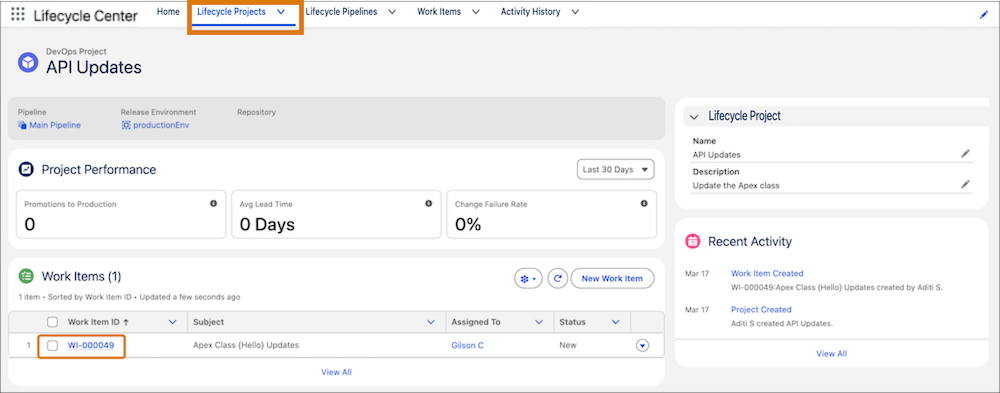
- In the Work Items pane, click the ID of a work item assigned to you.
- Review the work item details, such as the description, status, and the connected development environment.
-
(Optional) Manage your work items.
- To track additional work, create a work item. See Create and Assign Work Items.
- To add details or update an assignment, update an existing work item.
Go to your development environment, connect to Lifecycle Center from DX Inspector, and start your work. Make your changes, review tracked metadata and data in DX Inspector, and commit the changes to the assigned work item.
- Manage Work Items
Use work items to track the progress of changes created for a specific task, such as a user story, feature, or issue. Tracking releases through work items makes it easier to monitor progress and identify concerns.