With mass quick actions on a list view, users can create or update records in bulk
rather than one at a time. You can configure a mass quick action for cases, leads, accounts,
campaigns, contacts, opportunities, work orders, and custom objects that support quick
actions and have a list view button layout in Lightning Experience.
Required Editions
| Available in: Lightning Experience |
| Available in: Essentials, Group,
Professional, Enterprise, Performance,
Unlimited, and Developer Editions
|
| User
Permissions Needed |
| To set up mass quick actions for Lightning Experience: |
Customize Application |
Before setting up mass quick actions on a list view:
- Review Mass Quick Action Considerations.
- Set up Create a Record or Update a Record quick actions for your objects. These
actions are the ones that you want users to perform on multiple records in a
list view.
To add mass quick actions on a list view, customize an object’s list view button
layout.
-
From the object management settings for the object that you want to allow mass
quick actions on, go to List View Button Layout.
-
Edit the List View layout.
-
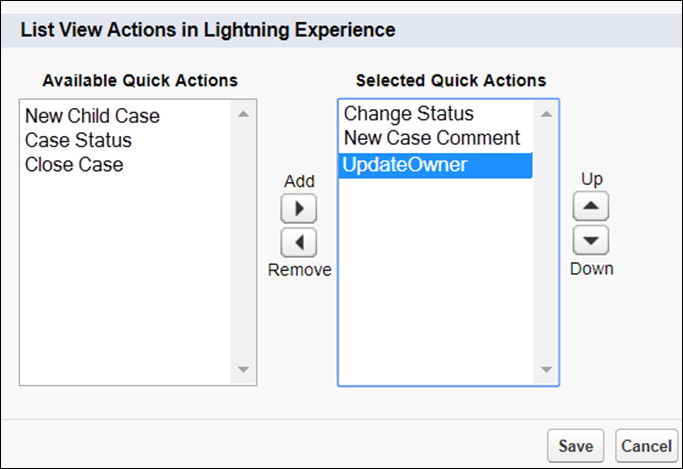
In the List View Actions in Lightning Experience section, add the actions that
you want your users to be able to perform on list views for multiple
records.
-
Save your changes.
The list view for the object that you updated now includes buttons for the actions
that you added.