---
schema_version: "1"
id: 656d5bb0ef0d7c527587cde45d502835b1a18d03659e7f77cd13bff380bcb204
title: Set Up a Mass Quick Action for List Views
collection: admin
version: current
locale: en-us
portal_url: https://docs.salesforce.com/admin/current/en-us/platform/264-0-0/mass_quick_actions_create.md
canonical_url: https://help.salesforce.com/s/articleView?id=platform.mass_quick_actions_create.htm&release=264.0.0&type=5
source_site: help.salesforce.com
content_type: documentation
content_hash: a8e659d1443754fea5ed27abe41927fd5b3c0b179af7a698e011c03258c77318
description: With mass quick actions on a list view, users can create or update records in bulk rather than one at a time. You can configure a mass quick action for cases, leads, accounts, campaigns, contacts, opportunities, work orders, and custom objects that support quick actions and have a list view button layout in Lightning Experience.
products:
- Salesforce Platform
- Security
release: "264"
---
# Set Up a Mass Quick Action for List Views
With mass quick actions on a list view, users can create or update records in bulk rather than one at a time. You can configure a mass quick action for cases, leads, accounts, campaigns, contacts, opportunities, work orders, and custom objects that support quick actions and have a list view button layout in Lightning Experience.
### Required Editions
Available in: Lightning Experience
Available in: Essentials, Group, Professional, Enterprise, Performance, Unlimited, and Developer Editions
User
Permissions Needed
To set up mass quick actions for Lightning Experience:
Customize Application
Before setting up mass quick actions on a list view:
- Review [Mass Quick Action Considerations](https://help.salesforce.com/s/articleView?id=platform.mass_quick_actions_considerations.htm&release=264.0.0&type=5 "Review these guidelines and considerations before setting up and using mass quick actions in list views.").
- Set up Create a Record or Update a Record quick actions for your objects. These actions are the ones that you want users to perform on multiple records in a list view.
To add mass quick actions on a list view, customize an object’s list view button layout.
1. From the object management settings for the object that you want to allow mass quick actions on, go to List View Button Layout.
2. Edit the List View layout.
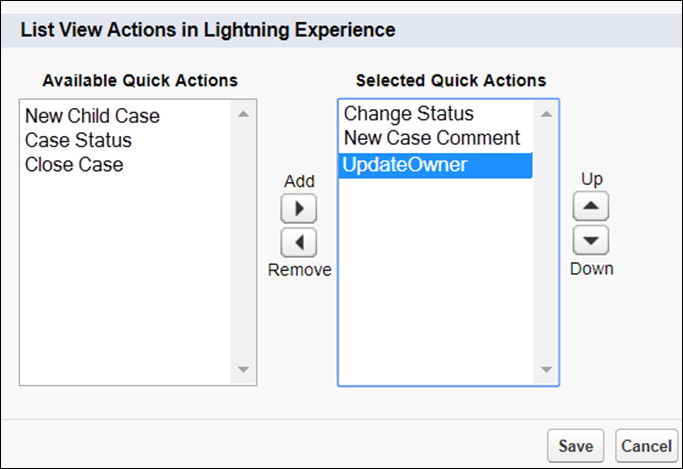
3. In the List View Actions in Lightning Experience section, add the actions that you want your users to be able to perform on list views for multiple records.
4. Save your changes.
The list view for the object that you updated now includes buttons for the actions that you added.

Example
Here’s an example of the list view actions configured for the case object.
#### See Also
- [Mass Quick Action Considerations](https://help.salesforce.com/s/articleView?id=platform.mass_quick_actions_considerations.htm&release=264.0.0&type=5 "Review these guidelines and considerations before setting up and using mass quick actions in list views.")