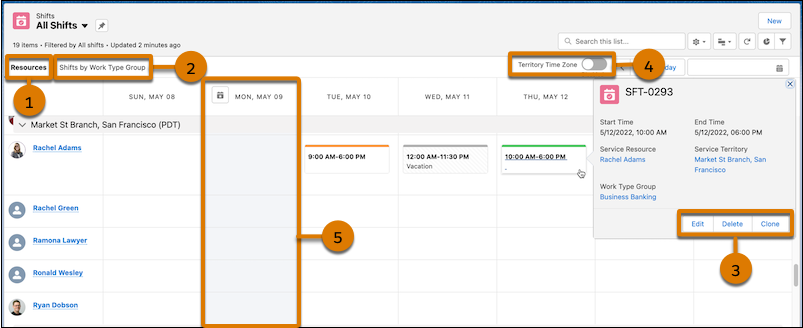
Schedule view shows shifts grouped by service resources or by work type group in a
calendar format. The view makes identifying tentative, published, and confirmed shifts easy. The
view also shows service resources’ absences and service territories’ holidays.
Required Editions
| Available in: Lightning Experience. |
| Available in: Enterprise and Unlimited Editions |
| User Permissions
Needed |
| To view shifts: |
View on Shift, Job Profiles, Service Resource, and Service Territory |
-
From the App Launcher, click Shifts.
-
Navigate to any list view other than the Recently Viewed list view, such as the All
Shifts list view or a custom list view.
-
Click the actions menu for the list view, and then select the name of the list view
that contains the shifts that you want to see.
-
If necessary, define the filters to change the shifts that appear.
-
To view upcoming shifts in the calendar format, click
 , and then select
 .
.
The shift schedule view appears.
- To create a shift, click an empty space within the calendar.
- To see a calendar of shifts that are assigned to each service resource, click the
Resources tab (1). Salesforce Scheduler shows only active
resources who are linked to the service territories for the specified time
period.
- To see a calendar of shifts that are assigned to each work type group, click the
Shifts by Work Type Group tab (2).
- To edit or clone a shift, hover over an existing shift, and then click
Edit or Clone (3).
- To see shift assignments in the time zone of the service territory, turn on
Territory Time Zone (4).
- To see the schedule in your time zone, turn off Territory Time
Zone (4).
- Resource absences and holidays have a gray background (5).
- To configure the fields shown on the resource card, update the compact layout for
the service resource object.
-
To configure the fields shown on the shift card, perform these steps.
-
In the list view for Shifts, select a list view other than the Recently Viewed list
view, such as the All Shifts list view or a custom list view.
-
Click
 , and then
click Select Fields to Display.
, and then
click Select Fields to Display.
-
To move a field from the Available Fields list to the Visible Fields list, select
the field, and then click
 .
.
-
If you want to reorganize the sequence of fields, use
 and
and  .
.
-
Save your changes.
-
Identify a shift’s status by the non-customizable, horizontal, colored stripe.
| Orange |
Tentative |
| Blue |
Published |
| Green |
Confirmed |
Customizable background colors show or highlight shifts of different types.