Configure your Salesforce Scheduler flows to ensure that when users go back to a page
and make changes during appointment scheduling, the changes are reflected on the subsequent pages.
Otherwise, if a user doesn't select the right value on a previous page, they must cancel the
scheduling process and start over.
Required Editions
| Available in: Lightning Experience. |
| Available in: Enterprise and Unlimited Editions |
| User Permissions Needed |
| To open, edit, or create a flow in Flow Builder: |
Manage Flow |
| To run a flow: |
Run Flows |
-
From Setup, in the Quick Find box, enter Flows, and then select
Flows.
-
Edit the flow that you want to configure.
-
In Flow Builder, edit the flow screen with the relevant flow screen component.
-
Select the flow screen component.
-
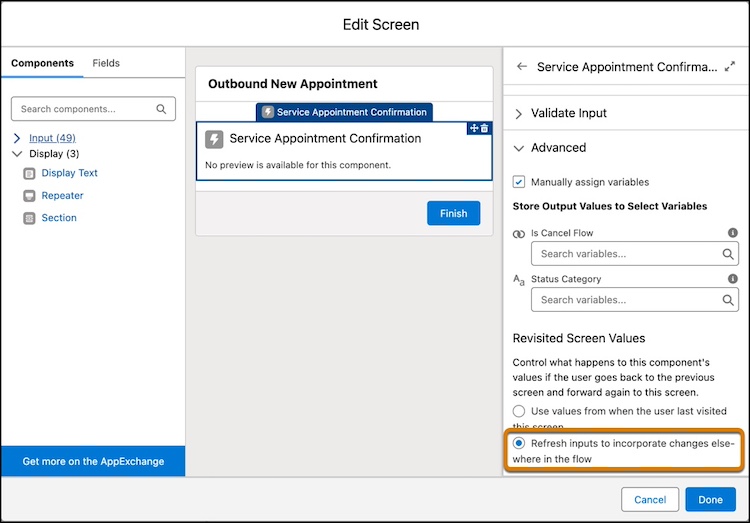
In the properties pane, expand Advanced. Under Revisited Screen
Values, select Refresh inputs to incorporate changes elsewhere in the
flow.
-
Repeat steps 3 through 5 for each flow screen.
-
Save your changes, and then activate the flow.