---
schema_version: "1"
id: 7d33f551062266a9b272cbd35568c2fe5f23799c63b052a7b66fd3580aa0dab3
title: Update Flows to Refresh Inputs
collection: admin
version: current
locale: en-us
portal_url: https://docs.salesforce.com/admin/current/en-us/platform/264-0-0/ls_refresh_inputs_on_flow_pages.md
canonical_url: https://help.salesforce.com/s/articleView?id=platform.ls_refresh_inputs_on_flow_pages.htm&release=264.0.0&type=5
source_site: help.salesforce.com
content_type: documentation
content_hash: 7897c4fe7115c5b4aeb66013f9daeaf5ea6635ae5d53ec633504fb6a4d598b4b
description: Configure your Salesforce Scheduler flows to ensure that when users go back to a page and make changes during appointment scheduling, the changes are reflected on the subsequent pages. Otherwise, if a user doesn't select the right value on a previous page, they must cancel the scheduling process and start over.
products:
- Scheduler
- Salesforce Platform
release: "264"
---
# Update Flows to Refresh Inputs
Configure your Salesforce Scheduler flows to ensure that when users go back to a page and make changes during appointment scheduling, the changes are reflected on the subsequent pages. Otherwise, if a user doesn't select the right value on a previous page, they must cancel the scheduling process and start over.
### Required Editions
Available in: Lightning Experience.
Available in: Enterprise and Unlimited Editions
User Permissions Needed
To open, edit, or create a flow in Flow Builder:
Manage Flow
To run a flow:
Run Flows
1. From Setup, in the Quick Find box, enter Flows, and then select **Flows**.
2. Edit the flow that you want to configure.

Note Before you can edit a flow, you must deactivate it.
3. In Flow Builder, edit the flow screen with the relevant flow screen component.
4. Select the flow screen component.
5. In the properties pane, expand **Advanced**. Under Revisited Screen Values, select **Refresh inputs to incorporate changes elsewhere in the flow**.
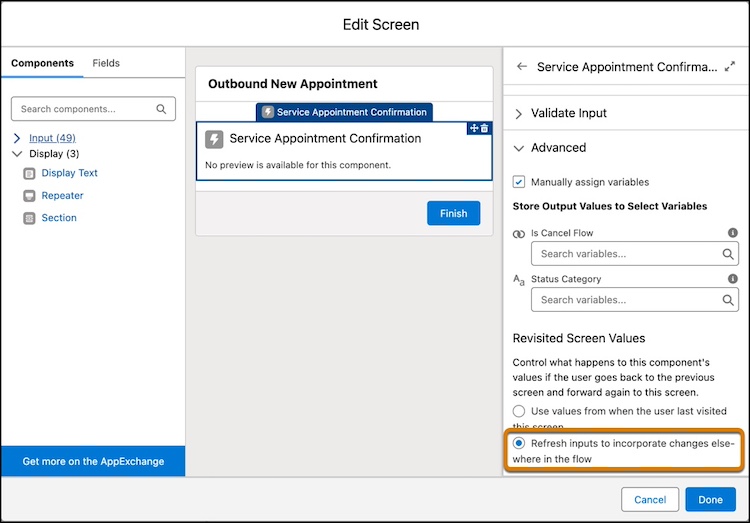
6. Repeat steps 3 through 5 for each flow screen.
7. Save your changes, and then activate the flow.