
In lobby management, the Scheduled Service Appointments list shows current, upcoming, and past appointments. Use various options in the Scheduled Service Appointments list to view and manage appointments scheduled for a day.
Required Editions
| Available in: Lightning Experience. |
| Available in: Enterprise and Unlimited Editions |
| User Permissions Needed | |
|---|---|
| To run appointment flows: | Run Flows |
| To create and modify appointments in Salesforce Scheduler: |
|
An appointment card in the Scheduled Service Appointments list shows the associated work type group and the assigned service resource. If the service appointment is a multi-resource appointment, the card shows the primary service resource by default. The service appointment card also shows:
- An icon when the scheduled appointment start time and wait time duration threshold have passed, but the customer hasn’t arrived at the service territory. (1)
- Wait time in red when the customer has checked-in, and the scheduled appointment start time and the wait time threshold have passed, but the service resource hasn’t attended to the customer. (2)
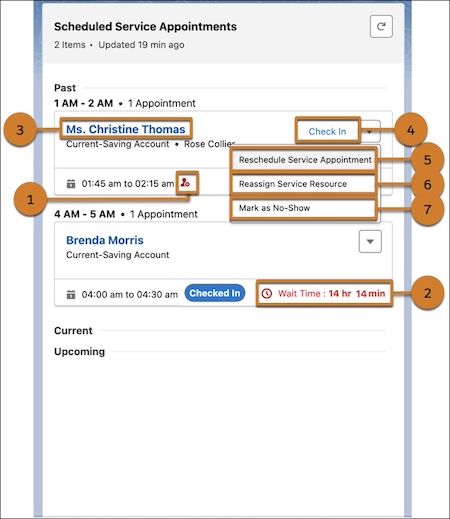
- To open the service appointment record, click the parent record name (3).
- To check in the customer when they arrive at the branch, click Check in (4).
- To change the date and time of a service appointment, click Reschedule Service Appointment (5).
- To change the service resource assigned to a service appointment, click Reassign Service Resource (6).
- To cancel the service appointment when the customer isn’t available, click Mark as No-Show (7).