---
schema_version: "1"
id: 2ff5996e546682455cdc222c40593385a3a367fff74036e027468b5b437cb458
title: Manage Scheduled Appointments Using Lobby Management
collection: admin
version: current
locale: en-us
portal_url: https://docs.salesforce.com/admin/current/en-us/platform/264-0-0/ls_manage_scheduled_appointments_in_lobby_management.md
canonical_url: https://help.salesforce.com/s/articleView?id=platform.ls_manage_scheduled_appointments_in_lobby_management.htm&release=264.0.0&type=5
source_site: help.salesforce.com
content_type: documentation
content_hash: 69774bdef85b2e1ccb9720df184afbc975eae8e785ce183878d0481b07f71a0e
description: In lobby management, the Scheduled Service Appointments list shows current, upcoming, and past appointments. Use various options in the Scheduled Service Appointments list to view and manage appointments scheduled for a day.
products:
- Scheduler
- Salesforce Platform
release: "264"
---
# Manage Scheduled Appointments Using Lobby Management
In lobby management, the Scheduled Service Appointments list shows current, upcoming, and past appointments. Use various options in the Scheduled Service Appointments list to view and manage appointments scheduled for a day.
### Required Editions
Available in: Lightning Experience.
Available in: Enterprise and Unlimited Editions
User Permissions
Needed
To run appointment flows:
Run Flows
To create and modify appointments in Salesforce Scheduler:
Read, Create, and Edit on service appointments
Read on accounts, contacts, operating hours, service resources, service
territories, work types, and work type groups
An appointment card in the Scheduled Service Appointments list shows the associated work type group and the assigned service resource. If the service appointment is a multi-resource appointment, the card shows the primary service resource by default. The service appointment card also shows:
- An icon when the scheduled appointment start time and wait time duration threshold have passed, but the customer hasn’t arrived at the service territory. (1)
- Wait time in red when the customer has checked-in, and the scheduled appointment start time and the wait time threshold have passed, but the service resource hasn’t attended to the customer. (2)
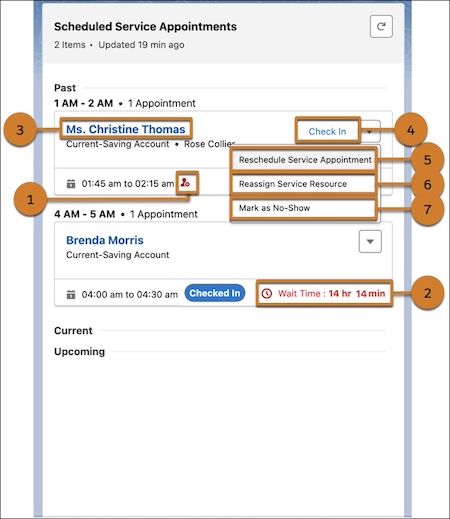
- To open the service appointment record, click the parent record name (3).
- To check in the customer when they arrive at the branch, click **Check in** (4).
- To change the date and time of a service appointment, click **Reschedule Service Appointment** (5).
- To change the service resource assigned to a service appointment, click **Reassign Service Resource** (6).
- To cancel the service appointment when the customer isn’t available, click **Mark as No-Show** (7).