
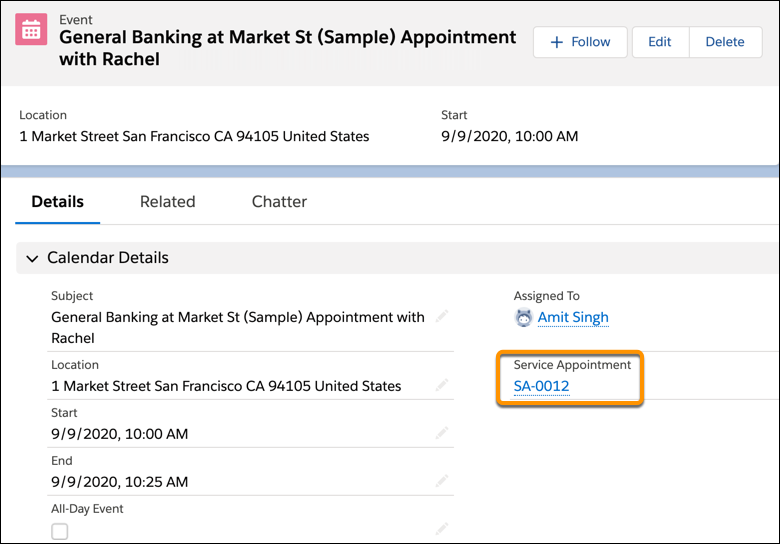
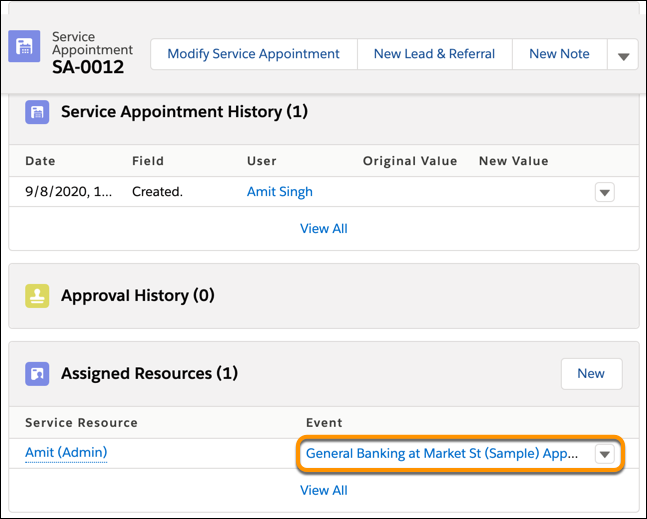
Use the Event Management setting to write appointments to Salesforce calendar. Service resources see their scheduled appointments as events on their Salesforce calendar. When you add the Service Appointment field to the Event page layout, the event details page shows a link to the corresponding service appointment in Salesforce Scheduler. Service resources can use the link to open the service appointment directly from the event on their Salesforce calendar. The Assigned Resources related list on the service appointment page also shows a link back to the event on the Salesforce calendar.
Required Editions
| Available in: Lightning Experience. |
| Available in: Enterprise and Unlimited Editions |
| User Permissions Needed | |
|---|---|
| To generate an event: | Edit Events on Service Resource |
- From Setup, in the Quick Find box, enter Salesforce Scheduler, then select Salesforce Scheduler Settings.
-
Enable Event Management.
 Note
Note- Salesforce Scheduler doesn’t create calendar events for assets, such as rooms or equipment, that are booked in an appointment.
- Salesforce Scheduler creates an event for each service resource assigned to an appointment.
This table shows how fields on the Event object map to the fields on the Service Appointment or Assigned Resource objects.
Field on Event Object Fields on Service Appointment or Assigned Resource Object Event.Subject ServiceAppointment.WorkTypeId and ServiceAppointment.Subject Event.Description ServiceAppointment.AdditionalInformation and ServiceAppointment.Comments Event.StartDateTime ServiceAppointment.SchedStartTime Event.EndDateTime ServiceAppointment.SchedEndTime Event.Location ServiceAppointment.Address Event.WhatId (Related To field for Accounts and Opportunities) ServiceAppointment.ParentRecordId Event.WhoId (Name field for Leads) ServiceAppointment.ParentRecordId Event.OwnerId AssignedResource.ServiceResourceId Event.ShowAs ServiceAppointment.Status -
If you want to link a Salesforce calendar event to the corresponding service appointment,
add the Service Appointment field to the Event page layout:
- From Setup, open Object Manager.
- In the Quick Find box, enter Event, and then select Event.
- Click Page Layouts, and then select Event Layout.
- On the palette, select Fields.
- Drag Service Appointment to the Calendar Details section on the page.
- Save your changes.
The event details page shows a link to the corresponding Salesforce Scheduler service appointment.
The Assigned Resources related list on the service appointment page shows a link back to the Salesforce calendar event.
- Show Appointments with Before and After Buffer Time on Salesforce Calender
Turn on Block Resource Availability to show the before and after appointment buffers on a service resource’s Salesforce calendar. - Multiple Service Resource Events
After enabling the Multiple Service Resource Event setting, Scheduler groups individual events and lists all attendees (service resources) under a single event.