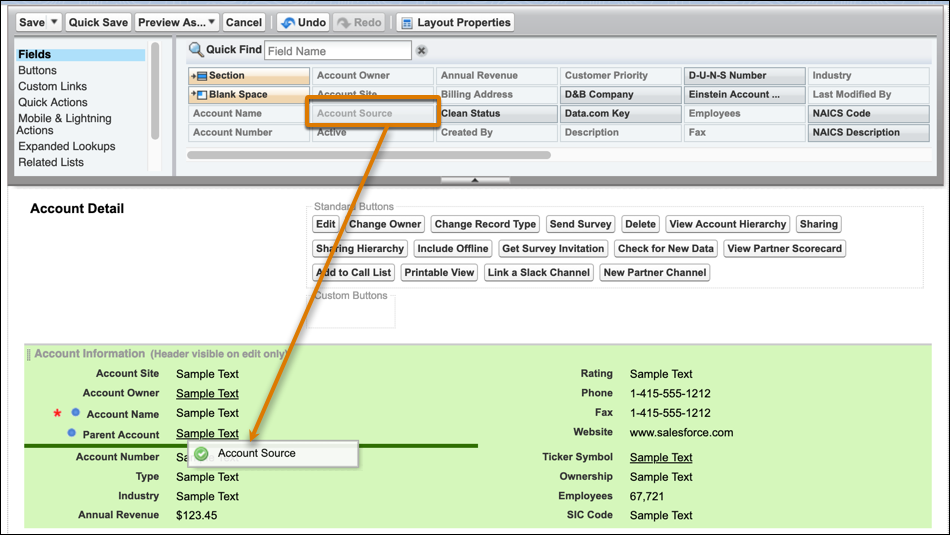
Tailor your page layouts to the needs of your users with the enhanced page layout
editor. Add, remove, or reorder actions, buttons, fields, and sections on a record’s detail
page.
Required Editions
| Available in: Salesforce Classic and Lightning Experience |
| Available in: Enterprise, Performance,
Unlimited, and Developer Editions
|
| User
Permissions Needed |
| To create page layouts: |
Customize Application |
-
From the management settings for the object that you want to edit, go to
Page Layouts.
-
Click
 on a layout’s row, and select
Edit, or simply click the name of the layout.
on a layout’s row, and select
Edit, or simply click the name of the layout.
-
Add items to the layout by clicking the element type in the palette and
dragging an item in that category onto the layout.
-
Remove an item by dragging it from the layout back to the palette, or hover
over it and click the remove icon (
 ).
).
-
Make a field ready-only or required by double-clicking it in the page layout
and selecting the appropriate checkbox.
-
Save the layout.