---
schema_version: "1"
id: f092354c129b62f30437d7c38669c47b3531a143c9cc528d03466195c8c0b144
title: Customize Page Layouts with the Enhanced Page Layout Editor
collection: admin
version: current
locale: en-us
portal_url: https://docs.salesforce.com/admin/current/en-us/platform/264-0-0/layouts_customize_ple.md
canonical_url: https://help.salesforce.com/s/articleView?id=platform.layouts_customize_ple.htm&release=264.0.0&type=5
source_site: help.salesforce.com
content_type: documentation
content_hash: 47a38b43b4aeeba8b728d25915971d8687c4b6b641473696d6e00501cfb2a9a2
description: Tailor your page layouts to the needs of your users with the enhanced page layout editor. Add, remove, or reorder actions, buttons, fields, and sections on a record’s detail page.
products:
- Salesforce Platform
- Security
release: "264"
---
# Customize Page Layouts with the Enhanced Page Layout Editor
Tailor your page layouts to the needs of your users with the enhanced page layout editor. Add, remove, or reorder actions, buttons, fields, and sections on a record’s detail page.
### Required Editions
Available in: Salesforce Classic and Lightning Experience
Available in: Enterprise, Performance, Unlimited, and Developer Editions
User
Permissions Needed
To create page layouts:
Customize Application
1. From the management settings for the object that you want to edit, go to **Page Layouts**.
2. Click  on a layout’s row, and select **Edit**, or simply click the name of the layout.
3. Add items to the layout by clicking the element type in the palette and dragging an item in that category onto the layout.
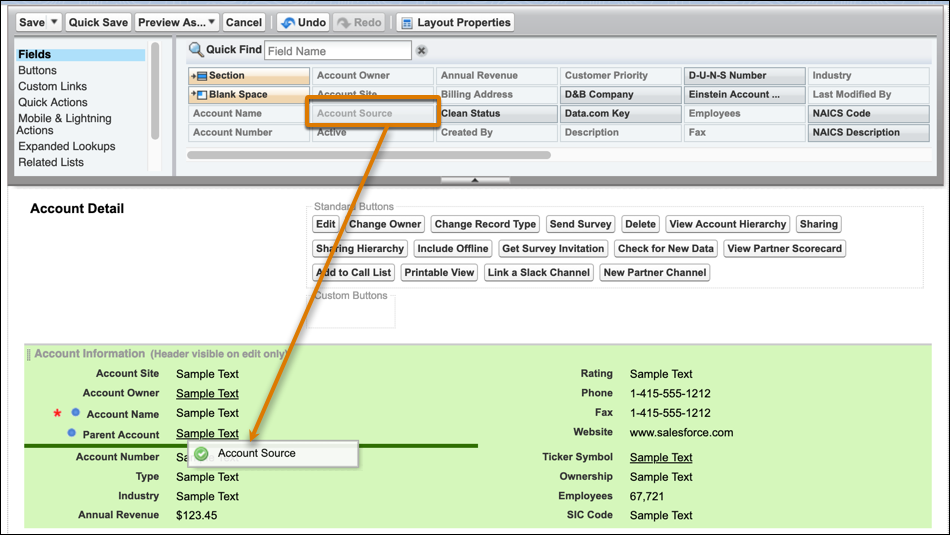
4. Remove an item by dragging it from the layout back to the palette, or hover over it and click the remove icon ().
5. Make a field ready-only or required by double-clicking it in the page layout and selecting the appropriate checkbox.
6. Save the layout.
#### See Also
- [User Interface Elements for the Enhanced Page Layout Editor](https://help.salesforce.com/s/articleView?id=platform.customize_layoutcustomize_pd_elements.htm&release=264.0.0&type=5 "This list describes the enhanced page layout editor user interface elements and how you can use them in your page layout. To add elements, drag them from the palette to the layout. Valid drop locations show up in green. To remove elements, drag them off the layout and back to the palette.")
- [Page Layout Tips](https://help.salesforce.com/s/articleView?id=platform.layouts_tips.htm&release=264.0.0&type=5 "Here are a few tips to keep your page layouts organized and easy to use.")