
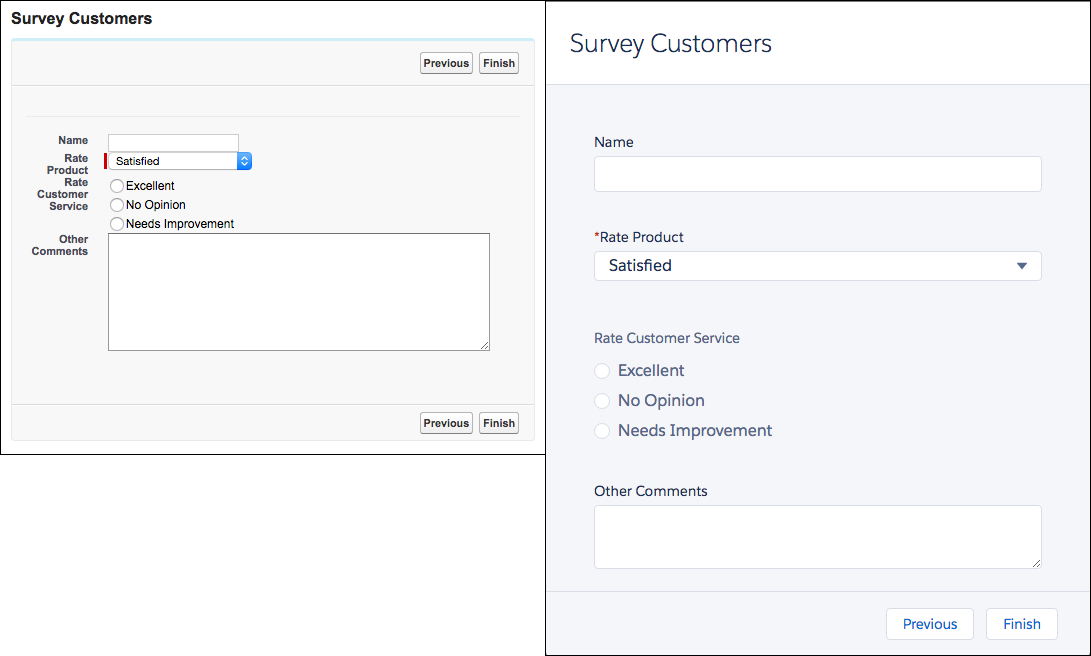
Depending on how a flow is distributed, users see either the Classic runtime or Lightning runtime UI when they run the flow. Like its name suggests, Lightning runtime looks and feels like Lightning Experience.
Required Editions
| View supported editions. |
Here’s the same flow rendered in Classic runtime (left) and Lightning runtime (right).
How to Switch to Lightning Runtime for All Flows
From Setup, enter Process Automation Settings in the Quick Find box, then select Process Automation Settings. Select Enable Lightning runtime for flows and save your changes.
Which Runtime Experience Do My Users See?
Flows that run from a Visualforce component always use Classic runtime. Flows that run from a Lightning page, flow action, or custom Aura component always use Lightning runtime. All other methods depend on whether Lightning runtime has been enabled in your org’s Process Automation settings.
This table summarizes which runtime experience your users see based on how you distribute the flow.
| Flow Distribution Method | When Lightning Runtime for Flows is | |
|---|---|---|
| Not selected | Selected | |
| Visualforce component | Classic runtime | Classic runtime |
| Custom button | Classic runtime | Lightning runtime |
| Custom link | Classic runtime | Lightning runtime |
| Web tab | Classic runtime | Lightning runtime |
| Direct link | Classic runtime | Lightning runtime |
| Flow action | Lightning runtime | Lightning runtime |
| Lightning page | Lightning runtime | Lightning runtime |
| Custom Aura component | Lightning runtime | Lightning runtime |