
When you create a custom picklist, it’s only available to the current object. To share the values with other objects, promote the picklist to a global value set. The original custom picklist references the global value set for its values, and the global value set is also available to other custom picklists.
Required Editions
| Available in: Salesforce Classic and Lightning Experience |
| Available in: all editions |
| User Permissions Needed | |
|---|---|
| To create or change custom fields: | Customize Application |
After a picklist is promoted to a global value set, you can’t demote it. You manage the values in the global value set or edit the custom picklist field to use different values.
- If you need to, first review the considerations information at the end of this topic. Go to the fields area of the object you want to create a picklist field for.
- In the Custom Fields related list, click Edit.
-
Click Promote to Global Value Set.
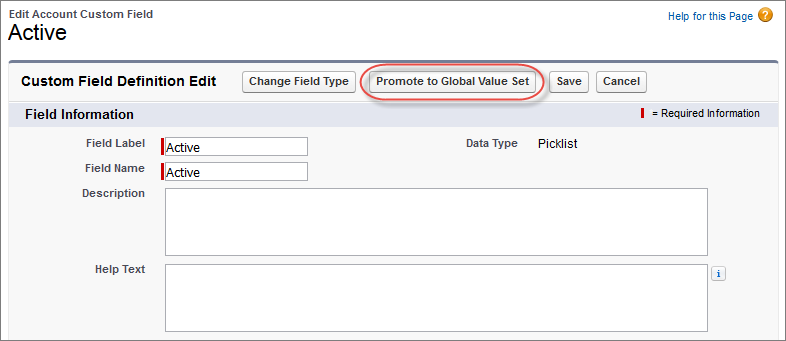
- Enter a label for the global value set.
- Accept the Field Name or edit it.
- Optionally, enter a description to identify it when using the values for other custom picklists.
- Click Promote to Global Value Set, again.
You can use the new global value set for other fields and manage the values in Picklist Value Sets.
When promoting a custom picklist, be aware of these considerations.
- You can promote fields that have up to 1,000 values (both active and inactive).
- You can promote only restricted picklists. To promote an unrestricted picklist, convert it to a restricted picklist.
- You can’t promote a field to an existing global value set.
- Picklist values translated using Translation workbench have a limit of 40 characters.
- You can’t undo a custom picklist field’s association with a global value set. If you need a picklist field to use a different global value set or different individual values, delete the custom picklist field, and create a new one in its place.