---
schema_version: "1"
id: e7288ad63f3aab383bbb25f9b56c7dd392f259bc3ac978d06ec0f3e04f728ee5
title: Make Your Custom Picklist Field Values Global
collection: admin
version: current
locale: en-us
portal_url: https://docs.salesforce.com/admin/current/en-us/platform/264-0-0/fields_promote_picklists.md
canonical_url: https://help.salesforce.com/s/articleView?id=platform.fields_promote_picklists.htm&release=264.0.0&type=5
source_site: help.salesforce.com
content_type: documentation
content_hash: b94d80265fc5389c3d33d4a7ad18d185806ff64237b5a6636ea3301f0031c8a1
description: When you create a custom picklist, it’s only available to the current object. To share the values with other objects, promote the picklist to a global value set. The original custom picklist references the global value set for its values, and the global value set is also available to other custom picklists.
products:
- Salesforce Platform
- Security
release: "264"
---
# Make Your Custom Picklist Field Values Global
When you create a custom picklist, it’s only available to the current object. To share the values with other objects, promote the picklist to a global value set. The original custom picklist references the global value set for its values, and the global value set is also available to other custom picklists.
### Required Editions
Available in: Salesforce Classic and Lightning Experience
Available in: all editions
User
Permissions Needed
To create or change custom fields:
Customize Application
After a picklist is promoted to a global value set, you can’t demote it. You manage the values in the global value set or edit the custom picklist field to use different values.
1. If you need to, first review the considerations information at the end of this topic. Go to the fields area of the object you want to create a picklist field for.
2. In the Custom Fields related list, click **Edit**.
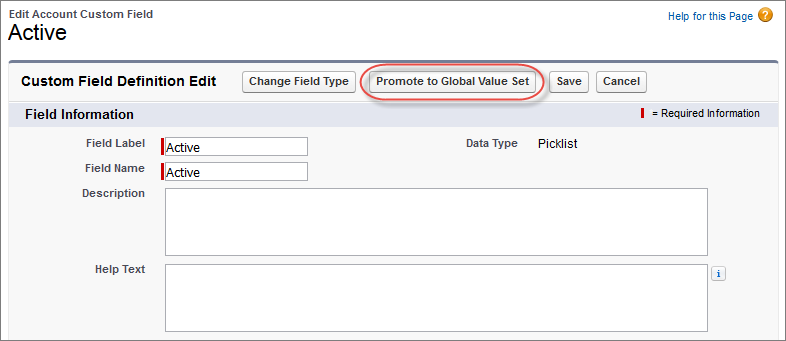
3. Click **Promote to Global Value Set**.
4. Enter a label for the global value set.
5. Accept the Field Name or edit it.
6. Optionally, enter a description to identify it when using the values for other custom picklists.
7. Click **Promote to Global Value Set**, again.
You can use the new global value set for other fields and manage the values in Picklist Value Sets.
When promoting a custom picklist, be aware of these considerations.
- You can promote fields that have up to 1,000 values (both active and inactive).
- You can promote only restricted picklists. To promote an unrestricted picklist, convert it to a restricted picklist.
- You can’t promote a field to an existing global value set.
- Picklist values translated using Translation workbench have a limit of 40 characters.
- You can’t undo a custom picklist field’s association with a global value set. If you need a picklist field to use a different global value set or different individual values, delete the custom picklist field, and create a new one in its place.
#### See Also
- [Create a Custom Picklist Field](https://help.salesforce.com/s/articleView?id=platform.fields_creating_picklists.htm&release=264.0.0&type=5 "Create custom picklist fields to let your users select values from lists that you define.")
- [Create a Global Picklist Value Set](https://help.salesforce.com/s/articleView?id=platform.fields_creating_global_picklists.htm&release=264.0.0&type=5 "Use a global picklist value set to share values across objects and custom picklist fields, and to restrict the picklists to only the values that you specify.")